A Basic Guide to SPSS
Elsayed Salih MD
Associate professor of urology
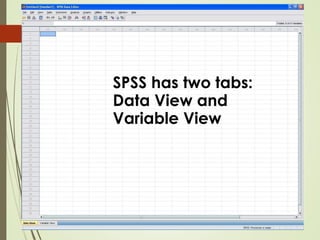
SPSS has two tabs:
Data View and
Variable View
‘Data View’ is where
the numbers are
inputted e.g. Survey
responses
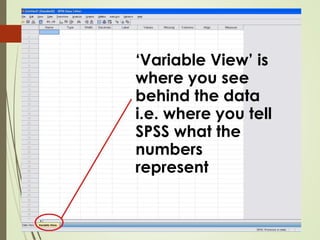
‘Variable View’ is
where you see
behind the data
i.e. where you tell
SPSS what the
numbers
represent
This is what Data
View looks like with
some content
added
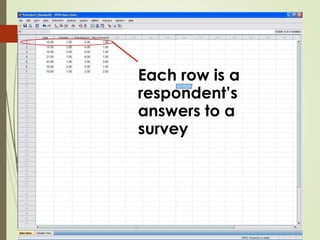
Each row is a
respondent’s
answers to a
survey
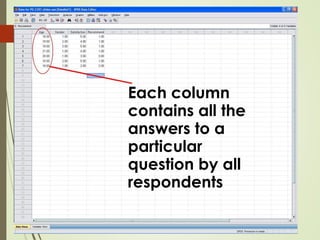
Each column
contains all the
answers to a
particular
question by all
respondents
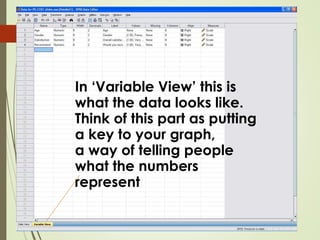
In ‘Variable View’ this is
what the data looks like.
Think of this part as putting
a key to your graph,
a way of telling people
what the numbers
represent
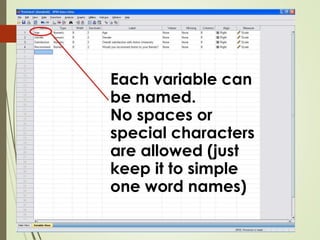
Each variable can
be named.
No spaces or
special characters
are allowed (just
keep it to simple
one word names)
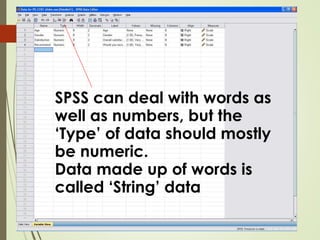
SPSS can deal with words as
well as numbers, but the
‘Type’ of data should mostly
be numeric.
Data made up of words is
called ‘String’ data
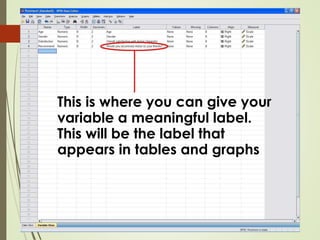
This is where you can give your
variable a meaningful label.
This will be the label that
appears in tables and graphs
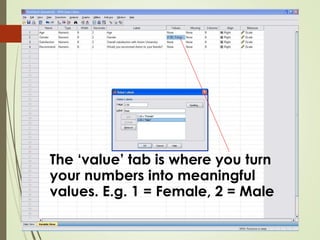
The ‘value’ tab is where you turn
your numbers into meaningful
values. E.g. 1 = Female, 2 = Male
Once you have imported your data, or inputted it
manually if your questionnaire is on paper, you
can start to make sense of the data that you have.
It can be time-consuming, but the results are
clean, efficient and the data can scrutinized in
countless ways
Even basic ‘descriptive’ statistics can be
revealing, interesting and easy to run in
numerous ways
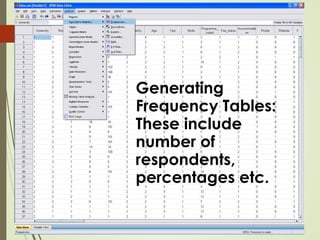
Generating
Frequency Tables:
These include
number of
respondents,
percentages etc.
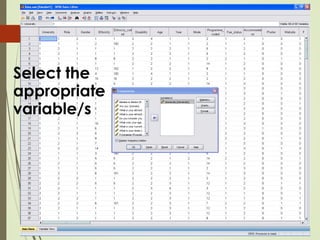
Select the
appropriate
variable/s
A new
window
opens with
your data
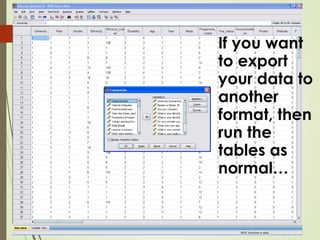
If you want
to export
your data to
another
format, then
run the
tables as
normal…
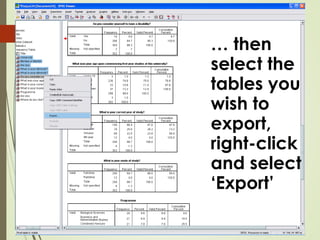
… then
select the
tables you
wish to
export,
right-click
and select
‘Export’
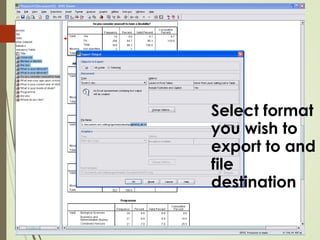
Select format
you wish to
export to and
file
destination
If you wish to
view Graphs
or Pie Charts,
then select
‘Charts’ when
choosing your
variables,
then select
appropriate
‘Chart Type’
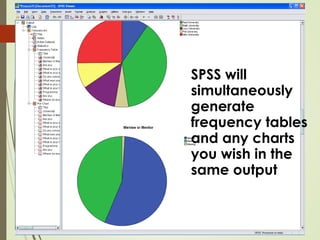
SPSS will
simultaneously
generate
frequency tables
and any charts
you wish in the
same output
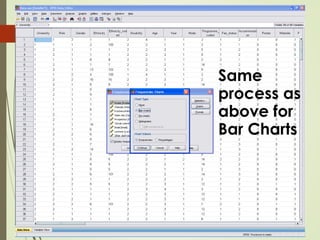
Same
process as
above for
Bar Charts
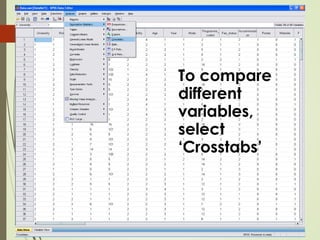
To compare
different
variables,
select
‘Crosstabs’
Select the
appropriate
variables and
use the
arrows to
move them
into the ‘rows’
and ‘columns’
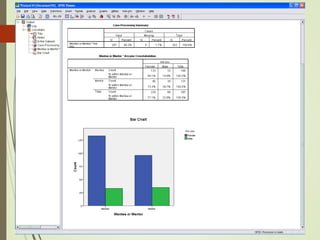
sections Note that I have checked the box to
generate Bar Charts so we can see
the comparisons in a visual format
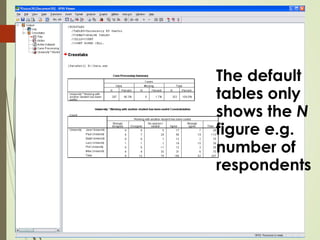
The default
tables only
shows the N
figure e.g.
number of
respondents
To add percentages to the tables click
the ‘Cell’ button and check the
appropriate boxes
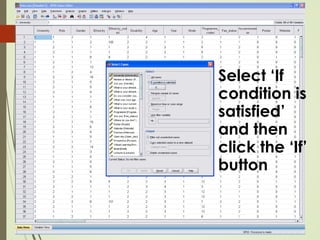
If you wish to
view specific
cases and
eliminate any
variables from
your data, then
go to ‘Select
Cases’
Select ‘If
condition is
satisfied’
and then
click the ‘If’
button
Select your
variable
and then
use the
arrow to
send it to
the other
side of the
screen…
… Then
click =
and select
the
number
that
represents
the
variables
you wish
to view
Now you
can run all
the data as
before, but
only what
are being
used

Basic guide to spss