Beginning Native Android Apps
Gil Irizarry
Conoa, Inc.
Your logo on white
centered in this space
Launched VC News Daily app on iOS and Android. Over 3000
downloads so far. Also, check out @wazareapp.
Owner and lead engineer at Conoa, a graphics and mobile software firm
gil@conoa.com
http://www.slideshare.net/conoagil/
About Me
All examples and sample code in this presentation can be found at:
http://conoa.com/hidden/sig2015examples.zip
About Me
There are nearly 4 million mobile apps available today.
http://www.statista.com/statistics/276623/number-of-apps-available-in-
leading-app-stores/
In 2015, there will be approximately 180 billion app downloads.
http://www.statista.com/statistics/266488/forecast-of-mobile-app-
downloads/
For many, interacting with software means interacting with mobile
devices (or at least devices that run mobile software).
Why?
Learn some basic Android concepts
Look at the structure of an Android app
Access the device
Do some rendering
What we will do
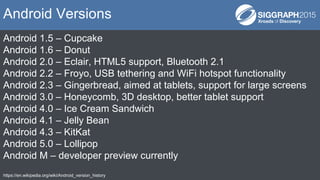
Android 1.5 – Cupcake
Android 1.6 – Donut
Android 2.0 – Eclair, HTML5 support, Bluetooth 2.1
Android 2.2 – Froyo, USB tethering and WiFi hotspot functionality
Android 2.3 – Gingerbread, aimed at tablets, support for large screens
Android 3.0 – Honeycomb, 3D desktop, better tablet support
Android 4.0 – Ice Cream Sandwich
Android 4.1 – Jelly Bean
Android 4.3 – KitKat
Android 5.0 – Lollipop
Android M – developer preview currently
https://en.wikipedia.org/wiki/Android_version_history
Android Versions
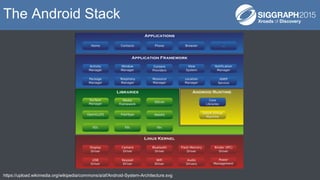
https://upload.wikimedia.org/wikipedia/commons/a/af/Android-System-Architecture.svg
The Android Stack
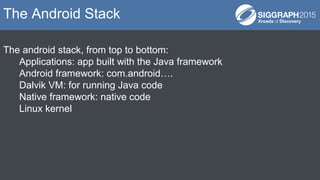
The android stack, from top to bottom:
Applications: app built with the Java framework
Android framework: com.android….
Dalvik VM: for running Java code
Native framework: native code
Linux kernel
The Android Stack
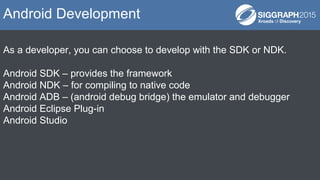
As a developer, you can choose to develop with the SDK or NDK.
Android SDK – provides the framework
Android NDK – for compiling to native code
Android ADB – (android debug bridge) the emulator and debugger
Android Eclipse Plug-in
Android Studio
Android Development
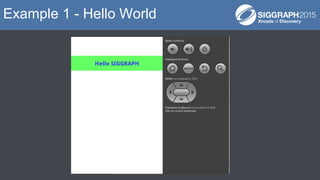
Example 1 - Hello World
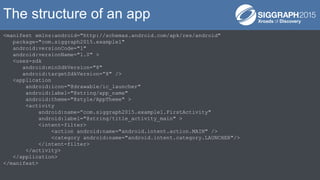
Manifest
- An Android app must list the set of permissions it needs and device
capabilities it will use. This list is contained in the manifest file. The
manifest file allows the user to understand what capabilities an app has
when installing it.
The structure of an app
<manifest xmlns:android="http://schemas.android.com/apk/res/android"
package="com.siggraph2015.example1"
android:versionCode="1"
android:versionName="1.0" >
<uses-sdk
android:minSdkVersion="8"
android:targetSdkVersion=”8" />
<application
android:icon="@drawable/ic_launcher"
android:label="@string/app_name"
android:theme="@style/AppTheme" >
<activity
android:name=”com.siggraph2015.example1.FirstActivity"
android:label="@string/title_activity_main" >
<intent-filter>
<action android:name="android.intent.action.MAIN" />
<category android:name="android.intent.category.LAUNCHER"/>
</intent-filter>
</activity>
</application>
</manifest>
The structure of an app
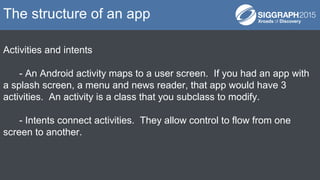
Activities and intents
- An Android activity maps to a user screen. If you had an app with
a splash screen, a menu and news reader, that app would have 3
activities. An activity is a class that you subclass to modify.
- Intents connect activities. They allow control to flow from one
screen to another.
The structure of an app
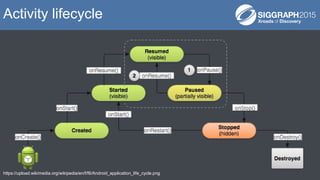
https://upload.wikimedia.org/wikipedia/en/f/f6/Android_application_life_cycle.png
Activity lifecycle
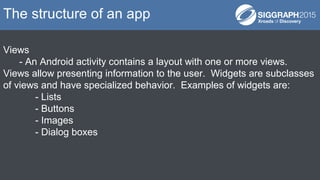
Views
- An Android activity contains a layout with one or more views.
Views allow presenting information to the user. Widgets are subclasses
of views and have specialized behavior. Examples of widgets are:
- Lists
- Buttons
- Images
- Dialog boxes
The structure of an app
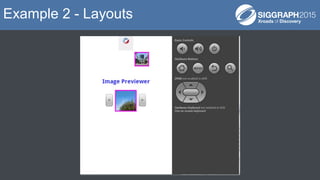
Example 2 - Layouts
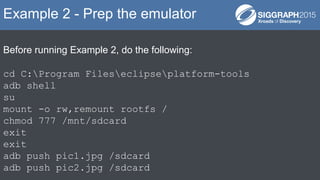
Before running Example 2, do the following:
cd C:Program Fileseclipseplatform-tools
adb shell
su
mount -o rw,remount rootfs /
chmod 777 /mnt/sdcard
exit
exit
adb push pic1.jpg /sdcard
adb push pic2.jpg /sdcard
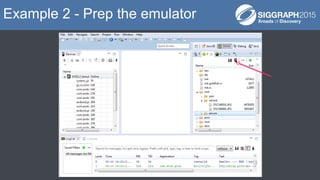
Example 2 - Prep the emulator
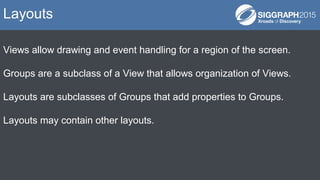
Views allow drawing and event handling for a region of the screen.
Groups are a subclass of a View that allows organization of Views.
Layouts are subclasses of Groups that add properties to Groups.
Layouts may contain other layouts.
Layouts
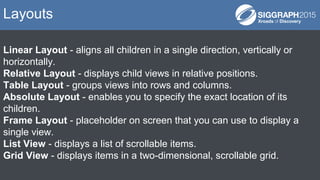
Linear Layout - aligns all children in a single direction, vertically or
horizontally.
Relative Layout - displays child views in relative positions.
Table Layout - groups views into rows and columns.
Absolute Layout - enables you to specify the exact location of its
children.
Frame Layout - placeholder on screen that you can use to display a
single view.
List View - displays a list of scrollable items.
Grid View - displays items in a two-dimensional, scrollable grid.
Layouts
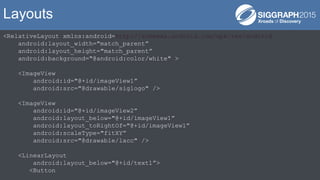
<RelativeLayout xmlns:android=http://schemas.android.com/apk/res/android
android:layout_width="match_parent”
android:layout_height="match_parent”
android:background="@android:color/white" >
<ImageView
android:id="@+id/imageView1”
android:src="@drawable/siglogo" />
<ImageView
android:id="@+id/imageView2”
android:layout_below="@+id/imageView1”
android:layout_toRightOf="@+id/imageView1”
android:scaleType="fitXY”
android:src="@drawable/lacc" />
<LinearLayout
android:layout_below="@+id/text1”>
<Button
Layouts
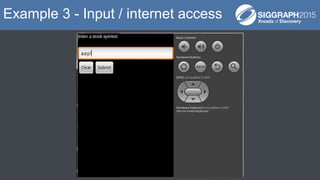
Example 3 - Input / internet access
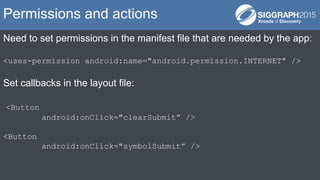
Need to set permissions in the manifest file that are needed by the app:
<uses-permission android:name="android.permission.INTERNET" />
Set callbacks in the layout file:
<Button
android:onClick="clearSubmit” />
<Button
android:onClick="symbolSubmit” />
Permissions and actions
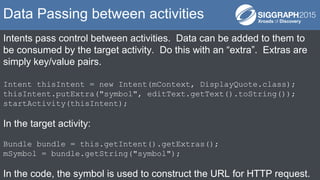
Intents pass control between activities. Data can be added to them to
be consumed by the target activity. Do this with an “extra”. Extras are
simply key/value pairs.
Intent thisIntent = new Intent(mContext, DisplayQuote.class);
thisIntent.putExtra("symbol", editText.getText().toString());
startActivity(thisIntent);
In the target activity:
Bundle bundle = this.getIntent().getExtras();
mSymbol = bundle.getString("symbol");
In the code, the symbol is used to construct the URL for HTTP request.
Data Passing between activities
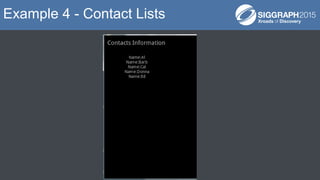
Example 4 - Contact Lists
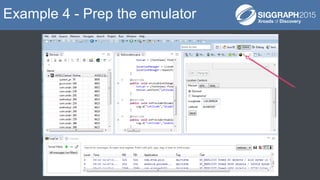
Make sure to add some contacts to the emulator.
Example 4 - Prep the emulator
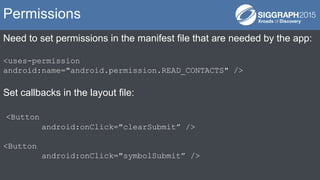
Need to set permissions in the manifest file that are needed by the app:
<uses-permission
android:name="android.permission.READ_CONTACTS" />
Set callbacks in the layout file:
<Button
android:onClick="clearSubmit” />
<Button
android:onClick="symbolSubmit” />
Permissions
Content providers manage access to a structured set of data. They
encapsulate the data, and provide mechanisms for defining data
security.
When you want to access data in a content provider, you use the
ContentResolver object in your application's Context to communicate
with the provider as a client.
Cursors provide random read-write access to the result set returned by
a database. The example uses a Cursor to loop over the data returned
from a query of the Resolver.
Providers, Resolvers and Cursors
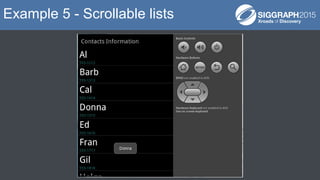
Example 5 - Scrollable lists
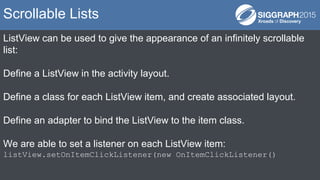
ListView can be used to give the appearance of an infinitely scrollable
list:
Define a ListView in the activity layout.
Define a class for each ListView item, and create associated layout.
Define an adapter to bind the ListView to the item class.
We are able to set a listener on each ListView item:
listView.setOnItemClickListener(new OnItemClickListener()
Scrollable Lists
In addition to ListView, there is also ExpandableListView.
In ExpandableListView, each list item will open to reveal a larger layout
when touched.
Expandable List Items
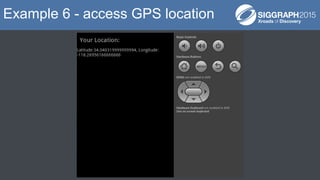
Example 6 - access GPS location
Make sure to add some contacts to the emulator.
Example 4 - Prep the emulator
Need to set permissions in the manifest file that are needed by the app:
<uses-permission
android:name="android.permission.ACCESS_FINE_LOCATION" />
<uses-permission
android:name="android.permission.ACCESS_COARSE_LOCATION" />
<uses-permission android:name="android.permission.INTERNET" />
Permissions
Need to implement a LocationListener:
public class GetLocation extends Activity implements
LocationListener {
Then the app can be called when the location changes:
public void onLocationChanged(Location location) {
txtLat = (TextView) findViewById(R.id.locationview);
txtLat.setText("Latitude:" + location.getLatitude() + ",
Longitude:" + location.getLongitude());
}
LocationListener
Example 7 - using the camera
Need to set permissions in the manifest file that are needed by the app:
<uses-permission android:name="android.permission.CAMERA"/>
<uses-feature android:name="android.hardware.camera" />
<uses-feature android:name="android.hardware.camera.autofocus" />
<uses-permission
android:name="android.permission.WRITE_EXTERNAL_STORAGE" />
Permissions
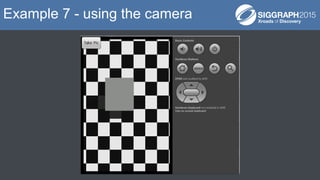
A subclass of SurfaceView gets the camera and starts previewing.
The activity binds that SurfaceView to the FrameLayout defined in the
layout file.
In the example, the listener on the button forces the camera to take a
picture, calling the camera callback method for taking a picture. Here
we can get the raw bitmap of the image.
What if we wanted to do image processing on preview?
Previewing the Camera
Example 8 - OpenGL rendering
Android bundles OpenGL ES – OpenGL for Embedded Systems
Since Android 2.2, there has been support for OpenGL ES 1.0. Later
versions of Android support OpenGL ES 2.0. You can query the
platform to see which version of OpenGL ES is supported and make the
appropriate rendering calls.
OpenGL rendering
The activity is bound to a surface. The surface is what gets drawn and
receives events.
The surface is bound to a renderer. The renderer contains the code for
rendering.
OpenGL rendering
The example code calls queueEvent when wanting to render.
This is needed because GLSurfaceView creates a separate rendering
thread. You can’t make rendering calls directly in the UI thread.
queueEvent queues request from other threads to the surface thread for
rendering.
Why queueEvent?
Set version in the manifest file
Build the .apk file
Digitally sign it
Create developer account
Upload to Google Play developer console
Submitting to the App Store

Beginning Native Android Apps

  • 1.
    Beginning Native AndroidApps Gil Irizarry Conoa, Inc. Your logo on white centered in this space
  • 2.
    Launched VC NewsDaily app on iOS and Android. Over 3000 downloads so far. Also, check out @wazareapp. Owner and lead engineer at Conoa, a graphics and mobile software firm gil@conoa.com http://www.slideshare.net/conoagil/ About Me
  • 3.
    All examples andsample code in this presentation can be found at: http://conoa.com/hidden/sig2015examples.zip About Me
  • 4.
    There are nearly4 million mobile apps available today. http://www.statista.com/statistics/276623/number-of-apps-available-in- leading-app-stores/ In 2015, there will be approximately 180 billion app downloads. http://www.statista.com/statistics/266488/forecast-of-mobile-app- downloads/ For many, interacting with software means interacting with mobile devices (or at least devices that run mobile software). Why?
  • 5.
    Learn some basicAndroid concepts Look at the structure of an Android app Access the device Do some rendering What we will do
  • 6.
    Android 1.5 –Cupcake Android 1.6 – Donut Android 2.0 – Eclair, HTML5 support, Bluetooth 2.1 Android 2.2 – Froyo, USB tethering and WiFi hotspot functionality Android 2.3 – Gingerbread, aimed at tablets, support for large screens Android 3.0 – Honeycomb, 3D desktop, better tablet support Android 4.0 – Ice Cream Sandwich Android 4.1 – Jelly Bean Android 4.3 – KitKat Android 5.0 – Lollipop Android M – developer preview currently https://en.wikipedia.org/wiki/Android_version_history Android Versions
  • 7.
  • 8.
    The android stack,from top to bottom: Applications: app built with the Java framework Android framework: com.android…. Dalvik VM: for running Java code Native framework: native code Linux kernel The Android Stack
  • 9.
    As a developer,you can choose to develop with the SDK or NDK. Android SDK – provides the framework Android NDK – for compiling to native code Android ADB – (android debug bridge) the emulator and debugger Android Eclipse Plug-in Android Studio Android Development
  • 10.
    Example 1 -Hello World
  • 11.
    Manifest - An Androidapp must list the set of permissions it needs and device capabilities it will use. This list is contained in the manifest file. The manifest file allows the user to understand what capabilities an app has when installing it. The structure of an app
  • 12.
    <manifest xmlns:android="http://schemas.android.com/apk/res/android" package="com.siggraph2015.example1" android:versionCode="1" android:versionName="1.0" > <uses-sdk android:minSdkVersion="8" android:targetSdkVersion=”8"/> <application android:icon="@drawable/ic_launcher" android:label="@string/app_name" android:theme="@style/AppTheme" > <activity android:name=”com.siggraph2015.example1.FirstActivity" android:label="@string/title_activity_main" > <intent-filter> <action android:name="android.intent.action.MAIN" /> <category android:name="android.intent.category.LAUNCHER"/> </intent-filter> </activity> </application> </manifest> The structure of an app
  • 13.
    Activities and intents -An Android activity maps to a user screen. If you had an app with a splash screen, a menu and news reader, that app would have 3 activities. An activity is a class that you subclass to modify. - Intents connect activities. They allow control to flow from one screen to another. The structure of an app
  • 14.
  • 15.
    Views - An Androidactivity contains a layout with one or more views. Views allow presenting information to the user. Widgets are subclasses of views and have specialized behavior. Examples of widgets are: - Lists - Buttons - Images - Dialog boxes The structure of an app
  • 16.
    Example 2 -Layouts
  • 17.
    Before running Example2, do the following: cd C:Program Fileseclipseplatform-tools adb shell su mount -o rw,remount rootfs / chmod 777 /mnt/sdcard exit exit adb push pic1.jpg /sdcard adb push pic2.jpg /sdcard Example 2 - Prep the emulator
  • 18.
    Example 2 -Prep the emulator
  • 19.
    Views allow drawingand event handling for a region of the screen. Groups are a subclass of a View that allows organization of Views. Layouts are subclasses of Groups that add properties to Groups. Layouts may contain other layouts. Layouts
  • 20.
    Linear Layout -aligns all children in a single direction, vertically or horizontally. Relative Layout - displays child views in relative positions. Table Layout - groups views into rows and columns. Absolute Layout - enables you to specify the exact location of its children. Frame Layout - placeholder on screen that you can use to display a single view. List View - displays a list of scrollable items. Grid View - displays items in a two-dimensional, scrollable grid. Layouts
  • 21.
    <RelativeLayout xmlns:android=http://schemas.android.com/apk/res/android android:layout_width="match_parent” android:layout_height="match_parent” android:background="@android:color/white" > <ImageView android:id="@+id/imageView1” android:src="@drawable/siglogo"/> <ImageView android:id="@+id/imageView2” android:layout_below="@+id/imageView1” android:layout_toRightOf="@+id/imageView1” android:scaleType="fitXY” android:src="@drawable/lacc" /> <LinearLayout android:layout_below="@+id/text1”> <Button Layouts
  • 22.
    Example 3 -Input / internet access
  • 23.
    Need to setpermissions in the manifest file that are needed by the app: <uses-permission android:name="android.permission.INTERNET" /> Set callbacks in the layout file: <Button android:onClick="clearSubmit” /> <Button android:onClick="symbolSubmit” /> Permissions and actions
  • 24.
    Intents pass controlbetween activities. Data can be added to them to be consumed by the target activity. Do this with an “extra”. Extras are simply key/value pairs. Intent thisIntent = new Intent(mContext, DisplayQuote.class); thisIntent.putExtra("symbol", editText.getText().toString()); startActivity(thisIntent); In the target activity: Bundle bundle = this.getIntent().getExtras(); mSymbol = bundle.getString("symbol"); In the code, the symbol is used to construct the URL for HTTP request. Data Passing between activities
  • 25.
    Example 4 -Contact Lists
  • 26.
    Make sure toadd some contacts to the emulator. Example 4 - Prep the emulator
  • 27.
    Need to setpermissions in the manifest file that are needed by the app: <uses-permission android:name="android.permission.READ_CONTACTS" /> Set callbacks in the layout file: <Button android:onClick="clearSubmit” /> <Button android:onClick="symbolSubmit” /> Permissions
  • 28.
    Content providers manageaccess to a structured set of data. They encapsulate the data, and provide mechanisms for defining data security. When you want to access data in a content provider, you use the ContentResolver object in your application's Context to communicate with the provider as a client. Cursors provide random read-write access to the result set returned by a database. The example uses a Cursor to loop over the data returned from a query of the Resolver. Providers, Resolvers and Cursors
  • 29.
    Example 5 -Scrollable lists
  • 30.
    ListView can beused to give the appearance of an infinitely scrollable list: Define a ListView in the activity layout. Define a class for each ListView item, and create associated layout. Define an adapter to bind the ListView to the item class. We are able to set a listener on each ListView item: listView.setOnItemClickListener(new OnItemClickListener() Scrollable Lists
  • 31.
    In addition toListView, there is also ExpandableListView. In ExpandableListView, each list item will open to reveal a larger layout when touched. Expandable List Items
  • 32.
    Example 6 -access GPS location
  • 33.
    Make sure toadd some contacts to the emulator. Example 4 - Prep the emulator
  • 34.
    Example 4 -Prep the emulator
  • 35.
    Need to setpermissions in the manifest file that are needed by the app: <uses-permission android:name="android.permission.ACCESS_FINE_LOCATION" /> <uses-permission android:name="android.permission.ACCESS_COARSE_LOCATION" /> <uses-permission android:name="android.permission.INTERNET" /> Permissions
  • 36.
    Need to implementa LocationListener: public class GetLocation extends Activity implements LocationListener { Then the app can be called when the location changes: public void onLocationChanged(Location location) { txtLat = (TextView) findViewById(R.id.locationview); txtLat.setText("Latitude:" + location.getLatitude() + ", Longitude:" + location.getLongitude()); } LocationListener
  • 37.
    Example 7 -using the camera
  • 38.
    Need to setpermissions in the manifest file that are needed by the app: <uses-permission android:name="android.permission.CAMERA"/> <uses-feature android:name="android.hardware.camera" /> <uses-feature android:name="android.hardware.camera.autofocus" /> <uses-permission android:name="android.permission.WRITE_EXTERNAL_STORAGE" /> Permissions
  • 39.
    A subclass ofSurfaceView gets the camera and starts previewing. The activity binds that SurfaceView to the FrameLayout defined in the layout file. In the example, the listener on the button forces the camera to take a picture, calling the camera callback method for taking a picture. Here we can get the raw bitmap of the image. What if we wanted to do image processing on preview? Previewing the Camera
  • 40.
    Example 8 -OpenGL rendering
  • 41.
    Android bundles OpenGLES – OpenGL for Embedded Systems Since Android 2.2, there has been support for OpenGL ES 1.0. Later versions of Android support OpenGL ES 2.0. You can query the platform to see which version of OpenGL ES is supported and make the appropriate rendering calls. OpenGL rendering
  • 42.
    The activity isbound to a surface. The surface is what gets drawn and receives events. The surface is bound to a renderer. The renderer contains the code for rendering. OpenGL rendering
  • 43.
    The example codecalls queueEvent when wanting to render. This is needed because GLSurfaceView creates a separate rendering thread. You can’t make rendering calls directly in the UI thread. queueEvent queues request from other threads to the surface thread for rendering. Why queueEvent?
  • 44.
    Set version inthe manifest file Build the .apk file Digitally sign it Create developer account Upload to Google Play developer console Submitting to the App Store