Vector Drawable
SVG
Tutorial (Android)
Mr. THANN Phearum,
Associate Software Engineering
Outline
- Intro.
- Icon Sizes
- Implement
- Demo
- Ref.
Intro.
- SVG?
● SVG stands for Scalable Vector Graphics
● SVG is used to define vector-based graphics for the Web
● SVG defines the graphics in XML format
● SVG graphics do NOT lose any quality if they are zoomed or resized
● Every element and every attribute in SVG files can be animated
● SVG is a W3C recommendation
● SVG integrates with other W3C standards such as the DOM and XSL
Source: http://www.w3schools.com/svg/
Into. (cont.)
- Example
<svg xmlns="http://www.w3.org/2000/svg"
width="48" height="48" viewBox="0 0 48 48">
<path d="M38 16H10c-3.31 0-6 2.69-6
6v12h8v8h24v-8h8V22c0-3.31-2.69-6-6-6zm-6
22H16V28h16v10zm6-14c-1.11 0-2-.89-2-2s.
89-2 2-2c1.11 0 2 .89 2 2s-.89 2-2 2zM36
6H12v8h24V6z"/>
</svg>
ic_printer.svg
NOTE: (width="48" and height="48") is baseline size to scale the image
Into. (cont.)
- Tools to create .svg
Illustrator (WIndow, Mac)
InkScape (Linux)
Icon Sizes
Android icons require five separate sizes for different screen pixel densities.
Icon Sizes (cont.)
Android also classify the icon into four types
- Small Contextual
Small icons are used to surface actions and/or provide status for specific items.
For example, in the Gmail app, each message has a star icon that marks the message as important.
- Notification
These are used to represent application notifications in the status bar. They should be flat (no
gradients), white and face-on perspective
- Actionbar, Dialog & Tab
These icons are used in the action bar menu. The first number is the size of the icon area, and the
second is file size.
- Launcher
Three-dimensional, front view, with a slight perspective as if viewed from above, so that users
perceive some depth.
Icon Sizes (cont.)
- Small Contextual - Notification
16 × 16 (mdpi)
24 × 24 (hdpi)
32 × 32 (xhdpi)
48 × 48 (xxhdpi)
64 × 64 (xxxhdpi)
22 × 22 area in 24 × 24 (mdpi)
33 × 33 area in 36 × 36 (hdpi)
44 × 44 area in 48 × 48 (xhdpi)
66 × 66 area in 72 × 72 (xxhdpi)
88 × 88 area in 96 × 96 (xxxhdpi)
Icon Sizes (cont.)
- Actionbar - Launcher
24 × 24 area in 32 × 32 (mdpi)
36 × 36 area in 48 × 48 (hdpi)
48 × 48 area in 64 × 64 (xhdpi)
72 × 72 area in 96 × 96 (xxhdpi)
96 × 96 area in 128 × 128 (xxxhdpi)
48 × 48 (mdpi)
72 × 72 (hdpi)
96 × 96 (xhdpi)
144 × 144 (xxhdpi)
192 × 192 (xxxhdpi)
Icon Sizes (cont.)
- Example
Actionbar, Dialog & Tab
24 × 24 area in 32 × 32 (mdpi)
Implement
- Victor
Android plugin library to use .svg as resources.
It supports from Android 2.x.
Source: https://github.com/trello/victor
Implement (cont.)
- Victor Installation
buildscript {
repositories {
jcenter()
}
dependencies {
classpath 'com.trello:victor:0.1.4'
}
}
apply plugin: 'com.android.application'
// Make sure to apply this plugin *after* the Android plugin
apply plugin: 'com.trello.victor'
Implement (cont.)
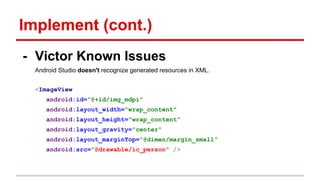
- Victor Known Issues
Android Studio doesn't recognize generated resources in XML.
<ImageView
android:id="@+id/img_mdpi"
android:layout_width="wrap_content"
android:layout_height="wrap_content"
android:layout_gravity="center"
android:layout_marginTop="@dimen/margin_small"
android:src="@drawable/ic_person" />
Implement (cont.)
- Victor Example Code
We can set drawable to the ImageView in Java file.
@Bind(R.id.img_mdpi)
ImageView imgMdpi;
imgMdpi.setImageResource(R.drawable. ic_person);
Demo
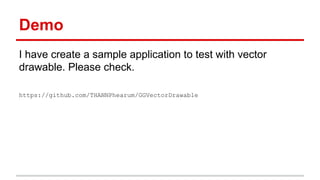
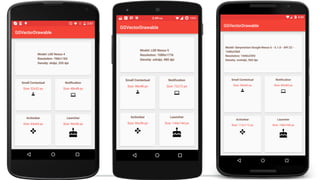
I have create a sample application to test with vector
drawable. Please check.
https://github.com/THANNPhearum/GGVectorDrawable
Ref.
- SVG def.
http://www.w3schools.com/svg/
- Android Icons Size
http://iconhandbook.co.uk/reference/chart/android/
- Victor Android Library
https://github.com/trello/victor

Android Vector Drawable

  • 1.
    Vector Drawable SVG Tutorial (Android) Mr.THANN Phearum, Associate Software Engineering
  • 2.
    Outline - Intro. - IconSizes - Implement - Demo - Ref.
  • 3.
    Intro. - SVG? ● SVGstands for Scalable Vector Graphics ● SVG is used to define vector-based graphics for the Web ● SVG defines the graphics in XML format ● SVG graphics do NOT lose any quality if they are zoomed or resized ● Every element and every attribute in SVG files can be animated ● SVG is a W3C recommendation ● SVG integrates with other W3C standards such as the DOM and XSL Source: http://www.w3schools.com/svg/
  • 4.
    Into. (cont.) - Example <svgxmlns="http://www.w3.org/2000/svg" width="48" height="48" viewBox="0 0 48 48"> <path d="M38 16H10c-3.31 0-6 2.69-6 6v12h8v8h24v-8h8V22c0-3.31-2.69-6-6-6zm-6 22H16V28h16v10zm6-14c-1.11 0-2-.89-2-2s. 89-2 2-2c1.11 0 2 .89 2 2s-.89 2-2 2zM36 6H12v8h24V6z"/> </svg> ic_printer.svg NOTE: (width="48" and height="48") is baseline size to scale the image
  • 5.
    Into. (cont.) - Toolsto create .svg Illustrator (WIndow, Mac) InkScape (Linux)
  • 6.
    Icon Sizes Android iconsrequire five separate sizes for different screen pixel densities.
  • 7.
    Icon Sizes (cont.) Androidalso classify the icon into four types - Small Contextual Small icons are used to surface actions and/or provide status for specific items. For example, in the Gmail app, each message has a star icon that marks the message as important. - Notification These are used to represent application notifications in the status bar. They should be flat (no gradients), white and face-on perspective - Actionbar, Dialog & Tab These icons are used in the action bar menu. The first number is the size of the icon area, and the second is file size. - Launcher Three-dimensional, front view, with a slight perspective as if viewed from above, so that users perceive some depth.
  • 8.
    Icon Sizes (cont.) -Small Contextual - Notification 16 × 16 (mdpi) 24 × 24 (hdpi) 32 × 32 (xhdpi) 48 × 48 (xxhdpi) 64 × 64 (xxxhdpi) 22 × 22 area in 24 × 24 (mdpi) 33 × 33 area in 36 × 36 (hdpi) 44 × 44 area in 48 × 48 (xhdpi) 66 × 66 area in 72 × 72 (xxhdpi) 88 × 88 area in 96 × 96 (xxxhdpi)
  • 9.
    Icon Sizes (cont.) -Actionbar - Launcher 24 × 24 area in 32 × 32 (mdpi) 36 × 36 area in 48 × 48 (hdpi) 48 × 48 area in 64 × 64 (xhdpi) 72 × 72 area in 96 × 96 (xxhdpi) 96 × 96 area in 128 × 128 (xxxhdpi) 48 × 48 (mdpi) 72 × 72 (hdpi) 96 × 96 (xhdpi) 144 × 144 (xxhdpi) 192 × 192 (xxxhdpi)
  • 10.
    Icon Sizes (cont.) -Example Actionbar, Dialog & Tab 24 × 24 area in 32 × 32 (mdpi)
  • 11.
    Implement - Victor Android pluginlibrary to use .svg as resources. It supports from Android 2.x. Source: https://github.com/trello/victor
  • 12.
    Implement (cont.) - VictorInstallation buildscript { repositories { jcenter() } dependencies { classpath 'com.trello:victor:0.1.4' } } apply plugin: 'com.android.application' // Make sure to apply this plugin *after* the Android plugin apply plugin: 'com.trello.victor'
  • 13.
    Implement (cont.) - VictorKnown Issues Android Studio doesn't recognize generated resources in XML. <ImageView android:id="@+id/img_mdpi" android:layout_width="wrap_content" android:layout_height="wrap_content" android:layout_gravity="center" android:layout_marginTop="@dimen/margin_small" android:src="@drawable/ic_person" />
  • 14.
    Implement (cont.) - VictorExample Code We can set drawable to the ImageView in Java file. @Bind(R.id.img_mdpi) ImageView imgMdpi; imgMdpi.setImageResource(R.drawable. ic_person);
  • 15.
    Demo I have createa sample application to test with vector drawable. Please check. https://github.com/THANNPhearum/GGVectorDrawable
  • 17.
    Ref. - SVG def. http://www.w3schools.com/svg/ -Android Icons Size http://iconhandbook.co.uk/reference/chart/android/ - Victor Android Library https://github.com/trello/victor