Multi Screen Hell
DevFest 2013, Ankara

Abdullah Cetin CAVDAR / @accavdar
Why Hell?
Manufacturers
Acer
Asus
HTC
LG
Motorola
Samsung
Sony
...
Fragmentation
Device Types

11.868 distinct Android devices
seen in 2013
Open Signal Fragmentation Report 2013
Phones
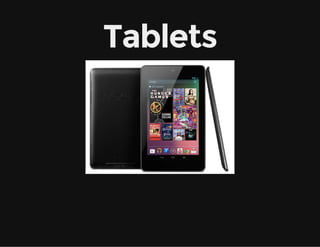
Tablets
Laptops
TV
Set-Top-Box
Consoles
Everywhere

Internet of Things (IoT)?

Behind the 'Internet of Things' Is Android and It's Everywhere
Size & Resolution

2.8 in, 3.2 in, 3.5 in, 3.6 in, 3.7 in, 4.0 in, 4.3 in, 4.5 in, 4.7 in, 4.8 in, 5.0 in,
6.4 in, 7.0, 9.7 in, 10.1 in, ...
320x240 QVGA, 480x320 HVGA, 800x480 WVGA, 960x540 qHD,
1280x768 WXGA, 1280x720 HD, 1920x1080 HD, ...
API Versions

Android Dashboards
Orientation

Landscape or Portrait?
Keep Calm
and

Çare Drogba
Supporting
Multiple Screens
Range of Screens Supported
sizes: small, normal, large, and xlarge
densities: ldpi (low), mdpi (medium), hdpi (high), and xhdpi (extra high)
Size and Density Group
Density-independent Pixel (dp)
A virtual pixel unit that you should use when defining UI layout, to
express layout dimensions or position in a density-independent way.
The density-independent pixel is equivalent to one physical pixel on a
160 dpi screen (medium density)
Conversion
px = dp * (dpi / 160)
Ex: on a 240 dpi screen, 1 dp equals 1.5 physical pixels
Density Independence
It preserves the physical size of user interface elements when displayed
on screens with different densities
The system scales dp units as appropriate for the current screen
density
The system scales drawable resources to the appropriate size, based
on the current screen density, if necessary
Bad

Good
How to Support Multiple
Screens?
Use <supports-screen>
Explicitly declare in the manifest which screen sizes your application
supports
Provide different layouts for
different screen sizes
Provide size-specific resources: small, normal, large, and xlarge
Ex: layout-xlarge/
Use the sw<N>dp configuration qualifier to define the smallest
available width (beginning API 13)
Ex: layout-sw600dp/ (at least 600dp screen width)
Provide different bitmaps
By default, Android scales drawables (.png, .jpg, .gif and .9.png files)
Include alternative versions at different resolutions for different
screen densities
Density-specific resources are ldpi (low), mdpi (medium), hdpi (high),
and xhdpi (extra high)
Ex: drawable-hdpi/
Configuration Qualifiers
Usage: <resources_name>-<qualifier>
<resources_name> is the standard resource name (such as drawable
or layout)
<qualifier> is a configuration qualifier (such as hdpi or xlarge)
Layouts & Drawables
Alternative Drawables
You only need to provide density-specific drawables (.png, .jpg, .gif or
.9.png)
Follow the 3:4:6:8 scaling ratio between the four generalized densities
36x36 for low-density
48x48 for medium-density
72x72 for high-density
96x96 for extra high-density
See Icon Design Guideline
Relative Sizes
Tablet Layouts for Android 3.2
Android 3.2 introduces a new way to specify resources for more discrete
screen sizes
New Size Qualifiers
smallestWidth: sw<N>dp
Ex: sw600dp
Available screen width: w<N>dp
Ex: w1024dp
Available screen height: h<N>dp
Ex: h720dp
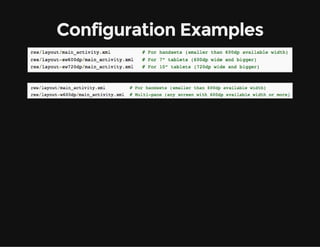
Configuration Examples
Best Practises
1. Use wrap_content,
match_parent, or the dp unit
for layout dimensions
Using wrap_content, match_parent or dp units guarantees that the view
is given an appropriate size on the current device screen
PS: Use sp for font sizes
2. Do not use hard-coded pixel
values in your application code
3. Use RelativeLayout
It uses relative positioning to lay out its child views
For instance, you can specify that a button widget should appear "to the
right of" a text widget
4. Use size and density-specific
resources
PS: To avoid pre-scaling, put the resource in a resource directory with
the nodpi configuration qualifier
5. Use Nine-patch Bitmaps
They are specially formatted PNG files that indicate which areas can and
cannot be stretched
Tablets
&
Handsets
Basic Guideline
1. Build your activity designs
based on Fragments
Fragment

Introduced in Android 3.0 (API Level 11)
It allows you to separate distinct behavioral components of your UI
into separate parts
Provides modular UI development
PS: Use Android Support Libraries to use fragments in older Android
versions
Multiple Fragments, Multiple
Activities
Handsets
res/layout/main.xml
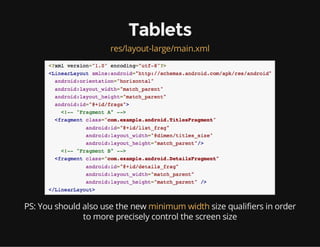
Tablets
res/layout-large/main.xml

PS: You should also use the new minimum width size qualifiers in order
to more precisely control the screen size
How does it work?
If Fragment B is in the layout, Activity A notifies Fragment B to update
itself
If Fragment B is not in the layout, Activity A starts Activity B (which
hosts Fragment B)
Important Note: Define a callback interface in each fragment class to
communicate with host activity
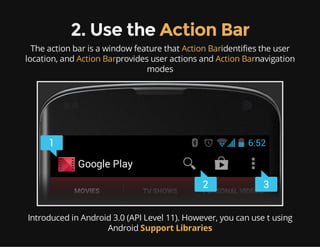
2. Use the Action Bar
The action bar is a window feature that Action Baridentifies the user
location, and Action Barprovides user actions and Action Barnavigation
modes

Introduced in Android 3.0 (API Level 11). However, you can use t using
Android Support Libraries
Why Action Bar?
Android system does all the work to gracefully adapt the action bar for
different screen sizes
Tips for creating Action Bar
1. Avoid using the always value
Forcing too many action items into the action bar can create a
cluttered UI
Action items may overlap with other action bar elements such as the
title or navigation items
Use ifRoom for the android:showAsAction attribute
2. Provide an Icon
Always provide an icon for the action items
Use showAsAction="ifRoom|withText"
3. Provide a Title
Always provide a title
Users view the title as a tooltip on long-click
It is critical for accessibility: Screen readers read aloud the item title
even when not visisble
4. Avoid using custom
navigation modes when
possible
Use the built-in tab and drop-down navigation modes when possible
System can adapt their presentation to different screen sizes
automatically
Ex: stacked action bar in handsets
Split Action Bar
Available in Android 4.0 (API level 14) and higher
Add uiOptions="splitActionBarWhenNarrow" to your <activity> or
<application> manifest element
Call setDisplayShowHomeEnabled(false) to disable the application
icon in the action bar
Testing
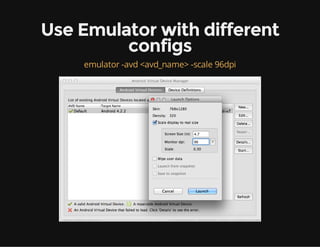
Use Emulator with different
configs
emulator -avd <avd_name> -scale 96dpi
Android Studio
Built in device previews (landscape and portrait modes)
Compatibility

Most important characteristic of a compatible device is the ability to
install and correctly run an Android .apk file
Apps Availability
<uses-feature> in manifest file
<uses-feature android:name="android.hardware.bluetooth" />
<uses-feature android:name="android.hardware.camera" />

The other filters for apps availability in Google Play:
<supports-gl-texture>
<uses-configuration>
<uses-library>
<uses-permission>
<uses-sdk>
Package Manager
Check feature availabilities at runtime
PackageManager packageManager = this.getPackageManager();
if (packageManager.hasSystemFeature(PackageManager.FEATURE_NFC)) {
Log.d(TAG, "Oh yeah, NFC is available. :)");
} else {
Log.d(TAG, "Shit, no NFC. :(");
}
Business Reasons
List the countries an app is available in
Select which carrier’s users are able to access the app
Slides

http://github.com/accavdar/MultiScreenHell
Questions?
THE END

by Abdullah Cetin CAVDAR / @accavdar

Multi Screen Hell