MAX Communication Server                      ™


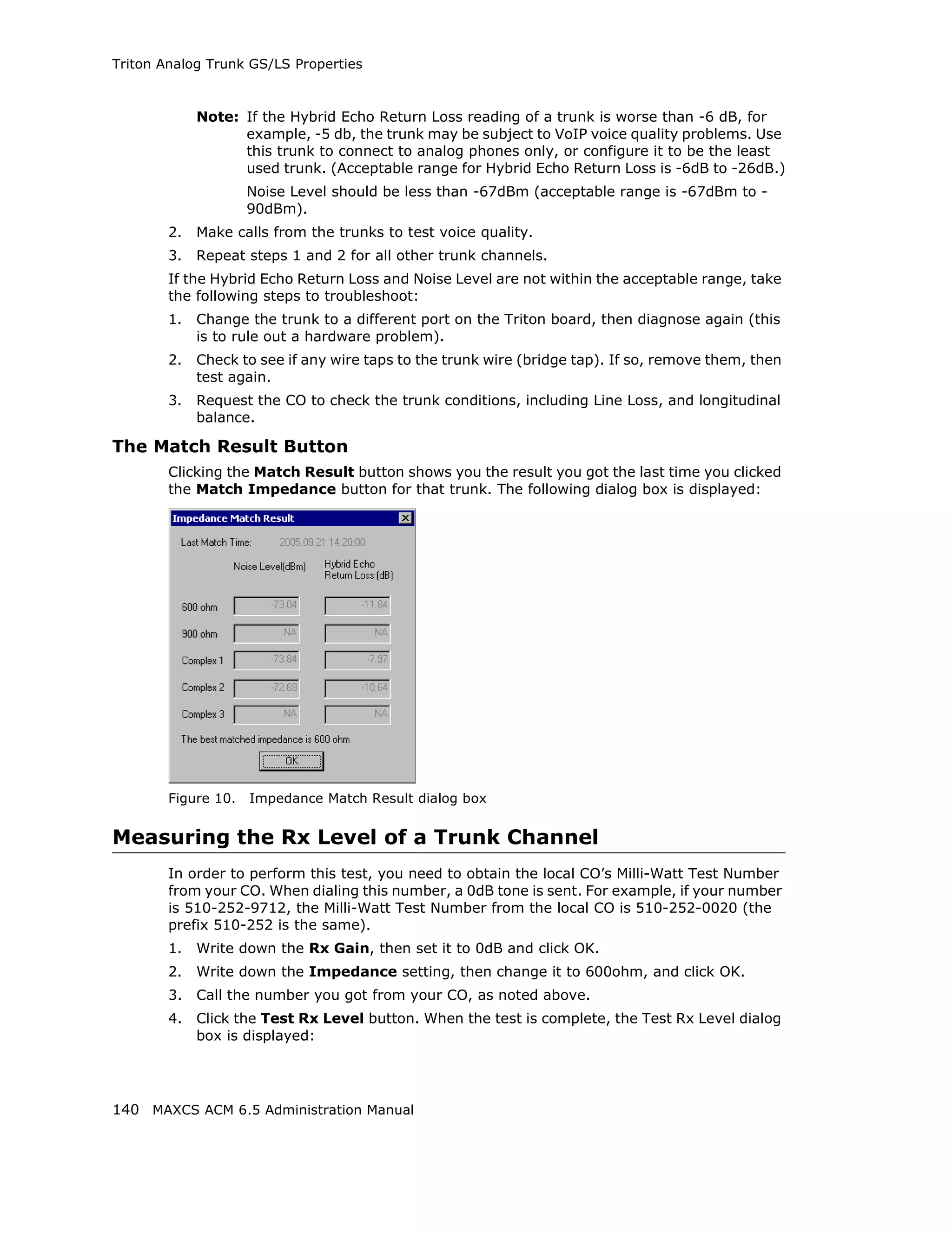
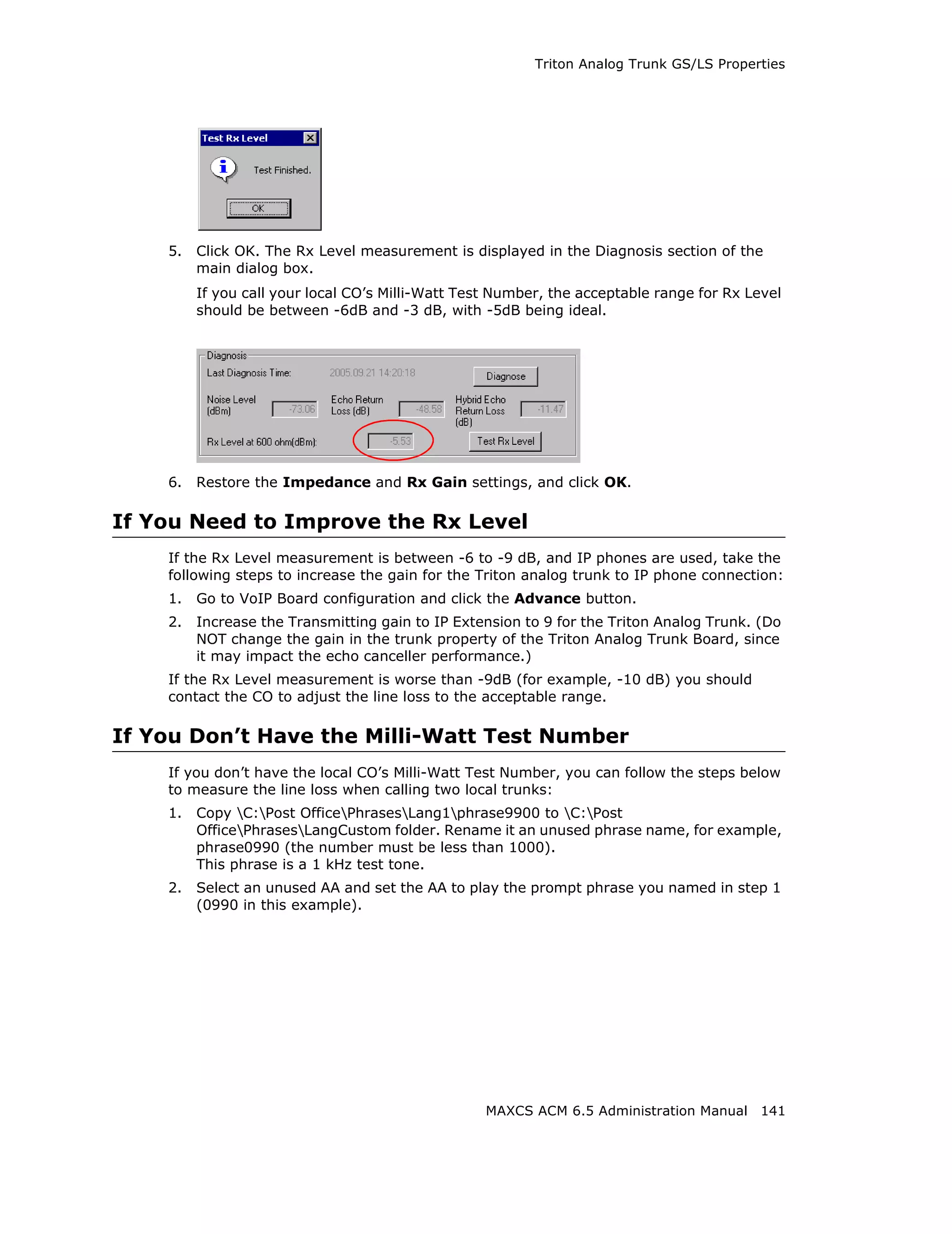
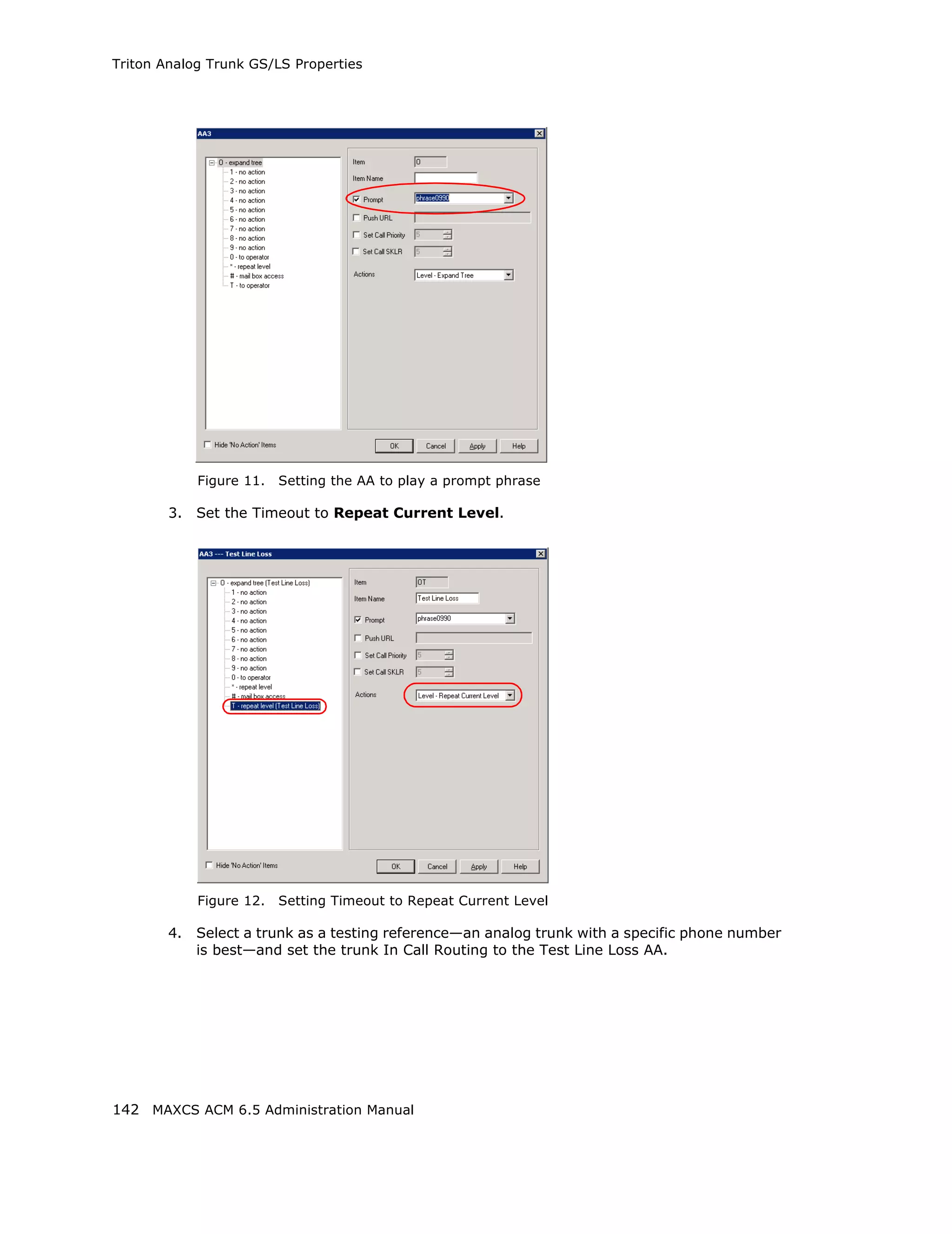
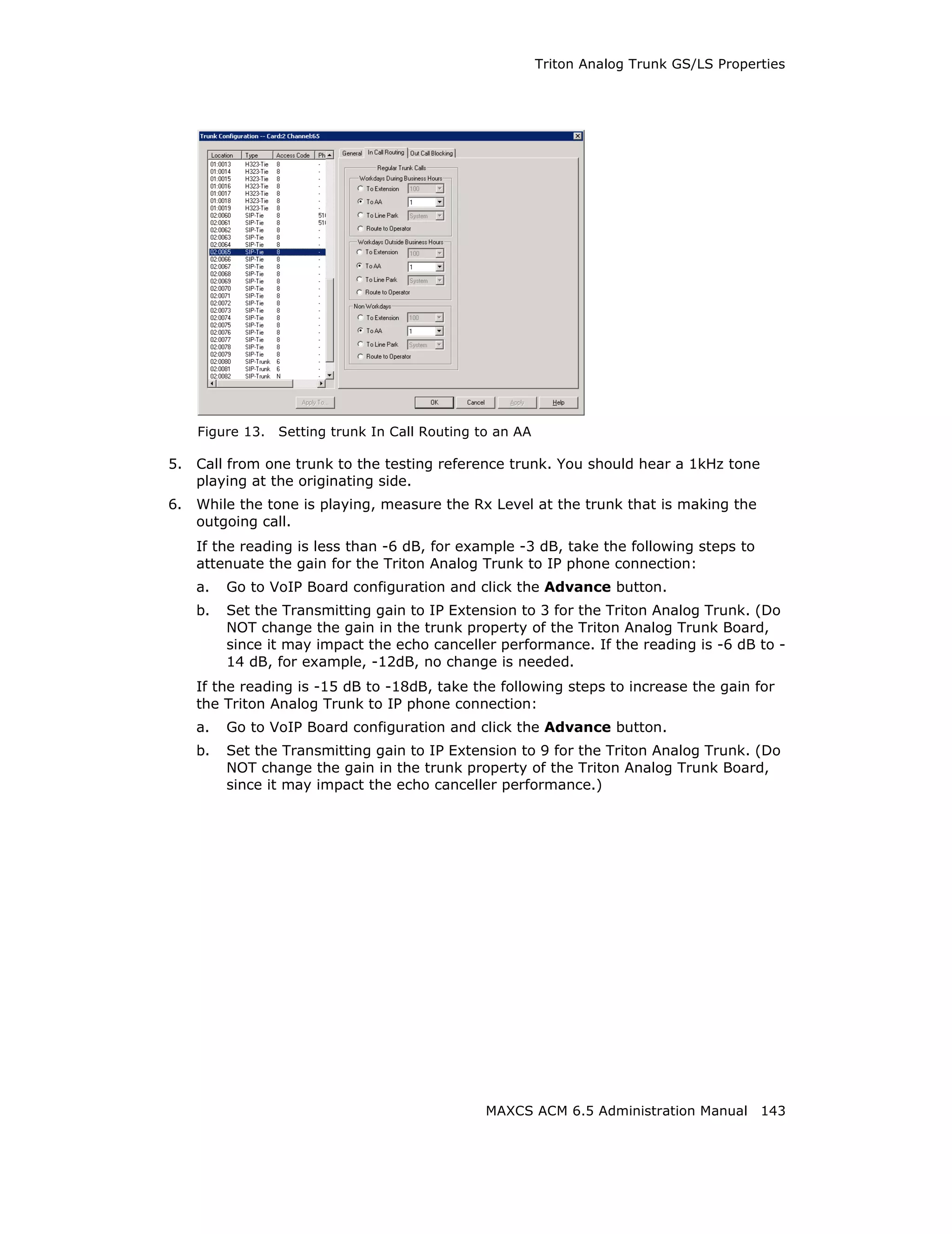
                               Administration
                                      Manual

                                     ACM 6.5
                                        Update1


4/2010 4413-0001-6.5 Update1
WARNING! Toll fraud is committed when individuals unlawfully gain access to customer
telecommunication systems. This is a criminal offense. Currently, we do not know of any
telecommunications system that is immune to this type of criminal activity. AltiGen Communications, Inc.
will not accept liability for any damages, including long distance charges, which result from unauthorized
and/or unlawful use. Although AltiGen Communications, Inc. has designed security features into its
products, it is your sole responsibility to use the security features and to establish security practices
within your company, including training, security awareness, and call auditing.


NOTICE: While every effort has been made to ensure accuracy, AltiGen Communications, Inc., will not
be liable for technical or editorial errors or omissions contained within the documentation. The
information contained in this documentation is subject to change without notice.
This documentation may be used only in accordance with the terms of the AltiGen Communications, Inc.,
License Agreement.


MAX Communication Server, MaxAdministrator, MaxCommunicator, MaxAgent, MaxSupervisor,
MaxOutlook, MaxInSight, MaxCall, Enterprise Manager, AltiServ, AltiLink, AltiConsole, VRPlayer,
Zoomerang, IPTalk, Alti-Mobile Extension, InTouch Dialer, AltiReport, and SuperQ are trademarks or
registered trademarks of AltiGen Communications, Inc. All other brand names mentioned are trademarks
or registered trademarks of their respective manufacturers.
AltiGen's products are protected under one or more of the following U.S. patents, with other U.S. patents
pending: 6532230; 6192344; 6292549; 6493439; 6909780; 6738465; 6754202; 6766006; 6928078;
6909709; 6956848; 7058047; 7013007; 7027578; 7280649; 7308092.


AltiGen Communications, Inc.
410 East Plumeria Dr.
San Jose, CA 95134
Telephone: 888-AltiGen (258-4436)
Fax: 408-597-9020
E-mail: info@altigen.com
Web site:   www.altigen.com


Copyright © AltiGen Communications, Inc. 2009. All rights reserved.
4413-0001-6.5 Update1
Contents
ABOUT THIS MANUAL . . . . . . . . . . . . . . . . . . . . . . . . . . . . . . . . . . 1
  Related Publications . . . . . . . . . . . . . . . . . . . . . . . . . . . . . . . . . . . . . . . . . . . . 1

CHAPTER 1
  Overview . . . . . . . . . . . . . . . . . . . . . . . . . . . . . . . . . . . . . . . . . . . . . .3
    Technology Enhancements in Release 6.5 . . . . . . .                                         .   .   .   .   .   .   .   .   .   .   .   .   .   .   .   .   .   .   .    3
    New in Release 6.5 Update1 . . . . . . . . . . . . . . . . .                                 .   .   .   .   .   .   .   .   .   .   .   .   .   .   .   .   .   .   .    5
    System Features . . . . . . . . . . . . . . . . . . . . . . . . .                            .   .   .   .   .   .   .   .   .   .   .   .   .   .   .   .   .   .   .   .8
      IP PBX Features . . . . . . . . . . . . . . . . . . . . . . . .                            .   .   .   .   .   .   .   .   .   .   .   .   .   .   .   .   .   .   .    8
      Automatic Call Distribution Features . . . . . . . . . .                                   .   .   .   .   .   .   .   .   .   .   .   .   .   .   .   .   .   .       11
      Auto Attendant (AA) Features . . . . . . . . . . . . . .                                   .   .   .   .   .   .   .   .   .   .   .   .   .   .   .   .   .   .       14
      Voice Mail Features . . . . . . . . . . . . . . . . . . . . . .                            .   .   .   .   .   .   .   .   .   .   .   .   .   .   .   .   .   .       14
      Internet Integration Features . . . . . . . . . . . . . . .                                .   .   .   .   .   .   .   .   .   .   .   .   .   .   .   .   .   .       16
      System and Administration Features . . . . . . . . . .                                     .   .   .   .   .   .   .   .   .   .   .   .   .   .   .   .   .   .       16
      Voice over IP Features . . . . . . . . . . . . . . . . . . .                               .   .   .   .   .   .   .   .   .   .   .   .   .   .   .   .   .   .       17
      Multi-Site VoIP Management - Enterprise Manager                                            .   .   .   .   .   .   .   .   .   .   .   .   .   .   .   .   .   .       19
      Optional Add-On Software . . . . . . . . . . . . . . . . .                                 .   .   .   .   .   .   .   .   .   .   .   .   .   .   .   .   .   .       19
      Capacities . . . . . . . . . . . . . . . . . . . . . . . . . . . .                         .   .   .   .   .   .   .   .   .   .   .   .   .   .   .   .   .   .       21

CHAPTER 2
  System Requirements and Installation                                           . . . . . . . . . . . . . . . . . . . . .23
    Minimum System Requirements . . . . . . . . . . . . . . . . . .                                              .   .   .   .   .   .   .   .   .   .   .   .   .   .       23
      Supported Operating Systems and Their Requirements .                                                       .   .   .   .   .   .   .   .   .   .   .   .   .   .       23
      CPU, Memory, and HDD Requirements . . . . . . . . . . . .                                                  .   .   .   .   .   .   .   .   .   .   .   .   .   .       25
    MAXCS Licenses . . . . . . . . . . . . . . . . . . . . . . . . . . . . .                                     .   .   .   .   .   .   .   .   .   .   .   .   .   .       25
    Preparation for Installation . . . . . . . . . . . . . . . . . . . . . .                                     .   .   .   .   .   .   .   .   .   .   .   .   .   .       27
    Installing MAX Communication Server . . . . . . . . . . . . . .                                              .   .   .   .   .   .   .   .   .   .   .   .   .   .       27
      Multi-Gateway Softswitch System Installation . . . . . . .                                                 .   .   .   .   .   .   .   .   .   .   .   .   .   .       28
      Redundant System Installation. . . . . . . . . . . . . . . . . .                                           .   .   .   .   .   .   .   .   .   .   .   .   .   .       29
    Installing MaxAdmin on a Network Client . . . . . . . . . . . .                                              .   .   .   .   .   .   .   .   .   .   .   .   .   .       30
    Uninstalling MAXCS . . . . . . . . . . . . . . . . . . . . . . . . . . .                                     .   .   .   .   .   .   .   .   .   .   .   .   .   .       30
    Troubleshooting (Error Messages) . . . . . . . . . . . . . . . . .                                           .   .   .   .   .   .   .   .   .   .   .   .   .   .       30

CHAPTER 3
  Getting Around MaxAdministrator . . . . . . . . . . . . . . . . . . . . . . . . .33
    Logging In and Out . . . . . . . . . . . .       .   .   .   .   .   .   .   .   .   .   .   .   .   .   .   .   .   .   .   .   .   .   .   .   .   .   .   .   .       33
    Changing the Password . . . . . . . . .          .   .   .   .   .   .   .   .   .   .   .   .   .   .   .   .   .   .   .   .   .   .   .   .   .   .   .   .   .       33
    The MaxAdministrator Main Window                 .   .   .   .   .   .   .   .   .   .   .   .   .   .   .   .   .   .   .   .   .   .   .   .   .   .   .   .   .       34
      The Main Menu . . . . . . . . . . . . .        .   .   .   .   .   .   .   .   .   .   .   .   .   .   .   .   .   .   .   .   .   .   .   .   .   .   .   .   .       34
      Quick Access Toolbar . . . . . . . . .         .   .   .   .   .   .   .   .   .   .   .   .   .   .   .   .   .   .   .   .   .   .   .   .   .   .   .   .   .       35
      Status Bar . . . . . . . . . . . . . . . . .   .   .   .   .   .   .   .   .   .   .   .   .   .   .   .   .   .   .   .   .   .   .   .   .   .   .   .   .   .       36
    The View Windows . . . . . . . . . . . .         .   .   .   .   .   .   .   .   .   .   .   .   .   .   .   .   .   .   .   .   .   .   .   .   .   .   .   .   .       36
      Boards View Window. . . . . . . . . .          .   .   .   .   .   .   .   .   .   .   .   .   .   .   .   .   .   .   .   .   .   .   .   .   .   .   .   .   .       36
      Extension View Window . . . . . . . .          .   .   .   .   .   .   .   .   .   .   .   .   .   .   .   .   .   .   .   .   .   .   .   .   .   .   .   .   .       37


                                                                                         MAXCS ACM 6.5 Administration Manual                                                      i
Trunk View Window . . . . . . . . . . . . . . . . . . . .                           .   .   .   .   .   .   .   .   .   .   .   .   .   .   .   .   .   .   .   .     38
         Call Log View Window . . . . . . . . . . . . . . . . . .                            .   .   .   .   .   .   .   .   .   .   .   .   .   .   .   .   .   .   .   .     39
         Workgroup View Window . . . . . . . . . . . . . . . .                               .   .   .   .   .   .   .   .   .   .   .   .   .   .   .   .   .   .   .   .     39
         Current Resource Statistics Window . . . . . . . .                                  .   .   .   .   .   .   .   .   .   .   .   .   .   .   .   .   .   .   .   .     40
       Assigning Seat-Based Client Licenses . . . . . . . . .                                .   .   .   .   .   .   .   .   .   .   .   .   .   .   .   .   .   .   .   .     41
       Stopping the AltiGen Switching Service . . . . . . .                                  .   .   .   .   .   .   .   .   .   .   .   .   .   .   .   .   .   .   .   .     42
       Programs Available from the Windows Start Menu                                        .   .   .   .   .   .   .   .   .   .   .   .   .   .   .   .   .   .   .   .   . 43

CHAPTER 4
     System Configuration . . . . . . . . . . . . . . . . . . . . . . . . . . . . . . . . . . 45
       Setting General Parameters . . . . . . . . . . . . . . . . . . . .                                        .   .   .   .   .   .   .   .   .   .   .   .   .   .   .    46
       Setting a System Number Plan . . . . . . . . . . . . . . . . . .                                          .   .   .   .   .   .   .   .   .   .   .   .   .   .   .    48
       Setting Business Hours . . . . . . . . . . . . . . . . . . . . . . .                                      .   .   .   .   .   .   .   .   .   .   .   .   .   .   .    54
       Routing Calls on Holidays . . . . . . . . . . . . . . . . . . . . . .                                     .   .   .   .   .   .   .   .   .   .   .   .   .   .   .    55
       Configuring System Speed Dialing . . . . . . . . . . . . . . . .                                          .   .   .   .   .   .   .   .   .   .   .   .   .   .   .    57
       Defining System Call Restrictions . . . . . . . . . . . . . . . .                                         .   .   .   .   .   .   .   .   .   .   .   .   .   .   .    59
         Blocking Calls to Area Codes from All Extensions . . . .                                                .   .   .   .   .   .   .   .   .   .   .   .   .   .   .    60
         Setting Unrestricted Area Codes . . . . . . . . . . . . . . . .                                         .   .   .   .   .   .   .   .   .   .   .   .   .   .   .    60
         Locking Attacked Extensions. . . . . . . . . . . . . . . . . . .                                        .   .   .   .   .   .   .   .   .   .   .   .   .   .   .    61
         Blocking All Outgoing Calls . . . . . . . . . . . . . . . . . . . .                                     .   .   .   .   .   .   .   .   .   .   .   .   .   .   .    61
         Enabling Hop Off for Tie Trunks . . . . . . . . . . . . . . . .                                         .   .   .   .   .   .   .   .   .   .   .   .   .   .   .    61
         Setting 10-Digit Dialing Area Codes. . . . . . . . . . . . . .                                          .   .   .   .   .   .   .   .   .   .   .   .   .   .   .    61
       Creating Account Codes . . . . . . . . . . . . . . . . . . . . . . .                                      .   .   .   .   .   .   .   .   .   .   .   .   .   .   .    62
         Adding and Deleting Account Codes . . . . . . . . . . . . .                                             .   .   .   .   .   .   .   .   .   .   .   .   .   .   .    62
       Setting up Call Reports . . . . . . . . . . . . . . . . . . . . . . .                                     .   .   .   .   .   .   .   .   .   .   .   .   .   .   .    62
         Internal Database Configuration (Internal Log Service)                                                  .   .   .   .   .   .   .   .   .   .   .   .   .   .   .    63
         External (Remote) Logging of Call Data . . . . . . . . . . .                                            .   .   .   .   .   .   .   .   .   .   .   .   .   .   .    64
         Exporting Through a Local Port . . . . . . . . . . . . . . . . .                                        .   .   .   .   .   .   .   .   .   .   .   .   .   .   .    64
       Country-Relevant Settings . . . . . . . . . . . . . . . . . . . . .                                       .   .   .   .   .   .   .   .   .   .   .   .   .   .   .    65
         Setting Toll Call Prefixes . . . . . . . . . . . . . . . . . . . . .                                    .   .   .   .   .   .   .   .   .   .   .   .   .   .   .    65
         Setting Emergency Numbers . . . . . . . . . . . . . . . . . .                                           .   .   .   .   .   .   .   .   .   .   .   .   .   .   .    66
         Dialing Plan Rules for Non-North American Country. . .                                                  .   .   .   .   .   .   .   .   .   .   .   .   .   .   .    66
       Audio Peripheral Configuration . . . . . . . . . . . . . . . . . .                                        .   .   .   .   .   .   .   .   .   .   .   .   .   .   .    66
         Setting Greeting and Update Prompts . . . . . . . . . . . .                                             .   .   .   .   .   .   .   .   .   .   .   .   .   .   .    69
         Configuring Overhead Paging . . . . . . . . . . . . . . . . . .                                         .   .   .   .   .   .   .   .   .   .   .   .   .   .   .    69
       Activity . . . . . . . . . . . . . . . . . . . . . . . . . . . . . . . . . .                              .   .   .   .   .   .   .   .   .   .   .   .   .   .   .    69
       Feature Profiles . . . . . . . . . . . . . . . . . . . . . . . . . . . . .                                .   .   .   .   .   .   .   .   .   .   .   .   .   .   .    71
         Limitation. . . . . . . . . . . . . . . . . . . . . . . . . . . . . . . .                               .   .   .   .   .   .   .   .   .   .   .   .   .   .   .    73

CHAPTER 5
     Media Server and Gateway Management . . . . . . . . . . . . . . . . . . . 75
       Managing Gateways . . . . . . . . . . . .         .   .   .   .   .   .   .   .   .   .   .   .   .   .   .   .   .   .   .   .   .   .   .   .   .   .   .   .   .    76
       Setting Parameters . . . . . . . . . . . .        .   .   .   .   .   .   .   .   .   .   .   .   .   .   .   .   .   .   .   .   .   .   .   .   .   .   .   .   .    77
       Adding and Attaching a Gateway . . .              .   .   .   .   .   .   .   .   .   .   .   .   .   .   .   .   .   .   .   .   .   .   .   .   .   .   .   .   .    79
       Detaching and Deleting a Gateway .                .   .   .   .   .   .   .   .   .   .   .   .   .   .   .   .   .   .   .   .   .   .   .   .   .   .   .   .   .    80
       Changing Gateway ID and Password                  .   .   .   .   .   .   .   .   .   .   .   .   .   .   .   .   .   .   .   .   .   .   .   .   .   .   .   .   .    80
       Gateway Configuration Tool . . . . . .            .   .   .   .   .   .   .   .   .   .   .   .   .   .   .   .   .   .   .   .   .   .   .   .   .   .   .   .   .    81
       Configuring the Applications Server .             .   .   .   .   .   .   .   .   .   .   .   .   .   .   .   .   .   .   .   .   .   .   .   .   .   .   .   .   .    82


ii   MAXCS ACM 6.5 Administration Manual
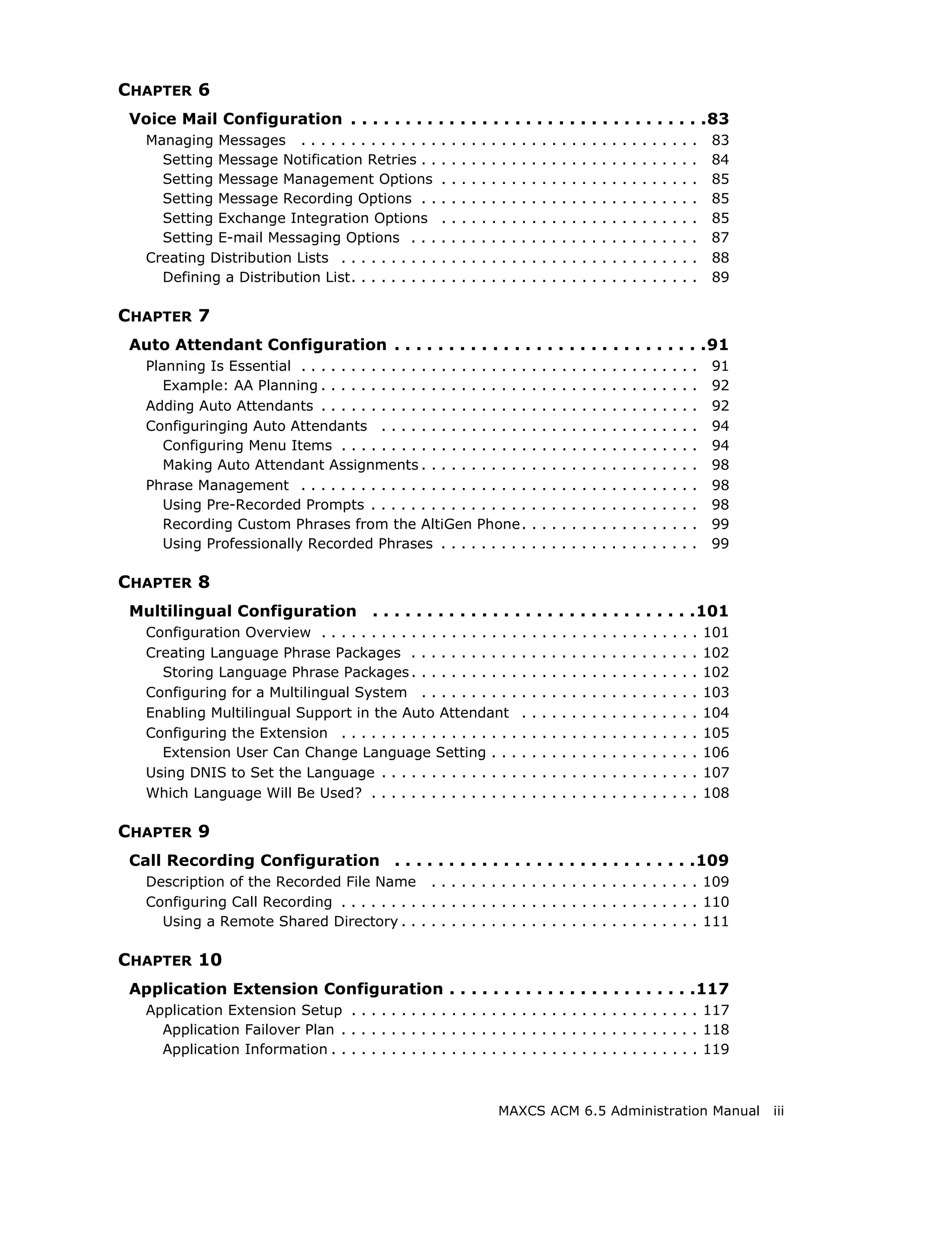
CHAPTER 6
 Voice Mail Configuration . . . . . . . . . . . . . . . . . . . . . . . . . . . . . . . . .83
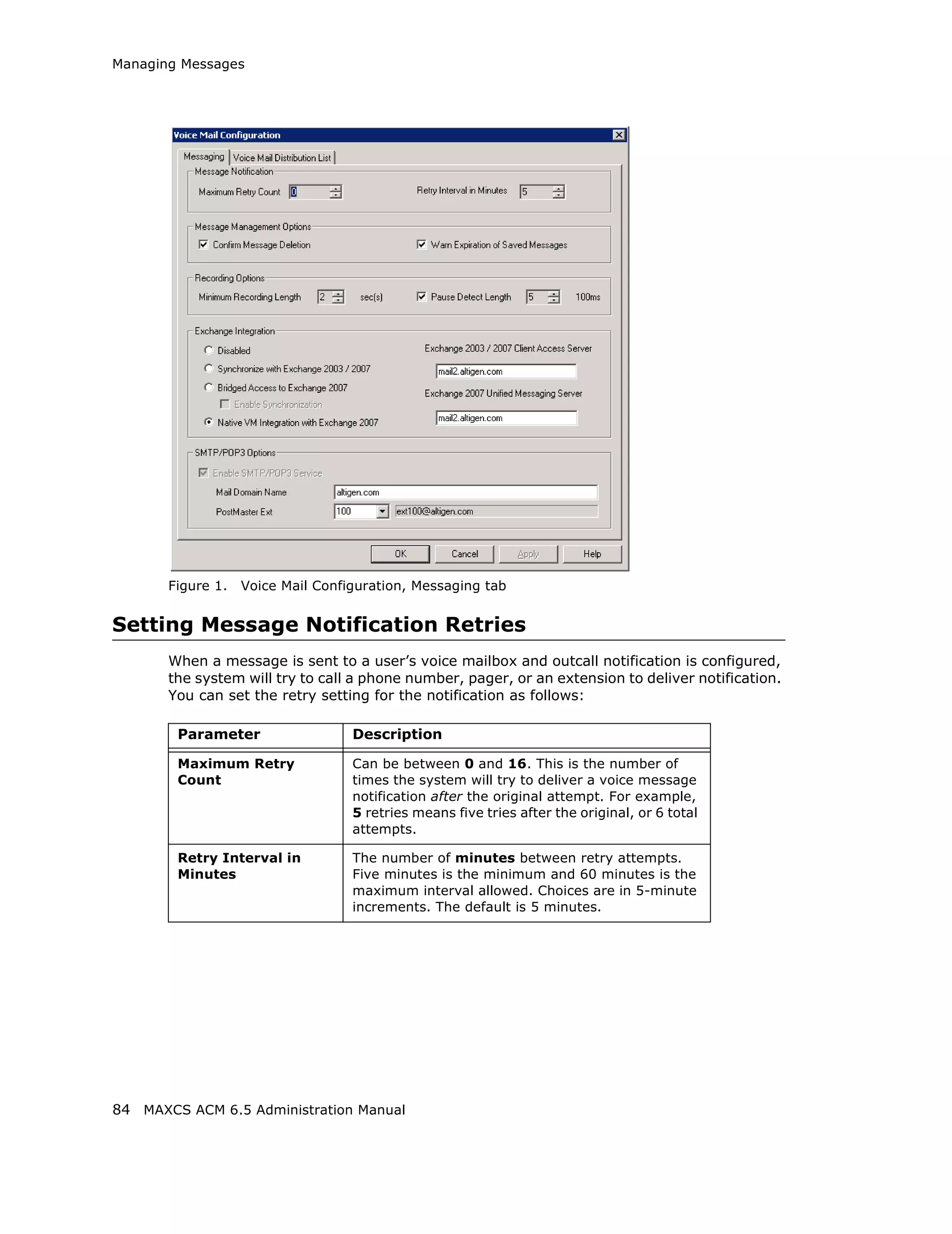
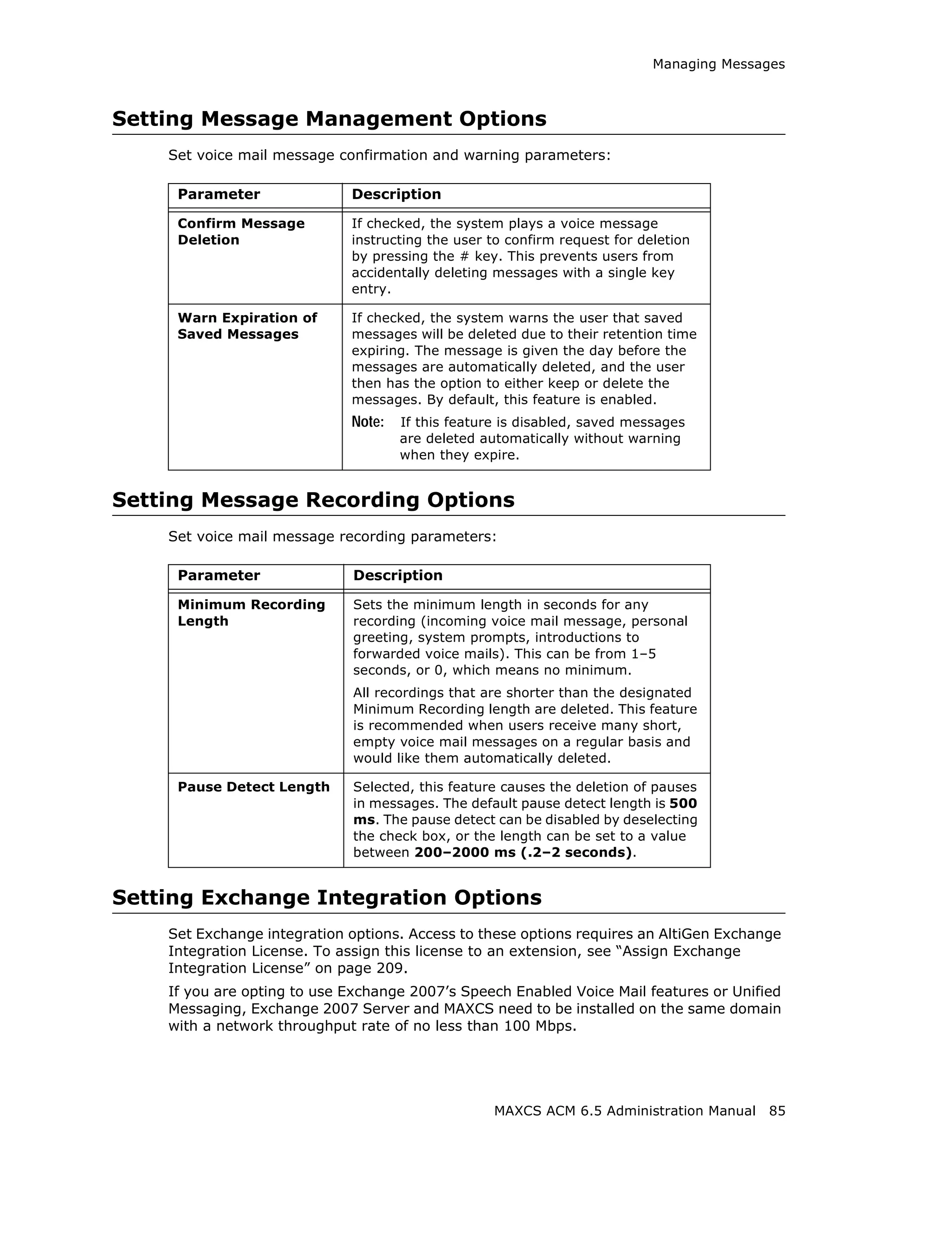
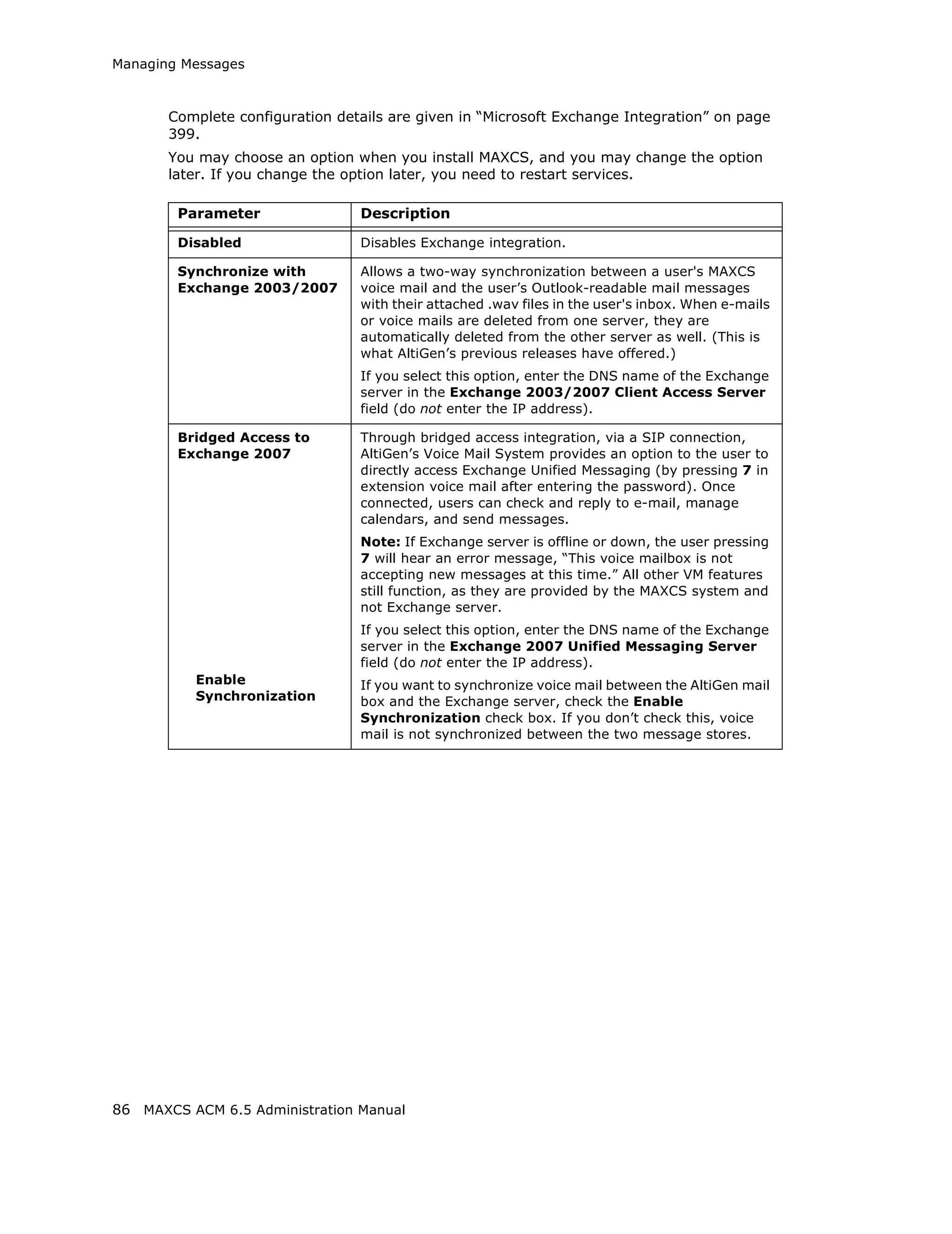
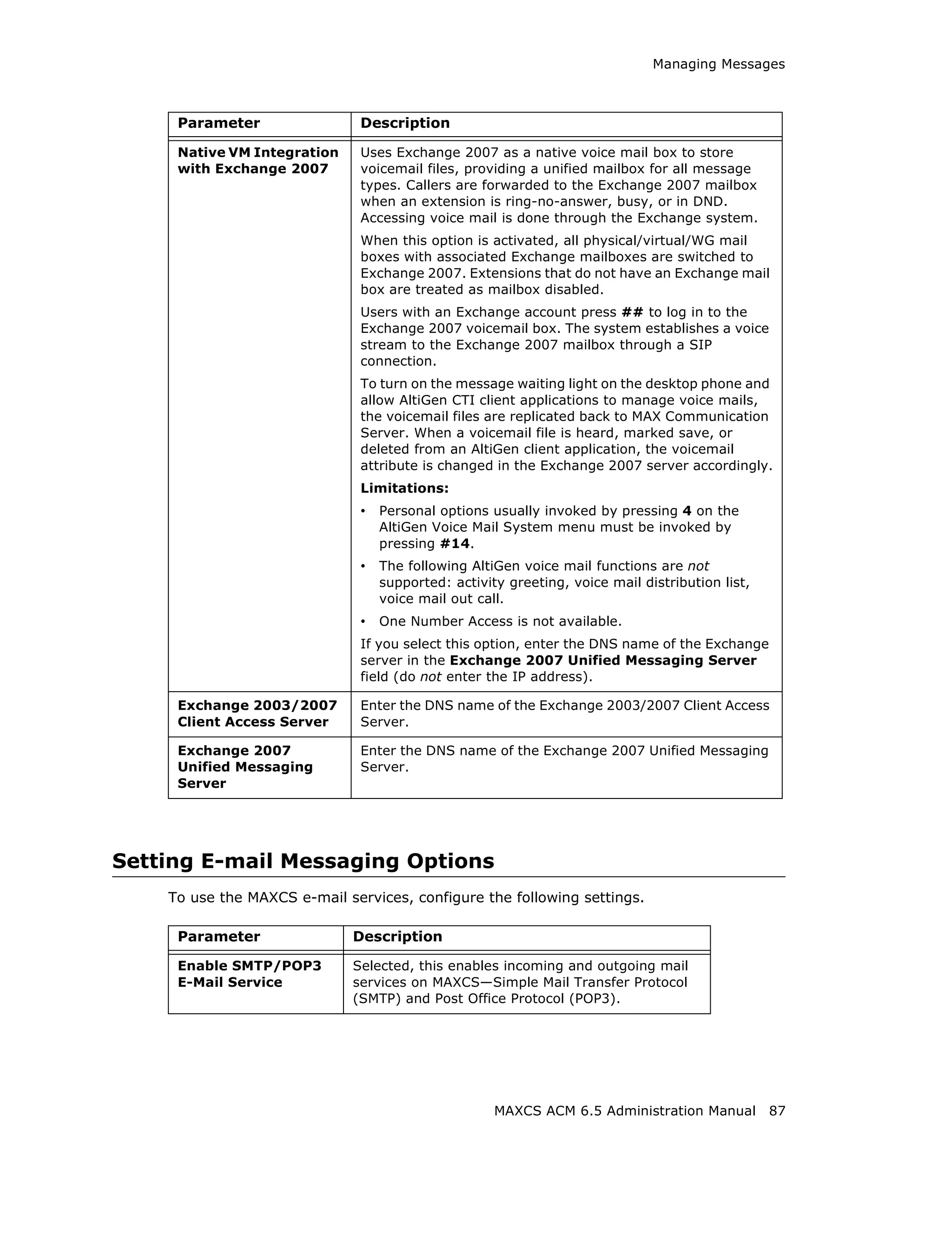
   Managing Messages . . . . . . . . . . . . . .       .   .   .   .   .   .   .   .   .   .   .   .   .   .   .   .   .   .   .   .   .   .   .   .   .   .   83
     Setting Message Notification Retries . .          .   .   .   .   .   .   .   .   .   .   .   .   .   .   .   .   .   .   .   .   .   .   .   .   .   .   84
     Setting Message Management Options                .   .   .   .   .   .   .   .   .   .   .   .   .   .   .   .   .   .   .   .   .   .   .   .   .   .   85
     Setting Message Recording Options . .             .   .   .   .   .   .   .   .   .   .   .   .   .   .   .   .   .   .   .   .   .   .   .   .   .   .   85
     Setting Exchange Integration Options              .   .   .   .   .   .   .   .   .   .   .   .   .   .   .   .   .   .   .   .   .   .   .   .   .   .   85
     Setting E-mail Messaging Options . . .            .   .   .   .   .   .   .   .   .   .   .   .   .   .   .   .   .   .   .   .   .   .   .   .   .   .   87
   Creating Distribution Lists . . . . . . . . . .     .   .   .   .   .   .   .   .   .   .   .   .   .   .   .   .   .   .   .   .   .   .   .   .   .   .   88
     Defining a Distribution List. . . . . . . . .     .   .   .   .   .   .   .   .   .   .   .   .   .   .   .   .   .   .   .   .   .   .   .   .   .   .   89

CHAPTER 7
 Auto Attendant Configuration . . . . . . . . . . . . . . . . . . . . . . . . . . . . .91
   Planning Is Essential . . . . . . . . . . . . . . . . . . . . . . .                     .   .   .   .   .   .   .   .   .   .   .   .   .   .   .   .   .   91
      Example: AA Planning . . . . . . . . . . . . . . . . . . . . .                       .   .   .   .   .   .   .   .   .   .   .   .   .   .   .   .   .   92
   Adding Auto Attendants . . . . . . . . . . . . . . . . . . . . .                        .   .   .   .   .   .   .   .   .   .   .   .   .   .   .   .   .   92
   Configuringing Auto Attendants . . . . . . . . . . . . . . .                            .   .   .   .   .   .   .   .   .   .   .   .   .   .   .   .   .   94
      Configuring Menu Items . . . . . . . . . . . . . . . . . . .                         .   .   .   .   .   .   .   .   .   .   .   .   .   .   .   .   .   94
      Making Auto Attendant Assignments . . . . . . . . . . .                              .   .   .   .   .   .   .   .   .   .   .   .   .   .   .   .   .   98
   Phrase Management . . . . . . . . . . . . . . . . . . . . . . .                         .   .   .   .   .   .   .   .   .   .   .   .   .   .   .   .   .   98
      Using Pre-Recorded Prompts . . . . . . . . . . . . . . . .                           .   .   .   .   .   .   .   .   .   .   .   .   .   .   .   .   .   98
      Recording Custom Phrases from the AltiGen Phone.                                     .   .   .   .   .   .   .   .   .   .   .   .   .   .   .   .   .   99
      Using Professionally Recorded Phrases . . . . . . . . .                              .   .   .   .   .   .   .   .   .   .   .   .   .   .   .   .   .   99

CHAPTER 8
 Multilingual Configuration               . . . . . . . . . . . . . . . . . . . . . . . . . . . . . .101
   Configuration Overview . . . . . . . . . . . . . . . . . . . .                      .   .   .   .   .   .   .   .   .   .   .   .   .   .   .   .   .   .   101
   Creating Language Phrase Packages . . . . . . . . . . .                             .   .   .   .   .   .   .   .   .   .   .   .   .   .   .   .   .   .   102
     Storing Language Phrase Packages . . . . . . . . . . .                            .   .   .   .   .   .   .   .   .   .   .   .   .   .   .   .   .   .   102
   Configuring for a Multilingual System . . . . . . . . . .                           .   .   .   .   .   .   .   .   .   .   .   .   .   .   .   .   .   .   103
   Enabling Multilingual Support in the Auto Attendant                                 .   .   .   .   .   .   .   .   .   .   .   .   .   .   .   .   .   .   104
   Configuring the Extension . . . . . . . . . . . . . . . . . .                       .   .   .   .   .   .   .   .   .   .   .   .   .   .   .   .   .   .   105
     Extension User Can Change Language Setting . . .                                  .   .   .   .   .   .   .   .   .   .   .   .   .   .   .   .   .   .   106
   Using DNIS to Set the Language . . . . . . . . . . . . . .                          .   .   .   .   .   .   .   .   .   .   .   .   .   .   .   .   .   .   107
   Which Language Will Be Used? . . . . . . . . . . . . . . .                          .   .   .   .   .   .   .   .   .   .   .   .   .   .   .   .   .   .   108

CHAPTER 9
 Call Recording Configuration . . . . . . . . . . . . . . . . . . . . . . . . . . . .109
   Description of the Recorded File Name . . . . . . . . . . . . . . . . . . . . . . . . . . . 109
   Configuring Call Recording . . . . . . . . . . . . . . . . . . . . . . . . . . . . . . . . . . . . 110
     Using a Remote Shared Directory . . . . . . . . . . . . . . . . . . . . . . . . . . . . . . 111

CHAPTER 10
 Application Extension Configuration . . . . . . . . . . . . . . . . . . . . . . .117
   Application Extension Setup . . . . . . . . . . . . . . . . . . . . . . . . . . . . . . . . . . . 117
     Application Failover Plan . . . . . . . . . . . . . . . . . . . . . . . . . . . . . . . . . . . . 118
     Application Information . . . . . . . . . . . . . . . . . . . . . . . . . . . . . . . . . . . . . 119


                                                                               MAXCS ACM 6.5 Administration Manual                                                   iii
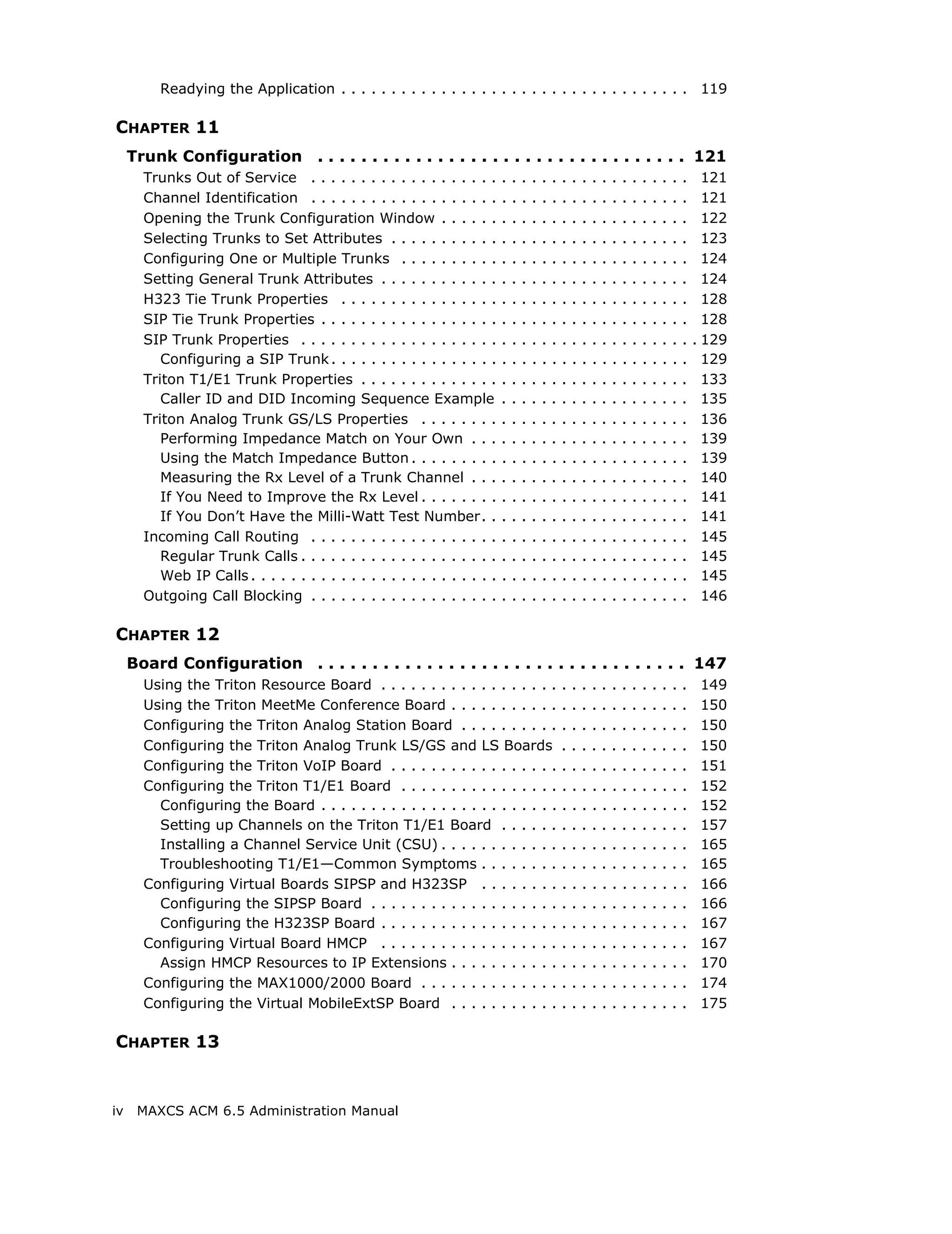
Readying the Application . . . . . . . . . . . . . . . . . . . . . . . . . . . . . . . . . . . 119

CHAPTER 11
     Trunk Configuration . . . . . . . . . . . . . . . . . . . . . . . . . . . . . . . . . . 121
       Trunks Out of Service . . . . . . . . . . . . . . . . . . .         .   .   .   .   .   .   .   .   .   .   .   .   .   .   .   .   .   .   .     121
       Channel Identification . . . . . . . . . . . . . . . . . . .        .   .   .   .   .   .   .   .   .   .   .   .   .   .   .   .   .   .   .     121
       Opening the Trunk Configuration Window . . . . . .                  .   .   .   .   .   .   .   .   .   .   .   .   .   .   .   .   .   .   .     122
       Selecting Trunks to Set Attributes . . . . . . . . . . .            .   .   .   .   .   .   .   .   .   .   .   .   .   .   .   .   .   .   .     123
       Configuring One or Multiple Trunks . . . . . . . . . .              .   .   .   .   .   .   .   .   .   .   .   .   .   .   .   .   .   .   .     124
       Setting General Trunk Attributes . . . . . . . . . . . .            .   .   .   .   .   .   .   .   .   .   .   .   .   .   .   .   .   .   .     124
       H323 Tie Trunk Properties . . . . . . . . . . . . . . . .           .   .   .   .   .   .   .   .   .   .   .   .   .   .   .   .   .   .   .     128
       SIP Tie Trunk Properties . . . . . . . . . . . . . . . . . .        .   .   .   .   .   .   .   .   .   .   .   .   .   .   .   .   .   .   .     128
       SIP Trunk Properties . . . . . . . . . . . . . . . . . . . .        .   .   .   .   .   .   .   .   .   .   .   .   .   .   .   .   .   .   .   . 129
          Configuring a SIP Trunk . . . . . . . . . . . . . . . . .        .   .   .   .   .   .   .   .   .   .   .   .   .   .   .   .   .   .   .     129
       Triton T1/E1 Trunk Properties . . . . . . . . . . . . . .           .   .   .   .   .   .   .   .   .   .   .   .   .   .   .   .   .   .   .     133
          Caller ID and DID Incoming Sequence Example                      .   .   .   .   .   .   .   .   .   .   .   .   .   .   .   .   .   .   .     135
       Triton Analog Trunk GS/LS Properties . . . . . . . .                .   .   .   .   .   .   .   .   .   .   .   .   .   .   .   .   .   .   .     136
          Performing Impedance Match on Your Own . . .                     .   .   .   .   .   .   .   .   .   .   .   .   .   .   .   .   .   .   .     139
          Using the Match Impedance Button . . . . . . . . .               .   .   .   .   .   .   .   .   .   .   .   .   .   .   .   .   .   .   .     139
          Measuring the Rx Level of a Trunk Channel . . .                  .   .   .   .   .   .   .   .   .   .   .   .   .   .   .   .   .   .   .     140
          If You Need to Improve the Rx Level . . . . . . . .              .   .   .   .   .   .   .   .   .   .   .   .   .   .   .   .   .   .   .     141
          If You Don’t Have the Milli-Watt Test Number. .                  .   .   .   .   .   .   .   .   .   .   .   .   .   .   .   .   .   .   .     141
       Incoming Call Routing . . . . . . . . . . . . . . . . . . .         .   .   .   .   .   .   .   .   .   .   .   .   .   .   .   .   .   .   .     145
          Regular Trunk Calls . . . . . . . . . . . . . . . . . . . .      .   .   .   .   .   .   .   .   .   .   .   .   .   .   .   .   .   .   .     145
          Web IP Calls . . . . . . . . . . . . . . . . . . . . . . . . .   .   .   .   .   .   .   .   .   .   .   .   .   .   .   .   .   .   .   .     145
       Outgoing Call Blocking . . . . . . . . . . . . . . . . . . .        .   .   .   .   .   .   .   .   .   .   .   .   .   .   .   .   .   .   .     146

CHAPTER 12
     Board Configuration . . . . . . . . . . . . . . . . . . . . . . . . . . . . . . . . . . 147
       Using the Triton Resource Board . . . . . . . . . . . . . . . . . .                         .   .   .   .   .   .   .   .   .   .   .   .   .    149
       Using the Triton MeetMe Conference Board . . . . . . . . . . .                              .   .   .   .   .   .   .   .   .   .   .   .   .    150
       Configuring the Triton Analog Station Board . . . . . . . . . .                             .   .   .   .   .   .   .   .   .   .   .   .   .    150
       Configuring the Triton Analog Trunk LS/GS and LS Boards                                     .   .   .   .   .   .   .   .   .   .   .   .   .    150
       Configuring the Triton VoIP Board . . . . . . . . . . . . . . . . .                         .   .   .   .   .   .   .   .   .   .   .   .   .    151
       Configuring the Triton T1/E1 Board . . . . . . . . . . . . . . . .                          .   .   .   .   .   .   .   .   .   .   .   .   .    152
         Configuring the Board . . . . . . . . . . . . . . . . . . . . . . . .                     .   .   .   .   .   .   .   .   .   .   .   .   .    152
         Setting up Channels on the Triton T1/E1 Board . . . . . .                                 .   .   .   .   .   .   .   .   .   .   .   .   .    157
         Installing a Channel Service Unit (CSU) . . . . . . . . . . . .                           .   .   .   .   .   .   .   .   .   .   .   .   .    165
         Troubleshooting T1/E1—Common Symptoms . . . . . . . .                                     .   .   .   .   .   .   .   .   .   .   .   .   .    165
       Configuring Virtual Boards SIPSP and H323SP . . . . . . . .                                 .   .   .   .   .   .   .   .   .   .   .   .   .    166
         Configuring the SIPSP Board . . . . . . . . . . . . . . . . . . .                         .   .   .   .   .   .   .   .   .   .   .   .   .    166
         Configuring the H323SP Board . . . . . . . . . . . . . . . . . .                          .   .   .   .   .   .   .   .   .   .   .   .   .    167
       Configuring Virtual Board HMCP . . . . . . . . . . . . . . . . . .                          .   .   .   .   .   .   .   .   .   .   .   .   .    167
         Assign HMCP Resources to IP Extensions . . . . . . . . . . .                              .   .   .   .   .   .   .   .   .   .   .   .   .    170
       Configuring the MAX1000/2000 Board . . . . . . . . . . . . . .                              .   .   .   .   .   .   .   .   .   .   .   .   .    174
       Configuring the Virtual MobileExtSP Board . . . . . . . . . . .                             .   .   .   .   .   .   .   .   .   .   .   .   .    175

CHAPTER 13


iv    MAXCS ACM 6.5 Administration Manual
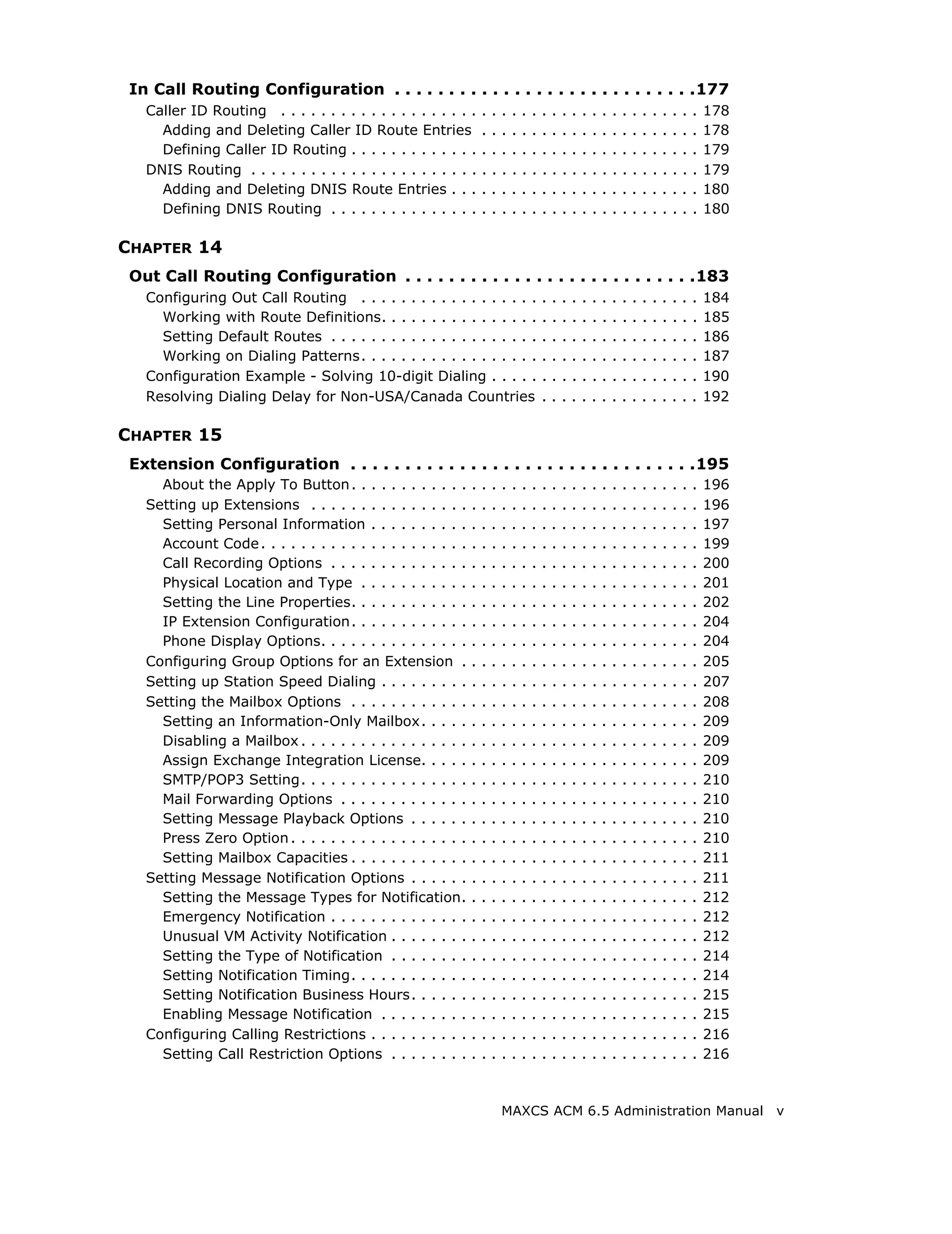
In Call Routing Configuration . . . . . . . . . . . . . . . . . . . . . . . . . . . .177
   Caller ID Routing . . . . . . . . . . . . . . . . . . . .      .   .   .   .   .   .   .   .   .   .   .   .   .   .   .   .   .   .   .   .   .   .   178
     Adding and Deleting Caller ID Route Entries                  .   .   .   .   .   .   .   .   .   .   .   .   .   .   .   .   .   .   .   .   .   .   178
     Defining Caller ID Routing . . . . . . . . . . . . .         .   .   .   .   .   .   .   .   .   .   .   .   .   .   .   .   .   .   .   .   .   .   179
   DNIS Routing . . . . . . . . . . . . . . . . . . . . . . .     .   .   .   .   .   .   .   .   .   .   .   .   .   .   .   .   .   .   .   .   .   .   179
     Adding and Deleting DNIS Route Entries . . .                 .   .   .   .   .   .   .   .   .   .   .   .   .   .   .   .   .   .   .   .   .   .   180
     Defining DNIS Routing . . . . . . . . . . . . . . .          .   .   .   .   .   .   .   .   .   .   .   .   .   .   .   .   .   .   .   .   .   .   180

CHAPTER 14
 Out Call Routing Configuration . . . . . . . . . . . . . . . . . . . . . . . . . . .183
   Configuring Out Call Routing . . . . . . . . . . . . . . . . . .                       .   .   .   .   .   .   .   .   .   .   .   .   .   .   .   .   184
     Working with Route Definitions. . . . . . . . . . . . . . . .                        .   .   .   .   .   .   .   .   .   .   .   .   .   .   .   .   185
     Setting Default Routes . . . . . . . . . . . . . . . . . . . . .                     .   .   .   .   .   .   .   .   .   .   .   .   .   .   .   .   186
     Working on Dialing Patterns. . . . . . . . . . . . . . . . . .                       .   .   .   .   .   .   .   .   .   .   .   .   .   .   .   .   187
   Configuration Example - Solving 10-digit Dialing . . . . .                             .   .   .   .   .   .   .   .   .   .   .   .   .   .   .   .   190
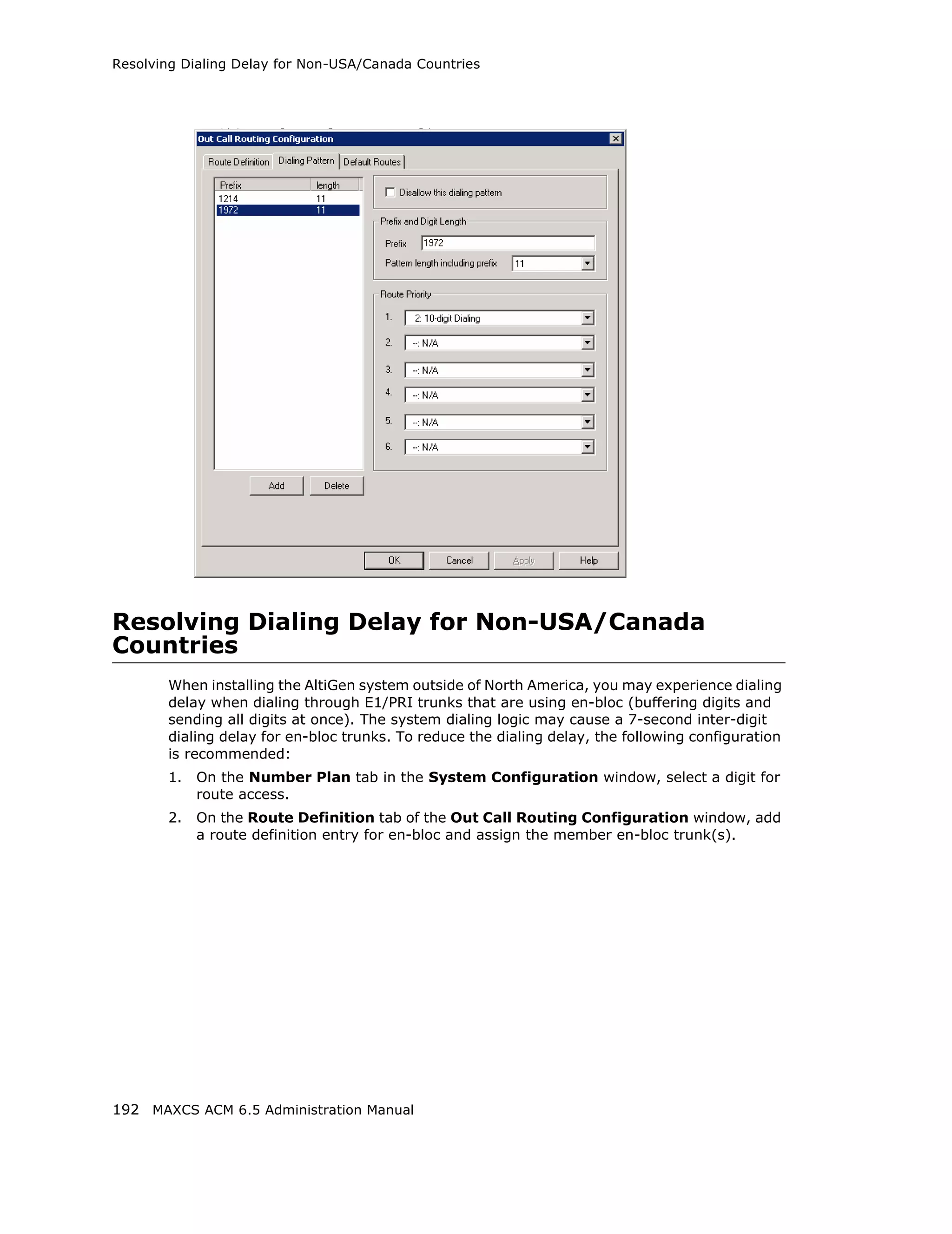
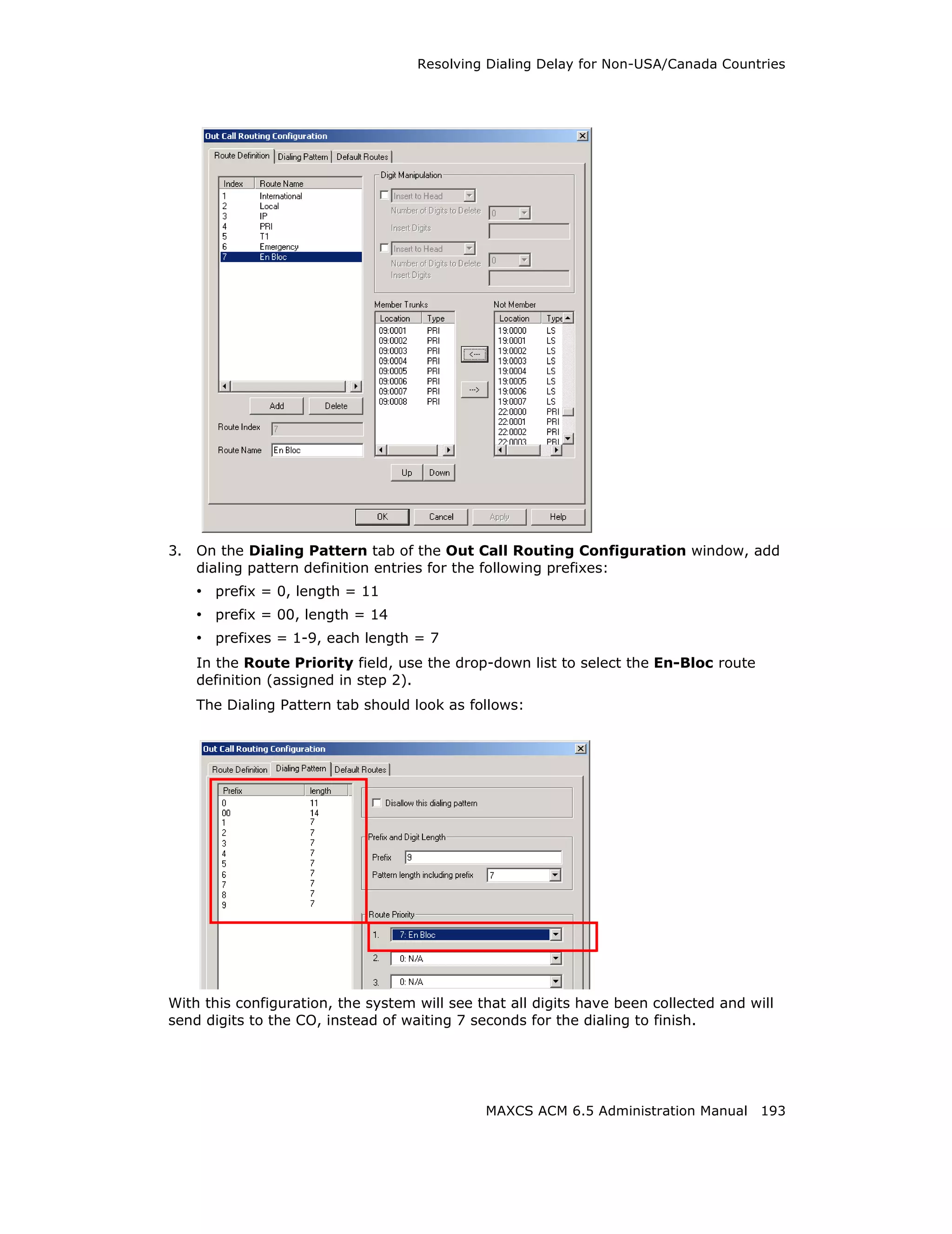
   Resolving Dialing Delay for Non-USA/Canada Countries                                   .   .   .   .   .   .   .   .   .   .   .   .   .   .   .   .   192

CHAPTER 15
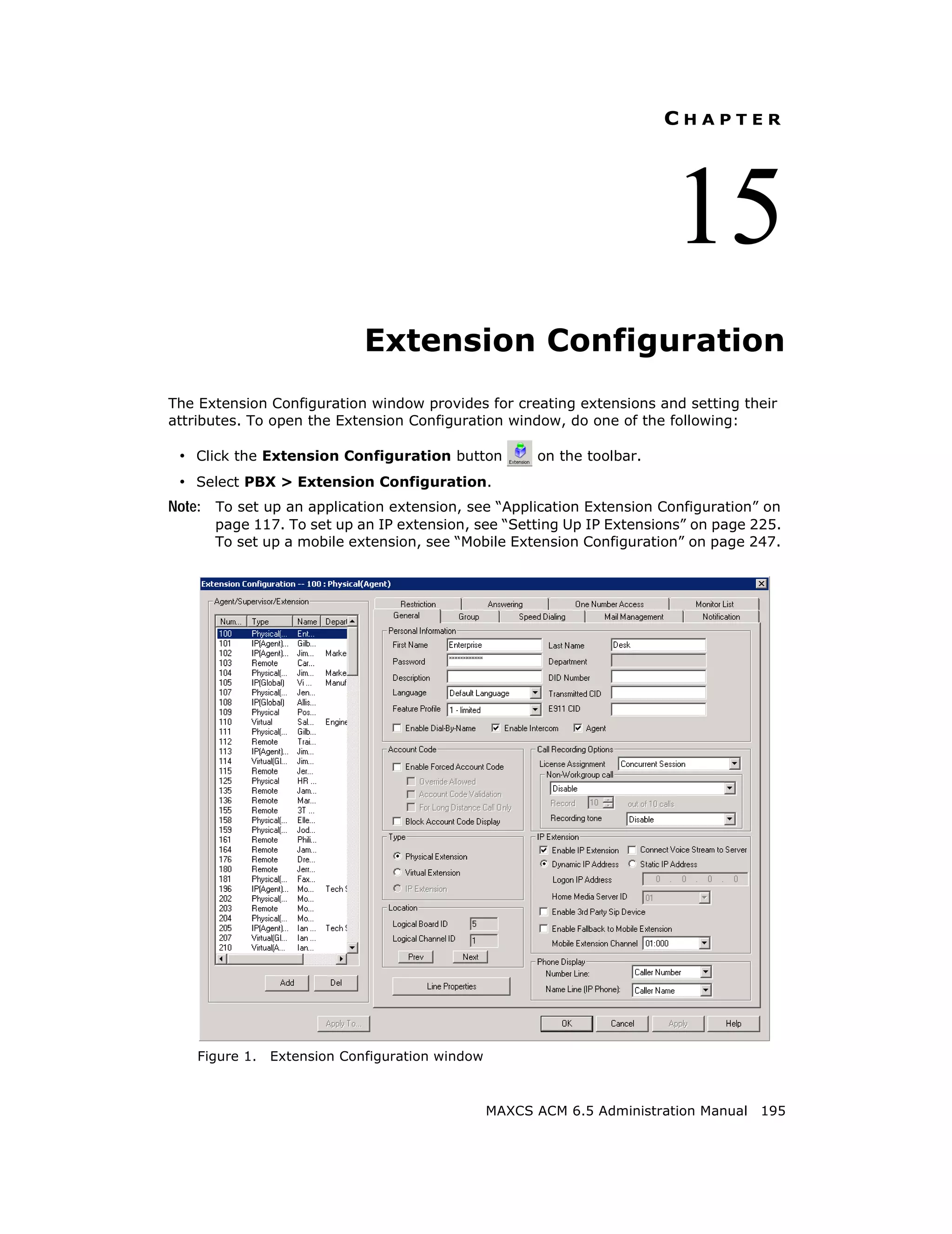
 Extension Configuration . . . . . . . . . . . . . . . . . . . . . . . . . . . . . . . .195
     About the Apply To Button . . . . . . . . . . . .        .   .   .   .   .   .   .   .   .   .   .   .   .   .   .   .   .   .   .   .   .   .   .   196
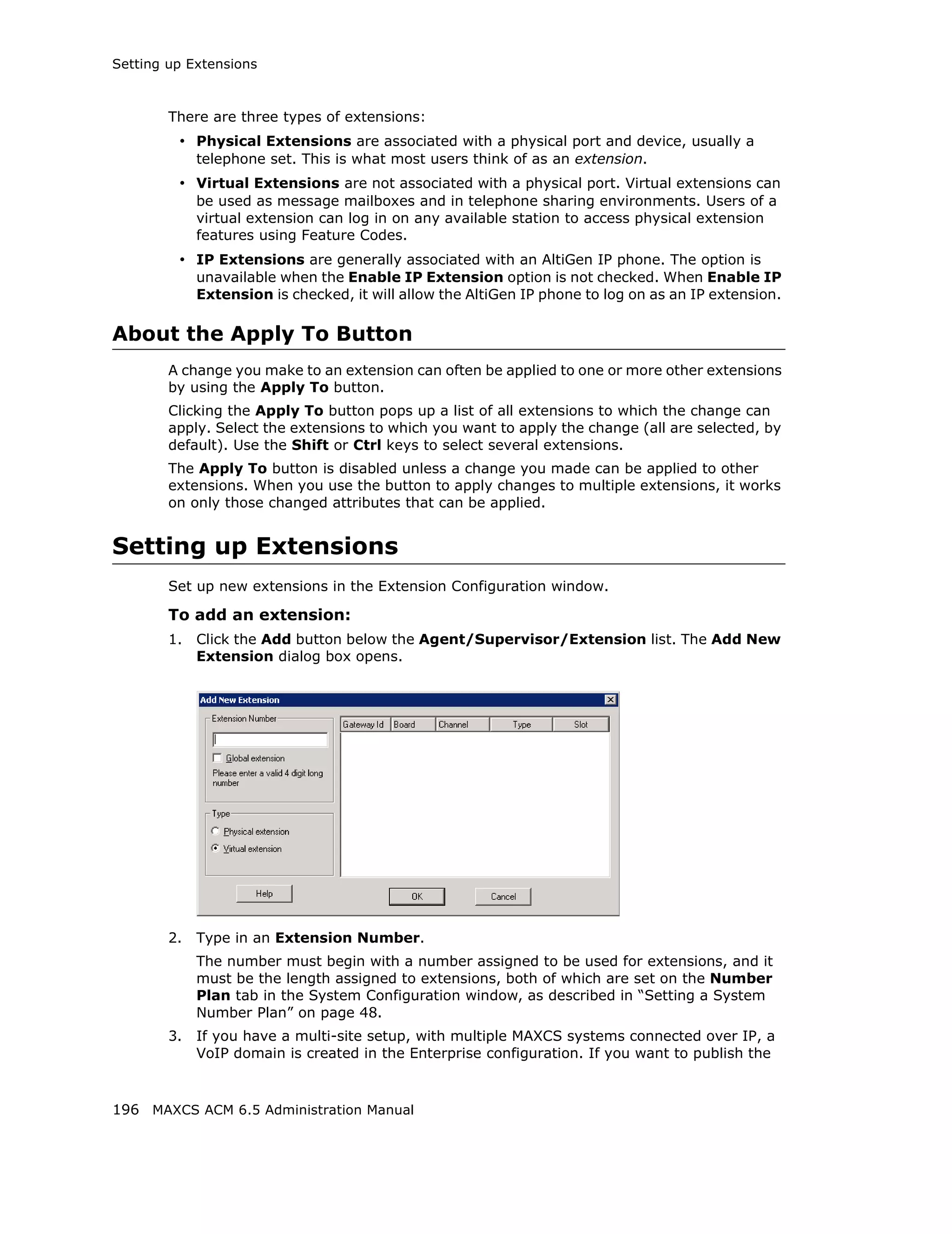
   Setting up Extensions . . . . . . . . . . . . . . . .      .   .   .   .   .   .   .   .   .   .   .   .   .   .   .   .   .   .   .   .   .   .   .   196
     Setting Personal Information . . . . . . . . . .         .   .   .   .   .   .   .   .   .   .   .   .   .   .   .   .   .   .   .   .   .   .   .   197
     Account Code . . . . . . . . . . . . . . . . . . . . .   .   .   .   .   .   .   .   .   .   .   .   .   .   .   .   .   .   .   .   .   .   .   .   199
     Call Recording Options . . . . . . . . . . . . . .       .   .   .   .   .   .   .   .   .   .   .   .   .   .   .   .   .   .   .   .   .   .   .   200
     Physical Location and Type . . . . . . . . . . .         .   .   .   .   .   .   .   .   .   .   .   .   .   .   .   .   .   .   .   .   .   .   .   201
     Setting the Line Properties. . . . . . . . . . . .       .   .   .   .   .   .   .   .   .   .   .   .   .   .   .   .   .   .   .   .   .   .   .   202
     IP Extension Configuration. . . . . . . . . . . .        .   .   .   .   .   .   .   .   .   .   .   .   .   .   .   .   .   .   .   .   .   .   .   204
     Phone Display Options. . . . . . . . . . . . . . .       .   .   .   .   .   .   .   .   .   .   .   .   .   .   .   .   .   .   .   .   .   .   .   204
   Configuring Group Options for an Extension .               .   .   .   .   .   .   .   .   .   .   .   .   .   .   .   .   .   .   .   .   .   .   .   205
   Setting up Station Speed Dialing . . . . . . . . .         .   .   .   .   .   .   .   .   .   .   .   .   .   .   .   .   .   .   .   .   .   .   .   207
   Setting the Mailbox Options . . . . . . . . . . . .        .   .   .   .   .   .   .   .   .   .   .   .   .   .   .   .   .   .   .   .   .   .   .   208
     Setting an Information-Only Mailbox. . . . .             .   .   .   .   .   .   .   .   .   .   .   .   .   .   .   .   .   .   .   .   .   .   .   209
     Disabling a Mailbox . . . . . . . . . . . . . . . . .    .   .   .   .   .   .   .   .   .   .   .   .   .   .   .   .   .   .   .   .   .   .   .   209
     Assign Exchange Integration License. . . . .             .   .   .   .   .   .   .   .   .   .   .   .   .   .   .   .   .   .   .   .   .   .   .   209
     SMTP/POP3 Setting. . . . . . . . . . . . . . . . .       .   .   .   .   .   .   .   .   .   .   .   .   .   .   .   .   .   .   .   .   .   .   .   210
     Mail Forwarding Options . . . . . . . . . . . . .        .   .   .   .   .   .   .   .   .   .   .   .   .   .   .   .   .   .   .   .   .   .   .   210
     Setting Message Playback Options . . . . . .             .   .   .   .   .   .   .   .   .   .   .   .   .   .   .   .   .   .   .   .   .   .   .   210
     Press Zero Option . . . . . . . . . . . . . . . . . .    .   .   .   .   .   .   .   .   .   .   .   .   .   .   .   .   .   .   .   .   .   .   .   210
     Setting Mailbox Capacities . . . . . . . . . . . .       .   .   .   .   .   .   .   .   .   .   .   .   .   .   .   .   .   .   .   .   .   .   .   211
   Setting Message Notification Options . . . . . .           .   .   .   .   .   .   .   .   .   .   .   .   .   .   .   .   .   .   .   .   .   .   .   211
     Setting the Message Types for Notification.              .   .   .   .   .   .   .   .   .   .   .   .   .   .   .   .   .   .   .   .   .   .   .   212
     Emergency Notification . . . . . . . . . . . . . .       .   .   .   .   .   .   .   .   .   .   .   .   .   .   .   .   .   .   .   .   .   .   .   212
     Unusual VM Activity Notification . . . . . . . .         .   .   .   .   .   .   .   .   .   .   .   .   .   .   .   .   .   .   .   .   .   .   .   212
     Setting the Type of Notification . . . . . . . .         .   .   .   .   .   .   .   .   .   .   .   .   .   .   .   .   .   .   .   .   .   .   .   214
     Setting Notification Timing. . . . . . . . . . . .       .   .   .   .   .   .   .   .   .   .   .   .   .   .   .   .   .   .   .   .   .   .   .   214
     Setting Notification Business Hours. . . . . .           .   .   .   .   .   .   .   .   .   .   .   .   .   .   .   .   .   .   .   .   .   .   .   215
     Enabling Message Notification . . . . . . . . .          .   .   .   .   .   .   .   .   .   .   .   .   .   .   .   .   .   .   .   .   .   .   .   215
   Configuring Calling Restrictions . . . . . . . . . .       .   .   .   .   .   .   .   .   .   .   .   .   .   .   .   .   .   .   .   .   .   .   .   216
     Setting Call Restriction Options . . . . . . . .         .   .   .   .   .   .   .   .   .   .   .   .   .   .   .   .   .   .   .   .   .   .   .   216


                                                                          MAXCS ACM 6.5 Administration Manual v
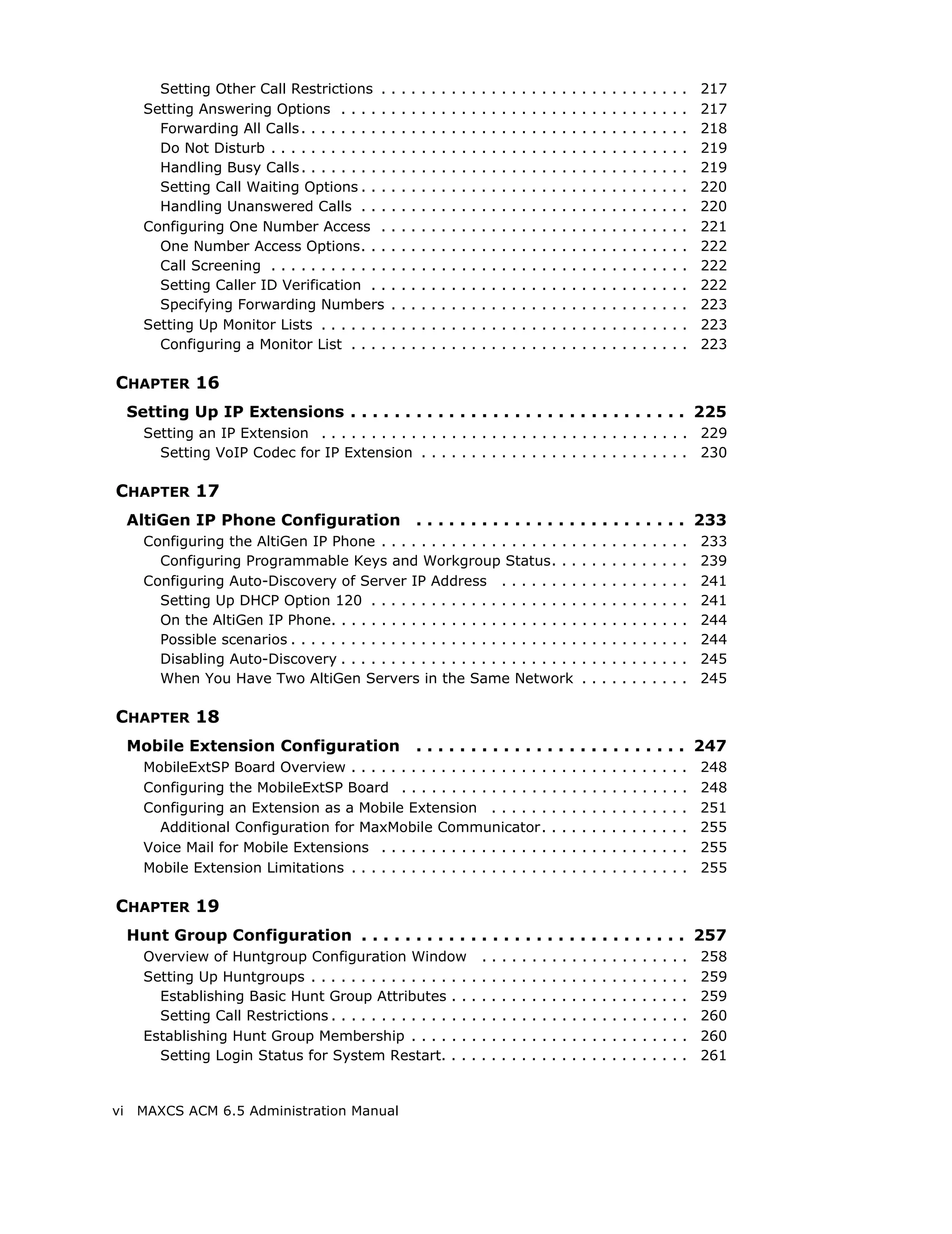
Setting Other Call Restrictions .         .   .   .   .   .   .   .   .   .   .   .   .   .   .   .   .   .   .   .   .   .   .   .   .   .   .   .   .   .   .   217
       Setting Answering Options . . . . .         .   .   .   .   .   .   .   .   .   .   .   .   .   .   .   .   .   .   .   .   .   .   .   .   .   .   .   .   .   .   217
         Forwarding All Calls . . . . . . . . .    .   .   .   .   .   .   .   .   .   .   .   .   .   .   .   .   .   .   .   .   .   .   .   .   .   .   .   .   .   .   218
         Do Not Disturb . . . . . . . . . . . .    .   .   .   .   .   .   .   .   .   .   .   .   .   .   .   .   .   .   .   .   .   .   .   .   .   .   .   .   .   .   219
         Handling Busy Calls . . . . . . . . .     .   .   .   .   .   .   .   .   .   .   .   .   .   .   .   .   .   .   .   .   .   .   .   .   .   .   .   .   .   .   219
         Setting Call Waiting Options . . .        .   .   .   .   .   .   .   .   .   .   .   .   .   .   .   .   .   .   .   .   .   .   .   .   .   .   .   .   .   .   220
         Handling Unanswered Calls . . .           .   .   .   .   .   .   .   .   .   .   .   .   .   .   .   .   .   .   .   .   .   .   .   .   .   .   .   .   .   .   220
       Configuring One Number Access .             .   .   .   .   .   .   .   .   .   .   .   .   .   .   .   .   .   .   .   .   .   .   .   .   .   .   .   .   .   .   221
         One Number Access Options. . .            .   .   .   .   .   .   .   .   .   .   .   .   .   .   .   .   .   .   .   .   .   .   .   .   .   .   .   .   .   .   222
         Call Screening . . . . . . . . . . . .    .   .   .   .   .   .   .   .   .   .   .   .   .   .   .   .   .   .   .   .   .   .   .   .   .   .   .   .   .   .   222
         Setting Caller ID Verification . .        .   .   .   .   .   .   .   .   .   .   .   .   .   .   .   .   .   .   .   .   .   .   .   .   .   .   .   .   .   .   222
         Specifying Forwarding Numbers             .   .   .   .   .   .   .   .   .   .   .   .   .   .   .   .   .   .   .   .   .   .   .   .   .   .   .   .   .   .   223
       Setting Up Monitor Lists . . . . . . .      .   .   .   .   .   .   .   .   .   .   .   .   .   .   .   .   .   .   .   .   .   .   .   .   .   .   .   .   .   .   223
         Configuring a Monitor List . . . .        .   .   .   .   .   .   .   .   .   .   .   .   .   .   .   .   .   .   .   .   .   .   .   .   .   .   .   .   .   .   223

CHAPTER 16
     Setting Up IP Extensions . . . . . . . . . . . . . . . . . . . . . . . . . . . . . . . 225
       Setting an IP Extension . . . . . . . . . . . . . . . . . . . . . . . . . . . . . . . . . . . . . 229
         Setting VoIP Codec for IP Extension . . . . . . . . . . . . . . . . . . . . . . . . . . . 230

CHAPTER 17
     AltiGen IP Phone Configuration                        . . . . . . . . . . . . . . . . . . . . . . . . . 233
       Configuring the AltiGen IP Phone . . . . . . . . . . . . . . . . . . . .                                                .   .   .   .   .   .   .   .   .   .   .   233
         Configuring Programmable Keys and Workgroup Status. . .                                                               .   .   .   .   .   .   .   .   .   .   .   239
       Configuring Auto-Discovery of Server IP Address . . . . . . . .                                                         .   .   .   .   .   .   .   .   .   .   .   241
         Setting Up DHCP Option 120 . . . . . . . . . . . . . . . . . . . . .                                                  .   .   .   .   .   .   .   .   .   .   .   241
         On the AltiGen IP Phone. . . . . . . . . . . . . . . . . . . . . . . . .                                              .   .   .   .   .   .   .   .   .   .   .   244
         Possible scenarios . . . . . . . . . . . . . . . . . . . . . . . . . . . . .                                          .   .   .   .   .   .   .   .   .   .   .   244
         Disabling Auto-Discovery . . . . . . . . . . . . . . . . . . . . . . . .                                              .   .   .   .   .   .   .   .   .   .   .   245
         When You Have Two AltiGen Servers in the Same Network                                                                 .   .   .   .   .   .   .   .   .   .   .   245

CHAPTER 18
     Mobile Extension Configuration                        . . . . . . . . . . . . . . . . . . . . . . . . . 247
       MobileExtSP Board Overview . . . . . . . . . . . . . . . . . . . .                                          .   .   .   .   .   .   .   .   .   .   .   .   .   .   248
       Configuring the MobileExtSP Board . . . . . . . . . . . . . . .                                             .   .   .   .   .   .   .   .   .   .   .   .   .   .   248
       Configuring an Extension as a Mobile Extension . . . . . .                                                  .   .   .   .   .   .   .   .   .   .   .   .   .   .   251
         Additional Configuration for MaxMobile Communicator.                                                      .   .   .   .   .   .   .   .   .   .   .   .   .   .   255
       Voice Mail for Mobile Extensions . . . . . . . . . . . . . . . . .                                          .   .   .   .   .   .   .   .   .   .   .   .   .   .   255
       Mobile Extension Limitations . . . . . . . . . . . . . . . . . . . .                                        .   .   .   .   .   .   .   .   .   .   .   .   .   .   255

CHAPTER 19
     Hunt Group Configuration . . . . . . . . . . . . . . . . . . . . . . . . . . . . . . 257
       Overview of Huntgroup Configuration Window                                      .   .   .   .   .   .   .   .   .   .   .   .   .   .   .   .   .   .   .   .   .   258
       Setting Up Huntgroups . . . . . . . . . . . . . . . .                       .   .   .   .   .   .   .   .   .   .   .   .   .   .   .   .   .   .   .   .   .   .   259
         Establishing Basic Hunt Group Attributes . .                              .   .   .   .   .   .   .   .   .   .   .   .   .   .   .   .   .   .   .   .   .   .   259
         Setting Call Restrictions . . . . . . . . . . . . . .                     .   .   .   .   .   .   .   .   .   .   .   .   .   .   .   .   .   .   .   .   .   .   260
       Establishing Hunt Group Membership . . . . . .                              .   .   .   .   .   .   .   .   .   .   .   .   .   .   .   .   .   .   .   .   .   .   260
         Setting Login Status for System Restart. . .                              .   .   .   .   .   .   .   .   .   .   .   .   .   .   .   .   .   .   .   .   .   .   261


vi    MAXCS ACM 6.5 Administration Manual
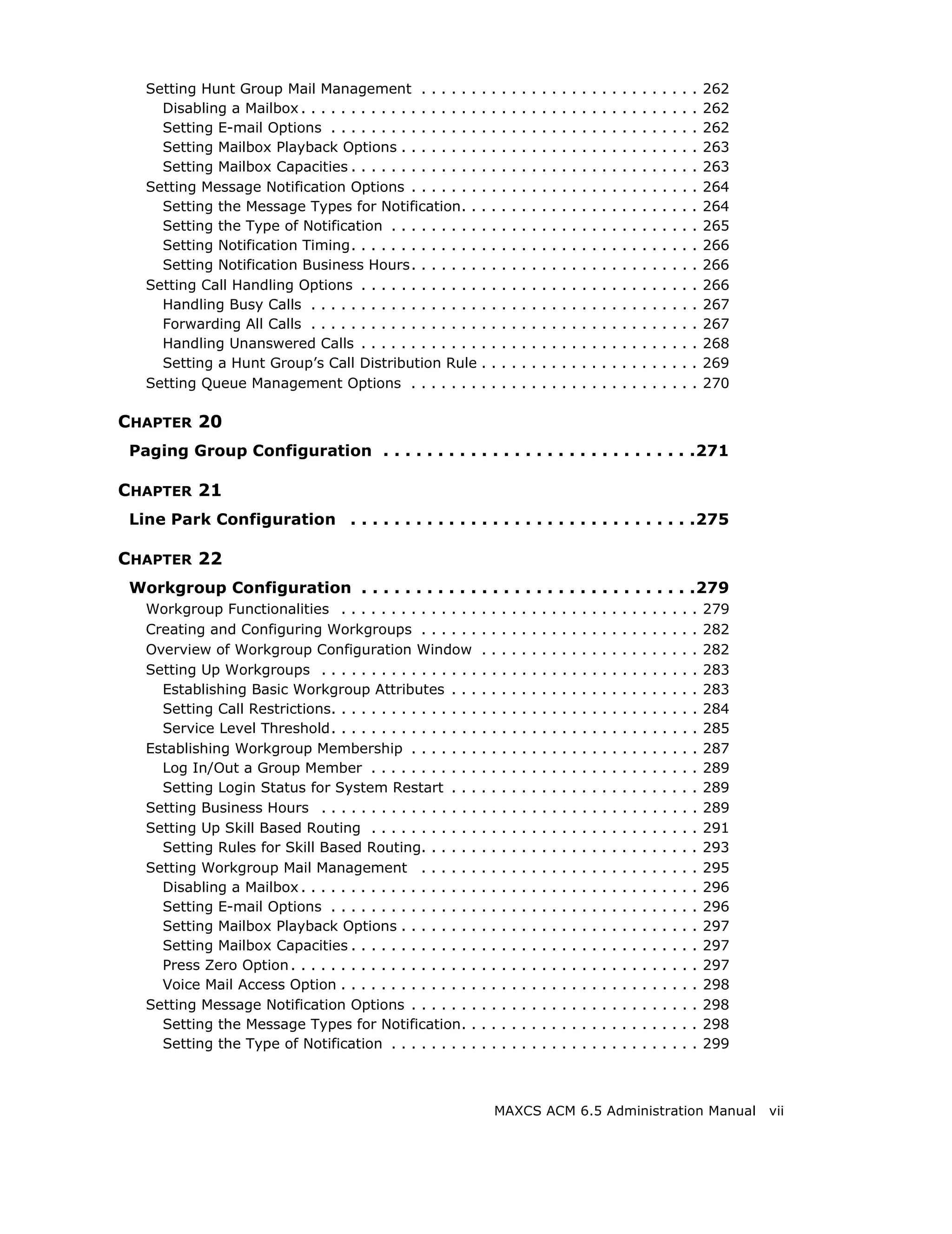
Setting Hunt Group Mail Management . . . . . .              .   .   .   .   .   .   .   .   .   .   .   .   .   .   .   .   .   .   .   .   .   .   262
     Disabling a Mailbox . . . . . . . . . . . . . . . . . .   .   .   .   .   .   .   .   .   .   .   .   .   .   .   .   .   .   .   .   .   .   .   262
     Setting E-mail Options . . . . . . . . . . . . . . .      .   .   .   .   .   .   .   .   .   .   .   .   .   .   .   .   .   .   .   .   .   .   262
     Setting Mailbox Playback Options . . . . . . . .          .   .   .   .   .   .   .   .   .   .   .   .   .   .   .   .   .   .   .   .   .   .   263
     Setting Mailbox Capacities . . . . . . . . . . . . .      .   .   .   .   .   .   .   .   .   .   .   .   .   .   .   .   .   .   .   .   .   .   263
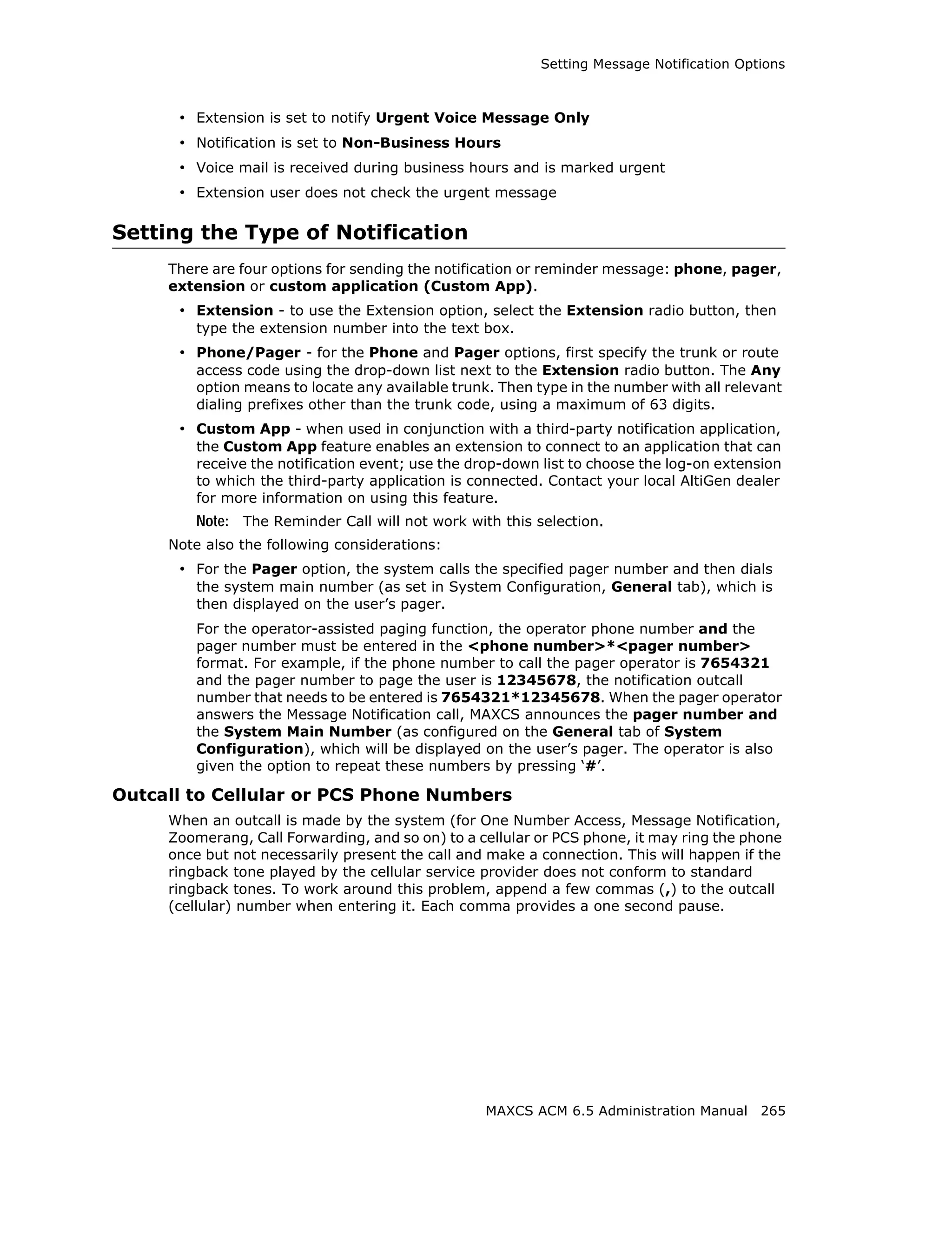
   Setting Message Notification Options . . . . . . .          .   .   .   .   .   .   .   .   .   .   .   .   .   .   .   .   .   .   .   .   .   .   264
     Setting the Message Types for Notification. .             .   .   .   .   .   .   .   .   .   .   .   .   .   .   .   .   .   .   .   .   .   .   264
     Setting the Type of Notification . . . . . . . . .        .   .   .   .   .   .   .   .   .   .   .   .   .   .   .   .   .   .   .   .   .   .   265
     Setting Notification Timing. . . . . . . . . . . . .      .   .   .   .   .   .   .   .   .   .   .   .   .   .   .   .   .   .   .   .   .   .   266
     Setting Notification Business Hours. . . . . . .          .   .   .   .   .   .   .   .   .   .   .   .   .   .   .   .   .   .   .   .   .   .   266
   Setting Call Handling Options . . . . . . . . . . . .       .   .   .   .   .   .   .   .   .   .   .   .   .   .   .   .   .   .   .   .   .   .   266
     Handling Busy Calls . . . . . . . . . . . . . . . . .     .   .   .   .   .   .   .   .   .   .   .   .   .   .   .   .   .   .   .   .   .   .   267
     Forwarding All Calls . . . . . . . . . . . . . . . . .    .   .   .   .   .   .   .   .   .   .   .   .   .   .   .   .   .   .   .   .   .   .   267
     Handling Unanswered Calls . . . . . . . . . . . .         .   .   .   .   .   .   .   .   .   .   .   .   .   .   .   .   .   .   .   .   .   .   268
     Setting a Hunt Group’s Call Distribution Rule             .   .   .   .   .   .   .   .   .   .   .   .   .   .   .   .   .   .   .   .   .   .   269
   Setting Queue Management Options . . . . . . .              .   .   .   .   .   .   .   .   .   .   .   .   .   .   .   .   .   .   .   .   .   .   270

CHAPTER 20
 Paging Group Configuration . . . . . . . . . . . . . . . . . . . . . . . . . . . . .271

CHAPTER 21
 Line Park Configuration . . . . . . . . . . . . . . . . . . . . . . . . . . . . . . . .275

CHAPTER 22
 Workgroup Configuration . . . . . . . . . . . . . . . . . . . . . . . . . . . . . . .279
   Workgroup Functionalities . . . . . . . . . . . . . .       .   .   .   .   .   .   .   .   .   .   .   .   .   .   .   .   .   .   .   .   .   .   279
   Creating and Configuring Workgroups . . . . . .             .   .   .   .   .   .   .   .   .   .   .   .   .   .   .   .   .   .   .   .   .   .   282
   Overview of Workgroup Configuration Window                  .   .   .   .   .   .   .   .   .   .   .   .   .   .   .   .   .   .   .   .   .   .   282
   Setting Up Workgroups . . . . . . . . . . . . . . . .       .   .   .   .   .   .   .   .   .   .   .   .   .   .   .   .   .   .   .   .   .   .   283
     Establishing Basic Workgroup Attributes . . .             .   .   .   .   .   .   .   .   .   .   .   .   .   .   .   .   .   .   .   .   .   .   283
     Setting Call Restrictions. . . . . . . . . . . . . . .    .   .   .   .   .   .   .   .   .   .   .   .   .   .   .   .   .   .   .   .   .   .   284
     Service Level Threshold. . . . . . . . . . . . . . .      .   .   .   .   .   .   .   .   .   .   .   .   .   .   .   .   .   .   .   .   .   .   285
   Establishing Workgroup Membership . . . . . . .             .   .   .   .   .   .   .   .   .   .   .   .   .   .   .   .   .   .   .   .   .   .   287
     Log In/Out a Group Member . . . . . . . . . . .           .   .   .   .   .   .   .   .   .   .   .   .   .   .   .   .   .   .   .   .   .   .   289
     Setting Login Status for System Restart . . .             .   .   .   .   .   .   .   .   .   .   .   .   .   .   .   .   .   .   .   .   .   .   289
   Setting Business Hours . . . . . . . . . . . . . . . .      .   .   .   .   .   .   .   .   .   .   .   .   .   .   .   .   .   .   .   .   .   .   289
   Setting Up Skill Based Routing . . . . . . . . . . .        .   .   .   .   .   .   .   .   .   .   .   .   .   .   .   .   .   .   .   .   .   .   291
     Setting Rules for Skill Based Routing. . . . . .          .   .   .   .   .   .   .   .   .   .   .   .   .   .   .   .   .   .   .   .   .   .   293
   Setting Workgroup Mail Management . . . . . .               .   .   .   .   .   .   .   .   .   .   .   .   .   .   .   .   .   .   .   .   .   .   295
     Disabling a Mailbox . . . . . . . . . . . . . . . . . .   .   .   .   .   .   .   .   .   .   .   .   .   .   .   .   .   .   .   .   .   .   .   296
     Setting E-mail Options . . . . . . . . . . . . . . .      .   .   .   .   .   .   .   .   .   .   .   .   .   .   .   .   .   .   .   .   .   .   296
     Setting Mailbox Playback Options . . . . . . . .          .   .   .   .   .   .   .   .   .   .   .   .   .   .   .   .   .   .   .   .   .   .   297
     Setting Mailbox Capacities . . . . . . . . . . . . .      .   .   .   .   .   .   .   .   .   .   .   .   .   .   .   .   .   .   .   .   .   .   297
     Press Zero Option . . . . . . . . . . . . . . . . . . .   .   .   .   .   .   .   .   .   .   .   .   .   .   .   .   .   .   .   .   .   .   .   297
     Voice Mail Access Option . . . . . . . . . . . . . .      .   .   .   .   .   .   .   .   .   .   .   .   .   .   .   .   .   .   .   .   .   .   298
   Setting Message Notification Options . . . . . . .          .   .   .   .   .   .   .   .   .   .   .   .   .   .   .   .   .   .   .   .   .   .   298
     Setting the Message Types for Notification. .             .   .   .   .   .   .   .   .   .   .   .   .   .   .   .   .   .   .   .   .   .   .   298
     Setting the Type of Notification . . . . . . . . .        .   .   .   .   .   .   .   .   .   .   .   .   .   .   .   .   .   .   .   .   .   .   299


                                                                   MAXCS ACM 6.5 Administration Manual                                                       vii
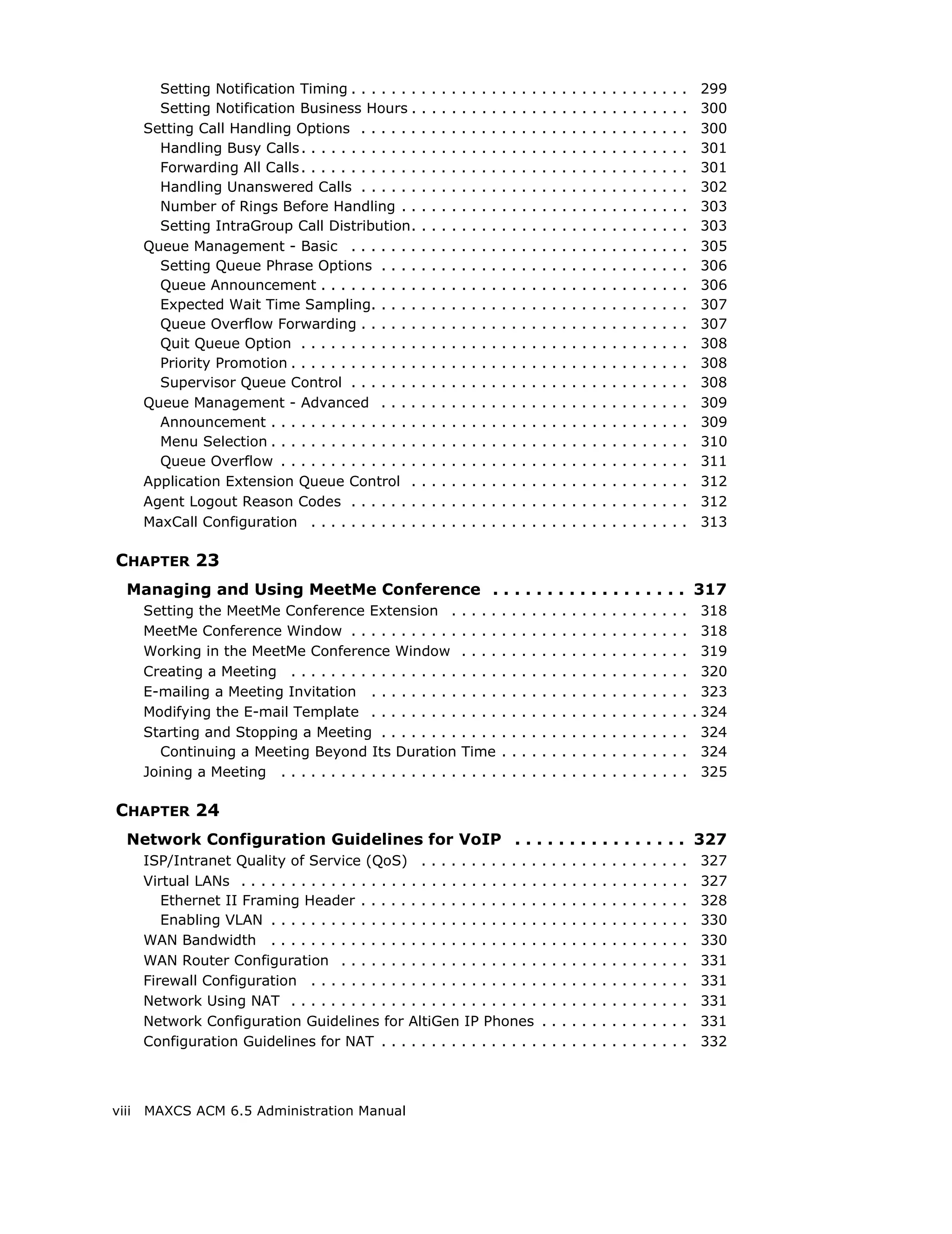
Setting Notification Timing . . . . . . .       .   .   .   .   .   .   .   .   .   .   .   .   .   .   .   .   .   .   .   .   .   .   .   .   .   .   .    299
         Setting Notification Business Hours .           .   .   .   .   .   .   .   .   .   .   .   .   .   .   .   .   .   .   .   .   .   .   .   .   .   .   .    300
       Setting Call Handling Options . . . . . .         .   .   .   .   .   .   .   .   .   .   .   .   .   .   .   .   .   .   .   .   .   .   .   .   .   .   .    300
         Handling Busy Calls . . . . . . . . . . . .     .   .   .   .   .   .   .   .   .   .   .   .   .   .   .   .   .   .   .   .   .   .   .   .   .   .   .    301
         Forwarding All Calls . . . . . . . . . . . .    .   .   .   .   .   .   .   .   .   .   .   .   .   .   .   .   .   .   .   .   .   .   .   .   .   .   .    301
         Handling Unanswered Calls . . . . . .           .   .   .   .   .   .   .   .   .   .   .   .   .   .   .   .   .   .   .   .   .   .   .   .   .   .   .    302
         Number of Rings Before Handling . .             .   .   .   .   .   .   .   .   .   .   .   .   .   .   .   .   .   .   .   .   .   .   .   .   .   .   .    303
         Setting IntraGroup Call Distribution.           .   .   .   .   .   .   .   .   .   .   .   .   .   .   .   .   .   .   .   .   .   .   .   .   .   .   .    303
       Queue Management - Basic . . . . . . .            .   .   .   .   .   .   .   .   .   .   .   .   .   .   .   .   .   .   .   .   .   .   .   .   .   .   .    305
         Setting Queue Phrase Options . . . .            .   .   .   .   .   .   .   .   .   .   .   .   .   .   .   .   .   .   .   .   .   .   .   .   .   .   .    306
         Queue Announcement . . . . . . . . . .          .   .   .   .   .   .   .   .   .   .   .   .   .   .   .   .   .   .   .   .   .   .   .   .   .   .   .    306
         Expected Wait Time Sampling. . . . .            .   .   .   .   .   .   .   .   .   .   .   .   .   .   .   .   .   .   .   .   .   .   .   .   .   .   .    307
         Queue Overflow Forwarding . . . . . .           .   .   .   .   .   .   .   .   .   .   .   .   .   .   .   .   .   .   .   .   .   .   .   .   .   .   .    307
         Quit Queue Option . . . . . . . . . . . .       .   .   .   .   .   .   .   .   .   .   .   .   .   .   .   .   .   .   .   .   .   .   .   .   .   .   .    308
         Priority Promotion . . . . . . . . . . . . .    .   .   .   .   .   .   .   .   .   .   .   .   .   .   .   .   .   .   .   .   .   .   .   .   .   .   .    308
         Supervisor Queue Control . . . . . . .          .   .   .   .   .   .   .   .   .   .   .   .   .   .   .   .   .   .   .   .   .   .   .   .   .   .   .    308
       Queue Management - Advanced . . . .               .   .   .   .   .   .   .   .   .   .   .   .   .   .   .   .   .   .   .   .   .   .   .   .   .   .   .    309
         Announcement . . . . . . . . . . . . . . .      .   .   .   .   .   .   .   .   .   .   .   .   .   .   .   .   .   .   .   .   .   .   .   .   .   .   .    309
         Menu Selection . . . . . . . . . . . . . . .    .   .   .   .   .   .   .   .   .   .   .   .   .   .   .   .   .   .   .   .   .   .   .   .   .   .   .    310
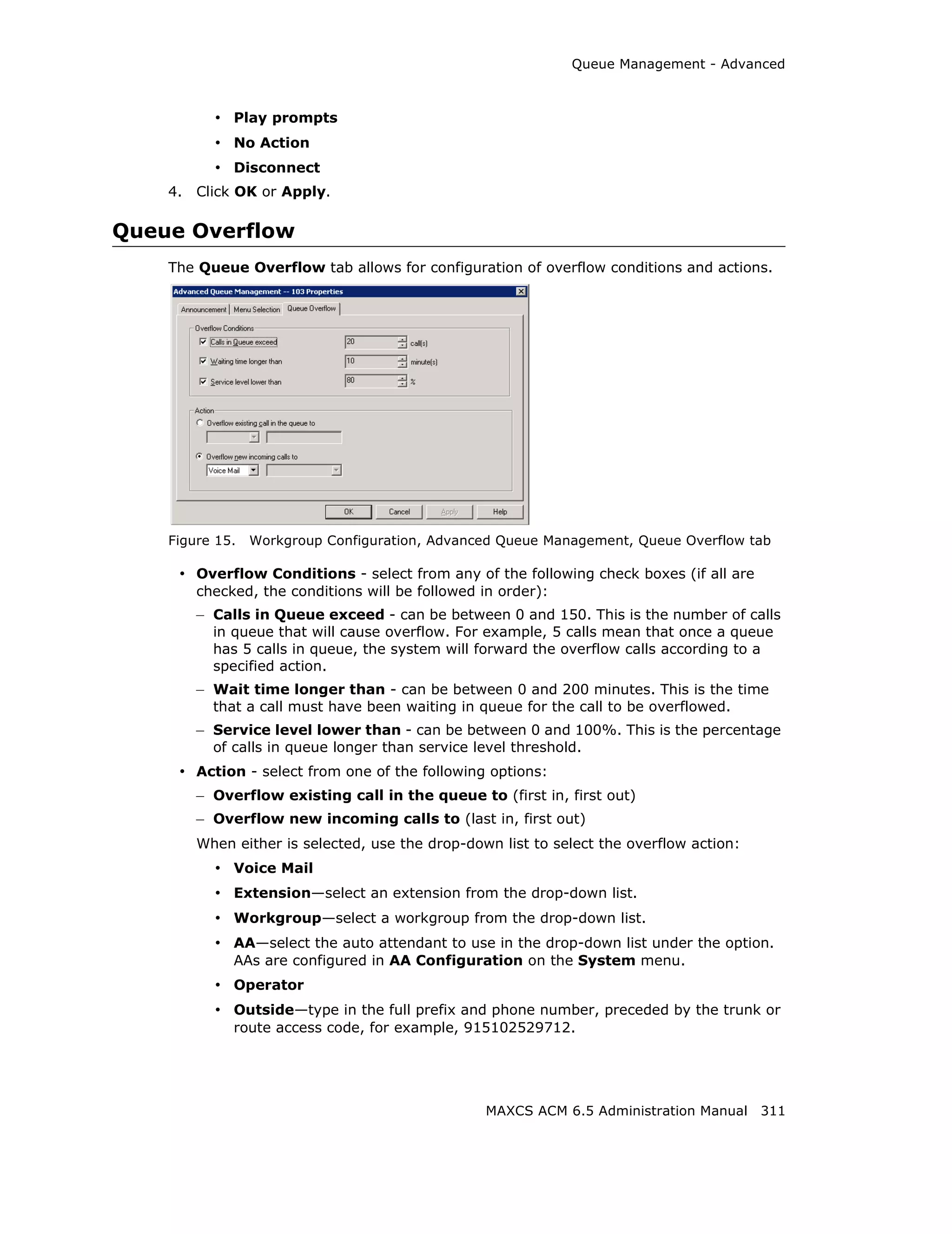
         Queue Overflow . . . . . . . . . . . . . .      .   .   .   .   .   .   .   .   .   .   .   .   .   .   .   .   .   .   .   .   .   .   .   .   .   .   .    311
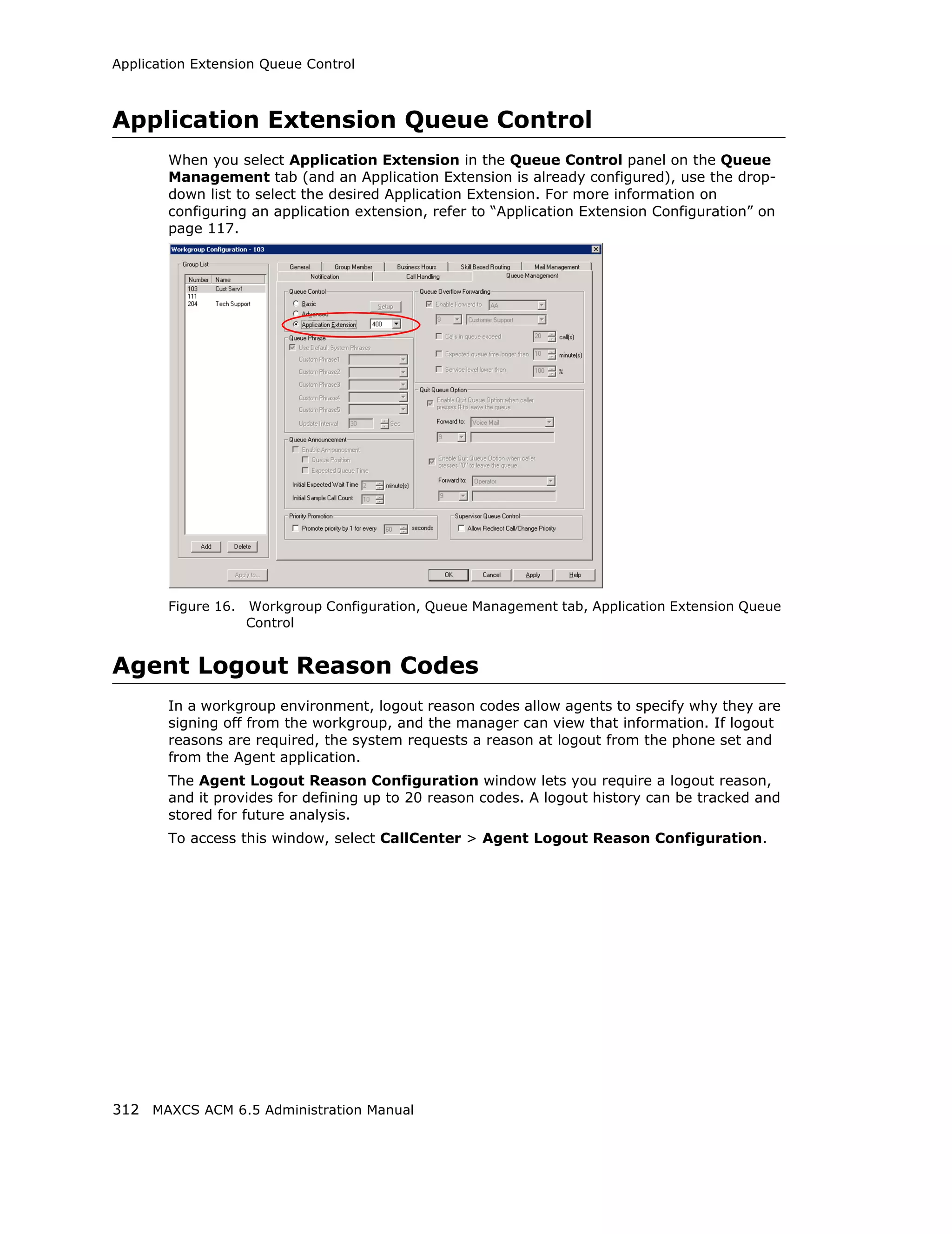
       Application Extension Queue Control .             .   .   .   .   .   .   .   .   .   .   .   .   .   .   .   .   .   .   .   .   .   .   .   .   .   .   .    312
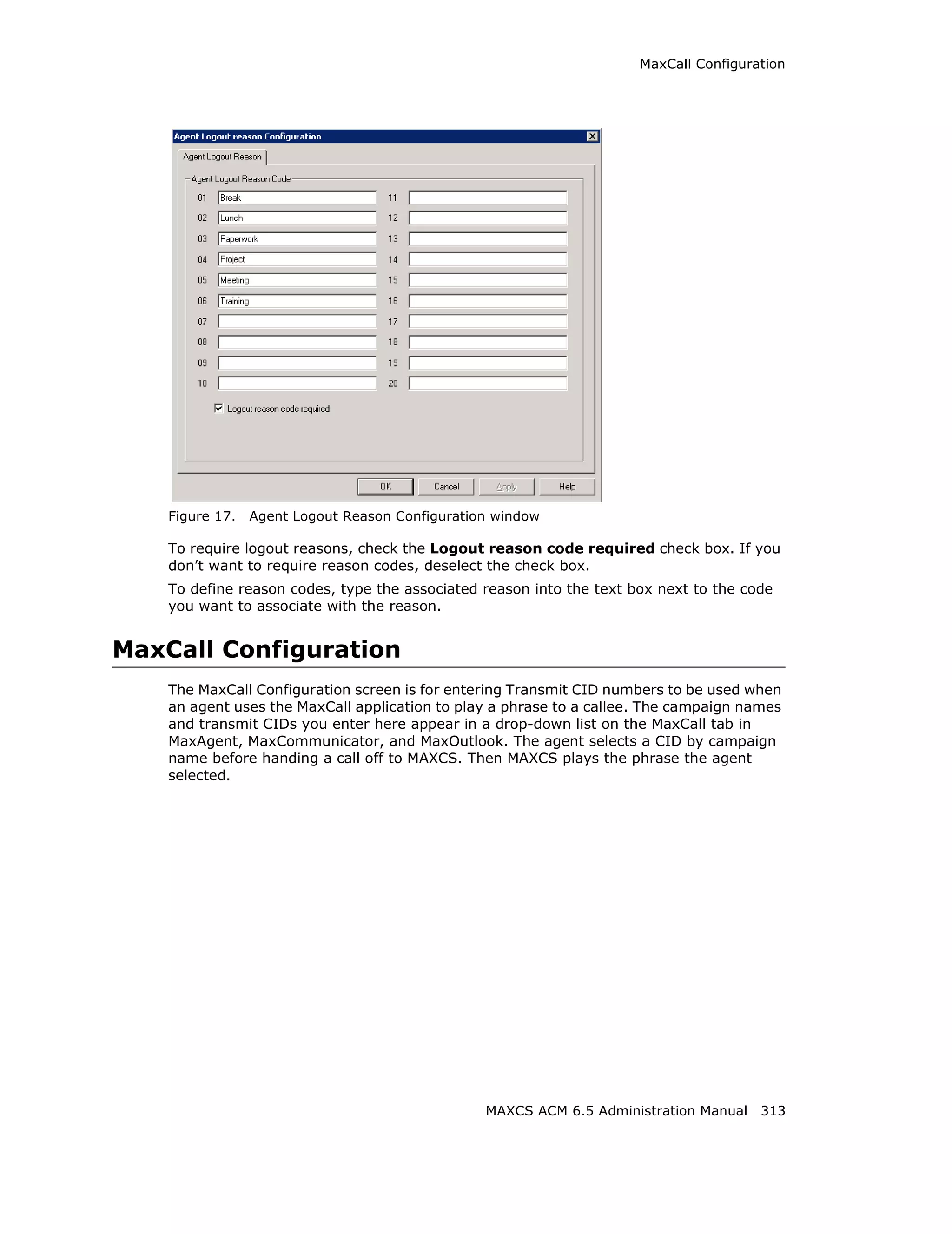
       Agent Logout Reason Codes . . . . . . .           .   .   .   .   .   .   .   .   .   .   .   .   .   .   .   .   .   .   .   .   .   .   .   .   .   .   .    312
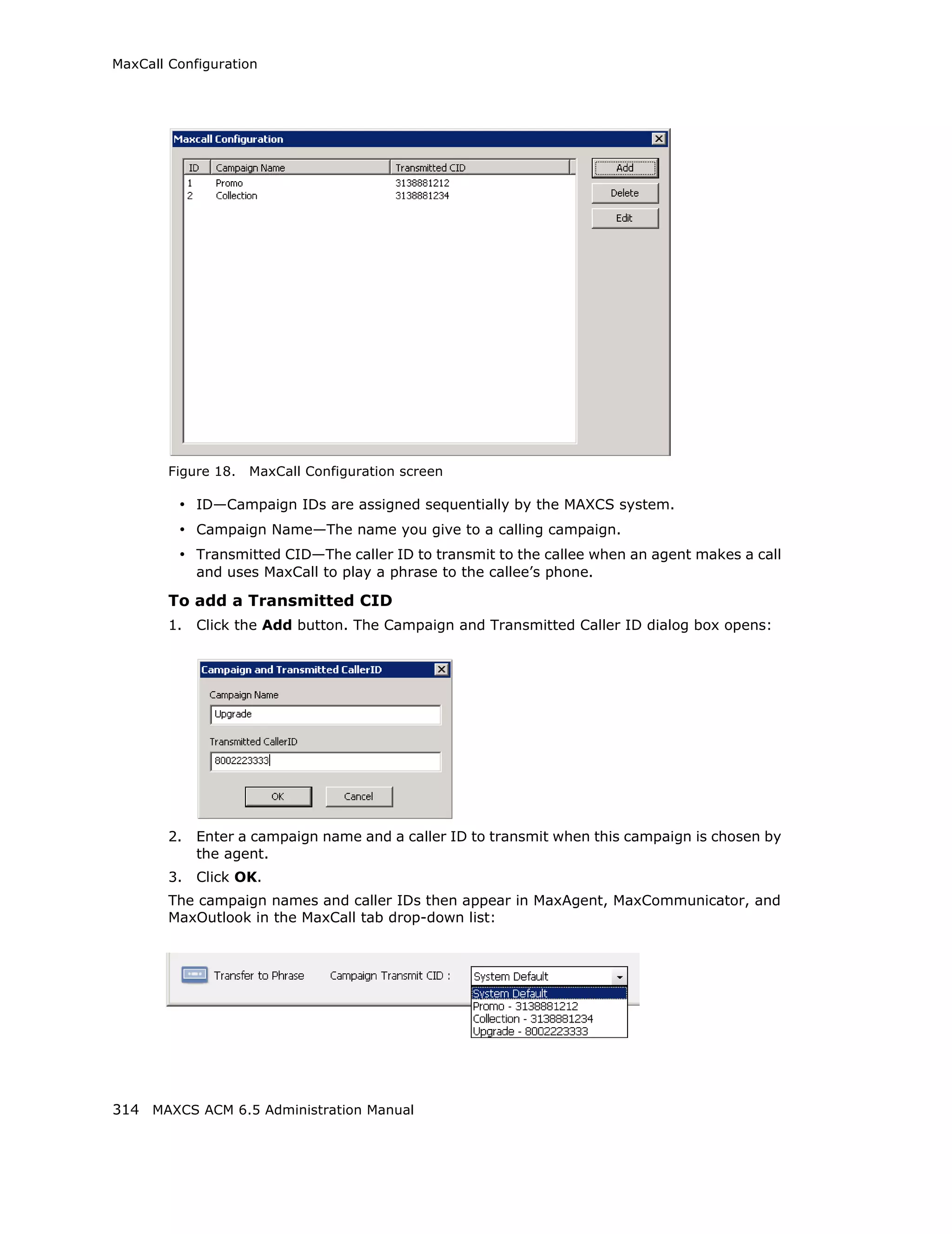
       MaxCall Configuration . . . . . . . . . . .       .   .   .   .   .   .   .   .   .   .   .   .   .   .   .   .   .   .   .   .   .   .   .   .   .   .   .    313

CHAPTER 23
   Managing and Using MeetMe Conference . . . . . . . . . . . . . . . . . . 317
       Setting the MeetMe Conference Extension .                         ....            .   .   .   .   .   .   .   .   .   .   .   .   .   .   .   .   .   .   .     318
       MeetMe Conference Window . . . . . . . . . . .                    ....            .   .   .   .   .   .   .   .   .   .   .   .   .   .   .   .   .   .   .     318
       Working in the MeetMe Conference Window                           ....            .   .   .   .   .   .   .   .   .   .   .   .   .   .   .   .   .   .   .     319
       Creating a Meeting . . . . . . . . . . . . . . . . .              ....            .   .   .   .   .   .   .   .   .   .   .   .   .   .   .   .   .   .   .     320
       E-mailing a Meeting Invitation . . . . . . . . .                  ....            .   .   .   .   .   .   .   .   .   .   .   .   .   .   .   .   .   .   .     323
       Modifying the E-mail Template . . . . . . . . .                   ....            .   .   .   .   .   .   .   .   .   .   .   .   .   .   .   .   .   .   .   . 324
       Starting and Stopping a Meeting . . . . . . . .                   ....            .   .   .   .   .   .   .   .   .   .   .   .   .   .   .   .   .   .   .     324
          Continuing a Meeting Beyond Its Duration                       Time            .   .   .   .   .   .   .   .   .   .   .   .   .   .   .   .   .   .   .     324
       Joining a Meeting . . . . . . . . . . . . . . . . . .             ....            .   .   .   .   .   .   .   .   .   .   .   .   .   .   .   .   .   .   .     325

CHAPTER 24
   Network Configuration Guidelines for VoIP . . . . . . . . . . . . . . . . 327
       ISP/Intranet Quality of Service (QoS) . . . . . . . . . . . .                                     .   .   .   .   .   .   .   .   .   .   .   .   .   .   .    327
       Virtual LANs . . . . . . . . . . . . . . . . . . . . . . . . . . . . . .                          .   .   .   .   .   .   .   .   .   .   .   .   .   .   .    327
          Ethernet II Framing Header . . . . . . . . . . . . . . . . . .                                 .   .   .   .   .   .   .   .   .   .   .   .   .   .   .    328
          Enabling VLAN . . . . . . . . . . . . . . . . . . . . . . . . . . .                            .   .   .   .   .   .   .   .   .   .   .   .   .   .   .    330
       WAN Bandwidth . . . . . . . . . . . . . . . . . . . . . . . . . . .                               .   .   .   .   .   .   .   .   .   .   .   .   .   .   .    330
       WAN Router Configuration . . . . . . . . . . . . . . . . . . . .                                  .   .   .   .   .   .   .   .   .   .   .   .   .   .   .    331
       Firewall Configuration . . . . . . . . . . . . . . . . . . . . . . .                              .   .   .   .   .   .   .   .   .   .   .   .   .   .   .    331
       Network Using NAT . . . . . . . . . . . . . . . . . . . . . . . . .                               .   .   .   .   .   .   .   .   .   .   .   .   .   .   .    331
       Network Configuration Guidelines for AltiGen IP Phones                                            .   .   .   .   .   .   .   .   .   .   .   .   .   .   .    331
       Configuration Guidelines for NAT . . . . . . . . . . . . . . . .                                  .   .   .   .   .   .   .   .   .   .   .   .   .   .   .    332


viii   MAXCS ACM 6.5 Administration Manual
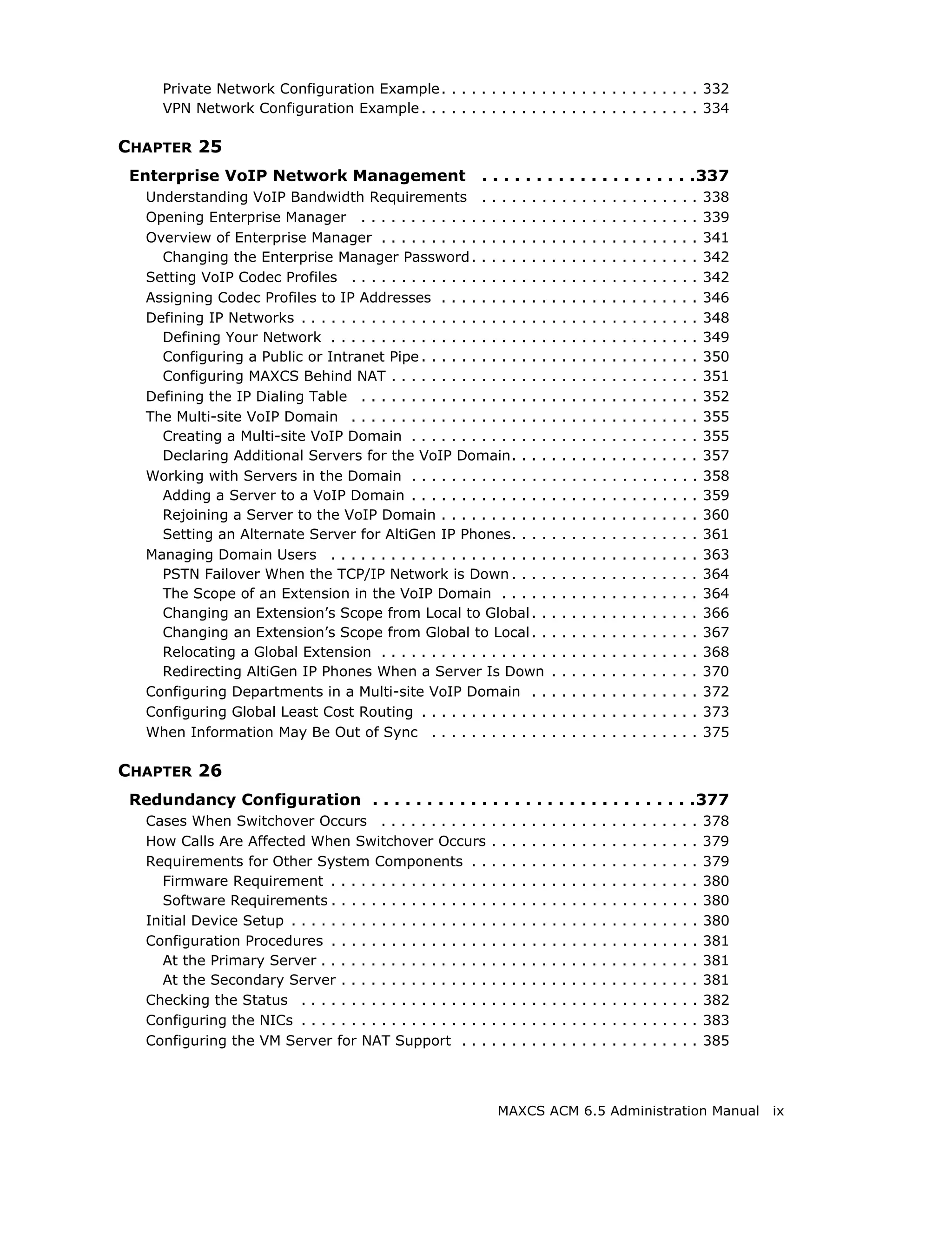
Private Network Configuration Example . . . . . . . . . . . . . . . . . . . . . . . . . . 332
     VPN Network Configuration Example . . . . . . . . . . . . . . . . . . . . . . . . . . . . 334

CHAPTER 25
 Enterprise VoIP Network Management                           . . . . . . . . . . . . . . . . . . . .337
   Understanding VoIP Bandwidth Requirements . . . . . . .                                .   .   .   .   .   .   .   .   .   .   .   .   .   .   .   338
   Opening Enterprise Manager . . . . . . . . . . . . . . . . . . .                       .   .   .   .   .   .   .   .   .   .   .   .   .   .   .   339
   Overview of Enterprise Manager . . . . . . . . . . . . . . . . .                       .   .   .   .   .   .   .   .   .   .   .   .   .   .   .   341
     Changing the Enterprise Manager Password . . . . . . . .                             .   .   .   .   .   .   .   .   .   .   .   .   .   .   .   342
   Setting VoIP Codec Profiles . . . . . . . . . . . . . . . . . . . .                    .   .   .   .   .   .   .   .   .   .   .   .   .   .   .   342
   Assigning Codec Profiles to IP Addresses . . . . . . . . . . .                         .   .   .   .   .   .   .   .   .   .   .   .   .   .   .   346
   Defining IP Networks . . . . . . . . . . . . . . . . . . . . . . . . .                 .   .   .   .   .   .   .   .   .   .   .   .   .   .   .   348
     Defining Your Network . . . . . . . . . . . . . . . . . . . . . .                    .   .   .   .   .   .   .   .   .   .   .   .   .   .   .   349
     Configuring a Public or Intranet Pipe . . . . . . . . . . . . .                      .   .   .   .   .   .   .   .   .   .   .   .   .   .   .   350
     Configuring MAXCS Behind NAT . . . . . . . . . . . . . . . .                         .   .   .   .   .   .   .   .   .   .   .   .   .   .   .   351
   Defining the IP Dialing Table . . . . . . . . . . . . . . . . . . .                    .   .   .   .   .   .   .   .   .   .   .   .   .   .   .   352
   The Multi-site VoIP Domain . . . . . . . . . . . . . . . . . . . .                     .   .   .   .   .   .   .   .   .   .   .   .   .   .   .   355
     Creating a Multi-site VoIP Domain . . . . . . . . . . . . . .                        .   .   .   .   .   .   .   .   .   .   .   .   .   .   .   355
     Declaring Additional Servers for the VoIP Domain. . . .                              .   .   .   .   .   .   .   .   .   .   .   .   .   .   .   357
   Working with Servers in the Domain . . . . . . . . . . . . . .                         .   .   .   .   .   .   .   .   .   .   .   .   .   .   .   358
     Adding a Server to a VoIP Domain . . . . . . . . . . . . . .                         .   .   .   .   .   .   .   .   .   .   .   .   .   .   .   359
     Rejoining a Server to the VoIP Domain . . . . . . . . . . .                          .   .   .   .   .   .   .   .   .   .   .   .   .   .   .   360
     Setting an Alternate Server for AltiGen IP Phones. . . .                             .   .   .   .   .   .   .   .   .   .   .   .   .   .   .   361
   Managing Domain Users . . . . . . . . . . . . . . . . . . . . . .                      .   .   .   .   .   .   .   .   .   .   .   .   .   .   .   363
     PSTN Failover When the TCP/IP Network is Down . . . .                                .   .   .   .   .   .   .   .   .   .   .   .   .   .   .   364
     The Scope of an Extension in the VoIP Domain . . . . .                               .   .   .   .   .   .   .   .   .   .   .   .   .   .   .   364
     Changing an Extension’s Scope from Local to Global . .                               .   .   .   .   .   .   .   .   .   .   .   .   .   .   .   366
     Changing an Extension’s Scope from Global to Local . .                               .   .   .   .   .   .   .   .   .   .   .   .   .   .   .   367
     Relocating a Global Extension . . . . . . . . . . . . . . . . .                      .   .   .   .   .   .   .   .   .   .   .   .   .   .   .   368
     Redirecting AltiGen IP Phones When a Server Is Down                                  .   .   .   .   .   .   .   .   .   .   .   .   .   .   .   370
   Configuring Departments in a Multi-site VoIP Domain . .                                .   .   .   .   .   .   .   .   .   .   .   .   .   .   .   372
   Configuring Global Least Cost Routing . . . . . . . . . . . . .                        .   .   .   .   .   .   .   .   .   .   .   .   .   .   .   373
   When Information May Be Out of Sync . . . . . . . . . . . .                            .   .   .   .   .   .   .   .   .   .   .   .   .   .   .   375

CHAPTER 26
 Redundancy Configuration . . . . . . . . . . . . . . . . . . . . . . . . . . . . . .377
   Cases When Switchover Occurs . . . . . . . . . . .             .   .   .   .   .   .   .   .   .   .   .   .   .   .   .   .   .   .   .   .   .   378
   How Calls Are Affected When Switchover Occurs                  .   .   .   .   .   .   .   .   .   .   .   .   .   .   .   .   .   .   .   .   .   379
   Requirements for Other System Components . .                   .   .   .   .   .   .   .   .   .   .   .   .   .   .   .   .   .   .   .   .   .   379
      Firmware Requirement . . . . . . . . . . . . . . . .        .   .   .   .   .   .   .   .   .   .   .   .   .   .   .   .   .   .   .   .   .   380
      Software Requirements . . . . . . . . . . . . . . . .       .   .   .   .   .   .   .   .   .   .   .   .   .   .   .   .   .   .   .   .   .   380
   Initial Device Setup . . . . . . . . . . . . . . . . . . . .   .   .   .   .   .   .   .   .   .   .   .   .   .   .   .   .   .   .   .   .   .   380
   Configuration Procedures . . . . . . . . . . . . . . . .       .   .   .   .   .   .   .   .   .   .   .   .   .   .   .   .   .   .   .   .   .   381
      At the Primary Server . . . . . . . . . . . . . . . . .     .   .   .   .   .   .   .   .   .   .   .   .   .   .   .   .   .   .   .   .   .   381
      At the Secondary Server . . . . . . . . . . . . . . .       .   .   .   .   .   .   .   .   .   .   .   .   .   .   .   .   .   .   .   .   .   381
   Checking the Status . . . . . . . . . . . . . . . . . . .      .   .   .   .   .   .   .   .   .   .   .   .   .   .   .   .   .   .   .   .   .   382
   Configuring the NICs . . . . . . . . . . . . . . . . . . .     .   .   .   .   .   .   .   .   .   .   .   .   .   .   .   .   .   .   .   .   .   383
   Configuring the VM Server for NAT Support . . .                .   .   .   .   .   .   .   .   .   .   .   .   .   .   .   .   .   .   .   .   .   385


                                                                      MAXCS ACM 6.5 Administration Manual                                                   ix
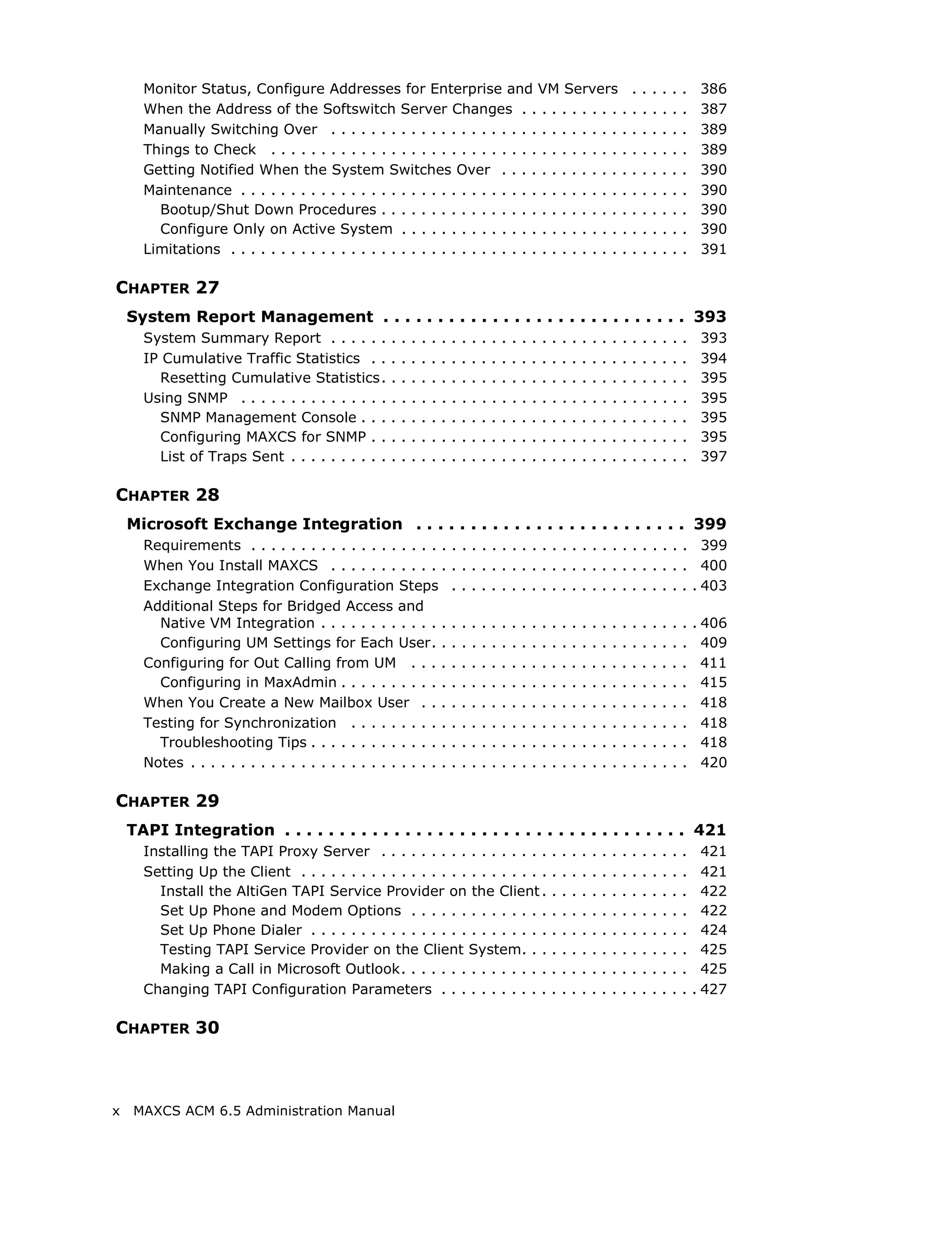
Monitor Status, Configure Addresses for Enterprise and VM Servers                                                                             .   .   .   .   .   .    386
      When the Address of the Softswitch Server Changes . . . . . . . . . . .                                                                       .   .   .   .   .   .    387
      Manually Switching Over . . . . . . . . . . . . . . . . . . . . . . . . . . . . . .                                                           .   .   .   .   .   .    389
      Things to Check . . . . . . . . . . . . . . . . . . . . . . . . . . . . . . . . . . . .                                                       .   .   .   .   .   .    389
      Getting Notified When the System Switches Over . . . . . . . . . . . . .                                                                      .   .   .   .   .   .    390
      Maintenance . . . . . . . . . . . . . . . . . . . . . . . . . . . . . . . . . . . . . . .                                                     .   .   .   .   .   .    390
        Bootup/Shut Down Procedures . . . . . . . . . . . . . . . . . . . . . . . . .                                                               .   .   .   .   .   .    390
        Configure Only on Active System . . . . . . . . . . . . . . . . . . . . . . .                                                               .   .   .   .   .   .    390
      Limitations . . . . . . . . . . . . . . . . . . . . . . . . . . . . . . . . . . . . . . . .                                                   .   .   .   .   .   .    391

CHAPTER 27
    System Report Management . . . . . . . . . . . . . . . . . . . . . . . . . . . . 393
      System Summary Report . . . . . .             .   .   .   .   .   .   .   .   .   .   .   .   .   .   .   .   .   .   .   .   .   .   .   .   .   .   .   .   .   .    393
      IP Cumulative Traffic Statistics . .          .   .   .   .   .   .   .   .   .   .   .   .   .   .   .   .   .   .   .   .   .   .   .   .   .   .   .   .   .   .    394
        Resetting Cumulative Statistics.            .   .   .   .   .   .   .   .   .   .   .   .   .   .   .   .   .   .   .   .   .   .   .   .   .   .   .   .   .   .    395
      Using SNMP . . . . . . . . . . . . . . .      .   .   .   .   .   .   .   .   .   .   .   .   .   .   .   .   .   .   .   .   .   .   .   .   .   .   .   .   .   .    395
        SNMP Management Console . . .               .   .   .   .   .   .   .   .   .   .   .   .   .   .   .   .   .   .   .   .   .   .   .   .   .   .   .   .   .   .    395
        Configuring MAXCS for SNMP . .              .   .   .   .   .   .   .   .   .   .   .   .   .   .   .   .   .   .   .   .   .   .   .   .   .   .   .   .   .   .    395
        List of Traps Sent . . . . . . . . . .      .   .   .   .   .   .   .   .   .   .   .   .   .   .   .   .   .   .   .   .   .   .   .   .   .   .   .   .   .   .    397

CHAPTER 28
    Microsoft Exchange Integration . . . . . . . . . . . . . . . . . . . . . . . . . 399
      Requirements . . . . . . . . . . . . . . . . . . . .                  . . . . . . . . . . . . . . . . . . . . . . . . 399
      When You Install MAXCS . . . . . . . . . . . .                        . . . . . . . . . . . . . . . . . . . . . . . . 400
      Exchange Integration Configuration Steps                              . . . . . . . . . . . . . . . . . . . . . . . . . 403
      Additional Steps for Bridged Access and
        Native VM Integration . . . . . . . . . . . . .                     .   .   .   .   .   .   .   .   .   .   .   .   .   .   .   .   .   .   .   .   .   .   .   .   . 406
        Configuring UM Settings for Each User. .                            .   .   .   .   .   .   .   .   .   .   .   .   .   .   .   .   .   .   .   .   .   .   .   .     409
      Configuring for Out Calling from UM . . . .                           .   .   .   .   .   .   .   .   .   .   .   .   .   .   .   .   .   .   .   .   .   .   .   .     411
        Configuring in MaxAdmin . . . . . . . . . . .                       .   .   .   .   .   .   .   .   .   .   .   .   .   .   .   .   .   .   .   .   .   .   .   .     415
      When You Create a New Mailbox User . . .                              .   .   .   .   .   .   .   .   .   .   .   .   .   .   .   .   .   .   .   .   .   .   .   .     418
      Testing for Synchronization . . . . . . . . . .                       .   .   .   .   .   .   .   .   .   .   .   .   .   .   .   .   .   .   .   .   .   .   .   .     418
        Troubleshooting Tips . . . . . . . . . . . . . .                    .   .   .   .   .   .   .   .   .   .   .   .   .   .   .   .   .   .   .   .   .   .   .   .     418
      Notes . . . . . . . . . . . . . . . . . . . . . . . . . .             .   .   .   .   .   .   .   .   .   .   .   .   .   .   .   .   .   .   .   .   .   .   .   .     420

CHAPTER 29
    TAPI Integration . . . . . . . . . . . . . . . . . . . . . . . . . . . . . . . . . . . . . 421
      Installing the TAPI Proxy Server . . . . . . . . . . . . . . . . .                                            .   .   .   .   .   .   .   .   .   .   .   .   .   .     421
      Setting Up the Client . . . . . . . . . . . . . . . . . . . . . . . . .                                       .   .   .   .   .   .   .   .   .   .   .   .   .   .     421
        Install the AltiGen TAPI Service Provider on the Client .                                                   .   .   .   .   .   .   .   .   .   .   .   .   .   .     422
        Set Up Phone and Modem Options . . . . . . . . . . . . . .                                                  .   .   .   .   .   .   .   .   .   .   .   .   .   .     422
        Set Up Phone Dialer . . . . . . . . . . . . . . . . . . . . . . . .                                         .   .   .   .   .   .   .   .   .   .   .   .   .   .     424
        Testing TAPI Service Provider on the Client System. . .                                                     .   .   .   .   .   .   .   .   .   .   .   .   .   .     425
        Making a Call in Microsoft Outlook. . . . . . . . . . . . . . .                                             .   .   .   .   .   .   .   .   .   .   .   .   .   .     425
      Changing TAPI Configuration Parameters . . . . . . . . . . .                                                  .   .   .   .   .   .   .   .   .   .   .   .   .   .   . 427

CHAPTER 30


x    MAXCS ACM 6.5 Administration Manual
Tools and Applications . . . . . . . . . . . . . . . . . . . . . . . . . . . . . . . . .429
   AltiGen Board Test . . . . . . . . . . . . . . . . . . . . .        .   .   .   .   .   .   .   .   .   .   .   .   .   .   .   ..   ..   .   429
   CT-Bus Test Tool . . . . . . . . . . . . . . . . . . . . . . .      .   .   .   .   .   .   .   .   .   .   .   .   .   .   .   ..   ..   .   430
   Backup and Restore Utility . . . . . . . . . . . . . . . .          .   .   .   .   .   .   .   .   .   .   .   .   .   .   .   ..   ..   .   430
      Backing Up Files . . . . . . . . . . . . . . . . . . . . . .     .   .   .   .   .   .   .   .   .   .   .   .   .   .   .   ..   ..   .   431
      Scheduling Backups . . . . . . . . . . . . . . . . . . .         .   .   .   .   .   .   .   .   .   .   .   .   .   .   .   ..   ..   .   431
      Restoring Backed up Files . . . . . . . . . . . . . . .          .   .   .   .   .   .   .   .   .   .   .   .   .   .   .   ..   ..   .   432
   MAXCS Admin & Extension Security Checker . . .                      .   .   .   .   .   .   .   .   .   .   .   .   .   .   .   ..   ..   .   433
      Checking Extension Security . . . . . . . . . . . . .            .   .   .   .   .   .   .   .   .   .   .   .   .   .   .   ..   ..   .   433
   Start & Stop All AltiGen Services . . . . . . . . . . . .           .   .   .   .   .   .   .   .   .   .   .   .   .   .   .   ..   ..   .   435
   Trace Collector . . . . . . . . . . . . . . . . . . . . . . . .     .   .   .   .   .   .   .   .   .   .   .   .   .   .   .   ..   ..   .   435
      Limitations. . . . . . . . . . . . . . . . . . . . . . . . . .   .   .   .   .   .   .   .   .   .   .   .   .   .   .   .   ..   ..   .   438
   Voice File Converter . . . . . . . . . . . . . . . . . . . .        .   .   .   .   .   .   .   .   .   .   .   .   .   .   .   ..   ..   .   439
   Read Config . . . . . . . . . . . . . . . . . . . . . . . . . .     .   .   .   .   .   .   .   .   .   .   .   .   .   .   .   ..   ..   .   440
   Work/Hunt Group Converter . . . . . . . . . . . . . . .             .   .   .   .   .   .   .   .   .   .   .   .   .   .   .   ..   ..   .   441
   Exporting and Importing Extensions . . . . . . . . .                .   .   .   .   .   .   .   .   .   .   .   .   .   .   .   ..   ..   .   442
      Importing Extensions from a .csv File . . . . . . .              .   .   .   .   .   .   .   .   .   .   .   .   .   .   .   ..   ..   .   442
      Importing Extensions from the Active Directory                   .   .   .   .   .   .   .   .   .   .   .   .   .   .   .   ..   ..   .   443
      Exporting the Extensions in a MAXCS System .                     .   .   .   .   .   .   .   .   .   .   .   .   .   .   .   ..   ..   .   445
   AltiGen Custom Phrase Manager . . . . . . . . . . . .               .   .   .   .   .   .   .   .   .   .   .   .   .   .   .   ..   ..   .   446
      Creating a New Phrase . . . . . . . . . . . . . . . . .          .   .   .   .   .   .   .   .   .   .   .   .   .   .   .   ..   ..   .   447
      Playing a Phrase . . . . . . . . . . . . . . . . . . . . . .     .   .   .   .   .   .   .   .   .   .   .   .   .   .   .   ..   ..   .   448
      Editing a Phrase Name or Description . . . . . . .               .   .   .   .   .   .   .   .   .   .   .   .   .   .   .   ..   ..   .   448
      To Delete a Phrase . . . . . . . . . . . . . . . . . . . .       .   .   .   .   .   .   .   .   .   .   .   .   .   .   .   ..   ..   .   449
      To Re-record a Phrase. . . . . . . . . . . . . . . . . .         .   .   .   .   .   .   .   .   .   .   .   .   .   .   .   ..   ..   .   449

APPENDIX A
 E1-R2 and E1 ISDN PRI Installations . . . . . . . . . . . . . . . . . . . . . .451
   E1 R2 CAS Installation . . . . . . . . . . . . . . . . . . . . . . . . . . . . . . . . . . . . . . . 451
   E1 ISDN PRI Installation . . . . . . . . . . . . . . . . . . . . . . . . . . . . . . . . . . . . . 463

APPENDIX B
 Required Service Parameters                       . . . . . . . . . . . . . . . . . . . . . . . . . . .467
   Service Parameters/Request Information for T1 . . . . . . . . . . . . . . . . . . . . . 467
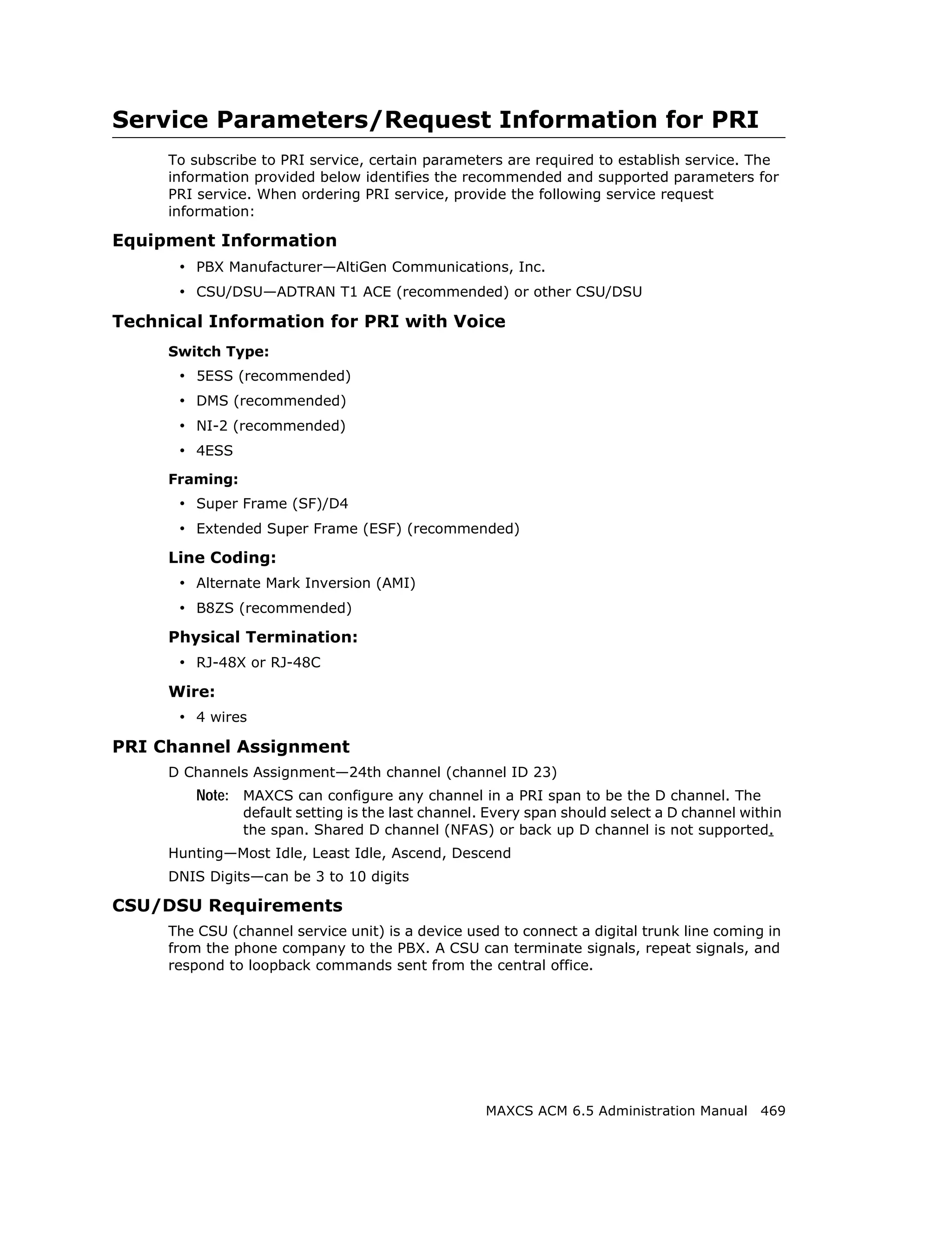
   Service Parameters/Request Information for PRI . . . . . . . . . . . . . . . . . . . . 469
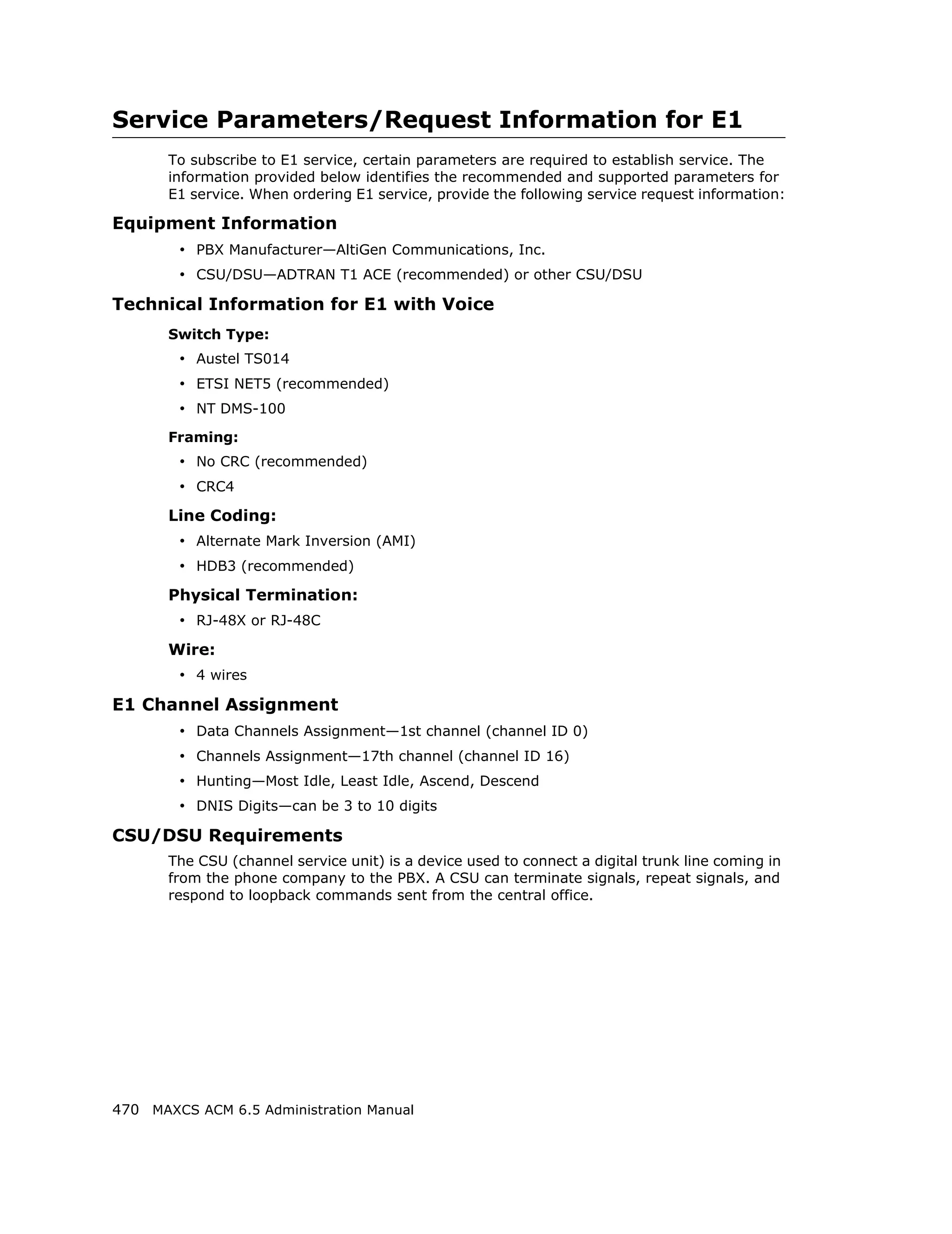
   Service Parameters/Request Information for E1 . . . . . . . . . . . . . . . . . . . . . 470

APPENDIX C
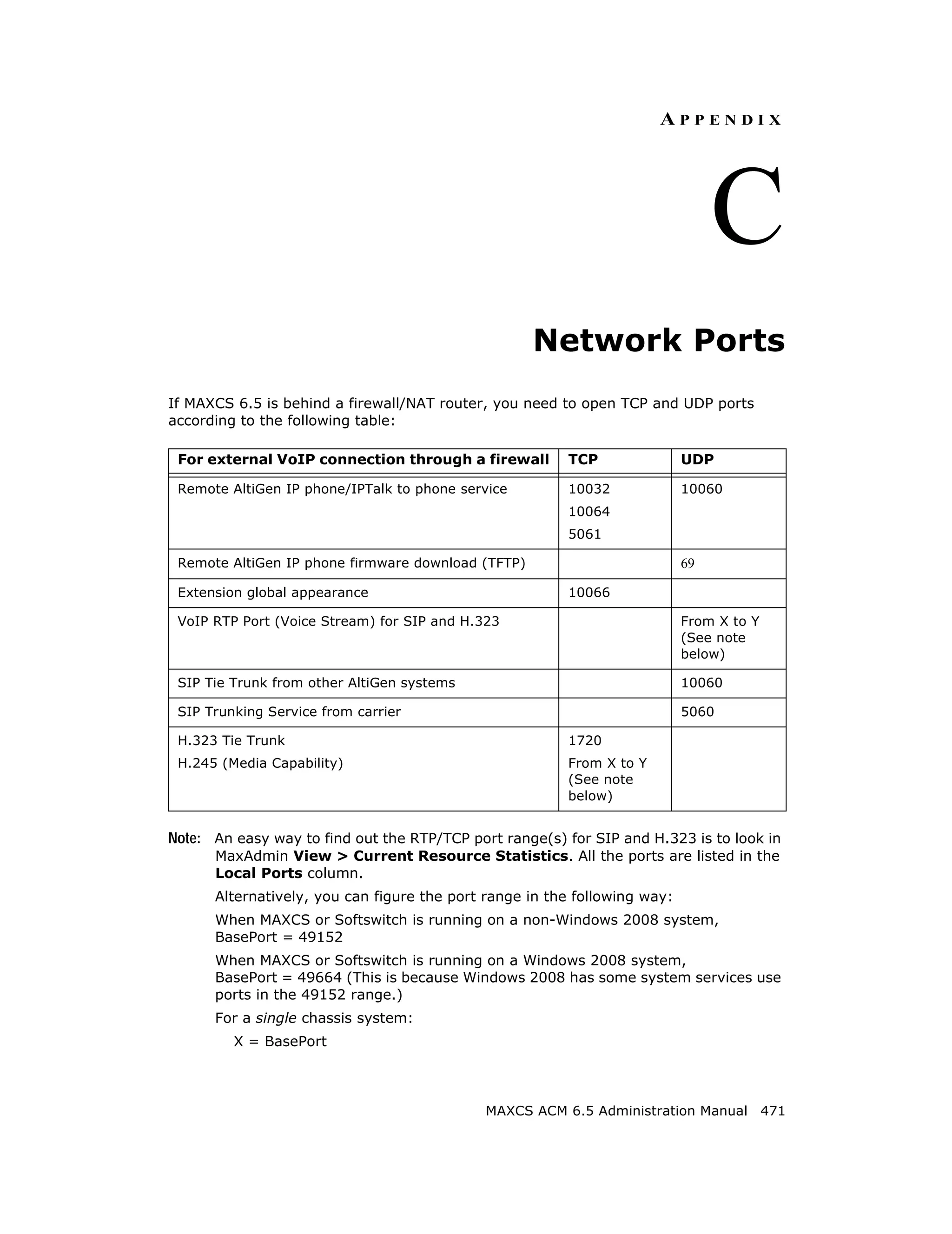
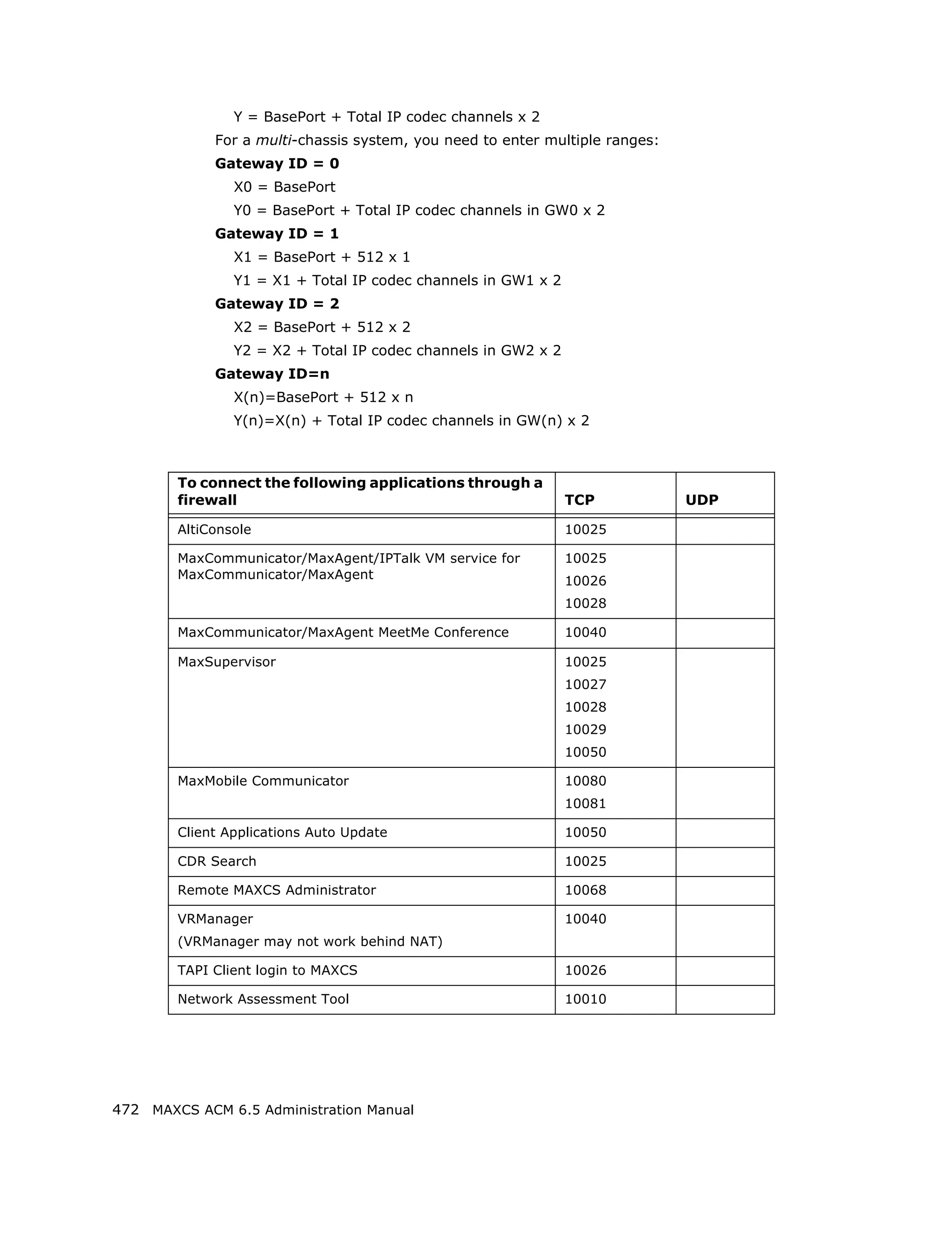
 Network Ports . . . . . . . . . . . . . . . . . . . . . . . . . . . . . . . . . . . . . . . .471
   Remote IP Phones Behind NAT . . . . . . . . . . . . . . . . . . . . . . . . . . . . . . . . . 473

APPENDIX D
 Technical Support & Product Repair Services . . . . . . . . . . . . . . . .475
   Technical Support . . . . . . . . . . . . . . . . . . . . . . . . . . . . . . . . . . . . . . . . . . 475
   Product Repair . . . . . . . . . . . . . . . . . . . . . . . . . . . . . . . . . . . . . . . . . . . . 476
   Technical Training for Administrators . . . . . . . . . . . . . . . . . . . . . . . . . . . . . 476


                                                                       MAXCS ACM 6.5 Administration Manual                                             xi
APPENDIX E
  Troubleshooting . . . . . . . . . . . . . . . . . . . . . . . . . . . . . . . . . . . . . 479
      Troubleshooting VoIP: Common Symptoms and Solutions . . . . . . . . . . . . . 479

INDEX . . . . . . . . . . . . . . . . . . . . . . . . . . . . . . . . . . . . . . . . . . . 481


xii   MAXCS ACM 6.5 Administration Manual
About This Manual
   This manual is designed for dealers, administrators, and technicians who are responsible
   for installation, configuration, and administration of a MAX Communication Server ACM
   6.5 system.
   Another manual, the MAXCS Extension User Guide, covers the MAXCS end user features
   and functions such as call handling and voice mail.


Related Publications
   Related publications include:
    • Hardware Telephony Manual
    • MaxCommunicator Manual
    • MaxOutlook Manual
    • MaxAgent Manual
    • MaxSupervisor Manual
    • AltiConsole Manual
    • CDR Manual
    • Advanced Call Router
    • AltiGen IP Phone User Manuals


                                                  MAXCS ACM 6.5 Administration Manual     1
2 MAXCS ACM 6.5 Administration Manual
CHAPTER


                                                                                   1
                                                                    Overview
   MAX Communication Server (MAXCS) is AltiGen’s system software targeted for the IP
   PBX and contact center market. MAXCS is designed with an intuitive easy-to-use
   graphical user interface so your IT staff can easily manage the system and reduce
   administrative costs. The software is designed to support voice and data
   communications converged into a single data network. The mobility solutions provide
   your employees working remotely with the same set of features as employees working
   in the office.
   The product is designed to provide contact centers with the essentials to service,
   respond and track performance of contact professionals. Since MAXCS is IP-enabled and
   modular, call-centric businesses are protected against growing out of their investment.


Technology Enhancements in Release 6.5
   The following enhancements have been made to MAX Communication Server Release
   6.5. (For enhancements made in Release 6.5 Update1, see “New in Release 6.5 Update1”
   on page 5.

   SNMP Management Feature
   MAXCS issues alerts, via SNMP, that fall into the following categories:
       Server status - Server memory, CPU, or hard disk exceeds defined limits
       MAXCS Software Status - Switching service is initialized, stopped, or restarted
       PRI Service Status - PRI trunk goes down or reconnects
       Gateway Status - A gateway server loses connection or restarts
       Multi-site Enterprise Manager status - The master or a member server in the
       Enterprise VoIP domain goes down or reconnects
       IP Phone Server Service Status - IP phone server service goes down or restarts
       Voice Mail Service Status - Voice mail service goes down or restarts
       CTI Service Status - CTI service (CT Proxy) goes down or restarts
       Softswitch Redundancy Status - Softswitch redundancy switchover occurs

   QoS Enhancement (802.1p/802.1Q)
   Supports 802.1p class of service priority and 802.1Q VLAN in the server and AltiGen IP
   phones.


                                                   MAXCS ACM 6.5 Administration Manual   3
Overview


       Secured VoIP Calls (TLS/SRTP)
       Transport Layer Security (TLS) and Secure RTP (SRTP) are implemented to establish
       secured SIP connections and encrypted conversations to prevent eavesdropping.
       Secured connection can be configured for AltiGen IP phones and SIP-Tie trunks.

       Enhanced 3rd Party IP Phone Support
       Release 6.5 supports standard SIP Hold, Transfer, Call Waiting, and server-side
       Conference for certified 3rd party SIP phones. This release also supports the Polycom
       SoundStation IP6000 conference phone.

       Microsoft Exchange 2007 Integration Enhancements
       Release 6.5 expands the capability of Exchange 2007 Unified Messaging (UM) with the
       following new features:
           • Option to enable voice mail synchronization in Bridged mode. You can use Bridged
             mode to access Exchange UM over SIP only or enable voice mail synchronization with
             UM at the same time.
           • Native mode integration enhancements, namely, the ability to
               • Return a call from Exchange voice mail
               • “Zero out" of Exchange voice mail greeting to the operator
               • Click "Play on Phone" option from Outlook 2007 to play the voice mail stored
                  in Exchange
             In addition, the AltiGen voicemail greeting is disabled when in Native mode.

PBX Enhancements
       Station conference enhancements
       The station conference bridge is released when the number of conference participants is
       reduced to two. The call can then be transferred or parked. The conference bridge is
       freed for other users.

       MeetMe conference enhancements
       Supports 120 MeetMe conference members in one bridge when using an HMCP MeetMe
       conference resource. If the MeetMe conference has more than 30 members, by default
       all the members are muted.

       SIP Trunk Enhancement
       Gives the ability to send the Transmitted Caller ID when the extension user makes a call
       through a SIP trunk, if the SIP trunk service provider supports it.

       Mobile Extension over SIP trunk
       Allows you to deliver Mobile Extension features to a cell phone or a PSTN number over
       a SIP trunk.

       Ability to assign a Mobile Extension to a different trunk group
       For systems with PSTN, SIP, or cell phone gateway as MobileExt trunks, you can assign
       a MobileExt to use a specific trunk group to save toll charges.

       Import and export an extension list from or to a CSV file
       Helps speed up the process of creating extensions and configuring extension settings
       after a system is configured.


4 MAXCS ACM 6.5 Administration Manual
New in Release 6.5 Update1


Multi-site VoIP Enterprise Management New Features
     Global extension rerouting over PSTN when WAN connection is down.
     When a user dials a global extension number in the Enterprise VoIP domain and the WAN
     connection is down, the call is automatically rerouted over PSTN to the destination.
     Enterprise Manager will publish the main PSTN number of each site to all VoIP domain
     members for PSTN rerouting.

     Redirect an AltiGen IP phone to an alternate server when its home
     server is down.
     An IP phone can be assigned to two MAX Communication Servers in the same VoIP
     domain; one is the home server and the other one is an alternate server. When the home
     server is down, the IP phones will register to the alternate server automatically. Thus,
     the IP phone can still work under the alternate (backup) server. When the home server
     is recovered, the administrator can switch IP phones back to the home server from
     Enterprise Manager. The extension must be a global extension in a VoIP domain.
     This feature supports only AltiGen IP phones. Analog phones or 3rd party IP phones are
     not supported.

Client Application Enhancements
     Line Park Supported on MaxCommunicator and MaxAgent
     The administrator can assign Line Park groups to an extension in the Line Park
     configuration. When configured, the assigned lines will show up on the Line Park tab in
     MaxCommunicator and MaxAgent clients. The extension user can park a call from the
     client application and allow other users to pick up the call from either an AltiGen IP phone
     or a client application.

     MaxMobile Communicator (MaxMobile) for the G1 Phone
     AltiGen’s new MaxMobile Communicator application, installed on a G1 phone based on
     Google’s Android platform, makes the phone a fully capable office phone extension and
     serves as a “desktop” call control client, allowing the user to access, configure, and
     perform most of the company's PBX functions directly from the graphical user interface
     in MaxMobile Communicator. This includes call handling, call forwarding, extension
     monitoring, conferencing, conversation recording, directory and contact lookup and dial,
     and contact editing. An AltiGen MaxMobile license is required.


New in Release 6.5 Update1
     The following features are new in MAXCS ACC/ACM Release 6.5 Update1:

PBX Enhancements
     AltiGen IP phone can automatically discover server IP address
     You can enable the AltiGen IP phone to automatically discover the MAXCS server IP
     address (instead of the user having to enter it manually) by configuring option 120 in
     your DHCP server with your MAXCS IP address. The user will only need to enter the
     extension and password.
     In addition to making initial IP phone setup easier, this feature is also helpful when there
     is a need to migrate MAXCS to a new IP address. The administrator just needs to update
     the new MAXCS IP address in the DHCP server and then reboot all Altigen IP phones.
     The phones will automatically pick up the new MAXCS IP address.


                                                       MAXCS ACM 6.5 Administration Manual      5
Overview


       Extensions can be imported from Active Directory
       In addition to importing extensions from a CSV file, this update supports importing
       extensions from the Active Directory. This saves significant time by avoiding re-entering
       extension information.

       Recording alert tone is periodic
       In addition to inserting a recording tone at the beginning of a conversation, a periodic
       recording alert tone is added in this update. It occurs every 15 seconds in half-second
       bursts of 1400 Hz and is recorded together with the conversation. (Configured in
       Extension Configuration > General page.)

       A Custom Phrase Manager tool makes managing custom phrases easy
       The AltiGen Custom Phrase Manager is a Windows-based application that makes
       managing custom phrases easy. It displays all custom phrases in a graphical user
       interface. You can add or delete a phrase by clicking a button. You also can rename an
       existing phrase to a meaningful name. An AltiGen SDK license is required to use this tool.

       Changes in automatic administrative tasks
           • In the midnight tasks, reset channel is removed, and MAXCS will no longer reset
             channels and boards automatically.
           • The configuration backup option under MAXCS Data Management is now turned on
             by default.

Client Application Enhancement
       MaxCommunicator, MaxAgent, and MaxOutlook enhanced with ability
       to:
           • Dial Using Smart Tags—Phone numbers that appear in Internet Explorer and
             Microsoft Office programs can be dialed through the active MaxAgent/
             MaxCommunicator/MaxOutlook by either clicking an icon (in Internet Explorer) or
             choosing Dial by MaxClient from a Smart Tag (in Microsoft Office programs).
             Requires configuration on the MaxAgent/MaxCommunicator/MaxOutlook’s
             Configuration > General screen and in each Microsoft Office program.
           • Dial Using Shortcut Keys—Users can select a phone number from any window, for
             example, Internet Explorer, Microsoft Word, Excel, Notepad, and so on, and then dial
             that phone number by pressing two or three keys they define for this task. Requires
             configuration on the MaxAgent/MaxCommunicator/MaxOutlook’s Configuration >
             General screen (Select-n-Dial option).
           • Dial Automatically—Any phone number users dial using a Smart Tag or the Select-
             n-Dial method can be dialed automatically, or they can choose to simply have that
             phone number put in the dialer box. This option is configured on the Configuration
             > General screen.
           • Record, save and play a message to a call—A new feature called MaxCall allows
             a user to hand over an outgoing connected call to the MAXCS system so that when
             the callee’s voice mail is reached it can play a message the user pre-recorded, for
             example a marketing campaign script. This frees the user’s extension to make the
             next call. This feature is available on a new MaxCall tab. An AltiGen MaxCall license
             is needed for this feature.


6 MAXCS ACM 6.5 Administration Manual
New in Release 6.5 Update1


     OCS versions of MaxCommunicator and MaxAgent integrate with
     Microsoft Office Communicator
     “MaxCommunicator for OCS” and “MaxAgent for OCS” each function as an embedded
     program in Microsoft Office Communicator 2007 R2. The two new programs are separate
     from stand-alone MaxCommunicator and MaxAgent and require their own installation.
     They work much like the stand-alone clients, with a few differences.
     Note: Only one of these OCS products can be used on a client machine at a time.
     AltiConsole change
     The “Location” column for an extension is added back in.

     MaxMobile Communicator extended
      • iPhone—AltiGen’s MaxMobile Communicator (MaxMobile) application, installed on
        an iPhone makes the phone a fully capable office phone extension and serves as a
        “desktop” call control client, allowing the user to access, configure, and perform
        most of the company's PBX functions directly from the graphical user interface in
        MaxMobile Communicator.
      • Android platform—MaxMobile Communicator on the Android platform supports T-
        Mobile’s myTouch (G2) phone and Verizon’s Motorola Droid phone, in addition to the
        T-Mobile G1 phone.
     An AltiGen MaxMobile license is required.

License changes
      • MaxCall seat and session licenses added


                                                   MAXCS ACM 6.5 Administration Manual   7
Overview


System Features
       The following sections list the key features of the MAXCS system.

IP PBX Features
       Account Codes - allows the user to input an account code on each call to track
       telephone usage in order to bill back to clients or create a record of calls specific to a
       project and to budget and forecast expenses. Forced Account Codes force the user to
       input an account code on each call to track telephone usage. The administrator can
       configure which extensions are required to enter an account code, and also configure the
       option to require an account code for long distance calls and international calls, but not
       local calls. An administrator also can block the display of the account code table in client
       applications. Users can be prevented from seeing account codes they don’t need to see.
       Automatic Dialing Plan Rules- Administrators can configure a call return rule based
       on the country in which they reside. Applies to call return from Caller ID, Zoomerang,
       and making a call from Microsoft Outlook.
       Business Hours Profile - allows for setting morning and afternoon business hours for
       each day of the week. Multiple business hours can be configured in a system. Also,
       multiple Business Hours profiles can be assigned to DNIS Routing and Trunk In Call
       Routing entries.
       Busy or Ring No Answer Call Handling - sends calls to voice mail, another extension,
       or AA if the called extension or group is busy or does not answer.
       Call Forwarding and Remote Call Forwarding - sends all calls to another extension,
       to a workgroup/hunt group, or to an external telephone number. This allows users to
       redirect their calls to another location, such as home or a branch office. Call Forwarding
       can be set up either at the source extension or at the destination extension on the
       system (Remote Call Forwarding). There is 10-hop limit on forwarded calls.
       Call Park and Pick Up (Station) - users can park calls at one station to be picked up
       at another station. Up to 50 calls may be parked at one station simultaneously. Calls
       parked to a group are protected. Only group agents or the person who parked the call
       can pick it up.
       Call Park and Pick Up (System) - users can park calls at the system to be picked up
       at another station. An ID is assigned to the call when parked. The user can pick up a
       parked call by entering a feature code and the Parked ID.
       Call Park Ring Back Identification to Operator - when parked calls are not picked
       up, the operator is rung.
       Call Restrictions - restricts users from dialing specific long distance area codes and
       phone numbers. Reduces the risk of toll fraud.
       Caller ID - fully supports the Bellcore Caller ID standard and displays alpha and numeric
       caller ID and name on a standard analog telephone with a display. Up to 64 characters
       are transmitted and displayed. If your local exchange carrier provides enhanced caller
       ID, such as caller name, this information will also be displayed.
       Caller ID Routing - the system administrator can define Caller IDs in a routing table
       and set different routing options.
       Centrex Transfer - allows the user to transfer or forward calls to an external telephone
       number. Once the transfer is complete, the trunk lines are released.


8 MAXCS ACM 6.5 Administration Manual
New in Release 6.5 Update1


Conference Call (Station) - the system supports conference calls with up to 6 parties,
including the dialing extension. You can speak privately to each person before adding
the person to the conference. The conference initiator can mute conference members
from MaxCommunicator and MaxAgent.
Conference Call (MeetMe) - multiple parties can call into a pre-scheduled conference
bridge to join a conference call. The conference host can mute or drop conference
members.
Configurable Phone Display - the system administrator can configure the Caller ID,
Name, or DNIS number displayed on a phone set.
Conversation Recording - an extension user can record a conversation to voice mail
or, with the appropriate license, to a central folder.
Dialed Digit Translation - allows the administrator to select a single dialed digit that
can be assigned to route a call to any destination. First Digit Translator allows the
administrator to select a single dialed digit that can be assigned to route a call to any
destination. Extension Dialed Digit Translator allows predefined dialed digits by an
extension to be translated into a different dialing string. The digit manipulation option
allows you to remove or add digits to a number dialed by the extension.
Dial Last Caller - allows user to dial the last caller using #69.
Direct Inward Dial (DID) - allows an incoming trunk call to directly access an
extension without IVR intervention.
Note: If your local exchange carrier provides DID service, DID calls will automatically
      be steered to the appropriate destination.
Directory Name Announcement - the extension user’s directory name will be
announced to the caller before the call rings to a phone.
Distinctive Call Waiting Tone - allows three different call waiting tone cadences to
distinguish between internal, external, and operator calls.
Distinctive Ringing - allows three different ringing cadences to distinguish between
internal, external, and operator calls.
Do Not Disturb - blocks all calls coming into a specific extension and sends them to
preprogrammed destinations such as voice mail or the operator.
Extension Activity Display and Greeting - allows users to select from a set of pre-
defined or customized activity codes that can be played or displayed when the user is
absent. A greeting associated with the activity can be recorded and played to the caller.
The activity is displayed if the caller is a MaxCommunicator, MaxAgent, or IP phone user.
Extension Based Feature Profile - the system administrator is able to create an
extension feature profile that includes enabling and disabling of extension features.
FSK-based Message Waiting - allows message waiting that is based on frequency-
shift keying (FSK), a modulation technique for data transmission.
Hands Free (dial tone mute) Mode - by pressing #82, allows a user to leave handset
off-hook or use a headset without having to hear the dial tone.
Hands Free (Intercom) Mode - by pressing #81 while on their speaker phone, users
can receive internal calls without having to pick up the handset to answer.
Holiday Routing - routes inbound DNIS and trunk calls on designated holidays to
specified destinations. You can create separate routes for business and non-business
hours on half-day holidays. Multiple Holiday Profiles can be configured in a system. Also,
multiple Holiday Profiles can be assigned to DNIS Routing, Caller ID and Trunk In Call
Routing entries.


                                                 MAXCS ACM 6.5 Administration Manual      9
Overview


       Hop Off Calls over VoIP or T1/PRI Tie Trunks - multiple systems at the same or
       remote locations can be linked through VoIP or T1/PRI networks. Also, this feature
       provides toll savings on long distance calls by allowing users to dial a remote system via
       VoIP or T1/PRI trunk and then the destination phone number through PSTN.
       Hunt Group - a group of extensions can be set up to perform call coverage, so that if
       the first extension is busy, the next extension is hunted until a free extension is found.
       If all extensions are busy, the incoming call will be queued and listen to background
       music.
       Individual and System Call Pick Up - allows users to answer a ringing telephone from
       another station.
       Intercom Call—by pressing #93 on an analog phone, users can make an intercom call
       to an AltiTouch 510 or an AltiGen IP phone. If the phone is in idle state, the phone
       speaker will be turned on, and the voice path is connected. If the target phone is busy,
       the caller will hear a busy signal. This feature can be enabled or disabled per extension
       by the administrator.
       Line Park—allows for a set of 99 lines to be used as a park pool, where trunk incoming
       calls can be parked automatically, (by routing/call handling treatment in
       MaxAdministrator). Park Lines are organized into groups, with up to 99 groups
       supported. Parked Lines can be assigned to an IP phone programmable key for call
       pickup. Line Park group has busy queuing and time out transfer options.
       Live Call Handling—allows a caller to hear a ringback tone when the extension user is
       in voice mail, paging, transfer, or conference state. Designed primarily for the operator,
       the call is shown as “ringing” in AltiConsole.
       Meet-Me Conference—MeetMe conference scheduling, monitoring and control.
       Mobile Extension—allows a regular CO-connected PSTN phone, such as a home phone
       or cell phone, to be used to simulate a PBX office extension. A Mobile Extension has most
       of the PBX system’s call control and call center features. The trunk property is
       dynamically changed between regular PSTN trunk and MobileExt trunk. The MobileExt
       user has the option to press any digit to connect to a call. By pressing ** to end a call,
       the system will simulate on-hook/off-hook sequence and play a dial tone to the
       MobileExt user.
       Multi-lingual support - supports multiple sets of system and custom language
       phrases. Up to 9 different sets of language phrase can be configured. A language
       preference tag can be assigned to the extension user or selected by the incoming caller.
       The system plays the specified language when the extension user accesses system
       features or the external caller reaches a voice mail box.
       Multiple Call Waiting with Personalized Greetings—a personal queue that allows
       users to handle multiple incoming calls by letting callers wait in queue until the user
       answers the call. This allows users to transfer or park calls before answering the next
       call in queue. Users may also record and use personalized Initial and Subsequent
       greetings to be played for callers in queue.
       Music on Hold—allows callers to hear music or pre-recorded messages while waiting on
       hold. Music source can be either from an external audio device connected to a telephony
       board audio input port, or from a pre-recorded music file played by a VoIP board.
       One Number Access—a feature that eliminates “telephone tag” by allowing the caller
       to find the extension user through preset numbers, according to a designated schedule.
       Setup is available through the One Number Access tab of Extension Configuration and/
       or the MaxCommunicator and MaxAgent client applications. An ONA password is
       optional. The user can press any key to pick up an ONA call. ONA Call Screening allows
       a user to enable a call screening option to ONA, where a caller is prompted to record a
       caller name to continue ONA.


10 MAXCS ACM 6.5 Administration Manual
New in Release 6.5 Update1


    Operator Off-line—when this feature is enabled, all calls are directed to the AA. When
    the caller dials 0 and the operator is not available, the call is routed to the operator
    mailbox.
    Out Call Routing Configuration—allows outgoing calls to be directed to particular
    trunk routes, based on a configured dialing pattern.
    Outside Call Blocking—when this feature is enabled, access to outside lines is
    temporarily disallowed.
    Paging (IP)—allows paging over IP to a group of internal IP phones.
    Paging (analog trunk or station port) - allows paging through a Zone paging device
    connected to an analog trunk or station port.
    Paging (Audio-Out Port)—allows paging though a speaker connected to an audio
    output port.
    Personal Call Park and Pick Up—users can park calls at one station to be picked up
    at another station. Up to 50 calls may be parked at one station simultaneously. Calls
    parked to a group are protected. Only group agents or the person who parked the call
    can pick it up.
    Single Call Waiting - allows users to put an existing call on soft hold and take a second
    call upon hearing a Call Waiting tone. The user can then alternate between the two calls.
    SIP Third-Party Devices—allows certified third-party SIP devices (for example, a 3rd
    party IP phone) to register as an IP extension. Note: A license is required to enable this
    feature for an extension. (Release 5.2)
    Station Log In/Log Out - enables system users to move an extension number from
    one station to another, or deactivate an extension.
    System and Station Speed Dial- allows programming of frequently used telephone
    numbers for speed dialing. Up to 60 system speed numbers can be programmed. Up to
    20 station speed numbers can be programmed for each extension.
    System Backup and Restore - allows back up of configuration data and voice mail
    boxes, based on a configured schedule.
    Transfer Caller to AltiGen Voice Mail System - allows user to transfer outside caller
    into the AltiGen Voice Mail System by pressing FLASH # 40 while connected to the
    caller.
    Transfer Caller to AA - allows a user to transfer a call to an AA by pressing FLASH
    #15 and then the 2- or 3-digit AA number.
    Virtual Extensions - an extension that is not associated with a physical port, but allows
    access to the AltiGen Voice Mail System features and telephone sharing.
    Workgroup Call Pickup - allows agent or supervisor to pick up a specific call in queue.

Automatic Call Distribution Features
    Automatic call distribution (ACD) features include:
    Advanced Queue Management Application - enables advanced queuing options:
     • One-level AA menu selection from queue
     • Advanced queue overflow for configuration of overflow conditions and actions
    After Hours Handling for Workgroups - a workgroup can be assigned a Business
    Hours Profile through MaxAdministrator. Also, after hours routing decisions can be
    configured for each day of the week. When a call is forwarded to this workgroup after
    hours, the call is routed automatically, based on the routing decision for that day of the
    week.


                                                   MAXCS ACM 6.5 Administration Manual      11
Overview


       Agent Login/Logout - allows huntgroup/ workgroup members to log in and out of a
       group so that incoming calls bypass the workgroup member (agent) who has logged out
       and the call is automatically routed to other login agents.
       Agent Logout Reason Codes - allows a workgroup member to enter a reason code
       when signing off. Up to 20 reason codes may be defined.
       Agent Set to Not Ready When RNA - when a workgroup call rings an agent and is not
       answered, this feature automatically sets the agent state to Not Ready.
       Agent Auto Logout When RNA - when a workgroup call rings an agent and is not
       answered, this feature automatically sets the agent state to Logout for that particular
       workgroup.
       Call Queuing - places caller in a queue to wait until an ACD group member becomes
       available.
       Call Queue Announcement - before a call enters a workgroup queue, the system
       announces the expected wait time or call queue length to the caller.
       Call to Queue Alert - agents can be alerted via a beep and a screenpop when a call
       enters the workgroup queue.
       Distinctive Ringing for Workgroup Calls - allows workgroup incoming calls to use a
       different ringing cadence from normal calls.
       Inter Call Delays - can be used to set delays before the system sends the next call to
       an extension after the agent finishes an outbound call or other non-workgroup call
       activity.
       Login/Logout/Keep Login Status on system startup or reboot - all group
       members can be set to the “Login” or “Logout” state at system startup or reboot. By
       default, group members are set to “Keep Login Status.”
       Multiple Queue Announcements - allows each group to have its own set of unique
       audio announcements. Up to five announcements can be configured for each group. The
       intervals between announcements can also be configured.
       Multiple Workgroup Membership - allows each extension to belong to multiple
       groups. The system can be configured with a maximum of 64 groups (workgroup/hunt
       groups/paging groups).
       Multiple Workgroup Log In and Log Out - lets group members quickly log in and out
       of multiple groups. (#54 and #56)
       Picking/Transferring Calls from Group Queue - enables an extension to pick any
       call in queue using MaxAgent or AltiConsole. MaxSupervisor is also able to transfer a
       workgroup queued call to any extension, workgroup, AA, voicemail or outside number.
       Priority Queuing - allows for calls in queue to be associated with a priority. The call
       priority can be assigned though Caller ID routing, DNIS routing, AA, or other add-on
       applications. Call distribution is based on the call priority and queue time. Call priority
       can be escalated if queue time exceeds a certain limit.
       Queue Announcement - before a call is sent to a group queue, expected wait time and
       call position are announced.
       Quit Queue Option - a caller can press “#” or “0” to leave a workgroup queue to
       transfer to group voice mail, AA, extension, another group, or an operator.
       Ready/Not Ready - agent can set state to “ready” (#90) or “not ready” (#91) to
       inform the system whether the agent is able to receive the next call while logged in to a
       workgroup.
       Real Time Monitoring -


12 MAXCS ACM 6.5 Administration Manual
New in Release 6.5 Update1


 • Workgroup’s calls in queue, longest queue time, # of calls exceed service level
    threshold, and service level
 • Number of agents in Login, Logout, Idle, Busy, Not Ready, Wrap-up, DND/FWD, or
    ERROR state.
 • Workgroup and Agent’s performance summary data output to client applications.
Service Level Threshold - a time value for callers waiting in queues. The performance
statistics show when workgroup calls are queued for longer than a prescribed value.
Single/Multiple Call Handling for Workgroups - allows the workgroup administrator
to select single or multiple calls handling operation for workgroup agents when holding
a workgroup call.
Skill-Based Routing - this feature includes the following capabilities:
 • Assigning skill level requirement (SKLR) to caller
 • Assigning skill level (SKL) to agent
 • Matching caller’s SKLR to agent’s SKL
 • Setting skill coverage and escalation rules
Supervisor Silent Listen - allows a workgroup supervisor to silently listen to a call
between workgroup agent and caller. Personal calls can also be silently listened to by a
workgroup supervisor.
Supervisor Barge In - allows a workgroup supervisor to barge into a call between
workgroup agent and caller. Personal calls can also be barged in to by a workgroup
supervisor.
Supervisor Coach (Whisper) - allows a workgroup supervisor talk to a workgroup
agent without the other party hearing.
Queue Overflow Handling - routes incoming calls to an alternate destination when the
queue reaches one of the following conditions:
    • Calls in queue exceed defined limit
    • Longest queue time exceeds defined limit
    • Specified percentage of calls in queue with queue time longer than defined service
      level threshold
Workgroup activity data logging - in addition to CDR data, the following data are
logged to a database during workgroup operation:
    • Agent activity - Login, Logout, Not-Ready, Wrapup, DND/FWD, Error
    • Agent’s call summary per workgroup
    • Agent’s call statistics for all workgroups
    • Workgroup operation summary
Workgroup Activity Monitoring - allows real-time monitoring of workgroup
information—group status, call queue status, details of group queue entries, and agent
status. Activity summary is available through a group view window in MaxAdministrator,
MaxAgent, and MaxSupervisor.
Workgroup Call Distribution - calls can be distributed to the first available group
member, or among group members according to the following options:
 • Ring First Available Member
 • Ring Next Available Member
 • Ring All Available Members


                                                 MAXCS ACM 6.5 Administration Manual   13
Overview


           • Ring Longest Idle Member
           • Ring Average Longest Idle Member
           • Ring Fewest Answered Calls
           • Ring Shortest Average Talk Time
           • Skill-Based Routing
       Wrapup Time - allows a group member some time in between calls to wrap up on notes,
       prepare for the next call, or log out of the group. This wrapup time is configurable on a
       per-agent basis.

Auto Attendant (AA) Features
       The AA features provide quick and courteous processing of all incoming calls. An AA can
       be configured to serve as a primary attendant or as a backup to a receptionist.
       AA features include:
       Dial By Name - allows a caller who does not know your extension number to spell your
       name using the telephone key pad. The system will search the Directory and make a
       match on the name to connect the caller to the intended party’s extension. The caller
       can match first OR last name when dialing by name.
       Data-Directed Routing - allows the routing of calls directed by the caller’s input (digit
       or text). Third-party applications can be used to route incoming calls based on caller
       information.
       Digit Collection - caller can be prompted to enter numbers, which are then collected
       and used for routing the call.
       Direct Station Transfer - allows the AA to handle all incoming calls instead of being
       answered by an operator. Callers can dial an extension number to reach a specific station
       or use the name directory to find an extension number.
       Mailbox Access- allows employee to log into voice mail box from AA when calling in
       from outside.
       Multiple AA Support - allows up to 255 auto attendants.
       Name Directory Service - allows callers to hear a list of employees and their extension
       numbers.
       Programmable Time-Out Handling - allows the administrator to select the action the
       system should take if there is no digit dialed by the caller within a specified number of
       seconds.
       Set Call Priority - allows the administrator to assign a priority level to an AA menu.
       Set Skill Level Requirement - allows the administrator to assign a skill level
       requirement to an AA menu.
       Web-based Call Processing - allows the AA to accept calls placed over the AltiWeb
       application.

Voice Mail Features
       The Voice Mail System is a message management system that provides the calling and
       the called parties with enhanced communication features. It allows greater accessibility,
       faster reply time between parties, and reduces the frustration of telephone tag.
       The voice mail system includes the following features:


14 MAXCS ACM 6.5 Administration Manual
New in Release 6.5 Update1


Configurable voice mail playing order - Administrators can configure users’ voice
mailboxes to play the oldest or the newest message first.
Disable a Mailbox - voice mailboxes can be disabled so that callers cannot leave
messages.
Future Delivery - allows users to record a message to be delivered at a specific time
and date in the future, up to one year in advance.
Information Only Mailbox - a mailbox can be configured to announce customized pre-
recorded information when accessed. This mailbox does not allow callers to leave a
message, but only to listen to the message announcement (personal greeting) from the
mailbox. To repeat the message, callers are instructed to press the # key.
Making a Call from the Voice Mail System - allows users to make a call from within
the Voice Mail System by pressing # at the Main Menu and entering the internal
extension or external phone number. This is especially useful while traveling where users
can respond to all messages and make other calls not associated with a message, all
with one call into the Voice Mail System. This can result in significant savings. The use
of this privilege is configurable on a per-user basis.
Message Management - receives, sends, forwards, deletes, and replies to messages.
Message Notification - designed to alert you of new voice messages in your mail box
by calling an extension, phone or pager number. A notification schedule can be set for
business hours, after business hours, at any time or at a specified time. You have an
option of being notified of all messages or only urgent messages.
New and Heard Voicemails Announced - Heard voicemails are announced, as well as
new and saved voicemails, when users access voicemail.
Personal/Activity Greeting - allows users to record personal and/or activity greetings
in their own voice to be played when callers reach their voice mail.
Press “0” Option for Extension in Voice Mail - allows a caller to press “0” while
listening to an extension’s greeting. The “0” can be configured by the administrator to
forward the user to operator or other destinations.
Priority Delivery - allows caller to set the priority of message delivery such as normal
or urgent.
Private Messaging - allows users to leave a private message in their voice mail for the
expected caller.
Reminder Calls - are used to remind you of important meetings, things to do or people
to call.
Remote Access - allows users to access the Voice Mail System from outside by dialing
into the AA and pressing # to log in; or pressing ### from any internal extension to
access any voice mail box.
Return to AA - after leaving a voicemail message and pressing # to send it, incoming
trunk callers are prompted with the option to return to AA to try another path or person.
Set Call Forwarding from Voice Mail - users can set up Call Forwarding from within
the Voice Mail System. This allows users to set up Call Forwarding while away from the
office.
Voice Mail Distribution List - allows the user to use system distribution lists or
personal distribution lists for forwarding voice mail. Up to 100 distribution lists can be
created. Each distribution list can have up to 64 entries, and any entry can be another
distribution list.


                                               MAXCS ACM 6.5 Administration Manual      15
Overview


       Zoomerang - allows users to listen to messages in the Voice Mail System, make a return
       call to a party who left a message, and then return to the Voice Mail System to continue
       checking the next messages, all in a single call into the Voice Mail System. If the caller
       ID information is not captured, the user may enter the “call back” number manually.

Internet Integration Features
       Internet integration features include:
       Exchange Integration - provides message synchronization between MAXCS and a
       Microsoft Exchange server on the LAN. This feature allows for dynamic synchronization
       of mail between the two servers so that deleted messages from one server get
       automatically deleted in the other server. Similarly, a new message sent to one server
       is transmitted to the other server. This way, the message can be accessed or deleted
       from either server. For example, when a voice mail is deleted from MAXCS, it is
       automatically deleted from the Exchange server too.
       In addition, MAXCS supports the Exchange Server 2007 Bridged access to Exchange
       2007. In this mode, the AltiGen voice mail provides an option to the user to access
       Exchange 2007's speech enabled auto attendant. MAXCS also supports Native VM
       integration with Exchange 2007. In this mode, MAXCS uses Exchange 2007 as "Native
       VM" storage for a system-wide integration with all the AltiGen extensions as a unified
       messaging enabled Exchange account.
       Mail Forwarding - allows you to forward voice mail to an e-mail address. The
       destination address can be an IP address such as 100.200.101.201, or a domain name
       such as altigen.com.
       Remote Download of Messages via Internet - allows users who are traveling and/
       or working at home to download all new voice and e-mail messages in the Voice Mail
       System Post Office Box via a local internet access line.

System and Administration Features
       System and administration features include:
       AA Configuration File Export- lets you export your complete AA configuration to an
       html file.
       AA Copy - An AA configuration can be copied, forming the template for a new AA.
       Alerting - An announcement can be sent to Voice Mail when the e-mail server disk is
       full.
       “Apply To” Feature - applies changes (only the field that was changed) to multiple
       extensions, trunks or channels instead of having to change them one at a time.
       Call Detail Reporting (CDR) - the system collects and records information on outgoing
       and incoming phone calls, such as length of call, time of call, number of calls. This data
       is written to an internal database.
       Configurable Emergency Number - For international use, allows the system
       administrator to set up country-specific emergency numbers.
       DNIS Routing Tables - incoming trunk calls can be routed to an AA, extensions,
       workgroups, hunt groups, and so on, based on DNIS numbers configured in the system
       administration routing tables.
       E-911 Calling Support - allows an administrator to designate a number of trunks
       (Triton Analog or PRI) for dedicated E-911 use. CAMA trunks are supported by analog
       trunk ports.
       E-mail and Voice Mail Storage - can be placed on drives other than the system drive.


16 MAXCS ACM 6.5 Administration Manual
New in Release 6.5 Update1


    Emergency (911) Call Notification to Extension/Outside Number - when any
    extension dials an emergency number, the system can make calls to pre-configured
    extensions or outside numbers. A system can have more than one emergency
    notification number configured.
    Extension Checker - a tool that checks the security status of every extension in your
    system.
    Extension Password Protection for Application Logins - the system maintains a
    counter for each extension to track CTI client application login failures. When eight
    successive failures are reached, the system disables login connection for 1 to 24 hours
    to prevent password intrusion. Applies to login from MaxCommunicator, MaxAgent,
    MaxSupervisor, AltiConsole, CDR Search, and other add-on applications.
    Feature Profiles - allows administrators control over user access to system feature
    codes.
    License Assignment - A License menu allows administrators to easily verify and
    assign licenses.
    Log In and Log Out - An administrator can log in and log out a workgroup member
    from the Workgroup Configuration window in MaxAdministrator.
    Monitor List - lets you configure an extension’s privilege to see other extension’s call
    activity through MaxCommunicator or MaxAgent.
    Password Security - allows administrators to lock extensions that have been
    “attacked” with false password attempts and to set default system passwords for newly
    created or newly assigned extensions.
    Out Call Routing Configuration - allows outgoing calls to be directed to particular
    trunk routes, based on parameters assigned in the Out Call Routing table.
    Remote Administration - a version of the MaxAdministrator application that can be
    installed on a Windows 2000/2003/XP client computer to remotely administer one or
    more systems.
    Transmit Extension Calling ID - each extension can be configured with a calling ID.
    When an outgoing call is made by this extension through PRI or IP trunks, the calling ID
    is displayed as the Caller ID to the receiving caller.

Voice over IP Features
    VoIP features include:
    Bandwidth Control for VoIP Sessions - Each server can configure the maximum
    concurrent VoIP sessions based on its Internet or intranet bandwidth. This feature is to
    ensure that voice quality will not be impacted if too many VoIP sessions are connected
    at the same time.
    Codec Profile - Multiple codec profiles with different settings can be created and applied
    to different locations. Each profile can have a different codec, jitter buffer, and packet
    length to accommodate different IP connections.
    DNIS Name Display and Routing over IP Tie Trunk - allows for DNIS information to
    be transferred to the other system when routed over IP tie-trunks. DNIS name of
    matched entry can be displayed at AltiConsole, MaxCommunicator, MaxAgent, and
    handset.
    Caller ID/Name Sent Over IP Tie Trunk - SIP supports sending the caller’s name, so
    SIP and H.323 calls may display different caller ID information.


                                                   MAXCS ACM 6.5 Administration Manual      17
Overview


       DTMF payload embedded with RTP (RFC 2833) - this feature helps to resolve DTMF
       tone detection and regeneration when using G.723.1 or G.729 codecs. Low bit rate
       compression can distort DTMF tones during compression and cause the far end device to
       not be able to recognize the DTMF digits. RFC 2833 specifies a separate RTP payload
       format to carry DTMF information to ensure the other side can recognize the tone
       properly.
       Dynamic Jitter Buffer - due to various delays in the IP network, audio packet streams
       may be delivered late or out of order. The system is able to buffer incoming packets and
       re-sequence them by maintaining a queue. This queue is adjusted dynamically to
       accommodate different network environment characteristics.
       Echo Cancellation - due to bandwidth limitations and device loading, long delays may
       occur during packet delivery process, which worsens the echo effect voice speech. Echo
       cancellation is provided to maintain reasonable voice quality.
       G.711 Codec - toll quality (64K) digital voice encoding, which guarantees
       interoperability and better voice quality.
       G.723.1 Codec - a dual rate audio encoding standard, which provides near toll quality
       performance under clean channel conditions.
       G.729 A+B Codec - speech data encoding/decoding standard of 8 Kbps.
       Global IP Dialing Table - The IP Dialing Table is configured in Enterprise Manager. The
       IP Dialing Table configuration is used to create location-based routing in the Enterprise.
       H.323 Tie-Trunk Support - Ensures backward compatibility to systems using AltiGen’s
       AltiWare versions prior to 5.1.
       IP Extension Auto Failover - when an IP extension is unreachable, the system will
       automatically fail over to a pre-configured Mobile Extension.
       IP Group Paging - allows the use of voice paging to IP phone users in a group.
       NAT Configuration for SIP/H.323 - When MAXCS is behind NAT with a private IP
       address, this feature helps to resolve IP address resolution problems when
       communicating with an external VoIP device.
       Silence Detection and Suppression - when silence suppression is enabled and silence
       is detected, the system stops sending packets to the other side. The other side does not
       receive any packets and plays silence.
       VoIP Hop-Off Call Support - allows an extension to access a PSTN trunk on the remote
       system and “hop off” to dial an outside telephone number. This hop off feature can be
       enabled or disabled on the remote system. Outcall restrictions for hop off calls are
       configurable.
       SIP Trunk Support - MAXCS enables AltiGen’s system to connect to IP-based trunking
       service providers via SIP.
       SIP NAT Traversal - Allows MAXCS to connect to a remote SIP phone or IPTalk behind
       NAT without changing the NAT setting at the remote location.
       Support for RFC 2833 (DTMF payload embedded with RTP) - Supported in SIP
       trunks only. This feature helps to resolve DTMF tone detection and regeneration when
       using G.723.1 or G.729 codec. Basically low bit rate compression will distort DTMF tone
       during compression. The far end device may not be able to recognize the DTMF digits.
       RFC 2833 specifies a separate RTP payload format to carry DTMF information to ensure
       the other side can recognize the tone properly.
       Support for both SIP and H.323 Tie Trunk - When setting up a system-to-system
       VoIP tie trunk, either SIP or H.323 protocol can be used.


18 MAXCS ACM 6.5 Administration Manual
New in Release 6.5 Update1


Multi-Site VoIP Management - Enterprise Manager
    Multi-site management through Enterprise Manager includes:
    VoIP domain - when networking multiple AltiGen systems from different sites, one
    system can be assigned as VoIP domain controller to propagate configuration data to
    member systems.
    Directory Synchronization - when a new extension is added to one of the member
    systems and configured as Global extension, the VoIP domain controller will propagate
    this extension to all member systems. Every member system within the VoIP domain will
    be able to see the extension number plan of other systems.
    Multi-site Call Routing - when a user dials an extension number that is not a local
    extension number, the system will search the Domain extension list. If a list is found,
    the system will dial the number by using the IP address and extension number stored in
    the Domain extension list.
    Domain User Management - The VoIP domain controller can resolve the conflict if
    duplicated extension numbers are created in different member systems. This feature
    also manages extension relocation. When an extension user is relocated to another
    member system, its voice mail and greeting can be moved along with it.
    Global Least Cost Routing - when multiple systems are in different area codes or
    countries, the administrator can set up Global Least Cost Routing to route long distance
    or international calls through member systems. The routing rules are propagated to all
    members automatically.
    Global Dial-by-Name and Greeting Synchronization - Caller using the dial-by-name
    feature from any system within the VoIP domain can search the entire global directory.
    The global extension’s greeting is replicated to all systems within the VoIP domain.
    Global Extension Relocation by User - When a global extension user travels to any
    site, the user can dial #27 to log in to the local server. Enterprise relocates the user’s
    extension setting and voice mail to the local server and activates the extension as a
    physical extension. All member systems receive an update notice from Enterprise
    Manager to change the routing destination.
    Global DID Number List - The DID number field is part of the global extension
    configuration. When a call comes in with a DID number, the system looks for a local
    extension with the same DID number first. If the system cannot find a matching local
    extension, it will match the global extension DID number and route the call.
    Global Extension Appearance - With proper configuration, the IP phone user can see
    the following information for a global extension in the VoIP domain: line state (idle, busy,
    ring, error), extension status (DND), and activity (presence). This information can be
    displayed in MaxCommunicator/MaxAgent/AltiConsole and on the IP phone. Limitation:
    For display only; user cannot answer calls for the global extension.
    Global Intercom - An extension user can dial #93 + Global Ext. to intercom a Global
    extension (through a SIP tie trunk.

Optional Add-On Software
    The following software is optional:
    AltiConsole - a Windows-based Attendant console connected to MAXCS over a network;
    emulates a standard, hardware-based Attendant console through software; has the
    flexibility of adding new features through software without changing the hardware.


                                                    MAXCS ACM 6.5 Administration Manual       19
Overview


       MaxCommunicator - a Microsoft .NET-based desktop call control and Windows pop-up
       application that interacts with the system, providing easy-to-use dialing, call control,
       monitoring, and voice mail management capability.
       MaxAgent - a workgroup user version of MaxCommunicator; in addition to
       MaxCommunicator features, also provides call statistics, call wrap up with data entries,
       workgroup login/logout with reason codes and agent ready/not ready status.
       MaxSupervisor - allows a workgroup supervisor to view an agent’s real-time activity,
       log in/log out an agent, view workgroup and agent operation statistics, listen/barge-in/
       coach an agent’s conversation.
           • All workgroups a supervisor is monitoring are displayed in a single view, making it
             easy to see what’s happening in all groups at once.
           • A graphical view (trend lines) displays workgroup statistics to help make better
             staffing decisions.
           • Supervisors can check workgroup voice mails without needing a separate license or
             needing to log in as an agent.
       In the MAXCS ACM version, the following features are available:
           • Color coded priority in queue
           • Change caller’s priority
           • Record agent’s conversation with indicator
       AltiReport - application that can report an agent’s and workgroup’s operation details,
       including summary, analysis, and charting.
       Advanced CallRouter - a call handling application that matches incoming call data or
       collected digits against a customer’s CRM record to determine how to route the call. It
       has the capability to set call priority and caller’s skill level requirement.
       CDR Search - a call reporting tool that allows administrators to search CDR files for
       records that meet selected criteria, and allows workgroup supervisors to get workgroup
       CDR statistics.
       IPTalk - an IP softphone to allow a MaxCommunicator or MaxAgent user to log in to a
       system as an IP extension. IPTalk supports G.711 and G.723.1 codec only.
       MaxInSight - a workgroup performance application that provides call center managers
       and agents with the ability to track workgroup status and performance data from a wall-
       mounted LCD panel or from their PCs. MaxInSight includes the ability to see the following
       for single or multiple workgroups:
           • Real-time queue status
           • Real-time workgroup resource status
           • Daily operation results
           • Trends of data over time
       SuperQ - a Java-based application designed to queue and distribute calls for call centers
       with workgroups located in different geographic locations or across multiple AltiGen
       servers. SuperQ enables call centers to combine teams of workgroups from multiple
       locations into one virtual team.
       VRManager - allows administrators/supervisors to convert, schedule backup/delete,
       and query recorded files.
       SDK Tool Kit - offers a complete set of tools including APIs, documentation and sample
       programs, to enable a developer to begin programming rapidly and efficiently. It
       includes a self-installing CD-ROM containing AltiGen SDK software. Session-based
       licensing is required for both Basic API and APC API interfaces.


20 MAXCS ACM 6.5 Administration Manual
New in Release 6.5 Update1


Capacities

Capacities for an All-in-One Single System
     PBX Capacity
      • Maximum 400 extensions (IP, analog, and mobile extensions).
      • Maximum 256 MobileExt ports per system
      • Maximum 200 MaxCommunicator/MaxAgent sessions
      • Maximum 20 AltiConsole sessions
      • Maximum 20 MaxSupervisor sessions
     Call Center Capacity
      • Maximum configurable agents per workgroup - 512
      • Maximum active login agents per workgroup - 256
      • Total configured agents per system including all workgroups - 1280
      • Total agents seats (License/Head) per system - 256
Capacities for a Multi-Gateway Softswitch
     PBX Capacity
      • Maximum 5,000 extensions (IP, analog, and mobile extensions)
      • Maximum 256 MobileExt ports per system
      • Maximum 400 MaxCommunicator/MaxAgent sessions
      • Maximum 20 AltiConsole sessions
      • Maximum 20 MaxSupervisor sessions
     Call Canter Capacity
      • Maximum configurable agents per workgroup - 512
      • Maximum active login agents per workgroup - 256
      • Total configured agents per system including all workgroups - 1280
      • Total agents seats (License/Head) per system - 512


                                                 MAXCS ACM 6.5 Administration Manual   21
Overview


22 MAXCS ACM 6.5 Administration Manual
CHAPTER


                                                                                 2
System Requirements and Installation
    This chapter describes the following:
     • System requirements
     • List of MAXCS licenses
     • Preparation for installation
     • Installing MAX Communication Server
     • Installing MaxAdministrator on a network client
     • Uninstalling MAX Communication Server
     • Troubleshooting


Minimum System Requirements
    This section lists the system requirements for MAX Communication Server ACM 6.5
    Update1.

Supported Operating Systems and Their Requirements
    The following operating systems are supported in MAXCS 6.5 Update1:

    For the MAXCS 6.5 Update1 Server
     • Windows XP Professional with SP3 (MAX1000, MAX1000-R and MAX2000)
     • Windows XP Embedded (MAX1000 only)
     • Windows Server 2003 telecom server with SP2
     • Windows Server 2008 with SP1
    For the Voice Mail Server
     • Windows Server 2003 with SP2
     • Windows 2008 server with SP1
     • Required for the operating system:
        • 1GB RAM
        • 20 GB available hard drive disk space


                                                  MAXCS ACM 6.5 Administration Manual   23
Minimum System Requirements


       For MaxAdministrator 6.5 Update1
        • Windows Server 2003 with SP2
        • Windows XP Professional with SP3
        • Windows Vista Business Edition
        • Windows 7 (32-bit or 64-bit)
        • At least 1024 x 768 resolution is required.
       For Enterprise Manager
        • Windows Server 2003 with SP2
        • Windows XP Professional with SP3
        • Windows Vista Business Edition
        • Windows 7 (32-bit and 64-bit)
        • 1 GB RAM if run in client machine. 512 MB+ RAM if run within the same server.
        • Installation program will install JAVA VM 1.5 automatically.
        • 20 GB available hard drive disk space.
       For MAXCS 6.5 Update1 Client Applications
        • Windows XP Professional
        • Windows Vista Business Edition (32-bit and 64-bit)
        • Windows 2008 (32-bit and 64-bit)
        • The following third-party integration software is supported by the MaxCommunicator
          and MaxAgent clients:
          • Outlook 2003 and 2007
          • Goldmine 6.5, 6.7, 7.0
          • ACT! 2006, 2007, 2008, and 2009
        • Minimum system requirements for MAXCS client applications:
          • IBM/PC AT compatible system
          • Microsoft .NET 2.0 framework or higher is required
          • 2 GHz CPU
          • 1 GB available hard drive disks space
          • 1 GB RAM
          • SVGA monitor (1024 x 768) with 256-color display, or better
          • Keyboard and mouse
       For CDR
       The following external CDR databases are supported:
        • Microsoft SQL Server 2008
        • Microsoft SQL Server 2008 express
        • Microsoft SQL Server 2005
        • Microsoft SQL Server 2000
       Note: Running SQL Server in a MAXCS machine is not supported.


24 MAXCS ACM 6.5 Administration Manual
System Requirements and Installation


       For Online Help
        • Internet Explorer 6.0 or higher browser.
       Email server integrations
       The following third- party Email Server integrations are supported:
        • Microsoft Exchange Server 2003
        • Microsoft Exchange Server 2007 R2

CPU, Memory, and HDD Requirements
       The following table lists the minimum requirements for a single system.

Number of
Triton                                                                       5V           12 V
boards per       CPU           Available    Hard Disk      Power             Require-     Require-
system           Type          Memory       Controller     Supply            ment         ment

1-3              1.2 GHz       512 MB       IDE RAID       Single 300W       15A          6A or
                 Celeron M                                                                better

4-6              1.2 GHz       512 MB       IDE RAID       Single 400W       20A          16A
                 Celeron M                                 or Dual 400W
                                                           load sharing
                                                           recommended

7-15             3.0 GHz       1 GB         IDE RAID       Dual 400W         40A          20A
                 Pentium IV                                with load
                                                           sharing
                                                           required


MAXCS Licenses
       In MAXCS 6.5 Update1, most client licenses are available in both concurrent session
       mode and seat-based mode. Both types can be mixed in a MAXCS system.
       The following licenses are available for all AltiGen 6.5 systems:


                  License Type                                  License Model
        MAXCS ACM                          Per system
        MAXCS ACC                          Per system
        MaxCommunicator                    Per seat or per session
        AltiConsole                        Per session
        MaxAgent                           Per seat or per session
        MaxSupervisor                      Per seat or per session
        IPTalk                             Per seat or per session
        MaxCall                            Per seat or per session
        TAPI                               Per extension configuration
        SIP Trunk                          Per activated SIP trunk
        3rd Party SIP Device               Per seat registering as an IP extension (non-concurrent)
        Enterprise Manager                 Per server license


                                                         MAXCS ACM 6.5 Administration Manual       25
MAXCS Licenses


                 License Type                                 License Model
        Dedicated Recording Seat       Per seat assigned to record to a centralized folder, and
        License                        per trunk port with recording enabled
        Concurrent Recording Session
                                       Per session
        License
        MaxMobile                      Per seat
        Multilingual                   Per system
        Advanced Call Router           Per system
        AltiReport                     Per system
        VRManager                      Per system
        MaxInSight                     Per session
        SDK Connection Session         Per session
        Trunk Control APC SDK          Per session
        Exchange Integration           Per user


       The following licenses are available for all-in-one (stand alone) systems only:


                 License Type                                 License Model
        Station License                Per activated extension
        ACM Agent Seat                 Per concurrent login
                                       (Single agent logged into multiple WGs will only take one
                                       license)
        ACC Agent Seat                 Per concurrent login
                                       (Single agent logged into multiple WGs will only take one
                                       license)


       The following licenses are available for Softswitch/HMCP Media Server/Gateway
       systems only:


                 License Type                                 License Model
        HMCP Media Server License      Available resources in the system
        HMCP G.711/G.723/G.729         Available resources in the system
        Voice Processing Resources
        HMCP MeetMe Conference         Available resources in the system
        HMCP Supervision               Available resources in the system
        Softswitch Station License     Per extension configuration
        Softswitch ACC Agent Session   Per session
        License
        Softswitch ACM Agent Session   Per session
        License
        Softswitch ACM Agent           Per ACC agent session
        Migration License
        Gateway                        Per gateway
        Redundancy                     Per system


26 MAXCS ACM 6.5 Administration Manual
System Requirements and Installation


Preparation for Installation
    Before you start installing MAXCS, you need the following:
     • Windows Update—Make sure your server has the recommended Windows Service
        Pack or Update.
     • MAXCS ACM 6.5 Update1 CD ROM—The MAXCS CD ROM that contains the MAXCS
        6.5 Update1 programs.
     • MAXCS latest update—Check to see if there is an update available to the MAXCS
        6.5 Update1 Release.
     • System Key—The system key is a DB-25 parallel port hardware security device that
        allows the software to run ONLY when that system key is attached to the parallel
        port of the server that MAXCS is running on. (By special order, your system key may
        be a USB key.)
     • Software license key—A 20-digit key located on the front of the End User License
        Agreement.


Installing MAX Communication Server
    To install MAXCS, insert the MAXCS CD ROM into the CD ROM drive of the server, and
    follow the instructions on the install screens. At the third screen, select a setup type:


     • All-in-one (Stand Alone) System Installation—Select this option if MAXCS ACC
        will be operating on a single server. (This is the most common installation option.)
     • Multi-Gateway Softswitch System Installation—Select this option if the
        Softswitch, Media Server, and gateway(s) will be running in different chassis in an
        enterprise deployment. On the next screen you can select which components to
        install.
     • Redundant System Installation—Select this option if you are setting up a
        redundant system. On the next screen you can select the components to install.


                                                   MAXCS ACM 6.5 Administration Manual     27
Installing MAX Communication Server


Multi-Gateway Softswitch System Installation
       These are the components you have to choose from.


         • Softswitch (including VM and Enterprise Manager)—Select this option to install
           Softswitch to the server. You need a dongle for the Softswitch server. Softswitch
           provides the following functions:
           – Devices Control
                • IP Phone
                • HMCP Media Server
                • IP Gateway
           – Call Control
                • Call Signal Processing (SIP and H.323 tie trunk)
                • PBX Switching, Routing, and Call Handling
           – System Management
                • Configuration and Directory
                • Phrases and Prompts (System, Custom, Personal)
           – Feature Server
                • Voice Mail Server
                • Multi-Site Enterprise Manager
                • Call Center Feature Server
                • CTI Server
                • Exchange Integration Server
                • CDR Server


28 MAXCS ACM 6.5 Administration Manual
System Requirements and Installation


     • HMCP Media Server—If you have a small to medium scale system (no more than
        about 200 extensions), you can choose to install Softswitch and HMCP Media Server
        in the same machine, if you want to. You can also install them in different machines,
        especially if you plan to grow your system.
        If your system is larger, install HMCP Media Server and Softswitch on different
        servers.
        The HMCP Media Server check box is not available if the operating system is not
        Windows 2003 SP2 or Windows 2008. AltiGen supports HMCP Media Server only on
        servers provided by AltiGen.
     • Gateway—Select this option to install gateway service to an AltiGen IP gateway.
        The supported gateway platforms are:
        – OFFICE3G server
        – MAX2000iG (gateway-only MAX server with redundant power supply and RAID
          hard drive)
        Note: Do not install gateway service to MAX1000 or MAX1000R server.
              When installing Gateway service to an OFFICE3G server, remove Triton
              Resource and MeetMe Conference boards. Softswitch server will not use these
              boards as conference/barge-in resources.
        If you select Gateway, the next screen requires you to assign an ID to the gateway.
    For detailed instructions on installing and upgrading MAXCS, AltiGen Dealers should refer
    to “6.5 Upgrade Guidelines” in the Knowledge Base, available from the AltiGen Dealer
    Web Site, at https://dealer.altigen.com.

Redundant System Installation
    These are the components in a redundant system installation.


    “Redundancy Configuration” on page 377 gives details on configuring for redundancy.
    However, because of the variations of redundancy setup (depending on your system),
    please consult with AltiGen before installing a redundancy system.


                                                   MAXCS ACM 6.5 Administration Manual     29
Installing MaxAdmin on a Network Client


Installing MaxAdmin on a Network Client
        MaxAdministrator can be installed on a client workstation, providing the ability to
        manage the MAXCS server remotely. The system running MaxAdministrator and the
        MAXCS server must be on the same Windows domain.
        When you install MaxAdmin on a machine that is not a MAXCS server, it does not contain
        the switching, SMTP/POP3 server, messaging agent, AltiBackup, and Exchange
        integration services that are included in the full MAXCS installation. Remote MaxAdmin
        does not utilize the System Data Management or Shutdown Switching Service functions
        on the MAXCS system.

        To install MaxAdministrator on a client workstation:
        1.   Insert the MAXCS CD-ROM into the appropriate drive.
        2.   Run SETUP.EXE from the MaxAdministrator folder.
        3.   Follow the instructions on the screen.


Uninstalling MAXCS
        To uninstall MAXCS 6.5 Update1, be sure to stop all MAXCS-related services before
        uninstallation. To do this, run MaxAdmin, log in, and select Services > Shutdown
        Switching from the menu.
        In the event that the auxiliary services were not stopped, stop them one at a time in
        Windows, using the Start > Programs > Administrative Tools > Services applet.
        Then go to Start > Programs > Control Panel > Add/Remove Programs, and select
        MAX Communication Server ACM 6.5 Update1, and click Remove.


Troubleshooting (Error Messages)
        Use this table for troubleshooting error messages encountered during software
        installation.

                    Error Message                              Solution

         MAXCS does not support Triton T1       Unplug Triton T1 Rev A2 or VoIP Rev
         Rev A2 or VoIP Rev A2, boards.         A2, then run setup again.
         Please unplug these boards, then run
         setup again.

         Copy activation file failed.           Activation file (exctl) is not in the
                                                specified folder, is missing, or is
                                                corrupted. Make sure you select the
                                                correct file folder where the activation
                                                file is located and try again. If problem
                                                persists, you can manually copy the
                                                activation file to c:AltiServdb
                                                directory (if MAXCS is installed on the
                                                c: drive) and run the installation
                                                program again.

         An error occurred during the move      Make sure all AltiGen applications and
         data process.                          services are stopped/closed before
                                                installing MAXCS.


30 MAXCS ACM 6.5 Administration Manual
System Requirements and Installation


           Error Message                                 Solution

Setup cannot detect your system key.       Make sure your system key is fully
You must plug your system key into         inserted into your parallel or USB port
either a parallel or USB port for          prior to installing MAXCS. If error
upgrading to MAXCS.                        persists, reboot the system, then run
                                           setup again.

Setup has not detected your system         Make sure your system key is fully
key. If you proceed the installation       inserted into your parallel or USB port
WITHOUT the system key, only 8             prior to installing MAXCS.
physical ports will be available for use
after the MAXCS installation.

Setup cannot append the AltiServ           Manually append c:AltiServexe (if
path because your existing system          MAXCS is installed on c: drive) to your
environment is too long. You must          system environment path (through
manually append the AltiServ path to       Control Panel > System >
your system environment path after         Advanced tab > Environment
finishing the MAXCS installation but       Variables > System Variables) after
before restarting your system.             finishing the MAXCS installation but
                                           before restarting your system.

Unable to add AltiServ path to the         Manually append c:AltiServexe (if
system.                                    MAXCS is installed on c: drive) to your
                                           system environment path (through
                                           Control Panel > System >
                                           Advanced tab > Environment
                                           Variables > System Variables) after
                                           finishing the MAXCS installation but
                                           before restarting your system

Failed to upgrade AltiServ databases.      The previous database may be
                                           corrupted. Restore the last, known
                                           working database and try again. If
                                           error persists, contact your Authorized
                                           AltiGen Dealer.


                                                  MAXCS ACM 6.5 Administration Manual    31
Troubleshooting (Error Messages)


32 MAXCS ACM 6.5 Administration Manual
CHAPTER


                                                                                   3
        Getting Around MaxAdministrator
   This chapter gives a brief overview of MaxAdministrator (MaxAdmin), the program used
   to configure and administer the MAXCS ACC/ACM applications.
   MaxAdmin has a graphical user interface with tabbed windows that makes it easy to use.
   Use it at the MAXCS ACC/ACM system, or use it remotely on any other PC on the LAN.
   Note: The commands Services > Utilities > System Data Management, and
          Services > Shut Down All Services cannot be performed remotely.


Logging In and Out
   To configure and administer a MAXCS ACC/ACM system, log in to MaxAdmin.
   1.   From the Windows Start menu, select All Programs > Max Communication
        Server ACM > MaxAdministrator 6.5. The Select Server dialog box appears:


   2.   Enter the name or IP address of the MAXCS ACC or MAXCS ACM server, and click
        OK. MaxAdmin opens.
   3.   To log in to MaxAdmin, click the Login button (the left-most button on the toolbar)
        or select Services > Login. You’ll be prompted to enter the password and click OK.
   The first time you log in, use the system default password, 22222.
   Important:   To ensure system security, change the system password as soon as
                possible.
   To log out, click the Logout button, or select Services > Logout .


Changing the Password
   Select Services > Change Password to open a Change Password dialog box. You’ll
   be prompted to type in and verify a new password, then click OK.


                                                MAXCS ACM 6.5 Administration Manual    33
The MaxAdministrator Main Window


The MaxAdministrator Main Window
       When you run MaxAdmin, you’ll see something like this:


                                                                            Menu bar


                                                                                          Status
                                                                                          bar
       Figure 1.   MaxAdmin main window

       The main menu bar is at the top. Below that are buttons for quick access to more
       commonly used configuration screens. A status bar at the bottom contains information
       on the current runtime status.
       Note: If using Windows XP for MaxAdmin, the font that appears in the title of the view
              windows (Extension, Trunk, and so on) is in the Windows 2000 style font and will
              appear small. To adjust, change the Active Title font in Windows XP to Tahoma
              (or other font), or change the Window theme to Windows Classic.

The Main Menu
       These are the menus and the functions found under each menu:
         • Services
           Log in and log out, change password, access utilities (system data management,
           convert work/hunt group, import and export an extension list), shut down all
           services, and exit.
         • System
           Opens windows where you can configure system settings, gateways and media
           servers, voice mail, auto attendants, multilingual support, call recording, application
           extensions, and redundancy.
         • PBX
           Opens windows where you can configure trunks, in call routing, out call routing,
           extensions, AltiGen IP phones, hunt groups, paging groups, line park, and MeetMe
           conference. You can also manage MeetMe conferences from this menu.


34 MAXCS ACM 6.5 Administration Manual
The MaxAdministrator Main Window


     • Call Center
        Opens windows where you can configure workgroups, agent logout reasons, and
        MaxCall.
     • VoIP
        Opens windows where you can configure the enterprise network, the multi-site
        domain, and the refresh enterprise settings.
     • Report
        Opens windows where you can view the system summary and IP traffic statistics and
        configure SNMP (simple network management protocol).
     • Diagnostic
        Opens windows where you can view the trace, open the Trace Collector, view the
        system log, shut down switching, and view the local IP dialing table. For use by
        authorized technical personnel.
     • License
        Opens windows from which you can manage licenses: a License Information window,
        where you can view installed licenses and your license key list, and from which you
        can add and register additional licenses; and a Client SEAT License Management
        window, where you can add and remove members from a license type.
     • View
        Lets you show, hide, and set default alignment of the view windows, the toolbar, and
        the status bar. Opens the CT Proxy Monitor.
     • Help
        Opens the Help window and shows the MAXCS and MaxAdministrator version. Also
        gives you a link to the AltiGen Technical Support web site.

Quick Access Toolbar
    Toolbar buttons give you quick access to frequently used functions.


    Figure 2.   MaxAdmin quick access toolbar

    From left to right, the toolbar buttons serve the following purposes:


                  Login. Opens the Password dialog box to log in to the system.


                  Logout. Logs out of the system.


                  System. Opens the System Configuration window, or the System menu.
                  Shortcut for System > System Configuration.


                  Trunk. Opens the Trunk Configuration window.
                  Shortcut for PBX > Trunk Configuration.


                                                    MAXCS ACM 6.5 Administration Manual    35
The View Windows


                    Extension. Opens the Extension Configuration window.
                    Shortcut for PBX > Extension Configuration.


                    Workgroup. Opens the Workgroup Configuration window.
                    Shortcut for CallCenter > Workgroup Configuration.


                    IP Phone. Opens the IP Phone Configuration window.
                    Shortcut for PBX > AltiGen IP Phone Configuration.


                    AA. Opens the AA Configuration window.
                    Shortcut for System > AA Configuration.


                    Recording. Opens the Recording Configuration window.
                    Shortcut for System > Recording Configuration.


                    MeetMe. Opens the MeetMe Conference window.
                    Shortcut for PBX > MeetMe Conference.


                    Summary. Opens the System Summary window.
                    Shortcut for Report > System Summary.

                    About. Opens a window that displays version and file information. Gives
                    information about the AltiGen Technical Support Web Site.
                    Shortcut for Help > About MaxAdmin.


Status Bar
       The Status Bar at the bottom of the main window displays disk usage, the status of
       SMDR, the status of the call detail reporting log, the status of the operator, and current
       date and time.


The View Windows
       The MaxAdmin main window hosts a number of child windows that provide various views
       into the internal system real-time status.

Boards View Window
       The Boards window displays the hardware board types and their logical and physical
       IDs. For each installed board, it displays:
        • The board’s logical ID (the sequential ID of the board assigned by the system).
        • Board type (for example, TritonIP12PT is a Triton board with 12 IP ports).


36 MAXCS ACM 6.5 Administration Manual
The View Windows


     • The physical ID (including the ID on the faceplate of the board and the gateway ID).
        If it is an all-in-one system, the gateway ID is the system itself, and the ID is 0.


                                                       Double-click a
                                                       board to open a
                                                       configuration
                                                       window for that
                                                       board.


        Figure 3.   Boards window

    Click on any column heading to sort by that column. Click again to reverse the sort order.

Extension View Window
    The Extension View window displays the name, location, and status of all assigned
    extensions.


                                                        Right-click an
                                                        extension to
                                                        display its physical
                                                        location...


       ...or to open a line properties
       window specific to the selected
       extension.


    Figure 4.   Extension View window

    Click on any column heading to sort by that column. Click again to reverse the sort order.


                                                    MAXCS ACM 6.5 Administration Manual        37
The View Windows


       Double-click any extension number to open the Extension Configuration window for the
       selected extension.
       The radio button to the left of each extension number is green when the extension is
       idle, and red when the extension is not ready or in use. The Location number (for
       example, 01:0005) identifies the card logical ID and port (channel) number on the
       board. For example, in location 01:0005, the card logical ID is 1 and the port number is
       5. If an IP Extension is logged on, the location will show the IP address.
       The Reset button resets the selected extension to the idle status. You’ll be asked to
       confirm the reset.
       You can click the Reset button without selecting an extension, and then type in the
       extension number for the extension to reset.

Trunk View Window
       The Trunk View window displays the status of all assigned trunks.


                                                                     Right-click a trunk to display
                                                                     its physical location or to
                                                                     open a trunk line properties
                                                                     window specific to the
                                                                     selected trunk.


       Figure 5.   Trunk View window

       The radio button to the left of each trunk location is green when the trunk is idle, and
       red when the extension is not ready or in use. The location format is logical board
       ID:channel—for example, channel 3 on the board in logical board ID 9 is location 09:03.
       The Type, Status and Duration of trunk use is also displayed.
       Note: The Duration field displays the duration of the trunk only if the call is connected
              after MaxAdmin is started. The field will be empty if the trunk is idle, not ready,
              out of service, or the call was connected prior to MaxAdmin being launched.
       You can double-click any trunk location to open the Trunk Configuration window for the
       selected trunk.


38 MAXCS ACM 6.5 Administration Manual
The View Windows


    The Reset button resets the selected trunk(s) to the idle status if the trunk is connected
    to a carrier. You’ll be asked to confirm the reset, and a status message will tell you if the
    reset was successful.

Call Log View Window
    The Call Log View window displays the line and trunk traffic history.


                                                           Prints selected
                                                           log entries.


                                                           Clears the
                                                           window of all
                                                           data.


    Figure 6.    Call Log View window

    The window displays, for the last 30 calls, the caller line or number, the callee, the
    starting time in 24-hour format and the length of the call. When the call is from another
    AltiGen system, the call is displayed as “Caller System IP Address-Extension Number.”

Workgroup View Window
    The Workgroup View window displays data and statistics for workgroups:


    Figure 7.    Workgroup View window

    This window displays the following data:
     • Extension—the workgroup pilot extension number
     • Name—the workgroup name
     • Agents—the number of agents assigned to the workgroup
     • Login—the number of agents logged into the workgroup
     • Available—the number of logged in agents who are available to receive workgroup
        calls
     • DND—the number of logged in agents who are unavailable with the Do Not Disturb
        status
     • Wrapup—the number of agents who are in wrapup mode
     • Not Ready—the number of logged in agents who are in Not Ready state
     • Busy—the number of logged in agents who are currently on the phone


                                                      MAXCS ACM 6.5 Administration Manual      39
The View Windows


        • Error—the number of logged in agents with extensions that are left off-hook or
           other user error
        • Logout—the number of agents who are logged out from the workgroup
        • Unstaff—the number of agents who are logged out from the system and have
           become a virtual extension
        • Queue—the number of calls waiting in queue
        • Waiting Time—the longest wait time of callers in queue
        • Service Level— the percentage of calls in queue with queue time less than or equal
           to the defined service level threshold

Current Resource Statistics Window
       The Current Resource Statistics window displays the total VoIP channels, available
       channels, and in-use channels.
       The window allows administrators to monitor VoIP channel usage and MeetMe
       conference resource use.


       Figure 8.   Current Resource Statistics window

       Top part of the window
       Contains a summary of codec usage. The first G711 only codec section is displaying
       30-port G711 VoIP board codec use.

       Middle part of the window
       Displays the following data:
        • Gateway ID—the ID of the VoIP channel’s home gateway
        • IP Resource—the Triton VoIP logical board ID:internal DSP channel ID
        • Codecs Capability—the codecs the IP channel can use
        • Active Codec—the codec currently being used
        • Used By—the extension, trunk, SIP channel or H.323 channel that is using this
           channel
        • Connect To—the extension, trunk, or channel the channel is connected to
        • Packets Sent/Received—the number of voice packets sent and received
        • Bytes Sent/Received—the total size (in bytes) of all voice packets sent and
           received


40 MAXCS ACM 6.5 Administration Manual
Assigning Seat-Based Client Licenses


      • Network Packet Loss—the number of voice packets that have been lost due to
         prolonged delays, network congestion, or routing failure
      • JB Packet Loss—the number of voice packets that have been discarded due to jitter
         buffer overflow
      • Total Packet Loss Rate—the ratio of total number of lost packets versus total
         received packets
      • Max Packet Loss Rate—the maximum packet loss rate observed over a period of
         time during a whole session
      • Jitter —displays the average length of delay per voice packet in milliseconds. This
         number can be used to measure the quality of service on the network that connects
         the source and destination sites. Under 100 milliseconds is good, while a higher
         figure indicates a longer than average delay. (See “Setting VoIP Codec Profiles” on
         page 342 for more detailed information on jitter.)
      • Local Ports—displays the local RTP/RTCP port for the voice stream
      • Remote IP Address:Port—displays the remote RTP port for the voice stream
     Bottom part of the window
     Shows information about the MeetMe 30-party conference bridge:
      • Gateway ID of the 30-party conference board (for example, 00)
      • MeetMe Conference Bridge ID (from 00:00 to 00:09)
      • Number of members currently participating in a conference using each bridge
     Note: Each system can have only one 30-party MeetMe conference board.
Setting the Refresh Interval
     The Current Resource Statistics window is updated according to the Refresh
     Interval configuration. By default, the Refresh Interval is set to refresh the data in
     the window every 5 seconds. To change the refresh interval, click the Refresh Interval
     button at the top of the window, and set the refresh interval to a number of seconds up
     to one minute. To set the time to 0 is to turn off the refresh interval.


Assigning Seat-Based Client Licenses
     Most MAXCS client products require either session- or seat-based licenses. You may
     have purchased both types. A session license allows a certain number of extensions to
     use a client product. If you have purchased seat licenses so that particular extensions
     always have access to the client product, those extensions must be assigned to the client
     product in MaxAdmin. If an extension is not assigned to a product, that extension may
     not be able to use the client product. You may have seat-based licenses for the following
     MAXCS client products:
      • MaxCommunicator
      • MaxOutlook (uses MaxCommunicator license)
      • MaxAgent
      • MaxSupervisor
      • MaxMobile Communicator
      • AltiConsole
      • IP Talk


                                                     MAXCS ACM 6.5 Administration Manual    41
Stopping the AltiGen Switching Service


         • TAPI
         • Integration Connector
         • MaxCall
        Assign extensions to seat-based licenses in the Client SEAT License Management
        configuration screen (License > Client SEAT License Management).


        Select a license type and then select extensions to add to the list of “members” who can
        always use the selected product. Make multiple selections by using Shift+click and
        Ctrl+click. The screen shows the total number of licenses you have for a client product
        and the number of licenses assigned.


Stopping the AltiGen Switching Service
        Normally, when you exit MaxAdmin, the AltiGen services that provide the various
        telephony and data services remain active. If you need to shut down the phone system,
        do one of the following:
         • From MaxAdmin, select Services > Shut Down All Services.
         • From Windows, select Start > All Programs > MAX Communication Server
            ACM > Utilities > Start and Stop All AltiGen Services, and click the Shutdown
            All AltiGen Services button.
        This stops the MAXCS system services, including the MaxAdministrator application itself.
        When you re-open MaxAdmin, the switching services are reactivated.
        These options are available when you are logged in at the MAXCS system computer;
        they are not available from a remote MAXCS client.
        Note: Stopping the AltiGen services from the Windows Services tool is not
               recommended, because it requires you to know what all the services are and is
               time-consuming.


42 MAXCS ACM 6.5 Administration Manual
Stopping the AltiGen Switching Service


Programs Available from the Windows Start Menu
     Several MAXCS programs are available from the Windows Start menu.


     Available under MAX Communication Server ACC/ACM:
      • MaxAdministrator 6.5—Lets you configure and administer your MAXCS system.
      • Enterprise Manager—Manages multiple systems, and is where you set up the IP
         dialing table and IP codec profiles. See “Enterprise VoIP Network Management” on
         page 337. (Available also from MaxAdmin.)
      • MAXCS ACC/ACM Readme—Readme file for MAXCS ACC/ACM.
     Available under Gateway Tools:
      • AltiGen Board Test—A hardware test tool used to debug system hang and other
         hardware problems. See “AltiGen Board Test” on page 429.
      • CT-Bus Test Tool—Analyzes TDM bus connection among telephony boards. See
         “CT-Bus Test Tool” on page 430.
      • Gateway Configuration—Lets you view some gateway settings and board
         information and change the ID and password of a gateway. See “Gateway
         Configuration Tool” on page 81.
     Available under Utilities:
      • MAXCS ACC/ACM Backup and Restore—Backs up your configurations and
         extension voice mail. See “Backup and Restore Utility” on page 430.
      • MAXCS Admin and Extension Security Checker—Checks the security status of
         every extension in your MAXCS system. See “MAXCS Admin & Extension Security
         Checker” on page 433.
      • Read Config—Creates a subdirectory of HTML files that shows details of your
         MAXCS configuration. See “Read Config” on page 440.
      • Start and Stop All AltiGen Services—Opens a dialog box that gives you the option
         to start or stop all AltiGen services by clicking a button.
      • Trace Collector—Collects the trace in selected MAXCS categories, within a time
         range specified, for debugging purposes. See “Trace Collector” on page 435.
      • Voice File Converter—A voice phrase conversion tool that converts WAV files to
         ADPCM, WAV to PCM, or ADPCM/PCM to WAV format. See “Voice File Converter” on
         page 439.


                                                      MAXCS ACM 6.5 Administration Manual     43
Stopping the AltiGen Switching Service


44 MAXCS ACM 6.5 Administration Manual
CHAPTER


                                                                                 4
                                  System Configuration
The System Configuration window provides for configuring the MAXCS system-wide
settings.
To open the System Configuration window, do one of the following:

 • Click the System Configuration button           on the toolbar.
 • Select System > System Configuration.
You can then work with the following settings, each of which is accessed by a tab in the
System Configuration window.
 • General setup—system ID, area code and number, operator and manager
    extensions, country, distinctive ring, conference call, and system call park options
 • Number Plan—how the system responds to each first digit dialed
 • Business Hours—used by system functions
 • Holiday—how calls are routed on designated holidays
 • System Speed—speed dial numbers that can be used by all extension users
 • Call Restriction—prefixes to block, toll call prefixes, and call control
 • Account Code—tables for creating and removing account codes
 • Call Reports—CDR logging and data export
 • Country Relevant—settings for toll call prefixes and emergency numbers
 • Audio Peripheral—settings for music on hold, system default prompts, and
    overhead paging
 • Activity—settings for pre-defined or customized activity codes
 • Feature Profiles—settings for extension feature profiles


                                                MAXCS ACM 6.5 Administration Manual    45
Setting General Parameters


Setting General Parameters
       Use the General tab in the System Configuration window to set the system ID, area
       code, main number, and country; extensions for the manager, the operator, the MeetMe
       conference administrator; and options for distinctive ring, conference bridge, and
       system call park.


       Figure 1.   System Configuration, General tab

       You can set the following parameters and options:

         Parameter                       Description

         System ID                       Assign a number (1-100) to the system. This ID will be
                                         used to differentiate call records if multiple systems are
                                         writing call records to a same external database.
                                         If you intend to create a multi-site VoIP domain, this
                                         number will also be the Server ID, which is used and
                                         displayed in Enterprise Manager. In a multi-site VoIP
                                         domain, each System ID/Server ID must be unique and
                                         must be the same length. Once a server is part of a VoIP
                                         domain, you cannot change the System ID.

         Country                         Select a country for the system. This configuration ties to
                                         a tone table matched to the country's telecom interface
                                         specification.


46 MAXCS ACM 6.5 Administration Manual
Setting General Parameters


Parameter                  Description

Manager Extension          Select the system manager’s extension number.
                           The system manager has access to the following system
                           administrator functions:
                           • Record custom phrases
                           • Turn on trunk blocking (#38)
                           • Manage voice mail’s System Distribution List from
                             phone
                           • Run CDR search as administrator login account

Distinctive Ring           Enables users to distinguish between internal, external,
                           and operator calls by the way the phone rings:
                           • Enable Distinctive Ring—establishes a short double
                             ring cadence for internal calls and a normal, single
                             ring for external calls. Unselected, both rings are
                             normal.
                           • Enable Operator Priority Ringing—produces a long
                             single ring between short pauses on calls to the
                             operator.
                           • Enable Workgroup Priority Ringing—produces a
                             short single ring between short pauses on calls to the
                             workgroup.

System Home Area Code      Area code for the system location.
                           Note: This field cannot be blank in the U.S. and Canada.

Conference Bridge Option   Selected, conference calls will end when all internal lines
                           have disconnected from the conference bridge.
                           Not selected, the conference connection can continue
                           between outside parties, even after all internal parties
                           have disconnected.

System Main Number         The main system telephone number, which is sent to the
                           pager’s display when a user’s messaging options are
                           configured to call a pager. This number will be used by a
                           PRI trunk as the outbound caller ID in the event that no
                           number is assigned in the trunk Phone Number, 10-digit
                           DID, or extension Transmitted CID field.
                           Note: This field cannot be blank.

PRI Calling Number         Check the check box to send a caller’s caller ID when the
                           call is going through one-number access (ONA) or when
                           the call is being forwarded.

System Call Park           System Call Park (#41) allows the extension user to
                           park a call, then pick up the call from another extension.
• Timeout, Ring Back in
                           If the call is forgotten, the Timeout sets the number of
  ... Minutes
                           minutes a call remains parked before the user’s
• Play Greeting Phrase     extension is rung again. To the caller, the call park
                           sounds like being put on hold.
                           Valid entry: 1 - 60 minutes.
                           Select a greeting that the caller will hear before being
                           placed on hold.


                                           MAXCS ACM 6.5 Administration Manual           47
Setting a System Number Plan


        Parameter                      Description

        Operator Extension and         Select the extension to be used by the system operator.
        Group Members                  If the extension number you select is a workgroup or a
                                       hunt group, member extensions will show up in the
                                       Group Members box.
                                       The operator extension is used in the following
                                       applications:
                                       • Trunk incall routing
                                       • DNIS incall routing
                                       • Auto Attendant

        Call Supervision               Check the check box to allow supervisors to monitor,
                                       barge in on, coach, and record an agent’s non-workgroup
                                       calls.
                                       Notes:
                                       • If this check box is checked, the supervisor can listen,
                                         barge-in on, coach, and record an agent's
                                         conversation regardless of the agent's login status.
                                       • Supervisor extension does not have to be a workgroup
                                         member to listen to, barge-in on, coach, or record an
                                         agent's conversation.
                                       • For the coaching feature, the agent’s extension can be
                                         either an IP extension or a Triton analog extension.
                                       WARNING! Listening in to or recording a conversation
                                       without the consent of one or both parties may be a
                                       violation of local, state and federal privacy laws. It is the
                                       responsibility of the users of this feature to assure they
                                       are in compliance with all applicable laws.


Setting a System Number Plan
       The system number plan defines the extension digit length. You can use from 3–6 digits
       for extensions. You also use the system number plan to set a DID number length to use,
       and to define the system response to the first digit dialed—for example, pressing 9 to
       get a trunk line.
       The numbering scheme requires some thoughtful planning.


48 MAXCS ACM 6.5 Administration Manual
Setting a System Number Plan


To set the number plan, select System > System Configuration, then click the
Number Plan tab.


Figure 2.   System Configuration, Number Plan tab

Use the Number Plan tab to specify the following parameters:

 Parameter             Description

 Extension             The number of digits for your extension numbering system. Valid
 Number Length         entries are from 3–6. For example, extension 2001 and 4020 are
                       4-digit extension numbers.
                       Note:   Once the first extension is configured, the extension number
                               length cannot be changed without totally reconfiguring the
                               system or deleting all the extensions already configured.
                               Further, if a first digit dialed is assigned to extensions and
                               you have set up extensions beginning with that digit, you
                               cannot change the digit assignment without first deleting all
                               affected extensions. For example, if 7 is assigned to
                               Extension and you’re using extensions 7010, 7113, and so
                               on, you cannot reassign 7 to IP trunk access, without first
                               deleting all the 7nnn extensions.

 Default Password      The default password for newly created extensions is randomly
                       generated by the system. (When the password is changed, it must
                       be four to eight digits in length.)


                                                  MAXCS ACM 6.5 Administration Manual           49
Setting a System Number Plan


        Parameter              Description

        DID Number             The number of digits needed to match a DID (Direct Inward Dialing)
        Length                 number. The range is from 2 - 16.
                               Each extension can be assigned a DID number. A DID number does
                               not have a fixed length. For example, suppose the DID number
                               length is 4 and the extension DID number is 2522999. Depending
                               on the service contract with the Central Office (CO), the DID trunk
                               can send all 7 digits (2522999) or just the last 4 digits (2999). If the
                               DID Number Length option is set to 4, the system always tries to
                               match the last 4 digits received to the last 4 digits of a DID number,
                               regardless of what is received.
                               Note: To accommodate future growth and minimize disturbance, it
                               is recommended that the length of the DID numbers assigned to an
                               extension be greater than or equal to this DID Number Length.

        Dialed Digit           This feature is capable of intercepting and manipulating a dialed
        Translator             digit string before it is sent out for outbound call processing.
                               To set up a dialed digit translator entry, check the Enable checkbox
                               and click the Setup key. This opens a dialog box where you can
                               select First Digit Translator or Extension Dialed Digit
                               Translator.
                               This feature supersedes the first digit assignment of the system
                               number plan. When configured, any extension user can dial a single
                               DTMF digit that will be translated to any internal or external
                               number. After digit manipulation, the translated digits go through
                               the system number plan to find the internal or external target. For
                               example, you can configure “*” to call an internal workgroup to
                               report an urgent situation.
                               Typical applications are:
                               • One-digit emergency dialing
                               • One-digit dialing to branch or headquarters over PSTN or VoIP
                               • One-digit dialing to activate a feature code


50 MAXCS ACM 6.5 Administration Manual
Setting a System Number Plan


Parameter   Description

            First Digit Translator Configuration


            Figure 3.   Single Digit Routing

            To set up a First Digit Translator entry, select the check box (to
            the left of 1-9, * or #), then enter the desired digits. When a box is
            checked, the digit preprocessor will replace the first digit 1-9, * or
            # that user dials with the digits indicated in the corresponding field.
            In the above example, if a user dials “*”, the system replaces this
            with “911”.
            Note:   This feature is for internal extension users only. It does not
                    support dialing out from voice mail. Improper configuration
                    may cause conflict with the system numbering plan. Be sure
                    to fully test any configuration change in this area before
                    going “live.”


                                       MAXCS ACM 6.5 Administration Manual            51
Setting a System Number Plan


        Parameter              Description

                               Extension Dialed Digit Translator
                               Note: This feature is intended for, but not limited to, allowing a
                                      remote IP extension to make an emergency call (911)
                                      through MAXCS. If MAXCS is in a different location than the
                                      IP extension, the emergency call can be routed to the
                                      emergency center where the IP extension is located.


                               Figure 4.   Extension Call Routing

                               To set up an Extension Dialed Digit Translator entry:
                               1. Select Extension Dialed Digit Translator from the Select
                                  Digit Translator drop-down list.
                               2. In the Extensions Group field, use the Add button to create and
                                  select an extension group that the Extension Dialed Digit
                                  Translator will apply to.


52 MAXCS ACM 6.5 Administration Manual
Setting a System Number Plan


Parameter     Description

              3. (optional) From the Non members list, you may select an IP
                 extension that the Extension Dialed Digit Translator will apply to.
                 You can apply the same Members to multiple locations. You may
                 also enable the Bypass Account Code option if Account Codes
                 are required.
              4. Enter digits in the Dialed Number field and Translate To field.
                 In Figure 4, assuming the system is located in area code 510,
                 when an IP extension user in LA dials “911,” MAXCS will translate
                 the digits into “919495550911.” (9 = IP trunk access code,
                 19495550911 = the emergency center in LA that covers the
                 remote IP phone user’s area.)
              5. The Manipulation option allows you to remove or add digits to
                 a number dialed by the IP extension.
                The most common situation requiring this option is to hop-off a
                VoIP call from a remote system to a remote CO line.

First Digit   These define how the system responds to the first digit dialed by the
Assignment    user. The drop-down list options for each digit are:
              • Extension
              • Trunk Access
              • Feature Access
              • Operator
              • Invalid (no action)
              • IP Trunk Access
              • Route Access
              Trunk Access – Defines how to get a PSTN trunk line to dial an
              outside number. “9” is the default trunk access code.
              If you have a more complicated dialing number and routing plan,
              change “9” to the Route Access code and configure the
              Outcall Routing table.

              Feature Access – By default, # is set to Feature Access, which is used
              as part of feature access codes. In addition, you may also set 1- 9
              or * to Feature Access. For example, if 7 is set to Feature Access,
              Station Login (#27) can also be accessed using 727.

              IP Trunk Access – Only one IP trunk access option is allowed per
              system. To use Voice over IP, you must set up this access and, in
              addition, configure the IP Dialing Table as discussed in “Defining the
              IP Dialing Table” on page 352 and set the VoIP codecs as discussed
              in “Setting VoIP Codec Profiles” on page 342.
              Note:   After setting the IP Trunk Access code here, you should set
                      the Trunk Access Codes of any 30-port VoIP boards to
                      “None” on the General tab of the Trunk Configuration
                      window (see “Setting General Trunk Attributes” on page
                      124). This will prevent users from directly accessing the 30-
                      port boards—which use the G.711 codec only—for calls to
                      MAXCS servers or other gateways that may require the
                      G.723 codec. If you still want users to have access to this
                      trunk for outgoing calls, you can set it up through out call
                      routing (see Chapter 14, "Out Call Routing Configuration").


                                         MAXCS ACM 6.5 Administration Manual           53
Setting Business Hours


         Parameter              Description

                                Route Access – The Route Access option can be assigned to one or
                                more digits, to route the call per the out call routing table. Out call
                                routing, which is sometimes called ARS (Automatic Route Selection)
                                or LCR (Least Cost Routing without carrier rate table), is described
                                in Chapter 14, "Out Call Routing Configuration".
                                Out call routing is designed to help 10-digit dialing, Zoomerang
                                dialing, digit manipulation, and tie trunk hop-off dialing.


Setting Business Hours
        The Business Hours tab contains group boxes for setting the business hours and days of
        the week for which the business or organization is in operation. The business hours
        schedules are used to set other system settings such as trunk, and DNIS and caller ID
        in-call routing.
        Note: Because the business hours are used throughout the system, you or the
               appropriate administrator must make sure the system time has been set
               correctly. The system time can be changed using the Date and Time options in
               the Windows Control Panel.
        To access the Business Hours settings, select System > System Configuration, then
        click the Business Hours tab.


        Figure 5.   System Configuration, Business Hours tab

        Multiple Business Hours profiles can be configured in a system. A default “System”
        Business Hours profile is already configured. Multiple Business Hours profiles can also
        be assigned to DNIS Routing and Trunk In Call Routing entries.


54 MAXCS ACM 6.5 Administration Manual
Routing Calls on Holidays


    To add a Business Hours profile, click the Add button. In the Add Business Hours
    Profile dialog box that appears, enter a name for the profile, then click OK.


    For each business hour profile, set the business schedule parameters as follows:

     Parameter                     Description

     Day                           Select the days of the week on which the company does
                                   business. For example, if the company does business
                                   Monday – Friday, check the check boxes for those days.

     AM and PM Schedules           For each day of the week, select the time periods during
                                   which the company is available for business. The time
                                   between the AM and PM times can be used to indicate a
                                   lunch break or time between shifts.
                                   If you don’t want to set a break between AM and PM
                                   schedules, set the PM starting time to be the same as the
                                   AM ending time.
                                   Or if you want to specify 24 hours as standard business
                                   hours, select the following hours:

                                   AM Schedules:
                                   From 08:00 AM
                                   To 12:00PM

                                   PM Schedules:
                                   From 12:00 PM
                                   To 08:00 AM


Routing Calls on Holidays
    You can create special routes for incoming DNIS and trunk calls that come in on
    designated holidays. For holidays that your organization treats as half-days, you can
    create separate profiles for business and non-business hours.
    Note: Incoming DID and tie trunk calls will not follow holiday routes, but go to the dialed
           extensions directly.
    To configure Holiday routings, select System > System Configuration, and then click
    the Holiday tab.


                                                     MAXCS ACM 6.5 Administration Manual       55
Routing Calls on Holidays


        Figure 6.   System Configuration, Holiday tab

        Multiple Holiday Profiles can be configured in a system. Each Holiday Profile can include
        multiple holidays. A default “System” Holiday profile is already configured. Multiple
        Holiday Profiles can also be assigned to DNIS Routing and Trunk In Call Routing entries.

        To create a Holiday Profile
        1.   Click the Add button beside Profile to open the Add Holiday Profile dialog box.
             Enter a name for the profile, then click OK.


        2.   To each profile, add holidays that will be included in that profile: Click the Add
             button below the Holiday list to create a new holiday.
        3.   In the Add Holiday dialog box that appears, select a date from the drop-down
             calendar and enter a description to identify the holiday. Click OK.


56 MAXCS ACM 6.5 Administration Manual
Configuring System Speed Dialing


    The holiday you added appears in the Holiday list. Additional holidays you create
    appear in the list and together make up the Holiday Profile.

    To set call routing
    1.   Select a Holiday Profile from the Profile drop-down list, and then select a holiday in
         that profile from the Holiday list.
    2.   Set call routing for “normal” holiday hours using the field group in the Normal
         section of the Holiday tab. This will be the default route for calls coming in on that
         holiday.
    3.   If you have special work hours during holidays, check the Special hours option and
         configure special hour routing.
         This route will override the route for normal holiday hours, for the hours you
         specify. Use this option, for example, to route calls for the working portion of a
         holiday that your organization treats as a half-day.
    4.   To apply these hours to more than one holiday, click the Apply To button and in the
         Apply To dialog box, select all the holidays to which you want the hours to apply.
         You can select multiple holidays by using Ctrl-click or Shift-click. Click OK.
    5.   When you are finished with the dialog box, click OK.
    When a new year begins, the dates on which holidays fall usually change. You can edit
    the dates for annual holidays, making them accurate for the new year.

    To update the date of annual holidays
    1.   Select a Holiday Profile, and then the holiday from the Holiday list. Its date and
         description appear in the Normal section.
    2.   Click the drop-down arrow beside the date to open a calendar and assign a new date.
    3.   Click Apply.


Configuring System Speed Dialing
    You can set up to 60 system speed dial numbers. The IDs available are from 00 – 59.
    Users press #88, and follow that with one of the system speed dial access codes you set
    here.
    Speed dial settings for individual extensions are set in Extension Configuration. (See
    “Setting up Station Speed Dialing” on page 207.)
    To configure Speed Dialing, select System > System Configuration, and then click the
    System Speed tab.


                                                     MAXCS ACM 6.5 Administration Manual      57
Configuring System Speed Dialing


       Figure 7.   System Configuration, System Speed tab

Adding Speed Dial Entries
       To add a speed dial entry,
       1.   Click the Add button. The Speed Dial Configuration dialog box appears.
       2.   The next available ID is filled in for you, or you can select the ID number using the
            drop-down arrow.
       3.   Type in a name for the Speed Dial entry, then enter the full number as you would
            dial it, with a maximum of 20 digits per entry. For example, the phone number
            914085551212 comprises 9 (trunk access code), 1 (long distance prefix), followed
            by 408 (area code), and then the seven-digit telephone number.
            Valid digits include 0 through 9, #, *, and (,) comma. The comma represents a
            one-second pause, when IP trunks are not used.


58 MAXCS ACM 6.5 Administration Manual
Defining System Call Restrictions


Editing Speed Dial Entries
     To edit an entry, double-click the number you want to work with, or select the number
     and click Edit. In the Speed Dial Configuration dialog box that appears, edit the entry
     and click OK
     .


     Figure 8.   Speed Dial Configuration

     To delete a system speed dial entry, select it in the System Speed tab and click Delete.
     Note: System speed dial is read-only from MaxCommunicator and MaxAgent.


Defining System Call Restrictions
     The Call Restriction tab contains settings for the following functions:
         • Block calls to area codes from all extensions
         • Define local/toll-free (unrestricted) area codes
         • Lock an attacked extension
         • Block all outgoing trunk calls
         • Restrict other system users from hopping-off to make an outbound call via a tie trunk
         • Set 10-digit dialing area codes for using trunk access code
     To set up call restrictions, select System > System Configuration, then click the Call
     Restriction tab.


                                                       MAXCS ACM 6.5 Administration Manual     59
Defining System Call Restrictions


        Figure 9.   System Configuration, Call Restriction tab


Blocking Calls to Area Codes from All Extensions
        To add or edit system-prohibited area codes:
        1.   Double-click an index entry in System Prohibited Prefixes list, or select the index
             entry and click Edit. This opens a dialog box that allows you to enter a prefix
             number.
        2.   Enter a 1 and the dialing prefix to block (for example, 900, 976). You can enter up
             to 20 digits maximum for each prefix. For example, to block calls from all extensions
             to 976 numbers, type 1976.
        3.   Click Apply.
        Note: A maximum of 20 prefixes can be defined.

Setting Unrestricted Area Codes
        To add or remove “local” call definitions (including calls that begin with 1 but are free:
        800, 888), use the Add or Delete button in the Unrestricted Area Code panel, and click
        Apply. The Extension Configuration’s Restriction tab references these area codes
        (as local and unrestricted) in its Outcall Restrictions panel.


60 MAXCS ACM 6.5 Administration Manual
Defining System Call Restrictions


Locking Attacked Extensions
     If a user enters eight consecutive invalid passwords when logging on to voice mail or to
     activate an extension, MAXCS considers this an attack. To protect your company from
     theft of services, you can lock an attacked extension for the period of time you specify
     (10 minutes - 23 hours, 59 minutes, and 59 seconds) in the Password Check field
     group.
     To unlock an extension, use the Extension Checker tool that is installed with MAXCS. See
     “MAXCS Admin & Extension Security Checker” on page 433.

Blocking All Outgoing Calls
     To block all outgoing calls—for example, during the night when no employee is in the
     office—check the Block All Outgoing Calls check box.

Enabling Hop Off for Tie Trunks
     When selected, this function allows users from another system to borrow a PSTN trunk
     in this system to make an outbound call over a T1 or VoIP tie trunk.


          Outgoing                               Tie Trunk:
        call on PSTN                           T1/PRI or VoIP
             Trunk            System A                              System B


            The call originating on System B hops off over the T1/PRI or VoIP trunk to use the PSTN
            trunk in System A. System A must be set up to allow System B to borrow its PSTN trunk.


     Figure 10.   Hop Off for Tie Trunks

Restricting Tie Trunk Calls
     You can set call restrictions on hop-off calls by telling the system to use the same
     restrictions as the ones set up for an extension. Using the Call restriction follows
     extension drop-down list, you can select the extension with the restrictions to use for
     the hop-off calls.

Setting 10-Digit Dialing Area Codes
     The 10-Digit Dialing Area Code field lets you define area codes that do not require
     dialing a “1” before the area code. To enter an area code, click the Add button.
     Note: Applies only to calls that use a trunk access code. For calls using a route access
           code, 10-digit dialing area codes need to be configured in the Out Call Routing
           Configuration window, Dialing Pattern tab. See “Working on Dialing Patterns” on
           page 187.


                                                                MAXCS ACM 6.5 Administration Manual     61
Creating Account Codes


Creating Account Codes
       Account Codes let you enable or force users to assign incoming and outgoing calls to
       particular account codes for billing, tracking, or forecasting purposes. Up to 10,000
       account codes can be created.
       To access the Account Code tab, select System > System Configuration, then click
       the Account Code tab.


       Figure 11.   System Configuration, Account Code tab


Adding and Deleting Account Codes
       To create an account/code association, click Add. Enter an Account Name and Account
       Code in the dialog box that appears. The Account Code may contain 1-10 digits.
       To delete an account and its code, select it and click Delete. You can select multiple
       items for deletion by using Ctrl-click or Shift-click. Click Apply to save your changes
       and OK to save and close the window.
       You can now set options for each extension that determine whether account codes must
       be entered or can be bypassed. You can also block display of the Account Code table (in
       which case, you would want to supply users with the account codes they need). See
       “Setting Personal Information” on page 197.


Setting up Call Reports
       You can set up the call report logging option only if MAXCS and MaxAdmin are installed
       on the same server.
       On the Call Reports tab, specify the following:


62 MAXCS ACM 6.5 Administration Manual
Setting up Call Reports


     • Where to log the call detail records (CDR). The location can be an internal database,
         an external database, or both.
     • How you want the system to manage an internal CDR database.
     • If CDR needs to be output through a COM port to another computer, which COM port
         and which baud rate to use.
    To learn more about internal and external CDR databases and schema, refer to the CDR
    Search Manual.
    To set up Call Reports, select System > System Configuration, then click the Call
    Reports tab.


    Figure 12.   System Configuration, Call Reports tab


Internal Database Configuration (Internal Log Service)
    The Internal Log Service (shown in the Log Service display table) is created by default.
    You can enable or disable the service, but you cannot remove this database or add
    another Internal Log Service.
    To manage the internal CDR database:
    1.   Make sure the Internal Log Service check box is checked.
    2.   In the Internal Database Configuration field, use the up/down arrows to select
         the Active database retaining period in months. This determines how long the
         data will be kept in the database. Valid entry is 1-12 months.
    3.   (Optional) In the Archive purged record(s) field, use the up/down arrows to select
         the number of months per archive file. This determines the number of months that
         the system will archive an existing CDR database before creating a new database.
    4.   Press OK or Apply.


                                                     MAXCS ACM 6.5 Administration Manual   63
Setting up Call Reports


External (Remote) Logging of Call Data
        MAXCS allows you to output CDR records to a Microsoft SQL Server 2000 database.
        Before you enable external logging, you need to set up and configure the SQL database
        and external logger application. Please refer to the CDR Search Manual to learn how to
        set up an external logger service.
        Note: The SQL database cannot be on the same server as the MAXCS system. A system
                integrator or database developer will need to write a custom query to extract data
                from the SQL database.
        Note: You can send reports from a number of different systems to the same database.
        Note: AltiGen does not provide any SQL backup and restore utility. We strongly
                recommend that you use SQL Backup and Maintenance utility to perform daily
                backup and maintenance jobs, and use a restore utility to restore the database.
                If you need to reconstruct the SQL server, run the External Logger Setup to
                create an empty calldb database before restore.
        Note: There is no AltiGen license required for external logging.
        To set up and enable external CDR login service to the local or network drive, click the
        Add button. A dialog box appears.


        Figure 13.   Add External Log Service

        Fill in the fields, and click OK.

         Parameter                      Description

         Name                           The name of the external log service machine (optional)

         Address                        The IP address of the external log service machine

         Port                           The TCP port of the machine

         Password                       The password to connect to the external service machine


Exporting Through a Local Port
        You can send the CDR to a COMM Port to export to, for example, a call accounting data
        processing system.
        To do this, select the Enable Data Output box in the Accounting Data Processing
        field group. Then select an Available Port and the Baud Rate.


64 MAXCS ACM 6.5 Administration Manual
Country-Relevant Settings


Country-Relevant Settings
     The Country Relevant tab in the System Configuration window contains group boxes
     for setting toll call prefixes and emergency numbers.
     The Country field displays the country selected on the System Configuration, General
     tab.


                                                                           If your system is
                                                                           not in North
                                                                           America, The
                                                                           Automatic
                                                                           Dialing Plan
                                                                           Rules button is
                                                                           available.


     Figure 14.   System Configuration, Country Relevant tab


Setting Toll Call Prefixes
     MAXCS uses Toll Call Prefixes to determine the type of outside call and imposes
     restrictions when necessary. For example, if the international toll call prefix is 011 and
     a user attempts to make an international call from an extension without international call
     privileges, the call will be terminated as soon as the user dials 011 after the trunk or
     route access number. The caller hears an error tone.
     The toll prefixes set here should match the dialing plan prefixes for the country set in
     the General tab (see “Setting General Parameters” on page 46). You can set the
     following toll call prefixes.
      • Domestic. The dialing plan for your country’s domestic long distance prefix. For
         example, type in a 1 for 1-plus dialing within the U.S. dialing plan (also known as
         the North American Numbering Plan).
      • International. The prefix used for international calls. For example, this is 011 for
         international calls made in the U.S.


                                                     MAXCS ACM 6.5 Administration Manual        65
Audio Peripheral Configuration


Setting Emergency Numbers
        The number in the Emergency Number field will have the system automatically find a
        trunk to process the call without the extension user dialing a trunk access code first. You
        may enter up to three emergency numbers in the appropriate fields.
        Note: This feature works with both trunk access code and route access code.

Dialing Plan Rules for Non-North American Country
        If your MAXCS system is in a country other than the U.S.A. or Canada, you can configure
        a call return rule based on the country, which will greatly improve the call return feature
        from Caller ID, Zoomerang, and making a call from Microsoft Outlook.
        Click the Automatic Dialing Plan Rules button. The following dialog box appears:


        Figure 15.   Automatic Dialing Plan Rules dialog box

        Define the Local Plan, Domestic Plan, and International Plan. A character of the pattern
        can be a digit from 0 to 9. It can also be a range of digits, for example, [0-3]. If it is a
        question mark, '?', it is equivalent to [0-9].
        When return calls are made, these rules are followed:
         • When the number matches Local Plan, the system will send the number out to the
            trunk directly.
         • When the number matches the Domestic Plan, the system will send the number out
            with the domestic toll call prefix.
         • When the number matches the International Plan, the system will send the number
            out with the international toll call prefix.
        When a number matches multiple entries, the match with the most digits has priority.


Audio Peripheral Configuration
        You can configure audio peripheral settings:
         • Music on hold


66 MAXCS ACM 6.5 Administration Manual
Audio Peripheral Configuration


 • System default beginning and update prompts for callers in queue
 • Overhead paging
To access the Audio Peripheral configuration window, select System > System
Configuration, then click the Audio Peripheral tab.


Figure 16.   System Configuration, Audio Peripheral tab


                                                 MAXCS ACM 6.5 Administration Manual    67
Audio Peripheral Configuration


Configuring Music On Hold and Recorded Announcements
        Callers will hear the music or recorded announcement configured on this tab only if the
        user places the caller on hold.

        To configure music on hold when using audio equipment
        1.   Check Enable Callers on Hold or in Queue to Listen to Music or Recorded
             Announcement.
        2.   Select the Triton Analog Station board number to which the audio equipment is
             attached.


        To configure music on hold to play a file
        1.   Make sure a VoIP board is installed (required for playing a file).
        2.   Check Enable Callers on Hold or in Queue to Listen to Music or Recorded
             Announcement.
        3.   Use the drop-down list to select the logical board ID of the VoIP board.
             The system will play the default music-on-hold file when the user places the caller
             on hold.
        The default music-on-hold file is a .wav file called “MusicOnWaiting.wav”. The file is
        located in the C:PostOfficephrasesMusic folder. You can replace the file with a .wav
        file (or an AltiGen PCM file). The .wav file must be in 8 kHz/ 8 bit/ Mono/ u-Law format.
        Any optional music-on-hold files included with MAXCS are in that format. You can
        convert your own .wav files to this format using Microsoft Windows Sound Recorder.
        Note: You may need to reduce the music volume level 70-80% to avoid distortion.
        To replace the default music-on-hold file
        1.   Back up the default file.
        2.   On the Audio Peripheral tab, uncheck the Enable Callers on Hold or in Queue
             to Listen to Music or Recorded Announcement check box.
        3.   Rename the desired .wav file to “MusicOnWaiting.wav” and put it in the
             C:PostOfficephrasesMusic folder.
        4.   On the Audio Peripheral tab, check the Enable Callers on Hold or in Queue to
             Listen to Music or Recorded Announcement check box.
        Note: If you have two files named MusicOnWaiting in the MusicOnWaiting folder, one a
               .wav file and one a PCM file, the .wav file takes precedence.


68 MAXCS ACM 6.5 Administration Manual
Activity


RTP Resource Usage
     In the event that MAXCS is controlling multiple gateway systems, the music source can
     come from the primary system or another gateway system. When a music source is in
     one gateway and listeners are in another gateway, one VoIP resource channel in each
     gateway is used to convey the music stream.

Setting Greeting and Update Prompts
     To play a prompt before placing the caller into a hold queue:
     1.   Select the Play Prompt Before Placing the Caller in Queue check box.
     2.   Use the drop-down list to select the prompt number you want to use for the greeting
          message. (Creating prompts is discussed in “Phrase Management” on page 98.)

     To play an update prompt every 60 seconds:
     1.   Check the Play Update Prompt Every 60 Seconds check box.
     2.   Use the drop-down list to select the prompt number you want to use for the greeting
          message.
     Note: These settings will be used by all hunt groups and workgroups as the default
            system queue phrase. However, these settings will be overridden by the
            workgroup’s queue management phrase setting.

Configuring Overhead Paging
     To configure overhead paging:
     1.   Connect overhead paging equipment to the audio out jack on a Triton telephony
          board.
     2.   On the System Configuration > Audio Peripheral tab, select Enable Overhead
          Paging.
     Use the drop-down list to select the board to which the overhead paging is attached.


Activity
     The Activity configuration tab is used to configure activity codes that can be displayed
     at AltiConsole when the extension user is absent. MaxCommunicator users, MaxAgent
     users and AltiGen IP phone users can select from these activity codes to let others know
     where they are when they are away from their desks (meeting, business travel, and so
     on).
     A greeting associated with the activity can be recorded and played to the caller. When
     the user changes the Activity, the extension’s greeting is also automatically changed to
     the greeting associated with this activity.
     To access Activity configuration, select System > System Configuration, then click
     the Activity tab.


                                                     MAXCS ACM 6.5 Administration Manual    69
Activity


           There are a total of nine activity codes; the first six are pre-configured as follows:
               1 - System Default, 2 - Personal, 3 - Meeting, 4 - Away From Desk,
               5 - Business Travel, 6 - Personal Time Off
           The remaining three activity codes (7, 8, 9) are not assigned and can be customized by
           the administrator. To customize an activity code, click on the activity code and click
           Edit.


           In the Edit Activity dialog box, enter name of the Activity and click OK.


70 MAXCS ACM 6.5 Administration Manual
Feature Profiles


Feature Profiles
    Select System > System Configuration, then click the Feature Profiles tab to
    configure feature profiles.


    Figure 17.   System Configuration, Feature Profiles tab

    The Feature Profiles configuration tab allows the system administrator to create an
    extension feature profile that includes enabling or disabling of the following extension
    features:
    AltiGen Voice Mail:
        ## <pwd> - Login to VM
        #14 - Personal Options
    Making Calls:
       #34 – Dial by Name
       #35 – Station Privilege Override
       #93 – Intercom
    Answering Calls:
       #29 – Individual Call Pickup
       #30 – System Call Pickup
       #31 – Personal Call Park
       #41 – System Call Park
       #51 – Line Park Pickup
       #81 – Hands Free Mode
       #82 – Dial Tone Disabled
    Call Management:
        #26 – Station Logout
        #27 – Station Login


                                                      MAXCS ACM 6.5 Administration Manual      71
Feature Profiles


             #32   –   Enter Account Code
             #33   –   Do Not Disturb
             #36   –   Call Forwarding
             #37   –   Remote Call Forwarding
        Other Features:
           #12 – Language Setting
           #38 – Outside Call Blocking
           #39 – Operator Offline
           #44 – Overhead Paging
           #45 – Overhead Paging by Trunk
           #46 – Group Paging
           #53 – Outgoing Workgroup
           #54 – Login Workgroup
           #56 – Logout Workgroup
           #59 – Workgroup Call Monitor
           #66 – Trace Collection
           #73 – Silent System Call Park
           #90 – READY to Receive Workgroup Call
           #91 – NOT READY to Receive Workgroup Call
        Session Types:
             Specify whether or not to allow an AltiGen SDK session for the extension.
        Note: If the extension is an IP extension, #26 / #27 is still available when the phone
               is in the onhook position, even if it is disabled in the extension’s feature profile.

        To add a Feature Profile
        By default, a System feature profile is assigned as 0. To add a new Feature Profile, click
        the Add button. The Add Feature Profile dialog box appears, where you can type in a
        Name for the feature profile.


        Figure 18.     Add Feature Profile dialog box

        Note: When adding a feature profile, the system will automatically assign the lowest
               available number.
        Select the check boxes for the MAXCS feature codes that you want to be associated with
        this feature profile, then click Apply.
        After the System Administrator creates a Feature Profile, the Feature Profile can be
        assigned to a specific extension from the General page of Extension Configuration.
        (See “Setting Personal Information” on page 197 for more information on assigning a
        feature profile to an extension.)


72 MAXCS ACM 6.5 Administration Manual
Feature Profiles


    Important:   If you assign a feature profile (for example: 2 - Sales Group) to an extension
                 in Extension Configuration, and that feature profile is subsequently deleted
                 and a new feature profile is created that uses the same number (for example:
                 2 - Marketing Group), the extension will automatically be assigned to the new
                 feature profile. So, it is important to note which extensions are assigned to
                 certain feature profiles, especially when adding new profiles or deleting old
                 ones.

Limitation
    You should include #26 (Station Logout) in a feature profile assigned to an IP phone. If
    #26 is disabled in that phone’s feature profile, phone registration issues arise.


                                                     MAXCS ACM 6.5 Administration Manual      73
Feature Profiles


74 MAXCS ACM 6.5 Administration Manual
CHAPTER


                                                                                 5
                      Media Server and Gateway
                                   Management
This chapter is for enterprise deployment using Multi-Gateway Softswitch architecture
with the Softswitch, media server, and gateway(s) running in different chassis. In a
single chassis all-in-one installation, gateway management configuration is not required.
With Multi-Gateway Softswitch architecture, MAXCS can control telephony boards that
reside in different chassis (gateways) and make them function as a unified system.
Multiple AltiGen servers can be configured as gateways. Each gateway is controlled by
the MAXCS software. The following diagrams show several Multi-Gateway Softswitch
deployment scenarios:


Figure 1.   Fewer than 200 users deployment


                                               MAXCS ACM 6.5 Administration Manual     75
Managing Gateways


       Figure 2.   Up to 1,000 users deployment


       Figure 3.   Multi-Gateway Softswitch deployment using OFFICE3G server

       Note: MAXCS and gateway servers have to be on the same LAN. Connecting a gateway
              from a remote site to the MAXCS site through a WAN connection is not supported.
              The WAN network delay and latency may cause synchronization signal failure
              between MAXCS and the gateway.
       Note: An AltiGen Gateway license is required to set up a gateway.


Managing Gateways
       Whether you are using multiple gateways or one gateway, you will perform gateway
       management functions in the Softswitch Component Configuration window.
       The Softswitch Component Configuration window lists each gateway in your system, its
       ID, name, and type (media server or gateway), status, IP address, password, country,
       and how many IP phones are assigned to the gateway as a home gateway. Use this
       window to:


76 MAXCS ACM 6.5 Administration Manual
Setting Parameters


    • Add and delete a gateway
    • Attach and detach a gateway
    • Change a gateway name, IP address, password, country
    • Enable Media Server on the Softswitch
    • Set TDM Bus mode for a gateway
    • Set CT-Bus clock for a gateway
   To open the Softswitch Component Configuration window, select
   System > Softswitch Component Management.


   Figure 4.   Softswitch Component Configuration window, Media Server/Gateway tab


Setting Parameters
   To read or set parameters for a specific gateway, first select the gateway in the list on
   the left. After making changes to a gateway, click Apply before selecting another
   gateway. When you are finished with the window, click OK.

    Parameter                     Description

    ID/Name/Type                  Lists all gateways that have been added using
                                  the Add button in this window.

    Status                        Shows the status of the selected gateway:
                                  active, disconnected, initializing, resetting,
                                  failed. (Read-only field.)


                                                    MAXCS ACM 6.5 Administration Manual      77
Setting Parameters


         Parameter                Description

         Name                     The name you gave the selected gateway for
                                  easy identification.

         Type                     Shows whether this is a media server or
                                  gateway. If the ID is other than 00, you cannot
                                  change the type in this configuration screen. If
                                  you want to change the type, you need to delete
                                  the entry and recreate it. You need to have
                                  sufficient Gateway or Media Server Licenses in
                                  order to add an entry.

         Address                  The IP address of the selected gateway.

         Password                 The password assigned to the selected gateway.
                                  (Each gateway has its own password.)

         Country                  The country where the gateway resides. This
                                  configuration determines what tone table will be
                                  used for the gateway. Extension users assigned
                                  to this gateway will hear different off-hook and
                                  busy tones, for example, if this parameter is set
                                  differently from the MAXCS system setting.

         Home IP Exts             The number of IP extensions that have been
                                  assigned to the selected gateway in the
                                  Extension Configuration window. (Read-only
                                  field.) This information will help you configure
                                  sufficient resources for IP phones on each
                                  gateway.

         Enable Media Server on   On an AltiGen-certified server, you can run the
         Softswitch               Softswitch and Media Server in the same
                                  machine. (You must have a Media Server
                                  license.)
                                  This option is available to gateway ID 00 if
                                  MaxAdmin is running on the MAXCS machine.
                                  After the box is checked or unchecked, reboot
                                  the Softswitch machine. The Type will change to
                                  Gateway or Media Server as appropriate.
                                  Note: This option is appropriate to a small- to
                                  medium-scale system.

         CT-Bus Mode              The CT bus is the telephony switching bus that
                                  connects all telephony boards inside each
                                  gateway. It can be set as Mu-Law or A-Law. The
                                  default is Mu-Law for North America. For
                                  European countries and regions that are using
                                  E1 digital trunk, this setting needs to be changed
                                  to A-Law.


78 MAXCS ACM 6.5 Administration Manual
Adding and Attaching a Gateway


    Parameter                    Description

    Set CT-Bus Clock             This parameter determines which telephony
                                 board will provide the clock signal for the TDM
                                 bus. If you don't have multiple T1 or E1 boards
                                 in a gateway, the default Auto setting is
                                 recommended. The system will find the
                                 appropriate board to supply the clock. If you
                                 have multiple T1 or E1 boards in a gateway, the
                                 system will automatically select the one with the
                                 lowest logical board ID as the clock source.
                                 However, in some circumstances, you may need
                                 to manually change to other boards. For
                                 example:
                                 1. If multiple T1/E1 boards are in the gateway
                                   and the T1/E1 board that has been selected
                                   automatically is not active.
                                 2. If the T1/E1 board that has been selected
                                   automatically is set up as a tie trunk to
                                   another system, and the T1/E1 connecting to
                                   the CO is on the other board.

    Board button                 [Not used at this time]

    Refresh button               Refreshes the selected gateway’s (read-only)
                                 status display

    Config button                Opens the AltiGateway Configuration Tool,
                                 where you can see information on the selected
                                 gateway and change the gateway ID and
                                 password for this gateway.


Adding and Attaching a Gateway
   Caution! Always try to attach a gateway when call activity in the system is low. If
             resources are being used in one of the gateways, ongoing calls may be
             dropped.
   To attach a gateway to the MAXCS system, you must first add it to the list in the
   Softswitch Component Configuration window.

   To add a gateway to the list:
   1.   Click the Add button. The Add Gateway dialog box appears:


                                                  MAXCS ACM 6.5 Administration Manual   79
Detaching and Deleting a Gateway


       2.   Set this gateway’s unique number. Each gateway in the system must have a unique
            identifying number.
       3.   Specify a name for the gateway that identifies it to you.
       4.   Select the type: Media Server or Gateway.
       5.   Enter the IP address of the gateway.
       6.   Create a password for this gateway. The password is used for access to the Gateway
            Configuration Tool for the gateway.
       After you add a gateway to the list, you can attach it to the MAXCS system. Also, you
       may have disconnected a gateway that has already been attached. In either case, you
       can attach it in the Softswitch Component Configuration window.

       To attach a gateway to the MAXCS system:
       1.   Select the gateway you want to attach.
       2.   Click the Attach button.
            It takes 2-5 minutes to attach a gateway, depending on how many boards are in the
            gateway. If a “Failed” message appears, you may have entered an incorrect IP
            address or password, or the gateway may already be attached.


Detaching and Deleting a Gateway
       You can detach a gateway without shutting down the MAXCS system.

       Caution! Always try to detach a gateway when call activity in the system is low. If
                 resources are being used in one of the gateways, ongoing calls may be
                 dropped.
       To detach a gateway from the MAXCS system:
       1.   Select the gateway you want to detach.
       2.   Click the Detach button. You are asked for confirmation:


       3.   Click Yes to confirm. A message appears telling you that the detachment was
            successful, and the Status field of the gateway reads Disconnected.

       To delete a gateway from the Softswitch Component Configuration
       window:
       First detach the gateway. Then select the gateway you want to delete, and click the
       Delete button. The gateway disappears from the window. You can add it back again, if
       you want, by using the Add button.


Changing Gateway ID and Password
       You can change the selected gateway’s unique number (01, 02) and the password by
       clicking the Config button in the Softswitch Component Configuration window. This
       opens the Gateway Configuration Tool. Make your changes, and click Apply.


80 MAXCS ACM 6.5 Administration Manual
Gateway Configuration Tool


Gateway Configuration Tool
   The configuration tool that opens when you click the Config button in the Softswitch
   Component Configuration window can also be opened from the Start > All Programs
   > MAX Communication Server ACC/ACM > Gateway menu. When you open it from
   the Start menu, you’ll see this dialog box:


   Figure 5.   Gateway Configuration Tool log-in dialog box

   Enter the IP address and password of the gateway you want to check on, and click OK.
   The Gateway Configuration Tool looks like this:


   Figure 6.   Gateway Configuration Tool

   The window displays gateway settings, product version, and a board view for the
   gateway, showing each board’s name and serial number.
   The settings:

    Parameter                      Description

    Gateway IP Address             The IP address of the gateway identified in the
                                   title bar.

    Gateway ID Setting             Shows the unique numeric ID of the gateway
                                   identified in the title bar. (Editable field.)

    Password Setting               The password of the gateway identified in the
                                   title bar. (Editable field.)


                                                    MAXCS ACM 6.5 Administration Manual    81
Configuring the Applications Server


         Parameter                     Description

         Status                        The status of the gateway: active, disconnected,
                                       initializing, resetting, failed.

         Current Softswitch IP         The IP address of the machine running MAXCS.
         Address

         Product Version               The software version of the gateway service.


Configuring the Applications Server
        In the Softswitch Component Configuration window, Applications Server tab, configure
        the IP address of the Voice Message server and the Enterprise server.


        Figure 7.   Softswitch Component Configuration window, Applications Server tab


82 MAXCS ACM 6.5 Administration Manual
CHAPTER


                                                                                6
                             Voice Mail Configuration
   Use the Voice Mail Configuration window to control the following:
    • How the system processes voice mail notification
    • How the system processes voice mail deletion and expired messages
    • How the system records voice mail, system phrases, custom phrases, personal
      greetings, directory name recording, and queue phrases
    • Enable or disable SMTP/POP3 service to deliver voice mail to an e-mail address as
      an attachment
    • Enable or disable Microsoft Exchange 2003/2007 synchronization service, or select
      Exchange 2007’s bridged access or native VM integration with Exchange’s
      Automated Attendant or Unified Messaging Server
   To access the Voice Mail Configuration window, do one of the following:
    • Select System > Voice Mail Configuration

    • Use the drop-down list beside the System button       , and select Voice Mail
      Configuration.


Managing Messages
   The Messaging tab in the Voice Mail Configuration window provides for setting basic
   parameters and options for messaging, including message notification retry attempts,
   message management options, recording options, and e-mail activation and usage.


                                                MAXCS ACM 6.5 Administration Manual   83
Managing Messages


       Figure 1.   Voice Mail Configuration, Messaging tab


Setting Message Notification Retries
       When a message is sent to a user’s voice mailbox and outcall notification is configured,
       the system will try to call a phone number, pager, or an extension to deliver notification.
       You can set the retry setting for the notification as follows:

        Parameter                  Description

        Maximum Retry              Can be between 0 and 16. This is the number of
        Count                      times the system will try to deliver a voice message
                                   notification after the original attempt. For example,
                                   5 retries means five tries after the original, or 6 total
                                   attempts.

        Retry Interval in          The number of minutes between retry attempts.
        Minutes                    Five minutes is the minimum and 60 minutes is the
                                   maximum interval allowed. Choices are in 5-minute
                                   increments. The default is 5 minutes.


84 MAXCS ACM 6.5 Administration Manual
Managing Messages


Setting Message Management Options
    Set voice mail message confirmation and warning parameters:

     Parameter               Description

     Confirm Message         If checked, the system plays a voice message
     Deletion                instructing the user to confirm request for deletion
                             by pressing the # key. This prevents users from
                             accidentally deleting messages with a single key
                             entry.

     Warn Expiration of      If checked, the system warns the user that saved
     Saved Messages          messages will be deleted due to their retention time
                             expiring. The message is given the day before the
                             messages are automatically deleted, and the user
                             then has the option to either keep or delete the
                             messages. By default, this feature is enabled.
                             Note:   If this feature is disabled, saved messages
                                     are deleted automatically without warning
                                     when they expire.


Setting Message Recording Options
    Set voice mail message recording parameters:

     Parameter               Description

     Minimum Recording       Sets the minimum length in seconds for any
     Length                  recording (incoming voice mail message, personal
                             greeting, system prompts, introductions to
                             forwarded voice mails). This can be from 1–5
                             seconds, or 0, which means no minimum.
                             All recordings that are shorter than the designated
                             Minimum Recording length are deleted. This feature
                             is recommended when users receive many short,
                             empty voice mail messages on a regular basis and
                             would like them automatically deleted.

     Pause Detect Length     Selected, this feature causes the deletion of pauses
                             in messages. The default pause detect length is 500
                             ms. The pause detect can be disabled by deselecting
                             the check box, or the length can be set to a value
                             between 200–2000 ms (.2–2 seconds).


Setting Exchange Integration Options
    Set Exchange integration options. Access to these options requires an AltiGen Exchange
    Integration License. To assign this license to an extension, see “Assign Exchange
    Integration License” on page 209.
    If you are opting to use Exchange 2007’s Speech Enabled Voice Mail features or Unified
    Messaging, Exchange 2007 Server and MAXCS need to be installed on the same domain
    with a network throughput rate of no less than 100 Mbps.


                                                   MAXCS ACM 6.5 Administration Manual   85
Managing Messages


       Complete configuration details are given in “Microsoft Exchange Integration” on page
       399.
       You may choose an option when you install MAXCS, and you may change the option
       later. If you change the option later, you need to restart services.

        Parameter                Description

        Disabled                 Disables Exchange integration.

        Synchronize with         Allows a two-way synchronization between a user's MAXCS
        Exchange 2003/2007       voice mail and the user’s Outlook-readable mail messages
                                 with their attached .wav files in the user's inbox. When e-mails
                                 or voice mails are deleted from one server, they are
                                 automatically deleted from the other server as well. (This is
                                 what AltiGen’s previous releases have offered.)
                                 If you select this option, enter the DNS name of the Exchange
                                 server in the Exchange 2003/2007 Client Access Server
                                 field (do not enter the IP address).

        Bridged Access to        Through bridged access integration, via a SIP connection,
        Exchange 2007            AltiGen’s Voice Mail System provides an option to the user to
                                 directly access Exchange Unified Messaging (by pressing 7 in
                                 extension voice mail after entering the password). Once
                                 connected, users can check and reply to e-mail, manage
                                 calendars, and send messages.
                                 Note: If Exchange server is offline or down, the user pressing
                                 7 will hear an error message, “This voice mailbox is not
                                 accepting new messages at this time.” All other VM features
                                 still function, as they are provided by the MAXCS system and
                                 not Exchange server.
                                 If you select this option, enter the DNS name of the Exchange
                                 server in the Exchange 2007 Unified Messaging Server
                                 field (do not enter the IP address).
          Enable                 If you want to synchronize voice mail between the AltiGen mail
          Synchronization        box and the Exchange server, check the Enable
                                 Synchronization check box. If you don’t check this, voice
                                 mail is not synchronized between the two message stores.


86 MAXCS ACM 6.5 Administration Manual
Managing Messages


     Parameter                 Description

     Native VM Integration     Uses Exchange 2007 as a native voice mail box to store
     with Exchange 2007        voicemail files, providing a unified mailbox for all message
                               types. Callers are forwarded to the Exchange 2007 mailbox
                               when an extension is ring-no-answer, busy, or in DND.
                               Accessing voice mail is done through the Exchange system.
                               When this option is activated, all physical/virtual/WG mail
                               boxes with associated Exchange mailboxes are switched to
                               Exchange 2007. Extensions that do not have an Exchange mail
                               box are treated as mailbox disabled.
                               Users with an Exchange account press ## to log in to the
                               Exchange 2007 voicemail box. The system establishes a voice
                               stream to the Exchange 2007 mailbox through a SIP
                               connection.
                               To turn on the message waiting light on the desktop phone and
                               allow AltiGen CTI client applications to manage voice mails,
                               the voicemail files are replicated back to MAX Communication
                               Server. When a voicemail file is heard, marked save, or
                               deleted from an AltiGen client application, the voicemail
                               attribute is changed in the Exchange 2007 server accordingly.
                               Limitations:
                               • Personal options usually invoked by pressing 4 on the
                                 AltiGen Voice Mail System menu must be invoked by
                                 pressing #14.
                               • The following AltiGen voice mail functions are not
                                 supported: activity greeting, voice mail distribution list,
                                 voice mail out call.
                               • One Number Access is not available.
                               If you select this option, enter the DNS name of the Exchange
                               server in the Exchange 2007 Unified Messaging Server
                               field (do not enter the IP address).

     Exchange 2003/2007        Enter the DNS name of the Exchange 2003/2007 Client Access
     Client Access Server      Server.

     Exchange 2007             Enter the DNS name of the Exchange 2007 Unified Messaging
     Unified Messaging         Server.
     Server


Setting E-mail Messaging Options
    To use the MAXCS e-mail services, configure the following settings.

     Parameter               Description

     Enable SMTP/POP3        Selected, this enables incoming and outgoing mail
     E-Mail Service          services on MAXCS—Simple Mail Transfer Protocol
                             (SMTP) and Post Office Protocol (POP3).


                                                   MAXCS ACM 6.5 Administration Manual         87
Creating Distribution Lists


          Parameter                  Description

          Postmaster Ext             This field defines the extension that will be assigned
                                     as a Postmaster Extension. When the e-mail system
                                     receives an e-mail with an invalid e-mail account,
                                     the automatic reply to the sender (informing of the
                                     invalid e-mail account used) is sent from the defined
                                     extension.
                                     Note:   The system always requires an extension to
                                             be specified as the Postmaster Extension. By
                                             default, the first extension in the system is
                                             used. If an extension is selected as the
                                             Postmaster Extension, it cannot be deleted
                                             until the Postmaster Extension is re-assigned
                                             to another extension.


Creating Distribution Lists
        The System Distribution Lists provide for forwarding voice mail messages to multiple
        recipients defined as list members. To forward a voice mail to all list members, a user
        needs to enter only the two-digit ID instead of entering numerous individual extensions.
        You can create up to 100 distribution lists, each composed of up to 64 extensions. The
        extension list member can represent another distribution list.
        Note: The system distribution lists discussed here are different from the extension
                distribution lists, which are configured through the phone sets or the
                MaxCommunicator or MaxAgent user applications.
        To configure distribution lists, select System > Voice Mail Configuration, then click
        the Voice Mail Distribution List tab.


        Figure 2.   Voice Mail Configuration, Voice Mail Distribution List tab


88 MAXCS ACM 6.5 Administration Manual
Creating Distribution Lists


Defining a Distribution List
     1.   On the Voice Mail Distribution List tab, select an ID (00 – 99) in the System
          Distribution List ID drop-down list.
          The list name, if any, now appears in the Name box; the members of the list are
          now displayed in the Member box, and other available extensions are displayed in
          the Non-Member box.
     2.   To give the list a name or change the existing name, type a descriptive name into
          the Name box.
     3.   To add a member, select the name(s) in the Non-Member list and click the Add
          button to move it to the Member list.
          To remove a member, select the name(s) in the Member list and click the Remove
          button to move it to the Non-Member list.
          You can select multiple names by using Shift-click or Ctrl-click.
     4.   Click Apply to save your changes, or click OK to save and close the Voice Mail
          Configuration window.


                                                    MAXCS ACM 6.5 Administration Manual      89
Creating Distribution Lists


90 MAXCS ACM 6.5 Administration Manual
CHAPTER


                                                                                       7
                     Auto Attendant Configuration
    The auto attendant (AA) feature provides quick and courteous processing of all incoming
    calls. An AA can be configured to serve as a primary attendant or as a backup to a
    receptionist. In a call-heavy environment the AA can greatly reduce the number of calls
    that need to be handled by the operator.
    You can set up to 255 different AAs. AA features include:
     • Multiple levels of tree structure.
     • Repeat current level or jump to a specific level.
     • Transfer call to extension, workgroup, hunt group, or operator.
     • Dial by Name—allows a caller who does not know the extension number to spell the
         name using the telephone key pad. The system will search the Directory and make
         a match on the name to connect the caller to the intended party's extension.
     • Name Directory Service—allows callers to hear a list of employees and their
         extension numbers.
     • Records a voice mail message to a specific mail box.
     • Allows employees to call into the system and access voice from an external location.
     • Collects caller input data, for example, account code, ID, and so on.
     • Data-Directed Routing—Allows the routing of calls directed by the caller's input (digit
         or text).
     • Sets call priority and skill level requirement for workgroup call processing.
     • Other advanced features include System Call Back and routing calls to SDK-based
         add-on applications.


Planning Is Essential
    Follow the steps below before you set up an AA.
    1.   Before you configure tasks for one or more AAs, you should plan the entire setup.
         Decide how many options you will provide at each menu and how many menu levels
         you will use. Based on the action choices in each menu, write down the appropriate
         prompts or phrases that are to be played at each menu level.
    2.   Record phrases for each menu level or use the pre-recorded phrases that are
         available to you. See “Phrase Management” on page 98 for more details on how to


                                                   MAXCS ACM 6.5 Administration Manual      91
Adding Auto Attendants


           record custom phrases, use pre-recorded phrases and use professionally recorded
           phrases.

Example: AA Planning

         Auto Attendant ID: 100, Phrase 10        Auto Attendant ID: 110, Phrase 20
               Main Menu for XYZ Office                                Express Support
          Digit    Meaning         Action       Digit     Meaning              Action
           1      Reserved     Collect            1     Installation     Call Extension
                  for          Extension                                 (Workgroup 350)
           2      Extensions   Collect            2     Board Support Call Extension
                  (no          Extension                              (Workgroup 360)
                  prompts)
           3                   Collect            3     Version 5        Call Extension
                               Extension                Support          (Workgroup 370)
           4      Express      Expand Tree        4     Version 6        Call Extension
                  Support      (No. 110)                Support          (Workgroup 380)
           5      Sales        Expand Tree        5
                               (No. 120)          6
           6      Technical    Expand Tree        7
                  Support      (No. 130)
                                                  8
           7      Phone FAQs Expand Tree
                                                  9
                             (No. 140)
                                                  0     Operator         To Operator
           8
                                                  *     Repeat Menu      Repeat Level
           9
                                                  #     Main Menu        GoTo Top Level
           0      Operator     To Operator


         Planning is essential in                Auto Attendant ID: 120, Phrase 30
         organizing an AA menu structure
                                                                       Sales
         that makes sense. Planning also
                                                Digit     Meaning              Action
         helps you to identify needs for
         custom prompts.                         1      Hardware         Call Extension
                                                                         (Workgroup 310)
         This simple example, using
                                                 2      Applications     Call Extension
         sample work forms for each
                                                                         (Workgroup 320)
         menu, shows a beginning
                                                 3      Check Order      GoTo Item 127
         structure: a main menu and two
                                                        Status           (Collect Order #)
         of the four expansions.
                                                 4      Other:          Call Extension
         When callers are routed to                     Questions, etc. (Workgroup 311)
         workgroup extensions, the
                                                 5
         workgroups have their own call
                                                 6
         handling settings for greetings,
         update phrases, rules for sending       7
         to voice mail, and so on.               8
         Timeout (not shown on forms):           9
         after 7 seconds on first level, call    0
         the operator; on any other level,       *      Repeat Menu      Repeat Level
         go to top level by default.             #      Main Menu        GoTo Top Level


Adding Auto Attendants
       The first 16 AAs are provided with the menus blank. You can edit these as described in
       “Configuringing Auto Attendants” on page 94. You don’t need to add a new AA if you’re
       going to use 16 or fewer.


92 MAXCS ACM 6.5 Administration Manual
Adding Auto Attendants


To add an AA beyond the first 16:

Click the AA Configuration button         , or select System > AA Configuration.


                                                  Copies an AA to a
                                                  selected ID.


                                                  Exports all your AA settings
                                                  to an HTML file
Figure 1.    AA Select window

 • Edit—opens the AA window, where you can edit the selected AA as described in
    “Configuringing Auto Attendants” on page 94.
 • Add—opens the Add AA dialog box.


Select an ID in the drop-down list and type in a descriptive Name for the AA, then click
OK.
 • Clear—clears all edits to the selected AA, restoring system defaults.
 • Copy From—lets you make a copy of an AA (and then modify it, as you like).
    1.      Select your target ID from the AA Select window.
    2.      Click the Copy From button.
    3.      From the drop-down list, choose the AA you want to copy to your selected ID.
    4.      In the pop-up box, click Yes to complete the copy.
 • Close—closes the AA Select dialog box.
 • Help—opens the help file for AA.
 • Export—exports all AA settings to an HTML file.


                                                MAXCS ACM 6.5 Administration Manual      93
Configuringing Auto Attendants


Configuringing Auto Attendants
        To configure an AA, click the AA Configuration button , or select
        System > AA Configuration. When the AA Select window appears, select an AA in
        the list and click the Edit button.
        This opens the AA window, showing the AA you selected in the title bar.


        Figure 2.   AA window

        Note: You can check the Hide ‘No Action’ Items check box to hide items that are set
               to “no action.” This will give you a cleaner view of your various action items.

Configuring Menu Items
        The AA is a tree-based structure with unlimited tree levels. The following rules guide the
        basic AA configuration:
            • Each item is an action point with its ID number and name.
            • The top of the tree is a "O" (for Origin).
            • A timeout is indicated by a "T".
            • Any action item can have a "Prompt". The drop-down list displays phrase files
               located at C:PostofficePhrasesLangCustom directory. A phrase file can be any
               file name. (Note: Prior to the 5.1 Release, the "Phrase" directory was under
               C:AltiServ, and custom phrases had to use a phrase number from 0001 to 0999.)
            • If one action item has multiple choices, you need to select "Expand Tree" instead
               of using "Go to next menu" to create a new level.
            • You can jump to any action item within the same AA.
        Every item will execute steps according to the following rules:
            • First step—Play prompt if the box is checked. If the prompt box is not checked,
               the AA will go to the second step without delay.


94 MAXCS ACM 6.5 Administration Manual
Configuringing Auto Attendants


• Second step—Push URL/Web-Page forces a web page to a Webcaller's screen
  when the call reaches the AA using AtliWeb's Webcall button over the Internet. If
  this box is not checked, go to the next step without delay.
• Third step—Set Call Priority for MAXCS ACM priority queuing. You can assign a
  priority number from 1-9 to the caller who selects this menu item. The highest
  priority is 1, the lowest priority is 9. If this box is not checked, go to the next step
  without delay.
• Fourth step—Set Call SKLR (Skill Level Requirement) for MAXCS ACM skill-based
  routing. You can assign an SKLR from 1-9 to the caller who selects this menu
  item. If this box is not checked, go to the next step without delay.
• Fifth step—Execute the action selected from the drop down list. The drop down
  list contains the following actions:

   Action                Description

   No Action             An “invalid” message plays and the menu is repeated.

   Level - Expand        Expand menu item to create additional level.
   Tree

   Level - Repeat        Repeats the level that contains the “Repeat Current
   Current Level         Level” menu item.

   Level - Go to Top     Go to the top level and repeat action items on the top
   Level                 level.

   Level - Go to         Goes to selected menu item at any level. A drop-
   Specified Item        down list appears from which you select the item.

   Call - To Ext./       Transfers call to an extension or group number you
   Group                 select in the drop-down list.

   Call - To             Routes the call to the operator (the operator is
   Operator              defined in the System Configuration window).

   Call - Dial By        Prompts the caller to enter the name (first, or last, or
   Name                  both in any order) of the person they want to speak
                         with and dials the extension that matches the name.
                         Callers may not have to enter the entire first or last
                         name before a match is found.

   Call - Collect        The top level of each AA collects the extension
   Extension             number automatically. The system has a timing delay
                         to differentiate if the first digit the caller entered is a
                         menu option or the first digit of an extension number.
                         Once past the top level, the system will not have the
                         timing delay to differentiate digits. If you would like
                         to provide the option for a caller to enter an extension
                         number, you need to map this action item to one of
                         the menu options.

   Call - Directory      Lists the system users and their extensions to the
   Service               caller. For this to work properly, users need to record
                         their directory names.

   Call - Disconnect     Disconnects the call.


                                              MAXCS ACM 6.5 Administration Manual       95
Configuringing Auto Attendants


                Action              Description

                VM - Record         Leaves a voice mail message in the specified voice
                Message             mail box. If you want the caller to hear the
                                    extension’s greeting before hearing the start-
                                    recording beep, check Play Extension Greeting.

                VM - Mailbox        Allows the caller to log in to the voice mail system to
                Access              retrieve voice mail or change personal options from
                                    the outside. This option is assigned to the "#" key at
                                    the top level of each AA by default.

                Adv. - System       Allows outside caller to dial into the system, enter a
                Call Back           call back number, hang up, and wait for the system
                                    to call back. The system will request the caller to
                                    enter an extension and password for authentication.
                                    The call back number needs to include the toll call
                                    prefix and area code for long distance and
                                    international calls. The trunk or route access code is
                                    not required when entering a call back number.

                Adv. - Collect      See the discussion below on “Collecting Digits”.
                Digits

                Adv. - Advanced     When selected, the system will hand over the call to
                Call Router         the Advanced Call Router application through the
                                    SDK API interface. The ACR application needs to log
                                    in to a virtual extension with the correct password. If
                                    the ACR application fails to connect, the system will
                                    execute the sub-level "&" as a fail action.

                Adv. -              When selected, the system will hand over the call to
                Application         the APC (Application Process Control) SDK through
                Process Control     an application extension as a control extension. An
                                    SDK APC based application needs to log in to the
                                    application extension to receive the call. If the APC
                                    application fails to connect, the system will execute
                                    the sub-level "&" as a fail action.


Collecting Digits
        When a caller selects the "Collect Digits" action item, a custom phrase is required to
        advise the caller how many digits are required. The system will look at "Min Length" and
        "Max Length" to determine if the collect digit action was successful or failed.
         • If successful, the system executes the sub-level "&" action item.
         • If failed, the system executes the menu item you define as a fail over action.


96 MAXCS ACM 6.5 Administration Manual
Configuringing Auto Attendants


To use the Collect Digits action:
1.   Select the Adv. - Collect Digits action, then set the following additional
     parameters:


     Figure 3.   Collect digits

     • Text Tag—a tag name, which is critical for the following operations:
       • For CDR logging, the IVRData field will log the collected digits as "Tag=xxxxx".
          For example, if tag is configured as "Account" and collected digits is "67663",
          the CDR database will log "Account=67663" in the IVRData field.
       • For MaxAgent client display, the above example is displayed as
          "Account=67663" on the View > IVRData section.
       • For CDR Search, the above example is displayed as "Account=67663" on the
          IVRData column.
       • To display collected digits on the IP phone, you need to set the tag as "DISP"
          (stands for "Display" and is case-sensitive. The Phone Display/Name Line of
          the extension configuration needs to be configured as IVR Data (Display).
          This feature supports inbound trunk calls only.
     • Min. Length—the minimum length of digits to be collected.
     • Max. Length—the maximum length of digits to be collected.
     • PSTN Call Inter-Digit Timeout—the length of time the system will wait
       between collecting of digits before timing out.
     • Inter-Digit Timeout after Max Length—the length of time the system will wait
       after the maximum length of digits is collected.
     • Web Call Response Timeout—the length of time the system will wait for digits
       after responding to a Web call before timeout.


                                               MAXCS ACM 6.5 Administration Manual     97
Phrase Management


Making Auto Attendant Assignments
       Once the AAs are set up, you can use them in various in-call routing situations—trunk,
       DNIS, caller ID, in-call routing, and an answering option for an extension or workgroup.
       For example, for trunk /AA assignments, see “Incoming Call Routing” on page 145. For
       extension or group assignments, see “Setting Answering Options” on page 217.


Phrase Management
       You might want to record unique phrases to customize an AA or a group. When the
       system is configured to have the AA answer incoming calls, callers hear a customized
       greeting. For example:
            “Thank you for calling ABC Company.
            Enter the extension number of the person you wish to speak with.
            Press 1 for sales.
            Press 2 for technical support.
            Press 3 for accounts payable.
            Press 0 to reach the operator.
            To repeat this menu, press star (*).”
       An example of a group greeting phrase:
            “Please hold; someone will be with you shortly.”
       You might also want to give callers the option of hearing prompts in another language.
       For information on configuring for a multilingual AA, see “Multilingual Configuration” on
       page 101.
       This section covers information on how to use pre-recorded phrases, record custom
       phrases, and use professionally recorded phrases.

Using Pre-Recorded Prompts
       MAXCS provides ready-to-use pre-recorded phrases. Phrase 0001 is the default AA
       greeting at the root menu level. Phrases 0291 through 0297 are phrases used for group
       queue prompts. Select the phrase you want to use in the Prompt field. To hear the pre-
       recorded phrases:
       1.   Use any phone to dial “###”, and log in with the system manager’s extension and
            password.
       2.   Press 6 for the Phrase Management option.
       3.   Press 1 to review a phrase.
       4.   Enter the 4-digit phrase number from the list below to hear the phrase.

                Phrase #     Phrase

                0001         Thank you for calling. If you know the extension of the person you
                (default)    wish to speak with, please enter it now. To reach the operator, press
                             0 or simply stay on the line.

                0291         Please hold; someone will be with you shortly. For your convenience,
                (default)    you may leave a message if you wish by pressing the # key on your
                             telephone and we will get right back to you.

                0292         Please hold; someone will be with you shortly.


98 MAXCS ACM 6.5 Administration Manual
Phrase Management


             Phrase #     Phrase

             0293         We appreciate your call and will be with you as quickly as possible.

             0294         Thank you for your patience. We should be with you soon.

             0295         Thank you for your patience. We should be with you soon. For your
                          convenience, you may leave a message if you wish by pressing the #
                          key on your telephone and we will get right back to you.

             0296         We apologize for the extended delay, but our current call load is
                          abnormally high. Remember, you may leave a message by pressing
                          the # key on your telephone and we will get right back to you.

             0297         You may still wait if you prefer, but we suggest you leave a message
                          by pressing the # key on your telephone and we will get right back
                          to you.


Recording Custom Phrases from the AltiGen Phone
    Note: If you have an AltiGen SDK license, you can use the AltiGen Custom Phrase
           Manager discussed in “AltiGen Custom Phrase Manager” on page 446. This
           application has a graphical user interface that makes recording phrases easier.
    When you create custom phrases from the AltiGen phone, keep a record of phrase
    numbers and the corresponding phrases so that if a phrase needs to be changed, the
    correct phrase number is readily available.

    To record a custom phrase:
    1.   Log in from any telephone on the system by dialing “###”, and entering the system
         manager’s extension and password.
         This brings you to the AltiGen Voice Mail System Main Menu.
    2.   Press 6 for the Phrase Management option.
    3.   Press 2 to record a phrase.
    4.   Enter a four-digit phrase number between 0001 and 0999.
    5.   Record the phrase after the tone. Press # at the end of the recording.
    6.   The system will replay the recorded phrase. Press # if the recording is acceptable.
    7.   At the Phrase Management menu, press 2 to record additional prompts or star (*)
         to exit Phrase Management.
    Phrases are stored in the C:PostOfficePhrasesLangCustom directory. You can modify
    the phrase file to any meaningful name if you want.

Using Professionally Recorded Phrases
    Recording studios such as Worldly Voices provide professionally recorded prompts as
    electronic files that can be installed and used on the MAXCS system. (See the AltiGen
    web site, at www.altigen.com, for more information. Click Customer at the top of the
    page, and then click Resources for Creating Professional Voice Prompts.)
    AltiGen provides the Voice File Converter utility to convert these files into the proper
    MAXCS format (available from the Windows Start > Programs > MAX
    Communication Server ACM > Utilities menu). Some recording studios provide the
    conversion service for an additional fee. The converted file can then be used for an AA
    or for a workgroup or huntgroup group setup.


                                                    MAXCS ACM 6.5 Administration Manual      99
Phrase Management


       To install professionally recorded phrases or prompts:
       1.   Assign a prompt number to each prompt you would like recorded. Or give the prompt
            a unique identifying name. AltiGen-supplied phrases are numbered, but phrases
            don’t have to be numbered.
       2.   Submit your prompt script and prompt name to the recording studio.
       3.   Instruct the recording studio to record prompts in either 8KHz or 11.025KHz mono
            in the WAV format.
       4.   Ask the studio to convert the WAV file(s) into the proper MAXCS format.
            • If using Worldly Voices, this conversion is done for you.
            • If you are using a studio other than Worldly Voices, use the Voice File Conversion
              utility. This utility converts an audio file recorded at either 8KHz or 11.025KHz in
              the WAV format to an MAXCS playable audio file.
       5.   Once you receive the prompts in the MAXCS format, place them in the
            C:PostOfficephrasesLangCustom directory on the gateway that is running
            MAXCS.
       Your prompts are now ready to be used.


100 MAXCS ACM 6.5 Administration Manual
CHAPTER


                                                                                       8
                           Multilingual Configuration
   MAXCS ACM supports multiple language prompts (8 languages total) for trunk calls and
   extension users, letting you configure your system to handle the following types of
   scenarios in a multilingual environment:
    • An auto attendant (AA) may serve callers who speak different languages. MAXCS can
       be configured to let the caller select a preferred language in which to hear prompts.
       Once a language is selected, the whole call session will use the selected language.
    • An internal user may use a feature code to execute a certain action, including logging
       into voice mail. Normally the user hears system prompts first. If the user is not fluent
       in the default system language, another language can be assigned to his extension.
       Whenever that extension user encounters prompts, the system will use the assigned
       language to play the prompts.
    • DNIS may also be used to select a language for the caller. If your company has
       multiple phone numbers, you can configure MAXCS to direct a caller to a language
       based on the phone number the caller has dialed. For example, if you give out
       different 800 numbers to different countries, and a call comes in from the 800
       number you give out to customers in Mexico, you can configure MAXCS to direct that
       800 number to the “Mexico Spanish” language prompts or to an extension that uses
       the corresponding language in its prompts. This eliminates the caller having to select
       a language.
   Note: The MAXCS multilingual feature requires the purchase of an AltiGen Multilingual
         License.


Configuration Overview
   Configuring multilingual features involves most or all of the following actions, which are
   discussed in subsequent sections:
    • Have the appropriate system and custom phrases recorded in each language that
       your company wants to use (in addition to the default language).
    • Store the custom phrases in new directories under the C:PostOfficePhrases
       directory, using the prescribed naming convention.
    • Add the new languages to the Multilingual Configuration screen.
    • Enable auto attendant support in the Multilingual Configuration screen, AA tab.
    • In the Extension Configuration screen, choose an available language for the internal
       user, if desired.


                                                  MAXCS ACM 6.5 Administration Manual 101
Creating Language Phrase Packages


         • Enable the extension user to change the preferred language for the extension by
           using a feature code #12, if desired.
         • Configure the Language Setting in DNIS, if desired.


Creating Language Phrase Packages
       For each set of phrases you want in a different language, you need to have phrases
       recorded in that language. See “Using Professionally Recorded Phrases” on page 99 for
       details. Each language’s phrase package must contain phrase files, and two text files:
       one text file that lists syntax rules for numbers, and one that lists syntax rules for
       sentence structure, since these vary from language to language.
       The phrase files will have the exact same name/number as in the default language
       directory and will be part of the same AA, but they will be stored in a different directory.
       Note: AltiGen authorized distributors in each country will perform localization
              procedures to create language packages, including syntax rules for numbers and
              sentence structure for their local market. For international customers, please
              contact the authorized AltiGen distributor in your country to obtain localized
              language phrases.

Storing Language Phrase Packages
       Additional language phrases (system and custom) and syntax styles need to be copied
       to the correct directory before system startup, so that the system can recognize them.
       If they are added after system startup, MAXCS needs to be shut down and restarted,
       before the directories are recognized.
       Figure 1 illustrates the directory storage structure for language phrases.


       Figure 1.   Storage structure for multilingual phrases

       The directories   Lang1 and LangCustom contain the phrases of the system default
       language.
       Phrases for language X should be saved in a pair of directories: Lang_X and
       LangCustom_X. Lang_X stores the phrases required by the system, and LangCustom_X
       stores your custom phrases.
       For example, to add a language for Mexico, you need to create two directories:
         • Lang_Mexico
         • LangCustom_Mexico


102 MAXCS ACM 6.5 Administration Manual
Configuring for a Multilingual System


Configuring for a Multilingual System
    To configure MAXCS as a multilingual system, select System > Multilingual
    Configuration. The Multilingual Configuration screen opens to the Language tab. Here
    you will add references to the language directories you created. These are the directories
    that contain phrases in other languages.


    Figure 2.   Multilingual Configuration, Language tab

    When you first run MAXCS, only the default language is listed in the Multilingual
    Configuration screen, and the description of the default language is displayed as Default
    Language. Each language added to the table will have a formal name, a description, a
    system phrase directory (LangDir_X), and a custom phrase directory
    (LangCustomDir_X), as shown in Figure 2.

    To add a language:
    1.   Click the Add button. The Add Language dialog box opens.


    2.   Choose a language from the drop-down list. The drop-down list shows the language
         directories you have added to the C:PostOfficePhrases directory.
    3.   Enter a description for the language. This description will appear elsewhere in the
         graphical user interface, for example in the Extension Configuration window and
         the AA tab in this screen.
    4.   Click OK.
    5.   Repeat these steps for each language you want to add.


                                                    MAXCS ACM 6.5 Administration Manual 103
Enabling Multilingual Support in the Auto Attendant


        The contents of the fields System phrase directory and Custom phrase directory
        are fetched from the location where the language phrases are stored. They are not
        editable.
        Only the description of the language is editable here. To edit it, click the Edit button or
        double-click the row.
        The default language cannot be deleted. After you add languages, any language used by
        DNIS, an extension, or an AA cannot be deleted.


Enabling Multilingual Support in the Auto Attendant
        After you have recorded phrases and added a reference to their directories in the
        Multilingual Configuration > Language tab, as described above, you are ready to
        enable multilingual support in the auto attendant.
        1.   Select System > Multilingual Configuration > AA tab.


        2.   From the list at the left, select the AA you want to configure with multilingual
             support.
        3.   Check the Enable Multilingual Support check box. The Multilingual Enabled
             column changes to TRUE.
        4.   In the Language Setting group of fields, check the Language Selection Prompt
             check box.
        5.   Choose the prompt that lets the caller select a language.
        6.   Beside each appropriate number, select a language from the drop-down list that
             corresponds to the phone key the user would press to hear that language. (For
             example, “For English, press 1; for Spanish, press 2...”)
        7.   Click Apply if you have more work to do in the configuration screen, or click OK to
             accept the changes and close the screen.
        Note: This configuration is on top of the regular AA configuration. The system will
               execute the regular AA action items after a language preference is selected by the
               caller.


104 MAXCS ACM 6.5 Administration Manual
Configuring the Extension


Configuring the Extension
    Extension users have a default language configured, and that language is always used
    for them whenever they hear a prompt on their extension. The default language is
    assigned in Extension Configuration > General tab.


    Figure 3.   Selecting a language for an extension user

    In the Language drop-down list, select the desired language, and click OK.


                                                    MAXCS ACM 6.5 Administration Manual 105
Configuring the Extension


Extension User Can Change Language Setting
        Extension users can change the extension’s language setting by using feature code #12,
        if feature code #12 is configured on the System > Multilingual Configuration >
        Feature Code tab:


        Figure 4.   Configuring feature code #12 to enable a user to change an extension’s language
                    selection

        To configure feature code #12 for language selection:
        1.   Check the Language Selection Prompt check box.
        2.   Select the prompt the extension user will hear after pressing #12. You must know
             the text of this prompt, so you can match the languages to the correct numbers in
             the next step.
             For example, the prompt the extension user might hear after pressing #12 might be
             “To change the preferred language for this extension, press 1 for English, press 2 for
             Spanish, press 3 for Chinese.”
        3.   Beside each number, select a language from the drop-down list that corresponds to
             the prompt. The languages listed are those that you have added to MAXCS on the
             Language tab of this window.
             For example, if you were working from the example prompt in step 2, you would
             select English beside the number 1, Spanish beside the number 2, and Chinese
             beside the number 3. The remaining fields would be left as None.
        Feature code #12 must also be enabled in System Configuration > Feature Profiles
        tab.

        To enable feature code #12:
        1.   In System > System Configuration > Feature Profiles tab, check the #12 -
             language setting check box.
        2.   Click OK.


106 MAXCS ACM 6.5 Administration Manual
Using DNIS to Set the Language


                                                                         Allows extension
                                                                         user to specify his
                                                                         extension’s
                                                                         language setting
                                                                         using #12

   All feature codes are enabled, by default. The default feature profile name is “0-System.”
   Lastly, the extension user must have a feature profile assigned to him that includes #12.
   This is done on the Extension Configuration > General tab.

   To assign feature code #12 to an extension:
   1.   On the PBX > Extension Configuration > General tab, select the extension.
   2.   In the “Personal Information” panel of the General tab, assign a Feature Profile
        that includes #12.


Using DNIS to Set the Language
   If your company has multiple phone numbers, you can configure MAXCS to direct a caller
   to prompts in a selected language based on the phone number the caller has dialed.

   To direct specified DNIS calls to a selected-language AA or extension:
   1.   Select PBX > In Call Routing Configuration > DNIS Routing tab .
   2.   Click the Add button to add a number.
   3.   Select where you want to route callers who have dialed that number.
   4.   Select the appropriate language from the Language Setting drop-down list.
   5.   Click Apply.


                                                 MAXCS ACM 6.5 Administration Manual 107
Which Language Will Be Used?


            Figure 5.   Configuring the language setting in DNIS

       See “DNIS Routing” on page 179 for rules and restrictions on routing using DNIS.


Which Language Will Be Used?
       MAXCS follows these rules to determine which language to use:
       1.   The extension user hears the prompts in the language configured or selected via the
            #12 feature code.
       2.   If the external caller selects a language in the auto attendant, MAXCS uses the
            selected language. If a language selection is invalid or times out (7 seconds) three
            times in a row, the default language is selected.
       3.   If an extension is set for ONA (one number access), the caller will hear the prompt
            in the language selected previously, but when the callee picks up the ONA
            notification call, the callee will hear the prompt in the language according to the
            extension's language setting.
       4.   When the user logs in to the voice mail of an extension, the extension's language is
            used.
       5.   If DNIS is configured for language setting, the external caller hears the prompts in
            the language specified by the number he dialed.
       6.   In any other case, the system default language is used.


108 MAXCS ACM 6.5 Administration Manual
CHAPTER


                                                                                        9
                     Call Recording Configuration
    To use the centralized call recording function, make sure the following requirements are
    met:
     • You need a recording seat license for each extension that will be recording: either
        Dedicated Recording Seat licenses assigned to particular extensions or a Concurrent
        Recording Session license that is shared by a fixed number of extensions.
     • It is recommended that you have a separate storage server to store recorded files.
     • Recorded files (64Kbps PCM format) can be managed by the VRManager (licensed)
        application or can simply be saved and played with VRPlayer (free).
     • If your system has a multi-chassis configuration and the gateway needs to transmit
        recorded files to a storage server, you need to set up an FTP server to facilitate the
        file transfer. You do not need to set up an FTP server for a single chassis (all-in-one)
        installation.
     • If an agent is using an IP phone and recording is turned on, the system will use a
        recording channel on a VoIP board to process the recording session. The IP phone
        will occupy a codec channel on the VoIP board to allow the recording channel to tap
        into the conversation. You need to make sure that the MAXCS that agents belong to
        (and the gateway for a multi-chassis installation) have adequate VoIP codec
        channels to record conversations. The basic guideline is to have one codec channel
        per agent.
     • Because recording files requires a large amount of disk storage space, NAS (Network
        Attached Storage) system is recommended, unless VRManager is used.


Description of the Recorded File Name
    The recorded file name contains the following information:
     • R!mmddyyyy_hhmmss!callerID!calleeID!workgroupID!DNIS!sessionID!R
     • mmddyyyy_hhmmss is the time stamp when the recording starts
     • callerID is the caller ID or extension number. It could also be:
        • bgn for barge-in call
        • sm for a silent monitor call
        • trk(bbcc) for an inbound trunk call without caller ID. bb is the board logical ID
          and cc is the channel ID


                                                   MAXCS ACM 6.5 Administration Manual 109
Configuring Call Recording


         • calleeID is the target number or trk(bbcc)
         • workgroupID is the workgroup number for a workgroup call, or ext for extension
             call
         • DNIS is the DNIS number or NA for no DNIS number
         • sessionID is the CDR session ID


Configuring Call Recording
        To configure system-wide call recording, including centralized recording for multiple
        gateways, do one of the following:

         • Click the Recording           button on the toolbar.

         • Select System > Call Recording Configuration.
        The Recording Configuration window opens:


        Figure 1.   Recording Configuration window

        Note: Call recording options for specific extensions/workgroups can be set up on the
                General tab of Extension Configuration and Workgroup Configuration,
                respectively.

        To Enable and Configure Centralized Recording
        1.   Check the Enable Centralized Recording check box.
        2.   Select a Recording Type from the drop-down list.
        3.   In the Central Location field, browse for the directory you want to set as the
             destination folder and path for saving the call recordings.
             Important:   If you are using FTP protocol, the FTP server must be installed and
                          configured properly on the same machine as the Central Location
                          directory.


110 MAXCS ACM 6.5 Administration Manual
Configuring Call Recording


                     An FTP folder must be created for the Central Location, so that it can
                     be fully accessible through FTP.
                     The FTP Path must be pointed to the Central Location.
         Note: Important note for Windows 2003 Server users using a remote shared
               directory: Refer to the steps described in “Using a Remote Shared Directory”
               on page 111.
    4.   If you are using multiple gateways, and you are not using network attached storage,
         check Gateways Use FTP Protocol to Transmit Recorded Files to Central
         Location.
         a.    FTP Server—Enter the IP address of the FTP server.
         b.    FTP Access Account—An FTP server account name that gateways can log in to.
         c.    FTP Path—Enter the directory that the files will be transmitted to on the FTP
               server.
         d.    Password—FTP account password.
    5.   Click the FTP Test button to verify that login to the FTP server is successful.
    6.   When you are finished configuring, click OK.
    Note: To allow supervisors to record an agent’s non-workgroup call, check the
              appropriate check box on the System Configuration General tab. For more
              information, see “Setting General Parameters” on page 46.

Using a Remote Shared Directory
    It is strongly recommended that you use VRManager to manage centralized recording
    and that you save recordings to a local drive or network attached storage on the gateway
    that is running MAXCS. If you save recordings to a network drive, and the network
    becomes unstable, you could lose any files of conversations being recorded at that time.
    However, if you need to use a remote shared directory, and you are using Windows 2003
    Server, follow the steps below:
    1.   From the desktop, select Map Network Drive from the Tools menu.


         Figure 2.   Map Network Drive

    2.   In the Map Network Drive dialog box, click the Sign up for online storage or
         connect to a network server link.


                                                   MAXCS ACM 6.5 Administration Manual 111
Configuring Call Recording


             Figure 3.   “Sign up for online storage or connect to a network server” link

             This invokes the Add Network Place Wizard.


             Figure 4.   Add Network Place Wizard

        3.   Click Next. You’ll see the screen below:


112 MAXCS ACM 6.5 Administration Manual
Configuring Call Recording


     Figure 5.   Add Network Place Wizard

4.   Click Choose another network location and click Next. The following screen is
     displayed:


     Figure 6.   Add Network Place Wizard - Internet/Network Address

5.   Type the address of the Web site, FTP site, or network location in the field, for
     example,”ServerNamesharefolder”; or use the Browse button to locate the
     destination path. Click View some examples for correct formatting. Then click
     Next.The following screen is displayed:


                                               MAXCS ACM 6.5 Administration Manual 113
Configuring Call Recording


             Figure 7.   Add Network Place Wizard - Shortcut Name

        6.   Type in a name for the network place and click Next. A confirmation screen appears:


             Figure 8.   Confirmation screen

        7.   Click Finish. The network place you created should appear on the desktop.


114 MAXCS ACM 6.5 Administration Manual
Configuring Call Recording


     Figure 9.    Network Place Created

8.   In the Recording Configuration window, use the Browse button to select the
     network place as the destination folder.


     Figure 10.    Recording Configuration Window


                                               MAXCS ACM 6.5 Administration Manual 115
Configuring Call Recording


116 MAXCS ACM 6.5 Administration Manual
CHAPTER


                                                                            10
   Application Extension Configuration
    The application extension is an extension pilot number that allows an SDK-based add-
    on application to log into the system and establish a communication channel to control
    trunk channels and interact with the system core PBX switching and voice processing
    service.
    Typical applications that use an application extension are:
     • IVR
     • Outbound dialer
     • Inbound call routing logic for a special business application
    To connect an SDK-based add-on application, you need:
     • An APC license (concurrent session)
     • A separate application extension to log in to for each application
    For more information about SDK, please send e-mail to sdksupport@altigen.com.


Application Extension Setup
    Note: Before you begin, make sure a Trunk Control APC SDK Session license is
          registered and activated for your system. You can find this information in License
          > License Information.
    To access the Application Extension Configuration window, select System >
    Application Ext Configuration. The configuration window opens:


                                                 MAXCS ACM 6.5 Administration Manual 117
Application Extension Setup


        Figure 1.   Application Extension Configuration window

        To set up an application extension:
        1.   In the Application Extension Configuration window, click the Add button and enter
             an extension number in the Add Application Extension dialog box. and click OK.


             Figure 2.   Add Application Extension dialog box

        2.   The application extension appears in the AppExt List.
        3.   Type a password in the Password field.
        4.   Type a description of the application in the Description field, if desired.
        5.   Click OK.

Application Failover Plan
        The Application Failover Plan ensures that a call made to the extension will be
        automatically transferred if the application is not available. Use the If application is
        not available, forward to drop-down list to select the forwarding destination. The
        options are:
         • AA—select the auto attendant number to use in the drop-down list under the option.
             AA settings are configured in System > AA Configuration.


118 MAXCS ACM 6.5 Administration Manual
Application Extension Setup


     • Extension—select an extension from the drop-down list.
     • Operator—select an operator from the drop-down list.
    Important:   If the failover setting for the application extension is set to an extension, and
                 the extension is RNA or busy, the call will follow the extension's RNA or busy
                 call handling.

Application Information
    Additional information can be described in the App Information fields. If desired, enter
    the appropriate information in the fields for Application Source, Spec Doc Location,
    Designed by, Implemented by, Implementation Date, Revision Number and
    Revision Date.

Readying the Application
    If a third-party application is connecting to this extension, make sure the application is
    properly set to log into the application extension. If the third-party application is logged
    in, the status shown in Figure 1 on page 118 changes to “connected.”


                                                     MAXCS ACM 6.5 Administration Manual 119
Application Extension Setup


120 MAXCS ACM 6.5 Administration Manual
CHAPTER


                                                                               11
                                           Trunk Configuration
    Trunk attributes and parameters are set using the Trunk Configuration window. The
    attributes and options available depend on the type of board and trunk. This chapter
    discusses general configuration options applicable to all trunks, followed by specific
    configuration options for the following trunk types:
     • H.323 tie trunk, page 128
     • SIP tie trunk, page 128
     • SIP trunk for ITSP, page 129
     • Triton T1/PRI trunk, page 133
     • Triton analog trunk, page 136
    This chapter also discusses incoming call routing (page 145) and outgoing call blocking
    (page 146), both configurable on tabs in the Trunk Configuration window.


Trunks Out of Service
    If none of the trunks are available when an outside call is placed, the caller will hear the
    system prompt: “All outside lines are busy. Please try again later.”


Channel Identification
    To find out channel information, right-click a trunk in the Trunk View window (shown in
    Figure 2, below), and select Channel Physical Location. The Channel Information box
    appears, displaying logical board ID, board name, channel group type, and channel ID:


                                                   MAXCS ACM 6.5 Administration Manual 121
Opening the Trunk Configuration Window


       Figure 1.   Channel Information box


Opening the Trunk Configuration Window
       To open the general Trunk Configuration window, do one of the following:

         • Click the Trunk Configuration button     in the toolbar.
         • Select PBX > Trunk Configuration.
         • Double-click a trunk in the Trunk View window.


                                                                        Selecting Channel
                                                                        Properties from the
                                                                       right-click menu in
                                                                       Trunk View bypasses
                                                                       the general Trunk
                                                                       Configuration window
                                                                       to open a trunk
                                                                       properties window
                                                                       specific to the selected
                                                                       trunk.


           Figure 2.   Trunk View window


122 MAXCS ACM 6.5 Administration Manual
Selecting Trunks to Set Attributes


    The Trunk Configuration window opens:


    Figure 3.   Trunk Configuration, General tab


Selecting Trunks to Set Attributes
    The title bar of the Trunk Configuration window displays the card and the channel of the
    selected trunk.
    The list on the left shows all the configured trunks. The Location format is the same as
    in the Trunk View window, that is, Logical Board ID : Channel Number. The logical board
    ID is assigned by the system. This ID may change when a telephony board is added into
    or removed from the system.
    When you select a trunk in this list, the options and parameters for the trunk appear in
    the settings in the right side of the window.


                                                   MAXCS ACM 6.5 Administration Manual 123
Configuring One or Multiple Trunks


Configuring One or Multiple Trunks
        To customize trunk characteristics, you work on one trunk at a time. To apply the same
        configuration to multiple trunks, use the Apply To button. This pops up a list of all
        trunks, with all of the trunks selected by default. Select the trunks you want to apply
        changes to, then click OK. (Use Ctrl+click and Shift+click to select several trunks.) This
        applies changes to multiple trunks for only the attribute or option that you changed.


Setting General Trunk Attributes
        Select a channel to view its current attributes. You can then set or change the following
        attributes. If an option is grayed out, it is not available for that type of trunk:
         • Access Code—Assign a trunk access code to the selected trunk. If you need to use
            a trunk access code other than 9, you must first set this up on the Number Plan
            tab of System Configuration (see “Setting a System Number Plan” on page 48).
            Note: There are two types of access code: Trunk Access Code (TAC) and Route
                  Access Code (RAC). TAC is a quick and easy way to select which trunk(s) you
                  would like to dial out from, especially when you want to reserve trunks for a
                  special dialing purpose. For example, you can set up TAC "7" and assign that
                  to trunk(s). These trunks will be reserved exclusively for users who know the
                  TAC "7".
                   Although TAC is easy to use, it does have limitations especially when you are
                   located in an area with a complicated dialing pattern or you need to set up
                   VoIP hop-off dialing.
                   RAC uses the Out Call Routing table, which has the flexibility to group trunks
                   into a route, assign routes to a specific dialing pattern, and add/delete digits
                   from the dialing pattern. It can solve most of the complicated dialing
                   problems. If your system is using RAC, you can set this TAC field to "None".
         • Area Code—The local area code for each trunk. Enter a three-digit area code. If left
            blank, the trunk assumes the home area code defined in the General tab of the
            System Configuration window. This configuration is for each trunk in the system and
            will negatively affect features such as Zoomerang if the area code is not configured
            properly.
         • Direction—The trunk direction can be Outgoing only, Incoming only, Both
            Outgoing and Incoming, Paging, or E911. The Both option is the system default.


124 MAXCS ACM 6.5 Administration Manual
Setting General Trunk Attributes


        Important: If a trunk is in the hunt group of your company main number and you
                  configure this trunk as an "Outgoing" trunk, the incoming call will be
                  rejected by the system. To avoid this mistake, make sure you check
                  with your carrier to verify the hunting number before you configure a
                  trunk to Outgoing.
       Paging—This configuration is for an overhead paging equipment and requires a
       Loop Start trunk port. The paging equipment will provide loop current to the trunk
       port.
       When this option is selected, you can assign an ID in the drop-down list. The
       range of paging IDs are from 00 to 99, which allows MAXCS to be connected to
       up to 100 paging systems through trunks for multi-zone paging applications.
       To activate a trunk paging port, dial #45 and the ID number. For example, a user
       dials #4508 to connect to a paging system through the trunk with paging ID of 08.
       The Trunk Paging option and the Overhead Paging option (in “Audio Peripheral
       Configuration” on page 66) are different and independent of one another. The
       Overhead Paging option is to set up the Audio Out port on the telephony board
       and uses #44 to activate.
       The E911 option is exclusively for an analog Centralized Automatic Message
       Accounting (CAMA) trunk connecting to a Triton analog trunk board. CAMA trunk
       is a special type of trunk from your carrier for E911 service. When an analog trunk
       port is assigned as an E911 CAMA trunk, the system will send the station
       identification number, defined in the extension configuration E911 CID field, to
       the PSAP via multi-frequency signaling. The E911 CID is needed to:
       • Allow PSAP to identify the caller's information and exact location by matching
         the Automatic Location Identifier database in PSAP.
       • Have the callback number in case the call is disconnected.
       Note: Do not select the E911 option for a T1-CAS or PRI trunk. T1-CAS cannot
             transmit the ID. PRI trunk will transmit calling party's ID automatically.
              When the E911 option is checked, this trunk will no longer receive inbound
              calls, and only 911 calls will go out through this trunk.
              Each state may have different E911 regulations and requirements. Please
              check with the local authority to understand what is required by law.
• Phone Number—If this trunk is an analog or T1-CAS trunk, this field is used for
  labeling purposes only. Enter the number without area code in this field. If this trunk
  is a PRI trunk, the system will output this number to the carrier as the calling party
  CallerID.
  PRI trunk transmitting caller ID rules:
  1.     If extension has Transmitted CID configured, this number will be transmitted
         first. If not configured, go to next.
  2.     If extension has DID Number configured, the 10-digit DID number will be
         transmitted. If not configured, go to next.
  3.     If PRI trunk channel has area code and caller ID configured, this number will be
         transmitted. If not configured, go to next.
  4.     PRI will transmit the system home area code and main number defined in
         System Configuration, General tab.
• Description—Descriptive information such as the company name for the assigned
  Phone Number, or appropriate agency if this trunk provides 911 access.
• Trunk Dialing Scheme—Overlap or En-bloc dialing.


                                              MAXCS ACM 6.5 Administration Manual 125
Setting General Trunk Attributes


               • Overlap - Transmitting dialed DTMF digits to the CO without buffering digits in
                 the system first. Use Overlap dialing for analog and T1-CAS trunks for best
                 results. Calls will be completed faster.
               • En-bloc - The system will buffer all dialed digits and send it to the CO at once.
                 Typically is used in ISDN-PRI trunk and SIP trunk.
            Note: For IP tie trunks, use the IP Dialing Table in Enterprise Manager to set the
                  dialing scheme (Enterprise Manager is available by selecting VoIP >
                  Enterprise Network Management, or from the Windows Start menu).
         • Trunk Call Predial String—To have the system automatically insert the configured
            digits whenever the selected trunk is used for outgoing calls. This feature is used to
            prevent having to dial “9” twice for trunk access when the system is used behind
            another PBX system or this trunk is a Centrex line, which requires dialing “9” to make
            a call. If you select this option, type the predial digit(s) into the text box.
         • Enable Centrex Transfer—When checked, the system is able to transfer an
            incoming call to another outside number through the same trunk and release the
            incoming trunk. Before you configure this option for the trunk, please make sure
            your trunk is a Centrex line or supports the Release Line Transfer (RLT) feature.
            Depending on the type of trunk, your configuration may be different:
               • If this is an analog Centrex line, you only need to check the Enable Centrex
                 Transfer check box. A FLASH signal will be transmitted to the CO if the
                 incoming trunk call needs to be transferred to an outside number.
               • If this is a T1-CAS trunk, you may need to add “transfer predial string.” From
                 the CO point of view, it is their feature code to initiate RLT. Please check with
                 your carrier to get the specification.
               • If this is a PRI trunk, you need to ask your carrier if they support RLT through
                 DTMF. Some carriers accept *8 to signal RLT. AltiGen PRI trunks currently do
                 not support 2-B channel transfer feature.
            How to signal MAXCS that it is a Centrex transfer:
               • If a call is connected to an extension, the extension user needs to dial
                 FLASH * plus trunk access code and the outside number.
               • If a virtual extension forwarding or speed dialing number is configured to an
                 outside number and the extension user transfers a call to the virtual extension
                 or speed dialing number, the system will add the Centrex FLASH automatically.
                 You don’t need to add the “*” in the forwarding or speed dialing digit stream.
         • Attribute—In Service makes the trunk available for use. Out of Service prevents
            the trunk from being used (for example, while performing maintenance).
         • Enable Tie Trunk—This configuration field is meaningful only if you use T1 or PRI
            to connect two MAXCS systems back-to-back. Do not check this box if you connect
            a MAXCS to a third-party PBX via T1 or PRI trunk.
            When this configuration is checked, the system software will interpret the incoming
            [ANI] [DNIS] digit sequence as [Caller’s Extension Number] and [Target Extension
            Number]. An incoming tie trunk call will be routed to the target extension and all the
            Incall Routing rules will be bypassed. If you do not check this box for system-to-
            system tie trunk, the system will check the Ext. DID/DNIS Routing/Caller ID Routing
            table first. If there is no match, the trunk incall routing rule will apply.
            Note: The Enable Tie Trunk field under Board Configuration > Protocol needs
                  to be enabled for T1/PRI tie trunks as well. It will tell the system to transmit
                  [Caller’s Extension Number] and [Target’s Extension Number] as [ANI]
                  [DNIS] to the other system. In case this is a T1-CAS, which typically cannot


126 MAXCS ACM 6.5 Administration Manual
Setting General Trunk Attributes


         transmit any data to the CO, the system will use DTMF as a way to transmit
         [Caller’s Extension Number] and [Target’s Extension Number] to the other
         side of the tie trunk. Because the format is AltiGen proprietary, you may have
         a problem if you enable this configuration when connecting to a non-AltiGen
         PBX.
• Holiday Profile—A holiday profile can be assigned to a trunk. The drop-down list
  selection is based on settings configured in the Holiday tab of System Configuration
  (see “Routing Calls on Holidays” on page 55).
• Business Hour Profile—A business hour profile can be assigned to a trunk. The
  drop-down list selection is based on settings configured in the Business Hours tab
  of System Configuration.
• Recording Option—Recording for incoming and outgoing calls is supported for
  Triton Analog, T1/E1, and IP trunks; use the drop-down list to select Disable or
  Enable. If you select Enable, choose the license you want to assign (Concurrent
  Session or Dedicated Seat), and make sure that in System > Recording
  Configuration one of the trunk-based recording options is selected.
  Note: When you use trunk-based recording, inbound or outbound calls are recorded
        as long as the trunk is in use. For example, an inbound call that is answered
        by an AA, routed to an operator, and transferred to an extension will begin
        recording when the AA answers the call and end recording when the trunk is
        released.
        With extension recording, recording starts only when the extension user
        answers the call.
• Trunk Properties—Opens a dialog box that allows you to configure low-level,
  hardware-specific properties for each trunk. The options vary depending on the type
  of board and trunk; this is discussed in subsequent sections.


                                           MAXCS ACM 6.5 Administration Manual 127
H323 Tie Trunk Properties


H323 Tie Trunk Properties
        To open a trunk configuration dialog box for an H323 tie trunk, do one of the following:
         • In the Trunk Configuration window, select an H323 trunk type, then click the
            Trunk Properties button.
         • In the Board View window, double-click an H323 board type, then click the Board
            Configuration button.
        Board configuration is discussed in “Configuring the H323SP Board” on page 167.
        Max Trunk Channel sets the maximum number of trunk channels for this board in
        increments of 4, from 4 to 96. You need to stop and restart the system after the
        maximum trunk channel number is changed.
        Note: This is signal only trunks. Make sure you have enough IP resource boards to cover
               your needs.


SIP Tie Trunk Properties
        To open a configuration dialog box for a SIP tie-trunk channel, do one of the following:
         • If you’re in the Trunk Configuration window, select a Triton VoIP channel from the
            trunk channels list, then click the Trunk Properties button, or just double-click the
            channel in the list.
         • If you’re in the Trunk View window, right-click the channel and select Channel
            Properties.
        The following dialog box opens:


        Figure 4.   Configuration dialog box for a Triton VoIP channel

        See “Configuring the SIPSP Board” on page 166 for board configuration information.
        Note: This is signal only trunks. Make sure you have enough IP resource boards to cover
               your needs.


128 MAXCS ACM 6.5 Administration Manual
SIP Tie Trunk Properties


SIP Trunk Properties
    Traditionally telecom trunks are from your local carrier’s PSTN switch and the dial tone
    is provided via either analog trunks or T1/PRI digital trunks. A new type of service called
    “IP Dial Tone,” which allows you to dial a long distance call at a lower rate, is available.
    IP Dial Tone is delivered through your IP data network, and the service provider can be
    anywhere in the world, as long as the VoIP data packets can be routed properly.
    If you have SIP-based IP dial tone service from an Internet Telephony Service Provider
    (ITSP), you need to configure SIP trunk channels to connect to the service. Before you
    start, note the following:
     • An AltiGen SIP Trunking channel is licensed. You need to buy and register a license
        to be able to configure this option.
     • AltiGen does not guarantee the voice quality of the SIP dial tone coming from your
        service provider. You need to work with your data service and SIP trunking service
        provider to make sure adequate QoS is provisioned for your WAN service.
     • AltiGen does not guarantee SIP trunk implementation will work with all SIP dial tone
        service providers. AltiGen dealers are notified of AltiGen-tested and certified SIP-
        Trunk service providers. Configuration guidelines for each AltiGen-certified SIP-
        Trunk service provider can be found in the AltiGen authorized dealer Knowledge
        Base, available from the AltiGen Dealer Web Site. SIP dial tone service providers
        need to support the following:
           • G.711, G.723.1, G.729 codec
           • RFC 2833 for DTMF tone delivery
           • SIP MD5 authentication with SIP registration
           • If MAXCS is behind NAT, verify that your SIP SP can support this configuration.
    When subscribing to a SIP dial tone service, typically your service provider will provide
    you with the information required in the configuration dialog box shown in Figure 5 on
    page 130. Enter these service parameters to each SIP trunk channel configuration
    individually.
    Note: This is signal only trunks. Make sure you have enough IP resource boards to cover
           your needs.
    Important:   You need to add the SIP Trunk service provider’s IP address to the IP Device
                 Range in Enterprise Manager and select the proper codec profile for this
                 service. See “Assigning Codec Profiles to IP Addresses” on page 346. Failure
                 to do this step may cause no voice path, even if the SIP Trunk channel shows
                 the call is connected.

Configuring a SIP Trunk
    To open a trunk configuration dialog box for a SIP trunk, do one of the following:
     • In the Trunk Configuration window, select a SIP trunk type, click the Trunk
        Properties button, then click the SIP Trunk Configuration button.
     • In the Board View window, double-click a SIPSP board type, click the Board
        Configuration button, then click the SIP Trunk Configuration button.


                                                   MAXCS ACM 6.5 Administration Manual 129
SIP Tie Trunk Properties


        The SIP Trunk Configuration dialog box opens:


        Figure 5.   SIP Trunk Configuration dialog box and Edit box

        To edit a line, click the Edit button, fill in the blanks, and click OK.
         • SIP Server IP Address—The SIP Trunk service provider’s server IP address
         • User Name—Assigned by the SIP Trunk service provider
         • Password—Assigned by the SIP Trunk service provider
         • Domain—The Domain Name of the SIP Trunk service provider, if required
         • SIP Register Period—How frequently the AltiGen system needs to send SIP
            registration packets to the service provider. This can detect if the service provider is
            up or not. Some service providers do not accept SIP Register messages. In these
            cases, you can disable sending SIP Register messages from MAXCS by setting the
            SIP Register Period to 0.
         • SIP Trunk Profile—Select the appropriate SIP trunk profile. (See “Creating a SIP
            Trunk Profile” on page 131.)
         • SIP Source Port—For SIP UDP, select the source port from 5060 or 10060. For TCP
            or TLS, you cannot change ports. Using a port other than 5060 will prevent SIP-ALG
            firewall/router from changing the SIP packets.
         • SIP Destination Port—A SIP Trunk can have different source port and destination
            port.
         • Automatic NAT Traversal—Leave this box unchecked.
         • Enable Channel—After all above parameters are entered correctly, check this box
            to activate the channel. The AltiGen system will send authentication to the service
            provider to verify the setting.


130 MAXCS ACM 6.5 Administration Manual
SIP Tie Trunk Properties


     To copy the information in one row to other rows, select the row and click Copy To. Then
     select the rows you want to copy the information to, using CTRL+click and Shift+click
     to select several rows. Click OK.
     To delete a row, select it and click Delete.

Creating a SIP Trunk Profile
     Different SIP service providers may support different ways of sending a caller ID. To
     provide callees with a more accurate caller ID, you can create a SIP Trunk Profile for a
     particular service provider, when necessary. Otherwise, a default profile is used. Once
     you have created a profile, you can select it in the SIP Trunk Configuration Edit box (see
     Figure 5).
     To create a SIP Trunk Profile, in the SIP Trunk Configuration dialog box shown in
     Figure 5, click the SIP Trunk Profile button on the right. The SIP Trunk Profile dialog
     box opens:


     The fields in this dialog box are described in the following table.


      Field                       Description

      SIP Protocol Field          Not Sent (default)—Do not send transmitted caller ID
                                  FROM Header—Send the caller ID using the SIP FROM
                                  header
                                  P-Preferred Identity—Send the caller ID using the SIP
                                  P-Preferred Identity header
                                  P-Asserted Identity—Send the caller ID using the SIP
                                  P-Asserted Identity header

      Carrier can accept          This is the default.
      any number


                                                     MAXCS ACM 6.5 Administration Manual 131
SIP Tie Trunk Properties


         Field                  Description

         Carrier can only       Enter the number of digits, then enter a calling number in the
         accept Calling         field below the table in case the carrier cannot accept
         Number with            configured numbers.
         minimum x digits

         Carrier can only       If you select the this option, specify “assigned numbers” by
         accept assigned        clicking the Add button and entering the numbers. To edit or
         numbers as Calling     delete a number you added, select it and click the Edit or Del
         Number                 button. Enter a calling number in the field below the table in
                                case the carrier cannot accept configured numbers.

         Send Caller Name       Check to also send the caller name to callees.

         Enable Standard        Check this box if the SIP service provider uses SIP Record-
         Record-Route Header    Route and the SIP trunk cannot make or receive calls. If it
                                already works, DO NOT CHECK or UNCHECK this box. [Service
                                provider Bandwidth.com with Edgewater Route require this
                                checked]

         Incoming DID           When a call comes in, the SIP trunk uses To Header or
         Number Field           Request URI as the DID/DNIS number


132 MAXCS ACM 6.5 Administration Manual
Triton T1/E1 Trunk Properties


Triton T1/E1 Trunk Properties
    To open a configuration dialog box for a Triton T1/E1 channel, do one of the following:
     • If you’re in the Trunk Configuration window, select a Triton T1/E1 channel from
       the trunk channels list, then click the Trunk Properties button, or just double-click
       the channel in the list.
     • If you’re in the Trunk View window, right-click the channel and select Channel
       Properties.


        Figure 6.   Triton T1 Configuration dialog box

    Following are the parameters for the Triton T1 Configuration dialog box:

     Parameter             Description

     T1 robbed-bit signaling

     Protocol              You can set Protocol to one of the following:
                           • E&M Wink Start (default)
                           • E&M Immediate Start
                           • Ground Start
                           • Loop Start
                           For signaling from one board to another, only E&M Wink
                           Start is supported. Loop Start, Ground Start, and E&M
                           Immediate Start protocols cannot be used for interfacing
                           between two boards.

     Dialing Delay         Specifies the delay, in milliseconds, after trunk seizure and
                           before digit dialing. This configuration will slow down the
                           system transmitting digits to the CO by a defined delay to
                           avoid missing digits. Do not change this value unless advised.

     Caller ID and DID Collection


                                                    MAXCS ACM 6.5 Administration Manual 133
Triton T1/E1 Trunk Properties


         Parameter              Description

         You can select the maximum time-out delays, in seconds, and the appropriate
         sequence of symbols to be collected for Caller ID and DID.

         Max. seconds           Maximum wait time before time-out for the system to identify
         before the first       this digit after either the first ring in ground start or loop start
         digit                  or the wink in wink start. The range is from 1-6 seconds, or
                                None, with a default value of 3 seconds. Do not change this
                                value unless advised.
                                None means no Caller ID or DID information will be collected.
                                All other options will be grayed out. Use this option to disable
                                Caller ID and DID collection.

         Max. seconds           Maximum wait time before time-out between two digits.
         between digits         Default value is None. Do not change this value unless
                                advised.
                                Selecting None means the system will only wait for the
                                sequence of digits that are collected within the length of time
                                specified in the Max. seconds before the first digit field.

         Incoming               Select up to five incoming symbols to collect from the Caller
         sequence               ID or DID digits:
                                • None
                                • #
                                • *
                                • # or *
                                • Caller ID
                                • DID/DNIS
                                Selecting None in any field of the sequence will terminate the
                                sequence and automatically disable subsequent entries in the
                                sequence.
                                The default sequence is:
                                “# or *” (and then) “Caller ID” (and then) “# or *” (and then) “DID/
                                DNIS”

         Or                     Sets up an additional, alternative sequence. You can select
                                another set of up to five incoming symbols to collect.
                                Not checking any box is equivalent to checking None in the
                                first field.
                                The default sequence is:
                                “DID/DNIS”

         Apply to               If appropriate, you can use this button, as described in
                                “Configuring One or Multiple Trunks” on page 124, to apply
                                the Caller ID Collection to multiple T1 trunks.


        Note: In order for back-to-back T1 and tie trunk T1 configurations to perform properly,
               it is recommended that you use the system’s default incoming call sequences:


134 MAXCS ACM 6.5 Administration Manual
Triton T1/E1 Trunk Properties


Caller ID and DID Incoming Sequence Example
    The following is an example of a Caller ID and DID/DNIS incoming sequence window.


    Figure 7.   Sample Incoming Sequence window

    When a call comes in, the system tries to match the incoming sequence to either the first
    or second Incoming Sequence Digit String sequence. If no match is found, no Caller ID
    or DID digits will be collected.
     • The system waits 3 seconds for the first digit to arrive. If the symbol is a #, it
        continues with the first sequence. Otherwise, it looks for a match to the first (and
        only) symbol in the second sequence, the DID/DNIS number.
     • For the example, let’s say the system receives the #. It then waits 1 second between
       each digit for the next digit until all digits are received. The * symbol is a delimiter
        between Caller ID and DID digits.
    In this example, the MAXCS ACC/ACM system is expecting either the sequence #CID*DID
    or only DID digits for incoming calls. If no match is found for either sequence, no Caller
    ID or DID digits are collected.


                                                  MAXCS ACM 6.5 Administration Manual 135
Triton Analog Trunk GS/LS Properties


Triton Analog Trunk GS/LS Properties
        To open a configuration dialog box for a Triton Analog Trunk GS/LS channel, do one of
        the following:
         • If you’re in the Trunk Configuration window, select a Triton Analog Trunk GS/LS
            channel from the trunk channels list, then click the Trunk Properties button, or just
            double-click the channel in the list.
         • If you’re in the Trunk View window, right-click the channel and select Channel
            Properties.


            Figure 8.   Triton Analog Trunk GS/LS Properties window

        Note that you can use Apply to in this dialog box to apply changes to other trunks of
        the same type.


         Parameter                     Description

         Interface Type                Select the type of trunk that will interface with this trunk
                                       channel:
                                       • Loop Start Trunk
                                       • Ground Start Trunk


136 MAXCS ACM 6.5 Administration Manual
Triton Analog Trunk GS/LS Properties


Parameter              Description

Incoming Ring          Single—Default setting for North America
                       Double—For countries using Ring-Ring-Silent type of ring
                       pattern

Impedance              The resistance of electrical current to alternating current,
                       measured in Ohms. Impedance occurs when power or
                       signal is transferred from one circuit to another. When a
                       trunk interface impedance is greatly mismatched with the
                       CO analog line, it may result in static noise and echo heard
                       by IP phone users. The system automatically selects the
                       impedance profile that best matches the Triton trunk
                       interface with the CO. In the rare case where you are not
                       getting the best match, you can disable this feature by
                       checking Disable Impedance Match During System
                       Startup, and you can set the Impedance manually.

Match Impedance        Changes the Impedance setting to the best match for the
button                 selected trunk channel, and then measures noise and
                       returned echo with this impedance setting. Results are
                       displayed in the Diagnosis section of the dialog box. The
                       system automatically runs a matching test upon system
                       startup, unless you disable the feature. If later you
                       connect a new analog line to an empty port or replace an
                       existing line, you need to click this button to best match
                       the impedance.

Match Result button    Shows the result obtained the last time the Match
                       Impedance button was clicked for that trunk.

Disable Impedance      Check to disable automatic impedance matching during
Match During System    system startup.
Startup

Caller ID Receiving    Select as None, FSK or DTMF for receiving caller ID
                       digits. For North America, the caller ID is FSK signal on
                       analog trunk.

Centrex Flash          Specifies the Flash Duration time in milliseconds, with a
Duration (ms)          range from 150 ms to 1000 ms.

Out of Service With    When checked, if the trunk is set to Out of Service, the
Trunk Seizure          system will busy out the trunk. The CO will treat this trunk
                       as a busy line and WILL NOT place a call to this trunk. (By
                       default, this option is unchecked.)

Enable Dial Tone       When enabled, the trunk channel must detect outgoing
Detection (Outgoing)   dial tone prior to making the call.

Enable Answer          Enables a timeout period of 2 seconds (for ignoring false
Debounce (Incoming)    CO disconnect signal), after answering an incoming call.

Loop Break Duration    Disconnects signal if CO breaks loop current. You can set
(ms)                   the duration from 200 to 1000 ms. 600 ms is common in
                       North America.


                                        MAXCS ACM 6.5 Administration Manual 137
Triton Analog Trunk GS/LS Properties


         Parameter                     Description

         Tone Disconnect               Busy tone (reorder tone, fast busy tone, error tone, and so
                                       on) or dial tone (continuous tone, and so on). This should
                                       be used in conjunction with drop in loop current. For COs
                                       who cannot guarantee loop break, this may be the only
                                       option.

         Receiver/                     Slide setting adjusts the gain from -6 dB to 6 dB for every
         Transmission Gain             Triton Analog Trunk channel.
                                       The gain is not adjustable, by default. The user needs to
                                       run the diagnosis first to change the gain. The diagnosis
                                       process determines the max gain based on the diagnosis
                                       results.
                                       The default setting is 0 dB, and it is highly recommended
                                       that you not change this setting.
                                       Caution! Setting the volume too high will cause distortion
                                       in voice quality and/or missed DTMF digits.

         Trunk to Trunk Gain           This configuration is to set Gain for calls that involve two
                                       analog trunks (one in and one out). Because an analog
                                       trunk typically has energy loss of 3-12 dB, a two-trunk
                                       operation, like VM out call and MobileExt, may have low
                                       volume issues because energy loss is doubled. This
                                       configuration can compensate for the energy loss. The
                                       valid range is 0 to 6 dB. Recommended value is 3 dB.

                                       Caution: Setting the Gain too high may cause distortion
                                       in voice quality and DTMF tone. Your CO may not be able
                                       to recognize the dialing number if DTMF tones are
                                       distorted.

         Last Diagnosis Time           The last time the Diagnosis button was clicked.

         Diagnose button               Use this button to view the Noise Level, Echo Return Loss,
                                       and Hybrid Echo Return Loss, measured using the current
                                       Impedance setting.

         Noise Level                   The noise level (displayed after you click the Diagnose
                                       button or the Match Impedance button). Acceptable
                                       range for Noise Level is less than -67 dBm in value. For
                                       example, Noise Level of -72 dBm is good and -63 dBm is
                                       poor. You may experience high background noise and low
                                       voice volume if Noise Level is poor.

         Echo Return Loss              The measurement for echo return loss (displayed after you
                                       click the Diagnose button or the Match Impedance
                                       button). Acceptable range for Echo Return Loss is less than
                                       -12 dB. For example, Echo Return Loss of -19 dB is good
                                       and -8dB is poor. The IP phone users may hear their voice
                                       coming back (echo) if Echo Return Loss is poor.

         Hybrid Echo Return            The measurement for hybrid echo return loss (displayed
         Loss                          after you click the Diagnose button or the Match
                                       Impedance button). Acceptable range for Hybrid Echo
                                       Return Loss is less than -6 dB.


138 MAXCS ACM 6.5 Administration Manual
Triton Analog Trunk GS/LS Properties


     Parameter                    Description

     Rx Level at 600 Ohms         The Rx Level measurement at 600 Ohms, obtained by
                                  clicking the Test Rx Level button. See Test Rx Level
                                  button, below.

     Test Rx Level button         Tests the receiving level of the trunk channel on a call to
                                  your local CO’s Milli-Watt Test Number after you set the
                                  Impedance parameter to 600 Ohms and the Rx Gain to
                                  0dB. Results are displayed in the Rx Level at 600 Ohms
                                  field.


Performing Impedance Match on Your Own
    For each individual analog trunk that is connected to the CO when the system starts up,
    MAXCS automatically selects an impedance profile to best match the Triton trunk
    interface with the CO. In the unlikely event that this automatic selection does not yield
    the optimal voice quality, you may want to disable the feature and select the best
    impedance by trial and error method.
    To disable automatic impedance matching, check the Disable Impedance Match
    During System Startup check box.

Using the Match Impedance Button
    Whenever a new analog trunk is connected to an empty port or is replacing an existing
    trunk, you will need to use the Match Impedance button to select the best impedance
    profile.
    To do this, follow these steps:
    1.   Click the Impedance Match button. While the impedance match is in process, you’ll
         see a “progress” box.
         When the process is complete, the Match Impedance dialog box is displayed, with
         information relevant to this trunk:


         Figure 9.   Match Impedance dialog box

         The Impedance parameter setting in the main dialog box is changed to the best
         match selection, and the measurement for noise and returned echo is performed
         with this impedance setting. The results of this measurement are displayed in the
         Diagnosis section of the main dialog box. The Hybrid Echo Return Loss field
         shows the measurement before adaptation of the selected Impedance profile, and
         the Echo Return Loss field shows the measurement after adaptation of the selected
         Impedance profile.


                                                   MAXCS ACM 6.5 Administration Manual 139
Triton Analog Trunk GS/LS Properties


             Note: If the Hybrid Echo Return Loss reading of a trunk is worse than -6 dB, for
                   example, -5 db, the trunk may be subject to VoIP voice quality problems. Use
                   this trunk to connect to analog phones only, or configure it to be the least
                   used trunk. (Acceptable range for Hybrid Echo Return Loss is -6dB to -26dB.)
                     Noise Level should be less than -67dBm (acceptable range is -67dBm to -
                     90dBm).
        2.   Make calls from the trunks to test voice quality.
        3.   Repeat steps 1 and 2 for all other trunk channels.
        If the Hybrid Echo Return Loss and Noise Level are not within the acceptable range, take
        the following steps to troubleshoot:
        1.   Change the trunk to a different port on the Triton board, then diagnose again (this
             is to rule out a hardware problem).
        2.   Check to see if any wire taps to the trunk wire (bridge tap). If so, remove them, then
             test again.
        3.   Request the CO to check the trunk conditions, including Line Loss, and longitudinal
             balance.

The Match Result Button
        Clicking the Match Result button shows you the result you got the last time you clicked
        the Match Impedance button for that trunk. The following dialog box is displayed:


        Figure 10.   Impedance Match Result dialog box


Measuring the Rx Level of a Trunk Channel
        In order to perform this test, you need to obtain the local CO’s Milli-Watt Test Number
        from your CO. When dialing this number, a 0dB tone is sent. For example, if your number
        is 510-252-9712, the Milli-Watt Test Number from the local CO is 510-252-0020 (the
        prefix 510-252 is the same).
        1.   Write down the Rx Gain, then set it to 0dB and click OK.
        2.   Write down the Impedance setting, then change it to 600ohm, and click OK.
        3.   Call the number you got from your CO, as noted above.
        4.   Click the Test Rx Level button. When the test is complete, the Test Rx Level dialog
             box is displayed:


140 MAXCS ACM 6.5 Administration Manual
Triton Analog Trunk GS/LS Properties


    5.   Click OK. The Rx Level measurement is displayed in the Diagnosis section of the
         main dialog box.
         If you call your local CO’s Milli-Watt Test Number, the acceptable range for Rx Level
         should be between -6dB and -3 dB, with -5dB being ideal.


    6.   Restore the Impedance and Rx Gain settings, and click OK.

If You Need to Improve the Rx Level
    If the Rx Level measurement is between -6 to -9 dB, and IP phones are used, take the
    following steps to increase the gain for the Triton analog trunk to IP phone connection:
    1.   Go to VoIP Board configuration and click the Advance button.
    2.   Increase the Transmitting gain to IP Extension to 9 for the Triton Analog Trunk. (Do
         NOT change the gain in the trunk property of the Triton Analog Trunk Board, since
         it may impact the echo canceller performance.)
    If the Rx Level measurement is worse than -9dB (for example, -10 dB) you should
    contact the CO to adjust the line loss to the acceptable range.

If You Don’t Have the Milli-Watt Test Number
    If you don’t have the local CO’s Milli-Watt Test Number, you can follow the steps below
    to measure the line loss when calling two local trunks:
    1.   Copy C:Post OfficePhrasesLang1phrase9900 to C:Post
         OfficePhrasesLangCustom folder. Rename it an unused phrase name, for example,
         phrase0990 (the number must be less than 1000).
         This phrase is a 1 kHz test tone.
    2.   Select an unused AA and set the AA to play the prompt phrase you named in step 1
         (0990 in this example).


                                                   MAXCS ACM 6.5 Administration Manual 141
Triton Analog Trunk GS/LS Properties


             Figure 11.   Setting the AA to play a prompt phrase

        3.   Set the Timeout to Repeat Current Level.


             Figure 12.   Setting Timeout to Repeat Current Level

        4.   Select a trunk as a testing reference—an analog trunk with a specific phone number
             is best—and set the trunk In Call Routing to the Test Line Loss AA.


142 MAXCS ACM 6.5 Administration Manual
Triton Analog Trunk GS/LS Properties


     Figure 13.   Setting trunk In Call Routing to an AA

5.   Call from one trunk to the testing reference trunk. You should hear a 1kHz tone
     playing at the originating side.
6.   While the tone is playing, measure the Rx Level at the trunk that is making the
     outgoing call.
     If the reading is less than -6 dB, for example -3 dB, take the following steps to
     attenuate the gain for the Triton Analog Trunk to IP phone connection:
     a.   Go to VoIP Board configuration and click the Advance button.
     b.   Set the Transmitting gain to IP Extension to 3 for the Triton Analog Trunk. (Do
          NOT change the gain in the trunk property of the Triton Analog Trunk Board,
          since it may impact the echo canceller performance. If the reading is -6 dB to -
          14 dB, for example, -12dB, no change is needed.
     If the reading is -15 dB to -18dB, take the following steps to increase the gain for
     the Triton Analog Trunk to IP phone connection:
     a.   Go to VoIP Board configuration and click the Advance button.
     b.   Set the Transmitting gain to IP Extension to 9 for the Triton Analog Trunk. (Do
          NOT change the gain in the trunk property of the Triton Analog Trunk Board,
          since it may impact the echo canceller performance.)


                                                 MAXCS ACM 6.5 Administration Manual 143
Triton Analog Trunk GS/LS Properties


            If the reading is worse than -18 dB, you should contact your CO to adjust the line
            loss to the acceptable range.


144 MAXCS ACM 6.5 Administration Manual
Incoming Call Routing


Incoming Call Routing
    To set incoming call routing for a trunk, select the trunk on the General tab, then click
    the In Call Routing tab in the Trunk Configuration window. The trunk location
    appears in the title bar.


    Figure 14.   Trunk Configuration, In Call Routing tab


Regular Trunk Calls
    For each trunk—or using Apply to to apply the settings to multiple trunks—you can set
    routing for the three time periods defined in the System Configuration window,
    Business Hours tab (“Setting Business Hours” on page 54):
     • During Business Hours
     • Outside Business Hours
     • Non Workdays
    Within each of these three time slots, you have the following routing options for incoming
    calls:
     • Route to an extension selected in the drop-down list
     • Route to an auto attendant number selected in the drop-down list
     • Route to a Line Park line selected in the drop-down list (see “Line Park Configuration”
        on page 275 for more detail)
     • Route to the operator

Web IP Calls
    For web IP calls, you can set routing for the three time periods defined in the System
    Configuration window, Business Hours tab (“Setting Business Hours” on page 54):
     • During Business Hours


                                                    MAXCS ACM 6.5 Administration Manual 145
Outgoing Call Blocking


         • Outside Business Hours
         • Non Workdays
        Within each of these three time slots, you have the following routing options for incoming
        calls:
         • Route to an extension selected in the drop-down list
         • Route to an auto attendant number selected in the drop-down list
         • Route to the operator


Outgoing Call Blocking
        To set outgoing call blocking for a trunk, select the trunk in the General tab, then click
        the Out Call Blocking tab in the Trunk Configuration window.


        Figure 15.   Trunk Configuration, Out Call Blocking tab

        If you select Trunk allowed for Outside Calls at Any Time, call restrictions set in
        System Configuration, Outcall Routing, and Extension Configuration still apply to calls
        made on the trunk.
        If you select Outside Calls Allowed According to The Following Schedules, you can
        then use the Schedule 1, 2, and 3 options to set up to three different time periods during
        which calls are allowed. You can use Apply to to apply the settings to multiple trunks.


146 MAXCS ACM 6.5 Administration Manual
CHAPTER


                                                                        12
                                     Board Configuration
This chapter shows how to configure AltiGen telephony boards:
 • Triton Resource Board, page 149
 • Triton 30-Party Conference Board, page 150
 • Triton Analog Station Board, page 150
 • Triton Analog Trunk LS/GS and LS Boards, page 150
 • Triton VoIP Board, page 151
 • Triton T1/E1 Boards, page 152
 • Virtual Boards SIP and H323, page 166
 • Virtual Board HMCP, page 167
 • MAX1000/2000 Board, page 174
 • Virtual MobileExtSP Board, page 175
For information on how to install AltiGen boards, refer to the Quick Installation Guide
provided with every board package.
Board attributes and functions are accessible from the Boards window.


                                             MAXCS ACM 6.5 Administration Manual 147
Figure 1.   Boards window

       Double-click the board you want to configure, and a Board Configuration window
       opens, similar to the following:


       Figure 2.   Board Configuration window

       These are the attributes and buttons in the Board Configuration window (see each board
       type in the sections that follow for additional notes on each type):

        Parameter                  Description

        Board Info                 Board Logical ID: assigned by MAXCS.
                                   Board Name: the type of board installed in the
                                   system and its physical ID.


148 MAXCS ACM 6.5 Administration Manual
Using the Triton Resource Board


     Parameter                  Description

     Channel Mapping List       Logical Channel, Type, and Physical Channel for
                                the entire board.
                                Double-click a channel to open a line configuration
                                dialog box or a trunk configuration dialog box, as
                                appropriate.
                                To reset the channel, select the channel to reset and
                                click the Reset Channel button, then click OK.

     Channel Group Info         Applicable to T1/E1 and the MAX family of boards only.
                                Double-click a channel group to open a configuration
                                dialog box.
                                To reset a channel group, select it and click the
                                Reset Channel Group button.

     Board Configuration        Opens a configuration dialog box.
     button

     Reset Board button         Resets the board, after you confirm.
                                Important! Resetting a board will disconnect all calls
                                in progress on that board. Be sure to inform all users
                                before resetting a board. Additionally, if the board is a
                                resource board (VoIP 12 port, VoIP 30 port, Triton
                                resource board, 30-party conference board), resetting
                                it will disconnect all calls that use the resource.


    Important:   To implement some board configuration changes, you must shut down and
                 restart by choosing Services > Shut Down All Services (which also closes
                 MAXCS) and then restarting MAXCS. If this is necessary, a message will pop
                 up telling you so.


Using the Triton Resource Board
    The Triton resource board requires no configuration. Board resources are available when
    the board is installed.
    The resource board has a maximum of 12 bridges for:
     • 6-party conferencing. When an extension is trying to make a conference call, the
        system will try to use the conference bridge on the resource board first. If conference
        bridges on the resource board are all busy, the system will use the conference
        bridges on the extension board, analog or VoIP board.
     • Workgroup supervisor silent monitoring, barge-in, and coaching.
    For example, if two supervisors are coaching agents, only 10 bridges are left for 6-party
    conferencing.
    Notes:
    If a supervisor tries to perform silent monitoring, barge-in, or coaching and there is no
    resource board in the system, the supervisor will hear an error tone.
    If the supervisor is using an IP phone, then Connect Voice Stream to Server should
    be checked in the Extension Configuration window so that the system can pull the caller
    and agent's voice stream to the resource board to allow the supervisor to tap into the
    conversation.


                                                    MAXCS ACM 6.5 Administration Manual 149
Using the Triton MeetMe Conference Board


                                                    This option is in the
                                                    Extension Configuration window


Using the Triton MeetMe Conference Board
       The Triton MeetMe conference board requires no configuration. Board resources are
       available when it is installed. You do have to assign a MeetMe Conference extension
       (select PBX > MeetMe Conference Configuration).
       One MeetMe conference board is supported in a system.
       Note: In a multiple gateways installation, the MeetMe conference board can be in any
              gateway server.


Configuring the Triton Analog Station Board
       Double-click the Triton Analog Station board in the Boards window to open the Board
       Configuration window, similar to Figure 2 on page 148. See attribute descriptions
       below Figure 2. Note the following additional information:
         • Double-clicking a channel in the Channel Mapping List opens a Triton Analog Line
           configuration dialog box. See “Triton Analog Station Line Properties” on page 202.
         • Clicking the Board Configuration button opens a configuration dialog box that
           displays the board’s serial number, DSP clock, physical and logical IDs.


       Figure 3.   Board Configuration dialog box


Configuring the Triton Analog Trunk LS/GS and LS
Boards
       The Triton Analog Trunk board is a long form factor PCI telephony card that supports 8
       or 12 trunks. The 8 port card supports only loop start (LS). The 12 port card is available
       in two models; loop start/ground start (LS/GS) and LS. Both models have the same
       features regarding LS. The LS/GS board is required when ground start trunks may be
       required.


150 MAXCS ACM 6.5 Administration Manual
Configuring the Triton VoIP Board


     Double-click the board in the Boards window to open the Board Configuration
     window, similar to Figure 2 on page 148. See attribute descriptions below Figure 2. Note
     the following additional information:
      • Double-clicking a channel in the Channel Mapping List opens a channel
         configuration dialog box. See “Triton Analog Station Line Properties” on page 202.
      • Clicking the Board Configuration button opens the following dialog box that
         displays the board’s serial number, DSP clock, physical and logical IDs.


         Figure 4.   Board Configuration dialog box


Configuring the Triton VoIP Board
     It is strongly recommended that system administrators review the “Network
     Configuration Guidelines for VoIP” on page 327 before setting up VoIP features.

Overview
     VoIP for MAXCS runs on both SIP and H.323 protocols that allow voice calls to be made
     through an IP network. It includes an integrated VoIP gateway to convert voice calls into
     IP packets and transmit them through the IP network.
     MAXCS VoIP uses DSP engines residing on the Triton VoIP board to perform the voice
     coding/decoding functions needed for SIP and H.323 devices.
     The Triton VoIP board can be configured as a 12-port G.711/G.723.1/G.729AB or 30-
     port G.711 board.
     For limitations on configuring Triton VoIP boards and ports see AltiGen’s Telephony
     Hardware Manual.

Configuration
     Double-click the TritonIP board in the Boards window to open the Board Configuration
     window, similar to Figure 2 on page 148. See attribute descriptions below Figure 2. Note
     the following additional information:
      • Clicking the Board Configuration button opens a window that displays the board
         serial number, DSP clock, and physical and logical IDs. The drop-down list in the
         Configure Type field lets you select between a 12-port G.711/G.723/G.729
         configuration and a 30-port G.711 configuration.


                                                      MAXCS ACM 6.5 Administration Manual 151
Configuring the Triton T1/E1 Board


                                                        If you change this configuration,
                                                        you must restart the switching
                                                        services for the change to take
                                                        effect.


            Figure 5.   Board Configuration window


Configuring the Triton T1/E1 Board
Overview of the Triton T1/E1 Board
        Through MaxAdministrator, the Triton T1/E1 board can be configured for either digital
        T1 CAS (channel associated signaling), T1 PRI (Primary Rate Interface), E1 CAS, or E1
        PRI.
        Both T1 CAS and T1 PRI carry 24 channels using time-division multiplexing (TDM) at an
        overall rate of 1.544 Mbps. Voice T1 provides 24 64K channels with robbed bit signaling.
        T1 PRI provides 23 64K channels, using one 64K channel for D channel messaging.
        E1 CAS and E1 PRI carry 32 channels using TDM at an overall rate of 2.048 Mbps. Both
        of them provide 30 64K channels for voice.
        To subscribe to T1 CAS, T1 PRI, E1 CAS, or E1 PRI service, you must supply certain
        parameters. These parameters are listed in Appendix B on page 467.

Configuring the Board
        Double-click the Triton T1/E1 board in the Boards window to open the Board
        Configuration window, similar to Figure 2 on page 148. See attribute descriptions
        below Figure 2. Note the following additional information:
         • The Board ID must be in the range 0–7.
         • Double-click a channel in the Channel Mapping List to open a trunk configuration
            dialog box.
         • Double-click a channel group to open a configuration window, discussed in the
            following section.
         • Clicking the Board Configuration button opens a configuration dialog box that
            displays the board’s serial number, DSP clock, physical and logical IDs.
            You can configure the board type: either T1 or E1 to run T1 CAS, T1 PRI, or E1 CAS,
            E1 PRI. Additional steps are needed to further configure the CAS or PRI protocol in
            the Protocol Configuration window, shown in Figure 9 and Figure 10.


152 MAXCS ACM 6.5 Administration Manual
Configuring the Triton T1/E1 Board


         Figure 6.   Triton T1/E1 Configuration dialog box

T1 and E1 Configuration
     Double-clicking a channel group for a Triton T1 board in the Channel Group Info pane
     opens a T1 or E1 Configuration dialog box, as in Figure 7 and Figure 8.


     Figure 7.   Triton T1 configuration dialog box


                                                      MAXCS ACM 6.5 Administration Manual 153
Configuring the Triton T1/E1 Board


        Figure 8.   Triton E1 configuration dialog box

Reading the Status Messages
        If the channel group is working, the Status line displays OK. This status line is updated
        every 3 seconds. If there is an error, a message is displayed. The following table lists
        the types of error messages and the appropriate actions.

         Error Message               Meaning                     Action

         HW failure: <No             Major hardware              1. Reset board.
         Answer>                     problem. Board is not       2. If error continues,
                                     responding to                 replace board.
                                     commands. Reasons
                                     could be: 1) DSP loading
                                     failure; 2) If PRI, board
                                     failed.

         HW failure: <No             No clock signal is          1. Check MVIP clock.
         Clocks>                     detected on T1 interface    2. Reset board. If this
                                     drop.                         does not work,
                                                                   replace board.

         L1 failure: <No             Layer 1 failure, physical   Check T1/PRI cable and
         Signal (LOS)>               layer; LOS = Loss of        change if necessary. If
                                     Analog Signal               cable is okay, CO is not
                                                                 sending any signal.
                                                                 Contact CO.

         L1 failure: <Alarm          Layer 1 failure, CO sends   To locate the AIS alarm,
         Indication Signal           all 1’s to our T1/E1; AIS   have the carrier check
         (AIS)>                      = Alarm Indicator           the T1 network element
                                     Signal; all ones detected   connected to the T1
                                                                 interface and trace the
                                                                 problem.


154 MAXCS ACM 6.5 Administration Manual
Configuring the Triton T1/E1 Board


      Error Message            Meaning                      Action

      L1 failure: <Remote      Layer 1 failure, CO          Correct the settings.
      Alarm Indication         notifies that the
      (RAI)>                   configuration is wrong;
                               RAI = Remote Alarm
                               Indicator

      L1 failure: <No Sync     Layer 1 failure, physical    Possible span mis-
      Frames                   layer; no valid framing is   configuration (ESF is
                               detected.                    selected but the actual
                                                            framing is SF, or vice
                                                            versa). Check span
                                                            configuration.

      L1 failure: <Red         Layer 1 failure, physical    Location condition,
      Alarm>                   layer; Bi-Polar Violations   equipment problem.
                               (BPV), Line Code             - For excessive BPV/
                               Violations (LCV), or Out     LCV, check AMI/B8ZS
                               Of Frame detected            setting.
                                                            - For OOF, check the
                                                            MVIP bus master
                                                            setting.
                                                            OR
                                                            Have CO perform a line
                                                            test to check for a faulty
                                                            cable or line.

      [PRI only]               Layer 2 failure, data link   Check if D-channel is
      L2 Failure: <No Sync     layer; no sync flag has      active or not
      Flag>                    been detected in data
                               link layer

      [PRI only]               Layer 2 failure, data link   CO must activate HDLC
      L2 Failure: <Not         layer; the peer-to-peer      link
      established>             link has not established
                               in data link layer


Reading the Statistics
     The Statistics panel displays the number of errors that have occurred since the last
     system reboot or statistics clearing. There may be non-zero values when configuring the
     T1 span for the first time. You can clear these fields with the Clear button.

      Error                       Meaning

      Frame Errors                Number of framing bit errors. In T1 mode, a framing bit
                                  error is defined as an incorrect FS-bit value. The counter is
                                  suppressed when framer loses frame alignment

      OOF Errors                  The Out Of Frame counter registers every time the T1 chip
                                  is forced to re-frame when receiving a frame with severe
                                  errors.

      Rec Frame Slips             The Receiver Frame Slips counter shows the number of
                                  frame slips for the receiver.


                                                    MAXCS ACM 6.5 Administration Manual 155
Configuring the Triton T1/E1 Board


         Error                        Meaning

         Line Code Errors             Line Code Error is defined as an occurrence of a bi-polar
                                      variation or excessive zeroes.

         Bit Errors                   Bit Errors are defined as a CRC-6 error in ESF, FT-bit
                                      error in SLC-96 and F-bit or sync bit error in SF.

         Xmt Frame Slips              Transmit Frame Slips counter shows the number of
                                      frame slips for the transmitter

         Clear button                 Use the Clear button to reset the statistics counters.

            Note: For ideally synchronized systems, Transmit and Receive Frame Slips
                   counters should be ‘0.’ Continuous update of the frame slips counters means
                   that transmit and receive frequencies are not equal. In this case, you should
                   check the system and CT-Bus clock setup.

Setting the Configurable Options
        These are the options you can set:

         Option                       Notes

         Frame Type                   • For T1, you can set the Frame Type to either SF or ESF.
                                        SF (Superframe Format) consists of 12 consecutive
                                        frames. ESF (Extended Superframe Format) consists of
                                        24 consecutive frames.
                                      • For E1, you can set the Frame Type to either No CRC or
                                        CRC4. CRC4 is embedded into 16 consecutive frames.

         Line Code                    • For T1, you can set the Line Code to either AMI or
                                        B8ZS. AMI (Alternate Mark Inversion) is the line coding
                                        format in T1 transmission systems whereby successive
                                        ones (marks) are alternately inverted and sent with
                                        opposite polarity of the preceding mark. B8ZS (Binary 8
                                        Zero Substitution) sends two violations of the bipolar line
                                        encoding technique, rather than inserting a one for every
                                        seven consecutive zeros.
                                      • For E1, you can set the Line Code to either AMI or
                                        HDB3. HDB3 (High Density Bipolar Order) is based on
                                        AMI, but extends this by inserting violation codes
                                        whenever there is a run of four or more zeros.

         Zero Code Suppression        You can set the Zero Code Suppression to None (default
                                      setting), Jam Bit 8, GTE or Bell.
                                      Zero Code Suppression inserts a “one” bit to prevent the
                                      transmission of eight or more consecutive “zero” bits; Jam
                                      Bit 8 forces every bit 8 to a one; GTE Zero Code
                                      Suppression replaces bit 8 of an all zero channel byte to a
                                      one, except in signaling frames where bit 7 is forced to a
                                      one. Bell Zero Code Suppression replaces bit 7 of an all zero
                                      channel byte with a one.

         CD Bits Handling             CD Bits Handling is not editable.


156 MAXCS ACM 6.5 Administration Manual
Configuring the Triton T1/E1 Board


      Option                        Notes

      System Clock Master           You can set the System Clock Master if you have a back-
                                    to-back configuration and you want this span to be the
                                    master clock to the system. (Only one clock master should
                                    be selected in a back-to-back system.) See the following
                                    section on T1/E1 clocking.


T1/E1 Clocking
     Depending on the configuration of the T1/E1 boards and span for your MAXCS
     system(s), the System Clock Master setup should be set according to the follow
     conditions:
      • If all of the T1/E1 boards are connected to a carrier’s switch, the System Clock
         Master check box must not be checked for any of the T1/E1 boards.
      • If two MAXCS systems are connected back-to-back with a T1/E1 span, the System
         Clock Master check box must be checked for only one of the T1/E1 boards.
      • If two T1/E1 boards in the same MAXCS system are connected back-to-back with a
         T1/E1 span, the System Clock Master check box must be checked for the T1/E1
         board that has not been designated by the CT-Bus setting as the system’s master
         clock to drive the CT-Bus.
     Important:   For all back-to-back cases, the CT-Bus Clock Configuration should be set to
                  “Manual,” and the board that is connected to the board configured as the
                  back-to-back clock master must be designated at the CT-Bus master.

Setting up Channels on the Triton T1/E1 Board
     This section discusses setting up T1 CAS, T1 PRI, E1 CAS, or E1 PRI channels on the
     Triton T1/E1 board.
     Click the Protocol button in the T1 or E1 configuration dialog box (see Figure 8 on
     page 154) to open the Protocol Configuration window, shown below. The Triton T1/
     E1 Board can be configured to either CAS or PRI through the configuration options in the
     window.
     The CH -> Type list on the left side of the window displays the channel types.
     Note: In a tie-trunk configuration, set the trunks to “Out of Service” before changing the
            trunk type from T1 to PRI or vice versa. Otherwise, the system will generate
            garbage call records to your internal or external logger service. See “Setting
            General Trunk Attributes” on page 124 for details.


                                                   MAXCS ACM 6.5 Administration Manual 157
Configuring the Triton T1/E1 Board


        Figure 9.    T1 PRI Protocol Configuration dialog box (top half)


        Figure 10.    T1 CAS Protocol Configuration dialog box (top half)

Selecting Span Types
         • T1 CAS—select this option to associate all channels on the span to T1 CAS.
         • Regular ISDN PRI—select this option to indicate 23B+D ISDN PRI span and to
            designate the last channel as the D channel.
         • Enable Tie Trunk—check this box to enable a tie trunk. Tie trunks must terminate
            to a system also configured as a tie trunk.
            Note: This option not available when E1 CAS is selected.


158 MAXCS ACM 6.5 Administration Manual
Configuring the Triton T1/E1 Board


     Figure 11.   E1 PRI Protocol Configuration dialog box (top half)


     Figure 12.   E1 CAS Protocol Configuration dialog box (top half)

Selecting Span Types
      • E1 CAS—select this option to associate all channels on the span to E1 channel
         associated signaling.
      • Regular ISDN PRI—select this option to indicate 30B+D ISDN PRI span and to
         designate the 16th channel as the D channel.
      • Enable Tie Trunk—check this box to enable a tie trunk. Tie trunks must terminate
         to a system also configured as a tie trunk.
         Note: This option not available when T1 CAS is selected.


                                                     MAXCS ACM 6.5 Administration Manual 159
Configuring the Triton T1/E1 Board


Setting the ISDN PRI Switch Mode
        If you select a Span Type of Regular ISDN PRI in the T1 PRI Configuration Window, use
        the following guidelines to set the ISDN PRI Switch mode.


        Figure 13.   T1 PRI Switch Mode

        The top four settings are used for a connection to a CO switch:
         • AT&T 4ESS PRI
         • AT&T 5ESS PRI
         • NT DMS-100 PRI
         • NI-2 PRI (default)
        The bottom four settings are used for a PRI tie trunk configuration where two MAXCS
        systems are connected back to back. In such a configuration, one MAXCS system must
        be configured as Network and the other as User. For example, set one to NI-2 PRI
        Network and the other to NI-2 PRI.
         • AT&T 4ESS PRI Network
         • AT&T 5ESS PRI Network
         • NT DMS-100 PRI Network
         • NI-2 PRI Network


160 MAXCS ACM 6.5 Administration Manual
Configuring the Triton T1/E1 Board


If you select a Span Type of Regular ISDN PRI in the E1 PRI Configuration Window, use
the following guidelines to set the ISDN PRI Switch mode.

E1 PRI


Figure 14.   E1 PRI Switch Mode

The top three settings are used for a connection to a CO switch:
 • Austel TS014 PRI
 • ETSI NET5PRI
 • NT DMS-100 PRI
The bottom three settings are used for a PRI tie trunk configuration where two MAXCS
systems are connected back to back. In such a configuration, one MAXCS system must
be configured as Network and the other as User. For example, set one to NT DMS-100
PRI Network and the other to NT DMS-100 PRI.
 • Austel TS014 PRI Network
 • ETSI NET5PRI Network
 • NT DMS-100 PRI Network


                                            MAXCS ACM 6.5 Administration Manual 161
Configuring the Triton T1/E1 Board


Configuring an ISDN Numbering Plan
        The ISDN Numbering Plan button in the Protocol Configuration window opens the PRI
        ISDN Numbering Plan dialog box. This function allows you to select how the system
        will identify and code the Called Number for six different types of calls. This coding
        instructs the CO on how to interpret the number being sent to it.


        Figure 15.     PRI ISDN Numbering Plan dialog box

        The PRI ISDN Numbering Plan dialog box displays the six classes of numbers (call
        type) that can be sent to a CO:
         • 101CCCC Numbers—CIC (Carrier Identification Codes) dialing.
         • 011 International Numbers—for placing calls outside the U.S.
         • 1+10-digit Numbers—for local and long distance calls that require dialing 1 before
            the number.
         • 10-digit Numbers—for local and long distance calls that do not require 1 before
            dialing.
         • 7-digit Numbers—for calls placed within the local area that do not require an area
            code or a 1 prefix.
         • All Other Numbers—for calls that do not fall into any category above, for example,
            911, 311.
        For each class, select the type of number/numbering plan from the drop-down list:
         • Type of Number:
            – Unknown
            – International
            – National
            – Network Specific
            – Subscriber Number


162 MAXCS ACM 6.5 Administration Manual
Configuring the Triton T1/E1 Board


       • Numbering Plan:
         – Unknown
         – ISDN
         – National
         – Private
     The setting Unknown is used when the user or network has no knowledge of the
     numbering plan. In this case, the number digits field is organized according to the
     network dialing plan.

     B Channel Maintenance Message:
     This setting controls B channel initialization and maintenance message exchange
     between MAXCS and the CO, when the system starts up. Select the maintenance
     message that will be delivered on the B Channel:
       • None—no maintenance message sent; puts channel in ready state automatically.
       • Restart—only sends RESTART message; puts channel in ready state when RESTART
         ACK (acknowledgement) response is received from CO.
       • Service—only sends SERVICE message; puts channel in ready state when SERVICE
         ACK (acknowledgement) response is received from CO.
       • Restart and Service—(default setting) sends both RESTART and SERVICE
         message; puts channel in ready state when RESTART ACK and SERVICE ACK is
         received from CO.
     Enable PRI Caller Name—check this box to enable PRI caller name

Setting the NSF
     The NSF (Network-Specific Facilities) is used with PRI to instruct the CO to route a
     call to a specific carrier or long distance service. Use the drop-down list to identify the
     type of carrier service you want to use for your ISDN PRI lines.
     The choices in the list depend on the specific switch and your long distance service
     provider. An example of such service includes AT&T Megacom.
     Note: If your CO requires specific NSF features to be present in the call setup packet,
            please contact AltiGen’s Technical Support department with such information
            from the CO and they will help you configure it.

Setting a TEI
     The TEI (Terminal Endpoint Identifier) defines which terminal device is
     communicating with the CO switch for a given message. PRI messages involve point-to-
     point configuration in which each side already knows the source of any message
     received. ISDN messages involve point to multi-point locations in which the source can
     only be identified by the TEI.
     Select one of the following TEI settings:
       • Default setting—this is the recommended setting.
       • Manually set to—should always be set to 0. Typically, a zero (0) is used for TEI on
         a PRI connection. In some cases where a shared D channel is used, other TEI values
         might be required to identify which span will be used for a call.
       • Assigned by CO switch—do not use this setting unless advised by your CO.


                                                    MAXCS ACM 6.5 Administration Manual 163
Configuring the Triton T1/E1 Board


Setting PRI Calling Numbers
        A PRI Calling Number Setting in the bottom half of the Protocol Configuration dialog box
        lets you set the numbers you want your Carrier to accept.


        Figure 16.   PRI Calling Number Setting

        Most PRI trunks allow a MAXCS system to send calling numbers. For example, 10
        different extensions in the same PBX system have 10 different DID numbers. With the
        calling number feature provided by Carriers, the callee will receive a more accurate caller
        ID.
        PRI Calling Number can also be used in a mobile extension or IP hop-off to PRI trunk, so
        the callee can receive a more accurate caller ID.
        When a PRI span is subscribed, a block of DID numbers will be provided by the Carrier.
        The Carrier should be able to accept Calling Numbers in the DID number block. However,
        if the numbers are not in the blocks or the digit lengths are mismatched, the Carrier
        might "reject" the call.
        The PRI Calling Number Setting addresses this issue. Choose from three options:
         • Carrier can accept anything as Calling Number (default)
         • Carrier can only accept Calling Number with a minimum of n digits
         • Carrier can accept only assigned numbers as the Calling Number.
        If you select the third option, specify “assigned numbers” by clicking the Add button and
        entering the numbers. To edit or delete a number you added, select it and click the Edit
        or Delete button.


164 MAXCS ACM 6.5 Administration Manual
Configuring the Triton T1/E1 Board


    If MAXCS detects the Calling Number is not accepted by the Carrier, it will always send
    the number you enter in the text box at the lower right side of the dialog box as the
    Calling Number. Enter an appropriate Calling Number in this box.

Installing a Channel Service Unit (CSU)
    This section discusses installing a CSU to the Triton T1 or T1/E1 Board. The channel
    service unit is a device used to connect a digital trunk line coming in from the phone
    company to the PBX. A CSU can terminate signals, repeat signals, and respond to
    loopback commands sent from the central office. A CSU is mandatory for connecting to
    AltiGen’s T1/E1 board.
    1.   Connect the CSU (Adtran model T1 CSU ACE used as an example) to the T1/PRI or
         T1/E1PRI board using an RJ-48C or RJ-48X cable.
    2.   Connect the CSU to the network termination box using an RJ-48C or RJ-48X cable.


                                                Refer to your CSU manufacturer’s
     AltiGen T1 Socket (RJ-48)                  manual for the proper pinout.

     Pin 1=Receive Ring (INPUT)
     Pin 2=Receive Tip (INPUT)
     Pin 4=Transmit Ring (OUTPUT)
     Pin 5=Transmit Tip (OUTPUT)


    Note: CSUs also are used for line lengths over 75 feet, which helps to resolve
           attenuation issues.

Troubleshooting T1/E1—Common Symptoms
    The most common problems when installing T1 CAS or T1 PRI services:
    1.   The service provider misconfigures your T1 CAS/T1 PRI service or terminates your
         service improperly.
    2.   T1 is installed but not turned on because there is no termination device for a period
         of time.
    3.   T1 is turned on but channel is not in service.
    MAXCS provides basic troubleshooting information in the T1 Span Configuration window,
    described in “T1 and E1 Configuration” on page 153.


                                                   MAXCS ACM 6.5 Administration Manual 165
Configuring Virtual Boards SIPSP and H323SP


Configuring Virtual Boards SIPSP and H323SP
       A VoIP connection typically consists of two parts:
         • Signal Channel—responsible for setting up and tearing down a call using protocol.
           For example, SIP protocol is used in MAXCS to build a signal channel between the
           server and the IP phone.
         • Media Path—responsible for encoding, transmitting, and decoding voice for both
           parties. For example, when an IP phone user makes a call to an outside number, the
           voice will be encoded at the IP phone, transmitted to the system via the IP network,
           decoded by the VoIP codec, and passed to a trunk port so that the external party will
           hear the voice.
       The purpose of virtual boards SIPSP and H323SP is to build signal channels for different
       connection types, IP extensions, SIP Tie Trunks, SIP Trunking from ITSP, and H323 Tie
       Trunks. Each channel will have its channel ID similar to channels on a Triton extension
       or trunk board. When an IP phone registers to the system, a channel ID will be assigned
       to the IP extension. However, these channels are only responsible for processing
       protocol and call control signals. They require a media path from a VoIP board or from
       the IP phone to establish a voice steam so that both sides can hear.
       Notes:
         • Make sure you have enough VoIP resource boards.
         • The more signal channels, the more system memory and CPU power required.
           Proper planning is essential.
         • Changing the number of signal channels requires that you stop and restart the
           switching and gateway services.
         • SIP Trunking Channel requires a license to activate.

Configuring the SIPSP Board
       Double-clicking a SIPSP board in Boards view and then clicking the Board
       Configuration button opens this dialog box:


                                                        If you change the
                                                        number of SIP extension
                                                        or tie trunk channels,
                                                        you must stop and
                                                        restart the switching and
                                                        gateway services.


       Figure 17.   SIP Signaling Channel Configuration dialog box


166 MAXCS ACM 6.5 Administration Manual
Configuring Virtual Board HMCP


    The number of configured channels and licensed channels are displayed.
    MAXCS is set by default to support 60 SIP extension channels. You can change the
    number of SIP extension channels and tie-trunk channels. The maximum number
    possible depends of the system CPU performance, call volume, and usage. If a high
    performance machine is used as the Softswitch server, the number of channels can be
    more than 1000. If you change the numbers in this dialog box, you must shut down and
    restart the switching and gateway services for this change to take effect. When the
    services restart, the new configuration appears in the Currently Configured Channels
    fields.
    The SIP Trunking Configuration button opens the SIP Trunking Configuration dialog
    box. (See “SIP Trunk Properties” on page 129.)

Configuring the H323SP Board
    Double-clicking an H323SP board in Boards view and then clicking the Board
    Configuration button opens this dialog box:


                                      If you change the
                                      maximum number of
                                      trunk channels, you need
                                      to reboot the MAXCS
                                      system.


    Figure 18.   H323 Configuration

    You can change the following parameters:
     • FastStart Enabled: The FastStart Enabled option reduces the number of H.323
         messages to be sent between two H.323 devices when initiating a call, thus reducing
         the time needed to establish a call. There may be a compatibility issue with firewall
         or NAT devices, if you select this option.
     • Max Tie-Trunk Channel: Sets the maximum number of trunk channels for this
         board in increments of 4, from 4 to 96. You need to reboot the MAXCS system after
         the maximum trunk channel number is changed.


Configuring Virtual Board HMCP
    This section is for a multi-gateway Softswitch with an HMCP media server installation
    only. A single all-in-one system does not require configuration of this board.
    Host Media Control Processing (HMCP) is a virtual board that uses an Intel CPU to provide
    the following functions:
    1.   Process VoIP Media Stream
         • Encode, decode, and transcode voice stream
         • Detect and generate tone for IP devices


                                                   MAXCS ACM 6.5 Administration Manual 167
Configuring Virtual Board HMCP


            • Play music when device is on hold
            • Process IP paging
       2.   Play and Record Voice Files
            • Announce system and queue phrases
            • Process auto attendant
            • Process voice mail
            • Call recording for IP extensions
       3.   Provide Conferencing Resources
            • Station conference
            • Meet-Me conference
            • Barge-in/silent monitor/coaching
       From a deployment point of view, an HMCP media server can be installed in the same
       Softswitch system sharing the same CPU or can be in a stand-alone server with a
       dedicated CPU.


       Notes:
         • Do not install HMCP service in a system with AltiGen's Triton telephony board. It will
            cause resource conflict.
         • Remove the Triton Resource board and MeetMe conference board from OFFICE
            systems running as a gateway. Station conference, MeetMe conference, and barge-
            in/silent monitor/coaching will use HMCP voice processing resources when deploying
            Multi-Gateway Softswitch.
         • An HMCP Media Server license is required to activate an HMCP virtual board.


168 MAXCS ACM 6.5 Administration Manual
Configuring Virtual Board HMCP


By default the system grants 60 conference members in a maximum of 40 bridges. You
can change the number to as many as 120 members in a maximum of 40 bridges, and
you can activate other HMCP resources, by double-clicking an HMCP board in Boards
view and then clicking the Board Configuration button to open this dialog box:


                                                            If you decrease the
                                                            number of HMCP
                                                            resources, the system
                                                            must be rebooted for the
                                                            configuration to take
                                                            effect.
                                                            If you increase the
                                                            number of resources, the
                                                            system does not have to
                                                            be rebooted.


You may change the assigned number by entering a different number (up to the number
your system is licensed for and not to exceed the maximum limit for each HMCP board)
in the Assigned to this board fields and clicking Apply.
HMCP Resources—Shows the total number licensed (if applicable), total currently
assigned, and the number assigned to this HMCP board for the following resource types:
1.   Voice Processing Resources (VPR)
2.   Station Conference Members
3.   MeetMe Conference Members
4.   Agent Supervision Bridges
The maximum number of resources that can be assigned to each HMCP virtual board is
as follows:
 • G.711 VPR — 1,000
 • G.711/G.723/G.729 VPR — 200


                                            MAXCS ACM 6.5 Administration Manual 169
Configuring Virtual Board HMCP


         • Station Conference Members — 120
         • MeetMe Conference Members — 120
         • Agent Supervision Bridges — 20
       Notes:
         • 1,000 G.711 voice processing resources will be licensed to the system when one
           HMCP Media Server license is registered.
         • The more VPR assigned, the slower the system will be when it starts up. To calculate
           the optimized number of VPR you need, use the following formula:
           Total G.711 VPR = Total number of extensions X 2
           Total G.711/723/729 VPR = Total number of remote IP phone users + Total Tie
           Trunk Channels that will use compressed codec
         • Adding HMCP licenses or changing assigned numbers does not require restarting the
           AltiGen switching service.
         • In the event that you need to decrease the assigned numbers of HMCP resources
           (reassigned to the second HMCP server, for example), the system must be rebooted
           for the configuration to take effect.
       Parameters in IP Header—QoS and TTL assignments.
           QoS assignment—IP TOS/DiffServ Byte Value. The default TOS/DiffServ byte hex
           value "A0" (10100000) signals the network switch and router that RTP packets are
           "Critical". To set the value for Diffserv Code Expedited Forwarding (DSCP EF), you
           can enter hex value "B8" (10111000).
           TTL assignment—for IP paging multicasting only. The purpose of the TTL (Time To
           Live) is to regulate how many hosts the IP paging packets can pass through. The TTL
           value is reduced by one on every hop. You may need to adjust this value if there are
           remote IP phones at different locations that register to MAXCS through WAN and
           require the IP paging feature. The value will be the number of routers from MAXCS
           to remote IP phone plus one.

Assign HMCP Resources to IP Extensions
       After you configure the HMCP board, you need to configure extensions to use the HMCP
       voice processing, conferencing, and recording resources.
       In Extension Configuration > General > IP Extension panel, change the Home
       Media Server ID to the HMCP Media Server ID if necessary. Please refer to the following
       scenarios.
       Scenario 1 - HMCP Media Server inside Softswitch Server
       For fewer than 200 users, you may consolidate the Softswitch and HMCP into one server
       as shown below.


170 MAXCS ACM 6.5 Administration Manual
Configuring Virtual Board HMCP


The IP extension Home Media Server ID should be assigned to "00" by default. You do
not need to change this number since both Softswitch and HMCP Media server are in the
ID "00".


Scenario 2: Single Standalone HMCP Media Server
For 200 to 1,000 users without an extensive amount of recording resources, fewer than
200 concurrent recording sessions, you may deploy a stand-alone HMCP Media server as
shown below.


                                            MAXCS ACM 6.5 Administration Manual 171
Configuring Virtual Board HMCP


       The Home Media Server ID should be changed to "01" for all IP extensions, assuming
       HMCP Media server is using ID 01.


       Scenario 3: Multiple HMCP Media Servers
       For 500+ PBX users or 200+ call center agent installations that require more than 200
       recording sessions, you may deploy multiple HMCP Media servers to achieve load
       balancing and failover protection. The following example shows two HMCP media servers
       to provide up to 2,000 G.711 VPR, 400 compressed codec, and 240 members of Station
       or MeetMe conferencing.


       To achieve load balancing, you need to divide and assign IP extensions to different Home
       Media Server IDs. The following guidelines may help you make decisions when assigning
       IP extensions to different Home Media Server IDs.
         • Equally divide the IP extensions that require centralized recording and assign them
           to different HMCP Media servers.
         • Equally divide the remote works who connects to system using G.723/G.729 and
           assign them to different HMCP Media servers.
         • For the remaining IP extensions, assign extensions in a department in the same
           Media server.


172 MAXCS ACM 6.5 Administration Manual
Configuring Virtual Board HMCP


If you have two or more HMCP Media servers, the system will provide failover in the
event that one Media server is off-line. When the Home Media server for an IP extension
is not available, the media manager in the system will search available resources from
other Media servers when that extension requests media service. This will happen
atomatically (no configuration required) and dynamically (the resource may come from
a different Media server each time that extension requests a media resource).


                                             MAXCS ACM 6.5 Administration Manual 173
Configuring the MAX1000/2000 Board


Configuring the MAX1000/2000 Board
       The MAX1000/2000 Server is a telecom appliance that consists of an embedded DSP
       board and two access board slots. MAXCS treats the entire MAX system as one board
       with two access board options. The Boards window displays the name of the MAX board,
       followed by [xxyy(-T1),xxyy]:


       Figure 19.   Boards View showing MAX board

       xx refers to the number of analog trunks, and yy refers to the number of analog
       extensions. If an access board has a T1/E1 port, -T1 is added to the end.
       In the Boards window, double-click the MAX 1000/2000 board to open the main Board
       Configuration window:


       Figure 20.   Board Configuration window

       The Channel Group Info panel shows the channel groups (groups of channels that
       belong to the same type). For example, if one 4x4xT1 access board and one 4x8 access
       board are installed in the MAX 1000/2000 main board, there will be three channel groups
       for the 4x4xT1 card, and two channel groups for the 4x8. When one of the channel
       groups is selected, the Channel Mapping List reflects the selection.
         • Double-clicking a T1/E1 channel group opens the channel group configuration dialog
           box. For information on configuring in this dialog box, see “T1 and E1 Configuration”
           on page 153. This is available on T1 or E1 channel groups only.
         • In the channel group configuration dialog box, click the Protocol button to open the
           Protocol Configuration dialog box. For information on configuring protocol, see
           “Setting up Channels on the Triton T1/E1 Board” on page 157.


174 MAXCS ACM 6.5 Administration Manual
Configuring the Virtual MobileExtSP Board


    Double-clicking a channel in the Channel Mapping List opens the appropriate
    configuration dialog box for that channel.
     • For information on configuring the T1/E1 trunk, see “Triton T1/E1 Trunk Properties”
        on page 133.
     • For information on configuring the Triton Analog Trunk, see “Triton Analog Trunk GS/
        LS Properties” on page 136.
     • For information on configuring a Triton Analog Line, see “Triton Analog Station Line
        Properties” on page 202.
    In the main Board Configuration dialog box for the MAX 1000/2000 board (see Figure 20
    on page 174) clicking the Board Configuration button opens the following dialog box.


    Figure 21.   MAX 1000/2000 Board Configuration window

    This dialog box displays the board serial number, top access card serial number, bottom
    access card serial number, DSP clock, board ID, physical ID, and logical ID. You can
    choose to configure the board as either T1 or E1, then click OK. Additional steps are
    needed to further configure the CAS or PRI protocol in the Protocol Configuration
    window, shown in Figure 9 and Figure 10.


Configuring the Virtual MobileExtSP Board
    A simulated physical board—MobileExtSP board—is created in the Softswitch server
    when you install the MAXCS system. This single MobileExtSP board handles all mobile
    extensions, including those located in other gateways in a multi-gateway system.
    Configuring the virtual MobileExtSP board is discussed on page 248 in the chapter
    “Mobile Extension Configuration.”


                                                 MAXCS ACM 6.5 Administration Manual 175
Configuring the Virtual MobileExtSP Board


176 MAXCS ACM 6.5 Administration Manual
CHAPTER


                                                                               13
               In Call Routing Configuration
In Call Routing rules determine how the system routes incoming trunk calls to various
targets. The system’s routing steps are as follows:

 Step       Routing Process

    1       Match DID number configured in extension, workgroup, or hunt
            group. If there is no match, go to the next step.

    2       Match caller ID defined in the Caller ID Routing table. If there is a
            match and
            • today is a holiday, route the call according to the Holiday Profile’s
              routing rules.
            • today is not a holiday, route the call according to business hour
              routing rules defined in the Caller ID Routing configuration.
            If there is no caller ID match, go to the next step.

    3       Match DNIS number defined in the DNIS Routing table. If there is a
            match and
            • today is a holiday, route the call according to the Holiday Profile’s
              routing rules.
            • today is not a holiday, route the call according to business hour
              routing rules defined in the DNIS Routing configuration.
            If there is no DNIS number match, go to the next step.

    4       If today is a holiday, route the call according to the Holiday Profile
            configured for the trunk port that the call is coming in on. If today
            is not a holiday, route the call according to the business hours
            routing rules defined in the In Call Routing tab of the Trunk
            Configuration window.


The In Call Routing Configuration window lets you enter Caller ID and DNIS numbers into
a routing table and set routing rules for a matched number.
To configure In Call Routing, select PBX > In Call Routing Configuration.


                                                 MAXCS ACM 6.5 Administration Manual 177
Caller ID Routing


Caller ID Routing
        When an incoming call comes through a trunk with Caller ID, the system can route the
        call to the proper extension, to the auto attendant, or to the operator, based on the
        Caller ID number collected.
        In order to locate an entry in the Caller ID table for an incoming call, a full match is
        required.
        To access Caller ID routing, click the Caller ID Routing tab in the In Call Routing
        Configuration window.


        Figure 1.   In Call Routing window, Caller ID Routing tab


Adding and Deleting Caller ID Route Entries
        To add entries to the Caller ID routing table, click the Add button. In the dialog box that
        appears, type in a Caller ID Number and a descriptive Caller ID Name, then click OK.
        The number and name entries have the following requirements:
          • The Caller ID Number field allows only 0-9, “-” (hyphen), and “*” (asterisk). For
            example, both 5102529712 and 510-252-9712 are acceptable.
          • The Caller ID Name is descriptive and optional; it can be used to remind you about
            the nature of the number and routing. For example, you might give the 2529712
            number the name “Tech Support.”
        To delete an entry, select it in the Caller ID number list, then click Delete.


178 MAXCS ACM 6.5 Administration Manual
DNIS Routing


Defining Caller ID Routing
    After adding an entry, you define it by first selecting it in the list. When you select an
    entry, its name and other defined attributes, if any, appear in the fields of the tab. You
    can edit any of these attributes.
    For each number, you can set routing for three distinct time periods defined in the
    Business Hours tab (see “Setting Business Hours” on page 54):
     • During Business Hours
     • Outside Business Hours
     • Non Workdays
    Within each of these three time slots, you have the following routing options for incoming
    calls:
     • Route to a particular extension selected in the drop-down list
     • Route to a particular auto attendant selected in the drop-down list
     • Route to the operator
     • Reject call
    Also, you can set additional routing attributes based on:
     • Holiday Profile—routes incoming calls based on Holiday Profiles configured in
        System Configuration (see “Routing Calls on Holidays” on page 55)
     • Business Hours Profile—routes incoming calls based on Business Hours Profiles
        configured in System Configuration (see “Setting Business Hours” on page 54).
        During Business Hours, Outside Business Hours and Non Working Day are
        defined and selected by Business Hours profile.
     • Set Call Priority—lets you assign a call priority from 1-9 to the selected caller ID
        number. The highest priority is 1, the lowest priority is 9.
     • Set Call SKLR—for workgroup-directed calls. Lets you assign a skill level
        requirement from 1-9 to the selected caller ID number. This setting tells the system
        to match the call to an agent’s skill level setting. (Setting an agent’s skill level is
        explained in “Setting Up Skill Based Routing” on page 291.)
     • Language Setting—lets you specify that callers who dialed from the selected caller
        ID will hear prompts in the language you set here. This field will have choices only
        if you added sets of prompts according to the instructions in “Multilingual
        Configuration” on page 101.


DNIS Routing
    When an incoming call comes through a trunk with DNIS or DID numbers, the system
    can route the call to the proper extension, auto attendant or operator based on the DNIS
    or DID number collected.
    In order to locate an entry in the DNIS table for an incoming call, a full match is required.
    To access DNIS routing settings, click the DNIS Routing tab in the In Call Routing
    Configuration window.


                                                    MAXCS ACM 6.5 Administration Manual 179
DNIS Routing


       Figure 2.   In Call Routing window, DNIS Routing tab


Adding and Deleting DNIS Route Entries
       To add entries to the DNIS routing table, click the Add button. In the dialog box that
       appears, type in a DNIS Number and a descriptive DNIS Name, then click OK.
       The number and name entries have the following requirements:
        • The DNIS Number must be the numbers 0–9 (the hyphen is not accepted in this
           dialog box). For example, 2529876 is an acceptable entry, but 252-9876 is not.
        • The DNIS Name is descriptive and optional; it can be used to remind you about the
           nature of the number and routing. For example, you might give the 2529876 number
           the name “Tech Support.”
       To delete an entry, select it in the DNIS number list, then click Delete.

Defining DNIS Routing
       After adding an entry, you define it by first selecting it in the list. When you select an
       entry, its name and other defined attributes, if any, appear in the fields of the tab. You
       can edit any of these attributes.
       For each number, you can set routing for three distinct time periods defined in the
       Business Hours tab (see “Setting Business Hours” on page 54):
        • During Business Hours
        • Outside Business Hours
        • Non Workdays


180 MAXCS ACM 6.5 Administration Manual
DNIS Routing


Within each of these three time slots, you have the following routing options for incoming
calls:
 • Route to a particular extension selected in the drop-down list
 • Route to a particular auto attendant selected in the drop-down list
 • Route to the operator
Also, you can set additional routing attributes based on:
 • Holiday Profile—routes incoming calls based on Holiday Profiles configured in the
    System Configuration window (see “Routing Calls on Holidays” on page 55)
 • Business Hours Profile—routes incoming calls based on Business Hours Profiles
    configured in the System Configuration window (see “Setting Business Hours” on
    page 54). During Business Hours, Outside Business Hours and Non Working
    Day are defined and selected by the Business Hours profile.
 • Set Call Priority—lets you assign a call priority from 1-9 to the selected DNIS
    number. The highest priority is 1, the lowest priority is 9.
 • Set Call SKLR—for workgroup-directed calls. Lets you assign a skill level
    requirement from 1-9 to the selected DNIS number. This setting tells the system to
    match the call to an agent’s skill level setting. (Setting an agent’s skill level is
    explained in “Setting Up Skill Based Routing” on page 291.)
 • Language Setting—lets you specify that callers who dialed the selected number will
    hear prompts in the language you set here. This field will have choices only if you
    added sets of prompts according to the instructions in “Multilingual Configuration”
    on page 101.


                                              MAXCS ACM 6.5 Administration Manual 181
DNIS Routing


182 MAXCS ACM 6.5 Administration Manual
CHAPTER


                                                                          14
           Out Call Routing Configuration
There are two ways to initiate outbound dialing in an AltiGen PBX:
 • Using the trunk access code
   The trunk access code is easy to configure and use. However, it does not have the
   capability to resolve complicated dialing situations.
 • Using the route access code
   Using the route access code with the Out Call Routing table can resolve the following
   complicated dialing situations:
   – Multiple 10-digit dialing area codes.
   – Both 10-digit and 11-digit dialing in the same area code.
   – Multiple carriers providing trunks for different purposes. For example, you may
      have a local carrier provide trunks for local calls only and a long distance carrier
      provide trunks that can accept only long distance dialing.
   – Block certain dialing patterns by creating an exceptions list.
   – Assist VoIP hop-off dialing to another system.
   – Assist T1/PRI tie trunk hop-off to other system.
   – Assist system Zoomerang and client application dialing, for example,
      MaxCommunicator and MaxAgent. For example, dialing from MaxCommunicator
      will carry 11 digits and require the system to remove a digit before making a call
      to the carrier if it is a 10-digit dialing area.
   – Divide trunks with the same characteristics into multiple routes and prioritize
      them when assigning routes on the Default Routes tab or on the Dialing
      Pattern tab of the Out Call Routing Configuration window.
When a user dials an outside number using the route access code, the system performs
the following tasks:
 • Compares the dialed number with entries in the Dialing Pattern table. If there is a
   match, the system uses the route assigned to the dialing pattern to make the
   outbound call. The route assigned to the special dialing pattern may have a digit
   manipulation rule to add or remove digits from the dialed number.
 • If there is no match in the Dialing Pattern table, the system examines the digits to
   determine if the call is a local, long distance, international, or emergency call. The
   routes defined in the Default Routes tab are used to process the call.


                                              MAXCS ACM 6.5 Administration Manual 183
Configuring Out Call Routing


Configuring Out Call Routing
        To configure out call routing, select PBX > Out Call Routing Configuration.
        The following configuration steps may help you configure out call routing correctly.
        1.   Before you configure Out Call Routing, make sure a route access code is configured
             in the System Configuration window, Number Plan tab. If you have a problem
             changing a first-digit assignment in the Number Plan tab to a route access code,
             you may need to set the Access Code in the Trunk Configuration window for all
             trunks to None.
        2.   Create a route and assign trunks to the route. Typically, different types of trunks will
             be grouped to different routes. For example, you may need to create a local route
             for local trunks, a long distance route for long distance trunks, and a VoIP route for
             IP trunks.
        3.   Assign routes as Default Routes so that regular 7-digit, 11-digit, international, and
             emergency calls will go through.
        4.   Solve a complicated dialing situation by adding an entry into the Dialing Pattern
             table and assigning a route to the specific dialing pattern.
        5.   If the dialing pattern requires adding or removing digits, you may need to edit the
             Digit Manipulation on the Route Definition tab to solve the problem. Repeat
             steps 4 and 5 until all complicated dialing patterns are entered and configured
             properly.
        6.   If a dialing pattern will use another system's trunk to hop-off, you may need to
             create a VoIP or T1/PRI tie trunk route and configure digit manipulation to indicate
             which system to hop-off to and how to tell another system that this is a hop-off
             dialing by adding a trunk access code or route access code in the dialing stream.
        7.   If you would like to block a specific dialing pattern, add the dialing pattern and check
             Disallow this dialing pattern check box.

        WARNING!       Make sure the default 911 route is configured to a route that can accept
                       911 calls. (See Figure 2 on page 187.) Failure to do so may cause failure
                       of direct 911 dialing. If you do not want a user to call 911 directly because
                       of too many 911 dialing errors, you can leave the 911 route not
                       configured. In this case, you need to let all extension users know that they
                       need to dial 9+911 to call emergency service. A proper warning sticker on
                       the phone to notify employees about 9+911 dialing would be a good
                       practice.
        Some configuration examples are provided at the end of the chapter. Please use them
        as a reference to help you configure your dialing pattern correctly.


184 MAXCS ACM 6.5 Administration Manual
Configuring Out Call Routing


Working with Route Definitions
    A route definition consists of a route name and group of trunks, listed in the order that
    the system will use for outgoing calls.


    Figure 1.   Out Call Routing Configuration, Route Definition tab


     Parameter                     Description

     Route Index                   For identification purposes only.

     Route Name                    Description of the route (maximum 30 characters).

     Digit Manipulation            You can insert or delete digits from the dialed number. See
                                   configuration samples to learn how to use digit manipulation
                                   in different situations.
                                   Insert to Head: Insert a string of digits in front of the
                                   dialed number.
                                   Delete from Head: Remove a string of digits from the
                                   beginning of the dialed number.

     Member Trunks                 Displays the trunks assigned to the selected route. The
                                   order in which member trunks are added determines the
                                   order in which the trunks are used by the system when
                                   making an outbound call (the first trunk listed is used first,
                                   and so forth).

     Not Member                    Displays all trunks that are not assigned to the selected
                                   route.


                                                    MAXCS ACM 6.5 Administration Manual 185
Configuring Out Call Routing


        To create a route
        1.   Click Add under the route definition list. The Add an entry dialog box appears:


        2.   Type in a name and index number, and click OK.
        3.   To add trunks to the route, select trunks from the Not Member list and use the
             button to move selected trunks to the Member Trunks list.
        4.   Use the Up and Down buttons to change the position of a trunk in the Member
             Trunks list. This is the order in which trunks are accessed.
        5.   Click Apply.

        To delete a route
        Select the route you want to delete, and click the Delete button.

Setting Default Routes
        You can set default routes for four types of outgoing calls: local, long distance,
        international, and emergency.

        WARNING!       It is important that you set up default routes right after routes are
                       defined. Failing to do so will cause outbound dialing failure.


186 MAXCS ACM 6.5 Administration Manual
Configuring Out Call Routing


    Click the Default Routes tab in the Out Call Routing Configuration window to
    configure default routes.


                                                                     For each type of call,
                                                                     the system will use
                                                                     trunks specified in the
                                                                     “1” field, if available,
                                                                     otherwise use trunks
                                                                     in the “2” field, and so
                                                                     on.


    Figure 2.   Out Call Routing Configuration, Default Routes tab

    The above configuration means:
     • The system has a group of analog trunks and a T1 digital trunk from a local carrier
        that can accept local and emergency calls.
     • The system has a T1 digital trunk from a long distance carrier that can only accept
        long distance calls.
     • The administrator segmented local trunks into two routes, "Local Analog" and "Local
        T1". A "Long Distance T1" route is created for the T1 from the long distance carrier.
     • When a user makes a local call, the administrator wants the system to use local T1
        trunks first. If local T1 trunks are busy, then the system uses local analog trunks.
     • When a user makes an emergency call, the administrator wants the system to dial
        out from local analog trunks first. If local analog trunks are busy, the system uses
        the local T1 trunk.

Working on Dialing Patterns
    If your system is using a route access code, most likely you have one of the following
    situations:
     • Your area may have multiple 10-digit dialing area codes.
     • Your area may have both 10-digit and 1+10 digit dialing in a same area code.
     • Your system needs to borrow another system's trunk to make an outbound call over
        an IP or tie trunk.


                                                   MAXCS ACM 6.5 Administration Manual 187
Configuring Out Call Routing


         • You would like to block a dialing pattern in addition to system restriction setting.
        Dialing patterns are exceptions. If you can, minimize the number of dialing pattern
        entries. Most companies don’t need to create dialing patterns.

        To create a dialing pattern
        1.   Click the Dialing Pattern tab on the Out Call Routing Configuration window.


        Figure 3.   Out Call Routing Configuration, Dialing Pattern tab

        2.   Click the Add button. The following dialog box appears:


        3.   Type in the prefix and pattern length, and click OK.
        4.   Assign routes to this prefix by selecting routes from the drop-down lists in the Route
             Priority section of the Dialing Pattern tab.
        5.   If this is a restricted number or pattern, skip step 4 and check the Disallow this
             dialing pattern check box.

        To delete a dialing pattern
        Select the pattern you want to delete, and click the Delete button.


188 MAXCS ACM 6.5 Administration Manual
Configuring Out Call Routing


Dialing pattern configuration tips
       • If a dialing pattern has multiple routes assigned to it, the system will try to use the
         first route configured to process the call that has this dialing pattern. If the first route
         is busy or not in service, the system will use the second route, and so on.
       • If a dialing pattern requires the system to add or remove digits, a route with digit
         manipulation configuration needs to be set up correctly. This means that you may
         need to have the same group of trunks belong to different routes. Each route may
         have a different digit manipulation rule.
       • If you are using dialing pattern to restrict outgoing calls, you need to be aware of
         the following system implementations:
         – The system first checks to see if the number is blocked for this extension (a setting
           in the Extension Configuration window, Restriction tab).
         – The system then checks the System Configuration Call Restriction tab settings
           to see if this number is blocked by the system.
         – The system then checks the Dialing Pattern configuration, and if a specific
           number or pattern is not blocked, the system will dial the number through a
           proper route.
         In other words, if extension and system call restrictions are not blocking a number
         or pattern, you can use Out Call Routing to build restriction rules to block numbers
         or patterns.


                                                      MAXCS ACM 6.5 Administration Manual 189
Configuring Out Call Routing


Configuration Example - Solving 10-digit Dialing
        Situation: Company ABC located in Dallas, area code 214, has one PRI circuit from the
        local carrier. Both 214 and 972 area codes are local 10-digit dialing area codes. The
        carrier will reject the call if the system dials 1214 or 1972 when dialing a local call.
        Configuration Steps:
        1.   Create a route to include all the T1 channels.


        2.   Apply the route to Default Routes.


190 MAXCS ACM 6.5 Administration Manual
Configuring Out Call Routing


3.   On the Dialing Pattern tab, add two dialing patterns: “1214” and “1972”, each with
     a pattern length of 11.


4.   Define a route called “10-digit Dialing” and add all T1 channels to the route. In the
     “Digit Manipulation” section, check the first box, select Delete from Head, and
     delete 1 digit:


5.   Apply the “10-digit Dialing” route to dialing pattern 1214 and 1972:


                                               MAXCS ACM 6.5 Administration Manual 191
Resolving Dialing Delay for Non-USA/Canada Countries


Resolving Dialing Delay for Non-USA/Canada
Countries
       When installing the AltiGen system outside of North America, you may experience dialing
       delay when dialing through E1/PRI trunks that are using en-bloc (buffering digits and
       sending all digits at once). The system dialing logic may cause a 7-second inter-digit
       dialing delay for en-bloc trunks. To reduce the dialing delay, the following configuration
       is recommended:
       1.   On the Number Plan tab in the System Configuration window, select a digit for
            route access.
       2.   On the Route Definition tab of the Out Call Routing Configuration window, add
            a route definition entry for en-bloc and assign the member en-bloc trunk(s).


192 MAXCS ACM 6.5 Administration Manual
Resolving Dialing Delay for Non-USA/Canada Countries


3.   On the Dialing Pattern tab of the Out Call Routing Configuration window, add
     dialing pattern definition entries for the following prefixes:
     • prefix = 0, length = 11
     • prefix = 00, length = 14
     • prefixes = 1-9, each length = 7
     In the Route Priority field, use the drop-down list to select the En-Bloc route
     definition (assigned in step 2).
     The Dialing Pattern tab should look as follows:


With this configuration, the system will see that all digits have been collected and will
send digits to the CO, instead of waiting 7 seconds for the dialing to finish.


                                              MAXCS ACM 6.5 Administration Manual 193
Resolving Dialing Delay for Non-USA/Canada Countries


194 MAXCS ACM 6.5 Administration Manual
CHAPTER


                                                                         15
                             Extension Configuration
The Extension Configuration window provides for creating extensions and setting their
attributes. To open the Extension Configuration window, do one of the following:

 • Click the Extension Configuration button            on the toolbar.
 • Select PBX > Extension Configuration.
Note: To set up an application extension, see “Application Extension Configuration” on
      page 117. To set up an IP extension, see “Setting Up IP Extensions” on page 225.
      To set up a mobile extension, see “Mobile Extension Configuration” on page 247.


    Figure 1.   Extension Configuration window


                                                 MAXCS ACM 6.5 Administration Manual 195
Setting up Extensions


        There are three types of extensions:
         • Physical Extensions are associated with a physical port and device, usually a
             telephone set. This is what most users think of as an extension.
         • Virtual Extensions are not associated with a physical port. Virtual extensions can
             be used as message mailboxes and in telephone sharing environments. Users of a
             virtual extension can log in on any available station to access physical extension
             features using Feature Codes.
         • IP Extensions are generally associated with an AltiGen IP phone. The option is
             unavailable when the Enable IP Extension option is not checked. When Enable IP
             Extension is checked, it will allow the AltiGen IP phone to log on as an IP extension.

About the Apply To Button
        A change you make to an extension can often be applied to one or more other extensions
        by using the Apply To button.
        Clicking the Apply To button pops up a list of all extensions to which the change can
        apply. Select the extensions to which you want to apply the change (all are selected, by
        default). Use the Shift or Ctrl keys to select several extensions.
        The Apply To button is disabled unless a change you made can be applied to other
        extensions. When you use the button to apply changes to multiple extensions, it works
        on only those changed attributes that can be applied.


Setting up Extensions
        Set up new extensions in the Extension Configuration window.

        To add an extension:
        1.   Click the Add button below the Agent/Supervisor/Extension list. The Add New
             Extension dialog box opens.


        2.   Type in an Extension Number.
             The number must begin with a number assigned to be used for extensions, and it
             must be the length assigned to extensions, both of which are set on the Number
             Plan tab in the System Configuration window, as described in “Setting a System
             Number Plan” on page 48.
        3.   If you have a multi-site setup, with multiple MAXCS systems connected over IP, a
             VoIP domain is created in the Enterprise configuration. If you want to publish the


196 MAXCS ACM 6.5 Administration Manual
Setting up Extensions


         extension to all MAXCS systems within the VoIP domain, check the Global
         Extension check box. “(Global)” will be displayed beside the extension’s type in the
         Agent/Supervisor/Extension list. No configuration is needed on other MAXCS
         systems on behalf of this extension.
         These are the benefits of making an extension a Global extension in a multi-site
         installation:
         • A user from any system only has to dial the Global Extension number, and MAXCS
           will resolve the routing through the VoIP domain setting.
         • Any user within the VoIP domain can forward voice mail to this Global extension.
         • The client applications MaxCommunicator and MaxAgent can see this Global
           extension number even it is not an extension in the local system.
    4.   Select the Type of extension from the two options, Physical or Virtual.
         Unless this is an analog extension and you know the GatewayID/BoardID/Channel
         number, creating a new extension as a virtual extension is recommended. You can
         activate the extension from an analog or IP phone by using #27+password to log in.
         The system will determine the Gateway ID, Board ID, channel number, or IP address
         automatically.
    5.   Depending on the type of extension you’re creating, take one of the following
         actions:
         • If you’re setting a virtual number, you’re done. Click OK.
         • If you’re setting up a physical extension, select an available physical location—
           gateway, board and channel for the line—then click OK.
           The board ID and the channels (the ports) are displayed and available if they have
           not yet been assigned to an extension. Use the Next and Prev buttons in the
           Location section to select a location.
    After you create an extension, you can set basic attributes on the Extension
    Configuration General tab. These attributes are discussed below.

Setting Personal Information
    The top section of the General tab is for Personal Information:


     • First Name and Last Name of the extension user, each with a maximum of 32
         characters.
         Note: Only letters can be used for these fields. Inputting numbers or symbols (such
               as “#”, “*”, “/”, “-” are blocked, so as not to conflict with Dial by Name (#34)
               and other feature codes.
     • Password for the extension user. The default is the system default password set on
         the Number Plan tab in the System Configuration window.
         A valid password must be 4 to 8 digits (numbers or letters A-Z) in length and cannot
         be the same as its extension number. Basic password patterns, such as repeated


                                                   MAXCS ACM 6.5 Administration Manual 197
Setting up Extensions


            digits (1111), consecutive digits strings (1234), or digits that match the extension
            (Ext. 101 using 1012, 9101, 10101, and so on) are not allowed. The letters map
            to numbers as follows:


             Numbers             Letters       Numbers              Letters

             2             A, B, C, a, b, c    6            M, N, O, m, n, o

             3             D, E, F, d, e, f    7            P, Q, R, S, p, q, r, s

             4             G, H, I, g, h, i    8            T, U, V, t, u, v

             5             J, K, L, j, k, l    9            W, X, Y, Z, w, x, y, z


         • Department—In an Enterprise VoIP domain, departments can be defined and
            extensions can be assigned to a department by using Enterprise Manager. When this
            is done, the department is displayed here.
         • Description—Optional descriptive information such as cubicle number or job title.
         • DID Number—Each extension can be assigned a DID number. This number does
            not have a fixed length, but the length must be long enough (range 2–16) for the
            system to match the DID incoming call.
            If you configure a 10-digit DID number and inbound digital trunks only receive 4
            digits, the last 4 digits of the DID number configured will be matched.
         • Transmitted CID—Each extension number can be assigned a caller ID number.
            When an outgoing call is made by this extension through PRI or IP trunks, the caller
            ID number entered in this field will be transmitted to the receiving caller.
            When an extension user makes an outbound call through a PRI trunk, the system
            will transmit the Caller ID based on the following rules:
            • If the Transmitted CID is configured, the number will be sent.
            • If the Transmitted CID is not configured, the DID number will be sent if it is a valid
                 10-digit number.
            • If the DID number is not configured or not valid, the Area Code and Phone
                 Number entered in the Trunk Configuration window will be sent.
            • If the Area Code and Phone Number are not configured in the Trunk
                 Configuration window, the System Main Number in the System Configuration
                 window will be sent.
            Note: These rules may be overridden by your PRI CID configuration or the SIP Trunk
                    Profile you’re using.
         • E911 CID—A number entered in this field will be transmitted as the caller ID for 911
            calls made by this extension.
            Note: If a number is not entered in the E911 CID field, the Transmitted CID is
                    transmitted as the caller ID for 911 calls made by this extension.
         • Language—Sets the language the extension user will hear for voice mail and
            system prompts. If voice mail and system phrases have been translated into other
            languages and properly added to the C:PostOfficePhrases directory, the languages
            will be selectable from the Language drop-down list. (See “Multilingual
            Configuration” on page 101 for information on adding translated prompts to the
            MAXCS system).


198 MAXCS ACM 6.5 Administration Manual
Setting up Extensions


     • Feature Profile—Sets an extension feature profile that includes enabling or
       disabling of extension features. The feature profile must first be configured by the
       administrator on the Feature Profiles tab of System Configuration (see “Feature
       Profiles” on page 77).
           • A feature profile assigned to an IP phone should have #26 enabled.
     • Enable Dial-By-Name—Select this box to allow incoming callers to search the
       extension list by employee name for this extension.
     • Enable Intercom—Select this box to enable the intercom call feature for this
       extension. Pressing #93 allows the user to make an intercom call to another
       intercom-enabled extension.
       Note: Intercom is available for extensions on Triton Analog Extension Boards and
              AltiGen IP Phone Extensions.
     • Agent - Allows the extension to be added as a member of one or multiple hunt
       groups or workgroups. “(Agent)” will be displayed in the extension’s Type field, next
       to the extension type.

Account Code
    These settings determine how callers use any account codes you have established when
    making outgoing trunk calls.


    For information on creating account/code associations, see “Creating Account Codes” on
    page 62.
     • Enable Forced Account Code—Forces the user to enter an account code.
     • Override Allowed—Prompts the user to enter an account code, or the user can
       press # to bypass the account code.
     • Account Code Validation—Forces the user to enter a valid account code.
     • For Long Distance Call Only—The system determines if an outgoing call starts
       with a long distance or international prefix. If it does, the call will require an account
       code.
     • Block Account Code Display—The account code table will not be displayed when
       the user tries to tag the account from MaxCommunicator and MaxAgent. This
       prevents the user from seeing account codes they do not need to see.


                                                   MAXCS ACM 6.5 Administration Manual 199
Setting up Extensions


Call Recording Options
        The system administrator can specify the following non-workgroup call recording options
        for an agent extension:


        WARNING!        Listening in to or recording a conversation without the consent of one or both
                        parties may be a violation of local, state, and federal privacy laws. It is the
                        responsibility of the users of this feature to assure they are in compliance with
                        all applicable laws.

        License Assignment
         • Concurrent Session—When this extension is in recording state, a recording license
            is consumed; otherwise, a recording license is not being consumed by this extension.
         • Dedicated Seat—Assigns this extension a recording license for its exclusive use.
            The license is consumed whether or not the extension is recording.

        Recording Options for Non-Workgroup Calls
         • Disable—No recording of non-workgroup calls.
         • Auto record to central location—Records all non-workgroup calls, which are
            saved to a centralized location (defined in System > Recording Configuration –
            see “To Enable and Configure Centralized Recording” on page 110); this option
            requires either a shared Concurrent Recording Session license or a Dedicated
            Recording Seat license to be available.
         • Record on demand to central location—Records non-workgroup calls on
            demand, which are saved to a centralized location (defined in System > Recording
            Configuration – see “To Enable and Configure Centralized Recording” on page
            110); this option requires either a shared Concurrent Recording Session license or a
            Dedicated Recording Seat license to be available.
         • Record on demand to extension VM—Records non-workgroup calls on demand,
            which are saved to the extension’s voicemail box. No license is required for this
            option. If the recording file size is larger than the mailbox size set for the extension,
            the recording file is discarded. The administrator should assign a large enough
            mailbox size to this extension. (The mailbox size setting is on the Mail
            Management tab.)
            Note: The recorded file will not be forwarded to e-mail as an attachment even if mail
                   forwarding is enabled to forward voice mail to e-mail.
         • Record X out of 10 calls—If recording to a central location, automatically records
            all incoming non-workgroup calls at a specified interval for every 10 calls. Group calls
            are not recorded.
            For example, if you set to record 4 out of 10 calls, the 1st-4th and 11th-14th, and
            so on, will be recorded. The shaded calls will be recorded in the following example:


200 MAXCS ACM 6.5 Administration Manual
Setting up Extensions


    Recording Tone
     • Disable—No tone is played during a recording.
     • Insert tone before recording—Plays one recording beep to alert the parties that
        the conversation is being recorded.
     • Insert repeating recording tone—Plays a low-volume background beep every 15
        seconds to alert the parties that the conversation is being recorded. The tone is
        recorded together with the conversation. The beep does not disrupt the
        conversation.
    Note:
     • The recording session starts when the call enters the connected state and ends when
        hang up or flash is pressed, or when the call is transferred.
     • Except for license assignment, the recording setting in Extension Configuration only
        applies to non-workgroup calls. The recording setting in Workgroup Configuration
        only applies to workgroup calls. To allow an agent to record all calls (non-workgroup
        and workgroup), both recording settings must be enabled.

Physical Location and Type
    You can change the extension’s type and location.


    Changing the Type
    The type of extension—physical or virtual—is set when you create the extension. After
    you create the extension, the type is displayed in brackets in the Agent/Supervisor/
    Extension list on the left side of the Extension Configuration window.
    You can change a Virtual extension to a Physical one, and vice versa.
    If you change the type to physical, you can also set the location and configure the line
    as discussed in the “Setting the Line Properties” on page 202.
    For information about IP extension configuration, see “Setting Up IP Extensions” on page
    225.

    Assigning a Location to a Physical Extension
    When changing a virtual extension to a physical extension, the Location parameters are
    available. If you know which board and channel this extension is wired to, you can use
    the Prev and Next buttons to select the correct board and channel number for this
    physical extension.


                                                  MAXCS ACM 6.5 Administration Manual 201
Setting up Extensions


        Changing the Location
        To change the location of a physical extension, select the extension number in the list of
        extensions, then click the Prev or Next buttons to change the board and channel
        settings until the location you want is displayed. Like other changes, this change isn’t
        finalized until you click Apply.

Setting the Line Properties
        For a physical extension, you can configure hardware options on the port used for the
        extensions. To do so, select the extension number in the list of extensions, then click the
        Line Properties button to open a dialog box that is specific to the board used for the
        extension.

        Triton Analog Station Line Properties
        If you select a Triton Analog Station Board extension and click the Line Properties
        button, you’ll see the Triton Analog Station Line Properties dialog box.
        You can also access this window by double-clicking a span in Channel Mapping List of
        the Triton Analog Station Board configuration window.


        Figure 2.   Triton Analog Station Line Properties dialog box


202 MAXCS ACM 6.5 Administration Manual
Setting up Extensions


Configure the following hardware extension-specific features:

     Parameter                Description

     Caller ID Signal         Message format with which to send Caller ID
     Format                   information:
                              • None
                              • SDMF—Single Data Message Format for
                                supporting and sending a single data type, such
                                as phone numbers.
                              • MDMF—Multiple Data Message Format for
                                supporting and sending multiple data types, such
                                as name and number information. (Default for
                                US/Canada installation.)
                              • DTMF—Dual Tone Multi-Frequency, composed of
                                high and low frequencies, for touch tone dialing.

     Message Waiting          Type of Message Waiting indicator for the phone set:
     Signal Type              • None
                              • FSK/SDMF—Frequency Shift Keying/Single Data
                                Message Format indicator.
                              • FSK/MDMF—Frequency Shift Keying/Multiple
                                Data Message Format indicator. (Default for US/
                                Canada installation.)

     Flash Duration           Specifies the Flash Duration time in milliseconds:
                              • 85-750 (default)
                              • 50-600
                              • 100-700
                              • 150-800
                              • 200-900
                              • 300-1000

     Ringing Frequency        Select the frequency in Hz that is necessary for the
     (Hz)                     equipment attached to this line: 28 (default) or 20.

     Line Disconnect          The loop current break desired for answering
     Signal                   supervision. Range 600-1000 ms (1000 ms is
                              default).

     Caller ID                Specifies how Caller ID will be detected:
     Transmission             • CID between 1st and 2nd ring - Caller ID is
     Methods                    received between first and second ring. (Most
                                common in US/Canada)
                              • DT-AS+CID prior to ringing - Dual Tone Alerting
                                Signal Caller ID is received prior to ringing.
                              • RP-AS+CID prior to ringing - Ring Pulse Alerting
                                Signal Caller ID is received prior to ringing.

     Receive from phone       Range -3 ~ +3 db
     (dB Gain)                You can decrease or increase the extension phone's
                              talk volume with this setting. Default is 0 dB.


                                             MAXCS ACM 6.5 Administration Manual 203
Setting up Extensions


             Parameter                Description

             Transmit to phone        Range -3 ~ +3db
             (dB Gain)                You can decrease or increase the extension phone's
                                      receiving volume with this setting. The volume will
                                      be lower or higher for the extension user. Default is
                                      0 dB.


IP Extension Configuration
        See “Setting Up IP Extensions” on page 225 for information on configuring this section
        of the Extension Configuration General tab.

Phone Display Options
        For analog and IP phones, the administrator can select what information is to be
        displayed.


        Depending on the number of display lines on the LCD, the phone can be set up to show
        two lines of specific caller information on the display.
        In the Phone Display field, use the Number Line and Name Line drop-down lists to
        select the caller information to display:
         • Caller Number
         • Caller Name
         • DNIS Number
         • DNIS Name
         • AA Data
         • User Data
        Note: For most phones, the number line can only display a number. If the Number Line
              is set to Caller Name, DNIS Name, User Data or AA Data, the phone may
              display “Unknown” on the number line.

Alti-IP 600 and IP 705 Phone Display Notes
        For the Alti-IP 600 and IP 705, the Name Line displays caller information under the
        following conditions:
         • If Name Line is set to Caller Name, it will display caller name. If there is no name
            information, the number will be displayed.
         • If Name Line is set to Caller Number, it will display the caller number. If there is
            no number information, “Unknown” will be displayed.
         • If Name Line is set to DNIS Name, it will display DNIS name. If there is no name
            information, the DNIS number will be displayed.
         • If Name Line is set to DNIS Number, it will display the DNIS number. If there is
            no number information, “Unknown” will be displayed.


204 MAXCS ACM 6.5 Administration Manual
Configuring Group Options for an Extension


Configuring Group Options for an Extension
     In the Extension Configuration window, Group tab, you can see the groups to which an
     extension is assigned, and you can change those assignments. Hunt groups are created
     in the Huntgroup Configuration window (see “Establishing Hunt Group Membership” on
     page 260). Workgroups are created in the Workgroup Configuration window (see
     “Establishing Workgroup Membership” on page 287). Group members are assigned in
     those configuration windows, as well.
     Once a group is established, use the Extension Configuration window, Group tab, to
     configure hunt group and workgroup options for an individual agent extension, such as
     how much wrap-up time to allow that individual agent after a workgroup call.
     You can assign an extension to and remove an extension from a group in the Extension
     Configuration window too. To assign an extension to a workgroup, the extension must
     be designated as an Agent extension. This is done on the General tab of Extension
     Configuration (check the Agent check box). A hunt group member does not have to be
     designated as an Agent.

     To configure group options for an individual extension
     1.   Select the extension number from the Agent/Supervisor/Extension list in the
          Extension Configuration window. The extension number and type appear in the title
          bar of the window.
     2.   Click the Group tab. You see a list of groups the extension is a member of and a list
          of groups the extension is not a member of. If the extension is an agent, both
          workgroups and hunt groups are shown. If the extension is not an agent, only hunt
          groups are shown.


          Figure 3.   Extension Configuration window, Group tab

Adding or Removing Group Assignments
     You can assign an extension to a hunt group in the Huntgroup Configuration window and
     to a workgroup in the Workgroup Configuration window. Conversely, you can assign a
     hunt group or a workgroup to an extension in the Extension Configuration window.


                                                    MAXCS ACM 6.5 Administration Manual 205
Configuring Group Options for an Extension


        To assign a group to the selected physical or virtual extension
        1.   On the Group tab, click the group number in the Not Member list.
        2.   Click the Add button to move it to the Member list.
             Note: If a hunt group or workgroup is configured to Ring All Available Members, the
                   maximum number of members is 20. See “Setting Call Handling Options” on
                   page 266 for details.

        To remove a group assigned to a physical or virtual extension
        1.   Click the group number in the Member list.
        2.   Click the Remove button. The group moves to the Not Member list.
        Note: You can use Shift+click and Ctrl+click to select more than one group.
Setting Wrap-up Time
        You can set the Wrap-up Time for the selected physical agent extension. This option
        doesn’t appear for a virtual extension or a non-agent extension. Wrap-up time is a
        system delay between the time an agent finishes a workgroup call and the time the next
        call is routed to the extension. It gives the agent time to finish up with notes, prepare
        for the next call, log out of the group, or click the “Wait” button in MaxAgent. You can
        set a wrap-up time of up to 29 minutes, 59 seconds.

        To set the extension wrap-up time
        1.   Check the Allow Workgroup Wrap Up Time check box.
        2.   Using the drop-down lists, select the minutes and seconds for the delay. Be sure to
             set at least enough time (for example, 5 seconds) to allow an agent to click the
             “Wait” button in MaxAgent after putting the caller on hold and going onhook.

Setting Inter Call Delay
        This configuration applies only to calls waiting in queue. The Inter Call Delay can create
        a time delay before the next workgroup call in queue rings the extension after the
        extension finishes one of the following activities:
         • Makes an internal or outbound call
         • Receives a direct inbound call
         • Accesses voice mail
        It is possible that an agent may execute one of the above activities during the wrap-up
        period after finishing a workgroup call. The following rules govern which delay timer will
        take effect:
         • If Wrap-up time is still active, the Inter call delay will be ignored.
         • If Wrap-up time is expired when one of the above activities is completed, the Inter
             Call Delay will be applied. The system will not pass a workgroup call to an agent until
             Inter Call Delay is expired.

        To set the extension Inter Call Delay time
        1.   Check the Inter Call Delay check box.
        2.   Using the drop-down lists, select the seconds for the delay.

Picking Up a Call from the Workgroup Queue
        Check Allow pickup call from workgroup queue to allow a MaxAgent user to pick up
        a call from the workgroup the agent belongs to. The agent needs to be in the log-in state
        to be able to pick up a call from the queue.


206 MAXCS ACM 6.5 Administration Manual
Setting up Station Speed Dialing


Logging Outbound Workgroup Calls
     You can assign an agent to an outgoing workgroup, which is useful for call detail
     reporting and workgroup statistics. All calls made by the agent while logged into the
     workgroup will be tracked as calls from the workgroup. The agent’s outgoing workgroup
     can be assigned to any workgroup of which he is a member.

     To set an agent’s outgoing workgroup
     In the Log Outbound Call to Workgroup field, use the drop-down list to choose a
     workgroup from among the workgroups the agent belongs to. If the Allow agent to
     change check box is selected, the agent can change the outgoing workgroup from the
     phone set by using feature code #53 or from MaxAgent.
     When a user is first assigned to a workgroup, it is set as their default outgoing workgroup
     and remains so no matter how many workgroups the user is subsequently assigned to.
     If an agent is unassigned from their outgoing workgroup, the outgoing workgroup is
     automatically set to N/A.


Setting up Station Speed Dialing
     For each extension, you can set up to 20 station speed dial numbers. The numbers
     available are from 00–19, and are entered by the user following the extension speed dial
     access code, #77.
     To work with Speed Dialing settings, click the Speed Dialing tab, then select the
     extension you want to set speed dialing for.


     Figure 4.   Extension Configuration, Speed Dialing tab


                                                    MAXCS ACM 6.5 Administration Manual 207
Setting the Mailbox Options


Editing Speed Dial Entries
        To add or edit an entry
        1.   Double-click the Station Speed ID number you want to work with, or select the
             number and click Edit. Or click Add to add an entry. A dialog box appears:


        2.   Select the ID number using the drop-down arrow, type in a name for the Speed Dial
             entry, then the full number as you would dial it, with a maximum of 20 digits per
             entry. For example, the phone number 914085551212 comprises 9 (trunk access
             code), 1 (long distance prefix), followed by 408 (area code), and finally the seven
             digit telephone number.
             Valid digits include 0 through 9, #, *, and (,) comma. The comma represents a
             one-second pause.


Setting the Mailbox Options
        The Mail Management settings define how voice messages are handled for an
        extension: whether the mailbox is information only or is full-featured, how messages are
        announced and processed, and how much capacity is allotted to message storage.
        To work with mailbox settings, select the extension number you want to work with from
        the Agent/Supervisor/Extension list, then click the Mail Management tab.


208 MAXCS ACM 6.5 Administration Manual
Setting the Mailbox Options


    Figure 5.   Extension Configuration, Mail Management tab


Setting an Information-Only Mailbox
    You can check the Information Only Mailbox check box to set virtual or physical
    extension mailboxes to Information Only, then click Apply to to set one or more
    extension mailboxes.
    An Information Only mailbox allows callers to listen to customized recorded
    announcements. To repeat the announcement, callers are instructed to press the # key.
    This mailbox does not take messages from the caller.

Disabling a Mailbox
    When you disable a mailbox, a special greeting is played to announce that this mailbox
    is not accepting new messages.

Assign Exchange Integration License
    Check this check box if the selected extension is to be integrated with Microsoft
    Exchange.


                                                  MAXCS ACM 6.5 Administration Manual 209
Setting the Mailbox Options


SMTP/POP3 Setting
         • Email Name—the user’s e-mail name without the @domain. The default e-mail
            name is ext[extension number], that is, the letters “ext” followed by the extension
            number. For example, the default e-mail name for extension 2497 would be
            ext2497.
         • Retrieve Voice Mail by Email Client—selected, this sends voice mail to the user’s
            e-mail as an attachment.

Mail Forwarding Options
         • Enable Mail Forwarding—selected, the user’s e-mail will be forwarded to the e-
            mail address you specify in the Forward Email Address box. The address should
            be a full address, including the domain (for example, jsmith@thecompany.com).
            If you enable mail forwarding, you also specify what you want done with the original
            messages after they have been forwarded. In the drop down list you can choose to:
            – Delete Messages after Forward
            – Keep the Messages as New
            – Keep Messages as Saved

Setting Message Playback Options
        You can use the following check boxes to turn on or off options for listening to playback
        of recorded messages. These options apply to both new messages and saved messages,
        and they can be applied to multiple extensions using Apply to.

             Parameter             Description

             Announce              Selected, the user hears the type of the message sender
             Message Sender        (internal or outside) before listening to recorded messages.
             Before Playback

             Announce Time         Selected, the user hears the timestamp (time and date) of
             Stamp Before          each message before playback.
             Playback

             Confirm Callback      Selected, the system reads back the caller’s number and asks
             Number                the caller to confirm.

             Enable Distinctive    Selected, the extension user will hear a "beep" tone when
             Call Waiting Tone     there is a call waiting in the extension's queue.

             Play the Newest       Selected, new voicemail will be retrieved first. When not
             Voice Message         selected, the system will play voicemail based on first-in-first-
             First                 out (FIFO).


Press Zero Option
        This option allows a caller to press “0” while listening to this extension’s greeting. Use
        the drop-down list to select one of the following forwarding destinations for the call:
        Voice Mail, AA, Extension, Group, Operator (default), Outside Number,
        Application Extension, or Line Park. When the caller presses “0”, the call will forward
        to the specified destination.


210 MAXCS ACM 6.5 Administration Manual
Setting Message Notification Options


Setting Mailbox Capacities
    You can set various mailbox capacities with the following options:

         Parameter               Description

         Max Number of           Maximum number of messages stored in the user’s mailbox.
         Messages                The range is 1–999, defaulting to 100.

         Mailbox Size            Mailbox size in MBs of stored messages. The range is 1–500
                                 MB, with a default of 50.

         Max Message             Maximum length of voice messages in minutes. The range is
         Length                  1–30 minutes, with a default of 5 minutes.

         Retention Length        Number of days saved messages are archived by the system.
         of Saved                The range is 1–90 days, with a default of 60.
         Messages


    These options can be applied to multiple extensions using Apply to.


Setting Message Notification Options
    The Notification tab of Extension Configuration provides for setting notification options
    on new incoming e-mail as well as voice messages.
    To work with notification settings, select the extension number from the Agent/
    Supervisor/Extension list, then click the Notification tab.


    Figure 6.   Extension Configuration, Notification tab


                                                     MAXCS ACM 6.5 Administration Manual 211
Setting Message Notification Options


        Individual users can also configure Message Notification within the AltiGen client
        applications MaxCommunicator and MaxAgent.
        Note: You can use Apply to to apply notification settings to one, some, or all
               extensions. See “About the Apply To Button” on page 196 for more information
               on using Apply to.

Setting the Message Types for Notification
        Select the types of messages for which the extension user is notified:
         • None—No notification. Selecting this option does not prevent the user from getting
            message waiting indicators or stutter dial tone when new messages are received.
         • Urgent Voice Messages Only
         • All Voice Messages
        The system will perform notification under the following conditions:
         • Extension's message notification is set to Urgent Voice Messages Only.
         • Extension's notification Schedule is set to Non-Business Hours.
         • Voice mail received during business hours is marked urgent.
         • Extension user does not check the urgent message.
        The system will start notification as soon as it enters non-business hours.
        Note: Message notification can also be set in MaxCommunicator and MaxAgent, and the
               settings are reflected in MaxAdmin.

Emergency Notification
        When any extension dials an emergency number, the system can make calls to specified
        extensions, groups, or outside numbers. To configure this option, select the extension/
        group/outside number, and check the When Emergency Number Has Been Dialed
        check box.
        Emergency-number calls are logged to SecurityAlert.txt (see “Where Security Alerts Are
        Logged” on page 213.)

Unusual VM Activity Notification
        When certain unusual activity is detected from an extension’s voice mail, the system can
        notify a designated extension. This option is intended to help detect if a hacker has
        obtained control of and is making calls from an extension’s voice mail. To alert an
        extension (usually the administrator) when either of the following abnormal activities are
        happening, select the extension and check the option When unusual call activity has
        been detected:
         • When calls made from voice mail are unusually long (by default, more than 120
            minutes)
         • When the number of calls made from voice mail is unusually high (by default, more
            than 20 calls in one voice mail session)


212 MAXCS ACM 6.5 Administration Manual
Setting Message Notification Options


     When the designated extension is notified, the system will play "Unusual call activity has
     been detected from Extension xxx. More than yy calls have been made from the
     extension's voice mail. Please verify with the extension user." Or "Unusual call activity
     has been detected from Extension xxx. The extension made more than a yyy-minute call
     from the extension's voice mail. Please verify with the extension user." The security
     notification will be made only once within a call.

Setting Parameters for Unusual VM Activity
     To change the parameters for the number of calls or length of a call, you must add the
     following strings and values to the Windows registry:
      • SecurityConnectionDuration (value range is from 1-1440 minutes [24 hours]). When
          the setting is out of range, the default of 120 minutes will be used.
      • SecurityNumberOfCalls (value range is from 1-100 calls). When the setting is out of
          range, the default of 20 calls will be used.

     Adding security values to the registry
     To add one or both of the above security values to the Windows registry:
     1.   Choose Run from the Windows Start menu, type regedit, and click OK.
     2.   Go to HKEY_LOCAL_MACHINESOFTWAREAltiGen Communications,
          Inc.AltiWareInitInfo.
     3.   On the right side of the Registry window, right-click and choose New > DWORD
          Value.
     4.   Type one of the security strings listed above, then double-click the entry.
     5.   Choose Decimal as the Base option.
     6.   Type the value you want (see the allowed range listed above) in the Value data text
          box, and click OK.
     7.   The value you enter appears in parentheses in the Data column.
     8.   For the values you entered in the registry to take effect, from the MaxAdmin menu,
          choose Diagnostic > Trace. The Trace Filter dialog box opens. Click the Minute
          Task button in the dialog box. Alternatively, you could restart the system for the
          values to take effect.
          Note: To have access to the commands on the Diagnostic menu, you must first log
                into MaxAdmin with the password jazzy and then again with the administrator
                password.

Where Security Alerts Are Logged
     Security alerts are logged to ...AltiServLogSecurityAlert.txt. The log includes
     date, time, extension number, pad number, and the alert reason. Emergency calls are
     also logged to this file. Following are some examples:
     2007-02-04 08:30:25 Extension 212 made more than 20 calls from voicemail(1:2)
     2007-02-04 16:00:50 Extension 395 made more than a 120-minute call from
     voicemail(0:6).
     2007-02-18 09:05:32 Extension 395(2:3) made an emergency call-###.
     Note: A SecurityAlert.txt file does not appear in the ...AltiServLog folder until a
            security alert event has created it.


                                                    MAXCS ACM 6.5 Administration Manual 213
Setting Message Notification Options


Setting the Type of Notification
        There are four options for sending the notification or reminder message: phone, pager,
        extension or custom application (Custom App).
         • Extension—to use the Extension option, select the Extension radio button, then
            type the extension number into the text box.
         • Phone/Pager—for the Phone and Pager options, first specify the trunk or route
            access code using the drop-down list next to the Phone radio button. The Any
            option means to locate any available trunk. Then type in the number with all relevant
            dialing prefixes other than the trunk code, using a maximum of 63 digits.
         • Custom App—when used in conjunction with a third-party notification application,
            the Custom App feature enables an extension to connect to an application that can
            receive the notification event; use the drop-down list to choose the log-on extension
            to which the third-party application is connected. Contact your local AltiGen dealer
            for more information on using this feature.
            Note: The Reminder Call will not work with this selection.
        Note also the following considerations:
         • For the Pager option, the system calls the specified pager number and then dials
            the system main number (as set in System Configuration, General tab), which is
            then displayed on the user’s pager.
            For the operator-assisted paging function, the operator phone number and the
            pager number must be entered in the <phone number>*<pager number>
            format. For example, if the phone number to call the pager operator is 7654321
            and the pager number to page the user is 12345678, the notification outcall
            number that needs to be entered is 7654321*12345678. When the pager operator
            answers the Message Notification call, MAXCS announces the pager number and
            the System Main Number (as configured on the General tab of System
            Configuration), which will be displayed on the user’s pager. The operator is also
            given the option to repeat these numbers by pressing ‘#’.

Outcall to Cellular or PCS Phone Numbers
        When an outcall is made by the system (for One Number Access, Message Notification,
        Zoomerang, Call Forwarding, and so on) to a cellular or PCS phone, it may ring the phone
        once but not necessarily present the call and make a connection. This will happen if the
        ringback tone played by the cellular service provider does not conform to standard
        ringback tones. To work around this problem, append a few commas (,) to the outcall
        (cellular) number when entering it. Each comma provides a one second pause.

Setting Notification Timing
        When notification is configured to an outside phone number, the system will announce,
        "This is the outcall notification message for…" after call connection. However, there are
        situations when the system may not be able to receive an answer supervision signal from
        the carrier. If the system plays the announcement phrase before the notification call is
        answered, the phrase will be cut off. The following two options can be configured based
        on answer supervision capability:
         • Seconds after Dialing—If the carrier of the outside phone number cannot provide
            an answer supervision signal, check this option and set a delay time. (Default 5
            seconds, maximum 30 seconds.)
            Note: Note: If the delay is set too long, the notified party will hear silence before
                   the announcement is played.


214 MAXCS ACM 6.5 Administration Manual
Setting Message Notification Options


     • Seconds after Answered—This field is set to 0 seconds and it is not configurable
        for notification to a phone number. It means the system will play the announcement
        immediately after answer supervision is received.
    When notification is configured to a pager, the system will transmit DTMF digits as the
    return phone number (the System Main Number as set in the System Configuration
    General tab) after call connection. However, there are situations when the system may
    not be able to receive an answer supervision signal from the pager system. If the system
    sends digits before the call is connected, some digits will be cut off. The following two
    options can be configured based on answer supervision capability:
     • Seconds after Dialing—If the pager carrier cannot provide an answer supervision
        signal, check this option and set a delay time. (Default 5 seconds, maximum 30
        seconds.)
     • Seconds after Answered—If the answer supervision signal is provided by the
        carrier, check this option and set the delay timer to 2 to 5 seconds. In some cases,
        the pager carrier cannot detect DTMF right after the call connection. (Default is 10
        seconds, maximum is 30.)
        Note: You may need to try a different delay setting to make sure the user return
              number is transmitted properly after configuration.

Setting Notification Business Hours
    You can choose one of three options for when the extension user is to be notified of new
    messages:
     • Non-Business Hours—notification only during non-business hours. Business hours
        are set in System Configuration, Business Hours tab (see “Setting Business Hours”
        on page 54).
     • From/To—notification during a specified time of day. Select the hours in the From
        and To time scroll boxes.
     • Any Time—notification at all times (every day).

Enabling Message Notification
    After configuring your message notification settings, to enable message notification,
    check the Allow Extension User to Configure Forwarding, Notification and
    Reminder Call to an Outside Number check box on the Restriction tab of Extension
    Configuration.


                                                  MAXCS ACM 6.5 Administration Manual 215
Configuring Calling Restrictions


Configuring Calling Restrictions
        To work with extension call restrictions, select the extension number you want to work
        with from the Agent/Supervisor/Extension list, then click the Restriction tab.


        Figure 7.   Extension Configuration, Restriction tab

        Note: You can use Apply to to apply call restriction settings to one, some, or all
               extensions. See “About the Apply To Button” on page 196 for more information
               on using Apply to.

Setting Call Restriction Options
        You can use one of the following options in setting restrictions on an extension or on
        multiple extensions using Apply to.
          • No Restrictions on Outcalls
          • Internal Calls Only—extension-to-extension.
          • Internal, Local, and Unrestricted Area Codes—Allow extension to call internal,
            local, and area codes defined in the Unrestricted Area Codes in the Call
            Restriction tab of the System Configuration window.
          • Allow Internal/Local/Unrestricted, and Defined Prefixes—In addition to the
            above privilege, allow the extension to call prefixes you specify in the Prefixes
            Allowed boxes. Include all relevant prefix numbers (for example, if appropriate, you
            would include 1+area code before the number). This configuration will not override
            System Prohibited Prefixes set in System Configuration.
          • All Calls Allowed Except the Defined Prefixes—In addition to System Prohibited
            Prefixes, you can block this extension from dialing the numbers defined in the
            Prefixes Disallowed boxes.


216 MAXCS ACM 6.5 Administration Manual
Setting Answering Options


Setting Other Call Restrictions
     Other call restriction rules can deny or allow the following:


      • Allow Calls to be Transferred or Conferenced to an Outside Number—when
         checked, the internal extension user can log into voice mail, make a call to a second
         party, then transfer or conference to a third party.
      • Allow User to Configure Forwarding, Notification, and Reminder Call to an
         Outside Number—This setting regulates extension call forwarding, voice mail
         notification, and reminder call configuration. If this setting is not checked, you will
         see a warning message pop up when trying to set up forwarding to an outside
         number. International calls are not allowed if the fourth option is not checked.
      • Allow Outside Caller to Make or Return Calls from within VM System—when
         checked, an outside caller can dial into the system, log in to the extension’s voice
         mail, and make or return calls from the voice mail (Zoomerang feature).
         International calls are not allowed if the fourth option is not checked.
      • Allow Outside Caller to Make or Forward International Calls from within VM
         system—This setting regulates making international calls from voice mail and
         forwarding to an international number. You need to check the second and third
         options to be able to check this configuration.

     Caution! Allowing any of these options may increase the potential for toll fraud. Make
              sure the password is properly configured to prevent an intruder from using this
              voice mail box to make an outbound call. AltiGen recommends that you leave
              the fourth option unchecked for all extensions at all times.


Setting Answering Options
     Answering options include forwarding, handling busy calls, handling no-answers and
     other options. Which options are available depends on the type of extension. Virtual and
     physical extensions each use somewhat different answering options.
     You can use Apply to to apply answering settings to one, some, or all extensions. See
     “About the Apply To Button” on page 196 for more information on using Apply to.
     However, since the available options vary with the type of extension, you can only apply
     the choices to the same type of extension.
     For example, If you are working with the settings for a virtual extension, you can use
     Apply to to apply changes to one, some, or all virtual extensions, but not to physical
     extensions.
     To work with extension answering options, select the extension number from the
     Agent/Supervisor/Extension list, then click the Answering tab.


                                                    MAXCS ACM 6.5 Administration Manual 217
Setting Answering Options


       Figure 8.   Extension Configuration, Answering tab


Forwarding All Calls
       Call Forwarding is available to all types of extensions.
       This is the Call Forwarding feature that is also accessible by the extension user by dialing
       #36.

       A One Hop Limit to Call Forwarding for a Transferred Call
       There is a one hop limit to call forwarding when the call that is being passed is a
       transferred call. For example, extension 100 receives a transferred call and forwards this
       call to extension 101; extension 101 is set to forward all calls to extension 102;
       extension 102 receives the call but CANNOT forward this call to another extension.

       A 10-Hop Limit to Call Forwarding for Direct Calls
       For direct calls, there is a “10-hop” limit to call forwarding. For example, extension 100
       forwards to extension 101, 101 forwards to 102, 102 forwards to 103, and so on,
       through extension 120. A call to extension 100 will be forwarded to 101, which will
       forward to 102, which will forward to 103, and so on, until the call has been forwarded
       10 times. At this point, the call will not be forwarded again; if the last extension in the
       forwarding chain does not answer, the call is sent to extension 100’s voice mail.
       If there is a loop condition in the forwarding chain (for example, 100 forwards to 101,
       101 to 102, and 102 back to 100), the call is sent to the first destination’s voice mail.
       To enable call forwarding, check the Enable Call Forward to check box, then, using the
       drop-down list, indicate the forwarding destination. You can use Apply to to act on
       multiple extensions, with the restrictions discussed in the previous section. The
       forwarding options are as follows:
         • To Voice Mail
         • To AA—select the auto attendant number to use in the drop-down list under the
           option.
         • To an Extension—select an extension from the drop-down list.


218 MAXCS ACM 6.5 Administration Manual
Setting Answering Options


     • To a Group—select a group from the drop-down list.
     • To the Operator
     • To an Outside Number—this option is available if it is allowed in the Other Call
        Restrictions option in the Restriction tab, as discussed in “Setting Other Call
        Restrictions” on page 217. Also, see “Outcall to Cellular or PCS Phone Numbers” on
        page 214.
        If you choose Outside Number, select a trunk or route access code to use in the
        small drop-down list on the left, and type in the full prefix and phone number.
     • To an App Ext—when used in conjunction with an SDK-based application.
     • To Line Park—if configured, select a Line Park group (configured in “Line Park
        Configuration” on page 275) from the drop-down list.
     • To Free Format— This option is available only to virtual extensions.
        Note: Using an IP extension, APC extension, or Paging Group as a forward target is
               not supported. Forwarding over IP and E1 trunks is not supported.
        You can enter up to 40 digits and can use 0-9, *, #, and “,”. One “,” represents one
        second of delay.
        You can use this configuration to send out additional DTMF digits to an extension,
        hunt group/workgroup, or outside number. Here is an example: Virtual extension
        100 is set to forward all calls to "200,,,123". Extension 101 makes a call to extension
        100. The call is forwarded to 200. If 200 is an extension, 3 seconds after extension
        200 picks up the call, extension 200 should hear DTMF tones (123). If 200 is a hunt
        group or workgroup with agent 201 and 202, when the agent (either 201 or 202)
        picks up the call, after 3 seconds the agent should hear DTMF tones (123).
        Two other examples using Free Format: "92529712,,,,,5,,,211" means dial trunk
        access code 9, and an outside number 2529712, wait 5 seconds, dial 5, and wait 3
        seconds, then dial 211. Second example: "102,,01,,,5#" means dial extension 102,
        wait 2 seconds, dial 01, wait 3 seconds, and then dial 5#.
        For a trunk call, the wait time starts right after the digits are dialed (even while the
        target phone is ringing). For an extension call, the wait time starts after connecting
        to the extension (it does not start when ringing begins).
     • To Paging Trunk—This option is available only to virtual extensions. To use this
        option, you have to select a paging trunk in Trunk Configuration.
    Note: Forwarding calls to a pager is possible but not recommended since callers will
          only hear what is heard when calling a pager and will not know to enter a return
          phone number unless instructed.

Do Not Disturb
    Enable Do Not Disturb—Check this option to send all calls for the selected extension(s)
    to the extension’s voice mail. This feature is also accessible by the user at the user’s
    station by dialing #33. Note that this overrides any One Number Access settings for the
    extension.

Handling Busy Calls
    You have several options for handling calls while the extension is busy, and again, the
    options vary depending on the extension type. If you do not enable busy call handling,
    the caller simply hears a busy signal.


                                                   MAXCS ACM 6.5 Administration Manual 219
Setting Answering Options


       To enable the options, check the Enable Busy Call Handling check box, then select
       from the following options:
         • Forward to Extension—Select an extension number in the drop-down list. See “A
           10-Hop Limit to Call Forwarding for Direct Calls” on page 218.
         • Forward to Voice Mail
         • Place Caller in Queue—Places caller in the extension’s personal queue. This option
           is available only if Multiple Call Waiting or Live Call Handling is turned on.
         • Forward to AA—select the auto attendant number to use in the drop-down list
           under the option.
         • Forward to Line Park—use the drop-down list to select a Line Park group to route
           the call. (See“Line Park Configuration” on page 275.)

Setting Call Waiting Options
       Call waiting options are available only if the Enable Busy Call Handling check box has
       been checked.
         • Enable Single Call Waiting—sets up single call waiting. This feature gives an alert
           tone (audio beep) to indicate that a call is waiting. This feature must be enabled in
           order to conference incoming calls.
         • Enable Multiple Call Waiting—enables a “personal queue” of multiple calls
           waiting. This allows the user to transfer or park the current call before picking up the
           next call in queue.
         • Enable Live Call Handling—This feature is mainly for the system operator. It
           allows callers to stay in the personal queue while the extension user is checking voice
           mail or operating other features. The caller will hear a ring back tone while in queue.
           The call will be shown as "ringing" on AltiConsole.

Handling Unanswered Calls
       The No Answer Call Handling function provides options for handling calls when no one
       answers the extension within a specified number of rings.
       Except for Enabling One Number Access, these options are not available to virtual
       extensions.
       To enable these options, check the Enable No Answer Handling check box.
       Use the Number of Rings Before Handling scroll box to select a number between 2
       and 20 for the times the telephone rings before the call is handled by the system.
       Select one of the following options for no answer call handling:
         • Forward to Extension—Select an extension number in the drop-down list. See “A
           10-Hop Limit to Call Forwarding for Direct Calls” on page 218.
         • Forward to Voice Mail
         • Forward to AA—select the auto attendant number to use in the drop-down list
           under the option.
         • Forward to Line Park—use the drop-down list to select a Line Park group to route
           the call to. (See “Line Park Configuration” on page 275.)

Enabling One Number Access
       This check box option is available to all extension types, but with qualifications:


220 MAXCS ACM 6.5 Administration Manual
Configuring One Number Access


    • It is available to physical extensions only when the Forward to Voice Mail option
       is selected.
    • It is not available when Forward to AA, Forward to Extension, or Forward to
       Line Park is selected.


Configuring One Number Access
   One Number Access (ONA) gives the caller an option to find the extension user when the
   extension is ring no answer. Caller still has the option to leave a voice mail if the system
   is unable to find the extension user.
   Note: Options on the tab are disabled unless One Number Access has been enabled as
          a No Answer option on the Answering tab of the Extension Configuration
          window.


   Figure 9.    Enable One Number Access option on the Answering tab

          Also, if the Enable Do Not Disturb option is selected in the Answering tab, the
          call is forwarded to voice mail regardless of ONA settings.
   To configure ONA, select the extension number from the Agent/Supervisor/
   Extension list, then click the One Number Access tab.


   Figure 10.    Extension Configuration, One Number Access tab


                                                  MAXCS ACM 6.5 Administration Manual 221
Configuring One Number Access


One Number Access Options
       In the One Number Access tab, use the drop-down list to select an option for One
       Number Access:
         • Disabled
         • Enabled at any time
         • Enabled during business hours only
         • Enabled during non-business hours
         • Enabled based on schedule
       If you select this last option, Enabled based on schedule, you can then select and set
       up to four different time periods using the From and To time drop-down lists.
       After choosing any of the enabling options, you set the Verify Caller ID and
       Forwarding choices, and these are discussed below.
       Note: You can also enable and set up One Number Access remotely through
             MaxCommunicator.

       Disabling One Number Access
       You can disable ONA for the extension by selecting the Disable option. Selecting
       Disable on this tab does not destroy the data you might have entered. For example, if
       you entered a group of Caller IDs to use to identify the caller, these will be available if
       you enable one number access at a future time.

Call Screening
       When the Enable Call Screening option is checked, callers accessing One Number
       Access will be prompted to record a name in order to continue the ONA process. The
       recorded name is played after the callee (ONA target) answers the call and optionally
       enters a correct password. The callee will then hear the caller’s name and can decide
       whether or not to accept the call.

Setting Caller ID Verification
       You can check the Verify Caller ID based on the following check box and then type
       in up to 10 phone numbers in the text boxes. Whenever the system detects a call from
       one of the numbers entered here during the selected schedule, the system searches for
       you by dialing the numbers configured in the Forwarding Number fields.

       Caution! If ONA is enabled and no numbers are entered for Caller ID Verification, ONA
                is available to all callers.
       Caller ID verification entries should be complete phone numbers.

       Using a Password Verification
       You can also enter a random “password” number such as “5555” so that any caller who
       knows this password can use ONA to find you, regardless of where they are calling from.
       Once you’ve set this up, you need to instruct the caller to dial 1 during your personal
       greeting, then enter the “password” to use ONA.


222 MAXCS ACM 6.5 Administration Manual
Setting Up Monitor Lists


Specifying Forwarding Numbers
    The Forwarding Numbers are used by the system to find the user when ONA is active.
    You can set up to four different numbers. When ONA is active, the system dials the
    forwarding number(s) in the order they are displayed on the One Number Access tab.
    The Forwarding Number order does not correspond to the Schedule order.
    You can forward to another extension, or to an outside number. You can use an outside
    number only if the extension is set to allow for Transferred/Conferenced/Forwarded
    calls on the an Extension Configuration Restriction tab under Other Call Restrictions.
    When you use the outside number option, select a trunk or route access code in the
    drop-down list and type in the phone number as it would be dialed after keying the
    access code.
    Check the Check Password option to force users to enter their extension password
    when a call is forwarded to them via ONA. This ensures that only the owner of the
    extension can answer the call.
    You can set the ONA ring duration from 5 to 45 seconds using the Ring for ... seconds
    drop-down list. Default value is 20 seconds. The system will ring the ONA target within
    the specified time limit. If the ONA call is not answered within the ring duration, the
    system will terminate the ONA call. This option will prevent a cell phone voice mail from
    answering the ONA call and recording the ONA announcement phrase into the cell phone
    voice mail box.


Setting Up Monitor Lists
    The Monitor List tab provides for setting up lists of extensions for which call processing
    events can be monitored by the extension user. Once a monitor list is established, the
    application logging into the extension can receive call events for the monitored
    extensions. The monitor list is available in the MaxCommunicator and MaxAgent Monitor
    windows, AltiConsole, and in Line Monitoring events in AltiGen SDK.

    WARNING!       Listening in to or recording a conversation without the consent of one or
                   both parties may be a violation of local, state, and federal privacy laws. It
                   is the responsibility of the users of this feature to assure they are in
                   compliance with all applicable laws.

    Restrictions and Defaults
     • Monitoring is effective for physical and virtual extensions; physical and virtual
        extensions have monitoring rights, and can be monitored. If you place a physical or
        virtual extension in a Monitor List, that extension will show in the client application’s
        Monitor window.
     • If you add an extension (1001, for example) that belongs to Workgroup A to the
        Monitor List for a member of Workgroup B, the Workgroup B member will only be
        able to pick up personal calls to 1001, not workgroup calls.
     • In MaxSupervisor, the user can monitor only the workgroup(s) he or she logs in to,
        regardless of the monitoring rights assigned to his or her extension in MaxAdmin.

Configuring a Monitor List
    To set up a monitor list, select the extension number to receive the monitoring rights
    from the Agent/Supervisor/Extension list, then click the Monitor List tab.


                                                    MAXCS ACM 6.5 Administration Manual 223
Setting Up Monitor Lists


        Figure 11.   Extension Configuration, Monitor List tab

        To add members to the list
        1.   From the Monitor Available list, select the extensions to add to the extension
             user’s MaxCommunicator Change Monitor window.
        2.   Click Add to move the extensions to the Monitor List.

        To remove members
        1.   Select the extensions in the Monitor List.
        2.   Click Remove.
        Check the Trunk Monitor Enable check box to allow monitoring of the AltiLink Plus
        trunk events at the selected extension.
        Click the Default button to return the settings to the default—the extension can monitor
        its own calls.


224 MAXCS ACM 6.5 Administration Manual
CHAPTER


                                                                       16
                           Setting Up IP Extensions
The AltiGen IP phone communicates with the system using SIP protocol to establish the
signaling channel and media channel (the voice steam, using RTP protocol). With SIP
implementation, the system establishes a signaling channel to an IP phone when the IP
phone is in use.


Figure 1.   Concept of signaling and media channels

The media channel (voice stream) is connected between two IP phones under normal
operation. There are some special situations that require you to configure the IP phone
to connect its voice stream to the server. Please see “Setting an IP Extension” on page
229 for information.


                                               MAXCS ACM 6.5 Administration Manual 225
Figure 2.   Signaling and media channel between two IP phones

       Signaling Channel—A SIP signaling channel communicates between the system and
       the IP phone to perform call control, including call setup, tear down, registration, and
       phone feature access. The signaling channel implementation consists of the following
       elements:
        • SIP Virtual Board—Establishes a logical board ID relationship with other types of
           physical boards in the system (displayed on Board View window as SIPSP board).


        • SIP Signaling Channel—Creates SIP signaling channels for IP Extensions (access
           through SIPSP board, Channel Group configuration).


226 MAXCS ACM 6.5 Administration Manual
• SIP Extension Channel—Establishes a logical channel relationship with other
  analog and MobileExt ports (displayed on the SIPSP board configuration, Channel
  Mapping List).


• SIP Extension Channel Activation—Associates an extension with a SIP Extension
  channel when IP phones register to the system (displayed in the Extension View
  window).


• Media Channel—an RTP channel connects system-to-phone, or phone-to-phone,
  system-to-system to carry the digitized voice stream. The codec resource on the
  VoIP board will be allocated dynamically based on connection types. If both end
  devices are IP phones, the media channel can be connected from IP phone to IP
  phone using the IP phone’s codec, except when the following is true:
  • H.323 tie-trunk is used
  • SIP trunk is used
  • codecs at two end devices are mismatched
  • extension has Agent setting checked
  • voice recording is enabled at the IP extension
  • a NAT router exists between MAXCS and remote IP phone
  SIP supports a direct connection of the voice stream between SIP phones. H.323 tie-
  trunks still require the voice stream to connect to the server.


                                          MAXCS ACM 6.5 Administration Manual 227
The media channel implementation consists of the following elements:
          • Configure Codec Profile—Creating a profile for each codec type, jitter buffer,
             packet length, DTMF tone delivery, and ring back tone treatment (SIP Early
             Media).


          • Assign Codec to Device—Configuring codec profile to a single IP address or a
             range of IP addresses.


228 MAXCS ACM 6.5 Administration Manual
Setting an IP Extension


         • Monitor Codec Usage—Viewing codec usage status.


Setting an IP Extension
    To make an extension an IP extension:
    1.   In the Extension Configuration General tab, select the extension from the list at the
         left and check the Enable IP Extension check box.
    2.   Select the address type.


         • Using Dynamic IP Address—The system will associate the IP address to the
           extension when the IP phone registers automatically, or when the user logs on
           using #27+Enter from the AltiGen IP phone. This is the recommended setting.
         • Using Static IP Address—You need to enter the IP address for each IP
           extension. This setting is recommended only when connecting to third-party SIP
           devices such as a Multi-Tech MVP VoIP gateway with FXS ports support. (Refer to
           “MultiTech Gateway Application Note” in the AltiGen knowledgebase on the
           AltiGen dealer web site, at https://dealer.altigen.com.)
    3.   Configure the rest of the IP Extension panel:
         • Connect Voice Stream to Server—The IP phone will always connect the media
           channel to the server when this box is checked. This box is checked by the system
           in the following situations:
              • The non-workgroup call recording option is checked for this extension.
              • This IP extension is a workgroup agent and the workgroup recording is
                 checked.
              • You allow a workgroup supervisor to barge-in, listen to, coach, or record this
                 agent's conversation.


                                                   MAXCS ACM 6.5 Administration Manual 229
Setting an IP Extension


            • Home Media Server ID—This configuration is meaningful for a multi-gateway
               Softswitch system. When multiple chassis are configured to be a single system,
               you need to assign IP extensions to the configuration’s Home Media Server to be
               able to use its resources for activities such as the following:
                 • Access voice mail
                 • Initiate a conference call
                 • Record a conversation
                 • Barge in, listen, and coach by workgroup supervisor
               Guidelines:
                 • If the Softswitch and HMCP Media Server are in the same server, the default
                    ID “00” will be the Home Media Server ID. No change is required.
                 • If the HMCP Media Server and Softswitch server are separated, you need to
                    assign IP extensions to the HMCP Media Server ID.
                 • If you have two or more HMCP Media Servers, you need to assign each IP
                    extension to one of them, based on resource usage.
            • Enable 3rd Party SIP Device—If the extension is a 3rd party SIP phone or other
               device, check this box. You must have a license for each 3rd party SIP device.
            • Enable Fallback to Mobile Extension—When this option is checked, and the IP
               phone loses its network connection, it will automatically fall back to a Mobile
               Extension. The mobile extension channel must be specified from the drop-down
               list. This feature is only available for an IP Extension with a dynamic IP address.
               Losing network connection can happen in the following cases:
                 • The user presses #26 to log out from the IP phone
                 • The server loses connectivity to the IP phone
                 • The IP Extension's channel is taken over by another extension
                 • The user exits from an IP Talk session
               Once associated with a fallback mobile extension, when the network connectivity
               is restored, the fallback mobile extension stays active, and the user must re-
               register the phone to reconnect to the server.

Setting VoIP Codec for IP Extension
        The system has a pre-configured IP range and codec settings to assist IP phone
        deployment.
        In Enterprise Manager, click the Codec button. In the Codec drop-down list, six codec
        profiles are pre-configured:
         • G.711 Mu-Law
         • Prefer G.723.1 support G.729
         • Prefer G.729 support G.723.1
         • G.711 A-Law
         • Prefer G.711 Mu-Law support G.711 A-Law
         • Prefer G.711 A-Law support G.711 Mu-Law
        In Enterprise Manager, click the Servers button > IP Codecs tab. Three local IP address
        ranges are pre-configured to use the G.711 codec profile:
         • 192.168.0.0 ~ 192.168.255.255


230 MAXCS ACM 6.5 Administration Manual
Setting an IP Extension


 • 10.0.0.0 ~ 10.255.255.255
 • 172.16.0.0 ~ 172.31.255.255
When an IP phone registers to an IP extension, the system will check the IP address to
determine which codec to use for the IP phone.

For local IP phone deployment
If your local IP address is not in the pre-configured range, you need to add the local IP
address range into the IP Codec setting. Otherwise the system will use the Default
(Prefer G.723.1 support G.729) setting for your IP extensions.

For remote IP phone deployment
If you do not enter the remote IP phone's IP address into the IP Codec table, the system
will use the Default (Prefer G.723.1 support G.729) setting. You can change the Default
to Prefer G.729 support G.723.1, if desired.
To set up the VoIP codec and define IP address ranges, see “Setting VoIP Codec Profiles”
on page 342 and “Assigning Codec Profiles to IP Addresses” on page 346.


                                              MAXCS ACM 6.5 Administration Manual 231
Setting an IP Extension


232 MAXCS ACM 6.5 Administration Manual
CHAPTER


                                                                            17
             AltiGen IP Phone Configuration
    AltiGen manufactures a series of IP phones. The system administrator can control and
    program the following areas for each type of AltiGen IP phone:
     • Specify the server IP address that the IP phone needs to register
     • Protect the IP phone configuration with a password
     • Prevent the user from changing the configuration from the IP phone
     • Configure the Trunk Access (Route Access) code
     • Configure the time zone and time format
     • Specify the TFTP server for firmware updates
     • Force the IP phone to reset and download new firmware
     • Set SIP transport settings for SIP security
     • Enable SIP telephony service for a selected third-party SIP device
     • Configure programmable keys
     • Allow the IP phone to receive workgroup real time status
     • Allow the phone to auto-discover the server’s IP address


Configuring the AltiGen IP Phone
    To configure the AltiGen IP phone, select PBX > AltiGen IP Phone Configuration.
    This opens the AltiGen IP Phone Configuration window, where, after setting up an IP
    extension, you can set parameters for the extension:


                                                 MAXCS ACM 6.5 Administration Manual 233
Configuring the AltiGen IP Phone


        Figure 1.   IP Phone Configuration General tab

        The left side of the IP Phone Configuration window displays all the IP phone extensions
        that have been set up in the system. The status "Inactive" means the Enable IP
        Extension box is checked for this extension in the Extension Configuration window, but
        there is no IP phone logged in to the extension. The extension may be a physical
        extension using an analog phone, a MobileExt, or a virtual extension.
        After creating the IP extensions, you can set the parameters on the General tab.
        Note: The Apply To button works with the following parameters: General, TFTP
               Server field (Reset IP Phone and Boot Download options cannot be applied to
               multiple extensions), Debug, and Display Workgroup Status (IP 705 and IP
               600 phones).


234 MAXCS ACM 6.5 Administration Manual
Configuring the AltiGen IP Phone


Parameter   Description

General     Lets you specify the IP address of the MAXCS system the IP
            phone is connected to. Also see “Configuring Auto-Discovery of
            Server IP Address” on page 241. The version of firmware
            associated with the IP phone is automatically displayed in the
            Version field.
            To protect the configuration on the IP phone, check the Enable
            Configure Password check box and assign a numerical
            password. When the user presses the Menu button on the IP
            phone to access the phone configuration menu, the user will
            need to enter the assigned password. You can use this check
            box for two purposes:
            • If you publish the configuration password to the user, only
              the phone user would be able to change the phone
              configuration.
            • If you do not publish the configuration password, you can
              block the phone user from changing the phone
              configuration.

Default     Lets you set the digit required to enable a user to return an
Trunk       outside call from the Call Log. The default trunk access code
Access      can be the route access code, if it is set in MaxAdmin.
Code

Debug       This is for debugging the IP phone using Telnet. You need to
            enter a Diagnostic password when logging in to MaxAdmin
            (before you enter your Admin password) to enable this
            configuration.


                                          MAXCS ACM 6.5 Administration Manual 235
Configuring the AltiGen IP Phone


         Parameter      Description

         SIP            These settings secure the SIP signaling messages and the RTP.
         Transport      SIP signaling is secured using transport layer security (TLS).
                        RTP or SIP-associated media is secured using the secure RTP
                        (SRTP) protocol.
                        • Persistent TLS—Check this setting to have the selected
                          extension communicate using TLS. The TLS protocol allows
                          applications to communicate across a network in a way
                          designed to prevent eavesdropping, tampering, and
                          message forgery. TLS provides endpoint authentication and
                          communications privacy for VoIP systems using
                          cryptography.
                           If either side initiates SIP messaging with an alternate
                           transport like UDP or TCP, these are supported, as well.
                           Note: If Persistent TLS is checked for a third-party IP
                                   phone, you also need to configure the phone, itself, for
                                   TLS.
                                   If the third-party phone initiates a UDP SIP message,
                                   and Persistent TLS is checked in MAXCS, then the
                                   SIP connection will fail.
                        • SRTP—Check this setting to have the selected extension use
                          SRTP. SRTP is a version of RTP that provides confidentiality
                          and message authentication. Since the SRTP session key is
                          sent in the SIP signaling via SDP, the key can be exposed to
                          eavesdropping. So SRTP needs to co-exist with TLS for the
                          communication to be fully secure.
                           If SRTP is checked, the voice stream always goes through
                           the server.
                        If the IP phone is behind NAT, UDP will be used even if TLS and
                        SRTP are checked, since TLS cannot penetrate NAT.
                        IP Phone Configuration vs Enterprise Manager
                        configuration:
                        SIP calls from one Altigen server to another go through a SIP
                        Tie Trunk. Configuring TLS for this scenario is done in
                        Enterprise Manager. See “SIP Transport” in the table on page
                        346.
                        Extension level policy has priority over the codec profile policy.
                        If the IP extension supports TLS and the codec profile set in
                        Enterprise Manager does not, then the IP extension policy
                        holds. That way you can configure a range of IP addresses in
                        the IP Dialing table or IP Codec screen, and have only a few IP
                        addresses/extensions support TLS.
                        If the IP extension does not have TLS configured as its
                        transport, but the codec profile supports TLS for that extension,
                        then the codec profile policy holds.


236 MAXCS ACM 6.5 Administration Manual
Configuring the AltiGen IP Phone


Parameter    Description

Time         • Offset—a per phone-based configuration that allows a
Display        remote IP phone to display a different time, based on
               location. The offset is the time difference, in hours, between
               the AltiGen system and the IP phone.
             • Format—a per-phone-based configuration that allows the
               IP phone to display the time in one of the following formats:
               24 hour (example: 13:15), 12 hour AM/PM (example: 1:15
               PM), or AM/PM 12 hour (example: PM 1:15).

TFTP         Lets you assign the TFTP server to which the IP phone can
             connect for updating firmware when necessary. Enter the IP
             address of the TFTP server in the Server field.
             To reset the phone and download the latest firmware image,
             check the Reset IP Phone and Boot Download check boxes.
             If you only check the Boot Download box, the firmware will
             be downloaded when the IP phone reboots (power cycles) next
             time.
             Note:   Make sure the TFTP server is running and the new
                     firmware image is loaded to the correct directory before
                     you reset and download firmware.

NAT          This setting is for a remote IP phone with a private address and
Setting      behind NAT. When connecting to the AltiGen system, the
             system will use this information to execute the NAT traversal
             for the IP phone. The NAT status and address are read-only
             fields.
             • NAT Status—Indicates if the IP phone is behind a NAT
               router. Read only.
             • NAT Address—This is the NAT router’s public IP address, as
               set in the Extension Configuration window. Read only.
               Registry Keep-Alive Duration—Indicates how often a SIP
               registration message is sent to the server when the IP phone
               is behind a NAT router. You need to enter a Diagnostic
               password when logging in to MaxAdmin (before you enter
               your Admin password) to enable this configuration. Default
               setting is 60 seconds.

3rd Party    Enable SIP Telephony Service—Enables SIP hold, SIP
SIP Device   transfer, and SIP server-side conference features for the
             selected 3rd party IP phone extension.
             If the IP phone is SIP-enabled, the Flash key (which includes
             the Hold button in MaxAgent/MaxCommunicator) is not
             supported when you check this setting.


                                            MAXCS ACM 6.5 Administration Manual 237
Configuring the AltiGen IP Phone


         Parameter      Description

         Network        • TOS(Hex)—Type of Service. 8 bits in the IP header are
         Setting          reserved for the service type. They can be divided into 5
                          subfields: The 3 precedence bits have a value from 0 to 7
                          and are used to indicate the importance of a datagram.
                          Default is 0 (higher is better). Bits 3 4 5 represent the
                          following:
                           D: requests low delay
                           T: requests high throughput
                           R: requests high reliability
                        • Enable VLAN—If your network administrator has
                          configured VLAN, check this check box to enable VLAN for
                          the selected phone. Then enter the VLAN ID for the line port
                          (voice service) and the VLAN ID for the PC port (data
                          service). (Get these IDs from your network administrator.)
                          See “Virtual LANs” on page 327 for information on VLANs.


238 MAXCS ACM 6.5 Administration Manual
Configuring the AltiGen IP Phone


Configuring Programmable Keys and Workgroup Status
    After setting parameters on the General tab, go to the tab that corresponds to the
    phone type, and configure the programmable keys (plus the Display Workgroup
    Status field on the Alti-IP 600 and IP 705 phones). Programmable key settings are
    described in the next table.


    Figure 2.   IP Phone Configuration window, IP 710 tab

    Note: The Copy From button allows you to copy Programmable Key settings from one
           IP phone extension to another. No other settings are carried over.


                                                   MAXCS ACM 6.5 Administration Manual 239
Configuring the AltiGen IP Phone


         Parameter      Description

         Program-       Use the drop-down list to assign one of the following functions
         mable          to the desired keys:
         Keys           • N/A—when selected, the corresponding programmable key
                          cannot be used.
                        • BLF (Busy Lamp Field)—when selected, enter an extension
                          number in the field below; this will be associated with the
                          corresponding programmable key to this extension number;
                          the light in this programmable key indicates that the
                          extension number is busy or ringing. You can select the Play
                          Beep Tone check box to also have the IP phone play an
                          audible beep or one of several different ring tones when the
                          extension number is ringing.
                           Note: The BLF feature can be assigned only to internal
                           extension numbers, not outside numbers.
                        • Feature Code—when selected, enter a MAXCS feature code
                          in the field below; this will be associated with the
                          corresponding programmable key to dial this feature code.
                        • Admin Defined # - when selected, this programmable key
                          can be configured by the administrator only. Enter a valid
                          number 0~9, *, #, or F (Flash) in the field below.

                           One use for this can be to tag a call with an account code by
                           pressing one button. For example, entering F#321 in
                           programmable key 1 will cause a connected call to be tagged
                           with account code 1 (F is for Flash, #32 is the extension
                           feature code, and in this example, 1 is the account code).
                           Account codes are set up in System Configuration, Account
                           Code tab.
                        • Line Park - when selected, enter the Line Park line ID in the
                          field below. The user can press this programmable key to
                          park a call or to retrieve a parked call.
                        • Call Record - when selected, the user can press this
                          programmable key to start conversation call recording. This
                          only works for extensions with Record on Demand selected
                          in the Extension Configuration window.
                        • WG Status - (IP710 only) When selected, the user can press
                          this programmable key to see the real-time workgroup
                          status (callers in queue, longest queue time, number of
                          callers who have waited longer than the service threshold,
                          and service level).
                        • User Defined # - (Default) Allows the user to define the
                          programmable key from the IP phone.


240 MAXCS ACM 6.5 Administration Manual
Configuring Auto-Discovery of Server IP Address


                      • Headset— (Alti-IP 600, IP 705) When configured from the
                        drop-down list for programmable key 10 (Alti-IP 600) or
                        programmable key 5 (IP 705), the IP phone user will be able
                        to activate a third-party headset (certified by AltiGen).
                      • Flash—(Alti-IP 600) Upon initial installation, the lower left
                        programmable key is set up as FLASH by default. This key
                        can be re-assigned in MaxAdmin, using the AltiGen IP Phone
                        Configuration window. No other programmable keys can be
                        configured to FLASH.

     Display          (Alti-IP 600 and IP 705) When enabled, allows the IP phone to
     Workgroup        display workgroup queue status, such as number of queued
     Status           calls, the current longest queue time, agent login/logout state
                      by pressing the Down arrow key.


    Important:   The configuration in MaxAdmin will override the IP phone’s local configuration
                 after the IP phone is registered. If the IP phone’s local configuration is
                 changed while in Basic mode, these changes will be overwritten by MaxAdmin
                 settings.
    Important:   Administrators should perform any updates to the IP phone’s firmware after
                 normal business hours or when the IP phone is not in use. If the IP phone is
                 in use during an update, not only will the call will be disconnected, but if the
                 IP phone is powered off by the user during the firmware upgrade, the IP
                 phone may become unusable.


Configuring Auto-Discovery of Server IP Address
    You can configure option 120, in your DHCP server with your MAXCS IP address, so that
    the AltiGen IP phone automatically discovers the MAXCS server IP address and only
    needs to have the extension and password entered.
    Note: IP phone firmware 2x91 and above is needed for this feature.
    In addition to making initial IP phone setup easier, this feature is also helpful when there
    is a need to migrate MAXCS to a new IP address. The administrator just needs to update
    the new MAXCS IP address in the DHCP server and then reboot all Altigen IP phones.
    The phones will automatically pick up the new MAXCS' IP address.

    WARNING!        In the event that there are two MAXCS servers in a same network and all
                    IP phones get their IP address from a single DHCP server, some IP phones
                    will get the wrong server IP address. You need to disable the auto-
                    discovery feature for those IP phones that log on to the MAXCS server that
                    is not configured in the DHCP option 120.

Setting Up DHCP Option 120
    Different DHCP servers have different ways to set up options. The following example
    uses Microsoft Windows DHCP Server to define option 120. Since option 120 is not
    available by default, you must create it.


                                                    MAXCS ACM 6.5 Administration Manual 241
Configuring Auto-Discovery of Server IP Address


        1.   Open the DHCP configuration window.


                                                                     Right-click the
                                                                     server and select
                                                                     Set Predefined
                                                                     Options


        2.   Right-click the server and select Set Predefined Options.


                                                                               Click the Add
                                                                               button


        3.   Click the Add button. The Option Type dialog box appears:


242 MAXCS ACM 6.5 Administration Manual
Configuring Auto-Discovery of Server IP Address


4.   Enter the following:
     Name: AltiGen Server IP Address
     Data Type: String
     Code: 120
     Description: AltiGen Server IP Address
5.   Click OK twice.
6.   Under the DHCP scope you created is a field labeled Scope Options. Right-click
     Scope Options and select Configure Options. The Scope Options dialog box
     appears:


                                                                      Check option
                                                                      120 and enter
                                                                      the IP address
                                                                      of your MAXCS
                                                                      server in the
                                                                      String value
                                                                      field


                                              MAXCS ACM 6.5 Administration Manual 243
Configuring Auto-Discovery of Server IP Address


        7.   Check option 120.
        8.   Enter the IP address of your MAXCS server in the String value field.
        9.   Click Apply and OK. You’ll see that the scope now shows option 120.


        10. Right-click the scope option 120 and select Activate to activate the scope.

On the AltiGen IP Phone
        The IP phone's System menu includes an item called Auto Discovery. The user can
        select YES or NO for this menu item. The factory default is YES.

When you Upgrade Firmware
         • When you upgrade from firmware that does not support Auto Discovery, Auto
             Discovery will be disabled by default.
         • When you upgrade from firmware that does support Auto Discovery, the Auto
             Discovery setting will carry over.
         • When the user erases the IP phone configuration by using **2 [enter] in the IP
             phone menu, Auto Discovery will be enabled by default.

Possible scenarios
         • During the IP phone’s start-up stage, if Enable DHCP is ON and Auto Discovery is
             set to YES, the IP phone configures its IP address from DHCP, and at the same time,
             it gets the MAXCS SERVER address from DHCP option 120. The user is then
             prompted to set his extension number and password.
         • If Enable DHCP is OFF, then the phone’s IP address and the MAXCS SERVER
             address must be set manually.
         • If Enable DHCP is ON and Auto Discovery is NO, the DHCP option 120 value is
             not sent to the IP phone. The MAXCS SERVER address must be set manually.
         • If Enable DHCP is ON and Auto Discovery is YES and DHCP option 120 is set, the
             IP phone always gets a new IP address, and DHCP option 120 refreshes the value of
             MAXCS SERVER, even if MAXCS SERVER already has a value. The screen pauses for
             2 seconds while the IP phone gets the MAXCS IP address from DHCP 120.


244 MAXCS ACM 6.5 Administration Manual
Configuring Auto-Discovery of Server IP Address


Disabling Auto-Discovery
    To disable auto-discovery on individual AltiGen IP phones, each phone must have its
    Menu > System > Auto Discovery menu item set to NO.
    To disable auto-discovery on all phones, do not set DHCP option 120, or delete it if you
    have already set it.
    When auto-discovery is disabled, the MAXCS SERVER address must be set manually.

When You Have Two AltiGen Servers in the Same Network
    If there are two AltiGen servers in the same network, some IP phones will get the wrong
    server IP address and cause log on failure. See the warning on page 241.


                                                 MAXCS ACM 6.5 Administration Manual 245
Configuring Auto-Discovery of Server IP Address


246 MAXCS ACM 6.5 Administration Manual
CHAPTER


                                                                        18
          Mobile Extension Configuration
If your company has employees working at home or servicing customers in the field, you
can connect their home phones or cell phones to the AltiGen PBX, providing them with
the same productivity features as if they were working in the office.
AltiGen's ExtensionAnywhere capability allows an extension/agent to be:
 • On-premise using voice or data wiring
 • Mobile or remote using IP phone, cell phone, or PSTN phone
 • An extension of another PBX via adjunct tie trunk or over a PSTN trunk simulated as
    a mobile extension port.
MAXCS 6.5 Update1 allows up to 1000 mobile extension ports to be configured per
system.
When configured, the property of the trunk interface is changed to simulate an
extension. A mobile extension user will gain most of the system routing, call control,
voice mail, CTI, and call center features through the PSTN telephone network.
A mobile extension includes the following capabilities:
 • Call control—transfer, hold, park, call pickup, conference
 • Call handling—single/multiple call waiting and queuing, RNA routing, account codes
 • Paging through audio output, trunk, extension, IP
 • MaxCommunicator, MaxMobile Communicator, and MaxAgent CTI clients
 • Conversation recording
 • Workgroup agent with login/logout and ready/not-ready
 • Pressing ** terminates a call (soft on-hook) and gets a dial tone for the next call.
    The second * must be pressed within 1.5 seconds, or the system interprets it as
    one *.
 • #82—Dial tone mute
 • Supervisor silent monitoring, coaching, and barge-in
The extension can be dynamically logged in using #27 from an internal, mobile, or IP
device.


                                             MAXCS ACM 6.5 Administration Manual 247
MobileExtSP Board Overview


MobileExtSP Board Overview
       A simulated physical board (MobileExtSP board) is created when you install the MAXCS
       Softswitch. You can configure this board with up to 1000 mobile extension ports. It
       handles all systemwide mobile extensions.


       Figure 1.   MobileExtSP board diagram

       T1, PRI, analog, and SIP trunks can be shared for regular incoming and outgoing calls
       and mobile trunk connections.
       A mobile trunk can be assigned a Group ID and mobile extensions can be assigned to
       the appropriate group.
       An analog trunk can be dedicated to one mobile extension user. A PRI trunk and SIP
       trunk can only be shared by all mobile extension users.


Configuring the MobileExtSP Board
       Note: For a Softswitch with a multi-gateway system, your Release 6.0 MobileExt
              configuration files are stored in the gateway in the following directory:
              altiservsptriton. After upgrading to Release 6.5, you need to manually move
              these files to the Softswitch machine’s altiservspMobileSP directory. Then
              reboot the Softswitch.


248 MAXCS ACM 6.5 Administration Manual
Configuring the MobileExtSP Board


To configure the MobileExtSP Board
1.   In the Boards window, double-click the MobileExtSP board. In the Board
     Configuration window, double-click a channel group.


     Figure 2.   Opening the Mobile Extension Board Configuration dialog box

     The Mobile Extension Board Configuration dialog box appears:


2.   Click the Add/Remove button to add mobile trunks.


                                                MAXCS ACM 6.5 Administration Manual 249
Configuring the MobileExtSP Board


       3.   Add trunks to the Mobile-trunk Member List from the Not Member List by
            selecting the channels and clicking the Left Arrow button. You can use the Shift key
            or Ctrl key to select multiple channels.
            When you add channels to the Mobile-trunk Member List, a Group ID dialog box
            pops up:


            You need to assign a Group ID to the channels. This Mobile Trunk Group ID allows
            you to differentiate MobileExt users connecting through different trunk types, like
            PSTN, SIP, or cell phone gateway. You can assign a mobile extension to use a
            specific trunk group. For example, if you assign SIP trunk channels from 1-3 to
            Group 001, and mobile extension 237 is assigned to Group 001, then when you
            make a call to Ext 237, only the SIP Trunk channels from 1-3 can be seized. If all
            three channels are busy, the call will fail while other mobile extensions using
            another mobile trunk group ID may not be impacted.
            Mobile extensions are assigned to a group in the ExtensionAnywhere Configuration
            dialog box (see Figure 4 on page 253).
            Note: If a PRI span is used, only the whole span can be added or removed, not
                  individual PRI channels. T1 and analog trunks are added or removed
                  individually.


250 MAXCS ACM 6.5 Administration Manual
Configuring an Extension as a Mobile Extension


               Although a whole PRI span is added, if Mobile Trunk Allocation is selected
               as Shared (see (see Figure 4 on page 253)), individual trunks, when idle, still
               can be used dynamically by normal PRI trunk traffic or mobile extensions.
    4.   On the left side of the Mobile Extension Board Configuration dialog box, configure
         the fields:
           • Max Number of Extensions—If more mobile channel support is required,
              change this to a larger number (1000 extensions maximum), and then reboot
              the system.
           • Key Simulation—Check the first check box to allow the mobile phone user to
              use the * key to simulate “FLASH”. Check the second check box to allow the
              user to use ** to disconnect the current call and then get a dial tone without
              hanging up the cell phone. The user must press the second * within 1.5
              seconds.
           • “Transmit Caller ID to MobileExt through PRI” panel. Choose from:
              • Send inbound caller ID or extension number
              • Send inbound caller ID only
              • Replace with following number
           • DNIS Access Numbers—If a PRI trunk is used for a mobile extension, a DNIS
              access number must be set, so that MAXCS can tell if the incoming call is a
              regular trunk call or a mobile extension off-hook request. Click the Add button
              in this panel to add a DNIS access number. To remove a number, select it and
              click the Remove button.
           • Mobile Extension Ports table—displays fields for the channel, target phone
              number, caller ID, trunk allocation (shared or dedicated), phrase 1 (Play Phrase
              After Answered), and phrase 2 (Play Phrase Before Dial Tone) of each extension
              port.
           • Mobile Trunks table—displays fields for the board, span, channel, trunk
              allocation, mobile extension and status of each mobile trunk.
    5.   Note the logical ID of the MobileExtSP board. You will need it when you assign an
         extension to a mobile port.
    6.   When you are finished adding channels as mobile trunks, restart MAXCS.


Configuring an Extension as a Mobile Extension
    To configure an extension as a mobile extension,
    1.   Open the Extension Configuration window.
    2.   To assign an extension to a mobile extension port, select a virtual extension and
         change it to a physical extension.


                                                  MAXCS ACM 6.5 Administration Manual 251
Configuring an Extension as a Mobile Extension


             Figure 3.   Changing a virtual extension to a physical extension and setting the location

        3.   By clicking the Next or Prev button in the Location panel, select the Logical Board
             ID of the MobileExtSP board and Logical Channel ID for this extension, then click
             Apply.
             The new location is displayed in the Agent/Supervisor/Extension list.
        4.   Click the Line Properties button to configure the mobile PSTN number and other
             options for the mobile extension. The ExtensionAnywhere Configuration -
             MobileExtSP dialog box opens. (Alternatively, from the Mobile Extension Board
             Configuration dialog box you can double-click the mobile extension port to open the
             ExtensionAnywhere Configuration.)


252 MAXCS ACM 6.5 Administration Manual
Configuring an Extension as a Mobile Extension


                                                For a mobile phone using
                                                MaxMobile Communicator,
                                                clear all the Phrase check
                                                boxes.


Figure 4.   ExtensionAnywhere Configuration - MobileExtSP dialog box

  • Name Enter the name of the person using the mobile phone.
  • Target Phone Number—Enter the number of the mobile phone. This is used
     when MAXCS makes a call through PSTN to the mobile phone. Do not include
     the trunk access code.
  • Caller ID—Enter the phone number of the mobile phone. This is for incoming
     caller ID verification. MAXCS uses it to determine whether a call is from a
     mobile extension. If the caller ID is matched, the mobile extension user will
     hear a dial tone from the system, the same as an internal extension user hears
     when the phone is off-hooked.
     It's also used to find a mobile channel in the MaxMobile Communicator
     application, and it is used in the MaxMobile Communicator login.
     Note: When a MaxMobile Communicator user logs in to the MAXSCS system,
           the assigned extension number, extension password and cell phone
           number are used as identification. First, MAXCS checks the extension
           number and extension, then it uses the cell phone number to search
           the mobile channel table. If MAXCS finds one channel's Caller ID is the
           same as the cell phone number, it will assign this channel to the
           extension number. The extension is allowed to log in as a mobile
           extension. If no channel is found, the login fails.
  • Mobile Trunk Allocation—select either Shared or Dedicated.
     Shared—When selected, this mobile extension will share mobile trunk ports
     with other mobile extension users. You need to assign a mobile trunk Group ID
     to this extension. The system will dynamically allocate a mobile trunk port


                                          MAXCS ACM 6.5 Administration Manual 253
Configuring an Extension as a Mobile Extension


                 within this Group ID when the system calls out to this mobile extension
                 number.
                 When the mobile extension user calls into the system, any mobile trunk port
                 can answer the call, verify caller ID, and play a dial tone to the mobile
                 extension user.
                 Dedicated—Only analog trunks can be dedicated mobile trunks. When
                 selected, you need to assign a mobile trunk port to this mobile extension. You
                 have the option to disable caller ID verification if a mobile trunk port is
                 dedicated to this mobile extension. The mobile extension user will hear a dial
                 tone when calling into this specific trunk port. Use the Browse button (…) to
                 select the desired mobile trunk.


                 Figure 5.   Mobile Trunks dialog box

              • In the Phrase panel, you have three options: You can select either Press Any
                 Key To Answer Call or Play Phrase After Answered. And you can select
                 Play Phrase Before Dial Tone. You can use the Apply button to apply
                 selections in this panel to other mobile extensions.
                 Note: For mobile extensions running MaxMobile Communicator, you should
                 clear all three check boxes in the Phrase panel.
                 • Press Any Key To Answer Call—when a call is answered by this mobile
                    extension user, the system will play the following phrase for the mobile
                    extension user: “To accept this call, please press any digit.” The user must
                    press any key within 3 seconds to connect the call; otherwise, it will time out
                    and the call will be treated as an agent/extension RNA and will be routed
                    according to its workgroup/extension setting.
                    If there is a network error or a mobile extension trunk is not available, RNA
                    handling is applied to the caller. Therefore, it is suggested that you don’t
                    check the Set RNA Agent Logout option for the group that contains the
                    mobile extension as an agent (Workgroup Configuration, Call Handling
                    tab).


254 MAXCS ACM 6.5 Administration Manual
Voice Mail for Mobile Extensions


            • Play Phrase After Answered—the system will play the given phrase when
               the mobile extension user answers the call from the system. The default
               phrase (9037) is a special tone to signal the mobile extension user that this
               call can be put on hold, parked, transferred, conferenced.
            • Play Phrase Before Dial Tone—the system will play the default phrase
               9037 (a special tone) and then the dial tone when the mobile extension user
               calls into the system through a configured DNIS Access Number.

Additional Configuration for MaxMobile Communicator
    For mobile phones running MaxMobile Communicator, do the following:
     • If MAXCS is behind NAT, configure the NAT router to forward TCP port 10080 and
       10081 to MAXCS's private IP address, so the data access from a 3G network can
       reach this server.
     • Open firewall ports TCP 10080 and 10081 for both virtual public IP address and
       private IP address.
     • Assign an Altigen MaxMobile license to the extension. To do this, from the MaxAdmin
       main menu, select License > Client SEAT License Management. In the Client
       SEAT License Management dialog box, select MaxMobile in the License Types
       column, and add the appropriate extension to the Members list


Voice Mail for Mobile Extensions
    When the mobile extension phone is turned off or busy, messages can go to the
    extension’s voice mail in MAXCS or to the mobile phone’s voice mail:
     • To send a call to the mobile extension’s voice mail in MAXCS, check the Press any
       key to answer call check box. If the mobile phone is running MaxMobile
       Communicator, this check box should never be checked.
     • To send a call to the mobile phone’s voice mail, the Press any key to answer call
       check box must be unchecked.


Mobile Extension Limitations
     • Only PRI mobile trunks can deliver Caller ID information to the mobile extension.
     • A mobile extension cannot support Centrex transfer.
     • After adjusting the number of mobile extension ports in a mobile extension board,
       MAXCS must be restarted for the changes to take effect.
     • Cannot deliver caller name to the mobile extension.
     • Does not support Message Waiting Indicator on the mobile extension device. (Use
       Message Notification as a work-around).
     • Since the DTMF key * is used for simulating the FLASH signal, there is no way to
       send * to the system.
     • The RNA for mobile extension may not be accurate, because the system ring count
       may not be in sync with the mobile extension device ring count.
     • When placing calls to mobile extensions that are cell phones, if the cell phone is out
       of signal range, the caller may hear long periods of silence. You can check the Press
       any key to answer call option to prevent this problem.


                                                 MAXCS ACM 6.5 Administration Manual 255
Mobile Extension Limitations


         • Only analog trunks can be allocated as dedicated mobile trunks.


256 MAXCS ACM 6.5 Administration Manual
CHAPTER


                                                                          19
                        Hunt Group Configuration
The hunt group is a simple call distribution application for operator, call coverage group,
integration with a fax server, or a user with multiple extensions connecting to different
devices. When adding a member to a hunt group, the following rules apply:
 • No agent seat license required
 • Any extension can be added to a hunt group
 • Each hunt group can have up to 128 members
 • An extension can belong to multiple hunt groups
Although a hunt group has call queuing capability, it lacks the following functions:
 • Does not generate real-time queue and agent status for the hunt group
 • Does not have a real-time counter to track hunt group activities for reporting
    purposes
 • Does not have logout reason code tracking capability
 • Does not have recording capability
 • Does not have service level threshold setting
 • Does not have queue overflow and quick queue option
 • Limited call distribution capability
 • No supervisor application to manage agents and calls in queue
 • No client application for agents to perform login/logout


                                               MAXCS ACM 6.5 Administration Manual 257
Overview of Huntgroup Configuration Window


       The Huntgroup Configuration window provides for creating hunt groups, setting their
       attributes, and assigning group members. To open the Huntgroup Configuration window,
       select PBX > Huntgroup Configuration.


       Figure 1.   Huntgroup Configuration window


Overview of Huntgroup Configuration Window
       These are the tabs in the Huntgroup Configuration window:
         • General—add or delete a hunt group, assign a group name, password, and DID
           number
         • Group Member—add or remove members from huntgroups
         • Mail Management—capacity and feature options for hunt group mailboxes
         • Notification—preferences and options for voice mail notification
         • Call Handling—call forwarding, call waiting, and call handling preferences and
           options
         • Queue Management—options for setting default or custom phrases used as queue
           announcements

Apply to Button
       The Huntgroup Configuration window often allows you to apply changes to a particular
       hunt group or to select many huntgroups to which to apply the changes.
       The Apply to button is disabled unless there is a change that can be applied to multiple
       hunt groups, and when you use it to apply changes to multiple hunt groups, it works on
       only those changed attributes that can be applied.


258 MAXCS ACM 6.5 Administration Manual
Setting Up Huntgroups


Setting Up Huntgroups
    Set up new huntgroups in the Huntgroup Configuration window.

    To add a hunt group:
    1.   Click the Add button under the Group List. The Add New Group dialog box opens.


    2.   Type in a group number for the hunt group.
    3.   Check the Global group check box if you want the group to be visible to other
         systems within the VoIP domain. See Chapter 25, "Enterprise VoIP Network
         Management" for more information.
    4.   Click OK.

Establishing Basic Hunt Group Attributes
    After you create a hunt group, you can set basic attributes in the Huntgroup
    Configuration, General tab:

    To set Group Information, type in the following:
     • First Name and Last Name—each with a maximum of 32 characters.
     • Password—the default is the system default password set on the Number Plan tab
         of the System Configuration window.
         A valid password cannot be the same as its hunt group number and must be 4–8
         digits (numbers or letters A–Z) in length. Basic password patterns, such as repeated
         digits (1111), consecutive digit strings (1234), or digits that match the extension
         (Ext. 101 using 1012, 9101, 10101, etc.) are not recommended. The letters map
         to numbers (on a phone, for example) as follows:


          Numbers          Letters       Numbers             Letters

          2           A, B, C, a, b, c   6           M, N, O, m, n, o

          3           D, E, F, d, e, f   7           P, Q, R, S, p, q, r, s

          4           G, H, I, g, h, i   8           T, U, V, t, u, v

          5           J, K, L, j, k, l   9           W, X, Y, Z, w, x, y, z


                                                   MAXCS ACM 6.5 Administration Manual 259
Establishing Hunt Group Membership


         • DID Number—each hunt group can be assigned a DID number. This number does
           not have a fixed length, but the length must be long enough (range 2–16) for the
           system to match the DID incoming call.
         • Enable Dial-By-Name Service—check this box to allow callers to search the list by
           employee name for this hunt group extension.
         • Description—describe the purpose of this hunt group.

Setting Call Restrictions
       The call restriction rules on the General tab apply to users making outbound calls from
       within voice mail and several hunt group settings. These settings do not impact the call
       restriction settings configured for the hunt group member's extension in Extension
       Configuration.
         • Allow Calls to be Transferred or Conferenced to an Outside Number—when
           checked, the internal extension user can log into this hunt group voice mail, make a
           call to a second party, then transfer or conference to a third party.
         • Allow User to Configure Forwarding, Notification, and Reminder Call to an
           Outside Number—This setting regulates hunt group call forwarding, voice mail
           notification, and reminder call configuration. If this setting is not checked, you will
           see a warning message pop up when trying to set up forwarding to an outside
           number. International calls are not allowed if the fourth option is not checked.
         • Allow Outside Caller to Make or Return Calls from within Group's VM
           System—when checked, an outside caller can dial into the system, log in to hunt
           group voice mail, and make or return calls from the group's voice mail (Zoomerang
           feature). International calls are not allowed if the fourth option is not checked.
         • Allow Outside Caller to Make or Forward International Calls from within the
           Group's VM system—This setting regulates making international calls from voice
           mail and forwarding to an international number.

       Caution! Allowing any of these options may increase the potential for toll fraud. Make
                sure the password is properly configured to prevent an intruder from using this
                voice mail box to make an outbound call. AltiGen recommends that you leave
                the fourth option unchecked for all huntgroups at all times.


Establishing Hunt Group Membership
       There are two ways to assign extensions to huntgroups.
         • In the Huntgroup Configuration window select a group, then click the Group
           Member tab. Here you can add extensions (group members) to the selected hunt
           group.
         • In the Extension Configuration window select an extension, then click the Group tab.
           Here you can assign a hunt group to the selected extension (and you can see what
           other huntgroups the extension is a member of). For this second method, see
           “Adding or Removing Group Assignments” on page 205.
       The order in which you add extensions to a hunt group may affect the call distribution
       sequence. See “Setting Call Handling Options” on page 266 for more information. To
       adjust the order, select the extension you would like to adjust and use the Up or Down
       button to change the order.
       When you add an extension to a hunt group, the extension is in the "Logout" state. The
       hunt group member must manually log in using feature code #54.


260 MAXCS ACM 6.5 Administration Manual
Establishing Hunt Group Membership


    To add extensions to a hunt group:
    1.   In the Huntgroup Configuration window, select the hunt group number in the Group
         List. The hunt group number appears in the window title bar.
    2.   Click the Group Member tab.


         Figure 2.   Huntgroup Configuration, Group Member tab

    3.   Select the extension number(s) in the Not Member list. Use Ctrl+click or
         Shift+click to select several extensions.
    4.   Click Add to move them to the Member list.
         Note: If the hunt group pilot extension is configured to Ring All Available Members,
               the maximum number of members is 20. See “Setting Call Handling Options”
               for details.

    To remove extension(s) from a hunt group:
    1.   Click the extension number(s) in the Member list.
    2.   Click Remove to move them to the Not Member list.

Setting Login Status for System Restart
    Whenever the system is restarted, the administrator can use the drop-down list at the
    bottom of the Group Member tab to:
         • Keep Login Status—all group members retain their original login status for that
           group prior to restart (default setting).
         • All Login—all group members are automatically logged into the assigned group
           after the system is restarted.
         • All Logout—all group members are logged out of the group when the system is
           restarted.


                                                   MAXCS ACM 6.5 Administration Manual 261
Setting Hunt Group Mail Management


Setting Hunt Group Mail Management
       The Mail Management settings define how voice messages are handled for a hunt group,
       including how messages are announced and processed, and how much capacity is
       allotted to message storage.
       To work with mail management settings, click the Mail Management tab, and select
       the hunt group number you want to work with from the Group List.


       Figure 3.   Huntgroup Configuration, Mail Management tab

       Note: You can use Apply to to apply mailbox settings to one, some, or all huntgroups.
              See “Apply to Button” on page 258 for more information on using Apply to.

Disabling a Mailbox
       When you disable a mailbox, the normal greeting is played but callers cannot leave
       messages.

Setting E-mail Options
       On the Mail Management tab, you can set the e-mail options for the hunt group:
         • E-mail Name—the hunt group’s e-mail name without the @domain. The default e-
           mail name is ext<hunt group number>, that is, the letters “ext” followed by the
           hunt group number. For example, the default e-mail name for hunt group 500 would
           be ext500.
         • Retrieve Voice Mail by E-mail Client—selected, this sends voice mail to the user’s
           e-mail as an attachment. Deselected, voice mail is retrieved as voice mail.


262 MAXCS ACM 6.5 Administration Manual
Setting Hunt Group Mail Management


     • Enable Mail Forwarding—selected, the hunt group’s e-mail will be forwarded to
        the e-mail address you specify in the Forward E-mail Address box. The address
        should be a full address, including the domain (for example,
        jsmith@thecompany.com).
        If you enable mail forwarding, you also specify what you want done with the original
        messages after they have been forwarded. In the drop-down list you can choose to:
        – Delete Messages after Forward
        – Keep the Messages as New
        – Keep Messages as Saved

Setting Mailbox Playback Options
    You can use the following check boxes to turn on or off options for listening to playback
    of recorded messages. These options apply to both new messages and saved messages,
    and they can be applied to multiple huntgroups using Apply to:

         Parameter                 Description

         Announce Message          Selected, the user hears the name of the message
         Sender Before Playback    sender (internal sender only) before listening to
                                   recorded AltiGen Voice Mail System messages.

         Announce Time Stamp       Selected, the user hears the timestamp (time and
         Before Playback           date) of each message before playback.

         Confirm Callback          Selected, system confirms the accuracy of the
         Number                    caller’s number.

         Enable Distinctive Call   Selected, the user hears three different call waiting
         Waiting Tone              tone cadences to distinguish between internal,
                                   external, and operator calls (see “Distinctive Ring”
                                   on page 47).

         Play the Newest Voice     Selected, new voice mail will be retrieved first. When
         Message First             not selected, the system will play voice mail based
                                   on FIFO (first in, first out).


Setting Mailbox Capacities
    You can set various mailbox capacities with the following options, and you can apply the
    settings to multiple hunt groups using Apply to:

         Parameter                 Description

         Max Number of             Maximum number of messages stored in the hunt
         Messages                  group’s mailbox. The range is 1–999, defaulting to
                                   100.

         Mailbox Size              Mailbox size in MBs of stored messages. The range
                                   is 1–500 MB, with a default of 50.

         Max Message Length        Maximum length of voice messages in minutes. The
                                   range is 1–30 minutes, with a default of 5 minutes.


                                                   MAXCS ACM 6.5 Administration Manual 263
Setting Message Notification Options


             Parameter                   Description

             Retention Length of         Number of days saved messages are archived by the
             Saved Messages              system. The range is 1–90 days, with a default of
                                         60.


Setting Message Notification Options
        To set notification options on new incoming e-mail and voice messages, click the
        Notification tab in the Huntgroup Configuration window, and select the hunt group
        number from the Group List.


        Figure 4.   Huntgroup Configuration, Notification tab

        Individual users can also configure Message Notification within the AltiGen Voice Mail
        System.
        Note: You can use Apply to to apply mailbox settings to one, some, or all huntgroups.
               See “Apply to Button” on page 258 for more information on using Apply to.

Setting the Message Types for Notification
        Select the types of messages for which the hunt group user will be notified:
         • None—selected, the user is not notified with a call regarding newly received
            messages. Selecting this option does not prevent the user from getting message
            waiting indicators or stutter dial tone when new messages are received.
         • Urgent Voice Messages Only
         • All Voice Messages
        Please note that the system will start notification as soon as it enters non-business hours
        under the following conditions:


264 MAXCS ACM 6.5 Administration Manual
Setting Message Notification Options


      • Extension is set to notify Urgent Voice Message Only
      • Notification is set to Non-Business Hours
      • Voice mail is received during business hours and is marked urgent
      • Extension user does not check the urgent message

Setting the Type of Notification
     There are four options for sending the notification or reminder message: phone, pager,
     extension or custom application (Custom App).
      • Extension - to use the Extension option, select the Extension radio button, then
         type the extension number into the text box.
      • Phone/Pager - for the Phone and Pager options, first specify the trunk or route
         access code using the drop-down list next to the Extension radio button. The Any
         option means to locate any available trunk. Then type in the number with all relevant
         dialing prefixes other than the trunk code, using a maximum of 63 digits.
      • Custom App - when used in conjunction with a third-party notification application,
         the Custom App feature enables an extension to connect to an application that can
         receive the notification event; use the drop-down list to choose the log-on extension
         to which the third-party application is connected. Contact your local AltiGen dealer
         for more information on using this feature.
         Note: The Reminder Call will not work with this selection.
     Note also the following considerations:
      • For the Pager option, the system calls the specified pager number and then dials
         the system main number (as set in System Configuration, General tab), which is
         then displayed on the user’s pager.
         For the operator-assisted paging function, the operator phone number and the
         pager number must be entered in the <phone number>*<pager number>
         format. For example, if the phone number to call the pager operator is 7654321
         and the pager number to page the user is 12345678, the notification outcall
         number that needs to be entered is 7654321*12345678. When the pager operator
         answers the Message Notification call, MAXCS announces the pager number and
         the System Main Number (as configured on the General tab of System
         Configuration), which will be displayed on the user’s pager. The operator is also
         given the option to repeat these numbers by pressing ‘#’.

Outcall to Cellular or PCS Phone Numbers
     When an outcall is made by the system (for One Number Access, Message Notification,
     Zoomerang, Call Forwarding, and so on) to a cellular or PCS phone, it may ring the phone
     once but not necessarily present the call and make a connection. This will happen if the
     ringback tone played by the cellular service provider does not conform to standard
     ringback tones. To work around this problem, append a few commas (,) to the outcall
     (cellular) number when entering it. Each comma provides a one second pause.


                                                   MAXCS ACM 6.5 Administration Manual 265
Setting Call Handling Options


Setting Notification Timing
        When notification is configured to an outside phone number, the system will announce,
        "This is the outcall notification message for…" after call connection. However, there are
        situations when the system may not be able to receive an answer supervision signal from
        the carrier. If the system plays the announcement phrase before the notification call is
        answered, the phrase will be cut off. The following two options can be configured based
        on answer supervision capability:
         • Seconds after Dialing—If the carrier of the outside phone number cannot provide
            an answer supervision signal, check this option and set a delay time. (Default 5
            seconds, maximum 30 seconds.)
            Note: Note: If the delay is set too long, the notified party will hear silence before
                   the announcement is played.
         • Seconds after Answered—This field is set to 0 seconds and it is not configurable
            for notification to a phone number. It means the system will play the announcement
            immediately after answer supervision is received.
        When notification is configured to a pager, the system will transmit DTMF digits as the
        return phone number (the System Main Number as set in the System Configuration
        General tab) after call connection. However, there are situations when the system may
        not be able to receive an answer supervision signal from the pager system. If the system
        sends digits before the call is connected, some digits will be cut off. The following two
        options can be configured based on answer supervision capability:
         • Seconds after Dialing—If the pager carrier cannot provide an answer supervision
            signal, check this option and set a delay time. (Default 5 seconds, maximum 30
            seconds.)
         • Seconds after Answered—If the answer supervision signal is provided by the
            carrier, check this option and set the delay timer to 2 to 5 seconds. In some cases,
            the pager carrier cannot detect DTMF right after the call connection. (Default is 10
            seconds, maximum is 30.)
            Note: You may need to try a different delay setting to make sure the user return
                   number is transmitted properly after configuration.

Setting Notification Business Hours
        You can choose one of three options for when the extension user is to be notified of new
        messages:
         • Non-Business Hours—notification only during non-business hours. Business hours
            are set in System Configuration, Business Hours tab (see “Setting Business Hours”
            on page 54).
         • From/To—notification during a specified time of day. Select the hours in the From
            and To time scroll boxes.
         • Any Time—notification at all times (every day).


Setting Call Handling Options
        Call Handling options include handling busy calls, forwarding, handling no-answers, call
        distribution, and other options.
        You can use the Apply to button to apply call handling settings to one, some, or all
        huntgroups. See “Apply to Button” on page 258 for more information on using Apply to.


266 MAXCS ACM 6.5 Administration Manual
Setting Call Handling Options


    To work with hunt group call handling options, click the Call Handling tab in the
    Huntgroup Configuration window, and select the hunt group number from the Group
    List.


    Figure 5.   Huntgroup Configuration, Call Handling tab


Handling Busy Calls
    You have several options for handling calls while the agents in a hunt group are busy. If
    you do not enable busy call handling, the caller simply hears a busy signal.
    To enable the options, check the Enable Busy Call Handling check box, then select
    from the following forwarding options:
     • Group Queue—The caller will stay in the hunt group queue waiting for any agent to
        become available. If there is no agent logged in at this moment, the system will use
        Group Logout Handling to handle this call.
     • Group Voice Mail—The caller will be forwarded to the hunt group voice mail box
        when all agents are busy
     • AA—forward caller to an auto attendant.
     • Extension—forward caller to an extension.
     • Group—forward caller to another group.
     • Line Park—forward caller to a Line Park group.

Forwarding All Calls
    When you do not want the hunt group to handle any calls, check the Enable Forward
    To option in the Forward All Calls section of the Call Handling tab, and select an option.
    The forwarding options are as follows:


                                                   MAXCS ACM 6.5 Administration Manual 267
Setting Call Handling Options


         • To Voice Mail
         • To an Extension—select an extension number in the drop-down list.
         • To AA—select the AA to use in the drop-down list under the option.
         • To a Group—select a group from the drop-down list.
         • To the Operator
         • To an Outside Number—this option is available if it is allowed in the Other Call
            Restrictions option in the Restriction tab, as discussed in “Setting Other Call
            Restrictions” on page 217. Also, see “Outcall to Cellular or PCS Phone Numbers” on
            page 265.
         • If you choose Outside Number, select a trunk or route access code to use in the
            small drop-down list on the left, and type in the full prefix and phone number.
         • To an App Ext—when used in conjunction with a third-party notification application,
            the App Ext feature enables an extension to connect to an application that can
            receive the notification event; use the drop-down list to choose the log-on extension
            to which the third-party application is connected. Contact your local AltiGen dealer
            for more information on using this feature.
         • To Line Park—if configured, select a Line Park group from the drop-down list.

Handling Unanswered Calls
        The Enable No Answer Handling configuration provides options for handling calls
        when the system rings the first available agent and the call is not answered. If all agents
        in the hunt group are rung and no one answers the call, the system will use the Group
        RNA/Logout Handling rule. Enable No Answer Handling is not available if Intra Group
        Call Distribution is set to Ring All Available Members.
        To configure this option, check the Enable No Answer Handling box.
        Select one of the following forwarding options for no answer call handling:
         • Next Group Member - ring the next available agent until all available agents are
            rung. If all agents are busy, caller will stay in the hunt group queue.
         • Extension - take the call out of the hunt group and forward it to an extension.
         • Group - take the call out of hunt group and forward it to another group.
         • Group Voice Mail - transfer the caller to the hunt group voice mail when the first
            available agent does not answer the call.
         • Member Voice Mail - transfer the caller to the first available agent's voice mail if
            this agent does not answer the call.
         • AA - take the call out of the hunt group and forward it to an auto attendant.
         • Line Park - take the call out of the hunt group and forward it to a Line Park group.
        If you select Ring All Available Members in the Intra Group Call Distribution section,
        then specify the Number of Rings before Handling, using the scroll box beside that
        option. The number of rings is the total number of times agents are rung before the call
        is handled by the Group RNA/Logout Handling configuration


268 MAXCS ACM 6.5 Administration Manual
Setting Call Handling Options


Setting a Hunt Group’s Call Distribution Rule
     The Call Handling tab in the Huntgroup Configuration window lets you set the
     distribution of normal inbound calls to group members, using one of the following three
     options:
      • Ring First Available Member—first available extension in a hunt group. For
         example, if there are three member extensions in a hunt group, the call is always
         sent to the first member configured in the hunt group. If this member is busy, the
         call goes to the second member configured and so forth.
      • Ring Next Available Member—a round-robin method that attempts to evenly
         distribute calls among the group members. This method sends the call to the next
         member configured in a hunt group (regardless of whether the previous member is
         busy or not). In other words, if the previous call was sent to #3 in the group, the
         present call is sent to #4, if #4 is not busy.
      • Ring All Available Members—all extensions in a hunt group.
         Note: When this option is enabled, a single hunt group can have no more than 20
                members.
                In addition, calls to the hunt group with this option enabled have higher
                priority than other hunt group calls. Therefore, if an agent belongs to multiple
                huntgroups, one of which has this option enabled, a call to that hunt group
                will be distributed before others, regardless of its Wait Time in the queue.
     In addition, if you check the Enable Single Call Handling for Agent check box, the
     system will not send calls to an agent who puts a call on hold. If this option is not
     checked, the system will distribute calls to the agent even if the agent has a call on hold.
     In other words, this configuration determines if an agent can get multiple hunt group
     calls or not.

Handling Calls when Group Members Are RNA/Logged Out
     You can set calls to forward to a specified destination when all group members either do
     not answer the call (RNA) or are logged out. To do so, in the GroupRNA/Logout
     Handling section of the Call Handling tab, check the Enable Forward to check box,
     and select a destination from the drop-down list. The forwarding options are the same
     as for “Forwarding All Calls” on page 267.


                                                    MAXCS ACM 6.5 Administration Manual 269
Setting Queue Management Options


Setting Queue Management Options
       In the Queue Management tab of Huntgroup Configuration, you can specify which
       greetings and updates to use and you can set the update interval. For each hunt group
       you can either use the system default audio peripheral configuration or you can set up
       a custom configuration.


       Figure 6.   Huntgroup Configuration, Queue Management tab

       The default audio peripheral setup is discussed in “Audio Peripheral Configuration” on
       page 66. Setting a custom configuration in the Queue Management tab involves
       selecting other available phrases from the drop-down lists. Depending on how long the
       caller is in the queue, the caller will hear phrases 1-5, in order, after which phrase 5 will
       be repeated. For information about creating custom phrases, see Chapter 7, "Auto
       Attendant Configuration".


270 MAXCS ACM 6.5 Administration Manual
CHAPTER


                                                                         20
                   Paging Group Configuration
The IP paging group is a group of IP phones that can receive station paging. This feature
also can be used as IP zone paging by creating multiple paging groups.
Implementation details:
 • The paging signal uses AltiGen's proprietary H.323-ATPS protocol. You need to have
    H.323 tie-trunk channels to be able to implement IP paging.
 • Each paging session requires one G.711 codec channel. The voice stream is multicast
    to multiple IP phones on the LAN.
 • Any extension (analog or IP) can initiate a paging call by dialing #46 + the Paging
    Group number.
 • When paged, an IP phone in idle state will automatically turn on the speaker, play a
    beep, and then play the page.
 • When receiving an incoming call during a paging session, the IP phone will
    automatically stop the paging session and start ringing.
 • The IP phone user can terminate a paging session by pressing the Release key on
    the phone.
 • IP phones in DND mode will not be paged.
To configure paging, select PBX > Paging Group Configuration.


                                              MAXCS ACM 6.5 Administration Manual 271
Figure 1.   Paging Group Configuration window

       To set up a Paging Group:
       1.   In the Paging Group configuration window, below the Group List, click the Add
            button.
       2.   Enter a number for the paging group in the Add New Group dialog box.
       3.   Check the Global Group check box if you want this group to be visible to other
            gateways.
       4.   Click OK.


       5.   In the Group Information field, type in the following:
            • First Name and Last Name of the paging group, each with a maximum of 32
              characters.
            • Password for the paging group. The default is the system password set on the
              Number Plan tab of the System Configuration window.
            • Description for the paging group.


272 MAXCS ACM 6.5 Administration Manual
To add members to a Paging Group:
1.   On the Group Member tab of the Paging Group Configuration window, select the
     desired extension(s) in the Not Member list. Use Shift+click or Ctrl+click to select
     several extensions from the list.
2.   Click the Add button to move them to the Member list.


     Figure 2.   Paging Group Configuration, Group Member tab

When a member is added, its default state is Login. Paging group members can use #54
to perform group login or #56 to log off. If a member is logged off, then it will not receive
group paging.

To remove members assigned to a Paging Group:
1.   On the Group Member tab of the Paging Group Configuration window, click the
     extension(s) you want to remove in the Member list.
2.   Click the Remove button to move them to the Not Member List.
Important:
 • If an IP phone in a different network segment needs to be in a paging group, you
     need to configure intermediate routers to pass through the IP multicast packets.
 • IP paging to remote IP phones over WAN is not supported.


                                                MAXCS ACM 6.5 Administration Manual 273
274 MAXCS ACM 6.5 Administration Manual
CHAPTER


                                                                         21
                               Line Park Configuration
The Line Park feature is a kind of call park method. The main differences between Line
Park and system call park are the following:
 • A Line Park ID can be assigned to a specific IP phone's programmable key; the
    system call park cannot.
 • Line Park IDs can be grouped as a Line Park Group for call routing purposes; the
    system call park ID is assigned by the system automatically.

Uses
The Line Park feature can be used for the following applications:
 • Inbound call line appearance during business hours
 • Operator parks a call for a group of IP phone users
 • Executive/assistance call coverage
 • Night hours call coverage
 • Overflow new workgroup calls to a Line Park Group when the queue length or queue
    time is too long.

Implementation notes
 • A total of 99 (01 to 99) line IDs can be grouped into different Line Park Groups. The
    default "System" group cannot be removed.
 • One Line Park ID can belong to only one group.
 • A Line Park Group can be assigned to:
    – Trunk In-Call Routing
    – Extension/Workgroup Busy or RNA Handling
    – Extension/Workgroup Forwarding
    – Workgroup Quit Queue Option
 • Extensions can be assigned as members of Line Park Groups, allowing the extension
    users to see and pick up a parked call from those groups in the LinePark tab of their
    MaxCommunicator or MaxAgent.
 • The system will put the caller in queue when calls exceed the total lines assigned to
    the Line Park Group.


                                              MAXCS ACM 6.5 Administration Manual 275
• The park line is released when the call disconnects, is answered, or is forwarded due
            to time out.
       To configure line park, select PBX > Line Park Configuration.


       Figure 1.   Line Park Configuration window

       To set up a Line Park Group:
       1.   In the Line Park Configuration window, click the Add button below the Groups
            list.


       2.   Enter a name in the Add Line Park dialog box, and click OK.
       3.   Select line ID numbers from the Non-Member List and click the Add button to add
            them to the Member List.


276 MAXCS ACM 6.5 Administration Manual
4.   To assign extensions to a group, select the group, and then click the Configuration
     button below the Member Extensions panel.


                                                               The name of the
                                                               selected group
                                                               appears here


     Figure 2.   Configuring a Line Park group’s member extensions

5.   Select members for this Line Park group from the Non-Members list, and click the
     Add button to move them to the Members list.
     Members of a Line Park group can use their MaxCommunnicator or MaxAgent
     applications to see and pick up calls parked for this group.
     Any extension can park a call to any group. Any extension can pick up a call from
     any group using #51 followed by the line park location, if allowed by MaxAdmin
     configuration.
6.   Configure the following Line Park options:
     Park by System:
     • Play greeting phrase to caller when parked—Select this option to have the
       system play the greeting phrase you select from the drop-down box, before
       playing music on hold. Specify whether to play the greeting once only, or every x
       seconds.
     • Play ring back tone to caller when parked—Select this option when you want
       the caller to hear a ring back tone if the call has not been answered by any
       extension or voice mail. If the call is answered and parked, the caller will hear a
       greeting phrase and on-hold music.
     • Enable Timeout—When you check this box, a line park call will time out after the
       number of seconds set in the value box. Use the Timeout forward to drop-down
       boxes to route the call to an AA, voice mail, or an extension/group.
     Park by Extension User:
     • Play greeting phrase to caller when parked—Select this option to have the
       system play the greeting phrase you select from the drop-down box, before
       playing music on hold. Specify whether to play the greeting once only, or every x
       seconds.


                                               MAXCS ACM 6.5 Administration Manual 277
• Enable Timeout—Check this box to specify, in seconds, when a line park call will
              time out. Use the Timeout option drop-down boxes to forward the call to the
              extension that parked the call, alert the extension that parked the call, or forward
              the call to an AA, voice mail, or an extension/group.
            • Disable ring tone on IP phone when parked by extension—Check this box
              to prevent a line-parked call from ringing again while it is parked.
       Note: The IP phone's programmable key will be blinking when a call is parked at a line
              ID that is configured to the phone.
               If the associated programmable key has Play Tone function turned on and a ring
               tone is configured, at the IP phone (in idle state) the user will hear a ring tone
               when a call is parked.
       Allow #51 to pick up—when this check box is checked, it allows a user to pick up
       parked calls from a phone set using #51, followed by the Park Line ID.

       To delete a Line Park Group:
       1.   In the Line Park Configuration window, select a Line Park Group from the Groups
            list.
       2.   Click the Delete button below the Groups list.


278 MAXCS ACM 6.5 Administration Manual
CHAPTER


                                                                              22
                            Workgroup Configuration
    The workgroup is an automatic call distribution (ACD) feature designed to enhance
    customer service operations with queuing, distribution, agent management, real-time
    status, and call logging capability. The AltiGen system allows up to 64 groups to be
    configured, including workgroups, hunt groups, and paging groups.
    When adding members to a workgroup, the following rules apply:
     • Concurrent login agent seat license is required.
     • One agent login to multiple workgroups requires only one license.
     • Each workgroup can have up to 512 members configured.
     • A maximum of 256 agents can log in to a workgroup at the same time.
     • Per system, a maximum of 256 agent seat licenses can be registered.
     • Per system, including all workgroups, a maximum of 1,280 logged-in agents are
       allowed. (Example: 128 agent seats registered in the system. 256 agents are
       configured in 10 workgroups but only 128 can be logged in at the same time. Each
       agent belongs to 10 workgroups. The system has reached the 1,280 logged-in
       agents limit.)


Workgroup Functionalities
    The AltiGen system has the following workgroup functionalities:

    System Features
     • Call queuing and call distribution
     • Define service level threshold and service level calculation methods
     • Group busy/RNA/logout handling
     • Queue position and expected queue time announcement
     • Queue phrase management
     • Queue overflow
     • Quit queue options
     • Workgroup voice mail with forwarding and notification functions
     • Agent login/logout management with reason code


                                                MAXCS ACM 6.5 Administration Manual 279
Workgroup Functionalities


         • Agent ready/not-ready and wrap-up management
         • Record inbound and outbound workgroup calls
         • Allow supervisor to redirect call
         • Allow supervisor to change call priority in queue (MAXCS ACM)
         • Define workgroup operation hours and routing (MAXCS ACM)
         • Auto logout all agents after operation hours (MAXCS ACM)
         • Priority queuing and call distribution (MAXCS ACM)
         • Skill-based routing (MAXCS ACM)
         • Caller selectable information menu while in queue (MAXCS ACM)
        Agent’s Phone Operation
         • Set Login (#54) and Logout (#56)
         • Set Ready (#90) and Not Ready (#91)
         • Set outbound WG number (#53)
        Agent Desktop Application (MaxAgent)
         • Real-time workgroup queue and agent statistics display
         • Ability to view and check workgroup voice mail
         • Set Login and Logout
         • Set Ready and Not Ready
         • View and pick up calls in queue
         • Calls in queue alert option
         • Daily performance summary
         • View other agents’ status
         • View caller’s IVR data and User Data
         • Tag memo to a call
        Supervisor’s Phone Operation
         • Listen to agent’s conversation with feature code #59
        Supervisor’s Desktop Application (MaxSupervisor)
         • View agent’s state
         • Record agent’s conversation
         • Manage agent’s login/logout status
         • Listen, barge in, or coach agent’s conversation
         • View agent’s daily performance statistics
         • View group’s real-time status
         • View group’s daily operation result
         • View calls in queue
         • Be alerted to calls in queue
         • Change call priority (MAXCS ACM)


280 MAXCS ACM 6.5 Administration Manual
Workgroup Functionalities


 • Pick and redirect calls in queue
Activity Logging and Reporting
 • Workgroup and agent activity logging
 • Detail and summary data table
 • Basic WG report using CDR Search
 • Support external logger (MAXCS ACM)
 • Support advanced reporting application - AltiReport (MAXCS ACM)
When an agent extension is configured to a workgroup, the following agent states are
tracked and reported:
 • Unstaff – The agent’s extension becomes a virtual extension. Basically, this agent
   does not have a phone associated with the extension.
 • Logout – The agent’s extension is a physical extension but is not logged in to any
   workgroup.
After an agent logs into a workgroup, the following states are tracked:
 • Idle – The agent’s phone is not in use.
 • Busy – The agent is connected to a call.
 • Wrap-up – The agent enters wrap-up or inter-call delay period. Even if the phone is
   not in use, the system will mark the agent in wrap-up state.
 • Not Ready – The agent changes state to Not Ready.
 • DND/FWD – The agent turned on DND or enabled extension forwarding while logged
   in to a workgroup.
 • Error – The agent’s phone is off hook for too long, causing the phone to enter an
   error state.
The priority queuing feature in the ACM edition of MAXCS has the following capabilities:
 • Tag priority (1-9) to a call entering system. “1” is the highest priority and “9” is the
   lowest priority.
 • Call priority can be set at DNIS Routing, Caller ID Routing, IVR, Advanced Call
   Router, and SDK.
 • If no priority is tagged to a call, the default priority 5 will be assigned to the call
   before entering a workgroup.
 • When a call is in a WG queue, two queue times will be generated. Total queue time
   will be calculated from the moment the call enters the queue. Priority queue time
   will be calculated based on the time a call is in queue at a specific priority level. If a
   priority promotion rule is not enabled, the total queue time will be equal to the
   priority queue time. If there are multiple calls with the same priority, the call with
   the longest priority queue time will be served first.
 • To prevent calls with lower priority staying in queue forever, causing a high abandon
   rate, or lowering service level, you can set priority promotion to enhance the caller’s
   position in queue.
 • MaxSupervisor can change a call’s priority level if the WG’s supervisor queue control
   option is enabled. (Allow Call Redirect/Priority Change)


                                               MAXCS ACM 6.5 Administration Manual 281
Creating and Configuring Workgroups


         • When a call’s priority is changed, its priority queue time will be reset to 0 and starts
           accumulating again. For example, caller A with priority 3 has been waiting in the
           queue for 15 minutes and caller B with priority 2 waiting for 10 minutes. When caller
           A is promoted to 2, the Priority Queue Time for the caller A is set to 0 and the caller
           B will be answered first.
         • Promoted call priority can be carried to another MAXCS ACM system over VoIP tie
           trunk.


Creating and Configuring Workgroups
       The Workgroup Configuration window provides for creating workgroups, setting their
       attributes, and assigning group members. To open the Workgroup Configuration
       window, select Call Center > Workgroup Configuration.


       Figure 1.    Workgroup Configuration window, General tab


Overview of Workgroup Configuration Window
       These are the tabs in the Workgroup Configuration window:
         • General—create workgroup pilot numbers, group descriptions, service level
           threshold and call recording options.
         • Group Member—add or remove members from workgroups
         • Business Hours—set business hours for workgroups
         • Skill Based Routing—define skill levels and skill-based routing rules.
         • Mail Management—set capacity and features options for extension mailboxes.
         • Notification—set preferences and options for voice mail notifications.
         • Call Handling—set call forwarding, call waiting, and call handling preferences and
           options.


282 MAXCS ACM 6.5 Administration Manual
Setting Up Workgroups


      • Queue Management—set queue phrases, overflow routing, queue announcements
          and queue quit option.

Apply to Button
     The Workgroup Configuration window often allows you to apply changes to a particular
     workgroup or to select many workgroups to which to apply the changes.
     Clicking the Apply to button pops up a list of all workgroups to which the change can
     apply. All workgroups are selected by default. You then de-select the ones you don’t
     want, or de-select all and then select the ones you want. Note that you cannot use the
     mouse to drag over and select multiple items; you must use the Shift and Ctrl keys.
     The Apply to button is disabled unless there is a change that can be applied to multiple
     workgroups, and when you use it to apply changes to multiple workgroups, it works on
     only those changed attributes that can be applied.


Setting Up Workgroups
     Set up new workgroups in the Workgroup Configuration window.

     To create a workgroup:
     1.   Click the Add button under the Group List. The Add New Group dialog box opens.


     2.   Type in a group number for the workgroup.
     3.   Check the Global group check box if you want the group to be visible to other
          gateways.
     4.   Click OK.

Establishing Basic Workgroup Attributes
     After you create a workgroup, you can set basic attributes on the Workgroup
     Configuration General tab.
      • First Name and Last Name—each with a maximum of 32 characters.
      • Password—the default is the system default password set on the Number Plan tab
          of the System Configuration window.
          A valid password cannot be the same as its workgroup number and must be 4–8
          digits (numbers or letters A–Z) in length. Basic password patterns, such as repeated
          digits (1111), consecutive digit strings (1234), or digits that match the extension
          (Ext. 101 using 1012, 9101, 10101, etc.) are not recommended. The letters map
          to numbers (on a phone, for example) as follows:


                                                   MAXCS ACM 6.5 Administration Manual 283
Setting Up Workgroups


             Numbers          Letters       Numbers              Letters

            2            A, B, C, a, b, c   6            M, N, O, m, n, o

            3            D, E, F, d, e, f   7            P, Q, R, S, p, q, r, s

            4            G, H, I, g, h, i   8            T, U, V, t, u, v

            5            J, K, L, j, k, l   9            W, X, Y, Z, w, x, y, z


         • DID Number—each workgroup can be assigned a DID number. This number does
           not have a fixed length, but the length must be long enough (range 2–16) for the
           system to match the DID incoming call.
         • Enable Dial-By-Name Service—check this box to allow callers to search the list by
           employee name for this workgroup extension.
         • Description—describe the purpose of this workgroup.

Setting Call Restrictions
       The call restriction rules on the General tab apply to users making outbound calls from
       within voice mail and several workgroup settings. These settings do not impact the call
       restriction settings configured for the workgroup member's extension in Extension
       Configuration.
         • Allow Calls to be Transferred or Conferenced to an Outside Number—when
           checked, the internal extension user can log into this workgroup voice mail, make a
           call to a second party, then transfer or conference to a third party.
         • Allow User to Configure Forwarding, Notification, and Reminder Call to an
           Outside Number—This setting regulates workgroup call forwarding, voice mail
           notification, and reminder call configuration. If this setting is not checked, you will
           see a warning message pop up when trying to set up forwarding to an outside
           number. International calls are not allowed if the fourth option is not checked.
         • Allow Outside Caller to Make or Return Calls from within Group's VM
           System—when checked, an outside caller can dial into the system, log in to
           workgroup voice mail, and make or return calls from the group's voice mail
           (Zoomerang feature). International calls are not allowed if the fourth option is not
           checked.
         • Allow Outside Caller to Make or Forward International Calls from within the
           Group's VM system—This setting regulates making international calls from voice
           mail and forwarding to an international number.

       Caution! Allowing any of these options may increase the potential for toll fraud. Make
                sure the password is properly configured to prevent an intruder from using this
                voice mail box to make an outbound call. AltiGen recommends that you leave
                the fourth option unchecked for all workgroups at all times.


284 MAXCS ACM 6.5 Administration Manual
Setting Up Workgroups


Service Level Threshold
    The Service Level Threshold scroll box allows you to select the length of time in
    seconds that a call can be in queue before the call is logged in workgroup performance
    statistics as having exceeded the allowable service level limits. You can set the value to
    any number between 1–1200 seconds.
    Service level is a service quality index which calculates the percentage of calls serviced
    within a defined threshold for the defined period of time. The term "serviced" may not
    necessarily mean answered. You can define the calculation method based on your
    operation requirements. The service level percentage is calculated from midnight 00:00
    a.m. and is reset daily. The calculated number will be output to the MaxAgent and
    MaxSupervisor applications.
    The Service Level Calculations Options button opens the following dialog box.


    Figure 2.   Service Level Calculation dialog box

    In the Method Options section, select one of the following:
     • TSL (Total Call Service Level)—the service level calculation is: TSL% = Total WG
        inbound calls within SLT / Total WG inbound calls. This is the default option.
     • ASL (Answered Service Level)—the service level calculation is: ASL% = Total WG
        inbound calls answered within SLT / Total WG inbound calls.
     • Customize—use the check boxes to enable at least one of the following three
        options:
        – Answered Calls within Service Level
        – Abandoned Calls within Service Level
        – Overflowed/Redirected Calls within Service level
        divided by at least one of the following three options:
        – Total Answered Calls
        – Total Abandoned Calls
        – Total Overflowed/Redirected Calls


                                                       MAXCS ACM 6.5 Administration Manual 285
Setting Up Workgroups


Workgroup Recording Options
       The system administrator can specify the following workgroup call recording options for
       a workgroup:

       WARNING!         Listening in to or recording a conversation without the consent of one or
                        both parties may be a violation of local, state and federal privacy laws. It
                        is the responsibility of the users of this feature to assure they are in
                        compliance with all applicable laws.
         • Disable—no call recording.
         • Auto record to central location—records all workgroup inbound and outbound
           calls, which are saved to a central location (defined in Recording Configuration on
           the System menu—see page 109); this option requires that either a shared
           Concurrent Recording Session license is available or that a Dedicated Recording Seat
           license is assigned to each workgroup member (configured in Extension
           Configuration).
         • Record on demand to central location—records calls on demand, which are
           saved to a central location (defined in Recording Configuration on the System
           menu—see page 109); this option requires that either a shared Concurrent
           Recording Session license is available or that a dedicated Recording Seat license is
           assigned to each workgroup member (configured in Extension Configuration).
         • Record on demand to extension VM—records calls on demand, which are saved
           to the agent’s voicemail box.
           Note: When retrieving voice mail as an e-mail, if the voice mail file has a recorded
                  file attached, the recorded file is not forwarded in the e-mail.
         • Insert Recording Tone—plays a recording beep to alert the parties that the
           conversation is being recorded, then plays a periodic recording alert tone. The tone
           is recorded together with the conversation.
         • Record X out of 10 calls—If recording to a central location, automatically records
           incoming and outgoing workgroup calls, as specified. (The default is to record all
           workgroup calls.)
           To see this option, click the Agent Recording Management button. This opens the
           following window:


                                                                                        You can
                                                                                        change
                                                                                        these
                                                                                        values


286 MAXCS ACM 6.5 Administration Manual
Establishing Workgroup Membership


      For each agent you can change the option Record N out of 10 calls. For example,
      if you set to record 4 out of 10 calls, the 1st-4th and 11th-14th, and so on, will be
      recorded. Using this example, in the following table the shaded calls will be
      recorded:


      To change Record N out of 10 calls for an agent, click the cell you want to change,
      and make a selection from the drop-down list. Click Apply. When finished, click OK.
    • Centralized Recording—You can also enable or disable centralized recording from
      the Agent Management Recording window shown above. Click the cell you want to
      change, and make a selection from the drop-down list. Click Apply. When finished,
      click OK.
      Notes:
      – The recording session starts when the call enters the connected state and ends
        when hang up or flash is pressed, or when the call is transferred.
      – The recording setting at Extension Configuration applies only to non-workgroup
        calls. The recording setting at Workgroup Configuration applies only to
        workgroup calls. To allow an agent to record all calls (non-workgroup and
        workgroup), both recording settings must be enabled.
      – When an agent logs in to a workgroup, which is also an outbound workgroup, all
        outbound calls will be considered as workgroup calls and recorded according to
        workgroup configuration.
      – When an agent logs in to a workgroup and is in Not Ready, DND, Wrap-up, or
        Inter-call Delay state, outbound calls will be recorded if workgroup recording is
        configured.
      – When an agent does not log in to the workgroup that is configured as an outbound
        workgroup, all outbound calls are non-workgroup calls.


Establishing Workgroup Membership
   Add agent extensions to a workgroup on the Group Member tab in the Workgroup
   Configuration window.


                                                MAXCS ACM 6.5 Administration Manual 287
Establishing Workgroup Membership


       Figure 3.   Workgroup Configuration, Group Member tab

       To add extension(s) to a workgroup:
       1.   Select the workgroup in the Group List.
       2.   On the Group Member tab, click the extension number(s) in the Not Member list.
            Use Shift+click and Ctrl+click to select several extensions.
       3.   Click the Add button between the columns to move them to the Member list.
            Note: If the workgroup pilot extension is configured to Ring All Available Members,
                   the maximum number of members is 20. See “Setting Call Handling Options”
                   on page 300 for details.
            By default, a newly added member has the Skill Level set to 1.
       4.   To change the Skill Level designation for a member, double-click the member in the
            Member List. The Skill Level dialog box opens. (Skill Levels are defined in “Setting
            Up Skill Based Routing” on page 291.)


            Figure 4.   Skill Level dialog box


288 MAXCS ACM 6.5 Administration Manual
Setting Business Hours


    5.   Click the desired Skill Level Index, then click OK.
    Agents who are members of more than one workgroup can have a different skill level
    assigned in each group.

    To remove extension(s) from a workgroup:
    1.   Click the extension number(s) in the Member list.
    2.   Click Remove to move them to the Not Member list.

Log In/Out a Group Member
    An administrator can log in or log out a group member, by selecting the member in the
    Member List and clicking the Login Now or Logout Now button.

Setting Login Status for System Restart
    Whenever the system is restarted, the administrator can use the drop-down list at the
    bottom of the Group Member tab to:
     • Keep Login Status—all group members retain their original login status for that
         group prior to restart (default setting)
     • All Login—all group members are automatically logged into the assigned group
         after the system is restarted.
     • All Logout—all group members are logged out of the workgroup when the system
         is restarted.


Setting Business Hours
    Settings on the Business Hours tab in the Workgroup Configuration window define how
    after-hours calls are handled for workgroups. An administrator can assign a Business
    Hours profile to a group, and also configure after-hours handling for each day of the
    week.


                                                    MAXCS ACM 6.5 Administration Manual 289
Setting Business Hours


        To set after-hours call handling, select the workgroup you want to work with from the
        Group List in the Workgroup Configuration window, then click the Business Hours tab.


        Figure 5.   Workgroup Configuration, Business Hours tab

        Set the business schedule parameters as follows:

             Parameter              Description

             Business Hour          Use the drop-down list to select a Business
                                    Hours profile to apply to the workgroup
                                    (profiles are configured in the System
                                    Configuration window—see “Setting
                                    Business Hours” on page 54).


290 MAXCS ACM 6.5 Administration Manual
Setting Up Skill Based Routing


         Parameter             Description

         After Hours/          • For each day of the week, select a
         Non-Workday             Forward To option for call handling after
         Handling                hours or for non-workdays:
                               • To Voice Mail
                               • To AA—select the auto attendant to use
                                 in the drop-down list under the option.
                                 AAs are configured in the AA
                                 Configuration window, available from the
                                 System menu.
                               • To an Extension—select an extension
                                 from the drop-down list.
                               • To a Group—select a group from the
                                 drop-down list.
                               • To the Operator
                               • To an Outside Number—if you choose
                                 Outside Number, select a trunk or route
                                 access code to use in the small drop-
                                 down list on the left, and type in the full
                                 prefix and phone number.
                               • To an App Ext—when used in conjunction
                                 with a third party notification application,
                                 the App Ext feature enables an extension
                                 to connect to an application that can
                                 receive the notification event; use the
                                 drop-down list to choose the log- on
                                 extension to which the third party
                                 application is connected. Contact your
                                 local AltiGen dealer for more information
                                 on using this feature.

         Logout All Agents     For each day of the week, you can select up
         At                    to three time periods for the system to
                               automatically log out agents.


Setting Up Skill Based Routing
    If you want to set up skill-based routing, you can more closely match a customer’s call
    to an agent who has the skills needed to handle that customer’s issue. Skill-based
    routing can increase customer issue resolution on the first call, lower the abandoned call
    rate, and in turn increase customer satisfaction.


                                                   MAXCS ACM 6.5 Administration Manual 291
Setting Up Skill Based Routing


        The Skill Based Routing tab in the Workgroup Configuration window lets you define up
        to nine different levels of skill needed to handle the variety of a workgroup’s calls.


              Skill
              definitions


           Agents who
           are
           assigned to
           the
           selected
           skill number


        Figure 6.   Workgroup Configuration, Skill Based Routing tab

        Skill number 1 could define the most basic skill and level 9 the most advanced, or vice
        versa. Or the skill numbers can be used in any other way that works for the way your
        company does business.
        After skill numbers have been defined on this tab, each agent in the workgroup should
        be assigned a skill number, according to that agent’s knowledge and ability, on the
        Group Member tab.
        Incoming calls can be set to ring agents according to skill number, thus more closely
        directing the caller to an available agent qualified enough to help the caller, but ideally
        not over-qualified. You can determine the skill required by the caller and set the SKLR
        number in several places:
         • The auto attendant, depending on the caller’s responses (see “Configuring Menu
            Items” on page 94)
         • The DNIS number the caller dialed, depending on how you have set up your DNIS
            numbers (see “Defining DNIS Routing” on page 180)
         • The caller ID (see “Defining Caller ID Routing” on page 179 )
         • The Advanced Call Router—You can define SKLR in each rule entry in the Call Router,
            and if the Call Router routes a call, SKLR will be set.
         • In the SDK—A call's SKLR can be set in some modules, and now, we just support
            APC interface, that is if a call is connected to an App Ext, this App Ext can set or
            change the call's SKLR
        You can set rules on the Skill Based Routing tab to allow all calls coming into a
        workgroup to be handled by agents with a lower skill number or a higher skill number
        than is set for a call. And you can set time-based rules that alter the call’s SKLR to allow
        either less able agents or over-qualified agents to handle a call so that the caller does
        not have to wait for an excessive period of time.


292 MAXCS ACM 6.5 Administration Manual
Setting Up Skill Based Routing


    Note: For the settings configured on the Skill Based Routing tab to take effect, you
           must select the Skill-Based Routing option on the Call Handling tab of the
           Workgroup Configuration window (see “Setting IntraGroup Call Distribution” on
           page 303).

    To define a skill for a workgroup:
    1.   Select a workgroup in the Group List.
    2.   Double-click a skill number in the Skill Definition list, or select a skill number and
         click the Edit button.
    3.   In the Skill Level Name dialog box, enter the skill name in the Description field,
         then click OK.


         Figure 7.   Skill Level Name dialog box

         The description appears in the Skill Definition list for that skill number.

Setting Rules for Skill Based Routing
    The Skill Coverage Rule on the Skill Based Routing tab establishes the pool of agents
    who can handle a particular workgroup call, based on the SKLR setting for that call. The
    group may comprise:
     • Only agents assigned that skill number
     • Agents with a given skill number and lower
     • Agents with a given skill number and higher
    This setting must be configured.
    To further help ensure that a workgroup is handling calls in a timely manner, you can
    specify how many seconds a caller can be in queue before opening the call to agents with
    the next skill number up or the next skill number down, in successive steps.

    To set skill-based routing rules:
    1.   In the Workgroup Configuration window, Skill Based Routing tab, select the
         workgroup for which you want to set the rules.
    2.   Select an Agent’s Coverage Rule
         • Exact Match SKLR of Incoming Call
           Only agents whose skill number matches the SKLR of the incoming call can answer
           the call. For example, if you have three callers with SKLR equal to 2 in the
           workgroup queue, and all agents with skill level 2 are busy, and there are agents
           with skill level 1 and 3 who are idle, the system will keep the callers in queue
           waiting for an agent with skill level 2 to be available.
         • Equal or Lower than SKLR of Incoming Call
           Any agent whose skill number is equal to or lower than the SKLR of the incoming
           call may handle this call. Agents with the lowest skill number are rung first. With
           this option, that would be agents whose skill number is 1. Set the SKLR (see page
           292) as if you were setting a ceiling on the resources you are willing to use for


                                                   MAXCS ACM 6.5 Administration Manual 293
Setting Up Skill Based Routing


               this type of call. For example, you can set a regular call's SKLR to 1 and a
               preferred customer's SKLR to 3. Calls from preferred customers can be answered
               by agents with skill level 3, 2, and 1 while regular calls can only be answered by
               agents with skill level 1.
             • Equal or Higher than SKLR of Incoming Call
               Any agent whose skill number is equal to or higher than the SKLR of the incoming
               call may handle this call. Agents with the lowest skill number are rung first. With
               this option, that would be agents whose skill number matches the SKLR. Set the
               SKLR (see page 292) as if you were setting a minimum skill level requirement for
               the call. For example, say a technical support group has agents with skill level 1
               (beginner), 2 (intermediate), and 3 (expert). If you select the "Equal or Higher"
               option, calls with SKLR 2 will be queued for an agent with skill level 2 or 3.
        3.   To increase coverage of calls, check the Enable SKLR Expansion check box. (This
             check box is available if you selected the Equal or Lower option or the Equal or
             Higher option.)
        4.   For each level, specify the number of seconds a call can be in queue before the
             system will include the next level of agents in the pool of agents who may handle
             the call. Either use the Up/Down arrows or type in a number from 1-999.

        Examples
        Example 1: Coverage rule is Equal or Lower and Enable SKLR Escalation is checked.


        The above configuration means:
        1.   When a caller with SKLR 1 is waiting in queue for 30 seconds, the caller's SKLR will
             be escalated to 2. Agents with skill levels 1 and 2 are able to handle the call.
        2.   If the caller stays in queue for more than 60 seconds, the caller's SKLR will be
             escalated to 3. Agents with skill levels 1, 2, and 3 are able to handle the call.
        3.   If the caller stays in queue for more than 90 seconds, the caller's SKLR will be
             escalated to 9 because all other escalation wait times are set to 0 seconds. The call
             will be distributed any idle agent in the workgroup.


294 MAXCS ACM 6.5 Administration Manual
Setting Workgroup Mail Management


   Example 2: Coverage rule is Equal or Higher and Enable SKLR Escalation is checked.


   The above configuration means:
   1.   When a caller with SKLR 9 waiting is in queue for 30 seconds, the caller's SKLR will
        be changed to 8. Agents with skill level 8 and 9 are able to handle the call.
   2.   If the caller stays in queue for more than 60 seconds, the caller's SKLR will be
        changed to 7. Agents with skill level 7, 8, and 9 are able to handle the call.
   3.   If the caller stays in queue for more than 90 seconds, the caller's SKLR will be
        escalated to 1 because all other escalation wait times are set to 0 seconds. The call
        will be distributed to any idle agent in the workgroup.


Setting Workgroup Mail Management
   The Mail Management settings define how voice messages are handled for a workgroup,
   including how messages are announced and processed, and how much capacity is
   allotted to message storage.
   To work with mail management settings, click the Mail Management tab, and select
   the workgroup number you want to work with from the Group List.


                                                  MAXCS ACM 6.5 Administration Manual 295
Setting Workgroup Mail Management


       Figure 8.   Workgroup Configuration, Mail Management tab

       Note: You can use Apply to to apply mailbox settings to one, some, or all workgroup.

Disabling a Mailbox
       When you disable a mailbox, the normal greeting is played but callers cannot leave
       messages.

Setting E-mail Options
       On the Mail Management tab, you can set the e-mail options for the workgroup:
        • E-mail Name—the workgroup’s e-mail name without the @domain. The default e-
           mail name is ext<workgroup number>, that is, the letters “ext” followed by the
           workgroup number. For example, the default e-mail name for workgroup 500 would
           be ext500.
        • Retrieve Voice Mail by E-mail Client—selected, this sends voice mail to the user
           extension as an e-mail attachment. Deselected, voice mail is retrieved as voice mail.
        • Enable Mail Forwarding—selected, the workgroup’s e-mail will be forwarded to
           the e-mail address you specify in the Forward E-mail Address box. The address
           should be a full address, including the domain (for example,
           jsmith@thecompany.com).
           If you enable mail forwarding, you also specify what you want done with the original
           messages after they have been forwarded. In the drop-down list you can choose to:
           – Delete Messages after Forward
           – Keep the Messages as New
           – Keep Messages as Saved


296 MAXCS ACM 6.5 Administration Manual
Setting Workgroup Mail Management


Setting Mailbox Playback Options
    You can use the following check boxes to turn on or off options for listening to playback
    of recorded messages. These options apply to both new messages and saved messages,
    and they can be applied to multiple workgroups using Apply to:

         Parameter                 Description

         Announce Message          Selected, the user hears the name of the message
         Sender Before Playback    sender (internal sender only) before listening to
                                   recorded AltiGen Voice Mail System messages.

         Announce Time Stamp       Selected, the user hears the timestamp (time and
         Before Playback           date) of each message before playback.

         Confirm Callback          Selected, system confirms the accuracy of the
         Number                    caller’s number.

         Enable Distinctive Call   Selected, the user hears three different call waiting
         Waiting Tone              tone cadences to distinguish between internal,
                                   external, and operator calls (see “Distinctive Ring”
                                   on page 47).

         Play the Newest Voice     Selected, new voice mail will be retrieved first. When
         Message First             not selected, the system will play voice mail based
                                   on FIFO (first in, first out).


Setting Mailbox Capacities
    You can set various mailbox capacities with the following options, and you can apply the
    settings to multiple workgroups using Apply to:

         Parameter                 Description

         Max Number of             Maximum number of messages stored in the
         Messages                  workgroup’s mailbox. The range is 1–999,
                                   defaulting to 100.

         Mailbox Size              Mailbox size in MBs of stored messages. The range
                                   is 1–500 MB, with a default of 50.

         Max Message Length        Maximum length of voice messages in minutes. The
                                   range is 1–30 minutes, with a default of 5 minutes.

         Retention Length of       Number of days saved messages are archived by the
         Saved                     system. The range is 1–90 days, with a default of
                                   60.


Press Zero Option
    This option allows a caller to press “0” while listening to this workgroup’s greeting. When
    the caller presses “0,” the call will forward to the specified destination. Use the drop-
    down list to spedify a forwarding destination for the call: Voice Mail, AA, Extension,
    Group, Operator (default), Outside Number, or Line Park.
    If you choose to forward to an Outside Number, select a trunk or route access code to
    use in the small drop-down list on the left, and type in the full prefix and phone number.


                                                   MAXCS ACM 6.5 Administration Manual 297
Setting Message Notification Options


Voice Mail Access Option
        To allow agents of a workgroup to access the group’s voice mail in MaxAgent
        (MaxAgent’s WG VM tab), select the group and check Enable agents to access voice
        mailbox of workgroup.


Setting Message Notification Options
        To set notification options on new incoming e-mail and voice messages, click the
        Notification tab in the Workgroup Configuration window, and select the workgroup
        number from the Group List.


        Figure 9.   Workgroup Configuration, Notification tab

        Individual users can also configure Message Notification within the AltiGen Voice Mail
        System.
        Note: You can use Apply to to apply mailbox settings to one, some, or all workgroups.
               See “Apply to Button” on page 283 for more information on using Apply to.

Setting the Message Types for Notification
        Select the types of messages for which the workgroup user will be notified:
         • None—selected, the user is not notified with a call regarding newly received
            messages. Selecting this option does not prevent the user from getting message
            waiting indicators or stutter dial tone when new messages are received.
         • Urgent Voice Messages Only
         • All Voice Messages
        Please note that the system will start notification as soon as it enters non-business hours
        under the following conditions:
         • Extension is set to notify Urgent Voice Message Only


298 MAXCS ACM 6.5 Administration Manual
Setting Message Notification Options


      • Notification is set to Non-Business Hours
      • Voice mail is received during business hours and is marked urgent
      • Extension user does not check the urgent message

Setting the Type of Notification
     There are four options for sending the notification or reminder message: phone, pager,
     extension or custom application (Custom App).
      • Extension - to use the Extension option, select the Extension radio button, then
         type the extension number into the text box.
      • Phone/Pager - for the Phone and Pager options, first specify the trunk or route
         access code using the drop-down list next to the Phone radio button. The Any
         option means to locate any available trunk. Then type in the number with all relevant
         dialing prefixes other than the trunk code, using a maximum of 63 digits.
      • Custom App - when used in conjunction with a third-party notification application,
         the Custom App feature enables an extension to connect to an application that can
         receive the notification event; use the drop-down list to choose the log-on extension
         to which the third-party application is connected. Contact your local AltiGen dealer
         for more information on using this feature.
         Note: The Reminder Call will not work with this selection.
     Note also the following considerations:
      • For the Pager option, the system calls the specified pager number and then dials
         the system main number (as set in System Configuration, General tab), which is
         then displayed on the user’s pager.
         For the operator-assisted paging function, the operator phone number and the
         pager number must be entered in the <phone number>*<pager number>
         format. For example, if the phone number to call the pager operator is 7654321
         and the pager number to page the user is 12345678, the notification outcall
         number that needs to be entered is 7654321*12345678. When the pager operator
         answers the Message Notification call, MAXCS announces the pager number and
         the System Main Number (as configured on the General tab of System
         Configuration), which will be displayed on the user’s pager. The operator is also
         given the option to repeat these numbers by pressing ‘#’.

Outcall to Cellular or PCS Phone Numbers
     When an outcall is made by the system (for One Number Access, Message Notification,
     Zoomerang, Call Forwarding, and so on) to a cellular or PCS phone, it may ring the phone
     once but not necessarily present the call and make a connection. This will happen if the
     ringback tone played by the cellular service provider does not conform to standard
     ringback tones. To work around this problem, append a few commas (,) to the outcall
     (cellular) number when entering it. Each comma provides a one second pause.

Setting Notification Timing
     When notification is configured to an outside phone number, the system will announce,
     "This is the outcall notification message for…" after call connection. However, there are
     situations when the system may not be able to receive an answer supervision signal from
     the carrier. If the system plays the announcement phrase before the notification call is
     answered, the phrase will be cut off. The following two options can be configured based
     on answer supervision capability:


                                                   MAXCS ACM 6.5 Administration Manual 299
Setting Call Handling Options


         • Seconds after Dialing—If the carrier of the outside phone number cannot provide
            an answer supervision signal, check this option and set a delay time. (Default 5
            seconds, maximum 30 seconds.)
            Note: Note: If the delay is set too long, the notified party will hear silence before
                   the announcement is played.
         • Seconds after Answered—This field is set to 0 seconds and it is not configurable
            for notification to a phone number. It means the system will play the announcement
            immediately after answer supervision is received.
        When notification is configured to a pager, the system will transmit DTMF digits as the
        return phone number (the System Main Number as set in the System Configuration
        General tab) after call connection. However, there are situations when the system may
        not be able to receive an answer supervision signal from the pager system. If the system
        sends digits before the call is connected, some digits will be cut off. The following two
        options can be configured based on answer supervision capability:
         • Seconds after Dialing—If the pager carrier cannot provide an answer supervision
            signal, check this option and set a delay time. (Default 5 seconds, maximum 30
            seconds.)
         • Seconds after Answered—If the answer supervision signal is provided by the
            carrier, check this option and set the delay timer to 2 to 5 seconds. In some cases,
            the pager carrier cannot detect DTMF right after the call connection. (Default is 10
            seconds, maximum is 30.)
            Note: You may need to try a different delay setting to make sure the user return
                   number is transmitted properly after configuration.

Setting Notification Business Hours
        You can choose one of three options for when the extension user is to be notified of new
        messages:
         • Non-Business Hours—notification only during non-business hours. Business hours
            are set in System Configuration, Business Hours tab (see “Setting Business Hours”
            on page 54).
         • From/To—notification during a specified time of day. Select the hours in the From
            and To time scroll boxes.
         • Any Time—notification at all times (every day).


Setting Call Handling Options
        Call Handling options include forwarding, handling busy calls, handling no-answers and
        other options.
        You can use Apply to to apply call restriction settings to one, some, or all workgroups.
        To work with workgroup call handling options, click the Call Handling tab in the
        Workgroup Configuration window, and select the workgroup number from the Group
        List.


300 MAXCS ACM 6.5 Administration Manual
Setting Call Handling Options


    Figure 10.   Workgroup Configuration, Call Handling tab


Handling Busy Calls
    You have several options for handling calls when the workgroup extension is busy. If you
    do not enable busy call handling, the caller simply hears a busy signal.
    To enable the options, select the Enable Busy Call Handling check box, then select
    from the following forwarding options:
     • Group Queue—The caller will stay in the workgroup queue waiting for any agent to
        become available. If there is no agent logged in at this moment, the system will use
        Group Logout Handling to handle this call.
     • Group Voice Mail
     • AA—forward caller to an auto attendant.
     • Extension—forward caller to an extension.
     • Group—forward caller to another group.
     • Line Park—forward caller to a Line Park group.

Forwarding All Calls
    When you do not want the workgroup to handle any calls, check the Enable Forward
    To option in the Forward All Calls section of the Call Handling tab, and select an option.
    The forwarding options are as follows:
     • To Voice Mail


                                                   MAXCS ACM 6.5 Administration Manual 301
Setting Call Handling Options


         • To an Extension—select an extension number in the drop-down list.
         • To AA—select the AA to use in the drop-down list below the option.
         • To a Group—select a group from the drop-down list.
         • To the Operator
         • To an Outside Number—this option is available if it is allowed in the Other Call
            Restrictions option in the Restriction tab, as discussed in “Setting Other Call
            Restrictions” on page 217. Also, see “Outcall to Cellular or PCS Phone Numbers” on
            page 299.
         • If you choose Outside Number, select a trunk or route access code to use in the
            small drop-down list on the left, and type in the full prefix and phone number.
         • To an App Ext—when used in conjunction with a third-party notification application,
            the App Ext feature enables an extension to connect to an application that can
            receive the notification event; use the drop-down list to choose the log-on extension
            to which the third-party application is connected. Contact your local AltiGen dealer
            for more information on using this feature.
         • To Line Park—if configured, select a Line Park group from the drop-down list.

Handling Unanswered Calls
        The Enable No Answer Handling configuration provides options for handling calls
        when the system rings the first available agent and the call is not answered. If all agents
        in the workgroup are rung and no one answers the call, the system will use the Group
        RNA/Logout Handling rule. Enable No Answer Handling is not available if Intra Group
        Call Distribution is set to Ring All Available Members.
        To configure this option, check the Enable No Answer Handling box.
        Select one of the following forwarding options for no answer call handling:
         • Next Group Member - ring the next available agent until all available agents are
            rung. If all agents are busy, caller will stay in the workgroup queue.
         • Extension - take the call out of the workgroup and forward it to an extension.
         • Group - take the call out of workgroup and forward it to another group.
         • Group Voice Mail - transfer the caller to the workgroup voice mail when the first
            available agent does not answer the call.
         • Member Voice Mail - transfer the caller to the first available agent's voice mail if
            this agent does not answer the call.
         • AA - take the call out of the workgroup and forward it to an auto attendant.
         • Line Park - take the call out of the workgroup and forward it to a Line Park group.
Set RNA Agent Auto Logout Check Box
        Select this option to have the system automatically log out an agent extension from a
        workgroup if RNA is encountered.

Set RNA Agent Not Ready Check Box
        Select this option to have the system automatically set an agent’s extension in a
        workgroup to not ready if RNA is encountered.


302 MAXCS ACM 6.5 Administration Manual
Setting Call Handling Options


Number of Rings Before Handling
    If you select Ring All Available Members in the Intra Group Call Distribution section,
    then specify the Number of Rings before Handling, using the scroll box beside that
    option. The number of rings is the total number of times agents are rung before the call
    is handled by the Group RNA/Logout Handling configuration

Setting IntraGroup Call Distribution
    The IntraGroup Call Distribution options let you set the handling of normal inbound calls:
    how to route the incoming call to a workgroup agent, using one of the following options:


     • Ring First Available Member—first available extension in a workgroup. For
        example, if there are three member extensions in a workgroup, the call is always
        sent to the first member configured in the workgroup. If this member is busy, the
        call goes to the second member configured and so forth.
     • Ring Next Available Member—a round-robin method that attempts to evenly
        distribute calls among the group members. This method sends the call to the next
        member configured in a workgroup (regardless of whether the previous member is
        busy or not). In other words, if the previous call was sent to #3 in the group, the
        present call is sent to #4, if #4 is not busy.
     • Ring All Available Members—all extensions in a workgroup.
        Note: When this option is enabled, a single workgroup can have no more than 20
              members.
               In addition, calls to the workgroup with this option enabled have higher
               priority than other workgroup calls. Therefore, if an agent belongs to multiple
               workgroups, one of which has this option enabled, a call to that workgroup
               will be processed first, regardless of Wait Time of calls in other workgroups
               which are not set to Ring All.
               If members are using IP extensions, the system will not use the IP codec
               channel during ringing all IP phones. Only one codec will be used when a
               member of a workgroup answers the call.
     • Ring Longest Idle Member—The agent who has the longest idle time, defined as
        follows:
        – The agent needs to be in login state
        – Idle time is calculated from the end of the last wrap-up event.
        – If the agent does not have wrap-up time configured, the idle time is calculated
          from the end of last busy state.
     • Ring Average Longest Idle Member—the agent who averages being off the
        phone the longest:


                                                  MAXCS ACM 6.5 Administration Manual 303
Setting Call Handling Options


            Average Idle Time = (Total Login Time - Total Talk Time) / Total
            Calls Handled
            • Total Login Time = Cumulative WG login time since midnight
            • Total Talk Time = Cumulative WG Inbound + Outbound call duration since
               midnight
            • Total Calls Handled = Total number of WG calls (Inbound + Outbound) handled
               by the agent since midnight
            If a new agent logs into a WG that has been operating for several hours, this agent
            will have the highest priority to take the call.
            If multiple agents log into a WG that has been operating for several hours, the one
            with the longest idle time since login will have the highest priority to take the call.
         • Ring Fewest Answered Calls—the agent who has answered the fewest number of
            calls.
         • Ring Shortest Average Talk Time—the agent who averages the shortest talk
            time.
            Note: Average talk time is calculated as follows:
                     Average Talk Time (ATT) = Total Inbound Talk Time / Total
                     Inbound Calls Answered
                     The agent calculated with the lowest value for ATT is rung first.
         • Skill-Based Routing—the call will be routed according to the SKLR setting and skill-
            based routing rules set up on the Skill Based Routing tab in the Workgroup
            Configuration window (see “Setting Up Skill Based Routing” on page 291). When
            Skill-Based Routing is selected, the agent with longest idle time will be selected to
            take the call when multiple agents with the same skill level are idle.

        Enable Single Call Handling for Agents
        Check this check box to enable single call handling for workgroup agents.
        Note: If single call handling is enabled and the agent has one or more calls on hold,
               MAXCS will not distribute the call to this agent. If single call handling is disabled,
               MAXCS will distribute calls to this agent even when one or more calls are put on
               hold by this agent.

Handling Calls when Group Members Are RNA/Logged Out
        You can set calls to forward to a specified destination when all group members either do
        not answer the call (RNA) or are logged out. To do so, in the GroupRNA/Logout
        Handling section of the Call Handling tab, check the Enable Forward to check box,
        and select a destination from the drop-down list. The forwarding options are the same
        as for “Forwarding All Calls” on page 301.

Announce Agent Info
        Check this check box to have the system announce the agent’s directory name before
        an incoming workgroup call is transferred to an agent from the queue.

Inter Workgroup Call Distribution
        In the case where an agent belongs to multiple workgroups and there are queued calls
        in two or more of these workgroups, as soon as the agent becomes available, the queued
        call that will be distributed to this agent is determined by the Inter Workgroup Call
        Distribution setting.


304 MAXCS ACM 6.5 Administration Manual
Queue Management - Basic


   This field is used to calculate the score of each call in a workgroup’s queue. Depending
   on the call’s assigned priority and the skill of the agent that is available, the score will
   determine which workgroup’s call gets answered first. The call with the highest score is
   answered first. Use the up/down arrows to increase or decrease the weight values for
   Priority and Skill values.
   The first box is the weight for agent skill in a workgroup. The second box is the weight
   for priority of a queued call. The score is calculated as (10 - skill level) x weight for agent
   skill + (10 - queued call priority) x weight for call priority. When determining which call
   should be dispatched to an idle agent who is assigned to multiple workgroups, the
   system will consider the following factors:
    • Caller's priority
    • Agent's skill level
    • Caller's SKLR
    • Caller's wait time in queue
   Configuration Guidelines:
    • Assuming an agent is assigned with different skill levels for different workgroups,
       and call priority is the same for all calls, you can increase the skill weight to 9 and
       reduce the priority weight to 1 to better match an agent's skill.
    • Assuming each call is assigned with a priority based on certain customer attributes,
       and an agent's skill is the same for all workgroups, you can increase the priority
       weight to 9 and lower the skill weight to 1 to have a call with higher priority answered
       first.
    • Assuming all calls' priority is the same and agent's skill level is the same for all
       workgroups, you can use this scoring system to prioritize workgroups. For example,
       assign priority weight 9 to the most important group, 5 to the second most important
       group, and 1 to the least important group. Calls in the group with higher priority
       weight will be dispatched first.
    • When there are callers with the same score in different workgroups, the queue time
       will be used as a tie breaker.
    • If you have variable priority settings for callers, and agents belong to multiple
       workgroups with different skill levels, it is recommend that you set all calls' SKLR to
       1 and set call coverage rule to "Equal or Lower than SKLR of Incoming Call". This will
       eliminate the complexity of matching caller's SKLR to agent's skill level.


Queue Management - Basic
   The main differences between Basic and Advanced queue control are the following:
    • You can build a layer of DTMF menu selection option in the Advanced queue control
       mode. A caller can press a digit to hear different prompts or options while in queue.
    • You can have select FIFO (First In First Out) or LIFO (Last In First Out) for the queue
       overflow.
   If you don't have these particular needs, the Basic queue mode is recommended.


                                                    MAXCS ACM 6.5 Administration Manual 305
Queue Management - Basic


       The Queue Management tab in Workgroup Configuration allows you to set options for
       queue phrases and announcements, queue overflow routing and quit queue options.
       Options become enabled depending on the Queuing Control selected—Basic, Advanced
       and Application Extension.


       Figure 11.   Workgroup Configuration, Queue Management tab, Basic Queue Control

       When Basic is selected in the Queuing Control field, the following queue management
       options are available:

Setting Queue Phrase Options
       For each workgroup, you can either use the system default phrases or you can set up a
       custom configuration.
       The default audio phrases are discussed in “Audio Peripheral Configuration” on page 66.

Queue Announcement
       You can set up the system to announce a caller’s queue status—queue position and
       expected queue time—when an incoming call enters a workgroup queue. To enable this
       option, check Enable Announcement, then check Queue Position and/or Expected
       Queue Time.
       Queue Position - When checked, the system will tell the caller which position the caller
       is at in queue. Do not check this option if you assign different priorities to different calls
       based on DNIS, CID, or AA selection. Do not check this option if you configure matching
       a caller’s SKLR to an agent's skill level. Queue position is not meaningful when a higher
       priority caller can push a lower priority caller or if no agent is available to answer a
       particular SKLR.


306 MAXCS ACM 6.5 Administration Manual
Queue Management - Basic


    Expected Queue Time - when checked, the system will tell the caller how long the wait
    is expected to be. When calculating this number, the system will consider the average
    agent call handling time and the position of the caller in queue. Because queue position
    is a factor when calculating this number, do not check this option when call priority and
    caller SKLR matching are configured. Please note that the Expected Queue Time is an
    estimated number. Agents logging in or out of the workgroup during operation hours will
    affect the actual handling time and cause deviation to the expected queue time.
    Expected Queue Time (round up to minutes) = [(Average Call Handling Time
    x Queue Position) + 59 sec] / 60 sec

Expected Wait Time Sampling
    To calculate Expected Queue Time, the system needs to take samples when a workgroup
    starts operation. You can set the following parameters to set a sampling period and a
    fixed Expected Queue Time announcement during sampling period. The expected queue
    time counter is reset for all workgroups daily at midnight.
     • Initial Sample Call Count [1 to 100] - How many calls you would like to use as
         initial samples.
     • Initial Expected Wait (Queue) Time [1 to 10 minutes] - This field defines the
         expected queue time to be announced during the sampling period.

Queue Overflow Forwarding
    The Queue Overflow Forwarding options are for handling long queues or long wait times
    for callers. When a queue exceeds a set number of calls, or callers are waiting beyond a
    set length of time, calls can be automatically forwarded to a voicemail box, AA,
    extension, group, operator, outside number, or application extension.

    To set options for handling queue overflow:
    1.   In the Queue Overflow Forwarding section, set options for:
         • Calls in queue exceed - when the number of calls in queue are greater than the
           defined number, new incoming calls will be overflowed to the defined target.
         • Expected queue time longer than - when the longest queue time is greater
           than the specified number of minutes, new incoming calls will be overflowed to
           the defined target.
         • Service level lower than - this number is not a historical service level defined
           in the workgroup threshold. This number is a real-time queue service level (RTSL)
           calculated as follows:
           RTSL% = 1 - (# of queued calls exceed SL threshold / Total calls
           in queue)
    2.   Check the Enable Forward to check box and from the drop-down list, select the
         forwarding destination list to use if the queue length, wait time or service level
         settings are exceeded. If this option is not checked, calls will go to the workgroup’s
         voicemail.


                                                   MAXCS ACM 6.5 Administration Manual 307
Queue Management - Basic


Quit Queue Option
       The quit queue feature gives a caller the option of leaving a workgroup queue at any
       time by pressing # and/or 0. To enable this feature, check either or both of the Enable
       Quit Queue Options, then use the appropriate Forward to drop-down list to select the
       option the caller will have:
        • Voice Mail
        • AA—select the auto attendant to use. AAs are configured in AA Configuration on
           the System menu.
        • Extension—select an extension from the drop-down list.
           Note: If the forwarding extension is busy when a caller quits a queue, the call will
                  go to this extension’s voice mail.
        • Group—select a workgroup from the drop-down list.
        • Operator
        • Outside Number—this option is available if it is allowed in the Other Call
           Restrictions option in the Restriction tab, as discussed in “Setting Other Call
           Restrictions” on page 217.
           If you choose Outside Number, select a trunk or route access code to use in the
           small drop-down list on the left, and type in the full prefix and phone number.
           Note: Forwarding calls to a pager is possible but not recommended since callers will
                  only hear what is heard when calling a pager and will not know to enter a
                  return phone number unless instructed.
        • App Ext—when used in conjunction with a third-party notification application, this
           feature enables an extension to connect to an application that can receive the
           notification event; use the drop-down list to choose the log-on extension to which
           the third-party application is connected. Contact your local AltiGen dealer for more
           information on using this feature.
        • Callback Interview—the System will record the caller’s callback number and will
           prompt the caller to record a message into the voice mail box of the workgroup.
           Note: This option is only available to external callers.

Priority Promotion
       To prevent calls with lower priority staying in queue forever, causing high abandon rate,
       or lowering service level, you can set priority promotion to enhance a caller's position in
       queue. Check the box and enter the proper time interval in seconds.

Supervisor Queue Control
       When the Allow Redirect Call/Change Priority check box is checked, this allows a
       workgroup supervisor to redirect queue calls or change the call priority of queued calls,
       using the MaxSupervisor application.


308 MAXCS ACM 6.5 Administration Manual
Queue Management - Advanced


Queue Management - Advanced
   When Advanced is selected on the Queue Management tab, the Setup button
   becomes available.


   Figure 12.   Workgroup Configuration, Queue Management, Advanced Queue Control

   To configure options for advanced queuing control, click the Setup button. This opens
   the Advanced Queue Management (AQM) application configuration window with tabs for
   configuring Announcement, Menu Selection, and Queue Overflow.

Announcement
   The Announcement tab allows for configuration of queue announcements.


   Figure 13.   Workgroup Configuration, Advanced Queue Management, Announcement tab


                                               MAXCS ACM 6.5 Administration Manual 309
Queue Management - Advanced


       To configure queue announcements:
       1.   Select any of the following check boxes:
              • Use Default System Phrases
              • Queue Position
              • Expected Wait Time
       2.   If you are not using default system phrases, use the drop-down lists to select the
            Greeting Phrase and Update Phrases that will be played to callers in queue.
       3.   Select the Update Interval (0 to180 seconds) to be inserted between queue
            phrases.
            Note: If the interval is set to 0, the system will play phrases one after the other
                    without music in between.
       4.   Click OK or Apply.

Menu Selection
       The Menu Selection tab allows for configuration of a voice menu selection that can be
       made available to callers in queue. When a workgroup queue is controlled by the
       Advanced Queue Management application, calls in queue will hear a menu prompt. The
       menu will allow callers to take certain actions based on digit input, and callers can also
       hear one or more phrases associated with the actions.


       Figure 14.   Workgroup Configuration, Advanced Queue Management, Menu Selection tab

       To set up the Menu Selection:
       1.   In the Digits field, select 0 - 9, # or *.
       2.   For the highlighted digit, select a Prompt from the phrase list and click Add. You
            can add one or more prompts, then use the Up or Down buttons to determine the
            order in which the prompts are played.
       3.   Use the drop-down list to select one of the following actions:
            • Transfer to Extension/Other Group
            • Transfer to AA
            • Transfer to Operator
              • Transfer to Outside Number
              • Transfer to Group VM


310 MAXCS ACM 6.5 Administration Manual
Queue Management - Advanced


           • Play prompts
           • No Action
           • Disconnect
    4.   Click OK or Apply.

Queue Overflow
    The Queue Overflow tab allows for configuration of overflow conditions and actions.


    Figure 15.   Workgroup Configuration, Advanced Queue Management, Queue Overflow tab

     • Overflow Conditions - select from any of the following check boxes (if all are
         checked, the conditions will be followed in order):
         – Calls in Queue exceed - can be between 0 and 150. This is the number of calls
           in queue that will cause overflow. For example, 5 calls mean that once a queue
           has 5 calls in queue, the system will forward the overflow calls according to a
           specified action.
         – Wait time longer than - can be between 0 and 200 minutes. This is the time
           that a call must have been waiting in queue for the call to be overflowed.
         – Service level lower than - can be between 0 and 100%. This is the percentage
           of calls in queue longer than service level threshold.
     • Action - select from one of the following options:
         – Overflow existing call in the queue to (first in, first out)
         – Overflow new incoming calls to (last in, first out)
         When either is selected, use the drop-down list to select the overflow action:
           • Voice Mail
           • Extension—select an extension from the drop-down list.
           • Workgroup—select a workgroup from the drop-down list.
           • AA—select the auto attendant to use in the drop-down list under the option.
              AAs are configured in AA Configuration on the System menu.
           • Operator
           • Outside—type in the full prefix and phone number, preceded by the trunk or
              route access code, for example, 915102529712.


                                                  MAXCS ACM 6.5 Administration Manual 311
Application Extension Queue Control


Application Extension Queue Control
        When you select Application Extension in the Queue Control panel on the Queue
        Management tab (and an Application Extension is already configured), use the drop-
        down list to select the desired Application Extension. For more information on
        configuring an application extension, refer to “Application Extension Configuration” on
        page 117.


        Figure 16.   Workgroup Configuration, Queue Management tab, Application Extension Queue
                     Control


Agent Logout Reason Codes
        In a workgroup environment, logout reason codes allow agents to specify why they are
        signing off from the workgroup, and the manager can view that information. If logout
        reasons are required, the system requests a reason at logout from the phone set and
        from the Agent application.
        The Agent Logout Reason Configuration window lets you require a logout reason,
        and it provides for defining up to 20 reason codes. A logout history can be tracked and
        stored for future analysis.
        To access this window, select CallCenter > Agent Logout Reason Configuration.


312 MAXCS ACM 6.5 Administration Manual
MaxCall Configuration


    Figure 17.   Agent Logout Reason Configuration window

    To require logout reasons, check the Logout reason code required check box. If you
    don’t want to require reason codes, deselect the check box.
    To define reason codes, type the associated reason into the text box next to the code
    you want to associate with the reason.


MaxCall Configuration
    The MaxCall Configuration screen is for entering Transmit CID numbers to be used when
    an agent uses the MaxCall application to play a phrase to a callee. The campaign names
    and transmit CIDs you enter here appear in a drop-down list on the MaxCall tab in
    MaxAgent, MaxCommunicator, and MaxOutlook. The agent selects a CID by campaign
    name before handing a call off to MAXCS. Then MAXCS plays the phrase the agent
    selected.


                                                 MAXCS ACM 6.5 Administration Manual 313
MaxCall Configuration


        Figure 18.   MaxCall Configuration screen

         • ID—Campaign IDs are assigned sequentially by the MAXCS system.
         • Campaign Name—The name you give to a calling campaign.
         • Transmitted CID—The caller ID to transmit to the callee when an agent makes a call
             and uses MaxCall to play a phrase to the callee’s phone.

        To add a Transmitted CID
        1.   Click the Add button. The Campaign and Transmitted Caller ID dialog box opens:


        2.   Enter a campaign name and a caller ID to transmit when this campaign is chosen by
             the agent.
        3.   Click OK.
        The campaign names and caller IDs then appear in MaxAgent, MaxCommunicator, and
        MaxOutlook in the MaxCall tab drop-down list:


314 MAXCS ACM 6.5 Administration Manual
MaxCall Configuration


To edit a Transmitted CID
1.   Select a campaign and click the Edit button. The Campaign and Transmitted Caller
     ID dialog box opens:


2.   Make your changes, and click OK.

To delete a Transmitted CID
Select the campaign and click the Delete button. The entry is deleted.


                                            MAXCS ACM 6.5 Administration Manual 315
MaxCall Configuration


316 MAXCS ACM 6.5 Administration Manual
CHAPTER


                                                                            23
                     Managing and Using MeetMe
                                    Conference
     MAXCS provides two different types of conference bridges, Station and MeetMe
     Conference. Station conferencing is handled from the phone or the desktop client on the
     fly and requires no configuration in MaxAdmin.
     The MeetMe Conference is a group conferencing feature that requires the following:
      • A phone meeting needs to be scheduled first by the conferencing host through the
        client application, or by the system administrator in MaxAdmin.
      • All participating parties need to dial into the MeetMe conference extension number
        and enter the Meeting ID (and, optionally, password) to join the conference.
     Hardware requirements:
      • For all OFFICE Chassis series, a 30-port Triton MeetMe conference board (ALTI-
        CONF-30) is required.
      • Only one Triton MeetMe conference board is supported per system.
      • MAX1000 server has a built-in MeetMe conference (12-port) resource in the
        embedded DSP. No additional hardware is required.

MeetMe Conference Features
      • Multiple meetings can be held at the same time, as long as the reserved resources
        do not exceed 30. (For the MAX1000 system, the reserved resources cannot exceed
        12, and up to two meetings can be held at the same time. If Gateway Expansion/
        HMCP are used, all the MeetMe resources should be in the HMCP server, and no
        MeetMe Conferece board should be in a gateway chassis.)
      • Meetings can be set up and administered in MaxCommunicator/MaxAgent and
        MaxAdmin.
      • You can set up a single meeting or a meeting that recurs at regular intervals.
      • MeetMe Conference creates an invitation to a meeting, and offers the option to open
        Microsoft Outlook to send the invitation to people you specify.
      • Option to announce participant's name when joining or leaving the conference. This
        feature can be configured by the meeting scheduler.
      • Meeting host can Mute/Un-Mute, and drop meeting participants using the desktop
        client.
      • Meeting host can surrender the meeting control to another extension.


                                                  MAXCS ACM 6.5 Administration Manual 317
Setting the MeetMe Conference Extension


Setting the MeetMe Conference Extension
       Before MeetMe Conference can be used, you must assign a MeetMe Conference
       extension number. This extension must be dedicated to MeetMe and is the extension that
       users will always call to join a scheduled meeting. To assign an extension to MeetMe,
       select PBX > MeetMe Conference Configuration. The following dialog box opens:


       1.   Enter an extension number in the MeetMe Conference Extension Number field.
       2.   Individual client users can view in the client only the meetings that they have
            scheduled. The system administrator can view all the meetings that have been
            scheduled and can manage these meetings. Also, only the system administrator can
            change the invitation template.
            You may want to give someone else the privileges to do these things. In the MeetMe
            Conference Admin Number field, you can select the extension of a person to
            whom you want to give Admin privileges for MeetMe Conference. That person will
            see all scheduled meetings in their client application, can manage the meetings, and
            can modify the invitation template.
       3.   Click OK.


MeetMe Conference Window
       As system administrator, you may or may not schedule meetings. This may be left to
       the individual client users. In the MeetMe Conference window, you can view and manage
       all the meetings that have been scheduled. You can edit the e-mail template that
       meeting schedulers may use.
       To open the MeetMe Conference window, do one of the following:

         • Click the MeetMe Conference button          on the toolbar.
         • Select PBX > MeetMe Conference Management.
       The MeetMe Conference window opens.


318 MAXCS ACM 6.5 Administration Manual
Working in the MeetMe Conference Window


   This is the same application the clients use. Using this window, you can:
    • Create a one-time or recurring meeting and set its parameters
    • Open Microsoft Outlook to send an e-mail invitation to participate in the meeting
    • Start and stop a meeting
    • Modify or delete a meeting
    • See meeting ID, subject, scheduler, time, frequency, start time, the last time the
       meeting started, its status, and the resource being used.
    • Display or hide outdated meetings
    • Modify column display


Working in the MeetMe Conference Window
   Click a button to perform a function (for example, create a meeting). The buttons at the
   bottom of the window are labeled with their function; the buttons at the top of the
   window perform the same functions. In addition, at the top of the window, you can
   choose to display outdated meetings by checking the Display Outdated Meetings
   check box. Deselect the check box to hide outdated meetings.
   Select an existing meeting to perform a function on it (for example, to start or stop the
   meeting). You can select one meeting at a time.
   Functions can also be performed on an existing meeting by right-clicking the meeting
   and selecting from the context menu.
   Click a column head to sort by that column. An arrow is displayed that indicates the sort
   order, ascending or descending. Click again to reverse the sort order.


   Use the scroll bar at the bottom of the window to display additional columns, if
   necessary.
   Change column size by clicking and dragging a column border.
   Change column order in the current window by dragging a column head to where you
   want it.
   You can open more than one MeetMe Conference window and work with different
   meetings and displays in each one.
   You can double-click a meeting to open the Modify Meeting dialog box.


                                                 MAXCS ACM 6.5 Administration Manual 319
Creating a Meeting


Using the Calendar Button
        The Create Meeting and Modify Meeting dialog boxes use Calendar buttons for date
        selection. To select a date, click the Calendar button. When the calendar is open, use
        the Up/Down arrows to select the year, or you can type in a year and then press Enter.
        Click the Calendar button again to close the calendar.


Creating a Meeting
        To create a meeting, click one of the Create buttons. The Create Meeting dialog box
        opens.


                                                                  The options in the middle
                                                                  panel change, depending on
                                                                  the schedule you select.


        The following parameters apply to all meetings:

         Parameter                   Description

         ID                          The conference ID is created by the system.

         Scheduler                   The name of the person scheduling the meeting.

         Schedule Time               The time the Create Meeting dialog box was opened to
                                     create this meeting.

         Subject                     Identifies the subject or type of meeting. What you enter
                                     here should be easily identifiable in the meeting list.

         Reserved Seats              Use the Up/Down arrows or type in a number, up to 30, to
                                     indicate the number of expected participants. (For the
                                     MAX1000 system, expected participants may not exceed
                                     12.)


320 MAXCS ACM 6.5 Administration Manual
Creating a Meeting


      Parameter                     Description

      Host                          Select the extension number of the host of this meeting. The
                                    host can start and stop the meeting and can mute and drop
                                    meeting members.

      Frequency                     Select the frequency of this meeting from the drop-down
                                    list. A “weekly” or “monthly” meeting can actually be
                                    specified as every 2nd week/month or every 3rd week/
                                    month, and so on.

      Middle panel:
      Options in the middle panel vary according to the frequency of the meeting. See the
      sections below this table.

      Require Conference            If you check this, no one can participate who does not enter
      Passcode                      the conference passcode that you supply.

      Passcode                      If you are requiring a passcode, enter it here.

      Announce Participant          If you want participant names announced when they enter
      Name                          and leave the meeting, check this check box.

     Fill in the fields of the Create Meeting dialog box, and click OK. See the following sections
     for directions on filling in the fields in the middle panel of this dialog box.
     Note: If other scheduled meetings have already reserved resources for the time period,
             and sufficient resources are not available for the meeting you are attempting to
             schedule, a message pops up telling you that there is a resource conflict.

One Time Only Meeting
     If you select One Time Only from the Frequency drop-down list, these are your options
     in the middle panel:


     1.   Specify the duration of the meeting, using the Up/Down arrows (unless this is to be
          a “permanent” meeting).
     2.   If the meeting is to begin as soon as it is scheduled, select Now.
          If the meeting is to begin at another time, select On Date, and enter a date and
          start time. To select a date, click the Calendar button. To select a start time, click
          the Down arrow and use the slide bar.


                                                     MAXCS ACM 6.5 Administration Manual 321
Creating a Meeting


Weekly Meeting
        If you select Weekly from the Frequency drop-down list, these are your options in the
        middle panel:


        1.   In the Duration field, specify the duration of the meeting, using the Up/Down
             arrows.
        2.   In the Start field, specify the start of the meeting by clicking the Down arrow and
             using the slide bar.
        3.   In the Every field, specify how often this meeting is to occur: every week, every
             other week, every three weeks, and so on.
        4.   Check the day of the week on which this meeting will occur.
        5.   In the Range of Recurrence panel, use the Calendar button to select a date for the
             first meeting.
        6.   Select End after x occurrences and choose the number of times the meeting is to
             occur or select End by and click the Calendar button to specify a date at which the
             meetings will cease.

Monthly Meeting
        If you select Monthly from the Frequency drop-down list, these are your options in the
        middle panel:


        1.   In the Every field, specify how often this meeting is to occur: every month, every
             other month, every three months, and so on.
        2.   In the Duration field, specify the duration of the meeting, using the Up/Down
             arrows.
        3.   In the Start field, specify the start of the meeting by clicking the Down arrow and
             using the slide bar.


322 MAXCS ACM 6.5 Administration Manual
E-mailing a Meeting Invitation


    4.   Select either On Date to specify a day of the month by number (for example, the
         10th day of the month) or select On to specify a day of the month by name (for
         example, the first Monday of the month).
         If you use On Date, the specified date (for example, the 10th day of the month)
         may sometimes fall on a weekend day. Check the box Hold during weekend, if
         the meeting will be held even on a weekend day.
    5.   In the Range of Recurrence panel, use the Calendar button to select a date for the
         first meeting.
    6.   Select End after x occurrences and choose the number of times the meeting is to
         occur or select End by and click the Calendar button to specify a date by which the
         meetings will cease.


E-mailing a Meeting Invitation
    In the MeetMe Conference window, click the            button to see an automatically
    generated meeting invitation. It will look something like this:


    In the Invitation window, you can then click the                  button to open Microsoft
    Outlook. The meeting invitation is pasted into a new message in Outlook, and the
    Outlook Subject field is filled in with “Conference Call Invitation”. Choose the people to
    whom you want to send the invitation, make any edits you may want to make, and click
    Send.


                                                  MAXCS ACM 6.5 Administration Manual 323
Starting and Stopping a Meeting


Modifying the E-mail Template
        You can edit the e-mail template used by MeetMe Conference to be suitable for your
        situation. The same template is used for all meeting invitations. To modify it, click the
        Update Email Template button.


        The following variables are included in the template:
         • Schedule
         • Meeting ID
         • Meeting subject
         • Meeting passcode
        When you are editing the template, you can choose these variables from the Insert
        menu to have the specified information automatically inserted where you place it. Users
        who schedule a meeting can make further edits to the invitation when MeetMe
        Conference pastes it into Outlook.


Starting and Stopping a Meeting
        The meeting host and the MaxAdmin (Admin) can start and stop a meeting.
        To start a meeting, select the meeting in the MeetMe Conference window and choose
        Start. Once the meeting is “started,” the host can log into it (described in the following
        section).
        To stop a meeting before its scheduled duration is over, select the meeting and choose
        Stop. Manually stopping a meeting frees up resources. Otherwise, the resources will not
        be freed until the scheduled meeting duration is over.

Continuing a Meeting Beyond Its Duration Time
        When the scheduled meeting time is up, the meeting may continue if no other scheduled
        meeting needs the resources. If another meeting is scheduled and the resources are
        needed for that meeting, the current meeting is terminated.


324 MAXCS ACM 6.5 Administration Manual
Joining a Meeting


Joining a Meeting
    Users calling from an extension can join a meeting by dialing the MeetMe Conference
    extension number. Users calling through a trunk must first dial the company number,
    then the MeetMe Conference extension number.
    Users are prompted to dial the meeting number. If the meeting has not yet been started,
    the user hears an appropriate message and can try again later.
    If a passcode is required, the user is prompted to enter the passcode.


                                                 MAXCS ACM 6.5 Administration Manual 325
Joining a Meeting


326 MAXCS ACM 6.5 Administration Manual
CHAPTER


                                                                              24
 Network Configuration Guidelines for
                                VoIP
    Real-time applications such as voice communications require a networking environment
    that meets certain requirements to deliver and maintain good voice quality. Follow these
    network configuration guidelines when using MAX Communication Server’s VoIP
    features.


ISP/Intranet Quality of Service (QoS)
     • If you subscribe to the public IP network or use your own Intranet, make sure the
        maximum network delay is less than 100 milliseconds.
     • Also, the typical packet loss rate should be less than 1 percent.


Virtual LANs
    MAXCS supports virtual LANs in accordance with IEEE 802.1Q. A virtual LAN (VLAN)
    segments an Ethernet-based network into different logical networks that provide
    different services such as data service and voice service. It also defines broadcast
    domains to reduce network traffic load. It provides a managed network environment to
    run voice and data together smoothly.
    The IEEE 802.1Q header includes IEEE 802.1p, a standard method for assigning priority
    to packets traversing a network. It works with the Ethernet MAC (Media Acccess Control)
    header at the data link layer. The managed switches in a network are responsible for
    differentiating packets based on their priorities and processing them in different orders.

    Requirements
     • MAXCS 6.5 or above with two NICs for 802.1Q VLAN
     • MAXCS 6.5 or above for 802.1p
     • NIC support 802.1p for 802.1p
     • The following IP phone firmware:
        • VLAN: 2x65 or above and boot code version 12 or above
        • 802.1p: 2x8x (MAXCS 6.5 firmware)
        • Layer 2 managed switch


                                                  MAXCS ACM 6.5 Administration Manual 327
Virtual LANs


         • The NetFilter driver is installed in the MAXCS server side. For the IPTalk client, the
               NetFilter driver will be installed only when the QoS and 802.1p function are enabled
               with the IPTalk integrated setting.

Ethernet II Framing Header
        The Ethernet II framing header is defined as follows, with 802.1Q VLAN tag and 802.1p
        priority bits:


        For 802.1Q VLAN-tagged Ethernet frame, the Tag Protocol Identifier (TPID) or Ethernet
        Type is set to 0x8100. The next 16 bits defines the VLAN and QoS bits:
         • Priority Code Point (PCP): a 3-bit field which refers to the IEEE 802.1p priority. It
               indicates the frame priority level from 0 (lowest) to 7 (highest), which can be used
               to prioritize different classes of traffic (voice, video, data, and so on).
         • Canonical Format Indicator (CFI): a 1-bit field. If the value of this field is 1, the MAC
               address is in non-canonical format. If the value is 0, the MAC address is in canonical
               format. It is always set to zero for Ethernet switches.
         • VLAN Identifier (VID): a 12-bit field specifying the VLAN to which the frame belongs.
               A value of 0 means that the frame doesn't belong to any VLAN; in this case the
               802.1Q tag specifies only a priority and is referred to as a priority tag. A value of hex
               FFF is reserved for implementation use. All other values may be used as VLAN
               identifiers, allowing up to 4094 VLANs.
        Only port-based VLAN is supported in MAXCS, which means the VLAN is assigned in the
        switch port and managed in the switch internally. The end device, like the MAXCS NIC
        and IP phone ARM MAC port, does not need to tag the packet with VLAN so there is no
        software implementation on the end device. MAXCS can use two NICs and connects them
        to the switch ports with a different VLAN assigned so the network traffic can be
        separated. However inside the IP phone, the firmware programs the Ethernet switch to
        assign and manage the different ports with different VLAN IDs. The IP phone user can
        configure the IP phone port with voice VLAN ID and PC port with data VLAN ID. Different
        VLANs use a different IP network. Below is a typical VLAN setup:


328 MAXCS ACM 6.5 Administration Manual
Virtual LANs


The NIC in both the MAXCS server and the IPTalk client (used with MaxCommunicator/
MaxAgent) must support 802.1p. To see if the NIC supports the 802.1p feature, open
the NIC’s Properties dialog box and select the Advanced tab. See if the "QoS Packet
Tagging" property is in the Property list. (Different NICs have different properties and
may display a different property name for the 802.1p feature.) If the NIC supports the
802.1p feature, the default value is Disabled and you can change this value to enable
802.1p as seen in the following figure:


Once the 802.1p property is enabled, the operating system should notify the NetFilter
driver whether the NIC supports the 802.1p feature.
For 802.1p, eight different classes of service are available, expressed through the 3-bit
user priority field in an IEEE 802.1Q header added to the frame. In MAXCS, 802.1p
tagging is implemented in the NetFilter driver in the server side applying QoS tagging to
the voice packet. The IP phone tags the voice packet from the ARM processor with a user
configured value.

To specify the priority value
The server side configuration is located in the HMCP board's Board Configuration
settings or the VoIP board’s Board Configuration > Advanced setting:


In MaxCommunicator/MaxAgent, the configuration is in the IPTalk configuration screen:


                                              MAXCS ACM 6.5 Administration Manual 329
WAN Bandwidth


Enabling VLAN
       VLAN can be enabled and configured in the IP phone: Network > Enable VLAN > Yes.
       After enabling, set VID:Phone and VID:PCPort IDs.
       It can also be configured in MaxAdmin in the IP Phone Configuration screen, General
       tab.


WAN Bandwidth
       The following table lists bandwidth requirements for various transmission media with
       different codecs and frame sizes. It assumes silence suppression is not turned on. (The
       same table appears on page 338.)


        • The Jitter Buffer should be adjusted according to the bandwidth allocated to data
          traffic. For example, a long Ethernet packet (approximately 1500 bytes) traversing
          through a WAN which is allocated with 256 kbps of data traffic bandwidth will take
          about 50 milliseconds. The Jitter Buffer value should be set to this WAN link
          transmission delay plus the typical network jitter delay. To configure the Jitter
          Buffer, in Enterprise Manager (VoIP > Enterprise Network Management) click
          the Codec button.
        • If you have heavier data applications running concurrently, the bandwidth reserved
          for data traffic should be increased.
        • If your router supports multilink or TCP fragmentation, configure your WAN router
          to user smaller packet sizes, for example, 500 bytes.


330 MAXCS ACM 6.5 Administration Manual
WAN Router Configuration


WAN Router Configuration
     • The router that connects your LAN and the WAN should support priority queuing.
     • Configure the router so that the IP/UDP packets being sent to and from an IP station
        have higher priority than the packets generated by other stations on the same
        network. Consult your router manufacturer for more information on setting up this
        configuration.


Firewall Configuration
    Please note the following important guidelines when working with a firewall on your
    network:
     • If a firewall is used to protect your network access security, reconfigure the firewall
        to open up TCP and UDP ports to the IP system’s IP address. The relevant ports are
        listed in Appendix C “Network Ports” on page 471. This allows IP’s voice and H.323
        packets to pass through the firewall freely. If the firewall supports H.323 protocol,
        configure the firewall using H.323 instead of opening up the specific ports.
     • Ensure that the rules to permit IP’s H.323 traffic are at the beginning of your access
        filter list. This will minimize the delay of latency-sensitive voice packets. This is
        especially important with long access lists and/or slow routers.


Network Using NAT
    If you plan to connect to your MAXCS system via the Internet and your router or Internet
    access provider is using Network Address Translation (NAT), please note that most NAT
    implementations DO NOT support H.323.
     • You are probably using NAT if both of the following conditions apply:
        – Your MAXCS ACM server's IP address matches any of the following numbers
          (where x is any number from 0-255):
             • 10.x.x.x
             • 172.16.x.x to 172.32.x.x
             • 192.168.x.x
        – You are able to connect to the Internet directly without using a proxy server.
     • Contact your router/firewall vendor to obtain a software update for your networking
        equipment, or obtain routable address space from your Internet provider. If you are
        unsure whether or not you are using NAT, contact your router/firewall vendor or
        Internet provider.


Network Configuration Guidelines for AltiGen IP
Phones
    The following guidelines (specific to AltiGen IP phones) should be taken into
    consideration before you configure your network for use with NAT.
     • DHCP is recommended to reduce the risks for duplicating IP addresses. MAXCS
        provides seamless support for AltiGen IP phones using dynamic IP addresses. Select
        Dynamic IP address for IP Extensions in the Max Admin’s Extension Configuration
        window.


                                                   MAXCS ACM 6.5 Administration Manual 331
Configuration Guidelines for NAT


         • A switch is required; VoIP quality can be adversely affected if a hub is used.


Configuration Guidelines for NAT
        Note: This section only applies to AltiGen IP phones or IPTalk integrated with
               MaxCommunicator or MaxAgent.
        The section discusses the configuration guidelines when MAXCS is behind NAT (Network
        Address Translation) and communication to AltiGen IP phones, IPTalk, or another MAXCS
        is over WAN. AltiGen SIP phones support NAT traversal, which does not require special
        settings on the NAT router at the remote site.
        Due to H.323/SIP protocol, which puts the IP address information in the TCP/IP payload,
        the NAT router requires some H.323 protocol and SIP protocol implementation to
        correctly handle the H.323/SIP traffic and translate the private IP address into a public
        IP address. Not all NAT routers have this kind of implementation. If the NAT router does
        not support H.323/SIP, you need to check Enable SIP NAT support and Enable H323
        NAT support in Enterprise Manager, IP Networks tab.
        The following sections illustrate a private network configuration and a VPN configuration.
        For information on setting up VoIP traffic forwarding for NAT and configuring MAXCS
        behind NAT, see “Configuring MAXCS Behind NAT” on page 351.

Private Network Configuration Example
        (MAXCS with private IP address and behind NAT)
        Only the private IP address is used in a private network—the public router will not route
        the packet that has a private IP address as its destination. (All IP addresses beginning
        with 192.168.x.x, 10.x.x.x, or 172.16.x.x to 172.32.x.x are private IP addresses.)


332 MAXCS ACM 6.5 Administration Manual
Configuration Guidelines for NAT


        Figure 1.   MAXCS behind NAT

        Figure 1 shows a private network, 192.168.1.0, where MAXCS is installed and running
        on a host with a private IP address 192.168.1.2.
        Router 1 is a NAT router. The local IP phones—IP Phone 1 and IP Phone 2—use the
        private IP addresses 192.168.1.100 and 192.168.1.101, respectively. There are two
        remote IP phones: IP Phone 3 with a private IP address 192.168.2.100 connects to the
        Internet via Router 2. Router 2 can also sit behind a DSL/Cable Modem.

Setup
        For the Corporate LAN
         • MAXCS
            MAXCS is installed (private IP address 192.168.1.2). The public IP address of Router
            2 should be configured as the IP address of this IP extension in MAXCS. If it is
            changed dynamically, then assign a dynamic IP address configuration for that
            extension.
         • Router 1
            Router 1 is a NAT router. You need to set up the H323/SIP port forwarding for this
            NAT router from 169.254.56.169 to the private IP address of MAXCS 192.168.1.2.

        For the Remote IP Phone Using NAT
         • IP Phone 3
            When configuring remote IP Phone 3, you should set up the MAXCS IP address to
            Router 1’s public IP address — 169.254.56.169.


                                                     MAXCS ACM 6.5 Administration Manual 333
Configuration Guidelines for NAT


         • Router 2
            No special configuration is needed for Router 2. Also, more than one AltiGen SIP
            phone can sit behind Router 2.

        For an H.323 IP Call from Another MAXCS on the Internet
        Another MAXCS can make an H.323 IP call to this MAXCS by calling the MAXCS's public
        IP address, which is 169.254.101.2.

VPN Network Configuration Example
        (Connecting to MAXCS with VPN)


        Figure 2.   MAXCS with VPN

        In a multi-site configuration, VPN can be used to provide a secured tunnel between the
        remote sites and the corporate site.
        Figure 2 shows a network layout in which there are two private networks, the corporate
        LAN and branch office LAN. The VPN tunnel connects the two private networks such that
        the two networks access each other with a private IP address.
        In the corporate network, MAXCS is installed on a host with private IP address
        192.168.1.2.
        Both Router 1 and Router 2 are VPN-capable and compatible with each other. (It is
        recommended that the routers come from same vendor.) A VPN tunnel exists between
        these two routers. The local IP phones—IP Phone 1 and IP Phone 2—directly connect to
        the corporate network with private IP address 192.168.1.100 and 192.168.1.101. And
        the three remote IP phones—IP Phone 3, IP Phone 4 and IP Phone 5—connect to the
        branch office network with private IP addresses 192.168.2.100, 192.168.2.101 and
        192.168.2.102, respectively.


334 MAXCS ACM 6.5 Administration Manual
Configuration Guidelines for NAT


Setup
            For the Branch office LAN:
              • IP Phone 3, IP Phone 4 and IP Phone 5
                 When configuring the remote IP phones—IP Phone 3, IP Phone 4, and IP Phone 5—
                 you should set up the AW address to use the MAXCS IP address.


            For the VPN Tunnel between the Two Private Networks:
            You must set up a VPN tunnel to connect the two private networks. The VPN setup
            procedure may be complicated and is generally performed by a professional IT
            technician.
            The following minimum guidelines need to be considered for setting up the VPN tunnel:
              • WAN Bandwidth—should be greater than the aggregate of maximum VoIP session
                 bandwidth usage.
              • QoS—if the IP WAN network provides QoS (Quality of Service), it should be
                 configured to honor VoIP RTP packet transmission.
            An easy example for a VPN resolution is with the Linksys EtherFast VPN router1. Router
            1 and Router 2 are routers supporting VPN. When configuring these VPN routers, the
            following information is needed. (Also, please refer to the Router's User Guide for more
            detailed information.)


            Router 1's Setting

              Local Secure Group:                    Subnet IP:                      Subnet Mask:
              (specifies the local network           192.168.1.0                     255.255.255.0
              which can access the VPN               (Corporate Network)
              tunnel at the corporate
              network)

              Remote Secure Group:                   Subnet IP:                      Subnet Mask:
              (specifies the remote                  192.168.2.0                     255.255.255.0
              network which can access               (Branch Office
              the VPN tunnel at the branch           Network)
              office network)

              Remote Security                        63.224.32.34
              Gateway:                               (Router 2’s public IP
              (specifies the public IP               Address
              address of the remote
              gateway which can access
              the VPN tunnel at the branch
              office)


1
    Linksys is for reference only. AltiGen has not certified this product or any other router at this time.


                                                                       MAXCS ACM 6.5 Administration Manual 335
Configuration Guidelines for NAT


        Router 2's Setting
        Router 2's public IP address should be a fixed IP address.

         Local Secure Group:                   Subnet IP:              Subnet Mask:
         (specifies the local private          192.168.2.0             255.255.255.0
         network in the branch office,         (Branch Office
         which can access the corporate        Network)
         network through VPN)

         Remote Secure Group:                  Subnet IP:              Subnet Mask:
         (specifies the corporate network,     192.168.1.0             255.255.255.0
         which can be accessed by stations     (Corporate Network)
         in this local private network
         through the VPN tunnel)

         Remote Security Gateway:              169.254.56.159
         (specifies the public IP address of   (Router 1’s public IP
         the corporate VPN-enabled             Address
         gateway)


336 MAXCS ACM 6.5 Administration Manual
CHAPTER


                                                                           25
Enterprise VoIP Network Management
  The VoIP-related aspects of both single-server systems and multi-site VoIP domains are
  configured in Enterprise Manager, available from the VoIP menu or the Windows
  Start menu.
  In addition, multi-site VoIP domain management—including directory synchronization
  and routing—is handled here.
  Note: A multi-site installation requires an Enterprise License.
  For a single-system installation, only the following VoIP configuration elements in
  Enterprise Manager are relevant and are discussed in the first part of the chapter:
   • Codec Profile—create codec profiles that use different settings for jitter buffer size
      and packet length. Codec profiles can be assigned to different types of VoIP
      connections, as defined in the IP dialing table and IP codec assignment table.
   • VoIP Bandwidth Use—define the maximum VoIP sessions using different codecs
      on a public Internet or a private intranet data pipe.
   • NAT Support—configure VoIP NAT traversal when the server is behind NAT using a
      private IP address.
   • IP Dialing Table—define IP dialing digits and codec for VoIP dialing to other AltiGen
      systems or certified third-party IP devices.
   • IP Codec Table—define the codec and data pipe for AltiGen IP phones and SIP
      trunking service.
  For a multi-site installation, you can manage the above configurations for all your VoIP
  domain servers from Enterprise Manager.
  Along with the above configurations, the multi-site administrator will use Enterprise
  Manager and the VoIP menu in MaxAdmin to do the following:
   • Create the VoIP domain
   • Define the VoIP domain Master
   • Join servers to the VoIP domain
   • Manage VoIP domain users
   • Define global least cost routing


                                                MAXCS ACM 6.5 Administration Manual 337
Understanding VoIP Bandwidth Requirements
       Before starting VoIP related configurations, it is helpful to have some understanding of
       VoIP bandwidth requirements, so that you can plan your VoIP deployment properly. Also
       see Chapter 24, “Network Configuration Guidelines for VoIP” on page 327.
       The data network bandwidth required to carry VoIP depends on the following factors:
        • Codec and Compression—This is the encoding of analog voice to digital form,
           decoding of digital form to analog wave form, and compression of digital form to a
           smaller size. MAXCS supports three type of codec: G.711, G.729AB, G.723.1.
        • Packet Length (Frame Size)—The size of the voice frame data (payload)
           transmitted in a packet. For G.711 and G.729, you have choice of 10, 20, and 30ms
           lengths. For G.723.1, the packet length is a fixed 30ms. A larger packet length
           decreases the transmission overhead. However, it will increase the latency and have
           a negative effect on the voice quality if a packet is lost during transmission. For
           G.711 and G.729, 20ms is efficient and recommended.
        • IP Header—The IP/UDP/RTP header adds 40 octets per packet. With a packet
           length of 20ms, the IP headers will require 16kbps of bandwidth in addition to
           whatever codec is being used.
        • Transmission Medium—In order to travel through the IP network, the IP packet is
           wrapped in another layer by the physical transmission medium. The transmission
           medium, such as Ethernet, will add its own header, checksums, and spacers to the
           packet. With a packet length of 20ms, the transmission medium requires additional
           15.2kbps of bandwidth to carry the packets to their destination.
        • Silence Suppression—You can suppress the transmission of data during periods of
           silence. This can reduce the demand for bandwidth by as much as 50 percent.
           However, it may have a negative impact on the voice quality. Some users may feel
           the conversation is not "natural" when artificial comfort noise is generated during
           periods of silence.
       The following table lists bandwidth requirements for various transmission media with
       different codecs and frame sizes. It assumes silence suppression is not turned on. (The
       same table appears on page 330.)


       VoIP Bandwidth requirement for WAN connection varies depending on the type of WAN.
       Bandwidth requirement typically is less than Ethernet requirement.


338 MAXCS ACM 6.5 Administration Manual
Opening Enterprise Manager
   To open Enterprise Manager, use one of the following methods:
    • For a single-system installation without a Domain Master, this first method is
      recommended. From MaxAdmin, select VoIP > Enterprise Network
      Management. Enterprise Manager opens without a login dialog box.
    • For multisite VoIP domain management, from the Windows Start menu, select All
      Programs > MAXCS > Enterprise Manager. A login screen appears. (With this
      method you can log in to the Domain Master from any member system or remote
      desktop.)


    User name                        Password                     Login Domain Via Server

    DomainAdmin                      Default=22222. You can       Enter the domain master’s IP
    (Logging in as                   change the password in       address
    DomainAdmin gives you            Enterprise Manager:
    rights to change the entire
    Enterprise Manager
    configuration.)
                                     Note: This password is not
                                     the same as the MaxAdmin
                                     password.

    Admin@domain master IP           Enter MaxAdmin password      Enter the domain master’s IP
    address                                                       address
    (A Site Admin who logs into
    the Domain Master in this way
    has the same rights as
    DomainAdmin.)

    Admin@member server IP           Enter the MaxAdmin           Enter the member server’s IP
    address                          password for the member      address
    (A Site Admin who logs in this   server
    way can make changes on this
    member server only.)


      WARNING!        If your MAXCS system is using dynamic IP addressing, you will see the
                      following warning message when launching Enterprise Manager.
                      Please check the Internet Protocol (TCP/IP) Properties of your server
                      NIC interface and assign a fixed IP address to this server.


                                                  MAXCS ACM 6.5 Administration Manual 339
When multiple systems are added to the VoIP domain, all member systems need to
          have both Route Access Code and IP Trunk Access Code configured. If one or
          more member systems are not configured properly, this message pops up:


          Multisite routing may fail if Route Access Code and IP TrunkAccess Code are not
          configured.
       Upon successful login, Enterprise Manager opens, as in the following figure.


340 MAXCS ACM 6.5 Administration Manual
Overview of Enterprise Manager


Overview of Enterprise Manager

    Change Password          Configure Codec Profiles

           Display Servers    Configure Users, Departments
                                                         Configure Global Least Cost Routing


   Click a tab to view or configure settings on that tab. Information on a tab is related to
   the selected server. Click buttons in the toolbar to perform configuration tasks. Click a
   column heading to sort by that column.

   Configuration Buttons
    • Servers button displays the VoIP domain name, servers in the system, and server
       ID length. Lets you add/remove servers and change the VoIP domain master. Lets
       you re-route outgoing calls of global extensions and redirect AltiGen IP phones.
       Displays the configuration and informational tabs listed in the next section.
    • Codec button lets you configure individual codec profiles—silence suppression,
       codec, jitter buffer range, RTP packet length, DTMF delivery, enable/disable SIP
       early media, and SIP transport.
    • User button displays information about extensions in the VoIP domain and lets you
       change an extension to global or local and relocate an extension.
    • Department button lets you define departments in the VoIP domain and assign
       extensions to departments.
    • Global LCR button lets you add E.164 number patterns and specify source and
       target sites.


                                                   MAXCS ACM 6.5 Administration Manual 341
Setting VoIP Codec Profiles


        Tabs Displayed with the Servers Button
          • Information tab displays information about the selected site and lets you configure
            a PSTN number for global extension rerouting as a failover when the TCP/IP network
            is down. You may also assign an alternate server to which to redirect global AltiGen
            IP phones when their primary server is down.
          • IP Networks tab defines IP networks and the bandwidth information for an MAXCS
            site. Bandwidth usage control for Internet and intranet can be set up here. If the
            bandwidth usage exceeds the maximum setting, the call will not be established.
          • IP Dialing Table tab defines the IP dialing table for a MAXCS site. Specified
            information here includes a codec profile and a protocol (SIP or H323) for the
            communication from this site to the selected site.
          • IP Codec tab lets you specify an inter-gateway codec and define IP device ranges
            to which you can assign a codec profile.
          • Number Plan tab displays the number plan information that is set up in MaxAdmin,
            System Configuration window, Number Plan tab.

Changing the Enterprise Manager Password
        Only a person with DomainAdmin rights can change the Enterprise Manager password.
        To change the password, click the Password button at the top of the Enterprise
        Manager window. The following dialog box opens:


        Enter the old password, and the new password. Confirm the password, and click OK.


Setting VoIP Codec Profiles
        The codec setting is profile-based. For different IP addresses and protocols, a different
        preferred codec can be used. Each codec profile can have its own codec (G.711, G.723,
        G.729), packet length, and jitter buffer. The codec profile can be assigned to connectivity
        with a remote server, IP phone or other VoIP device.
        By default, the following IP address ranges (private IP addresses) will use G.711 codec:
          • 192.168.0.0 to 192.168.255.255
          • 172.16.0.0 to 172.31.255.255
          • 10.0.0.0 to 10.255.255.255


342 MAXCS ACM 6.5 Administration Manual
Setting VoIP Codec Profiles


To open a window where you can set or modify codec profiles, click the Codec
button in the Enterprise Manager toolbar. The following window opens:


Figure 1.   Codec profile setting window in Enterprise Manager

Named codec profiles are listed on the left. To create a new profile, click the Add button.
The Add Profile dialog box opens:


                                               MAXCS ACM 6.5 Administration Manual 343
Setting VoIP Codec Profiles


        Name the new profile, and click OK.
        Make your changes or additions, and click Apply. These are the fields in the Codec
        configuration window:

         Parameter               Description

         Codec Profile Table     Lists codec profiles by name. Select a profile in the
                                 table to modify its settings, then click Apply in the
                                 panel where you made the changes.
                                 Click the Add button to add a codec profile. Click the
                                 Remove button to remove the selected profile. You
                                 cannot remove the Default profile.

         Name                    Name of the codec profile. You can modify the name,
                                 and click Apply. The Default profile name cannot be
                                 changed.

         Codec                   There are several options:
                                 • G.711 Mu-Law
                                 • Prefer G.723.1, support G.729
                                 • Prefer G.729, support G.723.1
                                 • G.711 A-Law
                                 • Prefer G.711 Mu-Law, support G.711 A-Law
                                 • Prefer G.711 A-Law, support G.711 Mu-Law
                                 G.711 provides toll quality digital voice encoding,
                                 and G.723 and G.729 use low rate audio encoding
                                 to provide near toll quality performance under clean
                                 channel conditions.

         G.711/G.723/G.729       When silence suppression is enabled, and silence is
         Silence Suppression     detected during a call, MAXCS stops sending packets
                                 to the other side. This decreases the bandwidth
                                 requirement, however the voice quality may be
                                 degraded slightly. These are system-wide settings.


344 MAXCS ACM 6.5 Administration Manual
Setting VoIP Codec Profiles


Parameter                  Description

G.711/G.723/G.729          Indicates the delay, in milliseconds, used to buffer
Jitter Buffer Range        G.711/G.723/G.729 voice packets received from the
(ms)                       IP network. Voice packets sent over the IP network
                           may incur different delays due to network load or
                           congestion. The jitter buffer helps to smooth out the
                           delay variation in the arriving voice packets and
                           maintain voice quality at the receiving end.
                           The default values for the jitter buffer for G.711 is 10
                           min. to 100 max milliseconds.
                           The default values for the jitter buffer for G.723 is 30
                           min. to 480 max milliseconds.
                           The default values for the jitter buffer for G.729 is 10
                           min. to 480 max milliseconds.

G.711 RTP Packet           Lets you configure the length of the RTP packets for
Length (ms)                G.711 in milliseconds. The RTP packet length can be
                           set to 10, 20 or 30 milliseconds. The smaller the
                           packet length, the larger the bandwidth required.

G.729 RTP Packet           Lets you configure the length of the RTP packets for
Length (ms)                G.729 in milliseconds. The RTP packet length can be
                           set to 10, 20 or 30 milliseconds.

DTMF Delivery              Default—If SIP INFO is used to deliver DTMF.
(Applies to SIP protocol   RFC 2833—The DTMF pay load is embedded with
only)                      RTP. Most 3rd-party SIP gateways support this
                           standard.
                           In band—If DTMF tone is delivered over the voice
                           band. It’s not reliable over G.711 codec and will not
                           work over G.729/G.723 codec

SIP Early Media            SIP Early Media allows two SIP devices to
(Applies to SIP protocol   communicate before a SIP call is actually
and SIP trunk only)        established. It is important for interoperability with
                           the SIP trunk carrier’s PSTN gateway. If SIP Early
                           Media is not checked, the caller may not hear the
                           exact ringback tone provided by the CO (the caller
                           may not hear any ringback tone at all).


                                                MAXCS ACM 6.5 Administration Manual 345
Assigning Codec Profiles to IP Addresses


         Parameter                 Description

         SIP Transport             There are several SIP Transport options. Note that
                                   security options TLS and SRTP can be configured for
                                   individual IP phone extensions in the IP Phone
                                   Configuration screen. (For more information on
                                   security settings, see “SIP Transport” in the table
                                   on page 236.) Extension-level configuration takes
                                   precedence over a codec profile that is assigned in
                                   Enterprise Manager. See the next section.
                                   UDP—User Datagram Protocol is a communications
                                   protocol that offers a limited amount of service when
                                   messages are exchanged between computers in a
                                   network that uses the Internet Protocol (IP).
                                   TCP—Transmission Control Protocol is a set of rules
                                   (protocol) used along with the Internet Protocol (IP)
                                   to send data in the form of message units between
                                   computers over the Internet. TCP is known as a
                                   connection-oriented protocol, which means that a
                                   connection is established and maintained until such
                                   time as the message or messages to be exchanged
                                   by the application programs at each end have been
                                   exchanged. TCP is responsible for ensuring that a
                                   message is divided into the packets that IP manages
                                   and for reassembling the packets back into the
                                   complete message at the other end.
                                   Note:   AltiGen phones do not use TCP.
                                   TLS—Secures SIP signaling messages using
                                   Transport Layer Security. (Does not work for IP
                                   devices behind NAT; UDP will be used, instead.)
                                   TLS/SRTP—Adds Secure RTP to Transport Layer
                                   Security to secure SIP-associated media. (Does not
                                   work for IP devices behind NAT; UDP will be used,
                                   instead.)
                                   (If this option is chosen, the voice stream always
                                   goes through the server.)
                                   Persistent TLS/SRTP—Persistent TLS/SRTP for
                                   SIP signaling messages.


Assigning Codec Profiles to IP Addresses
        You can specify what codec profile to use when connecting to the following VoIP devices:
         • IP phones on the LAN
         • a remote IP phone over WAN
         • a remote AltiGen system over WAN
         • SIP Trunk service provider over WAN
         • multiple gateways on the LAN
        The codec profile assigned in the IP Device Range table (shown below) supersedes the
        codec profile defined in the IP dialing table if the IP address is duplicated in both tables.


346 MAXCS ACM 6.5 Administration Manual
Assigning Codec Profiles to IP Addresses


The SIP transport assigned to an extension in the IP Phone Configuration screen takes
precedence over a codec profile with a different SIP transport assigned in Enterprise
Manager. If the IP extension supports TLS and the codec profile does not, then the IP
extension policy holds. That way you can configure a range of IP addresses in the IP
dialing table or IP codec, and have only a few IP addresses/extensions support TLS.
If the IP extension has not configured TLS as its transport, and the codec profile supports
it, then the codec profile policy holds.
To set IP address ranges and assign codec profiles to them, in Enterprise Manager click
the IP Codec tab.


By default, all private addresses are set to G.711 codec only. You can add individual IP
addresses and address ranges and assign a codec to each.

To add IP addresses and address ranges and assign a codec
1.   Click the Add button in the IP Device Range panel. The Add IP Device Range dialog
     box opens:


                                               MAXCS ACM 6.5 Administration Manual 347
Defining IP Networks


        2.   Enter an IP address range (for dynamic IP addressing), or enter the same address
             in each field if this is a static address. You cannot use the minimum and maximum
             values (0.0.0.0. and 255.255.255.255).
        3.   Click OK.
        If you have multiple gateways controlled by a MAXCS host system, you need to configure
        an Inter Gateway Codec profile.

        To set the codec for a connection among gateways in the same MAXCS
        server
        1.   Select a server in the Global Server Location list on the left side of the window.
        2.   In the Codec field, select the codec to use for a connection to this server from the
             drop-down list.


Defining IP Networks
        If your server is behind NAT or you need to regulate WAN VoIP sessions, you need to do
        some configuring on the IP Networks tab in Enterprise Manager.
        The tab allows you to specify the following three items for a single server or for member
        servers in the VoIP domain:
         • How many VoIP sessions to allow through Public Pipe
         • How many VoIP sessions to allow through Intranet Pipe
         • NAT support when the server is behind a NAT router
        The Public Pipe is the WAN connection to the public Internet, including IP-VPN over
        WAN.
        The Intranet Pipe is the enterprise WAN connection, for example, Frame Relay.
        Note: The VoIP connections through public or enterprise WAN will work without
               configuring the IP Networks tab. However, if the total number of VoIP
               connections exceeds the WAN bandwidth, the voice quality will be affected for all
               connections. It is recommended that you set a limit based on the WAN bandwidth
               to ensure the voice quality.
        To configure IP networks, click the IP Networks tab.


348 MAXCS ACM 6.5 Administration Manual
Defining IP Networks


Defining Your Network
    If you need to configure either bandwidth control or NAT support, you have to define
    your network first. These are the guidelines:
     • You must define your LOCAL network IP address range. When a Pipe is defined as
       Local, it tells the system that the configured IP address range is not subject to
       bandwidth control. If the AltiGen system and this Local Network are behind the same
       NAT router, you need to check the Private Network check box. This tells the
       system that VoIP connection to this address range does not require IP address
       translation, which is replacing the system's private IP address with a public address
       when sending VoIP packets to outside devices.
     • If you have an intranet linking multiple locations, you must enter the IP address
       range and define the Pipe as Intranet. If the AltiGen system and this intranet are
       behind the same NAT router, you need to check the Private Network check box.
     • If you have VPN service over public WAN, you must enter the VPN IP address range
       and define the Pipe as Public. If the AltiGen system and this VPN IP addresses are
       behind the same NAT router, you need to check the Private Network check box.
     • All undefined IP addresses fall into the Public Pipe range and are subject to
       bandwidth control if the public pipe bandwidth control is enabled.


                                                 MAXCS ACM 6.5 Administration Manual 349
Defining IP Networks


        Note: When MAXCS is behind a NAT router, and you do not check the Private Network
               check box, IP phones may not function.

        To define an address range
        1.   Click the Add button in the IP Network panel. The Add IP Network dialog box
             appears.


        2.   Fill in a range of IP addresses.
        3.   Select the pipe for this IP address range.
        4.   If this is a private network, check the Private Network check box.
        5.   Click OK.
        To edit a network you’ve added, select it and click the Edit button. To remove it, select
        it and click the Remove button.

Configuring a Public or Intranet Pipe
        If you want to regulate how many VoIP sessions can be connected to the server through
        a Public or Intranet Pipe,
        1.   In the Public Pipe panel, check the Enable box.
        2.   Enter the maximum WAN bandwidth you want to allocate to VoIP connections. The
             system will calculate the maximum sessions for each type of codec automatically.
        3.   You can change the G.711 sessions by using the Up/Down arrow button.


        Notes
         • When calculating the maximum sessions for each codec, the system uses the
             following bandwidth requirement to ensure that each session has some safety
             margin:
             G.711 - 90 kbps


350 MAXCS ACM 6.5 Administration Manual
Defining IP Networks


         G.729 - 30 kbps
         G.723 - 24 kbps
     • It is recommended that you use 20ms frame size for G.711 and G.729 when
         configuring a Codec Profile.
     • When different IP devices using various codecs connect to the server through a
         Public Pipe, the system will aggregate the total bandwidth of all connections. If the
         total bandwidth exceeds that specified in the Bandwidth for VoIP box, the system
         will reject additional connection requests.

    Configuration example
    Suppose your company has a T1 line configured as half voice PRI and half data service.
    There are 12 remote employees using IP phones connecting to the AltiGen system.
    Because bandwidth is limited, you would like to regulate the bandwidth used by VoIP.
    You have set up remote IP phones using G.729 with 20ms frame, and you want to limit
    the number of concurrent VoIP sessions to 6. If you enter 180 in the Bandwidth for
    VoIP field, the system will show that 6 G.729 sessions are allowed.

Configuring MAXCS Behind NAT
    Your MAXCS system should be inside a firewall/NAT router. If your MAXCS is supporting
    remote IP phones, IPTalk or AltiClients, you need to configure MAXCS and the NAT router
    to make MAXCS work properly behind NAT. Port forwarding configuration on the firewall/
    NAT router is required. If you’re not sure how to configure your firewall/NAT router,
    please consult your firewall/NAT router manual or vendor. AltiGen Technical Support will
    not be able to help with this.
    Important:   If your firewall/NAT router supports SIP, you need to FULLY disable this
                 feature on the firewall/NAT router, or conflicts may occur between MAXCS
                 and the firewall/NAT router. In this case, remote IP phones might not work
                 or might behave strangely. Again, please consult the firewall/NAT manual to
                 find out how to do this.
    Take the following steps:
    1.   Make sure the MAXCS system uses a private static IP address, for example,
         10.10.0.8. Do not use DHCP on the MAXCS system.
    2.   Define the range of the local IP addresses (see “To define an address range” on page
         350). Make sure the MAXCS system is included in the range. If the range is not
         defined correctly, all the IP phones will not work.


    3.   Set local IP network ranges to private. Multiple private networks can be added.
    4.   On the IP Networks tab, in the NAT Support panel, check Enable SIP NAT
         support and Enable H323 NAT support. Except, if the NAT router is H.323-aware
         (for example, a Fortinet router) do not enable H323 NAT support.


                                                   MAXCS ACM 6.5 Administration Manual 351
Defining the IP Dialing Table


                                                                 Do not check


             Enter the Public IP address of the router in the Public IP Addresses panel. (In the
             example above, the address is 209.220.14.8.) Do not check Enable Virtual IP
             Addresses Support.
        5.   Configure the NAT/firewall to forward TCP ports 10025, 10027, 10032, 10037,
             10050, 10064, 1720 and UDP ports 69, 5060, 10060 to MAXCS.
        6.   Configure the NAT router to forward to MAXCS UDP ports 49152 + gwid * 512 ~
             49152 + (gwid * 512 + ipresno * 2) where gwid is the gateway id and ipres number
             is the number of the IP resource channels in the system. (See note below for an
             easier way to figure the port ranges.)
             For the MAX1000 system, it would be UDP ports, from 49152~49211 (30 IP resource
             channels).
             Note: An easy way to find out the RTP/TCP port range(s) for SIP and H.323 is to look
                    in the Current Resource Statistics window in MaxAdmin (View > Current
                    Resource Statistics). All the ports are listed in the Local Ports column.

        Implementation details
        After you complete the NAT configurations, the system will translate the sending party's
        IP address with the defined public IP address instead of the system's private IP address.
        When the remote IP device sends VoIP packets to the defined public address, all packets
        will be routed to the system's provided IP address by the NAT router.


Defining the IP Dialing Table
        The IP Dialing Table is used for creating location-based VoIP routing in the enterprise. It
        supports H.323 and SIP dual protocol.
        To use a MAXCS-to-MAXCS connection for VoIP, you need to configure the routing in the
        IP Dialing Table for each MAXCS system.

        Notes
          • The IP Dialing Table is disabled unless there is a VoIP board installed.
          • You must assign an IP Trunk Access code (System Configuration > Number Plan
             tab)
          • You must set the VoIP codec profiles.
        To manage the IP dialing table, click the IP Dialing Table tab in Enterprise Manager:


352 MAXCS ACM 6.5 Administration Manual
Defining the IP Dialing Table


Figure 2.   IP Dialing Table tab in Enterprise Manager

The left side of the window displays the VoIP domain name, the server ID length, and
the name, ID and statuses of the global servers in this Domain.
To add an entry to the IP Dialing Table, click the Add button below the table. The
following dialog box opens:


                                                MAXCS ACM 6.5 Administration Manual 353
Defining the IP Dialing Table


        Define the attributes for the entry:

         Parameter                Description

         Server ID                A unique dialing number to connect to the remote
                                  server. The server could be MAXCS, a 3rd-party VoIP
                                  gateway, or an AltiGen-certified 3rd-party VoIP
                                  device.

         Server Name              A descriptive name of up to 15 characters to identify
                                  the server. This name may be used by Caller ID.

         Server IP Address        The remote server’s address. If the server has
                                  multiple IP addresses, enter the one that other
                                  servers will use to communicate to this system.
                                  This IP address format is recommended over DNS
                                  names, since with the IP address, the application
                                  does not need to resolve the name. DNS name is also
                                  posted in this field.

         Remote Ext. Length       The length of extension digits at the remote location.
                                  Valid entries are None - 7, with “None” meaning not
                                  specified. Specifying the remote extension length is
                                  optional but highly recommended, since this
                                  information tells the system how long to wait for
                                  another entry before sending the digits.

         Dialing Scheme           Overlapping (ATGN) allows the terminal to omit
                                  part of the digits required to complete a call while
                                  buffering the remaining digits. This results in faster
                                  response time, but it only works if the other end is
                                  also a MAXCS system.
                                  Enbloc allows the system to buffer all of the digits
                                  required to complete a call.

         Protocol                 SIP Select if destination supports SIP protocol.
                                  H323 Select if destination supports H.323 protocol.

         Codec                    Select which codec profile to use. If the selected
                                  profile is incompatible with the remote end, the call
                                  will not go through.
                                  If you create two items that point to the same IP
                                  address, they must also use the same codec.
                                  Specifying a different codec is an invalid
                                  configuration. MAXCS will always use the codec
                                  defined in the first item.

         Hop Off Allowed          Choosing Yes allows calls from this remote system
                                  to hop off to the PSTN by using the trunks in this
                                  system. Hop-off capability can be enabled or
                                  disabled on a per IP Dialing Table Location basis.

         SIP Source Port          Used by UDP only. Choose the SIP source port.

         SIP Destination Port     Used by UDP only. Is 10060, by default.


354 MAXCS ACM 6.5 Administration Manual
The Multi-site VoIP Domain


     Parameter                Description

     Publish as a global      If you are adding a system or 3rd-party VoIP device
     entry                    that is not part of the VoIP domain, but you want it
                              to be seen by all servers in the domain, check this
                              box. (The entry will appear as “Global” in the Type
                              column.) You can also globalize it later by selecting
                              the entry in the IP Dialing Table and clicking the
                              Publish as Global button below the table.


The Multi-site VoIP Domain
    A group of AltiGen systems can form a VoIP domain where they share the same global
    extension directory and call routing rules. The VoIP domain is based on VoIP framework
    and uses IP tie-trunks to interconnect among different sites.
    A domain is created in MaxAdmin. Here, a system is designated as the domain Master.
    Other AltiGen systems can then be added to a VoIP domain.
    The VoIP domain Master maintains global configurations and propagates the
    configurations to all the members belonging to this domain automatically. Any changes
    in the global configuration are propagated in real time to the other members in the VoIP
    domain.
    Note: A multi-site installation requires an AltiGen Enterprise license.

Creating a Multi-site VoIP Domain
    To create a multi-site VoIP domain and designate a system as the domain Master:
    1.   Select VoIP > Multi-Site Domain Configuration. The Enterprise Location
         Manager window opens.


                                                  MAXCS ACM 6.5 Administration Manual 355
The Multi-site VoIP Domain


             The name of the server appears in the Location Name field, and the name of your
             AltiGen product appears in the Switch Type field (MAXCS ACC or MAXCS ACM).
             The domain name is blank, and the server role is currently Stand-alone.
        2.   Check the Allow this server to be added to domain check box.
        3.   Enter a Domain Name and a Member Key.
             The Member Key will be the security password when the Domain Admin adds this
             location into the domain. To reduce the complexity of administration, you can use
             the same key for all member systems.
             The Enterprise Location Manager window will look something like this:


        4.   Click Create domain and join as master. A dialog box opens:


        5.   Enter the IP address of this system. If this system has multiple IP addresses, enter
             the one that can communicate with other member servers.
        6.   Click OK and wait for 5 to 60 seconds, depending on the size and configuration of
             the system. The display in the Enterprise Location Manager window changes to show
             the name of the VoIP domain and this server as Master.


356 MAXCS ACM 6.5 Administration Manual
The Multi-site VoIP Domain


Declaring Additional Servers for the VoIP Domain
    Additional servers are added to the VoIP domain in Enterprise Manager, but first you
    must “declare” these servers and assign them a member key in MaxAdmin. To do so:
    1.   Log on to the member server you want to declare.
    2.   Select VoIP > Multi-Site Domain Configuration. The Enterprise Location
         Manager window opens.
         The name of the server and the name of the AltiGen product appear in the top box.
    3.   Check the Allow this server to be added to domain check box.
    4.   Enter the name of the VoIP domain that you want this server to be a part of.
    5.   Enter a member key for this server. The Member Key is the security password when
         the Domain Admin adds this server into the domain. To reduce the complexity of
         administration, you can use the same key for all member systems.


                                                 MAXCS ACM 6.5 Administration Manual 357
Working with Servers in the Domain


       6.   Click Apply, then click Close.
       Repeat these steps for each server you want to make available to the VoIP domain. To
       actually add a server to the domain using Enterprise Manager, see “Adding a Server to
       a VoIP Domain” on page 359.


Working with Servers in the Domain
       In the Global Server Location panel in Enterprise Manager, you can add a server to the
       VoIP domain by using the Add button in the panel, remove a selected server from the
       VoIP domain by using the Remove button, and you can set the master server, by
       selecting a server and clicking the Set as Master button. Before you can add a server
       to the VoIP domain, you must have declared it in MaxAdmin (see “Declaring Additional
       Servers for the VoIP Domain” on page 357). These are the fields in the Global Server
       Location panel:


         Parameter                Description

         Domain Name              The name of the VoIP domain.

         Server ID Length         Length is from 1-3. See “Changing the Server ID
                                  Length” on page 359 for detailed information.

         Global Server            Displays the ID, Name, and Status (active/inactive)
         Location                 of the servers in the VoIP domain.
                                  Master—One Domain system must be assigned as
                                  Domain Master to propagate configuration data to
                                  member MAXCSs. The master acts as a central
                                  server to accept the connection, synchronize change
                                  from one site to the other sites, and authenticate
                                  users.


358 MAXCS ACM 6.5 Administration Manual
Working with Servers in the Domain


Changing the Server ID Length
     The Server ID is used for the following two purposes:
      • Identifying member systems in the VoIP domain
      • Mapping to a remote system's IP address in the IP dialing table for system-to-system
          dialing
     Depending on the number of systems that will be added to the VoIP domain and the
     number of entries in the IP dialing table, the Server ID Length can be set to 1, 2, or 3
     digits.

     Caution! The Server ID Length can be changed. However, if this number is changed,
                  the server IDs are all altered. If you increase the length, the number 0 is added
                  to the front of the server IDs. For example, if you change the length from 2 to
                  3, original ID 02 and 27 will become 002 and 027 respectively. If you change
                  the length from 3 to 2, the original IDs 112 and 311 will become 12 and 11. It
                  is advisable to keep the original length. If you are not sure about future
                  expansion, using a 3-digit length is advised.

Adding a Server to a VoIP Domain
     Important:     Before you add a server to the domain, you need to make sure that the
                    System ID (specified in MaxAdmin, System Configuration tab) is not the
                    same as another member server’s System ID. Enterprise Manager will use
                    the System ID to build a unique identifier in the multisite database. Once a
                    server is joined to a domain, you cannot change the System ID in
                    MaxAdmin.

     To add a server to a VoIP domain
     1.   Click the Add button in the Global Server Location panel to open the Add Server
          dialog box:


     2.   Define the attributes for the server, and click OK:

      Parameter                        Definition

      Name                             Enter the name of the server.

      Address                          Enter the IP address of the server.

      Server ID                        A unique dialing number to connect to this server.


                                                       MAXCS ACM 6.5 Administration Manual 359
Working with Servers in the Domain


         Parameter                    Definition

         Member Key                   Enter this server’s member key. (Configured in this server’s
                                      Enterprise Location Manager: VoIP > MultiSite Domain
                                      Configuration).

       After you add a member server to the Domain, an entry is also added to the IP dialing
       table and propagated to all members automatically.
       In the Global Server Location panel, the status will show "Active" if the Domain master
       communicates to the member successfully.


       In the event that you need to shut down the Domain Master for a period of time, you
       can change the Master role to another member system by selecting one of the member
       systems and clicking the Set as Master button.

Rejoining a Server to the VoIP Domain
       If a slave server crashes, or for some other reason disconnects and never returns by
       itself into the domain, you will have to manually rejoin it to the VoIP domain:
       1.   Rebuild the slave, if necessary.
       2.   In the VoIP > Multi-Site Domain Configuration window, make sure the slave’s
            Server Role is Stand-alone and that the domain name is correct.
       3.   The System ID of this slave should be the same as it was before it became
            disconnected from the domain. (This ID is set in MaxAdmin: in System
            Configuration > General tab.)
       4.   In Enterprise Manager, Global Server Location panel, select the slave and click the
            Rejoin button to synchronize the slave with the domain.


360 MAXCS ACM 6.5 Administration Manual
Working with Servers in the Domain


                                           Rejoin
                                           button


         A dialog box opens that requires you to input the slave server’s site address and
         member key:


    5.   Input the address and member key, and click OK.

Setting an Alternate Server for AltiGen IP Phones
    In a VoIP domain, you can set an alternate server to which global AltiGen IP phones will
    be registered when their own server (primary server) experiences a problem that
    interrupts phone service. The IP phones will register to the alternate server. This applies
    to a workgroup, as well. Switchover must be enabled for the individual IP phones/groups
    in Enterprise Manager (User button > Resolve tab). But before you can do this, you
    must set an alternate server.
    Note: Because of its role in the domain, the domain master cannot use this feature.
    Note: This feature does not apply to extensions using IPTalk.
    Note: Make sure the alternate server has enough licenses, such as agent licenses,
           station licenses, and so on.
    To set an alternate server,
    1.   Click the Servers button, and then the Information tab.
    2.   In the AltiGen IP Phone Redirect panel at the bottom of the tab, check Enable
         Switchover to Alternate Server.


                                                    MAXCS ACM 6.5 Administration Manual 361
Working with Servers in the Domain


       3.   Select an alternate server from the drop-down list.
       4.   Click Apply.
            (After you click Apply, the current active server name will appear in the Current
            Active Server box. This name is not editable.)
       With the alternate server assigned, you can now configure individual extensions/groups
       for redirection. See “Redirecting AltiGen IP Phones When a Server Is Down” on page 370.
       Note: If the alternate server assignment is removed from the configuration above, the
              redirection configuration is removed from all extensions and workgroups to which
              you assigned this feature (User button > Resolve tab).
       Note: If Native VM Integration with Microsoft Exchange 2007 is also configured, then
              both the primary and alternate servers need to have the same dial plan configured
              in the Microsoft Exchange server, so that users who have extensions flagged for
              redirection can access their voice messages from both the primary and alternate
              servers.

If the Primary or Alternate Server Is Behind NAT
       When you configure the redirection feature for AltiGen IP phones, the primary server
       sends the IP address of the primary and alternate servers to the IP phone. The IP phone
       may run on the public or local network, and the primary server or alternate server may
       run behind NAT. So to support a server behind NAT, the primary server sends the NAT
       IP address or local private address according to the IP phone's IP address. If the IP
       phone's IP address is in a local network for the server, the primary server sends the
       private address, otherwise it sends the NAT address.
       To configure for NAT,
       1.   In Enterprise Manager, click the Servers button > IP Networks tab.
       2.   In the NAT Support panel, check Enable SIP NAT Support.


       3.   Configure the NAT address.
       4.   In the IP Network panel, configure the IP range of the local network or public
            network.

When Will Switchover Happen?
       If the current active system is the primary server, switchover will happen under
       one of the following conditions:


362 MAXCS ACM 6.5 Administration Manual
Managing Domain Users


    • Network error on the primary server or the primary server is down. IP phones cannot
       connect to the primary server. After one minute of retrying, the IP phones will
       register to the alternate server. At that time, the status of the primary server is
       "Disconnected" or "Softswitch Offline".
    • Softswitch service on the primary server is down. The status of the primary server
       is "Softswitch Offline".
    • IP phone service on the primary server is down. IP phones cannot register to the
       primary server. After one minute of retrying, the IP phones will register to the
       alternate server. At that time, the status of the primary server is "Fail".
    • Default gateway on the primary server is down. The status of the primary server is
       "Fail".
    • Manual switch from Enterprise Manager. The status of the primary server is
       "Standby".
   When the primary server is recovered, the status is "Standby".
   If the current active system is the alternate server, only clicking the Switch Back
   to Home Server button in Enterprise Manager can switch the control from the alternate
   server back to the primary server. Before manually switching back, the status of the
   primary server should be "Standby". After you have manually switched back, the status
   of the primary server changes to "Active".
   Note: Unlike normal relocation, redirect can be executed only on the destination site.


Managing Domain Users
   Click the User button in the toolbar to:
    • Display all extensions from all VoIP domain member systems: extension number,
       name, type, home server, and scope. The scope of an extension is discussed in the
       following section.
    • Resolve conflicting extensions and groups to global user or back to local user (on the
       Resolve tab).
    • Relocate an extension from one location to another location with optional voice mail
       (on the Resolve tab).
   The General tab displays read-only information about the selected extension.


                                                 MAXCS ACM 6.5 Administration Manual 363
Managing Domain Users


       When a global extension is added to a member system, this extension can be propagated
       to other networked systems in the VoIP domain automatically. This extension is
       recognized as a remote extension by other systems. When a call is made to a remote
       extension, it is redirected to the remote system over IP automatically.
       Note: No virtual extension configuration is needed to forward the call. The Enterprise
              VoIP domain uses the User directory combined with the IP dialing table to resolve
              multi-site routing.
       An extension can call a remote extension when invoking basic features such as an
       extension-to-extension call, call transfer, conference, Zoomerang, and so on. Advanced
       features, such as silent monitoring and barge-in, between sites are NOT supported.

PSTN Failover When the TCP/IP Network is Down
       Enterprise call routing works with a SIP-tie trunk, but at times the TCP/IP network may
       be down. To provide failover for these times, you can assign a PSTN number to each
       MAXCS in Enterprise Manager. The default PSTN number is the main number of each
       MAXCS site.
       To enable global extension rerouting,
       1.   In Enterprise Manager click the Servers button, and then the Information tab.
       2.   In the Global Extension Re-Routing panel, check Re-route outgoing calls when
            SIP tie-trunks are unavailable.
       3.   Enter a PSTN number in the PSTN Number for Re-routed Incoming Calls field,
            if different from the main number of the MAXCS site. If nothing is entered in this
            field, the main number of the MAXCS site is used. If you enter a number, use the
            E.164 format.


       When failover is needed, MAXCS dials the destination site number with the proper call
       prefix and area code or country code. On the call destination site, the call comes into the
       AA. The AA receives the extension number the call is directed to and rings the extension.
       Note: The rerouted call may hear 1 or 2 seconds of auto-attendant announcement
              before the call is sent to the extension.

The Scope of an Extension in the VoIP Domain
       When an extension is added to a system in MaxAdmin, Extension Configuration window,
       it can be defined as Global by checking the Global extension box. If this box is not
       checked, the newly added extension is a local extension.


364 MAXCS ACM 6.5 Administration Manual
Managing Domain Users


The scope of an extension shows the relationship of the extension to other member
systems. In Enterprise Manager, a selected extension’s scope appears on the Resolve
tab:


You may see any of the following in the Scope column:
 • Global—The extension has been published to all member systems within the same
   VoIP domain. Every extension in the domain can dial and ring this number.
 • Local—The extension has not been published to the VoIP domain. Only extensions
   in the same system can dial and ring this number.
 • Not Found—The extension is not a Global extension and is not created in the
   selected system as Local. The extension number is used by other member systems
   as a local extension.
 • Remote—The word Remote in the Scope column shows that the selected system
   maintains this extension in the extension list because it is a Global extension of
   another member system. If you see an extension whose Type is Remote in the
   Extension Scope window, you can only see the extension information. You cannot
   configure any tabs because it is created in another system.
 • Conflict—Conflict happens when one of the following situations has occurred:
   • The same extension number exists as a Global extension in one member system
      and as a Local extension in other systems.
   • The same extension number was created as a Global extension in different
      systems before the VoIP domain was formed.
   The following example may help you conceptualize the multi-site extension scope.
   Suppose you have three systems in different locations connected over the IP
   network. The numbering for System A is 1xx; System B is 2xx, and System C is 3xx.
   System A is configured as the VoIP domain Master. Assuming there is no conflict ,
   the following table shows the Scope relationship of Global vs. Remote:


                                            MAXCS ACM 6.5 Administration Manual 365
Managing Domain Users


                          System A
        Ext               (Domain Master)      System B               System C

        100               Global               Remote                 Remote

        200               Remote               Global                 Remote

        300               Remote               Remote                 Global


       In the event that multiple systems have a same extension or group number created, the
       following situations may occur:


        Ext       System A         System B    System C       Scope            Note

        401       Local            Not Found   Not Found      Local                   1

        402       Local            Local       Not Found      Local                   2

        403       Global           Local       Local          Conflict                3

        404       Global           Global      Local          Conflict                4


       1.   Extension 401 is created in System A for local purposes. Users in Systems B and C
            cannot dial and ring extension 401.
       2.   Extension 402 is created in both Systems A and B. You may intentionally set it up
            this way so that System A and B users can dial 402 for their local purposes. Ext. 402
            may be used for connecting to a paging device, for example.
       3.   Extension 403 is created in all systems. It is defined as Global when created in
            System A and not defined as Global when created in Systems B and C. This conflict
            requires resolution, or else System B and C users cannot dial to the Global extension
            in System A.
       4.   Extension 404 is created in Systems A and B as Global prior to the creation of the
            VoIP domain. This conflict also requires resolution to determine which system will
            host the Global extension.

Changing an Extension’s Scope from Local to Global
       If you need to resolve a conflict by making a Local extension into a Global extension,
       follow these steps:


366 MAXCS ACM 6.5 Administration Manual
Managing Domain Users


    1.   Select the extension in the User panel, and click the Resolve tab.


    2.   Select the server name/extension where you would like the Global extension to
         reside.
    3.   Click the Change to Global button.
    Note: You must take the voice mail box and extension configuration into consideration
            when you change an extension to Global. In making this change, you will be
            deleting the voice mail box and extension settings on the home system of the
            “other” Local extension. A warning box will pop up when you click the Change to
            Global button, asking for confirmation:


Changing an Extension’s Scope from Global to Local
    If you want to change an extension's scope from Global to Local, you can highlight the
    extension and click the Change All Global to Local button. This extension's scope in
    other member systems will be impacted after Global is changed to Local. Using the
    previous case as an example, you may encounter one of the following situations when
    changing an extension's scope from Global to Local.

    Situation 1: One Global and no conflict
    Before you make the change, extension 100’s scope is as follows:


     Ext.      System A         System B          System C

     100       Global           Remote            Remote


    After you change extension 100 to Local, the scope of 100 will be:


                                                 MAXCS ACM 6.5 Administration Manual 367
Managing Domain Users


        Ext.       System A        System B          System C

        100        Local           Not Found         Not Found


       Note: After you make the change, users in Systems B and C cannot dial and ring
               extension 100. Only System A users can call local extension 100.

       Situation 2: One or more Global with conflict
       Before you make the change, the scope of extensions 403 and 404 is as follows:


        Ext.       System A        System B          System C

        403        Global          Local             Local

        404        Global          Global            Local


       After you change the two extensions to Local, their scope will be:


        Ext.       System A        System B          System C

        403        Local           Local             Local

        404        Local           Local             Local


       Note: After you make the change, extensions 403 and 404 can be dialed only by the
               users in their own system.

Relocating a Global Extension
       The administrator can relocate a global extension from one system to another. In
       addition, a user may be allowed to relocate a global extension by using the feature code
       #27. To allow a user to use this feature, check the appropriate check box in the
       Relocation panel on the Resolve tab. The behavior of this feature differs, depending on
       whether an analog or IP phone is being used. (See page 370.)
       Note: The check box is available only if a global extension is selected and that extension
               has no conflict.


                                                                              User can relocate
                                                                              extension, if
                                                                              checked

                                                                              Admin can always
                                                                              relocate
                                                                              extension


368 MAXCS ACM 6.5 Administration Manual
Managing Domain Users


     When a global extension (extension 1001, in this example) is moved from site A to site
     B, this is what happens:
      • The following configurations are replicated from site A to site B:
            • First Name
            • Last Name
            • Password
            • Extension Number
            • DID Number
            • Dial by Name
            • Disable Mailbox option (Extension Configuration, Mail Management tab)
      • Site A marks extension 1001 as removed and adds it to a Relocated Extension List
          (REL). The configuration of extension 1001 is still remembered in site A, even though
          it appears to be removed.
      • Site B creates extension 1001. If extension 1001 is found in site B’s REL, the
          extension 1001 will be restored in site B. However, the fields listed above will be
          overwritten with the settings of site A’s extension 1001. If extension 1001 is not
          found in site B’s REL, a new extension 1001 will be created in site B. The fields listed
          above will be set with site A’s extension 1001 settings. The remaining fields of
          extension 1001 in site B are set with default values.
     For the administrator to relocate a global extension,
     1.   Select the extension in the User list. The Relocation panel shows where the
          extension is located.
     2.   From the To drop-down box, select a different system for the extension.
     3.   To move the extension’s voice mail along with the extension, check the Relocate
          VM check box. Then select either Relocate VM Now or Relocate VM after x
          hour(s).
          Note: Because moving the voice mail requires network bandwidth, you may want it
                 to move when system usage is low. The first time the voice mail is moved to
                 a specific location, it can take hours for all the voice mails to be moved.
                 Thereafter, only new voice mails are moved (because the old ones are still
                 there, backed up), so subsequent moves take a shorter time.
                 VM files are transferred by HTTP protocol using TCP port 10043. The
                 administrator can configure the firewall/router to limit the bandwidth on port
                 10043, so that the voice mail transferring will not impact the voice quality
                 over IP.
          Note: If you do not move the voice mail, the VM files will be deleted and cannot be
                 recovered. (When the user relocates an extension using #27, the voice mail
                 is moved also. The user cannot choose whether or not to move the voice
                 mail.)
     4.   Click Relocate.

Notes on Relocating a Global Extension
      • The phone user can start using the voice mail during VM relocation, but the voice
          mail count will keep increasing until the relocation is complete.


                                                     MAXCS ACM 6.5 Administration Manual 369
Managing Domain Users


        • If extension 1001 is relocated from site A to site B, and the administrator creates a
           local extension 1001 in site A, the extension 1001 will be removed from the REL.
           Later, if the administrator removes the local extension 1001 and relocates global
           extension 1001 back to site A, this extension cannot be restored to its original
           settings.
        • When an extension is relocated to site B for the first time, the administrator or the
           user should configure the Call Restriction, Speed Dial list, and so on, for one time in
           site B. These configurations will be stored on site B. Later, if the extension is
           relocated to site B again, no additional configuration is needed, as the previous
           configuration will be restored.
        • If multiple systems in the VoIP domain have a PRI interface, it’s possible that DID
           numbers could be duplicated. For example, say the DID number for extension 1001
           is configured as 250. In this case, the DID number 5102520250 and 4087899250
           will ring extension 1001. To ensure that this doesn’t happen, you can do one of two
           things: (1) Make sure the DID numbers are not duplicated; (2) Ask the CO to send
           more digits (to decrease the likelihood of identical DID numbers).

Relocating a Global Extension Using #27 on Analog Phone vs IP Phone
        • Analog phone: The phone must be off hook. The user presses #27 and follows the
           voice prompts. User must press # after inputting the password.
        • IP phone: The IP phone must be on hook. The user presses #27, and then inputs the
           global extension number and password. The global extension is then relocated to
           this IP phone.
           If system B does not have a prior record of this extension, it will create a new
           extension with known information and the following settings:
             • Enable IP Extension and Dynamic IP Address settings will be selected
                automatically (in MaxAdmin, Extension Configuration window).
             • The newly created extension will use the default voice mail, mail forwarding,
                notification, call handling, restriction, and monitor list settings (MaxAdmin,
                Extension Configuration window).
                Note: The administrator needs to make the proper changes for this user when
                the global extension is relocated by the user.
             • When this Global extension user returns to his home office, all settings are
                stored in the REL database. The administrator does not need to change these
                settings when the user presses #27 to relocate the extension the next time.

Relocating More Than One Global Extension
       When more than one global extension is being relocated at the same time, and voice
       mail is also being relocated, the voice mail of the extension that was relocated first will
       be copied over completely to the relocation site, before copying begins for the voice mail
       of the second extension, and so on.
       The extension, itself, is relocated immediately.

Redirecting AltiGen IP Phones When a Server Is Down
       Relocating a global extension, described in the preceeding section, is intended to serve
       employees who are physically relocating to another office for a time. Administrators can
       also configure global IP phones to register to another server in the VoIP domain when
       their primary server goes down for some reason. All configured phones switch over at


370 MAXCS ACM 6.5 Administration Manual
Managing Domain Users


     the same time. When their primary server returns to service, the administrator can
     switch the phones back to their primary server by clicking the Switch Back to Home
     Server button in the Servers > Information tab. For more complete information, see
     “Setting an Alternate Server for AltiGen IP Phones” on page 361.
     Note: When you redirect AltiGen IP phones, voice mail is not moved. Otherwise, the
            extension configuration changes of the redirect feature are the same as they are
            with normal relocation.
     Note: If Native VM Integration with Microsoft Exchange 2007 is also configured, users
            can access their voice messages from both the primary and alternate servers, if
            both have the same dial plan configured in the Microsoft Exchange server.
     Note: Redirection does not work when an extension user is using IPTalk.
     Before configuring individual IP phones to redirect from their primary server to an
     alternate server, an alternate server must be assigned in Servers > Information tab
     > AltiGen IP Phone Redirect panel. The Redirect option is not available until an
     alternate server is assigned. Only IP phones that are global and have no conflict with the
     extensions of other sites can be configured to redirect.
     To configure an IP phone to redirect,
     1.   In Enterprise Manager click Users button > Resolve tab.
     2.   Select a global IP phone whose server has an alternate server assigned.
          Note: The AltiGen IP extension may need to be pre-configured on the alternate
                server to match its configuration on the home server, so that it works as
                expected. (For example, the alternate server may have a different call
                restriction policy. The extension on the alternate server may belong to a
                different workgroup. The greetings may be different even if the extension
                number is the same.)
     3.   Check the Enable Switchover to Alternate Server check box.


     Note: If an extension configured with the redirection feature is manually relocated (by
            the system administrator in Enterprise Manager or by the user pressing #27), the
            redirection configuration is dropped on the new site. If the extension is manually
            relocated back to its original site, the feature is recovered.

Changes to AltiGen IP Phone When Redirect Is Configured
     After the redirection feature is configured, the IP phone will receive the configuration of
     the primary and alternate server address, and store them in its local flash memory. Once
     it has been configured for redirection, the IP phone’s “AW Server” address will be that
     of the primary server. The user can view the address on the IP phone (Menu > System
     > AW Server) but cannot configure it. When redirect is enabled, "Primary Server" and
     "Alternate Server" are added to the phone’s System menu. They are read-only.


                                                    MAXCS ACM 6.5 Administration Manual 371
Configuring Departments in a Multi-site VoIP Domain


Configuring Departments in a Multi-site VoIP
Domain
        In a VoIP domain, departments can be defined and added to extensions. An extension
        in one MAXCS system can be assigned to only one department. However, the same
        extension number in different MAXCS systems can be assigned to different departments.
        A department can also be assigned to a global extension and can be seen across the
        Enterprise domain.
        In MaxAdmin, the department field can be seen on the Extension General tab. In
        MaxCommunicator, the department is displayed on the Directory and Monitor tabs. In
        Enterprise Manager, the department is displayed in the User list. Departments can also
        be seen in CDR Search.
        To define a department and assign or remove members from a department, click the
        Department button.


        Figure 3.   Department configuration


372 MAXCS ACM 6.5 Administration Manual
Configuring Global Least Cost Routing


    To define a department
    1.   Click the Add button at the bottom of the Department panel. The Add Department
         dialog box appears.


    2.   Enter a department name and a description, if desired, and click OK.

    To configure extensions for departments
    1.   Select a department in the Department list.
    2.   To add non-member extensions to the department, select the extensions and click
         Add.
    3.   To delete extensions from the Member Extensions list, select the extensions, and
         click Remove. To remove all member extensions from a department, click Remove
         All.


Configuring Global Least Cost Routing
    Global LCR allows you to save on toll charges by making long distance or international
    calls through a VoIP domain member system. The target system will function like a PSTN
    gateway for other member systems to hop-off. For example, suppose you have two
    systems in the U.S. and one system in the U.K. configured as VoIP domains. When users
    in the U.S. dial country code 44, you want the call to be dialed though the system in the
    U.K. to its PSTN network.
    Global LCR has higher priority than local outcall routing. The system will check the Global
    LCR entries first before the call is handled by the local system's outcall routing rules.
    Before you configure Global LCR, you need to evaluate the following conditions:
     • How many concurrent calls will be routed through the target system?
     • Does the target system have enough PSTN trunks to support the entire VoIP
         domain?
     • Does the target system have enough WAN bandwidth to support system-to-system
         and PSTN hop-off calls?
    Before you configure Global LCR, you need to make sure the following settings are
    properly configured in MaxAdmin:
     • Both systems need to have the route access code configured on the Number Plan
         tab in System Configuration. (The user has to dial the route access code + the phone
         number to use Global LCR.)
     • The target system needs to have the hop-off restriction reference properly
         configured. The reference extension is set on the Call Restriction tab in System
         Configuration, and then that reference extension cannot have Internal Calls Only
         checked on the Restriction tab of Extension Configuration.


                                                   MAXCS ACM 6.5 Administration Manual 373
Configuring Global Least Cost Routing


        To configure Global Least Cost Routing
        1.   Click the Global LCR Button.


        2.   On the Global LCR screen, click the Add button. The Add Route dialog box appears:


        3.   Fill in the dialog box, and click OK.

         Parameter                  Description

         Enable                     Check this check box to enable the configuration.

         E.164 Number               E.164 is the ITU standard format for international
         Pattern                    telephone numbers. Enter a country code and area
                                    code. For example, the number pattern for a site in
                                    Fremont, Calif., would be 1510 (the country code 1,
                                    followed by the Fremont area code 510).

         Calling From               Select the server from which the call originates, or
                                    select All Servers.

         Transit Through            Select the server that receives the call.


        4.   After adding a route, click Edit, check the Enable check box, and click OK to
             activate the Global LCR route.
        To edit an entry made to the Global Least Cost Routing table, select the entry you want
        to change, and click the Edit button. Make your changes, and click OK.


374 MAXCS ACM 6.5 Administration Manual
When Information May Be Out of Sync


When Information May Be Out of Sync
   If a server is down for any length of time, such that changes may have been made in
   the VoIP domain and the server is now out of sync with the Master, you need to update
   the server manually. In the server’s MaxAdmin, select VoIP > Multi-Site Domain
   Configuration, and click the Replicate from Domain button. This brings the server
   up-to-date with the Master.
   If the server is still not seeing all the information it should (this would be rare), click
   VoIP > Refresh Enterprise Configuration.


                                                   MAXCS ACM 6.5 Administration Manual 375
When Information May Be Out of Sync


376 MAXCS ACM 6.5 Administration Manual
CHAPTER


                                                                    26
                    Redundancy Configuration
MAX Communication Server 6.5 provides for system redundancy (a Redundancy license
is required). Two Softswitch servers, primary and secondary, must be set up and
connected through a Dataprobe AB switch box (KAB). The two servers maintain a keep-
alive connection between them directly, MAXCS to MAXCS. When the active server goes
down, the standby server takes over control. The change is transparent to direct
connected calls. (See “How Calls Are Affected When Switchover Occurs” on page 379.)
The primary and secondary servers must be located in the same LAN, and they must
share the same public IP addresses, so that external services and applications can
connect, no matter which server is handling the traffic.
The minimum configuration for system redundancy consists of the primary Softswitch,
the secondary Softswitch, gateways, Voice Mail server, External Logger, and CDR
database systems. See Figure 1, “Redundancy topology".


                                           MAXCS ACM 6.5 Administration Manual 377
Cases When Switchover Occurs


       Figure 1.   Redundancy topology

       To realize the shared IP addresses, each Softswitch server needs two network
       integration cards (NIC cards) set up, one for sharing and another for redundancy control
       and system maintenance. A single redundancy IP address should be assigned to the
       redundancy NIC card. All redundancy NIC cards and KAB control NIC cards are
       connected by network Switch 2.
       A single IP address should be assigned to the sharing NIC card. All external services,
       including gateways, VM service, Logger Service, recording service and IP phones, and
       CT applications should try to contact the shared IP address through network Switch 1.
       This network is bridged by the KAB to either the primary or secondary server.
       Switch 1 and Switch 2 are linked to one another directly.


Cases When Switchover Occurs
       In the following cases, MAXCS will switch control of the system from the active
       Softswitch to the standby Softswitch:
         • The button Manual Switch Over is clicked in the Redundancy Administration dialog
           box (see “Manually Switching Over” on page 389).
         • The active system crashes or is shut down or restarted, and Automatically assume
           control when active system is not available is selected in the Redundancy dialog
           box of the standby system (see Figure 2 on page 381).


378 MAXCS ACM 6.5 Administration Manual
How Calls Are Affected When Switchover Occurs


    • The network of the active system disconnects, and Automatically assume control
      when active system is not available is selected in the Redundancy dialog box of
      the standby system (see Figure 2 on page 381).


How Calls Are Affected When Switchover Occurs
   When system control switches from the active to the standby system, it affects calls in
   the following ways:
    • A direct connected call is kept (except in the case of shutdown or restart), like
      extension A calls extension B and is connected. All other calls are disconnected (for
      example, conference calls; silent monitor, barge in and coaching calls; parked calls,
      queued calls, and calls in music-on-hold; APC calls; paging). In voice mail, a
      Zoomerang call is kept but you cannot go back to VM.
    • In those direct connected calls, if one or both sides uses an H.323 channel, it will be
      reset after switching over. MAXCS 6.5 redundancy supports:
         • Analog Ext/Trk to Analog Ext/Trk
         • Analog Ext/Trk to T1/E1/PRI
         • Analog Ext/Trk to SIP Ext/Tie/Trunk
         • T1/E1/PRI to SIP Ext/Tie/Trunk
         • SIP Ext/Tie/Trunk to SIP Ext/Tie/Trunk
         • Mobile Ext to Analog Ext/Trk
         • Mobile Ext to T1/E1/PRI
         • Mobile Ext to SIP Ext/Tie/Trunk
    • The connected trunk and extension channel shows "in use" in the standby Softswitch
      until it is disconnected.
    • CDR is dropped for all calls, including connected calls.
    • Recording stops.
    • After switching, channels and extensions that were connected still have busy status,
      and a call to these channels or extensions will follow busy call handling rules.
    • If a SIP channel is involved in a call, and a resource channel in the local gateway is
      allocated, the call will not be kept.
    • After switchover, disconnection is the only action available to calls that remained
      connected. (Users cannot transfer, conference, park, start recording, and so on.)
    • If a connected call does not hang up within 30 minutes after switchover happens,
      the call is reset by the standby server. The value of timeout can be changed in the
      registry. The path is "HKEY_LOCAL_MACHINESOFTWAREAltiGen Communications,
      Inc.AltiWare", and the key name is "RedundCallConnectTimeout". After changing
      the timeout value, you must restart the server to apply the change.


Requirements for Other System Components
   This section lists firmware and software requirements.


                                                 MAXCS ACM 6.5 Administration Manual 379
Initial Device Setup


Firmware Requirement
        IP phone firmware 2x86 or above is required for a MAXCS 6.5 redundancy system.

Software Requirements
        Some system components must be installed on separate servers. This section discusses
        Voice Mail service, voice recording storage location, CDR Logger, CDR database,
        Enterprise Manager, and other applications.

Voice Mail and Voice Recording
        Voice Mail—Voice Mail service should be installed on a separate server. If Voice Mail is
        installed on the primary Softswitch, when the primary Softswitch goes down and the
        secondary Softswitch takes over, voice mail functions are not available.
        Voice Recording—The target directory of recorded files should be in a server other than
        the primary and secondary Softswitch.

External Applications
        CDR Logger and Database—An External CDR Logger and external CDR database are
        required in a Redundancy configuration so that all the calls made in both the primary
        and secondary Softswitch are logged in the same database. The External CDR Logger
        connects to the Softswitch using shared IP addresses. The CDR Search application
        should query through the external CDR database.
        The primary and secondary Softswitches synchronize the next session ID, so that when
        the secondary Softswitch takes over, its session ID does not duplicate the primary's.
        When a Softswitch becomes the active server, it connects with the External CDR Logger.
        The External CDR Logger drops the original connection when it accepts this new one. The
        Softswitch has a local buffer where it keeps CDR records when the External Logger
        connection is unavailable. When the connection with the External CDR Logger is
        established, these buffered records are written into the external CDR database.
        Enterprise Manager—Enterprise Manager must be installed on a separate server with
        the Voice Mail service.
        Other Applications—Other applications can be either installed locally on each
        Softswitch system or run as external applications on a separate machine from the
        primary and secondary Softswitch. Examples of these external applications include
        MaxCommunicator, MaxAgent, MaxSupervisor, AltiConsole, AltiReport, VRManager,
        SuperQ, CDR Search, and so on.
        All of them have a keep alive connection with the Softswitch. When switchover occurs,
        each application detects that the connection has broken, and tries to reconnect with the
        active switching server.


Initial Device Setup
        To set up for redundancy, do the following:
        1.   Prepare two computers and synchronize their time.
        2.   Plug in the system key to the primary system before the software installation. A
             system key on the secondary system is not necessary.
        3.   At the primary system, install MAXCS 6.5 software. The redundancy feature is
             disabled by default.
        4.   Register the Redundancy license through MaxAdmin on the primary system.


380 MAXCS ACM 6.5 Administration Manual
Configuration Procedures


    5.   At the secondary system, install MAXCS 6.5 software. The virtual board types
         (H323SP, SIPSP, and/or HMCP), must mirror the virtual board types installed on the
         primary system.
    6.   Set up the Dataprobe K-AB system. Make sure the IP address of the primary,
         secondary and K-AB system are static.


Configuration Procedures
    Configure the primary and secondary servers, as follows.

At the Primary Server
    1.   Install the Redundancy license.
    2.   Configure primary system boards, and reboot if necessary.
    3.   Set configurations to the primary system, such as extensions, trunks, VoIP dialing
         tables, and so on.
    4.   Select System > Redundancy to open the Redundancy dialog box.


    Figure 2.   Redundancy dialog box

         a.   Select Primary as the system role.
         b.   Check the Enable Redundancy check box.
         c.   Enter IP addresses for the primary and secondary servers and the AB-Switch.
         d.   Enter a redundancy key (your password for redundancy; it needs to be the same
              for primary and secondary systems).
         e.   Enter the shared Softswitch IP address.
    5.   Click OK or Apply when finished.

At the Secondary Server
    1.   Power on the secondary system.
    2.   Install the Redundancy license.


                                                   MAXCS ACM 6.5 Administration Manual 381
Checking the Status


       3.   Configure boards, and reboot if necessary. The configuration of virtual boards
            H323SP, SIPSP, and HMCP must be identical to the primary system. This
            configuration must be done manually.
       4.   Don't change any other configurations.
       5.   Select System > Redundancy to open the Redundancy dialog box (see Figure 2).
            a.   Select Secondary as the system role.
            b.   Check the Enable Redundancy check box.
            c.   Enter IP addresses for the primary and secondary servers.
            d.   Enter a redundancy key (your password for redundancy; it needs to be the same
                 for primary and secondary systems).
            e.   Click OK or Apply when finished.
            Replication begins. The secondary system replicates the primary system's
            configuration, voice mail and other files, which will take from several minutes to an
            hour, depending on the amount of extensions and their voice mail files.
       6.   Later, when replication is complete, check the option Automatically assume
            control when active system is not available. (To find out when the replication
            is complete, or a system is updated, see “Checking the Status” on page 382.)
            Note: This option is only available for the standby system. Once redundancy
                   switchover occurs, the formerly active system is now the standby system.
                   This option for the new standby system will be unchecked. You should check
                   it manually after making sure that the new standby system is recovered. If
                   this option is unchecked on the standby system, the following message pops
                   up when the administrator logs on to the server or opens the Redundancy
                   dialog box.


Checking the Status
       From either the primary or secondary server, select System > Redundancy to open
       the Redundancy dialog box, and click the Status button in the dialog box. The
       Redundancy Administration window opens.


382 MAXCS ACM 6.5 Administration Manual
Configuring the NICs


    Figure 3.   Redundancy Administration window shows the status of both systems

    Current Status: shows which server is in control. Shows the time of the last switchover
    and the reason for the switchover.
    Primary System and Secondary System: shows the status of the two systems. If a
    server is running, the Switching Service field displays "Up". If a direct service is not
    detectable, this field displays "Down". Shows which server is in control and shows the
    replication status. When replication is complete, the replication status shows “Updated”.
    Voice Mail Server: shows the connection between the active system and the voice mail
    server. It can be "Available" or "Unavailable".
    Fields at the bottom show the IP address(es) shared by the two systems and the current
    connected server’s IP address. If you open the window from the primary server’s
    MaxAdmin, the address shown is the primary server’s IP address, and if you open it from
    the secondary server, it is the secondary server’s IP address.


Configuring the NICs
    Both the primary and secondary Softswitches use two NICs (one for sharing and one for
    redundancy control). Configure each of the four NICs as follows:
    1.   Go to Control Panel > Network Connections. Right-click on a NIC card and
         choose Properties. Double-click Internet Protocol (TCP/IP).
    2.   On the General tab of the Internet Protocol (TCP/IP) Properties dialog box,
         click Use the following IP address.


                                                  MAXCS ACM 6.5 Administration Manual 383
Configuring the NICs


        3.   Enter an IP address and subnet for the NIC. When configuring the second NIC on the
             Softswitch, use the same subnet.
        4.   For the sharing NIC, set the Default gateway.
             For the redundancy control NIC, leave the Default gateway field empty.
        5.   Click the Advanced button, and make sure Automatic Metric is checked:


384 MAXCS ACM 6.5 Administration Manual
Configuring the VM Server for NAT Support


    6.   Click OK.
    7.   Go to Control Panel > Network Connections. From the menu, select Advanced
         > Advanced Settings. Move the shared NIC to be the first one in the Connections
         panel.


    8.   Click OK.


Configuring the VM Server for NAT Support
    If the Softswitch and the Voice Mail server are running behind NAT, and MaxAgent or
    MaxCommunicator need to traverse NAT to connect to the Softswitch and VM server, you
    must configure VM server NAT support in Enterprise Manager: On the Servers page,
    click the IP Networks tab.


                                                MAXCS ACM 6.5 Administration Manual 385
Monitor Status, Configure Addresses for Enterprise and VM Servers


        Figure 4.   Enabling VM server NAT support

        1.   Check Enable VM Server NAT Support.
        2.   Check Enable Virtual IP Addresses Support.
        3.   Click the Advanced button.
        4.   Double-click the VM Server IP address to configure the address.


Monitor Status, Configure Addresses for Enterprise
and VM Servers
        You can monitor the status and configure the addresses of the Enterprise server and the
        Voice Mail server. To do so, in MaxAdministrator, select System > Softswitch
        Component Management > Applications Server tab.


386 MAXCS ACM 6.5 Administration Manual
When the Address of the Softswitch Server Changes


     Figure 5.    Monitoring the status and configuring the addresses of VM server and Enterprise
                 server


When the Address of the Softswitch Server Changes
     Configure the new address on the VM server and the Enterprise server.

VM Server
     If the address of the Softswitch is changed, you need to configure the new address on
     the VM server so that the VM server can connect to the correct softswitch. Do this using
     the Voice Message Server Utility. Run ...AltiServ exeVMMonitor.exe to launch the
     utility, shown in the following figure.


                                                     MAXCS ACM 6.5 Administration Manual 387
When the Address of the Softswitch Server Changes


       Click the Configure button beside the Current Server Address field to change the
       address.

Enterprise Server
       If the address of the Softswitch is changed, you need to configure its new address on
       the Enterprise server so that the Enterprise server can accept the new Softswitch
       connection. To do so,


388 MAXCS ACM 6.5 Administration Manual
Manually Switching Over


    1.   From the Start > All Programs menu, select AltiGen Java Services Loader >
         AltiGen Java Services Manager. (The default password is "22222")


    2.   Double-click the AltiGen Enterprise Service entry, and change the address in the
         Start Parameters field.
    3.   After applying the change, you have to stop and start this service again in AltiGen
         Java Services Manager to make the change effect. To do so, click the Stop button
         in the Service Status section, then click the Start button.


Manually Switching Over
    In the Redundancy Administration window (see Figure 3 on page 383), a Manual
    Switch Over button allows you to switch control from the active server to the inactive
    one. This button is enabled only when all redundancy-related services of both systems
    are running and the inactive server has finished replicating the active server's files.


Things to Check
     • Connection—Before the secondary system takes control, it will check the time
         stamp of the last connection with the primary server. If it does not find a time stamp
         or finds one that's more than 30 days ago, it will not take control.
     • Dongle—If the redundancy system has been running for more than 30 days without
         a dongle in the primary system, the secondary system will not take control when the
         active system is not available or the secondary system starts up.
     • Enable Redundancy—If you selected the redundancy option at installation, but the
         secondary system is not running or not yet deployed, you must enable the
         redundancy and configure the shared IP address first to make the primary system
         run properly.


                                                   MAXCS ACM 6.5 Administration Manual 389
Getting Notified When the System Switches Over


Getting Notified When the System Switches Over
       When a system switches over through the Redundancy feature or when the Dataprobe
       switch box is down, the system can be configured to make calls to pre-configured
       extensions, groups, or outside numbers.
       To enable this option, in MaxAdministrator go to Extension Configuration >
       Notification tab, select the extension or group number, and check the When
       Redundancy Switch Over to This System check box.


       Figure 6.   System Switchover Notification in Extension Configuration


Maintenance
       When you need to reconfigure or shut down the systems, follow these guidelines:

Bootup/Shut Down Procedures
       If the board configuration for the default gateway (GW ID is 0) is changed, or a SIP-
       Trunk license is changed, you must reboot both primary and secondary systems to make
       the changes take effect. The correct order for rebooting is:
       1.   Shut down the standby system
       2.   Shut down the active system
       3.   Start the active system
       4.   Start the standby system
       Alternatively, if it’s necessary to shut down both systems, you can disable the
       “Automatic switch over” feature, and then it doesn't matter in what sequence the
       systems shut down and boot up. Be sure to enable the automatic switchover feature on
       the standby system after both systems have started.

Configure Only on Active System
       If you want to configure the system, you must use MaxAdministrator to log onto the
       active system. If you log on to the inactive system, the following message pops up. Only
       Redundancy and Board Configuration can be configured on the inactive system.


390 MAXCS ACM 6.5 Administration Manual
Limitations


    Figure 7.   Message from inactive system

    In MaxAdmin, dialog boxes that are invoked from the following locations are for board-
    level configuration:
     • Boards View
     • Line Properties on the General tab of Extension Configuration
     • Trunk Properties in the General tab of Trunk Configuration
    Some board level configuration changes require rebooting the MAXCS system. For
    example, changing a T1 board to PRI, or changing a VoIP board from 12 ports to 30 ports
    requires rebooting the system. To change the board configuration of a gateway, you
    must detach, configure, reboot, and reattach the gateway.


Limitations
    The redundancy feature in MAXCS 6.5 has the following limitations:
     • 3 or more NIC cards on a Softswitch are not supported.
     • The Redundancy Administration dialog box can be invoked on the local system only.
        Remote connection is not supported.
     • The IP phone will have a new workgroup login time every time the system switches
        over.
     • The computer name of the Softswitch is not supported for external servers and
        applications to connect with it. DNS name by dynamic registration is also not
        supported.
     • If clients connect with active system (either primary or secondary) through
        redundancy IP address, the server will accept it, but it's not suggested.
     • If a call includes a local resource channel or telephony channel (except SIP), the call
        will be not kept after switchover.
     • The board configuration (H.323, SIPSP, and HMCP if the system is installed as a
        Softswitch with HMCP Media Server) for default gateway (gateway ID is 0) cannot
        synchronize from the active system to the inactive system. So you must manually
        configure the board both on the primary and secondary systems and make sure the
        configuration is exactly the same on both systems.
     • Diagnostic trace settings are not synchronized between the primary and secondary
        servers.


                                                  MAXCS ACM 6.5 Administration Manual 391
Limitations


          • If the board configuration for the default gateway is changed, or the license for the
              SIP-Trunk is changed, you must reboot both the primary and secondary systems to
              make the change take effect. The correct order for reboot is: 1) shut down inactive
              system; 2) shut down active system; 3) start active system; 4) start the inactive
              system.
          • HMCP installed with Softswitch is not supported if VLAN is used. This is because to
              run HMCP, VLAN needs one additional NIC but redundancy supports only two NICs.
          • If the active system needs to be shut down for maintainance, control must be
              manually switched from the active system to the standby system first.


392 MAXCS ACM 6.5 Administration Manual
CHAPTER


                                                                        27
                     System Report Management

   MAXCS provides a System Summary report, an IP Cumulative Traffic Statistics report,
   and an SNMP (Simple Network Management Protocol) configuration screen, all available
   from the Report menu.


System Summary Report
   The System Summary report provides summary information on extensions, trunks, and
   workgroups configured in the system. To open the System Summary report window,
   select Report > System Summary, or click the Summary button on the toolbar.


   Figure 1.   System Summary window


                                              MAXCS ACM 6.5 Administration Manual 393
IP Cumulative Traffic Statistics


        The system summary report displays:
          • Extension Summary—Configured extensions in the system, including Extension
             number, Last Name, First Name, SMTP/POP3 E-mail name, Slot (Logical board ID),
             and Channel.
          • Group Summary—Configured workgroups and hunt groups in the system. When
             you select a group, agents belonging to that group are displayed in the Member
             window.
          • Trunk Summary—Configured trunks in the system, including trunk location (Board
             ID : Channel Number) and trunk access code assignment.
          • Messaging Usage—Message count and storage usage for each mail box. Click the
             Refresh button to update the message count and storage size information.
        You can print this report by clicking the Print button.


IP Cumulative Traffic Statistics
        To view a report of all cumulative IP traffic, click Reports > IP Traffic Statistics. The
        IP Cumulative Traffic Statistics window displays IP trunk traffic information for all
        calls:


        Figure 2.   IP Cumulative Traffic Statistics window

        This window displays the following data:

          Parameter                 Description

          Internet Address          The IP address of the VoIP system or device.

          Packets Sent              Number of voice packets sent to other systems over
                                    the public or private IP network.

          Packets Received          Number of voice packets received from other
                                    systems over the public or private IP network.

          Bytes Sent                Total size (in bytes) of all voice packets sent to other
                                    systems over the public or private IP network.

          Bytes Received            Total size (in bytes) of all voice packets received
                                    from other systems over the public or private IP
                                    network.


394 MAXCS ACM 6.5 Administration Manual
Using SNMP


     Parameter                 Description

     Packets Lost              Number of voice packets that have been lost due to
                               prolonged delays, network congestion, or routing
                               failure.

     Average Jitter            Average length of delay per voice packet in
                               milliseconds. This figure should stay under 100
                               milliseconds. A higher figure indicates a longer
                               average delay. This number can be used to measure
                               the quality of service on the network that connects
                               the source and destination sites.

    The difference between the Current Resource Statistics window and the IP
    Cumulative Traffic Statistics window is that the former shows figures only for the
    active call (Current Traffic) on a particular IP trunk of the local MAXCS system while the
    other window shows figures for all calls combined (cumulative traffic).

Resetting Cumulative Statistics
    You can reset the IP Cumulative Traffic Statistics by clicking the Reset button. Also,
    this window automatically resets all fields to 0 when the MAXCS system is shut down
    and restarted. Statistics gathered before the reset are not saved.


Using SNMP
    SNMP (Simple Network Management Protocol) is used in network management systems
    to monitor network-attached devices for conditions that warrant administrative
    attention.
    This MAXCS SNMP configuration, used with a third-party management console (see next
    section), helps you see the MAXCS status, so you can use MAXCS more securely. Using
    an SNMPv3 agent, MAXCS sends SNMP traps to the management console when alarming
    conditions are detected.
    Note: The SNMP traps are sent by the Altigen services SPServ (Softswitch up, Softswitch
          down traps), AltiKeep (warm start trap), and AltiServ (all other traps), so those
          services need to be started, or the traps will not be sent.

SNMP Management Console
    To use SNMP, you need an SNMP management console that is SNMPv3-supported for
    receiving and collection. If you’re not already using one, AltiGen recommends MG-Soft
    Trap Ringer Professional Edition, available from MGSoft Corporation, at http://www.mg-
    soft.com/tringer.html.
    You can get help about how to configure an SNMP User Account and Management
    Console Port in that product’s Help system.
    Note: AltiGen’s IANA Private Enterprise Number is 13679.

Configuring MAXCS for SNMP
    To configure MAXCS for SNMP, select Report > SNMP Configuration.


                                                  MAXCS ACM 6.5 Administration Manual 395
Using SNMP


       Configure the parameters:
        • Check Enable sending SNMP traps.
        • Enter the SNMPv3 server address.
        • Enter the SNMPv3 server port.
        • Select a security level:
             • No Authentication and No Privacy
             • With Authentication but No Privacy
             • With Authentication and Privacy
        • Select an Authentication Method, and enter a password
        • Select a Privacy Protocol, and enter a password.
        • Configure traps:
             • Memory usage exceeds This trap is sent when MAXCS detects that the lowest
               virtual memory usage exceeds a specified percentage of physical memory
               configuration within a 10-minute duration. Default value is 80%. The next trap
               will be sent after the condition is cleared then occurs again. The minimum
               duration between any two consecutive traps is 30 minutes
             • Average CPU utilization exceeds This trap is sent when MAXCS detects its
               average CPU utilization exceeds a specified percentage in any 10-minute
               duration. Default value is 80%. The next trap will be sent after the condition is
               cleared then occurs again. The minimum duration between any two consecutive
               traps is 30 minutes


396 MAXCS ACM 6.5 Administration Manual
Using SNMP


         • Hard disk usage exceeds This trap is sent when hard disk usage of MAXCS
           transitioning from below threshold to on or above threshold is detected. Default
           value is 80%. The minimum duration between any two consecutive traps is 30
           minutes.

List of Traps Sent
     A trap is sent when the following conditions are detected.
      • Cold Start (generic trap). When AltiServ is cold started and initialized successfully.
      • Warm Start (generic trap). When AltiKeep service detects AltiServ.exe is down, re-
         starting AltiServ.exe, and AltiServ is initialized successfully.
      • LinkDown (generic trap). When detecting a T1/E1/PRI span state is transitioning
         from up to down or losing clock source.
         When a gateway is down, one trap is sent for each T1/E1/PRI interface in this
         Gateway. This trap is sent when SIP trunk destination state transitioning from
         reachable to unreachable is detected.
         Every T1/E1/PRI span and SIP trunk channel is assigned a unique "ifIndex" value as
         a port identifier
      • LinkUp (generic trap). When a T1/E1/PRI span state transitioning from down to up
         is detected.
      • Softswitch up (specific trap). When AltiServ.exe starts to respond to the keep alive
         packets sent by the SNMP Agent. AltiServ should respond to the keep-alive packets
         after its initialization is completed.
      • Softswitch down (specific trap). When AltiServ.exe stops responding to the keep-
         alive packets sent by the SNMP Agent.
      • Gateway/Media Server connection up (specific trap). When a gateway or HMCP
         Media Server connection state transitioning from down to up is detected.
      • Gateway/Media Server connection down (specific trap). When a gateway or HMCP
         Media Server connection state transitioning from up to down is detected.
      • Enterprise Manager Master up (specific trap). When MAXCS is in Enterprise Manager
         slave role and Enterprise Manager master state transitioning from down to up is
         detected.
      • Enterprise Manager Master down (specific trap). When MAXCS is in Enterprise
         Manager slave role and Enterprise Manager master state transitioning from up to
         down is detected.
      • Enterprise Manager Slave up (specific trap). When MAXCS is in Enterprise Manager
         master role and detects Enterprise Manager slave state transitioning from down to
         up.
      • Enterprise Manager Slave down (specific trap). When MAXCS is in Enterprise
         Manager master role and detects Enterprise Manager slave state transitioning from
         up to down.
      • IP Phone service up (specific trap). When detecting IP Phone service transitioning
         from down to up.
      • IP Phone service down (specific trap). When detecting IP Phone service transitioning
         from up to down.
      • VM server connection up (specific trap). When detecting VM server connection
         transitioning from down to up.


                                                     MAXCS ACM 6.5 Administration Manual 397
Using SNMP


        • VM server connection down (specific trap). When detecting VM server connection
             transitioning from up to down.
        • CT Proxy Service up (specific trap). When CTProxy Service connection transitioning
             from down to up is detected.
        • CT Proxy Service down (specific trap). When detecting CTProxy Service connection
             transitioning from up to down.
        • Excessive memory usage on Softswitch (specific trap). When MAXCS detects the
             lowest virtual memory usage exceeds a specified percentage of physical memory
             configuration within a 10-minute duration. The next trap will be sent after the
             condition is cleared then occurs again. The minimum duration between any two
             consecutive traps is 30 minutes.
        • Excessive CPU utilization on Softswitch (specific trap). When MAXCS detects its
             average CPU utilization exceeds a specified percentage in any 10-minute duration.
             The next trap will be sent after the condition is cleared then occurs again. The
             minimum duration between any two consecutive traps is 30 minutes.
        • Excessive hard disk usage on Softswitch (specific trap). When hard disk usage of
             MAXCS transitioning from below threshold to on or above threshold is detected. The
             minimum duration between any two consecutive traps is 30 minutes.
        • Redundancy switch-over (specific trap). When a redundancy switch-over between
             Primary and Secondary Softswitch is detected. This trap is reported by the newly
             activated Softswitch.


398 MAXCS ACM 6.5 Administration Manual
CHAPTER


                                                                             28
            Microsoft Exchange Integration
   This chapter provides step-by-step instructions for configuring Microsoft Exchange and
   MAX Communication Server (MAXCS) ACC/ACM 6.5 to work together.
   Note: An AltiGen Exchange Integration license is required for each extension using
         Exchange integration.
   Three integration options are possible (see “Setting Exchange Integration Options” on
   page 85 for a full description of these options):
    • Synchronize with Exchange 2003/2007
       The same Exchange integration method used in release 5.2 and prior: synchronizes
       voice messages between the AltiGen voice mailbox and Exchange mailbox. Works
       with both Exchange 2003 and 2007.
    • Bridged Access to Exchange 2007
       An option is provided in the AltiGen Voice Mail System menu to log in to the
       Exchange mailbox (option 7 in the main menu). Exchange 2007 only. To synchronize
       voice mail between the AltiGen mail box and the Exchange server, check the Enable
       Synchronization check box. If you don’t check this, voice mail is not synchronized
       between the two message stores.
    • Native VM Integration with Exchange 2007
       In this mode, the AltiGen voice mailboxes are replaced by Exchange mailboxes. Each
       user in MAXCS needs to have a mailbox in the Exchange server and each mailbox
       must be Unified Messaging (UM) enabled, or the user will not be able to receive any
       voice mail. Exchange 2007 with UM role only.
   You can choose any of the three options while installing MAXCS, and later you can switch
   options from MaxAdmin (in the Voice Mail Configuration window). If you upgraded from
   AltiWare 5.2 and you were using Exchange integration, your configurations are kept and
   the option is set to Synchronize with Exchange 2003 / 2007.
   When you switch options, service restart is required.


Requirements
   Make sure the following items are ready before Exchange integration is configured. Note
   that AltiGen is not responsible for, and cannot support, installation of Microsoft Exchange
   Server:
   To set up any kind of Exchange integration, you need the following:
    • One Windows server for MAXCS, loaded with:


                                                  MAXCS ACM 6.5 Administration Manual 399
Chapter 28: Microsoft Exchange Integration


            – Windows 2003 Server or Windows XP
            – The MAX Communication Server ACC/ACM 6.5 or above software
            – Microsoft Outlook client: either Outlook 2003 or Outlook 2007. To integrate with
              Exchange 2007, Outlook 2007 should be installed at the MAXCS system.
         • A second Windows server for Exchange, loaded with Exchange Server 2003 or 2007
            software, as appropriate. If it is an Exchange 2007 server, it should be installed on
            64-bit system(s) with Windows 2003 64-bit or above OS. Unified Messaging, Client
            Access, and Mailbox Server roles should be installed with Exchange Server 2007.

            (Important: When you install both the Exchange Server and MAXCS, you must log
            in as the Domain Administrator, NOT the Local Administrator.)
         • The MAXCS system and the Exchange Server system must belong to the same
            domain, with a network throughput rate of no less than 100Mbps and without any
            Web proxies in between.
         • AltiGen Services must be installed and started with the user account
            <Domainname>AltiGen_<AltiServSystemName>.

            This service account must have a mailbox in the Exchange Server that is different
            from the previous version.
         • Exchange Server Services must be started.
         • Successful ping from Exchange Server to MAXCS and vice versa.


When You Install MAXCS
       You may be installing MAXCS now, or you may have already installed it. To integrate
       with Exchange 2007, you need MAXCS software version 6.5 or above.
       1.   If you are installing now, log in to Windows with a user account that is a member of
            the Domain Admin group. If MAXCS is already installed, skip to step 4.
       2.   While installing, MAXCS automatically creates a user account as a service account
            (see Figure 1), and you have a chance to change the default password. Record this
            password for future troubleshooting.


400 MAXCS ACM 6.5 Administration Manual
Chapter 28: Microsoft Exchange Integration


     Figure 1.    In this example, the MAXCS installation program created a user account
                 “AltiGen_LESLIEXIA” in the domain VMDOMAIN. We changed the password to
                 “altigen”.

3.   After installation, add this user account to the Domain Admin group via Active
     Directory Users and Computers (see Figure 2).
4.   If MAXCS was already installed on the system, do the following:
     a.   Create a new domain user account, and add it to the Domain Admin group via
          Active Directory Users and Computers.
     b.   Move the MAXCS server to the Domain.
     c.   Use the AltiPassword change utility (C:AltiServExeAltiPwdChange.exe) to
          change all AltiGen service accounts to run as this new user account.
     Note: In the future, if you need to debug you must log in to the MAXCS server with
            this user account.


                                               MAXCS ACM 6.5 Administration Manual 401
Chapter 28: Microsoft Exchange Integration


            Figure 2.    Add the user created by the MAXCS install program (or created by you in step
                        4) to the Domain Admin group in Active Directory Users and Computers.


402 MAXCS ACM 6.5 Administration Manual
Chapter 28: Microsoft Exchange Integration


Exchange Integration Configuration Steps
    After installation, perform the following steps:
    1.   Add Exchange Integration licenses to MAXCS (see Figure 3).


         Figure 3.   Adding Exchange Integration licenses in MAXCS

    2.   In the Exchange Management Console, create a mailbox for the service account that
         was created during installation (or created by you in step 4, above) (see Figure 4).


         Figure 4.   Creating a mailbox for the service account created during installation


                                                     MAXCS ACM 6.5 Administration Manual 403
Chapter 28: Microsoft Exchange Integration


       3.   In MaxAdmin, choose System > Voice Mail Configuration, then select the
            Exchange Integration mode you want to use, and enter the name (not the IP
            address) of Exchange server (see Figure 5).


                                                                                    Select the Exchange
                                                                                    Integration mode
                                                                                    you are going to use.


                                                                                    Enter the NAME (not
                                                                                    the IP address) of
                                                                                    the Exchange Server


            Figure 5.   Choosing the Synchronize Exchange Integration mode in MAXCS

       4.   Configure the names of each extension user such that the first and last names are
            the same as the user’s matching mailbox on the Exchange Server.
            Note: The Middle Initial field should be empty for Exchange Server mail accounts
                  in order for Exchange integration to work properly.
       5.   MAXCS matches the mailbox on the Exchange Server via the display name, which is
            a combination of “FirstName LastName”. In the example in Figure 6, the display
            name is “Michael Wang”, so you should make sure the user’s display name on the
            Exchange Server is “Michael Wang”, or synchronization will fail.


            Figure 6.    First name and last name in MAXCS must match the display name in Exchange
                        Server, or synchronization will fail. (Also, to synchronize MAXCS voice mail with
                        Exchange voice mail in Bridged Access mode, you must have checked the
                        Enable Synchronization check box in the Voice Mail configuration screen.)


404 MAXCS ACM 6.5 Administration Manual
Chapter 28: Microsoft Exchange Integration


     Note: Exchange 2007 Native VM integration uses the extension number and the
           extension’s first and last names to link between MAXCS and Exchange.
           Exchange 2003 / 2007 synchronization uses only the Extension’s first and last
           names as the link.
6.   For users whose voice mails will be integrated with Exchange, check Assign
     Exchange Integration License on the Extension Configuration screen’s Mail
     Management tab (see Figure 7). Make sure that the E-mail Name field contains
     alphanumeric characters only and does not contain other characters such as spaces
     ( ) or periods ( . ).


     Figure 7.   Assigning the Exchange Integration license to a user

Note: Each user needs to access their mailbox once via an e-mail client (Outlook,
       Outlook Express, Outlook Web Access) before synchronization will start working
       for that user.
This is all you need to do if you selected the Synchronize with Exchange 2003/2007
option in the Voice Mail Configuration Screen. If necessary, see “Testing for
Synchronization” on page 418 and “Troubleshooting Tips” on page 418.


                                                MAXCS ACM 6.5 Administration Manual 405
Chapter 28: Microsoft Exchange Integration


Additional Steps for Bridged Access and
Native VM Integration
       In addition to the steps given thus far in this chapter, follow these additional steps for
       Bridged Access and Native VM integrations (Exchange 2007).
       1.   Create a dial plan in Exchange. In the Exchange Management Console, go to
            Organization Configuration > Unified Messaging, and click New UM Dial Plan.


                                                                                The digit length you
                                                                                enter must match
                                                                                the digit length of
                                                                                extensions in
                                                                                MAXCS


            Figure 8.   Creating a new UM dial plan. In this example, the name of the dial plan is
                        “LeslieXiaSS”.

       2.   Enter a name for the dial plan and length of extension numbers. The digit length
            must be the same as the extension number length in MAXCS. Then click New.
            When you create a dial plan, a default UM Mailbox Policy is created automatically and
            associated with the dial plan (see Figure 9).


406 MAXCS ACM 6.5 Administration Manual
Chapter 28: Microsoft Exchange Integration


     Figure 9.    A Default UM Mailbox Policy is created when you create a new dial plan

3.   After creating a dial plan, open its Properties dialog box, select the Settings tab,
     and change Audio Codec to G.711 (see Figure 10).
4.   Click OK.


     Figure 10.    Changing Audio Codec to G711

5.   Add your MAXCS server as a UM Gateway: Go to Organization Configuration >
     Unified Messaging > UM IP Gateways > New UM IP Gateway.


                                                 MAXCS ACM 6.5 Administration Manual 407
Chapter 28: Microsoft Exchange Integration


            Figure 11.   The name of our example gateway is “LeslieXia” and the name of the dial
                         plan we created is “LeslieXiaSS”.

            a.   Enter the name of the gateway.
            b.   Enter the IP address of your MAXCS server.
            c.   Browse for and select the dial plan you just created.
            d.   Click New.
       6.   If your system has multiple gateways, repeat step 5 to add all of your gateways as
            UM IP Gateways.
       7.   Associate your dial plan to the Exchange Server UM. To do this, in the Exchange
            Management Console, go to Server Configuration > Unified Messaging, select
            the server and click Properties.


408 MAXCS ACM 6.5 Administration Manual
Chapter 28: Microsoft Exchange Integration


         Figure 12.   We added our new dial plan, named “LeslieXiaSS”, to the list of associated
                      dial plans

    8.   Click the UM Settings tab, click Add, and add your dial plan to the list of associated
         dial plans.
    This completes all system-wide settings in Exchange Server 2007.

Configuring UM Settings for Each User
    With all system-wide settings in Exchange Server 2007 complete, configure the UM
    settings for each user.


                                                     MAXCS ACM 6.5 Administration Manual 409
Chapter 28: Microsoft Exchange Integration


       1.   In Recipient Configuration > Mailbox, select the user and select Enable Unified
            Messaging from the Actions pane.


       Figure 13.   Here, Leslie Xia is an individual IP phone user with a mailbox in VMDOMAIN.

       2.   Click Browse and select the policy that is associated with the dialing plan you just
            created, then click OK.


       Figure 14.   The policy associated with the dialing plan we just created is “LeslieXiaSS Default
                    Policy”.


410 MAXCS ACM 6.5 Administration Manual
Chapter 28: Microsoft Exchange Integration


    3.   Enter the user’s MAXCS extension number in the Manually entered mailbox
         extension field (make sure the extension number is the same in MaxAdmin and the
         Exchange User Mailbox).
    4.   Select PIN setting(s), and click Next. (If you select Automatically Generate, the
         Exchange Server will send the user an e-mail with the PIN.)
    5.   Click Enable.
    6.   Repeat steps 1-5 for each user you want to enable.


Configuring for Out Calling from UM
    This section shows how to enable extensions integrated with Exchange 2007 in Native
    or Bridged mode to
     • Call a personal contact or a contact from the database
     • Return a call from Exchange 2007 voice mail
         Note: Unlike with AltiGen’s Zoomerang feature, a user calling out from voice mail
               cannot go back to the Exchange voice mailbox after returning the call.

    Configure the following in Microsoft Exchange 2007.
    1.   Check Allow outgoing calls through this UM IP gateway:


         Figure 15.   Allowing outgoing calls through the UM IP gateway


                                                   MAXCS ACM 6.5 Administration Manual 411
Chapter 28: Microsoft Exchange Integration


       2.   Set the Dial Code in your dial plan:


            Figure 16.   Setting the Dial Code

            Outgoing Configuration:
            • Outside line access code - The trunk access code of your Softswitch
            • International access code - Toll call prefix for international calls. For the U.S.,
              it is "011"
            • National number prefix - Toll call prefix for domestic calls, always set as "1"
            • Country/Region code - Country code. For the U.S., it is "1"

            Incoming Configuration:
            • In-country/region number format
              • Use this field to specify how a user's telephone number should be dialed by the
                 UM Server in a different dial plan, but having the same country code. This is
                 used by an auto attendant and when an Outlook Voice Access subscriber
                 searches and tries to call the user in the directory.
              • This entry consists of a number prefix and n number of x characters (for
                 example, 020xxxxxxx).
              • To determine the telphone number, UM will append the last n-digits from the
                 telephone number that is specified in the directory to the prefix that is
                 specified.
            • International number format


412 MAXCS ACM 6.5 Administration Manual
Chapter 28: Microsoft Exchange Integration


       • Use this field to specify how a user's telephone number should be dialed by the
          UM Server in a different dial plan, and having a different country code. This is
          used by an auto attendant and when an Outlook Voice Access subscriber
          searches and tries to call the user in the directory.
       • This entry consists of a number prefix and n number of x characters (for
          example, 4420xxxxxxx).
       • To determine the telphone number, UM will append the last n-digits from the
          telephone number that is specified in the directory to the prefix that is
          specified.
3.   On the Dialing Rule Groups tab, add dial rules for in-country/region and international
     calls that will be placed by UM-enabled users. Each dialing rule entry that is defined
     on the dial rule group determines the types of calls that users within a specific dial
     rule group can make.


     Figure 17.   Adding Dial Rule entries in the Dialing Rule Groups tab

     For a Dialing Rule Entry (see Figure 17), the following are required:
     Name - Select a name of an existing dialing rule or, if you want to create a dialing
     rule, type the name of the dialing rule (up to 32 characters, text characters only).
     This is the display name for the dialing rule that will be displayed in the Exchange
     Management Console.
     Number Mask - Define the number mask for the dialing rule. A number mask is
     used to define the telephone number format that a Unified Messaging server will use
     to determine what outgoing telephone number it will dial for a user. When an


                                                 MAXCS ACM 6.5 Administration Manual 413
Chapter 28: Microsoft Exchange Integration


            outgoing call is made to a number that is matched by the number mask on the
            dialing rule, the UM server will substitute the digits that are matched into the dialed
            number. It will then use the digit string from this match to make the outgoing call.
            An example of a valid number mask is 91425xxxxxxx. This field can contain only
            numbers and the letter 'x'.
            Dialed Number - Define the dialed number for the dialing rule. The dialed number
            is used to determine the actual dial string that is sent to the IP gateway. This number
            can be different from the number that is obtained by Unified Messaging for the
            outgoing call. However, your PBX can also be configured to omit the area code for
            local calls and can be configured for private voice numbering plans. Any wildcard (x)
            characters in the dial string are substituted with the digits from the original number
            that were matched by the number mask on the dialing rule. An example valid dialed
            number is 9xxxxxxx. This field can contain only numbers and the character "x".
            Comment - Use this text box to input a comment or description for the dialing rule
            that you are adding.


            Figure 18.   Creating a dialing rule

            For example, if the business number of a personal contact is 5102529712, then the
            number mask should be set as "91510xxxxxxx", because UM will add "91"
            automatically, and the Dialed Number is "9xxxxxxx", so that the final dialed number
            will be "92529712".
            You can use the wild card "*" to handle any length of digits.
       4.   Assign the Dial Entry to mailbox Policies: Go to UM Mailbox Policies, select the
            mailbox that users belong to, open the Dialing Restrictions tab, and assign the rule
            group you just created.


414 MAXCS ACM 6.5 Administration Manual
Chapter 28: Microsoft Exchange Integration


         Figure 19.   Assigning dial plan to mailbox policy

         After you configure the UM mailbox to use a dialing rule group, the dialing
         restrictions that are configured apply to all UM-enabled users who are associated
         with the UM mailbox policy. For example, you can configure a dialing rule group that
         does not require users who are associated with the dial plan to dial an outside line
         access code when they place a call to an in-country/region telephone number.
    Note: If you need help in configuring dialing rules, see http://technet.microsoft.com/
           en-us/library/bb629580.aspx. That will put you in the general location of what
           you need. Much of this information came from that Microsoft site.

Configuring in MaxAdmin
    Complete the configuration in MaxAdmin:
    1.   Go to System > System Configuration > Number Plan tab. In the First Digit
         Assignment panel, assign one of the digits (for example, digit 8) to IP Trunk Access.
    2.   Go to the Trunk Configuration screen, and assign the digit selected in step 1 to all
         the SIP-Tie entries. (Click the first SIP-Tie entry, and assign the digit, then use the
         Apply button to apply the assignment to all the other SIP-Tie entries.) This allows
         calls in either bridged or native mode to access the Exchange Server.
    3.   Go to VoIP > Enterprise Network Management to open Enterprise Manager.
    4.   Click the Codec button to create a new codec profile only for the Exchange
         connection.


                                                     MAXCS ACM 6.5 Administration Manual 415
Chapter 28: Microsoft Exchange Integration


       Figure 20.   Creating a codec profile specifically for Exchange UM

            a.   In the Name field, enter a name for the new codec profile.
            b.   In the Codec field, select G.711 Mu-Law.
            c.   In the DTMF Delivery field, select RFC2833
            d.   In the SIP Early Media field, select Enable.
            e.   In the SIP Transport field, select TCP.
       5.   Associate this new codec profile to the IP address of Exchange Server (and only
            Exchange Server):
            a.   Click the Servers button, then click the IP Codec tab.
            b.   Add a new IP Device Range for the Exchange Server:


416 MAXCS ACM 6.5 Administration Manual
Chapter 28: Microsoft Exchange Integration


Figure 21.   Associating your “Exchange” codec profile to the IP address of Exchange Server

6.   Click the Add button in the IP Device Range panel.
7.   Select the codec profile you just created specifically for Exchange.
8.   Enter the IP address of the Exchange Server in both the From and To fields. Be sure
     that this IP address does not fall into any other device range. (Check the IP Codec
     tab and the IP Dialing Table tab.) If it does, reset that range into two ranges: one
     that ends just before the Exchange Server’s IP address, and one that starts just after
     the Exchange Server’s IP address.
9.   In MaxAdmin, go to PBX > Voice Mail Configuration. In the Exchange Integration
     panel, select Bridged Access to Exchange 2007 or Native VM Integration with
     Exchange 2007.


10. Click OK.
11. Restart all AltiGen services.


                                               MAXCS ACM 6.5 Administration Manual 417
Chapter 28: Microsoft Exchange Integration


       Note: After all AltiGen services are restarted, voice mail access may be unavailable for
              1-2 minutes.


When You Create a New Mailbox User
       If you are using Synchronize mode, Bridged Access mode with synchronization, or Native
       VM Integration mode, and you create a new mailbox user in Exchange Server and a new
       extension in MAXCS, to associate them you need to restart the AltiGen Exchange
       Integration Service.


Testing for Synchronization
       You can use some simple procedures to make sure that the Synchronize with
       Exchange 2003/2007 integration is working correctly.
       To test the integration, set up an extension in MAXCS (for example, extension 100) and
       its corresponding mailbox in Exchange Server. Also, set up a PC with Outlook 2003/2007
       configured for this user.

       To Test Message Delivery to Exchange
       1.   Leave a voice mail for extension 100. The message light illuminates.
       2.   Log on to the Exchange Mailbox from Outlook and check for the message in the
            inbox. The message should be titled Voice-mail from xxx and include the voice
            mail as a .wav attachment.

       To check Message State Change Notification
       1.   Log in to extension 100’s voice mail from a phone. The message you left in the
            preceding step should be there as a new message.
       2.   Save the message by pressing 3. Within approximately a minute, the message in
            Outlook will become a saved message as well—it will no longer appear in bold.

       To Listen to VM in Outlook
       Open the message in Outlook, and open the .wav attachment. It should be the same
       message.

       To check Deletion Notification
       1.   Delete this message from Outlook.
       2.   Wait a couple of minutes, and then log on to extension 100’s voice mail from a
            phone. The voice mail should no longer be there.
       If any of these tests fail, consult the “Troubleshooting Tips” section.

Troubleshooting Tips
       To check the profile for the service account
       1.   Log on to the MAXCS system as the AltiGen service account (for example,
            AltiGen_telesystem). You will need the password you set up when you installed
            MAXCS.
       2.   Select Control Panel > Mail. (In Windows 2003, right-click Microsoft Office on
            the Start menu, and select Properties.)


418 MAXCS ACM 6.5 Administration Manual
Chapter 28: Microsoft Exchange Integration


3.   Click Show Profiles. In MAXCS 6.5, there is only one profile there, which is for the
     service account, so that name should be AltiExch<ServerName><AccountName>
     (for example, AltiExchMAILSERVERAltiGen_telesystem).
     If you don’t see any such profile, make sure that altiservexe folder does not contain
     the files mapi32.dll or gapi32.dll. If these files exist, delete them, then stop
     and start the Exchange Integration Service.

To delete the profile for the service account
If an error occurred while MAXCS was creating the service account profile, the damaged
profile would remain there until removed manually. After the re-configuration, the new
profile can't be created, because the old one still exists.
You can remedy this in the following way:
1.   Log on as AltiGen Service Account.
2.   Shut down Altigen Exchange Integration Service from Control Panel >
     Administrative Tools > Services, then open Control Panel > Mail (or Mail and
     Fax) and click Show Profiles. Remove the service profile.
3.   Start the AltiGen Exchange Integration Service from Control Panel >
     Administrative Tools > Services.
If this doesn’t work, contact AltiGen Technical Support.

To gather trace files
1.   Log in to Admin, first with the password “jazzy” and then with your own Admin
     password.
2.   Select Turn AltiTrace On, and click Apply.
3.   Select VM and SP Log Dump.
4.   To view logs, go to AltiServLogVMExchIntg.

To avoid “extension in use” message
When synchronizing with Exchange Server, the mailbox needs to be locked. If the
extension has a lot of messages, it could take some time, but shouldn’t take as long as
2-3 minutes. In normal cases, it should take just 10-20 seconds. You may adjust a
registry key to change the synchronization interval:
     HKEY_LOCAL_MACHINESOFTWAREAltiGen Communications,
     Inc.AltiWareExchIntgPolling Interval
The value is in ms. 60000 = 60 seconds. You may change it to 300000 for 5 minutes.
After changing the value, restart Exchange integration service for the change to take
effect.
Exchange Integration service synchronizes voice messages on the Exchange server with
those on the MAXCS system by polling the two servers periodically. This polling interval
can be adjusted by creating a DWORD value called "Polling Interval" under the key
     HKEY_LOCAL_MACHINESOFTWAREAltiGen Communications,
     Inc.AltiWareExchIntg
This DWORD value should contain the number of milliseconds between polling. If this
value is not present in the registry, a default value of 60000 (1 minute) is used by the
system. For performance reasons, you should not set this value to below 60000.


                                               MAXCS ACM 6.5 Administration Manual 419
Chapter 28: Microsoft Exchange Integration


       To avoid “Access Deny” error while sending messages
       If you have applied Microsoft patch ms06-029, when an AltiGen PBX phone user
       attempts to send a message, the user receives an "Access Deny" error. This is because
       the patch changes the grant for the permission of Send As.
       After applying the patch, the Send As permission of each user needs to be granted to
       the account of “altigen service” explicitly.
       You may have to restart the Exchange Server and MAXCS.


Notes
         • Prevent attempts by the Exchange Administrator/Manager to use the existing
           service account for the AltiGen Exchange Integration Service. Using the AltiGen
           service account will provide you an audit trail that is invaluable while
           troubleshooting.
         • Depending on the number of voice mails you have on the AltiGen server, the initial
           mailbox synchronization may take a long time.
           For example, if you have 10GB of voice mails on the AltiGen server and are enabling
           Exchange integration for all the mailboxes, it may take up to 24 hours to initialize
           the Exchange integration service.
           On the other hand, if you have less than 100MB of voice mails on the AltiGen server,
           the initialization will take less than 5 minutes.
         • If users experience a problem making calls to the Exchange 2007 server, make sure
           the MSXML 6.0 Parser has not been deleted from the server. Without it, the speech
           engine services cannot play voice prompts.


420 MAXCS ACM 6.5 Administration Manual
CHAPTER


                                                                             29
                                                  TAPI Integration
    If your office uses Microsoft Office Outlook, ACT!, or Goldmine—applications that let you
    call contacts without manually dialing the telephone's keypad and that support the
    Telephony Application Programming Interface (TAPI)—you can install AltiGen’s TAPI
    gateway to use this functionality through your MAXCS installation.
    An AltiGen TAPI License is required for each extension using the TAPI feature.
    MAXCS implements its TAPI service provider based on TAPI 2.1 and, for the Windows
    Vista operating system, TAPI 3.1.
    Note: Only outbound dialing functions are supported in the TAPI gateway. Users can
           make outbound calls from their extensions, but call control functions such as
           transfer, hold, and park, are not supported.
    AltiGen's TAPI implementation has two components:
     • TAPI Proxy Server—installed on the MAXCS server system
     • TAPI Service Provider—installed on the client systems
    Install TAPI Proxy Server and TAPI Service Provider after physically configuring your
    MAXCS system. The TAPI Service Provider will automatically load the MAXCS
    configuration. If you change the MAXCS configuration after installing TAPI, by physically
    adding, removing, or moving extensions, you will have to uninstall and reinstall the TAPI
    Service Provider to reload the MAXCS configuration.


Installing the TAPI Proxy Server
    Your server must have a network connection with TCP/IP enabled.

    To install AltiGen TAPI Proxy Server on the server
    1.   On your MAXCS CD-ROM, open the TAPI Gateway folder.
    2.   Open the Tapi_Server subfolder, and run SETUP.EXE.
    The service is started automatically. No configuration parameters need to be set on the
    server.


Setting Up the Client
    Setting up the client involves:
     • Installing the AltiGen TAPI Service Provider on the client


                                                  MAXCS ACM 6.5 Administration Manual 421
Setting Up the Client


          • Setting up phone and modem options
          • Setting up the Phone Dialer
          • Testing the TAPI Service Provider on the client system

Install the AltiGen TAPI Service Provider on the Client
        The client must meet the following requirements:
          • A Windows operating system specified in the client manuals
          • Microsoft Outlook, Outlook Express, ACT!, or Goldmine installed on the client
          • Network connection with TCP/IP enabled
        To install AltiGen TAPI Service Provider on the client system
        1.   On your MAXCS CD-ROM, open the TAPI Gateway folder.
        2.   Open the Tapi_Client subfolder, and run SETUP.EXE.
        3.   When prompted, enter the Server IP address, the client’s Extension Number,
             and the client’s Password.

Set Up Phone and Modem Options
        1.   Go to Start > Settings > Control Panel > Phone and Modem Options.
        2.   If Phone and Modem Options have never been configured, enter the Area Code and
             the number to dial to get an outside line (usually 9). (This number is the Route
             Access number configured in the System Configuration window, Number Plan
             tab.) Enter this number in both To access an outside line fields.
        3.   If Phone and Modem Options is already configured, click the Edit Button to verify
             that the correct Route Access number is entered in both To access an outside line
             fields.


422 MAXCS ACM 6.5 Administration Manual
Setting Up the Client


     Figure 1.   Configuring phone and modem options

4.   Select the Advanced Tab to configure the TAPI service provider.


     Figure 2.   Configuring the TAPI service provider

5.   Choose AltiGen (TM) Communications Service Provider and click Configure.
     The AltiGen TAPI Device Detect dialog box opens.
6.   In the AltiGen TAPI Device Detect dialog box, click the Configuration button to
     verify that the client extension is available.
7.   If you have any type of error, Windows will let you know what the possible causes
     could be. There could be a mistake in the Altigen server IP address, extension


                                                 MAXCS ACM 6.5 Administration Manual 423
Setting Up the Client


             number, or password. You can reconfigure the client extension in the Device Detect
             window. (See “Changing TAPI Configuration Parameters” on page 427.)
             Note: If the client extension is not in the AltiGen TAPI Device Detect window, verify
                   that the windows services "Remote Access Connection Manager" and
                   "Telephony" have a status of Started. (To open the Windows Services
                   window, go to Start > Control Panel > Administrative Tools > Services.)


                   If they are not started, right-click on each service and choose Start. Have
                   them start automatically in the future by right-clicking the service, choosing
                   Properties, and selecting Automatic as the Startup Type.
                   Also verify that the TAPI PROXY service is started on the AltiGen server.
                   If the two services are started, then remove AltiGen (TM) Communications
                   Service Provider from the Phone and Modem Options dialog box (see
                   Figure 2), and then add it back. Repeat the verification of the AltiGen server
                   IP, extension, and password information if your extension information is not
                   shown properly in AltiGen TAPI Device Detect (see Figure 2).

Set Up Phone Dialer
        1.   Launch Phone Dialer: From Windows 2000, select Start > Programs >
             Accessories > Communication. From Windows XP, go to Start > Run, type
             Dialer.exe, and click OK.
        2.   In the Phone Dialer, select Edit > Options.
        3.   In the Preferred line for calling section, select Phone.


424 MAXCS ACM 6.5 Administration Manual
Setting Up the Client


    4.   In the Line used for section, select the client extension in the Phone calls drop-
         down list, and click OK.

Testing TAPI Service Provider on the Client System
    To test TAPI Service Provider on the client system:
    1.   Click the Dial button in the toolbar.
    2.   Enter a number to call in the Number to Dial box, and click Place Call.
         The client extension should ring. When you pick up the phone, the system will dial
         the number you entered and connect you (if the extension is configured to dial an
         outside number). If this does not work, make sure your previous configurations are
         correct.
         Note: Reboot the client system after any configuration changes to make sure the
               changes take effect completely.

Making a Call in Microsoft Outlook
    Before making a call, configure the Outlook New Call configuration.


                                                 MAXCS ACM 6.5 Administration Manual 425
Setting Up the Client


        1.   Begin by setting up at least one contact. In Microsoft Outlook, select Go > Contacts.


        2.   Click the New Call button on the menu bar. The New Call dialog box opens.
        3.   In the New Call dialog box, click Dialing Options to configure the Dialer to use an
             extension. The Dialing Options dialog box opens.


        4.   In the Connect Using Line section of the dialog box, select the client extension,
             and click OK. This enables the client to call out through Outlook using the client’s
             extension.
        5.   To verify that the call connects, click Start Call in the New Call window.


426 MAXCS ACM 6.5 Administration Manual
Setting Up the Client


Changing TAPI Configuration Parameters
   To change TAPI Configuration Parameters
   1.   In Windows, go to Control Panel > Phone and Modem Options.
   2.   In the Phone and Modem Options dialog box, click the Advanced tab.
   3.   Choose AltiGen (TM) Communications Service Provider and click Configure.
   4.   In the AltiGen TAPI Device Detect dialog box, click Configure.
   5.   In the AltiGen TAPI Configuration dialog box, click Extension.
   6.   Enter the extension number and password of an entry you want to remove and click
        Remove, or enter the extension number and password of a new entry and click Add.


                                               MAXCS ACM 6.5 Administration Manual 427
Setting Up the Client


428 MAXCS ACM 6.5 Administration Manual
AltiGen Board Test


                                                                           CHAPTER


                                                                             30
                                    Tools and Applications
    MAXCS comes with the following tools and applications for testing, diagnosing and
    configuring your system. They are available from the Windows Start menu: Start > All
    Programs > MAXCS ACC/ACM:
    Under Gateway Tools:
     • AltiGen Board Test
     • CT-Bus Test Tool (formerly MVIP Test Tool)
     • Gateway Configuration Tool (For information on this tool, see “Gateway
        Configuration Tool” on page 81.)
    Under Utilities:
     • MAXCS ACC/ACM Backup and Restore Utility
     • MaxAdmin and Extension Security Checker
     • Start and Stop All AltiGen Services
     • Trace Collector
     • Voice File Converter
     • Read Config
    In addition, on the Services > Utilities menu in MaxAdmin:
     • Work/Hunt Group Converter utility
     • Export and Import extensions utilities
    If you installed AltiGen’s Custom Phrase Manager, it is available off the Start > All
    Programs menu. You can use this tool only if you have an AltiGen SDK license.


AltiGen Board Test
    This is an AltiGen hardware test tool for system hang and other hardware-related
    problems. It tests the following on all AltiGen boards:
     • Board memory from host or from both host and DSP
     • DSP internal memory from host or from both host and DSP
     • FMIC connection and data memory from host
     • NVRAM from host


                                                 MAXCS ACM 6.5 Administration Manual 429
CT-Bus Test Tool


         • PMC chip from host and DSP if T1/E1 board
       You have the option of testing a single board or testing all boards at the same time.


CT-Bus Test Tool
       The CT-Bus Test Tool is a tool that detects one-way connection, cross talk, bad MVIP
       cable and static noise problems.

       To run the CT-Bus Test Tool:
       1.   Stop AltiGen Switching Services before running this utility.
       2.   Launch CT-Bus Test Tool from Start > All Programs > MAXCS > Gateway Tools
            > CT-Bus Test Tool.
       3.   Click Start to begin the test.
       4.   At the end of the test, the utility provides pass or fail results.


Backup and Restore Utility
       Note: The configuration backup option is turned on by default.
       To back up or restore data, select either
         • From MaxAdmin: Services > Utilities > System Data Management, or
         • From the Windows Start menu: All Programs > MAXCS > Utilities > MAXCS
            ACC/ACM Backup and Restore.


            Figure 1.   System Data Management window

       Note: The System Data Management window can only be accessed at the primary
              MAXCS system; it is not available from a remote MaxAdmin client.


430 MAXCS ACM 6.5 Administration Manual
Backup and Restore Utility


Backing Up Files
    To back up files
    1.   Select the Backup icon to view the Backup Configuration dialog box.


         Figure 2.   Backup Configuration dialog box

    2.   In the Components panel, select the files you want to back up.
    3.   In the Backup To drop-down list, select the day of the week (each day has its own
         folder in C:altibackup for backing up files to), or select Advanced to change the
         drive or select a different folder.
         Selecting Advanced displays a folder icon. Click the folder icon to open a browse
         dialog box that lets you select the folder to back up to. When you click OK in the
         dialog box, the selected drive or directory is displayed in the field below the Backup
         To drop-down list.
    4.   Click OK to start the backup. This closes the dialog box.
         In the System Data Management window, the progress and status of the file backup
         is displayed.

Scheduling Backups
    You can set up automated backup on a schedule, and you can select the days, the times,
    and the target drives and folders for the backups.

    To set backup schedules
    1.   In the System Data Management window, select the Schedule button to view the
         Backup Schedules dialog box.


         Figure 3.   Backup Schedules dialog box


                                                       MAXCS ACM 6.5 Administration Manual 431
Backup and Restore Utility


        2.   Set the options:
             • Check the box for each day of the week you want run the backup.
             • For each day, use the drop-down lists to specify the time. These time settings use
               a 24-hour clock.
             • You can accept the default target directories, or you can click the Folder icon to
               open the Browse for Folder dialog box to select the destination for the backup
               files.
             • Under Backup Selection, select the file components you want to back up:
               Configuration files, Custom Phrases, Extension Messages, SP Configuration files.
        3.   Click OK.

Restoring Backed up Files
        To restore backed up files
        1.   Stop the AltiGen switching services.
        2.   In the System Data Management window, select the Restore icon to view the
             Restore Configuration dialog box.


             Figure 4.   Restore Configuration dialog box

        3.   Under Components, select the file groups you want to restore.
        4.   Using the Restore From drop-down list, select the day you want to restore from, or
             select Advanced to choose the restore folder.
             Clicking Advanced displays a folder icon that you can click to open a dialog box that
             allows you to select the directory you want to restore from.
             Select a day of the week or manually choose the restore directory. The specified
             directory appears in the text box below the drop-down list.
             Note: The components you select for restore must have been backed up into the
                     directory you selected. For example, if you didn’t back up configuration files
                     on Thursday, you won’t be able to restore them from the Thursday directory.
        Important:   Make sure the version you restore the database files from is compatible with
                     the current MAXCS version. If incompatible files are restored, the phone
                     system will fail to restart!
        5.   Click OK to start the restore process.
        6.   When you are finished restoring backed up files, restart the AltiGen switching
             services.


432 MAXCS ACM 6.5 Administration Manual
MAXCS Admin & Extension Security Checker


MAXCS Admin & Extension Security Checker
    MAXCS Admin & Extension Security Checker is a tool that
     • Checks the security status of every extension in your MAXCS system and displays
        the security characteristics of each extension. From an extension’s right-click menu,
        you can lock and unlock the extension, force the user to change the password, clear
        an attacked record, and reset the status.
     • Shows how many MaxAdmins are currently connected to the system. By clicking
        Disconnect All, you can disconnect all Admins from the local MAXCS system.

    Launch the MaxAdmin & Extension Security Checker from Start > All
    Programs > MAX Communication Server > Utilities > MAXCS Admin &
    Extension Security Checker.

            Number of Admin connections         Automatically refreshes the display


            Information on the selected extension       Security characteristics to check


    Figure 5.   MaxAdmin & Extension Security Checker


Checking Extension Security
    Generally, an extension is considered secure if its password meets the following
    conditions:


                                                    MAXCS ACM 6.5 Administration Manual 433
MAXCS Admin & Extension Security Checker


         • Contains 4-8 digits
         • Is different from the extension
         • Is different from the default system password
         • Does not consist of consecutive numbers
         • Does not consist of a repetition of the same digit
       To check extension security
       1.   Select the security characteristics you want to check in the Show field group.


        Status                         Description

        Secure Pwd + Internal          Has secure password and cannot make
        Only                           outbound trunk calls

        Unsecure Pwd                   Password has unsecure elements described in
                                       Unsecure Elements window

        Outbound-capable               Can make outbound trunk calls

        Unsecure Pwd +                 Password has unsecure elements described in
        Outbound                       Unsecure Elements window AND can make
                                       outbound trunk calls

        Password Expired               Password is expired

        Attacked                       8 consecutive false password attempts have
                                       been made

        Locked                         Extension has been locked by system due to
                                       attack or by System Administrator

        Password Match                 To detect if an extension uses a specific trivial
                                       password, such as street address, zip code,
                                       phone number, enter that string here.


        2. Click Refresh. Extensions with the selected insecure characteristics will appear in
           the Extension List.
       3.   Make changes to extensions from the right-click menus, or advise extension user(s)
            to make changes.
       4.   After changes have been made (for example in MaxAdmin, MaxCommunicator, or
            with right-click commands in this tool), click Reload to fetch the new settings from
            MAXCS.
            Security characteristics for extensions you select in the Extension List display in the
            Unsecure Elements panel.
       5.   (Optional) Click Export to export the data in the Extension List to a text file.
       Note: You are advised to run this security check periodically and remind extension users
              to use secure passwords.


434 MAXCS ACM 6.5 Administration Manual
Trace Collector


Start & Stop All AltiGen Services
    You can start or stop all AltiGen services from the Windows Start menu: All Programs
    > MAXCS > Utilities > Start & Stop All AltiGen Services. The following dialog box
    opens:


    To shut down all AltiGen services, click the Shutdown All AltiGen Services button.
    Some examples of when you might want to do this are before you upgrade, before
    running some utilities and tools, and to apply certain configuration changes.
    To start all AltiGen services, click the Start All AltiGen Services button.


Trace Collector
    The Trace Collector is for use by experienced technicians. It collects trace for diagnostic
    purposes, and lets you upload the results to AltiGen Technical Support right from the
    Trace Collector dialog box. Technicians can run the Trace Collector tool from the
    Windows Start menu, and also from MaxAdmin’s Diagnostic menu. Log in with the
    super technician password "jazzy" and then the current password when logging into
    MaxAdmin. This enables the diagnostic menu options.
    Note: Trace Collector is not available from an MaxAdmin installed in a remote machine.
    The Trace Collector first examines the running status of MAXCS and the gateway, and
    then checks whether each trace status is on or off. If a trace status is turned off, the
    AltiGen system will not produce those traces. A message box pops up if MAXCS and the
    gateway are not running or an important trace status is off.


                                                   MAXCS ACM 6.5 Administration Manual 435
Trace Collector


        The following describes the fields in the Trace Collector:
        Time Period for Extension Feature #66: Defines how many hours you want to go
        back to collect trace, starting from the time you press #66. The default value is 2 hours.
        Case Number: Enter the AltiGen case number associated with this trace collection
        activity. The case number will comprise the first part of the file name of the collected
        trace package.
        Problem Description: Enter a description of the problem, including the extension
        number involved, the time when the problem happened, how to reproduce the problem,
        and so on.
        Time Range: The tool collects the trace between the time ranges. The time range
        covers before and after the defined Date and Time. The default Date and Time is one
        hour before the current date and time, and the default variation is 60 minutes. This
        setting is not applicable when #66 is performed.
        Trace Category: By default, all options are selected.
          • Main MAXCS Trace (AltiServlog)
            Collects the following files, and extracts the trace records that fall in the specified
            time range:

              actrace.log                AlpErrLog.txt                  SIPlog.txt

              ALPxxx.txt                atpsthreadID.txtl             SIPMan.txt


436 MAXCS ACM 6.5 Administration Manual
Trace Collector


   altiserv.txt             atpscmdlog.txt              SIPPstnReg.txt

   AltiBack_XXX.trc         AdvQOverflow.log              SipExtChanTbl.log

   AltiKeep_XXX.trc         Ac2AppPathHdlTbl.txt          SIPKeepALive.txt

   AnnouceRunLog.txt        FeatServ.txt                  QESLLog.txt

   AssertLog.txt            DbUpdateTrdLog.txt            Qtmlog.txt

   AW_AstrCpyErrLog.txt     HGwGenLog.txt                 Loggservice_Mutex.txt

   CallQManLog.txt          HGwMsgLog.txt                 MEMORYTRACE.txt

   CDRLogDLL.txt            threadid.txt                  NewCDRExt.txt

   CDRLogTrace.txt          MidNightLog.txt               TritonSPLog.txt

   ConfigLog.txt            logserviceInternal.txt      pathlog.txt

   MsgOCLog.txt             ConfigServiceLog.txt          rsrclog.txt

   MSRunLog.txt             CDRLogTrace.txt               RtpPortRangeTbl.txt

   mviperr.txt              CDRLogDLL_EXCEPTION.txt       StartupLog.txt

   Postman.txt              CSH323log.txt                 Swxx_xxxx.txt

   ProcInfoLog.txt          ExceptionLog.txt              GWMsgLog.txt


• System Configuration Data
 Collects system configuration data, including System, Extension, Trunk, AA
 configurations, and Read OE files.
• Service Provider Log Dump
 Runs SPDump.exe to dump the SP log into files and then collects the trace.
• IP Phone Dump
 Collects the IPPhone dump log in AltiServLogIPP.
• Stand-alone Gateway Trace
 Collects the trace on the stand-alone gateway machine. If AltiServ Services are shut
 down, the option is disabled. If Trace Collector is running on the stand-alone
 gateway machine, this option is hidden (because Trace Collector just needs to collect
 the trace locally).
• Triton DSP Trace Dump
 Collects the Triton DSP dump log in AltiServSPTriton. Runs TritionDSPDebug.exe
 to dump Triton DSP binary log data, runs TATraceDecode.exe to convert binary log
 to text files, and then collects the text files.
• AltiConnect Trace Dump
 Runs acdump.exe to dump the AltiConnect Trace, and then collects the trace. If
 Trace Collector is running on the stand-alone gateway machine, this option is
 hidden.
• Windows Event log
 Extracts the system and application event log from the Windows system.


                                            MAXCS ACM 6.5 Administration Manual 437
Trace Collector


        Start Collecting: Click this button to begin the trace collection, according to the time
        range and trace categories you chose. All collected files will be zipped to a single file,
        which will be listed in the Collected Trace Packages list box. The progress bar will display
        the progress of the whole process.
        Storage Folder: The collected trace package is saved in this folder. The format of the
        file name is CaseNumber_Year_Month_Day_Hour_Minute_Second _ComputerName.zip.
        If the trace package is collected by #66, the format of the file name is #66_Year_
        Month_Day_Hour_Minute_Second _ExtesionNumber.zip.
        Free Space: Displays the free space of the drive where the storage folder is located.
        The folder must be in a local drive.
        Change Storage Folder: Pops up a folder browser window to select another storage
        folder. After the change, Storage Folder, Free Space, and the package list are
        refreshed to reflect the status of the new storage folder.
        Explore Storage Folder: Opens the storage folder in a new explorer window.
        Upload Package to FTP: Opens an FTP configuration dialog box. After you complete
        the required configuration, Trace Collector uploads the selected package to the AltiGen
        Tech Support FTP site.
        Apply Configurations to #66: Apply time period, trace category, and storage folder
        to feature code #66 (Trace Collecting).

Limitations
        If you run Trace Collector on MAXCS installed machine
          • If MAXCS is not running, Trace Collector can only collect the trace of this machine.
            The traces in memory, such as "AltiConnect Trace Dump" and "Service Provide Log
            Dump", and "Stand-alone Gateway Trace" will not be collected.
          • If the default gateway is not running, the traces for "Triton DSP Trace Dump" will
            not be collected.
          • If AltiServ is running, and an attached remote gateway is not running, or a remote
            gateway is detached, the trace for this gateway will not be collected even if that
            "Stand-alone Gateway Trace" is selected. If an attached gateway has the status of
            "Out of Service", the trace for this gateway will be collected.

        If you run Trace Collector on a gateway MAXCS ACC/ACM-installed
        machine
          • It can only collect the trace of this machine.
          • If the stand-alone gateway is not running, the trace for "Triton DSP Trace Dump" will
            not be collected.


438 MAXCS ACM 6.5 Administration Manual
Trace Collector


Voice File Converter
    This tool converts phrase, greeting, and music files from .wav to AltiGen format and vice
    versa. To open the tool, from the Windows Start menu, select All Programs > Utilities
    > Voice File Converter.
    Note: The source .wav file must be in 8k/8bit/mono/mu-law format.


                                                                 You can sort by clicking a
                                                                 column head


    To use the Voice File Converter:
    1.   Beside the From field, click the Browse button to select the folder that contains the
         files you want to convert.
    2.   Beside the Convert To field, click the Browse button to select the destination folder
         for the converted files. If they are prompts, they should be placed in the
         C:PostOfficephrasesLangCustom directory on the gateway that is running
         MAXCS. If the files are music files, they should be placed in the
         C:PostOfficePhrasesMusic directory. A file that you want to use for music on
         hold must be named MusicOnWaiting. To save the AltiGen system MusicOnWaiting
         file, rename it before replacing it.
    3.   Check the files you want to convert.
    4.   In the Format panel, select a format.
    5.   Click Convert.
    If a file format is incorrect, an error message pops up.


                                                   MAXCS ACM 6.5 Administration Manual 439
Read Config


Read Config
        Read Config (or Configuration Reader) is a tool that creates a subdirectory in
        altiservEXEAltiWareHtml of HTML files showing details of your MAXCS configuration.

        To use Configuration Reader
        1.    Launch Configuration Reader from Start > All Programs > MAXCS > Utilities >
              Read Config.


  Open previous
  ReadOE file

  Create new
  ReadOE file

  Output all
  configuration to
  this folder
  Output
  configuration to
  altigen_rc.dat


                                                                           Click View to see
                                                                           your latest HTML
                                                                           file


        2.    Make selections in the dialog box. If you will be sending a configuration file to AltiGen
              Technical Support, check ReadOE Data File, and select a folder for the .dat file.
        3.    Click Go.
              A processing bar indicates the progress of configuration reading.
        4.    When the status window is complete, you can click the View button to view the
              HTML files showing your configuration.
        Columns across the top of the opening page let you view statistics on different
        components of your configuration.


440 MAXCS ACM 6.5 Administration Manual
Read Config


Work/Hunt Group Converter
   The MAXCS Work/Hunt Group Converter allows you to convert workgroups to hunt
   groups or hunt groups to workgroups.
   To launch the Work/Hunt Group Converter, select Services > Utilities > Convert
   Work/Hunt Group. The Work/Hunt Group Converter window opens.


   Figure 6.   Work/Hunt Group Converter

   Workgroups and hunt groups are listed on the left side of the window, member agents
   and non-agents are listed on the right side.
   The Work/Hunt Group Converter can be used to convert:
    • Agent to Non-Agent—If an agent belongs to any workgroup, it cannot be
       converted to a non-agent. When an agent is converted to a non-agent, all
       workgroup-related parameters will be cleared, including wrap-up time, inter-call
       delay, and outgoing workgroup number.
       To convert, select the agent (indicated by YES in the Agent field) and click the
       Convert Agent button or double-click the agent.
    • Non-Agent to Agent—To convert, select the non-agent (indicated by NO in the
       Agent field) and click the Convert Agent button or double-click the non-agent.
       Make sure you have enough agent licenses.
    • Convert Workgroup to Hunt Group—when a workgroup is converted to a hunt
       group, its members are not changed, but the following parameters are cleared,
       including:
       – voice recording setting
       – queue time threshold
       – queue overflow settings
       – queue announcement
       – agent announcement


                                                MAXCS ACM 6.5 Administration Manual 441
Exporting and Importing Extensions


            – queue quit forward (returns to default value - to voice mail)
            – call distribution (if previously configured to Ring First Available Member, Ring Next
              Member or Ring All, the setting is not changed. If configured to any other settings,
              the setting is configured to Ring First Available Member.)
            To convert, select the workgroup (indicated in the Type field) and click the Convert
            Group button or double-click the workgroup.
         • Convert Hunt group to Workgroup—A hunt group cannot be converted if it
            contains at least one non-agent. You must first change the extension from non-
            agent to agent (by selecting the agent and clicking the Convert Agent button or by
            checking the Agent check box in the Extension Configuration window before
            converting).
            To convert, select the hunt group (indicated in the Type field) and click the Convert
            Group button or double-click the hunt group.


Exporting and Importing Extensions
       You can import and export extensions in a .csv file and you can import extensions from
       the active directory.

Importing Extensions from a .csv File
       1.   First, back up your system configurations, using AltiGen’s System Data Management
            tool (Services > Utilities > System Data Management).
       2.   Go to Services > Utilities > Import Extensions.


       3.   In the Import Extensions dialog box, click the Explore button to select a .csv file to
            import, and click OK.
            All the extension records in the .csv file are added to the Import Extensions list.


442 MAXCS ACM 6.5 Administration Manual
Exporting and Importing Extensions


    4.   Check the records you want to import. Click the Select All and Clear All buttons to
         select or clear all the check boxes.)
    5.   Click Import.
         A progress bar lets you see the progress of the import. When the import is finished,
         a message lets you know how many extensions were imported, how many
         extensions were skipped and how many extensions failed.
    6.   If an extension already exists, a dialog box pops up asking if you want to replace the
         extension:


         If you overwrite an extension, fields that are not specified in the .csv file are not
         overwritten with default values or blank values. For example, if the column
         Department is not included in the .csv file, but is configured in the extension that
         you overwrote, the Department field is not reset to the default value when the
         extension is overwritten.
         When the import is finished, a report file opens showing detailed information for
         every extension you attempted to import. If some fields are invalid, the system
         replaces them with a default value, except for the extension number field.


         The name of the text file is the same as the .csv file, except that the file extension
         is .txt.

Importing Extensions from the Active Directory
    1.   First, back up your system configurations, using AltiGen’s System Data Management
         tool (Services > Utilities > System Data Management).
    2.   Go to Services > Utilities > Import Extensions from Active Directory.
         The Import from Active Directory dialog box appears.


                                                   MAXCS ACM 6.5 Administration Manual 443
Exporting and Importing Extensions


       3.   Enter the server path, user name and password.
       4.   Click the Read Active Directory button.
            All user information is displayed in the table. (A record must have either an Ext
            Number or First Name or Last Name or Mail Address, otherwise it will not be not
            listed in the table.)
       5.   Select the extensions you want to import. You can use the Select All button, but
            only records that have an extension number can be selected. If an extension number
            is empty, a warning message pops up.
       6.   You can use the Clear All button to clear all checkmarks.
       7.   Click the Import button.
            A progress bar tells you the progress of importing.
       8.   If an extension already exists in the destination list, a dialog box pops up.


       9.   Respond to the question in the dialog box. If you decide to overwrite the extension,
            other fields not in the Active Directory are kept.


444 MAXCS ACM 6.5 Administration Manual
Exporting and Importing Extensions


      After finishing importing, a dialog box pops up to tell you how many extensions were
      imported successfully. When you click OK, an error report file is opened automatically
      to tell you the detailed information on every extension. If some fields are invalid, the
      system replaces them with a default value (except for the extension number). (The
      report file's name is "ReportImportAD.txt". It is in the altiservexe directory.)

Exporting the Extensions in a MAXCS System
      1.   Go to Services > Utilities > Export Extensions.
           The Export Extensions dialog box opens:


      2.   Click the Explore button and specify a name and location for the .csv file you’re
           about to create.
      3.   Check the fields you want to export. Use the Select All and Clear All buttons to
           select or clear all the check boxes.
           Note: You must export the extension number field.
      4.   Click the Export button to save the extension configurations to a .csv file.
           A progress bar shows you the progress of the export. When the export is complete,
           a dialog box pops up to let you know how many extensions were exported.

Editing a .csv File
      If you edit a .csv file,
       • All fields must be separted by a "," and all the records must be divided by pressing
           the Enter key.
       • The first line must be a pre-defined field name, such as “First Name”. If the field
           name doesn’t match a pre-defined field name, the field is skipped during an import
           operation.


                                                     MAXCS ACM 6.5 Administration Manual 445
AltiGen Custom Phrase Manager


         • The sequence of the columns doesn’t matter.


AltiGen Custom Phrase Manager
       The AltiGen Custom Phrase Manager is a Windows-based application that makes
       managing custom phrases easy. It displays all custom phrases in a graphical user
       interface. You can add or delete a phrase by clicking a button. You also can rename an
       existing phrase to a meaningful name, rather than pressing digits on the telephone.
       Note: The AltiGen Custom Phrase Manager requires a Client SDK license.
       To use the AltiGen Custom Phrase Manager,
       1.   Open the tool from the Windows Start > All Programs menu. You’ll see the login
            screen:


            Enter the following:
              • MAXCS server address
              • Manager Extension
              • Manager Extension password.
            If you want to save the password for this application, check the Always Save
            Password check box.
            Note: The server address and the extension number will be written to the windows
                  registry. If you choose Always Save Password, the password will be
                  encrypted and also saved in the registry. The tool will automatically reload the
                  server address, manager extension number and the password from the
                  registry when it starts next time.
       2.   Click Login. The main window opens:


446 MAXCS ACM 6.5 Administration Manual
AltiGen Custom Phrase Manager


     • The drop-down list at the top left displays all the directories of custom phrases under
         your MAXCS system’s PostOfficephrases directory, such as LangCustom,
         LangCustom_Chinese, Tenant1Custom.
     • The drop-down list at the top right lets you select an extension through which to
         record or listen to a phrase.
     • The table shows all custom phrases under the selected directory, including:
           • Phrase name
           • Date and time the phrase was created or last modified
           • Phrase length
           • A column for a description of the phrase
         Data can be sorted in ascending or descending order by clicking a column heading.
     • Buttons let you play, create and edit phrases.

Creating a New Phrase
    To create a new phrase,
    1.   Select the extension you will be using to record the phrase.
    2.   Click the New button.


                                                  MAXCS ACM 6.5 Administration Manual 447
AltiGen Custom Phrase Manager


       3.   In the New Phrase dialog box, enter a name for the phrase.
       4.   Click Start Recording.
       5.   When finished recording, press # on the phone and follow the instructions you hear.
            Also click OK in the dialog box onscreen when done.

Playing a Phrase
       To play a phrase,
       1.   Select the extension you will be using to listen to the phrase.
       2.   Click the Play button. The extension will ring.
       3.   Answer the ring, and a voice announces the phrase before playing it. The following
            dialog box pops up:


       4.   When you are finished listening, hang up the phone and click the OK button in the
            AltiGen Custom Phrase Manager.

Editing a Phrase Name or Description
       To edit the name of a phrase or its description,
       1.   Select the phrase you want to edit.
       2.   Click the Edit button. The Edit Phrase dialog box opens.


448 MAXCS ACM 6.5 Administration Manual
AltiGen Custom Phrase Manager


    3.   Make your changes to the name and description.
    4.   Click OK.

To Delete a Phrase
    To delete a phrase,
    1.   Select the phrase you want to delete.
    2.   Click the Delete button. A confirmation/warning dialog box pops up:


    3.   If you’re sure you want to delete the phrase, click Yes. The phrase is deleted from
         the directory and from the table in AltiGen Custom Phrase Manager.

To Re-record a Phrase
    To re-record a phrase,
    1.   Select the extension you will be using to re-record the phrase.
    2.   Select the phrase, and click the Re-record button. The following dialog box pops up:


                                                  MAXCS ACM 6.5 Administration Manual 449
AltiGen Custom Phrase Manager


       3.   Click the Re-Record button.
       4.   When finished recording, press # on the phone and follow the instructions you hear.
            Also click OK in the dialog box onscreen when done.


450 MAXCS ACM 6.5 Administration Manual
APPENDIX


                                                                                  A
  E1-R2 and E1 ISDN PRI Installations

E1 R2 CAS Installation
    This section describes the configuration procedures necessary to implement E1 R2 digital
    signaling for European, Pacific Rim, and other emerging markets. Please carefully follow
    the procedures step by step.
    1.   Change the Configure Type to E1:
         a.   From Boards view, double-click the board to be configured to open the Board
              Configuration window.
         b.   In the Board Configuration window, click the Board Configuration button.
         c.   In the next Board Configuration window, select E1 as the configure type, and
              click OK.


    Important:   When changing from E1 to T1, then back to E1, trunk channel properties and
                 channel group properties will be reset to default values. It is important to
                 make sure the trunk channel properties are configured properly. Continue to
                 follow the steps below to re-check your settings for the physical layer, data
                 link layer and signaling layer.
    2.   In the Board Configuration window, double-click the channel group to open the
         Channel Group Configuration dialog box.


                                                   MAXCS ACM 6.5 Administration Manual 451
Figure 1.   Physical Layer

            Consult your CO for “Frame Type,” “Line Code,” or “Zero Code Suppression.”
            Do not check the System Clock Master check box because the CO is a clock
            provider, and the AltiGen system is synchronized to the CO. If all configurations are
            correct, the status should be shown as “OK,” as in Figure 1.
       3.   Click the Protocol button in the Channel Group Configuration dialog box to open the
            Protocol Configuration window.


            Figure 2.   Data Link Layer

       4.   Select E1 CAS as the Span Type, and select the Switch Mode according to your
            country in the E1 R2 Setting field, and click OK.
       5.   In the Trunk Configuration window, click the Trunk Properties button to open the
            E1 Channel Configuration window.


452 MAXCS ACM 6.5 Administration Manual
Figure 3.   Signaling Layer

6.   In the E1 Channel Configuration dialog box, configure the following fields:
     • Set Calling Party Category to—the Calling Party Category indicates the type of
       calling party, (for example, operator, pay phone, priority, ordinary subscriber).
       Select 1, 2 or 3 (for ordinary subscribers, refer to Table 1 on page 454). If the
       subscribed line is intended for other purposes, contact your CO for the proper
       value.
     • Add extra digits before caller ID—consult your CO to find out if any extra digits
       are needed.
     • Incoming sequences—select check box and configure the sequence according
       to Table 1 on page 454.
     • In-call signaling—configure the in-call signaling value according to Table 1 on
       page 454.
The circled fields in Figure 3 represent values that depend on your country and its
corresponding trunk property.
Note: Consult your CO to find out if caller ID digits are provided in the lines.


                                              MAXCS ACM 6.5 Administration Manual 453
Table 1. Signaling values, by country

        Country                     Signaling Values

        Chile/Nacional MFC-         Set calling part category: 1
        R2                          [Assume no caller ID provided]:
                                    Incoming sequence: DID/DNIS
                                    In-call signaling (depend on how many DID digits):
                                    For 3-digit DID, set to (113)6
                                    For 4-digit DID, set to (1113)6
                                    For 5-digit DID, set to (11113)6
                                    For 6-digit DID, set to (111113)6
                                    For 7-digit DID, set to (1111113)6
                                    For 8-digit DID, set to (11111113)6
                                    [Assume caller ID provided]:
                                    Incoming sequence (same as above shown): DID/
                                    DNIS * Caller ID
                                    In-call signaling (depend on how many DID digits):
                                    For 3-digit DID, set to (115)*(K)36
                                    For 4-digit DID, set to (1115)*(K)36
                                    For 5-digit DID, set to (11115)*(K)36
                                    For 6-digit DID, set to (111115)*(K)36
                                    For 7-digit DID, set to (1111115)*(K)36
                                    For 8-digit DID, set to (11111115)*(K)36


454 MAXCS ACM 6.5 Administration Manual
Country           Signaling Values

China MFC-R2      Set calling part category: 3
                  [Assume no caller ID provided]:
                  Incoming sequence: DID/DNIS
                  In-call signaling (depend on how many DID digits):
                  For 3-digit DID, set to (113)1
                  For 4-digit DID, set to (1113)1
                  For 5-digit DID, set to (11113)1
                  For 6-digit DID, set to (111113)1
                  For 7-digit DID, set to (1111113)1
                  For 8-digit DID, set to (11111113)1
                  [Assume caller ID provided]:
                  Incoming sequence (same as above shown):
                  DID/DNIS * Caller ID
                  In-call signaling (depend on how many DID digits):
                  For 3-digit DID, set to (116)*(K)31
                  For 4-digit DID, set to (1116)*(K)31
                  For 5-digit DID, set to (11116)*(K)31
                  For 6-digit DID, set to (111116)*(K)31
                  For 7-digit DID, set to (1111116)*(K)31
                  For 8-digit DID, set to (11111116)*(K)31

Colombia MFC-R2   Set calling part category: 2
                  [Assume no caller ID provided]:
                  Incoming sequence: DID/DNIS
                  In-call signaling (depend on how many DID digits):
                  For 3-digit DID, set to (113)6
                  For 4-digit DID, set to (1113)6
                  For 5-digit DID, set to (11113)6
                  For 6-digit DID, set to (111113)6
                  For 7-digit DID, set to (1111113)6
                  For 8-digit DID, set to (11111113)6
                  [Assume caller ID provided]:
                  Incoming sequence (same as above shown):
                  DID/DNIS * Caller ID
                  In-call signaling (depend on how many DID digits):
                  For 3-digit DID, set to (115)*(K)36
                  For 4-digit DID, set to (1115)*(K)36
                  For 5-digit DID, set to (11115)*(K)36
                  For 6-digit DID, set to (111115)*(K)36
                  For 7-digit DID, set to (1111115)*(K)36
                  For 8-digit DID, set to (11111115)*(K)36


                                       MAXCS ACM 6.5 Administration Manual 455
Country              Signaling Values

        Ecuador MFC-R2       Set calling part category: 1
                             [Assume no caller ID provided]:
                             Incoming sequence: DID/DNIS
                             In-call signaling (depend on how many DID digits):
                             For 3-digit DID, set to (113)6
                             For 4-digit DID, set to (1113)6
                             For 5-digit DID, set to (11113)6
                             For 6-digit DID, set to (111113)6
                             For 7-digit DID, set to (1111113)6
                             For 8-digit DID, set to (11111113)6
                             [Assume caller ID provided]:
                             Incoming sequence (same as above shown):
                             DID/DNIS * Caller ID
                             In-call signaling (depend on how many DID digits):
                             For 3-digit DID, set to (115)*(K)36
                             For 4-digit DID, set to (1115)*(K)36
                             For 5-digit DID, set to (11115)*(K)36
                             For 6-digit DID, set to (111115)*(K)36
                             For 7-digit DID, set to (1111115)*(K)36
                             For 8-digit DID, set to (11111115)*(K)36

        Ecuador MFC-LME      Set calling part category: 2
                             [The switch doesn't support caller ID transmission]:
                             Incoming sequence: DID/DNIS
                             In-call signaling (depend on how many DID digits):
                             For 3-digit DID, set to (113)1
                             For 4-digit DID, set to (1113)1
                             For 5-digit DID, set to (11113)1
                             For 6-digit DID, set to (111113)1
                             For 7-digit DID, set to (1111113)1
                             For 8-digit DID, set to (11111113)1

        Korea MFC-R2         Set calling part category: 1
                             [The switch doesn't support caller ID transmission]:
                             Incoming sequence: DID/DNIS
                             In-call signaling (depend on how many DID digits):
                             For 3-digit DID, set to (113)6
                             For 4-digit DID, set to (1113)6
                             For 5-digit DID, set to (11113)6
                             For 6-digit DID, set to (111113)6
                             For 7-digit DID, set to (1111113)6
                             For 8-digit DID, set to (11111113)6


456 MAXCS ACM 6.5 Administration Manual
Country                 Signaling Values

Mexico / Teléfonos de   Set calling part category: 2
Mexico                  [Assume no caller ID provided]:
                        Incoming sequence: DID/DNIS
                        In-call signaling (depend on how many DID digits):
                        For 3-digit DID, set to (113)1
                        For 4-digit DID, set to (1113)1
                        For 5-digit DID, set to (11113)1
                        For 6-digit DID, set to (111113)1
                        For 7-digit DID, set to (1111113)1
                        For 8-digit DID, set to (11111113)1
                        [Assume caller ID provided]:
                        Incoming sequence (same as above shown):
                        DID/DNIS * Caller ID
                        In-call signaling (depend on how many DID digits):
                        For 3-digit DID, set to (116)*(K)31
                        For 4-digit DID, set to (1116)*(K)31
                        For 5-digit DID, set to (11116)*(K)31
                        For 6-digit DID, set to (111116)*(K)31
                        For 7-digit DID, set to (1111116)*(K)31
                        For 8-digit DID, set to (11111116)*(K)31


                                             MAXCS ACM 6.5 Administration Manual 457
Country              Signaling Values

        Panamá / Nacional    Set calling part category: 1
        MFC-R2               [Assume no caller ID provided]:
                             Incoming sequence: DID/DNIS
                             In-call signaling (depend on how many DID digits):
                             For 3-digit DID, set to (113)6
                             For 4-digit DID, set to (1113)6
                             For 5-digit DID, set to (11113)6
                             For 6-digit DID, set to (111113)6
                             For 7-digit DID, set to (1111113)6
                             For 8-digit DID, set to (11111113)6
                             [Assume caller ID provided]:
                             Incoming sequence (same as above shown):
                             DID/DNIS * Caller ID
                             In-call signaling (depend on how many DID digits):
                             For 3-digit DID, set to (115)*(K)36
                             For 4-digit DID, set to (1115)*(K)36
                             For 5-digit DID, set to (11115)*(K)36
                             For 6-digit DID, set to (111115)*(K)36
                             For 7-digit DID, set to (1111115)*(K)36
                             For 8-digit DID, set to (11111115)*(K)36


458 MAXCS ACM 6.5 Administration Manual
Country                Signaling Values

Venezuela / Nacional   Set calling part category: 1
MFC-R2                 [Assume no caller ID provided]:
                       Incoming sequence: DID/DNIS
                       In-call signaling (depend on how many DID digits):
                       For 3-digit DID, set to (113)6
                       For 4-digit DID, set to (1113)6
                       For 5-digit DID, set to (11113)6
                       For 6-digit DID, set to (111113)6
                       For 7-digit DID, set to (1111113)6
                       For 8-digit DID, set to (11111113)6
                       [Assume caller ID provided]:
                       Incoming sequence (same as above shown):
                       DID/DNIS * Caller ID
                       In-call signaling (depend on how many DID digits):
                       For 3-digit DID, set to (115)*(K)36
                       For 4-digit DID, set to (1115)*(K)36
                       For 5-digit DID, set to (11115)*(K)36
                       For 6-digit DID, set to (111115)*(K)36
                       For 7-digit DID, set to (1111115)*(K)36
                       For 8-digit DID, set to (11111115)*(K)36

China MFC-R2           Set calling part category: 3
                       [Assume no caller ID provided]:
                       Incoming sequence: DID/DNIS
                       In-call signaling (depend on how many DID digits):
                       For 3-digit DID, set to (113)1
                       For 4-digit DID, set to (1113)1
                       For 5-digit DID, set to (11113)1
                       For 6-digit DID, set to (111113)1
                       For 7-digit DID, set to (1111113)1
                       For 8-digit DID, set to (11111113)1
                       [Assume caller ID provided]:
                       Incoming sequence (same as above shown):
                       DID/DNIS * Caller ID
                       In-call signaling (depend on how many DID digits):
                       For 3-digit DID, set to (116)*(K)31
                       For 4-digit DID, set to (1116)*(K)31
                       For 5-digit DID, set to (11116)*(K)31
                       For 6-digit DID, set to (111116)*(K)31
                       For 7-digit DID, set to (1111116)*(K)31
                       For 8-digit DID, set to (11111116)*(K)31


                                            MAXCS ACM 6.5 Administration Manual 459
Country              Signaling Values

        Colombia MFC-R2      Set calling part category: 2
                             [Assume no caller ID provided] :
                             Incoming sequence: DID/DNIS
                             In-call signaling (depend on how many DID digits):
                             For 3-digit DID, set to (113)6
                             For 4-digit DID, set to (1113)6
                             For 5-digit DID, set to (11113)6
                             For 6-digit DID, set to (111113)6
                             For 7-digit DID, set to (1111113)6
                             For 8-digit DID, set to (11111113)6
                             [Assume caller ID provided]:
                             Incoming sequence (same as above shown):
                             DID/DNIS * Caller ID
                             In-call signaling (depend on how many DID digits):
                             For 3-digit DID, set to (115)*(K)36
                             For 4-digit DID, set to (1115)*(K)36
                             For 5-digit DID, set to (11115)*(K)36
                             For 6-digit DID, set to (111115)*(K)36
                             For 7-digit DID, set to (1111115)*(K)36
                             For 8-digit DID, set to (11111115)*(K)36

        Ecuador MFC-R2       Set calling part category: 1
                             [Assume no caller ID provided]:
                             Incoming sequence: DID/DNIS
                             In-call signaling (depend on how many DID digits):
                             For 3-digit DID, set to (113)6
                             For 4-digit DID, set to (1113)6
                             For 5-digit DID, set to (11113)6
                             For 6-digit DID, set to (111113)6
                             For 7-digit DID, set to (1111113)6
                             For 8-digit DID, set to (11111113)6
                             [Assume caller ID provided] :
                             Incoming sequence (same as above shown):
                             DID/DNIS * Caller ID
                             In-call signaling (depend on how many DID digits):
                             For 3-digit DID, set to (115)*(K)36
                             For 4-digit DID, set to (1115)*(K)36
                             For 5-digit DID, set to (11115)*(K)36
                             For 6-digit DID, set to (111115)*(K)36
                             For 7-digit DID, set to (1111115)*(K)36
                             For 8-digit DID, set to (11111115)*(K)36


460 MAXCS ACM 6.5 Administration Manual
Country                 Signaling Values

Ecuador MFC-LME         Set calling part category: 2
                        [The switch doesn't support caller ID transmission]:
                        Incoming sequence: DID/DNIS
                        In-call signaling (depend on how many DID digits):
                        For 3-digit DID, set to (113)1
                        For 4-digit DID, set to (1113)1
                        For 5-digit DID, set to (11113)1
                        For 6-digit DID, set to (111113)1
                        For 7-digit DID, set to (1111113)1
                        For 8-digit DID, set to (11111113)1

Korea MFC-R2            Set calling part category: 1
                        [The switch doesn't support caller ID transmission]:
                        Incoming sequence: DID/DNIS
                        In-call signaling (depend on how many DID digits):
                        For 3-digit DID, set to (113)6
                        For 4-digit DID, set to (1113)6
                        For 5-digit DID, set to (11113)6
                        For 6-digit DID, set to (111113)6
                        For 7-digit DID, set to (1111113)6
                        For 8-digit DID, set to (11111113)6

Mexico / Teléfonos de   Set calling part category: 2
Mexico                  [Assume no caller ID provided] :
                        Incoming sequence: DID/DNIS
                        In-call signaling (depend on how many DID digits):
                        For 3-digit DID, set to (113)1
                        For 4-digit DID, set to (1113)1
                        For 5-digit DID, set to (11113)1
                        For 6-digit DID, set to (111113)1
                        For 7-digit DID, set to (1111113)1
                        For 8-digit DID, set to (11111113)1
                        [Assume caller ID provided]:
                        Incoming sequence (same as above shown):
                        DID/DNIS * Caller ID
                        In-call signaling (depend on how many DID digits):
                        For 3-digit DID, set to (116)*(K)31
                        For 4-digit DID, set to (1116)*(K)31
                        For 5-digit DID, set to (11116)*(K)31
                        For 6-digit DID, set to (111116)*(K)31
                        For 7-digit DID, set to (1111116)*(K)31
                        For 8-digit DID, set to (11111116)*(K)31


                                             MAXCS ACM 6.5 Administration Manual 461
Country              Signaling Values

        Panamá / Nacional    Set calling part category: 1
        MFC-R2               [Assume no caller ID provided]:
                             Incoming sequence: DID/DNIS
                             In-call signaling (depend on how many DID digits) :
                             For 3-digit DID, set to (113)6
                             For 4-digit DID, set to (1113)6
                             For 5-digit DID, set to (11113)6
                             For 6-digit DID, set to (111113)6
                             For 7-digit DID, set to (1111113)6
                             For 8-digit DID, set to (11111113)6
                             [Assume caller ID provided]:
                             Incoming sequence (same as above shown):
                             DID/DNIS * Caller ID
                             In-call signaling (depend on how many DID digits):
                             For 3-digit DID, set to (115)*(K)36
                             For 4-digit DID, set to (1115)*(K)36
                             For 5-digit DID, set to (11115)*(K)36
                             For 6-digit DID, set to (111115)*(K)36
                             For 7-digit DID, set to (1111115)*(K)36
                             For 8-digit DID, set to (11111115)*(K)36


462 MAXCS ACM 6.5 Administration Manual
Country                 Signaling Values

     Venezuela / Nacional    Set calling part category: 1
     MFC-R2                  [Assume no caller ID provided]:
                             Incoming sequence: DID/DNIS
                             In-call signaling (depend on how many DID digits):
                             For 3-digit DID, set to (113)6
                             For 4-digit DID, set to (1113)6
                             For 5-digit DID, set to (11113)6
                             For 6-digit DID, set to (111113)6
                             For 7-digit DID, set to (1111113)6
                             For 8-digit DID, set to (11111113)6
                             [Assume caller ID provided]:
                             Incoming sequence (same as above shown):
                             DID/DNIS * Caller ID
                             In-call signaling (depend on how many DID digits) :
                             For 3-digit DID, set to (115)*(K)36
                             For 4-digit DID, set to (1115)*(K)36
                             For 5-digit DID, set to (11115)*(K)36
                             For 6-digit DID, set to (111115)*(K)36
                             For 7-digit DID, set to (1111115)*(K)36
                             For 8-digit DID, set to (11111115)*(K)36


E1 ISDN PRI Installation
    This section describes the configuration procedures necessary to implement E1 ISDN PRI
    signaling for European, Pacific Rim, and other emerging markets. Please carefully follow
    the procedures step by step.
    1.   Change the Configure Type to E1:
         a.   From Boards view, double-click the board to be configured to open the Board
              Configuration window.
         b.   In the Board Configuration window, click the Board Configuration button.
         c.   In the next Board Configuration window, select E1 as the configure type, and
              click OK.


                                                  MAXCS ACM 6.5 Administration Manual 463
Important:   When changing from E1 to T1, then back to E1, channel group properties will
                    be reset to default values. It is important to make sure the channel group
                    properties are configured properly. Follow the steps below to re-check your
                    settings for the physical layer and data link layer.
       2.   In the Board Configuration window, double-click the channel group to open the
            Channel Group Configuration dialog box.


            Figure 4.   Physical Layer

            Consult your CO for “Frame Type,” “Line Code,” or “Zero Code Suppression.”
            Do not check the System Clock Master check box because the CO is a clock pro-
            vider, and our system is synchronized to the CO. If all configurations are correct,
            the status should be shown as “OK,” as in Figure 4.
       3.   Click the Protocol button in the Channel Group Configuration dialog box to open the
            Protocol Configuration window.
       4.   Select Regular ISDN PRI as the Span Type, and select the Switch Mode according
            to your country in the ISDN PRI Setting field, and click OK.


464 MAXCS ACM 6.5 Administration Manual
Figure 5.   Data Link layer

What you should select in the B Channel Maintenance Message drop-down list
depends on what country you reside in (see Table 2 on page 466).


                                        MAXCS ACM 6.5 Administration Manual 465
Table 2. Protocol & B Channel Maintenance Message Setting, by Country

                                                               B Channel Maintenance
        Country              Protocol Supported                Message Setting

        Argentina            ETSI                              Restart

        Australia            Austel TS014, ETSI                Restart

        Belgium              ETSI                              Restart

        Brazil               ETSI                              Restart

        China, HK            ETSI                              Restart

        Czech                ETSI                              Restart

        France               ETSI, VN4                         None

        Germany              ETSI                              Restart

        Greece               ETSI                              Restart

        Italy                ETSI                              Restart

        Japan                NTT INS1500                       Restart

        Korea                ETSI                              None

        Macedonia            ETSI                              Restart

        Mexico               ETSI                              Restart

        Netherlands          ETSI                              Restart

        Nordic               ETSI                              Restart

        Poland               ETSI                              Restart

        Russia               ETSI                              Restart

        Saudi Arabia         ETSI                              Restart

        Singapore            ETSI                              Restart

        South Africa         ETSI                              Restart

        Spain                ETSI                              Restart

        Taiwan               Bellcore, ETSI                    None

        Thailand             ETSI                              Restart

        UK                   ETSI (for DASS II/DPNSS)          Restart

        UK, Ireland          ETSI, British Telecom ISDN        None
                             30

        USA                  Bellcore TR 1268                  Restart and Service

        USA, Canada          AT&T TR 41449/41459               Restart


466 MAXCS ACM 6.5 Administration Manual
APPENDIX


                                                                                  B
                    Required Service Parameters
     This appendix identifies the recommended and supported parameters for T1, PRI, and
     E1 service and provides you with the information needed when you make your service
     request.


Service Parameters/Request Information for T1
     To subscribe to T1 service, certain parameters are required to establish service. The
     information provided below identifies the recommended and supported parameters for
     T1 service. When ordering T1 service, provide the following service request information:

Equipment Information
      • PBX Manufacturer—AltiGen Communications, Inc.
      • CSU/DSU—ADTRAN T1 ACE (recommended) or other CSU/DSU
Technical Information for T1 with Voice
     Signaling Protocol:
      • E&M Wink Start (recommended)
      • E&M Immediate Start
      • Ground Start
      • Loop Start (not recommended)
     Trunk Type:
      • DID
      • 2-Way DID (recommended)
      • DOD
     Framing:
      • Super Frame (SF)/D4
      • Extended Super Frame (ESF) (recommended)
     Line Coding:
      • Alternate Mark Inversion (AMI)
      • B8ZS (recommended)


                                                  MAXCS ACM 6.5 Administration Manual 467
DNIS, Caller ID:
        • DTMF (Dual Tone Multi-Frequency)
       Physical Termination:
        • RJ-48X or RJ-48C
       Wire:
        • 4 wires
       800 Service:
        • You decide
       Termination Impedance:
        • 100 ohms
Type of Registered Services Provided
        • BN 1.544 Mbps SF without power
        • DN 1.544 Mbps SF B8ZS without power
        • 1KN 1.544 Mbps ANSI ESF without power
        • 1SN 1.544 Mbps ANSI ESF, B8ZS without power (recommended)
Service Order Code
       SOC 6.0P AS.2

T1 Channel Assignment
        • Trunk Type—In, Out, or 2-Way (recommended)
        • Channels Assigned—24 (Enter partial channels if you wish to subscribe to both voice
           and data service.)
        • Hunting—Most Idle, Least Idle, Ascend, Descend
        • DNIS Digits/Signal—3/DTMF (can be 3 to 10 digits)
        • Caller ID Signal—DTMF, if available (Not every service provider provides Caller ID
           over T1 lines.)

CSU/DSU Requirements
       The CSU (channel service unit) is a device used to connect a digital trunk line coming in
       from the phone company to the PBX. A CSU can terminate signals, repeat signals and
       respond to loopback commands sent from the central office.


468 MAXCS ACM 6.5 Administration Manual
Service Parameters/Request Information for PRI
     To subscribe to PRI service, certain parameters are required to establish service. The
     information provided below identifies the recommended and supported parameters for
     PRI service. When ordering PRI service, provide the following service request
     information:

Equipment Information
      • PBX Manufacturer—AltiGen Communications, Inc.
      • CSU/DSU—ADTRAN T1 ACE (recommended) or other CSU/DSU
Technical Information for PRI with Voice
     Switch Type:
      • 5ESS (recommended)
      • DMS (recommended)
      • NI-2 (recommended)
      • 4ESS
     Framing:
      • Super Frame (SF)/D4
      • Extended Super Frame (ESF) (recommended)
     Line Coding:
      • Alternate Mark Inversion (AMI)
      • B8ZS (recommended)
     Physical Termination:
      • RJ-48X or RJ-48C
     Wire:
      • 4 wires
PRI Channel Assignment
     D Channels Assignment—24th channel (channel ID 23)
         Note: MAXCS can configure any channel in a PRI span to be the D channel. The
                default setting is the last channel. Every span should select a D channel within
                the span. Shared D channel (NFAS) or back up D channel is not supported.
     Hunting—Most Idle, Least Idle, Ascend, Descend
     DNIS Digits—can be 3 to 10 digits

CSU/DSU Requirements
     The CSU (channel service unit) is a device used to connect a digital trunk line coming in
     from the phone company to the PBX. A CSU can terminate signals, repeat signals, and
     respond to loopback commands sent from the central office.


                                                    MAXCS ACM 6.5 Administration Manual 469
Service Parameters/Request Information for E1
       To subscribe to E1 service, certain parameters are required to establish service. The
       information provided below identifies the recommended and supported parameters for
       E1 service. When ordering E1 service, provide the following service request information:

Equipment Information
        • PBX Manufacturer—AltiGen Communications, Inc.
        • CSU/DSU—ADTRAN T1 ACE (recommended) or other CSU/DSU
Technical Information for E1 with Voice
       Switch Type:
        • Austel TS014
        • ETSI NET5 (recommended)
        • NT DMS-100
       Framing:
        • No CRC (recommended)
        • CRC4
       Line Coding:
        • Alternate Mark Inversion (AMI)
        • HDB3 (recommended)
       Physical Termination:
        • RJ-48X or RJ-48C
       Wire:
        • 4 wires
E1 Channel Assignment
        • Data Channels Assignment—1st channel (channel ID 0)
        • Channels Assignment—17th channel (channel ID 16)
        • Hunting—Most Idle, Least Idle, Ascend, Descend
        • DNIS Digits—can be 3 to 10 digits
CSU/DSU Requirements
       The CSU (channel service unit) is a device used to connect a digital trunk line coming in
       from the phone company to the PBX. A CSU can terminate signals, repeat signals, and
       respond to loopback commands sent from the central office.


470 MAXCS ACM 6.5 Administration Manual
APPENDIX


                                                                                C
                                                    Network Ports
If MAXCS 6.5 is behind a firewall/NAT router, you need to open TCP and UDP ports
according to the following table:

 For external VoIP connection through a firewall        TCP                UDP

 Remote AltiGen IP phone/IPTalk to phone service        10032              10060
                                                        10064
                                                        5061

 Remote AltiGen IP phone firmware download (TFTP)                          69

 Extension global appearance                            10066

 VoIP RTP Port (Voice Stream) for SIP and H.323                            From X to Y
                                                                           (See note
                                                                           below)

 SIP Tie Trunk from other AltiGen systems                                  10060

 SIP Trunking Service from carrier                                         5060

 H.323 Tie Trunk                                        1720
 H.245 (Media Capability)                               From X to Y
                                                        (See note
                                                        below)


Note: An easy way to find out the RTP/TCP port range(s) for SIP and H.323 is to look in
      MaxAdmin View > Current Resource Statistics. All the ports are listed in the
      Local Ports column.
      Alternatively, you can figure the port range in the following way:
      When MAXCS or Softswitch is running on a non-Windows 2008 system,
      BasePort = 49152
      When MAXCS or Softswitch is running on a Windows 2008 system,
      BasePort = 49664 (This is because Windows 2008 has some system services use
      ports in the 49152 range.)
      For a single chassis system:
         X = BasePort


                                             MAXCS ACM 6.5 Administration Manual 471
Y = BasePort + Total IP codec channels x 2
             For a multi-chassis system, you need to enter multiple ranges:
             Gateway ID = 0
                X0 = BasePort
                Y0 = BasePort + Total IP codec channels in GW0 x 2
             Gateway ID = 1
                X1 = BasePort + 512 x 1
                Y1 = X1 + Total IP codec channels in GW1 x 2
             Gateway ID = 2
                X2 = BasePort + 512 x 2
                Y2 = X2 + Total IP codec channels in GW2 x 2
             Gateway ID=n
                X(n)=BasePort + 512 x n
                Y(n)=X(n) + Total IP codec channels in GW(n) x 2


        To connect the following applications through a
        firewall                                               TCP            UDP

        AltiConsole                                            10025

        MaxCommunicator/MaxAgent/IPTalk VM service for         10025
        MaxCommunicator/MaxAgent                               10026
                                                               10028

        MaxCommunicator/MaxAgent MeetMe Conference             10040

        MaxSupervisor                                          10025
                                                               10027
                                                               10028
                                                               10029
                                                               10050

        MaxMobile Communicator                                 10080
                                                               10081

        Client Applications Auto Update                        10050

        CDR Search                                             10025

        Remote MAXCS Administrator                             10068

        VRManager                                              10040
        (VRManager may not work behind NAT)

        TAPI Client login to MAXCS                             10026

        Network Assessment Tool                                10010


472 MAXCS ACM 6.5 Administration Manual
MAXCS connects the following application
    through a firewall                                    TCP              UDP

    External CDR Logger Service                           10027


Remote IP Phones Behind NAT
   For remote IP phones behind NAT, you don’t need to do any configuration. However, if
   the remote firewall/NAT router blocks outgoing traffic, then you will need to open the
   following ports on the remote firewall/NAT router:
    • UDP 10060
    • UDP 30,000~31,000
    • TCP 10064


                                               MAXCS ACM 6.5 Administration Manual 473
474 MAXCS ACM 6.5 Administration Manual
APPENDIX


                                                                                     D
   Technical Support & Product Repair
                             Services
    This appendix describes:
     • AltiGen technical support policy and procedures
     • Product repair
     • Technical training for administrators


Technical Support
    Eligibility: AltiGen provides technical support to Authorized AltiGen dealers and
    distributors only.
    End user customers, please contact your Authorized AltiGen Dealer for technical support.

    How To Reach AltiGen Technical Support
    Authorized AltiGen dealers and distributors may contact AltiGen technical support
    by any of the following methods:
     • You may request technical support on AltiGen’s dealer web site, at https://
        dealer.altigen.com. Open a case on this site, and a Technical Support representative
        will respond within one business day.
     • Call 888-ALTIGEN, option 5, or 408-597-9000, option 5, and follow the prompts.
        Your call will be answered by one of AltiGen’s Technical Support Representatives or
        routed to the Technical Support Message Center if no one is available to answer your
        call.
        Technical support hours are 5:00 a.m. to 5:00 p.m., PT, Monday through Friday,
        except holidays.
        If all representatives are busy, your call will be returned in the order it was received,
        within four hours under normal circumstances. Outside AltiGen business hours, only
        urgent calls will be returned on the same day (within one hour). Non-urgent calls will
        be returned on the next business day.
        Please be ready to supply the following information:
        • Dealer ID
        • AltiGen Certified Engineer ID
        • Product serial number


                                                    MAXCS ACM 6.5 Administration Manual 475
• AltiWare or MAXCS version number
           • Number and types of boards in the system
           • Server model
           • The telephone number where you can be reached
           • A brief description of the problem and the procedure to reproduce the problem
       Having this information ready will help us to better assist you.
       End users who have problems unresolved by their AltiGen Authorized Dealer, and
       dealers who have problems unresolved by AltiGen Technical Support, may send an
       e-mail to AltiGen’s CEO at ceo@altigen.com.


Product Repair
       You may send defective AltiGen-manufactured hardware products (in or out of warranty)
       to our factory for prompt authorized repairs. For information on AltiGen repair services
       and return policies and the AltiGen warranty, visit the AltiGen dealer web site, at
       https://dealer.altigen.com.


Technical Training for Administrators
       AltiTraining, LLC, has created comprehensive 3- and 4-day hands-on training courses to
       teach AltiGen system administrators everything from the basic skills of extension
       configuration to troubleshooting and multiple location implementation of Voice over
       Internet Protocol (VoIP).
       The intensive courses were developed under the guidance of the AltiGen corporate office
       with the help of dealers, installers, and customers. AltiTraining’s comprehensive
       curriculum is based on the same format AltiGen uses to train their engineers and dealers.
       Experienced telecommunications professionals teach AltiTraining classes and they bring
       a wealth of real-life experience to every course. AltiTraining classes consistently are
       rated as one of the most valuable and relevant that our students have ever attended!

       Who should attend?
       Anyone responsible for the day-to-day administration of an AltiGen IP-PBX telephone
       system or anyone who would like to learn about the system features, functionality and
       options will benefit from this thorough, hands-on training.

       What do the courses cover?
        • Phone line options (analog lines vs. digital T1/PRI with DID).
        • How to install and upgrade hardware, software, licenses and wiring options.
        • Server design (backplane, OS, RAID, RPS, and so on.), configuration and growth
           planning.
        • Day-to-day administration with MaxAdmin. Learn to build extensions, huntgroups
           and workgroups to set up call handling and routing features, and system
           configuration options.
        • Utility and security programs to simplify and provide security/fraud insight and set
           up routine system backups for disaster recovery.
        • Call detail reporting (CDR) and real-time monitoring (MaxSupervisor).
        • MaxCommunicator, MaxAgent, MaxSupervisor, and AltiConsole client applications.


476 MAXCS ACM 6.5 Administration Manual
• Voice over IP (VoIP) network requirements and implementation for branches or
    remote workers.
 • Unified messaging, utilizing TAPI, Microsoft CRM, Outlook, Goldmine and ACT!
 • System troubleshooting, covering common problems/scenarios and basic
    troubleshooting techniques.
 • New product developments and future upgrades.
How can I register or where can I get more information?
Visit the AltiTraining web site at www.AltiTraining.com to register for a class or to get
more information.
You may contact AltiTraining, LLC, with additional questions:
 • E-mail: info@AltiTraining.com

 • Phone: (877) ALTI-TRAIN (or 877-258-4872).


                                              MAXCS ACM 6.5 Administration Manual 477
478 MAXCS ACM 6.5 Administration Manual
APPENDIX


                                                                                     E
                                                      Troubleshooting

Troubleshooting VoIP: Common Symptoms and
Solutions
     The following are some of the most common problems you may encounter and a list of
     steps to troubleshoot and resolve these problems.

Poor Voice Quality
     When voice quality is poor, try the following:
     1.   Perform a Loop-Back Test. Call yourself by dialing out and dialing back into
          yourself. If you don’t have any problems performing this test, the problem is most
          likely in the network or at the remote site.
     2.   Check Traffic Between MAXCS IP Stations. Open the Current Resource Statistics
          window (on the View menu) and the IP Cumulative Traffic Statistics window (on the
          Report menu) in MaxAdmin to view network traffic.
     3.   Check the RTP and RTCP Settings. RTP/RTCP stands for Real-Time Transport
          (Control) Protocol, a transport protocol for real-time applications used to transport
          packetized voice packets over the IP network. Make sure UDP port numbers (49152
          + n*512) ~ (49152 + n*512+p*2), where “n” is the gateway ID and “p” is the
          number of IP resource channels, are not assigned to other applications.
          Note: You can find this range displayed in the Current Resource Statistics window in
                the Local Ports column.
     4.   Check Network Configurations. Follow all network configuration guidelines
          provided under “Network Configuration Guidelines for VoIP” on page 327. Make sure
          the router, WAN bandwidth, and Jitter Buffer are configured properly.

Cannot Make a Connection
     If a connection cannot be made, check the following:
     1.   Check network connectivity using “ping.”
     2.   Check network firewall settings. See “Network Configuration Guidelines for VoIP” on
          page 327 for details.
     3.   Check the IP address of the destination system.
     4.   Check the RTP and RTCP settings. Make sure UDP port numbers 49152-49199 are
          not assigned to other applications. RTP/RTCP stands for Real-Time Transport


                                                     MAXCS ACM 6.5 Administration Manual 479
(Control) Protocol, a transport protocol for real-time applications used to transport
            packetized voice packets over the IP network.
       5.   Check the IP Dialing Table in Enterprise Manager for Server ID Length. Refer to
            “Defining the IP Dialing Table” on page 352.
       6.   Check if Called Extension is a Workgroup or has Multiple Call Waiting Enabled.
            When the called party is a workgroup pilot number or has Multiple Call Waiting
            enabled, the caller is placed on hold and hears ringback or music.

IP Resource Does Not Appear in Current Resource Statistics
       When an IP resource doesn’t appear in the Current Resource Statistics window, there
       are two possible causes:
        • Device Driver is Not Running. Check the device driver. Make sure it’s installed
            and working properly.
        • Triton VoIP Board is Not Installed Properly. Refer to the Quick Installation
            Guide for details on proper installation of the Triton VoIP board.


480 MAXCS ACM 6.5 Administration Manual
workgroup call handling 303      blocking all outgoing calls 61
Index                                 application extension 219, 291
                                         definition & uses 117
                                                                          blocking calls 60
                                                                          board
                                         failover plan 118                   H323SP, configuring 167
                                         setup 117                           MAX1000/2000, configuring
Symbols                               application extension configura-        174
#12, enabling, for language set-       tion 117                              mobile extension, configuring
 ting 106                             application failover plan 118           248
#27 to relocate global extension      Apply To, multiple extensions 196      SIPSP & H323, configuring 166
 370                                  area code, on trunk 124                SISP, configuring 166
                                      area codes                             Triton Analog Station, config-
                                         system home 47                       uring 150
Numerics                              assigning client licenses 41           Triton Analog Trunk LS/GS &
10 digit dialing area codes 61        attaching a gateway 79                  LS, configuring 150
                                      attributes                             Triton MeetMe 150
                                         setting trunk 124                   Triton Resource, configuring
A                                        trunk 126                            149
access code 124, 127                  audio peripheral configuration 66      Triton T1/E1, configuring 152
access, system 33                     audio peripheral options               Triton T1/E1, setting up chan-
account code                             for huntgroups 270                   nels 157
   blocking display 199               auto attendant                         Triton T1/PRI 152
   forcing 199                           adding 92                           Triton VoIP, configuring 151
activity                                 collecting digits 96                virtual, purpose 166
   configuration 69                      configuring 91                   board configuration 147
adding a huntgroup 259                   editing 94                       Boards View window 36
adding a workgroup 283                   making assignments 98            bridge
admin defined # 240                      menu items, configuring 94          conference 47
admins, how many connected to            prompts, phrase management       business hours
 system 433                                98                                24-hour business hour setup
advanced queue management                push URL/Web page 95                 55
 309                                     recording custom phrases 99      business hours profile
   menu selection 310                    setting call priority 95            caller ID routing 179
   queue overflow 311                    setting call SKLR 95                DNIS routing 181
after hours scheduling 291            auto logout agents 291              business hours, setting up 54
agent check box 199                   auto record                         busy call handling 217, 219, 266,
agents auto logout 291                   personal extension calls 200      300, 301
allow call redirect/priority change   auto-discovery of server IP ad-        huntgroups 267
 308                                   dress
alternate mark inversion (AMI)
 156
                                         configuring 241
                                         disabling 245
                                                                          C
alternate server                         two servers in network 245       call accounting report 64
   behind NAT 362                                                         call blocking, outgoing 146
   setting 361                                                            Call Center menu 35
   switching to 362, 370              B                                   call control 61
AltiGen board test tool 429           B8ZS (Binary 8 Zero Substitution)   call handling 217, 219, 266, 300,
AltiGen IP phone configuration         156                                 301
 233                                  back up system data 430                for workgroups 300
AltiGen services                      backing up                             huntgroup 266
   stop & start 435                      files 431                           incoming 217
Alti-Mobile Extension                 Backup & Restore Utility 430        Call Log View window 39
   limitations 255                    bandwidth 330                       call parking 47
AM schedule 55                           and public pipe 351              call priority
AMI line coding 156                      WAN 330                             caller ID routing 179
announcement                          basic queuing control 306              DNIS routing 181
   time stamp 210, 263, 297           binary 8 zero substitution (B8Z8)      setting 95
answer options 220                     156                                call record programmable key
answering                             BLF programmable key 240             240
   huntgroup call handling 269        blocking account code display 199   call recording


                                                             MAXCS ACM 6.5 Administration Manual 481
configuring system-wide 110     codec profile                          dialing delay
    extension based recording 110      assigning to IP addresses 346          resolving 192
    file name description 109          inter-gateway, setting 348             T1 signaling 133
    multiple gateways 111              setting 342                         dialing pattern tips, example 190
    personal options 200            collecting caller ID and DID digits    dialing pattern tips, out call rout-
    remote shared directory 111      134                                    ing 189
    requirements 109                collecting digits, in auto attendant   dialing patterns, outcall routing
    trunk based recording 110        96                                     187
call recording configuration 109    collecting trace 435                   dialing scheme
call reports 62                     conference bridge option 47               trunk 125
call reports, external 64           conference call                        DID
call restrictions 216                  two types 317                          collecting 134
    extension 216                   Configuration Reader tool 440          DID number
    system 59                       confirm callback number 210,              extension 198, 260, 284
call routing 145                     263, 297                              display workgroup status
call screening                      connection difficulty 479                 IP phone 241
    enabling 222                    copy from button, IP phone con-        distinctive call waiting 210
    with ONA 222                     figuration 239                        distinctive call waiting tones 263,
call SKLR setting 95                country, for system 46                  297
call waiting                        cross talk, test tool 430              distinctive ringing 47
    distinctive 210                 CSU installation 165                   distribution lists, configuring 88
    distinctive tones 297           CT-Bus clock master, and T1/E1         distribution lists, creating 88
    multiple, enabling 220           Clocking 157                          DNIS
    setting options 220             CT-Bus clock, setting 79                  and language setting 107
call waiting tones                  CT-Bus mode, setting 78                DNIS routing 179
    distinctive 263                 CT-Bus test tool 430                      business hours profile 181
callback interview 308              cumulative IP traffic statistics 394      call priority 181
callback number 210, 263, 297       Current Resource Statistics win-          holiday profile 181
caller ID 17                         dow, missing IP resource 480          do not disturb, setting 219
    collecting 134                  Current Resources Statistics win-      domain, VoIP
caller ID routing 178                dow 40                                   adding servers 357, 359
    business hours profile 179      current traffic statistics                creating multi-site 355
    call priority 179                  refresh interval 41                    extension scope 364
    holiday profile 179             custom application                        managing users 363
caller ID verification 222             and message notification 265,          master 355
calling numbers, PRI, configuring        299                                  rejoining a server to 360
  164                               custom phrase manager 446                 relocating extension 368
calls, blocking all outgoing 61                                               relocating extension using #27
capacities 21
card logical ID 38
                                    D                                           370
                                                                              synchronizing manually 375
CDR, setting up 62                  data                                      system ID and 359
Centrex transfer 126                   backup 430                          DTMF delivery 345
changing password 33                   restore 430
                                    dedicated mobile trunk, setting
changing scope 366
channel 38                           253                                   E
channel group info 149, 174         default password for MaxAdmin          E1
channel information, discovering     33                                       channel assignment 470
  121                               default routes, outcall routing 186       subscribing to service 470
channel mapping list 149            detaching a gateway 80                 E1 ISDN PRI installation 463
channel number 38                   device driver 480                      E1-R2 CAS installation 451
channel service unit, installing    DHCP option 120 241                    E-911 198
  165                               diagnosing tools 429                   e-mail 87
client licenses, assigning 41       Diagnostic menu 35                        name 210, 262, 296
CO switch, and terminal device      dialed digit translator 50             e-mail messaging options 87
  163                               dialing                                e-mail services 87
code                                   en-bloc 126                         e-mail, setting notification 211
    access 124, 127                    overlap 126                         emergency dial notification 212
    area 124                        dialing 9 twice, preventing 126        emergency numbers 66


482   MAXCS ACM 6.5 Administration Manual
en-bloc dialing 126, 354                setting SMTP/POP3 210                 ID & password 80
Enterprise Manager 337                  setting Triton analog line prop-   gateway management 76
   changing the password 342              erties 202                       global extension
   default password 338                 speed dial 207                        rerouting 364
   fixed IP address 339                 types defined 196                  global least cost routing, config-
   how to log in 339                    virtual 196                         uring 373
   login failed 339                  extension activity 69                 greeting prompts 69
   resetting password 338            extension based recording 110         group
   user interface 340                extension configuration 195              setup 205
error messages                       extension dialed digit translator     group greeting, press "0" for for-
   installation 30                    50, 52                                ward 297
ESF (Extended Superframe For-        extension scope                       group paging 271
 mat) 156                               changing 366                       groups
Exchange                             Extension Security Checker 433           assigning to extension 205
   creating new mailbox user 418     Extension View window 37              GTE 156
   integration                       external logging 64
      configuration 399
                                                                           H
      debugging 401
      options, setting 85
                                     F                                     H.323, and NAT 331
      requirements 399               failover when network is down         H323 tie trunk properties, setting
      troubleshooting tips 418         364                                  128
   synchronization, testing for      FastStart Enabled option 167          hackers, detecting 212
     418                             feature code programmable key         hardware problems 429
Exchange server                        240                                 hardware status 36
   synchronizing voice mail with     files                                 headset key 241
     209                                 backup 431                        Help menu 35
exporting extensions 442             firewall, configuration 331           holiday
Extended Superframe Format           firewall, opening ports 471              routing rules 177
 (ESF) 156                           firewall/NAT router                   holiday profile
extension                                configuring port forwarding          caller ID routing 179
   assigning groups to 205                 351                                DNIS routing 181
   calling options 216               first digit 48                        home area code 47
   changing location & type 201      first digit translator 50             hop off
   DID number 198, 260, 284          flash key (Alti-IP 600) 241              enabling 61
   e-mail name 210, 262, 296         forced account code 199               hunt group
   exporting to csv file 442         forward from group greeting 297          converting to workgroup 441
   general settings 195              forwarding numbers, specifying        huntgroup
   importing from Active Directo-      223                                    adding a 259
     ry 443                                                                   answer handling 269
   importing to csv file 442         G                                        business hours 262
                                                                              busy call handling 267
   incoming call handling 217        G.711
   information only mailbox 209                                               call handling 266
                                       jitter buffer range 345                configuration 257
   length 49                           RTP packet length 345
   mail forwarding 210                                                        configuring basic attributes
                                     G.711/G.723 silence suppression            259
   mail management 208                344
   MeetMe Conference 318                                                      mail management 262
                                     G.723                                    queue management 270
   message notification 212, 264       jitter buffer range 345
   monitor list 223                                                           setting hours 262
                                     G.729                                    setting up membership 260
   monitoring 223                      jitter buffer range 345
   outgoing call restrictions 216                                             setup 259
                                       RTP packet length 345                  single call handling 269
   physical extension 196            G.729 silence suppression 344
   relocating in domain 368                                                huntgroup hours 262
                                     G711 jitter buffer range 345
   relocating in domain using #27    G711 RTP packet length 345
     370                             G723 jitter buffer range 345          I
   security checker 433              gateway                               ID, server
   send notification 214, 266, 299     attaching 79                           changing length 359
   setting phone display options       configuring 81                      impedance match, performing
     204                               detaching 80                         139


                                                             MAXCS ACM 6.5 Administration Manual 483
importing extensions 442                G.729 345                         MaxAdmin default password 33
in call routing 177                                                       MaxAdmins, disconnecting from
in call routing rules 177
incall routing
                                    L                                      system 433
                                                                          MAXCS behind NAT
   Web IP calls 145                 language                                 configuring 351
incoming call handling 145              DNIS routing to 107                  forwarding ports 352
information only mailbox 209            enabling #12 106                  MDMF (Multiple Data Message
installation                            rules MAXCS follows 108            Format) 203
   E1 ISDN PRI 463                      setting in extension config 198   measuring Rx level of trunk chan-
   E1 R2 CAS 451                    languages                              nel 140
   error messages 30                    configuring extension 105         media path, about 166
   MAXCS, preparation 27                enabling in AA 104                MeetMe Conference
installing                              other, configuring 103               appointing an admin 318
   MaxAdmin 30                      LCR, configuring 373                     configuring 318
   MAXCS 27                         least cost routing, configuring          e-mail template, modifying
installing a Channel Service Unit     373                                      324
  (CSU) 165                         License menu 35                          overview 317
integrating Exchange Server 399     licenses (table) 25                      using 318
inter-call delay, setting 206       licenses, client, assigning 41        menu selection
intercom, enabling 199              limitations                              advanced queue management
Intranet 327                            Alti-Mobile Extension 255              310
intranet pipe 348                   line loss, acceptable range 141       menu, MaxAdmin main 34
   configuring 350                  line park 219, 240                    message
IP addresses                        line park, configuration 275             length 211, 263, 297
   undefined 349                    live call handling, enabling 220         maximum number of 211, 263,
IP Cumulative Traffic Statistics    local network                              297
  window 394                            defining 349                         notification 212, 264
IP device range                     location format for trunks 38               schedule 215, 266, 300
   adding 347                       log file, security alert 213             notification for workgroup 298
IP dialing table, configuring 352   logging outbound workgroup calls         notification options, setting
IP extensions 196                     207                                      214
IP Gateways                         login 33                                 notification timing, setting 214
   managing 76                      login failed, Enterprise Manager         notification type 265, 299
IP network                            339                                    playback 210, 263, 297
   defining address range 350       logout 33                                retention 211, 264, 297
IP networks                                                               message notification
   defining 348                     M                                        setting 211
IP phone                            mail forwarding                       message playback options 210
   display workgroup status 241       setting extension for 210           messages
   time display 237                 mail management                          managing 85
IP resource, missing from Current     for extensions 208                     recording options 85
  Resource Statistics window 480      for workgroups 295                     setting e-mail options 87
IP Trunk Access 53                  mailbox 208                              setting notification retries 84
ISDN PRI switch mode, setting         information only 209                messaging, managing 83
  160                                 size 211, 263, 297                  Microsoft Exchange integration
ISDN setting                        mailbox capacities 211, 263, 297       399
   TEI 163                          main menu 34                          Microsoft SQL 64
ISP 327                             main number 47                        mobile extension
                                    making a connection                      and MaxMobile Communicator
J                                     difficulty with 479                      253, 254, 255
                                                                             limitations 255
Jam Bit 8 156                       Manager Extension 47
                                    MAX                                      overview 247
jitter                                                                       press any key to answer call
    average statistic 395             channel group info 174
                                    MaxAdmin 33                                254
Jitter Buffer 330                                                            voice mail 255
jitter buffer 345                     getting around 33
                                      installing 30                       mobile trunk
    G.711 345                                                                shared or dedicated 253
    G.723 345                       MaxAdmin & Extension Security
                                     Checker 433                          Monitor Available 224


484   MAXCS ACM 6.5 Administration Manual
monitor list 223                         ring duration 223                poor voice quality 479
monitoring extensions, set up 223     one number access                   POP3 service 87
multilingual prompts 101                 configuring 221                  port number 38
  overview 101                           enabling 220                     ports, network 471
multilingual system                   one-way connection, test tool 430   Postmaster Extension 88
  auto attendant 104                  online help 35                      prefix
  configuring 103                     operating systems, supported 23        system prohibited 60
  configuring #12 for extension       Operator Extension 48                  toll call 65
    106                               operator group 48                   press "0" option 210, 297
  configuring DNIS routing 107        option 120, DHCP 241                press any key to answer call 254
  configuring extension 105           out call routing                    PRI
multilink 330                            configuration 183                   channel assignment 469
multiple call waiting, enabling 220      configuring 184                     subscribing to service 469
multiple data message format             default routes 186               PRI calling numbers, configuring
 (MDMF) 203                              dialing delay 192                 164
multiple language system                 dialing pattern tips 189         PRI ISDN numbering plan, config-
  language used 108                      dialing patterns 187              uring 162
music files                              example configuration 190        priority promotion 308
  converting 439                         overview 183                     priority queuing 179
music on hold custom file 68             route definitions 185            private network
music on hold, configuration 68       out of sync 375                        defining 349
MVIP cable, test tool 430             outgoing call blocking 146          product repair 476
                                      outgoing calls, blocking all 61     prompts
N                                     overhead paging 69
                                      overlap dialing 126, 354
                                                                             converting 439
                                                                             greeting and update 69
N/A programmable key 240                                                     in other languages 101
NAT 331
   MAXCS behind, configuring          P                                      multilingual, overview 101
                                                                             multiple languages, storing
     351                              packet length 345                        102
   server behind 348                  pager notification 265, 299         PSTN failover, configuring 364
NAT support 351                       paging                              public pipe 348
navigating MaxAdmin 33                   overhead paging 69                  configuring 350
network                                  trunk configuration 125          push URL/Web page 95
   defining 349                       paging group
   IP, defining address range 350        configuration 271
   quality of service 327             password                            Q
Network Address Translation              changing 33                      quality of service (QoS) 327
 (NAT) 331                               extension 197                    queue announcement 306
network guidelines for VoIP 327       PBX menu 34                         queue call priority score 309
network management 337                personal call recording options     queue management
network ports used by MAXCS            200                                   advanced 309
 471                                  phone display options 204              for huntgroups 270
no answer handling 220, 268, 302      phone number                           for workgroups 305
non-workday handling 291                 trunk 125                        queue overflow
notification                          phrase management                      advanced queue management
   message 212, 264                      for auto attendant 98, 446            311
   schedule 215, 266                  phrase manager, custom 446          queue overflow routing 307
   workgroup messages 298             physical extension 196              queue phrase options 306
notification type and timing 214,     ping, to check network connectiv-   queuing control
 266, 299                              ity 479                               basic 306
numbering plan 48                     pipe                                quit queue 308
   ISDN, configuring 162                 intranet 348
                                         intranet, configuring 350
                                                                          R
O                                        public 348
                                         public, configuring 350          Read Config tool 440
ONA                                   playback message 210, 263, 297      Realtime Transport Control Proto-
  call screening 222                  playing music from a file 68         col (RTP/RTCP)
  configuring 221                     PM schedule 55                         definition 479
  enabling 220                                                            recorded announcements, config-


                                                             MAXCS ACM 6.5 Administration Manual 485
uration 68                             303                                  service level calculations options
recording                              ring average longest idle member         button 285
    auto attendant phrases 99,           303                                  service level for workgroups 40
      446                              ring back 47                           service level threshold 285
    configuring call 110               ring fewest answered calls 304         services
    configuring on trunk 127           ring first available member 269,           AltiGen, stop & start 435
    file description 109                 303                                      SMTP/POP3 87
    messages 85                        ring longest idle member 269,          Services menu 34
    multiple gateways 111                303                                  setting 10 digit dialing area codes
    personal options 200               ring shortest average talk time          61
    remote shared directory 111          304                                  setting huntgroup hours 262
    requirements 109                   ringing                                setting trunk attributes 124
recording options                         distinctive, enabling 47            setting up
    for workgroups 286                 RNA Agent Auto Logout 302                  extensions 195
Recording Seat license 200, 286        RNA Agent Not Ready 302                    groups 205
Recording Session license 200,         route access 54                            huntgroup mail management
  286                                  route access code vs trunk access            262
recording tone 201, 286                  code 124, 183                            huntgroup membership 260
redirect IP phones when server         route definitions                          huntgroups 259
  down 370                                out call routing 185                    workgroups 283
redundancy 377                         router 331                             SF (Superframe Format) 156
refresh enterprise configuration       routing                                shared mobile trunk, setting 253
  375                                     by caller ID 178                    signal channel, about 166
refresh interval, current traffic         by caller ID & DNIS 177             signaling protocol
  statistics 41                           by DNIS 179                             T1 133
rejoining a server to VoIP domain         incoming calls 177                  silence suppression 344
  360                                  routing rules, in call 177             single call handling 269
relocating domain extension 368        RTP & RTCP settings 479                single call handling, enabling 269,
relocating domain extension us-        RTP packet length 345                    304
  ing #27 370                          RTP/RTCP                               single call waiting, enabling 220
remote IP phones behind NAT 473           definition 479                      SIP Early Media 345
remote locations 354                   Rx level                               SIP tietrunk properties, setting
repair, product 476                       improving 141                         128
replicate from domain 375              Rx level, measuring 140                SIP transport options 346
report                                                                        SIP transport, ext assignment vs
    cumulative IP traffic statistics
      394
                                       S                                        codec profile 347
                                                                              SIP trunk properties, setting 129
    system summary 393                 scheduling backup 431                  skill setting
Report menu 35                         scope of extension                         workgroups 291
reports, call logs 62                     changing 366                        skill-based routing 304
reports, system 377–??, 393–              VoIP domain 364                     SMTP service 87
  395                                  seat-based licenses, assigning 41      SMTP/POP3
requirements                           secure RTP 346                             setting for extension 210
    CPU, memory, HDD 25                security alert log file 213            speed dial
rerouting outgoing calls 364           security, detecting hackers 212            station 207
reset board button 149                 send notification 214, 299             speed dialing
Reset button, Extension View 38        server down                                configuration 57
Reset button, Trunk View window           redirect IP phones 370              SQL 64
  39                                   server ID                              starting AltiGen services 435
resetting cumulative statistics           changing length 359                 static noise, test tool 430
  395                                  server ID length 480                   station speed dialing 207
Resource board 149                     server IP address, auto-discovery      Status bar information 36
Restoring files 432                     241                                   Stop Switching Service 42
restricting tie trunk calls 61         server IP address, in IP dialing ta-   stop/start
restrictions                            ble 354                                   MAXCS services 42
    call 216                           service                                stopping AltiGen services 435
    outgoing call 216                     parameters 467                      subscribing to service 467
ring all available members 269,           subscribing to 467                  Superframe Format (SF) 156


486   MAXCS ACM 6.5 Administration Manual
switchover to alternate server       tools, AltiGen 429                       unavailable 121
 362, 370                            Trace Collector tool 435                 using Apply To button 124
synchronizing domain servers         trace, collecting 435                 trunks, tie 61
 manually 375                        traffic, VoIP statistics 40
system
   business hours 54
                                     training, technical, for system ad-
                                       mins 476
                                                                           U
   call park 47                      transmitted caller ID 198             UDP 331
   call restrictions 59              transmitted CID 198                   UDP ports 471
   country relevant 65               transport layer security 346             MAXCS behind NAT 352
   distinctive ringing 47            Triton Analog Station Line Proper-    unanswered calls 268
   e-mail 87                           ties dialog box 202                    handling 302
   extension length 49               Triton analog trunk GS/LS proper-     unanswered calls, handling 220
   home area code 47                   ties, setting 136                   uninstalling MAXCS 30
   ID 46                             Triton Resource board 149             unusual voice mail activity notifi-
   main number 47                    Triton T1/E1 trunk properties,         cation 212
   messaging 83                        setting 133                         update prompts 69
   numbering plan 48                 Triton T1/PRI Board                   Use 46
   summary report 393                    configuration 152                 user defined # 240
   work days configuration 55        troubleshooting                       user interface 33
system clock master 157                  cannot make connection 479        users, managing VoIP domain
system data                              checking network configura-        363
   backup 430                              tion 479
   restore 430                           checking traffic 479              V
system hang, test tool 429               loop-back test 479                View menu 35
System menu 34                           poor voice quality 479            View windows 36
system reports 377–??, 393–395           VoIP board 479                    virtual extension 196
system requirements 23               troubleshooting T1/PRI 165            voice
                                     trunk                                    quality 479
T                                        access code 124, 127
                                         attributes 126
                                                                           Voice File Converter 439
T1                                                                         voice mail
                                         Centrex 126                          configuration 83
    channel assignment 468               configuring recording 127
    subscribing to service 467                                                distribution lists 88
                                         dialing scheme 125                   messaging 83
T1 signaling                             direction of transmission 124
    dialing delay 133                                                         mobile extension 255
                                         incoming call routing 145            setting notification 211
    protocol 133                         location format 123
T1/E1 clock 157                                                               synchronizing with Exchange
                                         phone number 125                       server 209
T1/PRI                               trunk access 53
    troubleshooting 165                                                    voice mail activity notification,
                                     trunk access code vs route access      unusual 212
TCP fragmentation 330                  code 124, 183
TCP ports 471                                                              voice mail activity, unusual
                                     trunk based recording 110                setting parameters for notifica-
    Maxcs behind NAT 352             trunk channel, measuring Rx level
technical support 475                                                           tion 213
                                       140                                 voice mail playing order 263, 297
technical training for system ad-    trunk configuration 121
  mins 476                                                                 voice quality
                                     Trunk Monitor Enable 224                 and WAN bandwidth 348
TEI (terminal endpoint identifier)   trunk properties
  163                                                                      voicemail playing order 210
                                         H323 tie, setting 128             VoIP
terminal endpoint identifier (TEI)       SIP trunk, setting 129
  163                                                                         codec profiles 342
                                         SIPtie, setting 128               VoIP bandwidth
test tools 429                           Triton analog trunk GS/LS, set-
testing AltiGen boards 429                                                    about 338
                                           ting 136                           requirements 330, 338
text tag, collecting digits 97           Triton T1/E1 trunk, setting 133
TFTP server 237                                                            VoIP channel usage 40
                                     Trunk View window 38, 122             VoIP configuration 327
The 92                               trunks
tie trunk 126                                                              VoIP domain
                                         paging 125                           adding servers 357, 359
tie trunks 61                            setting attributes 124
time display 237                                                              extension scope 364
                                         Triton T1/E1 trunk properties,       managing users 363
toll call prefixes 65                      setting 133                        master 355


                                                             MAXCS ACM 6.5 Administration Manual 487
multi-site, creating 355
  rejoining a server to 360
  relocating extension 368
  relocating extension using #27
    370
  synchronizing manually 375
  system ID and 359
VoIP menu 35
VoIP network guidelines 327
VoIP network management 337
VoIP troubleshooting 479


W
WAN
   bandwidth 330
   router configuration 331
WAN router, configuring 331
web IP calls 145
   configuring incall routing 145
windows
   view (boards, trunks, etc.) 36
work days, setting up 55
Work/Hunt Group Converter 441
Work/Hunt Group Converter tool
 441
workgroup
   adding a 283
   answer handling 303
   business hours 289
   configuration 279
   configuring basic attributes
     283
   converting to hunt group 441
   incoming call handling 300
   logging outbound calls 207
   mail management 295
   message notification 298
   queue management 305
   recording options 286
   setup 283
   single call handling 304
   skill setting 291
   status display 240
workgroup queue
   agent pick up call 206
Workgroup View window 39
wrap-up time, setting 206


Z
zero code suppression 156
   Bell 156
   GTE 156
   Jam Bit 8 156


488   MAXCS ACM 6.5 Administration Manual

AltiGen M A X C S A C M 6

  • 1.
    MAX Communication Server ™ Administration Manual ACM 6.5 Update1 4/2010 4413-0001-6.5 Update1
  • 2.
    WARNING! Toll fraudis committed when individuals unlawfully gain access to customer telecommunication systems. This is a criminal offense. Currently, we do not know of any telecommunications system that is immune to this type of criminal activity. AltiGen Communications, Inc. will not accept liability for any damages, including long distance charges, which result from unauthorized and/or unlawful use. Although AltiGen Communications, Inc. has designed security features into its products, it is your sole responsibility to use the security features and to establish security practices within your company, including training, security awareness, and call auditing. NOTICE: While every effort has been made to ensure accuracy, AltiGen Communications, Inc., will not be liable for technical or editorial errors or omissions contained within the documentation. The information contained in this documentation is subject to change without notice. This documentation may be used only in accordance with the terms of the AltiGen Communications, Inc., License Agreement. MAX Communication Server, MaxAdministrator, MaxCommunicator, MaxAgent, MaxSupervisor, MaxOutlook, MaxInSight, MaxCall, Enterprise Manager, AltiServ, AltiLink, AltiConsole, VRPlayer, Zoomerang, IPTalk, Alti-Mobile Extension, InTouch Dialer, AltiReport, and SuperQ are trademarks or registered trademarks of AltiGen Communications, Inc. All other brand names mentioned are trademarks or registered trademarks of their respective manufacturers. AltiGen's products are protected under one or more of the following U.S. patents, with other U.S. patents pending: 6532230; 6192344; 6292549; 6493439; 6909780; 6738465; 6754202; 6766006; 6928078; 6909709; 6956848; 7058047; 7013007; 7027578; 7280649; 7308092. AltiGen Communications, Inc. 410 East Plumeria Dr. San Jose, CA 95134 Telephone: 888-AltiGen (258-4436) Fax: 408-597-9020 E-mail: info@altigen.com Web site: www.altigen.com Copyright © AltiGen Communications, Inc. 2009. All rights reserved. 4413-0001-6.5 Update1
  • 3.
    Contents ABOUT THIS MANUAL. . . . . . . . . . . . . . . . . . . . . . . . . . . . . . . . . . 1 Related Publications . . . . . . . . . . . . . . . . . . . . . . . . . . . . . . . . . . . . . . . . . . . . 1 CHAPTER 1 Overview . . . . . . . . . . . . . . . . . . . . . . . . . . . . . . . . . . . . . . . . . . . . . .3 Technology Enhancements in Release 6.5 . . . . . . . . . . . . . . . . . . . . . . . . . . 3 New in Release 6.5 Update1 . . . . . . . . . . . . . . . . . . . . . . . . . . . . . . . . . . . . 5 System Features . . . . . . . . . . . . . . . . . . . . . . . . . . . . . . . . . . . . . . . . . . . . .8 IP PBX Features . . . . . . . . . . . . . . . . . . . . . . . . . . . . . . . . . . . . . . . . . . . 8 Automatic Call Distribution Features . . . . . . . . . . . . . . . . . . . . . . . . . . . . 11 Auto Attendant (AA) Features . . . . . . . . . . . . . . . . . . . . . . . . . . . . . . . . 14 Voice Mail Features . . . . . . . . . . . . . . . . . . . . . . . . . . . . . . . . . . . . . . . . 14 Internet Integration Features . . . . . . . . . . . . . . . . . . . . . . . . . . . . . . . . . 16 System and Administration Features . . . . . . . . . . . . . . . . . . . . . . . . . . . . 16 Voice over IP Features . . . . . . . . . . . . . . . . . . . . . . . . . . . . . . . . . . . . . 17 Multi-Site VoIP Management - Enterprise Manager . . . . . . . . . . . . . . . . . . 19 Optional Add-On Software . . . . . . . . . . . . . . . . . . . . . . . . . . . . . . . . . . . 19 Capacities . . . . . . . . . . . . . . . . . . . . . . . . . . . . . . . . . . . . . . . . . . . . . . 21 CHAPTER 2 System Requirements and Installation . . . . . . . . . . . . . . . . . . . . .23 Minimum System Requirements . . . . . . . . . . . . . . . . . . . . . . . . . . . . . . . . 23 Supported Operating Systems and Their Requirements . . . . . . . . . . . . . . . 23 CPU, Memory, and HDD Requirements . . . . . . . . . . . . . . . . . . . . . . . . . . 25 MAXCS Licenses . . . . . . . . . . . . . . . . . . . . . . . . . . . . . . . . . . . . . . . . . . . 25 Preparation for Installation . . . . . . . . . . . . . . . . . . . . . . . . . . . . . . . . . . . . 27 Installing MAX Communication Server . . . . . . . . . . . . . . . . . . . . . . . . . . . . 27 Multi-Gateway Softswitch System Installation . . . . . . . . . . . . . . . . . . . . . 28 Redundant System Installation. . . . . . . . . . . . . . . . . . . . . . . . . . . . . . . . 29 Installing MaxAdmin on a Network Client . . . . . . . . . . . . . . . . . . . . . . . . . . 30 Uninstalling MAXCS . . . . . . . . . . . . . . . . . . . . . . . . . . . . . . . . . . . . . . . . . 30 Troubleshooting (Error Messages) . . . . . . . . . . . . . . . . . . . . . . . . . . . . . . . 30 CHAPTER 3 Getting Around MaxAdministrator . . . . . . . . . . . . . . . . . . . . . . . . .33 Logging In and Out . . . . . . . . . . . . . . . . . . . . . . . . . . . . . . . . . . . . . . . . . 33 Changing the Password . . . . . . . . . . . . . . . . . . . . . . . . . . . . . . . . . . . . . . 33 The MaxAdministrator Main Window . . . . . . . . . . . . . . . . . . . . . . . . . . . . . 34 The Main Menu . . . . . . . . . . . . . . . . . . . . . . . . . . . . . . . . . . . . . . . . . . 34 Quick Access Toolbar . . . . . . . . . . . . . . . . . . . . . . . . . . . . . . . . . . . . . . 35 Status Bar . . . . . . . . . . . . . . . . . . . . . . . . . . . . . . . . . . . . . . . . . . . . . . 36 The View Windows . . . . . . . . . . . . . . . . . . . . . . . . . . . . . . . . . . . . . . . . . 36 Boards View Window. . . . . . . . . . . . . . . . . . . . . . . . . . . . . . . . . . . . . . . 36 Extension View Window . . . . . . . . . . . . . . . . . . . . . . . . . . . . . . . . . . . . . 37 MAXCS ACM 6.5 Administration Manual i
  • 4.
    Trunk View Window. . . . . . . . . . . . . . . . . . . . . . . . . . . . . . . . . . . . . . . . 38 Call Log View Window . . . . . . . . . . . . . . . . . . . . . . . . . . . . . . . . . . . . . . 39 Workgroup View Window . . . . . . . . . . . . . . . . . . . . . . . . . . . . . . . . . . . . 39 Current Resource Statistics Window . . . . . . . . . . . . . . . . . . . . . . . . . . . . 40 Assigning Seat-Based Client Licenses . . . . . . . . . . . . . . . . . . . . . . . . . . . . . 41 Stopping the AltiGen Switching Service . . . . . . . . . . . . . . . . . . . . . . . . . . . 42 Programs Available from the Windows Start Menu . . . . . . . . . . . . . . . . . . . . . 43 CHAPTER 4 System Configuration . . . . . . . . . . . . . . . . . . . . . . . . . . . . . . . . . . 45 Setting General Parameters . . . . . . . . . . . . . . . . . . . . . . . . . . . . . . . . . . . 46 Setting a System Number Plan . . . . . . . . . . . . . . . . . . . . . . . . . . . . . . . . . 48 Setting Business Hours . . . . . . . . . . . . . . . . . . . . . . . . . . . . . . . . . . . . . . 54 Routing Calls on Holidays . . . . . . . . . . . . . . . . . . . . . . . . . . . . . . . . . . . . . 55 Configuring System Speed Dialing . . . . . . . . . . . . . . . . . . . . . . . . . . . . . . . 57 Defining System Call Restrictions . . . . . . . . . . . . . . . . . . . . . . . . . . . . . . . 59 Blocking Calls to Area Codes from All Extensions . . . . . . . . . . . . . . . . . . . 60 Setting Unrestricted Area Codes . . . . . . . . . . . . . . . . . . . . . . . . . . . . . . . 60 Locking Attacked Extensions. . . . . . . . . . . . . . . . . . . . . . . . . . . . . . . . . . 61 Blocking All Outgoing Calls . . . . . . . . . . . . . . . . . . . . . . . . . . . . . . . . . . . 61 Enabling Hop Off for Tie Trunks . . . . . . . . . . . . . . . . . . . . . . . . . . . . . . . 61 Setting 10-Digit Dialing Area Codes. . . . . . . . . . . . . . . . . . . . . . . . . . . . . 61 Creating Account Codes . . . . . . . . . . . . . . . . . . . . . . . . . . . . . . . . . . . . . . 62 Adding and Deleting Account Codes . . . . . . . . . . . . . . . . . . . . . . . . . . . . 62 Setting up Call Reports . . . . . . . . . . . . . . . . . . . . . . . . . . . . . . . . . . . . . . 62 Internal Database Configuration (Internal Log Service) . . . . . . . . . . . . . . . 63 External (Remote) Logging of Call Data . . . . . . . . . . . . . . . . . . . . . . . . . . 64 Exporting Through a Local Port . . . . . . . . . . . . . . . . . . . . . . . . . . . . . . . . 64 Country-Relevant Settings . . . . . . . . . . . . . . . . . . . . . . . . . . . . . . . . . . . . 65 Setting Toll Call Prefixes . . . . . . . . . . . . . . . . . . . . . . . . . . . . . . . . . . . . 65 Setting Emergency Numbers . . . . . . . . . . . . . . . . . . . . . . . . . . . . . . . . . 66 Dialing Plan Rules for Non-North American Country. . . . . . . . . . . . . . . . . . 66 Audio Peripheral Configuration . . . . . . . . . . . . . . . . . . . . . . . . . . . . . . . . . 66 Setting Greeting and Update Prompts . . . . . . . . . . . . . . . . . . . . . . . . . . . 69 Configuring Overhead Paging . . . . . . . . . . . . . . . . . . . . . . . . . . . . . . . . . 69 Activity . . . . . . . . . . . . . . . . . . . . . . . . . . . . . . . . . . . . . . . . . . . . . . . . . 69 Feature Profiles . . . . . . . . . . . . . . . . . . . . . . . . . . . . . . . . . . . . . . . . . . . . 71 Limitation. . . . . . . . . . . . . . . . . . . . . . . . . . . . . . . . . . . . . . . . . . . . . . . 73 CHAPTER 5 Media Server and Gateway Management . . . . . . . . . . . . . . . . . . . 75 Managing Gateways . . . . . . . . . . . . . . . . . . . . . . . . . . . . . . . . . . . . . . . . . 76 Setting Parameters . . . . . . . . . . . . . . . . . . . . . . . . . . . . . . . . . . . . . . . . . 77 Adding and Attaching a Gateway . . . . . . . . . . . . . . . . . . . . . . . . . . . . . . . . 79 Detaching and Deleting a Gateway . . . . . . . . . . . . . . . . . . . . . . . . . . . . . . 80 Changing Gateway ID and Password . . . . . . . . . . . . . . . . . . . . . . . . . . . . . 80 Gateway Configuration Tool . . . . . . . . . . . . . . . . . . . . . . . . . . . . . . . . . . . 81 Configuring the Applications Server . . . . . . . . . . . . . . . . . . . . . . . . . . . . . . 82 ii MAXCS ACM 6.5 Administration Manual
  • 5.
    CHAPTER 6 VoiceMail Configuration . . . . . . . . . . . . . . . . . . . . . . . . . . . . . . . . .83 Managing Messages . . . . . . . . . . . . . . . . . . . . . . . . . . . . . . . . . . . . . . . . 83 Setting Message Notification Retries . . . . . . . . . . . . . . . . . . . . . . . . . . . . 84 Setting Message Management Options . . . . . . . . . . . . . . . . . . . . . . . . . . 85 Setting Message Recording Options . . . . . . . . . . . . . . . . . . . . . . . . . . . . 85 Setting Exchange Integration Options . . . . . . . . . . . . . . . . . . . . . . . . . . 85 Setting E-mail Messaging Options . . . . . . . . . . . . . . . . . . . . . . . . . . . . . 87 Creating Distribution Lists . . . . . . . . . . . . . . . . . . . . . . . . . . . . . . . . . . . . 88 Defining a Distribution List. . . . . . . . . . . . . . . . . . . . . . . . . . . . . . . . . . . 89 CHAPTER 7 Auto Attendant Configuration . . . . . . . . . . . . . . . . . . . . . . . . . . . . .91 Planning Is Essential . . . . . . . . . . . . . . . . . . . . . . . . . . . . . . . . . . . . . . . . 91 Example: AA Planning . . . . . . . . . . . . . . . . . . . . . . . . . . . . . . . . . . . . . . 92 Adding Auto Attendants . . . . . . . . . . . . . . . . . . . . . . . . . . . . . . . . . . . . . . 92 Configuringing Auto Attendants . . . . . . . . . . . . . . . . . . . . . . . . . . . . . . . . 94 Configuring Menu Items . . . . . . . . . . . . . . . . . . . . . . . . . . . . . . . . . . . . 94 Making Auto Attendant Assignments . . . . . . . . . . . . . . . . . . . . . . . . . . . . 98 Phrase Management . . . . . . . . . . . . . . . . . . . . . . . . . . . . . . . . . . . . . . . . 98 Using Pre-Recorded Prompts . . . . . . . . . . . . . . . . . . . . . . . . . . . . . . . . . 98 Recording Custom Phrases from the AltiGen Phone. . . . . . . . . . . . . . . . . . 99 Using Professionally Recorded Phrases . . . . . . . . . . . . . . . . . . . . . . . . . . 99 CHAPTER 8 Multilingual Configuration . . . . . . . . . . . . . . . . . . . . . . . . . . . . . .101 Configuration Overview . . . . . . . . . . . . . . . . . . . . . . . . . . . . . . . . . . . . . . 101 Creating Language Phrase Packages . . . . . . . . . . . . . . . . . . . . . . . . . . . . . 102 Storing Language Phrase Packages . . . . . . . . . . . . . . . . . . . . . . . . . . . . . 102 Configuring for a Multilingual System . . . . . . . . . . . . . . . . . . . . . . . . . . . . 103 Enabling Multilingual Support in the Auto Attendant . . . . . . . . . . . . . . . . . . 104 Configuring the Extension . . . . . . . . . . . . . . . . . . . . . . . . . . . . . . . . . . . . 105 Extension User Can Change Language Setting . . . . . . . . . . . . . . . . . . . . . 106 Using DNIS to Set the Language . . . . . . . . . . . . . . . . . . . . . . . . . . . . . . . . 107 Which Language Will Be Used? . . . . . . . . . . . . . . . . . . . . . . . . . . . . . . . . . 108 CHAPTER 9 Call Recording Configuration . . . . . . . . . . . . . . . . . . . . . . . . . . . .109 Description of the Recorded File Name . . . . . . . . . . . . . . . . . . . . . . . . . . . 109 Configuring Call Recording . . . . . . . . . . . . . . . . . . . . . . . . . . . . . . . . . . . . 110 Using a Remote Shared Directory . . . . . . . . . . . . . . . . . . . . . . . . . . . . . . 111 CHAPTER 10 Application Extension Configuration . . . . . . . . . . . . . . . . . . . . . . .117 Application Extension Setup . . . . . . . . . . . . . . . . . . . . . . . . . . . . . . . . . . . 117 Application Failover Plan . . . . . . . . . . . . . . . . . . . . . . . . . . . . . . . . . . . . 118 Application Information . . . . . . . . . . . . . . . . . . . . . . . . . . . . . . . . . . . . . 119 MAXCS ACM 6.5 Administration Manual iii
  • 6.
    Readying the Application. . . . . . . . . . . . . . . . . . . . . . . . . . . . . . . . . . . 119 CHAPTER 11 Trunk Configuration . . . . . . . . . . . . . . . . . . . . . . . . . . . . . . . . . . 121 Trunks Out of Service . . . . . . . . . . . . . . . . . . . . . . . . . . . . . . . . . . . . . . 121 Channel Identification . . . . . . . . . . . . . . . . . . . . . . . . . . . . . . . . . . . . . . 121 Opening the Trunk Configuration Window . . . . . . . . . . . . . . . . . . . . . . . . . 122 Selecting Trunks to Set Attributes . . . . . . . . . . . . . . . . . . . . . . . . . . . . . . 123 Configuring One or Multiple Trunks . . . . . . . . . . . . . . . . . . . . . . . . . . . . . 124 Setting General Trunk Attributes . . . . . . . . . . . . . . . . . . . . . . . . . . . . . . . 124 H323 Tie Trunk Properties . . . . . . . . . . . . . . . . . . . . . . . . . . . . . . . . . . . 128 SIP Tie Trunk Properties . . . . . . . . . . . . . . . . . . . . . . . . . . . . . . . . . . . . . 128 SIP Trunk Properties . . . . . . . . . . . . . . . . . . . . . . . . . . . . . . . . . . . . . . . . 129 Configuring a SIP Trunk . . . . . . . . . . . . . . . . . . . . . . . . . . . . . . . . . . . . 129 Triton T1/E1 Trunk Properties . . . . . . . . . . . . . . . . . . . . . . . . . . . . . . . . . 133 Caller ID and DID Incoming Sequence Example . . . . . . . . . . . . . . . . . . . 135 Triton Analog Trunk GS/LS Properties . . . . . . . . . . . . . . . . . . . . . . . . . . . 136 Performing Impedance Match on Your Own . . . . . . . . . . . . . . . . . . . . . . 139 Using the Match Impedance Button . . . . . . . . . . . . . . . . . . . . . . . . . . . . 139 Measuring the Rx Level of a Trunk Channel . . . . . . . . . . . . . . . . . . . . . . 140 If You Need to Improve the Rx Level . . . . . . . . . . . . . . . . . . . . . . . . . . . 141 If You Don’t Have the Milli-Watt Test Number. . . . . . . . . . . . . . . . . . . . . 141 Incoming Call Routing . . . . . . . . . . . . . . . . . . . . . . . . . . . . . . . . . . . . . . 145 Regular Trunk Calls . . . . . . . . . . . . . . . . . . . . . . . . . . . . . . . . . . . . . . . 145 Web IP Calls . . . . . . . . . . . . . . . . . . . . . . . . . . . . . . . . . . . . . . . . . . . . 145 Outgoing Call Blocking . . . . . . . . . . . . . . . . . . . . . . . . . . . . . . . . . . . . . . 146 CHAPTER 12 Board Configuration . . . . . . . . . . . . . . . . . . . . . . . . . . . . . . . . . . 147 Using the Triton Resource Board . . . . . . . . . . . . . . . . . . . . . . . . . . . . . . . 149 Using the Triton MeetMe Conference Board . . . . . . . . . . . . . . . . . . . . . . . . 150 Configuring the Triton Analog Station Board . . . . . . . . . . . . . . . . . . . . . . . 150 Configuring the Triton Analog Trunk LS/GS and LS Boards . . . . . . . . . . . . . 150 Configuring the Triton VoIP Board . . . . . . . . . . . . . . . . . . . . . . . . . . . . . . 151 Configuring the Triton T1/E1 Board . . . . . . . . . . . . . . . . . . . . . . . . . . . . . 152 Configuring the Board . . . . . . . . . . . . . . . . . . . . . . . . . . . . . . . . . . . . . 152 Setting up Channels on the Triton T1/E1 Board . . . . . . . . . . . . . . . . . . . 157 Installing a Channel Service Unit (CSU) . . . . . . . . . . . . . . . . . . . . . . . . . 165 Troubleshooting T1/E1—Common Symptoms . . . . . . . . . . . . . . . . . . . . . 165 Configuring Virtual Boards SIPSP and H323SP . . . . . . . . . . . . . . . . . . . . . 166 Configuring the SIPSP Board . . . . . . . . . . . . . . . . . . . . . . . . . . . . . . . . 166 Configuring the H323SP Board . . . . . . . . . . . . . . . . . . . . . . . . . . . . . . . 167 Configuring Virtual Board HMCP . . . . . . . . . . . . . . . . . . . . . . . . . . . . . . . 167 Assign HMCP Resources to IP Extensions . . . . . . . . . . . . . . . . . . . . . . . . 170 Configuring the MAX1000/2000 Board . . . . . . . . . . . . . . . . . . . . . . . . . . . 174 Configuring the Virtual MobileExtSP Board . . . . . . . . . . . . . . . . . . . . . . . . 175 CHAPTER 13 iv MAXCS ACM 6.5 Administration Manual
  • 7.
    In Call RoutingConfiguration . . . . . . . . . . . . . . . . . . . . . . . . . . . .177 Caller ID Routing . . . . . . . . . . . . . . . . . . . . . . . . . . . . . . . . . . . . . . . . . . 178 Adding and Deleting Caller ID Route Entries . . . . . . . . . . . . . . . . . . . . . . 178 Defining Caller ID Routing . . . . . . . . . . . . . . . . . . . . . . . . . . . . . . . . . . . 179 DNIS Routing . . . . . . . . . . . . . . . . . . . . . . . . . . . . . . . . . . . . . . . . . . . . . 179 Adding and Deleting DNIS Route Entries . . . . . . . . . . . . . . . . . . . . . . . . . 180 Defining DNIS Routing . . . . . . . . . . . . . . . . . . . . . . . . . . . . . . . . . . . . . 180 CHAPTER 14 Out Call Routing Configuration . . . . . . . . . . . . . . . . . . . . . . . . . . .183 Configuring Out Call Routing . . . . . . . . . . . . . . . . . . . . . . . . . . . . . . . . . . 184 Working with Route Definitions. . . . . . . . . . . . . . . . . . . . . . . . . . . . . . . . 185 Setting Default Routes . . . . . . . . . . . . . . . . . . . . . . . . . . . . . . . . . . . . . 186 Working on Dialing Patterns. . . . . . . . . . . . . . . . . . . . . . . . . . . . . . . . . . 187 Configuration Example - Solving 10-digit Dialing . . . . . . . . . . . . . . . . . . . . . 190 Resolving Dialing Delay for Non-USA/Canada Countries . . . . . . . . . . . . . . . . 192 CHAPTER 15 Extension Configuration . . . . . . . . . . . . . . . . . . . . . . . . . . . . . . . .195 About the Apply To Button . . . . . . . . . . . . . . . . . . . . . . . . . . . . . . . . . . . 196 Setting up Extensions . . . . . . . . . . . . . . . . . . . . . . . . . . . . . . . . . . . . . . . 196 Setting Personal Information . . . . . . . . . . . . . . . . . . . . . . . . . . . . . . . . . 197 Account Code . . . . . . . . . . . . . . . . . . . . . . . . . . . . . . . . . . . . . . . . . . . . 199 Call Recording Options . . . . . . . . . . . . . . . . . . . . . . . . . . . . . . . . . . . . . 200 Physical Location and Type . . . . . . . . . . . . . . . . . . . . . . . . . . . . . . . . . . 201 Setting the Line Properties. . . . . . . . . . . . . . . . . . . . . . . . . . . . . . . . . . . 202 IP Extension Configuration. . . . . . . . . . . . . . . . . . . . . . . . . . . . . . . . . . . 204 Phone Display Options. . . . . . . . . . . . . . . . . . . . . . . . . . . . . . . . . . . . . . 204 Configuring Group Options for an Extension . . . . . . . . . . . . . . . . . . . . . . . . 205 Setting up Station Speed Dialing . . . . . . . . . . . . . . . . . . . . . . . . . . . . . . . . 207 Setting the Mailbox Options . . . . . . . . . . . . . . . . . . . . . . . . . . . . . . . . . . . 208 Setting an Information-Only Mailbox. . . . . . . . . . . . . . . . . . . . . . . . . . . . 209 Disabling a Mailbox . . . . . . . . . . . . . . . . . . . . . . . . . . . . . . . . . . . . . . . . 209 Assign Exchange Integration License. . . . . . . . . . . . . . . . . . . . . . . . . . . . 209 SMTP/POP3 Setting. . . . . . . . . . . . . . . . . . . . . . . . . . . . . . . . . . . . . . . . 210 Mail Forwarding Options . . . . . . . . . . . . . . . . . . . . . . . . . . . . . . . . . . . . 210 Setting Message Playback Options . . . . . . . . . . . . . . . . . . . . . . . . . . . . . 210 Press Zero Option . . . . . . . . . . . . . . . . . . . . . . . . . . . . . . . . . . . . . . . . . 210 Setting Mailbox Capacities . . . . . . . . . . . . . . . . . . . . . . . . . . . . . . . . . . . 211 Setting Message Notification Options . . . . . . . . . . . . . . . . . . . . . . . . . . . . . 211 Setting the Message Types for Notification. . . . . . . . . . . . . . . . . . . . . . . . 212 Emergency Notification . . . . . . . . . . . . . . . . . . . . . . . . . . . . . . . . . . . . . 212 Unusual VM Activity Notification . . . . . . . . . . . . . . . . . . . . . . . . . . . . . . . 212 Setting the Type of Notification . . . . . . . . . . . . . . . . . . . . . . . . . . . . . . . 214 Setting Notification Timing. . . . . . . . . . . . . . . . . . . . . . . . . . . . . . . . . . . 214 Setting Notification Business Hours. . . . . . . . . . . . . . . . . . . . . . . . . . . . . 215 Enabling Message Notification . . . . . . . . . . . . . . . . . . . . . . . . . . . . . . . . 215 Configuring Calling Restrictions . . . . . . . . . . . . . . . . . . . . . . . . . . . . . . . . . 216 Setting Call Restriction Options . . . . . . . . . . . . . . . . . . . . . . . . . . . . . . . 216 MAXCS ACM 6.5 Administration Manual v
  • 8.
    Setting Other CallRestrictions . . . . . . . . . . . . . . . . . . . . . . . . . . . . . . . 217 Setting Answering Options . . . . . . . . . . . . . . . . . . . . . . . . . . . . . . . . . . . 217 Forwarding All Calls . . . . . . . . . . . . . . . . . . . . . . . . . . . . . . . . . . . . . . . 218 Do Not Disturb . . . . . . . . . . . . . . . . . . . . . . . . . . . . . . . . . . . . . . . . . . 219 Handling Busy Calls . . . . . . . . . . . . . . . . . . . . . . . . . . . . . . . . . . . . . . . 219 Setting Call Waiting Options . . . . . . . . . . . . . . . . . . . . . . . . . . . . . . . . . 220 Handling Unanswered Calls . . . . . . . . . . . . . . . . . . . . . . . . . . . . . . . . . 220 Configuring One Number Access . . . . . . . . . . . . . . . . . . . . . . . . . . . . . . . 221 One Number Access Options. . . . . . . . . . . . . . . . . . . . . . . . . . . . . . . . . 222 Call Screening . . . . . . . . . . . . . . . . . . . . . . . . . . . . . . . . . . . . . . . . . . 222 Setting Caller ID Verification . . . . . . . . . . . . . . . . . . . . . . . . . . . . . . . . 222 Specifying Forwarding Numbers . . . . . . . . . . . . . . . . . . . . . . . . . . . . . . 223 Setting Up Monitor Lists . . . . . . . . . . . . . . . . . . . . . . . . . . . . . . . . . . . . . 223 Configuring a Monitor List . . . . . . . . . . . . . . . . . . . . . . . . . . . . . . . . . . 223 CHAPTER 16 Setting Up IP Extensions . . . . . . . . . . . . . . . . . . . . . . . . . . . . . . . 225 Setting an IP Extension . . . . . . . . . . . . . . . . . . . . . . . . . . . . . . . . . . . . . 229 Setting VoIP Codec for IP Extension . . . . . . . . . . . . . . . . . . . . . . . . . . . 230 CHAPTER 17 AltiGen IP Phone Configuration . . . . . . . . . . . . . . . . . . . . . . . . . 233 Configuring the AltiGen IP Phone . . . . . . . . . . . . . . . . . . . . . . . . . . . . . . . 233 Configuring Programmable Keys and Workgroup Status. . . . . . . . . . . . . . 239 Configuring Auto-Discovery of Server IP Address . . . . . . . . . . . . . . . . . . . 241 Setting Up DHCP Option 120 . . . . . . . . . . . . . . . . . . . . . . . . . . . . . . . . 241 On the AltiGen IP Phone. . . . . . . . . . . . . . . . . . . . . . . . . . . . . . . . . . . . 244 Possible scenarios . . . . . . . . . . . . . . . . . . . . . . . . . . . . . . . . . . . . . . . . 244 Disabling Auto-Discovery . . . . . . . . . . . . . . . . . . . . . . . . . . . . . . . . . . . 245 When You Have Two AltiGen Servers in the Same Network . . . . . . . . . . . 245 CHAPTER 18 Mobile Extension Configuration . . . . . . . . . . . . . . . . . . . . . . . . . 247 MobileExtSP Board Overview . . . . . . . . . . . . . . . . . . . . . . . . . . . . . . . . . . 248 Configuring the MobileExtSP Board . . . . . . . . . . . . . . . . . . . . . . . . . . . . . 248 Configuring an Extension as a Mobile Extension . . . . . . . . . . . . . . . . . . . . 251 Additional Configuration for MaxMobile Communicator. . . . . . . . . . . . . . . 255 Voice Mail for Mobile Extensions . . . . . . . . . . . . . . . . . . . . . . . . . . . . . . . 255 Mobile Extension Limitations . . . . . . . . . . . . . . . . . . . . . . . . . . . . . . . . . . 255 CHAPTER 19 Hunt Group Configuration . . . . . . . . . . . . . . . . . . . . . . . . . . . . . . 257 Overview of Huntgroup Configuration Window . . . . . . . . . . . . . . . . . . . . . 258 Setting Up Huntgroups . . . . . . . . . . . . . . . . . . . . . . . . . . . . . . . . . . . . . . 259 Establishing Basic Hunt Group Attributes . . . . . . . . . . . . . . . . . . . . . . . . 259 Setting Call Restrictions . . . . . . . . . . . . . . . . . . . . . . . . . . . . . . . . . . . . 260 Establishing Hunt Group Membership . . . . . . . . . . . . . . . . . . . . . . . . . . . . 260 Setting Login Status for System Restart. . . . . . . . . . . . . . . . . . . . . . . . . 261 vi MAXCS ACM 6.5 Administration Manual
  • 9.
    Setting Hunt GroupMail Management . . . . . . . . . . . . . . . . . . . . . . . . . . . . 262 Disabling a Mailbox . . . . . . . . . . . . . . . . . . . . . . . . . . . . . . . . . . . . . . . . 262 Setting E-mail Options . . . . . . . . . . . . . . . . . . . . . . . . . . . . . . . . . . . . . 262 Setting Mailbox Playback Options . . . . . . . . . . . . . . . . . . . . . . . . . . . . . . 263 Setting Mailbox Capacities . . . . . . . . . . . . . . . . . . . . . . . . . . . . . . . . . . . 263 Setting Message Notification Options . . . . . . . . . . . . . . . . . . . . . . . . . . . . . 264 Setting the Message Types for Notification. . . . . . . . . . . . . . . . . . . . . . . . 264 Setting the Type of Notification . . . . . . . . . . . . . . . . . . . . . . . . . . . . . . . 265 Setting Notification Timing. . . . . . . . . . . . . . . . . . . . . . . . . . . . . . . . . . . 266 Setting Notification Business Hours. . . . . . . . . . . . . . . . . . . . . . . . . . . . . 266 Setting Call Handling Options . . . . . . . . . . . . . . . . . . . . . . . . . . . . . . . . . . 266 Handling Busy Calls . . . . . . . . . . . . . . . . . . . . . . . . . . . . . . . . . . . . . . . 267 Forwarding All Calls . . . . . . . . . . . . . . . . . . . . . . . . . . . . . . . . . . . . . . . 267 Handling Unanswered Calls . . . . . . . . . . . . . . . . . . . . . . . . . . . . . . . . . . 268 Setting a Hunt Group’s Call Distribution Rule . . . . . . . . . . . . . . . . . . . . . . 269 Setting Queue Management Options . . . . . . . . . . . . . . . . . . . . . . . . . . . . . 270 CHAPTER 20 Paging Group Configuration . . . . . . . . . . . . . . . . . . . . . . . . . . . . .271 CHAPTER 21 Line Park Configuration . . . . . . . . . . . . . . . . . . . . . . . . . . . . . . . .275 CHAPTER 22 Workgroup Configuration . . . . . . . . . . . . . . . . . . . . . . . . . . . . . . .279 Workgroup Functionalities . . . . . . . . . . . . . . . . . . . . . . . . . . . . . . . . . . . . 279 Creating and Configuring Workgroups . . . . . . . . . . . . . . . . . . . . . . . . . . . . 282 Overview of Workgroup Configuration Window . . . . . . . . . . . . . . . . . . . . . . 282 Setting Up Workgroups . . . . . . . . . . . . . . . . . . . . . . . . . . . . . . . . . . . . . . 283 Establishing Basic Workgroup Attributes . . . . . . . . . . . . . . . . . . . . . . . . . 283 Setting Call Restrictions. . . . . . . . . . . . . . . . . . . . . . . . . . . . . . . . . . . . . 284 Service Level Threshold. . . . . . . . . . . . . . . . . . . . . . . . . . . . . . . . . . . . . 285 Establishing Workgroup Membership . . . . . . . . . . . . . . . . . . . . . . . . . . . . . 287 Log In/Out a Group Member . . . . . . . . . . . . . . . . . . . . . . . . . . . . . . . . . 289 Setting Login Status for System Restart . . . . . . . . . . . . . . . . . . . . . . . . . 289 Setting Business Hours . . . . . . . . . . . . . . . . . . . . . . . . . . . . . . . . . . . . . . 289 Setting Up Skill Based Routing . . . . . . . . . . . . . . . . . . . . . . . . . . . . . . . . . 291 Setting Rules for Skill Based Routing. . . . . . . . . . . . . . . . . . . . . . . . . . . . 293 Setting Workgroup Mail Management . . . . . . . . . . . . . . . . . . . . . . . . . . . . 295 Disabling a Mailbox . . . . . . . . . . . . . . . . . . . . . . . . . . . . . . . . . . . . . . . . 296 Setting E-mail Options . . . . . . . . . . . . . . . . . . . . . . . . . . . . . . . . . . . . . 296 Setting Mailbox Playback Options . . . . . . . . . . . . . . . . . . . . . . . . . . . . . . 297 Setting Mailbox Capacities . . . . . . . . . . . . . . . . . . . . . . . . . . . . . . . . . . . 297 Press Zero Option . . . . . . . . . . . . . . . . . . . . . . . . . . . . . . . . . . . . . . . . . 297 Voice Mail Access Option . . . . . . . . . . . . . . . . . . . . . . . . . . . . . . . . . . . . 298 Setting Message Notification Options . . . . . . . . . . . . . . . . . . . . . . . . . . . . . 298 Setting the Message Types for Notification. . . . . . . . . . . . . . . . . . . . . . . . 298 Setting the Type of Notification . . . . . . . . . . . . . . . . . . . . . . . . . . . . . . . 299 MAXCS ACM 6.5 Administration Manual vii
  • 10.
    Setting Notification Timing. . . . . . . . . . . . . . . . . . . . . . . . . . . . . . . . . . 299 Setting Notification Business Hours . . . . . . . . . . . . . . . . . . . . . . . . . . . . 300 Setting Call Handling Options . . . . . . . . . . . . . . . . . . . . . . . . . . . . . . . . . 300 Handling Busy Calls . . . . . . . . . . . . . . . . . . . . . . . . . . . . . . . . . . . . . . . 301 Forwarding All Calls . . . . . . . . . . . . . . . . . . . . . . . . . . . . . . . . . . . . . . . 301 Handling Unanswered Calls . . . . . . . . . . . . . . . . . . . . . . . . . . . . . . . . . 302 Number of Rings Before Handling . . . . . . . . . . . . . . . . . . . . . . . . . . . . . 303 Setting IntraGroup Call Distribution. . . . . . . . . . . . . . . . . . . . . . . . . . . . 303 Queue Management - Basic . . . . . . . . . . . . . . . . . . . . . . . . . . . . . . . . . . 305 Setting Queue Phrase Options . . . . . . . . . . . . . . . . . . . . . . . . . . . . . . . 306 Queue Announcement . . . . . . . . . . . . . . . . . . . . . . . . . . . . . . . . . . . . . 306 Expected Wait Time Sampling. . . . . . . . . . . . . . . . . . . . . . . . . . . . . . . . 307 Queue Overflow Forwarding . . . . . . . . . . . . . . . . . . . . . . . . . . . . . . . . . 307 Quit Queue Option . . . . . . . . . . . . . . . . . . . . . . . . . . . . . . . . . . . . . . . 308 Priority Promotion . . . . . . . . . . . . . . . . . . . . . . . . . . . . . . . . . . . . . . . . 308 Supervisor Queue Control . . . . . . . . . . . . . . . . . . . . . . . . . . . . . . . . . . 308 Queue Management - Advanced . . . . . . . . . . . . . . . . . . . . . . . . . . . . . . . 309 Announcement . . . . . . . . . . . . . . . . . . . . . . . . . . . . . . . . . . . . . . . . . . 309 Menu Selection . . . . . . . . . . . . . . . . . . . . . . . . . . . . . . . . . . . . . . . . . . 310 Queue Overflow . . . . . . . . . . . . . . . . . . . . . . . . . . . . . . . . . . . . . . . . . 311 Application Extension Queue Control . . . . . . . . . . . . . . . . . . . . . . . . . . . . 312 Agent Logout Reason Codes . . . . . . . . . . . . . . . . . . . . . . . . . . . . . . . . . . 312 MaxCall Configuration . . . . . . . . . . . . . . . . . . . . . . . . . . . . . . . . . . . . . . 313 CHAPTER 23 Managing and Using MeetMe Conference . . . . . . . . . . . . . . . . . . 317 Setting the MeetMe Conference Extension . .... . . . . . . . . . . . . . . . . . . . 318 MeetMe Conference Window . . . . . . . . . . . .... . . . . . . . . . . . . . . . . . . . 318 Working in the MeetMe Conference Window .... . . . . . . . . . . . . . . . . . . . 319 Creating a Meeting . . . . . . . . . . . . . . . . . .... . . . . . . . . . . . . . . . . . . . 320 E-mailing a Meeting Invitation . . . . . . . . . .... . . . . . . . . . . . . . . . . . . . 323 Modifying the E-mail Template . . . . . . . . . .... . . . . . . . . . . . . . . . . . . . . 324 Starting and Stopping a Meeting . . . . . . . . .... . . . . . . . . . . . . . . . . . . . 324 Continuing a Meeting Beyond Its Duration Time . . . . . . . . . . . . . . . . . . . 324 Joining a Meeting . . . . . . . . . . . . . . . . . . .... . . . . . . . . . . . . . . . . . . . 325 CHAPTER 24 Network Configuration Guidelines for VoIP . . . . . . . . . . . . . . . . 327 ISP/Intranet Quality of Service (QoS) . . . . . . . . . . . . . . . . . . . . . . . . . . . 327 Virtual LANs . . . . . . . . . . . . . . . . . . . . . . . . . . . . . . . . . . . . . . . . . . . . . 327 Ethernet II Framing Header . . . . . . . . . . . . . . . . . . . . . . . . . . . . . . . . . 328 Enabling VLAN . . . . . . . . . . . . . . . . . . . . . . . . . . . . . . . . . . . . . . . . . . 330 WAN Bandwidth . . . . . . . . . . . . . . . . . . . . . . . . . . . . . . . . . . . . . . . . . . 330 WAN Router Configuration . . . . . . . . . . . . . . . . . . . . . . . . . . . . . . . . . . . 331 Firewall Configuration . . . . . . . . . . . . . . . . . . . . . . . . . . . . . . . . . . . . . . 331 Network Using NAT . . . . . . . . . . . . . . . . . . . . . . . . . . . . . . . . . . . . . . . . 331 Network Configuration Guidelines for AltiGen IP Phones . . . . . . . . . . . . . . . 331 Configuration Guidelines for NAT . . . . . . . . . . . . . . . . . . . . . . . . . . . . . . . 332 viii MAXCS ACM 6.5 Administration Manual
  • 11.
    Private Network ConfigurationExample . . . . . . . . . . . . . . . . . . . . . . . . . . 332 VPN Network Configuration Example . . . . . . . . . . . . . . . . . . . . . . . . . . . . 334 CHAPTER 25 Enterprise VoIP Network Management . . . . . . . . . . . . . . . . . . . .337 Understanding VoIP Bandwidth Requirements . . . . . . . . . . . . . . . . . . . . . . 338 Opening Enterprise Manager . . . . . . . . . . . . . . . . . . . . . . . . . . . . . . . . . . 339 Overview of Enterprise Manager . . . . . . . . . . . . . . . . . . . . . . . . . . . . . . . . 341 Changing the Enterprise Manager Password . . . . . . . . . . . . . . . . . . . . . . . 342 Setting VoIP Codec Profiles . . . . . . . . . . . . . . . . . . . . . . . . . . . . . . . . . . . 342 Assigning Codec Profiles to IP Addresses . . . . . . . . . . . . . . . . . . . . . . . . . . 346 Defining IP Networks . . . . . . . . . . . . . . . . . . . . . . . . . . . . . . . . . . . . . . . . 348 Defining Your Network . . . . . . . . . . . . . . . . . . . . . . . . . . . . . . . . . . . . . 349 Configuring a Public or Intranet Pipe . . . . . . . . . . . . . . . . . . . . . . . . . . . . 350 Configuring MAXCS Behind NAT . . . . . . . . . . . . . . . . . . . . . . . . . . . . . . . 351 Defining the IP Dialing Table . . . . . . . . . . . . . . . . . . . . . . . . . . . . . . . . . . 352 The Multi-site VoIP Domain . . . . . . . . . . . . . . . . . . . . . . . . . . . . . . . . . . . 355 Creating a Multi-site VoIP Domain . . . . . . . . . . . . . . . . . . . . . . . . . . . . . 355 Declaring Additional Servers for the VoIP Domain. . . . . . . . . . . . . . . . . . . 357 Working with Servers in the Domain . . . . . . . . . . . . . . . . . . . . . . . . . . . . . 358 Adding a Server to a VoIP Domain . . . . . . . . . . . . . . . . . . . . . . . . . . . . . 359 Rejoining a Server to the VoIP Domain . . . . . . . . . . . . . . . . . . . . . . . . . . 360 Setting an Alternate Server for AltiGen IP Phones. . . . . . . . . . . . . . . . . . . 361 Managing Domain Users . . . . . . . . . . . . . . . . . . . . . . . . . . . . . . . . . . . . . 363 PSTN Failover When the TCP/IP Network is Down . . . . . . . . . . . . . . . . . . . 364 The Scope of an Extension in the VoIP Domain . . . . . . . . . . . . . . . . . . . . 364 Changing an Extension’s Scope from Local to Global . . . . . . . . . . . . . . . . . 366 Changing an Extension’s Scope from Global to Local . . . . . . . . . . . . . . . . . 367 Relocating a Global Extension . . . . . . . . . . . . . . . . . . . . . . . . . . . . . . . . 368 Redirecting AltiGen IP Phones When a Server Is Down . . . . . . . . . . . . . . . 370 Configuring Departments in a Multi-site VoIP Domain . . . . . . . . . . . . . . . . . 372 Configuring Global Least Cost Routing . . . . . . . . . . . . . . . . . . . . . . . . . . . . 373 When Information May Be Out of Sync . . . . . . . . . . . . . . . . . . . . . . . . . . . 375 CHAPTER 26 Redundancy Configuration . . . . . . . . . . . . . . . . . . . . . . . . . . . . . .377 Cases When Switchover Occurs . . . . . . . . . . . . . . . . . . . . . . . . . . . . . . . . 378 How Calls Are Affected When Switchover Occurs . . . . . . . . . . . . . . . . . . . . . 379 Requirements for Other System Components . . . . . . . . . . . . . . . . . . . . . . . 379 Firmware Requirement . . . . . . . . . . . . . . . . . . . . . . . . . . . . . . . . . . . . . 380 Software Requirements . . . . . . . . . . . . . . . . . . . . . . . . . . . . . . . . . . . . . 380 Initial Device Setup . . . . . . . . . . . . . . . . . . . . . . . . . . . . . . . . . . . . . . . . . 380 Configuration Procedures . . . . . . . . . . . . . . . . . . . . . . . . . . . . . . . . . . . . . 381 At the Primary Server . . . . . . . . . . . . . . . . . . . . . . . . . . . . . . . . . . . . . . 381 At the Secondary Server . . . . . . . . . . . . . . . . . . . . . . . . . . . . . . . . . . . . 381 Checking the Status . . . . . . . . . . . . . . . . . . . . . . . . . . . . . . . . . . . . . . . . 382 Configuring the NICs . . . . . . . . . . . . . . . . . . . . . . . . . . . . . . . . . . . . . . . . 383 Configuring the VM Server for NAT Support . . . . . . . . . . . . . . . . . . . . . . . . 385 MAXCS ACM 6.5 Administration Manual ix
  • 12.
    Monitor Status, ConfigureAddresses for Enterprise and VM Servers . . . . . . 386 When the Address of the Softswitch Server Changes . . . . . . . . . . . . . . . . . 387 Manually Switching Over . . . . . . . . . . . . . . . . . . . . . . . . . . . . . . . . . . . . 389 Things to Check . . . . . . . . . . . . . . . . . . . . . . . . . . . . . . . . . . . . . . . . . . 389 Getting Notified When the System Switches Over . . . . . . . . . . . . . . . . . . . 390 Maintenance . . . . . . . . . . . . . . . . . . . . . . . . . . . . . . . . . . . . . . . . . . . . . 390 Bootup/Shut Down Procedures . . . . . . . . . . . . . . . . . . . . . . . . . . . . . . . 390 Configure Only on Active System . . . . . . . . . . . . . . . . . . . . . . . . . . . . . 390 Limitations . . . . . . . . . . . . . . . . . . . . . . . . . . . . . . . . . . . . . . . . . . . . . . 391 CHAPTER 27 System Report Management . . . . . . . . . . . . . . . . . . . . . . . . . . . . 393 System Summary Report . . . . . . . . . . . . . . . . . . . . . . . . . . . . . . . . . . . . 393 IP Cumulative Traffic Statistics . . . . . . . . . . . . . . . . . . . . . . . . . . . . . . . . 394 Resetting Cumulative Statistics. . . . . . . . . . . . . . . . . . . . . . . . . . . . . . . 395 Using SNMP . . . . . . . . . . . . . . . . . . . . . . . . . . . . . . . . . . . . . . . . . . . . . 395 SNMP Management Console . . . . . . . . . . . . . . . . . . . . . . . . . . . . . . . . . 395 Configuring MAXCS for SNMP . . . . . . . . . . . . . . . . . . . . . . . . . . . . . . . . 395 List of Traps Sent . . . . . . . . . . . . . . . . . . . . . . . . . . . . . . . . . . . . . . . . 397 CHAPTER 28 Microsoft Exchange Integration . . . . . . . . . . . . . . . . . . . . . . . . . 399 Requirements . . . . . . . . . . . . . . . . . . . . . . . . . . . . . . . . . . . . . . . . . . . . 399 When You Install MAXCS . . . . . . . . . . . . . . . . . . . . . . . . . . . . . . . . . . . . 400 Exchange Integration Configuration Steps . . . . . . . . . . . . . . . . . . . . . . . . . 403 Additional Steps for Bridged Access and Native VM Integration . . . . . . . . . . . . . . . . . . . . . . . . . . . . . . . . . . . . . . 406 Configuring UM Settings for Each User. . . . . . . . . . . . . . . . . . . . . . . . . . 409 Configuring for Out Calling from UM . . . . . . . . . . . . . . . . . . . . . . . . . . . . 411 Configuring in MaxAdmin . . . . . . . . . . . . . . . . . . . . . . . . . . . . . . . . . . . 415 When You Create a New Mailbox User . . . . . . . . . . . . . . . . . . . . . . . . . . . 418 Testing for Synchronization . . . . . . . . . . . . . . . . . . . . . . . . . . . . . . . . . . 418 Troubleshooting Tips . . . . . . . . . . . . . . . . . . . . . . . . . . . . . . . . . . . . . . 418 Notes . . . . . . . . . . . . . . . . . . . . . . . . . . . . . . . . . . . . . . . . . . . . . . . . . . 420 CHAPTER 29 TAPI Integration . . . . . . . . . . . . . . . . . . . . . . . . . . . . . . . . . . . . . 421 Installing the TAPI Proxy Server . . . . . . . . . . . . . . . . . . . . . . . . . . . . . . . 421 Setting Up the Client . . . . . . . . . . . . . . . . . . . . . . . . . . . . . . . . . . . . . . . 421 Install the AltiGen TAPI Service Provider on the Client . . . . . . . . . . . . . . . 422 Set Up Phone and Modem Options . . . . . . . . . . . . . . . . . . . . . . . . . . . . 422 Set Up Phone Dialer . . . . . . . . . . . . . . . . . . . . . . . . . . . . . . . . . . . . . . 424 Testing TAPI Service Provider on the Client System. . . . . . . . . . . . . . . . . 425 Making a Call in Microsoft Outlook. . . . . . . . . . . . . . . . . . . . . . . . . . . . . 425 Changing TAPI Configuration Parameters . . . . . . . . . . . . . . . . . . . . . . . . . . 427 CHAPTER 30 x MAXCS ACM 6.5 Administration Manual
  • 13.
    Tools and Applications. . . . . . . . . . . . . . . . . . . . . . . . . . . . . . . . .429 AltiGen Board Test . . . . . . . . . . . . . . . . . . . . . . . . . . . . . . . . . . . . .. .. . 429 CT-Bus Test Tool . . . . . . . . . . . . . . . . . . . . . . . . . . . . . . . . . . . . . . .. .. . 430 Backup and Restore Utility . . . . . . . . . . . . . . . . . . . . . . . . . . . . . . . .. .. . 430 Backing Up Files . . . . . . . . . . . . . . . . . . . . . . . . . . . . . . . . . . . . . .. .. . 431 Scheduling Backups . . . . . . . . . . . . . . . . . . . . . . . . . . . . . . . . . . .. .. . 431 Restoring Backed up Files . . . . . . . . . . . . . . . . . . . . . . . . . . . . . . .. .. . 432 MAXCS Admin & Extension Security Checker . . . . . . . . . . . . . . . . . . .. .. . 433 Checking Extension Security . . . . . . . . . . . . . . . . . . . . . . . . . . . . .. .. . 433 Start & Stop All AltiGen Services . . . . . . . . . . . . . . . . . . . . . . . . . . . .. .. . 435 Trace Collector . . . . . . . . . . . . . . . . . . . . . . . . . . . . . . . . . . . . . . . .. .. . 435 Limitations. . . . . . . . . . . . . . . . . . . . . . . . . . . . . . . . . . . . . . . . . .. .. . 438 Voice File Converter . . . . . . . . . . . . . . . . . . . . . . . . . . . . . . . . . . . .. .. . 439 Read Config . . . . . . . . . . . . . . . . . . . . . . . . . . . . . . . . . . . . . . . . . .. .. . 440 Work/Hunt Group Converter . . . . . . . . . . . . . . . . . . . . . . . . . . . . . . .. .. . 441 Exporting and Importing Extensions . . . . . . . . . . . . . . . . . . . . . . . . .. .. . 442 Importing Extensions from a .csv File . . . . . . . . . . . . . . . . . . . . . . .. .. . 442 Importing Extensions from the Active Directory . . . . . . . . . . . . . . . .. .. . 443 Exporting the Extensions in a MAXCS System . . . . . . . . . . . . . . . . .. .. . 445 AltiGen Custom Phrase Manager . . . . . . . . . . . . . . . . . . . . . . . . . . . .. .. . 446 Creating a New Phrase . . . . . . . . . . . . . . . . . . . . . . . . . . . . . . . . .. .. . 447 Playing a Phrase . . . . . . . . . . . . . . . . . . . . . . . . . . . . . . . . . . . . . .. .. . 448 Editing a Phrase Name or Description . . . . . . . . . . . . . . . . . . . . . . .. .. . 448 To Delete a Phrase . . . . . . . . . . . . . . . . . . . . . . . . . . . . . . . . . . . .. .. . 449 To Re-record a Phrase. . . . . . . . . . . . . . . . . . . . . . . . . . . . . . . . . .. .. . 449 APPENDIX A E1-R2 and E1 ISDN PRI Installations . . . . . . . . . . . . . . . . . . . . . .451 E1 R2 CAS Installation . . . . . . . . . . . . . . . . . . . . . . . . . . . . . . . . . . . . . . . 451 E1 ISDN PRI Installation . . . . . . . . . . . . . . . . . . . . . . . . . . . . . . . . . . . . . 463 APPENDIX B Required Service Parameters . . . . . . . . . . . . . . . . . . . . . . . . . . .467 Service Parameters/Request Information for T1 . . . . . . . . . . . . . . . . . . . . . 467 Service Parameters/Request Information for PRI . . . . . . . . . . . . . . . . . . . . 469 Service Parameters/Request Information for E1 . . . . . . . . . . . . . . . . . . . . . 470 APPENDIX C Network Ports . . . . . . . . . . . . . . . . . . . . . . . . . . . . . . . . . . . . . . . .471 Remote IP Phones Behind NAT . . . . . . . . . . . . . . . . . . . . . . . . . . . . . . . . . 473 APPENDIX D Technical Support & Product Repair Services . . . . . . . . . . . . . . . .475 Technical Support . . . . . . . . . . . . . . . . . . . . . . . . . . . . . . . . . . . . . . . . . . 475 Product Repair . . . . . . . . . . . . . . . . . . . . . . . . . . . . . . . . . . . . . . . . . . . . 476 Technical Training for Administrators . . . . . . . . . . . . . . . . . . . . . . . . . . . . . 476 MAXCS ACM 6.5 Administration Manual xi
  • 14.
    APPENDIX E Troubleshooting . . . . . . . . . . . . . . . . . . . . . . . . . . . . . . . . . . . . . 479 Troubleshooting VoIP: Common Symptoms and Solutions . . . . . . . . . . . . . 479 INDEX . . . . . . . . . . . . . . . . . . . . . . . . . . . . . . . . . . . . . . . . . . . 481 xii MAXCS ACM 6.5 Administration Manual
  • 15.
    About This Manual This manual is designed for dealers, administrators, and technicians who are responsible for installation, configuration, and administration of a MAX Communication Server ACM 6.5 system. Another manual, the MAXCS Extension User Guide, covers the MAXCS end user features and functions such as call handling and voice mail. Related Publications Related publications include: • Hardware Telephony Manual • MaxCommunicator Manual • MaxOutlook Manual • MaxAgent Manual • MaxSupervisor Manual • AltiConsole Manual • CDR Manual • Advanced Call Router • AltiGen IP Phone User Manuals MAXCS ACM 6.5 Administration Manual 1
  • 16.
    2 MAXCS ACM6.5 Administration Manual
  • 17.
    CHAPTER 1 Overview MAX Communication Server (MAXCS) is AltiGen’s system software targeted for the IP PBX and contact center market. MAXCS is designed with an intuitive easy-to-use graphical user interface so your IT staff can easily manage the system and reduce administrative costs. The software is designed to support voice and data communications converged into a single data network. The mobility solutions provide your employees working remotely with the same set of features as employees working in the office. The product is designed to provide contact centers with the essentials to service, respond and track performance of contact professionals. Since MAXCS is IP-enabled and modular, call-centric businesses are protected against growing out of their investment. Technology Enhancements in Release 6.5 The following enhancements have been made to MAX Communication Server Release 6.5. (For enhancements made in Release 6.5 Update1, see “New in Release 6.5 Update1” on page 5. SNMP Management Feature MAXCS issues alerts, via SNMP, that fall into the following categories: Server status - Server memory, CPU, or hard disk exceeds defined limits MAXCS Software Status - Switching service is initialized, stopped, or restarted PRI Service Status - PRI trunk goes down or reconnects Gateway Status - A gateway server loses connection or restarts Multi-site Enterprise Manager status - The master or a member server in the Enterprise VoIP domain goes down or reconnects IP Phone Server Service Status - IP phone server service goes down or restarts Voice Mail Service Status - Voice mail service goes down or restarts CTI Service Status - CTI service (CT Proxy) goes down or restarts Softswitch Redundancy Status - Softswitch redundancy switchover occurs QoS Enhancement (802.1p/802.1Q) Supports 802.1p class of service priority and 802.1Q VLAN in the server and AltiGen IP phones. MAXCS ACM 6.5 Administration Manual 3
  • 18.
    Overview Secured VoIP Calls (TLS/SRTP) Transport Layer Security (TLS) and Secure RTP (SRTP) are implemented to establish secured SIP connections and encrypted conversations to prevent eavesdropping. Secured connection can be configured for AltiGen IP phones and SIP-Tie trunks. Enhanced 3rd Party IP Phone Support Release 6.5 supports standard SIP Hold, Transfer, Call Waiting, and server-side Conference for certified 3rd party SIP phones. This release also supports the Polycom SoundStation IP6000 conference phone. Microsoft Exchange 2007 Integration Enhancements Release 6.5 expands the capability of Exchange 2007 Unified Messaging (UM) with the following new features: • Option to enable voice mail synchronization in Bridged mode. You can use Bridged mode to access Exchange UM over SIP only or enable voice mail synchronization with UM at the same time. • Native mode integration enhancements, namely, the ability to • Return a call from Exchange voice mail • “Zero out" of Exchange voice mail greeting to the operator • Click "Play on Phone" option from Outlook 2007 to play the voice mail stored in Exchange In addition, the AltiGen voicemail greeting is disabled when in Native mode. PBX Enhancements Station conference enhancements The station conference bridge is released when the number of conference participants is reduced to two. The call can then be transferred or parked. The conference bridge is freed for other users. MeetMe conference enhancements Supports 120 MeetMe conference members in one bridge when using an HMCP MeetMe conference resource. If the MeetMe conference has more than 30 members, by default all the members are muted. SIP Trunk Enhancement Gives the ability to send the Transmitted Caller ID when the extension user makes a call through a SIP trunk, if the SIP trunk service provider supports it. Mobile Extension over SIP trunk Allows you to deliver Mobile Extension features to a cell phone or a PSTN number over a SIP trunk. Ability to assign a Mobile Extension to a different trunk group For systems with PSTN, SIP, or cell phone gateway as MobileExt trunks, you can assign a MobileExt to use a specific trunk group to save toll charges. Import and export an extension list from or to a CSV file Helps speed up the process of creating extensions and configuring extension settings after a system is configured. 4 MAXCS ACM 6.5 Administration Manual
  • 19.
    New in Release6.5 Update1 Multi-site VoIP Enterprise Management New Features Global extension rerouting over PSTN when WAN connection is down. When a user dials a global extension number in the Enterprise VoIP domain and the WAN connection is down, the call is automatically rerouted over PSTN to the destination. Enterprise Manager will publish the main PSTN number of each site to all VoIP domain members for PSTN rerouting. Redirect an AltiGen IP phone to an alternate server when its home server is down. An IP phone can be assigned to two MAX Communication Servers in the same VoIP domain; one is the home server and the other one is an alternate server. When the home server is down, the IP phones will register to the alternate server automatically. Thus, the IP phone can still work under the alternate (backup) server. When the home server is recovered, the administrator can switch IP phones back to the home server from Enterprise Manager. The extension must be a global extension in a VoIP domain. This feature supports only AltiGen IP phones. Analog phones or 3rd party IP phones are not supported. Client Application Enhancements Line Park Supported on MaxCommunicator and MaxAgent The administrator can assign Line Park groups to an extension in the Line Park configuration. When configured, the assigned lines will show up on the Line Park tab in MaxCommunicator and MaxAgent clients. The extension user can park a call from the client application and allow other users to pick up the call from either an AltiGen IP phone or a client application. MaxMobile Communicator (MaxMobile) for the G1 Phone AltiGen’s new MaxMobile Communicator application, installed on a G1 phone based on Google’s Android platform, makes the phone a fully capable office phone extension and serves as a “desktop” call control client, allowing the user to access, configure, and perform most of the company's PBX functions directly from the graphical user interface in MaxMobile Communicator. This includes call handling, call forwarding, extension monitoring, conferencing, conversation recording, directory and contact lookup and dial, and contact editing. An AltiGen MaxMobile license is required. New in Release 6.5 Update1 The following features are new in MAXCS ACC/ACM Release 6.5 Update1: PBX Enhancements AltiGen IP phone can automatically discover server IP address You can enable the AltiGen IP phone to automatically discover the MAXCS server IP address (instead of the user having to enter it manually) by configuring option 120 in your DHCP server with your MAXCS IP address. The user will only need to enter the extension and password. In addition to making initial IP phone setup easier, this feature is also helpful when there is a need to migrate MAXCS to a new IP address. The administrator just needs to update the new MAXCS IP address in the DHCP server and then reboot all Altigen IP phones. The phones will automatically pick up the new MAXCS IP address. MAXCS ACM 6.5 Administration Manual 5
  • 20.
    Overview Extensions can be imported from Active Directory In addition to importing extensions from a CSV file, this update supports importing extensions from the Active Directory. This saves significant time by avoiding re-entering extension information. Recording alert tone is periodic In addition to inserting a recording tone at the beginning of a conversation, a periodic recording alert tone is added in this update. It occurs every 15 seconds in half-second bursts of 1400 Hz and is recorded together with the conversation. (Configured in Extension Configuration > General page.) A Custom Phrase Manager tool makes managing custom phrases easy The AltiGen Custom Phrase Manager is a Windows-based application that makes managing custom phrases easy. It displays all custom phrases in a graphical user interface. You can add or delete a phrase by clicking a button. You also can rename an existing phrase to a meaningful name. An AltiGen SDK license is required to use this tool. Changes in automatic administrative tasks • In the midnight tasks, reset channel is removed, and MAXCS will no longer reset channels and boards automatically. • The configuration backup option under MAXCS Data Management is now turned on by default. Client Application Enhancement MaxCommunicator, MaxAgent, and MaxOutlook enhanced with ability to: • Dial Using Smart Tags—Phone numbers that appear in Internet Explorer and Microsoft Office programs can be dialed through the active MaxAgent/ MaxCommunicator/MaxOutlook by either clicking an icon (in Internet Explorer) or choosing Dial by MaxClient from a Smart Tag (in Microsoft Office programs). Requires configuration on the MaxAgent/MaxCommunicator/MaxOutlook’s Configuration > General screen and in each Microsoft Office program. • Dial Using Shortcut Keys—Users can select a phone number from any window, for example, Internet Explorer, Microsoft Word, Excel, Notepad, and so on, and then dial that phone number by pressing two or three keys they define for this task. Requires configuration on the MaxAgent/MaxCommunicator/MaxOutlook’s Configuration > General screen (Select-n-Dial option). • Dial Automatically—Any phone number users dial using a Smart Tag or the Select- n-Dial method can be dialed automatically, or they can choose to simply have that phone number put in the dialer box. This option is configured on the Configuration > General screen. • Record, save and play a message to a call—A new feature called MaxCall allows a user to hand over an outgoing connected call to the MAXCS system so that when the callee’s voice mail is reached it can play a message the user pre-recorded, for example a marketing campaign script. This frees the user’s extension to make the next call. This feature is available on a new MaxCall tab. An AltiGen MaxCall license is needed for this feature. 6 MAXCS ACM 6.5 Administration Manual
  • 21.
    New in Release6.5 Update1 OCS versions of MaxCommunicator and MaxAgent integrate with Microsoft Office Communicator “MaxCommunicator for OCS” and “MaxAgent for OCS” each function as an embedded program in Microsoft Office Communicator 2007 R2. The two new programs are separate from stand-alone MaxCommunicator and MaxAgent and require their own installation. They work much like the stand-alone clients, with a few differences. Note: Only one of these OCS products can be used on a client machine at a time. AltiConsole change The “Location” column for an extension is added back in. MaxMobile Communicator extended • iPhone—AltiGen’s MaxMobile Communicator (MaxMobile) application, installed on an iPhone makes the phone a fully capable office phone extension and serves as a “desktop” call control client, allowing the user to access, configure, and perform most of the company's PBX functions directly from the graphical user interface in MaxMobile Communicator. • Android platform—MaxMobile Communicator on the Android platform supports T- Mobile’s myTouch (G2) phone and Verizon’s Motorola Droid phone, in addition to the T-Mobile G1 phone. An AltiGen MaxMobile license is required. License changes • MaxCall seat and session licenses added MAXCS ACM 6.5 Administration Manual 7
  • 22.
    Overview System Features The following sections list the key features of the MAXCS system. IP PBX Features Account Codes - allows the user to input an account code on each call to track telephone usage in order to bill back to clients or create a record of calls specific to a project and to budget and forecast expenses. Forced Account Codes force the user to input an account code on each call to track telephone usage. The administrator can configure which extensions are required to enter an account code, and also configure the option to require an account code for long distance calls and international calls, but not local calls. An administrator also can block the display of the account code table in client applications. Users can be prevented from seeing account codes they don’t need to see. Automatic Dialing Plan Rules- Administrators can configure a call return rule based on the country in which they reside. Applies to call return from Caller ID, Zoomerang, and making a call from Microsoft Outlook. Business Hours Profile - allows for setting morning and afternoon business hours for each day of the week. Multiple business hours can be configured in a system. Also, multiple Business Hours profiles can be assigned to DNIS Routing and Trunk In Call Routing entries. Busy or Ring No Answer Call Handling - sends calls to voice mail, another extension, or AA if the called extension or group is busy or does not answer. Call Forwarding and Remote Call Forwarding - sends all calls to another extension, to a workgroup/hunt group, or to an external telephone number. This allows users to redirect their calls to another location, such as home or a branch office. Call Forwarding can be set up either at the source extension or at the destination extension on the system (Remote Call Forwarding). There is 10-hop limit on forwarded calls. Call Park and Pick Up (Station) - users can park calls at one station to be picked up at another station. Up to 50 calls may be parked at one station simultaneously. Calls parked to a group are protected. Only group agents or the person who parked the call can pick it up. Call Park and Pick Up (System) - users can park calls at the system to be picked up at another station. An ID is assigned to the call when parked. The user can pick up a parked call by entering a feature code and the Parked ID. Call Park Ring Back Identification to Operator - when parked calls are not picked up, the operator is rung. Call Restrictions - restricts users from dialing specific long distance area codes and phone numbers. Reduces the risk of toll fraud. Caller ID - fully supports the Bellcore Caller ID standard and displays alpha and numeric caller ID and name on a standard analog telephone with a display. Up to 64 characters are transmitted and displayed. If your local exchange carrier provides enhanced caller ID, such as caller name, this information will also be displayed. Caller ID Routing - the system administrator can define Caller IDs in a routing table and set different routing options. Centrex Transfer - allows the user to transfer or forward calls to an external telephone number. Once the transfer is complete, the trunk lines are released. 8 MAXCS ACM 6.5 Administration Manual
  • 23.
    New in Release6.5 Update1 Conference Call (Station) - the system supports conference calls with up to 6 parties, including the dialing extension. You can speak privately to each person before adding the person to the conference. The conference initiator can mute conference members from MaxCommunicator and MaxAgent. Conference Call (MeetMe) - multiple parties can call into a pre-scheduled conference bridge to join a conference call. The conference host can mute or drop conference members. Configurable Phone Display - the system administrator can configure the Caller ID, Name, or DNIS number displayed on a phone set. Conversation Recording - an extension user can record a conversation to voice mail or, with the appropriate license, to a central folder. Dialed Digit Translation - allows the administrator to select a single dialed digit that can be assigned to route a call to any destination. First Digit Translator allows the administrator to select a single dialed digit that can be assigned to route a call to any destination. Extension Dialed Digit Translator allows predefined dialed digits by an extension to be translated into a different dialing string. The digit manipulation option allows you to remove or add digits to a number dialed by the extension. Dial Last Caller - allows user to dial the last caller using #69. Direct Inward Dial (DID) - allows an incoming trunk call to directly access an extension without IVR intervention. Note: If your local exchange carrier provides DID service, DID calls will automatically be steered to the appropriate destination. Directory Name Announcement - the extension user’s directory name will be announced to the caller before the call rings to a phone. Distinctive Call Waiting Tone - allows three different call waiting tone cadences to distinguish between internal, external, and operator calls. Distinctive Ringing - allows three different ringing cadences to distinguish between internal, external, and operator calls. Do Not Disturb - blocks all calls coming into a specific extension and sends them to preprogrammed destinations such as voice mail or the operator. Extension Activity Display and Greeting - allows users to select from a set of pre- defined or customized activity codes that can be played or displayed when the user is absent. A greeting associated with the activity can be recorded and played to the caller. The activity is displayed if the caller is a MaxCommunicator, MaxAgent, or IP phone user. Extension Based Feature Profile - the system administrator is able to create an extension feature profile that includes enabling and disabling of extension features. FSK-based Message Waiting - allows message waiting that is based on frequency- shift keying (FSK), a modulation technique for data transmission. Hands Free (dial tone mute) Mode - by pressing #82, allows a user to leave handset off-hook or use a headset without having to hear the dial tone. Hands Free (Intercom) Mode - by pressing #81 while on their speaker phone, users can receive internal calls without having to pick up the handset to answer. Holiday Routing - routes inbound DNIS and trunk calls on designated holidays to specified destinations. You can create separate routes for business and non-business hours on half-day holidays. Multiple Holiday Profiles can be configured in a system. Also, multiple Holiday Profiles can be assigned to DNIS Routing, Caller ID and Trunk In Call Routing entries. MAXCS ACM 6.5 Administration Manual 9
  • 24.
    Overview Hop Off Calls over VoIP or T1/PRI Tie Trunks - multiple systems at the same or remote locations can be linked through VoIP or T1/PRI networks. Also, this feature provides toll savings on long distance calls by allowing users to dial a remote system via VoIP or T1/PRI trunk and then the destination phone number through PSTN. Hunt Group - a group of extensions can be set up to perform call coverage, so that if the first extension is busy, the next extension is hunted until a free extension is found. If all extensions are busy, the incoming call will be queued and listen to background music. Individual and System Call Pick Up - allows users to answer a ringing telephone from another station. Intercom Call—by pressing #93 on an analog phone, users can make an intercom call to an AltiTouch 510 or an AltiGen IP phone. If the phone is in idle state, the phone speaker will be turned on, and the voice path is connected. If the target phone is busy, the caller will hear a busy signal. This feature can be enabled or disabled per extension by the administrator. Line Park—allows for a set of 99 lines to be used as a park pool, where trunk incoming calls can be parked automatically, (by routing/call handling treatment in MaxAdministrator). Park Lines are organized into groups, with up to 99 groups supported. Parked Lines can be assigned to an IP phone programmable key for call pickup. Line Park group has busy queuing and time out transfer options. Live Call Handling—allows a caller to hear a ringback tone when the extension user is in voice mail, paging, transfer, or conference state. Designed primarily for the operator, the call is shown as “ringing” in AltiConsole. Meet-Me Conference—MeetMe conference scheduling, monitoring and control. Mobile Extension—allows a regular CO-connected PSTN phone, such as a home phone or cell phone, to be used to simulate a PBX office extension. A Mobile Extension has most of the PBX system’s call control and call center features. The trunk property is dynamically changed between regular PSTN trunk and MobileExt trunk. The MobileExt user has the option to press any digit to connect to a call. By pressing ** to end a call, the system will simulate on-hook/off-hook sequence and play a dial tone to the MobileExt user. Multi-lingual support - supports multiple sets of system and custom language phrases. Up to 9 different sets of language phrase can be configured. A language preference tag can be assigned to the extension user or selected by the incoming caller. The system plays the specified language when the extension user accesses system features or the external caller reaches a voice mail box. Multiple Call Waiting with Personalized Greetings—a personal queue that allows users to handle multiple incoming calls by letting callers wait in queue until the user answers the call. This allows users to transfer or park calls before answering the next call in queue. Users may also record and use personalized Initial and Subsequent greetings to be played for callers in queue. Music on Hold—allows callers to hear music or pre-recorded messages while waiting on hold. Music source can be either from an external audio device connected to a telephony board audio input port, or from a pre-recorded music file played by a VoIP board. One Number Access—a feature that eliminates “telephone tag” by allowing the caller to find the extension user through preset numbers, according to a designated schedule. Setup is available through the One Number Access tab of Extension Configuration and/ or the MaxCommunicator and MaxAgent client applications. An ONA password is optional. The user can press any key to pick up an ONA call. ONA Call Screening allows a user to enable a call screening option to ONA, where a caller is prompted to record a caller name to continue ONA. 10 MAXCS ACM 6.5 Administration Manual
  • 25.
    New in Release6.5 Update1 Operator Off-line—when this feature is enabled, all calls are directed to the AA. When the caller dials 0 and the operator is not available, the call is routed to the operator mailbox. Out Call Routing Configuration—allows outgoing calls to be directed to particular trunk routes, based on a configured dialing pattern. Outside Call Blocking—when this feature is enabled, access to outside lines is temporarily disallowed. Paging (IP)—allows paging over IP to a group of internal IP phones. Paging (analog trunk or station port) - allows paging through a Zone paging device connected to an analog trunk or station port. Paging (Audio-Out Port)—allows paging though a speaker connected to an audio output port. Personal Call Park and Pick Up—users can park calls at one station to be picked up at another station. Up to 50 calls may be parked at one station simultaneously. Calls parked to a group are protected. Only group agents or the person who parked the call can pick it up. Single Call Waiting - allows users to put an existing call on soft hold and take a second call upon hearing a Call Waiting tone. The user can then alternate between the two calls. SIP Third-Party Devices—allows certified third-party SIP devices (for example, a 3rd party IP phone) to register as an IP extension. Note: A license is required to enable this feature for an extension. (Release 5.2) Station Log In/Log Out - enables system users to move an extension number from one station to another, or deactivate an extension. System and Station Speed Dial- allows programming of frequently used telephone numbers for speed dialing. Up to 60 system speed numbers can be programmed. Up to 20 station speed numbers can be programmed for each extension. System Backup and Restore - allows back up of configuration data and voice mail boxes, based on a configured schedule. Transfer Caller to AltiGen Voice Mail System - allows user to transfer outside caller into the AltiGen Voice Mail System by pressing FLASH # 40 while connected to the caller. Transfer Caller to AA - allows a user to transfer a call to an AA by pressing FLASH #15 and then the 2- or 3-digit AA number. Virtual Extensions - an extension that is not associated with a physical port, but allows access to the AltiGen Voice Mail System features and telephone sharing. Workgroup Call Pickup - allows agent or supervisor to pick up a specific call in queue. Automatic Call Distribution Features Automatic call distribution (ACD) features include: Advanced Queue Management Application - enables advanced queuing options: • One-level AA menu selection from queue • Advanced queue overflow for configuration of overflow conditions and actions After Hours Handling for Workgroups - a workgroup can be assigned a Business Hours Profile through MaxAdministrator. Also, after hours routing decisions can be configured for each day of the week. When a call is forwarded to this workgroup after hours, the call is routed automatically, based on the routing decision for that day of the week. MAXCS ACM 6.5 Administration Manual 11
  • 26.
    Overview Agent Login/Logout - allows huntgroup/ workgroup members to log in and out of a group so that incoming calls bypass the workgroup member (agent) who has logged out and the call is automatically routed to other login agents. Agent Logout Reason Codes - allows a workgroup member to enter a reason code when signing off. Up to 20 reason codes may be defined. Agent Set to Not Ready When RNA - when a workgroup call rings an agent and is not answered, this feature automatically sets the agent state to Not Ready. Agent Auto Logout When RNA - when a workgroup call rings an agent and is not answered, this feature automatically sets the agent state to Logout for that particular workgroup. Call Queuing - places caller in a queue to wait until an ACD group member becomes available. Call Queue Announcement - before a call enters a workgroup queue, the system announces the expected wait time or call queue length to the caller. Call to Queue Alert - agents can be alerted via a beep and a screenpop when a call enters the workgroup queue. Distinctive Ringing for Workgroup Calls - allows workgroup incoming calls to use a different ringing cadence from normal calls. Inter Call Delays - can be used to set delays before the system sends the next call to an extension after the agent finishes an outbound call or other non-workgroup call activity. Login/Logout/Keep Login Status on system startup or reboot - all group members can be set to the “Login” or “Logout” state at system startup or reboot. By default, group members are set to “Keep Login Status.” Multiple Queue Announcements - allows each group to have its own set of unique audio announcements. Up to five announcements can be configured for each group. The intervals between announcements can also be configured. Multiple Workgroup Membership - allows each extension to belong to multiple groups. The system can be configured with a maximum of 64 groups (workgroup/hunt groups/paging groups). Multiple Workgroup Log In and Log Out - lets group members quickly log in and out of multiple groups. (#54 and #56) Picking/Transferring Calls from Group Queue - enables an extension to pick any call in queue using MaxAgent or AltiConsole. MaxSupervisor is also able to transfer a workgroup queued call to any extension, workgroup, AA, voicemail or outside number. Priority Queuing - allows for calls in queue to be associated with a priority. The call priority can be assigned though Caller ID routing, DNIS routing, AA, or other add-on applications. Call distribution is based on the call priority and queue time. Call priority can be escalated if queue time exceeds a certain limit. Queue Announcement - before a call is sent to a group queue, expected wait time and call position are announced. Quit Queue Option - a caller can press “#” or “0” to leave a workgroup queue to transfer to group voice mail, AA, extension, another group, or an operator. Ready/Not Ready - agent can set state to “ready” (#90) or “not ready” (#91) to inform the system whether the agent is able to receive the next call while logged in to a workgroup. Real Time Monitoring - 12 MAXCS ACM 6.5 Administration Manual
  • 27.
    New in Release6.5 Update1 • Workgroup’s calls in queue, longest queue time, # of calls exceed service level threshold, and service level • Number of agents in Login, Logout, Idle, Busy, Not Ready, Wrap-up, DND/FWD, or ERROR state. • Workgroup and Agent’s performance summary data output to client applications. Service Level Threshold - a time value for callers waiting in queues. The performance statistics show when workgroup calls are queued for longer than a prescribed value. Single/Multiple Call Handling for Workgroups - allows the workgroup administrator to select single or multiple calls handling operation for workgroup agents when holding a workgroup call. Skill-Based Routing - this feature includes the following capabilities: • Assigning skill level requirement (SKLR) to caller • Assigning skill level (SKL) to agent • Matching caller’s SKLR to agent’s SKL • Setting skill coverage and escalation rules Supervisor Silent Listen - allows a workgroup supervisor to silently listen to a call between workgroup agent and caller. Personal calls can also be silently listened to by a workgroup supervisor. Supervisor Barge In - allows a workgroup supervisor to barge into a call between workgroup agent and caller. Personal calls can also be barged in to by a workgroup supervisor. Supervisor Coach (Whisper) - allows a workgroup supervisor talk to a workgroup agent without the other party hearing. Queue Overflow Handling - routes incoming calls to an alternate destination when the queue reaches one of the following conditions: • Calls in queue exceed defined limit • Longest queue time exceeds defined limit • Specified percentage of calls in queue with queue time longer than defined service level threshold Workgroup activity data logging - in addition to CDR data, the following data are logged to a database during workgroup operation: • Agent activity - Login, Logout, Not-Ready, Wrapup, DND/FWD, Error • Agent’s call summary per workgroup • Agent’s call statistics for all workgroups • Workgroup operation summary Workgroup Activity Monitoring - allows real-time monitoring of workgroup information—group status, call queue status, details of group queue entries, and agent status. Activity summary is available through a group view window in MaxAdministrator, MaxAgent, and MaxSupervisor. Workgroup Call Distribution - calls can be distributed to the first available group member, or among group members according to the following options: • Ring First Available Member • Ring Next Available Member • Ring All Available Members MAXCS ACM 6.5 Administration Manual 13
  • 28.
    Overview • Ring Longest Idle Member • Ring Average Longest Idle Member • Ring Fewest Answered Calls • Ring Shortest Average Talk Time • Skill-Based Routing Wrapup Time - allows a group member some time in between calls to wrap up on notes, prepare for the next call, or log out of the group. This wrapup time is configurable on a per-agent basis. Auto Attendant (AA) Features The AA features provide quick and courteous processing of all incoming calls. An AA can be configured to serve as a primary attendant or as a backup to a receptionist. AA features include: Dial By Name - allows a caller who does not know your extension number to spell your name using the telephone key pad. The system will search the Directory and make a match on the name to connect the caller to the intended party’s extension. The caller can match first OR last name when dialing by name. Data-Directed Routing - allows the routing of calls directed by the caller’s input (digit or text). Third-party applications can be used to route incoming calls based on caller information. Digit Collection - caller can be prompted to enter numbers, which are then collected and used for routing the call. Direct Station Transfer - allows the AA to handle all incoming calls instead of being answered by an operator. Callers can dial an extension number to reach a specific station or use the name directory to find an extension number. Mailbox Access- allows employee to log into voice mail box from AA when calling in from outside. Multiple AA Support - allows up to 255 auto attendants. Name Directory Service - allows callers to hear a list of employees and their extension numbers. Programmable Time-Out Handling - allows the administrator to select the action the system should take if there is no digit dialed by the caller within a specified number of seconds. Set Call Priority - allows the administrator to assign a priority level to an AA menu. Set Skill Level Requirement - allows the administrator to assign a skill level requirement to an AA menu. Web-based Call Processing - allows the AA to accept calls placed over the AltiWeb application. Voice Mail Features The Voice Mail System is a message management system that provides the calling and the called parties with enhanced communication features. It allows greater accessibility, faster reply time between parties, and reduces the frustration of telephone tag. The voice mail system includes the following features: 14 MAXCS ACM 6.5 Administration Manual
  • 29.
    New in Release6.5 Update1 Configurable voice mail playing order - Administrators can configure users’ voice mailboxes to play the oldest or the newest message first. Disable a Mailbox - voice mailboxes can be disabled so that callers cannot leave messages. Future Delivery - allows users to record a message to be delivered at a specific time and date in the future, up to one year in advance. Information Only Mailbox - a mailbox can be configured to announce customized pre- recorded information when accessed. This mailbox does not allow callers to leave a message, but only to listen to the message announcement (personal greeting) from the mailbox. To repeat the message, callers are instructed to press the # key. Making a Call from the Voice Mail System - allows users to make a call from within the Voice Mail System by pressing # at the Main Menu and entering the internal extension or external phone number. This is especially useful while traveling where users can respond to all messages and make other calls not associated with a message, all with one call into the Voice Mail System. This can result in significant savings. The use of this privilege is configurable on a per-user basis. Message Management - receives, sends, forwards, deletes, and replies to messages. Message Notification - designed to alert you of new voice messages in your mail box by calling an extension, phone or pager number. A notification schedule can be set for business hours, after business hours, at any time or at a specified time. You have an option of being notified of all messages or only urgent messages. New and Heard Voicemails Announced - Heard voicemails are announced, as well as new and saved voicemails, when users access voicemail. Personal/Activity Greeting - allows users to record personal and/or activity greetings in their own voice to be played when callers reach their voice mail. Press “0” Option for Extension in Voice Mail - allows a caller to press “0” while listening to an extension’s greeting. The “0” can be configured by the administrator to forward the user to operator or other destinations. Priority Delivery - allows caller to set the priority of message delivery such as normal or urgent. Private Messaging - allows users to leave a private message in their voice mail for the expected caller. Reminder Calls - are used to remind you of important meetings, things to do or people to call. Remote Access - allows users to access the Voice Mail System from outside by dialing into the AA and pressing # to log in; or pressing ### from any internal extension to access any voice mail box. Return to AA - after leaving a voicemail message and pressing # to send it, incoming trunk callers are prompted with the option to return to AA to try another path or person. Set Call Forwarding from Voice Mail - users can set up Call Forwarding from within the Voice Mail System. This allows users to set up Call Forwarding while away from the office. Voice Mail Distribution List - allows the user to use system distribution lists or personal distribution lists for forwarding voice mail. Up to 100 distribution lists can be created. Each distribution list can have up to 64 entries, and any entry can be another distribution list. MAXCS ACM 6.5 Administration Manual 15
  • 30.
    Overview Zoomerang - allows users to listen to messages in the Voice Mail System, make a return call to a party who left a message, and then return to the Voice Mail System to continue checking the next messages, all in a single call into the Voice Mail System. If the caller ID information is not captured, the user may enter the “call back” number manually. Internet Integration Features Internet integration features include: Exchange Integration - provides message synchronization between MAXCS and a Microsoft Exchange server on the LAN. This feature allows for dynamic synchronization of mail between the two servers so that deleted messages from one server get automatically deleted in the other server. Similarly, a new message sent to one server is transmitted to the other server. This way, the message can be accessed or deleted from either server. For example, when a voice mail is deleted from MAXCS, it is automatically deleted from the Exchange server too. In addition, MAXCS supports the Exchange Server 2007 Bridged access to Exchange 2007. In this mode, the AltiGen voice mail provides an option to the user to access Exchange 2007's speech enabled auto attendant. MAXCS also supports Native VM integration with Exchange 2007. In this mode, MAXCS uses Exchange 2007 as "Native VM" storage for a system-wide integration with all the AltiGen extensions as a unified messaging enabled Exchange account. Mail Forwarding - allows you to forward voice mail to an e-mail address. The destination address can be an IP address such as 100.200.101.201, or a domain name such as altigen.com. Remote Download of Messages via Internet - allows users who are traveling and/ or working at home to download all new voice and e-mail messages in the Voice Mail System Post Office Box via a local internet access line. System and Administration Features System and administration features include: AA Configuration File Export- lets you export your complete AA configuration to an html file. AA Copy - An AA configuration can be copied, forming the template for a new AA. Alerting - An announcement can be sent to Voice Mail when the e-mail server disk is full. “Apply To” Feature - applies changes (only the field that was changed) to multiple extensions, trunks or channels instead of having to change them one at a time. Call Detail Reporting (CDR) - the system collects and records information on outgoing and incoming phone calls, such as length of call, time of call, number of calls. This data is written to an internal database. Configurable Emergency Number - For international use, allows the system administrator to set up country-specific emergency numbers. DNIS Routing Tables - incoming trunk calls can be routed to an AA, extensions, workgroups, hunt groups, and so on, based on DNIS numbers configured in the system administration routing tables. E-911 Calling Support - allows an administrator to designate a number of trunks (Triton Analog or PRI) for dedicated E-911 use. CAMA trunks are supported by analog trunk ports. E-mail and Voice Mail Storage - can be placed on drives other than the system drive. 16 MAXCS ACM 6.5 Administration Manual
  • 31.
    New in Release6.5 Update1 Emergency (911) Call Notification to Extension/Outside Number - when any extension dials an emergency number, the system can make calls to pre-configured extensions or outside numbers. A system can have more than one emergency notification number configured. Extension Checker - a tool that checks the security status of every extension in your system. Extension Password Protection for Application Logins - the system maintains a counter for each extension to track CTI client application login failures. When eight successive failures are reached, the system disables login connection for 1 to 24 hours to prevent password intrusion. Applies to login from MaxCommunicator, MaxAgent, MaxSupervisor, AltiConsole, CDR Search, and other add-on applications. Feature Profiles - allows administrators control over user access to system feature codes. License Assignment - A License menu allows administrators to easily verify and assign licenses. Log In and Log Out - An administrator can log in and log out a workgroup member from the Workgroup Configuration window in MaxAdministrator. Monitor List - lets you configure an extension’s privilege to see other extension’s call activity through MaxCommunicator or MaxAgent. Password Security - allows administrators to lock extensions that have been “attacked” with false password attempts and to set default system passwords for newly created or newly assigned extensions. Out Call Routing Configuration - allows outgoing calls to be directed to particular trunk routes, based on parameters assigned in the Out Call Routing table. Remote Administration - a version of the MaxAdministrator application that can be installed on a Windows 2000/2003/XP client computer to remotely administer one or more systems. Transmit Extension Calling ID - each extension can be configured with a calling ID. When an outgoing call is made by this extension through PRI or IP trunks, the calling ID is displayed as the Caller ID to the receiving caller. Voice over IP Features VoIP features include: Bandwidth Control for VoIP Sessions - Each server can configure the maximum concurrent VoIP sessions based on its Internet or intranet bandwidth. This feature is to ensure that voice quality will not be impacted if too many VoIP sessions are connected at the same time. Codec Profile - Multiple codec profiles with different settings can be created and applied to different locations. Each profile can have a different codec, jitter buffer, and packet length to accommodate different IP connections. DNIS Name Display and Routing over IP Tie Trunk - allows for DNIS information to be transferred to the other system when routed over IP tie-trunks. DNIS name of matched entry can be displayed at AltiConsole, MaxCommunicator, MaxAgent, and handset. Caller ID/Name Sent Over IP Tie Trunk - SIP supports sending the caller’s name, so SIP and H.323 calls may display different caller ID information. MAXCS ACM 6.5 Administration Manual 17
  • 32.
    Overview DTMF payload embedded with RTP (RFC 2833) - this feature helps to resolve DTMF tone detection and regeneration when using G.723.1 or G.729 codecs. Low bit rate compression can distort DTMF tones during compression and cause the far end device to not be able to recognize the DTMF digits. RFC 2833 specifies a separate RTP payload format to carry DTMF information to ensure the other side can recognize the tone properly. Dynamic Jitter Buffer - due to various delays in the IP network, audio packet streams may be delivered late or out of order. The system is able to buffer incoming packets and re-sequence them by maintaining a queue. This queue is adjusted dynamically to accommodate different network environment characteristics. Echo Cancellation - due to bandwidth limitations and device loading, long delays may occur during packet delivery process, which worsens the echo effect voice speech. Echo cancellation is provided to maintain reasonable voice quality. G.711 Codec - toll quality (64K) digital voice encoding, which guarantees interoperability and better voice quality. G.723.1 Codec - a dual rate audio encoding standard, which provides near toll quality performance under clean channel conditions. G.729 A+B Codec - speech data encoding/decoding standard of 8 Kbps. Global IP Dialing Table - The IP Dialing Table is configured in Enterprise Manager. The IP Dialing Table configuration is used to create location-based routing in the Enterprise. H.323 Tie-Trunk Support - Ensures backward compatibility to systems using AltiGen’s AltiWare versions prior to 5.1. IP Extension Auto Failover - when an IP extension is unreachable, the system will automatically fail over to a pre-configured Mobile Extension. IP Group Paging - allows the use of voice paging to IP phone users in a group. NAT Configuration for SIP/H.323 - When MAXCS is behind NAT with a private IP address, this feature helps to resolve IP address resolution problems when communicating with an external VoIP device. Silence Detection and Suppression - when silence suppression is enabled and silence is detected, the system stops sending packets to the other side. The other side does not receive any packets and plays silence. VoIP Hop-Off Call Support - allows an extension to access a PSTN trunk on the remote system and “hop off” to dial an outside telephone number. This hop off feature can be enabled or disabled on the remote system. Outcall restrictions for hop off calls are configurable. SIP Trunk Support - MAXCS enables AltiGen’s system to connect to IP-based trunking service providers via SIP. SIP NAT Traversal - Allows MAXCS to connect to a remote SIP phone or IPTalk behind NAT without changing the NAT setting at the remote location. Support for RFC 2833 (DTMF payload embedded with RTP) - Supported in SIP trunks only. This feature helps to resolve DTMF tone detection and regeneration when using G.723.1 or G.729 codec. Basically low bit rate compression will distort DTMF tone during compression. The far end device may not be able to recognize the DTMF digits. RFC 2833 specifies a separate RTP payload format to carry DTMF information to ensure the other side can recognize the tone properly. Support for both SIP and H.323 Tie Trunk - When setting up a system-to-system VoIP tie trunk, either SIP or H.323 protocol can be used. 18 MAXCS ACM 6.5 Administration Manual
  • 33.
    New in Release6.5 Update1 Multi-Site VoIP Management - Enterprise Manager Multi-site management through Enterprise Manager includes: VoIP domain - when networking multiple AltiGen systems from different sites, one system can be assigned as VoIP domain controller to propagate configuration data to member systems. Directory Synchronization - when a new extension is added to one of the member systems and configured as Global extension, the VoIP domain controller will propagate this extension to all member systems. Every member system within the VoIP domain will be able to see the extension number plan of other systems. Multi-site Call Routing - when a user dials an extension number that is not a local extension number, the system will search the Domain extension list. If a list is found, the system will dial the number by using the IP address and extension number stored in the Domain extension list. Domain User Management - The VoIP domain controller can resolve the conflict if duplicated extension numbers are created in different member systems. This feature also manages extension relocation. When an extension user is relocated to another member system, its voice mail and greeting can be moved along with it. Global Least Cost Routing - when multiple systems are in different area codes or countries, the administrator can set up Global Least Cost Routing to route long distance or international calls through member systems. The routing rules are propagated to all members automatically. Global Dial-by-Name and Greeting Synchronization - Caller using the dial-by-name feature from any system within the VoIP domain can search the entire global directory. The global extension’s greeting is replicated to all systems within the VoIP domain. Global Extension Relocation by User - When a global extension user travels to any site, the user can dial #27 to log in to the local server. Enterprise relocates the user’s extension setting and voice mail to the local server and activates the extension as a physical extension. All member systems receive an update notice from Enterprise Manager to change the routing destination. Global DID Number List - The DID number field is part of the global extension configuration. When a call comes in with a DID number, the system looks for a local extension with the same DID number first. If the system cannot find a matching local extension, it will match the global extension DID number and route the call. Global Extension Appearance - With proper configuration, the IP phone user can see the following information for a global extension in the VoIP domain: line state (idle, busy, ring, error), extension status (DND), and activity (presence). This information can be displayed in MaxCommunicator/MaxAgent/AltiConsole and on the IP phone. Limitation: For display only; user cannot answer calls for the global extension. Global Intercom - An extension user can dial #93 + Global Ext. to intercom a Global extension (through a SIP tie trunk. Optional Add-On Software The following software is optional: AltiConsole - a Windows-based Attendant console connected to MAXCS over a network; emulates a standard, hardware-based Attendant console through software; has the flexibility of adding new features through software without changing the hardware. MAXCS ACM 6.5 Administration Manual 19
  • 34.
    Overview MaxCommunicator - a Microsoft .NET-based desktop call control and Windows pop-up application that interacts with the system, providing easy-to-use dialing, call control, monitoring, and voice mail management capability. MaxAgent - a workgroup user version of MaxCommunicator; in addition to MaxCommunicator features, also provides call statistics, call wrap up with data entries, workgroup login/logout with reason codes and agent ready/not ready status. MaxSupervisor - allows a workgroup supervisor to view an agent’s real-time activity, log in/log out an agent, view workgroup and agent operation statistics, listen/barge-in/ coach an agent’s conversation. • All workgroups a supervisor is monitoring are displayed in a single view, making it easy to see what’s happening in all groups at once. • A graphical view (trend lines) displays workgroup statistics to help make better staffing decisions. • Supervisors can check workgroup voice mails without needing a separate license or needing to log in as an agent. In the MAXCS ACM version, the following features are available: • Color coded priority in queue • Change caller’s priority • Record agent’s conversation with indicator AltiReport - application that can report an agent’s and workgroup’s operation details, including summary, analysis, and charting. Advanced CallRouter - a call handling application that matches incoming call data or collected digits against a customer’s CRM record to determine how to route the call. It has the capability to set call priority and caller’s skill level requirement. CDR Search - a call reporting tool that allows administrators to search CDR files for records that meet selected criteria, and allows workgroup supervisors to get workgroup CDR statistics. IPTalk - an IP softphone to allow a MaxCommunicator or MaxAgent user to log in to a system as an IP extension. IPTalk supports G.711 and G.723.1 codec only. MaxInSight - a workgroup performance application that provides call center managers and agents with the ability to track workgroup status and performance data from a wall- mounted LCD panel or from their PCs. MaxInSight includes the ability to see the following for single or multiple workgroups: • Real-time queue status • Real-time workgroup resource status • Daily operation results • Trends of data over time SuperQ - a Java-based application designed to queue and distribute calls for call centers with workgroups located in different geographic locations or across multiple AltiGen servers. SuperQ enables call centers to combine teams of workgroups from multiple locations into one virtual team. VRManager - allows administrators/supervisors to convert, schedule backup/delete, and query recorded files. SDK Tool Kit - offers a complete set of tools including APIs, documentation and sample programs, to enable a developer to begin programming rapidly and efficiently. It includes a self-installing CD-ROM containing AltiGen SDK software. Session-based licensing is required for both Basic API and APC API interfaces. 20 MAXCS ACM 6.5 Administration Manual
  • 35.
    New in Release6.5 Update1 Capacities Capacities for an All-in-One Single System PBX Capacity • Maximum 400 extensions (IP, analog, and mobile extensions). • Maximum 256 MobileExt ports per system • Maximum 200 MaxCommunicator/MaxAgent sessions • Maximum 20 AltiConsole sessions • Maximum 20 MaxSupervisor sessions Call Center Capacity • Maximum configurable agents per workgroup - 512 • Maximum active login agents per workgroup - 256 • Total configured agents per system including all workgroups - 1280 • Total agents seats (License/Head) per system - 256 Capacities for a Multi-Gateway Softswitch PBX Capacity • Maximum 5,000 extensions (IP, analog, and mobile extensions) • Maximum 256 MobileExt ports per system • Maximum 400 MaxCommunicator/MaxAgent sessions • Maximum 20 AltiConsole sessions • Maximum 20 MaxSupervisor sessions Call Canter Capacity • Maximum configurable agents per workgroup - 512 • Maximum active login agents per workgroup - 256 • Total configured agents per system including all workgroups - 1280 • Total agents seats (License/Head) per system - 512 MAXCS ACM 6.5 Administration Manual 21
  • 36.
    Overview 22 MAXCS ACM6.5 Administration Manual
  • 37.
    CHAPTER 2 System Requirements and Installation This chapter describes the following: • System requirements • List of MAXCS licenses • Preparation for installation • Installing MAX Communication Server • Installing MaxAdministrator on a network client • Uninstalling MAX Communication Server • Troubleshooting Minimum System Requirements This section lists the system requirements for MAX Communication Server ACM 6.5 Update1. Supported Operating Systems and Their Requirements The following operating systems are supported in MAXCS 6.5 Update1: For the MAXCS 6.5 Update1 Server • Windows XP Professional with SP3 (MAX1000, MAX1000-R and MAX2000) • Windows XP Embedded (MAX1000 only) • Windows Server 2003 telecom server with SP2 • Windows Server 2008 with SP1 For the Voice Mail Server • Windows Server 2003 with SP2 • Windows 2008 server with SP1 • Required for the operating system: • 1GB RAM • 20 GB available hard drive disk space MAXCS ACM 6.5 Administration Manual 23
  • 38.
    Minimum System Requirements For MaxAdministrator 6.5 Update1 • Windows Server 2003 with SP2 • Windows XP Professional with SP3 • Windows Vista Business Edition • Windows 7 (32-bit or 64-bit) • At least 1024 x 768 resolution is required. For Enterprise Manager • Windows Server 2003 with SP2 • Windows XP Professional with SP3 • Windows Vista Business Edition • Windows 7 (32-bit and 64-bit) • 1 GB RAM if run in client machine. 512 MB+ RAM if run within the same server. • Installation program will install JAVA VM 1.5 automatically. • 20 GB available hard drive disk space. For MAXCS 6.5 Update1 Client Applications • Windows XP Professional • Windows Vista Business Edition (32-bit and 64-bit) • Windows 2008 (32-bit and 64-bit) • The following third-party integration software is supported by the MaxCommunicator and MaxAgent clients: • Outlook 2003 and 2007 • Goldmine 6.5, 6.7, 7.0 • ACT! 2006, 2007, 2008, and 2009 • Minimum system requirements for MAXCS client applications: • IBM/PC AT compatible system • Microsoft .NET 2.0 framework or higher is required • 2 GHz CPU • 1 GB available hard drive disks space • 1 GB RAM • SVGA monitor (1024 x 768) with 256-color display, or better • Keyboard and mouse For CDR The following external CDR databases are supported: • Microsoft SQL Server 2008 • Microsoft SQL Server 2008 express • Microsoft SQL Server 2005 • Microsoft SQL Server 2000 Note: Running SQL Server in a MAXCS machine is not supported. 24 MAXCS ACM 6.5 Administration Manual
  • 39.
    System Requirements andInstallation For Online Help • Internet Explorer 6.0 or higher browser. Email server integrations The following third- party Email Server integrations are supported: • Microsoft Exchange Server 2003 • Microsoft Exchange Server 2007 R2 CPU, Memory, and HDD Requirements The following table lists the minimum requirements for a single system. Number of Triton 5V 12 V boards per CPU Available Hard Disk Power Require- Require- system Type Memory Controller Supply ment ment 1-3 1.2 GHz 512 MB IDE RAID Single 300W 15A 6A or Celeron M better 4-6 1.2 GHz 512 MB IDE RAID Single 400W 20A 16A Celeron M or Dual 400W load sharing recommended 7-15 3.0 GHz 1 GB IDE RAID Dual 400W 40A 20A Pentium IV with load sharing required MAXCS Licenses In MAXCS 6.5 Update1, most client licenses are available in both concurrent session mode and seat-based mode. Both types can be mixed in a MAXCS system. The following licenses are available for all AltiGen 6.5 systems: License Type License Model MAXCS ACM Per system MAXCS ACC Per system MaxCommunicator Per seat or per session AltiConsole Per session MaxAgent Per seat or per session MaxSupervisor Per seat or per session IPTalk Per seat or per session MaxCall Per seat or per session TAPI Per extension configuration SIP Trunk Per activated SIP trunk 3rd Party SIP Device Per seat registering as an IP extension (non-concurrent) Enterprise Manager Per server license MAXCS ACM 6.5 Administration Manual 25
  • 40.
    MAXCS Licenses License Type License Model Dedicated Recording Seat Per seat assigned to record to a centralized folder, and License per trunk port with recording enabled Concurrent Recording Session Per session License MaxMobile Per seat Multilingual Per system Advanced Call Router Per system AltiReport Per system VRManager Per system MaxInSight Per session SDK Connection Session Per session Trunk Control APC SDK Per session Exchange Integration Per user The following licenses are available for all-in-one (stand alone) systems only: License Type License Model Station License Per activated extension ACM Agent Seat Per concurrent login (Single agent logged into multiple WGs will only take one license) ACC Agent Seat Per concurrent login (Single agent logged into multiple WGs will only take one license) The following licenses are available for Softswitch/HMCP Media Server/Gateway systems only: License Type License Model HMCP Media Server License Available resources in the system HMCP G.711/G.723/G.729 Available resources in the system Voice Processing Resources HMCP MeetMe Conference Available resources in the system HMCP Supervision Available resources in the system Softswitch Station License Per extension configuration Softswitch ACC Agent Session Per session License Softswitch ACM Agent Session Per session License Softswitch ACM Agent Per ACC agent session Migration License Gateway Per gateway Redundancy Per system 26 MAXCS ACM 6.5 Administration Manual
  • 41.
    System Requirements andInstallation Preparation for Installation Before you start installing MAXCS, you need the following: • Windows Update—Make sure your server has the recommended Windows Service Pack or Update. • MAXCS ACM 6.5 Update1 CD ROM—The MAXCS CD ROM that contains the MAXCS 6.5 Update1 programs. • MAXCS latest update—Check to see if there is an update available to the MAXCS 6.5 Update1 Release. • System Key—The system key is a DB-25 parallel port hardware security device that allows the software to run ONLY when that system key is attached to the parallel port of the server that MAXCS is running on. (By special order, your system key may be a USB key.) • Software license key—A 20-digit key located on the front of the End User License Agreement. Installing MAX Communication Server To install MAXCS, insert the MAXCS CD ROM into the CD ROM drive of the server, and follow the instructions on the install screens. At the third screen, select a setup type: • All-in-one (Stand Alone) System Installation—Select this option if MAXCS ACC will be operating on a single server. (This is the most common installation option.) • Multi-Gateway Softswitch System Installation—Select this option if the Softswitch, Media Server, and gateway(s) will be running in different chassis in an enterprise deployment. On the next screen you can select which components to install. • Redundant System Installation—Select this option if you are setting up a redundant system. On the next screen you can select the components to install. MAXCS ACM 6.5 Administration Manual 27
  • 42.
    Installing MAX CommunicationServer Multi-Gateway Softswitch System Installation These are the components you have to choose from. • Softswitch (including VM and Enterprise Manager)—Select this option to install Softswitch to the server. You need a dongle for the Softswitch server. Softswitch provides the following functions: – Devices Control • IP Phone • HMCP Media Server • IP Gateway – Call Control • Call Signal Processing (SIP and H.323 tie trunk) • PBX Switching, Routing, and Call Handling – System Management • Configuration and Directory • Phrases and Prompts (System, Custom, Personal) – Feature Server • Voice Mail Server • Multi-Site Enterprise Manager • Call Center Feature Server • CTI Server • Exchange Integration Server • CDR Server 28 MAXCS ACM 6.5 Administration Manual
  • 43.
    System Requirements andInstallation • HMCP Media Server—If you have a small to medium scale system (no more than about 200 extensions), you can choose to install Softswitch and HMCP Media Server in the same machine, if you want to. You can also install them in different machines, especially if you plan to grow your system. If your system is larger, install HMCP Media Server and Softswitch on different servers. The HMCP Media Server check box is not available if the operating system is not Windows 2003 SP2 or Windows 2008. AltiGen supports HMCP Media Server only on servers provided by AltiGen. • Gateway—Select this option to install gateway service to an AltiGen IP gateway. The supported gateway platforms are: – OFFICE3G server – MAX2000iG (gateway-only MAX server with redundant power supply and RAID hard drive) Note: Do not install gateway service to MAX1000 or MAX1000R server. When installing Gateway service to an OFFICE3G server, remove Triton Resource and MeetMe Conference boards. Softswitch server will not use these boards as conference/barge-in resources. If you select Gateway, the next screen requires you to assign an ID to the gateway. For detailed instructions on installing and upgrading MAXCS, AltiGen Dealers should refer to “6.5 Upgrade Guidelines” in the Knowledge Base, available from the AltiGen Dealer Web Site, at https://dealer.altigen.com. Redundant System Installation These are the components in a redundant system installation. “Redundancy Configuration” on page 377 gives details on configuring for redundancy. However, because of the variations of redundancy setup (depending on your system), please consult with AltiGen before installing a redundancy system. MAXCS ACM 6.5 Administration Manual 29
  • 44.
    Installing MaxAdmin ona Network Client Installing MaxAdmin on a Network Client MaxAdministrator can be installed on a client workstation, providing the ability to manage the MAXCS server remotely. The system running MaxAdministrator and the MAXCS server must be on the same Windows domain. When you install MaxAdmin on a machine that is not a MAXCS server, it does not contain the switching, SMTP/POP3 server, messaging agent, AltiBackup, and Exchange integration services that are included in the full MAXCS installation. Remote MaxAdmin does not utilize the System Data Management or Shutdown Switching Service functions on the MAXCS system. To install MaxAdministrator on a client workstation: 1. Insert the MAXCS CD-ROM into the appropriate drive. 2. Run SETUP.EXE from the MaxAdministrator folder. 3. Follow the instructions on the screen. Uninstalling MAXCS To uninstall MAXCS 6.5 Update1, be sure to stop all MAXCS-related services before uninstallation. To do this, run MaxAdmin, log in, and select Services > Shutdown Switching from the menu. In the event that the auxiliary services were not stopped, stop them one at a time in Windows, using the Start > Programs > Administrative Tools > Services applet. Then go to Start > Programs > Control Panel > Add/Remove Programs, and select MAX Communication Server ACM 6.5 Update1, and click Remove. Troubleshooting (Error Messages) Use this table for troubleshooting error messages encountered during software installation. Error Message Solution MAXCS does not support Triton T1 Unplug Triton T1 Rev A2 or VoIP Rev Rev A2 or VoIP Rev A2, boards. A2, then run setup again. Please unplug these boards, then run setup again. Copy activation file failed. Activation file (exctl) is not in the specified folder, is missing, or is corrupted. Make sure you select the correct file folder where the activation file is located and try again. If problem persists, you can manually copy the activation file to c:AltiServdb directory (if MAXCS is installed on the c: drive) and run the installation program again. An error occurred during the move Make sure all AltiGen applications and data process. services are stopped/closed before installing MAXCS. 30 MAXCS ACM 6.5 Administration Manual
  • 45.
    System Requirements andInstallation Error Message Solution Setup cannot detect your system key. Make sure your system key is fully You must plug your system key into inserted into your parallel or USB port either a parallel or USB port for prior to installing MAXCS. If error upgrading to MAXCS. persists, reboot the system, then run setup again. Setup has not detected your system Make sure your system key is fully key. If you proceed the installation inserted into your parallel or USB port WITHOUT the system key, only 8 prior to installing MAXCS. physical ports will be available for use after the MAXCS installation. Setup cannot append the AltiServ Manually append c:AltiServexe (if path because your existing system MAXCS is installed on c: drive) to your environment is too long. You must system environment path (through manually append the AltiServ path to Control Panel > System > your system environment path after Advanced tab > Environment finishing the MAXCS installation but Variables > System Variables) after before restarting your system. finishing the MAXCS installation but before restarting your system. Unable to add AltiServ path to the Manually append c:AltiServexe (if system. MAXCS is installed on c: drive) to your system environment path (through Control Panel > System > Advanced tab > Environment Variables > System Variables) after finishing the MAXCS installation but before restarting your system Failed to upgrade AltiServ databases. The previous database may be corrupted. Restore the last, known working database and try again. If error persists, contact your Authorized AltiGen Dealer. MAXCS ACM 6.5 Administration Manual 31
  • 46.
    Troubleshooting (Error Messages) 32MAXCS ACM 6.5 Administration Manual
  • 47.
    CHAPTER 3 Getting Around MaxAdministrator This chapter gives a brief overview of MaxAdministrator (MaxAdmin), the program used to configure and administer the MAXCS ACC/ACM applications. MaxAdmin has a graphical user interface with tabbed windows that makes it easy to use. Use it at the MAXCS ACC/ACM system, or use it remotely on any other PC on the LAN. Note: The commands Services > Utilities > System Data Management, and Services > Shut Down All Services cannot be performed remotely. Logging In and Out To configure and administer a MAXCS ACC/ACM system, log in to MaxAdmin. 1. From the Windows Start menu, select All Programs > Max Communication Server ACM > MaxAdministrator 6.5. The Select Server dialog box appears: 2. Enter the name or IP address of the MAXCS ACC or MAXCS ACM server, and click OK. MaxAdmin opens. 3. To log in to MaxAdmin, click the Login button (the left-most button on the toolbar) or select Services > Login. You’ll be prompted to enter the password and click OK. The first time you log in, use the system default password, 22222. Important: To ensure system security, change the system password as soon as possible. To log out, click the Logout button, or select Services > Logout . Changing the Password Select Services > Change Password to open a Change Password dialog box. You’ll be prompted to type in and verify a new password, then click OK. MAXCS ACM 6.5 Administration Manual 33
  • 48.
    The MaxAdministrator MainWindow The MaxAdministrator Main Window When you run MaxAdmin, you’ll see something like this: Menu bar Status bar Figure 1. MaxAdmin main window The main menu bar is at the top. Below that are buttons for quick access to more commonly used configuration screens. A status bar at the bottom contains information on the current runtime status. Note: If using Windows XP for MaxAdmin, the font that appears in the title of the view windows (Extension, Trunk, and so on) is in the Windows 2000 style font and will appear small. To adjust, change the Active Title font in Windows XP to Tahoma (or other font), or change the Window theme to Windows Classic. The Main Menu These are the menus and the functions found under each menu: • Services Log in and log out, change password, access utilities (system data management, convert work/hunt group, import and export an extension list), shut down all services, and exit. • System Opens windows where you can configure system settings, gateways and media servers, voice mail, auto attendants, multilingual support, call recording, application extensions, and redundancy. • PBX Opens windows where you can configure trunks, in call routing, out call routing, extensions, AltiGen IP phones, hunt groups, paging groups, line park, and MeetMe conference. You can also manage MeetMe conferences from this menu. 34 MAXCS ACM 6.5 Administration Manual
  • 49.
    The MaxAdministrator MainWindow • Call Center Opens windows where you can configure workgroups, agent logout reasons, and MaxCall. • VoIP Opens windows where you can configure the enterprise network, the multi-site domain, and the refresh enterprise settings. • Report Opens windows where you can view the system summary and IP traffic statistics and configure SNMP (simple network management protocol). • Diagnostic Opens windows where you can view the trace, open the Trace Collector, view the system log, shut down switching, and view the local IP dialing table. For use by authorized technical personnel. • License Opens windows from which you can manage licenses: a License Information window, where you can view installed licenses and your license key list, and from which you can add and register additional licenses; and a Client SEAT License Management window, where you can add and remove members from a license type. • View Lets you show, hide, and set default alignment of the view windows, the toolbar, and the status bar. Opens the CT Proxy Monitor. • Help Opens the Help window and shows the MAXCS and MaxAdministrator version. Also gives you a link to the AltiGen Technical Support web site. Quick Access Toolbar Toolbar buttons give you quick access to frequently used functions. Figure 2. MaxAdmin quick access toolbar From left to right, the toolbar buttons serve the following purposes: Login. Opens the Password dialog box to log in to the system. Logout. Logs out of the system. System. Opens the System Configuration window, or the System menu. Shortcut for System > System Configuration. Trunk. Opens the Trunk Configuration window. Shortcut for PBX > Trunk Configuration. MAXCS ACM 6.5 Administration Manual 35
  • 50.
    The View Windows Extension. Opens the Extension Configuration window. Shortcut for PBX > Extension Configuration. Workgroup. Opens the Workgroup Configuration window. Shortcut for CallCenter > Workgroup Configuration. IP Phone. Opens the IP Phone Configuration window. Shortcut for PBX > AltiGen IP Phone Configuration. AA. Opens the AA Configuration window. Shortcut for System > AA Configuration. Recording. Opens the Recording Configuration window. Shortcut for System > Recording Configuration. MeetMe. Opens the MeetMe Conference window. Shortcut for PBX > MeetMe Conference. Summary. Opens the System Summary window. Shortcut for Report > System Summary. About. Opens a window that displays version and file information. Gives information about the AltiGen Technical Support Web Site. Shortcut for Help > About MaxAdmin. Status Bar The Status Bar at the bottom of the main window displays disk usage, the status of SMDR, the status of the call detail reporting log, the status of the operator, and current date and time. The View Windows The MaxAdmin main window hosts a number of child windows that provide various views into the internal system real-time status. Boards View Window The Boards window displays the hardware board types and their logical and physical IDs. For each installed board, it displays: • The board’s logical ID (the sequential ID of the board assigned by the system). • Board type (for example, TritonIP12PT is a Triton board with 12 IP ports). 36 MAXCS ACM 6.5 Administration Manual
  • 51.
    The View Windows • The physical ID (including the ID on the faceplate of the board and the gateway ID). If it is an all-in-one system, the gateway ID is the system itself, and the ID is 0. Double-click a board to open a configuration window for that board. Figure 3. Boards window Click on any column heading to sort by that column. Click again to reverse the sort order. Extension View Window The Extension View window displays the name, location, and status of all assigned extensions. Right-click an extension to display its physical location... ...or to open a line properties window specific to the selected extension. Figure 4. Extension View window Click on any column heading to sort by that column. Click again to reverse the sort order. MAXCS ACM 6.5 Administration Manual 37
  • 52.
    The View Windows Double-click any extension number to open the Extension Configuration window for the selected extension. The radio button to the left of each extension number is green when the extension is idle, and red when the extension is not ready or in use. The Location number (for example, 01:0005) identifies the card logical ID and port (channel) number on the board. For example, in location 01:0005, the card logical ID is 1 and the port number is 5. If an IP Extension is logged on, the location will show the IP address. The Reset button resets the selected extension to the idle status. You’ll be asked to confirm the reset. You can click the Reset button without selecting an extension, and then type in the extension number for the extension to reset. Trunk View Window The Trunk View window displays the status of all assigned trunks. Right-click a trunk to display its physical location or to open a trunk line properties window specific to the selected trunk. Figure 5. Trunk View window The radio button to the left of each trunk location is green when the trunk is idle, and red when the extension is not ready or in use. The location format is logical board ID:channel—for example, channel 3 on the board in logical board ID 9 is location 09:03. The Type, Status and Duration of trunk use is also displayed. Note: The Duration field displays the duration of the trunk only if the call is connected after MaxAdmin is started. The field will be empty if the trunk is idle, not ready, out of service, or the call was connected prior to MaxAdmin being launched. You can double-click any trunk location to open the Trunk Configuration window for the selected trunk. 38 MAXCS ACM 6.5 Administration Manual
  • 53.
    The View Windows The Reset button resets the selected trunk(s) to the idle status if the trunk is connected to a carrier. You’ll be asked to confirm the reset, and a status message will tell you if the reset was successful. Call Log View Window The Call Log View window displays the line and trunk traffic history. Prints selected log entries. Clears the window of all data. Figure 6. Call Log View window The window displays, for the last 30 calls, the caller line or number, the callee, the starting time in 24-hour format and the length of the call. When the call is from another AltiGen system, the call is displayed as “Caller System IP Address-Extension Number.” Workgroup View Window The Workgroup View window displays data and statistics for workgroups: Figure 7. Workgroup View window This window displays the following data: • Extension—the workgroup pilot extension number • Name—the workgroup name • Agents—the number of agents assigned to the workgroup • Login—the number of agents logged into the workgroup • Available—the number of logged in agents who are available to receive workgroup calls • DND—the number of logged in agents who are unavailable with the Do Not Disturb status • Wrapup—the number of agents who are in wrapup mode • Not Ready—the number of logged in agents who are in Not Ready state • Busy—the number of logged in agents who are currently on the phone MAXCS ACM 6.5 Administration Manual 39
  • 54.
    The View Windows • Error—the number of logged in agents with extensions that are left off-hook or other user error • Logout—the number of agents who are logged out from the workgroup • Unstaff—the number of agents who are logged out from the system and have become a virtual extension • Queue—the number of calls waiting in queue • Waiting Time—the longest wait time of callers in queue • Service Level— the percentage of calls in queue with queue time less than or equal to the defined service level threshold Current Resource Statistics Window The Current Resource Statistics window displays the total VoIP channels, available channels, and in-use channels. The window allows administrators to monitor VoIP channel usage and MeetMe conference resource use. Figure 8. Current Resource Statistics window Top part of the window Contains a summary of codec usage. The first G711 only codec section is displaying 30-port G711 VoIP board codec use. Middle part of the window Displays the following data: • Gateway ID—the ID of the VoIP channel’s home gateway • IP Resource—the Triton VoIP logical board ID:internal DSP channel ID • Codecs Capability—the codecs the IP channel can use • Active Codec—the codec currently being used • Used By—the extension, trunk, SIP channel or H.323 channel that is using this channel • Connect To—the extension, trunk, or channel the channel is connected to • Packets Sent/Received—the number of voice packets sent and received • Bytes Sent/Received—the total size (in bytes) of all voice packets sent and received 40 MAXCS ACM 6.5 Administration Manual
  • 55.
    Assigning Seat-Based ClientLicenses • Network Packet Loss—the number of voice packets that have been lost due to prolonged delays, network congestion, or routing failure • JB Packet Loss—the number of voice packets that have been discarded due to jitter buffer overflow • Total Packet Loss Rate—the ratio of total number of lost packets versus total received packets • Max Packet Loss Rate—the maximum packet loss rate observed over a period of time during a whole session • Jitter —displays the average length of delay per voice packet in milliseconds. This number can be used to measure the quality of service on the network that connects the source and destination sites. Under 100 milliseconds is good, while a higher figure indicates a longer than average delay. (See “Setting VoIP Codec Profiles” on page 342 for more detailed information on jitter.) • Local Ports—displays the local RTP/RTCP port for the voice stream • Remote IP Address:Port—displays the remote RTP port for the voice stream Bottom part of the window Shows information about the MeetMe 30-party conference bridge: • Gateway ID of the 30-party conference board (for example, 00) • MeetMe Conference Bridge ID (from 00:00 to 00:09) • Number of members currently participating in a conference using each bridge Note: Each system can have only one 30-party MeetMe conference board. Setting the Refresh Interval The Current Resource Statistics window is updated according to the Refresh Interval configuration. By default, the Refresh Interval is set to refresh the data in the window every 5 seconds. To change the refresh interval, click the Refresh Interval button at the top of the window, and set the refresh interval to a number of seconds up to one minute. To set the time to 0 is to turn off the refresh interval. Assigning Seat-Based Client Licenses Most MAXCS client products require either session- or seat-based licenses. You may have purchased both types. A session license allows a certain number of extensions to use a client product. If you have purchased seat licenses so that particular extensions always have access to the client product, those extensions must be assigned to the client product in MaxAdmin. If an extension is not assigned to a product, that extension may not be able to use the client product. You may have seat-based licenses for the following MAXCS client products: • MaxCommunicator • MaxOutlook (uses MaxCommunicator license) • MaxAgent • MaxSupervisor • MaxMobile Communicator • AltiConsole • IP Talk MAXCS ACM 6.5 Administration Manual 41
  • 56.
    Stopping the AltiGenSwitching Service • TAPI • Integration Connector • MaxCall Assign extensions to seat-based licenses in the Client SEAT License Management configuration screen (License > Client SEAT License Management). Select a license type and then select extensions to add to the list of “members” who can always use the selected product. Make multiple selections by using Shift+click and Ctrl+click. The screen shows the total number of licenses you have for a client product and the number of licenses assigned. Stopping the AltiGen Switching Service Normally, when you exit MaxAdmin, the AltiGen services that provide the various telephony and data services remain active. If you need to shut down the phone system, do one of the following: • From MaxAdmin, select Services > Shut Down All Services. • From Windows, select Start > All Programs > MAX Communication Server ACM > Utilities > Start and Stop All AltiGen Services, and click the Shutdown All AltiGen Services button. This stops the MAXCS system services, including the MaxAdministrator application itself. When you re-open MaxAdmin, the switching services are reactivated. These options are available when you are logged in at the MAXCS system computer; they are not available from a remote MAXCS client. Note: Stopping the AltiGen services from the Windows Services tool is not recommended, because it requires you to know what all the services are and is time-consuming. 42 MAXCS ACM 6.5 Administration Manual
  • 57.
    Stopping the AltiGenSwitching Service Programs Available from the Windows Start Menu Several MAXCS programs are available from the Windows Start menu. Available under MAX Communication Server ACC/ACM: • MaxAdministrator 6.5—Lets you configure and administer your MAXCS system. • Enterprise Manager—Manages multiple systems, and is where you set up the IP dialing table and IP codec profiles. See “Enterprise VoIP Network Management” on page 337. (Available also from MaxAdmin.) • MAXCS ACC/ACM Readme—Readme file for MAXCS ACC/ACM. Available under Gateway Tools: • AltiGen Board Test—A hardware test tool used to debug system hang and other hardware problems. See “AltiGen Board Test” on page 429. • CT-Bus Test Tool—Analyzes TDM bus connection among telephony boards. See “CT-Bus Test Tool” on page 430. • Gateway Configuration—Lets you view some gateway settings and board information and change the ID and password of a gateway. See “Gateway Configuration Tool” on page 81. Available under Utilities: • MAXCS ACC/ACM Backup and Restore—Backs up your configurations and extension voice mail. See “Backup and Restore Utility” on page 430. • MAXCS Admin and Extension Security Checker—Checks the security status of every extension in your MAXCS system. See “MAXCS Admin & Extension Security Checker” on page 433. • Read Config—Creates a subdirectory of HTML files that shows details of your MAXCS configuration. See “Read Config” on page 440. • Start and Stop All AltiGen Services—Opens a dialog box that gives you the option to start or stop all AltiGen services by clicking a button. • Trace Collector—Collects the trace in selected MAXCS categories, within a time range specified, for debugging purposes. See “Trace Collector” on page 435. • Voice File Converter—A voice phrase conversion tool that converts WAV files to ADPCM, WAV to PCM, or ADPCM/PCM to WAV format. See “Voice File Converter” on page 439. MAXCS ACM 6.5 Administration Manual 43
  • 58.
    Stopping the AltiGenSwitching Service 44 MAXCS ACM 6.5 Administration Manual
  • 59.
    CHAPTER 4 System Configuration The System Configuration window provides for configuring the MAXCS system-wide settings. To open the System Configuration window, do one of the following: • Click the System Configuration button on the toolbar. • Select System > System Configuration. You can then work with the following settings, each of which is accessed by a tab in the System Configuration window. • General setup—system ID, area code and number, operator and manager extensions, country, distinctive ring, conference call, and system call park options • Number Plan—how the system responds to each first digit dialed • Business Hours—used by system functions • Holiday—how calls are routed on designated holidays • System Speed—speed dial numbers that can be used by all extension users • Call Restriction—prefixes to block, toll call prefixes, and call control • Account Code—tables for creating and removing account codes • Call Reports—CDR logging and data export • Country Relevant—settings for toll call prefixes and emergency numbers • Audio Peripheral—settings for music on hold, system default prompts, and overhead paging • Activity—settings for pre-defined or customized activity codes • Feature Profiles—settings for extension feature profiles MAXCS ACM 6.5 Administration Manual 45
  • 60.
    Setting General Parameters SettingGeneral Parameters Use the General tab in the System Configuration window to set the system ID, area code, main number, and country; extensions for the manager, the operator, the MeetMe conference administrator; and options for distinctive ring, conference bridge, and system call park. Figure 1. System Configuration, General tab You can set the following parameters and options: Parameter Description System ID Assign a number (1-100) to the system. This ID will be used to differentiate call records if multiple systems are writing call records to a same external database. If you intend to create a multi-site VoIP domain, this number will also be the Server ID, which is used and displayed in Enterprise Manager. In a multi-site VoIP domain, each System ID/Server ID must be unique and must be the same length. Once a server is part of a VoIP domain, you cannot change the System ID. Country Select a country for the system. This configuration ties to a tone table matched to the country's telecom interface specification. 46 MAXCS ACM 6.5 Administration Manual
  • 61.
    Setting General Parameters Parameter Description Manager Extension Select the system manager’s extension number. The system manager has access to the following system administrator functions: • Record custom phrases • Turn on trunk blocking (#38) • Manage voice mail’s System Distribution List from phone • Run CDR search as administrator login account Distinctive Ring Enables users to distinguish between internal, external, and operator calls by the way the phone rings: • Enable Distinctive Ring—establishes a short double ring cadence for internal calls and a normal, single ring for external calls. Unselected, both rings are normal. • Enable Operator Priority Ringing—produces a long single ring between short pauses on calls to the operator. • Enable Workgroup Priority Ringing—produces a short single ring between short pauses on calls to the workgroup. System Home Area Code Area code for the system location. Note: This field cannot be blank in the U.S. and Canada. Conference Bridge Option Selected, conference calls will end when all internal lines have disconnected from the conference bridge. Not selected, the conference connection can continue between outside parties, even after all internal parties have disconnected. System Main Number The main system telephone number, which is sent to the pager’s display when a user’s messaging options are configured to call a pager. This number will be used by a PRI trunk as the outbound caller ID in the event that no number is assigned in the trunk Phone Number, 10-digit DID, or extension Transmitted CID field. Note: This field cannot be blank. PRI Calling Number Check the check box to send a caller’s caller ID when the call is going through one-number access (ONA) or when the call is being forwarded. System Call Park System Call Park (#41) allows the extension user to park a call, then pick up the call from another extension. • Timeout, Ring Back in If the call is forgotten, the Timeout sets the number of ... Minutes minutes a call remains parked before the user’s • Play Greeting Phrase extension is rung again. To the caller, the call park sounds like being put on hold. Valid entry: 1 - 60 minutes. Select a greeting that the caller will hear before being placed on hold. MAXCS ACM 6.5 Administration Manual 47
  • 62.
    Setting a SystemNumber Plan Parameter Description Operator Extension and Select the extension to be used by the system operator. Group Members If the extension number you select is a workgroup or a hunt group, member extensions will show up in the Group Members box. The operator extension is used in the following applications: • Trunk incall routing • DNIS incall routing • Auto Attendant Call Supervision Check the check box to allow supervisors to monitor, barge in on, coach, and record an agent’s non-workgroup calls. Notes: • If this check box is checked, the supervisor can listen, barge-in on, coach, and record an agent's conversation regardless of the agent's login status. • Supervisor extension does not have to be a workgroup member to listen to, barge-in on, coach, or record an agent's conversation. • For the coaching feature, the agent’s extension can be either an IP extension or a Triton analog extension. WARNING! Listening in to or recording a conversation without the consent of one or both parties may be a violation of local, state and federal privacy laws. It is the responsibility of the users of this feature to assure they are in compliance with all applicable laws. Setting a System Number Plan The system number plan defines the extension digit length. You can use from 3–6 digits for extensions. You also use the system number plan to set a DID number length to use, and to define the system response to the first digit dialed—for example, pressing 9 to get a trunk line. The numbering scheme requires some thoughtful planning. 48 MAXCS ACM 6.5 Administration Manual
  • 63.
    Setting a SystemNumber Plan To set the number plan, select System > System Configuration, then click the Number Plan tab. Figure 2. System Configuration, Number Plan tab Use the Number Plan tab to specify the following parameters: Parameter Description Extension The number of digits for your extension numbering system. Valid Number Length entries are from 3–6. For example, extension 2001 and 4020 are 4-digit extension numbers. Note: Once the first extension is configured, the extension number length cannot be changed without totally reconfiguring the system or deleting all the extensions already configured. Further, if a first digit dialed is assigned to extensions and you have set up extensions beginning with that digit, you cannot change the digit assignment without first deleting all affected extensions. For example, if 7 is assigned to Extension and you’re using extensions 7010, 7113, and so on, you cannot reassign 7 to IP trunk access, without first deleting all the 7nnn extensions. Default Password The default password for newly created extensions is randomly generated by the system. (When the password is changed, it must be four to eight digits in length.) MAXCS ACM 6.5 Administration Manual 49
  • 64.
    Setting a SystemNumber Plan Parameter Description DID Number The number of digits needed to match a DID (Direct Inward Dialing) Length number. The range is from 2 - 16. Each extension can be assigned a DID number. A DID number does not have a fixed length. For example, suppose the DID number length is 4 and the extension DID number is 2522999. Depending on the service contract with the Central Office (CO), the DID trunk can send all 7 digits (2522999) or just the last 4 digits (2999). If the DID Number Length option is set to 4, the system always tries to match the last 4 digits received to the last 4 digits of a DID number, regardless of what is received. Note: To accommodate future growth and minimize disturbance, it is recommended that the length of the DID numbers assigned to an extension be greater than or equal to this DID Number Length. Dialed Digit This feature is capable of intercepting and manipulating a dialed Translator digit string before it is sent out for outbound call processing. To set up a dialed digit translator entry, check the Enable checkbox and click the Setup key. This opens a dialog box where you can select First Digit Translator or Extension Dialed Digit Translator. This feature supersedes the first digit assignment of the system number plan. When configured, any extension user can dial a single DTMF digit that will be translated to any internal or external number. After digit manipulation, the translated digits go through the system number plan to find the internal or external target. For example, you can configure “*” to call an internal workgroup to report an urgent situation. Typical applications are: • One-digit emergency dialing • One-digit dialing to branch or headquarters over PSTN or VoIP • One-digit dialing to activate a feature code 50 MAXCS ACM 6.5 Administration Manual
  • 65.
    Setting a SystemNumber Plan Parameter Description First Digit Translator Configuration Figure 3. Single Digit Routing To set up a First Digit Translator entry, select the check box (to the left of 1-9, * or #), then enter the desired digits. When a box is checked, the digit preprocessor will replace the first digit 1-9, * or # that user dials with the digits indicated in the corresponding field. In the above example, if a user dials “*”, the system replaces this with “911”. Note: This feature is for internal extension users only. It does not support dialing out from voice mail. Improper configuration may cause conflict with the system numbering plan. Be sure to fully test any configuration change in this area before going “live.” MAXCS ACM 6.5 Administration Manual 51
  • 66.
    Setting a SystemNumber Plan Parameter Description Extension Dialed Digit Translator Note: This feature is intended for, but not limited to, allowing a remote IP extension to make an emergency call (911) through MAXCS. If MAXCS is in a different location than the IP extension, the emergency call can be routed to the emergency center where the IP extension is located. Figure 4. Extension Call Routing To set up an Extension Dialed Digit Translator entry: 1. Select Extension Dialed Digit Translator from the Select Digit Translator drop-down list. 2. In the Extensions Group field, use the Add button to create and select an extension group that the Extension Dialed Digit Translator will apply to. 52 MAXCS ACM 6.5 Administration Manual
  • 67.
    Setting a SystemNumber Plan Parameter Description 3. (optional) From the Non members list, you may select an IP extension that the Extension Dialed Digit Translator will apply to. You can apply the same Members to multiple locations. You may also enable the Bypass Account Code option if Account Codes are required. 4. Enter digits in the Dialed Number field and Translate To field. In Figure 4, assuming the system is located in area code 510, when an IP extension user in LA dials “911,” MAXCS will translate the digits into “919495550911.” (9 = IP trunk access code, 19495550911 = the emergency center in LA that covers the remote IP phone user’s area.) 5. The Manipulation option allows you to remove or add digits to a number dialed by the IP extension. The most common situation requiring this option is to hop-off a VoIP call from a remote system to a remote CO line. First Digit These define how the system responds to the first digit dialed by the Assignment user. The drop-down list options for each digit are: • Extension • Trunk Access • Feature Access • Operator • Invalid (no action) • IP Trunk Access • Route Access Trunk Access – Defines how to get a PSTN trunk line to dial an outside number. “9” is the default trunk access code. If you have a more complicated dialing number and routing plan, change “9” to the Route Access code and configure the Outcall Routing table. Feature Access – By default, # is set to Feature Access, which is used as part of feature access codes. In addition, you may also set 1- 9 or * to Feature Access. For example, if 7 is set to Feature Access, Station Login (#27) can also be accessed using 727. IP Trunk Access – Only one IP trunk access option is allowed per system. To use Voice over IP, you must set up this access and, in addition, configure the IP Dialing Table as discussed in “Defining the IP Dialing Table” on page 352 and set the VoIP codecs as discussed in “Setting VoIP Codec Profiles” on page 342. Note: After setting the IP Trunk Access code here, you should set the Trunk Access Codes of any 30-port VoIP boards to “None” on the General tab of the Trunk Configuration window (see “Setting General Trunk Attributes” on page 124). This will prevent users from directly accessing the 30- port boards—which use the G.711 codec only—for calls to MAXCS servers or other gateways that may require the G.723 codec. If you still want users to have access to this trunk for outgoing calls, you can set it up through out call routing (see Chapter 14, "Out Call Routing Configuration"). MAXCS ACM 6.5 Administration Manual 53
  • 68.
    Setting Business Hours Parameter Description Route Access – The Route Access option can be assigned to one or more digits, to route the call per the out call routing table. Out call routing, which is sometimes called ARS (Automatic Route Selection) or LCR (Least Cost Routing without carrier rate table), is described in Chapter 14, "Out Call Routing Configuration". Out call routing is designed to help 10-digit dialing, Zoomerang dialing, digit manipulation, and tie trunk hop-off dialing. Setting Business Hours The Business Hours tab contains group boxes for setting the business hours and days of the week for which the business or organization is in operation. The business hours schedules are used to set other system settings such as trunk, and DNIS and caller ID in-call routing. Note: Because the business hours are used throughout the system, you or the appropriate administrator must make sure the system time has been set correctly. The system time can be changed using the Date and Time options in the Windows Control Panel. To access the Business Hours settings, select System > System Configuration, then click the Business Hours tab. Figure 5. System Configuration, Business Hours tab Multiple Business Hours profiles can be configured in a system. A default “System” Business Hours profile is already configured. Multiple Business Hours profiles can also be assigned to DNIS Routing and Trunk In Call Routing entries. 54 MAXCS ACM 6.5 Administration Manual
  • 69.
    Routing Calls onHolidays To add a Business Hours profile, click the Add button. In the Add Business Hours Profile dialog box that appears, enter a name for the profile, then click OK. For each business hour profile, set the business schedule parameters as follows: Parameter Description Day Select the days of the week on which the company does business. For example, if the company does business Monday – Friday, check the check boxes for those days. AM and PM Schedules For each day of the week, select the time periods during which the company is available for business. The time between the AM and PM times can be used to indicate a lunch break or time between shifts. If you don’t want to set a break between AM and PM schedules, set the PM starting time to be the same as the AM ending time. Or if you want to specify 24 hours as standard business hours, select the following hours: AM Schedules: From 08:00 AM To 12:00PM PM Schedules: From 12:00 PM To 08:00 AM Routing Calls on Holidays You can create special routes for incoming DNIS and trunk calls that come in on designated holidays. For holidays that your organization treats as half-days, you can create separate profiles for business and non-business hours. Note: Incoming DID and tie trunk calls will not follow holiday routes, but go to the dialed extensions directly. To configure Holiday routings, select System > System Configuration, and then click the Holiday tab. MAXCS ACM 6.5 Administration Manual 55
  • 70.
    Routing Calls onHolidays Figure 6. System Configuration, Holiday tab Multiple Holiday Profiles can be configured in a system. Each Holiday Profile can include multiple holidays. A default “System” Holiday profile is already configured. Multiple Holiday Profiles can also be assigned to DNIS Routing and Trunk In Call Routing entries. To create a Holiday Profile 1. Click the Add button beside Profile to open the Add Holiday Profile dialog box. Enter a name for the profile, then click OK. 2. To each profile, add holidays that will be included in that profile: Click the Add button below the Holiday list to create a new holiday. 3. In the Add Holiday dialog box that appears, select a date from the drop-down calendar and enter a description to identify the holiday. Click OK. 56 MAXCS ACM 6.5 Administration Manual
  • 71.
    Configuring System SpeedDialing The holiday you added appears in the Holiday list. Additional holidays you create appear in the list and together make up the Holiday Profile. To set call routing 1. Select a Holiday Profile from the Profile drop-down list, and then select a holiday in that profile from the Holiday list. 2. Set call routing for “normal” holiday hours using the field group in the Normal section of the Holiday tab. This will be the default route for calls coming in on that holiday. 3. If you have special work hours during holidays, check the Special hours option and configure special hour routing. This route will override the route for normal holiday hours, for the hours you specify. Use this option, for example, to route calls for the working portion of a holiday that your organization treats as a half-day. 4. To apply these hours to more than one holiday, click the Apply To button and in the Apply To dialog box, select all the holidays to which you want the hours to apply. You can select multiple holidays by using Ctrl-click or Shift-click. Click OK. 5. When you are finished with the dialog box, click OK. When a new year begins, the dates on which holidays fall usually change. You can edit the dates for annual holidays, making them accurate for the new year. To update the date of annual holidays 1. Select a Holiday Profile, and then the holiday from the Holiday list. Its date and description appear in the Normal section. 2. Click the drop-down arrow beside the date to open a calendar and assign a new date. 3. Click Apply. Configuring System Speed Dialing You can set up to 60 system speed dial numbers. The IDs available are from 00 – 59. Users press #88, and follow that with one of the system speed dial access codes you set here. Speed dial settings for individual extensions are set in Extension Configuration. (See “Setting up Station Speed Dialing” on page 207.) To configure Speed Dialing, select System > System Configuration, and then click the System Speed tab. MAXCS ACM 6.5 Administration Manual 57
  • 72.
    Configuring System SpeedDialing Figure 7. System Configuration, System Speed tab Adding Speed Dial Entries To add a speed dial entry, 1. Click the Add button. The Speed Dial Configuration dialog box appears. 2. The next available ID is filled in for you, or you can select the ID number using the drop-down arrow. 3. Type in a name for the Speed Dial entry, then enter the full number as you would dial it, with a maximum of 20 digits per entry. For example, the phone number 914085551212 comprises 9 (trunk access code), 1 (long distance prefix), followed by 408 (area code), and then the seven-digit telephone number. Valid digits include 0 through 9, #, *, and (,) comma. The comma represents a one-second pause, when IP trunks are not used. 58 MAXCS ACM 6.5 Administration Manual
  • 73.
    Defining System CallRestrictions Editing Speed Dial Entries To edit an entry, double-click the number you want to work with, or select the number and click Edit. In the Speed Dial Configuration dialog box that appears, edit the entry and click OK . Figure 8. Speed Dial Configuration To delete a system speed dial entry, select it in the System Speed tab and click Delete. Note: System speed dial is read-only from MaxCommunicator and MaxAgent. Defining System Call Restrictions The Call Restriction tab contains settings for the following functions: • Block calls to area codes from all extensions • Define local/toll-free (unrestricted) area codes • Lock an attacked extension • Block all outgoing trunk calls • Restrict other system users from hopping-off to make an outbound call via a tie trunk • Set 10-digit dialing area codes for using trunk access code To set up call restrictions, select System > System Configuration, then click the Call Restriction tab. MAXCS ACM 6.5 Administration Manual 59
  • 74.
    Defining System CallRestrictions Figure 9. System Configuration, Call Restriction tab Blocking Calls to Area Codes from All Extensions To add or edit system-prohibited area codes: 1. Double-click an index entry in System Prohibited Prefixes list, or select the index entry and click Edit. This opens a dialog box that allows you to enter a prefix number. 2. Enter a 1 and the dialing prefix to block (for example, 900, 976). You can enter up to 20 digits maximum for each prefix. For example, to block calls from all extensions to 976 numbers, type 1976. 3. Click Apply. Note: A maximum of 20 prefixes can be defined. Setting Unrestricted Area Codes To add or remove “local” call definitions (including calls that begin with 1 but are free: 800, 888), use the Add or Delete button in the Unrestricted Area Code panel, and click Apply. The Extension Configuration’s Restriction tab references these area codes (as local and unrestricted) in its Outcall Restrictions panel. 60 MAXCS ACM 6.5 Administration Manual
  • 75.
    Defining System CallRestrictions Locking Attacked Extensions If a user enters eight consecutive invalid passwords when logging on to voice mail or to activate an extension, MAXCS considers this an attack. To protect your company from theft of services, you can lock an attacked extension for the period of time you specify (10 minutes - 23 hours, 59 minutes, and 59 seconds) in the Password Check field group. To unlock an extension, use the Extension Checker tool that is installed with MAXCS. See “MAXCS Admin & Extension Security Checker” on page 433. Blocking All Outgoing Calls To block all outgoing calls—for example, during the night when no employee is in the office—check the Block All Outgoing Calls check box. Enabling Hop Off for Tie Trunks When selected, this function allows users from another system to borrow a PSTN trunk in this system to make an outbound call over a T1 or VoIP tie trunk. Outgoing Tie Trunk: call on PSTN T1/PRI or VoIP Trunk System A System B The call originating on System B hops off over the T1/PRI or VoIP trunk to use the PSTN trunk in System A. System A must be set up to allow System B to borrow its PSTN trunk. Figure 10. Hop Off for Tie Trunks Restricting Tie Trunk Calls You can set call restrictions on hop-off calls by telling the system to use the same restrictions as the ones set up for an extension. Using the Call restriction follows extension drop-down list, you can select the extension with the restrictions to use for the hop-off calls. Setting 10-Digit Dialing Area Codes The 10-Digit Dialing Area Code field lets you define area codes that do not require dialing a “1” before the area code. To enter an area code, click the Add button. Note: Applies only to calls that use a trunk access code. For calls using a route access code, 10-digit dialing area codes need to be configured in the Out Call Routing Configuration window, Dialing Pattern tab. See “Working on Dialing Patterns” on page 187. MAXCS ACM 6.5 Administration Manual 61
  • 76.
    Creating Account Codes CreatingAccount Codes Account Codes let you enable or force users to assign incoming and outgoing calls to particular account codes for billing, tracking, or forecasting purposes. Up to 10,000 account codes can be created. To access the Account Code tab, select System > System Configuration, then click the Account Code tab. Figure 11. System Configuration, Account Code tab Adding and Deleting Account Codes To create an account/code association, click Add. Enter an Account Name and Account Code in the dialog box that appears. The Account Code may contain 1-10 digits. To delete an account and its code, select it and click Delete. You can select multiple items for deletion by using Ctrl-click or Shift-click. Click Apply to save your changes and OK to save and close the window. You can now set options for each extension that determine whether account codes must be entered or can be bypassed. You can also block display of the Account Code table (in which case, you would want to supply users with the account codes they need). See “Setting Personal Information” on page 197. Setting up Call Reports You can set up the call report logging option only if MAXCS and MaxAdmin are installed on the same server. On the Call Reports tab, specify the following: 62 MAXCS ACM 6.5 Administration Manual
  • 77.
    Setting up CallReports • Where to log the call detail records (CDR). The location can be an internal database, an external database, or both. • How you want the system to manage an internal CDR database. • If CDR needs to be output through a COM port to another computer, which COM port and which baud rate to use. To learn more about internal and external CDR databases and schema, refer to the CDR Search Manual. To set up Call Reports, select System > System Configuration, then click the Call Reports tab. Figure 12. System Configuration, Call Reports tab Internal Database Configuration (Internal Log Service) The Internal Log Service (shown in the Log Service display table) is created by default. You can enable or disable the service, but you cannot remove this database or add another Internal Log Service. To manage the internal CDR database: 1. Make sure the Internal Log Service check box is checked. 2. In the Internal Database Configuration field, use the up/down arrows to select the Active database retaining period in months. This determines how long the data will be kept in the database. Valid entry is 1-12 months. 3. (Optional) In the Archive purged record(s) field, use the up/down arrows to select the number of months per archive file. This determines the number of months that the system will archive an existing CDR database before creating a new database. 4. Press OK or Apply. MAXCS ACM 6.5 Administration Manual 63
  • 78.
    Setting up CallReports External (Remote) Logging of Call Data MAXCS allows you to output CDR records to a Microsoft SQL Server 2000 database. Before you enable external logging, you need to set up and configure the SQL database and external logger application. Please refer to the CDR Search Manual to learn how to set up an external logger service. Note: The SQL database cannot be on the same server as the MAXCS system. A system integrator or database developer will need to write a custom query to extract data from the SQL database. Note: You can send reports from a number of different systems to the same database. Note: AltiGen does not provide any SQL backup and restore utility. We strongly recommend that you use SQL Backup and Maintenance utility to perform daily backup and maintenance jobs, and use a restore utility to restore the database. If you need to reconstruct the SQL server, run the External Logger Setup to create an empty calldb database before restore. Note: There is no AltiGen license required for external logging. To set up and enable external CDR login service to the local or network drive, click the Add button. A dialog box appears. Figure 13. Add External Log Service Fill in the fields, and click OK. Parameter Description Name The name of the external log service machine (optional) Address The IP address of the external log service machine Port The TCP port of the machine Password The password to connect to the external service machine Exporting Through a Local Port You can send the CDR to a COMM Port to export to, for example, a call accounting data processing system. To do this, select the Enable Data Output box in the Accounting Data Processing field group. Then select an Available Port and the Baud Rate. 64 MAXCS ACM 6.5 Administration Manual
  • 79.
    Country-Relevant Settings Country-Relevant Settings The Country Relevant tab in the System Configuration window contains group boxes for setting toll call prefixes and emergency numbers. The Country field displays the country selected on the System Configuration, General tab. If your system is not in North America, The Automatic Dialing Plan Rules button is available. Figure 14. System Configuration, Country Relevant tab Setting Toll Call Prefixes MAXCS uses Toll Call Prefixes to determine the type of outside call and imposes restrictions when necessary. For example, if the international toll call prefix is 011 and a user attempts to make an international call from an extension without international call privileges, the call will be terminated as soon as the user dials 011 after the trunk or route access number. The caller hears an error tone. The toll prefixes set here should match the dialing plan prefixes for the country set in the General tab (see “Setting General Parameters” on page 46). You can set the following toll call prefixes. • Domestic. The dialing plan for your country’s domestic long distance prefix. For example, type in a 1 for 1-plus dialing within the U.S. dialing plan (also known as the North American Numbering Plan). • International. The prefix used for international calls. For example, this is 011 for international calls made in the U.S. MAXCS ACM 6.5 Administration Manual 65
  • 80.
    Audio Peripheral Configuration SettingEmergency Numbers The number in the Emergency Number field will have the system automatically find a trunk to process the call without the extension user dialing a trunk access code first. You may enter up to three emergency numbers in the appropriate fields. Note: This feature works with both trunk access code and route access code. Dialing Plan Rules for Non-North American Country If your MAXCS system is in a country other than the U.S.A. or Canada, you can configure a call return rule based on the country, which will greatly improve the call return feature from Caller ID, Zoomerang, and making a call from Microsoft Outlook. Click the Automatic Dialing Plan Rules button. The following dialog box appears: Figure 15. Automatic Dialing Plan Rules dialog box Define the Local Plan, Domestic Plan, and International Plan. A character of the pattern can be a digit from 0 to 9. It can also be a range of digits, for example, [0-3]. If it is a question mark, '?', it is equivalent to [0-9]. When return calls are made, these rules are followed: • When the number matches Local Plan, the system will send the number out to the trunk directly. • When the number matches the Domestic Plan, the system will send the number out with the domestic toll call prefix. • When the number matches the International Plan, the system will send the number out with the international toll call prefix. When a number matches multiple entries, the match with the most digits has priority. Audio Peripheral Configuration You can configure audio peripheral settings: • Music on hold 66 MAXCS ACM 6.5 Administration Manual
  • 81.
    Audio Peripheral Configuration • System default beginning and update prompts for callers in queue • Overhead paging To access the Audio Peripheral configuration window, select System > System Configuration, then click the Audio Peripheral tab. Figure 16. System Configuration, Audio Peripheral tab MAXCS ACM 6.5 Administration Manual 67
  • 82.
    Audio Peripheral Configuration ConfiguringMusic On Hold and Recorded Announcements Callers will hear the music or recorded announcement configured on this tab only if the user places the caller on hold. To configure music on hold when using audio equipment 1. Check Enable Callers on Hold or in Queue to Listen to Music or Recorded Announcement. 2. Select the Triton Analog Station board number to which the audio equipment is attached. To configure music on hold to play a file 1. Make sure a VoIP board is installed (required for playing a file). 2. Check Enable Callers on Hold or in Queue to Listen to Music or Recorded Announcement. 3. Use the drop-down list to select the logical board ID of the VoIP board. The system will play the default music-on-hold file when the user places the caller on hold. The default music-on-hold file is a .wav file called “MusicOnWaiting.wav”. The file is located in the C:PostOfficephrasesMusic folder. You can replace the file with a .wav file (or an AltiGen PCM file). The .wav file must be in 8 kHz/ 8 bit/ Mono/ u-Law format. Any optional music-on-hold files included with MAXCS are in that format. You can convert your own .wav files to this format using Microsoft Windows Sound Recorder. Note: You may need to reduce the music volume level 70-80% to avoid distortion. To replace the default music-on-hold file 1. Back up the default file. 2. On the Audio Peripheral tab, uncheck the Enable Callers on Hold or in Queue to Listen to Music or Recorded Announcement check box. 3. Rename the desired .wav file to “MusicOnWaiting.wav” and put it in the C:PostOfficephrasesMusic folder. 4. On the Audio Peripheral tab, check the Enable Callers on Hold or in Queue to Listen to Music or Recorded Announcement check box. Note: If you have two files named MusicOnWaiting in the MusicOnWaiting folder, one a .wav file and one a PCM file, the .wav file takes precedence. 68 MAXCS ACM 6.5 Administration Manual
  • 83.
    Activity RTP Resource Usage In the event that MAXCS is controlling multiple gateway systems, the music source can come from the primary system or another gateway system. When a music source is in one gateway and listeners are in another gateway, one VoIP resource channel in each gateway is used to convey the music stream. Setting Greeting and Update Prompts To play a prompt before placing the caller into a hold queue: 1. Select the Play Prompt Before Placing the Caller in Queue check box. 2. Use the drop-down list to select the prompt number you want to use for the greeting message. (Creating prompts is discussed in “Phrase Management” on page 98.) To play an update prompt every 60 seconds: 1. Check the Play Update Prompt Every 60 Seconds check box. 2. Use the drop-down list to select the prompt number you want to use for the greeting message. Note: These settings will be used by all hunt groups and workgroups as the default system queue phrase. However, these settings will be overridden by the workgroup’s queue management phrase setting. Configuring Overhead Paging To configure overhead paging: 1. Connect overhead paging equipment to the audio out jack on a Triton telephony board. 2. On the System Configuration > Audio Peripheral tab, select Enable Overhead Paging. Use the drop-down list to select the board to which the overhead paging is attached. Activity The Activity configuration tab is used to configure activity codes that can be displayed at AltiConsole when the extension user is absent. MaxCommunicator users, MaxAgent users and AltiGen IP phone users can select from these activity codes to let others know where they are when they are away from their desks (meeting, business travel, and so on). A greeting associated with the activity can be recorded and played to the caller. When the user changes the Activity, the extension’s greeting is also automatically changed to the greeting associated with this activity. To access Activity configuration, select System > System Configuration, then click the Activity tab. MAXCS ACM 6.5 Administration Manual 69
  • 84.
    Activity There are a total of nine activity codes; the first six are pre-configured as follows: 1 - System Default, 2 - Personal, 3 - Meeting, 4 - Away From Desk, 5 - Business Travel, 6 - Personal Time Off The remaining three activity codes (7, 8, 9) are not assigned and can be customized by the administrator. To customize an activity code, click on the activity code and click Edit. In the Edit Activity dialog box, enter name of the Activity and click OK. 70 MAXCS ACM 6.5 Administration Manual
  • 85.
    Feature Profiles Feature Profiles Select System > System Configuration, then click the Feature Profiles tab to configure feature profiles. Figure 17. System Configuration, Feature Profiles tab The Feature Profiles configuration tab allows the system administrator to create an extension feature profile that includes enabling or disabling of the following extension features: AltiGen Voice Mail: ## <pwd> - Login to VM #14 - Personal Options Making Calls: #34 – Dial by Name #35 – Station Privilege Override #93 – Intercom Answering Calls: #29 – Individual Call Pickup #30 – System Call Pickup #31 – Personal Call Park #41 – System Call Park #51 – Line Park Pickup #81 – Hands Free Mode #82 – Dial Tone Disabled Call Management: #26 – Station Logout #27 – Station Login MAXCS ACM 6.5 Administration Manual 71
  • 86.
    Feature Profiles #32 – Enter Account Code #33 – Do Not Disturb #36 – Call Forwarding #37 – Remote Call Forwarding Other Features: #12 – Language Setting #38 – Outside Call Blocking #39 – Operator Offline #44 – Overhead Paging #45 – Overhead Paging by Trunk #46 – Group Paging #53 – Outgoing Workgroup #54 – Login Workgroup #56 – Logout Workgroup #59 – Workgroup Call Monitor #66 – Trace Collection #73 – Silent System Call Park #90 – READY to Receive Workgroup Call #91 – NOT READY to Receive Workgroup Call Session Types: Specify whether or not to allow an AltiGen SDK session for the extension. Note: If the extension is an IP extension, #26 / #27 is still available when the phone is in the onhook position, even if it is disabled in the extension’s feature profile. To add a Feature Profile By default, a System feature profile is assigned as 0. To add a new Feature Profile, click the Add button. The Add Feature Profile dialog box appears, where you can type in a Name for the feature profile. Figure 18. Add Feature Profile dialog box Note: When adding a feature profile, the system will automatically assign the lowest available number. Select the check boxes for the MAXCS feature codes that you want to be associated with this feature profile, then click Apply. After the System Administrator creates a Feature Profile, the Feature Profile can be assigned to a specific extension from the General page of Extension Configuration. (See “Setting Personal Information” on page 197 for more information on assigning a feature profile to an extension.) 72 MAXCS ACM 6.5 Administration Manual
  • 87.
    Feature Profiles Important: If you assign a feature profile (for example: 2 - Sales Group) to an extension in Extension Configuration, and that feature profile is subsequently deleted and a new feature profile is created that uses the same number (for example: 2 - Marketing Group), the extension will automatically be assigned to the new feature profile. So, it is important to note which extensions are assigned to certain feature profiles, especially when adding new profiles or deleting old ones. Limitation You should include #26 (Station Logout) in a feature profile assigned to an IP phone. If #26 is disabled in that phone’s feature profile, phone registration issues arise. MAXCS ACM 6.5 Administration Manual 73
  • 88.
    Feature Profiles 74 MAXCSACM 6.5 Administration Manual
  • 89.
    CHAPTER 5 Media Server and Gateway Management This chapter is for enterprise deployment using Multi-Gateway Softswitch architecture with the Softswitch, media server, and gateway(s) running in different chassis. In a single chassis all-in-one installation, gateway management configuration is not required. With Multi-Gateway Softswitch architecture, MAXCS can control telephony boards that reside in different chassis (gateways) and make them function as a unified system. Multiple AltiGen servers can be configured as gateways. Each gateway is controlled by the MAXCS software. The following diagrams show several Multi-Gateway Softswitch deployment scenarios: Figure 1. Fewer than 200 users deployment MAXCS ACM 6.5 Administration Manual 75
  • 90.
    Managing Gateways Figure 2. Up to 1,000 users deployment Figure 3. Multi-Gateway Softswitch deployment using OFFICE3G server Note: MAXCS and gateway servers have to be on the same LAN. Connecting a gateway from a remote site to the MAXCS site through a WAN connection is not supported. The WAN network delay and latency may cause synchronization signal failure between MAXCS and the gateway. Note: An AltiGen Gateway license is required to set up a gateway. Managing Gateways Whether you are using multiple gateways or one gateway, you will perform gateway management functions in the Softswitch Component Configuration window. The Softswitch Component Configuration window lists each gateway in your system, its ID, name, and type (media server or gateway), status, IP address, password, country, and how many IP phones are assigned to the gateway as a home gateway. Use this window to: 76 MAXCS ACM 6.5 Administration Manual
  • 91.
    Setting Parameters • Add and delete a gateway • Attach and detach a gateway • Change a gateway name, IP address, password, country • Enable Media Server on the Softswitch • Set TDM Bus mode for a gateway • Set CT-Bus clock for a gateway To open the Softswitch Component Configuration window, select System > Softswitch Component Management. Figure 4. Softswitch Component Configuration window, Media Server/Gateway tab Setting Parameters To read or set parameters for a specific gateway, first select the gateway in the list on the left. After making changes to a gateway, click Apply before selecting another gateway. When you are finished with the window, click OK. Parameter Description ID/Name/Type Lists all gateways that have been added using the Add button in this window. Status Shows the status of the selected gateway: active, disconnected, initializing, resetting, failed. (Read-only field.) MAXCS ACM 6.5 Administration Manual 77
  • 92.
    Setting Parameters Parameter Description Name The name you gave the selected gateway for easy identification. Type Shows whether this is a media server or gateway. If the ID is other than 00, you cannot change the type in this configuration screen. If you want to change the type, you need to delete the entry and recreate it. You need to have sufficient Gateway or Media Server Licenses in order to add an entry. Address The IP address of the selected gateway. Password The password assigned to the selected gateway. (Each gateway has its own password.) Country The country where the gateway resides. This configuration determines what tone table will be used for the gateway. Extension users assigned to this gateway will hear different off-hook and busy tones, for example, if this parameter is set differently from the MAXCS system setting. Home IP Exts The number of IP extensions that have been assigned to the selected gateway in the Extension Configuration window. (Read-only field.) This information will help you configure sufficient resources for IP phones on each gateway. Enable Media Server on On an AltiGen-certified server, you can run the Softswitch Softswitch and Media Server in the same machine. (You must have a Media Server license.) This option is available to gateway ID 00 if MaxAdmin is running on the MAXCS machine. After the box is checked or unchecked, reboot the Softswitch machine. The Type will change to Gateway or Media Server as appropriate. Note: This option is appropriate to a small- to medium-scale system. CT-Bus Mode The CT bus is the telephony switching bus that connects all telephony boards inside each gateway. It can be set as Mu-Law or A-Law. The default is Mu-Law for North America. For European countries and regions that are using E1 digital trunk, this setting needs to be changed to A-Law. 78 MAXCS ACM 6.5 Administration Manual
  • 93.
    Adding and Attachinga Gateway Parameter Description Set CT-Bus Clock This parameter determines which telephony board will provide the clock signal for the TDM bus. If you don't have multiple T1 or E1 boards in a gateway, the default Auto setting is recommended. The system will find the appropriate board to supply the clock. If you have multiple T1 or E1 boards in a gateway, the system will automatically select the one with the lowest logical board ID as the clock source. However, in some circumstances, you may need to manually change to other boards. For example: 1. If multiple T1/E1 boards are in the gateway and the T1/E1 board that has been selected automatically is not active. 2. If the T1/E1 board that has been selected automatically is set up as a tie trunk to another system, and the T1/E1 connecting to the CO is on the other board. Board button [Not used at this time] Refresh button Refreshes the selected gateway’s (read-only) status display Config button Opens the AltiGateway Configuration Tool, where you can see information on the selected gateway and change the gateway ID and password for this gateway. Adding and Attaching a Gateway Caution! Always try to attach a gateway when call activity in the system is low. If resources are being used in one of the gateways, ongoing calls may be dropped. To attach a gateway to the MAXCS system, you must first add it to the list in the Softswitch Component Configuration window. To add a gateway to the list: 1. Click the Add button. The Add Gateway dialog box appears: MAXCS ACM 6.5 Administration Manual 79
  • 94.
    Detaching and Deletinga Gateway 2. Set this gateway’s unique number. Each gateway in the system must have a unique identifying number. 3. Specify a name for the gateway that identifies it to you. 4. Select the type: Media Server or Gateway. 5. Enter the IP address of the gateway. 6. Create a password for this gateway. The password is used for access to the Gateway Configuration Tool for the gateway. After you add a gateway to the list, you can attach it to the MAXCS system. Also, you may have disconnected a gateway that has already been attached. In either case, you can attach it in the Softswitch Component Configuration window. To attach a gateway to the MAXCS system: 1. Select the gateway you want to attach. 2. Click the Attach button. It takes 2-5 minutes to attach a gateway, depending on how many boards are in the gateway. If a “Failed” message appears, you may have entered an incorrect IP address or password, or the gateway may already be attached. Detaching and Deleting a Gateway You can detach a gateway without shutting down the MAXCS system. Caution! Always try to detach a gateway when call activity in the system is low. If resources are being used in one of the gateways, ongoing calls may be dropped. To detach a gateway from the MAXCS system: 1. Select the gateway you want to detach. 2. Click the Detach button. You are asked for confirmation: 3. Click Yes to confirm. A message appears telling you that the detachment was successful, and the Status field of the gateway reads Disconnected. To delete a gateway from the Softswitch Component Configuration window: First detach the gateway. Then select the gateway you want to delete, and click the Delete button. The gateway disappears from the window. You can add it back again, if you want, by using the Add button. Changing Gateway ID and Password You can change the selected gateway’s unique number (01, 02) and the password by clicking the Config button in the Softswitch Component Configuration window. This opens the Gateway Configuration Tool. Make your changes, and click Apply. 80 MAXCS ACM 6.5 Administration Manual
  • 95.
    Gateway Configuration Tool GatewayConfiguration Tool The configuration tool that opens when you click the Config button in the Softswitch Component Configuration window can also be opened from the Start > All Programs > MAX Communication Server ACC/ACM > Gateway menu. When you open it from the Start menu, you’ll see this dialog box: Figure 5. Gateway Configuration Tool log-in dialog box Enter the IP address and password of the gateway you want to check on, and click OK. The Gateway Configuration Tool looks like this: Figure 6. Gateway Configuration Tool The window displays gateway settings, product version, and a board view for the gateway, showing each board’s name and serial number. The settings: Parameter Description Gateway IP Address The IP address of the gateway identified in the title bar. Gateway ID Setting Shows the unique numeric ID of the gateway identified in the title bar. (Editable field.) Password Setting The password of the gateway identified in the title bar. (Editable field.) MAXCS ACM 6.5 Administration Manual 81
  • 96.
    Configuring the ApplicationsServer Parameter Description Status The status of the gateway: active, disconnected, initializing, resetting, failed. Current Softswitch IP The IP address of the machine running MAXCS. Address Product Version The software version of the gateway service. Configuring the Applications Server In the Softswitch Component Configuration window, Applications Server tab, configure the IP address of the Voice Message server and the Enterprise server. Figure 7. Softswitch Component Configuration window, Applications Server tab 82 MAXCS ACM 6.5 Administration Manual
  • 97.
    CHAPTER 6 Voice Mail Configuration Use the Voice Mail Configuration window to control the following: • How the system processes voice mail notification • How the system processes voice mail deletion and expired messages • How the system records voice mail, system phrases, custom phrases, personal greetings, directory name recording, and queue phrases • Enable or disable SMTP/POP3 service to deliver voice mail to an e-mail address as an attachment • Enable or disable Microsoft Exchange 2003/2007 synchronization service, or select Exchange 2007’s bridged access or native VM integration with Exchange’s Automated Attendant or Unified Messaging Server To access the Voice Mail Configuration window, do one of the following: • Select System > Voice Mail Configuration • Use the drop-down list beside the System button , and select Voice Mail Configuration. Managing Messages The Messaging tab in the Voice Mail Configuration window provides for setting basic parameters and options for messaging, including message notification retry attempts, message management options, recording options, and e-mail activation and usage. MAXCS ACM 6.5 Administration Manual 83
  • 98.
    Managing Messages Figure 1. Voice Mail Configuration, Messaging tab Setting Message Notification Retries When a message is sent to a user’s voice mailbox and outcall notification is configured, the system will try to call a phone number, pager, or an extension to deliver notification. You can set the retry setting for the notification as follows: Parameter Description Maximum Retry Can be between 0 and 16. This is the number of Count times the system will try to deliver a voice message notification after the original attempt. For example, 5 retries means five tries after the original, or 6 total attempts. Retry Interval in The number of minutes between retry attempts. Minutes Five minutes is the minimum and 60 minutes is the maximum interval allowed. Choices are in 5-minute increments. The default is 5 minutes. 84 MAXCS ACM 6.5 Administration Manual
  • 99.
    Managing Messages Setting MessageManagement Options Set voice mail message confirmation and warning parameters: Parameter Description Confirm Message If checked, the system plays a voice message Deletion instructing the user to confirm request for deletion by pressing the # key. This prevents users from accidentally deleting messages with a single key entry. Warn Expiration of If checked, the system warns the user that saved Saved Messages messages will be deleted due to their retention time expiring. The message is given the day before the messages are automatically deleted, and the user then has the option to either keep or delete the messages. By default, this feature is enabled. Note: If this feature is disabled, saved messages are deleted automatically without warning when they expire. Setting Message Recording Options Set voice mail message recording parameters: Parameter Description Minimum Recording Sets the minimum length in seconds for any Length recording (incoming voice mail message, personal greeting, system prompts, introductions to forwarded voice mails). This can be from 1–5 seconds, or 0, which means no minimum. All recordings that are shorter than the designated Minimum Recording length are deleted. This feature is recommended when users receive many short, empty voice mail messages on a regular basis and would like them automatically deleted. Pause Detect Length Selected, this feature causes the deletion of pauses in messages. The default pause detect length is 500 ms. The pause detect can be disabled by deselecting the check box, or the length can be set to a value between 200–2000 ms (.2–2 seconds). Setting Exchange Integration Options Set Exchange integration options. Access to these options requires an AltiGen Exchange Integration License. To assign this license to an extension, see “Assign Exchange Integration License” on page 209. If you are opting to use Exchange 2007’s Speech Enabled Voice Mail features or Unified Messaging, Exchange 2007 Server and MAXCS need to be installed on the same domain with a network throughput rate of no less than 100 Mbps. MAXCS ACM 6.5 Administration Manual 85
  • 100.
    Managing Messages Complete configuration details are given in “Microsoft Exchange Integration” on page 399. You may choose an option when you install MAXCS, and you may change the option later. If you change the option later, you need to restart services. Parameter Description Disabled Disables Exchange integration. Synchronize with Allows a two-way synchronization between a user's MAXCS Exchange 2003/2007 voice mail and the user’s Outlook-readable mail messages with their attached .wav files in the user's inbox. When e-mails or voice mails are deleted from one server, they are automatically deleted from the other server as well. (This is what AltiGen’s previous releases have offered.) If you select this option, enter the DNS name of the Exchange server in the Exchange 2003/2007 Client Access Server field (do not enter the IP address). Bridged Access to Through bridged access integration, via a SIP connection, Exchange 2007 AltiGen’s Voice Mail System provides an option to the user to directly access Exchange Unified Messaging (by pressing 7 in extension voice mail after entering the password). Once connected, users can check and reply to e-mail, manage calendars, and send messages. Note: If Exchange server is offline or down, the user pressing 7 will hear an error message, “This voice mailbox is not accepting new messages at this time.” All other VM features still function, as they are provided by the MAXCS system and not Exchange server. If you select this option, enter the DNS name of the Exchange server in the Exchange 2007 Unified Messaging Server field (do not enter the IP address). Enable If you want to synchronize voice mail between the AltiGen mail Synchronization box and the Exchange server, check the Enable Synchronization check box. If you don’t check this, voice mail is not synchronized between the two message stores. 86 MAXCS ACM 6.5 Administration Manual
  • 101.
    Managing Messages Parameter Description Native VM Integration Uses Exchange 2007 as a native voice mail box to store with Exchange 2007 voicemail files, providing a unified mailbox for all message types. Callers are forwarded to the Exchange 2007 mailbox when an extension is ring-no-answer, busy, or in DND. Accessing voice mail is done through the Exchange system. When this option is activated, all physical/virtual/WG mail boxes with associated Exchange mailboxes are switched to Exchange 2007. Extensions that do not have an Exchange mail box are treated as mailbox disabled. Users with an Exchange account press ## to log in to the Exchange 2007 voicemail box. The system establishes a voice stream to the Exchange 2007 mailbox through a SIP connection. To turn on the message waiting light on the desktop phone and allow AltiGen CTI client applications to manage voice mails, the voicemail files are replicated back to MAX Communication Server. When a voicemail file is heard, marked save, or deleted from an AltiGen client application, the voicemail attribute is changed in the Exchange 2007 server accordingly. Limitations: • Personal options usually invoked by pressing 4 on the AltiGen Voice Mail System menu must be invoked by pressing #14. • The following AltiGen voice mail functions are not supported: activity greeting, voice mail distribution list, voice mail out call. • One Number Access is not available. If you select this option, enter the DNS name of the Exchange server in the Exchange 2007 Unified Messaging Server field (do not enter the IP address). Exchange 2003/2007 Enter the DNS name of the Exchange 2003/2007 Client Access Client Access Server Server. Exchange 2007 Enter the DNS name of the Exchange 2007 Unified Messaging Unified Messaging Server. Server Setting E-mail Messaging Options To use the MAXCS e-mail services, configure the following settings. Parameter Description Enable SMTP/POP3 Selected, this enables incoming and outgoing mail E-Mail Service services on MAXCS—Simple Mail Transfer Protocol (SMTP) and Post Office Protocol (POP3). MAXCS ACM 6.5 Administration Manual 87
  • 102.
    Creating Distribution Lists Parameter Description Postmaster Ext This field defines the extension that will be assigned as a Postmaster Extension. When the e-mail system receives an e-mail with an invalid e-mail account, the automatic reply to the sender (informing of the invalid e-mail account used) is sent from the defined extension. Note: The system always requires an extension to be specified as the Postmaster Extension. By default, the first extension in the system is used. If an extension is selected as the Postmaster Extension, it cannot be deleted until the Postmaster Extension is re-assigned to another extension. Creating Distribution Lists The System Distribution Lists provide for forwarding voice mail messages to multiple recipients defined as list members. To forward a voice mail to all list members, a user needs to enter only the two-digit ID instead of entering numerous individual extensions. You can create up to 100 distribution lists, each composed of up to 64 extensions. The extension list member can represent another distribution list. Note: The system distribution lists discussed here are different from the extension distribution lists, which are configured through the phone sets or the MaxCommunicator or MaxAgent user applications. To configure distribution lists, select System > Voice Mail Configuration, then click the Voice Mail Distribution List tab. Figure 2. Voice Mail Configuration, Voice Mail Distribution List tab 88 MAXCS ACM 6.5 Administration Manual
  • 103.
    Creating Distribution Lists Defininga Distribution List 1. On the Voice Mail Distribution List tab, select an ID (00 – 99) in the System Distribution List ID drop-down list. The list name, if any, now appears in the Name box; the members of the list are now displayed in the Member box, and other available extensions are displayed in the Non-Member box. 2. To give the list a name or change the existing name, type a descriptive name into the Name box. 3. To add a member, select the name(s) in the Non-Member list and click the Add button to move it to the Member list. To remove a member, select the name(s) in the Member list and click the Remove button to move it to the Non-Member list. You can select multiple names by using Shift-click or Ctrl-click. 4. Click Apply to save your changes, or click OK to save and close the Voice Mail Configuration window. MAXCS ACM 6.5 Administration Manual 89
  • 104.
    Creating Distribution Lists 90MAXCS ACM 6.5 Administration Manual
  • 105.
    CHAPTER 7 Auto Attendant Configuration The auto attendant (AA) feature provides quick and courteous processing of all incoming calls. An AA can be configured to serve as a primary attendant or as a backup to a receptionist. In a call-heavy environment the AA can greatly reduce the number of calls that need to be handled by the operator. You can set up to 255 different AAs. AA features include: • Multiple levels of tree structure. • Repeat current level or jump to a specific level. • Transfer call to extension, workgroup, hunt group, or operator. • Dial by Name—allows a caller who does not know the extension number to spell the name using the telephone key pad. The system will search the Directory and make a match on the name to connect the caller to the intended party's extension. • Name Directory Service—allows callers to hear a list of employees and their extension numbers. • Records a voice mail message to a specific mail box. • Allows employees to call into the system and access voice from an external location. • Collects caller input data, for example, account code, ID, and so on. • Data-Directed Routing—Allows the routing of calls directed by the caller's input (digit or text). • Sets call priority and skill level requirement for workgroup call processing. • Other advanced features include System Call Back and routing calls to SDK-based add-on applications. Planning Is Essential Follow the steps below before you set up an AA. 1. Before you configure tasks for one or more AAs, you should plan the entire setup. Decide how many options you will provide at each menu and how many menu levels you will use. Based on the action choices in each menu, write down the appropriate prompts or phrases that are to be played at each menu level. 2. Record phrases for each menu level or use the pre-recorded phrases that are available to you. See “Phrase Management” on page 98 for more details on how to MAXCS ACM 6.5 Administration Manual 91
  • 106.
    Adding Auto Attendants record custom phrases, use pre-recorded phrases and use professionally recorded phrases. Example: AA Planning Auto Attendant ID: 100, Phrase 10 Auto Attendant ID: 110, Phrase 20 Main Menu for XYZ Office Express Support Digit Meaning Action Digit Meaning Action 1 Reserved Collect 1 Installation Call Extension for Extension (Workgroup 350) 2 Extensions Collect 2 Board Support Call Extension (no Extension (Workgroup 360) prompts) 3 Collect 3 Version 5 Call Extension Extension Support (Workgroup 370) 4 Express Expand Tree 4 Version 6 Call Extension Support (No. 110) Support (Workgroup 380) 5 Sales Expand Tree 5 (No. 120) 6 6 Technical Expand Tree 7 Support (No. 130) 8 7 Phone FAQs Expand Tree 9 (No. 140) 0 Operator To Operator 8 * Repeat Menu Repeat Level 9 # Main Menu GoTo Top Level 0 Operator To Operator Planning is essential in Auto Attendant ID: 120, Phrase 30 organizing an AA menu structure Sales that makes sense. Planning also Digit Meaning Action helps you to identify needs for custom prompts. 1 Hardware Call Extension (Workgroup 310) This simple example, using 2 Applications Call Extension sample work forms for each (Workgroup 320) menu, shows a beginning 3 Check Order GoTo Item 127 structure: a main menu and two Status (Collect Order #) of the four expansions. 4 Other: Call Extension When callers are routed to Questions, etc. (Workgroup 311) workgroup extensions, the 5 workgroups have their own call 6 handling settings for greetings, update phrases, rules for sending 7 to voice mail, and so on. 8 Timeout (not shown on forms): 9 after 7 seconds on first level, call 0 the operator; on any other level, * Repeat Menu Repeat Level go to top level by default. # Main Menu GoTo Top Level Adding Auto Attendants The first 16 AAs are provided with the menus blank. You can edit these as described in “Configuringing Auto Attendants” on page 94. You don’t need to add a new AA if you’re going to use 16 or fewer. 92 MAXCS ACM 6.5 Administration Manual
  • 107.
    Adding Auto Attendants Toadd an AA beyond the first 16: Click the AA Configuration button , or select System > AA Configuration. Copies an AA to a selected ID. Exports all your AA settings to an HTML file Figure 1. AA Select window • Edit—opens the AA window, where you can edit the selected AA as described in “Configuringing Auto Attendants” on page 94. • Add—opens the Add AA dialog box. Select an ID in the drop-down list and type in a descriptive Name for the AA, then click OK. • Clear—clears all edits to the selected AA, restoring system defaults. • Copy From—lets you make a copy of an AA (and then modify it, as you like). 1. Select your target ID from the AA Select window. 2. Click the Copy From button. 3. From the drop-down list, choose the AA you want to copy to your selected ID. 4. In the pop-up box, click Yes to complete the copy. • Close—closes the AA Select dialog box. • Help—opens the help file for AA. • Export—exports all AA settings to an HTML file. MAXCS ACM 6.5 Administration Manual 93
  • 108.
    Configuringing Auto Attendants ConfiguringingAuto Attendants To configure an AA, click the AA Configuration button , or select System > AA Configuration. When the AA Select window appears, select an AA in the list and click the Edit button. This opens the AA window, showing the AA you selected in the title bar. Figure 2. AA window Note: You can check the Hide ‘No Action’ Items check box to hide items that are set to “no action.” This will give you a cleaner view of your various action items. Configuring Menu Items The AA is a tree-based structure with unlimited tree levels. The following rules guide the basic AA configuration: • Each item is an action point with its ID number and name. • The top of the tree is a "O" (for Origin). • A timeout is indicated by a "T". • Any action item can have a "Prompt". The drop-down list displays phrase files located at C:PostofficePhrasesLangCustom directory. A phrase file can be any file name. (Note: Prior to the 5.1 Release, the "Phrase" directory was under C:AltiServ, and custom phrases had to use a phrase number from 0001 to 0999.) • If one action item has multiple choices, you need to select "Expand Tree" instead of using "Go to next menu" to create a new level. • You can jump to any action item within the same AA. Every item will execute steps according to the following rules: • First step—Play prompt if the box is checked. If the prompt box is not checked, the AA will go to the second step without delay. 94 MAXCS ACM 6.5 Administration Manual
  • 109.
    Configuringing Auto Attendants •Second step—Push URL/Web-Page forces a web page to a Webcaller's screen when the call reaches the AA using AtliWeb's Webcall button over the Internet. If this box is not checked, go to the next step without delay. • Third step—Set Call Priority for MAXCS ACM priority queuing. You can assign a priority number from 1-9 to the caller who selects this menu item. The highest priority is 1, the lowest priority is 9. If this box is not checked, go to the next step without delay. • Fourth step—Set Call SKLR (Skill Level Requirement) for MAXCS ACM skill-based routing. You can assign an SKLR from 1-9 to the caller who selects this menu item. If this box is not checked, go to the next step without delay. • Fifth step—Execute the action selected from the drop down list. The drop down list contains the following actions: Action Description No Action An “invalid” message plays and the menu is repeated. Level - Expand Expand menu item to create additional level. Tree Level - Repeat Repeats the level that contains the “Repeat Current Current Level Level” menu item. Level - Go to Top Go to the top level and repeat action items on the top Level level. Level - Go to Goes to selected menu item at any level. A drop- Specified Item down list appears from which you select the item. Call - To Ext./ Transfers call to an extension or group number you Group select in the drop-down list. Call - To Routes the call to the operator (the operator is Operator defined in the System Configuration window). Call - Dial By Prompts the caller to enter the name (first, or last, or Name both in any order) of the person they want to speak with and dials the extension that matches the name. Callers may not have to enter the entire first or last name before a match is found. Call - Collect The top level of each AA collects the extension Extension number automatically. The system has a timing delay to differentiate if the first digit the caller entered is a menu option or the first digit of an extension number. Once past the top level, the system will not have the timing delay to differentiate digits. If you would like to provide the option for a caller to enter an extension number, you need to map this action item to one of the menu options. Call - Directory Lists the system users and their extensions to the Service caller. For this to work properly, users need to record their directory names. Call - Disconnect Disconnects the call. MAXCS ACM 6.5 Administration Manual 95
  • 110.
    Configuringing Auto Attendants Action Description VM - Record Leaves a voice mail message in the specified voice Message mail box. If you want the caller to hear the extension’s greeting before hearing the start- recording beep, check Play Extension Greeting. VM - Mailbox Allows the caller to log in to the voice mail system to Access retrieve voice mail or change personal options from the outside. This option is assigned to the "#" key at the top level of each AA by default. Adv. - System Allows outside caller to dial into the system, enter a Call Back call back number, hang up, and wait for the system to call back. The system will request the caller to enter an extension and password for authentication. The call back number needs to include the toll call prefix and area code for long distance and international calls. The trunk or route access code is not required when entering a call back number. Adv. - Collect See the discussion below on “Collecting Digits”. Digits Adv. - Advanced When selected, the system will hand over the call to Call Router the Advanced Call Router application through the SDK API interface. The ACR application needs to log in to a virtual extension with the correct password. If the ACR application fails to connect, the system will execute the sub-level "&" as a fail action. Adv. - When selected, the system will hand over the call to Application the APC (Application Process Control) SDK through Process Control an application extension as a control extension. An SDK APC based application needs to log in to the application extension to receive the call. If the APC application fails to connect, the system will execute the sub-level "&" as a fail action. Collecting Digits When a caller selects the "Collect Digits" action item, a custom phrase is required to advise the caller how many digits are required. The system will look at "Min Length" and "Max Length" to determine if the collect digit action was successful or failed. • If successful, the system executes the sub-level "&" action item. • If failed, the system executes the menu item you define as a fail over action. 96 MAXCS ACM 6.5 Administration Manual
  • 111.
    Configuringing Auto Attendants Touse the Collect Digits action: 1. Select the Adv. - Collect Digits action, then set the following additional parameters: Figure 3. Collect digits • Text Tag—a tag name, which is critical for the following operations: • For CDR logging, the IVRData field will log the collected digits as "Tag=xxxxx". For example, if tag is configured as "Account" and collected digits is "67663", the CDR database will log "Account=67663" in the IVRData field. • For MaxAgent client display, the above example is displayed as "Account=67663" on the View > IVRData section. • For CDR Search, the above example is displayed as "Account=67663" on the IVRData column. • To display collected digits on the IP phone, you need to set the tag as "DISP" (stands for "Display" and is case-sensitive. The Phone Display/Name Line of the extension configuration needs to be configured as IVR Data (Display). This feature supports inbound trunk calls only. • Min. Length—the minimum length of digits to be collected. • Max. Length—the maximum length of digits to be collected. • PSTN Call Inter-Digit Timeout—the length of time the system will wait between collecting of digits before timing out. • Inter-Digit Timeout after Max Length—the length of time the system will wait after the maximum length of digits is collected. • Web Call Response Timeout—the length of time the system will wait for digits after responding to a Web call before timeout. MAXCS ACM 6.5 Administration Manual 97
  • 112.
    Phrase Management Making AutoAttendant Assignments Once the AAs are set up, you can use them in various in-call routing situations—trunk, DNIS, caller ID, in-call routing, and an answering option for an extension or workgroup. For example, for trunk /AA assignments, see “Incoming Call Routing” on page 145. For extension or group assignments, see “Setting Answering Options” on page 217. Phrase Management You might want to record unique phrases to customize an AA or a group. When the system is configured to have the AA answer incoming calls, callers hear a customized greeting. For example: “Thank you for calling ABC Company. Enter the extension number of the person you wish to speak with. Press 1 for sales. Press 2 for technical support. Press 3 for accounts payable. Press 0 to reach the operator. To repeat this menu, press star (*).” An example of a group greeting phrase: “Please hold; someone will be with you shortly.” You might also want to give callers the option of hearing prompts in another language. For information on configuring for a multilingual AA, see “Multilingual Configuration” on page 101. This section covers information on how to use pre-recorded phrases, record custom phrases, and use professionally recorded phrases. Using Pre-Recorded Prompts MAXCS provides ready-to-use pre-recorded phrases. Phrase 0001 is the default AA greeting at the root menu level. Phrases 0291 through 0297 are phrases used for group queue prompts. Select the phrase you want to use in the Prompt field. To hear the pre- recorded phrases: 1. Use any phone to dial “###”, and log in with the system manager’s extension and password. 2. Press 6 for the Phrase Management option. 3. Press 1 to review a phrase. 4. Enter the 4-digit phrase number from the list below to hear the phrase. Phrase # Phrase 0001 Thank you for calling. If you know the extension of the person you (default) wish to speak with, please enter it now. To reach the operator, press 0 or simply stay on the line. 0291 Please hold; someone will be with you shortly. For your convenience, (default) you may leave a message if you wish by pressing the # key on your telephone and we will get right back to you. 0292 Please hold; someone will be with you shortly. 98 MAXCS ACM 6.5 Administration Manual
  • 113.
    Phrase Management Phrase # Phrase 0293 We appreciate your call and will be with you as quickly as possible. 0294 Thank you for your patience. We should be with you soon. 0295 Thank you for your patience. We should be with you soon. For your convenience, you may leave a message if you wish by pressing the # key on your telephone and we will get right back to you. 0296 We apologize for the extended delay, but our current call load is abnormally high. Remember, you may leave a message by pressing the # key on your telephone and we will get right back to you. 0297 You may still wait if you prefer, but we suggest you leave a message by pressing the # key on your telephone and we will get right back to you. Recording Custom Phrases from the AltiGen Phone Note: If you have an AltiGen SDK license, you can use the AltiGen Custom Phrase Manager discussed in “AltiGen Custom Phrase Manager” on page 446. This application has a graphical user interface that makes recording phrases easier. When you create custom phrases from the AltiGen phone, keep a record of phrase numbers and the corresponding phrases so that if a phrase needs to be changed, the correct phrase number is readily available. To record a custom phrase: 1. Log in from any telephone on the system by dialing “###”, and entering the system manager’s extension and password. This brings you to the AltiGen Voice Mail System Main Menu. 2. Press 6 for the Phrase Management option. 3. Press 2 to record a phrase. 4. Enter a four-digit phrase number between 0001 and 0999. 5. Record the phrase after the tone. Press # at the end of the recording. 6. The system will replay the recorded phrase. Press # if the recording is acceptable. 7. At the Phrase Management menu, press 2 to record additional prompts or star (*) to exit Phrase Management. Phrases are stored in the C:PostOfficePhrasesLangCustom directory. You can modify the phrase file to any meaningful name if you want. Using Professionally Recorded Phrases Recording studios such as Worldly Voices provide professionally recorded prompts as electronic files that can be installed and used on the MAXCS system. (See the AltiGen web site, at www.altigen.com, for more information. Click Customer at the top of the page, and then click Resources for Creating Professional Voice Prompts.) AltiGen provides the Voice File Converter utility to convert these files into the proper MAXCS format (available from the Windows Start > Programs > MAX Communication Server ACM > Utilities menu). Some recording studios provide the conversion service for an additional fee. The converted file can then be used for an AA or for a workgroup or huntgroup group setup. MAXCS ACM 6.5 Administration Manual 99
  • 114.
    Phrase Management To install professionally recorded phrases or prompts: 1. Assign a prompt number to each prompt you would like recorded. Or give the prompt a unique identifying name. AltiGen-supplied phrases are numbered, but phrases don’t have to be numbered. 2. Submit your prompt script and prompt name to the recording studio. 3. Instruct the recording studio to record prompts in either 8KHz or 11.025KHz mono in the WAV format. 4. Ask the studio to convert the WAV file(s) into the proper MAXCS format. • If using Worldly Voices, this conversion is done for you. • If you are using a studio other than Worldly Voices, use the Voice File Conversion utility. This utility converts an audio file recorded at either 8KHz or 11.025KHz in the WAV format to an MAXCS playable audio file. 5. Once you receive the prompts in the MAXCS format, place them in the C:PostOfficephrasesLangCustom directory on the gateway that is running MAXCS. Your prompts are now ready to be used. 100 MAXCS ACM 6.5 Administration Manual
  • 115.
    CHAPTER 8 Multilingual Configuration MAXCS ACM supports multiple language prompts (8 languages total) for trunk calls and extension users, letting you configure your system to handle the following types of scenarios in a multilingual environment: • An auto attendant (AA) may serve callers who speak different languages. MAXCS can be configured to let the caller select a preferred language in which to hear prompts. Once a language is selected, the whole call session will use the selected language. • An internal user may use a feature code to execute a certain action, including logging into voice mail. Normally the user hears system prompts first. If the user is not fluent in the default system language, another language can be assigned to his extension. Whenever that extension user encounters prompts, the system will use the assigned language to play the prompts. • DNIS may also be used to select a language for the caller. If your company has multiple phone numbers, you can configure MAXCS to direct a caller to a language based on the phone number the caller has dialed. For example, if you give out different 800 numbers to different countries, and a call comes in from the 800 number you give out to customers in Mexico, you can configure MAXCS to direct that 800 number to the “Mexico Spanish” language prompts or to an extension that uses the corresponding language in its prompts. This eliminates the caller having to select a language. Note: The MAXCS multilingual feature requires the purchase of an AltiGen Multilingual License. Configuration Overview Configuring multilingual features involves most or all of the following actions, which are discussed in subsequent sections: • Have the appropriate system and custom phrases recorded in each language that your company wants to use (in addition to the default language). • Store the custom phrases in new directories under the C:PostOfficePhrases directory, using the prescribed naming convention. • Add the new languages to the Multilingual Configuration screen. • Enable auto attendant support in the Multilingual Configuration screen, AA tab. • In the Extension Configuration screen, choose an available language for the internal user, if desired. MAXCS ACM 6.5 Administration Manual 101
  • 116.
    Creating Language PhrasePackages • Enable the extension user to change the preferred language for the extension by using a feature code #12, if desired. • Configure the Language Setting in DNIS, if desired. Creating Language Phrase Packages For each set of phrases you want in a different language, you need to have phrases recorded in that language. See “Using Professionally Recorded Phrases” on page 99 for details. Each language’s phrase package must contain phrase files, and two text files: one text file that lists syntax rules for numbers, and one that lists syntax rules for sentence structure, since these vary from language to language. The phrase files will have the exact same name/number as in the default language directory and will be part of the same AA, but they will be stored in a different directory. Note: AltiGen authorized distributors in each country will perform localization procedures to create language packages, including syntax rules for numbers and sentence structure for their local market. For international customers, please contact the authorized AltiGen distributor in your country to obtain localized language phrases. Storing Language Phrase Packages Additional language phrases (system and custom) and syntax styles need to be copied to the correct directory before system startup, so that the system can recognize them. If they are added after system startup, MAXCS needs to be shut down and restarted, before the directories are recognized. Figure 1 illustrates the directory storage structure for language phrases. Figure 1. Storage structure for multilingual phrases The directories Lang1 and LangCustom contain the phrases of the system default language. Phrases for language X should be saved in a pair of directories: Lang_X and LangCustom_X. Lang_X stores the phrases required by the system, and LangCustom_X stores your custom phrases. For example, to add a language for Mexico, you need to create two directories: • Lang_Mexico • LangCustom_Mexico 102 MAXCS ACM 6.5 Administration Manual
  • 117.
    Configuring for aMultilingual System Configuring for a Multilingual System To configure MAXCS as a multilingual system, select System > Multilingual Configuration. The Multilingual Configuration screen opens to the Language tab. Here you will add references to the language directories you created. These are the directories that contain phrases in other languages. Figure 2. Multilingual Configuration, Language tab When you first run MAXCS, only the default language is listed in the Multilingual Configuration screen, and the description of the default language is displayed as Default Language. Each language added to the table will have a formal name, a description, a system phrase directory (LangDir_X), and a custom phrase directory (LangCustomDir_X), as shown in Figure 2. To add a language: 1. Click the Add button. The Add Language dialog box opens. 2. Choose a language from the drop-down list. The drop-down list shows the language directories you have added to the C:PostOfficePhrases directory. 3. Enter a description for the language. This description will appear elsewhere in the graphical user interface, for example in the Extension Configuration window and the AA tab in this screen. 4. Click OK. 5. Repeat these steps for each language you want to add. MAXCS ACM 6.5 Administration Manual 103
  • 118.
    Enabling Multilingual Supportin the Auto Attendant The contents of the fields System phrase directory and Custom phrase directory are fetched from the location where the language phrases are stored. They are not editable. Only the description of the language is editable here. To edit it, click the Edit button or double-click the row. The default language cannot be deleted. After you add languages, any language used by DNIS, an extension, or an AA cannot be deleted. Enabling Multilingual Support in the Auto Attendant After you have recorded phrases and added a reference to their directories in the Multilingual Configuration > Language tab, as described above, you are ready to enable multilingual support in the auto attendant. 1. Select System > Multilingual Configuration > AA tab. 2. From the list at the left, select the AA you want to configure with multilingual support. 3. Check the Enable Multilingual Support check box. The Multilingual Enabled column changes to TRUE. 4. In the Language Setting group of fields, check the Language Selection Prompt check box. 5. Choose the prompt that lets the caller select a language. 6. Beside each appropriate number, select a language from the drop-down list that corresponds to the phone key the user would press to hear that language. (For example, “For English, press 1; for Spanish, press 2...”) 7. Click Apply if you have more work to do in the configuration screen, or click OK to accept the changes and close the screen. Note: This configuration is on top of the regular AA configuration. The system will execute the regular AA action items after a language preference is selected by the caller. 104 MAXCS ACM 6.5 Administration Manual
  • 119.
    Configuring the Extension Configuringthe Extension Extension users have a default language configured, and that language is always used for them whenever they hear a prompt on their extension. The default language is assigned in Extension Configuration > General tab. Figure 3. Selecting a language for an extension user In the Language drop-down list, select the desired language, and click OK. MAXCS ACM 6.5 Administration Manual 105
  • 120.
    Configuring the Extension ExtensionUser Can Change Language Setting Extension users can change the extension’s language setting by using feature code #12, if feature code #12 is configured on the System > Multilingual Configuration > Feature Code tab: Figure 4. Configuring feature code #12 to enable a user to change an extension’s language selection To configure feature code #12 for language selection: 1. Check the Language Selection Prompt check box. 2. Select the prompt the extension user will hear after pressing #12. You must know the text of this prompt, so you can match the languages to the correct numbers in the next step. For example, the prompt the extension user might hear after pressing #12 might be “To change the preferred language for this extension, press 1 for English, press 2 for Spanish, press 3 for Chinese.” 3. Beside each number, select a language from the drop-down list that corresponds to the prompt. The languages listed are those that you have added to MAXCS on the Language tab of this window. For example, if you were working from the example prompt in step 2, you would select English beside the number 1, Spanish beside the number 2, and Chinese beside the number 3. The remaining fields would be left as None. Feature code #12 must also be enabled in System Configuration > Feature Profiles tab. To enable feature code #12: 1. In System > System Configuration > Feature Profiles tab, check the #12 - language setting check box. 2. Click OK. 106 MAXCS ACM 6.5 Administration Manual
  • 121.
    Using DNIS toSet the Language Allows extension user to specify his extension’s language setting using #12 All feature codes are enabled, by default. The default feature profile name is “0-System.” Lastly, the extension user must have a feature profile assigned to him that includes #12. This is done on the Extension Configuration > General tab. To assign feature code #12 to an extension: 1. On the PBX > Extension Configuration > General tab, select the extension. 2. In the “Personal Information” panel of the General tab, assign a Feature Profile that includes #12. Using DNIS to Set the Language If your company has multiple phone numbers, you can configure MAXCS to direct a caller to prompts in a selected language based on the phone number the caller has dialed. To direct specified DNIS calls to a selected-language AA or extension: 1. Select PBX > In Call Routing Configuration > DNIS Routing tab . 2. Click the Add button to add a number. 3. Select where you want to route callers who have dialed that number. 4. Select the appropriate language from the Language Setting drop-down list. 5. Click Apply. MAXCS ACM 6.5 Administration Manual 107
  • 122.
    Which Language WillBe Used? Figure 5. Configuring the language setting in DNIS See “DNIS Routing” on page 179 for rules and restrictions on routing using DNIS. Which Language Will Be Used? MAXCS follows these rules to determine which language to use: 1. The extension user hears the prompts in the language configured or selected via the #12 feature code. 2. If the external caller selects a language in the auto attendant, MAXCS uses the selected language. If a language selection is invalid or times out (7 seconds) three times in a row, the default language is selected. 3. If an extension is set for ONA (one number access), the caller will hear the prompt in the language selected previously, but when the callee picks up the ONA notification call, the callee will hear the prompt in the language according to the extension's language setting. 4. When the user logs in to the voice mail of an extension, the extension's language is used. 5. If DNIS is configured for language setting, the external caller hears the prompts in the language specified by the number he dialed. 6. In any other case, the system default language is used. 108 MAXCS ACM 6.5 Administration Manual
  • 123.
    CHAPTER 9 Call Recording Configuration To use the centralized call recording function, make sure the following requirements are met: • You need a recording seat license for each extension that will be recording: either Dedicated Recording Seat licenses assigned to particular extensions or a Concurrent Recording Session license that is shared by a fixed number of extensions. • It is recommended that you have a separate storage server to store recorded files. • Recorded files (64Kbps PCM format) can be managed by the VRManager (licensed) application or can simply be saved and played with VRPlayer (free). • If your system has a multi-chassis configuration and the gateway needs to transmit recorded files to a storage server, you need to set up an FTP server to facilitate the file transfer. You do not need to set up an FTP server for a single chassis (all-in-one) installation. • If an agent is using an IP phone and recording is turned on, the system will use a recording channel on a VoIP board to process the recording session. The IP phone will occupy a codec channel on the VoIP board to allow the recording channel to tap into the conversation. You need to make sure that the MAXCS that agents belong to (and the gateway for a multi-chassis installation) have adequate VoIP codec channels to record conversations. The basic guideline is to have one codec channel per agent. • Because recording files requires a large amount of disk storage space, NAS (Network Attached Storage) system is recommended, unless VRManager is used. Description of the Recorded File Name The recorded file name contains the following information: • R!mmddyyyy_hhmmss!callerID!calleeID!workgroupID!DNIS!sessionID!R • mmddyyyy_hhmmss is the time stamp when the recording starts • callerID is the caller ID or extension number. It could also be: • bgn for barge-in call • sm for a silent monitor call • trk(bbcc) for an inbound trunk call without caller ID. bb is the board logical ID and cc is the channel ID MAXCS ACM 6.5 Administration Manual 109

  • 124.
    Configuring Call Recording • calleeID is the target number or trk(bbcc) • workgroupID is the workgroup number for a workgroup call, or ext for extension call • DNIS is the DNIS number or NA for no DNIS number • sessionID is the CDR session ID Configuring Call Recording To configure system-wide call recording, including centralized recording for multiple gateways, do one of the following: • Click the Recording button on the toolbar. • Select System > Call Recording Configuration. The Recording Configuration window opens: Figure 1. Recording Configuration window Note: Call recording options for specific extensions/workgroups can be set up on the General tab of Extension Configuration and Workgroup Configuration, respectively. To Enable and Configure Centralized Recording 1. Check the Enable Centralized Recording check box. 2. Select a Recording Type from the drop-down list. 3. In the Central Location field, browse for the directory you want to set as the destination folder and path for saving the call recordings. Important: If you are using FTP protocol, the FTP server must be installed and configured properly on the same machine as the Central Location directory. 110 MAXCS ACM 6.5 Administration Manual
  • 125.
    Configuring Call Recording An FTP folder must be created for the Central Location, so that it can be fully accessible through FTP. The FTP Path must be pointed to the Central Location. Note: Important note for Windows 2003 Server users using a remote shared directory: Refer to the steps described in “Using a Remote Shared Directory” on page 111. 4. If you are using multiple gateways, and you are not using network attached storage, check Gateways Use FTP Protocol to Transmit Recorded Files to Central Location. a. FTP Server—Enter the IP address of the FTP server. b. FTP Access Account—An FTP server account name that gateways can log in to. c. FTP Path—Enter the directory that the files will be transmitted to on the FTP server. d. Password—FTP account password. 5. Click the FTP Test button to verify that login to the FTP server is successful. 6. When you are finished configuring, click OK. Note: To allow supervisors to record an agent’s non-workgroup call, check the appropriate check box on the System Configuration General tab. For more information, see “Setting General Parameters” on page 46. Using a Remote Shared Directory It is strongly recommended that you use VRManager to manage centralized recording and that you save recordings to a local drive or network attached storage on the gateway that is running MAXCS. If you save recordings to a network drive, and the network becomes unstable, you could lose any files of conversations being recorded at that time. However, if you need to use a remote shared directory, and you are using Windows 2003 Server, follow the steps below: 1. From the desktop, select Map Network Drive from the Tools menu. Figure 2. Map Network Drive 2. In the Map Network Drive dialog box, click the Sign up for online storage or connect to a network server link. MAXCS ACM 6.5 Administration Manual 111
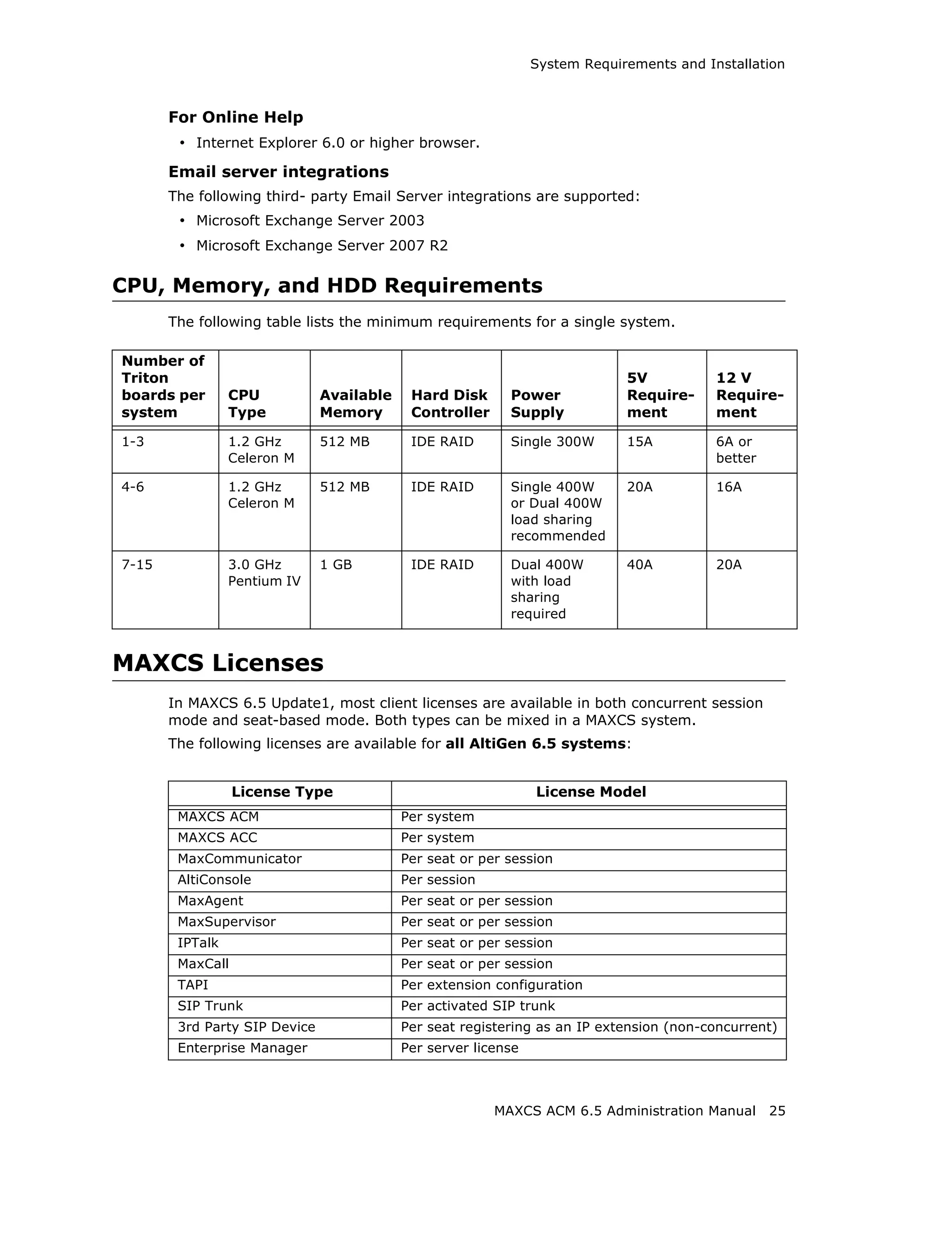
  • 126.
    Configuring Call Recording Figure 3. “Sign up for online storage or connect to a network server” link This invokes the Add Network Place Wizard. Figure 4. Add Network Place Wizard 3. Click Next. You’ll see the screen below: 112 MAXCS ACM 6.5 Administration Manual
  • 127.
    Configuring Call Recording Figure 5. Add Network Place Wizard 4. Click Choose another network location and click Next. The following screen is displayed: Figure 6. Add Network Place Wizard - Internet/Network Address 5. Type the address of the Web site, FTP site, or network location in the field, for example,”ServerNamesharefolder”; or use the Browse button to locate the destination path. Click View some examples for correct formatting. Then click Next.The following screen is displayed: MAXCS ACM 6.5 Administration Manual 113
  • 128.
    Configuring Call Recording Figure 7. Add Network Place Wizard - Shortcut Name 6. Type in a name for the network place and click Next. A confirmation screen appears: Figure 8. Confirmation screen 7. Click Finish. The network place you created should appear on the desktop. 114 MAXCS ACM 6.5 Administration Manual
  • 129.
    Configuring Call Recording Figure 9. Network Place Created 8. In the Recording Configuration window, use the Browse button to select the network place as the destination folder. Figure 10. Recording Configuration Window MAXCS ACM 6.5 Administration Manual 115
  • 130.
    Configuring Call Recording 116MAXCS ACM 6.5 Administration Manual
  • 131.
    CHAPTER 10 Application Extension Configuration The application extension is an extension pilot number that allows an SDK-based add- on application to log into the system and establish a communication channel to control trunk channels and interact with the system core PBX switching and voice processing service. Typical applications that use an application extension are: • IVR • Outbound dialer • Inbound call routing logic for a special business application To connect an SDK-based add-on application, you need: • An APC license (concurrent session) • A separate application extension to log in to for each application For more information about SDK, please send e-mail to sdksupport@altigen.com. Application Extension Setup Note: Before you begin, make sure a Trunk Control APC SDK Session license is registered and activated for your system. You can find this information in License > License Information. To access the Application Extension Configuration window, select System > Application Ext Configuration. The configuration window opens: MAXCS ACM 6.5 Administration Manual 117
  • 132.
    Application Extension Setup Figure 1. Application Extension Configuration window To set up an application extension: 1. In the Application Extension Configuration window, click the Add button and enter an extension number in the Add Application Extension dialog box. and click OK. Figure 2. Add Application Extension dialog box 2. The application extension appears in the AppExt List. 3. Type a password in the Password field. 4. Type a description of the application in the Description field, if desired. 5. Click OK. Application Failover Plan The Application Failover Plan ensures that a call made to the extension will be automatically transferred if the application is not available. Use the If application is not available, forward to drop-down list to select the forwarding destination. The options are: • AA—select the auto attendant number to use in the drop-down list under the option. AA settings are configured in System > AA Configuration. 118 MAXCS ACM 6.5 Administration Manual
  • 133.
    Application Extension Setup • Extension—select an extension from the drop-down list. • Operator—select an operator from the drop-down list. Important: If the failover setting for the application extension is set to an extension, and the extension is RNA or busy, the call will follow the extension's RNA or busy call handling. Application Information Additional information can be described in the App Information fields. If desired, enter the appropriate information in the fields for Application Source, Spec Doc Location, Designed by, Implemented by, Implementation Date, Revision Number and Revision Date. Readying the Application If a third-party application is connecting to this extension, make sure the application is properly set to log into the application extension. If the third-party application is logged in, the status shown in Figure 1 on page 118 changes to “connected.” MAXCS ACM 6.5 Administration Manual 119
  • 134.
    Application Extension Setup 120MAXCS ACM 6.5 Administration Manual
  • 135.
    CHAPTER 11 Trunk Configuration Trunk attributes and parameters are set using the Trunk Configuration window. The attributes and options available depend on the type of board and trunk. This chapter discusses general configuration options applicable to all trunks, followed by specific configuration options for the following trunk types: • H.323 tie trunk, page 128 • SIP tie trunk, page 128 • SIP trunk for ITSP, page 129 • Triton T1/PRI trunk, page 133 • Triton analog trunk, page 136 This chapter also discusses incoming call routing (page 145) and outgoing call blocking (page 146), both configurable on tabs in the Trunk Configuration window. Trunks Out of Service If none of the trunks are available when an outside call is placed, the caller will hear the system prompt: “All outside lines are busy. Please try again later.” Channel Identification To find out channel information, right-click a trunk in the Trunk View window (shown in Figure 2, below), and select Channel Physical Location. The Channel Information box appears, displaying logical board ID, board name, channel group type, and channel ID: MAXCS ACM 6.5 Administration Manual 121
  • 136.
    Opening the TrunkConfiguration Window Figure 1. Channel Information box Opening the Trunk Configuration Window To open the general Trunk Configuration window, do one of the following: • Click the Trunk Configuration button in the toolbar. • Select PBX > Trunk Configuration. • Double-click a trunk in the Trunk View window. Selecting Channel Properties from the right-click menu in Trunk View bypasses the general Trunk Configuration window to open a trunk properties window specific to the selected trunk. Figure 2. Trunk View window 122 MAXCS ACM 6.5 Administration Manual
  • 137.
    Selecting Trunks toSet Attributes The Trunk Configuration window opens: Figure 3. Trunk Configuration, General tab Selecting Trunks to Set Attributes The title bar of the Trunk Configuration window displays the card and the channel of the selected trunk. The list on the left shows all the configured trunks. The Location format is the same as in the Trunk View window, that is, Logical Board ID : Channel Number. The logical board ID is assigned by the system. This ID may change when a telephony board is added into or removed from the system. When you select a trunk in this list, the options and parameters for the trunk appear in the settings in the right side of the window. MAXCS ACM 6.5 Administration Manual 123
  • 138.
    Configuring One orMultiple Trunks Configuring One or Multiple Trunks To customize trunk characteristics, you work on one trunk at a time. To apply the same configuration to multiple trunks, use the Apply To button. This pops up a list of all trunks, with all of the trunks selected by default. Select the trunks you want to apply changes to, then click OK. (Use Ctrl+click and Shift+click to select several trunks.) This applies changes to multiple trunks for only the attribute or option that you changed. Setting General Trunk Attributes Select a channel to view its current attributes. You can then set or change the following attributes. If an option is grayed out, it is not available for that type of trunk: • Access Code—Assign a trunk access code to the selected trunk. If you need to use a trunk access code other than 9, you must first set this up on the Number Plan tab of System Configuration (see “Setting a System Number Plan” on page 48). Note: There are two types of access code: Trunk Access Code (TAC) and Route Access Code (RAC). TAC is a quick and easy way to select which trunk(s) you would like to dial out from, especially when you want to reserve trunks for a special dialing purpose. For example, you can set up TAC "7" and assign that to trunk(s). These trunks will be reserved exclusively for users who know the TAC "7". Although TAC is easy to use, it does have limitations especially when you are located in an area with a complicated dialing pattern or you need to set up VoIP hop-off dialing. RAC uses the Out Call Routing table, which has the flexibility to group trunks into a route, assign routes to a specific dialing pattern, and add/delete digits from the dialing pattern. It can solve most of the complicated dialing problems. If your system is using RAC, you can set this TAC field to "None". • Area Code—The local area code for each trunk. Enter a three-digit area code. If left blank, the trunk assumes the home area code defined in the General tab of the System Configuration window. This configuration is for each trunk in the system and will negatively affect features such as Zoomerang if the area code is not configured properly. • Direction—The trunk direction can be Outgoing only, Incoming only, Both Outgoing and Incoming, Paging, or E911. The Both option is the system default. 124 MAXCS ACM 6.5 Administration Manual
  • 139.
    Setting General TrunkAttributes Important: If a trunk is in the hunt group of your company main number and you configure this trunk as an "Outgoing" trunk, the incoming call will be rejected by the system. To avoid this mistake, make sure you check with your carrier to verify the hunting number before you configure a trunk to Outgoing. Paging—This configuration is for an overhead paging equipment and requires a Loop Start trunk port. The paging equipment will provide loop current to the trunk port. When this option is selected, you can assign an ID in the drop-down list. The range of paging IDs are from 00 to 99, which allows MAXCS to be connected to up to 100 paging systems through trunks for multi-zone paging applications. To activate a trunk paging port, dial #45 and the ID number. For example, a user dials #4508 to connect to a paging system through the trunk with paging ID of 08. The Trunk Paging option and the Overhead Paging option (in “Audio Peripheral Configuration” on page 66) are different and independent of one another. The Overhead Paging option is to set up the Audio Out port on the telephony board and uses #44 to activate. The E911 option is exclusively for an analog Centralized Automatic Message Accounting (CAMA) trunk connecting to a Triton analog trunk board. CAMA trunk is a special type of trunk from your carrier for E911 service. When an analog trunk port is assigned as an E911 CAMA trunk, the system will send the station identification number, defined in the extension configuration E911 CID field, to the PSAP via multi-frequency signaling. The E911 CID is needed to: • Allow PSAP to identify the caller's information and exact location by matching the Automatic Location Identifier database in PSAP. • Have the callback number in case the call is disconnected. Note: Do not select the E911 option for a T1-CAS or PRI trunk. T1-CAS cannot transmit the ID. PRI trunk will transmit calling party's ID automatically. When the E911 option is checked, this trunk will no longer receive inbound calls, and only 911 calls will go out through this trunk. Each state may have different E911 regulations and requirements. Please check with the local authority to understand what is required by law. • Phone Number—If this trunk is an analog or T1-CAS trunk, this field is used for labeling purposes only. Enter the number without area code in this field. If this trunk is a PRI trunk, the system will output this number to the carrier as the calling party CallerID. PRI trunk transmitting caller ID rules: 1. If extension has Transmitted CID configured, this number will be transmitted first. If not configured, go to next. 2. If extension has DID Number configured, the 10-digit DID number will be transmitted. If not configured, go to next. 3. If PRI trunk channel has area code and caller ID configured, this number will be transmitted. If not configured, go to next. 4. PRI will transmit the system home area code and main number defined in System Configuration, General tab. • Description—Descriptive information such as the company name for the assigned Phone Number, or appropriate agency if this trunk provides 911 access. • Trunk Dialing Scheme—Overlap or En-bloc dialing. MAXCS ACM 6.5 Administration Manual 125
  • 140.
    Setting General TrunkAttributes • Overlap - Transmitting dialed DTMF digits to the CO without buffering digits in the system first. Use Overlap dialing for analog and T1-CAS trunks for best results. Calls will be completed faster. • En-bloc - The system will buffer all dialed digits and send it to the CO at once. Typically is used in ISDN-PRI trunk and SIP trunk. Note: For IP tie trunks, use the IP Dialing Table in Enterprise Manager to set the dialing scheme (Enterprise Manager is available by selecting VoIP > Enterprise Network Management, or from the Windows Start menu). • Trunk Call Predial String—To have the system automatically insert the configured digits whenever the selected trunk is used for outgoing calls. This feature is used to prevent having to dial “9” twice for trunk access when the system is used behind another PBX system or this trunk is a Centrex line, which requires dialing “9” to make a call. If you select this option, type the predial digit(s) into the text box. • Enable Centrex Transfer—When checked, the system is able to transfer an incoming call to another outside number through the same trunk and release the incoming trunk. Before you configure this option for the trunk, please make sure your trunk is a Centrex line or supports the Release Line Transfer (RLT) feature. Depending on the type of trunk, your configuration may be different: • If this is an analog Centrex line, you only need to check the Enable Centrex Transfer check box. A FLASH signal will be transmitted to the CO if the incoming trunk call needs to be transferred to an outside number. • If this is a T1-CAS trunk, you may need to add “transfer predial string.” From the CO point of view, it is their feature code to initiate RLT. Please check with your carrier to get the specification. • If this is a PRI trunk, you need to ask your carrier if they support RLT through DTMF. Some carriers accept *8 to signal RLT. AltiGen PRI trunks currently do not support 2-B channel transfer feature. How to signal MAXCS that it is a Centrex transfer: • If a call is connected to an extension, the extension user needs to dial FLASH * plus trunk access code and the outside number. • If a virtual extension forwarding or speed dialing number is configured to an outside number and the extension user transfers a call to the virtual extension or speed dialing number, the system will add the Centrex FLASH automatically. You don’t need to add the “*” in the forwarding or speed dialing digit stream. • Attribute—In Service makes the trunk available for use. Out of Service prevents the trunk from being used (for example, while performing maintenance). • Enable Tie Trunk—This configuration field is meaningful only if you use T1 or PRI to connect two MAXCS systems back-to-back. Do not check this box if you connect a MAXCS to a third-party PBX via T1 or PRI trunk. When this configuration is checked, the system software will interpret the incoming [ANI] [DNIS] digit sequence as [Caller’s Extension Number] and [Target Extension Number]. An incoming tie trunk call will be routed to the target extension and all the Incall Routing rules will be bypassed. If you do not check this box for system-to- system tie trunk, the system will check the Ext. DID/DNIS Routing/Caller ID Routing table first. If there is no match, the trunk incall routing rule will apply. Note: The Enable Tie Trunk field under Board Configuration > Protocol needs to be enabled for T1/PRI tie trunks as well. It will tell the system to transmit [Caller’s Extension Number] and [Target’s Extension Number] as [ANI] [DNIS] to the other system. In case this is a T1-CAS, which typically cannot 126 MAXCS ACM 6.5 Administration Manual
  • 141.
    Setting General TrunkAttributes transmit any data to the CO, the system will use DTMF as a way to transmit [Caller’s Extension Number] and [Target’s Extension Number] to the other side of the tie trunk. Because the format is AltiGen proprietary, you may have a problem if you enable this configuration when connecting to a non-AltiGen PBX. • Holiday Profile—A holiday profile can be assigned to a trunk. The drop-down list selection is based on settings configured in the Holiday tab of System Configuration (see “Routing Calls on Holidays” on page 55). • Business Hour Profile—A business hour profile can be assigned to a trunk. The drop-down list selection is based on settings configured in the Business Hours tab of System Configuration. • Recording Option—Recording for incoming and outgoing calls is supported for Triton Analog, T1/E1, and IP trunks; use the drop-down list to select Disable or Enable. If you select Enable, choose the license you want to assign (Concurrent Session or Dedicated Seat), and make sure that in System > Recording Configuration one of the trunk-based recording options is selected. Note: When you use trunk-based recording, inbound or outbound calls are recorded as long as the trunk is in use. For example, an inbound call that is answered by an AA, routed to an operator, and transferred to an extension will begin recording when the AA answers the call and end recording when the trunk is released. With extension recording, recording starts only when the extension user answers the call. • Trunk Properties—Opens a dialog box that allows you to configure low-level, hardware-specific properties for each trunk. The options vary depending on the type of board and trunk; this is discussed in subsequent sections. MAXCS ACM 6.5 Administration Manual 127
  • 142.
    H323 Tie TrunkProperties H323 Tie Trunk Properties To open a trunk configuration dialog box for an H323 tie trunk, do one of the following: • In the Trunk Configuration window, select an H323 trunk type, then click the Trunk Properties button. • In the Board View window, double-click an H323 board type, then click the Board Configuration button. Board configuration is discussed in “Configuring the H323SP Board” on page 167. Max Trunk Channel sets the maximum number of trunk channels for this board in increments of 4, from 4 to 96. You need to stop and restart the system after the maximum trunk channel number is changed. Note: This is signal only trunks. Make sure you have enough IP resource boards to cover your needs. SIP Tie Trunk Properties To open a configuration dialog box for a SIP tie-trunk channel, do one of the following: • If you’re in the Trunk Configuration window, select a Triton VoIP channel from the trunk channels list, then click the Trunk Properties button, or just double-click the channel in the list. • If you’re in the Trunk View window, right-click the channel and select Channel Properties. The following dialog box opens: Figure 4. Configuration dialog box for a Triton VoIP channel See “Configuring the SIPSP Board” on page 166 for board configuration information. Note: This is signal only trunks. Make sure you have enough IP resource boards to cover your needs. 128 MAXCS ACM 6.5 Administration Manual
  • 143.
    SIP Tie TrunkProperties SIP Trunk Properties Traditionally telecom trunks are from your local carrier’s PSTN switch and the dial tone is provided via either analog trunks or T1/PRI digital trunks. A new type of service called “IP Dial Tone,” which allows you to dial a long distance call at a lower rate, is available. IP Dial Tone is delivered through your IP data network, and the service provider can be anywhere in the world, as long as the VoIP data packets can be routed properly. If you have SIP-based IP dial tone service from an Internet Telephony Service Provider (ITSP), you need to configure SIP trunk channels to connect to the service. Before you start, note the following: • An AltiGen SIP Trunking channel is licensed. You need to buy and register a license to be able to configure this option. • AltiGen does not guarantee the voice quality of the SIP dial tone coming from your service provider. You need to work with your data service and SIP trunking service provider to make sure adequate QoS is provisioned for your WAN service. • AltiGen does not guarantee SIP trunk implementation will work with all SIP dial tone service providers. AltiGen dealers are notified of AltiGen-tested and certified SIP- Trunk service providers. Configuration guidelines for each AltiGen-certified SIP- Trunk service provider can be found in the AltiGen authorized dealer Knowledge Base, available from the AltiGen Dealer Web Site. SIP dial tone service providers need to support the following: • G.711, G.723.1, G.729 codec • RFC 2833 for DTMF tone delivery • SIP MD5 authentication with SIP registration • If MAXCS is behind NAT, verify that your SIP SP can support this configuration. When subscribing to a SIP dial tone service, typically your service provider will provide you with the information required in the configuration dialog box shown in Figure 5 on page 130. Enter these service parameters to each SIP trunk channel configuration individually. Note: This is signal only trunks. Make sure you have enough IP resource boards to cover your needs. Important: You need to add the SIP Trunk service provider’s IP address to the IP Device Range in Enterprise Manager and select the proper codec profile for this service. See “Assigning Codec Profiles to IP Addresses” on page 346. Failure to do this step may cause no voice path, even if the SIP Trunk channel shows the call is connected. Configuring a SIP Trunk To open a trunk configuration dialog box for a SIP trunk, do one of the following: • In the Trunk Configuration window, select a SIP trunk type, click the Trunk Properties button, then click the SIP Trunk Configuration button. • In the Board View window, double-click a SIPSP board type, click the Board Configuration button, then click the SIP Trunk Configuration button. MAXCS ACM 6.5 Administration Manual 129
  • 144.
    SIP Tie TrunkProperties The SIP Trunk Configuration dialog box opens: Figure 5. SIP Trunk Configuration dialog box and Edit box To edit a line, click the Edit button, fill in the blanks, and click OK. • SIP Server IP Address—The SIP Trunk service provider’s server IP address • User Name—Assigned by the SIP Trunk service provider • Password—Assigned by the SIP Trunk service provider • Domain—The Domain Name of the SIP Trunk service provider, if required • SIP Register Period—How frequently the AltiGen system needs to send SIP registration packets to the service provider. This can detect if the service provider is up or not. Some service providers do not accept SIP Register messages. In these cases, you can disable sending SIP Register messages from MAXCS by setting the SIP Register Period to 0. • SIP Trunk Profile—Select the appropriate SIP trunk profile. (See “Creating a SIP Trunk Profile” on page 131.) • SIP Source Port—For SIP UDP, select the source port from 5060 or 10060. For TCP or TLS, you cannot change ports. Using a port other than 5060 will prevent SIP-ALG firewall/router from changing the SIP packets. • SIP Destination Port—A SIP Trunk can have different source port and destination port. • Automatic NAT Traversal—Leave this box unchecked. • Enable Channel—After all above parameters are entered correctly, check this box to activate the channel. The AltiGen system will send authentication to the service provider to verify the setting. 130 MAXCS ACM 6.5 Administration Manual
  • 145.
    SIP Tie TrunkProperties To copy the information in one row to other rows, select the row and click Copy To. Then select the rows you want to copy the information to, using CTRL+click and Shift+click to select several rows. Click OK. To delete a row, select it and click Delete. Creating a SIP Trunk Profile Different SIP service providers may support different ways of sending a caller ID. To provide callees with a more accurate caller ID, you can create a SIP Trunk Profile for a particular service provider, when necessary. Otherwise, a default profile is used. Once you have created a profile, you can select it in the SIP Trunk Configuration Edit box (see Figure 5). To create a SIP Trunk Profile, in the SIP Trunk Configuration dialog box shown in Figure 5, click the SIP Trunk Profile button on the right. The SIP Trunk Profile dialog box opens: The fields in this dialog box are described in the following table. Field Description SIP Protocol Field Not Sent (default)—Do not send transmitted caller ID FROM Header—Send the caller ID using the SIP FROM header P-Preferred Identity—Send the caller ID using the SIP P-Preferred Identity header P-Asserted Identity—Send the caller ID using the SIP P-Asserted Identity header Carrier can accept This is the default. any number MAXCS ACM 6.5 Administration Manual 131
  • 146.
    SIP Tie TrunkProperties Field Description Carrier can only Enter the number of digits, then enter a calling number in the accept Calling field below the table in case the carrier cannot accept Number with configured numbers. minimum x digits Carrier can only If you select the this option, specify “assigned numbers” by accept assigned clicking the Add button and entering the numbers. To edit or numbers as Calling delete a number you added, select it and click the Edit or Del Number button. Enter a calling number in the field below the table in case the carrier cannot accept configured numbers. Send Caller Name Check to also send the caller name to callees. Enable Standard Check this box if the SIP service provider uses SIP Record- Record-Route Header Route and the SIP trunk cannot make or receive calls. If it already works, DO NOT CHECK or UNCHECK this box. [Service provider Bandwidth.com with Edgewater Route require this checked] Incoming DID When a call comes in, the SIP trunk uses To Header or Number Field Request URI as the DID/DNIS number 132 MAXCS ACM 6.5 Administration Manual
  • 147.
    Triton T1/E1 TrunkProperties Triton T1/E1 Trunk Properties To open a configuration dialog box for a Triton T1/E1 channel, do one of the following: • If you’re in the Trunk Configuration window, select a Triton T1/E1 channel from the trunk channels list, then click the Trunk Properties button, or just double-click the channel in the list. • If you’re in the Trunk View window, right-click the channel and select Channel Properties. Figure 6. Triton T1 Configuration dialog box Following are the parameters for the Triton T1 Configuration dialog box: Parameter Description T1 robbed-bit signaling Protocol You can set Protocol to one of the following: • E&M Wink Start (default) • E&M Immediate Start • Ground Start • Loop Start For signaling from one board to another, only E&M Wink Start is supported. Loop Start, Ground Start, and E&M Immediate Start protocols cannot be used for interfacing between two boards. Dialing Delay Specifies the delay, in milliseconds, after trunk seizure and before digit dialing. This configuration will slow down the system transmitting digits to the CO by a defined delay to avoid missing digits. Do not change this value unless advised. Caller ID and DID Collection MAXCS ACM 6.5 Administration Manual 133
  • 148.
    Triton T1/E1 TrunkProperties Parameter Description You can select the maximum time-out delays, in seconds, and the appropriate sequence of symbols to be collected for Caller ID and DID. Max. seconds Maximum wait time before time-out for the system to identify before the first this digit after either the first ring in ground start or loop start digit or the wink in wink start. The range is from 1-6 seconds, or None, with a default value of 3 seconds. Do not change this value unless advised. None means no Caller ID or DID information will be collected. All other options will be grayed out. Use this option to disable Caller ID and DID collection. Max. seconds Maximum wait time before time-out between two digits. between digits Default value is None. Do not change this value unless advised. Selecting None means the system will only wait for the sequence of digits that are collected within the length of time specified in the Max. seconds before the first digit field. Incoming Select up to five incoming symbols to collect from the Caller sequence ID or DID digits: • None • # • * • # or * • Caller ID • DID/DNIS Selecting None in any field of the sequence will terminate the sequence and automatically disable subsequent entries in the sequence. The default sequence is: “# or *” (and then) “Caller ID” (and then) “# or *” (and then) “DID/ DNIS” Or Sets up an additional, alternative sequence. You can select another set of up to five incoming symbols to collect. Not checking any box is equivalent to checking None in the first field. The default sequence is: “DID/DNIS” Apply to If appropriate, you can use this button, as described in “Configuring One or Multiple Trunks” on page 124, to apply the Caller ID Collection to multiple T1 trunks. Note: In order for back-to-back T1 and tie trunk T1 configurations to perform properly, it is recommended that you use the system’s default incoming call sequences: 134 MAXCS ACM 6.5 Administration Manual
  • 149.
    Triton T1/E1 TrunkProperties Caller ID and DID Incoming Sequence Example The following is an example of a Caller ID and DID/DNIS incoming sequence window. Figure 7. Sample Incoming Sequence window When a call comes in, the system tries to match the incoming sequence to either the first or second Incoming Sequence Digit String sequence. If no match is found, no Caller ID or DID digits will be collected. • The system waits 3 seconds for the first digit to arrive. If the symbol is a #, it continues with the first sequence. Otherwise, it looks for a match to the first (and only) symbol in the second sequence, the DID/DNIS number. • For the example, let’s say the system receives the #. It then waits 1 second between each digit for the next digit until all digits are received. The * symbol is a delimiter between Caller ID and DID digits. In this example, the MAXCS ACC/ACM system is expecting either the sequence #CID*DID or only DID digits for incoming calls. If no match is found for either sequence, no Caller ID or DID digits are collected. MAXCS ACM 6.5 Administration Manual 135
  • 150.
    Triton Analog TrunkGS/LS Properties Triton Analog Trunk GS/LS Properties To open a configuration dialog box for a Triton Analog Trunk GS/LS channel, do one of the following: • If you’re in the Trunk Configuration window, select a Triton Analog Trunk GS/LS channel from the trunk channels list, then click the Trunk Properties button, or just double-click the channel in the list. • If you’re in the Trunk View window, right-click the channel and select Channel Properties. Figure 8. Triton Analog Trunk GS/LS Properties window Note that you can use Apply to in this dialog box to apply changes to other trunks of the same type. Parameter Description Interface Type Select the type of trunk that will interface with this trunk channel: • Loop Start Trunk • Ground Start Trunk 136 MAXCS ACM 6.5 Administration Manual
  • 151.
    Triton Analog TrunkGS/LS Properties Parameter Description Incoming Ring Single—Default setting for North America Double—For countries using Ring-Ring-Silent type of ring pattern Impedance The resistance of electrical current to alternating current, measured in Ohms. Impedance occurs when power or signal is transferred from one circuit to another. When a trunk interface impedance is greatly mismatched with the CO analog line, it may result in static noise and echo heard by IP phone users. The system automatically selects the impedance profile that best matches the Triton trunk interface with the CO. In the rare case where you are not getting the best match, you can disable this feature by checking Disable Impedance Match During System Startup, and you can set the Impedance manually. Match Impedance Changes the Impedance setting to the best match for the button selected trunk channel, and then measures noise and returned echo with this impedance setting. Results are displayed in the Diagnosis section of the dialog box. The system automatically runs a matching test upon system startup, unless you disable the feature. If later you connect a new analog line to an empty port or replace an existing line, you need to click this button to best match the impedance. Match Result button Shows the result obtained the last time the Match Impedance button was clicked for that trunk. Disable Impedance Check to disable automatic impedance matching during Match During System system startup. Startup Caller ID Receiving Select as None, FSK or DTMF for receiving caller ID digits. For North America, the caller ID is FSK signal on analog trunk. Centrex Flash Specifies the Flash Duration time in milliseconds, with a Duration (ms) range from 150 ms to 1000 ms. Out of Service With When checked, if the trunk is set to Out of Service, the Trunk Seizure system will busy out the trunk. The CO will treat this trunk as a busy line and WILL NOT place a call to this trunk. (By default, this option is unchecked.) Enable Dial Tone When enabled, the trunk channel must detect outgoing Detection (Outgoing) dial tone prior to making the call. Enable Answer Enables a timeout period of 2 seconds (for ignoring false Debounce (Incoming) CO disconnect signal), after answering an incoming call. Loop Break Duration Disconnects signal if CO breaks loop current. You can set (ms) the duration from 200 to 1000 ms. 600 ms is common in North America. MAXCS ACM 6.5 Administration Manual 137
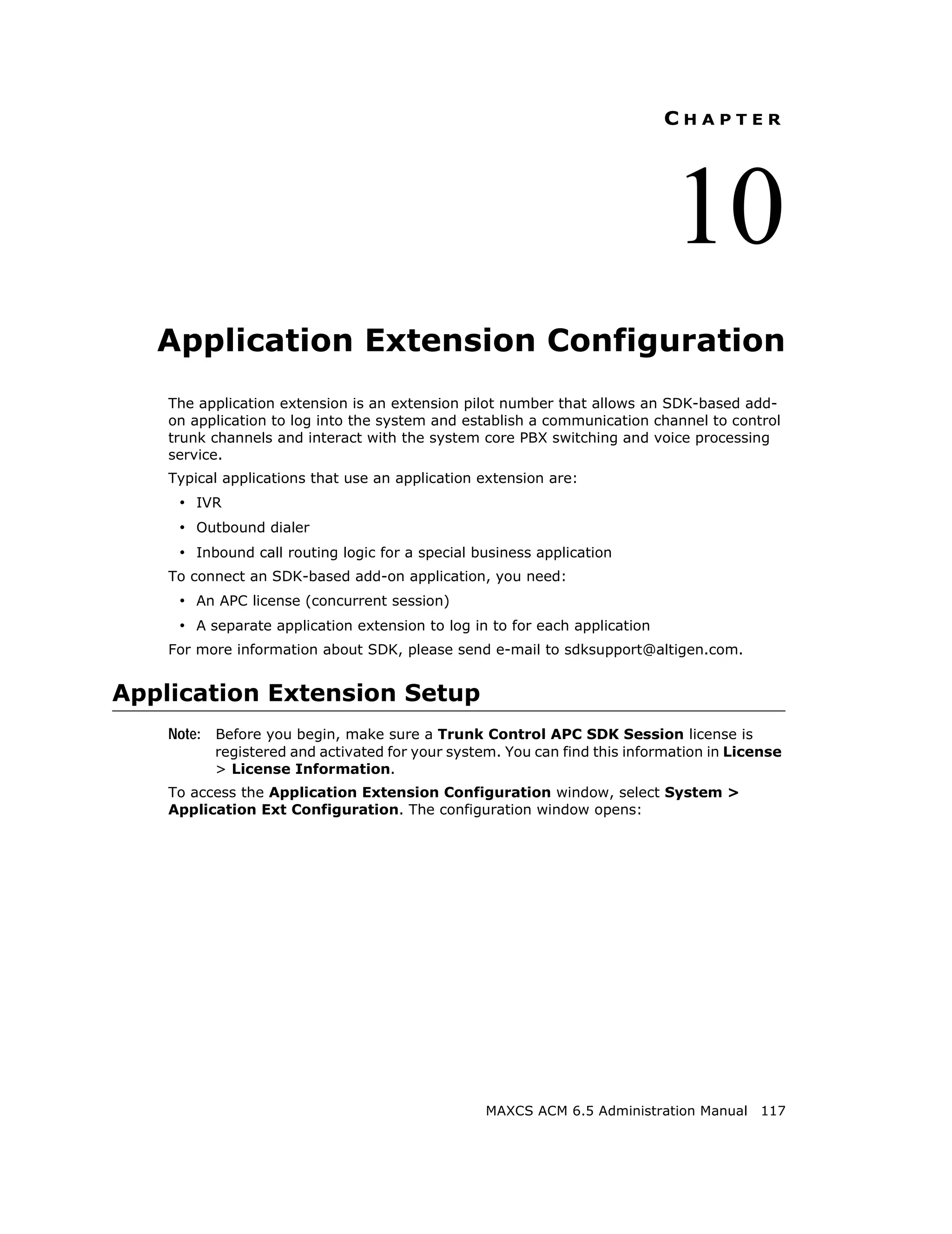
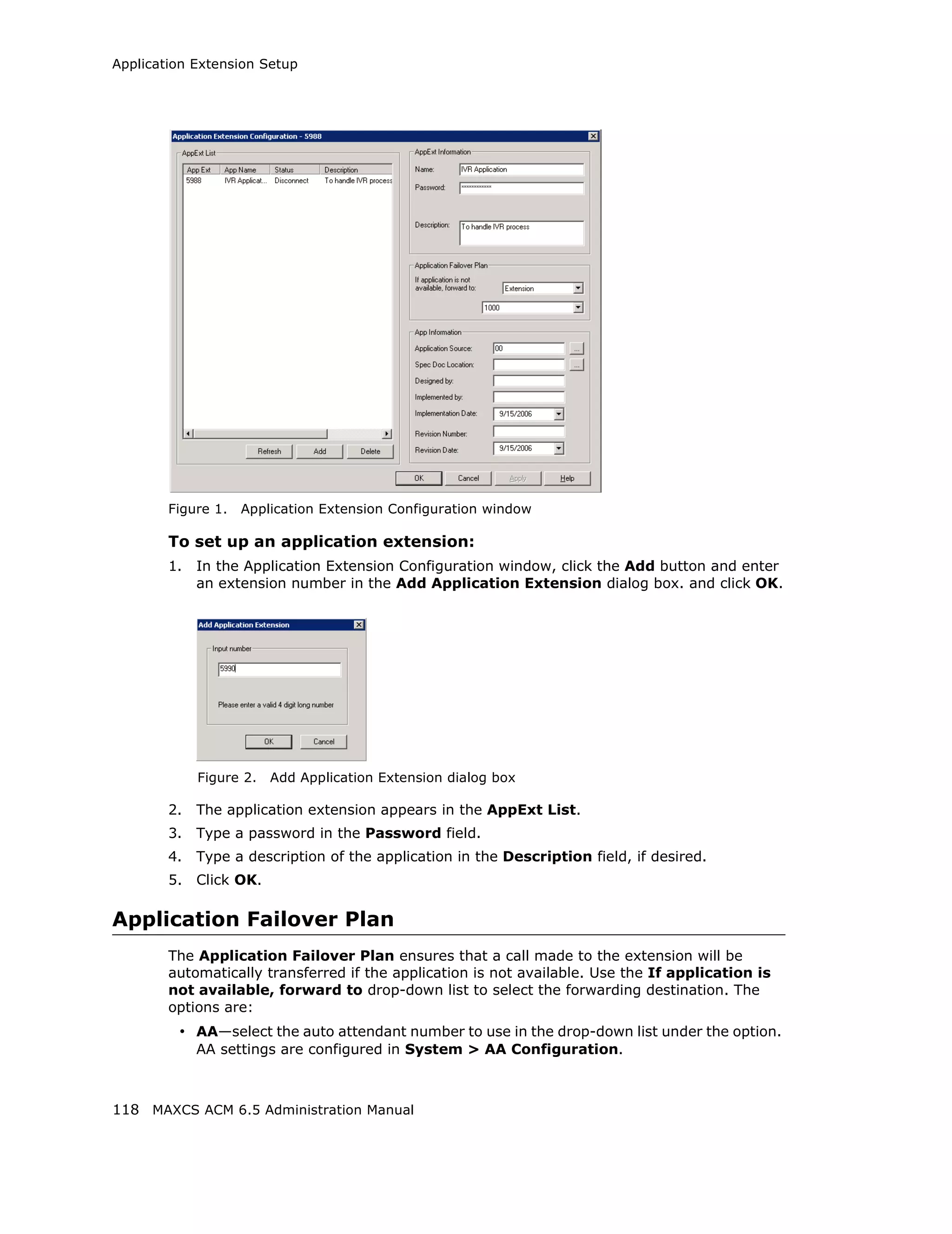
  • 152.
    Triton Analog TrunkGS/LS Properties Parameter Description Tone Disconnect Busy tone (reorder tone, fast busy tone, error tone, and so on) or dial tone (continuous tone, and so on). This should be used in conjunction with drop in loop current. For COs who cannot guarantee loop break, this may be the only option. Receiver/ Slide setting adjusts the gain from -6 dB to 6 dB for every Transmission Gain Triton Analog Trunk channel. The gain is not adjustable, by default. The user needs to run the diagnosis first to change the gain. The diagnosis process determines the max gain based on the diagnosis results. The default setting is 0 dB, and it is highly recommended that you not change this setting. Caution! Setting the volume too high will cause distortion in voice quality and/or missed DTMF digits. Trunk to Trunk Gain This configuration is to set Gain for calls that involve two analog trunks (one in and one out). Because an analog trunk typically has energy loss of 3-12 dB, a two-trunk operation, like VM out call and MobileExt, may have low volume issues because energy loss is doubled. This configuration can compensate for the energy loss. The valid range is 0 to 6 dB. Recommended value is 3 dB. Caution: Setting the Gain too high may cause distortion in voice quality and DTMF tone. Your CO may not be able to recognize the dialing number if DTMF tones are distorted. Last Diagnosis Time The last time the Diagnosis button was clicked. Diagnose button Use this button to view the Noise Level, Echo Return Loss, and Hybrid Echo Return Loss, measured using the current Impedance setting. Noise Level The noise level (displayed after you click the Diagnose button or the Match Impedance button). Acceptable range for Noise Level is less than -67 dBm in value. For example, Noise Level of -72 dBm is good and -63 dBm is poor. You may experience high background noise and low voice volume if Noise Level is poor. Echo Return Loss The measurement for echo return loss (displayed after you click the Diagnose button or the Match Impedance button). Acceptable range for Echo Return Loss is less than -12 dB. For example, Echo Return Loss of -19 dB is good and -8dB is poor. The IP phone users may hear their voice coming back (echo) if Echo Return Loss is poor. Hybrid Echo Return The measurement for hybrid echo return loss (displayed Loss after you click the Diagnose button or the Match Impedance button). Acceptable range for Hybrid Echo Return Loss is less than -6 dB. 138 MAXCS ACM 6.5 Administration Manual
  • 153.
    Triton Analog TrunkGS/LS Properties Parameter Description Rx Level at 600 Ohms The Rx Level measurement at 600 Ohms, obtained by clicking the Test Rx Level button. See Test Rx Level button, below. Test Rx Level button Tests the receiving level of the trunk channel on a call to your local CO’s Milli-Watt Test Number after you set the Impedance parameter to 600 Ohms and the Rx Gain to 0dB. Results are displayed in the Rx Level at 600 Ohms field. Performing Impedance Match on Your Own For each individual analog trunk that is connected to the CO when the system starts up, MAXCS automatically selects an impedance profile to best match the Triton trunk interface with the CO. In the unlikely event that this automatic selection does not yield the optimal voice quality, you may want to disable the feature and select the best impedance by trial and error method. To disable automatic impedance matching, check the Disable Impedance Match During System Startup check box. Using the Match Impedance Button Whenever a new analog trunk is connected to an empty port or is replacing an existing trunk, you will need to use the Match Impedance button to select the best impedance profile. To do this, follow these steps: 1. Click the Impedance Match button. While the impedance match is in process, you’ll see a “progress” box. When the process is complete, the Match Impedance dialog box is displayed, with information relevant to this trunk: Figure 9. Match Impedance dialog box The Impedance parameter setting in the main dialog box is changed to the best match selection, and the measurement for noise and returned echo is performed with this impedance setting. The results of this measurement are displayed in the Diagnosis section of the main dialog box. The Hybrid Echo Return Loss field shows the measurement before adaptation of the selected Impedance profile, and the Echo Return Loss field shows the measurement after adaptation of the selected Impedance profile. MAXCS ACM 6.5 Administration Manual 139
  • 154.
    Triton Analog TrunkGS/LS Properties Note: If the Hybrid Echo Return Loss reading of a trunk is worse than -6 dB, for example, -5 db, the trunk may be subject to VoIP voice quality problems. Use this trunk to connect to analog phones only, or configure it to be the least used trunk. (Acceptable range for Hybrid Echo Return Loss is -6dB to -26dB.) Noise Level should be less than -67dBm (acceptable range is -67dBm to - 90dBm). 2. Make calls from the trunks to test voice quality. 3. Repeat steps 1 and 2 for all other trunk channels. If the Hybrid Echo Return Loss and Noise Level are not within the acceptable range, take the following steps to troubleshoot: 1. Change the trunk to a different port on the Triton board, then diagnose again (this is to rule out a hardware problem). 2. Check to see if any wire taps to the trunk wire (bridge tap). If so, remove them, then test again. 3. Request the CO to check the trunk conditions, including Line Loss, and longitudinal balance. The Match Result Button Clicking the Match Result button shows you the result you got the last time you clicked the Match Impedance button for that trunk. The following dialog box is displayed: Figure 10. Impedance Match Result dialog box Measuring the Rx Level of a Trunk Channel In order to perform this test, you need to obtain the local CO’s Milli-Watt Test Number from your CO. When dialing this number, a 0dB tone is sent. For example, if your number is 510-252-9712, the Milli-Watt Test Number from the local CO is 510-252-0020 (the prefix 510-252 is the same). 1. Write down the Rx Gain, then set it to 0dB and click OK. 2. Write down the Impedance setting, then change it to 600ohm, and click OK. 3. Call the number you got from your CO, as noted above. 4. Click the Test Rx Level button. When the test is complete, the Test Rx Level dialog box is displayed: 140 MAXCS ACM 6.5 Administration Manual
  • 155.
    Triton Analog TrunkGS/LS Properties 5. Click OK. The Rx Level measurement is displayed in the Diagnosis section of the main dialog box. If you call your local CO’s Milli-Watt Test Number, the acceptable range for Rx Level should be between -6dB and -3 dB, with -5dB being ideal. 6. Restore the Impedance and Rx Gain settings, and click OK. If You Need to Improve the Rx Level If the Rx Level measurement is between -6 to -9 dB, and IP phones are used, take the following steps to increase the gain for the Triton analog trunk to IP phone connection: 1. Go to VoIP Board configuration and click the Advance button. 2. Increase the Transmitting gain to IP Extension to 9 for the Triton Analog Trunk. (Do NOT change the gain in the trunk property of the Triton Analog Trunk Board, since it may impact the echo canceller performance.) If the Rx Level measurement is worse than -9dB (for example, -10 dB) you should contact the CO to adjust the line loss to the acceptable range. If You Don’t Have the Milli-Watt Test Number If you don’t have the local CO’s Milli-Watt Test Number, you can follow the steps below to measure the line loss when calling two local trunks: 1. Copy C:Post OfficePhrasesLang1phrase9900 to C:Post OfficePhrasesLangCustom folder. Rename it an unused phrase name, for example, phrase0990 (the number must be less than 1000). This phrase is a 1 kHz test tone. 2. Select an unused AA and set the AA to play the prompt phrase you named in step 1 (0990 in this example). MAXCS ACM 6.5 Administration Manual 141
  • 156.
    Triton Analog TrunkGS/LS Properties Figure 11. Setting the AA to play a prompt phrase 3. Set the Timeout to Repeat Current Level. Figure 12. Setting Timeout to Repeat Current Level 4. Select a trunk as a testing reference—an analog trunk with a specific phone number is best—and set the trunk In Call Routing to the Test Line Loss AA. 142 MAXCS ACM 6.5 Administration Manual
  • 157.
    Triton Analog TrunkGS/LS Properties Figure 13. Setting trunk In Call Routing to an AA 5. Call from one trunk to the testing reference trunk. You should hear a 1kHz tone playing at the originating side. 6. While the tone is playing, measure the Rx Level at the trunk that is making the outgoing call. If the reading is less than -6 dB, for example -3 dB, take the following steps to attenuate the gain for the Triton Analog Trunk to IP phone connection: a. Go to VoIP Board configuration and click the Advance button. b. Set the Transmitting gain to IP Extension to 3 for the Triton Analog Trunk. (Do NOT change the gain in the trunk property of the Triton Analog Trunk Board, since it may impact the echo canceller performance. If the reading is -6 dB to - 14 dB, for example, -12dB, no change is needed. If the reading is -15 dB to -18dB, take the following steps to increase the gain for the Triton Analog Trunk to IP phone connection: a. Go to VoIP Board configuration and click the Advance button. b. Set the Transmitting gain to IP Extension to 9 for the Triton Analog Trunk. (Do NOT change the gain in the trunk property of the Triton Analog Trunk Board, since it may impact the echo canceller performance.) MAXCS ACM 6.5 Administration Manual 143
  • 158.
    Triton Analog TrunkGS/LS Properties If the reading is worse than -18 dB, you should contact your CO to adjust the line loss to the acceptable range. 144 MAXCS ACM 6.5 Administration Manual
  • 159.
    Incoming Call Routing IncomingCall Routing To set incoming call routing for a trunk, select the trunk on the General tab, then click the In Call Routing tab in the Trunk Configuration window. The trunk location appears in the title bar. Figure 14. Trunk Configuration, In Call Routing tab Regular Trunk Calls For each trunk—or using Apply to to apply the settings to multiple trunks—you can set routing for the three time periods defined in the System Configuration window, Business Hours tab (“Setting Business Hours” on page 54): • During Business Hours • Outside Business Hours • Non Workdays Within each of these three time slots, you have the following routing options for incoming calls: • Route to an extension selected in the drop-down list • Route to an auto attendant number selected in the drop-down list • Route to a Line Park line selected in the drop-down list (see “Line Park Configuration” on page 275 for more detail) • Route to the operator Web IP Calls For web IP calls, you can set routing for the three time periods defined in the System Configuration window, Business Hours tab (“Setting Business Hours” on page 54): • During Business Hours MAXCS ACM 6.5 Administration Manual 145
  • 160.
    Outgoing Call Blocking • Outside Business Hours • Non Workdays Within each of these three time slots, you have the following routing options for incoming calls: • Route to an extension selected in the drop-down list • Route to an auto attendant number selected in the drop-down list • Route to the operator Outgoing Call Blocking To set outgoing call blocking for a trunk, select the trunk in the General tab, then click the Out Call Blocking tab in the Trunk Configuration window. Figure 15. Trunk Configuration, Out Call Blocking tab If you select Trunk allowed for Outside Calls at Any Time, call restrictions set in System Configuration, Outcall Routing, and Extension Configuration still apply to calls made on the trunk. If you select Outside Calls Allowed According to The Following Schedules, you can then use the Schedule 1, 2, and 3 options to set up to three different time periods during which calls are allowed. You can use Apply to to apply the settings to multiple trunks. 146 MAXCS ACM 6.5 Administration Manual
  • 161.
    CHAPTER 12 Board Configuration This chapter shows how to configure AltiGen telephony boards: • Triton Resource Board, page 149 • Triton 30-Party Conference Board, page 150 • Triton Analog Station Board, page 150 • Triton Analog Trunk LS/GS and LS Boards, page 150 • Triton VoIP Board, page 151 • Triton T1/E1 Boards, page 152 • Virtual Boards SIP and H323, page 166 • Virtual Board HMCP, page 167 • MAX1000/2000 Board, page 174 • Virtual MobileExtSP Board, page 175 For information on how to install AltiGen boards, refer to the Quick Installation Guide provided with every board package. Board attributes and functions are accessible from the Boards window. MAXCS ACM 6.5 Administration Manual 147
  • 162.
    Figure 1. Boards window Double-click the board you want to configure, and a Board Configuration window opens, similar to the following: Figure 2. Board Configuration window These are the attributes and buttons in the Board Configuration window (see each board type in the sections that follow for additional notes on each type): Parameter Description Board Info Board Logical ID: assigned by MAXCS. Board Name: the type of board installed in the system and its physical ID. 148 MAXCS ACM 6.5 Administration Manual
  • 163.
    Using the TritonResource Board Parameter Description Channel Mapping List Logical Channel, Type, and Physical Channel for the entire board. Double-click a channel to open a line configuration dialog box or a trunk configuration dialog box, as appropriate. To reset the channel, select the channel to reset and click the Reset Channel button, then click OK. Channel Group Info Applicable to T1/E1 and the MAX family of boards only. Double-click a channel group to open a configuration dialog box. To reset a channel group, select it and click the Reset Channel Group button. Board Configuration Opens a configuration dialog box. button Reset Board button Resets the board, after you confirm. Important! Resetting a board will disconnect all calls in progress on that board. Be sure to inform all users before resetting a board. Additionally, if the board is a resource board (VoIP 12 port, VoIP 30 port, Triton resource board, 30-party conference board), resetting it will disconnect all calls that use the resource. Important: To implement some board configuration changes, you must shut down and restart by choosing Services > Shut Down All Services (which also closes MAXCS) and then restarting MAXCS. If this is necessary, a message will pop up telling you so. Using the Triton Resource Board The Triton resource board requires no configuration. Board resources are available when the board is installed. The resource board has a maximum of 12 bridges for: • 6-party conferencing. When an extension is trying to make a conference call, the system will try to use the conference bridge on the resource board first. If conference bridges on the resource board are all busy, the system will use the conference bridges on the extension board, analog or VoIP board. • Workgroup supervisor silent monitoring, barge-in, and coaching. For example, if two supervisors are coaching agents, only 10 bridges are left for 6-party conferencing. Notes: If a supervisor tries to perform silent monitoring, barge-in, or coaching and there is no resource board in the system, the supervisor will hear an error tone. If the supervisor is using an IP phone, then Connect Voice Stream to Server should be checked in the Extension Configuration window so that the system can pull the caller and agent's voice stream to the resource board to allow the supervisor to tap into the conversation. MAXCS ACM 6.5 Administration Manual 149
  • 164.
    Using the TritonMeetMe Conference Board This option is in the Extension Configuration window Using the Triton MeetMe Conference Board The Triton MeetMe conference board requires no configuration. Board resources are available when it is installed. You do have to assign a MeetMe Conference extension (select PBX > MeetMe Conference Configuration). One MeetMe conference board is supported in a system. Note: In a multiple gateways installation, the MeetMe conference board can be in any gateway server. Configuring the Triton Analog Station Board Double-click the Triton Analog Station board in the Boards window to open the Board Configuration window, similar to Figure 2 on page 148. See attribute descriptions below Figure 2. Note the following additional information: • Double-clicking a channel in the Channel Mapping List opens a Triton Analog Line configuration dialog box. See “Triton Analog Station Line Properties” on page 202. • Clicking the Board Configuration button opens a configuration dialog box that displays the board’s serial number, DSP clock, physical and logical IDs. Figure 3. Board Configuration dialog box Configuring the Triton Analog Trunk LS/GS and LS Boards The Triton Analog Trunk board is a long form factor PCI telephony card that supports 8 or 12 trunks. The 8 port card supports only loop start (LS). The 12 port card is available in two models; loop start/ground start (LS/GS) and LS. Both models have the same features regarding LS. The LS/GS board is required when ground start trunks may be required. 150 MAXCS ACM 6.5 Administration Manual
  • 165.
    Configuring the TritonVoIP Board Double-click the board in the Boards window to open the Board Configuration window, similar to Figure 2 on page 148. See attribute descriptions below Figure 2. Note the following additional information: • Double-clicking a channel in the Channel Mapping List opens a channel configuration dialog box. See “Triton Analog Station Line Properties” on page 202. • Clicking the Board Configuration button opens the following dialog box that displays the board’s serial number, DSP clock, physical and logical IDs. Figure 4. Board Configuration dialog box Configuring the Triton VoIP Board It is strongly recommended that system administrators review the “Network Configuration Guidelines for VoIP” on page 327 before setting up VoIP features. Overview VoIP for MAXCS runs on both SIP and H.323 protocols that allow voice calls to be made through an IP network. It includes an integrated VoIP gateway to convert voice calls into IP packets and transmit them through the IP network. MAXCS VoIP uses DSP engines residing on the Triton VoIP board to perform the voice coding/decoding functions needed for SIP and H.323 devices. The Triton VoIP board can be configured as a 12-port G.711/G.723.1/G.729AB or 30- port G.711 board. For limitations on configuring Triton VoIP boards and ports see AltiGen’s Telephony Hardware Manual. Configuration Double-click the TritonIP board in the Boards window to open the Board Configuration window, similar to Figure 2 on page 148. See attribute descriptions below Figure 2. Note the following additional information: • Clicking the Board Configuration button opens a window that displays the board serial number, DSP clock, and physical and logical IDs. The drop-down list in the Configure Type field lets you select between a 12-port G.711/G.723/G.729 configuration and a 30-port G.711 configuration. MAXCS ACM 6.5 Administration Manual 151
  • 166.
    Configuring the TritonT1/E1 Board If you change this configuration, you must restart the switching services for the change to take effect. Figure 5. Board Configuration window Configuring the Triton T1/E1 Board Overview of the Triton T1/E1 Board Through MaxAdministrator, the Triton T1/E1 board can be configured for either digital T1 CAS (channel associated signaling), T1 PRI (Primary Rate Interface), E1 CAS, or E1 PRI. Both T1 CAS and T1 PRI carry 24 channels using time-division multiplexing (TDM) at an overall rate of 1.544 Mbps. Voice T1 provides 24 64K channels with robbed bit signaling. T1 PRI provides 23 64K channels, using one 64K channel for D channel messaging. E1 CAS and E1 PRI carry 32 channels using TDM at an overall rate of 2.048 Mbps. Both of them provide 30 64K channels for voice. To subscribe to T1 CAS, T1 PRI, E1 CAS, or E1 PRI service, you must supply certain parameters. These parameters are listed in Appendix B on page 467. Configuring the Board Double-click the Triton T1/E1 board in the Boards window to open the Board Configuration window, similar to Figure 2 on page 148. See attribute descriptions below Figure 2. Note the following additional information: • The Board ID must be in the range 0–7. • Double-click a channel in the Channel Mapping List to open a trunk configuration dialog box. • Double-click a channel group to open a configuration window, discussed in the following section. • Clicking the Board Configuration button opens a configuration dialog box that displays the board’s serial number, DSP clock, physical and logical IDs. You can configure the board type: either T1 or E1 to run T1 CAS, T1 PRI, or E1 CAS, E1 PRI. Additional steps are needed to further configure the CAS or PRI protocol in the Protocol Configuration window, shown in Figure 9 and Figure 10. 152 MAXCS ACM 6.5 Administration Manual
  • 167.
    Configuring the TritonT1/E1 Board Figure 6. Triton T1/E1 Configuration dialog box T1 and E1 Configuration Double-clicking a channel group for a Triton T1 board in the Channel Group Info pane opens a T1 or E1 Configuration dialog box, as in Figure 7 and Figure 8. Figure 7. Triton T1 configuration dialog box MAXCS ACM 6.5 Administration Manual 153
  • 168.
    Configuring the TritonT1/E1 Board Figure 8. Triton E1 configuration dialog box Reading the Status Messages If the channel group is working, the Status line displays OK. This status line is updated every 3 seconds. If there is an error, a message is displayed. The following table lists the types of error messages and the appropriate actions. Error Message Meaning Action HW failure: <No Major hardware 1. Reset board. Answer> problem. Board is not 2. If error continues, responding to replace board. commands. Reasons could be: 1) DSP loading failure; 2) If PRI, board failed. HW failure: <No No clock signal is 1. Check MVIP clock. Clocks> detected on T1 interface 2. Reset board. If this drop. does not work, replace board. L1 failure: <No Layer 1 failure, physical Check T1/PRI cable and Signal (LOS)> layer; LOS = Loss of change if necessary. If Analog Signal cable is okay, CO is not sending any signal. Contact CO. L1 failure: <Alarm Layer 1 failure, CO sends To locate the AIS alarm, Indication Signal all 1’s to our T1/E1; AIS have the carrier check (AIS)> = Alarm Indicator the T1 network element Signal; all ones detected connected to the T1 interface and trace the problem. 154 MAXCS ACM 6.5 Administration Manual
  • 169.
    Configuring the TritonT1/E1 Board Error Message Meaning Action L1 failure: <Remote Layer 1 failure, CO Correct the settings. Alarm Indication notifies that the (RAI)> configuration is wrong; RAI = Remote Alarm Indicator L1 failure: <No Sync Layer 1 failure, physical Possible span mis- Frames layer; no valid framing is configuration (ESF is detected. selected but the actual framing is SF, or vice versa). Check span configuration. L1 failure: <Red Layer 1 failure, physical Location condition, Alarm> layer; Bi-Polar Violations equipment problem. (BPV), Line Code - For excessive BPV/ Violations (LCV), or Out LCV, check AMI/B8ZS Of Frame detected setting. - For OOF, check the MVIP bus master setting. OR Have CO perform a line test to check for a faulty cable or line. [PRI only] Layer 2 failure, data link Check if D-channel is L2 Failure: <No Sync layer; no sync flag has active or not Flag> been detected in data link layer [PRI only] Layer 2 failure, data link CO must activate HDLC L2 Failure: <Not layer; the peer-to-peer link established> link has not established in data link layer Reading the Statistics The Statistics panel displays the number of errors that have occurred since the last system reboot or statistics clearing. There may be non-zero values when configuring the T1 span for the first time. You can clear these fields with the Clear button. Error Meaning Frame Errors Number of framing bit errors. In T1 mode, a framing bit error is defined as an incorrect FS-bit value. The counter is suppressed when framer loses frame alignment OOF Errors The Out Of Frame counter registers every time the T1 chip is forced to re-frame when receiving a frame with severe errors. Rec Frame Slips The Receiver Frame Slips counter shows the number of frame slips for the receiver. MAXCS ACM 6.5 Administration Manual 155
  • 170.
    Configuring the TritonT1/E1 Board Error Meaning Line Code Errors Line Code Error is defined as an occurrence of a bi-polar variation or excessive zeroes. Bit Errors Bit Errors are defined as a CRC-6 error in ESF, FT-bit error in SLC-96 and F-bit or sync bit error in SF. Xmt Frame Slips Transmit Frame Slips counter shows the number of frame slips for the transmitter Clear button Use the Clear button to reset the statistics counters. Note: For ideally synchronized systems, Transmit and Receive Frame Slips counters should be ‘0.’ Continuous update of the frame slips counters means that transmit and receive frequencies are not equal. In this case, you should check the system and CT-Bus clock setup. Setting the Configurable Options These are the options you can set: Option Notes Frame Type • For T1, you can set the Frame Type to either SF or ESF. SF (Superframe Format) consists of 12 consecutive frames. ESF (Extended Superframe Format) consists of 24 consecutive frames. • For E1, you can set the Frame Type to either No CRC or CRC4. CRC4 is embedded into 16 consecutive frames. Line Code • For T1, you can set the Line Code to either AMI or B8ZS. AMI (Alternate Mark Inversion) is the line coding format in T1 transmission systems whereby successive ones (marks) are alternately inverted and sent with opposite polarity of the preceding mark. B8ZS (Binary 8 Zero Substitution) sends two violations of the bipolar line encoding technique, rather than inserting a one for every seven consecutive zeros. • For E1, you can set the Line Code to either AMI or HDB3. HDB3 (High Density Bipolar Order) is based on AMI, but extends this by inserting violation codes whenever there is a run of four or more zeros. Zero Code Suppression You can set the Zero Code Suppression to None (default setting), Jam Bit 8, GTE or Bell. Zero Code Suppression inserts a “one” bit to prevent the transmission of eight or more consecutive “zero” bits; Jam Bit 8 forces every bit 8 to a one; GTE Zero Code Suppression replaces bit 8 of an all zero channel byte to a one, except in signaling frames where bit 7 is forced to a one. Bell Zero Code Suppression replaces bit 7 of an all zero channel byte with a one. CD Bits Handling CD Bits Handling is not editable. 156 MAXCS ACM 6.5 Administration Manual
  • 171.
    Configuring the TritonT1/E1 Board Option Notes System Clock Master You can set the System Clock Master if you have a back- to-back configuration and you want this span to be the master clock to the system. (Only one clock master should be selected in a back-to-back system.) See the following section on T1/E1 clocking. T1/E1 Clocking Depending on the configuration of the T1/E1 boards and span for your MAXCS system(s), the System Clock Master setup should be set according to the follow conditions: • If all of the T1/E1 boards are connected to a carrier’s switch, the System Clock Master check box must not be checked for any of the T1/E1 boards. • If two MAXCS systems are connected back-to-back with a T1/E1 span, the System Clock Master check box must be checked for only one of the T1/E1 boards. • If two T1/E1 boards in the same MAXCS system are connected back-to-back with a T1/E1 span, the System Clock Master check box must be checked for the T1/E1 board that has not been designated by the CT-Bus setting as the system’s master clock to drive the CT-Bus. Important: For all back-to-back cases, the CT-Bus Clock Configuration should be set to “Manual,” and the board that is connected to the board configured as the back-to-back clock master must be designated at the CT-Bus master. Setting up Channels on the Triton T1/E1 Board This section discusses setting up T1 CAS, T1 PRI, E1 CAS, or E1 PRI channels on the Triton T1/E1 board. Click the Protocol button in the T1 or E1 configuration dialog box (see Figure 8 on page 154) to open the Protocol Configuration window, shown below. The Triton T1/ E1 Board can be configured to either CAS or PRI through the configuration options in the window. The CH -> Type list on the left side of the window displays the channel types. Note: In a tie-trunk configuration, set the trunks to “Out of Service” before changing the trunk type from T1 to PRI or vice versa. Otherwise, the system will generate garbage call records to your internal or external logger service. See “Setting General Trunk Attributes” on page 124 for details. MAXCS ACM 6.5 Administration Manual 157
  • 172.
    Configuring the TritonT1/E1 Board Figure 9. T1 PRI Protocol Configuration dialog box (top half) Figure 10. T1 CAS Protocol Configuration dialog box (top half) Selecting Span Types • T1 CAS—select this option to associate all channels on the span to T1 CAS. • Regular ISDN PRI—select this option to indicate 23B+D ISDN PRI span and to designate the last channel as the D channel. • Enable Tie Trunk—check this box to enable a tie trunk. Tie trunks must terminate to a system also configured as a tie trunk. Note: This option not available when E1 CAS is selected. 158 MAXCS ACM 6.5 Administration Manual
  • 173.
    Configuring the TritonT1/E1 Board Figure 11. E1 PRI Protocol Configuration dialog box (top half) Figure 12. E1 CAS Protocol Configuration dialog box (top half) Selecting Span Types • E1 CAS—select this option to associate all channels on the span to E1 channel associated signaling. • Regular ISDN PRI—select this option to indicate 30B+D ISDN PRI span and to designate the 16th channel as the D channel. • Enable Tie Trunk—check this box to enable a tie trunk. Tie trunks must terminate to a system also configured as a tie trunk. Note: This option not available when T1 CAS is selected. MAXCS ACM 6.5 Administration Manual 159
  • 174.
    Configuring the TritonT1/E1 Board Setting the ISDN PRI Switch Mode If you select a Span Type of Regular ISDN PRI in the T1 PRI Configuration Window, use the following guidelines to set the ISDN PRI Switch mode. Figure 13. T1 PRI Switch Mode The top four settings are used for a connection to a CO switch: • AT&T 4ESS PRI • AT&T 5ESS PRI • NT DMS-100 PRI • NI-2 PRI (default) The bottom four settings are used for a PRI tie trunk configuration where two MAXCS systems are connected back to back. In such a configuration, one MAXCS system must be configured as Network and the other as User. For example, set one to NI-2 PRI Network and the other to NI-2 PRI. • AT&T 4ESS PRI Network • AT&T 5ESS PRI Network • NT DMS-100 PRI Network • NI-2 PRI Network 160 MAXCS ACM 6.5 Administration Manual
  • 175.
    Configuring the TritonT1/E1 Board If you select a Span Type of Regular ISDN PRI in the E1 PRI Configuration Window, use the following guidelines to set the ISDN PRI Switch mode. E1 PRI Figure 14. E1 PRI Switch Mode The top three settings are used for a connection to a CO switch: • Austel TS014 PRI • ETSI NET5PRI • NT DMS-100 PRI The bottom three settings are used for a PRI tie trunk configuration where two MAXCS systems are connected back to back. In such a configuration, one MAXCS system must be configured as Network and the other as User. For example, set one to NT DMS-100 PRI Network and the other to NT DMS-100 PRI. • Austel TS014 PRI Network • ETSI NET5PRI Network • NT DMS-100 PRI Network MAXCS ACM 6.5 Administration Manual 161
  • 176.
    Configuring the TritonT1/E1 Board Configuring an ISDN Numbering Plan The ISDN Numbering Plan button in the Protocol Configuration window opens the PRI ISDN Numbering Plan dialog box. This function allows you to select how the system will identify and code the Called Number for six different types of calls. This coding instructs the CO on how to interpret the number being sent to it. Figure 15. PRI ISDN Numbering Plan dialog box The PRI ISDN Numbering Plan dialog box displays the six classes of numbers (call type) that can be sent to a CO: • 101CCCC Numbers—CIC (Carrier Identification Codes) dialing. • 011 International Numbers—for placing calls outside the U.S. • 1+10-digit Numbers—for local and long distance calls that require dialing 1 before the number. • 10-digit Numbers—for local and long distance calls that do not require 1 before dialing. • 7-digit Numbers—for calls placed within the local area that do not require an area code or a 1 prefix. • All Other Numbers—for calls that do not fall into any category above, for example, 911, 311. For each class, select the type of number/numbering plan from the drop-down list: • Type of Number: – Unknown – International – National – Network Specific – Subscriber Number 162 MAXCS ACM 6.5 Administration Manual
  • 177.
    Configuring the TritonT1/E1 Board • Numbering Plan: – Unknown – ISDN – National – Private The setting Unknown is used when the user or network has no knowledge of the numbering plan. In this case, the number digits field is organized according to the network dialing plan. B Channel Maintenance Message: This setting controls B channel initialization and maintenance message exchange between MAXCS and the CO, when the system starts up. Select the maintenance message that will be delivered on the B Channel: • None—no maintenance message sent; puts channel in ready state automatically. • Restart—only sends RESTART message; puts channel in ready state when RESTART ACK (acknowledgement) response is received from CO. • Service—only sends SERVICE message; puts channel in ready state when SERVICE ACK (acknowledgement) response is received from CO. • Restart and Service—(default setting) sends both RESTART and SERVICE message; puts channel in ready state when RESTART ACK and SERVICE ACK is received from CO. Enable PRI Caller Name—check this box to enable PRI caller name Setting the NSF The NSF (Network-Specific Facilities) is used with PRI to instruct the CO to route a call to a specific carrier or long distance service. Use the drop-down list to identify the type of carrier service you want to use for your ISDN PRI lines. The choices in the list depend on the specific switch and your long distance service provider. An example of such service includes AT&T Megacom. Note: If your CO requires specific NSF features to be present in the call setup packet, please contact AltiGen’s Technical Support department with such information from the CO and they will help you configure it. Setting a TEI The TEI (Terminal Endpoint Identifier) defines which terminal device is communicating with the CO switch for a given message. PRI messages involve point-to- point configuration in which each side already knows the source of any message received. ISDN messages involve point to multi-point locations in which the source can only be identified by the TEI. Select one of the following TEI settings: • Default setting—this is the recommended setting. • Manually set to—should always be set to 0. Typically, a zero (0) is used for TEI on a PRI connection. In some cases where a shared D channel is used, other TEI values might be required to identify which span will be used for a call. • Assigned by CO switch—do not use this setting unless advised by your CO. MAXCS ACM 6.5 Administration Manual 163
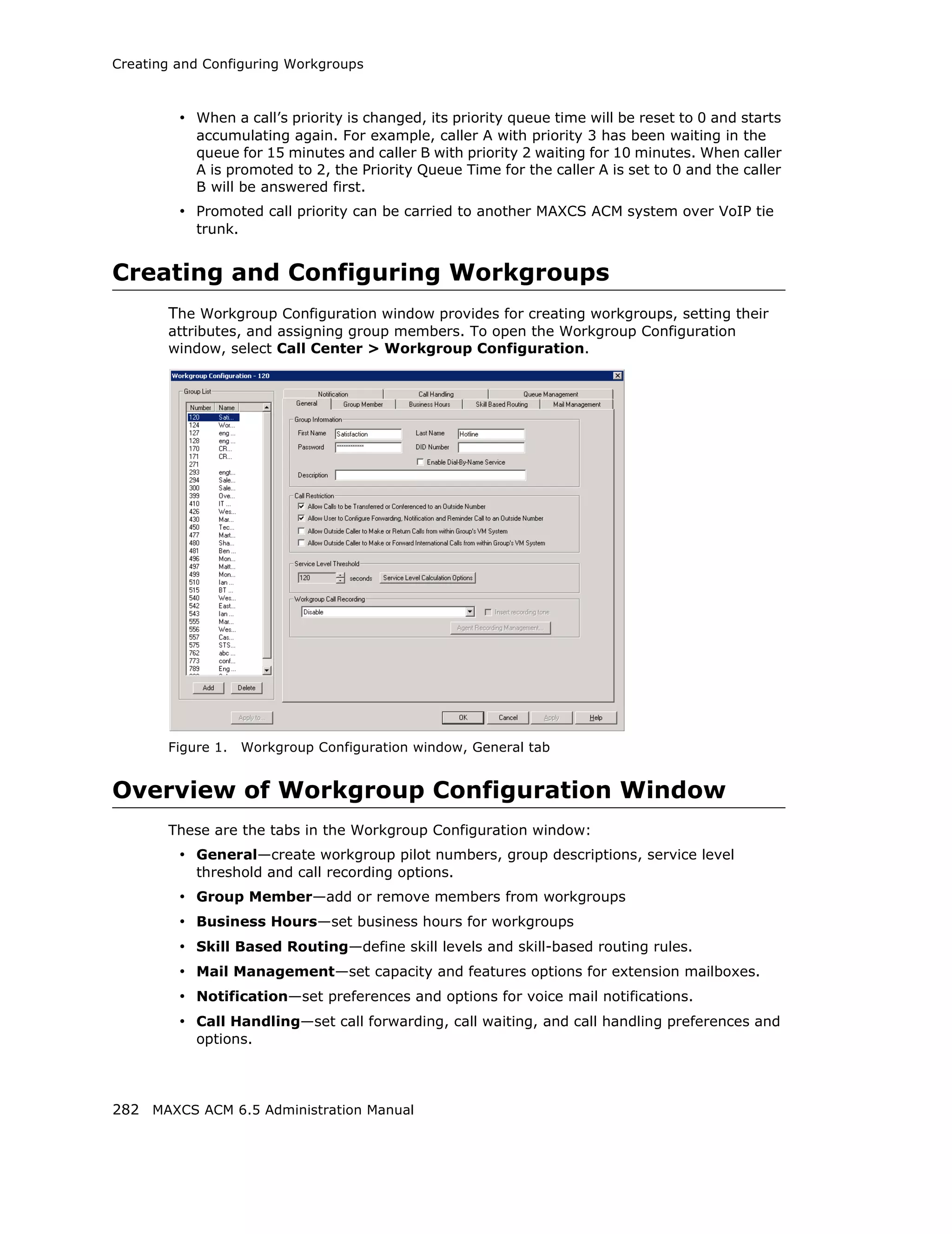
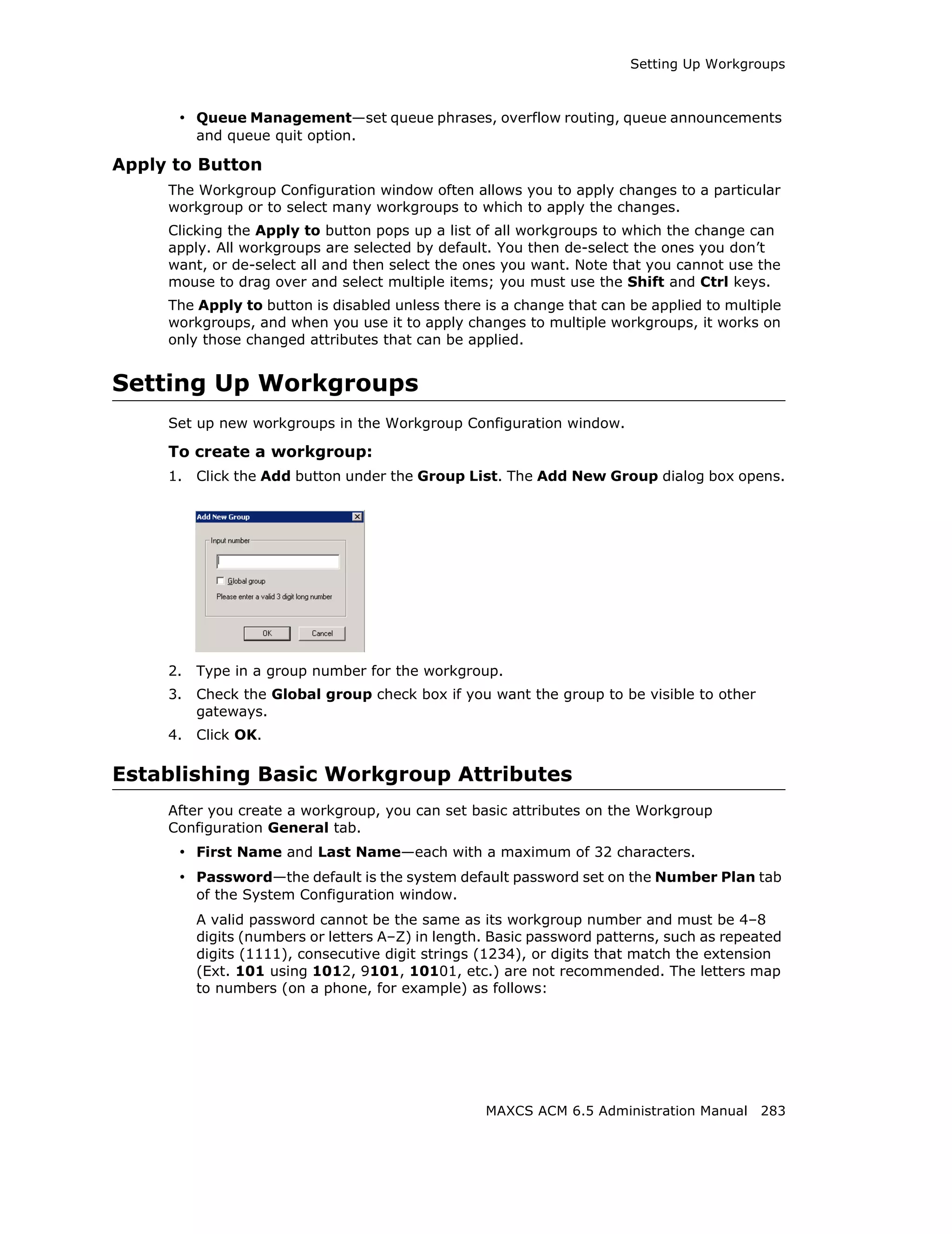
  • 178.
    Configuring the TritonT1/E1 Board Setting PRI Calling Numbers A PRI Calling Number Setting in the bottom half of the Protocol Configuration dialog box lets you set the numbers you want your Carrier to accept. Figure 16. PRI Calling Number Setting Most PRI trunks allow a MAXCS system to send calling numbers. For example, 10 different extensions in the same PBX system have 10 different DID numbers. With the calling number feature provided by Carriers, the callee will receive a more accurate caller ID. PRI Calling Number can also be used in a mobile extension or IP hop-off to PRI trunk, so the callee can receive a more accurate caller ID. When a PRI span is subscribed, a block of DID numbers will be provided by the Carrier. The Carrier should be able to accept Calling Numbers in the DID number block. However, if the numbers are not in the blocks or the digit lengths are mismatched, the Carrier might "reject" the call. The PRI Calling Number Setting addresses this issue. Choose from three options: • Carrier can accept anything as Calling Number (default) • Carrier can only accept Calling Number with a minimum of n digits • Carrier can accept only assigned numbers as the Calling Number. If you select the third option, specify “assigned numbers” by clicking the Add button and entering the numbers. To edit or delete a number you added, select it and click the Edit or Delete button. 164 MAXCS ACM 6.5 Administration Manual
  • 179.
    Configuring the TritonT1/E1 Board If MAXCS detects the Calling Number is not accepted by the Carrier, it will always send the number you enter in the text box at the lower right side of the dialog box as the Calling Number. Enter an appropriate Calling Number in this box. Installing a Channel Service Unit (CSU) This section discusses installing a CSU to the Triton T1 or T1/E1 Board. The channel service unit is a device used to connect a digital trunk line coming in from the phone company to the PBX. A CSU can terminate signals, repeat signals, and respond to loopback commands sent from the central office. A CSU is mandatory for connecting to AltiGen’s T1/E1 board. 1. Connect the CSU (Adtran model T1 CSU ACE used as an example) to the T1/PRI or T1/E1PRI board using an RJ-48C or RJ-48X cable. 2. Connect the CSU to the network termination box using an RJ-48C or RJ-48X cable. Refer to your CSU manufacturer’s AltiGen T1 Socket (RJ-48) manual for the proper pinout. Pin 1=Receive Ring (INPUT) Pin 2=Receive Tip (INPUT) Pin 4=Transmit Ring (OUTPUT) Pin 5=Transmit Tip (OUTPUT) Note: CSUs also are used for line lengths over 75 feet, which helps to resolve attenuation issues. Troubleshooting T1/E1—Common Symptoms The most common problems when installing T1 CAS or T1 PRI services: 1. The service provider misconfigures your T1 CAS/T1 PRI service or terminates your service improperly. 2. T1 is installed but not turned on because there is no termination device for a period of time. 3. T1 is turned on but channel is not in service. MAXCS provides basic troubleshooting information in the T1 Span Configuration window, described in “T1 and E1 Configuration” on page 153. MAXCS ACM 6.5 Administration Manual 165
  • 180.
    Configuring Virtual BoardsSIPSP and H323SP Configuring Virtual Boards SIPSP and H323SP A VoIP connection typically consists of two parts: • Signal Channel—responsible for setting up and tearing down a call using protocol. For example, SIP protocol is used in MAXCS to build a signal channel between the server and the IP phone. • Media Path—responsible for encoding, transmitting, and decoding voice for both parties. For example, when an IP phone user makes a call to an outside number, the voice will be encoded at the IP phone, transmitted to the system via the IP network, decoded by the VoIP codec, and passed to a trunk port so that the external party will hear the voice. The purpose of virtual boards SIPSP and H323SP is to build signal channels for different connection types, IP extensions, SIP Tie Trunks, SIP Trunking from ITSP, and H323 Tie Trunks. Each channel will have its channel ID similar to channels on a Triton extension or trunk board. When an IP phone registers to the system, a channel ID will be assigned to the IP extension. However, these channels are only responsible for processing protocol and call control signals. They require a media path from a VoIP board or from the IP phone to establish a voice steam so that both sides can hear. Notes: • Make sure you have enough VoIP resource boards. • The more signal channels, the more system memory and CPU power required. Proper planning is essential. • Changing the number of signal channels requires that you stop and restart the switching and gateway services. • SIP Trunking Channel requires a license to activate. Configuring the SIPSP Board Double-clicking a SIPSP board in Boards view and then clicking the Board Configuration button opens this dialog box: If you change the number of SIP extension or tie trunk channels, you must stop and restart the switching and gateway services. Figure 17. SIP Signaling Channel Configuration dialog box 166 MAXCS ACM 6.5 Administration Manual
  • 181.
    Configuring Virtual BoardHMCP The number of configured channels and licensed channels are displayed. MAXCS is set by default to support 60 SIP extension channels. You can change the number of SIP extension channels and tie-trunk channels. The maximum number possible depends of the system CPU performance, call volume, and usage. If a high performance machine is used as the Softswitch server, the number of channels can be more than 1000. If you change the numbers in this dialog box, you must shut down and restart the switching and gateway services for this change to take effect. When the services restart, the new configuration appears in the Currently Configured Channels fields. The SIP Trunking Configuration button opens the SIP Trunking Configuration dialog box. (See “SIP Trunk Properties” on page 129.) Configuring the H323SP Board Double-clicking an H323SP board in Boards view and then clicking the Board Configuration button opens this dialog box: If you change the maximum number of trunk channels, you need to reboot the MAXCS system. Figure 18. H323 Configuration You can change the following parameters: • FastStart Enabled: The FastStart Enabled option reduces the number of H.323 messages to be sent between two H.323 devices when initiating a call, thus reducing the time needed to establish a call. There may be a compatibility issue with firewall or NAT devices, if you select this option. • Max Tie-Trunk Channel: Sets the maximum number of trunk channels for this board in increments of 4, from 4 to 96. You need to reboot the MAXCS system after the maximum trunk channel number is changed. Configuring Virtual Board HMCP This section is for a multi-gateway Softswitch with an HMCP media server installation only. A single all-in-one system does not require configuration of this board. Host Media Control Processing (HMCP) is a virtual board that uses an Intel CPU to provide the following functions: 1. Process VoIP Media Stream • Encode, decode, and transcode voice stream • Detect and generate tone for IP devices MAXCS ACM 6.5 Administration Manual 167
  • 182.
    Configuring Virtual BoardHMCP • Play music when device is on hold • Process IP paging 2. Play and Record Voice Files • Announce system and queue phrases • Process auto attendant • Process voice mail • Call recording for IP extensions 3. Provide Conferencing Resources • Station conference • Meet-Me conference • Barge-in/silent monitor/coaching From a deployment point of view, an HMCP media server can be installed in the same Softswitch system sharing the same CPU or can be in a stand-alone server with a dedicated CPU. Notes: • Do not install HMCP service in a system with AltiGen's Triton telephony board. It will cause resource conflict. • Remove the Triton Resource board and MeetMe conference board from OFFICE systems running as a gateway. Station conference, MeetMe conference, and barge- in/silent monitor/coaching will use HMCP voice processing resources when deploying Multi-Gateway Softswitch. • An HMCP Media Server license is required to activate an HMCP virtual board. 168 MAXCS ACM 6.5 Administration Manual
  • 183.
    Configuring Virtual BoardHMCP By default the system grants 60 conference members in a maximum of 40 bridges. You can change the number to as many as 120 members in a maximum of 40 bridges, and you can activate other HMCP resources, by double-clicking an HMCP board in Boards view and then clicking the Board Configuration button to open this dialog box: If you decrease the number of HMCP resources, the system must be rebooted for the configuration to take effect. If you increase the number of resources, the system does not have to be rebooted. You may change the assigned number by entering a different number (up to the number your system is licensed for and not to exceed the maximum limit for each HMCP board) in the Assigned to this board fields and clicking Apply. HMCP Resources—Shows the total number licensed (if applicable), total currently assigned, and the number assigned to this HMCP board for the following resource types: 1. Voice Processing Resources (VPR) 2. Station Conference Members 3. MeetMe Conference Members 4. Agent Supervision Bridges The maximum number of resources that can be assigned to each HMCP virtual board is as follows: • G.711 VPR — 1,000 • G.711/G.723/G.729 VPR — 200 MAXCS ACM 6.5 Administration Manual 169
  • 184.
    Configuring Virtual BoardHMCP • Station Conference Members — 120 • MeetMe Conference Members — 120 • Agent Supervision Bridges — 20 Notes: • 1,000 G.711 voice processing resources will be licensed to the system when one HMCP Media Server license is registered. • The more VPR assigned, the slower the system will be when it starts up. To calculate the optimized number of VPR you need, use the following formula: Total G.711 VPR = Total number of extensions X 2 Total G.711/723/729 VPR = Total number of remote IP phone users + Total Tie Trunk Channels that will use compressed codec • Adding HMCP licenses or changing assigned numbers does not require restarting the AltiGen switching service. • In the event that you need to decrease the assigned numbers of HMCP resources (reassigned to the second HMCP server, for example), the system must be rebooted for the configuration to take effect. Parameters in IP Header—QoS and TTL assignments. QoS assignment—IP TOS/DiffServ Byte Value. The default TOS/DiffServ byte hex value "A0" (10100000) signals the network switch and router that RTP packets are "Critical". To set the value for Diffserv Code Expedited Forwarding (DSCP EF), you can enter hex value "B8" (10111000). TTL assignment—for IP paging multicasting only. The purpose of the TTL (Time To Live) is to regulate how many hosts the IP paging packets can pass through. The TTL value is reduced by one on every hop. You may need to adjust this value if there are remote IP phones at different locations that register to MAXCS through WAN and require the IP paging feature. The value will be the number of routers from MAXCS to remote IP phone plus one. Assign HMCP Resources to IP Extensions After you configure the HMCP board, you need to configure extensions to use the HMCP voice processing, conferencing, and recording resources. In Extension Configuration > General > IP Extension panel, change the Home Media Server ID to the HMCP Media Server ID if necessary. Please refer to the following scenarios. Scenario 1 - HMCP Media Server inside Softswitch Server For fewer than 200 users, you may consolidate the Softswitch and HMCP into one server as shown below. 170 MAXCS ACM 6.5 Administration Manual
  • 185.
    Configuring Virtual BoardHMCP The IP extension Home Media Server ID should be assigned to "00" by default. You do not need to change this number since both Softswitch and HMCP Media server are in the ID "00". Scenario 2: Single Standalone HMCP Media Server For 200 to 1,000 users without an extensive amount of recording resources, fewer than 200 concurrent recording sessions, you may deploy a stand-alone HMCP Media server as shown below. MAXCS ACM 6.5 Administration Manual 171
  • 186.
    Configuring Virtual BoardHMCP The Home Media Server ID should be changed to "01" for all IP extensions, assuming HMCP Media server is using ID 01. Scenario 3: Multiple HMCP Media Servers For 500+ PBX users or 200+ call center agent installations that require more than 200 recording sessions, you may deploy multiple HMCP Media servers to achieve load balancing and failover protection. The following example shows two HMCP media servers to provide up to 2,000 G.711 VPR, 400 compressed codec, and 240 members of Station or MeetMe conferencing. To achieve load balancing, you need to divide and assign IP extensions to different Home Media Server IDs. The following guidelines may help you make decisions when assigning IP extensions to different Home Media Server IDs. • Equally divide the IP extensions that require centralized recording and assign them to different HMCP Media servers. • Equally divide the remote works who connects to system using G.723/G.729 and assign them to different HMCP Media servers. • For the remaining IP extensions, assign extensions in a department in the same Media server. 172 MAXCS ACM 6.5 Administration Manual
  • 187.
    Configuring Virtual BoardHMCP If you have two or more HMCP Media servers, the system will provide failover in the event that one Media server is off-line. When the Home Media server for an IP extension is not available, the media manager in the system will search available resources from other Media servers when that extension requests media service. This will happen atomatically (no configuration required) and dynamically (the resource may come from a different Media server each time that extension requests a media resource). MAXCS ACM 6.5 Administration Manual 173
  • 188.
    Configuring the MAX1000/2000Board Configuring the MAX1000/2000 Board The MAX1000/2000 Server is a telecom appliance that consists of an embedded DSP board and two access board slots. MAXCS treats the entire MAX system as one board with two access board options. The Boards window displays the name of the MAX board, followed by [xxyy(-T1),xxyy]: Figure 19. Boards View showing MAX board xx refers to the number of analog trunks, and yy refers to the number of analog extensions. If an access board has a T1/E1 port, -T1 is added to the end. In the Boards window, double-click the MAX 1000/2000 board to open the main Board Configuration window: Figure 20. Board Configuration window The Channel Group Info panel shows the channel groups (groups of channels that belong to the same type). For example, if one 4x4xT1 access board and one 4x8 access board are installed in the MAX 1000/2000 main board, there will be three channel groups for the 4x4xT1 card, and two channel groups for the 4x8. When one of the channel groups is selected, the Channel Mapping List reflects the selection. • Double-clicking a T1/E1 channel group opens the channel group configuration dialog box. For information on configuring in this dialog box, see “T1 and E1 Configuration” on page 153. This is available on T1 or E1 channel groups only. • In the channel group configuration dialog box, click the Protocol button to open the Protocol Configuration dialog box. For information on configuring protocol, see “Setting up Channels on the Triton T1/E1 Board” on page 157. 174 MAXCS ACM 6.5 Administration Manual
  • 189.
    Configuring the VirtualMobileExtSP Board Double-clicking a channel in the Channel Mapping List opens the appropriate configuration dialog box for that channel. • For information on configuring the T1/E1 trunk, see “Triton T1/E1 Trunk Properties” on page 133. • For information on configuring the Triton Analog Trunk, see “Triton Analog Trunk GS/ LS Properties” on page 136. • For information on configuring a Triton Analog Line, see “Triton Analog Station Line Properties” on page 202. In the main Board Configuration dialog box for the MAX 1000/2000 board (see Figure 20 on page 174) clicking the Board Configuration button opens the following dialog box. Figure 21. MAX 1000/2000 Board Configuration window This dialog box displays the board serial number, top access card serial number, bottom access card serial number, DSP clock, board ID, physical ID, and logical ID. You can choose to configure the board as either T1 or E1, then click OK. Additional steps are needed to further configure the CAS or PRI protocol in the Protocol Configuration window, shown in Figure 9 and Figure 10. Configuring the Virtual MobileExtSP Board A simulated physical board—MobileExtSP board—is created in the Softswitch server when you install the MAXCS system. This single MobileExtSP board handles all mobile extensions, including those located in other gateways in a multi-gateway system. Configuring the virtual MobileExtSP board is discussed on page 248 in the chapter “Mobile Extension Configuration.” MAXCS ACM 6.5 Administration Manual 175
  • 190.
    Configuring the VirtualMobileExtSP Board 176 MAXCS ACM 6.5 Administration Manual
  • 191.
    CHAPTER 13 In Call Routing Configuration In Call Routing rules determine how the system routes incoming trunk calls to various targets. The system’s routing steps are as follows: Step Routing Process 1 Match DID number configured in extension, workgroup, or hunt group. If there is no match, go to the next step. 2 Match caller ID defined in the Caller ID Routing table. If there is a match and • today is a holiday, route the call according to the Holiday Profile’s routing rules. • today is not a holiday, route the call according to business hour routing rules defined in the Caller ID Routing configuration. If there is no caller ID match, go to the next step. 3 Match DNIS number defined in the DNIS Routing table. If there is a match and • today is a holiday, route the call according to the Holiday Profile’s routing rules. • today is not a holiday, route the call according to business hour routing rules defined in the DNIS Routing configuration. If there is no DNIS number match, go to the next step. 4 If today is a holiday, route the call according to the Holiday Profile configured for the trunk port that the call is coming in on. If today is not a holiday, route the call according to the business hours routing rules defined in the In Call Routing tab of the Trunk Configuration window. The In Call Routing Configuration window lets you enter Caller ID and DNIS numbers into a routing table and set routing rules for a matched number. To configure In Call Routing, select PBX > In Call Routing Configuration. MAXCS ACM 6.5 Administration Manual 177
  • 192.
    Caller ID Routing CallerID Routing When an incoming call comes through a trunk with Caller ID, the system can route the call to the proper extension, to the auto attendant, or to the operator, based on the Caller ID number collected. In order to locate an entry in the Caller ID table for an incoming call, a full match is required. To access Caller ID routing, click the Caller ID Routing tab in the In Call Routing Configuration window. Figure 1. In Call Routing window, Caller ID Routing tab Adding and Deleting Caller ID Route Entries To add entries to the Caller ID routing table, click the Add button. In the dialog box that appears, type in a Caller ID Number and a descriptive Caller ID Name, then click OK. The number and name entries have the following requirements: • The Caller ID Number field allows only 0-9, “-” (hyphen), and “*” (asterisk). For example, both 5102529712 and 510-252-9712 are acceptable. • The Caller ID Name is descriptive and optional; it can be used to remind you about the nature of the number and routing. For example, you might give the 2529712 number the name “Tech Support.” To delete an entry, select it in the Caller ID number list, then click Delete. 178 MAXCS ACM 6.5 Administration Manual
  • 193.
    DNIS Routing Defining CallerID Routing After adding an entry, you define it by first selecting it in the list. When you select an entry, its name and other defined attributes, if any, appear in the fields of the tab. You can edit any of these attributes. For each number, you can set routing for three distinct time periods defined in the Business Hours tab (see “Setting Business Hours” on page 54): • During Business Hours • Outside Business Hours • Non Workdays Within each of these three time slots, you have the following routing options for incoming calls: • Route to a particular extension selected in the drop-down list • Route to a particular auto attendant selected in the drop-down list • Route to the operator • Reject call Also, you can set additional routing attributes based on: • Holiday Profile—routes incoming calls based on Holiday Profiles configured in System Configuration (see “Routing Calls on Holidays” on page 55) • Business Hours Profile—routes incoming calls based on Business Hours Profiles configured in System Configuration (see “Setting Business Hours” on page 54). During Business Hours, Outside Business Hours and Non Working Day are defined and selected by Business Hours profile. • Set Call Priority—lets you assign a call priority from 1-9 to the selected caller ID number. The highest priority is 1, the lowest priority is 9. • Set Call SKLR—for workgroup-directed calls. Lets you assign a skill level requirement from 1-9 to the selected caller ID number. This setting tells the system to match the call to an agent’s skill level setting. (Setting an agent’s skill level is explained in “Setting Up Skill Based Routing” on page 291.) • Language Setting—lets you specify that callers who dialed from the selected caller ID will hear prompts in the language you set here. This field will have choices only if you added sets of prompts according to the instructions in “Multilingual Configuration” on page 101. DNIS Routing When an incoming call comes through a trunk with DNIS or DID numbers, the system can route the call to the proper extension, auto attendant or operator based on the DNIS or DID number collected. In order to locate an entry in the DNIS table for an incoming call, a full match is required. To access DNIS routing settings, click the DNIS Routing tab in the In Call Routing Configuration window. MAXCS ACM 6.5 Administration Manual 179
  • 194.
    DNIS Routing Figure 2. In Call Routing window, DNIS Routing tab Adding and Deleting DNIS Route Entries To add entries to the DNIS routing table, click the Add button. In the dialog box that appears, type in a DNIS Number and a descriptive DNIS Name, then click OK. The number and name entries have the following requirements: • The DNIS Number must be the numbers 0–9 (the hyphen is not accepted in this dialog box). For example, 2529876 is an acceptable entry, but 252-9876 is not. • The DNIS Name is descriptive and optional; it can be used to remind you about the nature of the number and routing. For example, you might give the 2529876 number the name “Tech Support.” To delete an entry, select it in the DNIS number list, then click Delete. Defining DNIS Routing After adding an entry, you define it by first selecting it in the list. When you select an entry, its name and other defined attributes, if any, appear in the fields of the tab. You can edit any of these attributes. For each number, you can set routing for three distinct time periods defined in the Business Hours tab (see “Setting Business Hours” on page 54): • During Business Hours • Outside Business Hours • Non Workdays 180 MAXCS ACM 6.5 Administration Manual
  • 195.
    DNIS Routing Within eachof these three time slots, you have the following routing options for incoming calls: • Route to a particular extension selected in the drop-down list • Route to a particular auto attendant selected in the drop-down list • Route to the operator Also, you can set additional routing attributes based on: • Holiday Profile—routes incoming calls based on Holiday Profiles configured in the System Configuration window (see “Routing Calls on Holidays” on page 55) • Business Hours Profile—routes incoming calls based on Business Hours Profiles configured in the System Configuration window (see “Setting Business Hours” on page 54). During Business Hours, Outside Business Hours and Non Working Day are defined and selected by the Business Hours profile. • Set Call Priority—lets you assign a call priority from 1-9 to the selected DNIS number. The highest priority is 1, the lowest priority is 9. • Set Call SKLR—for workgroup-directed calls. Lets you assign a skill level requirement from 1-9 to the selected DNIS number. This setting tells the system to match the call to an agent’s skill level setting. (Setting an agent’s skill level is explained in “Setting Up Skill Based Routing” on page 291.) • Language Setting—lets you specify that callers who dialed the selected number will hear prompts in the language you set here. This field will have choices only if you added sets of prompts according to the instructions in “Multilingual Configuration” on page 101. MAXCS ACM 6.5 Administration Manual 181
  • 196.
    DNIS Routing 182 MAXCSACM 6.5 Administration Manual
  • 197.
    CHAPTER 14 Out Call Routing Configuration There are two ways to initiate outbound dialing in an AltiGen PBX: • Using the trunk access code The trunk access code is easy to configure and use. However, it does not have the capability to resolve complicated dialing situations. • Using the route access code Using the route access code with the Out Call Routing table can resolve the following complicated dialing situations: – Multiple 10-digit dialing area codes. – Both 10-digit and 11-digit dialing in the same area code. – Multiple carriers providing trunks for different purposes. For example, you may have a local carrier provide trunks for local calls only and a long distance carrier provide trunks that can accept only long distance dialing. – Block certain dialing patterns by creating an exceptions list. – Assist VoIP hop-off dialing to another system. – Assist T1/PRI tie trunk hop-off to other system. – Assist system Zoomerang and client application dialing, for example, MaxCommunicator and MaxAgent. For example, dialing from MaxCommunicator will carry 11 digits and require the system to remove a digit before making a call to the carrier if it is a 10-digit dialing area. – Divide trunks with the same characteristics into multiple routes and prioritize them when assigning routes on the Default Routes tab or on the Dialing Pattern tab of the Out Call Routing Configuration window. When a user dials an outside number using the route access code, the system performs the following tasks: • Compares the dialed number with entries in the Dialing Pattern table. If there is a match, the system uses the route assigned to the dialing pattern to make the outbound call. The route assigned to the special dialing pattern may have a digit manipulation rule to add or remove digits from the dialed number. • If there is no match in the Dialing Pattern table, the system examines the digits to determine if the call is a local, long distance, international, or emergency call. The routes defined in the Default Routes tab are used to process the call. MAXCS ACM 6.5 Administration Manual 183
  • 198.
    Configuring Out CallRouting Configuring Out Call Routing To configure out call routing, select PBX > Out Call Routing Configuration. The following configuration steps may help you configure out call routing correctly. 1. Before you configure Out Call Routing, make sure a route access code is configured in the System Configuration window, Number Plan tab. If you have a problem changing a first-digit assignment in the Number Plan tab to a route access code, you may need to set the Access Code in the Trunk Configuration window for all trunks to None. 2. Create a route and assign trunks to the route. Typically, different types of trunks will be grouped to different routes. For example, you may need to create a local route for local trunks, a long distance route for long distance trunks, and a VoIP route for IP trunks. 3. Assign routes as Default Routes so that regular 7-digit, 11-digit, international, and emergency calls will go through. 4. Solve a complicated dialing situation by adding an entry into the Dialing Pattern table and assigning a route to the specific dialing pattern. 5. If the dialing pattern requires adding or removing digits, you may need to edit the Digit Manipulation on the Route Definition tab to solve the problem. Repeat steps 4 and 5 until all complicated dialing patterns are entered and configured properly. 6. If a dialing pattern will use another system's trunk to hop-off, you may need to create a VoIP or T1/PRI tie trunk route and configure digit manipulation to indicate which system to hop-off to and how to tell another system that this is a hop-off dialing by adding a trunk access code or route access code in the dialing stream. 7. If you would like to block a specific dialing pattern, add the dialing pattern and check Disallow this dialing pattern check box. WARNING! Make sure the default 911 route is configured to a route that can accept 911 calls. (See Figure 2 on page 187.) Failure to do so may cause failure of direct 911 dialing. If you do not want a user to call 911 directly because of too many 911 dialing errors, you can leave the 911 route not configured. In this case, you need to let all extension users know that they need to dial 9+911 to call emergency service. A proper warning sticker on the phone to notify employees about 9+911 dialing would be a good practice. Some configuration examples are provided at the end of the chapter. Please use them as a reference to help you configure your dialing pattern correctly. 184 MAXCS ACM 6.5 Administration Manual
  • 199.
    Configuring Out CallRouting Working with Route Definitions A route definition consists of a route name and group of trunks, listed in the order that the system will use for outgoing calls. Figure 1. Out Call Routing Configuration, Route Definition tab Parameter Description Route Index For identification purposes only. Route Name Description of the route (maximum 30 characters). Digit Manipulation You can insert or delete digits from the dialed number. See configuration samples to learn how to use digit manipulation in different situations. Insert to Head: Insert a string of digits in front of the dialed number. Delete from Head: Remove a string of digits from the beginning of the dialed number. Member Trunks Displays the trunks assigned to the selected route. The order in which member trunks are added determines the order in which the trunks are used by the system when making an outbound call (the first trunk listed is used first, and so forth). Not Member Displays all trunks that are not assigned to the selected route. MAXCS ACM 6.5 Administration Manual 185
  • 200.
    Configuring Out CallRouting To create a route 1. Click Add under the route definition list. The Add an entry dialog box appears: 2. Type in a name and index number, and click OK. 3. To add trunks to the route, select trunks from the Not Member list and use the button to move selected trunks to the Member Trunks list. 4. Use the Up and Down buttons to change the position of a trunk in the Member Trunks list. This is the order in which trunks are accessed. 5. Click Apply. To delete a route Select the route you want to delete, and click the Delete button. Setting Default Routes You can set default routes for four types of outgoing calls: local, long distance, international, and emergency. WARNING! It is important that you set up default routes right after routes are defined. Failing to do so will cause outbound dialing failure. 186 MAXCS ACM 6.5 Administration Manual
  • 201.
    Configuring Out CallRouting Click the Default Routes tab in the Out Call Routing Configuration window to configure default routes. For each type of call, the system will use trunks specified in the “1” field, if available, otherwise use trunks in the “2” field, and so on. Figure 2. Out Call Routing Configuration, Default Routes tab The above configuration means: • The system has a group of analog trunks and a T1 digital trunk from a local carrier that can accept local and emergency calls. • The system has a T1 digital trunk from a long distance carrier that can only accept long distance calls. • The administrator segmented local trunks into two routes, "Local Analog" and "Local T1". A "Long Distance T1" route is created for the T1 from the long distance carrier. • When a user makes a local call, the administrator wants the system to use local T1 trunks first. If local T1 trunks are busy, then the system uses local analog trunks. • When a user makes an emergency call, the administrator wants the system to dial out from local analog trunks first. If local analog trunks are busy, the system uses the local T1 trunk. Working on Dialing Patterns If your system is using a route access code, most likely you have one of the following situations: • Your area may have multiple 10-digit dialing area codes. • Your area may have both 10-digit and 1+10 digit dialing in a same area code. • Your system needs to borrow another system's trunk to make an outbound call over an IP or tie trunk. MAXCS ACM 6.5 Administration Manual 187
  • 202.
    Configuring Out CallRouting • You would like to block a dialing pattern in addition to system restriction setting. Dialing patterns are exceptions. If you can, minimize the number of dialing pattern entries. Most companies don’t need to create dialing patterns. To create a dialing pattern 1. Click the Dialing Pattern tab on the Out Call Routing Configuration window. Figure 3. Out Call Routing Configuration, Dialing Pattern tab 2. Click the Add button. The following dialog box appears: 3. Type in the prefix and pattern length, and click OK. 4. Assign routes to this prefix by selecting routes from the drop-down lists in the Route Priority section of the Dialing Pattern tab. 5. If this is a restricted number or pattern, skip step 4 and check the Disallow this dialing pattern check box. To delete a dialing pattern Select the pattern you want to delete, and click the Delete button. 188 MAXCS ACM 6.5 Administration Manual
  • 203.
    Configuring Out CallRouting Dialing pattern configuration tips • If a dialing pattern has multiple routes assigned to it, the system will try to use the first route configured to process the call that has this dialing pattern. If the first route is busy or not in service, the system will use the second route, and so on. • If a dialing pattern requires the system to add or remove digits, a route with digit manipulation configuration needs to be set up correctly. This means that you may need to have the same group of trunks belong to different routes. Each route may have a different digit manipulation rule. • If you are using dialing pattern to restrict outgoing calls, you need to be aware of the following system implementations: – The system first checks to see if the number is blocked for this extension (a setting in the Extension Configuration window, Restriction tab). – The system then checks the System Configuration Call Restriction tab settings to see if this number is blocked by the system. – The system then checks the Dialing Pattern configuration, and if a specific number or pattern is not blocked, the system will dial the number through a proper route. In other words, if extension and system call restrictions are not blocking a number or pattern, you can use Out Call Routing to build restriction rules to block numbers or patterns. MAXCS ACM 6.5 Administration Manual 189
  • 204.
    Configuring Out CallRouting Configuration Example - Solving 10-digit Dialing Situation: Company ABC located in Dallas, area code 214, has one PRI circuit from the local carrier. Both 214 and 972 area codes are local 10-digit dialing area codes. The carrier will reject the call if the system dials 1214 or 1972 when dialing a local call. Configuration Steps: 1. Create a route to include all the T1 channels. 2. Apply the route to Default Routes. 190 MAXCS ACM 6.5 Administration Manual
  • 205.
    Configuring Out CallRouting 3. On the Dialing Pattern tab, add two dialing patterns: “1214” and “1972”, each with a pattern length of 11. 4. Define a route called “10-digit Dialing” and add all T1 channels to the route. In the “Digit Manipulation” section, check the first box, select Delete from Head, and delete 1 digit: 5. Apply the “10-digit Dialing” route to dialing pattern 1214 and 1972: MAXCS ACM 6.5 Administration Manual 191
  • 206.
    Resolving Dialing Delayfor Non-USA/Canada Countries Resolving Dialing Delay for Non-USA/Canada Countries When installing the AltiGen system outside of North America, you may experience dialing delay when dialing through E1/PRI trunks that are using en-bloc (buffering digits and sending all digits at once). The system dialing logic may cause a 7-second inter-digit dialing delay for en-bloc trunks. To reduce the dialing delay, the following configuration is recommended: 1. On the Number Plan tab in the System Configuration window, select a digit for route access. 2. On the Route Definition tab of the Out Call Routing Configuration window, add a route definition entry for en-bloc and assign the member en-bloc trunk(s). 192 MAXCS ACM 6.5 Administration Manual
  • 207.
    Resolving Dialing Delayfor Non-USA/Canada Countries 3. On the Dialing Pattern tab of the Out Call Routing Configuration window, add dialing pattern definition entries for the following prefixes: • prefix = 0, length = 11 • prefix = 00, length = 14 • prefixes = 1-9, each length = 7 In the Route Priority field, use the drop-down list to select the En-Bloc route definition (assigned in step 2). The Dialing Pattern tab should look as follows: With this configuration, the system will see that all digits have been collected and will send digits to the CO, instead of waiting 7 seconds for the dialing to finish. MAXCS ACM 6.5 Administration Manual 193
  • 208.
    Resolving Dialing Delayfor Non-USA/Canada Countries 194 MAXCS ACM 6.5 Administration Manual
  • 209.
    CHAPTER 15 Extension Configuration The Extension Configuration window provides for creating extensions and setting their attributes. To open the Extension Configuration window, do one of the following: • Click the Extension Configuration button on the toolbar. • Select PBX > Extension Configuration. Note: To set up an application extension, see “Application Extension Configuration” on page 117. To set up an IP extension, see “Setting Up IP Extensions” on page 225. To set up a mobile extension, see “Mobile Extension Configuration” on page 247. Figure 1. Extension Configuration window MAXCS ACM 6.5 Administration Manual 195
  • 210.
    Setting up Extensions There are three types of extensions: • Physical Extensions are associated with a physical port and device, usually a telephone set. This is what most users think of as an extension. • Virtual Extensions are not associated with a physical port. Virtual extensions can be used as message mailboxes and in telephone sharing environments. Users of a virtual extension can log in on any available station to access physical extension features using Feature Codes. • IP Extensions are generally associated with an AltiGen IP phone. The option is unavailable when the Enable IP Extension option is not checked. When Enable IP Extension is checked, it will allow the AltiGen IP phone to log on as an IP extension. About the Apply To Button A change you make to an extension can often be applied to one or more other extensions by using the Apply To button. Clicking the Apply To button pops up a list of all extensions to which the change can apply. Select the extensions to which you want to apply the change (all are selected, by default). Use the Shift or Ctrl keys to select several extensions. The Apply To button is disabled unless a change you made can be applied to other extensions. When you use the button to apply changes to multiple extensions, it works on only those changed attributes that can be applied. Setting up Extensions Set up new extensions in the Extension Configuration window. To add an extension: 1. Click the Add button below the Agent/Supervisor/Extension list. The Add New Extension dialog box opens. 2. Type in an Extension Number. The number must begin with a number assigned to be used for extensions, and it must be the length assigned to extensions, both of which are set on the Number Plan tab in the System Configuration window, as described in “Setting a System Number Plan” on page 48. 3. If you have a multi-site setup, with multiple MAXCS systems connected over IP, a VoIP domain is created in the Enterprise configuration. If you want to publish the 196 MAXCS ACM 6.5 Administration Manual
  • 211.
    Setting up Extensions extension to all MAXCS systems within the VoIP domain, check the Global Extension check box. “(Global)” will be displayed beside the extension’s type in the Agent/Supervisor/Extension list. No configuration is needed on other MAXCS systems on behalf of this extension. These are the benefits of making an extension a Global extension in a multi-site installation: • A user from any system only has to dial the Global Extension number, and MAXCS will resolve the routing through the VoIP domain setting. • Any user within the VoIP domain can forward voice mail to this Global extension. • The client applications MaxCommunicator and MaxAgent can see this Global extension number even it is not an extension in the local system. 4. Select the Type of extension from the two options, Physical or Virtual. Unless this is an analog extension and you know the GatewayID/BoardID/Channel number, creating a new extension as a virtual extension is recommended. You can activate the extension from an analog or IP phone by using #27+password to log in. The system will determine the Gateway ID, Board ID, channel number, or IP address automatically. 5. Depending on the type of extension you’re creating, take one of the following actions: • If you’re setting a virtual number, you’re done. Click OK. • If you’re setting up a physical extension, select an available physical location— gateway, board and channel for the line—then click OK. The board ID and the channels (the ports) are displayed and available if they have not yet been assigned to an extension. Use the Next and Prev buttons in the Location section to select a location. After you create an extension, you can set basic attributes on the Extension Configuration General tab. These attributes are discussed below. Setting Personal Information The top section of the General tab is for Personal Information: • First Name and Last Name of the extension user, each with a maximum of 32 characters. Note: Only letters can be used for these fields. Inputting numbers or symbols (such as “#”, “*”, “/”, “-” are blocked, so as not to conflict with Dial by Name (#34) and other feature codes. • Password for the extension user. The default is the system default password set on the Number Plan tab in the System Configuration window. A valid password must be 4 to 8 digits (numbers or letters A-Z) in length and cannot be the same as its extension number. Basic password patterns, such as repeated MAXCS ACM 6.5 Administration Manual 197
  • 212.
    Setting up Extensions digits (1111), consecutive digits strings (1234), or digits that match the extension (Ext. 101 using 1012, 9101, 10101, and so on) are not allowed. The letters map to numbers as follows: Numbers Letters Numbers Letters 2 A, B, C, a, b, c 6 M, N, O, m, n, o 3 D, E, F, d, e, f 7 P, Q, R, S, p, q, r, s 4 G, H, I, g, h, i 8 T, U, V, t, u, v 5 J, K, L, j, k, l 9 W, X, Y, Z, w, x, y, z • Department—In an Enterprise VoIP domain, departments can be defined and extensions can be assigned to a department by using Enterprise Manager. When this is done, the department is displayed here. • Description—Optional descriptive information such as cubicle number or job title. • DID Number—Each extension can be assigned a DID number. This number does not have a fixed length, but the length must be long enough (range 2–16) for the system to match the DID incoming call. If you configure a 10-digit DID number and inbound digital trunks only receive 4 digits, the last 4 digits of the DID number configured will be matched. • Transmitted CID—Each extension number can be assigned a caller ID number. When an outgoing call is made by this extension through PRI or IP trunks, the caller ID number entered in this field will be transmitted to the receiving caller. When an extension user makes an outbound call through a PRI trunk, the system will transmit the Caller ID based on the following rules: • If the Transmitted CID is configured, the number will be sent. • If the Transmitted CID is not configured, the DID number will be sent if it is a valid 10-digit number. • If the DID number is not configured or not valid, the Area Code and Phone Number entered in the Trunk Configuration window will be sent. • If the Area Code and Phone Number are not configured in the Trunk Configuration window, the System Main Number in the System Configuration window will be sent. Note: These rules may be overridden by your PRI CID configuration or the SIP Trunk Profile you’re using. • E911 CID—A number entered in this field will be transmitted as the caller ID for 911 calls made by this extension. Note: If a number is not entered in the E911 CID field, the Transmitted CID is transmitted as the caller ID for 911 calls made by this extension. • Language—Sets the language the extension user will hear for voice mail and system prompts. If voice mail and system phrases have been translated into other languages and properly added to the C:PostOfficePhrases directory, the languages will be selectable from the Language drop-down list. (See “Multilingual Configuration” on page 101 for information on adding translated prompts to the MAXCS system). 198 MAXCS ACM 6.5 Administration Manual
  • 213.
    Setting up Extensions • Feature Profile—Sets an extension feature profile that includes enabling or disabling of extension features. The feature profile must first be configured by the administrator on the Feature Profiles tab of System Configuration (see “Feature Profiles” on page 77). • A feature profile assigned to an IP phone should have #26 enabled. • Enable Dial-By-Name—Select this box to allow incoming callers to search the extension list by employee name for this extension. • Enable Intercom—Select this box to enable the intercom call feature for this extension. Pressing #93 allows the user to make an intercom call to another intercom-enabled extension. Note: Intercom is available for extensions on Triton Analog Extension Boards and AltiGen IP Phone Extensions. • Agent - Allows the extension to be added as a member of one or multiple hunt groups or workgroups. “(Agent)” will be displayed in the extension’s Type field, next to the extension type. Account Code These settings determine how callers use any account codes you have established when making outgoing trunk calls. For information on creating account/code associations, see “Creating Account Codes” on page 62. • Enable Forced Account Code—Forces the user to enter an account code. • Override Allowed—Prompts the user to enter an account code, or the user can press # to bypass the account code. • Account Code Validation—Forces the user to enter a valid account code. • For Long Distance Call Only—The system determines if an outgoing call starts with a long distance or international prefix. If it does, the call will require an account code. • Block Account Code Display—The account code table will not be displayed when the user tries to tag the account from MaxCommunicator and MaxAgent. This prevents the user from seeing account codes they do not need to see. MAXCS ACM 6.5 Administration Manual 199
  • 214.
    Setting up Extensions CallRecording Options The system administrator can specify the following non-workgroup call recording options for an agent extension: WARNING! Listening in to or recording a conversation without the consent of one or both parties may be a violation of local, state, and federal privacy laws. It is the responsibility of the users of this feature to assure they are in compliance with all applicable laws. License Assignment • Concurrent Session—When this extension is in recording state, a recording license is consumed; otherwise, a recording license is not being consumed by this extension. • Dedicated Seat—Assigns this extension a recording license for its exclusive use. The license is consumed whether or not the extension is recording. Recording Options for Non-Workgroup Calls • Disable—No recording of non-workgroup calls. • Auto record to central location—Records all non-workgroup calls, which are saved to a centralized location (defined in System > Recording Configuration – see “To Enable and Configure Centralized Recording” on page 110); this option requires either a shared Concurrent Recording Session license or a Dedicated Recording Seat license to be available. • Record on demand to central location—Records non-workgroup calls on demand, which are saved to a centralized location (defined in System > Recording Configuration – see “To Enable and Configure Centralized Recording” on page 110); this option requires either a shared Concurrent Recording Session license or a Dedicated Recording Seat license to be available. • Record on demand to extension VM—Records non-workgroup calls on demand, which are saved to the extension’s voicemail box. No license is required for this option. If the recording file size is larger than the mailbox size set for the extension, the recording file is discarded. The administrator should assign a large enough mailbox size to this extension. (The mailbox size setting is on the Mail Management tab.) Note: The recorded file will not be forwarded to e-mail as an attachment even if mail forwarding is enabled to forward voice mail to e-mail. • Record X out of 10 calls—If recording to a central location, automatically records all incoming non-workgroup calls at a specified interval for every 10 calls. Group calls are not recorded. For example, if you set to record 4 out of 10 calls, the 1st-4th and 11th-14th, and so on, will be recorded. The shaded calls will be recorded in the following example: 200 MAXCS ACM 6.5 Administration Manual
  • 215.
    Setting up Extensions Recording Tone • Disable—No tone is played during a recording. • Insert tone before recording—Plays one recording beep to alert the parties that the conversation is being recorded. • Insert repeating recording tone—Plays a low-volume background beep every 15 seconds to alert the parties that the conversation is being recorded. The tone is recorded together with the conversation. The beep does not disrupt the conversation. Note: • The recording session starts when the call enters the connected state and ends when hang up or flash is pressed, or when the call is transferred. • Except for license assignment, the recording setting in Extension Configuration only applies to non-workgroup calls. The recording setting in Workgroup Configuration only applies to workgroup calls. To allow an agent to record all calls (non-workgroup and workgroup), both recording settings must be enabled. Physical Location and Type You can change the extension’s type and location. Changing the Type The type of extension—physical or virtual—is set when you create the extension. After you create the extension, the type is displayed in brackets in the Agent/Supervisor/ Extension list on the left side of the Extension Configuration window. You can change a Virtual extension to a Physical one, and vice versa. If you change the type to physical, you can also set the location and configure the line as discussed in the “Setting the Line Properties” on page 202. For information about IP extension configuration, see “Setting Up IP Extensions” on page 225. Assigning a Location to a Physical Extension When changing a virtual extension to a physical extension, the Location parameters are available. If you know which board and channel this extension is wired to, you can use the Prev and Next buttons to select the correct board and channel number for this physical extension. MAXCS ACM 6.5 Administration Manual 201
  • 216.
    Setting up Extensions Changing the Location To change the location of a physical extension, select the extension number in the list of extensions, then click the Prev or Next buttons to change the board and channel settings until the location you want is displayed. Like other changes, this change isn’t finalized until you click Apply. Setting the Line Properties For a physical extension, you can configure hardware options on the port used for the extensions. To do so, select the extension number in the list of extensions, then click the Line Properties button to open a dialog box that is specific to the board used for the extension. Triton Analog Station Line Properties If you select a Triton Analog Station Board extension and click the Line Properties button, you’ll see the Triton Analog Station Line Properties dialog box. You can also access this window by double-clicking a span in Channel Mapping List of the Triton Analog Station Board configuration window. Figure 2. Triton Analog Station Line Properties dialog box 202 MAXCS ACM 6.5 Administration Manual
  • 217.
    Setting up Extensions Configurethe following hardware extension-specific features: Parameter Description Caller ID Signal Message format with which to send Caller ID Format information: • None • SDMF—Single Data Message Format for supporting and sending a single data type, such as phone numbers. • MDMF—Multiple Data Message Format for supporting and sending multiple data types, such as name and number information. (Default for US/Canada installation.) • DTMF—Dual Tone Multi-Frequency, composed of high and low frequencies, for touch tone dialing. Message Waiting Type of Message Waiting indicator for the phone set: Signal Type • None • FSK/SDMF—Frequency Shift Keying/Single Data Message Format indicator. • FSK/MDMF—Frequency Shift Keying/Multiple Data Message Format indicator. (Default for US/ Canada installation.) Flash Duration Specifies the Flash Duration time in milliseconds: • 85-750 (default) • 50-600 • 100-700 • 150-800 • 200-900 • 300-1000 Ringing Frequency Select the frequency in Hz that is necessary for the (Hz) equipment attached to this line: 28 (default) or 20. Line Disconnect The loop current break desired for answering Signal supervision. Range 600-1000 ms (1000 ms is default). Caller ID Specifies how Caller ID will be detected: Transmission • CID between 1st and 2nd ring - Caller ID is Methods received between first and second ring. (Most common in US/Canada) • DT-AS+CID prior to ringing - Dual Tone Alerting Signal Caller ID is received prior to ringing. • RP-AS+CID prior to ringing - Ring Pulse Alerting Signal Caller ID is received prior to ringing. Receive from phone Range -3 ~ +3 db (dB Gain) You can decrease or increase the extension phone's talk volume with this setting. Default is 0 dB. MAXCS ACM 6.5 Administration Manual 203
  • 218.
    Setting up Extensions Parameter Description Transmit to phone Range -3 ~ +3db (dB Gain) You can decrease or increase the extension phone's receiving volume with this setting. The volume will be lower or higher for the extension user. Default is 0 dB. IP Extension Configuration See “Setting Up IP Extensions” on page 225 for information on configuring this section of the Extension Configuration General tab. Phone Display Options For analog and IP phones, the administrator can select what information is to be displayed. Depending on the number of display lines on the LCD, the phone can be set up to show two lines of specific caller information on the display. In the Phone Display field, use the Number Line and Name Line drop-down lists to select the caller information to display: • Caller Number • Caller Name • DNIS Number • DNIS Name • AA Data • User Data Note: For most phones, the number line can only display a number. If the Number Line is set to Caller Name, DNIS Name, User Data or AA Data, the phone may display “Unknown” on the number line. Alti-IP 600 and IP 705 Phone Display Notes For the Alti-IP 600 and IP 705, the Name Line displays caller information under the following conditions: • If Name Line is set to Caller Name, it will display caller name. If there is no name information, the number will be displayed. • If Name Line is set to Caller Number, it will display the caller number. If there is no number information, “Unknown” will be displayed. • If Name Line is set to DNIS Name, it will display DNIS name. If there is no name information, the DNIS number will be displayed. • If Name Line is set to DNIS Number, it will display the DNIS number. If there is no number information, “Unknown” will be displayed. 204 MAXCS ACM 6.5 Administration Manual
  • 219.
    Configuring Group Optionsfor an Extension Configuring Group Options for an Extension In the Extension Configuration window, Group tab, you can see the groups to which an extension is assigned, and you can change those assignments. Hunt groups are created in the Huntgroup Configuration window (see “Establishing Hunt Group Membership” on page 260). Workgroups are created in the Workgroup Configuration window (see “Establishing Workgroup Membership” on page 287). Group members are assigned in those configuration windows, as well. Once a group is established, use the Extension Configuration window, Group tab, to configure hunt group and workgroup options for an individual agent extension, such as how much wrap-up time to allow that individual agent after a workgroup call. You can assign an extension to and remove an extension from a group in the Extension Configuration window too. To assign an extension to a workgroup, the extension must be designated as an Agent extension. This is done on the General tab of Extension Configuration (check the Agent check box). A hunt group member does not have to be designated as an Agent. To configure group options for an individual extension 1. Select the extension number from the Agent/Supervisor/Extension list in the Extension Configuration window. The extension number and type appear in the title bar of the window. 2. Click the Group tab. You see a list of groups the extension is a member of and a list of groups the extension is not a member of. If the extension is an agent, both workgroups and hunt groups are shown. If the extension is not an agent, only hunt groups are shown. Figure 3. Extension Configuration window, Group tab Adding or Removing Group Assignments You can assign an extension to a hunt group in the Huntgroup Configuration window and to a workgroup in the Workgroup Configuration window. Conversely, you can assign a hunt group or a workgroup to an extension in the Extension Configuration window. MAXCS ACM 6.5 Administration Manual 205
  • 220.
    Configuring Group Optionsfor an Extension To assign a group to the selected physical or virtual extension 1. On the Group tab, click the group number in the Not Member list. 2. Click the Add button to move it to the Member list. Note: If a hunt group or workgroup is configured to Ring All Available Members, the maximum number of members is 20. See “Setting Call Handling Options” on page 266 for details. To remove a group assigned to a physical or virtual extension 1. Click the group number in the Member list. 2. Click the Remove button. The group moves to the Not Member list. Note: You can use Shift+click and Ctrl+click to select more than one group. Setting Wrap-up Time You can set the Wrap-up Time for the selected physical agent extension. This option doesn’t appear for a virtual extension or a non-agent extension. Wrap-up time is a system delay between the time an agent finishes a workgroup call and the time the next call is routed to the extension. It gives the agent time to finish up with notes, prepare for the next call, log out of the group, or click the “Wait” button in MaxAgent. You can set a wrap-up time of up to 29 minutes, 59 seconds. To set the extension wrap-up time 1. Check the Allow Workgroup Wrap Up Time check box. 2. Using the drop-down lists, select the minutes and seconds for the delay. Be sure to set at least enough time (for example, 5 seconds) to allow an agent to click the “Wait” button in MaxAgent after putting the caller on hold and going onhook. Setting Inter Call Delay This configuration applies only to calls waiting in queue. The Inter Call Delay can create a time delay before the next workgroup call in queue rings the extension after the extension finishes one of the following activities: • Makes an internal or outbound call • Receives a direct inbound call • Accesses voice mail It is possible that an agent may execute one of the above activities during the wrap-up period after finishing a workgroup call. The following rules govern which delay timer will take effect: • If Wrap-up time is still active, the Inter call delay will be ignored. • If Wrap-up time is expired when one of the above activities is completed, the Inter Call Delay will be applied. The system will not pass a workgroup call to an agent until Inter Call Delay is expired. To set the extension Inter Call Delay time 1. Check the Inter Call Delay check box. 2. Using the drop-down lists, select the seconds for the delay. Picking Up a Call from the Workgroup Queue Check Allow pickup call from workgroup queue to allow a MaxAgent user to pick up a call from the workgroup the agent belongs to. The agent needs to be in the log-in state to be able to pick up a call from the queue. 206 MAXCS ACM 6.5 Administration Manual
  • 221.
    Setting up StationSpeed Dialing Logging Outbound Workgroup Calls You can assign an agent to an outgoing workgroup, which is useful for call detail reporting and workgroup statistics. All calls made by the agent while logged into the workgroup will be tracked as calls from the workgroup. The agent’s outgoing workgroup can be assigned to any workgroup of which he is a member. To set an agent’s outgoing workgroup In the Log Outbound Call to Workgroup field, use the drop-down list to choose a workgroup from among the workgroups the agent belongs to. If the Allow agent to change check box is selected, the agent can change the outgoing workgroup from the phone set by using feature code #53 or from MaxAgent. When a user is first assigned to a workgroup, it is set as their default outgoing workgroup and remains so no matter how many workgroups the user is subsequently assigned to. If an agent is unassigned from their outgoing workgroup, the outgoing workgroup is automatically set to N/A. Setting up Station Speed Dialing For each extension, you can set up to 20 station speed dial numbers. The numbers available are from 00–19, and are entered by the user following the extension speed dial access code, #77. To work with Speed Dialing settings, click the Speed Dialing tab, then select the extension you want to set speed dialing for. Figure 4. Extension Configuration, Speed Dialing tab MAXCS ACM 6.5 Administration Manual 207
  • 222.
    Setting the MailboxOptions Editing Speed Dial Entries To add or edit an entry 1. Double-click the Station Speed ID number you want to work with, or select the number and click Edit. Or click Add to add an entry. A dialog box appears: 2. Select the ID number using the drop-down arrow, type in a name for the Speed Dial entry, then the full number as you would dial it, with a maximum of 20 digits per entry. For example, the phone number 914085551212 comprises 9 (trunk access code), 1 (long distance prefix), followed by 408 (area code), and finally the seven digit telephone number. Valid digits include 0 through 9, #, *, and (,) comma. The comma represents a one-second pause. Setting the Mailbox Options The Mail Management settings define how voice messages are handled for an extension: whether the mailbox is information only or is full-featured, how messages are announced and processed, and how much capacity is allotted to message storage. To work with mailbox settings, select the extension number you want to work with from the Agent/Supervisor/Extension list, then click the Mail Management tab. 208 MAXCS ACM 6.5 Administration Manual
  • 223.
    Setting the MailboxOptions Figure 5. Extension Configuration, Mail Management tab Setting an Information-Only Mailbox You can check the Information Only Mailbox check box to set virtual or physical extension mailboxes to Information Only, then click Apply to to set one or more extension mailboxes. An Information Only mailbox allows callers to listen to customized recorded announcements. To repeat the announcement, callers are instructed to press the # key. This mailbox does not take messages from the caller. Disabling a Mailbox When you disable a mailbox, a special greeting is played to announce that this mailbox is not accepting new messages. Assign Exchange Integration License Check this check box if the selected extension is to be integrated with Microsoft Exchange. MAXCS ACM 6.5 Administration Manual 209
  • 224.
    Setting the MailboxOptions SMTP/POP3 Setting • Email Name—the user’s e-mail name without the @domain. The default e-mail name is ext[extension number], that is, the letters “ext” followed by the extension number. For example, the default e-mail name for extension 2497 would be ext2497. • Retrieve Voice Mail by Email Client—selected, this sends voice mail to the user’s e-mail as an attachment. Mail Forwarding Options • Enable Mail Forwarding—selected, the user’s e-mail will be forwarded to the e- mail address you specify in the Forward Email Address box. The address should be a full address, including the domain (for example, jsmith@thecompany.com). If you enable mail forwarding, you also specify what you want done with the original messages after they have been forwarded. In the drop down list you can choose to: – Delete Messages after Forward – Keep the Messages as New – Keep Messages as Saved Setting Message Playback Options You can use the following check boxes to turn on or off options for listening to playback of recorded messages. These options apply to both new messages and saved messages, and they can be applied to multiple extensions using Apply to. Parameter Description Announce Selected, the user hears the type of the message sender Message Sender (internal or outside) before listening to recorded messages. Before Playback Announce Time Selected, the user hears the timestamp (time and date) of Stamp Before each message before playback. Playback Confirm Callback Selected, the system reads back the caller’s number and asks Number the caller to confirm. Enable Distinctive Selected, the extension user will hear a "beep" tone when Call Waiting Tone there is a call waiting in the extension's queue. Play the Newest Selected, new voicemail will be retrieved first. When not Voice Message selected, the system will play voicemail based on first-in-first- First out (FIFO). Press Zero Option This option allows a caller to press “0” while listening to this extension’s greeting. Use the drop-down list to select one of the following forwarding destinations for the call: Voice Mail, AA, Extension, Group, Operator (default), Outside Number, Application Extension, or Line Park. When the caller presses “0”, the call will forward to the specified destination. 210 MAXCS ACM 6.5 Administration Manual
  • 225.
    Setting Message NotificationOptions Setting Mailbox Capacities You can set various mailbox capacities with the following options: Parameter Description Max Number of Maximum number of messages stored in the user’s mailbox. Messages The range is 1–999, defaulting to 100. Mailbox Size Mailbox size in MBs of stored messages. The range is 1–500 MB, with a default of 50. Max Message Maximum length of voice messages in minutes. The range is Length 1–30 minutes, with a default of 5 minutes. Retention Length Number of days saved messages are archived by the system. of Saved The range is 1–90 days, with a default of 60. Messages These options can be applied to multiple extensions using Apply to. Setting Message Notification Options The Notification tab of Extension Configuration provides for setting notification options on new incoming e-mail as well as voice messages. To work with notification settings, select the extension number from the Agent/ Supervisor/Extension list, then click the Notification tab. Figure 6. Extension Configuration, Notification tab MAXCS ACM 6.5 Administration Manual 211
  • 226.
    Setting Message NotificationOptions Individual users can also configure Message Notification within the AltiGen client applications MaxCommunicator and MaxAgent. Note: You can use Apply to to apply notification settings to one, some, or all extensions. See “About the Apply To Button” on page 196 for more information on using Apply to. Setting the Message Types for Notification Select the types of messages for which the extension user is notified: • None—No notification. Selecting this option does not prevent the user from getting message waiting indicators or stutter dial tone when new messages are received. • Urgent Voice Messages Only • All Voice Messages The system will perform notification under the following conditions: • Extension's message notification is set to Urgent Voice Messages Only. • Extension's notification Schedule is set to Non-Business Hours. • Voice mail received during business hours is marked urgent. • Extension user does not check the urgent message. The system will start notification as soon as it enters non-business hours. Note: Message notification can also be set in MaxCommunicator and MaxAgent, and the settings are reflected in MaxAdmin. Emergency Notification When any extension dials an emergency number, the system can make calls to specified extensions, groups, or outside numbers. To configure this option, select the extension/ group/outside number, and check the When Emergency Number Has Been Dialed check box. Emergency-number calls are logged to SecurityAlert.txt (see “Where Security Alerts Are Logged” on page 213.) Unusual VM Activity Notification When certain unusual activity is detected from an extension’s voice mail, the system can notify a designated extension. This option is intended to help detect if a hacker has obtained control of and is making calls from an extension’s voice mail. To alert an extension (usually the administrator) when either of the following abnormal activities are happening, select the extension and check the option When unusual call activity has been detected: • When calls made from voice mail are unusually long (by default, more than 120 minutes) • When the number of calls made from voice mail is unusually high (by default, more than 20 calls in one voice mail session) 212 MAXCS ACM 6.5 Administration Manual
  • 227.
    Setting Message NotificationOptions When the designated extension is notified, the system will play "Unusual call activity has been detected from Extension xxx. More than yy calls have been made from the extension's voice mail. Please verify with the extension user." Or "Unusual call activity has been detected from Extension xxx. The extension made more than a yyy-minute call from the extension's voice mail. Please verify with the extension user." The security notification will be made only once within a call. Setting Parameters for Unusual VM Activity To change the parameters for the number of calls or length of a call, you must add the following strings and values to the Windows registry: • SecurityConnectionDuration (value range is from 1-1440 minutes [24 hours]). When the setting is out of range, the default of 120 minutes will be used. • SecurityNumberOfCalls (value range is from 1-100 calls). When the setting is out of range, the default of 20 calls will be used. Adding security values to the registry To add one or both of the above security values to the Windows registry: 1. Choose Run from the Windows Start menu, type regedit, and click OK. 2. Go to HKEY_LOCAL_MACHINESOFTWAREAltiGen Communications, Inc.AltiWareInitInfo. 3. On the right side of the Registry window, right-click and choose New > DWORD Value. 4. Type one of the security strings listed above, then double-click the entry. 5. Choose Decimal as the Base option. 6. Type the value you want (see the allowed range listed above) in the Value data text box, and click OK. 7. The value you enter appears in parentheses in the Data column. 8. For the values you entered in the registry to take effect, from the MaxAdmin menu, choose Diagnostic > Trace. The Trace Filter dialog box opens. Click the Minute Task button in the dialog box. Alternatively, you could restart the system for the values to take effect. Note: To have access to the commands on the Diagnostic menu, you must first log into MaxAdmin with the password jazzy and then again with the administrator password. Where Security Alerts Are Logged Security alerts are logged to ...AltiServLogSecurityAlert.txt. The log includes date, time, extension number, pad number, and the alert reason. Emergency calls are also logged to this file. Following are some examples: 2007-02-04 08:30:25 Extension 212 made more than 20 calls from voicemail(1:2) 2007-02-04 16:00:50 Extension 395 made more than a 120-minute call from voicemail(0:6). 2007-02-18 09:05:32 Extension 395(2:3) made an emergency call-###. Note: A SecurityAlert.txt file does not appear in the ...AltiServLog folder until a security alert event has created it. MAXCS ACM 6.5 Administration Manual 213
  • 228.
    Setting Message NotificationOptions Setting the Type of Notification There are four options for sending the notification or reminder message: phone, pager, extension or custom application (Custom App). • Extension—to use the Extension option, select the Extension radio button, then type the extension number into the text box. • Phone/Pager—for the Phone and Pager options, first specify the trunk or route access code using the drop-down list next to the Phone radio button. The Any option means to locate any available trunk. Then type in the number with all relevant dialing prefixes other than the trunk code, using a maximum of 63 digits. • Custom App—when used in conjunction with a third-party notification application, the Custom App feature enables an extension to connect to an application that can receive the notification event; use the drop-down list to choose the log-on extension to which the third-party application is connected. Contact your local AltiGen dealer for more information on using this feature. Note: The Reminder Call will not work with this selection. Note also the following considerations: • For the Pager option, the system calls the specified pager number and then dials the system main number (as set in System Configuration, General tab), which is then displayed on the user’s pager. For the operator-assisted paging function, the operator phone number and the pager number must be entered in the <phone number>*<pager number> format. For example, if the phone number to call the pager operator is 7654321 and the pager number to page the user is 12345678, the notification outcall number that needs to be entered is 7654321*12345678. When the pager operator answers the Message Notification call, MAXCS announces the pager number and the System Main Number (as configured on the General tab of System Configuration), which will be displayed on the user’s pager. The operator is also given the option to repeat these numbers by pressing ‘#’. Outcall to Cellular or PCS Phone Numbers When an outcall is made by the system (for One Number Access, Message Notification, Zoomerang, Call Forwarding, and so on) to a cellular or PCS phone, it may ring the phone once but not necessarily present the call and make a connection. This will happen if the ringback tone played by the cellular service provider does not conform to standard ringback tones. To work around this problem, append a few commas (,) to the outcall (cellular) number when entering it. Each comma provides a one second pause. Setting Notification Timing When notification is configured to an outside phone number, the system will announce, "This is the outcall notification message for…" after call connection. However, there are situations when the system may not be able to receive an answer supervision signal from the carrier. If the system plays the announcement phrase before the notification call is answered, the phrase will be cut off. The following two options can be configured based on answer supervision capability: • Seconds after Dialing—If the carrier of the outside phone number cannot provide an answer supervision signal, check this option and set a delay time. (Default 5 seconds, maximum 30 seconds.) Note: Note: If the delay is set too long, the notified party will hear silence before the announcement is played. 214 MAXCS ACM 6.5 Administration Manual
  • 229.
    Setting Message NotificationOptions • Seconds after Answered—This field is set to 0 seconds and it is not configurable for notification to a phone number. It means the system will play the announcement immediately after answer supervision is received. When notification is configured to a pager, the system will transmit DTMF digits as the return phone number (the System Main Number as set in the System Configuration General tab) after call connection. However, there are situations when the system may not be able to receive an answer supervision signal from the pager system. If the system sends digits before the call is connected, some digits will be cut off. The following two options can be configured based on answer supervision capability: • Seconds after Dialing—If the pager carrier cannot provide an answer supervision signal, check this option and set a delay time. (Default 5 seconds, maximum 30 seconds.) • Seconds after Answered—If the answer supervision signal is provided by the carrier, check this option and set the delay timer to 2 to 5 seconds. In some cases, the pager carrier cannot detect DTMF right after the call connection. (Default is 10 seconds, maximum is 30.) Note: You may need to try a different delay setting to make sure the user return number is transmitted properly after configuration. Setting Notification Business Hours You can choose one of three options for when the extension user is to be notified of new messages: • Non-Business Hours—notification only during non-business hours. Business hours are set in System Configuration, Business Hours tab (see “Setting Business Hours” on page 54). • From/To—notification during a specified time of day. Select the hours in the From and To time scroll boxes. • Any Time—notification at all times (every day). Enabling Message Notification After configuring your message notification settings, to enable message notification, check the Allow Extension User to Configure Forwarding, Notification and Reminder Call to an Outside Number check box on the Restriction tab of Extension Configuration. MAXCS ACM 6.5 Administration Manual 215
  • 230.
    Configuring Calling Restrictions ConfiguringCalling Restrictions To work with extension call restrictions, select the extension number you want to work with from the Agent/Supervisor/Extension list, then click the Restriction tab. Figure 7. Extension Configuration, Restriction tab Note: You can use Apply to to apply call restriction settings to one, some, or all extensions. See “About the Apply To Button” on page 196 for more information on using Apply to. Setting Call Restriction Options You can use one of the following options in setting restrictions on an extension or on multiple extensions using Apply to. • No Restrictions on Outcalls • Internal Calls Only—extension-to-extension. • Internal, Local, and Unrestricted Area Codes—Allow extension to call internal, local, and area codes defined in the Unrestricted Area Codes in the Call Restriction tab of the System Configuration window. • Allow Internal/Local/Unrestricted, and Defined Prefixes—In addition to the above privilege, allow the extension to call prefixes you specify in the Prefixes Allowed boxes. Include all relevant prefix numbers (for example, if appropriate, you would include 1+area code before the number). This configuration will not override System Prohibited Prefixes set in System Configuration. • All Calls Allowed Except the Defined Prefixes—In addition to System Prohibited Prefixes, you can block this extension from dialing the numbers defined in the Prefixes Disallowed boxes. 216 MAXCS ACM 6.5 Administration Manual
  • 231.
    Setting Answering Options SettingOther Call Restrictions Other call restriction rules can deny or allow the following: • Allow Calls to be Transferred or Conferenced to an Outside Number—when checked, the internal extension user can log into voice mail, make a call to a second party, then transfer or conference to a third party. • Allow User to Configure Forwarding, Notification, and Reminder Call to an Outside Number—This setting regulates extension call forwarding, voice mail notification, and reminder call configuration. If this setting is not checked, you will see a warning message pop up when trying to set up forwarding to an outside number. International calls are not allowed if the fourth option is not checked. • Allow Outside Caller to Make or Return Calls from within VM System—when checked, an outside caller can dial into the system, log in to the extension’s voice mail, and make or return calls from the voice mail (Zoomerang feature). International calls are not allowed if the fourth option is not checked. • Allow Outside Caller to Make or Forward International Calls from within VM system—This setting regulates making international calls from voice mail and forwarding to an international number. You need to check the second and third options to be able to check this configuration. Caution! Allowing any of these options may increase the potential for toll fraud. Make sure the password is properly configured to prevent an intruder from using this voice mail box to make an outbound call. AltiGen recommends that you leave the fourth option unchecked for all extensions at all times. Setting Answering Options Answering options include forwarding, handling busy calls, handling no-answers and other options. Which options are available depends on the type of extension. Virtual and physical extensions each use somewhat different answering options. You can use Apply to to apply answering settings to one, some, or all extensions. See “About the Apply To Button” on page 196 for more information on using Apply to. However, since the available options vary with the type of extension, you can only apply the choices to the same type of extension. For example, If you are working with the settings for a virtual extension, you can use Apply to to apply changes to one, some, or all virtual extensions, but not to physical extensions. To work with extension answering options, select the extension number from the Agent/Supervisor/Extension list, then click the Answering tab. MAXCS ACM 6.5 Administration Manual 217
  • 232.
    Setting Answering Options Figure 8. Extension Configuration, Answering tab Forwarding All Calls Call Forwarding is available to all types of extensions. This is the Call Forwarding feature that is also accessible by the extension user by dialing #36. A One Hop Limit to Call Forwarding for a Transferred Call There is a one hop limit to call forwarding when the call that is being passed is a transferred call. For example, extension 100 receives a transferred call and forwards this call to extension 101; extension 101 is set to forward all calls to extension 102; extension 102 receives the call but CANNOT forward this call to another extension. A 10-Hop Limit to Call Forwarding for Direct Calls For direct calls, there is a “10-hop” limit to call forwarding. For example, extension 100 forwards to extension 101, 101 forwards to 102, 102 forwards to 103, and so on, through extension 120. A call to extension 100 will be forwarded to 101, which will forward to 102, which will forward to 103, and so on, until the call has been forwarded 10 times. At this point, the call will not be forwarded again; if the last extension in the forwarding chain does not answer, the call is sent to extension 100’s voice mail. If there is a loop condition in the forwarding chain (for example, 100 forwards to 101, 101 to 102, and 102 back to 100), the call is sent to the first destination’s voice mail. To enable call forwarding, check the Enable Call Forward to check box, then, using the drop-down list, indicate the forwarding destination. You can use Apply to to act on multiple extensions, with the restrictions discussed in the previous section. The forwarding options are as follows: • To Voice Mail • To AA—select the auto attendant number to use in the drop-down list under the option. • To an Extension—select an extension from the drop-down list. 218 MAXCS ACM 6.5 Administration Manual
  • 233.
    Setting Answering Options • To a Group—select a group from the drop-down list. • To the Operator • To an Outside Number—this option is available if it is allowed in the Other Call Restrictions option in the Restriction tab, as discussed in “Setting Other Call Restrictions” on page 217. Also, see “Outcall to Cellular or PCS Phone Numbers” on page 214. If you choose Outside Number, select a trunk or route access code to use in the small drop-down list on the left, and type in the full prefix and phone number. • To an App Ext—when used in conjunction with an SDK-based application. • To Line Park—if configured, select a Line Park group (configured in “Line Park Configuration” on page 275) from the drop-down list. • To Free Format— This option is available only to virtual extensions. Note: Using an IP extension, APC extension, or Paging Group as a forward target is not supported. Forwarding over IP and E1 trunks is not supported. You can enter up to 40 digits and can use 0-9, *, #, and “,”. One “,” represents one second of delay. You can use this configuration to send out additional DTMF digits to an extension, hunt group/workgroup, or outside number. Here is an example: Virtual extension 100 is set to forward all calls to "200,,,123". Extension 101 makes a call to extension 100. The call is forwarded to 200. If 200 is an extension, 3 seconds after extension 200 picks up the call, extension 200 should hear DTMF tones (123). If 200 is a hunt group or workgroup with agent 201 and 202, when the agent (either 201 or 202) picks up the call, after 3 seconds the agent should hear DTMF tones (123). Two other examples using Free Format: "92529712,,,,,5,,,211" means dial trunk access code 9, and an outside number 2529712, wait 5 seconds, dial 5, and wait 3 seconds, then dial 211. Second example: "102,,01,,,5#" means dial extension 102, wait 2 seconds, dial 01, wait 3 seconds, and then dial 5#. For a trunk call, the wait time starts right after the digits are dialed (even while the target phone is ringing). For an extension call, the wait time starts after connecting to the extension (it does not start when ringing begins). • To Paging Trunk—This option is available only to virtual extensions. To use this option, you have to select a paging trunk in Trunk Configuration. Note: Forwarding calls to a pager is possible but not recommended since callers will only hear what is heard when calling a pager and will not know to enter a return phone number unless instructed. Do Not Disturb Enable Do Not Disturb—Check this option to send all calls for the selected extension(s) to the extension’s voice mail. This feature is also accessible by the user at the user’s station by dialing #33. Note that this overrides any One Number Access settings for the extension. Handling Busy Calls You have several options for handling calls while the extension is busy, and again, the options vary depending on the extension type. If you do not enable busy call handling, the caller simply hears a busy signal. MAXCS ACM 6.5 Administration Manual 219
  • 234.
    Setting Answering Options To enable the options, check the Enable Busy Call Handling check box, then select from the following options: • Forward to Extension—Select an extension number in the drop-down list. See “A 10-Hop Limit to Call Forwarding for Direct Calls” on page 218. • Forward to Voice Mail • Place Caller in Queue—Places caller in the extension’s personal queue. This option is available only if Multiple Call Waiting or Live Call Handling is turned on. • Forward to AA—select the auto attendant number to use in the drop-down list under the option. • Forward to Line Park—use the drop-down list to select a Line Park group to route the call. (See“Line Park Configuration” on page 275.) Setting Call Waiting Options Call waiting options are available only if the Enable Busy Call Handling check box has been checked. • Enable Single Call Waiting—sets up single call waiting. This feature gives an alert tone (audio beep) to indicate that a call is waiting. This feature must be enabled in order to conference incoming calls. • Enable Multiple Call Waiting—enables a “personal queue” of multiple calls waiting. This allows the user to transfer or park the current call before picking up the next call in queue. • Enable Live Call Handling—This feature is mainly for the system operator. It allows callers to stay in the personal queue while the extension user is checking voice mail or operating other features. The caller will hear a ring back tone while in queue. The call will be shown as "ringing" on AltiConsole. Handling Unanswered Calls The No Answer Call Handling function provides options for handling calls when no one answers the extension within a specified number of rings. Except for Enabling One Number Access, these options are not available to virtual extensions. To enable these options, check the Enable No Answer Handling check box. Use the Number of Rings Before Handling scroll box to select a number between 2 and 20 for the times the telephone rings before the call is handled by the system. Select one of the following options for no answer call handling: • Forward to Extension—Select an extension number in the drop-down list. See “A 10-Hop Limit to Call Forwarding for Direct Calls” on page 218. • Forward to Voice Mail • Forward to AA—select the auto attendant number to use in the drop-down list under the option. • Forward to Line Park—use the drop-down list to select a Line Park group to route the call to. (See “Line Park Configuration” on page 275.) Enabling One Number Access This check box option is available to all extension types, but with qualifications: 220 MAXCS ACM 6.5 Administration Manual
  • 235.
    Configuring One NumberAccess • It is available to physical extensions only when the Forward to Voice Mail option is selected. • It is not available when Forward to AA, Forward to Extension, or Forward to Line Park is selected. Configuring One Number Access One Number Access (ONA) gives the caller an option to find the extension user when the extension is ring no answer. Caller still has the option to leave a voice mail if the system is unable to find the extension user. Note: Options on the tab are disabled unless One Number Access has been enabled as a No Answer option on the Answering tab of the Extension Configuration window. Figure 9. Enable One Number Access option on the Answering tab Also, if the Enable Do Not Disturb option is selected in the Answering tab, the call is forwarded to voice mail regardless of ONA settings. To configure ONA, select the extension number from the Agent/Supervisor/ Extension list, then click the One Number Access tab. Figure 10. Extension Configuration, One Number Access tab MAXCS ACM 6.5 Administration Manual 221
  • 236.
    Configuring One NumberAccess One Number Access Options In the One Number Access tab, use the drop-down list to select an option for One Number Access: • Disabled • Enabled at any time • Enabled during business hours only • Enabled during non-business hours • Enabled based on schedule If you select this last option, Enabled based on schedule, you can then select and set up to four different time periods using the From and To time drop-down lists. After choosing any of the enabling options, you set the Verify Caller ID and Forwarding choices, and these are discussed below. Note: You can also enable and set up One Number Access remotely through MaxCommunicator. Disabling One Number Access You can disable ONA for the extension by selecting the Disable option. Selecting Disable on this tab does not destroy the data you might have entered. For example, if you entered a group of Caller IDs to use to identify the caller, these will be available if you enable one number access at a future time. Call Screening When the Enable Call Screening option is checked, callers accessing One Number Access will be prompted to record a name in order to continue the ONA process. The recorded name is played after the callee (ONA target) answers the call and optionally enters a correct password. The callee will then hear the caller’s name and can decide whether or not to accept the call. Setting Caller ID Verification You can check the Verify Caller ID based on the following check box and then type in up to 10 phone numbers in the text boxes. Whenever the system detects a call from one of the numbers entered here during the selected schedule, the system searches for you by dialing the numbers configured in the Forwarding Number fields. Caution! If ONA is enabled and no numbers are entered for Caller ID Verification, ONA is available to all callers. Caller ID verification entries should be complete phone numbers. Using a Password Verification You can also enter a random “password” number such as “5555” so that any caller who knows this password can use ONA to find you, regardless of where they are calling from. Once you’ve set this up, you need to instruct the caller to dial 1 during your personal greeting, then enter the “password” to use ONA. 222 MAXCS ACM 6.5 Administration Manual
  • 237.
    Setting Up MonitorLists Specifying Forwarding Numbers The Forwarding Numbers are used by the system to find the user when ONA is active. You can set up to four different numbers. When ONA is active, the system dials the forwarding number(s) in the order they are displayed on the One Number Access tab. The Forwarding Number order does not correspond to the Schedule order. You can forward to another extension, or to an outside number. You can use an outside number only if the extension is set to allow for Transferred/Conferenced/Forwarded calls on the an Extension Configuration Restriction tab under Other Call Restrictions. When you use the outside number option, select a trunk or route access code in the drop-down list and type in the phone number as it would be dialed after keying the access code. Check the Check Password option to force users to enter their extension password when a call is forwarded to them via ONA. This ensures that only the owner of the extension can answer the call. You can set the ONA ring duration from 5 to 45 seconds using the Ring for ... seconds drop-down list. Default value is 20 seconds. The system will ring the ONA target within the specified time limit. If the ONA call is not answered within the ring duration, the system will terminate the ONA call. This option will prevent a cell phone voice mail from answering the ONA call and recording the ONA announcement phrase into the cell phone voice mail box. Setting Up Monitor Lists The Monitor List tab provides for setting up lists of extensions for which call processing events can be monitored by the extension user. Once a monitor list is established, the application logging into the extension can receive call events for the monitored extensions. The monitor list is available in the MaxCommunicator and MaxAgent Monitor windows, AltiConsole, and in Line Monitoring events in AltiGen SDK. WARNING! Listening in to or recording a conversation without the consent of one or both parties may be a violation of local, state, and federal privacy laws. It is the responsibility of the users of this feature to assure they are in compliance with all applicable laws. Restrictions and Defaults • Monitoring is effective for physical and virtual extensions; physical and virtual extensions have monitoring rights, and can be monitored. If you place a physical or virtual extension in a Monitor List, that extension will show in the client application’s Monitor window. • If you add an extension (1001, for example) that belongs to Workgroup A to the Monitor List for a member of Workgroup B, the Workgroup B member will only be able to pick up personal calls to 1001, not workgroup calls. • In MaxSupervisor, the user can monitor only the workgroup(s) he or she logs in to, regardless of the monitoring rights assigned to his or her extension in MaxAdmin. Configuring a Monitor List To set up a monitor list, select the extension number to receive the monitoring rights from the Agent/Supervisor/Extension list, then click the Monitor List tab. MAXCS ACM 6.5 Administration Manual 223
  • 238.
    Setting Up MonitorLists Figure 11. Extension Configuration, Monitor List tab To add members to the list 1. From the Monitor Available list, select the extensions to add to the extension user’s MaxCommunicator Change Monitor window. 2. Click Add to move the extensions to the Monitor List. To remove members 1. Select the extensions in the Monitor List. 2. Click Remove. Check the Trunk Monitor Enable check box to allow monitoring of the AltiLink Plus trunk events at the selected extension. Click the Default button to return the settings to the default—the extension can monitor its own calls. 224 MAXCS ACM 6.5 Administration Manual
  • 239.
    CHAPTER 16 Setting Up IP Extensions The AltiGen IP phone communicates with the system using SIP protocol to establish the signaling channel and media channel (the voice steam, using RTP protocol). With SIP implementation, the system establishes a signaling channel to an IP phone when the IP phone is in use. Figure 1. Concept of signaling and media channels The media channel (voice stream) is connected between two IP phones under normal operation. There are some special situations that require you to configure the IP phone to connect its voice stream to the server. Please see “Setting an IP Extension” on page 229 for information. MAXCS ACM 6.5 Administration Manual 225
  • 240.
    Figure 2. Signaling and media channel between two IP phones Signaling Channel—A SIP signaling channel communicates between the system and the IP phone to perform call control, including call setup, tear down, registration, and phone feature access. The signaling channel implementation consists of the following elements: • SIP Virtual Board—Establishes a logical board ID relationship with other types of physical boards in the system (displayed on Board View window as SIPSP board). • SIP Signaling Channel—Creates SIP signaling channels for IP Extensions (access through SIPSP board, Channel Group configuration). 226 MAXCS ACM 6.5 Administration Manual
  • 241.
    • SIP ExtensionChannel—Establishes a logical channel relationship with other analog and MobileExt ports (displayed on the SIPSP board configuration, Channel Mapping List). • SIP Extension Channel Activation—Associates an extension with a SIP Extension channel when IP phones register to the system (displayed in the Extension View window). • Media Channel—an RTP channel connects system-to-phone, or phone-to-phone, system-to-system to carry the digitized voice stream. The codec resource on the VoIP board will be allocated dynamically based on connection types. If both end devices are IP phones, the media channel can be connected from IP phone to IP phone using the IP phone’s codec, except when the following is true: • H.323 tie-trunk is used • SIP trunk is used • codecs at two end devices are mismatched • extension has Agent setting checked • voice recording is enabled at the IP extension • a NAT router exists between MAXCS and remote IP phone SIP supports a direct connection of the voice stream between SIP phones. H.323 tie- trunks still require the voice stream to connect to the server. MAXCS ACM 6.5 Administration Manual 227
  • 242.
    The media channelimplementation consists of the following elements: • Configure Codec Profile—Creating a profile for each codec type, jitter buffer, packet length, DTMF tone delivery, and ring back tone treatment (SIP Early Media). • Assign Codec to Device—Configuring codec profile to a single IP address or a range of IP addresses. 228 MAXCS ACM 6.5 Administration Manual
  • 243.
    Setting an IPExtension • Monitor Codec Usage—Viewing codec usage status. Setting an IP Extension To make an extension an IP extension: 1. In the Extension Configuration General tab, select the extension from the list at the left and check the Enable IP Extension check box. 2. Select the address type. • Using Dynamic IP Address—The system will associate the IP address to the extension when the IP phone registers automatically, or when the user logs on using #27+Enter from the AltiGen IP phone. This is the recommended setting. • Using Static IP Address—You need to enter the IP address for each IP extension. This setting is recommended only when connecting to third-party SIP devices such as a Multi-Tech MVP VoIP gateway with FXS ports support. (Refer to “MultiTech Gateway Application Note” in the AltiGen knowledgebase on the AltiGen dealer web site, at https://dealer.altigen.com.) 3. Configure the rest of the IP Extension panel: • Connect Voice Stream to Server—The IP phone will always connect the media channel to the server when this box is checked. This box is checked by the system in the following situations: • The non-workgroup call recording option is checked for this extension. • This IP extension is a workgroup agent and the workgroup recording is checked. • You allow a workgroup supervisor to barge-in, listen to, coach, or record this agent's conversation. MAXCS ACM 6.5 Administration Manual 229
  • 244.
    Setting an IPExtension • Home Media Server ID—This configuration is meaningful for a multi-gateway Softswitch system. When multiple chassis are configured to be a single system, you need to assign IP extensions to the configuration’s Home Media Server to be able to use its resources for activities such as the following: • Access voice mail • Initiate a conference call • Record a conversation • Barge in, listen, and coach by workgroup supervisor Guidelines: • If the Softswitch and HMCP Media Server are in the same server, the default ID “00” will be the Home Media Server ID. No change is required. • If the HMCP Media Server and Softswitch server are separated, you need to assign IP extensions to the HMCP Media Server ID. • If you have two or more HMCP Media Servers, you need to assign each IP extension to one of them, based on resource usage. • Enable 3rd Party SIP Device—If the extension is a 3rd party SIP phone or other device, check this box. You must have a license for each 3rd party SIP device. • Enable Fallback to Mobile Extension—When this option is checked, and the IP phone loses its network connection, it will automatically fall back to a Mobile Extension. The mobile extension channel must be specified from the drop-down list. This feature is only available for an IP Extension with a dynamic IP address. Losing network connection can happen in the following cases: • The user presses #26 to log out from the IP phone • The server loses connectivity to the IP phone • The IP Extension's channel is taken over by another extension • The user exits from an IP Talk session Once associated with a fallback mobile extension, when the network connectivity is restored, the fallback mobile extension stays active, and the user must re- register the phone to reconnect to the server. Setting VoIP Codec for IP Extension The system has a pre-configured IP range and codec settings to assist IP phone deployment. In Enterprise Manager, click the Codec button. In the Codec drop-down list, six codec profiles are pre-configured: • G.711 Mu-Law • Prefer G.723.1 support G.729 • Prefer G.729 support G.723.1 • G.711 A-Law • Prefer G.711 Mu-Law support G.711 A-Law • Prefer G.711 A-Law support G.711 Mu-Law In Enterprise Manager, click the Servers button > IP Codecs tab. Three local IP address ranges are pre-configured to use the G.711 codec profile: • 192.168.0.0 ~ 192.168.255.255 230 MAXCS ACM 6.5 Administration Manual
  • 245.
    Setting an IPExtension • 10.0.0.0 ~ 10.255.255.255 • 172.16.0.0 ~ 172.31.255.255 When an IP phone registers to an IP extension, the system will check the IP address to determine which codec to use for the IP phone. For local IP phone deployment If your local IP address is not in the pre-configured range, you need to add the local IP address range into the IP Codec setting. Otherwise the system will use the Default (Prefer G.723.1 support G.729) setting for your IP extensions. For remote IP phone deployment If you do not enter the remote IP phone's IP address into the IP Codec table, the system will use the Default (Prefer G.723.1 support G.729) setting. You can change the Default to Prefer G.729 support G.723.1, if desired. To set up the VoIP codec and define IP address ranges, see “Setting VoIP Codec Profiles” on page 342 and “Assigning Codec Profiles to IP Addresses” on page 346. MAXCS ACM 6.5 Administration Manual 231
  • 246.
    Setting an IPExtension 232 MAXCS ACM 6.5 Administration Manual
  • 247.
    CHAPTER 17 AltiGen IP Phone Configuration AltiGen manufactures a series of IP phones. The system administrator can control and program the following areas for each type of AltiGen IP phone: • Specify the server IP address that the IP phone needs to register • Protect the IP phone configuration with a password • Prevent the user from changing the configuration from the IP phone • Configure the Trunk Access (Route Access) code • Configure the time zone and time format • Specify the TFTP server for firmware updates • Force the IP phone to reset and download new firmware • Set SIP transport settings for SIP security • Enable SIP telephony service for a selected third-party SIP device • Configure programmable keys • Allow the IP phone to receive workgroup real time status • Allow the phone to auto-discover the server’s IP address Configuring the AltiGen IP Phone To configure the AltiGen IP phone, select PBX > AltiGen IP Phone Configuration. This opens the AltiGen IP Phone Configuration window, where, after setting up an IP extension, you can set parameters for the extension: MAXCS ACM 6.5 Administration Manual 233
  • 248.
    Configuring the AltiGenIP Phone Figure 1. IP Phone Configuration General tab The left side of the IP Phone Configuration window displays all the IP phone extensions that have been set up in the system. The status "Inactive" means the Enable IP Extension box is checked for this extension in the Extension Configuration window, but there is no IP phone logged in to the extension. The extension may be a physical extension using an analog phone, a MobileExt, or a virtual extension. After creating the IP extensions, you can set the parameters on the General tab. Note: The Apply To button works with the following parameters: General, TFTP Server field (Reset IP Phone and Boot Download options cannot be applied to multiple extensions), Debug, and Display Workgroup Status (IP 705 and IP 600 phones). 234 MAXCS ACM 6.5 Administration Manual
  • 249.
    Configuring the AltiGenIP Phone Parameter Description General Lets you specify the IP address of the MAXCS system the IP phone is connected to. Also see “Configuring Auto-Discovery of Server IP Address” on page 241. The version of firmware associated with the IP phone is automatically displayed in the Version field. To protect the configuration on the IP phone, check the Enable Configure Password check box and assign a numerical password. When the user presses the Menu button on the IP phone to access the phone configuration menu, the user will need to enter the assigned password. You can use this check box for two purposes: • If you publish the configuration password to the user, only the phone user would be able to change the phone configuration. • If you do not publish the configuration password, you can block the phone user from changing the phone configuration. Default Lets you set the digit required to enable a user to return an Trunk outside call from the Call Log. The default trunk access code Access can be the route access code, if it is set in MaxAdmin. Code Debug This is for debugging the IP phone using Telnet. You need to enter a Diagnostic password when logging in to MaxAdmin (before you enter your Admin password) to enable this configuration. MAXCS ACM 6.5 Administration Manual 235
  • 250.
    Configuring the AltiGenIP Phone Parameter Description SIP These settings secure the SIP signaling messages and the RTP. Transport SIP signaling is secured using transport layer security (TLS). RTP or SIP-associated media is secured using the secure RTP (SRTP) protocol. • Persistent TLS—Check this setting to have the selected extension communicate using TLS. The TLS protocol allows applications to communicate across a network in a way designed to prevent eavesdropping, tampering, and message forgery. TLS provides endpoint authentication and communications privacy for VoIP systems using cryptography. If either side initiates SIP messaging with an alternate transport like UDP or TCP, these are supported, as well. Note: If Persistent TLS is checked for a third-party IP phone, you also need to configure the phone, itself, for TLS. If the third-party phone initiates a UDP SIP message, and Persistent TLS is checked in MAXCS, then the SIP connection will fail. • SRTP—Check this setting to have the selected extension use SRTP. SRTP is a version of RTP that provides confidentiality and message authentication. Since the SRTP session key is sent in the SIP signaling via SDP, the key can be exposed to eavesdropping. So SRTP needs to co-exist with TLS for the communication to be fully secure. If SRTP is checked, the voice stream always goes through the server. If the IP phone is behind NAT, UDP will be used even if TLS and SRTP are checked, since TLS cannot penetrate NAT. IP Phone Configuration vs Enterprise Manager configuration: SIP calls from one Altigen server to another go through a SIP Tie Trunk. Configuring TLS for this scenario is done in Enterprise Manager. See “SIP Transport” in the table on page 346. Extension level policy has priority over the codec profile policy. If the IP extension supports TLS and the codec profile set in Enterprise Manager does not, then the IP extension policy holds. That way you can configure a range of IP addresses in the IP Dialing table or IP Codec screen, and have only a few IP addresses/extensions support TLS. If the IP extension does not have TLS configured as its transport, but the codec profile supports TLS for that extension, then the codec profile policy holds. 236 MAXCS ACM 6.5 Administration Manual
  • 251.
    Configuring the AltiGenIP Phone Parameter Description Time • Offset—a per phone-based configuration that allows a Display remote IP phone to display a different time, based on location. The offset is the time difference, in hours, between the AltiGen system and the IP phone. • Format—a per-phone-based configuration that allows the IP phone to display the time in one of the following formats: 24 hour (example: 13:15), 12 hour AM/PM (example: 1:15 PM), or AM/PM 12 hour (example: PM 1:15). TFTP Lets you assign the TFTP server to which the IP phone can connect for updating firmware when necessary. Enter the IP address of the TFTP server in the Server field. To reset the phone and download the latest firmware image, check the Reset IP Phone and Boot Download check boxes. If you only check the Boot Download box, the firmware will be downloaded when the IP phone reboots (power cycles) next time. Note: Make sure the TFTP server is running and the new firmware image is loaded to the correct directory before you reset and download firmware. NAT This setting is for a remote IP phone with a private address and Setting behind NAT. When connecting to the AltiGen system, the system will use this information to execute the NAT traversal for the IP phone. The NAT status and address are read-only fields. • NAT Status—Indicates if the IP phone is behind a NAT router. Read only. • NAT Address—This is the NAT router’s public IP address, as set in the Extension Configuration window. Read only. Registry Keep-Alive Duration—Indicates how often a SIP registration message is sent to the server when the IP phone is behind a NAT router. You need to enter a Diagnostic password when logging in to MaxAdmin (before you enter your Admin password) to enable this configuration. Default setting is 60 seconds. 3rd Party Enable SIP Telephony Service—Enables SIP hold, SIP SIP Device transfer, and SIP server-side conference features for the selected 3rd party IP phone extension. If the IP phone is SIP-enabled, the Flash key (which includes the Hold button in MaxAgent/MaxCommunicator) is not supported when you check this setting. MAXCS ACM 6.5 Administration Manual 237
  • 252.
    Configuring the AltiGenIP Phone Parameter Description Network • TOS(Hex)—Type of Service. 8 bits in the IP header are Setting reserved for the service type. They can be divided into 5 subfields: The 3 precedence bits have a value from 0 to 7 and are used to indicate the importance of a datagram. Default is 0 (higher is better). Bits 3 4 5 represent the following: D: requests low delay T: requests high throughput R: requests high reliability • Enable VLAN—If your network administrator has configured VLAN, check this check box to enable VLAN for the selected phone. Then enter the VLAN ID for the line port (voice service) and the VLAN ID for the PC port (data service). (Get these IDs from your network administrator.) See “Virtual LANs” on page 327 for information on VLANs. 238 MAXCS ACM 6.5 Administration Manual
  • 253.
    Configuring the AltiGenIP Phone Configuring Programmable Keys and Workgroup Status After setting parameters on the General tab, go to the tab that corresponds to the phone type, and configure the programmable keys (plus the Display Workgroup Status field on the Alti-IP 600 and IP 705 phones). Programmable key settings are described in the next table. Figure 2. IP Phone Configuration window, IP 710 tab Note: The Copy From button allows you to copy Programmable Key settings from one IP phone extension to another. No other settings are carried over. MAXCS ACM 6.5 Administration Manual 239
  • 254.
    Configuring the AltiGenIP Phone Parameter Description Program- Use the drop-down list to assign one of the following functions mable to the desired keys: Keys • N/A—when selected, the corresponding programmable key cannot be used. • BLF (Busy Lamp Field)—when selected, enter an extension number in the field below; this will be associated with the corresponding programmable key to this extension number; the light in this programmable key indicates that the extension number is busy or ringing. You can select the Play Beep Tone check box to also have the IP phone play an audible beep or one of several different ring tones when the extension number is ringing. Note: The BLF feature can be assigned only to internal extension numbers, not outside numbers. • Feature Code—when selected, enter a MAXCS feature code in the field below; this will be associated with the corresponding programmable key to dial this feature code. • Admin Defined # - when selected, this programmable key can be configured by the administrator only. Enter a valid number 0~9, *, #, or F (Flash) in the field below. One use for this can be to tag a call with an account code by pressing one button. For example, entering F#321 in programmable key 1 will cause a connected call to be tagged with account code 1 (F is for Flash, #32 is the extension feature code, and in this example, 1 is the account code). Account codes are set up in System Configuration, Account Code tab. • Line Park - when selected, enter the Line Park line ID in the field below. The user can press this programmable key to park a call or to retrieve a parked call. • Call Record - when selected, the user can press this programmable key to start conversation call recording. This only works for extensions with Record on Demand selected in the Extension Configuration window. • WG Status - (IP710 only) When selected, the user can press this programmable key to see the real-time workgroup status (callers in queue, longest queue time, number of callers who have waited longer than the service threshold, and service level). • User Defined # - (Default) Allows the user to define the programmable key from the IP phone. 240 MAXCS ACM 6.5 Administration Manual
  • 255.
    Configuring Auto-Discovery ofServer IP Address • Headset— (Alti-IP 600, IP 705) When configured from the drop-down list for programmable key 10 (Alti-IP 600) or programmable key 5 (IP 705), the IP phone user will be able to activate a third-party headset (certified by AltiGen). • Flash—(Alti-IP 600) Upon initial installation, the lower left programmable key is set up as FLASH by default. This key can be re-assigned in MaxAdmin, using the AltiGen IP Phone Configuration window. No other programmable keys can be configured to FLASH. Display (Alti-IP 600 and IP 705) When enabled, allows the IP phone to Workgroup display workgroup queue status, such as number of queued Status calls, the current longest queue time, agent login/logout state by pressing the Down arrow key. Important: The configuration in MaxAdmin will override the IP phone’s local configuration after the IP phone is registered. If the IP phone’s local configuration is changed while in Basic mode, these changes will be overwritten by MaxAdmin settings. Important: Administrators should perform any updates to the IP phone’s firmware after normal business hours or when the IP phone is not in use. If the IP phone is in use during an update, not only will the call will be disconnected, but if the IP phone is powered off by the user during the firmware upgrade, the IP phone may become unusable. Configuring Auto-Discovery of Server IP Address You can configure option 120, in your DHCP server with your MAXCS IP address, so that the AltiGen IP phone automatically discovers the MAXCS server IP address and only needs to have the extension and password entered. Note: IP phone firmware 2x91 and above is needed for this feature. In addition to making initial IP phone setup easier, this feature is also helpful when there is a need to migrate MAXCS to a new IP address. The administrator just needs to update the new MAXCS IP address in the DHCP server and then reboot all Altigen IP phones. The phones will automatically pick up the new MAXCS' IP address. WARNING! In the event that there are two MAXCS servers in a same network and all IP phones get their IP address from a single DHCP server, some IP phones will get the wrong server IP address. You need to disable the auto- discovery feature for those IP phones that log on to the MAXCS server that is not configured in the DHCP option 120. Setting Up DHCP Option 120 Different DHCP servers have different ways to set up options. The following example uses Microsoft Windows DHCP Server to define option 120. Since option 120 is not available by default, you must create it. MAXCS ACM 6.5 Administration Manual 241
  • 256.
    Configuring Auto-Discovery ofServer IP Address 1. Open the DHCP configuration window. Right-click the server and select Set Predefined Options 2. Right-click the server and select Set Predefined Options. Click the Add button 3. Click the Add button. The Option Type dialog box appears: 242 MAXCS ACM 6.5 Administration Manual
  • 257.
    Configuring Auto-Discovery ofServer IP Address 4. Enter the following: Name: AltiGen Server IP Address Data Type: String Code: 120 Description: AltiGen Server IP Address 5. Click OK twice. 6. Under the DHCP scope you created is a field labeled Scope Options. Right-click Scope Options and select Configure Options. The Scope Options dialog box appears: Check option 120 and enter the IP address of your MAXCS server in the String value field MAXCS ACM 6.5 Administration Manual 243
  • 258.
    Configuring Auto-Discovery ofServer IP Address 7. Check option 120. 8. Enter the IP address of your MAXCS server in the String value field. 9. Click Apply and OK. You’ll see that the scope now shows option 120. 10. Right-click the scope option 120 and select Activate to activate the scope. On the AltiGen IP Phone The IP phone's System menu includes an item called Auto Discovery. The user can select YES or NO for this menu item. The factory default is YES. When you Upgrade Firmware • When you upgrade from firmware that does not support Auto Discovery, Auto Discovery will be disabled by default. • When you upgrade from firmware that does support Auto Discovery, the Auto Discovery setting will carry over. • When the user erases the IP phone configuration by using **2 [enter] in the IP phone menu, Auto Discovery will be enabled by default. Possible scenarios • During the IP phone’s start-up stage, if Enable DHCP is ON and Auto Discovery is set to YES, the IP phone configures its IP address from DHCP, and at the same time, it gets the MAXCS SERVER address from DHCP option 120. The user is then prompted to set his extension number and password. • If Enable DHCP is OFF, then the phone’s IP address and the MAXCS SERVER address must be set manually. • If Enable DHCP is ON and Auto Discovery is NO, the DHCP option 120 value is not sent to the IP phone. The MAXCS SERVER address must be set manually. • If Enable DHCP is ON and Auto Discovery is YES and DHCP option 120 is set, the IP phone always gets a new IP address, and DHCP option 120 refreshes the value of MAXCS SERVER, even if MAXCS SERVER already has a value. The screen pauses for 2 seconds while the IP phone gets the MAXCS IP address from DHCP 120. 244 MAXCS ACM 6.5 Administration Manual
  • 259.
    Configuring Auto-Discovery ofServer IP Address Disabling Auto-Discovery To disable auto-discovery on individual AltiGen IP phones, each phone must have its Menu > System > Auto Discovery menu item set to NO. To disable auto-discovery on all phones, do not set DHCP option 120, or delete it if you have already set it. When auto-discovery is disabled, the MAXCS SERVER address must be set manually. When You Have Two AltiGen Servers in the Same Network If there are two AltiGen servers in the same network, some IP phones will get the wrong server IP address and cause log on failure. See the warning on page 241. MAXCS ACM 6.5 Administration Manual 245
  • 260.
    Configuring Auto-Discovery ofServer IP Address 246 MAXCS ACM 6.5 Administration Manual
  • 261.
    CHAPTER 18 Mobile Extension Configuration If your company has employees working at home or servicing customers in the field, you can connect their home phones or cell phones to the AltiGen PBX, providing them with the same productivity features as if they were working in the office. AltiGen's ExtensionAnywhere capability allows an extension/agent to be: • On-premise using voice or data wiring • Mobile or remote using IP phone, cell phone, or PSTN phone • An extension of another PBX via adjunct tie trunk or over a PSTN trunk simulated as a mobile extension port. MAXCS 6.5 Update1 allows up to 1000 mobile extension ports to be configured per system. When configured, the property of the trunk interface is changed to simulate an extension. A mobile extension user will gain most of the system routing, call control, voice mail, CTI, and call center features through the PSTN telephone network. A mobile extension includes the following capabilities: • Call control—transfer, hold, park, call pickup, conference • Call handling—single/multiple call waiting and queuing, RNA routing, account codes • Paging through audio output, trunk, extension, IP • MaxCommunicator, MaxMobile Communicator, and MaxAgent CTI clients • Conversation recording • Workgroup agent with login/logout and ready/not-ready • Pressing ** terminates a call (soft on-hook) and gets a dial tone for the next call. The second * must be pressed within 1.5 seconds, or the system interprets it as one *. • #82—Dial tone mute • Supervisor silent monitoring, coaching, and barge-in The extension can be dynamically logged in using #27 from an internal, mobile, or IP device. MAXCS ACM 6.5 Administration Manual 247
  • 262.
    MobileExtSP Board Overview MobileExtSPBoard Overview A simulated physical board (MobileExtSP board) is created when you install the MAXCS Softswitch. You can configure this board with up to 1000 mobile extension ports. It handles all systemwide mobile extensions. Figure 1. MobileExtSP board diagram T1, PRI, analog, and SIP trunks can be shared for regular incoming and outgoing calls and mobile trunk connections. A mobile trunk can be assigned a Group ID and mobile extensions can be assigned to the appropriate group. An analog trunk can be dedicated to one mobile extension user. A PRI trunk and SIP trunk can only be shared by all mobile extension users. Configuring the MobileExtSP Board Note: For a Softswitch with a multi-gateway system, your Release 6.0 MobileExt configuration files are stored in the gateway in the following directory: altiservsptriton. After upgrading to Release 6.5, you need to manually move these files to the Softswitch machine’s altiservspMobileSP directory. Then reboot the Softswitch. 248 MAXCS ACM 6.5 Administration Manual
  • 263.
    Configuring the MobileExtSPBoard To configure the MobileExtSP Board 1. In the Boards window, double-click the MobileExtSP board. In the Board Configuration window, double-click a channel group. Figure 2. Opening the Mobile Extension Board Configuration dialog box The Mobile Extension Board Configuration dialog box appears: 2. Click the Add/Remove button to add mobile trunks. MAXCS ACM 6.5 Administration Manual 249
  • 264.
    Configuring the MobileExtSPBoard 3. Add trunks to the Mobile-trunk Member List from the Not Member List by selecting the channels and clicking the Left Arrow button. You can use the Shift key or Ctrl key to select multiple channels. When you add channels to the Mobile-trunk Member List, a Group ID dialog box pops up: You need to assign a Group ID to the channels. This Mobile Trunk Group ID allows you to differentiate MobileExt users connecting through different trunk types, like PSTN, SIP, or cell phone gateway. You can assign a mobile extension to use a specific trunk group. For example, if you assign SIP trunk channels from 1-3 to Group 001, and mobile extension 237 is assigned to Group 001, then when you make a call to Ext 237, only the SIP Trunk channels from 1-3 can be seized. If all three channels are busy, the call will fail while other mobile extensions using another mobile trunk group ID may not be impacted. Mobile extensions are assigned to a group in the ExtensionAnywhere Configuration dialog box (see Figure 4 on page 253). Note: If a PRI span is used, only the whole span can be added or removed, not individual PRI channels. T1 and analog trunks are added or removed individually. 250 MAXCS ACM 6.5 Administration Manual
  • 265.
    Configuring an Extensionas a Mobile Extension Although a whole PRI span is added, if Mobile Trunk Allocation is selected as Shared (see (see Figure 4 on page 253)), individual trunks, when idle, still can be used dynamically by normal PRI trunk traffic or mobile extensions. 4. On the left side of the Mobile Extension Board Configuration dialog box, configure the fields: • Max Number of Extensions—If more mobile channel support is required, change this to a larger number (1000 extensions maximum), and then reboot the system. • Key Simulation—Check the first check box to allow the mobile phone user to use the * key to simulate “FLASH”. Check the second check box to allow the user to use ** to disconnect the current call and then get a dial tone without hanging up the cell phone. The user must press the second * within 1.5 seconds. • “Transmit Caller ID to MobileExt through PRI” panel. Choose from: • Send inbound caller ID or extension number • Send inbound caller ID only • Replace with following number • DNIS Access Numbers—If a PRI trunk is used for a mobile extension, a DNIS access number must be set, so that MAXCS can tell if the incoming call is a regular trunk call or a mobile extension off-hook request. Click the Add button in this panel to add a DNIS access number. To remove a number, select it and click the Remove button. • Mobile Extension Ports table—displays fields for the channel, target phone number, caller ID, trunk allocation (shared or dedicated), phrase 1 (Play Phrase After Answered), and phrase 2 (Play Phrase Before Dial Tone) of each extension port. • Mobile Trunks table—displays fields for the board, span, channel, trunk allocation, mobile extension and status of each mobile trunk. 5. Note the logical ID of the MobileExtSP board. You will need it when you assign an extension to a mobile port. 6. When you are finished adding channels as mobile trunks, restart MAXCS. Configuring an Extension as a Mobile Extension To configure an extension as a mobile extension, 1. Open the Extension Configuration window. 2. To assign an extension to a mobile extension port, select a virtual extension and change it to a physical extension. MAXCS ACM 6.5 Administration Manual 251
  • 266.
    Configuring an Extensionas a Mobile Extension Figure 3. Changing a virtual extension to a physical extension and setting the location 3. By clicking the Next or Prev button in the Location panel, select the Logical Board ID of the MobileExtSP board and Logical Channel ID for this extension, then click Apply. The new location is displayed in the Agent/Supervisor/Extension list. 4. Click the Line Properties button to configure the mobile PSTN number and other options for the mobile extension. The ExtensionAnywhere Configuration - MobileExtSP dialog box opens. (Alternatively, from the Mobile Extension Board Configuration dialog box you can double-click the mobile extension port to open the ExtensionAnywhere Configuration.) 252 MAXCS ACM 6.5 Administration Manual
  • 267.
    Configuring an Extensionas a Mobile Extension For a mobile phone using MaxMobile Communicator, clear all the Phrase check boxes. Figure 4. ExtensionAnywhere Configuration - MobileExtSP dialog box • Name Enter the name of the person using the mobile phone. • Target Phone Number—Enter the number of the mobile phone. This is used when MAXCS makes a call through PSTN to the mobile phone. Do not include the trunk access code. • Caller ID—Enter the phone number of the mobile phone. This is for incoming caller ID verification. MAXCS uses it to determine whether a call is from a mobile extension. If the caller ID is matched, the mobile extension user will hear a dial tone from the system, the same as an internal extension user hears when the phone is off-hooked. It's also used to find a mobile channel in the MaxMobile Communicator application, and it is used in the MaxMobile Communicator login. Note: When a MaxMobile Communicator user logs in to the MAXSCS system, the assigned extension number, extension password and cell phone number are used as identification. First, MAXCS checks the extension number and extension, then it uses the cell phone number to search the mobile channel table. If MAXCS finds one channel's Caller ID is the same as the cell phone number, it will assign this channel to the extension number. The extension is allowed to log in as a mobile extension. If no channel is found, the login fails. • Mobile Trunk Allocation—select either Shared or Dedicated. Shared—When selected, this mobile extension will share mobile trunk ports with other mobile extension users. You need to assign a mobile trunk Group ID to this extension. The system will dynamically allocate a mobile trunk port MAXCS ACM 6.5 Administration Manual 253
  • 268.
    Configuring an Extensionas a Mobile Extension within this Group ID when the system calls out to this mobile extension number. When the mobile extension user calls into the system, any mobile trunk port can answer the call, verify caller ID, and play a dial tone to the mobile extension user. Dedicated—Only analog trunks can be dedicated mobile trunks. When selected, you need to assign a mobile trunk port to this mobile extension. You have the option to disable caller ID verification if a mobile trunk port is dedicated to this mobile extension. The mobile extension user will hear a dial tone when calling into this specific trunk port. Use the Browse button (…) to select the desired mobile trunk. Figure 5. Mobile Trunks dialog box • In the Phrase panel, you have three options: You can select either Press Any Key To Answer Call or Play Phrase After Answered. And you can select Play Phrase Before Dial Tone. You can use the Apply button to apply selections in this panel to other mobile extensions. Note: For mobile extensions running MaxMobile Communicator, you should clear all three check boxes in the Phrase panel. • Press Any Key To Answer Call—when a call is answered by this mobile extension user, the system will play the following phrase for the mobile extension user: “To accept this call, please press any digit.” The user must press any key within 3 seconds to connect the call; otherwise, it will time out and the call will be treated as an agent/extension RNA and will be routed according to its workgroup/extension setting. If there is a network error or a mobile extension trunk is not available, RNA handling is applied to the caller. Therefore, it is suggested that you don’t check the Set RNA Agent Logout option for the group that contains the mobile extension as an agent (Workgroup Configuration, Call Handling tab). 254 MAXCS ACM 6.5 Administration Manual
  • 269.
    Voice Mail forMobile Extensions • Play Phrase After Answered—the system will play the given phrase when the mobile extension user answers the call from the system. The default phrase (9037) is a special tone to signal the mobile extension user that this call can be put on hold, parked, transferred, conferenced. • Play Phrase Before Dial Tone—the system will play the default phrase 9037 (a special tone) and then the dial tone when the mobile extension user calls into the system through a configured DNIS Access Number. Additional Configuration for MaxMobile Communicator For mobile phones running MaxMobile Communicator, do the following: • If MAXCS is behind NAT, configure the NAT router to forward TCP port 10080 and 10081 to MAXCS's private IP address, so the data access from a 3G network can reach this server. • Open firewall ports TCP 10080 and 10081 for both virtual public IP address and private IP address. • Assign an Altigen MaxMobile license to the extension. To do this, from the MaxAdmin main menu, select License > Client SEAT License Management. In the Client SEAT License Management dialog box, select MaxMobile in the License Types column, and add the appropriate extension to the Members list Voice Mail for Mobile Extensions When the mobile extension phone is turned off or busy, messages can go to the extension’s voice mail in MAXCS or to the mobile phone’s voice mail: • To send a call to the mobile extension’s voice mail in MAXCS, check the Press any key to answer call check box. If the mobile phone is running MaxMobile Communicator, this check box should never be checked. • To send a call to the mobile phone’s voice mail, the Press any key to answer call check box must be unchecked. Mobile Extension Limitations • Only PRI mobile trunks can deliver Caller ID information to the mobile extension. • A mobile extension cannot support Centrex transfer. • After adjusting the number of mobile extension ports in a mobile extension board, MAXCS must be restarted for the changes to take effect. • Cannot deliver caller name to the mobile extension. • Does not support Message Waiting Indicator on the mobile extension device. (Use Message Notification as a work-around). • Since the DTMF key * is used for simulating the FLASH signal, there is no way to send * to the system. • The RNA for mobile extension may not be accurate, because the system ring count may not be in sync with the mobile extension device ring count. • When placing calls to mobile extensions that are cell phones, if the cell phone is out of signal range, the caller may hear long periods of silence. You can check the Press any key to answer call option to prevent this problem. MAXCS ACM 6.5 Administration Manual 255
  • 270.
    Mobile Extension Limitations • Only analog trunks can be allocated as dedicated mobile trunks. 256 MAXCS ACM 6.5 Administration Manual
  • 271.
    CHAPTER 19 Hunt Group Configuration The hunt group is a simple call distribution application for operator, call coverage group, integration with a fax server, or a user with multiple extensions connecting to different devices. When adding a member to a hunt group, the following rules apply: • No agent seat license required • Any extension can be added to a hunt group • Each hunt group can have up to 128 members • An extension can belong to multiple hunt groups Although a hunt group has call queuing capability, it lacks the following functions: • Does not generate real-time queue and agent status for the hunt group • Does not have a real-time counter to track hunt group activities for reporting purposes • Does not have logout reason code tracking capability • Does not have recording capability • Does not have service level threshold setting • Does not have queue overflow and quick queue option • Limited call distribution capability • No supervisor application to manage agents and calls in queue • No client application for agents to perform login/logout MAXCS ACM 6.5 Administration Manual 257
  • 272.
    Overview of HuntgroupConfiguration Window The Huntgroup Configuration window provides for creating hunt groups, setting their attributes, and assigning group members. To open the Huntgroup Configuration window, select PBX > Huntgroup Configuration. Figure 1. Huntgroup Configuration window Overview of Huntgroup Configuration Window These are the tabs in the Huntgroup Configuration window: • General—add or delete a hunt group, assign a group name, password, and DID number • Group Member—add or remove members from huntgroups • Mail Management—capacity and feature options for hunt group mailboxes • Notification—preferences and options for voice mail notification • Call Handling—call forwarding, call waiting, and call handling preferences and options • Queue Management—options for setting default or custom phrases used as queue announcements Apply to Button The Huntgroup Configuration window often allows you to apply changes to a particular hunt group or to select many huntgroups to which to apply the changes. The Apply to button is disabled unless there is a change that can be applied to multiple hunt groups, and when you use it to apply changes to multiple hunt groups, it works on only those changed attributes that can be applied. 258 MAXCS ACM 6.5 Administration Manual
  • 273.
    Setting Up Huntgroups SettingUp Huntgroups Set up new huntgroups in the Huntgroup Configuration window. To add a hunt group: 1. Click the Add button under the Group List. The Add New Group dialog box opens. 2. Type in a group number for the hunt group. 3. Check the Global group check box if you want the group to be visible to other systems within the VoIP domain. See Chapter 25, "Enterprise VoIP Network Management" for more information. 4. Click OK. Establishing Basic Hunt Group Attributes After you create a hunt group, you can set basic attributes in the Huntgroup Configuration, General tab: To set Group Information, type in the following: • First Name and Last Name—each with a maximum of 32 characters. • Password—the default is the system default password set on the Number Plan tab of the System Configuration window. A valid password cannot be the same as its hunt group number and must be 4–8 digits (numbers or letters A–Z) in length. Basic password patterns, such as repeated digits (1111), consecutive digit strings (1234), or digits that match the extension (Ext. 101 using 1012, 9101, 10101, etc.) are not recommended. The letters map to numbers (on a phone, for example) as follows: Numbers Letters Numbers Letters 2 A, B, C, a, b, c 6 M, N, O, m, n, o 3 D, E, F, d, e, f 7 P, Q, R, S, p, q, r, s 4 G, H, I, g, h, i 8 T, U, V, t, u, v 5 J, K, L, j, k, l 9 W, X, Y, Z, w, x, y, z MAXCS ACM 6.5 Administration Manual 259
  • 274.
    Establishing Hunt GroupMembership • DID Number—each hunt group can be assigned a DID number. This number does not have a fixed length, but the length must be long enough (range 2–16) for the system to match the DID incoming call. • Enable Dial-By-Name Service—check this box to allow callers to search the list by employee name for this hunt group extension. • Description—describe the purpose of this hunt group. Setting Call Restrictions The call restriction rules on the General tab apply to users making outbound calls from within voice mail and several hunt group settings. These settings do not impact the call restriction settings configured for the hunt group member's extension in Extension Configuration. • Allow Calls to be Transferred or Conferenced to an Outside Number—when checked, the internal extension user can log into this hunt group voice mail, make a call to a second party, then transfer or conference to a third party. • Allow User to Configure Forwarding, Notification, and Reminder Call to an Outside Number—This setting regulates hunt group call forwarding, voice mail notification, and reminder call configuration. If this setting is not checked, you will see a warning message pop up when trying to set up forwarding to an outside number. International calls are not allowed if the fourth option is not checked. • Allow Outside Caller to Make or Return Calls from within Group's VM System—when checked, an outside caller can dial into the system, log in to hunt group voice mail, and make or return calls from the group's voice mail (Zoomerang feature). International calls are not allowed if the fourth option is not checked. • Allow Outside Caller to Make or Forward International Calls from within the Group's VM system—This setting regulates making international calls from voice mail and forwarding to an international number. Caution! Allowing any of these options may increase the potential for toll fraud. Make sure the password is properly configured to prevent an intruder from using this voice mail box to make an outbound call. AltiGen recommends that you leave the fourth option unchecked for all huntgroups at all times. Establishing Hunt Group Membership There are two ways to assign extensions to huntgroups. • In the Huntgroup Configuration window select a group, then click the Group Member tab. Here you can add extensions (group members) to the selected hunt group. • In the Extension Configuration window select an extension, then click the Group tab. Here you can assign a hunt group to the selected extension (and you can see what other huntgroups the extension is a member of). For this second method, see “Adding or Removing Group Assignments” on page 205. The order in which you add extensions to a hunt group may affect the call distribution sequence. See “Setting Call Handling Options” on page 266 for more information. To adjust the order, select the extension you would like to adjust and use the Up or Down button to change the order. When you add an extension to a hunt group, the extension is in the "Logout" state. The hunt group member must manually log in using feature code #54. 260 MAXCS ACM 6.5 Administration Manual
  • 275.
    Establishing Hunt GroupMembership To add extensions to a hunt group: 1. In the Huntgroup Configuration window, select the hunt group number in the Group List. The hunt group number appears in the window title bar. 2. Click the Group Member tab. Figure 2. Huntgroup Configuration, Group Member tab 3. Select the extension number(s) in the Not Member list. Use Ctrl+click or Shift+click to select several extensions. 4. Click Add to move them to the Member list. Note: If the hunt group pilot extension is configured to Ring All Available Members, the maximum number of members is 20. See “Setting Call Handling Options” for details. To remove extension(s) from a hunt group: 1. Click the extension number(s) in the Member list. 2. Click Remove to move them to the Not Member list. Setting Login Status for System Restart Whenever the system is restarted, the administrator can use the drop-down list at the bottom of the Group Member tab to: • Keep Login Status—all group members retain their original login status for that group prior to restart (default setting). • All Login—all group members are automatically logged into the assigned group after the system is restarted. • All Logout—all group members are logged out of the group when the system is restarted. MAXCS ACM 6.5 Administration Manual 261
  • 276.
    Setting Hunt GroupMail Management Setting Hunt Group Mail Management The Mail Management settings define how voice messages are handled for a hunt group, including how messages are announced and processed, and how much capacity is allotted to message storage. To work with mail management settings, click the Mail Management tab, and select the hunt group number you want to work with from the Group List. Figure 3. Huntgroup Configuration, Mail Management tab Note: You can use Apply to to apply mailbox settings to one, some, or all huntgroups. See “Apply to Button” on page 258 for more information on using Apply to. Disabling a Mailbox When you disable a mailbox, the normal greeting is played but callers cannot leave messages. Setting E-mail Options On the Mail Management tab, you can set the e-mail options for the hunt group: • E-mail Name—the hunt group’s e-mail name without the @domain. The default e- mail name is ext<hunt group number>, that is, the letters “ext” followed by the hunt group number. For example, the default e-mail name for hunt group 500 would be ext500. • Retrieve Voice Mail by E-mail Client—selected, this sends voice mail to the user’s e-mail as an attachment. Deselected, voice mail is retrieved as voice mail. 262 MAXCS ACM 6.5 Administration Manual
  • 277.
    Setting Hunt GroupMail Management • Enable Mail Forwarding—selected, the hunt group’s e-mail will be forwarded to the e-mail address you specify in the Forward E-mail Address box. The address should be a full address, including the domain (for example, jsmith@thecompany.com). If you enable mail forwarding, you also specify what you want done with the original messages after they have been forwarded. In the drop-down list you can choose to: – Delete Messages after Forward – Keep the Messages as New – Keep Messages as Saved Setting Mailbox Playback Options You can use the following check boxes to turn on or off options for listening to playback of recorded messages. These options apply to both new messages and saved messages, and they can be applied to multiple huntgroups using Apply to: Parameter Description Announce Message Selected, the user hears the name of the message Sender Before Playback sender (internal sender only) before listening to recorded AltiGen Voice Mail System messages. Announce Time Stamp Selected, the user hears the timestamp (time and Before Playback date) of each message before playback. Confirm Callback Selected, system confirms the accuracy of the Number caller’s number. Enable Distinctive Call Selected, the user hears three different call waiting Waiting Tone tone cadences to distinguish between internal, external, and operator calls (see “Distinctive Ring” on page 47). Play the Newest Voice Selected, new voice mail will be retrieved first. When Message First not selected, the system will play voice mail based on FIFO (first in, first out). Setting Mailbox Capacities You can set various mailbox capacities with the following options, and you can apply the settings to multiple hunt groups using Apply to: Parameter Description Max Number of Maximum number of messages stored in the hunt Messages group’s mailbox. The range is 1–999, defaulting to 100. Mailbox Size Mailbox size in MBs of stored messages. The range is 1–500 MB, with a default of 50. Max Message Length Maximum length of voice messages in minutes. The range is 1–30 minutes, with a default of 5 minutes. MAXCS ACM 6.5 Administration Manual 263
  • 278.
    Setting Message NotificationOptions Parameter Description Retention Length of Number of days saved messages are archived by the Saved Messages system. The range is 1–90 days, with a default of 60. Setting Message Notification Options To set notification options on new incoming e-mail and voice messages, click the Notification tab in the Huntgroup Configuration window, and select the hunt group number from the Group List. Figure 4. Huntgroup Configuration, Notification tab Individual users can also configure Message Notification within the AltiGen Voice Mail System. Note: You can use Apply to to apply mailbox settings to one, some, or all huntgroups. See “Apply to Button” on page 258 for more information on using Apply to. Setting the Message Types for Notification Select the types of messages for which the hunt group user will be notified: • None—selected, the user is not notified with a call regarding newly received messages. Selecting this option does not prevent the user from getting message waiting indicators or stutter dial tone when new messages are received. • Urgent Voice Messages Only • All Voice Messages Please note that the system will start notification as soon as it enters non-business hours under the following conditions: 264 MAXCS ACM 6.5 Administration Manual
  • 279.
    Setting Message NotificationOptions • Extension is set to notify Urgent Voice Message Only • Notification is set to Non-Business Hours • Voice mail is received during business hours and is marked urgent • Extension user does not check the urgent message Setting the Type of Notification There are four options for sending the notification or reminder message: phone, pager, extension or custom application (Custom App). • Extension - to use the Extension option, select the Extension radio button, then type the extension number into the text box. • Phone/Pager - for the Phone and Pager options, first specify the trunk or route access code using the drop-down list next to the Extension radio button. The Any option means to locate any available trunk. Then type in the number with all relevant dialing prefixes other than the trunk code, using a maximum of 63 digits. • Custom App - when used in conjunction with a third-party notification application, the Custom App feature enables an extension to connect to an application that can receive the notification event; use the drop-down list to choose the log-on extension to which the third-party application is connected. Contact your local AltiGen dealer for more information on using this feature. Note: The Reminder Call will not work with this selection. Note also the following considerations: • For the Pager option, the system calls the specified pager number and then dials the system main number (as set in System Configuration, General tab), which is then displayed on the user’s pager. For the operator-assisted paging function, the operator phone number and the pager number must be entered in the <phone number>*<pager number> format. For example, if the phone number to call the pager operator is 7654321 and the pager number to page the user is 12345678, the notification outcall number that needs to be entered is 7654321*12345678. When the pager operator answers the Message Notification call, MAXCS announces the pager number and the System Main Number (as configured on the General tab of System Configuration), which will be displayed on the user’s pager. The operator is also given the option to repeat these numbers by pressing ‘#’. Outcall to Cellular or PCS Phone Numbers When an outcall is made by the system (for One Number Access, Message Notification, Zoomerang, Call Forwarding, and so on) to a cellular or PCS phone, it may ring the phone once but not necessarily present the call and make a connection. This will happen if the ringback tone played by the cellular service provider does not conform to standard ringback tones. To work around this problem, append a few commas (,) to the outcall (cellular) number when entering it. Each comma provides a one second pause. MAXCS ACM 6.5 Administration Manual 265
  • 280.
    Setting Call HandlingOptions Setting Notification Timing When notification is configured to an outside phone number, the system will announce, "This is the outcall notification message for…" after call connection. However, there are situations when the system may not be able to receive an answer supervision signal from the carrier. If the system plays the announcement phrase before the notification call is answered, the phrase will be cut off. The following two options can be configured based on answer supervision capability: • Seconds after Dialing—If the carrier of the outside phone number cannot provide an answer supervision signal, check this option and set a delay time. (Default 5 seconds, maximum 30 seconds.) Note: Note: If the delay is set too long, the notified party will hear silence before the announcement is played. • Seconds after Answered—This field is set to 0 seconds and it is not configurable for notification to a phone number. It means the system will play the announcement immediately after answer supervision is received. When notification is configured to a pager, the system will transmit DTMF digits as the return phone number (the System Main Number as set in the System Configuration General tab) after call connection. However, there are situations when the system may not be able to receive an answer supervision signal from the pager system. If the system sends digits before the call is connected, some digits will be cut off. The following two options can be configured based on answer supervision capability: • Seconds after Dialing—If the pager carrier cannot provide an answer supervision signal, check this option and set a delay time. (Default 5 seconds, maximum 30 seconds.) • Seconds after Answered—If the answer supervision signal is provided by the carrier, check this option and set the delay timer to 2 to 5 seconds. In some cases, the pager carrier cannot detect DTMF right after the call connection. (Default is 10 seconds, maximum is 30.) Note: You may need to try a different delay setting to make sure the user return number is transmitted properly after configuration. Setting Notification Business Hours You can choose one of three options for when the extension user is to be notified of new messages: • Non-Business Hours—notification only during non-business hours. Business hours are set in System Configuration, Business Hours tab (see “Setting Business Hours” on page 54). • From/To—notification during a specified time of day. Select the hours in the From and To time scroll boxes. • Any Time—notification at all times (every day). Setting Call Handling Options Call Handling options include handling busy calls, forwarding, handling no-answers, call distribution, and other options. You can use the Apply to button to apply call handling settings to one, some, or all huntgroups. See “Apply to Button” on page 258 for more information on using Apply to. 266 MAXCS ACM 6.5 Administration Manual
  • 281.
    Setting Call HandlingOptions To work with hunt group call handling options, click the Call Handling tab in the Huntgroup Configuration window, and select the hunt group number from the Group List. Figure 5. Huntgroup Configuration, Call Handling tab Handling Busy Calls You have several options for handling calls while the agents in a hunt group are busy. If you do not enable busy call handling, the caller simply hears a busy signal. To enable the options, check the Enable Busy Call Handling check box, then select from the following forwarding options: • Group Queue—The caller will stay in the hunt group queue waiting for any agent to become available. If there is no agent logged in at this moment, the system will use Group Logout Handling to handle this call. • Group Voice Mail—The caller will be forwarded to the hunt group voice mail box when all agents are busy • AA—forward caller to an auto attendant. • Extension—forward caller to an extension. • Group—forward caller to another group. • Line Park—forward caller to a Line Park group. Forwarding All Calls When you do not want the hunt group to handle any calls, check the Enable Forward To option in the Forward All Calls section of the Call Handling tab, and select an option. The forwarding options are as follows: MAXCS ACM 6.5 Administration Manual 267
  • 282.
    Setting Call HandlingOptions • To Voice Mail • To an Extension—select an extension number in the drop-down list. • To AA—select the AA to use in the drop-down list under the option. • To a Group—select a group from the drop-down list. • To the Operator • To an Outside Number—this option is available if it is allowed in the Other Call Restrictions option in the Restriction tab, as discussed in “Setting Other Call Restrictions” on page 217. Also, see “Outcall to Cellular or PCS Phone Numbers” on page 265. • If you choose Outside Number, select a trunk or route access code to use in the small drop-down list on the left, and type in the full prefix and phone number. • To an App Ext—when used in conjunction with a third-party notification application, the App Ext feature enables an extension to connect to an application that can receive the notification event; use the drop-down list to choose the log-on extension to which the third-party application is connected. Contact your local AltiGen dealer for more information on using this feature. • To Line Park—if configured, select a Line Park group from the drop-down list. Handling Unanswered Calls The Enable No Answer Handling configuration provides options for handling calls when the system rings the first available agent and the call is not answered. If all agents in the hunt group are rung and no one answers the call, the system will use the Group RNA/Logout Handling rule. Enable No Answer Handling is not available if Intra Group Call Distribution is set to Ring All Available Members. To configure this option, check the Enable No Answer Handling box. Select one of the following forwarding options for no answer call handling: • Next Group Member - ring the next available agent until all available agents are rung. If all agents are busy, caller will stay in the hunt group queue. • Extension - take the call out of the hunt group and forward it to an extension. • Group - take the call out of hunt group and forward it to another group. • Group Voice Mail - transfer the caller to the hunt group voice mail when the first available agent does not answer the call. • Member Voice Mail - transfer the caller to the first available agent's voice mail if this agent does not answer the call. • AA - take the call out of the hunt group and forward it to an auto attendant. • Line Park - take the call out of the hunt group and forward it to a Line Park group. If you select Ring All Available Members in the Intra Group Call Distribution section, then specify the Number of Rings before Handling, using the scroll box beside that option. The number of rings is the total number of times agents are rung before the call is handled by the Group RNA/Logout Handling configuration 268 MAXCS ACM 6.5 Administration Manual
  • 283.
    Setting Call HandlingOptions Setting a Hunt Group’s Call Distribution Rule The Call Handling tab in the Huntgroup Configuration window lets you set the distribution of normal inbound calls to group members, using one of the following three options: • Ring First Available Member—first available extension in a hunt group. For example, if there are three member extensions in a hunt group, the call is always sent to the first member configured in the hunt group. If this member is busy, the call goes to the second member configured and so forth. • Ring Next Available Member—a round-robin method that attempts to evenly distribute calls among the group members. This method sends the call to the next member configured in a hunt group (regardless of whether the previous member is busy or not). In other words, if the previous call was sent to #3 in the group, the present call is sent to #4, if #4 is not busy. • Ring All Available Members—all extensions in a hunt group. Note: When this option is enabled, a single hunt group can have no more than 20 members. In addition, calls to the hunt group with this option enabled have higher priority than other hunt group calls. Therefore, if an agent belongs to multiple huntgroups, one of which has this option enabled, a call to that hunt group will be distributed before others, regardless of its Wait Time in the queue. In addition, if you check the Enable Single Call Handling for Agent check box, the system will not send calls to an agent who puts a call on hold. If this option is not checked, the system will distribute calls to the agent even if the agent has a call on hold. In other words, this configuration determines if an agent can get multiple hunt group calls or not. Handling Calls when Group Members Are RNA/Logged Out You can set calls to forward to a specified destination when all group members either do not answer the call (RNA) or are logged out. To do so, in the GroupRNA/Logout Handling section of the Call Handling tab, check the Enable Forward to check box, and select a destination from the drop-down list. The forwarding options are the same as for “Forwarding All Calls” on page 267. MAXCS ACM 6.5 Administration Manual 269
  • 284.
    Setting Queue ManagementOptions Setting Queue Management Options In the Queue Management tab of Huntgroup Configuration, you can specify which greetings and updates to use and you can set the update interval. For each hunt group you can either use the system default audio peripheral configuration or you can set up a custom configuration. Figure 6. Huntgroup Configuration, Queue Management tab The default audio peripheral setup is discussed in “Audio Peripheral Configuration” on page 66. Setting a custom configuration in the Queue Management tab involves selecting other available phrases from the drop-down lists. Depending on how long the caller is in the queue, the caller will hear phrases 1-5, in order, after which phrase 5 will be repeated. For information about creating custom phrases, see Chapter 7, "Auto Attendant Configuration". 270 MAXCS ACM 6.5 Administration Manual
  • 285.
    CHAPTER 20 Paging Group Configuration The IP paging group is a group of IP phones that can receive station paging. This feature also can be used as IP zone paging by creating multiple paging groups. Implementation details: • The paging signal uses AltiGen's proprietary H.323-ATPS protocol. You need to have H.323 tie-trunk channels to be able to implement IP paging. • Each paging session requires one G.711 codec channel. The voice stream is multicast to multiple IP phones on the LAN. • Any extension (analog or IP) can initiate a paging call by dialing #46 + the Paging Group number. • When paged, an IP phone in idle state will automatically turn on the speaker, play a beep, and then play the page. • When receiving an incoming call during a paging session, the IP phone will automatically stop the paging session and start ringing. • The IP phone user can terminate a paging session by pressing the Release key on the phone. • IP phones in DND mode will not be paged. To configure paging, select PBX > Paging Group Configuration. MAXCS ACM 6.5 Administration Manual 271
  • 286.
    Figure 1. Paging Group Configuration window To set up a Paging Group: 1. In the Paging Group configuration window, below the Group List, click the Add button. 2. Enter a number for the paging group in the Add New Group dialog box. 3. Check the Global Group check box if you want this group to be visible to other gateways. 4. Click OK. 5. In the Group Information field, type in the following: • First Name and Last Name of the paging group, each with a maximum of 32 characters. • Password for the paging group. The default is the system password set on the Number Plan tab of the System Configuration window. • Description for the paging group. 272 MAXCS ACM 6.5 Administration Manual
  • 287.
    To add membersto a Paging Group: 1. On the Group Member tab of the Paging Group Configuration window, select the desired extension(s) in the Not Member list. Use Shift+click or Ctrl+click to select several extensions from the list. 2. Click the Add button to move them to the Member list. Figure 2. Paging Group Configuration, Group Member tab When a member is added, its default state is Login. Paging group members can use #54 to perform group login or #56 to log off. If a member is logged off, then it will not receive group paging. To remove members assigned to a Paging Group: 1. On the Group Member tab of the Paging Group Configuration window, click the extension(s) you want to remove in the Member list. 2. Click the Remove button to move them to the Not Member List. Important: • If an IP phone in a different network segment needs to be in a paging group, you need to configure intermediate routers to pass through the IP multicast packets. • IP paging to remote IP phones over WAN is not supported. MAXCS ACM 6.5 Administration Manual 273
  • 288.
    274 MAXCS ACM6.5 Administration Manual
  • 289.
    CHAPTER 21 Line Park Configuration The Line Park feature is a kind of call park method. The main differences between Line Park and system call park are the following: • A Line Park ID can be assigned to a specific IP phone's programmable key; the system call park cannot. • Line Park IDs can be grouped as a Line Park Group for call routing purposes; the system call park ID is assigned by the system automatically. Uses The Line Park feature can be used for the following applications: • Inbound call line appearance during business hours • Operator parks a call for a group of IP phone users • Executive/assistance call coverage • Night hours call coverage • Overflow new workgroup calls to a Line Park Group when the queue length or queue time is too long. Implementation notes • A total of 99 (01 to 99) line IDs can be grouped into different Line Park Groups. The default "System" group cannot be removed. • One Line Park ID can belong to only one group. • A Line Park Group can be assigned to: – Trunk In-Call Routing – Extension/Workgroup Busy or RNA Handling – Extension/Workgroup Forwarding – Workgroup Quit Queue Option • Extensions can be assigned as members of Line Park Groups, allowing the extension users to see and pick up a parked call from those groups in the LinePark tab of their MaxCommunicator or MaxAgent. • The system will put the caller in queue when calls exceed the total lines assigned to the Line Park Group. MAXCS ACM 6.5 Administration Manual 275
  • 290.
    • The parkline is released when the call disconnects, is answered, or is forwarded due to time out. To configure line park, select PBX > Line Park Configuration. Figure 1. Line Park Configuration window To set up a Line Park Group: 1. In the Line Park Configuration window, click the Add button below the Groups list. 2. Enter a name in the Add Line Park dialog box, and click OK. 3. Select line ID numbers from the Non-Member List and click the Add button to add them to the Member List. 276 MAXCS ACM 6.5 Administration Manual
  • 291.
    4. To assign extensions to a group, select the group, and then click the Configuration button below the Member Extensions panel. The name of the selected group appears here Figure 2. Configuring a Line Park group’s member extensions 5. Select members for this Line Park group from the Non-Members list, and click the Add button to move them to the Members list. Members of a Line Park group can use their MaxCommunnicator or MaxAgent applications to see and pick up calls parked for this group. Any extension can park a call to any group. Any extension can pick up a call from any group using #51 followed by the line park location, if allowed by MaxAdmin configuration. 6. Configure the following Line Park options: Park by System: • Play greeting phrase to caller when parked—Select this option to have the system play the greeting phrase you select from the drop-down box, before playing music on hold. Specify whether to play the greeting once only, or every x seconds. • Play ring back tone to caller when parked—Select this option when you want the caller to hear a ring back tone if the call has not been answered by any extension or voice mail. If the call is answered and parked, the caller will hear a greeting phrase and on-hold music. • Enable Timeout—When you check this box, a line park call will time out after the number of seconds set in the value box. Use the Timeout forward to drop-down boxes to route the call to an AA, voice mail, or an extension/group. Park by Extension User: • Play greeting phrase to caller when parked—Select this option to have the system play the greeting phrase you select from the drop-down box, before playing music on hold. Specify whether to play the greeting once only, or every x seconds. MAXCS ACM 6.5 Administration Manual 277
  • 292.
    • Enable Timeout—Checkthis box to specify, in seconds, when a line park call will time out. Use the Timeout option drop-down boxes to forward the call to the extension that parked the call, alert the extension that parked the call, or forward the call to an AA, voice mail, or an extension/group. • Disable ring tone on IP phone when parked by extension—Check this box to prevent a line-parked call from ringing again while it is parked. Note: The IP phone's programmable key will be blinking when a call is parked at a line ID that is configured to the phone. If the associated programmable key has Play Tone function turned on and a ring tone is configured, at the IP phone (in idle state) the user will hear a ring tone when a call is parked. Allow #51 to pick up—when this check box is checked, it allows a user to pick up parked calls from a phone set using #51, followed by the Park Line ID. To delete a Line Park Group: 1. In the Line Park Configuration window, select a Line Park Group from the Groups list. 2. Click the Delete button below the Groups list. 278 MAXCS ACM 6.5 Administration Manual
  • 293.
    CHAPTER 22 Workgroup Configuration The workgroup is an automatic call distribution (ACD) feature designed to enhance customer service operations with queuing, distribution, agent management, real-time status, and call logging capability. The AltiGen system allows up to 64 groups to be configured, including workgroups, hunt groups, and paging groups. When adding members to a workgroup, the following rules apply: • Concurrent login agent seat license is required. • One agent login to multiple workgroups requires only one license. • Each workgroup can have up to 512 members configured. • A maximum of 256 agents can log in to a workgroup at the same time. • Per system, a maximum of 256 agent seat licenses can be registered. • Per system, including all workgroups, a maximum of 1,280 logged-in agents are allowed. (Example: 128 agent seats registered in the system. 256 agents are configured in 10 workgroups but only 128 can be logged in at the same time. Each agent belongs to 10 workgroups. The system has reached the 1,280 logged-in agents limit.) Workgroup Functionalities The AltiGen system has the following workgroup functionalities: System Features • Call queuing and call distribution • Define service level threshold and service level calculation methods • Group busy/RNA/logout handling • Queue position and expected queue time announcement • Queue phrase management • Queue overflow • Quit queue options • Workgroup voice mail with forwarding and notification functions • Agent login/logout management with reason code MAXCS ACM 6.5 Administration Manual 279
  • 294.
    Workgroup Functionalities • Agent ready/not-ready and wrap-up management • Record inbound and outbound workgroup calls • Allow supervisor to redirect call • Allow supervisor to change call priority in queue (MAXCS ACM) • Define workgroup operation hours and routing (MAXCS ACM) • Auto logout all agents after operation hours (MAXCS ACM) • Priority queuing and call distribution (MAXCS ACM) • Skill-based routing (MAXCS ACM) • Caller selectable information menu while in queue (MAXCS ACM) Agent’s Phone Operation • Set Login (#54) and Logout (#56) • Set Ready (#90) and Not Ready (#91) • Set outbound WG number (#53) Agent Desktop Application (MaxAgent) • Real-time workgroup queue and agent statistics display • Ability to view and check workgroup voice mail • Set Login and Logout • Set Ready and Not Ready • View and pick up calls in queue • Calls in queue alert option • Daily performance summary • View other agents’ status • View caller’s IVR data and User Data • Tag memo to a call Supervisor’s Phone Operation • Listen to agent’s conversation with feature code #59 Supervisor’s Desktop Application (MaxSupervisor) • View agent’s state • Record agent’s conversation • Manage agent’s login/logout status • Listen, barge in, or coach agent’s conversation • View agent’s daily performance statistics • View group’s real-time status • View group’s daily operation result • View calls in queue • Be alerted to calls in queue • Change call priority (MAXCS ACM) 280 MAXCS ACM 6.5 Administration Manual
  • 295.
    Workgroup Functionalities •Pick and redirect calls in queue Activity Logging and Reporting • Workgroup and agent activity logging • Detail and summary data table • Basic WG report using CDR Search • Support external logger (MAXCS ACM) • Support advanced reporting application - AltiReport (MAXCS ACM) When an agent extension is configured to a workgroup, the following agent states are tracked and reported: • Unstaff – The agent’s extension becomes a virtual extension. Basically, this agent does not have a phone associated with the extension. • Logout – The agent’s extension is a physical extension but is not logged in to any workgroup. After an agent logs into a workgroup, the following states are tracked: • Idle – The agent’s phone is not in use. • Busy – The agent is connected to a call. • Wrap-up – The agent enters wrap-up or inter-call delay period. Even if the phone is not in use, the system will mark the agent in wrap-up state. • Not Ready – The agent changes state to Not Ready. • DND/FWD – The agent turned on DND or enabled extension forwarding while logged in to a workgroup. • Error – The agent’s phone is off hook for too long, causing the phone to enter an error state. The priority queuing feature in the ACM edition of MAXCS has the following capabilities: • Tag priority (1-9) to a call entering system. “1” is the highest priority and “9” is the lowest priority. • Call priority can be set at DNIS Routing, Caller ID Routing, IVR, Advanced Call Router, and SDK. • If no priority is tagged to a call, the default priority 5 will be assigned to the call before entering a workgroup. • When a call is in a WG queue, two queue times will be generated. Total queue time will be calculated from the moment the call enters the queue. Priority queue time will be calculated based on the time a call is in queue at a specific priority level. If a priority promotion rule is not enabled, the total queue time will be equal to the priority queue time. If there are multiple calls with the same priority, the call with the longest priority queue time will be served first. • To prevent calls with lower priority staying in queue forever, causing a high abandon rate, or lowering service level, you can set priority promotion to enhance the caller’s position in queue. • MaxSupervisor can change a call’s priority level if the WG’s supervisor queue control option is enabled. (Allow Call Redirect/Priority Change) MAXCS ACM 6.5 Administration Manual 281
  • 296.
    Creating and ConfiguringWorkgroups • When a call’s priority is changed, its priority queue time will be reset to 0 and starts accumulating again. For example, caller A with priority 3 has been waiting in the queue for 15 minutes and caller B with priority 2 waiting for 10 minutes. When caller A is promoted to 2, the Priority Queue Time for the caller A is set to 0 and the caller B will be answered first. • Promoted call priority can be carried to another MAXCS ACM system over VoIP tie trunk. Creating and Configuring Workgroups The Workgroup Configuration window provides for creating workgroups, setting their attributes, and assigning group members. To open the Workgroup Configuration window, select Call Center > Workgroup Configuration. Figure 1. Workgroup Configuration window, General tab Overview of Workgroup Configuration Window These are the tabs in the Workgroup Configuration window: • General—create workgroup pilot numbers, group descriptions, service level threshold and call recording options. • Group Member—add or remove members from workgroups • Business Hours—set business hours for workgroups • Skill Based Routing—define skill levels and skill-based routing rules. • Mail Management—set capacity and features options for extension mailboxes. • Notification—set preferences and options for voice mail notifications. • Call Handling—set call forwarding, call waiting, and call handling preferences and options. 282 MAXCS ACM 6.5 Administration Manual
  • 297.
    Setting Up Workgroups • Queue Management—set queue phrases, overflow routing, queue announcements and queue quit option. Apply to Button The Workgroup Configuration window often allows you to apply changes to a particular workgroup or to select many workgroups to which to apply the changes. Clicking the Apply to button pops up a list of all workgroups to which the change can apply. All workgroups are selected by default. You then de-select the ones you don’t want, or de-select all and then select the ones you want. Note that you cannot use the mouse to drag over and select multiple items; you must use the Shift and Ctrl keys. The Apply to button is disabled unless there is a change that can be applied to multiple workgroups, and when you use it to apply changes to multiple workgroups, it works on only those changed attributes that can be applied. Setting Up Workgroups Set up new workgroups in the Workgroup Configuration window. To create a workgroup: 1. Click the Add button under the Group List. The Add New Group dialog box opens. 2. Type in a group number for the workgroup. 3. Check the Global group check box if you want the group to be visible to other gateways. 4. Click OK. Establishing Basic Workgroup Attributes After you create a workgroup, you can set basic attributes on the Workgroup Configuration General tab. • First Name and Last Name—each with a maximum of 32 characters. • Password—the default is the system default password set on the Number Plan tab of the System Configuration window. A valid password cannot be the same as its workgroup number and must be 4–8 digits (numbers or letters A–Z) in length. Basic password patterns, such as repeated digits (1111), consecutive digit strings (1234), or digits that match the extension (Ext. 101 using 1012, 9101, 10101, etc.) are not recommended. The letters map to numbers (on a phone, for example) as follows: MAXCS ACM 6.5 Administration Manual 283
  • 298.
    Setting Up Workgroups Numbers Letters Numbers Letters 2 A, B, C, a, b, c 6 M, N, O, m, n, o 3 D, E, F, d, e, f 7 P, Q, R, S, p, q, r, s 4 G, H, I, g, h, i 8 T, U, V, t, u, v 5 J, K, L, j, k, l 9 W, X, Y, Z, w, x, y, z • DID Number—each workgroup can be assigned a DID number. This number does not have a fixed length, but the length must be long enough (range 2–16) for the system to match the DID incoming call. • Enable Dial-By-Name Service—check this box to allow callers to search the list by employee name for this workgroup extension. • Description—describe the purpose of this workgroup. Setting Call Restrictions The call restriction rules on the General tab apply to users making outbound calls from within voice mail and several workgroup settings. These settings do not impact the call restriction settings configured for the workgroup member's extension in Extension Configuration. • Allow Calls to be Transferred or Conferenced to an Outside Number—when checked, the internal extension user can log into this workgroup voice mail, make a call to a second party, then transfer or conference to a third party. • Allow User to Configure Forwarding, Notification, and Reminder Call to an Outside Number—This setting regulates workgroup call forwarding, voice mail notification, and reminder call configuration. If this setting is not checked, you will see a warning message pop up when trying to set up forwarding to an outside number. International calls are not allowed if the fourth option is not checked. • Allow Outside Caller to Make or Return Calls from within Group's VM System—when checked, an outside caller can dial into the system, log in to workgroup voice mail, and make or return calls from the group's voice mail (Zoomerang feature). International calls are not allowed if the fourth option is not checked. • Allow Outside Caller to Make or Forward International Calls from within the Group's VM system—This setting regulates making international calls from voice mail and forwarding to an international number. Caution! Allowing any of these options may increase the potential for toll fraud. Make sure the password is properly configured to prevent an intruder from using this voice mail box to make an outbound call. AltiGen recommends that you leave the fourth option unchecked for all workgroups at all times. 284 MAXCS ACM 6.5 Administration Manual
  • 299.
    Setting Up Workgroups ServiceLevel Threshold The Service Level Threshold scroll box allows you to select the length of time in seconds that a call can be in queue before the call is logged in workgroup performance statistics as having exceeded the allowable service level limits. You can set the value to any number between 1–1200 seconds. Service level is a service quality index which calculates the percentage of calls serviced within a defined threshold for the defined period of time. The term "serviced" may not necessarily mean answered. You can define the calculation method based on your operation requirements. The service level percentage is calculated from midnight 00:00 a.m. and is reset daily. The calculated number will be output to the MaxAgent and MaxSupervisor applications. The Service Level Calculations Options button opens the following dialog box. Figure 2. Service Level Calculation dialog box In the Method Options section, select one of the following: • TSL (Total Call Service Level)—the service level calculation is: TSL% = Total WG inbound calls within SLT / Total WG inbound calls. This is the default option. • ASL (Answered Service Level)—the service level calculation is: ASL% = Total WG inbound calls answered within SLT / Total WG inbound calls. • Customize—use the check boxes to enable at least one of the following three options: – Answered Calls within Service Level – Abandoned Calls within Service Level – Overflowed/Redirected Calls within Service level divided by at least one of the following three options: – Total Answered Calls – Total Abandoned Calls – Total Overflowed/Redirected Calls MAXCS ACM 6.5 Administration Manual 285
  • 300.
    Setting Up Workgroups WorkgroupRecording Options The system administrator can specify the following workgroup call recording options for a workgroup: WARNING! Listening in to or recording a conversation without the consent of one or both parties may be a violation of local, state and federal privacy laws. It is the responsibility of the users of this feature to assure they are in compliance with all applicable laws. • Disable—no call recording. • Auto record to central location—records all workgroup inbound and outbound calls, which are saved to a central location (defined in Recording Configuration on the System menu—see page 109); this option requires that either a shared Concurrent Recording Session license is available or that a Dedicated Recording Seat license is assigned to each workgroup member (configured in Extension Configuration). • Record on demand to central location—records calls on demand, which are saved to a central location (defined in Recording Configuration on the System menu—see page 109); this option requires that either a shared Concurrent Recording Session license is available or that a dedicated Recording Seat license is assigned to each workgroup member (configured in Extension Configuration). • Record on demand to extension VM—records calls on demand, which are saved to the agent’s voicemail box. Note: When retrieving voice mail as an e-mail, if the voice mail file has a recorded file attached, the recorded file is not forwarded in the e-mail. • Insert Recording Tone—plays a recording beep to alert the parties that the conversation is being recorded, then plays a periodic recording alert tone. The tone is recorded together with the conversation. • Record X out of 10 calls—If recording to a central location, automatically records incoming and outgoing workgroup calls, as specified. (The default is to record all workgroup calls.) To see this option, click the Agent Recording Management button. This opens the following window: You can change these values 286 MAXCS ACM 6.5 Administration Manual
  • 301.
    Establishing Workgroup Membership For each agent you can change the option Record N out of 10 calls. For example, if you set to record 4 out of 10 calls, the 1st-4th and 11th-14th, and so on, will be recorded. Using this example, in the following table the shaded calls will be recorded: To change Record N out of 10 calls for an agent, click the cell you want to change, and make a selection from the drop-down list. Click Apply. When finished, click OK. • Centralized Recording—You can also enable or disable centralized recording from the Agent Management Recording window shown above. Click the cell you want to change, and make a selection from the drop-down list. Click Apply. When finished, click OK. Notes: – The recording session starts when the call enters the connected state and ends when hang up or flash is pressed, or when the call is transferred. – The recording setting at Extension Configuration applies only to non-workgroup calls. The recording setting at Workgroup Configuration applies only to workgroup calls. To allow an agent to record all calls (non-workgroup and workgroup), both recording settings must be enabled. – When an agent logs in to a workgroup, which is also an outbound workgroup, all outbound calls will be considered as workgroup calls and recorded according to workgroup configuration. – When an agent logs in to a workgroup and is in Not Ready, DND, Wrap-up, or Inter-call Delay state, outbound calls will be recorded if workgroup recording is configured. – When an agent does not log in to the workgroup that is configured as an outbound workgroup, all outbound calls are non-workgroup calls. Establishing Workgroup Membership Add agent extensions to a workgroup on the Group Member tab in the Workgroup Configuration window. MAXCS ACM 6.5 Administration Manual 287
  • 302.
    Establishing Workgroup Membership Figure 3. Workgroup Configuration, Group Member tab To add extension(s) to a workgroup: 1. Select the workgroup in the Group List. 2. On the Group Member tab, click the extension number(s) in the Not Member list. Use Shift+click and Ctrl+click to select several extensions. 3. Click the Add button between the columns to move them to the Member list. Note: If the workgroup pilot extension is configured to Ring All Available Members, the maximum number of members is 20. See “Setting Call Handling Options” on page 300 for details. By default, a newly added member has the Skill Level set to 1. 4. To change the Skill Level designation for a member, double-click the member in the Member List. The Skill Level dialog box opens. (Skill Levels are defined in “Setting Up Skill Based Routing” on page 291.) Figure 4. Skill Level dialog box 288 MAXCS ACM 6.5 Administration Manual
  • 303.
    Setting Business Hours 5. Click the desired Skill Level Index, then click OK. Agents who are members of more than one workgroup can have a different skill level assigned in each group. To remove extension(s) from a workgroup: 1. Click the extension number(s) in the Member list. 2. Click Remove to move them to the Not Member list. Log In/Out a Group Member An administrator can log in or log out a group member, by selecting the member in the Member List and clicking the Login Now or Logout Now button. Setting Login Status for System Restart Whenever the system is restarted, the administrator can use the drop-down list at the bottom of the Group Member tab to: • Keep Login Status—all group members retain their original login status for that group prior to restart (default setting) • All Login—all group members are automatically logged into the assigned group after the system is restarted. • All Logout—all group members are logged out of the workgroup when the system is restarted. Setting Business Hours Settings on the Business Hours tab in the Workgroup Configuration window define how after-hours calls are handled for workgroups. An administrator can assign a Business Hours profile to a group, and also configure after-hours handling for each day of the week. MAXCS ACM 6.5 Administration Manual 289
  • 304.
    Setting Business Hours To set after-hours call handling, select the workgroup you want to work with from the Group List in the Workgroup Configuration window, then click the Business Hours tab. Figure 5. Workgroup Configuration, Business Hours tab Set the business schedule parameters as follows: Parameter Description Business Hour Use the drop-down list to select a Business Hours profile to apply to the workgroup (profiles are configured in the System Configuration window—see “Setting Business Hours” on page 54). 290 MAXCS ACM 6.5 Administration Manual
  • 305.
    Setting Up SkillBased Routing Parameter Description After Hours/ • For each day of the week, select a Non-Workday Forward To option for call handling after Handling hours or for non-workdays: • To Voice Mail • To AA—select the auto attendant to use in the drop-down list under the option. AAs are configured in the AA Configuration window, available from the System menu. • To an Extension—select an extension from the drop-down list. • To a Group—select a group from the drop-down list. • To the Operator • To an Outside Number—if you choose Outside Number, select a trunk or route access code to use in the small drop- down list on the left, and type in the full prefix and phone number. • To an App Ext—when used in conjunction with a third party notification application, the App Ext feature enables an extension to connect to an application that can receive the notification event; use the drop-down list to choose the log- on extension to which the third party application is connected. Contact your local AltiGen dealer for more information on using this feature. Logout All Agents For each day of the week, you can select up At to three time periods for the system to automatically log out agents. Setting Up Skill Based Routing If you want to set up skill-based routing, you can more closely match a customer’s call to an agent who has the skills needed to handle that customer’s issue. Skill-based routing can increase customer issue resolution on the first call, lower the abandoned call rate, and in turn increase customer satisfaction. MAXCS ACM 6.5 Administration Manual 291
  • 306.
    Setting Up SkillBased Routing The Skill Based Routing tab in the Workgroup Configuration window lets you define up to nine different levels of skill needed to handle the variety of a workgroup’s calls. Skill definitions Agents who are assigned to the selected skill number Figure 6. Workgroup Configuration, Skill Based Routing tab Skill number 1 could define the most basic skill and level 9 the most advanced, or vice versa. Or the skill numbers can be used in any other way that works for the way your company does business. After skill numbers have been defined on this tab, each agent in the workgroup should be assigned a skill number, according to that agent’s knowledge and ability, on the Group Member tab. Incoming calls can be set to ring agents according to skill number, thus more closely directing the caller to an available agent qualified enough to help the caller, but ideally not over-qualified. You can determine the skill required by the caller and set the SKLR number in several places: • The auto attendant, depending on the caller’s responses (see “Configuring Menu Items” on page 94) • The DNIS number the caller dialed, depending on how you have set up your DNIS numbers (see “Defining DNIS Routing” on page 180) • The caller ID (see “Defining Caller ID Routing” on page 179 ) • The Advanced Call Router—You can define SKLR in each rule entry in the Call Router, and if the Call Router routes a call, SKLR will be set. • In the SDK—A call's SKLR can be set in some modules, and now, we just support APC interface, that is if a call is connected to an App Ext, this App Ext can set or change the call's SKLR You can set rules on the Skill Based Routing tab to allow all calls coming into a workgroup to be handled by agents with a lower skill number or a higher skill number than is set for a call. And you can set time-based rules that alter the call’s SKLR to allow either less able agents or over-qualified agents to handle a call so that the caller does not have to wait for an excessive period of time. 292 MAXCS ACM 6.5 Administration Manual
  • 307.
    Setting Up SkillBased Routing Note: For the settings configured on the Skill Based Routing tab to take effect, you must select the Skill-Based Routing option on the Call Handling tab of the Workgroup Configuration window (see “Setting IntraGroup Call Distribution” on page 303). To define a skill for a workgroup: 1. Select a workgroup in the Group List. 2. Double-click a skill number in the Skill Definition list, or select a skill number and click the Edit button. 3. In the Skill Level Name dialog box, enter the skill name in the Description field, then click OK. Figure 7. Skill Level Name dialog box The description appears in the Skill Definition list for that skill number. Setting Rules for Skill Based Routing The Skill Coverage Rule on the Skill Based Routing tab establishes the pool of agents who can handle a particular workgroup call, based on the SKLR setting for that call. The group may comprise: • Only agents assigned that skill number • Agents with a given skill number and lower • Agents with a given skill number and higher This setting must be configured. To further help ensure that a workgroup is handling calls in a timely manner, you can specify how many seconds a caller can be in queue before opening the call to agents with the next skill number up or the next skill number down, in successive steps. To set skill-based routing rules: 1. In the Workgroup Configuration window, Skill Based Routing tab, select the workgroup for which you want to set the rules. 2. Select an Agent’s Coverage Rule • Exact Match SKLR of Incoming Call Only agents whose skill number matches the SKLR of the incoming call can answer the call. For example, if you have three callers with SKLR equal to 2 in the workgroup queue, and all agents with skill level 2 are busy, and there are agents with skill level 1 and 3 who are idle, the system will keep the callers in queue waiting for an agent with skill level 2 to be available. • Equal or Lower than SKLR of Incoming Call Any agent whose skill number is equal to or lower than the SKLR of the incoming call may handle this call. Agents with the lowest skill number are rung first. With this option, that would be agents whose skill number is 1. Set the SKLR (see page 292) as if you were setting a ceiling on the resources you are willing to use for MAXCS ACM 6.5 Administration Manual 293
  • 308.
    Setting Up SkillBased Routing this type of call. For example, you can set a regular call's SKLR to 1 and a preferred customer's SKLR to 3. Calls from preferred customers can be answered by agents with skill level 3, 2, and 1 while regular calls can only be answered by agents with skill level 1. • Equal or Higher than SKLR of Incoming Call Any agent whose skill number is equal to or higher than the SKLR of the incoming call may handle this call. Agents with the lowest skill number are rung first. With this option, that would be agents whose skill number matches the SKLR. Set the SKLR (see page 292) as if you were setting a minimum skill level requirement for the call. For example, say a technical support group has agents with skill level 1 (beginner), 2 (intermediate), and 3 (expert). If you select the "Equal or Higher" option, calls with SKLR 2 will be queued for an agent with skill level 2 or 3. 3. To increase coverage of calls, check the Enable SKLR Expansion check box. (This check box is available if you selected the Equal or Lower option or the Equal or Higher option.) 4. For each level, specify the number of seconds a call can be in queue before the system will include the next level of agents in the pool of agents who may handle the call. Either use the Up/Down arrows or type in a number from 1-999. Examples Example 1: Coverage rule is Equal or Lower and Enable SKLR Escalation is checked. The above configuration means: 1. When a caller with SKLR 1 is waiting in queue for 30 seconds, the caller's SKLR will be escalated to 2. Agents with skill levels 1 and 2 are able to handle the call. 2. If the caller stays in queue for more than 60 seconds, the caller's SKLR will be escalated to 3. Agents with skill levels 1, 2, and 3 are able to handle the call. 3. If the caller stays in queue for more than 90 seconds, the caller's SKLR will be escalated to 9 because all other escalation wait times are set to 0 seconds. The call will be distributed any idle agent in the workgroup. 294 MAXCS ACM 6.5 Administration Manual
  • 309.
    Setting Workgroup MailManagement Example 2: Coverage rule is Equal or Higher and Enable SKLR Escalation is checked. The above configuration means: 1. When a caller with SKLR 9 waiting is in queue for 30 seconds, the caller's SKLR will be changed to 8. Agents with skill level 8 and 9 are able to handle the call. 2. If the caller stays in queue for more than 60 seconds, the caller's SKLR will be changed to 7. Agents with skill level 7, 8, and 9 are able to handle the call. 3. If the caller stays in queue for more than 90 seconds, the caller's SKLR will be escalated to 1 because all other escalation wait times are set to 0 seconds. The call will be distributed to any idle agent in the workgroup. Setting Workgroup Mail Management The Mail Management settings define how voice messages are handled for a workgroup, including how messages are announced and processed, and how much capacity is allotted to message storage. To work with mail management settings, click the Mail Management tab, and select the workgroup number you want to work with from the Group List. MAXCS ACM 6.5 Administration Manual 295
  • 310.
    Setting Workgroup MailManagement Figure 8. Workgroup Configuration, Mail Management tab Note: You can use Apply to to apply mailbox settings to one, some, or all workgroup. Disabling a Mailbox When you disable a mailbox, the normal greeting is played but callers cannot leave messages. Setting E-mail Options On the Mail Management tab, you can set the e-mail options for the workgroup: • E-mail Name—the workgroup’s e-mail name without the @domain. The default e- mail name is ext<workgroup number>, that is, the letters “ext” followed by the workgroup number. For example, the default e-mail name for workgroup 500 would be ext500. • Retrieve Voice Mail by E-mail Client—selected, this sends voice mail to the user extension as an e-mail attachment. Deselected, voice mail is retrieved as voice mail. • Enable Mail Forwarding—selected, the workgroup’s e-mail will be forwarded to the e-mail address you specify in the Forward E-mail Address box. The address should be a full address, including the domain (for example, jsmith@thecompany.com). If you enable mail forwarding, you also specify what you want done with the original messages after they have been forwarded. In the drop-down list you can choose to: – Delete Messages after Forward – Keep the Messages as New – Keep Messages as Saved 296 MAXCS ACM 6.5 Administration Manual
  • 311.
    Setting Workgroup MailManagement Setting Mailbox Playback Options You can use the following check boxes to turn on or off options for listening to playback of recorded messages. These options apply to both new messages and saved messages, and they can be applied to multiple workgroups using Apply to: Parameter Description Announce Message Selected, the user hears the name of the message Sender Before Playback sender (internal sender only) before listening to recorded AltiGen Voice Mail System messages. Announce Time Stamp Selected, the user hears the timestamp (time and Before Playback date) of each message before playback. Confirm Callback Selected, system confirms the accuracy of the Number caller’s number. Enable Distinctive Call Selected, the user hears three different call waiting Waiting Tone tone cadences to distinguish between internal, external, and operator calls (see “Distinctive Ring” on page 47). Play the Newest Voice Selected, new voice mail will be retrieved first. When Message First not selected, the system will play voice mail based on FIFO (first in, first out). Setting Mailbox Capacities You can set various mailbox capacities with the following options, and you can apply the settings to multiple workgroups using Apply to: Parameter Description Max Number of Maximum number of messages stored in the Messages workgroup’s mailbox. The range is 1–999, defaulting to 100. Mailbox Size Mailbox size in MBs of stored messages. The range is 1–500 MB, with a default of 50. Max Message Length Maximum length of voice messages in minutes. The range is 1–30 minutes, with a default of 5 minutes. Retention Length of Number of days saved messages are archived by the Saved system. The range is 1–90 days, with a default of 60. Press Zero Option This option allows a caller to press “0” while listening to this workgroup’s greeting. When the caller presses “0,” the call will forward to the specified destination. Use the drop- down list to spedify a forwarding destination for the call: Voice Mail, AA, Extension, Group, Operator (default), Outside Number, or Line Park. If you choose to forward to an Outside Number, select a trunk or route access code to use in the small drop-down list on the left, and type in the full prefix and phone number. MAXCS ACM 6.5 Administration Manual 297
  • 312.
    Setting Message NotificationOptions Voice Mail Access Option To allow agents of a workgroup to access the group’s voice mail in MaxAgent (MaxAgent’s WG VM tab), select the group and check Enable agents to access voice mailbox of workgroup. Setting Message Notification Options To set notification options on new incoming e-mail and voice messages, click the Notification tab in the Workgroup Configuration window, and select the workgroup number from the Group List. Figure 9. Workgroup Configuration, Notification tab Individual users can also configure Message Notification within the AltiGen Voice Mail System. Note: You can use Apply to to apply mailbox settings to one, some, or all workgroups. See “Apply to Button” on page 283 for more information on using Apply to. Setting the Message Types for Notification Select the types of messages for which the workgroup user will be notified: • None—selected, the user is not notified with a call regarding newly received messages. Selecting this option does not prevent the user from getting message waiting indicators or stutter dial tone when new messages are received. • Urgent Voice Messages Only • All Voice Messages Please note that the system will start notification as soon as it enters non-business hours under the following conditions: • Extension is set to notify Urgent Voice Message Only 298 MAXCS ACM 6.5 Administration Manual
  • 313.
    Setting Message NotificationOptions • Notification is set to Non-Business Hours • Voice mail is received during business hours and is marked urgent • Extension user does not check the urgent message Setting the Type of Notification There are four options for sending the notification or reminder message: phone, pager, extension or custom application (Custom App). • Extension - to use the Extension option, select the Extension radio button, then type the extension number into the text box. • Phone/Pager - for the Phone and Pager options, first specify the trunk or route access code using the drop-down list next to the Phone radio button. The Any option means to locate any available trunk. Then type in the number with all relevant dialing prefixes other than the trunk code, using a maximum of 63 digits. • Custom App - when used in conjunction with a third-party notification application, the Custom App feature enables an extension to connect to an application that can receive the notification event; use the drop-down list to choose the log-on extension to which the third-party application is connected. Contact your local AltiGen dealer for more information on using this feature. Note: The Reminder Call will not work with this selection. Note also the following considerations: • For the Pager option, the system calls the specified pager number and then dials the system main number (as set in System Configuration, General tab), which is then displayed on the user’s pager. For the operator-assisted paging function, the operator phone number and the pager number must be entered in the <phone number>*<pager number> format. For example, if the phone number to call the pager operator is 7654321 and the pager number to page the user is 12345678, the notification outcall number that needs to be entered is 7654321*12345678. When the pager operator answers the Message Notification call, MAXCS announces the pager number and the System Main Number (as configured on the General tab of System Configuration), which will be displayed on the user’s pager. The operator is also given the option to repeat these numbers by pressing ‘#’. Outcall to Cellular or PCS Phone Numbers When an outcall is made by the system (for One Number Access, Message Notification, Zoomerang, Call Forwarding, and so on) to a cellular or PCS phone, it may ring the phone once but not necessarily present the call and make a connection. This will happen if the ringback tone played by the cellular service provider does not conform to standard ringback tones. To work around this problem, append a few commas (,) to the outcall (cellular) number when entering it. Each comma provides a one second pause. Setting Notification Timing When notification is configured to an outside phone number, the system will announce, "This is the outcall notification message for…" after call connection. However, there are situations when the system may not be able to receive an answer supervision signal from the carrier. If the system plays the announcement phrase before the notification call is answered, the phrase will be cut off. The following two options can be configured based on answer supervision capability: MAXCS ACM 6.5 Administration Manual 299
  • 314.
    Setting Call HandlingOptions • Seconds after Dialing—If the carrier of the outside phone number cannot provide an answer supervision signal, check this option and set a delay time. (Default 5 seconds, maximum 30 seconds.) Note: Note: If the delay is set too long, the notified party will hear silence before the announcement is played. • Seconds after Answered—This field is set to 0 seconds and it is not configurable for notification to a phone number. It means the system will play the announcement immediately after answer supervision is received. When notification is configured to a pager, the system will transmit DTMF digits as the return phone number (the System Main Number as set in the System Configuration General tab) after call connection. However, there are situations when the system may not be able to receive an answer supervision signal from the pager system. If the system sends digits before the call is connected, some digits will be cut off. The following two options can be configured based on answer supervision capability: • Seconds after Dialing—If the pager carrier cannot provide an answer supervision signal, check this option and set a delay time. (Default 5 seconds, maximum 30 seconds.) • Seconds after Answered—If the answer supervision signal is provided by the carrier, check this option and set the delay timer to 2 to 5 seconds. In some cases, the pager carrier cannot detect DTMF right after the call connection. (Default is 10 seconds, maximum is 30.) Note: You may need to try a different delay setting to make sure the user return number is transmitted properly after configuration. Setting Notification Business Hours You can choose one of three options for when the extension user is to be notified of new messages: • Non-Business Hours—notification only during non-business hours. Business hours are set in System Configuration, Business Hours tab (see “Setting Business Hours” on page 54). • From/To—notification during a specified time of day. Select the hours in the From and To time scroll boxes. • Any Time—notification at all times (every day). Setting Call Handling Options Call Handling options include forwarding, handling busy calls, handling no-answers and other options. You can use Apply to to apply call restriction settings to one, some, or all workgroups. To work with workgroup call handling options, click the Call Handling tab in the Workgroup Configuration window, and select the workgroup number from the Group List. 300 MAXCS ACM 6.5 Administration Manual
  • 315.
    Setting Call HandlingOptions Figure 10. Workgroup Configuration, Call Handling tab Handling Busy Calls You have several options for handling calls when the workgroup extension is busy. If you do not enable busy call handling, the caller simply hears a busy signal. To enable the options, select the Enable Busy Call Handling check box, then select from the following forwarding options: • Group Queue—The caller will stay in the workgroup queue waiting for any agent to become available. If there is no agent logged in at this moment, the system will use Group Logout Handling to handle this call. • Group Voice Mail • AA—forward caller to an auto attendant. • Extension—forward caller to an extension. • Group—forward caller to another group. • Line Park—forward caller to a Line Park group. Forwarding All Calls When you do not want the workgroup to handle any calls, check the Enable Forward To option in the Forward All Calls section of the Call Handling tab, and select an option. The forwarding options are as follows: • To Voice Mail MAXCS ACM 6.5 Administration Manual 301
  • 316.
    Setting Call HandlingOptions • To an Extension—select an extension number in the drop-down list. • To AA—select the AA to use in the drop-down list below the option. • To a Group—select a group from the drop-down list. • To the Operator • To an Outside Number—this option is available if it is allowed in the Other Call Restrictions option in the Restriction tab, as discussed in “Setting Other Call Restrictions” on page 217. Also, see “Outcall to Cellular or PCS Phone Numbers” on page 299. • If you choose Outside Number, select a trunk or route access code to use in the small drop-down list on the left, and type in the full prefix and phone number. • To an App Ext—when used in conjunction with a third-party notification application, the App Ext feature enables an extension to connect to an application that can receive the notification event; use the drop-down list to choose the log-on extension to which the third-party application is connected. Contact your local AltiGen dealer for more information on using this feature. • To Line Park—if configured, select a Line Park group from the drop-down list. Handling Unanswered Calls The Enable No Answer Handling configuration provides options for handling calls when the system rings the first available agent and the call is not answered. If all agents in the workgroup are rung and no one answers the call, the system will use the Group RNA/Logout Handling rule. Enable No Answer Handling is not available if Intra Group Call Distribution is set to Ring All Available Members. To configure this option, check the Enable No Answer Handling box. Select one of the following forwarding options for no answer call handling: • Next Group Member - ring the next available agent until all available agents are rung. If all agents are busy, caller will stay in the workgroup queue. • Extension - take the call out of the workgroup and forward it to an extension. • Group - take the call out of workgroup and forward it to another group. • Group Voice Mail - transfer the caller to the workgroup voice mail when the first available agent does not answer the call. • Member Voice Mail - transfer the caller to the first available agent's voice mail if this agent does not answer the call. • AA - take the call out of the workgroup and forward it to an auto attendant. • Line Park - take the call out of the workgroup and forward it to a Line Park group. Set RNA Agent Auto Logout Check Box Select this option to have the system automatically log out an agent extension from a workgroup if RNA is encountered. Set RNA Agent Not Ready Check Box Select this option to have the system automatically set an agent’s extension in a workgroup to not ready if RNA is encountered. 302 MAXCS ACM 6.5 Administration Manual
  • 317.
    Setting Call HandlingOptions Number of Rings Before Handling If you select Ring All Available Members in the Intra Group Call Distribution section, then specify the Number of Rings before Handling, using the scroll box beside that option. The number of rings is the total number of times agents are rung before the call is handled by the Group RNA/Logout Handling configuration Setting IntraGroup Call Distribution The IntraGroup Call Distribution options let you set the handling of normal inbound calls: how to route the incoming call to a workgroup agent, using one of the following options: • Ring First Available Member—first available extension in a workgroup. For example, if there are three member extensions in a workgroup, the call is always sent to the first member configured in the workgroup. If this member is busy, the call goes to the second member configured and so forth. • Ring Next Available Member—a round-robin method that attempts to evenly distribute calls among the group members. This method sends the call to the next member configured in a workgroup (regardless of whether the previous member is busy or not). In other words, if the previous call was sent to #3 in the group, the present call is sent to #4, if #4 is not busy. • Ring All Available Members—all extensions in a workgroup. Note: When this option is enabled, a single workgroup can have no more than 20 members. In addition, calls to the workgroup with this option enabled have higher priority than other workgroup calls. Therefore, if an agent belongs to multiple workgroups, one of which has this option enabled, a call to that workgroup will be processed first, regardless of Wait Time of calls in other workgroups which are not set to Ring All. If members are using IP extensions, the system will not use the IP codec channel during ringing all IP phones. Only one codec will be used when a member of a workgroup answers the call. • Ring Longest Idle Member—The agent who has the longest idle time, defined as follows: – The agent needs to be in login state – Idle time is calculated from the end of the last wrap-up event. – If the agent does not have wrap-up time configured, the idle time is calculated from the end of last busy state. • Ring Average Longest Idle Member—the agent who averages being off the phone the longest: MAXCS ACM 6.5 Administration Manual 303
  • 318.
    Setting Call HandlingOptions Average Idle Time = (Total Login Time - Total Talk Time) / Total Calls Handled • Total Login Time = Cumulative WG login time since midnight • Total Talk Time = Cumulative WG Inbound + Outbound call duration since midnight • Total Calls Handled = Total number of WG calls (Inbound + Outbound) handled by the agent since midnight If a new agent logs into a WG that has been operating for several hours, this agent will have the highest priority to take the call. If multiple agents log into a WG that has been operating for several hours, the one with the longest idle time since login will have the highest priority to take the call. • Ring Fewest Answered Calls—the agent who has answered the fewest number of calls. • Ring Shortest Average Talk Time—the agent who averages the shortest talk time. Note: Average talk time is calculated as follows: Average Talk Time (ATT) = Total Inbound Talk Time / Total Inbound Calls Answered The agent calculated with the lowest value for ATT is rung first. • Skill-Based Routing—the call will be routed according to the SKLR setting and skill- based routing rules set up on the Skill Based Routing tab in the Workgroup Configuration window (see “Setting Up Skill Based Routing” on page 291). When Skill-Based Routing is selected, the agent with longest idle time will be selected to take the call when multiple agents with the same skill level are idle. Enable Single Call Handling for Agents Check this check box to enable single call handling for workgroup agents. Note: If single call handling is enabled and the agent has one or more calls on hold, MAXCS will not distribute the call to this agent. If single call handling is disabled, MAXCS will distribute calls to this agent even when one or more calls are put on hold by this agent. Handling Calls when Group Members Are RNA/Logged Out You can set calls to forward to a specified destination when all group members either do not answer the call (RNA) or are logged out. To do so, in the GroupRNA/Logout Handling section of the Call Handling tab, check the Enable Forward to check box, and select a destination from the drop-down list. The forwarding options are the same as for “Forwarding All Calls” on page 301. Announce Agent Info Check this check box to have the system announce the agent’s directory name before an incoming workgroup call is transferred to an agent from the queue. Inter Workgroup Call Distribution In the case where an agent belongs to multiple workgroups and there are queued calls in two or more of these workgroups, as soon as the agent becomes available, the queued call that will be distributed to this agent is determined by the Inter Workgroup Call Distribution setting. 304 MAXCS ACM 6.5 Administration Manual
  • 319.
    Queue Management -Basic This field is used to calculate the score of each call in a workgroup’s queue. Depending on the call’s assigned priority and the skill of the agent that is available, the score will determine which workgroup’s call gets answered first. The call with the highest score is answered first. Use the up/down arrows to increase or decrease the weight values for Priority and Skill values. The first box is the weight for agent skill in a workgroup. The second box is the weight for priority of a queued call. The score is calculated as (10 - skill level) x weight for agent skill + (10 - queued call priority) x weight for call priority. When determining which call should be dispatched to an idle agent who is assigned to multiple workgroups, the system will consider the following factors: • Caller's priority • Agent's skill level • Caller's SKLR • Caller's wait time in queue Configuration Guidelines: • Assuming an agent is assigned with different skill levels for different workgroups, and call priority is the same for all calls, you can increase the skill weight to 9 and reduce the priority weight to 1 to better match an agent's skill. • Assuming each call is assigned with a priority based on certain customer attributes, and an agent's skill is the same for all workgroups, you can increase the priority weight to 9 and lower the skill weight to 1 to have a call with higher priority answered first. • Assuming all calls' priority is the same and agent's skill level is the same for all workgroups, you can use this scoring system to prioritize workgroups. For example, assign priority weight 9 to the most important group, 5 to the second most important group, and 1 to the least important group. Calls in the group with higher priority weight will be dispatched first. • When there are callers with the same score in different workgroups, the queue time will be used as a tie breaker. • If you have variable priority settings for callers, and agents belong to multiple workgroups with different skill levels, it is recommend that you set all calls' SKLR to 1 and set call coverage rule to "Equal or Lower than SKLR of Incoming Call". This will eliminate the complexity of matching caller's SKLR to agent's skill level. Queue Management - Basic The main differences between Basic and Advanced queue control are the following: • You can build a layer of DTMF menu selection option in the Advanced queue control mode. A caller can press a digit to hear different prompts or options while in queue. • You can have select FIFO (First In First Out) or LIFO (Last In First Out) for the queue overflow. If you don't have these particular needs, the Basic queue mode is recommended. MAXCS ACM 6.5 Administration Manual 305
  • 320.
    Queue Management -Basic The Queue Management tab in Workgroup Configuration allows you to set options for queue phrases and announcements, queue overflow routing and quit queue options. Options become enabled depending on the Queuing Control selected—Basic, Advanced and Application Extension. Figure 11. Workgroup Configuration, Queue Management tab, Basic Queue Control When Basic is selected in the Queuing Control field, the following queue management options are available: Setting Queue Phrase Options For each workgroup, you can either use the system default phrases or you can set up a custom configuration. The default audio phrases are discussed in “Audio Peripheral Configuration” on page 66. Queue Announcement You can set up the system to announce a caller’s queue status—queue position and expected queue time—when an incoming call enters a workgroup queue. To enable this option, check Enable Announcement, then check Queue Position and/or Expected Queue Time. Queue Position - When checked, the system will tell the caller which position the caller is at in queue. Do not check this option if you assign different priorities to different calls based on DNIS, CID, or AA selection. Do not check this option if you configure matching a caller’s SKLR to an agent's skill level. Queue position is not meaningful when a higher priority caller can push a lower priority caller or if no agent is available to answer a particular SKLR. 306 MAXCS ACM 6.5 Administration Manual
  • 321.
    Queue Management -Basic Expected Queue Time - when checked, the system will tell the caller how long the wait is expected to be. When calculating this number, the system will consider the average agent call handling time and the position of the caller in queue. Because queue position is a factor when calculating this number, do not check this option when call priority and caller SKLR matching are configured. Please note that the Expected Queue Time is an estimated number. Agents logging in or out of the workgroup during operation hours will affect the actual handling time and cause deviation to the expected queue time. Expected Queue Time (round up to minutes) = [(Average Call Handling Time x Queue Position) + 59 sec] / 60 sec Expected Wait Time Sampling To calculate Expected Queue Time, the system needs to take samples when a workgroup starts operation. You can set the following parameters to set a sampling period and a fixed Expected Queue Time announcement during sampling period. The expected queue time counter is reset for all workgroups daily at midnight. • Initial Sample Call Count [1 to 100] - How many calls you would like to use as initial samples. • Initial Expected Wait (Queue) Time [1 to 10 minutes] - This field defines the expected queue time to be announced during the sampling period. Queue Overflow Forwarding The Queue Overflow Forwarding options are for handling long queues or long wait times for callers. When a queue exceeds a set number of calls, or callers are waiting beyond a set length of time, calls can be automatically forwarded to a voicemail box, AA, extension, group, operator, outside number, or application extension. To set options for handling queue overflow: 1. In the Queue Overflow Forwarding section, set options for: • Calls in queue exceed - when the number of calls in queue are greater than the defined number, new incoming calls will be overflowed to the defined target. • Expected queue time longer than - when the longest queue time is greater than the specified number of minutes, new incoming calls will be overflowed to the defined target. • Service level lower than - this number is not a historical service level defined in the workgroup threshold. This number is a real-time queue service level (RTSL) calculated as follows: RTSL% = 1 - (# of queued calls exceed SL threshold / Total calls in queue) 2. Check the Enable Forward to check box and from the drop-down list, select the forwarding destination list to use if the queue length, wait time or service level settings are exceeded. If this option is not checked, calls will go to the workgroup’s voicemail. MAXCS ACM 6.5 Administration Manual 307
  • 322.
    Queue Management -Basic Quit Queue Option The quit queue feature gives a caller the option of leaving a workgroup queue at any time by pressing # and/or 0. To enable this feature, check either or both of the Enable Quit Queue Options, then use the appropriate Forward to drop-down list to select the option the caller will have: • Voice Mail • AA—select the auto attendant to use. AAs are configured in AA Configuration on the System menu. • Extension—select an extension from the drop-down list. Note: If the forwarding extension is busy when a caller quits a queue, the call will go to this extension’s voice mail. • Group—select a workgroup from the drop-down list. • Operator • Outside Number—this option is available if it is allowed in the Other Call Restrictions option in the Restriction tab, as discussed in “Setting Other Call Restrictions” on page 217. If you choose Outside Number, select a trunk or route access code to use in the small drop-down list on the left, and type in the full prefix and phone number. Note: Forwarding calls to a pager is possible but not recommended since callers will only hear what is heard when calling a pager and will not know to enter a return phone number unless instructed. • App Ext—when used in conjunction with a third-party notification application, this feature enables an extension to connect to an application that can receive the notification event; use the drop-down list to choose the log-on extension to which the third-party application is connected. Contact your local AltiGen dealer for more information on using this feature. • Callback Interview—the System will record the caller’s callback number and will prompt the caller to record a message into the voice mail box of the workgroup. Note: This option is only available to external callers. Priority Promotion To prevent calls with lower priority staying in queue forever, causing high abandon rate, or lowering service level, you can set priority promotion to enhance a caller's position in queue. Check the box and enter the proper time interval in seconds. Supervisor Queue Control When the Allow Redirect Call/Change Priority check box is checked, this allows a workgroup supervisor to redirect queue calls or change the call priority of queued calls, using the MaxSupervisor application. 308 MAXCS ACM 6.5 Administration Manual
  • 323.
    Queue Management -Advanced Queue Management - Advanced When Advanced is selected on the Queue Management tab, the Setup button becomes available. Figure 12. Workgroup Configuration, Queue Management, Advanced Queue Control To configure options for advanced queuing control, click the Setup button. This opens the Advanced Queue Management (AQM) application configuration window with tabs for configuring Announcement, Menu Selection, and Queue Overflow. Announcement The Announcement tab allows for configuration of queue announcements. Figure 13. Workgroup Configuration, Advanced Queue Management, Announcement tab MAXCS ACM 6.5 Administration Manual 309
  • 324.
    Queue Management -Advanced To configure queue announcements: 1. Select any of the following check boxes: • Use Default System Phrases • Queue Position • Expected Wait Time 2. If you are not using default system phrases, use the drop-down lists to select the Greeting Phrase and Update Phrases that will be played to callers in queue. 3. Select the Update Interval (0 to180 seconds) to be inserted between queue phrases. Note: If the interval is set to 0, the system will play phrases one after the other without music in between. 4. Click OK or Apply. Menu Selection The Menu Selection tab allows for configuration of a voice menu selection that can be made available to callers in queue. When a workgroup queue is controlled by the Advanced Queue Management application, calls in queue will hear a menu prompt. The menu will allow callers to take certain actions based on digit input, and callers can also hear one or more phrases associated with the actions. Figure 14. Workgroup Configuration, Advanced Queue Management, Menu Selection tab To set up the Menu Selection: 1. In the Digits field, select 0 - 9, # or *. 2. For the highlighted digit, select a Prompt from the phrase list and click Add. You can add one or more prompts, then use the Up or Down buttons to determine the order in which the prompts are played. 3. Use the drop-down list to select one of the following actions: • Transfer to Extension/Other Group • Transfer to AA • Transfer to Operator • Transfer to Outside Number • Transfer to Group VM 310 MAXCS ACM 6.5 Administration Manual
  • 325.
    Queue Management -Advanced • Play prompts • No Action • Disconnect 4. Click OK or Apply. Queue Overflow The Queue Overflow tab allows for configuration of overflow conditions and actions. Figure 15. Workgroup Configuration, Advanced Queue Management, Queue Overflow tab • Overflow Conditions - select from any of the following check boxes (if all are checked, the conditions will be followed in order): – Calls in Queue exceed - can be between 0 and 150. This is the number of calls in queue that will cause overflow. For example, 5 calls mean that once a queue has 5 calls in queue, the system will forward the overflow calls according to a specified action. – Wait time longer than - can be between 0 and 200 minutes. This is the time that a call must have been waiting in queue for the call to be overflowed. – Service level lower than - can be between 0 and 100%. This is the percentage of calls in queue longer than service level threshold. • Action - select from one of the following options: – Overflow existing call in the queue to (first in, first out) – Overflow new incoming calls to (last in, first out) When either is selected, use the drop-down list to select the overflow action: • Voice Mail • Extension—select an extension from the drop-down list. • Workgroup—select a workgroup from the drop-down list. • AA—select the auto attendant to use in the drop-down list under the option. AAs are configured in AA Configuration on the System menu. • Operator • Outside—type in the full prefix and phone number, preceded by the trunk or route access code, for example, 915102529712. MAXCS ACM 6.5 Administration Manual 311
  • 326.
    Application Extension QueueControl Application Extension Queue Control When you select Application Extension in the Queue Control panel on the Queue Management tab (and an Application Extension is already configured), use the drop- down list to select the desired Application Extension. For more information on configuring an application extension, refer to “Application Extension Configuration” on page 117. Figure 16. Workgroup Configuration, Queue Management tab, Application Extension Queue Control Agent Logout Reason Codes In a workgroup environment, logout reason codes allow agents to specify why they are signing off from the workgroup, and the manager can view that information. If logout reasons are required, the system requests a reason at logout from the phone set and from the Agent application. The Agent Logout Reason Configuration window lets you require a logout reason, and it provides for defining up to 20 reason codes. A logout history can be tracked and stored for future analysis. To access this window, select CallCenter > Agent Logout Reason Configuration. 312 MAXCS ACM 6.5 Administration Manual
  • 327.
    MaxCall Configuration Figure 17. Agent Logout Reason Configuration window To require logout reasons, check the Logout reason code required check box. If you don’t want to require reason codes, deselect the check box. To define reason codes, type the associated reason into the text box next to the code you want to associate with the reason. MaxCall Configuration The MaxCall Configuration screen is for entering Transmit CID numbers to be used when an agent uses the MaxCall application to play a phrase to a callee. The campaign names and transmit CIDs you enter here appear in a drop-down list on the MaxCall tab in MaxAgent, MaxCommunicator, and MaxOutlook. The agent selects a CID by campaign name before handing a call off to MAXCS. Then MAXCS plays the phrase the agent selected. MAXCS ACM 6.5 Administration Manual 313
  • 328.
    MaxCall Configuration Figure 18. MaxCall Configuration screen • ID—Campaign IDs are assigned sequentially by the MAXCS system. • Campaign Name—The name you give to a calling campaign. • Transmitted CID—The caller ID to transmit to the callee when an agent makes a call and uses MaxCall to play a phrase to the callee’s phone. To add a Transmitted CID 1. Click the Add button. The Campaign and Transmitted Caller ID dialog box opens: 2. Enter a campaign name and a caller ID to transmit when this campaign is chosen by the agent. 3. Click OK. The campaign names and caller IDs then appear in MaxAgent, MaxCommunicator, and MaxOutlook in the MaxCall tab drop-down list: 314 MAXCS ACM 6.5 Administration Manual
  • 329.
    MaxCall Configuration To edita Transmitted CID 1. Select a campaign and click the Edit button. The Campaign and Transmitted Caller ID dialog box opens: 2. Make your changes, and click OK. To delete a Transmitted CID Select the campaign and click the Delete button. The entry is deleted. MAXCS ACM 6.5 Administration Manual 315
  • 330.
    MaxCall Configuration 316 MAXCSACM 6.5 Administration Manual
  • 331.
    CHAPTER 23 Managing and Using MeetMe Conference MAXCS provides two different types of conference bridges, Station and MeetMe Conference. Station conferencing is handled from the phone or the desktop client on the fly and requires no configuration in MaxAdmin. The MeetMe Conference is a group conferencing feature that requires the following: • A phone meeting needs to be scheduled first by the conferencing host through the client application, or by the system administrator in MaxAdmin. • All participating parties need to dial into the MeetMe conference extension number and enter the Meeting ID (and, optionally, password) to join the conference. Hardware requirements: • For all OFFICE Chassis series, a 30-port Triton MeetMe conference board (ALTI- CONF-30) is required. • Only one Triton MeetMe conference board is supported per system. • MAX1000 server has a built-in MeetMe conference (12-port) resource in the embedded DSP. No additional hardware is required. MeetMe Conference Features • Multiple meetings can be held at the same time, as long as the reserved resources do not exceed 30. (For the MAX1000 system, the reserved resources cannot exceed 12, and up to two meetings can be held at the same time. If Gateway Expansion/ HMCP are used, all the MeetMe resources should be in the HMCP server, and no MeetMe Conferece board should be in a gateway chassis.) • Meetings can be set up and administered in MaxCommunicator/MaxAgent and MaxAdmin. • You can set up a single meeting or a meeting that recurs at regular intervals. • MeetMe Conference creates an invitation to a meeting, and offers the option to open Microsoft Outlook to send the invitation to people you specify. • Option to announce participant's name when joining or leaving the conference. This feature can be configured by the meeting scheduler. • Meeting host can Mute/Un-Mute, and drop meeting participants using the desktop client. • Meeting host can surrender the meeting control to another extension. MAXCS ACM 6.5 Administration Manual 317
  • 332.
    Setting the MeetMeConference Extension Setting the MeetMe Conference Extension Before MeetMe Conference can be used, you must assign a MeetMe Conference extension number. This extension must be dedicated to MeetMe and is the extension that users will always call to join a scheduled meeting. To assign an extension to MeetMe, select PBX > MeetMe Conference Configuration. The following dialog box opens: 1. Enter an extension number in the MeetMe Conference Extension Number field. 2. Individual client users can view in the client only the meetings that they have scheduled. The system administrator can view all the meetings that have been scheduled and can manage these meetings. Also, only the system administrator can change the invitation template. You may want to give someone else the privileges to do these things. In the MeetMe Conference Admin Number field, you can select the extension of a person to whom you want to give Admin privileges for MeetMe Conference. That person will see all scheduled meetings in their client application, can manage the meetings, and can modify the invitation template. 3. Click OK. MeetMe Conference Window As system administrator, you may or may not schedule meetings. This may be left to the individual client users. In the MeetMe Conference window, you can view and manage all the meetings that have been scheduled. You can edit the e-mail template that meeting schedulers may use. To open the MeetMe Conference window, do one of the following: • Click the MeetMe Conference button on the toolbar. • Select PBX > MeetMe Conference Management. The MeetMe Conference window opens. 318 MAXCS ACM 6.5 Administration Manual
  • 333.
    Working in theMeetMe Conference Window This is the same application the clients use. Using this window, you can: • Create a one-time or recurring meeting and set its parameters • Open Microsoft Outlook to send an e-mail invitation to participate in the meeting • Start and stop a meeting • Modify or delete a meeting • See meeting ID, subject, scheduler, time, frequency, start time, the last time the meeting started, its status, and the resource being used. • Display or hide outdated meetings • Modify column display Working in the MeetMe Conference Window Click a button to perform a function (for example, create a meeting). The buttons at the bottom of the window are labeled with their function; the buttons at the top of the window perform the same functions. In addition, at the top of the window, you can choose to display outdated meetings by checking the Display Outdated Meetings check box. Deselect the check box to hide outdated meetings. Select an existing meeting to perform a function on it (for example, to start or stop the meeting). You can select one meeting at a time. Functions can also be performed on an existing meeting by right-clicking the meeting and selecting from the context menu. Click a column head to sort by that column. An arrow is displayed that indicates the sort order, ascending or descending. Click again to reverse the sort order. Use the scroll bar at the bottom of the window to display additional columns, if necessary. Change column size by clicking and dragging a column border. Change column order in the current window by dragging a column head to where you want it. You can open more than one MeetMe Conference window and work with different meetings and displays in each one. You can double-click a meeting to open the Modify Meeting dialog box. MAXCS ACM 6.5 Administration Manual 319
  • 334.
    Creating a Meeting Usingthe Calendar Button The Create Meeting and Modify Meeting dialog boxes use Calendar buttons for date selection. To select a date, click the Calendar button. When the calendar is open, use the Up/Down arrows to select the year, or you can type in a year and then press Enter. Click the Calendar button again to close the calendar. Creating a Meeting To create a meeting, click one of the Create buttons. The Create Meeting dialog box opens. The options in the middle panel change, depending on the schedule you select. The following parameters apply to all meetings: Parameter Description ID The conference ID is created by the system. Scheduler The name of the person scheduling the meeting. Schedule Time The time the Create Meeting dialog box was opened to create this meeting. Subject Identifies the subject or type of meeting. What you enter here should be easily identifiable in the meeting list. Reserved Seats Use the Up/Down arrows or type in a number, up to 30, to indicate the number of expected participants. (For the MAX1000 system, expected participants may not exceed 12.) 320 MAXCS ACM 6.5 Administration Manual
  • 335.
    Creating a Meeting Parameter Description Host Select the extension number of the host of this meeting. The host can start and stop the meeting and can mute and drop meeting members. Frequency Select the frequency of this meeting from the drop-down list. A “weekly” or “monthly” meeting can actually be specified as every 2nd week/month or every 3rd week/ month, and so on. Middle panel: Options in the middle panel vary according to the frequency of the meeting. See the sections below this table. Require Conference If you check this, no one can participate who does not enter Passcode the conference passcode that you supply. Passcode If you are requiring a passcode, enter it here. Announce Participant If you want participant names announced when they enter Name and leave the meeting, check this check box. Fill in the fields of the Create Meeting dialog box, and click OK. See the following sections for directions on filling in the fields in the middle panel of this dialog box. Note: If other scheduled meetings have already reserved resources for the time period, and sufficient resources are not available for the meeting you are attempting to schedule, a message pops up telling you that there is a resource conflict. One Time Only Meeting If you select One Time Only from the Frequency drop-down list, these are your options in the middle panel: 1. Specify the duration of the meeting, using the Up/Down arrows (unless this is to be a “permanent” meeting). 2. If the meeting is to begin as soon as it is scheduled, select Now. If the meeting is to begin at another time, select On Date, and enter a date and start time. To select a date, click the Calendar button. To select a start time, click the Down arrow and use the slide bar. MAXCS ACM 6.5 Administration Manual 321
  • 336.
    Creating a Meeting WeeklyMeeting If you select Weekly from the Frequency drop-down list, these are your options in the middle panel: 1. In the Duration field, specify the duration of the meeting, using the Up/Down arrows. 2. In the Start field, specify the start of the meeting by clicking the Down arrow and using the slide bar. 3. In the Every field, specify how often this meeting is to occur: every week, every other week, every three weeks, and so on. 4. Check the day of the week on which this meeting will occur. 5. In the Range of Recurrence panel, use the Calendar button to select a date for the first meeting. 6. Select End after x occurrences and choose the number of times the meeting is to occur or select End by and click the Calendar button to specify a date at which the meetings will cease. Monthly Meeting If you select Monthly from the Frequency drop-down list, these are your options in the middle panel: 1. In the Every field, specify how often this meeting is to occur: every month, every other month, every three months, and so on. 2. In the Duration field, specify the duration of the meeting, using the Up/Down arrows. 3. In the Start field, specify the start of the meeting by clicking the Down arrow and using the slide bar. 322 MAXCS ACM 6.5 Administration Manual
  • 337.
    E-mailing a MeetingInvitation 4. Select either On Date to specify a day of the month by number (for example, the 10th day of the month) or select On to specify a day of the month by name (for example, the first Monday of the month). If you use On Date, the specified date (for example, the 10th day of the month) may sometimes fall on a weekend day. Check the box Hold during weekend, if the meeting will be held even on a weekend day. 5. In the Range of Recurrence panel, use the Calendar button to select a date for the first meeting. 6. Select End after x occurrences and choose the number of times the meeting is to occur or select End by and click the Calendar button to specify a date by which the meetings will cease. E-mailing a Meeting Invitation In the MeetMe Conference window, click the button to see an automatically generated meeting invitation. It will look something like this: In the Invitation window, you can then click the button to open Microsoft Outlook. The meeting invitation is pasted into a new message in Outlook, and the Outlook Subject field is filled in with “Conference Call Invitation”. Choose the people to whom you want to send the invitation, make any edits you may want to make, and click Send. MAXCS ACM 6.5 Administration Manual 323
  • 338.
    Starting and Stoppinga Meeting Modifying the E-mail Template You can edit the e-mail template used by MeetMe Conference to be suitable for your situation. The same template is used for all meeting invitations. To modify it, click the Update Email Template button. The following variables are included in the template: • Schedule • Meeting ID • Meeting subject • Meeting passcode When you are editing the template, you can choose these variables from the Insert menu to have the specified information automatically inserted where you place it. Users who schedule a meeting can make further edits to the invitation when MeetMe Conference pastes it into Outlook. Starting and Stopping a Meeting The meeting host and the MaxAdmin (Admin) can start and stop a meeting. To start a meeting, select the meeting in the MeetMe Conference window and choose Start. Once the meeting is “started,” the host can log into it (described in the following section). To stop a meeting before its scheduled duration is over, select the meeting and choose Stop. Manually stopping a meeting frees up resources. Otherwise, the resources will not be freed until the scheduled meeting duration is over. Continuing a Meeting Beyond Its Duration Time When the scheduled meeting time is up, the meeting may continue if no other scheduled meeting needs the resources. If another meeting is scheduled and the resources are needed for that meeting, the current meeting is terminated. 324 MAXCS ACM 6.5 Administration Manual
  • 339.
    Joining a Meeting Joininga Meeting Users calling from an extension can join a meeting by dialing the MeetMe Conference extension number. Users calling through a trunk must first dial the company number, then the MeetMe Conference extension number. Users are prompted to dial the meeting number. If the meeting has not yet been started, the user hears an appropriate message and can try again later. If a passcode is required, the user is prompted to enter the passcode. MAXCS ACM 6.5 Administration Manual 325
  • 340.
    Joining a Meeting 326MAXCS ACM 6.5 Administration Manual
  • 341.
    CHAPTER 24 Network Configuration Guidelines for VoIP Real-time applications such as voice communications require a networking environment that meets certain requirements to deliver and maintain good voice quality. Follow these network configuration guidelines when using MAX Communication Server’s VoIP features. ISP/Intranet Quality of Service (QoS) • If you subscribe to the public IP network or use your own Intranet, make sure the maximum network delay is less than 100 milliseconds. • Also, the typical packet loss rate should be less than 1 percent. Virtual LANs MAXCS supports virtual LANs in accordance with IEEE 802.1Q. A virtual LAN (VLAN) segments an Ethernet-based network into different logical networks that provide different services such as data service and voice service. It also defines broadcast domains to reduce network traffic load. It provides a managed network environment to run voice and data together smoothly. The IEEE 802.1Q header includes IEEE 802.1p, a standard method for assigning priority to packets traversing a network. It works with the Ethernet MAC (Media Acccess Control) header at the data link layer. The managed switches in a network are responsible for differentiating packets based on their priorities and processing them in different orders. Requirements • MAXCS 6.5 or above with two NICs for 802.1Q VLAN • MAXCS 6.5 or above for 802.1p • NIC support 802.1p for 802.1p • The following IP phone firmware: • VLAN: 2x65 or above and boot code version 12 or above • 802.1p: 2x8x (MAXCS 6.5 firmware) • Layer 2 managed switch MAXCS ACM 6.5 Administration Manual 327
  • 342.
    Virtual LANs • The NetFilter driver is installed in the MAXCS server side. For the IPTalk client, the NetFilter driver will be installed only when the QoS and 802.1p function are enabled with the IPTalk integrated setting. Ethernet II Framing Header The Ethernet II framing header is defined as follows, with 802.1Q VLAN tag and 802.1p priority bits: For 802.1Q VLAN-tagged Ethernet frame, the Tag Protocol Identifier (TPID) or Ethernet Type is set to 0x8100. The next 16 bits defines the VLAN and QoS bits: • Priority Code Point (PCP): a 3-bit field which refers to the IEEE 802.1p priority. It indicates the frame priority level from 0 (lowest) to 7 (highest), which can be used to prioritize different classes of traffic (voice, video, data, and so on). • Canonical Format Indicator (CFI): a 1-bit field. If the value of this field is 1, the MAC address is in non-canonical format. If the value is 0, the MAC address is in canonical format. It is always set to zero for Ethernet switches. • VLAN Identifier (VID): a 12-bit field specifying the VLAN to which the frame belongs. A value of 0 means that the frame doesn't belong to any VLAN; in this case the 802.1Q tag specifies only a priority and is referred to as a priority tag. A value of hex FFF is reserved for implementation use. All other values may be used as VLAN identifiers, allowing up to 4094 VLANs. Only port-based VLAN is supported in MAXCS, which means the VLAN is assigned in the switch port and managed in the switch internally. The end device, like the MAXCS NIC and IP phone ARM MAC port, does not need to tag the packet with VLAN so there is no software implementation on the end device. MAXCS can use two NICs and connects them to the switch ports with a different VLAN assigned so the network traffic can be separated. However inside the IP phone, the firmware programs the Ethernet switch to assign and manage the different ports with different VLAN IDs. The IP phone user can configure the IP phone port with voice VLAN ID and PC port with data VLAN ID. Different VLANs use a different IP network. Below is a typical VLAN setup: 328 MAXCS ACM 6.5 Administration Manual
  • 343.
    Virtual LANs The NICin both the MAXCS server and the IPTalk client (used with MaxCommunicator/ MaxAgent) must support 802.1p. To see if the NIC supports the 802.1p feature, open the NIC’s Properties dialog box and select the Advanced tab. See if the "QoS Packet Tagging" property is in the Property list. (Different NICs have different properties and may display a different property name for the 802.1p feature.) If the NIC supports the 802.1p feature, the default value is Disabled and you can change this value to enable 802.1p as seen in the following figure: Once the 802.1p property is enabled, the operating system should notify the NetFilter driver whether the NIC supports the 802.1p feature. For 802.1p, eight different classes of service are available, expressed through the 3-bit user priority field in an IEEE 802.1Q header added to the frame. In MAXCS, 802.1p tagging is implemented in the NetFilter driver in the server side applying QoS tagging to the voice packet. The IP phone tags the voice packet from the ARM processor with a user configured value. To specify the priority value The server side configuration is located in the HMCP board's Board Configuration settings or the VoIP board’s Board Configuration > Advanced setting: In MaxCommunicator/MaxAgent, the configuration is in the IPTalk configuration screen: MAXCS ACM 6.5 Administration Manual 329
  • 344.
    WAN Bandwidth Enabling VLAN VLAN can be enabled and configured in the IP phone: Network > Enable VLAN > Yes. After enabling, set VID:Phone and VID:PCPort IDs. It can also be configured in MaxAdmin in the IP Phone Configuration screen, General tab. WAN Bandwidth The following table lists bandwidth requirements for various transmission media with different codecs and frame sizes. It assumes silence suppression is not turned on. (The same table appears on page 338.) • The Jitter Buffer should be adjusted according to the bandwidth allocated to data traffic. For example, a long Ethernet packet (approximately 1500 bytes) traversing through a WAN which is allocated with 256 kbps of data traffic bandwidth will take about 50 milliseconds. The Jitter Buffer value should be set to this WAN link transmission delay plus the typical network jitter delay. To configure the Jitter Buffer, in Enterprise Manager (VoIP > Enterprise Network Management) click the Codec button. • If you have heavier data applications running concurrently, the bandwidth reserved for data traffic should be increased. • If your router supports multilink or TCP fragmentation, configure your WAN router to user smaller packet sizes, for example, 500 bytes. 330 MAXCS ACM 6.5 Administration Manual
  • 345.
    WAN Router Configuration WANRouter Configuration • The router that connects your LAN and the WAN should support priority queuing. • Configure the router so that the IP/UDP packets being sent to and from an IP station have higher priority than the packets generated by other stations on the same network. Consult your router manufacturer for more information on setting up this configuration. Firewall Configuration Please note the following important guidelines when working with a firewall on your network: • If a firewall is used to protect your network access security, reconfigure the firewall to open up TCP and UDP ports to the IP system’s IP address. The relevant ports are listed in Appendix C “Network Ports” on page 471. This allows IP’s voice and H.323 packets to pass through the firewall freely. If the firewall supports H.323 protocol, configure the firewall using H.323 instead of opening up the specific ports. • Ensure that the rules to permit IP’s H.323 traffic are at the beginning of your access filter list. This will minimize the delay of latency-sensitive voice packets. This is especially important with long access lists and/or slow routers. Network Using NAT If you plan to connect to your MAXCS system via the Internet and your router or Internet access provider is using Network Address Translation (NAT), please note that most NAT implementations DO NOT support H.323. • You are probably using NAT if both of the following conditions apply: – Your MAXCS ACM server's IP address matches any of the following numbers (where x is any number from 0-255): • 10.x.x.x • 172.16.x.x to 172.32.x.x • 192.168.x.x – You are able to connect to the Internet directly without using a proxy server. • Contact your router/firewall vendor to obtain a software update for your networking equipment, or obtain routable address space from your Internet provider. If you are unsure whether or not you are using NAT, contact your router/firewall vendor or Internet provider. Network Configuration Guidelines for AltiGen IP Phones The following guidelines (specific to AltiGen IP phones) should be taken into consideration before you configure your network for use with NAT. • DHCP is recommended to reduce the risks for duplicating IP addresses. MAXCS provides seamless support for AltiGen IP phones using dynamic IP addresses. Select Dynamic IP address for IP Extensions in the Max Admin’s Extension Configuration window. MAXCS ACM 6.5 Administration Manual 331
  • 346.
    Configuration Guidelines forNAT • A switch is required; VoIP quality can be adversely affected if a hub is used. Configuration Guidelines for NAT Note: This section only applies to AltiGen IP phones or IPTalk integrated with MaxCommunicator or MaxAgent. The section discusses the configuration guidelines when MAXCS is behind NAT (Network Address Translation) and communication to AltiGen IP phones, IPTalk, or another MAXCS is over WAN. AltiGen SIP phones support NAT traversal, which does not require special settings on the NAT router at the remote site. Due to H.323/SIP protocol, which puts the IP address information in the TCP/IP payload, the NAT router requires some H.323 protocol and SIP protocol implementation to correctly handle the H.323/SIP traffic and translate the private IP address into a public IP address. Not all NAT routers have this kind of implementation. If the NAT router does not support H.323/SIP, you need to check Enable SIP NAT support and Enable H323 NAT support in Enterprise Manager, IP Networks tab. The following sections illustrate a private network configuration and a VPN configuration. For information on setting up VoIP traffic forwarding for NAT and configuring MAXCS behind NAT, see “Configuring MAXCS Behind NAT” on page 351. Private Network Configuration Example (MAXCS with private IP address and behind NAT) Only the private IP address is used in a private network—the public router will not route the packet that has a private IP address as its destination. (All IP addresses beginning with 192.168.x.x, 10.x.x.x, or 172.16.x.x to 172.32.x.x are private IP addresses.) 332 MAXCS ACM 6.5 Administration Manual
  • 347.
    Configuration Guidelines forNAT Figure 1. MAXCS behind NAT Figure 1 shows a private network, 192.168.1.0, where MAXCS is installed and running on a host with a private IP address 192.168.1.2. Router 1 is a NAT router. The local IP phones—IP Phone 1 and IP Phone 2—use the private IP addresses 192.168.1.100 and 192.168.1.101, respectively. There are two remote IP phones: IP Phone 3 with a private IP address 192.168.2.100 connects to the Internet via Router 2. Router 2 can also sit behind a DSL/Cable Modem. Setup For the Corporate LAN • MAXCS MAXCS is installed (private IP address 192.168.1.2). The public IP address of Router 2 should be configured as the IP address of this IP extension in MAXCS. If it is changed dynamically, then assign a dynamic IP address configuration for that extension. • Router 1 Router 1 is a NAT router. You need to set up the H323/SIP port forwarding for this NAT router from 169.254.56.169 to the private IP address of MAXCS 192.168.1.2. For the Remote IP Phone Using NAT • IP Phone 3 When configuring remote IP Phone 3, you should set up the MAXCS IP address to Router 1’s public IP address — 169.254.56.169. MAXCS ACM 6.5 Administration Manual 333
  • 348.
    Configuration Guidelines forNAT • Router 2 No special configuration is needed for Router 2. Also, more than one AltiGen SIP phone can sit behind Router 2. For an H.323 IP Call from Another MAXCS on the Internet Another MAXCS can make an H.323 IP call to this MAXCS by calling the MAXCS's public IP address, which is 169.254.101.2. VPN Network Configuration Example (Connecting to MAXCS with VPN) Figure 2. MAXCS with VPN In a multi-site configuration, VPN can be used to provide a secured tunnel between the remote sites and the corporate site. Figure 2 shows a network layout in which there are two private networks, the corporate LAN and branch office LAN. The VPN tunnel connects the two private networks such that the two networks access each other with a private IP address. In the corporate network, MAXCS is installed on a host with private IP address 192.168.1.2. Both Router 1 and Router 2 are VPN-capable and compatible with each other. (It is recommended that the routers come from same vendor.) A VPN tunnel exists between these two routers. The local IP phones—IP Phone 1 and IP Phone 2—directly connect to the corporate network with private IP address 192.168.1.100 and 192.168.1.101. And the three remote IP phones—IP Phone 3, IP Phone 4 and IP Phone 5—connect to the branch office network with private IP addresses 192.168.2.100, 192.168.2.101 and 192.168.2.102, respectively. 334 MAXCS ACM 6.5 Administration Manual
  • 349.
    Configuration Guidelines forNAT Setup For the Branch office LAN: • IP Phone 3, IP Phone 4 and IP Phone 5 When configuring the remote IP phones—IP Phone 3, IP Phone 4, and IP Phone 5— you should set up the AW address to use the MAXCS IP address. For the VPN Tunnel between the Two Private Networks: You must set up a VPN tunnel to connect the two private networks. The VPN setup procedure may be complicated and is generally performed by a professional IT technician. The following minimum guidelines need to be considered for setting up the VPN tunnel: • WAN Bandwidth—should be greater than the aggregate of maximum VoIP session bandwidth usage. • QoS—if the IP WAN network provides QoS (Quality of Service), it should be configured to honor VoIP RTP packet transmission. An easy example for a VPN resolution is with the Linksys EtherFast VPN router1. Router 1 and Router 2 are routers supporting VPN. When configuring these VPN routers, the following information is needed. (Also, please refer to the Router's User Guide for more detailed information.) Router 1's Setting Local Secure Group: Subnet IP: Subnet Mask: (specifies the local network 192.168.1.0 255.255.255.0 which can access the VPN (Corporate Network) tunnel at the corporate network) Remote Secure Group: Subnet IP: Subnet Mask: (specifies the remote 192.168.2.0 255.255.255.0 network which can access (Branch Office the VPN tunnel at the branch Network) office network) Remote Security 63.224.32.34 Gateway: (Router 2’s public IP (specifies the public IP Address address of the remote gateway which can access the VPN tunnel at the branch office) 1 Linksys is for reference only. AltiGen has not certified this product or any other router at this time. MAXCS ACM 6.5 Administration Manual 335
  • 350.
    Configuration Guidelines forNAT Router 2's Setting Router 2's public IP address should be a fixed IP address. Local Secure Group: Subnet IP: Subnet Mask: (specifies the local private 192.168.2.0 255.255.255.0 network in the branch office, (Branch Office which can access the corporate Network) network through VPN) Remote Secure Group: Subnet IP: Subnet Mask: (specifies the corporate network, 192.168.1.0 255.255.255.0 which can be accessed by stations (Corporate Network) in this local private network through the VPN tunnel) Remote Security Gateway: 169.254.56.159 (specifies the public IP address of (Router 1’s public IP the corporate VPN-enabled Address gateway) 336 MAXCS ACM 6.5 Administration Manual
  • 351.
    CHAPTER 25 Enterprise VoIP Network Management The VoIP-related aspects of both single-server systems and multi-site VoIP domains are configured in Enterprise Manager, available from the VoIP menu or the Windows Start menu. In addition, multi-site VoIP domain management—including directory synchronization and routing—is handled here. Note: A multi-site installation requires an Enterprise License. For a single-system installation, only the following VoIP configuration elements in Enterprise Manager are relevant and are discussed in the first part of the chapter: • Codec Profile—create codec profiles that use different settings for jitter buffer size and packet length. Codec profiles can be assigned to different types of VoIP connections, as defined in the IP dialing table and IP codec assignment table. • VoIP Bandwidth Use—define the maximum VoIP sessions using different codecs on a public Internet or a private intranet data pipe. • NAT Support—configure VoIP NAT traversal when the server is behind NAT using a private IP address. • IP Dialing Table—define IP dialing digits and codec for VoIP dialing to other AltiGen systems or certified third-party IP devices. • IP Codec Table—define the codec and data pipe for AltiGen IP phones and SIP trunking service. For a multi-site installation, you can manage the above configurations for all your VoIP domain servers from Enterprise Manager. Along with the above configurations, the multi-site administrator will use Enterprise Manager and the VoIP menu in MaxAdmin to do the following: • Create the VoIP domain • Define the VoIP domain Master • Join servers to the VoIP domain • Manage VoIP domain users • Define global least cost routing MAXCS ACM 6.5 Administration Manual 337
  • 352.
    Understanding VoIP BandwidthRequirements Before starting VoIP related configurations, it is helpful to have some understanding of VoIP bandwidth requirements, so that you can plan your VoIP deployment properly. Also see Chapter 24, “Network Configuration Guidelines for VoIP” on page 327. The data network bandwidth required to carry VoIP depends on the following factors: • Codec and Compression—This is the encoding of analog voice to digital form, decoding of digital form to analog wave form, and compression of digital form to a smaller size. MAXCS supports three type of codec: G.711, G.729AB, G.723.1. • Packet Length (Frame Size)—The size of the voice frame data (payload) transmitted in a packet. For G.711 and G.729, you have choice of 10, 20, and 30ms lengths. For G.723.1, the packet length is a fixed 30ms. A larger packet length decreases the transmission overhead. However, it will increase the latency and have a negative effect on the voice quality if a packet is lost during transmission. For G.711 and G.729, 20ms is efficient and recommended. • IP Header—The IP/UDP/RTP header adds 40 octets per packet. With a packet length of 20ms, the IP headers will require 16kbps of bandwidth in addition to whatever codec is being used. • Transmission Medium—In order to travel through the IP network, the IP packet is wrapped in another layer by the physical transmission medium. The transmission medium, such as Ethernet, will add its own header, checksums, and spacers to the packet. With a packet length of 20ms, the transmission medium requires additional 15.2kbps of bandwidth to carry the packets to their destination. • Silence Suppression—You can suppress the transmission of data during periods of silence. This can reduce the demand for bandwidth by as much as 50 percent. However, it may have a negative impact on the voice quality. Some users may feel the conversation is not "natural" when artificial comfort noise is generated during periods of silence. The following table lists bandwidth requirements for various transmission media with different codecs and frame sizes. It assumes silence suppression is not turned on. (The same table appears on page 330.) VoIP Bandwidth requirement for WAN connection varies depending on the type of WAN. Bandwidth requirement typically is less than Ethernet requirement. 338 MAXCS ACM 6.5 Administration Manual
  • 353.
    Opening Enterprise Manager To open Enterprise Manager, use one of the following methods: • For a single-system installation without a Domain Master, this first method is recommended. From MaxAdmin, select VoIP > Enterprise Network Management. Enterprise Manager opens without a login dialog box. • For multisite VoIP domain management, from the Windows Start menu, select All Programs > MAXCS > Enterprise Manager. A login screen appears. (With this method you can log in to the Domain Master from any member system or remote desktop.) User name Password Login Domain Via Server DomainAdmin Default=22222. You can Enter the domain master’s IP (Logging in as change the password in address DomainAdmin gives you Enterprise Manager: rights to change the entire Enterprise Manager configuration.) Note: This password is not the same as the MaxAdmin password. Admin@domain master IP Enter MaxAdmin password Enter the domain master’s IP address address (A Site Admin who logs into the Domain Master in this way has the same rights as DomainAdmin.) Admin@member server IP Enter the MaxAdmin Enter the member server’s IP address password for the member address (A Site Admin who logs in this server way can make changes on this member server only.) WARNING! If your MAXCS system is using dynamic IP addressing, you will see the following warning message when launching Enterprise Manager. Please check the Internet Protocol (TCP/IP) Properties of your server NIC interface and assign a fixed IP address to this server. MAXCS ACM 6.5 Administration Manual 339
  • 354.
    When multiple systemsare added to the VoIP domain, all member systems need to have both Route Access Code and IP Trunk Access Code configured. If one or more member systems are not configured properly, this message pops up: Multisite routing may fail if Route Access Code and IP TrunkAccess Code are not configured. Upon successful login, Enterprise Manager opens, as in the following figure. 340 MAXCS ACM 6.5 Administration Manual
  • 355.
    Overview of EnterpriseManager Overview of Enterprise Manager Change Password Configure Codec Profiles Display Servers Configure Users, Departments Configure Global Least Cost Routing Click a tab to view or configure settings on that tab. Information on a tab is related to the selected server. Click buttons in the toolbar to perform configuration tasks. Click a column heading to sort by that column. Configuration Buttons • Servers button displays the VoIP domain name, servers in the system, and server ID length. Lets you add/remove servers and change the VoIP domain master. Lets you re-route outgoing calls of global extensions and redirect AltiGen IP phones. Displays the configuration and informational tabs listed in the next section. • Codec button lets you configure individual codec profiles—silence suppression, codec, jitter buffer range, RTP packet length, DTMF delivery, enable/disable SIP early media, and SIP transport. • User button displays information about extensions in the VoIP domain and lets you change an extension to global or local and relocate an extension. • Department button lets you define departments in the VoIP domain and assign extensions to departments. • Global LCR button lets you add E.164 number patterns and specify source and target sites. MAXCS ACM 6.5 Administration Manual 341
  • 356.
    Setting VoIP CodecProfiles Tabs Displayed with the Servers Button • Information tab displays information about the selected site and lets you configure a PSTN number for global extension rerouting as a failover when the TCP/IP network is down. You may also assign an alternate server to which to redirect global AltiGen IP phones when their primary server is down. • IP Networks tab defines IP networks and the bandwidth information for an MAXCS site. Bandwidth usage control for Internet and intranet can be set up here. If the bandwidth usage exceeds the maximum setting, the call will not be established. • IP Dialing Table tab defines the IP dialing table for a MAXCS site. Specified information here includes a codec profile and a protocol (SIP or H323) for the communication from this site to the selected site. • IP Codec tab lets you specify an inter-gateway codec and define IP device ranges to which you can assign a codec profile. • Number Plan tab displays the number plan information that is set up in MaxAdmin, System Configuration window, Number Plan tab. Changing the Enterprise Manager Password Only a person with DomainAdmin rights can change the Enterprise Manager password. To change the password, click the Password button at the top of the Enterprise Manager window. The following dialog box opens: Enter the old password, and the new password. Confirm the password, and click OK. Setting VoIP Codec Profiles The codec setting is profile-based. For different IP addresses and protocols, a different preferred codec can be used. Each codec profile can have its own codec (G.711, G.723, G.729), packet length, and jitter buffer. The codec profile can be assigned to connectivity with a remote server, IP phone or other VoIP device. By default, the following IP address ranges (private IP addresses) will use G.711 codec: • 192.168.0.0 to 192.168.255.255 • 172.16.0.0 to 172.31.255.255 • 10.0.0.0 to 10.255.255.255 342 MAXCS ACM 6.5 Administration Manual
  • 357.
    Setting VoIP CodecProfiles To open a window where you can set or modify codec profiles, click the Codec button in the Enterprise Manager toolbar. The following window opens: Figure 1. Codec profile setting window in Enterprise Manager Named codec profiles are listed on the left. To create a new profile, click the Add button. The Add Profile dialog box opens: MAXCS ACM 6.5 Administration Manual 343
  • 358.
    Setting VoIP CodecProfiles Name the new profile, and click OK. Make your changes or additions, and click Apply. These are the fields in the Codec configuration window: Parameter Description Codec Profile Table Lists codec profiles by name. Select a profile in the table to modify its settings, then click Apply in the panel where you made the changes. Click the Add button to add a codec profile. Click the Remove button to remove the selected profile. You cannot remove the Default profile. Name Name of the codec profile. You can modify the name, and click Apply. The Default profile name cannot be changed. Codec There are several options: • G.711 Mu-Law • Prefer G.723.1, support G.729 • Prefer G.729, support G.723.1 • G.711 A-Law • Prefer G.711 Mu-Law, support G.711 A-Law • Prefer G.711 A-Law, support G.711 Mu-Law G.711 provides toll quality digital voice encoding, and G.723 and G.729 use low rate audio encoding to provide near toll quality performance under clean channel conditions. G.711/G.723/G.729 When silence suppression is enabled, and silence is Silence Suppression detected during a call, MAXCS stops sending packets to the other side. This decreases the bandwidth requirement, however the voice quality may be degraded slightly. These are system-wide settings. 344 MAXCS ACM 6.5 Administration Manual
  • 359.
    Setting VoIP CodecProfiles Parameter Description G.711/G.723/G.729 Indicates the delay, in milliseconds, used to buffer Jitter Buffer Range G.711/G.723/G.729 voice packets received from the (ms) IP network. Voice packets sent over the IP network may incur different delays due to network load or congestion. The jitter buffer helps to smooth out the delay variation in the arriving voice packets and maintain voice quality at the receiving end. The default values for the jitter buffer for G.711 is 10 min. to 100 max milliseconds. The default values for the jitter buffer for G.723 is 30 min. to 480 max milliseconds. The default values for the jitter buffer for G.729 is 10 min. to 480 max milliseconds. G.711 RTP Packet Lets you configure the length of the RTP packets for Length (ms) G.711 in milliseconds. The RTP packet length can be set to 10, 20 or 30 milliseconds. The smaller the packet length, the larger the bandwidth required. G.729 RTP Packet Lets you configure the length of the RTP packets for Length (ms) G.729 in milliseconds. The RTP packet length can be set to 10, 20 or 30 milliseconds. DTMF Delivery Default—If SIP INFO is used to deliver DTMF. (Applies to SIP protocol RFC 2833—The DTMF pay load is embedded with only) RTP. Most 3rd-party SIP gateways support this standard. In band—If DTMF tone is delivered over the voice band. It’s not reliable over G.711 codec and will not work over G.729/G.723 codec SIP Early Media SIP Early Media allows two SIP devices to (Applies to SIP protocol communicate before a SIP call is actually and SIP trunk only) established. It is important for interoperability with the SIP trunk carrier’s PSTN gateway. If SIP Early Media is not checked, the caller may not hear the exact ringback tone provided by the CO (the caller may not hear any ringback tone at all). MAXCS ACM 6.5 Administration Manual 345
  • 360.
    Assigning Codec Profilesto IP Addresses Parameter Description SIP Transport There are several SIP Transport options. Note that security options TLS and SRTP can be configured for individual IP phone extensions in the IP Phone Configuration screen. (For more information on security settings, see “SIP Transport” in the table on page 236.) Extension-level configuration takes precedence over a codec profile that is assigned in Enterprise Manager. See the next section. UDP—User Datagram Protocol is a communications protocol that offers a limited amount of service when messages are exchanged between computers in a network that uses the Internet Protocol (IP). TCP—Transmission Control Protocol is a set of rules (protocol) used along with the Internet Protocol (IP) to send data in the form of message units between computers over the Internet. TCP is known as a connection-oriented protocol, which means that a connection is established and maintained until such time as the message or messages to be exchanged by the application programs at each end have been exchanged. TCP is responsible for ensuring that a message is divided into the packets that IP manages and for reassembling the packets back into the complete message at the other end. Note: AltiGen phones do not use TCP. TLS—Secures SIP signaling messages using Transport Layer Security. (Does not work for IP devices behind NAT; UDP will be used, instead.) TLS/SRTP—Adds Secure RTP to Transport Layer Security to secure SIP-associated media. (Does not work for IP devices behind NAT; UDP will be used, instead.) (If this option is chosen, the voice stream always goes through the server.) Persistent TLS/SRTP—Persistent TLS/SRTP for SIP signaling messages. Assigning Codec Profiles to IP Addresses You can specify what codec profile to use when connecting to the following VoIP devices: • IP phones on the LAN • a remote IP phone over WAN • a remote AltiGen system over WAN • SIP Trunk service provider over WAN • multiple gateways on the LAN The codec profile assigned in the IP Device Range table (shown below) supersedes the codec profile defined in the IP dialing table if the IP address is duplicated in both tables. 346 MAXCS ACM 6.5 Administration Manual
  • 361.
    Assigning Codec Profilesto IP Addresses The SIP transport assigned to an extension in the IP Phone Configuration screen takes precedence over a codec profile with a different SIP transport assigned in Enterprise Manager. If the IP extension supports TLS and the codec profile does not, then the IP extension policy holds. That way you can configure a range of IP addresses in the IP dialing table or IP codec, and have only a few IP addresses/extensions support TLS. If the IP extension has not configured TLS as its transport, and the codec profile supports it, then the codec profile policy holds. To set IP address ranges and assign codec profiles to them, in Enterprise Manager click the IP Codec tab. By default, all private addresses are set to G.711 codec only. You can add individual IP addresses and address ranges and assign a codec to each. To add IP addresses and address ranges and assign a codec 1. Click the Add button in the IP Device Range panel. The Add IP Device Range dialog box opens: MAXCS ACM 6.5 Administration Manual 347
  • 362.
    Defining IP Networks 2. Enter an IP address range (for dynamic IP addressing), or enter the same address in each field if this is a static address. You cannot use the minimum and maximum values (0.0.0.0. and 255.255.255.255). 3. Click OK. If you have multiple gateways controlled by a MAXCS host system, you need to configure an Inter Gateway Codec profile. To set the codec for a connection among gateways in the same MAXCS server 1. Select a server in the Global Server Location list on the left side of the window. 2. In the Codec field, select the codec to use for a connection to this server from the drop-down list. Defining IP Networks If your server is behind NAT or you need to regulate WAN VoIP sessions, you need to do some configuring on the IP Networks tab in Enterprise Manager. The tab allows you to specify the following three items for a single server or for member servers in the VoIP domain: • How many VoIP sessions to allow through Public Pipe • How many VoIP sessions to allow through Intranet Pipe • NAT support when the server is behind a NAT router The Public Pipe is the WAN connection to the public Internet, including IP-VPN over WAN. The Intranet Pipe is the enterprise WAN connection, for example, Frame Relay. Note: The VoIP connections through public or enterprise WAN will work without configuring the IP Networks tab. However, if the total number of VoIP connections exceeds the WAN bandwidth, the voice quality will be affected for all connections. It is recommended that you set a limit based on the WAN bandwidth to ensure the voice quality. To configure IP networks, click the IP Networks tab. 348 MAXCS ACM 6.5 Administration Manual
  • 363.
    Defining IP Networks DefiningYour Network If you need to configure either bandwidth control or NAT support, you have to define your network first. These are the guidelines: • You must define your LOCAL network IP address range. When a Pipe is defined as Local, it tells the system that the configured IP address range is not subject to bandwidth control. If the AltiGen system and this Local Network are behind the same NAT router, you need to check the Private Network check box. This tells the system that VoIP connection to this address range does not require IP address translation, which is replacing the system's private IP address with a public address when sending VoIP packets to outside devices. • If you have an intranet linking multiple locations, you must enter the IP address range and define the Pipe as Intranet. If the AltiGen system and this intranet are behind the same NAT router, you need to check the Private Network check box. • If you have VPN service over public WAN, you must enter the VPN IP address range and define the Pipe as Public. If the AltiGen system and this VPN IP addresses are behind the same NAT router, you need to check the Private Network check box. • All undefined IP addresses fall into the Public Pipe range and are subject to bandwidth control if the public pipe bandwidth control is enabled. MAXCS ACM 6.5 Administration Manual 349
  • 364.
    Defining IP Networks Note: When MAXCS is behind a NAT router, and you do not check the Private Network check box, IP phones may not function. To define an address range 1. Click the Add button in the IP Network panel. The Add IP Network dialog box appears. 2. Fill in a range of IP addresses. 3. Select the pipe for this IP address range. 4. If this is a private network, check the Private Network check box. 5. Click OK. To edit a network you’ve added, select it and click the Edit button. To remove it, select it and click the Remove button. Configuring a Public or Intranet Pipe If you want to regulate how many VoIP sessions can be connected to the server through a Public or Intranet Pipe, 1. In the Public Pipe panel, check the Enable box. 2. Enter the maximum WAN bandwidth you want to allocate to VoIP connections. The system will calculate the maximum sessions for each type of codec automatically. 3. You can change the G.711 sessions by using the Up/Down arrow button. Notes • When calculating the maximum sessions for each codec, the system uses the following bandwidth requirement to ensure that each session has some safety margin: G.711 - 90 kbps 350 MAXCS ACM 6.5 Administration Manual
  • 365.
    Defining IP Networks G.729 - 30 kbps G.723 - 24 kbps • It is recommended that you use 20ms frame size for G.711 and G.729 when configuring a Codec Profile. • When different IP devices using various codecs connect to the server through a Public Pipe, the system will aggregate the total bandwidth of all connections. If the total bandwidth exceeds that specified in the Bandwidth for VoIP box, the system will reject additional connection requests. Configuration example Suppose your company has a T1 line configured as half voice PRI and half data service. There are 12 remote employees using IP phones connecting to the AltiGen system. Because bandwidth is limited, you would like to regulate the bandwidth used by VoIP. You have set up remote IP phones using G.729 with 20ms frame, and you want to limit the number of concurrent VoIP sessions to 6. If you enter 180 in the Bandwidth for VoIP field, the system will show that 6 G.729 sessions are allowed. Configuring MAXCS Behind NAT Your MAXCS system should be inside a firewall/NAT router. If your MAXCS is supporting remote IP phones, IPTalk or AltiClients, you need to configure MAXCS and the NAT router to make MAXCS work properly behind NAT. Port forwarding configuration on the firewall/ NAT router is required. If you’re not sure how to configure your firewall/NAT router, please consult your firewall/NAT router manual or vendor. AltiGen Technical Support will not be able to help with this. Important: If your firewall/NAT router supports SIP, you need to FULLY disable this feature on the firewall/NAT router, or conflicts may occur between MAXCS and the firewall/NAT router. In this case, remote IP phones might not work or might behave strangely. Again, please consult the firewall/NAT manual to find out how to do this. Take the following steps: 1. Make sure the MAXCS system uses a private static IP address, for example, 10.10.0.8. Do not use DHCP on the MAXCS system. 2. Define the range of the local IP addresses (see “To define an address range” on page 350). Make sure the MAXCS system is included in the range. If the range is not defined correctly, all the IP phones will not work. 3. Set local IP network ranges to private. Multiple private networks can be added. 4. On the IP Networks tab, in the NAT Support panel, check Enable SIP NAT support and Enable H323 NAT support. Except, if the NAT router is H.323-aware (for example, a Fortinet router) do not enable H323 NAT support. MAXCS ACM 6.5 Administration Manual 351
  • 366.
    Defining the IPDialing Table Do not check Enter the Public IP address of the router in the Public IP Addresses panel. (In the example above, the address is 209.220.14.8.) Do not check Enable Virtual IP Addresses Support. 5. Configure the NAT/firewall to forward TCP ports 10025, 10027, 10032, 10037, 10050, 10064, 1720 and UDP ports 69, 5060, 10060 to MAXCS. 6. Configure the NAT router to forward to MAXCS UDP ports 49152 + gwid * 512 ~ 49152 + (gwid * 512 + ipresno * 2) where gwid is the gateway id and ipres number is the number of the IP resource channels in the system. (See note below for an easier way to figure the port ranges.) For the MAX1000 system, it would be UDP ports, from 49152~49211 (30 IP resource channels). Note: An easy way to find out the RTP/TCP port range(s) for SIP and H.323 is to look in the Current Resource Statistics window in MaxAdmin (View > Current Resource Statistics). All the ports are listed in the Local Ports column. Implementation details After you complete the NAT configurations, the system will translate the sending party's IP address with the defined public IP address instead of the system's private IP address. When the remote IP device sends VoIP packets to the defined public address, all packets will be routed to the system's provided IP address by the NAT router. Defining the IP Dialing Table The IP Dialing Table is used for creating location-based VoIP routing in the enterprise. It supports H.323 and SIP dual protocol. To use a MAXCS-to-MAXCS connection for VoIP, you need to configure the routing in the IP Dialing Table for each MAXCS system. Notes • The IP Dialing Table is disabled unless there is a VoIP board installed. • You must assign an IP Trunk Access code (System Configuration > Number Plan tab) • You must set the VoIP codec profiles. To manage the IP dialing table, click the IP Dialing Table tab in Enterprise Manager: 352 MAXCS ACM 6.5 Administration Manual
  • 367.
    Defining the IPDialing Table Figure 2. IP Dialing Table tab in Enterprise Manager The left side of the window displays the VoIP domain name, the server ID length, and the name, ID and statuses of the global servers in this Domain. To add an entry to the IP Dialing Table, click the Add button below the table. The following dialog box opens: MAXCS ACM 6.5 Administration Manual 353
  • 368.
    Defining the IPDialing Table Define the attributes for the entry: Parameter Description Server ID A unique dialing number to connect to the remote server. The server could be MAXCS, a 3rd-party VoIP gateway, or an AltiGen-certified 3rd-party VoIP device. Server Name A descriptive name of up to 15 characters to identify the server. This name may be used by Caller ID. Server IP Address The remote server’s address. If the server has multiple IP addresses, enter the one that other servers will use to communicate to this system. This IP address format is recommended over DNS names, since with the IP address, the application does not need to resolve the name. DNS name is also posted in this field. Remote Ext. Length The length of extension digits at the remote location. Valid entries are None - 7, with “None” meaning not specified. Specifying the remote extension length is optional but highly recommended, since this information tells the system how long to wait for another entry before sending the digits. Dialing Scheme Overlapping (ATGN) allows the terminal to omit part of the digits required to complete a call while buffering the remaining digits. This results in faster response time, but it only works if the other end is also a MAXCS system. Enbloc allows the system to buffer all of the digits required to complete a call. Protocol SIP Select if destination supports SIP protocol. H323 Select if destination supports H.323 protocol. Codec Select which codec profile to use. If the selected profile is incompatible with the remote end, the call will not go through. If you create two items that point to the same IP address, they must also use the same codec. Specifying a different codec is an invalid configuration. MAXCS will always use the codec defined in the first item. Hop Off Allowed Choosing Yes allows calls from this remote system to hop off to the PSTN by using the trunks in this system. Hop-off capability can be enabled or disabled on a per IP Dialing Table Location basis. SIP Source Port Used by UDP only. Choose the SIP source port. SIP Destination Port Used by UDP only. Is 10060, by default. 354 MAXCS ACM 6.5 Administration Manual
  • 369.
    The Multi-site VoIPDomain Parameter Description Publish as a global If you are adding a system or 3rd-party VoIP device entry that is not part of the VoIP domain, but you want it to be seen by all servers in the domain, check this box. (The entry will appear as “Global” in the Type column.) You can also globalize it later by selecting the entry in the IP Dialing Table and clicking the Publish as Global button below the table. The Multi-site VoIP Domain A group of AltiGen systems can form a VoIP domain where they share the same global extension directory and call routing rules. The VoIP domain is based on VoIP framework and uses IP tie-trunks to interconnect among different sites. A domain is created in MaxAdmin. Here, a system is designated as the domain Master. Other AltiGen systems can then be added to a VoIP domain. The VoIP domain Master maintains global configurations and propagates the configurations to all the members belonging to this domain automatically. Any changes in the global configuration are propagated in real time to the other members in the VoIP domain. Note: A multi-site installation requires an AltiGen Enterprise license. Creating a Multi-site VoIP Domain To create a multi-site VoIP domain and designate a system as the domain Master: 1. Select VoIP > Multi-Site Domain Configuration. The Enterprise Location Manager window opens. MAXCS ACM 6.5 Administration Manual 355
  • 370.
    The Multi-site VoIPDomain The name of the server appears in the Location Name field, and the name of your AltiGen product appears in the Switch Type field (MAXCS ACC or MAXCS ACM). The domain name is blank, and the server role is currently Stand-alone. 2. Check the Allow this server to be added to domain check box. 3. Enter a Domain Name and a Member Key. The Member Key will be the security password when the Domain Admin adds this location into the domain. To reduce the complexity of administration, you can use the same key for all member systems. The Enterprise Location Manager window will look something like this: 4. Click Create domain and join as master. A dialog box opens: 5. Enter the IP address of this system. If this system has multiple IP addresses, enter the one that can communicate with other member servers. 6. Click OK and wait for 5 to 60 seconds, depending on the size and configuration of the system. The display in the Enterprise Location Manager window changes to show the name of the VoIP domain and this server as Master. 356 MAXCS ACM 6.5 Administration Manual
  • 371.
    The Multi-site VoIPDomain Declaring Additional Servers for the VoIP Domain Additional servers are added to the VoIP domain in Enterprise Manager, but first you must “declare” these servers and assign them a member key in MaxAdmin. To do so: 1. Log on to the member server you want to declare. 2. Select VoIP > Multi-Site Domain Configuration. The Enterprise Location Manager window opens. The name of the server and the name of the AltiGen product appear in the top box. 3. Check the Allow this server to be added to domain check box. 4. Enter the name of the VoIP domain that you want this server to be a part of. 5. Enter a member key for this server. The Member Key is the security password when the Domain Admin adds this server into the domain. To reduce the complexity of administration, you can use the same key for all member systems. MAXCS ACM 6.5 Administration Manual 357
  • 372.
    Working with Serversin the Domain 6. Click Apply, then click Close. Repeat these steps for each server you want to make available to the VoIP domain. To actually add a server to the domain using Enterprise Manager, see “Adding a Server to a VoIP Domain” on page 359. Working with Servers in the Domain In the Global Server Location panel in Enterprise Manager, you can add a server to the VoIP domain by using the Add button in the panel, remove a selected server from the VoIP domain by using the Remove button, and you can set the master server, by selecting a server and clicking the Set as Master button. Before you can add a server to the VoIP domain, you must have declared it in MaxAdmin (see “Declaring Additional Servers for the VoIP Domain” on page 357). These are the fields in the Global Server Location panel: Parameter Description Domain Name The name of the VoIP domain. Server ID Length Length is from 1-3. See “Changing the Server ID Length” on page 359 for detailed information. Global Server Displays the ID, Name, and Status (active/inactive) Location of the servers in the VoIP domain. Master—One Domain system must be assigned as Domain Master to propagate configuration data to member MAXCSs. The master acts as a central server to accept the connection, synchronize change from one site to the other sites, and authenticate users. 358 MAXCS ACM 6.5 Administration Manual
  • 373.
    Working with Serversin the Domain Changing the Server ID Length The Server ID is used for the following two purposes: • Identifying member systems in the VoIP domain • Mapping to a remote system's IP address in the IP dialing table for system-to-system dialing Depending on the number of systems that will be added to the VoIP domain and the number of entries in the IP dialing table, the Server ID Length can be set to 1, 2, or 3 digits. Caution! The Server ID Length can be changed. However, if this number is changed, the server IDs are all altered. If you increase the length, the number 0 is added to the front of the server IDs. For example, if you change the length from 2 to 3, original ID 02 and 27 will become 002 and 027 respectively. If you change the length from 3 to 2, the original IDs 112 and 311 will become 12 and 11. It is advisable to keep the original length. If you are not sure about future expansion, using a 3-digit length is advised. Adding a Server to a VoIP Domain Important: Before you add a server to the domain, you need to make sure that the System ID (specified in MaxAdmin, System Configuration tab) is not the same as another member server’s System ID. Enterprise Manager will use the System ID to build a unique identifier in the multisite database. Once a server is joined to a domain, you cannot change the System ID in MaxAdmin. To add a server to a VoIP domain 1. Click the Add button in the Global Server Location panel to open the Add Server dialog box: 2. Define the attributes for the server, and click OK: Parameter Definition Name Enter the name of the server. Address Enter the IP address of the server. Server ID A unique dialing number to connect to this server. MAXCS ACM 6.5 Administration Manual 359
  • 374.
    Working with Serversin the Domain Parameter Definition Member Key Enter this server’s member key. (Configured in this server’s Enterprise Location Manager: VoIP > MultiSite Domain Configuration). After you add a member server to the Domain, an entry is also added to the IP dialing table and propagated to all members automatically. In the Global Server Location panel, the status will show "Active" if the Domain master communicates to the member successfully. In the event that you need to shut down the Domain Master for a period of time, you can change the Master role to another member system by selecting one of the member systems and clicking the Set as Master button. Rejoining a Server to the VoIP Domain If a slave server crashes, or for some other reason disconnects and never returns by itself into the domain, you will have to manually rejoin it to the VoIP domain: 1. Rebuild the slave, if necessary. 2. In the VoIP > Multi-Site Domain Configuration window, make sure the slave’s Server Role is Stand-alone and that the domain name is correct. 3. The System ID of this slave should be the same as it was before it became disconnected from the domain. (This ID is set in MaxAdmin: in System Configuration > General tab.) 4. In Enterprise Manager, Global Server Location panel, select the slave and click the Rejoin button to synchronize the slave with the domain. 360 MAXCS ACM 6.5 Administration Manual
  • 375.
    Working with Serversin the Domain Rejoin button A dialog box opens that requires you to input the slave server’s site address and member key: 5. Input the address and member key, and click OK. Setting an Alternate Server for AltiGen IP Phones In a VoIP domain, you can set an alternate server to which global AltiGen IP phones will be registered when their own server (primary server) experiences a problem that interrupts phone service. The IP phones will register to the alternate server. This applies to a workgroup, as well. Switchover must be enabled for the individual IP phones/groups in Enterprise Manager (User button > Resolve tab). But before you can do this, you must set an alternate server. Note: Because of its role in the domain, the domain master cannot use this feature. Note: This feature does not apply to extensions using IPTalk. Note: Make sure the alternate server has enough licenses, such as agent licenses, station licenses, and so on. To set an alternate server, 1. Click the Servers button, and then the Information tab. 2. In the AltiGen IP Phone Redirect panel at the bottom of the tab, check Enable Switchover to Alternate Server. MAXCS ACM 6.5 Administration Manual 361
  • 376.
    Working with Serversin the Domain 3. Select an alternate server from the drop-down list. 4. Click Apply. (After you click Apply, the current active server name will appear in the Current Active Server box. This name is not editable.) With the alternate server assigned, you can now configure individual extensions/groups for redirection. See “Redirecting AltiGen IP Phones When a Server Is Down” on page 370. Note: If the alternate server assignment is removed from the configuration above, the redirection configuration is removed from all extensions and workgroups to which you assigned this feature (User button > Resolve tab). Note: If Native VM Integration with Microsoft Exchange 2007 is also configured, then both the primary and alternate servers need to have the same dial plan configured in the Microsoft Exchange server, so that users who have extensions flagged for redirection can access their voice messages from both the primary and alternate servers. If the Primary or Alternate Server Is Behind NAT When you configure the redirection feature for AltiGen IP phones, the primary server sends the IP address of the primary and alternate servers to the IP phone. The IP phone may run on the public or local network, and the primary server or alternate server may run behind NAT. So to support a server behind NAT, the primary server sends the NAT IP address or local private address according to the IP phone's IP address. If the IP phone's IP address is in a local network for the server, the primary server sends the private address, otherwise it sends the NAT address. To configure for NAT, 1. In Enterprise Manager, click the Servers button > IP Networks tab. 2. In the NAT Support panel, check Enable SIP NAT Support. 3. Configure the NAT address. 4. In the IP Network panel, configure the IP range of the local network or public network. When Will Switchover Happen? If the current active system is the primary server, switchover will happen under one of the following conditions: 362 MAXCS ACM 6.5 Administration Manual
  • 377.
    Managing Domain Users • Network error on the primary server or the primary server is down. IP phones cannot connect to the primary server. After one minute of retrying, the IP phones will register to the alternate server. At that time, the status of the primary server is "Disconnected" or "Softswitch Offline". • Softswitch service on the primary server is down. The status of the primary server is "Softswitch Offline". • IP phone service on the primary server is down. IP phones cannot register to the primary server. After one minute of retrying, the IP phones will register to the alternate server. At that time, the status of the primary server is "Fail". • Default gateway on the primary server is down. The status of the primary server is "Fail". • Manual switch from Enterprise Manager. The status of the primary server is "Standby". When the primary server is recovered, the status is "Standby". If the current active system is the alternate server, only clicking the Switch Back to Home Server button in Enterprise Manager can switch the control from the alternate server back to the primary server. Before manually switching back, the status of the primary server should be "Standby". After you have manually switched back, the status of the primary server changes to "Active". Note: Unlike normal relocation, redirect can be executed only on the destination site. Managing Domain Users Click the User button in the toolbar to: • Display all extensions from all VoIP domain member systems: extension number, name, type, home server, and scope. The scope of an extension is discussed in the following section. • Resolve conflicting extensions and groups to global user or back to local user (on the Resolve tab). • Relocate an extension from one location to another location with optional voice mail (on the Resolve tab). The General tab displays read-only information about the selected extension. MAXCS ACM 6.5 Administration Manual 363
  • 378.
    Managing Domain Users When a global extension is added to a member system, this extension can be propagated to other networked systems in the VoIP domain automatically. This extension is recognized as a remote extension by other systems. When a call is made to a remote extension, it is redirected to the remote system over IP automatically. Note: No virtual extension configuration is needed to forward the call. The Enterprise VoIP domain uses the User directory combined with the IP dialing table to resolve multi-site routing. An extension can call a remote extension when invoking basic features such as an extension-to-extension call, call transfer, conference, Zoomerang, and so on. Advanced features, such as silent monitoring and barge-in, between sites are NOT supported. PSTN Failover When the TCP/IP Network is Down Enterprise call routing works with a SIP-tie trunk, but at times the TCP/IP network may be down. To provide failover for these times, you can assign a PSTN number to each MAXCS in Enterprise Manager. The default PSTN number is the main number of each MAXCS site. To enable global extension rerouting, 1. In Enterprise Manager click the Servers button, and then the Information tab. 2. In the Global Extension Re-Routing panel, check Re-route outgoing calls when SIP tie-trunks are unavailable. 3. Enter a PSTN number in the PSTN Number for Re-routed Incoming Calls field, if different from the main number of the MAXCS site. If nothing is entered in this field, the main number of the MAXCS site is used. If you enter a number, use the E.164 format. When failover is needed, MAXCS dials the destination site number with the proper call prefix and area code or country code. On the call destination site, the call comes into the AA. The AA receives the extension number the call is directed to and rings the extension. Note: The rerouted call may hear 1 or 2 seconds of auto-attendant announcement before the call is sent to the extension. The Scope of an Extension in the VoIP Domain When an extension is added to a system in MaxAdmin, Extension Configuration window, it can be defined as Global by checking the Global extension box. If this box is not checked, the newly added extension is a local extension. 364 MAXCS ACM 6.5 Administration Manual
  • 379.
    Managing Domain Users Thescope of an extension shows the relationship of the extension to other member systems. In Enterprise Manager, a selected extension’s scope appears on the Resolve tab: You may see any of the following in the Scope column: • Global—The extension has been published to all member systems within the same VoIP domain. Every extension in the domain can dial and ring this number. • Local—The extension has not been published to the VoIP domain. Only extensions in the same system can dial and ring this number. • Not Found—The extension is not a Global extension and is not created in the selected system as Local. The extension number is used by other member systems as a local extension. • Remote—The word Remote in the Scope column shows that the selected system maintains this extension in the extension list because it is a Global extension of another member system. If you see an extension whose Type is Remote in the Extension Scope window, you can only see the extension information. You cannot configure any tabs because it is created in another system. • Conflict—Conflict happens when one of the following situations has occurred: • The same extension number exists as a Global extension in one member system and as a Local extension in other systems. • The same extension number was created as a Global extension in different systems before the VoIP domain was formed. The following example may help you conceptualize the multi-site extension scope. Suppose you have three systems in different locations connected over the IP network. The numbering for System A is 1xx; System B is 2xx, and System C is 3xx. System A is configured as the VoIP domain Master. Assuming there is no conflict , the following table shows the Scope relationship of Global vs. Remote: MAXCS ACM 6.5 Administration Manual 365
  • 380.
    Managing Domain Users System A Ext (Domain Master) System B System C 100 Global Remote Remote 200 Remote Global Remote 300 Remote Remote Global In the event that multiple systems have a same extension or group number created, the following situations may occur: Ext System A System B System C Scope Note 401 Local Not Found Not Found Local 1 402 Local Local Not Found Local 2 403 Global Local Local Conflict 3 404 Global Global Local Conflict 4 1. Extension 401 is created in System A for local purposes. Users in Systems B and C cannot dial and ring extension 401. 2. Extension 402 is created in both Systems A and B. You may intentionally set it up this way so that System A and B users can dial 402 for their local purposes. Ext. 402 may be used for connecting to a paging device, for example. 3. Extension 403 is created in all systems. It is defined as Global when created in System A and not defined as Global when created in Systems B and C. This conflict requires resolution, or else System B and C users cannot dial to the Global extension in System A. 4. Extension 404 is created in Systems A and B as Global prior to the creation of the VoIP domain. This conflict also requires resolution to determine which system will host the Global extension. Changing an Extension’s Scope from Local to Global If you need to resolve a conflict by making a Local extension into a Global extension, follow these steps: 366 MAXCS ACM 6.5 Administration Manual
  • 381.
    Managing Domain Users 1. Select the extension in the User panel, and click the Resolve tab. 2. Select the server name/extension where you would like the Global extension to reside. 3. Click the Change to Global button. Note: You must take the voice mail box and extension configuration into consideration when you change an extension to Global. In making this change, you will be deleting the voice mail box and extension settings on the home system of the “other” Local extension. A warning box will pop up when you click the Change to Global button, asking for confirmation: Changing an Extension’s Scope from Global to Local If you want to change an extension's scope from Global to Local, you can highlight the extension and click the Change All Global to Local button. This extension's scope in other member systems will be impacted after Global is changed to Local. Using the previous case as an example, you may encounter one of the following situations when changing an extension's scope from Global to Local. Situation 1: One Global and no conflict Before you make the change, extension 100’s scope is as follows: Ext. System A System B System C 100 Global Remote Remote After you change extension 100 to Local, the scope of 100 will be: MAXCS ACM 6.5 Administration Manual 367
  • 382.
    Managing Domain Users Ext. System A System B System C 100 Local Not Found Not Found Note: After you make the change, users in Systems B and C cannot dial and ring extension 100. Only System A users can call local extension 100. Situation 2: One or more Global with conflict Before you make the change, the scope of extensions 403 and 404 is as follows: Ext. System A System B System C 403 Global Local Local 404 Global Global Local After you change the two extensions to Local, their scope will be: Ext. System A System B System C 403 Local Local Local 404 Local Local Local Note: After you make the change, extensions 403 and 404 can be dialed only by the users in their own system. Relocating a Global Extension The administrator can relocate a global extension from one system to another. In addition, a user may be allowed to relocate a global extension by using the feature code #27. To allow a user to use this feature, check the appropriate check box in the Relocation panel on the Resolve tab. The behavior of this feature differs, depending on whether an analog or IP phone is being used. (See page 370.) Note: The check box is available only if a global extension is selected and that extension has no conflict. User can relocate extension, if checked Admin can always relocate extension 368 MAXCS ACM 6.5 Administration Manual
  • 383.
    Managing Domain Users When a global extension (extension 1001, in this example) is moved from site A to site B, this is what happens: • The following configurations are replicated from site A to site B: • First Name • Last Name • Password • Extension Number • DID Number • Dial by Name • Disable Mailbox option (Extension Configuration, Mail Management tab) • Site A marks extension 1001 as removed and adds it to a Relocated Extension List (REL). The configuration of extension 1001 is still remembered in site A, even though it appears to be removed. • Site B creates extension 1001. If extension 1001 is found in site B’s REL, the extension 1001 will be restored in site B. However, the fields listed above will be overwritten with the settings of site A’s extension 1001. If extension 1001 is not found in site B’s REL, a new extension 1001 will be created in site B. The fields listed above will be set with site A’s extension 1001 settings. The remaining fields of extension 1001 in site B are set with default values. For the administrator to relocate a global extension, 1. Select the extension in the User list. The Relocation panel shows where the extension is located. 2. From the To drop-down box, select a different system for the extension. 3. To move the extension’s voice mail along with the extension, check the Relocate VM check box. Then select either Relocate VM Now or Relocate VM after x hour(s). Note: Because moving the voice mail requires network bandwidth, you may want it to move when system usage is low. The first time the voice mail is moved to a specific location, it can take hours for all the voice mails to be moved. Thereafter, only new voice mails are moved (because the old ones are still there, backed up), so subsequent moves take a shorter time. VM files are transferred by HTTP protocol using TCP port 10043. The administrator can configure the firewall/router to limit the bandwidth on port 10043, so that the voice mail transferring will not impact the voice quality over IP. Note: If you do not move the voice mail, the VM files will be deleted and cannot be recovered. (When the user relocates an extension using #27, the voice mail is moved also. The user cannot choose whether or not to move the voice mail.) 4. Click Relocate. Notes on Relocating a Global Extension • The phone user can start using the voice mail during VM relocation, but the voice mail count will keep increasing until the relocation is complete. MAXCS ACM 6.5 Administration Manual 369
  • 384.
    Managing Domain Users • If extension 1001 is relocated from site A to site B, and the administrator creates a local extension 1001 in site A, the extension 1001 will be removed from the REL. Later, if the administrator removes the local extension 1001 and relocates global extension 1001 back to site A, this extension cannot be restored to its original settings. • When an extension is relocated to site B for the first time, the administrator or the user should configure the Call Restriction, Speed Dial list, and so on, for one time in site B. These configurations will be stored on site B. Later, if the extension is relocated to site B again, no additional configuration is needed, as the previous configuration will be restored. • If multiple systems in the VoIP domain have a PRI interface, it’s possible that DID numbers could be duplicated. For example, say the DID number for extension 1001 is configured as 250. In this case, the DID number 5102520250 and 4087899250 will ring extension 1001. To ensure that this doesn’t happen, you can do one of two things: (1) Make sure the DID numbers are not duplicated; (2) Ask the CO to send more digits (to decrease the likelihood of identical DID numbers). Relocating a Global Extension Using #27 on Analog Phone vs IP Phone • Analog phone: The phone must be off hook. The user presses #27 and follows the voice prompts. User must press # after inputting the password. • IP phone: The IP phone must be on hook. The user presses #27, and then inputs the global extension number and password. The global extension is then relocated to this IP phone. If system B does not have a prior record of this extension, it will create a new extension with known information and the following settings: • Enable IP Extension and Dynamic IP Address settings will be selected automatically (in MaxAdmin, Extension Configuration window). • The newly created extension will use the default voice mail, mail forwarding, notification, call handling, restriction, and monitor list settings (MaxAdmin, Extension Configuration window). Note: The administrator needs to make the proper changes for this user when the global extension is relocated by the user. • When this Global extension user returns to his home office, all settings are stored in the REL database. The administrator does not need to change these settings when the user presses #27 to relocate the extension the next time. Relocating More Than One Global Extension When more than one global extension is being relocated at the same time, and voice mail is also being relocated, the voice mail of the extension that was relocated first will be copied over completely to the relocation site, before copying begins for the voice mail of the second extension, and so on. The extension, itself, is relocated immediately. Redirecting AltiGen IP Phones When a Server Is Down Relocating a global extension, described in the preceeding section, is intended to serve employees who are physically relocating to another office for a time. Administrators can also configure global IP phones to register to another server in the VoIP domain when their primary server goes down for some reason. All configured phones switch over at 370 MAXCS ACM 6.5 Administration Manual
  • 385.
    Managing Domain Users the same time. When their primary server returns to service, the administrator can switch the phones back to their primary server by clicking the Switch Back to Home Server button in the Servers > Information tab. For more complete information, see “Setting an Alternate Server for AltiGen IP Phones” on page 361. Note: When you redirect AltiGen IP phones, voice mail is not moved. Otherwise, the extension configuration changes of the redirect feature are the same as they are with normal relocation. Note: If Native VM Integration with Microsoft Exchange 2007 is also configured, users can access their voice messages from both the primary and alternate servers, if both have the same dial plan configured in the Microsoft Exchange server. Note: Redirection does not work when an extension user is using IPTalk. Before configuring individual IP phones to redirect from their primary server to an alternate server, an alternate server must be assigned in Servers > Information tab > AltiGen IP Phone Redirect panel. The Redirect option is not available until an alternate server is assigned. Only IP phones that are global and have no conflict with the extensions of other sites can be configured to redirect. To configure an IP phone to redirect, 1. In Enterprise Manager click Users button > Resolve tab. 2. Select a global IP phone whose server has an alternate server assigned. Note: The AltiGen IP extension may need to be pre-configured on the alternate server to match its configuration on the home server, so that it works as expected. (For example, the alternate server may have a different call restriction policy. The extension on the alternate server may belong to a different workgroup. The greetings may be different even if the extension number is the same.) 3. Check the Enable Switchover to Alternate Server check box. Note: If an extension configured with the redirection feature is manually relocated (by the system administrator in Enterprise Manager or by the user pressing #27), the redirection configuration is dropped on the new site. If the extension is manually relocated back to its original site, the feature is recovered. Changes to AltiGen IP Phone When Redirect Is Configured After the redirection feature is configured, the IP phone will receive the configuration of the primary and alternate server address, and store them in its local flash memory. Once it has been configured for redirection, the IP phone’s “AW Server” address will be that of the primary server. The user can view the address on the IP phone (Menu > System > AW Server) but cannot configure it. When redirect is enabled, "Primary Server" and "Alternate Server" are added to the phone’s System menu. They are read-only. MAXCS ACM 6.5 Administration Manual 371
  • 386.
    Configuring Departments ina Multi-site VoIP Domain Configuring Departments in a Multi-site VoIP Domain In a VoIP domain, departments can be defined and added to extensions. An extension in one MAXCS system can be assigned to only one department. However, the same extension number in different MAXCS systems can be assigned to different departments. A department can also be assigned to a global extension and can be seen across the Enterprise domain. In MaxAdmin, the department field can be seen on the Extension General tab. In MaxCommunicator, the department is displayed on the Directory and Monitor tabs. In Enterprise Manager, the department is displayed in the User list. Departments can also be seen in CDR Search. To define a department and assign or remove members from a department, click the Department button. Figure 3. Department configuration 372 MAXCS ACM 6.5 Administration Manual
  • 387.
    Configuring Global LeastCost Routing To define a department 1. Click the Add button at the bottom of the Department panel. The Add Department dialog box appears. 2. Enter a department name and a description, if desired, and click OK. To configure extensions for departments 1. Select a department in the Department list. 2. To add non-member extensions to the department, select the extensions and click Add. 3. To delete extensions from the Member Extensions list, select the extensions, and click Remove. To remove all member extensions from a department, click Remove All. Configuring Global Least Cost Routing Global LCR allows you to save on toll charges by making long distance or international calls through a VoIP domain member system. The target system will function like a PSTN gateway for other member systems to hop-off. For example, suppose you have two systems in the U.S. and one system in the U.K. configured as VoIP domains. When users in the U.S. dial country code 44, you want the call to be dialed though the system in the U.K. to its PSTN network. Global LCR has higher priority than local outcall routing. The system will check the Global LCR entries first before the call is handled by the local system's outcall routing rules. Before you configure Global LCR, you need to evaluate the following conditions: • How many concurrent calls will be routed through the target system? • Does the target system have enough PSTN trunks to support the entire VoIP domain? • Does the target system have enough WAN bandwidth to support system-to-system and PSTN hop-off calls? Before you configure Global LCR, you need to make sure the following settings are properly configured in MaxAdmin: • Both systems need to have the route access code configured on the Number Plan tab in System Configuration. (The user has to dial the route access code + the phone number to use Global LCR.) • The target system needs to have the hop-off restriction reference properly configured. The reference extension is set on the Call Restriction tab in System Configuration, and then that reference extension cannot have Internal Calls Only checked on the Restriction tab of Extension Configuration. MAXCS ACM 6.5 Administration Manual 373
  • 388.
    Configuring Global LeastCost Routing To configure Global Least Cost Routing 1. Click the Global LCR Button. 2. On the Global LCR screen, click the Add button. The Add Route dialog box appears: 3. Fill in the dialog box, and click OK. Parameter Description Enable Check this check box to enable the configuration. E.164 Number E.164 is the ITU standard format for international Pattern telephone numbers. Enter a country code and area code. For example, the number pattern for a site in Fremont, Calif., would be 1510 (the country code 1, followed by the Fremont area code 510). Calling From Select the server from which the call originates, or select All Servers. Transit Through Select the server that receives the call. 4. After adding a route, click Edit, check the Enable check box, and click OK to activate the Global LCR route. To edit an entry made to the Global Least Cost Routing table, select the entry you want to change, and click the Edit button. Make your changes, and click OK. 374 MAXCS ACM 6.5 Administration Manual
  • 389.
    When Information MayBe Out of Sync When Information May Be Out of Sync If a server is down for any length of time, such that changes may have been made in the VoIP domain and the server is now out of sync with the Master, you need to update the server manually. In the server’s MaxAdmin, select VoIP > Multi-Site Domain Configuration, and click the Replicate from Domain button. This brings the server up-to-date with the Master. If the server is still not seeing all the information it should (this would be rare), click VoIP > Refresh Enterprise Configuration. MAXCS ACM 6.5 Administration Manual 375
  • 390.
    When Information MayBe Out of Sync 376 MAXCS ACM 6.5 Administration Manual
  • 391.
    CHAPTER 26 Redundancy Configuration MAX Communication Server 6.5 provides for system redundancy (a Redundancy license is required). Two Softswitch servers, primary and secondary, must be set up and connected through a Dataprobe AB switch box (KAB). The two servers maintain a keep- alive connection between them directly, MAXCS to MAXCS. When the active server goes down, the standby server takes over control. The change is transparent to direct connected calls. (See “How Calls Are Affected When Switchover Occurs” on page 379.) The primary and secondary servers must be located in the same LAN, and they must share the same public IP addresses, so that external services and applications can connect, no matter which server is handling the traffic. The minimum configuration for system redundancy consists of the primary Softswitch, the secondary Softswitch, gateways, Voice Mail server, External Logger, and CDR database systems. See Figure 1, “Redundancy topology". MAXCS ACM 6.5 Administration Manual 377
  • 392.
    Cases When SwitchoverOccurs Figure 1. Redundancy topology To realize the shared IP addresses, each Softswitch server needs two network integration cards (NIC cards) set up, one for sharing and another for redundancy control and system maintenance. A single redundancy IP address should be assigned to the redundancy NIC card. All redundancy NIC cards and KAB control NIC cards are connected by network Switch 2. A single IP address should be assigned to the sharing NIC card. All external services, including gateways, VM service, Logger Service, recording service and IP phones, and CT applications should try to contact the shared IP address through network Switch 1. This network is bridged by the KAB to either the primary or secondary server. Switch 1 and Switch 2 are linked to one another directly. Cases When Switchover Occurs In the following cases, MAXCS will switch control of the system from the active Softswitch to the standby Softswitch: • The button Manual Switch Over is clicked in the Redundancy Administration dialog box (see “Manually Switching Over” on page 389). • The active system crashes or is shut down or restarted, and Automatically assume control when active system is not available is selected in the Redundancy dialog box of the standby system (see Figure 2 on page 381). 378 MAXCS ACM 6.5 Administration Manual
  • 393.
    How Calls AreAffected When Switchover Occurs • The network of the active system disconnects, and Automatically assume control when active system is not available is selected in the Redundancy dialog box of the standby system (see Figure 2 on page 381). How Calls Are Affected When Switchover Occurs When system control switches from the active to the standby system, it affects calls in the following ways: • A direct connected call is kept (except in the case of shutdown or restart), like extension A calls extension B and is connected. All other calls are disconnected (for example, conference calls; silent monitor, barge in and coaching calls; parked calls, queued calls, and calls in music-on-hold; APC calls; paging). In voice mail, a Zoomerang call is kept but you cannot go back to VM. • In those direct connected calls, if one or both sides uses an H.323 channel, it will be reset after switching over. MAXCS 6.5 redundancy supports: • Analog Ext/Trk to Analog Ext/Trk • Analog Ext/Trk to T1/E1/PRI • Analog Ext/Trk to SIP Ext/Tie/Trunk • T1/E1/PRI to SIP Ext/Tie/Trunk • SIP Ext/Tie/Trunk to SIP Ext/Tie/Trunk • Mobile Ext to Analog Ext/Trk • Mobile Ext to T1/E1/PRI • Mobile Ext to SIP Ext/Tie/Trunk • The connected trunk and extension channel shows "in use" in the standby Softswitch until it is disconnected. • CDR is dropped for all calls, including connected calls. • Recording stops. • After switching, channels and extensions that were connected still have busy status, and a call to these channels or extensions will follow busy call handling rules. • If a SIP channel is involved in a call, and a resource channel in the local gateway is allocated, the call will not be kept. • After switchover, disconnection is the only action available to calls that remained connected. (Users cannot transfer, conference, park, start recording, and so on.) • If a connected call does not hang up within 30 minutes after switchover happens, the call is reset by the standby server. The value of timeout can be changed in the registry. The path is "HKEY_LOCAL_MACHINESOFTWAREAltiGen Communications, Inc.AltiWare", and the key name is "RedundCallConnectTimeout". After changing the timeout value, you must restart the server to apply the change. Requirements for Other System Components This section lists firmware and software requirements. MAXCS ACM 6.5 Administration Manual 379
  • 394.
    Initial Device Setup FirmwareRequirement IP phone firmware 2x86 or above is required for a MAXCS 6.5 redundancy system. Software Requirements Some system components must be installed on separate servers. This section discusses Voice Mail service, voice recording storage location, CDR Logger, CDR database, Enterprise Manager, and other applications. Voice Mail and Voice Recording Voice Mail—Voice Mail service should be installed on a separate server. If Voice Mail is installed on the primary Softswitch, when the primary Softswitch goes down and the secondary Softswitch takes over, voice mail functions are not available. Voice Recording—The target directory of recorded files should be in a server other than the primary and secondary Softswitch. External Applications CDR Logger and Database—An External CDR Logger and external CDR database are required in a Redundancy configuration so that all the calls made in both the primary and secondary Softswitch are logged in the same database. The External CDR Logger connects to the Softswitch using shared IP addresses. The CDR Search application should query through the external CDR database. The primary and secondary Softswitches synchronize the next session ID, so that when the secondary Softswitch takes over, its session ID does not duplicate the primary's. When a Softswitch becomes the active server, it connects with the External CDR Logger. The External CDR Logger drops the original connection when it accepts this new one. The Softswitch has a local buffer where it keeps CDR records when the External Logger connection is unavailable. When the connection with the External CDR Logger is established, these buffered records are written into the external CDR database. Enterprise Manager—Enterprise Manager must be installed on a separate server with the Voice Mail service. Other Applications—Other applications can be either installed locally on each Softswitch system or run as external applications on a separate machine from the primary and secondary Softswitch. Examples of these external applications include MaxCommunicator, MaxAgent, MaxSupervisor, AltiConsole, AltiReport, VRManager, SuperQ, CDR Search, and so on. All of them have a keep alive connection with the Softswitch. When switchover occurs, each application detects that the connection has broken, and tries to reconnect with the active switching server. Initial Device Setup To set up for redundancy, do the following: 1. Prepare two computers and synchronize their time. 2. Plug in the system key to the primary system before the software installation. A system key on the secondary system is not necessary. 3. At the primary system, install MAXCS 6.5 software. The redundancy feature is disabled by default. 4. Register the Redundancy license through MaxAdmin on the primary system. 380 MAXCS ACM 6.5 Administration Manual
  • 395.
    Configuration Procedures 5. At the secondary system, install MAXCS 6.5 software. The virtual board types (H323SP, SIPSP, and/or HMCP), must mirror the virtual board types installed on the primary system. 6. Set up the Dataprobe K-AB system. Make sure the IP address of the primary, secondary and K-AB system are static. Configuration Procedures Configure the primary and secondary servers, as follows. At the Primary Server 1. Install the Redundancy license. 2. Configure primary system boards, and reboot if necessary. 3. Set configurations to the primary system, such as extensions, trunks, VoIP dialing tables, and so on. 4. Select System > Redundancy to open the Redundancy dialog box. Figure 2. Redundancy dialog box a. Select Primary as the system role. b. Check the Enable Redundancy check box. c. Enter IP addresses for the primary and secondary servers and the AB-Switch. d. Enter a redundancy key (your password for redundancy; it needs to be the same for primary and secondary systems). e. Enter the shared Softswitch IP address. 5. Click OK or Apply when finished. At the Secondary Server 1. Power on the secondary system. 2. Install the Redundancy license. MAXCS ACM 6.5 Administration Manual 381
  • 396.
    Checking the Status 3. Configure boards, and reboot if necessary. The configuration of virtual boards H323SP, SIPSP, and HMCP must be identical to the primary system. This configuration must be done manually. 4. Don't change any other configurations. 5. Select System > Redundancy to open the Redundancy dialog box (see Figure 2). a. Select Secondary as the system role. b. Check the Enable Redundancy check box. c. Enter IP addresses for the primary and secondary servers. d. Enter a redundancy key (your password for redundancy; it needs to be the same for primary and secondary systems). e. Click OK or Apply when finished. Replication begins. The secondary system replicates the primary system's configuration, voice mail and other files, which will take from several minutes to an hour, depending on the amount of extensions and their voice mail files. 6. Later, when replication is complete, check the option Automatically assume control when active system is not available. (To find out when the replication is complete, or a system is updated, see “Checking the Status” on page 382.) Note: This option is only available for the standby system. Once redundancy switchover occurs, the formerly active system is now the standby system. This option for the new standby system will be unchecked. You should check it manually after making sure that the new standby system is recovered. If this option is unchecked on the standby system, the following message pops up when the administrator logs on to the server or opens the Redundancy dialog box. Checking the Status From either the primary or secondary server, select System > Redundancy to open the Redundancy dialog box, and click the Status button in the dialog box. The Redundancy Administration window opens. 382 MAXCS ACM 6.5 Administration Manual
  • 397.
    Configuring the NICs Figure 3. Redundancy Administration window shows the status of both systems Current Status: shows which server is in control. Shows the time of the last switchover and the reason for the switchover. Primary System and Secondary System: shows the status of the two systems. If a server is running, the Switching Service field displays "Up". If a direct service is not detectable, this field displays "Down". Shows which server is in control and shows the replication status. When replication is complete, the replication status shows “Updated”. Voice Mail Server: shows the connection between the active system and the voice mail server. It can be "Available" or "Unavailable". Fields at the bottom show the IP address(es) shared by the two systems and the current connected server’s IP address. If you open the window from the primary server’s MaxAdmin, the address shown is the primary server’s IP address, and if you open it from the secondary server, it is the secondary server’s IP address. Configuring the NICs Both the primary and secondary Softswitches use two NICs (one for sharing and one for redundancy control). Configure each of the four NICs as follows: 1. Go to Control Panel > Network Connections. Right-click on a NIC card and choose Properties. Double-click Internet Protocol (TCP/IP). 2. On the General tab of the Internet Protocol (TCP/IP) Properties dialog box, click Use the following IP address. MAXCS ACM 6.5 Administration Manual 383
  • 398.
    Configuring the NICs 3. Enter an IP address and subnet for the NIC. When configuring the second NIC on the Softswitch, use the same subnet. 4. For the sharing NIC, set the Default gateway. For the redundancy control NIC, leave the Default gateway field empty. 5. Click the Advanced button, and make sure Automatic Metric is checked: 384 MAXCS ACM 6.5 Administration Manual
  • 399.
    Configuring the VMServer for NAT Support 6. Click OK. 7. Go to Control Panel > Network Connections. From the menu, select Advanced > Advanced Settings. Move the shared NIC to be the first one in the Connections panel. 8. Click OK. Configuring the VM Server for NAT Support If the Softswitch and the Voice Mail server are running behind NAT, and MaxAgent or MaxCommunicator need to traverse NAT to connect to the Softswitch and VM server, you must configure VM server NAT support in Enterprise Manager: On the Servers page, click the IP Networks tab. MAXCS ACM 6.5 Administration Manual 385
  • 400.
    Monitor Status, ConfigureAddresses for Enterprise and VM Servers Figure 4. Enabling VM server NAT support 1. Check Enable VM Server NAT Support. 2. Check Enable Virtual IP Addresses Support. 3. Click the Advanced button. 4. Double-click the VM Server IP address to configure the address. Monitor Status, Configure Addresses for Enterprise and VM Servers You can monitor the status and configure the addresses of the Enterprise server and the Voice Mail server. To do so, in MaxAdministrator, select System > Softswitch Component Management > Applications Server tab. 386 MAXCS ACM 6.5 Administration Manual
  • 401.
    When the Addressof the Softswitch Server Changes Figure 5. Monitoring the status and configuring the addresses of VM server and Enterprise server When the Address of the Softswitch Server Changes Configure the new address on the VM server and the Enterprise server. VM Server If the address of the Softswitch is changed, you need to configure the new address on the VM server so that the VM server can connect to the correct softswitch. Do this using the Voice Message Server Utility. Run ...AltiServ exeVMMonitor.exe to launch the utility, shown in the following figure. MAXCS ACM 6.5 Administration Manual 387
  • 402.
    When the Addressof the Softswitch Server Changes Click the Configure button beside the Current Server Address field to change the address. Enterprise Server If the address of the Softswitch is changed, you need to configure its new address on the Enterprise server so that the Enterprise server can accept the new Softswitch connection. To do so, 388 MAXCS ACM 6.5 Administration Manual
  • 403.
    Manually Switching Over 1. From the Start > All Programs menu, select AltiGen Java Services Loader > AltiGen Java Services Manager. (The default password is "22222") 2. Double-click the AltiGen Enterprise Service entry, and change the address in the Start Parameters field. 3. After applying the change, you have to stop and start this service again in AltiGen Java Services Manager to make the change effect. To do so, click the Stop button in the Service Status section, then click the Start button. Manually Switching Over In the Redundancy Administration window (see Figure 3 on page 383), a Manual Switch Over button allows you to switch control from the active server to the inactive one. This button is enabled only when all redundancy-related services of both systems are running and the inactive server has finished replicating the active server's files. Things to Check • Connection—Before the secondary system takes control, it will check the time stamp of the last connection with the primary server. If it does not find a time stamp or finds one that's more than 30 days ago, it will not take control. • Dongle—If the redundancy system has been running for more than 30 days without a dongle in the primary system, the secondary system will not take control when the active system is not available or the secondary system starts up. • Enable Redundancy—If you selected the redundancy option at installation, but the secondary system is not running or not yet deployed, you must enable the redundancy and configure the shared IP address first to make the primary system run properly. MAXCS ACM 6.5 Administration Manual 389
  • 404.
    Getting Notified Whenthe System Switches Over Getting Notified When the System Switches Over When a system switches over through the Redundancy feature or when the Dataprobe switch box is down, the system can be configured to make calls to pre-configured extensions, groups, or outside numbers. To enable this option, in MaxAdministrator go to Extension Configuration > Notification tab, select the extension or group number, and check the When Redundancy Switch Over to This System check box. Figure 6. System Switchover Notification in Extension Configuration Maintenance When you need to reconfigure or shut down the systems, follow these guidelines: Bootup/Shut Down Procedures If the board configuration for the default gateway (GW ID is 0) is changed, or a SIP- Trunk license is changed, you must reboot both primary and secondary systems to make the changes take effect. The correct order for rebooting is: 1. Shut down the standby system 2. Shut down the active system 3. Start the active system 4. Start the standby system Alternatively, if it’s necessary to shut down both systems, you can disable the “Automatic switch over” feature, and then it doesn't matter in what sequence the systems shut down and boot up. Be sure to enable the automatic switchover feature on the standby system after both systems have started. Configure Only on Active System If you want to configure the system, you must use MaxAdministrator to log onto the active system. If you log on to the inactive system, the following message pops up. Only Redundancy and Board Configuration can be configured on the inactive system. 390 MAXCS ACM 6.5 Administration Manual
  • 405.
    Limitations Figure 7. Message from inactive system In MaxAdmin, dialog boxes that are invoked from the following locations are for board- level configuration: • Boards View • Line Properties on the General tab of Extension Configuration • Trunk Properties in the General tab of Trunk Configuration Some board level configuration changes require rebooting the MAXCS system. For example, changing a T1 board to PRI, or changing a VoIP board from 12 ports to 30 ports requires rebooting the system. To change the board configuration of a gateway, you must detach, configure, reboot, and reattach the gateway. Limitations The redundancy feature in MAXCS 6.5 has the following limitations: • 3 or more NIC cards on a Softswitch are not supported. • The Redundancy Administration dialog box can be invoked on the local system only. Remote connection is not supported. • The IP phone will have a new workgroup login time every time the system switches over. • The computer name of the Softswitch is not supported for external servers and applications to connect with it. DNS name by dynamic registration is also not supported. • If clients connect with active system (either primary or secondary) through redundancy IP address, the server will accept it, but it's not suggested. • If a call includes a local resource channel or telephony channel (except SIP), the call will be not kept after switchover. • The board configuration (H.323, SIPSP, and HMCP if the system is installed as a Softswitch with HMCP Media Server) for default gateway (gateway ID is 0) cannot synchronize from the active system to the inactive system. So you must manually configure the board both on the primary and secondary systems and make sure the configuration is exactly the same on both systems. • Diagnostic trace settings are not synchronized between the primary and secondary servers. MAXCS ACM 6.5 Administration Manual 391
  • 406.
    Limitations • If the board configuration for the default gateway is changed, or the license for the SIP-Trunk is changed, you must reboot both the primary and secondary systems to make the change take effect. The correct order for reboot is: 1) shut down inactive system; 2) shut down active system; 3) start active system; 4) start the inactive system. • HMCP installed with Softswitch is not supported if VLAN is used. This is because to run HMCP, VLAN needs one additional NIC but redundancy supports only two NICs. • If the active system needs to be shut down for maintainance, control must be manually switched from the active system to the standby system first. 392 MAXCS ACM 6.5 Administration Manual
  • 407.
    CHAPTER 27 System Report Management MAXCS provides a System Summary report, an IP Cumulative Traffic Statistics report, and an SNMP (Simple Network Management Protocol) configuration screen, all available from the Report menu. System Summary Report The System Summary report provides summary information on extensions, trunks, and workgroups configured in the system. To open the System Summary report window, select Report > System Summary, or click the Summary button on the toolbar. Figure 1. System Summary window MAXCS ACM 6.5 Administration Manual 393
  • 408.
    IP Cumulative TrafficStatistics The system summary report displays: • Extension Summary—Configured extensions in the system, including Extension number, Last Name, First Name, SMTP/POP3 E-mail name, Slot (Logical board ID), and Channel. • Group Summary—Configured workgroups and hunt groups in the system. When you select a group, agents belonging to that group are displayed in the Member window. • Trunk Summary—Configured trunks in the system, including trunk location (Board ID : Channel Number) and trunk access code assignment. • Messaging Usage—Message count and storage usage for each mail box. Click the Refresh button to update the message count and storage size information. You can print this report by clicking the Print button. IP Cumulative Traffic Statistics To view a report of all cumulative IP traffic, click Reports > IP Traffic Statistics. The IP Cumulative Traffic Statistics window displays IP trunk traffic information for all calls: Figure 2. IP Cumulative Traffic Statistics window This window displays the following data: Parameter Description Internet Address The IP address of the VoIP system or device. Packets Sent Number of voice packets sent to other systems over the public or private IP network. Packets Received Number of voice packets received from other systems over the public or private IP network. Bytes Sent Total size (in bytes) of all voice packets sent to other systems over the public or private IP network. Bytes Received Total size (in bytes) of all voice packets received from other systems over the public or private IP network. 394 MAXCS ACM 6.5 Administration Manual
  • 409.
    Using SNMP Parameter Description Packets Lost Number of voice packets that have been lost due to prolonged delays, network congestion, or routing failure. Average Jitter Average length of delay per voice packet in milliseconds. This figure should stay under 100 milliseconds. A higher figure indicates a longer average delay. This number can be used to measure the quality of service on the network that connects the source and destination sites. The difference between the Current Resource Statistics window and the IP Cumulative Traffic Statistics window is that the former shows figures only for the active call (Current Traffic) on a particular IP trunk of the local MAXCS system while the other window shows figures for all calls combined (cumulative traffic). Resetting Cumulative Statistics You can reset the IP Cumulative Traffic Statistics by clicking the Reset button. Also, this window automatically resets all fields to 0 when the MAXCS system is shut down and restarted. Statistics gathered before the reset are not saved. Using SNMP SNMP (Simple Network Management Protocol) is used in network management systems to monitor network-attached devices for conditions that warrant administrative attention. This MAXCS SNMP configuration, used with a third-party management console (see next section), helps you see the MAXCS status, so you can use MAXCS more securely. Using an SNMPv3 agent, MAXCS sends SNMP traps to the management console when alarming conditions are detected. Note: The SNMP traps are sent by the Altigen services SPServ (Softswitch up, Softswitch down traps), AltiKeep (warm start trap), and AltiServ (all other traps), so those services need to be started, or the traps will not be sent. SNMP Management Console To use SNMP, you need an SNMP management console that is SNMPv3-supported for receiving and collection. If you’re not already using one, AltiGen recommends MG-Soft Trap Ringer Professional Edition, available from MGSoft Corporation, at http://www.mg- soft.com/tringer.html. You can get help about how to configure an SNMP User Account and Management Console Port in that product’s Help system. Note: AltiGen’s IANA Private Enterprise Number is 13679. Configuring MAXCS for SNMP To configure MAXCS for SNMP, select Report > SNMP Configuration. MAXCS ACM 6.5 Administration Manual 395
  • 410.
    Using SNMP Configure the parameters: • Check Enable sending SNMP traps. • Enter the SNMPv3 server address. • Enter the SNMPv3 server port. • Select a security level: • No Authentication and No Privacy • With Authentication but No Privacy • With Authentication and Privacy • Select an Authentication Method, and enter a password • Select a Privacy Protocol, and enter a password. • Configure traps: • Memory usage exceeds This trap is sent when MAXCS detects that the lowest virtual memory usage exceeds a specified percentage of physical memory configuration within a 10-minute duration. Default value is 80%. The next trap will be sent after the condition is cleared then occurs again. The minimum duration between any two consecutive traps is 30 minutes • Average CPU utilization exceeds This trap is sent when MAXCS detects its average CPU utilization exceeds a specified percentage in any 10-minute duration. Default value is 80%. The next trap will be sent after the condition is cleared then occurs again. The minimum duration between any two consecutive traps is 30 minutes 396 MAXCS ACM 6.5 Administration Manual
  • 411.
    Using SNMP • Hard disk usage exceeds This trap is sent when hard disk usage of MAXCS transitioning from below threshold to on or above threshold is detected. Default value is 80%. The minimum duration between any two consecutive traps is 30 minutes. List of Traps Sent A trap is sent when the following conditions are detected. • Cold Start (generic trap). When AltiServ is cold started and initialized successfully. • Warm Start (generic trap). When AltiKeep service detects AltiServ.exe is down, re- starting AltiServ.exe, and AltiServ is initialized successfully. • LinkDown (generic trap). When detecting a T1/E1/PRI span state is transitioning from up to down or losing clock source. When a gateway is down, one trap is sent for each T1/E1/PRI interface in this Gateway. This trap is sent when SIP trunk destination state transitioning from reachable to unreachable is detected. Every T1/E1/PRI span and SIP trunk channel is assigned a unique "ifIndex" value as a port identifier • LinkUp (generic trap). When a T1/E1/PRI span state transitioning from down to up is detected. • Softswitch up (specific trap). When AltiServ.exe starts to respond to the keep alive packets sent by the SNMP Agent. AltiServ should respond to the keep-alive packets after its initialization is completed. • Softswitch down (specific trap). When AltiServ.exe stops responding to the keep- alive packets sent by the SNMP Agent. • Gateway/Media Server connection up (specific trap). When a gateway or HMCP Media Server connection state transitioning from down to up is detected. • Gateway/Media Server connection down (specific trap). When a gateway or HMCP Media Server connection state transitioning from up to down is detected. • Enterprise Manager Master up (specific trap). When MAXCS is in Enterprise Manager slave role and Enterprise Manager master state transitioning from down to up is detected. • Enterprise Manager Master down (specific trap). When MAXCS is in Enterprise Manager slave role and Enterprise Manager master state transitioning from up to down is detected. • Enterprise Manager Slave up (specific trap). When MAXCS is in Enterprise Manager master role and detects Enterprise Manager slave state transitioning from down to up. • Enterprise Manager Slave down (specific trap). When MAXCS is in Enterprise Manager master role and detects Enterprise Manager slave state transitioning from up to down. • IP Phone service up (specific trap). When detecting IP Phone service transitioning from down to up. • IP Phone service down (specific trap). When detecting IP Phone service transitioning from up to down. • VM server connection up (specific trap). When detecting VM server connection transitioning from down to up. MAXCS ACM 6.5 Administration Manual 397
  • 412.
    Using SNMP • VM server connection down (specific trap). When detecting VM server connection transitioning from up to down. • CT Proxy Service up (specific trap). When CTProxy Service connection transitioning from down to up is detected. • CT Proxy Service down (specific trap). When detecting CTProxy Service connection transitioning from up to down. • Excessive memory usage on Softswitch (specific trap). When MAXCS detects the lowest virtual memory usage exceeds a specified percentage of physical memory configuration within a 10-minute duration. The next trap will be sent after the condition is cleared then occurs again. The minimum duration between any two consecutive traps is 30 minutes. • Excessive CPU utilization on Softswitch (specific trap). When MAXCS detects its average CPU utilization exceeds a specified percentage in any 10-minute duration. The next trap will be sent after the condition is cleared then occurs again. The minimum duration between any two consecutive traps is 30 minutes. • Excessive hard disk usage on Softswitch (specific trap). When hard disk usage of MAXCS transitioning from below threshold to on or above threshold is detected. The minimum duration between any two consecutive traps is 30 minutes. • Redundancy switch-over (specific trap). When a redundancy switch-over between Primary and Secondary Softswitch is detected. This trap is reported by the newly activated Softswitch. 398 MAXCS ACM 6.5 Administration Manual
  • 413.
    CHAPTER 28 Microsoft Exchange Integration This chapter provides step-by-step instructions for configuring Microsoft Exchange and MAX Communication Server (MAXCS) ACC/ACM 6.5 to work together. Note: An AltiGen Exchange Integration license is required for each extension using Exchange integration. Three integration options are possible (see “Setting Exchange Integration Options” on page 85 for a full description of these options): • Synchronize with Exchange 2003/2007 The same Exchange integration method used in release 5.2 and prior: synchronizes voice messages between the AltiGen voice mailbox and Exchange mailbox. Works with both Exchange 2003 and 2007. • Bridged Access to Exchange 2007 An option is provided in the AltiGen Voice Mail System menu to log in to the Exchange mailbox (option 7 in the main menu). Exchange 2007 only. To synchronize voice mail between the AltiGen mail box and the Exchange server, check the Enable Synchronization check box. If you don’t check this, voice mail is not synchronized between the two message stores. • Native VM Integration with Exchange 2007 In this mode, the AltiGen voice mailboxes are replaced by Exchange mailboxes. Each user in MAXCS needs to have a mailbox in the Exchange server and each mailbox must be Unified Messaging (UM) enabled, or the user will not be able to receive any voice mail. Exchange 2007 with UM role only. You can choose any of the three options while installing MAXCS, and later you can switch options from MaxAdmin (in the Voice Mail Configuration window). If you upgraded from AltiWare 5.2 and you were using Exchange integration, your configurations are kept and the option is set to Synchronize with Exchange 2003 / 2007. When you switch options, service restart is required. Requirements Make sure the following items are ready before Exchange integration is configured. Note that AltiGen is not responsible for, and cannot support, installation of Microsoft Exchange Server: To set up any kind of Exchange integration, you need the following: • One Windows server for MAXCS, loaded with: MAXCS ACM 6.5 Administration Manual 399
  • 414.
    Chapter 28: MicrosoftExchange Integration – Windows 2003 Server or Windows XP – The MAX Communication Server ACC/ACM 6.5 or above software – Microsoft Outlook client: either Outlook 2003 or Outlook 2007. To integrate with Exchange 2007, Outlook 2007 should be installed at the MAXCS system. • A second Windows server for Exchange, loaded with Exchange Server 2003 or 2007 software, as appropriate. If it is an Exchange 2007 server, it should be installed on 64-bit system(s) with Windows 2003 64-bit or above OS. Unified Messaging, Client Access, and Mailbox Server roles should be installed with Exchange Server 2007. (Important: When you install both the Exchange Server and MAXCS, you must log in as the Domain Administrator, NOT the Local Administrator.) • The MAXCS system and the Exchange Server system must belong to the same domain, with a network throughput rate of no less than 100Mbps and without any Web proxies in between. • AltiGen Services must be installed and started with the user account <Domainname>AltiGen_<AltiServSystemName>. This service account must have a mailbox in the Exchange Server that is different from the previous version. • Exchange Server Services must be started. • Successful ping from Exchange Server to MAXCS and vice versa. When You Install MAXCS You may be installing MAXCS now, or you may have already installed it. To integrate with Exchange 2007, you need MAXCS software version 6.5 or above. 1. If you are installing now, log in to Windows with a user account that is a member of the Domain Admin group. If MAXCS is already installed, skip to step 4. 2. While installing, MAXCS automatically creates a user account as a service account (see Figure 1), and you have a chance to change the default password. Record this password for future troubleshooting. 400 MAXCS ACM 6.5 Administration Manual
  • 415.
    Chapter 28: MicrosoftExchange Integration Figure 1. In this example, the MAXCS installation program created a user account “AltiGen_LESLIEXIA” in the domain VMDOMAIN. We changed the password to “altigen”. 3. After installation, add this user account to the Domain Admin group via Active Directory Users and Computers (see Figure 2). 4. If MAXCS was already installed on the system, do the following: a. Create a new domain user account, and add it to the Domain Admin group via Active Directory Users and Computers. b. Move the MAXCS server to the Domain. c. Use the AltiPassword change utility (C:AltiServExeAltiPwdChange.exe) to change all AltiGen service accounts to run as this new user account. Note: In the future, if you need to debug you must log in to the MAXCS server with this user account. MAXCS ACM 6.5 Administration Manual 401
  • 416.
    Chapter 28: MicrosoftExchange Integration Figure 2. Add the user created by the MAXCS install program (or created by you in step 4) to the Domain Admin group in Active Directory Users and Computers. 402 MAXCS ACM 6.5 Administration Manual
  • 417.
    Chapter 28: MicrosoftExchange Integration Exchange Integration Configuration Steps After installation, perform the following steps: 1. Add Exchange Integration licenses to MAXCS (see Figure 3). Figure 3. Adding Exchange Integration licenses in MAXCS 2. In the Exchange Management Console, create a mailbox for the service account that was created during installation (or created by you in step 4, above) (see Figure 4). Figure 4. Creating a mailbox for the service account created during installation MAXCS ACM 6.5 Administration Manual 403
  • 418.
    Chapter 28: MicrosoftExchange Integration 3. In MaxAdmin, choose System > Voice Mail Configuration, then select the Exchange Integration mode you want to use, and enter the name (not the IP address) of Exchange server (see Figure 5). Select the Exchange Integration mode you are going to use. Enter the NAME (not the IP address) of the Exchange Server Figure 5. Choosing the Synchronize Exchange Integration mode in MAXCS 4. Configure the names of each extension user such that the first and last names are the same as the user’s matching mailbox on the Exchange Server. Note: The Middle Initial field should be empty for Exchange Server mail accounts in order for Exchange integration to work properly. 5. MAXCS matches the mailbox on the Exchange Server via the display name, which is a combination of “FirstName LastName”. In the example in Figure 6, the display name is “Michael Wang”, so you should make sure the user’s display name on the Exchange Server is “Michael Wang”, or synchronization will fail. Figure 6. First name and last name in MAXCS must match the display name in Exchange Server, or synchronization will fail. (Also, to synchronize MAXCS voice mail with Exchange voice mail in Bridged Access mode, you must have checked the Enable Synchronization check box in the Voice Mail configuration screen.) 404 MAXCS ACM 6.5 Administration Manual
  • 419.
    Chapter 28: MicrosoftExchange Integration Note: Exchange 2007 Native VM integration uses the extension number and the extension’s first and last names to link between MAXCS and Exchange. Exchange 2003 / 2007 synchronization uses only the Extension’s first and last names as the link. 6. For users whose voice mails will be integrated with Exchange, check Assign Exchange Integration License on the Extension Configuration screen’s Mail Management tab (see Figure 7). Make sure that the E-mail Name field contains alphanumeric characters only and does not contain other characters such as spaces ( ) or periods ( . ). Figure 7. Assigning the Exchange Integration license to a user Note: Each user needs to access their mailbox once via an e-mail client (Outlook, Outlook Express, Outlook Web Access) before synchronization will start working for that user. This is all you need to do if you selected the Synchronize with Exchange 2003/2007 option in the Voice Mail Configuration Screen. If necessary, see “Testing for Synchronization” on page 418 and “Troubleshooting Tips” on page 418. MAXCS ACM 6.5 Administration Manual 405
  • 420.
    Chapter 28: MicrosoftExchange Integration Additional Steps for Bridged Access and Native VM Integration In addition to the steps given thus far in this chapter, follow these additional steps for Bridged Access and Native VM integrations (Exchange 2007). 1. Create a dial plan in Exchange. In the Exchange Management Console, go to Organization Configuration > Unified Messaging, and click New UM Dial Plan. The digit length you enter must match the digit length of extensions in MAXCS Figure 8. Creating a new UM dial plan. In this example, the name of the dial plan is “LeslieXiaSS”. 2. Enter a name for the dial plan and length of extension numbers. The digit length must be the same as the extension number length in MAXCS. Then click New. When you create a dial plan, a default UM Mailbox Policy is created automatically and associated with the dial plan (see Figure 9). 406 MAXCS ACM 6.5 Administration Manual
  • 421.
    Chapter 28: MicrosoftExchange Integration Figure 9. A Default UM Mailbox Policy is created when you create a new dial plan 3. After creating a dial plan, open its Properties dialog box, select the Settings tab, and change Audio Codec to G.711 (see Figure 10). 4. Click OK. Figure 10. Changing Audio Codec to G711 5. Add your MAXCS server as a UM Gateway: Go to Organization Configuration > Unified Messaging > UM IP Gateways > New UM IP Gateway. MAXCS ACM 6.5 Administration Manual 407
  • 422.
    Chapter 28: MicrosoftExchange Integration Figure 11. The name of our example gateway is “LeslieXia” and the name of the dial plan we created is “LeslieXiaSS”. a. Enter the name of the gateway. b. Enter the IP address of your MAXCS server. c. Browse for and select the dial plan you just created. d. Click New. 6. If your system has multiple gateways, repeat step 5 to add all of your gateways as UM IP Gateways. 7. Associate your dial plan to the Exchange Server UM. To do this, in the Exchange Management Console, go to Server Configuration > Unified Messaging, select the server and click Properties. 408 MAXCS ACM 6.5 Administration Manual
  • 423.
    Chapter 28: MicrosoftExchange Integration Figure 12. We added our new dial plan, named “LeslieXiaSS”, to the list of associated dial plans 8. Click the UM Settings tab, click Add, and add your dial plan to the list of associated dial plans. This completes all system-wide settings in Exchange Server 2007. Configuring UM Settings for Each User With all system-wide settings in Exchange Server 2007 complete, configure the UM settings for each user. MAXCS ACM 6.5 Administration Manual 409
  • 424.
    Chapter 28: MicrosoftExchange Integration 1. In Recipient Configuration > Mailbox, select the user and select Enable Unified Messaging from the Actions pane. Figure 13. Here, Leslie Xia is an individual IP phone user with a mailbox in VMDOMAIN. 2. Click Browse and select the policy that is associated with the dialing plan you just created, then click OK. Figure 14. The policy associated with the dialing plan we just created is “LeslieXiaSS Default Policy”. 410 MAXCS ACM 6.5 Administration Manual
  • 425.
    Chapter 28: MicrosoftExchange Integration 3. Enter the user’s MAXCS extension number in the Manually entered mailbox extension field (make sure the extension number is the same in MaxAdmin and the Exchange User Mailbox). 4. Select PIN setting(s), and click Next. (If you select Automatically Generate, the Exchange Server will send the user an e-mail with the PIN.) 5. Click Enable. 6. Repeat steps 1-5 for each user you want to enable. Configuring for Out Calling from UM This section shows how to enable extensions integrated with Exchange 2007 in Native or Bridged mode to • Call a personal contact or a contact from the database • Return a call from Exchange 2007 voice mail Note: Unlike with AltiGen’s Zoomerang feature, a user calling out from voice mail cannot go back to the Exchange voice mailbox after returning the call. Configure the following in Microsoft Exchange 2007. 1. Check Allow outgoing calls through this UM IP gateway: Figure 15. Allowing outgoing calls through the UM IP gateway MAXCS ACM 6.5 Administration Manual 411
  • 426.
    Chapter 28: MicrosoftExchange Integration 2. Set the Dial Code in your dial plan: Figure 16. Setting the Dial Code Outgoing Configuration: • Outside line access code - The trunk access code of your Softswitch • International access code - Toll call prefix for international calls. For the U.S., it is "011" • National number prefix - Toll call prefix for domestic calls, always set as "1" • Country/Region code - Country code. For the U.S., it is "1" Incoming Configuration: • In-country/region number format • Use this field to specify how a user's telephone number should be dialed by the UM Server in a different dial plan, but having the same country code. This is used by an auto attendant and when an Outlook Voice Access subscriber searches and tries to call the user in the directory. • This entry consists of a number prefix and n number of x characters (for example, 020xxxxxxx). • To determine the telphone number, UM will append the last n-digits from the telephone number that is specified in the directory to the prefix that is specified. • International number format 412 MAXCS ACM 6.5 Administration Manual
  • 427.
    Chapter 28: MicrosoftExchange Integration • Use this field to specify how a user's telephone number should be dialed by the UM Server in a different dial plan, and having a different country code. This is used by an auto attendant and when an Outlook Voice Access subscriber searches and tries to call the user in the directory. • This entry consists of a number prefix and n number of x characters (for example, 4420xxxxxxx). • To determine the telphone number, UM will append the last n-digits from the telephone number that is specified in the directory to the prefix that is specified. 3. On the Dialing Rule Groups tab, add dial rules for in-country/region and international calls that will be placed by UM-enabled users. Each dialing rule entry that is defined on the dial rule group determines the types of calls that users within a specific dial rule group can make. Figure 17. Adding Dial Rule entries in the Dialing Rule Groups tab For a Dialing Rule Entry (see Figure 17), the following are required: Name - Select a name of an existing dialing rule or, if you want to create a dialing rule, type the name of the dialing rule (up to 32 characters, text characters only). This is the display name for the dialing rule that will be displayed in the Exchange Management Console. Number Mask - Define the number mask for the dialing rule. A number mask is used to define the telephone number format that a Unified Messaging server will use to determine what outgoing telephone number it will dial for a user. When an MAXCS ACM 6.5 Administration Manual 413
  • 428.
    Chapter 28: MicrosoftExchange Integration outgoing call is made to a number that is matched by the number mask on the dialing rule, the UM server will substitute the digits that are matched into the dialed number. It will then use the digit string from this match to make the outgoing call. An example of a valid number mask is 91425xxxxxxx. This field can contain only numbers and the letter 'x'. Dialed Number - Define the dialed number for the dialing rule. The dialed number is used to determine the actual dial string that is sent to the IP gateway. This number can be different from the number that is obtained by Unified Messaging for the outgoing call. However, your PBX can also be configured to omit the area code for local calls and can be configured for private voice numbering plans. Any wildcard (x) characters in the dial string are substituted with the digits from the original number that were matched by the number mask on the dialing rule. An example valid dialed number is 9xxxxxxx. This field can contain only numbers and the character "x". Comment - Use this text box to input a comment or description for the dialing rule that you are adding. Figure 18. Creating a dialing rule For example, if the business number of a personal contact is 5102529712, then the number mask should be set as "91510xxxxxxx", because UM will add "91" automatically, and the Dialed Number is "9xxxxxxx", so that the final dialed number will be "92529712". You can use the wild card "*" to handle any length of digits. 4. Assign the Dial Entry to mailbox Policies: Go to UM Mailbox Policies, select the mailbox that users belong to, open the Dialing Restrictions tab, and assign the rule group you just created. 414 MAXCS ACM 6.5 Administration Manual
  • 429.
    Chapter 28: MicrosoftExchange Integration Figure 19. Assigning dial plan to mailbox policy After you configure the UM mailbox to use a dialing rule group, the dialing restrictions that are configured apply to all UM-enabled users who are associated with the UM mailbox policy. For example, you can configure a dialing rule group that does not require users who are associated with the dial plan to dial an outside line access code when they place a call to an in-country/region telephone number. Note: If you need help in configuring dialing rules, see http://technet.microsoft.com/ en-us/library/bb629580.aspx. That will put you in the general location of what you need. Much of this information came from that Microsoft site. Configuring in MaxAdmin Complete the configuration in MaxAdmin: 1. Go to System > System Configuration > Number Plan tab. In the First Digit Assignment panel, assign one of the digits (for example, digit 8) to IP Trunk Access. 2. Go to the Trunk Configuration screen, and assign the digit selected in step 1 to all the SIP-Tie entries. (Click the first SIP-Tie entry, and assign the digit, then use the Apply button to apply the assignment to all the other SIP-Tie entries.) This allows calls in either bridged or native mode to access the Exchange Server. 3. Go to VoIP > Enterprise Network Management to open Enterprise Manager. 4. Click the Codec button to create a new codec profile only for the Exchange connection. MAXCS ACM 6.5 Administration Manual 415
  • 430.
    Chapter 28: MicrosoftExchange Integration Figure 20. Creating a codec profile specifically for Exchange UM a. In the Name field, enter a name for the new codec profile. b. In the Codec field, select G.711 Mu-Law. c. In the DTMF Delivery field, select RFC2833 d. In the SIP Early Media field, select Enable. e. In the SIP Transport field, select TCP. 5. Associate this new codec profile to the IP address of Exchange Server (and only Exchange Server): a. Click the Servers button, then click the IP Codec tab. b. Add a new IP Device Range for the Exchange Server: 416 MAXCS ACM 6.5 Administration Manual
  • 431.
    Chapter 28: MicrosoftExchange Integration Figure 21. Associating your “Exchange” codec profile to the IP address of Exchange Server 6. Click the Add button in the IP Device Range panel. 7. Select the codec profile you just created specifically for Exchange. 8. Enter the IP address of the Exchange Server in both the From and To fields. Be sure that this IP address does not fall into any other device range. (Check the IP Codec tab and the IP Dialing Table tab.) If it does, reset that range into two ranges: one that ends just before the Exchange Server’s IP address, and one that starts just after the Exchange Server’s IP address. 9. In MaxAdmin, go to PBX > Voice Mail Configuration. In the Exchange Integration panel, select Bridged Access to Exchange 2007 or Native VM Integration with Exchange 2007. 10. Click OK. 11. Restart all AltiGen services. MAXCS ACM 6.5 Administration Manual 417
  • 432.
    Chapter 28: MicrosoftExchange Integration Note: After all AltiGen services are restarted, voice mail access may be unavailable for 1-2 minutes. When You Create a New Mailbox User If you are using Synchronize mode, Bridged Access mode with synchronization, or Native VM Integration mode, and you create a new mailbox user in Exchange Server and a new extension in MAXCS, to associate them you need to restart the AltiGen Exchange Integration Service. Testing for Synchronization You can use some simple procedures to make sure that the Synchronize with Exchange 2003/2007 integration is working correctly. To test the integration, set up an extension in MAXCS (for example, extension 100) and its corresponding mailbox in Exchange Server. Also, set up a PC with Outlook 2003/2007 configured for this user. To Test Message Delivery to Exchange 1. Leave a voice mail for extension 100. The message light illuminates. 2. Log on to the Exchange Mailbox from Outlook and check for the message in the inbox. The message should be titled Voice-mail from xxx and include the voice mail as a .wav attachment. To check Message State Change Notification 1. Log in to extension 100’s voice mail from a phone. The message you left in the preceding step should be there as a new message. 2. Save the message by pressing 3. Within approximately a minute, the message in Outlook will become a saved message as well—it will no longer appear in bold. To Listen to VM in Outlook Open the message in Outlook, and open the .wav attachment. It should be the same message. To check Deletion Notification 1. Delete this message from Outlook. 2. Wait a couple of minutes, and then log on to extension 100’s voice mail from a phone. The voice mail should no longer be there. If any of these tests fail, consult the “Troubleshooting Tips” section. Troubleshooting Tips To check the profile for the service account 1. Log on to the MAXCS system as the AltiGen service account (for example, AltiGen_telesystem). You will need the password you set up when you installed MAXCS. 2. Select Control Panel > Mail. (In Windows 2003, right-click Microsoft Office on the Start menu, and select Properties.) 418 MAXCS ACM 6.5 Administration Manual
  • 433.
    Chapter 28: MicrosoftExchange Integration 3. Click Show Profiles. In MAXCS 6.5, there is only one profile there, which is for the service account, so that name should be AltiExch<ServerName><AccountName> (for example, AltiExchMAILSERVERAltiGen_telesystem). If you don’t see any such profile, make sure that altiservexe folder does not contain the files mapi32.dll or gapi32.dll. If these files exist, delete them, then stop and start the Exchange Integration Service. To delete the profile for the service account If an error occurred while MAXCS was creating the service account profile, the damaged profile would remain there until removed manually. After the re-configuration, the new profile can't be created, because the old one still exists. You can remedy this in the following way: 1. Log on as AltiGen Service Account. 2. Shut down Altigen Exchange Integration Service from Control Panel > Administrative Tools > Services, then open Control Panel > Mail (or Mail and Fax) and click Show Profiles. Remove the service profile. 3. Start the AltiGen Exchange Integration Service from Control Panel > Administrative Tools > Services. If this doesn’t work, contact AltiGen Technical Support. To gather trace files 1. Log in to Admin, first with the password “jazzy” and then with your own Admin password. 2. Select Turn AltiTrace On, and click Apply. 3. Select VM and SP Log Dump. 4. To view logs, go to AltiServLogVMExchIntg. To avoid “extension in use” message When synchronizing with Exchange Server, the mailbox needs to be locked. If the extension has a lot of messages, it could take some time, but shouldn’t take as long as 2-3 minutes. In normal cases, it should take just 10-20 seconds. You may adjust a registry key to change the synchronization interval: HKEY_LOCAL_MACHINESOFTWAREAltiGen Communications, Inc.AltiWareExchIntgPolling Interval The value is in ms. 60000 = 60 seconds. You may change it to 300000 for 5 minutes. After changing the value, restart Exchange integration service for the change to take effect. Exchange Integration service synchronizes voice messages on the Exchange server with those on the MAXCS system by polling the two servers periodically. This polling interval can be adjusted by creating a DWORD value called "Polling Interval" under the key HKEY_LOCAL_MACHINESOFTWAREAltiGen Communications, Inc.AltiWareExchIntg This DWORD value should contain the number of milliseconds between polling. If this value is not present in the registry, a default value of 60000 (1 minute) is used by the system. For performance reasons, you should not set this value to below 60000. MAXCS ACM 6.5 Administration Manual 419
  • 434.
    Chapter 28: MicrosoftExchange Integration To avoid “Access Deny” error while sending messages If you have applied Microsoft patch ms06-029, when an AltiGen PBX phone user attempts to send a message, the user receives an "Access Deny" error. This is because the patch changes the grant for the permission of Send As. After applying the patch, the Send As permission of each user needs to be granted to the account of “altigen service” explicitly. You may have to restart the Exchange Server and MAXCS. Notes • Prevent attempts by the Exchange Administrator/Manager to use the existing service account for the AltiGen Exchange Integration Service. Using the AltiGen service account will provide you an audit trail that is invaluable while troubleshooting. • Depending on the number of voice mails you have on the AltiGen server, the initial mailbox synchronization may take a long time. For example, if you have 10GB of voice mails on the AltiGen server and are enabling Exchange integration for all the mailboxes, it may take up to 24 hours to initialize the Exchange integration service. On the other hand, if you have less than 100MB of voice mails on the AltiGen server, the initialization will take less than 5 minutes. • If users experience a problem making calls to the Exchange 2007 server, make sure the MSXML 6.0 Parser has not been deleted from the server. Without it, the speech engine services cannot play voice prompts. 420 MAXCS ACM 6.5 Administration Manual
  • 435.
    CHAPTER 29 TAPI Integration If your office uses Microsoft Office Outlook, ACT!, or Goldmine—applications that let you call contacts without manually dialing the telephone's keypad and that support the Telephony Application Programming Interface (TAPI)—you can install AltiGen’s TAPI gateway to use this functionality through your MAXCS installation. An AltiGen TAPI License is required for each extension using the TAPI feature. MAXCS implements its TAPI service provider based on TAPI 2.1 and, for the Windows Vista operating system, TAPI 3.1. Note: Only outbound dialing functions are supported in the TAPI gateway. Users can make outbound calls from their extensions, but call control functions such as transfer, hold, and park, are not supported. AltiGen's TAPI implementation has two components: • TAPI Proxy Server—installed on the MAXCS server system • TAPI Service Provider—installed on the client systems Install TAPI Proxy Server and TAPI Service Provider after physically configuring your MAXCS system. The TAPI Service Provider will automatically load the MAXCS configuration. If you change the MAXCS configuration after installing TAPI, by physically adding, removing, or moving extensions, you will have to uninstall and reinstall the TAPI Service Provider to reload the MAXCS configuration. Installing the TAPI Proxy Server Your server must have a network connection with TCP/IP enabled. To install AltiGen TAPI Proxy Server on the server 1. On your MAXCS CD-ROM, open the TAPI Gateway folder. 2. Open the Tapi_Server subfolder, and run SETUP.EXE. The service is started automatically. No configuration parameters need to be set on the server. Setting Up the Client Setting up the client involves: • Installing the AltiGen TAPI Service Provider on the client MAXCS ACM 6.5 Administration Manual 421
  • 436.
    Setting Up theClient • Setting up phone and modem options • Setting up the Phone Dialer • Testing the TAPI Service Provider on the client system Install the AltiGen TAPI Service Provider on the Client The client must meet the following requirements: • A Windows operating system specified in the client manuals • Microsoft Outlook, Outlook Express, ACT!, or Goldmine installed on the client • Network connection with TCP/IP enabled To install AltiGen TAPI Service Provider on the client system 1. On your MAXCS CD-ROM, open the TAPI Gateway folder. 2. Open the Tapi_Client subfolder, and run SETUP.EXE. 3. When prompted, enter the Server IP address, the client’s Extension Number, and the client’s Password. Set Up Phone and Modem Options 1. Go to Start > Settings > Control Panel > Phone and Modem Options. 2. If Phone and Modem Options have never been configured, enter the Area Code and the number to dial to get an outside line (usually 9). (This number is the Route Access number configured in the System Configuration window, Number Plan tab.) Enter this number in both To access an outside line fields. 3. If Phone and Modem Options is already configured, click the Edit Button to verify that the correct Route Access number is entered in both To access an outside line fields. 422 MAXCS ACM 6.5 Administration Manual
  • 437.
    Setting Up theClient Figure 1. Configuring phone and modem options 4. Select the Advanced Tab to configure the TAPI service provider. Figure 2. Configuring the TAPI service provider 5. Choose AltiGen (TM) Communications Service Provider and click Configure. The AltiGen TAPI Device Detect dialog box opens. 6. In the AltiGen TAPI Device Detect dialog box, click the Configuration button to verify that the client extension is available. 7. If you have any type of error, Windows will let you know what the possible causes could be. There could be a mistake in the Altigen server IP address, extension MAXCS ACM 6.5 Administration Manual 423
  • 438.
    Setting Up theClient number, or password. You can reconfigure the client extension in the Device Detect window. (See “Changing TAPI Configuration Parameters” on page 427.) Note: If the client extension is not in the AltiGen TAPI Device Detect window, verify that the windows services "Remote Access Connection Manager" and "Telephony" have a status of Started. (To open the Windows Services window, go to Start > Control Panel > Administrative Tools > Services.) If they are not started, right-click on each service and choose Start. Have them start automatically in the future by right-clicking the service, choosing Properties, and selecting Automatic as the Startup Type. Also verify that the TAPI PROXY service is started on the AltiGen server. If the two services are started, then remove AltiGen (TM) Communications Service Provider from the Phone and Modem Options dialog box (see Figure 2), and then add it back. Repeat the verification of the AltiGen server IP, extension, and password information if your extension information is not shown properly in AltiGen TAPI Device Detect (see Figure 2). Set Up Phone Dialer 1. Launch Phone Dialer: From Windows 2000, select Start > Programs > Accessories > Communication. From Windows XP, go to Start > Run, type Dialer.exe, and click OK. 2. In the Phone Dialer, select Edit > Options. 3. In the Preferred line for calling section, select Phone. 424 MAXCS ACM 6.5 Administration Manual
  • 439.
    Setting Up theClient 4. In the Line used for section, select the client extension in the Phone calls drop- down list, and click OK. Testing TAPI Service Provider on the Client System To test TAPI Service Provider on the client system: 1. Click the Dial button in the toolbar. 2. Enter a number to call in the Number to Dial box, and click Place Call. The client extension should ring. When you pick up the phone, the system will dial the number you entered and connect you (if the extension is configured to dial an outside number). If this does not work, make sure your previous configurations are correct. Note: Reboot the client system after any configuration changes to make sure the changes take effect completely. Making a Call in Microsoft Outlook Before making a call, configure the Outlook New Call configuration. MAXCS ACM 6.5 Administration Manual 425
  • 440.
    Setting Up theClient 1. Begin by setting up at least one contact. In Microsoft Outlook, select Go > Contacts. 2. Click the New Call button on the menu bar. The New Call dialog box opens. 3. In the New Call dialog box, click Dialing Options to configure the Dialer to use an extension. The Dialing Options dialog box opens. 4. In the Connect Using Line section of the dialog box, select the client extension, and click OK. This enables the client to call out through Outlook using the client’s extension. 5. To verify that the call connects, click Start Call in the New Call window. 426 MAXCS ACM 6.5 Administration Manual
  • 441.
    Setting Up theClient Changing TAPI Configuration Parameters To change TAPI Configuration Parameters 1. In Windows, go to Control Panel > Phone and Modem Options. 2. In the Phone and Modem Options dialog box, click the Advanced tab. 3. Choose AltiGen (TM) Communications Service Provider and click Configure. 4. In the AltiGen TAPI Device Detect dialog box, click Configure. 5. In the AltiGen TAPI Configuration dialog box, click Extension. 6. Enter the extension number and password of an entry you want to remove and click Remove, or enter the extension number and password of a new entry and click Add. MAXCS ACM 6.5 Administration Manual 427
  • 442.
    Setting Up theClient 428 MAXCS ACM 6.5 Administration Manual
  • 443.
    AltiGen Board Test CHAPTER 30 Tools and Applications MAXCS comes with the following tools and applications for testing, diagnosing and configuring your system. They are available from the Windows Start menu: Start > All Programs > MAXCS ACC/ACM: Under Gateway Tools: • AltiGen Board Test • CT-Bus Test Tool (formerly MVIP Test Tool) • Gateway Configuration Tool (For information on this tool, see “Gateway Configuration Tool” on page 81.) Under Utilities: • MAXCS ACC/ACM Backup and Restore Utility • MaxAdmin and Extension Security Checker • Start and Stop All AltiGen Services • Trace Collector • Voice File Converter • Read Config In addition, on the Services > Utilities menu in MaxAdmin: • Work/Hunt Group Converter utility • Export and Import extensions utilities If you installed AltiGen’s Custom Phrase Manager, it is available off the Start > All Programs menu. You can use this tool only if you have an AltiGen SDK license. AltiGen Board Test This is an AltiGen hardware test tool for system hang and other hardware-related problems. It tests the following on all AltiGen boards: • Board memory from host or from both host and DSP • DSP internal memory from host or from both host and DSP • FMIC connection and data memory from host • NVRAM from host MAXCS ACM 6.5 Administration Manual 429
  • 444.
    CT-Bus Test Tool • PMC chip from host and DSP if T1/E1 board You have the option of testing a single board or testing all boards at the same time. CT-Bus Test Tool The CT-Bus Test Tool is a tool that detects one-way connection, cross talk, bad MVIP cable and static noise problems. To run the CT-Bus Test Tool: 1. Stop AltiGen Switching Services before running this utility. 2. Launch CT-Bus Test Tool from Start > All Programs > MAXCS > Gateway Tools > CT-Bus Test Tool. 3. Click Start to begin the test. 4. At the end of the test, the utility provides pass or fail results. Backup and Restore Utility Note: The configuration backup option is turned on by default. To back up or restore data, select either • From MaxAdmin: Services > Utilities > System Data Management, or • From the Windows Start menu: All Programs > MAXCS > Utilities > MAXCS ACC/ACM Backup and Restore. Figure 1. System Data Management window Note: The System Data Management window can only be accessed at the primary MAXCS system; it is not available from a remote MaxAdmin client. 430 MAXCS ACM 6.5 Administration Manual
  • 445.
    Backup and RestoreUtility Backing Up Files To back up files 1. Select the Backup icon to view the Backup Configuration dialog box. Figure 2. Backup Configuration dialog box 2. In the Components panel, select the files you want to back up. 3. In the Backup To drop-down list, select the day of the week (each day has its own folder in C:altibackup for backing up files to), or select Advanced to change the drive or select a different folder. Selecting Advanced displays a folder icon. Click the folder icon to open a browse dialog box that lets you select the folder to back up to. When you click OK in the dialog box, the selected drive or directory is displayed in the field below the Backup To drop-down list. 4. Click OK to start the backup. This closes the dialog box. In the System Data Management window, the progress and status of the file backup is displayed. Scheduling Backups You can set up automated backup on a schedule, and you can select the days, the times, and the target drives and folders for the backups. To set backup schedules 1. In the System Data Management window, select the Schedule button to view the Backup Schedules dialog box. Figure 3. Backup Schedules dialog box MAXCS ACM 6.5 Administration Manual 431
  • 446.
    Backup and RestoreUtility 2. Set the options: • Check the box for each day of the week you want run the backup. • For each day, use the drop-down lists to specify the time. These time settings use a 24-hour clock. • You can accept the default target directories, or you can click the Folder icon to open the Browse for Folder dialog box to select the destination for the backup files. • Under Backup Selection, select the file components you want to back up: Configuration files, Custom Phrases, Extension Messages, SP Configuration files. 3. Click OK. Restoring Backed up Files To restore backed up files 1. Stop the AltiGen switching services. 2. In the System Data Management window, select the Restore icon to view the Restore Configuration dialog box. Figure 4. Restore Configuration dialog box 3. Under Components, select the file groups you want to restore. 4. Using the Restore From drop-down list, select the day you want to restore from, or select Advanced to choose the restore folder. Clicking Advanced displays a folder icon that you can click to open a dialog box that allows you to select the directory you want to restore from. Select a day of the week or manually choose the restore directory. The specified directory appears in the text box below the drop-down list. Note: The components you select for restore must have been backed up into the directory you selected. For example, if you didn’t back up configuration files on Thursday, you won’t be able to restore them from the Thursday directory. Important: Make sure the version you restore the database files from is compatible with the current MAXCS version. If incompatible files are restored, the phone system will fail to restart! 5. Click OK to start the restore process. 6. When you are finished restoring backed up files, restart the AltiGen switching services. 432 MAXCS ACM 6.5 Administration Manual
  • 447.
    MAXCS Admin &Extension Security Checker MAXCS Admin & Extension Security Checker MAXCS Admin & Extension Security Checker is a tool that • Checks the security status of every extension in your MAXCS system and displays the security characteristics of each extension. From an extension’s right-click menu, you can lock and unlock the extension, force the user to change the password, clear an attacked record, and reset the status. • Shows how many MaxAdmins are currently connected to the system. By clicking Disconnect All, you can disconnect all Admins from the local MAXCS system. Launch the MaxAdmin & Extension Security Checker from Start > All Programs > MAX Communication Server > Utilities > MAXCS Admin & Extension Security Checker. Number of Admin connections Automatically refreshes the display Information on the selected extension Security characteristics to check Figure 5. MaxAdmin & Extension Security Checker Checking Extension Security Generally, an extension is considered secure if its password meets the following conditions: MAXCS ACM 6.5 Administration Manual 433
  • 448.
    MAXCS Admin &Extension Security Checker • Contains 4-8 digits • Is different from the extension • Is different from the default system password • Does not consist of consecutive numbers • Does not consist of a repetition of the same digit To check extension security 1. Select the security characteristics you want to check in the Show field group. Status Description Secure Pwd + Internal Has secure password and cannot make Only outbound trunk calls Unsecure Pwd Password has unsecure elements described in Unsecure Elements window Outbound-capable Can make outbound trunk calls Unsecure Pwd + Password has unsecure elements described in Outbound Unsecure Elements window AND can make outbound trunk calls Password Expired Password is expired Attacked 8 consecutive false password attempts have been made Locked Extension has been locked by system due to attack or by System Administrator Password Match To detect if an extension uses a specific trivial password, such as street address, zip code, phone number, enter that string here. 2. Click Refresh. Extensions with the selected insecure characteristics will appear in the Extension List. 3. Make changes to extensions from the right-click menus, or advise extension user(s) to make changes. 4. After changes have been made (for example in MaxAdmin, MaxCommunicator, or with right-click commands in this tool), click Reload to fetch the new settings from MAXCS. Security characteristics for extensions you select in the Extension List display in the Unsecure Elements panel. 5. (Optional) Click Export to export the data in the Extension List to a text file. Note: You are advised to run this security check periodically and remind extension users to use secure passwords. 434 MAXCS ACM 6.5 Administration Manual
  • 449.
    Trace Collector Start &Stop All AltiGen Services You can start or stop all AltiGen services from the Windows Start menu: All Programs > MAXCS > Utilities > Start & Stop All AltiGen Services. The following dialog box opens: To shut down all AltiGen services, click the Shutdown All AltiGen Services button. Some examples of when you might want to do this are before you upgrade, before running some utilities and tools, and to apply certain configuration changes. To start all AltiGen services, click the Start All AltiGen Services button. Trace Collector The Trace Collector is for use by experienced technicians. It collects trace for diagnostic purposes, and lets you upload the results to AltiGen Technical Support right from the Trace Collector dialog box. Technicians can run the Trace Collector tool from the Windows Start menu, and also from MaxAdmin’s Diagnostic menu. Log in with the super technician password "jazzy" and then the current password when logging into MaxAdmin. This enables the diagnostic menu options. Note: Trace Collector is not available from an MaxAdmin installed in a remote machine. The Trace Collector first examines the running status of MAXCS and the gateway, and then checks whether each trace status is on or off. If a trace status is turned off, the AltiGen system will not produce those traces. A message box pops up if MAXCS and the gateway are not running or an important trace status is off. MAXCS ACM 6.5 Administration Manual 435
  • 450.
    Trace Collector The following describes the fields in the Trace Collector: Time Period for Extension Feature #66: Defines how many hours you want to go back to collect trace, starting from the time you press #66. The default value is 2 hours. Case Number: Enter the AltiGen case number associated with this trace collection activity. The case number will comprise the first part of the file name of the collected trace package. Problem Description: Enter a description of the problem, including the extension number involved, the time when the problem happened, how to reproduce the problem, and so on. Time Range: The tool collects the trace between the time ranges. The time range covers before and after the defined Date and Time. The default Date and Time is one hour before the current date and time, and the default variation is 60 minutes. This setting is not applicable when #66 is performed. Trace Category: By default, all options are selected. • Main MAXCS Trace (AltiServlog) Collects the following files, and extracts the trace records that fall in the specified time range: actrace.log AlpErrLog.txt SIPlog.txt ALPxxx.txt atpsthreadID.txtl SIPMan.txt 436 MAXCS ACM 6.5 Administration Manual
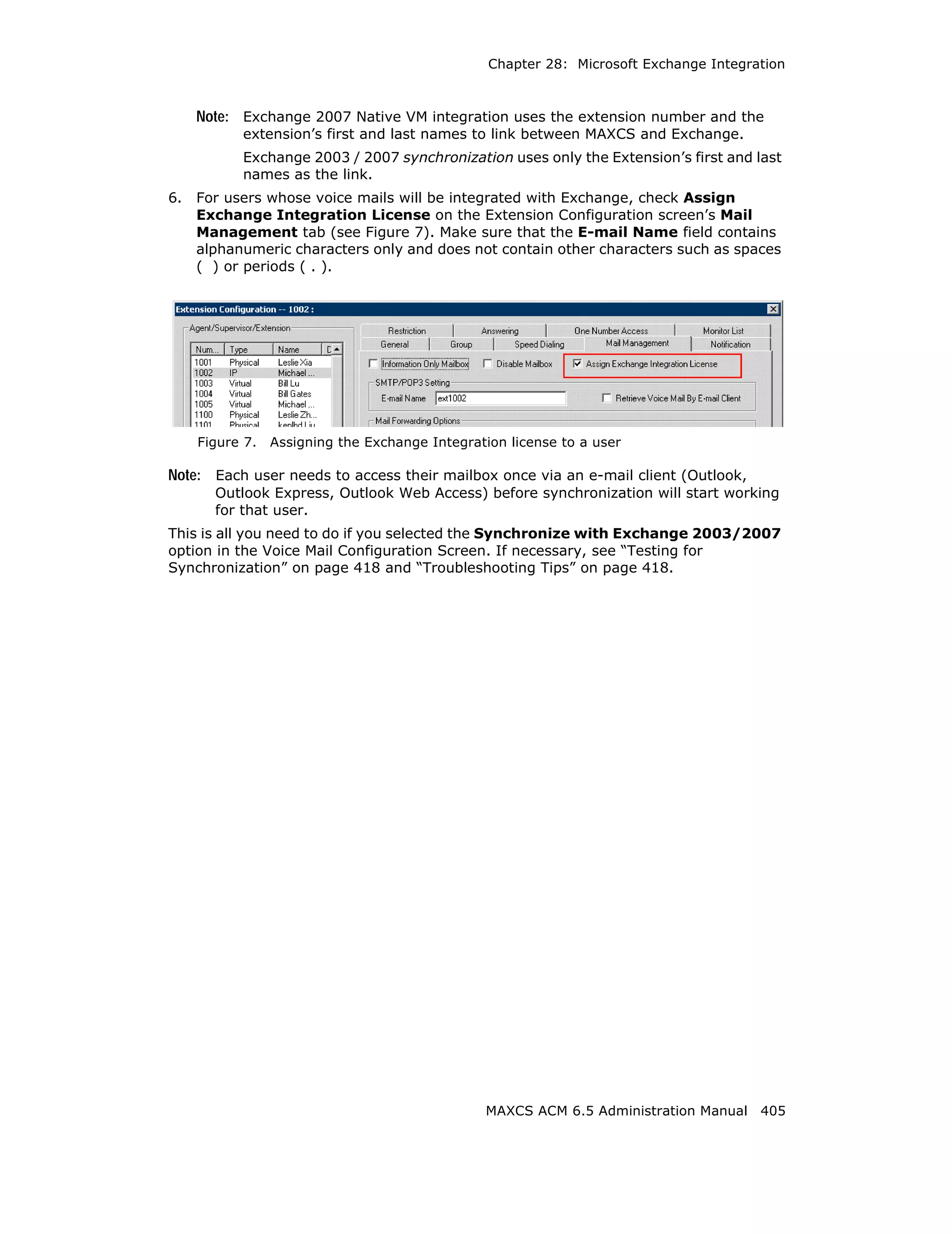
  • 451.
    Trace Collector altiserv.txt atpscmdlog.txt SIPPstnReg.txt AltiBack_XXX.trc AdvQOverflow.log SipExtChanTbl.log AltiKeep_XXX.trc Ac2AppPathHdlTbl.txt SIPKeepALive.txt AnnouceRunLog.txt FeatServ.txt QESLLog.txt AssertLog.txt DbUpdateTrdLog.txt Qtmlog.txt AW_AstrCpyErrLog.txt HGwGenLog.txt Loggservice_Mutex.txt CallQManLog.txt HGwMsgLog.txt MEMORYTRACE.txt CDRLogDLL.txt threadid.txt NewCDRExt.txt CDRLogTrace.txt MidNightLog.txt TritonSPLog.txt ConfigLog.txt logserviceInternal.txt pathlog.txt MsgOCLog.txt ConfigServiceLog.txt rsrclog.txt MSRunLog.txt CDRLogTrace.txt RtpPortRangeTbl.txt mviperr.txt CDRLogDLL_EXCEPTION.txt StartupLog.txt Postman.txt CSH323log.txt Swxx_xxxx.txt ProcInfoLog.txt ExceptionLog.txt GWMsgLog.txt • System Configuration Data Collects system configuration data, including System, Extension, Trunk, AA configurations, and Read OE files. • Service Provider Log Dump Runs SPDump.exe to dump the SP log into files and then collects the trace. • IP Phone Dump Collects the IPPhone dump log in AltiServLogIPP. • Stand-alone Gateway Trace Collects the trace on the stand-alone gateway machine. If AltiServ Services are shut down, the option is disabled. If Trace Collector is running on the stand-alone gateway machine, this option is hidden (because Trace Collector just needs to collect the trace locally). • Triton DSP Trace Dump Collects the Triton DSP dump log in AltiServSPTriton. Runs TritionDSPDebug.exe to dump Triton DSP binary log data, runs TATraceDecode.exe to convert binary log to text files, and then collects the text files. • AltiConnect Trace Dump Runs acdump.exe to dump the AltiConnect Trace, and then collects the trace. If Trace Collector is running on the stand-alone gateway machine, this option is hidden. • Windows Event log Extracts the system and application event log from the Windows system. MAXCS ACM 6.5 Administration Manual 437
  • 452.
    Trace Collector Start Collecting: Click this button to begin the trace collection, according to the time range and trace categories you chose. All collected files will be zipped to a single file, which will be listed in the Collected Trace Packages list box. The progress bar will display the progress of the whole process. Storage Folder: The collected trace package is saved in this folder. The format of the file name is CaseNumber_Year_Month_Day_Hour_Minute_Second _ComputerName.zip. If the trace package is collected by #66, the format of the file name is #66_Year_ Month_Day_Hour_Minute_Second _ExtesionNumber.zip. Free Space: Displays the free space of the drive where the storage folder is located. The folder must be in a local drive. Change Storage Folder: Pops up a folder browser window to select another storage folder. After the change, Storage Folder, Free Space, and the package list are refreshed to reflect the status of the new storage folder. Explore Storage Folder: Opens the storage folder in a new explorer window. Upload Package to FTP: Opens an FTP configuration dialog box. After you complete the required configuration, Trace Collector uploads the selected package to the AltiGen Tech Support FTP site. Apply Configurations to #66: Apply time period, trace category, and storage folder to feature code #66 (Trace Collecting). Limitations If you run Trace Collector on MAXCS installed machine • If MAXCS is not running, Trace Collector can only collect the trace of this machine. The traces in memory, such as "AltiConnect Trace Dump" and "Service Provide Log Dump", and "Stand-alone Gateway Trace" will not be collected. • If the default gateway is not running, the traces for "Triton DSP Trace Dump" will not be collected. • If AltiServ is running, and an attached remote gateway is not running, or a remote gateway is detached, the trace for this gateway will not be collected even if that "Stand-alone Gateway Trace" is selected. If an attached gateway has the status of "Out of Service", the trace for this gateway will be collected. If you run Trace Collector on a gateway MAXCS ACC/ACM-installed machine • It can only collect the trace of this machine. • If the stand-alone gateway is not running, the trace for "Triton DSP Trace Dump" will not be collected. 438 MAXCS ACM 6.5 Administration Manual
  • 453.
    Trace Collector Voice FileConverter This tool converts phrase, greeting, and music files from .wav to AltiGen format and vice versa. To open the tool, from the Windows Start menu, select All Programs > Utilities > Voice File Converter. Note: The source .wav file must be in 8k/8bit/mono/mu-law format. You can sort by clicking a column head To use the Voice File Converter: 1. Beside the From field, click the Browse button to select the folder that contains the files you want to convert. 2. Beside the Convert To field, click the Browse button to select the destination folder for the converted files. If they are prompts, they should be placed in the C:PostOfficephrasesLangCustom directory on the gateway that is running MAXCS. If the files are music files, they should be placed in the C:PostOfficePhrasesMusic directory. A file that you want to use for music on hold must be named MusicOnWaiting. To save the AltiGen system MusicOnWaiting file, rename it before replacing it. 3. Check the files you want to convert. 4. In the Format panel, select a format. 5. Click Convert. If a file format is incorrect, an error message pops up. MAXCS ACM 6.5 Administration Manual 439
  • 454.
    Read Config Read Config Read Config (or Configuration Reader) is a tool that creates a subdirectory in altiservEXEAltiWareHtml of HTML files showing details of your MAXCS configuration. To use Configuration Reader 1. Launch Configuration Reader from Start > All Programs > MAXCS > Utilities > Read Config. Open previous ReadOE file Create new ReadOE file Output all configuration to this folder Output configuration to altigen_rc.dat Click View to see your latest HTML file 2. Make selections in the dialog box. If you will be sending a configuration file to AltiGen Technical Support, check ReadOE Data File, and select a folder for the .dat file. 3. Click Go. A processing bar indicates the progress of configuration reading. 4. When the status window is complete, you can click the View button to view the HTML files showing your configuration. Columns across the top of the opening page let you view statistics on different components of your configuration. 440 MAXCS ACM 6.5 Administration Manual
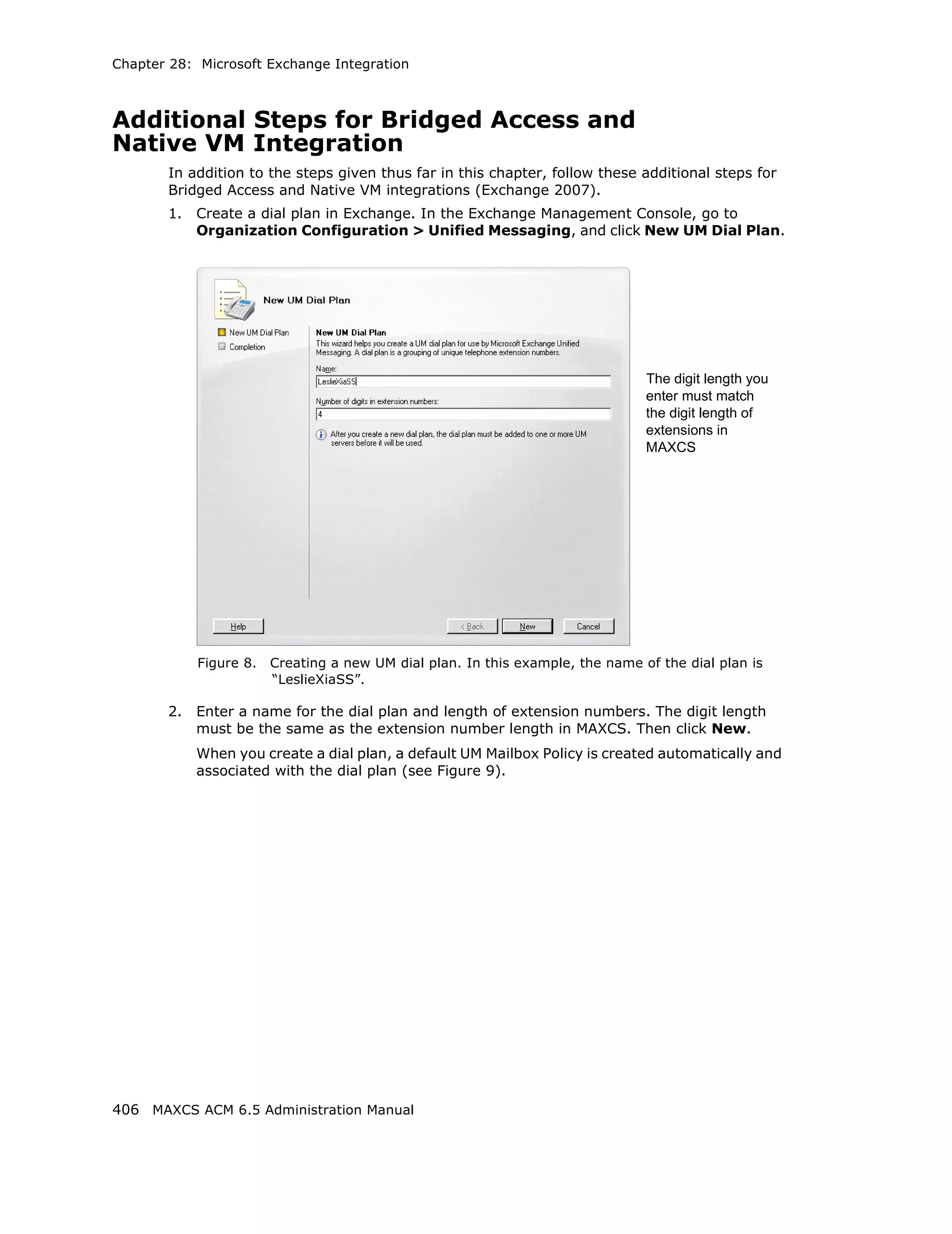
  • 455.
    Read Config Work/Hunt GroupConverter The MAXCS Work/Hunt Group Converter allows you to convert workgroups to hunt groups or hunt groups to workgroups. To launch the Work/Hunt Group Converter, select Services > Utilities > Convert Work/Hunt Group. The Work/Hunt Group Converter window opens. Figure 6. Work/Hunt Group Converter Workgroups and hunt groups are listed on the left side of the window, member agents and non-agents are listed on the right side. The Work/Hunt Group Converter can be used to convert: • Agent to Non-Agent—If an agent belongs to any workgroup, it cannot be converted to a non-agent. When an agent is converted to a non-agent, all workgroup-related parameters will be cleared, including wrap-up time, inter-call delay, and outgoing workgroup number. To convert, select the agent (indicated by YES in the Agent field) and click the Convert Agent button or double-click the agent. • Non-Agent to Agent—To convert, select the non-agent (indicated by NO in the Agent field) and click the Convert Agent button or double-click the non-agent. Make sure you have enough agent licenses. • Convert Workgroup to Hunt Group—when a workgroup is converted to a hunt group, its members are not changed, but the following parameters are cleared, including: – voice recording setting – queue time threshold – queue overflow settings – queue announcement – agent announcement MAXCS ACM 6.5 Administration Manual 441
  • 456.
    Exporting and ImportingExtensions – queue quit forward (returns to default value - to voice mail) – call distribution (if previously configured to Ring First Available Member, Ring Next Member or Ring All, the setting is not changed. If configured to any other settings, the setting is configured to Ring First Available Member.) To convert, select the workgroup (indicated in the Type field) and click the Convert Group button or double-click the workgroup. • Convert Hunt group to Workgroup—A hunt group cannot be converted if it contains at least one non-agent. You must first change the extension from non- agent to agent (by selecting the agent and clicking the Convert Agent button or by checking the Agent check box in the Extension Configuration window before converting). To convert, select the hunt group (indicated in the Type field) and click the Convert Group button or double-click the hunt group. Exporting and Importing Extensions You can import and export extensions in a .csv file and you can import extensions from the active directory. Importing Extensions from a .csv File 1. First, back up your system configurations, using AltiGen’s System Data Management tool (Services > Utilities > System Data Management). 2. Go to Services > Utilities > Import Extensions. 3. In the Import Extensions dialog box, click the Explore button to select a .csv file to import, and click OK. All the extension records in the .csv file are added to the Import Extensions list. 442 MAXCS ACM 6.5 Administration Manual
  • 457.
    Exporting and ImportingExtensions 4. Check the records you want to import. Click the Select All and Clear All buttons to select or clear all the check boxes.) 5. Click Import. A progress bar lets you see the progress of the import. When the import is finished, a message lets you know how many extensions were imported, how many extensions were skipped and how many extensions failed. 6. If an extension already exists, a dialog box pops up asking if you want to replace the extension: If you overwrite an extension, fields that are not specified in the .csv file are not overwritten with default values or blank values. For example, if the column Department is not included in the .csv file, but is configured in the extension that you overwrote, the Department field is not reset to the default value when the extension is overwritten. When the import is finished, a report file opens showing detailed information for every extension you attempted to import. If some fields are invalid, the system replaces them with a default value, except for the extension number field. The name of the text file is the same as the .csv file, except that the file extension is .txt. Importing Extensions from the Active Directory 1. First, back up your system configurations, using AltiGen’s System Data Management tool (Services > Utilities > System Data Management). 2. Go to Services > Utilities > Import Extensions from Active Directory. The Import from Active Directory dialog box appears. MAXCS ACM 6.5 Administration Manual 443
  • 458.
    Exporting and ImportingExtensions 3. Enter the server path, user name and password. 4. Click the Read Active Directory button. All user information is displayed in the table. (A record must have either an Ext Number or First Name or Last Name or Mail Address, otherwise it will not be not listed in the table.) 5. Select the extensions you want to import. You can use the Select All button, but only records that have an extension number can be selected. If an extension number is empty, a warning message pops up. 6. You can use the Clear All button to clear all checkmarks. 7. Click the Import button. A progress bar tells you the progress of importing. 8. If an extension already exists in the destination list, a dialog box pops up. 9. Respond to the question in the dialog box. If you decide to overwrite the extension, other fields not in the Active Directory are kept. 444 MAXCS ACM 6.5 Administration Manual
  • 459.
    Exporting and ImportingExtensions After finishing importing, a dialog box pops up to tell you how many extensions were imported successfully. When you click OK, an error report file is opened automatically to tell you the detailed information on every extension. If some fields are invalid, the system replaces them with a default value (except for the extension number). (The report file's name is "ReportImportAD.txt". It is in the altiservexe directory.) Exporting the Extensions in a MAXCS System 1. Go to Services > Utilities > Export Extensions. The Export Extensions dialog box opens: 2. Click the Explore button and specify a name and location for the .csv file you’re about to create. 3. Check the fields you want to export. Use the Select All and Clear All buttons to select or clear all the check boxes. Note: You must export the extension number field. 4. Click the Export button to save the extension configurations to a .csv file. A progress bar shows you the progress of the export. When the export is complete, a dialog box pops up to let you know how many extensions were exported. Editing a .csv File If you edit a .csv file, • All fields must be separted by a "," and all the records must be divided by pressing the Enter key. • The first line must be a pre-defined field name, such as “First Name”. If the field name doesn’t match a pre-defined field name, the field is skipped during an import operation. MAXCS ACM 6.5 Administration Manual 445
  • 460.
    AltiGen Custom PhraseManager • The sequence of the columns doesn’t matter. AltiGen Custom Phrase Manager The AltiGen Custom Phrase Manager is a Windows-based application that makes managing custom phrases easy. It displays all custom phrases in a graphical user interface. You can add or delete a phrase by clicking a button. You also can rename an existing phrase to a meaningful name, rather than pressing digits on the telephone. Note: The AltiGen Custom Phrase Manager requires a Client SDK license. To use the AltiGen Custom Phrase Manager, 1. Open the tool from the Windows Start > All Programs menu. You’ll see the login screen: Enter the following: • MAXCS server address • Manager Extension • Manager Extension password. If you want to save the password for this application, check the Always Save Password check box. Note: The server address and the extension number will be written to the windows registry. If you choose Always Save Password, the password will be encrypted and also saved in the registry. The tool will automatically reload the server address, manager extension number and the password from the registry when it starts next time. 2. Click Login. The main window opens: 446 MAXCS ACM 6.5 Administration Manual
  • 461.
    AltiGen Custom PhraseManager • The drop-down list at the top left displays all the directories of custom phrases under your MAXCS system’s PostOfficephrases directory, such as LangCustom, LangCustom_Chinese, Tenant1Custom. • The drop-down list at the top right lets you select an extension through which to record or listen to a phrase. • The table shows all custom phrases under the selected directory, including: • Phrase name • Date and time the phrase was created or last modified • Phrase length • A column for a description of the phrase Data can be sorted in ascending or descending order by clicking a column heading. • Buttons let you play, create and edit phrases. Creating a New Phrase To create a new phrase, 1. Select the extension you will be using to record the phrase. 2. Click the New button. MAXCS ACM 6.5 Administration Manual 447
  • 462.
    AltiGen Custom PhraseManager 3. In the New Phrase dialog box, enter a name for the phrase. 4. Click Start Recording. 5. When finished recording, press # on the phone and follow the instructions you hear. Also click OK in the dialog box onscreen when done. Playing a Phrase To play a phrase, 1. Select the extension you will be using to listen to the phrase. 2. Click the Play button. The extension will ring. 3. Answer the ring, and a voice announces the phrase before playing it. The following dialog box pops up: 4. When you are finished listening, hang up the phone and click the OK button in the AltiGen Custom Phrase Manager. Editing a Phrase Name or Description To edit the name of a phrase or its description, 1. Select the phrase you want to edit. 2. Click the Edit button. The Edit Phrase dialog box opens. 448 MAXCS ACM 6.5 Administration Manual
  • 463.
    AltiGen Custom PhraseManager 3. Make your changes to the name and description. 4. Click OK. To Delete a Phrase To delete a phrase, 1. Select the phrase you want to delete. 2. Click the Delete button. A confirmation/warning dialog box pops up: 3. If you’re sure you want to delete the phrase, click Yes. The phrase is deleted from the directory and from the table in AltiGen Custom Phrase Manager. To Re-record a Phrase To re-record a phrase, 1. Select the extension you will be using to re-record the phrase. 2. Select the phrase, and click the Re-record button. The following dialog box pops up: MAXCS ACM 6.5 Administration Manual 449
  • 464.
    AltiGen Custom PhraseManager 3. Click the Re-Record button. 4. When finished recording, press # on the phone and follow the instructions you hear. Also click OK in the dialog box onscreen when done. 450 MAXCS ACM 6.5 Administration Manual
  • 465.
    APPENDIX A E1-R2 and E1 ISDN PRI Installations E1 R2 CAS Installation This section describes the configuration procedures necessary to implement E1 R2 digital signaling for European, Pacific Rim, and other emerging markets. Please carefully follow the procedures step by step. 1. Change the Configure Type to E1: a. From Boards view, double-click the board to be configured to open the Board Configuration window. b. In the Board Configuration window, click the Board Configuration button. c. In the next Board Configuration window, select E1 as the configure type, and click OK. Important: When changing from E1 to T1, then back to E1, trunk channel properties and channel group properties will be reset to default values. It is important to make sure the trunk channel properties are configured properly. Continue to follow the steps below to re-check your settings for the physical layer, data link layer and signaling layer. 2. In the Board Configuration window, double-click the channel group to open the Channel Group Configuration dialog box. MAXCS ACM 6.5 Administration Manual 451
  • 466.
    Figure 1. Physical Layer Consult your CO for “Frame Type,” “Line Code,” or “Zero Code Suppression.” Do not check the System Clock Master check box because the CO is a clock provider, and the AltiGen system is synchronized to the CO. If all configurations are correct, the status should be shown as “OK,” as in Figure 1. 3. Click the Protocol button in the Channel Group Configuration dialog box to open the Protocol Configuration window. Figure 2. Data Link Layer 4. Select E1 CAS as the Span Type, and select the Switch Mode according to your country in the E1 R2 Setting field, and click OK. 5. In the Trunk Configuration window, click the Trunk Properties button to open the E1 Channel Configuration window. 452 MAXCS ACM 6.5 Administration Manual
  • 467.
    Figure 3. Signaling Layer 6. In the E1 Channel Configuration dialog box, configure the following fields: • Set Calling Party Category to—the Calling Party Category indicates the type of calling party, (for example, operator, pay phone, priority, ordinary subscriber). Select 1, 2 or 3 (for ordinary subscribers, refer to Table 1 on page 454). If the subscribed line is intended for other purposes, contact your CO for the proper value. • Add extra digits before caller ID—consult your CO to find out if any extra digits are needed. • Incoming sequences—select check box and configure the sequence according to Table 1 on page 454. • In-call signaling—configure the in-call signaling value according to Table 1 on page 454. The circled fields in Figure 3 represent values that depend on your country and its corresponding trunk property. Note: Consult your CO to find out if caller ID digits are provided in the lines. MAXCS ACM 6.5 Administration Manual 453
  • 468.
    Table 1. Signalingvalues, by country Country Signaling Values Chile/Nacional MFC- Set calling part category: 1 R2 [Assume no caller ID provided]: Incoming sequence: DID/DNIS In-call signaling (depend on how many DID digits): For 3-digit DID, set to (113)6 For 4-digit DID, set to (1113)6 For 5-digit DID, set to (11113)6 For 6-digit DID, set to (111113)6 For 7-digit DID, set to (1111113)6 For 8-digit DID, set to (11111113)6 [Assume caller ID provided]: Incoming sequence (same as above shown): DID/ DNIS * Caller ID In-call signaling (depend on how many DID digits): For 3-digit DID, set to (115)*(K)36 For 4-digit DID, set to (1115)*(K)36 For 5-digit DID, set to (11115)*(K)36 For 6-digit DID, set to (111115)*(K)36 For 7-digit DID, set to (1111115)*(K)36 For 8-digit DID, set to (11111115)*(K)36 454 MAXCS ACM 6.5 Administration Manual
  • 469.
    Country Signaling Values China MFC-R2 Set calling part category: 3 [Assume no caller ID provided]: Incoming sequence: DID/DNIS In-call signaling (depend on how many DID digits): For 3-digit DID, set to (113)1 For 4-digit DID, set to (1113)1 For 5-digit DID, set to (11113)1 For 6-digit DID, set to (111113)1 For 7-digit DID, set to (1111113)1 For 8-digit DID, set to (11111113)1 [Assume caller ID provided]: Incoming sequence (same as above shown): DID/DNIS * Caller ID In-call signaling (depend on how many DID digits): For 3-digit DID, set to (116)*(K)31 For 4-digit DID, set to (1116)*(K)31 For 5-digit DID, set to (11116)*(K)31 For 6-digit DID, set to (111116)*(K)31 For 7-digit DID, set to (1111116)*(K)31 For 8-digit DID, set to (11111116)*(K)31 Colombia MFC-R2 Set calling part category: 2 [Assume no caller ID provided]: Incoming sequence: DID/DNIS In-call signaling (depend on how many DID digits): For 3-digit DID, set to (113)6 For 4-digit DID, set to (1113)6 For 5-digit DID, set to (11113)6 For 6-digit DID, set to (111113)6 For 7-digit DID, set to (1111113)6 For 8-digit DID, set to (11111113)6 [Assume caller ID provided]: Incoming sequence (same as above shown): DID/DNIS * Caller ID In-call signaling (depend on how many DID digits): For 3-digit DID, set to (115)*(K)36 For 4-digit DID, set to (1115)*(K)36 For 5-digit DID, set to (11115)*(K)36 For 6-digit DID, set to (111115)*(K)36 For 7-digit DID, set to (1111115)*(K)36 For 8-digit DID, set to (11111115)*(K)36 MAXCS ACM 6.5 Administration Manual 455
  • 470.
    Country Signaling Values Ecuador MFC-R2 Set calling part category: 1 [Assume no caller ID provided]: Incoming sequence: DID/DNIS In-call signaling (depend on how many DID digits): For 3-digit DID, set to (113)6 For 4-digit DID, set to (1113)6 For 5-digit DID, set to (11113)6 For 6-digit DID, set to (111113)6 For 7-digit DID, set to (1111113)6 For 8-digit DID, set to (11111113)6 [Assume caller ID provided]: Incoming sequence (same as above shown): DID/DNIS * Caller ID In-call signaling (depend on how many DID digits): For 3-digit DID, set to (115)*(K)36 For 4-digit DID, set to (1115)*(K)36 For 5-digit DID, set to (11115)*(K)36 For 6-digit DID, set to (111115)*(K)36 For 7-digit DID, set to (1111115)*(K)36 For 8-digit DID, set to (11111115)*(K)36 Ecuador MFC-LME Set calling part category: 2 [The switch doesn't support caller ID transmission]: Incoming sequence: DID/DNIS In-call signaling (depend on how many DID digits): For 3-digit DID, set to (113)1 For 4-digit DID, set to (1113)1 For 5-digit DID, set to (11113)1 For 6-digit DID, set to (111113)1 For 7-digit DID, set to (1111113)1 For 8-digit DID, set to (11111113)1 Korea MFC-R2 Set calling part category: 1 [The switch doesn't support caller ID transmission]: Incoming sequence: DID/DNIS In-call signaling (depend on how many DID digits): For 3-digit DID, set to (113)6 For 4-digit DID, set to (1113)6 For 5-digit DID, set to (11113)6 For 6-digit DID, set to (111113)6 For 7-digit DID, set to (1111113)6 For 8-digit DID, set to (11111113)6 456 MAXCS ACM 6.5 Administration Manual
  • 471.
    Country Signaling Values Mexico / Teléfonos de Set calling part category: 2 Mexico [Assume no caller ID provided]: Incoming sequence: DID/DNIS In-call signaling (depend on how many DID digits): For 3-digit DID, set to (113)1 For 4-digit DID, set to (1113)1 For 5-digit DID, set to (11113)1 For 6-digit DID, set to (111113)1 For 7-digit DID, set to (1111113)1 For 8-digit DID, set to (11111113)1 [Assume caller ID provided]: Incoming sequence (same as above shown): DID/DNIS * Caller ID In-call signaling (depend on how many DID digits): For 3-digit DID, set to (116)*(K)31 For 4-digit DID, set to (1116)*(K)31 For 5-digit DID, set to (11116)*(K)31 For 6-digit DID, set to (111116)*(K)31 For 7-digit DID, set to (1111116)*(K)31 For 8-digit DID, set to (11111116)*(K)31 MAXCS ACM 6.5 Administration Manual 457
  • 472.
    Country Signaling Values Panamá / Nacional Set calling part category: 1 MFC-R2 [Assume no caller ID provided]: Incoming sequence: DID/DNIS In-call signaling (depend on how many DID digits): For 3-digit DID, set to (113)6 For 4-digit DID, set to (1113)6 For 5-digit DID, set to (11113)6 For 6-digit DID, set to (111113)6 For 7-digit DID, set to (1111113)6 For 8-digit DID, set to (11111113)6 [Assume caller ID provided]: Incoming sequence (same as above shown): DID/DNIS * Caller ID In-call signaling (depend on how many DID digits): For 3-digit DID, set to (115)*(K)36 For 4-digit DID, set to (1115)*(K)36 For 5-digit DID, set to (11115)*(K)36 For 6-digit DID, set to (111115)*(K)36 For 7-digit DID, set to (1111115)*(K)36 For 8-digit DID, set to (11111115)*(K)36 458 MAXCS ACM 6.5 Administration Manual
  • 473.
    Country Signaling Values Venezuela / Nacional Set calling part category: 1 MFC-R2 [Assume no caller ID provided]: Incoming sequence: DID/DNIS In-call signaling (depend on how many DID digits): For 3-digit DID, set to (113)6 For 4-digit DID, set to (1113)6 For 5-digit DID, set to (11113)6 For 6-digit DID, set to (111113)6 For 7-digit DID, set to (1111113)6 For 8-digit DID, set to (11111113)6 [Assume caller ID provided]: Incoming sequence (same as above shown): DID/DNIS * Caller ID In-call signaling (depend on how many DID digits): For 3-digit DID, set to (115)*(K)36 For 4-digit DID, set to (1115)*(K)36 For 5-digit DID, set to (11115)*(K)36 For 6-digit DID, set to (111115)*(K)36 For 7-digit DID, set to (1111115)*(K)36 For 8-digit DID, set to (11111115)*(K)36 China MFC-R2 Set calling part category: 3 [Assume no caller ID provided]: Incoming sequence: DID/DNIS In-call signaling (depend on how many DID digits): For 3-digit DID, set to (113)1 For 4-digit DID, set to (1113)1 For 5-digit DID, set to (11113)1 For 6-digit DID, set to (111113)1 For 7-digit DID, set to (1111113)1 For 8-digit DID, set to (11111113)1 [Assume caller ID provided]: Incoming sequence (same as above shown): DID/DNIS * Caller ID In-call signaling (depend on how many DID digits): For 3-digit DID, set to (116)*(K)31 For 4-digit DID, set to (1116)*(K)31 For 5-digit DID, set to (11116)*(K)31 For 6-digit DID, set to (111116)*(K)31 For 7-digit DID, set to (1111116)*(K)31 For 8-digit DID, set to (11111116)*(K)31 MAXCS ACM 6.5 Administration Manual 459
  • 474.
    Country Signaling Values Colombia MFC-R2 Set calling part category: 2 [Assume no caller ID provided] : Incoming sequence: DID/DNIS In-call signaling (depend on how many DID digits): For 3-digit DID, set to (113)6 For 4-digit DID, set to (1113)6 For 5-digit DID, set to (11113)6 For 6-digit DID, set to (111113)6 For 7-digit DID, set to (1111113)6 For 8-digit DID, set to (11111113)6 [Assume caller ID provided]: Incoming sequence (same as above shown): DID/DNIS * Caller ID In-call signaling (depend on how many DID digits): For 3-digit DID, set to (115)*(K)36 For 4-digit DID, set to (1115)*(K)36 For 5-digit DID, set to (11115)*(K)36 For 6-digit DID, set to (111115)*(K)36 For 7-digit DID, set to (1111115)*(K)36 For 8-digit DID, set to (11111115)*(K)36 Ecuador MFC-R2 Set calling part category: 1 [Assume no caller ID provided]: Incoming sequence: DID/DNIS In-call signaling (depend on how many DID digits): For 3-digit DID, set to (113)6 For 4-digit DID, set to (1113)6 For 5-digit DID, set to (11113)6 For 6-digit DID, set to (111113)6 For 7-digit DID, set to (1111113)6 For 8-digit DID, set to (11111113)6 [Assume caller ID provided] : Incoming sequence (same as above shown): DID/DNIS * Caller ID In-call signaling (depend on how many DID digits): For 3-digit DID, set to (115)*(K)36 For 4-digit DID, set to (1115)*(K)36 For 5-digit DID, set to (11115)*(K)36 For 6-digit DID, set to (111115)*(K)36 For 7-digit DID, set to (1111115)*(K)36 For 8-digit DID, set to (11111115)*(K)36 460 MAXCS ACM 6.5 Administration Manual
  • 475.
    Country Signaling Values Ecuador MFC-LME Set calling part category: 2 [The switch doesn't support caller ID transmission]: Incoming sequence: DID/DNIS In-call signaling (depend on how many DID digits): For 3-digit DID, set to (113)1 For 4-digit DID, set to (1113)1 For 5-digit DID, set to (11113)1 For 6-digit DID, set to (111113)1 For 7-digit DID, set to (1111113)1 For 8-digit DID, set to (11111113)1 Korea MFC-R2 Set calling part category: 1 [The switch doesn't support caller ID transmission]: Incoming sequence: DID/DNIS In-call signaling (depend on how many DID digits): For 3-digit DID, set to (113)6 For 4-digit DID, set to (1113)6 For 5-digit DID, set to (11113)6 For 6-digit DID, set to (111113)6 For 7-digit DID, set to (1111113)6 For 8-digit DID, set to (11111113)6 Mexico / Teléfonos de Set calling part category: 2 Mexico [Assume no caller ID provided] : Incoming sequence: DID/DNIS In-call signaling (depend on how many DID digits): For 3-digit DID, set to (113)1 For 4-digit DID, set to (1113)1 For 5-digit DID, set to (11113)1 For 6-digit DID, set to (111113)1 For 7-digit DID, set to (1111113)1 For 8-digit DID, set to (11111113)1 [Assume caller ID provided]: Incoming sequence (same as above shown): DID/DNIS * Caller ID In-call signaling (depend on how many DID digits): For 3-digit DID, set to (116)*(K)31 For 4-digit DID, set to (1116)*(K)31 For 5-digit DID, set to (11116)*(K)31 For 6-digit DID, set to (111116)*(K)31 For 7-digit DID, set to (1111116)*(K)31 For 8-digit DID, set to (11111116)*(K)31 MAXCS ACM 6.5 Administration Manual 461
  • 476.
    Country Signaling Values Panamá / Nacional Set calling part category: 1 MFC-R2 [Assume no caller ID provided]: Incoming sequence: DID/DNIS In-call signaling (depend on how many DID digits) : For 3-digit DID, set to (113)6 For 4-digit DID, set to (1113)6 For 5-digit DID, set to (11113)6 For 6-digit DID, set to (111113)6 For 7-digit DID, set to (1111113)6 For 8-digit DID, set to (11111113)6 [Assume caller ID provided]: Incoming sequence (same as above shown): DID/DNIS * Caller ID In-call signaling (depend on how many DID digits): For 3-digit DID, set to (115)*(K)36 For 4-digit DID, set to (1115)*(K)36 For 5-digit DID, set to (11115)*(K)36 For 6-digit DID, set to (111115)*(K)36 For 7-digit DID, set to (1111115)*(K)36 For 8-digit DID, set to (11111115)*(K)36 462 MAXCS ACM 6.5 Administration Manual
  • 477.
    Country Signaling Values Venezuela / Nacional Set calling part category: 1 MFC-R2 [Assume no caller ID provided]: Incoming sequence: DID/DNIS In-call signaling (depend on how many DID digits): For 3-digit DID, set to (113)6 For 4-digit DID, set to (1113)6 For 5-digit DID, set to (11113)6 For 6-digit DID, set to (111113)6 For 7-digit DID, set to (1111113)6 For 8-digit DID, set to (11111113)6 [Assume caller ID provided]: Incoming sequence (same as above shown): DID/DNIS * Caller ID In-call signaling (depend on how many DID digits) : For 3-digit DID, set to (115)*(K)36 For 4-digit DID, set to (1115)*(K)36 For 5-digit DID, set to (11115)*(K)36 For 6-digit DID, set to (111115)*(K)36 For 7-digit DID, set to (1111115)*(K)36 For 8-digit DID, set to (11111115)*(K)36 E1 ISDN PRI Installation This section describes the configuration procedures necessary to implement E1 ISDN PRI signaling for European, Pacific Rim, and other emerging markets. Please carefully follow the procedures step by step. 1. Change the Configure Type to E1: a. From Boards view, double-click the board to be configured to open the Board Configuration window. b. In the Board Configuration window, click the Board Configuration button. c. In the next Board Configuration window, select E1 as the configure type, and click OK. MAXCS ACM 6.5 Administration Manual 463
  • 478.
    Important: When changing from E1 to T1, then back to E1, channel group properties will be reset to default values. It is important to make sure the channel group properties are configured properly. Follow the steps below to re-check your settings for the physical layer and data link layer. 2. In the Board Configuration window, double-click the channel group to open the Channel Group Configuration dialog box. Figure 4. Physical Layer Consult your CO for “Frame Type,” “Line Code,” or “Zero Code Suppression.” Do not check the System Clock Master check box because the CO is a clock pro- vider, and our system is synchronized to the CO. If all configurations are correct, the status should be shown as “OK,” as in Figure 4. 3. Click the Protocol button in the Channel Group Configuration dialog box to open the Protocol Configuration window. 4. Select Regular ISDN PRI as the Span Type, and select the Switch Mode according to your country in the ISDN PRI Setting field, and click OK. 464 MAXCS ACM 6.5 Administration Manual
  • 479.
    Figure 5. Data Link layer What you should select in the B Channel Maintenance Message drop-down list depends on what country you reside in (see Table 2 on page 466). MAXCS ACM 6.5 Administration Manual 465
  • 480.
    Table 2. Protocol& B Channel Maintenance Message Setting, by Country B Channel Maintenance Country Protocol Supported Message Setting Argentina ETSI Restart Australia Austel TS014, ETSI Restart Belgium ETSI Restart Brazil ETSI Restart China, HK ETSI Restart Czech ETSI Restart France ETSI, VN4 None Germany ETSI Restart Greece ETSI Restart Italy ETSI Restart Japan NTT INS1500 Restart Korea ETSI None Macedonia ETSI Restart Mexico ETSI Restart Netherlands ETSI Restart Nordic ETSI Restart Poland ETSI Restart Russia ETSI Restart Saudi Arabia ETSI Restart Singapore ETSI Restart South Africa ETSI Restart Spain ETSI Restart Taiwan Bellcore, ETSI None Thailand ETSI Restart UK ETSI (for DASS II/DPNSS) Restart UK, Ireland ETSI, British Telecom ISDN None 30 USA Bellcore TR 1268 Restart and Service USA, Canada AT&T TR 41449/41459 Restart 466 MAXCS ACM 6.5 Administration Manual
  • 481.
    APPENDIX B Required Service Parameters This appendix identifies the recommended and supported parameters for T1, PRI, and E1 service and provides you with the information needed when you make your service request. Service Parameters/Request Information for T1 To subscribe to T1 service, certain parameters are required to establish service. The information provided below identifies the recommended and supported parameters for T1 service. When ordering T1 service, provide the following service request information: Equipment Information • PBX Manufacturer—AltiGen Communications, Inc. • CSU/DSU—ADTRAN T1 ACE (recommended) or other CSU/DSU Technical Information for T1 with Voice Signaling Protocol: • E&M Wink Start (recommended) • E&M Immediate Start • Ground Start • Loop Start (not recommended) Trunk Type: • DID • 2-Way DID (recommended) • DOD Framing: • Super Frame (SF)/D4 • Extended Super Frame (ESF) (recommended) Line Coding: • Alternate Mark Inversion (AMI) • B8ZS (recommended) MAXCS ACM 6.5 Administration Manual 467
  • 482.
    DNIS, Caller ID: • DTMF (Dual Tone Multi-Frequency) Physical Termination: • RJ-48X or RJ-48C Wire: • 4 wires 800 Service: • You decide Termination Impedance: • 100 ohms Type of Registered Services Provided • BN 1.544 Mbps SF without power • DN 1.544 Mbps SF B8ZS without power • 1KN 1.544 Mbps ANSI ESF without power • 1SN 1.544 Mbps ANSI ESF, B8ZS without power (recommended) Service Order Code SOC 6.0P AS.2 T1 Channel Assignment • Trunk Type—In, Out, or 2-Way (recommended) • Channels Assigned—24 (Enter partial channels if you wish to subscribe to both voice and data service.) • Hunting—Most Idle, Least Idle, Ascend, Descend • DNIS Digits/Signal—3/DTMF (can be 3 to 10 digits) • Caller ID Signal—DTMF, if available (Not every service provider provides Caller ID over T1 lines.) CSU/DSU Requirements The CSU (channel service unit) is a device used to connect a digital trunk line coming in from the phone company to the PBX. A CSU can terminate signals, repeat signals and respond to loopback commands sent from the central office. 468 MAXCS ACM 6.5 Administration Manual
  • 483.
    Service Parameters/Request Informationfor PRI To subscribe to PRI service, certain parameters are required to establish service. The information provided below identifies the recommended and supported parameters for PRI service. When ordering PRI service, provide the following service request information: Equipment Information • PBX Manufacturer—AltiGen Communications, Inc. • CSU/DSU—ADTRAN T1 ACE (recommended) or other CSU/DSU Technical Information for PRI with Voice Switch Type: • 5ESS (recommended) • DMS (recommended) • NI-2 (recommended) • 4ESS Framing: • Super Frame (SF)/D4 • Extended Super Frame (ESF) (recommended) Line Coding: • Alternate Mark Inversion (AMI) • B8ZS (recommended) Physical Termination: • RJ-48X or RJ-48C Wire: • 4 wires PRI Channel Assignment D Channels Assignment—24th channel (channel ID 23) Note: MAXCS can configure any channel in a PRI span to be the D channel. The default setting is the last channel. Every span should select a D channel within the span. Shared D channel (NFAS) or back up D channel is not supported. Hunting—Most Idle, Least Idle, Ascend, Descend DNIS Digits—can be 3 to 10 digits CSU/DSU Requirements The CSU (channel service unit) is a device used to connect a digital trunk line coming in from the phone company to the PBX. A CSU can terminate signals, repeat signals, and respond to loopback commands sent from the central office. MAXCS ACM 6.5 Administration Manual 469
  • 484.
    Service Parameters/Request Informationfor E1 To subscribe to E1 service, certain parameters are required to establish service. The information provided below identifies the recommended and supported parameters for E1 service. When ordering E1 service, provide the following service request information: Equipment Information • PBX Manufacturer—AltiGen Communications, Inc. • CSU/DSU—ADTRAN T1 ACE (recommended) or other CSU/DSU Technical Information for E1 with Voice Switch Type: • Austel TS014 • ETSI NET5 (recommended) • NT DMS-100 Framing: • No CRC (recommended) • CRC4 Line Coding: • Alternate Mark Inversion (AMI) • HDB3 (recommended) Physical Termination: • RJ-48X or RJ-48C Wire: • 4 wires E1 Channel Assignment • Data Channels Assignment—1st channel (channel ID 0) • Channels Assignment—17th channel (channel ID 16) • Hunting—Most Idle, Least Idle, Ascend, Descend • DNIS Digits—can be 3 to 10 digits CSU/DSU Requirements The CSU (channel service unit) is a device used to connect a digital trunk line coming in from the phone company to the PBX. A CSU can terminate signals, repeat signals, and respond to loopback commands sent from the central office. 470 MAXCS ACM 6.5 Administration Manual
  • 485.
    APPENDIX C Network Ports If MAXCS 6.5 is behind a firewall/NAT router, you need to open TCP and UDP ports according to the following table: For external VoIP connection through a firewall TCP UDP Remote AltiGen IP phone/IPTalk to phone service 10032 10060 10064 5061 Remote AltiGen IP phone firmware download (TFTP) 69 Extension global appearance 10066 VoIP RTP Port (Voice Stream) for SIP and H.323 From X to Y (See note below) SIP Tie Trunk from other AltiGen systems 10060 SIP Trunking Service from carrier 5060 H.323 Tie Trunk 1720 H.245 (Media Capability) From X to Y (See note below) Note: An easy way to find out the RTP/TCP port range(s) for SIP and H.323 is to look in MaxAdmin View > Current Resource Statistics. All the ports are listed in the Local Ports column. Alternatively, you can figure the port range in the following way: When MAXCS or Softswitch is running on a non-Windows 2008 system, BasePort = 49152 When MAXCS or Softswitch is running on a Windows 2008 system, BasePort = 49664 (This is because Windows 2008 has some system services use ports in the 49152 range.) For a single chassis system: X = BasePort MAXCS ACM 6.5 Administration Manual 471
  • 486.
    Y = BasePort+ Total IP codec channels x 2 For a multi-chassis system, you need to enter multiple ranges: Gateway ID = 0 X0 = BasePort Y0 = BasePort + Total IP codec channels in GW0 x 2 Gateway ID = 1 X1 = BasePort + 512 x 1 Y1 = X1 + Total IP codec channels in GW1 x 2 Gateway ID = 2 X2 = BasePort + 512 x 2 Y2 = X2 + Total IP codec channels in GW2 x 2 Gateway ID=n X(n)=BasePort + 512 x n Y(n)=X(n) + Total IP codec channels in GW(n) x 2 To connect the following applications through a firewall TCP UDP AltiConsole 10025 MaxCommunicator/MaxAgent/IPTalk VM service for 10025 MaxCommunicator/MaxAgent 10026 10028 MaxCommunicator/MaxAgent MeetMe Conference 10040 MaxSupervisor 10025 10027 10028 10029 10050 MaxMobile Communicator 10080 10081 Client Applications Auto Update 10050 CDR Search 10025 Remote MAXCS Administrator 10068 VRManager 10040 (VRManager may not work behind NAT) TAPI Client login to MAXCS 10026 Network Assessment Tool 10010 472 MAXCS ACM 6.5 Administration Manual
  • 487.
    MAXCS connects thefollowing application through a firewall TCP UDP External CDR Logger Service 10027 Remote IP Phones Behind NAT For remote IP phones behind NAT, you don’t need to do any configuration. However, if the remote firewall/NAT router blocks outgoing traffic, then you will need to open the following ports on the remote firewall/NAT router: • UDP 10060 • UDP 30,000~31,000 • TCP 10064 MAXCS ACM 6.5 Administration Manual 473
  • 488.
    474 MAXCS ACM6.5 Administration Manual
  • 489.
    APPENDIX D Technical Support & Product Repair Services This appendix describes: • AltiGen technical support policy and procedures • Product repair • Technical training for administrators Technical Support Eligibility: AltiGen provides technical support to Authorized AltiGen dealers and distributors only. End user customers, please contact your Authorized AltiGen Dealer for technical support. How To Reach AltiGen Technical Support Authorized AltiGen dealers and distributors may contact AltiGen technical support by any of the following methods: • You may request technical support on AltiGen’s dealer web site, at https:// dealer.altigen.com. Open a case on this site, and a Technical Support representative will respond within one business day. • Call 888-ALTIGEN, option 5, or 408-597-9000, option 5, and follow the prompts. Your call will be answered by one of AltiGen’s Technical Support Representatives or routed to the Technical Support Message Center if no one is available to answer your call. Technical support hours are 5:00 a.m. to 5:00 p.m., PT, Monday through Friday, except holidays. If all representatives are busy, your call will be returned in the order it was received, within four hours under normal circumstances. Outside AltiGen business hours, only urgent calls will be returned on the same day (within one hour). Non-urgent calls will be returned on the next business day. Please be ready to supply the following information: • Dealer ID • AltiGen Certified Engineer ID • Product serial number MAXCS ACM 6.5 Administration Manual 475
  • 490.
    • AltiWare orMAXCS version number • Number and types of boards in the system • Server model • The telephone number where you can be reached • A brief description of the problem and the procedure to reproduce the problem Having this information ready will help us to better assist you. End users who have problems unresolved by their AltiGen Authorized Dealer, and dealers who have problems unresolved by AltiGen Technical Support, may send an e-mail to AltiGen’s CEO at ceo@altigen.com. Product Repair You may send defective AltiGen-manufactured hardware products (in or out of warranty) to our factory for prompt authorized repairs. For information on AltiGen repair services and return policies and the AltiGen warranty, visit the AltiGen dealer web site, at https://dealer.altigen.com. Technical Training for Administrators AltiTraining, LLC, has created comprehensive 3- and 4-day hands-on training courses to teach AltiGen system administrators everything from the basic skills of extension configuration to troubleshooting and multiple location implementation of Voice over Internet Protocol (VoIP). The intensive courses were developed under the guidance of the AltiGen corporate office with the help of dealers, installers, and customers. AltiTraining’s comprehensive curriculum is based on the same format AltiGen uses to train their engineers and dealers. Experienced telecommunications professionals teach AltiTraining classes and they bring a wealth of real-life experience to every course. AltiTraining classes consistently are rated as one of the most valuable and relevant that our students have ever attended! Who should attend? Anyone responsible for the day-to-day administration of an AltiGen IP-PBX telephone system or anyone who would like to learn about the system features, functionality and options will benefit from this thorough, hands-on training. What do the courses cover? • Phone line options (analog lines vs. digital T1/PRI with DID). • How to install and upgrade hardware, software, licenses and wiring options. • Server design (backplane, OS, RAID, RPS, and so on.), configuration and growth planning. • Day-to-day administration with MaxAdmin. Learn to build extensions, huntgroups and workgroups to set up call handling and routing features, and system configuration options. • Utility and security programs to simplify and provide security/fraud insight and set up routine system backups for disaster recovery. • Call detail reporting (CDR) and real-time monitoring (MaxSupervisor). • MaxCommunicator, MaxAgent, MaxSupervisor, and AltiConsole client applications. 476 MAXCS ACM 6.5 Administration Manual
  • 491.
    • Voice overIP (VoIP) network requirements and implementation for branches or remote workers. • Unified messaging, utilizing TAPI, Microsoft CRM, Outlook, Goldmine and ACT! • System troubleshooting, covering common problems/scenarios and basic troubleshooting techniques. • New product developments and future upgrades. How can I register or where can I get more information? Visit the AltiTraining web site at www.AltiTraining.com to register for a class or to get more information. You may contact AltiTraining, LLC, with additional questions: • E-mail: info@AltiTraining.com • Phone: (877) ALTI-TRAIN (or 877-258-4872). MAXCS ACM 6.5 Administration Manual 477
  • 492.
    478 MAXCS ACM6.5 Administration Manual
  • 493.
    APPENDIX E Troubleshooting Troubleshooting VoIP: Common Symptoms and Solutions The following are some of the most common problems you may encounter and a list of steps to troubleshoot and resolve these problems. Poor Voice Quality When voice quality is poor, try the following: 1. Perform a Loop-Back Test. Call yourself by dialing out and dialing back into yourself. If you don’t have any problems performing this test, the problem is most likely in the network or at the remote site. 2. Check Traffic Between MAXCS IP Stations. Open the Current Resource Statistics window (on the View menu) and the IP Cumulative Traffic Statistics window (on the Report menu) in MaxAdmin to view network traffic. 3. Check the RTP and RTCP Settings. RTP/RTCP stands for Real-Time Transport (Control) Protocol, a transport protocol for real-time applications used to transport packetized voice packets over the IP network. Make sure UDP port numbers (49152 + n*512) ~ (49152 + n*512+p*2), where “n” is the gateway ID and “p” is the number of IP resource channels, are not assigned to other applications. Note: You can find this range displayed in the Current Resource Statistics window in the Local Ports column. 4. Check Network Configurations. Follow all network configuration guidelines provided under “Network Configuration Guidelines for VoIP” on page 327. Make sure the router, WAN bandwidth, and Jitter Buffer are configured properly. Cannot Make a Connection If a connection cannot be made, check the following: 1. Check network connectivity using “ping.” 2. Check network firewall settings. See “Network Configuration Guidelines for VoIP” on page 327 for details. 3. Check the IP address of the destination system. 4. Check the RTP and RTCP settings. Make sure UDP port numbers 49152-49199 are not assigned to other applications. RTP/RTCP stands for Real-Time Transport MAXCS ACM 6.5 Administration Manual 479
  • 494.
    (Control) Protocol, atransport protocol for real-time applications used to transport packetized voice packets over the IP network. 5. Check the IP Dialing Table in Enterprise Manager for Server ID Length. Refer to “Defining the IP Dialing Table” on page 352. 6. Check if Called Extension is a Workgroup or has Multiple Call Waiting Enabled. When the called party is a workgroup pilot number or has Multiple Call Waiting enabled, the caller is placed on hold and hears ringback or music. IP Resource Does Not Appear in Current Resource Statistics When an IP resource doesn’t appear in the Current Resource Statistics window, there are two possible causes: • Device Driver is Not Running. Check the device driver. Make sure it’s installed and working properly. • Triton VoIP Board is Not Installed Properly. Refer to the Quick Installation Guide for details on proper installation of the Triton VoIP board. 480 MAXCS ACM 6.5 Administration Manual
  • 495.
    workgroup call handling303 blocking all outgoing calls 61 Index application extension 219, 291 definition & uses 117 blocking calls 60 board failover plan 118 H323SP, configuring 167 setup 117 MAX1000/2000, configuring Symbols application extension configura- 174 #12, enabling, for language set- tion 117 mobile extension, configuring ting 106 application failover plan 118 248 #27 to relocate global extension Apply To, multiple extensions 196 SIPSP & H323, configuring 166 370 area code, on trunk 124 SISP, configuring 166 area codes Triton Analog Station, config- system home 47 uring 150 Numerics assigning client licenses 41 Triton Analog Trunk LS/GS & 10 digit dialing area codes 61 attaching a gateway 79 LS, configuring 150 attributes Triton MeetMe 150 setting trunk 124 Triton Resource, configuring A trunk 126 149 access code 124, 127 audio peripheral configuration 66 Triton T1/E1, configuring 152 access, system 33 audio peripheral options Triton T1/E1, setting up chan- account code for huntgroups 270 nels 157 blocking display 199 auto attendant Triton T1/PRI 152 forcing 199 adding 92 Triton VoIP, configuring 151 activity collecting digits 96 virtual, purpose 166 configuration 69 configuring 91 board configuration 147 adding a huntgroup 259 editing 94 Boards View window 36 adding a workgroup 283 making assignments 98 bridge admin defined # 240 menu items, configuring 94 conference 47 admins, how many connected to prompts, phrase management business hours system 433 98 24-hour business hour setup advanced queue management push URL/Web page 95 55 309 recording custom phrases 99 business hours profile menu selection 310 setting call priority 95 caller ID routing 179 queue overflow 311 setting call SKLR 95 DNIS routing 181 after hours scheduling 291 auto logout agents 291 business hours, setting up 54 agent check box 199 auto record busy call handling 217, 219, 266, agents auto logout 291 personal extension calls 200 300, 301 allow call redirect/priority change auto-discovery of server IP ad- huntgroups 267 308 dress alternate mark inversion (AMI) 156 configuring 241 disabling 245 C alternate server two servers in network 245 call accounting report 64 behind NAT 362 call blocking, outgoing 146 setting 361 Call Center menu 35 switching to 362, 370 B call control 61 AltiGen board test tool 429 B8ZS (Binary 8 Zero Substitution) call handling 217, 219, 266, 300, AltiGen IP phone configuration 156 301 233 back up system data 430 for workgroups 300 AltiGen services backing up huntgroup 266 stop & start 435 files 431 incoming 217 Alti-Mobile Extension Backup & Restore Utility 430 Call Log View window 39 limitations 255 bandwidth 330 call parking 47 AM schedule 55 and public pipe 351 call priority AMI line coding 156 WAN 330 caller ID routing 179 announcement basic queuing control 306 DNIS routing 181 time stamp 210, 263, 297 binary 8 zero substitution (B8Z8) setting 95 answer options 220 156 call record programmable key answering BLF programmable key 240 240 huntgroup call handling 269 blocking account code display 199 call recording MAXCS ACM 6.5 Administration Manual 481
  • 496.
    configuring system-wide 110 codec profile dialing delay extension based recording 110 assigning to IP addresses 346 resolving 192 file name description 109 inter-gateway, setting 348 T1 signaling 133 multiple gateways 111 setting 342 dialing pattern tips, example 190 personal options 200 collecting caller ID and DID digits dialing pattern tips, out call rout- remote shared directory 111 134 ing 189 requirements 109 collecting digits, in auto attendant dialing patterns, outcall routing trunk based recording 110 96 187 call recording configuration 109 collecting trace 435 dialing scheme call reports 62 conference bridge option 47 trunk 125 call reports, external 64 conference call DID call restrictions 216 two types 317 collecting 134 extension 216 Configuration Reader tool 440 DID number system 59 confirm callback number 210, extension 198, 260, 284 call routing 145 263, 297 display workgroup status call screening connection difficulty 479 IP phone 241 enabling 222 copy from button, IP phone con- distinctive call waiting 210 with ONA 222 figuration 239 distinctive call waiting tones 263, call SKLR setting 95 country, for system 46 297 call waiting cross talk, test tool 430 distinctive ringing 47 distinctive 210 CSU installation 165 distribution lists, configuring 88 distinctive tones 297 CT-Bus clock master, and T1/E1 distribution lists, creating 88 multiple, enabling 220 Clocking 157 DNIS setting options 220 CT-Bus clock, setting 79 and language setting 107 call waiting tones CT-Bus mode, setting 78 DNIS routing 179 distinctive 263 CT-Bus test tool 430 business hours profile 181 callback interview 308 cumulative IP traffic statistics 394 call priority 181 callback number 210, 263, 297 Current Resource Statistics win- holiday profile 181 caller ID 17 dow, missing IP resource 480 do not disturb, setting 219 collecting 134 Current Resources Statistics win- domain, VoIP caller ID routing 178 dow 40 adding servers 357, 359 business hours profile 179 current traffic statistics creating multi-site 355 call priority 179 refresh interval 41 extension scope 364 holiday profile 179 custom application managing users 363 caller ID verification 222 and message notification 265, master 355 calling numbers, PRI, configuring 299 rejoining a server to 360 164 custom phrase manager 446 relocating extension 368 calls, blocking all outgoing 61 relocating extension using #27 capacities 21 card logical ID 38 D 370 synchronizing manually 375 CDR, setting up 62 data system ID and 359 Centrex transfer 126 backup 430 DTMF delivery 345 changing password 33 restore 430 dedicated mobile trunk, setting changing scope 366 channel 38 253 E channel group info 149, 174 default password for MaxAdmin E1 channel information, discovering 33 channel assignment 470 121 default routes, outcall routing 186 subscribing to service 470 channel mapping list 149 detaching a gateway 80 E1 ISDN PRI installation 463 channel number 38 device driver 480 E1-R2 CAS installation 451 channel service unit, installing DHCP option 120 241 E-911 198 165 diagnosing tools 429 e-mail 87 client licenses, assigning 41 Diagnostic menu 35 name 210, 262, 296 CO switch, and terminal device dialed digit translator 50 e-mail messaging options 87 163 dialing e-mail services 87 code en-bloc 126 e-mail, setting notification 211 access 124, 127 overlap 126 emergency dial notification 212 area 124 dialing 9 twice, preventing 126 emergency numbers 66 482 MAXCS ACM 6.5 Administration Manual
  • 497.
    en-bloc dialing 126,354 setting SMTP/POP3 210 ID & password 80 Enterprise Manager 337 setting Triton analog line prop- gateway management 76 changing the password 342 erties 202 global extension default password 338 speed dial 207 rerouting 364 fixed IP address 339 types defined 196 global least cost routing, config- how to log in 339 virtual 196 uring 373 login failed 339 extension activity 69 greeting prompts 69 resetting password 338 extension based recording 110 group user interface 340 extension configuration 195 setup 205 error messages extension dialed digit translator group greeting, press "0" for for- installation 30 50, 52 ward 297 ESF (Extended Superframe For- extension scope group paging 271 mat) 156 changing 366 groups Exchange Extension Security Checker 433 assigning to extension 205 creating new mailbox user 418 Extension View window 37 GTE 156 integration external logging 64 configuration 399 H debugging 401 options, setting 85 F H.323, and NAT 331 requirements 399 failover when network is down H323 tie trunk properties, setting troubleshooting tips 418 364 128 synchronization, testing for FastStart Enabled option 167 hackers, detecting 212 418 feature code programmable key hardware problems 429 Exchange server 240 hardware status 36 synchronizing voice mail with files headset key 241 209 backup 431 Help menu 35 exporting extensions 442 firewall, configuration 331 holiday Extended Superframe Format firewall, opening ports 471 routing rules 177 (ESF) 156 firewall/NAT router holiday profile extension configuring port forwarding caller ID routing 179 assigning groups to 205 351 DNIS routing 181 calling options 216 first digit 48 home area code 47 changing location & type 201 first digit translator 50 hop off DID number 198, 260, 284 flash key (Alti-IP 600) 241 enabling 61 e-mail name 210, 262, 296 forced account code 199 hunt group exporting to csv file 442 forward from group greeting 297 converting to workgroup 441 general settings 195 forwarding numbers, specifying huntgroup importing from Active Directo- 223 adding a 259 ry 443 answer handling 269 importing to csv file 442 G business hours 262 busy call handling 267 incoming call handling 217 G.711 information only mailbox 209 call handling 266 jitter buffer range 345 configuration 257 length 49 RTP packet length 345 mail forwarding 210 configuring basic attributes G.711/G.723 silence suppression 259 mail management 208 344 MeetMe Conference 318 mail management 262 G.723 queue management 270 message notification 212, 264 jitter buffer range 345 monitor list 223 setting hours 262 G.729 setting up membership 260 monitoring 223 jitter buffer range 345 outgoing call restrictions 216 setup 259 RTP packet length 345 single call handling 269 physical extension 196 G.729 silence suppression 344 relocating in domain 368 huntgroup hours 262 G711 jitter buffer range 345 relocating in domain using #27 G711 RTP packet length 345 370 G723 jitter buffer range 345 I security checker 433 gateway ID, server send notification 214, 266, 299 attaching 79 changing length 359 setting phone display options configuring 81 impedance match, performing 204 detaching 80 139 MAXCS ACM 6.5 Administration Manual 483
  • 498.
    importing extensions 442 G.729 345 MaxAdmin default password 33 in call routing 177 MaxAdmins, disconnecting from in call routing rules 177 incall routing L system 433 MAXCS behind NAT Web IP calls 145 language configuring 351 incoming call handling 145 DNIS routing to 107 forwarding ports 352 information only mailbox 209 enabling #12 106 MDMF (Multiple Data Message installation rules MAXCS follows 108 Format) 203 E1 ISDN PRI 463 setting in extension config 198 measuring Rx level of trunk chan- E1 R2 CAS 451 languages nel 140 error messages 30 configuring extension 105 media path, about 166 MAXCS, preparation 27 enabling in AA 104 MeetMe Conference installing other, configuring 103 appointing an admin 318 MaxAdmin 30 LCR, configuring 373 configuring 318 MAXCS 27 least cost routing, configuring e-mail template, modifying installing a Channel Service Unit 373 324 (CSU) 165 License menu 35 overview 317 integrating Exchange Server 399 licenses (table) 25 using 318 inter-call delay, setting 206 licenses, client, assigning 41 menu selection intercom, enabling 199 limitations advanced queue management Intranet 327 Alti-Mobile Extension 255 310 intranet pipe 348 line loss, acceptable range 141 menu, MaxAdmin main 34 configuring 350 line park 219, 240 message IP addresses line park, configuration 275 length 211, 263, 297 undefined 349 live call handling, enabling 220 maximum number of 211, 263, IP Cumulative Traffic Statistics local network 297 window 394 defining 349 notification 212, 264 IP device range location format for trunks 38 schedule 215, 266, 300 adding 347 log file, security alert 213 notification for workgroup 298 IP dialing table, configuring 352 logging outbound workgroup calls notification options, setting IP extensions 196 207 214 IP Gateways login 33 notification timing, setting 214 managing 76 login failed, Enterprise Manager notification type 265, 299 IP network 339 playback 210, 263, 297 defining address range 350 logout 33 retention 211, 264, 297 IP networks message notification defining 348 M setting 211 IP phone mail forwarding message playback options 210 display workgroup status 241 setting extension for 210 messages time display 237 mail management managing 85 IP resource, missing from Current for extensions 208 recording options 85 Resource Statistics window 480 for workgroups 295 setting e-mail options 87 IP Trunk Access 53 mailbox 208 setting notification retries 84 ISDN PRI switch mode, setting information only 209 messaging, managing 83 160 size 211, 263, 297 Microsoft Exchange integration ISDN setting mailbox capacities 211, 263, 297 399 TEI 163 main menu 34 Microsoft SQL 64 ISP 327 main number 47 mobile extension making a connection and MaxMobile Communicator J difficulty with 479 253, 254, 255 limitations 255 Jam Bit 8 156 Manager Extension 47 MAX overview 247 jitter press any key to answer call average statistic 395 channel group info 174 MaxAdmin 33 254 Jitter Buffer 330 voice mail 255 jitter buffer 345 getting around 33 installing 30 mobile trunk G.711 345 shared or dedicated 253 G.723 345 MaxAdmin & Extension Security Checker 433 Monitor Available 224 484 MAXCS ACM 6.5 Administration Manual
  • 499.
    monitor list 223 ring duration 223 poor voice quality 479 monitoring extensions, set up 223 one number access POP3 service 87 multilingual prompts 101 configuring 221 port number 38 overview 101 enabling 220 ports, network 471 multilingual system one-way connection, test tool 430 Postmaster Extension 88 auto attendant 104 online help 35 prefix configuring 103 operating systems, supported 23 system prohibited 60 configuring #12 for extension Operator Extension 48 toll call 65 106 operator group 48 press "0" option 210, 297 configuring DNIS routing 107 option 120, DHCP 241 press any key to answer call 254 configuring extension 105 out call routing PRI multilink 330 configuration 183 channel assignment 469 multiple call waiting, enabling 220 configuring 184 subscribing to service 469 multiple data message format default routes 186 PRI calling numbers, configuring (MDMF) 203 dialing delay 192 164 multiple language system dialing pattern tips 189 PRI ISDN numbering plan, config- language used 108 dialing patterns 187 uring 162 music files example configuration 190 priority promotion 308 converting 439 overview 183 priority queuing 179 music on hold custom file 68 route definitions 185 private network music on hold, configuration 68 out of sync 375 defining 349 MVIP cable, test tool 430 outgoing call blocking 146 product repair 476 outgoing calls, blocking all 61 prompts N overhead paging 69 overlap dialing 126, 354 converting 439 greeting and update 69 N/A programmable key 240 in other languages 101 NAT 331 MAXCS behind, configuring P multilingual, overview 101 multiple languages, storing 351 packet length 345 102 server behind 348 pager notification 265, 299 PSTN failover, configuring 364 NAT support 351 paging public pipe 348 navigating MaxAdmin 33 overhead paging 69 configuring 350 network trunk configuration 125 push URL/Web page 95 defining 349 paging group IP, defining address range 350 configuration 271 quality of service 327 password Q Network Address Translation changing 33 quality of service (QoS) 327 (NAT) 331 extension 197 queue announcement 306 network guidelines for VoIP 327 PBX menu 34 queue call priority score 309 network management 337 personal call recording options queue management network ports used by MAXCS 200 advanced 309 471 phone display options 204 for huntgroups 270 no answer handling 220, 268, 302 phone number for workgroups 305 non-workday handling 291 trunk 125 queue overflow notification phrase management advanced queue management message 212, 264 for auto attendant 98, 446 311 schedule 215, 266 phrase manager, custom 446 queue overflow routing 307 workgroup messages 298 physical extension 196 queue phrase options 306 notification type and timing 214, ping, to check network connectiv- queuing control 266, 299 ity 479 basic 306 numbering plan 48 pipe quit queue 308 ISDN, configuring 162 intranet 348 intranet, configuring 350 R O public 348 public, configuring 350 Read Config tool 440 ONA playback message 210, 263, 297 Realtime Transport Control Proto- call screening 222 playing music from a file 68 col (RTP/RTCP) configuring 221 PM schedule 55 definition 479 enabling 220 recorded announcements, config- MAXCS ACM 6.5 Administration Manual 485
  • 500.
    uration 68 303 service level calculations options recording ring average longest idle member button 285 auto attendant phrases 99, 303 service level for workgroups 40 446 ring back 47 service level threshold 285 configuring call 110 ring fewest answered calls 304 services configuring on trunk 127 ring first available member 269, AltiGen, stop & start 435 file description 109 303 SMTP/POP3 87 messages 85 ring longest idle member 269, Services menu 34 multiple gateways 111 303 setting 10 digit dialing area codes personal options 200 ring shortest average talk time 61 remote shared directory 111 304 setting huntgroup hours 262 requirements 109 ringing setting trunk attributes 124 recording options distinctive, enabling 47 setting up for workgroups 286 RNA Agent Auto Logout 302 extensions 195 Recording Seat license 200, 286 RNA Agent Not Ready 302 groups 205 Recording Session license 200, route access 54 huntgroup mail management 286 route access code vs trunk access 262 recording tone 201, 286 code 124, 183 huntgroup membership 260 redirect IP phones when server route definitions huntgroups 259 down 370 out call routing 185 workgroups 283 redundancy 377 router 331 SF (Superframe Format) 156 refresh enterprise configuration routing shared mobile trunk, setting 253 375 by caller ID 178 signal channel, about 166 refresh interval, current traffic by caller ID & DNIS 177 signaling protocol statistics 41 by DNIS 179 T1 133 rejoining a server to VoIP domain incoming calls 177 silence suppression 344 360 routing rules, in call 177 single call handling 269 relocating domain extension 368 RTP & RTCP settings 479 single call handling, enabling 269, relocating domain extension us- RTP packet length 345 304 ing #27 370 RTP/RTCP single call waiting, enabling 220 remote IP phones behind NAT 473 definition 479 SIP Early Media 345 remote locations 354 Rx level SIP tietrunk properties, setting repair, product 476 improving 141 128 replicate from domain 375 Rx level, measuring 140 SIP transport options 346 report SIP transport, ext assignment vs cumulative IP traffic statistics 394 S codec profile 347 SIP trunk properties, setting 129 system summary 393 scheduling backup 431 skill setting Report menu 35 scope of extension workgroups 291 reports, call logs 62 changing 366 skill-based routing 304 reports, system 377–??, 393– VoIP domain 364 SMTP service 87 395 seat-based licenses, assigning 41 SMTP/POP3 requirements secure RTP 346 setting for extension 210 CPU, memory, HDD 25 security alert log file 213 speed dial rerouting outgoing calls 364 security, detecting hackers 212 station 207 reset board button 149 send notification 214, 299 speed dialing Reset button, Extension View 38 server down configuration 57 Reset button, Trunk View window redirect IP phones 370 SQL 64 39 server ID starting AltiGen services 435 resetting cumulative statistics changing length 359 static noise, test tool 430 395 server ID length 480 station speed dialing 207 Resource board 149 server IP address, auto-discovery Status bar information 36 Restoring files 432 241 Stop Switching Service 42 restricting tie trunk calls 61 server IP address, in IP dialing ta- stop/start restrictions ble 354 MAXCS services 42 call 216 service stopping AltiGen services 435 outgoing call 216 parameters 467 subscribing to service 467 ring all available members 269, subscribing to 467 Superframe Format (SF) 156 486 MAXCS ACM 6.5 Administration Manual
  • 501.
    switchover to alternateserver tools, AltiGen 429 unavailable 121 362, 370 Trace Collector tool 435 using Apply To button 124 synchronizing domain servers trace, collecting 435 trunks, tie 61 manually 375 traffic, VoIP statistics 40 system business hours 54 training, technical, for system ad- mins 476 U call park 47 transmitted caller ID 198 UDP 331 call restrictions 59 transmitted CID 198 UDP ports 471 country relevant 65 transport layer security 346 MAXCS behind NAT 352 distinctive ringing 47 Triton Analog Station Line Proper- unanswered calls 268 e-mail 87 ties dialog box 202 handling 302 extension length 49 Triton analog trunk GS/LS proper- unanswered calls, handling 220 home area code 47 ties, setting 136 uninstalling MAXCS 30 ID 46 Triton Resource board 149 unusual voice mail activity notifi- main number 47 Triton T1/E1 trunk properties, cation 212 messaging 83 setting 133 update prompts 69 numbering plan 48 Triton T1/PRI Board Use 46 summary report 393 configuration 152 user defined # 240 work days configuration 55 troubleshooting user interface 33 system clock master 157 cannot make connection 479 users, managing VoIP domain system data checking network configura- 363 backup 430 tion 479 restore 430 checking traffic 479 V system hang, test tool 429 loop-back test 479 View menu 35 System menu 34 poor voice quality 479 View windows 36 system reports 377–??, 393–395 VoIP board 479 virtual extension 196 system requirements 23 troubleshooting T1/PRI 165 voice trunk quality 479 T access code 124, 127 attributes 126 Voice File Converter 439 T1 voice mail Centrex 126 configuration 83 channel assignment 468 configuring recording 127 subscribing to service 467 distribution lists 88 dialing scheme 125 messaging 83 T1 signaling direction of transmission 124 dialing delay 133 mobile extension 255 incoming call routing 145 setting notification 211 protocol 133 location format 123 T1/E1 clock 157 synchronizing with Exchange phone number 125 server 209 T1/PRI trunk access 53 troubleshooting 165 voice mail activity notification, trunk access code vs route access unusual 212 TCP fragmentation 330 code 124, 183 TCP ports 471 voice mail activity, unusual trunk based recording 110 setting parameters for notifica- Maxcs behind NAT 352 trunk channel, measuring Rx level technical support 475 tion 213 140 voice mail playing order 263, 297 technical training for system ad- trunk configuration 121 mins 476 voice quality Trunk Monitor Enable 224 and WAN bandwidth 348 TEI (terminal endpoint identifier) trunk properties 163 voicemail playing order 210 H323 tie, setting 128 VoIP terminal endpoint identifier (TEI) SIP trunk, setting 129 163 codec profiles 342 SIPtie, setting 128 VoIP bandwidth test tools 429 Triton analog trunk GS/LS, set- testing AltiGen boards 429 about 338 ting 136 requirements 330, 338 text tag, collecting digits 97 Triton T1/E1 trunk, setting 133 TFTP server 237 VoIP channel usage 40 Trunk View window 38, 122 VoIP configuration 327 The 92 trunks tie trunk 126 VoIP domain paging 125 adding servers 357, 359 tie trunks 61 setting attributes 124 time display 237 extension scope 364 Triton T1/E1 trunk properties, managing users 363 toll call prefixes 65 setting 133 master 355 MAXCS ACM 6.5 Administration Manual 487
  • 502.
    multi-site, creating 355 rejoining a server to 360 relocating extension 368 relocating extension using #27 370 synchronizing manually 375 system ID and 359 VoIP menu 35 VoIP network guidelines 327 VoIP network management 337 VoIP troubleshooting 479 W WAN bandwidth 330 router configuration 331 WAN router, configuring 331 web IP calls 145 configuring incall routing 145 windows view (boards, trunks, etc.) 36 work days, setting up 55 Work/Hunt Group Converter 441 Work/Hunt Group Converter tool 441 workgroup adding a 283 answer handling 303 business hours 289 configuration 279 configuring basic attributes 283 converting to hunt group 441 incoming call handling 300 logging outbound calls 207 mail management 295 message notification 298 queue management 305 recording options 286 setup 283 single call handling 304 skill setting 291 status display 240 workgroup queue agent pick up call 206 Workgroup View window 39 wrap-up time, setting 206 Z zero code suppression 156 Bell 156 GTE 156 Jam Bit 8 156 488 MAXCS ACM 6.5 Administration Manual