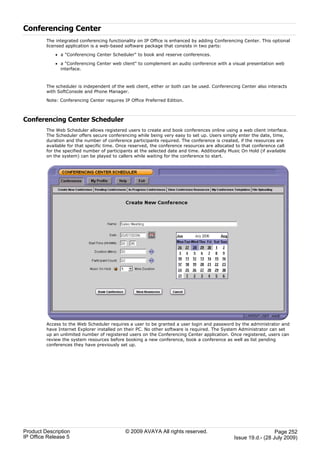

IP Office Release 5
Product Description


                      15-601041 Issue 19.d.- (28 July 2009 - 12:25)
© 2009 AVAYA All Rights Reserved.
Notice
While reasonable efforts were made to ensure that the information in this document was complete and accurate at the time of
printing, Avaya Inc. can assume no liability for any errors. Changes and corrections to the information in this document may be
incorporated in future releases.
Documentation Disclaimer
Avaya Inc. is not responsible for any modifications, additions, or deletions to the original published version of this
documentation unless such modifications, additions, or deletions were performed by Avaya.
Link Disclaimer
Avaya Inc. is not responsible for the contents or reliability of any linked Web sites referenced elsewhere within this
Documentation, and Avaya does not necessarily endorse the products, services, or information described or offered within
them. We cannot guarantee that these links will work all of the time and we have no control over the availability of the linked
pages.
License
USE OR INSTALLATION OF THE PRODUCT INDICATES THE END USER’S ACCEPTANCE OF THE TERMS SET FORTH
HEREIN AND THE GENERAL LICENSE TERMS AVAILABLE ON THE AVAYA WEBSITE AT
http://support.avaya.com/LicenseInfo/ (“GENERAL LICENSE TERMS”). IF YOU DO NOT WISH TO BE BOUND BY THESE
TERMS, YOU MUST RETURN THE PRODUCT(S) TO THE POINT OF PURCHASE WITHIN TEN (10) DAYS OF DELIVERY
FOR A REFUND OR CREDIT.
Avaya grants End User a license within the scope of the license types described below. The applicable number of licenses and
units of capacity for which the license is granted will be one (1), unless a different number of licenses or units of capacity is
specified in the Documentation or other materials available to End User. “Designated Processor” means a single stand-alone
computing device. “Server” means a Designated Processor that hosts a software application to be accessed by multiple users.
“Software” means the computer programs in object code, originally licensed by Avaya and ultimately utilized by End User,
whether as stand-alone Products or pre-installed on Hardware. “Hardware” means the standard hardware Products, originally
sold by Avaya and ultimately utilized by End User.
License Type(s): Designated System(s) License (DS).
End User may install and use each copy of the Software on only one Designated Processor, unless a different number of
Designated Processors is indicated in the Documentation or other materials available to End User. Avaya may require the
Designated Processor(s) to be identified by type, serial number, feature key, location or other specific designation, or to be
provided by End User to Avaya through electronic means established by Avaya specifically for this purpose.
Copyright
Except where expressly stated otherwise, the Product is protected by copyright and other laws respecting proprietary rights.
Unauthorized reproduction, transfer, and or use can be a criminal, as well as a civil, offense under the applicable law.
Third-Party Components
Certain software programs or portions thereof included in the Product may contain software distributed under third party
agreements (“Third Party Components”), which may contain terms that expand or limit rights to use certain portions of the
Product (“Third Party Terms”). Information identifying Third Party Components and the Third Party Terms that apply to them is
available on Avaya’s web site at: http://support.avaya.com/ThirdPartyLicense/
Avaya Fraud Intervention
If you suspect that you are being victimized by toll fraud and you need technical assistance or support, call Technical Service
Center Toll Fraud Intervention Hotline at +1-800-643-2353 for the United States and Canada. Suspected security
vulnerabilities with Avaya Products should be reported to Avaya by sending mail to: securityalerts@avaya.com.
For additional support telephone numbers, see the Avaya Support web site (http://www.avaya.com/support).
Trademarks
Avaya and the Avaya logo are registered trademarks of Avaya Inc. in the United States of America and other jurisdictions.
 Unless otherwise provided in this document, marks identified by “®,” “™” and “SM” are registered marks, trademarks and
service marks, respectively, of Avaya Inc. All other trademarks are the property of their respective owners.
Documentation information
For the most current versions of documentation, go to the Avaya Support web site (http://www.avaya.com/support) or the IP
Office Knowledge Base (http://marketingtools.avaya.com/knowledgebase/).
Avaya Support
Avaya provides a telephone number for you to use to report problems or to ask questions about your contact center. The
support telephone number is 1 800 242 2121 in the United States. For additional support telephone numbers, see the Avaya
Web site: http://www.avaya.com/support.


Product Description                             © 2009 AVAYA All rights reserved.                                      Page 2
IP Office Release 5                                                                                Issue 19.d.- (28 July 2009)
Contents
                                                                                   Supplementary Services within IP Networks
                                                                                             ................................................................ 161
Contents                                                                           Small Community Networking
                                                                                             ................................................................ 162
                                                                                   Internetworking with Other Avaya Products
                                                                                             ................................................................ 164
1. Introduction
                                                                                   Common Networking Features
                                                                                             ................................................................ 167
Avaya IP Office Family
              ................................................................ 7
What's New ................................................................ 11
             in IP Office Release 5                                                7. Data Networking Services
Voice Communication Solution Features
            ................................................................ 17    LAN/WAN ................................................................ 172
                                                                                              Services
Data Communication Solution Features
            ................................................................ 18    Internet Access
                                                                                              ................................................................ 172
Applications................................................................ 19
             Platform Features                                                     Remote Access Features
                                                                                              ................................................................ 173
Management Tools
            ................................................................ 20    LAN to LAN Routing
                                                                                              ................................................................ 173
Scalable Platform
            ................................................................ 20    Data Networking Features
                                                                                              ................................................................ 174
Telephone Options
            ................................................................ 21
Application and Feature Licensing
            ................................................................ 21
                                                                                   8. User Call Control Applications
                                                                                   one-X Portal for IP Office
                                                                                             ................................................................ 183
2. IP Office Platform                                                              Phone Manager
                                                                                             ................................................................ 190
IP Office 500 Control Unit
            ................................................................ 25    Feature Summary
                                                                                             ................................................................ 199
IP500 Base ................................................................ 26
            Cards
IP500 Trunk................................................................ 30
             Cards
                                                                                   9. SoftConsole
                                                                                   SoftConsole Options
                                                                                             ................................................................ 206
External Expansion Modules
            ................................................................ 32
                                                                                   SoftConsole Administration
                                                                                             ................................................................ 208
3. Telephones                                                                      SoftConsole PC Requirements
                                                                                             ................................................................ 208
1600 Series ................................................................ 39
             IP Telephones
5402, 5602 SW, 2402, 4602 SW Telephone
            ................................................................ 47
                                                                                   10. Computer Telephony Integration
                                                                                   CTI with IP................................................................ 213
                                                                                               Office
5410, 5610 SW, 2410, 4610 SW Telephones
            ................................................................ 50
                                                                                   TAPILink Lite (1st Party TAPI Support)
                                                                                              ................................................................ 214
5420, 5621, ................................................................ 53
             2420, 4621, 4625 Telephones
                                                                                   TAPILink Pro (3rd Party TAPI Support)
                                                                                              ................................................................ 214
EU24 and EU24 BL Expansion Modules
            ................................................................ 55
                                                                                   Support for................................................................ 214
                                                                                               Developers
T3 Telephones
            ................................................................ 56
System Button Module Support
            ................................................................ 62    11. Voicemail
Wireless and Remote Phone Solutions
            ................................................................ 63    Embedded................................................................ 217
                                                                                                Voicemail
Analog Telephones
            ................................................................ 89    Voicemail Pro
                                                                                               ................................................................ 218
Headsets ................................................................ 97       Interaction ................................................................ 221
                                                                                               of Voicemail with Email Systems
Summary ................................................................ 98        Unified Messaging Service (UMS)
                                                                                               ................................................................ 222
                                                                                   Fax Messages................................................................ 224
4. Features
                                                                                   Text-to-Speech Email Reading (Microsoft
Basic Call Handling
           ................................................................ 101
                                                                                   Exchange only)
                                                                                               ................................................................ 225
Advanced Call Handling
           ................................................................ 105
                                                                                   Networked ................................................................ 226
                                                                                                Messaging
Key and Lamp Operation
           ................................................................ 112
                                                                                   Auto Attendant
                                                                                               ................................................................ 227
Outbound Call Handling Features
           ................................................................ 115
                                                                                   Personal Numbering
                                                                                               ................................................................ 228
Forwarding................................................................ 118
                                                                                   Accessing Database Information within Call Flows
Avaya Digital and IP Phones
           ................................................................ 120    (IVR)       ................................................................ 229
Inbound Call Handling
           ................................................................ 125    Using Text To Speech (TTS) Facilities within a Call
Contact Center Features
           ................................................................ 128    Flow        ................................................................ 230
Miscellaneous Features
           ................................................................ 129    Visual Basic (VB) Scripting
                                                                                               ................................................................ 231
System Short Codes
           ................................................................ 130    Extended Personal Greetings
                                                                                               ................................................................ 232
                                                                                   Hunt Group Broadcast Messages
                                                                                               ................................................................ 233
5. IP Telephony
                                                                                   Personal Distribution Lists
                                                                                               ................................................................ 233
Gateways, Gatekeepers and H.323 - Technology
Overview ................................................................ 136      Cascaded Out-Calling
                                                                                               ................................................................ 234
IP Telephony Features
          ................................................................ 137     Campaign ................................................................ 235
                                                                                               Manager
SIP Endpoint Support
          ................................................................ 138     Call Recording
                                                                                               ................................................................ 236
Power Options for IP Telephones
          ................................................................ 141     IP Office ContactStore
                                                                                               ................................................................ 237
VoIP FAQ ................................................................ 143      Centralized Messaging with Avaya Communication
                                                                                   Manager ................................................................ 239
6. Public and Private Voice Networks                                               Voicemail Feature Comparison
                                                                                               ................................................................ 240
Private Circuit Switched Voice Networking
           ................................................................ 151    PC Requirements
                                                                                               ................................................................ 244
Public Voice Networking
           ................................................................ 152
                                                                                   12. Audio Conferencing
Session Initiation Protocol (SIP)
           ................................................................ 156
                                                                                   IP Office Meet-Me Conferencing Solution
                                                                                              ................................................................ 249
Packet Based Voice Networking
           ................................................................ 159
                                                                                   IP Office Conferencing Capacity
                                                                                              ................................................................ 250

Product Description                                           © 2009 AVAYA All rights reserved.                                                     Page 3
IP Office Release 5                                                                                                             Issue 19.d.- (28 July 2009)
Contents
IP Office Standard Conferencing Features
           ................................................................ 251
Conferencing Center
           ................................................................ 252
13. The Contact Center
Customer Call Reporter
         ................................................................ 263
Compact Contact Center
         ................................................................ 272
14. Management Utilities
IP Office Manager
           ................................................................ 281
Monitor    ................................................................ 284
Simple Network Management Protocol (SNMP)
           ................................................................ 285
SMDR       ................................................................ 286
System Status Application
           ................................................................ 287
15. Configurations
Country Availability
          ................................................................ 295
Sample Configurations
          ................................................................ 296
16. TAPI Functions Supported by IP
Office
TAPI 2.1 Functions Supported
           ................................................................ 300
TAPI 3.0 functions supported
           ................................................................ 300
Device-Specific Data
           ................................................................ 301
DevLink Fields
           ................................................................ 302
17. Technical Specifications
Interfaces ................................................................ 309
Protocols ................................................................ 310
PC Specification
           ................................................................ 312
18. Licenses
19. Appendix
IP412 Control Unit
           ................................................................ 328
IP406 V2 Control Unit
           ................................................................ 330
IP400 WAN3 10/100
           ................................................................ 332
IP400 So8 ................................................................ 332
           Expansion Module
Small Office Edition
           ................................................................ 333
IP400 Trunk Interface Cards
           ................................................................ 339
IP500 BRI So8 Module
           ................................................................ 341
IP400 Phone Module
           ................................................................ 342
IP400 Digital Station V2 Module
           ................................................................ 343
IP400 Analog Trunk 16 Module
           ................................................................ 344
Internal Daughter Cards
           ................................................................ 345


Product Description                                          © 2009 AVAYA All rights reserved.                       Page 4
IP Office Release 5                                                                              Issue 19.d.- (28 July 2009)
Chapter 1.
   Introduction


Product Description   © 2009 AVAYA All rights reserved.                       Page 5
IP Office Release 5                                       Issue 19.d.- (28 July 2009)
1.        Introduction
         This document is not a contractual document. The specification of the Avaya IP Office family is
         subject to change without notice. Not all components and features documented are available in all
         territories, refer to your Avaya Representative for further details. This document should be read in
         conjunction with any issued technical bulletins and/or product offer announcements.


Avaya IP Office Family
         The Intelligent Communications solution for small and midsize businesses.


         What is IP Office?
         A solution for voice and data communications, messaging and customer management. It uses IP technology to
         deliver more functionality at a lower cost.


         How can I use it in my business?
         To connect with colleagues and customers, simplify access to information, keep remote workers in touch. To
         save money through conferencing, networking, time/ call management, Voice over IP and more.


         What are my choices?
         Does your business have one location? Multiple locations? Are you a branch office of a larger organization? A
         home office? With IP Office you can tailor the solution to your user needs (e.g. Teleworker, Mobile Worker,
         Customer Service Agent, etc.). Whether you have 2 employees, 200 or more, IP Office is the right choice.


         IP Office: Three key things to know
         Every small and mid-size business needs ways to reduce costs and improve the way it operates. Like every
         business, you’re looking to keep all your customers, add new ones and grow at the pace that’s right for you.
         Avaya understands this. With over one hundred years of experience as a leader in communications, we know
         that the right solution for your business is one that helps you increase profitability, improve productivity and
         gain competitive advantages.


         Get big business communications - at small business prices
         Over one million businesses rely on Avaya solutions like Avaya IP Office - the award-winning business
         communications system that gives growing companies an "all-in-one" solution for telephony, messaging,
         networking, conferencing, customer management and much more. Growing businesses know they can rely on
         Avaya for big business capabilities at small business prices - Avaya has an entire division focused on the needs
         of small and mid-size businesses. We support extensive research into new technologies and standards, and we
         make it easy for businesses like yours to acquire our solutions by offering an array of financing options.


         See what Avaya can do for you
         You need a communications system - every business does. To find one that’s right for your business, start with
         Avaya. With solutions like IP Office, we’re revolutionizing how small and mid businesses communicate. Now is
         the time to see what an Avaya solution can do for your business.


         Reduce monthly costs. Now.
         IP Office will help you lower the cost of communications, with capabilities like conferencing, making calls over
         a managed Internet service (Voice over IP) and the "all-in-one" benefits of a converged communications
         system.


         Leave the office. Be accessible.
         With easy, flexible options for call/message forwarding and one-number reachability, IP Office keeps everyone
         in touch. Get the freedom to go where you want and never miss important business calls.


Product Description                           © 2009 AVAYA All rights reserved.                                      Page 7
IP Office Release 5                                                                              Issue 19.d.- (28 July 2009)
Serve better. Sell more.
         IP Office can give you a customer sales and service center designed for your needs and your budget- with all
         the routing and reporting capabilities you need. Deliver the personal service that builds sales and loyalty.


         Get connected.
         Talk to your Avaya BusinessPartner. Discuss where you want communications to add value to your business.
         Learn about the different service and support options that are available. See why thousands of growing
         businesses rely on the innovative Avaya IP Office solution.


         The right choice for you and your business.
         How we communicate is a personal choice - it has to match the needs of your business. And your needs
         change depending on whether your employees are working in the office, at home, or on the road. That’s why
         when you choose IP Office you can also choose from a whole range of communication tools and applications
         designed to boost productivity. Choose a basic phone or one with all the bells and whistles. Connect our IP
         phones directly to your office LAN - also use them at home and get all the features you have at the office.
         Avaya IP Office Phone Manager software can turn the screen of your PC into a phone. And our wireless
         solutions make it easier to roam the office. With all of our IP Office capabilities, our goal is to make your
         communications simple and cost-effective. Let your Avaya BusinessPartner put together a selection of tools
         and applications that's right for you.


         Fine-tuning performance.
         How many calls are you handling an hour, a day? What are your peak calling periods? How many calls typically
         turn into sales? Avaya IP Office reporting capabilities can help you measure and manage your availability and
         response to customers.


         Day-to-day administration.
         Once your system is up and running you will benefit from the graphical administration tools that simplify day-
         to-day tasks, such as updating directories and moving phone extensions.


         Getting started.
         Is your communications network ready for IP Office? We’ll make sure. Avaya has created a whole set of
         assessment and automated configuration tools to make sure that when your system is installed it’s ready to
         meet your needs starting Day One.


         Keeping ongoing management simple.
         Concerned about needing extra resources to administer a system as powerful as IP Office? There’s no need for
         worry. IP Office comes with a whole set of graphical tools to keep ongoing management simple.


         Does my current phone system give my business what it needs?
         If it is based on old technology, probably not. Your competitors will react faster and appear more professional
         with the latest in communications software. IP Office delivers the capabilities that allow you to keep up with or
         overtake the competition.


         Do I need to understand the technology to implement it?
         No. IP Office is designed specifically to give you more functionality without making more demands on your
         resources. Rely on your certified Avaya BusinessPartner for support before, during and after your purchase.
         We’ll take care of you so you don’t have to worry.


         Do I need to spend a lot?
         Not at all. You have choices based on your budget needs. Easy leasing or financing plans not only make this
         affordable; they help you quickly cut monthly expenses immediately. And you only have to buy/lease what you
         need, when you need it.


Product Description                          © 2009 AVAYA All rights reserved.                                      Page 8
IP Office Release 5                                                                             Issue 19.d.- (28 July 2009)
Is IP technology so new that it’s not reliable?
         With over 150,000 systems deployed worldwide (Avaya is #1 in Enterprise and IP Telephony shipments -
         source Dell'Oro and Synergy Research, Q4 2007), Avaya IP Office has the track record businesses like yours
         can rely on. Aside from receiving the Internet Telephony 'Excellence Award' in 2008 and What to Busy for
         Business in 2009, customers like you are saving money and boosting productivity. Many are managing the
         system themselves via graphical tools.


         I have old systems but am adding an office. Should I consider the new technology?

         Not only would this be a way for you to experience the rich functionality of the latest communications
         applications, but we may be able to network with your existing equipment, as well as provide a gradual
         migration plan for your other locations.


         How quickly can I get up and running?
         Just say "when"- an authorized Avaya BusinessPartner can tailor a solution to your needs and your budget. By
         saving you money and helping you grow, IP Office repays your investment and lets you reallocate resources to
         other business priorities.


         Lowering long distance costs.
         Routing phone calls over IP lines- Voice over IP- is growing in popularity. Particularly in the case of
         international calls, VoIP generates significant savings. If your company is already linking multiple offices using
         high-speed data circuits, the VoIP capabilities in IP Office make it possible to route voice calls over the existing
         infrastructure, providing another way to lower costs and leverage your investment. However you do it, the
         VoIP capabilities of IP Office are a way to put money back in your pocket.


         Eliminating conferencing fees.
         For connecting with partners, suppliers and dispersed employees, conference calls keep people working
         together and keep travel costs down. Many companies rely on third party teleconferencing services and pay a
         price for the convenience. This is particularly true- and irritating- if a call that’s scheduled doesn’t happen: you
         still pay the fee.
         Now there’s an alternative that will save you money. With Avaya IP Office, your organization can have its own
         private, secure conference bridge and entirely eliminate fees to third party providers.


         Supporting multiple offices/remote workers
         When employees can’t get to the office (because of storms, medical issues or other reasons) but can still work
         productively at home, your business benefits. IP Office Phone Manager lets you turn any PC into a phone,
         making it easy and productive to work anywhere. And the ability to network phone systems and share
         messaging systems between offices reduces up front investment and drives long-term productivity.


         And keep in mind…
         IP Office delivers a whole range of capabilities. Only you can put a number on the value that many of these
         capabilities will have for your business.
         Examples:

             · Having calls automatically routed to a cell phone or other location, so important customers can get
               through to the right person in real-time

             · Being able to operate as a 24/7 business, without a 24/7 staff

             · Using your communications to quickly identify when your top customers call.


Product Description                           © 2009 AVAYA All rights reserved.                                       Page 9
IP Office Release 5                                                                               Issue 19.d.- (28 July 2009)
How IP Office is benefiting businesses today.

             · More room for sales
               With IP Office, a leading provider of commercial food service equipment now handles 50% more calls
               per day, without extra staff and without sacrificing the personal service it knows is the key to sales.

             · At the head of the class
               By relying on IP Office to connect nearly 50 buildings, a public school system saved thousands of dollars
               on inter-office calls and simplified communications.

             · Lowering global costs
               By using IP Office to hold teleconferences and make phone calls across the IP network, a strategic
               consulting firm is saving up to $30,000 per year.


         IP Office can grow as your business grows to meet your needs. Capacities: 2-384 extensions; up to 192
         analog lines; 192/240 T1/E1 lines; 128 VoIP trunk lines.


         Call handling and messaging.
         Get 24-hour support for callers/customers without a 24-hour staff. IP Office has a range of messaging, auto
         attendant and Interactive Voice Response (IVR) capabilities. Integrate messaging and advanced call handling
         into your customer service operations. Handle voice mail and email in a single mailbox.


         Communication with customers.
         Set up a formal or informal customer service center. Integrate your customer data base into your call
         handling. Manage the quality of your customer interactions.


         Work anywhere.
         Give your employees all the communications capabilities they have at the office whether they are working
         from home, a hotel or a remote office.


         A complete conferencing solution.
         Don’t pay any more fees to outside conferencing service providers. Get Web and audio-based conferencing
         that are easy to set up and use.


         Secure converged communications.
         Use IP Office as a secure router with a built-in firewall/VPN. Route voice calls over a managed Internet service
         (VoIP) and pocket the savings. Simple administration Windows-based, graphical tools cut the time and
         expense of administration.


Product Description                          © 2009 AVAYA All rights reserved.                                     Page 10
IP Office Release 5                                                                             Issue 19.d.- (28 July 2009)
What's New in IP Office Release 5
         For those already familiar with IP Office, this section lists the new features introduced in IP Office Release 5.
         This is not an exhaustive list; however, it covers the major changes that are aimed at improving product
         manageability, flexibility and end user mobility.


         Licensing changes
         With IP Office Release 5 the licensing model has changed in order to simplify selling, buying, learning and
         using IP Office. Additionally, the Professional License has been removed and the number of Voice Networking
         licenses reduced from 3 to 1.

         With Release 5, IP Office now has a simple 3 step user-centric model:

             1. IP Office system platform and phones

             2. System Edition Licenses

             3. User productivity licenses


         IP Office System Platform and Phones
         The base of the new licensing model is still the system platform incorporating the control units, base cards,
         trunk daughter cards and external expansion modules. Licenses such as VCM channels or E1/T1 channels are
         still required.

         All voice networking functions are covered under a single license type. There is no longer any need for the
         Voice Networking Start 4 license or the Advanced Networking License. The existing Voice Networking Add 4
         license is used to turn on networking and controls the number of available channels.


         IP Office System Edition Licenses
         There are 3 Editions in Release 5:

             1. Essential Edition
                This Edition supports the basic needs of a customer such as a voicemail box for each user, voicemail to
                e-mail, dial by name and automatic attendant.

             2. Preferred Edition
                In addition to the features provided by the Essential Edition, Preferred Edition supports customer and
                staff collaboration with functions such as secure "meet me" audio conferencing, call recording,
                conditional call routing to ensure that the right person receives the call, and graphical flexible
                programming for customization.

             3. Advanced Edition
                This Edition is an add-on to the Preferred Edition. The Advanced Edition supports 24/7 customer service
                with functions such as tracking and measuring customer service and agent productivity, search & replay
                of call recordings and integrated voice response. This Edition includes 1 Customer Service Supervisor
                user license for real-time & historic call reporting to ensure that customer service objectives are
                measured.


Product Description                           © 2009 AVAYA All rights reserved.                                      Page 11
IP Office Release 5                                                                               Issue 19.d.- (28 July 2009)
IP Office User Productivity Profile Licenses
         In addition to basic telephony users with no applications enabled (except maybe voicemail), there are 3
         exclusive user profile licenses in Release 5 which can be added to enhance employee productivity:

             1. Mobile Worker
                This Profile is targeted at users with mobile devices and no internet connection to the office, e.g. field
                sales and service staff who are often on the road. They are provided with functions such as one number
                access and call control as if "in the office", enabling them to never miss a call.

             2. Tele Worker
                This Profile is targeted at users who are working from home (or elsewhere) with Internet connection to
                the office. In conjunction with an Avaya IP Phone (5610, 5621), they are provided with functions
                enabling them to be a user of the Head Office system, either through the built-in VPN capability of their
                IP Phone or the ability to leverage the PSTN/ISDN via Telecommuter mode, without incurring any
                remote phone charges.

             3. Power User
                This Profile is targeted at users with the need for both Mobile Worker and Tele Worker functionality.
                Additionally, e-mail access to voicemail is provided including synchronization with any IMAP e-mail client
                (this requires Preferred Edition) as well as a PC softphone to save on call costs when travelling abroad.


         These exclusive user profiles are complemented by 3 optional add-on user profiles

             4. Receptionist
                This profile is targeted at operators/receptionists and provides a visual PC interface for call handling and
                management for multiple sites. Up to 4 of these users are supported on each system.

             5. Customer Service Agent
                This Profile is targeted at employees who are responsible for fielding customer service calls. It provides
                them with a web browser interface to view key statistics in real-time.

             6. Customer Service Supervisor
                This Profile enables service supervisors to track, measure and create reports for agent (or a group of
                agents) productivity via a web browser interface.


         The add-on user profiles could also be combined with the basic user. Basic users are users without any
         additional user profile license. The basic user has access to the IP Office core functions such as basic
         telephony, call forwarding, hunt groups, etc.


Product Description                           © 2009 AVAYA All rights reserved.                                     Page 12
IP Office Release 5                                                                              Issue 19.d.- (28 July 2009)
Hardware Support
         IP Office Control Unit Support
             · IP Office Release 5 is supported on the IP Office 500 and IP412 as well as the IP406 V2 (no longer
               sold).

             · IP Office Release 5 is not supported on the Small Office Edition (SOE), IP401, IP403 and IP406 V1.


         Note: Not all of the features in IP Office Release 5 are supported on all platforms and all phones- please see
         each feature's description in Chapter 4 for details.


         IP Office 4-port Expansion Card
             · The 4-Port expansion card is a base card of the IP Office 500 control unit.

             · The 4-Port expansion card enables IP Office to add up to 4 more expansion modules (DS16, DS30,
               Phone16 and Phone30). From Release 5 upwards it is possible to connect 12 expansion modules in
               total.

             · As a result the total capacity of IP Office 500 increases to 384 phone ports.


         Phone Support
         1603SW IP Telephone Support
         The 1603 SW IP Telephone supports the same interface as the 1603 on IP Office but has a built-in Ethernet
         switch.


         Support of SIP Endpoints
         SIP endpoints are supported on IP Office Release 5 for Voice (Audio) and Fax (T.38) communication.

         This allows the usage of standards compliant IP telephones using the open SIP standard, giving customers a
         choice of endpoints of different manufacturers including special purpose devices such as conference phones,
         hotel phones or terminal adapters.

         Next to standard SIP functionality, SIP endpoints also support the rich set of IP Office features like hotdesking,
         follow me or account codes. Applications such as one-X Portal for IP Office are also available with SIP
         endpoints. Please refer to Chapter 5 - IP Telephony 134 for a feature overview.

         In order to use a SIP endpoint with IP Office, a "Third party IP endpoint license" is required. This license will
         continue to support endpoints based on the H.323 standard but will also be required for generic SIP endpoints
         on IP Office.


         DECT R4 Solution Support
         IP Office Release 5 supports the new IP-DECT R4 Solution Radio Fixed Parts (RFP) RM627 and RM637 as well
         as the new 3720 and 3725 handsets.


         1600 Series IP Telephone advanced user interface
             · Enhanced Features Menu
               User interface enhancements on the 1608 and 1616 phones to access commonly used features – similar
               to a mobile cell phone style menu.

             · Improved centralized call log and personal directory supporting hot desking.

             · Status Indication of selected features.


Product Description                           © 2009 AVAYA All rights reserved.                                     Page 13
IP Office Release 5                                                                              Issue 19.d.- (28 July 2009)
Core Function Support
         Central Directory
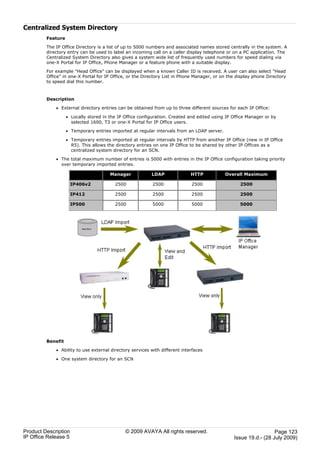
             · External directory entries can be obtained from up to three different sources per IP Office:

                 · Locally configured by using IP Office Manager or system phone (1608/1616).

                 · From an LDAP server.

                 · From another IP Office via HTTP.

             · This allows a centralized system directory for an SCN.


         Centralized Call Log
             · User and hunt group centric Call Log driven by IP Office, not by the phones themselves.

             · This feature is supported in the SCN when using hotdesking.

             · Call log data is retained through controlled restarts of the phone system.

             · With IP Office Release 5, the users centralized call log is shown on their 1608/1616 phone, T3 phone
               and one-X Portal for IP Office.


         Increase of Conferencing capacity up to 128 channels
             · IP500 conferencing capacity increased from 64 channels to 128 channels. This could be alternatively 2
               conference of 64 users, 3 conferences of 42 users or any other combination (maximum 64 participants
               per conference call).


         Extended Small Community Network (SCN) with Resilience
             · Up to 32 Nodes in a SCN, the maximum number of users remains at 500.

             · IP Office systems can now be connected together in a meshed layout in addition to a star layout.

             · In an SCN, one IP Office can be assigned to backup another adjacent system including IP Phones, hunt
               groups, user licenses (UMS and Mobility license only) and VoiceMail Pro.


         Enhanced Fax support in IP Networks
             · IP Office supports T.38 Fax over SIP on the trunk and user side.

             · An analog G3 Fax appliance can connected to the SIP/IP network via an Analogue Telephone Adapter
               (ATA).


Product Description                          © 2009 AVAYA All rights reserved.                                    Page 14
IP Office Release 5                                                                            Issue 19.d.- (28 July 2009)
New Phone Operation Features
             · Line Appearance Button Usage
               In Release 5 it is possible to configure Line Appearances before Call Appearances on 1600 Series
               phones. When configured in this way, an idle phone going off hook will select a line appearance and will
               be connected to an outside line.

             · Transferable Dial Out Privilege
               A privileged user (Operator / Supervisor) can transfer an outside line (secondary dial tone) to a user
               that does not have external privileges.

             · Ring Selection for Bridged and Call Coverage Appearance Calls
               The alert signal (ring tone) used for bridged appearance and call coverage appearance buttons can be
               set to the following values: Ring (default), Abbreviated Ring or No Ring.

             · Internal Twinning Enhancements
               When using phones that are internally twinned, access to primary user settings and information from
               either extension has been improved. That includes status indication for those features and related
               functions such as message waiting indication.

                 · The user can access their personal directory contacts from the secondary phone if it is a 1608,
                   1616 or T3 Series phone.

                 · The user can access their centralized call log from the secondary phone if it is a 1608 or 1616
                   phone.

                 · User configuration changes made at the secondary phone using short codes or programmable
                   buttons are applied to the primary user.

                 · For phones that use the single-letter user status indicators on their displays, a T will be shown on
                   the secondary phone when it is internally twinned.

             · External Call Lamp Indication
               New system wide configuration parameter to select the LED flash pattern used for external call ringing
               on bridged and coverage appearances.

             · Unconditional Forward to Voicemail
               The ability to forward calls to Voicemail, even when the user’s voicemail is not activated.

             · Coverage to Operator
               An operator or a group of operators can be configured to provide coverage for external calls that would
               otherwise go to voicemail.

             · Drop External Only Conferences
               New system wide configuration parameter to drop all external parties when the last internal party
               leaves a conference.


         Messaging Enhancements
         Embedded Voicemail
             · Dial by Name
               The caller’s search is guided by voice prompts and can be based on either first or last name.


         VoiceMail Pro enhancements
         VoiceMail Pro has been enhanced in response to customer requests.

             · Integration with Microsoft Exchange Server 2007 for full message synchronization, also enabling
               Blackberry / PDA messaging integration.

             · Unified Messaging Web Access has been enhanced to include controls for callback, get previous and get
               next messages.

             · Unified Messaging Service (UMS) now supports hunt group mailboxes.

             · Enhanced Small Community Network (SCN) support: VoiceMail Pro is now able to support SCN with up
               to 32 nodes.

             · Maximum number of ports increased from 30 to 40 on IP500.

             · Seamless support for the IP Office primary / backup resilience capability introduced in this release for
               business continuity.

             · Ability to import and export conditions.

             · Additional enhancements to:

                 · Whisper Action now allows the administrator to utilize it in a force feed capacity.


Product Description                          © 2009 AVAYA All rights reserved.                                     Page 15
IP Office Release 5                                                                             Issue 19.d.- (28 July 2009)
· Alarm Set Action has the ability to pre-select extension and time.

                 · Set Caller Priority allows the priority of the caller to be set as part of the VM Pro transfer /
                   supervised transfer actions.

                 · Minimum Message Length can be modified by the administrator.

                 · Generic Action now has a Wizard to allow the administrator to easily create customized call flows.


         one-X Portal for IP Office (new)
             · The one-X Portal for IP Office is a thin client application i.e. the user accesses one-X Portal for IP Office
               via a browser. Current versions of major browsers will be supported (e.g. Internet Explorer, Mozilla
               FireFox).

             · The following features are supported by one-X Portal for IP Office:

                 · User Call Control

                 · Call forwarding (CFWD), Do not disturb (DND) and exception management

                 · Voicemail collection and management

                 · IP Office integrated System Directory (read only) and Personal Directory (read and write)

                 · Ability to use external LDAP directory services (read only)

                 · All directory contacts are presented as click-to-dial and are searchable

                 · Dynamically updated user call log

                 · Automated provisioning and management available to administrators

                 · Presence information is shown for all internal users (including across Small Community Network)


         Service Enhancements
         IP telephony Quality of Service (QoS) reporting is now supported for Avaya 1600, 4600 and 5600 Series
         phones. It is also supported for calls using an IP Office VCM channel.

             · System Status Application (SSA) displays QoS data in extension/trunk status screens.

             · Quality thresholds can be set which, if exceeded will trigger an alarm to SSA and SNMP at the end of a
               call.


         Enhancements to VoIP Telephone Support
         There three ways to support the upgrade of Avaya IP Phones

             · Custom – HTTP/TFTP Server

             · Memory Card – Compact Flash

             · Manager – HTTP/TFTP Relay to Manager


         Manager Changes
             · Print phone button labels for 1600 Series phones from Manager


Product Description                           © 2009 AVAYA All rights reserved.                                      Page 16
IP Office Release 5                                                                               Issue 19.d.- (28 July 2009)
Voice Communication Solution Features
         IP Office offers a comprehensive list of features and benefits for the small or mid-size business, including:

             · Full PBX features
               Caller ID, Call Forwarding, Conference Calling, Voice Messaging and more.

             · Trunk Interfaces
               A variety of network trunk interfaces, including E1, T1, PRI, ISDN, SIP, analog loop start and analog
               ground start for comprehensive network connectivity. Not all trunk types are available in all territories,
               please check for local availability.

             · Extensions
               Support for a range of extensions, from 2 to 384 that provide sophisticated voice performance for new
               and growing businesses.

             · Telephones
               A variety of telephones including analog, digital and IP hard and soft phones (wired and wireless) that
               provide the appropriate desktop or device phone for every need.

             · Advanced Call Routing
               Incoming calls are directed to the best available person or messaging service, according to the
               company's unique criteria.

             · Alternate Call Routing
               Ensures reliable handling of calls by selecting from analog, digital or VoIP trunks.

             · QSIG Networking
               Standards-based multi-site networking to interoperate with other PABX's.

             · Integrated H.323 and SIP Gatekeeper and Gateway for converged communications
               The IP Office acts as an IP telephony server with Quality of Service (QoS) support through DiffServ for
               routing and up to 128ms of Echo cancellation depending on Voice Compression Module (VCM) card
               fitted.

             · SIP Trunking
               IP Office 4.0 and above supports SIP trunking to Internet Telephony Service Providers. This approach
               allows users with non-SIP phones to make and receive SIP calls.


Product Description                           © 2009 AVAYA All rights reserved.                                     Page 17
IP Office Release 5                                                                              Issue 19.d.- (28 July 2009)
Data Communication Solution Features
         For offices with basic data networking needs, IP Office can provide a complete data communications and
         networking solution:

             · Internet Access
               Firewall protected leased line or dial-up connectivity via PRI, T1 or WAN port: high-speed dialed access,
               direct leased line connections for high usage and Web site hosting, integral security, and efficient access
               to information and a larger business presence via the Web.

             · Routing
               Integral Static or Dynamic (RIP I/II) routing for both Internet and Branch-to-Branch solutions.

             · Security
               NAT (Network Address Translation) and built in firewall to protect your internal network and IPSec
               support allows secure VPN data transmission across public IP Networks using 3DES encryption.

             · DHCP
               Automatic IP address allocation for local and remotely attached PC's and other devices, including IP
               phones.

             · Remote Access Server
               Access to local LAN servers via optional two-channel V90 modem or digital trunks: individual firewall
               security, access control per user, and standards-based security enable remote workers.

             · LAN Switching
               The IP500 offers 2 switched Layer 3 Ethernet ports.

             · LDAP client support
               For standards based directory synchronization with one-X Portal for IP Office and Phone Manager.


Product Description                          © 2009 AVAYA All rights reserved.                                     Page 18
IP Office Release 5                                                                             Issue 19.d.- (28 July 2009)
Applications Platform Features
         IP Office provides big business benefits and enhanced productivity for small and mid-size businesses with a
         full complement of sophisticated applications.

         IP Office provides a number of free applications (eg. Phone Manager Lite, Microsoft TAPI service). These
         applications can be upgraded to provide enhanced functionality through the purchase of license keys.

             · Operator SoftConsole
               A graphical User Interface (GUI) for attendants on their PC desktop for call handling. Works with a
               telephone and is an easy way to learn and use sophisticated tools in a comfortable environment.

             · one-X Portal for IP Office
               A powerful client/server web application that allows the user to control and manage phone calls from a
               web browser with the standard LDAP protocol for connectivity to external directories.

             · Phone Manager
               A powerful desktop application for the IP Office, available in Lite, Pro, and PC Softphone versions to
               allow you to control and manage phone calls from your Windows desktop.

             · Open CTI interfaces
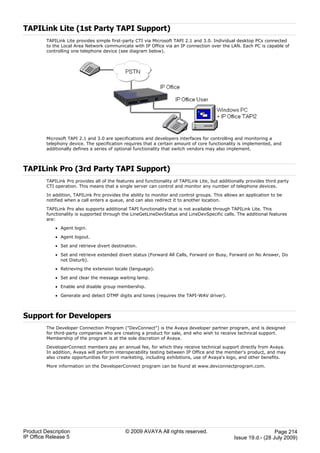
               IP Office has a built in TAPI server that integrates easily with popular contact management applications
               such as Outlook. Sophisticated custom applications can be rapidly developed and deployed with our full
               software development kit.

             · Voicemail
               Callers can always be answered with a personal voicemail greeting before a message is taken and
               message notification set. Messages can be shared (forwarded) with colleagues and retrieved by any
               phone capable of tone dialing. When used with Phone Manager Pro, the PC can be used to control
               message playback.

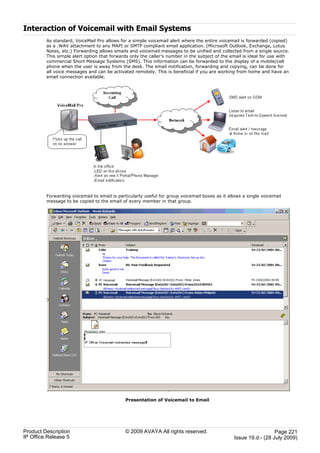
             · Integrated Voicemail to Email Presentation
               Voice messages can be copied into email messages and delivered into the email system. IP Office uses
               SMTP or MAPI to deliver a copy of the voice message.

             · Unified Messaging
               The Unified Messaging Service within VoiceMail Pro provides a higher level of integration to synchronize
               both voicemail and email inboxes.

             · VoiceMail Pro Web Access
               Together with UMS comes the ability to access voice mails via a web browser. using this voicemail
               messages can be managed and listen to using either the PC or the IP Office extension.

             · Auto-Attendant
               Simplify service for administrators with this easy-to-use feature with the ability to construct customized
               automated services allowing callers to efficiently navigate the system, and reach the right person,
               without the assistance of an operator. Available with VoiceMail Pro and with Embedded Voicemail for
               IP500 and IP406 V2.

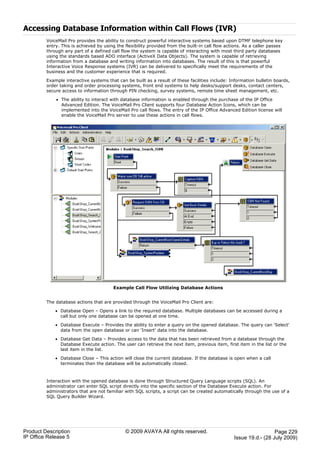
             · Interactive Voice Response (IVR) and Text to Speech
               Create automated customized systems allowing callers to interact with business information, for
               example, reading email, account enquiry systems, automated ordering systems, ticket purchasing
               systems, PIN number checking, remote time sheet management, etc. Enhance theses systems by using
               Text To Speech to read information back to callers.

             · Queue Manager and Campaign Manager
               Powerful voice and IVR applications for the Contact Center that facilitate agent and traffic management
               for better productivity and customer service.

             · Customer Call Reporter
               Combined with the built-in ACD functionality of IP Office, CCR enables a small business to track and
               measure customer service and agent productivity levels

                 · IP Office + CCR = Informal Call Center

                 · The new CCR application delivers:

                      · Simple/Intuitive Reporting

                      · Browser/Thin Client Architecture

                      · Single Server Efficiency (with VoiceMail Pro)

                 · Target Segment: Small Business, <30 agents

                      · Can support up to 150 agents

                      · 30 supervisors

                      · one administrator


Product Description                          © 2009 AVAYA All rights reserved.                                     Page 19
IP Office Release 5                                                                             Issue 19.d.- (28 July 2009)
Management Tools
         The IP Office solution (phone system, router/firewall/DHCP server) is easily managed through the IP Office
         Manager. IP Office Manager is a Windows PC software application that connects to the IP Office system using
         TCP/IP. It can be on the same LAN as the IP Office, remote on the WAN, or connected via the Remote Access
         Server with a Telephone Adaptor, Router or the optional internal modem.

         The System Status application is a useful diagnostic tool that provides enhanced details about equipment and
         resources in the IP Office system. This includes indication of alarms and details of current calls in progress for
         local or remote diagnostics.


Scalable Platform
         The Avaya IP Office 500 - servers, media modules, trunk interface cards and software applications - give small
         and mid-size businesses the options they want to meet today's communications needs and plans for the
         future.

         It offers a modular, flexible chassis which with capacity for up to 16 analog trunks or 16 ISDN BRI trunks (32
         channels) or 8 digital PRI trunks (up to 192 T1 channels or 240 E1 channels) using internal daughter cards. Up
         to 12 Expansion Modules may be added to provide a combination of up to 384 analog, digital or IP extensions,
         with additional analog trunks through external Analog 16 modules. Features include 128 optional voice
         compression channels, 2 independently switched LAN ports and an optional Embedded Messaging card.


Product Description                           © 2009 AVAYA All rights reserved.                                      Page 20
IP Office Release 5                                                                               Issue 19.d.- (28 July 2009)
Telephone Options
         IP Office supports multiple telephone solutions, giving the small and mid-size business maximum flexibility to
         choose according to their current and future needs:

             · IP Telephones
               IP Office's integral H.323 Server supports Avaya 1600 and 5600 Series IP telephones, selected Avaya
               4600 Series IP telephones, Avaya T3 series IP telephones, Avaya 3600 Series Wireless VoIP telephones
               and Phone Manager PC Softphone.

             · Digital Telephones
               IP500 Digital Station 8 cards plus IP Office Digital Station 16 or 30 Expansion Modules support the
               Avaya 5400 Series of digital phones and Avaya T3 Series telephones, plus selected 2400 and 6400
               Series phones. The IP Office Digital Station expansion modules also support existing selected 2400,
               4400, 6400 Series phones

             · Analog Phones
               IP500 Phone 2 or 8 cards plus IP Office Phone 8, 16 or 30 Expansion Modules support standard analog
               phones, faxes and modems, with support for calling line identification and message waiting indication
               where these services are provided.

             · Wireless Telephones
               Avaya IP DECT base stations can be added to support the Avaya IP DECT 3701 and 3711 telephones as
               well as the DECT R4 3720 and 3725 telephones. The IP Office Digital Station interfaces support the
               Avaya 3810 telephone. The Avaya 3600 Series wireless VoIP telephones are also supported.

             · Third Party SIP endpoints
               IP Office's integrated SIP Server supports third-party SIP endpoints such as, desktop telephones,
               softphones and conferencing speakerphones.


Application and Feature Licensing
         Some IP Office applications and features cannot be used unless a valid license is present in the IP Office
         system configuration. Each license is based on the feature or application being enabled and the serial number
         of the Feature Key device installed with the IP Office system.

         IP500 systems use a mandatory Feature Key device installed with every system. IP400 systems use optional
         Feature Key devices that are only installed if a licensed feature or application is required.

         Licenses are supplied in two forms; time limited trial licenses and indefinite licenses. Trial licenses allow
         applications to run in fully functional form for 60 days (from the date of license generation), after which time
         they cannot be used until upgraded at cost to the full license but can be ordered at any time during the
         product ownership.

         For further details of the IP Office licenses including Trial Licenses refer to the Licenses   316   section.


Product Description                           © 2009 AVAYA All rights reserved.                                      Page 21
IP Office Release 5                                                                               Issue 19.d.- (28 July 2009)
Chapter 2.
   IP Office Platform


Product Description   © 2009 AVAYA All rights reserved.                      Page 23
IP Office Release 5                                       Issue 19.d.- (28 July 2009)
2.        IP Office Platform
         IP Office is a modular communications solution that scales from 2 to 384 extensions. It provides a hybrid PBX
         with both Time Division Multiplexing (TDM) and IP phone support that can be used in either mode or both
         concurrently. IP Office has data capabilities built in, providing IP routing, switching and Firewall protection
         between LAN and WAN. IP Office has an integrated software applications suite that delivers a contact center,
         voice and email messaging, Interactive Voice Response, conferencing and computer telephony integration.

         IP Office solutions are built from hardware units and application software. Hardware provides the connectivity
         for voice and data circuits and processor units for the solution software. Each IP Office solution will require a
         system control unit (IP500 or IP412), trunk connections to service provider, and expansion modules for TDM
         phone cabling. IP Phones connect over LAN connections to the IP Office solution.


Product Description                           © 2009 AVAYA All rights reserved.                                     Page 24
IP Office Release 5                                                                              Issue 19.d.- (28 July 2009)
IP Office 500 Control Unit
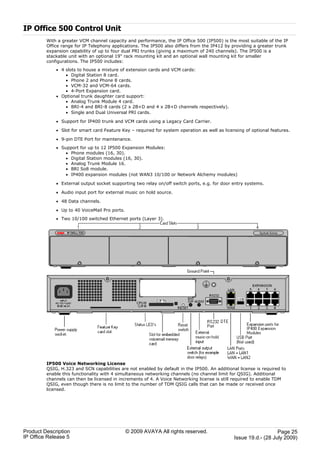
         With a greater VCM channel capacity and performance, the IP Office 500 (IP500) is the most suitable of the IP
         Office range for IP Telephony applications. The IP500 also differs from the IP412 by providing a greater trunk
         expansion capability of up to four dual PRI trunks (giving a maximum of 240 channels). The IP500 is a
         stackable unit with an optional 19" rack mounting kit and an optional wall mounting kit for smaller
         configurations. The IP500 includes:
             · 4 slots to house a mixture of extension cards and VCM cards:
                 · Digital Station 8 card.
                 · Phone 2 and Phone 8 cards.
                 · VCM-32 and VCM-64 cards.
                 · 4-Port Expansion card.
             · Optional trunk daughter card support:
                 · Analog Trunk Module 4 card.
                 · BRI-4 and BRI-8 cards (2 x 2B+D and 4 x 2B+D channels respectively).
                 · Single and Dual Universal PRI cards.

             · Support for IP400 trunk and VCM cards using a Legacy Card Carrier.

             · Slot for smart card Feature Key – required for system operation as well as licensing of optional features.

             · 9-pin DTE Port for maintenance.
             · Support for up to 12 IP500 Expansion Modules:
                 · Phone modules (16, 30).
                 · Digital Station modules (16, 30).
                 · Analog Trunk Module 16.
                 · BRI So8 module.
                 · IP400 expansion modules (not WAN3 10/100 or Network Alchemy modules)

             · External output socket supporting two relay on/off switch ports, e.g. for door entry systems.

             · Audio input port for external music on hold source.

             · 48 Data channels.

             · Up to 40 VoiceMail Pro ports.
             · Two 10/100 switched Ethernet ports (Layer 3).


         IP500 Voice Networking License
         QSIG, H.323 and SCN capabilities are not enabled by default in the IP500. An additional license is required to
         enable this functionality with 4 simultaneous networking channels (no channel limit for QSIG). Additional
         channels can then be licensed in increments of 4. A Voice Networking license is still required to enable TDM
         QSIG, even though there is no limit to the number of TDM QSIG calls that can be made or received once
         licensed.


Product Description                            © 2009 AVAYA All rights reserved.                                  Page 25
IP Office Release 5                                                                            Issue 19.d.- (28 July 2009)
IP500 Base Cards
         The IP500 control unit has 4 slots for the insertion of cards. These cards can be divided into two types; base
         cards and daughter cards. Base cards include a front panel and ports for cable connections. Daughter cards
         can be added to a base card in order to provide additional facilities (typically trunk connections).

         The following base cards are available:

             · IP500 Digital Station 8 Card        27    (Maximum 3)

             · IP500 Analog Phone 2 Card and Phone 8 Card              27   (Maximum 4)

             · IP500 VCM Card      28   (Maximum 2)

             · IP500 4-Port Expansion Card          28   (Maximum 1)

             · IP500 Legacy Card Carrier      29    (Maximum 2)


Product Description                          © 2009 AVAYA All rights reserved.                                    Page 26
IP Office Release 5                                                                            Issue 19.d.- (28 July 2009)
IP500 Digital Station 8 Card
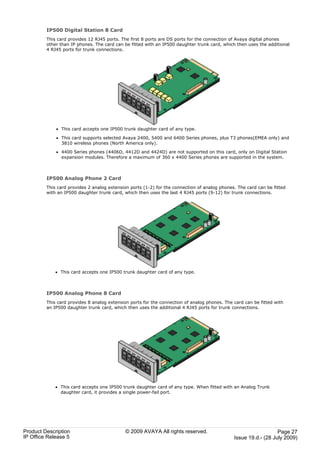
         This card provides 12 RJ45 ports. The first 8 ports are DS ports for the connection of Avaya digital phones
         other than IP phones. The card can be fitted with an IP500 daughter trunk card, which then uses the additional
         4 RJ45 ports for trunk connections.


             · This card accepts one IP500 trunk daughter card of any type.

             · This card supports selected Avaya 2400, 5400 and 6400 Series phones, plus T3 phones(EMEA only) and
               3810 wireless phones (North America only).

             · 4400 Series phones (4406D, 4412D and 4424D) are not supported on this card, only on Digital Station
               expansion modules. Therefore a maximum of 360 x 4400 Series phones are supported in the system.


         IP500 Analog Phone 2 Card
         This card provides 2 analog extension ports (1-2) for the connection of analog phones. The card can be fitted
         with an IP500 daughter trunk card, which then uses the last 4 RJ45 ports (9-12) for trunk connections.


             · This card accepts one IP500 trunk daughter card of any type.


         IP500 Analog Phone 8 Card
         This card provides 8 analog extension ports for the connection of analog phones. The card can be fitted with
         an IP500 daughter trunk card, which then uses the additional 4 RJ45 ports for trunk connections.


             · This card accepts one IP500 trunk daughter card of any type. When fitted with an Analog Trunk
               daughter card, it provides a single power-fail port.


Product Description                          © 2009 AVAYA All rights reserved.                                   Page 27
IP Office Release 5                                                                           Issue 19.d.- (28 July 2009)
IP500 VCM Card
         This card provides voice compression channels for use with VoIP calls, SIP trunks and IP-based voice
         networking. The module is available in variants supporting up to 32 or 64 channels. The actual number of
         channels provided is controlled by the VCM Channels licenses entered into the IP500 system configuration.


         Each VCM card has 4 VCM channels enabled by default. Further channels can be enabled up to the maximum
         (32 or 64) through adding one or more licenses (available in 4, 8, 16, 28 and 60 channel increments).

         The maximum number of voice compression channels supported, using IP500 VCM base cards and / or IP400
         VCM cards on IP500 Legacy Card Carriers, is 128.

         Please note, the maximum number of channels which may be used on each IP500 VCM card varies according
         to the codec used, as shown in the following table.

         Maximum VCM channels available, by codec type:

                         VCM 32        VCM 64

              G.711         32           64
              G.729        30            60
              G.723        22            44

         The card can be fitted with an IP500 daughter trunk card, which uses the 4 RJ45 ports for trunk connections.

             · This card accepts one IP500 trunk daughter card of any type.


         IP500 4-Port Expansion Card
             · This card provides connectors for 4 additional expansion modules.

             · The 4-port expansion card must be inserted in slot 4 of the control unit.

             · It is not possible to connect a daughter card to the 4-port expansion card.


Product Description                           © 2009 AVAYA All rights reserved.                                 Page 28
IP Office Release 5                                                                          Issue 19.d.- (28 July 2009)
IP500 Legacy Card Carrier
         This card allows a variety of IP400 trunk and VCM cards to be used with the IP500 control unit. The front of
         the card includes a number of panels that can be snapped off to match the ports available when an IP400
         trunk card is fitted.


             · This card does not accept any IP500 daughter trunk cards.

             · The IP500 control unit can accept up to 2 IP400 trunk or VCM cards by mounting each card on an IP500
               Legacy Card Carrier

             · This card supports the following IP400 cards:

                      ·    PRI T1                      ·    Dual PRI E1R2 RJ45        ·    VCM   8
                      ·    Dual PRI T1                 ·    ANLG 4 Uni                ·    VCM   16
                      ·    PRI 30 E1 (1.4)             ·    BRI-8 (UNI)               ·    VCM   24
                      ·    Dual PRI E1                 ·    VCM 4                     ·    VCM   30
                      ·    PRI 30 E1R2 RJ45


Product Description                          © 2009 AVAYA All rights reserved.                                    Page 29
IP Office Release 5                                                                            Issue 19.d.- (28 July 2009)
IP500 Trunk Cards
         IP500 daughter trunk cards can be fitted to existing IP500 base cards to provide support for trunk ports. The
         daughter card uses the ports provided on the base card for cable connection. The addition of an IP500
         daughter trunk card is supported on IP500 Digital Station, IP500 Analog Phone and IP500 VCM base cards.
         They are not supported on the IP500 Legacy Card Carrier base card.


         For those base cards that support daughter cards, there are no restrictions on the combination of card types.
         However in systems with both Analog Phone 8 base cards and analog trunk daughter cards, combining the two
         types are recommended as it then provides analog power failure support for one trunk/extension (Not
         applicable to the Analog Phone 2 base card).

         Each daughter card is supplied with the spacer pegs required for installation and a label to identify the card's
         presence on the physical unit once installed.

             · IP500 Analog Trunk Card (Maximum 4).

             · IP500 BRI Trunk Card (Maximum 4).

             · IP500 Universal PRI Trunk Card (Maximum 4).


         IP500 Analog Trunk Card
         This card can be added to an IP500 Digital Station card, IP500 Analog Phone base card, or IP500 VCM card. It
         allows that card to then also support 4 analog loop-start trunks. It also provides one analog V.32 modem.


             · When fitted to an IP500 Analog Phone 8 base card, the combination supports 1 power failure extension
               to trunk connection.


Product Description                           © 2009 AVAYA All rights reserved.                                     Page 30
IP Office Release 5                                                                              Issue 19.d.- (28 July 2009)
IP500 BRI Trunk Card (Euro ISDN)
         This type of card can be added to an IP500 Digital Station card, IP500 Analog Phone card, or IP500 VCM card.
         It allows that card to then also support up to 4 BRI trunk connections, each trunk providing 2B+D digital
         channels. The card is available in 2 port (4 channels) and 4 port (8 channels) variants.


         The ports on IP500 BRI cards can be individually configured to operate as an S-interface (S0 mode). When set
         as an S interface the settings for the Line will be exactly the same as for a circuit on an So8 Expansion Module.

         · These trunks support the mobility features of Mobile Call Control and one-X Mobile client   110 .


         IP500 Universal PRI Trunk Card
         This type of card can be added to an IP500 Digital Station card, IP500 Analog Phone card, or IP500 VCM card.
         It allows that card to then also support primary rate digital trunk connections. Available in single and dual
         versions the IP400 PRI card provides single and dual primary rate trunk interfaces respectively. The PRI is
         configurable for T1, E1 or E1R2 MFC use depending on the territory.


         Details of the supported ISDN supplementary services and protocols for each PRI are given in the 'Public and
         Private Voice Networks' section.

         The IP500 Universal PRI trunk cards incorporate an integrated CSU/DSU. The CSU function allows the trunk to
         be put in loop-back mode for testing purposes. This can be set manually, using the monitor application, or
         automatically from a Central Office sending a Line Loop Back (LLB) pattern. The DSU function allows the T1
         trunk to be shared between data and voice services.

         Here is a summary of the capabilities of the card:

             · Each card is configurable to connect to T1, E1 or E1R2 lines.

             · The card is available in either a single or dual PRI variant. The single variant can support up to 24 T1
               channels or up to 30 E1 channels. The dual variant can support up to 48 T1 channels or 60 E1 channels.

             · On each card, 8 channels per interface are enabled by default. This means that the single PRI has 8
               channels enabled, while the dual PRI has 16 channels enabled. Further channels may be enabled by the
               purchase of additional licenses in 2-channel or 8-channel increments.

             · The IP500 PRI daughter card works on any IP500 VCM or extension base card (not the Legacy Card
               Carrier).

             · Up to four Universal PRI cards can be installed in any combination in the IP500 chassis.

             · Diagnostics capabilities:

               · Visual indicators to show service state

               · Physical test points to monitor traffic.
         · These trunks support the mobility features of Mobile Call Control and one-X Mobile client   110 .


Product Description                           © 2009 AVAYA All rights reserved.                                    Page 31
IP Office Release 5                                                                             Issue 19.d.- (28 July 2009)
External Expansion Modules
         Unless otherwise stated, each of these modules may be used with the IP500, IP406 V2 and IP412.

             · IP500 Phone Expansion Module 34
               Available in two variants for 16 or 30 analog extensions with calling line presentation.

             · IP500 Digital Station Expansion Module 33
               Available in two variants for 16 or 30 digital extensions for Avaya series digital telephones.

             · IP500 Analog Trunk 16 Expansion Module 32 (US version only)
               Provides 16 analog loop start or ground start trunks, with power failover of two trunks.


IP500 Analog Trunk 16 Module
         This expansion module provides an additional sixteen Loop Start or Ground Start two-wire analog trunks.
         (Ground start trunks are not available in all territories) The first two trunks on the module which are
         automatically switched to power fail sockets on the rear of the unit in the event of power being interrupted
         must be loop start for correct power fail operation.

         For installations in a rack, this module requires the IP500 Rack Mounting Kit. The IP500 Analog Trunk 16
         Module is functionally identical to the IP400 Analog Trunk 16 Module.


Product Description                          © 2009 AVAYA All rights reserved.                                      Page 32
IP Office Release 5                                                                              Issue 19.d.- (28 July 2009)
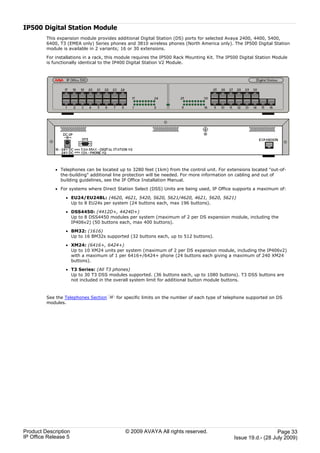
IP500 Digital Station Module
         This expansion module provides additional Digital Station (DS) ports for selected Avaya 2400, 4400, 5400,
         6400, T3 (EMEA only) Series phones and 3810 wireless phones (North America only). The IP500 Digital Station
         module is available in 2 variants; 16 or 30 extensions.

         For installations in a rack, this module requires the IP500 Rack Mounting Kit. The IP500 Digital Station Module
         is functionally identical to the IP400 Digital Station V2 Module.


             · Telephones can be located up to 3280 feet (1km) from the control unit. For extensions located "out-of-
               the-building" additional line protection will be needed. For more information on cabling and out of
               building guidelines, see the IP Office Installation Manual.

             · For systems where Direct Station Select (DSS) Units are being used, IP Office supports a maximum of:

                 · EU24/EU24BL: (4620, 4621, 5420, 5620, 5621/4620, 4621, 5620, 5621)
                   Up to 8 EU24s per system (24 buttons each, max 196 buttons).

                 · DSS4450: (4412D+, 4424D+)
                   Up to 8 DSS4450 modules per system (maximum of 2 per DS expansion module, including the
                   IP406v2) (50 buttons each, max 400 buttons).

                 · BM32: (1616)
                   Up to 16 BM32s supported (32 buttons each, up to 512 buttons).

                 · XM24: (6416+, 6424+)
                   Up to 10 XM24 units per system (maximum of 2 per DS expansion module, including the IP406v2)
                   with a maximum of 1 per 6416+/6424+ phone (24 buttons each giving a maximum of 240 XM24
                   buttons).

                 · T3 Series: (All T3 phones)
                   Up to 30 T3 DSS modules supported. (36 buttons each, up to 1080 buttons). T3 DSS buttons are
                   not included in the overall system limit for additional button module buttons.


         See the Telephones Section   38   for specific limits on the number of each type of telephone supported on DS
         modules.


Product Description                            © 2009 AVAYA All rights reserved.                                   Page 33
IP Office Release 5                                                                             Issue 19.d.- (28 July 2009)
IP500 Phone Expansion Module
         This module provides additional analog telephone interfaces:

             · Two Wire.

             · DTMF signaling (No rotary or Loop Disconnect).

             · Time Break Recall (No Earth Recall).

             · Caller ID capable.

             · Message Waiting Indication (MWI) capable - High Voltage, Pulsed High Voltage, Line Reversal.


         The IP500 Phone module is available in 2 versions, giving 16 or 30 extensions. Telephones can be located up
         to 3280 feet (1km) from the control unit. For extensions located "out-of-the-building" additional line protection
         will be needed. For more information on cabling and out of building guidelines, see the IP Office Installation
         Manual.


             · IP Office Phone Modules provide support for a variety of analog MWI methods. These methods are 51V
               Stepped, 81V, 101V and Line Reversal.

             · Each analog port can support a device of maximum 1 REN.

             · On analog ports, call information is sent while the phone is ringing, and cannot be updated during a call
               or set on an outbound call (the phone may do a local match but this is not controlled by the IP Office).
               The primary purpose of displays is to give information about incoming calls. Where the Caller Display
               standard chosen supports the delivery of text (extension name) as well as the number, both are
               delivered.

             · An analog extension port can be set for external Paging operation. It does not operate like a normal
               extension and is connected to external equipment through an isolation device. The Port will always be
               busy so it cannot be called directly and can only be accessed by using a paging feature. When not
               receiving a Page, the port will remain silent. When being paged, the page tone is sent before the speech
               path is opened.


Product Description                          © 2009 AVAYA All rights reserved.                                     Page 34
IP Office Release 5                                                                             Issue 19.d.- (28 July 2009)
Product Description   © 2009 AVAYA All rights reserved.                      Page 35
IP Office Release 5                                       Issue 19.d.- (28 July 2009)
Chapter 3.
   Telephones


Product Description   © 2009 AVAYA All rights reserved.                      Page 37
IP Office Release 5                                       Issue 19.d.- (28 July 2009)
3.        Telephones
         Avaya IP Office Desktop phones are designed to meet typical user needs in the small and mid business
         market:

             · Walk Up
               Phones in common areas like a meetings room, lobby or store. The phones are normally used by casual
               users that walk-up to a phone where they make a quick phone call. Normally, no sophisticated features
               are needed.

                 · Example user: Customer, Visitor.

             · Everyday
               Users that need a phone on their desk as part of their everyday job. While having a phone is important,
               the phone is just another tool on the desk for users using several alternative communication
               technologies.

                 · Example user: Engineer, Accountant.

             · Receptionist/Assistant
               A typical user manages a lot of calls, often as a significant part of their job. In many cases they also
               manage calls for others users and need to be efficient in connecting callers to the right people.

                 · Example user: Executive Assistant, Receptionist.

             · Executive
               For these users, handling a lot of calls is essential and they are constantly on the phone. Quite often,
               they handle multiple calls; they must always be connected, even when mobile. They require a set of
               rich, yet easy to use communication capabilities.

                 · Example user: Sales Executive, Banker, Lawyer, Project leader.


         Phones for the different Usage categories:

             · Walk Up: 1603, 5602SW/4602SW, 5402/2402, T3 Compact (Europe only)

             · Everyday: 1603SW (Basic Everyday), 1608, 5610SW/4610SW, 5410/2410, T3 Classic (Europe only)

             · Receptionist/Assistant: 1616 (with BM32 if needed), 5621/4621SW with EU24, 5420/2420 with
               EU24, T3 Comfort (Europe only)

             · Executive: 5621/4621SW, 5420/2420, 4625SW, T3 Comfort (Europe only)


Product Description                          © 2009 AVAYA All rights reserved.                                      Page 38
IP Office Release 5                                                                              Issue 19.d.- (28 July 2009)
1600 Series IP Telephones
         Avaya one-X is a portfolio of communications solutions that deliver a powerful and consistent communications
         experience for the end user – across a variety of devices and interfaces. Avaya one-X solutions provide
         Intelligent Access to Intelligent Communications driving enhanced productivity and competitive advantage.

         Avaya one-X Deskphone Value Edition, also called the 1600 Series of IP telephones, is a family of cost
         effective IP Telephones designed especially around the needs of the Small and Mid-Size Business customer.

         Designed with the reliability you expect from Avaya, one-X Deskphone Value Edition telephones provide critical
         features and capabilities not often found in competitively priced models.

         The family of 1600 phones consists of three models, designed around different user needs:

             · The 1603 phone is designed for the Walk Up user and basic Everyday user. For a Walk Up scenario, the
               1603 is used in locations such as common areas in offices, stockrooms, lobbies, or drop-in desks. Users
               can be building visitors, employees, or even customers who need a phone with a simple, familiar
               interface. The 1603 phones comes in two versions: The 1603, a basic phone without Ethernet switch for
               locations where no PC is connected to the phone, typically for the walkup user, as well as the 1603 SW,
               with a basic Ethernet switch to connect additional components to the phone, well suited for the basic
               Everyday user.

             · The Avaya 1608 IP Telephone is designed for the Everyday user. Everyday users typically rely on
               several forms of communication including voice and email – and while they require a quality telephone,
               they rarely handle large amount of calls at the same time. Cubicle workers and sales staff are examples
               of Everyday users for whom the 1608 delivers a productivity-enhancing telephone.

             · The Avaya 1616 IP Telephone is designed for the Receptionist/Assistant user. Receptionists, secretaries,
               and managers are examples of this type of user – people who answer incoming calls, transfer
               customers to different departments or extensions, and monitor several line appearances throughout a
               typical day. For the Receptionist/Assistant user, the 1616 provides the most one-touch
               line/feature/speed-dial buttons without the need to scroll through on-screen lists.


         All 1600 phones share a consistent design line and feature a button-centric layout. With fast access to all
         needed features like hold, transfer and conference, easily readable back-lit displays and a stylish design, they
         are an important addition to the Avaya portfolio of phones for the Small and Mid-Size market.

         All phones share a number of feature keys with clear, paper labels. On the 1608 and 1616, features are also
         available through a feature list on screen that makes selecting features and line appearances easy even when
         hotdesking to another phone.

         New: Mobile cell phone style feature menu.

         The phones are accompanied by a complete set of accessories like cost efficient power supplies, easy to use
         paper labels and spare parts. For powering options refer to the section Power Options for IP Telephones 141 .

         For easy and efficient generation of labels, free DESI printing software is available from
         http://support.avaya.com (on the 1600 Phone Series page). This can be used to print all labels correctly
         formatted on plain paper or available DESI labels. A PDF document with correct formatting can also be
         downloaded.

         For customer environments requiring Gigabit Ethernet support, a Gigabit Ethernet adapter is available -
         providing 10/100/1000 Mbps support for both the 1600 Series phone and co-located laptop or PC.

         Note that with the 1600 Series of phones, no Ethernet cable is included. If a cable is needed, it should be
         ordered separately at the required length.


Product Description                          © 2009 AVAYA All rights reserved.                                     Page 39
IP Office Release 5                                                                             Issue 19.d.- (28 July 2009)
1603 IP Telephone
         This telephone is best suited for the Walkup and Basic Everyday user.


                              Works on:              IP Office             Communication
                                                                              Manager

                              1603
                              1603 SW

         The Avaya 1603 supports 3 line appearances. Each of the buttons includes dual LEDs (red, green) providing
         explicit status for the user. For a familiar look and feel, the 1603 includes several fixed feature keys for
         common telephone tasks including conference, transfer, drop, hold, and mute. In addition, the 1603 includes a
         2-way speakerphone. The display on the 1603 measures two lines by 16 characters and is backlit for easier
         viewing in all lighting conditions.

         The 1603 SW telephone has the same features/functionality as the 1603 phone, it adds on top of that however
         a secondary Ethernet port and is therefore targeted at the basic Everyday user.


         Common Features:

         · Display/Housing:

           o Backlit display – 2 rows by 16 characters.

           o Reversible wedge stand for desktop and wall-mount use.

         · Fixed Buttons: 10.

           o Volume up/down (separate volume levels for the handset, speaker, and ringer), Mute button, Speaker
             button.

           o Avaya Menu button (options and settings access).

           o Hold button, Conference button, Transfer button, Drop button, Redial button.

         · Programmable/Contextual buttons: 3.

           o 3 line appearance key buttons – with dual LEDs (red, green) and paper labels (Printing tool available).

         · Key Labels: Icons and text used on fixed feature keys.

         · Speakerphone: Two-way handsfree speaker and microphone.

         · Hearing Aid Compatible: Yes - ergonomic hearing aid compatible handset also supporting TTY acoustic
           coupler.

         · Message Waiting Indicator: Yes - also useable as a ringing call alert indicator.


Product Description                         © 2009 AVAYA All rights reserved.                                    Page 40
IP Office Release 5                                                                           Issue 19.d.- (28 July 2009)
· Personalized Ring Patterns: Yes - 8.

         · Headset Socket: No.

         · Upgradeable Firmware: Yes.

         · Expansion: None.

         · Color: Black.

         · Mounting: Desk or wall mountable.


         Requirements for IP interface:

         · Power Supply: Optional IEEE 802.3af Power over Ethernet (PoE) adapter (class 2) or optional wall plug
           local power supply.

         · Codecs/audio: G.711, G.729a/b, Dynamic Jitter buffer, Echo cancellation, Comfort Noise, Automatic Gain
           control.

         · QoS Options: UDP Port Selection, DiffServ and 802.1p/q (VLAN).

         · SNMP Support: Yes.

         · IP Address Assignment: Static or dynamic IP address assignment.

         · Ethernet Ports: 1603 - Single Ethernet (10/100) line interface. Support of optional Gigabit Ethernet
           Adapter.

         · Ethernet Ports: 1603 SW Ethernet (10/100) line interface with a secondary 10/100 port for co-located
           laptop or PC with VLAN separation. Support of optional Gigabit Ethernet Adapter.

             · Well suited for everyday use, where typically smaller sized data files transferred (web, email file
               attachments) or less demanding data-transfer application/usage (thus less sensitive to data transfer
               completion times).

             · For highly demanding data traffic processing with large amounts of small packets we recommend the
               1616 phone for full speed data throughput.


         Language Support:

         · Supports the following languages: English, French, Spanish, German, Italian, Dutch, Portuguese and Russian
           (English and 4 of the other languages at once in the phone)


Product Description                         © 2009 AVAYA All rights reserved.                                   Page 41
IP Office Release 5                                                                          Issue 19.d.- (28 July 2009)
1608 IP Telephone
         This telephone is best suited for the Everyday user.


                               Works on:               IP Office              Communication
                                                                                 Manager

                               1608

         The Avaya 1608 supports 8 line appearances / feature keys. Each of the buttons includes dual LEDs (red,
         green) providing explicit status for the user. For a familiar look and feel, the 1608 includes several fixed
         feature keys for common telephone tasks including conference, transfer, drop, hold, and mute. In addition, the
         1608 includes a high quality two-way speakerphone, and supports a broad portfolio of Avaya wired and
         wireless headsets through its integrated headset jack.

         The 1608 features a context sensitive user interface along with three softkeys and a four-way navigation
         cluster – ideal for scrolling through the local contacts list or call logs. The display on the 1608 measures three
         lines by 24 characters and is backlit for easier viewing in all lighting conditions.


         Common Features:

         · Display/Housing:

           o Backlit display – 3 rows by 24 characters.

           o Dual position flip stand.

         · Fixed Buttons: 15 plus Four-way navigation cluster button.

           o Volume up/down (separate volume levels for the handset, speaker, and ringer), Mute button, Speaker
             button, Headset button.

           o Avaya Menu button (options and settings access), Telephony application button – to return to main
             telephone screen.

           o Hold button, Conference button, Transfer button, Drop button.

           o Contacts button, Call log button, Redial button, quick-access voicemail Message button.

         · Programmable/Contextual buttons: 11.


Product Description                           © 2009 AVAYA All rights reserved.                                      Page 42
IP Office Release 5                                                                               Issue 19.d.- (28 July 2009)
o 8 line appearance/feature key buttons – with dual LEDs (red, green) and paper labels (Printing tool
             available). Note: For typical installs, the first 3 buttons are reserved for standard call appearances, a
             minimum of 2 call appearance buttons is needed for standard operation.

           o Three contextual softkey buttons.

         · Key Labels: Icons and text used on fixed feature keys.

         · Features Menu: Mobile cell phone style menu with access to most often used features like call forwarding,
           Park, Settings etc. On screen status indication for activated features like call forwarding.

         · Speakerphone: High quality two-way handsfree speaker and microphone.

         · Hearing Aid Compatible: Yes - ergonomic hearing aid compatible handset also supporting TTY acoustic
           coupler.

         · Message Waiting Indicator: Yes - also useable as a ringing call alert indicator.

         · Personalized Ring Patterns: Yes - 8.

         · Headset Socket: Yes.

         · Embedded Applications:

           o Centralized call log and contact application, fully transparent between 1608/1616 phones and one-X Portal
             for IP Office.

           o Contacts application and Call Log (Missed, Incoming, Outgoing).

           o Access to company directory and Visual Voice applications on IP Office.

         · Upgradeable Firmware: Yes.

         · Expansion: None.

         · Color: Black.

         · Mounting: Desk or wall mountable with optional wall mount adapter.


         Requirements for IP interface:

         · Power Supply: IEEE 802.3af Power over Ethernet (PoE) class 2 device or optional wall plug local power
           supply.

         · Codecs/audio: G.711, G.729a/b, Dynamic Jitter buffer, Echo cancellation, Comfort Noise, Automatic Gain
           control.

         · QoS Options: UDP Port Selection, DiffServ and 802.1p/q (VLAN).

         · SNMP Support: Yes.

         · IP Address Assignment: Static or dynamic IP address assignment.

         · Ethernet Ports: Ethernet (10/100) line interface with a secondary 10/100 port for co-located laptop or PC
           with VLAN separation.

           o Well suited for everyday use, where typically smaller sized data files transferred (web, email file
             attachments) or less demanding data-transfer application/usage (thus less sensitive to data transfer
             completion times).

           o For highly demanding data traffic processing with large amounts of small packets we recommend the
             1616 phone for full speed data throughput.

           o Support of optional Gigabit Ethernet Adapter.


         Language Support:

         · Supports the following languages: English, French, Spanish, German, Italian, Dutch, Portuguese and Russian
           (English and 4 of the other languages at once in the phone)


Product Description                          © 2009 AVAYA All rights reserved.                                      Page 43
IP Office Release 5                                                                              Issue 19.d.- (28 July 2009)
1616 IP Telephone
         This telephone is best suited for the Receptionist/Assistant User.


                               Works on:               IP Office              Communication
                                                                                 Manager

                               1616

         The Avaya 1616 supports 16 line appearances/feature keys on the phone itself – and up to 3 x 32-button
         expansion modules, providing access to a total of 112 line/feature keys or speed dial buttons. This will satisfy
         the needs of even the most demanding secretary or receptionist. Each of the buttons features a dual LED (red,
         green) providing explicit status for the user. For a familiar look and feel, the 1616 includes several fixed
         feature keys for common telephone tasks including conference, transfer, drop, hold, and mute. In addition, the
         1616 includes a high quality two-way speakerphone, and supports a broad portfolio of Avaya wired and
         wireless headsets through its integrated headset jack.

         The 1616 features a context sensitive user interface along with three softkeys and a four-way navigation
         cluster – ideal for scrolling through the local contacts list or call logs. The display on the 1616 measures four
         lines by 24 characters and is adjustable for optimum viewing angle. Additional caller related information is
         displayed with active appearances for easier call handling. The display is backlit for easier viewing in all
         lighting conditions.


         Common Features:

         · Display/Housing:

           o Backlit display – 4 rows by 24 characters with adjustable display angle.

           o Dual position flip stand.

         · Fixed Buttons: 15 plus Four-way navigation cluster button.

           o Volume up/down (separate volume levels for the handset, speaker, and ringer), Mute button, Speaker
             button, Headset button.

           o Avaya Menu button (options and settings access), Telephony application button – to return to main
             telephone screen.

           o Hold button, Conference button, Transfer button, Drop button.

           o Contacts button, Call log button, Redial button, Quick-access voicemail Message button.


Product Description                           © 2009 AVAYA All rights reserved.                                      Page 44
IP Office Release 5                                                                               Issue 19.d.- (28 July 2009)
· Programmable/Contextual buttons: 19.

           o 16 line appearance/feature key buttons – with dual LEDs (red, green) and paper labels (Printing tool
             available). Note: For typical installs, the first 3 buttons are reserved for standard call appearances, a
             minimum of 2 call appearance buttons is needed for standard operation.

           o Three contextual softkey buttons.

         · Key Labels: Icons and text used on fixed feature keys.

         · Feature Menu: Mobile cell phone style menu with access to most often used features like call forwarding,
           Park, Settings etc. On screen status indication for activated features like call forwarding.

         · Speakerphone: High quality two-way handsfree speaker and microphone.

         · Hearing Aid Compatible: Yes - ergonomic hearing aid compatible handset also supporting TTY acoustic
           coupler.

         · Message Waiting Indicator: Yes - also useable as a ringing call alert indicator.

         · Personalized Ring Patterns: Yes - 8.

         · Headset Socket: Yes.

         · Embedded Applications:

           o Centralized Call Log and Contact application fully transparent between 1608/1616 phones and one-X
             Portal for IP Office.

           o Contacts application and Call Log (Missed, Incoming, Outgoing).

           o Access to company directory and Visual Voice applications on IP Office.

         · Upgradeable Firmware: Yes.

         · Expansion: Module interface – for up to 3 x BM32 32-button expansion modules (Note: An external power
           supply is needed for all installs with more than 1 button module).

         · Color: Black.

         · Mounting: Desk or wall mountable with optional wall mount adapter.


         Requirements for IP interface:

         · Power Supply: IEEE 802.3af Power over Ethernet (PoE) class 2 device or optional wall plug local power
           supply.

         · Codecs/audio: G.711, G.729a/b, Dynamic Jitter buffer, Echo cancellation, Comfort Noise, Automatic Gain
           control.

         · QoS Options: UDP Port Selection, DiffServ and 802.1p/q (VLAN).

         · SNMP Support: Yes.

         · IP Address Assignment: Static or dynamic IP address assignment.

         · Ethernet Ports: Ethernet (10/100) line interface with a secondary 10/100 port for co-located laptop or PC
           with VLAN separation. Support of optional Gigabit Ethernet Adapter.


         Language Support:

         · Supports the following languages: English, French, Spanish, German, Italian, Dutch, Portuguese and Russian
           (English and 4 of the other languages at once in the phone).


Product Description                          © 2009 AVAYA All rights reserved.                                      Page 45
IP Office Release 5                                                                              Issue 19.d.- (28 July 2009)
BM32 Button module.


         The BM32 Button Module extends the number of feature buttons on your Avaya 1616 IP Telephone. It provides
         32 additional buttons all with dual LEDs (red, green) for easy visibility.

         Up to 3 BM32 button modules can be connected to a 1616 phone. The total number of BM32 button modules
         supported on one IP Office system is 16, subject to the total system limits. Please refer to System Button
         Module Support 62 for the total system limitations of button modules on IP Office.


         Typical uses are:

             · to provide additional lines for calls bridged from one or more other extensions

             · to provide abbreviated dialing buttons

             · to provide buttons to access additional switch features like call forwarding


         Note that the BM32 buttons cannot be used for appearance functions such as call and line appearance
         buttons.


Product Description                          © 2009 AVAYA All rights reserved.                                      Page 46
IP Office Release 5                                                                              Issue 19.d.- (28 July 2009)
5402, 5602 SW, 2402, 4602 SW Telephone
         These telephones are best suited for the Walkup User.


                         Telephone                 Works on IP Office    Works on IP Office and
                                                                        Communication Manager

                         5402
                         5602 SW
                         2402                               *
                         4602 SW

                       *Early 2402 telephones can make and receive call but the display will not function.
            Note: The 5602 SW and 4602 SW phones are supported by IP Office Release 5. However, 5602 SW is no
                      longer available for new sales while 4602 SW is available in selected countries only.


         Common Features:

             · Display: 2 lines x 24 characters.

             · Fixed Feature Buttons: 10 - Conference, Transfer, Drop, Redial, Speaker, Messages, Hold, Mute,
               Volume Up, Volume Down.

             · Programmable Feature Buttons:

               · DS Phones: 2 plus an additional 12 programmable feature keys can be accessed via the FEATURE
                 key.

               · IP Phones: 2.

             · Key Labels: Icons and text used on fixed feature keys. Display labels and icons used on 2
               programmable feature keys.

             · Speakerphone: Listen-only handsfree speaker (no microphone).

             · Hearing Aid Compatible: Yes.

             · Message Waiting Indicator: Yes. On the 2402 and 5402 this is can also be used as a ringing call alert
               indicator.

             · Personalized Ring Patterns: Yes- 8 (via Conference button when idle).

             · Headset Socket: No, this telephone does not support headset operation.

             · Embedded Applications: None.

             · Upgradeable Firmware: DS Phones - No. IP Phones - Yes.

             · Expansion: None.

             · Color: Multi-gray.

             · Mounting: Desk or wall mountable.

             · Adjustable Desk Stand: No.


Product Description                         © 2009 AVAYA All rights reserved.                                  Page 47
IP Office Release 5                                                                         Issue 19.d.- (28 July 2009)
Product Description   © 2009 AVAYA All rights reserved.                      Page 48
IP Office Release 5                                       Issue 19.d.- (28 July 2009)
Requirements for 5402 and 2402:

             · Connect to: Digital Station (DS) port.

             · Power Supply: From phone system.


         Requirements for 5602 SW and 4602 SW:

             · Power Supply: IEEE 802.3af Power over Ethernet (PoE) or individual power supply unit (Avaya 1151
               series).

             · Codecs: G.711, G.729a/b.

             · QoS Options: UDP Port Selection, DiffServ and 802.1p/q (VLAN)

             · SNMP Support: Yes.

             · IP Address Assignment: Static or dynamic IP address assignment.

             · Ethernet Ports: Two port full-duplex 10/100 BaseT Ethernet switch for PC pass-through connection.

               · Auto-negotiation provided separately for each port.

               · 802.3 Flow Control.

               · Phone has priority over PC port at all times.


Product Description                          © 2009 AVAYA All rights reserved.                                Page 49
IP Office Release 5                                                                        Issue 19.d.- (28 July 2009)
5410, 5610 SW, 2410, 4610 SW Telephones
         These telephones are best suited for the Receptionist/Assistant User.


                           Telephone          Works on IP Office         Works on IP Office and
                                                                        Communication Manager

                           5410
                           5610 SW
                           2410
                           4610 SW

                      4610 End of Sale has been announced so please check availability or use 5610 instead.


         Common Features:

             · Display: 5 lines x 29 characters (168 x 80 pixel 4-grayscale).

             · Fixed Feature Buttons: 10 - Conference, Headset, Transfer, Drop, Redial, Speaker, Hold, Mute,
               Volume Up, Volume Down.

             · Programmable Feature Buttons:

               · DS Phones: 12 - in 2 switchable display pages of 6 matching the 6 physical display buttons.

               · IP Phones: 24 - in 4 switchable display pages of 6 matching the 6 physical display buttons.

             · Key Labels: Icons and text used on fixed feature keys.

             · Speakerphone: Two-way handsfree speaker and microphone.

             · Hearing Aid Compatible: Yes.

             · Message Waiting Indicator: Yes - can also be used as a ringing call alert indicator.

             · Personalized Ring Patterns: Yes - 8.

             · Headset Socket: Yes.

             · Embedded Applications: Speed Dial List (48) and Call Log (Missed, Incoming, Outgoing). Also WAP
               WML browser supported on IP phone models.

             · Upgradeable Firmware: Yes.

             · Expansion: None.

             · Color: Multi-gray.

             · Mounting: Desk or wall mountable.

             · Adjustable Desk Stand: Yes - Supplied with phone.


Product Description                          © 2009 AVAYA All rights reserved.                                  Page 50
IP Office Release 5                                                                          Issue 19.d.- (28 July 2009)
Product Description   © 2009 AVAYA All rights reserved.                      Page 51
IP Office Release 5                                       Issue 19.d.- (28 July 2009)
Special Features for the 5410 and 2410:

             · Messages Button: Dedicated button to collect voicemail.


         Requirements for 5410 and 2410:

             · Connect to: Digital Station (DS) port.

             · Power Supply: From phone system.


         Requirements for 5610 and 4610:

             · Power Supply: IEEE 802.3af Power over Ethernet (PoE) or individual power supply unit (Avaya 1151
               series).

             · Codecs: G.711, G.729a/b.

             · QoS Options: UDP Port Selection, DiffServ and 802.1p/q (VLAN)

             · SNMP Support: Yes.

             · IP Address Assignment: Static or dynamic IP address assignment.

             · Ethernet Ports: Two port full-duplex 10/100 BaseT Ethernet switch for PC pass-through connection.

               · Auto-negotiation provided separately for each port.

               · 802.3 Flow Control.

               · Phone has priority over PC port at all times.


Product Description                          © 2009 AVAYA All rights reserved.                                Page 52
IP Office Release 5                                                                        Issue 19.d.- (28 July 2009)
5420, 5621, 2420, 4621, 4625 Telephones
         These telephones are best suited for the Executive User and with the optional EU24 Button Module good for
         the Receptionist/Assistant User.


                          Telephone             Works on IP Office        Works on IP Office and
                                                                         Communication Manager

                          5420
                          5621 SW
                          2420
                          4621 SW
                          4625 SW

                       *Note the 4625 is no longer sold by Avaya but is supported on IP Office Release 5.
                      4621 End of Sale has been announced so please check availability or use 5621 instead.


         Common Features:

             · Display: 7 lines x 29 characters.

             · Fixed Feature Buttons: 10 - Conference, Headset, Transfer, Drop, Redial, Speaker, Hold, Mute,
               Volume Up, Volume Down.

             · Programmable Feature Buttons:

               · DS Phones: 24 - arranged in 3 switchable display pages of 8 matching the 8 physical display
                 buttons.

               · IP Phones: 24 - arranged in 2 switchable display pages of 12 matching the 12 physical display
                 buttons.

             · Key Labels: Icons and text used on fixed feature keys.

             · Speakerphone: Two-way handsfree speaker and microphone.

             · Hearing Aid Compatible: Yes.

             · Message Waiting Indicator: Yes - can also be used as a ringing call alert indicator.

             · Personalized Ring Patterns: Yes - 8.

             · Headset Socket: Yes.

             · Embedded Applications: Speed Dial List (104) and Call Log (Missed, Incoming, Outgoing). Also WAP
               WML browser supported on IP phone models.

             · Upgradeable Firmware: Yes.

             · Expansion: Supports the EU24 DSS expansion module (with additional Avaya 1151 power supply).

             · Color: Multi-gray.

             · Mounting: Desk or wall mountable.

             · Adjustable Desk Stand: Yes - Supplied with phone.


Product Description                          © 2009 AVAYA All rights reserved.                                  Page 53
IP Office Release 5                                                                          Issue 19.d.- (28 July 2009)
Special Features for the 5420 and 2420:

             · Messages Button: Dedicated button to collect voicemail.


         Requirements for 5420 and 2420:

             · Connect to: Digital Station (DS) port.

             · Power Supply: From phone system.


         Requirements for 5621 SW, 4621 SW, 4625 SW:

             · Power Supply: IEEE 802.3af Power over Ethernet (PoE) or individual power supply unit (Avaya 1151
               series).

             · Codecs: G.711, G.729a/b.

             · QoS Options: UDP Port Selection, DiffServ and 802.1p/q (VLAN)

             · SNMP Support: Yes.

             · IP Address Assignment: Static or dynamic IP address assignment.

             · Ethernet Ports: Two port full-duplex 10/100 BaseT Ethernet switch for PC pass-through connection.

               · Auto-negotiation provided separately for each port.

               · 802.3 Flow Control.

               · Phone has priority over PC port at all times.


         Special Features for 5621 SW and 4621 SW:

             · Display Backlight: The display has a backlight for improved contrast. Standby mode turns off backlight
               after time-out.


         Special Features for 4625 SW:

             · Color Backlight Display: The display is full color and has a backlight for improved contrast.


         Note: While still supported, the 5620SW and 4620SW phones are no longer available for purchase.


Product Description                          © 2009 AVAYA All rights reserved.                                   Page 54
IP Office Release 5                                                                           Issue 19.d.- (28 July 2009)
EU24 and EU24 BL Expansion Modules


         The EU24/EU24BL are phone expansion modules that work in association with a 5420, 5620/1, 2420, 4620/1,
         4625 phones. They provide an additional 24 programmable buttons with associated display label and status
         icons. Only one EU24 can be used per phone. The EU24BL has a backlight and is for use with the 4621 and
         5621 only.

         The EU24/EU24BL supports an additional 24 Call Appearance/Feature buttons, by displaying a column of 12
         buttons at a time, with a dotted line separating the two columns.


         Common Features

             · 24 Programmable call appearance/feature keys.

             · Automatically labeled from the system (no paper labels).

             · Connects directly to the associated phone.

             · Requires an Avaya 1151 series power supply, even for IP phones already using Power over Ethernet
               (PoE).

             · IP Office supports a maximum of eight EU24/EU24 BL's on each IP Office system, subject to total
               system limits. Please refer to System Button Module Support 62 for the total system limitations of
               button modules on IP Office.

                                   Telephone                EU24              EU24BL

                                   2402/5402
                                   2410/5410
                                   2420/5420
                                   4601/5601
                                   4602/5602
                                   4610/5610
                                   4620/5620
                                   4621/5621
                                   4625


Product Description                         © 2009 AVAYA All rights reserved.                                    Page 55
IP Office Release 5                                                                           Issue 19.d.- (28 July 2009)
T3 Telephones
         The T3 range of digital Upn and IP telephones provide European style with context sensitive displays and are
         available in select European countries only.


T3 Compact
         This telephone is best suited for the Walkup User. It is available in Europe only.


         Common Features:
            · Display: 1 line with 24 characters alphanumerical plus one line of icons
             · Fixed Feature Buttons: 3 keys with printed text labels and 2 for Audio Volume control
             · Programmable Feature Buttons: 3 keys with indicators and printed text labels, 2 keys with printed
               text labels
             · Speakerphone: Full duplex handsfree speaker and microphone.
             · Hearing Aid Compatible: Through optional handset
             · Message Waiting and call log Indicator: Yes
             · Personalized Ring Patterns: Yes, 8 ring patterns
             · Embedded Applications: Navigation Cursor Control, Call signaling via LED and/or ringer;
               Alphanumeric entry via dialing keypad.
             · Color: Graphite gray or polar white.
             · Mounting: Desk or optional wall mountable.
             · Adjustable Desk Stand: No
         Features for T3 Upn only:
            · Upgradeable Firmware: No.
             · Optional Add-Ons: Up to 3 DSS Modules. T3 Headset link for wired headsets.
             · Headset Socket: No. Optional headset add-on available.
             · Connect to: Digital Station (DS) port.
             · Power Supply: From phone system.
          Features for T3 IP only:
                  · Upgradeable Firmware: Yes
                   · Headset Socket: Yes
                   · Optional Add-Ons: No
                   · Power Supply: IEEE 802.3af Power over Ethernet (PoE) or individual power supply unit.
                   · Codecs: G.711, G.729a/b.
                   · QoS Options: UDP Port Selection, DiffServ and 802.1p/q (VLAN)
                   · SNMP Support: No.
                   · IP Address Assignment: Static or dynamic IP address assignment.
                   · Ethernet Ports: Two port full-duplex 10/100 BaseT Ethernet switch.
                      · Auto-negotiation provided separately for each port.
                      · 802.3 Flow Control.


Product Description                           © 2009 AVAYA All rights reserved.                                  Page 56
IP Office Release 5                                                                           Issue 19.d.- (28 July 2009)
T3 Classic
         This telephone is best suited for the Everyday User. It is available in Europe only.


         Common Features:
             · Display: 4 lines x 26 characters
             · Fixed Feature Buttons: 5 preprogrammed keys with printed text labels and 2 for Audio Volume
               control
             · Programmable Feature Buttons: 6 preprogrammed keys with indicators and printed text labels, 4
               programmable keys with printed text labels
             · Speakerphone: Two-way handsfree speaker and microphone.
             · Hearing Aid Compatible: Through optional handset
             · Message Waiting and call log Indicator: Yes
             · Personalized Ring Patterns: Yes, 8 ring patterns.
             · Headset Socket: No. Optional headset add-on available.
             · Embedded Applications: Navigation Cursor Control, Call signaling via LED and/or ringer; Alpha entry
               via dialing keypad.
             · Optional Add-Ons: Up to 3 DSS Modules. T3 Headset link for wired headsets.
             · Color: Graphite gray or polar white.
             · Mounting: Desk
             · Adjustable Desk Stand: Display adjustable


         Features for T3 Upn:
             · Upgradeable Firmware: No.
             · Optional Add-Ons: up to 3 DSS Modules
             · Connect to: Digital Station (DS) port.
             · Power Supply: From phone system.


         Features for T3 IP:
                   · Upgradeable Firmware: Yes.
                   · Optional Add-Ons: up to 3 DSS Modules with AEI/Headsetlink,
                   · Power Supply: IEEE 802.3af Power over Ethernet (PoE) or individual power supply unit.
                   · Codecs: G.711, G.729a/b.
                   · QoS Options: UDP Port Selection, DiffServ and 802.1p/q (VLAN)
                   · SNMP Support: no.
                   · IP Address Assignment: Static or dynamic IP address assignment.
                   · Ethernet Ports: Two port full-duplex 10/100 BaseT Ethernet switch.
                      · Auto-negotiation provided separately for each port.
                      · 802.3 Flow Control.


Product Description                           © 2009 AVAYA All rights reserved.                                    Page 57
IP Office Release 5                                                                             Issue 19.d.- (28 July 2009)
Product Description   © 2009 AVAYA All rights reserved.                      Page 58
IP Office Release 5                                       Issue 19.d.- (28 July 2009)
T3 Comfort
         This telephone is best suited for the Executive as well as the Receptionist/Assistant User. It is available in
         Europe only.


         Common Features:
             · Display: 17 lines x 40 characters, Integrated keyboard
             · Fixed Feature Buttons: 5 preprogrammed keys with printed text labels and 2 for Audio Volume
               control
             · Programmable Feature Buttons: 6 preprogrammed keys with indicators and printed text labels, 6
               preprogrammed keys with printed text labels, 10 user programmable keys with associated display
               labels.
             · Speakerphone: Two-way handsfree speaker and microphone.
             · Hearing Aid Compatible: Through optional handset
             · Message Waiting and call log Indicator: Yes
             · Personalized Ring Patterns: Yes, 8 ring patterns.
             · Headset Socket: No. Optional headset add-on available.
             · Embedded Applications: Navigation Cursor Control, Call signaling via LED and/or ringer
             · Optional Add-Ons: Up to 3 DSS Modules. T3 Headset link for wired headsets.
             · Color: Graphite gray or polar white.
             · Mounting: Desk
             · Adjustable Desk Stand: Display adjustable


         Features for T3 Upn:
             · Upgradeable Firmware: No.
             · Optional Add-Ons: up to 3 DSS Modules
             · Connect to: Digital Station (DS) port.
             · Power Supply: From phone system.


         Features for T3 IP:
                   · Upgradeable Firmware: Yes.
                   · Optional Add-Ons: up to 3 DSS Modules with AEI/Headsetlink,
                   · Power Supply: IEEE 802.3af Power over Ethernet (PoE) or individual power supply unit.
                   · Codecs: G.711, G.729a/b.
                   · QoS Options: UDP Port Selection, DiffServ and 802.1p/q (VLAN)
                   · SNMP Support: No.
                   · IP Address Assignment: Static or dynamic IP address assignment.
                   · Ethernet Ports: Two port full-duplex 10/100 BaseT Ethernet switch.
                      · Auto-negotiation provided separately for each port.


Product Description                           © 2009 AVAYA All rights reserved.                                      Page 59
IP Office Release 5                                                                               Issue 19.d.- (28 July 2009)
· 802.3 Flow Control.


Product Description                           © 2009 AVAYA All rights reserved.                      Page 60
IP Office Release 5                                                               Issue 19.d.- (28 July 2009)
T3 DSS Expansion Modules
         The T3 DSS Module is a phone expansion module that is compatible with all T3 Upn and T3 IP Telephones
         except the T3 IP Compact. Each module provides an additional 36 programmable buttons with associated
         printed text labels and indicators, and can be programmed for lines, groups or speed dial numbers. 3 DSS
         Modules can be added to each T3 phone. Power is provided by T3 Upn telephones, but an external power
         adapter is needed for each DSS module when used on T3 IP telephones.


                                              T3 Comfort with T3 DSS Attached


         IP Office 406, IP412 and IP500 support a maximum of 30 T3 DSS modules per control unit. Please refer to
         System Button Module Support 62 for the total system limitations of button modules on IP Office.


Product Description                         © 2009 AVAYA All rights reserved.                                   Page 61
IP Office Release 5                                                                          Issue 19.d.- (28 July 2009)
System Button Module Support
         IP Office supports a number of different button modules to provide phones with additional programmable
         buttons. The limits stated below are those applicable for the IP Office 4.2 2Q 2009 maintenance release and
         higher.

                 · EU24/EU24BL: (4620, 4621, 5420, 5620, 5621/4620, 4621, 5620, 5621)
                   Up to 8 EU24s per system (24 buttons each, max 196 buttons).

                 · DSS4450: (4412D+, 4424D+)
                   Up to 8 DSS4450 modules per system (maximum of 2 per DS expansion module, including the
                   IP406v2) (50 buttons each, max 400 buttons).

                 · BM32: (1616)
                   Up to 16 BM32s supported (32 buttons each, up to 512 buttons).

                 · XM24: (6416+, 6424+)
                   Up to 10 XM24 units per system (maximum of 2 per DS expansion module, including the IP406v2)
                   with a maximum of 1 per 6416+/6424+ phone (24 buttons each giving a maximum of 240 XM24
                   buttons).

                 · T3 Series: (All T3 phones)
                   Up to 30 T3 DSS modules supported. (36 buttons each, up to 1080 buttons). T3 DSS buttons are
                   not included in the overall system limit for additional button module buttons.

         Excluding T3 DSS modules, the maximum number of additional button module buttons per system is 512
         (regardless of if the buttons are configured for use or not). This allows various combinations of button
         modules. Examples:

             · 12 x BM32 + 5 x EU24 is allowed (504 buttons in total).

             · 5 x T3DSS + 10 x BM32 is allowed (500 buttons in total).

             · but NOT 8 x BM32 + 10 x EU24 (because it exceeds the maximum number of 8 EU24s, even though
               total buttons < 512).

             · and NOT 14 x BM32 + 4 x EU24 (total 544 buttons, this exceeds the maximum 512 buttons per
               system).


Product Description                         © 2009 AVAYA All rights reserved.                                   Page 62
IP Office Release 5                                                                          Issue 19.d.- (28 July 2009)
Wireless and Remote Phone Solutions
         Avaya IP Office Wireless Solutions include analog, digital and IP-based WiFi wireless phones. These are
         solutions employees can use every day to work more effectively and be more responsive to customers - all
         while increasing revenues and keeping communication costs firmly under control. Also, Avaya IP Office Mobility
         Solutions integrate seamlessly with IP Office, enhancing each customer’s investment. IP Office's in-building
         Mobility Solutions improve communication with staff that, because of the function they perform, are mobile
         within the workplace. Using wireless technology, such individuals may be instantly contactable, with many
         obvious benefits;

             · The wireless telephone is carried in the pocket, so users are not tied to the desk in order to remain in
               contact.

             · Users may be contacted instantly to ensure fast, accurate decision making and immediate response to
               problems through planned radio coverage with no blind spots


         Avaya Wireless and Remote Solutions
         IP Office supports the following wireless solutions:

             · DECT R4, the new IP-based DECT solution for IP Office which in the long term will replace the current
               IP-DECT solution. Offered in the EMEA and NA regions and in selected APAC countries.

             · IP-DECT in the EMEA and NA regions and in selected APAC countries.

             · Digital Wireless North American market.

             · Avaya VoIP WiFi Solution offered worldwide in selected countries including North America, EU countries
               and selected others.


         IP Office supports the following VPN remote phone solutions:

             · VPN phone client on 4610SW, 4621SW, 5610SW and 5621SW IP phones offered worldwide.


         Which DECT solution should be used?
         While being fully supported on IP Office Release 5, the current IP-DECT solution with the 3701 and 3711
         handsets will be replaced by the new DECT R4 solution with superior features.

         For new installs, we therefore recommend selection of the new DECT R4 solution as future functionality
         additions will happen only on DECT R4. The new 3720 and 3725 handsets offer enhanced capabilities, the
         latter supporting a color screen and Bluetooth headset.


Product Description                           © 2009 AVAYA All rights reserved.                                    Page 63
IP Office Release 5                                                                             Issue 19.d.- (28 July 2009)
Wireless - DECT R4
         The Avaya DECT R4 solution delivers the productivity-boosting benefits of IP and wireless communications
         across multiple offices in a convenient, lightweight handset. It provides businesses with a highly functional
         wireless solution with the ability to scale to support large numbers of users. This system also supports users
         in different offices connected via a WAN. The Avaya DECT R4 solution radio fixed part or IP base station
         (IPBS) connects to the IP Office using an IP protocol based on H.323.

         Avaya’s DECT R4 solution features all advantages of a full blown DECT solution for the enterprise market: Cost
         effective high wireless voice quality in a frequency band exclusively reserved for DECT that is secure, easy to
         deploy and enhance.

         The solution consists of:

         · Two wireless handsets

         · Two radio base stations (with internal and external antennas) with IP interface for usage with IP Office

         · An appliance server for centralized functions like corporate directory and internal phonebook access, simple
           text messaging, integration of messaging and other external applications, centralized configuration and
           maintenance etc.

         As the solution contains a handset with liquid protection and BlueTooth headset interface and an appliance
         server for attaching messaging applications it is especially well suited for verticals like healthcare and retail.

         All handsets and radio base stations support the DECT frequency bands in EMEA, APAC, NAR and CALA with
         the same hardware and firmware. (Please check type approval for availability in the different regions)

         The Avaya DECT R4 solution on IP Office supports up to 120 handsets and 32 base stations. Each base station
         can be powered over the LAN using the Power over Ethernet (PoE) standard. Each base station can be also
         powered by an external power supply. There are two versions of the base station (IPBS) available:, a standard
         base station with fixed antennas and an enhanced base station with a variety of external antennas (External
         antenna not available in the US). Both base-stations can be installed in an outdoor housing to provide an
         "external" base-station


         Solution Overview


         In all approved regions, this system supports the 3720 and 3725 handsets.


Product Description                            © 2009 AVAYA All rights reserved.                                      Page 64
IP Office Release 5                                                                                Issue 19.d.- (28 July 2009)
IP-Dect Base Station (IPBS)
         The IP DECT Radio Base Stations are used with IP Office only. It connects directly to a LAN switch using
         Ethernet cabling. The IP DECT Radio Base Stations can either be powered by Power-over-Ethernet or by using
         external power supplies that are available as accessories.

         Each IP DECT Radio Base Station can handle up to eight concurrent calls. A special protocol called on-air
         synchronization ensures that active calls are seamlessly handed over from one IP DECT Radio Base Station to
         the next one if a user with an active call roams through a building.

         To make sure that the on-air protocol works and that the whole building is covered by the ranges of the IP
         DECT Radio Base Stations a site survey is needed to determine the number and placement of the IP DECT
         Radio Base stations within the building. Avaya offers these site surveys as a service offer by AGS as well as
         measurement kits for business partners who want to do these site surveys on their own.

         The on-air synchronization as well as the access to the phonebook via the AIWS server is done by a special
         software (master server) that can run in parallel to the standard IP DECT Radio Base Station software on the
         same hardware.


                   IP DECT Radio Base Station with internal            IP DECT Radio Base Station with
                                  antennas                                   external antennas


         Each base station has the following features:

             · Two variants of the base-station: With Internal antenna and with External Antenna due to regulation, in
               the US only the base-station with internal antenna may be used.

             · There are several antennas available for the base-station with external antenna: Standard, Directional
               Single, Directional Dual, Omnidirectional.

             · Outdoor housing available for both versions

             · 8 simultaneous Voice and up to 12 Signaling Channels.

             · Codec G.711, G723, G.729a/b for base station IP trunk connection.

             · Power Consumption

             · Power over Ethernet or local power supply supported

             · Power over Ethernet, IEEE 802.3af, class 2.

             · External power supply available, typical 4W, maximum 5W consumption.

             · Dimension: 200 (w) x 165 (d) x 56 (h) mm including mounting bracket

             · Weight IPBS: 450g.


Product Description                          © 2009 AVAYA All rights reserved.                                    Page 65
IP Office Release 5                                                                            Issue 19.d.- (28 July 2009)
DECT Feature Overview
         Given the degree of integration available to wireless users with DECT, there are a variety of means by which
         calls can be routed to wireless handsets:

             · Handover
               While in motion, the handset performs continuous measurements to determine which IP DECT base
               station has the strongest signal. The one that can be best received is defined as the active Base station.
               To prevent the handset from rapidly switching back and forth between two base stations that are
               equally well received, threshold values are used. Handover between base stations occurs seamlessly
               whether a call is active or not.

             · DECT Networking
               An IP DECT telephone can travel from one office to another which is connected over a wide area
               network (WAN) link and make and take calls. In this scenario the main IP DECT controller remains at
               one "headquarters" location, with slave base stations in up to 31 other offices.

             · DDI/DID
               Since each wireless handset is an extension on the IP Office system calls may be routed directly using a
               DDI/DID number.

             · Transfer
               Calls may be transferred to DECT extensions by operators or other extension users and DECT extension
               users may transfer callers to any other extension user.

             · Hunt group compatibility
               Wireless handsets may be programmed as members of groups and answer calls in the same manner as
               any other extension within that group.

             · Group working
               Wireless handsets may be programmed as members of groups and attract calls in the same manner as
               any other extension within that group. DECT handsets must NOT be configured into collective groups.

             · Divert destination
               Users may initiate any or all diverts from an Avaya desk phone to a wireless handset.

             · Twinning
               Twinning allows calls to a user main extension number to alert at both that extension and a secondary
               extension. Though not restricted to DECT, this feature is aimed primarily at users who have both a desk
               phone and a wireless extension. Calls from the secondary twinned extension are presented as if from
               the users main extension. Presentation of call waiting and busy is based on whether either of the
               twinned extensions is in use.

             · DECT R4 Capacities:

                  Feature                                    DECT R4

                  Maximum handsets                              120

                  Maximum base-stations                         32

                  Total base-stations/repeaters                 32

                  Maximum simultaneous calls                   100*

                 *May be limited by the available VCM voice compression channels for calls to non-IP destinations.
                 DECT R4 on IP Office does not support Redundancy option.

             · Licensing and Redundancy
               Other then IP-Dect, Dect R4 does not require any licensing by itself (next to the licensing for the
               appropriate VCM channels in IP Office). Dect R4 on IP Office does not support Redundancy option


Product Description                          © 2009 AVAYA All rights reserved.                                    Page 66
IP Office Release 5                                                                            Issue 19.d.- (28 July 2009)
DECT R4 Inbuilding Wireless Server (AIWS)
         The Avaya Inbuilding Wireless Server enhances the functionality of the DECT R4 with additional functionality
         such as IP Office and LDAP directory access, centralized management and software update as well as handset
         to handset SMS plus basic web messaging.

         Avaya In-Building Wireless Server (AIWS) is a server for handling wireless services and messaging. It runs on
         a solid state embedded Server (AIWS Hardware). It comes pre-installed, with the appropriate features
         activated on that server.

         For installation and maintenance, this server is managed by a PC using Windows Internet Explore (6.0 or
         above) and Sun’s Java Runtime Environment.

         Several variants of the server are available. All Servers come fully installed and preloaded with licenses so no
         extra installation is needed. There is no upgrade available from e.g. Basic to standard.

                                                                      Basic        Basic+       Standard         OAP

         NTP Server                                                     X             X             X             X
         (IP Office can also act as NTP Server)

         Access To Central Phonebook                                    X             X             X             X

         Access To Corporate Directories                               X             X              X
         (LDAP on CM /TFTP on IPO )                                (only IPO)    (only IPO)   (IPO & LDAP)

         SMS Handset to Handset                                         X             X             X             X

         Basic Web Messaging                                            X             X             X             X

         Netpage Web Messaging                                                                      X

         Software Download Over-The-Air                                               X             X
                                                                                  (up to 32    (up to 120
                                                                                  handsets)    handsets)

         Software Download Via Advanced/Rack Charger                                  X             X
                                                                                  (up to 32    (up to 120
                                                                                  handsets)    handsets)

         Centralized Handset Configuration Over-The-Air                               X             X
                                                                                  (up to 32    (up to 120
                                                                                  handsets)    handsets)

         Centralized Handset Configuration Via                                        X             X
         Advanced/Rack Charger                                                    (up to 32    (up to 120
                                                                                  handsets)    handsets)

         Virtual SIM Card                                                             X             X
                                                                                  (up to 32    (up to 120
                                                                                  handsets)    handsets)

         AIWS as Protocol Converter                                                                                X
                                                                                                              (only OAP)


Product Description                          © 2009 AVAYA All rights reserved.                                     Page 67
IP Office Release 5                                                                             Issue 19.d.- (28 July 2009)
DECT R4 Accessories
         In addition to the standard chargers, a number of high functionality chargers exist:


             · Basic Charger

                 · Charges one DECT phone (3720 and 3725)

                 · Charge time: 4 hours.


             · Advanced Charger

                 · Charges one DECT phone (3720 and 3725)

                 · Supports easy replacement of telephones

                 · Connected to configuration tool PDM (Portable Device Manager) via USB or Ethernet

                 · Charge time: 4 hours.


             · Rackmount Charger

                 · Same functionality as the advanced charger but for up to 6 DECT phones (3720 and 3725)

                 · Charge time: 4 hours.


             · Multiple Battery Charger

                 · Charges 6 batteries (3720 and 3725).


Product Description                          © 2009 AVAYA All rights reserved.                                     Page 68
IP Office Release 5                                                                             Issue 19.d.- (28 July 2009)
· Portable Device Manager
               Software to be used in combination with Advanced or Rackmount Charger in order to Manage the 3720
               and 3725 phone:

                 · Requirements: Windows XP® Professional, Service Pack 2 (SP2) or Windows Vista® Business
                   operating system, Sun Java Runtime Environment (JRE) 6 or later, Acrobat Reader 5 or higher.


             · Other accessories

                 · Handset Basic Belt Clip

                 · Handset Swivel Belt Clip

                 · Handset Leather Case (3720 and 3725)

                 · Handset Security Chain


Product Description                           © 2009 AVAYA All rights reserved.                               Page 69
IP Office Release 5                                                                        Issue 19.d.- (28 July 2009)
Wireless - Avaya IP DECT
         The IP DECT solution delivers the productivity-boosting benefits of IP and wireless communications across
         multiple offices in a convenient, lightweight handset. It provides businesses with a highly functional wireless
         solution with the ability to scale to support large numbers of users. This system also supports users in
         different offices connected via a WAN. The Avaya IP DECT solution radio fixed part (RFP) or base station
         connects to the IP Office using an IP protocol based on H.323.

         The Avaya IP DECT solution supports up to 120 handsets and 32 base stations. Each base station can be
         powered over the LAN using the Power over Ethernet (PoE) standard. Each indoor base station can also
         optionally be connected to main power via an external power adaptor. Each outdoor base station can only be
         powered using PoE - no individual power supplies are available to power the outdoor IP DECT base station.

         In EMEA and APAC this system supports the 3701 and 3711 handsets.

         In North America, only the 3711 handset is supported.

         Avaya recommends that for new deployments, for full feature functionality the 3711 handset be used with the
         IP DECT solution.

         Note: The regulatory requirements for the radio part (base station and Handset) are slightly different in the US
         and Canada compared to EMEA and APAC. Therefore, while providing the same functionality, the hardware is
         different in these two regions.

         Each Base station has the following features:

             · 8 simultaneous Voice and up to 12 Signaling Channels.

             · Codec G.711, G.723, G.729 for base station IP trunk connection.

             · Handover

               While in motion, the handset performs continuous measurements to determine which IP DECT base
               station has the strongest signal. The one that can be best received is defined as the active Base station.
               To prevent the handset from rapidly switching back and forth between two base stations that are
               equally well received, threshold values are used. Handover between base stations occurs seamlessly
               whether a call is active or not.

             · DECT Networking

               An IP DECT telephone can travel from one office to another which is connected over a wide area
               network (WAN) link and make and take calls. In this scenario the main IP DECT controller remains at
               one "headquarters" location.


         Given the degree of integration available to wireless users with DECT, there are a variety of means by which
         calls can be routed to wireless handsets:

             · DDI/DID
               Since each wireless handset is an extension on the IP Office system calls may be routed directly using a
               DDI/DID number.

             · Transfer
               Calls may be transferred to DECT extensions by operators or other extension users and DECT extension
               users may transfer callers to any other extension user.

             · Hunt group compatibility
               Wireless handsets may be programmed as members of groups and answer calls in the same manner as
               any other extension within that group.

             · Group working
               Wireless handsets may be programmed as members of groups and attract calls in the same manner as
               any other extension within that group. DECT handsets must NOT be configured into collective groups.

             · Divert destination
               Users may initiate any or all diverts from an Avaya desk phone to a wireless handset.

             · Twinning
               Twinning allows calls to a user main extension number to alert at both that extension and a secondary
               extension. Though not restricted to DECT, this feature is aimed primarily at users who have both a desk
               phone and a wireless extension. Calls from the secondary twinned extension are presented as if from
               the users main extension. Presentation of call waiting and busy is based on whether either of the
               twinned extensions is in use. In North America this functionality became available in Release 4.0.7.


Product Description                           © 2009 AVAYA All rights reserved.                                     Page 70
IP Office Release 5                                                                              Issue 19.d.- (28 July 2009)
Avaya IP DECT System licensing
         A license is necessary for this functionality. This license is called the Avaya IP Office IP DECT Mobility Manager
         license. This license is entered through the main base station (ADMM) and is NOT entered through the IP Office
         System manager. A feature key server is NOT necessary to enable the IP DECT functionality.
         No separate PC or software is required with this system.

         In all regions, a "plug and play" licensing mechanism is available: It consists of a pre-licensed and ready to go
         two-base-station bundle ("IP DECT IPO STARTER KIT ") and two pre-licensed base stations ("IP DECT
         RFP32/34 UPG KIT" ) that can be added to the system independent of the number of licenses in ADMM. This
         allows easier deployment and upgrades of systems without the need to buy a separate upgrade-license. For IP
         Office we recommend to use the "Starter Kits" and the "Upgrade Kits" for new installations for added flexibility
         and to minimize the installation effort.

         The bundles that have previously been available in EMEA will continue to be available and are compatible with
         the pre-licensed base stations described above, if the latest software is installed on the IP-DECT system, e.g.
         upgrade an existing 5-base-station system with an "Upgrade-Kit" when adding an extra base-station instead of
         upgrading the system-license to a 6+ license.

         Additional upgrade licenses will continue to be available for systems that need to expand their current
         coverage or capacity.


         IP DECT Capacities

                                        Feature                                 IP DECT

                                        Maximum handsets                           120
                                        Maximum base-stations                      32
                                        Total base-stations/repeaters              32
                                        Maximum simultaneous calls                100*

               *May be limited by the available VCM voice compression channels for calls to non-IP destinations.


Product Description                           © 2009 AVAYA All rights reserved.                                    Page 71
IP Office Release 5                                                                             Issue 19.d.- (28 July 2009)
Wireless - WiFi (802.11)
         The Avaya IP Wireless solution offers an advanced Voice over IP (VoIP) client for wireless networks. This
         solution allows SME's to take advantage of the cost savings and simplified management of a converged voice
         and data infrastructure.


                                                                                                 3616/20/26
                      Avaya
                                                             TFTP Server                         Supported but not
                     IP Office                                                                   longer available
                                                   IP Connection
                                                                                    802.11
                                                                                 Access Points
                                                                                                                   3641


                                                                           LAN
                 Avaya Media Gateway

                                       Voice Priority Processor

                                            NetLink OAI Gateway                                                    3645
                                                 (Optional)


            Application Server (Optional)


         The newly available 3641 and 3645 phones provide an improved user-interface, a new lightweight design and
         a radio that supports several WIFI standards (802.11a/b/g). With these handsets customers have an increased
         choice to fit their needs and infrastructure.

         Based on global standards for wireless LAN's, the Avaya IP Wireless Telephone Solution simplifies network
         infrastructure by enabling voice traffic to be carried along with data traffic over the same wireless network.
         3616, 3620 and 3626 telephones are supported but no longer available from Avaya for direct sequence
         802.11b Wi-Fi networks; the 3641 and 3645 will also work in 802.11a and 802.11g networks. These phones
         are also field upgradeable through external TFTP clients (not included), so telephones can be updated with new
         protocols, features, and capabilities as they become available.

         Users can have a choice of an executive or rugged workplace telephone and all the productivity benefits of
         their desk telephone in this next generation of wireless telephone solutions.


Product Description                                    © 2009 AVAYA All rights reserved.                                   Page 72
IP Office Release 5                                                                                     Issue 19.d.- (28 July 2009)
Wireless IP Terminals
         Users can have a choice of 2 WiFi phones to meet their in building mobility needs:

             · Both support the 802.11 a/b/g standards and up to 12 lines or selected features. Both of these handsets
               are resistant to dust and spraying water and therefore also suitable for harsh environments. They also
               offer office-quality speaker-phone functionality.

               · Avaya 3641 supports a broad range of enterprise applications and is ideally suited for general office,
                 financial or hospitality industries. This compact handset offers a high-resolution backlight graphic
                 display a new, improved user-interface and design and a lightweight form factor.

               · Avaya 3645 is a slightly larger version that in addition supports "push-to-talk" functionality for
                 broadcast communication between employees. Due to its rubberized sized grips and the larger ear
                 cup it is especially well suited in noisy and industrial environments.

               · Access to 2*6 lines or selected features through the "line" key and the "FCN" key (no individual labels
                 are supported for the administered functions on the function keys, status information only for call
                 appearances but not for line appearances).


Product Description                          © 2009 AVAYA All rights reserved.                                    Page 73
IP Office Release 5                                                                            Issue 19.d.- (28 July 2009)
Avaya Voice Priority Processors
         The Avaya Voice Priority Processor (AVPP) is an Ethernet LAN appliance that works with access points to
         provide Quality of Service (QoS) on the wireless LAN. All packets to and from the wireless phones pass
         through the AVPP and are encapsulated for prioritization as they are routed to and from IP Office. AVPP is fully
         compliant with the IEEE 802.11a/b/g standards.

         AVPP is required for QoS because the current IEEE 802.11a/b/g wireless LAN standards provide only limited
         mechanism for differentiating audio packets from data packets. It also delivers quality of service by limiting
         the number of phones that are connected to one access point in order to avoid quality problems. In addition
         AVPP ensures that the phone can run in energy-efficient mode when not in use. The following AVPPs are
         available to meet customer needs:

             · AVPP100: Serves 80 calls simultaneously.

             · AVPP020: Serves 20 powered-on handsets.

             · AVPP010: Serves 10 powered-on handsets.


         Wireless Access Points
         When using the Avaya Wireless IP solution, customers can utilize wireless access points from various vendors.
         The list of compatible wireless access points is large and constantly growing. Please visit
         http://www.polycom.com/support/voice/wi-fi/view_certified.html and select "WLAN Compatibility List" for the
         latest information.


         Benefits

             · Supports 802.11 a/b/g standards for Wi-Fi networks converging voice and data over a single network.

             · Seamless integration with IP Office.

             · Excellent voice quality on converged wireless networks.

             · Lightweight, durable handsets specifically designed for workplace use.

             · Improved display, battery life, processor power all with lower costs.

             · Increased range of AVPP's to address the needs of diverse construct sizes.

             · Multitude of accessories are available:

               · Dual Charger (full charge accomplished in approximately one and a half hours).

               · Quick Charger (full charge accomplished in approximately one and a half hours).

               · Single, Dual, and Quad Chargers for the 3641 and 3645 phones.

               · Belt Clip.

               · Nylon Pouch.

               · Carrying case with Lanyard.

               · Hands Free Pouch.

               · Noise canceling headset.

               · Over the ear headset.


         Avaya IP Wireless Telephony Solution (AWTS) Open Application Interface (OAI)
         Gateway
         The AWTS Open Application Interface (OAI) Gateway enables third- party software applications to
         communicate with the Avaya IP Wireless Telephones. This serves as a two-way messaging device. Many
         companies provide applications that interface to your in-house paging systems, email, and client-server
         messaging. Other vendors with complementary systems such as nurse call, telemetry, alarm, and control
         system manufacturers are currently developing applications to interface with the Avaya IP Wireless Telephone
         solution.


Product Description                          © 2009 AVAYA All rights reserved.                                     Page 74
IP Office Release 5                                                                             Issue 19.d.- (28 July 2009)
3616 Wireless Telephone
         The Avaya 3616 IP Wireless Telephone is a WiFi (802.11b) telephone that runs using H.323.


         The 3616 supports the following features:

             · Lightweight innovative design .

             · Simple to use.

             · 802.11b standard-compatible.

             · Radio Frequency 2.4000 – 2.835 GHz (SMI).

             · Transmission type Direct Sequence Spread Spectrum (DSSS).

             · FCC certification Part 15.247.

             · Management of telephones via DHCP and TFTP.

             · Voice encoding G711.

             · Transmit Power 100mw peak, <10mW average.

             · Wired Equivalent Privacy (WEP), 40bit and 128 bit.

             · 2x16 character alphanumeric, plus status indicators.

             · 4 hours talk time and 80 hours standby.


Product Description                             © 2009 AVAYA All rights reserved.                             Page 75
IP Office Release 5                                                                        Issue 19.d.- (28 July 2009)
3626 Ruggedized Wireless Telephone
         The Avaya 3626 Wireless Telephone is a WiFi standard (802.11b) telephone that runs using H.323.


         The 3626   75   supports all of the features of 3616 with the following differences:

             · Designed for industrial environments.

             · Ruggedized durable design.

             · Push-to-talk (walkie-talkie) feature for broadcast communications between employees.


         Note: 3626 supports both R1.0 and R2.0 firmware on the set itself. However, as of R3.1 of IP Office, only
         3626 phone R1.0 firmware is supported.


Product Description                            © 2009 AVAYA All rights reserved.                                   Page 76
IP Office Release 5                                                                             Issue 19.d.- (28 July 2009)
3641 Ruggedized Wireless Telephone
         The Avaya 3641 Wireless Telephone is a WiFi standard (802.11a/b/g) telephone that runs using H.323.


         The 3641 supports the following features:

             · Slim lightweight design with large display.

             · Backlight display with Icons.

             · Simple to use with improved user interface.

             · Navigation and soft keys for simple access to frequently used operations.

             · Office-quality speakerphone for handsfree operation.

             · 802.11a/b/g standard-compatible.

             · Radio Frequency 2.4000 GHz (b/g) or 5.8 GHz (a).

             · FCC certification Part 15.247.

             · Management of telephones via DHCP and TFTP.

             · Voice encoding G711, G.729a.

             · Wired Equivalent Privacy (WEP), 40bit and 128 bit and 802.11i (PSK) for secure communication.

             · Lithium Ion Battery pack with up to 8 hours talk time and 160 hours standby.

             · IP-53 Design (Liquid/dust protection).

             · MIL 810F Design (Shock protection).

             · Clips, cases, lanyard.


Product Description                             © 2009 AVAYA All rights reserved.                                Page 77
IP Office Release 5                                                                           Issue 19.d.- (28 July 2009)
3645 Ruggedized Wireless Telephone
         The Avaya 3645 Wireless Telephone is a WiFi standard (802.11a/b/g) telephone that runs using H.323.


         The 3645 supports all of the features of 3641   77   with the following additions:

             · Push-to-talk (PTT) functionality for workgroup communication

             · Enlarged earpiece for operation in noisy environments

             · Rubberized grips for improved ergonomics and durability


Product Description                         © 2009 AVAYA All rights reserved.                                    Page 78
IP Office Release 5                                                                           Issue 19.d.- (28 July 2009)
3720 DECT
         This telephone is fully supported on the Avaya DECT R4 system.

         However, it can also be used on an Avaya IP DECT system in "GAP-mode" with functionality limited to
         standard calling functionality, DECT roaming and handover. Access to IP Office central directory is not
         available in GAP-mode.


         Standard DECT handset:

             · Black and white display with Backlight and Icons

             · Loudspeaker / hands free

             · Graphical user interface

             · Four way navigation key

             · 6 built-in UI languages

             · Standby 180 hours , Talk Time 16 hours (under optimal conditions)


Product Description                          © 2009 AVAYA All rights reserved.                                    Page 79
IP Office Release 5                                                                            Issue 19.d.- (28 July 2009)
3725 DECT
         This telephone is fully supported on the Avaya DECT R4 system

         However, it can also be used on an Avaya IP DECT system in 'GAP-mode' with functionality limited to standard
         calling functionality, DECT roaming and handover. Access to IP Office central directory is not available in
         GAP-mode.


         Standard DECT handset:

             · Color Display with Backlight and Icons

             · Loudspeaker / hands free

             · Build in Bluetooth 2.0, supporting the "headset" profile. While others standard compliant headsets
               should work, Avaya has only tested and therefore guarantees functionality of the following headsets
               only:
                 ·    SonyEricsson HBH-PV702
                 ·    SonyEricsson HBH-GV435
                 ·    SonyEricsson HBH-IV835
                 ·    Plantronics Voyager510
                 ·    Plantronics Explorer665
                 ·    Nokia BH-201
                 ·    Jabra BT8010
                 ·    Motorola H350
                 ·    Motorola H670
                 ·    Samsung WEP410

             · Graphical user interface

             · Four way navigation key

             · 19 built-in UI languages. However, in some languages menu items may appear in the English language.

             · Standby 180h, Talk Time 16h (under optimal conditions) Bluetooth headset interface (Bluetooth 2.0,
               handsfree profile)

             · Liquid and dust protected (IP 44)

             · Multi-functional button (alarm call, answer call, etc.)

             · Text message support (requires AIWS, 30 messages sent/received storable, message length 160
               characters)


Product Description                           © 2009 AVAYA All rights reserved.                                 Page 80
IP Office Release 5                                                                          Issue 19.d.- (28 July 2009)
Avaya 3720 and 3725 DECT Handsets Feature Overview
                          Telephone                                       3720 DECT         3725 DECT
                                                                          Telephone         Telephone

          Keys:           Keypad                                          yes               yes

                          Hook on/off buttons                             yes               yes

                          Softkeys                                        3                 3

                          Navigation cluster                              4-way             5-way

                          Volume buttons                                                    yes

                          Mute button                                                       yes

                          Alarm button                                                      yes

          Display:        Display, illuminated                            112 x 115         128 x 160
                                                                          pixels, Black     pixels, 64K
                                                                          and white         colors

                          Battery indicator                               yes

                          Signal strength indicator                       yes

                          Time and date display                           yes

          Audio:          Handsfree                                       yes, 2-way speakerphone

                          Headset interface 2.5 mm                        yes

                          Bluetooth 2.0 Headset profile                   no                yes

                          Supported Ring tones                            14                14

                          Ring tone volume                                8 levels

                          Vibration                                       yes

                          Ringing options                                 Ring, Vibration, visual

                          Usage profiles                                  supported

                          Keyes beep                                      yes, selectable

                          Volume control                                  8 levels          8 levels

          Features        Message LED (Red-green)                         yes               yes

                          Call log (Local)                                25 entries        25 entries

                          Local Directory/Contacts                        250               250

                          Access to IP Office Directory                   Possible[1]       Possible[1]

                          Support of Text Messaging                       no                Optional[1]

                          Phone lock                                      pin protected     pin protected

                          Keyes lock                                      yes               yes

                          Programmable "in Call Feature" menu             10 functions      10 functions

                          Programmable "Call Services" Menu               10 functions      10 functions

                          GAP compliant                                   yes               yes

          Hardware:       Battery                                         Lithium           Lithium-Ion
                                                                          Polymer

                          Standby/Talk time - No Bluetooth                160/16 hours      120/20 hours

                          Standby/Talk time - with Bluetooth              n.a.              120/13 hours

                          Charge time                                     4 hours           4 hours

                          Dust/Liquid Protection level                                      IP 44

                          Ruggedness                                      IEC 68-2-32, procedure 1,
                                                                          dropped 12 times from 1 metre

                          Size                                            133 × 53 × 24 134 × 53 × 26
                                                                                        mm


Product Description                   © 2009 AVAYA All rights reserved.                              Page 81
IP Office Release 5                                                               Issue 19.d.- (28 July 2009)
Telephone                                              3720 DECT        3725 DECT
                                                                                          Telephone        Telephone

                                   Weight                                                 115 g (battery   130 g (battery
                                                                                          and clip         and clip
                                                                                          included         included)

                                   Belt clip options                                      none, standard, swivel

          Localization:            Supported languages                                    English,         Danish

                                                                                          German           Dutch

                                                                                          Spanish          English

                                                                                          French           Finnish

                                                                                          Russian[2]       French

                                                                                                           German

                                                                                                           Italian

                                                                                                           Norwegian

                                                                                                           Portuguese

                                                                                                           Spanish

                                                                                                           Swedish
                                                                                          Downloadable     Polish[2]
                                                                                          language (one
                                                                                          of 14[2])        Greek[2]

                                                                                                           Czech[2]

                                                                                                           Hungarian[2]

                                                                                                           Brasilian[2]

                                                                                                           Slovakian[2]

                                                                                                           Turkish[2]

                                                                                                           Russian[2]

                                      1. Requires AIWS Server for integration with IP Office

                          2. Language supported on phone, IP Office menu items might appear in English.


         The new DECT R4 handsets will work with the legacy IP DECT system. Nevertheless not all features available
         with the 3701 and 3711 handsets will be available on the DECT R4 handsets as well. An (incomplete) list of
         working features is:

             · Subscription with PARK

             · Basic Call

             · Display Messages (with some limitations, e.g. truncation at end of line)

             · Handover

             · Roaming

             · R-Key Handling (Enquiry call, Conference, ...)

             · Feature Access Codes

             · Distinguish between internal/external calls

             · DTMF during call

             · Local call log (calling party numbers are transmitted)

             · Local time and date


         Features already known to be not working with DECT R4 handsets and the legacy IP DECT system are

             · Access of external directory (e.g. LDAP)

             · Get time and date from the system


Product Description                            © 2009 AVAYA All rights reserved.                                      Page 82
IP Office Release 5                                                                                Issue 19.d.- (28 July 2009)
· WML (WAP access)

             · SMS/Messaging (not a feature of the legacy IP DECT system)


         Generally it is highly recommended to do a sample installation with one handset first before rolling out a larger
         set of DECT R4 handsets on a legacy IP DECT system


Product Description                          © 2009 AVAYA All rights reserved.                                     Page 83
IP Office Release 5                                                                             Issue 19.d.- (28 July 2009)
3701 IP DECT
         This telephone is fully supported on the Avaya IP DECT system

         However, it can also be used on the Avaya DECT R4 system in 'GAP-mode' with functionality limited to
         standard calling functionality, DECT roaming and handover. The built in feature list will not work on DECT R4.


             · Listen-only handsfree speaker.

             · SOS Emergency key for speed dialing an emergency number.

             · Information key that can be used for:

               · Phone number lists and voice mail indication.

               · Information and speaker key flash when active.

             · 50 phone book entries in every handset

             · 10 possible ring tones with temporary mute.

             · 4-level signal strength display.

             · Speaker and handset volume, 3-levels and mute capability.

             · Manual and automatic key lock (1 minute timer).

             · Temporary ring tone muting.

             · Silent charging.

             · 12 menu languages: Czech, Danish, Dutch, English, Finnish, French, German, Italian, Norwegian,
               Portuguese, Spanish and Swedish. However, in the Czech and Norwegian language mode some menu
               items may appear in the English language.

             · Illuminated 3-line graphic display (96 x 33 pixels), variable 3-level contrast.

             · Stand-by time: Up to 100 hours.

             · Talk time: Up to 10 hours.

             · Charge time: max. 6 hours for empty batteries.

             · Weight: 138 grammes including 3 AAA (NiMH) batteries.

             · Dimensions (Height x Width X Depth): 146 x 55 x 28 mm.


         Optional telephone accessories include:

             · Desktop charger.

             · An adapter cord for use with headsets.

             · Heavy-duty belt clip.


Product Description                           © 2009 AVAYA All rights reserved.                                     Page 84
IP Office Release 5                                                                              Issue 19.d.- (28 July 2009)
3711 IP DECT
         This telephone is fully supported on the Avaya IP DECT system

         However, it can also be used on the Avaya DECT R4 system in 'GAP-mode' with functionality limited to
         standard calling functionality, DECT roaming and handover. The built in feature list will not work on DECT R4.


         The 3711 phone supports the same features as the 3701 IP DECT handset but with the following differences:

             · Full handsfree speakerphone operation.

             · Headset connection (2.5 mm jack).

             · Vibrating alarm.

             · Personal phone book with 100 entries

             · Access to system phone book.

             · Voice Mail indication.

             · Choice from 30 ring tones.

             · Speaker and handset volume, 7-levels and mute capability.

             · Automatic call pick-up using a headset.

             · 10 menu languages: Danish, Dutch, English, Finnish, French, German, Italian, Portuguese, Spanish and
               Swedish.

             · Illuminated 5-line graphic display, (96 x 60 pixels), variable 7-level contrast.


         Optional handset accessories include:

             · Desktop charger.

             · An adapter cord for use with headsets.

             · Heavy-duty belt clip.


Product Description                           © 2009 AVAYA All rights reserved.                                      Page 85
IP Office Release 5                                                                               Issue 19.d.- (28 July 2009)
Digital Wireless 3810 Telephone


         Features

             · 2-line, 32 character Handset Liquid Crystal Display (LCD).

             · 10 hours of talk time, and 4 days of standby time.

             · 4 displayed operation modes indicating Talk, Ringer On/Off, Battery Low, and Message Waiting.

             · Single button access to fixed features – Hold, Transfer, Conference, and Redial.

             · 4 programmable buttons to access features on the PBX.

             · 20 Number Memory for quick and easy speed dialing

             · 10 channels, supporting up to 10 simultaneous conversations in overlapping radio coverage areas.

             · Headset jack.

             · Ringer and Handset volume control.

             · User selectable ring type.

             · Vibrate alert.

             · Redial Button

             · Base Unit and Charger Unit.


         The Avaya 3810 Wireless Telephone is a digital telephone designed to work with IP Office from release 2.0 and
         above by connecting to a Digital Station (DS) port. It offers the mobility inherent in a wireless telephone plus
         access to a number of features and functionality of the connected communications system.

         A maximum of 5 Avaya 3810 wireless handsets can be connected to the same IP Office in any overlapping
         radio coverage area.

         This phone is only available in the USA and Canada.


Product Description                          © 2009 AVAYA All rights reserved.                                    Page 86
IP Office Release 5                                                                            Issue 19.d.- (28 July 2009)
The Avaya 3810 is delivered as a single unit containing:

             · Base Unit.

             · Handset.

             · Telephone Cord.

             · Base Unit Power Supply Adapter.

             · Charging Stand Power Supply Adapter.

             · Rechargeable Battery.

             · Belt Clip.

             · Charging Stand.

             · User and Installation Guide.

             · Wall Plate Adapter.


Product Description                           © 2009 AVAYA All rights reserved.                      Page 87
IP Office Release 5                                                               Issue 19.d.- (28 July 2009)
VPN Phone Software
         VPN Phone is a full-featured IP Telephony solution that provides secure communication over public ISP
         networks to an IP Office system at the company headquarters.

         It is a software-only product that runs on the standard 5610/5620/5621 or 4610/21 IP telephones. In
         combination with one of these phones and the most popular VPN gateway products, the software extends
         enterprise telephony to remote locations.

         VPN Phones offer the full IP Office telephony features that are available on IP Office IP phones at the users
         desktop in a remote location like a home-office:

         Licenses for VPN Phone are controlled by IP Office.


         VPN Phone is ideal for IP Office customers supporting "work-at-home" users:

             · Virtual Office workers

             · Remote workers

             · Remote call center

             · Business continuity support

             · Very small locations that require a single phone only

             · Temporary installations such as conferences, off-site meetings, and trade shows


         VPN Phone has been tested with a number of VPN-gateways from major vendors like Cisco or Juniper as well
         as with smaller VPN-access devices from companies like Adtran, Kentrox, Netgear, and SonicWall. Refer to the
         support pages (support.avaya.com) for a list of available application notes on VPN-gateways.


Product Description                          © 2009 AVAYA All rights reserved.                                     Page 88
IP Office Release 5                                                                             Issue 19.d.- (28 July 2009)
Analog Telephones
         As well as providing a lower cost alternative to system specific telephones, analog telephones can still deliver a
         high degree of functionality on IP Office. They are particularly appropriate in applications where users require
         lower entry costs and can be used with Phone Manager for a high proportion of call control.

         Analog telephones that are compatible with caller display functionality can display the telephone number of the
         calling party if available. Simple programming of IP Office can convert that numeric display in to the company
         name associated with that number.

         Feature activation by analog telephones is via short codes. IP Office is pre-programmed with a default set of
         short codes but these can be changed to mimic a legacy telephone system as required.

         Avaya would like to stress that although most analog phones will work on IP Office - Avaya cannot guarantee
         that all analog phones in every region of the world will work on the IP Office.

             · Analog phones connect to IP Office via ports marked PHONE ports.


Product Description                           © 2009 AVAYA All rights reserved.                                     Page 89
IP Office Release 5                                                                              Issue 19.d.- (28 July 2009)
Avaya 6200 Analog Telephone (North America)
         The 6200 range of telephones are single-line analog phones that require one tip and ring pair for operation.
         This series of telephones have a Ringer volume control on the side of the telephone and a Handset volume
         control on the front of the phone. They use DTMF dialing only and support the Positive Disconnect function. In
         addition, these phones have a Message light, a recall button that allows access to system features, a redial
         button that allows automatic redial, a hold button with a single associated light, and a data jack on the rear of
         the telephone. The 6219 phone adds 10 programmable dialing buttons and the 6221 phone adds a built-in
         speakerphone with mute capability.


                      Analog Telephone Features                          6211           6219         6221

                      Programmable buttons (10 buttons)
                      Program Keylock
                      Pause
                      Redial
                      Speaker
                      Flash
                      Hold (with indicator light)
                      System Hold
                      Mute
                      Handset Volume Control
                      Ringing Volume Control (3 position)
                      Ringing Patterns (2)
                      Personalized Ringing
                      Message Waiting Light
                      Desk/Wall Mount
                      Data Jack
                      Colors                                          White/Grey     White/Grey White/Grey
                      Ringer Equivalency                              0.7A, 1.6B     0.5A, 1.5B 0.5A, 1.5B
                      Hearing Aid Compatible
                      Positive Disconnect
                      DTMF Dialing
                      Specialty Handset Support


Product Description                           © 2009 AVAYA All rights reserved.                                     Page 90
IP Office Release 5                                                                              Issue 19.d.- (28 July 2009)
Interquartz Gemini Phones (EMEA and APAC)
         Avaya have tested the new generation Interquartz Gemini analog telephones with IP Office to ensure that
         telephone and system are compatible. The Gemini phones offer good value for money without compromising
         on quality. Their stylish design and rugged build quality make them a popular choice for buyers on a limited
         budget.

         For sales enquiries and product information contact Interquartz at avaya-enquiries@interquartz.co.uk.


         Basic telephone 9330-AV


             · Visual Message Waiting Indication.

             · Locking mute button with LED indicator.

             · Last number redial.

             · Recall button.

             · Ringer volume adjust.

             · Ringer indicator light.

             · Wall mountable - no additional bracket required.

             · Hearing aid compatible.

             · Rubber feet to minimize slippage


Product Description                         © 2009 AVAYA All rights reserved.                                    Page 91
IP Office Release 5                                                                           Issue 19.d.- (28 July 2009)
CLI Feature phone 9335-AV


         All features of 9330-AV plus:

             · Caller ID with 80 memories (shows date, time and new/repeat/answered/unanswered calls) .

             · Large 3 line LCD display.

             · IP Office feature activation through programmable keys.

             · 100 name and number personal directory.

             · 20 lockable direct access memories.

             · Full handsfree working.

             · Headset port.

             · Switchable Time Break Recall 100 / 200 / 300 / 600 ms.

             · Call timer.

             · Alphanumeric keypad.

             · Last number redial with 5 memories.


Product Description                         © 2009 AVAYA All rights reserved.                                Page 92
IP Office Release 5                                                                       Issue 19.d.- (28 July 2009)
Hotel Phone 9281-AV


             · Removable inlay card for personalized logo printing.

             · Triple standard message waiting light (high voltage, reverse polarity and voltage drop).

             · 10 non-volatile memories.

             · Ringer indicator light.

             · Ringer volume and pitch adjustment.

             · Last number redial and Recall button.

             · Hearing aid compatible.

             · Wall mountable – no additional bracket required.

             · ELR/TBR switchable.

             · MF Only.


Product Description                          © 2009 AVAYA All rights reserved.                                   Page 93
IP Office Release 5                                                                           Issue 19.d.- (28 July 2009)
Doorphone Entry Systems for IP Office
         Doorphones offer convenience and security. Depending on the needs of the environment, door phones may
         allow internal users to not only speak with someone who is outside, but also to easily allow the visitor entrance
         to the facility or residence. Doorphones can be connected to the Avaya IP Office base unit in a variety of ways,
         providing design flexibility based upon needs.

         All of the IP Office base units include an external output port. Connections of doorphones to these ports enable
         the user to gain

         access to the premises through default system short codes, through the optional Phone Manager Pro
         application, and through the optional VoiceMail Pro application. The flexibility of the IP Office provides the
         ability for short codes to be customized to a code more desirable for users. By using the Phone Manager Pro
         application, users can label the icons within the application a descriptive name such as Receiving Door or Front
         Door. The flexibility of VoiceMail Pro allows the visitor to enter a predetermined code from the phone granting
         access. This scenario is particularly useful in areas when co-workers are working at another site. Additionally,
         many doorphones can be connected to station or trunk ports available on IP Office.

         The Avaya IP Office system offers three doorphone solutions to choose from:

             · Avaya Universal Doorphone System (North America)

             · Kalika Communications Doorphone Entry System (EMEA)

             · Interquartz Doorphone (EMEA)


         Avaya Universal Doorphone System:


             · System consists of a controller and a speaker.

             · The speaker is mounted securely on the wall and is connected to the controller, which normally resides
               in the equipment room. The controller is connected to a trunk port.

             · Users with the trunk appearance will be notified when a visitor has pressed the Push button located on
               the weatherproof speaker.

             · Each controller supports two speakers, for example Front Door and Back Door.

             · Custom ringing mode distinguishes doorphone calls from external calls.

             · Call waiting tones indicate which doorphone is calling and distinguish a doorphone call from an external
               line call.

             · Calls can be placed on hold when visitors call from the doorphone.

             · Commercial or residential security is provided via two-way handsfree communication from a door or
               gate.


Product Description                          © 2009 AVAYA All rights reserved.                                     Page 94
IP Office Release 5                                                                             Issue 19.d.- (28 July 2009)
Kalika Communications Doorphone Entry System:


             · Supports a doorway intercom system with up to 46 buttons.

             · The system can be programmed to enable multiple extensions to answer and control the operation of
               the door and can be used with both single and multiple door entry systems.

             · It is ideal for apartment complexes or where different companies occupy different floors and require
               their own unique door entry solution.

             · The Kalika Communications Control Unit is available in several versions and is equipped to provide two-
               way voice communications, electrical lock control and label lamps.

             · It is weatherproof and remotely programmable.
             · For sales enquiries and product information contact Kalika Communications at info@kalika.co.uk.


         Kalika also offers an RVI (Remote visual identification) application which can screen pop an image onto the
         Avaya browser based handsets. RVI is displayed frame by frame in a JPEG image form and is used as an
         identification tool. It is designed to complement the existing IP camera already supplied by Kalika.


Product Description                          © 2009 AVAYA All rights reserved.                                   Page 95
IP Office Release 5                                                                           Issue 19.d.- (28 July 2009)
Interquartz Doorphone:


             · Choice of models (1, 2, and 4 button).

             · Slim design (16mm thick).

             · Strong aluminium casing.

             · Optional PC configuration.

             · Remotely programmable via DTMF.

             · Connection via analog extension port or trunk port.

             · Relay lock control.

             · Backlit inlay cards.

             · Internal heating system.

             · Day/Night service.

             · Combination lock control.
             · For sales enquiries and product information contact Interquartz at support@analogphonesavaya.com.


Product Description                         © 2009 AVAYA All rights reserved.                                Page 96
IP Office Release 5                                                                       Issue 19.d.- (28 July 2009)
Headsets
         Avaya offers ergonomically designed communication headsets and amplifiers for the Avaya IP Office
         telephones. This full line of professional and contact center solutions set the standard in sound quality and
         durability. Avaya headsets are designed for maximum, all-day comfort and are available in styles that suit
         nearly any wearer and any usage pattern.

         Whether you want the freedom to communicate handsfree while working at your desk, or the ability to roam
         while talking, you will find a solution that suits your individual needs.


         To view the full range of Avaya headsets:

             1. Go to http://www.avaya.com/gcm/master-usa/en-us/headsets/index.htm.

             2. Identify the IP Office telephone you are using.

             3. Choose an amplifier based on compatibility and features.

             4. Choose the style of headset that best suits your needs. For instance, noise-canceling headsets are great
                in a busy office or when using VoIP telephones.


Product Description                           © 2009 AVAYA All rights reserved.                                     Page 97
IP Office Release 5                                                                              Issue 19.d.- (28 July 2009)
Summary
         All Avaya telephones are designed to ensure that features and functions are easily accessible to the user -
         ensuring that, through ease of use, the full benefits of the system are delivered to the desktop.

         The telephones listed below are the preferred and premier range of telephones for use on the IP Office. These
         telephones are sold worldwide in every country that the IP Office is available. This telephone range consists of
         both digital and IP telephones.

            IP Office worldwide digital phones:                      IP Office worldwide IP phones:

            · 5402 Telephone    47                                   · 5610SW IP Telephone      50

            · 5410 Telephone    50                                   · 5621 IP Telephone   53

            · 5420 Telephone    53                                   · 1603 IP Telephone   39

                                                                     · 1608 IP Telephone   39

                                                                     · 1616 IP Telephone   39


         In addition to the telephones above, the IP Office supports a wide range of phones as listed below. However,
         note that some of these phones are only available in certain countries and regions.

            Other digital/analog phones:                             Other IP phones:

            · T3 Compact (Upn and IP)          56                    · 3641 Ruggedized Wireless (WiFi) Phone      77

            · T3 Comfort (Upn and IP)      59                        · 3645 Ruggedized Wireless (WiFi) Phone      78

            · T3 Classic (Upn and IP)     57                         · 3701 IP DECT Wireless Handset       84

            · T3 DSS Module    61                                    · 3711 IP DECT Wireless Handset       85

            · 2402 Telephone    47                                   · 3720 DECT R4 Wireless Handset       79

            · 2410 Telephone    50                                   · 3725 DECT R4 Wireless Handset       80

            · 2420 Telephone    53                                   · 3810 Wireless Telephone       86

            · EU24/EU24BL DSS Unit        55                         · 4610SW IP Telephone      50

            · Analog Telephones      89                              · 4621SW IP Telephone      53

            · Interquartz Gemini 9281-AV, 9330-AV and
              9335-AV analog telephones 91


         The following phones are fully supported on IP Office R5 but are no longer available for new sales.

            Other digital/analog phones:                             Other IP phones:

            · 6408D Telephone                                        · 5601 IP Telephone
            · 6416D Telephone                                        · 4601 IP Telephone
            · 6424D Telephone                                        · 4602SW IP Telephone
            · 20DT DECT Telephone (with IP DECT only)                · 5602SW IP Telephone
                                                                     · 5620 IP Telephone
                                                                     · 4620 IP Telephone
                                                                     · 4625SW IP Telephone
                                                                     · 3616 Executive Wireless (WiFi) Phone
                                                                     · 3620 Healthcare Wireless (WiFi) Phone
                                                                     · 3626 Ruggedized Wireless (WiFi) Phone

             · For maximum cabling distances please refer to the IP Office Installation Manual.

             · Those phones that support handsfree operation are intended for individual use only, not for group and
               conference room operation.


         Legacy Telephone Support
         The following telephones are not supported by IP Office Release 5 They may function but have not been tested
         with IP Office Release 5 and any faults reported with IP Office Release 5 will not be fixed.
             · 20DT Analog DECT used with IP Office Analog DECT and Compact DECT
             · 4606, 4612 and 4624 IP phones, 4450 DSS Unit
             · TransTalk 9040


Product Description                                 © 2009 AVAYA All rights reserved.                                    Page 98
IP Office Release 5                                                                                   Issue 19.d.- (28 July 2009)
Chapter 4.
   Features


Product Description   © 2009 AVAYA All rights reserved.                      Page 99
IP Office Release 5                                       Issue 19.d.- (28 July 2009)
4.        Features
         IP Office provides a comprehensive telephony feature set to enable a fast and efficient response to a telephone
         call. Features such as Caller ID display and call tagging allow employees to see who is calling and who they are
         calling before they pick the call up. Client information can even be 'popped-up' on the user's PC.
         For those who are not tied to a desk, Wireless handsets and twinning offer mobility around the office. For
         those out of the office, be it on the road or working from home, comprehensive and easy to use call
         forwarding facilities, PC Softphone and a remote access service allow them to remain in telephone contact and
         access centralized resources at all times.
         Incoming calls can be efficiently handled using either Direct Dialling (DDI/DID) or dedicated operators. For out
         of hours calls or times when you just can't take calls, IP Office provides voicemail and optional Auto-Attendant
         services.


Product Description                          © 2009 AVAYA All rights reserved.                                   Page 100
IP Office Release 5                                                                            Issue 19.d.- (28 July 2009)
Basic Call Handling
Tones
         IP Office generates the correct user tones for the geography. These tones are generated for all IP Office
         extension types, analog, digital and IP.

         Supported tones are:

             · Dial, both primary and secondary depending on geography

             · Busy

             · Unobtainable

             · Re-order

             · Conferencing tone depending on geography


Caller ID
         Feature
            · Display of the caller’s number on incoming calls, where supplied by the service provider.

             · Sending of calling number on outgoing external calls.


         Benefit
            · Confirmation and recognition of who is calling.

             · Storage of Caller ID numbers for return calls.

             · Directory name matching to Caller ID numbers.

             · Screen-Popping customer records in compatible applications.


         Description
         Where supplied by the service provider, the IP Office can receive and use the callers Caller ID. The Caller ID is
         passed through to the answering phone or application and is included in any call log or history supported by
         the phone or application. If the Caller ID matches a number in the IP Office's Directory, the matching directory
         name is shown instead of the number.
         Where IP Office Phone Manager, or the TAPI service is used to link to database software on the users PC, it is
         possible to have an automatic query performed on the supplied Caller ID and have the caller’s record in front
         of the user before the call is answered.
         For outgoing calls the IP Office can insert a system wide Caller ID or set a flag to have Caller ID withheld. For
         users with a direct dial number routed to their extension, that direct dial number is also used as their Caller ID
         for outgoing calls. Alternatively short codes can be used to specify the Caller ID that should be sent with
         outgoing calls.
         Note that the sending and receiving of Caller ID is subject to the service provider supporting that service. The
         service provider may also restrict which numbers can be used for outgoing Caller ID.


Hold
         A call may be placed on hold with optional Hold music. A held call cannot be forgotten as it is presented back
         to the extension after a timeout set by the system's administrator.
         See also Park   102 .


Toggle Calls
         Toggle Calls cycles round each call that the user has On Hold to their extension locally within the system,
         presenting them one at a time to the user


Product Description                           © 2009 AVAYA All rights reserved.                                    Page 101
IP Office Release 5                                                                              Issue 19.d.- (28 July 2009)
Hold Call Waiting
         Hold Call Waiting is a compound feature combining hold and answer and provides a convenient way to hold an
         existing call and answer a waiting call through a single button press.


Hold Music (Music on Hold)
         The IP Office system supports up to 4 sources of music on hold - one system source which may be external,
         internal (WAV) or tone, plus up to 3 additional internal sources. The internal sources are .WAV files saved
         either in volatile memory, or on the optional memory card in an IP500 and IP406 V2. The .WAV file must be
         16bit PCM mono and sampled at 8Khz with a maximum duration of 30 seconds.

         Alternate sources for music on hold are selectable for use by Incoming Call Routes or Hunt Groups. On IP500
         systems, each source can be up to 90 seconds long (30 seconds on IP406 V2 and IP412).

         External music on hold sources connect to the 3.5mm Audio socket on all IP Office control units.


Park
         As an alternative to placing a call on hold, a call can be parked on the system to be picked by another user.
         The call park facility is available through the user's telephone, one-X Portal for IP Office, Phone Manager or
         SoftConsole. Calls are Parked against a ‘park slot number’ which can be announced over a paging system so
         the person the call is for can go to any phone and collect the call by dialling the park slot number.
         For convenience Phone Manager has 4 pre-defined park buttons. On digital phones with DSS/BLF keys it is
         possible to program Park keys that will indicate when there is a call in a particular park slot and allow calls to
         be parked or retrieved.
         There is a system configurable timeout that determines how long a call may remain parked before it is re-
         presented to the extension that originally parked the call.


Automatic Callback
         Feature
            · When calling an extension that is busy, set the system to call you when the extension becomes free.
              This feature is also called "Ringback When Free".

             · When calling an extension that just rings, set the system to call you when the extension is next used.
               This feature is also called "Ringback When Next Used".


         Benefit
            · Carry on with other work and let the system initiate a call for you when the extension becomes
              available.


         Description
         Depending on the type of phone a user has, call back when free is accessed by dialing a short code while
         listening to internal busy tone, selecting an option from an interactive menu or pressing a programmed DSS/
         BLF key. Callback when free can also be activated from Phone Manager.
         You can also set a callback when free or a callback when next used using a short code without attempting a
         call.
         Note that a user can only have one automatic callback set at any one time.
         This feature is supported across the IP Office Small Community Network      162 .


Product Description                           © 2009 AVAYA All rights reserved.                                     Page 102
IP Office Release 5                                                                               Issue 19.d.- (28 July 2009)
Direct Inward Dialing (DID/DDI)
         This relies on the local telephone exchange passing all or part of the dialed number to the IP Office. This
         number can then be used by IP Office call routing software to route the call to an individual phone, or groups
         of phones. This service is typically used to reduce the workload on a reception position by giving members of
         staff or departments individual numbers so they can be called directly. For convenience it is common to have
         the extension or group number the same as the digits supplied from the network, but IP Office can convert the
         number to what ever number is needed by the business, within limits
         In North America, T1 circuits are required for DID.


Transfer
         Call Transfer allows users to transfer a call in progress to another phone number – either internal extension or
         external public number. The caller is placed on hold while the transfer is performed.
         If the phone is put down before the destination has answered, the original caller will be automatically
         transferred. This is called an Unsupervised or Blind Transfer. Alternatively, a user can wait for the destination
         to be answered and announce the transfer before hanging up to complete the transfer. This is called a
         Supervised Transfer.
         Unless restricted by the system administrator, the IP Office makes no differentiation between internal or
         external call transfers.


Distinctive and Personalized Ringing
         The IP Office uses different ringing sequences to indicate the type of call, for example whether internal or
         external. This feature is called 'distinctive ringing'. For analog phones the distinctive ringing sequences used
         are adjustable. For digital and IP phones the distinctive ringing sequences are fixed as follows;

             · Internal Call: Repeated single-ring.

             · External Call: Repeated double-ring.

             · Ringback Call: Single ring followed by two short rings.


         This ring is used for calls returning from park, hold or transfer. It is also used for call back when free and
         voicemail ringback calls.

         This feature is supported across the IP Office Small Community Network      162 .


Personalized Ringing
         In IP Office the term personalized ringing is used to refer to changing the sound or tone of a phone's ring. On
         many Avaya digital phones, the ringer sound can be personalized. Changing the ringer sound does not alter
         the ring sequence used for distinctive ringing. This feature is local to the telephone and not supported on all
         types of telephones.


Message Waiting Indication
         Message waiting indication (MWI) is a method IP Office uses to set a lamp or other indication on compatible
         telephones when a new message has been left for the user, either in a personal voice mailbox or in a group
         mailbox or call back message. When the message has been played or acknowledged, the lamp is turned off.

         All Avaya digital and IP phones have in-built message waiting lamps. one-X Portal for IP Office and Phone
         Manager also provide message waiting indication on screen

         For analog phones, from IP Office 3.1 a variety of analog message waiting indication (MWI) methods are
         provided. Those methods are 51V Stepped, 81V, 101V and Line Reversal. The MWI method must be selected
         from the IP Office Manager when configuring a system to match the properties of the analog phones. Note that
         the 101V signaling is only available on IP500 Phone cards and modules plus version 2 IP400 Phone 8, 16 and
         30 modules, not on the IP406 system unit.


Product Description                           © 2009 AVAYA All rights reserved.                                     Page 103
IP Office Release 5                                                                               Issue 19.d.- (28 July 2009)
Visual Voice
         Feature

             · Provides interface to voicemail through handset display and buttons e.g. Listen, Save, Delete, Fast
               Forward.


         Benefit

             · Quick access to voicemails and commonly used messaging features.


         Description

         You can access and control voice messages via the display on Digital or IP phones. Visual Voice requires
         VoiceMail Pro or Embedded Messaging, and can be used with large display LCD sets only (1608, 1616, 2410,
         2420, 5410, 5420, 4610, 4620, 4621, 4625, 5610, 5620, and 5621 phones plus all T3 phones are
         supported).

         The fixed message button on certain phones can be configured to invoke visual voice. This configurable option
         frees the button programming required currently for Visual Voice.

         Features supported are:

             · access new/old/saved messages for personal and hunt group mailboxes.

             · next and previous message.

             · fast forward and rewind.

             · pause message.

             · save, delete and copy message to other users of the system.

             · change default greeting.

             · change password.

             · change email settings (VoiceMail Pro only).


Product Description                          © 2009 AVAYA All rights reserved.                                  Page 104
IP Office Release 5                                                                           Issue 19.d.- (28 July 2009)
Advanced Call Handling
         Description
         In larger businesses or businesses with greater reliance on the telephone for internal and external
         communications some of the more advanced features will improve efficiency and customer service. Features
         like Pick-Up which permit users to take a call for a colleague who is temporarily away from their desk, of
         Absence Text which can quickly give information to internal callers about a person's availability.


Absence Text
         Feature
            · Display a text message on the user's phone and IP Office Phone Manager application.

             · Display the same message on other internal phones and IP Office applications when calling the user.


         Benefit
            · Inform other internal users of your current status and likely availability.


         Description
         Any user can set Absence Text on their phone, even users of standard analog phones, but it can only be
         displayed on selected display phones, Phone Manager and SoftConsole that call the user. Most supported
         feature phones give the option of adding some text, for example, "At lunch until 16:00".


         When a user has an absence text message set, call processing is not affected to the user and they still have
         the choice of using features like Do Not Disturb or Forward on No Answer as appropriate. Phones that support
         the interactive setting of Absence Text will also display it on the users own phone for the benefit of people who
         come to their desk. There are 10 predefined strings for Absence Text:
              · None (no text message)                                  · "Don't disturb until"

             · "On vacation until"                                    · "With visitors until"

             · "Will be back"                                         · "With cust. til"

             · "At lunch until"                                       · "Back soon"

             · "Meeting until"                                        · "Back tomorrow"

             · "Please call"                                          · Custom


         All may have additional text entered, eg message 4 plus 10:00 will show "Meeting until 10:00" and the text
         strings are localized to the system language
         This feature is supported across the IP Office Small Community Network


Product Description                          © 2009 AVAYA All rights reserved.                                    Page 105
IP Office Release 5                                                                             Issue 19.d.- (28 July 2009)
Call Tagging
         Feature
            · Display a text message on the user's phone, one-X Portal for IP Office or Phone Manager, when a call is
              presented to it.


         Benefit
            · Provide additional information about the call.


         Description
         This feature is used to provide additional information about the call to the targeted user before they answer it.
         Call Tagging may be used when transferring a call from one-X Portal for IP Office, Phone Manager or Soft
         Console to give caller info if the user doing the transfer is not able to announce the call.
         It is possible to add a tag to a call automatically using CTI and IP Office VoiceMail Pro. This is also possible
         based on an Incoming Call Route. On some telephones, displaying the Tag may mean that it is not possible to
         display the usual call source and target information.


Reclaim Call
         Feature
            · The ability to recover, or reclaim, the last call that was at your phone but is now ringing or is connected
              elsewhere.


         Benefit
            · If you just miss a call and it goes to voicemail or call coverage, you can get the call back while it is still
              being presented or connected through IP Office


         Description
         This is a special version of the Acquire Call feature that only applies to the last call at your extension.


Hunt Group Enable/Disable
         Feature
            · The ability for a user to enable or suspend their membership of hunt groups.


         Benefit
            · A user may need to temporarily join or leave individual hunt groups, for example to cover a peak of
              calls without changing the system programming.


         Description
         A team supervisor or administrator may not usually take calls for a team but at times of high traffic they may
         join the group to take calls and when the peak is over leave the group to resume their regular tasks. To use
         this feature the User must be configured as a member of the hunt group by the systems administrator, it is
         not possible for a user to arbitrarily join a hunt group that they have not been identified as a member of.


Product Description                            © 2009 AVAYA All rights reserved.                                     Page 106
IP Office Release 5                                                                                Issue 19.d.- (28 July 2009)
Call Waiting
         A User may not want people calling them to receive busy tone if they are already on another call, but have the
         call receive ring tone and have some kind of alert that there is a call waiting. The user can then decide to finish
         or hold the current call and answer the one that is waiting. The amount of information that is available about
         the call that is waiting depends on the type of phone the user has, or if they are using one-X Portal for IP
         Office or Phone Manager.
         As Call waiting tone can be disruptive it is possible to turn the feature on or off and even suspend it for a
         single call – useful for conference calls.


Do Not Disturb (DND)
         This is the ability to temporarily stop incoming calls ringing at a user's telephone. It will prevent the user from
         receiving hunt group calls and give direct callers either voicemail (if enabled) or a busy signal. This feature can
         be enabled/disabled from the phone or via one-X Portal for IP Office or Phone Manager.
         It is possible to have some calls bypass the DND setting and ring the phone. For example a manager might
         have their secretary’s extension number on the DND exceptions list. The exceptions list can be easily managed
         by the one-X Portal for IP Office or Phone Manager. Both internal and external numbers can be on the
         exception list.


Dial Plan
         IP Office has a very flexible numbering scheme for extensions, hunt groups and feature commands. While the
         system has default numbering for feature codes and extensions, they can all be re-defined. Default extensions
         and hunt groups have 3 digit numbers starting at 200 but these can be changed from 2 to 9 digits through the
         IP Office Manager. There is a default set of feature access "short codes," but these can be changed to what
         ever the end user requires, within limits. This is useful for example, if IP Office is replacing a system where
         DND was accessed by dialling *21, it is possible to change the IP Office Short Code to mimic the code of the
         replaced system.
         In certain countries IP Office can support a Secondary Dial Tone when an access digit is dialled, though this
         limits some functionality like Alternate Route Selection (ARS). IP Office can also be configured to work without
         line access digits, by analyzing digits as they are dialled and determining if they are for an internal number or
         should be sent out on a line – this is valuable in SOHO installations where users will not necessarily be used to
         dialling an access digit for an outside line.


Paging
         All Avaya digital and IP phones supported on the IP Office that have loudspeakers can be used to receive
         broadcast audio messages without having to install a separate paging system. Paging can be to individual
         phones or groups of phones.
         Analog extension ports can be configured for connection to external overhead paging systems, usually through
         an adapter, such that a port can be included in a paging group to permit mixed phone and overhead paging.
         Some Avaya digital and IP phones are able to answer a page by pressing a key while the page is going on, this
         terminates the page and turns it into a normal call.
         This feature is supported across the IP Office Small Community Network


Intrude
         The Call Intrude feature allows a user, if permission through IP Office Manager is given, to join an existing
         conversation whether this is an internal or external call.
         A user with the "Can Intrude" option can join a call on any extension on the system, however, a User with
         "Cannot be Intruded" setting would prevent others from joining their call.


Product Description                           © 2009 AVAYA All rights reserved.                                     Page 107
IP Office Release 5                                                                               Issue 19.d.- (28 July 2009)
Inclusion
         This feature enables selected users to intrude on calls that are already in progress. The intruding party
         intrudes on the existing call and all parties hear a tone. The speech path is enabled between the intruding
         party and the called user, the other party is forced onto hold and will not hear the conversation. On completion
         of the intrusion the called party speech path is reconnected to the original connected party. The feature is
         enabled or disabled on a per user basis through the Manager.


Private Call
         Users can set a status of private call using short codes or a programmed button. Private calls cannot be
         recorded, intruded on, bridged into or monitored.


Hot Desking
         Hot Desking allows a number of users non-exclusive use the same extension. Each user logs in with their own
         identity so they can receive calls and can access their own Voicemail and other facilities. For example, sales
         personnel who visit the office infrequently can be provided with telephony and Voicemail services without
         being permanently assigned a physical extension. When finished, they simply log out to make the extension
         available to others or if users log in at another phone, they are automatically logged out of the original
         extension.


Remote Hot Desking
         Feature

             · The ability for a user to Hot Desk to other locations within the Small Community Network.

             · Available on Digital, Analog and IP phones.

         Benefit

             · A user can make and receive calls from any office as if using the phone on their own desk.

             · Single number, improved mobility and easy access to familiar features.

             · the user has access to the centralized system and personal directory as soon as to his call log (1600
               Series and T3 phones only).

             · Great for consultants, managers, lawyers working on different offices on different days.

         Description

         IP Office supports remote hot desking between IP Office systems within a Small Community Network (SCN).
         The system on which the user configured is termed their 'home' IP Office, all other systems are 'remote' IP
         Offices. No additional licenses are required to support Remote Hot Desking other than the Voice Networking
         license on each IP500 within the SCN.

             · User Settings
               When a user logs in to a remote IP Office system, all their user settings are transferred to that system.

                   · The user’s incoming calls are rerouted across the SCN.

                   · The user’s outgoing calls use the settings of the remote IP Office.

                   · However some settings may become unusable or may operate differently. For example if the user
                     uses a time profile for some features, those feature will only work if a time profile of the same
                     name also exists on the remote IP Office.

             · Break Out Dialing
               In some scenarios a hot desking user logged in at a remote system will want to dial a number using the
               system short codes of another system. This can be done using either short codes with the Break Out
               feature or a programmable button set to Break Out. This feature can be used by any user within the
               Small Community Network but is of significant use to remote hot deskers.


         Note: Remote Hot Desking is not supported for use with Customer Contact Center (CCC) or Customer Call
         Reporter (CCR). Features handled by the telephone itself are not affected by Hot Desking (e.g. call log and
         phone speed dials).


Product Description                           © 2009 AVAYA All rights reserved.                                  Page 108
IP Office Release 5                                                                            Issue 19.d.- (28 July 2009)
Relay On/Off/Pulse
         IP Office is fitted with two independent switch outputs for controlling external equipment such as door entry
         systems. Control of these switches is via allotted handsets allowing the switches to be opened, closed or
         pulsed as required. Control of switches is also accessible via Phone Manager Pro, SoftConsole and VoiceMail
         Pro.


Pickup
         Call Pickup allows a user to answer a call presented to another extension. Types of call pickup include:

             · Pick up any call ringing on another extension.

             · Pick up a hunt group call ringing on another extension, where the user must be a member of that hunt
               group.

             · Pick up a ringing call at a specified extension.

             · Pick up any call ringing on another extension that is a member of the hunt group specified.


         This feature is supported across the IP Office Small Community Network


Call Recording
         Where IP Office has VoiceMail Pro installed it is possible to record a call and save the recording to the user’s
         mailbox, a group mailbox or the voice recording library. For example, this is useful when a caller is going to
         give detailed information like an address or phone number and the caller will hear a warning message or tone
         that the call is being recorded in some countries. Where call recording is required for Quality Assurance, it is
         possible to set the IP Office system to automatically record a percentage of calls for later review.
         Beginning with IP Office R4.0, any call (normal, conference, or intrusion) and any phone type (including IP)
         can be recorded. Where "advice of recording" needs to be played, IP Office will ignore Voicemail port licensing
         if an insufficient number of voicemail channels have been licensed.
         Note: for IP phones, a VCM channel will be required for the duration of the recording.


Telecommuter Mode
         Phone Manager Pro allows the making and receiving of calls and the retrieving of voicemails from an external
         phone number as if they were in the office, with Phone Manager providing the call control. The typical scenario
         is the remote worker that occasionally works from home or from a hotel room.

         This feature also provides billing convenience and potential cost savings for remote workers and mobile work
         force as all the calls are established by IP Office: there is no need to check bills, nor to pay for expensive hotel
         calls.


Product Description                           © 2009 AVAYA All rights reserved.                                     Page 109
IP Office Release 5                                                                               Issue 19.d.- (28 July 2009)
Twinning and Mobility
         Twinning allows a primary extension and a secondary number (extension or external) to operate together as a
         single telephone, When a call is presented to the primary phone the secondary will ring. If the primary
         telephone does not ring, for example in Do Not Disturb, the secondary phone will not ring.


         Internal Twinning
         This is typically used in scenarios like workshops or warehouses where team supervisors may have a desk with
         a fixed phone but also have a wireless extension (e.g. DECT). When a call is made from either twinned phone,
         the call will appear to have come from the primary phone (when the secondary is an extension on the IP Office
         system). Other users of the system need not know that the supervisor has two different phones. The
         supervisor’s Coverage Timer and No Answer Time are started for the call and if the call is not answered within
         that time, the call will be delivered to available coverage buttons (if applicable) and then Voicemail (if
         applicable).

         The following features are supported with internal twinning

             · Follow Me To

             · Follow Me Here

             · Forwarding

             · Do Not Disturb (inc exceptions)

             · Context less hunt group actions: Membership / Service Status / Fallback Group configuration

             · Voicemail On / Off / Access

             · Call Log (Central Call Log for T3 and 1600 phones only)

             · Redial (Central Call Log for T3 and 1600 phones only)

             · Personal Directory Entries (for T3 and 1600 phones only)


         Mobile (external) Twinning
         A typical use for Mobile Twinning would be for a salesperson who has a desk extension but is often out of the
         office. They can give out one phone number to clients, but it will ring their mobile/cell phone as well as the
         desk extension. External mobile devices can be set as twinning targets even if the primary telephone is logged
         out (e.g. in the case of a "virtual" extension).


         From IP Office 4.2 onwards, the following additional Mobility features are available in addition to simple mobile
         twinning (but need to be separately enabled per user in IP Office Manager):

         Mobile Call Control
         This allows a user who has answered a twinned call on their mobile cell phone to dial a DTMF sequence
         **(star-star) to put the call on hold and receive IP Office system dial tone. The user will then be able to
         perform supervised and un-supervised transfers, shuttle (switch between held calls), and conference
         (Conference add and transfer to a meet-me conference).


         Avaya one-X Mobile Client Support
         IP Office supports the Avaya one-X Mobile 'Single Mode' Client running on selected Symbian Single-Mode or
         Windows Mobile 5 or 6 handsets. This provides a graphical interface for call control and allows a one-number
         service for both incoming and outgoing calls. For a full list of supported handsets see
         http://support.avaya.com. IP Office systems supporting one-X Mobile require a dedicated DID/DDI number for
         each feature required (e.g. hold, transfer).

         Mobile Call Control and one-X Mobile support require twinned calls to be routed through specific trunk types on
         IP500 only:

             · IP500 PRI-U (single or dual) daughter cards

             · IP500 Dual or Quad BRI daughter cards

             · SIP trunks (RFC 2833)


         In IP Office Release 5, the existing Mobility license has been renamed to Mobile Worker. The license now
         enables the use of Mobile Call Control and one-X Mobile client features as well as Mobile Twinning. An instance
         of the license will be consumed for every user who has Mobility Features checked in IP Office Manager.


Product Description                           © 2009 AVAYA All rights reserved.                                    Page 110
IP Office Release 5                                                                              Issue 19.d.- (28 July 2009)
With either internal and external twinning, users may be allowed to enter a twinned number, or may just be
         able to activate/deactivate the twinning function depending on administrative settings. Such user activation
         can be achieved through deskphone buttons, Phone Manager or VoiceMail Pro.


         The following types of calls are eligible for twinning:

                                                                         Internal         External (mobile)
                                                                         twinning             twinning

              Any internal call on a Call Appearance button
              Internal or external calls transferred to the extension
              Direct Dial calls to that extension
              Hunt group calls
              Calls forwarded from another extension
              Line Appearance calls (configurable)
              Bridged Appearance calls (configurable)
              Coverage calls (configurable)
              Automatic Intercom calls
              Returning transferred, held or park calls                                                *
              Callback calls from the system (Transfer and Park
              Return)
              Paging calls
              Follow Me calls

         *Requires IP500 BRI, PRI or SIP trunks and Mobile Call Control to be enabled for that user.


Product Description                            © 2009 AVAYA All rights reserved.                                Page 111
IP Office Release 5                                                                           Issue 19.d.- (28 July 2009)
Key and Lamp Operation
         IP Office offers a full range of Key and Lamp features on Avaya feature phones. These features include; Line
         Appearance, Call Appearance, Bridged Appearance and Call Coverage. As these features require a phone with
         buttons and indicators, the features are only supported on certain Avaya digital and IP phones. Key and Lamp
         operation is not supported on analog phones.
         IP Office can have a ring delay set on each appearance button to allow time for the target number to answer
         before other extensions ring, or visual alert only without ring.
         In Key and Lamp operation, IP Office supports up to 10 buttons on each telephone and 10 telephones with the
         same line appearance.


Appearance Buttons
         Feature
            · Use the programmable buttons available on Avaya digital and IP telephones to represent individual calls.

             · Answer, originate and join calls by pressing the appropriate appearance buttons.

         Benefits
            · Indication of calls connected and calls waiting.

             · Handling of multiple calls from a single phone.

         Description
         Many Avaya digital and IP telephones supported by IP Office have programmable buttons. These buttons can
         be assigned to appearance functions that allow the handling of calls. These functions are:
             · Line Appearance Buttons

               Used to indicate make and answer calls on a specific external trunk.

             · Call Appearance Buttons

               Used to handle multiple incoming and outgoing calls from a user's extension.

             · Bridged Appearance Buttons

               Used to match the call appearance buttons on a colleagues extension.

             · Call Coverage Buttons

               Used to indicate unanswered calls ringing at a colleagues extension.


Line Appearance
         A Line Appearance is a representation of a trunk line on the IP Office system where the indicator tracks the
         activity on the Line. Only external calls can be answered or made on Line Appearances. Line appearances can
         be used with Analog, E1 PRI, T1 PRI and BRI trunks PSTN trunks. They cannot be used with E1R2, QSIG and
         IP trunks.


Product Description                          © 2009 AVAYA All rights reserved.                                  Page 112
IP Office Release 5                                                                           Issue 19.d.- (28 July 2009)
Call Appearance Buttons
         Feature
            · Uses a programmable button on the Avaya digital and IP telephone to represent an incoming or
              outgoing call.

             · Separate buttons are used to represent each simultaneous call that the user can make or answer.

             · Where possible, the status of the calls (ringing, connected or held) is indicated by the button indicator.

         Benefit
            · Call appearances allow a single user to make, answer and switch between multiple calls by pressing the
              appropriate call appearance button for each call.

         Description
         On Avaya IP Office digital and IP telephones that have programmable buttons, those buttons can be set as call
         appearance buttons through the IP Office Manager. The number of call appearance buttons set for a user
         determines the number of simultaneous calls they can make and answer.
         Note that the use of call appearance buttons overrides IP Office call waiting features. It is only when all call
         appearances are in use that subsequent callers receive either busy tone, voicemail or follow a forward on busy
         action
         When call appearance buttons are used, a minimum of three call appearance buttons is recommended where
         possible, although some phones are restricted to two call appearance buttons by the number or design of their
         programmable buttons.


Alerting/Ring Tone for Covered Calls
         Feature

             · The alert signal (ring tone) for incoming calls for covered phones can be set to the following values:
               Ring (default), Abbreviated Ring and No Ring.


         Benefits

             · The ability for a user to choose how the covered call will alert.

             · To keep the alerting noise low in open-plan offices.


Bridged Appearance Buttons
         Feature
            · Allow the user to have an appearance button that matches another user's call appearance button.

         Benefit
            · Answer and make calls on behalf of the other user.

             · Audible indication of calls presented to the bridged user, where programmed

             · Visual indication of when the other user has calls presented, held or connected.

             · Join and exchange calls using the paired call appearance and bridged appearance buttons.

         Description
         A bridged appearance button matches the activity on one of another user's call appearance button. For
         example, when the call appearance shows a ringing call, the bridged appearance button will also show the
         ringing call and can be used to answer that call.
         Similarly, if the bridged appearance button is used to make a call, the call activity is shown on the matching
         call appearance button. The call appearance button user can join or takeover the call using their call
         appearance button.
         Bridged appearance buttons allow paired 'manager/secretary' style operation between two users, and are only
         supported for users who have call appearance buttons.


Product Description                          © 2009 AVAYA All rights reserved.                                      Page 113
IP Office Release 5                                                                               Issue 19.d.- (28 July 2009)
Call Coverage
         Feature
            · Allow unanswered calls to alert at other user extensions and be answered there before being forwarded
              or going to voicemail.

         Benefit
            · Provide users the opportunity to answer colleague’s unanswered calls before they go to voicemail.

         Description
         When a user has an unanswered call ringing, after a configurable delay, the call will also start alerting on any
         call coverage buttons associated with the user on other extensions. The call can then be answered by pressing
         the call coverage button. If still unanswered the call is forward or goes to voicemail as normal.
         The time a call rings before also alerting on any associated call coverage buttons can be adjusted for each
         user.


External Call Lamp Indication
         Feature

             · New system wide configuration parameter to select the LED flash pattern for external calls on Bridged
               and Coverage appearances.


         Benefit

             · The user can determine if the covered call is internal or external.


Product Description                          © 2009 AVAYA All rights reserved.                                    Page 114
IP Office Release 5                                                                             Issue 19.d.- (28 July 2009)
Outbound Call Handling Features
         Every business needs to make calls, but depending on the type of business these calls may need to be treated
         in a special way, such as recorded against a project or client through the use of Account Codes. A business
         may have several sites linked via a private network but certain users, like customer services agents, may need
         to be able to call colleagues in other offices even when the network is busy, while other users can wait for a
         line to come free, Least Cost Routes can automatically translate the internal number to a direct dial call over
         the public network while other users wait.


Account Codes
         Feature
            · Associate an account code with a call.

             · Validate account codes used against list stored by the IP Office.

             · Include the account code used with call log details.

         Benefit
            · Through the call records, group calls by account code for the purpose of call costing and tracking.

             · Restrict outgoing calls by requiring users to enter a valid account code.

         Description
         IP Office stores a list of valid account code numbers. When making a call or during the call, the user can enter
         the account code they want associated with that call. IP Office will check the account code against its list of
         valid codes and request the user to re-enter the code if it is not valid. For incoming calls, the Caller ID can be
         used to match it with an account code from the IP Office's list of valid codes and report the account code with
         the call for billing.
         Individual users can be set to Forced Account Code operation where they are required to enter a valid account
         code before making external calls. By using IP Office Short Codes it is possible to identify certain numbers or
         call types as requiring a valid account code before permitting the call to proceed, for example long distance or
         international numbers. Analog phone users can only enter account codes before making a call or in response to
         an audible system prompt to enter a code when making the call.
         Account codes can also be entered through the one-X Portal for IP Office and Phone Manager. A system wide
         setting determines whether Phone Manager will display a list of account codes from which the user can select
         the code required or will hide the account code list.
         In all the cases above, the account code entered is included with the call details in the IP Office's call record
         output. (SMDR).


Authorization Codes
         Authorization codes allow an IP Office user to go to another extension on the system and make calls using
         their personal toll restrictions; this may grant the user greater or fewer privileges than the normal owner of
         the extension they use. Since Authorization Codes are independent of Account Codes, the user has to enter
         both if the required by the system configuration. All entered codes are logged in SMDR.


Dial Emergency
         Dial emergency is an IP Office Short Code and, permits certain numbers to be dialed regardless of call barring
         or a phone being logged out.


Product Description                           © 2009 AVAYA All rights reserved.                                     Page 115
IP Office Release 5                                                                               Issue 19.d.- (28 July 2009)
Call Barring
         Feature
            · It is possible to prevent or allow calls to certain numbers such as international numbers or premium rate
              numbers for individual users or on a system wide basis.

         Benefit
            · Restrict the dialing of specific numbers or types of numbers system wide.

             · Restrict certain users from dialing specific numbers or types of numbers.

         Description
         IP Office supports call barring at many levels. Short codes can be used at the system or individual user level to
         block the external routing of specific numbers or types of numbers. Typically the barring short codes are set to
         return busy tone, however they could route the call to an alternate number or to a Voicemail service that
         returns a 'barred dialing message'.
         For users, the short codes can be allocated to a User Rights template. This template is then applied to the
         Users whose calls need restriction. In addition to barring the dialling of certain numbers, IP Office can be set to
         bar the forwarding of calls to external numbers on a per user basis.


Alternate Route Selection (ARS)
         IP Office supports Alternate Route Selection, which is more flexible and easier to configure than Least Cost
         Routing (LCR). If a primary trunk is unavailable, then ARS provides automatic fallback to an available trunk
         (e.g., analog trunk fallback if a T1 or SIP trunk fails, or use PSTN for SCN fallback).
         By configuring ARS, calls may be routed via the optimum carrier. Time profiles can also be used to allow
         customers to take advantage of cheaper rates or better quality at specific times of day.
         Multiple carriers are supported. For example, local calls are to go through one carrier between specific hours
         and international calls through an alternative carrier. Carrier selection using 2-stage call set up via in-band
         DTMF is possible. It is possible to assign specific routes on a per user basis, e.g. only allow expensive routes to
         be used by critical staff.
         Note: Existing LCR configurations are automatically converted to ARS when upgrading to 4.0


Maximum Call Length
         This feature allows the system to control the maximum duration of any call based on the dialed number. This
         could be used for controlling calls to cellular networks or data calls made over the public network to ISPs.


PIN Restricted Calling
         See Account Codes     115 .


Product Description                           © 2009 AVAYA All rights reserved.                                    Page 116
IP Office Release 5                                                                              Issue 19.d.- (28 July 2009)
Transferable Dial Out Privilege
         Feature

             · A privileged user (Operator / Supervisor) can transfer an outside line (external dial tone) to a user that
               does not have external privileges.


         Benefits

             · Provides the company with control over external calls

             · Provides the ability to provide outside line access for restricted phones . (e.g., those in public areas or
               conference rooms)


Idle Line Preference
         Feature

             · Going off hook will select the first Idle line appearance and the user will be connected to an outside line.


         Benefit

             · Provides the ability to select a specific external line (for companies that prefer to work in key-system
               mode)


Product Description                          © 2009 AVAYA All rights reserved.                                     Page 117
IP Office Release 5                                                                              Issue 19.d.- (28 July 2009)
Forwarding
         This is the ability to forward a user's calls to another extension or external number such as a Mobile/Cell
         Phone. Calls can be forwarded in a number of ways and if the call is not answered at the forward destination it
         will go to IP Office voicemail if enabled for the user and call supervision is available. There are three separate
         forward destinations, one for forwarding on busy one for no answer and one for forward unconditional. Once
         the numbers have been entered, the user can toggle the forwarding to be active or not as required without
         having to re-enter the numbers.
         If the user is a member of a hunt group, some types of hunt group calls can also follow forward unconditional.
         Users can select if forwarding is applied to external calls only, or all calls. Call forwarding is processed after Do
         Not Disturb and Follow-Me conditions are tested.

                             Associated Features                  Precedence
                                · Do Not Disturb (DND)               · Forward Unconditional

                                 · Voice Mail (VM)                     · Forward Busy

                                 · Follow Me                           · Forward No Answer

                                 · Hunt groups

                                 · No Answer Interval


Coverage to Operator
         Feature

             · An operator or a group of operators can be configured to provide coverage for external calls that would
               otherwise go to voicemail.


         Benefit

             · Any unanswered calls will be routed to an operator or a Group of operators. For example, local
               government offices prefer to provide a personal service (rather than voicemail).


Forward on Busy
         If enabled, this forward will be triggered when the user is busy and another call is routed to them, but does
         not include calls for a hunt group that they may be a member of. A user is normally considered to be busy
         when they are on a call but depending on call waiting settings and key and lamp features this may not be the
         case.


Forward on No Answer
         This forward is triggered if a call has been ringing for a user but they haven’t answered it within the configured
         answer time, this includes calls that have been indicating call waiting if enabled.


Forward Unconditional
         This sends all calls for the user to the forward unconditional number, but if the call is not answered within a
         user’s timeout period the call will be sent to IP Office voicemail, if enabled.


Unconditional Forward to Voicemail
         Feature

             · The ability to forward calls to Voicemail, even when the user’s voicemail is not activated.


         Benefit

             · This feature allows a user who is familiar with the existing IP Office functionality of diverting all calls to
               a person or a group to follow the same pattern and divert all calls to a voicemail box.


Product Description                            © 2009 AVAYA All rights reserved.                                     Page 118
IP Office Release 5                                                                                Issue 19.d.- (28 July 2009)
Forward Hunt Group
         Calls for a hunt group that the user belongs to can also follow forward unconditional. The hunt group must be
         set for either hunt or rotary ring type and if the call is not answered at the forward destination it will follow the
         hunt group call handling instead of going to voicemail. This can be particularly useful in a sales or support
         environments where a number of people may be out of the office on Mobile/Cell Phones and still participate in
         the hunt group as if in the office.


Follow Me
         Follow-Me is similar to Forwarding except that the destination can only be an extension on the same IP Office
         as the user making use of the feature. Follow-Me is typically used when a user is going to be working away
         from their desk, for example in a workshop. All the call settings the user has on their main phone will apply to
         calls that follow the follow-me feature, including forward on busy or no answer.
         Follow-Me can be set either from the users main phone – Follow-Me To – or from the phone where they want
         calls to be received – Follow-Me Here. Several people can have their phones forwarded to a follow-me
         destination and if the phone has a display it will indicate who the call is for.


Product Description                            © 2009 AVAYA All rights reserved.                                     Page 119
IP Office Release 5                                                                                Issue 19.d.- (28 July 2009)
Avaya Digital and IP Phones
Programmable Buttons
         As well as the usual dialing keys, Avaya digital and IP phones have dedicated function buttons like Mute,
         Volume, Hold, Conference and Transfer. In addition to these, on many Avaya digital and IP phones there are
         keys that can be programmed with a range of selected special functions. These keys can be used for calling
         other extensions on the system (Direct Station Select or DSS keys), or can be used for options from speed
         dialing numbers to controlling features such as Do Not Disturb. Many features use an indicator to show
         whether a feature is enabled. Button programming is done through the IP Office Manager as part of the
         system configuration, although some phones allow the user to program buttons and functions where given
         administration rights.


Busy Lamp Field (BLF) Indicators
         Feature
            · Status indicators which show the status of a programmable buttons associated feature or function.

         Benefit
            · Indication of when a button or associated feature is active.

         Description
         Avaya digital and IP phones have programmable buttons which can be assigned to various features. When
         those buttons include some form of BLF indicator, the button can also be used to indicate when the feature is
         active. For example, a button associated with another user will indicate when that user is active on a call. A
         button associated with a group will indicate when the group has calls waiting to be answered.
         The directory entries in one-X Portal for IP Office and the speed dial icons within the IP Office Phone Manager
         and SoftConsole applications also act as BLF's. When the icons are associated with internal users, the icons will
         change to indicate the current status of the users.
         Phone Manager and SoftConsole show these conditions:


             ·        Busy


             ·        Message


             ·        Forward All


             ·         Do Not Disturb

         This feature is supported across the IP Office Small Community Network.


Product Description                          © 2009 AVAYA All rights reserved.                                    Page 120
IP Office Release 5                                                                             Issue 19.d.- (28 July 2009)
Call History
         Feature
            · Access to a list of called, received and missed calls from the phone and/or IP Office user productivity
              applications.

         Description
         IP Office keeps a record of calls made and received, including unanswered calls. Details are store for both
         users (maximum 30 entries) and hunt groups (maximum 10 entries). The method of operation varies
         according to the phone type but in all cases the call records can be used for return calls.

         With IP Office Release 5, a centralized call log is supported by 1608 and 1616 series IP phones and one-X
         Portal for IP Office (leading to consistency between the two). 5400 Series and 5600 Series call log are stored
         on the phone.

         one-X Portal for IP Office accesses the centralized call log and therefore presents a record of all calls even if
         the user’s PC is switched off when a call is received. Call log entries can be added to the personal directory..

         IP Office Phone Manager maintains a call history record of the user's last 100 calls. The application must be
         running to record call history. Phone Manager Lite can display call history for all calls and missed calls only.
         Phone Manager Pro can display call histories for all calls, missed calls, inbound calls and outbound calls. Entries
         in the call history can be used for return calls, sorted and added to the Phone Managers local directory or
         speed dials.


         Benefit

             · Missed calls are easily tracked and can be returned.

             · Call log data is retained even after power down and a system reset (1600, T3 and one-X Portal for IP
               Office).

             · Centralized call log is supported in the SCN when using hotdesking (1600, T3 and one-X Portal for IP
               Office).

             · Consistency between desktop phones and user productivity application (1600, T3 and one-X Portal for
               IP Office).


Language
         Avaya digital and IP phone menus and displays are available in many languages and usually the system default
         setting will be applicable to all phones, however it is possible to have language set on an extension by
         extension basis, this will also change the language of menus for IP Office Voicemail.


Product Description                           © 2009 AVAYA All rights reserved.                                     Page 121
IP Office Release 5                                                                               Issue 19.d.- (28 July 2009)
Centralized Personal Directory
         Feature

         The IP Office Personal Directory is a list of up to 100 numbers and associated names stored centrally in the
         system for a specific user. A directory entry can be used to label an incoming call on a caller display telephone
         or on a PC application. The directory also gives a system wide list of frequently used numbers for speed
         dialling via one-X Portal for IP Office, Phone Manager or a feature phone with a suitable display.

         For example "Mr Smith" can be displayed when a known Caller ID is received. A user can also select "Mr
         Smith" in the Directory List in Phone Manager, one-X Portal for IP Office or on a display phone to speed dial
         this number.


         Description

             · The personal directory capability allows up to 100 entries per telephony user.

             · The system limit is:

                   · 10800 for IP Office 500.

                   · 3600 for IP Office 412.

                   · 1900 for IP Office 406 V2.

             · All entries may be added, deleted or modified by Manager, one-X Portal for IP Office, a telephone, or an
               external service.

             · The personal directory data is sent/updated whenever the user is logged in a SCN.


         Benefit

             · The user has his personal directory independent from the phone (1600, T3 only) he is logged in

             · The personal directory is always synchronized between telephone and one-X Portal for IP Office.


Product Description                             © 2009 AVAYA All rights reserved.                                 Page 122
IP Office Release 5                                                                             Issue 19.d.- (28 July 2009)
Centralized System Directory
         Feature

         The IP Office Directory is a list of up to 5000 numbers and associated names stored centrally in the system. A
         directory entry can be used to label an incoming call on a caller display telephone or on a PC application. The
         Centralized System Directory also gives a system wide list of frequently used numbers for speed dialing via
         one-X Portal for IP Office, Phone Manager or a feature phone with a suitable display.

         For example "Head Office" can be displayed when a known Caller ID is received. A user can also select "Head
         Office" in one-X Portal for IP Office, or the Directory List in Phone Manager, or on the display phone Directory
         to speed dial this number.


         Description

             · External directory entries can be obtained from up to three different sources for each IP Office:

                   · Locally stored in the IP Office configuration. Created and edited using IP Office Manager or by
                     selected 1600, T3 or one-X Portal for IP Office users.

                   · Temporary entries imported at regular intervals from an LDAP server.

                   · Temporary entries imported at regular intervals by HTTP from another IP Office (new in IP Office
                     R5). This allows the directory entries on one IP Office to be shared by other IP Offices as a
                     centralized system directory for an SCN.

             · The total maximum number of entries is 5000 with entries in the IP Office configuration taking priority
               over temporary imported entries.

                                       Manager            LDAP               HTTP           Overall Maximum

                      IP406v2            2500              2500              2500                  2500

                      IP412              2500              2500              2500                  2500

                      IP500              2500              5000              5000                  5000


         Benefit

             · Ability to use external directory services with different interfaces

             · One system directory for an SCN


Product Description                           © 2009 AVAYA All rights reserved.                                   Page 123
IP Office Release 5                                                                             Issue 19.d.- (28 July 2009)
Self-Administration
         The IP Office administrator may give select users the ability to change some of the phone settings themselves.
         For example, button programming. The range of changes that the user can make depends on the phone type
         in use.


On Hook Dialing
         Avaya digital and IP phones allow the user to make calls by just dialing the number on the keypad, without
         having to lift the handset or pressing a speaker button. Usually the call progress can be monitored using the
         speaker in the phone, on phones that support handsfree the whole conversation can be had without having to
         lift the handset.


Product Description                         © 2009 AVAYA All rights reserved.                                   Page 124
IP Office Release 5                                                                           Issue 19.d.- (28 July 2009)
Inbound Call Handling
         IP Office offers several features to provide versatile inbound call processing, including PC based applications,
         and a standards-based TAPI interface for 3rd party applications.


Incoming Call Routing
         Incoming calls can to be presented to an Operator who then decides where to pass the call, but IP Office
         supports intelligent call routing capable of making routing decisions based on a number of criteria.
         The system currently supports routing based on;
             · Call presentation digits from the exchange such as DDI/DID or ISDN MSN.

             · Calling telephone number or Caller ID (This could even be part of the number received such as an area
               code).

             · ISDN sub-address.

             · ISDN/PRI service type i.e. Voice Call, Data Call, etc.


         It is even possible to look for multiple criteria so, for instance, a DDI/DID call to a sales group could be
         handled differently depending on which part of the country the call is originating from.
         Each incoming Call Route also supports a secondary destination 'Night Service' that can provide alternative
         routing for an incoming call based on 'time of day' and 'day of week' criteria, as well as calendar-based routing
         for specific dates.
         Calls that cannot be routed to the configured destination are re-routed to a user defined 'Fall Back' destination.
         This can be particularly useful where calls are normally answered by an auto-attendant and a network fault
         occurs.
         Where multiple call routes are set up to the same destination, a Priority level can be associated with the call.
         This priority level is used to determine a call's queue position in place of simple arrival time, but note that calls
         already ringing a free extension are not considered queuing and are not affected by a high priority call joining
         a queue (unless the option" Assign Call On Agent Answer" is selected for that hunt group). A Priority Promotion
         Timer can be configured to increase the priority of calls which have been in the queue for more than a defined
         time.
         An optional tag can be added to calls on the Incoming Call Route, which can be displayed on the alerting
         telephone.


Product Description                           © 2009 AVAYA All rights reserved.                                      Page 125
IP Office Release 5                                                                                Issue 19.d.- (28 July 2009)
Hunt Groups
         A hunt group is a collection of users, typically users handling similar types of calls, e.g. a sales department. An
         incoming caller wishing to speak to Sales can ring one number but the call can be answered by any number of
         extensions that are members of the hunt group.
         Four modes of call presentation are supported on IP Office;
             · Sequential
               One extension at a time sequentially always starting at the top of the list.

             · Collective
               All extensions in the hunt group simultaneously.

             · Rotary
               Start with the extension in the list immediately following the extension that answered the last hunt
               group call.

             · Longest Waiting
               Start with the extension that has been free for the longest time.


         An option has been added, "Assign Call On Agent Alert", which means that CTI applications will always
         correctly report the details for the call that is alerting. The previous (default) behavior is now termed "Assign
         Call On Agent Answer" and ensures that the call at the head of the queue is always answered first.

         If all extensions in the hunt group are busy or not answered, another hunt group, called an Overflow Group,
         can be used to take the calls. An overflow time can be set to stipulate how long a call will queue before being
         passed to the Overflow Group (this can be configured either for individual calls or for all calls in the group).
         The system can change the status of users who do not answer a hunt group call presented to them. The user
         can be put into busy wrap-up, busy not available or logged out. The change of status can be set per user and
         the use of this option can be set per hunt group.

         Outside normal operation a hunt group can be put into two special modes; Night Service and Out of service.

         In Night Service calls are presented to a Night Service Group. This can be controlled automatically by setting a
         time profile which defines the hours of operation of the main group or manually using a handset feature code.

         Night service fallback using a time profile is no longer applied to a hunt group already set to Out of Service.

         The Out of Service mode is controlled manually from a handset. While in this mode calls are presented to the
         Out of Service group

         Voicemail can also be used in conjunction with hunt groups to take all group related messages, play an
         announcement when the hunt group is in Night Service or Out of Service mode and give announcements while
         a call is held in a queue. For internal voicemail use a broadcast option is provided. This feature will alter the
         voicemail box operation so that the message notification will only be turned off for each hunt group member
         when they retrieve their own copy of the message.


Small Community Networking (SCN) Distributed Hunt Groups
         Small Community Networking (SCN) Distributed Hunt Groups

         Hunt groups in a Small Community Network can include members located on other systems within the
         network.

         Note: Distributed Hunt Groups are not supported for use with CCC or CCR.


Product Description                           © 2009 AVAYA All rights reserved.                                     Page 126
IP Office Release 5                                                                               Issue 19.d.- (28 July 2009)
Night Service
         When a hunt group is in Night Service mode, the hunt group is temporarily disabled. Callers to this hunt group
         will:

             · Pass to a Night Service Fallback group used to provide cover, e.g. pass calls to a manned extension or
               an external number

             · Be played the Out of Hours greeting if voicemail is operational

             · Receive the busy tone

         A hunt group can be switched in or out of Night Service mode by a user dialing the appropriate short code –
         by any extension or by specific users.


Time Profiles
         Time Profiles can be used to define when a Service, Hunt Group, Least Cost Route, Conference Bridge or a
         user's dial-in facility are operational. For example, a time profile can be used to route hunt group calls to a
         manned extension or voicemail outside of office hours, or be used to apply different Least Cost Routes at
         varying times of day to take advantage of cheaper call rates. Multiple Time Entries can be created so that a
         Time Profile can be used to define specific hours in the day e.g. 09:00-12:00 and 13:00-17:00. Outside of a
         Time Profile, voice calls would be re-routed according to the configuration but any currently connected calls at
         the time the Time Profile changes would not get cut off as the change only affects the routing. Data calls will
         get cut off as the time profile goes out of service but a new data call will start immediately if specified. From
         Release 4.1, Time Profiles can also be based on specific calendar dates to make allowance for public holidays
         or other events.


Queuing
         Queuing allows calls to a hunt group to be held in a queue when all extensions in the group extension List are
         busy. When an extension becomes free the queued call is then presented. The definition of queued calls now
         includes ringing calls and calls waiting to be presented for ringing. The queue limit can be set to control the
         maximum number of calls to wait against a hunt group.
         While queuing, if Voicemail is operational, the caller will be played the announcements for this hunt group.


Announcements
         From IP Office 4.0 onwards, Hunt group announcements are separated from hunt group queuing and can be
         used even when queuing is off. Hunt group announcements are now supported by Embedded Voicemail in
         addition to VoiceMail Pro.

         Further, times for the first announcement, second announcement, and between repeated announcements are
         configurable.


Product Description                           © 2009 AVAYA All rights reserved.                                    Page 127
IP Office Release 5                                                                              Issue 19.d.- (28 July 2009)
Contact Center Features
         Contact Centers have specific needs for reporting on how calls are handled and these are covered in a
         separate section of the Product Description. Basic handling of telephony requirements for a Call Center is a
         standard part of IP Office from Automatic Call Distribution (ACD) and Call Queuing to agents logging on and
         selecting the groups that they service.


Login
         A contact center agent function, login is required before the agent is able to make or receive calls from their
         phone. A login idle period can be specified which will dictate how long an extension can be idle before the user
         is automatically logged out, ensuring that an extension is not left logged in and calls go unanswered.


Monitor Calls
         A user can monitor other peoples’ calls by listening in. This feature is not available by default; it must be
         specifically enabled in the system configuration. An option exists to have a beep tone indicate when monitoring
         is in use. The user is only able to listen; they cannot speak into the conversation being monitored.


Acquire Call
         Feature
            · Takeover a call currently connected at another extension. This feature is also known as "Call Steal".

         Benefit
            · Assist a colleague who indicates they want you to take the call.

         Description
         The Acquire Call function can be setup as a special short code or programmed against a button on an Avaya
         digital or IP phone with programmable buttons. Use of the feature is subject to IP Office intrusion control
         settings, the user acquiring the call must be set to be able to intrude and the user whose call is being acquired
         must be set to can be intruded. Acquire call works in two ways, invoked with or without a number:
         Without a value in the number field
             · This allows a user to reclaim a call that was ringing on their phone but has now gone elsewhere, for
               example to Voicemail or Forward No Answer destination. The Intrude settings are not checked and the
               call can be reclaimed even if it has been answered.

             · If the last call to ring this User is no longer ringing or connected on the system, the feature will fail.


         With a number, where the number is the telephone number of a user who currently has the call to be acquired.
             · If the user has a call ringing or waiting Acquire Call will act like the Call PickUp Extension short code and
               the user executing Acquire Call will be connected to the oldest ringing/waiting call.

             · If the User has a connected call with no call waiting and the Intrude settings of the two Users allow it,
               the call will be connected to the user executing the Acquire Call and the other user will be disconnected.

             · If the User does not have a call the feature will fail.


Queue Threshold Alert
         When the number of calls queued against a hunt group exceed a threshold, the system can be configured to
         alert at a selected analog extension port. Typically the User to Alert will be a loud ringer or other alerting
         device. The alert does not present a real call.


Product Description                           © 2009 AVAYA All rights reserved.                                      Page 128
IP Office Release 5                                                                                Issue 19.d.- (28 July 2009)
Miscellaneous Features
Conference Calls
         Calls can be placed on hold and a conference created using either the phone or desktop applications.
         Additional conference members may be added, however a single conference may not have more than 64
         members.

         For the IP500 the total conferencing capacity is 128 channels. This could be alternatively 2 conference of 64
         users, 3 conferences of 42 users or any other combination (maximum 64 participants per conference call).

         Only two calls connecting through analog trunks are permitted in any single conference.

         For more information on managing conference calls, refer to the Audio Conferencing chapter      248 .


Dial On Pickup
         Also known as "Hotline". Automatically dials a specified extension when the phone is taken off hook. This
         facility is commonly used in unmanned reception areas or for door entry systems to allow visitors to easily
         gain assistance.


Off Hook Operation
         Off-Hook Station is designed for users who want their analog phone to operate like digital or IP feature phone,
         to isolate the user’s phone idle state from the Hook state. This is a useful feature when using one-X Portal for
         IP Office, Phone Manager or SoftConsole to control the phone state when using a headset on an analog
         telephone and with call control and dialing from one-X Portal for IP Office, Phone Manager or SoftConsole.


External Control Port
         The IP Office system unit has two electronic switches, similar to relays, which can be normally open, normally
         closed, pulsed open or pulsed closed and activated by dialing a short code or through Phone Manager,
         SoftConsole or VoiceMail Pro action.
         These switches can be used for several purposes, for example as a means to control an electronic door
         release. The External Control Port switches are used to trigger/control purpose built door release equipment
         which is supplied by a third party. All that needs to be done is to wire the trigger/control output of the third
         party device to the appropriate External Control port pins.


E911
         This is a specific service for North America. When an emergency call is connected, IP Office provides calling
         party information to an external line interface unit. The external unit carries out a number to text translation
         and forwards this to the emergency services bureau so that the originating location of the call is clearly
         identified.


Product Description                           © 2009 AVAYA All rights reserved.                                    Page 129
IP Office Release 5                                                                              Issue 19.d.- (28 July 2009)
System Short Codes
         Short Codes are used as commands the IP Office to make changes for the user, group or system, so need to
         set up with consideration to security. The command may need additional information included with it, such as
         for forward, the phone number forwarded to. Short codes are a flexible and quick way of setting up certain
         features. IP Office has short codes provided by default on the system, or more advanced codes that need
         programming by the system administrator.

         The full set of short code commands are listed below; please see product configuration documents for more
         detail on how to set them up.

         AOC Previous Call          Dial 3K1                    Follow Me Here               Resume Call
         AOC Reset Total            Dial 56K                    Follow Me Here Cancel        Retrieve Call
         AOC Total                  Dial 64K                    Follow Me To                 Ring Back When Free
         Auto Attendant             Dial CW                     Forward Hunt Group Calls     Secondary Dial Tone
         Break Out                  Dial Direct                 On                           Set Absent Text
         Busy                       Dial Direct Hot Line        Forward Hunt Group Calls     Set Account Code
         Busy On Held               Dial Emergency              Off                          Set Authorization Code
         Call Intrude               Dial Extn                   Forward Number               Set Hunt Group Night
         Call List                  Dial Inclusion              Forward On Busy Number       Service
         Call Listen                Dial Paging                 Forward On Busy On           Set Hunt Group Out Of
         Call Pickup Any            DialPhysicalExtensionByNu   Forward On Busy Off          Service
         Call Pickup Extn           mber                        Forward On No Answer On      Set Inside Call Seq
         Call Pickup Line           DialPhysicalNumberByID      Forward On No Answer Off     Set No Answer Time
         Call Pickup Group          Dial Speech                 Forward Unconditional On     Set Mobile Twinning
         Call Pickup Members        Dial V110                   Forward Unconditional Off    Number
         Call Pickup User           Dial V120                   Group Listen Off             Set Mobile Twinning On
         Call Queue                 Dial Video                  Group Listen On              Set Mobile Twinning Off
         Call Record                Disable ARS Form            Headset Toggle               Set Outside Call Seq
         Call Steal                 Disable Internal Forwards   Hold Call                    Set Ringback Seq
         Call Waiting On            Disable Internal Forward    Hold CW                      Set Wrap Up Time
         Call Waiting Off           Unconditional               Hold Music                   Shut Down Embedded
         Call Waiting Suspend       Disable Internal Forward    Hunt Group Disable           Voicemail
         Cancel All Forwarding      Busy or No Answer           Hunt Group Enable            Suspend Call
         Cancel Ring Back When      Display Msg                 Last Number Redial           Suspend CW
         Free                       Do Not Disturb Exception    MCID Activate                Toggle Calls
         Channel Monitor            Add                         Mobile Twinned Call Pickup   Unpark Call
         Clear Call                 Do Not Disturb Exception    Off Hook Station             Voicemail Collect
         Clear CW                   Delete                      Park Call                    Voicemail Node
         Clear Hunt Group Night     Do Not Disturb On           Private Call                 Voicemail On
         Service                    Do Not Disturb Off          Private Call Off             Voicemail Off
         Clear Hunt Group Out Of    Enable ARS Form             Private Call On              Voicemail Ringback On
         Service                    Enable Internal Forwards    Priority Call                Voicemail Ringback Off
         Clear Quota                Enable Internal Forward     Record Message
         Conference Add             Unconditional               Relay On
         Conference Meet Me         Enable Internal Forward     Relay Off
         CW                         Busy or No Answer           Relay Pulse
         Dial                       Extn Login
                                    Extn Logout
                                    Flash Hook


Product Description                         © 2009 AVAYA All rights reserved.                                    Page 130
IP Office Release 5                                                                            Issue 19.d.- (28 July 2009)
Product Description   © 2009 AVAYA All rights reserved.                     Page 131
IP Office Release 5                                       Issue 19.d.- (28 July 2009)
Chapter 5.
   IP Telephony


Product Description   © 2009 AVAYA All rights reserved.                     Page 133
IP Office Release 5                                       Issue 19.d.- (28 July 2009)
5.        IP Telephony
         Technological innovation is changing the way we communicate. This time it is coming in the form of changing
         the way telephone calls are transmitted. It brings with it several new capabilities that change the meaning of
         the phrase telephone call through the use of Voice over Internet Protocol (VoIP). Basically, VoIP means "voice
         transmitted over a packet data network." VoIP is often referred to as IP Telephony because it uses the IP
         protocols to make possible enhanced voice communications throughout the world, wherever IP connections
         have been delivered. IP Telephony unites a company’s many locations- including mobile workers- into a single
         converged communications network. Telephony calls using VoIP go above and beyond what’s been possible in
         the past. When it comes to placing telephone calls, VoIP provides a range of support services and features
         unequalled in the world of telephony, but above all deliver them at low cost.


         How Does VoIP Work?
         Voice over Internet Protocol means basically what the acronym states: Voice travels over an Internet Protocol.
         Internet Protocol refers to the type of rules that the network uses to send and receive signals. IP Telephony
         works by converting voice communications into data packets. Conveniently, it runs on the popular Ethernet
         LAN (local area network) technology, which currently supports over 96 percent of the worlds companies’ LANs.


         Circuit-switched or Time-Division Multiplexed Telephony
         Before digital networking with the Internet took off, everyone had to use the "Plain Old Telephone
         Services" (POTS). These run over a network called the Public Switched Telephone Network (PSTN). The PSTN
         has been around since the telephone was invented in either analog or digital form using circuit switched
         technology where the telephone call gets exclusive bi-directional use of a wire – or circuit – while the call is in
         progress. Because the circuit is exclusive to each conversation, PSTN and private branch exchanges (PBXs)
         must be sized to cope with peak demand and have enough circuits available for all expected conversations.
         This is not a flexible approach and results in a lot of infrastructure investment that the telephone companies
         need to recoup, via the cost of access charges and calls. The Internet has changed this – where data services
         have driven down access charges and allowed voice to "travel for free" over a multipurpose data network.


         Packet-Switched Telephony
         Unlike circuit-switched connections, which always require use of dedicated bi-directional circuit for the duration
         of a call, VoIP technology has enabled telephony and other new and novel features and services to run over
         fixed and wireless networks including private local area networks. These newer network types use packet-
         switched protocols. Packet-switched VoIP puts voice signals into packets. Along with the voice signals, VoIP
         packets include both the sender’s and receiver’s network addresses. VoIP packets can traverse any VoIP-
         compatible network. Along the way, they can choose alternate, shared paths because the destination address
         is included in the packet. The routing of the packets is not dependent on any particular network route which
         means the network provides can provide a reliable service at a fraction of the cost of circuit switched
         providers.


         What Advantage Does IP Office Have?
         IP Office can provide support of PSTN, POTs, digital time division multiplexed phones AND digital IP phones all
         on the same system. This means you don’t have to abandon the past to embrace the future, IP Office allows
         all the technologies to co-exist. IP Office connects to the PSTN and to IP trunks (the VoIP equivalent) so
         providing a "Hybrid" PBX function – where both legacy and future technologies can be used together to
         minimize operating costs and offer optimize business communications through both voice and data.

         IP Office has digital telephones built on both TDM and IP technology that provide the same user interface
         offering a flexible choice of solution that can mix, for example TDM phones in the office and IP phones at a
         remote site of at home. With the choice of IP phones including real and virtual (software) phones, IP Office can
         take communications to a new level.

         Buying IP Office allows you choice – you can use the pure POTs or the pure VoIP capabilities of IP Office, or
         use both at the same time to allow seamless technology transition of your business without the disruption of
         having to choose between them now.


Product Description                           © 2009 AVAYA All rights reserved.                                     Page 134
IP Office Release 5                                                                               Issue 19.d.- (28 July 2009)
IP Office Turns VoIP into IP Telephony
         In order to make use of VoIP, IP Office uses signaling protocols called H.323 right now, and Session Initiation
         Protocol (SIP) which allow IP Office to establish end-to-end connections for the voice path through the IP
         network. It ensures each end of the connection is able to transmit and receive voice and provides the network
         addressing for end to end packet transmission. IP Office also allows for connecting between the different
         technologies by translating the signals they use, for example an analog phone may wish to connect to a VoIP
         destination. This requires both the signaling and voice transmission to be translated – IP Office does this easily
         as it contains technology elements called gateways and gatekeepers that enable translations to happen.

         With a conventional telephone system you plug your analog or digital TDM telephone into an extension socket
         connected to your PBX or Key System. With IP Telephony you connect your digital IP telephone to your IP PBX
         via the LAN. There are two basic types of IP phones:

             · A physical phone, which looks very similar to a standard telephone (IP Hard Phone)

             · A software application (Phone Manager PC Softphone) which runs on the user's PC, allowing them to use
               either a headset/microphone to make/receive calls anywhere they have IP connection


         IP telephony has the advantage of allowing extensions to be deployed both locally and remotely through the
         use of IP routing and IP VPN services.

         When making use of IP telephony, there are a number of data centric considerations such as which data types
         have priority on the IP network when there is contention. This is set with IP/TCP "quality of service" and
         should not be ignored. In situations where LAN Bandwidth is limited, a quality of service capable LAN switch
         should be used to ensure voice packets are transmitted with the required priority on the network. If not, the
         conversation carried over IP appears as broken up (due to packet loss) or has unacceptable delays introduced
         in the conversation (latency andjitter). With IP hardphones there is need for Power over Ethernet (PoE) or
         "midspan power" to be provided to the phones as the IP phones are no longer powered by IP Office – a list of
         Avaya approved PoE options is available at the end of this section.


Product Description                           © 2009 AVAYA All rights reserved.                                    Page 135
IP Office Release 5                                                                              Issue 19.d.- (28 July 2009)
Gateways, Gatekeepers and H.323 - Technology Overview
         IP Office uses the H.323 signaling protocol which has the following architectural components

             · Telephones are H.323 service endpoint devices that can support Audio calls. Other types of H.323
               devices can support video as part of H.323

             · Gateways provide media translation to allow calls to be made to non-H.323 devices, for instance an
               analog telephone or the public network to connect with a H.323 device

             · Gatekeepers control the call processing and security for H.323 devices

             · Multipoint Connection Units (MCU) for conferences by adding together media streams


         These elements are grouped together in what is known as an H.323 zone (a zone is analogous to a PABX).
         Each zone has a single Gatekeeper that can be considered as the brains of the system dealing with call
         distribution, call control and the management of resources. On power-up, IP telephones, Gateways and MCU
         make registration requests to a Gatekeeper which then authenticates (accepts or rejects) their request to
         become a member of the zone. Once accepted, a telephone wishing to make a call sends a call set-up
         message to the Gatekeeper which then determines how to route the call and will then send an alert to the
         called telephone, or if the call is to a non-H.323 telephone establish the call via a Gateway within the zone.

         The design of IP Telephony systems has been driven by open standards. Digital IP Phones, Gateways and
         Gatekeepers all support the H.323 standard and it is this that allows devices from different manufacturers to
         work together. IP Office has an optional integral Gateway (Voice Compression Modules) and Gatekeeper
         functionality required to provide a fully functional IP Telephony solution.


Product Description                          © 2009 AVAYA All rights reserved.                                    Page 136
IP Office Release 5                                                                             Issue 19.d.- (28 July 2009)
IP Telephony Features
             · Gatekeeper
               The IP Office gatekeeper allows the registration of up to 190 IP extensions on the IP406, 360 IP
               extensions on the IP412 and 384 IP extensions on the IP500, less the number of analog and digital TDM
               telephones already configured on the system.

             · Gateway
               The Voice Compression Module provides the H.323 gateway function that allows IP extensions to make
               calls to other non-IP devices. The maximum number of simultaneous calls is limited by the number of
               channels available on the Voice Compression Module. IP Office must be fitted with an optional Voice
               Compression Module to enable IP telephony.

             · Silence Suppression
               Silence suppression is a technique used to make the best use of available bandwidth, such as the
               connection over which the caller is listening, not speaking. Silence suppression works by sending
               descriptions of the background noise, rather than the actual noise itself, during gaps in conversation
               thereby reducing the number and frequency of voice packets sent on the network. Background noise is
               very important during a telephone call. Without noise the call will feel very unnatural and give a
               perception of poor quality.

             · Compression
               IP Office supports a wide range of voice compression standards including G.711, G.729a and G.723.1.
               The method of compression can be either automatically established on a call-by-call basis or be
               configured on an individual extension basis.

             · Fast Start
               When fast start is supported by an IP extension, this facility reduces the protocol overhead allowing an
               audio path to be established more quickly.

             · Out of Band DTMF
               When out of Band DTMF is configured on an IP extension, the extension will signal to the other end of
               the connection which digits need to be regenerated by a local DTMF generator on behalf of the sending
               IP extension. This is useful when navigating external voicemail systems and Auto-Attendants.

             · Direct Media Path
               Direct Media Path allows the speech path between two IP extensions (after call setup) to be routed
               directly to each other. This allows the IP Office system to free up voice compression resources after
               establishing the end to end connection, allowing the resources to be used in the most efficient way.

             · Auto-Create Extensions
               IP Office can automatically create an extension entry for new IP phones added onto the local area
               network. In cases where the local area network is not secure this facility can be disabled, but simplifies
               installation of IP telephone systems

             · Fax Transport (Avaya Proprietary)
               Fax Transport allows fax calls to be routed over VoIP trunks between IP Office systems on an IP
               network using a proprietary IP Office transport protocol.

             · Fax Transport T.38
               IP Office supports the standardized protocol "T.38" for transporting FAX calls between IP Office and SIP
               trunks or SIP endpoints. T.38 is only supported on IP Office 500 hardware. It requires the IP Office to
               be equipped with VCM 32 or VCM 64 modules.

                 T.38 allows the reliable transmission of Fax messages over a IP channel independent of Codec used
                 for the Voice communication.

                  Platforms Supported:                      IP500 only, must be fitted with VCM32 or VCM64 module.

                  Trunk Types Supported:                    SIP

                  Extensions Supported:                     SIP

                  T.38 Transport Layers Supported:          UDPTL (with optional redundancy error correction).

                  T.38 Versions Supported:                  0-3

                  Call Types Supported:                     Voice calls which transition to fax relay on detection of fax
                                                            tones.

                                                            Calls which are negotiated as fax only


         LAN Switch Support
         Avaya recommend the use of Extreme switches for IP telephony applications. For more information, contact
         Extreme Networks.


Product Description                          © 2009 AVAYA All rights reserved.                                    Page 137
IP Office Release 5                                                                             Issue 19.d.- (28 July 2009)
SIP Endpoint Support
         Session Initiation Protocol (SIP, pronounced just like sip, as in sipping from a fire hose on a hot day) is an
         open signaling protocol for establishing any kind of real-time communication session. The communication
         session can involve voice, video, or instant messaging, and can take place on one of many devices that people
         use for communicating: laptop computer, PDA, cell phone, IM client, IP phone, and so on. SIP has been
         developed in the Internet Engineering Task Force (IETF) by common participation from various vendors,
         including Avaya


         Avaya IP Office supports SIP for telephony functions to enable the usage of standard based SIP endpoints for
         Voice and Fax communication. Different to pure SIP systems, IP Office expands the feature set beyond the SIP
         standard, offering a wealth of IP Office features also on SIP endpoints delivering a feature rich system that a
         pure-SIP server based on the SIP standard only can’t deliver. With that, IP Office delivers the best of both
         worlds, supporting standard based IP telephones while delivering a wealth of features consistently between
         SIP, digital and Avaya IP endpoints.


         IP Office SIP endpoint implementation is built on two major SIP components: SIP User agents, and SIP Server
         components.


         SIP Components
         SIP Endpoints (User Agents)
         User agents (UAs) are applications in SIP endpoints (such as a SIP phone, cell phone, PDA, or workstation)
         that interface between the user and the SIP network.


         SIP Servers
         IP Office has implemented the required functionaliy of the SIP servers mentioned below not only to provide
         SIP endpoint support but also to allow full interoperability between SIP endpoints, other IP telephones based
         on H.323, Digital and Analog telephones as well as IP Office trunks (Analog, digital or SIP based)

         SIP servers provide centralized information and enablement services in a SIP ecosystem. The core SIP servers
         and their functions are summarized here. IP Office provides the required the features of the following two
         servers for Voice and FAX communication.

             · Registrar Server
               When SIP IP phones come online, they need to make sure that others are aware that they’re available
               to take and make calls. The Registrar authenticates and registers the IP phone (often directly related to
               a specific user) when it comes online, and then stores information on the phones logical identities.

             · Proxy Server
               A proxy server takes SIP requests, processes them, and passes them downstream while sending
               responses upstream to other SIP servers or devices. A proxy server may act as both a server and a
               client, and can modify a SIP request before passing it along. A proxy is involved only in the setup and
               teardown of a communication session. After user agents establish a session, communications occur
               directly between the parties.


         Functionality of the following two SIP servers are generally available by IP Office using existing IP Office
         functionality. Therefore, while functionality is provided, e.g. allowing hotdesking (also for users using a
         SIP-endpoint) in a small community network, a consistent methodology between SIP and non SIP endpoints is
         used to deliver those features

             · Location Service
               As users roam, the network needs to be continually aware of their locations. The location service is a
               database that keeps track of users and their locations. The location service gets its input from the
               registrar server and provides key information to the proxy and redirect servers. IP Office provides
               hotdesking support, delivering a similar functionality but working consistently between SIP and non SIP
               endpoints.

             · Redirect Server
               If users are not in their home domains, sessions bound for them needs to be redirected to them.

               The redirect server maps a SIP request destined for a user to the device "closest" to the user. In IP
               Office, call forwarding and Follow me functionality is used to provide again consistent functionality
               between all type of endpoints.


Product Description                          © 2009 AVAYA All rights reserved.                                   Page 138
IP Office Release 5                                                                            Issue 19.d.- (28 July 2009)
Supported functionality for SIP endpoints in IP Office
         Starting with IP Office R5, SIP endpoints are supported on IP Office for Voice (Audio) and Fax (T.38)
         communication.

         This allows the usage of standard compliant IP telephones using the open SIP standard, giving customers a
         choice of endpoints of different manufacterers including special purpose devices like conference phones, hotel
         phones or terminal adapters.

         In order to use a SIP endpoint with IP Office, a "Third party IP endpoint license" is needed. This license will
         continue to support endpoints based on the H.323 standard but will also be required for generic SIP endpoints
         on IP Office

         SIP Endpoint support is fully integrated into IP Office core. No other components are needed. SIP endpoints
         will need VCM module capacity in IP Office like any other IP phone.

         Next to SIP telephones, SIP terminal adapters are supported to connect analog phones and fax machines. This
         offers a flexibility to support Fax machines and Audio/T.38

         SIP extensions function like any other IP Office extension: This means they

             · Can make and receive calls to any other extension, independet of type of extension

             · Delivers end to end Media just like any other IP telephone on IP Office. For calls between two SIP
               extensions of a SIP extension and a Avaya IP telephone, the audio is transmitted end to end for basic
               telephone calls. (Conferences etc. However require a VCM resource). See chapter "VCM modules" for
               details

             · Can use short codes and authorization codes like any other phones

             · Transmit In band call progress tones are delivered from IP Office

             · A SIP phones needs to register with IP Office like any other IP telephone, Authentification with
               Username and password is possible

             · SIP extensions support "auto create" in IP Office to make installation fast and efficent. Succesfull
               registration of a endpoint will consume one thrid party license

             · On one IP address, several extension can register with IP Office, each consuming a license. This enables
               the connection of SIP terminal adapters with more then one analogue port, giving a different extension
               number to each of the ports.


         Advanced features:
         SIP endpoints support a number of extended features according to the "SIP service samples-draft", also
         refered to as "Sipping-19". This includes:

             · Calling line identification

             · Hold/Consultation Hold

             · Attended/Unattended Transfer

             · Message Waiting

             · Do not disturb

             · Conference Add


         Some phones support several call appearances making it easy to switch between calls. Please not that this
         does not include "bridged appearances" or " (outside)-line appearances)

         A large number of additional features are supported on IP Office using Featue activation keys. These feature
         include but not limited to:

             · Call forward: Unconditional/Busy/no Answer

             · Follow me

             · Park/Unpark

             · Music on Hold

             · Meet me conferencing

             · Conference join

             · Ring back when free


Product Description                          © 2009 AVAYA All rights reserved.                                    Page 139
IP Office Release 5                                                                             Issue 19.d.- (28 July 2009)
SIP endpoints also support Computer Telephony Integration "CTI" applications like Phone Manager and one-X
         Portal for IP Office. In this mode of usage, the SIP endpoint is treated similarly to an analog phone without call
         waiting, ie. a single active call and no auto answer. The following features are supported when controlling the
         SIP endpoint using a CTI application:

             · Outgoing call (no auto off hook - when a call is made from the CTI application, the endpoint is rung
               and when answered, the outgoing number is dialed)

             · Hang up (whether the endpoint returns to idle or hears disconnected tone depends on endpoint)

             · Hold

             · Attended/Unattended transfer

             · Conference (IP Office based)

             · Voicemail collect

             · Set forwarding/DND (IP Office based)

             · Park/Ride (IP Office based)


         The SIP endpoint support implementation is compliant with the following standards or "RFCs".
             ·   RFC   3261   - SIP session Initiation Protocol
             ·   RFC   1889   – RTP
             ·   RFC   1890   - RTP Audio
             ·   RFC   4566   – SDP
             ·   RFC   2833   - RTP /DTMF
             ·   RFC   3264   - SDP Negotiation
             ·   RFC   3265   - Event Notification
             ·   RFC   3515   - SIP Refer
             ·   RFC   3842   - Message Waiting
             ·   RFC   3310   – Authentication
             ·   RFC   2976   – INFO
             ·   RFC   3323   - Privacy for SIP (PAI) and draft-ietf-sip-privacy-04 (RPID)


         For codecs support please refer to chapter to VoIP Standards Supported       146 .

         While great care has been taken to be compliant with SIP standards, no guarantee can be given that all
         devices claiming support of SIP will work flawlessly. The SIP standard is constantly evolving with new features
         and methods introduced. Also, while being standard compliant, not all devices implement all options of the
         standard, making it hard to almost impossible to predict if a device will work- Avaya will only confirm
         functionality of devices that we have tested and will publish a list of devices that have been tested including –
         if required – implementation details and software version used on that device.

         As of time of writing, the following devices have been tested successfully with IP Office Release 5 for Audio
         and/or Fax transmission.

             SIP Telephones:                             · Polycom Soundpoint IP 320, IP 601

                                                         · Grandstream GXP 2000, GXP 2020

             SIP clients on mobile cell phones: · Nokia S60 v3 SIP client (e.g. Nokia E61i mobile cell phone)

             SIP Analog Teminal Adapters                 · Quick Edition A10 ATA
                                                         · Patton single line M-ATA
                                                         · Innovaphone IP22, IP24, IP28

             SIP PC-based softphones:                    · CounterPath eyebeam/xlite

         A updated list will be provided in the IP Office knowledge base and on http://support.avaya.com.


Product Description                              © 2009 AVAYA All rights reserved.                                 Page 140
IP Office Release 5                                                                              Issue 19.d.- (28 July 2009)
Power Options for IP Telephones
         Avaya supports the IEEE 802.3af, standard for Power over Ethernet (PoE) on its range of IP telephones. With
         Power over Ethernet, both power and data are carried over one CAT 5 Ethernet cable. Deploying IP telephones
         utilizing Power over Ethernet eliminates the need for local power supplies, AC adapters and cables, and allows
         power to be provided from the wiring closet/switch room where it can be easily connected to a UPS system.

         There are several power options, in addition to IEEE Power over Ethernet, available to customers to power
         their Avaya IP telephones.

             · Avaya Individual Power Supply for 4600 and 5600 phones
               Avaya provides individual power supplies that can be used to power each IP phone which provides a
               single 48 volt output. The power supply can operate globally within a wide range of Alternating Current
               (AC) input voltages: 90 - 264 Volts Alternating Current (VAC), 47-63 Hz. This power supply has a green
               indicator (LED) that shows the unit has power to the PHONE socket on pins 7&8 of the CAT5 cable. This
               item is available in two different versions, with and without an internal battery for uninterrupted power
               to the phone.

             · Avaya individual Power Supply for 1600 Series phones
               The 1600 Series phones have a special power connecter to allow the connection of a cost efficient
               power supply. These power supplies come in several versions for different countries and voltages.

             · Avaya Power over Ethernet adapter for the 1603 phone
               The 1603 phone does not support Power over Ethernet natively. A small adapter is needed. The adapter
               will fit completely in the stand of the phone, offering a cost efficient option of either using a power
               supply or a PoE adapter.


         IP Telephone Power Consumption
         Measured in Watts using an IEEE 802.3af power supply at 48V. This table shows the power consumption of the
         phones currently shipping. Older versions of phones might have a different power requirement.

                                                               Power Consumption (Watts)

             Telephone                  PoE        Conservation          Typical          Worst Case
                                        Class         Mode

             4602SW, 5602SW               2              4.1               N/A                5.0
             4610SW, 5610SW               2              4.0               N/A                6.0
             4621SW, 5621SW               2              4.9               N/A                6.45
             4625SW                       3              7.8               N/A                9.42
             1603/1603SW                  2             4.32               3.75               5.10
             1608                         2             4.66               3.76               5.69
             1616                         2             3.17               2.83               3.65
             Gig Adapter                  –             3.16               N/A                5.81


Product Description                           © 2009 AVAYA All rights reserved.                                 Page 141
IP Office Release 5                                                                           Issue 19.d.- (28 July 2009)
Avaya Individual Power Supply
         Avaya provides individual power supplies that can be used to power each IP phone which provides a single 48
         volt output. The power supply can operate globally within a wide range of Alternating Current (AC) input
         voltages: 90 - 264 Volts Alternating Current (VAC), 47-63 Hz. This power supply has a green indicator (LED)
         that shows the unit has power to the PHONE socket on pins 7&8 of the CAT5 cable.

         This item is available in two different versions, with and without an internal battery for uninterrupted power to
         the phone.


                            1151 local power supply, without battery and with battery backup


         For 1600 Series phones, a separate line of cost efficient power supplies is available in different regional
         versions.


         Avaya Mid-Span Power Distribution Units
         These power devices are designed for IP-telephony and provide power over Ethernet (PoE) for up to 24 IP
         telephones or wireless LAN (WLAN) access points in one unit. The Mid Span Power units are designed to mount
         in a 19-inch rack with the data equipment or they can be stacked up to four units high using the optional
         rubber feet. The mid-span is 1U in height (1.75 inches) and has up to twenty-four RJ45 sockets on the bottom
         row and twenty-four data and power output RJ45 sockets on the top row. The units provide a maximum of 200
         Watts or a peak of 16.8 watts per port. Data is unaffected by power delivery, if the device does not require
         power. The mid-span power units are also referred to as PDU (Powered Data Unit) devices. Power over the
         LAN will simplify the installation and support of IP telephones for our customers and are available in 3 sizes; 6,
         12 or 24 ports with optional SNMP management capability.


                                                      Mid-Span power supply


Product Description                           © 2009 AVAYA All rights reserved.                                    Page 142
IP Office Release 5                                                                              Issue 19.d.- (28 July 2009)
VoIP FAQ
Network Requirements
         Quality of Service (QoS) is a measure of the performance of a network that reflects the availability of network
         service and the quality of network transmissions. The term itself refers to a number of networking technologies
         and techniques and does not necessarily restrict itself to any single protocol or standard.

         There are a number of measures that can be taken on the LAN and WAN to make them 'good enough' to carry
         voice traffic. Some of these are the implementation of standards based QoS protocols while are simply a
         matter of network architecture and good network management practices.

         The term 'good enough' is intentional. Every customer will have different expectations and different budgets to
         work to. Some will be willing to upgrade their networks to use the best possible equipment and practices. To
         others the additional expense may be viewed as unnecessary.

         Examples of standards based Quality of Service protocols include DiffServ and 802.1p/q.


What are Voice Compression Modules (VCM's) for?
         VCM's are required to support the following scenarios:

             · Internal phone calls between an IP device and a non-IP device.

             · Analog/digital phones to IP trunks (SIP/H.323) including managed Frame Relay and managed IP VPN
               (provides echo cancellation).

             · IP phones to ISDN or PSTN trunks (convert IP to TDM and vice-versa).


         IP device to IP device
         Call progress tones (for example dial tone, secondary dial tone, etc) do not require voice compression
         channels with the following exceptions:

             · Short code confirmation, ARS camp on and account code entry tones require a voice compression
               channel.

             · Devices using G.723 require a voice compression channel for all tones except call waiting.


         When a call is connected:

             · If the IP devices use the same audio codec no voice compression channel is used.

             · If the devices use differing audio codecs, a voice compression channel is required for each.


         "Direct Media" is a VoIP concept that circumvents resources (TDM bus, Gateway) within the system and
         improves the voice quality. If two IP devices are connected on the same system, a direct LAN connection
         between them will be established once the call has been set up (as long as they use the same Codecs). Direct
         media is supported between Avaya IP phones and SIP phones.

         It is possible for an IP device to be physically located at one site while being registered at a different site. In
         this case, even for VoIP across the WAN the VCM would not be used, as long as the two IP devices involved in
         a phone call are registered on the same system.


Data Channels
         A Data Channel is only required for Remote Access (RAS), Internet Access, and Voicemail connections:

             · 10 PCs accessing the Internet over a single line = 1 Data Channel. If multiple lines are used (Multi-Link
               PPP) then as many data channels are required (e.g. 128k i.e. 2B channels requires 2 data channels)

             · 10 users dialing in from home on 10 separate lines onto the LAN = 10 Data Channels

             · Voicemail is an IP application on the LAN (i.e. one data channel is required for each voicemail port used)


         Note: IP end-points do NOT require data channels


Product Description                           © 2009 AVAYA All rights reserved.                                     Page 143
IP Office Release 5                                                                               Issue 19.d.- (28 July 2009)
Bandwidth Required For Each Voice Call?
         The bandwidth used varies depending on the compression method chosen. IP Office supports a wide range of
         compression standards, including the most popular G.723.1 and G.729a. These will occupy approximately 10K
         and 13K of bandwidth respectively.

         Use the following chart to choose the most appropriate compression algorithm for your available bandwidth.

         Audio Codec         RTP Voice       Packets       LAN       % Overhead         WAN       % Overhead Algorithmi
                            Data Payload       per        (bps)         LAN             (bps)        WAN       c Delay
                                             Second                                                             (milli-
                                                                                                              seconds)

         G.723.1 (6.3K)        24 Bytes       33.33       20,800         225%           9,867          54%             80
         G.729a                20 Bytes        50         29,600         270%           13,200         65%             40
         G.711 (64K)          160 Bytes        50         85,600          34%           69,200         8%              20


Acceptable Delay?
         End-to-end delay should be 150 milliseconds or below.


How Many Simultaneous Calls Can I Get Down My Link?
         The following chart illustrates the theoretical maximum number of simultaneous voice calls that can be
         delivered over a WAN for a given link speed. This does not take into account any bandwidth that may be
         required for data traffic between sites or the physical limit of VoIP calls for the specific version of IP Office in
         use.

         The number of simultaneous voice calls can be in excess of the capabilities of the individual platform, where
         the calls transit the switch as data traffic. In this situation compression resources are not used but obviously
         must be catered for in the overall bandwidth provision.


                      Compression                     G.723.1 (6.3K)        G.729a (8K)          G.711 (64K)

                      Algorithmic Delay                     0.08                 0.04                 0.02
                      (seconds)
                      Number of Calls

                       -   64Kbps Link                       6                    4                     0
                       -   128Kbps Link                     12                    9                     1
                       -   256Kbps Link                     25                   19                     3
                       -   512Kbps Link                     51                   38                     7
                       -   1Mbps Link                       103                  77                    14
                       -   2Mbps Link                       207                  155                   29


Product Description                            © 2009 AVAYA All rights reserved.                                      Page 144
IP Office Release 5                                                                                 Issue 19.d.- (28 July 2009)
What is the Maximum Number of Simultaneous VoIP Calls
         Each IP Office can be fitted with an optional Voice Compression Module (VCM) to support VoIP connections.

             · The IP406 can be fitted with a single module offering up to 30 simultaneous calls.

             · The IP412 is capable of supporting two modules of all types, allowing up to 60 simultaneous calls.

             · The IP500 is capable of supporting two VCM 32/64 modules allowing up to 128 simultaneous calls.


Does the IP Office support Fax over IP ?
         The IP Office supports a proprietary method for carrying Fax calls over IP between IP Office systems. It also
         supports T.38 on SIP trunks and SIP extensions.


Network Assessment
         With IP Office, optimum network configurations can support VoIP with a perceived voice quality equivalent to
         that of the Public Switched Telephone Network (PSTN). However, not every network is able to take advantage
         of VoIP transmissions. It is important to distinguish between basic compliance with the minimal VoIP standards
         and validated support for QoS which is needed to run VoIP applications over a data network.

         With the exception of standalone configurations where IP phones connect directly connected to the ports on IP
         Office, Avaya now requires that all customers formally audit their networks for IP telephony readiness before
         attempting to install any VoIP application.

         A network assessment should normally include:

             · Physical inventory of all equipment inclusive of the current version of code, and configurations as
               needed.

             · An accurate and complete network topology for all networked sites, inclusive of IP addressing and
               physical/logical connections.

             · An evaluation of the network's topology to check that the design is both sound and reasonable.

             · Measurement of packet loss, jitter and delay over the course of multiple days and measured on a per
               minute basis. A graphical representation of the data is the preferred output method.

             · Examination of QoS/Class of Service (CoS) parameters in place in the network.

             · Summary of findings and possible actions to correct problems.


         The assessment should leave you confident that the implemented network will have the capacity for the
         foreseen data and voice traffic, and can support H.323, DHCP, TFTP, and jitter buffers in H.323 applications.

         With this in mind, if you require support during or after an IP Office VoIP installation, a copy of your network
         assessment documentation will be requested by your support channel.

         For more details about available tools, resources and services to enable you to audit your network for VoIP
         readiness, please contact your local Avaya representative.


Product Description                           © 2009 AVAYA All rights reserved.                                    Page 145
IP Office Release 5                                                                              Issue 19.d.- (28 July 2009)
IP Packet Flow Control
         While a high-performance switch forwards data packets at full wire speed to and from its ports simultaneously,
         there may be times when a switch port may not be able to accept packets at the rate it is receiving them.

         For example, the switch port may be receiving packets from multiple ports at the same time, or the switch
         port may be receiving packets from a port operating at a faster speed. For instance, the sending port might be
         operating at 100 Mbps, while the receiving port operates at 10 Mbps; or the sending port might operate at
         1000 Mbps, while the receiving port operates at 100 or 10 Mbps. If data packets arrive for a port that is
         saturated with other packets, the packets may overflow the port’s buffer, resulting in dropped packets and lost
         data.

         Flow control is a congestion-control mechanism that prevents data loss at congested ports. Flow control
         prevents packet loss by controlling the flow of data from the transmitting device to ensure that the receiving
         device can handle all of the incoming data.

         IEEE 802.3 flow control is used on Avaya IP telephones operating in full-duplex mode. If the receiving device
         becomes congested, it sends a pause frame to the transmitting device. The pause frame instructs the
         transmitting device to stop sending packets for a specific period of time. The transmitting device waits the
         requested time before sending more data.


VoIP Standards Supported
         IP Office supports the following protocols and standards:

             · H.323 V2 (1998), Packet-based multimedia communications systems.

             · Q.931, ISDN user-network interface layer 3 specification for basic call control.

             · H.225.0 (1998), Call signaling protocols and media stream packetization for packet-based multimedia
               communication systems.

             · H.245 (1998), Control protocol for multimedia communication.

             · Session Initiation Protocol.

             · Audio CODECs:

               · G.711 A-law/U-law (64K).

               · G.723.1 MP-MLQ (6.3K).

               · G.729 Annex A, Annex B, Annex AB – CS-ACELP.

             · Silence Suppression.

             · Fax Relay (IP Office to IP Office Fax Transport over IP).

             · T.38 Fax support (SIP trunks and SIP endpoints).

             · Local End Echo Cancellation 25ms.

             · Out of band DTMF.

             · Jitter buffer, 5 frames of jitter buffer.

             · Internet Standards/Specification (in addition to TCP/UDP/IP).

               · RFC 1889 – RTP/RTCP, Real Time and Real Time Control Protocol.

               · RFC 2507, 2508, 2509 – Header Compression.

               · RFC 2474 – DiffServ, Type of Service field configurable.

               · RFC 1990 - PPP Fragmentation.

               · RFC 1490 - Encapsulation for Frame Relay.

               · RFC 2686 - Multiclass Extensions to Multilink PPP.

               · RFC 3261 - Session Initiation Protocol (SIP).

               · RFC 3489 - STUN.


Product Description                            © 2009 AVAYA All rights reserved.                                    Page 146
IP Office Release 5                                                                               Issue 19.d.- (28 July 2009)
Product Description   © 2009 AVAYA All rights reserved.                     Page 147
IP Office Release 5                                       Issue 19.d.- (28 July 2009)
Chapter 6.
   Public and Private Voice
   Networks


Product Description   © 2009 AVAYA All rights reserved.                     Page 149
IP Office Release 5                                       Issue 19.d.- (28 July 2009)
6.        Public and Private Voice Networks
         With Avaya IP Office you can be networked via T1, PRI and BRI ISDN, including VoIP on the company WAN.
         Networking maximizes the current potential of your branch maximizes the current potential of your branch
         office and remote workers- while building the office and remote workers- while building the best possible
         foundation for your future growth. IP Office provides each location with a scalable (up to 384 extensions)
         telephony solution that supports voice networking, and offers:

             · A uniform dialing plan, making it easy to call co-workers anywhere on the network and improve
               customer service

             · Consistent user experience by sharing the same phones and messaging interface as in headquarters

             · A user-defined central directory that is automatically synchronized

             · Least cost routing and bandwidth on demand

             · Centralized voicemail and/or the ability to network voicemail systems together


         The benefits of networking:

             · Operate a network of branch offices with a consistent set of communications and services across all
               locations; gain the efficiencies of universal functions and end-user familiarity.

             · Leverage any existing investment in Avaya systems at other sites

             · Centralize services (e.g. operator, voicemail) as well as management and administration to reduce costs

             · Speed deployment of remote offices- respond more quickly to market demands.

             · Improve inter-site communication to simplify information exchange and enhance customer service.


Product Description                          © 2009 AVAYA All rights reserved.                                    Page 150
IP Office Release 5                                                                             Issue 19.d.- (28 July 2009)
Private Circuit Switched Voice Networking
         Private voice networks are built using structured leased line circuits (E1 or T1) or by establishing permanently
         connected 'B' channels over ISDN circuits between IP Office systems. Each channel within the E1 or T1
         interface can provide a single voice or 64K/56K data call. Where leased line circuits are used within a private
         networking scenario, these E1 or T1 interfaces are typically configured to use QSIG signaling between sites.

         QSIG provides a level of voice feature transparency between PBXs and is the favored signaling standard within
         multiple vendor and international voice networks. The IP Office E1 or T1 module terminates a QSIG connection
         with a 120 ohm RJ45 interface.

         IP Office supports the following QSIG services across this network:

             · Simple Telephony Call/Basic Call: ETS300 171/172.

             · Circuit Switched Data Call/Basic Call: ETS300 171/172.

             · Called/Calling Line ID Presentation: ETS300 173.

             · Called/Calling Name Presentation: (SS-CNIP, SS-CONP, SS-CNIR) ETS300 237/238.

             · Message Waiting: (SS-MWI) EN301 260/255.

             · Transfer: (SS-CT) ETS 300 260/261.


                                              Circuit Switched Voice Networking


Product Description                          © 2009 AVAYA All rights reserved.                                    Page 151
IP Office Release 5                                                                             Issue 19.d.- (28 July 2009)
Public Voice Networking
         The IP Office platform supports a range of trunks and signaling modes for connection to the public switched
         telephone network (Central Office). Some of these lines are only available in certain territories; please check
         with your distributor for local availability. Primary rate trunks are available with either a single (24/30
         channels) or dual trunk (48/60 channels).


         ISDN Primary Rate (ETSI CTR4)
         Provided by the IP400 PRI E1 and IP500 Universal PRI cards.

         ISDN Primary Rate provides 30 x 64K PCM speech channels over an E1 circuit and one signaling channel.
         Signaling Conforms to the ETSI Q.931 standard with Cyclic Redundancy error Checking (CRC).

         The following supplementary services are supported:

             · Calling Line Identification Presentation (CLIP) provides the telephone number of the incoming call to the
               IP Office.

             · Calling Line Identification Restriction (CLIR) prevents the telephone number of the IP Office being
               presented on an outbound call.

             · Connected Line Identification Restriction (COLR) Inhibits the COLP service.

             · Direct Dialing In (DDI) where the exchange provides the last x digits of the dialed number on an
               incoming call. This allows IP Office to route the call to different users or services.

             · Sub-addressing Allows the transmission/reception of up to 20 digits, additional to any DDI/DID or CLIP
               information, for call routing and identification purposes.


         ISDN Basic Rate (ETSI CTR3)
         Provided by the IP400 Quad BRI and IP500 BRI cards.

         ISDN Basic rate provides 2 x 64K PCM speech channels and one signaling channel using Q.931 signaling and
         CRC error checking. Both point to point and point to multipoint operation is supported. Multipoint lines allow
         multiple devices to share the same line; however point-to-point is the preferred mode.

         Basic rate supports all the services that are supported on the primary rate version with the addition of

             · Multiple Subscriber Number. This service is usually mutually exclusive with the DDI/DID service and
               provides up to 10 numbers for routing purposes, very similar to DDI/DID.


Product Description                          © 2009 AVAYA All rights reserved.                                    Page 152
IP Office Release 5                                                                             Issue 19.d.- (28 July 2009)
Additional ISDN features
         The following ISDN features are supported by IP Office 4.0+ on both PRI and BRI trunks. Note that availability
         of these features is dependant on their also being supported and available from the ISDN service provider, for
         which there may be charges.

             · Malicious Call Identification – MCID
               (24xx, 46xx, 54xx, 56xx, T3, T3 IP, DECT phones; Phone Manager)
               Short codes and button programming features are available so that users can trigger this activity at the
               ISDN exchange when required. This feature is NOT available on standard ISDN DSS1 phones.

             · Advice of Charge – AOC
               (T3 digital and IP phones only; Phone Manager)
               Advice of charge during a call (AOC-D) and at the end of a call (AOC-E) is supported for outgoing ISDN
               calls other than QSIG. The call cost is displayable on T3 phones as well as Phone Manager and included
               in the IP Office Delta Server SMDR output for call accounting purposes. The IP Office allows
               configuration of call cost currency and a call cost mark-up for each user.

             · Call Completion to Busy Subscriber – CCBS
               (2400, 4600, 5400, 5600, T3, T3 IP, DECT phones; Phone Manager)
               CCBS can be used where provided by the ISDN service provider. It allows a callback to be set on
               external ISDN calls that return busy. It can also be used by incoming ISDN calls to a busy user. This
               feature is NOT available on standard ISDN DSS1 phones.

             · Partial Rerouting – PR
               (2400, 4600, 5400, 5600, T3, T3 IP, DECT phones; Phone Manager)
               When forwarding a call on an ISDN channel to an external number using another ISDN channel, partial
               rerouting informs the ISDN exchange to perform the forward, thus freeing the channels to the IP Office.
               This feature is NOT available on standard ISDN DSS1 phones and it is NOT supported on QSIG.

             · Explicit Call Transfer – ECT
               (The normal usage of this feature is by a third party application)
               ECT is supported on the S0 interface. A Call to an S0 Endpoint can be transferred to any other device
               such as an analog, digital or IP endpoint or to any trunk. The normal usage of this feature is by a third
               party application connected via one or more S0 interfaces to IP Office. One example is the
               VoiceDirector, an automatic call assistant.


Product Description                          © 2009 AVAYA All rights reserved.                                    Page 153
IP Office Release 5                                                                             Issue 19.d.- (28 July 2009)
North American T1
         Provided by the IP400 PRI T1 and IP500 Universal PRI cards.

         T1 Primary Rate provides up to 24 64K channels over a 1.54M circuit. Each channel of the T1 trunk can be
         independently configured (channelized) to support the following signaling emulations with handshake types of
         immediate, delay or wink.

             · Loop-Start

             · Ground-Start

             · E&M Tie Line

             · E&M DID

             · E&M Switched 56K

             · DID - Channels configured for DID/DDI support incoming calls only. The carrier or Central Office will
               provide the last x digits that were dialed to be used for call routing.

             · Wink-Start


         IP Office T1 trunks support both DNIS and ANI services, where available from the central office.

             · Dialed Number Identification String (DNIS) Provides a string of digits to the IP Office depending on the
               number dialed by the incoming caller. This string can then be used to route callers to individual
               extensions, groups or services.

             · Automatic Number Identification (ANI) Provides IP Office with a number identifying who the caller is.
               This may then be used for routing or computer telephony applications.


         T1 trunk cards incorporate an integral CSU/DSU, eliminating the need for an external unit. The CSU function
         allows the trunk to be put in loop-back mode for testing purposes. This can be set manually, using the monitor
         application, or automatically from a Central Office sending a Line Loop Back (LLB) pattern. The DSU function
         allows the T1 trunk to be shared between data and voice services.


         North American Primary Rate Interface
         Provided by the IP400 PRI T1 and IP500 Universal PRI cards.

         IP Office supports Primary Rate ISDN trunks on 5ESS or DMS100 central office switches provided by AT&T,
         Sprint, WorldCom and other Local Telcos. Channels can be pre-configured for the supported services or
         negotiated on a call-by-call basis.

         Special Services can be configured to route calls to local operators or pre-subscribed carriers for both national
         and international calls (SSS). Alternate carriers can also be selected through the configuration of IP Offices
         Transit Network Selection (TNS) tables.

         IP Office also supports the Calling Name and Number service over Primary Rate Trunks (NI2).


Product Description                           © 2009 AVAYA All rights reserved.                                    Page 154
IP Office Release 5                                                                              Issue 19.d.- (28 July 2009)
Analog Trunks
             · Loop Start
               Loop start trunks are available on the IP Office Analog Trunk cards installed within the IP Office control
               unit, or on the Analog Trunk 16-port expansion modules (ATM16). The first two trunks on the ATM16
               are automatically switched to power fail sockets in the event of power being interrupted. They conform
               to the TIA/EIA-646-B standard. The loop start trunks also support incoming caller line identification
               (ICLID) conforming to GR-188-CORE and GR-31-CORE standards. IP Office can use this information to
               route calls or provide it to computer applications to display additional information about the caller.

             · Ground Start
               Ground Start trunks are only available on the ATM16, configured through IP Office Manager. The first
               two trunks on the module are automatically switched to power fail socket in the event of power being
               interrupted. They conform to ANSI T1.401 and TIA/EIA-646-B standards. Not available in all territories.


         E1R2 Channel Associated Signaling
         Provided by the IP400 PRI E1R2 and IP500 Universal PRI cards.

         The IP400 PRI E1R2 cards are available in two versions supporting either RJ45 or coax network connections.
         Each card provides channels that can be configured for MFC, Pulse or DTMF dialing dependent on the
         requirements of the network.


Product Description                          © 2009 AVAYA All rights reserved.                                    Page 155
IP Office Release 5                                                                             Issue 19.d.- (28 July 2009)
Session Initiation Protocol (SIP)
         IP Office supports SIP trunking. SIP trunks allow IP Office users to take advantage of new telephony services
         being offered by ‘Internet Telephony Service Providers (ITSPs)’. In many cases, these telephony services can
         offer substantial savings in comparison to traditional exchange lines. The IP Office solution allows all users,
         regardless of their phone type, to make and receive SIP calls. SIP trunks are handled like any other line on IP
         Office, affording all the call routing and toll control needed to manage inbound and outbound calls.

         SIP trunks on IP Office require the provisioning of voice compression channels through the installation of VCM
         modules within the control unit. RTP Relay is also supported to allow the IP stream through SIP after call
         setup. A license for the maximum required number of simultaneous SIP calls is also needed.

         With Release 5, IP Office supports the T38 protocol which allows Fax over IP.

         There are several possible network topologies for SIP trunk systems, as shown in the following diagrams.


         Option 1: Service provider with a Session Border Controller (SBC), which solves NAT traversal issues – this is
         the most reliable and preferred method.


Product Description                          © 2009 AVAYA All rights reserved.                                   Page 156
IP Office Release 5                                                                            Issue 19.d.- (28 July 2009)
Option 2: Direct connection from the IP Office’s second Ethernet port to the internet via a DMZ (demilitarized
         zone) port on the router. To make this configuration secure, the IP Office firewall is set to drop all packets
         except SIP.


         Option 3: Connection to the ITSP over NAT using 3rd party STUN (Simple Traversal of UDP through NAT)
         servers in the network to discover the NAT mechanism being used.


Product Description                          © 2009 AVAYA All rights reserved.                                  Page 157
IP Office Release 5                                                                           Issue 19.d.- (28 July 2009)
Option 4: Connection to the ITSP through a router equipped with an Application Level Gateway (ALG) which
         transparently resolves all NAT issues.


         For details on SIP ITSPs which have been tested by Avaya, please see the Technical Bulletin for the IP Office
         4.0 release and/or IP Office Knowledge Base at http://www.avaya.com/ipoffice/knowledgebase.


Product Description                          © 2009 AVAYA All rights reserved.                                   Page 158
IP Office Release 5                                                                            Issue 19.d.- (28 July 2009)
Packet Based Voice Networking
         This section describes the options available for businesses that are able to utilize data networks to support
         voice solutions such as Voice over IP (VoIP). IP Office offers networked voice and data communications,
         providing:

             · Built-in IP router

             · One link for voice and data networking

             · Common access to the Internet; share files and send e-mails to other sites

             · Support for RIP-2 protocol for dynamic data routing; IPSec VPN, firewall and NAT (Network Address
               Translation) and for security; Centralized management and proactive fault management via SNMP.


         IP Packet based voice networking between IP Office sites can be achieved in a number of ways:

             · VoIP over an unstructured private circuit.

             · VoIP over a managed IP VPN.

             · VoIP over a managed Frame Relay network.

             · VoIP across the campus LAN.

             · VoIP across the public network.


                                        VoIP networking across IP network or WAN


         VoIP over an Unstructured Private Circuit
         Data networks can be constructed with IP Office using unstructured point-to-point data circuits (X.21, V.35) at
         speeds of up to 2 Mbps. These data circuits are accessed via optional Wide Area Expansion modules (one port
         is included on IP400 system units) and Voice Compression Modules (VCM). This approach can realize
         significant savings by allowing packetized VoIP calls to be interleaved with data on up to 7 leased data circuits
         with spare bandwidth. Depending on required solution sizing, IP Office supports from 3 to 128 concurrent VoIP
         calls. This option is not supported on IP500 systems.


Product Description                          © 2009 AVAYA All rights reserved.                                    Page 159
IP Office Release 5                                                                             Issue 19.d.- (28 July 2009)
VoIP over a Managed Frame Relay Network
         Frame Relay is a high-speed, packet switching WAN protocol that enables the interconnection of LANs and is
         usually offered as a service by a public network provider. Frame Relay is a connection-oriented protocol, which
         means that it relies on an existing end-to-end path between devices connected across the network. It
         implements these connections using Permanent Virtual Circuits (PVCs).

         Like a leased circuit, a PVC is a logical path that connects two devices. This path between the source and
         destination point is a dedicated connection, so the PVC is always available to the connected devices. However,
         unlike a leased circuit many PVCs can coexist on a single access circuit which allows devices to share the
         bandwidth of a given transmission line.

         Voice over a managed Frame Relay network is similar to Voice over a managed IP network except that the
         access interface is usually an unstructured leased circuit via IP Office's WAN port. IP Office employs a Frame
         Relay Assembler Disassembler (FRAD) to allow voice and data traffic to be formatted and framed for a Frame
         Relay network.


         VoIP over a Managed IP VPN
         Even though IP Office can operate as a pure circuit switched system with analog and digital TDM handsets,
         because IP Office includes an integrated Voice over IP (VoIP) Gateway significant cost savings can be made by
         sending voice and data over a single managed IP VPN.

         IP VPNs have advantages over Frame Relay networks; access bandwidth need not be pre-allocated between
         sites like Frame Relay's PVCs and they are generally lower cost and their global reach is normally greater.
         Access to the IP VPN is via one of IP Office's WAN ports.

         A managed IP network or IP VPN is a private network of routers managed and partitioned by a single network
         service provider who assigns IP addresses and manages the network. Because of this, the network service
         provider can guarantee throughput levels, minimize latency and ensure transmission speeds to give greater
         quality of service supported by a contracted service level agreement. Avaya do not recommend networking IP
         Office systems over a unmanaged public IP networks where neither QoS nor service levels can be guaranteed
         by the provider.


         VoIP across the LAN
         In a factory or campus environment, voice calls can sent over 10/100 Mbps LAN connections on systems
         equipped with optional Voice Compression Modules (VCM). In order to avoid bandwidth contention issues, VoIP
         across the LAN will require some form of bandwidth management through Diffserve.


                                            VoIP networking across the LAN


         VoIP across the Public Network
         IP Office is capable of realizing the benefits of Q.931 and H.450 supplementary service support across a public
         connection where an appropriate QoS connection can be established.


Product Description                          © 2009 AVAYA All rights reserved.                                   Page 160
IP Office Release 5                                                                            Issue 19.d.- (28 July 2009)
Supplementary Services within IP Networks
         Supplementary services within an IP environment are provided via Q.931 and H.323. IP Office provides the
         same rich services as enjoyed within a traditional network environment. Our standards based approach allows
         interoperability within mixed vendor networks.

         The basic supplementary service features supported by H.323 on IP Office to IP Office IP trunk links are listed
         below.

             · Basic call set up (voice).

             · Call Hold (local).

             · Call Transfer (local).

             · Called/Calling Name.

             · Called/Calling Number.


         Additional features can be added through the use of IP Office Small Community Networking (see the following
         section).

         On IP trunks to non-IP Office systems the Supplementary Service will depend on those also supported by the
         non-IP Office system.


Product Description                          © 2009 AVAYA All rights reserved.                                   Page 161
IP Office Release 5                                                                            Issue 19.d.- (28 July 2009)
Small Community Networking
         When connecting IP Offices together over IP or Packet based networks, Small Community Networking
         enhances feature transparency. These networks can support up to a maximum of 500 users across 32 sites.
         The following additional features are available.

                 · Busy Lamp Field

                 · Camp-on

                 · Call Back When Free

                 · Paging

                 · Call Pick-up

                 · Centralized Personal Directory for 1600 and T3 Telephones as well as one-X Portal for IP
                   Office

                 · Centralized System Directory for 1600 and T3 Telephones as well as one-X Portal for IP
                   Office

                 · Centralized Call Log for 1600 and T3 Telephones as well as one-X Portal for IP Office

                 · Centralized Voice Mail (VoiceMail Pro)
                   Support for mailboxes, call recording, dial by name and auto attendants. Remote queuing on
                   remote systems is also supported.

                 · Internal Directory

                 · Absent Text Message

                 · Anti-Tromboning.

                 · Distributed Hunt Groups
                   Hunt groups can include users located on other IP Office systems within the network. Note that
                   Distributed Hunt Groups are not supported for use with CCC and CCR

                 · Remote Hot Desking
                   Users can hot desk between IP Office systems within the network. The system on which the user
                   configured is termed their 'home' IP Office; all other systems are 'remote' IP Offices. Note that
                   Remote Hot Desking is not supported for use with CCC and CCR

                 · Breakout Dialing
                   This feature allows the user to select an IP Office system in the network from a displayed list and
                   then dial a subsequent number as if dialing locally on the chosen system. This feature is triggered
                   either by a programmable button or short code.


Product Description                         © 2009 AVAYA All rights reserved.                                   Page 162
IP Office Release 5                                                                           Issue 19.d.- (28 July 2009)
· Resilient SCN (see the diagram below)
                   In an SCN configuration of System "A" and System "B" where the centralized voicemail is
                   connected to System B, and a number of IP phones are connected to either System A or System B.
                   If System "B" fails then:

                      · System A will automatically take over from System B and support Avaya IP phones, hunt
                        groups, and DHCP if required

                      · VoiceMail Pro will reregister to System A

                      · All System B users will have the use of their UMS and Mobility licenses on System A (no other
                        licenses will be available)

                      · All System B users’ Personal contacts/Call Logs will continue to be available (1600 Telephones)


         For Small Community Networks VCM modules are required in all systems being connected. The IP lines may be
         configured in a start or a meshed configuration. One of the advantages of a meshed configuration is that it
         removes the risk of a single point of failure within the network. Also the names and numbers (groups, line,
         services, etc) on the separate IP Office systems should be unique to reduce potential maintenance confusion.

         Each IP Office system broadcasts UDP messages on Port 50795. These broadcasts typically recur every 30
         seconds but BLF updates are potentially more frequent. There are no updates if there is no activity and the
         overall level of traffic is very low – typically less than 1 kbps per system.

         From IP Office Release 2.1(35) and higher, SCN is supported between IP Office systems with differing software
         levels but network features will be based on the lowest level of software within the network. This option is
         intended to allow the phased upgrading of sites within a SCN and it is still recommended that all systems
         within a network are upgraded to the same level where possible.

         If larger networks are required QSIG can be used to link multiple Small Community Networks together.
         Functionality between the communities is governed by the QSIG feature set.

         Note: On IP500 systems, Small Community Networking requires one or more additional licenses.


Product Description                          © 2009 AVAYA All rights reserved.                                  Page 163
IP Office Release 5                                                                           Issue 19.d.- (28 July 2009)
Internetworking with Other Avaya Products
         IP Office will support the most appropriate way for communication with any other existing PBX's in a customer
         network, whether TDM or IP-based. With Avaya DEFINITY, MultiVantage, Avaya Integral Enterprise or Avaya
         Communication Manager (ACM), the protocols used will be QSIG or H.323 over T1, E1 or IP links


         VoIP networking using H.323
         IP Office (since release 1.1 in US and release 1.2 in EMEA) has been successfully tested to be interoperable
         over IP trunks with DEFINITY G3si (release 10) and IP600 (release 9.5). The protocol supported is H.323 using
         industry-standard compression codecs (types G.711A, G.711MU, G.729A and G.723.1-6K3). The features
         currently supported are as follows:

             · Desk to desk dialing (basic voice call)

             · Calling/Connected Party ID number

             · Calling/Connected Name Presentation

             · Call Hold

             · Call Transfer


         These features allow for simple networking needs between IP Office remote branches to a DEFINITY/ACM at
         the main site.


         QSIG networking using T1/E1 links (TDM)
         Alternatively QSIG may be favored as the chosen signaling standard within multiple vendor environments and
         provides the following supplementary services which are also available between IP Office and DEFINITY /
         MultiVantage/ I55 /ACM (equipped with the relevant RFA licenses):


             · Simple Telephony Call/Basic call (ETS 300 171/172)

             · Circuit Switched Data Call/Basic call (ETS 300 171/172)

             · Calling/Connected Line Identity Presentation (ETS 300 173)

             · Calling/Connected Name Presentation (ETS 300 237/238)

             · Message Waiting Indication (ETS 301 260/255)


Product Description                          © 2009 AVAYA All rights reserved.                                 Page 164
IP Office Release 5                                                                          Issue 19.d.- (28 July 2009)
Messaging Networking
         There are 2 options available today to provide messaging interoperability between IP Office and Definity /
         MultiVantage / ACM. The first option provides Centralized Voicemail while the second allows Avaya voicemail
         systems to be networked. The requirements, functionality and restrictions are summarized below:

             · IP Office to DEFINITY / MultiVantage / ACM connected to Intuity AUDIX™ over a QSIG link (E1/T1 or IP)


             · No local Voicemail required on remote branch IP Office but AUDIX RFA required on every IP Office

             · Requires Intuity Audix 4.4+ connected via C-LAN to DEFINITY 9.5+ (see IP Office Offer Announcement
               dated August 2003 for more information on compatibility)

             · Maximum of 19 IP Offices can be supported on 1 INTUITY AUDIX™ server (20 total with DEFINITY/ACM
               occupying one slot)

             · Requires QSIG and Private Networking licenses on DEFINITY / MultiVantage / ACM

             · User mailbox with Message Waiting Light support

             · Forward voicemails between users

             · No auto attendant (enhancement currently being investigated)

             · No call recording

             · No queuing at remote sites

             · No Fax over IP to AUDIX™

             · No Small Community Networking support when AUDIX™ is configured on IP Office.


             · Avaya IP Office VoiceMail Pro networked to Avaya Modular Messaging / Octel / Intuity AUDIX™ via
               Interchange / S3210


                   · Requires local VoiceMail Pro on every branch IP Office licensed with VoiceMail Pro Networked
                     Messaging RFA

                   · Requires Avaya Interchange/S3210 on Modular Messaging, Octel or Intuity Audix


Product Description                         © 2009 AVAYA All rights reserved.                                  Page 165
IP Office Release 5                                                                          Issue 19.d.- (28 July 2009)
· Provides 2,000 remote mailboxes per VoiceMail Pro server i.e. per branch office (to be extended
                    to 10,000 remote mailboxes by next VoiceMail Pro maintenance release)

                  · User mailbox with Message Waiting Light support

                  · Forward voicemails between known remote users

                  · Fully-featured VoiceMail Pro at every branch office

                  · VoiceMail Pro Networked Messaging will only accept an incoming voicemail message for a local
                    mailbox. It will NOT forward it to a remote Voicemail server. If required, this facility is available
                    through Avaya Interchange.

                  · VoiceMail Pro Networked Messaging is limited to Avaya Messaging Servers (not third-party
                    messaging platforms).


Product Description                         © 2009 AVAYA All rights reserved.                                      Page 166
IP Office Release 5                                                                              Issue 19.d.- (28 July 2009)
Common Networking Features
Alternate Route Selection
         Alternate Route Selection (ARS) allows calls to be routed via the optimum carrier. Time profiles can also be
         used to allow customers to take advantage of cheaper rates or better quality at specific times of day.

         If a primary trunk is unavailable or congested, then ARS provides automatic fallback to an available trunk (e.
         g., analog trunk fallback if a T1 or SIP trunk fails, or use PSTN for SCN fallback).

         Multiple carriers are supported. For example, local calls are to go through one carrier between specific hours
         and international calls through an alternative carrier. Carrier selection using 2-stage call set up via in-band
         DTMF is possible. It is possible to assign specific routes on a per user basis, e.g. only allow expensive routes to
         be used by critical staff.

         Note: Existing Least Cost Routing (LCR) configurations are automatically converted to ARS when upgrading to
         4.1 or higher.


Product Description                           © 2009 AVAYA All rights reserved.                                    Page 167
IP Office Release 5                                                                              Issue 19.d.- (28 July 2009)
Network Numbering Schemes
         IP Office uses fully flexible network numbering options. Dialed digits can be manipulated to add or remove
         digits, access codes etc. in order to fit into any numbering scheme. Two types of numbering schemes are
         commonly deployed - 'Linked Numbering' and 'Node Numbering' schemes. In linked numbering schemes each
         site within the network has a unique range of extension numbers and users simply dial the extension number
         of the called party. Often, linked numbering schemes are used in very small networks (< 5 sites) with less
         than 500 extensions. With node numbering schemes each site is given a node ID and this is prefixed by the
         user when dialing extensions at other sites. In this way extension numbers can be replicated across sites while
         still appearing unique across the network. Node numbering schemes are common in larger networks. Linked
         numbering schemes and node numbering schemes are sometimes both used within the same network with
         node numbering used at the large offices and linked numbering employed at clusters of satellite offices.

         The following figures depict these two types of numbering schemes.


                                                 Linked Numbering Scheme


                                                    Node Numbering Scheme


Product Description                          © 2009 AVAYA All rights reserved.                                   Page 168
IP Office Release 5                                                                            Issue 19.d.- (28 July 2009)
Product Description   © 2009 AVAYA All rights reserved.                     Page 169
IP Office Release 5                                       Issue 19.d.- (28 July 2009)
Chapter 7.
   Data Networking Services


Product Description   © 2009 AVAYA All rights reserved.                     Page 171
IP Office Release 5                                       Issue 19.d.- (28 July 2009)
7.        Data Networking Services
LAN/WAN Services
         The IP412 and IP500 support a firewalled 2 port Layer 3 Ethernet Switch.

         When computers on the LAN communicate they do not care where the destination is, they just send messages
         with the address of the destination. These messages are likely to be received at all other computers on the
         same network but only one – the target destination – will act on the message. Where the destination is on
         another network, the router is needed to be the "gateway" to the rest of the world and find the optimum route
         to send the message on to the destination. The router alleviates the need to establish and hold a call for the
         duration of a communication session (when messages or IP packets are being sent between source and
         destination) by automatically establishing a connection only when data is to be passed. Routers may be
         connected together using WAN (Wide Area Network) links that could be point-to-point leased lines, managed
         IP networks, Frame Relay networks or exchange lines (Central Office). The IP Office system supports all of
         these types of network connections.

         IP Office has an integral router with support for bandwidth on demand that allows the negotiation of extra
         bandwidth dynamically over time. Where connection is over ISDN, IP Office initiates extra data connections
         between sites only when there is data to be sent or sufficient data to warrant additional channels. It then
         drops the extra channels when they are no longer needed. The calls are made automatically, without the users
         being aware of when calls begin or end. The rules for making calls, how long to keep calls up etc, are
         configurable within IP Office.

         It is possible to have several different routing destinations or paths active at any time linking the office to
         other offices and the Internet simultaneously.


Internet Access
         While the telephone is still the number one business communication tool, Internet access is becoming
         increasingly important for business-to-business communications. The ability to send and receive email, is now
         considered mandatory when dealing with many suppliers and customers, while access to the Internet for e-
         commerce applications and information has become vital.

         IP Office systems provide shared, secure, high-speed access to the Internet via exchange lines (Central
         Office), digital leased line or IP VPN services.

         Internet security concerns are addressed through the provision of an integrated firewall so removing the need
         for a standalone firewall. The firewall can be configured to cater for a variety of situations and will allow
         customers to control who can access external resources and when. The firewall isolates your private networks
         from the Internet, thereby ensuring that your network remains beyond the reach of hackers, while
         configurable service quotas can be set against a remote access service to ensure authorized users can gain
         access. Service Quotas place a time limit on outgoing calls to a particular IP Service so limiting costs. Each
         service can be configured with an alternative fall back, for example, you may wish to connect to your ISP
         during working hours and at other times take advantage of varying call charges from an alternative ISP. You
         could, therefore, set up one service to connect during peak times and another to act as fallback during the
         cheaper period.


                                                          Internet Access


Product Description                           © 2009 AVAYA All rights reserved.                                      Page 172
IP Office Release 5                                                                                Issue 19.d.- (28 July 2009)
Remote Access Features
         IP Office's integral firewall, service quotas and timebands all apply to remote access calls. Remote access
         security can be supplemented by CHAP (encrypted passwords) to verify the end users, or PAP which does not
         support encryption. Timebands can control the hours within which the remote access service is available.

         A "trusted location" can be set for dial in. These are locations that the System will allow either data access, e.
         g. a user dialing in from home, or access to voicemail without a voicemail code for a user collecting their
         voicemail messages from a mobile. The trusted location is also the location the Voicemail Server will call to
         inform the user of a new message.

         Conversely a "specified location" can be set which restricts remote access from only that location, this
         specified location can also be a designated dial back number thereby minimizing the threat of unauthorized
         remote access.

         IP Office systems can also incorporate remote access dial back services so that if a user always remotely
         accesses the office from a single location e.g. their home, then after login verification the system will
         disconnect their call and dial them back. In addition to the added level of security dial back provides it can also
         be an excellent method of consolidating remote access charges onto the central office telephone bill.

         In addition to remote access from Telephone Adaptors, an optional V.90 56Kbps modem module can be added
         to provide dial-in/dial-out to/from users equipped with analog modems. Also as standard, all ATM4 trunk cards
         support switching of the first analog trunk to an integral V.32 modem for remote access.


LAN to LAN Routing
         All businesses now have a need for data routing whether it's a requirement to share resources such as email
         servers, file servers and internet gateways, or seamlessly transport data between sites or network to and from
         their customers and suppliers. This is why each IP Office platform offers IP routing as standard.

         Embedding a router within IP Office removes the costs, complexity and additional points of failure of external
         WAN multiplexers by allowing data and voice traffic to converge and share the network resources of IP Office.
         These network resources can range from dial up ISDN connections, point-to-point leased circuits, managed IP
         networks or Frame Relay as IP Office supports all these types of network connections.


Product Description                           © 2009 AVAYA All rights reserved.                                     Page 173
IP Office Release 5                                                                               Issue 19.d.- (28 July 2009)
Data Networking Features
Integral 10/100 Mbit Layer 3 Ethernet Switch
         Layer 3 switching is particularly useful in situations where it is desirable to have a ‘trusted’ and ‘unsecured’
         network, where the ‘unsecured’ network is uncontrolled and carries public traffic on it.

         It is possible to set up a firewall between two LAN segments using the IP Office layer 3 switch. IP412 and
         IP500 support a two-port Layer 3 Ethernet switch with the firewall between them. Both of these switched ports
         have their own IP addresses (LAN1 and LAN2) and in order for traffic to pass from one port to the other, a
         route is configured in the system’s routing tables.


DHCP Server
         IP Office can manage your IP Network for you through its integral DHCP Server. IP Office can be configured to
         hold a pool of IP addresses for users on the Local Area Network. When a user powers up their PC, the system
         will allocate them an IP address for the duration of their session. The DHCP server also provides the user's PC
         with the address of the Domain Name Service (DNS) server and the Windows Name Service (WINS) server.
         Alternatively, for customers who have a separate DHCP Server, IP Office can be configured to obtain its
         address from that DHCP server or be set with its own static IP address. Both IP500 and IP412 have two
         independent DHCP servers, one dedicated to each of the Layer 3 switched LANs.


Leased Line Support
         IP Office is capable of connecting to leased line services.

         IP Office WAN services are supported over E1/T1 PRI trunks and BRI trunks. E1/T1 trunks can be configured
         to operate in a fractional mode for 'point to multi-point' applications i.e. a single 2M interface could be treated
         as 3 x 512K and 8 x 64K going to 11 different locations. When using T1 as a Leased Line it is possible to use
         the same circuit for switched circuit services. Not all types of leased line are available in all territories, check
         for availability.


Dial-Up Circuit Support
         Where the amount of traffic does not justify the cost of a dedicated leased line, the system can provide data
         connectivity via ISDN dial-up circuits using its E1/T1 or Basic Rate trunks. Where data speeds greater than a
         single channel are required (64K/56K), additional channels can be added to the call as and when they are
         needed.


Product Description                            © 2009 AVAYA All rights reserved.                                     Page 174
IP Office Release 5                                                                                Issue 19.d.- (28 July 2009)
Point-to-Point Protocol (PPP)
         PPP is an industry standard Wide Area Networking Protocol, that allows inter-working with a wide range of 3rd
         party routers. PPP is used over dial-up or leased line circuits where a single channel is used to connect the two
         locations together. e.g. A single channel maybe a 64K channel on a dial-up circuit or a 256K leased line etc.


Multi-Link Point-to-Point Protocol (ML-PPP)
         IP Office supports Multi-Link PPP allowing additional calls to be made where bandwidth greater than a single
         channel is required. The maximum number of channels available to data can be set on a service-by-service
         basis. When the available bandwidth reaches a user defined limit additional channels can be automatically
         added. Similarly, when traffic falls then the number of channels in use can be automatically reduced. If there is
         no data traffic on any of the channels in use then all lines can be cleared. Since most carriers have a minimum
         charge for calls, the period that a channel has to be idle before clearing is configurable. Through these
         mechanisms call costs can be effectively controlled while ensuring that bandwidth is available as and when it is
         needed.


Frame Relay
         Frame relay is a wide area networking protocol based on the X.25 protocol. Individual network connections are
         multiplexed over a common medium by the use of Permanent Virtual Circuits (PVC). This allows a single
         Leased Line to provide connectivity to a number of different locations. Frame relay is currently implemented in
         IP Office as a CPE or 'router end' protocol over WAN connections. IP Office supports both PPP and RFC1490
         encapsulation with fragmentation of large data packets to provide voice quality of service.


Service Quotas
         IP Office can be configured to limit the maximum number of minutes that a service, such as Internet Access, is
         available for each user. This is the sum total of calls made and does not include periods of inactivity. Once the
         quota has been used the service is no longer available. The quota can be either automatically refreshed daily,
         weekly or monthly or manually refreshed by dialing a secure feature code on a handset.


Time Profiles
         Time profiles set the operational times for service. For example, a time profile could be set up to make
         Internet Access available to staff only during lunch times. Using time profiles it is also possible to define an
         alternative service to operate outside the operational hours of the main service. This may be used to take
         advantage of alternative tariffs at off peak periods. Switching to this fallback service can also be controlled
         manually by dialing a secure short code from a handset. This can be particularly useful in allowing quick
         restoration of service in the event of an ISP failure. This feature also applies to days of the week or specific
         calendar dates.


Product Description                           © 2009 AVAYA All rights reserved.                                     Page 175
IP Office Release 5                                                                               Issue 19.d.- (28 July 2009)
Password Authentication Protocol (PAP)
         PAP is a method of authenticating the remote end of a connection using unencrypted passwords.


Challenge Handshake Authentication Protocol (CHAP)
         Challenge Handshake Authentication Protocol allows an incoming data call to be authenticated using encrypted
         passwords. The system also provides the option to periodically reaffirm the authenticity of the caller during the
         data call.


Data Header Compression
         IP Header Compression (IPHC) reduces the header size of the data packet to gain bandwidth efficiency over
         Wide Area Networks, but adds to transmission latency.


Data Compression
         IP Office supports both Microsoft Point to Point Compression and Stac Lemple Ziv to provide greater
         throughput on slow speed wide area network links.


Bandwidth Allocation Control Protocol (BACP)
         Bandwidth Allocation Control Protocol allows the negotiation with the remote end of the data call to request
         additional calls to be made to improve aggregate data throughput.


Callback
         Three types of call back are supported

             · LCP (Link Control Protocol)
               After authentication the incoming call is dropped and an outgoing call is made to a predefined number to
               re-establish the link.

             · Callback CP (Microsoft's Callback Control Protocol)
               After authentication from both ends, the incoming call is dropped and an outgoing call to a predefined
               number made to re-establish the link.

             · Extended CBCP (Extended Callback Control Protocol)
               Similar to Callback CP however, the Microsoft application at the remote end will prompt for a telephone
               number. An outgoing call will then be made to that number to re-establish the link.


Domain Name Service (DNS) Proxy
         Domain Name Service servers provide the translation of names such as www.avaya.com to the domain’s IP
         address required to establish a connection. IP Office provides this service to PCs on the network by proxy.


Product Description                          © 2009 AVAYA All rights reserved.                                    Page 176
IP Office Release 5                                                                             Issue 19.d.- (28 July 2009)
Network Address Translation (NAT)
         Network Address Translation is a mechanism that allows you to use different IP address on your private
         network behind a router with a public IP Address. When connecting to the Internet, ISPs typically want a
         customer to use an IP address they have allocated. Using NAT this is easily accommodated, eradicating the
         need for the customer to change their network numbering scheme and providing additional security to the
         internal users as their address in hidden to the public.

         Typically, a company maps its internal network addresses to a global external IP address and unmaps the
         global IP address on incoming packets back into internal IP addresses. This helps ensure security since each
         outgoing or incoming request must go through a translation process. This also offers the opportunity to qualify
         or authenticate the request or match it to a previous request. NAT also conserves the number of global IP
         addresses that a company needs.


Proxy Address Resolution Protocol (ARP)
         Support for Proxy Address Resolution Protocol allows IP Office to respond on behalf of the IP address of a
         device connected to it when receiving an ARP request.


Auto Connect
         If a service is idle, that is no one is using the Internet, Auto Connect allows the IP Office to periodically
         connect to a service. This is ideal for mail polling to retrieve email from an Internet Service Provider. An 'Auto
         Connect Time Profile' controls the time period during which automatic calls are made, for example not at
         weekends or during the middle of the night.


Firewall
         IP Office integrated firewall provides packet filtering of the most common IP protocols including File Transfer
         Protocol (FTP) and Internet browsing (HTTP). Each protocol passing through the firewall can be restricted/
         allowed access in four different ways:

             · Drop
               No sessions via this protocol will be allowed through the wall

             · In
               An incoming session can "punch a hole" in the wall to allow traffic in both directions

             · Out
               An outgoing session can "punch a hole" in the wall to allow traffic in both directions

             · Bothway
               An incoming or outgoing sessions can "punch a hole" in the wall to allow traffic in both directions.


         In cases where a protocol is not supported by default, the firewall can be customized to control packets based
         on their content.

         IP Office allows the configuration of as many firewalls as needed through IP Office Manager. This permits
         different security regulations to be applied to individual dial-in users and data services.


Product Description                           © 2009 AVAYA All rights reserved.                                    Page 177
IP Office Release 5                                                                              Issue 19.d.- (28 July 2009)
Light-Weight Directory Access Protocol (LDAP)
         IP Office supports LDAP directory synchronization. This allows the telephone number Directory (names and
         telephone numbers) held in IP Office to be synchronized with the information on an LDAP server (limited to
         5000 entries). Although targeted for interoperation with 'Windows 2000 Server Active Directory', the feature is
         sufficiently configurable to interoperate with any server that supports LDAP version 2 or higher.


Remote Access Server (RAS)
         IP Office provides RAS functionality allowing external users to dial in to the local area network from modems,
         telephone adaptors and routers. Several of the previously described features and services can be applied to
         the dial-in users to create a powerful Remote Access Server. Dial-in users can be authenticated using either
         PAP or CHAP. Once authenticated the DHCP server can automatically assign the user an IP address to use
         while connected to the LAN. Individual time profiles and firewalls can be applied to the user restricting what
         they have access to and when they have access. For further security and accounting ease, IP Office can
         automatically call a user back. This keeps the cost of the telephone call on the company telephone bill
         removing the need to process individual expense claims.


Transaction Packet Assembler Dissembler (TPAD)
         TPAD is a lightweight version of the X.25 protocol used in the retail market for transaction processing. Through
         faster transaction processing a retailer can reduce the floor limit of credit authorizations and benefit from lower
         transaction charges. A PDQ or credit card "swipe" telephone can utilize the digital trunks, via the DTE port or
         the USB on the rear of the IP Office. Since the link between the main unit and the transaction authenticator is
         digital no modems are required at either end.


Routing Information Protocol (RIP)
         RIP is a distance vector protocol that allows routers to determine the shortest route to a destination network.
         It does this by measuring the number of intermediary routers that need to be traversed to reach the
         destination network. If more that one route exists to the same destination the shortest route is used. If a fault
         occurs on the shortest route it will be remarked as being infinite and any alternative route will become the new
         shortest route. This behavior can be used to add resilience into a data network. Where a customer has an
         existing data network comprising of third party routers, IP Office added to the network can provide back up
         using its routing and dial-up capability. RIP enabled routers share their knowledge of the network with each
         other by advertising and listening to routing table changes. IP Office Supports both the RIP I and RIP II
         standards.


Product Description                           © 2009 AVAYA All rights reserved.                                    Page 178
IP Office Release 5                                                                              Issue 19.d.- (28 July 2009)
VPN: IPSec Tunneling


         IPSec tunnels allow a company to pass data between locations over unsecured IP networks such as the public
         internet. The company data is secured using 3DES encryption making it unintelligible to other parties that
         might be 'eaves dropping' on the traffic. Tunneling can be applied to link offices together or provide workers
         access to the office over the internet. All IP Office systems support up to a total of 256K worth of encrypted
         traffic to multiple locations. Initially, inter-working is supported only between IP Offices that are connected
         either directly on a WAN port or via the LAN using a 3rd Party router. IPSec is optional and enabled on IP
         Office through a License Key.

         Note: Check with Avaya for supported scenarios and 3rd party devices.


VPN: Layer 2 Tunneling Protocol


         PPP authentication using PAP or CHAP takes place between directly connected routers only. When using a
         public IP Network to connect sites this authentication takes place between the customers router and the
         service provide router that it is connected to. In some circumstances it is desirable to authenticate between
         the customer owned routers, jumping over all the intermediary routers of the service provide network. Layer 2
         Tunneling Protocol allow this to happen by facilitating a two stage authentication, firstly with the service
         provider router then the customer router on the remote network.


Product Description                          © 2009 AVAYA All rights reserved.                                   Page 179
IP Office Release 5                                                                            Issue 19.d.- (28 July 2009)
Product Description   © 2009 AVAYA All rights reserved.                     Page 180
IP Office Release 5                                       Issue 19.d.- (28 July 2009)
Chapter 8.
   User Call Control
   Applications


Product Description   © 2009 AVAYA All rights reserved.                     Page 181
IP Office Release 5                                       Issue 19.d.- (28 July 2009)
8.        User Call Control Applications
         Avaya provides two user call control applications with IP Office Release 5:

             · one-X Portal for IP Office    183

             · Phone Manager      190


         IP Office Phone Manager is an application that runs on a networked PC. It can be purchased stand-alone or as
         part of the IP Office Power User and Teleworker user licenses.

         one-X Portal for IP Office is a server based applications that the user accesses with their web browser. It can
         only be purchased as part of the IP Office Power User and Teleworker user licenses.

         Customers that adopt Citrix, Terminal Server or similar environments will find the one-X Portal for IP Office
         application particularly suitable for their IT infrastructure.


Product Description                          © 2009 AVAYA All rights reserved.                                    Page 182
IP Office Release 5                                                                             Issue 19.d.- (28 July 2009)
one-X Portal for IP Office
         The one-X Portal for IP Office is an application that provides users control of their telephone from a networked
         PC.

         one-X Portal for IP Office can be used with any IP Office extension; analog, digital or any IP telephones, wired
         or wireless, and is available as part of the IP Office Power User or Teleworker user licenses only.

         one-X Portal for IP Office is a server based application that the user accesses via web browser.

         Via separate gadgets, one-X Portal for IP Office provides easy access to telephony features, call information,
         call control, directory and VoiceMail Pro mailbox.


Product Description                          © 2009 AVAYA All rights reserved.                                    Page 183
IP Office Release 5                                                                             Issue 19.d.- (28 July 2009)
Calls Gadget

         Caller ID/Name Presentation
         Caller ID is presented as standard (where provided) allowing users to see who's calling before answering. The
         caller's phone number and name (if known to IP Office) are clearly shown in the call status area.

         The same information is also displayed should a second incoming call be presented, allowing users to easily
         switch between calls.


         Desktop PC Telephony Controls
         one-X Portal for IP Office has telephony buttons in the call gadget that activate standard telephone functions
         such as Answer, Drop, Hold, Retrieve, Record, Consult and Transfer so that users don’t need to remember IP
         Office specific feature codes. These functions are context sensitive and appear depending on the status of the
         call. Keyboard shortcuts are available for Answer, Hold, Drop and Call functions and can be configured by the
         user.

         Active calls can be easily parked by clicking on a park slot whilst displaying the active call. Four Call Park
         slots/zones, which can be shared between users and operators, or within a department on the same IP Office
         system, further add to the ease with which the entire call handling process is streamlined with one-X Portal for
         IP Office. Such parked calls can be retrieved either through one-X Portal for IP Office, Phone Manager,
         SoftConsole or a desktop phone. The call park slot names can be configured by the user.


Product Description                          © 2009 AVAYA All rights reserved.                                   Page 184
IP Office Release 5                                                                            Issue 19.d.- (28 July 2009)
Call Log Gadget

         Call History
         The call log displays details of calls you have made, received and missed and it will report the last 30 calls.
         Users can use the call log to make a call or add the caller to the Personal Directory.

         The call log shows the actual call history, independent of whether the user was logged in at the time or not.
         The call log is centralized and also available on the desktop phone.

         Calls are ordered in 4 tabs:

             · All: all calls.

             · Incoming

             · Outgoing

             · Missed


         Each tab can be ordered by name, number, time of the call, duration, number of calls and call type. The order
         can be ascending or descending.

         To make a call from the call log, the user simply clicks on the number they wish to call.


Product Description                           © 2009 AVAYA All rights reserved.                                     Page 185
IP Office Release 5                                                                               Issue 19.d.- (28 July 2009)
Messages Gadget

         Voicemail Access
         one-X Portal for IP Office will show new, saved and old voicemails received and provides access into the user
         mailbox allowing the user to play, rewind, fast-forward, save and delete messages.

         The voicemails can be ordered by state (new, saved, read, private, urgent), caller, called party, time and
         length. The order can be ascending or descending.

         The user can easily call back the caller who left a message from the message gadget.


Product Description                          © 2009 AVAYA All rights reserved.                                    Page 186
IP Office Release 5                                                                             Issue 19.d.- (28 July 2009)
Directory Gadget

         Directories
         one-X Portal for IP Office can display several directories of names and associated telephone numbers.


             · Personal Directory
               This is the user’s own directory of names and numbers. The user can associate multiple numbers (e.g.
               work, home, mobile, etc.) with a name and select which number to use when making a call. They can
               also edit and change the directory entries. The personal directory can contain up to 100 entries. The
               personal directory is common with the 1600 Series IP phones (as well as T3 phones in selected EMEA
               countries).

             · System Directory
               This is the directory of names and numbers from the IP Office telephone system plus all the users and
               groups on the telephone system. These entries cannot be changed, but the user can copy a system
               directory entry into your personal directory and modify it.

             · External Directory
               The system administrator can configure one-X Portal for IP Office to access one external directory
               (Active Directory / LDAP).


         Searching the directories is easy: with the Personal Directory and the System Directory, as you enter a name
         or number in the box at the bottom of the tab, only matching directory entries will remain in view.

         With the External Directory, you must enter a name or number to perform a search.

         The user can make a call directly from the directory gadget by clicking on the number associated with the
         entry. If more than one number is available for this entry, they can choose which one to call.


Product Description                         © 2009 AVAYA All rights reserved.                                   Page 187
IP Office Release 5                                                                           Issue 19.d.- (28 July 2009)
User Status/Presence
         For the directory entries of other IP Office users, one-X Portal for IP Office will indicate the status of the user
         at their work number. This status is available for users across an IP Office Small Community Network.

         The status can be:

                       State                    Icon      Description

                       Available                          The normal state for a user when their extension is not in use.
                       Busy                               The normal state for a user when their extension is on a call.
                       Do Not Disturb                     The user has set Do Not Disturb.
                                                          Calls to them will go to voicemail if enabled or else get busy
                                                          tone unless you are in the user's Do Not Disturb exception
                                                          list.
                       Logged Out                         The user has logged out from their phone. Calls to them will
                                                          most likely go to voicemail if available.
                       Other                              This icon is used when the status is not known.

         Presence within one-X Portal for IP Office allows the user to create sets of call redirection settings. Through the
         configuration tab the user can create different Presence entries and associate different rules to each such as
         forwarding to a different number or Do Not Disturb. In case of Do Not Disturb, the user can establish a list of
         numbers (DND exceptions) from whom the user wants to receive calls.


Product Description                            © 2009 AVAYA All rights reserved.                                     Page 188
IP Office Release 5                                                                                Issue 19.d.- (28 July 2009)
Server, Browser and Other Requirements
             · Phone support
               Any telephone connected to IP Office, although handsfree operation is only supported on suitable Avaya
               Digital and IP telephones.

             · Server and Browser requirements

                 · one-X Portal for IP Office supports the following browsers:

                      · Microsoft Internet Explorer versions 7 and 8.

                      · Mozilla Firefox version 3.0 and above.

                      · Windows Safari and Apple Safari 3.1 and above.

                 · The server requirements are:

                      · Intel Pentium D945 core/AMD Athlon 64 4000+; with 3 GB RAM and 20 GB free hard disk
                        space.

                      · OS supported: Windows Server 2003 and 2008 (32 and 64 bit).

                      · Always refer to the latest Avaya IP Office Technical Tip or Technical Bulletin for any updated
                        information with regard to Operating Systems, Service Packs or PC hardware.

             · Licensing
               one-X Portal for IP Office requires a one-X Portal for IP Office license for each user. This license is part
               of the IP Office Power User or Teleworker user licenses and is not available separately.


Product Description                           © 2009 AVAYA All rights reserved.                                     Page 189
IP Office Release 5                                                                               Issue 19.d.- (28 July 2009)
Phone Manager
         The IP Office Phone Manager application provides users control of their telephone from a networked PC.

         Phone Manager can be used with any IP Office extension; analog, digital or any IP telephones, wired or
         wireless, and is available in three versions: Phone Manager Lite, Phone Manager Pro and Phone Manager PC
         Softphone subject to licensing.


Product Description                         © 2009 AVAYA All rights reserved.                                  Page 190
IP Office Release 5                                                                          Issue 19.d.- (28 July 2009)
Phone Manager Lite
         Phone Manager Lite is included as part of the IP Office solution free of charge for every user and provides easy
         access to telephony features, call information and call control. Phone Manager will normally run in the Windows
         system tray once the user is logged in, minimizing screen space when not in use.


         Caller ID/Name Presentation


         Caller ID is presented as standard (where provided) allowing users to see who's calling before answering. The
         caller's phone number and name (if known to IP Office) are clearly shown in the call status area of the Phone
         Manager screen. For incoming calls, the dialed destination is also visible, for example the user’s Direct Dial
         number, or a specific department, for example switchboard, sales, support or administration.

         This feature allows users to answer the call appropriately and gives the flexibility to participate in multiple hunt
         groups, particularly important for small businesses. The same information is also displayed should a second
         incoming call be presented, allowing users to easily switch between calls or allow the second call to go to
         voicemail. Users can choose to have the information pop-up on their PC automatically as soon as a call is
         presented, or when the call is answered.


         Call History


         Phone Manager's call history keeps a combined record of up to 100 calls while the application is active.
         Double-clicking any logged call dials that number. If Advice Of Charge service is available from the ISDN
         service provider, this will also be displayed for outgoing calls.


Product Description                           © 2009 AVAYA All rights reserved.                                     Page 191
IP Office Release 5                                                                               Issue 19.d.- (28 July 2009)
Voicemail Access


         Phone Manager Lite provides notification of any new voicemails received and provides access into the user or
         group’s mailbox allowing messages to be played.


         Desktop PC Telephony Controls
         Phone Manager has telephony buttons on a tool bar that activate standard telephone functions such as
         Answer, Transfer, Hold, Account codes and Conference etc. so that users don’t need to remember IP Office
         specific feature codes. Personal settings such as Do Not Disturb (including exceptions list), call forwarding,
         mobile twinning and voicemail transfer option settings can be easily set up using Phone Manager.

         Calls can be easily parked using "drag and drop" functionality. Four Call Park slots/zones, which can be shared
         between users and operators, or within a department on the same IP Office system, further add to the ease
         with which the entire call handling process is streamlined with Phone Manager.


Product Description                           © 2009 AVAYA All rights reserved.                                    Page 192
IP Office Release 5                                                                              Issue 19.d.- (28 July 2009)
Personal Productivity and Collaboration
         All versions of Phone Manager feature a Busy Lamp Field (BLF) and Speed Dials. This allows users to
         customize the application to reflect the status of their department, immediate colleagues or the whole
         company as desired. The Direct Station Select allows you to dial regularly used internal and external numbers
         via a single-click. A single Direct Station Select icon allows you to dial their work, mobile/cell phone and home
         numbers. The Busy Lamp Field feature allows you to see at a glance, who is available to take a call, who is
         already on a call and who has placed their phone on Do Not Disturb. BLF information is also available on
         remote users as long as they are on a Small Community Network (SCN). Phone Manager Lite supports up to
         15 Speed-Dial/BLF entries.


                          Internal User                                     External Number

                                           Busy                                         Work


                                           New Voicemail Message                        Mobile
                                           (not for remote SCN users)

                                           Divert                                       Home


                                           Do Not Disturb                               Fax


                                           Not logged into LCS


                                           Logged into LCS


         Where Microsoft Live Communications Server (LCS) is also available within the user’s business, Phone Manager
         users can view colleague’s presence (online, offline) as well as send Instant Messages (IM) via Phone Manager.
         For example users can send an IM to alert a colleague that an important call is waiting for them even though
         they’re busy on another call.

         Phone Manager also offers Conferencing Center toolbar buttons that allow users to book a conference or join a
         web conference. Note: The booking feature is only available if the user has been granted permission by the
         system administrator and Conferencing Center has been installed (see the Conferencing Center section for
         further details).


Product Description                           © 2009 AVAYA All rights reserved.                                    Page 193
IP Office Release 5                                                                              Issue 19.d.- (28 July 2009)
Phone Manager Pro
         Phone Manager Pro is licensed on a per-user basis and provides all of the Phone Manager Lite features plus the
         following:

             · Personal Productivity and Collaboration
               Phone Manager Pro offers increased capacity from 15 to 1000 Speed Dial/BLF entries. These are
               distributed across 10 tabs to allow users to group speed-dial/Busy Lamp Field icons by department or
               location, for example Sales, Support, etc. Each speed-dial tab supports up to 100 speed dial/BLF
               entries.

             · Telecommuter Mode
               Phone Manager Pro allows making and receiving calls and retrieving voicemails on an external phone
               number as if they were in the office, with Phone Manager providing the call control. It also provides
               billing convenience and potential cost savings for remote workers and mobile work force. Access to the
               feature is controlled by the administrator in the User Rights.


               When logging on, a Telecommuter user will be asked to choose the phone number they can be reached
               at. This number is either entered directly or is part of a previously saved profile. Once selected, Phone
               Manager will use this number to make and receive calls and retrieve voicemails for the duration of the
               session.


Product Description                          © 2009 AVAYA All rights reserved.                                   Page 194
IP Office Release 5                                                                            Issue 19.d.- (28 July 2009)
· Integration with Contact Management packages
               To facilitate screen popping of the contact details of an incoming caller, dialing from the contact record
               with a simple mouse click and simple creation of new contact records with auto-insertion of the
               telephone number while on a call. The user can select which Contact Management should be popped:

                   · Outlook 2003/2007

             · VoiceMail Pro mailbox control

               · Manage voicemails
                 Phone Manager Pro allows users to play, rewind, fast-forward, save or delete their voice messages.

               · Manage Personal Distribution Lists
                 Phone Manager Pro allows users to configure their Personal Distribution Lists (VoiceMail Pro Intuity
                 mode only).

               · Manage voicemail greetings
                 Users can record and select which of the personal greetings is active (VoiceMail Pro Intuity mode
                 only).

               · Personal Directory
                 Personal phone number directory which allows further personalization and improves productivity:

             · Name matching
               If the Caller ID is recognized in the local PC directory, the caller’s name can be displayed. Up to 1000
               entries are supported.

             · Simple incoming call scripting
               Scripts can be displayed based on the Caller ID or the dialed number (DID/DDI) to remind users of a
               specific greeting or message to use.

             · Distinctive ringing
               Allows the configuration of distinct ringing on a per caller basis. WAV sound files can be associated with
               incoming callers' numbers and then played through the PC speakers when a call is received from that
               number. This allows you to easily differentiate calls from important customers, clients, and unknown
               callers.

             · Compact Mode
               Compact mode minimizes the screen space required to run the Phone Manager Pro application. While in
               compact mode, a notification slider alerts new calls and allows the user to view the caller ID or
               associated caller’s name and answer the call. Users can easily switch between standard and compact
               modes.


             · Agent Mode
               Agent mode operation allows the user to perform contact center functionality without needing a specially
               designed contact center telephone, for example one with dedicated keys such as login/out. Agent-mode
               users can set their phone to "Busy" or "Wrap-Up" and select which hunt group they are member of via
               simple button clicks. Access to this feature is controlled by the administrator via User Rights.


                  Busy Wrap Up       Select Group          Busy Not           Start Call         Stop Call
                                     Membership            Available          Recording          Recording

             · Account Codes tab
               Users can easily activate Account codes (before or during the call) through the 'Account Codes' tab. This
               tags calls with an alphanumeric account code via a single-click. Note: Lite users can enter account codes
               but cannot view the Account Codes tab.

             · Queue monitoring
               Queue monitoring allows the user to see the number of calls waiting in up to 2 queues. The Phone
               Manager Pro user does not need to be part of the hunt groups being monitored.

             · Door entry control
               Door entry control allows the user to open or close the two external relays in the IP Office system. This
               can be used to activate an external system such as door-entry or security camera.


Product Description                          © 2009 AVAYA All rights reserved.                                     Page 195
IP Office Release 5                                                                              Issue 19.d.- (28 July 2009)
· Call History
               Phone Manager Pro provides separate tabs for Incoming, Outgoing, Missed and All Calls. Each call log
               tab will store the last 100 entries which can be sorted by date and time, caller ID and call duration if
               required.


Product Description                          © 2009 AVAYA All rights reserved.                                    Page 196
IP Office Release 5                                                                             Issue 19.d.- (28 July 2009)
Phone Manager PC Softphone (IP Softphone)
         Phone Manager PC Softphone is licensed on a per-user basis and provides all of the Phone Manager Pro
         functionality. In PC Softphone mode, both audio and call control operations are handled on the PC so no
         additional telephone is needed. When using PC Softphone, the user will need an audio device such as a
         headset or USB handset, both USB and soundcard interfaces can be used with PC Softphone.

         PC Softphone can be twinned with another IP Office extension offering mobility and choice so that calls can be
         answered on either endpoint.


         Phone Manager PC Softphone has the significant advantage for mobile users with wireless or wired remote
         access to the LAN, providing 'a phone within their laptop' with all the features available in the office. Users can
         also login as a call center agent using Softphone. PC Softphone is supported on Windows Vista
         Business/Ultimate.


Product Description                           © 2009 AVAYA All rights reserved.                                     Page 197
IP Office Release 5                                                                               Issue 19.d.- (28 July 2009)
Phone Manager Requirements
             · Phone support:

               Any telephones connected to IP Office, although handsfree operation is only supported on suitable
               Avaya Digital and IP telephones.

             · PC requirements:

               · Always refer to the latest Avaya IP Office Technical Tip or Technical Bulletin for any updated
                 information with regard to Operating Systems, Service Packs or PC hardware

               · Refer to Technical Specifications section of the Product Description for Operating System and
                 Hardware requirements

             · Licensing:

               · Phone Manager Pro:
                 Requires a Phone Manager Pro license for each user. This license can be bought as part of the Power
                 User or Teleworker user licenses or stand alone..

               · Phone Manager PC Softphone:
                 Requires an IP Office PC SoftPhone license in addition to the Phone Manager Pro user license. There
                 must be equal or greater Phone Manager Pro licenses than PC SoftPhone licenses. The use of a
                 headset is strongly recommended. Operation through standard speakers and integral PC microphones
                 is possible but not recommended.

                      · Phone Manager Pro screen popping provides integration with Microsoft Outlook
                        2000/2003/2007.

                      · Phone Manager PC Softphone supports QoS in the form of DiffServ for both Windows Vista/
                        XP/2000.

                      · Phone Manager PC Softphone can be used over a wireless LAN; in this configuration no more
                        than 3 simultaneous calls can be supported per access point.

                 · Up to 384 Phone Manager users can be supported on the same LAN subnet as IP Office. Where
                   remote subnet Phone Manager users are deployed, up to 10 remote users will receive BLF updates.

                 · Up to 5 Phone Manager users can be supported on a single Citrix thin client server

                 · Instant Messaging options require the network to have a Microsoft Live Communication Server
                   (LCS) with both a server license and client licenses for each user. Phone Manager has been verified
                   as compatible with Microsoft LCS 2003 and 2005. No additional license is required in IP Office.


Product Description                          © 2009 AVAYA All rights reserved.                                   Page 198
IP Office Release 5                                                                            Issue 19.d.- (28 July 2009)
Feature Summary
         Feature                     Phone Manager Lite        Phone Manager Pro and      one-X Portal for IP
                                                                   PC SoftPhone                 Office

         Web browser based                      -                          -                       Yes

         OS independent                         -                          -                       Yes
         (Windows, Linux, Mac
         support)

         Citrix/terminal server                 -                          -                       Yes
         support

         Inbound/outbound call                Yes                        Yes                       Yes
         handling

         Phone call control                   Yes                        Yes                       Yes

         Configure phone                      Yes                        Yes                       Yes
         preferences

         Configure keyboard                   Yes                        Yes                       Yes
         short cuts

         CLI (ANI) / Name                     Yes                        Yes                       Yes
         display

         Speed dial / Busy Lamp     Yes - 15 icons maximum.    Yes - 100 icons maximum    Yes - from Personal &
         Field management                                               per tab.            System Directory

         Speed Dial tabs (to              Yes - 1 tab.         Yes - 10 tabs maximum.               -
         group Busy Lamp Field
         icons)

         Transfer call by drag                 –                         Yes                        -
         and drop to a speed dial
         icon

         View internal users’       Yes (Telephony + LCS[1])   Yes (Telephony + LCS[1])     Yes (Telephony[1])
         presence

         Send Instant Messages        Yes (requires LCS[1])      Yes (requires LCS[1])           Future
         (IM) to internal users

         Telecommuter mode                     –                Yes (not PC SoftPhone)           Future

         Compact mode                          –                         Yes                        -

         Personal Phone                        –                  Yes - 1000 entries        Yes – 100 entries
         Directory                                                    maximum.                 maximum

         System Phone Directory                –                  Yes - 5000 entries       Yes – 5000 entries
                                                                      maximum.                 maximum

         External Phone                        –                  Yes - 5000 entries         Yes - unlimited
         Directory (e.g.                                              maximum.
         LDAP/Active Directory)

         Call history log – all,     Yes – while logged in.      Yes– while logged in.     Yes - 24/7 call log
         missed, messages.

         Separated                             –                         Yes                       Yes
         incoming/outgoing call
         log.

         Collect new voicemail                Yes                        Yes                       Yes
         messages.

         Voicemail box control                 –                         Yes                       Yes
         (Intuity and IP Office
         modes).

         Personal Distribution                 –                         Yes                        -
         List set up (Intuity
         mode)


Product Description                       © 2009 AVAYA All rights reserved.                                 Page 199
IP Office Release 5                                                                       Issue 19.d.- (28 July 2009)
Feature                     Phone Manager Lite      Phone Manager Pro and   one-X Portal for IP
                                                                 PC SoftPhone              Office

         Incoming call scripting.              –                       Yes                     -

         Time on call.                         –                       Yes                    Yes

         Advice of Charge (ISDN               Yes                      Yes                     -
         service provider
         dependent)

         Door opening control.                 –                       Yes                    Yes

         Queue monitoring.                     –                 Yes - 2 Queues               Yes

         Conference Control                   Yes                      Yes                    Yes
         Display.

         Conferencing Center                  Yes                      Yes                     -
         action buttons

         'Screen pop' contacts                 –                       Yes                  Future
         with Outlook

         Simple Outlook contact                –                       Yes                     -
         record creation.

         Agent Mode.                           –                       Yes                     -

         Distinctive Ringing                   –                       Yes                     -
         (WAV file).

         Post Connect dial                    Yes                      Yes                     -
         (sending DTMF while
         connected to another
         party).

         VoIP mode (to run as                  –                 Optional license              -
         an PC Softphone)

         1. LCS: Microsoft Live Communications Server 2003


Product Description                       © 2009 AVAYA All rights reserved.                            Page 200
IP Office Release 5                                                                  Issue 19.d.- (28 July 2009)
Chapter 9.
   SoftConsole


Product Description   © 2009 AVAYA All rights reserved.                     Page 201
IP Office Release 5                                       Issue 19.d.- (28 July 2009)
9.        SoftConsole
         SoftConsole is the PC based Windows Operator Console for IP Office. SoftConsole has been designed to
         improve operator service by providing the operator with call information and available call actions to simplify
         call handling and give the appropriate response to the caller. With this easy to use software tool the operator
         can maintain visibility of the number and type of calls waiting and so ensure that clients are greeted in a
         professional manner. SoftConsole has a similar look and feel to the Phone Manger application and can be
         minimized in the Windows system tray when not in use, but will pop up on the screen when a call is received.


         SoftConsole has been designed to be easy to use, while offering a look and feel, which will appeal to
         experienced and novice operators alike.


Product Description                          © 2009 AVAYA All rights reserved.                                   Page 202
IP Office Release 5                                                                            Issue 19.d.- (28 July 2009)
The SoftConsole screen is divided into the following areas:

             · Main Menu Bar


               Commands and actions are available through menus. Some features can only be used when the right
               conditions. If they are not available, the feature will be "grayed out" until conditions change that allow
               the feature to be used. The following features are available on the tool bar:

                             · Login.                             · Hang up.

                             · Save Profile.                      · Page.

                             · New call.                          · Record call.

                             · Answer call.                       · Compact view.

                             · Hold call.                         · Dial Pad.

                             · Transfer call.                     · Access conference room 1.

                             · Transfer complete.                 · Access conference room 2.

                             · Reattempt transfer.                · Options.

                             · Conference.

             · Call Details Panel


               The call details panel on the left shows details of the current call which will include the following
               information:

             · Calling Name                                                 · Call Status
               The system directory name associated with the                  States the progress of a call. The border
               calling number.                                                around the call status panel changes color to
                                                                              indicate the status of the call.
             · Calling Number
               The telephone number of the call originator.                 · Call Duration
                                                                              The length of time that the has been in the
             · Called Name                                                    state as indicated by the Call Status
               The system user name or hunt group name
               associated with the called number.                           · Notes
                                                                              This area displays notes or information about
             · Called Number                                                  the call i.e. when a call has been returned as
               The extension number the incoming call has been                there was no answer from the extension it
               routed to by the system.                                       was transferred to. If annotation is attached
                                                                              to the call, details are shown in the Notes
                                                                              area.

         If a new call arrives, the call details panel will display the calls waiting to alert the operator and allow
         answering of the call based on the Caller ID.


Product Description                             © 2009 AVAYA All rights reserved.                                     Page 203
IP Office Release 5                                                                                 Issue 19.d.- (28 July 2009)
· Directory Panel


               The directory panel on the right shows information on following:

             · Directory entries
               Including IP Office users, hunt groups and external directory user (non IP Office extensions)

             · Single directory entry details
               Including IP Office users, hunt groups and external directory user (non IP Office user).

             · Script
               When a script has been configured for either the calling or called number, the script is displayed in this
               panel. For example, an operator may be answering calls on behalf of more than one company. To
               ensure the call is answered with the correct company name a script file can be created with the
               company name details. The script is displayed whenever a call is received for that company.


               · Conferencing
                 Within SoftConsole, calls can be conferenced when held, or a conference can be created through the
                 two conference rooms:
                  · Conference Held Calls
                    An operator can conference calls that are in the Held Panel. All calls in the Held Panel will be
                    conferenced.


Product Description                          © 2009 AVAYA All rights reserved.                                    Page 204
IP Office Release 5                                                                             Issue 19.d.- (28 July 2009)
· Conference Room
                     An operator can configure up to two conference rooms including details on who is hosting the
                     conference plus the ability to send out invites to conference participants (automatic invites can be
                     generated in conjunction with VoiceMail Pro, see IP Office Conferencing Center for more details).
                     SoftConsole gives the operator visual status of calls in the conference room:

             Not Invited.             Invited.               Joined.               Declined.            Unavailable.


             · Queue Panel
               The queue panel displays a bar graph of the number and the status of external calls held in a particular
               queue. Up to 8 Call queues can be configured and labeled to reflect incoming calls for specific hunt
               groups.


             · Held Calls Panel
               The held call panel enables the operator to manage all calls held at the operator station. These calls will
               appear as a list in panel. The operator can perform the following the functions: Answer the highlighted
               held call, Answer the longest held call, Conference held calls (see conferencing section above) or
               Transfer held call.


             · BLF Panel (Busy Lamp Field Panel)
               The BLF panel displays icons to indicate the status of selected users. Each icon provides information on
               individual users such as: Unread 'User' voicemail messages, User status information, for example Busy,
               DND and Forwarded is indicated by the various icons used. Up to 10 tabs with 100 icons on each tab are
               supported.


Product Description                          © 2009 AVAYA All rights reserved.                                     Page 205
IP Office Release 5                                                                              Issue 19.d.- (28 July 2009)
· Park Slot Panel
               The park slot panel can contain up to 16 system-wide park slots with specific Park ID's for each slot.
             · Call History
               SoftConsole's call history keeps a combined record of up to 100 (incoming, outgoing and missed) calls
               while the application is active Double-clicking any logged call dials that number.


             · Status Bar
               This Shows current status of the system and is divided into four sections that display current connection
               status, current Profile name, information messages and The number of new voice mail messages for the
               operator. Information messages include any alarm conditions that are present within the system.


SoftConsole Options
         SoftConsole has many configurable options available to the operator to personalize the look and feel. The
         Operator can tailor the usability specifically to each their personal preferences. The following configuration
         options are available:

             · Incoming Calls
               This tab enables the operator to manage the local SoftConsole directory by creating, editing and
               deleting entries from the selected directory. Also the operator is able to associate a script or media file
               with each specific entry.

             · Queue Mode
               This tab enables the operator to configure the queue window with up to 8 hunt group queues, which will
               include a recall queue. Queues can be created, edited and deleted while also providing the operator with
               the additional benefit of positioning them in the queue window in order of operator preference.
               Management by exception is used to monitor queue status by enabling the operator to set up various
               alarm thresholds such as the Number of calls in queue and Longest waiting call time. A WAV media file
               can be associated with an alarm for further customization.

             · Park Slots
               This tab enables the operator to define which park slots are accessible on a system wide basis up to a
               maximum of 16. The operator is also able to assign which numbers are used to access each park slot
               and where the slot appears in the park slot panel.

             · BLF Groups
               This tab allows the operator to create and edit BLF groups.

             · Door Entry
               This tab allows the operator to configure up to two door entries.

             · Directories
               This tab enables the operator to choose access to the following directories: SoftConsole local directory,
               IP Office system directory and Microsoft Outlook contacts. Once chosen, the operator is able to map
               fields to directory entries.

             · Conferencing
               This tab allows the operator to set up the names of the two conference rooms. The names will appear
               on the telephone displays of users in the conference room (maximum of 10 characters).

             · Keyboard Mapping
               This tab allows the operator to assign keyboard short cut keys for SoftConsole functions.

             · Keyboard Actions
               This tab allows the operator to specify the default action when alphabetic or numeric characters are
               pressed.

                   · Alphabetic Keystrokes: Begin directory search or Open call annotation window

                   · Numeric Keystrokes: Begin directory search or Open pop-up dial pad


Product Description                           © 2009 AVAYA All rights reserved.                                    Page 206
IP Office Release 5                                                                              Issue 19.d.- (28 July 2009)
· Appearance
               This tab allows the operator to change the appearance of SoftConsole fonts, skins and the call
               information window color.

             · SoftConsole
               This tab allows the operator to save the changes made to the configuration of SoftConsole either
               automatically or manually to a local configuration file on the PC.


Product Description                         © 2009 AVAYA All rights reserved.                                   Page 207
IP Office Release 5                                                                           Issue 19.d.- (28 July 2009)
SoftConsole Administration
         SoftConsole has an administration mode that enables the operator to configure the following settings:

             · Control panel views
               The BLF panel, call history panel, held calls panel and park slot panel can be hidden or made visible.

             · Change the Administrator password

             · Edit operator profiles
               Each operator can have a personalized profile, which can be configured by the administrator.

             · Create and modify templates
               SoftConsole comes with three predefined templates, which can be modified, or new templates can be
               created.

             · Specify the maximum length of call notes
               IP Office supports a wide range of different telephone types. These have different display sizes so the
               operator can define the character length of messages sent to each user according to the type of phone
               they use.

             · System Tray working
               The application can be minimized and left running in the system tray so that it can pop on received calls.


         SoftConsole Telephone Requirements
             · SoftConsole provides extensive call management, but it still requires an IP Office telephone to provide
               the speech path. SoftConsole has been tested and is certified to work with all Avaya wired digital and IP
               phones that are listed in chapter 4.

             · SoftConsole cannot be used with IP DECT 3700 Series telephones.


SoftConsole PC Requirements
             · IP Office software release 2.0 or later.

             · PC requirements:

               · Always refer to the latest Avaya SME Technical Tip or Technical Bulletin for any updated information
                 with regard to Operating Systems, Service Packs or PC hardware.

               · Refer to Technical Specifications section of the Product Description for Operating System and
                 Hardware requirements.

             · A maximum of four SoftConsole applications can be run per system. An IP Office license controls the
               number of simultaneous SoftConsole users.

             · SoftConsole requires a SoftConsole license for each user. This license is part of the IP Office Receptionist
               user license.


Product Description                           © 2009 AVAYA All rights reserved.                                   Page 208
IP Office Release 5                                                                             Issue 19.d.- (28 July 2009)
Product Description   © 2009 AVAYA All rights reserved.                     Page 209
IP Office Release 5                                       Issue 19.d.- (28 July 2009)
Chapter 10.
   Computer Telephony
   Integration


Product Description   © 2009 AVAYA All rights reserved.                     Page 211
IP Office Release 5                                       Issue 19.d.- (28 July 2009)
10. Computer Telephony Integration
         Computer Telephony Integration (CTI) is about bridging the gap between the telephone system and business
         applications. On IP Office, this is achieved by use of the IP Office CTI Link, a CTI middleware product and
         Software Developers Kit.

         On IP Office, CTI is delivered through adherence to open standards. This gives businesses access to a wide
         range of third-party solutions, addressing vertical markets, and designed to meet their requirements. For
         developers, migrating their offering from other platforms to IP Office is quick and easy, and the advanced CTI
         features IP Office offers makes it easy to demonstrate full integration, and more business benefits.

         IP Office provides two levels of CTI interoperability: CTI Link Lite, which is free of charge, provides all the
         functionality required to support the vast majority of applications, including screen-popping, and many third-
         party products.

         CTI Link Pro provides enhanced functionality, including the ability to control multiple telephones and gives
         access to advanced call center operation.

         Because IP networking is integrated into the IP Office system, all CTI is done through the LAN. On many other
         systems, CTI is delivered by a physical connection between each handset and computer (first party CTI). This
         introduces additional points of failure, as well as relying on non-standard interfaces and handsets. On IP Office,
         all devices can be used with CTI.


Product Description                          © 2009 AVAYA All rights reserved.                                    Page 212
IP Office Release 5                                                                             Issue 19.d.- (28 July 2009)
CTI with IP Office
         IP Office offers a significant CTI capability. Several interfaces are supported:

                   · TAPILink Lite.

                   · TAPILink Pro.

                   · TAPI-WAV driver.

                   · DevLink Pro.

                   · IP Office SMDR.

                   · IP Office Software Development Kit.


             · TAPILink Lite
               Provides first-party CTI support for Microsoft TAPI 2.1 and TAPI 3.0, so each PC can control or monitor
               one handset device. The software components are supplied with the IP Office system on the User CD-
               Rom, and do not required a license key for use.

             · TAPILink Pro
               Provides third-party CTI support for TAPI 2.1 and 3.0. These components are identical to their first-
               party equivalent; the presence of the CTI Link Pro RFA license key (which can be purchased in the usual
               way for products) enables this additional functionality.

             · TAPI-WAV driver
               Provides software-based support for voice processing. The TAPI-WAV driver is for use with TAPI 2.1
               only; for TAPI 3.0, IP Office supports the Media Service Provider (MSP) interface, defined by Microsoft in
               TAPI 3.0. This functionality will only work in conjunction with CTI Link Pro and also requires TAPI WAV
               licenses. Each license enables 4 ports of voice processing.

             · DevLink Pro
               Provides a real-time event stream in addition to the SMDR interface provided in IP Office SMDR. The
               real-time event stream takes the form of a call record, which is issued whenever the state of any
               endpoint of a call changes (typically there are two end points on a call, but for some circumstances,
               such as conference calls, intruded calls there may be more).

             · IP Office SMDR
               Provides an interface to obtain SMDR events. A comma-separated record is issued for each call, when
               the call is completed. This interface is designed for call accounting and call billing applications. IP Office
               SMDR is available free of charge, and distributed on the IP Office Admin CD-ROM. The IP Office SMDR
               can be output direct from the IP Office control unit to a designated IP address and port.

             · Software Development Kit
               This toolkit is delivered on a single CD-Rom, containing the developer documentation for TAPILink Lite,
               TAPILink Pro, DevLink Lite and DevLink pro, as well as pre-compiled programs for exploring TAPI 2.1
               and 3.0. In addition, example source code is included, making it easy for developers to become familiar
               with IP Office CTI interfaces.


Product Description                           © 2009 AVAYA All rights reserved.                                      Page 213
IP Office Release 5                                                                                Issue 19.d.- (28 July 2009)
TAPILink Lite (1st Party TAPI Support)
         TAPILink Lite provides simple first-party CTI via Microsoft TAPI 2.1 and 3.0. Individual desktop PCs connected
         to the Local Area Network communicate with IP Office via an IP connection over the LAN. Each PC is capable of
         controlling one telephone device (see diagram below).


         Microsoft TAPI 2.1 and 3.0 are specifications and developers interfaces for controlling and monitoring a
         telephony device. The specification requires that a certain amount of core functionality is implemented, and
         additionally defines a series of optional functionality that switch vendors may also implement.


TAPILink Pro (3rd Party TAPI Support)
         TAPILink Pro provides all of the features and functionality of TAPILink Lite, but additionally provides third party
         CTI operation. This means that a single server can control and monitor any number of telephone devices.

         In addition, TAPILink Pro provides the ability to monitor and control groups. This allows an application to be
         notified when a call enters a queue, and can also redirect it to another location.

         TAPILink Pro also supports additional TAPI functionality that is not available through TAPILink Lite. This
         functionality is supported through the LineGetLineDevStatus and LineDevSpecific calls. The additional features
         are:

             · Agent login.

             · Agent logout.

             · Set and retrieve divert destination.

             · Set and retrieve extended divert status (Forward All Calls, Forward on Busy, Forward on No Answer, Do
               not Disturb).

             · Retrieving the extension locale (language).

             · Set and clear the message waiting lamp.

             · Enable and disable group membership.

             · Generate and detect DTMF digits and tones (requires the TAPI-WAV driver).


Support for Developers
         The Developer Connection Program ("DevConnect") is the Avaya developer partner program, and is designed
         for third-party companies who are creating a product for sale, and who wish to receive technical support.
         Membership of the program is at the sole discretion of Avaya.

         DeveloperConnect members pay an annual fee, for which they receive technical support directly from Avaya.
         In addition, Avaya will perform interoperability testing between IP Office and the member's product, and may
         also create opportunities for joint marketing, including exhibitions, use of Avaya's logo, and other benefits.

         More information on the DeveloperConnect program can be found at www.devconnectprogram.com.


Product Description                           © 2009 AVAYA All rights reserved.                                     Page 214
IP Office Release 5                                                                               Issue 19.d.- (28 July 2009)
Chapter 11.
   Voicemail


Product Description   © 2009 AVAYA All rights reserved.                     Page 215
IP Office Release 5                                       Issue 19.d.- (28 July 2009)
11. Voicemail
         Voicemail provides a telephone answering machine with a personalized greeting on every employee's desk and
         allows callers to leave spoken messages when the user cannot answer a telephone call. Voicemail messages
         are retrieved either locally or remotely via any telephone (users are prompted for a PIN if they are using any
         telephone other than their allocated extension or a trusted location e.g. mobile telephone).

         For users that prefer to have email as their main message store, they can forward their voice messages to
         their email and collect them via their email account.

         The voicemail server is multi-lingual and can offer different prompts depending on the user's preferred
         language, independently of the default system setup. Similarly, external callers can hear prompts in their own
         language depending on their incoming call route (e.g. based on caller ID).

         Voicemail options available are:

             · Embedded Voicemail (IP500/IP406 V2 only)

             · VoiceMail Pro

             · Centralized INTUITY Audix / Modular Messaging Voicemail


         Positioning Summary
         For further details refer to Voicemail Feature Comparison   240   at the end of this section.

                  Feature                                    VoiceMail Pro                Embedded Voicemail

                  Supported IP Office Systems           PC Based - All IP Office        IP500, IP406 V2.
                                                                systems.
                  Mailboxes                              IP Office automatically creates mailboxes for each
                                                                 user and hunt group on the system.
                  Message Storage Capacity             1MB per minute up to hard         Up to 15 hours.
                                                              disk capacity.
                  Maximum Simultaneous Calls                   IP500 = 30.                      4
                                                               IP412 = 30.
                                                             IP406 V2 = 20
                  Small Community Network                          Yes                         No
                  (SCN) operation
                  Unified Messaging (UMS)                            Yes                             No
                  Microsoft Exchange Server 2007                     Yes                             No
                  Integration
                  Centralized operation.                             Yes.                           No.
                  Queue Announcements                                Yes.                           Yes.
                  Auto Attendant                                     Yes.                           Yes.
                  Call Recording                                     Yes.                           No.
                  Intuity Emulation                                  Yes.                           No.


Product Description                          © 2009 AVAYA All rights reserved.                                        Page 216
IP Office Release 5                                                                                 Issue 19.d.- (28 July 2009)
Embedded Voicemail
         (IP500, IP406 V2 only)

         In environments like retail or home office, where space, noise or cost considerations rule out using a PC for
         voicemail, Embedded Voicemail will be the preferred option for an entry-level voicemail service.

         Key features of Embedded Voicemail include:

             · 4 port voicemail for IP500 and IP406 V2.

             · Up to 15 hours message storage on the IP500 and IP406 V2.

             · Configurable record time: Default value 2 minutes, maximum value 3 minutes.

             · Mailbox security codes ensure a minimum of 4 characters to be set.

             · Multiple languages stored on the flash memory card.

             · Help menus via *4. Greetings and mailbox navigation.

             · Send an email containing either notification or the complete voicemail message.

             · Voicemail breakout/personal auto-attendant: Up to 3 breakout numbers can be set up. When callers are
               directed to your mailbox, they can either leave a message or choose to be transferred to one of three
               numbers (e.g. Operator, mobile/cell phone, colleague, etc).

             · Configurable system-wide short code for voicemail collect (e.g. *17).

             · 40 independent Auto Attendants with 3 time profiles per Auto Attendant.

             · Up to 12 menu items per Auto Attendant with automatic time-out to fallback number.

             · Access and control of voicemail via the digital or IP terminal display (Visual Voice). This feature is
               supported on the 1608, 1616, 2410, 2420, 4610, 4620, 4621, 4625, 5410, 5420, 5610, 5620 and 5621
               phones.

             · Reply to a message to either an internal or external number (if Caller ID available).

             · Support for hunt group announcements.

             · Fax option for rerouting fax calls via the auto-attendant menu.

             · Support for Fast Forward (#), Rewind (*), Skip Message (9) and Call Sender (**) when listening to
               messages.

             · No license required.


Product Description                          © 2009 AVAYA All rights reserved.                                    Page 217
IP Office Release 5                                                                             Issue 19.d.- (28 July 2009)
Voicemail Pro
         IP Office VoiceMail Pro is enabled by the IP Office Preferred Edition and is the IP Office advanced voicemail
         application. It can handle up to 40 simultaneous calls depending on license and system settings. Each user has
         the option of turning their voicemail on or off. When on, the system automatically answers their telephone
         when they are not available to take a call, plays a personal greeting, and records a message.

         When a message has been left, the user will see a message-waiting lamp lit on their telephone and can press a
         retrieval button to collect their messages.

         VoiceMail Pro can also ring the user to deliver any new messages. Voicemail messages are time and date
         stamped and the caller's number recorded. VoiceMail Pro can be configured to delete read messages
         automatically, unless the user chooses to save the message permanently.

         Voicemails can be collected remotely by dialing into the VoiceMail Pro server. If the number the user is dialing
         from is recognized (home number or Mobile/Cell Phone for example), the user will listen to their voicemail
         straight away. If the source number is not recognized, the user will be prompted for a mailbox number and a
         PIN code for that mailbox, before they can listen to their voicemail. Users have the ability to set and change
         their own PIN codes.

         When a voicemail needs to be forwarded to other users, VoiceMail Pro provides many options:

             · Voicemails can be forwarded to another mailbox, or group of mailboxes

             · Recipients can add their comments to the voicemail before forwarding to another mailbox or mailboxes.

             · Voicemails can be forwarded as email WAV attachments.


         All options are available in a choice of languages; both spoken voice prompts and graphical programming
         interfaces and have the choice of IP Office TUI and INTUITY emulation TUI.

         At the heart of VoiceMail Pro is the ability to construct call flows from a series of different building blocks.
         These building blocks allow automation over tasks like answer a call, listen for tone-dialed digits, make a call
         etc. VoiceMail Pro call flows allow far more than just guiding a user to the group or extension they require. Call
         flows allow VoiceMail Pro to dial back users as soon as a voicemail message is left for them, it provides remote
         access to phone forwarding settings should a user wish to change their Forwarding or Follow Me number from
         an external telephone. VoiceMail Pro provides message handling for individuals or groups, audio information
         to callers so assisting the operator during periods of heavy call activity and links to business applications
         through services such as Text-to-Speech. VoiceMail Pro provides a full telephony applications environment
         where call flows can be set up and interact in real time with business workflow – callers can interact via menus
         and data entry and VoiceMail Pro applications can speak back results. For example, users can listen to their
         email messages through the telephone.

         Integration with email systems is provided by the VoiceMail Pro Unified Messaging Service (UMS) which is
         delivered to eligible users as part of the Power User Package. It enables VoiceMail Pro to interact with email
         systems to provide a synchronization of voicemails and their status (new/unread, read, deleted, saved)
         between all user devices like desk phones, mobile cell phones, the UMS web interface, one-X Portal for IP
         Office, the email client and other devices that are synchronized with the user’s email account. This will work
         for email clients that are able to use the IMAP4 protocol (like MS Outlook, Lotus Notes, Mozilla Thunderbird,
         and many others).

         Advanced collaboration between VoiceMail Pro and Microsoft Exchange Server 2007 offers voicemail storage
         into the Exchange message store. This is the single point of storage for all email and voicemail messages and
         therefore the single source for all message status information. When a voicemail should be collected using a
         desk phone connected to the IP Office, VoiceMail Pro will retrieve it directly from the Exchange message store.
         VoiceMail Pro sends the voicemails not just as emails with a .WAV attachment but as a message formatted as ‘
         voicemail’ so that Exchange can handle them differently from emails.

         If Microsoft Exchange Server 2007 working with a mobility solution server (e.g., a Blackberry Enterprise
         Server) are used to push emails to mobile devices (Blackberry or similar), VoiceMail Pro will also integrate and
         deliver voicemails via the Exchange Server to the mobility solution. The mobile device will then be able to
         present voicemails on the visual voicemail interface (instead of presenting them as emails with an
         attachment).

         A single PC based VoiceMail Pro server can provide voicemail services to multiple IP Office systems in a Small
         Community Network over the LAN, WAN or a Frame Relay network. This is referred to as 'Centralized
         Voicemail' and can reduce costs, while facilitating communication between IP Office sites. For resilience, should
         the main site fail, the Centralized Voicemail will automatically reconnect to an alternative IP Office site.

         Other uses for VoiceMail Pro include:

             · Whisper Announce that prompts callers for information (usually their name) which is recorded and
               passed on to the user's extension on answer, allowing them to choose to accept the call or not. This is
               particularly useful on "CLI/ANI withheld" numbers - usually calls from telesales companies where
               somebody is trying to sell you something. VoiceMail Pro will not intrude onto busy extensions.

             · Assisted Transfer allows transfer of a call to a destination, but allows the call to return to VoiceMail Pro
               automatically for other options should the called party be engaged, or not answer within a pre-
               determined time.


Product Description                           © 2009 AVAYA All rights reserved.                                     Page 218
IP Office Release 5                                                                               Issue 19.d.- (28 July 2009)
· Conditional routing of calls. Conditions are constructed from a set of basic elements. These elements can
               be combined within a single condition to create complex rules. For example, the Week Planner can be
               used to define the company's standard working hours, and then combined with the calendar to define
               exception days such as public holidays / vacation.

             · Call modules. Modules allow you to create sequences of actions that you want to share between a
               number of different call routing scenarios – like a "macro" in PC applications. These modules can be
               used to create a library of vertical voicemail applications or just easy dissemination to other IP Office
               voicemail sites, thanks to its import and export functionality.

             · Activation of the external relays on the IP Office system. For example, remotely checking the status of
               the office heating and then turning it on from your mobile/cell phone on your drive in to work.


         Key features of VoiceMail Pro include:

             · Personal voice mailbox for users and hunt groups.

             · Personal Numbering (follow me).

             · Extended personal greetings to customize the information presented to a caller based upon the
               availability of a user.

             · Unified Messaging (UMS) offers voice mail - email synchronization between the VoiceMail Pro server and
               the email client.

             · UMS Web Access allows access to voice mails via a web interface from an internet browser.

             · UMS integration of VoiceMail Pro with Microsoft Exchange 2007 Server for full message synchronization.

             · Enables mobile messaging integration (e.g., Blackberry) when used with Exchange 2007 server
               integration.

             · Forwarding of voicemail messages to email systems via SMTP.

             · VoiceMail Pro client, a graphical user interface for programming and configuring applications both locally
               and remotely.

             · Data base access via Interactive Voice Response (IVR) for individual business requirements.

             · Audiotex and Auto Attendant services (including dial by name).

             · Sophisticated queue announcement facilities.

             · Access and control of voicemail via the digital or IP terminal display (Visual Voice).

             · 22 supported prompt languages: Chinese (Mandarin), Danish, Dutch, English (UK), English (US),
               Finnish, French (France), French (Canadian), German, Greek, Hungarian, Japanese, Italian, Korean,
               Norwegian, Polish, Portuguese (European), Portuguese (Brazilian), Russian, Spanish (Castilian), Spanish
               (Latin American), Swedish.

             · Conditions (e.g. test if 'out of hours').

             · Broadcast group messages.

             · Automatic and on demand call recording with an option for ContactStore search and replay of saved
               messages.

             · Voice forms/questionnaire mailboxes (Campaign Manager).

             · Personal distribution lists.

             · Tag information retrieved from a database to a call and delivers it with the call to an agent.

             · Visual Basic (VB) Script support to allow the configuration of the voicemail system through VB scripts
               rather than VoiceMail Pro call flows.

             · Text-to-Speech facilities to allow emails to be read out over the telephone and/or for database
               information to be read to a caller in 14 languages.

             · Housekeeping facilities for the management of messages.

             · Automatic detection and routing of fax calls within Auto Attendants and within a subscriber's voicemail
               box.

             · Support for a range of the INTUITY telephone user interface features in INTUITY emulation mode.

             · Recording of system prompts through the telephone handset or using multimedia facilities on a PC.

             · Speaking clock.

             · Support for TTY hearing impaired text phone.

             · Centralized VoiceMail within a multi-site IP Office environment.


Product Description                           © 2009 AVAYA All rights reserved.                                    Page 219
IP Office Release 5                                                                              Issue 19.d.- (28 July 2009)
· Networked Messaging with other Avaya voicemail systems.

             · Capacity of up to 40 ports (depending on IP Office control unit).

             · Voicemail channels between VoiceMail Pro and the IP Office can be reserved for business critical
               functions or left unreserved for any function.

             · Improved voice recording, including recording of calls made over IP endpoints (including those using
               direct media); automatic call recording triggered by incoming call routes; pausing recording when call is
               parked or placed on hold.

             · User start points in VoiceMail Pro include queued and still queued options.


         Further details on some of the VoiceMail Pro functionality listed above are described later in this section.


Product Description                           © 2009 AVAYA All rights reserved.                                    Page 220
IP Office Release 5                                                                              Issue 19.d.- (28 July 2009)
Interaction of Voicemail with Email Systems
         As standard, VoiceMail Pro allows for a simple voicemail alert where the entire voicemail is forwarded (copied)
         as a .WAV attachment to any MAPI or SMTP compliant email application. (Microsoft Outlook, Exchange, Lotus
         Notes, etc.) Forwarding allows emails and voicemail messages to be unified and collected from a single source.
         This simple alert option that forwards only the caller’s number in the subject of the email is ideal for use with
         commercial Short Message Systems (SMS). This information can be forwarded to the display of a mobile/cell
         phone when the user is away from the desk. The email notification, forwarding and copying, can be done for
         all voice messages and can be activated remotely. This is beneficial if you are working from home and have an
         email connection available.


         Forwarding voicemail to email is particularly useful for group voicemail boxes as it allows a single voicemail
         message to be copied to the email of every member in that group.


                                              Presentation of Voicemail to Email


Product Description                           © 2009 AVAYA All rights reserved.                                    Page 221
IP Office Release 5                                                                              Issue 19.d.- (28 July 2009)
Unified Messaging Service (UMS)
         Unified Messaging Service (UMS) provides the integration of VoiceMail Pro with email systems. A very simple
         installation and configuration process enables users to manage their voicemail messages by using the device of
         their choice including email clients or mobile devices. UMS is licensed on a per-user basis as part of the IP
         Office Power User.

         Depending on the existing infrastructure UMS can be integrated with IMAP-based email solutions as well as
         with Microsoft Exchange Server 2007 environments.


         Voicemail Synchronization via IMAP
         Email applications such as Outlook which support IMAP can connect to an IMAP server integrated with the
         VoiceMail Pro server.

         VoiceMail Pro will deliver new voicemail messages by using the voicemail to email capability.


         New voicemails arrive as emails with a .WAV attachment and the user can handle them like any other email. If
         a voicemail has been listened to, its status will change to "read", independent of the device that has been used
         to access the voicemail. If the user deletes it, it will be deleted everywhere.

         Users that have UMS access enabled just need to add an additional email account to their email client to be
         able to use the unified messaging features. No additional client software installation is required.

         The instructions how to add this account and configure the web address for the VoiceMail Pro Web Access can
         be provided by an administrator by email without the need for system administration or external support.


         VoiceMail Pro UMS Web Access
         The second interface UMS offers to the users is a web interface allowing voicemail access via a web browser,
         such as Internet Explorer or Mozilla Firefox, with the ability to listen to targeted voicemails by using either the
         PC’s multimedia equipment or the desk phone.


Product Description                           © 2009 AVAYA All rights reserved.                                     Page 222
IP Office Release 5                                                                               Issue 19.d.- (28 July 2009)
UMS Web Access requires the VoiceMail Pro installation to be on a server with IIS pre-installed. In addition,
         the VoiceMail Pro UMS Web Access option must be selected during installation.

         Once installed, the system will require the following additional configuration:

             · IP Office Power User licenses (for the number of users that will be configured to use UMS).

             · Users selected for UMS support must be enabled by the system administrator in IP Office Manager.

             · Each user must have a voicemail PIN code (a blank PIN is not acceptable).


         Integration with Microsoft Exchange Server 2007
         As part of UMS, VoiceMail Pro can integrate with the Exchange Server 2007 from Microsoft. Each user with
         UMS enabled can be configured to use either the IMAP capability (see above) or the Exchange integration. If
         the Exchange option is selected all voicemails of the user will be forwarded and stored into the Exchange 2007
         message store instead of the VoiceMail Pro message store. VoiceMail Pro is able to deliver new voicemails to
         Exchange formatted as ‘voicemail’ which enables Exchange to handle them differently from standard emails. If
         used in combination with a mobility solution voicemails can be managed using the visual voicemail user
         interface of the mobile device (e.g., Blackberry).

         The following diagram illustrates the two possible ways of integrating with either a standard IMAP-based email
         system or with an Exchange Server 2007 email system.


         Both scenarios can exist in parallel on the same system but only one option can be configured per user.

         A voicemail stored in the Exchange message store can be retrieved by VoiceMail Pro and made accessible for
         all communication devices (as shown in the diagram above).

         Earlier versions of Microsoft Exchange Server are supported by using the IMAP integration described above.


Product Description                           © 2009 AVAYA All rights reserved.                                   Page 223
IP Office Release 5                                                                             Issue 19.d.- (28 July 2009)
Fax Messages
         While not directly supplying or supporting fax software, integration with fax to the desktop or client fax
         applications can be done through the use of fax servers. This then allows an email client (for example
         Microsoft Outlook) to be utilized as an easily affordable unified messaging solution. The many benefits of
         unified messaging include security (as faxes are sent to the users PC rather than on paper for everyone to
         see), ease-of-use and efficiency in terms of storage and retrieval of messages and the great gains that can be
         made in overall workforce efficiency and productivity.

         To enhance the support of third party fax solutions, VoiceMail Pro supports the automatic detection of incoming
         fax calls. Traditionally a dedicated telephone number is provided for all incoming fax calls. In addition to, or as
         an alternative to, the VoiceMail Pro 'Menu' action or a subscriber's voicemail box (INTUITY mode) can
         automatically detect any incoming fax calls and then direct the call to a predefined location. The benefit to a
         business or user is that only one number is required for either voice or fax calls.

         The VoiceMail Pro can store the default fax location for the automatic routing of fax calls. Alternatively, with
         fax tone detection at the voicemail box, each voicemail box can have a fax location number. If a voicemail box
         owner has set his or her own fax number, then that number is used instead of the default fax location.

         Voicemail box subscribers can set their own fax number through their mailbox menus.

         Most fax solutions can be used in conjunction with IP Office, however the following products have been tested
         and verified to operate in the above scenarios:

             · Equisys - Zetafax
               Zetafax for Networks provides versatile network fax software solutions for small businesses, corporate
               offices and distributed enterprise businesses. It enables employees to send and receive faxes at their
               desktop, without the need to print fax communications, take them to a fax machine and send them
               manually. Zetafax can be seamlessly integrated into market leading email systems like Exchange
               allowing users to send and receive faxes directly from their Outlook client. In addition Zetafax can be
               integrated with other existing applications, such as accounting or CRM systems, for fast, automated
               faxing from the desktop or back office. Further product information available from www.equisys.com.

             · Open Text Fax Server (formerly Captaris – RightFax)
               RightFax offers a broad, scalable product line that integrates with email, desktop, CRM, ERP, document
               management, imaging, archival, call center, copier/scanner systems, as well as host, legacy and
               mainframe applications–virtually all business applications. Further product information available from
               www.captaris.com.

             · Fenestrae – Faxination
               Fenestrae Faxination Server for Microsoft Exchange integrates fax into email technology. Create faxes
               on your desktop and deliver them to your chosen fax machine at the click of a mouse. Further product
               information available from www.fenestrae.com.

             · GFI – GFI FaxMaker
               GFI FaxMaker for Exchange/SMTP allows users to send and receive faxes and SMS/text messages
               directly from their email client. It integrates with Active Directory and therefore does not require the
               administration of a separate fax user database. GFI FAXmaker integrates via the SMTP/POP3 protocol
               with Lotus Notes and any SMTP/POP3 server. Further product information available from www.gfi.com.

             · Open Text Fax Appliance (formerly Castelle FaxPress)
               Faxes routed to a user’s mailbox by this fax server will be recognized by VoiceMail Pro as faxes, and will
               be supported by VoiceMail Pro Fax features. More information is available from www.castelle.com.


Product Description                           © 2009 AVAYA All rights reserved.                                    Page 224
IP Office Release 5                                                                              Issue 19.d.- (28 July 2009)
Text-to-Speech Email Reading (Microsoft Exchange only)
         In addition to providing a unified mailbox for voicemail messages, emails and fax message, VoiceMail Pro can
         also provide the ability to retrieve email messages through the telephone.

         When operating in INTUITY mode and with Power Users and/or Mobile Workers licensed these users will be
         presented with a list of both voicemail messages and email messages. The emails can then be read out over
         the telephone. The benefit to the user is that their messages are now accessible while in and out of the office
         through any telephone. The user’s email account needs to be configured in IP Office manager to enable TTS
         functionality.

         When accessing messages through the telephone all new voicemail messages will be presented to the mailbox
         owner before any new email messages. When accessing an email message the system refers to the message
         as "New message with text".

         Emails will be read based on the user language setting in IP Office, depending on the TTS engine capability.
         With no additional TTS engine installed VoiceMail Pro TTS will use the TTS engine installed with the Microsoft
         Windows operating system. If using Avaya TTS then 22 languages are supported. If using 3rd party TTS
         please refer to the vendor documentation for supported languages. Avaya TTS is an optional license.

         Where the user has email reading in their voicemail box, they will be able to record a voice reply to the email,
         and send it as a .WAV attachment to a reply email to the person who sent the email.


         A maximum of eight users can use TTS functionality simultaneously. If more than eight users are licensed and
         configured for TTS, the rule ‘first come – first serve’ will apply. In an SCN with a Centralized VoiceMail Pro the
         limit of eight concurrent TTS users for email reading will apply for the whole SCN because only the Centralized
         VoiceMail Pro delivers TTS. Therefore it is necessary to license at least one Power User or Mobile Worker at the
         central site (better will be four to eight users to provide sufficient resources for all users in the SCN).


Product Description                           © 2009 AVAYA All rights reserved.                                    Page 225
IP Office Release 5                                                                              Issue 19.d.- (28 July 2009)
Networked Messaging
         Where organizations are operating a number of voicemail systems across different sites it is important to be
         able to provide integrated operation between voicemail systems so that messages can be passed between
         systems and delivered to a user's mailbox seamlessly. This is achieved by IP Office VoiceMail Pro being
         licensed to support Networked Messaging.

         The Networked Messaging solution defines a common set of features to allow inter-working between Avaya
         voicemail systems. In INTUITY mode, while listening to or having listened to a message, the user can select
         the option to forward the message to another mailbox, the mailbox entered can be any mailbox number on the
         local system or any mailbox on a remote Avaya system.

         The IP Office Networked Messaging facility will allow configuration of up to 2000 remote mailboxes on each
         VoiceMail Pro server and will operate with other IP Office systems supporting this feature, as well as with
         Avaya Enterprise solutions.


Product Description                          © 2009 AVAYA All rights reserved.                                  Page 226
IP Office Release 5                                                                           Issue 19.d.- (28 July 2009)
Auto Attendant
         VoiceMail Pro provides an easy-to-use, multi-level configuration tool (the VoiceMail Pro client) which allows
         network managers and system administrators to construct an interactive menu system, based upon DTMF
         telephone key entry. This allows an Auto-Attendant system to be built and configured to suit business needs,
         be that on its own or as a back-up for the regular operator when call volumes are high. VoiceMail Pro offers
         the caller the ability to dial the name of a person via the phone keypad (like "Text" messaging on mobile cell
         phones). In response the Auto-Attendant offers the caller a best match name or if there is more than one, a
         selection list is offered and the caller can select which one they want to call.

         As an example, VoiceMail Pro can be used to build an Auto-Attendant that prompts callers to "enter 1 for sales,
         2 for support, 3 for admin, or 0 for the operator" allowing them to be transferred to the appropriate
         department without operator intervention. Alternatively, a list of personnel and their extension numbers could
         be listed, allowing the caller to directly access the person they want. For larger companies it could be
         department name listed first, followed by the list of employee extensions within the department.

         The latter two examples are ideal where company telephone operation has changed from a central operator to
         direct dialing (DDI/DID), allowing callers to "learn" the required extension number from the prompting of
         VoiceMail Pro, and then in future dial the extension number, or other pre-defined variables, directly. Auto-
         Attendant operation is also ideal where multiple languages are required, for example "Dial 1 for English, 2 for
         German, 3 for French, ...".


                                   Auto-Attendant created using VoiceMail Pro Manager


Product Description                          © 2009 AVAYA All rights reserved.                                   Page 227
IP Office Release 5                                                                            Issue 19.d.- (28 July 2009)
Personal Numbering
         Contact-ability is all-important in winning and maintaining business. VoiceMail Pro offers users the ability to
         remotely turn their voicemail on or off, set their voicemail email forwarding, edit their call forwarding and
         follow me numbers. Together these actions provide a comprehensive Personal Numbering service for the user
         who needs to remain in contact regardless of their physical location.

         Users with Mobile Twinning configured are able to remotely activate their twinning capabilities through
         VoiceMail Pro call flow.


                                          Diagram illustrating Personal Numbering


Product Description                          © 2009 AVAYA All rights reserved.                                   Page 228
IP Office Release 5                                                                            Issue 19.d.- (28 July 2009)
Accessing Database Information within Call Flows (IVR)
         VoiceMail Pro provides the ability to construct powerful interactive systems based upon DTMF telephone key
         entry. This is achieved by using the flexibility provided from the built-in call flow actions. As a caller passes
         through any part of a defined call flow the system is capable of interacting with most third party databases
         using the standards based ADO interface (ActiveX Data Objects). The system is capable of retrieving
         information from a database and writing information into databases. The result of this is that powerful
         Interactive Voice Response systems (IVR) can be delivered to specifically meet the requirements of the
         business and the customer experience that is required.

         Example interactive systems that can be built as a result of these facilities include: Information bulletin boards,
         order taking and order processing systems, front end systems to help desks/support desks, contact centers,
         secure access to information through PIN checking, survey systems, remote time sheet management, etc.

             · The ability to interact with database information is enabled through the purchase of the IP Office
               Advanced Edition. The VoiceMail Pro Client supports four Database Action Icons, which can be
               implemented into the VoiceMail Pro call flows. The entry of the IP Office Advanced Edition license will
               enable the VoiceMail Pro server to use these actions in call flows.


                                        Example Call Flow Utilizing Database Actions


         The database actions that are provided through the VoiceMail Pro Client are:

             · Database Open – Opens a link to the required database. Multiple databases can be accessed during a
               call but only one database can be opened at one time.

             · Database Execute – Provides the ability to enter a query on the opened database. The query can 'Select'
               data from the open database or can 'Insert' data into the database.

             · Database Get Data – Provides access to the data that has been retrieved from a database through the
               Database Execute action. The user can retrieve the next item, previous item, first item in the list or the
               last item in the list.

             · Database Close – This action will close the current database. If the database is open when a call
               terminates then the database will be automatically closed.


         Interaction with the opened database is done through Structured Query Language scripts (SQL). An
         administrator can enter SQL script directly into the specific section of the Database Execute action. For
         administrators that are not familiar with SQL scripts, a script can be created automatically through the use of a
         SQL Query Builder Wizard.


Product Description                           © 2009 AVAYA All rights reserved.                                     Page 229
IP Office Release 5                                                                               Issue 19.d.- (28 July 2009)
Using Text To Speech (TTS) Facilities within a Call Flow
         Text-to-Speech (TTS) can be used to further enhance IP Office IVR and call flow capabilities; TTS facilities can
         enhance the callers experience by allowing the system to read back to them any information that has been
         extracted from a database. For example, in a book shop, the caller dials into the system and is asked for an
         ISBN number of the book they require. The caller enters the ISBN through the telephone keypad and the
         system locates the title of the book from the database. As well as finding the title, the system could also look
         up the author of the book and whether there were any books in stock. By using TTS, the system could now
         respond to the call:

                        "The book, Lord Of The Rings, costing $6.99, written by J R R Tolkien is in stock".


         The IP Office Advanced Edition contains 8-port 3rd party Text-to-Speech capability and can be used either with
         a TTS engine that has to be purchased separately or - when no 3rd party engine is installed - with the
         Microsoft TTS engine which is part of the Windows operating system.

         An alternative is the Avaya TTS license which adds a TTS engine available in 22 different languages:

                             · Chinese (Mandarin)                     · Italian

                             · Chinese (Cantonese)                    · Korean

                             · Danish                                 · Norwegian

                             · Dutch                                  · Polish

                             · English (UK)                           · Portuguese

                             · English (US)                           · Portuguese (Brazilian)

                             · Finnish                                · Russian

                             · French (Standard)                      · Spanish

                             · German                                 · Spanish (Latin)

                             · Greek                                  · Swedish

                             · Japanese


         The Avaya TTS is a per-port license.

         The total number of TTS ports on each VoiceMail Pro system is limited to eight. On a single or Centralized
         VoiceMail Pro, up to eight concurrent ports can be used for IVR and email reading, on a distributed VoiceMail
         Pro up to eight ports can be used for IVR.


Product Description                           © 2009 AVAYA All rights reserved.                                    Page 230
IP Office Release 5                                                                              Issue 19.d.- (28 July 2009)
Visual Basic (VB) Scripting
         The VoiceMail Pro call flow programming interface allows an administrator to provide Visual Basic (VB) scripted
         logic that can be interpreted by the VoiceMail Pro server. This ability enables system administrators to
         program the voice system via VB Scripts thus providing additional choice and flexibility in providing IVR
         applications. The VB script action contains a VB-Scripting parser (Syntax checker) to ensure the legitimacy of
         the administrator derived VB Script before its incorporation. Each VB script action used within a call flow can
         contain a maximum of 10,000 characters; however a call flow may contain multiple VB script actions within it.

         On a right mouse click in the VB Script window the methods and variables are available will be listed to assist
         when constructing call flows.


         VB Scripting can be used with the IP Office Advanced Edition.


Product Description                          © 2009 AVAYA All rights reserved.                                    Page 231
IP Office Release 5                                                                             Issue 19.d.- (28 July 2009)
Extended Personal Greetings
         In INTUITY emulation mode, the VoiceMail Pro system has the ability to hold a number of greetings within
         each user’s mailbox that can be played to a caller. In addition to the standard mailbox greetings, the extended
         personal greetings provide the ability to present the caller with a greeting that reflects where the call has come
         from (internal or external) or why the called party is unable to take the call. A mailbox user can configure the
         responses played back to the caller, based upon the reason the caller was routed to the voicemail. The
         supported call states are:

             · Busy/Engaged
               The user is currently on a call and unable to accept a second call.

             · No Reply
               The user is away from the desk and unable to take a call.

             · Internal
               A greeting to be played to internal calls

             · External
               The greeting to be played to external callers

             · Out Of Hours
               The greeting played when a hunt group is operating 'out of hours'. Out of hours is defined with IP Office
               Manager and is only applicable to hunt group mailboxes.


         A greeting can be recorded for each of the above conditions through the Telephone User Interface (TUI). If a
         recording is made for each condition, the order of play back to a caller will be:

             1. Out of hours (Hunt group mailboxes only).

             2. Internal/External greeting.

             3. Busy/Engaged.

             4. No reply.


         A mailbox owner will need to record greetings against these conditions to deliver the greeting that they wish to
         present to a caller. Phone Manager Pro users can record and manage their voicemail greetings through the
         Phone Manager GUI


Product Description                           © 2009 AVAYA All rights reserved.                                   Page 232
IP Office Release 5                                                                             Issue 19.d.- (28 July 2009)
Hunt Group Broadcast Messages
         With VoiceMail Pro, two modes of operation exist for the handling of hunt group messages. The method used
         is configured for the group through the IP Office Manager.

             · Hunt group mode
               Messages are stored in the hunt group mailbox and Message Waiting only informs those individuals
               configured for message waiting indication from that group. This is ideal for scenarios where only a few
               people such as a call center supervisor need to be initially aware of group messages. Any message
               waiting light lit by this is extinguished when the new hunt group message is accessed by a user. This is
               the default mode of operation.

             · Broadcast mode
               Messages are not stored in the hunt group mailbox. Instead they are broadcast (copied and forwarded)
               to the individual mailboxes of the entire hunt group membership. This lights the individual messages
               waiting light of each user of the hunt group until they access their mailbox.


Personal Distribution Lists
         Personal Distribution Lists are only available with VoiceMail Pro when operating in INTUITY emulation mode.
         The feature provides the ability for a user to distribute a voicemail message to a list of recipients
         simultaneously. Lists can be configured by a voicemail box subscriber either through their voicemail box
         telephone user interface (TUI) or through the desktop PC application Phone Manager Pro.

         The features available to a voicemail box subscriber include:

             · Create up to 20 lists with 360 members per list

             · Mark a list as Private or Public, Private lists can not be accessed by any other voicemail subscriber.
               Public lists can be used by other subscribers but can not be edited.

             · Public lists can be copied from one subscriber to another by adding the contents into a new list.

             · Subscribers can 'Create' new lists, 'Scan' contents of an existing list or 'Modify' existing lists.

             · List members can be added by using the station number or mailbox name (names are not supported for
               VoiceMail Pro Networked Messaging mailboxes).

             · Lists can include voicemail boxes that exist on other Avaya voicemail systems that are available through
               VoiceMail Pro Networked Messaging.

             · Lists can be added together, duplicate members are automatically removed. This includes public lists
               owned by other voicemail subscribers.

             · Mailing lists are accessible to the user at any ‘send message’ and ‘forward message’ option within the
               user's voicemail box.

             · When displayed within Phone Manager Pro, distribution lists can have a list description added to it, this
               is only visible within Phone Manager Pro.


Product Description                            © 2009 AVAYA All rights reserved.                                      Page 233
IP Office Release 5                                                                                 Issue 19.d.- (28 July 2009)
Cascaded Out-Calling
         VoiceMail Pro can send a notification, with an escalation capability, that a new voice message has been
         received in a user's mailbox to specified phone number(s). This is particularly useful in environments such as
         healthcare and support where important voice messages are left and need to be answered promptly - even
         outside of office hours.

         For example should a patient leave an important message to the main number of the doctor’s office, the
         voicemail system can ring the doctor at the office then on no response escalates to the doctor’s mobile/cell
         phone, his/her home phone or the doctor on duty after a programmable timeout. This avoids having to rely on
         an external answering service and allows mobile/cell and home phone numbers to remain private.

         The voicemail notification can be sent for:

             · Any new voice messages

             · Any new priority voice messages


         Mailbox owners can configure their own options from their handset (Telephone User Interface or TUI) and
         through their IP Office Phone Manager.

             · Create own Time Profile – defining when notification should take place (e.g. office hours only)

             · Out-calling destinations – defining where notification should take place and in which priority order


         Five destinations can be defined by the mailbox owner through the TUI (Telephone User Interface). The
         destinations selected in the escalation list are called in sequence. The possible destinations are:

             · Desk

             · Mobile/Cell

             · Home

             · Delegate

             · Other


         Each time an outcall event occurs, each number in the escalation list will be called until either the call is
         answered, or the end of the list is reached. This process will be repeated on each retry attempt, for the
         number of retries set.

         Out-calling preferences are set for global operation via the VoiceMail Pro Client. Out-calling is only available in
         INTUITY Mode. The administrator sets the number of retries and time interval between retries on a system-
         wide level.


Product Description                           © 2009 AVAYA All rights reserved.                                      Page 234
IP Office Release 5                                                                                Issue 19.d.- (28 July 2009)
Campaign Manager
         As part of VoiceMail Pro, Campaign Manager enables the gathering of repetitive information form inbound calls
         (such as brochure requests) to be fully automated, leaving agents free to deal with other more complex calls
         which require human interaction. A definable sequence of recordings are played to the caller with time in
         between each recording to allow the capture of the caller's spoken answers and/or the caller's key presses via
         DTMF. At the end of the transaction the caller can be thanked and the completed transaction retrieved by an
         agent via a web interface or a short code.

         Campaign Manager allows calls in queue to break out of the queue, or be directed in an overflow situation to
         complete their transactions thereby increasing customer satisfaction by affecting an answer to their call. This
         ensures that a minimum of customers give up when forced to wait in a queue or even worse, hear a recorded
         message stating that they are calling outside of office hours.

         In a Contact Center environment, when agents are busy, an overflow to Campaign Manager relieves
         congestion and pressure on agent groups. An agent can collect the completed transaction via a web browser or
         via a short code representing the park slot number of a particular campaign. This number can be pre-
         programmed under a DSS key and used by agents to access the campaign. If the DSS key incorporates a BLF
         lamp, that lamp is lit when new campaign messages have been left. Agents then transcribe the caller's
         answers into a database or other records.


Product Description                          © 2009 AVAYA All rights reserved.                                   Page 235
IP Office Release 5                                                                            Issue 19.d.- (28 July 2009)
Call Recording
         VoiceMail Pro also offers call recording services that allow the automatic/manual recording of calls for a variety
         of applications, such as for training purposes or to monitor abusive callers. As standard, recordings can be
         directed to the called extension’s voicemail box or to any other mailbox for later retrieval. Alternatively,
         recordings can be stored in a central database for retrieval through a Web based browser by using
         ContactStore for IP Office.

         The system administrator can select whether all calls are required to be automatically recorded or just a
         selection of calls. Alternatively, calls can be manually selected for recording. If for any reasons resources are
         not available then a recording may not be taken (for example all voicemail ports are busy).

         VoiceMail Pro provides a number of methods for triggering the recording of a call.

         Most of the settings and controls for automatic voice recording are accessed through the IP Office Manager
         application. The proportion of incoming and/or outgoing calls that should be recorded and the time-period
         during which Voice Recording should operate can be selected.

             · User Recording
               The calls to and/or from a particular user can be automatically recorded. By default the recordings are
               placed in the user's mailbox

             · Hunt Group Recording
               The calls to a particular hunt group can be automatically recorded. By default the recordings are placed
               in the hunt group's mailbox, but there is the ability to select a target mailbox made for or on behalf of a
               subscriber.

             · Account Code Recording
               An account code can be applied to a call by the user before it is made. This can be used to trigger
               recording of outgoing calls.

             · Caller ID Recording
               Account codes can be assigned to a call by Caller ID matching. This allows recording to be based on a
               Caller ID match.

             · Time Profiles
               For each user, hunt group and/or account code, an IP Office time profile can be used to determine when
               auto-recording is used.

             · Incoming Call Routes
               Incoming Call Routes can trigger automatic call recording.


         Note: It is possible for several recordings to be made of the same call. For example, if both automatic hunt
         group recording and automatic user recording are applicable to the same call, separate recordings are
         produced for both the hunt group and the user. Recording only continues while the party triggering the
         recording is part of the call, for example:

                   · Recording triggered by a user stops when that call is transferred to another user.

                   · Recording triggered by a hunt group continues if the call is transferred to another member of the
                     same group.

                   · Recordings triggered by an incoming call route last until the call is cleared from the system.


         Call recording uses the conference facility and so is subject to the conference restrictions of the IP Office
         system. For some situations, it may be a requirement that call parties are advised that their call is about to be
         recorded. This is done by switching on the Play Advice on Call Recording option via the VoiceMail Pro client.
         The maximum length of any call recording is 60 minutes


Product Description                           © 2009 AVAYA All rights reserved.                                    Page 236
IP Office Release 5                                                                              Issue 19.d.- (28 July 2009)
IP Office ContactStore
         The standard Call Recording facilities provided with IP Office and VoiceMail Pro can be extended further by
         using IP Office ContactStore. IP Office ContactStore stores and catalogs recordings so that they are easily
         accessible for later retrieval. Any recordings that you instruct VoiceMail Pro to "send to the Voice Recording
         Library" are placed in a database.

         IP Office ContactStore is provided with the VoiceMail Pro software DVD set and has an inbuilt 45 day trial
         license. A fully featured IP Office ContactStore system can be installed and used for 45 days from the creation
         of the first recording. After this time the system will stop taking recordings until a license is purchased and
         installed onto the IP Office.

         IP Office ContactStore has a number of components, these are:

             · An MSDE database into which details of all recorded calls are inserted.

             · A browser-based call search and replay application.

             · A browser-based system configuration and status monitoring application.

             · Disk space management - Oldest recordings are automatically deleted as needed.

             · Optional archive management - Recordings are automatically written to a DVD +RW drive.


         To allow you to search for calls easily, the details of the recordings are stored within a MSDE database. It
         contains one record for each call recorded and additional records for each party on the call and the owner of
         the call. The information that is held for any recording is:

             · A unique reference for the recording

             · The start date and time

             · The duration of the recording

             · The name and number of the parties on the call- where this was available to IP Office (through ANI,
               Caller ID or DNIS) at the time of the call.

             · The direction of the call (incoming, outgoing, or internal)

             · The owner of the call recording

             · The target or dialed number, which may be different from the number that actually took the call.


         Recordings within IP Office ContactStore are stored as .WAV files. IP Office ContactStore uses the G.726
         16kbps ADPCM compression standard, which provides the best compromise between storage capacity and CPU
         loading. IP Office ContactStore is designed to perform compression as a background task, which does not
         impact the systems ability to record, search or play other calls. It takes approximately 1 minute to compress a
         two hour recording. The compressed recordings are stored as 16kbps G.726 format, storage requirements are
         therefore 8MBs per hour of recording.

         The IP Office ContactStore suite can be installed onto the same server as VoiceMail Pro but must be loaded
         onto a separate partition. Alternatively, IP Office ContactStore can be installed on a separate drive within the
         same server or on a separate server. The minimum PC specification when VoiceMail Pro and IP Office
         ContactStore are installed on the same server is detailed in the Voicemail System requirements later in this
         chapter.

         IP Office ContactStore stores recorded calls with certain security in place. Access to recordings is strictly
         controlled according to the security constraints configured within the System Administration pages. Each
         recording has an owner; the call owner is the number of the extension that recorded the call. You can specify
         to which extensions each user has replay rights; the user can search for and replay all calls "owned" by those
         stations. Typically an individual may be given rights to replay calls owned by their extension number while
         managers may have rights to the extension numbers of all of their staff.

         The system will automatically generate alarms showing system warnings. Alarms are logged to IP Office
         ContactStore's database and held for a month before being purged. The administrator can define specific Email
         addresses for alarms to be automatically forwarded to. The email recipient could be a local system
         administrator, a manned help-desk and/or suppliers' support desks if you have a support agreement that
         includes this facility. The system sends an email message each time an alarm occurs or is cleared. It also
         sends an email once per day as a "heartbeat" to let you know it is still operating. Failure to receive the daily
         heartbeat message should be investigated; it could indicate that the server has failed.


Product Description                            © 2009 AVAYA All rights reserved.                                   Page 237
IP Office Release 5                                                                              Issue 19.d.- (28 July 2009)
IP Office ContactStore allows replay of recordings by means of a browser-based application that is accessible
         with Internet Explorer (IE) V6.0 and higher. The Search and Replay facilities include the following features:

             · Personal security restrictions. The restrictions are applied as you log into the web server.

             · Criteria-based search filter fields to perform specific searches.

             · Replay controls. Use the replay controls to start, stop, pause, skip forward, skip backward, or to export
               the recording to a readily playable .wav file.

             · Audio waveform display. The waveform presents a graphic representation of the audio content of the
               call. Use the waveform to avoid replaying static or silences, and to move easily to specific portions of a
               call.


         The Search and Replay screen, shown below, provides filter fields that you can use to search for calls:


         Note: For ContactStore to work for remote nodes across a Small Community Network (SCN) there needs to be
         a ContactStore license present on each node. For remote IP500 systems this is in addition to the Voice
         Networking license required for SCN.


Product Description                           © 2009 AVAYA All rights reserved.                                    Page 238
IP Office Release 5                                                                              Issue 19.d.- (28 July 2009)
Centralized Messaging with Avaya Communication Manager
         Where IP Office is deployed in an Avaya Communication Manager (ACM) Environment, it may be desirable to
         use one centrally managed voicemail system (INTUITY or Modular Messaging) to provide voicemail services to
         IP Office users. IP Office can be configured to use an INTUITY or Modular Messaging system over a remote
         connection such that all messaging calls divert to this location and message waiting indications are provided
         from the remote location and are displayed correctly on IP Office extensions. Connectivity must be either an
         E1 or T1 circuit or an IP trunk running QSIG services. In addition to the IP Office license Key (Centralized VM
         with ACM RFA) that enables this service, further license keys may be required on the ACM system.


Product Description                          © 2009 AVAYA All rights reserved.                                   Page 239
IP Office Release 5                                                                            Issue 19.d.- (28 July 2009)
Voicemail Feature Comparison
         Platform Support

                                             VoiceMail Pro                    Embedded Voicemail

         IP500                                     Yes                                  Yes
         IP412                                     Yes                                  No
         IP406 V2                                  Yes                                  Yes


         Capacities

         Voicemail             VoiceMail Pro                            Embedded Voicemail

         Number of             No Limit - Limited only by IP Office     Limited only by IP Office configuration.
         Mailboxes             configuration.
         supported
         Maximum Number        Up to 40 dependent on license and        4 simultaneous calls on IP500 and IP406
         of Concurrent Calls   platform                                 V2.
         (ports)               (IP Office - IP406 V2 =20, IP412=30,
                               IP500 = 40).
         Recording Time        PC dependent (Requires 1MB per minute)   IP Office Release 50 and IP406 V2: 15
                                                                        hours.


Product Description                         © 2009 AVAYA All rights reserved.                                Page 240
IP Office Release 5                                                                        Issue 19.d.- (28 July 2009)
Features

                                                                         VoiceMail Pro     Embedded
                                                                                           Voicemail

         Runs as a service                                                    Yes               No
         Multi-lingual support                                                Yes               Yes
         Voicemail for Individual users                                       Yes               Yes
         Voicemail for Virtual users                                          Yes               Yes
         Voicemail for Hunt Groups                                            Yes               Yes
         Group Broadcast                                                      Yes               No
         Unified Messaging Service (UMS)                                     Option             No
         Integration with Microsoft Exchange Server 2007                     Option             No
         Capable to interact with Blackberry solution                       Option[1]           No
         Small Community Network Operation                                    Yes               No
         Centralized Voicemail Services                                       Yes               No
         Voicemail Ringback                                               Internal and     Internal only
                                                                            external
         Voicemail Help TUI                                                   Yes               No
         Message Waiting Indication                                           Yes              Yes
         Visual Voice (interactive menu on phone display)                     Yes              Yes
         Integration with Phone Manager Pro                                   Yes               No
         Personalized Greeting                                                Yes              Yes
         Extended personal Greetings                                         Yes[2]             No
         Continuous Loop Greeting                                             Yes               No
         Forward to Email                                                     Yes              Yes
         Copy to Email                                                        Yes              Yes
         Listen To Email (Text To Speech)                                    Yes[2]             No
         Send Email notification                                              Yes              Yes
         Unified Messaging Service (UMS)                                     Option             No
         Save Message                                                         Yes              Yes
         Delete Message                                                       Yes              Yes
         Forward Message to another Mailbox                                   Yes              Yes
         Forward to Multiple Mailboxes                                        Yes              Yes
         Forward with a Header Message                                        Yes              Yes
         Repeat Message                                                       Yes              Yes
         Rewind Message                                                       Yes              Yes
         Fast Forward Message                                                 Yes              Yes
         Pause Message                                                        Yes               No
         Skip Message                                                         Yes              Yes
         LIFO/FIFO Message Playback Option                                    Yes               No
         Set Message Priority                                                Yes[2]             No
         Set automatic message deletion timeframe                             Yes               No
         Alphanumeric Data Collection                                        Yes[2]             No
         Callers Caller ID, time and date announced                           Yes              Yes
         Call Back Sender (if Caller ID available)                            Yes              Yes
         Remote Access to Mailbox                                             Yes              Yes
         User Definable PIN Code                                              Yes              Yes
         Known Caller ID PIN Code By-Pass                                     Yes              Yes
         Breakout to Reception                                            Internal and     Internal and
                                                                            external.        external.

             1. Requires UMS (comes with the Power User license) and MS Exchange Server 2007 with a mobility
                solution (for example a Blackberry) - not provided by Avaya.

             2. Intuity mode only.


Product Description                        © 2009 AVAYA All rights reserved.                                Page 241
IP Office Release 5                                                                       Issue 19.d.- (28 July 2009)
In-Queue Announcements

                                                              VoiceMail Pro     Embedded
                                                                                Voicemail
         Queue Entry Announcement                                  Yes             Yes
         Queue Update Announcement                                 Yes             Yes
         Queue Position Announcement                               Yes             No
         Time in Queue Announcement                                Yes             No
         Time in System Announcement                               Yes             No
         Estimated Time to Answer (ETA)                            Yes             No
         Exit Queue to alternative answer point                    Yes             No


         Auto-Attendant/Audiotex

                                                              VoiceMail Pro     Embedded
                                                                                Voicemail
         Multi-Level Tree Structure                                Yes             Yes
         Message Announcements                                     Yes             No
         Whisper Announce                                          Yes             No
         Alarm Calls                                               Yes             No
         Assisted Transfers                                        Yes             No


         Other Features

                                                              VoiceMail Pro     Embedded
                                                                                Voicemail
         Call Recording                                            Yes             No
         Test Conditions                                           Yes             No
         Personal Numbering                                        Yes             No
         Speaking Clock                                            Yes             No
         Campaign Manager                                          Yes             No
         VoiceMail Pro Manager                                     Yes             No
         Customized Voicemail                                      Yes             No
         Intuity TUI emulation mode.                               Yes             No
         Forward Emails to External Systems (VPIM)                 Yes             No
         Third Party Database Access (IVR)                         Yes             No
         Text To Speech within call flows                          Yes             No
         Support for Visual Basic Scripts                          Yes             No


Product Description                         © 2009 AVAYA All rights reserved.                              Page 242
IP Office Release 5                                                                      Issue 19.d.- (28 July 2009)
IP Office VoiceMail Pro Intuity Audix Emulation Features

         Voicemail Box Intuity Feature support                              VoiceMail Pro support
         Feature
         Basic Commands
            *4 (or *H)    Help                                              Yes
            *7 (or *R)    Return to main menu                               Yes
            *9 (or *W)    Wait                                              Yes
           **6 (or **N)   Look up number/name                               Yes
           **9 (or **X)   Exit system                                       Yes
              0 or *0     Transfer call to operator                         Yes
            *3 (or *D)    Delete                                            Yes
           **8 (or **U)   Un-delete                                         Yes
           **4 (or **H)   Hold message in category                          Yes
            *8 (or *T)    Transfer out                                      Yes
           **7 (or **R)   Log in again                                      Yes
         Options while listening to messages
                9         Increase speed                                    Not supported
                8         Decrease speed                                    Not supported
                4         Increase volume                                   Not supported
                7         Decrease volume                                   Not supported
                6         Skip forward                                      Yes
                5         Skip backwards                                    Yes
                *6        Skip to next message component                    Yes
                *5        Skip to previous message component                Yes
             2 or (*2)    Rewind to start of message (skip to previous      Yes
                          message)
                3         Play back header after pressing 2                 Yes
                *1        Print fax or text                                 Available as an option but fax
                                                                            messages not currently supported
         Options for addressing voicemails
            *2 (or *A)    Alternate between name and number addressing      Yes
            *5 (or *L)    Use mailing list for addressing                   Yes
         Responding to a message
                0         Call the sender                                   Yes, provided Caller ID is provided.
                1         Reply to the sender by voicemail                  Yes
                2         Forward with comment at beginning                 Yes
                3         Forward with comment at the end                   Yes
                4         Record and address a message                      Yes
         Main Feature Support
                1         Record/Send messages                              Yes
                2         Get messages                                      Yes
                3         Create greetings                                  Yes
                4         Outgoing and filed messages                       Not supported
                5         Personal Options                                  Support for options 1, 3-7.
                6         Outcalling                                        Yes.
                7         Autoscan/Autoprint                                Autoscan supported


Product Description                           © 2009 AVAYA All rights reserved.                               Page 243
IP Office Release 5                                                                         Issue 19.d.- (28 July 2009)
PC Requirements
         General Requirements

             · The IP Office Preferred Edition license enables a 4 port VoiceMail Pro and up to 8 ports 3rd party
               Text-to-Speech. To use the maximum of 8 TTS ports a minimum of 8 VoiceMail Pro ports is required.
               The TTS engine has to be purchased/licensed separately.

             · Additional VoiceMail Pro ports can be added by purchasing the VoiceMail Pro 2, 4, 8 and 16 port add-on
               licenses up to the maximum depending on the IP Office System.

             · The IP Office Advanced Edition license enables the following VoiceMail Pro components:

                  · VB Scripting.

                  · IVR.

                  · Contact Store.

                  · 3rd party Text-to-Speech, 8 ports (separate TTS engine required, or MS TTS engine delivered with
                    the Windows operating system).

             · If VoiceMail Pro server is installed without a license it will run for 2 hours and then shutdown.

             · IP Office DVD contains VoiceMail Pro with its components.

             · Switch off any PC and hard disk sleep, power down, suspend, hibernation modes.


         PC Specification

             · Always refer to the latest Avaya IP Office Technical Tip or Technical Bulletin for any updated information
               with regard to Operating Systems, Service Packs or PC hardware

             · Refer to Technical Specifications section of the Product Description for Operating System and Hardware
               requirements


         Network

             · The Voicemail PC must be configured and tested for TCP/IP networking.

             · The Voicemail PC must have a fixed IP address.


         Disk Space

         A compact or typical installation requires 500MB for the VoiceMail Pro software. A full installation requires up
         to 2GB of disk space. However prompts and recorded messages consume an additional 1MB of disk space per
         minute.

             · For a busy environment you can expect to require at least 1,000 minutes of message recording space,
               that is 1GB.


         Web Server Operation

         If web browser access to Unified Messaging Services (UMS) Web Access and/or Campaigns is required,
         Microsoft IIS Web Server must be installed on the VoiceMail Pro PC before VoiceMail Pro. Both applications
         must run as a service. A server operating system is required for IIS.


         UMS Client Requirement

         UMS IMAP access requires IMAP4 capable email clients such as Outlook. For voicemail web access see Web
         Server Operation above.


         Voicemail Email Connection
         Voicemail Email operation is supported using either MAPI or SMTP. MAPI requires the VoiceMail Pro server PC
         to have a MAPI compliant email client install. See Voicemail Email Integration.

         If Text to Speech is installed, email text to speech is supported using MAPI.

         In both cases above, full email sending from the server PC to users PC should be configured and tested before
         VoiceMail Pro installation using the same PC user account under VoiceMail Pro will be installed.


Product Description                          © 2009 AVAYA All rights reserved.                                     Page 244
IP Office Release 5                                                                              Issue 19.d.- (28 July 2009)
UMS Exchange Integration
         A Microsoft Exchange Server 2007 is required. Earlier versions of Exchange can be integrated using the IMAP
         capability of UMS.


         Voice Recording Library Management
         IP Office Voice Recording Library (VRL) application is IP Office ContactStore. This application and its installation
         are documented separately. However:

             · Avaya ContactStore for IP Office should be installed after VoiceMail Pro has been installed and its
               operation verified.

             · The use of a DVD recorder for long-term archiving is recommended.

             · A figure of 7.2MB per hour of archived recordings is given.

             · The archived messages held by IP Office ContactStore are accessed via web browser using the port
               address 8888. This port address is not configurable and so it is necessary to ensure that it does not
               conflict with any other web server service running on the same server PC.


Product Description                           © 2009 AVAYA All rights reserved.                                     Page 245
IP Office Release 5                                                                               Issue 19.d.- (28 July 2009)
Product Description   © 2009 AVAYA All rights reserved.                     Page 246
IP Office Release 5                                       Issue 19.d.- (28 July 2009)
Chapter 12.
   Audio Conferencing


Product Description   © 2009 AVAYA All rights reserved.                     Page 247
IP Office Release 5                                       Issue 19.d.- (28 July 2009)
12. Audio Conferencing
         A problem familiar to any organization is that of communicating effectively. As more and more people work
         from home or from dispersed locations, how do you ensure that employees are planning and working together
         effectively, and regularly keeping in touch when separated by time and distance? In addition, many companies
         choose to sub-contract some services such as payroll, logistics or manufacturing to third-party suppliers. How
         do you ensure that you can act as one virtual enterprise? Audio conferencing provides a simple and effective
         solution.

         Audio conferencing makes it easy to include key people in decision making wherever they are with minimum
         interruption from their work. It responds to business needs that every company faces:

             · More meetings but less time available.

             · Increasing pressure to be at two locations at once.

             · Travel restrictions.

             · Environmental pressures ("green" initiatives).


         As a result of using conferencing, the benefits gained are:

             · Reduction in travel, leading to lower costs, less wasted time and lower carbon emissions.

             · Increased worker productivity and personal security.

             · More effective working practices, leading to shorter project times, and supporting dispersed
               organizations and complex supply chains.


         Furthermore, the Return On Investment (ROI) is very short as Meet Me conferencing is a built-in feature of IP
         Office. The typical ROI of just 4 to 6 months compared to Service Provider conferencing services based upon 2
         hourly conferences with 5 participants per week.


Product Description                          © 2009 AVAYA All rights reserved.                                  Page 248
IP Office Release 5                                                                           Issue 19.d.- (28 July 2009)
IP Office Meet-Me Conferencing Solution
         The conferencing solution built-in to IP Office enables multiple callers to talk in an audio conference. Callers
         can be on-site personnel as well as external parties whether field-based engineers, sales staff on the road,
         customers or suppliers. Conference calls can be planned in advance or established ad-hoc as and when
         required.


         Provided with Preferred Edition, IP Office VoiceMail Pro complements the built-in meet-me conference bridge
         facility on IP Office systems by adding guidance prompts as well as requesting PIN codes as participants enter
         the conference for security. For example, if conference calls are regularly scheduled, VoiceMail Pro can have
         pre-programmed Call Flows for weekly conference calls e.g. every Tuesday between 2pm and 5pm using PIN
         code 1234 for a sales call, etc. If multiple conference calls are scheduled, users can select which one they
         want to attend via a simple menu. Should users encounter any issues, calls can be automatically routed to the
         operator for assistance. For additional security, if Caller ID information is provided by the network VoiceMail
         Pro can make CallerID checks before allowing calls into a conference.


Product Description                           © 2009 AVAYA All rights reserved.                                     Page 249
IP Office Release 5                                                                               Issue 19.d.- (28 July 2009)
IP Office Conferencing Capacity
         IP Office provides a flexible conferencing solution with from 3 to 64 way calling on IP406 V2 or 2 x 64 way
         conferences resources on IP500 and IP412. This means that several conferences of different sizes can all run
         at the same time if the total calls do not exceed the systems conference resources. IP Office does not impose
         limits on the mix of internal and external calls in conference, but if all internal participants disconnect from the
         conference bridge, the external participants can be disconnected automatically by the system for added
         security (configurable system setting).


         Control Unit Conference Capabilities
         The following tables show the maximum number of conference parties when calling via the different types of
         interface available on IP Office:

                              Maximum Participants            IP406 V2         IP412         IP500

                              Total max.                          64            2x64          2x64


         Notes:

             1. Analog Trunk Restriction
                In conferences that include external analog line calls, a maximum of two analog line calls are allowed
                per conference.

             2. External Participants
                Each external caller requires a digital trunk/VoIP channel (for example 1 T1 allows 23/24 external
                parties, 1 E1 allows 30 parties and a fully licensed VCM-64 allows 64 parties).

             3. Use of Conference Resources by Other Features
                System features such as call intrusion, call recording and silent monitoring all use conference resources,
                as does automatic recording if enabled. When any of these features are active the number of slots
                available for conference parties is reduced. For example, a conference call between 3 parties and being
                recorded will use 4 conference slots.

             4. The IP412 Support Two 64-party Conference Banks
                When a new conference is started, the bank with the most-free capacity is used for that conference.
                However once a conference is started on one conference bank, that conference cannot use any free
                capacity from the other conference bank (i.e. no more than 64 parties in any one conference).

             5. The IP500 Supports 128 Conference Members
                The IP500 128-party conference resource is not split into two 64-party banks like the IP412 above.
                However the restriction of a maximum of 64-parties in any individual conference still applies to the
                IP500.

             6. Meet-Me Conferencing on IP500 requires Preferred Edition
                IP Office 500 supports 2 x 64-way basic conferencing, but if Meet-Me capabilities are required the
                Upgrade License to IP Office Preferred Edition should be purchased for secure conferencing via PIN
                code.

             7. IP Office Conferencing Center
                If IP Office Conferencing Center is installed, 5 resources are reserved for use by the system. The
                maximum number of callers in any one conference and the total number of people on conference calls is
                reduced by 5. The maximum number of conferences on the system for IP406 V2, IP412 and IP Office
                500 is reduced by 2.


Product Description                           © 2009 AVAYA All rights reserved.                                      Page 250
IP Office Release 5                                                                                Issue 19.d.- (28 July 2009)
IP Office Standard Conferencing Features
         The IP Office provides the following features and benefits relating to conferencing:

             · No special conferencing equipment required
               You only need an IP Office system unit with as many digital trunks/VoIP channels as external
               participants (as well as Preferred Edition/VoiceMail Pro should PIN code/menu prompts be required).

             · Ease of use
               Simply dial the direct number allocated to the conference bridge, type in the PIN if required and you
               have joined the conference (PIN codes require Preferred Edition/VoiceMail Pro).

             · Conference control from Avaya Display phones*, IP Office Phone Manager and one-X Portal
               for IP Office
               For ad-hoc conferences with a few participants, users can easily set up immediate conferences by calling
               all parties and bringing them to the conference bridge. Thanks to one-X Portal for IP Office and IP Office
               Phone Manager, the originator of the conference can keep control: the Caller ID number (and the
               associated name if recognized) of each participant is displayed. If required, they can selectively hang-up
               a specific participant (future option with one-X Portal for IP Office).

             · Customized greeting
               Record a personalized greeting per conference (requires Preferred Edition/VoiceMail Pro).

             · Conference entry/exit tones
               Single beep on entry/double beep on exit

             · Conference call recording
               Manual recording initiated by user on IP Office via one-X Portal for IP Office, Phone Manager, digital/IP
               display phone or a short code (requires Preferred Edition/VoiceMail Pro)

             · Security
               To prevent unauthorized access to the conference bridge, PIN codes, Caller ID number screening as well
               as time and date profiles can be set-up using IP Office VoiceMail Pro.

             · Privacy
               In cases where the security of calls is critical, in-house conferencing is the only way to ensure privacy.

             · Remote Management
               Allows a single person to manage the conferencing bridge facility from any location. Furthermore, the
               full IP Office solution - phone system, voicemail, CTI server, router, firewall and DHCP server- can all be
               managed from a single management interface called IP Office Manager.


         *Feature supported on 2410/5410/4610/5610 and 2420/5420/5621/4621/4625 as well as 1608 & 1616 IP
         phones. Note that any internal party has the option to view & drop participants (not just the conference
         originator).


Product Description                          © 2009 AVAYA All rights reserved.                                     Page 251
IP Office Release 5                                                                              Issue 19.d.- (28 July 2009)
Conferencing Center
         The integrated conferencing functionality on IP Office is enhanced by adding Conferencing Center. This optional
         licensed application is a web-based software package that consists in two parts:

             · a "Conferencing Center Scheduler" to book and reserve conferences.

             · a "Conferencing Center web client" to complement an audio conference with a visual presentation web
               interface.


         The scheduler is independent of the web client, either or both can be used. Conferencing Center also interacts
         with SoftConsole and Phone Manager.

         Note: Conferencing Center requires IP Office Preferred Edition.


Conferencing Center Scheduler
         The Web Scheduler allows registered users to create and book conferences online using a web client interface.
         The Scheduler offers secure conferencing while being very easy to set up. Users simply enter the date, time,
         duration and the number of conference participants required. The conference is created, if the resources are
         available for that specific time. Once reserved, the conference resources are allocated to that conference call
         for the specified number of participants at the selected date and time. Additionally Music On Hold (if available
         on the system) can be played to callers while waiting for the conference to start.


         Access to the Web Scheduler requires a user to be granted a user login and password by the administrator and
         have Internet Explorer installed on their PC. No other software is required. The System Administrator can set
         up an unlimited number of registered users on the Conferencing Center application. Once registered, users can
         review the system resources before booking a new conference, book a conference as well as list pending
         conferences they have previously set up.


Product Description                          © 2009 AVAYA All rights reserved.                                    Page 252
IP Office Release 5                                                                             Issue 19.d.- (28 July 2009)
The user setting up the conference can then add participant details including their email address and their
         telephone number. This allows email notification to all participants confirming the conference call details
         including the conference name, description, host contact details, bridge number, conference ID, their unique
         participant PIN code (if PIN checking has been selected) and the URL web address for the web client (if web
         support has been selected). At any time prior to the start of the conference, Participants' details can be
         changed.

         Voice Conferencing Notification (VCN) can be activated for selected participants. This allows VoiceMail Pro to
         dial out to participants when the conference is about to start and bring them to the conference bridge if they
         are available.

         Advanced security is available by generating unique PIN numbers for every participant allowing them to be
         recognized by the system and displayed on the Conferencing Center Web client (if selected – see paragraph
         below). If caller announcements are required, VoiceMail Pro can announce each participant by asking them for
         their name which is then announced to all participants already on the bridge. Similarly at the end of the
         conference, each participant leaving the conference will be announced.


Product Description                          © 2009 AVAYA All rights reserved.                                   Page 253
IP Office Release 5                                                                            Issue 19.d.- (28 July 2009)
A local address book facility is available to provide a convenient method of managing conference contacts and
         using these contacts when booking a conference. The address book can be accessed in two ways, either from
         the ‘My Profile’ tab or from the Add/Update Conference Participants process.


Product Description                         © 2009 AVAYA All rights reserved.                                  Page 254
IP Office Release 5                                                                          Issue 19.d.- (28 July 2009)
Conference templates can be used to book recurring conferences, all booking information including the
         conference ID and participants PINs are retained, except for the conference date. Using a conference template
         in this way can save re-entering of repetitive information thus saving time and effort. Once a template has
         been created they can be accessed via the ‘My Conference Template’ tab:


Product Description                         © 2009 AVAYA All rights reserved.                                  Page 255
IP Office Release 5                                                                          Issue 19.d.- (28 July 2009)
Conferencing Center Reporting
         The System Administrator can generate reports regarding conference usage and individual conference reports.
         This will detail the conference name and ID, the start date and time, duration and number of participants. If
         PIN codes were used, individual reports can be run listing participant details and when they joined/left the
         conference. Finally, if voting was being used using the Conferencing Center Web Client, voting results for each
         participant would be shown for each question asked during the conference call.


         In summary, the Conferencing Center Web Scheduler offers the following:

             · Web-based booking tool to reserve conference resources (immediate or future).

             · Ability to select "Listen-only" or "Speak and Listen" mode for each participant.

             · Email notification to all participants.

             · Voice Conference Notification (VCN) to dial out participants.

             · Participants name announcements as they enter/leave the conference bridge.

             · Unique computer-generated Conference ID for security.

             · Unique PIN code for each participant for security and authentication.

             · Web-based reports on conference usage and voting results.


Product Description                            © 2009 AVAYA All rights reserved.                                    Page 256
IP Office Release 5                                                                               Issue 19.d.- (28 July 2009)
Conferencing Center Web Client
         To complement the audio-conference, the host has the ability to share information over the Internet. The Web
         Client offers a browser interface where the host and participants can not only see which participants have
         joined the conference but also whether they joined as audio-only or both audio and web. A conference host
         has the ability to pose questions, modify participant speak/listen settings and whisper to a single participant
         connected into the conference. When in listen-only mode, participants can request the right to speak through
         their Web Client (raise hand function). A Web Chat service is available between Host and Participants and the
         dialog is recorded and sent via email to the Host after the conference. Two modes of communication between
         Host and Participant is supported, either private or public. Public allows all participants to see the dialog

         The host can present a document on the Web Client with all participants. (for example a PowerPoint
         presentation, Word document or an Excel spreadsheet) or simply a website URL. Files can be loaded on
         demand using the Web Client, or in advance using the Web Scheduler. When presenting the document, the
         host has the ability to synchronize the document view to all participants (e.g. change slide) as long as he
         resides within the same IP domain as the Conferencing Center server (this is a Microsoft limitation).

         Participants can be located anywhere on the Internet or across an extranet as long as they have access to the
         Web Server running the Conferencing Center application.

         Access to the Conferencing Center Web Client requires the participant to have Internet Explorer installed on
         their PC. No download of the application is required. There can be as many web clients as there are
         participants on the conference call (up to 64 maximum per conference). For security, access to the Web Client
         requires the participant to login using the Conference ID and their unique PIN number. This allows the system
         to recognize who joined the conference and display its name on the right-hand side of the screen.


         In summary, the Conferencing Center Web Client offers the following:

             · Real-time view of participant’s status (Dialed in, Logged in to Web client, Speak and Listen, Listen Only).

             · Ability for the host to change participant status in real-time.

             · Ability for participants in listen-only mode to request the right to speak (raise hand function).

             · Mute All / Un-Mute All facility for the host.

             · Web Chat between Host and Participant

             · Whisper facility for the host to have a private conversation with one of the participants.

             · Viewing area for reviewing PowerPoint presentations, Word documents and Excel spreadsheets.

             · Questions and Voting facility.


Product Description                             © 2009 AVAYA All rights reserved.                                  Page 257
IP Office Release 5                                                                              Issue 19.d.- (28 July 2009)
Phone Manager Conferencing Center Integration
         Phone Manager users can join a conference or book a conference via the Conferencing Center application by
         clicking the relevant icons within Phone Manager. This will launch the Conferencing Center Web Client and the
         Conferencing Center Scheduler respectively. Note this feature is only available if permission is specified by the
         system administrator and if the Conferencing Center system is installed and available.


System Requirements for Conferencing Center
         Conferencing Center Server PC Specification

             · Always refer to the latest Avaya SME Technical Tip or Technical Bulletin for any updated information with
               regard to operating systems, service packs or PC hardware.

             · Refer to the Technical Specifications section of the Product Description for operating system and
               hardware requirements.


         Conferencing Center web client:

             · Internet Explorer (please see Section 17   312   for supported versions of browsers).

             · No download required.


Product Description                          © 2009 AVAYA All rights reserved.                                      Page 258
IP Office Release 5                                                                               Issue 19.d.- (28 July 2009)
Product Description   © 2009 AVAYA All rights reserved.                     Page 259
IP Office Release 5                                       Issue 19.d.- (28 July 2009)
Chapter 13.
   The Contact Center


Product Description   © 2009 AVAYA All rights reserved.                     Page 261
IP Office Release 5                                       Issue 19.d.- (28 July 2009)
13. The Contact Center
         Avaya provides Customer Contact solutions that meet the needs of the small to mid-size business. From the
         smallest company that requires basic system performance reporting to the larger businesses that need
         advanced routing and multimedia integration with the Customer Contact Center. Avaya provides two solutions
         on the IP Office communications platform based on the needs of Small Business Customers.


Product Description                        © 2009 AVAYA All rights reserved.                                 Page 262
IP Office Release 5                                                                        Issue 19.d.- (28 July 2009)
Customer Call Reporter

         Overview
         Contact Centers are a requirement at nearly every level of business, from very small informal groups of 5 or
         10 "customer service reps", to large formal campaigns that can involve thousands of agents.

         However, customers in the small business market are generally very nervous about making such a high profile
         investment in a "contact center solution." They require a "business intelligence solution" that deploys easily,
         can be managed with very little training, and can provide statistics on each segment of the business. Small
         Businesses also do not have the resources for extra IT staff to administer databases, servers, etc, so they
         need a solution that can be easily understood by their own employees. It should operate as a service to each
         of the clients.


         IP Office Customer Call Reporter Concept
         IP Office Customer Call Reporter is Avaya’s new server based contact center product designed explicitly for
         small businesses. Drawing upon the latest web and design technologies the IP Office Customer Call Reporter
         introduces significant new capabilities to effectively and efficiently manage a multi-site call center
         environment. The product focus is on ease of use and deployment simplicity to ensure improved ongoing
         productivity and lower support costs.

         In its native web server environment the IP Office Customer Call Reporter can be simply installed onto a single
         server without the need for any client software deployment. Administration and management of the call center
         is carried out via a thin client through a secure password protected web browser session.


         IP Office Customer Call Reporter Key Features
             · Real time Call Center activity monitor and historical reporting.

             · Microsoft server based with thin client (web browser) client connections.

             · Simplified installation and maintenance.

             · Six reporting templates provide drag and drop and user defined filter functionality.

             · Three customizable Supervisor views and summarized Agent views.

             · Report Scheduler.

             · Multi-lingual capable.

             · Supports up to 30 Supervisors and 150 Agents.


         IP Office Customer Call Reporter Business Benefits
             · Lower TCO
               IP Office Customer Call Reporter provides small businesses with a web based contact center
               measurement tool, producing cradle to grave reporting in an easily understandable format with no client
               software to load.

             · Standards Based
               IP Office Customer Call Reporter uses standards based applications, such as Microsoft SQL 2005
               Express, and supports all major web browser software, to provide small business installers with greater
               flexibility in deployment.

             · Ease of Use
               IP Office Customer Call Reporter’s real-time charts can be customized by the user in the manner that
               suits their business best, with historical reporting templates that allow the business to filter on the type
               of date they want to see.


Product Description                          © 2009 AVAYA All rights reserved.                                     Page 263
IP Office Release 5                                                                              Issue 19.d.- (28 July 2009)
Ordering Small Business Contact Center
         Small Business Contact Center supports the following maximum configurations for IP Office:

             · 150 Agents

             · 30 Supervisors


         To activate an IP Office Customer Call Reporter system all that is required is the purchase of one of the
         supervisor licenses (1, 10, 20) and the system will be able to report on any agent that has been licensed
         properly. Licensing is on a concurrent basis, i.e., once an agent logs out of IP Office Customer Call Reporter,
         that license becomes freed up for the next agent to use. This is effective for those businesses that are working
         in shifts.

         The IP Office Release 5 has a setting in IP Office Manager for designating which hunt groups will be reported
         upon by IP Office Customer Call Reporter. Any hunt group that contains agent who is not properly licensed will
         not be able to retrieve any reporting on that group (real-time or historical).


         IP Office Customer Call Reporter Server Operating System Requirements
         Small Business Contact Center server will be supported on the following 32 bit platforms only:

             · Microsoft Windows Business Server 2003 R2.

             · Microsoft Windows Server 2003 SP2.

             · Microsoft Windows Server 2003 R2.


         Support for Windows 2008 server (both 32 and 64 bit) is planned for a future release.


         IP Office Customer Call Reporter Server Hardware Requirements
         The minimum server specifications are as follows:

             · IP Office Customer Call Reporter server
               Intel Pentium D 945 core/AMD Athlon 64 4000+ ; with 2GB RAM and 30 GB free hard disk space. Note:
               The IP Office Customer Call Reporter server can co-reside with a VoiceMail Pro of less than 17 ports.


Product Description                          © 2009 AVAYA All rights reserved.                                   Page 264
IP Office Release 5                                                                            Issue 19.d.- (28 July 2009)
IP Office Customer Call Reporter Client Components
         The client application consists of a secure thin client web browser session to the IP Office Customer Call
         Reporter server that will provide the Supervisor or Agent with a complete view of the Call Center.

         The following web browsers will be supported:

             · Microsoft Internet Explorer 7 and above. Internet Explorer 8 recommended.

             · Mozilla Firefox, version 3.0 and above.

             · Windows Safari 3.1 and above.

             · Apple Safari 3.1 and above.


         IP Office Customer Call Reporter Database
         The database has been designed to provide a simple table schema. The database is a Microsoft SQL Server
         2005 instance and the IP Office Customer Call Reporter will be packaged with the Microsoft SQL Server 2005
         Express edition. It is recommended that any call center that predicts high call usage should understand the
         imposed limitations of Microsoft SQL 2005 Express edition and consider using the full version of Microsoft SQL
         2005. Microsoft SQL 2000 and 2008 are not supported.

         The database is a "pre-requisite" that must be installed prior to the IP Office Customer Call Reporter install.
         During installation the default location for the installation of the database is on the local drive. This can be
         changed to a remote location on the network. If an existing database is to be used then the option for this to
         exist on a remote server also applies.


Product Description                           © 2009 AVAYA All rights reserved.                                    Page 265
IP Office Release 5                                                                              Issue 19.d.- (28 July 2009)
Historical Reporting
         The IP Office Customer Call Reporter reporting package has been simplified to enable the user to easily
         retrieve the reporting information they need from one of seven standard drag and drop report templates. The
         IP Office Customer Call Reporter offers "cradle to grave" reporting for businesses that want to track specifically
         how a call was routed through their business. The historical reporting is accessed via the Supervisor login and
         corresponding view as shown below.


         IP Office Customer Call Reporter Report Templates
         The following main report templates are available with IP Office Customer Call Reporter:

             · Agent Summary Report
               This report type details the call activity for agents in a queue or for specific agents.

             · Call Details Report
               The Call Details Report contains details of the total number of calls, internal calls (optional), external
               outbound calls and the total number of external inbound calls.

             · Call Summary Report
               The Call Summary Report contains details of the total calls presented and answered; the average speed
               to answer percentage and average speed to answer time, the number of calls overflowed and lost, the
               average abandon time as well as the grade of service.

             · Trace Reports
               The Trace Report lists in chronological order all the events, date and time stamped that involved the
               subject selected.

             · Alarm Reports
               Alarm reports can be created for the Supervisor Views. All the alarms for the selected subject are listed
               over a user specified time period. Totals are included that show the number of warning and critical
               alarms received for each unique alarm type included in the report.

             · Voicemail Reports
               The report shows the following information; Total calls answered by the Auto-Attendant (VMPro), total
               calls abandoned (lost) in Auto-Attendant, and a table of unique call flow trigger names with a tally of
               the number of times the trigger has been received (e.g. who pressed 1 for sales in the Auto-Attendant).


Product Description                           © 2009 AVAYA All rights reserved.                                     Page 266
IP Office Release 5                                                                               Issue 19.d.- (28 July 2009)
Creating an IP Office Customer Call Reporter Report
         From the seven basic report templates within IP Office Customer Call Reporter, a user can create over 100
         different reports depending upon how they want to see the information that is most useful for their business.
         All standard report templates have common fields that can be completed to create a report. And when
         entering details in a field a wildcard ’*’ can be used to represent everything. The common fields are listed
         below:

             · Report Name
               The text entered is used as the main title of the report. If the report is saved this is the saved name of
               the report.

             · Subject
               This is the main subject of the report. The drop down list offers a list of report subjects that are
               pertinent to the report i.e. Hunt Group, Agent, DDI etc.

             · Filter
               The filter is used to refine the data and again offers filters that are pertinent to the report i.e. All,
               Answered, Lost, etc.

             · Exclude Internal
               When selected, internal calls are excluded from the report.

             · Working Hours
               The start and finish time of the working day can be specified using the spin controls.

             · Group Results by
               The drop down list offers a list of display options.

             · Scheduled
               By default this field is shown as 'Manual'. If the option 'Scheduled' is selected then additional fields are
               available:

             · Report Format
               The format that the report is to be produced in can be selected from Adobe, Word, Excel, Rich Text or
               Crystal.

             · Email Address
               An email address can be entered if the report is to be sent by email.

             · Printer
               The printer path that the report should be sent to.

             · Report Period
               Selection of days, weeks or months from a list box. The number of days or weeks is counted from the
               date that the report is first scheduled to be run. Months are from the last full months data i.e. if the
               report is scheduled in February then January will be the last month in the report.

             · Report Range
               The start and end date for the report.

             · Language
               If the default language is not required then another language can be selected that your system
               supports.


         Filters can be used in the report to provide exactly the type of information the customer is looking for. The
         filter field is used to refine the data and offers the following options in a drop down list; All, Answered,
         Refused, Refused Overflowed, Overflowed All, Overflowed Off PBX, Overflowed on PBX, Transferred and Lost
         Calls. The default setting is all.

         Reports can also be scheduled for future delivery to any network printer or email address in any of the
         supported formats.


Product Description                            © 2009 AVAYA All rights reserved.                                      Page 267
IP Office Release 5                                                                                 Issue 19.d.- (28 July 2009)
IP Office Customer Call Reporter Report Examples
         Call Details Report


         Call Summary Report


Product Description               © 2009 AVAYA All rights reserved.                     Page 268
IP Office Release 5                                                   Issue 19.d.- (28 July 2009)
Real Time Reporting
         Small Business Contact Center provides real time monitoring of call center activity. This is achieved via a thin
         client web browser session logged onto the IP Office Customer Call Reporter server. Within the supervisor
         client a user can program up to 3 different views of their call center. This is a very useful feature as now a
         supervisor can divide their responsibilities into different views and compare the results of those views.

         For example, assume that a call center supervisor is responsible for the following hunt groups in IP Office;
         Computer Sales (201), Monitor Sales (202), Warranty Service (203), and non-Warranty service. The
         Supervisor can create two separate views entitled "sales" and "service" and compare the number of calls,
         length of call, etc. This allows a supervisor to see a whole system as it relates to the business function (sales,
         service).

         The Supervisor views are private and can only be seen with a login. A view may be created that shows specific
         Hunt Group and Agent statistics as well as Alarms and Warnings. Each of the three views are summarized and
         made available to any Agents when they login and select their corresponding Supervisor. An example of the
         Supervisor real-time view is shown below:


Product Description                           © 2009 AVAYA All rights reserved.                                     Page 269
IP Office Release 5                                                                               Issue 19.d.- (28 July 2009)
Alarms
         The Small Business Contact provides different levels of alarms for the supervisor and agent to properly
         manage their call center activity. As parameters move from a normal to alarm state, the color of the field
         within the realtime view will change depending upon the level of alarm; white for normal, yellow for caution,
         red for alarm, and blue for alarm acknowledged. The following statistics can have alarms set against them
         within the IP Office Customer Call Reporter:

                             Statistic Full Name                        Available for      Warning/
                                                                                          Alarm Type
                                                                     Queue       Agent

                             Agent State (Queue) Time                                        >1-999
                             Agents ACW                                                      >1-150
                             Agents Available                                                <1-150
                             Agents Logged On                                                <1-150
                             Answered Calls                                                  >1-999
                             Answered External (Non-Queue)                                   >1-999
                             Answered Internal (Non-Queue)                                   >1-999
                             Answered Internal (Queue)                                       >1-999
                             Average Answer %                                               <1-100%
                             Average Answer Time                                             >1-600
                             Average Wait Time                                               >1-600
                             Busy Not Available                                              >1-150
                             Calls Waiting                                                   >1-999
                             Current Wait Time                                               >1-600
                             Grade of Service                                               <1-100%
                             Internal Made                                                   >1-999
                             Longest Wait Time                                               >1-600
                             Lost Calls                                                      >1-999
                             New Messages                                                    >1-999
                             No Answer                                                       >1-999
                             Outbound Calls (External)                                       >1-999
                             Overflowed Answered                                            >1- 999
                             Overflowed Calls                                                >1-999
                             Overflowed Calls Waiting                                        >1-999
                             Overflowed Lost                                                 >1-999
                             Queue State Time                                                >1-600
                             Routed to Other                                                 >1-999
                             Routed to Voicemail                                             >1-999
                             Transferred                                                     >1-999


         Agent View (PC Wallboard)
         In Small Business Contact Center, the Agent view is part of the agent reporting license, every licensed agent
         will be able to run their own view. An Agent is able to login via a thin client web browser session and associate
         with a Supervisor. The Agent view also displays any alarms that have been set by the Supervisor and is
         featured to act as a PC Wallboard display.


Product Description                             © 2009 AVAYA All rights reserved.                                 Page 270
IP Office Release 5                                                                             Issue 19.d.- (28 July 2009)
Call Statistics
         The Small Business Contact Center provides detailed statistics to help small businesses understand exactly
         where a call has been within the business. Statistics are measured against (also refer to the table below):

             · Queues
               Points in the call center where a queue forms such as hunt groups.

             · Agents
               Individuals that are members of queue groups who answer the calls.

                  Statistic Full Name                     Available for     Call Type[1]   Warning/    Include Overflow
                                                                                            Alarm
                                                       Queue       Agent     Ext'   Int'    Type       From       To

                  Agent State (Queue)                                                        None
                  Agent State (Queue) Time                                                 >1-999[2]
                  Agent State (System)                                                       None
                  Agent State (System) Time                                                  None
                  Agents ACW                                                                >1-150
                  Agents Available                                                          <1-150
                  Agents Call Share                                                          None
                  Agents Logged On                                                          <1-150
                  Agents Present                                                             None
                  Agents Ringing                                                             None
                  Answered Calls                                                            >1-999                /    [3]

                  Answered External (Non-Queue)                                             >1-999
                  Answered Internal (Non-Queue)                                             >1-999
                  Answered Internal (Queue)                                                 >1-999
                  Average Answer %                                                         <1-100%
                  Average Answer Time                                                       >1-600
                  Average Wait Time                                                         >1-600
                  Busy Not Available                                                        >1-150
                  Calls Waiting                                                             >1-999
                  Current Wait Time                                                         >1-600
                  Grade of Service                                                         <1-100%
                  Internal Made                                                             >1-999
                  Longest Wait Time                                                         >1-600
                  Lost Calls                                                                >1-999                /    [3]

                  New Messages                                                              >1-999
                  No Answer                                                                 >1-999                /    [3]

                  Outbound Calls (External)                                                 >1-999
                  Overflowed Answered                                                      >1- 999
                  Overflowed Calls                                                          >1-999
                  Overflowed Calls Waiting                                                  >1-999
                  Overflowed Lost                                                           >1-999
                  Queue State                                                                None
                  Queue State Time                                                         >1-600[2]
                  Routed to Other                                                           >1-999
                  Routed to Voicemail                                                       >1-999
                  Transferred                                                               >1-999


Product Description                           © 2009 AVAYA All rights reserved.                                   Page 271
IP Office Release 5                                                                             Issue 19.d.- (28 July 2009)
Compact Contact Center
         IP Office Compact Contact Center is a modular contact center solution catering for all contact center sizes from
         2 to 75 agents. The following modules are available as part of the CCC software application:

             · Compact Call Center (CCC) Server - Base System
               Provides one supervisor position with real-time information view, management by exception, and
               historical reports for any aspect of the contact center. Up to 73 standard reports can viewed or printed.
               Also included are reporting capabilities on 5 agents and one license for a PC Wallboard (PCWB)
               application.

             · Agent and Site Management (Real Time)

               · Real Time Supervisor Monitoring - Call Center View
                 As many as 21 supervisor CCV positions can be used in CCC (please note: MSDE installations can only
                 be supported up to 5 supervisor positions). This provides a supervisor with the ability to monitor in
                 real time the service being provided to callers. There are up to 12 separate real-time graphs that can
                 be viewed by the supervisor. Alarms also appear in real time prompting the supervisor to
                 acknowledge them as they occur.

             · Phone Manager Pro: Agent Enabled
               Provides agents with a PC CTI application where they can log in, join groups, and go into busy status
               when they are unable to accept calls for short periods so no special turrets are needed – CCC and Phone
               Manager allow Agent working on any wired IP Office extension type. Phone Manager PC Softphone can
               be used in agent mode as well, without the need for a physical telephone. Please refer to the
               applications section for more information on Phone Manager Pro.

             · Alarm Reporter
               Alarm Reporter is designed to enhance the exception management used by Call Center View (CCV). The
               Alarm Reporter enables the contact center supervisor to look back on the performance of the contact
               center, on a daily or weekly basis, by reporting on certain criteria predefined by the contact center
               supervisor.

             · Historical Reporting
               The Compact Contact Center archives all call center interactions (telephony or multimedia) to a central
               database (MSDE or SQL). This provides the data source for a set of standard reports to the business,
               and the capability to create custom reports.

             · CCC Reporter
               The system allows up to 20 separate Report Viewers within the contact center (for MSDE installations,
               up to 5 viewers are supported). Access to the standard reports is a thin client application based on
               Crystal Reports. Up to 73 standard reports are available, with the ability to create 3 more custom
               reports, see custom reports section below. Reports can be exported to a variety of formats, including
               Excel, CSV, HTML, and PDF.

             · Report Scheduler
               All historical reports created within CCC can be scheduled for individual delivery to anyone via email or
               sent to multiple network printers.

             · Custom Reports
               All CCC reports are created through Crystal Reports. This application provides a much richer experience
               for the small to mid-market customer, and creates an environment where custom reporting is more
               accessible. To create more than 3 CCC custom reports requires the designer license (IPO CCC
               DESIGNER RFA) AND a compatible version of Crystal Reporting software (Crystal version 9).

             · Wallboards

                 · Fixed Wallboards
                   Fixed scrolling wallboards enable key statistics and messages to be displayed for everyone in the
                   contact center to see. Supervisors can send ad-hoc messages to wallboards to broadcast important
                   information, or to make announcements.

                 · PC Wallboards
                   PC-based wallboards allow individual agents to see their own individual statistics, those for their
                   group, or for the whole contact center. Agents can customize their view so that information is
                   presented in the way most useful to them. In additional, supervisors can set particular messages to
                   appear on PC Wallboards, as a motivational or informational tool. Please refer to the CCC System
                   Administration manual for a complete list of variables available.


Product Description                          © 2009 AVAYA All rights reserved.                                    Page 272
IP Office Release 5                                                                             Issue 19.d.- (28 July 2009)
Call Center View - Real Time Reporting
         Supervisors in a contact center are there to manage workload. Call Center View provides the Supervisors with
         the combination of real time service monitoring and resource management, allowing them to balance and
         manage their resources (i.e. staffing levels against the traffic levels of incoming calls) and therefore improve
         customer service and reduce costs. Call Center View contains 18 real time screens showing all aspects of the
         Contact Center activity. Alarms may be set on up to 16 parameters per device, with three levels per alarms
         available, ensuring that a supervisor will be informed should an exception occur, thus freeing the supervisor to
         continue with other, more productive activities.

                   CCV Supervisory Screens                     Agent and Queue Based Screens

                       · Alarm Handling.                           · Group Monitor

                       · BLF Details.                              · Agent Group Details

                       · Extension Activity.                       · Real Time Status

                       · Callback Request.                         · Group Status (Percentage)

                                                                   · Individual Agent Details

                   Trunk Related Screens                           · Percentage Time in State
                       · Trunk Group Monitor.                      · Individual Group Details
                       · Trunk Group Details.                      · Queue Monitor
                       · Real Time Status.                         · Individual DDI/DID Details
                       · Group Status (Percentage).

                       · Individual Trunk Details.


                                                Call Center View Real Time Example


Product Description                            © 2009 AVAYA All rights reserved.                                  Page 273
IP Office Release 5                                                                             Issue 19.d.- (28 July 2009)
CCC Reporter - Historical Reporting
         CCC Reporter provides in depth historical reporting on the customer facing department's activity. Report
         Manager provides standard reports for measuring overall contact center call handling and individual/team
         performance. Data is retrieved from the database, which provides a source of data limited only by the hard
         disk space available (SQL only). These standard report templates may be formatted by the user to provide
         reports daily, weekly, monthly, or any defined time period and by individual, group, or trunk. CCC uses Crystal
         Reports™ format, which provides ease of use and thin client operation for reporting.


         Standard Reports List

             · Account Code Log by Agent Group (Graphical)           · Incoming Duration Summary.

             · Account Code Log by Agent Group                       · Incoming Pilot Summary.

             · Account Code Log by DDI (Graphical).                  · Lost Call CLI.

             · Account Code Log by DDI.                              · Outgoing Account Code Costing Log

             · Account Code Log by Pilot (Graphical)                 · Outgoing Account Code Log (Graphical).

             · Account Code Log by Pilot.                            · Outgoing Account Code Log.

             · Account Code Log by Target (Graphical).               · Outgoing Most Common Destination by Agent
                                                                       Group.
             · Account Code Log by Target.
                                                                     · Pilot Call Duration.
             · Agent Activity Trace.
                                                                     · Pilot Distribution by Target.
             · Agent Activity
                                                                     · Pilot Distribution.
             · Agent Callback Request.
                                                                     · Pilot Response.
             · Agent Group Busy Status.
                                                                     · Pilot Routing.
             · Agent Group Graphical Summary (All Calls).
                                                                     · Pilot Summary (All Calls).
             · Agent Group Graphical Summary.
                                                                     · Pilot Summary
             · Agent Group Member Call Duration Report (All
               Calls).                                               · System Summary.

             · Agent Group Member Duration.                          · Target Graphical Summary.

             · Agent Group Tabular Summary (All Calls).              · Target Member Duration (All Media).

             · Agent Group Tabular Summary.                          · Target Member Duration.

             · Agent Group Tabular.                                  · Transfer Call Tracking Detail by Agent.

             · Agent Individual.                                     · Trunk Group Activity

             · Agent Tabular.                                        · Trunk Group Busy.

             · Customer Tracking by Call Identifier.                 · Trunk Group Call Duration.

             · Customer Tracking by CLI.                             · Trunk Group Response.

             · DDI Call Duration.                                    · Trunk Group Summary.

             · DDI Distribution by Target.                           · VM Call Flow Monitor by Call Flow Name.

             · DDI Distribution                                      · VM Call Flow Monitor by Topic.

             · DDI Response                                          · VM Call Flow Monitor.

             · DDI Routing                                           · VM Summary

             · DDI Summary.                                          · Incoming Calls By Target Group

             · External Transferred Account Code.                    · Plus 3 custom reports.


         Report Scheduler
         Report Scheduler allows reports to be scheduled to run at a specified date and time, or repeated at regular
         intervals. Supervisors can schedule reports to be delivered to various places within the contact center. Reports
         can also be delivered to multiple recipients via email in the following formats; PDF, CSV, XLS, RTF, RPT and
         Word format. Reports can even be scheduled for delivery to multiple printers within the network at the same
         time.


Product Description                          © 2009 AVAYA All rights reserved.                                    Page 274
IP Office Release 5                                                                             Issue 19.d.- (28 July 2009)
Custom Reporting
         Custom Reporting allows the business to create reports tailored specifically to the needs of the individual
         business, providing greater flexibility in the presentation of traffic and agent information. This capability is
         aimed at the contact center manager who wants to take the statistics to a deeper level in order to make
         better-informed decisions.

         Within Compact Contact Center, custom reporting is available, but requires the purchase of Crystal Reports or
         Crystal Design software from an authorized Crystal/Business Objects software reseller or distributor. With this
         software, the designer has the ability to create and load 3 custom reports into the CCC Reporter (no additional
         license required). Custom reports can be added and subtracted as required. If the business requires greater
         than 3 custom reports, the following license is required:

             · IPO LIC IP 400 CCC DESIGNER RFA LIC:CU


Product Description                            © 2009 AVAYA All rights reserved.                                     Page 275
IP Office Release 5                                                                                Issue 19.d.- (28 July 2009)
Designing Reports Using Crystal Reports
         CCC is designed to work with Crystal Reports™ reporting software package (using Crystal version 9). Crystal
         Reports is available in four different editions to meet the needs of application developers, IT professionals, and
         business users. The following is an overview of the types of Crystal products that can be used:

         Application Development Solutions

             · Advanced Developer – Web development and deployment bundle for integrating and deploying dynamic
               report creation and viewing capabilities into web applications.

             · Developer Edition – For integrating report viewing, printing, and exporting capabilities into applications.


         Report Design Solutions

             · Professional Edition – For report creation and maintenance based on a large variety of data sources plus
               out-of-the-box web report delivery for workgroups.

             · Standard Edition – For basic report design based on PC-based data sources.


         For more information on how to purchase Crystal Reports products, go to:

                                   www.businessobjects.com/products/reporting/crystalreports


Product Description                           © 2009 AVAYA All rights reserved.                                    Page 276
IP Office Release 5                                                                              Issue 19.d.- (28 July 2009)
Wallboard Server/Client

         Wallboard Manager
         Two types of wallboards are available – traditional wall mounted units and PC based wallboards on the agent's
         PC desktop. Both types of wallboards are managed from Wallboard Manager/Wallboard Server.

         Wall Mounted Wallboards are not available in all territories; please check with your Avaya representative for
         more information.

         Additional wallboard clients may be added and distributed across the LAN allowing additional supervisors
         access to create and schedule wallboard messages.


         Traditional Wall Mounted Wallboards
         CCC supports two physical wallboards (also known as reader boards or display boards); Spectrum (model
         3214C, previously known as the 4120C) and the CCM WB/22. Both wallboards are 22 characters, tri-color, and
         two-line unit each. Up to 16 wallboards may be driven from the wallboard server. The Spectrum wallboard,
         when purchased as a Master Kit, will provide a communications module for use with the boards which are
         connected serialy. For those using the Wallboard/22, the communications card is shipped with a single cable
         able to drive the wallboards.

         In addition to the physical Spectrum wall-mounted wallboard an IP Office license is required when being used
         with CCC. This IP Office license supports 4 x Spectrum wall-mounted wallboards. If more than 4 wall-mounted
         wallboards are required additional license keys must be purchased (each license key supports 4 wallboards at
         a time). A maximum of 16 wall-mounted wallboards can be supported.

         Description                                         Short code                                 Material code

         Wallboard/22                                        IND DISP CCM WALLBRD 22 GB                 700040173

         Wallboard Manager Communications card               IND CP CCM WALLBRD                         700038854

         IP 400 CCC Wallboard 4 RFA                          IPO LIC IP400 CCC WALLBRD 4 RFA LIC: 176196
                                                             CU
         License key required supporting 4 wallboards.


         PC Wallboard
         The PC Wallboard delivers wallboard functionality to the contact center manager and contact center agent's
         desktop, but with the benefit of each agent being able to configure and monitor a personalized view of the
         contact center via their own PC wallboard. Supervisors can provide one template for all users in order to
         standardize the view that agents obtain when starting PC Wallboard.

         A CCC agent is able to split their PC Wallboard into twenty (20) different variables that allow different
         measures of groups and agents in real-time. The data that is presented is identical to that of the physical
         wallboard. Examples of this are Answered Calls, Longest Call Waiting, Agents logged in, and Lost Calls.


                                                    PC Wallboard Example


Product Description                          © 2009 AVAYA All rights reserved.                                    Page 277
IP Office Release 5                                                                             Issue 19.d.- (28 July 2009)
Queuing Announcements
         VoiceMail Pro provides system wide messages and announcements programmed by VoiceMail Pro call flows.
         Through call flows it is possible tailor the pre-connection call experience that a customer receives when calling
         in. By using the functionality provided by Voicemail Pro's call in-queue announcements, supervisors may create
         sophisticated queue and call routing plans with access to a host of features such as message taking, interview
         services, and the ability to play estimated time to answer or queue position information to customers.

         The VoiceMail Pro application provides Queue Handling facilities, allowing incoming hunt group calls to be
         answered when department, group or individual telephones are busy. Customers entering a queue are played
         a message informing them of the situation and then hear hold music (internally generated or from an external
         source), while being regularly updated. Two unique messages may be recorded for each hunt group (queue
         entry and queue update message). Queue announcements can also provide time in system, time in queue,
         position in queue and estimated time to answer to the caller. It always gives the caller the option to opt out of
         the queue and leave a message at any time if desired.


Product Description                          © 2009 AVAYA All rights reserved.                                    Page 278
IP Office Release 5                                                                             Issue 19.d.- (28 July 2009)
Chapter 14.
   Management Utilities


Product Description   © 2009 AVAYA All rights reserved.                     Page 279
IP Office Release 5                                       Issue 19.d.- (28 July 2009)
14. Management Utilities
         This section gives an overview of the management applications that are common to all IP Office platforms.

             · IP Office Manager 281
               IP Office's main configuration tool.

             · Monitor 284
               A trace utility for trouble shooting.

             · SNMP 285
               Alerts and alarms from IP Office systems to SNMP tools or to SMTP email.

             · IP Office SMDR 286
               Outputs station message detail records (SMDR) for off switch processing.

             · System Status Application (SSA) 287
               Outputs call detail records for off A diagnostic tool to monitor and check the status of IP Office systems.


Product Description                           © 2009 AVAYA All rights reserved.                                   Page 280
IP Office Release 5                                                                             Issue 19.d.- (28 July 2009)
IP Office Manager
         This application is IP Office's main configuration tool. Using a Windows Graphical User Interface, Manager
         provides an intuitive interface for installation, configuration and subsequent moves and changes. As with all IP
         Office applications, the Manager is multi-lingual and coupled with the ability to use the application both locally
         and remotely, it is possible for an administrator to manage any of their IP Offices from any country using their
         local language preference. Access to each IP Office is protected by passwords and definable user rights. This
         allows Manager to operate according to the individual administrator’s level of expertise.


         The IP Office Manager operates on a local copy of the IP Office configuration file. Configurations are prepared
         and reviewed 'off line' before committing to the IP Office. This has the benefit of ensuring a backup copy of the
         system configuration is always available for disaster recovery.


Product Description                           © 2009 AVAYA All rights reserved.                                    Page 281
IP Office Release 5                                                                              Issue 19.d.- (28 July 2009)
IP Office has a built-in audit trail that tracks changes to the system configuration, and who has made them.
         Manager can display the audit trail to assist with problem resolution. The Audit trail records the last 15
         changes in the configuration and records the following elements:

             · Configuration Changed - For configuration changes, the log will report at a high level on all configuration
               categories (users, hunt group...) that have been changed.

             · Configuration Erased

             · Configuration merged

             · Reboot – user instigated reboot.

             · Upgrade

             · Cold Start

             · Warm Start

             · Write at HH:MM – This is when the administrator saved the configuration via the schedule option

             · Write with Immediate Reboot

             · Write with Reboot When Free


Product Description                          © 2009 AVAYA All rights reserved.                                    Page 282
IP Office Release 5                                                                             Issue 19.d.- (28 July 2009)
Manager is also used for maintenance functions such as:

             · Upgrade to the IP Office system software.

               · Systems running 2.1 or later have the added benefit of being able to send software over an IP
                 network link to a system and have it validated before committing to the upgrade

             · IP Office Manager Release 5 is backwards compatible with systems from release 2.1 onwards to allow a
               single management application.

             · Importing and Exporting IP Office configuration information in ACSII-CSV files. Manager will create files
               for the following data

               · Configuration.csv which is a complete list of items as per Manager 5.1 and earlier

               · Directory.csv containing fields NAME, NUMBER

               · HuntGroup.csv containing fields HUNT GROUP NAME, HUNT GROUP EXTENSION, GROUP, HUNT,
                 ROTARY, IDLE, QUEUING, VOICEMAIL, BROADCAST MESSAGES, EMAIL ADDRESS

               · License.csv is import only containing fields LICENCE OPTION, LICENCE KEY

               · ShortCode.csv containing fields SHORT CODE, TELEPHONE NUMBER, FEATURE NAME

               · User.csv containing fields NAME, EXTENSION NUMBER, USER RIGHT, EMAIL ADDRESS

             · User templates for rapid programming and user rights for setting up user access levels


Product Description                          © 2009 AVAYA All rights reserved.                                   Page 283
IP Office Release 5                                                                            Issue 19.d.- (28 July 2009)
Monitor
         The IP Office Monitor application is a real-time maintenance utility to assist with IP Office trouble-shooting. As
         the application connects to the IP Office over an IP connection it can be used from both local (LAN) and remote
         locations (WAN).

         A simple interface allows an engineer to select which protocols and interfaces are to be monitored and
         decoded. The trace can either be captured directly to screen or as a log file for later analysis. Traces from
         different protocols can be color coded to improve the clarity of large log files. In addition to monitoring, the
         application captures system alarms and will display an activity log of the last 20 alarms that have occurred.


Product Description                           © 2009 AVAYA All rights reserved.                                     Page 284
IP Office Release 5                                                                               Issue 19.d.- (28 July 2009)
Simple Network Management Protocol (SNMP)
         SNMP is an industry standard designed to allow the management of data equipment from different vendors
         using a single Network Manager application. The Network Manager will periodically poll equipment to solicit a
         response, if no response is received an alarm is raised. In addition to responding to polls, IP Office monitors
         the state of its Extensions, Trunk cards, Expansion Modules (except WAN3 module) and Media cards so that if
         an error is detected IP Office will notify the Network Manager. IP Office allows two separate Network Managers
         to be configured so that both a customers Network Manager and a Maintainers Network Manager to be notified
         of the same alarm condition. As the IP Office solution comprises many applications, the core software notifies
         SNMP events from both VoiceMail Pro and Embedded voicemail to warn of approaching storage capacity limits.

         IP Office has been tested against CastleRock's SNMPc-EE™ and HP's Network Node Manager (part of the
         OpenView application suite).


         On customer sites where SNMP management is not available, IP Office can email events using up to 3 email
         addresses each containing a different set of alarms. The following system event categories can be chosen for
         email notification, if installed on the system:

             · Generic

             · Trunk lines

             · Embedded Messaging Card

             · VCM

             · Expansion modules

             · Applications

             · License

             · Phone change

             · CSU Loop-Back


         IP Office sends email notifications directly to the email server; no additional PC client is needed.


Product Description                           © 2009 AVAYA All rights reserved.                                     Page 285
IP Office Release 5                                                                               Issue 19.d.- (28 July 2009)
SMDR
         For call logging and reporting, the IP Office Station Message Detail Report (SMDR) output is used by third
         party applications for many call accounting applications. IP Office SMDR provides details of the call, including
         duration, ring time, hold time, and transfer information.

         IP Office can output SMDR events directly as well as through a separate Windows service included in the IP
         Office Delta Server application. To generate SMDR events directly, choose SMDR from the System | SMDR
         tab in Manager.

         The IP Office Delta Server (SMDR) application is provided on the Admin portion of the IP Office DVD set. It
         allows the detail of all calls to be sent to a file on the PC. Both methods allow the details of calls to be sent
         over an IP network to a TCP/IP port.

         Third party applications use this data to allocate costs to departments, analyze trunk capacity, report usage
         against account codes etc. One IP Office SMDR (Delta Server) is required for each site requiring the use of call
         accounting software. Please refer to the Technical Specifications section for the Delta Server requirements.


                                          Sample IP Office SMDR Information Output


Product Description                            © 2009 AVAYA All rights reserved.                                     Page 286
IP Office Release 5                                                                                Issue 19.d.- (28 July 2009)
System Status Application
         The System Status Application (SSA) is a diagnostic tool for system managers and administrators to monitor
         and check the status of IP Office systems locally or remotely. SSA shows both the current state of an IP Office
         system and details of any problems that have occurred. The information reported is a combination of real-
         time events, historical events, status and configuration data to assist fault finding and diagnosis. SSA provides
         real-time status, historic utilization and alarm information for ports, modules and expansion cards on the
         system. SSA connects to all variants of IP Office running release 4.0, using an IP connection that can be
         remote or local. Modem connections at 14.4kbps or above are supported for remote diagnostics.

         SSA provides information on the following:

             · Alarms
               SSA displays all alarms which are recorded within IP Office for each device in error. The number, date
               and time of the occurrence is recorded. The last 50 alarms are stored within IP Office to avoid need for
               local PC.

             · Call Details
               Information on incoming and outgoing calls, including call length, call ID and routing information.

             · Extensions
               SSA details all extensions (including device type and port location) on the IP Office system. Information
               on the current status of a device is also displayed.

             · Trunks
               IP Office trunks and connections (VoIP, analog and digital) and their current status are displayed. For
               VoIP trunks, QoS information is also displayed (e.g. round trip delay, jitter and packet loss).

             · System Resources
               IP Office includes central resources that are utilized to perform various functions. Diagnosing these
               resources is often critical to the successful operation of the system. This includes details on resources
               for VCM, Voicemail and conferencing.

             · QoS Monitoring
               QoS Parameters from connected calls, such as jitter and roundtrip delay, are monitored.


         SSA can be launched independently or from IP Office Manager and there can be up to two (2) SSA clients
         connected to an IP Office unit at one time.

         Note: SSA is not a configuration tool for IP Office systems. For information on configuration, refer to IP Office
         Manager.


Product Description                          © 2009 AVAYA All rights reserved.                                    Page 287
IP Office Release 5                                                                             Issue 19.d.- (28 July 2009)
Product Description   © 2009 AVAYA All rights reserved.                     Page 288
IP Office Release 5                                       Issue 19.d.- (28 July 2009)
Chapter 15.
   Configurations


Product Description   © 2009 AVAYA All rights reserved.                     Page 289
IP Office Release 5                                       Issue 19.d.- (28 July 2009)
15. Configurations
         IP500 Control Unit (700417207)
         Includes: 4 x front slots for combinations of extension/VCM cards and trunk daughter cards, 1 x smart card
         slot for locale settings and license feature key, 1 x compact flash slot for embedded voicemail option, 2-port
         Layer-3 LAN switch, 9-pin DTE serial port for system diagnostics, 3.5 mm jack for Music-on-Hold audio input
         and 2-switch external door-relay control port. 8 x external expansion module ports to support additional
         analog trunks, digital or analog extensions. Includes auto ranging internal power supply. Regional power cord
         and software/documentation CD pack not included. Only one variant of control unit is available, but regional
         locale is determined by the appropriate smart card feature key (mandatory):

             · IP Office 500 Software License Feature Key Mu-Law (700417470)
               Configures the control unit for Mu-law voice encoding and US locale settings.

             · IP Office 500 Software License Feature Key A-Law (700417488)
               Configures the control unit for A-law voice encoding and multi-country locale settings.


Product Description                          © 2009 AVAYA All rights reserved.                                   Page 290
IP Office Release 5                                                                            Issue 19.d.- (28 July 2009)
Product Description   © 2009 AVAYA All rights reserved.                     Page 291
IP Office Release 5                                       Issue 19.d.- (28 July 2009)
IP Office External Expansion Modules
         Except where noted, all the following are supported by the IP406 V2, IP412 and IP500 control units.

         IP500

             · IP Office 500 Expansion Module Phone 16 (700449507)
               Adds an additional 16 analog Plain Ordinary Telephone ports to control units.

             · IP Office 500 Expansion Module Digital Station 16 (700449499)
               Adds an additional 16 Digital Station ports to control units.

             · IP Office 500 Expansion Module Phone 30 (700426224)
               Adds an additional 30 analog Plain Ordinary Telephone ports to control units.

             · IP Office 500 Expansion Module Digital Station 30 (700426216)
               Adds an additional 30 Digital Station ports to control units.

             · IP500 BRI So8 Module (700449515)
               Provides 8 ISDN BRI S-interface device lines to the desktop.

             · IP500 Analog Trunk 16 - North America only (700449473)
               Provides an additional 16 Analog trunks (loop start or ground start) and two power fail sockets.

         IP400

             · IP400 Phone 8 Module V2 (700359896)
               Adds an additional 8 analog Plain Ordinary Telephone ports to control units.

             · IP400 Phone 16 Module V2 (700359904)
               Adds an additional 16 analog Plain Ordinary Telephone ports to control units.

             · IP400 Phone 30 Module V2 (700359912)
               Adds an additional 30 analog Plain Ordinary Telephone ports to control units.

             · IP400 Digital Station 16 Module V2 (700359839)
               Adds an additional 16 Digital Station ports to control units.

             · IP400 Digital Station 30 Module V2 (700359847)
               Adds an additional 30 Digital Station ports to control units.

             · IP400 Analog Trunk 16 - North America only (700211360)
               Provides an additional 16 Analog trunks (loop start or ground start) and two power fail sockets.

             · IP400 Analog Trunk 16 EU (700241680)
               Provides an additional 16 Analog trunks (loop start) and two power fail sockets. European CTR21
               specification.


Product Description                           © 2009 AVAYA All rights reserved.                                  Page 292
IP Office Release 5                                                                            Issue 19.d.- (28 July 2009)
IP500 Voice Compression Modules
         · IP Office 500 Media Card Voice Coding Module 32 (700417389)
           Voice Compression Module required for IP trunks and extensions. 4 channels are enabled by default.
           Additional channels up to the maximum of 32 are enabled through license keys. Includes 128ms echo
           cancellation.

         · IP Office 500 Media Card Voice Coding Module 64 (700417397)
           Voice Compression Module required for IP trunks and extensions. 4 channels are enabled by default.
           Additional channels up to the maximum of 64 are enabled through license keys. Includes 128ms echo
           cancellation.


         IP500 Base Cards
         Only supported in the IP500.

             · IP Office 500 Extension Card Digital Station 8 (700417330)

             · IP Office 500 Extension Card Phone 8 (700417231)

             · IP Office 500 Extension Card Phone 2 (700431778)

         · IP500 Media Card Voice Compression Module 32 (700417389)
           Voice Compression Module required for IP trunks and extensions. 4 channels are enabled by default.
           Additional channels up to the maximum of 32 are enabled through license keys. Includes 128ms echo
           cancellation.

         · IP500 Media Card Voice Compression Module 64 (700417397)
           Voice Compression Module required for IP trunks and extensions. 4 channels are enabled by default.
           Additional channels up to the maximum of 64 are enabled through license keys. Includes 128ms echo
           cancellation.

         · IP Office 500 Carrier Card (700417215)
           Supports a range of IP400 trunk cards.


         IP500 Trunk Daughter Cards
         Only supported in the IP500. Each requires an IP500 base card other than the IP500 Carrier card.

             · IP Office 500 Trunk Card Analog 4 Universal (700417405)

             · IP Office 500 Trunk Card Primary Rate 1 Universal (700417439)

             · IP Office 500 Trunk Card Primary Rate 2 Universal (700417462)

             · IP Office 500 Trunk Card Basic Rate 4 Universal (700417413)

             · IP Office 500 Trunk Card Basic Rate 8 Universal (700417421)


         IP400 Voice Compression Modules
         All of the following can be installed in the IP Office 500 using the IP500 Legacy Card Carrier (700417215).

             · Voice Compression Module 4 (700359854)
               4 Channel Voice Compression module required for IP trunks and extensions. Includes 64ms echo
               cancellation.

             · Voice Compression Module 8 (700359862)
               8 Channel Voice Compression module required for IP trunks and extensions. Includes 64ms echo
               cancellation.

             · Voice Compression Module 16 (700359870)
               16 Channel Voice Compression module required for IP trunks and extensions. Includes 64ms echo
               cancellation.

             · Voice Compression Module 24 (700359888)
               24 Channel Voice Compression module required for IP trunks and extensions. Includes 64ms echo
               cancellation.

             · Voice Compression Module 30 (700293939)
               30 Channel Voice Compression module required for IP trunks and extensions. Includes 25ms echo
               cancellation.


         IP400 Modems cards
             · IP400 Modem 12 (700343452)
               Internally fitted card allowing twelve simultaneous V.90 modem calls. Not supported on the IP500.


Product Description                          © 2009 AVAYA All rights reserved.                                   Page 293
IP Office Release 5                                                                            Issue 19.d.- (28 July 2009)
IP400 Trunk Interface Cards
         Except where noted, all of the following can be installed in the IP500 using the IP500 Legacy Card Carrier
         (700417215).

             · IP400 BRI-8 (UNI) (700262017)
               Interface card for the IP406 and IP412 providing 4 x ISDN T-Bus Basic Rate Interface ports (8 lines).

             · IP400 PRI 30 E1 (1.4) (700272461)
               Interface card for the IP406 and IP412 providing 1 x ISDN Primary rate port (30 lines).

             · IP400 PRI 30 E1R2 RJ45 - CALA (700241631)
               Interface card for the IP406 and IP412 providing 1 x E1R2 Primary rate port (30 lines). RJ45
               termination.

             · IP400 PRI 30 E1R2 COAX - CALA (700241656)
               Interface card for the IP406 and IP412 providing 1 x E1R2 Primary rate port (30 lines). Co-Ax
               termination. Not supported on the IP500.

             · IP400 Dual PRI E1 (700185184)
               Interface card for the IP406 and IP412 providing 2 x ISDN Primary rate ports (60 lines).

             · IP400 PRI T1 (700185200)
               Interface card for the IP406 and IP412 providing 1 x T1/PRI port (24 lines).

             · IP400 Dual PRI T1 (700185218)
               Interface card for the IP406 and IP412 providing 2 x T1/PRI (48 lines).

             · IP400 Quad Analog Trunk (Universal) (700359938)
               Interface card for the IP406 and IP412 providing 4 x Loop start analog trunks. Universal variant
               supports specifications for North America, Europe and New Zealand.


Product Description                          © 2009 AVAYA All rights reserved.                                   Page 294
IP Office Release 5                                                                            Issue 19.d.- (28 July 2009)
Country Availability
         IP Office is available from distribution partners in the following countries. Please refer to your country price list
         for the availability of individual items.

                        Americas                     Europe, Middle East and Africa                Asia Pacific

                 · Argentina               · Austria                 · Latvia                  · Australia

                 · Brazil                                            · Lithuania
                                           · Belgium                                           · China
                 · Canada                                            · Luxembourg
                                                                                               · Hong Kong
                                           · Bulgaria
                 · Chile                                             · Malta
                                                                                               · India
                 · Colombia                · Croatia                 · Netherlands
                                                                                               · New Zealand
                 · Mexico                                            · Norway
                                           · Cyprus
                                                                                               · South Korea
                 · Peru                                              · Poland
                                           · Czech Republic                                    · Taiwan
                 · USA                                               · Portugal
                                           · Denmark                 · Romania

                                           · Estonia                 · Russia

                                                                     · Slovenia
                                           · Finland
                                                                     · Slovakia
                                           · France
                                                                     · South Africa
                                           · Germany                 · Spain

                                           · Greece                  · Sweden

                                                                     · Switzerland
                                           · Hungary
                                                                     · United Kingdom
                                           · Iceland

                                           · Ireland

                                           · Italy


Product Description                            © 2009 AVAYA All rights reserved.                                     Page 295
IP Office Release 5                                                                                Issue 19.d.- (28 July 2009)
Sample Configurations
IP500
         Scenario 1:

         A US business requiring 190 display phones and 96 digital trunks with 20 analog lines for fallback purposes.

         This configuration uses an IP500 providing 196 extensions and 96 digital trunks (4 x T1) and two IP400 Analog
         Trunk 16 modules offering capacity of up to 32 analog trunk lines .


         Kit List

             · 1 x IP500 control unit.

             · 1 x IP500 Feature Key.

             · 9 x Region specific power cords.

             · 2 x IP500 Digital Station 8 cards

             · 2 x IP500 Legacy Card Carriers

             · 2 x PRI 48 T1 trunk cards.

             · 6 X IP400 Digital Station 30 external expansion modules.

             · 2 x IP400 Analog Trunk 16 external expansion modules.

             · 190 x Avaya 5410 digital phones.


         Scenario 2:

         A Business moving to a pure IP Telephony solution with 10 entry level, 70 everyday and 10 essential IP
         hardphones, 90 IP softphones and 60 external trunk lines for its main location and the ability to network with
         other sites using IP trunking.

         This configuration uses an IP500 fitted with a 64-channel Voice Compression Module (VCM). This card allows
         up to 64 simultaneous calls to external parties (IP extension calling a non-IP telephone or line). For IP to IP
         calls, VCM resources are only required for initial call set-up. Depending on the typical utilization of external
         trunks, a lower capacity VCM variant could be employed, as appropriate.

         The IP Office softphone is 'Phone Manager Pro PC Softphone' which is an enhanced version of the standard
         Phone Manager Pro application enabled for each user using two License Keys as listed below.


         Kit List

             · 1 x IP500 control unit.

             · 1 x IP500 Legacy Card Carrier.

             · 1 x PRI 60 E1 trunk card.

             · 1 x Region specific power cord.

             · 1 x IP500 VCM 64 card (4 channels enabled by default).

             · 1 x IP500 VCM 60 channel license

             · 60 x 5610 IP phones.

             · 1 x IP500 Feature Key A-Law

             · 1 x IP400 Phone Manager Pro RFA 50.

             · 1 x IP400 Phone Manager Pro RFA 10.

             · 1 x IP400 Phone Manager PC SoftPhone RFA 50.

             · 1 x IP400 Phone Manager PC SoftPhone RFA 10.


IP412
         Scenario 1:
         A US business requiring 180 display phones and 96 digital trunks with 20 analog lines for fallback purposes.


Product Description                           © 2009 AVAYA All rights reserved.                                    Page 296
IP Office Release 5                                                                              Issue 19.d.- (28 July 2009)
This configuration uses a IP412 providing 180 extensions and 96 digital trunks (4 x T1) and two IP400 Analog
         Trunk 16 modules offering capacity of up to 32 analog trunk lines . With the addition of a single Dual PRI T1
         interface, the system is fitted with an extra trunk card in its spare slot to provide the additional 48 lines.


         Kit List

             · 1 x IP412 control unit.

             · 9 x Region specific power cords.

             · 2 x PRI 48 T1 trunk cards.

             · 6 X IP400 Digital Station 30 external expansion modules.

             · 2 x IP400 Analog Trunk 16 external expansion modules.

             · 180 x Avaya 5410 digital phones.


         Scenario 2:
         A Business moving to a pure IP Telephony solution with 90 IP hardphones, 90 IP softphones and 60 external
         trunk lines for its main location and the ability to network with other sites using IP trunking.
         This configuration uses an IP412 PRI 60 E1 fitted with two 30-channel Voice Compression Modules (VCMs).
         These two internally fitted cards allow up 60 simultaneous calls to external parties (IP extension calling a non-
         IP telephone or line). For IP to IP calls, VCM resources are only required for initial call set-up. Depending on
         the typical utilization of external trunks, a lower capacity VCM variant could be employed, as appropriate.

         The IP Office softphone is 'Phone Manager Pro PC Softphone' which is an enhanced version of the standard
         Phone Manager Pro application enabled for each user using two License Keys as listed below.


         Kit List

             · 1 x IP412 control unit.

             · 1 x PRI 60 E1 trunk card.

             · 1 x Region specific power cord.

             · 2 x IP400 VCM 30 cards.

             · 60 x 5610 IP phones.

             · 1 x IP Office Feature Key

             · 1 x IP400 Phone Manager Pro RFA 50.

             · 1 x IP400 Phone Manager Pro RFA 10.

             · 1 x IP400 Phone Manager PC SoftPhone RFA 50.

             · 1 x IP400 Phone Manager PC SoftPhone RFA 10.


Product Description                           © 2009 AVAYA All rights reserved.                                    Page 297
IP Office Release 5                                                                              Issue 19.d.- (28 July 2009)
Product Description   © 2009 AVAYA All rights reserved.                     Page 298
IP Office Release 5                                       Issue 19.d.- (28 July 2009)
Chapter 16.
   TAPI Functions Supported
   by IP Office


Product Description   © 2009 AVAYA All rights reserved.                     Page 299
IP Office Release 5                                       Issue 19.d.- (28 July 2009)
16. TAPI Functions Supported by IP Office
TAPI 2.1 Functions Supported
         TAPILink Lite provides the following functionality for TAPI 2.1:

             · lineAddToConference                 · lineGetCallStatus                 · lineSetStatusMessages

             · lineAnswer                          · lineGetDevCaps                    · lineSetupTransfer

             · lineBlindtransfer                   · lineGetID                         · lineShutdown

             · lineCompleteTransfer                · lineHold                          · lineSwapHold

             · lineConfigDialog                    · lineInitialiseEx                  · lineUnhold

             · lineClose                           · lineMakeCall                      · lineUnpark

             · lineDeallocateCall                  · lineNegotiateTAPIVersion          · lineSetCallData

             · lineDial                            · lineOpen                          · lineDevSpecific

             · lineDrop                            · linePark                          · lineGenerateDigits

             · lineGetAddressCaps                  · lineRedirect                      · lineGenerateTone

             · lineGetAddressID                    · lineRemoveFromConference          · lineMonitorDigits

             · lineGetAddressStatus                · lineSetAppPriority                · lineMonitorTones

             · lineGetAppPriority                  · lineSetAppSpecific

             · lineGetCallInfo                     · lineSetCallPrivilege


TAPI 3.0 functions supported
         The following functions are supported using TAPI 3.0:

             · ITTAPI                              · ITCallInfo                        · ITCallStateEvent

             · Initialize                          · get_Address                       · get_Cause

             · Shutdown                            · get_CallState                     · get_State

             · EnumerateAddresses                  · get_CallInfoString                · get_Call

             · RegisterCallNotifications           · SetCallInfoBuffer

             · Put_EventFilter                                                         · ITCallNotificationEvent

                                                   · ITBasicCallControl                · get_Call

             · ITAddress                           · Connect

             · get_AddressName                     · Answer                            · ITCallInfoChangeEvent

             · get_dialableAddress                 · Disconnect                        · get_Call

             · get_ServiceProviderName             · Hold

             · CreateCall                          · SwapHold                          · ITCallHubEvent

                                                   · ParkDirect                        · get_Event

             · ITMediaSupport                      · Unpark                            · get_Call

             · get_MediaTypes                      · BlindTransfer

                                                   · Transfer

         Notes:

             · TAPILink Lite can be used from C, C++ and Delphi. Visual Basic cannot directly use TAPI 2.1, but does
               support TAPI 3.0 without any third-party tools.

             · TAPILink Lite provides detailed information on telephony events, including the ability to screen-pop
               based on CLI and/or DDI.


Product Description                           © 2009 AVAYA All rights reserved.                                  Page 300
IP Office Release 5                                                                            Issue 19.d.- (28 July 2009)
Device-Specific Data
         The following table shows the device specific data available via TAPI.

             · Phone's extension number                           · Force login flag

             · Forward on busy flag                               · Login code flag

             · Forward on no answer flag                          · System phone flag

             · Forward unconditional flag                         · Absent message id

             · Forward hunt group flag                            · Absent message set flag

             · Do not disturb flag                                · Voicemail email mode

             · Outgoing call bar flag                             · User's extension number

             · Call waiting on flag                               · Users Locale

             · Voicemail on flag                                  · Forward number

             · Voicemail ring-back flag                           · Follow me number

             · Number of voicemail messages                       · Absent text

             · Number of unread voicemail messages                · Do not disturb exception list

             · Outside call sequence number                       · Forward on busy number

             · Inside call sequence number                        · User's priority

             · Ring back sequence number                          · Number of groups the user is a member of

             · No answer timeout period                           · Number of groups that the user is a member of that
                                                                    are currently outside their time profile
             · Wrap up time period
                                                                  · Number of groups the user is currently disabled
             · Can intrude flag                                     from
             · Cannot be intruded upon flag                       · Number of groups that the user is a member of that
                                                                    are currently out of service
             · X directory flag
                                                                  · Number of groups that the user is a member of that
                                                                    are currently on night service


Product Description                           © 2009 AVAYA All rights reserved.                                   Page 301
IP Office Release 5                                                                             Issue 19.d.- (28 July 2009)
DevLink Fields
         The following table shows the device specific data available via DevLink.

                  #         Field Data ( S Message )                 #       Field Data ( S Message )

                  1         A call id                                26      Voicemail disallow
                  2         B call id                                27      Sending complete
                  3         A state                                  28      Bc.tc,bc.tm
                  4         B state                                  29      Owner hunt group name
                  5         A connected                              30      Original hunt group name
                  6         A is music                               31      Original user name
                  7         B connected                              32      Target hunt group name
                  8         B is music                               33      Target user name
                  9         A name                                   34      Target RAS name
                  10        B name                                   35      Is internal call
                  11        B list (possible targets for the call)   36      Time stamp
                  12        A slot ,channel                          37      Connected time
                  13        B slot , channel                         38      Ring time
                  14        Called party presentation and type       39      Connected duration
                  15        Called party number                      40      Ring duration
                  16        Calling party presentation and type      41      Locale
                  17        Calling party number                     42      Park slot number
                  18        Called sub address                       43      Call waiting
                  19        Calling sub address                      44      Tag
                  20        Dialled party type                       45      Transferring
                  21        Dialled party number                     46      Sv active
                  22        Keypad type                              47      Sv quota used
                  23        Keypad number                            48      Sv quota time
                  24        Ring attempt count                       49      Account code
                  25        Cause                                    50      Unique call identifier
                  #         Field Data ( D Message )                 #       Field Data ( A Message )

                  1         A call id                                1       A call id
                  2         B call id                                2       B call id
                  3         Unique call identifier                   3       Unique call identifier


Product Description                           © 2009 AVAYA All rights reserved.                                    Page 302
IP Office Release 5                                                                              Issue 19.d.- (28 July 2009)
Product Description   © 2009 AVAYA All rights reserved.                     Page 303
IP Office Release 5                                       Issue 19.d.- (28 July 2009)
Chapter 17.
   Technical Specifications


Product Description   © 2009 AVAYA All rights reserved.                     Page 305
IP Office Release 5                                       Issue 19.d.- (28 July 2009)
17. Technical Specifications
         Dimensions

         Unit Dimensions (mm/inches)                   Width              Height           Depth

         IP412 and all Expansion Modules               445mm/17.5"        71mm/2.8"        245mm/9.7"
         IP500                                         445mmm/17.5"       73mm/2.9"        365mm/14.4"

             · The recommended minimum clearance, front and rear, for the connection of cables and other devices is
               75mm/3".


         Weight
         Unit                               Weight

         IP500 System Unit                  3.2Kg/7.0lbs
         IP412 Control Unit                 3.0Kg/6.7lbs
         Analog 16 Module                   2.9Kg/6.5lbs
         DS16 Module                        3.0Kg/6.7lbs
         DS30 Module                        3.5Kg/7.8lbs
         WAN3 Module                        2.8Kg/6.3lbs
         So8 Module                         2.8Kg/6.3lbs
         Phone 8 Module                     2.8Kg/6.3lbs
         Phone 16 Module                    2.9Kg/6.5lbs
         Phone 30 Module                    3.1Kg/6.94lbs


         Environmental
             · 0°C to +40°C (32°F to 104°F). 95% relative humidity, non-condensing.


         Call Capacity
         Busy Hour Call Complete (BHCC) is a measure used to test IP Office systems under a high call load. For BHCC
         tests, each incoming call rings for 5 seconds, is answered and stays connected for 6 seconds. The BHCC
         figures for the different IP Office control units are listed below. Note that in some cases the BHCC figure
         achievable will be limited by the number of incoming trunks supported.

             · IP500 = 36000.

             · IP412 = 36000.


Product Description                         © 2009 AVAYA All rights reserved.                                 Page 306
IP Office Release 5                                                                         Issue 19.d.- (28 July 2009)
Telephone Extension Cable Lengths
         The following table details the maximum cable lengths supported for the telephone ranges. These figures
         assume that standard twisted-pair telephone cable or CAT5 network cable is used.

                                           Unshielded Twisted-Pair (UTP) - 50nf/Km
         Telephone                       AWG22                AWG24                  AWG26               CW1308
                                        (0.65mm)             (0.5mm)                (0.4mm)
         2400/5400 Series           1200m/3937'.           1000m/3280'.           670m/2200'.           400m/1310'.
         T3 Series (Upn)            1000m/3280'.           1000m/3280'.           400m/1310'.                 –
         Analog Phones              1000m/3280'.           1000m/ 3280'.          400m/1640'.           800m/2620'.


         Heat Dissipation
         Note that the above numbers are for reference only. For practical purposes, for example the calculation of heat
         dissipation, it is recommended to base environmental requirements (for example air cooling or UPS ratings) on
         the maximum input rating of the power supplies of the planned IP Office configuration, as follows.

         In order to calculate the maximum, that is worst case, amount of heat that can be generated by an IP Office
         system, it is assumed that all input power is converted to heat; whether from the PSU itself, the system unit,
         expansion module and/or cabling.

         Heat dissipation is normally measured in British Thermal Units (BTU's). A heat value expressed in Watts can be
         converted to BTU/hr by multiplying by 3.41297. As indicated above, you should use the maximum power input
         of 115 VA of each power supply to calculate this most accurately.

         Using the conversion factor:

             · Heat Dissipation = 115 x 3.41297 = 392.5 BTU/hour.


         The metric equivalent to BTU is a Joule where 1 BTU = 1,055 Joules.

         This calculates the BTU value per power supply. The maximum BTU per system is therefore calculated, based
         on total number of power supplies installed in the system. For example, for a IP412, this would be 1 for the
         base unit and up to 12 for the expansion modules.

             · IP412 Maximum Heat Dissipation = 13 x 392.5 = 5,103 BTU/hr.


         Remember to budget for the power requirements of any additional devices that are to be co-located with the
         IP Office such as server PC's (voicemail, etc).


         Power Supply
             · Input

                 · IP406 V2, IP412 and expansion modules: 2.5mm DC inlet socket. 24Vdc power input. Rating
                   24V DC, 2A maximum.

                 · IP Office 500 System Unit: IEC AC inlet socket. 100-240V AC, 50/60Hz, 81-115VA, 2.5A
                   maximum.


             · Power Supply Units: All CE/UL/Dentori Safety Approved.

                 · Standard 40W Power Supply Unit (All control and expansion units unless otherwise indicated)
                   Supplied with the control or expansion unit. 40W PSU with integral lead to the unit. Connection to
                   switched mains supply requires separately supplied country specific IEC 60320 C7 power cord
                   (2-wire figure 8 connector).

                       · Input: 100-240V AC, 50/60Hz, 81-115VA, 2A maximum.

                       · Output: 24Vdc, 1.875A, output power 45W maximum.

                 · Small Office 45W Power Supply Unit
                   Supplied with the unit. 45W PSU with integral lead to control unit. Connection to switched mains
                   supply requires separately supplied country specific IEC 60320 C13 power cord (3-wire earthed
                   cold kettle lead).

                       · Input: 100-240V AC, 50/60Hz, 81-115VA, 1.5A maximum.

                       · Output: 24V DC, 1.875A, output power 45W maximum.


Product Description                          © 2009 AVAYA All rights reserved.                                   Page 307
IP Office Release 5                                                                            Issue 19.d.- (28 July 2009)
· IP406 V2 60W Power Supply Unit
                   Supplied with the control or expansion unit. 60W PSU with integral lead to the unit. Connection to
                   switched mains supply requires separately supplied country specific IEC 60320 C13 power cord
                   (3-wire earthed cold kettle lead).

                      · Input: 100-240V AC, 50/60Hz, 81-115VA, 2.5A maximum.

                      · Output: 24V DC, 1.5A, output power 60W maximum.

                 · IP Office 500 80W internal Power Supply
                   Integral to the System Unit. Connection to switched mains supply requires separately supplied
                   country specific IEC 60320 C13 power cord (3-wire earthed cold kettle lead).

                      · Input: 100-240V AC, 50/60Hz, 81-115VA, 2.5A maximum.


Product Description                         © 2009 AVAYA All rights reserved.                                  Page 308
IP Office Release 5                                                                          Issue 19.d.- (28 July 2009)
Interfaces


         Interface            Information

         DTE Port             · 9 way D-type D-Type female connector: V.24/V.28.
         ISDN Ports           EU Interfaces:
                              · BRI:
                                RJ45 sockets. ETSI T-Bus Interface to CTR3 for Pan European Connection.
                              · PRI E1:
                                RJ45 socket. ETSI T-Bus Interface to CTR4 for Pan European Connection.
                              · PRI T1/J1:
                                RJ45 socket: FCC Part 68/JATE connection.
                              USA Interfaces:
                              · PRI T1 Service:
                                Ground Start (GS) – Default, E&M, 56k data for 5ESS, 56/64/64 restricted for
                                4ESS.
                              · PRI ISDN Switch support:
                                4ESS, 5ESS, DMS-100, DMS-250 (includes conformance to ANSI T1.607 and
                                Bellcore Special Report SR4287, 1992).
                              · PRI ISDN Services:
                                AT&T Megacom 800, AT&T WATS (4ESS), AT&T SDS Accunet 56kB/s and 64kB/s
                                (4ESS), AT&T Multiquest (4ESS).
         Analog Trunk Ports   · RJ45 sockets: Loop start/Ground start (regional dependant)
         Power Fail Ports     · RJ45 sockets:
         ISDN                 · BRI: B-channel 64kbps or 56kbps, D-channel 16kbps.
         Data Rates           · PRI: B-channel 64kbps or 56kbps, D-channel 64kbps.
         Analog Phone Ports   ·   RJ45 sockets:
                              ·   CLI Schemes: DTMFA, DTMFC, DTMFD, FSK and UK20.
                              ·   REN: 2. (External Bell via POT port: REN = 1)
                              ·   Off Hook Current: 25mA.
                              ·   Ring Voltage: 40V (nominal) RMS.
         LAN                  · RJ45 sockets. Auto-negotiating 10/100 BaseT Ethernet (10/100Mbps).
         WAN                  · IP406 V2 and IP412: 37 way D-Type female sockets. X.21 interface to 2048k bps,
                                V.35 interface to 2048Kbps and V.24 Interface to 19.2Kbps.
         Audio                · 3.5mm Stereo Jack socket. Input impedance - 10k /channel.
                              · Maximum AC signal – 200mV rms.
         External             · 3.5mm Stereo Jack socket. Switching Capacity - 0.7A.
         Output Port          · Maximum Voltage - 55V DC. On state resistance - 0.7.
                              · Short circuit current - 1A. Reverse circuit current capacity - 1.4A.
         Embedded Voice       · IP406 V2 and IP500: 512MB Compact Flash memory card.
         Memory


Product Description                     © 2009 AVAYA All rights reserved.                                     Page 309
IP Office Release 5                                                                         Issue 19.d.- (28 July 2009)
Protocols
         Protocol                RFC             Information
         V120                    -               A standard Rate Adaptation mechanism.
         V110                    -               A standard Rate Adaptation mechanism.
         PPP                     RFC1661         Point to Point Protocol.
         LCP                     RFC1570         Link Control Protocol.
         MP                      RFC1990         Multi-Link (Point to Point) Protocol.
         IPCP                    RFC1332         Internet Protocol Control Protocol.
         PAP                     RFC1334         Password Authentication Protocol.
         RTP/RTCP                RFC1889         Real Time and Real Time Control Protocol.
         CHAP                    RFC1994         Challenge Handshake Authentication Protocol.
         CCP                     RFC1962         Compression Control Protocol.
         STAC                    RFC1974         STAC LZS Compression Protocol.
         MPPC                    RFC2118         Microsoft Point to Point Compression (Protocol).
         BACP                    RFC2125         Bandwidth Allocation Control Protocol.
         UDP                     RFC768          User Datagram Protocol.
         IP                      RFC791          Internet Protocol.
         TCP                     RFC793          Transmission Control Protocol.
         DHCP                    RFC1533         Dynamic Host Control Protocol.
         NAT                     RFC1631         Network Address Translation.
         BOOTP                   RFC951          Bootstrap Protocol.
         TFTP                    RFC1350         Trivial File Transfer Protocol.
         NTP                     RFC868          Network Time Protocol.
         SNMPv1                  RFC1157         Simple Network Management Protocol. (STD15)
                                 RFC1155         Structure and identification of management information for TCP/IP
                                                 based internets. (STD16)
                                 RFC1212         Concise MIB Definitions. (STD16)
                                 RFC1215         A convention for defining traps for use with SNMP.
         MIB-II                  RFC1213         Managment Information base for network management of TCP/IP
                                                 based internets: MIB-II. (STD17)
         ENTITY MIB              RFC2737         Entity MIB (Version 2).
         RIP                     RFC1058         Routing Information Protocol.
                                 RFC2453         RIP Version 2. (STD56)
                                 RFC1722         RIP Version 2 Protocol Applicability Statement. (STD57)
         IPSec                   RFC2401         Security Architecture for the Internet Protocol.
                                 RFC2402         IP Authentication Header.
                                 RFC2403         The Use of HMAC-MD5-96 within ESP and AH.
                                 RFC2404         The Use of HMAC-SHA-1-96 within ESP and AH.
                                 RFC2405         The ESP DES-CBC Cipher Algorithm with Explicit IV.
                                 RFC2406         IP Encapsulation Security Payload. (ESP)
                                 RFC2407         The Internet IP Security Domain of Interpolation for ISAKMP.
                                 RFC2408         Internet Security Association and Key Management Protocol.
                                 RFC2409         The Internet Key Exchange.
                                 RFC2410         The NULL Encryption Algorithm and its Use with IPSec.
                                 RFC2411         IP Security Document Roadmap.
         L2TP                    RFC2661         Layer Two Tunneling Protocol "L2TP".
                                 RFC3193         Securing L2TP using IPSec.
         Header Compression      RFC2507         IP Header Compression (IPHC).
                                 RFC2508         Compressing IP/UDP/RTP Headers for Low-Speed Serial Links.
                                 RFC2509         IP Header Compression over PPP.
         DiffServ                RFC2474         Definition of the Differentiated Services Field (DS Field) in the
                                                 IPv4 and IPv6 Headers.
         PPP MP                  RFC1990         The PPP Multilink Protocol (MP).
         Frame Relay Encapsulation RFC1490       Multi protocol Interconnect over Frame Relay.
         ML-PPP                  RFC2686         The Multi-Class Extension to Multi-Link PPP.


Product Description                       © 2009 AVAYA All rights reserved.                                   Page 310
IP Office Release 5                                                                         Issue 19.d.- (28 July 2009)
Session Initiation Protocol

             · Rec. E.164 [2] - ITU-T Recommendation E.164: The international public telecommunication numbering
               plan

             · RFC 2833 [7] - RTP Payload for DTMF Digits, Telephony Tones and Telephony Signals

             · RFC 3261 [8] - SIP: Session Initiation Protocol

             · RFC 3263 [10] - Session Initiation Protocol (SIP): Locating SIP Servers

             · RFC 3264 [11] - An Offer/Answer Model with Session Description Protocol (SDP)

             · RFC 3323 [14] - A Privacy Mechanism for the Session Initiation Protocol (SIP)

             · RFC 3489 [18] - STUN - Simple Traversal of User Datagram Protocol (UDP) Through Network Address
               Translators (NATs)

             · RFC 3824 [24] - Using E.164 numbers with the Session Initiation Protocol (SIP)

             · RFC 1889 – RTP

             · RFC 1890 - RTP Audio

             · RFC 4566 – SDP

             · RFC 3265 - Event Notification

             · RFC 3515 - SIP Refer

             · RFC 3842 - Message Waiting

             · RFC 3310 – Authentification

             · RFC 2976 – INFO

             · RFC 3323 - Privacy for SIP (PAI) and draft-ietf-sip-privacy-04 (RPID)


Product Description                          © 2009 AVAYA All rights reserved.                                   Page 311
IP Office Release 5                                                                            Issue 19.d.- (28 July 2009)
PC Specification

         Server Applications Dependencies
         Applications       Minimum Intel     Intel         AMD           Notes
                            PC        Pentium Celeron
                            Resources

         VoiceMail Pro      256MB RAM Any -     Any -      Any -          To avoid replacing the server when adding
         Standalone                   1.4GHz    1.7GHz     1.4GHz         new applications we recommend that a
                                      clock     clock      clock speed    Pentium 4 2.8GHz (or equivalent) is used
                                      speed     speed                     when possible
         VoiceMail Pro +    512MB RAM Pentium 4 Not tested Athlon XP
         IMS                          2.8GHz               3000+
         Campaign                     clock                All Athlon
         Manager                      speed                64 chips are
                                                           supported
         VoiceMail Pro +    512MB RAM Pentium 4 Not tested Athlon XP      If the database being queried is located on
         IVR                Min 20GB  2.8GHz               3000+          the VM Pro server the query speed of the
         TTS                drive     clock                All Athlon     database will be affected by the amount of
                                      speed                64 chips are   memory available. Please take into
                                                           supported      account the memory requirements of the
                                                                          database being queried.
         VoiceMail Pro +  512MB RAM Pentium 4 Not tested Athlon XP
         ContactStore                2.8GHz               3000+
                                     clock                 All Athlon
                                     speed                64 chips are
                                                          supported
         VoiceMail Pro +  512MB RAM Pentium 4 Not tested Athlon XP        VM Pro and CCC can be run on the same
         Compact Contact Min10GB     2.8GHz               3000+           server up to a maximum of 25 agents, 8
         Center V5        drive      clock                All Athlon      ports of VM Pro.
                                     speed                64 chips are
                                                          supported
         Customer Call    2GB RAM    D945      Not tested AMD Athlon      Also requires MS-SQL 2005.
         Reporter                    Dual Core            64 4000+
         Compact Contact 512MB RAM Any -       Any -      Any -
         Center                      1.4GHz    1.7GHz     1.4GHz
         Standalone                  clock     clock      clock speed
                                     speed     speed
         Conferencing     512MB RAM Pentium 4 Not tested Athlon XP        Windows XP Professional, 2000
         Center           Min 80GB   2.8GHz               3000+           Professional can be used but would
                          free disk  clock                All Athlon      typically support a maximum of 10 web
                          space      speed                64 chips are    clients. To support more than 10 clients a
                                                          supported       server with IIS will be required.
         one-X Portal for 2GB RAM    D945      Not tested AMD Athlon
         IP Office        10GB free Dual Core             64 4000+
                          disk space
         Delta Server     256MB RAM Any -      Any -      Any -           The Delta Server and CBC can be installed
         (SMDR)           Min 10GB   1.4GHz    1.7GHz     1.4GHz          on either the same PC or on separate PC's.
                          free disk  clock     clock      clock speed     In both cases these are the minimum PC
                          space.     speed     speed                      specifications.
                          IE5.5 or
                          higher

         Key:

         · VM Pro – VoiceMail Pro               · TTS – Text To Speech
         · IMS – Integrated Messaging Pro       · IVR – Third Party Database Access
         · CM – Campaign Manager                · CCC – Compact Contact Center


Product Description                         © 2009 AVAYA All rights reserved.                                Page 312
IP Office Release 5                                                                        Issue 19.d.- (28 July 2009)
Client Applications Dependencies
         Applications      Min PC    Intel   Intel              AMD         Notes
                           Resources Pentium Celeron

         Conferencing      Internet       ANY       ANY         ANY         Any desktop machine can be used as long
         Web Client        Explorer 6                                       as it is capable of running IE6
                           or above
         Phone Manager     64MB RAM       266Mhz                            A sound card is needed if audio features
         Lite/Pro          and 50Mb                                         are required.
                           of free disk
                           space
         SoftConsole       64MB RAM       Pentium   Celeron 2 Athlon B      A maximum of four SoftConsole
                           with 1GB of    II        533Mhz    650MHz        applications can be run per system (a
                           free disk      400MHz    clock     clock speed   license controls the number of
                           space          clock     speed                   simultaneous SoftConsole users). A
                                          speed                             sound card is needed if audio features are
                                                                            required.
         ContactStore      Internet       ANY       ANY         ANY         Any desktop machine can be used as long
         Web client        Explorer 5                                       as it is capable of running IE5
                           or above
         IP Office         64MB RAM       266Mhz
         Manager           and 50Mb
                           of free disk
                           space
         IP Office SSA     256MB RAM      1Ghz                              Requires Java Virtual Machine 1.4.2 or
                           and 50Mb                                         later. Each SSA session takes about 35M of
                           of free disk                                     RAM.
                           space
         Contact Center    128MB RAM      Pentium   Celeron 3 Athlon B    For OS of Windows XP, minimum RAM
         View (CCV)        and 10GB       III       800Mhz    650MHz      increases to 256MB
                           of free disk   800MHz    clock     clock speed
                           space          clock     speed
                                          speed
         CCC Reporter     Internet        ANY       ANY         ANY
                          Explorer 6
                          or above
         Wallboard Server 128MB RAM     Any -       Any -       Any -       The Wallboard Server MUST reside on the
                          and 10GB      1.4GHz      1.7GHz      1.4GHz      same PC as the Delta Server
                          of free disk  clock       clock       clock speed
                          space         speed       speed
         Wallboard Client 128MB RAM     Pentium     Celeron 3   Athlon B    For OS of Windows XP, minimum RAM
                          and 10GB      III         800Mhz      650MHz      increases to 256MB
                          of free disk  800MHz      clock       clock speed
                          space         clock       speed
                                        speed
         PC Wallboard      128MB RAM Pentium        Celeron 3 Athlon B    For OS of Windows XP, minimum RAM
                           and 10GB III             800Mhz    650MHz      increases to 256MB
                           of free disk 800MHz      clock     clock speed
                           space        clock       speed
                                        speed


Product Description                         © 2009 AVAYA All rights reserved.                                   Page 313
IP Office Release 5                                                                           Issue 19.d.- (28 July 2009)
Windows Operating System Support
         The following table gives a summary of the Server & Client Operating Systems (OS) on which various IP Office
         applications are tested and supported for IP Office Release 5.

         Microsoft Server OS       IP    SSA VM VM                TAPI           SMD CCC V5 Conf.              Custom      one-X
         1,2
                                  Office     Lite Pro3             (3rd           R4 Server Center             er Call     Portal
                                 Manage                           party/                    Server             Report
                                    r                             WAV)

         2003 Server (SP2)         Yes         Yes   Yes    Yes    Yes           Yes         Yes      Yes         Yes       Yes
         XP Professional           Yes         Yes   Yes    Yes    Yes           Yes         No       No          No        No
         (SP3)
         XP Professional            No         No     No    No     No            No          No        No         No        No
         (SP3) 64bit5
         2008 Server               Yes         Yes    No    Yes    No            Yes         No        No         Yes       Yes
         2008 Server 64bit         Yes         Yes    No    Yes    No            Yes         No        No         Yes       Yes


         Microsoft Client OS 1      IP Office SSA   CCC           VM     VM    Soft    Phone                     TAPI       Conf.
                                    Manager       Clients         Lite   Pro3 Console Manager                    (1st      Center
                                                                                                                party)     Client

         XP Professional (SP3)           Yes         Yes    Yes   Yes      Yes         Yes         Yes            Yes        Yes
         XP Professional (SP3)           No          No     No    No       No          No          No             No         No
         64bit5
         Vista                           Yes         Yes    Yes   Yes      Yes         Yes         Yes            Yes        Yes
         Business/Enterprise
         (SP1)
         Vista Ultimate (SP1)            Yes         Yes    Yes   Yes      Yes         Yes         Yes            Yes        Yes
         Vista                           No          No     No    No       No          No          No             No         No
         Business/Enterprise
         64bit5
         Vista Ultimate 64bit5           No          No      No    No      No          No             No          No         No


         Non OS Applications         IMS6       UMS web       Phone    CCC V5                 Conf.    Conference         Contact
                                                voicemail    Manager Reporter &              Center      Center            Store
                                                                      Database               Client     Database         Database

         Microsoft Exchange             Yes        n/a         n/a        n/a          n/a         n/a            n/a
         2003
         Microsoft Exchange             No         n/a         n/a        n/a          n/a         n/a            n/a
         2007
         Microsoft Outlook 2003 Yes                n/a         Yes        n/a          n/a         n/a            n/a
         Microsoft Outlook 2007 Yes                n/a         Yes        n/a          n/a         n/a            n/a
         Internet Explorer 6            n/a       Yes          n/a        Yes         Yes          n/a            n/a
         Internet Explorer 7            n/a       Yes          n/a        Yes         Yes          n/a            n/a
         Microsoft MSDE 2000            n/a        n/a         n/a        Yes          n/a         Yes            Yes
         Microsoft SQL2005              n/a        n/a         n/a        Yes          n/a         No             No
         Microsoft SQL2008              n/a        n/a         n/a         No          n/a         No             No
         Notes:
         1. Windows ME, Windows 95, Windows 98, Windows NT4 and Windows 2000 operating systems are no longer
            supported by Avaya. They may function but have not been tested with IP Office Release 5 and any faults
            reported will not be fixed.
         2. Windows Small Business Server 2003 is supported for the same applications as Windows 2003 Server.
         3. Exceptions for VoiceMail Pro support:
            Integrated Messaging Pro (IMS) does not work on Windows Server 2008 or Windows Vista.
            Web Campaigns does not work on Windows Vista.
            Voicemail web access does not work on Windows XP or Windows Vista.
            Please refer to the Voicemail Installation and Administration manual.
         4. Although a server application, IP Office SMDR (Delta Server) can also run on a Windows 2003, Windows XP
            and Windows Vista client Operating Systems (32-bit only) but should not be run on the same PC as a CCC
            Delta Server.
         5. 64 Bit versions of Microsoft client operating systems are not currently supported by IP Office applications.
         6. Integrated Messaging Pro (IMS) does not support IMS operation with Outlook 2003/2007 operating in cache
            mode.
         7. Microsoft Exchange 2000 is no longer.


Product Description                             © 2009 AVAYA All rights reserved.                                             Page 314
IP Office Release 5                                                                                         Issue 19.d.- (28 July 2009)
Chapter 18.
   Licenses


Product Description   © 2009 AVAYA All rights reserved.                     Page 315
IP Office Release 5                                       Issue 19.d.- (28 July 2009)
18. Licenses
         Many features on IP Office systems are licensed and only operate when a valid license is detected. This
         includes features within IP Office applications running on PC's connected to the IP Office system.

         Licenses are 32 character strings based on the feature being activated and a unique serial number for the IP
         Office system which will be using the license. The unique serial number is taken from the Feature Key device
         fitted to the IP Office system.

             · IP500 Smart Card Feature Key
               For IP500 IP Office control units, the serial number is based on the Smart Card Feature Key fitted to the
               control unit. A Smart Card Feature key is mandatory on all IP500 control units for correct operation of
               the unit regardless of whether the unit is using any licenses.

             · IP400 Feature Keys
               For the older IP400 control units, the serial number is based on an optional add-on Feature Key.

                  · Serial Port Feature Key
                    For IP406 V2 and IP412 control units this can be a Serial Port Feature Key attached directly to the
                    control unit.

                  · Parallel or USB Port Feature Keys
                    Alternatively for all IP400 control units, a USB Feature Key or Parallel Port Feature Key can be
                    attached to a PC running the IP Office Feature Key server application.


         For licensing each IP Office control unit must have its own Feature Key and licenses. The Feature Key
         associated with one IP Office system cannot be used to validate the licenses of another IP Office system.

         Since licenses are based on the serial number of the Feature Key, they cannot be moved between systems
         with different Feature Keys. If a Feature Key is lost the license will become invalid. If it is necessary to
         exchange a Feature Key due to faults the existing key and licenses can be exchanged through the Avaya Direct
         International (ADI) website (https://adi.avaya.com). Please contact your Avaya Distributor or Avaya Channel
         Account Manager (CAM) for more information.

         Some licenses enable a number of ports, channels or users. Depending on the particular license, each
         supported instance may be consumed either when it is configured for use or alternatively when it is actually
         being used. When no further instances of a license are available, further use of the licensed feature is not
         allowed.

         Typically for port, channel and user licenses, multiple licenses can be added to give a higher number of
         supported ports, channels or users. However licenses above the capacity supported by the particular IP Office
         control unit will not work.

         The following sections detail the current individual IP Office licenses. The actual licenses are indicated by a
         icon and the following information:

             ·      License Name in IP Office Configuration: Avaya orderable part name (Material Code)
                 License description.


Product Description                           © 2009 AVAYA All rights reserved.                                     Page 316
IP Office Release 5                                                                               Issue 19.d.- (28 July 2009)
IP Office System Licenses
         The following licenses are supported on all current IP Office control units.


         IP Office Preferred Edition
         ·      Preferred Edition: IPO LIC PREFRD (VM PRO) RFA LIC:DS (171991)
             Enables advanced messaging, multi-level automated attendant, secure meet-me conferencing, call
             recording, conditional call routing as well as queue announcements. In particular, this system license
             enables VoiceMail Pro and provides the initial 4 ports. If additional voicemail ports are required, these can
             be purchased at time of purchase or later (see "Voicemail Pro licenses" section below).


         IP Office Advanced Edition
         ·      Advanced Edition: IPO LIC ADVANCED RFA LIC:DS (227043)
             Enables tracking and measuring customer service and agent productivity, search & replay of call recordings
             and interactive voice response (IVR) with external databases. In particular, this system license enables IP
             Office Customer Call Reporting (CCR), ContactStore Call Recording Library, Interactive Voice Response
             (IVR), Visual Basic Scripting and 8 ports of third-party Text-to-Speech to allow database queries using IVR
             to be read over the phone. Included in Advanced Edition are the following licenses:
               ·     Customer Service Supervisor License - 1 User: 1 x IPO LIC CUSTMR SVC SPV RFA 1 (217655)
               ·     VMPro Recordings Administrators License: 1 x IPO LIC CONTACTSTORE RFA LIC:DS (187166)
               ·     Voicemail Pro VB Script License: 1 x IPO LIC VB SCRIPTING RFA LIC:DS (182300)
               ·     Voicemail Pro Database Interface License: 1 x IPO LIC 3RD PRTY IVR RFA LIC:DS (182298)
               ·     Voicemail Pro TTS (Generic) 8-port License: 8 x IPO LIC 3RD PRTY TTS RFA LIC:CU (182303)


         These licenses enable the following customer service applications:

               ·      Customer Service Supervisor License - 1 User: IPO LIC CUSTMR SVC SPV RFA 1 (217655)
                   This supervisor license enables a supervisor to use IP Office Customer Call Reporter to track, measure
                   and create reports for agent (or a group of agents) productivity via a web browser interface.

               ·       VMPro Recordings Administrators License: IPO LIC CONTACTSTORE RFA LIC:DS (187166)
                   Standard Voicemail Pro supports automatic and or manual call recording to specified mailboxes. This
                   license allows it to use a 3rd-party application to support the storage and administration of call
                   recordings. Currently the supported application for this is ContactStore for IP Office. When used manual
                   and or automatic records calls can be routed (along with the call details) to the ContactStore
                   applications database for storage and retrieval when required.

               ·      Voicemail Pro VB Script License: IPO LIC VB SCRIPTING RFA LIC:DS (182300)
                   This license allows VBScript commands to be included within Voicemail Pro call flows. VB Script can be
                   used by programmers to perform actions such as playing and recording messages.

               ·      Voicemail Pro Database Interface License: IPO LIC 3RD PRTY IVR RFA LIC:DS (182298)
                   This license allows Voicemail Pro to read and write information to and from a database that supports
                   Windows ODBC. The information can be used within customized voicemail call flows, including being
                   spoken on systems with a TTS license. This allows the creation of interactive voice response (IVR)
                   solutions.

               ·      Voicemail Pro TTS (Generic) 8-port License: 8 x IPO LIC 3RD PRTY TTS RFA LIC:CU (182303)
                   This license enables up to 8 voicemail ports to use the default Text-To-Speech (TTS) speech engine
                   supplied as part of Windows operating system or any other SAPI compliant speech engine. This allows
                   the creation of automated call flows that speak results of IVR queries.


         IP Office 500 System Licenses
         The following licenses are used to enable features for systems based on the IP500 control unit.

         · IP500 Universal PRI Additional Channel Licenses
           The IP500 PRI Universal trunk card (IP500 PRI-U) is available in 1 or 2 port variants, each port supporting a
           single PRI trunk connection. Through the IP Office configuration the ports can be switched between
           supporting E1, E1R2 or T1 line types as required for the trunk being connected. Each port supports 8
           B-channels ("Bearer") which do not need to be licensed. If additional B-channels are required, they must be
           licensed through the addition of the licenses below. Multiple licenses can be added to achieve the total
           number of channels required. D-channels are not subject to licensing. The licenses are consumed by those
           channels which are configured as being 'in service', in order of the installed IP500 PRI-U cards.

               · IP500 Universal PRI Additional E1 Channels Licenses
                 These licenses are used to enable additional E1 B-channels for IP500 PRI-U cards configured for E1
                 operation. Each port can support up to 30 B-channels in this mode.
                     ·     IP500 Universal PRI Additional Channels - 2 E1 Channels License: IPO LIC IP500 E1 ADD
                         2CH (215183)


Product Description                             © 2009 AVAYA All rights reserved.                                   Page 317
IP Office Release 5                                                                               Issue 19.d.- (28 July 2009)
·   IP500 Universal PRI Additional Channels - 8 E1 Channels License: IPO LIC IP500 E1 ADD
                   8CH (215184)
                 ·   IP500 Universal PRI Additional Channels - 22 E1 Channels License: IPO LIC IP500 E1
                   ADD 22CH (215185)

             · IP500 Universal PRI Additional E1R2 Channel Licenses
               These licenses are used to enable additional E1R2 B-channels for IP500 PRI-U cards configured for
               E1R2 operation. Each port can support up to 30 B-channels in this mode.
                 ·   IP500 Universal PRI Additional Channels - 2 E1R2 Channels License: IPO LIC IP500 E1R2
                   ADD 2CH (215186)
                 ·   IP500 Universal PRI Additional Channels - 8 E1R2 Channels License: IPO LIC IP500 E1R2
                   ADD 8CH (215187)
                 ·   IP500 Universal PRI Additional Channels - 22 E1R2 Channels License: IPO LIC IP500
                   E1R2 ADD 22CH (215188)

             · IP500 Universal PRI Additional T1 Channel Licenses
               These licenses are used to enable additional T1 B-channels for IP500 PRI-U cards configured for T1 PRI
               or T1 robbed-bit operation. Each port can support up to 23 B-channels (T1 PRI) or 24 B-channels (T1
               robbed bit) in these mode.
                 ·   IP500 Universal PRI Additional Channels - 2 T1 Channels License: IPO LIC IP500 T1 ADD
                   2CH (215180)
                 ·   IP500 Universal PRI Additional Channels - 8 T1 Channels License: IPO LIC IP500 T1 ADD
                   8CH (215181)
                 ·   IP500 Universal PRI Additional Channels - 32 T1 Channels License: IPO LIC IP500 T1
                   ADD 32CH (215182)

             · IP500 Voice Compression Module Licenses
               Up to 2 IP500 VCM cards can be fitted into an IP500 control unit. The card is available in two variants,
               supporting up to 32 or 64 VCM channels. Each card provides 4 VCM channels that do not need to be
               licensed. Additional VCM channels up to the maximum capacity of the cards fitted can be enabled by the
               addition of the licenses below. Multiple licenses can be added to achieve the total number of channels
               required. Note that the maximum achievable number of channels is also affected by the codec being
               used.
                 ·      IP500   VCM   Channels    -   4 Channels License: IPO LIC IP500 VCM LIC 4 CH (202961)
                 ·      IP500   VCM   Channels    -   8 Channels License: IPO LIC IP500 VCM LIC 8 CH (202962)
                 ·      IP500   VCM   Channels    -   16 Channels License: IPO LIC IP500 VCM LIC 16 CH (202963)
                 ·      IP500   VCM   Channels    -   28 Channels License: IPO LIC IP500 VCM LIC 28 CH (202964)
                 ·      IP500   VCM   Channels    -   60 Channels License: IPO LIC IP500 VCM LIC 60 CH (202965)

             · IP500 Voice Networking Licenses
               The use of private voice networking trunks between IP500 control units and other systems requires
               voice networking channel licenses within the IP500. This applies to H323 IP trunks configured on the
               IP500 including IP trunks being used for an IP Office Small Community Network (SCN). A voice
               networking license is also required for the use of trunks configured to for QSIG operation. On H323 IP
               trunk, a license instance is consumed for each simultaneous outgoing call (incoming calls do NOT
               consume a license). On QSIG trunk, the number of calls is limited by the trunk type rather than
               available licenses.

                 ·       IP500 Voice Networking (Additional Channels) License: IPO LIC IP500 VCE NTWKG ADD 4
                      LIC:CU (205650)
                      This license enables 4 voice networking channels including the Advanced Networking features
                      (distributed groups and hot-desking across Small Community Network). Additional licenses can be
                      added to achieve the number of voice networking channels required.


         SIP Trunk Channel Licenses
         These licenses are used to enable channels on SIP trunks added to the IP Office system. When a channel is
         used it requires a license. Multiple licenses can be combined for the total number of channels required. Note
         that SIP calls will require VCM channels during call setup and may require VCM channels during the call.
             ·    SIP   Trunk   Channels   -   1 Channel: IPO LIC SIP TRNK RFA 1 (202967)
             ·    SIP   Trunk   Channels   -   5 Channels: IPO LIC SIP TRNK RFA 5 (202968)
             ·    SIP   Trunk   Channels   -   10 Channels: IPO LIC SIP TRNK RFA 10 (202969)
             ·    SIP   Trunk   Channels   -   20 Channels: IPO LIC SIP TRNK RFA 20 (202970)


         3rd Party IP End-Points Licenses
         Avaya IP phones supported by the IP Office can register with the IP Office without requiring any license. Other
         IP phones (SIP or H.323 devices) require an IP End-Point license and will consume one instance of that license.
         Note that Avaya cannot guarantee operation beyond making and receiving calls.
             ·    IP End-Points License - 1 Phone: IPO LIC IP40 IP ENDPOINT RFA 1 LIC:CU (174956)
             ·    IP End-Points License - 5 Phones: IPO LIC IP ENDPOINT RFA 5 LIC:CU (174957)
             ·    IP End-Points License - 10 Phones: IPO LIC IP ENDPOINT RFA 10 LIC:CU (174958)

Product Description                             © 2009 AVAYA All rights reserved.                                Page 318
IP Office Release 5                                                                            Issue 19.d.- (28 July 2009)
·    IP End-Points License - 20 Phones: IPO LIC IP ENDPOINT RFA 20 LIC:CU (174959)
             ·    IP End-Points License - 50 Phones: IPO LIC IP ENDPOINT RFA 50 LIC:CU (174960)


Product Description                      © 2009 AVAYA All rights reserved.                             Page 319
IP Office Release 5                                                                  Issue 19.d.- (28 July 2009)
VoiceMail Pro Licenses
         IP Office VoiceMail Pro is a messaging server application that runs on a Windows server PC. It is enabled
         through the Preferred Edition license (see above). Voicemail Pro can be used to support voicemail services to
         multiple IP Offices when they are connected in an IP Office Small Community Network (SCN). In this
         centralized voicemail scenario, only the Voicemail Pro hosting the voicemail server requires the Preferred
         Edition/Voicemail Pro license. The other IP Offices within the network do not require a Voicemail Pro license.

         By default Voicemail Pro provides standard voicemail mailbox functions to all IP Office users and hunt groups
         plus support for call recording and call waiting announcements to callers. A range of additional features can be
         enabled by further

         · Additional Voicemail Pro Ports Licenses
           The Voicemail Pro license includes support for 4 voicemail ports. The total number of voicemail ports
           supported can be increased by adding combinations of the following licenses, up to the maximum supported
           by the particular IP Office control unit (IP406 V2 = 20, IP412 = 30, IP500 = 40).
             ·     Additional    Voicemail   Pro   (2 Ports): IPO LIC VM PRO RFA 2 LIC:CU (174459)
             ·     Additional    Voicemail   Pro   (4 Ports): IPO LIC VM PRO RFA 4 LIC:CU (174460)
             ·     Additional    Voicemail   Pro   (8 Ports): IPO LIC VM PRO RFA 8 LIC:CU (174461)
             ·     Additional    Voicemail   Pro   (16 Ports): IPO LIC VM PRO RFA 16 LIC:CU (174462)


         · Voicemail Pro Feature Licenses
           The Advanced Edition license provides Customer Call Reporter, ContactStore Call Recording Library,
           Interactive Voice Response (IVR), Visual Basic scripting and generic Text-To-Speech (TTS). The following
           licenses enable specific Voicemail Pro features beyond those already provided with Advanced Edition. These
           additional licenses all require the Preferred Edition (Voicemail Pro) license as a pre-requisite.

             · UMS Web Services Licenses (also included in the "Power User" licenses)
               UMS (Unified Messaging Server) allows users to access the messages in their Voicemail Pro mailbox via
               either a web browser (requires IIS on the Voicemail Pro server), using a IMAP compatible email
               application or using Microsoft Exchange Server 2007 message store. The total number of users
               supported is set by adding combinations of the following licenses. Note that a license is consumed for
               each user configured for UMS access.
                   ·     UMS Web Services - 1 User License: IPO LIC VMPRO UMS 1 USER (217880)
                   ·     UMS Web Services - 5 User License: IPO LIC VMPRO UMS 5 USER (217881)
                   ·     UMS Web Services - 20 User License: IPO LIC VMPRO UMS 20 USER (217883)

             ·      VMPro Recordings Administrators License: IPO LIC CONTACTSTORE RFA LIC:DS (187166) (also
                 included in the "Advanced Edition" license)
                 As standard, Voicemail Pro supports automatic and or manual call recording to specified mailboxes. Also
                 provided as part of Advanced Edition, this license allows Voicemail Pro to use a 3rd-party application to
                 support the storage and administration of call recordings. Currently the supported application for this is
                 ContactStore for IP Office. When used manual and or automatic records calls can be routed (along with
                 the call details) to the ContactStore applications database for storage and retrieval when required.

             · Text to Speech (TTS) Licenses
               TTS can be used within customized voicemail call flows to speak information to callers rather than
               having to record prompts for the call flow or speak results of IVR queries. Two options are supported
               for TTS operation:

                   ·      Voicemail Pro TTS (Generic) License: IPO LIC 3RD PRTY TTS RFA LIC:CU (182303)
                       This license enables the use of the default Text-To-Speech (TTS) speech engine supplied as part of
                       Windows operating system or any other SAPI compliant speech engine. This allows the creation of
                       automated call flows that speak results of IVR queries. Eight (8) licenses are provided with the
                       Advanced Edition system license.

                   ·      Voicemail Pro TTS (ScanSoft) License: IPO LIC AVAYA TTS RFA 1 LIC:CU (182299)
                       This license enables the use of the TTS speech engines supplied as part of the IP Office Voicemail
                       Pro software set. Multiple licenses can combined for the number of simultaneous uses of TTS
                       required up to the number of voicemail channels licensed.

                   ·       Voicemail Pro Networked Messaging License: IPO LIC NTWKD MSGING RFA LIC:DS
                       (182297)
                       Voicemail Pro Networked Messaging (VPNM) can be used between separate IP Office systems, each
                       with their own Voicemail Pro server, to exchange messages left for different mailboxes. This option
                       is not supported within a Small Community Network (SCN) but can be used between separate SCN
                       networks.


Product Description                             © 2009 AVAYA All rights reserved.                                   Page 320
IP Office Release 5                                                                               Issue 19.d.- (28 July 2009)
IP Office User Licenses
         Mobile Worker
         This User Profile is targeted at users with mobile devices and no internet connection to the office, e.g. field
         sales and service staff who are often on the road. They are provided with functions such as one number access
         and call control as if "in the office", enabling them to never miss a call.

         The Mobile Worker license enables a user to be configured to use the IP Office Mobility features. Those
         features include Mobile Twinning, Mobile Call Control (IP500 only), one-X Mobile Client (IP500 only) and use of
         3rd-party Text to Speech (TTS) for listening to your emails remotely. The license instances are consumed by a
         user being configured for any mobility feature.
             ·     Mobile Worker License - 1 User: IPO LIC MOBILE WORKER RFA 1 (195569)
             ·     Mobile Worker License - 5 Users: IPO LIC MOBILE WORKER RFA 5 (195570)
             ·     Mobile Worker License - 20 Users: IPO LIC MOBILE WORKER RFA 20 (195572)


         Tele Worker
         This User Profile is targeted at users who are working from home (or elsewhere) with Internet connection to
         the office. In conjunction with an Avaya IP Phone (5610, 5621), they are provided with functions enabling
         them to be a user of the Head Office system, either through the built-in VPN capability of their IP Phone or the
         ability to leverage the PSTN/ISDN via Telecommuter mode, without incurring any remote phone charges.

         The Tele Worker license enables a user to use the VPN phone, Phone Manager Pro and one-X Portal for IP
         Office. The license instances are consumed for each user being configured.
             ·     Tele Worker License - 1 User: IPO LIC TELE WORKER RFA 1 (227047)
             ·     Tele Worker License - 5 Users: IPO LIC TELEWORKER RFA 5 (227054)
             ·     Tele Worker License - 20 Users: IPO LIC TELEWORKER RFA 20 (227057)


         Power User
         This User Profile is targeted at key knowledge workers with the need for both Mobile Worker and Tele Worker
         functionality. Additionally, e-mail access to voicemail is provided including synchronization with any IMAP
         e-mail client (this requires Preferred Edition) as well as a PC softphone to save on call costs when travelling
         abroad.

         The Power User license enables a user to use one-X Portal for IP Office, Phone Manager Pro, Phone Manager
         PC Softphone, all Mobility features, Unified Messaging Service (UMS) and VPN phone capability. The license
         instances are consumed for each user being configured.
             ·     Power User License - 1 User: IPO LIC POWER USER RFA 1 (227046)
             ·     Power User License - 5 Users: IPO LIC POWER USER RFA 5 (227051)
             ·     Power User License - 20 Users: IPO LIC POWER USER RFA 20 (227056)


         Receptionist
         This User profile is targeted at operators/receptionists and provides a visual PC interface for call handling and
         management for multiple sites. Up to 4 of these users are supported on each site.

         The Receptionist license enables a user to use IP Office SoftConsole. This is a Windows PC application intended
         for receptionists and operators. Up to 4 SoftConsoles can be licensed on a single IP Office system.

             ·      Receptionist User License: IPO LIC RECEPTIONIST RFA LIC:CU (171987)
                 Enables the 1st instance and subsequent instances of the PC-based operator console. Additional licenses
                 can be added for up to 4 SoftConsoles running at any time.


         Customer Service Agent
         This User Profile is targeted at employees who are responsible for fielding customer service calls. This agent
         license enables a user to use IP Office Customer Call Reporter. It provides them with a web browser interface
         to view key statistics in real-time and also allows supervisor to track their performance with IP Office
         Customer Call Reporter. Up to 150 agents can be licensed on IP Office Customer Call Reporter.
             ·     Customer Service Agent License - 1 User: IPO LIC CUSTMR SVC AGT RFA 1 (217650)
             ·     Customer Service Agent License - 5 Users: IPO LIC CUSTMR SVC AGT RFA 5 (217651)
             ·     Customer Service Agent License - 20 Users: IPO LIC CUSTMR SVC AGT RFA 20 (217653)


Product Description                           © 2009 AVAYA All rights reserved.                                    Page 321
IP Office Release 5                                                                              Issue 19.d.- (28 July 2009)
Customer Service Supervisor
         This User Profile enables service supervisors to track, measure and create reports for agent (or a group of
         agents) productivity via a web browser interface. This supervisor license enables a supervisor to use IP Office
         Customer Call Reporter. Up to 30 supervisors can be licensed on IP Office Customer Call Reporter.
             ·     Customer Service Supervisor License - 1 User: IPO LIC CUSTMR SVC SPV RFA 1 (217655)
             ·     Customer Service Supervisor License - 10 Users: IPO LIC CUSTMR SVC SPV RFA 10 (217656)
             ·     Customer Service Supervisor License - 20 Users: IPO LIC CUSTMR SVC SPV RFA 20 (217657)


         Phone Manager Licenses (also included in Power User & Teleworker licenses)
         IP Office Phone Manager is a Windows PC application that allows IP Office users to control their telephone
         through their PC. The one version of Phone Manager software installed on their PC can run in Phone Manager
         Lite, Phone Manager Pro or Phone Manager Pro PC Softphone modes. The mode for each user is configured
         within the IP Office's settings and requires an instance of the appropriate Phone Manager license or licenses to
         be available when the application is running. If the appropriate license or licenses are not available, the
         application will run in the unlicensed Phone Manager Lite mode.

             · Phone Manager Pro Licenses
               These licenses control how many users configured for Phone Manager Pro can simultaneously run Phone
               Manager in that mode. Multiple license can be combined.
                   ·     Phone Manager Pro (per seat) - 1 User: IPO LIC PMGR PRO RFA 1 LIC:CU (177468)
                   ·     Phone Manager Pro (per seat) - 5 Users: IPO LIC PMGR PRO RFA 5 LIC:CU (177469)
                   ·     Phone Manager Pro (per seat) - 20 Users: IPO LIC PMGR PRO RFA 20 LIC:CU (177471)

             · Phone Manager Softphone Licenses
               These licenses control how many users configured for Phone Manager Pro PC Softphone can
               simultaneously run Phone Manager in that mode. Note that running Phone Manager in this mode also
               requires and consumes a Phone Manager Pro license for each user. Multiple licenses can be combined.
               For simplicity, PC softphone is now orderable through the "Power User" license which offers a single
               code for Phone Manager Pro, Phone Manager PC softphone and more.


         Other System Licenses
             ·      IPSec Tunneling License: IPO LIC IPSEC VPN RFA LIC:DS (182301)
                 IP Office control units can be configured to support VPN tunnels using IPSec and or L2TP. While L2TP
                 tunnels can be configured without requiring a license, the use of IPSec tunnels requires this license.
                 Note that IP Office VPN tunnels are not suitable terminating VPN links for Avaya VPNremote client
                 phones.

             ·      Conferencing Center License: IPO LIC CONF CENTER RFA LIC:DS (182302)
                 Enables the Conference Center for scheduling calls and managing content delivery over an internet
                 connection.

             ·      Centralized Intuity Audix Voicemail License: IPO LIC ACM CENTRAL VM LIC:DS (177467)
                 Enables the use of a centralized Intuity Audix or Modular Messaging system for the IP Office voicemail
                 server.

             · CTI TAPI Licenses
               The IP Office TAPI software can be run in two modes; 1st party or 3rd party. 1st Party mode does not
               require a license and allows individual users to control their phone using a TAPI compliant application on
               their PC. 3rd Party mode requires licenses and allows a TAPI application to control calls for any users on
               the IP Office.

                   ·      CTI Link Pro License: IPO LIC CTI RFA LIC:DS (171988)
                       This license allows the IP Office TAPI software to be run in 3rd party mode. A license is required for
                       each server configured to run the IP Office TAPI software in 3rd party mode.

                         ·       WAVE User License: IPO LIC TAPI WAV RFA 4 LIC:CU (177466)
                             Applications accessing the IP Office TAPI software in 3rd party mode can also be used to
                             stream WAV files to users. This license allows streaming to up to 4 users at any time. Multiple
                             licenses can be combined for a higher number of user up to the maximum supported by the IP
                             Office control unit; IP406 V2 = 20, 1P412 = 30, IP500 = 40.


Product Description                              © 2009 AVAYA All rights reserved.                                   Page 322
IP Office Release 5                                                                                Issue 19.d.- (28 July 2009)
Trial Licenses
         The following trial licenses can be requested. Each is valid for 60 days from the date of issue and can only be
         issued once for a particular IP Office Feature Key serial number. Apart from that restriction the trial license
         works the same as a full license.

             ·     Preferred Edition: IPO LIC ESSENTIAL (VM PRO) TRIAL RFA LIC:DS (189782).

             ·     Advanced Edition: IPO LIC ADVANCED RFA LIC:DS (227044).

             ·     Power User (Users): IPO LIC POWR USER RFA TRIAL 5 LIC:CU (227052).

             ·     Teleworker (Users): IPO LIC TELEWORKER RFA TRIAL 5 LIC:CU (227052).

             ·     Mobile Worker (Users): IPO LIC MOBILE WORKER TRIAL RFA 5 LIC CU (195574).

             ·     Receptionist (Users): IPO LIC RECEPTIONIST RFA 1 TRIAL LIC:CU (189783).

             ·     VMPro Networked Messaging: IPO LIC NTWKD MSGING TRIAL RFA LIC:DS (189776).

             ·     VMPro Database Interface: IPO LIC TRIAL 3RD PRTY IVR TRIAL RFA LIC:DS (189777).

             ·     VMPro TTS (ScanSoft): IPO LIC AVAYA TTS TRIAL RFA 1 LIC:CU (189778).

             ·     VM Pro TTS (Generic): IPO LIC 3RD PRTY TTS TRIAL RFA LIC:CU (189781).

             ·     VMPro VB Script: IPO LIC VB SCRIPTING TRIAL RFA LIC:DS (189779).

             ·     Conferencing Center: IPO LIC CONF CENTER TRIAL RFA LIC:DS (189780).

             ·      Phone Manager Pro PC Softphone: IPO LIC PMGR PC SOFTPHONE TRIAL RFA 10 LIC:CU
                 (189784).

             ·     Phone Manager Pro: IPO LIC PMGR PRO TRIAL RFA 10 LIC:CU (189785).

             ·     Audix Voicemail: IPO LIC ACM CENTRAL VM TRIAL LIC:DS (189786).

             ·     IPSec Tunneling: IPO LIC IPSec VPN RFA TRIAL LIC:DS (189806).

             ·     SIP Trunk Channels: IPO LIC SIP TRUNKING TRIAL RFA 5 (205820).

             ·     IP500 Voice Networking: IPO LIC IP500 VCE NTWK ADD 4 TRIAL (205823).

             ·     VPN IP Extension: IPO LIC VPN PHONE 10 TRIAL (213987).

             ·     UMS Web Services: IPO LIC UMS 10 USER TRIAL (217890).

             ·     Third-Party IP End Points: IPO LIC IP ENDPOINT RFA 5 TRIAL (227040).


Product Description                          © 2009 AVAYA All rights reserved.                                    Page 323
IP Office Release 5                                                                             Issue 19.d.- (28 July 2009)
Customer Call Reporter (CCR)
         The following licenses are applicable in order to use the IP Office Customer Call Reporter application.

             · Customer Service Agent
               This User Profile is targeted at employees who are responsible for fielding customer service calls. This
               agent license enables a user to use IP Office Customer Call Reporter. It provides them with a web
               browser interface to view key statistics in real-time and also allows supervisor to track their
               performance with IP Office Customer Call Reporter. Up to 150 agents can be licensed on IP Office
               Customer Call Reporter.
                  ·    Customer Service Agent License - 1 User: IPO LIC CUSTMR SVC AGT RFA 1 (217650)
                  ·    Customer Service Agent License - 5 Users: IPO LIC CUSTMR SVC AGT RFA 5 (217651)
                  ·    Customer Service Agent License - 20 Users: IPO LIC CUSTMR SVC AGT RFA 20 (217653)

             · Customer Service Supervisor
               This User Profile enables service supervisors to track, measure and create reports for agent (or a group
               of agents) productivity via a web browser interface. This supervisor license enables a supervisor to use
               IP Office Customer Call Reporter. Up to 30 supervisors can be licensed on IP Office Customer Call
               Reporter.
                  ·    Customer Service Supervisor License - 1 User: IPO LIC CUSTMR SVC SPV RFA 1 (217655)
                  ·    Customer Service Supervisor License - 10 Users: IPO LIC CUSTMR SVC SPV RFA 10
                    (217656)
                  ·    Customer Service Supervisor License - 20 Users: IPO LIC CUSTMR SVC SPV RFA 20
                    (217657)

             · CCC to CCR Migration
               This upgrade license will convert ALL CCC licenses to Customer Call Reporter (CCR). This includes all
               supervisors and agents.

                  ·    CCC to CCR upgrade License: IPO LIC CUSTMR CALL REPORTER UPG LIC (217658)


Product Description                          © 2009 AVAYA All rights reserved.                                    Page 324
IP Office Release 5                                                                             Issue 19.d.- (28 July 2009)
Compact Contact Center (CCC)
         The following licenses are applicable to use of the current IP Office call center applications. Both applications
         use data relayed by the IP Office Delta Server application.

         ·      Compact Contact Center (CCC) License: IPO LIC CCC SVR RFA LIC:DS (171994)
             This license enables the use CCC to collect call and agent data into a database. That data can then be used
             by the various CCC applications. This license also enables 1 CCC supervisor (see below for description of
             supervisors) and 5 CCC agents (see below for a description of agents).

               · Additional CCC Supervisor Licenses
                 CCC Supervisors are able to log into CCC applications to view the real-time status of CCC agents. Up to
                 25 supervisors are supported, with a supervisor license instance being consumed while a supervisor is
                 logged into a CCC application. The CCC base license (above) enables a single supervisor. Additional
                 supervisors are enabled using the following licenses in combination for the number of supervisors
                 required.
                   ·     1 Additional CCC Supervisor: IPO LIC CCC SPV RFA LIC:CU (171996)
                   ·     5 Additional CCC Supervisors: IPO LIC CCC SPV RFA 5 LIC:CU (184730)
                   ·     10 Additional CCC Supervisors: IPO LIC CCC SPV RFA 10 LIC:CU (184731)
                   ·     20 Additional CCC Supervisors: IPO LIC CCC SPV RFA 20 LIC:CU (184732)

               · Additional CCC Agent Licenses
                 CCC Agents are IP Office users configured in such a way that the CCC collects data on their calls and
                 status. CCC can support up to 75 agents. The CCC base license (above) enables 5 agents. Additional
                 agents are enabled using the following licenses in combination for the number of agents required.
                   ·     5 Additional Agents: IPO LIC CCC AGT RFA 5 LIC:CU (171995)
                   ·     10 Additional Agents: IPO LIC CCC AGT RFA 10 LIC:CU (174469)
                   ·     20 Additional Agents: IPO LIC CCC AGT RFA 20 LIC:CU (174470)
                   ·     50 Additional Agents: IPO LIC CCC AGT RFA 50 LIC:CU (174471)

               · CCC Wallboards
                 The display of real-time data and messages on wallboards is controlled by a number of CCC
                 applications.

                   · CCC Wallboard Server
                     This application is used to share data with wallboards and to store pre-configured wallboard
                     messages. It requires the base CCC license (above).

                   · CCC Wallboard Client
                     This application is used to configure the wallboard messages setup on the CCC Wallboard Server.
                     Up to 19 CCC Wallboard Clients can be run. They do not require a specific license.

                   · CCC PC Wallboard
                     The CCC PC Wallboard client application can be run on a Windows PC to display call data or
                     wallboard messages. The application requires the user to login, with each logged in instance using a
                     CCC PC Wallboard license. CCC agents can login to view their own real-time call data. Non agents
                     can also login but will only see messages configured on the CCC wallboard server application.
                         ·    5 Additional PC Wallboards: IPO LIC CCC PCW RFA 5 LIC:CU (172786)
                         ·    10 Additional PC Wallboards: IPO LIC CCC PCW RFA 10 LIC:CU (174472)
                         ·    20 Additional PC Wallboards: IPO LIC CCC PCW RFA 20 LIC:CU (174473)
                         ·    50 Additional PC Wallboards: IPO LIC CCC PCW RFA 50 LIC:CU (174474)

                   ·      CCC Wallboard License - 4 Wallboards: IPO LIC CCC WALLBRD 4 RFA LIC:CU (176196)
                       Enables 4 physical wallboard devices to connect to the CCC Wallboard server. Multiple licenses can
                       be combined to enable up to a maximum of 16 physical wallboards.

               · CCC Reporter Licenses
                 The CCC Reporter application can be used to run historical reports. The number of CCC Reporter
                 licenses control how may users can simultaneous access the CCC Reporter. These users do not need
                 CCC supervisor or agent licenses. Multiple licenses can be combined for the number of simultaneous
                 users required.
                   ·     5 Additional Reporter Licenses: IPO LIC CCC RPT RFA 5 LIC:CU (184726)
                   ·     10 Additional Reporter Licenses: IPO LIC CCC RPT RFA 10 LIC:CU (184727)
                   ·     20 Additional Reporter Licenses: IPO LIC CCC RPT RFA 20 LIC:CU (184728)

               · CCC Report Designer License: IPO LIC CCC DESIGNER RFA LIC:CU (171999)
                 Allows custom reports to be created from CCC data. Those reports are then available to users of the
                 CCC Reporter.


Product Description                            © 2009 AVAYA All rights reserved.                                    Page 325
IP Office Release 5                                                                               Issue 19.d.- (28 July 2009)
Licensing Examples
         Some features require a combination of licenses.

         Example 1: IP500 Small Community Network

                      Each IP500

         Required     · IP500 Voice Networking (4 Channels).
         Licenses

         Optional     · IP500 Voice Networking (Additional Channels).
         Licenses
                      · IP500 VCM Channels (if more than the 4 built-in VCM channels are required).


         Example 2: Voicemail Pro in an IP500 Small Community Network

                      Central IP500                                  Remote IP500

         Required     · IP500 Voice Networking (4 Channels).         · IP500 Voice Networking (4 Channels).
         Licenses
                      · Preferred Edition (Voicemail Pro 4 Ports).

         Optional     · IP500 Voice Networking (Additional           · IP500 Voice Networking (Additional
         Licenses       Channels).                                     Channels).

                      · IP500 VCM Channels                           · IP500 VCM Channels.

                      · Additional Voicemail Pro (ports).


         Example 3: ContactStore Recording Library in an IP500 Small Community Network

                      Central IP500                                  Remote IP500

         Required     · IP500 Voice Networking (4 Channels).         · IP500 Voice Networking (4 Channels).
         Licenses
                      · Preferred Edition (Voicemail Pro 4 Ports). · Advanced Edition or VMPro Recordings
                                                                     Administrator.
                      · Advanced Edition or VMPro Recordings
                        Administrator.

         Optional     · IP500 Voice Networking (Additional           · IP500 Voice Networking (Additional
         Licenses       Channels).                                     Channels).

                      · IP500 VCM Channels.                          · IP500 VCM Channels.

                      · Additional Voicemail Pro (ports).


Product Description                         © 2009 AVAYA All rights reserved.                              Page 326
IP Office Release 5                                                                      Issue 19.d.- (28 July 2009)
Chapter 19.
   Appendix


Product Description   © 2009 AVAYA All rights reserved.                     Page 327
IP Office Release 5                                       Issue 19.d.- (28 July 2009)
19. Appendix
         The following equipment is no longer sold by Avaya but is still supported by IP Office Release 5.


IP412 Control Unit
         With a greater internal data transfer capability than the IP406 V2, the IP412 is more suitable for meeting the
         needs of the small contact center or businesses with a CRM focus. The IP412 differs from the IP4060 V2 by
         providing a greater trunk expansion capability of up to four PRI trunks. The IP412 is a stackable unit with an
         optional 19" rack mounting kit. The IP412 includes:

             · 9-pin DTE Port (for maintenance or Feature Key connection for application licensing).

             · X.21/V35 WAN interface.

             · Support for up to 12 IP Office Expansion Modules:

               · Phone modules (8, 16, 30)

               · Digital Station modules (16, 30)

               · Analog Trunk Module 16

               · So8 module

             · External O/P socket supporting two relay on/off switch ports, e.g. for door entry systems.

             · Audio input port for external music on hold source.

             · Two trunk interface card slots for analog, BRI, PRI (T1, E1) or CAS (E1R2)

             · 2 internal sockets for IP Telephony expansion – voice compression modules (from 4 to 30 channels)

             · Internal socket for internal modem (2 or 12) for Remote Access Services

             · 108 Data channels

             · Up to 30 VoiceMail Pro ports

             · Two 10/100 switched Ethernet ports (Layer 3).


Product Description                           © 2009 AVAYA All rights reserved.                                  Page 328
IP Office Release 5                                                                            Issue 19.d.- (28 July 2009)
Expansion Modules
         Through support of up to twelve external Expansion Modules, IP412 can be enhanced to support a mixture of
         analog, digital or IP phones, to maximum of 360 phones in any combination.

         If additional analog trunks are required, these can be aggregated in groups of 16 on each analog expansion
         module.


         Data Channels
         A Data Channel is used for Remote Access (RAS), Internet Access, and Voicemail sessions. A data channel is
         an internal signaling resource used whenever a call is made from the IP network to an exchange line (Central
         Office). For example, four people surfing the Internet will use a single data channel since they all share the
         same line to the ISP. Two people remotely accessing the Office LAN from home will use two data channels
         since they have dialed in on separate lines. IP extensions do not use data channels. Data channels are used for
         voicemail connections with a maximum of 30 available for VoiceMail Pro on a IP412.


         Modems and Voice Compression modules
         You can add additional hardware to the IP412 system to add one modem card (12 V.90 modems) and 2 Voice
         Compression Modules (VCM). Each VCM supports from 4 to 30 simultaneous Voice over IP sessions and is used
         for either providing networking between sites over a Wide Area Network or supporting IP Telephones and Soft
         phones.


Product Description                          © 2009 AVAYA All rights reserved.                                  Page 329
IP Office Release 5                                                                           Issue 19.d.- (28 July 2009)
IP406 V2 Control Unit
         The IP406 V2 control unit is a stackable unit with an optional 19" rack mounting kit. The IP406 V2 includes:

             · Eight Digital Station (DS) ports for supported 2400, 4400, 5400, 6400 and T3 Series phones plus 3810
               wireless (US) phones.

             · Two Analog telephone ports.

               · Two Wire

               · DTMF signaling (No rotary or Loop Disconnect)

               · Timed Break Recall (No Earth Recall)

               · Caller ID capable – a variety of standards, see later

               · MWI capable – 82.5V and Line Reversal

             · Eight 10/100 Mbps LAN Switched ports (Layer-2, unmanaged).

             · Support for optional embedded voicemail/auto-attendant (Compact Flash card)

             · 9-pin DTE Port (for maintenance or Feature Key connection for application licensing).

             · X.21/V35 WAN interface.

             · Support for up to 6 IP Office Expansion Modules:

               · Phone modules (8, 16, 30)

               · Digital Station modules (16, 30)

               · Analog Trunk Module 16

               · So8 module

             · External O/P socket supporting two relay on/off switch ports, e.g. for door entry systems.

             · Audio input port for external music on hold source.

             · Two trunk interface card slots for analog, BRI, PRI (T1, E1) or CAS (E1R2)

             · Internal socket for IP Telephony expansion – voice compression modules (from 4 to 30 channels)

             · Internal socket for internal modem (2 or 12) for Remote Access Services

             · 50 Data channels

             · Up to 20 VoiceMail Pro ports


Product Description                           © 2009 AVAYA All rights reserved.                                 Page 330
IP Office Release 5                                                                           Issue 19.d.- (28 July 2009)
Expansion Modules
         Through support of up to six external Expansion Modules, IP406 can be enhanced to support a mixture of
         analog, digital or IP phones, to maximum of 190 phones in any combination.

         If additional analog trunks are required, these can be aggregated in groups of 16 on each analog expansion
         module


         Data Channels
         A Data Channel is used for Remote Access (RAS), Internet Access, and Voicemail sessions. A data channel is
         an internal signaling resource used whenever a call is made from the IP network to an exchange line (Central
         Office). For example, four people surfing the Internet will use a single data channel since they all share the
         same line to the ISP. Two people remotely accessing the Office LAN from home will use two data channels
         since they have dialed in on separate lines. IP extensions do not use data channels. Data channels are used for
         voicemail connections with a maximum of 20 available for VoiceMail Pro on an IP406 V2.


         Modems and Voice Compression modules
         You can add additional hardware to the IP406 system to add one modem card (2 or 12 V.90 modems) and 1
         Voice Compression Module (VCM). The VCM supports from 4 to 30 simultaneous Voice over IP sessions and is
         used for either providing networking between sites over a Wide Area Network or supporting IP Telephones and
         Soft phones.


Product Description                          © 2009 AVAYA All rights reserved.                                  Page 331
IP Office Release 5                                                                           Issue 19.d.- (28 July 2009)
IP400 WAN3 10/100
         The IP400 WAN3 10/100 module provides three WAN connections (X21, V35 or V24 via a 37way D Type
         socket and using an appropriate connector cable). Data rates of up to 2 Mbps are supported on each interface,
         the carrier providing the line dictates the actual operating speed i.e. in some territories the maximum speed
         may be limited to 1.544 Mbps. These WAN interfaces are identical to the single WAN connection provided as
         standard on the IP406 and IP412 platforms.

         The IP400 WAN3 10/100 connects to the control unit through the Local Area Network via a 10/100Mbps
         connection and does not use an expansion port on the control unit. IP500 does not support the WAN3 10/100.
         All other platforms support up to two WAN3 10/100 modules.


IP400 So8 Expansion Module
         The IP400 So8 module provides 8 S-Bus interfaces for Basic Rate ISDN devices, such as video conferencing,
         fax servers or ISDN telephones.


         The IP Office So8 expansion module supports both point-to-point and point-to-multipoint connections. A
         maximum of 10 terminal endpoints identifiers (TEIs) are supported on each bus.


Product Description                         © 2009 AVAYA All rights reserved.                                  Page 332
IP Office Release 5                                                                          Issue 19.d.- (28 July 2009)
Small Office Edition
         The IP Office - Small Office Edition is the entry level control unit of the IP Office solution and is delivered in a
         compact configuration that provides a mix of Analog trunks, Analog and Digital extensions and Voice over IP
         (VoIP) capacity. Dependant on the model chosen, up to a maximum of 28 extensions can be supported (4
         Analog, 8 Digital and 16 IP).

         All IP Office - Small Office Edition's variants have a four-port Layer 2 Ethernet Switch and a dedicated switched
         Ethernet WAN port (Layer 3), making the system ideal for connection to local area networks and broadband
         wide area network services such as ADSL and Cable. With Voice over IP as standard and optional IPSec
         security, the system can be quickly configured to provide secure voice and data networking from remote
         offices or branch locations back to a head office over a broadband connection.

         The IP Office - Small Office Edition includes a WAN option slot on the rear of the unit which can be used to
         support other network connection types such as V35, V24, X21 and T1 leased lines.

         The back of the unit also features a twin PCMCIA socket that can support a plug-in voice memory card for use
         with the embedded voicemail function, and a Wireless LAN card when using the system as an Access Point.

         To enable licensed IP Office applications, a serial Feature Key can be attached directly to the IP Office - Small
         Office Edition removing the need for an external PC for license verification.

         For resilience, under power fail conditions Analog trunk port 2 is connected to POT extension port 1.


         The pre-defined configurations supported in IP Office 3.1 are detailed in the following table.

                IP Office - Small Office
                                               Analog        Analog          Digital IP Extensions           VoIP
                Edition
                                               Trunks      Extensions       Stations                       Channels

                4T+4A+8DS (3 VoIP)
                                                  4              4              8             16               3

                4T+4A+8DS (16 VoIP)
                                                  4              4              8             16               16

             · During power fail, Analog port 2 is connected to POT port 1.


Product Description                            © 2009 AVAYA All rights reserved.                                      Page 333
IP Office Release 5                                                                                 Issue 19.d.- (28 July 2009)
IP Office - Small Office Edition 4T+4A+8DS (3 or 16 VoIP)
         The IP Office - Small Office Edition 4T+4A+8DS provides:

             · Four Analog Loop Start Trunks (Caller ID enabled).

             · Four Analog extension (POT) ports with power fail switchover such that analog trunk port 2 is connected
               to analog extension port 1.

             · Eight Digital Station (DS) ports for selected 2400, 5400 and 6400 phones plus 3810 wireless (US)
               phones. T3 Series phones are not supported from Release 4.0 onwards on Small Office Edition.

             · 3 or 16 VoIP Codecs (G.723.1, G.711 and G.729a) and 48ms echo cancellation.

             · 4 Switched Ethernet ports (Layer 2).

             · Dedicated Switched Ethernet WAN port (Layer 3).

             · 2 x PCMCIA Slots for optional Wireless and Embedded Voicemail card support.

             · Expansion Slot for optional WAN card (V35/V24/X.21), BRI or T1 PRI.

             · Serial DTE port.

             · Audio input port for external music on hold source.

             · External O/P socket supporting two relay on/off switch ports, e.g. for door entry systems.


Product Description                         © 2009 AVAYA All rights reserved.                                   Page 334
IP Office Release 5                                                                           Issue 19.d.- (28 July 2009)
Product Description   © 2009 AVAYA All rights reserved.                     Page 335
IP Office Release 5                                       Issue 19.d.- (28 July 2009)
IP Office - Small Office Edition WAN Expansion Interfaces
         Both IP Office - Small Office Edition variants provide an expansion slot for an optional WAN interface of the
         following types (check locally for availability). Each of these interface cards are now described in more detail.


         IP400 WAN Expansion
         The IP400 WAN Expansion card provides a single WAN connection (X21, V24 or V35 via a 37-way D Type
         socket). Line speeds up to and including 2Mbps are supported on the interface. The carrier providing the line
         dictates the actual operating speed, i.e. in some territories the maximum speed may be 1.544M.


         IP400 BRI Card
         The BRI trunk card provides 4 European Basic Rate ISDN T interfaces (8 trunks).

         Details of the supported supplementary services on BRI interfaces are given in the 'Public and Private Voice
         Networks' section.

             · Not available in all territories, check for availability.


         IP400 T1 PRI Card
         The IP400 T1 PRI card provides a single primary rate trunk interface for supporting voice services and
         fractional leased lines, providing up to 256K bandwidth on IP and Frame Relay services.

             · Not available in all territories, check for availability.


Product Description                             © 2009 AVAYA All rights reserved.                                  Page 336
IP Office Release 5                                                                              Issue 19.d.- (28 July 2009)
Optional Wireless Access Point
         All IP Office - Small Office Edition platforms can be configured to become Wireless LAN access points. An
         Access Point acts as a Hub in a wireless network providing connectivity between devices in the vicinity. In ideal
         conditions a range of up to 550M (1750 ft) is achievable although this range will be decreased if walls and
         other obstacles are present. This is used where local conditions impair coverage and additional Access Points
         are needed to cover the black spots.


         The IP Office - Small Office Edition wireless network can be secured against intruders using either the Wired
         Equivalent Privacy (WEP) or RC4. WEP uses 64 bit encryption key and RC4 uses a 128 bit encryption key. Only
         devices with a matching security key can participate in the network.

         IP Office - Small Office Edition complies to the IEEE 802.11 and IEEE 802.11b standards meeting the Wireless
         Ethernet Compatibility Alliance (WECA) Wireless Fidelity Wi-Fi requirements for interoperability.

         Summary

             · 2.4 GHz to 2.5 GHz band (Scientific Medical and Industrial (SMI) band).

             · Automatic fallback 11Mbps, 5.5Mbps, 2Mbps or 1Mbps.

             · IEEE 802.11 and IEEE 802.11b Compliance.

             · Wireless Fidelity Wi-Fi Compliance.

             · Interoperable with other 802.11b compliant devices.

             · WEP or RC4 security.

             · Range up to 550M (1750ft).

                      Range (meters/ft)                   11Mbps        5.5Mbps       2Mbps          1Mbps

                      Open                                160m/252ft 270m/885ft 400m/1300ft          550m/1750ft

                      Semi-Open                           50m/165ft     70m/230ft     90m/300ft      115m/375ft

                      Closed                              25m/80ft      35m/115ft     40m/130ft      50m/165ft

                      Receiver Sensitivity dBm            -82           -87           -91            -94

                      Delay Spread (at FER of <1%)        65ns          225ns         400ns          500ns

         For wireless operation, IP Office - Small Office Edition must be fitted with a Wireless LAN card and the Wireless
         LAN Access Point license key. Alternatively, a 3rd party wireless access point can be connected directly to one
         of the LAN ports.


Product Description                          © 2009 AVAYA All rights reserved.                                    Page 337
IP Office Release 5                                                                             Issue 19.d.- (28 July 2009)
Optional Embedded Voicemail with Auto-Attendant
         Entry-level voicemail and auto attendant applications are available using the Avaya memory expansion kit in
         one of the PCMCIA slots on the rear of the Small Office Edition. This provides small locations with an effective
         embedded messaging solution with auto-attendant without the additional costs of an external PC. The
         embedded voicemail supports up to 10 hours of message storage. The number of available voicemail ports (to
         support simultaneous calls to voicemail) is 3 ports on the 3 VoIP model or 10 ports on the 16 VoIP model

         Personalized greetings and PIN-code access can be enabled for each mailbox by the mailbox users. Inactivity
         timeout and return to operator options ensure efficient message handling. Mailbox users can also access their
         mailboxes when out of office using a simple remote login sequence.

         Up to 40 independent auto-attendants can be configured on the platform. These may be linked together to
         form multiple tiers of attendants. The choice of which auto-attendant is to answer a call can be made on any of
         the criteria on the Incoming Call Routing form such as called number, calling number and time of day.


         Each auto-attendant has a single menu of 12 items (0…9, *, #) that a caller can select from to either be
         transferred to a predefined number, to another auto attendant or to replay the greeting. The greeting for the
         menu is controlled by time profiles to allow three alternative messages to be played i.e. Morning, Afternoon
         and Evening. These messages can be labeled and then re-used in as many auto-attendants as required.

         Please note that the IP406 V2 and IP500 embedded voicemail memory cards are identical but these are not
         interchangeable with the Small Office Edition card. Only Avaya supplied memory cards with the voicemail and
         auto attendant applications pre-installed can be used.


Product Description                          © 2009 AVAYA All rights reserved.                                    Page 338
IP Office Release 5                                                                             Issue 19.d.- (28 July 2009)
IP400 Trunk Interface Cards
         IP400 trunk interface cards fit into the card slots on the Small Office Edition, IP406 V2 and IP412 control units
         and in any slot of the IP500 when combined with the IP500 Legacy Card Carrier. They provide analog, ISDN or
         CAS trunk connectivity. Not all interfaces are available in all territories. The following table shows how many of
         each card type are supported by each of control unit.

                                                         Small Office     IP406 V2         IP412         IP500*
                                                           Edition

                IP400   Universal Analog Trunk 4                               2              2             2
                IP400   Quad BRI                                1              2              2             2
                IP400   PRI E1                                                 2              2             2
                IP400   Dual PRI E1                                        1 (Slot A)         2             2
                IP400   E1R2                                                   2              2             2
                IP400   Dual E1R2                                          1 (Slot A)         2             2
                IP400   PRI T1                                  1              2              2             2
                IP400   Dual PRI T1                                        1 (Slot A)         2             2

            * Each card requires the use of an IP500 Legacy Card Carrier. IP500 does not support E1R2 coax cards.


         IP400 BRI Card
         The BRI trunk card provides 4 Basic Rate ISDN T interfaces (8 trunks). Details of the supported ISDN
         supplementary services on BRI interfaces are given in the 'Public and Private Voice Networks' section.


Product Description                           © 2009 AVAYA All rights reserved.                                     Page 339
IP Office Release 5                                                                               Issue 19.d.- (28 July 2009)
IP400 PRI Cards (T1/E1/E1R2)
         Available in single and dual versions the IP400 PRI card provides single and dual primary rate trunk interfaces
         respectively. The PRI is available in T1, E1 and E1R2 MFC variants depending on the territory. The dual version
         is only supported on the IP412, in slot A of the IP406 V2 and in the IP500 using an IP500 Legacy Card Carrier.
         The Small Office Edition only supports the single T1 PRI card (not E1 or E1R2).

         Details of the supported ISDN supplementary services and protocols for each PRI are given in the 'Public and
         Private Voice Networks' section.

         T1 trunk cards incorporate an integrated CSU/DSU. The CSU function allows the trunk to be put in loop-back
         mode for testing purposes. This can be set manually, using the monitor application, or automatically from a
         Central Office sending a Line Loop Back (LLB) pattern. The DSU function allows the T1 trunk to be shared
         between data and voice services.


         IP400 Universal Quad Analog Trunk (LS) Card
         This card provides four analog trunk ports. These are 2-wire loop start interfaces and are available in all
         territories. This card supports Caller ID where provided. With IP Office R3.1 and later, this module supports
         optional 16ms echo cancellation.

         Please note that ground start analog trunks are supported via the IP Office Analog Trunk 16 Expansion Module.


Product Description                          © 2009 AVAYA All rights reserved.                                   Page 340
IP Office Release 5                                                                            Issue 19.d.- (28 July 2009)
IP500 BRI So8 Module
         The IP500 BRI So8 module provides 8 S-Bus interfaces for Basic Rate ISDN devices, such as video
         conferencing, fax servers or ISDN telephones.

         For installations in a rack, this module requires the IP500 Rack Mounting Kit. The IP500 BRI So8 Module is
         functionally identical to the IP400 So8 Module.


         The IP500 BRI So8 expansion module supports both point-to-point and point-to-multipoint connections. A
         maximum of 10 terminal endpoints identifiers (TEIs) are supported on each bus.


Product Description                         © 2009 AVAYA All rights reserved.                                   Page 341
IP Office Release 5                                                                           Issue 19.d.- (28 July 2009)
IP400 Phone Module
         This module provides additional analog telephone interfaces:

             · Two Wire

             · DTMF signaling (No rotary or Loop Disconnect)

             · Time Break Recall (No Earth Recall)

             · Caller ID capable

             · Message Waiting Indication (MWI) capable - High Voltage, Pulsed High Voltage, Line Reversal


         The IP400 Phone module is available in 3 versions, giving 8, 16 or 30 extensions. Telephones can be located
         up to 1km from the control unit. For extensions located "out-of-the-building" additional line protection will be
         needed. For more information on cabling and out of building guidelines, see the IP Office Installation Manual.


             · IP Office Phone Modules provide support for a variety of analog MWI methods. These methods are 51V
               Stepped, 81V, 101V and Line Reversal. The 101V method is only supported when using a Phone V2
               expansion module.

             · Each analog port can support a device of maximum 1 REN.

             · On analog ports, call information is sent while the phone is ringing, and cannot be updated during a call
               or set on an outbound call (the phone may do a local match but this is not controlled by the IP Office).
               The primary purpose of displays is to give information about incoming calls. Where the Caller Display
               standard chosen supports the delivery of text (extension name) as well as the number, both are
               delivered.

             · An analog extension port can be set for external Paging operation. It does not operate like a normal
               extension and is connected to external equipment through an isolation device. The Port will always be
               busy so it cannot be called directly and can only be accessed by using a shortcode. When not receiving
               a Page the port will remain silent, when being paged the page tone is sent before the speech path is
               opened.


Product Description                           © 2009 AVAYA All rights reserved.                                    Page 342
IP Office Release 5                                                                              Issue 19.d.- (28 July 2009)
IP400 Digital Station V2 Module
         This expansion module provides additional Digital Station (DS) ports for selected Avaya 2400, 4400, 5400,
         6400, T3 (EMEA only) series phones and 3810 wireless phones (NA only). The IP400 Digital Station module is
         available in 2 variants; 16 or 30 extensions.


             · Telephones can be located up to 1km from the control unit. For extensions located "out-of-the-building"
               additional line protection will be needed. For more information on cabling and out of building guidelines,
               see the IP Office Installation Manual.

             · For systems where Direct Station Select (DSS) Units are being used, IP Office supports a maximum of:

               · Eight EU24 and or EU24BL per system.

               · Two XM24 units on each Digital Station expansion module to a maximum of 10 x XM24 units per
                 system.

               · Two 4450 units on each Digital Station expansion module to a maximum of 8 x 4450 units per
                 system.

               · T3 DSS units.


         See the Telephones Section for specific limits on the number of each type of telephone supported on DS
         modules.


Product Description                          © 2009 AVAYA All rights reserved.                                    Page 343
IP Office Release 5                                                                             Issue 19.d.- (28 July 2009)
IP400 Analog Trunk 16 Module
         This expansion module provides an additional sixteen Loop Start or Ground Start two-wire analog trunks.
         (Ground start trunks are not available in all territories) The first two trunks on the module which are
         automatically switched to power fail sockets on the rear of the unit in the event of power being interrupted
         must be loop start for correct power fail operation.


Product Description                          © 2009 AVAYA All rights reserved.                                   Page 344
IP Office Release 5                                                                            Issue 19.d.- (28 July 2009)
Internal Daughter Cards
         Internal Daughter Cards are fitted inside the IP406 V2 and IP412 control units.


         IP400 Voice Compression Module – 4/8/16/24/30 ports
         The Voice Compression Module (VCM) is used for Voice over IP (VoIP) applications in the IP406 and IP412
         control units. Five VCM variants are available supporting 4, 8, 16, 24 and 30 channels of compression. The
         echo cancellation capabilities of the VCM cards vary. The VCM 4, 8, 16 and 24 cards offer 64ms of echo
         cancellation while the VCM 30 card offers 25ms.

         The IP406 V2 supports a single VCM while the IP412 can have any two VCMs installed.

         The following table shows how many of each card are supported by each platform.

                                                          IP406 V2          IP412          IP500
                           IP400 VCM 4                        1               2              2*
                           IP400 VCM 8                        1               2              2*
                           IP400 VCM 16                       1               2              2*
                           IP400 VCM 24                       1               2              2*
                           IP400 VCM 30                       1               2              2*
                           IP400 VCM 5/10/20                  1               2
                           (no longer sold)
                           IP500 VCM 32                                                      2
                           IP500 VCM 64                                                      2

                                 *Each card requires the use of an IP500 Legacy Card Carrier.


         IP400 Internal Modem Card
         An internal modem card with 12 modems can be installed in both the IP406 V2 and IP412 to provide dial-up
         capacity that is better matched to remote access requirements of customers. The Internal Modem card allows
         up to 12 simultaneous V.90 (56kbps) analog modem calls into the IP Office.


Product Description                          © 2009 AVAYA All rights reserved.                                  Page 345
IP Office Release 5                                                                           Issue 19.d.- (28 July 2009)
Product Description   © 2009 AVAYA All rights reserved.                     Page 346
IP Office Release 5                                       Issue 19.d.- (28 July 2009)
Index
                                                   Alert 47, 50, 53, 70, 86, 107, 112, 114, 125, 136,
Index                                              191, 194, 202, 221, 280
                                                        User 128
-A-
                                                   ALG 156
Absence Text 105                                   Algorithmic Delay 144
    setting 105                                    All Calls 113, 194, 272
    strings 105                                    All-in-one 7, 20
Absent Text Message 162                            allocated 174, 177, 216, 251, 252, 286
Acceptable Delay 144                                    User Rights 116
Access Point 72, 198                               Alpha 57
accessing                                          Alphabetic Keystrokes 206
    Database Information within Call Flows 229     Alphanumeric 56, 75, 91, 194, 240
    Email 225                                      Alphanumeric Data Collection 240
    Office LAN 328                                 Alternate Call Routing 17
Account 19, 115, 144, 152, 178, 191, 194, 213,     Alternate Route Selection 107, 116, 167
216, 224, 236, 244, 274, 286, 302
                                                   Analog 16 20, 306
Account Activity 274
                                                   Analog 16 Module 306
Account Code Costing Log
                                                   Analog Extensions 26, 94, 107, 128, 342
    Outgoing 274
                                                   analog lines 250, 296
Account Code Log
                                                   Analog Phone 20, 21, 30, 115, 129, 134, 306, 309
    Outgoing 274
                                                   Analog Phone Ports 309
Account Code Recording 236
                                                   Analog Telephone Features 90
Account Codes 115, 236, 274, 302
                                                   Analog Telephones 90, 98, 129, 136, 342
    view 194
                                                   Analog Telephones/POTS 89
Account Codes tab 194
                                                   Analog Trunk 16 290
Account Service Report 274
                                                   Analog Trunk 16 EU 290
ACD 128
                                                   Analog Trunk 16 NZ 290
ACM 21, 164, 239
                                                   Analog Trunk 16-port 152
ACM RFA 239
                                                   Analog Trunk Module 25, 328
Acquire Call 106
                                                   Analog Trunk Module 16 25, 328
    executing 128
                                                   Analog Trunk Ports 309
    waiting 128
                                                   Analog Trunk Restriction 250
ACSII-CSV 281
                                                   Analog Trunks 25, 30, 116, 152, 167, 173, 250,
Active Directory 224                               290, 296, 309, 328, 339
ActiveX Data Objects 229                           Analog/digital 143
Add/Update Conference Participants 252             ANI 152, 199, 237
Additional ISDN 152                                ANLG 26
Additionally Music On Hold 252                     Announcements 7, 126, 127, 216, 217, 218, 240,
addressing                                         252, 272
    Domain Name Service 174                             Queuing 278
    voicemails 240                                 ANSI T1.401
admin 227, 286                                          conform 152
Admin portion 286                                  ANSI T1.607 309
Administration 7, 38, 120, 150, 191, 208, 224      Answer Interval 118
Administrator 19, 106, 124, 194, 227, 229, 231,    Answered Calls 202, 277
234, 237, 252, 281, 287                            Anti-Tromboning 162
    Change 208                                     AOC 130, 152
ADMM 70                                            APAC 63, 70, 91, 98
ADO 229                                            Appearance 94, 110, 112, 113, 206
Advanced Small Community 126, 162                  Appearance Buttons 112, 113
Advanced Small Community Networking 126, 162       appearance/feature 38, 55
Advice Of Charge 152, 191, 199                     Applicable 30, 110, 121, 232, 236
Alarm Calls 240                                    Application Level Gateway 156
Alarm Handling 273                                 Applications Platform 19, 21
Alarm Reporter 272                                 Applications Platform Features 19


Product Description                  © 2009 AVAYA All rights reserved.                           Page 347
IP Office Release 5                                                            Issue 19.d.- (28 July 2009)
Index
ARP                                                    Belt Clip 72, 84, 85, 86
   receiving 177                                       bi-directional 134
ARS 107, 116, 167                                      BLF 162, 191, 198, 206, 208, 235, 273
Assisted Transfer 218, 240                                 form 120
Audio 25, 56, 57, 59, 72, 107, 136, 137, 144, 146,         groups 202
197, 218, 237, 248, 249, 252, 257, 290, 309, 328       BLF Details 273
Audio Codec 144                                        BLF Groups 206
Audio CODECs 146                                       BLF Panel 202, 208
Audio Conferencing 248                                 Blind Transfer 103
Audio Volume 56, 57, 59                                BlindTransfer 300
Audio waveform 237                                     Book Shop 230
audio-conference 257                                   BOOTP 310
Audiotex 218                                           Bootstrap Protocol 310
Audit 145, 281                                         Bothway 177
AUDIX RFA 164                                          bps 144
August 164, 339                                        branch maximizes 150
August 2003 164                                        branches 7, 134, 150
Australia 295                                              DEFINITY/ACM 164
Austria 295                                            Branch-to-Branch 18
Authorization Codes 115                                Brazilian 218, 230
Auto Connect 177                                       Break Out 130, 235
Auto Connect Time Profile 177                              set 108
auto-attendant offers 227                              Break Out Dialing 108
Auto-Attendant/Audiotex 240                            Breakout 162, 217
Auto-Create Extensions 137                                 Reception 240
Automatic Call Distribution 128                        Breakout Dialing 162
Automatic Callback 102                                 BRI 25, 30, 32, 112, 150, 152, 309, 328, 339
Automatic Intercom 110                                 BRI ISDN 150
Automatic IP 18                                        BRI S-interfaces
Automatic Number Identification 152                        ISDN 32
automatic/manual                                       BRI So8 25
   allow 236                                           BRI-4 25
automatic/manual recording                             BRI-8 25, 26
   calls 236                                           Bridged Appearance 110, 112, 113
-B-                                                    bridged appearance button matches 113
Back When Free 130                                     Bridged Appearance Buttons 112, 113
Backlight 53, 55, 77                                   Built-in IP 159
backlit 72, 94                                         Business moving 296
BACP 176, 310                                          business needs 115
Band DTMF 137, 146                                     business requiring 180 296
Bandwidth Allocation Control Protocol 176, 310         business requiring 190 296
Bandwidth Required For Each 144                        business-to-business 172
Bandwidth Required For Each Voice Call 144             Busy
bar 116, 191, 301                                          DND 202
    queue panel displays 202                           Busy Lamp Field 120, 162, 191, 199, 202
Base 7, 21, 25, 26, 30, 38, 70, 86, 94, 174, 290,      Busy Lamp Field Panel 202
306, 310                                               Busy On Held 130
Base Unit 86, 94, 174, 290, 306                        Busy Subscriber
Base Unit Power Supply Adapter 86                          Call Completion 152
BaseT Ethernet 47, 50, 53, 56, 57, 59                  Busy/Engaged 232
Basic Commands 240                                     buy/lease 7
Basic Rate 152, 174, 339, 341                          bypass
Basic Rate ISDN 339, 341                                   DND 107
B-channel 64kbps 309                                   Bytes 144
Bellcore Special Report SR4287 309

Product Description                      © 2009 AVAYA All rights reserved.                           Page 348
IP Office Release 5                                                                Issue 19.d.- (28 July 2009)
Index

-C-                                                    Called/Calling Name 151, 161
C3000 224                                              Called/Calling Name Presentation 151
Cable 24, 26, 30, 33, 98, 141, 277, 306, 342, 343      Called/Calling Number 161
Cable Lengths 306                                      Caller Display 89, 342
CALA 98, 290                                           Campaign Manager 19, 218, 235, 240
Call 56, 118, 126, 168, 172, 178, 212, 237, 273,       Can Intrude 107, 301
280                                                    Cancel All Forwarding 130
    Advice of charge during 152                        Cancel Ring Back When Free 130
Call Appearance 110, 112, 113                          Captaris 224
Call Appearance button 110, 112, 113                   carrying
Call Appearance/Feature 38, 55                             Fax 145
call arrives 202                                       CAS 328, 339
Call Back Sender 240                                   Cascaded Out-calling 234
Call Back When Free 102, 103, 162                      Castelle 224
Call Barring 115, 116                                  Castelle Fax 224
call billing 213                                       Castilian 218
Call Center 19, 88, 128, 212, 224, 233, 272, 273       CAT 141
Call Center View 272, 273                              CAT5 141, 306
Call Center View provides                              Catalyst 141
    Supervisors 273                                    CCBS 152
Call Center View Real Time Example 273                 CCC 25, 108, 126, 162, 218, 272, 274, 277
Call Completion                                        CCC Reporter 272, 274
    Busy Subscriber 152                                CCC System Administration 272
call costing 115                                       CCC Version
Call Coverage 106, 112, 114                                Microsoft CRM™ Reporting Integration New
Call Coverage Buttons 112, 114                             274
Call Detail Records 280                                CCM WB/22 277
Call Details 280, 287                                  CCP 310
Call Details Panel 202                                 CCV 272, 273
Call Duration 194, 202                                 CCV Supervisory Screens 273
Call Flow Name 274                                     CD 237
call flow programming interface 231                    CD-Rom 213
Call Flow Utilizing Database Actions 229               CDRs 115
Call Flows 228, 229, 230, 231, 249, 274                CE/UL/Dentori Safety Approved 306
Call Forwarding 17, 100, 118, 191, 228                 cell/mobile 227
Call Handling 7, 19, 100, 105, 191, 199, 202, 274      Central Office 30, 152, 172, 173, 328, 339
Call History 121, 191, 194, 199, 202, 208              Centralized 21, 100, 150, 159, 162, 164, 216, 218,
                                                       239, 240
Call Hold 161, 164
                                                       Centralized INTUITY Audix 216
Call Identifier 274, 302
                                                       Centralized Messaging 239
Call Intrude 107, 130
                                                       Centralized VM 239
Call List 130
                                                       Centralized Voice Mail 162
Call Listen 130, 218
                                                       Centralized voicemail 21, 150, 164, 218, 240
Call Log 38, 50, 53, 56, 57, 59, 101, 108, 115, 194,
199                                                    Centralized Voicemail Services 240
Call Park slots/zones 191                              Challenge Handshake Authentication Protocol 176,
                                                       310
Call Pickup 109, 130
                                                       Channel Associated Signaling 152
Call Pick-up 85, 162
                                                       Channel Monitor 130
Call Pickup Any 130
                                                       Channel Voice Compression 290
Call PickUp Extension 128
                                                       CHAP 173, 176, 178, 179, 310
Call Pickup Extn 130
                                                       Charger Unit 86
Call Pickup Group 130
                                                       checkbox 225
Call Pickup Line 130
                                                       Checking 152
Call Pickup Members 130
                                                       Circuit Switched 151
Call Pickup User 130
                                                       Circuit Switched Data Call/Basic 164
Called/Calling Line ID Presentation 151

Product Description                      © 2009 AVAYA All rights reserved.                           Page 349
IP Office Release 5                                                                Issue 19.d.- (28 July 2009)
Index
Circuit Switched Data Call/Basic Call 151, 164          Maximum Number 240
Circuit Switched Voice Networking 151                Conference Add 130
Circuit-switched 134                                 Conference Bridge 7, 127, 249, 250, 251, 252
Cisco 88, 141                                        Conference Calling 17, 129
Cisco Systems 141                                    Conference Control Display 199
Citrix 198                                           Conference entry/exit 251
C-LAN                                                Conference Held Calls 202
    DEFINITY 9.5 164                                 Conference ID 252, 257
Clear Call 130                                       Conference Meet Me 130
Clear CW 130                                         Conference Resources 250
Clear Hunt Group Night Service 130                   Conference Room 98, 202, 206
Clear Hunt Group Out                                 conferencing 17, 24, 25, 47, 50, 53, 86, 101, 120,
    Service 130                                      191, 202, 206, 248, 249, 250, 252, 287, 341
Clear Hunt Group Out Of Service 130                     benefits relating 251
Clear Quota 130                                         Eliminating 7
CLI 91, 199, 274, 300, 309                              manage 251
CLI Feature 91                                          relating 251
CLI Schemes 309                                      Conferencing Center 21, 25, 129, 191, 199, 202,
CLI/ANI 218                                          250, 252, 257, 258
                                                        adding 252
CLIP 152
                                                        IP500 252
CLIR 152
                                                        Requirements 258
Clock 174
    Speaking 218, 240                                Conferencing Center application 252, 257, 258
                                                     Conferencing Center Integration 258
closet/switch
    wiring 141                                       Conferencing Center Reporting 252
Co-Ax 290                                            Conferencing Center Scheduler 252, 258
Code Used 115                                        Conferencing Center Server PC Specification 258
                                                     Conferencing Center toolbar 191
Codec G.711 70
Codecs 47, 50, 53, 56, 57, 59, 143, 164              Conferencing Center Web 252, 257, 258
Cold Start 281                                       Conferencing Center Web Client 252, 257, 258
                                                        launch 258
Collaboration 191, 194
                                                     Conferencing Center Web Client offers 257
Color Backlight Display 53
COLP                                                 Conferencing Center Web Scheduler 252
    Inhibits 152                                     Conferencing Center Web Scheduler offers 252
COLR 152                                             conferencing service 7
                                                     Conferencing tone 101
Comfort 38, 72, 97
comma-separated 213                                  Conferencing tone depending 101
Common Features 47, 50, 53, 55, 56, 57, 59           congestion-control 146
Compact Business Center 19, 21                       Connected Line Identification Restriction 152
                                                     connection-oriented 159
Compact Call Center 272
Compact Contact Center 19, 218, 272, 274             Contact Activity 274
Compact Contact Center Version 274                   Contact Center 19, 24, 38, 97, 128, 194, 229, 235,
                                                     272, 273, 274, 277, 328
Compact Flash 290
                                                     Contact Center Features 128
Compact Mode 194, 199
                                                     Contact Center Summary 274
companies’ LANs 134
                                                     Contact Management 19, 194, 272
company’s
                                                     Contact-ability 228
    IP Telephony unites 134
                                                     contactable 63
compared 70
                                                     ContactStore 21, 25, 218, 236, 237, 244
    Service Provider conferencing 248
                                                     ContactStore Search 218
Compressing
                                                     Continuous Loop Greeting 240
    IP/UDP/RTP Headers 310
                                                     Control Unit Conference Capabilities 250
Compression Control Protocol 310
                                                     controlled according 237
Computer Telephony Integration 24, 212, 213
                                                     controlling calls 116
Concise MIB Definitions 310
                                                     copier/scanner 224
Concurrent Calls

Product Description                    © 2009 AVAYA All rights reserved.                           Page 350
IP Office Release 5                                                              Issue 19.d.- (28 July 2009)
Index
CoS 145                                              Data Compression 176
Country Availability 295                             Data Header Compression 176
CPE 175                                              Data Jack 90
CPU 237                                              Data Rates 309
CPU loading 237                                      data traffic 72, 144, 159, 175
CRC 152                                              Database 101, 218, 224, 229, 230, 235, 236, 237,
Create’ 233                                          272, 274
CreateCall 300                                       Datagram Protocol 310
CRM 224, 274, 328                                    Day One
CRM application                                         starting 7
   Small 274                                         Day/Night service 94
Crystal 272                                          D-channel 16kbps 309
   types 274                                         D-channel 64kbps 309
Crystal Design 274                                   DDI 103, 152, 274, 300
Crystal Reports 272                                  DDI Call Duration 274
   purchase 274                                      DDI Distribution 274
Crystal Reports products 274                         DDI Response 274
Crystal Reports Training 274                         DDI Routing 274
Crystal Training                                     DDI Summary 274
   World-Wide Source 274                             DDI/DID 70, 100, 125, 152, 227, 273
Crystal/Business Objects 274                         DDI/DID call 125
CS-ACELP 146                                         DDI/DID Details 273
CSU 30, 152, 285, 339                                DECT 63, 70, 152
CSU Loop-Back 285                                    DECT Networking 70
CSU/DSU 30, 152, 339                                 Default
CSV 272, 274                                            E&M 309
CTI 19, 25, 106, 212, 213, 214, 251                  default greeting 104
CTI interoperability                                 default numbering 107
   levels 212                                        Definable PIN Code 240
CTI Link Lite 212                                    DEFINITY 38, 164
CTI Link Pro 25, 212, 213                            DEFINITY 6400 38
CTI Link Pro RFA 213                                 DEFINITY 9.5
CTI middleware 212                                      C-LAN 164
CTR3                                                 DEFINITY G3si 164
   ETSI T-Bus Interface 309                          DEFINITY/ACM
CTR4                                                    branches 164
   ETSI T-Bus Interface 309                          DEFINITY/ACM occupying 164
CU 274, 277                                          Delete Message 240
cust 105                                             deleting 104
Custom Reporting 272, 274                            Delphi 300
Customer Contact 262                                 Delta Server 286
Customer Contact Center 262                          Denmark 295
Customer Tracking 274                                Deploying
Customized Voicemail 240                                IP 141
CW 130                                               Depth 84, 274, 306
CW1308 306                                           Designing
Cyclic Redundancy 152                                   IP Telephony 136
Czech Republic 295                                      Reports Using 274
-D-                                                     Reports Using Crystal Reports 274
                                                     Desk/Wall Mount 90
D Message 302
                                                     deskers 108
Data Access Components 229
                                                     desking 108
Data Call 125, 127, 151, 176
                                                     Desktop PC Telephony Controls 191
Data Channels 143, 328
                                                     DevConnect 214
Data Communication Solution 18
                                                     Developer Connection Program 214
Data Communication Solution Features   18
Product Description                    © 2009 AVAYA All rights reserved.                          Page 351
IP Office Release 5                                                             Issue 19.d.- (28 July 2009)
Index
Developer Edition 274                              Direct Sequence Spread Spectrum 75
DeveloperConnect 214                               Direct Station Select 33, 120, 191, 343
Developers 212, 213, 214, 274, 301, 302            Direct Station Select icon 191
Development Solutions 274                          Directory 7, 18, 91, 101, 121, 150, 178, 194, 202,
DevLink 213, 302                                   206, 301
DevLink Lite 213                                   Directory Entry 202
DevLink Pro 213                                    Directory Panel 202
DevLink Reserved Fields 302                        Directory.csv 281
DHCP 18, 75, 77, 145, 174, 178, 251, 310           Disable ARS Form 130
DHCP Server 174, 178, 251                          Disable Internal Forward Busy 130
Dial 3K1 130                                       Disable Internal Forward Unconditional 130
Dial 56K 130                                       Disable Internal Forwards 130
Dial 64K 130                                       discover
Dial calls 110, 115                                    NAT 156
Dial CW 130                                        Disk Space 237, 244, 274
Dial Direct 130                                    Display Backlight 53
Dial Direct Hot Line 130                           Display Msg 130
Dial Emergency 115, 130                            Distinctive 103, 194, 199
Dial Extn 130                                      Distinctive Ringing 103, 194, 199
Dial Inclusion 130                                 distinguish
Dial On Pickup 129                                     doorphone 94
Dial Pad 202, 206                                  distribute 126, 162, 194, 213, 224, 277
Dial Paging 130                                        voicemail 233
Dial Plan 107                                      Distributed Hunt Groups 126, 162
Dial Speech 130                                    Disturb 105, 214
Dial V110 130                                      DMS100 152
Dial V120 130                                      DMS-100 309
Dial Video 130                                     DMS-250 309
dial/BLF 194                                       DMZ 156
Dialed Number 101, 103, 116, 152, 194, 237         DND 107, 118
    controlling 120                                    bypass 107
Dialed Number Identification String 152            DNIS 152, 237
dial-in/dial-out to/from 173                       DNS 174, 176
Dialing In 143, 152, 173, 178, 257, 328            Do Not Disturb 105, 107, 110, 118, 120, 130, 191,
dialing plan 107, 150                              214, 301
                                                   Do Not Disturb Exception Add 130
DialPhysicalExtensionByNumber 130
DialPhysicalNumberByID 130                         Do Not Disturb Exception Delete 130
Dial-Up Circuit Support 174                        Do Not Disturb Off 130
DID 103, 152                                       Do Not Disturb On 130
                                                   Domain 174, 176, 244, 257
DID/DDI 152, 194
Differentiated Services Field 310                  Domain Name Service 174, 176
Diffserve 159                                      Door Entry 25, 94, 109, 129, 194, 206, 328
Digital Station 16 Module V2 290                   doorphone
                                                       distinguish 94
Digital Station 30 290
Digital Station 30 Module V2 290                   doorphone calls 94
Digital Station Expansion Module 33, 343           Doorphone Entry 94
Digital Telephones 21, 86                          Doorphones 94
                                                   DS 20, 26, 33, 38, 47, 50, 53, 56, 57, 59, 86, 306,
Digital Wireless 3810 Telephone 86
                                                   310, 343
Digital Wireless North American 63
                                                   DS 16 Module 306
Dimensions 84, 306
                                                   DS 30 Module 306
Direct Dialing 100, 110, 227
                                                   DS Field 310
Direct Dialing In 152
                                                   DS Phones 47, 50, 53
Direct Inward Dialing 103
                                                   DSS 33, 56, 57, 59, 61, 98, 120, 235, 343
Direct Media 56, 137, 143, 218
                                                   DSS key 235
Direct Media Path 137

Product Description                  © 2009 AVAYA All rights reserved.                            Page 352
IP Office Release 5                                                             Issue 19.d.- (28 July 2009)
Index
DSS key incorporates 235                             ECT 152
DSS Modules 56, 57, 59, 61                           eg 105
DSS Unit 98                                          Eliminating
DSS/BLF 102                                              conferencing 7
DSS/BLF key 102                                      ELR/TBR switchable 91
DSSS 75                                              Email 7, 24, 72, 104, 172, 173, 177, 216, 218, 244,
DSU 30, 152, 339                                     252, 272, 274, 285
DTE 178, 309                                             accessing 225
DTE Port 178, 309                                        Copy 240
DTMF 90, 94, 116, 137, 146, 152, 167, 214, 227,          Forward 240
229, 235, 310, 342                                       Host 257
    sending 199                                          leading 224
DTMF Dialing 90                                          reading 19
DTMF Digits                                              sends 237
    RTP Payload 310                                      subject 221
DTMF signaling 342                                       Voicemail 221
DTMFA 309                                            Email addresses 225, 237, 252
DTMFC 309                                            Email application 221
DTMFD 309                                            email inboxes 19
D-Type 309                                           Email Notification 221, 252, 285
D-type on IP412 309                                  Email Reading 225
Dual Charger 72                                      email reading checkbox 225
Dual PRI E1 26                                       Email Systems 19, 221
Dual PRI E1R2 RJ45 26                                emails 218, 221, 225
Dual PRI T1 26, 296                                  e-mails 159
Dual Universal PRI 25                                Embedded 20
Duration Summary                                     Embedded Applications 47, 50, 53, 56, 57, 59
    Incoming 274                                     Embedded Messaging 20, 104
Dutch 84, 85, 218, 230                               Embedded Messaging Card 285
DVD 237, 244                                         Embedded Voice Memory 309
Dynamic 18, 47, 50, 53, 56, 57, 59, 159, 274, 310    Embedded Voicemail 19, 20, 25, 127, 130, 143,
Dynamic Host Control Protocol 310                    216, 217, 240, 285, 290
Dynamic IP 47, 50, 53, 56, 57, 59                    Enable ARS Form 130
-E-                                                  Enable Internal Forward Busy 130
                                                     Enable Internal Forward Unconditional 130
E&M DID 152
                                                     Enable Internal Forwards 130
E&M Switched 56K 152
                                                     enabled/disabled 107
E&M Tie Line 152
                                                     Encapsulation 175
E.164 310
                                                         Frame Relay 146
e.g 116, 167
                                                     encoding
E1 20, 30, 112, 151, 152, 164, 239, 250, 328, 339
                                                         G711 75, 77
   including 17
                                                     Enlarged earpiece 78
E1 ISDN 250
                                                     Enterprise 72, 88, 198, 224, 248
E1 PRI 112
                                                     ENTITY MIB 310
E1/PRI 290
                                                     entry/double 251
E1/T1 164, 174
                                                     Entry-level voicemail 217
E1R2 30, 112, 152, 290, 328, 339
                                                     EnumerateAddresses 300
E1R2 Channel Associated Signaling 152
                                                     equating
E1R2 MFC 30, 339
                                                         Exchange User 244
E1R2 Primary 290
                                                     Equisys 224
E911 129
                                                     ERP 224
Earth Loop Recall 342
                                                     escalates
Echo 143, 290, 339, 345
                                                         doctor’s mobile/cell 234
   128ms 17
                                                     ESP 310
e-commerce
                                                     ESP DES-CBC Cipher Algorithm 310
   Internet 172

Product Description                    © 2009 AVAYA All rights reserved.                           Page 353
IP Office Release 5                                                              Issue 19.d.- (28 July 2009)
Index
Estimated Time 278                                     Extn Login 130
    Answer 240                                         Extn Logout 130
Estonia 295                                            extranet 257
ETA 240                                                Extreme Alpine Series 137
Ethernet 18, 20, 25, 32, 47, 50, 53, 55, 56, 57, 59,   Extreme Alpine Series switches   137
70, 72, 134, 141, 156, 172, 174, 290, 328              Extreme Networks 137
Ethernet eliminates 141                                -F-
Ethernet LAN 72, 134
                                                       failover 32
Ethernet Ports 20, 47, 50, 53, 56, 57, 59, 156, 172
                                                       Fall Back 125, 172
Ethernet Switch 18, 172, 174, 290
                                                       Fast Forward 104, 217, 240
EU24 33, 53, 55, 343
                                                       Fast Forward Message 240
Euro ISDN 30
                                                       Fast Start 137
Euro-ISDN BRI 290
                                                       Fax 21, 137, 146, 164, 191, 217, 224, 225, 240,
Excel 257                                              341
    including 272                                           carrying 145
Except 56, 61, 119, 156, 159, 250, 252, 285, 290            routing 218
    4601 141                                           fax calls 137, 145
Exchange/SMTP                                          Fax Messages 224, 225
    GFI FAXmaker 224                                   Fax Relay 146
executing                                              Fax Transport 137
    Acquire Call 128                                   Faxination 224
Executive Wireless 98                                  FaxMail Pro 224
Exit Queue 240                                         FCC 75, 77, 309
Expansion 20, 24, 25, 26, 32, 33, 47, 50, 53, 55,      Feature Key 21, 25, 47, 70, 290, 328
61, 152, 285, 287, 290, 296, 306, 328, 342, 343, 344
                                                       Feature Licensing 21
Expansion Cards 290
                                                       FEATURE NAME 281
Expansion Module Digital Station 30 290
                                                       Feature Support 240
Expansion Module Phone 30 290
                                                       Feature Table 90
expansion module provides 32, 344
                                                       Fenestrae 224
Expansion Modules 20, 25, 32, 33, 53, 61, 285,
290, 306, 328, 342, 343, 344                           Fenestrae Faxination Server
                                                            Microsoft Exchange 224
Expansion Units 306
Explicit Call Transfer 152                             Field Data 302
Explicit IV 310                                        File Transfer Protocol
                                                            including 177
Exporting 281
Extended Callback Control Protocol 176                 Finland 295
Extended CBCP 176                                      Finnish 84, 85, 218
Extended Personal 218, 232, 240                        firewall 18, 24, 159, 172, 173, 177, 251
                                                            Small Office Edition offers 174
Extended Personal Greetings 218, 232
Extension Activity 273                                 firewall/VPN 7
EXTENSION NUMBER 281                                   firewalled 172
extension offering mobility 197                        firewalled Layer 172
extension/VCM 290                                      firewalls 177, 178
External 32                                            Firstly
                                                            TTS 225
External Bell 309
External Call 103, 107                                 Fixed Feature Buttons 47, 50, 53, 56, 57, 59
External Control 129                                   Fixed Wallboards 272
External Control Port 129                              Flash Hook 130
External Expansion Modules 32, 290                     Flash Memory 217
External Number 118, 127, 152, 191, 217                Flow Control 47, 50, 53, 56, 57, 59, 146
External O/P 25, 328                                   Follow Me 110, 118, 119, 130, 218, 228, 301
External Participants 250                              Follow Me Here 130
External Systems 194                                   For integrating 274
    Forward Emails 240                                 For report 274
External Transferred Account Code 274                  Force login 301
                                                       Forced Account Code

Product Description                      © 2009 AVAYA All rights reserved.                           Page 354
IP Office Release 5                                                                Issue 19.d.- (28 July 2009)
Index
Forced Account Code                                    G.726 16kbps ADPCM 237
    set 115                                            G.729 70, 146
Forward All 120, 214                                   G.729 Annex 146
Forward All Calls 214                                  G.729a 77, 137, 144, 164
Forward Busy 118                                       G.729a/b 47, 50, 53, 56, 57, 59
Forward Emails                                         G711
    External Systems 240                                  encoding 75, 77
Forward Hunt Group 119, 130, 301                       Gatekeepers 134, 137
Forward Hunt Group Calls Off 130                          requests 136
Forward Hunt Group Calls On 130                        Gateway 17, 72, 88, 134, 136, 137, 143, 159, 172,
Forward Message 240                                    173
Forward No Answer 118, 128                             Greetings 194, 217, 218, 232, 240
Forward Number 130, 301                                Greetings & Mailbox Navigation 217
Forward on Busy 113, 118, 119, 130, 214, 301           greetings provide 232
Forward On Busy Number 130, 301                        Ground Start 17, 32, 152, 290, 309, 339, 344
Forward On Busy Off 130                                Ground-Start 152
Forward On Busy On 130                                 GROUP 281
Forward on No Answer 105, 118, 130, 214, 301           Group Details 273
Forward On No Answer Off 130                           Group Listen 130
Forward On No Answer On 130                            Group Listen Off 130
Forward Unconditional 118, 119, 130, 301               Group Listen On 130
Forward Unconditional Off 130                          Group Monitor 273
Forward Unconditional On 130                           Group Status 273
Forward voicemails 164                                 Group working 70
Forwarding 119, 202                                    -H-
    Email 240                                          Handover 70
    Multiple 240                                       Hands Free Pouch 72
    Multiple Mailboxes 240                             Handset 25, 56, 57, 59, 70, 72, 84, 85, 86, 90, 100,
    voicemail 218, 221                                 104, 109, 124, 126, 159, 175, 197, 212, 213, 218,
Forwarding except 119                                  234
FRAD 159                                               Handset Liquid Crystal Display 86
frame instructs 146                                    handset offers
Frame Relay 143, 172, 173, 175, 218, 310                   high-resolution 72
    Encapsulation 146                                  Handset Volume Control 86, 90
    framed 159                                         Hands-free/ Speakerphone 85
Frame Relay Assembler Disassembler                     Hardware 24, 70, 198, 208, 244, 258, 328
    IP Office employs 159                              Hardware provides 24
Frame Relay Encapsulation 310                          Head Office 20
Frame Relay's PVCs 159                                 Header Compression 145, 146, 310
framed 143, 146, 172, 173, 175, 218, 310               Header Message 240
    Frame Relay 159                                    Headset 47, 50, 53, 56, 57, 59, 72, 84, 85, 86, 91,
                                                       97, 129, 130, 197, 198
Front Door 94
                                                       Headset Socket 47, 50, 53, 56, 57, 59
FSK 309
                                                       Headset Toggle 130
FTP 177
                                                       headset/microphone 134
-G-
                                                       Heat Dissipation 306
G.711 47, 50, 53, 56, 57, 59, 144, 146                 Held Calls Panel 202
   including 137                                       Held Panel 202
G.711 A-law/U-law 146                                  Help Desks/Support Desks 229
G.711A 164                                             HH 281
G.711MU 164                                            High Voltage 91, 342
G.723 70                                               Historical Reporting 272, 274
G.723.1 144, 146                                       Hold 7, 47, 50, 53, 86, 90, 101, 102, 103, 107, 108,
G.723.1 MP-MLQ 146                                     120, 130, 172, 174, 191, 202, 232, 240, 278, 286,
G.723.1. 137                                           300
G.723.1-6K3 164                                        Hold Call 102, 130, 202

Product Description                      © 2009 AVAYA All rights reserved.                            Page 355
IP Office Release 5                                                                 Issue 19.d.- (28 July 2009)
Index
Hold Call Waiting 102                                Information Protocol
Hold CW 130                                               Routing 178, 310
Hold Music 101, 102, 130, 278                        Information within Call Flows 229
Hong Kong 295                                        Inhibits
Hook 124, 129                                             COLP 152
Hook Dialing 124                                     Inline Power 10/100 BaseT Switching Module    141
Hot Desk 108, 162                                    input rating
Hot Desking 108                                           power 306
Hours greeting 127                                   In-Queue Announcements 240
HP's Network Node Manager 285                        Insert 101, 229, 237
HTML 272                                             Installation Guide 86
HTTP 177                                             Instant Messaging 191, 198
Hunt Group Broadcast Messages 233                    INT 290
hunt group call handling 119                         Integral 10/100 Mbit Layer 174
Hunt Group call ringing 109                          Integral Static 18
Hunt Group Calls 109, 110, 119, 126, 127, 278        Integral T3 38
Hunt Group Disable 130                               Integral T3 IP 38
Hunt Group Enable 130                                integrated conferencing 252
Hunt Group Enable/Disable 106                        Integrated H.323 Gatekeeper 17
Hunt Group exceed 128                                Integrated Management Suite 285
HUNT GROUP EXTENSION 281                             Integrated Messaging 19, 240
HUNT GROUP NAME 281                                  Integrated Messaging Pro 19, 21, 244
Hunt Group Recording 236                             Intelligent 7, 125
HuntGroup.csv 281                                    Interaction 7, 229, 235, 272
Hybrid” PBX 134                                           Voicemail 221
Hz 141                                               Interactive Voice Response 7, 19, 24, 229
-I-                                                       building 218
I55 164                                              Interchange 164
Iceland 295                                          Internal Call 103, 110, 302
ICLID 152                                            Internal Daughter Cards 345
Illuminated 3-line 84                                Internal Directory 162
Illuminated 5-line 85                                Internal Modem 20, 328, 345
IM 199                                               Internal Modem Card 20, 345
    send 191                                         Internal Twinning 110
Immediate Reboot 281                                 Internal User 191
IMS 244                                              Internal/External 232
IMS Pro Connection 244                               Internal/External greeting 232
IMSAdmin 244                                         Internet Access 18, 143, 172, 175, 328
Inbound Call Handling 125                            Internet browsing 177
Incoming Call 106, 125, 152, 176, 191, 194, 199,     Internet Explorer 237, 252, 257, 258
202, 216, 218, 236                                   Internet Explorer 6.0 258
Incoming Call Routes 106, 125, 216, 218, 236         Internet IP Security Domain
incoming call scripting 194, 199                          Interpolation 310
IND CP CCM WALLBRD 277                               Internet Key Exchange 310
IND DISP CCM WALLBRD 22 GB 277                       Internet Protocol 134
India 295                                                 Security Architecture 310
indicating                                           Internet Protocol Control Protocol 310
    Talk 86                                          Internet Protocol refers
Individual Agent Details 273                              type 134
Individual DDI/DID Details 273                       Internet Security Association 310
Individual Group Details 273                         Internet Service Provider 177
Individual Trunk Details 273                         Internet Standards/Specification 146
individual/team 274                                  Internet Telephony 7, 17, 156
industry-standard 164                                Internet Telephony Service Providers 156
Information Bulletin Boards 229                           SIP trunking 17

Product Description                    © 2009 AVAYA All rights reserved.                           Page 356
IP Office Release 5                                                              Issue 19.d.- (28 July 2009)
Index
internets 310                                        IP Office Standard Edition 25, 250, 296
Internetworking 164                                  IP Office stores
interoperability 161, 214                                list 115
    messaging 164                                    IP Office Support Fax 145
Interoperable 164                                    IP Office Supports 145, 178
interoperate 178                                     IP Office Time Profiles 236
    networking 17                                    IP Office Voicemail Pro CD 244
interoperation 178                                   IP Office Voicemail Pro Intuity Audix Emulation
Interpolation                                        Features 240
    Internet IP Security Domain 310                  IP Office VoIP 145
Interquartz 91, 94, 98                               IP Office’s 156
Interquartz Doorphone 94                             IP Office's Directory 101
Interquartz Gemini 91, 98                            IP Office's list 115
Interquartz Gemini 9281-AV 98                        IP Offices Transit Network Selection 152
Interquartz Gemini Phones 91                         IP Office's WAN 159
Introduction 38, 252, 274, 280                       IP Packet 146, 159
    IP Telephony 134                                 IP Packet Flow Control 146
Intrude 107, 108, 128, 213, 218, 301                 IP PBX 134
INTUITY 164, 199, 218, 224, 225, 226, 232, 233,      IP Phone Adapter 141
234, 239, 240                                        IP Phone Power Adapter 141
Intuity Audix 164, 240                               IP Phones 24, 25, 47, 50, 53, 121, 128, 136, 141
Intuity Audix 4.4 164                                IP Power 141
Intuity Audix Emulation Features 240                 IP Security Document Roadmap 310
Intuity AUDIX™ 164                                   IP Service 172
Intuity Emulation 216                                IP Softphone 197
Intuity Feature 240                                  IP Telephone Power Consumption 141
INTUITY Mode 224, 225, 226, 234                      IP400 3rd PRTY IVR RFA 229
Intuity TUI 240                                      IP400 Access Point RFA 290
Invited 202                                          IP400 Analog 16 20
IP Address Assignment 47, 50, 53, 56, 57, 59         IP400 Analog Trunk 16 20, 32, 296, 344
IP application                                       IP400 Analog Trunk 16 Module 32, 344
    LAN 143                                          IP400 BRI Card 339
IP Authentication Header 310                         IP400 BRI-8 290
IP DECT 3700 208                                     IP400 Digital Station 33, 343
IP DECT Capacities 70                                IP400 Digital Station V2 Module 33, 343
IP DECT IPO STARTER KIT 70                           IP400 Dual E1R2 339
IP DECT System 70                                    IP400 Dual PRI E1 290, 339
IP DECT Telephone 70, 84, 85                         IP400 Dual PRI T1 290, 339
IP DECT Wireless Handset 98                          IP400 E1R2 339
IP Encapsulation Security Payload 310                IP400 Internal Modem Card 345
IP extension calling 296                             IP400 Modem 12 290
IP Extensions 20, 137, 296                           IP400 Modems 290
IP Hard Phone 134                                    IP400 Phone 103, 296, 342
IP Office Management Utilities 280                   IP400 Phone Manager PC SoftPhone RFA 10 296
IP Office Manager 20, 25, 103, 107, 113, 120, 152,   IP412 18, 20, 24, 25, 32, 61, 129, 137, 145, 172,
177, 225, 232, 233, 236, 244, 251, 281, 287          174, 216, 240, 250, 290, 296, 306, 309, 328, 339,
IP Office PC SoftPhone 198                           345
IP Office Phone Manager application maintains        IP412 Control Units 290, 296, 306, 328
121                                                  IP412 Maximum Heat Dissipation 306
IP Office Phone Manager Lite 251                     IP412 Office A-Law Base Unit 290
IP Office Phone Modules 342                          IP412 Office Mu-Law Base Unit 290
IP Office Professional Edition 25, 218, 240, 250,    IP412 PRI 60 E1 296
252, 290                                             IP412 providing 290, 296
IP Office Professional Edition Upgrade 25            IP412 Supports Two 64-party Conference Banks
IP Office Small Community Networking 102, 103,       250
105, 107, 109, 120, 161

Product Description                    © 2009 AVAYA All rights reserved.                           Page 357
IP Office Release 5                                                              Issue 19.d.- (28 July 2009)
Index
IP500 18, 19, 20, 21, 24, 26, 32, 33, 61, 129, 137,   ISDN DSS1 152
145, 152, 162, 172, 174, 216, 218, 240, 250, 290,     ISDN MSN 125
296, 306, 309, 339, 341, 345                          ISDN Ports 309
    Conferencing Center 252
                                                      ISDN Primary 152, 290
    default 25
                                                      ISDN Primary Rate 152, 290
    existing 30
                                                      ISDN T-Bus Basic Rate Interface 290
    voicemail 217
                                                      ISDN/PRI 125
IP500 Analog Phone 30
                                                      ITAddress 300
IP500 Analog Trunk 16 32                              ITU-T Recommendation E.164 310
IP500 Analog Trunk 16 Expansion Module 32             IVR 7, 19, 218, 229, 240
IP500 Analog Trunk 16 Module 32                          providing 231
IP500 Analog Trunk Card 30
                                                      -J-
IP500 BRI 30, 32, 152, 341
IP500 BRI So8 32, 341                                 Japanese 218, 230
IP500 BRI So8 Expansion Module 32, 341                joined/left 252
IP500 BRI So8 Module 341                              Juniper 88
IP500 BRI Trunk Card 30                               -K-
IP500 Cards 26                                        Kbps 162
IP500 Compact Flash voicemail 19                          LAN 145
IP500 Control Unit 25, 26, 290, 296                       Point 145
IP500 Digital Station 30, 32, 33, 296                 Kentrox 88
IP500 Digital Station Expansion Module 32             Key Management Protocol    310
IP500 Digital Station Module 33                       Key System 134
IP500 Expansion Modules 25                            Keyboard Actions 206
IP500 Feature Key 296                                 Keyboard Mapping 206
IP500 Feature Key A-Law 296                           Kit List 296
IP500 Legacy Card Carriers 26, 30, 290, 296, 339,     -L-
345
                                                      L2TP
IP500 Media Card Voice Compression Module 32              Securing 310
290
                                                      Lamp Operation 112
IP500 Media Card Voice Compression Module 64
290                                                   Language 84, 85, 105, 121, 214, 216, 217, 218,
                                                      225, 227, 230, 281
IP500 Phone 32
                                                      language depending 216
IP500 Phone Expansion Module 32
                                                      Lanyard 72, 77
IP500 PRI 30
                                                      Last Number Redial 91, 130
IP-based WiFi 63
                                                      Latin 218, 230
IPCP 310
                                                      Latin American 218
IP-DECT 70
                                                      Latvia 295
IPSec 18, 159, 179, 310
                                                      launch 287
IPSec Tunneling 179
                                                          Conferencing Center Web Client 258
IPSec VPN 159
                                                      Layer Two 310
IP-telephony 141
                                                      Layer Two Tunneling Protocol 310
Ireland 295
                                                      LCD 86, 91, 104
ISAKMP 310
                                                      LCP 176, 310
ISBN
                                                      LCR 167
    asked 230
                                                          Existing 116
    enters 230
                                                      LCS 191, 198, 199
ISDN 17, 30, 125, 143, 146, 151, 172, 173, 174,
191, 199, 290, 309, 339, 341                          LDAP 18, 178
    BRI S-interfaces 32                               leading
    following 152                                         email 224
    incoming 152                                      Learning
    outgoing 152                                          Tree International 274
ISDN Basic 152                                        Leased Line 18, 151, 172, 174, 175
ISDN Basic Rate 152                                       types 174
ISDN BRI S-interface 290                              Leased Line Support 174

Product Description                     © 2009 AVAYA All rights reserved.                          Page 358
IP Office Release 5                                                              Issue 19.d.- (28 July 2009)
Index
Least Cost 115, 116, 127, 150                          Managment Information 310
    Existing 167                                       Many Avaya 103, 112, 120
Least Cost Routes 115, 127                             Many Simultaneous Calls Can 144
Least Cost Routing 116                                 MAPI 19, 221, 244
    Existing 167                                       Mbps 146, 159
LED 56, 57, 59, 91, 141                                Mbps LAN 159
Legacy Card Carrier 25, 30                             MCID 130, 152
License Key 21, 179, 213, 217, 225, 229, 277, 296      MCID Activate 130
License.csv 281                                        MCU 136
LIFO/FIFO 240                                          MDAC 229
Link Control Protocol 176, 310                         Media 20, 136, 143, 146, 206, 213, 225, 274, 285
Linked Numbering 168                                   Media Service Provider 213
Linked Numbering Scheme 168                            Medical 7
Listen Only 257                                        medical issues 7
Lite 19                                                Medium Enterprise 274
Lithium Ion Battery 77                                 Medium-Size Companies 7
Lithuania 295                                          Meet Me conferencing 248
LLB 30, 152, 339                                       Meeting 105
Local Area Network 134, 137, 172, 174, 178, 214        Meet-Me 25, 249, 250
Local End Echo Cancellation 25ms 146                   Meet-Me conferencing 25
Local Phone Directory 199                              Meet-Me Conferencing on IP500 250
Local Telcos 152                                       Meet-Me Conferencing Solution 249
Locating                                               Memory 86, 91, 102, 143, 290, 309
    SIP Servers 310                                    Menu Bar 202
Longest Call Waiting 277                               MERLIN MAGIX 38
Longest Waiting 126, 206                               Message Announcements 240
Loop Disconnect 342                                    message archiving 244
Loop Greeting 240                                      message handling
Loop Start 17, 32, 152, 290, 339, 344                      individuals 218
Loop start/Ground 309                                  message informing 278
Loop-Start 30, 152                                     Message light 90
Lord Of The Rings 230                                  message recording 244
Lost Call CLI 274                                      Message Storage Capacity 216
Lost Calls 274, 277                                    message taking 278
Lotus Notes 221, 224                                   Message Waiting 21, 56, 57, 59, 86, 91, 103, 151,
Low-Speed Serial Links 310                             233, 239
LS 339                                                 Message Waiting Indication 91, 103, 164, 240, 342
Luxembourg 295                                         Message Waiting Indicator 47, 50, 53
-M-                                                    message waiting lamps 103
                                                       Message Waiting Light 90, 164
Mail Box
                                                       Messages Button 50, 53
   Remote Access 240
                                                       messages consume 244
Maintainers Network Manager 285
                                                       Messaging Card 20, 285
make/receive
                                                       Microsoft application 176
   headset/microphone 134
                                                       Microsoft CRM 274
Malicious Call Identification 152
                                                       Microsoft CRM Sales Reports 274
Manage Personal Distribution Lists 194
                                                       Microsoft Live 191, 198, 199
Manage voicemail 194, 239
                                                       Mid Span Power 141
Manage voicemails 194
                                                       Middle East 295
Managed Frame Relay Network 159
                                                       Mid-Span 141
Managed IP VPN 143, 159
                                                       Mid-Span Power Distribution Units 141
Management Tools 20
                                                       Miercom 7
Manager 5.1 281
                                                       milli-seconds 144
Manager application 108
                                                       ML-PPP 175, 310
Manager provides 281
                                                       MM 281
manager/secretary 113
Product Description                      © 2009 AVAYA All rights reserved.                          Page 359
IP Office Release 5                                                               Issue 19.d.- (28 July 2009)
Index
mm/inches 306                                          Netherlands 295
Mobile Twinned Call Pickup 130                         Network Address Translation 18, 159, 177, 310
Mobile Twinning 21, 25, 130, 228                       Network Address Translators 310
mobile/cell 110, 118, 119, 191, 218, 221, 234          network addresses 18, 159, 177, 310
Mobile/Cell Phone 110, 118, 119, 191, 218, 221         Network Alchemy 25
Mobility 63, 70, 72, 86, 100, 108, 197                 Network Assessment 145
Mobility Solutions 63                                  network called
Modify’ 233                                               Public Switched 134
Modify’ existing lists 233                             network comprising 178
Modular 20, 24, 216, 239, 272                          Network Manager 285
Modular Messaging 239                                  Network Manager application 285
Modular Messaging Voicemail 216                        network numbering 168, 177
Monitor 30, 108, 124, 128, 152, 194, 199, 206,         Network Numbering Schemes 168
213, 214, 236, 237, 250, 272, 273, 277, 280, 284,      network ready 7
285, 287, 339                                          Network Requirements 143
Monitor Calls 128, 272
                                                       Network Time Protocol 310
Monitoring - Call Center View 272                      Networked Messaging 218, 226
Most Avaya 121                                         Networked Messaging Solution 226
Most Common Destination                                Networking Features 162
   Outgoing 274
                                                       Networking maximizes 150
MP 310                                                 networks converging voice 72
MPPC 310                                               networks including private 134
MS-CRM 274                                             New message 103, 173, 225
MSDE 237, 272
                                                       new/old/saved 104
MSP 213                                                new/repeat/answered/unanswered 91
Mu-law 290                                             NI2 152
Multiclass 146                                         Night Service 125, 126, 127, 301
Multi-Class Extension
                                                       Night Service Fallback 126
   Multi-Link PPP 310                                     Pass 127
Multiclass Extensions                                  Night Service Group 126
   Multilink PPP 146
                                                       No Answer 110, 118, 119, 130, 202, 301
Multi-Level Tree Structure 240
                                                       No Answer Interval 118
Multi-Link 143, 175, 310                               No Answer Time 110
Multilink PPP                                          Node Numbering 168
   Multiclass Extensions 146
                                                       Node Numbering Scheme 168
multiple incoming 112
                                                       North American Primary Rate Interface 152
Multiple Mailboxes                                     North American T1 152
   Forward 240
                                                       Norway 295
Multiple Subscriber Number 152                         Norwegian 84, 218, 230
Multiple Time Entries 127
                                                       Not Disturb 107, 118, 120, 191
multipoint 136                                         Not Disturb Exception Add 130
   point 152
                                                       Not Disturb Exception Delete 130
Multipoint Connection Units 136                        Not Disturb Off 130
MultiVantage 164
                                                       Not Disturb On 130
Music-on-Hold 290                                      Notice 7
Mute 47, 50, 53, 84, 85, 90, 91, 120, 257              Now there’s 7
Mute All 257                                           NTP 310
MWI 103, 342
                                                       NULL Encryption Algorithm 310
-N-                                                    Number service 152, 228
NA 63, 343                                             number/name 240
NAME 281                                               number’ 102
   Calling 202                                         Numeric Keystrokes 206
NAT 18, 159, 177, 310                                  Nylon Pouch 72
   discover 156                                        -O-
Netgear 88                                             OAI    72
Product Description                      © 2009 AVAYA All rights reserved.                          Page 360
IP Office Release 5                                                               Issue 19.d.- (28 July 2009)
Index
Octel 164                                              Calls 110
Of Hours 232                                           receiving 342
Off Hook Current 309                                Pakistan 295
Off Hook Operation 129                              Pan European Connection 309
Off Hook Station 130                                PAP 173, 176, 178, 179, 310
Offer/Answer Model 310                              Park 102, 103, 110, 130, 191, 202, 206, 208, 218,
offering                                            235, 302
     high-resolution 72                             Park Call 130
     high-resolution backlight 72                   Park ID's 202
Off-Hook Station 129                                Park Return 110
office heating 218                                  Park Slot Panel 202, 206, 208
Office LAN                                          Park Slots 102, 202, 206, 208, 235, 302
     accessing 328                                  pass calls 127
Office-quality speakerphone 77                      Password 104, 173, 176, 208, 252, 281, 310
offline 191                                         PC application 233
Oldest 128, 237                                     PC application Phone Manager Pro 233
oldest ringing/waiting 128                          PC Based 216
oldest ringing/waiting call 128                     PC CTI application 272
On Demand Call Recording 218                        PC Requirements 244
Open Application Interface 72                       PC Softphone 19, 25, 100, 197, 198, 199
Open CTI 19                                         PC Wallboard Example 277
OpenView application 285                            PC-based 272, 274
Operator SoftConsole 19                             PCMCIA 290
Opportunity Activity 274                            PCMCIA Slots 290
Optional Add-Ons 56, 57, 59                         PCMCIA Wireless 290
Other Avaya Products 38, 164                        Percentage Time 273
Other Features 240, 250                             Permanent Virtual Circuits 159, 175
Out Of Hours 232                                    Personal 228
Outbound Call Handling Features 115                 Personal Distribution Lists 194, 199, 233
outcall 234                                         Personal Numbering 218, 228, 240
Outcalling 240                                      Personal Options 240
Outlook 19, 194, 199, 224                           Personal Productivity 191, 194
     Goldmine 199                                   personalization 194
Output Port 94, 309                                 Personalized Greeting 240
Overflow Group 126                                  Personalized Ring Patterns 47, 50, 53, 56, 57, 59
Overhead LAN 144                                    Personalized Ringing 90, 103
Overhead WAN 144                                    Phone 16 290, 306
-P-                                                 Phone 16 Module 290, 306
                                                    Phone 16 Module V2 290
PABX's 17, 136
                                                    Phone 30 Module 290, 306
   provide 20
                                                    Phone 30 Module V2 290
Packet Based 159
                                                    Phone Manager application 106, 107
Packet Based Voice Networking 159
                                                    Phone Manager Conferencing Center Integration
packet filtering 177                                258
packet switching 159                                Phone Manager Feature Summary 199
packetization 146                                   Phone Manager GUI 232
packetized VoIP                                     Phone Manager Lite 19, 25, 121, 190, 191, 194
   allowing 159
                                                    Phone Manager Lite/Pro/PC Softphone 25
packetized VoIP calls 159                           Phone Manager PC Softphone 21, 134, 190, 197,
packets arrive                                      198, 272
   port 146                                         Phone Manager Pro 19, 21, 25, 94, 109, 121, 190,
packet-switched 134                                 194, 197, 198, 199, 232, 233, 240, 272, 296
Packet-Switched Telephony 134                       Phone Manager Pro PC Softphone 25, 296
Packet-switched VoIP 134                            Phone Manger Pro 272
Pager 221                                           Phone V2 342
Paging                                              physical/logical 145
Product Description                   © 2009 AVAYA All rights reserved.                           Page 361
IP Office Release 5                                                             Issue 19.d.- (28 July 2009)
Index
Pickup 109                                            PRI ISDN Switch 309
Pick-Up 105                                           PRI T1 18, 26, 296, 309
Pilot 274                                             PRI T1 Service 309
Pilot Call Duration 274                               PRI T1/J1 309
Pilot Distribution 274                                prices—Avaya 7
Pilot Response 274                                    Primary Rate ISDN 152
Pilot Routing 274                                     Primary Rate Trunks 30, 152, 339
Pilot Summary                                         prioritization 72
    Incoming 274                                      Priority 7, 47, 50, 53, 72, 125, 130, 134, 234, 301
PIN 19, 116, 229, 240, 251, 252, 257                  Priority Call 125, 130
    prompted 216                                      Priority Processors 72
    requesting 249                                    Privacy Mechanism
PIN checking 229, 252                                     Session Initiation Protocol 310
PIN Code By-Pass 240                                  Private 7, 30, 108, 115, 130, 134, 150, 151, 159,
PIN code/menu 251                                     164, 172, 177, 233, 234, 257, 290, 339
PIN Restricted Calling 116                            Private Call 108, 130
Plain Old Telephone Services” 134                     Private Call Off 130
Plain Ordinary Telephone 290                          Private Call On 130
Platform Support 240                                  Private Circuit Switched 151
Play Advice                                           Private Circuit Switched Voice Networking 151
    switching 236                                     Private Networking 164
played back 232, 240                                  Private Voice Networks 30, 150, 339
PoE 38, 47, 50, 53, 55, 56, 57, 59, 70, 134, 141      Pro 19, 94, 221, 244, 251, 278
Point Compression                                         upgrades 21
    Microsoft Point 176, 310                          Pro provides 19
Point Protocol                                        Product 7, 88, 91, 128, 130, 164, 198, 208, 212,
    Point 310                                         213, 214, 224, 244, 258, 274, 290, 339
                                                          receiving 7
Point WAN 145
                                                          time during 21
point-to-multipoint 341
Point-to-Point 152, 159, 172, 173, 175, 341           product configuration documents 130
Point-to-Point Protocol 172, 175                      Product Configurations 130, 290
                                                      Product Description 128, 258, 339
Power Distribution Units 141
                                                          Operating System 198, 208, 244
Power Fail Ports 309
Power Options                                         Professional Edition 21, 250, 274, 296
    IP Telephones 141                                     Standard Edition 25
                                                          upgrade 25
Power Supply 47, 50, 53, 55, 56, 57, 59, 141, 290,
306                                                   prompting
Power Supply Units 306                                    PIN 216
Powered Data Unit 141                                     Voicemail Pro 227
Powered LAN 38                                        Protocol Applicability Statement 310
PowerPoint                                            protocol passing 177
    reviewing 257                                     Protocols 30, 70, 72, 134, 136, 137, 143, 146, 159,
PPP 146, 172, 175, 179, 310                           164, 175, 177, 178, 224, 284, 310, 339
PPP Fragmentation 146                                 protocols including 177
                                                      Proxy Address Resolution Protocol 177
PPP MP 310
PPP Multilink Protocol 310                            PSK 77
PR 152                                                PSTN 112, 143, 145
                                                          IP Office connects 134
PRI 17, 18, 25, 26, 30, 150, 152, 296, 309, 328,
339                                                       SCN 116, 167
PRI 30 E1 26                                          PSU 306
PRI 30 E1R2 RJ45 26                                   PTT 78
PRI 48 T1 296                                         Public 7, 18, 30, 88, 103, 115, 116, 127, 134, 136,
PRI 60 E1 296                                         145, 150, 152, 159, 174, 177, 179, 218, 233, 257,
                                                      310, 339
PRI E1 309
                                                      Public Network 115, 116, 136, 159
PRI ISDN Services 309
                                                      Public Switched 145

Product Description                     © 2009 AVAYA All rights reserved.                           Page 362
IP Office Release 5                                                               Issue 19.d.- (28 July 2009)
Index
Public Switched 145                                   Rate Adaptation 310
   network called 134                                 Rating
Public Switched Telephone Network    145                  24V DC 306
   called 134                                         reachability 7
Public Voice Networking 152                           reading
Pulse 109, 129, 152, 342                                  email 19
Pulsed High Voltage 342                               Real Time 19, 146, 218, 272, 273, 310
Push 94                                               Real Time Control Protocol 146, 310
push-to-talk” 72                                      real time prompting
Put_EventFilter 300                                       supervisor 272
PVCs 159, 175                                         Real Time Reporting 273
-Q-                                                   Real Time Status 273
Q.931 146, 152, 159, 161                              Real Time Supervisor Monitoring 272
Q.931 signaling 152                                   real time tracking 19
QoS 17, 47, 50, 53, 56, 57, 59, 72, 143, 145, 159,    Reattempt 202
198, 287                                              Reboot When Free 281
QoS Options 47, 50, 53, 56, 57, 59                    Rec 310
QoS/Class                                             Recall button 90, 91
   Service 145                                        receiver’s 134
QSIG 17, 112, 152, 162, 164                           Receiving Door 94
   following 151                                      Reception 103, 129
   limit 25                                               Breakout 240
   running 239                                        Rechargeable Battery 86
   terminates 151                                     Reclaim Call 106
QSIG Networking 17                                    Record Message 130, 235
QSIG provides                                         Record/Send 240
   level 151                                          recorded message stating 235
QSIG signaling 151                                    Recording 236
Quad Chargers                                             Time 240
   3641 72                                            Recordings 235, 236, 237, 244
Quality Assurance 109                                 Redial Button 86, 90
Questions & Voting 257                                Region 63, 70, 89, 98, 296
Queue Announcements 216, 218, 240                     RegisterCallNotifications 300
Queue Based Screens 273                               relating
Queue Entry Announcement 240                              conferencing 251
Queue Handling 278                                    Relay Off 130
Queue Manager 19                                      Relay On 130, 218
Queue Mode 206                                        Relay On/Off/Pulse 109
Queue Monitor 273                                     Relay Pulse 130
Queue Panel 202                                       Release 4.0 287
queue panel displays                                  Release 4.0.7. 70
   bar 202                                            Release 4.1 127, 174
queue position 240, 278                               Remote Access 18, 20, 100, 143, 172, 173, 178,
Queue Position Announcement 240                       197, 218, 290, 328, 345
Queue Threshold Alert 128                                 Mail Box 240
Queue Update Announcement 240                         Remote Access Features 173
QUEUING 281                                           Remote Access Server 18, 20, 178
Quick Charger 72                                      Remote Access Services 100, 172, 173, 328
Quotas 172, 173, 175, 302                             Remote Hot Desking 108, 162
Quotas place 172                                      Remote Management 251
                                                      REN 309, 342
-R-
                                                      Repeat Message 240
Radio Frequency 2.4000 75, 77
                                                      Replay 218, 237
Radio Frequency 2.4000 GHz 77
                                                      replay rights 237
RAID 244
                                                      Reply 217, 225, 232, 240
RAS 143, 178, 328
Product Description                     © 2009 AVAYA All rights reserved.                          Page 363
IP Office Release 5                                                              Issue 19.d.- (28 July 2009)
Index
Report Design Solutions 274                                 Call 152
Report Manager 274                                      S3210 164
Report Scheduler 272, 274                               Sales Reports 274
Report Viewers 272                                      Save Message 240
Reporting Integration New 274                           Save Profile 194, 202
Reports Training 274                                    SBC 156
Reports Using                                           S-Bus 341
    Designing 274                                       scalable 20, 150, 224
Reports Using Crystal Reports                           Scalable Platform 20
    Designing 274                                       Scan’ 233
requesting                                              Scheduler 252
    Gatekeeper 136                                      SCN 25, 108, 126, 162, 191
    PIN 249                                                 PSTN 116, 167
reseller 274                                            Screen Pop 199, 213
Rest 172                                                Screen-Popping 101
    World 250                                           SDP 310
restricted/allowed 177                                  Search 206, 237
Resume Call 130                                         Secondary Dial Tone 107, 130
Retrieve Call 130                                       secretary’s 107
Return On Investment 248                                Securing
reviewing                                                   L2TP 310
    PowerPoint 257                                      Security Architecture
Rewind Message 240                                          Internet Protocol 310
RFA 164, 277                                            Self-Administration 124
RFC 146, 310                                            Send Email 240, 285
Ringer 56, 57, 59, 86, 90, 91, 103, 128                 Send Instant Messages 191, 199
Ringer Equivalency 90                                   Separated incoming/outgoing 199
Ringer On/Off 86                                        serialy 277
Ringing                                                 Series 21, 26, 32, 33, 38, 47, 50, 53, 55, 90, 98,
    Patterns 90                                         208, 214, 218, 306, 343
    Volume Control 90                                   Server - Base System 272
RIP 18, 178, 310                                        Server PC 244
RJ45 Ethernet 309                                       server PC's 306
RMS 309                                                 servers provide 176
ROI 248                                                 Service Packs 198, 208, 244, 258
ROTARY 281                                              Service Provider conferencing
router alleviates 172                                       compared 248
router/firewall/DHCP 20                                 Service Provider conferencing services 248
Routing Information Protocol 178, 310                   service provider supporting 101
RPT 274                                                 Service Providers 17, 24, 101, 152, 156, 159, 179,
RTF 274                                                 191, 199, 248
RTP 144, 156, 310                                       Service Reports 274
RTP Payload                                             service-by-service 175
    DTMF Digits 310                                     Session Border Controller 156
RTP Relay 156                                           Session Description Protocol 310
RTP Voice Data Payload 144                              Session Initiation Protocol 134, 146, 156
                                                            Privacy Mechanism 310
RTP/RTCP 146, 310
                                                        Set Absent Text 130
Ruggedized 76, 77, 78, 98
Russia 295                                              Set Account Code 130
Russian 218, 230                                        Set Authorization Code 130
RW 237                                                  Set Hunt Group Night Service 130
                                                        Set Hunt Group Out
-S-
                                                            Service 130
S Message 302                                           Set Hunt Group Out Of Service 130
S0 152                                                  Set Inside Call Seq 130
S0 Endpoint
Product Description                       © 2009 AVAYA All rights reserved.                           Page 364
IP Office Release 5                                                                 Issue 19.d.- (28 July 2009)
Index
Set Message Priority 240                             Software License Feature Key Mu-Law 290
Set Mobile Twinning Number 130                       software/documentation CD 290
Set Mobile Twinning Off 130                          SOHO 107
Set Mobile Twinning On 130                           Sophisticated Queue Announcement 218
Set No Answer Time 130                               SOS Emergency key 84
Set Outside Call Seq 130                             soundcard 197
Set Ringback Seq 130                                 Speaker button 124
Set Wrap Up Time 130                                 Speaking Clock 218, 240
SetCallInfoBuffer 300                                Special Features
short code representing 235                              4625 SW 53
Short Codes 102, 127, 128, 129, 130, 162, 175,           5410 50
217, 235, 251, 277                                       5420 53
Short Message System 221                                 5621 SW 53
shortcode 342                                        Special Services 152
ShortCode.csv 281                                    Specialty Handset Support 90
Shut Down Embedded Voicemail 130                     Spectrum 277
Signaling                                            Speed Dial 50, 53, 61, 120, 191, 199
    Conforms 152                                     Speed Dial List 50, 53
Signaling Channels 70, 152                           Speed Dial/BLF 194
Silence Suppression 137, 146                         Speed-Dial/BLF 191
Simple Network Management Protocol 285, 310          speed-dial/Busy Lamp Field 194
Simple Outlook 199                                   Sprint 152
Simple Telephony Call/Basic 151, 164                 SQL 229, 272, 274
Simple Telephony Call/Basic Call 151, 164            SQL Query Builder Wizard 229
Simple Traversal                                     SSA 287
    UDP 156                                          SSA connects 287
    User Datagram Protocol 310                       SS-CNIP 151
Simultaneous 145                                     SS-CNIR 151
Simultaneous VoIP Calls                              SS-CONP 151
    Maximum Number 145                               SS-CT 151
Small Community Network 102, 103, 105, 107,          SS-MWI 151
108, 109, 120, 126, 161, 162, 164, 191, 218
                                                     SSS 152
SMDR 25, 115, 213                                    STAC 310
SMI 75                                               Stac Lemple Ziv 176
SMS 221                                              STAC LZS Compression Protocol 310
SMS/text 224
                                                     stackable 25, 328
SMTP 19, 218, 221, 244, 280                          Stafford Technology 274
SMTP email 280                                       Stand
SMTP/POP3 224                                            Charging 86
SNMP 47, 50, 53, 56, 57, 59, 141, 159, 280, 285,
                                                     Stand Power Supply Adapter
310
                                                         Charging 86
SNMPv1 310
                                                     Standard 40W Power Supply Unit 306
So8 290, 306, 328
                                                     Standard Edition 21, 274
So8 Module 290, 306, 328
                                                         Professional Edition 25
Soft 17, 77, 106, 328
                                                     Standard Reports List 274
SoftConsole 21, 25, 102, 105, 109, 120, 129, 202,
206, 208, 252                                        standards-based 17, 18, 125
SoftConsole Administration 208                       standards-based TAPI 125
SoftConsole gives                                    Start Call 194
    operator 202                                     Starter Kits” 70
SoftConsole Options 206                              starting
SoftConsole PC Requirements 208                          Day One 7
SoftConsole Telephone Requirements 208                   PC Wallboard 277
Software Developers Kit 212                          State/Province 274
Software Development Kit 19, 213                     station/access 38
Software License Feature Key A-Law 290
Product Description                    © 2009 AVAYA All rights reserved.                        Page 365
IP Office Release 5                                                           Issue 19.d.- (28 July 2009)
Index
Status 20, 25, 55, 75, 105, 108, 113, 120, 126,       systems supporting    226
191, 202, 206, 214, 218, 237, 257, 272, 273, 274,     -T-
280, 287
Status Application 20, 25, 287                        T.38 137, 145
Status Bar 202                                        T.38 Fax 145
STD15 310                                             T1 17, 18, 20, 30, 103, 112, 116, 150, 151, 152,
                                                      164, 167, 174, 239, 250, 290, 296, 328, 339
STD16 310
                                                      T3 33, 38, 56, 57, 59, 61, 98, 104, 152, 306, 343
STD17 310
                                                      Tabs 194, 199, 202, 206, 251, 252
STD56 310
                                                      TAPI 19, 25, 101, 213, 214, 272, 300, 301
STD57 310
                                                      TAPILink Lite 213, 214, 300
Still Queued 218
                                                      TAPILink Pro 213, 214
Stop Call 194
                                                      TAPI-WAV 213, 214
strings 152
                                                      Target Graphical Summary 274
     Absence Text 105
                                                      Target Member Duration 274
Structured Query Language 229
                                                      Target RAS 302
STUN 156, 310
                                                      TCP 310
Sub-addressing
                                                      TCP/IP 20, 244, 286, 310
     Allows 152
                                                      TCP/UDP/IP 146
subject 7, 101, 128, 190, 236
                                                      Technical Bulletin 156, 198, 208, 244, 258
     email 221
                                                      Technical Specifications 198, 208, 244, 258, 286
subnet Phone Manager 198
                                                      Technology Overview 136
Summary 30, 98, 145, 252, 257, 274
                                                      TEIs 341
     Positioning 216
                                                      telecommunication 310
Supervised Transfer
                                                      telecommunication numbering 310
     called 103
                                                      Telecommuter 109, 194, 199
supervisor’s Coverage Timer 110
                                                      Telecommuter Mode 109, 194, 199
Supervisors 106, 110, 233, 274, 277, 278
                                                      teleconferences 7
     Call Center View provides 273
                                                      Telephone Adaptors 20, 173
     real time prompting 272
                                                      Telephone Cord 86
Supplementary Service 159, 161
                                                      Telephone Devices 214
Supplementary Services within 161
                                                      telephone establish 136
Supplementary Services within IP Networks 161
                                                      Telephone Extension Cable Lengths 306
surfing
                                                      Telephone Options 21
     Internet 328
                                                      Telephone User Interface 218, 232, 233, 234
Suspend Call 130
                                                      telephone wishing 136
Suspend CW 130
                                                      telephones including 17
Sv 302
                                                      telephones operating 146
SW 47, 50, 53
                                                      Telephones Section 33, 343
SwapHold 300
                                                      telephones utilizing Power 141
Sweden 295
                                                      Telephony Functions 100
Swedish 84, 85, 218
                                                      Telephony Signals 310
switchable 50, 53, 91
                                                      Telephony Tones 310
Switchable Time Break Recall 100 91
                                                      telesales 218
Switched Ethernet 18, 25, 328
                                                      Test Conditions 240
Switched LAN 20
                                                      Text To Speech 19, 21, 218, 225, 230, 240, 244
switching
                                                      Text” 227
     Capacity 309
                                                      Text-to-Speech 218
     Play Advice 236
                                                      TFTP 72, 75, 77, 145, 310
     WAN 159
                                                      that’s 7
synchronization 178, 240
                                                      that’s right 7
     Phone Manager 18
                                                      There’s 7
System Administration 237
                                                      they’re 191
System Administrator 101, 103, 106, 130, 191,
236, 237, 252, 258                                    Third Party Database Access 240
System Announcement 240                               Third Party Fax 224
                                                      Third Party Text

Product Description                     © 2009 AVAYA All rights reserved.                           Page 366
IP Office Release 5                                                               Issue 19.d.- (28 July 2009)
Index
Third Party Text                                     trunk lines 112, 296
     Speech 21                                       trunk providing 30
Third Party Text To Speech 21                        Trunk Related Screens 273
Through Network Address Translators 310              trunk/extension 30
TIA/EIA-646-B                                        trunk/VoIP 250
     conform 152                                     trunkinterfacecards.htm 339
til 105                                              Trunks back 20
Time Division Multiplexing 24                        trunks/VoIP 251
time during                                          TTS 225
     product 21                                          adds 230
Time Entries 127                                     TTS Licensing 230
time linking                                         TTY 218
     office 172                                      TTY hearing 218
Time Profile 108, 126, 127, 175, 234, 236, 301       TUI 218, 232, 233, 234
timebands 173                                        Tunneling Protocol 179, 310
Timed Break Recall 342                               two-base-station 70
Time-Division Multiplexed Telephony 134              -U-
timeframe 240                                        UK 218, 230
timeout 101, 102, 234, 301                           UK20 309
TNS 152                                              unencrypted 176
To Email 218, 221, 240                               Uni 26, 290
Toggle Calls 101, 130                                Unique computer-generated 252
toolkit 213                                          Unique computer-generated Conference ID 252
toolset 19                                           Unique PIN 252, 257
toolset including 19                                 unique PIN numbers 252, 257
Topic 274                                            United Kingdom 295
Total base-stations/repeaters 70                     Universal PRI 30
TPAD 178                                             Unlike circuit-switched 134
Traditional Wall Mounted Wallboards 277              unmaps 177
Transaction Packet Assembler Dissembler 178          Un-Mute All 257
Transfer call 202, 274                               Unpark 130, 300
     operator 240                                    Unpark Call 130
Transfer Call Tracking Detail 274                    Unread 'User 202
Transmission Control Protocol 310                    unsecured’ 174
transmission/reception 152                           Unshielded Twisted-Pair 306
Transmit Power 100mw 75                              Unstructured Private Circuit 159
TransTalk 9040 38                                    Upgrade License 25, 250
Tray 191, 202, 208                                   upgradeable 47, 50, 53, 56, 57, 59, 72
Tray working 208                                     Upgradeable Firmware 47, 50, 53, 56, 57, 59
Tree International                                   Upgrade-Kit” 70
     Learning 274                                    upgrade-license 70
tri-color 277                                        Upn 56, 98, 306
trigger/control 129                                  UPS 141, 306
Trivial File Transfer Protocol 310                   URL 252
Trunk Cards 26, 30, 296, 339                         US T1 PRI 290
Trunk Details 273                                    USA 295, 309
Trunk Group Activity 274                             USA Interfaces 309
Trunk Group Busy 274                                 USB 178, 197
Trunk Group Call Duration 274                        use depending 30
Trunk Group Details 273                              Use mailing 240
Trunk Group Monitor 273                              user according
Trunk Group Response 274                                type 208
Trunk Group Summary 274                              user acquiring
Trunk Interface Cards 290, 328, 339                     call 128
Trunk Interfaces 17, 20, 290, 328, 339               User CD-Rom 213
Product Description                    © 2009 AVAYA All rights reserved.                         Page 367
IP Office Release 5                                                            Issue 19.d.- (28 July 2009)
Index
user collecting 173                                  Voice Compression 20, 26, 70, 136, 137, 143, 145,
User Datagram Protocol                               156, 159, 217, 290, 296, 328, 345
   Simple Traversal 310                              Voice Compression Module 136, 137, 143, 145,
                                                     159, 290, 328, 345
user determines 113
user ensuring 98                                     Voice Conferencing Notification 252
user executing 128                                   Voice encoding 77, 290
User Interface 19, 77, 134, 218                      Voice encoding G711 75
                                                     Voice Forms/Questionnaire Mailboxes 218
user interface offering 134
user making 119                                      Voice Mail 7, 84, 85, 118, 202, 234
user name 202, 302                                   Voice Messaging 17
User Recording 236                                   Voice Networking 21, 25
                                                     Voice Priority Processors 72
user restricting 178
USER RIGHT 281                                       voice processing 213
User Rights 116, 194, 281                            Voice Recording 109, 218, 236
Using Text To Speech 19, 230                         Voice Recording Library 244
                                                     Voice Recording Library Management 244
UTP 306
                                                     Voice Recording Library” 237
-V-
                                                     voice samples
V.24 174, 290, 309                                       telephone 143
V.24 Interface                                       voice traffic 72, 143, 145, 173
    19.2Kbps 309
                                                     VoiceDirector 152
V.24/V.28 309                                        Voicemail 19, 20, 21, 25, 50, 53, 94, 100, 103, 104,
V.24/V.35/X.21 290                                   106, 107, 108, 109, 110, 113, 114, 116, 119, 127,
V.32 30, 173                                         128, 129, 130, 137, 143, 150, 162, 164, 173, 191,
V.35 159, 172, 174, 290, 309                         194, 199, 202, 216, 224, 225, 226, 227, 228, 229,
V.90 20, 173, 290, 328, 345                          230, 231, 233, 234, 235, 236, 237, 239, 244, 249,
                                                     251, 252, 278, 281, 285, 287, 290, 301, 302, 306,
V.90 56Kbps 173                                      328
V110 310                                                 alter 126
V120 310                                                 control 217, 218
V24 174                                                  distribute 233
V24/V35/X21 290                                          Email 221
V35 174                                                  Forwarding 218, 221
V5.0 237                                                 Hunt Groups 240
V90 18                                                   Individual 240
VAC 141                                                  Interaction 221
VB 21, 218, 231                                          IP500 217
VB Scripts 21, 218, 231                                  PC 217
VC 290                                                   routed 232
VCM 17, 25, 26, 56, 70, 109, 143, 145, 156, 159,         Virtual 240
162, 240, 285, 287, 296, 328, 345
                                                     Voicemail Access 191
VCN 252
                                                     Voicemail Box Feature 240
Virtual 88, 134, 159, 175, 248
                                                     Voicemail Breakout/Personal Auto-Attendant 217
    Voicemail 240
                                                     Voicemail Collect 130, 217
Virtual Office 88
                                                     Voicemail email 228, 244, 301
Visual Basic 218, 231, 240, 300
                                                     Voicemail Email Connection 244
Visual Basic Scripts 240
                                                     Voicemail email forwarding 228
Visual Message Waiting Indication 91
                                                     Voicemail Email Integration 244
Visual Voice 104, 217, 218, 240
                                                     Voicemail Feature Comparison 240
Visual Voice NOT 104
                                                     voicemail greeting 19
VLAN 47, 50, 53, 56, 57, 59
                                                     Voicemail Help TUI 240
VM 118, 274
                                                     Voicemail Node 130
VM Call Flow Monitor 274
                                                     Voicemail Off 130
VM Summary 274
                                                     Voicemail On 130, 228, 301
Voice Call 125, 144, 164
                                                     Voicemail PC 244
Voice Communication Solution 17
                                                     Voicemail Ports 109, 143, 236
Voice Communication Solution Features 17

Product Description                    © 2009 AVAYA All rights reserved.                            Page 368
IP Office Release 5                                                               Issue 19.d.- (28 July 2009)
Index
VoiceMail Pro 19, 21, 25, 104, 109, 127, 129, 162,   Wall Mounted Wallboards 277
164, 194, 202, 216, 218, 224, 225, 226, 228, 229,    Wall Plate Adapter 86
231, 232, 233, 234, 235, 236, 237, 240, 249, 251,    Wallboard Manager 277
252, 278, 285
                                                     Wallboard Manager Communications 277
    406 328
                                                     Wallboard Manager/Wallboard Server 277
    500MB 244
                                                     Wallboard Server 277
    License 244
                                                     Wallboard Server/Client 277
    pool 230
                                                     Wallboard/22 277
    prompting 227
                                                     WAN 18, 20, 24, 70, 143, 144, 150, 172, 173, 174,
VoiceMail Pro application 94, 278                    175, 179, 218, 284, 290, 309
Voicemail Pro Client 218, 227, 229, 234, 236             switching 159
VoiceMail Pro Fax 224                                    VCM 143
VoiceMail Pro Intuity 194
                                                     WAN Expansion Kit 290
VoiceMail Pro Manager 227, 240                       WAN link 172
VoiceMail Pro Networked Messaging 21, 164, 233       WAN multiplexers 173
VoiceMail Pro Networked Messaging RFA 164            WAN3 25, 32, 285, 290, 306
VoiceMail Pro Server 164, 218, 225, 226, 231, 244
                                                     WAN3 10/100 25, 32, 290
voicemail ringback 103, 130, 240                     WAN3 10/100 Module 290
Voicemail Ringback Off 130                           WAN3 Module 285, 306
Voicemail Ringback On 130                            WAP WML 50, 53
Voicemail Server 164, 173, 216, 218, 244
                                                     Warm Start 281
Voicemail System 234, 237                            Watts 141, 306
Voicemails 104, 109, 191, 194, 221, 225, 240         WAV 102, 194, 199, 206, 221, 225, 237
VoIP 7, 17, 20, 21, 26, 63, 72, 97, 134, 137, 143,   wav file 102, 199, 237
144, 145, 146, 150, 159, 164, 199, 287, 290, 345
                                                     waveform 237
VoIP application 145
                                                     Web 7, 18, 191, 235, 236, 237, 244, 252, 274
VoIP calls 144, 145
                                                         Logged 257
VoIP provides 134
                                                     web address 252
VoIP Standards Supported 146
                                                     Web Chat 257
VoIP Wi-Fi Solution 63
                                                     Web Client 252, 257
VoIP-compatible 134
                                                     Web Client offers 257
Voltage 91, 141, 309
                                                     Web Scheduler 252, 257
Volts 141
                                                     Web Server 237, 244, 257
Volts Alternating Current 141
                                                     Web Server Operation 244
Volume 47, 50, 53, 84, 85, 90, 91, 120, 227, 240
                                                     Web site 18
Volume Control
                                                     website URL 257
    Ringing 90
                                                     Week Planner 218
Volume Down 47, 50, 53
                                                     WEP 75, 77
Volume Up 47, 50, 53
                                                     what’s 134
VPIM 240
                                                     Whisper Announce 218, 240
VPN 18, 20, 21, 25, 88, 159, 179
                                                     Wide Area 32, 70, 159, 172, 175, 176, 328
    following 63
                                                     Wide Area Expansion 159
VPN IPSec/L2TP 21
                                                     Wide Area Network 70, 172, 176, 328
VPN Phone Software 88
                                                     Wide Area Networking Protocol 175
VPN Phones 21, 25, 63
                                                     Width 84, 306
    Licenses 88
                                                     WiFi 20, 38, 72, 75, 76, 77, 78, 98
VPN tunneling 20
                                                     Wink-Start 152
VPN-access 88
                                                     WINS 174
VPN-gateways 88
                                                     Wire 17, 38, 56, 57, 59, 72, 75, 77, 129, 134, 146,
VRL 244
                                                     190, 197, 208, 272, 342
-W-                                                      closet/switch 141
waiting                                              wire speed 146
   Acquire Call 128                                  Wired Equivalent Privacy 75, 77
walkie 72                                            Wireless 7, 17, 20, 21, 33, 38, 63, 70, 72, 75, 86,
walkie-talkie 76                                     98, 100, 134, 141, 190, 197, 198, 290, 309, 343


Product Description                    © 2009 AVAYA All rights reserved.                            Page 369
IP Office Release 5                                                               Issue 19.d.- (28 July 2009)
Index
Wireless Access Points 20, 72, 290
Wireless Module 309
Wireless Telephones 21, 38, 63, 72, 75, 86, 98
Wireless VoIP 21
Within Compact Contact Center 274
Within SoftConsole 202
WLAN 72, 141
WLAN Compatibility List” 72
Word 257, 274
workflow 218
workforce 224
workgroup 78
workgroups 19, 274
World 89, 134, 172
   Rest 250
WorldCom 152
worlds companies’ LANs 134
World-Wide Source
   Crystal Training 274
Worst Case 141, 306
Wrap Up 194, 301
WS-X4148-RJ45V 141
WS-X6348-RJ45V 141
-X-
X.21 159, 172, 174, 290, 309
X.21/V35 WAN 328
X.25 175, 178
XLS 274
XM24 33, 98, 343
XM24 DSS Unit 98
-Y-
Year 7
Yes 47, 50, 53, 56, 57, 59, 199, 216, 240
-Z-
Zetafax
    Networks 224
Zip Code/Postal Code   274


Product Description                    © 2009 AVAYA All rights reserved.                     Page 370
IP Office Release 5                                                        Issue 19.d.- (28 July 2009)
Performance figures and data quoted in this document are typical, and must be specifically confirmed in
       writing by Avaya before they become applicable to any particular order or contract. The company
reserves the right to make alterations or amendments to the detailed specifications at its discretion. The
publication of information in this document does not imply freedom from patent or other protective rights
                                                                                     of Avaya or others.

               Intellectual property related to this product (including trademarks) and registered to Lucent
                                                  Technologies have been transferred or licensed to Avaya.

 All trademarks identified by the ® or ™ are registered trademarks or trademarks, respectively, of Avaya
                                     Inc. All other trademarks are the property of their respective owners.

    This document contains proprietary information of Avaya and is not to be disclosed or used except in
                                                              accordance with applicable agreements.

  Any comments or suggestions regarding this document should be sent to "wgctechpubs@avaya.com".

                                                                     © 2009 Avaya Inc. All rights reserved.

                                                                                                      Avaya
                                                                                      Unit 1, Sterling Court
                                                                                           15 - 21 Mundells
                                                                                      Welwyn Garden City
                                                                                              Hertfordshire
                                                                                                    AL7 1LZ
                                                                                                    England

                                                                                 Tel: +44 (0) 1707 392200
                                                                                 Fax: +44 (0) 1707 376933

                                                    Web: http://marketingtools.avaya.com/knowledgebase


Product Description                     © 2009 AVAYA All rights reserved.                            Page 371
IP Office Release 5                                                                Issue 19.d.- (28 July 2009)

Ip Office Product Description En

  • 1.
    IP Office Release5 Product Description 15-601041 Issue 19.d.- (28 July 2009 - 12:25)
  • 2.
    © 2009 AVAYAAll Rights Reserved. Notice While reasonable efforts were made to ensure that the information in this document was complete and accurate at the time of printing, Avaya Inc. can assume no liability for any errors. Changes and corrections to the information in this document may be incorporated in future releases. Documentation Disclaimer Avaya Inc. is not responsible for any modifications, additions, or deletions to the original published version of this documentation unless such modifications, additions, or deletions were performed by Avaya. Link Disclaimer Avaya Inc. is not responsible for the contents or reliability of any linked Web sites referenced elsewhere within this Documentation, and Avaya does not necessarily endorse the products, services, or information described or offered within them. We cannot guarantee that these links will work all of the time and we have no control over the availability of the linked pages. License USE OR INSTALLATION OF THE PRODUCT INDICATES THE END USER’S ACCEPTANCE OF THE TERMS SET FORTH HEREIN AND THE GENERAL LICENSE TERMS AVAILABLE ON THE AVAYA WEBSITE AT http://support.avaya.com/LicenseInfo/ (“GENERAL LICENSE TERMS”). IF YOU DO NOT WISH TO BE BOUND BY THESE TERMS, YOU MUST RETURN THE PRODUCT(S) TO THE POINT OF PURCHASE WITHIN TEN (10) DAYS OF DELIVERY FOR A REFUND OR CREDIT. Avaya grants End User a license within the scope of the license types described below. The applicable number of licenses and units of capacity for which the license is granted will be one (1), unless a different number of licenses or units of capacity is specified in the Documentation or other materials available to End User. “Designated Processor” means a single stand-alone computing device. “Server” means a Designated Processor that hosts a software application to be accessed by multiple users. “Software” means the computer programs in object code, originally licensed by Avaya and ultimately utilized by End User, whether as stand-alone Products or pre-installed on Hardware. “Hardware” means the standard hardware Products, originally sold by Avaya and ultimately utilized by End User. License Type(s): Designated System(s) License (DS). End User may install and use each copy of the Software on only one Designated Processor, unless a different number of Designated Processors is indicated in the Documentation or other materials available to End User. Avaya may require the Designated Processor(s) to be identified by type, serial number, feature key, location or other specific designation, or to be provided by End User to Avaya through electronic means established by Avaya specifically for this purpose. Copyright Except where expressly stated otherwise, the Product is protected by copyright and other laws respecting proprietary rights. Unauthorized reproduction, transfer, and or use can be a criminal, as well as a civil, offense under the applicable law. Third-Party Components Certain software programs or portions thereof included in the Product may contain software distributed under third party agreements (“Third Party Components”), which may contain terms that expand or limit rights to use certain portions of the Product (“Third Party Terms”). Information identifying Third Party Components and the Third Party Terms that apply to them is available on Avaya’s web site at: http://support.avaya.com/ThirdPartyLicense/ Avaya Fraud Intervention If you suspect that you are being victimized by toll fraud and you need technical assistance or support, call Technical Service Center Toll Fraud Intervention Hotline at +1-800-643-2353 for the United States and Canada. Suspected security vulnerabilities with Avaya Products should be reported to Avaya by sending mail to: securityalerts@avaya.com. For additional support telephone numbers, see the Avaya Support web site (http://www.avaya.com/support). Trademarks Avaya and the Avaya logo are registered trademarks of Avaya Inc. in the United States of America and other jurisdictions. Unless otherwise provided in this document, marks identified by “®,” “™” and “SM” are registered marks, trademarks and service marks, respectively, of Avaya Inc. All other trademarks are the property of their respective owners. Documentation information For the most current versions of documentation, go to the Avaya Support web site (http://www.avaya.com/support) or the IP Office Knowledge Base (http://marketingtools.avaya.com/knowledgebase/). Avaya Support Avaya provides a telephone number for you to use to report problems or to ask questions about your contact center. The support telephone number is 1 800 242 2121 in the United States. For additional support telephone numbers, see the Avaya Web site: http://www.avaya.com/support. Product Description © 2009 AVAYA All rights reserved. Page 2 IP Office Release 5 Issue 19.d.- (28 July 2009)
  • 3.
    Contents Supplementary Services within IP Networks ................................................................ 161 Contents Small Community Networking ................................................................ 162 Internetworking with Other Avaya Products ................................................................ 164 1. Introduction Common Networking Features ................................................................ 167 Avaya IP Office Family ................................................................ 7 What's New ................................................................ 11 in IP Office Release 5 7. Data Networking Services Voice Communication Solution Features ................................................................ 17 LAN/WAN ................................................................ 172 Services Data Communication Solution Features ................................................................ 18 Internet Access ................................................................ 172 Applications................................................................ 19 Platform Features Remote Access Features ................................................................ 173 Management Tools ................................................................ 20 LAN to LAN Routing ................................................................ 173 Scalable Platform ................................................................ 20 Data Networking Features ................................................................ 174 Telephone Options ................................................................ 21 Application and Feature Licensing ................................................................ 21 8. User Call Control Applications one-X Portal for IP Office ................................................................ 183 2. IP Office Platform Phone Manager ................................................................ 190 IP Office 500 Control Unit ................................................................ 25 Feature Summary ................................................................ 199 IP500 Base ................................................................ 26 Cards IP500 Trunk................................................................ 30 Cards 9. SoftConsole SoftConsole Options ................................................................ 206 External Expansion Modules ................................................................ 32 SoftConsole Administration ................................................................ 208 3. Telephones SoftConsole PC Requirements ................................................................ 208 1600 Series ................................................................ 39 IP Telephones 5402, 5602 SW, 2402, 4602 SW Telephone ................................................................ 47 10. Computer Telephony Integration CTI with IP................................................................ 213 Office 5410, 5610 SW, 2410, 4610 SW Telephones ................................................................ 50 TAPILink Lite (1st Party TAPI Support) ................................................................ 214 5420, 5621, ................................................................ 53 2420, 4621, 4625 Telephones TAPILink Pro (3rd Party TAPI Support) ................................................................ 214 EU24 and EU24 BL Expansion Modules ................................................................ 55 Support for................................................................ 214 Developers T3 Telephones ................................................................ 56 System Button Module Support ................................................................ 62 11. Voicemail Wireless and Remote Phone Solutions ................................................................ 63 Embedded................................................................ 217 Voicemail Analog Telephones ................................................................ 89 Voicemail Pro ................................................................ 218 Headsets ................................................................ 97 Interaction ................................................................ 221 of Voicemail with Email Systems Summary ................................................................ 98 Unified Messaging Service (UMS) ................................................................ 222 Fax Messages................................................................ 224 4. Features Text-to-Speech Email Reading (Microsoft Basic Call Handling ................................................................ 101 Exchange only) ................................................................ 225 Advanced Call Handling ................................................................ 105 Networked ................................................................ 226 Messaging Key and Lamp Operation ................................................................ 112 Auto Attendant ................................................................ 227 Outbound Call Handling Features ................................................................ 115 Personal Numbering ................................................................ 228 Forwarding................................................................ 118 Accessing Database Information within Call Flows Avaya Digital and IP Phones ................................................................ 120 (IVR) ................................................................ 229 Inbound Call Handling ................................................................ 125 Using Text To Speech (TTS) Facilities within a Call Contact Center Features ................................................................ 128 Flow ................................................................ 230 Miscellaneous Features ................................................................ 129 Visual Basic (VB) Scripting ................................................................ 231 System Short Codes ................................................................ 130 Extended Personal Greetings ................................................................ 232 Hunt Group Broadcast Messages ................................................................ 233 5. IP Telephony Personal Distribution Lists ................................................................ 233 Gateways, Gatekeepers and H.323 - Technology Overview ................................................................ 136 Cascaded Out-Calling ................................................................ 234 IP Telephony Features ................................................................ 137 Campaign ................................................................ 235 Manager SIP Endpoint Support ................................................................ 138 Call Recording ................................................................ 236 Power Options for IP Telephones ................................................................ 141 IP Office ContactStore ................................................................ 237 VoIP FAQ ................................................................ 143 Centralized Messaging with Avaya Communication Manager ................................................................ 239 6. Public and Private Voice Networks Voicemail Feature Comparison ................................................................ 240 Private Circuit Switched Voice Networking ................................................................ 151 PC Requirements ................................................................ 244 Public Voice Networking ................................................................ 152 12. Audio Conferencing Session Initiation Protocol (SIP) ................................................................ 156 IP Office Meet-Me Conferencing Solution ................................................................ 249 Packet Based Voice Networking ................................................................ 159 IP Office Conferencing Capacity ................................................................ 250 Product Description © 2009 AVAYA All rights reserved. Page 3 IP Office Release 5 Issue 19.d.- (28 July 2009)
  • 4.
    Contents IP Office StandardConferencing Features ................................................................ 251 Conferencing Center ................................................................ 252 13. The Contact Center Customer Call Reporter ................................................................ 263 Compact Contact Center ................................................................ 272 14. Management Utilities IP Office Manager ................................................................ 281 Monitor ................................................................ 284 Simple Network Management Protocol (SNMP) ................................................................ 285 SMDR ................................................................ 286 System Status Application ................................................................ 287 15. Configurations Country Availability ................................................................ 295 Sample Configurations ................................................................ 296 16. TAPI Functions Supported by IP Office TAPI 2.1 Functions Supported ................................................................ 300 TAPI 3.0 functions supported ................................................................ 300 Device-Specific Data ................................................................ 301 DevLink Fields ................................................................ 302 17. Technical Specifications Interfaces ................................................................ 309 Protocols ................................................................ 310 PC Specification ................................................................ 312 18. Licenses 19. Appendix IP412 Control Unit ................................................................ 328 IP406 V2 Control Unit ................................................................ 330 IP400 WAN3 10/100 ................................................................ 332 IP400 So8 ................................................................ 332 Expansion Module Small Office Edition ................................................................ 333 IP400 Trunk Interface Cards ................................................................ 339 IP500 BRI So8 Module ................................................................ 341 IP400 Phone Module ................................................................ 342 IP400 Digital Station V2 Module ................................................................ 343 IP400 Analog Trunk 16 Module ................................................................ 344 Internal Daughter Cards ................................................................ 345 Product Description © 2009 AVAYA All rights reserved. Page 4 IP Office Release 5 Issue 19.d.- (28 July 2009)
  • 5.
    Chapter 1. Introduction Product Description © 2009 AVAYA All rights reserved. Page 5 IP Office Release 5 Issue 19.d.- (28 July 2009)
  • 7.
    1. Introduction This document is not a contractual document. The specification of the Avaya IP Office family is subject to change without notice. Not all components and features documented are available in all territories, refer to your Avaya Representative for further details. This document should be read in conjunction with any issued technical bulletins and/or product offer announcements. Avaya IP Office Family The Intelligent Communications solution for small and midsize businesses. What is IP Office? A solution for voice and data communications, messaging and customer management. It uses IP technology to deliver more functionality at a lower cost. How can I use it in my business? To connect with colleagues and customers, simplify access to information, keep remote workers in touch. To save money through conferencing, networking, time/ call management, Voice over IP and more. What are my choices? Does your business have one location? Multiple locations? Are you a branch office of a larger organization? A home office? With IP Office you can tailor the solution to your user needs (e.g. Teleworker, Mobile Worker, Customer Service Agent, etc.). Whether you have 2 employees, 200 or more, IP Office is the right choice. IP Office: Three key things to know Every small and mid-size business needs ways to reduce costs and improve the way it operates. Like every business, you’re looking to keep all your customers, add new ones and grow at the pace that’s right for you. Avaya understands this. With over one hundred years of experience as a leader in communications, we know that the right solution for your business is one that helps you increase profitability, improve productivity and gain competitive advantages. Get big business communications - at small business prices Over one million businesses rely on Avaya solutions like Avaya IP Office - the award-winning business communications system that gives growing companies an "all-in-one" solution for telephony, messaging, networking, conferencing, customer management and much more. Growing businesses know they can rely on Avaya for big business capabilities at small business prices - Avaya has an entire division focused on the needs of small and mid-size businesses. We support extensive research into new technologies and standards, and we make it easy for businesses like yours to acquire our solutions by offering an array of financing options. See what Avaya can do for you You need a communications system - every business does. To find one that’s right for your business, start with Avaya. With solutions like IP Office, we’re revolutionizing how small and mid businesses communicate. Now is the time to see what an Avaya solution can do for your business. Reduce monthly costs. Now. IP Office will help you lower the cost of communications, with capabilities like conferencing, making calls over a managed Internet service (Voice over IP) and the "all-in-one" benefits of a converged communications system. Leave the office. Be accessible. With easy, flexible options for call/message forwarding and one-number reachability, IP Office keeps everyone in touch. Get the freedom to go where you want and never miss important business calls. Product Description © 2009 AVAYA All rights reserved. Page 7 IP Office Release 5 Issue 19.d.- (28 July 2009)
  • 8.
    Serve better. Sellmore. IP Office can give you a customer sales and service center designed for your needs and your budget- with all the routing and reporting capabilities you need. Deliver the personal service that builds sales and loyalty. Get connected. Talk to your Avaya BusinessPartner. Discuss where you want communications to add value to your business. Learn about the different service and support options that are available. See why thousands of growing businesses rely on the innovative Avaya IP Office solution. The right choice for you and your business. How we communicate is a personal choice - it has to match the needs of your business. And your needs change depending on whether your employees are working in the office, at home, or on the road. That’s why when you choose IP Office you can also choose from a whole range of communication tools and applications designed to boost productivity. Choose a basic phone or one with all the bells and whistles. Connect our IP phones directly to your office LAN - also use them at home and get all the features you have at the office. Avaya IP Office Phone Manager software can turn the screen of your PC into a phone. And our wireless solutions make it easier to roam the office. With all of our IP Office capabilities, our goal is to make your communications simple and cost-effective. Let your Avaya BusinessPartner put together a selection of tools and applications that's right for you. Fine-tuning performance. How many calls are you handling an hour, a day? What are your peak calling periods? How many calls typically turn into sales? Avaya IP Office reporting capabilities can help you measure and manage your availability and response to customers. Day-to-day administration. Once your system is up and running you will benefit from the graphical administration tools that simplify day- to-day tasks, such as updating directories and moving phone extensions. Getting started. Is your communications network ready for IP Office? We’ll make sure. Avaya has created a whole set of assessment and automated configuration tools to make sure that when your system is installed it’s ready to meet your needs starting Day One. Keeping ongoing management simple. Concerned about needing extra resources to administer a system as powerful as IP Office? There’s no need for worry. IP Office comes with a whole set of graphical tools to keep ongoing management simple. Does my current phone system give my business what it needs? If it is based on old technology, probably not. Your competitors will react faster and appear more professional with the latest in communications software. IP Office delivers the capabilities that allow you to keep up with or overtake the competition. Do I need to understand the technology to implement it? No. IP Office is designed specifically to give you more functionality without making more demands on your resources. Rely on your certified Avaya BusinessPartner for support before, during and after your purchase. We’ll take care of you so you don’t have to worry. Do I need to spend a lot? Not at all. You have choices based on your budget needs. Easy leasing or financing plans not only make this affordable; they help you quickly cut monthly expenses immediately. And you only have to buy/lease what you need, when you need it. Product Description © 2009 AVAYA All rights reserved. Page 8 IP Office Release 5 Issue 19.d.- (28 July 2009)
  • 9.
    Is IP technologyso new that it’s not reliable? With over 150,000 systems deployed worldwide (Avaya is #1 in Enterprise and IP Telephony shipments - source Dell'Oro and Synergy Research, Q4 2007), Avaya IP Office has the track record businesses like yours can rely on. Aside from receiving the Internet Telephony 'Excellence Award' in 2008 and What to Busy for Business in 2009, customers like you are saving money and boosting productivity. Many are managing the system themselves via graphical tools. I have old systems but am adding an office. Should I consider the new technology? Not only would this be a way for you to experience the rich functionality of the latest communications applications, but we may be able to network with your existing equipment, as well as provide a gradual migration plan for your other locations. How quickly can I get up and running? Just say "when"- an authorized Avaya BusinessPartner can tailor a solution to your needs and your budget. By saving you money and helping you grow, IP Office repays your investment and lets you reallocate resources to other business priorities. Lowering long distance costs. Routing phone calls over IP lines- Voice over IP- is growing in popularity. Particularly in the case of international calls, VoIP generates significant savings. If your company is already linking multiple offices using high-speed data circuits, the VoIP capabilities in IP Office make it possible to route voice calls over the existing infrastructure, providing another way to lower costs and leverage your investment. However you do it, the VoIP capabilities of IP Office are a way to put money back in your pocket. Eliminating conferencing fees. For connecting with partners, suppliers and dispersed employees, conference calls keep people working together and keep travel costs down. Many companies rely on third party teleconferencing services and pay a price for the convenience. This is particularly true- and irritating- if a call that’s scheduled doesn’t happen: you still pay the fee. Now there’s an alternative that will save you money. With Avaya IP Office, your organization can have its own private, secure conference bridge and entirely eliminate fees to third party providers. Supporting multiple offices/remote workers When employees can’t get to the office (because of storms, medical issues or other reasons) but can still work productively at home, your business benefits. IP Office Phone Manager lets you turn any PC into a phone, making it easy and productive to work anywhere. And the ability to network phone systems and share messaging systems between offices reduces up front investment and drives long-term productivity. And keep in mind… IP Office delivers a whole range of capabilities. Only you can put a number on the value that many of these capabilities will have for your business. Examples: · Having calls automatically routed to a cell phone or other location, so important customers can get through to the right person in real-time · Being able to operate as a 24/7 business, without a 24/7 staff · Using your communications to quickly identify when your top customers call. Product Description © 2009 AVAYA All rights reserved. Page 9 IP Office Release 5 Issue 19.d.- (28 July 2009)
  • 10.
    How IP Officeis benefiting businesses today. · More room for sales With IP Office, a leading provider of commercial food service equipment now handles 50% more calls per day, without extra staff and without sacrificing the personal service it knows is the key to sales. · At the head of the class By relying on IP Office to connect nearly 50 buildings, a public school system saved thousands of dollars on inter-office calls and simplified communications. · Lowering global costs By using IP Office to hold teleconferences and make phone calls across the IP network, a strategic consulting firm is saving up to $30,000 per year. IP Office can grow as your business grows to meet your needs. Capacities: 2-384 extensions; up to 192 analog lines; 192/240 T1/E1 lines; 128 VoIP trunk lines. Call handling and messaging. Get 24-hour support for callers/customers without a 24-hour staff. IP Office has a range of messaging, auto attendant and Interactive Voice Response (IVR) capabilities. Integrate messaging and advanced call handling into your customer service operations. Handle voice mail and email in a single mailbox. Communication with customers. Set up a formal or informal customer service center. Integrate your customer data base into your call handling. Manage the quality of your customer interactions. Work anywhere. Give your employees all the communications capabilities they have at the office whether they are working from home, a hotel or a remote office. A complete conferencing solution. Don’t pay any more fees to outside conferencing service providers. Get Web and audio-based conferencing that are easy to set up and use. Secure converged communications. Use IP Office as a secure router with a built-in firewall/VPN. Route voice calls over a managed Internet service (VoIP) and pocket the savings. Simple administration Windows-based, graphical tools cut the time and expense of administration. Product Description © 2009 AVAYA All rights reserved. Page 10 IP Office Release 5 Issue 19.d.- (28 July 2009)
  • 11.
    What's New inIP Office Release 5 For those already familiar with IP Office, this section lists the new features introduced in IP Office Release 5. This is not an exhaustive list; however, it covers the major changes that are aimed at improving product manageability, flexibility and end user mobility. Licensing changes With IP Office Release 5 the licensing model has changed in order to simplify selling, buying, learning and using IP Office. Additionally, the Professional License has been removed and the number of Voice Networking licenses reduced from 3 to 1. With Release 5, IP Office now has a simple 3 step user-centric model: 1. IP Office system platform and phones 2. System Edition Licenses 3. User productivity licenses IP Office System Platform and Phones The base of the new licensing model is still the system platform incorporating the control units, base cards, trunk daughter cards and external expansion modules. Licenses such as VCM channels or E1/T1 channels are still required. All voice networking functions are covered under a single license type. There is no longer any need for the Voice Networking Start 4 license or the Advanced Networking License. The existing Voice Networking Add 4 license is used to turn on networking and controls the number of available channels. IP Office System Edition Licenses There are 3 Editions in Release 5: 1. Essential Edition This Edition supports the basic needs of a customer such as a voicemail box for each user, voicemail to e-mail, dial by name and automatic attendant. 2. Preferred Edition In addition to the features provided by the Essential Edition, Preferred Edition supports customer and staff collaboration with functions such as secure "meet me" audio conferencing, call recording, conditional call routing to ensure that the right person receives the call, and graphical flexible programming for customization. 3. Advanced Edition This Edition is an add-on to the Preferred Edition. The Advanced Edition supports 24/7 customer service with functions such as tracking and measuring customer service and agent productivity, search & replay of call recordings and integrated voice response. This Edition includes 1 Customer Service Supervisor user license for real-time & historic call reporting to ensure that customer service objectives are measured. Product Description © 2009 AVAYA All rights reserved. Page 11 IP Office Release 5 Issue 19.d.- (28 July 2009)
  • 12.
    IP Office UserProductivity Profile Licenses In addition to basic telephony users with no applications enabled (except maybe voicemail), there are 3 exclusive user profile licenses in Release 5 which can be added to enhance employee productivity: 1. Mobile Worker This Profile is targeted at users with mobile devices and no internet connection to the office, e.g. field sales and service staff who are often on the road. They are provided with functions such as one number access and call control as if "in the office", enabling them to never miss a call. 2. Tele Worker This Profile is targeted at users who are working from home (or elsewhere) with Internet connection to the office. In conjunction with an Avaya IP Phone (5610, 5621), they are provided with functions enabling them to be a user of the Head Office system, either through the built-in VPN capability of their IP Phone or the ability to leverage the PSTN/ISDN via Telecommuter mode, without incurring any remote phone charges. 3. Power User This Profile is targeted at users with the need for both Mobile Worker and Tele Worker functionality. Additionally, e-mail access to voicemail is provided including synchronization with any IMAP e-mail client (this requires Preferred Edition) as well as a PC softphone to save on call costs when travelling abroad. These exclusive user profiles are complemented by 3 optional add-on user profiles 4. Receptionist This profile is targeted at operators/receptionists and provides a visual PC interface for call handling and management for multiple sites. Up to 4 of these users are supported on each system. 5. Customer Service Agent This Profile is targeted at employees who are responsible for fielding customer service calls. It provides them with a web browser interface to view key statistics in real-time. 6. Customer Service Supervisor This Profile enables service supervisors to track, measure and create reports for agent (or a group of agents) productivity via a web browser interface. The add-on user profiles could also be combined with the basic user. Basic users are users without any additional user profile license. The basic user has access to the IP Office core functions such as basic telephony, call forwarding, hunt groups, etc. Product Description © 2009 AVAYA All rights reserved. Page 12 IP Office Release 5 Issue 19.d.- (28 July 2009)
  • 13.
    Hardware Support IP Office Control Unit Support · IP Office Release 5 is supported on the IP Office 500 and IP412 as well as the IP406 V2 (no longer sold). · IP Office Release 5 is not supported on the Small Office Edition (SOE), IP401, IP403 and IP406 V1. Note: Not all of the features in IP Office Release 5 are supported on all platforms and all phones- please see each feature's description in Chapter 4 for details. IP Office 4-port Expansion Card · The 4-Port expansion card is a base card of the IP Office 500 control unit. · The 4-Port expansion card enables IP Office to add up to 4 more expansion modules (DS16, DS30, Phone16 and Phone30). From Release 5 upwards it is possible to connect 12 expansion modules in total. · As a result the total capacity of IP Office 500 increases to 384 phone ports. Phone Support 1603SW IP Telephone Support The 1603 SW IP Telephone supports the same interface as the 1603 on IP Office but has a built-in Ethernet switch. Support of SIP Endpoints SIP endpoints are supported on IP Office Release 5 for Voice (Audio) and Fax (T.38) communication. This allows the usage of standards compliant IP telephones using the open SIP standard, giving customers a choice of endpoints of different manufacturers including special purpose devices such as conference phones, hotel phones or terminal adapters. Next to standard SIP functionality, SIP endpoints also support the rich set of IP Office features like hotdesking, follow me or account codes. Applications such as one-X Portal for IP Office are also available with SIP endpoints. Please refer to Chapter 5 - IP Telephony 134 for a feature overview. In order to use a SIP endpoint with IP Office, a "Third party IP endpoint license" is required. This license will continue to support endpoints based on the H.323 standard but will also be required for generic SIP endpoints on IP Office. DECT R4 Solution Support IP Office Release 5 supports the new IP-DECT R4 Solution Radio Fixed Parts (RFP) RM627 and RM637 as well as the new 3720 and 3725 handsets. 1600 Series IP Telephone advanced user interface · Enhanced Features Menu User interface enhancements on the 1608 and 1616 phones to access commonly used features – similar to a mobile cell phone style menu. · Improved centralized call log and personal directory supporting hot desking. · Status Indication of selected features. Product Description © 2009 AVAYA All rights reserved. Page 13 IP Office Release 5 Issue 19.d.- (28 July 2009)
  • 14.
    Core Function Support Central Directory · External directory entries can be obtained from up to three different sources per IP Office: · Locally configured by using IP Office Manager or system phone (1608/1616). · From an LDAP server. · From another IP Office via HTTP. · This allows a centralized system directory for an SCN. Centralized Call Log · User and hunt group centric Call Log driven by IP Office, not by the phones themselves. · This feature is supported in the SCN when using hotdesking. · Call log data is retained through controlled restarts of the phone system. · With IP Office Release 5, the users centralized call log is shown on their 1608/1616 phone, T3 phone and one-X Portal for IP Office. Increase of Conferencing capacity up to 128 channels · IP500 conferencing capacity increased from 64 channels to 128 channels. This could be alternatively 2 conference of 64 users, 3 conferences of 42 users or any other combination (maximum 64 participants per conference call). Extended Small Community Network (SCN) with Resilience · Up to 32 Nodes in a SCN, the maximum number of users remains at 500. · IP Office systems can now be connected together in a meshed layout in addition to a star layout. · In an SCN, one IP Office can be assigned to backup another adjacent system including IP Phones, hunt groups, user licenses (UMS and Mobility license only) and VoiceMail Pro. Enhanced Fax support in IP Networks · IP Office supports T.38 Fax over SIP on the trunk and user side. · An analog G3 Fax appliance can connected to the SIP/IP network via an Analogue Telephone Adapter (ATA). Product Description © 2009 AVAYA All rights reserved. Page 14 IP Office Release 5 Issue 19.d.- (28 July 2009)
  • 15.
    New Phone OperationFeatures · Line Appearance Button Usage In Release 5 it is possible to configure Line Appearances before Call Appearances on 1600 Series phones. When configured in this way, an idle phone going off hook will select a line appearance and will be connected to an outside line. · Transferable Dial Out Privilege A privileged user (Operator / Supervisor) can transfer an outside line (secondary dial tone) to a user that does not have external privileges. · Ring Selection for Bridged and Call Coverage Appearance Calls The alert signal (ring tone) used for bridged appearance and call coverage appearance buttons can be set to the following values: Ring (default), Abbreviated Ring or No Ring. · Internal Twinning Enhancements When using phones that are internally twinned, access to primary user settings and information from either extension has been improved. That includes status indication for those features and related functions such as message waiting indication. · The user can access their personal directory contacts from the secondary phone if it is a 1608, 1616 or T3 Series phone. · The user can access their centralized call log from the secondary phone if it is a 1608 or 1616 phone. · User configuration changes made at the secondary phone using short codes or programmable buttons are applied to the primary user. · For phones that use the single-letter user status indicators on their displays, a T will be shown on the secondary phone when it is internally twinned. · External Call Lamp Indication New system wide configuration parameter to select the LED flash pattern used for external call ringing on bridged and coverage appearances. · Unconditional Forward to Voicemail The ability to forward calls to Voicemail, even when the user’s voicemail is not activated. · Coverage to Operator An operator or a group of operators can be configured to provide coverage for external calls that would otherwise go to voicemail. · Drop External Only Conferences New system wide configuration parameter to drop all external parties when the last internal party leaves a conference. Messaging Enhancements Embedded Voicemail · Dial by Name The caller’s search is guided by voice prompts and can be based on either first or last name. VoiceMail Pro enhancements VoiceMail Pro has been enhanced in response to customer requests. · Integration with Microsoft Exchange Server 2007 for full message synchronization, also enabling Blackberry / PDA messaging integration. · Unified Messaging Web Access has been enhanced to include controls for callback, get previous and get next messages. · Unified Messaging Service (UMS) now supports hunt group mailboxes. · Enhanced Small Community Network (SCN) support: VoiceMail Pro is now able to support SCN with up to 32 nodes. · Maximum number of ports increased from 30 to 40 on IP500. · Seamless support for the IP Office primary / backup resilience capability introduced in this release for business continuity. · Ability to import and export conditions. · Additional enhancements to: · Whisper Action now allows the administrator to utilize it in a force feed capacity. Product Description © 2009 AVAYA All rights reserved. Page 15 IP Office Release 5 Issue 19.d.- (28 July 2009)
  • 16.
    · Alarm SetAction has the ability to pre-select extension and time. · Set Caller Priority allows the priority of the caller to be set as part of the VM Pro transfer / supervised transfer actions. · Minimum Message Length can be modified by the administrator. · Generic Action now has a Wizard to allow the administrator to easily create customized call flows. one-X Portal for IP Office (new) · The one-X Portal for IP Office is a thin client application i.e. the user accesses one-X Portal for IP Office via a browser. Current versions of major browsers will be supported (e.g. Internet Explorer, Mozilla FireFox). · The following features are supported by one-X Portal for IP Office: · User Call Control · Call forwarding (CFWD), Do not disturb (DND) and exception management · Voicemail collection and management · IP Office integrated System Directory (read only) and Personal Directory (read and write) · Ability to use external LDAP directory services (read only) · All directory contacts are presented as click-to-dial and are searchable · Dynamically updated user call log · Automated provisioning and management available to administrators · Presence information is shown for all internal users (including across Small Community Network) Service Enhancements IP telephony Quality of Service (QoS) reporting is now supported for Avaya 1600, 4600 and 5600 Series phones. It is also supported for calls using an IP Office VCM channel. · System Status Application (SSA) displays QoS data in extension/trunk status screens. · Quality thresholds can be set which, if exceeded will trigger an alarm to SSA and SNMP at the end of a call. Enhancements to VoIP Telephone Support There three ways to support the upgrade of Avaya IP Phones · Custom – HTTP/TFTP Server · Memory Card – Compact Flash · Manager – HTTP/TFTP Relay to Manager Manager Changes · Print phone button labels for 1600 Series phones from Manager Product Description © 2009 AVAYA All rights reserved. Page 16 IP Office Release 5 Issue 19.d.- (28 July 2009)
  • 17.
    Voice Communication SolutionFeatures IP Office offers a comprehensive list of features and benefits for the small or mid-size business, including: · Full PBX features Caller ID, Call Forwarding, Conference Calling, Voice Messaging and more. · Trunk Interfaces A variety of network trunk interfaces, including E1, T1, PRI, ISDN, SIP, analog loop start and analog ground start for comprehensive network connectivity. Not all trunk types are available in all territories, please check for local availability. · Extensions Support for a range of extensions, from 2 to 384 that provide sophisticated voice performance for new and growing businesses. · Telephones A variety of telephones including analog, digital and IP hard and soft phones (wired and wireless) that provide the appropriate desktop or device phone for every need. · Advanced Call Routing Incoming calls are directed to the best available person or messaging service, according to the company's unique criteria. · Alternate Call Routing Ensures reliable handling of calls by selecting from analog, digital or VoIP trunks. · QSIG Networking Standards-based multi-site networking to interoperate with other PABX's. · Integrated H.323 and SIP Gatekeeper and Gateway for converged communications The IP Office acts as an IP telephony server with Quality of Service (QoS) support through DiffServ for routing and up to 128ms of Echo cancellation depending on Voice Compression Module (VCM) card fitted. · SIP Trunking IP Office 4.0 and above supports SIP trunking to Internet Telephony Service Providers. This approach allows users with non-SIP phones to make and receive SIP calls. Product Description © 2009 AVAYA All rights reserved. Page 17 IP Office Release 5 Issue 19.d.- (28 July 2009)
  • 18.
    Data Communication SolutionFeatures For offices with basic data networking needs, IP Office can provide a complete data communications and networking solution: · Internet Access Firewall protected leased line or dial-up connectivity via PRI, T1 or WAN port: high-speed dialed access, direct leased line connections for high usage and Web site hosting, integral security, and efficient access to information and a larger business presence via the Web. · Routing Integral Static or Dynamic (RIP I/II) routing for both Internet and Branch-to-Branch solutions. · Security NAT (Network Address Translation) and built in firewall to protect your internal network and IPSec support allows secure VPN data transmission across public IP Networks using 3DES encryption. · DHCP Automatic IP address allocation for local and remotely attached PC's and other devices, including IP phones. · Remote Access Server Access to local LAN servers via optional two-channel V90 modem or digital trunks: individual firewall security, access control per user, and standards-based security enable remote workers. · LAN Switching The IP500 offers 2 switched Layer 3 Ethernet ports. · LDAP client support For standards based directory synchronization with one-X Portal for IP Office and Phone Manager. Product Description © 2009 AVAYA All rights reserved. Page 18 IP Office Release 5 Issue 19.d.- (28 July 2009)
  • 19.
    Applications Platform Features IP Office provides big business benefits and enhanced productivity for small and mid-size businesses with a full complement of sophisticated applications. IP Office provides a number of free applications (eg. Phone Manager Lite, Microsoft TAPI service). These applications can be upgraded to provide enhanced functionality through the purchase of license keys. · Operator SoftConsole A graphical User Interface (GUI) for attendants on their PC desktop for call handling. Works with a telephone and is an easy way to learn and use sophisticated tools in a comfortable environment. · one-X Portal for IP Office A powerful client/server web application that allows the user to control and manage phone calls from a web browser with the standard LDAP protocol for connectivity to external directories. · Phone Manager A powerful desktop application for the IP Office, available in Lite, Pro, and PC Softphone versions to allow you to control and manage phone calls from your Windows desktop. · Open CTI interfaces IP Office has a built in TAPI server that integrates easily with popular contact management applications such as Outlook. Sophisticated custom applications can be rapidly developed and deployed with our full software development kit. · Voicemail Callers can always be answered with a personal voicemail greeting before a message is taken and message notification set. Messages can be shared (forwarded) with colleagues and retrieved by any phone capable of tone dialing. When used with Phone Manager Pro, the PC can be used to control message playback. · Integrated Voicemail to Email Presentation Voice messages can be copied into email messages and delivered into the email system. IP Office uses SMTP or MAPI to deliver a copy of the voice message. · Unified Messaging The Unified Messaging Service within VoiceMail Pro provides a higher level of integration to synchronize both voicemail and email inboxes. · VoiceMail Pro Web Access Together with UMS comes the ability to access voice mails via a web browser. using this voicemail messages can be managed and listen to using either the PC or the IP Office extension. · Auto-Attendant Simplify service for administrators with this easy-to-use feature with the ability to construct customized automated services allowing callers to efficiently navigate the system, and reach the right person, without the assistance of an operator. Available with VoiceMail Pro and with Embedded Voicemail for IP500 and IP406 V2. · Interactive Voice Response (IVR) and Text to Speech Create automated customized systems allowing callers to interact with business information, for example, reading email, account enquiry systems, automated ordering systems, ticket purchasing systems, PIN number checking, remote time sheet management, etc. Enhance theses systems by using Text To Speech to read information back to callers. · Queue Manager and Campaign Manager Powerful voice and IVR applications for the Contact Center that facilitate agent and traffic management for better productivity and customer service. · Customer Call Reporter Combined with the built-in ACD functionality of IP Office, CCR enables a small business to track and measure customer service and agent productivity levels · IP Office + CCR = Informal Call Center · The new CCR application delivers: · Simple/Intuitive Reporting · Browser/Thin Client Architecture · Single Server Efficiency (with VoiceMail Pro) · Target Segment: Small Business, <30 agents · Can support up to 150 agents · 30 supervisors · one administrator Product Description © 2009 AVAYA All rights reserved. Page 19 IP Office Release 5 Issue 19.d.- (28 July 2009)
  • 20.
    Management Tools The IP Office solution (phone system, router/firewall/DHCP server) is easily managed through the IP Office Manager. IP Office Manager is a Windows PC software application that connects to the IP Office system using TCP/IP. It can be on the same LAN as the IP Office, remote on the WAN, or connected via the Remote Access Server with a Telephone Adaptor, Router or the optional internal modem. The System Status application is a useful diagnostic tool that provides enhanced details about equipment and resources in the IP Office system. This includes indication of alarms and details of current calls in progress for local or remote diagnostics. Scalable Platform The Avaya IP Office 500 - servers, media modules, trunk interface cards and software applications - give small and mid-size businesses the options they want to meet today's communications needs and plans for the future. It offers a modular, flexible chassis which with capacity for up to 16 analog trunks or 16 ISDN BRI trunks (32 channels) or 8 digital PRI trunks (up to 192 T1 channels or 240 E1 channels) using internal daughter cards. Up to 12 Expansion Modules may be added to provide a combination of up to 384 analog, digital or IP extensions, with additional analog trunks through external Analog 16 modules. Features include 128 optional voice compression channels, 2 independently switched LAN ports and an optional Embedded Messaging card. Product Description © 2009 AVAYA All rights reserved. Page 20 IP Office Release 5 Issue 19.d.- (28 July 2009)
  • 21.
    Telephone Options IP Office supports multiple telephone solutions, giving the small and mid-size business maximum flexibility to choose according to their current and future needs: · IP Telephones IP Office's integral H.323 Server supports Avaya 1600 and 5600 Series IP telephones, selected Avaya 4600 Series IP telephones, Avaya T3 series IP telephones, Avaya 3600 Series Wireless VoIP telephones and Phone Manager PC Softphone. · Digital Telephones IP500 Digital Station 8 cards plus IP Office Digital Station 16 or 30 Expansion Modules support the Avaya 5400 Series of digital phones and Avaya T3 Series telephones, plus selected 2400 and 6400 Series phones. The IP Office Digital Station expansion modules also support existing selected 2400, 4400, 6400 Series phones · Analog Phones IP500 Phone 2 or 8 cards plus IP Office Phone 8, 16 or 30 Expansion Modules support standard analog phones, faxes and modems, with support for calling line identification and message waiting indication where these services are provided. · Wireless Telephones Avaya IP DECT base stations can be added to support the Avaya IP DECT 3701 and 3711 telephones as well as the DECT R4 3720 and 3725 telephones. The IP Office Digital Station interfaces support the Avaya 3810 telephone. The Avaya 3600 Series wireless VoIP telephones are also supported. · Third Party SIP endpoints IP Office's integrated SIP Server supports third-party SIP endpoints such as, desktop telephones, softphones and conferencing speakerphones. Application and Feature Licensing Some IP Office applications and features cannot be used unless a valid license is present in the IP Office system configuration. Each license is based on the feature or application being enabled and the serial number of the Feature Key device installed with the IP Office system. IP500 systems use a mandatory Feature Key device installed with every system. IP400 systems use optional Feature Key devices that are only installed if a licensed feature or application is required. Licenses are supplied in two forms; time limited trial licenses and indefinite licenses. Trial licenses allow applications to run in fully functional form for 60 days (from the date of license generation), after which time they cannot be used until upgraded at cost to the full license but can be ordered at any time during the product ownership. For further details of the IP Office licenses including Trial Licenses refer to the Licenses 316 section. Product Description © 2009 AVAYA All rights reserved. Page 21 IP Office Release 5 Issue 19.d.- (28 July 2009)
  • 23.
    Chapter 2. IP Office Platform Product Description © 2009 AVAYA All rights reserved. Page 23 IP Office Release 5 Issue 19.d.- (28 July 2009)
  • 24.
    2. IP Office Platform IP Office is a modular communications solution that scales from 2 to 384 extensions. It provides a hybrid PBX with both Time Division Multiplexing (TDM) and IP phone support that can be used in either mode or both concurrently. IP Office has data capabilities built in, providing IP routing, switching and Firewall protection between LAN and WAN. IP Office has an integrated software applications suite that delivers a contact center, voice and email messaging, Interactive Voice Response, conferencing and computer telephony integration. IP Office solutions are built from hardware units and application software. Hardware provides the connectivity for voice and data circuits and processor units for the solution software. Each IP Office solution will require a system control unit (IP500 or IP412), trunk connections to service provider, and expansion modules for TDM phone cabling. IP Phones connect over LAN connections to the IP Office solution. Product Description © 2009 AVAYA All rights reserved. Page 24 IP Office Release 5 Issue 19.d.- (28 July 2009)
  • 25.
    IP Office 500Control Unit With a greater VCM channel capacity and performance, the IP Office 500 (IP500) is the most suitable of the IP Office range for IP Telephony applications. The IP500 also differs from the IP412 by providing a greater trunk expansion capability of up to four dual PRI trunks (giving a maximum of 240 channels). The IP500 is a stackable unit with an optional 19" rack mounting kit and an optional wall mounting kit for smaller configurations. The IP500 includes: · 4 slots to house a mixture of extension cards and VCM cards: · Digital Station 8 card. · Phone 2 and Phone 8 cards. · VCM-32 and VCM-64 cards. · 4-Port Expansion card. · Optional trunk daughter card support: · Analog Trunk Module 4 card. · BRI-4 and BRI-8 cards (2 x 2B+D and 4 x 2B+D channels respectively). · Single and Dual Universal PRI cards. · Support for IP400 trunk and VCM cards using a Legacy Card Carrier. · Slot for smart card Feature Key – required for system operation as well as licensing of optional features. · 9-pin DTE Port for maintenance. · Support for up to 12 IP500 Expansion Modules: · Phone modules (16, 30). · Digital Station modules (16, 30). · Analog Trunk Module 16. · BRI So8 module. · IP400 expansion modules (not WAN3 10/100 or Network Alchemy modules) · External output socket supporting two relay on/off switch ports, e.g. for door entry systems. · Audio input port for external music on hold source. · 48 Data channels. · Up to 40 VoiceMail Pro ports. · Two 10/100 switched Ethernet ports (Layer 3). IP500 Voice Networking License QSIG, H.323 and SCN capabilities are not enabled by default in the IP500. An additional license is required to enable this functionality with 4 simultaneous networking channels (no channel limit for QSIG). Additional channels can then be licensed in increments of 4. A Voice Networking license is still required to enable TDM QSIG, even though there is no limit to the number of TDM QSIG calls that can be made or received once licensed. Product Description © 2009 AVAYA All rights reserved. Page 25 IP Office Release 5 Issue 19.d.- (28 July 2009)
  • 26.
    IP500 Base Cards The IP500 control unit has 4 slots for the insertion of cards. These cards can be divided into two types; base cards and daughter cards. Base cards include a front panel and ports for cable connections. Daughter cards can be added to a base card in order to provide additional facilities (typically trunk connections). The following base cards are available: · IP500 Digital Station 8 Card 27 (Maximum 3) · IP500 Analog Phone 2 Card and Phone 8 Card 27 (Maximum 4) · IP500 VCM Card 28 (Maximum 2) · IP500 4-Port Expansion Card 28 (Maximum 1) · IP500 Legacy Card Carrier 29 (Maximum 2) Product Description © 2009 AVAYA All rights reserved. Page 26 IP Office Release 5 Issue 19.d.- (28 July 2009)
  • 27.
    IP500 Digital Station8 Card This card provides 12 RJ45 ports. The first 8 ports are DS ports for the connection of Avaya digital phones other than IP phones. The card can be fitted with an IP500 daughter trunk card, which then uses the additional 4 RJ45 ports for trunk connections. · This card accepts one IP500 trunk daughter card of any type. · This card supports selected Avaya 2400, 5400 and 6400 Series phones, plus T3 phones(EMEA only) and 3810 wireless phones (North America only). · 4400 Series phones (4406D, 4412D and 4424D) are not supported on this card, only on Digital Station expansion modules. Therefore a maximum of 360 x 4400 Series phones are supported in the system. IP500 Analog Phone 2 Card This card provides 2 analog extension ports (1-2) for the connection of analog phones. The card can be fitted with an IP500 daughter trunk card, which then uses the last 4 RJ45 ports (9-12) for trunk connections. · This card accepts one IP500 trunk daughter card of any type. IP500 Analog Phone 8 Card This card provides 8 analog extension ports for the connection of analog phones. The card can be fitted with an IP500 daughter trunk card, which then uses the additional 4 RJ45 ports for trunk connections. · This card accepts one IP500 trunk daughter card of any type. When fitted with an Analog Trunk daughter card, it provides a single power-fail port. Product Description © 2009 AVAYA All rights reserved. Page 27 IP Office Release 5 Issue 19.d.- (28 July 2009)
  • 28.
    IP500 VCM Card This card provides voice compression channels for use with VoIP calls, SIP trunks and IP-based voice networking. The module is available in variants supporting up to 32 or 64 channels. The actual number of channels provided is controlled by the VCM Channels licenses entered into the IP500 system configuration. Each VCM card has 4 VCM channels enabled by default. Further channels can be enabled up to the maximum (32 or 64) through adding one or more licenses (available in 4, 8, 16, 28 and 60 channel increments). The maximum number of voice compression channels supported, using IP500 VCM base cards and / or IP400 VCM cards on IP500 Legacy Card Carriers, is 128. Please note, the maximum number of channels which may be used on each IP500 VCM card varies according to the codec used, as shown in the following table. Maximum VCM channels available, by codec type: VCM 32 VCM 64 G.711 32 64 G.729 30 60 G.723 22 44 The card can be fitted with an IP500 daughter trunk card, which uses the 4 RJ45 ports for trunk connections. · This card accepts one IP500 trunk daughter card of any type. IP500 4-Port Expansion Card · This card provides connectors for 4 additional expansion modules. · The 4-port expansion card must be inserted in slot 4 of the control unit. · It is not possible to connect a daughter card to the 4-port expansion card. Product Description © 2009 AVAYA All rights reserved. Page 28 IP Office Release 5 Issue 19.d.- (28 July 2009)
  • 29.
    IP500 Legacy CardCarrier This card allows a variety of IP400 trunk and VCM cards to be used with the IP500 control unit. The front of the card includes a number of panels that can be snapped off to match the ports available when an IP400 trunk card is fitted. · This card does not accept any IP500 daughter trunk cards. · The IP500 control unit can accept up to 2 IP400 trunk or VCM cards by mounting each card on an IP500 Legacy Card Carrier · This card supports the following IP400 cards: · PRI T1 · Dual PRI E1R2 RJ45 · VCM 8 · Dual PRI T1 · ANLG 4 Uni · VCM 16 · PRI 30 E1 (1.4) · BRI-8 (UNI) · VCM 24 · Dual PRI E1 · VCM 4 · VCM 30 · PRI 30 E1R2 RJ45 Product Description © 2009 AVAYA All rights reserved. Page 29 IP Office Release 5 Issue 19.d.- (28 July 2009)
  • 30.
    IP500 Trunk Cards IP500 daughter trunk cards can be fitted to existing IP500 base cards to provide support for trunk ports. The daughter card uses the ports provided on the base card for cable connection. The addition of an IP500 daughter trunk card is supported on IP500 Digital Station, IP500 Analog Phone and IP500 VCM base cards. They are not supported on the IP500 Legacy Card Carrier base card. For those base cards that support daughter cards, there are no restrictions on the combination of card types. However in systems with both Analog Phone 8 base cards and analog trunk daughter cards, combining the two types are recommended as it then provides analog power failure support for one trunk/extension (Not applicable to the Analog Phone 2 base card). Each daughter card is supplied with the spacer pegs required for installation and a label to identify the card's presence on the physical unit once installed. · IP500 Analog Trunk Card (Maximum 4). · IP500 BRI Trunk Card (Maximum 4). · IP500 Universal PRI Trunk Card (Maximum 4). IP500 Analog Trunk Card This card can be added to an IP500 Digital Station card, IP500 Analog Phone base card, or IP500 VCM card. It allows that card to then also support 4 analog loop-start trunks. It also provides one analog V.32 modem. · When fitted to an IP500 Analog Phone 8 base card, the combination supports 1 power failure extension to trunk connection. Product Description © 2009 AVAYA All rights reserved. Page 30 IP Office Release 5 Issue 19.d.- (28 July 2009)
  • 31.
    IP500 BRI TrunkCard (Euro ISDN) This type of card can be added to an IP500 Digital Station card, IP500 Analog Phone card, or IP500 VCM card. It allows that card to then also support up to 4 BRI trunk connections, each trunk providing 2B+D digital channels. The card is available in 2 port (4 channels) and 4 port (8 channels) variants. The ports on IP500 BRI cards can be individually configured to operate as an S-interface (S0 mode). When set as an S interface the settings for the Line will be exactly the same as for a circuit on an So8 Expansion Module. · These trunks support the mobility features of Mobile Call Control and one-X Mobile client 110 . IP500 Universal PRI Trunk Card This type of card can be added to an IP500 Digital Station card, IP500 Analog Phone card, or IP500 VCM card. It allows that card to then also support primary rate digital trunk connections. Available in single and dual versions the IP400 PRI card provides single and dual primary rate trunk interfaces respectively. The PRI is configurable for T1, E1 or E1R2 MFC use depending on the territory. Details of the supported ISDN supplementary services and protocols for each PRI are given in the 'Public and Private Voice Networks' section. The IP500 Universal PRI trunk cards incorporate an integrated CSU/DSU. The CSU function allows the trunk to be put in loop-back mode for testing purposes. This can be set manually, using the monitor application, or automatically from a Central Office sending a Line Loop Back (LLB) pattern. The DSU function allows the T1 trunk to be shared between data and voice services. Here is a summary of the capabilities of the card: · Each card is configurable to connect to T1, E1 or E1R2 lines. · The card is available in either a single or dual PRI variant. The single variant can support up to 24 T1 channels or up to 30 E1 channels. The dual variant can support up to 48 T1 channels or 60 E1 channels. · On each card, 8 channels per interface are enabled by default. This means that the single PRI has 8 channels enabled, while the dual PRI has 16 channels enabled. Further channels may be enabled by the purchase of additional licenses in 2-channel or 8-channel increments. · The IP500 PRI daughter card works on any IP500 VCM or extension base card (not the Legacy Card Carrier). · Up to four Universal PRI cards can be installed in any combination in the IP500 chassis. · Diagnostics capabilities: · Visual indicators to show service state · Physical test points to monitor traffic. · These trunks support the mobility features of Mobile Call Control and one-X Mobile client 110 . Product Description © 2009 AVAYA All rights reserved. Page 31 IP Office Release 5 Issue 19.d.- (28 July 2009)
  • 32.
    External Expansion Modules Unless otherwise stated, each of these modules may be used with the IP500, IP406 V2 and IP412. · IP500 Phone Expansion Module 34 Available in two variants for 16 or 30 analog extensions with calling line presentation. · IP500 Digital Station Expansion Module 33 Available in two variants for 16 or 30 digital extensions for Avaya series digital telephones. · IP500 Analog Trunk 16 Expansion Module 32 (US version only) Provides 16 analog loop start or ground start trunks, with power failover of two trunks. IP500 Analog Trunk 16 Module This expansion module provides an additional sixteen Loop Start or Ground Start two-wire analog trunks. (Ground start trunks are not available in all territories) The first two trunks on the module which are automatically switched to power fail sockets on the rear of the unit in the event of power being interrupted must be loop start for correct power fail operation. For installations in a rack, this module requires the IP500 Rack Mounting Kit. The IP500 Analog Trunk 16 Module is functionally identical to the IP400 Analog Trunk 16 Module. Product Description © 2009 AVAYA All rights reserved. Page 32 IP Office Release 5 Issue 19.d.- (28 July 2009)
  • 33.
    IP500 Digital StationModule This expansion module provides additional Digital Station (DS) ports for selected Avaya 2400, 4400, 5400, 6400, T3 (EMEA only) Series phones and 3810 wireless phones (North America only). The IP500 Digital Station module is available in 2 variants; 16 or 30 extensions. For installations in a rack, this module requires the IP500 Rack Mounting Kit. The IP500 Digital Station Module is functionally identical to the IP400 Digital Station V2 Module. · Telephones can be located up to 3280 feet (1km) from the control unit. For extensions located "out-of- the-building" additional line protection will be needed. For more information on cabling and out of building guidelines, see the IP Office Installation Manual. · For systems where Direct Station Select (DSS) Units are being used, IP Office supports a maximum of: · EU24/EU24BL: (4620, 4621, 5420, 5620, 5621/4620, 4621, 5620, 5621) Up to 8 EU24s per system (24 buttons each, max 196 buttons). · DSS4450: (4412D+, 4424D+) Up to 8 DSS4450 modules per system (maximum of 2 per DS expansion module, including the IP406v2) (50 buttons each, max 400 buttons). · BM32: (1616) Up to 16 BM32s supported (32 buttons each, up to 512 buttons). · XM24: (6416+, 6424+) Up to 10 XM24 units per system (maximum of 2 per DS expansion module, including the IP406v2) with a maximum of 1 per 6416+/6424+ phone (24 buttons each giving a maximum of 240 XM24 buttons). · T3 Series: (All T3 phones) Up to 30 T3 DSS modules supported. (36 buttons each, up to 1080 buttons). T3 DSS buttons are not included in the overall system limit for additional button module buttons. See the Telephones Section 38 for specific limits on the number of each type of telephone supported on DS modules. Product Description © 2009 AVAYA All rights reserved. Page 33 IP Office Release 5 Issue 19.d.- (28 July 2009)
  • 34.
    IP500 Phone ExpansionModule This module provides additional analog telephone interfaces: · Two Wire. · DTMF signaling (No rotary or Loop Disconnect). · Time Break Recall (No Earth Recall). · Caller ID capable. · Message Waiting Indication (MWI) capable - High Voltage, Pulsed High Voltage, Line Reversal. The IP500 Phone module is available in 2 versions, giving 16 or 30 extensions. Telephones can be located up to 3280 feet (1km) from the control unit. For extensions located "out-of-the-building" additional line protection will be needed. For more information on cabling and out of building guidelines, see the IP Office Installation Manual. · IP Office Phone Modules provide support for a variety of analog MWI methods. These methods are 51V Stepped, 81V, 101V and Line Reversal. · Each analog port can support a device of maximum 1 REN. · On analog ports, call information is sent while the phone is ringing, and cannot be updated during a call or set on an outbound call (the phone may do a local match but this is not controlled by the IP Office). The primary purpose of displays is to give information about incoming calls. Where the Caller Display standard chosen supports the delivery of text (extension name) as well as the number, both are delivered. · An analog extension port can be set for external Paging operation. It does not operate like a normal extension and is connected to external equipment through an isolation device. The Port will always be busy so it cannot be called directly and can only be accessed by using a paging feature. When not receiving a Page, the port will remain silent. When being paged, the page tone is sent before the speech path is opened. Product Description © 2009 AVAYA All rights reserved. Page 34 IP Office Release 5 Issue 19.d.- (28 July 2009)
  • 35.
    Product Description © 2009 AVAYA All rights reserved. Page 35 IP Office Release 5 Issue 19.d.- (28 July 2009)
  • 37.
    Chapter 3. Telephones Product Description © 2009 AVAYA All rights reserved. Page 37 IP Office Release 5 Issue 19.d.- (28 July 2009)
  • 38.
    3. Telephones Avaya IP Office Desktop phones are designed to meet typical user needs in the small and mid business market: · Walk Up Phones in common areas like a meetings room, lobby or store. The phones are normally used by casual users that walk-up to a phone where they make a quick phone call. Normally, no sophisticated features are needed. · Example user: Customer, Visitor. · Everyday Users that need a phone on their desk as part of their everyday job. While having a phone is important, the phone is just another tool on the desk for users using several alternative communication technologies. · Example user: Engineer, Accountant. · Receptionist/Assistant A typical user manages a lot of calls, often as a significant part of their job. In many cases they also manage calls for others users and need to be efficient in connecting callers to the right people. · Example user: Executive Assistant, Receptionist. · Executive For these users, handling a lot of calls is essential and they are constantly on the phone. Quite often, they handle multiple calls; they must always be connected, even when mobile. They require a set of rich, yet easy to use communication capabilities. · Example user: Sales Executive, Banker, Lawyer, Project leader. Phones for the different Usage categories: · Walk Up: 1603, 5602SW/4602SW, 5402/2402, T3 Compact (Europe only) · Everyday: 1603SW (Basic Everyday), 1608, 5610SW/4610SW, 5410/2410, T3 Classic (Europe only) · Receptionist/Assistant: 1616 (with BM32 if needed), 5621/4621SW with EU24, 5420/2420 with EU24, T3 Comfort (Europe only) · Executive: 5621/4621SW, 5420/2420, 4625SW, T3 Comfort (Europe only) Product Description © 2009 AVAYA All rights reserved. Page 38 IP Office Release 5 Issue 19.d.- (28 July 2009)
  • 39.
    1600 Series IPTelephones Avaya one-X is a portfolio of communications solutions that deliver a powerful and consistent communications experience for the end user – across a variety of devices and interfaces. Avaya one-X solutions provide Intelligent Access to Intelligent Communications driving enhanced productivity and competitive advantage. Avaya one-X Deskphone Value Edition, also called the 1600 Series of IP telephones, is a family of cost effective IP Telephones designed especially around the needs of the Small and Mid-Size Business customer. Designed with the reliability you expect from Avaya, one-X Deskphone Value Edition telephones provide critical features and capabilities not often found in competitively priced models. The family of 1600 phones consists of three models, designed around different user needs: · The 1603 phone is designed for the Walk Up user and basic Everyday user. For a Walk Up scenario, the 1603 is used in locations such as common areas in offices, stockrooms, lobbies, or drop-in desks. Users can be building visitors, employees, or even customers who need a phone with a simple, familiar interface. The 1603 phones comes in two versions: The 1603, a basic phone without Ethernet switch for locations where no PC is connected to the phone, typically for the walkup user, as well as the 1603 SW, with a basic Ethernet switch to connect additional components to the phone, well suited for the basic Everyday user. · The Avaya 1608 IP Telephone is designed for the Everyday user. Everyday users typically rely on several forms of communication including voice and email – and while they require a quality telephone, they rarely handle large amount of calls at the same time. Cubicle workers and sales staff are examples of Everyday users for whom the 1608 delivers a productivity-enhancing telephone. · The Avaya 1616 IP Telephone is designed for the Receptionist/Assistant user. Receptionists, secretaries, and managers are examples of this type of user – people who answer incoming calls, transfer customers to different departments or extensions, and monitor several line appearances throughout a typical day. For the Receptionist/Assistant user, the 1616 provides the most one-touch line/feature/speed-dial buttons without the need to scroll through on-screen lists. All 1600 phones share a consistent design line and feature a button-centric layout. With fast access to all needed features like hold, transfer and conference, easily readable back-lit displays and a stylish design, they are an important addition to the Avaya portfolio of phones for the Small and Mid-Size market. All phones share a number of feature keys with clear, paper labels. On the 1608 and 1616, features are also available through a feature list on screen that makes selecting features and line appearances easy even when hotdesking to another phone. New: Mobile cell phone style feature menu. The phones are accompanied by a complete set of accessories like cost efficient power supplies, easy to use paper labels and spare parts. For powering options refer to the section Power Options for IP Telephones 141 . For easy and efficient generation of labels, free DESI printing software is available from http://support.avaya.com (on the 1600 Phone Series page). This can be used to print all labels correctly formatted on plain paper or available DESI labels. A PDF document with correct formatting can also be downloaded. For customer environments requiring Gigabit Ethernet support, a Gigabit Ethernet adapter is available - providing 10/100/1000 Mbps support for both the 1600 Series phone and co-located laptop or PC. Note that with the 1600 Series of phones, no Ethernet cable is included. If a cable is needed, it should be ordered separately at the required length. Product Description © 2009 AVAYA All rights reserved. Page 39 IP Office Release 5 Issue 19.d.- (28 July 2009)
  • 40.
    1603 IP Telephone This telephone is best suited for the Walkup and Basic Everyday user. Works on: IP Office Communication Manager 1603 1603 SW The Avaya 1603 supports 3 line appearances. Each of the buttons includes dual LEDs (red, green) providing explicit status for the user. For a familiar look and feel, the 1603 includes several fixed feature keys for common telephone tasks including conference, transfer, drop, hold, and mute. In addition, the 1603 includes a 2-way speakerphone. The display on the 1603 measures two lines by 16 characters and is backlit for easier viewing in all lighting conditions. The 1603 SW telephone has the same features/functionality as the 1603 phone, it adds on top of that however a secondary Ethernet port and is therefore targeted at the basic Everyday user. Common Features: · Display/Housing: o Backlit display – 2 rows by 16 characters. o Reversible wedge stand for desktop and wall-mount use. · Fixed Buttons: 10. o Volume up/down (separate volume levels for the handset, speaker, and ringer), Mute button, Speaker button. o Avaya Menu button (options and settings access). o Hold button, Conference button, Transfer button, Drop button, Redial button. · Programmable/Contextual buttons: 3. o 3 line appearance key buttons – with dual LEDs (red, green) and paper labels (Printing tool available). · Key Labels: Icons and text used on fixed feature keys. · Speakerphone: Two-way handsfree speaker and microphone. · Hearing Aid Compatible: Yes - ergonomic hearing aid compatible handset also supporting TTY acoustic coupler. · Message Waiting Indicator: Yes - also useable as a ringing call alert indicator. Product Description © 2009 AVAYA All rights reserved. Page 40 IP Office Release 5 Issue 19.d.- (28 July 2009)
  • 41.
    · Personalized RingPatterns: Yes - 8. · Headset Socket: No. · Upgradeable Firmware: Yes. · Expansion: None. · Color: Black. · Mounting: Desk or wall mountable. Requirements for IP interface: · Power Supply: Optional IEEE 802.3af Power over Ethernet (PoE) adapter (class 2) or optional wall plug local power supply. · Codecs/audio: G.711, G.729a/b, Dynamic Jitter buffer, Echo cancellation, Comfort Noise, Automatic Gain control. · QoS Options: UDP Port Selection, DiffServ and 802.1p/q (VLAN). · SNMP Support: Yes. · IP Address Assignment: Static or dynamic IP address assignment. · Ethernet Ports: 1603 - Single Ethernet (10/100) line interface. Support of optional Gigabit Ethernet Adapter. · Ethernet Ports: 1603 SW Ethernet (10/100) line interface with a secondary 10/100 port for co-located laptop or PC with VLAN separation. Support of optional Gigabit Ethernet Adapter. · Well suited for everyday use, where typically smaller sized data files transferred (web, email file attachments) or less demanding data-transfer application/usage (thus less sensitive to data transfer completion times). · For highly demanding data traffic processing with large amounts of small packets we recommend the 1616 phone for full speed data throughput. Language Support: · Supports the following languages: English, French, Spanish, German, Italian, Dutch, Portuguese and Russian (English and 4 of the other languages at once in the phone) Product Description © 2009 AVAYA All rights reserved. Page 41 IP Office Release 5 Issue 19.d.- (28 July 2009)
  • 42.
    1608 IP Telephone This telephone is best suited for the Everyday user. Works on: IP Office Communication Manager 1608 The Avaya 1608 supports 8 line appearances / feature keys. Each of the buttons includes dual LEDs (red, green) providing explicit status for the user. For a familiar look and feel, the 1608 includes several fixed feature keys for common telephone tasks including conference, transfer, drop, hold, and mute. In addition, the 1608 includes a high quality two-way speakerphone, and supports a broad portfolio of Avaya wired and wireless headsets through its integrated headset jack. The 1608 features a context sensitive user interface along with three softkeys and a four-way navigation cluster – ideal for scrolling through the local contacts list or call logs. The display on the 1608 measures three lines by 24 characters and is backlit for easier viewing in all lighting conditions. Common Features: · Display/Housing: o Backlit display – 3 rows by 24 characters. o Dual position flip stand. · Fixed Buttons: 15 plus Four-way navigation cluster button. o Volume up/down (separate volume levels for the handset, speaker, and ringer), Mute button, Speaker button, Headset button. o Avaya Menu button (options and settings access), Telephony application button – to return to main telephone screen. o Hold button, Conference button, Transfer button, Drop button. o Contacts button, Call log button, Redial button, quick-access voicemail Message button. · Programmable/Contextual buttons: 11. Product Description © 2009 AVAYA All rights reserved. Page 42 IP Office Release 5 Issue 19.d.- (28 July 2009)
  • 43.
    o 8 lineappearance/feature key buttons – with dual LEDs (red, green) and paper labels (Printing tool available). Note: For typical installs, the first 3 buttons are reserved for standard call appearances, a minimum of 2 call appearance buttons is needed for standard operation. o Three contextual softkey buttons. · Key Labels: Icons and text used on fixed feature keys. · Features Menu: Mobile cell phone style menu with access to most often used features like call forwarding, Park, Settings etc. On screen status indication for activated features like call forwarding. · Speakerphone: High quality two-way handsfree speaker and microphone. · Hearing Aid Compatible: Yes - ergonomic hearing aid compatible handset also supporting TTY acoustic coupler. · Message Waiting Indicator: Yes - also useable as a ringing call alert indicator. · Personalized Ring Patterns: Yes - 8. · Headset Socket: Yes. · Embedded Applications: o Centralized call log and contact application, fully transparent between 1608/1616 phones and one-X Portal for IP Office. o Contacts application and Call Log (Missed, Incoming, Outgoing). o Access to company directory and Visual Voice applications on IP Office. · Upgradeable Firmware: Yes. · Expansion: None. · Color: Black. · Mounting: Desk or wall mountable with optional wall mount adapter. Requirements for IP interface: · Power Supply: IEEE 802.3af Power over Ethernet (PoE) class 2 device or optional wall plug local power supply. · Codecs/audio: G.711, G.729a/b, Dynamic Jitter buffer, Echo cancellation, Comfort Noise, Automatic Gain control. · QoS Options: UDP Port Selection, DiffServ and 802.1p/q (VLAN). · SNMP Support: Yes. · IP Address Assignment: Static or dynamic IP address assignment. · Ethernet Ports: Ethernet (10/100) line interface with a secondary 10/100 port for co-located laptop or PC with VLAN separation. o Well suited for everyday use, where typically smaller sized data files transferred (web, email file attachments) or less demanding data-transfer application/usage (thus less sensitive to data transfer completion times). o For highly demanding data traffic processing with large amounts of small packets we recommend the 1616 phone for full speed data throughput. o Support of optional Gigabit Ethernet Adapter. Language Support: · Supports the following languages: English, French, Spanish, German, Italian, Dutch, Portuguese and Russian (English and 4 of the other languages at once in the phone) Product Description © 2009 AVAYA All rights reserved. Page 43 IP Office Release 5 Issue 19.d.- (28 July 2009)
  • 44.
    1616 IP Telephone This telephone is best suited for the Receptionist/Assistant User. Works on: IP Office Communication Manager 1616 The Avaya 1616 supports 16 line appearances/feature keys on the phone itself – and up to 3 x 32-button expansion modules, providing access to a total of 112 line/feature keys or speed dial buttons. This will satisfy the needs of even the most demanding secretary or receptionist. Each of the buttons features a dual LED (red, green) providing explicit status for the user. For a familiar look and feel, the 1616 includes several fixed feature keys for common telephone tasks including conference, transfer, drop, hold, and mute. In addition, the 1616 includes a high quality two-way speakerphone, and supports a broad portfolio of Avaya wired and wireless headsets through its integrated headset jack. The 1616 features a context sensitive user interface along with three softkeys and a four-way navigation cluster – ideal for scrolling through the local contacts list or call logs. The display on the 1616 measures four lines by 24 characters and is adjustable for optimum viewing angle. Additional caller related information is displayed with active appearances for easier call handling. The display is backlit for easier viewing in all lighting conditions. Common Features: · Display/Housing: o Backlit display – 4 rows by 24 characters with adjustable display angle. o Dual position flip stand. · Fixed Buttons: 15 plus Four-way navigation cluster button. o Volume up/down (separate volume levels for the handset, speaker, and ringer), Mute button, Speaker button, Headset button. o Avaya Menu button (options and settings access), Telephony application button – to return to main telephone screen. o Hold button, Conference button, Transfer button, Drop button. o Contacts button, Call log button, Redial button, Quick-access voicemail Message button. Product Description © 2009 AVAYA All rights reserved. Page 44 IP Office Release 5 Issue 19.d.- (28 July 2009)
  • 45.
    · Programmable/Contextual buttons:19. o 16 line appearance/feature key buttons – with dual LEDs (red, green) and paper labels (Printing tool available). Note: For typical installs, the first 3 buttons are reserved for standard call appearances, a minimum of 2 call appearance buttons is needed for standard operation. o Three contextual softkey buttons. · Key Labels: Icons and text used on fixed feature keys. · Feature Menu: Mobile cell phone style menu with access to most often used features like call forwarding, Park, Settings etc. On screen status indication for activated features like call forwarding. · Speakerphone: High quality two-way handsfree speaker and microphone. · Hearing Aid Compatible: Yes - ergonomic hearing aid compatible handset also supporting TTY acoustic coupler. · Message Waiting Indicator: Yes - also useable as a ringing call alert indicator. · Personalized Ring Patterns: Yes - 8. · Headset Socket: Yes. · Embedded Applications: o Centralized Call Log and Contact application fully transparent between 1608/1616 phones and one-X Portal for IP Office. o Contacts application and Call Log (Missed, Incoming, Outgoing). o Access to company directory and Visual Voice applications on IP Office. · Upgradeable Firmware: Yes. · Expansion: Module interface – for up to 3 x BM32 32-button expansion modules (Note: An external power supply is needed for all installs with more than 1 button module). · Color: Black. · Mounting: Desk or wall mountable with optional wall mount adapter. Requirements for IP interface: · Power Supply: IEEE 802.3af Power over Ethernet (PoE) class 2 device or optional wall plug local power supply. · Codecs/audio: G.711, G.729a/b, Dynamic Jitter buffer, Echo cancellation, Comfort Noise, Automatic Gain control. · QoS Options: UDP Port Selection, DiffServ and 802.1p/q (VLAN). · SNMP Support: Yes. · IP Address Assignment: Static or dynamic IP address assignment. · Ethernet Ports: Ethernet (10/100) line interface with a secondary 10/100 port for co-located laptop or PC with VLAN separation. Support of optional Gigabit Ethernet Adapter. Language Support: · Supports the following languages: English, French, Spanish, German, Italian, Dutch, Portuguese and Russian (English and 4 of the other languages at once in the phone). Product Description © 2009 AVAYA All rights reserved. Page 45 IP Office Release 5 Issue 19.d.- (28 July 2009)
  • 46.
    BM32 Button module. The BM32 Button Module extends the number of feature buttons on your Avaya 1616 IP Telephone. It provides 32 additional buttons all with dual LEDs (red, green) for easy visibility. Up to 3 BM32 button modules can be connected to a 1616 phone. The total number of BM32 button modules supported on one IP Office system is 16, subject to the total system limits. Please refer to System Button Module Support 62 for the total system limitations of button modules on IP Office. Typical uses are: · to provide additional lines for calls bridged from one or more other extensions · to provide abbreviated dialing buttons · to provide buttons to access additional switch features like call forwarding Note that the BM32 buttons cannot be used for appearance functions such as call and line appearance buttons. Product Description © 2009 AVAYA All rights reserved. Page 46 IP Office Release 5 Issue 19.d.- (28 July 2009)
  • 47.
    5402, 5602 SW,2402, 4602 SW Telephone These telephones are best suited for the Walkup User. Telephone Works on IP Office Works on IP Office and Communication Manager 5402 5602 SW 2402 * 4602 SW *Early 2402 telephones can make and receive call but the display will not function. Note: The 5602 SW and 4602 SW phones are supported by IP Office Release 5. However, 5602 SW is no longer available for new sales while 4602 SW is available in selected countries only. Common Features: · Display: 2 lines x 24 characters. · Fixed Feature Buttons: 10 - Conference, Transfer, Drop, Redial, Speaker, Messages, Hold, Mute, Volume Up, Volume Down. · Programmable Feature Buttons: · DS Phones: 2 plus an additional 12 programmable feature keys can be accessed via the FEATURE key. · IP Phones: 2. · Key Labels: Icons and text used on fixed feature keys. Display labels and icons used on 2 programmable feature keys. · Speakerphone: Listen-only handsfree speaker (no microphone). · Hearing Aid Compatible: Yes. · Message Waiting Indicator: Yes. On the 2402 and 5402 this is can also be used as a ringing call alert indicator. · Personalized Ring Patterns: Yes- 8 (via Conference button when idle). · Headset Socket: No, this telephone does not support headset operation. · Embedded Applications: None. · Upgradeable Firmware: DS Phones - No. IP Phones - Yes. · Expansion: None. · Color: Multi-gray. · Mounting: Desk or wall mountable. · Adjustable Desk Stand: No. Product Description © 2009 AVAYA All rights reserved. Page 47 IP Office Release 5 Issue 19.d.- (28 July 2009)
  • 48.
    Product Description © 2009 AVAYA All rights reserved. Page 48 IP Office Release 5 Issue 19.d.- (28 July 2009)
  • 49.
    Requirements for 5402and 2402: · Connect to: Digital Station (DS) port. · Power Supply: From phone system. Requirements for 5602 SW and 4602 SW: · Power Supply: IEEE 802.3af Power over Ethernet (PoE) or individual power supply unit (Avaya 1151 series). · Codecs: G.711, G.729a/b. · QoS Options: UDP Port Selection, DiffServ and 802.1p/q (VLAN) · SNMP Support: Yes. · IP Address Assignment: Static or dynamic IP address assignment. · Ethernet Ports: Two port full-duplex 10/100 BaseT Ethernet switch for PC pass-through connection. · Auto-negotiation provided separately for each port. · 802.3 Flow Control. · Phone has priority over PC port at all times. Product Description © 2009 AVAYA All rights reserved. Page 49 IP Office Release 5 Issue 19.d.- (28 July 2009)
  • 50.
    5410, 5610 SW,2410, 4610 SW Telephones These telephones are best suited for the Receptionist/Assistant User. Telephone Works on IP Office Works on IP Office and Communication Manager 5410 5610 SW 2410 4610 SW 4610 End of Sale has been announced so please check availability or use 5610 instead. Common Features: · Display: 5 lines x 29 characters (168 x 80 pixel 4-grayscale). · Fixed Feature Buttons: 10 - Conference, Headset, Transfer, Drop, Redial, Speaker, Hold, Mute, Volume Up, Volume Down. · Programmable Feature Buttons: · DS Phones: 12 - in 2 switchable display pages of 6 matching the 6 physical display buttons. · IP Phones: 24 - in 4 switchable display pages of 6 matching the 6 physical display buttons. · Key Labels: Icons and text used on fixed feature keys. · Speakerphone: Two-way handsfree speaker and microphone. · Hearing Aid Compatible: Yes. · Message Waiting Indicator: Yes - can also be used as a ringing call alert indicator. · Personalized Ring Patterns: Yes - 8. · Headset Socket: Yes. · Embedded Applications: Speed Dial List (48) and Call Log (Missed, Incoming, Outgoing). Also WAP WML browser supported on IP phone models. · Upgradeable Firmware: Yes. · Expansion: None. · Color: Multi-gray. · Mounting: Desk or wall mountable. · Adjustable Desk Stand: Yes - Supplied with phone. Product Description © 2009 AVAYA All rights reserved. Page 50 IP Office Release 5 Issue 19.d.- (28 July 2009)
  • 51.
    Product Description © 2009 AVAYA All rights reserved. Page 51 IP Office Release 5 Issue 19.d.- (28 July 2009)
  • 52.
    Special Features forthe 5410 and 2410: · Messages Button: Dedicated button to collect voicemail. Requirements for 5410 and 2410: · Connect to: Digital Station (DS) port. · Power Supply: From phone system. Requirements for 5610 and 4610: · Power Supply: IEEE 802.3af Power over Ethernet (PoE) or individual power supply unit (Avaya 1151 series). · Codecs: G.711, G.729a/b. · QoS Options: UDP Port Selection, DiffServ and 802.1p/q (VLAN) · SNMP Support: Yes. · IP Address Assignment: Static or dynamic IP address assignment. · Ethernet Ports: Two port full-duplex 10/100 BaseT Ethernet switch for PC pass-through connection. · Auto-negotiation provided separately for each port. · 802.3 Flow Control. · Phone has priority over PC port at all times. Product Description © 2009 AVAYA All rights reserved. Page 52 IP Office Release 5 Issue 19.d.- (28 July 2009)
  • 53.
    5420, 5621, 2420,4621, 4625 Telephones These telephones are best suited for the Executive User and with the optional EU24 Button Module good for the Receptionist/Assistant User. Telephone Works on IP Office Works on IP Office and Communication Manager 5420 5621 SW 2420 4621 SW 4625 SW *Note the 4625 is no longer sold by Avaya but is supported on IP Office Release 5. 4621 End of Sale has been announced so please check availability or use 5621 instead. Common Features: · Display: 7 lines x 29 characters. · Fixed Feature Buttons: 10 - Conference, Headset, Transfer, Drop, Redial, Speaker, Hold, Mute, Volume Up, Volume Down. · Programmable Feature Buttons: · DS Phones: 24 - arranged in 3 switchable display pages of 8 matching the 8 physical display buttons. · IP Phones: 24 - arranged in 2 switchable display pages of 12 matching the 12 physical display buttons. · Key Labels: Icons and text used on fixed feature keys. · Speakerphone: Two-way handsfree speaker and microphone. · Hearing Aid Compatible: Yes. · Message Waiting Indicator: Yes - can also be used as a ringing call alert indicator. · Personalized Ring Patterns: Yes - 8. · Headset Socket: Yes. · Embedded Applications: Speed Dial List (104) and Call Log (Missed, Incoming, Outgoing). Also WAP WML browser supported on IP phone models. · Upgradeable Firmware: Yes. · Expansion: Supports the EU24 DSS expansion module (with additional Avaya 1151 power supply). · Color: Multi-gray. · Mounting: Desk or wall mountable. · Adjustable Desk Stand: Yes - Supplied with phone. Product Description © 2009 AVAYA All rights reserved. Page 53 IP Office Release 5 Issue 19.d.- (28 July 2009)
  • 54.
    Special Features forthe 5420 and 2420: · Messages Button: Dedicated button to collect voicemail. Requirements for 5420 and 2420: · Connect to: Digital Station (DS) port. · Power Supply: From phone system. Requirements for 5621 SW, 4621 SW, 4625 SW: · Power Supply: IEEE 802.3af Power over Ethernet (PoE) or individual power supply unit (Avaya 1151 series). · Codecs: G.711, G.729a/b. · QoS Options: UDP Port Selection, DiffServ and 802.1p/q (VLAN) · SNMP Support: Yes. · IP Address Assignment: Static or dynamic IP address assignment. · Ethernet Ports: Two port full-duplex 10/100 BaseT Ethernet switch for PC pass-through connection. · Auto-negotiation provided separately for each port. · 802.3 Flow Control. · Phone has priority over PC port at all times. Special Features for 5621 SW and 4621 SW: · Display Backlight: The display has a backlight for improved contrast. Standby mode turns off backlight after time-out. Special Features for 4625 SW: · Color Backlight Display: The display is full color and has a backlight for improved contrast. Note: While still supported, the 5620SW and 4620SW phones are no longer available for purchase. Product Description © 2009 AVAYA All rights reserved. Page 54 IP Office Release 5 Issue 19.d.- (28 July 2009)
  • 55.
    EU24 and EU24BL Expansion Modules The EU24/EU24BL are phone expansion modules that work in association with a 5420, 5620/1, 2420, 4620/1, 4625 phones. They provide an additional 24 programmable buttons with associated display label and status icons. Only one EU24 can be used per phone. The EU24BL has a backlight and is for use with the 4621 and 5621 only. The EU24/EU24BL supports an additional 24 Call Appearance/Feature buttons, by displaying a column of 12 buttons at a time, with a dotted line separating the two columns. Common Features · 24 Programmable call appearance/feature keys. · Automatically labeled from the system (no paper labels). · Connects directly to the associated phone. · Requires an Avaya 1151 series power supply, even for IP phones already using Power over Ethernet (PoE). · IP Office supports a maximum of eight EU24/EU24 BL's on each IP Office system, subject to total system limits. Please refer to System Button Module Support 62 for the total system limitations of button modules on IP Office. Telephone EU24 EU24BL 2402/5402 2410/5410 2420/5420 4601/5601 4602/5602 4610/5610 4620/5620 4621/5621 4625 Product Description © 2009 AVAYA All rights reserved. Page 55 IP Office Release 5 Issue 19.d.- (28 July 2009)
  • 56.
    T3 Telephones The T3 range of digital Upn and IP telephones provide European style with context sensitive displays and are available in select European countries only. T3 Compact This telephone is best suited for the Walkup User. It is available in Europe only. Common Features: · Display: 1 line with 24 characters alphanumerical plus one line of icons · Fixed Feature Buttons: 3 keys with printed text labels and 2 for Audio Volume control · Programmable Feature Buttons: 3 keys with indicators and printed text labels, 2 keys with printed text labels · Speakerphone: Full duplex handsfree speaker and microphone. · Hearing Aid Compatible: Through optional handset · Message Waiting and call log Indicator: Yes · Personalized Ring Patterns: Yes, 8 ring patterns · Embedded Applications: Navigation Cursor Control, Call signaling via LED and/or ringer; Alphanumeric entry via dialing keypad. · Color: Graphite gray or polar white. · Mounting: Desk or optional wall mountable. · Adjustable Desk Stand: No Features for T3 Upn only: · Upgradeable Firmware: No. · Optional Add-Ons: Up to 3 DSS Modules. T3 Headset link for wired headsets. · Headset Socket: No. Optional headset add-on available. · Connect to: Digital Station (DS) port. · Power Supply: From phone system. Features for T3 IP only: · Upgradeable Firmware: Yes · Headset Socket: Yes · Optional Add-Ons: No · Power Supply: IEEE 802.3af Power over Ethernet (PoE) or individual power supply unit. · Codecs: G.711, G.729a/b. · QoS Options: UDP Port Selection, DiffServ and 802.1p/q (VLAN) · SNMP Support: No. · IP Address Assignment: Static or dynamic IP address assignment. · Ethernet Ports: Two port full-duplex 10/100 BaseT Ethernet switch. · Auto-negotiation provided separately for each port. · 802.3 Flow Control. Product Description © 2009 AVAYA All rights reserved. Page 56 IP Office Release 5 Issue 19.d.- (28 July 2009)
  • 57.
    T3 Classic This telephone is best suited for the Everyday User. It is available in Europe only. Common Features: · Display: 4 lines x 26 characters · Fixed Feature Buttons: 5 preprogrammed keys with printed text labels and 2 for Audio Volume control · Programmable Feature Buttons: 6 preprogrammed keys with indicators and printed text labels, 4 programmable keys with printed text labels · Speakerphone: Two-way handsfree speaker and microphone. · Hearing Aid Compatible: Through optional handset · Message Waiting and call log Indicator: Yes · Personalized Ring Patterns: Yes, 8 ring patterns. · Headset Socket: No. Optional headset add-on available. · Embedded Applications: Navigation Cursor Control, Call signaling via LED and/or ringer; Alpha entry via dialing keypad. · Optional Add-Ons: Up to 3 DSS Modules. T3 Headset link for wired headsets. · Color: Graphite gray or polar white. · Mounting: Desk · Adjustable Desk Stand: Display adjustable Features for T3 Upn: · Upgradeable Firmware: No. · Optional Add-Ons: up to 3 DSS Modules · Connect to: Digital Station (DS) port. · Power Supply: From phone system. Features for T3 IP: · Upgradeable Firmware: Yes. · Optional Add-Ons: up to 3 DSS Modules with AEI/Headsetlink, · Power Supply: IEEE 802.3af Power over Ethernet (PoE) or individual power supply unit. · Codecs: G.711, G.729a/b. · QoS Options: UDP Port Selection, DiffServ and 802.1p/q (VLAN) · SNMP Support: no. · IP Address Assignment: Static or dynamic IP address assignment. · Ethernet Ports: Two port full-duplex 10/100 BaseT Ethernet switch. · Auto-negotiation provided separately for each port. · 802.3 Flow Control. Product Description © 2009 AVAYA All rights reserved. Page 57 IP Office Release 5 Issue 19.d.- (28 July 2009)
  • 58.
    Product Description © 2009 AVAYA All rights reserved. Page 58 IP Office Release 5 Issue 19.d.- (28 July 2009)
  • 59.
    T3 Comfort This telephone is best suited for the Executive as well as the Receptionist/Assistant User. It is available in Europe only. Common Features: · Display: 17 lines x 40 characters, Integrated keyboard · Fixed Feature Buttons: 5 preprogrammed keys with printed text labels and 2 for Audio Volume control · Programmable Feature Buttons: 6 preprogrammed keys with indicators and printed text labels, 6 preprogrammed keys with printed text labels, 10 user programmable keys with associated display labels. · Speakerphone: Two-way handsfree speaker and microphone. · Hearing Aid Compatible: Through optional handset · Message Waiting and call log Indicator: Yes · Personalized Ring Patterns: Yes, 8 ring patterns. · Headset Socket: No. Optional headset add-on available. · Embedded Applications: Navigation Cursor Control, Call signaling via LED and/or ringer · Optional Add-Ons: Up to 3 DSS Modules. T3 Headset link for wired headsets. · Color: Graphite gray or polar white. · Mounting: Desk · Adjustable Desk Stand: Display adjustable Features for T3 Upn: · Upgradeable Firmware: No. · Optional Add-Ons: up to 3 DSS Modules · Connect to: Digital Station (DS) port. · Power Supply: From phone system. Features for T3 IP: · Upgradeable Firmware: Yes. · Optional Add-Ons: up to 3 DSS Modules with AEI/Headsetlink, · Power Supply: IEEE 802.3af Power over Ethernet (PoE) or individual power supply unit. · Codecs: G.711, G.729a/b. · QoS Options: UDP Port Selection, DiffServ and 802.1p/q (VLAN) · SNMP Support: No. · IP Address Assignment: Static or dynamic IP address assignment. · Ethernet Ports: Two port full-duplex 10/100 BaseT Ethernet switch. · Auto-negotiation provided separately for each port. Product Description © 2009 AVAYA All rights reserved. Page 59 IP Office Release 5 Issue 19.d.- (28 July 2009)
  • 60.
    · 802.3 FlowControl. Product Description © 2009 AVAYA All rights reserved. Page 60 IP Office Release 5 Issue 19.d.- (28 July 2009)
  • 61.
    T3 DSS ExpansionModules The T3 DSS Module is a phone expansion module that is compatible with all T3 Upn and T3 IP Telephones except the T3 IP Compact. Each module provides an additional 36 programmable buttons with associated printed text labels and indicators, and can be programmed for lines, groups or speed dial numbers. 3 DSS Modules can be added to each T3 phone. Power is provided by T3 Upn telephones, but an external power adapter is needed for each DSS module when used on T3 IP telephones. T3 Comfort with T3 DSS Attached IP Office 406, IP412 and IP500 support a maximum of 30 T3 DSS modules per control unit. Please refer to System Button Module Support 62 for the total system limitations of button modules on IP Office. Product Description © 2009 AVAYA All rights reserved. Page 61 IP Office Release 5 Issue 19.d.- (28 July 2009)
  • 62.
    System Button ModuleSupport IP Office supports a number of different button modules to provide phones with additional programmable buttons. The limits stated below are those applicable for the IP Office 4.2 2Q 2009 maintenance release and higher. · EU24/EU24BL: (4620, 4621, 5420, 5620, 5621/4620, 4621, 5620, 5621) Up to 8 EU24s per system (24 buttons each, max 196 buttons). · DSS4450: (4412D+, 4424D+) Up to 8 DSS4450 modules per system (maximum of 2 per DS expansion module, including the IP406v2) (50 buttons each, max 400 buttons). · BM32: (1616) Up to 16 BM32s supported (32 buttons each, up to 512 buttons). · XM24: (6416+, 6424+) Up to 10 XM24 units per system (maximum of 2 per DS expansion module, including the IP406v2) with a maximum of 1 per 6416+/6424+ phone (24 buttons each giving a maximum of 240 XM24 buttons). · T3 Series: (All T3 phones) Up to 30 T3 DSS modules supported. (36 buttons each, up to 1080 buttons). T3 DSS buttons are not included in the overall system limit for additional button module buttons. Excluding T3 DSS modules, the maximum number of additional button module buttons per system is 512 (regardless of if the buttons are configured for use or not). This allows various combinations of button modules. Examples: · 12 x BM32 + 5 x EU24 is allowed (504 buttons in total). · 5 x T3DSS + 10 x BM32 is allowed (500 buttons in total). · but NOT 8 x BM32 + 10 x EU24 (because it exceeds the maximum number of 8 EU24s, even though total buttons < 512). · and NOT 14 x BM32 + 4 x EU24 (total 544 buttons, this exceeds the maximum 512 buttons per system). Product Description © 2009 AVAYA All rights reserved. Page 62 IP Office Release 5 Issue 19.d.- (28 July 2009)
  • 63.
    Wireless and RemotePhone Solutions Avaya IP Office Wireless Solutions include analog, digital and IP-based WiFi wireless phones. These are solutions employees can use every day to work more effectively and be more responsive to customers - all while increasing revenues and keeping communication costs firmly under control. Also, Avaya IP Office Mobility Solutions integrate seamlessly with IP Office, enhancing each customer’s investment. IP Office's in-building Mobility Solutions improve communication with staff that, because of the function they perform, are mobile within the workplace. Using wireless technology, such individuals may be instantly contactable, with many obvious benefits; · The wireless telephone is carried in the pocket, so users are not tied to the desk in order to remain in contact. · Users may be contacted instantly to ensure fast, accurate decision making and immediate response to problems through planned radio coverage with no blind spots Avaya Wireless and Remote Solutions IP Office supports the following wireless solutions: · DECT R4, the new IP-based DECT solution for IP Office which in the long term will replace the current IP-DECT solution. Offered in the EMEA and NA regions and in selected APAC countries. · IP-DECT in the EMEA and NA regions and in selected APAC countries. · Digital Wireless North American market. · Avaya VoIP WiFi Solution offered worldwide in selected countries including North America, EU countries and selected others. IP Office supports the following VPN remote phone solutions: · VPN phone client on 4610SW, 4621SW, 5610SW and 5621SW IP phones offered worldwide. Which DECT solution should be used? While being fully supported on IP Office Release 5, the current IP-DECT solution with the 3701 and 3711 handsets will be replaced by the new DECT R4 solution with superior features. For new installs, we therefore recommend selection of the new DECT R4 solution as future functionality additions will happen only on DECT R4. The new 3720 and 3725 handsets offer enhanced capabilities, the latter supporting a color screen and Bluetooth headset. Product Description © 2009 AVAYA All rights reserved. Page 63 IP Office Release 5 Issue 19.d.- (28 July 2009)
  • 64.
    Wireless - DECTR4 The Avaya DECT R4 solution delivers the productivity-boosting benefits of IP and wireless communications across multiple offices in a convenient, lightweight handset. It provides businesses with a highly functional wireless solution with the ability to scale to support large numbers of users. This system also supports users in different offices connected via a WAN. The Avaya DECT R4 solution radio fixed part or IP base station (IPBS) connects to the IP Office using an IP protocol based on H.323. Avaya’s DECT R4 solution features all advantages of a full blown DECT solution for the enterprise market: Cost effective high wireless voice quality in a frequency band exclusively reserved for DECT that is secure, easy to deploy and enhance. The solution consists of: · Two wireless handsets · Two radio base stations (with internal and external antennas) with IP interface for usage with IP Office · An appliance server for centralized functions like corporate directory and internal phonebook access, simple text messaging, integration of messaging and other external applications, centralized configuration and maintenance etc. As the solution contains a handset with liquid protection and BlueTooth headset interface and an appliance server for attaching messaging applications it is especially well suited for verticals like healthcare and retail. All handsets and radio base stations support the DECT frequency bands in EMEA, APAC, NAR and CALA with the same hardware and firmware. (Please check type approval for availability in the different regions) The Avaya DECT R4 solution on IP Office supports up to 120 handsets and 32 base stations. Each base station can be powered over the LAN using the Power over Ethernet (PoE) standard. Each base station can be also powered by an external power supply. There are two versions of the base station (IPBS) available:, a standard base station with fixed antennas and an enhanced base station with a variety of external antennas (External antenna not available in the US). Both base-stations can be installed in an outdoor housing to provide an "external" base-station Solution Overview In all approved regions, this system supports the 3720 and 3725 handsets. Product Description © 2009 AVAYA All rights reserved. Page 64 IP Office Release 5 Issue 19.d.- (28 July 2009)
  • 65.
    IP-Dect Base Station(IPBS) The IP DECT Radio Base Stations are used with IP Office only. It connects directly to a LAN switch using Ethernet cabling. The IP DECT Radio Base Stations can either be powered by Power-over-Ethernet or by using external power supplies that are available as accessories. Each IP DECT Radio Base Station can handle up to eight concurrent calls. A special protocol called on-air synchronization ensures that active calls are seamlessly handed over from one IP DECT Radio Base Station to the next one if a user with an active call roams through a building. To make sure that the on-air protocol works and that the whole building is covered by the ranges of the IP DECT Radio Base Stations a site survey is needed to determine the number and placement of the IP DECT Radio Base stations within the building. Avaya offers these site surveys as a service offer by AGS as well as measurement kits for business partners who want to do these site surveys on their own. The on-air synchronization as well as the access to the phonebook via the AIWS server is done by a special software (master server) that can run in parallel to the standard IP DECT Radio Base Station software on the same hardware. IP DECT Radio Base Station with internal IP DECT Radio Base Station with antennas external antennas Each base station has the following features: · Two variants of the base-station: With Internal antenna and with External Antenna due to regulation, in the US only the base-station with internal antenna may be used. · There are several antennas available for the base-station with external antenna: Standard, Directional Single, Directional Dual, Omnidirectional. · Outdoor housing available for both versions · 8 simultaneous Voice and up to 12 Signaling Channels. · Codec G.711, G723, G.729a/b for base station IP trunk connection. · Power Consumption · Power over Ethernet or local power supply supported · Power over Ethernet, IEEE 802.3af, class 2. · External power supply available, typical 4W, maximum 5W consumption. · Dimension: 200 (w) x 165 (d) x 56 (h) mm including mounting bracket · Weight IPBS: 450g. Product Description © 2009 AVAYA All rights reserved. Page 65 IP Office Release 5 Issue 19.d.- (28 July 2009)
  • 66.
    DECT Feature Overview Given the degree of integration available to wireless users with DECT, there are a variety of means by which calls can be routed to wireless handsets: · Handover While in motion, the handset performs continuous measurements to determine which IP DECT base station has the strongest signal. The one that can be best received is defined as the active Base station. To prevent the handset from rapidly switching back and forth between two base stations that are equally well received, threshold values are used. Handover between base stations occurs seamlessly whether a call is active or not. · DECT Networking An IP DECT telephone can travel from one office to another which is connected over a wide area network (WAN) link and make and take calls. In this scenario the main IP DECT controller remains at one "headquarters" location, with slave base stations in up to 31 other offices. · DDI/DID Since each wireless handset is an extension on the IP Office system calls may be routed directly using a DDI/DID number. · Transfer Calls may be transferred to DECT extensions by operators or other extension users and DECT extension users may transfer callers to any other extension user. · Hunt group compatibility Wireless handsets may be programmed as members of groups and answer calls in the same manner as any other extension within that group. · Group working Wireless handsets may be programmed as members of groups and attract calls in the same manner as any other extension within that group. DECT handsets must NOT be configured into collective groups. · Divert destination Users may initiate any or all diverts from an Avaya desk phone to a wireless handset. · Twinning Twinning allows calls to a user main extension number to alert at both that extension and a secondary extension. Though not restricted to DECT, this feature is aimed primarily at users who have both a desk phone and a wireless extension. Calls from the secondary twinned extension are presented as if from the users main extension. Presentation of call waiting and busy is based on whether either of the twinned extensions is in use. · DECT R4 Capacities: Feature DECT R4 Maximum handsets 120 Maximum base-stations 32 Total base-stations/repeaters 32 Maximum simultaneous calls 100* *May be limited by the available VCM voice compression channels for calls to non-IP destinations. DECT R4 on IP Office does not support Redundancy option. · Licensing and Redundancy Other then IP-Dect, Dect R4 does not require any licensing by itself (next to the licensing for the appropriate VCM channels in IP Office). Dect R4 on IP Office does not support Redundancy option Product Description © 2009 AVAYA All rights reserved. Page 66 IP Office Release 5 Issue 19.d.- (28 July 2009)
  • 67.
    DECT R4 InbuildingWireless Server (AIWS) The Avaya Inbuilding Wireless Server enhances the functionality of the DECT R4 with additional functionality such as IP Office and LDAP directory access, centralized management and software update as well as handset to handset SMS plus basic web messaging. Avaya In-Building Wireless Server (AIWS) is a server for handling wireless services and messaging. It runs on a solid state embedded Server (AIWS Hardware). It comes pre-installed, with the appropriate features activated on that server. For installation and maintenance, this server is managed by a PC using Windows Internet Explore (6.0 or above) and Sun’s Java Runtime Environment. Several variants of the server are available. All Servers come fully installed and preloaded with licenses so no extra installation is needed. There is no upgrade available from e.g. Basic to standard. Basic Basic+ Standard OAP NTP Server X X X X (IP Office can also act as NTP Server) Access To Central Phonebook X X X X Access To Corporate Directories X X X (LDAP on CM /TFTP on IPO ) (only IPO) (only IPO) (IPO & LDAP) SMS Handset to Handset X X X X Basic Web Messaging X X X X Netpage Web Messaging X Software Download Over-The-Air X X (up to 32 (up to 120 handsets) handsets) Software Download Via Advanced/Rack Charger X X (up to 32 (up to 120 handsets) handsets) Centralized Handset Configuration Over-The-Air X X (up to 32 (up to 120 handsets) handsets) Centralized Handset Configuration Via X X Advanced/Rack Charger (up to 32 (up to 120 handsets) handsets) Virtual SIM Card X X (up to 32 (up to 120 handsets) handsets) AIWS as Protocol Converter X (only OAP) Product Description © 2009 AVAYA All rights reserved. Page 67 IP Office Release 5 Issue 19.d.- (28 July 2009)
  • 68.
    DECT R4 Accessories In addition to the standard chargers, a number of high functionality chargers exist: · Basic Charger · Charges one DECT phone (3720 and 3725) · Charge time: 4 hours. · Advanced Charger · Charges one DECT phone (3720 and 3725) · Supports easy replacement of telephones · Connected to configuration tool PDM (Portable Device Manager) via USB or Ethernet · Charge time: 4 hours. · Rackmount Charger · Same functionality as the advanced charger but for up to 6 DECT phones (3720 and 3725) · Charge time: 4 hours. · Multiple Battery Charger · Charges 6 batteries (3720 and 3725). Product Description © 2009 AVAYA All rights reserved. Page 68 IP Office Release 5 Issue 19.d.- (28 July 2009)
  • 69.
    · Portable DeviceManager Software to be used in combination with Advanced or Rackmount Charger in order to Manage the 3720 and 3725 phone: · Requirements: Windows XP® Professional, Service Pack 2 (SP2) or Windows Vista® Business operating system, Sun Java Runtime Environment (JRE) 6 or later, Acrobat Reader 5 or higher. · Other accessories · Handset Basic Belt Clip · Handset Swivel Belt Clip · Handset Leather Case (3720 and 3725) · Handset Security Chain Product Description © 2009 AVAYA All rights reserved. Page 69 IP Office Release 5 Issue 19.d.- (28 July 2009)
  • 70.
    Wireless - AvayaIP DECT The IP DECT solution delivers the productivity-boosting benefits of IP and wireless communications across multiple offices in a convenient, lightweight handset. It provides businesses with a highly functional wireless solution with the ability to scale to support large numbers of users. This system also supports users in different offices connected via a WAN. The Avaya IP DECT solution radio fixed part (RFP) or base station connects to the IP Office using an IP protocol based on H.323. The Avaya IP DECT solution supports up to 120 handsets and 32 base stations. Each base station can be powered over the LAN using the Power over Ethernet (PoE) standard. Each indoor base station can also optionally be connected to main power via an external power adaptor. Each outdoor base station can only be powered using PoE - no individual power supplies are available to power the outdoor IP DECT base station. In EMEA and APAC this system supports the 3701 and 3711 handsets. In North America, only the 3711 handset is supported. Avaya recommends that for new deployments, for full feature functionality the 3711 handset be used with the IP DECT solution. Note: The regulatory requirements for the radio part (base station and Handset) are slightly different in the US and Canada compared to EMEA and APAC. Therefore, while providing the same functionality, the hardware is different in these two regions. Each Base station has the following features: · 8 simultaneous Voice and up to 12 Signaling Channels. · Codec G.711, G.723, G.729 for base station IP trunk connection. · Handover While in motion, the handset performs continuous measurements to determine which IP DECT base station has the strongest signal. The one that can be best received is defined as the active Base station. To prevent the handset from rapidly switching back and forth between two base stations that are equally well received, threshold values are used. Handover between base stations occurs seamlessly whether a call is active or not. · DECT Networking An IP DECT telephone can travel from one office to another which is connected over a wide area network (WAN) link and make and take calls. In this scenario the main IP DECT controller remains at one "headquarters" location. Given the degree of integration available to wireless users with DECT, there are a variety of means by which calls can be routed to wireless handsets: · DDI/DID Since each wireless handset is an extension on the IP Office system calls may be routed directly using a DDI/DID number. · Transfer Calls may be transferred to DECT extensions by operators or other extension users and DECT extension users may transfer callers to any other extension user. · Hunt group compatibility Wireless handsets may be programmed as members of groups and answer calls in the same manner as any other extension within that group. · Group working Wireless handsets may be programmed as members of groups and attract calls in the same manner as any other extension within that group. DECT handsets must NOT be configured into collective groups. · Divert destination Users may initiate any or all diverts from an Avaya desk phone to a wireless handset. · Twinning Twinning allows calls to a user main extension number to alert at both that extension and a secondary extension. Though not restricted to DECT, this feature is aimed primarily at users who have both a desk phone and a wireless extension. Calls from the secondary twinned extension are presented as if from the users main extension. Presentation of call waiting and busy is based on whether either of the twinned extensions is in use. In North America this functionality became available in Release 4.0.7. Product Description © 2009 AVAYA All rights reserved. Page 70 IP Office Release 5 Issue 19.d.- (28 July 2009)
  • 71.
    Avaya IP DECTSystem licensing A license is necessary for this functionality. This license is called the Avaya IP Office IP DECT Mobility Manager license. This license is entered through the main base station (ADMM) and is NOT entered through the IP Office System manager. A feature key server is NOT necessary to enable the IP DECT functionality. No separate PC or software is required with this system. In all regions, a "plug and play" licensing mechanism is available: It consists of a pre-licensed and ready to go two-base-station bundle ("IP DECT IPO STARTER KIT ") and two pre-licensed base stations ("IP DECT RFP32/34 UPG KIT" ) that can be added to the system independent of the number of licenses in ADMM. This allows easier deployment and upgrades of systems without the need to buy a separate upgrade-license. For IP Office we recommend to use the "Starter Kits" and the "Upgrade Kits" for new installations for added flexibility and to minimize the installation effort. The bundles that have previously been available in EMEA will continue to be available and are compatible with the pre-licensed base stations described above, if the latest software is installed on the IP-DECT system, e.g. upgrade an existing 5-base-station system with an "Upgrade-Kit" when adding an extra base-station instead of upgrading the system-license to a 6+ license. Additional upgrade licenses will continue to be available for systems that need to expand their current coverage or capacity. IP DECT Capacities Feature IP DECT Maximum handsets 120 Maximum base-stations 32 Total base-stations/repeaters 32 Maximum simultaneous calls 100* *May be limited by the available VCM voice compression channels for calls to non-IP destinations. Product Description © 2009 AVAYA All rights reserved. Page 71 IP Office Release 5 Issue 19.d.- (28 July 2009)
  • 72.
    Wireless - WiFi(802.11) The Avaya IP Wireless solution offers an advanced Voice over IP (VoIP) client for wireless networks. This solution allows SME's to take advantage of the cost savings and simplified management of a converged voice and data infrastructure. 3616/20/26 Avaya TFTP Server Supported but not IP Office longer available IP Connection 802.11 Access Points 3641 LAN Avaya Media Gateway Voice Priority Processor NetLink OAI Gateway 3645 (Optional) Application Server (Optional) The newly available 3641 and 3645 phones provide an improved user-interface, a new lightweight design and a radio that supports several WIFI standards (802.11a/b/g). With these handsets customers have an increased choice to fit their needs and infrastructure. Based on global standards for wireless LAN's, the Avaya IP Wireless Telephone Solution simplifies network infrastructure by enabling voice traffic to be carried along with data traffic over the same wireless network. 3616, 3620 and 3626 telephones are supported but no longer available from Avaya for direct sequence 802.11b Wi-Fi networks; the 3641 and 3645 will also work in 802.11a and 802.11g networks. These phones are also field upgradeable through external TFTP clients (not included), so telephones can be updated with new protocols, features, and capabilities as they become available. Users can have a choice of an executive or rugged workplace telephone and all the productivity benefits of their desk telephone in this next generation of wireless telephone solutions. Product Description © 2009 AVAYA All rights reserved. Page 72 IP Office Release 5 Issue 19.d.- (28 July 2009)
  • 73.
    Wireless IP Terminals Users can have a choice of 2 WiFi phones to meet their in building mobility needs: · Both support the 802.11 a/b/g standards and up to 12 lines or selected features. Both of these handsets are resistant to dust and spraying water and therefore also suitable for harsh environments. They also offer office-quality speaker-phone functionality. · Avaya 3641 supports a broad range of enterprise applications and is ideally suited for general office, financial or hospitality industries. This compact handset offers a high-resolution backlight graphic display a new, improved user-interface and design and a lightweight form factor. · Avaya 3645 is a slightly larger version that in addition supports "push-to-talk" functionality for broadcast communication between employees. Due to its rubberized sized grips and the larger ear cup it is especially well suited in noisy and industrial environments. · Access to 2*6 lines or selected features through the "line" key and the "FCN" key (no individual labels are supported for the administered functions on the function keys, status information only for call appearances but not for line appearances). Product Description © 2009 AVAYA All rights reserved. Page 73 IP Office Release 5 Issue 19.d.- (28 July 2009)
  • 74.
    Avaya Voice PriorityProcessors The Avaya Voice Priority Processor (AVPP) is an Ethernet LAN appliance that works with access points to provide Quality of Service (QoS) on the wireless LAN. All packets to and from the wireless phones pass through the AVPP and are encapsulated for prioritization as they are routed to and from IP Office. AVPP is fully compliant with the IEEE 802.11a/b/g standards. AVPP is required for QoS because the current IEEE 802.11a/b/g wireless LAN standards provide only limited mechanism for differentiating audio packets from data packets. It also delivers quality of service by limiting the number of phones that are connected to one access point in order to avoid quality problems. In addition AVPP ensures that the phone can run in energy-efficient mode when not in use. The following AVPPs are available to meet customer needs: · AVPP100: Serves 80 calls simultaneously. · AVPP020: Serves 20 powered-on handsets. · AVPP010: Serves 10 powered-on handsets. Wireless Access Points When using the Avaya Wireless IP solution, customers can utilize wireless access points from various vendors. The list of compatible wireless access points is large and constantly growing. Please visit http://www.polycom.com/support/voice/wi-fi/view_certified.html and select "WLAN Compatibility List" for the latest information. Benefits · Supports 802.11 a/b/g standards for Wi-Fi networks converging voice and data over a single network. · Seamless integration with IP Office. · Excellent voice quality on converged wireless networks. · Lightweight, durable handsets specifically designed for workplace use. · Improved display, battery life, processor power all with lower costs. · Increased range of AVPP's to address the needs of diverse construct sizes. · Multitude of accessories are available: · Dual Charger (full charge accomplished in approximately one and a half hours). · Quick Charger (full charge accomplished in approximately one and a half hours). · Single, Dual, and Quad Chargers for the 3641 and 3645 phones. · Belt Clip. · Nylon Pouch. · Carrying case with Lanyard. · Hands Free Pouch. · Noise canceling headset. · Over the ear headset. Avaya IP Wireless Telephony Solution (AWTS) Open Application Interface (OAI) Gateway The AWTS Open Application Interface (OAI) Gateway enables third- party software applications to communicate with the Avaya IP Wireless Telephones. This serves as a two-way messaging device. Many companies provide applications that interface to your in-house paging systems, email, and client-server messaging. Other vendors with complementary systems such as nurse call, telemetry, alarm, and control system manufacturers are currently developing applications to interface with the Avaya IP Wireless Telephone solution. Product Description © 2009 AVAYA All rights reserved. Page 74 IP Office Release 5 Issue 19.d.- (28 July 2009)
  • 75.
    3616 Wireless Telephone The Avaya 3616 IP Wireless Telephone is a WiFi (802.11b) telephone that runs using H.323. The 3616 supports the following features: · Lightweight innovative design . · Simple to use. · 802.11b standard-compatible. · Radio Frequency 2.4000 – 2.835 GHz (SMI). · Transmission type Direct Sequence Spread Spectrum (DSSS). · FCC certification Part 15.247. · Management of telephones via DHCP and TFTP. · Voice encoding G711. · Transmit Power 100mw peak, <10mW average. · Wired Equivalent Privacy (WEP), 40bit and 128 bit. · 2x16 character alphanumeric, plus status indicators. · 4 hours talk time and 80 hours standby. Product Description © 2009 AVAYA All rights reserved. Page 75 IP Office Release 5 Issue 19.d.- (28 July 2009)
  • 76.
    3626 Ruggedized WirelessTelephone The Avaya 3626 Wireless Telephone is a WiFi standard (802.11b) telephone that runs using H.323. The 3626 75 supports all of the features of 3616 with the following differences: · Designed for industrial environments. · Ruggedized durable design. · Push-to-talk (walkie-talkie) feature for broadcast communications between employees. Note: 3626 supports both R1.0 and R2.0 firmware on the set itself. However, as of R3.1 of IP Office, only 3626 phone R1.0 firmware is supported. Product Description © 2009 AVAYA All rights reserved. Page 76 IP Office Release 5 Issue 19.d.- (28 July 2009)
  • 77.
    3641 Ruggedized WirelessTelephone The Avaya 3641 Wireless Telephone is a WiFi standard (802.11a/b/g) telephone that runs using H.323. The 3641 supports the following features: · Slim lightweight design with large display. · Backlight display with Icons. · Simple to use with improved user interface. · Navigation and soft keys for simple access to frequently used operations. · Office-quality speakerphone for handsfree operation. · 802.11a/b/g standard-compatible. · Radio Frequency 2.4000 GHz (b/g) or 5.8 GHz (a). · FCC certification Part 15.247. · Management of telephones via DHCP and TFTP. · Voice encoding G711, G.729a. · Wired Equivalent Privacy (WEP), 40bit and 128 bit and 802.11i (PSK) for secure communication. · Lithium Ion Battery pack with up to 8 hours talk time and 160 hours standby. · IP-53 Design (Liquid/dust protection). · MIL 810F Design (Shock protection). · Clips, cases, lanyard. Product Description © 2009 AVAYA All rights reserved. Page 77 IP Office Release 5 Issue 19.d.- (28 July 2009)
  • 78.
    3645 Ruggedized WirelessTelephone The Avaya 3645 Wireless Telephone is a WiFi standard (802.11a/b/g) telephone that runs using H.323. The 3645 supports all of the features of 3641 77 with the following additions: · Push-to-talk (PTT) functionality for workgroup communication · Enlarged earpiece for operation in noisy environments · Rubberized grips for improved ergonomics and durability Product Description © 2009 AVAYA All rights reserved. Page 78 IP Office Release 5 Issue 19.d.- (28 July 2009)
  • 79.
    3720 DECT This telephone is fully supported on the Avaya DECT R4 system. However, it can also be used on an Avaya IP DECT system in "GAP-mode" with functionality limited to standard calling functionality, DECT roaming and handover. Access to IP Office central directory is not available in GAP-mode. Standard DECT handset: · Black and white display with Backlight and Icons · Loudspeaker / hands free · Graphical user interface · Four way navigation key · 6 built-in UI languages · Standby 180 hours , Talk Time 16 hours (under optimal conditions) Product Description © 2009 AVAYA All rights reserved. Page 79 IP Office Release 5 Issue 19.d.- (28 July 2009)
  • 80.
    3725 DECT This telephone is fully supported on the Avaya DECT R4 system However, it can also be used on an Avaya IP DECT system in 'GAP-mode' with functionality limited to standard calling functionality, DECT roaming and handover. Access to IP Office central directory is not available in GAP-mode. Standard DECT handset: · Color Display with Backlight and Icons · Loudspeaker / hands free · Build in Bluetooth 2.0, supporting the "headset" profile. While others standard compliant headsets should work, Avaya has only tested and therefore guarantees functionality of the following headsets only: · SonyEricsson HBH-PV702 · SonyEricsson HBH-GV435 · SonyEricsson HBH-IV835 · Plantronics Voyager510 · Plantronics Explorer665 · Nokia BH-201 · Jabra BT8010 · Motorola H350 · Motorola H670 · Samsung WEP410 · Graphical user interface · Four way navigation key · 19 built-in UI languages. However, in some languages menu items may appear in the English language. · Standby 180h, Talk Time 16h (under optimal conditions) Bluetooth headset interface (Bluetooth 2.0, handsfree profile) · Liquid and dust protected (IP 44) · Multi-functional button (alarm call, answer call, etc.) · Text message support (requires AIWS, 30 messages sent/received storable, message length 160 characters) Product Description © 2009 AVAYA All rights reserved. Page 80 IP Office Release 5 Issue 19.d.- (28 July 2009)
  • 81.
    Avaya 3720 and3725 DECT Handsets Feature Overview Telephone 3720 DECT 3725 DECT Telephone Telephone Keys: Keypad yes yes Hook on/off buttons yes yes Softkeys 3 3 Navigation cluster 4-way 5-way Volume buttons yes Mute button yes Alarm button yes Display: Display, illuminated 112 x 115 128 x 160 pixels, Black pixels, 64K and white colors Battery indicator yes Signal strength indicator yes Time and date display yes Audio: Handsfree yes, 2-way speakerphone Headset interface 2.5 mm yes Bluetooth 2.0 Headset profile no yes Supported Ring tones 14 14 Ring tone volume 8 levels Vibration yes Ringing options Ring, Vibration, visual Usage profiles supported Keyes beep yes, selectable Volume control 8 levels 8 levels Features Message LED (Red-green) yes yes Call log (Local) 25 entries 25 entries Local Directory/Contacts 250 250 Access to IP Office Directory Possible[1] Possible[1] Support of Text Messaging no Optional[1] Phone lock pin protected pin protected Keyes lock yes yes Programmable "in Call Feature" menu 10 functions 10 functions Programmable "Call Services" Menu 10 functions 10 functions GAP compliant yes yes Hardware: Battery Lithium Lithium-Ion Polymer Standby/Talk time - No Bluetooth 160/16 hours 120/20 hours Standby/Talk time - with Bluetooth n.a. 120/13 hours Charge time 4 hours 4 hours Dust/Liquid Protection level IP 44 Ruggedness IEC 68-2-32, procedure 1, dropped 12 times from 1 metre Size 133 × 53 × 24 134 × 53 × 26 mm Product Description © 2009 AVAYA All rights reserved. Page 81 IP Office Release 5 Issue 19.d.- (28 July 2009)
  • 82.
    Telephone 3720 DECT 3725 DECT Telephone Telephone Weight 115 g (battery 130 g (battery and clip and clip included included) Belt clip options none, standard, swivel Localization: Supported languages English, Danish German Dutch Spanish English French Finnish Russian[2] French German Italian Norwegian Portuguese Spanish Swedish Downloadable Polish[2] language (one of 14[2]) Greek[2] Czech[2] Hungarian[2] Brasilian[2] Slovakian[2] Turkish[2] Russian[2] 1. Requires AIWS Server for integration with IP Office 2. Language supported on phone, IP Office menu items might appear in English. The new DECT R4 handsets will work with the legacy IP DECT system. Nevertheless not all features available with the 3701 and 3711 handsets will be available on the DECT R4 handsets as well. An (incomplete) list of working features is: · Subscription with PARK · Basic Call · Display Messages (with some limitations, e.g. truncation at end of line) · Handover · Roaming · R-Key Handling (Enquiry call, Conference, ...) · Feature Access Codes · Distinguish between internal/external calls · DTMF during call · Local call log (calling party numbers are transmitted) · Local time and date Features already known to be not working with DECT R4 handsets and the legacy IP DECT system are · Access of external directory (e.g. LDAP) · Get time and date from the system Product Description © 2009 AVAYA All rights reserved. Page 82 IP Office Release 5 Issue 19.d.- (28 July 2009)
  • 83.
    · WML (WAPaccess) · SMS/Messaging (not a feature of the legacy IP DECT system) Generally it is highly recommended to do a sample installation with one handset first before rolling out a larger set of DECT R4 handsets on a legacy IP DECT system Product Description © 2009 AVAYA All rights reserved. Page 83 IP Office Release 5 Issue 19.d.- (28 July 2009)
  • 84.
    3701 IP DECT This telephone is fully supported on the Avaya IP DECT system However, it can also be used on the Avaya DECT R4 system in 'GAP-mode' with functionality limited to standard calling functionality, DECT roaming and handover. The built in feature list will not work on DECT R4. · Listen-only handsfree speaker. · SOS Emergency key for speed dialing an emergency number. · Information key that can be used for: · Phone number lists and voice mail indication. · Information and speaker key flash when active. · 50 phone book entries in every handset · 10 possible ring tones with temporary mute. · 4-level signal strength display. · Speaker and handset volume, 3-levels and mute capability. · Manual and automatic key lock (1 minute timer). · Temporary ring tone muting. · Silent charging. · 12 menu languages: Czech, Danish, Dutch, English, Finnish, French, German, Italian, Norwegian, Portuguese, Spanish and Swedish. However, in the Czech and Norwegian language mode some menu items may appear in the English language. · Illuminated 3-line graphic display (96 x 33 pixels), variable 3-level contrast. · Stand-by time: Up to 100 hours. · Talk time: Up to 10 hours. · Charge time: max. 6 hours for empty batteries. · Weight: 138 grammes including 3 AAA (NiMH) batteries. · Dimensions (Height x Width X Depth): 146 x 55 x 28 mm. Optional telephone accessories include: · Desktop charger. · An adapter cord for use with headsets. · Heavy-duty belt clip. Product Description © 2009 AVAYA All rights reserved. Page 84 IP Office Release 5 Issue 19.d.- (28 July 2009)
  • 85.
    3711 IP DECT This telephone is fully supported on the Avaya IP DECT system However, it can also be used on the Avaya DECT R4 system in 'GAP-mode' with functionality limited to standard calling functionality, DECT roaming and handover. The built in feature list will not work on DECT R4. The 3711 phone supports the same features as the 3701 IP DECT handset but with the following differences: · Full handsfree speakerphone operation. · Headset connection (2.5 mm jack). · Vibrating alarm. · Personal phone book with 100 entries · Access to system phone book. · Voice Mail indication. · Choice from 30 ring tones. · Speaker and handset volume, 7-levels and mute capability. · Automatic call pick-up using a headset. · 10 menu languages: Danish, Dutch, English, Finnish, French, German, Italian, Portuguese, Spanish and Swedish. · Illuminated 5-line graphic display, (96 x 60 pixels), variable 7-level contrast. Optional handset accessories include: · Desktop charger. · An adapter cord for use with headsets. · Heavy-duty belt clip. Product Description © 2009 AVAYA All rights reserved. Page 85 IP Office Release 5 Issue 19.d.- (28 July 2009)
  • 86.
    Digital Wireless 3810Telephone Features · 2-line, 32 character Handset Liquid Crystal Display (LCD). · 10 hours of talk time, and 4 days of standby time. · 4 displayed operation modes indicating Talk, Ringer On/Off, Battery Low, and Message Waiting. · Single button access to fixed features – Hold, Transfer, Conference, and Redial. · 4 programmable buttons to access features on the PBX. · 20 Number Memory for quick and easy speed dialing · 10 channels, supporting up to 10 simultaneous conversations in overlapping radio coverage areas. · Headset jack. · Ringer and Handset volume control. · User selectable ring type. · Vibrate alert. · Redial Button · Base Unit and Charger Unit. The Avaya 3810 Wireless Telephone is a digital telephone designed to work with IP Office from release 2.0 and above by connecting to a Digital Station (DS) port. It offers the mobility inherent in a wireless telephone plus access to a number of features and functionality of the connected communications system. A maximum of 5 Avaya 3810 wireless handsets can be connected to the same IP Office in any overlapping radio coverage area. This phone is only available in the USA and Canada. Product Description © 2009 AVAYA All rights reserved. Page 86 IP Office Release 5 Issue 19.d.- (28 July 2009)
  • 87.
    The Avaya 3810is delivered as a single unit containing: · Base Unit. · Handset. · Telephone Cord. · Base Unit Power Supply Adapter. · Charging Stand Power Supply Adapter. · Rechargeable Battery. · Belt Clip. · Charging Stand. · User and Installation Guide. · Wall Plate Adapter. Product Description © 2009 AVAYA All rights reserved. Page 87 IP Office Release 5 Issue 19.d.- (28 July 2009)
  • 88.
    VPN Phone Software VPN Phone is a full-featured IP Telephony solution that provides secure communication over public ISP networks to an IP Office system at the company headquarters. It is a software-only product that runs on the standard 5610/5620/5621 or 4610/21 IP telephones. In combination with one of these phones and the most popular VPN gateway products, the software extends enterprise telephony to remote locations. VPN Phones offer the full IP Office telephony features that are available on IP Office IP phones at the users desktop in a remote location like a home-office: Licenses for VPN Phone are controlled by IP Office. VPN Phone is ideal for IP Office customers supporting "work-at-home" users: · Virtual Office workers · Remote workers · Remote call center · Business continuity support · Very small locations that require a single phone only · Temporary installations such as conferences, off-site meetings, and trade shows VPN Phone has been tested with a number of VPN-gateways from major vendors like Cisco or Juniper as well as with smaller VPN-access devices from companies like Adtran, Kentrox, Netgear, and SonicWall. Refer to the support pages (support.avaya.com) for a list of available application notes on VPN-gateways. Product Description © 2009 AVAYA All rights reserved. Page 88 IP Office Release 5 Issue 19.d.- (28 July 2009)
  • 89.
    Analog Telephones As well as providing a lower cost alternative to system specific telephones, analog telephones can still deliver a high degree of functionality on IP Office. They are particularly appropriate in applications where users require lower entry costs and can be used with Phone Manager for a high proportion of call control. Analog telephones that are compatible with caller display functionality can display the telephone number of the calling party if available. Simple programming of IP Office can convert that numeric display in to the company name associated with that number. Feature activation by analog telephones is via short codes. IP Office is pre-programmed with a default set of short codes but these can be changed to mimic a legacy telephone system as required. Avaya would like to stress that although most analog phones will work on IP Office - Avaya cannot guarantee that all analog phones in every region of the world will work on the IP Office. · Analog phones connect to IP Office via ports marked PHONE ports. Product Description © 2009 AVAYA All rights reserved. Page 89 IP Office Release 5 Issue 19.d.- (28 July 2009)
  • 90.
    Avaya 6200 AnalogTelephone (North America) The 6200 range of telephones are single-line analog phones that require one tip and ring pair for operation. This series of telephones have a Ringer volume control on the side of the telephone and a Handset volume control on the front of the phone. They use DTMF dialing only and support the Positive Disconnect function. In addition, these phones have a Message light, a recall button that allows access to system features, a redial button that allows automatic redial, a hold button with a single associated light, and a data jack on the rear of the telephone. The 6219 phone adds 10 programmable dialing buttons and the 6221 phone adds a built-in speakerphone with mute capability. Analog Telephone Features 6211 6219 6221 Programmable buttons (10 buttons) Program Keylock Pause Redial Speaker Flash Hold (with indicator light) System Hold Mute Handset Volume Control Ringing Volume Control (3 position) Ringing Patterns (2) Personalized Ringing Message Waiting Light Desk/Wall Mount Data Jack Colors White/Grey White/Grey White/Grey Ringer Equivalency 0.7A, 1.6B 0.5A, 1.5B 0.5A, 1.5B Hearing Aid Compatible Positive Disconnect DTMF Dialing Specialty Handset Support Product Description © 2009 AVAYA All rights reserved. Page 90 IP Office Release 5 Issue 19.d.- (28 July 2009)
  • 91.
    Interquartz Gemini Phones(EMEA and APAC) Avaya have tested the new generation Interquartz Gemini analog telephones with IP Office to ensure that telephone and system are compatible. The Gemini phones offer good value for money without compromising on quality. Their stylish design and rugged build quality make them a popular choice for buyers on a limited budget. For sales enquiries and product information contact Interquartz at avaya-enquiries@interquartz.co.uk. Basic telephone 9330-AV · Visual Message Waiting Indication. · Locking mute button with LED indicator. · Last number redial. · Recall button. · Ringer volume adjust. · Ringer indicator light. · Wall mountable - no additional bracket required. · Hearing aid compatible. · Rubber feet to minimize slippage Product Description © 2009 AVAYA All rights reserved. Page 91 IP Office Release 5 Issue 19.d.- (28 July 2009)
  • 92.
    CLI Feature phone9335-AV All features of 9330-AV plus: · Caller ID with 80 memories (shows date, time and new/repeat/answered/unanswered calls) . · Large 3 line LCD display. · IP Office feature activation through programmable keys. · 100 name and number personal directory. · 20 lockable direct access memories. · Full handsfree working. · Headset port. · Switchable Time Break Recall 100 / 200 / 300 / 600 ms. · Call timer. · Alphanumeric keypad. · Last number redial with 5 memories. Product Description © 2009 AVAYA All rights reserved. Page 92 IP Office Release 5 Issue 19.d.- (28 July 2009)
  • 93.
    Hotel Phone 9281-AV · Removable inlay card for personalized logo printing. · Triple standard message waiting light (high voltage, reverse polarity and voltage drop). · 10 non-volatile memories. · Ringer indicator light. · Ringer volume and pitch adjustment. · Last number redial and Recall button. · Hearing aid compatible. · Wall mountable – no additional bracket required. · ELR/TBR switchable. · MF Only. Product Description © 2009 AVAYA All rights reserved. Page 93 IP Office Release 5 Issue 19.d.- (28 July 2009)
  • 94.
    Doorphone Entry Systemsfor IP Office Doorphones offer convenience and security. Depending on the needs of the environment, door phones may allow internal users to not only speak with someone who is outside, but also to easily allow the visitor entrance to the facility or residence. Doorphones can be connected to the Avaya IP Office base unit in a variety of ways, providing design flexibility based upon needs. All of the IP Office base units include an external output port. Connections of doorphones to these ports enable the user to gain access to the premises through default system short codes, through the optional Phone Manager Pro application, and through the optional VoiceMail Pro application. The flexibility of the IP Office provides the ability for short codes to be customized to a code more desirable for users. By using the Phone Manager Pro application, users can label the icons within the application a descriptive name such as Receiving Door or Front Door. The flexibility of VoiceMail Pro allows the visitor to enter a predetermined code from the phone granting access. This scenario is particularly useful in areas when co-workers are working at another site. Additionally, many doorphones can be connected to station or trunk ports available on IP Office. The Avaya IP Office system offers three doorphone solutions to choose from: · Avaya Universal Doorphone System (North America) · Kalika Communications Doorphone Entry System (EMEA) · Interquartz Doorphone (EMEA) Avaya Universal Doorphone System: · System consists of a controller and a speaker. · The speaker is mounted securely on the wall and is connected to the controller, which normally resides in the equipment room. The controller is connected to a trunk port. · Users with the trunk appearance will be notified when a visitor has pressed the Push button located on the weatherproof speaker. · Each controller supports two speakers, for example Front Door and Back Door. · Custom ringing mode distinguishes doorphone calls from external calls. · Call waiting tones indicate which doorphone is calling and distinguish a doorphone call from an external line call. · Calls can be placed on hold when visitors call from the doorphone. · Commercial or residential security is provided via two-way handsfree communication from a door or gate. Product Description © 2009 AVAYA All rights reserved. Page 94 IP Office Release 5 Issue 19.d.- (28 July 2009)
  • 95.
    Kalika Communications DoorphoneEntry System: · Supports a doorway intercom system with up to 46 buttons. · The system can be programmed to enable multiple extensions to answer and control the operation of the door and can be used with both single and multiple door entry systems. · It is ideal for apartment complexes or where different companies occupy different floors and require their own unique door entry solution. · The Kalika Communications Control Unit is available in several versions and is equipped to provide two- way voice communications, electrical lock control and label lamps. · It is weatherproof and remotely programmable. · For sales enquiries and product information contact Kalika Communications at info@kalika.co.uk. Kalika also offers an RVI (Remote visual identification) application which can screen pop an image onto the Avaya browser based handsets. RVI is displayed frame by frame in a JPEG image form and is used as an identification tool. It is designed to complement the existing IP camera already supplied by Kalika. Product Description © 2009 AVAYA All rights reserved. Page 95 IP Office Release 5 Issue 19.d.- (28 July 2009)
  • 96.
    Interquartz Doorphone: · Choice of models (1, 2, and 4 button). · Slim design (16mm thick). · Strong aluminium casing. · Optional PC configuration. · Remotely programmable via DTMF. · Connection via analog extension port or trunk port. · Relay lock control. · Backlit inlay cards. · Internal heating system. · Day/Night service. · Combination lock control. · For sales enquiries and product information contact Interquartz at support@analogphonesavaya.com. Product Description © 2009 AVAYA All rights reserved. Page 96 IP Office Release 5 Issue 19.d.- (28 July 2009)
  • 97.
    Headsets Avaya offers ergonomically designed communication headsets and amplifiers for the Avaya IP Office telephones. This full line of professional and contact center solutions set the standard in sound quality and durability. Avaya headsets are designed for maximum, all-day comfort and are available in styles that suit nearly any wearer and any usage pattern. Whether you want the freedom to communicate handsfree while working at your desk, or the ability to roam while talking, you will find a solution that suits your individual needs. To view the full range of Avaya headsets: 1. Go to http://www.avaya.com/gcm/master-usa/en-us/headsets/index.htm. 2. Identify the IP Office telephone you are using. 3. Choose an amplifier based on compatibility and features. 4. Choose the style of headset that best suits your needs. For instance, noise-canceling headsets are great in a busy office or when using VoIP telephones. Product Description © 2009 AVAYA All rights reserved. Page 97 IP Office Release 5 Issue 19.d.- (28 July 2009)
  • 98.
    Summary All Avaya telephones are designed to ensure that features and functions are easily accessible to the user - ensuring that, through ease of use, the full benefits of the system are delivered to the desktop. The telephones listed below are the preferred and premier range of telephones for use on the IP Office. These telephones are sold worldwide in every country that the IP Office is available. This telephone range consists of both digital and IP telephones. IP Office worldwide digital phones: IP Office worldwide IP phones: · 5402 Telephone 47 · 5610SW IP Telephone 50 · 5410 Telephone 50 · 5621 IP Telephone 53 · 5420 Telephone 53 · 1603 IP Telephone 39 · 1608 IP Telephone 39 · 1616 IP Telephone 39 In addition to the telephones above, the IP Office supports a wide range of phones as listed below. However, note that some of these phones are only available in certain countries and regions. Other digital/analog phones: Other IP phones: · T3 Compact (Upn and IP) 56 · 3641 Ruggedized Wireless (WiFi) Phone 77 · T3 Comfort (Upn and IP) 59 · 3645 Ruggedized Wireless (WiFi) Phone 78 · T3 Classic (Upn and IP) 57 · 3701 IP DECT Wireless Handset 84 · T3 DSS Module 61 · 3711 IP DECT Wireless Handset 85 · 2402 Telephone 47 · 3720 DECT R4 Wireless Handset 79 · 2410 Telephone 50 · 3725 DECT R4 Wireless Handset 80 · 2420 Telephone 53 · 3810 Wireless Telephone 86 · EU24/EU24BL DSS Unit 55 · 4610SW IP Telephone 50 · Analog Telephones 89 · 4621SW IP Telephone 53 · Interquartz Gemini 9281-AV, 9330-AV and 9335-AV analog telephones 91 The following phones are fully supported on IP Office R5 but are no longer available for new sales. Other digital/analog phones: Other IP phones: · 6408D Telephone · 5601 IP Telephone · 6416D Telephone · 4601 IP Telephone · 6424D Telephone · 4602SW IP Telephone · 20DT DECT Telephone (with IP DECT only) · 5602SW IP Telephone · 5620 IP Telephone · 4620 IP Telephone · 4625SW IP Telephone · 3616 Executive Wireless (WiFi) Phone · 3620 Healthcare Wireless (WiFi) Phone · 3626 Ruggedized Wireless (WiFi) Phone · For maximum cabling distances please refer to the IP Office Installation Manual. · Those phones that support handsfree operation are intended for individual use only, not for group and conference room operation. Legacy Telephone Support The following telephones are not supported by IP Office Release 5 They may function but have not been tested with IP Office Release 5 and any faults reported with IP Office Release 5 will not be fixed. · 20DT Analog DECT used with IP Office Analog DECT and Compact DECT · 4606, 4612 and 4624 IP phones, 4450 DSS Unit · TransTalk 9040 Product Description © 2009 AVAYA All rights reserved. Page 98 IP Office Release 5 Issue 19.d.- (28 July 2009)
  • 99.
    Chapter 4. Features Product Description © 2009 AVAYA All rights reserved. Page 99 IP Office Release 5 Issue 19.d.- (28 July 2009)
  • 100.
    4. Features IP Office provides a comprehensive telephony feature set to enable a fast and efficient response to a telephone call. Features such as Caller ID display and call tagging allow employees to see who is calling and who they are calling before they pick the call up. Client information can even be 'popped-up' on the user's PC. For those who are not tied to a desk, Wireless handsets and twinning offer mobility around the office. For those out of the office, be it on the road or working from home, comprehensive and easy to use call forwarding facilities, PC Softphone and a remote access service allow them to remain in telephone contact and access centralized resources at all times. Incoming calls can be efficiently handled using either Direct Dialling (DDI/DID) or dedicated operators. For out of hours calls or times when you just can't take calls, IP Office provides voicemail and optional Auto-Attendant services. Product Description © 2009 AVAYA All rights reserved. Page 100 IP Office Release 5 Issue 19.d.- (28 July 2009)
  • 101.
    Basic Call Handling Tones IP Office generates the correct user tones for the geography. These tones are generated for all IP Office extension types, analog, digital and IP. Supported tones are: · Dial, both primary and secondary depending on geography · Busy · Unobtainable · Re-order · Conferencing tone depending on geography Caller ID Feature · Display of the caller’s number on incoming calls, where supplied by the service provider. · Sending of calling number on outgoing external calls. Benefit · Confirmation and recognition of who is calling. · Storage of Caller ID numbers for return calls. · Directory name matching to Caller ID numbers. · Screen-Popping customer records in compatible applications. Description Where supplied by the service provider, the IP Office can receive and use the callers Caller ID. The Caller ID is passed through to the answering phone or application and is included in any call log or history supported by the phone or application. If the Caller ID matches a number in the IP Office's Directory, the matching directory name is shown instead of the number. Where IP Office Phone Manager, or the TAPI service is used to link to database software on the users PC, it is possible to have an automatic query performed on the supplied Caller ID and have the caller’s record in front of the user before the call is answered. For outgoing calls the IP Office can insert a system wide Caller ID or set a flag to have Caller ID withheld. For users with a direct dial number routed to their extension, that direct dial number is also used as their Caller ID for outgoing calls. Alternatively short codes can be used to specify the Caller ID that should be sent with outgoing calls. Note that the sending and receiving of Caller ID is subject to the service provider supporting that service. The service provider may also restrict which numbers can be used for outgoing Caller ID. Hold A call may be placed on hold with optional Hold music. A held call cannot be forgotten as it is presented back to the extension after a timeout set by the system's administrator. See also Park 102 . Toggle Calls Toggle Calls cycles round each call that the user has On Hold to their extension locally within the system, presenting them one at a time to the user Product Description © 2009 AVAYA All rights reserved. Page 101 IP Office Release 5 Issue 19.d.- (28 July 2009)
  • 102.
    Hold Call Waiting Hold Call Waiting is a compound feature combining hold and answer and provides a convenient way to hold an existing call and answer a waiting call through a single button press. Hold Music (Music on Hold) The IP Office system supports up to 4 sources of music on hold - one system source which may be external, internal (WAV) or tone, plus up to 3 additional internal sources. The internal sources are .WAV files saved either in volatile memory, or on the optional memory card in an IP500 and IP406 V2. The .WAV file must be 16bit PCM mono and sampled at 8Khz with a maximum duration of 30 seconds. Alternate sources for music on hold are selectable for use by Incoming Call Routes or Hunt Groups. On IP500 systems, each source can be up to 90 seconds long (30 seconds on IP406 V2 and IP412). External music on hold sources connect to the 3.5mm Audio socket on all IP Office control units. Park As an alternative to placing a call on hold, a call can be parked on the system to be picked by another user. The call park facility is available through the user's telephone, one-X Portal for IP Office, Phone Manager or SoftConsole. Calls are Parked against a ‘park slot number’ which can be announced over a paging system so the person the call is for can go to any phone and collect the call by dialling the park slot number. For convenience Phone Manager has 4 pre-defined park buttons. On digital phones with DSS/BLF keys it is possible to program Park keys that will indicate when there is a call in a particular park slot and allow calls to be parked or retrieved. There is a system configurable timeout that determines how long a call may remain parked before it is re- presented to the extension that originally parked the call. Automatic Callback Feature · When calling an extension that is busy, set the system to call you when the extension becomes free. This feature is also called "Ringback When Free". · When calling an extension that just rings, set the system to call you when the extension is next used. This feature is also called "Ringback When Next Used". Benefit · Carry on with other work and let the system initiate a call for you when the extension becomes available. Description Depending on the type of phone a user has, call back when free is accessed by dialing a short code while listening to internal busy tone, selecting an option from an interactive menu or pressing a programmed DSS/ BLF key. Callback when free can also be activated from Phone Manager. You can also set a callback when free or a callback when next used using a short code without attempting a call. Note that a user can only have one automatic callback set at any one time. This feature is supported across the IP Office Small Community Network 162 . Product Description © 2009 AVAYA All rights reserved. Page 102 IP Office Release 5 Issue 19.d.- (28 July 2009)
  • 103.
    Direct Inward Dialing(DID/DDI) This relies on the local telephone exchange passing all or part of the dialed number to the IP Office. This number can then be used by IP Office call routing software to route the call to an individual phone, or groups of phones. This service is typically used to reduce the workload on a reception position by giving members of staff or departments individual numbers so they can be called directly. For convenience it is common to have the extension or group number the same as the digits supplied from the network, but IP Office can convert the number to what ever number is needed by the business, within limits In North America, T1 circuits are required for DID. Transfer Call Transfer allows users to transfer a call in progress to another phone number – either internal extension or external public number. The caller is placed on hold while the transfer is performed. If the phone is put down before the destination has answered, the original caller will be automatically transferred. This is called an Unsupervised or Blind Transfer. Alternatively, a user can wait for the destination to be answered and announce the transfer before hanging up to complete the transfer. This is called a Supervised Transfer. Unless restricted by the system administrator, the IP Office makes no differentiation between internal or external call transfers. Distinctive and Personalized Ringing The IP Office uses different ringing sequences to indicate the type of call, for example whether internal or external. This feature is called 'distinctive ringing'. For analog phones the distinctive ringing sequences used are adjustable. For digital and IP phones the distinctive ringing sequences are fixed as follows; · Internal Call: Repeated single-ring. · External Call: Repeated double-ring. · Ringback Call: Single ring followed by two short rings. This ring is used for calls returning from park, hold or transfer. It is also used for call back when free and voicemail ringback calls. This feature is supported across the IP Office Small Community Network 162 . Personalized Ringing In IP Office the term personalized ringing is used to refer to changing the sound or tone of a phone's ring. On many Avaya digital phones, the ringer sound can be personalized. Changing the ringer sound does not alter the ring sequence used for distinctive ringing. This feature is local to the telephone and not supported on all types of telephones. Message Waiting Indication Message waiting indication (MWI) is a method IP Office uses to set a lamp or other indication on compatible telephones when a new message has been left for the user, either in a personal voice mailbox or in a group mailbox or call back message. When the message has been played or acknowledged, the lamp is turned off. All Avaya digital and IP phones have in-built message waiting lamps. one-X Portal for IP Office and Phone Manager also provide message waiting indication on screen For analog phones, from IP Office 3.1 a variety of analog message waiting indication (MWI) methods are provided. Those methods are 51V Stepped, 81V, 101V and Line Reversal. The MWI method must be selected from the IP Office Manager when configuring a system to match the properties of the analog phones. Note that the 101V signaling is only available on IP500 Phone cards and modules plus version 2 IP400 Phone 8, 16 and 30 modules, not on the IP406 system unit. Product Description © 2009 AVAYA All rights reserved. Page 103 IP Office Release 5 Issue 19.d.- (28 July 2009)
  • 104.
    Visual Voice Feature · Provides interface to voicemail through handset display and buttons e.g. Listen, Save, Delete, Fast Forward. Benefit · Quick access to voicemails and commonly used messaging features. Description You can access and control voice messages via the display on Digital or IP phones. Visual Voice requires VoiceMail Pro or Embedded Messaging, and can be used with large display LCD sets only (1608, 1616, 2410, 2420, 5410, 5420, 4610, 4620, 4621, 4625, 5610, 5620, and 5621 phones plus all T3 phones are supported). The fixed message button on certain phones can be configured to invoke visual voice. This configurable option frees the button programming required currently for Visual Voice. Features supported are: · access new/old/saved messages for personal and hunt group mailboxes. · next and previous message. · fast forward and rewind. · pause message. · save, delete and copy message to other users of the system. · change default greeting. · change password. · change email settings (VoiceMail Pro only). Product Description © 2009 AVAYA All rights reserved. Page 104 IP Office Release 5 Issue 19.d.- (28 July 2009)
  • 105.
    Advanced Call Handling Description In larger businesses or businesses with greater reliance on the telephone for internal and external communications some of the more advanced features will improve efficiency and customer service. Features like Pick-Up which permit users to take a call for a colleague who is temporarily away from their desk, of Absence Text which can quickly give information to internal callers about a person's availability. Absence Text Feature · Display a text message on the user's phone and IP Office Phone Manager application. · Display the same message on other internal phones and IP Office applications when calling the user. Benefit · Inform other internal users of your current status and likely availability. Description Any user can set Absence Text on their phone, even users of standard analog phones, but it can only be displayed on selected display phones, Phone Manager and SoftConsole that call the user. Most supported feature phones give the option of adding some text, for example, "At lunch until 16:00". When a user has an absence text message set, call processing is not affected to the user and they still have the choice of using features like Do Not Disturb or Forward on No Answer as appropriate. Phones that support the interactive setting of Absence Text will also display it on the users own phone for the benefit of people who come to their desk. There are 10 predefined strings for Absence Text: · None (no text message) · "Don't disturb until" · "On vacation until" · "With visitors until" · "Will be back" · "With cust. til" · "At lunch until" · "Back soon" · "Meeting until" · "Back tomorrow" · "Please call" · Custom All may have additional text entered, eg message 4 plus 10:00 will show "Meeting until 10:00" and the text strings are localized to the system language This feature is supported across the IP Office Small Community Network Product Description © 2009 AVAYA All rights reserved. Page 105 IP Office Release 5 Issue 19.d.- (28 July 2009)
  • 106.
    Call Tagging Feature · Display a text message on the user's phone, one-X Portal for IP Office or Phone Manager, when a call is presented to it. Benefit · Provide additional information about the call. Description This feature is used to provide additional information about the call to the targeted user before they answer it. Call Tagging may be used when transferring a call from one-X Portal for IP Office, Phone Manager or Soft Console to give caller info if the user doing the transfer is not able to announce the call. It is possible to add a tag to a call automatically using CTI and IP Office VoiceMail Pro. This is also possible based on an Incoming Call Route. On some telephones, displaying the Tag may mean that it is not possible to display the usual call source and target information. Reclaim Call Feature · The ability to recover, or reclaim, the last call that was at your phone but is now ringing or is connected elsewhere. Benefit · If you just miss a call and it goes to voicemail or call coverage, you can get the call back while it is still being presented or connected through IP Office Description This is a special version of the Acquire Call feature that only applies to the last call at your extension. Hunt Group Enable/Disable Feature · The ability for a user to enable or suspend their membership of hunt groups. Benefit · A user may need to temporarily join or leave individual hunt groups, for example to cover a peak of calls without changing the system programming. Description A team supervisor or administrator may not usually take calls for a team but at times of high traffic they may join the group to take calls and when the peak is over leave the group to resume their regular tasks. To use this feature the User must be configured as a member of the hunt group by the systems administrator, it is not possible for a user to arbitrarily join a hunt group that they have not been identified as a member of. Product Description © 2009 AVAYA All rights reserved. Page 106 IP Office Release 5 Issue 19.d.- (28 July 2009)
  • 107.
    Call Waiting A User may not want people calling them to receive busy tone if they are already on another call, but have the call receive ring tone and have some kind of alert that there is a call waiting. The user can then decide to finish or hold the current call and answer the one that is waiting. The amount of information that is available about the call that is waiting depends on the type of phone the user has, or if they are using one-X Portal for IP Office or Phone Manager. As Call waiting tone can be disruptive it is possible to turn the feature on or off and even suspend it for a single call – useful for conference calls. Do Not Disturb (DND) This is the ability to temporarily stop incoming calls ringing at a user's telephone. It will prevent the user from receiving hunt group calls and give direct callers either voicemail (if enabled) or a busy signal. This feature can be enabled/disabled from the phone or via one-X Portal for IP Office or Phone Manager. It is possible to have some calls bypass the DND setting and ring the phone. For example a manager might have their secretary’s extension number on the DND exceptions list. The exceptions list can be easily managed by the one-X Portal for IP Office or Phone Manager. Both internal and external numbers can be on the exception list. Dial Plan IP Office has a very flexible numbering scheme for extensions, hunt groups and feature commands. While the system has default numbering for feature codes and extensions, they can all be re-defined. Default extensions and hunt groups have 3 digit numbers starting at 200 but these can be changed from 2 to 9 digits through the IP Office Manager. There is a default set of feature access "short codes," but these can be changed to what ever the end user requires, within limits. This is useful for example, if IP Office is replacing a system where DND was accessed by dialling *21, it is possible to change the IP Office Short Code to mimic the code of the replaced system. In certain countries IP Office can support a Secondary Dial Tone when an access digit is dialled, though this limits some functionality like Alternate Route Selection (ARS). IP Office can also be configured to work without line access digits, by analyzing digits as they are dialled and determining if they are for an internal number or should be sent out on a line – this is valuable in SOHO installations where users will not necessarily be used to dialling an access digit for an outside line. Paging All Avaya digital and IP phones supported on the IP Office that have loudspeakers can be used to receive broadcast audio messages without having to install a separate paging system. Paging can be to individual phones or groups of phones. Analog extension ports can be configured for connection to external overhead paging systems, usually through an adapter, such that a port can be included in a paging group to permit mixed phone and overhead paging. Some Avaya digital and IP phones are able to answer a page by pressing a key while the page is going on, this terminates the page and turns it into a normal call. This feature is supported across the IP Office Small Community Network Intrude The Call Intrude feature allows a user, if permission through IP Office Manager is given, to join an existing conversation whether this is an internal or external call. A user with the "Can Intrude" option can join a call on any extension on the system, however, a User with "Cannot be Intruded" setting would prevent others from joining their call. Product Description © 2009 AVAYA All rights reserved. Page 107 IP Office Release 5 Issue 19.d.- (28 July 2009)
  • 108.
    Inclusion This feature enables selected users to intrude on calls that are already in progress. The intruding party intrudes on the existing call and all parties hear a tone. The speech path is enabled between the intruding party and the called user, the other party is forced onto hold and will not hear the conversation. On completion of the intrusion the called party speech path is reconnected to the original connected party. The feature is enabled or disabled on a per user basis through the Manager. Private Call Users can set a status of private call using short codes or a programmed button. Private calls cannot be recorded, intruded on, bridged into or monitored. Hot Desking Hot Desking allows a number of users non-exclusive use the same extension. Each user logs in with their own identity so they can receive calls and can access their own Voicemail and other facilities. For example, sales personnel who visit the office infrequently can be provided with telephony and Voicemail services without being permanently assigned a physical extension. When finished, they simply log out to make the extension available to others or if users log in at another phone, they are automatically logged out of the original extension. Remote Hot Desking Feature · The ability for a user to Hot Desk to other locations within the Small Community Network. · Available on Digital, Analog and IP phones. Benefit · A user can make and receive calls from any office as if using the phone on their own desk. · Single number, improved mobility and easy access to familiar features. · the user has access to the centralized system and personal directory as soon as to his call log (1600 Series and T3 phones only). · Great for consultants, managers, lawyers working on different offices on different days. Description IP Office supports remote hot desking between IP Office systems within a Small Community Network (SCN). The system on which the user configured is termed their 'home' IP Office, all other systems are 'remote' IP Offices. No additional licenses are required to support Remote Hot Desking other than the Voice Networking license on each IP500 within the SCN. · User Settings When a user logs in to a remote IP Office system, all their user settings are transferred to that system. · The user’s incoming calls are rerouted across the SCN. · The user’s outgoing calls use the settings of the remote IP Office. · However some settings may become unusable or may operate differently. For example if the user uses a time profile for some features, those feature will only work if a time profile of the same name also exists on the remote IP Office. · Break Out Dialing In some scenarios a hot desking user logged in at a remote system will want to dial a number using the system short codes of another system. This can be done using either short codes with the Break Out feature or a programmable button set to Break Out. This feature can be used by any user within the Small Community Network but is of significant use to remote hot deskers. Note: Remote Hot Desking is not supported for use with Customer Contact Center (CCC) or Customer Call Reporter (CCR). Features handled by the telephone itself are not affected by Hot Desking (e.g. call log and phone speed dials). Product Description © 2009 AVAYA All rights reserved. Page 108 IP Office Release 5 Issue 19.d.- (28 July 2009)
  • 109.
    Relay On/Off/Pulse IP Office is fitted with two independent switch outputs for controlling external equipment such as door entry systems. Control of these switches is via allotted handsets allowing the switches to be opened, closed or pulsed as required. Control of switches is also accessible via Phone Manager Pro, SoftConsole and VoiceMail Pro. Pickup Call Pickup allows a user to answer a call presented to another extension. Types of call pickup include: · Pick up any call ringing on another extension. · Pick up a hunt group call ringing on another extension, where the user must be a member of that hunt group. · Pick up a ringing call at a specified extension. · Pick up any call ringing on another extension that is a member of the hunt group specified. This feature is supported across the IP Office Small Community Network Call Recording Where IP Office has VoiceMail Pro installed it is possible to record a call and save the recording to the user’s mailbox, a group mailbox or the voice recording library. For example, this is useful when a caller is going to give detailed information like an address or phone number and the caller will hear a warning message or tone that the call is being recorded in some countries. Where call recording is required for Quality Assurance, it is possible to set the IP Office system to automatically record a percentage of calls for later review. Beginning with IP Office R4.0, any call (normal, conference, or intrusion) and any phone type (including IP) can be recorded. Where "advice of recording" needs to be played, IP Office will ignore Voicemail port licensing if an insufficient number of voicemail channels have been licensed. Note: for IP phones, a VCM channel will be required for the duration of the recording. Telecommuter Mode Phone Manager Pro allows the making and receiving of calls and the retrieving of voicemails from an external phone number as if they were in the office, with Phone Manager providing the call control. The typical scenario is the remote worker that occasionally works from home or from a hotel room. This feature also provides billing convenience and potential cost savings for remote workers and mobile work force as all the calls are established by IP Office: there is no need to check bills, nor to pay for expensive hotel calls. Product Description © 2009 AVAYA All rights reserved. Page 109 IP Office Release 5 Issue 19.d.- (28 July 2009)
  • 110.
    Twinning and Mobility Twinning allows a primary extension and a secondary number (extension or external) to operate together as a single telephone, When a call is presented to the primary phone the secondary will ring. If the primary telephone does not ring, for example in Do Not Disturb, the secondary phone will not ring. Internal Twinning This is typically used in scenarios like workshops or warehouses where team supervisors may have a desk with a fixed phone but also have a wireless extension (e.g. DECT). When a call is made from either twinned phone, the call will appear to have come from the primary phone (when the secondary is an extension on the IP Office system). Other users of the system need not know that the supervisor has two different phones. The supervisor’s Coverage Timer and No Answer Time are started for the call and if the call is not answered within that time, the call will be delivered to available coverage buttons (if applicable) and then Voicemail (if applicable). The following features are supported with internal twinning · Follow Me To · Follow Me Here · Forwarding · Do Not Disturb (inc exceptions) · Context less hunt group actions: Membership / Service Status / Fallback Group configuration · Voicemail On / Off / Access · Call Log (Central Call Log for T3 and 1600 phones only) · Redial (Central Call Log for T3 and 1600 phones only) · Personal Directory Entries (for T3 and 1600 phones only) Mobile (external) Twinning A typical use for Mobile Twinning would be for a salesperson who has a desk extension but is often out of the office. They can give out one phone number to clients, but it will ring their mobile/cell phone as well as the desk extension. External mobile devices can be set as twinning targets even if the primary telephone is logged out (e.g. in the case of a "virtual" extension). From IP Office 4.2 onwards, the following additional Mobility features are available in addition to simple mobile twinning (but need to be separately enabled per user in IP Office Manager): Mobile Call Control This allows a user who has answered a twinned call on their mobile cell phone to dial a DTMF sequence **(star-star) to put the call on hold and receive IP Office system dial tone. The user will then be able to perform supervised and un-supervised transfers, shuttle (switch between held calls), and conference (Conference add and transfer to a meet-me conference). Avaya one-X Mobile Client Support IP Office supports the Avaya one-X Mobile 'Single Mode' Client running on selected Symbian Single-Mode or Windows Mobile 5 or 6 handsets. This provides a graphical interface for call control and allows a one-number service for both incoming and outgoing calls. For a full list of supported handsets see http://support.avaya.com. IP Office systems supporting one-X Mobile require a dedicated DID/DDI number for each feature required (e.g. hold, transfer). Mobile Call Control and one-X Mobile support require twinned calls to be routed through specific trunk types on IP500 only: · IP500 PRI-U (single or dual) daughter cards · IP500 Dual or Quad BRI daughter cards · SIP trunks (RFC 2833) In IP Office Release 5, the existing Mobility license has been renamed to Mobile Worker. The license now enables the use of Mobile Call Control and one-X Mobile client features as well as Mobile Twinning. An instance of the license will be consumed for every user who has Mobility Features checked in IP Office Manager. Product Description © 2009 AVAYA All rights reserved. Page 110 IP Office Release 5 Issue 19.d.- (28 July 2009)
  • 111.
    With either internaland external twinning, users may be allowed to enter a twinned number, or may just be able to activate/deactivate the twinning function depending on administrative settings. Such user activation can be achieved through deskphone buttons, Phone Manager or VoiceMail Pro. The following types of calls are eligible for twinning: Internal External (mobile) twinning twinning Any internal call on a Call Appearance button Internal or external calls transferred to the extension Direct Dial calls to that extension Hunt group calls Calls forwarded from another extension Line Appearance calls (configurable) Bridged Appearance calls (configurable) Coverage calls (configurable) Automatic Intercom calls Returning transferred, held or park calls * Callback calls from the system (Transfer and Park Return) Paging calls Follow Me calls *Requires IP500 BRI, PRI or SIP trunks and Mobile Call Control to be enabled for that user. Product Description © 2009 AVAYA All rights reserved. Page 111 IP Office Release 5 Issue 19.d.- (28 July 2009)
  • 112.
    Key and LampOperation IP Office offers a full range of Key and Lamp features on Avaya feature phones. These features include; Line Appearance, Call Appearance, Bridged Appearance and Call Coverage. As these features require a phone with buttons and indicators, the features are only supported on certain Avaya digital and IP phones. Key and Lamp operation is not supported on analog phones. IP Office can have a ring delay set on each appearance button to allow time for the target number to answer before other extensions ring, or visual alert only without ring. In Key and Lamp operation, IP Office supports up to 10 buttons on each telephone and 10 telephones with the same line appearance. Appearance Buttons Feature · Use the programmable buttons available on Avaya digital and IP telephones to represent individual calls. · Answer, originate and join calls by pressing the appropriate appearance buttons. Benefits · Indication of calls connected and calls waiting. · Handling of multiple calls from a single phone. Description Many Avaya digital and IP telephones supported by IP Office have programmable buttons. These buttons can be assigned to appearance functions that allow the handling of calls. These functions are: · Line Appearance Buttons Used to indicate make and answer calls on a specific external trunk. · Call Appearance Buttons Used to handle multiple incoming and outgoing calls from a user's extension. · Bridged Appearance Buttons Used to match the call appearance buttons on a colleagues extension. · Call Coverage Buttons Used to indicate unanswered calls ringing at a colleagues extension. Line Appearance A Line Appearance is a representation of a trunk line on the IP Office system where the indicator tracks the activity on the Line. Only external calls can be answered or made on Line Appearances. Line appearances can be used with Analog, E1 PRI, T1 PRI and BRI trunks PSTN trunks. They cannot be used with E1R2, QSIG and IP trunks. Product Description © 2009 AVAYA All rights reserved. Page 112 IP Office Release 5 Issue 19.d.- (28 July 2009)
  • 113.
    Call Appearance Buttons Feature · Uses a programmable button on the Avaya digital and IP telephone to represent an incoming or outgoing call. · Separate buttons are used to represent each simultaneous call that the user can make or answer. · Where possible, the status of the calls (ringing, connected or held) is indicated by the button indicator. Benefit · Call appearances allow a single user to make, answer and switch between multiple calls by pressing the appropriate call appearance button for each call. Description On Avaya IP Office digital and IP telephones that have programmable buttons, those buttons can be set as call appearance buttons through the IP Office Manager. The number of call appearance buttons set for a user determines the number of simultaneous calls they can make and answer. Note that the use of call appearance buttons overrides IP Office call waiting features. It is only when all call appearances are in use that subsequent callers receive either busy tone, voicemail or follow a forward on busy action When call appearance buttons are used, a minimum of three call appearance buttons is recommended where possible, although some phones are restricted to two call appearance buttons by the number or design of their programmable buttons. Alerting/Ring Tone for Covered Calls Feature · The alert signal (ring tone) for incoming calls for covered phones can be set to the following values: Ring (default), Abbreviated Ring and No Ring. Benefits · The ability for a user to choose how the covered call will alert. · To keep the alerting noise low in open-plan offices. Bridged Appearance Buttons Feature · Allow the user to have an appearance button that matches another user's call appearance button. Benefit · Answer and make calls on behalf of the other user. · Audible indication of calls presented to the bridged user, where programmed · Visual indication of when the other user has calls presented, held or connected. · Join and exchange calls using the paired call appearance and bridged appearance buttons. Description A bridged appearance button matches the activity on one of another user's call appearance button. For example, when the call appearance shows a ringing call, the bridged appearance button will also show the ringing call and can be used to answer that call. Similarly, if the bridged appearance button is used to make a call, the call activity is shown on the matching call appearance button. The call appearance button user can join or takeover the call using their call appearance button. Bridged appearance buttons allow paired 'manager/secretary' style operation between two users, and are only supported for users who have call appearance buttons. Product Description © 2009 AVAYA All rights reserved. Page 113 IP Office Release 5 Issue 19.d.- (28 July 2009)
  • 114.
    Call Coverage Feature · Allow unanswered calls to alert at other user extensions and be answered there before being forwarded or going to voicemail. Benefit · Provide users the opportunity to answer colleague’s unanswered calls before they go to voicemail. Description When a user has an unanswered call ringing, after a configurable delay, the call will also start alerting on any call coverage buttons associated with the user on other extensions. The call can then be answered by pressing the call coverage button. If still unanswered the call is forward or goes to voicemail as normal. The time a call rings before also alerting on any associated call coverage buttons can be adjusted for each user. External Call Lamp Indication Feature · New system wide configuration parameter to select the LED flash pattern for external calls on Bridged and Coverage appearances. Benefit · The user can determine if the covered call is internal or external. Product Description © 2009 AVAYA All rights reserved. Page 114 IP Office Release 5 Issue 19.d.- (28 July 2009)
  • 115.
    Outbound Call HandlingFeatures Every business needs to make calls, but depending on the type of business these calls may need to be treated in a special way, such as recorded against a project or client through the use of Account Codes. A business may have several sites linked via a private network but certain users, like customer services agents, may need to be able to call colleagues in other offices even when the network is busy, while other users can wait for a line to come free, Least Cost Routes can automatically translate the internal number to a direct dial call over the public network while other users wait. Account Codes Feature · Associate an account code with a call. · Validate account codes used against list stored by the IP Office. · Include the account code used with call log details. Benefit · Through the call records, group calls by account code for the purpose of call costing and tracking. · Restrict outgoing calls by requiring users to enter a valid account code. Description IP Office stores a list of valid account code numbers. When making a call or during the call, the user can enter the account code they want associated with that call. IP Office will check the account code against its list of valid codes and request the user to re-enter the code if it is not valid. For incoming calls, the Caller ID can be used to match it with an account code from the IP Office's list of valid codes and report the account code with the call for billing. Individual users can be set to Forced Account Code operation where they are required to enter a valid account code before making external calls. By using IP Office Short Codes it is possible to identify certain numbers or call types as requiring a valid account code before permitting the call to proceed, for example long distance or international numbers. Analog phone users can only enter account codes before making a call or in response to an audible system prompt to enter a code when making the call. Account codes can also be entered through the one-X Portal for IP Office and Phone Manager. A system wide setting determines whether Phone Manager will display a list of account codes from which the user can select the code required or will hide the account code list. In all the cases above, the account code entered is included with the call details in the IP Office's call record output. (SMDR). Authorization Codes Authorization codes allow an IP Office user to go to another extension on the system and make calls using their personal toll restrictions; this may grant the user greater or fewer privileges than the normal owner of the extension they use. Since Authorization Codes are independent of Account Codes, the user has to enter both if the required by the system configuration. All entered codes are logged in SMDR. Dial Emergency Dial emergency is an IP Office Short Code and, permits certain numbers to be dialed regardless of call barring or a phone being logged out. Product Description © 2009 AVAYA All rights reserved. Page 115 IP Office Release 5 Issue 19.d.- (28 July 2009)
  • 116.
    Call Barring Feature · It is possible to prevent or allow calls to certain numbers such as international numbers or premium rate numbers for individual users or on a system wide basis. Benefit · Restrict the dialing of specific numbers or types of numbers system wide. · Restrict certain users from dialing specific numbers or types of numbers. Description IP Office supports call barring at many levels. Short codes can be used at the system or individual user level to block the external routing of specific numbers or types of numbers. Typically the barring short codes are set to return busy tone, however they could route the call to an alternate number or to a Voicemail service that returns a 'barred dialing message'. For users, the short codes can be allocated to a User Rights template. This template is then applied to the Users whose calls need restriction. In addition to barring the dialling of certain numbers, IP Office can be set to bar the forwarding of calls to external numbers on a per user basis. Alternate Route Selection (ARS) IP Office supports Alternate Route Selection, which is more flexible and easier to configure than Least Cost Routing (LCR). If a primary trunk is unavailable, then ARS provides automatic fallback to an available trunk (e.g., analog trunk fallback if a T1 or SIP trunk fails, or use PSTN for SCN fallback). By configuring ARS, calls may be routed via the optimum carrier. Time profiles can also be used to allow customers to take advantage of cheaper rates or better quality at specific times of day. Multiple carriers are supported. For example, local calls are to go through one carrier between specific hours and international calls through an alternative carrier. Carrier selection using 2-stage call set up via in-band DTMF is possible. It is possible to assign specific routes on a per user basis, e.g. only allow expensive routes to be used by critical staff. Note: Existing LCR configurations are automatically converted to ARS when upgrading to 4.0 Maximum Call Length This feature allows the system to control the maximum duration of any call based on the dialed number. This could be used for controlling calls to cellular networks or data calls made over the public network to ISPs. PIN Restricted Calling See Account Codes 115 . Product Description © 2009 AVAYA All rights reserved. Page 116 IP Office Release 5 Issue 19.d.- (28 July 2009)
  • 117.
    Transferable Dial OutPrivilege Feature · A privileged user (Operator / Supervisor) can transfer an outside line (external dial tone) to a user that does not have external privileges. Benefits · Provides the company with control over external calls · Provides the ability to provide outside line access for restricted phones . (e.g., those in public areas or conference rooms) Idle Line Preference Feature · Going off hook will select the first Idle line appearance and the user will be connected to an outside line. Benefit · Provides the ability to select a specific external line (for companies that prefer to work in key-system mode) Product Description © 2009 AVAYA All rights reserved. Page 117 IP Office Release 5 Issue 19.d.- (28 July 2009)
  • 118.
    Forwarding This is the ability to forward a user's calls to another extension or external number such as a Mobile/Cell Phone. Calls can be forwarded in a number of ways and if the call is not answered at the forward destination it will go to IP Office voicemail if enabled for the user and call supervision is available. There are three separate forward destinations, one for forwarding on busy one for no answer and one for forward unconditional. Once the numbers have been entered, the user can toggle the forwarding to be active or not as required without having to re-enter the numbers. If the user is a member of a hunt group, some types of hunt group calls can also follow forward unconditional. Users can select if forwarding is applied to external calls only, or all calls. Call forwarding is processed after Do Not Disturb and Follow-Me conditions are tested. Associated Features Precedence · Do Not Disturb (DND) · Forward Unconditional · Voice Mail (VM) · Forward Busy · Follow Me · Forward No Answer · Hunt groups · No Answer Interval Coverage to Operator Feature · An operator or a group of operators can be configured to provide coverage for external calls that would otherwise go to voicemail. Benefit · Any unanswered calls will be routed to an operator or a Group of operators. For example, local government offices prefer to provide a personal service (rather than voicemail). Forward on Busy If enabled, this forward will be triggered when the user is busy and another call is routed to them, but does not include calls for a hunt group that they may be a member of. A user is normally considered to be busy when they are on a call but depending on call waiting settings and key and lamp features this may not be the case. Forward on No Answer This forward is triggered if a call has been ringing for a user but they haven’t answered it within the configured answer time, this includes calls that have been indicating call waiting if enabled. Forward Unconditional This sends all calls for the user to the forward unconditional number, but if the call is not answered within a user’s timeout period the call will be sent to IP Office voicemail, if enabled. Unconditional Forward to Voicemail Feature · The ability to forward calls to Voicemail, even when the user’s voicemail is not activated. Benefit · This feature allows a user who is familiar with the existing IP Office functionality of diverting all calls to a person or a group to follow the same pattern and divert all calls to a voicemail box. Product Description © 2009 AVAYA All rights reserved. Page 118 IP Office Release 5 Issue 19.d.- (28 July 2009)
  • 119.
    Forward Hunt Group Calls for a hunt group that the user belongs to can also follow forward unconditional. The hunt group must be set for either hunt or rotary ring type and if the call is not answered at the forward destination it will follow the hunt group call handling instead of going to voicemail. This can be particularly useful in a sales or support environments where a number of people may be out of the office on Mobile/Cell Phones and still participate in the hunt group as if in the office. Follow Me Follow-Me is similar to Forwarding except that the destination can only be an extension on the same IP Office as the user making use of the feature. Follow-Me is typically used when a user is going to be working away from their desk, for example in a workshop. All the call settings the user has on their main phone will apply to calls that follow the follow-me feature, including forward on busy or no answer. Follow-Me can be set either from the users main phone – Follow-Me To – or from the phone where they want calls to be received – Follow-Me Here. Several people can have their phones forwarded to a follow-me destination and if the phone has a display it will indicate who the call is for. Product Description © 2009 AVAYA All rights reserved. Page 119 IP Office Release 5 Issue 19.d.- (28 July 2009)
  • 120.
    Avaya Digital andIP Phones Programmable Buttons As well as the usual dialing keys, Avaya digital and IP phones have dedicated function buttons like Mute, Volume, Hold, Conference and Transfer. In addition to these, on many Avaya digital and IP phones there are keys that can be programmed with a range of selected special functions. These keys can be used for calling other extensions on the system (Direct Station Select or DSS keys), or can be used for options from speed dialing numbers to controlling features such as Do Not Disturb. Many features use an indicator to show whether a feature is enabled. Button programming is done through the IP Office Manager as part of the system configuration, although some phones allow the user to program buttons and functions where given administration rights. Busy Lamp Field (BLF) Indicators Feature · Status indicators which show the status of a programmable buttons associated feature or function. Benefit · Indication of when a button or associated feature is active. Description Avaya digital and IP phones have programmable buttons which can be assigned to various features. When those buttons include some form of BLF indicator, the button can also be used to indicate when the feature is active. For example, a button associated with another user will indicate when that user is active on a call. A button associated with a group will indicate when the group has calls waiting to be answered. The directory entries in one-X Portal for IP Office and the speed dial icons within the IP Office Phone Manager and SoftConsole applications also act as BLF's. When the icons are associated with internal users, the icons will change to indicate the current status of the users. Phone Manager and SoftConsole show these conditions: · Busy · Message · Forward All · Do Not Disturb This feature is supported across the IP Office Small Community Network. Product Description © 2009 AVAYA All rights reserved. Page 120 IP Office Release 5 Issue 19.d.- (28 July 2009)
  • 121.
    Call History Feature · Access to a list of called, received and missed calls from the phone and/or IP Office user productivity applications. Description IP Office keeps a record of calls made and received, including unanswered calls. Details are store for both users (maximum 30 entries) and hunt groups (maximum 10 entries). The method of operation varies according to the phone type but in all cases the call records can be used for return calls. With IP Office Release 5, a centralized call log is supported by 1608 and 1616 series IP phones and one-X Portal for IP Office (leading to consistency between the two). 5400 Series and 5600 Series call log are stored on the phone. one-X Portal for IP Office accesses the centralized call log and therefore presents a record of all calls even if the user’s PC is switched off when a call is received. Call log entries can be added to the personal directory.. IP Office Phone Manager maintains a call history record of the user's last 100 calls. The application must be running to record call history. Phone Manager Lite can display call history for all calls and missed calls only. Phone Manager Pro can display call histories for all calls, missed calls, inbound calls and outbound calls. Entries in the call history can be used for return calls, sorted and added to the Phone Managers local directory or speed dials. Benefit · Missed calls are easily tracked and can be returned. · Call log data is retained even after power down and a system reset (1600, T3 and one-X Portal for IP Office). · Centralized call log is supported in the SCN when using hotdesking (1600, T3 and one-X Portal for IP Office). · Consistency between desktop phones and user productivity application (1600, T3 and one-X Portal for IP Office). Language Avaya digital and IP phone menus and displays are available in many languages and usually the system default setting will be applicable to all phones, however it is possible to have language set on an extension by extension basis, this will also change the language of menus for IP Office Voicemail. Product Description © 2009 AVAYA All rights reserved. Page 121 IP Office Release 5 Issue 19.d.- (28 July 2009)
  • 122.
    Centralized Personal Directory Feature The IP Office Personal Directory is a list of up to 100 numbers and associated names stored centrally in the system for a specific user. A directory entry can be used to label an incoming call on a caller display telephone or on a PC application. The directory also gives a system wide list of frequently used numbers for speed dialling via one-X Portal for IP Office, Phone Manager or a feature phone with a suitable display. For example "Mr Smith" can be displayed when a known Caller ID is received. A user can also select "Mr Smith" in the Directory List in Phone Manager, one-X Portal for IP Office or on a display phone to speed dial this number. Description · The personal directory capability allows up to 100 entries per telephony user. · The system limit is: · 10800 for IP Office 500. · 3600 for IP Office 412. · 1900 for IP Office 406 V2. · All entries may be added, deleted or modified by Manager, one-X Portal for IP Office, a telephone, or an external service. · The personal directory data is sent/updated whenever the user is logged in a SCN. Benefit · The user has his personal directory independent from the phone (1600, T3 only) he is logged in · The personal directory is always synchronized between telephone and one-X Portal for IP Office. Product Description © 2009 AVAYA All rights reserved. Page 122 IP Office Release 5 Issue 19.d.- (28 July 2009)
  • 123.
    Centralized System Directory Feature The IP Office Directory is a list of up to 5000 numbers and associated names stored centrally in the system. A directory entry can be used to label an incoming call on a caller display telephone or on a PC application. The Centralized System Directory also gives a system wide list of frequently used numbers for speed dialing via one-X Portal for IP Office, Phone Manager or a feature phone with a suitable display. For example "Head Office" can be displayed when a known Caller ID is received. A user can also select "Head Office" in one-X Portal for IP Office, or the Directory List in Phone Manager, or on the display phone Directory to speed dial this number. Description · External directory entries can be obtained from up to three different sources for each IP Office: · Locally stored in the IP Office configuration. Created and edited using IP Office Manager or by selected 1600, T3 or one-X Portal for IP Office users. · Temporary entries imported at regular intervals from an LDAP server. · Temporary entries imported at regular intervals by HTTP from another IP Office (new in IP Office R5). This allows the directory entries on one IP Office to be shared by other IP Offices as a centralized system directory for an SCN. · The total maximum number of entries is 5000 with entries in the IP Office configuration taking priority over temporary imported entries. Manager LDAP HTTP Overall Maximum IP406v2 2500 2500 2500 2500 IP412 2500 2500 2500 2500 IP500 2500 5000 5000 5000 Benefit · Ability to use external directory services with different interfaces · One system directory for an SCN Product Description © 2009 AVAYA All rights reserved. Page 123 IP Office Release 5 Issue 19.d.- (28 July 2009)
  • 124.
    Self-Administration The IP Office administrator may give select users the ability to change some of the phone settings themselves. For example, button programming. The range of changes that the user can make depends on the phone type in use. On Hook Dialing Avaya digital and IP phones allow the user to make calls by just dialing the number on the keypad, without having to lift the handset or pressing a speaker button. Usually the call progress can be monitored using the speaker in the phone, on phones that support handsfree the whole conversation can be had without having to lift the handset. Product Description © 2009 AVAYA All rights reserved. Page 124 IP Office Release 5 Issue 19.d.- (28 July 2009)
  • 125.
    Inbound Call Handling IP Office offers several features to provide versatile inbound call processing, including PC based applications, and a standards-based TAPI interface for 3rd party applications. Incoming Call Routing Incoming calls can to be presented to an Operator who then decides where to pass the call, but IP Office supports intelligent call routing capable of making routing decisions based on a number of criteria. The system currently supports routing based on; · Call presentation digits from the exchange such as DDI/DID or ISDN MSN. · Calling telephone number or Caller ID (This could even be part of the number received such as an area code). · ISDN sub-address. · ISDN/PRI service type i.e. Voice Call, Data Call, etc. It is even possible to look for multiple criteria so, for instance, a DDI/DID call to a sales group could be handled differently depending on which part of the country the call is originating from. Each incoming Call Route also supports a secondary destination 'Night Service' that can provide alternative routing for an incoming call based on 'time of day' and 'day of week' criteria, as well as calendar-based routing for specific dates. Calls that cannot be routed to the configured destination are re-routed to a user defined 'Fall Back' destination. This can be particularly useful where calls are normally answered by an auto-attendant and a network fault occurs. Where multiple call routes are set up to the same destination, a Priority level can be associated with the call. This priority level is used to determine a call's queue position in place of simple arrival time, but note that calls already ringing a free extension are not considered queuing and are not affected by a high priority call joining a queue (unless the option" Assign Call On Agent Answer" is selected for that hunt group). A Priority Promotion Timer can be configured to increase the priority of calls which have been in the queue for more than a defined time. An optional tag can be added to calls on the Incoming Call Route, which can be displayed on the alerting telephone. Product Description © 2009 AVAYA All rights reserved. Page 125 IP Office Release 5 Issue 19.d.- (28 July 2009)
  • 126.
    Hunt Groups A hunt group is a collection of users, typically users handling similar types of calls, e.g. a sales department. An incoming caller wishing to speak to Sales can ring one number but the call can be answered by any number of extensions that are members of the hunt group. Four modes of call presentation are supported on IP Office; · Sequential One extension at a time sequentially always starting at the top of the list. · Collective All extensions in the hunt group simultaneously. · Rotary Start with the extension in the list immediately following the extension that answered the last hunt group call. · Longest Waiting Start with the extension that has been free for the longest time. An option has been added, "Assign Call On Agent Alert", which means that CTI applications will always correctly report the details for the call that is alerting. The previous (default) behavior is now termed "Assign Call On Agent Answer" and ensures that the call at the head of the queue is always answered first. If all extensions in the hunt group are busy or not answered, another hunt group, called an Overflow Group, can be used to take the calls. An overflow time can be set to stipulate how long a call will queue before being passed to the Overflow Group (this can be configured either for individual calls or for all calls in the group). The system can change the status of users who do not answer a hunt group call presented to them. The user can be put into busy wrap-up, busy not available or logged out. The change of status can be set per user and the use of this option can be set per hunt group. Outside normal operation a hunt group can be put into two special modes; Night Service and Out of service. In Night Service calls are presented to a Night Service Group. This can be controlled automatically by setting a time profile which defines the hours of operation of the main group or manually using a handset feature code. Night service fallback using a time profile is no longer applied to a hunt group already set to Out of Service. The Out of Service mode is controlled manually from a handset. While in this mode calls are presented to the Out of Service group Voicemail can also be used in conjunction with hunt groups to take all group related messages, play an announcement when the hunt group is in Night Service or Out of Service mode and give announcements while a call is held in a queue. For internal voicemail use a broadcast option is provided. This feature will alter the voicemail box operation so that the message notification will only be turned off for each hunt group member when they retrieve their own copy of the message. Small Community Networking (SCN) Distributed Hunt Groups Small Community Networking (SCN) Distributed Hunt Groups Hunt groups in a Small Community Network can include members located on other systems within the network. Note: Distributed Hunt Groups are not supported for use with CCC or CCR. Product Description © 2009 AVAYA All rights reserved. Page 126 IP Office Release 5 Issue 19.d.- (28 July 2009)
  • 127.
    Night Service When a hunt group is in Night Service mode, the hunt group is temporarily disabled. Callers to this hunt group will: · Pass to a Night Service Fallback group used to provide cover, e.g. pass calls to a manned extension or an external number · Be played the Out of Hours greeting if voicemail is operational · Receive the busy tone A hunt group can be switched in or out of Night Service mode by a user dialing the appropriate short code – by any extension or by specific users. Time Profiles Time Profiles can be used to define when a Service, Hunt Group, Least Cost Route, Conference Bridge or a user's dial-in facility are operational. For example, a time profile can be used to route hunt group calls to a manned extension or voicemail outside of office hours, or be used to apply different Least Cost Routes at varying times of day to take advantage of cheaper call rates. Multiple Time Entries can be created so that a Time Profile can be used to define specific hours in the day e.g. 09:00-12:00 and 13:00-17:00. Outside of a Time Profile, voice calls would be re-routed according to the configuration but any currently connected calls at the time the Time Profile changes would not get cut off as the change only affects the routing. Data calls will get cut off as the time profile goes out of service but a new data call will start immediately if specified. From Release 4.1, Time Profiles can also be based on specific calendar dates to make allowance for public holidays or other events. Queuing Queuing allows calls to a hunt group to be held in a queue when all extensions in the group extension List are busy. When an extension becomes free the queued call is then presented. The definition of queued calls now includes ringing calls and calls waiting to be presented for ringing. The queue limit can be set to control the maximum number of calls to wait against a hunt group. While queuing, if Voicemail is operational, the caller will be played the announcements for this hunt group. Announcements From IP Office 4.0 onwards, Hunt group announcements are separated from hunt group queuing and can be used even when queuing is off. Hunt group announcements are now supported by Embedded Voicemail in addition to VoiceMail Pro. Further, times for the first announcement, second announcement, and between repeated announcements are configurable. Product Description © 2009 AVAYA All rights reserved. Page 127 IP Office Release 5 Issue 19.d.- (28 July 2009)
  • 128.
    Contact Center Features Contact Centers have specific needs for reporting on how calls are handled and these are covered in a separate section of the Product Description. Basic handling of telephony requirements for a Call Center is a standard part of IP Office from Automatic Call Distribution (ACD) and Call Queuing to agents logging on and selecting the groups that they service. Login A contact center agent function, login is required before the agent is able to make or receive calls from their phone. A login idle period can be specified which will dictate how long an extension can be idle before the user is automatically logged out, ensuring that an extension is not left logged in and calls go unanswered. Monitor Calls A user can monitor other peoples’ calls by listening in. This feature is not available by default; it must be specifically enabled in the system configuration. An option exists to have a beep tone indicate when monitoring is in use. The user is only able to listen; they cannot speak into the conversation being monitored. Acquire Call Feature · Takeover a call currently connected at another extension. This feature is also known as "Call Steal". Benefit · Assist a colleague who indicates they want you to take the call. Description The Acquire Call function can be setup as a special short code or programmed against a button on an Avaya digital or IP phone with programmable buttons. Use of the feature is subject to IP Office intrusion control settings, the user acquiring the call must be set to be able to intrude and the user whose call is being acquired must be set to can be intruded. Acquire call works in two ways, invoked with or without a number: Without a value in the number field · This allows a user to reclaim a call that was ringing on their phone but has now gone elsewhere, for example to Voicemail or Forward No Answer destination. The Intrude settings are not checked and the call can be reclaimed even if it has been answered. · If the last call to ring this User is no longer ringing or connected on the system, the feature will fail. With a number, where the number is the telephone number of a user who currently has the call to be acquired. · If the user has a call ringing or waiting Acquire Call will act like the Call PickUp Extension short code and the user executing Acquire Call will be connected to the oldest ringing/waiting call. · If the User has a connected call with no call waiting and the Intrude settings of the two Users allow it, the call will be connected to the user executing the Acquire Call and the other user will be disconnected. · If the User does not have a call the feature will fail. Queue Threshold Alert When the number of calls queued against a hunt group exceed a threshold, the system can be configured to alert at a selected analog extension port. Typically the User to Alert will be a loud ringer or other alerting device. The alert does not present a real call. Product Description © 2009 AVAYA All rights reserved. Page 128 IP Office Release 5 Issue 19.d.- (28 July 2009)
  • 129.
    Miscellaneous Features Conference Calls Calls can be placed on hold and a conference created using either the phone or desktop applications. Additional conference members may be added, however a single conference may not have more than 64 members. For the IP500 the total conferencing capacity is 128 channels. This could be alternatively 2 conference of 64 users, 3 conferences of 42 users or any other combination (maximum 64 participants per conference call). Only two calls connecting through analog trunks are permitted in any single conference. For more information on managing conference calls, refer to the Audio Conferencing chapter 248 . Dial On Pickup Also known as "Hotline". Automatically dials a specified extension when the phone is taken off hook. This facility is commonly used in unmanned reception areas or for door entry systems to allow visitors to easily gain assistance. Off Hook Operation Off-Hook Station is designed for users who want their analog phone to operate like digital or IP feature phone, to isolate the user’s phone idle state from the Hook state. This is a useful feature when using one-X Portal for IP Office, Phone Manager or SoftConsole to control the phone state when using a headset on an analog telephone and with call control and dialing from one-X Portal for IP Office, Phone Manager or SoftConsole. External Control Port The IP Office system unit has two electronic switches, similar to relays, which can be normally open, normally closed, pulsed open or pulsed closed and activated by dialing a short code or through Phone Manager, SoftConsole or VoiceMail Pro action. These switches can be used for several purposes, for example as a means to control an electronic door release. The External Control Port switches are used to trigger/control purpose built door release equipment which is supplied by a third party. All that needs to be done is to wire the trigger/control output of the third party device to the appropriate External Control port pins. E911 This is a specific service for North America. When an emergency call is connected, IP Office provides calling party information to an external line interface unit. The external unit carries out a number to text translation and forwards this to the emergency services bureau so that the originating location of the call is clearly identified. Product Description © 2009 AVAYA All rights reserved. Page 129 IP Office Release 5 Issue 19.d.- (28 July 2009)
  • 130.
    System Short Codes Short Codes are used as commands the IP Office to make changes for the user, group or system, so need to set up with consideration to security. The command may need additional information included with it, such as for forward, the phone number forwarded to. Short codes are a flexible and quick way of setting up certain features. IP Office has short codes provided by default on the system, or more advanced codes that need programming by the system administrator. The full set of short code commands are listed below; please see product configuration documents for more detail on how to set them up. AOC Previous Call Dial 3K1 Follow Me Here Resume Call AOC Reset Total Dial 56K Follow Me Here Cancel Retrieve Call AOC Total Dial 64K Follow Me To Ring Back When Free Auto Attendant Dial CW Forward Hunt Group Calls Secondary Dial Tone Break Out Dial Direct On Set Absent Text Busy Dial Direct Hot Line Forward Hunt Group Calls Set Account Code Busy On Held Dial Emergency Off Set Authorization Code Call Intrude Dial Extn Forward Number Set Hunt Group Night Call List Dial Inclusion Forward On Busy Number Service Call Listen Dial Paging Forward On Busy On Set Hunt Group Out Of Call Pickup Any DialPhysicalExtensionByNu Forward On Busy Off Service Call Pickup Extn mber Forward On No Answer On Set Inside Call Seq Call Pickup Line DialPhysicalNumberByID Forward On No Answer Off Set No Answer Time Call Pickup Group Dial Speech Forward Unconditional On Set Mobile Twinning Call Pickup Members Dial V110 Forward Unconditional Off Number Call Pickup User Dial V120 Group Listen Off Set Mobile Twinning On Call Queue Dial Video Group Listen On Set Mobile Twinning Off Call Record Disable ARS Form Headset Toggle Set Outside Call Seq Call Steal Disable Internal Forwards Hold Call Set Ringback Seq Call Waiting On Disable Internal Forward Hold CW Set Wrap Up Time Call Waiting Off Unconditional Hold Music Shut Down Embedded Call Waiting Suspend Disable Internal Forward Hunt Group Disable Voicemail Cancel All Forwarding Busy or No Answer Hunt Group Enable Suspend Call Cancel Ring Back When Display Msg Last Number Redial Suspend CW Free Do Not Disturb Exception MCID Activate Toggle Calls Channel Monitor Add Mobile Twinned Call Pickup Unpark Call Clear Call Do Not Disturb Exception Off Hook Station Voicemail Collect Clear CW Delete Park Call Voicemail Node Clear Hunt Group Night Do Not Disturb On Private Call Voicemail On Service Do Not Disturb Off Private Call Off Voicemail Off Clear Hunt Group Out Of Enable ARS Form Private Call On Voicemail Ringback On Service Enable Internal Forwards Priority Call Voicemail Ringback Off Clear Quota Enable Internal Forward Record Message Conference Add Unconditional Relay On Conference Meet Me Enable Internal Forward Relay Off CW Busy or No Answer Relay Pulse Dial Extn Login Extn Logout Flash Hook Product Description © 2009 AVAYA All rights reserved. Page 130 IP Office Release 5 Issue 19.d.- (28 July 2009)
  • 131.
    Product Description © 2009 AVAYA All rights reserved. Page 131 IP Office Release 5 Issue 19.d.- (28 July 2009)
  • 133.
    Chapter 5. IP Telephony Product Description © 2009 AVAYA All rights reserved. Page 133 IP Office Release 5 Issue 19.d.- (28 July 2009)
  • 134.
    5. IP Telephony Technological innovation is changing the way we communicate. This time it is coming in the form of changing the way telephone calls are transmitted. It brings with it several new capabilities that change the meaning of the phrase telephone call through the use of Voice over Internet Protocol (VoIP). Basically, VoIP means "voice transmitted over a packet data network." VoIP is often referred to as IP Telephony because it uses the IP protocols to make possible enhanced voice communications throughout the world, wherever IP connections have been delivered. IP Telephony unites a company’s many locations- including mobile workers- into a single converged communications network. Telephony calls using VoIP go above and beyond what’s been possible in the past. When it comes to placing telephone calls, VoIP provides a range of support services and features unequalled in the world of telephony, but above all deliver them at low cost. How Does VoIP Work? Voice over Internet Protocol means basically what the acronym states: Voice travels over an Internet Protocol. Internet Protocol refers to the type of rules that the network uses to send and receive signals. IP Telephony works by converting voice communications into data packets. Conveniently, it runs on the popular Ethernet LAN (local area network) technology, which currently supports over 96 percent of the worlds companies’ LANs. Circuit-switched or Time-Division Multiplexed Telephony Before digital networking with the Internet took off, everyone had to use the "Plain Old Telephone Services" (POTS). These run over a network called the Public Switched Telephone Network (PSTN). The PSTN has been around since the telephone was invented in either analog or digital form using circuit switched technology where the telephone call gets exclusive bi-directional use of a wire – or circuit – while the call is in progress. Because the circuit is exclusive to each conversation, PSTN and private branch exchanges (PBXs) must be sized to cope with peak demand and have enough circuits available for all expected conversations. This is not a flexible approach and results in a lot of infrastructure investment that the telephone companies need to recoup, via the cost of access charges and calls. The Internet has changed this – where data services have driven down access charges and allowed voice to "travel for free" over a multipurpose data network. Packet-Switched Telephony Unlike circuit-switched connections, which always require use of dedicated bi-directional circuit for the duration of a call, VoIP technology has enabled telephony and other new and novel features and services to run over fixed and wireless networks including private local area networks. These newer network types use packet- switched protocols. Packet-switched VoIP puts voice signals into packets. Along with the voice signals, VoIP packets include both the sender’s and receiver’s network addresses. VoIP packets can traverse any VoIP- compatible network. Along the way, they can choose alternate, shared paths because the destination address is included in the packet. The routing of the packets is not dependent on any particular network route which means the network provides can provide a reliable service at a fraction of the cost of circuit switched providers. What Advantage Does IP Office Have? IP Office can provide support of PSTN, POTs, digital time division multiplexed phones AND digital IP phones all on the same system. This means you don’t have to abandon the past to embrace the future, IP Office allows all the technologies to co-exist. IP Office connects to the PSTN and to IP trunks (the VoIP equivalent) so providing a "Hybrid" PBX function – where both legacy and future technologies can be used together to minimize operating costs and offer optimize business communications through both voice and data. IP Office has digital telephones built on both TDM and IP technology that provide the same user interface offering a flexible choice of solution that can mix, for example TDM phones in the office and IP phones at a remote site of at home. With the choice of IP phones including real and virtual (software) phones, IP Office can take communications to a new level. Buying IP Office allows you choice – you can use the pure POTs or the pure VoIP capabilities of IP Office, or use both at the same time to allow seamless technology transition of your business without the disruption of having to choose between them now. Product Description © 2009 AVAYA All rights reserved. Page 134 IP Office Release 5 Issue 19.d.- (28 July 2009)
  • 135.
    IP Office TurnsVoIP into IP Telephony In order to make use of VoIP, IP Office uses signaling protocols called H.323 right now, and Session Initiation Protocol (SIP) which allow IP Office to establish end-to-end connections for the voice path through the IP network. It ensures each end of the connection is able to transmit and receive voice and provides the network addressing for end to end packet transmission. IP Office also allows for connecting between the different technologies by translating the signals they use, for example an analog phone may wish to connect to a VoIP destination. This requires both the signaling and voice transmission to be translated – IP Office does this easily as it contains technology elements called gateways and gatekeepers that enable translations to happen. With a conventional telephone system you plug your analog or digital TDM telephone into an extension socket connected to your PBX or Key System. With IP Telephony you connect your digital IP telephone to your IP PBX via the LAN. There are two basic types of IP phones: · A physical phone, which looks very similar to a standard telephone (IP Hard Phone) · A software application (Phone Manager PC Softphone) which runs on the user's PC, allowing them to use either a headset/microphone to make/receive calls anywhere they have IP connection IP telephony has the advantage of allowing extensions to be deployed both locally and remotely through the use of IP routing and IP VPN services. When making use of IP telephony, there are a number of data centric considerations such as which data types have priority on the IP network when there is contention. This is set with IP/TCP "quality of service" and should not be ignored. In situations where LAN Bandwidth is limited, a quality of service capable LAN switch should be used to ensure voice packets are transmitted with the required priority on the network. If not, the conversation carried over IP appears as broken up (due to packet loss) or has unacceptable delays introduced in the conversation (latency andjitter). With IP hardphones there is need for Power over Ethernet (PoE) or "midspan power" to be provided to the phones as the IP phones are no longer powered by IP Office – a list of Avaya approved PoE options is available at the end of this section. Product Description © 2009 AVAYA All rights reserved. Page 135 IP Office Release 5 Issue 19.d.- (28 July 2009)
  • 136.
    Gateways, Gatekeepers andH.323 - Technology Overview IP Office uses the H.323 signaling protocol which has the following architectural components · Telephones are H.323 service endpoint devices that can support Audio calls. Other types of H.323 devices can support video as part of H.323 · Gateways provide media translation to allow calls to be made to non-H.323 devices, for instance an analog telephone or the public network to connect with a H.323 device · Gatekeepers control the call processing and security for H.323 devices · Multipoint Connection Units (MCU) for conferences by adding together media streams These elements are grouped together in what is known as an H.323 zone (a zone is analogous to a PABX). Each zone has a single Gatekeeper that can be considered as the brains of the system dealing with call distribution, call control and the management of resources. On power-up, IP telephones, Gateways and MCU make registration requests to a Gatekeeper which then authenticates (accepts or rejects) their request to become a member of the zone. Once accepted, a telephone wishing to make a call sends a call set-up message to the Gatekeeper which then determines how to route the call and will then send an alert to the called telephone, or if the call is to a non-H.323 telephone establish the call via a Gateway within the zone. The design of IP Telephony systems has been driven by open standards. Digital IP Phones, Gateways and Gatekeepers all support the H.323 standard and it is this that allows devices from different manufacturers to work together. IP Office has an optional integral Gateway (Voice Compression Modules) and Gatekeeper functionality required to provide a fully functional IP Telephony solution. Product Description © 2009 AVAYA All rights reserved. Page 136 IP Office Release 5 Issue 19.d.- (28 July 2009)
  • 137.
    IP Telephony Features · Gatekeeper The IP Office gatekeeper allows the registration of up to 190 IP extensions on the IP406, 360 IP extensions on the IP412 and 384 IP extensions on the IP500, less the number of analog and digital TDM telephones already configured on the system. · Gateway The Voice Compression Module provides the H.323 gateway function that allows IP extensions to make calls to other non-IP devices. The maximum number of simultaneous calls is limited by the number of channels available on the Voice Compression Module. IP Office must be fitted with an optional Voice Compression Module to enable IP telephony. · Silence Suppression Silence suppression is a technique used to make the best use of available bandwidth, such as the connection over which the caller is listening, not speaking. Silence suppression works by sending descriptions of the background noise, rather than the actual noise itself, during gaps in conversation thereby reducing the number and frequency of voice packets sent on the network. Background noise is very important during a telephone call. Without noise the call will feel very unnatural and give a perception of poor quality. · Compression IP Office supports a wide range of voice compression standards including G.711, G.729a and G.723.1. The method of compression can be either automatically established on a call-by-call basis or be configured on an individual extension basis. · Fast Start When fast start is supported by an IP extension, this facility reduces the protocol overhead allowing an audio path to be established more quickly. · Out of Band DTMF When out of Band DTMF is configured on an IP extension, the extension will signal to the other end of the connection which digits need to be regenerated by a local DTMF generator on behalf of the sending IP extension. This is useful when navigating external voicemail systems and Auto-Attendants. · Direct Media Path Direct Media Path allows the speech path between two IP extensions (after call setup) to be routed directly to each other. This allows the IP Office system to free up voice compression resources after establishing the end to end connection, allowing the resources to be used in the most efficient way. · Auto-Create Extensions IP Office can automatically create an extension entry for new IP phones added onto the local area network. In cases where the local area network is not secure this facility can be disabled, but simplifies installation of IP telephone systems · Fax Transport (Avaya Proprietary) Fax Transport allows fax calls to be routed over VoIP trunks between IP Office systems on an IP network using a proprietary IP Office transport protocol. · Fax Transport T.38 IP Office supports the standardized protocol "T.38" for transporting FAX calls between IP Office and SIP trunks or SIP endpoints. T.38 is only supported on IP Office 500 hardware. It requires the IP Office to be equipped with VCM 32 or VCM 64 modules. T.38 allows the reliable transmission of Fax messages over a IP channel independent of Codec used for the Voice communication. Platforms Supported: IP500 only, must be fitted with VCM32 or VCM64 module. Trunk Types Supported: SIP Extensions Supported: SIP T.38 Transport Layers Supported: UDPTL (with optional redundancy error correction). T.38 Versions Supported: 0-3 Call Types Supported: Voice calls which transition to fax relay on detection of fax tones. Calls which are negotiated as fax only LAN Switch Support Avaya recommend the use of Extreme switches for IP telephony applications. For more information, contact Extreme Networks. Product Description © 2009 AVAYA All rights reserved. Page 137 IP Office Release 5 Issue 19.d.- (28 July 2009)
  • 138.
    SIP Endpoint Support Session Initiation Protocol (SIP, pronounced just like sip, as in sipping from a fire hose on a hot day) is an open signaling protocol for establishing any kind of real-time communication session. The communication session can involve voice, video, or instant messaging, and can take place on one of many devices that people use for communicating: laptop computer, PDA, cell phone, IM client, IP phone, and so on. SIP has been developed in the Internet Engineering Task Force (IETF) by common participation from various vendors, including Avaya Avaya IP Office supports SIP for telephony functions to enable the usage of standard based SIP endpoints for Voice and Fax communication. Different to pure SIP systems, IP Office expands the feature set beyond the SIP standard, offering a wealth of IP Office features also on SIP endpoints delivering a feature rich system that a pure-SIP server based on the SIP standard only can’t deliver. With that, IP Office delivers the best of both worlds, supporting standard based IP telephones while delivering a wealth of features consistently between SIP, digital and Avaya IP endpoints. IP Office SIP endpoint implementation is built on two major SIP components: SIP User agents, and SIP Server components. SIP Components SIP Endpoints (User Agents) User agents (UAs) are applications in SIP endpoints (such as a SIP phone, cell phone, PDA, or workstation) that interface between the user and the SIP network. SIP Servers IP Office has implemented the required functionaliy of the SIP servers mentioned below not only to provide SIP endpoint support but also to allow full interoperability between SIP endpoints, other IP telephones based on H.323, Digital and Analog telephones as well as IP Office trunks (Analog, digital or SIP based) SIP servers provide centralized information and enablement services in a SIP ecosystem. The core SIP servers and their functions are summarized here. IP Office provides the required the features of the following two servers for Voice and FAX communication. · Registrar Server When SIP IP phones come online, they need to make sure that others are aware that they’re available to take and make calls. The Registrar authenticates and registers the IP phone (often directly related to a specific user) when it comes online, and then stores information on the phones logical identities. · Proxy Server A proxy server takes SIP requests, processes them, and passes them downstream while sending responses upstream to other SIP servers or devices. A proxy server may act as both a server and a client, and can modify a SIP request before passing it along. A proxy is involved only in the setup and teardown of a communication session. After user agents establish a session, communications occur directly between the parties. Functionality of the following two SIP servers are generally available by IP Office using existing IP Office functionality. Therefore, while functionality is provided, e.g. allowing hotdesking (also for users using a SIP-endpoint) in a small community network, a consistent methodology between SIP and non SIP endpoints is used to deliver those features · Location Service As users roam, the network needs to be continually aware of their locations. The location service is a database that keeps track of users and their locations. The location service gets its input from the registrar server and provides key information to the proxy and redirect servers. IP Office provides hotdesking support, delivering a similar functionality but working consistently between SIP and non SIP endpoints. · Redirect Server If users are not in their home domains, sessions bound for them needs to be redirected to them. The redirect server maps a SIP request destined for a user to the device "closest" to the user. In IP Office, call forwarding and Follow me functionality is used to provide again consistent functionality between all type of endpoints. Product Description © 2009 AVAYA All rights reserved. Page 138 IP Office Release 5 Issue 19.d.- (28 July 2009)
  • 139.
    Supported functionality forSIP endpoints in IP Office Starting with IP Office R5, SIP endpoints are supported on IP Office for Voice (Audio) and Fax (T.38) communication. This allows the usage of standard compliant IP telephones using the open SIP standard, giving customers a choice of endpoints of different manufacterers including special purpose devices like conference phones, hotel phones or terminal adapters. In order to use a SIP endpoint with IP Office, a "Third party IP endpoint license" is needed. This license will continue to support endpoints based on the H.323 standard but will also be required for generic SIP endpoints on IP Office SIP Endpoint support is fully integrated into IP Office core. No other components are needed. SIP endpoints will need VCM module capacity in IP Office like any other IP phone. Next to SIP telephones, SIP terminal adapters are supported to connect analog phones and fax machines. This offers a flexibility to support Fax machines and Audio/T.38 SIP extensions function like any other IP Office extension: This means they · Can make and receive calls to any other extension, independet of type of extension · Delivers end to end Media just like any other IP telephone on IP Office. For calls between two SIP extensions of a SIP extension and a Avaya IP telephone, the audio is transmitted end to end for basic telephone calls. (Conferences etc. However require a VCM resource). See chapter "VCM modules" for details · Can use short codes and authorization codes like any other phones · Transmit In band call progress tones are delivered from IP Office · A SIP phones needs to register with IP Office like any other IP telephone, Authentification with Username and password is possible · SIP extensions support "auto create" in IP Office to make installation fast and efficent. Succesfull registration of a endpoint will consume one thrid party license · On one IP address, several extension can register with IP Office, each consuming a license. This enables the connection of SIP terminal adapters with more then one analogue port, giving a different extension number to each of the ports. Advanced features: SIP endpoints support a number of extended features according to the "SIP service samples-draft", also refered to as "Sipping-19". This includes: · Calling line identification · Hold/Consultation Hold · Attended/Unattended Transfer · Message Waiting · Do not disturb · Conference Add Some phones support several call appearances making it easy to switch between calls. Please not that this does not include "bridged appearances" or " (outside)-line appearances) A large number of additional features are supported on IP Office using Featue activation keys. These feature include but not limited to: · Call forward: Unconditional/Busy/no Answer · Follow me · Park/Unpark · Music on Hold · Meet me conferencing · Conference join · Ring back when free Product Description © 2009 AVAYA All rights reserved. Page 139 IP Office Release 5 Issue 19.d.- (28 July 2009)
  • 140.
    SIP endpoints alsosupport Computer Telephony Integration "CTI" applications like Phone Manager and one-X Portal for IP Office. In this mode of usage, the SIP endpoint is treated similarly to an analog phone without call waiting, ie. a single active call and no auto answer. The following features are supported when controlling the SIP endpoint using a CTI application: · Outgoing call (no auto off hook - when a call is made from the CTI application, the endpoint is rung and when answered, the outgoing number is dialed) · Hang up (whether the endpoint returns to idle or hears disconnected tone depends on endpoint) · Hold · Attended/Unattended transfer · Conference (IP Office based) · Voicemail collect · Set forwarding/DND (IP Office based) · Park/Ride (IP Office based) The SIP endpoint support implementation is compliant with the following standards or "RFCs". · RFC 3261 - SIP session Initiation Protocol · RFC 1889 – RTP · RFC 1890 - RTP Audio · RFC 4566 – SDP · RFC 2833 - RTP /DTMF · RFC 3264 - SDP Negotiation · RFC 3265 - Event Notification · RFC 3515 - SIP Refer · RFC 3842 - Message Waiting · RFC 3310 – Authentication · RFC 2976 – INFO · RFC 3323 - Privacy for SIP (PAI) and draft-ietf-sip-privacy-04 (RPID) For codecs support please refer to chapter to VoIP Standards Supported 146 . While great care has been taken to be compliant with SIP standards, no guarantee can be given that all devices claiming support of SIP will work flawlessly. The SIP standard is constantly evolving with new features and methods introduced. Also, while being standard compliant, not all devices implement all options of the standard, making it hard to almost impossible to predict if a device will work- Avaya will only confirm functionality of devices that we have tested and will publish a list of devices that have been tested including – if required – implementation details and software version used on that device. As of time of writing, the following devices have been tested successfully with IP Office Release 5 for Audio and/or Fax transmission. SIP Telephones: · Polycom Soundpoint IP 320, IP 601 · Grandstream GXP 2000, GXP 2020 SIP clients on mobile cell phones: · Nokia S60 v3 SIP client (e.g. Nokia E61i mobile cell phone) SIP Analog Teminal Adapters · Quick Edition A10 ATA · Patton single line M-ATA · Innovaphone IP22, IP24, IP28 SIP PC-based softphones: · CounterPath eyebeam/xlite A updated list will be provided in the IP Office knowledge base and on http://support.avaya.com. Product Description © 2009 AVAYA All rights reserved. Page 140 IP Office Release 5 Issue 19.d.- (28 July 2009)
  • 141.
    Power Options forIP Telephones Avaya supports the IEEE 802.3af, standard for Power over Ethernet (PoE) on its range of IP telephones. With Power over Ethernet, both power and data are carried over one CAT 5 Ethernet cable. Deploying IP telephones utilizing Power over Ethernet eliminates the need for local power supplies, AC adapters and cables, and allows power to be provided from the wiring closet/switch room where it can be easily connected to a UPS system. There are several power options, in addition to IEEE Power over Ethernet, available to customers to power their Avaya IP telephones. · Avaya Individual Power Supply for 4600 and 5600 phones Avaya provides individual power supplies that can be used to power each IP phone which provides a single 48 volt output. The power supply can operate globally within a wide range of Alternating Current (AC) input voltages: 90 - 264 Volts Alternating Current (VAC), 47-63 Hz. This power supply has a green indicator (LED) that shows the unit has power to the PHONE socket on pins 7&8 of the CAT5 cable. This item is available in two different versions, with and without an internal battery for uninterrupted power to the phone. · Avaya individual Power Supply for 1600 Series phones The 1600 Series phones have a special power connecter to allow the connection of a cost efficient power supply. These power supplies come in several versions for different countries and voltages. · Avaya Power over Ethernet adapter for the 1603 phone The 1603 phone does not support Power over Ethernet natively. A small adapter is needed. The adapter will fit completely in the stand of the phone, offering a cost efficient option of either using a power supply or a PoE adapter. IP Telephone Power Consumption Measured in Watts using an IEEE 802.3af power supply at 48V. This table shows the power consumption of the phones currently shipping. Older versions of phones might have a different power requirement. Power Consumption (Watts) Telephone PoE Conservation Typical Worst Case Class Mode 4602SW, 5602SW 2 4.1 N/A 5.0 4610SW, 5610SW 2 4.0 N/A 6.0 4621SW, 5621SW 2 4.9 N/A 6.45 4625SW 3 7.8 N/A 9.42 1603/1603SW 2 4.32 3.75 5.10 1608 2 4.66 3.76 5.69 1616 2 3.17 2.83 3.65 Gig Adapter – 3.16 N/A 5.81 Product Description © 2009 AVAYA All rights reserved. Page 141 IP Office Release 5 Issue 19.d.- (28 July 2009)
  • 142.
    Avaya Individual PowerSupply Avaya provides individual power supplies that can be used to power each IP phone which provides a single 48 volt output. The power supply can operate globally within a wide range of Alternating Current (AC) input voltages: 90 - 264 Volts Alternating Current (VAC), 47-63 Hz. This power supply has a green indicator (LED) that shows the unit has power to the PHONE socket on pins 7&8 of the CAT5 cable. This item is available in two different versions, with and without an internal battery for uninterrupted power to the phone. 1151 local power supply, without battery and with battery backup For 1600 Series phones, a separate line of cost efficient power supplies is available in different regional versions. Avaya Mid-Span Power Distribution Units These power devices are designed for IP-telephony and provide power over Ethernet (PoE) for up to 24 IP telephones or wireless LAN (WLAN) access points in one unit. The Mid Span Power units are designed to mount in a 19-inch rack with the data equipment or they can be stacked up to four units high using the optional rubber feet. The mid-span is 1U in height (1.75 inches) and has up to twenty-four RJ45 sockets on the bottom row and twenty-four data and power output RJ45 sockets on the top row. The units provide a maximum of 200 Watts or a peak of 16.8 watts per port. Data is unaffected by power delivery, if the device does not require power. The mid-span power units are also referred to as PDU (Powered Data Unit) devices. Power over the LAN will simplify the installation and support of IP telephones for our customers and are available in 3 sizes; 6, 12 or 24 ports with optional SNMP management capability. Mid-Span power supply Product Description © 2009 AVAYA All rights reserved. Page 142 IP Office Release 5 Issue 19.d.- (28 July 2009)
  • 143.
    VoIP FAQ Network Requirements Quality of Service (QoS) is a measure of the performance of a network that reflects the availability of network service and the quality of network transmissions. The term itself refers to a number of networking technologies and techniques and does not necessarily restrict itself to any single protocol or standard. There are a number of measures that can be taken on the LAN and WAN to make them 'good enough' to carry voice traffic. Some of these are the implementation of standards based QoS protocols while are simply a matter of network architecture and good network management practices. The term 'good enough' is intentional. Every customer will have different expectations and different budgets to work to. Some will be willing to upgrade their networks to use the best possible equipment and practices. To others the additional expense may be viewed as unnecessary. Examples of standards based Quality of Service protocols include DiffServ and 802.1p/q. What are Voice Compression Modules (VCM's) for? VCM's are required to support the following scenarios: · Internal phone calls between an IP device and a non-IP device. · Analog/digital phones to IP trunks (SIP/H.323) including managed Frame Relay and managed IP VPN (provides echo cancellation). · IP phones to ISDN or PSTN trunks (convert IP to TDM and vice-versa). IP device to IP device Call progress tones (for example dial tone, secondary dial tone, etc) do not require voice compression channels with the following exceptions: · Short code confirmation, ARS camp on and account code entry tones require a voice compression channel. · Devices using G.723 require a voice compression channel for all tones except call waiting. When a call is connected: · If the IP devices use the same audio codec no voice compression channel is used. · If the devices use differing audio codecs, a voice compression channel is required for each. "Direct Media" is a VoIP concept that circumvents resources (TDM bus, Gateway) within the system and improves the voice quality. If two IP devices are connected on the same system, a direct LAN connection between them will be established once the call has been set up (as long as they use the same Codecs). Direct media is supported between Avaya IP phones and SIP phones. It is possible for an IP device to be physically located at one site while being registered at a different site. In this case, even for VoIP across the WAN the VCM would not be used, as long as the two IP devices involved in a phone call are registered on the same system. Data Channels A Data Channel is only required for Remote Access (RAS), Internet Access, and Voicemail connections: · 10 PCs accessing the Internet over a single line = 1 Data Channel. If multiple lines are used (Multi-Link PPP) then as many data channels are required (e.g. 128k i.e. 2B channels requires 2 data channels) · 10 users dialing in from home on 10 separate lines onto the LAN = 10 Data Channels · Voicemail is an IP application on the LAN (i.e. one data channel is required for each voicemail port used) Note: IP end-points do NOT require data channels Product Description © 2009 AVAYA All rights reserved. Page 143 IP Office Release 5 Issue 19.d.- (28 July 2009)
  • 144.
    Bandwidth Required ForEach Voice Call? The bandwidth used varies depending on the compression method chosen. IP Office supports a wide range of compression standards, including the most popular G.723.1 and G.729a. These will occupy approximately 10K and 13K of bandwidth respectively. Use the following chart to choose the most appropriate compression algorithm for your available bandwidth. Audio Codec RTP Voice Packets LAN % Overhead WAN % Overhead Algorithmi Data Payload per (bps) LAN (bps) WAN c Delay Second (milli- seconds) G.723.1 (6.3K) 24 Bytes 33.33 20,800 225% 9,867 54% 80 G.729a 20 Bytes 50 29,600 270% 13,200 65% 40 G.711 (64K) 160 Bytes 50 85,600 34% 69,200 8% 20 Acceptable Delay? End-to-end delay should be 150 milliseconds or below. How Many Simultaneous Calls Can I Get Down My Link? The following chart illustrates the theoretical maximum number of simultaneous voice calls that can be delivered over a WAN for a given link speed. This does not take into account any bandwidth that may be required for data traffic between sites or the physical limit of VoIP calls for the specific version of IP Office in use. The number of simultaneous voice calls can be in excess of the capabilities of the individual platform, where the calls transit the switch as data traffic. In this situation compression resources are not used but obviously must be catered for in the overall bandwidth provision. Compression G.723.1 (6.3K) G.729a (8K) G.711 (64K) Algorithmic Delay 0.08 0.04 0.02 (seconds) Number of Calls - 64Kbps Link 6 4 0 - 128Kbps Link 12 9 1 - 256Kbps Link 25 19 3 - 512Kbps Link 51 38 7 - 1Mbps Link 103 77 14 - 2Mbps Link 207 155 29 Product Description © 2009 AVAYA All rights reserved. Page 144 IP Office Release 5 Issue 19.d.- (28 July 2009)
  • 145.
    What is theMaximum Number of Simultaneous VoIP Calls Each IP Office can be fitted with an optional Voice Compression Module (VCM) to support VoIP connections. · The IP406 can be fitted with a single module offering up to 30 simultaneous calls. · The IP412 is capable of supporting two modules of all types, allowing up to 60 simultaneous calls. · The IP500 is capable of supporting two VCM 32/64 modules allowing up to 128 simultaneous calls. Does the IP Office support Fax over IP ? The IP Office supports a proprietary method for carrying Fax calls over IP between IP Office systems. It also supports T.38 on SIP trunks and SIP extensions. Network Assessment With IP Office, optimum network configurations can support VoIP with a perceived voice quality equivalent to that of the Public Switched Telephone Network (PSTN). However, not every network is able to take advantage of VoIP transmissions. It is important to distinguish between basic compliance with the minimal VoIP standards and validated support for QoS which is needed to run VoIP applications over a data network. With the exception of standalone configurations where IP phones connect directly connected to the ports on IP Office, Avaya now requires that all customers formally audit their networks for IP telephony readiness before attempting to install any VoIP application. A network assessment should normally include: · Physical inventory of all equipment inclusive of the current version of code, and configurations as needed. · An accurate and complete network topology for all networked sites, inclusive of IP addressing and physical/logical connections. · An evaluation of the network's topology to check that the design is both sound and reasonable. · Measurement of packet loss, jitter and delay over the course of multiple days and measured on a per minute basis. A graphical representation of the data is the preferred output method. · Examination of QoS/Class of Service (CoS) parameters in place in the network. · Summary of findings and possible actions to correct problems. The assessment should leave you confident that the implemented network will have the capacity for the foreseen data and voice traffic, and can support H.323, DHCP, TFTP, and jitter buffers in H.323 applications. With this in mind, if you require support during or after an IP Office VoIP installation, a copy of your network assessment documentation will be requested by your support channel. For more details about available tools, resources and services to enable you to audit your network for VoIP readiness, please contact your local Avaya representative. Product Description © 2009 AVAYA All rights reserved. Page 145 IP Office Release 5 Issue 19.d.- (28 July 2009)
  • 146.
    IP Packet FlowControl While a high-performance switch forwards data packets at full wire speed to and from its ports simultaneously, there may be times when a switch port may not be able to accept packets at the rate it is receiving them. For example, the switch port may be receiving packets from multiple ports at the same time, or the switch port may be receiving packets from a port operating at a faster speed. For instance, the sending port might be operating at 100 Mbps, while the receiving port operates at 10 Mbps; or the sending port might operate at 1000 Mbps, while the receiving port operates at 100 or 10 Mbps. If data packets arrive for a port that is saturated with other packets, the packets may overflow the port’s buffer, resulting in dropped packets and lost data. Flow control is a congestion-control mechanism that prevents data loss at congested ports. Flow control prevents packet loss by controlling the flow of data from the transmitting device to ensure that the receiving device can handle all of the incoming data. IEEE 802.3 flow control is used on Avaya IP telephones operating in full-duplex mode. If the receiving device becomes congested, it sends a pause frame to the transmitting device. The pause frame instructs the transmitting device to stop sending packets for a specific period of time. The transmitting device waits the requested time before sending more data. VoIP Standards Supported IP Office supports the following protocols and standards: · H.323 V2 (1998), Packet-based multimedia communications systems. · Q.931, ISDN user-network interface layer 3 specification for basic call control. · H.225.0 (1998), Call signaling protocols and media stream packetization for packet-based multimedia communication systems. · H.245 (1998), Control protocol for multimedia communication. · Session Initiation Protocol. · Audio CODECs: · G.711 A-law/U-law (64K). · G.723.1 MP-MLQ (6.3K). · G.729 Annex A, Annex B, Annex AB – CS-ACELP. · Silence Suppression. · Fax Relay (IP Office to IP Office Fax Transport over IP). · T.38 Fax support (SIP trunks and SIP endpoints). · Local End Echo Cancellation 25ms. · Out of band DTMF. · Jitter buffer, 5 frames of jitter buffer. · Internet Standards/Specification (in addition to TCP/UDP/IP). · RFC 1889 – RTP/RTCP, Real Time and Real Time Control Protocol. · RFC 2507, 2508, 2509 – Header Compression. · RFC 2474 – DiffServ, Type of Service field configurable. · RFC 1990 - PPP Fragmentation. · RFC 1490 - Encapsulation for Frame Relay. · RFC 2686 - Multiclass Extensions to Multilink PPP. · RFC 3261 - Session Initiation Protocol (SIP). · RFC 3489 - STUN. Product Description © 2009 AVAYA All rights reserved. Page 146 IP Office Release 5 Issue 19.d.- (28 July 2009)
  • 147.
    Product Description © 2009 AVAYA All rights reserved. Page 147 IP Office Release 5 Issue 19.d.- (28 July 2009)
  • 149.
    Chapter 6. Public and Private Voice Networks Product Description © 2009 AVAYA All rights reserved. Page 149 IP Office Release 5 Issue 19.d.- (28 July 2009)
  • 150.
    6. Public and Private Voice Networks With Avaya IP Office you can be networked via T1, PRI and BRI ISDN, including VoIP on the company WAN. Networking maximizes the current potential of your branch maximizes the current potential of your branch office and remote workers- while building the office and remote workers- while building the best possible foundation for your future growth. IP Office provides each location with a scalable (up to 384 extensions) telephony solution that supports voice networking, and offers: · A uniform dialing plan, making it easy to call co-workers anywhere on the network and improve customer service · Consistent user experience by sharing the same phones and messaging interface as in headquarters · A user-defined central directory that is automatically synchronized · Least cost routing and bandwidth on demand · Centralized voicemail and/or the ability to network voicemail systems together The benefits of networking: · Operate a network of branch offices with a consistent set of communications and services across all locations; gain the efficiencies of universal functions and end-user familiarity. · Leverage any existing investment in Avaya systems at other sites · Centralize services (e.g. operator, voicemail) as well as management and administration to reduce costs · Speed deployment of remote offices- respond more quickly to market demands. · Improve inter-site communication to simplify information exchange and enhance customer service. Product Description © 2009 AVAYA All rights reserved. Page 150 IP Office Release 5 Issue 19.d.- (28 July 2009)
  • 151.
    Private Circuit SwitchedVoice Networking Private voice networks are built using structured leased line circuits (E1 or T1) or by establishing permanently connected 'B' channels over ISDN circuits between IP Office systems. Each channel within the E1 or T1 interface can provide a single voice or 64K/56K data call. Where leased line circuits are used within a private networking scenario, these E1 or T1 interfaces are typically configured to use QSIG signaling between sites. QSIG provides a level of voice feature transparency between PBXs and is the favored signaling standard within multiple vendor and international voice networks. The IP Office E1 or T1 module terminates a QSIG connection with a 120 ohm RJ45 interface. IP Office supports the following QSIG services across this network: · Simple Telephony Call/Basic Call: ETS300 171/172. · Circuit Switched Data Call/Basic Call: ETS300 171/172. · Called/Calling Line ID Presentation: ETS300 173. · Called/Calling Name Presentation: (SS-CNIP, SS-CONP, SS-CNIR) ETS300 237/238. · Message Waiting: (SS-MWI) EN301 260/255. · Transfer: (SS-CT) ETS 300 260/261. Circuit Switched Voice Networking Product Description © 2009 AVAYA All rights reserved. Page 151 IP Office Release 5 Issue 19.d.- (28 July 2009)
  • 152.
    Public Voice Networking The IP Office platform supports a range of trunks and signaling modes for connection to the public switched telephone network (Central Office). Some of these lines are only available in certain territories; please check with your distributor for local availability. Primary rate trunks are available with either a single (24/30 channels) or dual trunk (48/60 channels). ISDN Primary Rate (ETSI CTR4) Provided by the IP400 PRI E1 and IP500 Universal PRI cards. ISDN Primary Rate provides 30 x 64K PCM speech channels over an E1 circuit and one signaling channel. Signaling Conforms to the ETSI Q.931 standard with Cyclic Redundancy error Checking (CRC). The following supplementary services are supported: · Calling Line Identification Presentation (CLIP) provides the telephone number of the incoming call to the IP Office. · Calling Line Identification Restriction (CLIR) prevents the telephone number of the IP Office being presented on an outbound call. · Connected Line Identification Restriction (COLR) Inhibits the COLP service. · Direct Dialing In (DDI) where the exchange provides the last x digits of the dialed number on an incoming call. This allows IP Office to route the call to different users or services. · Sub-addressing Allows the transmission/reception of up to 20 digits, additional to any DDI/DID or CLIP information, for call routing and identification purposes. ISDN Basic Rate (ETSI CTR3) Provided by the IP400 Quad BRI and IP500 BRI cards. ISDN Basic rate provides 2 x 64K PCM speech channels and one signaling channel using Q.931 signaling and CRC error checking. Both point to point and point to multipoint operation is supported. Multipoint lines allow multiple devices to share the same line; however point-to-point is the preferred mode. Basic rate supports all the services that are supported on the primary rate version with the addition of · Multiple Subscriber Number. This service is usually mutually exclusive with the DDI/DID service and provides up to 10 numbers for routing purposes, very similar to DDI/DID. Product Description © 2009 AVAYA All rights reserved. Page 152 IP Office Release 5 Issue 19.d.- (28 July 2009)
  • 153.
    Additional ISDN features The following ISDN features are supported by IP Office 4.0+ on both PRI and BRI trunks. Note that availability of these features is dependant on their also being supported and available from the ISDN service provider, for which there may be charges. · Malicious Call Identification – MCID (24xx, 46xx, 54xx, 56xx, T3, T3 IP, DECT phones; Phone Manager) Short codes and button programming features are available so that users can trigger this activity at the ISDN exchange when required. This feature is NOT available on standard ISDN DSS1 phones. · Advice of Charge – AOC (T3 digital and IP phones only; Phone Manager) Advice of charge during a call (AOC-D) and at the end of a call (AOC-E) is supported for outgoing ISDN calls other than QSIG. The call cost is displayable on T3 phones as well as Phone Manager and included in the IP Office Delta Server SMDR output for call accounting purposes. The IP Office allows configuration of call cost currency and a call cost mark-up for each user. · Call Completion to Busy Subscriber – CCBS (2400, 4600, 5400, 5600, T3, T3 IP, DECT phones; Phone Manager) CCBS can be used where provided by the ISDN service provider. It allows a callback to be set on external ISDN calls that return busy. It can also be used by incoming ISDN calls to a busy user. This feature is NOT available on standard ISDN DSS1 phones. · Partial Rerouting – PR (2400, 4600, 5400, 5600, T3, T3 IP, DECT phones; Phone Manager) When forwarding a call on an ISDN channel to an external number using another ISDN channel, partial rerouting informs the ISDN exchange to perform the forward, thus freeing the channels to the IP Office. This feature is NOT available on standard ISDN DSS1 phones and it is NOT supported on QSIG. · Explicit Call Transfer – ECT (The normal usage of this feature is by a third party application) ECT is supported on the S0 interface. A Call to an S0 Endpoint can be transferred to any other device such as an analog, digital or IP endpoint or to any trunk. The normal usage of this feature is by a third party application connected via one or more S0 interfaces to IP Office. One example is the VoiceDirector, an automatic call assistant. Product Description © 2009 AVAYA All rights reserved. Page 153 IP Office Release 5 Issue 19.d.- (28 July 2009)
  • 154.
    North American T1 Provided by the IP400 PRI T1 and IP500 Universal PRI cards. T1 Primary Rate provides up to 24 64K channels over a 1.54M circuit. Each channel of the T1 trunk can be independently configured (channelized) to support the following signaling emulations with handshake types of immediate, delay or wink. · Loop-Start · Ground-Start · E&M Tie Line · E&M DID · E&M Switched 56K · DID - Channels configured for DID/DDI support incoming calls only. The carrier or Central Office will provide the last x digits that were dialed to be used for call routing. · Wink-Start IP Office T1 trunks support both DNIS and ANI services, where available from the central office. · Dialed Number Identification String (DNIS) Provides a string of digits to the IP Office depending on the number dialed by the incoming caller. This string can then be used to route callers to individual extensions, groups or services. · Automatic Number Identification (ANI) Provides IP Office with a number identifying who the caller is. This may then be used for routing or computer telephony applications. T1 trunk cards incorporate an integral CSU/DSU, eliminating the need for an external unit. The CSU function allows the trunk to be put in loop-back mode for testing purposes. This can be set manually, using the monitor application, or automatically from a Central Office sending a Line Loop Back (LLB) pattern. The DSU function allows the T1 trunk to be shared between data and voice services. North American Primary Rate Interface Provided by the IP400 PRI T1 and IP500 Universal PRI cards. IP Office supports Primary Rate ISDN trunks on 5ESS or DMS100 central office switches provided by AT&T, Sprint, WorldCom and other Local Telcos. Channels can be pre-configured for the supported services or negotiated on a call-by-call basis. Special Services can be configured to route calls to local operators or pre-subscribed carriers for both national and international calls (SSS). Alternate carriers can also be selected through the configuration of IP Offices Transit Network Selection (TNS) tables. IP Office also supports the Calling Name and Number service over Primary Rate Trunks (NI2). Product Description © 2009 AVAYA All rights reserved. Page 154 IP Office Release 5 Issue 19.d.- (28 July 2009)
  • 155.
    Analog Trunks · Loop Start Loop start trunks are available on the IP Office Analog Trunk cards installed within the IP Office control unit, or on the Analog Trunk 16-port expansion modules (ATM16). The first two trunks on the ATM16 are automatically switched to power fail sockets in the event of power being interrupted. They conform to the TIA/EIA-646-B standard. The loop start trunks also support incoming caller line identification (ICLID) conforming to GR-188-CORE and GR-31-CORE standards. IP Office can use this information to route calls or provide it to computer applications to display additional information about the caller. · Ground Start Ground Start trunks are only available on the ATM16, configured through IP Office Manager. The first two trunks on the module are automatically switched to power fail socket in the event of power being interrupted. They conform to ANSI T1.401 and TIA/EIA-646-B standards. Not available in all territories. E1R2 Channel Associated Signaling Provided by the IP400 PRI E1R2 and IP500 Universal PRI cards. The IP400 PRI E1R2 cards are available in two versions supporting either RJ45 or coax network connections. Each card provides channels that can be configured for MFC, Pulse or DTMF dialing dependent on the requirements of the network. Product Description © 2009 AVAYA All rights reserved. Page 155 IP Office Release 5 Issue 19.d.- (28 July 2009)
  • 156.
    Session Initiation Protocol(SIP) IP Office supports SIP trunking. SIP trunks allow IP Office users to take advantage of new telephony services being offered by ‘Internet Telephony Service Providers (ITSPs)’. In many cases, these telephony services can offer substantial savings in comparison to traditional exchange lines. The IP Office solution allows all users, regardless of their phone type, to make and receive SIP calls. SIP trunks are handled like any other line on IP Office, affording all the call routing and toll control needed to manage inbound and outbound calls. SIP trunks on IP Office require the provisioning of voice compression channels through the installation of VCM modules within the control unit. RTP Relay is also supported to allow the IP stream through SIP after call setup. A license for the maximum required number of simultaneous SIP calls is also needed. With Release 5, IP Office supports the T38 protocol which allows Fax over IP. There are several possible network topologies for SIP trunk systems, as shown in the following diagrams. Option 1: Service provider with a Session Border Controller (SBC), which solves NAT traversal issues – this is the most reliable and preferred method. Product Description © 2009 AVAYA All rights reserved. Page 156 IP Office Release 5 Issue 19.d.- (28 July 2009)
  • 157.
    Option 2: Directconnection from the IP Office’s second Ethernet port to the internet via a DMZ (demilitarized zone) port on the router. To make this configuration secure, the IP Office firewall is set to drop all packets except SIP. Option 3: Connection to the ITSP over NAT using 3rd party STUN (Simple Traversal of UDP through NAT) servers in the network to discover the NAT mechanism being used. Product Description © 2009 AVAYA All rights reserved. Page 157 IP Office Release 5 Issue 19.d.- (28 July 2009)
  • 158.
    Option 4: Connectionto the ITSP through a router equipped with an Application Level Gateway (ALG) which transparently resolves all NAT issues. For details on SIP ITSPs which have been tested by Avaya, please see the Technical Bulletin for the IP Office 4.0 release and/or IP Office Knowledge Base at http://www.avaya.com/ipoffice/knowledgebase. Product Description © 2009 AVAYA All rights reserved. Page 158 IP Office Release 5 Issue 19.d.- (28 July 2009)
  • 159.
    Packet Based VoiceNetworking This section describes the options available for businesses that are able to utilize data networks to support voice solutions such as Voice over IP (VoIP). IP Office offers networked voice and data communications, providing: · Built-in IP router · One link for voice and data networking · Common access to the Internet; share files and send e-mails to other sites · Support for RIP-2 protocol for dynamic data routing; IPSec VPN, firewall and NAT (Network Address Translation) and for security; Centralized management and proactive fault management via SNMP. IP Packet based voice networking between IP Office sites can be achieved in a number of ways: · VoIP over an unstructured private circuit. · VoIP over a managed IP VPN. · VoIP over a managed Frame Relay network. · VoIP across the campus LAN. · VoIP across the public network. VoIP networking across IP network or WAN VoIP over an Unstructured Private Circuit Data networks can be constructed with IP Office using unstructured point-to-point data circuits (X.21, V.35) at speeds of up to 2 Mbps. These data circuits are accessed via optional Wide Area Expansion modules (one port is included on IP400 system units) and Voice Compression Modules (VCM). This approach can realize significant savings by allowing packetized VoIP calls to be interleaved with data on up to 7 leased data circuits with spare bandwidth. Depending on required solution sizing, IP Office supports from 3 to 128 concurrent VoIP calls. This option is not supported on IP500 systems. Product Description © 2009 AVAYA All rights reserved. Page 159 IP Office Release 5 Issue 19.d.- (28 July 2009)
  • 160.
    VoIP over aManaged Frame Relay Network Frame Relay is a high-speed, packet switching WAN protocol that enables the interconnection of LANs and is usually offered as a service by a public network provider. Frame Relay is a connection-oriented protocol, which means that it relies on an existing end-to-end path between devices connected across the network. It implements these connections using Permanent Virtual Circuits (PVCs). Like a leased circuit, a PVC is a logical path that connects two devices. This path between the source and destination point is a dedicated connection, so the PVC is always available to the connected devices. However, unlike a leased circuit many PVCs can coexist on a single access circuit which allows devices to share the bandwidth of a given transmission line. Voice over a managed Frame Relay network is similar to Voice over a managed IP network except that the access interface is usually an unstructured leased circuit via IP Office's WAN port. IP Office employs a Frame Relay Assembler Disassembler (FRAD) to allow voice and data traffic to be formatted and framed for a Frame Relay network. VoIP over a Managed IP VPN Even though IP Office can operate as a pure circuit switched system with analog and digital TDM handsets, because IP Office includes an integrated Voice over IP (VoIP) Gateway significant cost savings can be made by sending voice and data over a single managed IP VPN. IP VPNs have advantages over Frame Relay networks; access bandwidth need not be pre-allocated between sites like Frame Relay's PVCs and they are generally lower cost and their global reach is normally greater. Access to the IP VPN is via one of IP Office's WAN ports. A managed IP network or IP VPN is a private network of routers managed and partitioned by a single network service provider who assigns IP addresses and manages the network. Because of this, the network service provider can guarantee throughput levels, minimize latency and ensure transmission speeds to give greater quality of service supported by a contracted service level agreement. Avaya do not recommend networking IP Office systems over a unmanaged public IP networks where neither QoS nor service levels can be guaranteed by the provider. VoIP across the LAN In a factory or campus environment, voice calls can sent over 10/100 Mbps LAN connections on systems equipped with optional Voice Compression Modules (VCM). In order to avoid bandwidth contention issues, VoIP across the LAN will require some form of bandwidth management through Diffserve. VoIP networking across the LAN VoIP across the Public Network IP Office is capable of realizing the benefits of Q.931 and H.450 supplementary service support across a public connection where an appropriate QoS connection can be established. Product Description © 2009 AVAYA All rights reserved. Page 160 IP Office Release 5 Issue 19.d.- (28 July 2009)
  • 161.
    Supplementary Services withinIP Networks Supplementary services within an IP environment are provided via Q.931 and H.323. IP Office provides the same rich services as enjoyed within a traditional network environment. Our standards based approach allows interoperability within mixed vendor networks. The basic supplementary service features supported by H.323 on IP Office to IP Office IP trunk links are listed below. · Basic call set up (voice). · Call Hold (local). · Call Transfer (local). · Called/Calling Name. · Called/Calling Number. Additional features can be added through the use of IP Office Small Community Networking (see the following section). On IP trunks to non-IP Office systems the Supplementary Service will depend on those also supported by the non-IP Office system. Product Description © 2009 AVAYA All rights reserved. Page 161 IP Office Release 5 Issue 19.d.- (28 July 2009)
  • 162.
    Small Community Networking When connecting IP Offices together over IP or Packet based networks, Small Community Networking enhances feature transparency. These networks can support up to a maximum of 500 users across 32 sites. The following additional features are available. · Busy Lamp Field · Camp-on · Call Back When Free · Paging · Call Pick-up · Centralized Personal Directory for 1600 and T3 Telephones as well as one-X Portal for IP Office · Centralized System Directory for 1600 and T3 Telephones as well as one-X Portal for IP Office · Centralized Call Log for 1600 and T3 Telephones as well as one-X Portal for IP Office · Centralized Voice Mail (VoiceMail Pro) Support for mailboxes, call recording, dial by name and auto attendants. Remote queuing on remote systems is also supported. · Internal Directory · Absent Text Message · Anti-Tromboning. · Distributed Hunt Groups Hunt groups can include users located on other IP Office systems within the network. Note that Distributed Hunt Groups are not supported for use with CCC and CCR · Remote Hot Desking Users can hot desk between IP Office systems within the network. The system on which the user configured is termed their 'home' IP Office; all other systems are 'remote' IP Offices. Note that Remote Hot Desking is not supported for use with CCC and CCR · Breakout Dialing This feature allows the user to select an IP Office system in the network from a displayed list and then dial a subsequent number as if dialing locally on the chosen system. This feature is triggered either by a programmable button or short code. Product Description © 2009 AVAYA All rights reserved. Page 162 IP Office Release 5 Issue 19.d.- (28 July 2009)
  • 163.
    · Resilient SCN(see the diagram below) In an SCN configuration of System "A" and System "B" where the centralized voicemail is connected to System B, and a number of IP phones are connected to either System A or System B. If System "B" fails then: · System A will automatically take over from System B and support Avaya IP phones, hunt groups, and DHCP if required · VoiceMail Pro will reregister to System A · All System B users will have the use of their UMS and Mobility licenses on System A (no other licenses will be available) · All System B users’ Personal contacts/Call Logs will continue to be available (1600 Telephones) For Small Community Networks VCM modules are required in all systems being connected. The IP lines may be configured in a start or a meshed configuration. One of the advantages of a meshed configuration is that it removes the risk of a single point of failure within the network. Also the names and numbers (groups, line, services, etc) on the separate IP Office systems should be unique to reduce potential maintenance confusion. Each IP Office system broadcasts UDP messages on Port 50795. These broadcasts typically recur every 30 seconds but BLF updates are potentially more frequent. There are no updates if there is no activity and the overall level of traffic is very low – typically less than 1 kbps per system. From IP Office Release 2.1(35) and higher, SCN is supported between IP Office systems with differing software levels but network features will be based on the lowest level of software within the network. This option is intended to allow the phased upgrading of sites within a SCN and it is still recommended that all systems within a network are upgraded to the same level where possible. If larger networks are required QSIG can be used to link multiple Small Community Networks together. Functionality between the communities is governed by the QSIG feature set. Note: On IP500 systems, Small Community Networking requires one or more additional licenses. Product Description © 2009 AVAYA All rights reserved. Page 163 IP Office Release 5 Issue 19.d.- (28 July 2009)
  • 164.
    Internetworking with OtherAvaya Products IP Office will support the most appropriate way for communication with any other existing PBX's in a customer network, whether TDM or IP-based. With Avaya DEFINITY, MultiVantage, Avaya Integral Enterprise or Avaya Communication Manager (ACM), the protocols used will be QSIG or H.323 over T1, E1 or IP links VoIP networking using H.323 IP Office (since release 1.1 in US and release 1.2 in EMEA) has been successfully tested to be interoperable over IP trunks with DEFINITY G3si (release 10) and IP600 (release 9.5). The protocol supported is H.323 using industry-standard compression codecs (types G.711A, G.711MU, G.729A and G.723.1-6K3). The features currently supported are as follows: · Desk to desk dialing (basic voice call) · Calling/Connected Party ID number · Calling/Connected Name Presentation · Call Hold · Call Transfer These features allow for simple networking needs between IP Office remote branches to a DEFINITY/ACM at the main site. QSIG networking using T1/E1 links (TDM) Alternatively QSIG may be favored as the chosen signaling standard within multiple vendor environments and provides the following supplementary services which are also available between IP Office and DEFINITY / MultiVantage/ I55 /ACM (equipped with the relevant RFA licenses): · Simple Telephony Call/Basic call (ETS 300 171/172) · Circuit Switched Data Call/Basic call (ETS 300 171/172) · Calling/Connected Line Identity Presentation (ETS 300 173) · Calling/Connected Name Presentation (ETS 300 237/238) · Message Waiting Indication (ETS 301 260/255) Product Description © 2009 AVAYA All rights reserved. Page 164 IP Office Release 5 Issue 19.d.- (28 July 2009)
  • 165.
    Messaging Networking There are 2 options available today to provide messaging interoperability between IP Office and Definity / MultiVantage / ACM. The first option provides Centralized Voicemail while the second allows Avaya voicemail systems to be networked. The requirements, functionality and restrictions are summarized below: · IP Office to DEFINITY / MultiVantage / ACM connected to Intuity AUDIX™ over a QSIG link (E1/T1 or IP) · No local Voicemail required on remote branch IP Office but AUDIX RFA required on every IP Office · Requires Intuity Audix 4.4+ connected via C-LAN to DEFINITY 9.5+ (see IP Office Offer Announcement dated August 2003 for more information on compatibility) · Maximum of 19 IP Offices can be supported on 1 INTUITY AUDIX™ server (20 total with DEFINITY/ACM occupying one slot) · Requires QSIG and Private Networking licenses on DEFINITY / MultiVantage / ACM · User mailbox with Message Waiting Light support · Forward voicemails between users · No auto attendant (enhancement currently being investigated) · No call recording · No queuing at remote sites · No Fax over IP to AUDIX™ · No Small Community Networking support when AUDIX™ is configured on IP Office. · Avaya IP Office VoiceMail Pro networked to Avaya Modular Messaging / Octel / Intuity AUDIX™ via Interchange / S3210 · Requires local VoiceMail Pro on every branch IP Office licensed with VoiceMail Pro Networked Messaging RFA · Requires Avaya Interchange/S3210 on Modular Messaging, Octel or Intuity Audix Product Description © 2009 AVAYA All rights reserved. Page 165 IP Office Release 5 Issue 19.d.- (28 July 2009)
  • 166.
    · Provides 2,000remote mailboxes per VoiceMail Pro server i.e. per branch office (to be extended to 10,000 remote mailboxes by next VoiceMail Pro maintenance release) · User mailbox with Message Waiting Light support · Forward voicemails between known remote users · Fully-featured VoiceMail Pro at every branch office · VoiceMail Pro Networked Messaging will only accept an incoming voicemail message for a local mailbox. It will NOT forward it to a remote Voicemail server. If required, this facility is available through Avaya Interchange. · VoiceMail Pro Networked Messaging is limited to Avaya Messaging Servers (not third-party messaging platforms). Product Description © 2009 AVAYA All rights reserved. Page 166 IP Office Release 5 Issue 19.d.- (28 July 2009)
  • 167.
    Common Networking Features AlternateRoute Selection Alternate Route Selection (ARS) allows calls to be routed via the optimum carrier. Time profiles can also be used to allow customers to take advantage of cheaper rates or better quality at specific times of day. If a primary trunk is unavailable or congested, then ARS provides automatic fallback to an available trunk (e. g., analog trunk fallback if a T1 or SIP trunk fails, or use PSTN for SCN fallback). Multiple carriers are supported. For example, local calls are to go through one carrier between specific hours and international calls through an alternative carrier. Carrier selection using 2-stage call set up via in-band DTMF is possible. It is possible to assign specific routes on a per user basis, e.g. only allow expensive routes to be used by critical staff. Note: Existing Least Cost Routing (LCR) configurations are automatically converted to ARS when upgrading to 4.1 or higher. Product Description © 2009 AVAYA All rights reserved. Page 167 IP Office Release 5 Issue 19.d.- (28 July 2009)
  • 168.
    Network Numbering Schemes IP Office uses fully flexible network numbering options. Dialed digits can be manipulated to add or remove digits, access codes etc. in order to fit into any numbering scheme. Two types of numbering schemes are commonly deployed - 'Linked Numbering' and 'Node Numbering' schemes. In linked numbering schemes each site within the network has a unique range of extension numbers and users simply dial the extension number of the called party. Often, linked numbering schemes are used in very small networks (< 5 sites) with less than 500 extensions. With node numbering schemes each site is given a node ID and this is prefixed by the user when dialing extensions at other sites. In this way extension numbers can be replicated across sites while still appearing unique across the network. Node numbering schemes are common in larger networks. Linked numbering schemes and node numbering schemes are sometimes both used within the same network with node numbering used at the large offices and linked numbering employed at clusters of satellite offices. The following figures depict these two types of numbering schemes. Linked Numbering Scheme Node Numbering Scheme Product Description © 2009 AVAYA All rights reserved. Page 168 IP Office Release 5 Issue 19.d.- (28 July 2009)
  • 169.
    Product Description © 2009 AVAYA All rights reserved. Page 169 IP Office Release 5 Issue 19.d.- (28 July 2009)
  • 171.
    Chapter 7. Data Networking Services Product Description © 2009 AVAYA All rights reserved. Page 171 IP Office Release 5 Issue 19.d.- (28 July 2009)
  • 172.
    7. Data Networking Services LAN/WAN Services The IP412 and IP500 support a firewalled 2 port Layer 3 Ethernet Switch. When computers on the LAN communicate they do not care where the destination is, they just send messages with the address of the destination. These messages are likely to be received at all other computers on the same network but only one – the target destination – will act on the message. Where the destination is on another network, the router is needed to be the "gateway" to the rest of the world and find the optimum route to send the message on to the destination. The router alleviates the need to establish and hold a call for the duration of a communication session (when messages or IP packets are being sent between source and destination) by automatically establishing a connection only when data is to be passed. Routers may be connected together using WAN (Wide Area Network) links that could be point-to-point leased lines, managed IP networks, Frame Relay networks or exchange lines (Central Office). The IP Office system supports all of these types of network connections. IP Office has an integral router with support for bandwidth on demand that allows the negotiation of extra bandwidth dynamically over time. Where connection is over ISDN, IP Office initiates extra data connections between sites only when there is data to be sent or sufficient data to warrant additional channels. It then drops the extra channels when they are no longer needed. The calls are made automatically, without the users being aware of when calls begin or end. The rules for making calls, how long to keep calls up etc, are configurable within IP Office. It is possible to have several different routing destinations or paths active at any time linking the office to other offices and the Internet simultaneously. Internet Access While the telephone is still the number one business communication tool, Internet access is becoming increasingly important for business-to-business communications. The ability to send and receive email, is now considered mandatory when dealing with many suppliers and customers, while access to the Internet for e- commerce applications and information has become vital. IP Office systems provide shared, secure, high-speed access to the Internet via exchange lines (Central Office), digital leased line or IP VPN services. Internet security concerns are addressed through the provision of an integrated firewall so removing the need for a standalone firewall. The firewall can be configured to cater for a variety of situations and will allow customers to control who can access external resources and when. The firewall isolates your private networks from the Internet, thereby ensuring that your network remains beyond the reach of hackers, while configurable service quotas can be set against a remote access service to ensure authorized users can gain access. Service Quotas place a time limit on outgoing calls to a particular IP Service so limiting costs. Each service can be configured with an alternative fall back, for example, you may wish to connect to your ISP during working hours and at other times take advantage of varying call charges from an alternative ISP. You could, therefore, set up one service to connect during peak times and another to act as fallback during the cheaper period. Internet Access Product Description © 2009 AVAYA All rights reserved. Page 172 IP Office Release 5 Issue 19.d.- (28 July 2009)
  • 173.
    Remote Access Features IP Office's integral firewall, service quotas and timebands all apply to remote access calls. Remote access security can be supplemented by CHAP (encrypted passwords) to verify the end users, or PAP which does not support encryption. Timebands can control the hours within which the remote access service is available. A "trusted location" can be set for dial in. These are locations that the System will allow either data access, e. g. a user dialing in from home, or access to voicemail without a voicemail code for a user collecting their voicemail messages from a mobile. The trusted location is also the location the Voicemail Server will call to inform the user of a new message. Conversely a "specified location" can be set which restricts remote access from only that location, this specified location can also be a designated dial back number thereby minimizing the threat of unauthorized remote access. IP Office systems can also incorporate remote access dial back services so that if a user always remotely accesses the office from a single location e.g. their home, then after login verification the system will disconnect their call and dial them back. In addition to the added level of security dial back provides it can also be an excellent method of consolidating remote access charges onto the central office telephone bill. In addition to remote access from Telephone Adaptors, an optional V.90 56Kbps modem module can be added to provide dial-in/dial-out to/from users equipped with analog modems. Also as standard, all ATM4 trunk cards support switching of the first analog trunk to an integral V.32 modem for remote access. LAN to LAN Routing All businesses now have a need for data routing whether it's a requirement to share resources such as email servers, file servers and internet gateways, or seamlessly transport data between sites or network to and from their customers and suppliers. This is why each IP Office platform offers IP routing as standard. Embedding a router within IP Office removes the costs, complexity and additional points of failure of external WAN multiplexers by allowing data and voice traffic to converge and share the network resources of IP Office. These network resources can range from dial up ISDN connections, point-to-point leased circuits, managed IP networks or Frame Relay as IP Office supports all these types of network connections. Product Description © 2009 AVAYA All rights reserved. Page 173 IP Office Release 5 Issue 19.d.- (28 July 2009)
  • 174.
    Data Networking Features Integral10/100 Mbit Layer 3 Ethernet Switch Layer 3 switching is particularly useful in situations where it is desirable to have a ‘trusted’ and ‘unsecured’ network, where the ‘unsecured’ network is uncontrolled and carries public traffic on it. It is possible to set up a firewall between two LAN segments using the IP Office layer 3 switch. IP412 and IP500 support a two-port Layer 3 Ethernet switch with the firewall between them. Both of these switched ports have their own IP addresses (LAN1 and LAN2) and in order for traffic to pass from one port to the other, a route is configured in the system’s routing tables. DHCP Server IP Office can manage your IP Network for you through its integral DHCP Server. IP Office can be configured to hold a pool of IP addresses for users on the Local Area Network. When a user powers up their PC, the system will allocate them an IP address for the duration of their session. The DHCP server also provides the user's PC with the address of the Domain Name Service (DNS) server and the Windows Name Service (WINS) server. Alternatively, for customers who have a separate DHCP Server, IP Office can be configured to obtain its address from that DHCP server or be set with its own static IP address. Both IP500 and IP412 have two independent DHCP servers, one dedicated to each of the Layer 3 switched LANs. Leased Line Support IP Office is capable of connecting to leased line services. IP Office WAN services are supported over E1/T1 PRI trunks and BRI trunks. E1/T1 trunks can be configured to operate in a fractional mode for 'point to multi-point' applications i.e. a single 2M interface could be treated as 3 x 512K and 8 x 64K going to 11 different locations. When using T1 as a Leased Line it is possible to use the same circuit for switched circuit services. Not all types of leased line are available in all territories, check for availability. Dial-Up Circuit Support Where the amount of traffic does not justify the cost of a dedicated leased line, the system can provide data connectivity via ISDN dial-up circuits using its E1/T1 or Basic Rate trunks. Where data speeds greater than a single channel are required (64K/56K), additional channels can be added to the call as and when they are needed. Product Description © 2009 AVAYA All rights reserved. Page 174 IP Office Release 5 Issue 19.d.- (28 July 2009)
  • 175.
    Point-to-Point Protocol (PPP) PPP is an industry standard Wide Area Networking Protocol, that allows inter-working with a wide range of 3rd party routers. PPP is used over dial-up or leased line circuits where a single channel is used to connect the two locations together. e.g. A single channel maybe a 64K channel on a dial-up circuit or a 256K leased line etc. Multi-Link Point-to-Point Protocol (ML-PPP) IP Office supports Multi-Link PPP allowing additional calls to be made where bandwidth greater than a single channel is required. The maximum number of channels available to data can be set on a service-by-service basis. When the available bandwidth reaches a user defined limit additional channels can be automatically added. Similarly, when traffic falls then the number of channels in use can be automatically reduced. If there is no data traffic on any of the channels in use then all lines can be cleared. Since most carriers have a minimum charge for calls, the period that a channel has to be idle before clearing is configurable. Through these mechanisms call costs can be effectively controlled while ensuring that bandwidth is available as and when it is needed. Frame Relay Frame relay is a wide area networking protocol based on the X.25 protocol. Individual network connections are multiplexed over a common medium by the use of Permanent Virtual Circuits (PVC). This allows a single Leased Line to provide connectivity to a number of different locations. Frame relay is currently implemented in IP Office as a CPE or 'router end' protocol over WAN connections. IP Office supports both PPP and RFC1490 encapsulation with fragmentation of large data packets to provide voice quality of service. Service Quotas IP Office can be configured to limit the maximum number of minutes that a service, such as Internet Access, is available for each user. This is the sum total of calls made and does not include periods of inactivity. Once the quota has been used the service is no longer available. The quota can be either automatically refreshed daily, weekly or monthly or manually refreshed by dialing a secure feature code on a handset. Time Profiles Time profiles set the operational times for service. For example, a time profile could be set up to make Internet Access available to staff only during lunch times. Using time profiles it is also possible to define an alternative service to operate outside the operational hours of the main service. This may be used to take advantage of alternative tariffs at off peak periods. Switching to this fallback service can also be controlled manually by dialing a secure short code from a handset. This can be particularly useful in allowing quick restoration of service in the event of an ISP failure. This feature also applies to days of the week or specific calendar dates. Product Description © 2009 AVAYA All rights reserved. Page 175 IP Office Release 5 Issue 19.d.- (28 July 2009)
  • 176.
    Password Authentication Protocol(PAP) PAP is a method of authenticating the remote end of a connection using unencrypted passwords. Challenge Handshake Authentication Protocol (CHAP) Challenge Handshake Authentication Protocol allows an incoming data call to be authenticated using encrypted passwords. The system also provides the option to periodically reaffirm the authenticity of the caller during the data call. Data Header Compression IP Header Compression (IPHC) reduces the header size of the data packet to gain bandwidth efficiency over Wide Area Networks, but adds to transmission latency. Data Compression IP Office supports both Microsoft Point to Point Compression and Stac Lemple Ziv to provide greater throughput on slow speed wide area network links. Bandwidth Allocation Control Protocol (BACP) Bandwidth Allocation Control Protocol allows the negotiation with the remote end of the data call to request additional calls to be made to improve aggregate data throughput. Callback Three types of call back are supported · LCP (Link Control Protocol) After authentication the incoming call is dropped and an outgoing call is made to a predefined number to re-establish the link. · Callback CP (Microsoft's Callback Control Protocol) After authentication from both ends, the incoming call is dropped and an outgoing call to a predefined number made to re-establish the link. · Extended CBCP (Extended Callback Control Protocol) Similar to Callback CP however, the Microsoft application at the remote end will prompt for a telephone number. An outgoing call will then be made to that number to re-establish the link. Domain Name Service (DNS) Proxy Domain Name Service servers provide the translation of names such as www.avaya.com to the domain’s IP address required to establish a connection. IP Office provides this service to PCs on the network by proxy. Product Description © 2009 AVAYA All rights reserved. Page 176 IP Office Release 5 Issue 19.d.- (28 July 2009)
  • 177.
    Network Address Translation(NAT) Network Address Translation is a mechanism that allows you to use different IP address on your private network behind a router with a public IP Address. When connecting to the Internet, ISPs typically want a customer to use an IP address they have allocated. Using NAT this is easily accommodated, eradicating the need for the customer to change their network numbering scheme and providing additional security to the internal users as their address in hidden to the public. Typically, a company maps its internal network addresses to a global external IP address and unmaps the global IP address on incoming packets back into internal IP addresses. This helps ensure security since each outgoing or incoming request must go through a translation process. This also offers the opportunity to qualify or authenticate the request or match it to a previous request. NAT also conserves the number of global IP addresses that a company needs. Proxy Address Resolution Protocol (ARP) Support for Proxy Address Resolution Protocol allows IP Office to respond on behalf of the IP address of a device connected to it when receiving an ARP request. Auto Connect If a service is idle, that is no one is using the Internet, Auto Connect allows the IP Office to periodically connect to a service. This is ideal for mail polling to retrieve email from an Internet Service Provider. An 'Auto Connect Time Profile' controls the time period during which automatic calls are made, for example not at weekends or during the middle of the night. Firewall IP Office integrated firewall provides packet filtering of the most common IP protocols including File Transfer Protocol (FTP) and Internet browsing (HTTP). Each protocol passing through the firewall can be restricted/ allowed access in four different ways: · Drop No sessions via this protocol will be allowed through the wall · In An incoming session can "punch a hole" in the wall to allow traffic in both directions · Out An outgoing session can "punch a hole" in the wall to allow traffic in both directions · Bothway An incoming or outgoing sessions can "punch a hole" in the wall to allow traffic in both directions. In cases where a protocol is not supported by default, the firewall can be customized to control packets based on their content. IP Office allows the configuration of as many firewalls as needed through IP Office Manager. This permits different security regulations to be applied to individual dial-in users and data services. Product Description © 2009 AVAYA All rights reserved. Page 177 IP Office Release 5 Issue 19.d.- (28 July 2009)
  • 178.
    Light-Weight Directory AccessProtocol (LDAP) IP Office supports LDAP directory synchronization. This allows the telephone number Directory (names and telephone numbers) held in IP Office to be synchronized with the information on an LDAP server (limited to 5000 entries). Although targeted for interoperation with 'Windows 2000 Server Active Directory', the feature is sufficiently configurable to interoperate with any server that supports LDAP version 2 or higher. Remote Access Server (RAS) IP Office provides RAS functionality allowing external users to dial in to the local area network from modems, telephone adaptors and routers. Several of the previously described features and services can be applied to the dial-in users to create a powerful Remote Access Server. Dial-in users can be authenticated using either PAP or CHAP. Once authenticated the DHCP server can automatically assign the user an IP address to use while connected to the LAN. Individual time profiles and firewalls can be applied to the user restricting what they have access to and when they have access. For further security and accounting ease, IP Office can automatically call a user back. This keeps the cost of the telephone call on the company telephone bill removing the need to process individual expense claims. Transaction Packet Assembler Dissembler (TPAD) TPAD is a lightweight version of the X.25 protocol used in the retail market for transaction processing. Through faster transaction processing a retailer can reduce the floor limit of credit authorizations and benefit from lower transaction charges. A PDQ or credit card "swipe" telephone can utilize the digital trunks, via the DTE port or the USB on the rear of the IP Office. Since the link between the main unit and the transaction authenticator is digital no modems are required at either end. Routing Information Protocol (RIP) RIP is a distance vector protocol that allows routers to determine the shortest route to a destination network. It does this by measuring the number of intermediary routers that need to be traversed to reach the destination network. If more that one route exists to the same destination the shortest route is used. If a fault occurs on the shortest route it will be remarked as being infinite and any alternative route will become the new shortest route. This behavior can be used to add resilience into a data network. Where a customer has an existing data network comprising of third party routers, IP Office added to the network can provide back up using its routing and dial-up capability. RIP enabled routers share their knowledge of the network with each other by advertising and listening to routing table changes. IP Office Supports both the RIP I and RIP II standards. Product Description © 2009 AVAYA All rights reserved. Page 178 IP Office Release 5 Issue 19.d.- (28 July 2009)
  • 179.
    VPN: IPSec Tunneling IPSec tunnels allow a company to pass data between locations over unsecured IP networks such as the public internet. The company data is secured using 3DES encryption making it unintelligible to other parties that might be 'eaves dropping' on the traffic. Tunneling can be applied to link offices together or provide workers access to the office over the internet. All IP Office systems support up to a total of 256K worth of encrypted traffic to multiple locations. Initially, inter-working is supported only between IP Offices that are connected either directly on a WAN port or via the LAN using a 3rd Party router. IPSec is optional and enabled on IP Office through a License Key. Note: Check with Avaya for supported scenarios and 3rd party devices. VPN: Layer 2 Tunneling Protocol PPP authentication using PAP or CHAP takes place between directly connected routers only. When using a public IP Network to connect sites this authentication takes place between the customers router and the service provide router that it is connected to. In some circumstances it is desirable to authenticate between the customer owned routers, jumping over all the intermediary routers of the service provide network. Layer 2 Tunneling Protocol allow this to happen by facilitating a two stage authentication, firstly with the service provider router then the customer router on the remote network. Product Description © 2009 AVAYA All rights reserved. Page 179 IP Office Release 5 Issue 19.d.- (28 July 2009)
  • 180.
    Product Description © 2009 AVAYA All rights reserved. Page 180 IP Office Release 5 Issue 19.d.- (28 July 2009)
  • 181.
    Chapter 8. User Call Control Applications Product Description © 2009 AVAYA All rights reserved. Page 181 IP Office Release 5 Issue 19.d.- (28 July 2009)
  • 182.
    8. User Call Control Applications Avaya provides two user call control applications with IP Office Release 5: · one-X Portal for IP Office 183 · Phone Manager 190 IP Office Phone Manager is an application that runs on a networked PC. It can be purchased stand-alone or as part of the IP Office Power User and Teleworker user licenses. one-X Portal for IP Office is a server based applications that the user accesses with their web browser. It can only be purchased as part of the IP Office Power User and Teleworker user licenses. Customers that adopt Citrix, Terminal Server or similar environments will find the one-X Portal for IP Office application particularly suitable for their IT infrastructure. Product Description © 2009 AVAYA All rights reserved. Page 182 IP Office Release 5 Issue 19.d.- (28 July 2009)
  • 183.
    one-X Portal forIP Office The one-X Portal for IP Office is an application that provides users control of their telephone from a networked PC. one-X Portal for IP Office can be used with any IP Office extension; analog, digital or any IP telephones, wired or wireless, and is available as part of the IP Office Power User or Teleworker user licenses only. one-X Portal for IP Office is a server based application that the user accesses via web browser. Via separate gadgets, one-X Portal for IP Office provides easy access to telephony features, call information, call control, directory and VoiceMail Pro mailbox. Product Description © 2009 AVAYA All rights reserved. Page 183 IP Office Release 5 Issue 19.d.- (28 July 2009)
  • 184.
    Calls Gadget Caller ID/Name Presentation Caller ID is presented as standard (where provided) allowing users to see who's calling before answering. The caller's phone number and name (if known to IP Office) are clearly shown in the call status area. The same information is also displayed should a second incoming call be presented, allowing users to easily switch between calls. Desktop PC Telephony Controls one-X Portal for IP Office has telephony buttons in the call gadget that activate standard telephone functions such as Answer, Drop, Hold, Retrieve, Record, Consult and Transfer so that users don’t need to remember IP Office specific feature codes. These functions are context sensitive and appear depending on the status of the call. Keyboard shortcuts are available for Answer, Hold, Drop and Call functions and can be configured by the user. Active calls can be easily parked by clicking on a park slot whilst displaying the active call. Four Call Park slots/zones, which can be shared between users and operators, or within a department on the same IP Office system, further add to the ease with which the entire call handling process is streamlined with one-X Portal for IP Office. Such parked calls can be retrieved either through one-X Portal for IP Office, Phone Manager, SoftConsole or a desktop phone. The call park slot names can be configured by the user. Product Description © 2009 AVAYA All rights reserved. Page 184 IP Office Release 5 Issue 19.d.- (28 July 2009)
  • 185.
    Call Log Gadget Call History The call log displays details of calls you have made, received and missed and it will report the last 30 calls. Users can use the call log to make a call or add the caller to the Personal Directory. The call log shows the actual call history, independent of whether the user was logged in at the time or not. The call log is centralized and also available on the desktop phone. Calls are ordered in 4 tabs: · All: all calls. · Incoming · Outgoing · Missed Each tab can be ordered by name, number, time of the call, duration, number of calls and call type. The order can be ascending or descending. To make a call from the call log, the user simply clicks on the number they wish to call. Product Description © 2009 AVAYA All rights reserved. Page 185 IP Office Release 5 Issue 19.d.- (28 July 2009)
  • 186.
    Messages Gadget Voicemail Access one-X Portal for IP Office will show new, saved and old voicemails received and provides access into the user mailbox allowing the user to play, rewind, fast-forward, save and delete messages. The voicemails can be ordered by state (new, saved, read, private, urgent), caller, called party, time and length. The order can be ascending or descending. The user can easily call back the caller who left a message from the message gadget. Product Description © 2009 AVAYA All rights reserved. Page 186 IP Office Release 5 Issue 19.d.- (28 July 2009)
  • 187.
    Directory Gadget Directories one-X Portal for IP Office can display several directories of names and associated telephone numbers. · Personal Directory This is the user’s own directory of names and numbers. The user can associate multiple numbers (e.g. work, home, mobile, etc.) with a name and select which number to use when making a call. They can also edit and change the directory entries. The personal directory can contain up to 100 entries. The personal directory is common with the 1600 Series IP phones (as well as T3 phones in selected EMEA countries). · System Directory This is the directory of names and numbers from the IP Office telephone system plus all the users and groups on the telephone system. These entries cannot be changed, but the user can copy a system directory entry into your personal directory and modify it. · External Directory The system administrator can configure one-X Portal for IP Office to access one external directory (Active Directory / LDAP). Searching the directories is easy: with the Personal Directory and the System Directory, as you enter a name or number in the box at the bottom of the tab, only matching directory entries will remain in view. With the External Directory, you must enter a name or number to perform a search. The user can make a call directly from the directory gadget by clicking on the number associated with the entry. If more than one number is available for this entry, they can choose which one to call. Product Description © 2009 AVAYA All rights reserved. Page 187 IP Office Release 5 Issue 19.d.- (28 July 2009)
  • 188.
    User Status/Presence For the directory entries of other IP Office users, one-X Portal for IP Office will indicate the status of the user at their work number. This status is available for users across an IP Office Small Community Network. The status can be: State Icon Description Available The normal state for a user when their extension is not in use. Busy The normal state for a user when their extension is on a call. Do Not Disturb The user has set Do Not Disturb. Calls to them will go to voicemail if enabled or else get busy tone unless you are in the user's Do Not Disturb exception list. Logged Out The user has logged out from their phone. Calls to them will most likely go to voicemail if available. Other This icon is used when the status is not known. Presence within one-X Portal for IP Office allows the user to create sets of call redirection settings. Through the configuration tab the user can create different Presence entries and associate different rules to each such as forwarding to a different number or Do Not Disturb. In case of Do Not Disturb, the user can establish a list of numbers (DND exceptions) from whom the user wants to receive calls. Product Description © 2009 AVAYA All rights reserved. Page 188 IP Office Release 5 Issue 19.d.- (28 July 2009)
  • 189.
    Server, Browser andOther Requirements · Phone support Any telephone connected to IP Office, although handsfree operation is only supported on suitable Avaya Digital and IP telephones. · Server and Browser requirements · one-X Portal for IP Office supports the following browsers: · Microsoft Internet Explorer versions 7 and 8. · Mozilla Firefox version 3.0 and above. · Windows Safari and Apple Safari 3.1 and above. · The server requirements are: · Intel Pentium D945 core/AMD Athlon 64 4000+; with 3 GB RAM and 20 GB free hard disk space. · OS supported: Windows Server 2003 and 2008 (32 and 64 bit). · Always refer to the latest Avaya IP Office Technical Tip or Technical Bulletin for any updated information with regard to Operating Systems, Service Packs or PC hardware. · Licensing one-X Portal for IP Office requires a one-X Portal for IP Office license for each user. This license is part of the IP Office Power User or Teleworker user licenses and is not available separately. Product Description © 2009 AVAYA All rights reserved. Page 189 IP Office Release 5 Issue 19.d.- (28 July 2009)
  • 190.
    Phone Manager The IP Office Phone Manager application provides users control of their telephone from a networked PC. Phone Manager can be used with any IP Office extension; analog, digital or any IP telephones, wired or wireless, and is available in three versions: Phone Manager Lite, Phone Manager Pro and Phone Manager PC Softphone subject to licensing. Product Description © 2009 AVAYA All rights reserved. Page 190 IP Office Release 5 Issue 19.d.- (28 July 2009)
  • 191.
    Phone Manager Lite Phone Manager Lite is included as part of the IP Office solution free of charge for every user and provides easy access to telephony features, call information and call control. Phone Manager will normally run in the Windows system tray once the user is logged in, minimizing screen space when not in use. Caller ID/Name Presentation Caller ID is presented as standard (where provided) allowing users to see who's calling before answering. The caller's phone number and name (if known to IP Office) are clearly shown in the call status area of the Phone Manager screen. For incoming calls, the dialed destination is also visible, for example the user’s Direct Dial number, or a specific department, for example switchboard, sales, support or administration. This feature allows users to answer the call appropriately and gives the flexibility to participate in multiple hunt groups, particularly important for small businesses. The same information is also displayed should a second incoming call be presented, allowing users to easily switch between calls or allow the second call to go to voicemail. Users can choose to have the information pop-up on their PC automatically as soon as a call is presented, or when the call is answered. Call History Phone Manager's call history keeps a combined record of up to 100 calls while the application is active. Double-clicking any logged call dials that number. If Advice Of Charge service is available from the ISDN service provider, this will also be displayed for outgoing calls. Product Description © 2009 AVAYA All rights reserved. Page 191 IP Office Release 5 Issue 19.d.- (28 July 2009)
  • 192.
    Voicemail Access Phone Manager Lite provides notification of any new voicemails received and provides access into the user or group’s mailbox allowing messages to be played. Desktop PC Telephony Controls Phone Manager has telephony buttons on a tool bar that activate standard telephone functions such as Answer, Transfer, Hold, Account codes and Conference etc. so that users don’t need to remember IP Office specific feature codes. Personal settings such as Do Not Disturb (including exceptions list), call forwarding, mobile twinning and voicemail transfer option settings can be easily set up using Phone Manager. Calls can be easily parked using "drag and drop" functionality. Four Call Park slots/zones, which can be shared between users and operators, or within a department on the same IP Office system, further add to the ease with which the entire call handling process is streamlined with Phone Manager. Product Description © 2009 AVAYA All rights reserved. Page 192 IP Office Release 5 Issue 19.d.- (28 July 2009)
  • 193.
    Personal Productivity andCollaboration All versions of Phone Manager feature a Busy Lamp Field (BLF) and Speed Dials. This allows users to customize the application to reflect the status of their department, immediate colleagues or the whole company as desired. The Direct Station Select allows you to dial regularly used internal and external numbers via a single-click. A single Direct Station Select icon allows you to dial their work, mobile/cell phone and home numbers. The Busy Lamp Field feature allows you to see at a glance, who is available to take a call, who is already on a call and who has placed their phone on Do Not Disturb. BLF information is also available on remote users as long as they are on a Small Community Network (SCN). Phone Manager Lite supports up to 15 Speed-Dial/BLF entries. Internal User External Number Busy Work New Voicemail Message Mobile (not for remote SCN users) Divert Home Do Not Disturb Fax Not logged into LCS Logged into LCS Where Microsoft Live Communications Server (LCS) is also available within the user’s business, Phone Manager users can view colleague’s presence (online, offline) as well as send Instant Messages (IM) via Phone Manager. For example users can send an IM to alert a colleague that an important call is waiting for them even though they’re busy on another call. Phone Manager also offers Conferencing Center toolbar buttons that allow users to book a conference or join a web conference. Note: The booking feature is only available if the user has been granted permission by the system administrator and Conferencing Center has been installed (see the Conferencing Center section for further details). Product Description © 2009 AVAYA All rights reserved. Page 193 IP Office Release 5 Issue 19.d.- (28 July 2009)
  • 194.
    Phone Manager Pro Phone Manager Pro is licensed on a per-user basis and provides all of the Phone Manager Lite features plus the following: · Personal Productivity and Collaboration Phone Manager Pro offers increased capacity from 15 to 1000 Speed Dial/BLF entries. These are distributed across 10 tabs to allow users to group speed-dial/Busy Lamp Field icons by department or location, for example Sales, Support, etc. Each speed-dial tab supports up to 100 speed dial/BLF entries. · Telecommuter Mode Phone Manager Pro allows making and receiving calls and retrieving voicemails on an external phone number as if they were in the office, with Phone Manager providing the call control. It also provides billing convenience and potential cost savings for remote workers and mobile work force. Access to the feature is controlled by the administrator in the User Rights. When logging on, a Telecommuter user will be asked to choose the phone number they can be reached at. This number is either entered directly or is part of a previously saved profile. Once selected, Phone Manager will use this number to make and receive calls and retrieve voicemails for the duration of the session. Product Description © 2009 AVAYA All rights reserved. Page 194 IP Office Release 5 Issue 19.d.- (28 July 2009)
  • 195.
    · Integration withContact Management packages To facilitate screen popping of the contact details of an incoming caller, dialing from the contact record with a simple mouse click and simple creation of new contact records with auto-insertion of the telephone number while on a call. The user can select which Contact Management should be popped: · Outlook 2003/2007 · VoiceMail Pro mailbox control · Manage voicemails Phone Manager Pro allows users to play, rewind, fast-forward, save or delete their voice messages. · Manage Personal Distribution Lists Phone Manager Pro allows users to configure their Personal Distribution Lists (VoiceMail Pro Intuity mode only). · Manage voicemail greetings Users can record and select which of the personal greetings is active (VoiceMail Pro Intuity mode only). · Personal Directory Personal phone number directory which allows further personalization and improves productivity: · Name matching If the Caller ID is recognized in the local PC directory, the caller’s name can be displayed. Up to 1000 entries are supported. · Simple incoming call scripting Scripts can be displayed based on the Caller ID or the dialed number (DID/DDI) to remind users of a specific greeting or message to use. · Distinctive ringing Allows the configuration of distinct ringing on a per caller basis. WAV sound files can be associated with incoming callers' numbers and then played through the PC speakers when a call is received from that number. This allows you to easily differentiate calls from important customers, clients, and unknown callers. · Compact Mode Compact mode minimizes the screen space required to run the Phone Manager Pro application. While in compact mode, a notification slider alerts new calls and allows the user to view the caller ID or associated caller’s name and answer the call. Users can easily switch between standard and compact modes. · Agent Mode Agent mode operation allows the user to perform contact center functionality without needing a specially designed contact center telephone, for example one with dedicated keys such as login/out. Agent-mode users can set their phone to "Busy" or "Wrap-Up" and select which hunt group they are member of via simple button clicks. Access to this feature is controlled by the administrator via User Rights. Busy Wrap Up Select Group Busy Not Start Call Stop Call Membership Available Recording Recording · Account Codes tab Users can easily activate Account codes (before or during the call) through the 'Account Codes' tab. This tags calls with an alphanumeric account code via a single-click. Note: Lite users can enter account codes but cannot view the Account Codes tab. · Queue monitoring Queue monitoring allows the user to see the number of calls waiting in up to 2 queues. The Phone Manager Pro user does not need to be part of the hunt groups being monitored. · Door entry control Door entry control allows the user to open or close the two external relays in the IP Office system. This can be used to activate an external system such as door-entry or security camera. Product Description © 2009 AVAYA All rights reserved. Page 195 IP Office Release 5 Issue 19.d.- (28 July 2009)
  • 196.
    · Call History Phone Manager Pro provides separate tabs for Incoming, Outgoing, Missed and All Calls. Each call log tab will store the last 100 entries which can be sorted by date and time, caller ID and call duration if required. Product Description © 2009 AVAYA All rights reserved. Page 196 IP Office Release 5 Issue 19.d.- (28 July 2009)
  • 197.
    Phone Manager PCSoftphone (IP Softphone) Phone Manager PC Softphone is licensed on a per-user basis and provides all of the Phone Manager Pro functionality. In PC Softphone mode, both audio and call control operations are handled on the PC so no additional telephone is needed. When using PC Softphone, the user will need an audio device such as a headset or USB handset, both USB and soundcard interfaces can be used with PC Softphone. PC Softphone can be twinned with another IP Office extension offering mobility and choice so that calls can be answered on either endpoint. Phone Manager PC Softphone has the significant advantage for mobile users with wireless or wired remote access to the LAN, providing 'a phone within their laptop' with all the features available in the office. Users can also login as a call center agent using Softphone. PC Softphone is supported on Windows Vista Business/Ultimate. Product Description © 2009 AVAYA All rights reserved. Page 197 IP Office Release 5 Issue 19.d.- (28 July 2009)
  • 198.
    Phone Manager Requirements · Phone support: Any telephones connected to IP Office, although handsfree operation is only supported on suitable Avaya Digital and IP telephones. · PC requirements: · Always refer to the latest Avaya IP Office Technical Tip or Technical Bulletin for any updated information with regard to Operating Systems, Service Packs or PC hardware · Refer to Technical Specifications section of the Product Description for Operating System and Hardware requirements · Licensing: · Phone Manager Pro: Requires a Phone Manager Pro license for each user. This license can be bought as part of the Power User or Teleworker user licenses or stand alone.. · Phone Manager PC Softphone: Requires an IP Office PC SoftPhone license in addition to the Phone Manager Pro user license. There must be equal or greater Phone Manager Pro licenses than PC SoftPhone licenses. The use of a headset is strongly recommended. Operation through standard speakers and integral PC microphones is possible but not recommended. · Phone Manager Pro screen popping provides integration with Microsoft Outlook 2000/2003/2007. · Phone Manager PC Softphone supports QoS in the form of DiffServ for both Windows Vista/ XP/2000. · Phone Manager PC Softphone can be used over a wireless LAN; in this configuration no more than 3 simultaneous calls can be supported per access point. · Up to 384 Phone Manager users can be supported on the same LAN subnet as IP Office. Where remote subnet Phone Manager users are deployed, up to 10 remote users will receive BLF updates. · Up to 5 Phone Manager users can be supported on a single Citrix thin client server · Instant Messaging options require the network to have a Microsoft Live Communication Server (LCS) with both a server license and client licenses for each user. Phone Manager has been verified as compatible with Microsoft LCS 2003 and 2005. No additional license is required in IP Office. Product Description © 2009 AVAYA All rights reserved. Page 198 IP Office Release 5 Issue 19.d.- (28 July 2009)
  • 199.
    Feature Summary Feature Phone Manager Lite Phone Manager Pro and one-X Portal for IP PC SoftPhone Office Web browser based - - Yes OS independent - - Yes (Windows, Linux, Mac support) Citrix/terminal server - - Yes support Inbound/outbound call Yes Yes Yes handling Phone call control Yes Yes Yes Configure phone Yes Yes Yes preferences Configure keyboard Yes Yes Yes short cuts CLI (ANI) / Name Yes Yes Yes display Speed dial / Busy Lamp Yes - 15 icons maximum. Yes - 100 icons maximum Yes - from Personal & Field management per tab. System Directory Speed Dial tabs (to Yes - 1 tab. Yes - 10 tabs maximum. - group Busy Lamp Field icons) Transfer call by drag – Yes - and drop to a speed dial icon View internal users’ Yes (Telephony + LCS[1]) Yes (Telephony + LCS[1]) Yes (Telephony[1]) presence Send Instant Messages Yes (requires LCS[1]) Yes (requires LCS[1]) Future (IM) to internal users Telecommuter mode – Yes (not PC SoftPhone) Future Compact mode – Yes - Personal Phone – Yes - 1000 entries Yes – 100 entries Directory maximum. maximum System Phone Directory – Yes - 5000 entries Yes – 5000 entries maximum. maximum External Phone – Yes - 5000 entries Yes - unlimited Directory (e.g. maximum. LDAP/Active Directory) Call history log – all, Yes – while logged in. Yes– while logged in. Yes - 24/7 call log missed, messages. Separated – Yes Yes incoming/outgoing call log. Collect new voicemail Yes Yes Yes messages. Voicemail box control – Yes Yes (Intuity and IP Office modes). Personal Distribution – Yes - List set up (Intuity mode) Product Description © 2009 AVAYA All rights reserved. Page 199 IP Office Release 5 Issue 19.d.- (28 July 2009)
  • 200.
    Feature Phone Manager Lite Phone Manager Pro and one-X Portal for IP PC SoftPhone Office Incoming call scripting. – Yes - Time on call. – Yes Yes Advice of Charge (ISDN Yes Yes - service provider dependent) Door opening control. – Yes Yes Queue monitoring. – Yes - 2 Queues Yes Conference Control Yes Yes Yes Display. Conferencing Center Yes Yes - action buttons 'Screen pop' contacts – Yes Future with Outlook Simple Outlook contact – Yes - record creation. Agent Mode. – Yes - Distinctive Ringing – Yes - (WAV file). Post Connect dial Yes Yes - (sending DTMF while connected to another party). VoIP mode (to run as – Optional license - an PC Softphone) 1. LCS: Microsoft Live Communications Server 2003 Product Description © 2009 AVAYA All rights reserved. Page 200 IP Office Release 5 Issue 19.d.- (28 July 2009)
  • 201.
    Chapter 9. SoftConsole Product Description © 2009 AVAYA All rights reserved. Page 201 IP Office Release 5 Issue 19.d.- (28 July 2009)
  • 202.
    9. SoftConsole SoftConsole is the PC based Windows Operator Console for IP Office. SoftConsole has been designed to improve operator service by providing the operator with call information and available call actions to simplify call handling and give the appropriate response to the caller. With this easy to use software tool the operator can maintain visibility of the number and type of calls waiting and so ensure that clients are greeted in a professional manner. SoftConsole has a similar look and feel to the Phone Manger application and can be minimized in the Windows system tray when not in use, but will pop up on the screen when a call is received. SoftConsole has been designed to be easy to use, while offering a look and feel, which will appeal to experienced and novice operators alike. Product Description © 2009 AVAYA All rights reserved. Page 202 IP Office Release 5 Issue 19.d.- (28 July 2009)
  • 203.
    The SoftConsole screenis divided into the following areas: · Main Menu Bar Commands and actions are available through menus. Some features can only be used when the right conditions. If they are not available, the feature will be "grayed out" until conditions change that allow the feature to be used. The following features are available on the tool bar: · Login. · Hang up. · Save Profile. · Page. · New call. · Record call. · Answer call. · Compact view. · Hold call. · Dial Pad. · Transfer call. · Access conference room 1. · Transfer complete. · Access conference room 2. · Reattempt transfer. · Options. · Conference. · Call Details Panel The call details panel on the left shows details of the current call which will include the following information: · Calling Name · Call Status The system directory name associated with the States the progress of a call. The border calling number. around the call status panel changes color to indicate the status of the call. · Calling Number The telephone number of the call originator. · Call Duration The length of time that the has been in the · Called Name state as indicated by the Call Status The system user name or hunt group name associated with the called number. · Notes This area displays notes or information about · Called Number the call i.e. when a call has been returned as The extension number the incoming call has been there was no answer from the extension it routed to by the system. was transferred to. If annotation is attached to the call, details are shown in the Notes area. If a new call arrives, the call details panel will display the calls waiting to alert the operator and allow answering of the call based on the Caller ID. Product Description © 2009 AVAYA All rights reserved. Page 203 IP Office Release 5 Issue 19.d.- (28 July 2009)
  • 204.
    · Directory Panel The directory panel on the right shows information on following: · Directory entries Including IP Office users, hunt groups and external directory user (non IP Office extensions) · Single directory entry details Including IP Office users, hunt groups and external directory user (non IP Office user). · Script When a script has been configured for either the calling or called number, the script is displayed in this panel. For example, an operator may be answering calls on behalf of more than one company. To ensure the call is answered with the correct company name a script file can be created with the company name details. The script is displayed whenever a call is received for that company. · Conferencing Within SoftConsole, calls can be conferenced when held, or a conference can be created through the two conference rooms: · Conference Held Calls An operator can conference calls that are in the Held Panel. All calls in the Held Panel will be conferenced. Product Description © 2009 AVAYA All rights reserved. Page 204 IP Office Release 5 Issue 19.d.- (28 July 2009)
  • 205.
    · Conference Room An operator can configure up to two conference rooms including details on who is hosting the conference plus the ability to send out invites to conference participants (automatic invites can be generated in conjunction with VoiceMail Pro, see IP Office Conferencing Center for more details). SoftConsole gives the operator visual status of calls in the conference room: Not Invited. Invited. Joined. Declined. Unavailable. · Queue Panel The queue panel displays a bar graph of the number and the status of external calls held in a particular queue. Up to 8 Call queues can be configured and labeled to reflect incoming calls for specific hunt groups. · Held Calls Panel The held call panel enables the operator to manage all calls held at the operator station. These calls will appear as a list in panel. The operator can perform the following the functions: Answer the highlighted held call, Answer the longest held call, Conference held calls (see conferencing section above) or Transfer held call. · BLF Panel (Busy Lamp Field Panel) The BLF panel displays icons to indicate the status of selected users. Each icon provides information on individual users such as: Unread 'User' voicemail messages, User status information, for example Busy, DND and Forwarded is indicated by the various icons used. Up to 10 tabs with 100 icons on each tab are supported. Product Description © 2009 AVAYA All rights reserved. Page 205 IP Office Release 5 Issue 19.d.- (28 July 2009)
  • 206.
    · Park SlotPanel The park slot panel can contain up to 16 system-wide park slots with specific Park ID's for each slot. · Call History SoftConsole's call history keeps a combined record of up to 100 (incoming, outgoing and missed) calls while the application is active Double-clicking any logged call dials that number. · Status Bar This Shows current status of the system and is divided into four sections that display current connection status, current Profile name, information messages and The number of new voice mail messages for the operator. Information messages include any alarm conditions that are present within the system. SoftConsole Options SoftConsole has many configurable options available to the operator to personalize the look and feel. The Operator can tailor the usability specifically to each their personal preferences. The following configuration options are available: · Incoming Calls This tab enables the operator to manage the local SoftConsole directory by creating, editing and deleting entries from the selected directory. Also the operator is able to associate a script or media file with each specific entry. · Queue Mode This tab enables the operator to configure the queue window with up to 8 hunt group queues, which will include a recall queue. Queues can be created, edited and deleted while also providing the operator with the additional benefit of positioning them in the queue window in order of operator preference. Management by exception is used to monitor queue status by enabling the operator to set up various alarm thresholds such as the Number of calls in queue and Longest waiting call time. A WAV media file can be associated with an alarm for further customization. · Park Slots This tab enables the operator to define which park slots are accessible on a system wide basis up to a maximum of 16. The operator is also able to assign which numbers are used to access each park slot and where the slot appears in the park slot panel. · BLF Groups This tab allows the operator to create and edit BLF groups. · Door Entry This tab allows the operator to configure up to two door entries. · Directories This tab enables the operator to choose access to the following directories: SoftConsole local directory, IP Office system directory and Microsoft Outlook contacts. Once chosen, the operator is able to map fields to directory entries. · Conferencing This tab allows the operator to set up the names of the two conference rooms. The names will appear on the telephone displays of users in the conference room (maximum of 10 characters). · Keyboard Mapping This tab allows the operator to assign keyboard short cut keys for SoftConsole functions. · Keyboard Actions This tab allows the operator to specify the default action when alphabetic or numeric characters are pressed. · Alphabetic Keystrokes: Begin directory search or Open call annotation window · Numeric Keystrokes: Begin directory search or Open pop-up dial pad Product Description © 2009 AVAYA All rights reserved. Page 206 IP Office Release 5 Issue 19.d.- (28 July 2009)
  • 207.
    · Appearance This tab allows the operator to change the appearance of SoftConsole fonts, skins and the call information window color. · SoftConsole This tab allows the operator to save the changes made to the configuration of SoftConsole either automatically or manually to a local configuration file on the PC. Product Description © 2009 AVAYA All rights reserved. Page 207 IP Office Release 5 Issue 19.d.- (28 July 2009)
  • 208.
    SoftConsole Administration SoftConsole has an administration mode that enables the operator to configure the following settings: · Control panel views The BLF panel, call history panel, held calls panel and park slot panel can be hidden or made visible. · Change the Administrator password · Edit operator profiles Each operator can have a personalized profile, which can be configured by the administrator. · Create and modify templates SoftConsole comes with three predefined templates, which can be modified, or new templates can be created. · Specify the maximum length of call notes IP Office supports a wide range of different telephone types. These have different display sizes so the operator can define the character length of messages sent to each user according to the type of phone they use. · System Tray working The application can be minimized and left running in the system tray so that it can pop on received calls. SoftConsole Telephone Requirements · SoftConsole provides extensive call management, but it still requires an IP Office telephone to provide the speech path. SoftConsole has been tested and is certified to work with all Avaya wired digital and IP phones that are listed in chapter 4. · SoftConsole cannot be used with IP DECT 3700 Series telephones. SoftConsole PC Requirements · IP Office software release 2.0 or later. · PC requirements: · Always refer to the latest Avaya SME Technical Tip or Technical Bulletin for any updated information with regard to Operating Systems, Service Packs or PC hardware. · Refer to Technical Specifications section of the Product Description for Operating System and Hardware requirements. · A maximum of four SoftConsole applications can be run per system. An IP Office license controls the number of simultaneous SoftConsole users. · SoftConsole requires a SoftConsole license for each user. This license is part of the IP Office Receptionist user license. Product Description © 2009 AVAYA All rights reserved. Page 208 IP Office Release 5 Issue 19.d.- (28 July 2009)
  • 209.
    Product Description © 2009 AVAYA All rights reserved. Page 209 IP Office Release 5 Issue 19.d.- (28 July 2009)
  • 211.
    Chapter 10. Computer Telephony Integration Product Description © 2009 AVAYA All rights reserved. Page 211 IP Office Release 5 Issue 19.d.- (28 July 2009)
  • 212.
    10. Computer TelephonyIntegration Computer Telephony Integration (CTI) is about bridging the gap between the telephone system and business applications. On IP Office, this is achieved by use of the IP Office CTI Link, a CTI middleware product and Software Developers Kit. On IP Office, CTI is delivered through adherence to open standards. This gives businesses access to a wide range of third-party solutions, addressing vertical markets, and designed to meet their requirements. For developers, migrating their offering from other platforms to IP Office is quick and easy, and the advanced CTI features IP Office offers makes it easy to demonstrate full integration, and more business benefits. IP Office provides two levels of CTI interoperability: CTI Link Lite, which is free of charge, provides all the functionality required to support the vast majority of applications, including screen-popping, and many third- party products. CTI Link Pro provides enhanced functionality, including the ability to control multiple telephones and gives access to advanced call center operation. Because IP networking is integrated into the IP Office system, all CTI is done through the LAN. On many other systems, CTI is delivered by a physical connection between each handset and computer (first party CTI). This introduces additional points of failure, as well as relying on non-standard interfaces and handsets. On IP Office, all devices can be used with CTI. Product Description © 2009 AVAYA All rights reserved. Page 212 IP Office Release 5 Issue 19.d.- (28 July 2009)
  • 213.
    CTI with IPOffice IP Office offers a significant CTI capability. Several interfaces are supported: · TAPILink Lite. · TAPILink Pro. · TAPI-WAV driver. · DevLink Pro. · IP Office SMDR. · IP Office Software Development Kit. · TAPILink Lite Provides first-party CTI support for Microsoft TAPI 2.1 and TAPI 3.0, so each PC can control or monitor one handset device. The software components are supplied with the IP Office system on the User CD- Rom, and do not required a license key for use. · TAPILink Pro Provides third-party CTI support for TAPI 2.1 and 3.0. These components are identical to their first- party equivalent; the presence of the CTI Link Pro RFA license key (which can be purchased in the usual way for products) enables this additional functionality. · TAPI-WAV driver Provides software-based support for voice processing. The TAPI-WAV driver is for use with TAPI 2.1 only; for TAPI 3.0, IP Office supports the Media Service Provider (MSP) interface, defined by Microsoft in TAPI 3.0. This functionality will only work in conjunction with CTI Link Pro and also requires TAPI WAV licenses. Each license enables 4 ports of voice processing. · DevLink Pro Provides a real-time event stream in addition to the SMDR interface provided in IP Office SMDR. The real-time event stream takes the form of a call record, which is issued whenever the state of any endpoint of a call changes (typically there are two end points on a call, but for some circumstances, such as conference calls, intruded calls there may be more). · IP Office SMDR Provides an interface to obtain SMDR events. A comma-separated record is issued for each call, when the call is completed. This interface is designed for call accounting and call billing applications. IP Office SMDR is available free of charge, and distributed on the IP Office Admin CD-ROM. The IP Office SMDR can be output direct from the IP Office control unit to a designated IP address and port. · Software Development Kit This toolkit is delivered on a single CD-Rom, containing the developer documentation for TAPILink Lite, TAPILink Pro, DevLink Lite and DevLink pro, as well as pre-compiled programs for exploring TAPI 2.1 and 3.0. In addition, example source code is included, making it easy for developers to become familiar with IP Office CTI interfaces. Product Description © 2009 AVAYA All rights reserved. Page 213 IP Office Release 5 Issue 19.d.- (28 July 2009)
  • 214.
    TAPILink Lite (1stParty TAPI Support) TAPILink Lite provides simple first-party CTI via Microsoft TAPI 2.1 and 3.0. Individual desktop PCs connected to the Local Area Network communicate with IP Office via an IP connection over the LAN. Each PC is capable of controlling one telephone device (see diagram below). Microsoft TAPI 2.1 and 3.0 are specifications and developers interfaces for controlling and monitoring a telephony device. The specification requires that a certain amount of core functionality is implemented, and additionally defines a series of optional functionality that switch vendors may also implement. TAPILink Pro (3rd Party TAPI Support) TAPILink Pro provides all of the features and functionality of TAPILink Lite, but additionally provides third party CTI operation. This means that a single server can control and monitor any number of telephone devices. In addition, TAPILink Pro provides the ability to monitor and control groups. This allows an application to be notified when a call enters a queue, and can also redirect it to another location. TAPILink Pro also supports additional TAPI functionality that is not available through TAPILink Lite. This functionality is supported through the LineGetLineDevStatus and LineDevSpecific calls. The additional features are: · Agent login. · Agent logout. · Set and retrieve divert destination. · Set and retrieve extended divert status (Forward All Calls, Forward on Busy, Forward on No Answer, Do not Disturb). · Retrieving the extension locale (language). · Set and clear the message waiting lamp. · Enable and disable group membership. · Generate and detect DTMF digits and tones (requires the TAPI-WAV driver). Support for Developers The Developer Connection Program ("DevConnect") is the Avaya developer partner program, and is designed for third-party companies who are creating a product for sale, and who wish to receive technical support. Membership of the program is at the sole discretion of Avaya. DeveloperConnect members pay an annual fee, for which they receive technical support directly from Avaya. In addition, Avaya will perform interoperability testing between IP Office and the member's product, and may also create opportunities for joint marketing, including exhibitions, use of Avaya's logo, and other benefits. More information on the DeveloperConnect program can be found at www.devconnectprogram.com. Product Description © 2009 AVAYA All rights reserved. Page 214 IP Office Release 5 Issue 19.d.- (28 July 2009)
  • 215.
    Chapter 11. Voicemail Product Description © 2009 AVAYA All rights reserved. Page 215 IP Office Release 5 Issue 19.d.- (28 July 2009)
  • 216.
    11. Voicemail Voicemail provides a telephone answering machine with a personalized greeting on every employee's desk and allows callers to leave spoken messages when the user cannot answer a telephone call. Voicemail messages are retrieved either locally or remotely via any telephone (users are prompted for a PIN if they are using any telephone other than their allocated extension or a trusted location e.g. mobile telephone). For users that prefer to have email as their main message store, they can forward their voice messages to their email and collect them via their email account. The voicemail server is multi-lingual and can offer different prompts depending on the user's preferred language, independently of the default system setup. Similarly, external callers can hear prompts in their own language depending on their incoming call route (e.g. based on caller ID). Voicemail options available are: · Embedded Voicemail (IP500/IP406 V2 only) · VoiceMail Pro · Centralized INTUITY Audix / Modular Messaging Voicemail Positioning Summary For further details refer to Voicemail Feature Comparison 240 at the end of this section. Feature VoiceMail Pro Embedded Voicemail Supported IP Office Systems PC Based - All IP Office IP500, IP406 V2. systems. Mailboxes IP Office automatically creates mailboxes for each user and hunt group on the system. Message Storage Capacity 1MB per minute up to hard Up to 15 hours. disk capacity. Maximum Simultaneous Calls IP500 = 30. 4 IP412 = 30. IP406 V2 = 20 Small Community Network Yes No (SCN) operation Unified Messaging (UMS) Yes No Microsoft Exchange Server 2007 Yes No Integration Centralized operation. Yes. No. Queue Announcements Yes. Yes. Auto Attendant Yes. Yes. Call Recording Yes. No. Intuity Emulation Yes. No. Product Description © 2009 AVAYA All rights reserved. Page 216 IP Office Release 5 Issue 19.d.- (28 July 2009)
  • 217.
    Embedded Voicemail (IP500, IP406 V2 only) In environments like retail or home office, where space, noise or cost considerations rule out using a PC for voicemail, Embedded Voicemail will be the preferred option for an entry-level voicemail service. Key features of Embedded Voicemail include: · 4 port voicemail for IP500 and IP406 V2. · Up to 15 hours message storage on the IP500 and IP406 V2. · Configurable record time: Default value 2 minutes, maximum value 3 minutes. · Mailbox security codes ensure a minimum of 4 characters to be set. · Multiple languages stored on the flash memory card. · Help menus via *4. Greetings and mailbox navigation. · Send an email containing either notification or the complete voicemail message. · Voicemail breakout/personal auto-attendant: Up to 3 breakout numbers can be set up. When callers are directed to your mailbox, they can either leave a message or choose to be transferred to one of three numbers (e.g. Operator, mobile/cell phone, colleague, etc). · Configurable system-wide short code for voicemail collect (e.g. *17). · 40 independent Auto Attendants with 3 time profiles per Auto Attendant. · Up to 12 menu items per Auto Attendant with automatic time-out to fallback number. · Access and control of voicemail via the digital or IP terminal display (Visual Voice). This feature is supported on the 1608, 1616, 2410, 2420, 4610, 4620, 4621, 4625, 5410, 5420, 5610, 5620 and 5621 phones. · Reply to a message to either an internal or external number (if Caller ID available). · Support for hunt group announcements. · Fax option for rerouting fax calls via the auto-attendant menu. · Support for Fast Forward (#), Rewind (*), Skip Message (9) and Call Sender (**) when listening to messages. · No license required. Product Description © 2009 AVAYA All rights reserved. Page 217 IP Office Release 5 Issue 19.d.- (28 July 2009)
  • 218.
    Voicemail Pro IP Office VoiceMail Pro is enabled by the IP Office Preferred Edition and is the IP Office advanced voicemail application. It can handle up to 40 simultaneous calls depending on license and system settings. Each user has the option of turning their voicemail on or off. When on, the system automatically answers their telephone when they are not available to take a call, plays a personal greeting, and records a message. When a message has been left, the user will see a message-waiting lamp lit on their telephone and can press a retrieval button to collect their messages. VoiceMail Pro can also ring the user to deliver any new messages. Voicemail messages are time and date stamped and the caller's number recorded. VoiceMail Pro can be configured to delete read messages automatically, unless the user chooses to save the message permanently. Voicemails can be collected remotely by dialing into the VoiceMail Pro server. If the number the user is dialing from is recognized (home number or Mobile/Cell Phone for example), the user will listen to their voicemail straight away. If the source number is not recognized, the user will be prompted for a mailbox number and a PIN code for that mailbox, before they can listen to their voicemail. Users have the ability to set and change their own PIN codes. When a voicemail needs to be forwarded to other users, VoiceMail Pro provides many options: · Voicemails can be forwarded to another mailbox, or group of mailboxes · Recipients can add their comments to the voicemail before forwarding to another mailbox or mailboxes. · Voicemails can be forwarded as email WAV attachments. All options are available in a choice of languages; both spoken voice prompts and graphical programming interfaces and have the choice of IP Office TUI and INTUITY emulation TUI. At the heart of VoiceMail Pro is the ability to construct call flows from a series of different building blocks. These building blocks allow automation over tasks like answer a call, listen for tone-dialed digits, make a call etc. VoiceMail Pro call flows allow far more than just guiding a user to the group or extension they require. Call flows allow VoiceMail Pro to dial back users as soon as a voicemail message is left for them, it provides remote access to phone forwarding settings should a user wish to change their Forwarding or Follow Me number from an external telephone. VoiceMail Pro provides message handling for individuals or groups, audio information to callers so assisting the operator during periods of heavy call activity and links to business applications through services such as Text-to-Speech. VoiceMail Pro provides a full telephony applications environment where call flows can be set up and interact in real time with business workflow – callers can interact via menus and data entry and VoiceMail Pro applications can speak back results. For example, users can listen to their email messages through the telephone. Integration with email systems is provided by the VoiceMail Pro Unified Messaging Service (UMS) which is delivered to eligible users as part of the Power User Package. It enables VoiceMail Pro to interact with email systems to provide a synchronization of voicemails and their status (new/unread, read, deleted, saved) between all user devices like desk phones, mobile cell phones, the UMS web interface, one-X Portal for IP Office, the email client and other devices that are synchronized with the user’s email account. This will work for email clients that are able to use the IMAP4 protocol (like MS Outlook, Lotus Notes, Mozilla Thunderbird, and many others). Advanced collaboration between VoiceMail Pro and Microsoft Exchange Server 2007 offers voicemail storage into the Exchange message store. This is the single point of storage for all email and voicemail messages and therefore the single source for all message status information. When a voicemail should be collected using a desk phone connected to the IP Office, VoiceMail Pro will retrieve it directly from the Exchange message store. VoiceMail Pro sends the voicemails not just as emails with a .WAV attachment but as a message formatted as ‘ voicemail’ so that Exchange can handle them differently from emails. If Microsoft Exchange Server 2007 working with a mobility solution server (e.g., a Blackberry Enterprise Server) are used to push emails to mobile devices (Blackberry or similar), VoiceMail Pro will also integrate and deliver voicemails via the Exchange Server to the mobility solution. The mobile device will then be able to present voicemails on the visual voicemail interface (instead of presenting them as emails with an attachment). A single PC based VoiceMail Pro server can provide voicemail services to multiple IP Office systems in a Small Community Network over the LAN, WAN or a Frame Relay network. This is referred to as 'Centralized Voicemail' and can reduce costs, while facilitating communication between IP Office sites. For resilience, should the main site fail, the Centralized Voicemail will automatically reconnect to an alternative IP Office site. Other uses for VoiceMail Pro include: · Whisper Announce that prompts callers for information (usually their name) which is recorded and passed on to the user's extension on answer, allowing them to choose to accept the call or not. This is particularly useful on "CLI/ANI withheld" numbers - usually calls from telesales companies where somebody is trying to sell you something. VoiceMail Pro will not intrude onto busy extensions. · Assisted Transfer allows transfer of a call to a destination, but allows the call to return to VoiceMail Pro automatically for other options should the called party be engaged, or not answer within a pre- determined time. Product Description © 2009 AVAYA All rights reserved. Page 218 IP Office Release 5 Issue 19.d.- (28 July 2009)
  • 219.
    · Conditional routingof calls. Conditions are constructed from a set of basic elements. These elements can be combined within a single condition to create complex rules. For example, the Week Planner can be used to define the company's standard working hours, and then combined with the calendar to define exception days such as public holidays / vacation. · Call modules. Modules allow you to create sequences of actions that you want to share between a number of different call routing scenarios – like a "macro" in PC applications. These modules can be used to create a library of vertical voicemail applications or just easy dissemination to other IP Office voicemail sites, thanks to its import and export functionality. · Activation of the external relays on the IP Office system. For example, remotely checking the status of the office heating and then turning it on from your mobile/cell phone on your drive in to work. Key features of VoiceMail Pro include: · Personal voice mailbox for users and hunt groups. · Personal Numbering (follow me). · Extended personal greetings to customize the information presented to a caller based upon the availability of a user. · Unified Messaging (UMS) offers voice mail - email synchronization between the VoiceMail Pro server and the email client. · UMS Web Access allows access to voice mails via a web interface from an internet browser. · UMS integration of VoiceMail Pro with Microsoft Exchange 2007 Server for full message synchronization. · Enables mobile messaging integration (e.g., Blackberry) when used with Exchange 2007 server integration. · Forwarding of voicemail messages to email systems via SMTP. · VoiceMail Pro client, a graphical user interface for programming and configuring applications both locally and remotely. · Data base access via Interactive Voice Response (IVR) for individual business requirements. · Audiotex and Auto Attendant services (including dial by name). · Sophisticated queue announcement facilities. · Access and control of voicemail via the digital or IP terminal display (Visual Voice). · 22 supported prompt languages: Chinese (Mandarin), Danish, Dutch, English (UK), English (US), Finnish, French (France), French (Canadian), German, Greek, Hungarian, Japanese, Italian, Korean, Norwegian, Polish, Portuguese (European), Portuguese (Brazilian), Russian, Spanish (Castilian), Spanish (Latin American), Swedish. · Conditions (e.g. test if 'out of hours'). · Broadcast group messages. · Automatic and on demand call recording with an option for ContactStore search and replay of saved messages. · Voice forms/questionnaire mailboxes (Campaign Manager). · Personal distribution lists. · Tag information retrieved from a database to a call and delivers it with the call to an agent. · Visual Basic (VB) Script support to allow the configuration of the voicemail system through VB scripts rather than VoiceMail Pro call flows. · Text-to-Speech facilities to allow emails to be read out over the telephone and/or for database information to be read to a caller in 14 languages. · Housekeeping facilities for the management of messages. · Automatic detection and routing of fax calls within Auto Attendants and within a subscriber's voicemail box. · Support for a range of the INTUITY telephone user interface features in INTUITY emulation mode. · Recording of system prompts through the telephone handset or using multimedia facilities on a PC. · Speaking clock. · Support for TTY hearing impaired text phone. · Centralized VoiceMail within a multi-site IP Office environment. Product Description © 2009 AVAYA All rights reserved. Page 219 IP Office Release 5 Issue 19.d.- (28 July 2009)
  • 220.
    · Networked Messagingwith other Avaya voicemail systems. · Capacity of up to 40 ports (depending on IP Office control unit). · Voicemail channels between VoiceMail Pro and the IP Office can be reserved for business critical functions or left unreserved for any function. · Improved voice recording, including recording of calls made over IP endpoints (including those using direct media); automatic call recording triggered by incoming call routes; pausing recording when call is parked or placed on hold. · User start points in VoiceMail Pro include queued and still queued options. Further details on some of the VoiceMail Pro functionality listed above are described later in this section. Product Description © 2009 AVAYA All rights reserved. Page 220 IP Office Release 5 Issue 19.d.- (28 July 2009)
  • 221.
    Interaction of Voicemailwith Email Systems As standard, VoiceMail Pro allows for a simple voicemail alert where the entire voicemail is forwarded (copied) as a .WAV attachment to any MAPI or SMTP compliant email application. (Microsoft Outlook, Exchange, Lotus Notes, etc.) Forwarding allows emails and voicemail messages to be unified and collected from a single source. This simple alert option that forwards only the caller’s number in the subject of the email is ideal for use with commercial Short Message Systems (SMS). This information can be forwarded to the display of a mobile/cell phone when the user is away from the desk. The email notification, forwarding and copying, can be done for all voice messages and can be activated remotely. This is beneficial if you are working from home and have an email connection available. Forwarding voicemail to email is particularly useful for group voicemail boxes as it allows a single voicemail message to be copied to the email of every member in that group. Presentation of Voicemail to Email Product Description © 2009 AVAYA All rights reserved. Page 221 IP Office Release 5 Issue 19.d.- (28 July 2009)
  • 222.
    Unified Messaging Service(UMS) Unified Messaging Service (UMS) provides the integration of VoiceMail Pro with email systems. A very simple installation and configuration process enables users to manage their voicemail messages by using the device of their choice including email clients or mobile devices. UMS is licensed on a per-user basis as part of the IP Office Power User. Depending on the existing infrastructure UMS can be integrated with IMAP-based email solutions as well as with Microsoft Exchange Server 2007 environments. Voicemail Synchronization via IMAP Email applications such as Outlook which support IMAP can connect to an IMAP server integrated with the VoiceMail Pro server. VoiceMail Pro will deliver new voicemail messages by using the voicemail to email capability. New voicemails arrive as emails with a .WAV attachment and the user can handle them like any other email. If a voicemail has been listened to, its status will change to "read", independent of the device that has been used to access the voicemail. If the user deletes it, it will be deleted everywhere. Users that have UMS access enabled just need to add an additional email account to their email client to be able to use the unified messaging features. No additional client software installation is required. The instructions how to add this account and configure the web address for the VoiceMail Pro Web Access can be provided by an administrator by email without the need for system administration or external support. VoiceMail Pro UMS Web Access The second interface UMS offers to the users is a web interface allowing voicemail access via a web browser, such as Internet Explorer or Mozilla Firefox, with the ability to listen to targeted voicemails by using either the PC’s multimedia equipment or the desk phone. Product Description © 2009 AVAYA All rights reserved. Page 222 IP Office Release 5 Issue 19.d.- (28 July 2009)
  • 223.
    UMS Web Accessrequires the VoiceMail Pro installation to be on a server with IIS pre-installed. In addition, the VoiceMail Pro UMS Web Access option must be selected during installation. Once installed, the system will require the following additional configuration: · IP Office Power User licenses (for the number of users that will be configured to use UMS). · Users selected for UMS support must be enabled by the system administrator in IP Office Manager. · Each user must have a voicemail PIN code (a blank PIN is not acceptable). Integration with Microsoft Exchange Server 2007 As part of UMS, VoiceMail Pro can integrate with the Exchange Server 2007 from Microsoft. Each user with UMS enabled can be configured to use either the IMAP capability (see above) or the Exchange integration. If the Exchange option is selected all voicemails of the user will be forwarded and stored into the Exchange 2007 message store instead of the VoiceMail Pro message store. VoiceMail Pro is able to deliver new voicemails to Exchange formatted as ‘voicemail’ which enables Exchange to handle them differently from standard emails. If used in combination with a mobility solution voicemails can be managed using the visual voicemail user interface of the mobile device (e.g., Blackberry). The following diagram illustrates the two possible ways of integrating with either a standard IMAP-based email system or with an Exchange Server 2007 email system. Both scenarios can exist in parallel on the same system but only one option can be configured per user. A voicemail stored in the Exchange message store can be retrieved by VoiceMail Pro and made accessible for all communication devices (as shown in the diagram above). Earlier versions of Microsoft Exchange Server are supported by using the IMAP integration described above. Product Description © 2009 AVAYA All rights reserved. Page 223 IP Office Release 5 Issue 19.d.- (28 July 2009)
  • 224.
    Fax Messages While not directly supplying or supporting fax software, integration with fax to the desktop or client fax applications can be done through the use of fax servers. This then allows an email client (for example Microsoft Outlook) to be utilized as an easily affordable unified messaging solution. The many benefits of unified messaging include security (as faxes are sent to the users PC rather than on paper for everyone to see), ease-of-use and efficiency in terms of storage and retrieval of messages and the great gains that can be made in overall workforce efficiency and productivity. To enhance the support of third party fax solutions, VoiceMail Pro supports the automatic detection of incoming fax calls. Traditionally a dedicated telephone number is provided for all incoming fax calls. In addition to, or as an alternative to, the VoiceMail Pro 'Menu' action or a subscriber's voicemail box (INTUITY mode) can automatically detect any incoming fax calls and then direct the call to a predefined location. The benefit to a business or user is that only one number is required for either voice or fax calls. The VoiceMail Pro can store the default fax location for the automatic routing of fax calls. Alternatively, with fax tone detection at the voicemail box, each voicemail box can have a fax location number. If a voicemail box owner has set his or her own fax number, then that number is used instead of the default fax location. Voicemail box subscribers can set their own fax number through their mailbox menus. Most fax solutions can be used in conjunction with IP Office, however the following products have been tested and verified to operate in the above scenarios: · Equisys - Zetafax Zetafax for Networks provides versatile network fax software solutions for small businesses, corporate offices and distributed enterprise businesses. It enables employees to send and receive faxes at their desktop, without the need to print fax communications, take them to a fax machine and send them manually. Zetafax can be seamlessly integrated into market leading email systems like Exchange allowing users to send and receive faxes directly from their Outlook client. In addition Zetafax can be integrated with other existing applications, such as accounting or CRM systems, for fast, automated faxing from the desktop or back office. Further product information available from www.equisys.com. · Open Text Fax Server (formerly Captaris – RightFax) RightFax offers a broad, scalable product line that integrates with email, desktop, CRM, ERP, document management, imaging, archival, call center, copier/scanner systems, as well as host, legacy and mainframe applications–virtually all business applications. Further product information available from www.captaris.com. · Fenestrae – Faxination Fenestrae Faxination Server for Microsoft Exchange integrates fax into email technology. Create faxes on your desktop and deliver them to your chosen fax machine at the click of a mouse. Further product information available from www.fenestrae.com. · GFI – GFI FaxMaker GFI FaxMaker for Exchange/SMTP allows users to send and receive faxes and SMS/text messages directly from their email client. It integrates with Active Directory and therefore does not require the administration of a separate fax user database. GFI FAXmaker integrates via the SMTP/POP3 protocol with Lotus Notes and any SMTP/POP3 server. Further product information available from www.gfi.com. · Open Text Fax Appliance (formerly Castelle FaxPress) Faxes routed to a user’s mailbox by this fax server will be recognized by VoiceMail Pro as faxes, and will be supported by VoiceMail Pro Fax features. More information is available from www.castelle.com. Product Description © 2009 AVAYA All rights reserved. Page 224 IP Office Release 5 Issue 19.d.- (28 July 2009)
  • 225.
    Text-to-Speech Email Reading(Microsoft Exchange only) In addition to providing a unified mailbox for voicemail messages, emails and fax message, VoiceMail Pro can also provide the ability to retrieve email messages through the telephone. When operating in INTUITY mode and with Power Users and/or Mobile Workers licensed these users will be presented with a list of both voicemail messages and email messages. The emails can then be read out over the telephone. The benefit to the user is that their messages are now accessible while in and out of the office through any telephone. The user’s email account needs to be configured in IP Office manager to enable TTS functionality. When accessing messages through the telephone all new voicemail messages will be presented to the mailbox owner before any new email messages. When accessing an email message the system refers to the message as "New message with text". Emails will be read based on the user language setting in IP Office, depending on the TTS engine capability. With no additional TTS engine installed VoiceMail Pro TTS will use the TTS engine installed with the Microsoft Windows operating system. If using Avaya TTS then 22 languages are supported. If using 3rd party TTS please refer to the vendor documentation for supported languages. Avaya TTS is an optional license. Where the user has email reading in their voicemail box, they will be able to record a voice reply to the email, and send it as a .WAV attachment to a reply email to the person who sent the email. A maximum of eight users can use TTS functionality simultaneously. If more than eight users are licensed and configured for TTS, the rule ‘first come – first serve’ will apply. In an SCN with a Centralized VoiceMail Pro the limit of eight concurrent TTS users for email reading will apply for the whole SCN because only the Centralized VoiceMail Pro delivers TTS. Therefore it is necessary to license at least one Power User or Mobile Worker at the central site (better will be four to eight users to provide sufficient resources for all users in the SCN). Product Description © 2009 AVAYA All rights reserved. Page 225 IP Office Release 5 Issue 19.d.- (28 July 2009)
  • 226.
    Networked Messaging Where organizations are operating a number of voicemail systems across different sites it is important to be able to provide integrated operation between voicemail systems so that messages can be passed between systems and delivered to a user's mailbox seamlessly. This is achieved by IP Office VoiceMail Pro being licensed to support Networked Messaging. The Networked Messaging solution defines a common set of features to allow inter-working between Avaya voicemail systems. In INTUITY mode, while listening to or having listened to a message, the user can select the option to forward the message to another mailbox, the mailbox entered can be any mailbox number on the local system or any mailbox on a remote Avaya system. The IP Office Networked Messaging facility will allow configuration of up to 2000 remote mailboxes on each VoiceMail Pro server and will operate with other IP Office systems supporting this feature, as well as with Avaya Enterprise solutions. Product Description © 2009 AVAYA All rights reserved. Page 226 IP Office Release 5 Issue 19.d.- (28 July 2009)
  • 227.
    Auto Attendant VoiceMail Pro provides an easy-to-use, multi-level configuration tool (the VoiceMail Pro client) which allows network managers and system administrators to construct an interactive menu system, based upon DTMF telephone key entry. This allows an Auto-Attendant system to be built and configured to suit business needs, be that on its own or as a back-up for the regular operator when call volumes are high. VoiceMail Pro offers the caller the ability to dial the name of a person via the phone keypad (like "Text" messaging on mobile cell phones). In response the Auto-Attendant offers the caller a best match name or if there is more than one, a selection list is offered and the caller can select which one they want to call. As an example, VoiceMail Pro can be used to build an Auto-Attendant that prompts callers to "enter 1 for sales, 2 for support, 3 for admin, or 0 for the operator" allowing them to be transferred to the appropriate department without operator intervention. Alternatively, a list of personnel and their extension numbers could be listed, allowing the caller to directly access the person they want. For larger companies it could be department name listed first, followed by the list of employee extensions within the department. The latter two examples are ideal where company telephone operation has changed from a central operator to direct dialing (DDI/DID), allowing callers to "learn" the required extension number from the prompting of VoiceMail Pro, and then in future dial the extension number, or other pre-defined variables, directly. Auto- Attendant operation is also ideal where multiple languages are required, for example "Dial 1 for English, 2 for German, 3 for French, ...". Auto-Attendant created using VoiceMail Pro Manager Product Description © 2009 AVAYA All rights reserved. Page 227 IP Office Release 5 Issue 19.d.- (28 July 2009)
  • 228.
    Personal Numbering Contact-ability is all-important in winning and maintaining business. VoiceMail Pro offers users the ability to remotely turn their voicemail on or off, set their voicemail email forwarding, edit their call forwarding and follow me numbers. Together these actions provide a comprehensive Personal Numbering service for the user who needs to remain in contact regardless of their physical location. Users with Mobile Twinning configured are able to remotely activate their twinning capabilities through VoiceMail Pro call flow. Diagram illustrating Personal Numbering Product Description © 2009 AVAYA All rights reserved. Page 228 IP Office Release 5 Issue 19.d.- (28 July 2009)
  • 229.
    Accessing Database Informationwithin Call Flows (IVR) VoiceMail Pro provides the ability to construct powerful interactive systems based upon DTMF telephone key entry. This is achieved by using the flexibility provided from the built-in call flow actions. As a caller passes through any part of a defined call flow the system is capable of interacting with most third party databases using the standards based ADO interface (ActiveX Data Objects). The system is capable of retrieving information from a database and writing information into databases. The result of this is that powerful Interactive Voice Response systems (IVR) can be delivered to specifically meet the requirements of the business and the customer experience that is required. Example interactive systems that can be built as a result of these facilities include: Information bulletin boards, order taking and order processing systems, front end systems to help desks/support desks, contact centers, secure access to information through PIN checking, survey systems, remote time sheet management, etc. · The ability to interact with database information is enabled through the purchase of the IP Office Advanced Edition. The VoiceMail Pro Client supports four Database Action Icons, which can be implemented into the VoiceMail Pro call flows. The entry of the IP Office Advanced Edition license will enable the VoiceMail Pro server to use these actions in call flows. Example Call Flow Utilizing Database Actions The database actions that are provided through the VoiceMail Pro Client are: · Database Open – Opens a link to the required database. Multiple databases can be accessed during a call but only one database can be opened at one time. · Database Execute – Provides the ability to enter a query on the opened database. The query can 'Select' data from the open database or can 'Insert' data into the database. · Database Get Data – Provides access to the data that has been retrieved from a database through the Database Execute action. The user can retrieve the next item, previous item, first item in the list or the last item in the list. · Database Close – This action will close the current database. If the database is open when a call terminates then the database will be automatically closed. Interaction with the opened database is done through Structured Query Language scripts (SQL). An administrator can enter SQL script directly into the specific section of the Database Execute action. For administrators that are not familiar with SQL scripts, a script can be created automatically through the use of a SQL Query Builder Wizard. Product Description © 2009 AVAYA All rights reserved. Page 229 IP Office Release 5 Issue 19.d.- (28 July 2009)
  • 230.
    Using Text ToSpeech (TTS) Facilities within a Call Flow Text-to-Speech (TTS) can be used to further enhance IP Office IVR and call flow capabilities; TTS facilities can enhance the callers experience by allowing the system to read back to them any information that has been extracted from a database. For example, in a book shop, the caller dials into the system and is asked for an ISBN number of the book they require. The caller enters the ISBN through the telephone keypad and the system locates the title of the book from the database. As well as finding the title, the system could also look up the author of the book and whether there were any books in stock. By using TTS, the system could now respond to the call: "The book, Lord Of The Rings, costing $6.99, written by J R R Tolkien is in stock". The IP Office Advanced Edition contains 8-port 3rd party Text-to-Speech capability and can be used either with a TTS engine that has to be purchased separately or - when no 3rd party engine is installed - with the Microsoft TTS engine which is part of the Windows operating system. An alternative is the Avaya TTS license which adds a TTS engine available in 22 different languages: · Chinese (Mandarin) · Italian · Chinese (Cantonese) · Korean · Danish · Norwegian · Dutch · Polish · English (UK) · Portuguese · English (US) · Portuguese (Brazilian) · Finnish · Russian · French (Standard) · Spanish · German · Spanish (Latin) · Greek · Swedish · Japanese The Avaya TTS is a per-port license. The total number of TTS ports on each VoiceMail Pro system is limited to eight. On a single or Centralized VoiceMail Pro, up to eight concurrent ports can be used for IVR and email reading, on a distributed VoiceMail Pro up to eight ports can be used for IVR. Product Description © 2009 AVAYA All rights reserved. Page 230 IP Office Release 5 Issue 19.d.- (28 July 2009)
  • 231.
    Visual Basic (VB)Scripting The VoiceMail Pro call flow programming interface allows an administrator to provide Visual Basic (VB) scripted logic that can be interpreted by the VoiceMail Pro server. This ability enables system administrators to program the voice system via VB Scripts thus providing additional choice and flexibility in providing IVR applications. The VB script action contains a VB-Scripting parser (Syntax checker) to ensure the legitimacy of the administrator derived VB Script before its incorporation. Each VB script action used within a call flow can contain a maximum of 10,000 characters; however a call flow may contain multiple VB script actions within it. On a right mouse click in the VB Script window the methods and variables are available will be listed to assist when constructing call flows. VB Scripting can be used with the IP Office Advanced Edition. Product Description © 2009 AVAYA All rights reserved. Page 231 IP Office Release 5 Issue 19.d.- (28 July 2009)
  • 232.
    Extended Personal Greetings In INTUITY emulation mode, the VoiceMail Pro system has the ability to hold a number of greetings within each user’s mailbox that can be played to a caller. In addition to the standard mailbox greetings, the extended personal greetings provide the ability to present the caller with a greeting that reflects where the call has come from (internal or external) or why the called party is unable to take the call. A mailbox user can configure the responses played back to the caller, based upon the reason the caller was routed to the voicemail. The supported call states are: · Busy/Engaged The user is currently on a call and unable to accept a second call. · No Reply The user is away from the desk and unable to take a call. · Internal A greeting to be played to internal calls · External The greeting to be played to external callers · Out Of Hours The greeting played when a hunt group is operating 'out of hours'. Out of hours is defined with IP Office Manager and is only applicable to hunt group mailboxes. A greeting can be recorded for each of the above conditions through the Telephone User Interface (TUI). If a recording is made for each condition, the order of play back to a caller will be: 1. Out of hours (Hunt group mailboxes only). 2. Internal/External greeting. 3. Busy/Engaged. 4. No reply. A mailbox owner will need to record greetings against these conditions to deliver the greeting that they wish to present to a caller. Phone Manager Pro users can record and manage their voicemail greetings through the Phone Manager GUI Product Description © 2009 AVAYA All rights reserved. Page 232 IP Office Release 5 Issue 19.d.- (28 July 2009)
  • 233.
    Hunt Group BroadcastMessages With VoiceMail Pro, two modes of operation exist for the handling of hunt group messages. The method used is configured for the group through the IP Office Manager. · Hunt group mode Messages are stored in the hunt group mailbox and Message Waiting only informs those individuals configured for message waiting indication from that group. This is ideal for scenarios where only a few people such as a call center supervisor need to be initially aware of group messages. Any message waiting light lit by this is extinguished when the new hunt group message is accessed by a user. This is the default mode of operation. · Broadcast mode Messages are not stored in the hunt group mailbox. Instead they are broadcast (copied and forwarded) to the individual mailboxes of the entire hunt group membership. This lights the individual messages waiting light of each user of the hunt group until they access their mailbox. Personal Distribution Lists Personal Distribution Lists are only available with VoiceMail Pro when operating in INTUITY emulation mode. The feature provides the ability for a user to distribute a voicemail message to a list of recipients simultaneously. Lists can be configured by a voicemail box subscriber either through their voicemail box telephone user interface (TUI) or through the desktop PC application Phone Manager Pro. The features available to a voicemail box subscriber include: · Create up to 20 lists with 360 members per list · Mark a list as Private or Public, Private lists can not be accessed by any other voicemail subscriber. Public lists can be used by other subscribers but can not be edited. · Public lists can be copied from one subscriber to another by adding the contents into a new list. · Subscribers can 'Create' new lists, 'Scan' contents of an existing list or 'Modify' existing lists. · List members can be added by using the station number or mailbox name (names are not supported for VoiceMail Pro Networked Messaging mailboxes). · Lists can include voicemail boxes that exist on other Avaya voicemail systems that are available through VoiceMail Pro Networked Messaging. · Lists can be added together, duplicate members are automatically removed. This includes public lists owned by other voicemail subscribers. · Mailing lists are accessible to the user at any ‘send message’ and ‘forward message’ option within the user's voicemail box. · When displayed within Phone Manager Pro, distribution lists can have a list description added to it, this is only visible within Phone Manager Pro. Product Description © 2009 AVAYA All rights reserved. Page 233 IP Office Release 5 Issue 19.d.- (28 July 2009)
  • 234.
    Cascaded Out-Calling VoiceMail Pro can send a notification, with an escalation capability, that a new voice message has been received in a user's mailbox to specified phone number(s). This is particularly useful in environments such as healthcare and support where important voice messages are left and need to be answered promptly - even outside of office hours. For example should a patient leave an important message to the main number of the doctor’s office, the voicemail system can ring the doctor at the office then on no response escalates to the doctor’s mobile/cell phone, his/her home phone or the doctor on duty after a programmable timeout. This avoids having to rely on an external answering service and allows mobile/cell and home phone numbers to remain private. The voicemail notification can be sent for: · Any new voice messages · Any new priority voice messages Mailbox owners can configure their own options from their handset (Telephone User Interface or TUI) and through their IP Office Phone Manager. · Create own Time Profile – defining when notification should take place (e.g. office hours only) · Out-calling destinations – defining where notification should take place and in which priority order Five destinations can be defined by the mailbox owner through the TUI (Telephone User Interface). The destinations selected in the escalation list are called in sequence. The possible destinations are: · Desk · Mobile/Cell · Home · Delegate · Other Each time an outcall event occurs, each number in the escalation list will be called until either the call is answered, or the end of the list is reached. This process will be repeated on each retry attempt, for the number of retries set. Out-calling preferences are set for global operation via the VoiceMail Pro Client. Out-calling is only available in INTUITY Mode. The administrator sets the number of retries and time interval between retries on a system- wide level. Product Description © 2009 AVAYA All rights reserved. Page 234 IP Office Release 5 Issue 19.d.- (28 July 2009)
  • 235.
    Campaign Manager As part of VoiceMail Pro, Campaign Manager enables the gathering of repetitive information form inbound calls (such as brochure requests) to be fully automated, leaving agents free to deal with other more complex calls which require human interaction. A definable sequence of recordings are played to the caller with time in between each recording to allow the capture of the caller's spoken answers and/or the caller's key presses via DTMF. At the end of the transaction the caller can be thanked and the completed transaction retrieved by an agent via a web interface or a short code. Campaign Manager allows calls in queue to break out of the queue, or be directed in an overflow situation to complete their transactions thereby increasing customer satisfaction by affecting an answer to their call. This ensures that a minimum of customers give up when forced to wait in a queue or even worse, hear a recorded message stating that they are calling outside of office hours. In a Contact Center environment, when agents are busy, an overflow to Campaign Manager relieves congestion and pressure on agent groups. An agent can collect the completed transaction via a web browser or via a short code representing the park slot number of a particular campaign. This number can be pre- programmed under a DSS key and used by agents to access the campaign. If the DSS key incorporates a BLF lamp, that lamp is lit when new campaign messages have been left. Agents then transcribe the caller's answers into a database or other records. Product Description © 2009 AVAYA All rights reserved. Page 235 IP Office Release 5 Issue 19.d.- (28 July 2009)
  • 236.
    Call Recording VoiceMail Pro also offers call recording services that allow the automatic/manual recording of calls for a variety of applications, such as for training purposes or to monitor abusive callers. As standard, recordings can be directed to the called extension’s voicemail box or to any other mailbox for later retrieval. Alternatively, recordings can be stored in a central database for retrieval through a Web based browser by using ContactStore for IP Office. The system administrator can select whether all calls are required to be automatically recorded or just a selection of calls. Alternatively, calls can be manually selected for recording. If for any reasons resources are not available then a recording may not be taken (for example all voicemail ports are busy). VoiceMail Pro provides a number of methods for triggering the recording of a call. Most of the settings and controls for automatic voice recording are accessed through the IP Office Manager application. The proportion of incoming and/or outgoing calls that should be recorded and the time-period during which Voice Recording should operate can be selected. · User Recording The calls to and/or from a particular user can be automatically recorded. By default the recordings are placed in the user's mailbox · Hunt Group Recording The calls to a particular hunt group can be automatically recorded. By default the recordings are placed in the hunt group's mailbox, but there is the ability to select a target mailbox made for or on behalf of a subscriber. · Account Code Recording An account code can be applied to a call by the user before it is made. This can be used to trigger recording of outgoing calls. · Caller ID Recording Account codes can be assigned to a call by Caller ID matching. This allows recording to be based on a Caller ID match. · Time Profiles For each user, hunt group and/or account code, an IP Office time profile can be used to determine when auto-recording is used. · Incoming Call Routes Incoming Call Routes can trigger automatic call recording. Note: It is possible for several recordings to be made of the same call. For example, if both automatic hunt group recording and automatic user recording are applicable to the same call, separate recordings are produced for both the hunt group and the user. Recording only continues while the party triggering the recording is part of the call, for example: · Recording triggered by a user stops when that call is transferred to another user. · Recording triggered by a hunt group continues if the call is transferred to another member of the same group. · Recordings triggered by an incoming call route last until the call is cleared from the system. Call recording uses the conference facility and so is subject to the conference restrictions of the IP Office system. For some situations, it may be a requirement that call parties are advised that their call is about to be recorded. This is done by switching on the Play Advice on Call Recording option via the VoiceMail Pro client. The maximum length of any call recording is 60 minutes Product Description © 2009 AVAYA All rights reserved. Page 236 IP Office Release 5 Issue 19.d.- (28 July 2009)
  • 237.
    IP Office ContactStore The standard Call Recording facilities provided with IP Office and VoiceMail Pro can be extended further by using IP Office ContactStore. IP Office ContactStore stores and catalogs recordings so that they are easily accessible for later retrieval. Any recordings that you instruct VoiceMail Pro to "send to the Voice Recording Library" are placed in a database. IP Office ContactStore is provided with the VoiceMail Pro software DVD set and has an inbuilt 45 day trial license. A fully featured IP Office ContactStore system can be installed and used for 45 days from the creation of the first recording. After this time the system will stop taking recordings until a license is purchased and installed onto the IP Office. IP Office ContactStore has a number of components, these are: · An MSDE database into which details of all recorded calls are inserted. · A browser-based call search and replay application. · A browser-based system configuration and status monitoring application. · Disk space management - Oldest recordings are automatically deleted as needed. · Optional archive management - Recordings are automatically written to a DVD +RW drive. To allow you to search for calls easily, the details of the recordings are stored within a MSDE database. It contains one record for each call recorded and additional records for each party on the call and the owner of the call. The information that is held for any recording is: · A unique reference for the recording · The start date and time · The duration of the recording · The name and number of the parties on the call- where this was available to IP Office (through ANI, Caller ID or DNIS) at the time of the call. · The direction of the call (incoming, outgoing, or internal) · The owner of the call recording · The target or dialed number, which may be different from the number that actually took the call. Recordings within IP Office ContactStore are stored as .WAV files. IP Office ContactStore uses the G.726 16kbps ADPCM compression standard, which provides the best compromise between storage capacity and CPU loading. IP Office ContactStore is designed to perform compression as a background task, which does not impact the systems ability to record, search or play other calls. It takes approximately 1 minute to compress a two hour recording. The compressed recordings are stored as 16kbps G.726 format, storage requirements are therefore 8MBs per hour of recording. The IP Office ContactStore suite can be installed onto the same server as VoiceMail Pro but must be loaded onto a separate partition. Alternatively, IP Office ContactStore can be installed on a separate drive within the same server or on a separate server. The minimum PC specification when VoiceMail Pro and IP Office ContactStore are installed on the same server is detailed in the Voicemail System requirements later in this chapter. IP Office ContactStore stores recorded calls with certain security in place. Access to recordings is strictly controlled according to the security constraints configured within the System Administration pages. Each recording has an owner; the call owner is the number of the extension that recorded the call. You can specify to which extensions each user has replay rights; the user can search for and replay all calls "owned" by those stations. Typically an individual may be given rights to replay calls owned by their extension number while managers may have rights to the extension numbers of all of their staff. The system will automatically generate alarms showing system warnings. Alarms are logged to IP Office ContactStore's database and held for a month before being purged. The administrator can define specific Email addresses for alarms to be automatically forwarded to. The email recipient could be a local system administrator, a manned help-desk and/or suppliers' support desks if you have a support agreement that includes this facility. The system sends an email message each time an alarm occurs or is cleared. It also sends an email once per day as a "heartbeat" to let you know it is still operating. Failure to receive the daily heartbeat message should be investigated; it could indicate that the server has failed. Product Description © 2009 AVAYA All rights reserved. Page 237 IP Office Release 5 Issue 19.d.- (28 July 2009)
  • 238.
    IP Office ContactStoreallows replay of recordings by means of a browser-based application that is accessible with Internet Explorer (IE) V6.0 and higher. The Search and Replay facilities include the following features: · Personal security restrictions. The restrictions are applied as you log into the web server. · Criteria-based search filter fields to perform specific searches. · Replay controls. Use the replay controls to start, stop, pause, skip forward, skip backward, or to export the recording to a readily playable .wav file. · Audio waveform display. The waveform presents a graphic representation of the audio content of the call. Use the waveform to avoid replaying static or silences, and to move easily to specific portions of a call. The Search and Replay screen, shown below, provides filter fields that you can use to search for calls: Note: For ContactStore to work for remote nodes across a Small Community Network (SCN) there needs to be a ContactStore license present on each node. For remote IP500 systems this is in addition to the Voice Networking license required for SCN. Product Description © 2009 AVAYA All rights reserved. Page 238 IP Office Release 5 Issue 19.d.- (28 July 2009)
  • 239.
    Centralized Messaging withAvaya Communication Manager Where IP Office is deployed in an Avaya Communication Manager (ACM) Environment, it may be desirable to use one centrally managed voicemail system (INTUITY or Modular Messaging) to provide voicemail services to IP Office users. IP Office can be configured to use an INTUITY or Modular Messaging system over a remote connection such that all messaging calls divert to this location and message waiting indications are provided from the remote location and are displayed correctly on IP Office extensions. Connectivity must be either an E1 or T1 circuit or an IP trunk running QSIG services. In addition to the IP Office license Key (Centralized VM with ACM RFA) that enables this service, further license keys may be required on the ACM system. Product Description © 2009 AVAYA All rights reserved. Page 239 IP Office Release 5 Issue 19.d.- (28 July 2009)
  • 240.
    Voicemail Feature Comparison Platform Support VoiceMail Pro Embedded Voicemail IP500 Yes Yes IP412 Yes No IP406 V2 Yes Yes Capacities Voicemail VoiceMail Pro Embedded Voicemail Number of No Limit - Limited only by IP Office Limited only by IP Office configuration. Mailboxes configuration. supported Maximum Number Up to 40 dependent on license and 4 simultaneous calls on IP500 and IP406 of Concurrent Calls platform V2. (ports) (IP Office - IP406 V2 =20, IP412=30, IP500 = 40). Recording Time PC dependent (Requires 1MB per minute) IP Office Release 50 and IP406 V2: 15 hours. Product Description © 2009 AVAYA All rights reserved. Page 240 IP Office Release 5 Issue 19.d.- (28 July 2009)
  • 241.
    Features VoiceMail Pro Embedded Voicemail Runs as a service Yes No Multi-lingual support Yes Yes Voicemail for Individual users Yes Yes Voicemail for Virtual users Yes Yes Voicemail for Hunt Groups Yes Yes Group Broadcast Yes No Unified Messaging Service (UMS) Option No Integration with Microsoft Exchange Server 2007 Option No Capable to interact with Blackberry solution Option[1] No Small Community Network Operation Yes No Centralized Voicemail Services Yes No Voicemail Ringback Internal and Internal only external Voicemail Help TUI Yes No Message Waiting Indication Yes Yes Visual Voice (interactive menu on phone display) Yes Yes Integration with Phone Manager Pro Yes No Personalized Greeting Yes Yes Extended personal Greetings Yes[2] No Continuous Loop Greeting Yes No Forward to Email Yes Yes Copy to Email Yes Yes Listen To Email (Text To Speech) Yes[2] No Send Email notification Yes Yes Unified Messaging Service (UMS) Option No Save Message Yes Yes Delete Message Yes Yes Forward Message to another Mailbox Yes Yes Forward to Multiple Mailboxes Yes Yes Forward with a Header Message Yes Yes Repeat Message Yes Yes Rewind Message Yes Yes Fast Forward Message Yes Yes Pause Message Yes No Skip Message Yes Yes LIFO/FIFO Message Playback Option Yes No Set Message Priority Yes[2] No Set automatic message deletion timeframe Yes No Alphanumeric Data Collection Yes[2] No Callers Caller ID, time and date announced Yes Yes Call Back Sender (if Caller ID available) Yes Yes Remote Access to Mailbox Yes Yes User Definable PIN Code Yes Yes Known Caller ID PIN Code By-Pass Yes Yes Breakout to Reception Internal and Internal and external. external. 1. Requires UMS (comes with the Power User license) and MS Exchange Server 2007 with a mobility solution (for example a Blackberry) - not provided by Avaya. 2. Intuity mode only. Product Description © 2009 AVAYA All rights reserved. Page 241 IP Office Release 5 Issue 19.d.- (28 July 2009)
  • 242.
    In-Queue Announcements VoiceMail Pro Embedded Voicemail Queue Entry Announcement Yes Yes Queue Update Announcement Yes Yes Queue Position Announcement Yes No Time in Queue Announcement Yes No Time in System Announcement Yes No Estimated Time to Answer (ETA) Yes No Exit Queue to alternative answer point Yes No Auto-Attendant/Audiotex VoiceMail Pro Embedded Voicemail Multi-Level Tree Structure Yes Yes Message Announcements Yes No Whisper Announce Yes No Alarm Calls Yes No Assisted Transfers Yes No Other Features VoiceMail Pro Embedded Voicemail Call Recording Yes No Test Conditions Yes No Personal Numbering Yes No Speaking Clock Yes No Campaign Manager Yes No VoiceMail Pro Manager Yes No Customized Voicemail Yes No Intuity TUI emulation mode. Yes No Forward Emails to External Systems (VPIM) Yes No Third Party Database Access (IVR) Yes No Text To Speech within call flows Yes No Support for Visual Basic Scripts Yes No Product Description © 2009 AVAYA All rights reserved. Page 242 IP Office Release 5 Issue 19.d.- (28 July 2009)
  • 243.
    IP Office VoiceMailPro Intuity Audix Emulation Features Voicemail Box Intuity Feature support VoiceMail Pro support Feature Basic Commands *4 (or *H) Help Yes *7 (or *R) Return to main menu Yes *9 (or *W) Wait Yes **6 (or **N) Look up number/name Yes **9 (or **X) Exit system Yes 0 or *0 Transfer call to operator Yes *3 (or *D) Delete Yes **8 (or **U) Un-delete Yes **4 (or **H) Hold message in category Yes *8 (or *T) Transfer out Yes **7 (or **R) Log in again Yes Options while listening to messages 9 Increase speed Not supported 8 Decrease speed Not supported 4 Increase volume Not supported 7 Decrease volume Not supported 6 Skip forward Yes 5 Skip backwards Yes *6 Skip to next message component Yes *5 Skip to previous message component Yes 2 or (*2) Rewind to start of message (skip to previous Yes message) 3 Play back header after pressing 2 Yes *1 Print fax or text Available as an option but fax messages not currently supported Options for addressing voicemails *2 (or *A) Alternate between name and number addressing Yes *5 (or *L) Use mailing list for addressing Yes Responding to a message 0 Call the sender Yes, provided Caller ID is provided. 1 Reply to the sender by voicemail Yes 2 Forward with comment at beginning Yes 3 Forward with comment at the end Yes 4 Record and address a message Yes Main Feature Support 1 Record/Send messages Yes 2 Get messages Yes 3 Create greetings Yes 4 Outgoing and filed messages Not supported 5 Personal Options Support for options 1, 3-7. 6 Outcalling Yes. 7 Autoscan/Autoprint Autoscan supported Product Description © 2009 AVAYA All rights reserved. Page 243 IP Office Release 5 Issue 19.d.- (28 July 2009)
  • 244.
    PC Requirements General Requirements · The IP Office Preferred Edition license enables a 4 port VoiceMail Pro and up to 8 ports 3rd party Text-to-Speech. To use the maximum of 8 TTS ports a minimum of 8 VoiceMail Pro ports is required. The TTS engine has to be purchased/licensed separately. · Additional VoiceMail Pro ports can be added by purchasing the VoiceMail Pro 2, 4, 8 and 16 port add-on licenses up to the maximum depending on the IP Office System. · The IP Office Advanced Edition license enables the following VoiceMail Pro components: · VB Scripting. · IVR. · Contact Store. · 3rd party Text-to-Speech, 8 ports (separate TTS engine required, or MS TTS engine delivered with the Windows operating system). · If VoiceMail Pro server is installed without a license it will run for 2 hours and then shutdown. · IP Office DVD contains VoiceMail Pro with its components. · Switch off any PC and hard disk sleep, power down, suspend, hibernation modes. PC Specification · Always refer to the latest Avaya IP Office Technical Tip or Technical Bulletin for any updated information with regard to Operating Systems, Service Packs or PC hardware · Refer to Technical Specifications section of the Product Description for Operating System and Hardware requirements Network · The Voicemail PC must be configured and tested for TCP/IP networking. · The Voicemail PC must have a fixed IP address. Disk Space A compact or typical installation requires 500MB for the VoiceMail Pro software. A full installation requires up to 2GB of disk space. However prompts and recorded messages consume an additional 1MB of disk space per minute. · For a busy environment you can expect to require at least 1,000 minutes of message recording space, that is 1GB. Web Server Operation If web browser access to Unified Messaging Services (UMS) Web Access and/or Campaigns is required, Microsoft IIS Web Server must be installed on the VoiceMail Pro PC before VoiceMail Pro. Both applications must run as a service. A server operating system is required for IIS. UMS Client Requirement UMS IMAP access requires IMAP4 capable email clients such as Outlook. For voicemail web access see Web Server Operation above. Voicemail Email Connection Voicemail Email operation is supported using either MAPI or SMTP. MAPI requires the VoiceMail Pro server PC to have a MAPI compliant email client install. See Voicemail Email Integration. If Text to Speech is installed, email text to speech is supported using MAPI. In both cases above, full email sending from the server PC to users PC should be configured and tested before VoiceMail Pro installation using the same PC user account under VoiceMail Pro will be installed. Product Description © 2009 AVAYA All rights reserved. Page 244 IP Office Release 5 Issue 19.d.- (28 July 2009)
  • 245.
    UMS Exchange Integration A Microsoft Exchange Server 2007 is required. Earlier versions of Exchange can be integrated using the IMAP capability of UMS. Voice Recording Library Management IP Office Voice Recording Library (VRL) application is IP Office ContactStore. This application and its installation are documented separately. However: · Avaya ContactStore for IP Office should be installed after VoiceMail Pro has been installed and its operation verified. · The use of a DVD recorder for long-term archiving is recommended. · A figure of 7.2MB per hour of archived recordings is given. · The archived messages held by IP Office ContactStore are accessed via web browser using the port address 8888. This port address is not configurable and so it is necessary to ensure that it does not conflict with any other web server service running on the same server PC. Product Description © 2009 AVAYA All rights reserved. Page 245 IP Office Release 5 Issue 19.d.- (28 July 2009)
  • 246.
    Product Description © 2009 AVAYA All rights reserved. Page 246 IP Office Release 5 Issue 19.d.- (28 July 2009)
  • 247.
    Chapter 12. Audio Conferencing Product Description © 2009 AVAYA All rights reserved. Page 247 IP Office Release 5 Issue 19.d.- (28 July 2009)
  • 248.
    12. Audio Conferencing A problem familiar to any organization is that of communicating effectively. As more and more people work from home or from dispersed locations, how do you ensure that employees are planning and working together effectively, and regularly keeping in touch when separated by time and distance? In addition, many companies choose to sub-contract some services such as payroll, logistics or manufacturing to third-party suppliers. How do you ensure that you can act as one virtual enterprise? Audio conferencing provides a simple and effective solution. Audio conferencing makes it easy to include key people in decision making wherever they are with minimum interruption from their work. It responds to business needs that every company faces: · More meetings but less time available. · Increasing pressure to be at two locations at once. · Travel restrictions. · Environmental pressures ("green" initiatives). As a result of using conferencing, the benefits gained are: · Reduction in travel, leading to lower costs, less wasted time and lower carbon emissions. · Increased worker productivity and personal security. · More effective working practices, leading to shorter project times, and supporting dispersed organizations and complex supply chains. Furthermore, the Return On Investment (ROI) is very short as Meet Me conferencing is a built-in feature of IP Office. The typical ROI of just 4 to 6 months compared to Service Provider conferencing services based upon 2 hourly conferences with 5 participants per week. Product Description © 2009 AVAYA All rights reserved. Page 248 IP Office Release 5 Issue 19.d.- (28 July 2009)
  • 249.
    IP Office Meet-MeConferencing Solution The conferencing solution built-in to IP Office enables multiple callers to talk in an audio conference. Callers can be on-site personnel as well as external parties whether field-based engineers, sales staff on the road, customers or suppliers. Conference calls can be planned in advance or established ad-hoc as and when required. Provided with Preferred Edition, IP Office VoiceMail Pro complements the built-in meet-me conference bridge facility on IP Office systems by adding guidance prompts as well as requesting PIN codes as participants enter the conference for security. For example, if conference calls are regularly scheduled, VoiceMail Pro can have pre-programmed Call Flows for weekly conference calls e.g. every Tuesday between 2pm and 5pm using PIN code 1234 for a sales call, etc. If multiple conference calls are scheduled, users can select which one they want to attend via a simple menu. Should users encounter any issues, calls can be automatically routed to the operator for assistance. For additional security, if Caller ID information is provided by the network VoiceMail Pro can make CallerID checks before allowing calls into a conference. Product Description © 2009 AVAYA All rights reserved. Page 249 IP Office Release 5 Issue 19.d.- (28 July 2009)
  • 250.
    IP Office ConferencingCapacity IP Office provides a flexible conferencing solution with from 3 to 64 way calling on IP406 V2 or 2 x 64 way conferences resources on IP500 and IP412. This means that several conferences of different sizes can all run at the same time if the total calls do not exceed the systems conference resources. IP Office does not impose limits on the mix of internal and external calls in conference, but if all internal participants disconnect from the conference bridge, the external participants can be disconnected automatically by the system for added security (configurable system setting). Control Unit Conference Capabilities The following tables show the maximum number of conference parties when calling via the different types of interface available on IP Office: Maximum Participants IP406 V2 IP412 IP500 Total max. 64 2x64 2x64 Notes: 1. Analog Trunk Restriction In conferences that include external analog line calls, a maximum of two analog line calls are allowed per conference. 2. External Participants Each external caller requires a digital trunk/VoIP channel (for example 1 T1 allows 23/24 external parties, 1 E1 allows 30 parties and a fully licensed VCM-64 allows 64 parties). 3. Use of Conference Resources by Other Features System features such as call intrusion, call recording and silent monitoring all use conference resources, as does automatic recording if enabled. When any of these features are active the number of slots available for conference parties is reduced. For example, a conference call between 3 parties and being recorded will use 4 conference slots. 4. The IP412 Support Two 64-party Conference Banks When a new conference is started, the bank with the most-free capacity is used for that conference. However once a conference is started on one conference bank, that conference cannot use any free capacity from the other conference bank (i.e. no more than 64 parties in any one conference). 5. The IP500 Supports 128 Conference Members The IP500 128-party conference resource is not split into two 64-party banks like the IP412 above. However the restriction of a maximum of 64-parties in any individual conference still applies to the IP500. 6. Meet-Me Conferencing on IP500 requires Preferred Edition IP Office 500 supports 2 x 64-way basic conferencing, but if Meet-Me capabilities are required the Upgrade License to IP Office Preferred Edition should be purchased for secure conferencing via PIN code. 7. IP Office Conferencing Center If IP Office Conferencing Center is installed, 5 resources are reserved for use by the system. The maximum number of callers in any one conference and the total number of people on conference calls is reduced by 5. The maximum number of conferences on the system for IP406 V2, IP412 and IP Office 500 is reduced by 2. Product Description © 2009 AVAYA All rights reserved. Page 250 IP Office Release 5 Issue 19.d.- (28 July 2009)
  • 251.
    IP Office StandardConferencing Features The IP Office provides the following features and benefits relating to conferencing: · No special conferencing equipment required You only need an IP Office system unit with as many digital trunks/VoIP channels as external participants (as well as Preferred Edition/VoiceMail Pro should PIN code/menu prompts be required). · Ease of use Simply dial the direct number allocated to the conference bridge, type in the PIN if required and you have joined the conference (PIN codes require Preferred Edition/VoiceMail Pro). · Conference control from Avaya Display phones*, IP Office Phone Manager and one-X Portal for IP Office For ad-hoc conferences with a few participants, users can easily set up immediate conferences by calling all parties and bringing them to the conference bridge. Thanks to one-X Portal for IP Office and IP Office Phone Manager, the originator of the conference can keep control: the Caller ID number (and the associated name if recognized) of each participant is displayed. If required, they can selectively hang-up a specific participant (future option with one-X Portal for IP Office). · Customized greeting Record a personalized greeting per conference (requires Preferred Edition/VoiceMail Pro). · Conference entry/exit tones Single beep on entry/double beep on exit · Conference call recording Manual recording initiated by user on IP Office via one-X Portal for IP Office, Phone Manager, digital/IP display phone or a short code (requires Preferred Edition/VoiceMail Pro) · Security To prevent unauthorized access to the conference bridge, PIN codes, Caller ID number screening as well as time and date profiles can be set-up using IP Office VoiceMail Pro. · Privacy In cases where the security of calls is critical, in-house conferencing is the only way to ensure privacy. · Remote Management Allows a single person to manage the conferencing bridge facility from any location. Furthermore, the full IP Office solution - phone system, voicemail, CTI server, router, firewall and DHCP server- can all be managed from a single management interface called IP Office Manager. *Feature supported on 2410/5410/4610/5610 and 2420/5420/5621/4621/4625 as well as 1608 & 1616 IP phones. Note that any internal party has the option to view & drop participants (not just the conference originator). Product Description © 2009 AVAYA All rights reserved. Page 251 IP Office Release 5 Issue 19.d.- (28 July 2009)
  • 252.
    Conferencing Center The integrated conferencing functionality on IP Office is enhanced by adding Conferencing Center. This optional licensed application is a web-based software package that consists in two parts: · a "Conferencing Center Scheduler" to book and reserve conferences. · a "Conferencing Center web client" to complement an audio conference with a visual presentation web interface. The scheduler is independent of the web client, either or both can be used. Conferencing Center also interacts with SoftConsole and Phone Manager. Note: Conferencing Center requires IP Office Preferred Edition. Conferencing Center Scheduler The Web Scheduler allows registered users to create and book conferences online using a web client interface. The Scheduler offers secure conferencing while being very easy to set up. Users simply enter the date, time, duration and the number of conference participants required. The conference is created, if the resources are available for that specific time. Once reserved, the conference resources are allocated to that conference call for the specified number of participants at the selected date and time. Additionally Music On Hold (if available on the system) can be played to callers while waiting for the conference to start. Access to the Web Scheduler requires a user to be granted a user login and password by the administrator and have Internet Explorer installed on their PC. No other software is required. The System Administrator can set up an unlimited number of registered users on the Conferencing Center application. Once registered, users can review the system resources before booking a new conference, book a conference as well as list pending conferences they have previously set up. Product Description © 2009 AVAYA All rights reserved. Page 252 IP Office Release 5 Issue 19.d.- (28 July 2009)
  • 253.
    The user settingup the conference can then add participant details including their email address and their telephone number. This allows email notification to all participants confirming the conference call details including the conference name, description, host contact details, bridge number, conference ID, their unique participant PIN code (if PIN checking has been selected) and the URL web address for the web client (if web support has been selected). At any time prior to the start of the conference, Participants' details can be changed. Voice Conferencing Notification (VCN) can be activated for selected participants. This allows VoiceMail Pro to dial out to participants when the conference is about to start and bring them to the conference bridge if they are available. Advanced security is available by generating unique PIN numbers for every participant allowing them to be recognized by the system and displayed on the Conferencing Center Web client (if selected – see paragraph below). If caller announcements are required, VoiceMail Pro can announce each participant by asking them for their name which is then announced to all participants already on the bridge. Similarly at the end of the conference, each participant leaving the conference will be announced. Product Description © 2009 AVAYA All rights reserved. Page 253 IP Office Release 5 Issue 19.d.- (28 July 2009)
  • 254.
    A local addressbook facility is available to provide a convenient method of managing conference contacts and using these contacts when booking a conference. The address book can be accessed in two ways, either from the ‘My Profile’ tab or from the Add/Update Conference Participants process. Product Description © 2009 AVAYA All rights reserved. Page 254 IP Office Release 5 Issue 19.d.- (28 July 2009)
  • 255.
    Conference templates canbe used to book recurring conferences, all booking information including the conference ID and participants PINs are retained, except for the conference date. Using a conference template in this way can save re-entering of repetitive information thus saving time and effort. Once a template has been created they can be accessed via the ‘My Conference Template’ tab: Product Description © 2009 AVAYA All rights reserved. Page 255 IP Office Release 5 Issue 19.d.- (28 July 2009)
  • 256.
    Conferencing Center Reporting The System Administrator can generate reports regarding conference usage and individual conference reports. This will detail the conference name and ID, the start date and time, duration and number of participants. If PIN codes were used, individual reports can be run listing participant details and when they joined/left the conference. Finally, if voting was being used using the Conferencing Center Web Client, voting results for each participant would be shown for each question asked during the conference call. In summary, the Conferencing Center Web Scheduler offers the following: · Web-based booking tool to reserve conference resources (immediate or future). · Ability to select "Listen-only" or "Speak and Listen" mode for each participant. · Email notification to all participants. · Voice Conference Notification (VCN) to dial out participants. · Participants name announcements as they enter/leave the conference bridge. · Unique computer-generated Conference ID for security. · Unique PIN code for each participant for security and authentication. · Web-based reports on conference usage and voting results. Product Description © 2009 AVAYA All rights reserved. Page 256 IP Office Release 5 Issue 19.d.- (28 July 2009)
  • 257.
    Conferencing Center WebClient To complement the audio-conference, the host has the ability to share information over the Internet. The Web Client offers a browser interface where the host and participants can not only see which participants have joined the conference but also whether they joined as audio-only or both audio and web. A conference host has the ability to pose questions, modify participant speak/listen settings and whisper to a single participant connected into the conference. When in listen-only mode, participants can request the right to speak through their Web Client (raise hand function). A Web Chat service is available between Host and Participants and the dialog is recorded and sent via email to the Host after the conference. Two modes of communication between Host and Participant is supported, either private or public. Public allows all participants to see the dialog The host can present a document on the Web Client with all participants. (for example a PowerPoint presentation, Word document or an Excel spreadsheet) or simply a website URL. Files can be loaded on demand using the Web Client, or in advance using the Web Scheduler. When presenting the document, the host has the ability to synchronize the document view to all participants (e.g. change slide) as long as he resides within the same IP domain as the Conferencing Center server (this is a Microsoft limitation). Participants can be located anywhere on the Internet or across an extranet as long as they have access to the Web Server running the Conferencing Center application. Access to the Conferencing Center Web Client requires the participant to have Internet Explorer installed on their PC. No download of the application is required. There can be as many web clients as there are participants on the conference call (up to 64 maximum per conference). For security, access to the Web Client requires the participant to login using the Conference ID and their unique PIN number. This allows the system to recognize who joined the conference and display its name on the right-hand side of the screen. In summary, the Conferencing Center Web Client offers the following: · Real-time view of participant’s status (Dialed in, Logged in to Web client, Speak and Listen, Listen Only). · Ability for the host to change participant status in real-time. · Ability for participants in listen-only mode to request the right to speak (raise hand function). · Mute All / Un-Mute All facility for the host. · Web Chat between Host and Participant · Whisper facility for the host to have a private conversation with one of the participants. · Viewing area for reviewing PowerPoint presentations, Word documents and Excel spreadsheets. · Questions and Voting facility. Product Description © 2009 AVAYA All rights reserved. Page 257 IP Office Release 5 Issue 19.d.- (28 July 2009)
  • 258.
    Phone Manager ConferencingCenter Integration Phone Manager users can join a conference or book a conference via the Conferencing Center application by clicking the relevant icons within Phone Manager. This will launch the Conferencing Center Web Client and the Conferencing Center Scheduler respectively. Note this feature is only available if permission is specified by the system administrator and if the Conferencing Center system is installed and available. System Requirements for Conferencing Center Conferencing Center Server PC Specification · Always refer to the latest Avaya SME Technical Tip or Technical Bulletin for any updated information with regard to operating systems, service packs or PC hardware. · Refer to the Technical Specifications section of the Product Description for operating system and hardware requirements. Conferencing Center web client: · Internet Explorer (please see Section 17 312 for supported versions of browsers). · No download required. Product Description © 2009 AVAYA All rights reserved. Page 258 IP Office Release 5 Issue 19.d.- (28 July 2009)
  • 259.
    Product Description © 2009 AVAYA All rights reserved. Page 259 IP Office Release 5 Issue 19.d.- (28 July 2009)
  • 261.
    Chapter 13. The Contact Center Product Description © 2009 AVAYA All rights reserved. Page 261 IP Office Release 5 Issue 19.d.- (28 July 2009)
  • 262.
    13. The ContactCenter Avaya provides Customer Contact solutions that meet the needs of the small to mid-size business. From the smallest company that requires basic system performance reporting to the larger businesses that need advanced routing and multimedia integration with the Customer Contact Center. Avaya provides two solutions on the IP Office communications platform based on the needs of Small Business Customers. Product Description © 2009 AVAYA All rights reserved. Page 262 IP Office Release 5 Issue 19.d.- (28 July 2009)
  • 263.
    Customer Call Reporter Overview Contact Centers are a requirement at nearly every level of business, from very small informal groups of 5 or 10 "customer service reps", to large formal campaigns that can involve thousands of agents. However, customers in the small business market are generally very nervous about making such a high profile investment in a "contact center solution." They require a "business intelligence solution" that deploys easily, can be managed with very little training, and can provide statistics on each segment of the business. Small Businesses also do not have the resources for extra IT staff to administer databases, servers, etc, so they need a solution that can be easily understood by their own employees. It should operate as a service to each of the clients. IP Office Customer Call Reporter Concept IP Office Customer Call Reporter is Avaya’s new server based contact center product designed explicitly for small businesses. Drawing upon the latest web and design technologies the IP Office Customer Call Reporter introduces significant new capabilities to effectively and efficiently manage a multi-site call center environment. The product focus is on ease of use and deployment simplicity to ensure improved ongoing productivity and lower support costs. In its native web server environment the IP Office Customer Call Reporter can be simply installed onto a single server without the need for any client software deployment. Administration and management of the call center is carried out via a thin client through a secure password protected web browser session. IP Office Customer Call Reporter Key Features · Real time Call Center activity monitor and historical reporting. · Microsoft server based with thin client (web browser) client connections. · Simplified installation and maintenance. · Six reporting templates provide drag and drop and user defined filter functionality. · Three customizable Supervisor views and summarized Agent views. · Report Scheduler. · Multi-lingual capable. · Supports up to 30 Supervisors and 150 Agents. IP Office Customer Call Reporter Business Benefits · Lower TCO IP Office Customer Call Reporter provides small businesses with a web based contact center measurement tool, producing cradle to grave reporting in an easily understandable format with no client software to load. · Standards Based IP Office Customer Call Reporter uses standards based applications, such as Microsoft SQL 2005 Express, and supports all major web browser software, to provide small business installers with greater flexibility in deployment. · Ease of Use IP Office Customer Call Reporter’s real-time charts can be customized by the user in the manner that suits their business best, with historical reporting templates that allow the business to filter on the type of date they want to see. Product Description © 2009 AVAYA All rights reserved. Page 263 IP Office Release 5 Issue 19.d.- (28 July 2009)
  • 264.
    Ordering Small BusinessContact Center Small Business Contact Center supports the following maximum configurations for IP Office: · 150 Agents · 30 Supervisors To activate an IP Office Customer Call Reporter system all that is required is the purchase of one of the supervisor licenses (1, 10, 20) and the system will be able to report on any agent that has been licensed properly. Licensing is on a concurrent basis, i.e., once an agent logs out of IP Office Customer Call Reporter, that license becomes freed up for the next agent to use. This is effective for those businesses that are working in shifts. The IP Office Release 5 has a setting in IP Office Manager for designating which hunt groups will be reported upon by IP Office Customer Call Reporter. Any hunt group that contains agent who is not properly licensed will not be able to retrieve any reporting on that group (real-time or historical). IP Office Customer Call Reporter Server Operating System Requirements Small Business Contact Center server will be supported on the following 32 bit platforms only: · Microsoft Windows Business Server 2003 R2. · Microsoft Windows Server 2003 SP2. · Microsoft Windows Server 2003 R2. Support for Windows 2008 server (both 32 and 64 bit) is planned for a future release. IP Office Customer Call Reporter Server Hardware Requirements The minimum server specifications are as follows: · IP Office Customer Call Reporter server Intel Pentium D 945 core/AMD Athlon 64 4000+ ; with 2GB RAM and 30 GB free hard disk space. Note: The IP Office Customer Call Reporter server can co-reside with a VoiceMail Pro of less than 17 ports. Product Description © 2009 AVAYA All rights reserved. Page 264 IP Office Release 5 Issue 19.d.- (28 July 2009)
  • 265.
    IP Office CustomerCall Reporter Client Components The client application consists of a secure thin client web browser session to the IP Office Customer Call Reporter server that will provide the Supervisor or Agent with a complete view of the Call Center. The following web browsers will be supported: · Microsoft Internet Explorer 7 and above. Internet Explorer 8 recommended. · Mozilla Firefox, version 3.0 and above. · Windows Safari 3.1 and above. · Apple Safari 3.1 and above. IP Office Customer Call Reporter Database The database has been designed to provide a simple table schema. The database is a Microsoft SQL Server 2005 instance and the IP Office Customer Call Reporter will be packaged with the Microsoft SQL Server 2005 Express edition. It is recommended that any call center that predicts high call usage should understand the imposed limitations of Microsoft SQL 2005 Express edition and consider using the full version of Microsoft SQL 2005. Microsoft SQL 2000 and 2008 are not supported. The database is a "pre-requisite" that must be installed prior to the IP Office Customer Call Reporter install. During installation the default location for the installation of the database is on the local drive. This can be changed to a remote location on the network. If an existing database is to be used then the option for this to exist on a remote server also applies. Product Description © 2009 AVAYA All rights reserved. Page 265 IP Office Release 5 Issue 19.d.- (28 July 2009)
  • 266.
    Historical Reporting The IP Office Customer Call Reporter reporting package has been simplified to enable the user to easily retrieve the reporting information they need from one of seven standard drag and drop report templates. The IP Office Customer Call Reporter offers "cradle to grave" reporting for businesses that want to track specifically how a call was routed through their business. The historical reporting is accessed via the Supervisor login and corresponding view as shown below. IP Office Customer Call Reporter Report Templates The following main report templates are available with IP Office Customer Call Reporter: · Agent Summary Report This report type details the call activity for agents in a queue or for specific agents. · Call Details Report The Call Details Report contains details of the total number of calls, internal calls (optional), external outbound calls and the total number of external inbound calls. · Call Summary Report The Call Summary Report contains details of the total calls presented and answered; the average speed to answer percentage and average speed to answer time, the number of calls overflowed and lost, the average abandon time as well as the grade of service. · Trace Reports The Trace Report lists in chronological order all the events, date and time stamped that involved the subject selected. · Alarm Reports Alarm reports can be created for the Supervisor Views. All the alarms for the selected subject are listed over a user specified time period. Totals are included that show the number of warning and critical alarms received for each unique alarm type included in the report. · Voicemail Reports The report shows the following information; Total calls answered by the Auto-Attendant (VMPro), total calls abandoned (lost) in Auto-Attendant, and a table of unique call flow trigger names with a tally of the number of times the trigger has been received (e.g. who pressed 1 for sales in the Auto-Attendant). Product Description © 2009 AVAYA All rights reserved. Page 266 IP Office Release 5 Issue 19.d.- (28 July 2009)
  • 267.
    Creating an IPOffice Customer Call Reporter Report From the seven basic report templates within IP Office Customer Call Reporter, a user can create over 100 different reports depending upon how they want to see the information that is most useful for their business. All standard report templates have common fields that can be completed to create a report. And when entering details in a field a wildcard ’*’ can be used to represent everything. The common fields are listed below: · Report Name The text entered is used as the main title of the report. If the report is saved this is the saved name of the report. · Subject This is the main subject of the report. The drop down list offers a list of report subjects that are pertinent to the report i.e. Hunt Group, Agent, DDI etc. · Filter The filter is used to refine the data and again offers filters that are pertinent to the report i.e. All, Answered, Lost, etc. · Exclude Internal When selected, internal calls are excluded from the report. · Working Hours The start and finish time of the working day can be specified using the spin controls. · Group Results by The drop down list offers a list of display options. · Scheduled By default this field is shown as 'Manual'. If the option 'Scheduled' is selected then additional fields are available: · Report Format The format that the report is to be produced in can be selected from Adobe, Word, Excel, Rich Text or Crystal. · Email Address An email address can be entered if the report is to be sent by email. · Printer The printer path that the report should be sent to. · Report Period Selection of days, weeks or months from a list box. The number of days or weeks is counted from the date that the report is first scheduled to be run. Months are from the last full months data i.e. if the report is scheduled in February then January will be the last month in the report. · Report Range The start and end date for the report. · Language If the default language is not required then another language can be selected that your system supports. Filters can be used in the report to provide exactly the type of information the customer is looking for. The filter field is used to refine the data and offers the following options in a drop down list; All, Answered, Refused, Refused Overflowed, Overflowed All, Overflowed Off PBX, Overflowed on PBX, Transferred and Lost Calls. The default setting is all. Reports can also be scheduled for future delivery to any network printer or email address in any of the supported formats. Product Description © 2009 AVAYA All rights reserved. Page 267 IP Office Release 5 Issue 19.d.- (28 July 2009)
  • 268.
    IP Office CustomerCall Reporter Report Examples Call Details Report Call Summary Report Product Description © 2009 AVAYA All rights reserved. Page 268 IP Office Release 5 Issue 19.d.- (28 July 2009)
  • 269.
    Real Time Reporting Small Business Contact Center provides real time monitoring of call center activity. This is achieved via a thin client web browser session logged onto the IP Office Customer Call Reporter server. Within the supervisor client a user can program up to 3 different views of their call center. This is a very useful feature as now a supervisor can divide their responsibilities into different views and compare the results of those views. For example, assume that a call center supervisor is responsible for the following hunt groups in IP Office; Computer Sales (201), Monitor Sales (202), Warranty Service (203), and non-Warranty service. The Supervisor can create two separate views entitled "sales" and "service" and compare the number of calls, length of call, etc. This allows a supervisor to see a whole system as it relates to the business function (sales, service). The Supervisor views are private and can only be seen with a login. A view may be created that shows specific Hunt Group and Agent statistics as well as Alarms and Warnings. Each of the three views are summarized and made available to any Agents when they login and select their corresponding Supervisor. An example of the Supervisor real-time view is shown below: Product Description © 2009 AVAYA All rights reserved. Page 269 IP Office Release 5 Issue 19.d.- (28 July 2009)
  • 270.
    Alarms The Small Business Contact provides different levels of alarms for the supervisor and agent to properly manage their call center activity. As parameters move from a normal to alarm state, the color of the field within the realtime view will change depending upon the level of alarm; white for normal, yellow for caution, red for alarm, and blue for alarm acknowledged. The following statistics can have alarms set against them within the IP Office Customer Call Reporter: Statistic Full Name Available for Warning/ Alarm Type Queue Agent Agent State (Queue) Time >1-999 Agents ACW >1-150 Agents Available <1-150 Agents Logged On <1-150 Answered Calls >1-999 Answered External (Non-Queue) >1-999 Answered Internal (Non-Queue) >1-999 Answered Internal (Queue) >1-999 Average Answer % <1-100% Average Answer Time >1-600 Average Wait Time >1-600 Busy Not Available >1-150 Calls Waiting >1-999 Current Wait Time >1-600 Grade of Service <1-100% Internal Made >1-999 Longest Wait Time >1-600 Lost Calls >1-999 New Messages >1-999 No Answer >1-999 Outbound Calls (External) >1-999 Overflowed Answered >1- 999 Overflowed Calls >1-999 Overflowed Calls Waiting >1-999 Overflowed Lost >1-999 Queue State Time >1-600 Routed to Other >1-999 Routed to Voicemail >1-999 Transferred >1-999 Agent View (PC Wallboard) In Small Business Contact Center, the Agent view is part of the agent reporting license, every licensed agent will be able to run their own view. An Agent is able to login via a thin client web browser session and associate with a Supervisor. The Agent view also displays any alarms that have been set by the Supervisor and is featured to act as a PC Wallboard display. Product Description © 2009 AVAYA All rights reserved. Page 270 IP Office Release 5 Issue 19.d.- (28 July 2009)
  • 271.
    Call Statistics The Small Business Contact Center provides detailed statistics to help small businesses understand exactly where a call has been within the business. Statistics are measured against (also refer to the table below): · Queues Points in the call center where a queue forms such as hunt groups. · Agents Individuals that are members of queue groups who answer the calls. Statistic Full Name Available for Call Type[1] Warning/ Include Overflow Alarm Queue Agent Ext' Int' Type From To Agent State (Queue) None Agent State (Queue) Time >1-999[2] Agent State (System) None Agent State (System) Time None Agents ACW >1-150 Agents Available <1-150 Agents Call Share None Agents Logged On <1-150 Agents Present None Agents Ringing None Answered Calls >1-999 / [3] Answered External (Non-Queue) >1-999 Answered Internal (Non-Queue) >1-999 Answered Internal (Queue) >1-999 Average Answer % <1-100% Average Answer Time >1-600 Average Wait Time >1-600 Busy Not Available >1-150 Calls Waiting >1-999 Current Wait Time >1-600 Grade of Service <1-100% Internal Made >1-999 Longest Wait Time >1-600 Lost Calls >1-999 / [3] New Messages >1-999 No Answer >1-999 / [3] Outbound Calls (External) >1-999 Overflowed Answered >1- 999 Overflowed Calls >1-999 Overflowed Calls Waiting >1-999 Overflowed Lost >1-999 Queue State None Queue State Time >1-600[2] Routed to Other >1-999 Routed to Voicemail >1-999 Transferred >1-999 Product Description © 2009 AVAYA All rights reserved. Page 271 IP Office Release 5 Issue 19.d.- (28 July 2009)
  • 272.
    Compact Contact Center IP Office Compact Contact Center is a modular contact center solution catering for all contact center sizes from 2 to 75 agents. The following modules are available as part of the CCC software application: · Compact Call Center (CCC) Server - Base System Provides one supervisor position with real-time information view, management by exception, and historical reports for any aspect of the contact center. Up to 73 standard reports can viewed or printed. Also included are reporting capabilities on 5 agents and one license for a PC Wallboard (PCWB) application. · Agent and Site Management (Real Time) · Real Time Supervisor Monitoring - Call Center View As many as 21 supervisor CCV positions can be used in CCC (please note: MSDE installations can only be supported up to 5 supervisor positions). This provides a supervisor with the ability to monitor in real time the service being provided to callers. There are up to 12 separate real-time graphs that can be viewed by the supervisor. Alarms also appear in real time prompting the supervisor to acknowledge them as they occur. · Phone Manager Pro: Agent Enabled Provides agents with a PC CTI application where they can log in, join groups, and go into busy status when they are unable to accept calls for short periods so no special turrets are needed – CCC and Phone Manager allow Agent working on any wired IP Office extension type. Phone Manager PC Softphone can be used in agent mode as well, without the need for a physical telephone. Please refer to the applications section for more information on Phone Manager Pro. · Alarm Reporter Alarm Reporter is designed to enhance the exception management used by Call Center View (CCV). The Alarm Reporter enables the contact center supervisor to look back on the performance of the contact center, on a daily or weekly basis, by reporting on certain criteria predefined by the contact center supervisor. · Historical Reporting The Compact Contact Center archives all call center interactions (telephony or multimedia) to a central database (MSDE or SQL). This provides the data source for a set of standard reports to the business, and the capability to create custom reports. · CCC Reporter The system allows up to 20 separate Report Viewers within the contact center (for MSDE installations, up to 5 viewers are supported). Access to the standard reports is a thin client application based on Crystal Reports. Up to 73 standard reports are available, with the ability to create 3 more custom reports, see custom reports section below. Reports can be exported to a variety of formats, including Excel, CSV, HTML, and PDF. · Report Scheduler All historical reports created within CCC can be scheduled for individual delivery to anyone via email or sent to multiple network printers. · Custom Reports All CCC reports are created through Crystal Reports. This application provides a much richer experience for the small to mid-market customer, and creates an environment where custom reporting is more accessible. To create more than 3 CCC custom reports requires the designer license (IPO CCC DESIGNER RFA) AND a compatible version of Crystal Reporting software (Crystal version 9). · Wallboards · Fixed Wallboards Fixed scrolling wallboards enable key statistics and messages to be displayed for everyone in the contact center to see. Supervisors can send ad-hoc messages to wallboards to broadcast important information, or to make announcements. · PC Wallboards PC-based wallboards allow individual agents to see their own individual statistics, those for their group, or for the whole contact center. Agents can customize their view so that information is presented in the way most useful to them. In additional, supervisors can set particular messages to appear on PC Wallboards, as a motivational or informational tool. Please refer to the CCC System Administration manual for a complete list of variables available. Product Description © 2009 AVAYA All rights reserved. Page 272 IP Office Release 5 Issue 19.d.- (28 July 2009)
  • 273.
    Call Center View- Real Time Reporting Supervisors in a contact center are there to manage workload. Call Center View provides the Supervisors with the combination of real time service monitoring and resource management, allowing them to balance and manage their resources (i.e. staffing levels against the traffic levels of incoming calls) and therefore improve customer service and reduce costs. Call Center View contains 18 real time screens showing all aspects of the Contact Center activity. Alarms may be set on up to 16 parameters per device, with three levels per alarms available, ensuring that a supervisor will be informed should an exception occur, thus freeing the supervisor to continue with other, more productive activities. CCV Supervisory Screens Agent and Queue Based Screens · Alarm Handling. · Group Monitor · BLF Details. · Agent Group Details · Extension Activity. · Real Time Status · Callback Request. · Group Status (Percentage) · Individual Agent Details Trunk Related Screens · Percentage Time in State · Trunk Group Monitor. · Individual Group Details · Trunk Group Details. · Queue Monitor · Real Time Status. · Individual DDI/DID Details · Group Status (Percentage). · Individual Trunk Details. Call Center View Real Time Example Product Description © 2009 AVAYA All rights reserved. Page 273 IP Office Release 5 Issue 19.d.- (28 July 2009)
  • 274.
    CCC Reporter -Historical Reporting CCC Reporter provides in depth historical reporting on the customer facing department's activity. Report Manager provides standard reports for measuring overall contact center call handling and individual/team performance. Data is retrieved from the database, which provides a source of data limited only by the hard disk space available (SQL only). These standard report templates may be formatted by the user to provide reports daily, weekly, monthly, or any defined time period and by individual, group, or trunk. CCC uses Crystal Reports™ format, which provides ease of use and thin client operation for reporting. Standard Reports List · Account Code Log by Agent Group (Graphical) · Incoming Duration Summary. · Account Code Log by Agent Group · Incoming Pilot Summary. · Account Code Log by DDI (Graphical). · Lost Call CLI. · Account Code Log by DDI. · Outgoing Account Code Costing Log · Account Code Log by Pilot (Graphical) · Outgoing Account Code Log (Graphical). · Account Code Log by Pilot. · Outgoing Account Code Log. · Account Code Log by Target (Graphical). · Outgoing Most Common Destination by Agent Group. · Account Code Log by Target. · Pilot Call Duration. · Agent Activity Trace. · Pilot Distribution by Target. · Agent Activity · Pilot Distribution. · Agent Callback Request. · Pilot Response. · Agent Group Busy Status. · Pilot Routing. · Agent Group Graphical Summary (All Calls). · Pilot Summary (All Calls). · Agent Group Graphical Summary. · Pilot Summary · Agent Group Member Call Duration Report (All Calls). · System Summary. · Agent Group Member Duration. · Target Graphical Summary. · Agent Group Tabular Summary (All Calls). · Target Member Duration (All Media). · Agent Group Tabular Summary. · Target Member Duration. · Agent Group Tabular. · Transfer Call Tracking Detail by Agent. · Agent Individual. · Trunk Group Activity · Agent Tabular. · Trunk Group Busy. · Customer Tracking by Call Identifier. · Trunk Group Call Duration. · Customer Tracking by CLI. · Trunk Group Response. · DDI Call Duration. · Trunk Group Summary. · DDI Distribution by Target. · VM Call Flow Monitor by Call Flow Name. · DDI Distribution · VM Call Flow Monitor by Topic. · DDI Response · VM Call Flow Monitor. · DDI Routing · VM Summary · DDI Summary. · Incoming Calls By Target Group · External Transferred Account Code. · Plus 3 custom reports. Report Scheduler Report Scheduler allows reports to be scheduled to run at a specified date and time, or repeated at regular intervals. Supervisors can schedule reports to be delivered to various places within the contact center. Reports can also be delivered to multiple recipients via email in the following formats; PDF, CSV, XLS, RTF, RPT and Word format. Reports can even be scheduled for delivery to multiple printers within the network at the same time. Product Description © 2009 AVAYA All rights reserved. Page 274 IP Office Release 5 Issue 19.d.- (28 July 2009)
  • 275.
    Custom Reporting Custom Reporting allows the business to create reports tailored specifically to the needs of the individual business, providing greater flexibility in the presentation of traffic and agent information. This capability is aimed at the contact center manager who wants to take the statistics to a deeper level in order to make better-informed decisions. Within Compact Contact Center, custom reporting is available, but requires the purchase of Crystal Reports or Crystal Design software from an authorized Crystal/Business Objects software reseller or distributor. With this software, the designer has the ability to create and load 3 custom reports into the CCC Reporter (no additional license required). Custom reports can be added and subtracted as required. If the business requires greater than 3 custom reports, the following license is required: · IPO LIC IP 400 CCC DESIGNER RFA LIC:CU Product Description © 2009 AVAYA All rights reserved. Page 275 IP Office Release 5 Issue 19.d.- (28 July 2009)
  • 276.
    Designing Reports UsingCrystal Reports CCC is designed to work with Crystal Reports™ reporting software package (using Crystal version 9). Crystal Reports is available in four different editions to meet the needs of application developers, IT professionals, and business users. The following is an overview of the types of Crystal products that can be used: Application Development Solutions · Advanced Developer – Web development and deployment bundle for integrating and deploying dynamic report creation and viewing capabilities into web applications. · Developer Edition – For integrating report viewing, printing, and exporting capabilities into applications. Report Design Solutions · Professional Edition – For report creation and maintenance based on a large variety of data sources plus out-of-the-box web report delivery for workgroups. · Standard Edition – For basic report design based on PC-based data sources. For more information on how to purchase Crystal Reports products, go to: www.businessobjects.com/products/reporting/crystalreports Product Description © 2009 AVAYA All rights reserved. Page 276 IP Office Release 5 Issue 19.d.- (28 July 2009)
  • 277.
    Wallboard Server/Client Wallboard Manager Two types of wallboards are available – traditional wall mounted units and PC based wallboards on the agent's PC desktop. Both types of wallboards are managed from Wallboard Manager/Wallboard Server. Wall Mounted Wallboards are not available in all territories; please check with your Avaya representative for more information. Additional wallboard clients may be added and distributed across the LAN allowing additional supervisors access to create and schedule wallboard messages. Traditional Wall Mounted Wallboards CCC supports two physical wallboards (also known as reader boards or display boards); Spectrum (model 3214C, previously known as the 4120C) and the CCM WB/22. Both wallboards are 22 characters, tri-color, and two-line unit each. Up to 16 wallboards may be driven from the wallboard server. The Spectrum wallboard, when purchased as a Master Kit, will provide a communications module for use with the boards which are connected serialy. For those using the Wallboard/22, the communications card is shipped with a single cable able to drive the wallboards. In addition to the physical Spectrum wall-mounted wallboard an IP Office license is required when being used with CCC. This IP Office license supports 4 x Spectrum wall-mounted wallboards. If more than 4 wall-mounted wallboards are required additional license keys must be purchased (each license key supports 4 wallboards at a time). A maximum of 16 wall-mounted wallboards can be supported. Description Short code Material code Wallboard/22 IND DISP CCM WALLBRD 22 GB 700040173 Wallboard Manager Communications card IND CP CCM WALLBRD 700038854 IP 400 CCC Wallboard 4 RFA IPO LIC IP400 CCC WALLBRD 4 RFA LIC: 176196 CU License key required supporting 4 wallboards. PC Wallboard The PC Wallboard delivers wallboard functionality to the contact center manager and contact center agent's desktop, but with the benefit of each agent being able to configure and monitor a personalized view of the contact center via their own PC wallboard. Supervisors can provide one template for all users in order to standardize the view that agents obtain when starting PC Wallboard. A CCC agent is able to split their PC Wallboard into twenty (20) different variables that allow different measures of groups and agents in real-time. The data that is presented is identical to that of the physical wallboard. Examples of this are Answered Calls, Longest Call Waiting, Agents logged in, and Lost Calls. PC Wallboard Example Product Description © 2009 AVAYA All rights reserved. Page 277 IP Office Release 5 Issue 19.d.- (28 July 2009)
  • 278.
    Queuing Announcements VoiceMail Pro provides system wide messages and announcements programmed by VoiceMail Pro call flows. Through call flows it is possible tailor the pre-connection call experience that a customer receives when calling in. By using the functionality provided by Voicemail Pro's call in-queue announcements, supervisors may create sophisticated queue and call routing plans with access to a host of features such as message taking, interview services, and the ability to play estimated time to answer or queue position information to customers. The VoiceMail Pro application provides Queue Handling facilities, allowing incoming hunt group calls to be answered when department, group or individual telephones are busy. Customers entering a queue are played a message informing them of the situation and then hear hold music (internally generated or from an external source), while being regularly updated. Two unique messages may be recorded for each hunt group (queue entry and queue update message). Queue announcements can also provide time in system, time in queue, position in queue and estimated time to answer to the caller. It always gives the caller the option to opt out of the queue and leave a message at any time if desired. Product Description © 2009 AVAYA All rights reserved. Page 278 IP Office Release 5 Issue 19.d.- (28 July 2009)
  • 279.
    Chapter 14. Management Utilities Product Description © 2009 AVAYA All rights reserved. Page 279 IP Office Release 5 Issue 19.d.- (28 July 2009)
  • 280.
    14. Management Utilities This section gives an overview of the management applications that are common to all IP Office platforms. · IP Office Manager 281 IP Office's main configuration tool. · Monitor 284 A trace utility for trouble shooting. · SNMP 285 Alerts and alarms from IP Office systems to SNMP tools or to SMTP email. · IP Office SMDR 286 Outputs station message detail records (SMDR) for off switch processing. · System Status Application (SSA) 287 Outputs call detail records for off A diagnostic tool to monitor and check the status of IP Office systems. Product Description © 2009 AVAYA All rights reserved. Page 280 IP Office Release 5 Issue 19.d.- (28 July 2009)
  • 281.
    IP Office Manager This application is IP Office's main configuration tool. Using a Windows Graphical User Interface, Manager provides an intuitive interface for installation, configuration and subsequent moves and changes. As with all IP Office applications, the Manager is multi-lingual and coupled with the ability to use the application both locally and remotely, it is possible for an administrator to manage any of their IP Offices from any country using their local language preference. Access to each IP Office is protected by passwords and definable user rights. This allows Manager to operate according to the individual administrator’s level of expertise. The IP Office Manager operates on a local copy of the IP Office configuration file. Configurations are prepared and reviewed 'off line' before committing to the IP Office. This has the benefit of ensuring a backup copy of the system configuration is always available for disaster recovery. Product Description © 2009 AVAYA All rights reserved. Page 281 IP Office Release 5 Issue 19.d.- (28 July 2009)
  • 282.
    IP Office hasa built-in audit trail that tracks changes to the system configuration, and who has made them. Manager can display the audit trail to assist with problem resolution. The Audit trail records the last 15 changes in the configuration and records the following elements: · Configuration Changed - For configuration changes, the log will report at a high level on all configuration categories (users, hunt group...) that have been changed. · Configuration Erased · Configuration merged · Reboot – user instigated reboot. · Upgrade · Cold Start · Warm Start · Write at HH:MM – This is when the administrator saved the configuration via the schedule option · Write with Immediate Reboot · Write with Reboot When Free Product Description © 2009 AVAYA All rights reserved. Page 282 IP Office Release 5 Issue 19.d.- (28 July 2009)
  • 283.
    Manager is alsoused for maintenance functions such as: · Upgrade to the IP Office system software. · Systems running 2.1 or later have the added benefit of being able to send software over an IP network link to a system and have it validated before committing to the upgrade · IP Office Manager Release 5 is backwards compatible with systems from release 2.1 onwards to allow a single management application. · Importing and Exporting IP Office configuration information in ACSII-CSV files. Manager will create files for the following data · Configuration.csv which is a complete list of items as per Manager 5.1 and earlier · Directory.csv containing fields NAME, NUMBER · HuntGroup.csv containing fields HUNT GROUP NAME, HUNT GROUP EXTENSION, GROUP, HUNT, ROTARY, IDLE, QUEUING, VOICEMAIL, BROADCAST MESSAGES, EMAIL ADDRESS · License.csv is import only containing fields LICENCE OPTION, LICENCE KEY · ShortCode.csv containing fields SHORT CODE, TELEPHONE NUMBER, FEATURE NAME · User.csv containing fields NAME, EXTENSION NUMBER, USER RIGHT, EMAIL ADDRESS · User templates for rapid programming and user rights for setting up user access levels Product Description © 2009 AVAYA All rights reserved. Page 283 IP Office Release 5 Issue 19.d.- (28 July 2009)
  • 284.
    Monitor The IP Office Monitor application is a real-time maintenance utility to assist with IP Office trouble-shooting. As the application connects to the IP Office over an IP connection it can be used from both local (LAN) and remote locations (WAN). A simple interface allows an engineer to select which protocols and interfaces are to be monitored and decoded. The trace can either be captured directly to screen or as a log file for later analysis. Traces from different protocols can be color coded to improve the clarity of large log files. In addition to monitoring, the application captures system alarms and will display an activity log of the last 20 alarms that have occurred. Product Description © 2009 AVAYA All rights reserved. Page 284 IP Office Release 5 Issue 19.d.- (28 July 2009)
  • 285.
    Simple Network ManagementProtocol (SNMP) SNMP is an industry standard designed to allow the management of data equipment from different vendors using a single Network Manager application. The Network Manager will periodically poll equipment to solicit a response, if no response is received an alarm is raised. In addition to responding to polls, IP Office monitors the state of its Extensions, Trunk cards, Expansion Modules (except WAN3 module) and Media cards so that if an error is detected IP Office will notify the Network Manager. IP Office allows two separate Network Managers to be configured so that both a customers Network Manager and a Maintainers Network Manager to be notified of the same alarm condition. As the IP Office solution comprises many applications, the core software notifies SNMP events from both VoiceMail Pro and Embedded voicemail to warn of approaching storage capacity limits. IP Office has been tested against CastleRock's SNMPc-EE™ and HP's Network Node Manager (part of the OpenView application suite). On customer sites where SNMP management is not available, IP Office can email events using up to 3 email addresses each containing a different set of alarms. The following system event categories can be chosen for email notification, if installed on the system: · Generic · Trunk lines · Embedded Messaging Card · VCM · Expansion modules · Applications · License · Phone change · CSU Loop-Back IP Office sends email notifications directly to the email server; no additional PC client is needed. Product Description © 2009 AVAYA All rights reserved. Page 285 IP Office Release 5 Issue 19.d.- (28 July 2009)
  • 286.
    SMDR For call logging and reporting, the IP Office Station Message Detail Report (SMDR) output is used by third party applications for many call accounting applications. IP Office SMDR provides details of the call, including duration, ring time, hold time, and transfer information. IP Office can output SMDR events directly as well as through a separate Windows service included in the IP Office Delta Server application. To generate SMDR events directly, choose SMDR from the System | SMDR tab in Manager. The IP Office Delta Server (SMDR) application is provided on the Admin portion of the IP Office DVD set. It allows the detail of all calls to be sent to a file on the PC. Both methods allow the details of calls to be sent over an IP network to a TCP/IP port. Third party applications use this data to allocate costs to departments, analyze trunk capacity, report usage against account codes etc. One IP Office SMDR (Delta Server) is required for each site requiring the use of call accounting software. Please refer to the Technical Specifications section for the Delta Server requirements. Sample IP Office SMDR Information Output Product Description © 2009 AVAYA All rights reserved. Page 286 IP Office Release 5 Issue 19.d.- (28 July 2009)
  • 287.
    System Status Application The System Status Application (SSA) is a diagnostic tool for system managers and administrators to monitor and check the status of IP Office systems locally or remotely. SSA shows both the current state of an IP Office system and details of any problems that have occurred. The information reported is a combination of real- time events, historical events, status and configuration data to assist fault finding and diagnosis. SSA provides real-time status, historic utilization and alarm information for ports, modules and expansion cards on the system. SSA connects to all variants of IP Office running release 4.0, using an IP connection that can be remote or local. Modem connections at 14.4kbps or above are supported for remote diagnostics. SSA provides information on the following: · Alarms SSA displays all alarms which are recorded within IP Office for each device in error. The number, date and time of the occurrence is recorded. The last 50 alarms are stored within IP Office to avoid need for local PC. · Call Details Information on incoming and outgoing calls, including call length, call ID and routing information. · Extensions SSA details all extensions (including device type and port location) on the IP Office system. Information on the current status of a device is also displayed. · Trunks IP Office trunks and connections (VoIP, analog and digital) and their current status are displayed. For VoIP trunks, QoS information is also displayed (e.g. round trip delay, jitter and packet loss). · System Resources IP Office includes central resources that are utilized to perform various functions. Diagnosing these resources is often critical to the successful operation of the system. This includes details on resources for VCM, Voicemail and conferencing. · QoS Monitoring QoS Parameters from connected calls, such as jitter and roundtrip delay, are monitored. SSA can be launched independently or from IP Office Manager and there can be up to two (2) SSA clients connected to an IP Office unit at one time. Note: SSA is not a configuration tool for IP Office systems. For information on configuration, refer to IP Office Manager. Product Description © 2009 AVAYA All rights reserved. Page 287 IP Office Release 5 Issue 19.d.- (28 July 2009)
  • 288.
    Product Description © 2009 AVAYA All rights reserved. Page 288 IP Office Release 5 Issue 19.d.- (28 July 2009)
  • 289.
    Chapter 15. Configurations Product Description © 2009 AVAYA All rights reserved. Page 289 IP Office Release 5 Issue 19.d.- (28 July 2009)
  • 290.
    15. Configurations IP500 Control Unit (700417207) Includes: 4 x front slots for combinations of extension/VCM cards and trunk daughter cards, 1 x smart card slot for locale settings and license feature key, 1 x compact flash slot for embedded voicemail option, 2-port Layer-3 LAN switch, 9-pin DTE serial port for system diagnostics, 3.5 mm jack for Music-on-Hold audio input and 2-switch external door-relay control port. 8 x external expansion module ports to support additional analog trunks, digital or analog extensions. Includes auto ranging internal power supply. Regional power cord and software/documentation CD pack not included. Only one variant of control unit is available, but regional locale is determined by the appropriate smart card feature key (mandatory): · IP Office 500 Software License Feature Key Mu-Law (700417470) Configures the control unit for Mu-law voice encoding and US locale settings. · IP Office 500 Software License Feature Key A-Law (700417488) Configures the control unit for A-law voice encoding and multi-country locale settings. Product Description © 2009 AVAYA All rights reserved. Page 290 IP Office Release 5 Issue 19.d.- (28 July 2009)
  • 291.
    Product Description © 2009 AVAYA All rights reserved. Page 291 IP Office Release 5 Issue 19.d.- (28 July 2009)
  • 292.
    IP Office ExternalExpansion Modules Except where noted, all the following are supported by the IP406 V2, IP412 and IP500 control units. IP500 · IP Office 500 Expansion Module Phone 16 (700449507) Adds an additional 16 analog Plain Ordinary Telephone ports to control units. · IP Office 500 Expansion Module Digital Station 16 (700449499) Adds an additional 16 Digital Station ports to control units. · IP Office 500 Expansion Module Phone 30 (700426224) Adds an additional 30 analog Plain Ordinary Telephone ports to control units. · IP Office 500 Expansion Module Digital Station 30 (700426216) Adds an additional 30 Digital Station ports to control units. · IP500 BRI So8 Module (700449515) Provides 8 ISDN BRI S-interface device lines to the desktop. · IP500 Analog Trunk 16 - North America only (700449473) Provides an additional 16 Analog trunks (loop start or ground start) and two power fail sockets. IP400 · IP400 Phone 8 Module V2 (700359896) Adds an additional 8 analog Plain Ordinary Telephone ports to control units. · IP400 Phone 16 Module V2 (700359904) Adds an additional 16 analog Plain Ordinary Telephone ports to control units. · IP400 Phone 30 Module V2 (700359912) Adds an additional 30 analog Plain Ordinary Telephone ports to control units. · IP400 Digital Station 16 Module V2 (700359839) Adds an additional 16 Digital Station ports to control units. · IP400 Digital Station 30 Module V2 (700359847) Adds an additional 30 Digital Station ports to control units. · IP400 Analog Trunk 16 - North America only (700211360) Provides an additional 16 Analog trunks (loop start or ground start) and two power fail sockets. · IP400 Analog Trunk 16 EU (700241680) Provides an additional 16 Analog trunks (loop start) and two power fail sockets. European CTR21 specification. Product Description © 2009 AVAYA All rights reserved. Page 292 IP Office Release 5 Issue 19.d.- (28 July 2009)
  • 293.
    IP500 Voice CompressionModules · IP Office 500 Media Card Voice Coding Module 32 (700417389) Voice Compression Module required for IP trunks and extensions. 4 channels are enabled by default. Additional channels up to the maximum of 32 are enabled through license keys. Includes 128ms echo cancellation. · IP Office 500 Media Card Voice Coding Module 64 (700417397) Voice Compression Module required for IP trunks and extensions. 4 channels are enabled by default. Additional channels up to the maximum of 64 are enabled through license keys. Includes 128ms echo cancellation. IP500 Base Cards Only supported in the IP500. · IP Office 500 Extension Card Digital Station 8 (700417330) · IP Office 500 Extension Card Phone 8 (700417231) · IP Office 500 Extension Card Phone 2 (700431778) · IP500 Media Card Voice Compression Module 32 (700417389) Voice Compression Module required for IP trunks and extensions. 4 channels are enabled by default. Additional channels up to the maximum of 32 are enabled through license keys. Includes 128ms echo cancellation. · IP500 Media Card Voice Compression Module 64 (700417397) Voice Compression Module required for IP trunks and extensions. 4 channels are enabled by default. Additional channels up to the maximum of 64 are enabled through license keys. Includes 128ms echo cancellation. · IP Office 500 Carrier Card (700417215) Supports a range of IP400 trunk cards. IP500 Trunk Daughter Cards Only supported in the IP500. Each requires an IP500 base card other than the IP500 Carrier card. · IP Office 500 Trunk Card Analog 4 Universal (700417405) · IP Office 500 Trunk Card Primary Rate 1 Universal (700417439) · IP Office 500 Trunk Card Primary Rate 2 Universal (700417462) · IP Office 500 Trunk Card Basic Rate 4 Universal (700417413) · IP Office 500 Trunk Card Basic Rate 8 Universal (700417421) IP400 Voice Compression Modules All of the following can be installed in the IP Office 500 using the IP500 Legacy Card Carrier (700417215). · Voice Compression Module 4 (700359854) 4 Channel Voice Compression module required for IP trunks and extensions. Includes 64ms echo cancellation. · Voice Compression Module 8 (700359862) 8 Channel Voice Compression module required for IP trunks and extensions. Includes 64ms echo cancellation. · Voice Compression Module 16 (700359870) 16 Channel Voice Compression module required for IP trunks and extensions. Includes 64ms echo cancellation. · Voice Compression Module 24 (700359888) 24 Channel Voice Compression module required for IP trunks and extensions. Includes 64ms echo cancellation. · Voice Compression Module 30 (700293939) 30 Channel Voice Compression module required for IP trunks and extensions. Includes 25ms echo cancellation. IP400 Modems cards · IP400 Modem 12 (700343452) Internally fitted card allowing twelve simultaneous V.90 modem calls. Not supported on the IP500. Product Description © 2009 AVAYA All rights reserved. Page 293 IP Office Release 5 Issue 19.d.- (28 July 2009)
  • 294.
    IP400 Trunk InterfaceCards Except where noted, all of the following can be installed in the IP500 using the IP500 Legacy Card Carrier (700417215). · IP400 BRI-8 (UNI) (700262017) Interface card for the IP406 and IP412 providing 4 x ISDN T-Bus Basic Rate Interface ports (8 lines). · IP400 PRI 30 E1 (1.4) (700272461) Interface card for the IP406 and IP412 providing 1 x ISDN Primary rate port (30 lines). · IP400 PRI 30 E1R2 RJ45 - CALA (700241631) Interface card for the IP406 and IP412 providing 1 x E1R2 Primary rate port (30 lines). RJ45 termination. · IP400 PRI 30 E1R2 COAX - CALA (700241656) Interface card for the IP406 and IP412 providing 1 x E1R2 Primary rate port (30 lines). Co-Ax termination. Not supported on the IP500. · IP400 Dual PRI E1 (700185184) Interface card for the IP406 and IP412 providing 2 x ISDN Primary rate ports (60 lines). · IP400 PRI T1 (700185200) Interface card for the IP406 and IP412 providing 1 x T1/PRI port (24 lines). · IP400 Dual PRI T1 (700185218) Interface card for the IP406 and IP412 providing 2 x T1/PRI (48 lines). · IP400 Quad Analog Trunk (Universal) (700359938) Interface card for the IP406 and IP412 providing 4 x Loop start analog trunks. Universal variant supports specifications for North America, Europe and New Zealand. Product Description © 2009 AVAYA All rights reserved. Page 294 IP Office Release 5 Issue 19.d.- (28 July 2009)
  • 295.
    Country Availability IP Office is available from distribution partners in the following countries. Please refer to your country price list for the availability of individual items. Americas Europe, Middle East and Africa Asia Pacific · Argentina · Austria · Latvia · Australia · Brazil · Lithuania · Belgium · China · Canada · Luxembourg · Hong Kong · Bulgaria · Chile · Malta · India · Colombia · Croatia · Netherlands · New Zealand · Mexico · Norway · Cyprus · South Korea · Peru · Poland · Czech Republic · Taiwan · USA · Portugal · Denmark · Romania · Estonia · Russia · Slovenia · Finland · Slovakia · France · South Africa · Germany · Spain · Greece · Sweden · Switzerland · Hungary · United Kingdom · Iceland · Ireland · Italy Product Description © 2009 AVAYA All rights reserved. Page 295 IP Office Release 5 Issue 19.d.- (28 July 2009)
  • 296.
    Sample Configurations IP500 Scenario 1: A US business requiring 190 display phones and 96 digital trunks with 20 analog lines for fallback purposes. This configuration uses an IP500 providing 196 extensions and 96 digital trunks (4 x T1) and two IP400 Analog Trunk 16 modules offering capacity of up to 32 analog trunk lines . Kit List · 1 x IP500 control unit. · 1 x IP500 Feature Key. · 9 x Region specific power cords. · 2 x IP500 Digital Station 8 cards · 2 x IP500 Legacy Card Carriers · 2 x PRI 48 T1 trunk cards. · 6 X IP400 Digital Station 30 external expansion modules. · 2 x IP400 Analog Trunk 16 external expansion modules. · 190 x Avaya 5410 digital phones. Scenario 2: A Business moving to a pure IP Telephony solution with 10 entry level, 70 everyday and 10 essential IP hardphones, 90 IP softphones and 60 external trunk lines for its main location and the ability to network with other sites using IP trunking. This configuration uses an IP500 fitted with a 64-channel Voice Compression Module (VCM). This card allows up to 64 simultaneous calls to external parties (IP extension calling a non-IP telephone or line). For IP to IP calls, VCM resources are only required for initial call set-up. Depending on the typical utilization of external trunks, a lower capacity VCM variant could be employed, as appropriate. The IP Office softphone is 'Phone Manager Pro PC Softphone' which is an enhanced version of the standard Phone Manager Pro application enabled for each user using two License Keys as listed below. Kit List · 1 x IP500 control unit. · 1 x IP500 Legacy Card Carrier. · 1 x PRI 60 E1 trunk card. · 1 x Region specific power cord. · 1 x IP500 VCM 64 card (4 channels enabled by default). · 1 x IP500 VCM 60 channel license · 60 x 5610 IP phones. · 1 x IP500 Feature Key A-Law · 1 x IP400 Phone Manager Pro RFA 50. · 1 x IP400 Phone Manager Pro RFA 10. · 1 x IP400 Phone Manager PC SoftPhone RFA 50. · 1 x IP400 Phone Manager PC SoftPhone RFA 10. IP412 Scenario 1: A US business requiring 180 display phones and 96 digital trunks with 20 analog lines for fallback purposes. Product Description © 2009 AVAYA All rights reserved. Page 296 IP Office Release 5 Issue 19.d.- (28 July 2009)
  • 297.
    This configuration usesa IP412 providing 180 extensions and 96 digital trunks (4 x T1) and two IP400 Analog Trunk 16 modules offering capacity of up to 32 analog trunk lines . With the addition of a single Dual PRI T1 interface, the system is fitted with an extra trunk card in its spare slot to provide the additional 48 lines. Kit List · 1 x IP412 control unit. · 9 x Region specific power cords. · 2 x PRI 48 T1 trunk cards. · 6 X IP400 Digital Station 30 external expansion modules. · 2 x IP400 Analog Trunk 16 external expansion modules. · 180 x Avaya 5410 digital phones. Scenario 2: A Business moving to a pure IP Telephony solution with 90 IP hardphones, 90 IP softphones and 60 external trunk lines for its main location and the ability to network with other sites using IP trunking. This configuration uses an IP412 PRI 60 E1 fitted with two 30-channel Voice Compression Modules (VCMs). These two internally fitted cards allow up 60 simultaneous calls to external parties (IP extension calling a non- IP telephone or line). For IP to IP calls, VCM resources are only required for initial call set-up. Depending on the typical utilization of external trunks, a lower capacity VCM variant could be employed, as appropriate. The IP Office softphone is 'Phone Manager Pro PC Softphone' which is an enhanced version of the standard Phone Manager Pro application enabled for each user using two License Keys as listed below. Kit List · 1 x IP412 control unit. · 1 x PRI 60 E1 trunk card. · 1 x Region specific power cord. · 2 x IP400 VCM 30 cards. · 60 x 5610 IP phones. · 1 x IP Office Feature Key · 1 x IP400 Phone Manager Pro RFA 50. · 1 x IP400 Phone Manager Pro RFA 10. · 1 x IP400 Phone Manager PC SoftPhone RFA 50. · 1 x IP400 Phone Manager PC SoftPhone RFA 10. Product Description © 2009 AVAYA All rights reserved. Page 297 IP Office Release 5 Issue 19.d.- (28 July 2009)
  • 298.
    Product Description © 2009 AVAYA All rights reserved. Page 298 IP Office Release 5 Issue 19.d.- (28 July 2009)
  • 299.
    Chapter 16. TAPI Functions Supported by IP Office Product Description © 2009 AVAYA All rights reserved. Page 299 IP Office Release 5 Issue 19.d.- (28 July 2009)
  • 300.
    16. TAPI FunctionsSupported by IP Office TAPI 2.1 Functions Supported TAPILink Lite provides the following functionality for TAPI 2.1: · lineAddToConference · lineGetCallStatus · lineSetStatusMessages · lineAnswer · lineGetDevCaps · lineSetupTransfer · lineBlindtransfer · lineGetID · lineShutdown · lineCompleteTransfer · lineHold · lineSwapHold · lineConfigDialog · lineInitialiseEx · lineUnhold · lineClose · lineMakeCall · lineUnpark · lineDeallocateCall · lineNegotiateTAPIVersion · lineSetCallData · lineDial · lineOpen · lineDevSpecific · lineDrop · linePark · lineGenerateDigits · lineGetAddressCaps · lineRedirect · lineGenerateTone · lineGetAddressID · lineRemoveFromConference · lineMonitorDigits · lineGetAddressStatus · lineSetAppPriority · lineMonitorTones · lineGetAppPriority · lineSetAppSpecific · lineGetCallInfo · lineSetCallPrivilege TAPI 3.0 functions supported The following functions are supported using TAPI 3.0: · ITTAPI · ITCallInfo · ITCallStateEvent · Initialize · get_Address · get_Cause · Shutdown · get_CallState · get_State · EnumerateAddresses · get_CallInfoString · get_Call · RegisterCallNotifications · SetCallInfoBuffer · Put_EventFilter · ITCallNotificationEvent · ITBasicCallControl · get_Call · ITAddress · Connect · get_AddressName · Answer · ITCallInfoChangeEvent · get_dialableAddress · Disconnect · get_Call · get_ServiceProviderName · Hold · CreateCall · SwapHold · ITCallHubEvent · ParkDirect · get_Event · ITMediaSupport · Unpark · get_Call · get_MediaTypes · BlindTransfer · Transfer Notes: · TAPILink Lite can be used from C, C++ and Delphi. Visual Basic cannot directly use TAPI 2.1, but does support TAPI 3.0 without any third-party tools. · TAPILink Lite provides detailed information on telephony events, including the ability to screen-pop based on CLI and/or DDI. Product Description © 2009 AVAYA All rights reserved. Page 300 IP Office Release 5 Issue 19.d.- (28 July 2009)
  • 301.
    Device-Specific Data The following table shows the device specific data available via TAPI. · Phone's extension number · Force login flag · Forward on busy flag · Login code flag · Forward on no answer flag · System phone flag · Forward unconditional flag · Absent message id · Forward hunt group flag · Absent message set flag · Do not disturb flag · Voicemail email mode · Outgoing call bar flag · User's extension number · Call waiting on flag · Users Locale · Voicemail on flag · Forward number · Voicemail ring-back flag · Follow me number · Number of voicemail messages · Absent text · Number of unread voicemail messages · Do not disturb exception list · Outside call sequence number · Forward on busy number · Inside call sequence number · User's priority · Ring back sequence number · Number of groups the user is a member of · No answer timeout period · Number of groups that the user is a member of that are currently outside their time profile · Wrap up time period · Number of groups the user is currently disabled · Can intrude flag from · Cannot be intruded upon flag · Number of groups that the user is a member of that are currently out of service · X directory flag · Number of groups that the user is a member of that are currently on night service Product Description © 2009 AVAYA All rights reserved. Page 301 IP Office Release 5 Issue 19.d.- (28 July 2009)
  • 302.
    DevLink Fields The following table shows the device specific data available via DevLink. # Field Data ( S Message ) # Field Data ( S Message ) 1 A call id 26 Voicemail disallow 2 B call id 27 Sending complete 3 A state 28 Bc.tc,bc.tm 4 B state 29 Owner hunt group name 5 A connected 30 Original hunt group name 6 A is music 31 Original user name 7 B connected 32 Target hunt group name 8 B is music 33 Target user name 9 A name 34 Target RAS name 10 B name 35 Is internal call 11 B list (possible targets for the call) 36 Time stamp 12 A slot ,channel 37 Connected time 13 B slot , channel 38 Ring time 14 Called party presentation and type 39 Connected duration 15 Called party number 40 Ring duration 16 Calling party presentation and type 41 Locale 17 Calling party number 42 Park slot number 18 Called sub address 43 Call waiting 19 Calling sub address 44 Tag 20 Dialled party type 45 Transferring 21 Dialled party number 46 Sv active 22 Keypad type 47 Sv quota used 23 Keypad number 48 Sv quota time 24 Ring attempt count 49 Account code 25 Cause 50 Unique call identifier # Field Data ( D Message ) # Field Data ( A Message ) 1 A call id 1 A call id 2 B call id 2 B call id 3 Unique call identifier 3 Unique call identifier Product Description © 2009 AVAYA All rights reserved. Page 302 IP Office Release 5 Issue 19.d.- (28 July 2009)
  • 303.
    Product Description © 2009 AVAYA All rights reserved. Page 303 IP Office Release 5 Issue 19.d.- (28 July 2009)
  • 305.
    Chapter 17. Technical Specifications Product Description © 2009 AVAYA All rights reserved. Page 305 IP Office Release 5 Issue 19.d.- (28 July 2009)
  • 306.
    17. Technical Specifications Dimensions Unit Dimensions (mm/inches) Width Height Depth IP412 and all Expansion Modules 445mm/17.5" 71mm/2.8" 245mm/9.7" IP500 445mmm/17.5" 73mm/2.9" 365mm/14.4" · The recommended minimum clearance, front and rear, for the connection of cables and other devices is 75mm/3". Weight Unit Weight IP500 System Unit 3.2Kg/7.0lbs IP412 Control Unit 3.0Kg/6.7lbs Analog 16 Module 2.9Kg/6.5lbs DS16 Module 3.0Kg/6.7lbs DS30 Module 3.5Kg/7.8lbs WAN3 Module 2.8Kg/6.3lbs So8 Module 2.8Kg/6.3lbs Phone 8 Module 2.8Kg/6.3lbs Phone 16 Module 2.9Kg/6.5lbs Phone 30 Module 3.1Kg/6.94lbs Environmental · 0°C to +40°C (32°F to 104°F). 95% relative humidity, non-condensing. Call Capacity Busy Hour Call Complete (BHCC) is a measure used to test IP Office systems under a high call load. For BHCC tests, each incoming call rings for 5 seconds, is answered and stays connected for 6 seconds. The BHCC figures for the different IP Office control units are listed below. Note that in some cases the BHCC figure achievable will be limited by the number of incoming trunks supported. · IP500 = 36000. · IP412 = 36000. Product Description © 2009 AVAYA All rights reserved. Page 306 IP Office Release 5 Issue 19.d.- (28 July 2009)
  • 307.
    Telephone Extension CableLengths The following table details the maximum cable lengths supported for the telephone ranges. These figures assume that standard twisted-pair telephone cable or CAT5 network cable is used. Unshielded Twisted-Pair (UTP) - 50nf/Km Telephone AWG22 AWG24 AWG26 CW1308 (0.65mm) (0.5mm) (0.4mm) 2400/5400 Series 1200m/3937'. 1000m/3280'. 670m/2200'. 400m/1310'. T3 Series (Upn) 1000m/3280'. 1000m/3280'. 400m/1310'. – Analog Phones 1000m/3280'. 1000m/ 3280'. 400m/1640'. 800m/2620'. Heat Dissipation Note that the above numbers are for reference only. For practical purposes, for example the calculation of heat dissipation, it is recommended to base environmental requirements (for example air cooling or UPS ratings) on the maximum input rating of the power supplies of the planned IP Office configuration, as follows. In order to calculate the maximum, that is worst case, amount of heat that can be generated by an IP Office system, it is assumed that all input power is converted to heat; whether from the PSU itself, the system unit, expansion module and/or cabling. Heat dissipation is normally measured in British Thermal Units (BTU's). A heat value expressed in Watts can be converted to BTU/hr by multiplying by 3.41297. As indicated above, you should use the maximum power input of 115 VA of each power supply to calculate this most accurately. Using the conversion factor: · Heat Dissipation = 115 x 3.41297 = 392.5 BTU/hour. The metric equivalent to BTU is a Joule where 1 BTU = 1,055 Joules. This calculates the BTU value per power supply. The maximum BTU per system is therefore calculated, based on total number of power supplies installed in the system. For example, for a IP412, this would be 1 for the base unit and up to 12 for the expansion modules. · IP412 Maximum Heat Dissipation = 13 x 392.5 = 5,103 BTU/hr. Remember to budget for the power requirements of any additional devices that are to be co-located with the IP Office such as server PC's (voicemail, etc). Power Supply · Input · IP406 V2, IP412 and expansion modules: 2.5mm DC inlet socket. 24Vdc power input. Rating 24V DC, 2A maximum. · IP Office 500 System Unit: IEC AC inlet socket. 100-240V AC, 50/60Hz, 81-115VA, 2.5A maximum. · Power Supply Units: All CE/UL/Dentori Safety Approved. · Standard 40W Power Supply Unit (All control and expansion units unless otherwise indicated) Supplied with the control or expansion unit. 40W PSU with integral lead to the unit. Connection to switched mains supply requires separately supplied country specific IEC 60320 C7 power cord (2-wire figure 8 connector). · Input: 100-240V AC, 50/60Hz, 81-115VA, 2A maximum. · Output: 24Vdc, 1.875A, output power 45W maximum. · Small Office 45W Power Supply Unit Supplied with the unit. 45W PSU with integral lead to control unit. Connection to switched mains supply requires separately supplied country specific IEC 60320 C13 power cord (3-wire earthed cold kettle lead). · Input: 100-240V AC, 50/60Hz, 81-115VA, 1.5A maximum. · Output: 24V DC, 1.875A, output power 45W maximum. Product Description © 2009 AVAYA All rights reserved. Page 307 IP Office Release 5 Issue 19.d.- (28 July 2009)
  • 308.
    · IP406 V260W Power Supply Unit Supplied with the control or expansion unit. 60W PSU with integral lead to the unit. Connection to switched mains supply requires separately supplied country specific IEC 60320 C13 power cord (3-wire earthed cold kettle lead). · Input: 100-240V AC, 50/60Hz, 81-115VA, 2.5A maximum. · Output: 24V DC, 1.5A, output power 60W maximum. · IP Office 500 80W internal Power Supply Integral to the System Unit. Connection to switched mains supply requires separately supplied country specific IEC 60320 C13 power cord (3-wire earthed cold kettle lead). · Input: 100-240V AC, 50/60Hz, 81-115VA, 2.5A maximum. Product Description © 2009 AVAYA All rights reserved. Page 308 IP Office Release 5 Issue 19.d.- (28 July 2009)
  • 309.
    Interfaces Interface Information DTE Port · 9 way D-type D-Type female connector: V.24/V.28. ISDN Ports EU Interfaces: · BRI: RJ45 sockets. ETSI T-Bus Interface to CTR3 for Pan European Connection. · PRI E1: RJ45 socket. ETSI T-Bus Interface to CTR4 for Pan European Connection. · PRI T1/J1: RJ45 socket: FCC Part 68/JATE connection. USA Interfaces: · PRI T1 Service: Ground Start (GS) – Default, E&M, 56k data for 5ESS, 56/64/64 restricted for 4ESS. · PRI ISDN Switch support: 4ESS, 5ESS, DMS-100, DMS-250 (includes conformance to ANSI T1.607 and Bellcore Special Report SR4287, 1992). · PRI ISDN Services: AT&T Megacom 800, AT&T WATS (4ESS), AT&T SDS Accunet 56kB/s and 64kB/s (4ESS), AT&T Multiquest (4ESS). Analog Trunk Ports · RJ45 sockets: Loop start/Ground start (regional dependant) Power Fail Ports · RJ45 sockets: ISDN · BRI: B-channel 64kbps or 56kbps, D-channel 16kbps. Data Rates · PRI: B-channel 64kbps or 56kbps, D-channel 64kbps. Analog Phone Ports · RJ45 sockets: · CLI Schemes: DTMFA, DTMFC, DTMFD, FSK and UK20. · REN: 2. (External Bell via POT port: REN = 1) · Off Hook Current: 25mA. · Ring Voltage: 40V (nominal) RMS. LAN · RJ45 sockets. Auto-negotiating 10/100 BaseT Ethernet (10/100Mbps). WAN · IP406 V2 and IP412: 37 way D-Type female sockets. X.21 interface to 2048k bps, V.35 interface to 2048Kbps and V.24 Interface to 19.2Kbps. Audio · 3.5mm Stereo Jack socket. Input impedance - 10k /channel. · Maximum AC signal – 200mV rms. External · 3.5mm Stereo Jack socket. Switching Capacity - 0.7A. Output Port · Maximum Voltage - 55V DC. On state resistance - 0.7. · Short circuit current - 1A. Reverse circuit current capacity - 1.4A. Embedded Voice · IP406 V2 and IP500: 512MB Compact Flash memory card. Memory Product Description © 2009 AVAYA All rights reserved. Page 309 IP Office Release 5 Issue 19.d.- (28 July 2009)
  • 310.
    Protocols Protocol RFC Information V120 - A standard Rate Adaptation mechanism. V110 - A standard Rate Adaptation mechanism. PPP RFC1661 Point to Point Protocol. LCP RFC1570 Link Control Protocol. MP RFC1990 Multi-Link (Point to Point) Protocol. IPCP RFC1332 Internet Protocol Control Protocol. PAP RFC1334 Password Authentication Protocol. RTP/RTCP RFC1889 Real Time and Real Time Control Protocol. CHAP RFC1994 Challenge Handshake Authentication Protocol. CCP RFC1962 Compression Control Protocol. STAC RFC1974 STAC LZS Compression Protocol. MPPC RFC2118 Microsoft Point to Point Compression (Protocol). BACP RFC2125 Bandwidth Allocation Control Protocol. UDP RFC768 User Datagram Protocol. IP RFC791 Internet Protocol. TCP RFC793 Transmission Control Protocol. DHCP RFC1533 Dynamic Host Control Protocol. NAT RFC1631 Network Address Translation. BOOTP RFC951 Bootstrap Protocol. TFTP RFC1350 Trivial File Transfer Protocol. NTP RFC868 Network Time Protocol. SNMPv1 RFC1157 Simple Network Management Protocol. (STD15) RFC1155 Structure and identification of management information for TCP/IP based internets. (STD16) RFC1212 Concise MIB Definitions. (STD16) RFC1215 A convention for defining traps for use with SNMP. MIB-II RFC1213 Managment Information base for network management of TCP/IP based internets: MIB-II. (STD17) ENTITY MIB RFC2737 Entity MIB (Version 2). RIP RFC1058 Routing Information Protocol. RFC2453 RIP Version 2. (STD56) RFC1722 RIP Version 2 Protocol Applicability Statement. (STD57) IPSec RFC2401 Security Architecture for the Internet Protocol. RFC2402 IP Authentication Header. RFC2403 The Use of HMAC-MD5-96 within ESP and AH. RFC2404 The Use of HMAC-SHA-1-96 within ESP and AH. RFC2405 The ESP DES-CBC Cipher Algorithm with Explicit IV. RFC2406 IP Encapsulation Security Payload. (ESP) RFC2407 The Internet IP Security Domain of Interpolation for ISAKMP. RFC2408 Internet Security Association and Key Management Protocol. RFC2409 The Internet Key Exchange. RFC2410 The NULL Encryption Algorithm and its Use with IPSec. RFC2411 IP Security Document Roadmap. L2TP RFC2661 Layer Two Tunneling Protocol "L2TP". RFC3193 Securing L2TP using IPSec. Header Compression RFC2507 IP Header Compression (IPHC). RFC2508 Compressing IP/UDP/RTP Headers for Low-Speed Serial Links. RFC2509 IP Header Compression over PPP. DiffServ RFC2474 Definition of the Differentiated Services Field (DS Field) in the IPv4 and IPv6 Headers. PPP MP RFC1990 The PPP Multilink Protocol (MP). Frame Relay Encapsulation RFC1490 Multi protocol Interconnect over Frame Relay. ML-PPP RFC2686 The Multi-Class Extension to Multi-Link PPP. Product Description © 2009 AVAYA All rights reserved. Page 310 IP Office Release 5 Issue 19.d.- (28 July 2009)
  • 311.
    Session Initiation Protocol · Rec. E.164 [2] - ITU-T Recommendation E.164: The international public telecommunication numbering plan · RFC 2833 [7] - RTP Payload for DTMF Digits, Telephony Tones and Telephony Signals · RFC 3261 [8] - SIP: Session Initiation Protocol · RFC 3263 [10] - Session Initiation Protocol (SIP): Locating SIP Servers · RFC 3264 [11] - An Offer/Answer Model with Session Description Protocol (SDP) · RFC 3323 [14] - A Privacy Mechanism for the Session Initiation Protocol (SIP) · RFC 3489 [18] - STUN - Simple Traversal of User Datagram Protocol (UDP) Through Network Address Translators (NATs) · RFC 3824 [24] - Using E.164 numbers with the Session Initiation Protocol (SIP) · RFC 1889 – RTP · RFC 1890 - RTP Audio · RFC 4566 – SDP · RFC 3265 - Event Notification · RFC 3515 - SIP Refer · RFC 3842 - Message Waiting · RFC 3310 – Authentification · RFC 2976 – INFO · RFC 3323 - Privacy for SIP (PAI) and draft-ietf-sip-privacy-04 (RPID) Product Description © 2009 AVAYA All rights reserved. Page 311 IP Office Release 5 Issue 19.d.- (28 July 2009)
  • 312.
    PC Specification Server Applications Dependencies Applications Minimum Intel Intel AMD Notes PC Pentium Celeron Resources VoiceMail Pro 256MB RAM Any - Any - Any - To avoid replacing the server when adding Standalone 1.4GHz 1.7GHz 1.4GHz new applications we recommend that a clock clock clock speed Pentium 4 2.8GHz (or equivalent) is used speed speed when possible VoiceMail Pro + 512MB RAM Pentium 4 Not tested Athlon XP IMS 2.8GHz 3000+ Campaign clock All Athlon Manager speed 64 chips are supported VoiceMail Pro + 512MB RAM Pentium 4 Not tested Athlon XP If the database being queried is located on IVR Min 20GB 2.8GHz 3000+ the VM Pro server the query speed of the TTS drive clock All Athlon database will be affected by the amount of speed 64 chips are memory available. Please take into supported account the memory requirements of the database being queried. VoiceMail Pro + 512MB RAM Pentium 4 Not tested Athlon XP ContactStore 2.8GHz 3000+ clock All Athlon speed 64 chips are supported VoiceMail Pro + 512MB RAM Pentium 4 Not tested Athlon XP VM Pro and CCC can be run on the same Compact Contact Min10GB 2.8GHz 3000+ server up to a maximum of 25 agents, 8 Center V5 drive clock All Athlon ports of VM Pro. speed 64 chips are supported Customer Call 2GB RAM D945 Not tested AMD Athlon Also requires MS-SQL 2005. Reporter Dual Core 64 4000+ Compact Contact 512MB RAM Any - Any - Any - Center 1.4GHz 1.7GHz 1.4GHz Standalone clock clock clock speed speed speed Conferencing 512MB RAM Pentium 4 Not tested Athlon XP Windows XP Professional, 2000 Center Min 80GB 2.8GHz 3000+ Professional can be used but would free disk clock All Athlon typically support a maximum of 10 web space speed 64 chips are clients. To support more than 10 clients a supported server with IIS will be required. one-X Portal for 2GB RAM D945 Not tested AMD Athlon IP Office 10GB free Dual Core 64 4000+ disk space Delta Server 256MB RAM Any - Any - Any - The Delta Server and CBC can be installed (SMDR) Min 10GB 1.4GHz 1.7GHz 1.4GHz on either the same PC or on separate PC's. free disk clock clock clock speed In both cases these are the minimum PC space. speed speed specifications. IE5.5 or higher Key: · VM Pro – VoiceMail Pro · TTS – Text To Speech · IMS – Integrated Messaging Pro · IVR – Third Party Database Access · CM – Campaign Manager · CCC – Compact Contact Center Product Description © 2009 AVAYA All rights reserved. Page 312 IP Office Release 5 Issue 19.d.- (28 July 2009)
  • 313.
    Client Applications Dependencies Applications Min PC Intel Intel AMD Notes Resources Pentium Celeron Conferencing Internet ANY ANY ANY Any desktop machine can be used as long Web Client Explorer 6 as it is capable of running IE6 or above Phone Manager 64MB RAM 266Mhz A sound card is needed if audio features Lite/Pro and 50Mb are required. of free disk space SoftConsole 64MB RAM Pentium Celeron 2 Athlon B A maximum of four SoftConsole with 1GB of II 533Mhz 650MHz applications can be run per system (a free disk 400MHz clock clock speed license controls the number of space clock speed simultaneous SoftConsole users). A speed sound card is needed if audio features are required. ContactStore Internet ANY ANY ANY Any desktop machine can be used as long Web client Explorer 5 as it is capable of running IE5 or above IP Office 64MB RAM 266Mhz Manager and 50Mb of free disk space IP Office SSA 256MB RAM 1Ghz Requires Java Virtual Machine 1.4.2 or and 50Mb later. Each SSA session takes about 35M of of free disk RAM. space Contact Center 128MB RAM Pentium Celeron 3 Athlon B For OS of Windows XP, minimum RAM View (CCV) and 10GB III 800Mhz 650MHz increases to 256MB of free disk 800MHz clock clock speed space clock speed speed CCC Reporter Internet ANY ANY ANY Explorer 6 or above Wallboard Server 128MB RAM Any - Any - Any - The Wallboard Server MUST reside on the and 10GB 1.4GHz 1.7GHz 1.4GHz same PC as the Delta Server of free disk clock clock clock speed space speed speed Wallboard Client 128MB RAM Pentium Celeron 3 Athlon B For OS of Windows XP, minimum RAM and 10GB III 800Mhz 650MHz increases to 256MB of free disk 800MHz clock clock speed space clock speed speed PC Wallboard 128MB RAM Pentium Celeron 3 Athlon B For OS of Windows XP, minimum RAM and 10GB III 800Mhz 650MHz increases to 256MB of free disk 800MHz clock clock speed space clock speed speed Product Description © 2009 AVAYA All rights reserved. Page 313 IP Office Release 5 Issue 19.d.- (28 July 2009)
  • 314.
    Windows Operating SystemSupport The following table gives a summary of the Server & Client Operating Systems (OS) on which various IP Office applications are tested and supported for IP Office Release 5. Microsoft Server OS IP SSA VM VM TAPI SMD CCC V5 Conf. Custom one-X 1,2 Office Lite Pro3 (3rd R4 Server Center er Call Portal Manage party/ Server Report r WAV) 2003 Server (SP2) Yes Yes Yes Yes Yes Yes Yes Yes Yes Yes XP Professional Yes Yes Yes Yes Yes Yes No No No No (SP3) XP Professional No No No No No No No No No No (SP3) 64bit5 2008 Server Yes Yes No Yes No Yes No No Yes Yes 2008 Server 64bit Yes Yes No Yes No Yes No No Yes Yes Microsoft Client OS 1 IP Office SSA CCC VM VM Soft Phone TAPI Conf. Manager Clients Lite Pro3 Console Manager (1st Center party) Client XP Professional (SP3) Yes Yes Yes Yes Yes Yes Yes Yes Yes XP Professional (SP3) No No No No No No No No No 64bit5 Vista Yes Yes Yes Yes Yes Yes Yes Yes Yes Business/Enterprise (SP1) Vista Ultimate (SP1) Yes Yes Yes Yes Yes Yes Yes Yes Yes Vista No No No No No No No No No Business/Enterprise 64bit5 Vista Ultimate 64bit5 No No No No No No No No No Non OS Applications IMS6 UMS web Phone CCC V5 Conf. Conference Contact voicemail Manager Reporter & Center Center Store Database Client Database Database Microsoft Exchange Yes n/a n/a n/a n/a n/a n/a 2003 Microsoft Exchange No n/a n/a n/a n/a n/a n/a 2007 Microsoft Outlook 2003 Yes n/a Yes n/a n/a n/a n/a Microsoft Outlook 2007 Yes n/a Yes n/a n/a n/a n/a Internet Explorer 6 n/a Yes n/a Yes Yes n/a n/a Internet Explorer 7 n/a Yes n/a Yes Yes n/a n/a Microsoft MSDE 2000 n/a n/a n/a Yes n/a Yes Yes Microsoft SQL2005 n/a n/a n/a Yes n/a No No Microsoft SQL2008 n/a n/a n/a No n/a No No Notes: 1. Windows ME, Windows 95, Windows 98, Windows NT4 and Windows 2000 operating systems are no longer supported by Avaya. They may function but have not been tested with IP Office Release 5 and any faults reported will not be fixed. 2. Windows Small Business Server 2003 is supported for the same applications as Windows 2003 Server. 3. Exceptions for VoiceMail Pro support: Integrated Messaging Pro (IMS) does not work on Windows Server 2008 or Windows Vista. Web Campaigns does not work on Windows Vista. Voicemail web access does not work on Windows XP or Windows Vista. Please refer to the Voicemail Installation and Administration manual. 4. Although a server application, IP Office SMDR (Delta Server) can also run on a Windows 2003, Windows XP and Windows Vista client Operating Systems (32-bit only) but should not be run on the same PC as a CCC Delta Server. 5. 64 Bit versions of Microsoft client operating systems are not currently supported by IP Office applications. 6. Integrated Messaging Pro (IMS) does not support IMS operation with Outlook 2003/2007 operating in cache mode. 7. Microsoft Exchange 2000 is no longer. Product Description © 2009 AVAYA All rights reserved. Page 314 IP Office Release 5 Issue 19.d.- (28 July 2009)
  • 315.
    Chapter 18. Licenses Product Description © 2009 AVAYA All rights reserved. Page 315 IP Office Release 5 Issue 19.d.- (28 July 2009)
  • 316.
    18. Licenses Many features on IP Office systems are licensed and only operate when a valid license is detected. This includes features within IP Office applications running on PC's connected to the IP Office system. Licenses are 32 character strings based on the feature being activated and a unique serial number for the IP Office system which will be using the license. The unique serial number is taken from the Feature Key device fitted to the IP Office system. · IP500 Smart Card Feature Key For IP500 IP Office control units, the serial number is based on the Smart Card Feature Key fitted to the control unit. A Smart Card Feature key is mandatory on all IP500 control units for correct operation of the unit regardless of whether the unit is using any licenses. · IP400 Feature Keys For the older IP400 control units, the serial number is based on an optional add-on Feature Key. · Serial Port Feature Key For IP406 V2 and IP412 control units this can be a Serial Port Feature Key attached directly to the control unit. · Parallel or USB Port Feature Keys Alternatively for all IP400 control units, a USB Feature Key or Parallel Port Feature Key can be attached to a PC running the IP Office Feature Key server application. For licensing each IP Office control unit must have its own Feature Key and licenses. The Feature Key associated with one IP Office system cannot be used to validate the licenses of another IP Office system. Since licenses are based on the serial number of the Feature Key, they cannot be moved between systems with different Feature Keys. If a Feature Key is lost the license will become invalid. If it is necessary to exchange a Feature Key due to faults the existing key and licenses can be exchanged through the Avaya Direct International (ADI) website (https://adi.avaya.com). Please contact your Avaya Distributor or Avaya Channel Account Manager (CAM) for more information. Some licenses enable a number of ports, channels or users. Depending on the particular license, each supported instance may be consumed either when it is configured for use or alternatively when it is actually being used. When no further instances of a license are available, further use of the licensed feature is not allowed. Typically for port, channel and user licenses, multiple licenses can be added to give a higher number of supported ports, channels or users. However licenses above the capacity supported by the particular IP Office control unit will not work. The following sections detail the current individual IP Office licenses. The actual licenses are indicated by a icon and the following information: · License Name in IP Office Configuration: Avaya orderable part name (Material Code) License description. Product Description © 2009 AVAYA All rights reserved. Page 316 IP Office Release 5 Issue 19.d.- (28 July 2009)
  • 317.
    IP Office SystemLicenses The following licenses are supported on all current IP Office control units. IP Office Preferred Edition · Preferred Edition: IPO LIC PREFRD (VM PRO) RFA LIC:DS (171991) Enables advanced messaging, multi-level automated attendant, secure meet-me conferencing, call recording, conditional call routing as well as queue announcements. In particular, this system license enables VoiceMail Pro and provides the initial 4 ports. If additional voicemail ports are required, these can be purchased at time of purchase or later (see "Voicemail Pro licenses" section below). IP Office Advanced Edition · Advanced Edition: IPO LIC ADVANCED RFA LIC:DS (227043) Enables tracking and measuring customer service and agent productivity, search & replay of call recordings and interactive voice response (IVR) with external databases. In particular, this system license enables IP Office Customer Call Reporting (CCR), ContactStore Call Recording Library, Interactive Voice Response (IVR), Visual Basic Scripting and 8 ports of third-party Text-to-Speech to allow database queries using IVR to be read over the phone. Included in Advanced Edition are the following licenses: · Customer Service Supervisor License - 1 User: 1 x IPO LIC CUSTMR SVC SPV RFA 1 (217655) · VMPro Recordings Administrators License: 1 x IPO LIC CONTACTSTORE RFA LIC:DS (187166) · Voicemail Pro VB Script License: 1 x IPO LIC VB SCRIPTING RFA LIC:DS (182300) · Voicemail Pro Database Interface License: 1 x IPO LIC 3RD PRTY IVR RFA LIC:DS (182298) · Voicemail Pro TTS (Generic) 8-port License: 8 x IPO LIC 3RD PRTY TTS RFA LIC:CU (182303) These licenses enable the following customer service applications: · Customer Service Supervisor License - 1 User: IPO LIC CUSTMR SVC SPV RFA 1 (217655) This supervisor license enables a supervisor to use IP Office Customer Call Reporter to track, measure and create reports for agent (or a group of agents) productivity via a web browser interface. · VMPro Recordings Administrators License: IPO LIC CONTACTSTORE RFA LIC:DS (187166) Standard Voicemail Pro supports automatic and or manual call recording to specified mailboxes. This license allows it to use a 3rd-party application to support the storage and administration of call recordings. Currently the supported application for this is ContactStore for IP Office. When used manual and or automatic records calls can be routed (along with the call details) to the ContactStore applications database for storage and retrieval when required. · Voicemail Pro VB Script License: IPO LIC VB SCRIPTING RFA LIC:DS (182300) This license allows VBScript commands to be included within Voicemail Pro call flows. VB Script can be used by programmers to perform actions such as playing and recording messages. · Voicemail Pro Database Interface License: IPO LIC 3RD PRTY IVR RFA LIC:DS (182298) This license allows Voicemail Pro to read and write information to and from a database that supports Windows ODBC. The information can be used within customized voicemail call flows, including being spoken on systems with a TTS license. This allows the creation of interactive voice response (IVR) solutions. · Voicemail Pro TTS (Generic) 8-port License: 8 x IPO LIC 3RD PRTY TTS RFA LIC:CU (182303) This license enables up to 8 voicemail ports to use the default Text-To-Speech (TTS) speech engine supplied as part of Windows operating system or any other SAPI compliant speech engine. This allows the creation of automated call flows that speak results of IVR queries. IP Office 500 System Licenses The following licenses are used to enable features for systems based on the IP500 control unit. · IP500 Universal PRI Additional Channel Licenses The IP500 PRI Universal trunk card (IP500 PRI-U) is available in 1 or 2 port variants, each port supporting a single PRI trunk connection. Through the IP Office configuration the ports can be switched between supporting E1, E1R2 or T1 line types as required for the trunk being connected. Each port supports 8 B-channels ("Bearer") which do not need to be licensed. If additional B-channels are required, they must be licensed through the addition of the licenses below. Multiple licenses can be added to achieve the total number of channels required. D-channels are not subject to licensing. The licenses are consumed by those channels which are configured as being 'in service', in order of the installed IP500 PRI-U cards. · IP500 Universal PRI Additional E1 Channels Licenses These licenses are used to enable additional E1 B-channels for IP500 PRI-U cards configured for E1 operation. Each port can support up to 30 B-channels in this mode. · IP500 Universal PRI Additional Channels - 2 E1 Channels License: IPO LIC IP500 E1 ADD 2CH (215183) Product Description © 2009 AVAYA All rights reserved. Page 317 IP Office Release 5 Issue 19.d.- (28 July 2009)
  • 318.
    · IP500 Universal PRI Additional Channels - 8 E1 Channels License: IPO LIC IP500 E1 ADD 8CH (215184) · IP500 Universal PRI Additional Channels - 22 E1 Channels License: IPO LIC IP500 E1 ADD 22CH (215185) · IP500 Universal PRI Additional E1R2 Channel Licenses These licenses are used to enable additional E1R2 B-channels for IP500 PRI-U cards configured for E1R2 operation. Each port can support up to 30 B-channels in this mode. · IP500 Universal PRI Additional Channels - 2 E1R2 Channels License: IPO LIC IP500 E1R2 ADD 2CH (215186) · IP500 Universal PRI Additional Channels - 8 E1R2 Channels License: IPO LIC IP500 E1R2 ADD 8CH (215187) · IP500 Universal PRI Additional Channels - 22 E1R2 Channels License: IPO LIC IP500 E1R2 ADD 22CH (215188) · IP500 Universal PRI Additional T1 Channel Licenses These licenses are used to enable additional T1 B-channels for IP500 PRI-U cards configured for T1 PRI or T1 robbed-bit operation. Each port can support up to 23 B-channels (T1 PRI) or 24 B-channels (T1 robbed bit) in these mode. · IP500 Universal PRI Additional Channels - 2 T1 Channels License: IPO LIC IP500 T1 ADD 2CH (215180) · IP500 Universal PRI Additional Channels - 8 T1 Channels License: IPO LIC IP500 T1 ADD 8CH (215181) · IP500 Universal PRI Additional Channels - 32 T1 Channels License: IPO LIC IP500 T1 ADD 32CH (215182) · IP500 Voice Compression Module Licenses Up to 2 IP500 VCM cards can be fitted into an IP500 control unit. The card is available in two variants, supporting up to 32 or 64 VCM channels. Each card provides 4 VCM channels that do not need to be licensed. Additional VCM channels up to the maximum capacity of the cards fitted can be enabled by the addition of the licenses below. Multiple licenses can be added to achieve the total number of channels required. Note that the maximum achievable number of channels is also affected by the codec being used. · IP500 VCM Channels - 4 Channels License: IPO LIC IP500 VCM LIC 4 CH (202961) · IP500 VCM Channels - 8 Channels License: IPO LIC IP500 VCM LIC 8 CH (202962) · IP500 VCM Channels - 16 Channels License: IPO LIC IP500 VCM LIC 16 CH (202963) · IP500 VCM Channels - 28 Channels License: IPO LIC IP500 VCM LIC 28 CH (202964) · IP500 VCM Channels - 60 Channels License: IPO LIC IP500 VCM LIC 60 CH (202965) · IP500 Voice Networking Licenses The use of private voice networking trunks between IP500 control units and other systems requires voice networking channel licenses within the IP500. This applies to H323 IP trunks configured on the IP500 including IP trunks being used for an IP Office Small Community Network (SCN). A voice networking license is also required for the use of trunks configured to for QSIG operation. On H323 IP trunk, a license instance is consumed for each simultaneous outgoing call (incoming calls do NOT consume a license). On QSIG trunk, the number of calls is limited by the trunk type rather than available licenses. · IP500 Voice Networking (Additional Channels) License: IPO LIC IP500 VCE NTWKG ADD 4 LIC:CU (205650) This license enables 4 voice networking channels including the Advanced Networking features (distributed groups and hot-desking across Small Community Network). Additional licenses can be added to achieve the number of voice networking channels required. SIP Trunk Channel Licenses These licenses are used to enable channels on SIP trunks added to the IP Office system. When a channel is used it requires a license. Multiple licenses can be combined for the total number of channels required. Note that SIP calls will require VCM channels during call setup and may require VCM channels during the call. · SIP Trunk Channels - 1 Channel: IPO LIC SIP TRNK RFA 1 (202967) · SIP Trunk Channels - 5 Channels: IPO LIC SIP TRNK RFA 5 (202968) · SIP Trunk Channels - 10 Channels: IPO LIC SIP TRNK RFA 10 (202969) · SIP Trunk Channels - 20 Channels: IPO LIC SIP TRNK RFA 20 (202970) 3rd Party IP End-Points Licenses Avaya IP phones supported by the IP Office can register with the IP Office without requiring any license. Other IP phones (SIP or H.323 devices) require an IP End-Point license and will consume one instance of that license. Note that Avaya cannot guarantee operation beyond making and receiving calls. · IP End-Points License - 1 Phone: IPO LIC IP40 IP ENDPOINT RFA 1 LIC:CU (174956) · IP End-Points License - 5 Phones: IPO LIC IP ENDPOINT RFA 5 LIC:CU (174957) · IP End-Points License - 10 Phones: IPO LIC IP ENDPOINT RFA 10 LIC:CU (174958) Product Description © 2009 AVAYA All rights reserved. Page 318 IP Office Release 5 Issue 19.d.- (28 July 2009)
  • 319.
    · IP End-Points License - 20 Phones: IPO LIC IP ENDPOINT RFA 20 LIC:CU (174959) · IP End-Points License - 50 Phones: IPO LIC IP ENDPOINT RFA 50 LIC:CU (174960) Product Description © 2009 AVAYA All rights reserved. Page 319 IP Office Release 5 Issue 19.d.- (28 July 2009)
  • 320.
    VoiceMail Pro Licenses IP Office VoiceMail Pro is a messaging server application that runs on a Windows server PC. It is enabled through the Preferred Edition license (see above). Voicemail Pro can be used to support voicemail services to multiple IP Offices when they are connected in an IP Office Small Community Network (SCN). In this centralized voicemail scenario, only the Voicemail Pro hosting the voicemail server requires the Preferred Edition/Voicemail Pro license. The other IP Offices within the network do not require a Voicemail Pro license. By default Voicemail Pro provides standard voicemail mailbox functions to all IP Office users and hunt groups plus support for call recording and call waiting announcements to callers. A range of additional features can be enabled by further · Additional Voicemail Pro Ports Licenses The Voicemail Pro license includes support for 4 voicemail ports. The total number of voicemail ports supported can be increased by adding combinations of the following licenses, up to the maximum supported by the particular IP Office control unit (IP406 V2 = 20, IP412 = 30, IP500 = 40). · Additional Voicemail Pro (2 Ports): IPO LIC VM PRO RFA 2 LIC:CU (174459) · Additional Voicemail Pro (4 Ports): IPO LIC VM PRO RFA 4 LIC:CU (174460) · Additional Voicemail Pro (8 Ports): IPO LIC VM PRO RFA 8 LIC:CU (174461) · Additional Voicemail Pro (16 Ports): IPO LIC VM PRO RFA 16 LIC:CU (174462) · Voicemail Pro Feature Licenses The Advanced Edition license provides Customer Call Reporter, ContactStore Call Recording Library, Interactive Voice Response (IVR), Visual Basic scripting and generic Text-To-Speech (TTS). The following licenses enable specific Voicemail Pro features beyond those already provided with Advanced Edition. These additional licenses all require the Preferred Edition (Voicemail Pro) license as a pre-requisite. · UMS Web Services Licenses (also included in the "Power User" licenses) UMS (Unified Messaging Server) allows users to access the messages in their Voicemail Pro mailbox via either a web browser (requires IIS on the Voicemail Pro server), using a IMAP compatible email application or using Microsoft Exchange Server 2007 message store. The total number of users supported is set by adding combinations of the following licenses. Note that a license is consumed for each user configured for UMS access. · UMS Web Services - 1 User License: IPO LIC VMPRO UMS 1 USER (217880) · UMS Web Services - 5 User License: IPO LIC VMPRO UMS 5 USER (217881) · UMS Web Services - 20 User License: IPO LIC VMPRO UMS 20 USER (217883) · VMPro Recordings Administrators License: IPO LIC CONTACTSTORE RFA LIC:DS (187166) (also included in the "Advanced Edition" license) As standard, Voicemail Pro supports automatic and or manual call recording to specified mailboxes. Also provided as part of Advanced Edition, this license allows Voicemail Pro to use a 3rd-party application to support the storage and administration of call recordings. Currently the supported application for this is ContactStore for IP Office. When used manual and or automatic records calls can be routed (along with the call details) to the ContactStore applications database for storage and retrieval when required. · Text to Speech (TTS) Licenses TTS can be used within customized voicemail call flows to speak information to callers rather than having to record prompts for the call flow or speak results of IVR queries. Two options are supported for TTS operation: · Voicemail Pro TTS (Generic) License: IPO LIC 3RD PRTY TTS RFA LIC:CU (182303) This license enables the use of the default Text-To-Speech (TTS) speech engine supplied as part of Windows operating system or any other SAPI compliant speech engine. This allows the creation of automated call flows that speak results of IVR queries. Eight (8) licenses are provided with the Advanced Edition system license. · Voicemail Pro TTS (ScanSoft) License: IPO LIC AVAYA TTS RFA 1 LIC:CU (182299) This license enables the use of the TTS speech engines supplied as part of the IP Office Voicemail Pro software set. Multiple licenses can combined for the number of simultaneous uses of TTS required up to the number of voicemail channels licensed. · Voicemail Pro Networked Messaging License: IPO LIC NTWKD MSGING RFA LIC:DS (182297) Voicemail Pro Networked Messaging (VPNM) can be used between separate IP Office systems, each with their own Voicemail Pro server, to exchange messages left for different mailboxes. This option is not supported within a Small Community Network (SCN) but can be used between separate SCN networks. Product Description © 2009 AVAYA All rights reserved. Page 320 IP Office Release 5 Issue 19.d.- (28 July 2009)
  • 321.
    IP Office UserLicenses Mobile Worker This User Profile is targeted at users with mobile devices and no internet connection to the office, e.g. field sales and service staff who are often on the road. They are provided with functions such as one number access and call control as if "in the office", enabling them to never miss a call. The Mobile Worker license enables a user to be configured to use the IP Office Mobility features. Those features include Mobile Twinning, Mobile Call Control (IP500 only), one-X Mobile Client (IP500 only) and use of 3rd-party Text to Speech (TTS) for listening to your emails remotely. The license instances are consumed by a user being configured for any mobility feature. · Mobile Worker License - 1 User: IPO LIC MOBILE WORKER RFA 1 (195569) · Mobile Worker License - 5 Users: IPO LIC MOBILE WORKER RFA 5 (195570) · Mobile Worker License - 20 Users: IPO LIC MOBILE WORKER RFA 20 (195572) Tele Worker This User Profile is targeted at users who are working from home (or elsewhere) with Internet connection to the office. In conjunction with an Avaya IP Phone (5610, 5621), they are provided with functions enabling them to be a user of the Head Office system, either through the built-in VPN capability of their IP Phone or the ability to leverage the PSTN/ISDN via Telecommuter mode, without incurring any remote phone charges. The Tele Worker license enables a user to use the VPN phone, Phone Manager Pro and one-X Portal for IP Office. The license instances are consumed for each user being configured. · Tele Worker License - 1 User: IPO LIC TELE WORKER RFA 1 (227047) · Tele Worker License - 5 Users: IPO LIC TELEWORKER RFA 5 (227054) · Tele Worker License - 20 Users: IPO LIC TELEWORKER RFA 20 (227057) Power User This User Profile is targeted at key knowledge workers with the need for both Mobile Worker and Tele Worker functionality. Additionally, e-mail access to voicemail is provided including synchronization with any IMAP e-mail client (this requires Preferred Edition) as well as a PC softphone to save on call costs when travelling abroad. The Power User license enables a user to use one-X Portal for IP Office, Phone Manager Pro, Phone Manager PC Softphone, all Mobility features, Unified Messaging Service (UMS) and VPN phone capability. The license instances are consumed for each user being configured. · Power User License - 1 User: IPO LIC POWER USER RFA 1 (227046) · Power User License - 5 Users: IPO LIC POWER USER RFA 5 (227051) · Power User License - 20 Users: IPO LIC POWER USER RFA 20 (227056) Receptionist This User profile is targeted at operators/receptionists and provides a visual PC interface for call handling and management for multiple sites. Up to 4 of these users are supported on each site. The Receptionist license enables a user to use IP Office SoftConsole. This is a Windows PC application intended for receptionists and operators. Up to 4 SoftConsoles can be licensed on a single IP Office system. · Receptionist User License: IPO LIC RECEPTIONIST RFA LIC:CU (171987) Enables the 1st instance and subsequent instances of the PC-based operator console. Additional licenses can be added for up to 4 SoftConsoles running at any time. Customer Service Agent This User Profile is targeted at employees who are responsible for fielding customer service calls. This agent license enables a user to use IP Office Customer Call Reporter. It provides them with a web browser interface to view key statistics in real-time and also allows supervisor to track their performance with IP Office Customer Call Reporter. Up to 150 agents can be licensed on IP Office Customer Call Reporter. · Customer Service Agent License - 1 User: IPO LIC CUSTMR SVC AGT RFA 1 (217650) · Customer Service Agent License - 5 Users: IPO LIC CUSTMR SVC AGT RFA 5 (217651) · Customer Service Agent License - 20 Users: IPO LIC CUSTMR SVC AGT RFA 20 (217653) Product Description © 2009 AVAYA All rights reserved. Page 321 IP Office Release 5 Issue 19.d.- (28 July 2009)
  • 322.
    Customer Service Supervisor This User Profile enables service supervisors to track, measure and create reports for agent (or a group of agents) productivity via a web browser interface. This supervisor license enables a supervisor to use IP Office Customer Call Reporter. Up to 30 supervisors can be licensed on IP Office Customer Call Reporter. · Customer Service Supervisor License - 1 User: IPO LIC CUSTMR SVC SPV RFA 1 (217655) · Customer Service Supervisor License - 10 Users: IPO LIC CUSTMR SVC SPV RFA 10 (217656) · Customer Service Supervisor License - 20 Users: IPO LIC CUSTMR SVC SPV RFA 20 (217657) Phone Manager Licenses (also included in Power User & Teleworker licenses) IP Office Phone Manager is a Windows PC application that allows IP Office users to control their telephone through their PC. The one version of Phone Manager software installed on their PC can run in Phone Manager Lite, Phone Manager Pro or Phone Manager Pro PC Softphone modes. The mode for each user is configured within the IP Office's settings and requires an instance of the appropriate Phone Manager license or licenses to be available when the application is running. If the appropriate license or licenses are not available, the application will run in the unlicensed Phone Manager Lite mode. · Phone Manager Pro Licenses These licenses control how many users configured for Phone Manager Pro can simultaneously run Phone Manager in that mode. Multiple license can be combined. · Phone Manager Pro (per seat) - 1 User: IPO LIC PMGR PRO RFA 1 LIC:CU (177468) · Phone Manager Pro (per seat) - 5 Users: IPO LIC PMGR PRO RFA 5 LIC:CU (177469) · Phone Manager Pro (per seat) - 20 Users: IPO LIC PMGR PRO RFA 20 LIC:CU (177471) · Phone Manager Softphone Licenses These licenses control how many users configured for Phone Manager Pro PC Softphone can simultaneously run Phone Manager in that mode. Note that running Phone Manager in this mode also requires and consumes a Phone Manager Pro license for each user. Multiple licenses can be combined. For simplicity, PC softphone is now orderable through the "Power User" license which offers a single code for Phone Manager Pro, Phone Manager PC softphone and more. Other System Licenses · IPSec Tunneling License: IPO LIC IPSEC VPN RFA LIC:DS (182301) IP Office control units can be configured to support VPN tunnels using IPSec and or L2TP. While L2TP tunnels can be configured without requiring a license, the use of IPSec tunnels requires this license. Note that IP Office VPN tunnels are not suitable terminating VPN links for Avaya VPNremote client phones. · Conferencing Center License: IPO LIC CONF CENTER RFA LIC:DS (182302) Enables the Conference Center for scheduling calls and managing content delivery over an internet connection. · Centralized Intuity Audix Voicemail License: IPO LIC ACM CENTRAL VM LIC:DS (177467) Enables the use of a centralized Intuity Audix or Modular Messaging system for the IP Office voicemail server. · CTI TAPI Licenses The IP Office TAPI software can be run in two modes; 1st party or 3rd party. 1st Party mode does not require a license and allows individual users to control their phone using a TAPI compliant application on their PC. 3rd Party mode requires licenses and allows a TAPI application to control calls for any users on the IP Office. · CTI Link Pro License: IPO LIC CTI RFA LIC:DS (171988) This license allows the IP Office TAPI software to be run in 3rd party mode. A license is required for each server configured to run the IP Office TAPI software in 3rd party mode. · WAVE User License: IPO LIC TAPI WAV RFA 4 LIC:CU (177466) Applications accessing the IP Office TAPI software in 3rd party mode can also be used to stream WAV files to users. This license allows streaming to up to 4 users at any time. Multiple licenses can be combined for a higher number of user up to the maximum supported by the IP Office control unit; IP406 V2 = 20, 1P412 = 30, IP500 = 40. Product Description © 2009 AVAYA All rights reserved. Page 322 IP Office Release 5 Issue 19.d.- (28 July 2009)
  • 323.
    Trial Licenses The following trial licenses can be requested. Each is valid for 60 days from the date of issue and can only be issued once for a particular IP Office Feature Key serial number. Apart from that restriction the trial license works the same as a full license. · Preferred Edition: IPO LIC ESSENTIAL (VM PRO) TRIAL RFA LIC:DS (189782). · Advanced Edition: IPO LIC ADVANCED RFA LIC:DS (227044). · Power User (Users): IPO LIC POWR USER RFA TRIAL 5 LIC:CU (227052). · Teleworker (Users): IPO LIC TELEWORKER RFA TRIAL 5 LIC:CU (227052). · Mobile Worker (Users): IPO LIC MOBILE WORKER TRIAL RFA 5 LIC CU (195574). · Receptionist (Users): IPO LIC RECEPTIONIST RFA 1 TRIAL LIC:CU (189783). · VMPro Networked Messaging: IPO LIC NTWKD MSGING TRIAL RFA LIC:DS (189776). · VMPro Database Interface: IPO LIC TRIAL 3RD PRTY IVR TRIAL RFA LIC:DS (189777). · VMPro TTS (ScanSoft): IPO LIC AVAYA TTS TRIAL RFA 1 LIC:CU (189778). · VM Pro TTS (Generic): IPO LIC 3RD PRTY TTS TRIAL RFA LIC:CU (189781). · VMPro VB Script: IPO LIC VB SCRIPTING TRIAL RFA LIC:DS (189779). · Conferencing Center: IPO LIC CONF CENTER TRIAL RFA LIC:DS (189780). · Phone Manager Pro PC Softphone: IPO LIC PMGR PC SOFTPHONE TRIAL RFA 10 LIC:CU (189784). · Phone Manager Pro: IPO LIC PMGR PRO TRIAL RFA 10 LIC:CU (189785). · Audix Voicemail: IPO LIC ACM CENTRAL VM TRIAL LIC:DS (189786). · IPSec Tunneling: IPO LIC IPSec VPN RFA TRIAL LIC:DS (189806). · SIP Trunk Channels: IPO LIC SIP TRUNKING TRIAL RFA 5 (205820). · IP500 Voice Networking: IPO LIC IP500 VCE NTWK ADD 4 TRIAL (205823). · VPN IP Extension: IPO LIC VPN PHONE 10 TRIAL (213987). · UMS Web Services: IPO LIC UMS 10 USER TRIAL (217890). · Third-Party IP End Points: IPO LIC IP ENDPOINT RFA 5 TRIAL (227040). Product Description © 2009 AVAYA All rights reserved. Page 323 IP Office Release 5 Issue 19.d.- (28 July 2009)
  • 324.
    Customer Call Reporter(CCR) The following licenses are applicable in order to use the IP Office Customer Call Reporter application. · Customer Service Agent This User Profile is targeted at employees who are responsible for fielding customer service calls. This agent license enables a user to use IP Office Customer Call Reporter. It provides them with a web browser interface to view key statistics in real-time and also allows supervisor to track their performance with IP Office Customer Call Reporter. Up to 150 agents can be licensed on IP Office Customer Call Reporter. · Customer Service Agent License - 1 User: IPO LIC CUSTMR SVC AGT RFA 1 (217650) · Customer Service Agent License - 5 Users: IPO LIC CUSTMR SVC AGT RFA 5 (217651) · Customer Service Agent License - 20 Users: IPO LIC CUSTMR SVC AGT RFA 20 (217653) · Customer Service Supervisor This User Profile enables service supervisors to track, measure and create reports for agent (or a group of agents) productivity via a web browser interface. This supervisor license enables a supervisor to use IP Office Customer Call Reporter. Up to 30 supervisors can be licensed on IP Office Customer Call Reporter. · Customer Service Supervisor License - 1 User: IPO LIC CUSTMR SVC SPV RFA 1 (217655) · Customer Service Supervisor License - 10 Users: IPO LIC CUSTMR SVC SPV RFA 10 (217656) · Customer Service Supervisor License - 20 Users: IPO LIC CUSTMR SVC SPV RFA 20 (217657) · CCC to CCR Migration This upgrade license will convert ALL CCC licenses to Customer Call Reporter (CCR). This includes all supervisors and agents. · CCC to CCR upgrade License: IPO LIC CUSTMR CALL REPORTER UPG LIC (217658) Product Description © 2009 AVAYA All rights reserved. Page 324 IP Office Release 5 Issue 19.d.- (28 July 2009)
  • 325.
    Compact Contact Center(CCC) The following licenses are applicable to use of the current IP Office call center applications. Both applications use data relayed by the IP Office Delta Server application. · Compact Contact Center (CCC) License: IPO LIC CCC SVR RFA LIC:DS (171994) This license enables the use CCC to collect call and agent data into a database. That data can then be used by the various CCC applications. This license also enables 1 CCC supervisor (see below for description of supervisors) and 5 CCC agents (see below for a description of agents). · Additional CCC Supervisor Licenses CCC Supervisors are able to log into CCC applications to view the real-time status of CCC agents. Up to 25 supervisors are supported, with a supervisor license instance being consumed while a supervisor is logged into a CCC application. The CCC base license (above) enables a single supervisor. Additional supervisors are enabled using the following licenses in combination for the number of supervisors required. · 1 Additional CCC Supervisor: IPO LIC CCC SPV RFA LIC:CU (171996) · 5 Additional CCC Supervisors: IPO LIC CCC SPV RFA 5 LIC:CU (184730) · 10 Additional CCC Supervisors: IPO LIC CCC SPV RFA 10 LIC:CU (184731) · 20 Additional CCC Supervisors: IPO LIC CCC SPV RFA 20 LIC:CU (184732) · Additional CCC Agent Licenses CCC Agents are IP Office users configured in such a way that the CCC collects data on their calls and status. CCC can support up to 75 agents. The CCC base license (above) enables 5 agents. Additional agents are enabled using the following licenses in combination for the number of agents required. · 5 Additional Agents: IPO LIC CCC AGT RFA 5 LIC:CU (171995) · 10 Additional Agents: IPO LIC CCC AGT RFA 10 LIC:CU (174469) · 20 Additional Agents: IPO LIC CCC AGT RFA 20 LIC:CU (174470) · 50 Additional Agents: IPO LIC CCC AGT RFA 50 LIC:CU (174471) · CCC Wallboards The display of real-time data and messages on wallboards is controlled by a number of CCC applications. · CCC Wallboard Server This application is used to share data with wallboards and to store pre-configured wallboard messages. It requires the base CCC license (above). · CCC Wallboard Client This application is used to configure the wallboard messages setup on the CCC Wallboard Server. Up to 19 CCC Wallboard Clients can be run. They do not require a specific license. · CCC PC Wallboard The CCC PC Wallboard client application can be run on a Windows PC to display call data or wallboard messages. The application requires the user to login, with each logged in instance using a CCC PC Wallboard license. CCC agents can login to view their own real-time call data. Non agents can also login but will only see messages configured on the CCC wallboard server application. · 5 Additional PC Wallboards: IPO LIC CCC PCW RFA 5 LIC:CU (172786) · 10 Additional PC Wallboards: IPO LIC CCC PCW RFA 10 LIC:CU (174472) · 20 Additional PC Wallboards: IPO LIC CCC PCW RFA 20 LIC:CU (174473) · 50 Additional PC Wallboards: IPO LIC CCC PCW RFA 50 LIC:CU (174474) · CCC Wallboard License - 4 Wallboards: IPO LIC CCC WALLBRD 4 RFA LIC:CU (176196) Enables 4 physical wallboard devices to connect to the CCC Wallboard server. Multiple licenses can be combined to enable up to a maximum of 16 physical wallboards. · CCC Reporter Licenses The CCC Reporter application can be used to run historical reports. The number of CCC Reporter licenses control how may users can simultaneous access the CCC Reporter. These users do not need CCC supervisor or agent licenses. Multiple licenses can be combined for the number of simultaneous users required. · 5 Additional Reporter Licenses: IPO LIC CCC RPT RFA 5 LIC:CU (184726) · 10 Additional Reporter Licenses: IPO LIC CCC RPT RFA 10 LIC:CU (184727) · 20 Additional Reporter Licenses: IPO LIC CCC RPT RFA 20 LIC:CU (184728) · CCC Report Designer License: IPO LIC CCC DESIGNER RFA LIC:CU (171999) Allows custom reports to be created from CCC data. Those reports are then available to users of the CCC Reporter. Product Description © 2009 AVAYA All rights reserved. Page 325 IP Office Release 5 Issue 19.d.- (28 July 2009)
  • 326.
    Licensing Examples Some features require a combination of licenses. Example 1: IP500 Small Community Network Each IP500 Required · IP500 Voice Networking (4 Channels). Licenses Optional · IP500 Voice Networking (Additional Channels). Licenses · IP500 VCM Channels (if more than the 4 built-in VCM channels are required). Example 2: Voicemail Pro in an IP500 Small Community Network Central IP500 Remote IP500 Required · IP500 Voice Networking (4 Channels). · IP500 Voice Networking (4 Channels). Licenses · Preferred Edition (Voicemail Pro 4 Ports). Optional · IP500 Voice Networking (Additional · IP500 Voice Networking (Additional Licenses Channels). Channels). · IP500 VCM Channels · IP500 VCM Channels. · Additional Voicemail Pro (ports). Example 3: ContactStore Recording Library in an IP500 Small Community Network Central IP500 Remote IP500 Required · IP500 Voice Networking (4 Channels). · IP500 Voice Networking (4 Channels). Licenses · Preferred Edition (Voicemail Pro 4 Ports). · Advanced Edition or VMPro Recordings Administrator. · Advanced Edition or VMPro Recordings Administrator. Optional · IP500 Voice Networking (Additional · IP500 Voice Networking (Additional Licenses Channels). Channels). · IP500 VCM Channels. · IP500 VCM Channels. · Additional Voicemail Pro (ports). Product Description © 2009 AVAYA All rights reserved. Page 326 IP Office Release 5 Issue 19.d.- (28 July 2009)
  • 327.
    Chapter 19. Appendix Product Description © 2009 AVAYA All rights reserved. Page 327 IP Office Release 5 Issue 19.d.- (28 July 2009)
  • 328.
    19. Appendix The following equipment is no longer sold by Avaya but is still supported by IP Office Release 5. IP412 Control Unit With a greater internal data transfer capability than the IP406 V2, the IP412 is more suitable for meeting the needs of the small contact center or businesses with a CRM focus. The IP412 differs from the IP4060 V2 by providing a greater trunk expansion capability of up to four PRI trunks. The IP412 is a stackable unit with an optional 19" rack mounting kit. The IP412 includes: · 9-pin DTE Port (for maintenance or Feature Key connection for application licensing). · X.21/V35 WAN interface. · Support for up to 12 IP Office Expansion Modules: · Phone modules (8, 16, 30) · Digital Station modules (16, 30) · Analog Trunk Module 16 · So8 module · External O/P socket supporting two relay on/off switch ports, e.g. for door entry systems. · Audio input port for external music on hold source. · Two trunk interface card slots for analog, BRI, PRI (T1, E1) or CAS (E1R2) · 2 internal sockets for IP Telephony expansion – voice compression modules (from 4 to 30 channels) · Internal socket for internal modem (2 or 12) for Remote Access Services · 108 Data channels · Up to 30 VoiceMail Pro ports · Two 10/100 switched Ethernet ports (Layer 3). Product Description © 2009 AVAYA All rights reserved. Page 328 IP Office Release 5 Issue 19.d.- (28 July 2009)
  • 329.
    Expansion Modules Through support of up to twelve external Expansion Modules, IP412 can be enhanced to support a mixture of analog, digital or IP phones, to maximum of 360 phones in any combination. If additional analog trunks are required, these can be aggregated in groups of 16 on each analog expansion module. Data Channels A Data Channel is used for Remote Access (RAS), Internet Access, and Voicemail sessions. A data channel is an internal signaling resource used whenever a call is made from the IP network to an exchange line (Central Office). For example, four people surfing the Internet will use a single data channel since they all share the same line to the ISP. Two people remotely accessing the Office LAN from home will use two data channels since they have dialed in on separate lines. IP extensions do not use data channels. Data channels are used for voicemail connections with a maximum of 30 available for VoiceMail Pro on a IP412. Modems and Voice Compression modules You can add additional hardware to the IP412 system to add one modem card (12 V.90 modems) and 2 Voice Compression Modules (VCM). Each VCM supports from 4 to 30 simultaneous Voice over IP sessions and is used for either providing networking between sites over a Wide Area Network or supporting IP Telephones and Soft phones. Product Description © 2009 AVAYA All rights reserved. Page 329 IP Office Release 5 Issue 19.d.- (28 July 2009)
  • 330.
    IP406 V2 ControlUnit The IP406 V2 control unit is a stackable unit with an optional 19" rack mounting kit. The IP406 V2 includes: · Eight Digital Station (DS) ports for supported 2400, 4400, 5400, 6400 and T3 Series phones plus 3810 wireless (US) phones. · Two Analog telephone ports. · Two Wire · DTMF signaling (No rotary or Loop Disconnect) · Timed Break Recall (No Earth Recall) · Caller ID capable – a variety of standards, see later · MWI capable – 82.5V and Line Reversal · Eight 10/100 Mbps LAN Switched ports (Layer-2, unmanaged). · Support for optional embedded voicemail/auto-attendant (Compact Flash card) · 9-pin DTE Port (for maintenance or Feature Key connection for application licensing). · X.21/V35 WAN interface. · Support for up to 6 IP Office Expansion Modules: · Phone modules (8, 16, 30) · Digital Station modules (16, 30) · Analog Trunk Module 16 · So8 module · External O/P socket supporting two relay on/off switch ports, e.g. for door entry systems. · Audio input port for external music on hold source. · Two trunk interface card slots for analog, BRI, PRI (T1, E1) or CAS (E1R2) · Internal socket for IP Telephony expansion – voice compression modules (from 4 to 30 channels) · Internal socket for internal modem (2 or 12) for Remote Access Services · 50 Data channels · Up to 20 VoiceMail Pro ports Product Description © 2009 AVAYA All rights reserved. Page 330 IP Office Release 5 Issue 19.d.- (28 July 2009)
  • 331.
    Expansion Modules Through support of up to six external Expansion Modules, IP406 can be enhanced to support a mixture of analog, digital or IP phones, to maximum of 190 phones in any combination. If additional analog trunks are required, these can be aggregated in groups of 16 on each analog expansion module Data Channels A Data Channel is used for Remote Access (RAS), Internet Access, and Voicemail sessions. A data channel is an internal signaling resource used whenever a call is made from the IP network to an exchange line (Central Office). For example, four people surfing the Internet will use a single data channel since they all share the same line to the ISP. Two people remotely accessing the Office LAN from home will use two data channels since they have dialed in on separate lines. IP extensions do not use data channels. Data channels are used for voicemail connections with a maximum of 20 available for VoiceMail Pro on an IP406 V2. Modems and Voice Compression modules You can add additional hardware to the IP406 system to add one modem card (2 or 12 V.90 modems) and 1 Voice Compression Module (VCM). The VCM supports from 4 to 30 simultaneous Voice over IP sessions and is used for either providing networking between sites over a Wide Area Network or supporting IP Telephones and Soft phones. Product Description © 2009 AVAYA All rights reserved. Page 331 IP Office Release 5 Issue 19.d.- (28 July 2009)
  • 332.
    IP400 WAN3 10/100 The IP400 WAN3 10/100 module provides three WAN connections (X21, V35 or V24 via a 37way D Type socket and using an appropriate connector cable). Data rates of up to 2 Mbps are supported on each interface, the carrier providing the line dictates the actual operating speed i.e. in some territories the maximum speed may be limited to 1.544 Mbps. These WAN interfaces are identical to the single WAN connection provided as standard on the IP406 and IP412 platforms. The IP400 WAN3 10/100 connects to the control unit through the Local Area Network via a 10/100Mbps connection and does not use an expansion port on the control unit. IP500 does not support the WAN3 10/100. All other platforms support up to two WAN3 10/100 modules. IP400 So8 Expansion Module The IP400 So8 module provides 8 S-Bus interfaces for Basic Rate ISDN devices, such as video conferencing, fax servers or ISDN telephones. The IP Office So8 expansion module supports both point-to-point and point-to-multipoint connections. A maximum of 10 terminal endpoints identifiers (TEIs) are supported on each bus. Product Description © 2009 AVAYA All rights reserved. Page 332 IP Office Release 5 Issue 19.d.- (28 July 2009)
  • 333.
    Small Office Edition The IP Office - Small Office Edition is the entry level control unit of the IP Office solution and is delivered in a compact configuration that provides a mix of Analog trunks, Analog and Digital extensions and Voice over IP (VoIP) capacity. Dependant on the model chosen, up to a maximum of 28 extensions can be supported (4 Analog, 8 Digital and 16 IP). All IP Office - Small Office Edition's variants have a four-port Layer 2 Ethernet Switch and a dedicated switched Ethernet WAN port (Layer 3), making the system ideal for connection to local area networks and broadband wide area network services such as ADSL and Cable. With Voice over IP as standard and optional IPSec security, the system can be quickly configured to provide secure voice and data networking from remote offices or branch locations back to a head office over a broadband connection. The IP Office - Small Office Edition includes a WAN option slot on the rear of the unit which can be used to support other network connection types such as V35, V24, X21 and T1 leased lines. The back of the unit also features a twin PCMCIA socket that can support a plug-in voice memory card for use with the embedded voicemail function, and a Wireless LAN card when using the system as an Access Point. To enable licensed IP Office applications, a serial Feature Key can be attached directly to the IP Office - Small Office Edition removing the need for an external PC for license verification. For resilience, under power fail conditions Analog trunk port 2 is connected to POT extension port 1. The pre-defined configurations supported in IP Office 3.1 are detailed in the following table. IP Office - Small Office Analog Analog Digital IP Extensions VoIP Edition Trunks Extensions Stations Channels 4T+4A+8DS (3 VoIP) 4 4 8 16 3 4T+4A+8DS (16 VoIP) 4 4 8 16 16 · During power fail, Analog port 2 is connected to POT port 1. Product Description © 2009 AVAYA All rights reserved. Page 333 IP Office Release 5 Issue 19.d.- (28 July 2009)
  • 334.
    IP Office -Small Office Edition 4T+4A+8DS (3 or 16 VoIP) The IP Office - Small Office Edition 4T+4A+8DS provides: · Four Analog Loop Start Trunks (Caller ID enabled). · Four Analog extension (POT) ports with power fail switchover such that analog trunk port 2 is connected to analog extension port 1. · Eight Digital Station (DS) ports for selected 2400, 5400 and 6400 phones plus 3810 wireless (US) phones. T3 Series phones are not supported from Release 4.0 onwards on Small Office Edition. · 3 or 16 VoIP Codecs (G.723.1, G.711 and G.729a) and 48ms echo cancellation. · 4 Switched Ethernet ports (Layer 2). · Dedicated Switched Ethernet WAN port (Layer 3). · 2 x PCMCIA Slots for optional Wireless and Embedded Voicemail card support. · Expansion Slot for optional WAN card (V35/V24/X.21), BRI or T1 PRI. · Serial DTE port. · Audio input port for external music on hold source. · External O/P socket supporting two relay on/off switch ports, e.g. for door entry systems. Product Description © 2009 AVAYA All rights reserved. Page 334 IP Office Release 5 Issue 19.d.- (28 July 2009)
  • 335.
    Product Description © 2009 AVAYA All rights reserved. Page 335 IP Office Release 5 Issue 19.d.- (28 July 2009)
  • 336.
    IP Office -Small Office Edition WAN Expansion Interfaces Both IP Office - Small Office Edition variants provide an expansion slot for an optional WAN interface of the following types (check locally for availability). Each of these interface cards are now described in more detail. IP400 WAN Expansion The IP400 WAN Expansion card provides a single WAN connection (X21, V24 or V35 via a 37-way D Type socket). Line speeds up to and including 2Mbps are supported on the interface. The carrier providing the line dictates the actual operating speed, i.e. in some territories the maximum speed may be 1.544M. IP400 BRI Card The BRI trunk card provides 4 European Basic Rate ISDN T interfaces (8 trunks). Details of the supported supplementary services on BRI interfaces are given in the 'Public and Private Voice Networks' section. · Not available in all territories, check for availability. IP400 T1 PRI Card The IP400 T1 PRI card provides a single primary rate trunk interface for supporting voice services and fractional leased lines, providing up to 256K bandwidth on IP and Frame Relay services. · Not available in all territories, check for availability. Product Description © 2009 AVAYA All rights reserved. Page 336 IP Office Release 5 Issue 19.d.- (28 July 2009)
  • 337.
    Optional Wireless AccessPoint All IP Office - Small Office Edition platforms can be configured to become Wireless LAN access points. An Access Point acts as a Hub in a wireless network providing connectivity between devices in the vicinity. In ideal conditions a range of up to 550M (1750 ft) is achievable although this range will be decreased if walls and other obstacles are present. This is used where local conditions impair coverage and additional Access Points are needed to cover the black spots. The IP Office - Small Office Edition wireless network can be secured against intruders using either the Wired Equivalent Privacy (WEP) or RC4. WEP uses 64 bit encryption key and RC4 uses a 128 bit encryption key. Only devices with a matching security key can participate in the network. IP Office - Small Office Edition complies to the IEEE 802.11 and IEEE 802.11b standards meeting the Wireless Ethernet Compatibility Alliance (WECA) Wireless Fidelity Wi-Fi requirements for interoperability. Summary · 2.4 GHz to 2.5 GHz band (Scientific Medical and Industrial (SMI) band). · Automatic fallback 11Mbps, 5.5Mbps, 2Mbps or 1Mbps. · IEEE 802.11 and IEEE 802.11b Compliance. · Wireless Fidelity Wi-Fi Compliance. · Interoperable with other 802.11b compliant devices. · WEP or RC4 security. · Range up to 550M (1750ft). Range (meters/ft) 11Mbps 5.5Mbps 2Mbps 1Mbps Open 160m/252ft 270m/885ft 400m/1300ft 550m/1750ft Semi-Open 50m/165ft 70m/230ft 90m/300ft 115m/375ft Closed 25m/80ft 35m/115ft 40m/130ft 50m/165ft Receiver Sensitivity dBm -82 -87 -91 -94 Delay Spread (at FER of <1%) 65ns 225ns 400ns 500ns For wireless operation, IP Office - Small Office Edition must be fitted with a Wireless LAN card and the Wireless LAN Access Point license key. Alternatively, a 3rd party wireless access point can be connected directly to one of the LAN ports. Product Description © 2009 AVAYA All rights reserved. Page 337 IP Office Release 5 Issue 19.d.- (28 July 2009)
  • 338.
    Optional Embedded Voicemailwith Auto-Attendant Entry-level voicemail and auto attendant applications are available using the Avaya memory expansion kit in one of the PCMCIA slots on the rear of the Small Office Edition. This provides small locations with an effective embedded messaging solution with auto-attendant without the additional costs of an external PC. The embedded voicemail supports up to 10 hours of message storage. The number of available voicemail ports (to support simultaneous calls to voicemail) is 3 ports on the 3 VoIP model or 10 ports on the 16 VoIP model Personalized greetings and PIN-code access can be enabled for each mailbox by the mailbox users. Inactivity timeout and return to operator options ensure efficient message handling. Mailbox users can also access their mailboxes when out of office using a simple remote login sequence. Up to 40 independent auto-attendants can be configured on the platform. These may be linked together to form multiple tiers of attendants. The choice of which auto-attendant is to answer a call can be made on any of the criteria on the Incoming Call Routing form such as called number, calling number and time of day. Each auto-attendant has a single menu of 12 items (0…9, *, #) that a caller can select from to either be transferred to a predefined number, to another auto attendant or to replay the greeting. The greeting for the menu is controlled by time profiles to allow three alternative messages to be played i.e. Morning, Afternoon and Evening. These messages can be labeled and then re-used in as many auto-attendants as required. Please note that the IP406 V2 and IP500 embedded voicemail memory cards are identical but these are not interchangeable with the Small Office Edition card. Only Avaya supplied memory cards with the voicemail and auto attendant applications pre-installed can be used. Product Description © 2009 AVAYA All rights reserved. Page 338 IP Office Release 5 Issue 19.d.- (28 July 2009)
  • 339.
    IP400 Trunk InterfaceCards IP400 trunk interface cards fit into the card slots on the Small Office Edition, IP406 V2 and IP412 control units and in any slot of the IP500 when combined with the IP500 Legacy Card Carrier. They provide analog, ISDN or CAS trunk connectivity. Not all interfaces are available in all territories. The following table shows how many of each card type are supported by each of control unit. Small Office IP406 V2 IP412 IP500* Edition IP400 Universal Analog Trunk 4 2 2 2 IP400 Quad BRI 1 2 2 2 IP400 PRI E1 2 2 2 IP400 Dual PRI E1 1 (Slot A) 2 2 IP400 E1R2 2 2 2 IP400 Dual E1R2 1 (Slot A) 2 2 IP400 PRI T1 1 2 2 2 IP400 Dual PRI T1 1 (Slot A) 2 2 * Each card requires the use of an IP500 Legacy Card Carrier. IP500 does not support E1R2 coax cards. IP400 BRI Card The BRI trunk card provides 4 Basic Rate ISDN T interfaces (8 trunks). Details of the supported ISDN supplementary services on BRI interfaces are given in the 'Public and Private Voice Networks' section. Product Description © 2009 AVAYA All rights reserved. Page 339 IP Office Release 5 Issue 19.d.- (28 July 2009)
  • 340.
    IP400 PRI Cards(T1/E1/E1R2) Available in single and dual versions the IP400 PRI card provides single and dual primary rate trunk interfaces respectively. The PRI is available in T1, E1 and E1R2 MFC variants depending on the territory. The dual version is only supported on the IP412, in slot A of the IP406 V2 and in the IP500 using an IP500 Legacy Card Carrier. The Small Office Edition only supports the single T1 PRI card (not E1 or E1R2). Details of the supported ISDN supplementary services and protocols for each PRI are given in the 'Public and Private Voice Networks' section. T1 trunk cards incorporate an integrated CSU/DSU. The CSU function allows the trunk to be put in loop-back mode for testing purposes. This can be set manually, using the monitor application, or automatically from a Central Office sending a Line Loop Back (LLB) pattern. The DSU function allows the T1 trunk to be shared between data and voice services. IP400 Universal Quad Analog Trunk (LS) Card This card provides four analog trunk ports. These are 2-wire loop start interfaces and are available in all territories. This card supports Caller ID where provided. With IP Office R3.1 and later, this module supports optional 16ms echo cancellation. Please note that ground start analog trunks are supported via the IP Office Analog Trunk 16 Expansion Module. Product Description © 2009 AVAYA All rights reserved. Page 340 IP Office Release 5 Issue 19.d.- (28 July 2009)
  • 341.
    IP500 BRI So8Module The IP500 BRI So8 module provides 8 S-Bus interfaces for Basic Rate ISDN devices, such as video conferencing, fax servers or ISDN telephones. For installations in a rack, this module requires the IP500 Rack Mounting Kit. The IP500 BRI So8 Module is functionally identical to the IP400 So8 Module. The IP500 BRI So8 expansion module supports both point-to-point and point-to-multipoint connections. A maximum of 10 terminal endpoints identifiers (TEIs) are supported on each bus. Product Description © 2009 AVAYA All rights reserved. Page 341 IP Office Release 5 Issue 19.d.- (28 July 2009)
  • 342.
    IP400 Phone Module This module provides additional analog telephone interfaces: · Two Wire · DTMF signaling (No rotary or Loop Disconnect) · Time Break Recall (No Earth Recall) · Caller ID capable · Message Waiting Indication (MWI) capable - High Voltage, Pulsed High Voltage, Line Reversal The IP400 Phone module is available in 3 versions, giving 8, 16 or 30 extensions. Telephones can be located up to 1km from the control unit. For extensions located "out-of-the-building" additional line protection will be needed. For more information on cabling and out of building guidelines, see the IP Office Installation Manual. · IP Office Phone Modules provide support for a variety of analog MWI methods. These methods are 51V Stepped, 81V, 101V and Line Reversal. The 101V method is only supported when using a Phone V2 expansion module. · Each analog port can support a device of maximum 1 REN. · On analog ports, call information is sent while the phone is ringing, and cannot be updated during a call or set on an outbound call (the phone may do a local match but this is not controlled by the IP Office). The primary purpose of displays is to give information about incoming calls. Where the Caller Display standard chosen supports the delivery of text (extension name) as well as the number, both are delivered. · An analog extension port can be set for external Paging operation. It does not operate like a normal extension and is connected to external equipment through an isolation device. The Port will always be busy so it cannot be called directly and can only be accessed by using a shortcode. When not receiving a Page the port will remain silent, when being paged the page tone is sent before the speech path is opened. Product Description © 2009 AVAYA All rights reserved. Page 342 IP Office Release 5 Issue 19.d.- (28 July 2009)
  • 343.
    IP400 Digital StationV2 Module This expansion module provides additional Digital Station (DS) ports for selected Avaya 2400, 4400, 5400, 6400, T3 (EMEA only) series phones and 3810 wireless phones (NA only). The IP400 Digital Station module is available in 2 variants; 16 or 30 extensions. · Telephones can be located up to 1km from the control unit. For extensions located "out-of-the-building" additional line protection will be needed. For more information on cabling and out of building guidelines, see the IP Office Installation Manual. · For systems where Direct Station Select (DSS) Units are being used, IP Office supports a maximum of: · Eight EU24 and or EU24BL per system. · Two XM24 units on each Digital Station expansion module to a maximum of 10 x XM24 units per system. · Two 4450 units on each Digital Station expansion module to a maximum of 8 x 4450 units per system. · T3 DSS units. See the Telephones Section for specific limits on the number of each type of telephone supported on DS modules. Product Description © 2009 AVAYA All rights reserved. Page 343 IP Office Release 5 Issue 19.d.- (28 July 2009)
  • 344.
    IP400 Analog Trunk16 Module This expansion module provides an additional sixteen Loop Start or Ground Start two-wire analog trunks. (Ground start trunks are not available in all territories) The first two trunks on the module which are automatically switched to power fail sockets on the rear of the unit in the event of power being interrupted must be loop start for correct power fail operation. Product Description © 2009 AVAYA All rights reserved. Page 344 IP Office Release 5 Issue 19.d.- (28 July 2009)
  • 345.
    Internal Daughter Cards Internal Daughter Cards are fitted inside the IP406 V2 and IP412 control units. IP400 Voice Compression Module – 4/8/16/24/30 ports The Voice Compression Module (VCM) is used for Voice over IP (VoIP) applications in the IP406 and IP412 control units. Five VCM variants are available supporting 4, 8, 16, 24 and 30 channels of compression. The echo cancellation capabilities of the VCM cards vary. The VCM 4, 8, 16 and 24 cards offer 64ms of echo cancellation while the VCM 30 card offers 25ms. The IP406 V2 supports a single VCM while the IP412 can have any two VCMs installed. The following table shows how many of each card are supported by each platform. IP406 V2 IP412 IP500 IP400 VCM 4 1 2 2* IP400 VCM 8 1 2 2* IP400 VCM 16 1 2 2* IP400 VCM 24 1 2 2* IP400 VCM 30 1 2 2* IP400 VCM 5/10/20 1 2 (no longer sold) IP500 VCM 32 2 IP500 VCM 64 2 *Each card requires the use of an IP500 Legacy Card Carrier. IP400 Internal Modem Card An internal modem card with 12 modems can be installed in both the IP406 V2 and IP412 to provide dial-up capacity that is better matched to remote access requirements of customers. The Internal Modem card allows up to 12 simultaneous V.90 (56kbps) analog modem calls into the IP Office. Product Description © 2009 AVAYA All rights reserved. Page 345 IP Office Release 5 Issue 19.d.- (28 July 2009)
  • 346.
    Product Description © 2009 AVAYA All rights reserved. Page 346 IP Office Release 5 Issue 19.d.- (28 July 2009)
  • 347.
    Index Alert 47, 50, 53, 70, 86, 107, 112, 114, 125, 136, Index 191, 194, 202, 221, 280 User 128 -A- ALG 156 Absence Text 105 Algorithmic Delay 144 setting 105 All Calls 113, 194, 272 strings 105 All-in-one 7, 20 Absent Text Message 162 allocated 174, 177, 216, 251, 252, 286 Acceptable Delay 144 User Rights 116 Access Point 72, 198 Alpha 57 accessing Alphabetic Keystrokes 206 Database Information within Call Flows 229 Alphanumeric 56, 75, 91, 194, 240 Email 225 Alphanumeric Data Collection 240 Office LAN 328 Alternate Call Routing 17 Account 19, 115, 144, 152, 178, 191, 194, 213, Alternate Route Selection 107, 116, 167 216, 224, 236, 244, 274, 286, 302 Analog 16 20, 306 Account Activity 274 Analog 16 Module 306 Account Code Costing Log Analog Extensions 26, 94, 107, 128, 342 Outgoing 274 analog lines 250, 296 Account Code Log Analog Phone 20, 21, 30, 115, 129, 134, 306, 309 Outgoing 274 Analog Phone Ports 309 Account Code Recording 236 Analog Telephone Features 90 Account Codes 115, 236, 274, 302 Analog Telephones 90, 98, 129, 136, 342 view 194 Analog Telephones/POTS 89 Account Codes tab 194 Analog Trunk 16 290 Account Service Report 274 Analog Trunk 16 EU 290 ACD 128 Analog Trunk 16 NZ 290 ACM 21, 164, 239 Analog Trunk 16-port 152 ACM RFA 239 Analog Trunk Module 25, 328 Acquire Call 106 Analog Trunk Module 16 25, 328 executing 128 Analog Trunk Ports 309 waiting 128 Analog Trunk Restriction 250 ACSII-CSV 281 Analog Trunks 25, 30, 116, 152, 167, 173, 250, Active Directory 224 290, 296, 309, 328, 339 ActiveX Data Objects 229 Analog/digital 143 Add/Update Conference Participants 252 ANI 152, 199, 237 Additional ISDN 152 ANLG 26 Additionally Music On Hold 252 Announcements 7, 126, 127, 216, 217, 218, 240, addressing 252, 272 Domain Name Service 174 Queuing 278 voicemails 240 ANSI T1.401 admin 227, 286 conform 152 Admin portion 286 ANSI T1.607 309 Administration 7, 38, 120, 150, 191, 208, 224 Answer Interval 118 Administrator 19, 106, 124, 194, 227, 229, 231, Answered Calls 202, 277 234, 237, 252, 281, 287 Anti-Tromboning 162 Change 208 AOC 130, 152 ADMM 70 APAC 63, 70, 91, 98 ADO 229 Appearance 94, 110, 112, 113, 206 Advanced Small Community 126, 162 Appearance Buttons 112, 113 Advanced Small Community Networking 126, 162 appearance/feature 38, 55 Advice Of Charge 152, 191, 199 Applicable 30, 110, 121, 232, 236 Alarm Calls 240 Application Level Gateway 156 Alarm Handling 273 Applications Platform 19, 21 Alarm Reporter 272 Applications Platform Features 19 Product Description © 2009 AVAYA All rights reserved. Page 347 IP Office Release 5 Issue 19.d.- (28 July 2009)
  • 348.
    Index ARP Belt Clip 72, 84, 85, 86 receiving 177 bi-directional 134 ARS 107, 116, 167 BLF 162, 191, 198, 206, 208, 235, 273 Assisted Transfer 218, 240 form 120 Audio 25, 56, 57, 59, 72, 107, 136, 137, 144, 146, groups 202 197, 218, 237, 248, 249, 252, 257, 290, 309, 328 BLF Details 273 Audio Codec 144 BLF Groups 206 Audio CODECs 146 BLF Panel 202, 208 Audio Conferencing 248 Blind Transfer 103 Audio Volume 56, 57, 59 BlindTransfer 300 Audio waveform 237 Book Shop 230 audio-conference 257 BOOTP 310 Audiotex 218 Bootstrap Protocol 310 Audit 145, 281 Bothway 177 AUDIX RFA 164 bps 144 August 164, 339 branch maximizes 150 August 2003 164 branches 7, 134, 150 Australia 295 DEFINITY/ACM 164 Austria 295 Branch-to-Branch 18 Authorization Codes 115 Brazilian 218, 230 Auto Connect 177 Break Out 130, 235 Auto Connect Time Profile 177 set 108 auto-attendant offers 227 Break Out Dialing 108 Auto-Attendant/Audiotex 240 Breakout 162, 217 Auto-Create Extensions 137 Reception 240 Automatic Call Distribution 128 Breakout Dialing 162 Automatic Callback 102 BRI 25, 30, 32, 112, 150, 152, 309, 328, 339 Automatic Intercom 110 BRI ISDN 150 Automatic IP 18 BRI S-interfaces Automatic Number Identification 152 ISDN 32 automatic/manual BRI So8 25 allow 236 BRI-4 25 automatic/manual recording BRI-8 25, 26 calls 236 Bridged Appearance 110, 112, 113 -B- bridged appearance button matches 113 Back When Free 130 Bridged Appearance Buttons 112, 113 Backlight 53, 55, 77 Built-in IP 159 backlit 72, 94 Business moving 296 BACP 176, 310 business needs 115 Band DTMF 137, 146 business requiring 180 296 Bandwidth Allocation Control Protocol 176, 310 business requiring 190 296 Bandwidth Required For Each 144 business-to-business 172 Bandwidth Required For Each Voice Call 144 Busy bar 116, 191, 301 DND 202 queue panel displays 202 Busy Lamp Field 120, 162, 191, 199, 202 Base 7, 21, 25, 26, 30, 38, 70, 86, 94, 174, 290, Busy Lamp Field Panel 202 306, 310 Busy On Held 130 Base Unit 86, 94, 174, 290, 306 Busy Subscriber Base Unit Power Supply Adapter 86 Call Completion 152 BaseT Ethernet 47, 50, 53, 56, 57, 59 Busy/Engaged 232 Basic Commands 240 buy/lease 7 Basic Rate 152, 174, 339, 341 bypass Basic Rate ISDN 339, 341 DND 107 B-channel 64kbps 309 Bytes 144 Bellcore Special Report SR4287 309 Product Description © 2009 AVAYA All rights reserved. Page 348 IP Office Release 5 Issue 19.d.- (28 July 2009)
  • 349.
    Index -C- Called/Calling Name 151, 161 C3000 224 Called/Calling Name Presentation 151 Cable 24, 26, 30, 33, 98, 141, 277, 306, 342, 343 Called/Calling Number 161 Cable Lengths 306 Caller Display 89, 342 CALA 98, 290 Campaign Manager 19, 218, 235, 240 Call 56, 118, 126, 168, 172, 178, 212, 237, 273, Can Intrude 107, 301 280 Cancel All Forwarding 130 Advice of charge during 152 Cancel Ring Back When Free 130 Call Appearance 110, 112, 113 Captaris 224 Call Appearance button 110, 112, 113 carrying Call Appearance/Feature 38, 55 Fax 145 call arrives 202 CAS 328, 339 Call Back Sender 240 Cascaded Out-calling 234 Call Back When Free 102, 103, 162 Castelle 224 Call Barring 115, 116 Castelle Fax 224 call billing 213 Castilian 218 Call Center 19, 88, 128, 212, 224, 233, 272, 273 CAT 141 Call Center View 272, 273 CAT5 141, 306 Call Center View provides Catalyst 141 Supervisors 273 CCBS 152 Call Center View Real Time Example 273 CCC 25, 108, 126, 162, 218, 272, 274, 277 Call Completion CCC Reporter 272, 274 Busy Subscriber 152 CCC System Administration 272 call costing 115 CCC Version Call Coverage 106, 112, 114 Microsoft CRM™ Reporting Integration New Call Coverage Buttons 112, 114 274 Call Detail Records 280 CCM WB/22 277 Call Details 280, 287 CCP 310 Call Details Panel 202 CCV 272, 273 Call Duration 194, 202 CCV Supervisory Screens 273 Call Flow Name 274 CD 237 call flow programming interface 231 CD-Rom 213 Call Flow Utilizing Database Actions 229 CDRs 115 Call Flows 228, 229, 230, 231, 249, 274 CE/UL/Dentori Safety Approved 306 Call Forwarding 17, 100, 118, 191, 228 cell/mobile 227 Call Handling 7, 19, 100, 105, 191, 199, 202, 274 Central Office 30, 152, 172, 173, 328, 339 Call History 121, 191, 194, 199, 202, 208 Centralized 21, 100, 150, 159, 162, 164, 216, 218, 239, 240 Call Hold 161, 164 Centralized INTUITY Audix 216 Call Identifier 274, 302 Centralized Messaging 239 Call Intrude 107, 130 Centralized VM 239 Call List 130 Centralized Voice Mail 162 Call Listen 130, 218 Centralized voicemail 21, 150, 164, 218, 240 Call Log 38, 50, 53, 56, 57, 59, 101, 108, 115, 194, 199 Centralized Voicemail Services 240 Call Park slots/zones 191 Challenge Handshake Authentication Protocol 176, 310 Call Pickup 109, 130 Channel Associated Signaling 152 Call Pick-up 85, 162 Channel Monitor 130 Call Pickup Any 130 Channel Voice Compression 290 Call PickUp Extension 128 CHAP 173, 176, 178, 179, 310 Call Pickup Extn 130 Charger Unit 86 Call Pickup Group 130 checkbox 225 Call Pickup Line 130 Checking 152 Call Pickup Members 130 Circuit Switched 151 Call Pickup User 130 Circuit Switched Data Call/Basic 164 Called/Calling Line ID Presentation 151 Product Description © 2009 AVAYA All rights reserved. Page 349 IP Office Release 5 Issue 19.d.- (28 July 2009)
  • 350.
    Index Circuit Switched DataCall/Basic Call 151, 164 Maximum Number 240 Circuit Switched Voice Networking 151 Conference Add 130 Circuit-switched 134 Conference Bridge 7, 127, 249, 250, 251, 252 Cisco 88, 141 Conference Calling 17, 129 Cisco Systems 141 Conference Control Display 199 Citrix 198 Conference entry/exit 251 C-LAN Conference Held Calls 202 DEFINITY 9.5 164 Conference ID 252, 257 Clear Call 130 Conference Meet Me 130 Clear CW 130 Conference Resources 250 Clear Hunt Group Night Service 130 Conference Room 98, 202, 206 Clear Hunt Group Out conferencing 17, 24, 25, 47, 50, 53, 86, 101, 120, Service 130 191, 202, 206, 248, 249, 250, 252, 287, 341 Clear Hunt Group Out Of Service 130 benefits relating 251 Clear Quota 130 Eliminating 7 CLI 91, 199, 274, 300, 309 manage 251 CLI Feature 91 relating 251 CLI Schemes 309 Conferencing Center 21, 25, 129, 191, 199, 202, CLI/ANI 218 250, 252, 257, 258 adding 252 CLIP 152 IP500 252 CLIR 152 Requirements 258 Clock 174 Speaking 218, 240 Conferencing Center application 252, 257, 258 Conferencing Center Integration 258 closet/switch wiring 141 Conferencing Center Reporting 252 Co-Ax 290 Conferencing Center Scheduler 252, 258 Code Used 115 Conferencing Center Server PC Specification 258 Conferencing Center toolbar 191 Codec G.711 70 Codecs 47, 50, 53, 56, 57, 59, 143, 164 Conferencing Center Web 252, 257, 258 Cold Start 281 Conferencing Center Web Client 252, 257, 258 launch 258 Collaboration 191, 194 Conferencing Center Web Client offers 257 Color Backlight Display 53 COLP Conferencing Center Web Scheduler 252 Inhibits 152 Conferencing Center Web Scheduler offers 252 COLR 152 conferencing service 7 Conferencing tone 101 Comfort 38, 72, 97 comma-separated 213 Conferencing tone depending 101 Common Features 47, 50, 53, 55, 56, 57, 59 congestion-control 146 Compact Business Center 19, 21 Connected Line Identification Restriction 152 connection-oriented 159 Compact Call Center 272 Compact Contact Center 19, 218, 272, 274 Contact Activity 274 Compact Contact Center Version 274 Contact Center 19, 24, 38, 97, 128, 194, 229, 235, 272, 273, 274, 277, 328 Compact Flash 290 Contact Center Features 128 Compact Mode 194, 199 Contact Center Summary 274 companies’ LANs 134 Contact Management 19, 194, 272 company’s Contact-ability 228 IP Telephony unites 134 contactable 63 compared 70 ContactStore 21, 25, 218, 236, 237, 244 Service Provider conferencing 248 ContactStore Search 218 Compressing Continuous Loop Greeting 240 IP/UDP/RTP Headers 310 Control Unit Conference Capabilities 250 Compression Control Protocol 310 controlled according 237 Computer Telephony Integration 24, 212, 213 controlling calls 116 Concise MIB Definitions 310 copier/scanner 224 Concurrent Calls Product Description © 2009 AVAYA All rights reserved. Page 350 IP Office Release 5 Issue 19.d.- (28 July 2009)
  • 351.
    Index CoS 145 Data Compression 176 Country Availability 295 Data Header Compression 176 CPE 175 Data Jack 90 CPU 237 Data Rates 309 CPU loading 237 data traffic 72, 144, 159, 175 CRC 152 Database 101, 218, 224, 229, 230, 235, 236, 237, Create’ 233 272, 274 CreateCall 300 Datagram Protocol 310 CRM 224, 274, 328 Day One CRM application starting 7 Small 274 Day/Night service 94 Crystal 272 D-channel 16kbps 309 types 274 D-channel 64kbps 309 Crystal Design 274 DDI 103, 152, 274, 300 Crystal Reports 272 DDI Call Duration 274 purchase 274 DDI Distribution 274 Crystal Reports products 274 DDI Response 274 Crystal Reports Training 274 DDI Routing 274 Crystal Training DDI Summary 274 World-Wide Source 274 DDI/DID 70, 100, 125, 152, 227, 273 Crystal/Business Objects 274 DDI/DID call 125 CS-ACELP 146 DDI/DID Details 273 CSU 30, 152, 285, 339 DECT 63, 70, 152 CSU Loop-Back 285 DECT Networking 70 CSU/DSU 30, 152, 339 Default CSV 272, 274 E&M 309 CTI 19, 25, 106, 212, 213, 214, 251 default greeting 104 CTI interoperability default numbering 107 levels 212 Definable PIN Code 240 CTI Link Lite 212 DEFINITY 38, 164 CTI Link Pro 25, 212, 213 DEFINITY 6400 38 CTI Link Pro RFA 213 DEFINITY 9.5 CTI middleware 212 C-LAN 164 CTR3 DEFINITY G3si 164 ETSI T-Bus Interface 309 DEFINITY/ACM CTR4 branches 164 ETSI T-Bus Interface 309 DEFINITY/ACM occupying 164 CU 274, 277 Delete Message 240 cust 105 deleting 104 Custom Reporting 272, 274 Delphi 300 Customer Contact 262 Delta Server 286 Customer Contact Center 262 Denmark 295 Customer Tracking 274 Deploying Customized Voicemail 240 IP 141 CW 130 Depth 84, 274, 306 CW1308 306 Designing Cyclic Redundancy 152 IP Telephony 136 Czech Republic 295 Reports Using 274 -D- Reports Using Crystal Reports 274 Desk/Wall Mount 90 D Message 302 deskers 108 Data Access Components 229 desking 108 Data Call 125, 127, 151, 176 Desktop PC Telephony Controls 191 Data Channels 143, 328 DevConnect 214 Data Communication Solution 18 Developer Connection Program 214 Data Communication Solution Features 18 Product Description © 2009 AVAYA All rights reserved. Page 351 IP Office Release 5 Issue 19.d.- (28 July 2009)
  • 352.
    Index Developer Edition 274 Direct Sequence Spread Spectrum 75 DeveloperConnect 214 Direct Station Select 33, 120, 191, 343 Developers 212, 213, 214, 274, 301, 302 Direct Station Select icon 191 Development Solutions 274 Directory 7, 18, 91, 101, 121, 150, 178, 194, 202, DevLink 213, 302 206, 301 DevLink Lite 213 Directory Entry 202 DevLink Pro 213 Directory Panel 202 DevLink Reserved Fields 302 Directory.csv 281 DHCP 18, 75, 77, 145, 174, 178, 251, 310 Disable ARS Form 130 DHCP Server 174, 178, 251 Disable Internal Forward Busy 130 Dial 3K1 130 Disable Internal Forward Unconditional 130 Dial 56K 130 Disable Internal Forwards 130 Dial 64K 130 discover Dial calls 110, 115 NAT 156 Dial CW 130 Disk Space 237, 244, 274 Dial Direct 130 Display Backlight 53 Dial Direct Hot Line 130 Display Msg 130 Dial Emergency 115, 130 Distinctive 103, 194, 199 Dial Extn 130 Distinctive Ringing 103, 194, 199 Dial Inclusion 130 distinguish Dial On Pickup 129 doorphone 94 Dial Pad 202, 206 distribute 126, 162, 194, 213, 224, 277 Dial Paging 130 voicemail 233 Dial Plan 107 Distributed Hunt Groups 126, 162 Dial Speech 130 Disturb 105, 214 Dial V110 130 DMS100 152 Dial V120 130 DMS-100 309 Dial Video 130 DMS-250 309 dial/BLF 194 DMZ 156 Dialed Number 101, 103, 116, 152, 194, 237 DND 107, 118 controlling 120 bypass 107 Dialed Number Identification String 152 DNIS 152, 237 dial-in/dial-out to/from 173 DNS 174, 176 Dialing In 143, 152, 173, 178, 257, 328 Do Not Disturb 105, 107, 110, 118, 120, 130, 191, dialing plan 107, 150 214, 301 Do Not Disturb Exception Add 130 DialPhysicalExtensionByNumber 130 DialPhysicalNumberByID 130 Do Not Disturb Exception Delete 130 Dial-Up Circuit Support 174 Do Not Disturb Off 130 DID 103, 152 Do Not Disturb On 130 Domain 174, 176, 244, 257 DID/DDI 152, 194 Differentiated Services Field 310 Domain Name Service 174, 176 Diffserve 159 Door Entry 25, 94, 109, 129, 194, 206, 328 Digital Station 16 Module V2 290 doorphone distinguish 94 Digital Station 30 290 Digital Station 30 Module V2 290 doorphone calls 94 Digital Station Expansion Module 33, 343 Doorphone Entry 94 Digital Telephones 21, 86 Doorphones 94 DS 20, 26, 33, 38, 47, 50, 53, 56, 57, 59, 86, 306, Digital Wireless 3810 Telephone 86 310, 343 Digital Wireless North American 63 DS 16 Module 306 Dimensions 84, 306 DS 30 Module 306 Direct Dialing 100, 110, 227 DS Field 310 Direct Dialing In 152 DS Phones 47, 50, 53 Direct Inward Dialing 103 DSS 33, 56, 57, 59, 61, 98, 120, 235, 343 Direct Media 56, 137, 143, 218 DSS key 235 Direct Media Path 137 Product Description © 2009 AVAYA All rights reserved. Page 352 IP Office Release 5 Issue 19.d.- (28 July 2009)
  • 353.
    Index DSS key incorporates235 ECT 152 DSS Modules 56, 57, 59, 61 eg 105 DSS Unit 98 Eliminating DSS/BLF 102 conferencing 7 DSS/BLF key 102 ELR/TBR switchable 91 DSSS 75 Email 7, 24, 72, 104, 172, 173, 177, 216, 218, 244, DSU 30, 152, 339 252, 272, 274, 285 DTE 178, 309 accessing 225 DTE Port 178, 309 Copy 240 DTMF 90, 94, 116, 137, 146, 152, 167, 214, 227, Forward 240 229, 235, 310, 342 Host 257 sending 199 leading 224 DTMF Dialing 90 reading 19 DTMF Digits sends 237 RTP Payload 310 subject 221 DTMF signaling 342 Voicemail 221 DTMFA 309 Email addresses 225, 237, 252 DTMFC 309 Email application 221 DTMFD 309 email inboxes 19 D-Type 309 Email Notification 221, 252, 285 D-type on IP412 309 Email Reading 225 Dual Charger 72 email reading checkbox 225 Dual PRI E1 26 Email Systems 19, 221 Dual PRI E1R2 RJ45 26 emails 218, 221, 225 Dual PRI T1 26, 296 e-mails 159 Dual Universal PRI 25 Embedded 20 Duration Summary Embedded Applications 47, 50, 53, 56, 57, 59 Incoming 274 Embedded Messaging 20, 104 Dutch 84, 85, 218, 230 Embedded Messaging Card 285 DVD 237, 244 Embedded Voice Memory 309 Dynamic 18, 47, 50, 53, 56, 57, 59, 159, 274, 310 Embedded Voicemail 19, 20, 25, 127, 130, 143, Dynamic Host Control Protocol 310 216, 217, 240, 285, 290 Dynamic IP 47, 50, 53, 56, 57, 59 Enable ARS Form 130 -E- Enable Internal Forward Busy 130 Enable Internal Forward Unconditional 130 E&M DID 152 Enable Internal Forwards 130 E&M Switched 56K 152 enabled/disabled 107 E&M Tie Line 152 Encapsulation 175 E.164 310 Frame Relay 146 e.g 116, 167 encoding E1 20, 30, 112, 151, 152, 164, 239, 250, 328, 339 G711 75, 77 including 17 Enlarged earpiece 78 E1 ISDN 250 Enterprise 72, 88, 198, 224, 248 E1 PRI 112 ENTITY MIB 310 E1/PRI 290 entry/double 251 E1/T1 164, 174 Entry-level voicemail 217 E1R2 30, 112, 152, 290, 328, 339 EnumerateAddresses 300 E1R2 Channel Associated Signaling 152 equating E1R2 MFC 30, 339 Exchange User 244 E1R2 Primary 290 Equisys 224 E911 129 ERP 224 Earth Loop Recall 342 escalates Echo 143, 290, 339, 345 doctor’s mobile/cell 234 128ms 17 ESP 310 e-commerce ESP DES-CBC Cipher Algorithm 310 Internet 172 Product Description © 2009 AVAYA All rights reserved. Page 353 IP Office Release 5 Issue 19.d.- (28 July 2009)
  • 354.
    Index Estimated Time 278 Extn Login 130 Answer 240 Extn Logout 130 Estonia 295 extranet 257 ETA 240 Extreme Alpine Series 137 Ethernet 18, 20, 25, 32, 47, 50, 53, 55, 56, 57, 59, Extreme Alpine Series switches 137 70, 72, 134, 141, 156, 172, 174, 290, 328 Extreme Networks 137 Ethernet eliminates 141 -F- Ethernet LAN 72, 134 failover 32 Ethernet Ports 20, 47, 50, 53, 56, 57, 59, 156, 172 Fall Back 125, 172 Ethernet Switch 18, 172, 174, 290 Fast Forward 104, 217, 240 EU24 33, 53, 55, 343 Fast Forward Message 240 Euro ISDN 30 Fast Start 137 Euro-ISDN BRI 290 Fax 21, 137, 146, 164, 191, 217, 224, 225, 240, Excel 257 341 including 272 carrying 145 Except 56, 61, 119, 156, 159, 250, 252, 285, 290 routing 218 4601 141 fax calls 137, 145 Exchange/SMTP Fax Messages 224, 225 GFI FAXmaker 224 Fax Relay 146 executing Fax Transport 137 Acquire Call 128 Faxination 224 Executive Wireless 98 FaxMail Pro 224 Exit Queue 240 FCC 75, 77, 309 Expansion 20, 24, 25, 26, 32, 33, 47, 50, 53, 55, Feature Key 21, 25, 47, 70, 290, 328 61, 152, 285, 287, 290, 296, 306, 328, 342, 343, 344 Feature Licensing 21 Expansion Cards 290 FEATURE NAME 281 Expansion Module Digital Station 30 290 Feature Support 240 Expansion Module Phone 30 290 Feature Table 90 expansion module provides 32, 344 Fenestrae 224 Expansion Modules 20, 25, 32, 33, 53, 61, 285, 290, 306, 328, 342, 343, 344 Fenestrae Faxination Server Microsoft Exchange 224 Expansion Units 306 Explicit Call Transfer 152 Field Data 302 Explicit IV 310 File Transfer Protocol including 177 Exporting 281 Extended Callback Control Protocol 176 Finland 295 Extended CBCP 176 Finnish 84, 85, 218 Extended Personal 218, 232, 240 firewall 18, 24, 159, 172, 173, 177, 251 Small Office Edition offers 174 Extended Personal Greetings 218, 232 Extension Activity 273 firewall/VPN 7 EXTENSION NUMBER 281 firewalled 172 extension offering mobility 197 firewalled Layer 172 extension/VCM 290 firewalls 177, 178 External 32 Firstly TTS 225 External Bell 309 External Call 103, 107 Fixed Feature Buttons 47, 50, 53, 56, 57, 59 External Control 129 Fixed Wallboards 272 External Control Port 129 Flash Hook 130 External Expansion Modules 32, 290 Flash Memory 217 External Number 118, 127, 152, 191, 217 Flow Control 47, 50, 53, 56, 57, 59, 146 External O/P 25, 328 Follow Me 110, 118, 119, 130, 218, 228, 301 External Participants 250 Follow Me Here 130 External Systems 194 For integrating 274 Forward Emails 240 For report 274 External Transferred Account Code 274 Force login 301 Forced Account Code Product Description © 2009 AVAYA All rights reserved. Page 354 IP Office Release 5 Issue 19.d.- (28 July 2009)
  • 355.
    Index Forced Account Code G.726 16kbps ADPCM 237 set 115 G.729 70, 146 Forward All 120, 214 G.729 Annex 146 Forward All Calls 214 G.729a 77, 137, 144, 164 Forward Busy 118 G.729a/b 47, 50, 53, 56, 57, 59 Forward Emails G711 External Systems 240 encoding 75, 77 Forward Hunt Group 119, 130, 301 Gatekeepers 134, 137 Forward Hunt Group Calls Off 130 requests 136 Forward Hunt Group Calls On 130 Gateway 17, 72, 88, 134, 136, 137, 143, 159, 172, Forward Message 240 173 Forward No Answer 118, 128 Greetings 194, 217, 218, 232, 240 Forward Number 130, 301 Greetings & Mailbox Navigation 217 Forward on Busy 113, 118, 119, 130, 214, 301 greetings provide 232 Forward On Busy Number 130, 301 Ground Start 17, 32, 152, 290, 309, 339, 344 Forward On Busy Off 130 Ground-Start 152 Forward On Busy On 130 GROUP 281 Forward on No Answer 105, 118, 130, 214, 301 Group Details 273 Forward On No Answer Off 130 Group Listen 130 Forward On No Answer On 130 Group Listen Off 130 Forward Unconditional 118, 119, 130, 301 Group Listen On 130 Forward Unconditional Off 130 Group Monitor 273 Forward Unconditional On 130 Group Status 273 Forward voicemails 164 Group working 70 Forwarding 119, 202 -H- Email 240 Handover 70 Multiple 240 Hands Free Pouch 72 Multiple Mailboxes 240 Handset 25, 56, 57, 59, 70, 72, 84, 85, 86, 90, 100, voicemail 218, 221 104, 109, 124, 126, 159, 175, 197, 212, 213, 218, Forwarding except 119 234 FRAD 159 Handset Liquid Crystal Display 86 frame instructs 146 handset offers Frame Relay 143, 172, 173, 175, 218, 310 high-resolution 72 Encapsulation 146 Handset Volume Control 86, 90 framed 159 Hands-free/ Speakerphone 85 Frame Relay Assembler Disassembler Hardware 24, 70, 198, 208, 244, 258, 328 IP Office employs 159 Hardware provides 24 Frame Relay Encapsulation 310 Head Office 20 Frame Relay's PVCs 159 Header Compression 145, 146, 310 framed 143, 146, 172, 173, 175, 218, 310 Header Message 240 Frame Relay 159 Headset 47, 50, 53, 56, 57, 59, 72, 84, 85, 86, 91, 97, 129, 130, 197, 198 Front Door 94 Headset Socket 47, 50, 53, 56, 57, 59 FSK 309 Headset Toggle 130 FTP 177 headset/microphone 134 -G- Heat Dissipation 306 G.711 47, 50, 53, 56, 57, 59, 144, 146 Held Calls Panel 202 including 137 Held Panel 202 G.711 A-law/U-law 146 Help Desks/Support Desks 229 G.711A 164 HH 281 G.711MU 164 High Voltage 91, 342 G.723 70 Historical Reporting 272, 274 G.723.1 144, 146 Hold 7, 47, 50, 53, 86, 90, 101, 102, 103, 107, 108, G.723.1 MP-MLQ 146 120, 130, 172, 174, 191, 202, 232, 240, 278, 286, G.723.1. 137 300 G.723.1-6K3 164 Hold Call 102, 130, 202 Product Description © 2009 AVAYA All rights reserved. Page 355 IP Office Release 5 Issue 19.d.- (28 July 2009)
  • 356.
    Index Hold Call Waiting102 Information Protocol Hold CW 130 Routing 178, 310 Hold Music 101, 102, 130, 278 Information within Call Flows 229 Hong Kong 295 Inhibits Hook 124, 129 COLP 152 Hook Dialing 124 Inline Power 10/100 BaseT Switching Module 141 Hot Desk 108, 162 input rating Hot Desking 108 power 306 Hours greeting 127 In-Queue Announcements 240 HP's Network Node Manager 285 Insert 101, 229, 237 HTML 272 Installation Guide 86 HTTP 177 Instant Messaging 191, 198 Hunt Group Broadcast Messages 233 INT 290 hunt group call handling 119 Integral 10/100 Mbit Layer 174 Hunt Group call ringing 109 Integral Static 18 Hunt Group Calls 109, 110, 119, 126, 127, 278 Integral T3 38 Hunt Group Disable 130 Integral T3 IP 38 Hunt Group Enable 130 integrated conferencing 252 Hunt Group Enable/Disable 106 Integrated H.323 Gatekeeper 17 Hunt Group exceed 128 Integrated Management Suite 285 HUNT GROUP EXTENSION 281 Integrated Messaging 19, 240 HUNT GROUP NAME 281 Integrated Messaging Pro 19, 21, 244 Hunt Group Recording 236 Intelligent 7, 125 HuntGroup.csv 281 Interaction 7, 229, 235, 272 Hybrid” PBX 134 Voicemail 221 Hz 141 Interactive Voice Response 7, 19, 24, 229 -I- building 218 I55 164 Interchange 164 Iceland 295 Internal Call 103, 110, 302 ICLID 152 Internal Daughter Cards 345 Illuminated 3-line 84 Internal Directory 162 Illuminated 5-line 85 Internal Modem 20, 328, 345 IM 199 Internal Modem Card 20, 345 send 191 Internal Twinning 110 Immediate Reboot 281 Internal User 191 IMS 244 Internal/External 232 IMS Pro Connection 244 Internal/External greeting 232 IMSAdmin 244 Internet Access 18, 143, 172, 175, 328 Inbound Call Handling 125 Internet browsing 177 Incoming Call 106, 125, 152, 176, 191, 194, 199, Internet Explorer 237, 252, 257, 258 202, 216, 218, 236 Internet Explorer 6.0 258 Incoming Call Routes 106, 125, 216, 218, 236 Internet IP Security Domain incoming call scripting 194, 199 Interpolation 310 IND CP CCM WALLBRD 277 Internet Key Exchange 310 IND DISP CCM WALLBRD 22 GB 277 Internet Protocol 134 India 295 Security Architecture 310 indicating Internet Protocol Control Protocol 310 Talk 86 Internet Protocol refers Individual Agent Details 273 type 134 Individual DDI/DID Details 273 Internet Security Association 310 Individual Group Details 273 Internet Service Provider 177 Individual Trunk Details 273 Internet Standards/Specification 146 individual/team 274 Internet Telephony 7, 17, 156 industry-standard 164 Internet Telephony Service Providers 156 Information Bulletin Boards 229 SIP trunking 17 Product Description © 2009 AVAYA All rights reserved. Page 356 IP Office Release 5 Issue 19.d.- (28 July 2009)
  • 357.
    Index internets 310 IP Office Standard Edition 25, 250, 296 Internetworking 164 IP Office stores interoperability 161, 214 list 115 messaging 164 IP Office Support Fax 145 Interoperable 164 IP Office Supports 145, 178 interoperate 178 IP Office Time Profiles 236 networking 17 IP Office Voicemail Pro CD 244 interoperation 178 IP Office Voicemail Pro Intuity Audix Emulation Interpolation Features 240 Internet IP Security Domain 310 IP Office VoIP 145 Interquartz 91, 94, 98 IP Office’s 156 Interquartz Doorphone 94 IP Office's Directory 101 Interquartz Gemini 91, 98 IP Office's list 115 Interquartz Gemini 9281-AV 98 IP Offices Transit Network Selection 152 Interquartz Gemini Phones 91 IP Office's WAN 159 Introduction 38, 252, 274, 280 IP Packet 146, 159 IP Telephony 134 IP Packet Flow Control 146 Intrude 107, 108, 128, 213, 218, 301 IP PBX 134 INTUITY 164, 199, 218, 224, 225, 226, 232, 233, IP Phone Adapter 141 234, 239, 240 IP Phone Power Adapter 141 Intuity Audix 164, 240 IP Phones 24, 25, 47, 50, 53, 121, 128, 136, 141 Intuity Audix 4.4 164 IP Power 141 Intuity Audix Emulation Features 240 IP Security Document Roadmap 310 Intuity AUDIX™ 164 IP Service 172 Intuity Emulation 216 IP Softphone 197 Intuity Feature 240 IP Telephone Power Consumption 141 INTUITY Mode 224, 225, 226, 234 IP400 3rd PRTY IVR RFA 229 Intuity TUI 240 IP400 Access Point RFA 290 Invited 202 IP400 Analog 16 20 IP Address Assignment 47, 50, 53, 56, 57, 59 IP400 Analog Trunk 16 20, 32, 296, 344 IP application IP400 Analog Trunk 16 Module 32, 344 LAN 143 IP400 BRI Card 339 IP Authentication Header 310 IP400 BRI-8 290 IP DECT 3700 208 IP400 Digital Station 33, 343 IP DECT Capacities 70 IP400 Digital Station V2 Module 33, 343 IP DECT IPO STARTER KIT 70 IP400 Dual E1R2 339 IP DECT System 70 IP400 Dual PRI E1 290, 339 IP DECT Telephone 70, 84, 85 IP400 Dual PRI T1 290, 339 IP DECT Wireless Handset 98 IP400 E1R2 339 IP Encapsulation Security Payload 310 IP400 Internal Modem Card 345 IP extension calling 296 IP400 Modem 12 290 IP Extensions 20, 137, 296 IP400 Modems 290 IP Hard Phone 134 IP400 Phone 103, 296, 342 IP Office Management Utilities 280 IP400 Phone Manager PC SoftPhone RFA 10 296 IP Office Manager 20, 25, 103, 107, 113, 120, 152, IP412 18, 20, 24, 25, 32, 61, 129, 137, 145, 172, 177, 225, 232, 233, 236, 244, 251, 281, 287 174, 216, 240, 250, 290, 296, 306, 309, 328, 339, IP Office PC SoftPhone 198 345 IP Office Phone Manager application maintains IP412 Control Units 290, 296, 306, 328 121 IP412 Maximum Heat Dissipation 306 IP Office Phone Manager Lite 251 IP412 Office A-Law Base Unit 290 IP Office Phone Modules 342 IP412 Office Mu-Law Base Unit 290 IP Office Professional Edition 25, 218, 240, 250, IP412 PRI 60 E1 296 252, 290 IP412 providing 290, 296 IP Office Professional Edition Upgrade 25 IP412 Supports Two 64-party Conference Banks IP Office Small Community Networking 102, 103, 250 105, 107, 109, 120, 161 Product Description © 2009 AVAYA All rights reserved. Page 357 IP Office Release 5 Issue 19.d.- (28 July 2009)
  • 358.
    Index IP500 18, 19,20, 21, 24, 26, 32, 33, 61, 129, 137, ISDN DSS1 152 145, 152, 162, 172, 174, 216, 218, 240, 250, 290, ISDN MSN 125 296, 306, 309, 339, 341, 345 ISDN Ports 309 Conferencing Center 252 ISDN Primary 152, 290 default 25 ISDN Primary Rate 152, 290 existing 30 ISDN T-Bus Basic Rate Interface 290 voicemail 217 ISDN/PRI 125 IP500 Analog Phone 30 ITAddress 300 IP500 Analog Trunk 16 32 ITU-T Recommendation E.164 310 IP500 Analog Trunk 16 Expansion Module 32 IVR 7, 19, 218, 229, 240 IP500 Analog Trunk 16 Module 32 providing 231 IP500 Analog Trunk Card 30 -J- IP500 BRI 30, 32, 152, 341 IP500 BRI So8 32, 341 Japanese 218, 230 IP500 BRI So8 Expansion Module 32, 341 joined/left 252 IP500 BRI So8 Module 341 Juniper 88 IP500 BRI Trunk Card 30 -K- IP500 Cards 26 Kbps 162 IP500 Compact Flash voicemail 19 LAN 145 IP500 Control Unit 25, 26, 290, 296 Point 145 IP500 Digital Station 30, 32, 33, 296 Kentrox 88 IP500 Digital Station Expansion Module 32 Key Management Protocol 310 IP500 Digital Station Module 33 Key System 134 IP500 Expansion Modules 25 Keyboard Actions 206 IP500 Feature Key 296 Keyboard Mapping 206 IP500 Feature Key A-Law 296 Kit List 296 IP500 Legacy Card Carriers 26, 30, 290, 296, 339, -L- 345 L2TP IP500 Media Card Voice Compression Module 32 Securing 310 290 Lamp Operation 112 IP500 Media Card Voice Compression Module 64 290 Language 84, 85, 105, 121, 214, 216, 217, 218, 225, 227, 230, 281 IP500 Phone 32 language depending 216 IP500 Phone Expansion Module 32 Lanyard 72, 77 IP500 PRI 30 Last Number Redial 91, 130 IP-based WiFi 63 Latin 218, 230 IPCP 310 Latin American 218 IP-DECT 70 Latvia 295 IPSec 18, 159, 179, 310 launch 287 IPSec Tunneling 179 Conferencing Center Web Client 258 IPSec VPN 159 Layer Two 310 IP-telephony 141 Layer Two Tunneling Protocol 310 Ireland 295 LCD 86, 91, 104 ISAKMP 310 LCP 176, 310 ISBN LCR 167 asked 230 Existing 116 enters 230 LCS 191, 198, 199 ISDN 17, 30, 125, 143, 146, 151, 172, 173, 174, 191, 199, 290, 309, 339, 341 LDAP 18, 178 BRI S-interfaces 32 leading following 152 email 224 incoming 152 Learning outgoing 152 Tree International 274 ISDN Basic 152 Leased Line 18, 151, 172, 174, 175 ISDN Basic Rate 152 types 174 ISDN BRI S-interface 290 Leased Line Support 174 Product Description © 2009 AVAYA All rights reserved. Page 358 IP Office Release 5 Issue 19.d.- (28 July 2009)
  • 359.
    Index Least Cost 115,116, 127, 150 Managment Information 310 Existing 167 Many Avaya 103, 112, 120 Least Cost Routes 115, 127 Many Simultaneous Calls Can 144 Least Cost Routing 116 MAPI 19, 221, 244 Existing 167 Mbps 146, 159 LED 56, 57, 59, 91, 141 Mbps LAN 159 Legacy Card Carrier 25, 30 MCID 130, 152 License Key 21, 179, 213, 217, 225, 229, 277, 296 MCID Activate 130 License.csv 281 MCU 136 LIFO/FIFO 240 MDAC 229 Link Control Protocol 176, 310 Media 20, 136, 143, 146, 206, 213, 225, 274, 285 Linked Numbering 168 Media Service Provider 213 Linked Numbering Scheme 168 Medical 7 Listen Only 257 medical issues 7 Lite 19 Medium Enterprise 274 Lithium Ion Battery 77 Medium-Size Companies 7 Lithuania 295 Meet Me conferencing 248 LLB 30, 152, 339 Meeting 105 Local Area Network 134, 137, 172, 174, 178, 214 Meet-Me 25, 249, 250 Local End Echo Cancellation 25ms 146 Meet-Me conferencing 25 Local Phone Directory 199 Meet-Me Conferencing on IP500 250 Local Telcos 152 Meet-Me Conferencing Solution 249 Locating Memory 86, 91, 102, 143, 290, 309 SIP Servers 310 Menu Bar 202 Longest Call Waiting 277 MERLIN MAGIX 38 Longest Waiting 126, 206 Message Announcements 240 Loop Disconnect 342 message archiving 244 Loop Greeting 240 message handling Loop Start 17, 32, 152, 290, 339, 344 individuals 218 Loop start/Ground 309 message informing 278 Loop-Start 30, 152 Message light 90 Lord Of The Rings 230 message recording 244 Lost Call CLI 274 Message Storage Capacity 216 Lost Calls 274, 277 message taking 278 Lotus Notes 221, 224 Message Waiting 21, 56, 57, 59, 86, 91, 103, 151, Low-Speed Serial Links 310 233, 239 LS 339 Message Waiting Indication 91, 103, 164, 240, 342 Luxembourg 295 Message Waiting Indicator 47, 50, 53 -M- message waiting lamps 103 Message Waiting Light 90, 164 Mail Box Messages Button 50, 53 Remote Access 240 messages consume 244 Maintainers Network Manager 285 Messaging Card 20, 285 make/receive Microsoft application 176 headset/microphone 134 Microsoft CRM 274 Malicious Call Identification 152 Microsoft CRM Sales Reports 274 Manage Personal Distribution Lists 194 Microsoft Live 191, 198, 199 Manage voicemail 194, 239 Mid Span Power 141 Manage voicemails 194 Middle East 295 Managed Frame Relay Network 159 Mid-Span 141 Managed IP VPN 143, 159 Mid-Span Power Distribution Units 141 Management Tools 20 Miercom 7 Manager 5.1 281 milli-seconds 144 Manager application 108 ML-PPP 175, 310 Manager provides 281 MM 281 manager/secretary 113 Product Description © 2009 AVAYA All rights reserved. Page 359 IP Office Release 5 Issue 19.d.- (28 July 2009)
  • 360.
    Index mm/inches 306 Netherlands 295 Mobile Twinned Call Pickup 130 Network Address Translation 18, 159, 177, 310 Mobile Twinning 21, 25, 130, 228 Network Address Translators 310 mobile/cell 110, 118, 119, 191, 218, 221, 234 network addresses 18, 159, 177, 310 Mobile/Cell Phone 110, 118, 119, 191, 218, 221 Network Alchemy 25 Mobility 63, 70, 72, 86, 100, 108, 197 Network Assessment 145 Mobility Solutions 63 network called Modify’ 233 Public Switched 134 Modify’ existing lists 233 network comprising 178 Modular 20, 24, 216, 239, 272 Network Manager 285 Modular Messaging 239 Network Manager application 285 Modular Messaging Voicemail 216 network numbering 168, 177 Monitor 30, 108, 124, 128, 152, 194, 199, 206, Network Numbering Schemes 168 213, 214, 236, 237, 250, 272, 273, 277, 280, 284, network ready 7 285, 287, 339 Network Requirements 143 Monitor Calls 128, 272 Network Time Protocol 310 Monitoring - Call Center View 272 Networked Messaging 218, 226 Most Avaya 121 Networked Messaging Solution 226 Most Common Destination Networking Features 162 Outgoing 274 Networking maximizes 150 MP 310 networks converging voice 72 MPPC 310 networks including private 134 MS-CRM 274 New message 103, 173, 225 MSDE 237, 272 new/old/saved 104 MSP 213 new/repeat/answered/unanswered 91 Mu-law 290 NI2 152 Multiclass 146 Night Service 125, 126, 127, 301 Multi-Class Extension Night Service Fallback 126 Multi-Link PPP 310 Pass 127 Multiclass Extensions Night Service Group 126 Multilink PPP 146 No Answer 110, 118, 119, 130, 202, 301 Multi-Level Tree Structure 240 No Answer Interval 118 Multi-Link 143, 175, 310 No Answer Time 110 Multilink PPP Node Numbering 168 Multiclass Extensions 146 Node Numbering Scheme 168 multiple incoming 112 North American Primary Rate Interface 152 Multiple Mailboxes North American T1 152 Forward 240 Norway 295 Multiple Subscriber Number 152 Norwegian 84, 218, 230 Multiple Time Entries 127 Not Disturb 107, 118, 120, 191 multipoint 136 Not Disturb Exception Add 130 point 152 Not Disturb Exception Delete 130 Multipoint Connection Units 136 Not Disturb Off 130 MultiVantage 164 Not Disturb On 130 Music-on-Hold 290 Notice 7 Mute 47, 50, 53, 84, 85, 90, 91, 120, 257 Now there’s 7 Mute All 257 NTP 310 MWI 103, 342 NULL Encryption Algorithm 310 -N- Number service 152, 228 NA 63, 343 number/name 240 NAME 281 number’ 102 Calling 202 Numeric Keystrokes 206 NAT 18, 159, 177, 310 Nylon Pouch 72 discover 156 -O- Netgear 88 OAI 72 Product Description © 2009 AVAYA All rights reserved. Page 360 IP Office Release 5 Issue 19.d.- (28 July 2009)
  • 361.
    Index Octel 164 Calls 110 Of Hours 232 receiving 342 Off Hook Current 309 Pakistan 295 Off Hook Operation 129 Pan European Connection 309 Off Hook Station 130 PAP 173, 176, 178, 179, 310 Offer/Answer Model 310 Park 102, 103, 110, 130, 191, 202, 206, 208, 218, offering 235, 302 high-resolution 72 Park Call 130 high-resolution backlight 72 Park ID's 202 Off-Hook Station 129 Park Return 110 office heating 218 Park Slot Panel 202, 206, 208 Office LAN Park Slots 102, 202, 206, 208, 235, 302 accessing 328 pass calls 127 Office-quality speakerphone 77 Password 104, 173, 176, 208, 252, 281, 310 offline 191 PC application 233 Oldest 128, 237 PC application Phone Manager Pro 233 oldest ringing/waiting 128 PC Based 216 oldest ringing/waiting call 128 PC CTI application 272 On Demand Call Recording 218 PC Requirements 244 Open Application Interface 72 PC Softphone 19, 25, 100, 197, 198, 199 Open CTI 19 PC Wallboard Example 277 OpenView application 285 PC-based 272, 274 Operator SoftConsole 19 PCMCIA 290 Opportunity Activity 274 PCMCIA Slots 290 Optional Add-Ons 56, 57, 59 PCMCIA Wireless 290 Other Avaya Products 38, 164 Percentage Time 273 Other Features 240, 250 Permanent Virtual Circuits 159, 175 Out Of Hours 232 Personal 228 Outbound Call Handling Features 115 Personal Distribution Lists 194, 199, 233 outcall 234 Personal Numbering 218, 228, 240 Outcalling 240 Personal Options 240 Outlook 19, 194, 199, 224 Personal Productivity 191, 194 Goldmine 199 personalization 194 Output Port 94, 309 Personalized Greeting 240 Overflow Group 126 Personalized Ring Patterns 47, 50, 53, 56, 57, 59 Overhead LAN 144 Personalized Ringing 90, 103 Overhead WAN 144 Phone 16 290, 306 -P- Phone 16 Module 290, 306 Phone 16 Module V2 290 PABX's 17, 136 Phone 30 Module 290, 306 provide 20 Phone 30 Module V2 290 Packet Based 159 Phone Manager application 106, 107 Packet Based Voice Networking 159 Phone Manager Conferencing Center Integration packet filtering 177 258 packet switching 159 Phone Manager Feature Summary 199 packetization 146 Phone Manager GUI 232 packetized VoIP Phone Manager Lite 19, 25, 121, 190, 191, 194 allowing 159 Phone Manager Lite/Pro/PC Softphone 25 packetized VoIP calls 159 Phone Manager PC Softphone 21, 134, 190, 197, packets arrive 198, 272 port 146 Phone Manager Pro 19, 21, 25, 94, 109, 121, 190, packet-switched 134 194, 197, 198, 199, 232, 233, 240, 272, 296 Packet-Switched Telephony 134 Phone Manager Pro PC Softphone 25, 296 Packet-switched VoIP 134 Phone Manger Pro 272 Pager 221 Phone V2 342 Paging physical/logical 145 Product Description © 2009 AVAYA All rights reserved. Page 361 IP Office Release 5 Issue 19.d.- (28 July 2009)
  • 362.
    Index Pickup 109 PRI ISDN Switch 309 Pick-Up 105 PRI T1 18, 26, 296, 309 Pilot 274 PRI T1 Service 309 Pilot Call Duration 274 PRI T1/J1 309 Pilot Distribution 274 prices—Avaya 7 Pilot Response 274 Primary Rate ISDN 152 Pilot Routing 274 Primary Rate Trunks 30, 152, 339 Pilot Summary prioritization 72 Incoming 274 Priority 7, 47, 50, 53, 72, 125, 130, 134, 234, 301 PIN 19, 116, 229, 240, 251, 252, 257 Priority Call 125, 130 prompted 216 Priority Processors 72 requesting 249 Privacy Mechanism PIN checking 229, 252 Session Initiation Protocol 310 PIN Code By-Pass 240 Private 7, 30, 108, 115, 130, 134, 150, 151, 159, PIN code/menu 251 164, 172, 177, 233, 234, 257, 290, 339 PIN Restricted Calling 116 Private Call 108, 130 Plain Old Telephone Services” 134 Private Call Off 130 Plain Ordinary Telephone 290 Private Call On 130 Platform Support 240 Private Circuit Switched 151 Play Advice Private Circuit Switched Voice Networking 151 switching 236 Private Networking 164 played back 232, 240 Private Voice Networks 30, 150, 339 PoE 38, 47, 50, 53, 55, 56, 57, 59, 70, 134, 141 Pro 19, 94, 221, 244, 251, 278 Point Compression upgrades 21 Microsoft Point 176, 310 Pro provides 19 Point Protocol Product 7, 88, 91, 128, 130, 164, 198, 208, 212, Point 310 213, 214, 224, 244, 258, 274, 290, 339 receiving 7 Point WAN 145 time during 21 point-to-multipoint 341 Point-to-Point 152, 159, 172, 173, 175, 341 product configuration documents 130 Point-to-Point Protocol 172, 175 Product Configurations 130, 290 Product Description 128, 258, 339 Power Distribution Units 141 Operating System 198, 208, 244 Power Fail Ports 309 Power Options Professional Edition 21, 250, 274, 296 IP Telephones 141 Standard Edition 25 upgrade 25 Power Supply 47, 50, 53, 55, 56, 57, 59, 141, 290, 306 prompting Power Supply Units 306 PIN 216 Powered Data Unit 141 Voicemail Pro 227 Powered LAN 38 Protocol Applicability Statement 310 PowerPoint protocol passing 177 reviewing 257 Protocols 30, 70, 72, 134, 136, 137, 143, 146, 159, PPP 146, 172, 175, 179, 310 164, 175, 177, 178, 224, 284, 310, 339 PPP Fragmentation 146 protocols including 177 Proxy Address Resolution Protocol 177 PPP MP 310 PPP Multilink Protocol 310 PSK 77 PR 152 PSTN 112, 143, 145 IP Office connects 134 PRI 17, 18, 25, 26, 30, 150, 152, 296, 309, 328, 339 SCN 116, 167 PRI 30 E1 26 PSU 306 PRI 30 E1R2 RJ45 26 PTT 78 PRI 48 T1 296 Public 7, 18, 30, 88, 103, 115, 116, 127, 134, 136, PRI 60 E1 296 145, 150, 152, 159, 174, 177, 179, 218, 233, 257, 310, 339 PRI E1 309 Public Network 115, 116, 136, 159 PRI ISDN Services 309 Public Switched 145 Product Description © 2009 AVAYA All rights reserved. Page 362 IP Office Release 5 Issue 19.d.- (28 July 2009)
  • 363.
    Index Public Switched 145 Rate Adaptation 310 network called 134 Rating Public Switched Telephone Network 145 24V DC 306 called 134 reachability 7 Public Voice Networking 152 reading Pulse 109, 129, 152, 342 email 19 Pulsed High Voltage 342 Real Time 19, 146, 218, 272, 273, 310 Push 94 Real Time Control Protocol 146, 310 push-to-talk” 72 real time prompting Put_EventFilter 300 supervisor 272 PVCs 159, 175 Real Time Reporting 273 -Q- Real Time Status 273 Q.931 146, 152, 159, 161 Real Time Supervisor Monitoring 272 Q.931 signaling 152 real time tracking 19 QoS 17, 47, 50, 53, 56, 57, 59, 72, 143, 145, 159, Reattempt 202 198, 287 Reboot When Free 281 QoS Options 47, 50, 53, 56, 57, 59 Rec 310 QoS/Class Recall button 90, 91 Service 145 receiver’s 134 QSIG 17, 112, 152, 162, 164 Receiving Door 94 following 151 Reception 103, 129 limit 25 Breakout 240 running 239 Rechargeable Battery 86 terminates 151 Reclaim Call 106 QSIG Networking 17 Record Message 130, 235 QSIG provides Record/Send 240 level 151 recorded message stating 235 QSIG signaling 151 Recording 236 Quad Chargers Time 240 3641 72 Recordings 235, 236, 237, 244 Quality Assurance 109 Redial Button 86, 90 Questions & Voting 257 Region 63, 70, 89, 98, 296 Queue Announcements 216, 218, 240 RegisterCallNotifications 300 Queue Based Screens 273 relating Queue Entry Announcement 240 conferencing 251 Queue Handling 278 Relay Off 130 Queue Manager 19 Relay On 130, 218 Queue Mode 206 Relay On/Off/Pulse 109 Queue Monitor 273 Relay Pulse 130 Queue Panel 202 Release 4.0 287 queue panel displays Release 4.0.7. 70 bar 202 Release 4.1 127, 174 queue position 240, 278 Remote Access 18, 20, 100, 143, 172, 173, 178, Queue Position Announcement 240 197, 218, 290, 328, 345 Queue Threshold Alert 128 Mail Box 240 Queue Update Announcement 240 Remote Access Features 173 QUEUING 281 Remote Access Server 18, 20, 178 Quick Charger 72 Remote Access Services 100, 172, 173, 328 Quotas 172, 173, 175, 302 Remote Hot Desking 108, 162 Quotas place 172 Remote Management 251 REN 309, 342 -R- Repeat Message 240 Radio Frequency 2.4000 75, 77 Replay 218, 237 Radio Frequency 2.4000 GHz 77 replay rights 237 RAID 244 Reply 217, 225, 232, 240 RAS 143, 178, 328 Product Description © 2009 AVAYA All rights reserved. Page 363 IP Office Release 5 Issue 19.d.- (28 July 2009)
  • 364.
    Index Report Design Solutions274 Call 152 Report Manager 274 S3210 164 Report Scheduler 272, 274 Sales Reports 274 Report Viewers 272 Save Message 240 Reporting Integration New 274 Save Profile 194, 202 Reports Training 274 SBC 156 Reports Using S-Bus 341 Designing 274 scalable 20, 150, 224 Reports Using Crystal Reports Scalable Platform 20 Designing 274 Scan’ 233 requesting Scheduler 252 Gatekeeper 136 SCN 25, 108, 126, 162, 191 PIN 249 PSTN 116, 167 reseller 274 Screen Pop 199, 213 Rest 172 Screen-Popping 101 World 250 SDP 310 restricted/allowed 177 Search 206, 237 Resume Call 130 Secondary Dial Tone 107, 130 Retrieve Call 130 secretary’s 107 Return On Investment 248 Securing reviewing L2TP 310 PowerPoint 257 Security Architecture Rewind Message 240 Internet Protocol 310 RFA 164, 277 Self-Administration 124 RFC 146, 310 Send Email 240, 285 Ringer 56, 57, 59, 86, 90, 91, 103, 128 Send Instant Messages 191, 199 Ringer Equivalency 90 Separated incoming/outgoing 199 Ringer On/Off 86 serialy 277 Ringing Series 21, 26, 32, 33, 38, 47, 50, 53, 55, 90, 98, Patterns 90 208, 214, 218, 306, 343 Volume Control 90 Server - Base System 272 RIP 18, 178, 310 Server PC 244 RJ45 Ethernet 309 server PC's 306 RMS 309 servers provide 176 ROI 248 Service Packs 198, 208, 244, 258 ROTARY 281 Service Provider conferencing router alleviates 172 compared 248 router/firewall/DHCP 20 Service Provider conferencing services 248 Routing Information Protocol 178, 310 service provider supporting 101 RPT 274 Service Providers 17, 24, 101, 152, 156, 159, 179, RTF 274 191, 199, 248 RTP 144, 156, 310 Service Reports 274 RTP Payload service-by-service 175 DTMF Digits 310 Session Border Controller 156 RTP Relay 156 Session Description Protocol 310 RTP Voice Data Payload 144 Session Initiation Protocol 134, 146, 156 Privacy Mechanism 310 RTP/RTCP 146, 310 Set Absent Text 130 Ruggedized 76, 77, 78, 98 Russia 295 Set Account Code 130 Russian 218, 230 Set Authorization Code 130 RW 237 Set Hunt Group Night Service 130 Set Hunt Group Out -S- Service 130 S Message 302 Set Hunt Group Out Of Service 130 S0 152 Set Inside Call Seq 130 S0 Endpoint Product Description © 2009 AVAYA All rights reserved. Page 364 IP Office Release 5 Issue 19.d.- (28 July 2009)
  • 365.
    Index Set Message Priority240 Software License Feature Key Mu-Law 290 Set Mobile Twinning Number 130 software/documentation CD 290 Set Mobile Twinning Off 130 SOHO 107 Set Mobile Twinning On 130 Sophisticated Queue Announcement 218 Set No Answer Time 130 SOS Emergency key 84 Set Outside Call Seq 130 soundcard 197 Set Ringback Seq 130 Speaker button 124 Set Wrap Up Time 130 Speaking Clock 218, 240 SetCallInfoBuffer 300 Special Features short code representing 235 4625 SW 53 Short Codes 102, 127, 128, 129, 130, 162, 175, 5410 50 217, 235, 251, 277 5420 53 Short Message System 221 5621 SW 53 shortcode 342 Special Services 152 ShortCode.csv 281 Specialty Handset Support 90 Shut Down Embedded Voicemail 130 Spectrum 277 Signaling Speed Dial 50, 53, 61, 120, 191, 199 Conforms 152 Speed Dial List 50, 53 Signaling Channels 70, 152 Speed Dial/BLF 194 Silence Suppression 137, 146 Speed-Dial/BLF 191 Simple Network Management Protocol 285, 310 speed-dial/Busy Lamp Field 194 Simple Outlook 199 Sprint 152 Simple Telephony Call/Basic 151, 164 SQL 229, 272, 274 Simple Telephony Call/Basic Call 151, 164 SQL Query Builder Wizard 229 Simple Traversal SSA 287 UDP 156 SSA connects 287 User Datagram Protocol 310 SS-CNIP 151 Simultaneous 145 SS-CNIR 151 Simultaneous VoIP Calls SS-CONP 151 Maximum Number 145 SS-CT 151 Small Community Network 102, 103, 105, 107, SS-MWI 151 108, 109, 120, 126, 161, 162, 164, 191, 218 SSS 152 SMDR 25, 115, 213 STAC 310 SMI 75 Stac Lemple Ziv 176 SMS 221 STAC LZS Compression Protocol 310 SMS/text 224 stackable 25, 328 SMTP 19, 218, 221, 244, 280 Stafford Technology 274 SMTP email 280 Stand SMTP/POP3 224 Charging 86 SNMP 47, 50, 53, 56, 57, 59, 141, 159, 280, 285, Stand Power Supply Adapter 310 Charging 86 SNMPv1 310 Standard 40W Power Supply Unit 306 So8 290, 306, 328 Standard Edition 21, 274 So8 Module 290, 306, 328 Professional Edition 25 Soft 17, 77, 106, 328 Standard Reports List 274 SoftConsole 21, 25, 102, 105, 109, 120, 129, 202, 206, 208, 252 standards-based 17, 18, 125 SoftConsole Administration 208 standards-based TAPI 125 SoftConsole gives Start Call 194 operator 202 Starter Kits” 70 SoftConsole Options 206 starting SoftConsole PC Requirements 208 Day One 7 SoftConsole Telephone Requirements 208 PC Wallboard 277 Software Developers Kit 212 State/Province 274 Software Development Kit 19, 213 station/access 38 Software License Feature Key A-Law 290 Product Description © 2009 AVAYA All rights reserved. Page 365 IP Office Release 5 Issue 19.d.- (28 July 2009)
  • 366.
    Index Status 20, 25,55, 75, 105, 108, 113, 120, 126, systems supporting 226 191, 202, 206, 214, 218, 237, 257, 272, 273, 274, -T- 280, 287 Status Application 20, 25, 287 T.38 137, 145 Status Bar 202 T.38 Fax 145 STD15 310 T1 17, 18, 20, 30, 103, 112, 116, 150, 151, 152, 164, 167, 174, 239, 250, 290, 296, 328, 339 STD16 310 T3 33, 38, 56, 57, 59, 61, 98, 104, 152, 306, 343 STD17 310 Tabs 194, 199, 202, 206, 251, 252 STD56 310 TAPI 19, 25, 101, 213, 214, 272, 300, 301 STD57 310 TAPILink Lite 213, 214, 300 Still Queued 218 TAPILink Pro 213, 214 Stop Call 194 TAPI-WAV 213, 214 strings 152 Target Graphical Summary 274 Absence Text 105 Target Member Duration 274 Structured Query Language 229 Target RAS 302 STUN 156, 310 TCP 310 Sub-addressing TCP/IP 20, 244, 286, 310 Allows 152 TCP/UDP/IP 146 subject 7, 101, 128, 190, 236 Technical Bulletin 156, 198, 208, 244, 258 email 221 Technical Specifications 198, 208, 244, 258, 286 subnet Phone Manager 198 Technology Overview 136 Summary 30, 98, 145, 252, 257, 274 TEIs 341 Positioning 216 telecommunication 310 Supervised Transfer telecommunication numbering 310 called 103 Telecommuter 109, 194, 199 supervisor’s Coverage Timer 110 Telecommuter Mode 109, 194, 199 Supervisors 106, 110, 233, 274, 277, 278 teleconferences 7 Call Center View provides 273 Telephone Adaptors 20, 173 real time prompting 272 Telephone Cord 86 Supplementary Service 159, 161 Telephone Devices 214 Supplementary Services within 161 telephone establish 136 Supplementary Services within IP Networks 161 Telephone Extension Cable Lengths 306 surfing Telephone Options 21 Internet 328 Telephone User Interface 218, 232, 233, 234 Suspend Call 130 telephone wishing 136 Suspend CW 130 telephones including 17 Sv 302 telephones operating 146 SW 47, 50, 53 Telephones Section 33, 343 SwapHold 300 telephones utilizing Power 141 Sweden 295 Telephony Functions 100 Swedish 84, 85, 218 Telephony Signals 310 switchable 50, 53, 91 Telephony Tones 310 Switchable Time Break Recall 100 91 telesales 218 Switched Ethernet 18, 25, 328 Test Conditions 240 Switched LAN 20 Text To Speech 19, 21, 218, 225, 230, 240, 244 switching Text” 227 Capacity 309 Text-to-Speech 218 Play Advice 236 TFTP 72, 75, 77, 145, 310 WAN 159 that’s 7 synchronization 178, 240 that’s right 7 Phone Manager 18 There’s 7 System Administration 237 they’re 191 System Administrator 101, 103, 106, 130, 191, 236, 237, 252, 258 Third Party Database Access 240 System Announcement 240 Third Party Fax 224 Third Party Text Product Description © 2009 AVAYA All rights reserved. Page 366 IP Office Release 5 Issue 19.d.- (28 July 2009)
  • 367.
    Index Third Party Text trunk lines 112, 296 Speech 21 trunk providing 30 Third Party Text To Speech 21 Trunk Related Screens 273 Through Network Address Translators 310 trunk/extension 30 TIA/EIA-646-B trunk/VoIP 250 conform 152 trunkinterfacecards.htm 339 til 105 Trunks back 20 Time Division Multiplexing 24 trunks/VoIP 251 time during TTS 225 product 21 adds 230 Time Entries 127 TTS Licensing 230 time linking TTY 218 office 172 TTY hearing 218 Time Profile 108, 126, 127, 175, 234, 236, 301 TUI 218, 232, 233, 234 timebands 173 Tunneling Protocol 179, 310 Timed Break Recall 342 two-base-station 70 Time-Division Multiplexed Telephony 134 -U- timeframe 240 UK 218, 230 timeout 101, 102, 234, 301 UK20 309 TNS 152 unencrypted 176 To Email 218, 221, 240 Uni 26, 290 Toggle Calls 101, 130 Unique computer-generated 252 toolkit 213 Unique computer-generated Conference ID 252 toolset 19 Unique PIN 252, 257 toolset including 19 unique PIN numbers 252, 257 Topic 274 United Kingdom 295 Total base-stations/repeaters 70 Universal PRI 30 TPAD 178 Unlike circuit-switched 134 Traditional Wall Mounted Wallboards 277 unmaps 177 Transaction Packet Assembler Dissembler 178 Un-Mute All 257 Transfer call 202, 274 Unpark 130, 300 operator 240 Unpark Call 130 Transfer Call Tracking Detail 274 Unread 'User 202 Transmission Control Protocol 310 unsecured’ 174 transmission/reception 152 Unshielded Twisted-Pair 306 Transmit Power 100mw 75 Unstructured Private Circuit 159 TransTalk 9040 38 Upgrade License 25, 250 Tray 191, 202, 208 upgradeable 47, 50, 53, 56, 57, 59, 72 Tray working 208 Upgradeable Firmware 47, 50, 53, 56, 57, 59 Tree International Upgrade-Kit” 70 Learning 274 upgrade-license 70 tri-color 277 Upn 56, 98, 306 trigger/control 129 UPS 141, 306 Trivial File Transfer Protocol 310 URL 252 Trunk Cards 26, 30, 296, 339 US T1 PRI 290 Trunk Details 273 USA 295, 309 Trunk Group Activity 274 USA Interfaces 309 Trunk Group Busy 274 USB 178, 197 Trunk Group Call Duration 274 use depending 30 Trunk Group Details 273 Use mailing 240 Trunk Group Monitor 273 user according Trunk Group Response 274 type 208 Trunk Group Summary 274 user acquiring Trunk Interface Cards 290, 328, 339 call 128 Trunk Interfaces 17, 20, 290, 328, 339 User CD-Rom 213 Product Description © 2009 AVAYA All rights reserved. Page 367 IP Office Release 5 Issue 19.d.- (28 July 2009)
  • 368.
    Index user collecting 173 Voice Compression 20, 26, 70, 136, 137, 143, 145, User Datagram Protocol 156, 159, 217, 290, 296, 328, 345 Simple Traversal 310 Voice Compression Module 136, 137, 143, 145, 159, 290, 328, 345 user determines 113 user ensuring 98 Voice Conferencing Notification 252 user executing 128 Voice encoding 77, 290 User Interface 19, 77, 134, 218 Voice encoding G711 75 Voice Forms/Questionnaire Mailboxes 218 user interface offering 134 user making 119 Voice Mail 7, 84, 85, 118, 202, 234 user name 202, 302 Voice Messaging 17 User Recording 236 Voice Networking 21, 25 Voice Priority Processors 72 user restricting 178 USER RIGHT 281 voice processing 213 User Rights 116, 194, 281 Voice Recording 109, 218, 236 Using Text To Speech 19, 230 Voice Recording Library 244 Voice Recording Library Management 244 UTP 306 Voice Recording Library” 237 -V- voice samples V.24 174, 290, 309 telephone 143 V.24 Interface voice traffic 72, 143, 145, 173 19.2Kbps 309 VoiceDirector 152 V.24/V.28 309 Voicemail 19, 20, 21, 25, 50, 53, 94, 100, 103, 104, V.24/V.35/X.21 290 106, 107, 108, 109, 110, 113, 114, 116, 119, 127, V.32 30, 173 128, 129, 130, 137, 143, 150, 162, 164, 173, 191, V.35 159, 172, 174, 290, 309 194, 199, 202, 216, 224, 225, 226, 227, 228, 229, V.90 20, 173, 290, 328, 345 230, 231, 233, 234, 235, 236, 237, 239, 244, 249, 251, 252, 278, 281, 285, 287, 290, 301, 302, 306, V.90 56Kbps 173 328 V110 310 alter 126 V120 310 control 217, 218 V24 174 distribute 233 V24/V35/X21 290 Email 221 V35 174 Forwarding 218, 221 V5.0 237 Hunt Groups 240 V90 18 Individual 240 VAC 141 Interaction 221 VB 21, 218, 231 IP500 217 VB Scripts 21, 218, 231 PC 217 VC 290 routed 232 VCM 17, 25, 26, 56, 70, 109, 143, 145, 156, 159, Virtual 240 162, 240, 285, 287, 296, 328, 345 Voicemail Access 191 VCN 252 Voicemail Box Feature 240 Virtual 88, 134, 159, 175, 248 Voicemail Breakout/Personal Auto-Attendant 217 Voicemail 240 Voicemail Collect 130, 217 Virtual Office 88 Voicemail email 228, 244, 301 Visual Basic 218, 231, 240, 300 Voicemail Email Connection 244 Visual Basic Scripts 240 Voicemail email forwarding 228 Visual Message Waiting Indication 91 Voicemail Email Integration 244 Visual Voice 104, 217, 218, 240 Voicemail Feature Comparison 240 Visual Voice NOT 104 voicemail greeting 19 VLAN 47, 50, 53, 56, 57, 59 Voicemail Help TUI 240 VM 118, 274 Voicemail Node 130 VM Call Flow Monitor 274 Voicemail Off 130 VM Summary 274 Voicemail On 130, 228, 301 Voice Call 125, 144, 164 Voicemail PC 244 Voice Communication Solution 17 Voicemail Ports 109, 143, 236 Voice Communication Solution Features 17 Product Description © 2009 AVAYA All rights reserved. Page 368 IP Office Release 5 Issue 19.d.- (28 July 2009)
  • 369.
    Index VoiceMail Pro 19,21, 25, 104, 109, 127, 129, 162, Wall Mounted Wallboards 277 164, 194, 202, 216, 218, 224, 225, 226, 228, 229, Wall Plate Adapter 86 231, 232, 233, 234, 235, 236, 237, 240, 249, 251, Wallboard Manager 277 252, 278, 285 Wallboard Manager Communications 277 406 328 Wallboard Manager/Wallboard Server 277 500MB 244 Wallboard Server 277 License 244 Wallboard Server/Client 277 pool 230 Wallboard/22 277 prompting 227 WAN 18, 20, 24, 70, 143, 144, 150, 172, 173, 174, VoiceMail Pro application 94, 278 175, 179, 218, 284, 290, 309 Voicemail Pro Client 218, 227, 229, 234, 236 switching 159 VoiceMail Pro Fax 224 VCM 143 VoiceMail Pro Intuity 194 WAN Expansion Kit 290 VoiceMail Pro Manager 227, 240 WAN link 172 VoiceMail Pro Networked Messaging 21, 164, 233 WAN multiplexers 173 VoiceMail Pro Networked Messaging RFA 164 WAN3 25, 32, 285, 290, 306 VoiceMail Pro Server 164, 218, 225, 226, 231, 244 WAN3 10/100 25, 32, 290 voicemail ringback 103, 130, 240 WAN3 10/100 Module 290 Voicemail Ringback Off 130 WAN3 Module 285, 306 Voicemail Ringback On 130 WAP WML 50, 53 Voicemail Server 164, 173, 216, 218, 244 Warm Start 281 Voicemail System 234, 237 Watts 141, 306 Voicemails 104, 109, 191, 194, 221, 225, 240 WAV 102, 194, 199, 206, 221, 225, 237 VoIP 7, 17, 20, 21, 26, 63, 72, 97, 134, 137, 143, wav file 102, 199, 237 144, 145, 146, 150, 159, 164, 199, 287, 290, 345 waveform 237 VoIP application 145 Web 7, 18, 191, 235, 236, 237, 244, 252, 274 VoIP calls 144, 145 Logged 257 VoIP provides 134 web address 252 VoIP Standards Supported 146 Web Chat 257 VoIP Wi-Fi Solution 63 Web Client 252, 257 VoIP-compatible 134 Web Client offers 257 Voltage 91, 141, 309 Web Scheduler 252, 257 Volts 141 Web Server 237, 244, 257 Volts Alternating Current 141 Web Server Operation 244 Volume 47, 50, 53, 84, 85, 90, 91, 120, 227, 240 Web site 18 Volume Control website URL 257 Ringing 90 Week Planner 218 Volume Down 47, 50, 53 WEP 75, 77 Volume Up 47, 50, 53 what’s 134 VPIM 240 Whisper Announce 218, 240 VPN 18, 20, 21, 25, 88, 159, 179 Wide Area 32, 70, 159, 172, 175, 176, 328 following 63 Wide Area Expansion 159 VPN IPSec/L2TP 21 Wide Area Network 70, 172, 176, 328 VPN Phone Software 88 Wide Area Networking Protocol 175 VPN Phones 21, 25, 63 Width 84, 306 Licenses 88 WiFi 20, 38, 72, 75, 76, 77, 78, 98 VPN tunneling 20 Wink-Start 152 VPN-access 88 WINS 174 VPN-gateways 88 Wire 17, 38, 56, 57, 59, 72, 75, 77, 129, 134, 146, VRL 244 190, 197, 208, 272, 342 -W- closet/switch 141 waiting wire speed 146 Acquire Call 128 Wired Equivalent Privacy 75, 77 walkie 72 Wireless 7, 17, 20, 21, 33, 38, 63, 70, 72, 75, 86, walkie-talkie 76 98, 100, 134, 141, 190, 197, 198, 290, 309, 343 Product Description © 2009 AVAYA All rights reserved. Page 369 IP Office Release 5 Issue 19.d.- (28 July 2009)
  • 370.
    Index Wireless Access Points20, 72, 290 Wireless Module 309 Wireless Telephones 21, 38, 63, 72, 75, 86, 98 Wireless VoIP 21 Within Compact Contact Center 274 Within SoftConsole 202 WLAN 72, 141 WLAN Compatibility List” 72 Word 257, 274 workflow 218 workforce 224 workgroup 78 workgroups 19, 274 World 89, 134, 172 Rest 250 WorldCom 152 worlds companies’ LANs 134 World-Wide Source Crystal Training 274 Worst Case 141, 306 Wrap Up 194, 301 WS-X4148-RJ45V 141 WS-X6348-RJ45V 141 -X- X.21 159, 172, 174, 290, 309 X.21/V35 WAN 328 X.25 175, 178 XLS 274 XM24 33, 98, 343 XM24 DSS Unit 98 -Y- Year 7 Yes 47, 50, 53, 56, 57, 59, 199, 216, 240 -Z- Zetafax Networks 224 Zip Code/Postal Code 274 Product Description © 2009 AVAYA All rights reserved. Page 370 IP Office Release 5 Issue 19.d.- (28 July 2009)
  • 371.
    Performance figures anddata quoted in this document are typical, and must be specifically confirmed in writing by Avaya before they become applicable to any particular order or contract. The company reserves the right to make alterations or amendments to the detailed specifications at its discretion. The publication of information in this document does not imply freedom from patent or other protective rights of Avaya or others. Intellectual property related to this product (including trademarks) and registered to Lucent Technologies have been transferred or licensed to Avaya. All trademarks identified by the ® or ™ are registered trademarks or trademarks, respectively, of Avaya Inc. All other trademarks are the property of their respective owners. This document contains proprietary information of Avaya and is not to be disclosed or used except in accordance with applicable agreements. Any comments or suggestions regarding this document should be sent to "wgctechpubs@avaya.com". © 2009 Avaya Inc. All rights reserved. Avaya Unit 1, Sterling Court 15 - 21 Mundells Welwyn Garden City Hertfordshire AL7 1LZ England Tel: +44 (0) 1707 392200 Fax: +44 (0) 1707 376933 Web: http://marketingtools.avaya.com/knowledgebase Product Description © 2009 AVAYA All rights reserved. Page 371 IP Office Release 5 Issue 19.d.- (28 July 2009)