Related documents
Document organization
Getting help
Contents
FASTFIND LINKS
MK-99DF8208-03
Hitachi Storage Navigator Modular 2
Hitachi Storage Navigator Modular 2 User’s Guide
ii
Hitachi Storage Navigator Modular 2 User’s Guide
Copyright © 2010 Hitachi Ltd., Hitachi Data Systems Corporation, ALL RIGHTS RESERVED
No part of this publication may be reproduced or transmitted in any form or by any means, electronic
or mechanical, including photocopying and recording, or stored in a database or retrieval system for
any purpose without the express written permission of Hitachi, Ltd. and Hitachi Data Systems
Corporation (hereinafter referred to as “Hitachi”).
Hitachi, Ltd. and Hitachi Data Systems reserve the right to make changes to this document at any time
without notice and assume no responsibility for its use. Hitachi, Ltd. and Hitachi Data Systems
products and services can only be ordered under the terms and conditions of Hitachi Data Systems'
applicable agreements.
All of the features described in this document may not be currently available. Refer to the most recent
product announcement or contact your local Hitachi Data Systems sales office for information on
feature and product availability.
Notice: Hitachi Data Systems products and services can be ordered only under the terms and
conditions of Hitachi Data Systems’ applicable agreement(s). The use of Hitachi Data Systems
products is governed by the terms of your agreement(s) with Hitachi Data Systems.
Hitachi is a registered trademark of Hitachi, Ltd. in the United States and other countries. Hitachi Data
Systems is a registered trademark and service mark of Hitachi in the United States and other
countries.
All other trademarks, service marks, and company names are properties of their respective owners.
Contents iii
Hitachi Storage Navigator Modular 2 User’s Guide
Contents
1 Introduction . . . . . . . . . . . . . . . . . . . . . . . . . . . . . . . . . . . . . . . . . . . . 1-1
Navigator 2 at a glance . . . . . . . . . . . . . . . . . . . . . . . . . . . . . . . . . . . . . . . . 1-2
Key features . . . . . . . . . . . . . . . . . . . . . . . . . . . . . . . . . . . . . . . . . . . . . . . . 1-2
Integrating with Hitachi storage features . . . . . . . . . . . . . . . . . . . . . . . . . . . . 1-3
What this document covers . . . . . . . . . . . . . . . . . . . . . . . . . . . . . . . . . . . . . 1-4
Using the Navigator 2 online help . . . . . . . . . . . . . . . . . . . . . . . . . . . . . . . . . 1-5
2 Preinstallation Information . . . . . . . . . . . . . . . . . . . . . . . . . . . . . . . . . 2-1
Understanding Navigator 2 key terms . . . . . . . . . . . . . . . . . . . . . . . . . . . . . . 2-2
Quick-start checklist. . . . . . . . . . . . . . . . . . . . . . . . . . . . . . . . . . . . . . . . . . . 2-3
Navigator 2 operating environment . . . . . . . . . . . . . . . . . . . . . . . . . . . . . . . . 2-3
Microsoft Windows operating systems . . . . . . . . . . . . . . . . . . . . . . . . . . . 2-4
Sun Solaris operating systems. . . . . . . . . . . . . . . . . . . . . . . . . . . . . . . . . 2-5
Red Hat Linux operating systems . . . . . . . . . . . . . . . . . . . . . . . . . . . . . . 2-5
Network requirements . . . . . . . . . . . . . . . . . . . . . . . . . . . . . . . . . . . . . . 2-6
Collecting user-supplied items. . . . . . . . . . . . . . . . . . . . . . . . . . . . . . . . . . . . 2-7
Installing Java runtime. . . . . . . . . . . . . . . . . . . . . . . . . . . . . . . . . . . . . . . . . 2-7
Downloading and installing JRE. . . . . . . . . . . . . . . . . . . . . . . . . . . . . . . . 2-7
Clients running Microsoft Windows . . . . . . . . . . . . . . . . . . . . . . . . . . . . . 2-7
Clients running Solaris or Linux . . . . . . . . . . . . . . . . . . . . . . . . . . . . . . 2-9
Firewall considerations. . . . . . . . . . . . . . . . . . . . . . . . . . . . . . . . . . . . . . . . . 2-9
Anti-virus software considerations. . . . . . . . . . . . . . . . . . . . . . . . . . . . . . . . . 2-9
Obtaining license keys . . . . . . . . . . . . . . . . . . . . . . . . . . . . . . . . . . . . . . . . 2-10
Reviewing technical guidelines . . . . . . . . . . . . . . . . . . . . . . . . . . . . . . . . . . 2-10
Windows operating systems . . . . . . . . . . . . . . . . . . . . . . . . . . . . . . . . . 2-10
Installation prerequisites . . . . . . . . . . . . . . . . . . . . . . . . . . . . . . . . . 2-10
Selecting a destination folder . . . . . . . . . . . . . . . . . . . . . . . . . . . . . . 2-10
Solaris and Linux operating systems . . . . . . . . . . . . . . . . . . . . . . . . . . . 2-11
Installation prerequisites . . . . . . . . . . . . . . . . . . . . . . . . . . . . . . . . . 2-11
Setting Linux kernel parameters . . . . . . . . . . . . . . . . . . . . . . . . . . . . 2-11
Hitachi Storage Command Suite common component considerations . . . . 2-14
iv Contents
Hitachi Storage Navigator Modular 2 User’s Guide
3 Installing Navigator 2. . . . . . . . . . . . . . . . . . . . . . . . . . . . . . . . . . . . . 3-1
Types of installations. . . . . . . . . . . . . . . . . . . . . . . . . . . . . . . . . . . . . . . . . . 3-2
Installing Navigator 2 . . . . . . . . . . . . . . . . . . . . . . . . . . . . . . . . . . . . . . . . . 3-2
Getting started (all users). . . . . . . . . . . . . . . . . . . . . . . . . . . . . . . . . . . . 3-2
Installing Navigator 2 on a Windows operating system . . . . . . . . . . . . . . . 3-3
If the installation fails on a Windows operating system . . . . . . . . . . . . . . . 3-8
Installing Navigator 2 on a Sun Solaris operating system. . . . . . . . . . . . . 3-10
Installing Navigator 2 on a Red Hat Linux operating system . . . . . . . . . . 3-11
. . . . . . . . . . . . . . . . . . . . . . . . . . . . . . . . . . . . . . . . . . . . . . . . . . . . . 3-12
4 Starting Navigator 2 . . . . . . . . . . . . . . . . . . . . . . . . . . . . . . . . . . . . . 4-1
Hardware considerations . . . . . . . . . . . . . . . . . . . . . . . . . . . . . . . . . . . . . . . 4-2
Verifying your hardware installation . . . . . . . . . . . . . . . . . . . . . . . . . . . . 4-2
Connecting the management console . . . . . . . . . . . . . . . . . . . . . . . . . . . 4-2
Logging in to Navigator 2. . . . . . . . . . . . . . . . . . . . . . . . . . . . . . . . . . . . . . . 4-2
Selecting a storage system for the first time . . . . . . . . . . . . . . . . . . . . . . . . . 4-4
Running the Add Array wizard . . . . . . . . . . . . . . . . . . . . . . . . . . . . . . . . 4-5
Running the Initial (Array) Setup wizard . . . . . . . . . . . . . . . . . . . . . . . . . 4-7
Initial Array (Setup) wizard — configuring email alerts . . . . . . . . . . . . . 4-8
Initial Array (Setup) wizard — configuring management ports . . . . . . . . 4-9
Initial Array (Setup) wizard — configuring host ports . . . . . . . . . . . . . 4-10
Initial Array (Setup) wizard — configuring spare drives . . . . . . . . . . . . 4-13
Initial Array (Setup) wizard — configuring the system date and time . . 4-13
Initial Array (Setup) wizard — confirming your settings . . . . . . . . . . . . 4-13
Running the Create & Map Volume wizard . . . . . . . . . . . . . . . . . . . . . . . 4-14
Create & Map Volume wizard — defining RAID groups . . . . . . . . . . . . 4-14
Create & Map Volume wizard — defining logical units . . . . . . . . . . . . . 4-16
Create & Map Volume wizard — defining host groups or iSCSI targets . 4-17
Create & Map Volume wizard — connecting to a host . . . . . . . . . . . . . 4-18
Create & Map Volume wizard — confirming your settings . . . . . . . . . . 4-19
Running the backup volume wizard. . . . . . . . . . . . . . . . . . . . . . . . . . . . . . . 4-19
5 Quick Tour. . . . . . . . . . . . . . . . . . . . . . . . . . . . . . . . . . . . . . . . . . . . . 5-1
Understanding the Navigator 2 interface . . . . . . . . . . . . . . . . . . . . . . . . . . . . 5-2
Menu Panel. . . . . . . . . . . . . . . . . . . . . . . . . . . . . . . . . . . . . . . . . . . . . . 5-2
Explorer Panel. . . . . . . . . . . . . . . . . . . . . . . . . . . . . . . . . . . . . . . . . . . . 5-2
Button panel. . . . . . . . . . . . . . . . . . . . . . . . . . . . . . . . . . . . . . . . . . . . . 5-3
Page panel . . . . . . . . . . . . . . . . . . . . . . . . . . . . . . . . . . . . . . . . . . . . . . 5-3
Performing Navigator 2 activities . . . . . . . . . . . . . . . . . . . . . . . . . . . . . . . . . 5-3
Description of Navigator 2 activities . . . . . . . . . . . . . . . . . . . . . . . . . . . . . . . 5-5
6 Managing Users, Permissions, and Passwords . . . . . . . . . . . . . . . . 6-1
Managing users. . . . . . . . . . . . . . . . . . . . . . . . . . . . . . . . . . . . . . . . . . . . . . 6-2
Contents v
Hitachi Storage Navigator Modular 2 User’s Guide
Adding users. . . . . . . . . . . . . . . . . . . . . . . . . . . . . . . . . . . . . . . . . . . . . 6-2
Viewing and editing user profiles. . . . . . . . . . . . . . . . . . . . . . . . . . . . . . . 6-3
Deleting users . . . . . . . . . . . . . . . . . . . . . . . . . . . . . . . . . . . . . . . . . . . . 6-3
Understanding permissions. . . . . . . . . . . . . . . . . . . . . . . . . . . . . . . . . . . . . . 6-4
Granting or changing permissions . . . . . . . . . . . . . . . . . . . . . . . . . . . . . . 6-5
Changing passwords . . . . . . . . . . . . . . . . . . . . . . . . . . . . . . . . . . . . . . . . . . 6-6
Changing the default system password . . . . . . . . . . . . . . . . . . . . . . . . . . 6-6
Changing a user password . . . . . . . . . . . . . . . . . . . . . . . . . . . . . . . . . . . 6-6
Password protection. . . . . . . . . . . . . . . . . . . . . . . . . . . . . . . . . . . . . . . . 6-7
Accessing password protection . . . . . . . . . . . . . . . . . . . . . . . . . . . . . . 6-7
Changing a password associated with password protection . . . . . . . . . . . . 6-8
Working with user IDs . . . . . . . . . . . . . . . . . . . . . . . . . . . . . . . . . . . . . . . . . 6-8
Adding a user ID . . . . . . . . . . . . . . . . . . . . . . . . . . . . . . . . . . . . . . . . . . 6-8
Changing a user ID . . . . . . . . . . . . . . . . . . . . . . . . . . . . . . . . . . . . . . . . 6-8
Deleting a user ID . . . . . . . . . . . . . . . . . . . . . . . . . . . . . . . . . . . . . . . . . 6-9
7 Managing Storage Systems. . . . . . . . . . . . . . . . . . . . . . . . . . . . . . . . 7-1
Understanding the Arrays window. . . . . . . . . . . . . . . . . . . . . . . . . . . . . . . . . 7-2
Rebooting storage systems. . . . . . . . . . . . . . . . . . . . . . . . . . . . . . . . . . . . . . 7-3
Showing and configuring storage systems . . . . . . . . . . . . . . . . . . . . . . . . . . . 7-4
Editing storage system settings. . . . . . . . . . . . . . . . . . . . . . . . . . . . . . . . . . . 7-5
Filtering storage systems . . . . . . . . . . . . . . . . . . . . . . . . . . . . . . . . . . . . . . . 7-7
Removing storage systems. . . . . . . . . . . . . . . . . . . . . . . . . . . . . . . . . . . . . . 7-8
Running error monitoring . . . . . . . . . . . . . . . . . . . . . . . . . . . . . . . . . . . . . . . 7-8
Configuring error monitoring options . . . . . . . . . . . . . . . . . . . . . . . . . . . 7-10
Configuring email notifications . . . . . . . . . . . . . . . . . . . . . . . . . . . . . . . 7-11
Running error monitoring . . . . . . . . . . . . . . . . . . . . . . . . . . . . . . . . . . . 7-11
Error messages . . . . . . . . . . . . . . . . . . . . . . . . . . . . . . . . . . . . . . . . . . 7-12
Managing alerts and events . . . . . . . . . . . . . . . . . . . . . . . . . . . . . . . . . . . . 7-13
8 Managing RAID Groups. . . . . . . . . . . . . . . . . . . . . . . . . . . . . . . . . . . 8-1
Overview . . . . . . . . . . . . . . . . . . . . . . . . . . . . . . . . . . . . . . . . . . . . . . . . . . 8-2
Displaying the RAID Groups tab . . . . . . . . . . . . . . . . . . . . . . . . . . . . . . . . . . 8-2
Creating a RAID group. . . . . . . . . . . . . . . . . . . . . . . . . . . . . . . . . . . . . . . . . 8-3
Expanding RAID groups . . . . . . . . . . . . . . . . . . . . . . . . . . . . . . . . . . . . . . . . 8-5
General guidelines . . . . . . . . . . . . . . . . . . . . . . . . . . . . . . . . . . . . . . . . . 8-5
RAID group expansion best practices. . . . . . . . . . . . . . . . . . . . . . . . . . . . 8-6
Expanding RAID groups . . . . . . . . . . . . . . . . . . . . . . . . . . . . . . . . . . . . . 8-7
Removing RAID group expansion . . . . . . . . . . . . . . . . . . . . . . . . . . . . . . 8-8
Displaying detailed RAID group properties . . . . . . . . . . . . . . . . . . . . . . . . . . . 8-9
Understanding the Logical Units tab . . . . . . . . . . . . . . . . . . . . . . . . . . . 8-10
Understanding the Assigned Drives tab . . . . . . . . . . . . . . . . . . . . . . . . . 8-10
Executing a RAID group spin-up or spin-down . . . . . . . . . . . . . . . . . . . . . . . 8-12
Changing RAID group expansion priority . . . . . . . . . . . . . . . . . . . . . . . . . . . 8-13
Filtering RAID groups. . . . . . . . . . . . . . . . . . . . . . . . . . . . . . . . . . . . . . . . . 8-14
vi Contents
Hitachi Storage Navigator Modular 2 User’s Guide
Deleting RAID groups . . . . . . . . . . . . . . . . . . . . . . . . . . . . . . . . . . . . . . . . 8-15
9 Managing Logical Units. . . . . . . . . . . . . . . . . . . . . . . . . . . . . . . . . . . 9-1
Overview . . . . . . . . . . . . . . . . . . . . . . . . . . . . . . . . . . . . . . . . . . . . . . . . . . 9-2
Identifying logical units . . . . . . . . . . . . . . . . . . . . . . . . . . . . . . . . . . . . . 9-2
Types of logical units . . . . . . . . . . . . . . . . . . . . . . . . . . . . . . . . . . . . . . 9-2
Understanding preconfigured logical units . . . . . . . . . . . . . . . . . . . . . . . . 9-2
Displaying the Logical Units window . . . . . . . . . . . . . . . . . . . . . . . . . . . . . . . 9-3
Creating a logical unit . . . . . . . . . . . . . . . . . . . . . . . . . . . . . . . . . . . . . . . . . 9-4
Changing LUN capacity . . . . . . . . . . . . . . . . . . . . . . . . . . . . . . . . . . . . . . . . 9-6
Guidelines when expanding logical units . . . . . . . . . . . . . . . . . . . . . . . . . 9-6
Expanding logical units. . . . . . . . . . . . . . . . . . . . . . . . . . . . . . . . . . . . 9-6
Reducing logical units . . . . . . . . . . . . . . . . . . . . . . . . . . . . . . . . . . . . 9-7
Changing the capacity of a logical unit. . . . . . . . . . . . . . . . . . . . . . . . . . . 9-7
Displaying unified logical unit properties . . . . . . . . . . . . . . . . . . . . . . . . . . . 9-11
Formatting logical units . . . . . . . . . . . . . . . . . . . . . . . . . . . . . . . . . . . . . . . 9-11
Filtering logical units . . . . . . . . . . . . . . . . . . . . . . . . . . . . . . . . . . . . . . . . . 9-12
Deleting logical units . . . . . . . . . . . . . . . . . . . . . . . . . . . . . . . . . . . . . . . . . 9-13
10 Advanced Functions . . . . . . . . . . . . . . . . . . . . . . . . . . . . . . . . . . . . 10-1
Using Internet Protocol Version 6 . . . . . . . . . . . . . . . . . . . . . . . . . . . . . . . . 10-2
IPv6 guidelines . . . . . . . . . . . . . . . . . . . . . . . . . . . . . . . . . . . . . . . . . . 10-2
Navigator 2 supported operating systems for IPv6 . . . . . . . . . . . . . . . 10-2
IPv6 link-local addresses . . . . . . . . . . . . . . . . . . . . . . . . . . . . . . . . . 10-2
Router discovery . . . . . . . . . . . . . . . . . . . . . . . . . . . . . . . . . . . . . . . 10-4
Temporary addresses. . . . . . . . . . . . . . . . . . . . . . . . . . . . . . . . . . . . 10-5
Connection methods . . . . . . . . . . . . . . . . . . . . . . . . . . . . . . . . . . . . . . 10-5
Example 1 . . . . . . . . . . . . . . . . . . . . . . . . . . . . . . . . . . . . . . . . . . . 10-5
Example 2 . . . . . . . . . . . . . . . . . . . . . . . . . . . . . . . . . . . . . . . . . . . 10-6
Using secure sockets layer . . . . . . . . . . . . . . . . . . . . . . . . . . . . . . . . . . . . . 10-7
Setting the certificate and private key . . . . . . . . . . . . . . . . . . . . . . . . . . 10-8
Stopping the Navigator 2 service or daemon process . . . . . . . . . . . . . 10-8
Creating a private key . . . . . . . . . . . . . . . . . . . . . . . . . . . . . . . . . . . 10-8
Changing the IP Address for connecting to Navigator 2. . . . . . . . . . . . . . . . .10-13
Changing the Default Port Number for Navigator 2. . . . . . . . . . . . . . . . . . . .10-14
Starting or stopping the Navigator 2 service or daemon process . . . . . . . . . .10-15
Stopping the services or daemon processes . . . . . . . . . . . . . . . . . . . . . .10-15
Stopping the Navigator 2 server service or daemon process . . . . . . . . . .10-16
Windows operating systems . . . . . . . . . . . . . . . . . . . . . . . . . . . . . . .10-16
Solaris and Linux operating systems . . . . . . . . . . . . . . . . . . . . . . . . .10-16
Stopping Hitachi Storage Command Suite common components . . . . . . .10-17
Windows operating systems . . . . . . . . . . . . . . . . . . . . . . . . . . . . . . .10-17
Solaris and Linux operating systems . . . . . . . . . . . . . . . . . . . . . . . . .10-17
Starting the services or daemon process . . . . . . . . . . . . . . . . . . . . . . . .10-18
Contents vii
Hitachi Storage Navigator Modular 2 User’s Guide
Starting the Hitachi Storage Command Suite common components . . . . . . . 10-19
Windows operating systems . . . . . . . . . . . . . . . . . . . . . . . . . . . . . . . . 10-19
Solaris and Linux operating systems . . . . . . . . . . . . . . . . . . . . . . . . . . 10-19
Starting the Navigator 2 server service or daemon process . . . . . . . . . . . . . 10-20
Windows operating systems . . . . . . . . . . . . . . . . . . . . . . . . . . . . . . . . 10-20
Solaris and Linux operating systems . . . . . . . . . . . . . . . . . . . . . . . . . . 10-21
Using the SATA Write and Compare feature . . . . . . . . . . . . . . . . . . . . . . . . 10-21
User Account settings for HiCommand Device Manager and Navigator 2 . . . . 10-22
Overview . . . . . . . . . . . . . . . . . . . . . . . . . . . . . . . . . . . . . . . . . . . . . 10-22
Example of using the different account types . . . . . . . . . . . . . . . . . . . . 10-24
11 Troubleshooting . . . . . . . . . . . . . . . . . . . . . . . . . . . . . . . . . . . . . . . . 11-1
If the Installation Fails on a Windows Operating System . . . . . . . . . . . . . . . . 11-2
Collecting Trace Information. . . . . . . . . . . . . . . . . . . . . . . . . . . . . . . . . . . . 11-3
Firmware Troubleshooting . . . . . . . . . . . . . . . . . . . . . . . . . . . . . . . . . . . . . 11-4
DMES01EA05 Message Appears During Firmware Upgrade . . . . . . . . . . . 11-4
Upgrading Firmware When the Storage System Has a Warning Status . . . 11-5
List of Failure Codes . . . . . . . . . . . . . . . . . . . . . . . . . . . . . . . . . . . . . . . . . 11-7
. . . . . . . . . . . . . . . . . . . . . . . . . . . . . . . . . . . . . . . . . . . . . . . . . . . . . . . . 11-8
A Upgrading Navigator 2 . . . . . . . . . . . . . . . . . . . . . . . . . . . . . . . . . . . A-1
Before you start . . . . . . . . . . . . . . . . . . . . . . . . . . . . . . . . . . . . . . . . . . . . . A-2
Upgrading Navigator 2 on Windows operating systems . . . . . . . . . . . . . . . . . . A-5
Upgrading Navigator 2 on Solaris operating systems. . . . . . . . . . . . . . . . . . . . A-7
Upgrading Navigator 2 on Linux operating systems. . . . . . . . . . . . . . . . . . . . . A-8
B Uninstalling Navigator 2 . . . . . . . . . . . . . . . . . . . . . . . . . . . . . . . . . . B-1
Before you start . . . . . . . . . . . . . . . . . . . . . . . . . . . . . . . . . . . . . . . . . . . . . B-2
Windows operating systems . . . . . . . . . . . . . . . . . . . . . . . . . . . . . . . . . . . . . B-2
Solaris and Linux operating systems . . . . . . . . . . . . . . . . . . . . . . . . . . . . . . . B-5
C Recording Navigator 2 Settings. . . . . . . . . . . . . . . . . . . . . . . . . . . . . C-1
D Understanding IP addresses. . . . . . . . . . . . . . . . . . . . . . . . . . . . . . . D-1
Working with IP address settings . . . . . . . . . . . . . . . . . . . . . . . . . . . . . . . . . D-2
Viewing your PC’s IP address settings . . . . . . . . . . . . . . . . . . . . . . . . . . . . . . D-2
Changing your PC’s IP address settings . . . . . . . . . . . . . . . . . . . . . . . . . . . . . D-3
Internet Protocol version 6 . . . . . . . . . . . . . . . . . . . . . . . . . . . . . . . . . . . . . . D-4
IPv6 guidelines . . . . . . . . . . . . . . . . . . . . . . . . . . . . . . . . . . . . . . . . . . . D-4
Hitachi Storage Navigator Modular 2 graphical interface . . . . . . . . . . . . D-5
IPv6 link-local addresses . . . . . . . . . . . . . . . . . . . . . . . . . . . . . . . . . . D-5
Router discovery . . . . . . . . . . . . . . . . . . . . . . . . . . . . . . . . . . . . . . . . D-7
viii Contents
Hitachi Storage Navigator Modular 2 User’s Guide
Temporary addresses. . . . . . . . . . . . . . . . . . . . . . . . . . . . . . . . . . . . . D-7
Connection methods . . . . . . . . . . . . . . . . . . . . . . . . . . . . . . . . . . . . . . . D-8
Example 1 . . . . . . . . . . . . . . . . . . . . . . . . . . . . . . . . . . . . . . . . . . . . D-8
Example 2 . . . . . . . . . . . . . . . . . . . . . . . . . . . . . . . . . . . . . . . . . . . . D-9
Preface ix
Hitachi Storage Navigator Modular 2 User’s Guide
Preface
This document provides facilities requirements for preparing and
installing Hitachi Adaptable Modular Storage (AMS) 2100, 2300,
and 2500 storage systems. In this document, these storage
systems are referred to collectively as the Hitachi AMS 2000
Family storage systems. If information pertains to certain
members of this family, those systems are identified.
Using this document, you will be able to prepare your site for the
arrival and installation of your units. To determine the total
components your shipment will include, please consult your
Hitachi Data Systems representative.
This preface includes the following information:
• Document revision level
• Changes in this revision
• Intended audience
• Document organization
• Document conventions
• Related documents
• Regulatory information
• Getting help
• Comments
x Preface
Hitachi Storage Navigator Modular 2 User’s Guide
Document revision level
This section provides a history of the revision changes to this document.
Changes in this revision
• New supported Red Hat Linux operating systems in Red Hat Linux
operating systems on page 2-5.
Intended audience
This document is intended for personnel who will schedule, manage, and
perform the tasks required to prepare your site for installing a Hitachi AMS
2000 Family storage systems.
Product version
This document applies to Hitachi AMS 2000 Family firmware version
0890/A or later.
Revision Date Description
MK-99DF8208-00 January 2010 Initial Release
MK-99DF8208-01 April 2010 Revision 1, supersedes and replaces MK-
99DF8208-00
MK-99DF8208-02 May 2010 Revision 2, supersedes and replaces MK-
99DF8208-01
MK-99DF8208-03 December 2010 Revision 3, supersedes and replaces MK-
99DF8208-02
Preface xi
Hitachi Storage Navigator Modular 2 User’s Guide
Document organization
The following table provides an overview of the contents and organization
of this document. Click the chapter title in the first column to go to that
chapter. The first page of every chapter or appendix contains a brief list of
the contents of that section of the manual, with links to the pages where
the information is located.
•
Chapter/Appendix Title Description
Chapter 1, Introduction Provides an overview of Navigator 2, its features, and
how it integrates with other Storage Feature
applications from HItachi Data systems.
Chapter 2, Preinstallation
Information
Contains information to know before installing
Navigator 2, such as the Navigator 2 operating
environment and items to have ready before
installation. This chapter also covers technical
information, such as how to use Navigator 2 with
firewalls and anti-virus software.
Chapter 3, Installing Navigator
2
Provides step-by-step instructions for installing
Navigator 2.
Chapter 4, Starting Navigator
2
Describes how to start Navigator 2 and complete the
set up wizards that automatically launch the first time
you select a Hitachi storage system in Navigator 2.
Chapter 5, Quick Tour Takes you on a guided tour of the Navigator 2
interface.
Chapter 6, Managing Users,
Permissions, and Passwords
Describes setting up access privileges for Navigator 2
users.
Chapter 7, Managing Storage
Systems
Describes concepts and basic configuration of storage
systems.
Chapter 8, Managing RAID
Groups
Describes concepts and basic configuration of RAID
groups.
Chapter 9, Managing Logical
Units
Describes concepts and basic configuration of logical
units.
Chapter 10, Advanced
Functions
Describes Internet Protocol Version 6 and how to use
SSL, change the Navigator 2 default port number, start
or stop the Navigator 2 service or daemon process and
Appendix A, Upgrading
Navigator 2
Describes how to upgrade to a newer version of
Navigator 2.
Appendix B, Uninstalling
Navigator 2
Describes how to uninstall the Navigator 2 software
from a management console.
Appendix C, Recording
Navigator 2 Settings
Lets you record your Navigator 2 configuration settings
for future reference.
Appendix D, Understanding IP
addresses
Describes concepts involved in working with IP
addresses.
xii Preface
Hitachi Storage Navigator Modular 2 User’s Guide
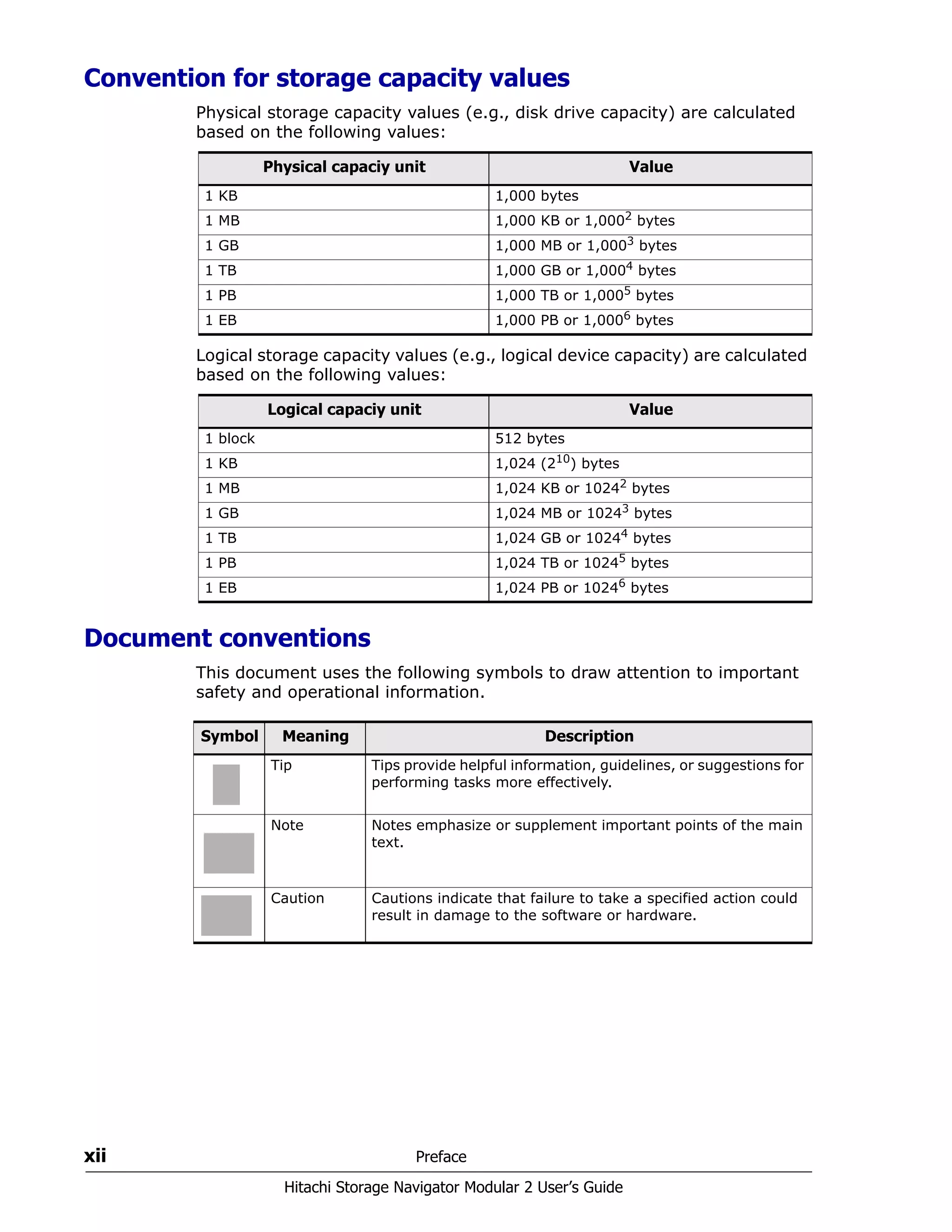
Convention for storage capacity values
Physical storage capacity values (e.g., disk drive capacity) are calculated
based on the following values:
Logical storage capacity values (e.g., logical device capacity) are calculated
based on the following values:
Document conventions
This document uses the following symbols to draw attention to important
safety and operational information.
Physical capaciy unit Value
1 KB 1,000 bytes
1 MB 1,000 KB or 1,0002
bytes
1 GB 1,000 MB or 1,0003
bytes
1 TB 1,000 GB or 1,0004
bytes
1 PB 1,000 TB or 1,0005
bytes
1 EB 1,000 PB or 1,0006
bytes
Logical capaciy unit Value
1 block 512 bytes
1 KB 1,024 (210
) bytes
1 MB 1,024 KB or 10242
bytes
1 GB 1,024 MB or 10243
bytes
1 TB 1,024 GB or 10244
bytes
1 PB 1,024 TB or 10245
bytes
1 EB 1,024 PB or 10246
bytes
Symbol Meaning Description
Tip Tips provide helpful information, guidelines, or suggestions for
performing tasks more effectively.
Note Notes emphasize or supplement important points of the main
text.
Caution Cautions indicate that failure to take a specified action could
result in damage to the software or hardware.
Preface xiii
Hitachi Storage Navigator Modular 2 User’s Guide
The following typographic conventions are used in this document.
Accessing product documentation
The AMS 2000 Family user documentation is available on the Hitachi Data
Systems Portal: https://portal.hds.com. Please check this site for the most
current documentation, including important updates that may have been
made after the release of the product.
This documentation set consists of the following documents.
Release notes
• Adaptable Modular Storage System Release Notes
• Storage Navigator Modular 2 Release Notes
Convention Description
Bold Indicates text on a window, other than the window title, including
menus, menu options, buttons, fields, and labels. Example: Click OK.
Italic Indicates a variable, which is a placeholder for actual text provided by
the user or system. Example: copy source-file target-file
Angled brackets (< >) are also used to indicate variables.
screen/code Indicates text that is displayed on screen or entered by the user.
Example: # pairdisplay -g oradb
< > angled
brackets
Indicates a variable, which is a placeholder for actual text provided by
the user or system. Example: # pairdisplay -g <group>
Italic font is also used to indicate variables.
[ ] square
brackets
Indicates optional values.
Example: [ a | b ] indicates that you can choose a, b, or nothing.
{ } braces Indicates required or expected values. Example: { a | b } indicates that
you must choose either a or b.
| vertical bar Indicates that you have a choice between two or more options or
arguments. Examples:
[ a | b ] indicates that you can choose a, b, or nothing.
{ a | b } indicates that you must choose either a or b.
underline Indicates the default value. Example: [ a | b ]
Please read the release notes before installing and/or using this product.
They may contain requirements and/or restrictions not fully described in
this document, along with updates and/or corrections to this document.
xiv Preface
Hitachi Storage Navigator Modular 2 User’s Guide
Installation and getting started
The following documents provide instructions for installing an AMS 2000
Family storage system. They include rack information, safety information,
site-preparation instructions, getting-started guides for experienced users,
and host connectivity information. The symbol ?identifies documents that
contain initial configuration information about Hitachi AMS 2000 Family
storage systems.
? AMS2100/2300 Getting Started Guide, MK-98DF8152
Provides quick-start instructions for getting an AMS 2100 or AMS 2300
storage system up and running as quickly as possible.
? AMS2500 Getting Started Guide, MK-97DF8032
Provides quick-start instructions for getting an AMS 2500 storage
system up and running as quickly as possible.
AMS 2000 Family Site Preparation Guide, MK-98DF8149
Contains initial site planning and pre-installation information for AMS 2000
Family storage systems, expansion units, and high-density expansion units.
This document also covers safety precautions, rack information, and
product specifications.
AMS 2000 Family Fibre Channel Host Installation Guide,
MK-08DF8189
Describes how to prepare Hitachi AMS 2000 Family Fibre Channel storage
systems for use with host servers running supported operating systems.
AMS 2000 Family iSCSI Host Installation Guide, MK-08DF8188
Describes how to prepare Hitachi AMS 2000 Family iSCSI storage systems
for use with host servers running supported operating systems.
Storage and replication features
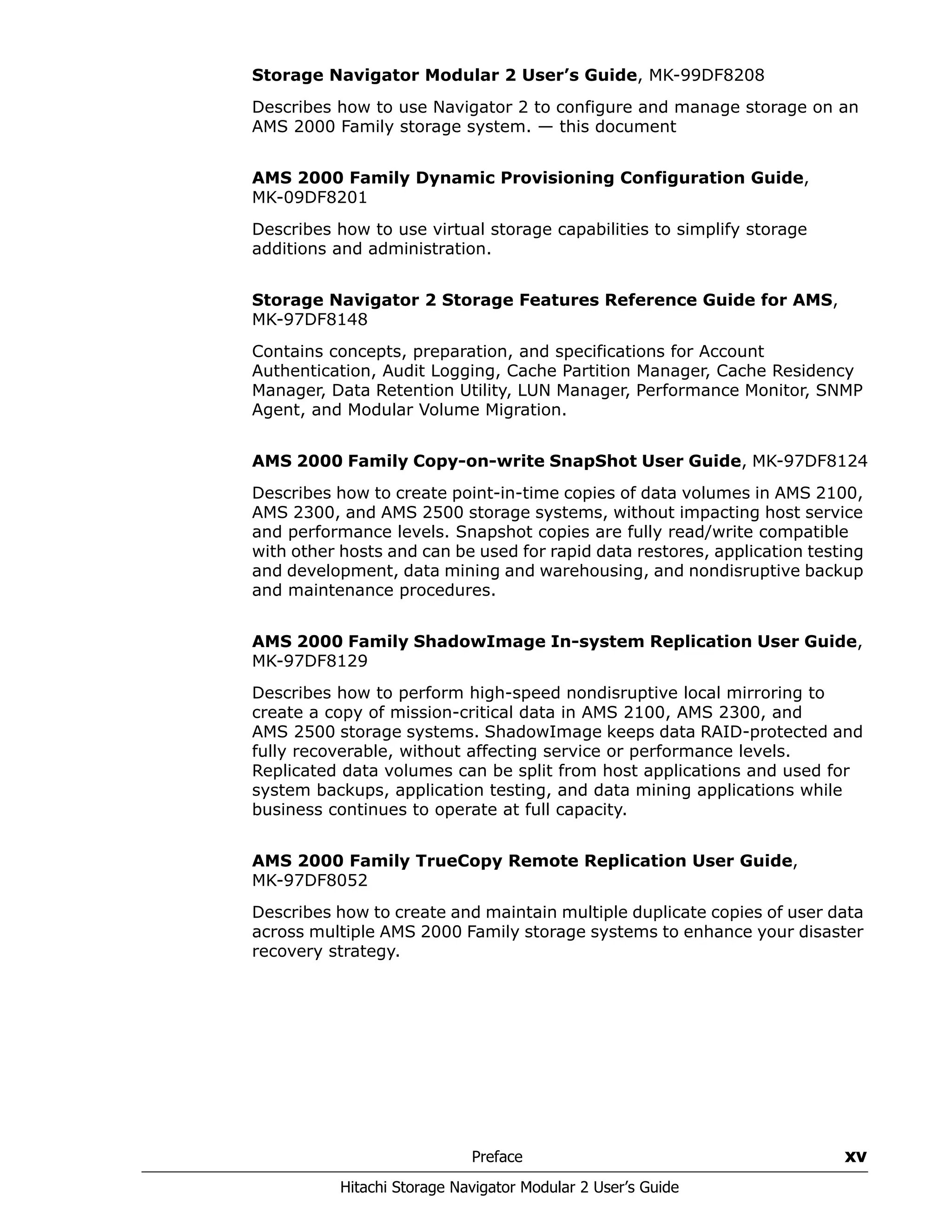
The following documents describe how to use Storage Navigator Modular 2
(Navigator 2) to perform storage and replication activities.
Storage Navigator 2 Advanced Settings User's Guide, MK-97DF8039
Contains advanced information about launching and using Navigator 2 in
various operating systems, IP addresses and port numbers, server
certificates and private keys, boot and restore options, outputting
configuration information to a file, and collecting diagnostic information.
Preface xv
Hitachi Storage Navigator Modular 2 User’s Guide
Storage Navigator Modular 2 User’s Guide, MK-99DF8208
Describes how to use Navigator 2 to configure and manage storage on an
AMS 2000 Family storage system. — this document
AMS 2000 Family Dynamic Provisioning Configuration Guide,
MK-09DF8201
Describes how to use virtual storage capabilities to simplify storage
additions and administration.
Storage Navigator 2 Storage Features Reference Guide for AMS,
MK-97DF8148
Contains concepts, preparation, and specifications for Account
Authentication, Audit Logging, Cache Partition Manager, Cache Residency
Manager, Data Retention Utility, LUN Manager, Performance Monitor, SNMP
Agent, and Modular Volume Migration.
AMS 2000 Family Copy-on-write SnapShot User Guide, MK-97DF8124
Describes how to create point-in-time copies of data volumes in AMS 2100,
AMS 2300, and AMS 2500 storage systems, without impacting host service
and performance levels. Snapshot copies are fully read/write compatible
with other hosts and can be used for rapid data restores, application testing
and development, data mining and warehousing, and nondisruptive backup
and maintenance procedures.
AMS 2000 Family ShadowImage In-system Replication User Guide,
MK-97DF8129
Describes how to perform high-speed nondisruptive local mirroring to
create a copy of mission-critical data in AMS 2100, AMS 2300, and
AMS 2500 storage systems. ShadowImage keeps data RAID-protected and
fully recoverable, without affecting service or performance levels.
Replicated data volumes can be split from host applications and used for
system backups, application testing, and data mining applications while
business continues to operate at full capacity.
AMS 2000 Family TrueCopy Remote Replication User Guide,
MK-97DF8052
Describes how to create and maintain multiple duplicate copies of user data
across multiple AMS 2000 Family storage systems to enhance your disaster
recovery strategy.
xvi Preface
Hitachi Storage Navigator Modular 2 User’s Guide
AMS 2000 Family TrueCopy Extended Distance User Guide,
MK-97DF8054
Describes how to perform bi-directional remote data protection that copies
data over any distance without interrupting applications, and provides
failover and recovery capabilities.
AMS 2000 Data Retention Utility User’s Guide, MK-97DF8019
Describes how to lock disk volumes as read-only for a certain period of time
to ensure authorized-only access and facilitate immutable, tamper-proof
record retention for storage-compliant environments. After data is written,
it can be retrieved and read only by authorized applications or users, and
cannot be changed or deleted during the specified retention period.
Storage Navigator Modular 2 online help
Provides topic and context-sensitive help information accessed through the
Navigator 2 software.
Hardware maintenance and operation
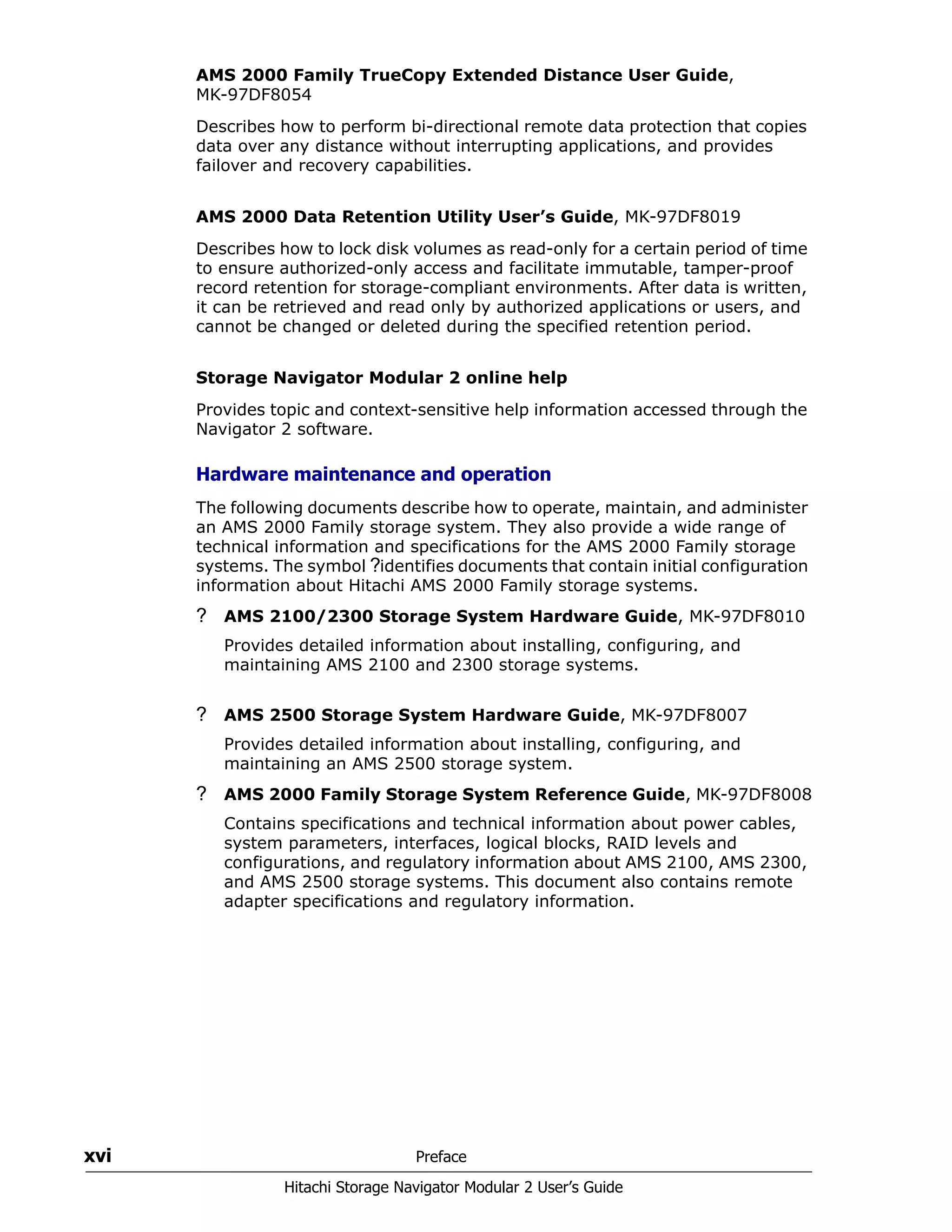
The following documents describe how to operate, maintain, and administer
an AMS 2000 Family storage system. They also provide a wide range of
technical information and specifications for the AMS 2000 Family storage
systems. The symbol ?identifies documents that contain initial configuration
information about Hitachi AMS 2000 Family storage systems.
? AMS 2100/2300 Storage System Hardware Guide, MK-97DF8010
Provides detailed information about installing, configuring, and
maintaining AMS 2100 and 2300 storage systems.
? AMS 2500 Storage System Hardware Guide, MK-97DF8007
Provides detailed information about installing, configuring, and
maintaining an AMS 2500 storage system.
? AMS 2000 Family Storage System Reference Guide, MK-97DF8008
Contains specifications and technical information about power cables,
system parameters, interfaces, logical blocks, RAID levels and
configurations, and regulatory information about AMS 2100, AMS 2300,
and AMS 2500 storage systems. This document also contains remote
adapter specifications and regulatory information.
Preface xvii
Hitachi Storage Navigator Modular 2 User’s Guide
AMS 2000 Family Storage System Service and Upgrade Guide,
MK-97DF8009
Provides information about servicing and upgrading AMS 2100, AMS 2300,
and AMS 2500 storage systems.
AMS 2000 Family Power Savings User Guide, MK-97DF8045
Describes how to spin down volumes in selected RAID groups when they are
not being accessed by business applications to decrease energy
consumption and significantly reduce the cost of storing and delivering
information.
Command and Control (CCI)
The following documents describe how to install the Hitachi AMS 2000
Family Command Control Interface (CCI) and use it to perform TrueCopy
and ShadowImage operations.
AMS 2000 Family Command Control Interface (CCI) Installation
Guide, MK-97DF8122
Describes how to install CCI software on open-system hosts.
AMS 2000 Family Command Control Interface (CCI) Reference
Guide, MK-97DF8121
Contains reference, troubleshooting, and maintenance information related
to CCI operations on AMS 2100, AMS 2300, and AMS 2500 storage systems.
AMS 2000 Family Command Control Interface (CCI) User's Guide,
MK-97DF8123
Describes how to use CCI to perform TrueCopy and ShadowImage
operations on AMS 2100, AMS 2300, and AMS 2500 storage systems.
Command Line Interface (CLI)
The following documents describe how to use Hitachi Storage Navigator
Modular 2 to perform management and replication activities from a
command line.
Storage Navigator Modular 2 Command Line Interface (CLI) Unified
Reference Guide, MK-97DF8089
Describes how to interact with all Navigator 2 bundled and optional software
modules by typing commands at a command line.
Storage Navigator 2 Command Line Interface Replication Reference
Guide for AMS, MK-97DF8153
Describes how to interact with Navigator 2 to perform replication activities
by typing commands at a command line.
xviii Preface
Hitachi Storage Navigator Modular 2 User’s Guide
Dynamic Replicator documentation
The following documents describe how to install, configure, and use Hitachi
Dynamic Replicator to provide AMS Family storage systems with continuous
data protection, remote replication, and application failover in a single,
easy-to-deploy and manage platform.
Dynamic Replicator - Scout Release Notes, RN-99DF8211
Dynamic Replicator - Scout Host Administration Guide,
MK-98DF8212
Dynamic Replicator - Scout Installation and Configuration Guide,
MK-
Dynamic Replicator - Scout Quick Start Guide, MK-98DF8214
Dynamic Replicator - Scout Host Troubleshooting Guide,
MK-98DF8215
Dynamic Replicator DR-Scout ICAT Utility Guide, MK-98DF8216
Dynamic Replicator - Scout RX Server Deployment Guide,
MK-98DF8217
Dynamic Replicator VX Solution for Oracle (Solaris), MK-98DF8218
Dynamic Replicator - Scout Solution for SharePoint 2007,
MK-98DF8219
Dynamic Replicator - Scout Solution for MySQL (Windows),
MK-98DF8220
Protecting Citrix XenServer Using Hitachi Dynamic Replicator -
Scout, MK-98DF8221
Dynamic Replicator Quick Install/Upgrade Guide, MK-98DF8222
Dynamic Replicator - Scout Protecting MS SQL Server, MK-98DF8223
Dynamic Replicator - Scout - Protecting Microsoft Exchange Server,
MK-98DF8224
Dynamic Replicator - Scout File Server Solution, MK-98DF8225
Dynamic Replicator - Scout ESX - Protecting ESX Server (RCLI),
MK-99DF8226
Preface xix
Hitachi Storage Navigator Modular 2 User’s Guide
Getting help
If you need to contact the Hitachi Data Systems support center, please
provide as much information about the problem as possible, including:
• The circumstances surrounding the error or failure.
• The exact content of any messages displayed on the host system(s).
• The exact content of any messages displayed on Storage Navigator
Modualr 2.
• The Storage Navigator Modular 2 configuration information. This
information is used by service personnel for troubleshooting purposes.
The Hitachi Data Systems customer support staff is available 24 hours a
day, seven days a week. If you need technical support, please log on to the
Hitachi Data Systems Portal for contact information: https://portal.hds.com
Comments
Please send us your comments on this document:doc.comments@hds.com.
Include the document title, number, and revision, and refer to specific
section(s) and paragraph(s) whenever possible.
Thank you! (All comments become the property of Hitachi Data Systems.)
xx Preface
Hitachi Storage Navigator Modular 2 User’s Guide
Introduction 1–1
Hitachi Storage Navigator Modular 2 User’s Guide
1
Introduction
This chapter provides an introduction to Storage Navigator
Modular 2 (Navigator 2).
The topics covered in this chapter are:
Navigator 2 at a glance
Key features
Integrating with Hitachi storage features
What this document covers
Using the Navigator 2 online help
1–2 Introduction
Hitachi Storage Navigator Modular 2 User’s Guide
Navigator 2 at a glance
Hitachi Data Systems Navigator 2 empowers you to take advantage of the
full power of your Hitachi storage systems. Using Navigator 2, you can
configure and manage your storage assets from a local host and from a
remote host across an Intranet or TCP/IP network to ensure maximum data
reliability, network up-time, and system serviceability. Figure 1-1 details
the task flow associated with the Navigator 2 Management Console.
Figure 1-1: Navigator 2 Task Flow
Figure 1-1 shows Navigator 2 connects directly to the front-end controller
of the AMS 2000 family storage system. The front-end controller
communicates to the back-end controller of the storage system, which in
turn, communicates with the Storage Area Network (SAN), typically a Fibre
Channel switch. Hosts, or application servers, typically contact the SAN to
retrieve data from the storage system for use in applications, commonly
databases and data processing programs.
The role that the Navigator 2 management console plays is to provide views
of feature settings on the storage system in addition to enabling you to
configure and manage those features. The following section provides more
detail about what features Navigator 2 provides to optimize your experience
with the AMS 2000 storage system.
Key features
Navigator 2 provides the following features:
• Point-and-click graphical interface with initial set-up wizards that
simplifies configuration, management, and visualization of Hitachi
storage systems.
• An immediate view of available storage and current usage.
• Efficient deployment of storage resources to meet business and
application needs, optimize storage productivity, and reduce the time
required to configure storage systems and balance I/O workloads.
Introduction 1–3
Hitachi Storage Navigator Modular 2 User’s Guide
• Protection of access to information by restricting storage access at the
port level, requiring case-sensitive password logins, and providing
secure domains for application-specific data.
• Protection of the information itself by letting you configure data-
redundancy and assign hot spares.
• Online functions for Hitachi storage systems, such as storage system
status, event logging, email alert notifications, and statistics.
• Compatibility with Microsoft® Windows®, UNIX, and Linux
environments.
• Online help to enable easy access to information about use of features.
• A full featured and scriptable command line interface. For more
information, refer to the following documents:
• Hitachi Storage Navigator Modular 2 Command Line Interface
Unified User’s Guide (MK-97DF8089)
• Hitachi Storage Navigator 2 Command Line Interface (CLI)
Replication Reference Guide for AMS (MK-97DF8153)
Integrating with Hitachi storage features
In addition to providing native configuration and management features,
Navigator 2 provides the full set of Hitachi Storage Features comprising:
• Account Authentication and Audit Logging that provides access control
to management functions and records all system changes.
• Performance Monitor software that lets you see performance within the
storage system.
• Logical unit number (LUN) Management software that streamlines
configuration management processes by letting you define, configure,
add, delete, expand, revise, and reassign LUNs to specific paths,
without having to reboot your Hitachi storage system.
• SAN Security software that helps ensure security in open systems
storage area networking environments through restricted server access
• Replication Setup and Management feature that provides basic
configuration and management of Hitachi ShadowImage®, Copy-on-
Write, and TrueCopy®
mirrored pairs.
• Modular Volume Migration software that enables dynamic data
migration.
• Hitachi Cache Residency Manager feature that let you “lock” and
“unlock” data into cache in real time to optimize access to your most
frequently accessed data.
• Hitachi Cache Partition Manager that allows partitioning of the cache by
the application to improve performance.
• Online Redundant Array of Independent Disks (RAID) Group Expansion
that enables dynamic addition of drives to a RAID Group.
• System Maintenance feature that allows online controller microcode
updates and other system maintenance functions.
1–4 Introduction
Hitachi Storage Navigator Modular 2 User’s Guide
• SNMP Agent support that includes Hitachi-specific MIBs, and enables
SNMP-based reporting on status and alerts for Hitachi storage systems.
What this document covers
This document describes key Navigator setup and configuration tasks. The
following three tables summarize the setup (Table 1-1), configuration
(Table 1-2), and upgrade and uninstall (Table 1-3) tasks in this document.
For a complete list of activities that can be performed using Navigator 2, see
Description of Navigator 2 activities on page 5-5.
Table 1-1: Navigator 2 Set-up Tasks
Table 1-2: Navigator 2 Storage Management Tasks
Table 1-3: Navigator 2 Storage Maintenance Tasks
Task See Page
Collecting all the items you need to install Navigator 2 2-7
Installing Navigator 2 3-2
Using Navigator 2 with a firewall 2-9
Using Navigator 2 with anti-virus software 2-9
Use Navigator 2 with Secure Sockets Layer (SSL) 10-2
Starting Navigator 2. 4-2
Completing the first-time wizards that appear when you
select a Hitachi storage system for the first time.
4-4
Task See Page
Change the default password. For security, we recommend
you use this information to change the default Navigator 2
password after logging in to Navigator 2 the first time.
6-6
Define Navigator 2 administrators and users. 6-2
Add storage systems (using the Add Arrays wizard) 4-5
Editing storage system settings. 7-5
Removing storage systems on 7-8
Manage spare drives 5-5
Define a RAID group, add logical units to it, and modify it 8-1
Create, edit, and remove logical units 9-1
Task See Page
Upgrade Navigator 2 A-1
Uninstall Navigator 2 B-1
Introduction 1–5
Hitachi Storage Navigator Modular 2 User’s Guide
Using the Navigator 2 online help
This document covers many, but not all, of the features in Navigator 2
software. Therefore, if you need information about a Navigator 2 function
that is not included in this document, please refer to the Navigator 2 online
help in the Navigator GUI. To access the help, click the Help button on the
Navigator 2 GUI and select Help. For convenience, the Help button is
available regardless of the window displayed in Navigator 2.
The online help provides several layers of assistance.
• The Contents tab shows how the help topics are organized. You can
“drill down” the topics to quickly find the support topic you are looking
for, and then click a topic to view it.
• The Index tab lets you search for information related to a keyword.
Type the keyword in the field labeled Type in the keyword to find:
and the nearest match in the Index is highlighted. Click an index entry
to see the topics related to the word. Click a topic to view it. If only one
topic is related to an index entry, it appears automatically when you
click the entry.
• The Search tab lets you scan through every help topic quickly for the
word or words you are looking for. Type what you are looking for in the
field labeled Type in the word(s) to search for: and click Go. All
topics that contain that text are displayed. Click a topic to view it. To
highlight your search results, check Highlight search results.
Figure 1-2: Help Menu
Task See Section and Page
Upgrade Navigator 2 Appendix A, Upgrading Navigator 2
Uninstall Navigator 2 Appendix B, Uninstalling Navigator 2
Help Menu
1–6 Introduction
Hitachi Storage Navigator Modular 2 User’s Guide
Figure 1-3: Home Page of the Navigator 2 Online Help
Contents
Index Tab
Search Tab
Preinstallation Information 2–1
Hitachi Storage Navigator Modular 2 User’s Guide
2
Preinstallation Information
This chapter provides information you should review before
installing Navigator 2. This chapter begins with the definitions for
key terms associated with Navigator 2.
The topics covered in this chapter are:
Understanding Navigator 2 key terms
Quick-start checklist
Navigator 2 operating environment
Collecting user-supplied items
Installing Java runtime
Firewall considerations
Anti-virus software considerations
Obtaining license keys
Reviewing technical guidelines
2–2 Preinstallation Information
Hitachi Storage Navigator Modular 2 User’s Guide
Understanding Navigator 2 key terms
Before you install the Navigator 2 software, it is important to understand a
few key terms associated with Navigator 2. Table 2-1 defines a few key
terms associated with Navigator 2.
Table 2-1: Understanding Navigator 2 Key Terms
Term Explanation
Host group A group that virtualizes access to the same port by multiple
hosts since host settings for a LUN are not made at the physical
port level but at a virtual port level.
Profile A set of attributes that are used to create a storage pool. The
system has a predefined set of storage profiles. You can choose
a profile suitable for the application that is using the storage, or
you can create a custom profile.
Pool A collection of volumes with the same configuration. A storage
pool is associated with a storage profile, which defines the
storage properties and performance characteristics of a volume.
Snapshot A point-in-time copy of a primary volume. The snapshot can be
mounted by an application and used for backup, application
testing, or data mining without requiring you to take the
primary volume offline.
Storage domain A logical entity used to partition storage.
Volume A container into which applications, databases, and file systems
store data. Volumes are created from virtual disks, based on the
characteristics of a storage pool. You map a volume to a host or
host group.
RAID Redundant Array of Independent Disks (RAID) — A disk array in
which part of the physical storage capacity is used to store
redundant information about user data stored on the remainder
of the storage capacity. The redundant information enables
regeneration.
Parity Disk A RAID-3 disk that provides redundancy. RAID-3 distributes the
data in stripes across all but one of the disks in the array. It then
writes the parity in the corresponding stripe on the remaining
disk. This disk is the parity disk.
LUN Logical unit number (LUN) — An address for an individual disk
drive, and by extension, the disk device itself. Used in the SCSI
protocol as a way to differentiate individual disk drives within a
common SCSI target device, like a disk array. LUNs are normal.
iSCSI Internet-Small Computer Systems Interface (iSCSI) — A TCP/IP
protocol for carrying SCSI commands over IP networks.
iSCSI Target A system component that receives an iSCSI I/O command. The
command is sent to the iSCSI bus address of the target device
or controller.
iSCSI Initiator The component that transmits an iSCSI I/O command to the
iSCSI bus address of the target device or controller.
Preinstallation Information 2–3
Hitachi Storage Navigator Modular 2 User’s Guide
Quick-start checklist
Table 2-2 describes the steps for installing Navigator 2. For more
information about a step, refer to the section in the See column. Make
copies of the checklist for each installation performed and check each step
after you perform it. Keep the blank checklist in this guide for future use.
Navigator 2 operating environment
You install Navigator 2 on a management platform (either a PC, a Linux
workstation, or a laptop) that acts as a console for managing your AMS
2000 Family storage system. This PC management console connects to the
management ports on the AMS 2000 Family storage system controllers, and
uses Navigator 2 to manage your storage assets and resources. The
management console can connect directly to the management ports on the
AMS 2000 Family storage system or via a network hub or switch.
Before installing Navigator 2 on the management console, confirm that the
console meets the requirements in the following sections. For an optimum
Navigator 2 experience, the management console should be a new or
dedicated PC.
Table 2-2: Navigator 2 Installation Checklist
Step Description See Completed
1. Install your AMS 2000 hardware and confirm that it
is operational.
Your Hitachi AMS 2000
Family storage system
hardware guide
2. Meet all operating environment requirements. page 2-3
3. Collect all user-supplied items required for the
Navigator 2 installation.
page 2-7
4. Install and set Java Runtime Environment (JRE)
v6.0.
page 2-7
5. Disable your firewall. page 2-9
6. Disable your anti-virus software. page 2-9
7. Obtain license keys for all Hitachi Program Products
you want to install using Navigator 2.
page 2-10
8. Review the Navigator 2 technical guidelines. page 2-10
TIP: To obtain the latest compatibility information about supported
operating systems, NICs, and various devices, see the Hitachi Data Systems
interoperability matrix at http://www.hds.com/products/interoperability/.
2–4 Preinstallation Information
Hitachi Storage Navigator Modular 2 User’s Guide
Microsoft Windows operating systems
Table 2-3 lists the Navigator 2 requirements for management consoles
running a supported Microsoft Windows operating system. For information
about supported Microsoft Windows servers and their requirements, see:
• The Hitachi AMS 2100/2300 Getting Started Guide (MK-98DF8152EN)
• The Hitachi AMS 2500 Getting Started Guide (MK-97DF8032EN)
• The interoperability matrix at http://www.hds.com/products/
interoperability/
Table 2-3: Requirements for Management Consoles Running
Microsoft Windows Operating Systems
Item Requirement
Operating systems • Windows 2000 (x86), SP3, SP4
• Windows XP (x86), SP2, SP3 (Internet Explorer v7.0
is not supported on SP3)
• Windows Server 2003 (x86), SP1, SP2
• Windows Server 2003 R2 (x86), No SP, SP2
• Windows Server 2003 R2 (x64), No SP, SP2
• Windows Vista (x86), SP1
• Windows Server 2008 (x86), no SP, SP2
• Windows Server 2008 (x64), no SP, SP2
• Windows 7 (x86), no SP
• Windows 7 (x64), no SP
• Windows Server 2008 R2 (x64), no SP
• Windows XP and Windows Server 2003 R2 operating
as a guest OS of VMware ESX Server 3.1.x
Processor 1 GHz (2 GHz or faster recommended)
Random Access Memory 1 GB (2 GB or more recommended)
Available disk space 1 GB or more
Video resolution 800 x 600 dots per inch (1024 x 768 or later
recommended), 256 colors or more
Browser (with pop-up
blockers disabled)
• Internet Explorer v6.0 (SP1, SP2)
• Internet Explorer v7.0
• 64-bit Internet Explorer v6.0 (SP1, SP2) on Windows
Server 2003 R2 (x64)
• 64-bit Internet Explorer v7.0 on Windows Server
2008 (x64)
• Internet Explorer v8.0 (x86, x64) on Windows 7 and
Windows Server 2008 R2
Java Runtime Environment
(JRE)
JRE v1.6.0_15
Preinstallation Information 2–5
Hitachi Storage Navigator Modular 2 User’s Guide
Sun Solaris operating systems
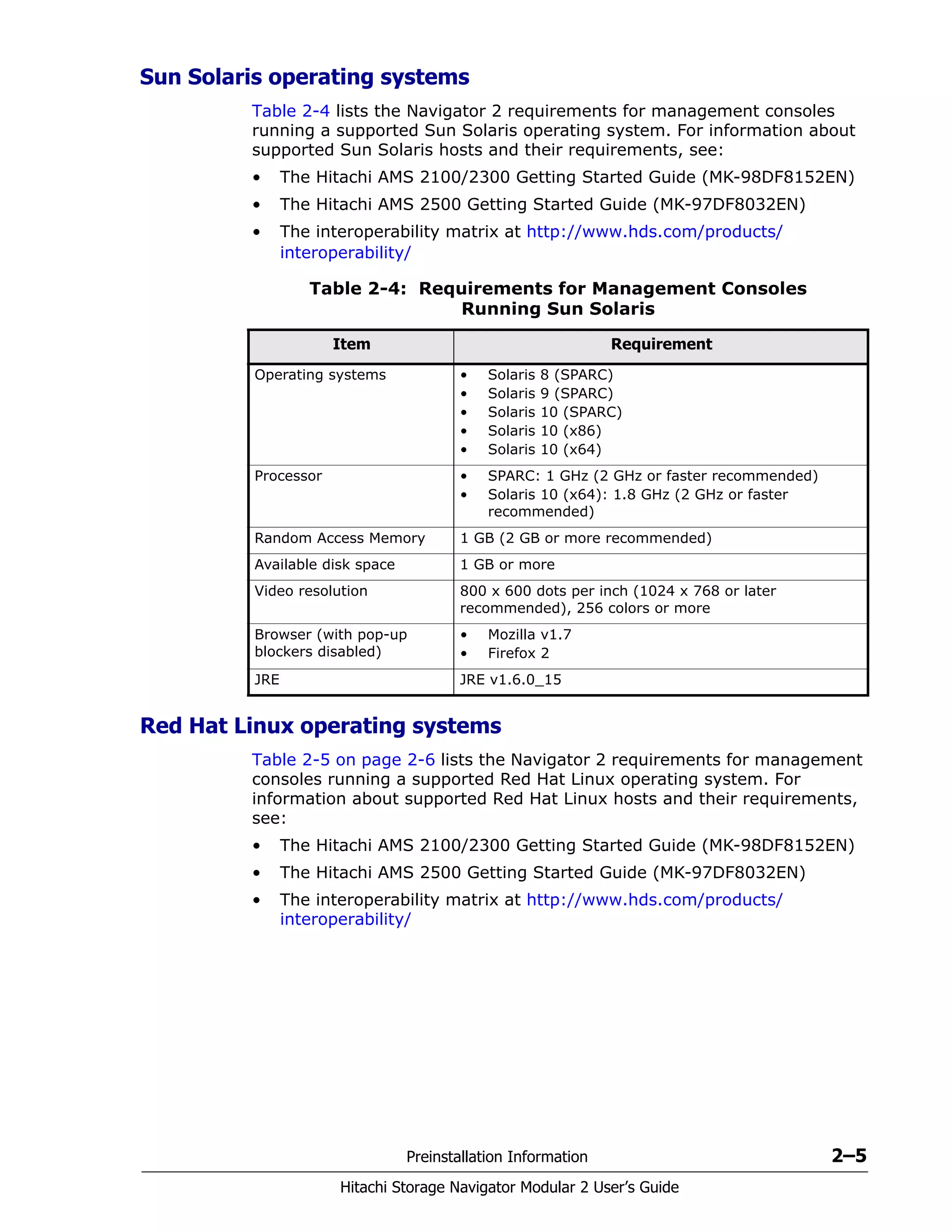
Table 2-4 lists the Navigator 2 requirements for management consoles
running a supported Sun Solaris operating system. For information about
supported Sun Solaris hosts and their requirements, see:
• The Hitachi AMS 2100/2300 Getting Started Guide (MK-98DF8152EN)
• The Hitachi AMS 2500 Getting Started Guide (MK-97DF8032EN)
• The interoperability matrix at http://www.hds.com/products/
interoperability/
Red Hat Linux operating systems
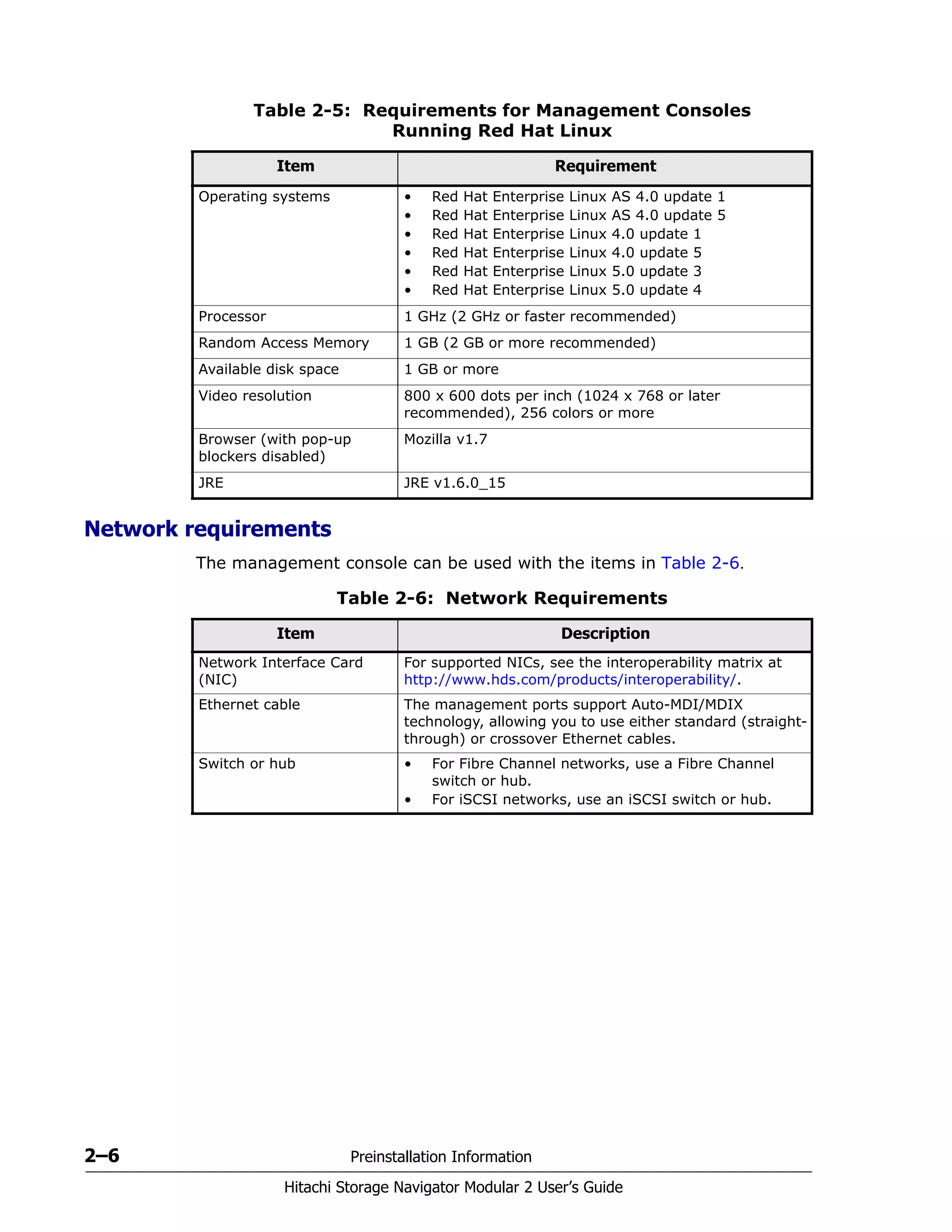
Table 2-5 on page 2-6 lists the Navigator 2 requirements for management
consoles running a supported Red Hat Linux operating system. For
information about supported Red Hat Linux hosts and their requirements,
see:
• The Hitachi AMS 2100/2300 Getting Started Guide (MK-98DF8152EN)
• The Hitachi AMS 2500 Getting Started Guide (MK-97DF8032EN)
• The interoperability matrix at http://www.hds.com/products/
interoperability/
Table 2-4: Requirements for Management Consoles
Running Sun Solaris
Item Requirement
Operating systems • Solaris 8 (SPARC)
• Solaris 9 (SPARC)
• Solaris 10 (SPARC)
• Solaris 10 (x86)
• Solaris 10 (x64)
Processor • SPARC: 1 GHz (2 GHz or faster recommended)
• Solaris 10 (x64): 1.8 GHz (2 GHz or faster
recommended)
Random Access Memory 1 GB (2 GB or more recommended)
Available disk space 1 GB or more
Video resolution 800 x 600 dots per inch (1024 x 768 or later
recommended), 256 colors or more
Browser (with pop-up
blockers disabled)
• Mozilla v1.7
• Firefox 2
JRE JRE v1.6.0_15
2–6 Preinstallation Information
Hitachi Storage Navigator Modular 2 User’s Guide
Network requirements
The management console can be used with the items in Table 2-6.
Table 2-5: Requirements for Management Consoles
Running Red Hat Linux
Item Requirement
Operating systems • Red Hat Enterprise Linux AS 4.0 update 1
• Red Hat Enterprise Linux AS 4.0 update 5
• Red Hat Enterprise Linux 4.0 update 1
• Red Hat Enterprise Linux 4.0 update 5
• Red Hat Enterprise Linux 5.0 update 3
• Red Hat Enterprise Linux 5.0 update 4
Processor 1 GHz (2 GHz or faster recommended)
Random Access Memory 1 GB (2 GB or more recommended)
Available disk space 1 GB or more
Video resolution 800 x 600 dots per inch (1024 x 768 or later
recommended), 256 colors or more
Browser (with pop-up
blockers disabled)
Mozilla v1.7
JRE JRE v1.6.0_15
Table 2-6: Network Requirements
Item Description
Network Interface Card
(NIC)
For supported NICs, see the interoperability matrix at
http://www.hds.com/products/interoperability/.
Ethernet cable The management ports support Auto-MDI/MDIX
technology, allowing you to use either standard (straight-
through) or crossover Ethernet cables.
Switch or hub • For Fibre Channel networks, use a Fibre Channel
switch or hub.
• For iSCSI networks, use an iSCSI switch or hub.
Preinstallation Information 2–7
Hitachi Storage Navigator Modular 2 User’s Guide
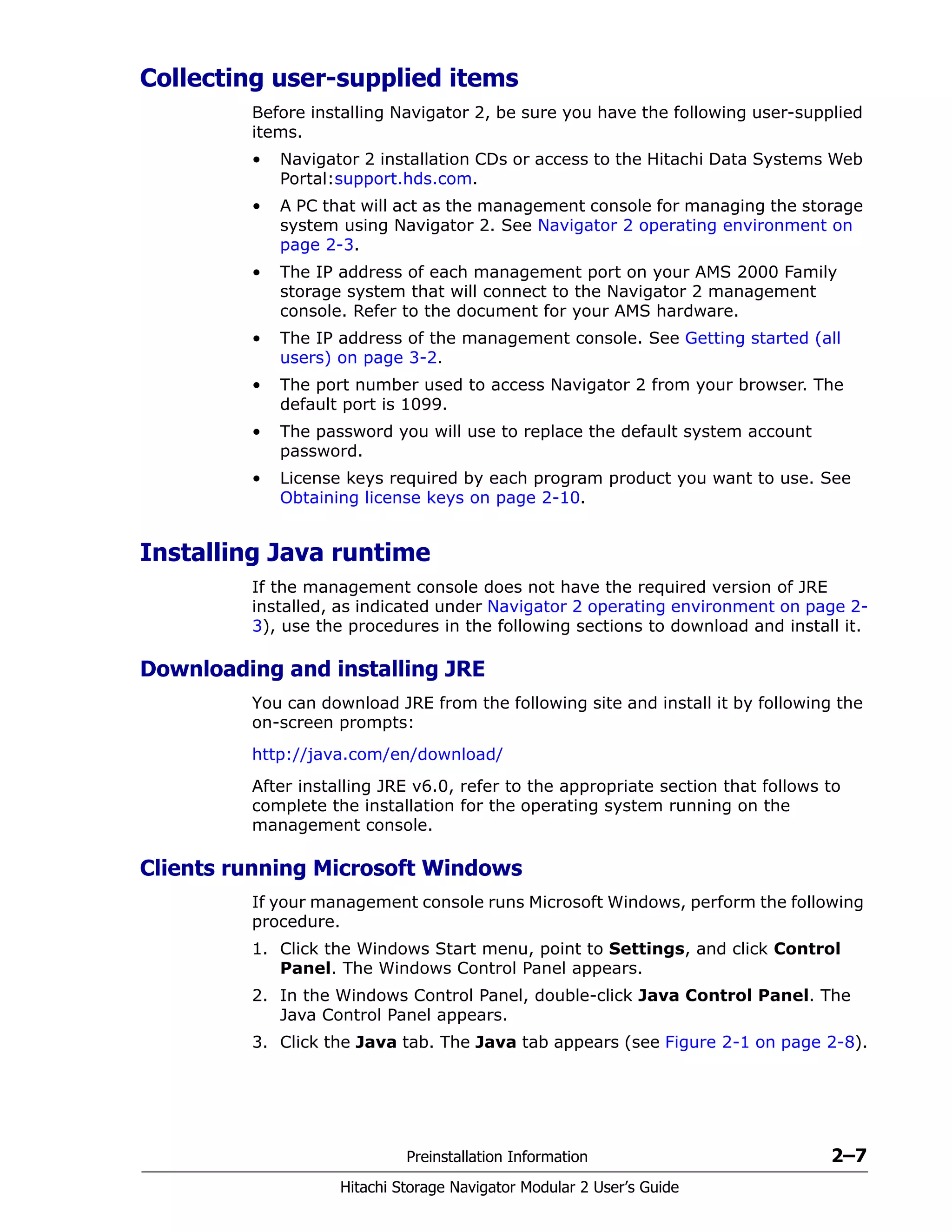
Collecting user-supplied items
Before installing Navigator 2, be sure you have the following user-supplied
items.
• Navigator 2 installation CDs or access to the Hitachi Data Systems Web
Portal:support.hds.com.
• A PC that will act as the management console for managing the storage
system using Navigator 2. See Navigator 2 operating environment on
page 2-3.
• The IP address of each management port on your AMS 2000 Family
storage system that will connect to the Navigator 2 management
console. Refer to the document for your AMS hardware.
• The IP address of the management console. See Getting started (all
users) on page 3-2.
• The port number used to access Navigator 2 from your browser. The
default port is 1099.
• The password you will use to replace the default system account
password.
• License keys required by each program product you want to use. See
Obtaining license keys on page 2-10.
Installing Java runtime
If the management console does not have the required version of JRE
installed, as indicated under Navigator 2 operating environment on page 2-
3), use the procedures in the following sections to download and install it.
Downloading and installing JRE
You can download JRE from the following site and install it by following the
on-screen prompts:
http://java.com/en/download/
After installing JRE v6.0, refer to the appropriate section that follows to
complete the installation for the operating system running on the
management console.
Clients running Microsoft Windows
If your management console runs Microsoft Windows, perform the following
procedure.
1. Click the Windows Start menu, point to Settings, and click Control
Panel. The Windows Control Panel appears.
2. In the Windows Control Panel, double-click Java Control Panel. The
Java Control Panel appears.
3. Click the Java tab. The Java tab appears (see Figure 2-1 on page 2-8).
2–8 Preinstallation Information
Hitachi Storage Navigator Modular 2 User’s Guide
Figure 2-1: Java Tab
4. Click View in the Java Applet Runtime Settings section. The Java
Runtime Settings dialog box appears.
5. In the Java Runtime Parameters field, type -Xmx192m (see
Figure 2-2).
Figure 2-2: Java Runtime Settings Dialog Box
6. Click OK to exit the Java Runtime Settings window.
Preinstallation Information 2–9
Hitachi Storage Navigator Modular 2 User’s Guide
7. Click OK in the Java tab to close the Java Control Panel window.
8. Close the Windows Control Panel.
Clients running Solaris or Linux
If your management console runs a supported Solaris or Linux operating
system, perform the following procedure.
1. From an XWindows terminal, execute the <JRE installed directory>/
bin/jcontrol to run the Java Control Panel.
2. Click View in the Java Applet Runtime Settings section. The Java
Runtime Settings window appears.
3. In the Java Runtime Parameters field, type -Xmx192m.
4. Click OK to exit the Java Runtime Settings window.
5. Click OK in the Java tab to close the Java Control Panel window.
Firewall considerations
A firewall's main purpose is to block incoming unsolicited connection
attempts to your network. If the AMS 2000 Family storage system is used
within an environment that uses a firewall, there will be times when the
storage system’s outbound connections will need to traverse the firewall.
The storage system's incoming indication ports are ephemeral, with the
system randomly selecting the first available open port that is not being
used by another Transmission Control Protocol (TCP) application. To permit
outbound connections from the storage system, you must either disable the
firewall or create or revise a source-based firewall rule (not a port-based
rule), so that items coming from the storage system are allowed to traverse
the firewall.
Firewalls should be disabled when installing Navigator 2 (refer to the
documentation for your firewall). After the installation completes, you can
turn on your firewall.
If you use Windows firewall, the Navigator 2 installer automatically registers
the Navigator 2 file and Command Suite Common Components as
exceptions to the firewall. Therefore, before you install Navigator 2, confirm
that no security problems exist.
Anti-virus software considerations
Anti-virus programs, except Microsoft Windows’ built-in firewall, must be
disabled before installing Navigator 2. In addition, Navigator 2 cannot
operate with firewalls that can terminate local host socket connections. As
a result, configure your anti-virus software to prevent socket connections
from being terminated at the local host (refer to the documentation for your
anti-virus software).
NOTE: For outgoing traffic from the storage system’s management port,
there are no fixed port numbers (ports are ephemeral), so all ports should
be open for traffic from the storage system management port.
2–10 Preinstallation Information
Hitachi Storage Navigator Modular 2 User’s Guide
Obtaining license keys
Some Program Products require a license key before you can use them.
Typically, the license key required to activate these products is furnished
with the product. We recommend that you have these license keys available
before you activate the Program Products that require them. If you do not
have license keys for the Program Products, please contact technical
support.
Reviewing technical guidelines
The following sections cover technical guidelines to review before installing
Navigator 2 on a management console.
Windows operating systems
Installation prerequisites
Before installing Navigator 2 on a management console running one of the
supported Microsoft Windows operating systems in Table 2-3 on page 2-4:
• Log in to Windows as an Administrator or a member of the
Administrators group.
• Disable power management through Windows to prevent the host from
entering suspension mode.
Selecting a destination folder
During the Navigation 2 installation, you are prompted to select a
destination folder. You can accept the default destination folder or select a
different destination folder.
If you select a different destination folder, be sure the folder complies with
the following requirements:
• The folder name should only contain the characters A to Z, a to z, 0 to
9, hash mark (#), plus sign (+), hyphen (-), period (.), at mark (@),
underscore (_), and the space character.
• A space character cannot appear at the beginning or end of a folder
name.
• The path name cannot contain any names reserved by the operating
system (for example, CON, AUX, NUL, PRN, CLOCK$, COM1 to COM9,
and LPT1 to LPT9).
• The path to the destination folder cannot exceed 100 characters.
• The path to the destination folder cannot be a route to a drive.
Otherwise, the installer displays the following error message during the
installation.
• Do not specify a Uniform Naming Convention (UNC) path.
Preinstallation Information 2–11
Hitachi Storage Navigator Modular 2 User’s Guide
Solaris and Linux operating systems
Installation prerequisites
Before installing Navigator 2 on a management console running one of the
supported Solaris and Linux operating systems in Table 2-3 on page 2-4:
• Log on as a root user.
• If /opt exists, the normal directory is required, not the symbolic link.
However, the file system can be mounted as a mount point.
• For Solaris v10 (SPARC), apply the appropriate patch.
• Apply patch 120664-xx (where xx is 01 or later).
• Apply patch 127127-xx (where xx is 11 or later).
• Do not apply patches 127111-02 and 127111-03.
• For Solaris v10 (x64), apply patch 120665-xx (where xx is 01 or later)
• For Linux, set the kernel parameters described in the following
sections.
Setting Linux kernel parameters
To set the Linux kernel parameters:
1. Back up the kernel parameters setting files /etc/sysctl.conf and
/etc/security/limits.conf.
2. Open the kernel parameters setting file /etc/sysctl.conf with a text
editor and change the following settings. The parameters are specified
using the syntax [name of parameter]=[value]. Four values separated
by space are specified in kernel.sem. Your parameter settings must not
exceed the maximum value for the operating system.
The following example shows how to check whether the value is valid for
kernel.shmmax:
cat /proc/sys/kernel/shmmax
Table 2-7 provides recommended values and calculation methods for
each kernel type.
Table 2-7: Kernel Type Recommended Values
Parameter Name
Recommended Value
Calculation Method
Navigator 2 Database
kernel.shmmax 11542528 200000000 Maximum value in current and
two recommended values.
kernel.shmall 22418432 22418432 Total value of current and
recommended values.
2–12 Preinstallation Information
Hitachi Storage Navigator Modular 2 User’s Guide
Open the kernel parameters setting file /etc/security/limits.conf
with a text editor and change the following settings. The parameters are
specified using the syntax [domain] [type] [name of parameter]
[value]. Domains are specified for “*”. The types are specified for both
“soft” and “hard.” The soft value must not exceed the hard value. Then,
the parameter must not exceed the maximum value that the operating
system specifies. Table 2-8 shows the recommended values and calculation
methods for the kernel parameter types.
3. Reboot the host.
Setting Solaris v8 or Solaris v9 kernel parameters
When installing Navigator 2 on a management console running Solaris v8
or Solaris v9, set the Solaris kernel parameters.
1. Back up the kernel parameters setting file /etc/system.
kernel.shmmni 0 2000 The larger value of:
• The total value of current
and Navigator 2
recommended value.
• The database
recommended value.
kernel.threads-max 184 574
kernel.msgmni 32 32
kernel.sem
(Second parameters)
80 7200
kernel.sem
(Forth parameters)
9 1024
fs.file-max 53898 53898
Table 2-7: Kernel Type Recommended Values (Continued)
Parameter Name
Recommended Value
Calculation Method
Navigator 2 Database
Table 2-8: Kernel Parameter Recommended Values
Parameter Name
Recommended Value
Calculation Method
Navigator 2 Database
nofile 572 1344 The larger value of:
• The total value of current
and Navigator 2
recommended value.
• The database
recommended value.
nproc 165 512
Preinstallation Information 2–13
Hitachi Storage Navigator Modular 2 User’s Guide
2. Open the kernel parameters setting file /etc/system with a text editor
and add the following text lines to the bottom of the file. For information
about maximum values permitted, refer to the manual for your
operating system.
3. Reboot the Solaris host and install Navigator 2.
Setting Solaris v10 kernel parameters
When installing Navigator 2 on a management console running Solaris v10,
set the Solaris kernel parameters.
1. Back up the kernel parameters setting file /etc/project.
2. In the console, execute the following command and check the current
parameter value.
3. Reboot the Solaris host and install Navigator 2.
set msgsys:msginfo_msgmni=82
set msgsys:msginfo_msgtql=520
set semsys:seminfo_semmni=1024
set semsys:seminfo_semmns=7200
set semsys:seminfo_semmnu=1024
set semsys:seminfo_semume=512
set semsys:seminfo_semmsl=128
set semsys:seminfo_semopm=128
set shmsys:shminfo_shmmax=200000000
set shmsys:shminfo_shmmni=2000
set shmsys:shminfo_shmseg=240
NOTE: Although the parameter shmsys:shminfo_shmseg is not used in
Solaris 9, it will not affect Solaris 9 operations if it is included.
projmod -a -K 'process.max-msg-messages=(priv,480,deny)' 'user.root'
projmod -a -K 'process.max-sem-nsems=(priv,128,deny)' 'user.root'
projmod -a -K 'process.max-sem-ops=(priv,128,deny)' 'user.root'
projmod -a -K 'project.max-msg-ids=(priv,32,deny)' 'user.root'
projmod -a -K 'project.max-sem-ids=(priv,1024,deny)' 'user.root'
projmod -a -K 'project.max-shm-ids=(priv,2000,deny)' 'user.root'
projmod -a -K 'project.max-shm-memory=(priv,26214400,deny)' 'user.root'
projmod -a -K 'process.max-msg-messages=(priv,480,deny)' 'system'
projmod -a -K 'process.max-sem-nsems=(priv,128,deny)' 'system'
projmod -a -K 'process.max-sem-ops=(priv,128,deny)' 'system'
projmod -a -K 'project.max-msg-ids=(priv,32,deny)' 'system'
projmod -a -K 'project.max-sem-ids=(priv,1024,deny)' 'system'
projmod -a -K 'project.max-shm-ids=(priv,2000,deny)' 'system'
projmod -a -K 'project.max-shm-memory=(priv,26214400,deny)' 'system'
NOTE: If the kernel parameters are not enabled in Solaris v10, open the
file /etc/system with a text editor and change the following settings before
rebooting host.
2–14 Preinstallation Information
Hitachi Storage Navigator Modular 2 User’s Guide
The console displays the following output.
Hitachi Storage Command Suite common component
considerations
Before installing Navigator 2, be sure no products other than Hitachi
Storage Command Suite Common Component are using port numbers
1099, 23015 to 23018, 23032, and 45001 to 49000. If other products are
using these ports, you cannot start Navigator 2, even if the Navigator 2
installation completes without errors.
If other Hitachi Storage Command products are running:
• Stop the services or daemon process for those products.
• Be sure any installed Hitachi Storage Command Suite Common
Components are not operating in a cluster configuration. If the host is
in the cluster configuration, configure it for a stand-alone configuration
according to the manual.
• Back up the Hitachi Storage Command database before installing
Navigator 2.
set msgsys:msginfo_msgmni=128
set msgsys:msginfo_msgtql=8192
set semsys:seminfo_semmni=1024
set semsys:seminfo_semmsl=512
set semsys:seminfo_semopm=512
set shmsys:shminfo_shmmax=262144000
set shmsys:shminfo_shmmni=2000
Installing Navigator 2 3–1
Hitachi Storage Navigator Modular 2 User’s Guide
3
Installing Navigator 2
After ensuring that your configuration meets the system
requirements described in the previous chapter, use the
instructions in this chapter to install the Navigator 2 software on
your management console PC.
The topics covered in this chapter are:
Types of installations
Installing Navigator 2
3–2 Installing Navigator 2
Hitachi Storage Navigator Modular 2 User’s Guide
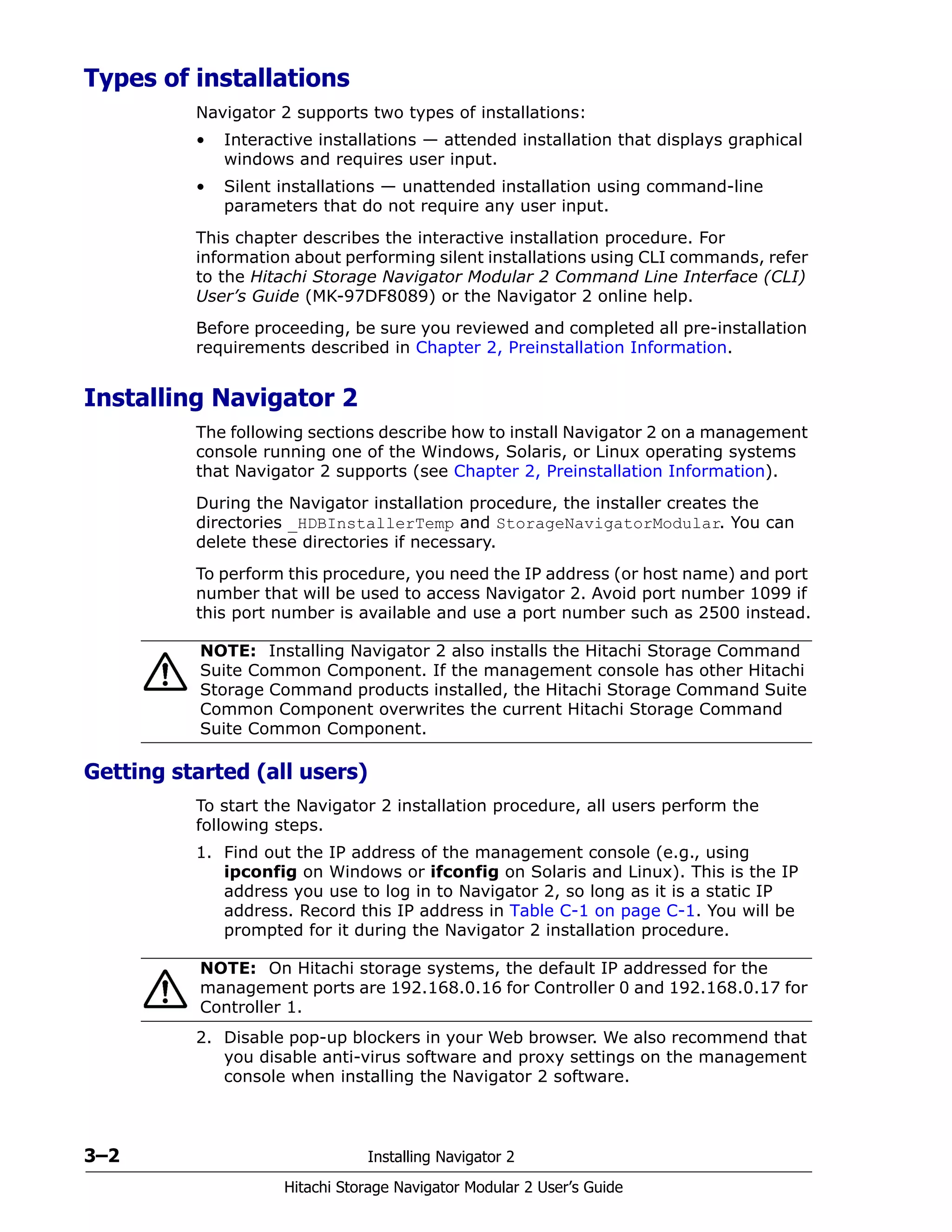
Types of installations
Navigator 2 supports two types of installations:
• Interactive installations — attended installation that displays graphical
windows and requires user input.
• Silent installations — unattended installation using command-line
parameters that do not require any user input.
This chapter describes the interactive installation procedure. For
information about performing silent installations using CLI commands, refer
to the Hitachi Storage Navigator Modular 2 Command Line Interface (CLI)
User’s Guide (MK-97DF8089) or the Navigator 2 online help.
Before proceeding, be sure you reviewed and completed all pre-installation
requirements described in Chapter 2, Preinstallation Information.
Installing Navigator 2
The following sections describe how to install Navigator 2 on a management
console running one of the Windows, Solaris, or Linux operating systems
that Navigator 2 supports (see Chapter 2, Preinstallation Information).
During the Navigator installation procedure, the installer creates the
directories _HDBInstallerTemp and StorageNavigatorModular. You can
delete these directories if necessary.
To perform this procedure, you need the IP address (or host name) and port
number that will be used to access Navigator 2. Avoid port number 1099 if
this port number is available and use a port number such as 2500 instead.
Getting started (all users)
To start the Navigator 2 installation procedure, all users perform the
following steps.
1. Find out the IP address of the management console (e.g., using
ipconfig on Windows or ifconfig on Solaris and Linux). This is the IP
address you use to log in to Navigator 2, so long as it is a static IP
address. Record this IP address in Table C-1 on page C-1. You will be
prompted for it during the Navigator 2 installation procedure.
2. Disable pop-up blockers in your Web browser. We also recommend that
you disable anti-virus software and proxy settings on the management
console when installing the Navigator 2 software.
NOTE: Installing Navigator 2 also installs the Hitachi Storage Command
Suite Common Component. If the management console has other Hitachi
Storage Command products installed, the Hitachi Storage Command Suite
Common Component overwrites the current Hitachi Storage Command
Suite Common Component.
NOTE: On Hitachi storage systems, the default IP addressed for the
management ports are 192.168.0.16 for Controller 0 and 192.168.0.17 for
Controller 1.
Installing Navigator 2 3–3
Hitachi Storage Navigator Modular 2 User’s Guide
3. Proceed to the appropriate section for the operating system running on
your management console:
• Microsoft Windows. See Installing Navigator 2 on a Windows
operating system, below.
• Solaris. See Installing Navigator 2 on a Sun Solaris operating
system on page 3-10.
• Red Hat Enterprise Linux 4 and Red Hat Enterprise Linux 4 Linux.
See Installing Navigator 2 on a Red Hat Linux operating system on
page 3-11.
The installation process takes about 15 minutes to complete. During the
installation, the progress bar can pause for several seconds. This is
normal and does not mean the installation has stopped.
Installing Navigator 2 on a Windows operating system
The following procedure describes how to install Navigator 2 on a Navigator
2-supported version of Microsoft Windows.
1. Windows Vista users: Open the command prompt and then close it.
2. Insert the Navigator 2 CD in the management console CD drive and
follow the installation wizard. If the CD does not auto-run, double-click
the following file, where nnnn is the Navigator 2 version number:
programhsnm2_winHSNM2-nnnn-W-GUI.exe
3. When prompted for an IP address, enter the IP address for your
management console, which you obtained in step 1 and recorded in
Table C-1 on page C-1.
4. After you insert the Hitachi Storage Navigator Modular 2 installation CD-
ROM into the management console’s CD/DVD-ROM drive, the installation
starts automatically and the Welcome window appears.
3–4 Installing Navigator 2
Hitachi Storage Navigator Modular 2 User’s Guide
Figure 3-1: Navigator 2 Welcome Window
5. Click Next two times until the Choose Destination Location window
appears.
Installing Navigator 2 3–5
Hitachi Storage Navigator Modular 2 User’s Guide
Figure 3-2: Choose Destination Location Window
6. Install Navigator 2 in the default destination folder shown or click the
Browse button to select a different destination folder.
7. Click Next. The Input the IP address and port number of the PC window
appears.
If you
NOTE: If you select a different destination folder, see Selecting a
destination folder on page 2-10.
3–6 Installing Navigator 2
Hitachi Storage Navigator Modular 2 User’s Guide
Figure 3-3: Input the IP Address and Port Number of the PC Window
8. Enter the following information:
• IP Addr. Enter the IP address or host name used to access
Navigator 2 from your browser. Do not specify 127.0.0.1 and
localhost.
• Port No. Enter the port number used to access Navigator 2 from
your browser. The default port number is 1099.
9. Click Next. The Start Copying Files window shows the installation
settings you selected.
TIP: For environments using Dynamic Host Configuration Protocol (DHCP),
enter the host name (computer name) for the IP address. If you are
configuring Navigator 2 for one IP address, you can omit the IP Addr.
Installing Navigator 2 3–7
Hitachi Storage Navigator Modular 2 User’s Guide
10.Review the settings to make sure they are correct. To change any, click
Back until you return to the appropriate window, make the change, and
click Next until you return to the Start Copying Files window.
11.In the Start Copying Files window, click Next to start the installation.
During the installation, windows show the progress of the installation.
When installation is complete, the InstallShield Wizard Complete window
appears. You cannot stop the installation after it starts.
3–8 Installing Navigator 2
Hitachi Storage Navigator Modular 2 User’s Guide
Figure 3-4: InstallShield Wizard Complete Window
12.In the InstallShield Wizard Complete window, click Finish to complete
the installation. Then proceed to Chapter 5, Quick Tour for a description
of the Navigator 2 interface.
13.Proceed to Chapter 4, Starting Navigator 2 for instructions about logging
in to Navigator 2.
If your Navigator 2 installation fails, see If the Installation Fails on a
Windows Operating System on page 11-2.
If the installation fails on a Windows operating system
Data Execution Prevention (DEP) is a Windows security feature intended to
prevent an application or service from executing code from a non-
executable memory region. DEP perform checks on memory to prevent
malicious code or exploits from running on the system by shut down the
process once detected. However, DEP can accidentally shut down legitimate
processes, like your Navigator 2 installation.
If your management console runs Windows Server 2003 SP1 or Windows XP
SP2 or later, and your Navigator 2 installation fails, disable DEP.
1. Click Start, and then click Control Panel.
2. Click System.
3. In the System Properties window, click the Advanced tab.
4. In the Performance area, click Settings and then click the Data
Execution Prevention tab.
Installing Navigator 2 3–9
Hitachi Storage Navigator Modular 2 User’s Guide
5. Click Turn on DEP for all programs and services except those I
select.
6. Click Add and specify the Navigator 2 installer HSNM2-xxxx-W-GUI.exe,
where xxxx varies with the version of Navigator 2. The Navigator 2
installer HSNM2-xxxx-W-GUI.exe is added to the list.
7. Click the checkbox next to the Navigator 2 installer HSNM2-xxxx-W-
GUI.exe and click OK.
3–10 Installing Navigator 2
Hitachi Storage Navigator Modular 2 User’s Guide
Installing Navigator 2 on a Sun Solaris operating system
The following procedure describes how to install Navigator 2 on a Navigator
2-supported version of Sun Solaris. Before you perform the following
procedure, be sure that the following directories have at least the minimum
of amount of available disk space shown in Table 3-1.
To perform a new installation for Sun Solaris:
1. Insert the Hitachi Storage Navigator Modular 2 installation CD-ROM into
the management console’s CD/DVD-ROM drive.
2. Mount the CD-ROM on the file system. The mount destination is /cdrom.
3. Create a temporary directory with sufficient free space (more than 600
MB) on the file system and expand the compressed files. The temporary
directory is /temporary here.
4. In the console, issue the following command lines. In the last command,
XXXX varies with the version of Navigator 2.
5. In the console, issue the following command line:
Table 3-1: Solaris Directories and Disk Space
Directory Minimum Available Disk Space Required
/opt/HiCommand 1.5 GB
/var/opt/HiCommand 1.0 GB
/var/tmp 1.0 GB
NOTE: If the CD-ROM cannot be read, copy the files install-hsnm2.sh
and HSNM2-XXXX-S-GUI.tar.gz to a file system that the host can
recognize.
mkdir /temporary
cd /temporary
gunzip < /cdrom/HSNM2-XXXX-S-GUI.tar.gz | tar xf -
/temporary/install-hsnm2.sh -a [IP address] -p [port number]
Installing Navigator 2 3–11
Hitachi Storage Navigator Modular 2 User’s Guide
In this command line:
• [IP address] is the IP address used to access Navigator 2 from
your browser. When entering an IP address, do not specify
127.0.0.1 and localhost. For DHCP environments, specify the host
name (computer name).
• [port number] is the port number used to access Navigator 2
from your browser. The default, port number is 1099. If you use it,
you can omit the –p option from the command line.
6. Proceed to Chapter 4, Starting Navigator 2 for instructions about logging
in to Navigator 2.
Installing Navigator 2 on a Red Hat Linux operating system
To install Navigator 2 on a Navigator 2-supported version of Red Hat Linux,
perform the following procedure.
1. Insert the Hitachi Storage Navigator Modular 2 installation CD-ROM into
the management console’s CD/DVD-ROM drive.
2. Mount the CD-ROM on the file system. The mount destination is /cdrom.
3. In the console, issue the following command line:
In this command line:
• [IP address] is the IP address used to access Navigator 2 from
your browser. When entering an IP address, do not specify
127.0.0.1 and localhost. For DHCP environments, specify the host
name (computer name).
TIP: For environments using DHCP, enter the host name (computer name)
for the IP address.
NOTE: If the CD-ROM cannot be read, copy the files install-hsnm2.sh
and HSNM2-XXXX-L-GUI.rpm to a file system that the host can recognize.
sh /cdrom/install-hsnm2.sh -a [IP address] -p [port number]
3–12 Installing Navigator 2
Hitachi Storage Navigator Modular 2 User’s Guide
• [port number] is the port number used to access Navigator 2
from your browser. The default port number is 1099. If you use it,
you can omit the –p option from the command line.
4. Proceed to Chapter 4, Starting Navigator 2 for instructions about logging
in to Navigator 2.
Starting Navigator 2 4–1
Hitachi Storage Navigator Modular 2 User’s Guide
4
Starting Navigator 2
After you use the instructions in Chapter 3, Installing Navigator 2
to install the Navigator 2 software, use the instructions in this
chapter to start Navigator 2.
The topics covered in this chapter are:
Hardware considerations
Logging in to Navigator 2
Selecting a storage system for the first time
Running the backup volume wizard
4–2 Starting Navigator 2
Hitachi Storage Navigator Modular 2 User’s Guide
Hardware considerations
Before you log in to Navigator 2, observe the following considerations.
Verifying your hardware installation
Install your Hitachi Data Systems storage system according to the
instructions in the system’s hardware guide. Then verify that your Hitachi
Data Systems storage system is operating properly.
Connecting the management console
After verifying that your Hitachi Data Systems storage system is
operational, connect the management console on which you installed
Navigator 2 to the storage system’s management port(s).
Every controller on a Hitachi storage system has a 10/100BaseT Ethernet
management port labeled LAN. Hitachi storage systems equipped with two
controllers have two management ports, one for each controller. The
management ports let you configure the controllers using an attached
management console and the Navigator 2 software.
Your management console can connect to the management ports directly
using an Ethernet cable or through an Ethernet switch or hub. The
management ports support Auto-Medium Depedent Interface/Medium
Dependent Interface Crossover (Auto-MDI/MDIX) technology, allowing you
to use either standard (straight-through) or crossover Ethernet cables.
Use one of these methods to connect the management console to controller,
then power up the storage system.
Logging in to Navigator 2
The following procedure describes how to log in to Navigator 2. When
logging in, you can specify an IPv4 address or IPv6 address using a
nonsecure (http) or secure (https) connection to the Hitachi storage
system.
1. Launch a Web browser on the management console.
2. In the browser’s address bar, enter the IP address of the storage
system’s management port using IPv4 or IPv6 notation. You recorded
this IP address in Table C-1 on page C-1:
• IPv4 http example:
http://IP address:23015/StorageNavigatorModular/Login
• IPv4 https example:
https://IP address:23016/StorageNavigatorModular/Login
• IPv6 https example (IP address must be entered in brackets):
https://[IP address]:23015/StorageNavigatorModular/Login
TIP: You can attach a portable (“pocket”) hub between the management
console and storage system to configure both controllers in one procedure,
similar to using a switch.
Starting Navigator 2 4–3
Hitachi Storage Navigator Modular 2 User’s Guide
You cannot make a secure connection immediately after installing
Navigator 2. To connect using https, set the server certificate and
private key (see Setting the certificate and private key on page 10-
8).
3. At the login page (see Figure 4-1), type system as the default User ID
and manager as the default case-sensitive password.
Figure 4-1: Login Page
4. Click Login. Navigator 2 starts and the Arrays window appears, with a
list of Hitachi storage systems (see Figure 4-2 on page 4-4).
NOTE: Do not type a loopback address such as localhost or 127.0.0.1;
otherwise, the Web window appears, but the window following it does not.
4–4 Starting Navigator 2
Hitachi Storage Navigator Modular 2 User’s Guide
Figure 4-2: Example of Storage Systems in the Arrays Window
5. Under Array Name, click the name of the storage system you want to
manage. One of the following actions occurs:
• If the storage system has not been configured using Navigator 2, a
series of first-time setup wizards launch, starting with the Add
Array wizard. See Selecting a storage system for the first time,
below.
• Otherwise, the storage system uses the configuration settings
previously defined. Proceed to Chapter 5, Quick Tour.
Selecting a storage system for the first time
With primary goals of simplicity and ease-of-use, Navigator 2 has been
designed to make things obvious for new users from the get-go. To that end,
Navigator 2 runs a series of first-time setup wizards that let you define the
initial configuration settings for Hitachi storage systems. Configuration is as
easy as pointing and clicking your mouse.
The following first-time setup wizards run automatically when you select a
storage system from the Arrays window. Use these wizards to define the
basic configuration for a HItachi storage system.
• Add Array wizard - lets you add Hitachi storage systems to the
Navigator 2 database. See page 4-5.
• Initial (Array) Setup wizard - lets you configure e-mail alerts,
management ports, Internet Small Computer Systems Interface
(iSCSI) ports and setting the date and time. See page 4-7.
• Create & Map Volume wizard - lets you create a logical unit and map it
to a Fibre Channel or iSCSI target. See page 4-14.
NOTE: If no activity occurs during a Navigator 2 session for 20 minutes,
the session ends automatically.
Starting Navigator 2 4–5
Hitachi Storage Navigator Modular 2 User’s Guide
After you use these wizards to define the initial settings for your Hitachi
storage system, you can use Navigator 2 to change the settings in the future
if necessary.
Navigator 2 also provides the following wizard, which you can run manually
to further configure your Hitachi storage system:
• Backup Volume wizard - lets you create a local backup of a volume. See
page 4-19.
Running the Add Array wizard
When Navigator 2 launches, it searches its database for registered Hitachi
storage systems. At initial login, there are no storage systems in the
database, so Navigator 2 searches your storage network for Hitachi storage
systems and lets you choose the ones you want to manage.
You can have Navigator 2 discover a storage system by specifying the
system’s IP address or host name if you know it. Otherwise, you can specify
a range of IP addresses. Options let you expand the search to include IPv4
and IPv6 addresses. When Navigator discovers storage systems, it displays
them under Search Results. To manage one, click to the left of its name
and click Next to add it and display the Add Array window. Click Finish to
complete the procedure.
You can also run the Add Array wizard manually to add storage systems
after initial log in by clicking Add Array at the bottom of the Arrays window.
Initially, an introduction page lists the tasks you complete using this wizard.
Click Next > to continue to the Search Array window (see Figure 4-3 on
page 4-6) to begin the configuration. Table 4-1 on page 4-6 describes the
fields in the Search Array window. As you specify your settings, record them
in Appendix C for future reference. Use the navigation buttons at the bottom
of each window to move forward or backward, cancel the wizard, and obtain
online help.
4–6 Starting Navigator 2
Hitachi Storage Navigator Modular 2 User’s Guide
Figure 4-3: Add Array Wizard - Search Array Window
Table 4-1: Add Array Wizard - Search Array Window
Field Description
IP Address or Array Name Discovers storage systems using a specific IP address or
storage system name in the Controller 0 and 1 fields. The
default IP addresses are:
• Controller 0: 192.168.0.16
• Controller 1: 192.168.0.17
For directly connected consoles, enter the default IP
address just for the port to which you are connected; you
will configure the other controller later.
Range of IP Addresses Discovers storage systems using a starting (From) and
ending (To) range of IP addresses. Check Range of
IPv4 Address and/or Search for IPv6 Addressees
automatically to widen the search if desired.
Using Ports Select whether communications between the console
and management ports will be secure, nonsecure, or
both.
Starting Navigator 2 4–7
Hitachi Storage Navigator Modular 2 User’s Guide
Running the Initial (Array) Setup wizard
After you complete the Add Array wizard at initial log in, the Initial (Array)
Setup wizard starts automatically.
Using this wizard, you can configure:
• E-mail alerts — see page 4-8
• Management ports — see page 4-9
• Host ports — see page 4-10
• Spare drives — see page 4-13
• System date and time — see page 4-13
Initially, an introduction page lists the tasks you complete using this wizard.
Click Next > to continue to the Search Array window (see Figure 4-4 on
page 4-8 and Table 4-2 on page 4-8) and begin the configuration. Use the
navigation buttons at the bottom of each window to move forward or
backward, cancel the wizard, and obtain online help.
The following sections describe the Initial (Array) Setup wizard windows.
NOTE: To change these settings in the future, run the wizard manually by
clicking the name of a storage system under the Array Name column in
the Arrays window and then clicking Initial Setup in the Common Array
Tasks menu.
4–8 Starting Navigator 2
Hitachi Storage Navigator Modular 2 User’s Guide
Initial Array (Setup) wizard — configuring email alerts
The Set up E-mail Alert window is the first window in the Initial (Setup)
Array wizard. Using this window, you can configure the storage system to
send email notifications if an error occurs. By default, email notifications are
disabled. To accept this setting, click Next and skip to Initial Array (Setup)
wizard — configuring management ports on page 4-9.
To enable email alerts:
1. Complete the fields in Figure 4-4 (see Table 4-2).
2. Click Next and go to Initial Array (Setup) wizard — configuring
management ports on page 4-9.
Figure 4-4: Set up E-mail Alert Page
NOTE: This procedure assumes your Simple Mail Transfer Protocol (SMTP)
server is set up correctly to handle email. If desired, you can send a test
message to confirm that email notifications will work.
Table 4-2: Enabling Email Notifications
Field Description
E-mail Error Report
Disable / Enable
To enable email notifications, click Enable and complete
the remaining fields.
Domain Name Domain appended to addresses that do not contain one.
Mail Server Address Email address or IP address that identifies the storage
system as the source of the email.
From Address Each email sent by the storage system will be identified as
being sent from this address.
Send to Address Up to 3 individual email addresses or distribution lists
where notifications will be sent.
Reply To Address Email address where replies can be sent.
Starting Navigator 2 4–9
Hitachi Storage Navigator Modular 2 User’s Guide
Initial Array (Setup) wizard — configuring management ports
The Set up Management Ports window lets you configure the management
ports on the Hitachi storage system. These are the ports you use to manage
the system using Navigator 2.
To configure the management ports:
1. Complete the fields in Figure 4-5 (see Table 4-3).
2. Click Next and go to Initial Array (Setup) wizard — configuring host
ports on page 4-10.
Figure 4-5: Set up Management Ports Window
NOTE: If your management console is directly connected to a management
port on one controller, enter settings for that controller only (you will
configure the management port on the other controller later). If your
console is connected via a switch or hub, enter settings for both controllers
now.
Table 4-3: Set up Management Ports Window
Field Description
IPv4/IPv6 Select the IP addressing method you want to use. For more
information about IPv6, see Using Internet Protocol Version
6 on page 10-2.
Use DHCP Configures the management port automatically, but requires
a Dynamic Host Control Protocol (DHCP) server. IPv6 users:
note that IPv6 addresses are based on Ethernet addresses.
If you replace the storage system, the IP address changes.
Therefore, you can want to assign static IP addresses to the
storage system using the Set Manually option instead of
having them auto-assigned by a DHCP server.
4–10 Starting Navigator 2
Hitachi Storage Navigator Modular 2 User’s Guide
Initial Array (Setup) wizard — configuring host ports
The Set up Host Ports window lets you configure the host data ports on the
Hitachi storage system. The fields in this window vary, depending on
whether the host ports on the Hitachi storage system are Fibre Channel or
iSCSI.
1. Perform one of the following steps:
• To configure the Fibre Channel host ports, complete the fields in
Figure 4-6 on page 4-11 (see Table 4-4 on page 4-11).
• To configure iSCSI host ports, complete the fields in Figure 4-5 on
page 4-9 (see Table 4-5 on page 4-12).
2. Click Next and go to Initial Array (Setup) wizard — configuring spare
drives on page 4-13.
Set Manually Lets you complete the remaining fields to configure the
management port manually.
IPv4 Address Static Internet Protocol address that matches the subnet
where the storage system will be used.
IPv4 Subnet Mask Subnet mask that matches the subnet where the storage
system will be used.
IPv4 Default Gateway Default gateway that matches the gateway where the
storage system will be used.
Negotiation Use the default setting (Auto) to auto-negotiate speed and
duplex mode, or select a fixed speed/duplex combination.
Table 4-3: Set up Management Ports Window (Continued)
Field Description
Starting Navigator 2 4–11
Hitachi Storage Navigator Modular 2 User’s Guide
Figure 4-6: Set up Host Ports Window for Fibre Channel Host Ports
Table 4-4: Set up Host Ports Window for Fibre Channel Host Ports
Field Description
Port Address Enter the address for the Fibre Channel ports.
Transfer Rate Select a fixed data transfer rate from the drop-down list that
corresponds to the maximum transfer rate supported by the device
connected to the storage system, such as the server or switch.
Topology Select the topology in which the port will participate:
• Point-to-Point = port will be used with a Fibre Channel
switch.
• Loop = port is directly connected to the Fibre Channel port
of an HBA installed in a server.
4–12 Starting Navigator 2
Hitachi Storage Navigator Modular 2 User’s Guide
Figure 4-7: Set up Host Ports Window for iSCSI Host Ports
Table 4-5: Set up Host Ports Window for iSCSI Host Ports
Field Description
IP Address Enter the IP address for the storage system iSCSI host
ports. The default IP addresses are:
Controller 0, Port A: 192.168.0.200
Controller 0, Port B: 192.168.0.201
Controller 1, Port A: 192.168.0.208
Controller 1, Port B: 192.168.0.209
Subnet Mask Enter the subnet mask for the storage system iSCSI host
port.
Default Gateway If a router is required for the storage system host port to
reach the initiator(s), the default gateway must have the IP
address of that router. In a network that requires a router
between the storage system and the initiator, enter the
router's IP address. In a network that uses only direct
connection, or a switch between the storage system and the
initiator(s), no entry is required.
Starting Navigator 2 4–13
Hitachi Storage Navigator Modular 2 User’s Guide
Initial Array (Setup) wizard — configuring spare drives
Using the Set up Spare Drive window, you can select a spare drive from the
available drives. If a drive in a RAID group fails, the Hitachi storage system
automatically uses the spare drive you select here. The spare drive must be
the same type, for example, Serial Attached Technology Attachment
(SATA), Serial Attached SCSI (SAS), or Solid State Disk (SSD), as the failed
drive and have the same capacity as or higher capacity than the failed drive.
When you finish, click Next and go to Initial Array (Setup) wizard —
configuring the system date and time on page 4-13.
Figure 4-8: Initial Array (Setup) Wizard: Set up Spare Drive Window
Initial Array (Setup) wizard — configuring the system date and time
Using the Set up Date & Time window, you can select whether the Hitachi
storage system date and time are to be set automatically, manually, or not
at all. If you select Set Manually, enter the date and time (in 24-hour
format) in the fields provided. When you finish, click Next.
Initial Array (Setup) wizard — confirming your settings
Use the remaining windows to confirm your settings. As you confirm your
settings, record them in Appendix C, Recording Navigator 2 Settings for
future reference. To change a setting, click Back until you reach the desired
window, change the setting, and click Next until you return to the
appropriate confirmation window. At the final Confirm window, click
Confirm to commit your settings. At the Finish window, click Finish and go
to Running the Create & Map Volume wizard on page 4-14.
4–14 Starting Navigator 2
Hitachi Storage Navigator Modular 2 User’s Guide
Figure 4-9: Set up Date & Time Window
Running the Create & Map Volume wizard
After you complete the Initial (Array) Setup wizard, the Create & Map
Volume wizard starts automatically. Using this wizard, you can create or
select RAID groups, logical units, and host groups.
Initially, an introduction page lists the tasks that can be completed by this
wizard. Click Next > to continue to the Search RAID Group window (see
Figure 4-10 on page 4-15) and begin the configuration. Use the navigation
buttons at the bottom of each window to move forward or backward, cancel
the wizard, and obtain online help.
Create & Map Volume wizard — defining RAID groups
Using the Search RAID Group window, create a new RAID group for the
Hitachi storage system or make it part of an existing RAID group.
NOTE: To change these settings in the future, run the wizard manually by
clicking the storage system in the Arrays window, and then clicking Create
Logical Unit and Mapping in the Common Array Tasks menu.
Starting Navigator 2 4–15
Hitachi Storage Navigator Modular 2 User’s Guide
Figure 4-10: Search RAID Group Window
To create a new RAID group:
1. Click Create a New RAID Group.
2. Use the drop-down lists to select a drive type, RAID level, and data +
parity (D+P) combination for the RAID group
3. Click Next to continue to the Create or Select logical unit window.
To select an existing RAID group
1. Click Use an Existing RAID Group.
2. Select the desired RAID Group from the RAID Group drop-down list.
3. Click Next and go to Create & Map Volume wizard — defining logical
units.
4–16 Starting Navigator 2
Hitachi Storage Navigator Modular 2 User’s Guide
Create & Map Volume wizard — defining logical units
Using the next window in the Create & Map Volume wizard, you can create
new logical units or use existing logical units for the Hitachi storage system.
Figure 4-11: Create or Select Logical Volumes Window
If you select a RAID group with a capacity less than 10 GB, select from the
existing RAID group capacity or create RAID group capacity.
To create new logical units:
1. Click the Create a new logical units check box.
2. Perform one of the following steps:
• Enter the desired Logical Unit Capacity and Number of Logical
Units. Each logical unit that will be created will be the same size
that you specify in this field.
• Click Create one logical unit to assign one of the maximum
free space in the selected RAID group to create a single logical
unit consisting of the maximum available free space in the selected
RAID group.
3. Click Next and go to Create & Map Volume wizard — defining host
groups or iSCSI targets.
To select an existing logical unit:
1. Select one or more logical units under Existing logical units.
2. Click Next and go to Create & Map Volume wizard — defining host
groups or iSCSI targets.
Starting Navigator 2 4–17
Hitachi Storage Navigator Modular 2 User’s Guide
Create & Map Volume wizard — defining host groups or iSCSI targets
Using the next window in the Create & Map Volume wizard, you can select:
• A physical port for a Fibre Channel host group or iSCSI target.
• Host groups for storage systems with Fibre Channel ports.
• iSCSI targets for storage systems with iSCSI ports.
Figure 4-12: Create or Select Host Group/iSCSI Target Window
To create or select a host group for Fibre Channel storage systems:
1. Next to Port, select a physical port.
2. Create a new host group or select an existing one:
To create a new host group:
a. Click Create a new host group.
b. Enter a Host Group No (from 1 to 127).
c. Enter a host group Name (up to 32 characters).
d. Select Platform and Middleware settings from the drop-down lists
(refer to the Navigator 2 online help).
To select an existing host group:
a. Click Use an existing host group.
b. Select a host group from the Host Group drop-down list.
3. Click Next and go to Create & Map Volume wizard — connecting to a
host on page 4-18.
4–18 Starting Navigator 2
Hitachi Storage Navigator Modular 2 User’s Guide
For iSCSI storage systems, create a new iSCSI target or select an existing
one:
1. Next to Port, select a port to map to from the available ports options.
2. Create a new iSCSI target or select an existing one:
To create a new iSCSI target:
a. Click Create a new iSCSI target.
b. Enter an iSCSI Target No (from 1 to 127).
c. Enter an iSCSI target Name (up to 32 characters).
d. Select Platform and Middleware settings from the drop-down lists
(refer to the Navigator 2 online help).
To select an existing iSCSI target:
a. Click Use an existing iSCSI target.
b. Select an iSCSI target from the iSCSI Target drop-down list.
3. Click Next and go to Create & Map Volume wizard — connecting to a
host, below.
Create & Map Volume wizard — connecting to a host
If LUN Manager is enabled, the Connect to Hosts window lets you select the
hosts to which the Hitachi storage system will be connected. If LUN Manager
is not enabled, the wizard skips this window and goes to the first confirm
window (see step 4 in the following procedure). The iSCSI target on the
storage system will communicate with the iSCSI initiator on the host.
Figure 4-13: Connect to Hosts Window
If the Connect to Hosts window appears:
1. To allow multiple hosts to map to the selected volumes, click Allow
multiple hosts.
2. Check all of the hosts you want to connect to the Hitachi storage system.
Starting Navigator 2 4–19
Hitachi Storage Navigator Modular 2 User’s Guide
3. When you finish, click Next.
Create & Map Volume wizard — confirming your settings
Use the remaining windows to confirm your settings. As you confirm your
settings, record them in Appendix C, Recording Navigator 2 Settings for
future reference. To change a setting, click Back until you reach the desired
window, change the setting, and click Next until you return to the
appropriate confirmation window. At the final Confirm window, click
Confirm to commit your settings.
To create additional RAID groups, logical units, and host groups, click
Create & Map More LU and repeat the wizard starting from the Search
RAID Group window. Otherwise, click Finish to close the wizard and return
to the Array Properties window.
This completes the first-time configuration wizards. If desired, you can run
the remaining wizards described in this chapter to further configure your
Hitachi storage system.
Running the backup volume wizard
Navigator 2 provides a Backup Volume wizard that lets you create a local
backup of a volume. To run this wizard:
1. In the Arrays window, click the name of a storage system under the
Array Name column.
2. When the Common Array Tasks menu appears, click Backup
Volume. An introduction page lists the tasks that can be completed by
this wizard.
3. Click Next >.
4. At the Select Primary Volume window (see Figure 4-14), select the
volume that will be copied and click Next.
4–20 Starting Navigator 2
Hitachi Storage Navigator Modular 2 User’s Guide
Figure 4-14: Select Primary Volume Window
5. At the Prepare Secondary Volume window (see Figure 4-15 on page 4-
20), set up the volume to which the data will be copied and click Next.
Figure 4-15: Select Secondary Volume Window
6. At the Set Pair Parameters window, define the settings for the volume
pair and click Next.
Starting Navigator 2 4–21
Hitachi Storage Navigator Modular 2 User’s Guide
Figure 4-16: Set Pair Parameters Window
7. Use the Confirm window to confirm your settings. As you confirm your
settings, record them in Appendix C, Recording Navigator 2 Settings for
future reference. To change a setting, click Back until you reach the
desired window, change the setting, and click Next until you return to
the Confirm window. After confirming your settings, click Confirm to
commit your settings.
8. At the Finish window, click Finish.
4–22 Starting Navigator 2
Hitachi Storage Navigator Modular 2 User’s Guide
Quick Tour 5–1
Hitachi Storage Navigator Modular 2 User’s Guide
5
Quick Tour
Navigator 2 provides an intuitive user interface for configuring
and managing Hitachi storage systems. This chapter provides a
quick tour of the Navigator 2 interface and then summarizes the
configuration and management activities you can perform using
Navigator 2.
The topics covered in this chapter are:
Understanding the Navigator 2 interface
Performing Navigator 2 activities
Description of Navigator 2 activities
5–2 Quick Tour
Hitachi Storage Navigator Modular 2 User’s Guide
Understanding the Navigator 2 interface
Figure 5-1 shows the Navigator 2 interface with the Arrays window
displayed. This window appears when you log in to Navigator 2. It also
appears when you click Arrays in the Explorer panel.
Figure 5-1: Navigator 2 Interface
The Menu Panel appears on the left side of the Navigator 2 user interface.
The Menu Panel always contains the following menus, regardless of the
window displayed in the Page Panel:
• File — contains commands for closing the Navigator 2 application or
logging out. These commands are functionally equivalent to the Close
and Logout buttons in the Button Panel, described on the next page.
• Go — lets you start the ACE tool, a utility for configuring older AMS
1000 family systems.
• Help — displays the Navigator 2 online help and version information.
The Explorer Panel appears below the Menu Panel. The Explorer Panel
displays the following commands, regardless of the window shown in the
Page Panel.
• Resource — contains the Arrays command for displaying the Arrays
window.
• Administration — contains commands for accessing users,
permissions, and security settings. We recommend you use
Administration > Security > Password > Edit Settings to change
Menu Panel
Explorer
Panel
Menu
Panel
Button
Panel
Page Panel
Explorer Panel
Quick Tour 5–3
Hitachi Storage Navigator Modular 2 User’s Guide
the default password after you log in for the first time. See Changing
the default system password on page 6-6.
• Settings — lets you access user profile settings.
Button panel
The Button Panel appears on the right side of the Navigator 2 interface and
contains two rows of buttons:
• Buttons on the top row let you close or log out of Navigator 2. These
buttons are functionally equivalent to the Close and Logout
commands in the File menu, described on the previous page.
• Buttons on the second row change, according to the window displayed
in the Page Panel. In the example above, the buttons on the second
row appear when the Arrays window appears in the Page Panel.
Page panel
The Page Panel is the large area below the Button Panel. When you click an
item in the Explorer Panel or the Arrays Panel (described later in this
chapter), the window associated with the item you clicked appears in the
Page Panel.
Information can appear at the top of the Page Panel and buttons can appear
at the bottom for performing tasks associated with the window in the Page
Panel. When the Arrays window in the example above is shown, for
example:
• Error monitoring information appears at the top of the Page Panel.
• Buttons at the bottom of the Page Panel let you reboot, show and
configure, add, edit, remove, and filter Hitachi storage systems.
Performing Navigator 2 activities
To start performing Navigator activities, you click a Hitachi storage system
on the Arrays window. When you click a storage system, an Arrays Panel
appears between the Explorer Panel and Page Panel (see Figure 5-2 on
page 5-4). At the top of the Arrays Panel are the type and serial number of
5–4 Quick Tour
Hitachi Storage Navigator Modular 2 User’s Guide
the storage system you selected to be managed from the Arrays window. If
you click the type and serial number, common storage system tasks appear
in the Page Panel.
Figure 5-2: Arrays Panel
If you click a command in the Arrays Panel, the Page Panel shows the
corresponding page or the Arrays Panel reveals a list of subcommands for
you to click. In Figure 5-2, for example, clicking Groups reveals two
subcommands, Logical Groups and Host Groups. If you select either
subcommand, the appropriate information appears in the Page Panel.
Figure 5-3 shows an example of how the Arrays Panel and Page Panel look
after clicking Logical Units in the Arrays Panel.
Arrays Panel
Quick Tour 5–5
Hitachi Storage Navigator Modular 2 User’s Guide
Figure 5-3: Example of Logical Unit Information
Description of Navigator 2 activities
You use the Arrays Panel and Page Panel to manage and configure Hitachi
storage systems. Table 5-1 summarizes the Navigator 2 activities you can
perform, and the commands and subcommands you click in the Arrays Pane
to perform them.
This document describes how to perform key Navigator 2 activities. If an
activity is not covered in this document, please refer to the Navigator online
help. To access the help, click the Help button in the Navigator 2 Menu
Panel (see Menu Panel on page 5-2).
Table 5-1: Description of Navigator 2 Activities
Arrays Pane Description
Components — displays a page for accessing controllers, caches, interface boards, host
connector, batteries, and trays, as described below.
Components > Controllers Lists each controller in the Hitachi storage
system and the controller’s status.
Components > Caches Shows the status, capacity, and controller
associated with the cache in the Hitachi
storage system.
Components > Interface Boards Shows status information about each
interface board in the Hitachi storage
system and its corresponding controller.
Components > Host Connectors Shows the host connector and port ID,
status, controller number, and type of host
connector (for example, Fibre Channel) for
each host connector in the Hitachi storage
system.
5–6 Quick Tour
Hitachi Storage Navigator Modular 2 User’s Guide
Components > Batteries Shows the batteries in the Hitachi storage
system and their status.
Components > Trays Shows the status, type, and serial number
of the tray. The serial number is the same
as the serial number of the Hitachi storage
system.
Groups — displays a page for accessing logical units and host groups, as described
below.
Groups > Logical Units Shows the logical units, RAID groups, and
Dynamic Provisioning pools defined for the
Hitachi storage system. For information
about Dynamic Provisioning, refer to the
Hitachi AMS 2000 Family Dynamic
Provisioning Configuration Guide (MK-
09DF8201),
Groups > Host Groups Lets you:
• Create or edit host groups.
• Enable host group port-level security.
• Change or delete the WWNs and WWN
nicknames.
Replication — displays a page for accessing local replication, remote replication, and
setup parameters, as described below.
Replication > Local Replication Lets you create a copy of a volume in the
storage system using:
• ShadowImage to create a duplicate
copy of a volume.
• Copy on Write Snapshot to create a
virtual point-in-time copy of a volume.
Replication > Remote Replication Lets you back up information using
TrueCopy remote replication and TrueCopy
Extended Distance to create a copy of a
volume (logical unit) in the Hitachi storage
system.
Replication > Setup Assists you in setting up components of
both local and remote replication.
Settings — displays a page for accessing FC settings, spare drives, licenses, command
devices, DMLU, volume migration, LAN settings, firmware version, email alerts, date
and time, and advanced settings.
Settings > FC Settings Shows the Fibre Channel ports available on
the Hitachi storage system and provides
updated Transfer Rate, Topology, and Link
Status information.
Settings > Spare Drives Lets you select a spare drive from a list of
assignable drives.
Settings > Licenses Lets you enable licenses for Storage
Features that require them.
Settings > Command Devices Lets you add, change, and remove
command devices (and their logical units
and RAID manager protection setting) for
Hitachi storage systems.
Table 5-1: Description of Navigator 2 Activities (Continued)
Arrays Pane Description
Quick Tour 5–7
Hitachi Storage Navigator Modular 2 User’s Guide
Settings > DMLU Lets maintenance technicians and qualified
users add and remove differential
management logical units (DMLUs).
DMLUS are logical units that consistently
maintain the differences between two
logical units: P-VOLS and S-VOLS.
Settings > Volume Migration Lets you migrate data to other disk areas.
Settings > LAN Shows user management port,
maintenance port, port number and
security (secure LAN) information about
the Hitachi storage system being
managed.
Settings > Firmware Shows the firmware version installed on
the Hitachi storage system and lets you
upgrade the firmware.
Settings > Email Alert Lets you configure the Hitachi storage
system to send email alerts if a failure
occurs.
Settings > Date & Time Lets you set the Hitachi storage system
date, time, timezone, and up to two NTP
server settings.
Settings > Advanced Settings Lets you access features available in
Storage Navigator Modular.
Power Savings — displays a page for accessing RAID group power saving settings.
Power Savings > RG Power Saving Lets you control which RAID groups are in
spin-up or spin-down mode to conserve
power.
Security — displays a page for accessing Secure LAN and Account Authentication
settings, as described below.
Security > Secure LAN Lets you view and refresh SSL certificates.
Security > Audit Logging Lets you enable audit to collect Hitachi
storage system event information and
output the information to a configured
Syslog server.
Performance — displays a page for monitoring the Hitachi storage system, configuring
tuning parameters, and viewing DP pool trend and optimization information, as
described below.
Performance > Monitoring Lets you monitor a Hitachi storage
system’s performance (for example,
utilization rates of resources in a disk array
and loads on the disks and ports) and
output the information to a text file.
Performance > Tuning Parameters Lets you set parameters to tune the Hitachi
storage system for optimum performance.
Table 5-1: Description of Navigator 2 Activities (Continued)
Arrays Pane Description
5–8 Quick Tour
Hitachi Storage Navigator Modular 2 User’s Guide
Performance > DP Pool Trend Lets you view the Dynamic Provisioning
pool trend for the Hitachi storage system
(for example, utilization rates of DP pools)
and output the information to a CSV file.
For information about Dynamic
Provisioning, refer to the Hitachi AMS 2000
Family Dynamic Provisioning Configuration
Guide (MK-09DF8201),
Performance > DP Optimization Lets you optimize DP optimization priority
for the Hitachi storage system by resolving
unbalanced conditions, optimizing DP, and
reclaiming zero pages.
Alerts & Events — shows Hitachi storage system status, serial number and type, and
firmware revision and build date. Also, displays events related to the storage system,
including firmware downloads and installations, errors, alert parts, and event log
messages.
Table 5-1: Description of Navigator 2 Activities (Continued)
Arrays Pane Description
Managing Users, Permissions, and Passwords 6–1
Hitachi Storage Navigator Modular 2 User’s Guide
6
Managing Users,
Permissions, and Passwords
The topics covered in this chapter are:
Managing users
Understanding permissions
Changing passwords
Working with user IDs
6–2 Managing Users, Permissions, and Passwords
Hitachi Storage Navigator Modular 2 User’s Guide
Managing users
Before a user can use Navigator 2, an account for that user must be set up
and permissions granted for that user. Permissions define the privileges a
user has when using Navigator 2.
Adding users
Users can be created and their permissions can be defined by:
• The System user, which is the built-in account for the Navigator 2.
• Users who have been granted User Management/Admin permission.
To add a user:
1. In the Administration tree, click Users and Permissions > Users. The
Users window shows a list of users.
2. Click Add User. The Add User window appears.
3. Complete the fields in the window (see Table 6-1).
4. Click OK to save the settings. The user account is created, you return to
the Users subwindow, and the new user account appears in the user list.
NOTE: The new user cannot access Navigator 2 until you define
permissions for that user (see Understanding permissions on page 6-4).
Table 6-1: Adding Users
Field Description
User ID ID of the user. This is a required field
Password Case-sensitive password assigned to this user. This is a
required field. The password can be up to 256 bytes long, and
can contain only the following characters:
A - Z a - z 0 - 9 ! # $ % & ' ( ) * + - . = @  ^ _ |
For security, each typed password character appears as an
asterisk (*). This is a required field.
Your system administrator might add conditions for the
minimum number of characters or combination of characters
that can be used as a password. For more information, contact
your system administrator.
Note: For HiCommand Suite of products earlier than version
5.5, the number of characters that can be set for a user ID and
password is between 4 and 25 bytes. For environments that
contain HiCommand Suite products version 5.5 or later and
products earlier than version 5.5, set a user ID using between
4 and 25 bytes.
Verify Password Type the same password you typed in the Password field. This
is a required field.
Managing Users, Permissions, and Passwords 6–3
Hitachi Storage Navigator Modular 2 User’s Guide
Viewing and editing user profiles
In the Edit Profile window, you can modify the user’s full name, email
address, or description.
To edit a user profile:
1. Log on to Navigator 2 as either system (the default administration
account) or as a user who has been granted administration privileges.
2. In the Navigator 2 Explorer tree, click Administration > Users and
Permissions > Users. The Users window appears.
3. Click a user name, then click Edit Profile and make the desired
changes.
4. Click OK.
Deleting users
If you no longer need a user, you can delete the user from Navigator 2.
To delete a user:
1. Log on to Navigator 2 as either system (the default administration
account) or as a user who has been granted administration privileges.
2. In the Navigator 2 Explorer tree, click Administration > Users and
Permissions > Users. The Users window appears.
3. Click a user name, then click Delete User.
4. When a message asks whether you are sure you want to delete the
selected user, click OK to delete the user (or click Cancel to retain the
user).
Full Name Entering the user’s full name is optional. If you include it, enter
no more than 80 Basic Latin characters. Basic Latin characters
are the following characters (Unicode 0020 to 007E):
A-Z a-z 0-9 ! " # $ % & ' ( ) * + , - . / : ; < = > ? @ [  ] ^ _
` { | } ~ (space)
Note: You cannot use two or more dollar signs consecutively
(for example, $$ or $$$). The full name appears in the global
task bar area after a user logs in. If this item is omitted, the
user ID will be displayed in the global task bar area.
E-mail Address Type the user’s email address.
Description Type any optional description you want to include (for
example, the user’s job title). Entering a description for the
user is optional. If you enter a description, enter no more than
80 characters, using the character set allowed for the full
name.
Table 6-1: Adding Users (Continued)
Field Description
6–4 Managing Users, Permissions, and Passwords
Hitachi Storage Navigator Modular 2 User’s Guide
Understanding permissions
Permissions define the privileges Navigator 2 users have within the
application. The Granted Permission table shows the permissions granted to
Navigator 2 users. Check marks show permissions assigned to a user. Newly
created user profiles have no check marks.
Figure 6-1 shows an example of the Granted Permission table. Table 6-2
describes the fields in the table.
Figure 6-1: Example of Granted Permission Table
Table 6-2: Fields in the Granted Permission Table
Field Description
Application column Shows the application to which the permission applies. Granting
Admin permissions for All Applications allows the user to
manage any Hitachi storage application, such as the Hitachi
Storage Command Suite, that is installed on the same server. It
also displays the User Management role.
User Management Users with this permission can create or delete users and
change permissions for any user on the system. This permission
does not allow management of storage systems from either
Navigator 2, or any other Hitachi application located in the
same environment.
HSNM2 This option sets basic Storage Navigator Modular 2
administration (modify) or monitoring (view) permissions. You
can select either Modify or View for this item.
Managing Users, Permissions, and Passwords 6–5
Hitachi Storage Navigator Modular 2 User’s Guide
Granting or changing permissions
To grant or change permissions for User Management:
1. Log on to Navigator 2 as either system (the default administration
account) or as a user who has been granted administration privileges.
2. In the Navigator 2 Explorer tree, click Administration > Users and
Permissions > Permissions > User Management. The User
Management window appears.
3. Click a user name, then click Change Permission and make the desired
changes. The available options are described as follows:
• All Applications — Use this to grant permissions for any Hitachi
Storage Command Suite software product that resides on the same
server. For example, if Hitachi Device Manager software is
installed, selecting this option will allow the user to access that
application as well as Navigator 2. Changes here will also
propagate to other servers using the “single sign-on” feature.
Please refer to Hitachi Storage Command Suite user documentation
for more information.
• User Management — Use this option to grant administrator
permissions for Navigator 2. Users with this setting can create or
delete users and change permissions for any user on the system.
• HSNM2 — Use this option to grant basic administration (modify) or
monitoring (view) permissions.
4. Click OK to accept the changes and exit the window. Your modifications
take effect immediately.
Admin Lets the user perform management tasks on any user account.
If All Applications is also selected, this permission lets the user
perform administrator functions on any other Hitachi
application installed in the same environment. You can also
choose another Hitachi application that the user can manage
exclusively if it is installed in the same environment.
Peer This item appears when Hitachi Device Manager is installed,
with the “single sign-on” feature enabled, in the same
environment as the Navigator 2 server. Peer connections are
made using the HaUser account, which is a user name reserved
to enable peer connections with the Hitachi Device Manager
agent.
Table 6-2: Fields in the Granted Permission Table (Continued)
Field Description
6–6 Managing Users, Permissions, and Passwords
Hitachi Storage Navigator Modular 2 User’s Guide
Changing passwords
Only administrators have the permissions to set up user accounts and
passwords. If you need to change your password and are not an
administrator, contact your system administrator.
Changing the default system password
For security, we recommend you change the default system password as
soon as possible.
1. Log on to Navigator 2 as either system (the default administration
account) or as a user who has been granted administration privileges.
2. In the Navigator 2 Explorer tree, click Administration > Users and
Permissions.
3. In the center pane, click System.
4. Click Change Password, at top of the window in the right pane. The
Change Password window appears.
5. Enter the new password in the New Password box.
6. Re-enter the new password in the Verify Password box.
7. Click OK.
Changing a user password
To change a user password
1. Log on to Navigator 2 as either system (the default administration
account) or as a user who has been granted administration privileges.
2. In the Navigator 2 Explorer tree, click Administration > Users and
Permissions.
3. In the center pane, click the name of the user whose password you want
to change.
4. Click Change Password, at top of the window in the right pane. The
Change Password window appears.
5. Enter the new password in the New Password box.
6. Re-enter the new password in the Verify Password box.
7. Click OK.
NOTE: For security, each typed password character appears as an asterisk
(*).
NOTE: For security, each typed password character appears as an asterisk
(*).
Managing Users, Permissions, and Passwords 6–7
Hitachi Storage Navigator Modular 2 User’s Guide
Password protection
Password Protection is a feature that can be used on some older Hitachi
Data Systems storage systems that prevents Navigator 2 users who do not
have the proper permissions to access storage systems on which password
protection is set.
Password Protection can also be used to prevent simultaneous access to an
storage system by more than one user. This feature is not used to control
access to Navigator 2, but to the storage systems it manages.
Accessing password protection
To access the Password Protection feature for a legacy storage system:
1. In the Array List window, click the name of the storage system on which
you want to set password protection. The Array Properties window for
that storage system appears.
2. In the Explorer tree of the Array Properties window, click Settings >
Password Protection. The Password Protection window appears, with
a list of user IDs of Navigator 2 registered users. The table includes the
following information for each user ID.
NOTE: This feature is not available or used in the AMS 2000. See information
on Account Authentication for information on how to secure these types of
storage systems.
NOTE: After you set password protection on a storage system, type a valid
user ID and the password for that ID to log onto the storage system to run its
properties window.
Table 2-7. Password Protection User IDs
Item Description
User ID Displays the ID of the Navigator 2 user.
Description Displays the description of the user ID.
6–8 Managing Users, Permissions, and Passwords
Hitachi Storage Navigator Modular 2 User’s Guide
Changing a password associated with password protection
To change the password associated with a Password Protection User ID:
1. In the Explorer tree, click Settings > Password Protection. The
Password Protection window appears.
2. In the Password Protection window, select one or more users whose
passwords you want to change and check the Change Password box.
3. Enter a new password for each selected user. You can use from 4 to 12
alphanumeric characters and symbols including: dashes, commas, and
underbars ( "-", "_").
4. Click OK to save the changes. Navigator 2 displays a message window
that shows the results of the operation.
5. Click Close to close the window and return to the Password Protection
window. The list of user IDs and new passwords appear in the window.
Working with user IDs
User IDs are the basic building blocks that enable access into the storage
system. They are useful for the purposes of security, navigation, and
feature activation.
Adding a user ID
To add one or more user IDs to a selected storage system:
1. In the Explorer tree, click Settings > Password Protection. The
Password Protection window appears.
2. Select one or more user to add in the Password Protection window, and
check the box. Click Add User ID.
3. Enter the information for user ID property from 4 to 12 characters
(alphanumeric characters and symbols including: "-", "_").
4. Click OK to save and result window displayed. Click Close to close the
window and return to the Password Protection window. The list of user
ID that you just added appears in the window.
Changing a user ID
To change the Password Protection user ID:
1. In the Explorer tree, click Settings > Password Protection. The
Password Protection window appears.
2. Select one or more user to add in the Password Protection window, and
check the box. Click Add User ID.
3. Enter the information for user ID property from 4 to 12 characters
(alphanumeric characters and symbols including: "-", "_").
4. Click OK to save and result window displayed.
5. Click Close to close the window and return to the Password Protection
window. The list of user ID that you just added appear in the window.
Managing Users, Permissions, and Passwords 6–9
Hitachi Storage Navigator Modular 2 User’s Guide
Deleting a user ID
To delete the Password Protection user ID:
1. In the Explorer tree, click Settings > Password Protection. The
Password Protection window appears.
2. In the Password Protection window, click the icon next to each user ID
that you want to delete.
3. Click Delete User ID. A warning message appears.
4. In the displayed message box, read the confirmation and warnings, then
click the check box to the left of the text to agree.
5. Click Confirm to delete the user ID (or click Cancel to retain it).
6. Click Close to close the window and return to the Password Protection
window.
6–10 Managing Users, Permissions, and Passwords
Hitachi Storage Navigator Modular 2 User’s Guide
Managing Storage Systems 7–1
Hitachi Storage Navigator Modular 2 User’s Guide
7
Managing Storage Systems
This chapter describes how to manage Hitachi AMS 2000 Family
storage systems using Navigator 2
The topics covered in this chapter are:
Understanding the Arrays window
Rebooting storage systems
Showing and configuring storage systems
Editing storage system settings
Filtering storage systems
7–2 Managing Storage Systems
Hitachi Storage Navigator Modular 2 User’s Guide
Understanding the Arrays window
Each time Navigator 2 starts after the initial startup, it searches its database
for existing storage systems and displays them in the Arrays window (see
Figure 7-1 on page 7-3). If another Navigator 2 window is displayed, you
can redisplay the Arrays window by clicking Resource in the Explorer
pane.
The Arrays window provides a central location for you to view the settings
and status of the AMS 2000 Family storage systems that Navigator 2 is
managing. Buttons at the top left side of the window let you run, stop, and
edit error monitoring (see Collecting Trace Information on page 11-3).
There is also a Refresh Information button you can click to update the
contents in the widow. Below the buttons are fields that show the storage
system array status and error monitoring status.
Below the status indications are a drop-down list for viewing the number of
rows and pages (25, 50, or 100), and buttons for moving to the next,
previous, first, last, and a specific page in the Arrays window.
Buttons at the bottom of the Arrays window let you perform various tasks
involving the storage systems shown in the window. Table 7-1 describes the
tasks you can perform with these buttons and the pages in this chapter
where the task is described.
Table 7-1: Arrays Window Buttons and Tasks
Button Task See Page
Reboot Array Reboot a storage system selected in the
Arrays window.
7-3
Show & Configure Array View and configure a storage system selected
in the Arrays window.
7-4
Add Array Add storage systems to Navigator 2 using the
Add Arrays wizard.
4-5
Edit Array Change the name, controller IP addresses,
and port settings and enable or disable error
monitoring for a storage system selected in
the Add Arrays window.
7-5
Filter Lets you set up filtering conditions to view
only those storage systems that meet the
filtering criteria.
7-7
Filter Off Turns off filtering. 7-7
Remove Array Removes selected storage systems from the
Navigator 2 database. No precautionary
message appears after you click this button,
so be sure to select the appropriate storage
system.
7-8
Managing Storage Systems 7–3
Hitachi Storage Navigator Modular 2 User’s Guide
Figure 7-1: Example of the Arrays Window
Rebooting storage systems
You can reboot a storage system from the Arrays window.
1. Stop all host I/O to the storage system you want to reboot.
2. In the left column of the Arrays widow, click the check box next to the
storage system you want to reboot. You can reboot only one storage
system at a time.
3. Click Reboot Array. A precautionary messages appears.
4. In the displayed message box, read the confirmation and warnings, then
click the check box to the left of the text to agree.
5. Click Reboot Array to reboot the storage system (or leave the check
box unchecked and click Close to not reboot the storage system).
6. Read the message. Then click the checkbox that reads Yes, I have read
the above warning and want to reboot the array and click Reboot
Array to reboot the storage system (or leave the check box unchecked
and click Close to not reboot the storage system).
Array Control Buttons
Controls for Moving
to Other Pages
Error Monitoring and
Refresh ButtonsArray and Error
Monitoring
Status
7–4 Managing Storage Systems
Hitachi Storage Navigator Modular 2 User’s Guide
Showing and configuring storage systems
Using the Show & Configure Array button at the bottom of the Arrays
window, you can display the Common Array Tasks menu for performing
typical tasks. This button is functionally equivalent to clicking the name of
a storage system under the Array Name column of the Arrays window.
When you select a storage system on the Arrays window and click Show &
Configure Array, a window similar to the one in Figure 7-2 on page 7-5
appears. You can then use the center pane to select commands and perform
the activities described in Description of Navigator 2 activities on page 5-5.
You can also use the Common Array Tasks menu in the right pane to
perform the following typical tasks:
• Initial setup — runs the Setup Array wizard to configure the storage
system for first-time use. See Running the Initial (Array) Setup wizard
on page 4-7.
• Create Logical Unit and Mapping — lets you create logical units and
mapping. See Running the Create & Map Volume wizard on page 4-14.
• Backup Volume — copies selected volumes to prevent data loss.
• Check for Errors — displays the Alerts & Events window to show the
latest status of the storage system. See Managing alerts and events on
page 7-13.
• Register Array — lets you register the storage system at the support
site. We recommend that you register your storage system as soon as
possible.
• Install License — lets you install licenses for optional storage features
that require a license before they can be run.
• Update firmware — lets you update the storage system firmware. See
the manual for your Hitachi AMS 2000 Family system.
• Look at all arrays — logs you out from the current storage system and
lets you select another from the Arrays window.
Managing Storage Systems 7–5
Hitachi Storage Navigator Modular 2 User’s Guide
Figure 7-2: Example of Common Array Tasks Menu
Editing storage system settings
You can edit the settings, such as the storage system’s name, controller IP
addresses, and port settings, for a storage system from the Arrays window.
You can also enable or disable error monitoring for the storage system.
1. In the left column of the Arrays widow, click the check box next to the
storage system whose settings you want to edit.
2. Click Edit Array. The Edit Array window appears (see Figure 7-3 on
page 7-6).
Common Array Tasks Menu
7–6 Managing Storage Systems
Hitachi Storage Navigator Modular 2 User’s Guide
Figure 7-3: Example of the Edit Array Window
3. Complete the fields in the window (see Table 7-2).
4. Click OK.
Table 7-2: Edit Array Settings
Field Description
Array Name Name assigned to the array that appears in
the Array Name column in the Arrays window
and elsewhere in Navigator 2.
Group Name of the group to which this storage
system belongs.
IP Address OR Host Name of controller IP address or host name of this storage
system.
Monitor Error Checks for errors in the selected storage
system.
Managing Storage Systems 7–7
Hitachi Storage Navigator Modular 2 User’s Guide
Filtering storage systems
The Arrays window provides a Filter button you can use to filter out storage
systems that do not meet certain criteria. This feature is particularly useful
if Navigator 2 is managing a large number of HItachi storage systems and
you only want to see a subset of them.
To filter storage systems:
1. In the Arrays window, click the Filter button. The Array List Filter
window appears (see Figure 7-4).
Figure 7-4: Example of Array List Filter
2. In the drop-down list, select whether you want to view All or Any
storage systems that meet the filtering criteria.
3. Use the Attribute, center, and Value drop-down lists to define the first
criteria.
4. To define additional criteria, click the plus sign. When the next row
appears, define a second set of criteria. You can also click the minus sign
at the end of a row to delete that set of criteria from the filter.
5. When you finish defining criteria, click OK. Now only the storage
systems that meet your filtering criteria appear in the Arrays window.
6. To remove all filtering criteria and redisplay all storage systems in the
Arrays window, click Filter Off.
NOTE: The more criteria you define, the narrower the filtering becomes.
7–8 Managing Storage Systems
Hitachi Storage Navigator Modular 2 User’s Guide
Removing storage systems
If you no longer require Navigator 2 to manage a storage system, you can
remove the storage system entry from the Navigator 2 database.
To remove a storage system:
1. In the Arrays window, click the checkbox next to the storage system you
want to delete.
2. Click the Remove Array button. The selected storage system is
removed from the Arrays window and from the Navigator 2 database.
Running error monitoring
Navigator 2 provides error-monitoring capabilities that check for errors on
selected storage systems at intervals you can set. If an error is detected,
Navigator 2 outputs the error to an event log (see Managing alerts and
events on page 7-13). and notifies you by e-mail if configured to do so (see
Configuring email notifications on page 7-11).
You configure and run error monitoring using buttons at the top of the
Arrays window (see Figure 7-5 on page 7-9). Below these buttons are All
Array Status and Error Monitoring fields that provide error-monitoring
information about the managed storage systems (see Table 7-3 on page 7-
9).
CAUTION! No warning message appears before you click the
Remove Array button. Therefore, be sure you no longer need a
storage system to be managed by Navigator 2 before you delete
the storage system from the Navigator 2 database.
Managing Storage Systems 7–9
Hitachi Storage Navigator Modular 2 User’s Guide
Figure 7-5: Error-Monitoring Options
Table 7-3: All Array Status and Error Monitoring Descriptions
Field Description
All Array Status Shows the status for all storage systems that Navigator 2 is
managing:
• Normal = all registered storage systems are working
properly.
• The characters ---: = Navigator 2 cannot identify the
storage system (for example, if the storage system power
supply is off, a network communication problem occurred
between Navigator 2 and the storage system, the storage
system is secured by either Password Protection or Account
Authentication).
• Warning = hardware failure (controller, hard disk drive,
cache memory) or communication problem between the
Navigator 2 server and storage system array controller.
Error Monitoring Reports the following system status:
• Running (Interval of N minutes) = monitoring error
during N minutes, where N indicates how often error
checking occurs (in minutes).
• Stopped = error monitoring is halted.
• Wait (Interval of N minutes) = error monitoring stopped
for an interval of N minutes, where N is the time before
error monitoring resumes.
Error-Monitoring Options
All Array Status and
Error Monitoring
7–10 Managing Storage Systems
Hitachi Storage Navigator Modular 2 User’s Guide
Configuring error monitoring options
Navigator 2 comes with preset error-monitoring options. Before you enable
error monitoring, review the settings for these options and, if necessary,
change them to suit your requirements.
1. In the Arrays window, click the Edit Error Monitoring Options button
The Edit Error Monitoring Options window appears (see Figure 7-6).
Figure 7-6: Edit Error Monitoring Options Window
2. Review and, if necessary, change the error-monitoring options (see
Table 7-4).
3. When you finish setting the configuration options, click OK.
Table 7-4: Error Monitoring Options
Field Description
Interval Time Number of minutes, from 1 to 270 (12 hours), between error
checks when error monitoring is turned on.
User Id You log in to a storage system before you can monitor it in the
background. Enter the user ID and corresponding password that
have been defined for this storage system. To monitor storage
systems without accounts, leave these fields blank.
Password
Managing Storage Systems 7–11
Hitachi Storage Navigator Modular 2 User’s Guide
Configuring email notifications
You can configure Navigator 2 to send email notifications when errors are
detected. To enable this function, complete the Set up E-mail Alert window
in the Initial (Setup) Array wizard. This wizard ran automatically when you
started Navigator 2 for the first time. If you did not enable this feature at
that time, or if you enabled it and now want to disable it, run the Initial
(Setup) Array wizard manually by clicking the name of a storage system
under the Array Name column in the Arrays window and then clicking
Initial Setup in the Common Array Tasks menu.
Running error monitoring
After configuring the error-monitoring options, use the following procedure
to run error monitoring.
1. In the Arrays window, click the checkbox next to the names of the
storage systems you want to monitor for errors. To monitor all systems,
click the topmost checkbox n the left column of the Arrays window.
2. Click the Run Error Monitoring button. Error Monitoring in the
Arrays window displays Running and shows the monitoring interval.
The default interval can be changed in the Edit Error Monitoring Options
window (see Configuring error monitoring options on page 7-10).
3. To turn off error monitoring, click Stop Error Monitoring.
Arrays to Test Use this test to check your settings. Click to the left of a storage
system name in the Arrays for Monitoring and Result of Access
Test. This storage system will be used for the test. Click Test
Account to start the test When you click Test Account, the test
begins immediately and runs once and a message window
appears during the test. When the test ends, any errors for the
selected storage system appear in the window.
Table 7-4: Error Monitoring Options (Continued)
Field Description
NOTE: When error monitoring is enabled, the following functions are
disabled in the Arrays window:
• Reboot Array
• Show & Configure Array
• Add Array
• Edit Array
• Remove Array
• Edit Error Monitoring Options
• Refresh Information
To use any of these functions, you must first stop error monitoring.
7–12 Managing Storage Systems
Hitachi Storage Navigator Modular 2 User’s Guide
Error messages
If a storage system error occurs with error monitoring running, a log file is
generated that contains error information. The information is stored in a file
named errlog.txt in the Navigator 2 installation folder. The error log text
file uses the following format:
Day, Month hh:mm:ss yyyy/<array name>/<message>
Table 7-5 lists the log messages for Hitachi AMS 2000 storage systems.
Table 7-5: Log Messages
Message Description
ARRAY Hitachi Storage Navigator Modular 2
Interface error occurred.
A communication error occurred
between the storage system and
Navigator 2.
ARRAY Warning. General array warning
ARRAY CONTROLLER Detached. Position
CONTROLLER No.xx.
Controller warning
ARRAY Cache Memory Alarm. Cache memory warning
ARRAY Interface Board Alarm. Position
CONTROLLER No.xx Interface Board No.yy.
Interface board warning
ARRAY Fan Alarm. Position CTU Fan No.yy. Fan warning
ARRAY Fan Alarm. Position Unit No.xx Fan No.yy. Fan warning
ARRAY Cache Backup Circuit Alarm. Battery backup circuit warning
ARRAY AC Power Supply Failure. Position CTU AC
Power No.yy.
AC power supply warning
ARRAY AC Power Supply Failure. Position Unit No.xx
AC Power No.yy.
AC power supply warning
ARRAY DC Power Supply Failure. Position CTU DC
Power No.yy.
DC power supply warning
ARRAY DC Power Supply Failure. Position Unit No.xx
DC Power No.yy.
DC power supply warning
ARRAY Battery Alarm. Position Battery No.xx. Battery warning
ARRAY Additional Battery Alarm. Position Additional
Battery No.xx.
Additional battery warning
ARRAY ENC Alarm. Position CTU ENC No.yy. Enclosure warning
ARRAY ENC Alarm. Position Unit No.xx ENC No.yy. Enclosure warning
ARRAY Path Alarm. Remote path warning
ARRAY Host Connector Alarm. Position CONTROLLER
No.xx Port No.yy Host Connector No.zz.
Host connector warning
ARRAY Drive Detached. Drive warning
ARRAY Detached Drive Position Unit No.xx HDU
No.yy.
Drive warning
Managing Storage Systems 7–13
Hitachi Storage Navigator Modular 2 User’s Guide
Managing alerts and events
When you select an array from the Arrays window, the center pane displays
the Alerts & Events option (see Figure 7-7). Clicking this option displays
the Alerts & Events window. This window contains the following two tabs:
• Alert Parts displays alerts if there is a hardware problem (see Figure 7-
8 on page 7-14).
• Event Log displays all events related to the selected storage system,
such as formatting, microprogram downloads and installations, errors,
and messages that the system is ready for use (see Figure 7-9 on
page 7-14).
Figure 7-7: Alerts & Events Option
Alerts & Events
7–14 Managing Storage Systems
Hitachi Storage Navigator Modular 2 User’s Guide
Figure 7-8: Example of the Alert Parts Tab
Figure 7-9: Example of the Event Log Tab
Managing RAID Groups 8–1
Hitachi Storage Navigator Modular 2 User’s Guide
8
Managing RAID Groups
This chapter describes how to manage RAID group on Hitachi
AMS 2000 Family storage systems using Navigator 2.
The topics covered in this chapter are:
Overview
Displaying the RAID Groups tab
Creating a RAID group
Expanding RAID groups
Displaying detailed RAID group properties
Executing a RAID group spin-up or spin-down
Changing RAID group expansion priority
Filtering RAID groups
Deleting RAID groups
8–2 Managing RAID Groups
Hitachi Storage Navigator Modular 2 User’s Guide
Overview
A RAID group can be considered as a RAID container for data protection. It
can contain single or multiple parity groups. The parity groups are partitions
of the RAID container. When you set up a RAID group, you can specify
multiple parity groups for the RAID group that enhances performance and
provides better drive access and drive rebuilding capability.
Logical units are created in a RAID group or a Dynamic Provisioning (DP)
pool. Additionally, they are used in assigning a host group or isCSI target.
Multiple LUNs can be created in each RAID group, and ported to the same
or different servers. This allows granularity in LUN sizes being obtained from
the RAID group.
If each partition (parity group) is assigned to the same host, there should
be no contention for the RAID group’s disk resources. This speeds up both
read and write operations to the disk, and considerably improves system
performance. However, instead of creating multiple parity groups, you can
use the entire RAID group as a single parity group and create one large
logical unit.
Displaying the RAID Groups tab
All RAID group activities described in this chapter, except spinning up or
spinning down disks in selected RAID groups, are performed from the RAID
Groups tab in the Logical Units window. To display this tab:
1. In the Arrays window, click a storage system whose RAID groups you
want to view or configure.
2. In the center pane, click Groups > Logical Units. The Logical Units
window appears.
3. In the Logical Units window, click the RAID Groups tab. Figure 8-1 on
page 8-3 shows an example of RAID groups in the RAID Groups tab.
Managing RAID Groups 8–3
Hitachi Storage Navigator Modular 2 User’s Guide
Figure 8-1: Example of RAID Groups Tab
Table 8-1 summarizes the RAID Group activities described in this chapter.
Creating a RAID group
RAID groups can contain single or multiple parity groups. A RAID group can
be considered as the actual RAID container for data protection, and the
parity group as a partition of that container. This way, multiple LUNs can be
created from each RAID group, and ported out to the same or different
servers. This allows granularity in LUN sizes being obtained from the RAID
group.
The following procedure describes how to create a RAID group. You can
create a RAID group by combining only drives of the same drive type.
Table 8-1: RAID Group Tasks
Task See Page
Create RAID groups 8-3
Expand RAID groups 8-5
Remove expansion from RAID groups 8-8
View detailed properties about the RAID groups you have defined 8-9
Execute a RAID group spin-up or spin-down 8-12
Change RAID group expansion priority 8-13
Filter the RAID groups shown in the RAID Groups tab 8-14
Delete RAID groups 8-15
8–4 Managing RAID Groups
Hitachi Storage Navigator Modular 2 User’s Guide
This procedure is intended for maintenance technicians or qualified users.
Contact Hitachi Data Systems customer support if you have any questions
regarding this feature.
1. In the RAID Groups tab of the Logical Units window, click Create RG.
The Create RAID Groups window appears (see Figure 8-2).
Figure 8-2: Example of Create RAID Groups Window
2. Complete the fields in the window (see Table 8-2).
3. Set the drive to either Automatic Selection or Manual Selection.
4. Click OK to save the settings.
5. When a message states that the operation was successful, click Close
to close the window and return to the RAID Groups window.
Table 8-2: Fields in the Create RAID Groups Window
Field Description
RAID Group Name of the displayed RAID group.
RAID Level Number of the RAID level (1-6) that has
been assigned to the RAID group.
Combination RAID combination assigned to the RAID
group.
Number of Parity Groups Number of parity groups assigned to the
RAID group.
Drives Automatically or manually select the drives
that will be a part of this RAID group.
Managing RAID Groups 8–5
Hitachi Storage Navigator Modular 2 User’s Guide
Expanding RAID groups
You can expand the capacity of the RAID group for AMS storage systems
without interrupting host I/O by adding a drive to the specified RAID group.
Data is reallocated as a background process and can require some time to
complete.
RAID groups can be expanded with the following restrictions:
• Only one RAID group can be expanded per command from Navigator 2,
but you can execute the command multiple times, which allows you to
expand more than one RAID group per Navigator 2 session.
• The RAID group expansion process operates on a maximum of two
RAID groups at a time. This means that if you issued the expansion
command to additional RAID groups, those commands are queued and
the expansion will be executed and other RAID groups have completed
their expansion process.
The following sections describe guidelines for expanding RAID groups.
General guidelines
You cannot expand a RAID group under the following circumstances:
• If the LU whose status of the forced parity correction is any of the
following status messages observed in the RAID group of the expansion
target:
• Correcting
• Waiting
• Waiting Drive Reconstruction
• Unexecuted, Unexecuted 1 or Unexecuted 2
If any of the above messages are displayed, you need to execute a
forced parity correction for this LU, change the LU status to Correction
Completed, and then execute the RAID group expansion.
• If an LU is being formatted and belongs to the RAID group expansion
target. Wait until the formatting has completed and then execute the
expansion command from Navigator 2.
• If the following LU types are in the RAID group of the expansion target:
• LUs set for a pair other than PSUS of ShadowImage in-system
replication.
• LUs set for a pair other than PAIR of Copy-on-write SnapShot.
• LUs set for a pair other than PSUS of TrueCopy remote replication.
• LUs set for a pair other than PSUS of TrueCopy Extended Distance.
• LUs or reserve LU during Modular Volume Migration.
• LUs in which Cache Residency Manager is set.
For any of the above conditions, change the LU status and then expand
the RAID group.
8–6 Managing RAID Groups
Hitachi Storage Navigator Modular 2 User’s Guide
• After setting or changing Cache Partition Manager configuration. The
storage system must be rebooted. Expand the RAID group after
rebooting the storage system.
• In which the Power Saving function is set. Change the status of the
Power Saving feature to “Normal (spin-up)” and then expand the RAID
group.
• When the dynamic sparing/correction copy/copy back is operating.
Expand the RAID group after the drive has been restored.
• While installing the firmware. Expand the RAID group after completing
the firmware installation.
RAID group expansion best practices
Host access performance deteriorates during the RAID group expansion.
Specifically, the LU in the RAID group which is expanding mostly affected.
Execute the RAID group expansion at a time when host I/O is at a minimum.
For RAID group expansion, you can specify whether to give priority to the
host I/O or the RAID group expansion itself.
Perform backups of all data, including data stored in cache memory, before
executing the expansion. Data loss can occur due to a power or some other
type of system failure, and the LU associated with the expansion can
become unformatted.
The RAID group expansion expands the number of data disks of the RAID
group. You cannot change the RAID level, for example from (4D+1P) to
(4D+2P). You can expand the RAID group from RAID 1 to RAID 1+ 0. You
cannot expand a RAID group that has a RAID level 0.
Only RAID groups that have one parity group can be expanded.
You can use the added capacity immediately after the expansion process
has completed.
The total number of HDD that you can add is 8 per RAID group.
The drive to be added must be of the same drive type (SAS, SATA, or SSD)
as the RAID group of the expansion target. Moreover, the capacity more
than or equal to the minimum capacity drive in the RAID group of the
expansion target is required.
Hitachi strongly recommends that the drive added be of the same capacity
and rotational speed as the RAID group of the expansion target to maximize
performance.
When expanding the RAID group of RAID 1 or RAID 1+0, add drives in
multiples of 2.
Managing RAID Groups 8–7
Hitachi Storage Navigator Modular 2 User’s Guide
Expanding RAID groups
The following procedure describes how to expand RAID group. Expanding a
RAID group can affect host I/O performance during the expansion.
1. In the left column of the RAID Groups tab of the Logical Units window,
click the checkbox of the RAID group you want to expand.
2. Click Expand RG. The Expand RAID Group window appears (see
Figure 8-3).
Figure 8-3: Example of the Expand RAID Group Window
3. Select a drive to add from the Assignable Drives table. If the number
of drives exceeds what the table can show, use the controls at the top
of the table to scroll through other drives. You can also use the Filter
button to filter out drives that do not meet your criteria.
4. To see the resulting capacity of the expanded RAID group, click Refresh
Capacity of Expanded RG.
5. Click OK. A warning message appears.
6. In the displayed message box, read the confirmation and warnings, then
click the check box to the left of the text to agree.
7. Click Confirm to expand the RAID group (or click Cancel to not expand
it).
8. When a message states that the operation was successful, click Close
to close the window and return to the RAID Groups tab.
8–8 Managing RAID Groups
Hitachi Storage Navigator Modular 2 User’s Guide
Removing RAID group expansion
To remove RAID group expansion:
1. In the left column of the RAID Groups tab of the Logical Units window,
click the checkbox of the RAID group from which you want to remove
expansion.
2. Click Remove Expansion. The Expand RAID Group window appears
(see Figure 8-3).
Figure 8-4: Example of the Expand RAID Group Window
Managing RAID Groups 8–9
Hitachi Storage Navigator Modular 2 User’s Guide
Displaying detailed RAID group properties
To display the detailed properties of a RAID group assigned to a storage
system:
1. In the RAID Groups tab of the Logical Units window, click a RAID group
under the RAID Group column. The Properties window for the selected
RAID group appears (see Figure 8-5).
Figure 8-5: Example of Detailed RAID Group Properties
2. Review the fields in the Summary section of the window (see Table 8-
3).
Table 8-3: Fields in the RAID Group Window
Item Description
RAID Group Name of the displayed RAID group. The default name for
the first group is RG-000.
RAID Level Number of the RAID level (1-6) assigned to the RAID
group.
Combination Name of the parity group that has been assigned.
Number of Parity Groups Number of parity groups assigned to the RAID group.
Status Status of expanded RAID group.
Capacity Displays both the total capacity of the hard drive(s) in the
RAID group and the free space left on the drive(s).
Drive Type Displays the type of drive(s) contained in the RAID
group: SAS, SATA, or SSD. You cannot mix drive types
within the same RAID group.
RG Expansion Priority The priority that displayed RG Expansion or Host Access
when expand RAID group.
8–10 Managing RAID Groups
Hitachi Storage Navigator Modular 2 User’s Guide
In addition to the Summary section described above, the Detailed RAID
Group Properties contains two tabs:
• Logical Units
• Assigned Drives
The following sections describe each tab.
Understanding the Logical Units tab
The Logical Units tab displays a table with a list of logical units in the
selected RAID group, with statistics about each LUN. Controls at the top of
the table let you display the first, next, previous, last, and specific page of
the Logical Units table. Figure 8-5 on page 8-9 shows an example of this
tab. Table 8-4 describes these statistics.
Understanding the Assigned Drives tab
The Assigned Drives tab displays a table with a list of the drives in the
selected RAID group. Figure 8-6 on page 8-11 shows an example of the
Assigned Drives tab. In this tab, you can click a value in the HDU column
to view detailed information about the HDU (see Figure 8-7 on page 8-11
for example).
Table 8-4: Logical Units Tab Fields
Item Description
LUN Displays the name of the logical unit.
Capacity Displays the total size of the LUN in GB.
Stripe Size Displays the size of the data stripe on the HDU (hard
drive unit) that is assigned to the LUN.
Cache Partition Displays the number of cache partitions assigned to the
LUN (range is 0 to nnn)
Pair Cache Partition Displays the number of cache partition pairs assigned to
the LUN. The range is Auto, 0 - nnn)
Status Shows the status of the LUN. Possible status can be
None, Quick Formatted (and percentage completed), and
Uncorrected.
Managing RAID Groups 8–11
Hitachi Storage Navigator Modular 2 User’s Guide
Figure 8-6: Example of Assigned Drives Tab
Figure 8-7: Example of HDU Window
8–12 Managing RAID Groups
Hitachi Storage Navigator Modular 2 User’s Guide
Executing a RAID group spin-up or spin-down
Spinning down drives saves energy by spinning down the drive’s motor
when the drive is idle. Navigator 2 lets you configure the drives in RAID
groups to spin down automatically when idle. This feature is useful for
organizations having a hard time meeting the demand for power in their
data centers, either because power companies cannot generate sufficient
power or the required infrastructure does not exist. The amount of power
that spin down saves is proportional to the amount of time a drive spends
being idle. The drive’s motor does not run when the drive is idle; the only
power needed in idle mode is the power required by the electronics.
Alternatively, Navigator 2 lets you configure drives in RAID groups to spin-
up.
To spin up or spin down the disks of a selected RAID group:
1. In the Arrays window, select the storage system whose RAID group you
want to spin up.
2. In the center pane, click Power Saving > RG Power Saving. The RG
Power Saving window appears (see Figure 8-8).
Figure 8-8: RG Power Saving Window
3. Select the RAID group that you want to spin up and click Execute Spin
Up to spin up the disks or Execute Spin Down to spin down the disks
in the selected RAID group. A confirmation window appears.
Managing RAID Groups 8–13
Hitachi Storage Navigator Modular 2 User’s Guide
4. Review the setting in the window and click Confirm to perform the spin
up or spin down (or click Cancel to cancel the operation).
5. When the next window appears, click Close.
Changing RAID group expansion priority
Using the Change Priority button, you can change expansion priority for a
selected RAID group between host access and RAID group access.
To change the RAID group expansion priority:
1. In the left column of the RAID Groups tab of the Logical Units window,
click the checkbox of the RAID group whose expansion priority you want
to change.
2. Click Change Priority. The Change Priority of RAID Group Expansion
window appears (see Figure 8-9).
Figure 8-9: Change Priority of RAID Group Expansion Window
3. Click the desired priority, Host Access or RAID Group Expansion.
4. Click OK. A warning message appears.
5. In the displayed message box, read the confirmation and warnings, then
click the check box to the left of the text to agree.
6. Click Confirm to change the priority (or click Cancel to not change the
priority.)
7. When a message states that the operation was successful, click Close
to close the window and return to the RAID Groups tab.
8–14 Managing RAID Groups
Hitachi Storage Navigator Modular 2 User’s Guide
Filtering RAID groups
The RAID Groups tab provides a Filter button you can use to filter out RAID
groups that do not meet certain criteria. This feature is particularly useful if
you have a large number of RAID groups and only want to see a subset of
them.
To filter RAID groups:
1. In the RAID Groups tab in the Logical Units window, click the Filter
button. The Array List Filter window appears (see Figure 8-10).
Figure 8-10: Example of Array List Filter
2. In the drop-down list, select whether you want to view All or Any RAID
groups that meet the filtering criteria.
3. Use the Attribute, center, and Value drop-down lists to define the first
criteria.
4. To define additional criteria, click the plus sign. When the next row
appears, define a second set of criteria. You can also click the minus sign
at the end of a row to delete that set of criteria from the filter.
5. When you finish defining criteria, click OK. Now only the RAID groups
that meet your filtering criteria appear in the RAID Groups tab.
6. To remove all filtering criteria and redisplay all RAID groups in the RAID
Groups tab, click Filter Off.
NOTE: The more criteria you define, the narrower the filtering becomes.
Managing RAID Groups 8–15
Hitachi Storage Navigator Modular 2 User’s Guide
Deleting RAID groups
If you no longer need a RAID group, you can delete it from the RAID Groups
tab. When you delete a RAID group, all logical units associated with the
RAID group are also deleted.
To delete a RAID group:
1. In the left column of the RAID Groups tab of the Logical Units window,
click the checkbox of the RAID group you want to delete.
2. Click Delete RG. A confirmation window appears.
3. In the confirmation window, click the checkbox to agree that you have
read the warning message, and then click Confirm to delete the RAID
group (or click Cancel to retain it).
4. Click Close to close the window and return to the RAID Groups tab.
8–16 Managing RAID Groups
Hitachi Storage Navigator Modular 2 User’s Guide
Managing Logical Units 9–1
Hitachi Storage Navigator Modular 2 User’s Guide
9
Managing Logical Units
This chapter describes how to perform logical unit tasks on
Hitachi AMS 2000 Family storage systems using Navigator 2
The topics covered in this chapter are:
Overview
Displaying the Logical Units window
Creating a logical unit
Changing LUN capacity
Displaying unified logical unit properties
Formatting logical units
Filtering logical units
Deleting logical units
9–2 Managing Logical Units
Hitachi Storage Navigator Modular 2 User’s Guide
Overview
Logical units are user-designated partitions of the free storage space in a
storage system and are used by a host to manage the data in the storage
space they define. A logical unit can include all of the free storage space on
a storage system or only part of it.
For example, you can create a logical unit for the free space on each drive,
or divide the free space on a drive into parts and create a logical unit for
each part. The parts can be any size you want. You could also create a
logical unit that includes part of the free space on each of the drives.
The number of logical units you can create depend on your system. Refer to
the user's guides for your system's specifications.
Identifying logical units
Each logical unit is assigned a number to identify it. The numbers can be
from 0 to 1023 and are called Logical Unit Numbers, or LUNs. Since the
LUNs are the usual way to refer to the logical units, the acronym LUN is
often used instead of logical unit.
Types of logical units
There are several types of LUNs that can be created and used on the storage
system.
• Standard logical units (LUNs) are just designated partitions of storage
space. LUNs are also called volumes.
• Differential Management Logical Units (DMLUs). DMLUs are logical units
that consistently maintain the differences between them.
• SnapShot Logical Units are virtual volumes and are specified as the
secondary volume of a SnapShot pair when you create a pair. See
Create SnapShot Logical Unit for more information.
Understanding preconfigured logical units
AMS 2000 Family storage systems are set up at the factory with one or more
logical units, depending on the model. This helps users by making the
storage systems easier and faster to configure. The factory configurations
are described below, by model.
AMS 2000 Family storage systems are set up at the factory with one pre-
configured LUN. Table 9-1 lists the parameters of that LUN. If desired, you
can create additional logical units.
Table 9-1: Preconfigured LUN on AMS 2000 Storage Systems
No.
Ctlrs
No.
LUNs
LUN Nos.
LUN
Type
Size Port Purpose/Notes
2 1 LUN 0 LUN 50 GB 0A • Normal use.
• Can be allocated to a host. May
be spread across multiple drives.
Managing Logical Units 9–3
Hitachi Storage Navigator Modular 2 User’s Guide
Displaying the Logical Units window
All logical unit activities described in this chapter are performed from the
Logical Units window. To display this window:
1. In the Arrays window, click the name of a storage system under the
Array Name column in the Arrays window
2. In the center pane, click Groups > Logical Units. The Logical Units
window appears.
3. In the Logical Units window, click the RAID Groups tab. Figure 9-1 shows
an example of RAID groups in the RAID Groups tab.
Table 9-2 summarizes the logical unit activities you can perform.
Figure 9-1: Example of RAID Groups Tab
Table 9-2: Logical Unit Tasks
Task See Page
Create logical units 9-4
Change the capacity of a logical unit 9-6
Change LUN capacity 9-6
Display detailed properties about a logical unit 9-11
Format logical units 9-11
Filter logical units shown in the Logical Units tab 9-12
Delete logical units 9-13
9–4 Managing Logical Units
Hitachi Storage Navigator Modular 2 User’s Guide
Creating a logical unit
To create a logical unit:
1. In the Logical Units tab, click Create LU. The Create Logical Unit window
appears.
2. Click the Basic tab.
Figure 9-2: Create Logical Unit Window (Basic Tab)
3. Complete the settings in the tab (see Table 9-3 on page 9-5).
4. To set advanced options, click the Advanced tab and complete the
settings (see Figure 9-3 on page 9-5). If you do not need advanced
settings, or if you created a logical unit in the DP pool, skip to the next
step.
Managing Logical Units 9–5
Hitachi Storage Navigator Modular 2 User’s Guide
Figure 9-3: Create Logical Unit Window (Advanced Tab)
5. Click OK.
6. When the results window appears, click Close.
Table 9-3: Create Logical Unit Window (Basic Tab)
Field Description
RAID Group Select a RAID group from the drop-down list.
LUN From 0 to the maximum supported by the storage system.
Capacity • For RAID groups: from 1MB/GB/TB/Block to max
(depending on the amount of free space) Select ALL to
assign the maximum free space in the selected RAID
group. Select RG ALL to assign all free space for the
selected RAID group.
• For a DP pool: from 32MB to the maximum supported by
the storage system.
9–6 Managing Logical Units
Hitachi Storage Navigator Modular 2 User’s Guide
Changing LUN capacity
After you create a logical unit, you can expand (grow) or reduce (shrink) its
size. You can also unify (concatenate) or separate logical units to increase
capacity. You perform these tasks from the Change Logical Unit Capacity
window.
Guidelines when expanding logical units
Observe the following guidelines when expanding or reducing logical units.
Expanding logical units
You cannot expand a logical unit under the following circumstances:
• When the logical unit you want to expand is being formatted.
• For a unified logical unit configured using logical units of two or more
RAID groups.
• During a drive restoration is in progress on the affected logical unit.
Execute after completing the drive restoration.
• On the following types of logical unit:
• Logical units set as a pair of ShadowImage in-system replication
• Logical units set as a pair of Copy-on-write SnapShot
• Logical units set as a pair of TrueCopy remote replication
• Logical units set as a pair of TrueCopy Extended Distance
• Logical units or reserve logical units for Modular Volume Migration
• Logical units in which Cache Residency Manager is set
• Logical units being formatted
Table 9-4: Create Logical Unit Window (Advanced Tab)
Field Description
Stripe Size Size to write separated data to drive.
Partition Settings Specify the cache partition and pair cache partition settings.
Format the Logical
Unit
Check to format the created logical unit. For a logical unit in the
RAID group, the format is performed on the six logical units per
controller at the same time. If you specify more logical units
than the controller allows, the units enter a queue and wait until
the system is available to process them. They are released from
the queue for processing when the logical units that entered the
optimization cycle before the maximum amount reached has
completed processing. The waiting logical units execute
automatically when they can be accepted
Select free space Amount of free space you want to create for the logical unit and
set manually or set automatically. To set manually, check a
selection in the Free Space table. In the Used LUN to create
Logical Unit field, specify the first LUN to be used to create the
LU. Note that in some storage systems, you cannot set
automatically or manually, and can only select free space.
Managing Logical Units 9–7
Hitachi Storage Navigator Modular 2 User’s Guide
• Logical units set for a command device
• Differential Management Logical Units (DMLUs)
• Logical units registered in the data pool
• Logical units in the RAID group during a RAID group expansion
• Logical units of a RAID group in which spin-down is enabled.
Change the status of the Power Saving feature to Normal (spin-
up) and then expand the logical units (see Executing a RAID group
spin-up or spin-down on page 8-12).
Reducing logical units
You cannot reduce a logical unit under the following circumstances:
• When the logical unit’s properties are set to Read Only, Protect or
Can't Guard.
• When the logical unit’s S-VOL setting is Setting Impossible (disabled)
and the mode is either Read Capacity 0 (Zero) or Inquiry Command
Shielding (Zer/Inv).
• If the Data Retention Utility is enabled and its properties are set to
Read/Write, or if the S-VOL is set to Setting Possible (Enabled),
and mode to Unset, and then reduce logical units.
In addition, wait until a drive is restored before reducing the logical units if
the dynamic sparing/correction copy/copy back operation is in progress.
Changing the capacity of a logical unit
The following procedure describes how to change the capacity of a logical
unit. Do not skip any steps and be sure to follow the instructions carefully.
If you do not perform a step correctly, data in the storage system can be
lost and the unified logical unit will not be created.
Before beginning any LUN expansion procedure, note the following.
• Back up the unified logical units before modifying them.
• Format the unified logical units to delete the volume label which the
operating system adds to logical units.
• Create unified logical units only from logical units within the same
storage system.
• You must format a logical unit that is undefined before you can use it.
• You can increase the size of a logical unit using the available free space
within the RAID group to which it belongs.
• You can change the capacity of a logical unit adding existing logical
units to a selected logical unit.
After observing the guidelines above, use the following procedure to change
the capacity of a logical unit.
1. In the Logical Units window, check the LUN whose capacity you want to
change.
9–8 Managing Logical Units
Hitachi Storage Navigator Modular 2 User’s Guide
2. Click Change LU Capacity. The Change Logical Unit Capacity window
appears, showing the current properties of the selected LUN (see
Figure 9-4). The free capacity (space) does not display for logical units
that are members of a DP pool.
3. Review and complete the following settings at the top of the window:
• LUN — read-only field that shows the number of the selected LUN.
• Current Capacity — enter the size of the unified logical unit. The
drop-down list lets you select the desired increment (for example,
GB, TB, Block).
• Free Capacity — logical unit’s free capacity. The drop-down list lets
you select the desired increment (for example, MB, GB, TB, Block).
4. Complete the settings in the Basic tab (see Table 9-3 on page 9-5).
Figure 9-4: Example of Change Logical Unit Capacity Window
(Basic Tab)
5. To set advanced settings, click the Advanced tab and complete the
settings (see Table 9-5 on page 9-10).
Managing Logical Units 9–9
Hitachi Storage Navigator Modular 2 User’s Guide
Figure 9-5: Example of Change Logical Unit Capacity Window
(Advanced Tab)
6. Click OK. A confirmation window appears.
7. In the confirmation window, click the checkbox to agree that you have
read the warning message, and then click Confirm to change the
capacity of the logical unit (or click Cancel to retain the current
capacity).
8. Click Close to exit the message box and return to the Logical Units
window.
9–10 Managing Logical Units
Hitachi Storage Navigator Modular 2 User’s Guide
Table 9-5: Change Logical Unit Capacity Window —
Basic Tab
Field Description
Method of Capacity Setting Select one of the following options:
• New capacity — enter a new capacity value
and use the drop-down list to select one of
the following options:
• An increment (MB, GB, etc.).
• ALL = assigns the maximum free space in
the selected RAID group.
• RG ALL = assigns the maximum free
space of the selected RAID group.
• Add logical units — check the checkbox that
corresponds to a LUN from the Available
Logical Units table.
Separate last logical unit Removes the last logical unit that was added to a
unified logical unit.
Separate all logical units Separates a unified logical unit into the original
logical units that were used to create it.
Table 9-6: Change Logical Unit Capacity Window —
Advanced Tab
Field Description
Select free space Select one of the following options:
• Set Automatically — allocates free space
automatically to the logical unit, without
requiring your intervention.
• Set Manually — lets you allocate free space
to the logical unit by selecting an option from
the Free Space table
Use LUN to create logical unit Enter the LUN to be used to create the logical
unit.
Optimize after reducing capacity Check this checkbox to optimize the logical unit
Managing Logical Units 9–11
Hitachi Storage Navigator Modular 2 User’s Guide
Displaying unified logical unit properties
To display the list of unified logical units:
1. In the Logical Units window, click a LUN under the LUN column. The LUN
screen appears, with detailed information about the selected LUN shown
in the Properties tab (see Figure 9-6 on page 9-11).
Figure 9-6: Example of LUN Screen — Properties Tab
2. To view information about thee sub-logical unit information about the
selected logical unit, click the Sub Logical Units tab.
3. When you finish viewing the logical unit information, click Close.
Formatting logical units
If you no longer need a logical unit, you can delete it from the Logical Units
window. When you delete a logical unit:
• The data becomes unusable. Systems or applications that use this
storage system may end unexpectedly. Please make sure to stop the
host access to the storage system before performing this operation.
• You will not be able to recover your data. Please make sure to perform
backup of all important data before this operation.
9–12 Managing Logical Units
Hitachi Storage Navigator Modular 2 User’s Guide
To format a logical unit:
1. In the left column of the Logical Units window, click the checkbox of the
logical unit you want to format.
2. Click Format LU. A confirmation window appears.
3. In the confirmation window, click the checkbox to agree that you have
read the warning message, and then click Confirm to format the logical
unit (or click Cancel to not format it).
4. Click Close to close the window and return to the Logical Units window.
Filtering logical units
The Logical Units tab provides a Filter button you can use to filter out logical
units that do not meet certain criteria. This feature is particularly useful if
you have a large number of logical units and only want to see a subset of
them.
To filter logical units:
1. In the Logical Units window, click the Filter button. The Logical Units
Filter List Filter window appears (see Figure 9-7).
Figure 9-7: Example of Logical Units Filter List
2. In the drop-down list, select whether you want to view All or Any logical
units that meet the filtering criteria.
3. Use the Attribute, center, and Value drop-down lists to define the first
criteria.
CAUTION! You cannot undo this operation.
Managing Logical Units 9–13
Hitachi Storage Navigator Modular 2 User’s Guide
4. To define additional criteria, click the plus sign. When the next row
appears, define a second set of criteria. You can also click the minus sign
at the end of a row to delete that set of criteria from the filter.
5. When you finish defining criteria, click OK. Now only the logical units
that meet your filtering criteria appear in the Logical Units window.
6. To remove all filtering criteria and redisplay all logical units in the Logical
Units window, click Filter Off.
Deleting logical units
If you no longer need a logical unit, you can delete it from the Logical Units
window. When you delete a logical unit:
• The data becomes unusable. Systems or applications that use this
storage system may end unexpectedly. Please make sure to stop all
host access to the storage system before performing this operation.
• You will not be able to recover your data. Please make sure to perform
backup of all important data before this operation.
You cannot delete a logical unit whose status following a forced parity
correction has any of the following status messages:
• Correcting
• Waiting
• Waiting Drive Reconstruction
• Unexecuted, Unexecuted 1 or Unexecuted 2
If any of the above messages appear, execute a forced parity correction for
the logical unit, change the logical unit status to Correction Completed or
Skip, and then delete this logical unit.
To delete a logical unit:
1. In the left column of the Logical Units window, click the checkbox of the
logical unit you want to delete.
2. Click Delete LU. A confirmation window appears.
3. In the confirmation window, click the checkbox to agree that you have
read the warning message, and then click Confirm to delete the logical
unit (or click Cancel to retain it).
4. Click Close to close the window and return to the Logical Units window.
NOTE: The more criteria you define, the narrower the filtering becomes.
9–14 Managing Logical Units
Hitachi Storage Navigator Modular 2 User’s Guide
Advanced Functions 10–1
Hitachi Storage Navigator Modular 2 User’s Guide
10
Advanced Functions
This chapter describes how to perform advanced Navigator 2
functions.
The topics covered in this chapter are:
Using Internet Protocol Version 6
Using secure sockets layer
Changing the IP Address for connecting to Navigator 2
Changing the Default Port Number for Navigator 2
Starting or stopping the Navigator 2 service or daemon
process
Starting the Hitachi Storage Command Suite common
components
Starting the Navigator 2 server service or daemon process
Using the SATA Write and Compare feature
User Account settings for HiCommand Device Manager and
Navigator 2
10–2 Advanced Functions
Hitachi Storage Navigator Modular 2 User’s Guide
Using Internet Protocol Version 6
Most of today’s Internet uses Internet Protocol version 4 (IPv4). However,
with the popularity of IP-enabled devices that access Internet and packet-
switched internetworks, there is an increasing shortage of IPv4 addresses.
As the next-generation Internet protocol, IPv6 fixes the problem of dealing
with a limited number of available IPv4 addresses.
IPv6 guidelines
Some Navigator 2 windows allow you to enter IPv6 addresses, as well as
IPv4 addresses. This section provides guidelines when using IPv6 addresses
with Navigator 2.
Navigator 2 supported operating systems for IPv6
Table 10-1 lists the IPv6-supported operating systems.
IPv6 link-local addresses
Based on RFC 2462, all IPv6 nodes automatically configure a link-local
address for each interface. By default, the IPv6 protocol for the supported
Microsoft Windows operating systems in Table 10-1 on page 10-2 configure
link-local addresses for each interface that corresponds to an installed
Ethernet network interface card (NIC). Link-local addresses have the prefix
Table 10-1: IPv6-Supported Operating Systems
Operating System Notes
Solaris 8 (SPARC)
Solaris 9 (SPARC)
Solaris 10 (SPARC)
Solaris 10 (x86) Supported only on the client
Solaris 10 (x64)
Windows Server 2003 (x86), SP 1
Windows Server 2003 (x86), SP2
Windows Server 2003 R2 (x86), SP1
Windows Server 2003 R2 (x64), SP1
Windows Vista (x86), SP1
Windows Server 2008 (x86), SP1, SP2
Windows Server 2008 (x64), SP1, SP2
Windows 7 (x86), no SP
Windows 7 (x64), no SP
Windows Server 2008 R2 (x64), no SP
Red Hat Enterprise Linux AS 4.0 update 1 Address searching function is not
supported on the server.
Red Hat Enterprise Linux AS 4.0 update 5 Address searching function is not
supported on the server.
Advanced Functions 10–3
Hitachi Storage Navigator Modular 2 User’s Guide
FE80::/64. The last 64 bits of the IPv6 address is referred to as the interface
identifier. It is derived from the 48-bit Media Access Channel (MAC) address
of the NIC.
To create the IPv6 interface identifier from the 48-bit (6-byte) Ethernet MAC
address:
• The hexadecimal digits 0xFF-FE are inserted between the third and
fourth bytes of the MAC address.
• The Universal/Local bit (the second low-order bit of the first byte of the
MAC address) is complemented. If it is a 1, it is set to 0; if it is a 0, it is
set to 1.
For example, for the MAC address of 00-60-08-52-F9-D8:
• The hexadecimal digits 0xFF-FE are inserted between 0x08 (the third
byte) and 0x52 (the fourth byte) of the MAC address, forming the 64-
bit address of 00-60-08-FF-FE-52-F9-D8.
• The Universal/Local bit, the second low-order bit of 0x00 (the first
byte) of the MAC address, is complemented. The second low-order bit
of 0x00 is 0 which, when complemented, becomes 1. The result is that
for the first byte, 0x00 becomes 0x02.
As a result, the IPv6 interface identifier that corresponds to the Ethernet
MAC address of 00-60-08-52-F9-D8 is 02-60-08-FF-FE-52-F9-D8.
The link-local address of a node is the combination of the prefix FE80::/64
and the 64-bit interface identifier expressed in colon-hexadecimal notation.
As a result, the link-local address of this example node, with the prefix
FE80::/64 and the interface identifier 02-60-08-FF-FE-52-F9-D8, is
FE80::260:8FF:FE52:F9D8.
NOTE: If you use IPv6 addresses with your storage system, we
recommend you set IP addresses manually on the Navigator 2 Set up
Management Ports window. If you select Use DHCP in the Navigator 2 Set
up Management Port window, the IPv6 address changes if you replace
storage systems, since the IPv6 address is created based on the storage
system’s MAC address. This will require you to perform the Navigator 2
search array and registration.
TIP: For the range of the IPv6 address set manually, use the global unicast
address 2001::/16.
10–4 Advanced Functions
Hitachi Storage Navigator Modular 2 User’s Guide
You can view your link local address using the netsh interface ipv6 show
interface command. When you run this command without any additional
parameters, a list similar to the following appears:
For more detailed output, you can designate a connection name as a
command parameter (for example, netsh interface ipv6 show interface
“Local Area Connection 2"). Using the interface parameter (with either
an interface name or an interface index number) results in the following
output, which includes the link local address for the connection:
In this example, Interface 4 is an interface that corresponds to an installed
Ethernet adapter with a link-local address of FE80::2C0:4FFF:FE19:BAD3.
Router discovery
IPv6 solves many problems related to the interaction between nodes that
are attached to the same link. To accomplish this, an IPv6 host “advertises”
its presence, various link parameters, and various Internet parameters
using router discovery — an exchange of Router Solicitation and Router
Advertisement messages — to ascertain additional addresses and
configuration settings.
Idx
___
Met
___
MTU
___
State
__________
Name
__________
5 0 1500 Connected Local Area Connection
4 0 1500 Connected Local Area Connection 2
3 1 1280 Connected 6to4 Tunneling Pseudo-Interface
2 0 1280 Connected Automatic Tunneling Pseudo-Interface
1 0 1500 Connected Loopback Pseudo-Interface
Interface 4: Local Area Connection 2
Addr Type DAD State Valid Life Pref. Life Address
--------- ---------- ------------ ------------ -----------------------------
Temporary Preferred 6d4h41m33s 4h38m46s 3ffe:2900:d005:f282:4063:32a8:5c81:62f2
Temporary Deprecated 5d4h44m24s 0s 3ffe:2900:d005:f282:cd74:3dd7:857b:b57
Temporary Deprecated 4d4h47m16s 0s 3ffe:2900:d005:f282:d880:d193:f2dd:d929
Temporary Deprecated 3d4h50m7s 0s 3ffe:2900:d005:f282:7482:2f05:8129:54ba
Temporary Deprecated 2d4h52m59s 0s 3ffe:2900:d005:f282:d530:25de:57b:7ee0
Temporary Deprecated 1d4h55m50s 0s 3ffe:2900:d005:f282:c58c:4290:22c6:7b3b
Temporary Deprecated 4h58m42s 0s 3ffe:2900:d005:f282:8464:acf0:8393:cf6
Public Preferred 29d23h57m19s 6d23h57m19s fec0::f282:2c0:4fff:fe19:bad3
Public Preferred 29d23h57m19s 6d23h57m19s 3ffe:2900:d005:f282:2c0:4fff:fe19:bad3
Link Preferred infinite infinite fe80::2c0:4fff:fe19:bad3
Connection Name : Local Area Connection 2
GUID : {433F15CA-E3FD-4DE4-B3FF-7EF4B30CA4E7}
State : Connected
Metric : 0
Link MTU : 1500 bytes
True Link MTU : 1500 bytes
Current Hop Limit : 64
Reachable Time : 4h43m20s
Base Reachable Time : 8h20m
Retransmission Interval : 16m40s
DAD Transmits : 1
DNS Suffix : example.microsoft.com
Zone ID for Link : 4
Zone ID for Site : 1
Uses Neighbor Discovery : Yes
Sends RA's : No
Forwards Packets : No
Link-Layer Address : 00-c0-4f-19-ba-d3
Advanced Functions 10–5
Hitachi Storage Navigator Modular 2 User’s Guide
To accomplish this, routers “advertise” their presence, various link
parameters, and various Internet parameters. Routers advertise either
periodically, or in response to a router solicitation message. Router
advertisements contain prefixes that are used for on-link determination or
address configuration, a suggested hop limit value, and other purposes.
If you need to change the contents of a router advertisement for a host
attached to the storage system, use the command set Router Lifetime
and specify an expiration date of 0 to disable the previous router
advertisement. Otherwise, you will have to perform the Navigator 2 search
array and registration.
Temporary addresses
Computers running Microsoft Windows Vista or Windows Server 2008 by
default generate random interface IDs for non-temporary auto-configured
IPv6 addresses, including public and link-local addresses, instead of EUI-64-
based interface IDs. As a public IPv6 address is a global address that is
registered in DNS and is typically used by server applications for incoming
connections, such as a Web server.
This default setting can cause many temporary addresses to be registered
in the hot, increasing processing times. Therefore, we recommend you
check the temporary addresses and, if there are many, disable them.
To check whether a temporary addresses is enabled or disabled, type the
following command from the command prompt.
To disable temporary addresses, type the following command:
Type the following command to return them to Enabled.
Connection methods
The following examples show connections between the storage system and
the computer in which Navigator 2 has been installed.
Example 1
Figure 10-1 on page 10-6 shows a configuration where a computer with
Navigator 2 and the computer have the same IPv6 addresses.
C:> netsh interface ipv6 show privacy
C:> netsh interface ipv6 set privacy disable
C:> netsh interface ipv6 set privacy enable
10–6 Advanced Functions
Hitachi Storage Navigator Modular 2 User’s Guide
Figure 10-1: Sample Configuration 1
In this configuration:
• The storage system uses 2000/tcp and 28355/tcp to communicate with
Navigator 2. If the storage system is connected directly to a computer,
but cannot communicate through the router, the router can have
blocked ports. In this case, configure the router to permit 2-way
communication to ports.
• IPv6 multicasting is used on the local link to search for the storage
system’s IPv6 address. Prior to having Navigator 2 search for the
storage system, configure the storage system and the computer in
which Navigator 2 is installed to reside on the same link.
• If the computer where Navigator 2 is installed has two or more NICs
connected to separate network segments, Navigator 2 can only access
the LAN whose addresses were specified when Navigator 2 was
installed.
Example 2
Figure 10-2 on page 10-7 shows a configuration where a computer with
Navigator 2 and another computer are configured with different IPv6
addresses.
Advanced Functions 10–7
Hitachi Storage Navigator Modular 2 User’s Guide
Figure 10-2: Sample Configuration 2
In this configuration:
• The storage system uses 2000/tcp and 28355/tcp to communicate with
Navigator 2. If the computer is connected directly to the storage
system, but cannot communicate through the router, the router can
have blocked ports. In this case, configure the router to permit 2-way
communication to ports.
• The computer in which Navigator 2 is installed (Computer A) uses
23015/tcp and 1099/tcp to communicate with Computer B. If Computer
A can be connected directly to the storage system, but cannot
communicate through the router, the router can have blocked ports. In
this case, configure the router to permit 2-way communication to ports.
• IPv6 multicasting is used on the local link to search for the storage
system’s IPv6 address. Prior to having Navigator 2 search for the
storage system, configure the storage system and the computer in
which Navigator 2 is installed to reside on the same link.
• If the computer where Navigator 2 is installed has two or more NICs
connected to separate network segments, Navigator 2 can only access
the LAN whose addresses were specified when Navigator 2 was
installed.
Using secure sockets layer
If security is a concern, your management console can communicate with
Navigator 2 using the Secure Sockets Layer (SSL) protocol. SSL ensures
secure transactions between Navigator 2 and your management console’s
Web browser. The protocol uses a third party, a Certificate Authority (CA),
to identify one end or both end of the transactions. The following steps
summarize how SSL works.
1. A browser requests a secure page (usually https://).
2. Navigator 2 sends its public key with its certificate.
10–8 Advanced Functions
Hitachi Storage Navigator Modular 2 User’s Guide
3. The browser checks that the certificate was issued by a trusted party
(usually a trusted root CA), that the certificate is still valid and that the
certificate is related to the site contacted.
4. The browser uses the public key to encrypt a random symmetric
encryption key and sends it to the server with the encrypted URL
required as well as other encrypted http data.
5. Navigator 2 decrypts the symmetric encryption key using its private key
and uses the symmetric key to decrypt the URL and http data.
6. Navigator 2 sends back the requested html document and http data
encrypted with the symmetric key.
7. The browser decrypts the http data and HTML document using the
symmetric key and displays the information.
Setting the certificate and private key
We recommend that you use a server certificate and private key for SSL
communications with Navigator 2. The following sections describe how to
create and set the server certificate and private key.
Stopping the Navigator 2 service or daemon process
The first step when setting the certificate and private key for SSL
communications is to stop the Navigator 2 service on Windows operating
systems or to stop the Navigator 2 daemon process on Solaris and Linux
operating systems. For more information, see Starting or stopping the
Navigator 2 service or daemon process on page 10-15.
Creating a private key
The next step is to create a private key. Please refer to the appropriate
section for your operating system.
Creating a private key on Windows
To create a private key on a Windows operating system:
1. Create the directory where the private key will be output.
2. Open a command prompt and go to the following directory:
<Navigator 2 installation directory>Basebin
3. Type the following command line. The slanted text indicates a bit length
for the key of 512, 1024, or 2048.
hcmdssslc genrsa -out c:cahttpsdkey.pem <bit length of key>
Advanced Functions 10–9
Hitachi Storage Navigator Modular 2 User’s Guide
The following shows an example of issuing this command line:
4. Type the following command line to create a certificate signing request
(CSR):
hcmdssslc req -config C:Program
FilesHiCommandBasehttpsdsslcbindemoCAsslc.cnf
-new -key c:cahttpsdkey.pem -out c:cahttpsd.csr
5. Submit the created CSR file (httpsd.csr in the above example) to the
The following shows an example of issuing this command line:
6. Submit the created CSR file (httpsd.csr in the above example) to the
CA and obtain the signed certificate.
hcmdssslc genrsa -out c:cahttpsdkey.pem 2048
Loading 'entropy' into random state - unable to load 'random state'
warning, not much extra random data, consider using the -rand option
Generating 2 prime RSA private key, 2048 bit long modulus
..................................................................++
+++
...........+++++
e is 65537 (0x10001)
Using configuration from C:Program
FilesHiCommandBasehttpsdsslcbindemoCA
sslc.cnf
You will be prompted to enter information to incorporate
into the certificate request.
This information is called a Distinguished Name or a DN.
There are many fields however some can remain blank.
Some fields have default values.
Enter '.', to leave the field blank.
-----
Country Name (2 letter code) []:us
State or Province Name (full name) []:California
Locality Name (eg, city) []:San Jose
Organization Name (eg, company) []:Hitachi
Organizational Unit Name (eg, section) []:Hitachi
Common Name (eg, YOUR name) []:Hitachi
Email Address []:
Please enter the following 'extra' attributes
to be sent with your certificate request
A challenge password []:
An optional company name []:
NOTE: If you do not submit the CSR file to or obtain the signed certificate
file from the CA, you can still create the certificate file with your signature
using the hcmdssslc command. However, a warning window appears when
the initial Navigator 2 window and subsequent window appear.
10–10 Advanced Functions
Hitachi Storage Navigator Modular 2 User’s Guide
7. To create a self-signed certificate file, type the following command line:
hcmdssslc x509 -in c:cahttpsd.csr -out c:canewcert.pem -reg -signkey
c:cahttpsdkey.pem -days 365
c:cahttpsd.csr: CSR to CA
c:canewcert.pem: self-signed certificate
c:cahttpsdkey.pem: key file
8. Using a text editor, open the file httpsd.conf in
<installation directory>Basehttpsdconf.
9. Delete the hash sign (#) from the following slanted lines, which are
commented out by default. Change the values of SSLCertificateFile
and SSLCertificateKeyFile:
a. For SSLCertificateFile, specify the signed certificate file obtained
from the CA.
b. For SSLCertificateKeyFile, specify the full path of the private key
file created earlier in this procedure.
The contents of the file are shown below:
10.Start the service for Navigator 2 (see Starting the Navigator 2 server
service or daemon process on page 10-20).
11.Start the service for Hitachi Storage Command Suite Common
Components (see Starting the Hitachi Storage Command Suite common
components on page 10-19).
12.If there are other products that use the Hitachi Storage Command Suite
Common Components, start the daemon process for those applications
(refer to the documentation for those applications).
SSLSessionCacheSize 0
#Listen 23016
#Listen [::]:23016
#<VirtualHost s1j-orca2xp:23016>
# ServerName s1j-orca2xp
# SSLEnable
# SSLProtocol SSLv3 TLSv1
# SSLRequireSSL
# SSLCertificateFile "C:/ca/httpsd.pem"
# SSLCertificateKeyFile "C:/ca/httpsdkey.pem"
# SSLCACertificateFile "C:/Program #Files/HiCommand/Base/httpsd/
conf/ssl/cacert/anycert.pem"
# SSLSessionCacheTimeout 3600
#</VirtualHost>
Advanced Functions 10–11
Hitachi Storage Navigator Modular 2 User’s Guide
Creating a private key on Solaris or Linux
To create a private key on a Solaris or Linux operating system:
1. Create the directory where the private key will be output.
2. Open a command prompt and go to the following directory:
<Navigator 2 installation directory>/Base/httpsd/sslc/bin
3. Type the following command line. The slanted text indicates a bit length
for the key of 512, 1024, or 2048.
sslc genrsa -out /ca/httpsdkey.pem <bit length of key>
The following shows an example of issuing this command line:
4. Type the following command line to create a certificate signing request
(CSR):
./sslc req -config /opt/HiCommand/Base/httpsd/sslc/bin/
demoCA/sslc.cnf
-new -key ca/httpsdkey.pem -out /ca/httpsd.csr
The following shows an example of the result from executing this
command line:
hcmdssslc genrsa -out c:cahttpsdkey.pem 2048
Loading 'entropy' into random state - unable to load 'random state'
warning, not much extra random data, consider using the -rand option
Generating 2 prime RSA private key, 2048 bit long modulus
..................................................................++
+++
...........+++++
e is 65537 (0x10001)
Using configuration from C:Program
FilesHiCommandBasehttpsdsslcbindemoCA
sslc.cnf
You will be prompted to enter information to incorporate
into the certificate request.
This information is called a Distinguished Name or a DN.
There are many fields however some can remain blank.
Some fields have default values.
Enter '.', to leave the field blank.
-----
Country Name (2 letter code) []:us
State or Province Name (full name) []:California
Locality Name (eg, city) []:San Jose
Organization Name (eg, company) []:Hitachi
Organizational Unit Name (eg, section) []:Hitachi
Common Name (eg, YOUR name) []:Hitachi
Email Address []:
Please enter the following 'extra' attributes
to be sent with your certificate request
A challenge password []:
An optional company name []:
10–12 Advanced Functions
Hitachi Storage Navigator Modular 2 User’s Guide
5. Submit the created CSR file (httpsd.csr in the above example) to the
CA and obtain the signed certificate.
6. To create a self-signed certificate file, type the following command line:
7. Using a text editor, open the file httpsd.conf in
<installation directory>Basehttpsdconf.
8. Delete the hash sign (#) from the following slanted lines, which are
commented out by default. Change the values of SSLCertificateFile
and SSLCertificateKeyFile:
a. For SSLCertificateFile, specify the signed certificate file obtained
from the CA.
b. For SSLCertificateKeyFile, specify the full path of the private key
file created earlier in this procedure.
The contents of the file are shown below:
9. Start the daemon process for Navigator 2 (see Starting the services or
daemon process on page 10-18).
10.Start the daemon process for Hitachi Storage Command Suite Common
Components (see Starting the Hitachi Storage Command Suite common
components on page 10-19).
11.If there are other products that use the Hitachi Storage Command Suite
Common Components, start the daemon process for those applications
(refer to the documentation for those applications).
NOTE: If you do not submit the CSR file to or obtain the signed certificate
file from the CA, you can still create the certificate file with your signature
using the hcmdssslc command. However, a warning window appears when
the initial Navigator 2 window and subsequent window appear.
./sslc x509 -in /ca/httpsd.csr -out /ca/newcert.pem -reg -signkey
/ca/httpsdkey.pem -days 365
SSLSessionCacheSize 0
#Listen 23016
#Listen [::]:23016
#<VirtualHost s1j-orca2xp:23016>
# ServerName s1j-orca2xp
# SSLEnable
# SSLProtocol SSLv3 TLSv1
# SSLRequireSSL
# SSLCertificateFile "C:/ca/httpsd.pem"
# SSLCertificateKeyFile "C:/ca/httpsdkey.pem"
# SSLCACertificateFile "C:/Program #Files/HiCommand/Base/httpsd/
conf/ssl/cacert/anycert.pem"
# SSLSessionCacheTimeout 3600
#</VirtualHost>
Advanced Functions 10–13
Hitachi Storage Navigator Modular 2 User’s Guide
Changing the IP Address for connecting to Navigator 2
If you need to change the IP address you use to connect to Navigator 2,
perform the following procedure.
1. Stop the Navigator 2 Server service or daemon process (see Starting or
stopping the Navigator 2 service or daemon process on page 10-15).
2. If other products are using Hitachi Storage Command Suite Common
Components:
• Stop those products.
• Stop the service or daemon process (see Stopping Hitachi Storage
Command Suite common components on page 10-17).
3. Using one of the following steps, edit the setting file
snmserver.properties and change the connection address. (The
slanted text in the following command lines indicates the directory
where the Hitachi Storage Command Suite Common Components are
installed.)
For Windows, jp.co.Hitachi.strdiskarray.rmi.hostname in the file
C:Program FilesHiCommandStorageNavigatorModularserver
snmserver.properties specifies the connection address. Change the
address in this file to the address you want to use.
For Solaris and Linux, jp.co.Hitachi.strdiskarray.rmi.hostname in
the file /opt/HiCommand/StorageNavigatorModular/server/
snmserver.properties specifies the connection address. Change the
address in this file to the address you want to use.
Example: jp.co.Hitachi.strdiskarray.rmi.hostname=192.168.0.1
4. Start the service or daemon process for the Hitachi Storage Command
Suite Common Components (see Starting the Hitachi Storage Command
Suite common components on page 10-19).
5. Start the Navigator 2 service or daemon process (see Starting or
stopping the Navigator 2 service or daemon process on page 10-15).
6. If there are other products that use the Hitachi Storage Command Suite
Common Components, start the service or daemon process for those
applications (refer to the documentation for those applications).
10–14 Advanced Functions
Hitachi Storage Navigator Modular 2 User’s Guide
Changing the Default Port Number for Navigator 2
By default, Navigator 2 uses the port number 23015. If you need to change
this port number, user the following procedure.
1. Stop the Navigator 2 Server service or daemon process (see Starting or
stopping the Navigator 2 service or daemon process on page 10-15).
2. If other products are using Hitachi Storage Command Suite Common
Components:
• Stop those products.
• Stop the service or daemon process (see Stopping Hitachi Storage
Command Suite common components on page 10-17).
3. Use one of the following steps to change the port number in the file
httpsd.conf. (The slanted text in the following command lines indicates
the directory where the Hitachi Storage Command Suite Common
Components are installed.)
For Windows, the listen setting in the file C:Program
FilesHiCommandBasehttpsdconfhttpsd.conf file specifies the
port number. Change this number to the port number you want to use.
For Linux and Solaris, the listen setting in the file /opt/HiCommand/
Base/httpsd/conf/httpsd.conf specifies the port number. Change
this number to the port number you want to use.
Example: Listen 23015
4. Start the service or daemon process for the Hitachi Storage Command
Suite Common Components (see Starting the Hitachi Storage Command
Suite common components on page 10-19).
5. Start the Navigator 2 service or daemon process (see Starting or
stopping the Navigator 2 service or daemon process on page 10-15).
6. If there are other products that use the Hitachi Storage Command Suite
Common Components, start the service or daemon process for those
applications (refer to the documentation for those applications).
NOTE: Changing the port number used by Hitachi Storage Command
Suite Common Components affects all installed products that use these
components. Therefore, before you change the default port number, be
sure that this change will not adversely affect the products that use Hitachi
Storage Command Suite Common Components.
Advanced Functions 10–15
Hitachi Storage Navigator Modular 2 User’s Guide
Starting or stopping the Navigator 2 service or daemon
process
If you install Navigator 2 in Windows, Hitachi Storage Command Suite
Common Components and the Navigator 2 Server are registered in the
operating system as services. If you install Navigator 2 in Solaris and Linux,
start and stop scripts of the process created below /etc/init.d and the
Hitachi Storage Command Suite Common Components and Navigator 2
Server execute automatically as daemon processes when these applications
start.
Because the status of the services or daemon processes are registered as
start, starting the operating system automatically starts the services or
daemons. If you perform the following operations, however, you must stop,
start, or restart the services or daemon process of the Hitachi Storage
Command Suite Common Components and Navigator 2 Server.
• Update the Navigator 2 installation
• Uninstall Navigator 2
• Install products other than Navigator 2 that use Hitachi Storage
Command Suite Common Components
• Uninstall products other than Navigator 2 that use Hitachi Storage
Command Suite Common Components
• Change Navigator 2 setting files
• If you must stop or start the service or daemon process to use Hitachi
Storage Command Suite Common Components while another product
is in use
When the service or daemon process stops, you cannot use Navigator 2 and
other products that use Hitachi Storage Command Suite Common
Components. Before stopping the service or daemon process, therefore, be
sure that:
• No users are using Navigator 2.
• There will be no problem if error monitoring is disabled temporarily.
• Storage system firmware is not being or will not be updated.
• You refer to the documentation for applications that use the services or
daemon processes to determine whether they will be adversely affected
if stopped.
Stopping the services or daemon processes
To stop the services or daemon process, use the following procedure.
1. Stop the Navigator 2 Server service or daemon process.
2. Stop the service or daemon process for the Hitachi Storage Command
Suite Common Components.
3. Refer to the documentation for any products that use Hitachi Storage
Command Suite Common Components to see whether the services or
daemon processes for those applications must be stopped as well.
10–16 Advanced Functions
Hitachi Storage Navigator Modular 2 User’s Guide
Stopping the Navigator 2 server service or daemon process
Windows operating systems
There are two ways to stop Navigator 2 Server on a Windows operating
system:
• A graphical method
• A command prompt method
To use the graphical method, perform the following procedure.
1. In the Windows Start menu, click Settings > Control Panel.
2. In the Control Panel, double-click Administrative Tools.
3. Double-click Services.
4. In the Services (Local) list, right-click the SNM2 Server and click
Stop from the shortcut menu.
To use the command prompt method, perform the following procedure.
1. In the Windows Start menu, click Programs > Accessories >
Command Prompt.
2. At the command prompt, enter the following command and press the
Enter key.
Any directory can be the current directory when issuing the command.
Solaris and Linux operating systems
To stop the Navigator 2 Server daemon process on Solaris and Linux
operating systems, issue the following command line. Solaris and Linux
operating systems, issue the following command line. Root authority is
required to execute the command. Any directory can be the current
directory when issuing the command.
C:> net stop snm2server
/etc/init.d/snm2srv stop
Advanced Functions 10–17
Hitachi Storage Navigator Modular 2 User’s Guide
Stopping Hitachi Storage Command Suite common components
Windows operating systems
To stop the Hitachi Storage Command Suite Common Components service
on Windows operating systems, used the following procedure.
1. In the Windows Start menu, click Programs > Accessories >
Command Prompt.
2. In the command prompt, move to the directory where the Hitachi
Storage Command Suite Common Components are installed.
3. In the directory where the Hitachi Storage Command Suite Common
Components are installed, issue the following command line and press
Enter.
It can take several minutes to stop the service.
4. Issue the following command line to check that the service stopped.
The underlined part of the command C:Program FilesHiCommand is
the path to the folder where Hitachi Storage Command Base Common
Components are installed. Revise this line according to the path where
these components reside in your installation.
• If the only product that uses Hitachi Storage Command Suite
Common Components is Navigator 2, this folder is the one where
Navigator 2 was installed.
• If other products use Hitachi Storage Command Suite Common
Components, specify a folder that was specified when the first
product was installed.
Do not directly stop the service of Hitachi Storage Command Suite
Common Components using the Services window of the Control Panel or
the net stop command. Otherwise, Hitachi Storage Command Suite
Common Components can become unusable.
Solaris and Linux operating systems
To stop the Hitachi Storage Command Suite Common Components service
on Solaris and Linux operating systems, used the following procedure
1. Issue the following command line. Root authority is required to execute
the command. Any directory can be the current directory when issuing
the command.
It can take several minutes to stop the daemon process.
C:> cd /D C:Program FilesHiCommandBasebin
C:Program FilesHiCommandBasebin>hcmdssrv /stop
C:Program FilesHiCommandBasebin>hcmdssrv /status
/opt/HiCommand/Base/bin/hcmdssrv -stop
10–18 Advanced Functions
Hitachi Storage Navigator Modular 2 User’s Guide
2. Issue the following command line to check that the daemon process
stopped.
The underlined part of the command /opt/HiCommand is the path to the
folder where Hitachi Storage Command Base Common Components are
installed. For Linux, revise this line according to the path where these
components reside in your installation.
• If the only product that uses Hitachi Storage Command Suite
Common Components is Navigator 2, this directory is /opt/
HiCommand. Solaris users do not have to replace /opt/HiCommand.
• If other products use Hitachi Storage Command Suite Common
Components, specify a folder that was specified when the first
product was installed.
Do not directly stop the service of Hitachi Storage Command Suite
Common Components using the script below /etc/init.d or by sending
a signal with the kill command. Otherwise, Hitachi Storage Command
Suite Common Components can become unusable.
Starting the services or daemon process
To start the services or daemon process:
1. Start the service or daemon process for the Hitachi Storage Command
Suite Common Components.
2. Start the Navigator 2 Server service or daemon process.
3. Refer to the documentation for any products that use Hitachi Storage
Command Suite Common Components to see whether the services or
daemon processes for those applications must be started as well.
/opt/HiCommand/Base/bin/hcmdssrv -status
Advanced Functions 10–19
Hitachi Storage Navigator Modular 2 User’s Guide
Starting the Hitachi Storage Command Suite common
components
Windows operating systems
To start the Hitachi Storage Command Suite Common Components service
on Windows operating systems, perform the following procedure.
1. In the Windows Start menu, click Programs > Accessories >
Command Prompt.
2. In the command prompt, move to the directory where the Hitachi
Storage Command Suite Common Components are installed.
3. In the directory where the Hitachi Storage Command Suite Common
Components are installed, issue the following command line and press
Enter.
It can take several minutes to start the service.
4. Issue the following command line to check that the service started.
The underlined part of the command C:Program FilesHiCommand is
the path to the folder where Hitachi Storage Command Base Common
Components are installed. Revise this line according to the path where
these components reside in your installation.
• If the only product that uses Hitachi Storage Command Suite
Common Components is Navigator 2, this folder is the one where
Navigator 2 was installed.
• If other products use Hitachi Storage Command Suite Common
Components, specify a folder that was specified when the first
product was installed.
Do not directly start the service of Hitachi Storage Command Suite
Common Components using the Services window of the Control Panel or
the net start command. Otherwise, Hitachi Storage Command Suite
Common Components can become unusable
Solaris and Linux operating systems
To start the Hitachi Storage Command Suite Common Components daemon
process, perform the following procedure.
1. Issue the following command. Root authority is required to execute the
command. Any directory can be the current directory when issuing the
command
C:> cd /D C:Program FilesHiCommandBasebin
C:Program FilesHiCommandBasebin>hcmdssrv /start
C:Program FilesHiCommandBasebin>hcmdssrv /status
/opt/HiCommand/Base/bin/hcmdssrv -start
10–20 Advanced Functions
Hitachi Storage Navigator Modular 2 User’s Guide
It can take several minutes to start the daemon process. Check that the
daemon process is started by executing the following command.
It can take several minutes to start the daemon process.
2. Issue the following command line to check that the daemon process
started.
The underlined part of the command /opt/HiCommand is the path to the
folder where Hitachi Storage Command Base Common Components are
installed. For Linux, revise this line according to the path where these
components reside in your installation.
• If the only product that uses Hitachi Storage Command Suite
Common Components is Navigator 2, this directory is /opt/
HiCommand. Solaris users do not have to replace /opt/HiCommand.
• If other products use Hitachi Storage Command Suite Common
Components, specify a folder that was specified when the first
product was installed.
Do not directly start the service of Hitachi Storage Command Suite
Common Components using the script below /etc/init.d or by sending
a signal with the kill command. Otherwise, Hitachi Storage Command
Suite Common Components can become unusable.
Starting the Navigator 2 server service or daemon process
Windows operating systems
There are two ways to start Navigator 2 Server on a Windows operating
system:
• A graphical method
• A command prompt method
To use the graphical method, perform the following procedure.
1. In the Windows Start menu, click Settings > Control Panel.
2. In the Control Panel, double-click Administrative Tools.
3. Double-click Services.
4. In the Services (Local) list, right-click the SNM2 Server and click
Start from the shortcut menu.
To use the command prompt method, perform the following procedure.
1. In the Windows Start menu, click Programs > Accessories >
Command Prompt.
2. At the command prompt, enter the following command and press the
Enter key.
Any directory can be the current directory when issuing the command.
/opt/HiCommand/Base/bin/hcmdssrv -status
C:> net start snm2server
Advanced Functions 10–21
Hitachi Storage Navigator Modular 2 User’s Guide
Solaris and Linux operating systems
To start the Navigator 2 Server daemon process on Solaris and Linux
operating systems, issue the following command line. Root authority is
required to execute the command. Any directory can be the current
directory when issuing the command.
Using the SATA Write and Compare feature
Navigator 2 supports a SATA write and compare feature that ensures the
integrity of data written to SATA drives. This feature is enabled by default
and is only valid for SATA drives (SAS and SSD drives do not provide such
capabilities).
When a host sends data to the storage system with the SATA write and
compare feature enabled, the storage system:
• Stores the received data in cache memory.
• Sends the host an indication that the data has been received.
• Writes the received data to the SATA drives.
Following successful completion of the write operation, the storage system
reads the data it just wrote and compares it against the same data in cache
memory. If this check is successful, the cache data blocks are marked as
available for new data. If there is a problem during this compare, the cached
data is rewritten to the SATA drives once again.
Disabling the write and compare feature can provide slight gains in
performance. However, in the unlikely event your storage system hangs or
goes down before the write cache gets cleared, data can become lost or
corrupted. While the data corruption can not be fatal, you could lose critical
files permanently.
The following message appears:
If you understand the potential risks of disabling the storage system’s write
and compare feature and decide to disable this feature, use the following
procedure.
1. Start Navigator 2.
/etc/init.d/snm2srv start
Warning!
Disabling SATA Write & Compare increases the risk of data corruption if a drive fails. For this
reason, Hitachi does not recommend disabling this feature for critical and non-replicated
information.
Disabling SATA Write & Compare maybe appropriate for most other types of data, especially
duplicated data. Make sure to evaluate the risks before disabling this feature.
Do you want to proceed with disabling SATA Write & Compare?
10–22 Advanced Functions
Hitachi Storage Navigator Modular 2 User’s Guide
2. When the Arrays window appears, click the storage system whose SATA
write and compare setting you want to view or change.
3. In the Arrays pane, click Settings > SATA Write & Compare. The
SATA Write & Compare window appears, with the current SATA write and
compare setting displayed.
4. To change the SATA write & compare setting:
a. Click the Change SATA Write & Compare button in the top-right
area of the SATA Write & Compare window. The Change SATA Write
& Compare window appears.
b. Select the desired setting:
Enable: performs optimized read and verification for write
operations to SATA volumes. Select this option to balance
performance and reliability. This is the default setting.
Disable: read and verification are not performed for write
operations to SATA volumes. Select this option for maximum
performance, but least reliability.
c. Click OK.
d. If you disabled SATA write and compare, the precautionary message
appears. Check Yes, I have read the above warning and agree
to change SATA Write & Compare and click Confirm.
When the confirmation message appears, click Close. to remove the
message and complete the procedure. The SATA Write & Compare window
reappears, with the current SATA write and compare setting displayed.
User Account settings for HiCommand Device Manager and
Navigator 2
This section provides guidelines about setting up user accounts properly in
HiCommand Device Manager and Navigator 2 to manage the AMS 2000
Family storage systems successfully. Following the information in this
section will let you avoid HiCommand Device Manager from inadvertently
logging out users from Navigator 2.
Overview
HiCommand Device Manager, Navigator 2, and other products such as
HiCommand Tuning Manager all have accounts that are stored in a common
component. Storing accounts in a single component allows these
applications to be accessed from a single access point/URL.
Array security or Account Authentication, however, is separate. As a result,
you must create one unique account in Account Authentication whose
account name does not match an existing account name in related Hitachi
software products such as Device Manager, Navigator 2, and Tuning
Manager. This unique account is only used to add the storage system within
Device Manager. You will not use it to log into Device Manager, Navigator 2,
Tuning Manager or other Hitachi software products.
Advanced Functions 10–23
Hitachi Storage Navigator Modular 2 User’s Guide
Table 10-2: Summary of Account Types and Conventions
for Account Names
Type of
Account
Account Names
CommentsDevice
Manager
Navigator 2 AMS 2000
Default system system root These are the product defaults that
users do not have to create. They
are used only when starting the
products. Their password should be
changed, and a new, public (admin)
account should be created and used
for actually functioning as an
administrator within the product.
Public/Admin admin4hds admin4hds n/a To be created by users. admin4hds
is an example of an account name.
In this case, admin4hds must exist
in both Device Manager and
Navigator 2 so they can
communicate.
The Device Manager user (i.e., the
user logged in as admin4hds) must
have Navigator 2 modify privileges
assigned to him in Navigator 2 to
get cooperative Navigator 2
functionality (drop-down menus) in
Device Manager-MC (main console)
for the AMS 2000 Family storage
system.
Account
Authentication
for storage
system admin
n/a n/a AddArray
or
adminAMS2500
or
bsmith
The account name AddArray is
created on the AMS 2000 Family
storage system. A user logs into
Navigator 2, registers an AMS 2000
Family storage system, and creates
this account name on the AMS 2000
Family storage system. This
particular account name is created
on the storage system solely for the
purpose of adding it into Device
Manager.
To administer and manage the
storage system, create a different
account name such as
adminAMS2500, bsmith, etc.
10–24 Advanced Functions
Hitachi Storage Navigator Modular 2 User’s Guide
Example of using the different account types
In the example below, a user is logged in to Navigator 2 as admin4hds to
access the storage system using Account Authentication.
Next, an Account Authentication user called AddArray was created on the
AMS 2000 Family storage system. All three view and modify rights must be
assigned to this user.
Advanced Functions 10–25
Hitachi Storage Navigator Modular 2 User’s Guide
Finally, log into Device Manager using system/manager (or admin4hds
and its password), add the storage system, and enter the AddArray
credentials in the Add Arrays window.
10–26 Advanced Functions
Hitachi Storage Navigator Modular 2 User’s Guide
In this scenario, the unique AddArray account on the AMS 2000 Family
storage system is used solely for coordinating with Device Manager when
adding the storage system in Device Manager. For managing an AMS 2000
Family storage system, create a different account on the storage system,
such as adminAMS2500 or bsmith.
Troubleshooting 11–1
Hitachi Storage Navigator Modular 2 Configuration Guide
11
Troubleshooting
In the unlikely event you encounter a problem installing,
configuring, or using Navigator 2, refer to the troubleshooting
suggestions in this chapter to identify and resolve the problem.
The topics covered in this chapter are:
If the Installation Fails on a Windows Operating System
Collecting Trace Information
Firmware Troubleshooting
List of Failure Codes
11–2 Troubleshooting
Hitachi Storage Navigator Modular 2 Configuration Guide
If the Installation Fails on a Windows Operating System
Data Execution Prevention (DEP) is a Windows security feature intended to
prevent an application or service from executing code from a non-
executable memory region. DEP perform checks on memory to prevent
malicious code or exploits from running on the system by shut down the
process once detected. However, DEP can accidentally shut down legitimate
processes, like your Navigator 2 installation.
If your management console runs Windows Server 2003 SP1 or Windows XP
SP2 or later, and your Navigator 2 installation fails, disable DEP.
1. Click Start, and then click Control Panel.
2. Click System.
3. In the System Properties window, click the Advanced tab.
4. In the Performance area, click Settings and then click the Data
Execution Prevention tab.
5. Click Turn on DEP for all programs and services except those I
select.
6. Click Add and specify the Navigator 2 installer HSNM2-xxxx-W-GUI.exe,
where xxxx varies with the version of Navigator 2. The Navigator 2
installer HSNM2-xxxx-W-GUI.exe is added to the list.
7. Click the checkbox next to the Navigator 2 installer HSNM2-xxxx-W-
GUI.exe and click OK.
Troubleshooting 11–3
Hitachi Storage Navigator Modular 2 Configuration Guide
Collecting Trace Information
When you contact Hitachi Technical Support for help with a problem you are
having with the Hitachi AMS 2000 Family storage system, Technical Support
might request that you collect trace and debug information using Navigator
2. To perform this task:
1. Log in to Navigator 2:
http://<IP address of management console PC>:23015/
StorageNavigatorModular/
OR
https://<IP address>:23016/StorageNavigatorModular/
2. Go to the Explorer pane and click Arrays.
3. In the Arrays area, check the status and serial number of the storage
system where the failure occurred (see Figure 5-1 on page 5-3).
4. Click the Collect Trace button at the top-right area of the Failure List
window.
Figure 11-1: Collect Trace Button
NOTE: If entering an IPv6 address in your Web browser, enter the URL in
brackets. Example: http://[xxxx]:23015/StorageNavigatorModular
11–4 Troubleshooting
Hitachi Storage Navigator Modular 2 Configuration Guide
Firmware Troubleshooting
The following sections provide troubleshooting recommendations if you
encounter a problem when upgrading the storage system firmware.
DMES01EA05 Message Appears During Firmware Upgrade
If the following message appears during a firmware upgrade:
DMES01EA05: The firmware has been downloaded to the system drives, but
some system drives could not be used. The subsystem can be used.
and the processing ends during the firmware update, the firmware update
has not completed. If this happens:
1. Click Update Firmware under Common Array Tasks (see Figure 11-
2).
2. When the Update Firmware window appears (see Figure 11-3 on
page 11-5), select Update Firmware from the Basic tab, use the
Browse button to select the downloaded firmware file, and click the OK
button.
3. Follow the instructions in the next window that appears.
Figure 11-2: Common Storage System Tasks Area with Update
Firmware Circled
Troubleshooting 11–5
Hitachi Storage Navigator Modular 2 Configuration Guide
Figure 11-3: Update Firmware Window
Upgrading Firmware When the Storage System Has a Warning
Status
If Navigator 2 shows that the storage system has a warning status (see
Figure 11-4), use the following procedure to perform the firmware update
procedure.
1. Check the checkbox next to the storage system, as shown in Figure 11-
4, and click Show & Configure Array.
Figure 11-4: Warning Status in Navigator 2
NOTE: This procedure requires all host I/O operations to stop.
11–6 Troubleshooting
Hitachi Storage Navigator Modular 2 Configuration Guide
2. Under Common Array Tasks, check the firmware version shown next
to Firmware in the Summary area. The A in the firmware version
indicates the firmware is for the Hitachi AMS 2000 Family storage
system.
3. Click Update Firmware (see Figure 11-5). The Update Firmware
window in Figure 11-6 appears.
Figure 11-5: Common Storage System Tasks Area with Update
Firmware Circled
Figure 11-6: Update Firmware Window
4. Under Update operation, click Transfer Firmware (see Figure 11-6).
Troubleshooting 11–7
Hitachi Storage Navigator Modular 2 Configuration Guide
5. Click the Browse button next to Update file and select the firmware
file.
6. Click OK. The Update Firmware confirmation window appears.
7. Read the information in the window. Then check Yes, I have read the
above warning and want to transfer the firmware.
8. Click the Confirm button to proceed.
9. When a window indicates that the firmware has been transferred, click
Close to close the window.
10.Stop all host I/O.
11.Power off the storage system, then power it on again.
12.Using Navigator 2, go to the Common Array Tasks and confirm that the
firmware version shown in the Summary area is the one you installed
(see Figure 11-5 on page 11-6).
List of Failure Codes
In the unlikely event your storage system encounters a failure, Storage
Navigator Modular 2 displays an Alarm Information window with a failure
message, failure code, and, if appropriate, ordering information for a failed
part. Each failure code begins with one of the following prefixes:
• WSA
• WSB
• WSC
• WSD
If you receive such an error code, please refer to Table 11-1 on page 11-8.
11–8 Troubleshooting
Hitachi Storage Navigator Modular 2 Configuration Guide
Table 11-1: Failure Codes
Failure
Code
Prefix
Content of Failure
WSAxxx Critical error occurred with the original tray. Please contact HDS Support
at support.hds.com.
WSBxxx Critical error occurred with the original tray. Please contact HDS Support
at support.hds.com.
WSC10x An error occurred with a SAS drive in the first spare drive slot. Please
follow the instructions in the Alarm Information screen.
WSC11x An error occurred with a SATA drive in the first spare drive slot. Please
follow the instructions in the Alarm Information screen.
WSD10x An error occurred with a SAS drive in the second spare drive slot. Please
follow the instructions in the Alarm Information screen.
WSD11x An error occurred with a SATA drive in the second spare drive slot. Please
follow the instructions in the Alarm Information screen.
Upgrading Navigator 2 A–1
Hitachi Storage Navigator Modular 2 User’s Guide
A
Upgrading Navigator 2
This appendix describes how to upgrade the Navigator 2 software
to a newer version on a host running one of the Navigator 2-
supported operating systems.
The topics covered in this appendix are:
Before you start
Upgrading Navigator 2 on Windows operating systems
Upgrading Navigator 2 on Solaris operating systems
Upgrading Navigator 2 on Linux operating systems
A–2 Upgrading Navigator 2
Hitachi Storage Navigator Modular 2 User’s Guide
Before you start
If you will be upgrading Navigator 2 using a secure HTTPS connection, use
the following procedure to set the server certificate and private key after
completing the update.
1. Create the directory used to output a private key.
2. Stop the services for Navigator 2 and then stop the service of
HiCommand Suite Common Components (see Stopping Hitachi Storage
Command Suite common components on page 10-17).
3. Create a private key using the hcmdssslc command:
a. Open the command prompt (terminal console for Unix) and move to
the following directory.
For Windows:
For Unix:
b. Issue the following command line. The underlined part indicates one
of the following key bit lengths: 512, 1024, or 2048.
For Windows:
For Unix:
The following shows an execution example:
<Navigator 2 installation directory>Basebin
<Navigator 2 installation directory>/Base/httpsd/sslc/bin
hcmdssslc genrsa -out c:cahttpsdkey.pem <key bit length>
sslc genrsa -out /ca/httpsdkey.pem <key bit length>
hcmdssslc genrsa -out c:cahttpsdkey.pem 2048
Loading 'entropy' into random state - unable to load 'random state'
warning, not much extra random data, consider using the -rand option
Generating 2 prime RSA private key, 2048 bit long modulus
..................................................................+++++
...........+++++
e is 65537 (0x10001)
Upgrading Navigator 2 A–3
Hitachi Storage Navigator Modular 2 User’s Guide
4. Create a Certificate Signing Request (CSR) by issuing the following
command line:
For Windows:
For Unix:
The following shows an execution example:
c. Submit the created csr file (httpsd.csr, in the above example) to
the CA (Certificate Authority) and obtain the signed certificate.
Even if you do not submit the csr file or obtain the signed certificate
file from the CA, you can correspond to SSL by creating the
certificate file with your signature using the hcmdssslc (sslc for
Unix) command. In this case, however, the warning window appears
at the time of the initial window display of Navigator 2, and when the
applet launches.
To create a self-signed certificate file, include the hcmdssslc
command (sslc command for Unix) in the following command line:
hcmdssslc req -config C:Program FilesHiCommandBasehttpsd
sslcbindemoCAsslc.cnf
-new -key c:cahttpsdkey.pem -out c:cahttpsd.csr
/sslc req -config /opt/HiCommand/Base/httpsd/sslc/bin/demoCA/sslc.cnf
-new -key ca/httpsdkey.pem -out /ca/httpsd.csr
Using configuration from C:Program
FilesHiCommandBasehttpsdsslcbindemoCA
sslc.cnf
You will be prompted to enter information to incorporate
into the certificate request.
This information is called a Distinguished Name or a DN.
There are many fields however some can remain blank.
Some fields have default values.
Enter '.', to leave the field blank.
-----
Country Name (2 letter code) []:us
State or Province Name (full name) []:California
Locality Name (eg, city) []:San Jose
Organization Name (eg, company) []:Hitachi
Organizational Unit Name (eg, section) []:Hitachi
Common Name (eg, YOUR name) []:Hitachi
Email Address []:
Please enter the following 'extra' attributes
to be sent with your certificate request
A challenge password []:
An optional company name []:
A–4 Upgrading Navigator 2
Hitachi Storage Navigator Modular 2 User’s Guide
For Windows:
For Unix:
5. Using a text editor, open the httpsd.conf file in <installation
directory>Basehttpsdconf and edit it as follows:
a. Remove # from the following underlined lines, which are commented
out by default, and change the values of SSLCertificateFile and
SSLCertificateKeyFile.
b. Specify the signed certificate file obtained from the CA for
SSLCertificateFile and the full path of the private key file created
in step 3 for SSLCertificateKeyFile.
The contents of the file are shown below:
6. Start the Navigator 2 service and then start the service for the Hitachi
Storage Command Suite Common Components (see Stopping Hitachi
Storage Command Suite common components on page 10-17).
For instances where Navigator 2 shows the storage system has a warning
status, see Upgrading Firmware When the Storage System Has a Warning
Status on page 11-5.
hcmdssslc x509 -in c:cahttpsd.csr -out c:canewcert.pem -reg -signkey
c:cahttpsdkey.pem -days 365
c:cahttpsd.csr: CSR to CA
c:canewcert.pem: self-signed certificate
c:cahttpsdkey.pem: key file
./sslc x509 -in /ca/httpsd.csr -out /ca/newcert.pem -reg -signkey
/ca/httpsdkey.pem -days 365
SSLSessionCacheSize 0
#Listen 23016
#Listen [::]:23016
#<VirtualHost s1j-orca2xp:23016>
# ServerName s1j-orca2xp
# SSLEnable
# SSLProtocol SSLv3 TLSv1
# SSLRequireSSL
# SSLCertificateFile "C:/ca/httpsd.pem"
# SSLCertificateKeyFile "C:/ca/httpsdkey.pem"
# SSLCACertificateFile "C:/Program #Files/HiCommand/Base/httpsd/conf/
ssl/cacert/anycert.pem"
# SSLSessionCacheTimeout 3600
#</VirtualHost>
Upgrading Navigator 2 A–5
Hitachi Storage Navigator Modular 2 User’s Guide
Upgrading Navigator 2 on Windows operating systems
To upgrade Navigator 2 on a Navigator 2-supported Windows operating
system, use the following procedure.
1. Insert the Hitachi Storage Navigator Modular 2 installation CD-ROM into
the management console’s CD/DVD-ROM drive.
Installation starts automatically and the Welcome window appears.
Figure A-1: Navigator 2 Welcome Window
2. Click Next. The Confirm stopping the services window appears.
A–6 Upgrading Navigator 2
Hitachi Storage Navigator Modular 2 User’s Guide
Figure A-2: Confirm stopping the services Window
3. Click Next. The Confirm before updating window appears.
Figure A-3: Confirm before updating Window
Upgrading Navigator 2 A–7
Hitachi Storage Navigator Modular 2 User’s Guide
4. Click Next to start the upgrade. Windows show the status of the
upgrade. When the upgrade completes, the Update Complete window
appears.
Figure A-4: Update Complete Window
5. Click Finish to complete the installation. You can now access Navigator
2 using a Web browser.
Upgrading Navigator 2 on Solaris operating systems
To upgrade Navigator 2 on a Navigator 2-supported Solaris operating
system, use the following procedure.
1. Insert the Navigator 2 installation CD-ROM in the computer’s CD/DVD-
ROM drive.
2. Mount the CD-ROM on the file system. The mount destination is /cdrom.
NOTE: You cannot stop the upgrade after it starts.
NOTE: If the host cannot read the CD-ROM, copy the files install-
hsnm2.sh and HSNM2-XXXX-S-GUI.tar.gz, where XXXX is a version
number, to a file system that the host can recognize and perform the
remaining steps in this procedure.
A–8 Upgrading Navigator 2
Hitachi Storage Navigator Modular 2 User’s Guide
3. Create the temporary directory called/temporary that has more than
600 MB of available disk space on the file system and expand the
compressed files. In the example below, XXXX denotes a version number.
4. In the console, issue the following command.
Specify the IP address (or host name) and port number used to access
Navigator 2. If you use 1099 for the port number, you can omit the -p
option. Do not specify 127.0.0.1 and localhost. Otherwise, the Navigator
2 Applet window is not displayed. In DHCP environments, specify host
name (computer name) in the [IP address] field.
5. Delete the temporary directory
Upgrading Navigator 2 on Linux operating systems
To upgrade Navigator 2 on a Navigator 2-supported Linux operating system,
use the following procedure.
1. If the host is running applications other than Navigator 2 that use Hitachi
Storage Command Suite Common Components on the host, stop the
daemon process of the Hitachi Storage Command Suite Common
Components.
2. Insert the Navigator 2 installation CD-ROM in the computer’s CD/DVD-
ROM drive.
3. Mount the CD-ROM on the file system. The mount destination is /cdrom.
4. In the console, issue the following command:
Do not specify 127.0.0.1 and localhost. Otherwise, the Navigator 2
Applet window will not appear. In DHCP environments, specify the host
name (computer name) to the IP Addr. field.
mkdir /temporary
cd /temporary
gunzip < /cdrom/HSNM2-XXXX-S-GUI.tar.gz | tar xf -
/temporary/install-hsnm2.sh -a [IP address] -p [port number]
NOTE: If the host cannot read the CD-ROM, copy the files install-
hsnm2.sh and HSNM2-XXXX-L-GUI.rpm, where XXXX is a version number, to
a file system that the host can recognize and perform the remaining steps
in this procedure.
sh /cdrom/install-hsnm2.sh
Uninstalling Navigator 2 B–1
Hitachi Storage Navigator Modular 2 User’s Guide
B
Uninstalling Navigator 2
This appendix describes how to uninstall the Navigator 2 software
on a host running one of the Navigator 2-supported operating
systems.
The topics covered in this appendix are:
Before you start
Windows operating systems
Solaris and Linux operating systems
B–2 Uninstalling Navigator 2
Hitachi Storage Navigator Modular 2 User’s Guide
Before you start
Observe the following guidelines before uninstalling Navigator 2.
• If the host is running applications other than Navigator 2 that use
Hitachi Storage Command Suite Common Components, back up the
database for those applications before uninstalling Navigator 2.
• If the message forcible uninstallation is necessary appears when
uninstalling Navigator 2, restart the computer and uninstall Navigator 2
again. If you still cannot uninstall Navigator 2, reinstall the operating
system.
Windows operating systems
To uninstall Navigator 2 on a Navigator 2-supported Windows operating
system, use the following procedure.
1. Click the Windows Start button and choose Settings, Control Panel,
and Add or Remove Programs.
2. In the Add or Remove Programs panel, click Hitachi Storage
Navigator Modular 2 from the Currently installed programs list.
3. Click Remove. The Uninstall Hitachi Storage Navigator Modular 2
window appears (see Figure B-1).
Figure B-1: Uninstall Hitachi Storage Navigator Modular 2 Window
4. Click Next. The Confirm stopping the services window appears (see
Figure B-2 on page B-3).
Uninstalling Navigator 2 B–3
Hitachi Storage Navigator Modular 2 User’s Guide
Figure B-2: Confirm stopping the services Window
5. Click Next. The Confirm before uninstallation window appears (see
Figure B-3 on page B-4).
B–4 Uninstalling Navigator 2
Hitachi Storage Navigator Modular 2 User’s Guide
Figure B-3: Confirm before uninstallation Window
6. Click Next. When un-installation is complete, the Uninstall Complete
window appears (see Figure B-4).
Figure B-4: Uninstall Complete Window
Uninstalling Navigator 2 B–5
Hitachi Storage Navigator Modular 2 User’s Guide
7. Click Finish.
8. If other applications using Hitachi Storage Command Suite Common
Components have been installed, restart the services (for more
information, refer to the manual for each application).
Solaris and Linux operating systems
To uninstall Navigator 2 on a Navigator 2-supported Solaris or Linux
operating system, use the following procedure.
1. If the host is running applications other than Navigator 2 that use Hitachi
Storage Command Suite Common Components on the host, stop the
daemon process of the Hitachi Storage Command Suite Common
Components.
2. In the console, issue the following command line:
/opt/HiCommand/StorageNavigatorModular/uninstall-hsnm2.sh
B–6 Uninstalling Navigator 2
Hitachi Storage Navigator Modular 2 User’s Guide
Recording Navigator 2 Settings C–1
Hitachi Storage Navigator Modular 2 User’s Guide
C
Recording Navigator 2
Settings
We recommend that you make a copy of the following table and
record your Navigator 2 configuration settings for future
reference.
Table C-1: Recording Configuration Settings
Field Description
Storage System Name
Management console static IP
address (used to log in to
Navigator 2)
Email Notifications
Email Notifications ?Disabled
?Enabled (record your settings below)
Domain Name
Mail Server Address
From Address
Send to Address
Address 1:
Address 2:
Address 3:
Reply To Address
Management Port Settings
Controller 0
Configuration ? Automatic (Use DHCP)
?Manual (record your settings below)
IP Address
Subnet Mask
C–2 Recording Navigator 2 Settings
Hitachi Storage Navigator Modular 2 User’s Guide
Default Gateway
Controller 1
Configuration ?Automatic (Use DHCP)
?Manual (record your settings below)
IP Address
Subnet Mask
Default Gateway
Data Port Settings
Controller 0/ Port A
IP Address
Subnet Mask
Default Gateway
Negotiation
Controller 0/ Port B
IP Address
Subnet Mask
Default Gateway
Negotiation
Controller 1/ Port A
IP Address
Subnet Mask
Default Gateway
Negotiation
Controller 1/ Port B
IP Address
Subnet Mask
Default Gateway
Negotiation
LUN Settings
RAID Group
Free Space
LUN
Capacity
Stripe Size
Format the Logical Unit ? Yes
? No
Table C-1: Recording Configuration Settings (Continued)
Field Description
Recording Navigator 2 Settings C–3
Hitachi Storage Navigator Modular 2 User’s Guide
C–4 Recording Navigator 2 Settings
Hitachi Storage Navigator Modular 2 User’s Guide
Understanding IP addresses D–1
Hitachi Storage Navigator Modular 2 User’s Guide
D
Understanding IP addresses
Every machine on the Internet has a unique identifying number,
called an IP address. Computers interpret IP addresses as binary
values of 0 and 1. To make this value easier for humans to
understand, this binary value is expressed in decimal format as a
“dotted decimal number”. For example, 192.168.0.17 is an
example of an IP address.
This chapter provides a brief background about IP addresses. It
covers the following key topics:
Working with IP address settings
Viewing your PC’s IP address settings
Changing your PC’s IP address settings
Internet Protocol version 6
D–2 Understanding IP addresses
Hitachi Storage Navigator Modular 2 User’s Guide
Working with IP address settings
An IP address is the unique address for each device connected to the
Internet, such as your computer or Simple Modular Storage array. An IP
address consists of four numeric segments called “octets” that are
separated by periods (for example, 192.168.0.100).
As you learned from installing Storage Navigator Modular 2 (Navigator 2),
IP addresses can be static, in which case a permanent number is assigned
to your computer (by your network or administrator), or they can be
dynamic, meaning a temporary number is assigned each time you connect
to the network.
Viewing your PC’s IP address settings
The Navigator 2 installation required you to ascertain the IP address of your
PC. The manual or online help for your operating system should describe
how to view your PC’s IP address. With Windows XP or 2000, for example,
you can perform the following steps to see what IP address, default
gateway, and subnet mask your PC is using:
1. Click the Start button and select All Programs (Windows XP) or
Programs (Windows 2000).
2. Select Accessories, then Command Prompt.
3. At the command prompt, type ipconfig and press the Enter key. Your
PC’s IP address, subnet mask, and default gateway are displayed (see
Figure D-1).
4. To close the command prompt, type exit and press Enter.
Figure D-1: Example of Using ipconfig
If your PC has Internet access, you can also visit www.ShowIPAddress.com.
The site will display your IP address and other information about your
system.
Understanding IP addresses D–3
Hitachi Storage Navigator Modular 2 User’s Guide
Changing your PC’s IP address settings
To change your PC’s IP address in WIndows XP and Windows 2000:
1. Click on the Start button and select Control Panel.
2. Click on Network and Internet connections.
3. In the Control Panel widow, double-click on Network Connections.
Icons for each Local Area connection are displayed.
4. Either double-click a Local Area Connection or right click a Local Area
Connection and select Properties. The Local Area Connection
Properties dialog box widow appears (see Figure D-2).
Figure D-2: Local Area Connection Properties Dialog Box
5. Under This connection uses the following items, scroll down until
you see Internet Protocol (TCP/IP). Then select this connection type
and click Properties. The Internet Protocol (TCP/IP) Properties dialog
box appears (see Figure D-3 on page D-4).
D–4 Understanding IP addresses
Hitachi Storage Navigator Modular 2 User’s Guide
Figure D-3: Sample Internet Protocol (TCP/IP) Properties Dialog Box
6. Click Use the following IP address. The IP address, Subnet mask,
and Default gateway fields become available.
7. Enter the required IP address, subnet, and gateway in the appropriate
fields.
8. Click the OK button to return to the Local Area Connection Properties
dialog box.
9. Click the OK button to exit the Local Area Connection Properties dialog
box.
Internet Protocol version 6
Most of today’s Internet uses Internet Protocol version 4 (IPv4). However,
with the popularity of IP-enabled devices that access Internet and packet-
switched internetworks, there is an increasing shortage of IPv4 addresses.
As the next-generation Internet protocol, IPv6 fixes the problem of dealing
with a limited number of available IPv4 addresses.
IPv6 guidelines
Some Navigator 2 screens allow you to enter IPv6 addresses, as well as
IPv4 addresses. This section provides guidelines when using IPv6 addresses
with Navigator 2.
Understanding IP addresses D–5
Hitachi Storage Navigator Modular 2 User’s Guide
Hitachi Storage Navigator Modular 2 graphical interface
Table D-1 lists the Pv6 support conditions for the Hitachi Storage Navigator
Modular 2 (Navigator 2) graphical interface.
IPv6 link-local addresses
Based on RFC 2462, all IPv6 nodes automatically configure a link-local
address for each interface. By default, the IPv6 protocol for the supported
Microsoft Windows operating systems in Table D-1 on page D-5 configure
link-local addresses for each interface that corresponds to an installed
Ethernet network interface card (NIC). Link-local addresses have the prefix
FE80::/64. The last 64 bits of the IPv6 address is referred to as the interface
identifier. It is derived from the 48-bit Media Access Channel (MAC) address
of the NIC.
To create the IPv6 interface identifier from the 48-bit (6-byte) Ethernet MAC
address:
• The hexadecimal digits 0xFF-FE are inserted between the third and
fourth bytes of the MAC address.
• The Universal/Local bit (the second low-order bit of the first byte of the
MAC address) is complemented. If it is a 1, it is set to 0; if it is a 0, it is
set to 1.
Table D-1: Microsoft Operating Systems That Support IPv6
Operating System System Pack IPv6 Support
Windows 2000 Service Pack 3/
Service Pack 4
Not supported
Windows XP Service Pack 2 Although the IPv6 protocol can be used by
installing Microsoft TCP/IP version6,
Navigator 2 does not support it because the
Web browser cannot use the IPv6 literal
address in colon-delimited hexadecimal
notation.
Windows Server
2003 (x86)
Service Pack 1 Supported
Windows Server
2003 (x86)
Service Pack 2 Supported
Windows Server
2003 R2 (x86)
Service Pack 1 Supported
Windows Server
2003 R2 (x64)
Service Pack 1 Supported
Windows Vista (x86) Service Pack 1 Supported
Windows Server
2008 (x86)
Service Pack 1 Supported
Windows Server
2008 (x64)
Service Pack 1 Supported
D–6 Understanding IP addresses
Hitachi Storage Navigator Modular 2 User’s Guide
For example, for the MAC address of 00-60-08-52-F9-D8:
• The hexadecimal digits 0xFF-FE are inserted between 0x08 (the third
byte) and 0x52 (the fourth byte) of the MAC address, forming the 64-
bit address of 00-60-08-FF-FE-52-F9-D8.
• The Universal/Local bit, the second low-order bit of 0x00 (the first
byte) of the MAC address, is complemented. The second low-order bit
of 0x00 is 0 which, when complemented, becomes 1. The result is that
for the first byte, 0x00 becomes 0x02.
As a result, the IPv6 interface identifier that corresponds to the Ethernet
MAC address of 00-60-08-52-F9-D8 is 02-60-08-FF-FE-52-F9-D8.
The link-local address of a node is the combination of the prefix FE80::/64
and the 64-bit interface identifier expressed in colon-hexadecimal notation.
As a result, the link-local address of this example node, with the prefix
FE80::/64 and the interface identifier 02-60-08-FF-FE-52-F9-D8, is
FE80::260:8FF:FE52:F9D8.
You can view your link local address using the netsh interface ipv6 show
interface command. When you run this command without any additional
parameters, a list similar to the following is displayed:
For more detailed output, you can designate a connection name as a
command parameter (for example, netsh interface ipv6 show interface
“Local Area Connection 2"). Using the interface parameter (with either
an interface name or an interface index number) results in the following
output, which includes the link local address for the connection:
NOTE: If you use IPv6 addresses with your array, we recommend you set
IP addresses manually on the Navigator 2 Set up Management Ports
screen. If you select Use DHCP in the Navigator 2 Set up Management Port
screen, the IPv6 address changes if you replace arrays, since the IPv6
address is created based on the array’s MAC address. This will require you
to perform the Navigator 2 search array and registration.
TIP: For the range of the IPv6 address set manually, use the global unicast
address 2001::/16.
Idx
___
Met
___
MTU
___
State
__________
Name
__________
5 0 1500 Connected Local Area Connection
4 0 1500 Connected Local Area Connection 2
3 1 1280 Connected 6to4 Tunneling Pseudo-Interface
2 0 1280 Connected Automatic Tunneling Pseudo-Interface
1 0 1500 Connected Loopback Pseudo-Interface
Understanding IP addresses D–7
Hitachi Storage Navigator Modular 2 User’s Guide
In this example, Interface 4 is an interface that corresponds to an installed
Ethernet adapter with a link-local address of FE80::2C0:4FFF:FE19:BAD3.
Router discovery
IPv6 solves many problems related to the interaction between nodes that
are attached to the same link. To accomplish this, an IPv6 host “advertises”
its presence, various link parameters, and various Internet parameters
using router discovery — an exchange of Router Solicitation and Router
Advertisement messages — to ascertain additional addresses and
configuration settings.
To accomplish this, routers “advertise” their presence, various link
parameters, and various Internet parameters. Routers advertise either
periodically, or in response to a router solicitation message. Router
advertisements contain prefixes that are used for on-link determination or
address configuration, a suggested hop limit value, and other purposes.
If you need to change the contents of a router advertisement for a host
attached to the array, use the command set Router Lifetime and specify
an expiration date of 0 to disable the previous router advertisement.
Otherwise, you will have to perform the Navigator 2 search array and
registration.
Temporary addresses
Computers running Microsoft Windows Vista or Windows Server 2008 by
default generate random interface IDs for non-temporary autoconfigured
IPv6 addresses, including public and link-local addresses, instead of EUI-64-
Interface 4: Local Area Connection 2
Addr Type DAD State Valid Life Pref. Life Address
--------- ---------- ------------ ------------ -----------------------------
Temporary Preferred 6d4h41m33s 4h38m46s 3ffe:2900:d005:f282:4063:32a8:5c81:62f2
Temporary Deprecated 5d4h44m24s 0s 3ffe:2900:d005:f282:cd74:3dd7:857b:b57
Temporary Deprecated 4d4h47m16s 0s 3ffe:2900:d005:f282:d880:d193:f2dd:d929
Temporary Deprecated 3d4h50m7s 0s 3ffe:2900:d005:f282:7482:2f05:8129:54ba
Temporary Deprecated 2d4h52m59s 0s 3ffe:2900:d005:f282:d530:25de:57b:7ee0
Temporary Deprecated 1d4h55m50s 0s 3ffe:2900:d005:f282:c58c:4290:22c6:7b3b
Temporary Deprecated 4h58m42s 0s 3ffe:2900:d005:f282:8464:acf0:8393:cf6
Public Preferred 29d23h57m19s 6d23h57m19s fec0::f282:2c0:4fff:fe19:bad3
Public Preferred 29d23h57m19s 6d23h57m19s 3ffe:2900:d005:f282:2c0:4fff:fe19:bad3
Link Preferred infinite infinite fe80::2c0:4fff:fe19:bad3
Connection Name : Local Area Connection 2
GUID : {433F15CA-E3FD-4DE4-B3FF-7EF4B30CA4E7}
State : Connected
Metric : 0
Link MTU : 1500 bytes
True Link MTU : 1500 bytes
Current Hop Limit : 64
Reachable Time : 4h43m20s
Base Reachable Time : 8h20m
Retransmission Interval : 16m40s
DAD Transmits : 1
DNS Suffix : example.microsoft.com
Zone ID for Link : 4
Zone ID for Site : 1
Uses Neighbor Discovery : Yes
Sends RA's : No
Forwards Packets : No
Link-Layer Address : 00-c0-4f-19-ba-d3
D–8 Understanding IP addresses
Hitachi Storage Navigator Modular 2 User’s Guide
based interface IDs. As a public IPv6 address is a global address that is
registered in DNS and is typically used by server applications for incoming
connections, such as a Web server.
This default setting can cause many temporary addresses to be registered
in the hot, increasing processing times. Therefore, we recommend you
check the temporary addresses and, if there are many, disable them.
To check whether a temporary addresses is enabled or disabled, type the
following command from the command prompt.
To disable temporary addresses, type the following command:
Type the following command to return them to Enabled.
Connection methods
The following examples show connections between the array and the
computer in which Navigator 2 has been installed.
Example 1
Figure D-4 shows a configuration where a computer with Navigator 2 and
the computer have the same IPv6 addresses.
Figure D-4: Sample Configuration 1
In this configuration:
• The array uses 2000/tcp and 28355/tcp to communicate with Navigator
2. If the array is connected directly to a computer, but cannot
communicate through the router, the router may have blocked ports. In
this case, configure the router to permit 2-way communication to ports.
C:> netsh interface ipv6 show privacy
C:> netsh interface ipv6 set privacy disable
C:> netsh interface ipv6 set privacy enable
Understanding IP addresses D–9
Hitachi Storage Navigator Modular 2 User’s Guide
• IPv6 multicasting is used on the local link to search for the array’s IPv6
address. Prior to having Navigator 2 search for the array, configure the
array and the computer in which Navigator 2 is installed to reside on
the same link.
• If the computer where Navigator 2 is installed has two or more NICs
connected to separate network segments, Navigator 2 can only access
the LAN whose addresses were specified when Navigator 2 was
installed.
Example 2
Figure D-5 shows a configuration where a computer with Navigator 2 and
another computer are configured with different IPv6 addresses.
Figure D-5: Sample Configuration 2
In this configuration:
• The array uses 2000/tcp and 28355/tcp to communicate with Navigator
2. If the computer is connected directly to the array, but cannot
communicate through the router, the router may have blocked ports. In
this case, configure the router to permit 2-way communication to ports.
• The computer in which Navigator 2 is installed (Computer A) uses
23015/tcp and 1099/tcp to communicate with Computer B. If Computer
A can be connected directly to the array, but cannot communicate
through the router, the router may have blocked ports. In this case,
configure the router to permit 2-way communication to ports.
• IPv6 multicasting is used on the local link to search for the array’s IPv6
address. Prior to having Navigator 2 search for the array, configure the
array and the computer in which Navigator 2 is installed to reside on
the same link.
• If the computer where Navigator 2 is installed has two or more NICs
connected to separate network segments, Navigator 2 can only access
the LAN whose addresses were specified when Navigator 2 was
installed.
D–10 Understanding IP addresses
Hitachi Storage Navigator Modular 2 User’s Guide
Glossary–1
Hitachi Storage Navigator Modular 2 User’s Guide
•
A B C D E F G H I J K L M N O P Q R S T U V W X Y Z
Glossary
This glossary provides definitions of general storage networking
terms as well as specific terms related to the technology that
supports Hitachi Data Systems products. Click the letter of the
glossary section to display that page.
Glossary–2
Hitachi Storage Navigator Modular 2 User’s Guide
•
A B C D E F G H I J K L M N O P Q R S T U V W X Y Z
•
1000BASE-T
A specification for Gigabit Ethernet over copper wire. The standard
defines 1 Gbps data transfer over distances of up to 100 meters using
four pairs of Category 5 balanced copper cabling and a 5-level coding
scheme.
Array
A set of hard disks grouped logically together to function as one
contiguous storage space.
ATA
Advanced Technology Attachment, a disk drive implementation that
integrates the controller on the disk drive.
BIOS
Basic Input Output System, built-in software code that determines the
functions that a computing device can perform without accessing
programs from a disk.
Bps
Bits per second, the standard measure of data transmission speeds.
BSD syslog protocol
This protocol has been used for the transmission of event notification
messages across networks for many years. While this protocol was
originally developed on the University of California Berkeley Software
Distribution (BSD) TCP/IP system implementations, its value to
operations and management has led it to be ported to many other
operating systems as well as being embedded into many other
networked devices.
Cache
A temporary, high-speed storage mechanism. It is a reserved section of
main memory or an independent high-speed storage device. Two types
of caching are found in computers: memory caching and disk caching.
Memory caches are built into the architecture of microprocessors and
often computers have external cache memory. Disk caching works like
memory caching; however, it uses slower, conventional main memory
that on some devices is called a memory buffer.
Capacity
The amount of information (usually expressed in megabytes) that can
be stored on a disk drive. It is the measure of the potential contents of
a device; the volume it can contain or hold. In communications,
Glossary–3
Hitachi Storage Navigator Modular 2 User’s Guide
•
A B C D E F G H I J K L M N O P Q R S T U V W X Y Z
capacity refers to the maximum possible data transfer rate of a
communications channel under ideal conditions.
Challenge Handshake Authentication Protocol
A security protocol that requires users to enter a secret for access.
CHAP
See Challenge Handshake Authentication Protocol.
command control interface (CCI)
Hitachi's Command Control Interface software provides command line
control of Hitachi array and software operations through the use of
commands issued from a system host. Hitachi’s CCI also provides a
scripting function for defining multiple operations.
command line interface (CLI)
A method of interacting with an operating system or software using a
command line interpreter. With Hitachi’s Storage Navigator Modular
Command Line Interface, CLI is used to interact with and manage
Hitachi storage and replication systems.
DHCP
Dynamic Host Configuration Protocol, allows a computer to join an IP-
based network without having a pre-configured IP address. DHCP is a
protocol that assigns unique IP addresses to devices, then releases and
renews these addresses as devices leave and re-join the network.
Differential Management Logical Unit (DMLU)
The volumes used to manage differential data in a storage system. In a
TrueCopy Extended Distance system, there may be up to two DM
logical units configured per storage system. For Copy-on-Write and
ShadowImage, the DMLU is an exclusive volume used for storing data
when the array system is powered down.
Duplex
The transmission of data in either one or two directions. Duplex modes
are full-duplex and half-duplex. Full-duplex is the simultaneous
transmission of data in two direction. For example, a telephone is a full-
duplex device, because both parties can talk at once. In contrast, a
walkie-talkie is a half-duplex device because only one party can
transmit at a time.
Glossary–4
Hitachi Storage Navigator Modular 2 User’s Guide
•
A B C D E F G H I J K L M N O P Q R S T U V W X Y Z
Fabric
The hardware that connects workstations and servers to storage
devices in a SAN. The SAN fabric enables any-server-to-any-storage
device connectivity through the use of fibre channel switching
technology.
FC
Fibre channel.
Firmware
Software embedded into a storage device. It may also be referred to as
Microcode.
Full-duplex
The concurrent transmission and the reception of data on a single link.
Gbps
Gigabit per second.
GUI
Graphical user interface.
HBA
Host bus adapter, a circuit board and/or integrated circuit adapter
installed in a workstation or server that provides input/output
processing and physical connectivity between a server and a storage
device. An iSCSI HBA implements the iSCSI and TCP/IP protocols in a
combination of a software storage driver and hardware.
HDD
Hard disk drive.
Initiator
A system component that originates an I/O command over an I/O bus
or network, such as an I/O adapters or network interface cards.
I/O
Input/output.
Glossary–5
Hitachi Storage Navigator Modular 2 User’s Guide
•
A B C D E F G H I J K L M N O P Q R S T U V W X Y Z
IP
Internet Protocol, specifies the format of packets and addressing
scheme. Most networks combine IP with a higher-level protocol called
Transmission Control Protocol (TCP), which establishes a virtual
connection between a destination and a source.
IP address
An identifier for a computer or device on a TCP/IP network. Networks
using the TCP/IP protocol route messages based on the IP address of
the destination. The format of an IP address is a 32-bit numeric
address written as four numbers separated by periods. Each number
can be zero to 255 (for example, 192.168.0.200).
IP-SAN
Block-level Storage Area Networks over TCP/IP using the iSCSI
protocol.
iSCSI
Internet SCSI, an IP-based standard for connecting data storage
devices over a network and transferring data using SCSI commands
over IP networks. iSCSI enables a Storage Area Network to be
deployed in a Local Area Network.
iSNS
Internet Storage Name Service, a protocol that allows automated
discovery, management and configuration of iSCSI devices on a TCP/IP
network.
L
LAN
Local Area Network, a computer network that spans a relatively small
area, such as a single building or group of buildings.
LU
Logical unit.
LUN
Logical unit number.
Glossary–6
Hitachi Storage Navigator Modular 2 User’s Guide
•
A B C D E F G H I J K L M N O P Q R S T U V W X Y Z
Middleware
Software that connects two otherwise separate applications. For
example, a middleware product can be used to link a database system
to a Web server. Using forms, users request data from the database;
then, based on the user's requests and profile, the Web server returns
dynamic Web pages to the user.
MIB
Message Information Block.
NIC
Network Interface Card, an expansion board in a computer that allows
the computer to connect to a network.
NTP
Network Time Protocol, a protocol for synchronizing the clocks of
computer systems over packet-switched, variable-latency data
networks. NTP uses UDP port 123 as its transport layer. It is designed
particularly to resist the effects of variable latency (jitter).
Pool volume
A pool volume is used to store backup versions of files, archive copies
of files, and files migrated from other storage.
primary volume (P-VOL)
The storage volume in a volume pair. It is used as the source of a copy
operation. In copy operations a copy source volume is called the P-VOL
while the copy destination volume is called S-VOL (secondary volume).
RAID
Redundant Array of Independent Disks, a disk array in which part of the
physical storage capacity is used to store redundant information about
user data stored on the remainder of the storage capacity. The
redundant information enables regeneration of user data in the event
that one of the array's member disks or the access path to it fails.
SNIA.
Glossary–7
Hitachi Storage Navigator Modular 2 User’s Guide
•
A B C D E F G H I J K L M N O P Q R S T U V W X Y Z
RAID 6
An extension of the RAID 5 array, that allows for two simultaneous
drive failures without downtime or data loss.recovery point objective
(RPO).
After a recovery operation, the recovery point objective (RPO) is the
maximum desired time period, prior to a disaster, in which changes to
data may be lost. This measure determines up to what point in time
data should be recovered. Data changes preceding the disaster are
preserved by recovery.
SAN
Storage Area Network, a network of shared storage devices that
contain disks for storing data.
SAS
Serial Attached SCSI, an evolution of parallel SCSI into a point-to-point
serial peripheral interface in which controllers are linked directly to disk
drives. SAS delivers improved performance over traditional SCSI
because SAS enables up to 128 devices of different sizes and types to
be connected simultaneously.
SATA
Serial ATA is a computer bus technology primarily designed for the
transfer of data to and from hard disks and optical drives. SATA is the
evolution of the legacy Advanced Technology Attachment (ATA)
interface from a parallel bus to serial connection architecture.
SCSI
Small Computer System Interface, a parallel interface standard that
provides faster data transmission rates than standard serial and parallel
ports.
Session
A series of communications or exchanges of data between two end
points that occurs during the span of a single connection. The session
begins when the connection is established at both ends, and terminates
when the connection is ended. For some applications each session is
related to a particular port. In this document a session is the exchange
of data between groups of primary and secondary volumes.
secondary volume (S-VOL)
A replica of the primary volume (P-VOL) at the time of a backup and is
kept on a standby storage system. Recurring differential data updates
are performed to keep the data in the S-VOL consistent with data in the
P-VOL.
Glossary–8
Hitachi Storage Navigator Modular 2 User’s Guide
•
A B C D E F G H I J K L M N O P Q R S T U V W X Y Z
SMTP
Simple Mail Transfer Protocol, a protocol used to receive and store
email data directly from email servers.
Software initiator
A software application initiator communicates with a target device. A
software initiator does not require specialized hardware because all
processing is done in software, using standard network adapters.
Storage Navigator Modular 2
A multi-featured scalable storage management application that is used
to configure and manage the storage functions of Hitachi arrays. Also
referred to as Navigator 2.
Subnet
In computer networks, a subnet or subnetwork is a range of logical
addresses within the address space that is assigned to an organization.
Subnetting is a hierarchical partitioning of the network address space of
an organization (and of the network nodes of an autonomous system)
into several subnets. Routers constitute borders between subnets.
Communication to and from a subnet is mediated by one specific port
of one specific router, at least momentarily. SNIA.
Switch
A network infrastructure component to which multiple nodes attach.
Unlike hubs, switches typically have internal bandwidth that is a
multiple of link bandwidth, and the ability to rapidly switch node
connections from one to another. A typical switch can accommodate
several simultaneous full link bandwidth transmissions between
different pairs of nodes. SNIA.
Target
Devices that receive iSCSI requests that originate from an iSCSI
initiator.
TOE
A dedicated chip or adapter that handles much of the TCP/IP processing
directly in hardware. TCP/IP transmission is inherently a CPU-intensive
operation. Therefore, using dedicated hardware that can operate in
parallel with the main processor allows for superior system
performance. Although all iSCSI HBAs have a TOE, a generic TOE only
implements TCP/IP, while an iSCSI HBA implements the iSCSI protocol
in addition to TCP/IP.
Glossary–9
Hitachi Storage Navigator Modular 2 User’s Guide
•
A B C D E F G H I J K L M N O P Q R S T U V W X Y Z
User Datagram Protocol (UDP)
UDP is one of the core protocols of the Internet protocol suite. Using
UDP, programs on networked computers can send short messages
sometimes known as datagrams (using Datagram Sockets) to one
another.
UDP does not guarantee reliability or ordering in the way that TCP does.
Datagrams may arrive out of order, appear duplicated, or go missing
without notice. Avoiding the overhead of checking whether every
packet actually arrived makes UDP faster and more efficient, at least
for applications that do not need guaranteed delivery. Time-sensitive
applications often use UDP because dropped packets are preferable to
delayed packets. UDP's stateless nature is also useful for servers that
answer small queries from huge numbers of clients. Unlike TCP, UDP is
compatible with packet broadcast (sending to all on local network) and
multicasting (send to all subscribers).
World Wide Name (WWN)
A unique identifier for an open systems host. It consists of a 64-bit
physical address (the IEEE 48-bit format with a 12-bit extension and a
4-bit prefix). The WWN is essential for defining the SANtinel™
parameters because it determines whether the open systems host is to
be allowed or denied access to a specified logical unit or a group of
logical units.
Glossary–10
Hitachi Storage Navigator Modular 2 User’s Guide
•
A B C D E F G H I J K L M N O P Q R S T U V W X Y Z
Index Index-1
Hitachi Storage Navigator Modular 2 User’s Guide
Index
A
Activities in Navigator 2 5-3
Add Array wizard 4-5
Adding
User IDs 6-8
users 6-2
Alerts 7-13
Anti-virus software 2-9
Arrays window 7-2
B
Backup Volume wizard 4-19
Button Panel 5-3
C
Certificate and private key 10-8
Changing
default system password 6-6
IP address for Navigator 2 10-13
LUN capacity 9-6
passwords for Password Protection 6-8
permission 6-5
port number for Navigator 2 10-14
RAID group expansion priority 8-13
user IDs 6-8
user passwords 6-6
Configuring
email alerts 4-8
email notifications 7-11
error monitoring options 7-10
host ports 4-10
management ports 4-9
spare drives 4-13
system date and time 4-13
Connecting
management console 4-2
to a host 4-18
Create & Map Volume wizard 4-14
connecting to a host 4-18
defining host groups or iSCSI targets 4-17
defining logical units 4-16
defining RAID groups 4-14
Creating
RAID groups 8-3
Creating a logical unit 9-4
D
Default system password, changing 6-6
Defining
host groups or iSCSI targets 4-17
Logical units 4-16
RAID groups 4-14
Deleting
logical units 9-13
RAID groups 8-13, 8-15, 9-11, 9-12, 9-13
User IDs 6-9
users 6-3
Destination folder selection 2-10
Detailed RAID group properties 8-9
Displaying detailed properties of RAID groups 8-
9
Displaying logical unit properties 9-11
Downloading Java Runtime 2-7
E
Editing
storage system settings 7-5
user profiles 6-3
Email alerts 4-8
Error messages for error monitoring 7-12
Error monitoring 7-8
configuring 7-10
email notifications 7-11
error messages 7-12
running 7-11
Events 7-13
Executing a RAID group spin-up 8-12
Expanding RAID groups 8-5, 8-7, 8-8
Explorer Panel 5-2
Index-2 Index
Hitachi Storage Navigator Modular 2 User’s Guide
F
Failed installation on Windows 3-8, 11-2
Filtering
logical units 9-12
Filtering RAID groups 8-14, 9-12
Firewalls 2-9
Formatting logical units 9-11
G
Granting permissions 6-5
H
Hardware considerations 4-2
HiCommand Device Manager and Navigator
2 10-22
Hitachi Storage Command Suite Common
Components, preinstallation considerations 2-14
Host
connecting to in Create & Map Volume
wizard 4-18
Host groups, defining 4-17
Host port configuration 4-10
I
Identifying logical units 9-2
Initial (Array) Setup wizard 4-7
email alert configuration 4-8
host port configuration 4-10
management port configuration 4-9
spare drive configuration 4-13
system date and time configuration 4-13
Installation
checklist 2-3
types 3-2
Installation checklist 2-3
Installation fails on Windows 3-8, 11-2
Installation prerequisites
Linux kernel parameters 2-11
Microsoft Windows 2-10
Solaris 2-11
Solaris v10 kernel parameters 2-13
Solaris v8 and v9 kernel parameters 2-12
Installing
Java Runtime 2-7
Navigator 2 3-2
Interface of Navigator 2 5-2
Internet Protocol version 6 10-2, D-4
guidelines 10-2, D-4
link-local addresses 10-2, D-5
router discovery 10-4, D-7
supported operating systems 10-2
temporary addresses 10-5, D-7
IP address, changing for Navigator 2 10-13
iSCSI targets, defining 4-17
Items supplied by user 2-7
J
Java Runtime
downloading 2-7
installing 2-7
K
Kernel parameters
Linux 2-11
Solaris v10 2-13
Solaris v8 and v9 2-12
L
License keys 2-10
Link-local addresses 10-2, D-5
Linux
installation prerequisites 2-11
kernel parameters 2-11
Navigator 2 installation 3-11
preinstallation considerations 2-9
uninstalling Navigator 2 B-5
upgrading Navigator 2 A-8
Logging in to Navigator 2 4-2
Logical units
changing LUN capacity 9-6
creating 9-4
defining 4-16
deleting 9-13
filtering 9-12
formatting 9-11
identifying 9-2
preconfigured 9-2
properties 9-11
types 9-2
M
Management console
connecting to storage system 4-2
Management port configuration 4-9
Menu Panel 5-2
Microsoft Windows
installation prerequisites 2-10
Navigator 2 installation 3-3
Navigator 2 installation fails 3-8, 11-2
preinstallation considerations 2-7
selecting a destination folder 2-10
uninstalling Navigator 2 B-2
upgrading Navigator 2 A-5
N
Navigator 2
activities 5-3
changing IP address 10-13
changing port number 10-14
hardware considerations 4-2
logging in 4-2
operating environment 2-3
operating systems that support IPv6 7-11
Index Index-3
Hitachi Storage Navigator Modular 2 User’s Guide
Quick-Start Checklist 2-3
recording setting C-1
terms 2-2
understanding the interface 5-2
uninstalling B-1
upgrading A-1
Navigator 2 installation 3-2
checklist 2-3
fails on Microsoft Windows 3-8, 11-2
Linux 3-11
Linux prerequisites 2-11
Microsoft Windows 3-3
Microsoft Windows prerequisites 2-10
selecting a destination folder 2-10
Solaris 3-10
Solaris prerequisites 2-11
types of 3-2
Navigator 2 interface
Button Panel 5-3
Explorer Panel 5-2
Menu Panel 5-2
Page Panel 5-3
Navigator 2 settings, recording C-1
O
Operating environment 2-3
Operating systems for IPv6 10-2
P
Page Panel 5-3
Password Protection 6-7
accessing 6-7
changing passwords 6-8
Passwords 6-6
changing default system 6-6
changing user 6-6
Permissions 6-4
editing 6-5
granting 6-5
Port number, changing for Navigator 2 10-14
Preconfigured
logical units 9-2
LUN on AMS 2000 storage systems 9-2
Preinstallation
anti-virus software 2-9
checklist 2-3
destination folder 2-10
firewalls 2-9
Java Runtime 2-7
license keys 2-10
Linux 2-9
Microsoft Windows 2-7
Solaris 2-9
technical guidelines 2-10
user-supplied items 2-7
Windows operating systems 2-10
Prerequisites
Linux 2-11
Solaris 2-11
Windows 2-10
Properties
logical units 9-11
Properties of RAID groups 8-9
Q
Quick-Start Checklist 2-3
R
RAID groups
changing expansion priority 8-13
creating 8-3
defining 4-14
deleting 8-13, 8-15, 9-11, 9-12, 9-13
detailed properties 8-9
expanding 8-5, 8-7, 8-8
filtering 8-14, 9-12
properties 8-9
removing expansion 8-8
spin-up 8-12
Rebooting storage systems 7-3
Recording Navigator 2 settings C-1
Removing
RAID group expansion 8-8
storage systems 7-8
Router discovery with Internet Protocol version
6 10-4, D-7
Running error monitoring 7-11
S
SATA write and compare 10-22
Secure Sockets Layer 10-7
certificate and private key 10-8
Selecting a destination folder 2-10
Showing and configuring storage systems 7-4
Solaris
installation prerequisites 2-11
Navigator 2 installation 3-10
preinstallation considerations 2-9
uninstalling Navigator 2 B-5
upgrading Navigator 2 A-7
v10 kernel parameters 2-13
v8 and v9 kernel parameters 2-12
Spare drive configuration 4-13
Storage systems
editing settings 7-5
rebooting 7-3
removing 7-8
showing and configuring 7-4
System date and time configuration 4-13
System password, changing 6-6
T
Technical guidelines 2-10
Temporary addresses with Internet Protocol
version 6 10-5, D-7
Terms associated with Navigator 2 2-2
Trace information 11-3
Index-4 Index
Hitachi Storage Navigator Modular 2 User’s Guide
Troubleshooting
alerts and events 7-13
error monitoring 7-8
installation fails on Microsoft Windows
system 3-8, 11-2
installation fails on Windows 3-8, 11-2
Types of installation 3-2
Types of logical units 9-2
U
Understanding the Navigator 2 interface 5-2
Uninstalling Navigator 2 B-1
Linux B-5
Microsoft Windows B-2
Solaris B-5
Upgrading Navigator 2 A-1
Linux A-8
Microsoft Windows A-5
Solaris A-7
User account settings for HiCommand Device
Manager and Navigator 2 10-22
User IDs 6-8
adding 6-8
changing 6-8
deleting 6-9
User passwords, changing 6-6
User profiles
editing 6-3
viewing 6-3
Users 6-2
adding 6-2
deleting 6-3
User-supplied items 2-7
V
Viewing
user profiles 6-3
W
Wizards
Add Array 4-5
Backup Volume 4-19
Create & Map Volume 4-14
Initial (Array) Setup 4-7
1
Hitachi Storage Navigator Modular 2 User’s Guide
MK-99DF8208-03
Hitachi Data Systems
Corporate Headquarters
750 Central Expressway
Santa Clara, California 95050-2627
U.S.A.
Phone: 1 408 970 1000
www.hds.com
info@hds.com
Asia Pacific and Americas
750 Central Expressway
Santa Clara, California 95050-2627
U.S.A.
Phone: 1 408 970 1000
info@hds.com
Europe Headquarters
Sefton Park
Stoke Poges
Buckinghamshire SL2 4HD
United Kingdom
Phone: + 44 (0)1753 618000
info.eu@hds.com

MK-99DF8208-03

  • 1.
    Related documents Document organization Gettinghelp Contents FASTFIND LINKS MK-99DF8208-03 Hitachi Storage Navigator Modular 2 Hitachi Storage Navigator Modular 2 User’s Guide
  • 2.
    ii Hitachi Storage NavigatorModular 2 User’s Guide Copyright © 2010 Hitachi Ltd., Hitachi Data Systems Corporation, ALL RIGHTS RESERVED No part of this publication may be reproduced or transmitted in any form or by any means, electronic or mechanical, including photocopying and recording, or stored in a database or retrieval system for any purpose without the express written permission of Hitachi, Ltd. and Hitachi Data Systems Corporation (hereinafter referred to as “Hitachi”). Hitachi, Ltd. and Hitachi Data Systems reserve the right to make changes to this document at any time without notice and assume no responsibility for its use. Hitachi, Ltd. and Hitachi Data Systems products and services can only be ordered under the terms and conditions of Hitachi Data Systems' applicable agreements. All of the features described in this document may not be currently available. Refer to the most recent product announcement or contact your local Hitachi Data Systems sales office for information on feature and product availability. Notice: Hitachi Data Systems products and services can be ordered only under the terms and conditions of Hitachi Data Systems’ applicable agreement(s). The use of Hitachi Data Systems products is governed by the terms of your agreement(s) with Hitachi Data Systems. Hitachi is a registered trademark of Hitachi, Ltd. in the United States and other countries. Hitachi Data Systems is a registered trademark and service mark of Hitachi in the United States and other countries. All other trademarks, service marks, and company names are properties of their respective owners.
  • 3.
    Contents iii Hitachi StorageNavigator Modular 2 User’s Guide Contents 1 Introduction . . . . . . . . . . . . . . . . . . . . . . . . . . . . . . . . . . . . . . . . . . . . 1-1 Navigator 2 at a glance . . . . . . . . . . . . . . . . . . . . . . . . . . . . . . . . . . . . . . . . 1-2 Key features . . . . . . . . . . . . . . . . . . . . . . . . . . . . . . . . . . . . . . . . . . . . . . . . 1-2 Integrating with Hitachi storage features . . . . . . . . . . . . . . . . . . . . . . . . . . . . 1-3 What this document covers . . . . . . . . . . . . . . . . . . . . . . . . . . . . . . . . . . . . . 1-4 Using the Navigator 2 online help . . . . . . . . . . . . . . . . . . . . . . . . . . . . . . . . . 1-5 2 Preinstallation Information . . . . . . . . . . . . . . . . . . . . . . . . . . . . . . . . . 2-1 Understanding Navigator 2 key terms . . . . . . . . . . . . . . . . . . . . . . . . . . . . . . 2-2 Quick-start checklist. . . . . . . . . . . . . . . . . . . . . . . . . . . . . . . . . . . . . . . . . . . 2-3 Navigator 2 operating environment . . . . . . . . . . . . . . . . . . . . . . . . . . . . . . . . 2-3 Microsoft Windows operating systems . . . . . . . . . . . . . . . . . . . . . . . . . . . 2-4 Sun Solaris operating systems. . . . . . . . . . . . . . . . . . . . . . . . . . . . . . . . . 2-5 Red Hat Linux operating systems . . . . . . . . . . . . . . . . . . . . . . . . . . . . . . 2-5 Network requirements . . . . . . . . . . . . . . . . . . . . . . . . . . . . . . . . . . . . . . 2-6 Collecting user-supplied items. . . . . . . . . . . . . . . . . . . . . . . . . . . . . . . . . . . . 2-7 Installing Java runtime. . . . . . . . . . . . . . . . . . . . . . . . . . . . . . . . . . . . . . . . . 2-7 Downloading and installing JRE. . . . . . . . . . . . . . . . . . . . . . . . . . . . . . . . 2-7 Clients running Microsoft Windows . . . . . . . . . . . . . . . . . . . . . . . . . . . . . 2-7 Clients running Solaris or Linux . . . . . . . . . . . . . . . . . . . . . . . . . . . . . . 2-9 Firewall considerations. . . . . . . . . . . . . . . . . . . . . . . . . . . . . . . . . . . . . . . . . 2-9 Anti-virus software considerations. . . . . . . . . . . . . . . . . . . . . . . . . . . . . . . . . 2-9 Obtaining license keys . . . . . . . . . . . . . . . . . . . . . . . . . . . . . . . . . . . . . . . . 2-10 Reviewing technical guidelines . . . . . . . . . . . . . . . . . . . . . . . . . . . . . . . . . . 2-10 Windows operating systems . . . . . . . . . . . . . . . . . . . . . . . . . . . . . . . . . 2-10 Installation prerequisites . . . . . . . . . . . . . . . . . . . . . . . . . . . . . . . . . 2-10 Selecting a destination folder . . . . . . . . . . . . . . . . . . . . . . . . . . . . . . 2-10 Solaris and Linux operating systems . . . . . . . . . . . . . . . . . . . . . . . . . . . 2-11 Installation prerequisites . . . . . . . . . . . . . . . . . . . . . . . . . . . . . . . . . 2-11 Setting Linux kernel parameters . . . . . . . . . . . . . . . . . . . . . . . . . . . . 2-11 Hitachi Storage Command Suite common component considerations . . . . 2-14
  • 4.
    iv Contents Hitachi StorageNavigator Modular 2 User’s Guide 3 Installing Navigator 2. . . . . . . . . . . . . . . . . . . . . . . . . . . . . . . . . . . . . 3-1 Types of installations. . . . . . . . . . . . . . . . . . . . . . . . . . . . . . . . . . . . . . . . . . 3-2 Installing Navigator 2 . . . . . . . . . . . . . . . . . . . . . . . . . . . . . . . . . . . . . . . . . 3-2 Getting started (all users). . . . . . . . . . . . . . . . . . . . . . . . . . . . . . . . . . . . 3-2 Installing Navigator 2 on a Windows operating system . . . . . . . . . . . . . . . 3-3 If the installation fails on a Windows operating system . . . . . . . . . . . . . . . 3-8 Installing Navigator 2 on a Sun Solaris operating system. . . . . . . . . . . . . 3-10 Installing Navigator 2 on a Red Hat Linux operating system . . . . . . . . . . 3-11 . . . . . . . . . . . . . . . . . . . . . . . . . . . . . . . . . . . . . . . . . . . . . . . . . . . . . 3-12 4 Starting Navigator 2 . . . . . . . . . . . . . . . . . . . . . . . . . . . . . . . . . . . . . 4-1 Hardware considerations . . . . . . . . . . . . . . . . . . . . . . . . . . . . . . . . . . . . . . . 4-2 Verifying your hardware installation . . . . . . . . . . . . . . . . . . . . . . . . . . . . 4-2 Connecting the management console . . . . . . . . . . . . . . . . . . . . . . . . . . . 4-2 Logging in to Navigator 2. . . . . . . . . . . . . . . . . . . . . . . . . . . . . . . . . . . . . . . 4-2 Selecting a storage system for the first time . . . . . . . . . . . . . . . . . . . . . . . . . 4-4 Running the Add Array wizard . . . . . . . . . . . . . . . . . . . . . . . . . . . . . . . . 4-5 Running the Initial (Array) Setup wizard . . . . . . . . . . . . . . . . . . . . . . . . . 4-7 Initial Array (Setup) wizard — configuring email alerts . . . . . . . . . . . . . 4-8 Initial Array (Setup) wizard — configuring management ports . . . . . . . . 4-9 Initial Array (Setup) wizard — configuring host ports . . . . . . . . . . . . . 4-10 Initial Array (Setup) wizard — configuring spare drives . . . . . . . . . . . . 4-13 Initial Array (Setup) wizard — configuring the system date and time . . 4-13 Initial Array (Setup) wizard — confirming your settings . . . . . . . . . . . . 4-13 Running the Create & Map Volume wizard . . . . . . . . . . . . . . . . . . . . . . . 4-14 Create & Map Volume wizard — defining RAID groups . . . . . . . . . . . . 4-14 Create & Map Volume wizard — defining logical units . . . . . . . . . . . . . 4-16 Create & Map Volume wizard — defining host groups or iSCSI targets . 4-17 Create & Map Volume wizard — connecting to a host . . . . . . . . . . . . . 4-18 Create & Map Volume wizard — confirming your settings . . . . . . . . . . 4-19 Running the backup volume wizard. . . . . . . . . . . . . . . . . . . . . . . . . . . . . . . 4-19 5 Quick Tour. . . . . . . . . . . . . . . . . . . . . . . . . . . . . . . . . . . . . . . . . . . . . 5-1 Understanding the Navigator 2 interface . . . . . . . . . . . . . . . . . . . . . . . . . . . . 5-2 Menu Panel. . . . . . . . . . . . . . . . . . . . . . . . . . . . . . . . . . . . . . . . . . . . . . 5-2 Explorer Panel. . . . . . . . . . . . . . . . . . . . . . . . . . . . . . . . . . . . . . . . . . . . 5-2 Button panel. . . . . . . . . . . . . . . . . . . . . . . . . . . . . . . . . . . . . . . . . . . . . 5-3 Page panel . . . . . . . . . . . . . . . . . . . . . . . . . . . . . . . . . . . . . . . . . . . . . . 5-3 Performing Navigator 2 activities . . . . . . . . . . . . . . . . . . . . . . . . . . . . . . . . . 5-3 Description of Navigator 2 activities . . . . . . . . . . . . . . . . . . . . . . . . . . . . . . . 5-5 6 Managing Users, Permissions, and Passwords . . . . . . . . . . . . . . . . 6-1 Managing users. . . . . . . . . . . . . . . . . . . . . . . . . . . . . . . . . . . . . . . . . . . . . . 6-2
  • 5.
    Contents v Hitachi StorageNavigator Modular 2 User’s Guide Adding users. . . . . . . . . . . . . . . . . . . . . . . . . . . . . . . . . . . . . . . . . . . . . 6-2 Viewing and editing user profiles. . . . . . . . . . . . . . . . . . . . . . . . . . . . . . . 6-3 Deleting users . . . . . . . . . . . . . . . . . . . . . . . . . . . . . . . . . . . . . . . . . . . . 6-3 Understanding permissions. . . . . . . . . . . . . . . . . . . . . . . . . . . . . . . . . . . . . . 6-4 Granting or changing permissions . . . . . . . . . . . . . . . . . . . . . . . . . . . . . . 6-5 Changing passwords . . . . . . . . . . . . . . . . . . . . . . . . . . . . . . . . . . . . . . . . . . 6-6 Changing the default system password . . . . . . . . . . . . . . . . . . . . . . . . . . 6-6 Changing a user password . . . . . . . . . . . . . . . . . . . . . . . . . . . . . . . . . . . 6-6 Password protection. . . . . . . . . . . . . . . . . . . . . . . . . . . . . . . . . . . . . . . . 6-7 Accessing password protection . . . . . . . . . . . . . . . . . . . . . . . . . . . . . . 6-7 Changing a password associated with password protection . . . . . . . . . . . . 6-8 Working with user IDs . . . . . . . . . . . . . . . . . . . . . . . . . . . . . . . . . . . . . . . . . 6-8 Adding a user ID . . . . . . . . . . . . . . . . . . . . . . . . . . . . . . . . . . . . . . . . . . 6-8 Changing a user ID . . . . . . . . . . . . . . . . . . . . . . . . . . . . . . . . . . . . . . . . 6-8 Deleting a user ID . . . . . . . . . . . . . . . . . . . . . . . . . . . . . . . . . . . . . . . . . 6-9 7 Managing Storage Systems. . . . . . . . . . . . . . . . . . . . . . . . . . . . . . . . 7-1 Understanding the Arrays window. . . . . . . . . . . . . . . . . . . . . . . . . . . . . . . . . 7-2 Rebooting storage systems. . . . . . . . . . . . . . . . . . . . . . . . . . . . . . . . . . . . . . 7-3 Showing and configuring storage systems . . . . . . . . . . . . . . . . . . . . . . . . . . . 7-4 Editing storage system settings. . . . . . . . . . . . . . . . . . . . . . . . . . . . . . . . . . . 7-5 Filtering storage systems . . . . . . . . . . . . . . . . . . . . . . . . . . . . . . . . . . . . . . . 7-7 Removing storage systems. . . . . . . . . . . . . . . . . . . . . . . . . . . . . . . . . . . . . . 7-8 Running error monitoring . . . . . . . . . . . . . . . . . . . . . . . . . . . . . . . . . . . . . . . 7-8 Configuring error monitoring options . . . . . . . . . . . . . . . . . . . . . . . . . . . 7-10 Configuring email notifications . . . . . . . . . . . . . . . . . . . . . . . . . . . . . . . 7-11 Running error monitoring . . . . . . . . . . . . . . . . . . . . . . . . . . . . . . . . . . . 7-11 Error messages . . . . . . . . . . . . . . . . . . . . . . . . . . . . . . . . . . . . . . . . . . 7-12 Managing alerts and events . . . . . . . . . . . . . . . . . . . . . . . . . . . . . . . . . . . . 7-13 8 Managing RAID Groups. . . . . . . . . . . . . . . . . . . . . . . . . . . . . . . . . . . 8-1 Overview . . . . . . . . . . . . . . . . . . . . . . . . . . . . . . . . . . . . . . . . . . . . . . . . . . 8-2 Displaying the RAID Groups tab . . . . . . . . . . . . . . . . . . . . . . . . . . . . . . . . . . 8-2 Creating a RAID group. . . . . . . . . . . . . . . . . . . . . . . . . . . . . . . . . . . . . . . . . 8-3 Expanding RAID groups . . . . . . . . . . . . . . . . . . . . . . . . . . . . . . . . . . . . . . . . 8-5 General guidelines . . . . . . . . . . . . . . . . . . . . . . . . . . . . . . . . . . . . . . . . . 8-5 RAID group expansion best practices. . . . . . . . . . . . . . . . . . . . . . . . . . . . 8-6 Expanding RAID groups . . . . . . . . . . . . . . . . . . . . . . . . . . . . . . . . . . . . . 8-7 Removing RAID group expansion . . . . . . . . . . . . . . . . . . . . . . . . . . . . . . 8-8 Displaying detailed RAID group properties . . . . . . . . . . . . . . . . . . . . . . . . . . . 8-9 Understanding the Logical Units tab . . . . . . . . . . . . . . . . . . . . . . . . . . . 8-10 Understanding the Assigned Drives tab . . . . . . . . . . . . . . . . . . . . . . . . . 8-10 Executing a RAID group spin-up or spin-down . . . . . . . . . . . . . . . . . . . . . . . 8-12 Changing RAID group expansion priority . . . . . . . . . . . . . . . . . . . . . . . . . . . 8-13 Filtering RAID groups. . . . . . . . . . . . . . . . . . . . . . . . . . . . . . . . . . . . . . . . . 8-14
  • 6.
    vi Contents Hitachi StorageNavigator Modular 2 User’s Guide Deleting RAID groups . . . . . . . . . . . . . . . . . . . . . . . . . . . . . . . . . . . . . . . . 8-15 9 Managing Logical Units. . . . . . . . . . . . . . . . . . . . . . . . . . . . . . . . . . . 9-1 Overview . . . . . . . . . . . . . . . . . . . . . . . . . . . . . . . . . . . . . . . . . . . . . . . . . . 9-2 Identifying logical units . . . . . . . . . . . . . . . . . . . . . . . . . . . . . . . . . . . . . 9-2 Types of logical units . . . . . . . . . . . . . . . . . . . . . . . . . . . . . . . . . . . . . . 9-2 Understanding preconfigured logical units . . . . . . . . . . . . . . . . . . . . . . . . 9-2 Displaying the Logical Units window . . . . . . . . . . . . . . . . . . . . . . . . . . . . . . . 9-3 Creating a logical unit . . . . . . . . . . . . . . . . . . . . . . . . . . . . . . . . . . . . . . . . . 9-4 Changing LUN capacity . . . . . . . . . . . . . . . . . . . . . . . . . . . . . . . . . . . . . . . . 9-6 Guidelines when expanding logical units . . . . . . . . . . . . . . . . . . . . . . . . . 9-6 Expanding logical units. . . . . . . . . . . . . . . . . . . . . . . . . . . . . . . . . . . . 9-6 Reducing logical units . . . . . . . . . . . . . . . . . . . . . . . . . . . . . . . . . . . . 9-7 Changing the capacity of a logical unit. . . . . . . . . . . . . . . . . . . . . . . . . . . 9-7 Displaying unified logical unit properties . . . . . . . . . . . . . . . . . . . . . . . . . . . 9-11 Formatting logical units . . . . . . . . . . . . . . . . . . . . . . . . . . . . . . . . . . . . . . . 9-11 Filtering logical units . . . . . . . . . . . . . . . . . . . . . . . . . . . . . . . . . . . . . . . . . 9-12 Deleting logical units . . . . . . . . . . . . . . . . . . . . . . . . . . . . . . . . . . . . . . . . . 9-13 10 Advanced Functions . . . . . . . . . . . . . . . . . . . . . . . . . . . . . . . . . . . . 10-1 Using Internet Protocol Version 6 . . . . . . . . . . . . . . . . . . . . . . . . . . . . . . . . 10-2 IPv6 guidelines . . . . . . . . . . . . . . . . . . . . . . . . . . . . . . . . . . . . . . . . . . 10-2 Navigator 2 supported operating systems for IPv6 . . . . . . . . . . . . . . . 10-2 IPv6 link-local addresses . . . . . . . . . . . . . . . . . . . . . . . . . . . . . . . . . 10-2 Router discovery . . . . . . . . . . . . . . . . . . . . . . . . . . . . . . . . . . . . . . . 10-4 Temporary addresses. . . . . . . . . . . . . . . . . . . . . . . . . . . . . . . . . . . . 10-5 Connection methods . . . . . . . . . . . . . . . . . . . . . . . . . . . . . . . . . . . . . . 10-5 Example 1 . . . . . . . . . . . . . . . . . . . . . . . . . . . . . . . . . . . . . . . . . . . 10-5 Example 2 . . . . . . . . . . . . . . . . . . . . . . . . . . . . . . . . . . . . . . . . . . . 10-6 Using secure sockets layer . . . . . . . . . . . . . . . . . . . . . . . . . . . . . . . . . . . . . 10-7 Setting the certificate and private key . . . . . . . . . . . . . . . . . . . . . . . . . . 10-8 Stopping the Navigator 2 service or daemon process . . . . . . . . . . . . . 10-8 Creating a private key . . . . . . . . . . . . . . . . . . . . . . . . . . . . . . . . . . . 10-8 Changing the IP Address for connecting to Navigator 2. . . . . . . . . . . . . . . . .10-13 Changing the Default Port Number for Navigator 2. . . . . . . . . . . . . . . . . . . .10-14 Starting or stopping the Navigator 2 service or daemon process . . . . . . . . . .10-15 Stopping the services or daemon processes . . . . . . . . . . . . . . . . . . . . . .10-15 Stopping the Navigator 2 server service or daemon process . . . . . . . . . .10-16 Windows operating systems . . . . . . . . . . . . . . . . . . . . . . . . . . . . . . .10-16 Solaris and Linux operating systems . . . . . . . . . . . . . . . . . . . . . . . . .10-16 Stopping Hitachi Storage Command Suite common components . . . . . . .10-17 Windows operating systems . . . . . . . . . . . . . . . . . . . . . . . . . . . . . . .10-17 Solaris and Linux operating systems . . . . . . . . . . . . . . . . . . . . . . . . .10-17 Starting the services or daemon process . . . . . . . . . . . . . . . . . . . . . . . .10-18
  • 7.
    Contents vii Hitachi StorageNavigator Modular 2 User’s Guide Starting the Hitachi Storage Command Suite common components . . . . . . . 10-19 Windows operating systems . . . . . . . . . . . . . . . . . . . . . . . . . . . . . . . . 10-19 Solaris and Linux operating systems . . . . . . . . . . . . . . . . . . . . . . . . . . 10-19 Starting the Navigator 2 server service or daemon process . . . . . . . . . . . . . 10-20 Windows operating systems . . . . . . . . . . . . . . . . . . . . . . . . . . . . . . . . 10-20 Solaris and Linux operating systems . . . . . . . . . . . . . . . . . . . . . . . . . . 10-21 Using the SATA Write and Compare feature . . . . . . . . . . . . . . . . . . . . . . . . 10-21 User Account settings for HiCommand Device Manager and Navigator 2 . . . . 10-22 Overview . . . . . . . . . . . . . . . . . . . . . . . . . . . . . . . . . . . . . . . . . . . . . 10-22 Example of using the different account types . . . . . . . . . . . . . . . . . . . . 10-24 11 Troubleshooting . . . . . . . . . . . . . . . . . . . . . . . . . . . . . . . . . . . . . . . . 11-1 If the Installation Fails on a Windows Operating System . . . . . . . . . . . . . . . . 11-2 Collecting Trace Information. . . . . . . . . . . . . . . . . . . . . . . . . . . . . . . . . . . . 11-3 Firmware Troubleshooting . . . . . . . . . . . . . . . . . . . . . . . . . . . . . . . . . . . . . 11-4 DMES01EA05 Message Appears During Firmware Upgrade . . . . . . . . . . . 11-4 Upgrading Firmware When the Storage System Has a Warning Status . . . 11-5 List of Failure Codes . . . . . . . . . . . . . . . . . . . . . . . . . . . . . . . . . . . . . . . . . 11-7 . . . . . . . . . . . . . . . . . . . . . . . . . . . . . . . . . . . . . . . . . . . . . . . . . . . . . . . . 11-8 A Upgrading Navigator 2 . . . . . . . . . . . . . . . . . . . . . . . . . . . . . . . . . . . A-1 Before you start . . . . . . . . . . . . . . . . . . . . . . . . . . . . . . . . . . . . . . . . . . . . . A-2 Upgrading Navigator 2 on Windows operating systems . . . . . . . . . . . . . . . . . . A-5 Upgrading Navigator 2 on Solaris operating systems. . . . . . . . . . . . . . . . . . . . A-7 Upgrading Navigator 2 on Linux operating systems. . . . . . . . . . . . . . . . . . . . . A-8 B Uninstalling Navigator 2 . . . . . . . . . . . . . . . . . . . . . . . . . . . . . . . . . . B-1 Before you start . . . . . . . . . . . . . . . . . . . . . . . . . . . . . . . . . . . . . . . . . . . . . B-2 Windows operating systems . . . . . . . . . . . . . . . . . . . . . . . . . . . . . . . . . . . . . B-2 Solaris and Linux operating systems . . . . . . . . . . . . . . . . . . . . . . . . . . . . . . . B-5 C Recording Navigator 2 Settings. . . . . . . . . . . . . . . . . . . . . . . . . . . . . C-1 D Understanding IP addresses. . . . . . . . . . . . . . . . . . . . . . . . . . . . . . . D-1 Working with IP address settings . . . . . . . . . . . . . . . . . . . . . . . . . . . . . . . . . D-2 Viewing your PC’s IP address settings . . . . . . . . . . . . . . . . . . . . . . . . . . . . . . D-2 Changing your PC’s IP address settings . . . . . . . . . . . . . . . . . . . . . . . . . . . . . D-3 Internet Protocol version 6 . . . . . . . . . . . . . . . . . . . . . . . . . . . . . . . . . . . . . . D-4 IPv6 guidelines . . . . . . . . . . . . . . . . . . . . . . . . . . . . . . . . . . . . . . . . . . . D-4 Hitachi Storage Navigator Modular 2 graphical interface . . . . . . . . . . . . D-5 IPv6 link-local addresses . . . . . . . . . . . . . . . . . . . . . . . . . . . . . . . . . . D-5 Router discovery . . . . . . . . . . . . . . . . . . . . . . . . . . . . . . . . . . . . . . . . D-7
  • 8.
    viii Contents Hitachi StorageNavigator Modular 2 User’s Guide Temporary addresses. . . . . . . . . . . . . . . . . . . . . . . . . . . . . . . . . . . . . D-7 Connection methods . . . . . . . . . . . . . . . . . . . . . . . . . . . . . . . . . . . . . . . D-8 Example 1 . . . . . . . . . . . . . . . . . . . . . . . . . . . . . . . . . . . . . . . . . . . . D-8 Example 2 . . . . . . . . . . . . . . . . . . . . . . . . . . . . . . . . . . . . . . . . . . . . D-9
  • 9.
    Preface ix Hitachi StorageNavigator Modular 2 User’s Guide Preface This document provides facilities requirements for preparing and installing Hitachi Adaptable Modular Storage (AMS) 2100, 2300, and 2500 storage systems. In this document, these storage systems are referred to collectively as the Hitachi AMS 2000 Family storage systems. If information pertains to certain members of this family, those systems are identified. Using this document, you will be able to prepare your site for the arrival and installation of your units. To determine the total components your shipment will include, please consult your Hitachi Data Systems representative. This preface includes the following information: • Document revision level • Changes in this revision • Intended audience • Document organization • Document conventions • Related documents • Regulatory information • Getting help • Comments
  • 10.
    x Preface Hitachi StorageNavigator Modular 2 User’s Guide Document revision level This section provides a history of the revision changes to this document. Changes in this revision • New supported Red Hat Linux operating systems in Red Hat Linux operating systems on page 2-5. Intended audience This document is intended for personnel who will schedule, manage, and perform the tasks required to prepare your site for installing a Hitachi AMS 2000 Family storage systems. Product version This document applies to Hitachi AMS 2000 Family firmware version 0890/A or later. Revision Date Description MK-99DF8208-00 January 2010 Initial Release MK-99DF8208-01 April 2010 Revision 1, supersedes and replaces MK- 99DF8208-00 MK-99DF8208-02 May 2010 Revision 2, supersedes and replaces MK- 99DF8208-01 MK-99DF8208-03 December 2010 Revision 3, supersedes and replaces MK- 99DF8208-02
  • 11.
    Preface xi Hitachi StorageNavigator Modular 2 User’s Guide Document organization The following table provides an overview of the contents and organization of this document. Click the chapter title in the first column to go to that chapter. The first page of every chapter or appendix contains a brief list of the contents of that section of the manual, with links to the pages where the information is located. • Chapter/Appendix Title Description Chapter 1, Introduction Provides an overview of Navigator 2, its features, and how it integrates with other Storage Feature applications from HItachi Data systems. Chapter 2, Preinstallation Information Contains information to know before installing Navigator 2, such as the Navigator 2 operating environment and items to have ready before installation. This chapter also covers technical information, such as how to use Navigator 2 with firewalls and anti-virus software. Chapter 3, Installing Navigator 2 Provides step-by-step instructions for installing Navigator 2. Chapter 4, Starting Navigator 2 Describes how to start Navigator 2 and complete the set up wizards that automatically launch the first time you select a Hitachi storage system in Navigator 2. Chapter 5, Quick Tour Takes you on a guided tour of the Navigator 2 interface. Chapter 6, Managing Users, Permissions, and Passwords Describes setting up access privileges for Navigator 2 users. Chapter 7, Managing Storage Systems Describes concepts and basic configuration of storage systems. Chapter 8, Managing RAID Groups Describes concepts and basic configuration of RAID groups. Chapter 9, Managing Logical Units Describes concepts and basic configuration of logical units. Chapter 10, Advanced Functions Describes Internet Protocol Version 6 and how to use SSL, change the Navigator 2 default port number, start or stop the Navigator 2 service or daemon process and Appendix A, Upgrading Navigator 2 Describes how to upgrade to a newer version of Navigator 2. Appendix B, Uninstalling Navigator 2 Describes how to uninstall the Navigator 2 software from a management console. Appendix C, Recording Navigator 2 Settings Lets you record your Navigator 2 configuration settings for future reference. Appendix D, Understanding IP addresses Describes concepts involved in working with IP addresses.
  • 12.
    xii Preface Hitachi StorageNavigator Modular 2 User’s Guide Convention for storage capacity values Physical storage capacity values (e.g., disk drive capacity) are calculated based on the following values: Logical storage capacity values (e.g., logical device capacity) are calculated based on the following values: Document conventions This document uses the following symbols to draw attention to important safety and operational information. Physical capaciy unit Value 1 KB 1,000 bytes 1 MB 1,000 KB or 1,0002 bytes 1 GB 1,000 MB or 1,0003 bytes 1 TB 1,000 GB or 1,0004 bytes 1 PB 1,000 TB or 1,0005 bytes 1 EB 1,000 PB or 1,0006 bytes Logical capaciy unit Value 1 block 512 bytes 1 KB 1,024 (210 ) bytes 1 MB 1,024 KB or 10242 bytes 1 GB 1,024 MB or 10243 bytes 1 TB 1,024 GB or 10244 bytes 1 PB 1,024 TB or 10245 bytes 1 EB 1,024 PB or 10246 bytes Symbol Meaning Description Tip Tips provide helpful information, guidelines, or suggestions for performing tasks more effectively. Note Notes emphasize or supplement important points of the main text. Caution Cautions indicate that failure to take a specified action could result in damage to the software or hardware.
  • 13.
    Preface xiii Hitachi StorageNavigator Modular 2 User’s Guide The following typographic conventions are used in this document. Accessing product documentation The AMS 2000 Family user documentation is available on the Hitachi Data Systems Portal: https://portal.hds.com. Please check this site for the most current documentation, including important updates that may have been made after the release of the product. This documentation set consists of the following documents. Release notes • Adaptable Modular Storage System Release Notes • Storage Navigator Modular 2 Release Notes Convention Description Bold Indicates text on a window, other than the window title, including menus, menu options, buttons, fields, and labels. Example: Click OK. Italic Indicates a variable, which is a placeholder for actual text provided by the user or system. Example: copy source-file target-file Angled brackets (< >) are also used to indicate variables. screen/code Indicates text that is displayed on screen or entered by the user. Example: # pairdisplay -g oradb < > angled brackets Indicates a variable, which is a placeholder for actual text provided by the user or system. Example: # pairdisplay -g <group> Italic font is also used to indicate variables. [ ] square brackets Indicates optional values. Example: [ a | b ] indicates that you can choose a, b, or nothing. { } braces Indicates required or expected values. Example: { a | b } indicates that you must choose either a or b. | vertical bar Indicates that you have a choice between two or more options or arguments. Examples: [ a | b ] indicates that you can choose a, b, or nothing. { a | b } indicates that you must choose either a or b. underline Indicates the default value. Example: [ a | b ] Please read the release notes before installing and/or using this product. They may contain requirements and/or restrictions not fully described in this document, along with updates and/or corrections to this document.
  • 14.
    xiv Preface Hitachi StorageNavigator Modular 2 User’s Guide Installation and getting started The following documents provide instructions for installing an AMS 2000 Family storage system. They include rack information, safety information, site-preparation instructions, getting-started guides for experienced users, and host connectivity information. The symbol ?identifies documents that contain initial configuration information about Hitachi AMS 2000 Family storage systems. ? AMS2100/2300 Getting Started Guide, MK-98DF8152 Provides quick-start instructions for getting an AMS 2100 or AMS 2300 storage system up and running as quickly as possible. ? AMS2500 Getting Started Guide, MK-97DF8032 Provides quick-start instructions for getting an AMS 2500 storage system up and running as quickly as possible. AMS 2000 Family Site Preparation Guide, MK-98DF8149 Contains initial site planning and pre-installation information for AMS 2000 Family storage systems, expansion units, and high-density expansion units. This document also covers safety precautions, rack information, and product specifications. AMS 2000 Family Fibre Channel Host Installation Guide, MK-08DF8189 Describes how to prepare Hitachi AMS 2000 Family Fibre Channel storage systems for use with host servers running supported operating systems. AMS 2000 Family iSCSI Host Installation Guide, MK-08DF8188 Describes how to prepare Hitachi AMS 2000 Family iSCSI storage systems for use with host servers running supported operating systems. Storage and replication features The following documents describe how to use Storage Navigator Modular 2 (Navigator 2) to perform storage and replication activities. Storage Navigator 2 Advanced Settings User's Guide, MK-97DF8039 Contains advanced information about launching and using Navigator 2 in various operating systems, IP addresses and port numbers, server certificates and private keys, boot and restore options, outputting configuration information to a file, and collecting diagnostic information.
  • 15.
    Preface xv Hitachi StorageNavigator Modular 2 User’s Guide Storage Navigator Modular 2 User’s Guide, MK-99DF8208 Describes how to use Navigator 2 to configure and manage storage on an AMS 2000 Family storage system. — this document AMS 2000 Family Dynamic Provisioning Configuration Guide, MK-09DF8201 Describes how to use virtual storage capabilities to simplify storage additions and administration. Storage Navigator 2 Storage Features Reference Guide for AMS, MK-97DF8148 Contains concepts, preparation, and specifications for Account Authentication, Audit Logging, Cache Partition Manager, Cache Residency Manager, Data Retention Utility, LUN Manager, Performance Monitor, SNMP Agent, and Modular Volume Migration. AMS 2000 Family Copy-on-write SnapShot User Guide, MK-97DF8124 Describes how to create point-in-time copies of data volumes in AMS 2100, AMS 2300, and AMS 2500 storage systems, without impacting host service and performance levels. Snapshot copies are fully read/write compatible with other hosts and can be used for rapid data restores, application testing and development, data mining and warehousing, and nondisruptive backup and maintenance procedures. AMS 2000 Family ShadowImage In-system Replication User Guide, MK-97DF8129 Describes how to perform high-speed nondisruptive local mirroring to create a copy of mission-critical data in AMS 2100, AMS 2300, and AMS 2500 storage systems. ShadowImage keeps data RAID-protected and fully recoverable, without affecting service or performance levels. Replicated data volumes can be split from host applications and used for system backups, application testing, and data mining applications while business continues to operate at full capacity. AMS 2000 Family TrueCopy Remote Replication User Guide, MK-97DF8052 Describes how to create and maintain multiple duplicate copies of user data across multiple AMS 2000 Family storage systems to enhance your disaster recovery strategy.
  • 16.
    xvi Preface Hitachi StorageNavigator Modular 2 User’s Guide AMS 2000 Family TrueCopy Extended Distance User Guide, MK-97DF8054 Describes how to perform bi-directional remote data protection that copies data over any distance without interrupting applications, and provides failover and recovery capabilities. AMS 2000 Data Retention Utility User’s Guide, MK-97DF8019 Describes how to lock disk volumes as read-only for a certain period of time to ensure authorized-only access and facilitate immutable, tamper-proof record retention for storage-compliant environments. After data is written, it can be retrieved and read only by authorized applications or users, and cannot be changed or deleted during the specified retention period. Storage Navigator Modular 2 online help Provides topic and context-sensitive help information accessed through the Navigator 2 software. Hardware maintenance and operation The following documents describe how to operate, maintain, and administer an AMS 2000 Family storage system. They also provide a wide range of technical information and specifications for the AMS 2000 Family storage systems. The symbol ?identifies documents that contain initial configuration information about Hitachi AMS 2000 Family storage systems. ? AMS 2100/2300 Storage System Hardware Guide, MK-97DF8010 Provides detailed information about installing, configuring, and maintaining AMS 2100 and 2300 storage systems. ? AMS 2500 Storage System Hardware Guide, MK-97DF8007 Provides detailed information about installing, configuring, and maintaining an AMS 2500 storage system. ? AMS 2000 Family Storage System Reference Guide, MK-97DF8008 Contains specifications and technical information about power cables, system parameters, interfaces, logical blocks, RAID levels and configurations, and regulatory information about AMS 2100, AMS 2300, and AMS 2500 storage systems. This document also contains remote adapter specifications and regulatory information.
  • 17.
    Preface xvii Hitachi StorageNavigator Modular 2 User’s Guide AMS 2000 Family Storage System Service and Upgrade Guide, MK-97DF8009 Provides information about servicing and upgrading AMS 2100, AMS 2300, and AMS 2500 storage systems. AMS 2000 Family Power Savings User Guide, MK-97DF8045 Describes how to spin down volumes in selected RAID groups when they are not being accessed by business applications to decrease energy consumption and significantly reduce the cost of storing and delivering information. Command and Control (CCI) The following documents describe how to install the Hitachi AMS 2000 Family Command Control Interface (CCI) and use it to perform TrueCopy and ShadowImage operations. AMS 2000 Family Command Control Interface (CCI) Installation Guide, MK-97DF8122 Describes how to install CCI software on open-system hosts. AMS 2000 Family Command Control Interface (CCI) Reference Guide, MK-97DF8121 Contains reference, troubleshooting, and maintenance information related to CCI operations on AMS 2100, AMS 2300, and AMS 2500 storage systems. AMS 2000 Family Command Control Interface (CCI) User's Guide, MK-97DF8123 Describes how to use CCI to perform TrueCopy and ShadowImage operations on AMS 2100, AMS 2300, and AMS 2500 storage systems. Command Line Interface (CLI) The following documents describe how to use Hitachi Storage Navigator Modular 2 to perform management and replication activities from a command line. Storage Navigator Modular 2 Command Line Interface (CLI) Unified Reference Guide, MK-97DF8089 Describes how to interact with all Navigator 2 bundled and optional software modules by typing commands at a command line. Storage Navigator 2 Command Line Interface Replication Reference Guide for AMS, MK-97DF8153 Describes how to interact with Navigator 2 to perform replication activities by typing commands at a command line.
  • 18.
    xviii Preface Hitachi StorageNavigator Modular 2 User’s Guide Dynamic Replicator documentation The following documents describe how to install, configure, and use Hitachi Dynamic Replicator to provide AMS Family storage systems with continuous data protection, remote replication, and application failover in a single, easy-to-deploy and manage platform. Dynamic Replicator - Scout Release Notes, RN-99DF8211 Dynamic Replicator - Scout Host Administration Guide, MK-98DF8212 Dynamic Replicator - Scout Installation and Configuration Guide, MK- Dynamic Replicator - Scout Quick Start Guide, MK-98DF8214 Dynamic Replicator - Scout Host Troubleshooting Guide, MK-98DF8215 Dynamic Replicator DR-Scout ICAT Utility Guide, MK-98DF8216 Dynamic Replicator - Scout RX Server Deployment Guide, MK-98DF8217 Dynamic Replicator VX Solution for Oracle (Solaris), MK-98DF8218 Dynamic Replicator - Scout Solution for SharePoint 2007, MK-98DF8219 Dynamic Replicator - Scout Solution for MySQL (Windows), MK-98DF8220 Protecting Citrix XenServer Using Hitachi Dynamic Replicator - Scout, MK-98DF8221 Dynamic Replicator Quick Install/Upgrade Guide, MK-98DF8222 Dynamic Replicator - Scout Protecting MS SQL Server, MK-98DF8223 Dynamic Replicator - Scout - Protecting Microsoft Exchange Server, MK-98DF8224 Dynamic Replicator - Scout File Server Solution, MK-98DF8225 Dynamic Replicator - Scout ESX - Protecting ESX Server (RCLI), MK-99DF8226
  • 19.
    Preface xix Hitachi StorageNavigator Modular 2 User’s Guide Getting help If you need to contact the Hitachi Data Systems support center, please provide as much information about the problem as possible, including: • The circumstances surrounding the error or failure. • The exact content of any messages displayed on the host system(s). • The exact content of any messages displayed on Storage Navigator Modualr 2. • The Storage Navigator Modular 2 configuration information. This information is used by service personnel for troubleshooting purposes. The Hitachi Data Systems customer support staff is available 24 hours a day, seven days a week. If you need technical support, please log on to the Hitachi Data Systems Portal for contact information: https://portal.hds.com Comments Please send us your comments on this document:doc.comments@hds.com. Include the document title, number, and revision, and refer to specific section(s) and paragraph(s) whenever possible. Thank you! (All comments become the property of Hitachi Data Systems.)
  • 20.
    xx Preface Hitachi StorageNavigator Modular 2 User’s Guide
  • 21.
    Introduction 1–1 Hitachi StorageNavigator Modular 2 User’s Guide 1 Introduction This chapter provides an introduction to Storage Navigator Modular 2 (Navigator 2). The topics covered in this chapter are: Navigator 2 at a glance Key features Integrating with Hitachi storage features What this document covers What this document covers Using the Navigator 2 online help
  • 22.
    1–2 Introduction Hitachi StorageNavigator Modular 2 User’s Guide Navigator 2 at a glance Hitachi Data Systems Navigator 2 empowers you to take advantage of the full power of your Hitachi storage systems. Using Navigator 2, you can configure and manage your storage assets from a local host and from a remote host across an Intranet or TCP/IP network to ensure maximum data reliability, network up-time, and system serviceability. Figure 1-1 details the task flow associated with the Navigator 2 Management Console. Figure 1-1: Navigator 2 Task Flow Figure 1-1 shows Navigator 2 connects directly to the front-end controller of the AMS 2000 family storage system. The front-end controller communicates to the back-end controller of the storage system, which in turn, communicates with the Storage Area Network (SAN), typically a Fibre Channel switch. Hosts, or application servers, typically contact the SAN to retrieve data from the storage system for use in applications, commonly databases and data processing programs. The role that the Navigator 2 management console plays is to provide views of feature settings on the storage system in addition to enabling you to configure and manage those features. The following section provides more detail about what features Navigator 2 provides to optimize your experience with the AMS 2000 storage system. Key features Navigator 2 provides the following features: • Point-and-click graphical interface with initial set-up wizards that simplifies configuration, management, and visualization of Hitachi storage systems. • An immediate view of available storage and current usage. • Efficient deployment of storage resources to meet business and application needs, optimize storage productivity, and reduce the time required to configure storage systems and balance I/O workloads.
  • 23.
    Introduction 1–3 Hitachi StorageNavigator Modular 2 User’s Guide • Protection of access to information by restricting storage access at the port level, requiring case-sensitive password logins, and providing secure domains for application-specific data. • Protection of the information itself by letting you configure data- redundancy and assign hot spares. • Online functions for Hitachi storage systems, such as storage system status, event logging, email alert notifications, and statistics. • Compatibility with Microsoft® Windows®, UNIX, and Linux environments. • Online help to enable easy access to information about use of features. • A full featured and scriptable command line interface. For more information, refer to the following documents: • Hitachi Storage Navigator Modular 2 Command Line Interface Unified User’s Guide (MK-97DF8089) • Hitachi Storage Navigator 2 Command Line Interface (CLI) Replication Reference Guide for AMS (MK-97DF8153) Integrating with Hitachi storage features In addition to providing native configuration and management features, Navigator 2 provides the full set of Hitachi Storage Features comprising: • Account Authentication and Audit Logging that provides access control to management functions and records all system changes. • Performance Monitor software that lets you see performance within the storage system. • Logical unit number (LUN) Management software that streamlines configuration management processes by letting you define, configure, add, delete, expand, revise, and reassign LUNs to specific paths, without having to reboot your Hitachi storage system. • SAN Security software that helps ensure security in open systems storage area networking environments through restricted server access • Replication Setup and Management feature that provides basic configuration and management of Hitachi ShadowImage®, Copy-on- Write, and TrueCopy® mirrored pairs. • Modular Volume Migration software that enables dynamic data migration. • Hitachi Cache Residency Manager feature that let you “lock” and “unlock” data into cache in real time to optimize access to your most frequently accessed data. • Hitachi Cache Partition Manager that allows partitioning of the cache by the application to improve performance. • Online Redundant Array of Independent Disks (RAID) Group Expansion that enables dynamic addition of drives to a RAID Group. • System Maintenance feature that allows online controller microcode updates and other system maintenance functions.
  • 24.
    1–4 Introduction Hitachi StorageNavigator Modular 2 User’s Guide • SNMP Agent support that includes Hitachi-specific MIBs, and enables SNMP-based reporting on status and alerts for Hitachi storage systems. What this document covers This document describes key Navigator setup and configuration tasks. The following three tables summarize the setup (Table 1-1), configuration (Table 1-2), and upgrade and uninstall (Table 1-3) tasks in this document. For a complete list of activities that can be performed using Navigator 2, see Description of Navigator 2 activities on page 5-5. Table 1-1: Navigator 2 Set-up Tasks Table 1-2: Navigator 2 Storage Management Tasks Table 1-3: Navigator 2 Storage Maintenance Tasks Task See Page Collecting all the items you need to install Navigator 2 2-7 Installing Navigator 2 3-2 Using Navigator 2 with a firewall 2-9 Using Navigator 2 with anti-virus software 2-9 Use Navigator 2 with Secure Sockets Layer (SSL) 10-2 Starting Navigator 2. 4-2 Completing the first-time wizards that appear when you select a Hitachi storage system for the first time. 4-4 Task See Page Change the default password. For security, we recommend you use this information to change the default Navigator 2 password after logging in to Navigator 2 the first time. 6-6 Define Navigator 2 administrators and users. 6-2 Add storage systems (using the Add Arrays wizard) 4-5 Editing storage system settings. 7-5 Removing storage systems on 7-8 Manage spare drives 5-5 Define a RAID group, add logical units to it, and modify it 8-1 Create, edit, and remove logical units 9-1 Task See Page Upgrade Navigator 2 A-1 Uninstall Navigator 2 B-1
  • 25.
    Introduction 1–5 Hitachi StorageNavigator Modular 2 User’s Guide Using the Navigator 2 online help This document covers many, but not all, of the features in Navigator 2 software. Therefore, if you need information about a Navigator 2 function that is not included in this document, please refer to the Navigator 2 online help in the Navigator GUI. To access the help, click the Help button on the Navigator 2 GUI and select Help. For convenience, the Help button is available regardless of the window displayed in Navigator 2. The online help provides several layers of assistance. • The Contents tab shows how the help topics are organized. You can “drill down” the topics to quickly find the support topic you are looking for, and then click a topic to view it. • The Index tab lets you search for information related to a keyword. Type the keyword in the field labeled Type in the keyword to find: and the nearest match in the Index is highlighted. Click an index entry to see the topics related to the word. Click a topic to view it. If only one topic is related to an index entry, it appears automatically when you click the entry. • The Search tab lets you scan through every help topic quickly for the word or words you are looking for. Type what you are looking for in the field labeled Type in the word(s) to search for: and click Go. All topics that contain that text are displayed. Click a topic to view it. To highlight your search results, check Highlight search results. Figure 1-2: Help Menu Task See Section and Page Upgrade Navigator 2 Appendix A, Upgrading Navigator 2 Uninstall Navigator 2 Appendix B, Uninstalling Navigator 2 Help Menu
  • 26.
    1–6 Introduction Hitachi StorageNavigator Modular 2 User’s Guide Figure 1-3: Home Page of the Navigator 2 Online Help Contents Index Tab Search Tab
  • 27.
    Preinstallation Information 2–1 HitachiStorage Navigator Modular 2 User’s Guide 2 Preinstallation Information This chapter provides information you should review before installing Navigator 2. This chapter begins with the definitions for key terms associated with Navigator 2. The topics covered in this chapter are: Understanding Navigator 2 key terms Quick-start checklist Navigator 2 operating environment Collecting user-supplied items Installing Java runtime Firewall considerations Anti-virus software considerations Obtaining license keys Reviewing technical guidelines
  • 28.
    2–2 Preinstallation Information HitachiStorage Navigator Modular 2 User’s Guide Understanding Navigator 2 key terms Before you install the Navigator 2 software, it is important to understand a few key terms associated with Navigator 2. Table 2-1 defines a few key terms associated with Navigator 2. Table 2-1: Understanding Navigator 2 Key Terms Term Explanation Host group A group that virtualizes access to the same port by multiple hosts since host settings for a LUN are not made at the physical port level but at a virtual port level. Profile A set of attributes that are used to create a storage pool. The system has a predefined set of storage profiles. You can choose a profile suitable for the application that is using the storage, or you can create a custom profile. Pool A collection of volumes with the same configuration. A storage pool is associated with a storage profile, which defines the storage properties and performance characteristics of a volume. Snapshot A point-in-time copy of a primary volume. The snapshot can be mounted by an application and used for backup, application testing, or data mining without requiring you to take the primary volume offline. Storage domain A logical entity used to partition storage. Volume A container into which applications, databases, and file systems store data. Volumes are created from virtual disks, based on the characteristics of a storage pool. You map a volume to a host or host group. RAID Redundant Array of Independent Disks (RAID) — A disk array in which part of the physical storage capacity is used to store redundant information about user data stored on the remainder of the storage capacity. The redundant information enables regeneration. Parity Disk A RAID-3 disk that provides redundancy. RAID-3 distributes the data in stripes across all but one of the disks in the array. It then writes the parity in the corresponding stripe on the remaining disk. This disk is the parity disk. LUN Logical unit number (LUN) — An address for an individual disk drive, and by extension, the disk device itself. Used in the SCSI protocol as a way to differentiate individual disk drives within a common SCSI target device, like a disk array. LUNs are normal. iSCSI Internet-Small Computer Systems Interface (iSCSI) — A TCP/IP protocol for carrying SCSI commands over IP networks. iSCSI Target A system component that receives an iSCSI I/O command. The command is sent to the iSCSI bus address of the target device or controller. iSCSI Initiator The component that transmits an iSCSI I/O command to the iSCSI bus address of the target device or controller.
  • 29.
    Preinstallation Information 2–3 HitachiStorage Navigator Modular 2 User’s Guide Quick-start checklist Table 2-2 describes the steps for installing Navigator 2. For more information about a step, refer to the section in the See column. Make copies of the checklist for each installation performed and check each step after you perform it. Keep the blank checklist in this guide for future use. Navigator 2 operating environment You install Navigator 2 on a management platform (either a PC, a Linux workstation, or a laptop) that acts as a console for managing your AMS 2000 Family storage system. This PC management console connects to the management ports on the AMS 2000 Family storage system controllers, and uses Navigator 2 to manage your storage assets and resources. The management console can connect directly to the management ports on the AMS 2000 Family storage system or via a network hub or switch. Before installing Navigator 2 on the management console, confirm that the console meets the requirements in the following sections. For an optimum Navigator 2 experience, the management console should be a new or dedicated PC. Table 2-2: Navigator 2 Installation Checklist Step Description See Completed 1. Install your AMS 2000 hardware and confirm that it is operational. Your Hitachi AMS 2000 Family storage system hardware guide 2. Meet all operating environment requirements. page 2-3 3. Collect all user-supplied items required for the Navigator 2 installation. page 2-7 4. Install and set Java Runtime Environment (JRE) v6.0. page 2-7 5. Disable your firewall. page 2-9 6. Disable your anti-virus software. page 2-9 7. Obtain license keys for all Hitachi Program Products you want to install using Navigator 2. page 2-10 8. Review the Navigator 2 technical guidelines. page 2-10 TIP: To obtain the latest compatibility information about supported operating systems, NICs, and various devices, see the Hitachi Data Systems interoperability matrix at http://www.hds.com/products/interoperability/.
  • 30.
    2–4 Preinstallation Information HitachiStorage Navigator Modular 2 User’s Guide Microsoft Windows operating systems Table 2-3 lists the Navigator 2 requirements for management consoles running a supported Microsoft Windows operating system. For information about supported Microsoft Windows servers and their requirements, see: • The Hitachi AMS 2100/2300 Getting Started Guide (MK-98DF8152EN) • The Hitachi AMS 2500 Getting Started Guide (MK-97DF8032EN) • The interoperability matrix at http://www.hds.com/products/ interoperability/ Table 2-3: Requirements for Management Consoles Running Microsoft Windows Operating Systems Item Requirement Operating systems • Windows 2000 (x86), SP3, SP4 • Windows XP (x86), SP2, SP3 (Internet Explorer v7.0 is not supported on SP3) • Windows Server 2003 (x86), SP1, SP2 • Windows Server 2003 R2 (x86), No SP, SP2 • Windows Server 2003 R2 (x64), No SP, SP2 • Windows Vista (x86), SP1 • Windows Server 2008 (x86), no SP, SP2 • Windows Server 2008 (x64), no SP, SP2 • Windows 7 (x86), no SP • Windows 7 (x64), no SP • Windows Server 2008 R2 (x64), no SP • Windows XP and Windows Server 2003 R2 operating as a guest OS of VMware ESX Server 3.1.x Processor 1 GHz (2 GHz or faster recommended) Random Access Memory 1 GB (2 GB or more recommended) Available disk space 1 GB or more Video resolution 800 x 600 dots per inch (1024 x 768 or later recommended), 256 colors or more Browser (with pop-up blockers disabled) • Internet Explorer v6.0 (SP1, SP2) • Internet Explorer v7.0 • 64-bit Internet Explorer v6.0 (SP1, SP2) on Windows Server 2003 R2 (x64) • 64-bit Internet Explorer v7.0 on Windows Server 2008 (x64) • Internet Explorer v8.0 (x86, x64) on Windows 7 and Windows Server 2008 R2 Java Runtime Environment (JRE) JRE v1.6.0_15
  • 31.
    Preinstallation Information 2–5 HitachiStorage Navigator Modular 2 User’s Guide Sun Solaris operating systems Table 2-4 lists the Navigator 2 requirements for management consoles running a supported Sun Solaris operating system. For information about supported Sun Solaris hosts and their requirements, see: • The Hitachi AMS 2100/2300 Getting Started Guide (MK-98DF8152EN) • The Hitachi AMS 2500 Getting Started Guide (MK-97DF8032EN) • The interoperability matrix at http://www.hds.com/products/ interoperability/ Red Hat Linux operating systems Table 2-5 on page 2-6 lists the Navigator 2 requirements for management consoles running a supported Red Hat Linux operating system. For information about supported Red Hat Linux hosts and their requirements, see: • The Hitachi AMS 2100/2300 Getting Started Guide (MK-98DF8152EN) • The Hitachi AMS 2500 Getting Started Guide (MK-97DF8032EN) • The interoperability matrix at http://www.hds.com/products/ interoperability/ Table 2-4: Requirements for Management Consoles Running Sun Solaris Item Requirement Operating systems • Solaris 8 (SPARC) • Solaris 9 (SPARC) • Solaris 10 (SPARC) • Solaris 10 (x86) • Solaris 10 (x64) Processor • SPARC: 1 GHz (2 GHz or faster recommended) • Solaris 10 (x64): 1.8 GHz (2 GHz or faster recommended) Random Access Memory 1 GB (2 GB or more recommended) Available disk space 1 GB or more Video resolution 800 x 600 dots per inch (1024 x 768 or later recommended), 256 colors or more Browser (with pop-up blockers disabled) • Mozilla v1.7 • Firefox 2 JRE JRE v1.6.0_15
  • 32.
    2–6 Preinstallation Information HitachiStorage Navigator Modular 2 User’s Guide Network requirements The management console can be used with the items in Table 2-6. Table 2-5: Requirements for Management Consoles Running Red Hat Linux Item Requirement Operating systems • Red Hat Enterprise Linux AS 4.0 update 1 • Red Hat Enterprise Linux AS 4.0 update 5 • Red Hat Enterprise Linux 4.0 update 1 • Red Hat Enterprise Linux 4.0 update 5 • Red Hat Enterprise Linux 5.0 update 3 • Red Hat Enterprise Linux 5.0 update 4 Processor 1 GHz (2 GHz or faster recommended) Random Access Memory 1 GB (2 GB or more recommended) Available disk space 1 GB or more Video resolution 800 x 600 dots per inch (1024 x 768 or later recommended), 256 colors or more Browser (with pop-up blockers disabled) Mozilla v1.7 JRE JRE v1.6.0_15 Table 2-6: Network Requirements Item Description Network Interface Card (NIC) For supported NICs, see the interoperability matrix at http://www.hds.com/products/interoperability/. Ethernet cable The management ports support Auto-MDI/MDIX technology, allowing you to use either standard (straight- through) or crossover Ethernet cables. Switch or hub • For Fibre Channel networks, use a Fibre Channel switch or hub. • For iSCSI networks, use an iSCSI switch or hub.
  • 33.
    Preinstallation Information 2–7 HitachiStorage Navigator Modular 2 User’s Guide Collecting user-supplied items Before installing Navigator 2, be sure you have the following user-supplied items. • Navigator 2 installation CDs or access to the Hitachi Data Systems Web Portal:support.hds.com. • A PC that will act as the management console for managing the storage system using Navigator 2. See Navigator 2 operating environment on page 2-3. • The IP address of each management port on your AMS 2000 Family storage system that will connect to the Navigator 2 management console. Refer to the document for your AMS hardware. • The IP address of the management console. See Getting started (all users) on page 3-2. • The port number used to access Navigator 2 from your browser. The default port is 1099. • The password you will use to replace the default system account password. • License keys required by each program product you want to use. See Obtaining license keys on page 2-10. Installing Java runtime If the management console does not have the required version of JRE installed, as indicated under Navigator 2 operating environment on page 2- 3), use the procedures in the following sections to download and install it. Downloading and installing JRE You can download JRE from the following site and install it by following the on-screen prompts: http://java.com/en/download/ After installing JRE v6.0, refer to the appropriate section that follows to complete the installation for the operating system running on the management console. Clients running Microsoft Windows If your management console runs Microsoft Windows, perform the following procedure. 1. Click the Windows Start menu, point to Settings, and click Control Panel. The Windows Control Panel appears. 2. In the Windows Control Panel, double-click Java Control Panel. The Java Control Panel appears. 3. Click the Java tab. The Java tab appears (see Figure 2-1 on page 2-8).
  • 34.
    2–8 Preinstallation Information HitachiStorage Navigator Modular 2 User’s Guide Figure 2-1: Java Tab 4. Click View in the Java Applet Runtime Settings section. The Java Runtime Settings dialog box appears. 5. In the Java Runtime Parameters field, type -Xmx192m (see Figure 2-2). Figure 2-2: Java Runtime Settings Dialog Box 6. Click OK to exit the Java Runtime Settings window.
  • 35.
    Preinstallation Information 2–9 HitachiStorage Navigator Modular 2 User’s Guide 7. Click OK in the Java tab to close the Java Control Panel window. 8. Close the Windows Control Panel. Clients running Solaris or Linux If your management console runs a supported Solaris or Linux operating system, perform the following procedure. 1. From an XWindows terminal, execute the <JRE installed directory>/ bin/jcontrol to run the Java Control Panel. 2. Click View in the Java Applet Runtime Settings section. The Java Runtime Settings window appears. 3. In the Java Runtime Parameters field, type -Xmx192m. 4. Click OK to exit the Java Runtime Settings window. 5. Click OK in the Java tab to close the Java Control Panel window. Firewall considerations A firewall's main purpose is to block incoming unsolicited connection attempts to your network. If the AMS 2000 Family storage system is used within an environment that uses a firewall, there will be times when the storage system’s outbound connections will need to traverse the firewall. The storage system's incoming indication ports are ephemeral, with the system randomly selecting the first available open port that is not being used by another Transmission Control Protocol (TCP) application. To permit outbound connections from the storage system, you must either disable the firewall or create or revise a source-based firewall rule (not a port-based rule), so that items coming from the storage system are allowed to traverse the firewall. Firewalls should be disabled when installing Navigator 2 (refer to the documentation for your firewall). After the installation completes, you can turn on your firewall. If you use Windows firewall, the Navigator 2 installer automatically registers the Navigator 2 file and Command Suite Common Components as exceptions to the firewall. Therefore, before you install Navigator 2, confirm that no security problems exist. Anti-virus software considerations Anti-virus programs, except Microsoft Windows’ built-in firewall, must be disabled before installing Navigator 2. In addition, Navigator 2 cannot operate with firewalls that can terminate local host socket connections. As a result, configure your anti-virus software to prevent socket connections from being terminated at the local host (refer to the documentation for your anti-virus software). NOTE: For outgoing traffic from the storage system’s management port, there are no fixed port numbers (ports are ephemeral), so all ports should be open for traffic from the storage system management port.
  • 36.
    2–10 Preinstallation Information HitachiStorage Navigator Modular 2 User’s Guide Obtaining license keys Some Program Products require a license key before you can use them. Typically, the license key required to activate these products is furnished with the product. We recommend that you have these license keys available before you activate the Program Products that require them. If you do not have license keys for the Program Products, please contact technical support. Reviewing technical guidelines The following sections cover technical guidelines to review before installing Navigator 2 on a management console. Windows operating systems Installation prerequisites Before installing Navigator 2 on a management console running one of the supported Microsoft Windows operating systems in Table 2-3 on page 2-4: • Log in to Windows as an Administrator or a member of the Administrators group. • Disable power management through Windows to prevent the host from entering suspension mode. Selecting a destination folder During the Navigation 2 installation, you are prompted to select a destination folder. You can accept the default destination folder or select a different destination folder. If you select a different destination folder, be sure the folder complies with the following requirements: • The folder name should only contain the characters A to Z, a to z, 0 to 9, hash mark (#), plus sign (+), hyphen (-), period (.), at mark (@), underscore (_), and the space character. • A space character cannot appear at the beginning or end of a folder name. • The path name cannot contain any names reserved by the operating system (for example, CON, AUX, NUL, PRN, CLOCK$, COM1 to COM9, and LPT1 to LPT9). • The path to the destination folder cannot exceed 100 characters. • The path to the destination folder cannot be a route to a drive. Otherwise, the installer displays the following error message during the installation. • Do not specify a Uniform Naming Convention (UNC) path.
  • 37.
    Preinstallation Information 2–11 HitachiStorage Navigator Modular 2 User’s Guide Solaris and Linux operating systems Installation prerequisites Before installing Navigator 2 on a management console running one of the supported Solaris and Linux operating systems in Table 2-3 on page 2-4: • Log on as a root user. • If /opt exists, the normal directory is required, not the symbolic link. However, the file system can be mounted as a mount point. • For Solaris v10 (SPARC), apply the appropriate patch. • Apply patch 120664-xx (where xx is 01 or later). • Apply patch 127127-xx (where xx is 11 or later). • Do not apply patches 127111-02 and 127111-03. • For Solaris v10 (x64), apply patch 120665-xx (where xx is 01 or later) • For Linux, set the kernel parameters described in the following sections. Setting Linux kernel parameters To set the Linux kernel parameters: 1. Back up the kernel parameters setting files /etc/sysctl.conf and /etc/security/limits.conf. 2. Open the kernel parameters setting file /etc/sysctl.conf with a text editor and change the following settings. The parameters are specified using the syntax [name of parameter]=[value]. Four values separated by space are specified in kernel.sem. Your parameter settings must not exceed the maximum value for the operating system. The following example shows how to check whether the value is valid for kernel.shmmax: cat /proc/sys/kernel/shmmax Table 2-7 provides recommended values and calculation methods for each kernel type. Table 2-7: Kernel Type Recommended Values Parameter Name Recommended Value Calculation Method Navigator 2 Database kernel.shmmax 11542528 200000000 Maximum value in current and two recommended values. kernel.shmall 22418432 22418432 Total value of current and recommended values.
  • 38.
    2–12 Preinstallation Information HitachiStorage Navigator Modular 2 User’s Guide Open the kernel parameters setting file /etc/security/limits.conf with a text editor and change the following settings. The parameters are specified using the syntax [domain] [type] [name of parameter] [value]. Domains are specified for “*”. The types are specified for both “soft” and “hard.” The soft value must not exceed the hard value. Then, the parameter must not exceed the maximum value that the operating system specifies. Table 2-8 shows the recommended values and calculation methods for the kernel parameter types. 3. Reboot the host. Setting Solaris v8 or Solaris v9 kernel parameters When installing Navigator 2 on a management console running Solaris v8 or Solaris v9, set the Solaris kernel parameters. 1. Back up the kernel parameters setting file /etc/system. kernel.shmmni 0 2000 The larger value of: • The total value of current and Navigator 2 recommended value. • The database recommended value. kernel.threads-max 184 574 kernel.msgmni 32 32 kernel.sem (Second parameters) 80 7200 kernel.sem (Forth parameters) 9 1024 fs.file-max 53898 53898 Table 2-7: Kernel Type Recommended Values (Continued) Parameter Name Recommended Value Calculation Method Navigator 2 Database Table 2-8: Kernel Parameter Recommended Values Parameter Name Recommended Value Calculation Method Navigator 2 Database nofile 572 1344 The larger value of: • The total value of current and Navigator 2 recommended value. • The database recommended value. nproc 165 512
  • 39.
    Preinstallation Information 2–13 HitachiStorage Navigator Modular 2 User’s Guide 2. Open the kernel parameters setting file /etc/system with a text editor and add the following text lines to the bottom of the file. For information about maximum values permitted, refer to the manual for your operating system. 3. Reboot the Solaris host and install Navigator 2. Setting Solaris v10 kernel parameters When installing Navigator 2 on a management console running Solaris v10, set the Solaris kernel parameters. 1. Back up the kernel parameters setting file /etc/project. 2. In the console, execute the following command and check the current parameter value. 3. Reboot the Solaris host and install Navigator 2. set msgsys:msginfo_msgmni=82 set msgsys:msginfo_msgtql=520 set semsys:seminfo_semmni=1024 set semsys:seminfo_semmns=7200 set semsys:seminfo_semmnu=1024 set semsys:seminfo_semume=512 set semsys:seminfo_semmsl=128 set semsys:seminfo_semopm=128 set shmsys:shminfo_shmmax=200000000 set shmsys:shminfo_shmmni=2000 set shmsys:shminfo_shmseg=240 NOTE: Although the parameter shmsys:shminfo_shmseg is not used in Solaris 9, it will not affect Solaris 9 operations if it is included. projmod -a -K 'process.max-msg-messages=(priv,480,deny)' 'user.root' projmod -a -K 'process.max-sem-nsems=(priv,128,deny)' 'user.root' projmod -a -K 'process.max-sem-ops=(priv,128,deny)' 'user.root' projmod -a -K 'project.max-msg-ids=(priv,32,deny)' 'user.root' projmod -a -K 'project.max-sem-ids=(priv,1024,deny)' 'user.root' projmod -a -K 'project.max-shm-ids=(priv,2000,deny)' 'user.root' projmod -a -K 'project.max-shm-memory=(priv,26214400,deny)' 'user.root' projmod -a -K 'process.max-msg-messages=(priv,480,deny)' 'system' projmod -a -K 'process.max-sem-nsems=(priv,128,deny)' 'system' projmod -a -K 'process.max-sem-ops=(priv,128,deny)' 'system' projmod -a -K 'project.max-msg-ids=(priv,32,deny)' 'system' projmod -a -K 'project.max-sem-ids=(priv,1024,deny)' 'system' projmod -a -K 'project.max-shm-ids=(priv,2000,deny)' 'system' projmod -a -K 'project.max-shm-memory=(priv,26214400,deny)' 'system' NOTE: If the kernel parameters are not enabled in Solaris v10, open the file /etc/system with a text editor and change the following settings before rebooting host.
  • 40.
    2–14 Preinstallation Information HitachiStorage Navigator Modular 2 User’s Guide The console displays the following output. Hitachi Storage Command Suite common component considerations Before installing Navigator 2, be sure no products other than Hitachi Storage Command Suite Common Component are using port numbers 1099, 23015 to 23018, 23032, and 45001 to 49000. If other products are using these ports, you cannot start Navigator 2, even if the Navigator 2 installation completes without errors. If other Hitachi Storage Command products are running: • Stop the services or daemon process for those products. • Be sure any installed Hitachi Storage Command Suite Common Components are not operating in a cluster configuration. If the host is in the cluster configuration, configure it for a stand-alone configuration according to the manual. • Back up the Hitachi Storage Command database before installing Navigator 2. set msgsys:msginfo_msgmni=128 set msgsys:msginfo_msgtql=8192 set semsys:seminfo_semmni=1024 set semsys:seminfo_semmsl=512 set semsys:seminfo_semopm=512 set shmsys:shminfo_shmmax=262144000 set shmsys:shminfo_shmmni=2000
  • 41.
    Installing Navigator 23–1 Hitachi Storage Navigator Modular 2 User’s Guide 3 Installing Navigator 2 After ensuring that your configuration meets the system requirements described in the previous chapter, use the instructions in this chapter to install the Navigator 2 software on your management console PC. The topics covered in this chapter are: Types of installations Installing Navigator 2
  • 42.
    3–2 Installing Navigator2 Hitachi Storage Navigator Modular 2 User’s Guide Types of installations Navigator 2 supports two types of installations: • Interactive installations — attended installation that displays graphical windows and requires user input. • Silent installations — unattended installation using command-line parameters that do not require any user input. This chapter describes the interactive installation procedure. For information about performing silent installations using CLI commands, refer to the Hitachi Storage Navigator Modular 2 Command Line Interface (CLI) User’s Guide (MK-97DF8089) or the Navigator 2 online help. Before proceeding, be sure you reviewed and completed all pre-installation requirements described in Chapter 2, Preinstallation Information. Installing Navigator 2 The following sections describe how to install Navigator 2 on a management console running one of the Windows, Solaris, or Linux operating systems that Navigator 2 supports (see Chapter 2, Preinstallation Information). During the Navigator installation procedure, the installer creates the directories _HDBInstallerTemp and StorageNavigatorModular. You can delete these directories if necessary. To perform this procedure, you need the IP address (or host name) and port number that will be used to access Navigator 2. Avoid port number 1099 if this port number is available and use a port number such as 2500 instead. Getting started (all users) To start the Navigator 2 installation procedure, all users perform the following steps. 1. Find out the IP address of the management console (e.g., using ipconfig on Windows or ifconfig on Solaris and Linux). This is the IP address you use to log in to Navigator 2, so long as it is a static IP address. Record this IP address in Table C-1 on page C-1. You will be prompted for it during the Navigator 2 installation procedure. 2. Disable pop-up blockers in your Web browser. We also recommend that you disable anti-virus software and proxy settings on the management console when installing the Navigator 2 software. NOTE: Installing Navigator 2 also installs the Hitachi Storage Command Suite Common Component. If the management console has other Hitachi Storage Command products installed, the Hitachi Storage Command Suite Common Component overwrites the current Hitachi Storage Command Suite Common Component. NOTE: On Hitachi storage systems, the default IP addressed for the management ports are 192.168.0.16 for Controller 0 and 192.168.0.17 for Controller 1.
  • 43.
    Installing Navigator 23–3 Hitachi Storage Navigator Modular 2 User’s Guide 3. Proceed to the appropriate section for the operating system running on your management console: • Microsoft Windows. See Installing Navigator 2 on a Windows operating system, below. • Solaris. See Installing Navigator 2 on a Sun Solaris operating system on page 3-10. • Red Hat Enterprise Linux 4 and Red Hat Enterprise Linux 4 Linux. See Installing Navigator 2 on a Red Hat Linux operating system on page 3-11. The installation process takes about 15 minutes to complete. During the installation, the progress bar can pause for several seconds. This is normal and does not mean the installation has stopped. Installing Navigator 2 on a Windows operating system The following procedure describes how to install Navigator 2 on a Navigator 2-supported version of Microsoft Windows. 1. Windows Vista users: Open the command prompt and then close it. 2. Insert the Navigator 2 CD in the management console CD drive and follow the installation wizard. If the CD does not auto-run, double-click the following file, where nnnn is the Navigator 2 version number: programhsnm2_winHSNM2-nnnn-W-GUI.exe 3. When prompted for an IP address, enter the IP address for your management console, which you obtained in step 1 and recorded in Table C-1 on page C-1. 4. After you insert the Hitachi Storage Navigator Modular 2 installation CD- ROM into the management console’s CD/DVD-ROM drive, the installation starts automatically and the Welcome window appears.
  • 44.
    3–4 Installing Navigator2 Hitachi Storage Navigator Modular 2 User’s Guide Figure 3-1: Navigator 2 Welcome Window 5. Click Next two times until the Choose Destination Location window appears.
  • 45.
    Installing Navigator 23–5 Hitachi Storage Navigator Modular 2 User’s Guide Figure 3-2: Choose Destination Location Window 6. Install Navigator 2 in the default destination folder shown or click the Browse button to select a different destination folder. 7. Click Next. The Input the IP address and port number of the PC window appears. If you NOTE: If you select a different destination folder, see Selecting a destination folder on page 2-10.
  • 46.
    3–6 Installing Navigator2 Hitachi Storage Navigator Modular 2 User’s Guide Figure 3-3: Input the IP Address and Port Number of the PC Window 8. Enter the following information: • IP Addr. Enter the IP address or host name used to access Navigator 2 from your browser. Do not specify 127.0.0.1 and localhost. • Port No. Enter the port number used to access Navigator 2 from your browser. The default port number is 1099. 9. Click Next. The Start Copying Files window shows the installation settings you selected. TIP: For environments using Dynamic Host Configuration Protocol (DHCP), enter the host name (computer name) for the IP address. If you are configuring Navigator 2 for one IP address, you can omit the IP Addr.
  • 47.
    Installing Navigator 23–7 Hitachi Storage Navigator Modular 2 User’s Guide 10.Review the settings to make sure they are correct. To change any, click Back until you return to the appropriate window, make the change, and click Next until you return to the Start Copying Files window. 11.In the Start Copying Files window, click Next to start the installation. During the installation, windows show the progress of the installation. When installation is complete, the InstallShield Wizard Complete window appears. You cannot stop the installation after it starts.
  • 48.
    3–8 Installing Navigator2 Hitachi Storage Navigator Modular 2 User’s Guide Figure 3-4: InstallShield Wizard Complete Window 12.In the InstallShield Wizard Complete window, click Finish to complete the installation. Then proceed to Chapter 5, Quick Tour for a description of the Navigator 2 interface. 13.Proceed to Chapter 4, Starting Navigator 2 for instructions about logging in to Navigator 2. If your Navigator 2 installation fails, see If the Installation Fails on a Windows Operating System on page 11-2. If the installation fails on a Windows operating system Data Execution Prevention (DEP) is a Windows security feature intended to prevent an application or service from executing code from a non- executable memory region. DEP perform checks on memory to prevent malicious code or exploits from running on the system by shut down the process once detected. However, DEP can accidentally shut down legitimate processes, like your Navigator 2 installation. If your management console runs Windows Server 2003 SP1 or Windows XP SP2 or later, and your Navigator 2 installation fails, disable DEP. 1. Click Start, and then click Control Panel. 2. Click System. 3. In the System Properties window, click the Advanced tab. 4. In the Performance area, click Settings and then click the Data Execution Prevention tab.
  • 49.
    Installing Navigator 23–9 Hitachi Storage Navigator Modular 2 User’s Guide 5. Click Turn on DEP for all programs and services except those I select. 6. Click Add and specify the Navigator 2 installer HSNM2-xxxx-W-GUI.exe, where xxxx varies with the version of Navigator 2. The Navigator 2 installer HSNM2-xxxx-W-GUI.exe is added to the list. 7. Click the checkbox next to the Navigator 2 installer HSNM2-xxxx-W- GUI.exe and click OK.
  • 50.
    3–10 Installing Navigator2 Hitachi Storage Navigator Modular 2 User’s Guide Installing Navigator 2 on a Sun Solaris operating system The following procedure describes how to install Navigator 2 on a Navigator 2-supported version of Sun Solaris. Before you perform the following procedure, be sure that the following directories have at least the minimum of amount of available disk space shown in Table 3-1. To perform a new installation for Sun Solaris: 1. Insert the Hitachi Storage Navigator Modular 2 installation CD-ROM into the management console’s CD/DVD-ROM drive. 2. Mount the CD-ROM on the file system. The mount destination is /cdrom. 3. Create a temporary directory with sufficient free space (more than 600 MB) on the file system and expand the compressed files. The temporary directory is /temporary here. 4. In the console, issue the following command lines. In the last command, XXXX varies with the version of Navigator 2. 5. In the console, issue the following command line: Table 3-1: Solaris Directories and Disk Space Directory Minimum Available Disk Space Required /opt/HiCommand 1.5 GB /var/opt/HiCommand 1.0 GB /var/tmp 1.0 GB NOTE: If the CD-ROM cannot be read, copy the files install-hsnm2.sh and HSNM2-XXXX-S-GUI.tar.gz to a file system that the host can recognize. mkdir /temporary cd /temporary gunzip < /cdrom/HSNM2-XXXX-S-GUI.tar.gz | tar xf - /temporary/install-hsnm2.sh -a [IP address] -p [port number]
  • 51.
    Installing Navigator 23–11 Hitachi Storage Navigator Modular 2 User’s Guide In this command line: • [IP address] is the IP address used to access Navigator 2 from your browser. When entering an IP address, do not specify 127.0.0.1 and localhost. For DHCP environments, specify the host name (computer name). • [port number] is the port number used to access Navigator 2 from your browser. The default, port number is 1099. If you use it, you can omit the –p option from the command line. 6. Proceed to Chapter 4, Starting Navigator 2 for instructions about logging in to Navigator 2. Installing Navigator 2 on a Red Hat Linux operating system To install Navigator 2 on a Navigator 2-supported version of Red Hat Linux, perform the following procedure. 1. Insert the Hitachi Storage Navigator Modular 2 installation CD-ROM into the management console’s CD/DVD-ROM drive. 2. Mount the CD-ROM on the file system. The mount destination is /cdrom. 3. In the console, issue the following command line: In this command line: • [IP address] is the IP address used to access Navigator 2 from your browser. When entering an IP address, do not specify 127.0.0.1 and localhost. For DHCP environments, specify the host name (computer name). TIP: For environments using DHCP, enter the host name (computer name) for the IP address. NOTE: If the CD-ROM cannot be read, copy the files install-hsnm2.sh and HSNM2-XXXX-L-GUI.rpm to a file system that the host can recognize. sh /cdrom/install-hsnm2.sh -a [IP address] -p [port number]
  • 52.
    3–12 Installing Navigator2 Hitachi Storage Navigator Modular 2 User’s Guide • [port number] is the port number used to access Navigator 2 from your browser. The default port number is 1099. If you use it, you can omit the –p option from the command line. 4. Proceed to Chapter 4, Starting Navigator 2 for instructions about logging in to Navigator 2.
  • 53.
    Starting Navigator 24–1 Hitachi Storage Navigator Modular 2 User’s Guide 4 Starting Navigator 2 After you use the instructions in Chapter 3, Installing Navigator 2 to install the Navigator 2 software, use the instructions in this chapter to start Navigator 2. The topics covered in this chapter are: Hardware considerations Logging in to Navigator 2 Selecting a storage system for the first time Running the backup volume wizard
  • 54.
    4–2 Starting Navigator2 Hitachi Storage Navigator Modular 2 User’s Guide Hardware considerations Before you log in to Navigator 2, observe the following considerations. Verifying your hardware installation Install your Hitachi Data Systems storage system according to the instructions in the system’s hardware guide. Then verify that your Hitachi Data Systems storage system is operating properly. Connecting the management console After verifying that your Hitachi Data Systems storage system is operational, connect the management console on which you installed Navigator 2 to the storage system’s management port(s). Every controller on a Hitachi storage system has a 10/100BaseT Ethernet management port labeled LAN. Hitachi storage systems equipped with two controllers have two management ports, one for each controller. The management ports let you configure the controllers using an attached management console and the Navigator 2 software. Your management console can connect to the management ports directly using an Ethernet cable or through an Ethernet switch or hub. The management ports support Auto-Medium Depedent Interface/Medium Dependent Interface Crossover (Auto-MDI/MDIX) technology, allowing you to use either standard (straight-through) or crossover Ethernet cables. Use one of these methods to connect the management console to controller, then power up the storage system. Logging in to Navigator 2 The following procedure describes how to log in to Navigator 2. When logging in, you can specify an IPv4 address or IPv6 address using a nonsecure (http) or secure (https) connection to the Hitachi storage system. 1. Launch a Web browser on the management console. 2. In the browser’s address bar, enter the IP address of the storage system’s management port using IPv4 or IPv6 notation. You recorded this IP address in Table C-1 on page C-1: • IPv4 http example: http://IP address:23015/StorageNavigatorModular/Login • IPv4 https example: https://IP address:23016/StorageNavigatorModular/Login • IPv6 https example (IP address must be entered in brackets): https://[IP address]:23015/StorageNavigatorModular/Login TIP: You can attach a portable (“pocket”) hub between the management console and storage system to configure both controllers in one procedure, similar to using a switch.
  • 55.
    Starting Navigator 24–3 Hitachi Storage Navigator Modular 2 User’s Guide You cannot make a secure connection immediately after installing Navigator 2. To connect using https, set the server certificate and private key (see Setting the certificate and private key on page 10- 8). 3. At the login page (see Figure 4-1), type system as the default User ID and manager as the default case-sensitive password. Figure 4-1: Login Page 4. Click Login. Navigator 2 starts and the Arrays window appears, with a list of Hitachi storage systems (see Figure 4-2 on page 4-4). NOTE: Do not type a loopback address such as localhost or 127.0.0.1; otherwise, the Web window appears, but the window following it does not.
  • 56.
    4–4 Starting Navigator2 Hitachi Storage Navigator Modular 2 User’s Guide Figure 4-2: Example of Storage Systems in the Arrays Window 5. Under Array Name, click the name of the storage system you want to manage. One of the following actions occurs: • If the storage system has not been configured using Navigator 2, a series of first-time setup wizards launch, starting with the Add Array wizard. See Selecting a storage system for the first time, below. • Otherwise, the storage system uses the configuration settings previously defined. Proceed to Chapter 5, Quick Tour. Selecting a storage system for the first time With primary goals of simplicity and ease-of-use, Navigator 2 has been designed to make things obvious for new users from the get-go. To that end, Navigator 2 runs a series of first-time setup wizards that let you define the initial configuration settings for Hitachi storage systems. Configuration is as easy as pointing and clicking your mouse. The following first-time setup wizards run automatically when you select a storage system from the Arrays window. Use these wizards to define the basic configuration for a HItachi storage system. • Add Array wizard - lets you add Hitachi storage systems to the Navigator 2 database. See page 4-5. • Initial (Array) Setup wizard - lets you configure e-mail alerts, management ports, Internet Small Computer Systems Interface (iSCSI) ports and setting the date and time. See page 4-7. • Create & Map Volume wizard - lets you create a logical unit and map it to a Fibre Channel or iSCSI target. See page 4-14. NOTE: If no activity occurs during a Navigator 2 session for 20 minutes, the session ends automatically.
  • 57.
    Starting Navigator 24–5 Hitachi Storage Navigator Modular 2 User’s Guide After you use these wizards to define the initial settings for your Hitachi storage system, you can use Navigator 2 to change the settings in the future if necessary. Navigator 2 also provides the following wizard, which you can run manually to further configure your Hitachi storage system: • Backup Volume wizard - lets you create a local backup of a volume. See page 4-19. Running the Add Array wizard When Navigator 2 launches, it searches its database for registered Hitachi storage systems. At initial login, there are no storage systems in the database, so Navigator 2 searches your storage network for Hitachi storage systems and lets you choose the ones you want to manage. You can have Navigator 2 discover a storage system by specifying the system’s IP address or host name if you know it. Otherwise, you can specify a range of IP addresses. Options let you expand the search to include IPv4 and IPv6 addresses. When Navigator discovers storage systems, it displays them under Search Results. To manage one, click to the left of its name and click Next to add it and display the Add Array window. Click Finish to complete the procedure. You can also run the Add Array wizard manually to add storage systems after initial log in by clicking Add Array at the bottom of the Arrays window. Initially, an introduction page lists the tasks you complete using this wizard. Click Next > to continue to the Search Array window (see Figure 4-3 on page 4-6) to begin the configuration. Table 4-1 on page 4-6 describes the fields in the Search Array window. As you specify your settings, record them in Appendix C for future reference. Use the navigation buttons at the bottom of each window to move forward or backward, cancel the wizard, and obtain online help.
  • 58.
    4–6 Starting Navigator2 Hitachi Storage Navigator Modular 2 User’s Guide Figure 4-3: Add Array Wizard - Search Array Window Table 4-1: Add Array Wizard - Search Array Window Field Description IP Address or Array Name Discovers storage systems using a specific IP address or storage system name in the Controller 0 and 1 fields. The default IP addresses are: • Controller 0: 192.168.0.16 • Controller 1: 192.168.0.17 For directly connected consoles, enter the default IP address just for the port to which you are connected; you will configure the other controller later. Range of IP Addresses Discovers storage systems using a starting (From) and ending (To) range of IP addresses. Check Range of IPv4 Address and/or Search for IPv6 Addressees automatically to widen the search if desired. Using Ports Select whether communications between the console and management ports will be secure, nonsecure, or both.
  • 59.
    Starting Navigator 24–7 Hitachi Storage Navigator Modular 2 User’s Guide Running the Initial (Array) Setup wizard After you complete the Add Array wizard at initial log in, the Initial (Array) Setup wizard starts automatically. Using this wizard, you can configure: • E-mail alerts — see page 4-8 • Management ports — see page 4-9 • Host ports — see page 4-10 • Spare drives — see page 4-13 • System date and time — see page 4-13 Initially, an introduction page lists the tasks you complete using this wizard. Click Next > to continue to the Search Array window (see Figure 4-4 on page 4-8 and Table 4-2 on page 4-8) and begin the configuration. Use the navigation buttons at the bottom of each window to move forward or backward, cancel the wizard, and obtain online help. The following sections describe the Initial (Array) Setup wizard windows. NOTE: To change these settings in the future, run the wizard manually by clicking the name of a storage system under the Array Name column in the Arrays window and then clicking Initial Setup in the Common Array Tasks menu.
  • 60.
    4–8 Starting Navigator2 Hitachi Storage Navigator Modular 2 User’s Guide Initial Array (Setup) wizard — configuring email alerts The Set up E-mail Alert window is the first window in the Initial (Setup) Array wizard. Using this window, you can configure the storage system to send email notifications if an error occurs. By default, email notifications are disabled. To accept this setting, click Next and skip to Initial Array (Setup) wizard — configuring management ports on page 4-9. To enable email alerts: 1. Complete the fields in Figure 4-4 (see Table 4-2). 2. Click Next and go to Initial Array (Setup) wizard — configuring management ports on page 4-9. Figure 4-4: Set up E-mail Alert Page NOTE: This procedure assumes your Simple Mail Transfer Protocol (SMTP) server is set up correctly to handle email. If desired, you can send a test message to confirm that email notifications will work. Table 4-2: Enabling Email Notifications Field Description E-mail Error Report Disable / Enable To enable email notifications, click Enable and complete the remaining fields. Domain Name Domain appended to addresses that do not contain one. Mail Server Address Email address or IP address that identifies the storage system as the source of the email. From Address Each email sent by the storage system will be identified as being sent from this address. Send to Address Up to 3 individual email addresses or distribution lists where notifications will be sent. Reply To Address Email address where replies can be sent.
  • 61.
    Starting Navigator 24–9 Hitachi Storage Navigator Modular 2 User’s Guide Initial Array (Setup) wizard — configuring management ports The Set up Management Ports window lets you configure the management ports on the Hitachi storage system. These are the ports you use to manage the system using Navigator 2. To configure the management ports: 1. Complete the fields in Figure 4-5 (see Table 4-3). 2. Click Next and go to Initial Array (Setup) wizard — configuring host ports on page 4-10. Figure 4-5: Set up Management Ports Window NOTE: If your management console is directly connected to a management port on one controller, enter settings for that controller only (you will configure the management port on the other controller later). If your console is connected via a switch or hub, enter settings for both controllers now. Table 4-3: Set up Management Ports Window Field Description IPv4/IPv6 Select the IP addressing method you want to use. For more information about IPv6, see Using Internet Protocol Version 6 on page 10-2. Use DHCP Configures the management port automatically, but requires a Dynamic Host Control Protocol (DHCP) server. IPv6 users: note that IPv6 addresses are based on Ethernet addresses. If you replace the storage system, the IP address changes. Therefore, you can want to assign static IP addresses to the storage system using the Set Manually option instead of having them auto-assigned by a DHCP server.
  • 62.
    4–10 Starting Navigator2 Hitachi Storage Navigator Modular 2 User’s Guide Initial Array (Setup) wizard — configuring host ports The Set up Host Ports window lets you configure the host data ports on the Hitachi storage system. The fields in this window vary, depending on whether the host ports on the Hitachi storage system are Fibre Channel or iSCSI. 1. Perform one of the following steps: • To configure the Fibre Channel host ports, complete the fields in Figure 4-6 on page 4-11 (see Table 4-4 on page 4-11). • To configure iSCSI host ports, complete the fields in Figure 4-5 on page 4-9 (see Table 4-5 on page 4-12). 2. Click Next and go to Initial Array (Setup) wizard — configuring spare drives on page 4-13. Set Manually Lets you complete the remaining fields to configure the management port manually. IPv4 Address Static Internet Protocol address that matches the subnet where the storage system will be used. IPv4 Subnet Mask Subnet mask that matches the subnet where the storage system will be used. IPv4 Default Gateway Default gateway that matches the gateway where the storage system will be used. Negotiation Use the default setting (Auto) to auto-negotiate speed and duplex mode, or select a fixed speed/duplex combination. Table 4-3: Set up Management Ports Window (Continued) Field Description
  • 63.
    Starting Navigator 24–11 Hitachi Storage Navigator Modular 2 User’s Guide Figure 4-6: Set up Host Ports Window for Fibre Channel Host Ports Table 4-4: Set up Host Ports Window for Fibre Channel Host Ports Field Description Port Address Enter the address for the Fibre Channel ports. Transfer Rate Select a fixed data transfer rate from the drop-down list that corresponds to the maximum transfer rate supported by the device connected to the storage system, such as the server or switch. Topology Select the topology in which the port will participate: • Point-to-Point = port will be used with a Fibre Channel switch. • Loop = port is directly connected to the Fibre Channel port of an HBA installed in a server.
  • 64.
    4–12 Starting Navigator2 Hitachi Storage Navigator Modular 2 User’s Guide Figure 4-7: Set up Host Ports Window for iSCSI Host Ports Table 4-5: Set up Host Ports Window for iSCSI Host Ports Field Description IP Address Enter the IP address for the storage system iSCSI host ports. The default IP addresses are: Controller 0, Port A: 192.168.0.200 Controller 0, Port B: 192.168.0.201 Controller 1, Port A: 192.168.0.208 Controller 1, Port B: 192.168.0.209 Subnet Mask Enter the subnet mask for the storage system iSCSI host port. Default Gateway If a router is required for the storage system host port to reach the initiator(s), the default gateway must have the IP address of that router. In a network that requires a router between the storage system and the initiator, enter the router's IP address. In a network that uses only direct connection, or a switch between the storage system and the initiator(s), no entry is required.
  • 65.
    Starting Navigator 24–13 Hitachi Storage Navigator Modular 2 User’s Guide Initial Array (Setup) wizard — configuring spare drives Using the Set up Spare Drive window, you can select a spare drive from the available drives. If a drive in a RAID group fails, the Hitachi storage system automatically uses the spare drive you select here. The spare drive must be the same type, for example, Serial Attached Technology Attachment (SATA), Serial Attached SCSI (SAS), or Solid State Disk (SSD), as the failed drive and have the same capacity as or higher capacity than the failed drive. When you finish, click Next and go to Initial Array (Setup) wizard — configuring the system date and time on page 4-13. Figure 4-8: Initial Array (Setup) Wizard: Set up Spare Drive Window Initial Array (Setup) wizard — configuring the system date and time Using the Set up Date & Time window, you can select whether the Hitachi storage system date and time are to be set automatically, manually, or not at all. If you select Set Manually, enter the date and time (in 24-hour format) in the fields provided. When you finish, click Next. Initial Array (Setup) wizard — confirming your settings Use the remaining windows to confirm your settings. As you confirm your settings, record them in Appendix C, Recording Navigator 2 Settings for future reference. To change a setting, click Back until you reach the desired window, change the setting, and click Next until you return to the appropriate confirmation window. At the final Confirm window, click Confirm to commit your settings. At the Finish window, click Finish and go to Running the Create & Map Volume wizard on page 4-14.
  • 66.
    4–14 Starting Navigator2 Hitachi Storage Navigator Modular 2 User’s Guide Figure 4-9: Set up Date & Time Window Running the Create & Map Volume wizard After you complete the Initial (Array) Setup wizard, the Create & Map Volume wizard starts automatically. Using this wizard, you can create or select RAID groups, logical units, and host groups. Initially, an introduction page lists the tasks that can be completed by this wizard. Click Next > to continue to the Search RAID Group window (see Figure 4-10 on page 4-15) and begin the configuration. Use the navigation buttons at the bottom of each window to move forward or backward, cancel the wizard, and obtain online help. Create & Map Volume wizard — defining RAID groups Using the Search RAID Group window, create a new RAID group for the Hitachi storage system or make it part of an existing RAID group. NOTE: To change these settings in the future, run the wizard manually by clicking the storage system in the Arrays window, and then clicking Create Logical Unit and Mapping in the Common Array Tasks menu.
  • 67.
    Starting Navigator 24–15 Hitachi Storage Navigator Modular 2 User’s Guide Figure 4-10: Search RAID Group Window To create a new RAID group: 1. Click Create a New RAID Group. 2. Use the drop-down lists to select a drive type, RAID level, and data + parity (D+P) combination for the RAID group 3. Click Next to continue to the Create or Select logical unit window. To select an existing RAID group 1. Click Use an Existing RAID Group. 2. Select the desired RAID Group from the RAID Group drop-down list. 3. Click Next and go to Create & Map Volume wizard — defining logical units.
  • 68.
    4–16 Starting Navigator2 Hitachi Storage Navigator Modular 2 User’s Guide Create & Map Volume wizard — defining logical units Using the next window in the Create & Map Volume wizard, you can create new logical units or use existing logical units for the Hitachi storage system. Figure 4-11: Create or Select Logical Volumes Window If you select a RAID group with a capacity less than 10 GB, select from the existing RAID group capacity or create RAID group capacity. To create new logical units: 1. Click the Create a new logical units check box. 2. Perform one of the following steps: • Enter the desired Logical Unit Capacity and Number of Logical Units. Each logical unit that will be created will be the same size that you specify in this field. • Click Create one logical unit to assign one of the maximum free space in the selected RAID group to create a single logical unit consisting of the maximum available free space in the selected RAID group. 3. Click Next and go to Create & Map Volume wizard — defining host groups or iSCSI targets. To select an existing logical unit: 1. Select one or more logical units under Existing logical units. 2. Click Next and go to Create & Map Volume wizard — defining host groups or iSCSI targets.
  • 69.
    Starting Navigator 24–17 Hitachi Storage Navigator Modular 2 User’s Guide Create & Map Volume wizard — defining host groups or iSCSI targets Using the next window in the Create & Map Volume wizard, you can select: • A physical port for a Fibre Channel host group or iSCSI target. • Host groups for storage systems with Fibre Channel ports. • iSCSI targets for storage systems with iSCSI ports. Figure 4-12: Create or Select Host Group/iSCSI Target Window To create or select a host group for Fibre Channel storage systems: 1. Next to Port, select a physical port. 2. Create a new host group or select an existing one: To create a new host group: a. Click Create a new host group. b. Enter a Host Group No (from 1 to 127). c. Enter a host group Name (up to 32 characters). d. Select Platform and Middleware settings from the drop-down lists (refer to the Navigator 2 online help). To select an existing host group: a. Click Use an existing host group. b. Select a host group from the Host Group drop-down list. 3. Click Next and go to Create & Map Volume wizard — connecting to a host on page 4-18.
  • 70.
    4–18 Starting Navigator2 Hitachi Storage Navigator Modular 2 User’s Guide For iSCSI storage systems, create a new iSCSI target or select an existing one: 1. Next to Port, select a port to map to from the available ports options. 2. Create a new iSCSI target or select an existing one: To create a new iSCSI target: a. Click Create a new iSCSI target. b. Enter an iSCSI Target No (from 1 to 127). c. Enter an iSCSI target Name (up to 32 characters). d. Select Platform and Middleware settings from the drop-down lists (refer to the Navigator 2 online help). To select an existing iSCSI target: a. Click Use an existing iSCSI target. b. Select an iSCSI target from the iSCSI Target drop-down list. 3. Click Next and go to Create & Map Volume wizard — connecting to a host, below. Create & Map Volume wizard — connecting to a host If LUN Manager is enabled, the Connect to Hosts window lets you select the hosts to which the Hitachi storage system will be connected. If LUN Manager is not enabled, the wizard skips this window and goes to the first confirm window (see step 4 in the following procedure). The iSCSI target on the storage system will communicate with the iSCSI initiator on the host. Figure 4-13: Connect to Hosts Window If the Connect to Hosts window appears: 1. To allow multiple hosts to map to the selected volumes, click Allow multiple hosts. 2. Check all of the hosts you want to connect to the Hitachi storage system.
  • 71.
    Starting Navigator 24–19 Hitachi Storage Navigator Modular 2 User’s Guide 3. When you finish, click Next. Create & Map Volume wizard — confirming your settings Use the remaining windows to confirm your settings. As you confirm your settings, record them in Appendix C, Recording Navigator 2 Settings for future reference. To change a setting, click Back until you reach the desired window, change the setting, and click Next until you return to the appropriate confirmation window. At the final Confirm window, click Confirm to commit your settings. To create additional RAID groups, logical units, and host groups, click Create & Map More LU and repeat the wizard starting from the Search RAID Group window. Otherwise, click Finish to close the wizard and return to the Array Properties window. This completes the first-time configuration wizards. If desired, you can run the remaining wizards described in this chapter to further configure your Hitachi storage system. Running the backup volume wizard Navigator 2 provides a Backup Volume wizard that lets you create a local backup of a volume. To run this wizard: 1. In the Arrays window, click the name of a storage system under the Array Name column. 2. When the Common Array Tasks menu appears, click Backup Volume. An introduction page lists the tasks that can be completed by this wizard. 3. Click Next >. 4. At the Select Primary Volume window (see Figure 4-14), select the volume that will be copied and click Next.
  • 72.
    4–20 Starting Navigator2 Hitachi Storage Navigator Modular 2 User’s Guide Figure 4-14: Select Primary Volume Window 5. At the Prepare Secondary Volume window (see Figure 4-15 on page 4- 20), set up the volume to which the data will be copied and click Next. Figure 4-15: Select Secondary Volume Window 6. At the Set Pair Parameters window, define the settings for the volume pair and click Next.
  • 73.
    Starting Navigator 24–21 Hitachi Storage Navigator Modular 2 User’s Guide Figure 4-16: Set Pair Parameters Window 7. Use the Confirm window to confirm your settings. As you confirm your settings, record them in Appendix C, Recording Navigator 2 Settings for future reference. To change a setting, click Back until you reach the desired window, change the setting, and click Next until you return to the Confirm window. After confirming your settings, click Confirm to commit your settings. 8. At the Finish window, click Finish.
  • 74.
    4–22 Starting Navigator2 Hitachi Storage Navigator Modular 2 User’s Guide
  • 75.
    Quick Tour 5–1 HitachiStorage Navigator Modular 2 User’s Guide 5 Quick Tour Navigator 2 provides an intuitive user interface for configuring and managing Hitachi storage systems. This chapter provides a quick tour of the Navigator 2 interface and then summarizes the configuration and management activities you can perform using Navigator 2. The topics covered in this chapter are: Understanding the Navigator 2 interface Performing Navigator 2 activities Description of Navigator 2 activities
  • 76.
    5–2 Quick Tour HitachiStorage Navigator Modular 2 User’s Guide Understanding the Navigator 2 interface Figure 5-1 shows the Navigator 2 interface with the Arrays window displayed. This window appears when you log in to Navigator 2. It also appears when you click Arrays in the Explorer panel. Figure 5-1: Navigator 2 Interface The Menu Panel appears on the left side of the Navigator 2 user interface. The Menu Panel always contains the following menus, regardless of the window displayed in the Page Panel: • File — contains commands for closing the Navigator 2 application or logging out. These commands are functionally equivalent to the Close and Logout buttons in the Button Panel, described on the next page. • Go — lets you start the ACE tool, a utility for configuring older AMS 1000 family systems. • Help — displays the Navigator 2 online help and version information. The Explorer Panel appears below the Menu Panel. The Explorer Panel displays the following commands, regardless of the window shown in the Page Panel. • Resource — contains the Arrays command for displaying the Arrays window. • Administration — contains commands for accessing users, permissions, and security settings. We recommend you use Administration > Security > Password > Edit Settings to change Menu Panel Explorer Panel Menu Panel Button Panel Page Panel Explorer Panel
  • 77.
    Quick Tour 5–3 HitachiStorage Navigator Modular 2 User’s Guide the default password after you log in for the first time. See Changing the default system password on page 6-6. • Settings — lets you access user profile settings. Button panel The Button Panel appears on the right side of the Navigator 2 interface and contains two rows of buttons: • Buttons on the top row let you close or log out of Navigator 2. These buttons are functionally equivalent to the Close and Logout commands in the File menu, described on the previous page. • Buttons on the second row change, according to the window displayed in the Page Panel. In the example above, the buttons on the second row appear when the Arrays window appears in the Page Panel. Page panel The Page Panel is the large area below the Button Panel. When you click an item in the Explorer Panel or the Arrays Panel (described later in this chapter), the window associated with the item you clicked appears in the Page Panel. Information can appear at the top of the Page Panel and buttons can appear at the bottom for performing tasks associated with the window in the Page Panel. When the Arrays window in the example above is shown, for example: • Error monitoring information appears at the top of the Page Panel. • Buttons at the bottom of the Page Panel let you reboot, show and configure, add, edit, remove, and filter Hitachi storage systems. Performing Navigator 2 activities To start performing Navigator activities, you click a Hitachi storage system on the Arrays window. When you click a storage system, an Arrays Panel appears between the Explorer Panel and Page Panel (see Figure 5-2 on page 5-4). At the top of the Arrays Panel are the type and serial number of
  • 78.
    5–4 Quick Tour HitachiStorage Navigator Modular 2 User’s Guide the storage system you selected to be managed from the Arrays window. If you click the type and serial number, common storage system tasks appear in the Page Panel. Figure 5-2: Arrays Panel If you click a command in the Arrays Panel, the Page Panel shows the corresponding page or the Arrays Panel reveals a list of subcommands for you to click. In Figure 5-2, for example, clicking Groups reveals two subcommands, Logical Groups and Host Groups. If you select either subcommand, the appropriate information appears in the Page Panel. Figure 5-3 shows an example of how the Arrays Panel and Page Panel look after clicking Logical Units in the Arrays Panel. Arrays Panel
  • 79.
    Quick Tour 5–5 HitachiStorage Navigator Modular 2 User’s Guide Figure 5-3: Example of Logical Unit Information Description of Navigator 2 activities You use the Arrays Panel and Page Panel to manage and configure Hitachi storage systems. Table 5-1 summarizes the Navigator 2 activities you can perform, and the commands and subcommands you click in the Arrays Pane to perform them. This document describes how to perform key Navigator 2 activities. If an activity is not covered in this document, please refer to the Navigator online help. To access the help, click the Help button in the Navigator 2 Menu Panel (see Menu Panel on page 5-2). Table 5-1: Description of Navigator 2 Activities Arrays Pane Description Components — displays a page for accessing controllers, caches, interface boards, host connector, batteries, and trays, as described below. Components > Controllers Lists each controller in the Hitachi storage system and the controller’s status. Components > Caches Shows the status, capacity, and controller associated with the cache in the Hitachi storage system. Components > Interface Boards Shows status information about each interface board in the Hitachi storage system and its corresponding controller. Components > Host Connectors Shows the host connector and port ID, status, controller number, and type of host connector (for example, Fibre Channel) for each host connector in the Hitachi storage system.
  • 80.
    5–6 Quick Tour HitachiStorage Navigator Modular 2 User’s Guide Components > Batteries Shows the batteries in the Hitachi storage system and their status. Components > Trays Shows the status, type, and serial number of the tray. The serial number is the same as the serial number of the Hitachi storage system. Groups — displays a page for accessing logical units and host groups, as described below. Groups > Logical Units Shows the logical units, RAID groups, and Dynamic Provisioning pools defined for the Hitachi storage system. For information about Dynamic Provisioning, refer to the Hitachi AMS 2000 Family Dynamic Provisioning Configuration Guide (MK- 09DF8201), Groups > Host Groups Lets you: • Create or edit host groups. • Enable host group port-level security. • Change or delete the WWNs and WWN nicknames. Replication — displays a page for accessing local replication, remote replication, and setup parameters, as described below. Replication > Local Replication Lets you create a copy of a volume in the storage system using: • ShadowImage to create a duplicate copy of a volume. • Copy on Write Snapshot to create a virtual point-in-time copy of a volume. Replication > Remote Replication Lets you back up information using TrueCopy remote replication and TrueCopy Extended Distance to create a copy of a volume (logical unit) in the Hitachi storage system. Replication > Setup Assists you in setting up components of both local and remote replication. Settings — displays a page for accessing FC settings, spare drives, licenses, command devices, DMLU, volume migration, LAN settings, firmware version, email alerts, date and time, and advanced settings. Settings > FC Settings Shows the Fibre Channel ports available on the Hitachi storage system and provides updated Transfer Rate, Topology, and Link Status information. Settings > Spare Drives Lets you select a spare drive from a list of assignable drives. Settings > Licenses Lets you enable licenses for Storage Features that require them. Settings > Command Devices Lets you add, change, and remove command devices (and their logical units and RAID manager protection setting) for Hitachi storage systems. Table 5-1: Description of Navigator 2 Activities (Continued) Arrays Pane Description
  • 81.
    Quick Tour 5–7 HitachiStorage Navigator Modular 2 User’s Guide Settings > DMLU Lets maintenance technicians and qualified users add and remove differential management logical units (DMLUs). DMLUS are logical units that consistently maintain the differences between two logical units: P-VOLS and S-VOLS. Settings > Volume Migration Lets you migrate data to other disk areas. Settings > LAN Shows user management port, maintenance port, port number and security (secure LAN) information about the Hitachi storage system being managed. Settings > Firmware Shows the firmware version installed on the Hitachi storage system and lets you upgrade the firmware. Settings > Email Alert Lets you configure the Hitachi storage system to send email alerts if a failure occurs. Settings > Date & Time Lets you set the Hitachi storage system date, time, timezone, and up to two NTP server settings. Settings > Advanced Settings Lets you access features available in Storage Navigator Modular. Power Savings — displays a page for accessing RAID group power saving settings. Power Savings > RG Power Saving Lets you control which RAID groups are in spin-up or spin-down mode to conserve power. Security — displays a page for accessing Secure LAN and Account Authentication settings, as described below. Security > Secure LAN Lets you view and refresh SSL certificates. Security > Audit Logging Lets you enable audit to collect Hitachi storage system event information and output the information to a configured Syslog server. Performance — displays a page for monitoring the Hitachi storage system, configuring tuning parameters, and viewing DP pool trend and optimization information, as described below. Performance > Monitoring Lets you monitor a Hitachi storage system’s performance (for example, utilization rates of resources in a disk array and loads on the disks and ports) and output the information to a text file. Performance > Tuning Parameters Lets you set parameters to tune the Hitachi storage system for optimum performance. Table 5-1: Description of Navigator 2 Activities (Continued) Arrays Pane Description
  • 82.
    5–8 Quick Tour HitachiStorage Navigator Modular 2 User’s Guide Performance > DP Pool Trend Lets you view the Dynamic Provisioning pool trend for the Hitachi storage system (for example, utilization rates of DP pools) and output the information to a CSV file. For information about Dynamic Provisioning, refer to the Hitachi AMS 2000 Family Dynamic Provisioning Configuration Guide (MK-09DF8201), Performance > DP Optimization Lets you optimize DP optimization priority for the Hitachi storage system by resolving unbalanced conditions, optimizing DP, and reclaiming zero pages. Alerts & Events — shows Hitachi storage system status, serial number and type, and firmware revision and build date. Also, displays events related to the storage system, including firmware downloads and installations, errors, alert parts, and event log messages. Table 5-1: Description of Navigator 2 Activities (Continued) Arrays Pane Description
  • 83.
    Managing Users, Permissions,and Passwords 6–1 Hitachi Storage Navigator Modular 2 User’s Guide 6 Managing Users, Permissions, and Passwords The topics covered in this chapter are: Managing users Understanding permissions Changing passwords Working with user IDs
  • 84.
    6–2 Managing Users,Permissions, and Passwords Hitachi Storage Navigator Modular 2 User’s Guide Managing users Before a user can use Navigator 2, an account for that user must be set up and permissions granted for that user. Permissions define the privileges a user has when using Navigator 2. Adding users Users can be created and their permissions can be defined by: • The System user, which is the built-in account for the Navigator 2. • Users who have been granted User Management/Admin permission. To add a user: 1. In the Administration tree, click Users and Permissions > Users. The Users window shows a list of users. 2. Click Add User. The Add User window appears. 3. Complete the fields in the window (see Table 6-1). 4. Click OK to save the settings. The user account is created, you return to the Users subwindow, and the new user account appears in the user list. NOTE: The new user cannot access Navigator 2 until you define permissions for that user (see Understanding permissions on page 6-4). Table 6-1: Adding Users Field Description User ID ID of the user. This is a required field Password Case-sensitive password assigned to this user. This is a required field. The password can be up to 256 bytes long, and can contain only the following characters: A - Z a - z 0 - 9 ! # $ % & ' ( ) * + - . = @ ^ _ | For security, each typed password character appears as an asterisk (*). This is a required field. Your system administrator might add conditions for the minimum number of characters or combination of characters that can be used as a password. For more information, contact your system administrator. Note: For HiCommand Suite of products earlier than version 5.5, the number of characters that can be set for a user ID and password is between 4 and 25 bytes. For environments that contain HiCommand Suite products version 5.5 or later and products earlier than version 5.5, set a user ID using between 4 and 25 bytes. Verify Password Type the same password you typed in the Password field. This is a required field.
  • 85.
    Managing Users, Permissions,and Passwords 6–3 Hitachi Storage Navigator Modular 2 User’s Guide Viewing and editing user profiles In the Edit Profile window, you can modify the user’s full name, email address, or description. To edit a user profile: 1. Log on to Navigator 2 as either system (the default administration account) or as a user who has been granted administration privileges. 2. In the Navigator 2 Explorer tree, click Administration > Users and Permissions > Users. The Users window appears. 3. Click a user name, then click Edit Profile and make the desired changes. 4. Click OK. Deleting users If you no longer need a user, you can delete the user from Navigator 2. To delete a user: 1. Log on to Navigator 2 as either system (the default administration account) or as a user who has been granted administration privileges. 2. In the Navigator 2 Explorer tree, click Administration > Users and Permissions > Users. The Users window appears. 3. Click a user name, then click Delete User. 4. When a message asks whether you are sure you want to delete the selected user, click OK to delete the user (or click Cancel to retain the user). Full Name Entering the user’s full name is optional. If you include it, enter no more than 80 Basic Latin characters. Basic Latin characters are the following characters (Unicode 0020 to 007E): A-Z a-z 0-9 ! " # $ % & ' ( ) * + , - . / : ; < = > ? @ [ ] ^ _ ` { | } ~ (space) Note: You cannot use two or more dollar signs consecutively (for example, $$ or $$$). The full name appears in the global task bar area after a user logs in. If this item is omitted, the user ID will be displayed in the global task bar area. E-mail Address Type the user’s email address. Description Type any optional description you want to include (for example, the user’s job title). Entering a description for the user is optional. If you enter a description, enter no more than 80 characters, using the character set allowed for the full name. Table 6-1: Adding Users (Continued) Field Description
  • 86.
    6–4 Managing Users,Permissions, and Passwords Hitachi Storage Navigator Modular 2 User’s Guide Understanding permissions Permissions define the privileges Navigator 2 users have within the application. The Granted Permission table shows the permissions granted to Navigator 2 users. Check marks show permissions assigned to a user. Newly created user profiles have no check marks. Figure 6-1 shows an example of the Granted Permission table. Table 6-2 describes the fields in the table. Figure 6-1: Example of Granted Permission Table Table 6-2: Fields in the Granted Permission Table Field Description Application column Shows the application to which the permission applies. Granting Admin permissions for All Applications allows the user to manage any Hitachi storage application, such as the Hitachi Storage Command Suite, that is installed on the same server. It also displays the User Management role. User Management Users with this permission can create or delete users and change permissions for any user on the system. This permission does not allow management of storage systems from either Navigator 2, or any other Hitachi application located in the same environment. HSNM2 This option sets basic Storage Navigator Modular 2 administration (modify) or monitoring (view) permissions. You can select either Modify or View for this item.
  • 87.
    Managing Users, Permissions,and Passwords 6–5 Hitachi Storage Navigator Modular 2 User’s Guide Granting or changing permissions To grant or change permissions for User Management: 1. Log on to Navigator 2 as either system (the default administration account) or as a user who has been granted administration privileges. 2. In the Navigator 2 Explorer tree, click Administration > Users and Permissions > Permissions > User Management. The User Management window appears. 3. Click a user name, then click Change Permission and make the desired changes. The available options are described as follows: • All Applications — Use this to grant permissions for any Hitachi Storage Command Suite software product that resides on the same server. For example, if Hitachi Device Manager software is installed, selecting this option will allow the user to access that application as well as Navigator 2. Changes here will also propagate to other servers using the “single sign-on” feature. Please refer to Hitachi Storage Command Suite user documentation for more information. • User Management — Use this option to grant administrator permissions for Navigator 2. Users with this setting can create or delete users and change permissions for any user on the system. • HSNM2 — Use this option to grant basic administration (modify) or monitoring (view) permissions. 4. Click OK to accept the changes and exit the window. Your modifications take effect immediately. Admin Lets the user perform management tasks on any user account. If All Applications is also selected, this permission lets the user perform administrator functions on any other Hitachi application installed in the same environment. You can also choose another Hitachi application that the user can manage exclusively if it is installed in the same environment. Peer This item appears when Hitachi Device Manager is installed, with the “single sign-on” feature enabled, in the same environment as the Navigator 2 server. Peer connections are made using the HaUser account, which is a user name reserved to enable peer connections with the Hitachi Device Manager agent. Table 6-2: Fields in the Granted Permission Table (Continued) Field Description
  • 88.
    6–6 Managing Users,Permissions, and Passwords Hitachi Storage Navigator Modular 2 User’s Guide Changing passwords Only administrators have the permissions to set up user accounts and passwords. If you need to change your password and are not an administrator, contact your system administrator. Changing the default system password For security, we recommend you change the default system password as soon as possible. 1. Log on to Navigator 2 as either system (the default administration account) or as a user who has been granted administration privileges. 2. In the Navigator 2 Explorer tree, click Administration > Users and Permissions. 3. In the center pane, click System. 4. Click Change Password, at top of the window in the right pane. The Change Password window appears. 5. Enter the new password in the New Password box. 6. Re-enter the new password in the Verify Password box. 7. Click OK. Changing a user password To change a user password 1. Log on to Navigator 2 as either system (the default administration account) or as a user who has been granted administration privileges. 2. In the Navigator 2 Explorer tree, click Administration > Users and Permissions. 3. In the center pane, click the name of the user whose password you want to change. 4. Click Change Password, at top of the window in the right pane. The Change Password window appears. 5. Enter the new password in the New Password box. 6. Re-enter the new password in the Verify Password box. 7. Click OK. NOTE: For security, each typed password character appears as an asterisk (*). NOTE: For security, each typed password character appears as an asterisk (*).
  • 89.
    Managing Users, Permissions,and Passwords 6–7 Hitachi Storage Navigator Modular 2 User’s Guide Password protection Password Protection is a feature that can be used on some older Hitachi Data Systems storage systems that prevents Navigator 2 users who do not have the proper permissions to access storage systems on which password protection is set. Password Protection can also be used to prevent simultaneous access to an storage system by more than one user. This feature is not used to control access to Navigator 2, but to the storage systems it manages. Accessing password protection To access the Password Protection feature for a legacy storage system: 1. In the Array List window, click the name of the storage system on which you want to set password protection. The Array Properties window for that storage system appears. 2. In the Explorer tree of the Array Properties window, click Settings > Password Protection. The Password Protection window appears, with a list of user IDs of Navigator 2 registered users. The table includes the following information for each user ID. NOTE: This feature is not available or used in the AMS 2000. See information on Account Authentication for information on how to secure these types of storage systems. NOTE: After you set password protection on a storage system, type a valid user ID and the password for that ID to log onto the storage system to run its properties window. Table 2-7. Password Protection User IDs Item Description User ID Displays the ID of the Navigator 2 user. Description Displays the description of the user ID.
  • 90.
    6–8 Managing Users,Permissions, and Passwords Hitachi Storage Navigator Modular 2 User’s Guide Changing a password associated with password protection To change the password associated with a Password Protection User ID: 1. In the Explorer tree, click Settings > Password Protection. The Password Protection window appears. 2. In the Password Protection window, select one or more users whose passwords you want to change and check the Change Password box. 3. Enter a new password for each selected user. You can use from 4 to 12 alphanumeric characters and symbols including: dashes, commas, and underbars ( "-", "_"). 4. Click OK to save the changes. Navigator 2 displays a message window that shows the results of the operation. 5. Click Close to close the window and return to the Password Protection window. The list of user IDs and new passwords appear in the window. Working with user IDs User IDs are the basic building blocks that enable access into the storage system. They are useful for the purposes of security, navigation, and feature activation. Adding a user ID To add one or more user IDs to a selected storage system: 1. In the Explorer tree, click Settings > Password Protection. The Password Protection window appears. 2. Select one or more user to add in the Password Protection window, and check the box. Click Add User ID. 3. Enter the information for user ID property from 4 to 12 characters (alphanumeric characters and symbols including: "-", "_"). 4. Click OK to save and result window displayed. Click Close to close the window and return to the Password Protection window. The list of user ID that you just added appears in the window. Changing a user ID To change the Password Protection user ID: 1. In the Explorer tree, click Settings > Password Protection. The Password Protection window appears. 2. Select one or more user to add in the Password Protection window, and check the box. Click Add User ID. 3. Enter the information for user ID property from 4 to 12 characters (alphanumeric characters and symbols including: "-", "_"). 4. Click OK to save and result window displayed. 5. Click Close to close the window and return to the Password Protection window. The list of user ID that you just added appear in the window.
  • 91.
    Managing Users, Permissions,and Passwords 6–9 Hitachi Storage Navigator Modular 2 User’s Guide Deleting a user ID To delete the Password Protection user ID: 1. In the Explorer tree, click Settings > Password Protection. The Password Protection window appears. 2. In the Password Protection window, click the icon next to each user ID that you want to delete. 3. Click Delete User ID. A warning message appears. 4. In the displayed message box, read the confirmation and warnings, then click the check box to the left of the text to agree. 5. Click Confirm to delete the user ID (or click Cancel to retain it). 6. Click Close to close the window and return to the Password Protection window.
  • 92.
    6–10 Managing Users,Permissions, and Passwords Hitachi Storage Navigator Modular 2 User’s Guide
  • 93.
    Managing Storage Systems7–1 Hitachi Storage Navigator Modular 2 User’s Guide 7 Managing Storage Systems This chapter describes how to manage Hitachi AMS 2000 Family storage systems using Navigator 2 The topics covered in this chapter are: Understanding the Arrays window Rebooting storage systems Showing and configuring storage systems Editing storage system settings Filtering storage systems
  • 94.
    7–2 Managing StorageSystems Hitachi Storage Navigator Modular 2 User’s Guide Understanding the Arrays window Each time Navigator 2 starts after the initial startup, it searches its database for existing storage systems and displays them in the Arrays window (see Figure 7-1 on page 7-3). If another Navigator 2 window is displayed, you can redisplay the Arrays window by clicking Resource in the Explorer pane. The Arrays window provides a central location for you to view the settings and status of the AMS 2000 Family storage systems that Navigator 2 is managing. Buttons at the top left side of the window let you run, stop, and edit error monitoring (see Collecting Trace Information on page 11-3). There is also a Refresh Information button you can click to update the contents in the widow. Below the buttons are fields that show the storage system array status and error monitoring status. Below the status indications are a drop-down list for viewing the number of rows and pages (25, 50, or 100), and buttons for moving to the next, previous, first, last, and a specific page in the Arrays window. Buttons at the bottom of the Arrays window let you perform various tasks involving the storage systems shown in the window. Table 7-1 describes the tasks you can perform with these buttons and the pages in this chapter where the task is described. Table 7-1: Arrays Window Buttons and Tasks Button Task See Page Reboot Array Reboot a storage system selected in the Arrays window. 7-3 Show & Configure Array View and configure a storage system selected in the Arrays window. 7-4 Add Array Add storage systems to Navigator 2 using the Add Arrays wizard. 4-5 Edit Array Change the name, controller IP addresses, and port settings and enable or disable error monitoring for a storage system selected in the Add Arrays window. 7-5 Filter Lets you set up filtering conditions to view only those storage systems that meet the filtering criteria. 7-7 Filter Off Turns off filtering. 7-7 Remove Array Removes selected storage systems from the Navigator 2 database. No precautionary message appears after you click this button, so be sure to select the appropriate storage system. 7-8
  • 95.
    Managing Storage Systems7–3 Hitachi Storage Navigator Modular 2 User’s Guide Figure 7-1: Example of the Arrays Window Rebooting storage systems You can reboot a storage system from the Arrays window. 1. Stop all host I/O to the storage system you want to reboot. 2. In the left column of the Arrays widow, click the check box next to the storage system you want to reboot. You can reboot only one storage system at a time. 3. Click Reboot Array. A precautionary messages appears. 4. In the displayed message box, read the confirmation and warnings, then click the check box to the left of the text to agree. 5. Click Reboot Array to reboot the storage system (or leave the check box unchecked and click Close to not reboot the storage system). 6. Read the message. Then click the checkbox that reads Yes, I have read the above warning and want to reboot the array and click Reboot Array to reboot the storage system (or leave the check box unchecked and click Close to not reboot the storage system). Array Control Buttons Controls for Moving to Other Pages Error Monitoring and Refresh ButtonsArray and Error Monitoring Status
  • 96.
    7–4 Managing StorageSystems Hitachi Storage Navigator Modular 2 User’s Guide Showing and configuring storage systems Using the Show & Configure Array button at the bottom of the Arrays window, you can display the Common Array Tasks menu for performing typical tasks. This button is functionally equivalent to clicking the name of a storage system under the Array Name column of the Arrays window. When you select a storage system on the Arrays window and click Show & Configure Array, a window similar to the one in Figure 7-2 on page 7-5 appears. You can then use the center pane to select commands and perform the activities described in Description of Navigator 2 activities on page 5-5. You can also use the Common Array Tasks menu in the right pane to perform the following typical tasks: • Initial setup — runs the Setup Array wizard to configure the storage system for first-time use. See Running the Initial (Array) Setup wizard on page 4-7. • Create Logical Unit and Mapping — lets you create logical units and mapping. See Running the Create & Map Volume wizard on page 4-14. • Backup Volume — copies selected volumes to prevent data loss. • Check for Errors — displays the Alerts & Events window to show the latest status of the storage system. See Managing alerts and events on page 7-13. • Register Array — lets you register the storage system at the support site. We recommend that you register your storage system as soon as possible. • Install License — lets you install licenses for optional storage features that require a license before they can be run. • Update firmware — lets you update the storage system firmware. See the manual for your Hitachi AMS 2000 Family system. • Look at all arrays — logs you out from the current storage system and lets you select another from the Arrays window.
  • 97.
    Managing Storage Systems7–5 Hitachi Storage Navigator Modular 2 User’s Guide Figure 7-2: Example of Common Array Tasks Menu Editing storage system settings You can edit the settings, such as the storage system’s name, controller IP addresses, and port settings, for a storage system from the Arrays window. You can also enable or disable error monitoring for the storage system. 1. In the left column of the Arrays widow, click the check box next to the storage system whose settings you want to edit. 2. Click Edit Array. The Edit Array window appears (see Figure 7-3 on page 7-6). Common Array Tasks Menu
  • 98.
    7–6 Managing StorageSystems Hitachi Storage Navigator Modular 2 User’s Guide Figure 7-3: Example of the Edit Array Window 3. Complete the fields in the window (see Table 7-2). 4. Click OK. Table 7-2: Edit Array Settings Field Description Array Name Name assigned to the array that appears in the Array Name column in the Arrays window and elsewhere in Navigator 2. Group Name of the group to which this storage system belongs. IP Address OR Host Name of controller IP address or host name of this storage system. Monitor Error Checks for errors in the selected storage system.
  • 99.
    Managing Storage Systems7–7 Hitachi Storage Navigator Modular 2 User’s Guide Filtering storage systems The Arrays window provides a Filter button you can use to filter out storage systems that do not meet certain criteria. This feature is particularly useful if Navigator 2 is managing a large number of HItachi storage systems and you only want to see a subset of them. To filter storage systems: 1. In the Arrays window, click the Filter button. The Array List Filter window appears (see Figure 7-4). Figure 7-4: Example of Array List Filter 2. In the drop-down list, select whether you want to view All or Any storage systems that meet the filtering criteria. 3. Use the Attribute, center, and Value drop-down lists to define the first criteria. 4. To define additional criteria, click the plus sign. When the next row appears, define a second set of criteria. You can also click the minus sign at the end of a row to delete that set of criteria from the filter. 5. When you finish defining criteria, click OK. Now only the storage systems that meet your filtering criteria appear in the Arrays window. 6. To remove all filtering criteria and redisplay all storage systems in the Arrays window, click Filter Off. NOTE: The more criteria you define, the narrower the filtering becomes.
  • 100.
    7–8 Managing StorageSystems Hitachi Storage Navigator Modular 2 User’s Guide Removing storage systems If you no longer require Navigator 2 to manage a storage system, you can remove the storage system entry from the Navigator 2 database. To remove a storage system: 1. In the Arrays window, click the checkbox next to the storage system you want to delete. 2. Click the Remove Array button. The selected storage system is removed from the Arrays window and from the Navigator 2 database. Running error monitoring Navigator 2 provides error-monitoring capabilities that check for errors on selected storage systems at intervals you can set. If an error is detected, Navigator 2 outputs the error to an event log (see Managing alerts and events on page 7-13). and notifies you by e-mail if configured to do so (see Configuring email notifications on page 7-11). You configure and run error monitoring using buttons at the top of the Arrays window (see Figure 7-5 on page 7-9). Below these buttons are All Array Status and Error Monitoring fields that provide error-monitoring information about the managed storage systems (see Table 7-3 on page 7- 9). CAUTION! No warning message appears before you click the Remove Array button. Therefore, be sure you no longer need a storage system to be managed by Navigator 2 before you delete the storage system from the Navigator 2 database.
  • 101.
    Managing Storage Systems7–9 Hitachi Storage Navigator Modular 2 User’s Guide Figure 7-5: Error-Monitoring Options Table 7-3: All Array Status and Error Monitoring Descriptions Field Description All Array Status Shows the status for all storage systems that Navigator 2 is managing: • Normal = all registered storage systems are working properly. • The characters ---: = Navigator 2 cannot identify the storage system (for example, if the storage system power supply is off, a network communication problem occurred between Navigator 2 and the storage system, the storage system is secured by either Password Protection or Account Authentication). • Warning = hardware failure (controller, hard disk drive, cache memory) or communication problem between the Navigator 2 server and storage system array controller. Error Monitoring Reports the following system status: • Running (Interval of N minutes) = monitoring error during N minutes, where N indicates how often error checking occurs (in minutes). • Stopped = error monitoring is halted. • Wait (Interval of N minutes) = error monitoring stopped for an interval of N minutes, where N is the time before error monitoring resumes. Error-Monitoring Options All Array Status and Error Monitoring
  • 102.
    7–10 Managing StorageSystems Hitachi Storage Navigator Modular 2 User’s Guide Configuring error monitoring options Navigator 2 comes with preset error-monitoring options. Before you enable error monitoring, review the settings for these options and, if necessary, change them to suit your requirements. 1. In the Arrays window, click the Edit Error Monitoring Options button The Edit Error Monitoring Options window appears (see Figure 7-6). Figure 7-6: Edit Error Monitoring Options Window 2. Review and, if necessary, change the error-monitoring options (see Table 7-4). 3. When you finish setting the configuration options, click OK. Table 7-4: Error Monitoring Options Field Description Interval Time Number of minutes, from 1 to 270 (12 hours), between error checks when error monitoring is turned on. User Id You log in to a storage system before you can monitor it in the background. Enter the user ID and corresponding password that have been defined for this storage system. To monitor storage systems without accounts, leave these fields blank. Password
  • 103.
    Managing Storage Systems7–11 Hitachi Storage Navigator Modular 2 User’s Guide Configuring email notifications You can configure Navigator 2 to send email notifications when errors are detected. To enable this function, complete the Set up E-mail Alert window in the Initial (Setup) Array wizard. This wizard ran automatically when you started Navigator 2 for the first time. If you did not enable this feature at that time, or if you enabled it and now want to disable it, run the Initial (Setup) Array wizard manually by clicking the name of a storage system under the Array Name column in the Arrays window and then clicking Initial Setup in the Common Array Tasks menu. Running error monitoring After configuring the error-monitoring options, use the following procedure to run error monitoring. 1. In the Arrays window, click the checkbox next to the names of the storage systems you want to monitor for errors. To monitor all systems, click the topmost checkbox n the left column of the Arrays window. 2. Click the Run Error Monitoring button. Error Monitoring in the Arrays window displays Running and shows the monitoring interval. The default interval can be changed in the Edit Error Monitoring Options window (see Configuring error monitoring options on page 7-10). 3. To turn off error monitoring, click Stop Error Monitoring. Arrays to Test Use this test to check your settings. Click to the left of a storage system name in the Arrays for Monitoring and Result of Access Test. This storage system will be used for the test. Click Test Account to start the test When you click Test Account, the test begins immediately and runs once and a message window appears during the test. When the test ends, any errors for the selected storage system appear in the window. Table 7-4: Error Monitoring Options (Continued) Field Description NOTE: When error monitoring is enabled, the following functions are disabled in the Arrays window: • Reboot Array • Show & Configure Array • Add Array • Edit Array • Remove Array • Edit Error Monitoring Options • Refresh Information To use any of these functions, you must first stop error monitoring.
  • 104.
    7–12 Managing StorageSystems Hitachi Storage Navigator Modular 2 User’s Guide Error messages If a storage system error occurs with error monitoring running, a log file is generated that contains error information. The information is stored in a file named errlog.txt in the Navigator 2 installation folder. The error log text file uses the following format: Day, Month hh:mm:ss yyyy/<array name>/<message> Table 7-5 lists the log messages for Hitachi AMS 2000 storage systems. Table 7-5: Log Messages Message Description ARRAY Hitachi Storage Navigator Modular 2 Interface error occurred. A communication error occurred between the storage system and Navigator 2. ARRAY Warning. General array warning ARRAY CONTROLLER Detached. Position CONTROLLER No.xx. Controller warning ARRAY Cache Memory Alarm. Cache memory warning ARRAY Interface Board Alarm. Position CONTROLLER No.xx Interface Board No.yy. Interface board warning ARRAY Fan Alarm. Position CTU Fan No.yy. Fan warning ARRAY Fan Alarm. Position Unit No.xx Fan No.yy. Fan warning ARRAY Cache Backup Circuit Alarm. Battery backup circuit warning ARRAY AC Power Supply Failure. Position CTU AC Power No.yy. AC power supply warning ARRAY AC Power Supply Failure. Position Unit No.xx AC Power No.yy. AC power supply warning ARRAY DC Power Supply Failure. Position CTU DC Power No.yy. DC power supply warning ARRAY DC Power Supply Failure. Position Unit No.xx DC Power No.yy. DC power supply warning ARRAY Battery Alarm. Position Battery No.xx. Battery warning ARRAY Additional Battery Alarm. Position Additional Battery No.xx. Additional battery warning ARRAY ENC Alarm. Position CTU ENC No.yy. Enclosure warning ARRAY ENC Alarm. Position Unit No.xx ENC No.yy. Enclosure warning ARRAY Path Alarm. Remote path warning ARRAY Host Connector Alarm. Position CONTROLLER No.xx Port No.yy Host Connector No.zz. Host connector warning ARRAY Drive Detached. Drive warning ARRAY Detached Drive Position Unit No.xx HDU No.yy. Drive warning
  • 105.
    Managing Storage Systems7–13 Hitachi Storage Navigator Modular 2 User’s Guide Managing alerts and events When you select an array from the Arrays window, the center pane displays the Alerts & Events option (see Figure 7-7). Clicking this option displays the Alerts & Events window. This window contains the following two tabs: • Alert Parts displays alerts if there is a hardware problem (see Figure 7- 8 on page 7-14). • Event Log displays all events related to the selected storage system, such as formatting, microprogram downloads and installations, errors, and messages that the system is ready for use (see Figure 7-9 on page 7-14). Figure 7-7: Alerts & Events Option Alerts & Events
  • 106.
    7–14 Managing StorageSystems Hitachi Storage Navigator Modular 2 User’s Guide Figure 7-8: Example of the Alert Parts Tab Figure 7-9: Example of the Event Log Tab
  • 107.
    Managing RAID Groups8–1 Hitachi Storage Navigator Modular 2 User’s Guide 8 Managing RAID Groups This chapter describes how to manage RAID group on Hitachi AMS 2000 Family storage systems using Navigator 2. The topics covered in this chapter are: Overview Displaying the RAID Groups tab Creating a RAID group Expanding RAID groups Displaying detailed RAID group properties Executing a RAID group spin-up or spin-down Changing RAID group expansion priority Filtering RAID groups Deleting RAID groups
  • 108.
    8–2 Managing RAIDGroups Hitachi Storage Navigator Modular 2 User’s Guide Overview A RAID group can be considered as a RAID container for data protection. It can contain single or multiple parity groups. The parity groups are partitions of the RAID container. When you set up a RAID group, you can specify multiple parity groups for the RAID group that enhances performance and provides better drive access and drive rebuilding capability. Logical units are created in a RAID group or a Dynamic Provisioning (DP) pool. Additionally, they are used in assigning a host group or isCSI target. Multiple LUNs can be created in each RAID group, and ported to the same or different servers. This allows granularity in LUN sizes being obtained from the RAID group. If each partition (parity group) is assigned to the same host, there should be no contention for the RAID group’s disk resources. This speeds up both read and write operations to the disk, and considerably improves system performance. However, instead of creating multiple parity groups, you can use the entire RAID group as a single parity group and create one large logical unit. Displaying the RAID Groups tab All RAID group activities described in this chapter, except spinning up or spinning down disks in selected RAID groups, are performed from the RAID Groups tab in the Logical Units window. To display this tab: 1. In the Arrays window, click a storage system whose RAID groups you want to view or configure. 2. In the center pane, click Groups > Logical Units. The Logical Units window appears. 3. In the Logical Units window, click the RAID Groups tab. Figure 8-1 on page 8-3 shows an example of RAID groups in the RAID Groups tab.
  • 109.
    Managing RAID Groups8–3 Hitachi Storage Navigator Modular 2 User’s Guide Figure 8-1: Example of RAID Groups Tab Table 8-1 summarizes the RAID Group activities described in this chapter. Creating a RAID group RAID groups can contain single or multiple parity groups. A RAID group can be considered as the actual RAID container for data protection, and the parity group as a partition of that container. This way, multiple LUNs can be created from each RAID group, and ported out to the same or different servers. This allows granularity in LUN sizes being obtained from the RAID group. The following procedure describes how to create a RAID group. You can create a RAID group by combining only drives of the same drive type. Table 8-1: RAID Group Tasks Task See Page Create RAID groups 8-3 Expand RAID groups 8-5 Remove expansion from RAID groups 8-8 View detailed properties about the RAID groups you have defined 8-9 Execute a RAID group spin-up or spin-down 8-12 Change RAID group expansion priority 8-13 Filter the RAID groups shown in the RAID Groups tab 8-14 Delete RAID groups 8-15
  • 110.
    8–4 Managing RAIDGroups Hitachi Storage Navigator Modular 2 User’s Guide This procedure is intended for maintenance technicians or qualified users. Contact Hitachi Data Systems customer support if you have any questions regarding this feature. 1. In the RAID Groups tab of the Logical Units window, click Create RG. The Create RAID Groups window appears (see Figure 8-2). Figure 8-2: Example of Create RAID Groups Window 2. Complete the fields in the window (see Table 8-2). 3. Set the drive to either Automatic Selection or Manual Selection. 4. Click OK to save the settings. 5. When a message states that the operation was successful, click Close to close the window and return to the RAID Groups window. Table 8-2: Fields in the Create RAID Groups Window Field Description RAID Group Name of the displayed RAID group. RAID Level Number of the RAID level (1-6) that has been assigned to the RAID group. Combination RAID combination assigned to the RAID group. Number of Parity Groups Number of parity groups assigned to the RAID group. Drives Automatically or manually select the drives that will be a part of this RAID group.
  • 111.
    Managing RAID Groups8–5 Hitachi Storage Navigator Modular 2 User’s Guide Expanding RAID groups You can expand the capacity of the RAID group for AMS storage systems without interrupting host I/O by adding a drive to the specified RAID group. Data is reallocated as a background process and can require some time to complete. RAID groups can be expanded with the following restrictions: • Only one RAID group can be expanded per command from Navigator 2, but you can execute the command multiple times, which allows you to expand more than one RAID group per Navigator 2 session. • The RAID group expansion process operates on a maximum of two RAID groups at a time. This means that if you issued the expansion command to additional RAID groups, those commands are queued and the expansion will be executed and other RAID groups have completed their expansion process. The following sections describe guidelines for expanding RAID groups. General guidelines You cannot expand a RAID group under the following circumstances: • If the LU whose status of the forced parity correction is any of the following status messages observed in the RAID group of the expansion target: • Correcting • Waiting • Waiting Drive Reconstruction • Unexecuted, Unexecuted 1 or Unexecuted 2 If any of the above messages are displayed, you need to execute a forced parity correction for this LU, change the LU status to Correction Completed, and then execute the RAID group expansion. • If an LU is being formatted and belongs to the RAID group expansion target. Wait until the formatting has completed and then execute the expansion command from Navigator 2. • If the following LU types are in the RAID group of the expansion target: • LUs set for a pair other than PSUS of ShadowImage in-system replication. • LUs set for a pair other than PAIR of Copy-on-write SnapShot. • LUs set for a pair other than PSUS of TrueCopy remote replication. • LUs set for a pair other than PSUS of TrueCopy Extended Distance. • LUs or reserve LU during Modular Volume Migration. • LUs in which Cache Residency Manager is set. For any of the above conditions, change the LU status and then expand the RAID group.
  • 112.
    8–6 Managing RAIDGroups Hitachi Storage Navigator Modular 2 User’s Guide • After setting or changing Cache Partition Manager configuration. The storage system must be rebooted. Expand the RAID group after rebooting the storage system. • In which the Power Saving function is set. Change the status of the Power Saving feature to “Normal (spin-up)” and then expand the RAID group. • When the dynamic sparing/correction copy/copy back is operating. Expand the RAID group after the drive has been restored. • While installing the firmware. Expand the RAID group after completing the firmware installation. RAID group expansion best practices Host access performance deteriorates during the RAID group expansion. Specifically, the LU in the RAID group which is expanding mostly affected. Execute the RAID group expansion at a time when host I/O is at a minimum. For RAID group expansion, you can specify whether to give priority to the host I/O or the RAID group expansion itself. Perform backups of all data, including data stored in cache memory, before executing the expansion. Data loss can occur due to a power or some other type of system failure, and the LU associated with the expansion can become unformatted. The RAID group expansion expands the number of data disks of the RAID group. You cannot change the RAID level, for example from (4D+1P) to (4D+2P). You can expand the RAID group from RAID 1 to RAID 1+ 0. You cannot expand a RAID group that has a RAID level 0. Only RAID groups that have one parity group can be expanded. You can use the added capacity immediately after the expansion process has completed. The total number of HDD that you can add is 8 per RAID group. The drive to be added must be of the same drive type (SAS, SATA, or SSD) as the RAID group of the expansion target. Moreover, the capacity more than or equal to the minimum capacity drive in the RAID group of the expansion target is required. Hitachi strongly recommends that the drive added be of the same capacity and rotational speed as the RAID group of the expansion target to maximize performance. When expanding the RAID group of RAID 1 or RAID 1+0, add drives in multiples of 2.
  • 113.
    Managing RAID Groups8–7 Hitachi Storage Navigator Modular 2 User’s Guide Expanding RAID groups The following procedure describes how to expand RAID group. Expanding a RAID group can affect host I/O performance during the expansion. 1. In the left column of the RAID Groups tab of the Logical Units window, click the checkbox of the RAID group you want to expand. 2. Click Expand RG. The Expand RAID Group window appears (see Figure 8-3). Figure 8-3: Example of the Expand RAID Group Window 3. Select a drive to add from the Assignable Drives table. If the number of drives exceeds what the table can show, use the controls at the top of the table to scroll through other drives. You can also use the Filter button to filter out drives that do not meet your criteria. 4. To see the resulting capacity of the expanded RAID group, click Refresh Capacity of Expanded RG. 5. Click OK. A warning message appears. 6. In the displayed message box, read the confirmation and warnings, then click the check box to the left of the text to agree. 7. Click Confirm to expand the RAID group (or click Cancel to not expand it). 8. When a message states that the operation was successful, click Close to close the window and return to the RAID Groups tab.
  • 114.
    8–8 Managing RAIDGroups Hitachi Storage Navigator Modular 2 User’s Guide Removing RAID group expansion To remove RAID group expansion: 1. In the left column of the RAID Groups tab of the Logical Units window, click the checkbox of the RAID group from which you want to remove expansion. 2. Click Remove Expansion. The Expand RAID Group window appears (see Figure 8-3). Figure 8-4: Example of the Expand RAID Group Window
  • 115.
    Managing RAID Groups8–9 Hitachi Storage Navigator Modular 2 User’s Guide Displaying detailed RAID group properties To display the detailed properties of a RAID group assigned to a storage system: 1. In the RAID Groups tab of the Logical Units window, click a RAID group under the RAID Group column. The Properties window for the selected RAID group appears (see Figure 8-5). Figure 8-5: Example of Detailed RAID Group Properties 2. Review the fields in the Summary section of the window (see Table 8- 3). Table 8-3: Fields in the RAID Group Window Item Description RAID Group Name of the displayed RAID group. The default name for the first group is RG-000. RAID Level Number of the RAID level (1-6) assigned to the RAID group. Combination Name of the parity group that has been assigned. Number of Parity Groups Number of parity groups assigned to the RAID group. Status Status of expanded RAID group. Capacity Displays both the total capacity of the hard drive(s) in the RAID group and the free space left on the drive(s). Drive Type Displays the type of drive(s) contained in the RAID group: SAS, SATA, or SSD. You cannot mix drive types within the same RAID group. RG Expansion Priority The priority that displayed RG Expansion or Host Access when expand RAID group.
  • 116.
    8–10 Managing RAIDGroups Hitachi Storage Navigator Modular 2 User’s Guide In addition to the Summary section described above, the Detailed RAID Group Properties contains two tabs: • Logical Units • Assigned Drives The following sections describe each tab. Understanding the Logical Units tab The Logical Units tab displays a table with a list of logical units in the selected RAID group, with statistics about each LUN. Controls at the top of the table let you display the first, next, previous, last, and specific page of the Logical Units table. Figure 8-5 on page 8-9 shows an example of this tab. Table 8-4 describes these statistics. Understanding the Assigned Drives tab The Assigned Drives tab displays a table with a list of the drives in the selected RAID group. Figure 8-6 on page 8-11 shows an example of the Assigned Drives tab. In this tab, you can click a value in the HDU column to view detailed information about the HDU (see Figure 8-7 on page 8-11 for example). Table 8-4: Logical Units Tab Fields Item Description LUN Displays the name of the logical unit. Capacity Displays the total size of the LUN in GB. Stripe Size Displays the size of the data stripe on the HDU (hard drive unit) that is assigned to the LUN. Cache Partition Displays the number of cache partitions assigned to the LUN (range is 0 to nnn) Pair Cache Partition Displays the number of cache partition pairs assigned to the LUN. The range is Auto, 0 - nnn) Status Shows the status of the LUN. Possible status can be None, Quick Formatted (and percentage completed), and Uncorrected.
  • 117.
    Managing RAID Groups8–11 Hitachi Storage Navigator Modular 2 User’s Guide Figure 8-6: Example of Assigned Drives Tab Figure 8-7: Example of HDU Window
  • 118.
    8–12 Managing RAIDGroups Hitachi Storage Navigator Modular 2 User’s Guide Executing a RAID group spin-up or spin-down Spinning down drives saves energy by spinning down the drive’s motor when the drive is idle. Navigator 2 lets you configure the drives in RAID groups to spin down automatically when idle. This feature is useful for organizations having a hard time meeting the demand for power in their data centers, either because power companies cannot generate sufficient power or the required infrastructure does not exist. The amount of power that spin down saves is proportional to the amount of time a drive spends being idle. The drive’s motor does not run when the drive is idle; the only power needed in idle mode is the power required by the electronics. Alternatively, Navigator 2 lets you configure drives in RAID groups to spin- up. To spin up or spin down the disks of a selected RAID group: 1. In the Arrays window, select the storage system whose RAID group you want to spin up. 2. In the center pane, click Power Saving > RG Power Saving. The RG Power Saving window appears (see Figure 8-8). Figure 8-8: RG Power Saving Window 3. Select the RAID group that you want to spin up and click Execute Spin Up to spin up the disks or Execute Spin Down to spin down the disks in the selected RAID group. A confirmation window appears.
  • 119.
    Managing RAID Groups8–13 Hitachi Storage Navigator Modular 2 User’s Guide 4. Review the setting in the window and click Confirm to perform the spin up or spin down (or click Cancel to cancel the operation). 5. When the next window appears, click Close. Changing RAID group expansion priority Using the Change Priority button, you can change expansion priority for a selected RAID group between host access and RAID group access. To change the RAID group expansion priority: 1. In the left column of the RAID Groups tab of the Logical Units window, click the checkbox of the RAID group whose expansion priority you want to change. 2. Click Change Priority. The Change Priority of RAID Group Expansion window appears (see Figure 8-9). Figure 8-9: Change Priority of RAID Group Expansion Window 3. Click the desired priority, Host Access or RAID Group Expansion. 4. Click OK. A warning message appears. 5. In the displayed message box, read the confirmation and warnings, then click the check box to the left of the text to agree. 6. Click Confirm to change the priority (or click Cancel to not change the priority.) 7. When a message states that the operation was successful, click Close to close the window and return to the RAID Groups tab.
  • 120.
    8–14 Managing RAIDGroups Hitachi Storage Navigator Modular 2 User’s Guide Filtering RAID groups The RAID Groups tab provides a Filter button you can use to filter out RAID groups that do not meet certain criteria. This feature is particularly useful if you have a large number of RAID groups and only want to see a subset of them. To filter RAID groups: 1. In the RAID Groups tab in the Logical Units window, click the Filter button. The Array List Filter window appears (see Figure 8-10). Figure 8-10: Example of Array List Filter 2. In the drop-down list, select whether you want to view All or Any RAID groups that meet the filtering criteria. 3. Use the Attribute, center, and Value drop-down lists to define the first criteria. 4. To define additional criteria, click the plus sign. When the next row appears, define a second set of criteria. You can also click the minus sign at the end of a row to delete that set of criteria from the filter. 5. When you finish defining criteria, click OK. Now only the RAID groups that meet your filtering criteria appear in the RAID Groups tab. 6. To remove all filtering criteria and redisplay all RAID groups in the RAID Groups tab, click Filter Off. NOTE: The more criteria you define, the narrower the filtering becomes.
  • 121.
    Managing RAID Groups8–15 Hitachi Storage Navigator Modular 2 User’s Guide Deleting RAID groups If you no longer need a RAID group, you can delete it from the RAID Groups tab. When you delete a RAID group, all logical units associated with the RAID group are also deleted. To delete a RAID group: 1. In the left column of the RAID Groups tab of the Logical Units window, click the checkbox of the RAID group you want to delete. 2. Click Delete RG. A confirmation window appears. 3. In the confirmation window, click the checkbox to agree that you have read the warning message, and then click Confirm to delete the RAID group (or click Cancel to retain it). 4. Click Close to close the window and return to the RAID Groups tab.
  • 122.
    8–16 Managing RAIDGroups Hitachi Storage Navigator Modular 2 User’s Guide
  • 123.
    Managing Logical Units9–1 Hitachi Storage Navigator Modular 2 User’s Guide 9 Managing Logical Units This chapter describes how to perform logical unit tasks on Hitachi AMS 2000 Family storage systems using Navigator 2 The topics covered in this chapter are: Overview Displaying the Logical Units window Creating a logical unit Changing LUN capacity Displaying unified logical unit properties Formatting logical units Filtering logical units Deleting logical units
  • 124.
    9–2 Managing LogicalUnits Hitachi Storage Navigator Modular 2 User’s Guide Overview Logical units are user-designated partitions of the free storage space in a storage system and are used by a host to manage the data in the storage space they define. A logical unit can include all of the free storage space on a storage system or only part of it. For example, you can create a logical unit for the free space on each drive, or divide the free space on a drive into parts and create a logical unit for each part. The parts can be any size you want. You could also create a logical unit that includes part of the free space on each of the drives. The number of logical units you can create depend on your system. Refer to the user's guides for your system's specifications. Identifying logical units Each logical unit is assigned a number to identify it. The numbers can be from 0 to 1023 and are called Logical Unit Numbers, or LUNs. Since the LUNs are the usual way to refer to the logical units, the acronym LUN is often used instead of logical unit. Types of logical units There are several types of LUNs that can be created and used on the storage system. • Standard logical units (LUNs) are just designated partitions of storage space. LUNs are also called volumes. • Differential Management Logical Units (DMLUs). DMLUs are logical units that consistently maintain the differences between them. • SnapShot Logical Units are virtual volumes and are specified as the secondary volume of a SnapShot pair when you create a pair. See Create SnapShot Logical Unit for more information. Understanding preconfigured logical units AMS 2000 Family storage systems are set up at the factory with one or more logical units, depending on the model. This helps users by making the storage systems easier and faster to configure. The factory configurations are described below, by model. AMS 2000 Family storage systems are set up at the factory with one pre- configured LUN. Table 9-1 lists the parameters of that LUN. If desired, you can create additional logical units. Table 9-1: Preconfigured LUN on AMS 2000 Storage Systems No. Ctlrs No. LUNs LUN Nos. LUN Type Size Port Purpose/Notes 2 1 LUN 0 LUN 50 GB 0A • Normal use. • Can be allocated to a host. May be spread across multiple drives.
  • 125.
    Managing Logical Units9–3 Hitachi Storage Navigator Modular 2 User’s Guide Displaying the Logical Units window All logical unit activities described in this chapter are performed from the Logical Units window. To display this window: 1. In the Arrays window, click the name of a storage system under the Array Name column in the Arrays window 2. In the center pane, click Groups > Logical Units. The Logical Units window appears. 3. In the Logical Units window, click the RAID Groups tab. Figure 9-1 shows an example of RAID groups in the RAID Groups tab. Table 9-2 summarizes the logical unit activities you can perform. Figure 9-1: Example of RAID Groups Tab Table 9-2: Logical Unit Tasks Task See Page Create logical units 9-4 Change the capacity of a logical unit 9-6 Change LUN capacity 9-6 Display detailed properties about a logical unit 9-11 Format logical units 9-11 Filter logical units shown in the Logical Units tab 9-12 Delete logical units 9-13
  • 126.
    9–4 Managing LogicalUnits Hitachi Storage Navigator Modular 2 User’s Guide Creating a logical unit To create a logical unit: 1. In the Logical Units tab, click Create LU. The Create Logical Unit window appears. 2. Click the Basic tab. Figure 9-2: Create Logical Unit Window (Basic Tab) 3. Complete the settings in the tab (see Table 9-3 on page 9-5). 4. To set advanced options, click the Advanced tab and complete the settings (see Figure 9-3 on page 9-5). If you do not need advanced settings, or if you created a logical unit in the DP pool, skip to the next step.
  • 127.
    Managing Logical Units9–5 Hitachi Storage Navigator Modular 2 User’s Guide Figure 9-3: Create Logical Unit Window (Advanced Tab) 5. Click OK. 6. When the results window appears, click Close. Table 9-3: Create Logical Unit Window (Basic Tab) Field Description RAID Group Select a RAID group from the drop-down list. LUN From 0 to the maximum supported by the storage system. Capacity • For RAID groups: from 1MB/GB/TB/Block to max (depending on the amount of free space) Select ALL to assign the maximum free space in the selected RAID group. Select RG ALL to assign all free space for the selected RAID group. • For a DP pool: from 32MB to the maximum supported by the storage system.
  • 128.
    9–6 Managing LogicalUnits Hitachi Storage Navigator Modular 2 User’s Guide Changing LUN capacity After you create a logical unit, you can expand (grow) or reduce (shrink) its size. You can also unify (concatenate) or separate logical units to increase capacity. You perform these tasks from the Change Logical Unit Capacity window. Guidelines when expanding logical units Observe the following guidelines when expanding or reducing logical units. Expanding logical units You cannot expand a logical unit under the following circumstances: • When the logical unit you want to expand is being formatted. • For a unified logical unit configured using logical units of two or more RAID groups. • During a drive restoration is in progress on the affected logical unit. Execute after completing the drive restoration. • On the following types of logical unit: • Logical units set as a pair of ShadowImage in-system replication • Logical units set as a pair of Copy-on-write SnapShot • Logical units set as a pair of TrueCopy remote replication • Logical units set as a pair of TrueCopy Extended Distance • Logical units or reserve logical units for Modular Volume Migration • Logical units in which Cache Residency Manager is set • Logical units being formatted Table 9-4: Create Logical Unit Window (Advanced Tab) Field Description Stripe Size Size to write separated data to drive. Partition Settings Specify the cache partition and pair cache partition settings. Format the Logical Unit Check to format the created logical unit. For a logical unit in the RAID group, the format is performed on the six logical units per controller at the same time. If you specify more logical units than the controller allows, the units enter a queue and wait until the system is available to process them. They are released from the queue for processing when the logical units that entered the optimization cycle before the maximum amount reached has completed processing. The waiting logical units execute automatically when they can be accepted Select free space Amount of free space you want to create for the logical unit and set manually or set automatically. To set manually, check a selection in the Free Space table. In the Used LUN to create Logical Unit field, specify the first LUN to be used to create the LU. Note that in some storage systems, you cannot set automatically or manually, and can only select free space.
  • 129.
    Managing Logical Units9–7 Hitachi Storage Navigator Modular 2 User’s Guide • Logical units set for a command device • Differential Management Logical Units (DMLUs) • Logical units registered in the data pool • Logical units in the RAID group during a RAID group expansion • Logical units of a RAID group in which spin-down is enabled. Change the status of the Power Saving feature to Normal (spin- up) and then expand the logical units (see Executing a RAID group spin-up or spin-down on page 8-12). Reducing logical units You cannot reduce a logical unit under the following circumstances: • When the logical unit’s properties are set to Read Only, Protect or Can't Guard. • When the logical unit’s S-VOL setting is Setting Impossible (disabled) and the mode is either Read Capacity 0 (Zero) or Inquiry Command Shielding (Zer/Inv). • If the Data Retention Utility is enabled and its properties are set to Read/Write, or if the S-VOL is set to Setting Possible (Enabled), and mode to Unset, and then reduce logical units. In addition, wait until a drive is restored before reducing the logical units if the dynamic sparing/correction copy/copy back operation is in progress. Changing the capacity of a logical unit The following procedure describes how to change the capacity of a logical unit. Do not skip any steps and be sure to follow the instructions carefully. If you do not perform a step correctly, data in the storage system can be lost and the unified logical unit will not be created. Before beginning any LUN expansion procedure, note the following. • Back up the unified logical units before modifying them. • Format the unified logical units to delete the volume label which the operating system adds to logical units. • Create unified logical units only from logical units within the same storage system. • You must format a logical unit that is undefined before you can use it. • You can increase the size of a logical unit using the available free space within the RAID group to which it belongs. • You can change the capacity of a logical unit adding existing logical units to a selected logical unit. After observing the guidelines above, use the following procedure to change the capacity of a logical unit. 1. In the Logical Units window, check the LUN whose capacity you want to change.
  • 130.
    9–8 Managing LogicalUnits Hitachi Storage Navigator Modular 2 User’s Guide 2. Click Change LU Capacity. The Change Logical Unit Capacity window appears, showing the current properties of the selected LUN (see Figure 9-4). The free capacity (space) does not display for logical units that are members of a DP pool. 3. Review and complete the following settings at the top of the window: • LUN — read-only field that shows the number of the selected LUN. • Current Capacity — enter the size of the unified logical unit. The drop-down list lets you select the desired increment (for example, GB, TB, Block). • Free Capacity — logical unit’s free capacity. The drop-down list lets you select the desired increment (for example, MB, GB, TB, Block). 4. Complete the settings in the Basic tab (see Table 9-3 on page 9-5). Figure 9-4: Example of Change Logical Unit Capacity Window (Basic Tab) 5. To set advanced settings, click the Advanced tab and complete the settings (see Table 9-5 on page 9-10).
  • 131.
    Managing Logical Units9–9 Hitachi Storage Navigator Modular 2 User’s Guide Figure 9-5: Example of Change Logical Unit Capacity Window (Advanced Tab) 6. Click OK. A confirmation window appears. 7. In the confirmation window, click the checkbox to agree that you have read the warning message, and then click Confirm to change the capacity of the logical unit (or click Cancel to retain the current capacity). 8. Click Close to exit the message box and return to the Logical Units window.
  • 132.
    9–10 Managing LogicalUnits Hitachi Storage Navigator Modular 2 User’s Guide Table 9-5: Change Logical Unit Capacity Window — Basic Tab Field Description Method of Capacity Setting Select one of the following options: • New capacity — enter a new capacity value and use the drop-down list to select one of the following options: • An increment (MB, GB, etc.). • ALL = assigns the maximum free space in the selected RAID group. • RG ALL = assigns the maximum free space of the selected RAID group. • Add logical units — check the checkbox that corresponds to a LUN from the Available Logical Units table. Separate last logical unit Removes the last logical unit that was added to a unified logical unit. Separate all logical units Separates a unified logical unit into the original logical units that were used to create it. Table 9-6: Change Logical Unit Capacity Window — Advanced Tab Field Description Select free space Select one of the following options: • Set Automatically — allocates free space automatically to the logical unit, without requiring your intervention. • Set Manually — lets you allocate free space to the logical unit by selecting an option from the Free Space table Use LUN to create logical unit Enter the LUN to be used to create the logical unit. Optimize after reducing capacity Check this checkbox to optimize the logical unit
  • 133.
    Managing Logical Units9–11 Hitachi Storage Navigator Modular 2 User’s Guide Displaying unified logical unit properties To display the list of unified logical units: 1. In the Logical Units window, click a LUN under the LUN column. The LUN screen appears, with detailed information about the selected LUN shown in the Properties tab (see Figure 9-6 on page 9-11). Figure 9-6: Example of LUN Screen — Properties Tab 2. To view information about thee sub-logical unit information about the selected logical unit, click the Sub Logical Units tab. 3. When you finish viewing the logical unit information, click Close. Formatting logical units If you no longer need a logical unit, you can delete it from the Logical Units window. When you delete a logical unit: • The data becomes unusable. Systems or applications that use this storage system may end unexpectedly. Please make sure to stop the host access to the storage system before performing this operation. • You will not be able to recover your data. Please make sure to perform backup of all important data before this operation.
  • 134.
    9–12 Managing LogicalUnits Hitachi Storage Navigator Modular 2 User’s Guide To format a logical unit: 1. In the left column of the Logical Units window, click the checkbox of the logical unit you want to format. 2. Click Format LU. A confirmation window appears. 3. In the confirmation window, click the checkbox to agree that you have read the warning message, and then click Confirm to format the logical unit (or click Cancel to not format it). 4. Click Close to close the window and return to the Logical Units window. Filtering logical units The Logical Units tab provides a Filter button you can use to filter out logical units that do not meet certain criteria. This feature is particularly useful if you have a large number of logical units and only want to see a subset of them. To filter logical units: 1. In the Logical Units window, click the Filter button. The Logical Units Filter List Filter window appears (see Figure 9-7). Figure 9-7: Example of Logical Units Filter List 2. In the drop-down list, select whether you want to view All or Any logical units that meet the filtering criteria. 3. Use the Attribute, center, and Value drop-down lists to define the first criteria. CAUTION! You cannot undo this operation.
  • 135.
    Managing Logical Units9–13 Hitachi Storage Navigator Modular 2 User’s Guide 4. To define additional criteria, click the plus sign. When the next row appears, define a second set of criteria. You can also click the minus sign at the end of a row to delete that set of criteria from the filter. 5. When you finish defining criteria, click OK. Now only the logical units that meet your filtering criteria appear in the Logical Units window. 6. To remove all filtering criteria and redisplay all logical units in the Logical Units window, click Filter Off. Deleting logical units If you no longer need a logical unit, you can delete it from the Logical Units window. When you delete a logical unit: • The data becomes unusable. Systems or applications that use this storage system may end unexpectedly. Please make sure to stop all host access to the storage system before performing this operation. • You will not be able to recover your data. Please make sure to perform backup of all important data before this operation. You cannot delete a logical unit whose status following a forced parity correction has any of the following status messages: • Correcting • Waiting • Waiting Drive Reconstruction • Unexecuted, Unexecuted 1 or Unexecuted 2 If any of the above messages appear, execute a forced parity correction for the logical unit, change the logical unit status to Correction Completed or Skip, and then delete this logical unit. To delete a logical unit: 1. In the left column of the Logical Units window, click the checkbox of the logical unit you want to delete. 2. Click Delete LU. A confirmation window appears. 3. In the confirmation window, click the checkbox to agree that you have read the warning message, and then click Confirm to delete the logical unit (or click Cancel to retain it). 4. Click Close to close the window and return to the Logical Units window. NOTE: The more criteria you define, the narrower the filtering becomes.
  • 136.
    9–14 Managing LogicalUnits Hitachi Storage Navigator Modular 2 User’s Guide
  • 137.
    Advanced Functions 10–1 HitachiStorage Navigator Modular 2 User’s Guide 10 Advanced Functions This chapter describes how to perform advanced Navigator 2 functions. The topics covered in this chapter are: Using Internet Protocol Version 6 Using secure sockets layer Changing the IP Address for connecting to Navigator 2 Changing the Default Port Number for Navigator 2 Starting or stopping the Navigator 2 service or daemon process Starting the Hitachi Storage Command Suite common components Starting the Navigator 2 server service or daemon process Using the SATA Write and Compare feature User Account settings for HiCommand Device Manager and Navigator 2
  • 138.
    10–2 Advanced Functions HitachiStorage Navigator Modular 2 User’s Guide Using Internet Protocol Version 6 Most of today’s Internet uses Internet Protocol version 4 (IPv4). However, with the popularity of IP-enabled devices that access Internet and packet- switched internetworks, there is an increasing shortage of IPv4 addresses. As the next-generation Internet protocol, IPv6 fixes the problem of dealing with a limited number of available IPv4 addresses. IPv6 guidelines Some Navigator 2 windows allow you to enter IPv6 addresses, as well as IPv4 addresses. This section provides guidelines when using IPv6 addresses with Navigator 2. Navigator 2 supported operating systems for IPv6 Table 10-1 lists the IPv6-supported operating systems. IPv6 link-local addresses Based on RFC 2462, all IPv6 nodes automatically configure a link-local address for each interface. By default, the IPv6 protocol for the supported Microsoft Windows operating systems in Table 10-1 on page 10-2 configure link-local addresses for each interface that corresponds to an installed Ethernet network interface card (NIC). Link-local addresses have the prefix Table 10-1: IPv6-Supported Operating Systems Operating System Notes Solaris 8 (SPARC) Solaris 9 (SPARC) Solaris 10 (SPARC) Solaris 10 (x86) Supported only on the client Solaris 10 (x64) Windows Server 2003 (x86), SP 1 Windows Server 2003 (x86), SP2 Windows Server 2003 R2 (x86), SP1 Windows Server 2003 R2 (x64), SP1 Windows Vista (x86), SP1 Windows Server 2008 (x86), SP1, SP2 Windows Server 2008 (x64), SP1, SP2 Windows 7 (x86), no SP Windows 7 (x64), no SP Windows Server 2008 R2 (x64), no SP Red Hat Enterprise Linux AS 4.0 update 1 Address searching function is not supported on the server. Red Hat Enterprise Linux AS 4.0 update 5 Address searching function is not supported on the server.
  • 139.
    Advanced Functions 10–3 HitachiStorage Navigator Modular 2 User’s Guide FE80::/64. The last 64 bits of the IPv6 address is referred to as the interface identifier. It is derived from the 48-bit Media Access Channel (MAC) address of the NIC. To create the IPv6 interface identifier from the 48-bit (6-byte) Ethernet MAC address: • The hexadecimal digits 0xFF-FE are inserted between the third and fourth bytes of the MAC address. • The Universal/Local bit (the second low-order bit of the first byte of the MAC address) is complemented. If it is a 1, it is set to 0; if it is a 0, it is set to 1. For example, for the MAC address of 00-60-08-52-F9-D8: • The hexadecimal digits 0xFF-FE are inserted between 0x08 (the third byte) and 0x52 (the fourth byte) of the MAC address, forming the 64- bit address of 00-60-08-FF-FE-52-F9-D8. • The Universal/Local bit, the second low-order bit of 0x00 (the first byte) of the MAC address, is complemented. The second low-order bit of 0x00 is 0 which, when complemented, becomes 1. The result is that for the first byte, 0x00 becomes 0x02. As a result, the IPv6 interface identifier that corresponds to the Ethernet MAC address of 00-60-08-52-F9-D8 is 02-60-08-FF-FE-52-F9-D8. The link-local address of a node is the combination of the prefix FE80::/64 and the 64-bit interface identifier expressed in colon-hexadecimal notation. As a result, the link-local address of this example node, with the prefix FE80::/64 and the interface identifier 02-60-08-FF-FE-52-F9-D8, is FE80::260:8FF:FE52:F9D8. NOTE: If you use IPv6 addresses with your storage system, we recommend you set IP addresses manually on the Navigator 2 Set up Management Ports window. If you select Use DHCP in the Navigator 2 Set up Management Port window, the IPv6 address changes if you replace storage systems, since the IPv6 address is created based on the storage system’s MAC address. This will require you to perform the Navigator 2 search array and registration. TIP: For the range of the IPv6 address set manually, use the global unicast address 2001::/16.
  • 140.
    10–4 Advanced Functions HitachiStorage Navigator Modular 2 User’s Guide You can view your link local address using the netsh interface ipv6 show interface command. When you run this command without any additional parameters, a list similar to the following appears: For more detailed output, you can designate a connection name as a command parameter (for example, netsh interface ipv6 show interface “Local Area Connection 2"). Using the interface parameter (with either an interface name or an interface index number) results in the following output, which includes the link local address for the connection: In this example, Interface 4 is an interface that corresponds to an installed Ethernet adapter with a link-local address of FE80::2C0:4FFF:FE19:BAD3. Router discovery IPv6 solves many problems related to the interaction between nodes that are attached to the same link. To accomplish this, an IPv6 host “advertises” its presence, various link parameters, and various Internet parameters using router discovery — an exchange of Router Solicitation and Router Advertisement messages — to ascertain additional addresses and configuration settings. Idx ___ Met ___ MTU ___ State __________ Name __________ 5 0 1500 Connected Local Area Connection 4 0 1500 Connected Local Area Connection 2 3 1 1280 Connected 6to4 Tunneling Pseudo-Interface 2 0 1280 Connected Automatic Tunneling Pseudo-Interface 1 0 1500 Connected Loopback Pseudo-Interface Interface 4: Local Area Connection 2 Addr Type DAD State Valid Life Pref. Life Address --------- ---------- ------------ ------------ ----------------------------- Temporary Preferred 6d4h41m33s 4h38m46s 3ffe:2900:d005:f282:4063:32a8:5c81:62f2 Temporary Deprecated 5d4h44m24s 0s 3ffe:2900:d005:f282:cd74:3dd7:857b:b57 Temporary Deprecated 4d4h47m16s 0s 3ffe:2900:d005:f282:d880:d193:f2dd:d929 Temporary Deprecated 3d4h50m7s 0s 3ffe:2900:d005:f282:7482:2f05:8129:54ba Temporary Deprecated 2d4h52m59s 0s 3ffe:2900:d005:f282:d530:25de:57b:7ee0 Temporary Deprecated 1d4h55m50s 0s 3ffe:2900:d005:f282:c58c:4290:22c6:7b3b Temporary Deprecated 4h58m42s 0s 3ffe:2900:d005:f282:8464:acf0:8393:cf6 Public Preferred 29d23h57m19s 6d23h57m19s fec0::f282:2c0:4fff:fe19:bad3 Public Preferred 29d23h57m19s 6d23h57m19s 3ffe:2900:d005:f282:2c0:4fff:fe19:bad3 Link Preferred infinite infinite fe80::2c0:4fff:fe19:bad3 Connection Name : Local Area Connection 2 GUID : {433F15CA-E3FD-4DE4-B3FF-7EF4B30CA4E7} State : Connected Metric : 0 Link MTU : 1500 bytes True Link MTU : 1500 bytes Current Hop Limit : 64 Reachable Time : 4h43m20s Base Reachable Time : 8h20m Retransmission Interval : 16m40s DAD Transmits : 1 DNS Suffix : example.microsoft.com Zone ID for Link : 4 Zone ID for Site : 1 Uses Neighbor Discovery : Yes Sends RA's : No Forwards Packets : No Link-Layer Address : 00-c0-4f-19-ba-d3
  • 141.
    Advanced Functions 10–5 HitachiStorage Navigator Modular 2 User’s Guide To accomplish this, routers “advertise” their presence, various link parameters, and various Internet parameters. Routers advertise either periodically, or in response to a router solicitation message. Router advertisements contain prefixes that are used for on-link determination or address configuration, a suggested hop limit value, and other purposes. If you need to change the contents of a router advertisement for a host attached to the storage system, use the command set Router Lifetime and specify an expiration date of 0 to disable the previous router advertisement. Otherwise, you will have to perform the Navigator 2 search array and registration. Temporary addresses Computers running Microsoft Windows Vista or Windows Server 2008 by default generate random interface IDs for non-temporary auto-configured IPv6 addresses, including public and link-local addresses, instead of EUI-64- based interface IDs. As a public IPv6 address is a global address that is registered in DNS and is typically used by server applications for incoming connections, such as a Web server. This default setting can cause many temporary addresses to be registered in the hot, increasing processing times. Therefore, we recommend you check the temporary addresses and, if there are many, disable them. To check whether a temporary addresses is enabled or disabled, type the following command from the command prompt. To disable temporary addresses, type the following command: Type the following command to return them to Enabled. Connection methods The following examples show connections between the storage system and the computer in which Navigator 2 has been installed. Example 1 Figure 10-1 on page 10-6 shows a configuration where a computer with Navigator 2 and the computer have the same IPv6 addresses. C:> netsh interface ipv6 show privacy C:> netsh interface ipv6 set privacy disable C:> netsh interface ipv6 set privacy enable
  • 142.
    10–6 Advanced Functions HitachiStorage Navigator Modular 2 User’s Guide Figure 10-1: Sample Configuration 1 In this configuration: • The storage system uses 2000/tcp and 28355/tcp to communicate with Navigator 2. If the storage system is connected directly to a computer, but cannot communicate through the router, the router can have blocked ports. In this case, configure the router to permit 2-way communication to ports. • IPv6 multicasting is used on the local link to search for the storage system’s IPv6 address. Prior to having Navigator 2 search for the storage system, configure the storage system and the computer in which Navigator 2 is installed to reside on the same link. • If the computer where Navigator 2 is installed has two or more NICs connected to separate network segments, Navigator 2 can only access the LAN whose addresses were specified when Navigator 2 was installed. Example 2 Figure 10-2 on page 10-7 shows a configuration where a computer with Navigator 2 and another computer are configured with different IPv6 addresses.
  • 143.
    Advanced Functions 10–7 HitachiStorage Navigator Modular 2 User’s Guide Figure 10-2: Sample Configuration 2 In this configuration: • The storage system uses 2000/tcp and 28355/tcp to communicate with Navigator 2. If the computer is connected directly to the storage system, but cannot communicate through the router, the router can have blocked ports. In this case, configure the router to permit 2-way communication to ports. • The computer in which Navigator 2 is installed (Computer A) uses 23015/tcp and 1099/tcp to communicate with Computer B. If Computer A can be connected directly to the storage system, but cannot communicate through the router, the router can have blocked ports. In this case, configure the router to permit 2-way communication to ports. • IPv6 multicasting is used on the local link to search for the storage system’s IPv6 address. Prior to having Navigator 2 search for the storage system, configure the storage system and the computer in which Navigator 2 is installed to reside on the same link. • If the computer where Navigator 2 is installed has two or more NICs connected to separate network segments, Navigator 2 can only access the LAN whose addresses were specified when Navigator 2 was installed. Using secure sockets layer If security is a concern, your management console can communicate with Navigator 2 using the Secure Sockets Layer (SSL) protocol. SSL ensures secure transactions between Navigator 2 and your management console’s Web browser. The protocol uses a third party, a Certificate Authority (CA), to identify one end or both end of the transactions. The following steps summarize how SSL works. 1. A browser requests a secure page (usually https://). 2. Navigator 2 sends its public key with its certificate.
  • 144.
    10–8 Advanced Functions HitachiStorage Navigator Modular 2 User’s Guide 3. The browser checks that the certificate was issued by a trusted party (usually a trusted root CA), that the certificate is still valid and that the certificate is related to the site contacted. 4. The browser uses the public key to encrypt a random symmetric encryption key and sends it to the server with the encrypted URL required as well as other encrypted http data. 5. Navigator 2 decrypts the symmetric encryption key using its private key and uses the symmetric key to decrypt the URL and http data. 6. Navigator 2 sends back the requested html document and http data encrypted with the symmetric key. 7. The browser decrypts the http data and HTML document using the symmetric key and displays the information. Setting the certificate and private key We recommend that you use a server certificate and private key for SSL communications with Navigator 2. The following sections describe how to create and set the server certificate and private key. Stopping the Navigator 2 service or daemon process The first step when setting the certificate and private key for SSL communications is to stop the Navigator 2 service on Windows operating systems or to stop the Navigator 2 daemon process on Solaris and Linux operating systems. For more information, see Starting or stopping the Navigator 2 service or daemon process on page 10-15. Creating a private key The next step is to create a private key. Please refer to the appropriate section for your operating system. Creating a private key on Windows To create a private key on a Windows operating system: 1. Create the directory where the private key will be output. 2. Open a command prompt and go to the following directory: <Navigator 2 installation directory>Basebin 3. Type the following command line. The slanted text indicates a bit length for the key of 512, 1024, or 2048. hcmdssslc genrsa -out c:cahttpsdkey.pem <bit length of key>
  • 145.
    Advanced Functions 10–9 HitachiStorage Navigator Modular 2 User’s Guide The following shows an example of issuing this command line: 4. Type the following command line to create a certificate signing request (CSR): hcmdssslc req -config C:Program FilesHiCommandBasehttpsdsslcbindemoCAsslc.cnf -new -key c:cahttpsdkey.pem -out c:cahttpsd.csr 5. Submit the created CSR file (httpsd.csr in the above example) to the The following shows an example of issuing this command line: 6. Submit the created CSR file (httpsd.csr in the above example) to the CA and obtain the signed certificate. hcmdssslc genrsa -out c:cahttpsdkey.pem 2048 Loading 'entropy' into random state - unable to load 'random state' warning, not much extra random data, consider using the -rand option Generating 2 prime RSA private key, 2048 bit long modulus ..................................................................++ +++ ...........+++++ e is 65537 (0x10001) Using configuration from C:Program FilesHiCommandBasehttpsdsslcbindemoCA sslc.cnf You will be prompted to enter information to incorporate into the certificate request. This information is called a Distinguished Name or a DN. There are many fields however some can remain blank. Some fields have default values. Enter '.', to leave the field blank. ----- Country Name (2 letter code) []:us State or Province Name (full name) []:California Locality Name (eg, city) []:San Jose Organization Name (eg, company) []:Hitachi Organizational Unit Name (eg, section) []:Hitachi Common Name (eg, YOUR name) []:Hitachi Email Address []: Please enter the following 'extra' attributes to be sent with your certificate request A challenge password []: An optional company name []: NOTE: If you do not submit the CSR file to or obtain the signed certificate file from the CA, you can still create the certificate file with your signature using the hcmdssslc command. However, a warning window appears when the initial Navigator 2 window and subsequent window appear.
  • 146.
    10–10 Advanced Functions HitachiStorage Navigator Modular 2 User’s Guide 7. To create a self-signed certificate file, type the following command line: hcmdssslc x509 -in c:cahttpsd.csr -out c:canewcert.pem -reg -signkey c:cahttpsdkey.pem -days 365 c:cahttpsd.csr: CSR to CA c:canewcert.pem: self-signed certificate c:cahttpsdkey.pem: key file 8. Using a text editor, open the file httpsd.conf in <installation directory>Basehttpsdconf. 9. Delete the hash sign (#) from the following slanted lines, which are commented out by default. Change the values of SSLCertificateFile and SSLCertificateKeyFile: a. For SSLCertificateFile, specify the signed certificate file obtained from the CA. b. For SSLCertificateKeyFile, specify the full path of the private key file created earlier in this procedure. The contents of the file are shown below: 10.Start the service for Navigator 2 (see Starting the Navigator 2 server service or daemon process on page 10-20). 11.Start the service for Hitachi Storage Command Suite Common Components (see Starting the Hitachi Storage Command Suite common components on page 10-19). 12.If there are other products that use the Hitachi Storage Command Suite Common Components, start the daemon process for those applications (refer to the documentation for those applications). SSLSessionCacheSize 0 #Listen 23016 #Listen [::]:23016 #<VirtualHost s1j-orca2xp:23016> # ServerName s1j-orca2xp # SSLEnable # SSLProtocol SSLv3 TLSv1 # SSLRequireSSL # SSLCertificateFile "C:/ca/httpsd.pem" # SSLCertificateKeyFile "C:/ca/httpsdkey.pem" # SSLCACertificateFile "C:/Program #Files/HiCommand/Base/httpsd/ conf/ssl/cacert/anycert.pem" # SSLSessionCacheTimeout 3600 #</VirtualHost>
  • 147.
    Advanced Functions 10–11 HitachiStorage Navigator Modular 2 User’s Guide Creating a private key on Solaris or Linux To create a private key on a Solaris or Linux operating system: 1. Create the directory where the private key will be output. 2. Open a command prompt and go to the following directory: <Navigator 2 installation directory>/Base/httpsd/sslc/bin 3. Type the following command line. The slanted text indicates a bit length for the key of 512, 1024, or 2048. sslc genrsa -out /ca/httpsdkey.pem <bit length of key> The following shows an example of issuing this command line: 4. Type the following command line to create a certificate signing request (CSR): ./sslc req -config /opt/HiCommand/Base/httpsd/sslc/bin/ demoCA/sslc.cnf -new -key ca/httpsdkey.pem -out /ca/httpsd.csr The following shows an example of the result from executing this command line: hcmdssslc genrsa -out c:cahttpsdkey.pem 2048 Loading 'entropy' into random state - unable to load 'random state' warning, not much extra random data, consider using the -rand option Generating 2 prime RSA private key, 2048 bit long modulus ..................................................................++ +++ ...........+++++ e is 65537 (0x10001) Using configuration from C:Program FilesHiCommandBasehttpsdsslcbindemoCA sslc.cnf You will be prompted to enter information to incorporate into the certificate request. This information is called a Distinguished Name or a DN. There are many fields however some can remain blank. Some fields have default values. Enter '.', to leave the field blank. ----- Country Name (2 letter code) []:us State or Province Name (full name) []:California Locality Name (eg, city) []:San Jose Organization Name (eg, company) []:Hitachi Organizational Unit Name (eg, section) []:Hitachi Common Name (eg, YOUR name) []:Hitachi Email Address []: Please enter the following 'extra' attributes to be sent with your certificate request A challenge password []: An optional company name []:
  • 148.
    10–12 Advanced Functions HitachiStorage Navigator Modular 2 User’s Guide 5. Submit the created CSR file (httpsd.csr in the above example) to the CA and obtain the signed certificate. 6. To create a self-signed certificate file, type the following command line: 7. Using a text editor, open the file httpsd.conf in <installation directory>Basehttpsdconf. 8. Delete the hash sign (#) from the following slanted lines, which are commented out by default. Change the values of SSLCertificateFile and SSLCertificateKeyFile: a. For SSLCertificateFile, specify the signed certificate file obtained from the CA. b. For SSLCertificateKeyFile, specify the full path of the private key file created earlier in this procedure. The contents of the file are shown below: 9. Start the daemon process for Navigator 2 (see Starting the services or daemon process on page 10-18). 10.Start the daemon process for Hitachi Storage Command Suite Common Components (see Starting the Hitachi Storage Command Suite common components on page 10-19). 11.If there are other products that use the Hitachi Storage Command Suite Common Components, start the daemon process for those applications (refer to the documentation for those applications). NOTE: If you do not submit the CSR file to or obtain the signed certificate file from the CA, you can still create the certificate file with your signature using the hcmdssslc command. However, a warning window appears when the initial Navigator 2 window and subsequent window appear. ./sslc x509 -in /ca/httpsd.csr -out /ca/newcert.pem -reg -signkey /ca/httpsdkey.pem -days 365 SSLSessionCacheSize 0 #Listen 23016 #Listen [::]:23016 #<VirtualHost s1j-orca2xp:23016> # ServerName s1j-orca2xp # SSLEnable # SSLProtocol SSLv3 TLSv1 # SSLRequireSSL # SSLCertificateFile "C:/ca/httpsd.pem" # SSLCertificateKeyFile "C:/ca/httpsdkey.pem" # SSLCACertificateFile "C:/Program #Files/HiCommand/Base/httpsd/ conf/ssl/cacert/anycert.pem" # SSLSessionCacheTimeout 3600 #</VirtualHost>
  • 149.
    Advanced Functions 10–13 HitachiStorage Navigator Modular 2 User’s Guide Changing the IP Address for connecting to Navigator 2 If you need to change the IP address you use to connect to Navigator 2, perform the following procedure. 1. Stop the Navigator 2 Server service or daemon process (see Starting or stopping the Navigator 2 service or daemon process on page 10-15). 2. If other products are using Hitachi Storage Command Suite Common Components: • Stop those products. • Stop the service or daemon process (see Stopping Hitachi Storage Command Suite common components on page 10-17). 3. Using one of the following steps, edit the setting file snmserver.properties and change the connection address. (The slanted text in the following command lines indicates the directory where the Hitachi Storage Command Suite Common Components are installed.) For Windows, jp.co.Hitachi.strdiskarray.rmi.hostname in the file C:Program FilesHiCommandStorageNavigatorModularserver snmserver.properties specifies the connection address. Change the address in this file to the address you want to use. For Solaris and Linux, jp.co.Hitachi.strdiskarray.rmi.hostname in the file /opt/HiCommand/StorageNavigatorModular/server/ snmserver.properties specifies the connection address. Change the address in this file to the address you want to use. Example: jp.co.Hitachi.strdiskarray.rmi.hostname=192.168.0.1 4. Start the service or daemon process for the Hitachi Storage Command Suite Common Components (see Starting the Hitachi Storage Command Suite common components on page 10-19). 5. Start the Navigator 2 service or daemon process (see Starting or stopping the Navigator 2 service or daemon process on page 10-15). 6. If there are other products that use the Hitachi Storage Command Suite Common Components, start the service or daemon process for those applications (refer to the documentation for those applications).
  • 150.
    10–14 Advanced Functions HitachiStorage Navigator Modular 2 User’s Guide Changing the Default Port Number for Navigator 2 By default, Navigator 2 uses the port number 23015. If you need to change this port number, user the following procedure. 1. Stop the Navigator 2 Server service or daemon process (see Starting or stopping the Navigator 2 service or daemon process on page 10-15). 2. If other products are using Hitachi Storage Command Suite Common Components: • Stop those products. • Stop the service or daemon process (see Stopping Hitachi Storage Command Suite common components on page 10-17). 3. Use one of the following steps to change the port number in the file httpsd.conf. (The slanted text in the following command lines indicates the directory where the Hitachi Storage Command Suite Common Components are installed.) For Windows, the listen setting in the file C:Program FilesHiCommandBasehttpsdconfhttpsd.conf file specifies the port number. Change this number to the port number you want to use. For Linux and Solaris, the listen setting in the file /opt/HiCommand/ Base/httpsd/conf/httpsd.conf specifies the port number. Change this number to the port number you want to use. Example: Listen 23015 4. Start the service or daemon process for the Hitachi Storage Command Suite Common Components (see Starting the Hitachi Storage Command Suite common components on page 10-19). 5. Start the Navigator 2 service or daemon process (see Starting or stopping the Navigator 2 service or daemon process on page 10-15). 6. If there are other products that use the Hitachi Storage Command Suite Common Components, start the service or daemon process for those applications (refer to the documentation for those applications). NOTE: Changing the port number used by Hitachi Storage Command Suite Common Components affects all installed products that use these components. Therefore, before you change the default port number, be sure that this change will not adversely affect the products that use Hitachi Storage Command Suite Common Components.
  • 151.
    Advanced Functions 10–15 HitachiStorage Navigator Modular 2 User’s Guide Starting or stopping the Navigator 2 service or daemon process If you install Navigator 2 in Windows, Hitachi Storage Command Suite Common Components and the Navigator 2 Server are registered in the operating system as services. If you install Navigator 2 in Solaris and Linux, start and stop scripts of the process created below /etc/init.d and the Hitachi Storage Command Suite Common Components and Navigator 2 Server execute automatically as daemon processes when these applications start. Because the status of the services or daemon processes are registered as start, starting the operating system automatically starts the services or daemons. If you perform the following operations, however, you must stop, start, or restart the services or daemon process of the Hitachi Storage Command Suite Common Components and Navigator 2 Server. • Update the Navigator 2 installation • Uninstall Navigator 2 • Install products other than Navigator 2 that use Hitachi Storage Command Suite Common Components • Uninstall products other than Navigator 2 that use Hitachi Storage Command Suite Common Components • Change Navigator 2 setting files • If you must stop or start the service or daemon process to use Hitachi Storage Command Suite Common Components while another product is in use When the service or daemon process stops, you cannot use Navigator 2 and other products that use Hitachi Storage Command Suite Common Components. Before stopping the service or daemon process, therefore, be sure that: • No users are using Navigator 2. • There will be no problem if error monitoring is disabled temporarily. • Storage system firmware is not being or will not be updated. • You refer to the documentation for applications that use the services or daemon processes to determine whether they will be adversely affected if stopped. Stopping the services or daemon processes To stop the services or daemon process, use the following procedure. 1. Stop the Navigator 2 Server service or daemon process. 2. Stop the service or daemon process for the Hitachi Storage Command Suite Common Components. 3. Refer to the documentation for any products that use Hitachi Storage Command Suite Common Components to see whether the services or daemon processes for those applications must be stopped as well.
  • 152.
    10–16 Advanced Functions HitachiStorage Navigator Modular 2 User’s Guide Stopping the Navigator 2 server service or daemon process Windows operating systems There are two ways to stop Navigator 2 Server on a Windows operating system: • A graphical method • A command prompt method To use the graphical method, perform the following procedure. 1. In the Windows Start menu, click Settings > Control Panel. 2. In the Control Panel, double-click Administrative Tools. 3. Double-click Services. 4. In the Services (Local) list, right-click the SNM2 Server and click Stop from the shortcut menu. To use the command prompt method, perform the following procedure. 1. In the Windows Start menu, click Programs > Accessories > Command Prompt. 2. At the command prompt, enter the following command and press the Enter key. Any directory can be the current directory when issuing the command. Solaris and Linux operating systems To stop the Navigator 2 Server daemon process on Solaris and Linux operating systems, issue the following command line. Solaris and Linux operating systems, issue the following command line. Root authority is required to execute the command. Any directory can be the current directory when issuing the command. C:> net stop snm2server /etc/init.d/snm2srv stop
  • 153.
    Advanced Functions 10–17 HitachiStorage Navigator Modular 2 User’s Guide Stopping Hitachi Storage Command Suite common components Windows operating systems To stop the Hitachi Storage Command Suite Common Components service on Windows operating systems, used the following procedure. 1. In the Windows Start menu, click Programs > Accessories > Command Prompt. 2. In the command prompt, move to the directory where the Hitachi Storage Command Suite Common Components are installed. 3. In the directory where the Hitachi Storage Command Suite Common Components are installed, issue the following command line and press Enter. It can take several minutes to stop the service. 4. Issue the following command line to check that the service stopped. The underlined part of the command C:Program FilesHiCommand is the path to the folder where Hitachi Storage Command Base Common Components are installed. Revise this line according to the path where these components reside in your installation. • If the only product that uses Hitachi Storage Command Suite Common Components is Navigator 2, this folder is the one where Navigator 2 was installed. • If other products use Hitachi Storage Command Suite Common Components, specify a folder that was specified when the first product was installed. Do not directly stop the service of Hitachi Storage Command Suite Common Components using the Services window of the Control Panel or the net stop command. Otherwise, Hitachi Storage Command Suite Common Components can become unusable. Solaris and Linux operating systems To stop the Hitachi Storage Command Suite Common Components service on Solaris and Linux operating systems, used the following procedure 1. Issue the following command line. Root authority is required to execute the command. Any directory can be the current directory when issuing the command. It can take several minutes to stop the daemon process. C:> cd /D C:Program FilesHiCommandBasebin C:Program FilesHiCommandBasebin>hcmdssrv /stop C:Program FilesHiCommandBasebin>hcmdssrv /status /opt/HiCommand/Base/bin/hcmdssrv -stop
  • 154.
    10–18 Advanced Functions HitachiStorage Navigator Modular 2 User’s Guide 2. Issue the following command line to check that the daemon process stopped. The underlined part of the command /opt/HiCommand is the path to the folder where Hitachi Storage Command Base Common Components are installed. For Linux, revise this line according to the path where these components reside in your installation. • If the only product that uses Hitachi Storage Command Suite Common Components is Navigator 2, this directory is /opt/ HiCommand. Solaris users do not have to replace /opt/HiCommand. • If other products use Hitachi Storage Command Suite Common Components, specify a folder that was specified when the first product was installed. Do not directly stop the service of Hitachi Storage Command Suite Common Components using the script below /etc/init.d or by sending a signal with the kill command. Otherwise, Hitachi Storage Command Suite Common Components can become unusable. Starting the services or daemon process To start the services or daemon process: 1. Start the service or daemon process for the Hitachi Storage Command Suite Common Components. 2. Start the Navigator 2 Server service or daemon process. 3. Refer to the documentation for any products that use Hitachi Storage Command Suite Common Components to see whether the services or daemon processes for those applications must be started as well. /opt/HiCommand/Base/bin/hcmdssrv -status
  • 155.
    Advanced Functions 10–19 HitachiStorage Navigator Modular 2 User’s Guide Starting the Hitachi Storage Command Suite common components Windows operating systems To start the Hitachi Storage Command Suite Common Components service on Windows operating systems, perform the following procedure. 1. In the Windows Start menu, click Programs > Accessories > Command Prompt. 2. In the command prompt, move to the directory where the Hitachi Storage Command Suite Common Components are installed. 3. In the directory where the Hitachi Storage Command Suite Common Components are installed, issue the following command line and press Enter. It can take several minutes to start the service. 4. Issue the following command line to check that the service started. The underlined part of the command C:Program FilesHiCommand is the path to the folder where Hitachi Storage Command Base Common Components are installed. Revise this line according to the path where these components reside in your installation. • If the only product that uses Hitachi Storage Command Suite Common Components is Navigator 2, this folder is the one where Navigator 2 was installed. • If other products use Hitachi Storage Command Suite Common Components, specify a folder that was specified when the first product was installed. Do not directly start the service of Hitachi Storage Command Suite Common Components using the Services window of the Control Panel or the net start command. Otherwise, Hitachi Storage Command Suite Common Components can become unusable Solaris and Linux operating systems To start the Hitachi Storage Command Suite Common Components daemon process, perform the following procedure. 1. Issue the following command. Root authority is required to execute the command. Any directory can be the current directory when issuing the command C:> cd /D C:Program FilesHiCommandBasebin C:Program FilesHiCommandBasebin>hcmdssrv /start C:Program FilesHiCommandBasebin>hcmdssrv /status /opt/HiCommand/Base/bin/hcmdssrv -start
  • 156.
    10–20 Advanced Functions HitachiStorage Navigator Modular 2 User’s Guide It can take several minutes to start the daemon process. Check that the daemon process is started by executing the following command. It can take several minutes to start the daemon process. 2. Issue the following command line to check that the daemon process started. The underlined part of the command /opt/HiCommand is the path to the folder where Hitachi Storage Command Base Common Components are installed. For Linux, revise this line according to the path where these components reside in your installation. • If the only product that uses Hitachi Storage Command Suite Common Components is Navigator 2, this directory is /opt/ HiCommand. Solaris users do not have to replace /opt/HiCommand. • If other products use Hitachi Storage Command Suite Common Components, specify a folder that was specified when the first product was installed. Do not directly start the service of Hitachi Storage Command Suite Common Components using the script below /etc/init.d or by sending a signal with the kill command. Otherwise, Hitachi Storage Command Suite Common Components can become unusable. Starting the Navigator 2 server service or daemon process Windows operating systems There are two ways to start Navigator 2 Server on a Windows operating system: • A graphical method • A command prompt method To use the graphical method, perform the following procedure. 1. In the Windows Start menu, click Settings > Control Panel. 2. In the Control Panel, double-click Administrative Tools. 3. Double-click Services. 4. In the Services (Local) list, right-click the SNM2 Server and click Start from the shortcut menu. To use the command prompt method, perform the following procedure. 1. In the Windows Start menu, click Programs > Accessories > Command Prompt. 2. At the command prompt, enter the following command and press the Enter key. Any directory can be the current directory when issuing the command. /opt/HiCommand/Base/bin/hcmdssrv -status C:> net start snm2server
  • 157.
    Advanced Functions 10–21 HitachiStorage Navigator Modular 2 User’s Guide Solaris and Linux operating systems To start the Navigator 2 Server daemon process on Solaris and Linux operating systems, issue the following command line. Root authority is required to execute the command. Any directory can be the current directory when issuing the command. Using the SATA Write and Compare feature Navigator 2 supports a SATA write and compare feature that ensures the integrity of data written to SATA drives. This feature is enabled by default and is only valid for SATA drives (SAS and SSD drives do not provide such capabilities). When a host sends data to the storage system with the SATA write and compare feature enabled, the storage system: • Stores the received data in cache memory. • Sends the host an indication that the data has been received. • Writes the received data to the SATA drives. Following successful completion of the write operation, the storage system reads the data it just wrote and compares it against the same data in cache memory. If this check is successful, the cache data blocks are marked as available for new data. If there is a problem during this compare, the cached data is rewritten to the SATA drives once again. Disabling the write and compare feature can provide slight gains in performance. However, in the unlikely event your storage system hangs or goes down before the write cache gets cleared, data can become lost or corrupted. While the data corruption can not be fatal, you could lose critical files permanently. The following message appears: If you understand the potential risks of disabling the storage system’s write and compare feature and decide to disable this feature, use the following procedure. 1. Start Navigator 2. /etc/init.d/snm2srv start Warning! Disabling SATA Write & Compare increases the risk of data corruption if a drive fails. For this reason, Hitachi does not recommend disabling this feature for critical and non-replicated information. Disabling SATA Write & Compare maybe appropriate for most other types of data, especially duplicated data. Make sure to evaluate the risks before disabling this feature. Do you want to proceed with disabling SATA Write & Compare?
  • 158.
    10–22 Advanced Functions HitachiStorage Navigator Modular 2 User’s Guide 2. When the Arrays window appears, click the storage system whose SATA write and compare setting you want to view or change. 3. In the Arrays pane, click Settings > SATA Write & Compare. The SATA Write & Compare window appears, with the current SATA write and compare setting displayed. 4. To change the SATA write & compare setting: a. Click the Change SATA Write & Compare button in the top-right area of the SATA Write & Compare window. The Change SATA Write & Compare window appears. b. Select the desired setting: Enable: performs optimized read and verification for write operations to SATA volumes. Select this option to balance performance and reliability. This is the default setting. Disable: read and verification are not performed for write operations to SATA volumes. Select this option for maximum performance, but least reliability. c. Click OK. d. If you disabled SATA write and compare, the precautionary message appears. Check Yes, I have read the above warning and agree to change SATA Write & Compare and click Confirm. When the confirmation message appears, click Close. to remove the message and complete the procedure. The SATA Write & Compare window reappears, with the current SATA write and compare setting displayed. User Account settings for HiCommand Device Manager and Navigator 2 This section provides guidelines about setting up user accounts properly in HiCommand Device Manager and Navigator 2 to manage the AMS 2000 Family storage systems successfully. Following the information in this section will let you avoid HiCommand Device Manager from inadvertently logging out users from Navigator 2. Overview HiCommand Device Manager, Navigator 2, and other products such as HiCommand Tuning Manager all have accounts that are stored in a common component. Storing accounts in a single component allows these applications to be accessed from a single access point/URL. Array security or Account Authentication, however, is separate. As a result, you must create one unique account in Account Authentication whose account name does not match an existing account name in related Hitachi software products such as Device Manager, Navigator 2, and Tuning Manager. This unique account is only used to add the storage system within Device Manager. You will not use it to log into Device Manager, Navigator 2, Tuning Manager or other Hitachi software products.
  • 159.
    Advanced Functions 10–23 HitachiStorage Navigator Modular 2 User’s Guide Table 10-2: Summary of Account Types and Conventions for Account Names Type of Account Account Names CommentsDevice Manager Navigator 2 AMS 2000 Default system system root These are the product defaults that users do not have to create. They are used only when starting the products. Their password should be changed, and a new, public (admin) account should be created and used for actually functioning as an administrator within the product. Public/Admin admin4hds admin4hds n/a To be created by users. admin4hds is an example of an account name. In this case, admin4hds must exist in both Device Manager and Navigator 2 so they can communicate. The Device Manager user (i.e., the user logged in as admin4hds) must have Navigator 2 modify privileges assigned to him in Navigator 2 to get cooperative Navigator 2 functionality (drop-down menus) in Device Manager-MC (main console) for the AMS 2000 Family storage system. Account Authentication for storage system admin n/a n/a AddArray or adminAMS2500 or bsmith The account name AddArray is created on the AMS 2000 Family storage system. A user logs into Navigator 2, registers an AMS 2000 Family storage system, and creates this account name on the AMS 2000 Family storage system. This particular account name is created on the storage system solely for the purpose of adding it into Device Manager. To administer and manage the storage system, create a different account name such as adminAMS2500, bsmith, etc.
  • 160.
    10–24 Advanced Functions HitachiStorage Navigator Modular 2 User’s Guide Example of using the different account types In the example below, a user is logged in to Navigator 2 as admin4hds to access the storage system using Account Authentication. Next, an Account Authentication user called AddArray was created on the AMS 2000 Family storage system. All three view and modify rights must be assigned to this user.
  • 161.
    Advanced Functions 10–25 HitachiStorage Navigator Modular 2 User’s Guide Finally, log into Device Manager using system/manager (or admin4hds and its password), add the storage system, and enter the AddArray credentials in the Add Arrays window.
  • 162.
    10–26 Advanced Functions HitachiStorage Navigator Modular 2 User’s Guide In this scenario, the unique AddArray account on the AMS 2000 Family storage system is used solely for coordinating with Device Manager when adding the storage system in Device Manager. For managing an AMS 2000 Family storage system, create a different account on the storage system, such as adminAMS2500 or bsmith.
  • 163.
    Troubleshooting 11–1 Hitachi StorageNavigator Modular 2 Configuration Guide 11 Troubleshooting In the unlikely event you encounter a problem installing, configuring, or using Navigator 2, refer to the troubleshooting suggestions in this chapter to identify and resolve the problem. The topics covered in this chapter are: If the Installation Fails on a Windows Operating System Collecting Trace Information Firmware Troubleshooting List of Failure Codes
  • 164.
    11–2 Troubleshooting Hitachi StorageNavigator Modular 2 Configuration Guide If the Installation Fails on a Windows Operating System Data Execution Prevention (DEP) is a Windows security feature intended to prevent an application or service from executing code from a non- executable memory region. DEP perform checks on memory to prevent malicious code or exploits from running on the system by shut down the process once detected. However, DEP can accidentally shut down legitimate processes, like your Navigator 2 installation. If your management console runs Windows Server 2003 SP1 or Windows XP SP2 or later, and your Navigator 2 installation fails, disable DEP. 1. Click Start, and then click Control Panel. 2. Click System. 3. In the System Properties window, click the Advanced tab. 4. In the Performance area, click Settings and then click the Data Execution Prevention tab. 5. Click Turn on DEP for all programs and services except those I select. 6. Click Add and specify the Navigator 2 installer HSNM2-xxxx-W-GUI.exe, where xxxx varies with the version of Navigator 2. The Navigator 2 installer HSNM2-xxxx-W-GUI.exe is added to the list. 7. Click the checkbox next to the Navigator 2 installer HSNM2-xxxx-W- GUI.exe and click OK.
  • 165.
    Troubleshooting 11–3 Hitachi StorageNavigator Modular 2 Configuration Guide Collecting Trace Information When you contact Hitachi Technical Support for help with a problem you are having with the Hitachi AMS 2000 Family storage system, Technical Support might request that you collect trace and debug information using Navigator 2. To perform this task: 1. Log in to Navigator 2: http://<IP address of management console PC>:23015/ StorageNavigatorModular/ OR https://<IP address>:23016/StorageNavigatorModular/ 2. Go to the Explorer pane and click Arrays. 3. In the Arrays area, check the status and serial number of the storage system where the failure occurred (see Figure 5-1 on page 5-3). 4. Click the Collect Trace button at the top-right area of the Failure List window. Figure 11-1: Collect Trace Button NOTE: If entering an IPv6 address in your Web browser, enter the URL in brackets. Example: http://[xxxx]:23015/StorageNavigatorModular
  • 166.
    11–4 Troubleshooting Hitachi StorageNavigator Modular 2 Configuration Guide Firmware Troubleshooting The following sections provide troubleshooting recommendations if you encounter a problem when upgrading the storage system firmware. DMES01EA05 Message Appears During Firmware Upgrade If the following message appears during a firmware upgrade: DMES01EA05: The firmware has been downloaded to the system drives, but some system drives could not be used. The subsystem can be used. and the processing ends during the firmware update, the firmware update has not completed. If this happens: 1. Click Update Firmware under Common Array Tasks (see Figure 11- 2). 2. When the Update Firmware window appears (see Figure 11-3 on page 11-5), select Update Firmware from the Basic tab, use the Browse button to select the downloaded firmware file, and click the OK button. 3. Follow the instructions in the next window that appears. Figure 11-2: Common Storage System Tasks Area with Update Firmware Circled
  • 167.
    Troubleshooting 11–5 Hitachi StorageNavigator Modular 2 Configuration Guide Figure 11-3: Update Firmware Window Upgrading Firmware When the Storage System Has a Warning Status If Navigator 2 shows that the storage system has a warning status (see Figure 11-4), use the following procedure to perform the firmware update procedure. 1. Check the checkbox next to the storage system, as shown in Figure 11- 4, and click Show & Configure Array. Figure 11-4: Warning Status in Navigator 2 NOTE: This procedure requires all host I/O operations to stop.
  • 168.
    11–6 Troubleshooting Hitachi StorageNavigator Modular 2 Configuration Guide 2. Under Common Array Tasks, check the firmware version shown next to Firmware in the Summary area. The A in the firmware version indicates the firmware is for the Hitachi AMS 2000 Family storage system. 3. Click Update Firmware (see Figure 11-5). The Update Firmware window in Figure 11-6 appears. Figure 11-5: Common Storage System Tasks Area with Update Firmware Circled Figure 11-6: Update Firmware Window 4. Under Update operation, click Transfer Firmware (see Figure 11-6).
  • 169.
    Troubleshooting 11–7 Hitachi StorageNavigator Modular 2 Configuration Guide 5. Click the Browse button next to Update file and select the firmware file. 6. Click OK. The Update Firmware confirmation window appears. 7. Read the information in the window. Then check Yes, I have read the above warning and want to transfer the firmware. 8. Click the Confirm button to proceed. 9. When a window indicates that the firmware has been transferred, click Close to close the window. 10.Stop all host I/O. 11.Power off the storage system, then power it on again. 12.Using Navigator 2, go to the Common Array Tasks and confirm that the firmware version shown in the Summary area is the one you installed (see Figure 11-5 on page 11-6). List of Failure Codes In the unlikely event your storage system encounters a failure, Storage Navigator Modular 2 displays an Alarm Information window with a failure message, failure code, and, if appropriate, ordering information for a failed part. Each failure code begins with one of the following prefixes: • WSA • WSB • WSC • WSD If you receive such an error code, please refer to Table 11-1 on page 11-8.
  • 170.
    11–8 Troubleshooting Hitachi StorageNavigator Modular 2 Configuration Guide Table 11-1: Failure Codes Failure Code Prefix Content of Failure WSAxxx Critical error occurred with the original tray. Please contact HDS Support at support.hds.com. WSBxxx Critical error occurred with the original tray. Please contact HDS Support at support.hds.com. WSC10x An error occurred with a SAS drive in the first spare drive slot. Please follow the instructions in the Alarm Information screen. WSC11x An error occurred with a SATA drive in the first spare drive slot. Please follow the instructions in the Alarm Information screen. WSD10x An error occurred with a SAS drive in the second spare drive slot. Please follow the instructions in the Alarm Information screen. WSD11x An error occurred with a SATA drive in the second spare drive slot. Please follow the instructions in the Alarm Information screen.
  • 171.
    Upgrading Navigator 2A–1 Hitachi Storage Navigator Modular 2 User’s Guide A Upgrading Navigator 2 This appendix describes how to upgrade the Navigator 2 software to a newer version on a host running one of the Navigator 2- supported operating systems. The topics covered in this appendix are: Before you start Upgrading Navigator 2 on Windows operating systems Upgrading Navigator 2 on Solaris operating systems Upgrading Navigator 2 on Linux operating systems
  • 172.
    A–2 Upgrading Navigator2 Hitachi Storage Navigator Modular 2 User’s Guide Before you start If you will be upgrading Navigator 2 using a secure HTTPS connection, use the following procedure to set the server certificate and private key after completing the update. 1. Create the directory used to output a private key. 2. Stop the services for Navigator 2 and then stop the service of HiCommand Suite Common Components (see Stopping Hitachi Storage Command Suite common components on page 10-17). 3. Create a private key using the hcmdssslc command: a. Open the command prompt (terminal console for Unix) and move to the following directory. For Windows: For Unix: b. Issue the following command line. The underlined part indicates one of the following key bit lengths: 512, 1024, or 2048. For Windows: For Unix: The following shows an execution example: <Navigator 2 installation directory>Basebin <Navigator 2 installation directory>/Base/httpsd/sslc/bin hcmdssslc genrsa -out c:cahttpsdkey.pem <key bit length> sslc genrsa -out /ca/httpsdkey.pem <key bit length> hcmdssslc genrsa -out c:cahttpsdkey.pem 2048 Loading 'entropy' into random state - unable to load 'random state' warning, not much extra random data, consider using the -rand option Generating 2 prime RSA private key, 2048 bit long modulus ..................................................................+++++ ...........+++++ e is 65537 (0x10001)
  • 173.
    Upgrading Navigator 2A–3 Hitachi Storage Navigator Modular 2 User’s Guide 4. Create a Certificate Signing Request (CSR) by issuing the following command line: For Windows: For Unix: The following shows an execution example: c. Submit the created csr file (httpsd.csr, in the above example) to the CA (Certificate Authority) and obtain the signed certificate. Even if you do not submit the csr file or obtain the signed certificate file from the CA, you can correspond to SSL by creating the certificate file with your signature using the hcmdssslc (sslc for Unix) command. In this case, however, the warning window appears at the time of the initial window display of Navigator 2, and when the applet launches. To create a self-signed certificate file, include the hcmdssslc command (sslc command for Unix) in the following command line: hcmdssslc req -config C:Program FilesHiCommandBasehttpsd sslcbindemoCAsslc.cnf -new -key c:cahttpsdkey.pem -out c:cahttpsd.csr /sslc req -config /opt/HiCommand/Base/httpsd/sslc/bin/demoCA/sslc.cnf -new -key ca/httpsdkey.pem -out /ca/httpsd.csr Using configuration from C:Program FilesHiCommandBasehttpsdsslcbindemoCA sslc.cnf You will be prompted to enter information to incorporate into the certificate request. This information is called a Distinguished Name or a DN. There are many fields however some can remain blank. Some fields have default values. Enter '.', to leave the field blank. ----- Country Name (2 letter code) []:us State or Province Name (full name) []:California Locality Name (eg, city) []:San Jose Organization Name (eg, company) []:Hitachi Organizational Unit Name (eg, section) []:Hitachi Common Name (eg, YOUR name) []:Hitachi Email Address []: Please enter the following 'extra' attributes to be sent with your certificate request A challenge password []: An optional company name []:
  • 174.
    A–4 Upgrading Navigator2 Hitachi Storage Navigator Modular 2 User’s Guide For Windows: For Unix: 5. Using a text editor, open the httpsd.conf file in <installation directory>Basehttpsdconf and edit it as follows: a. Remove # from the following underlined lines, which are commented out by default, and change the values of SSLCertificateFile and SSLCertificateKeyFile. b. Specify the signed certificate file obtained from the CA for SSLCertificateFile and the full path of the private key file created in step 3 for SSLCertificateKeyFile. The contents of the file are shown below: 6. Start the Navigator 2 service and then start the service for the Hitachi Storage Command Suite Common Components (see Stopping Hitachi Storage Command Suite common components on page 10-17). For instances where Navigator 2 shows the storage system has a warning status, see Upgrading Firmware When the Storage System Has a Warning Status on page 11-5. hcmdssslc x509 -in c:cahttpsd.csr -out c:canewcert.pem -reg -signkey c:cahttpsdkey.pem -days 365 c:cahttpsd.csr: CSR to CA c:canewcert.pem: self-signed certificate c:cahttpsdkey.pem: key file ./sslc x509 -in /ca/httpsd.csr -out /ca/newcert.pem -reg -signkey /ca/httpsdkey.pem -days 365 SSLSessionCacheSize 0 #Listen 23016 #Listen [::]:23016 #<VirtualHost s1j-orca2xp:23016> # ServerName s1j-orca2xp # SSLEnable # SSLProtocol SSLv3 TLSv1 # SSLRequireSSL # SSLCertificateFile "C:/ca/httpsd.pem" # SSLCertificateKeyFile "C:/ca/httpsdkey.pem" # SSLCACertificateFile "C:/Program #Files/HiCommand/Base/httpsd/conf/ ssl/cacert/anycert.pem" # SSLSessionCacheTimeout 3600 #</VirtualHost>
  • 175.
    Upgrading Navigator 2A–5 Hitachi Storage Navigator Modular 2 User’s Guide Upgrading Navigator 2 on Windows operating systems To upgrade Navigator 2 on a Navigator 2-supported Windows operating system, use the following procedure. 1. Insert the Hitachi Storage Navigator Modular 2 installation CD-ROM into the management console’s CD/DVD-ROM drive. Installation starts automatically and the Welcome window appears. Figure A-1: Navigator 2 Welcome Window 2. Click Next. The Confirm stopping the services window appears.
  • 176.
    A–6 Upgrading Navigator2 Hitachi Storage Navigator Modular 2 User’s Guide Figure A-2: Confirm stopping the services Window 3. Click Next. The Confirm before updating window appears. Figure A-3: Confirm before updating Window
  • 177.
    Upgrading Navigator 2A–7 Hitachi Storage Navigator Modular 2 User’s Guide 4. Click Next to start the upgrade. Windows show the status of the upgrade. When the upgrade completes, the Update Complete window appears. Figure A-4: Update Complete Window 5. Click Finish to complete the installation. You can now access Navigator 2 using a Web browser. Upgrading Navigator 2 on Solaris operating systems To upgrade Navigator 2 on a Navigator 2-supported Solaris operating system, use the following procedure. 1. Insert the Navigator 2 installation CD-ROM in the computer’s CD/DVD- ROM drive. 2. Mount the CD-ROM on the file system. The mount destination is /cdrom. NOTE: You cannot stop the upgrade after it starts. NOTE: If the host cannot read the CD-ROM, copy the files install- hsnm2.sh and HSNM2-XXXX-S-GUI.tar.gz, where XXXX is a version number, to a file system that the host can recognize and perform the remaining steps in this procedure.
  • 178.
    A–8 Upgrading Navigator2 Hitachi Storage Navigator Modular 2 User’s Guide 3. Create the temporary directory called/temporary that has more than 600 MB of available disk space on the file system and expand the compressed files. In the example below, XXXX denotes a version number. 4. In the console, issue the following command. Specify the IP address (or host name) and port number used to access Navigator 2. If you use 1099 for the port number, you can omit the -p option. Do not specify 127.0.0.1 and localhost. Otherwise, the Navigator 2 Applet window is not displayed. In DHCP environments, specify host name (computer name) in the [IP address] field. 5. Delete the temporary directory Upgrading Navigator 2 on Linux operating systems To upgrade Navigator 2 on a Navigator 2-supported Linux operating system, use the following procedure. 1. If the host is running applications other than Navigator 2 that use Hitachi Storage Command Suite Common Components on the host, stop the daemon process of the Hitachi Storage Command Suite Common Components. 2. Insert the Navigator 2 installation CD-ROM in the computer’s CD/DVD- ROM drive. 3. Mount the CD-ROM on the file system. The mount destination is /cdrom. 4. In the console, issue the following command: Do not specify 127.0.0.1 and localhost. Otherwise, the Navigator 2 Applet window will not appear. In DHCP environments, specify the host name (computer name) to the IP Addr. field. mkdir /temporary cd /temporary gunzip < /cdrom/HSNM2-XXXX-S-GUI.tar.gz | tar xf - /temporary/install-hsnm2.sh -a [IP address] -p [port number] NOTE: If the host cannot read the CD-ROM, copy the files install- hsnm2.sh and HSNM2-XXXX-L-GUI.rpm, where XXXX is a version number, to a file system that the host can recognize and perform the remaining steps in this procedure. sh /cdrom/install-hsnm2.sh
  • 179.
    Uninstalling Navigator 2B–1 Hitachi Storage Navigator Modular 2 User’s Guide B Uninstalling Navigator 2 This appendix describes how to uninstall the Navigator 2 software on a host running one of the Navigator 2-supported operating systems. The topics covered in this appendix are: Before you start Windows operating systems Solaris and Linux operating systems
  • 180.
    B–2 Uninstalling Navigator2 Hitachi Storage Navigator Modular 2 User’s Guide Before you start Observe the following guidelines before uninstalling Navigator 2. • If the host is running applications other than Navigator 2 that use Hitachi Storage Command Suite Common Components, back up the database for those applications before uninstalling Navigator 2. • If the message forcible uninstallation is necessary appears when uninstalling Navigator 2, restart the computer and uninstall Navigator 2 again. If you still cannot uninstall Navigator 2, reinstall the operating system. Windows operating systems To uninstall Navigator 2 on a Navigator 2-supported Windows operating system, use the following procedure. 1. Click the Windows Start button and choose Settings, Control Panel, and Add or Remove Programs. 2. In the Add or Remove Programs panel, click Hitachi Storage Navigator Modular 2 from the Currently installed programs list. 3. Click Remove. The Uninstall Hitachi Storage Navigator Modular 2 window appears (see Figure B-1). Figure B-1: Uninstall Hitachi Storage Navigator Modular 2 Window 4. Click Next. The Confirm stopping the services window appears (see Figure B-2 on page B-3).
  • 181.
    Uninstalling Navigator 2B–3 Hitachi Storage Navigator Modular 2 User’s Guide Figure B-2: Confirm stopping the services Window 5. Click Next. The Confirm before uninstallation window appears (see Figure B-3 on page B-4).
  • 182.
    B–4 Uninstalling Navigator2 Hitachi Storage Navigator Modular 2 User’s Guide Figure B-3: Confirm before uninstallation Window 6. Click Next. When un-installation is complete, the Uninstall Complete window appears (see Figure B-4). Figure B-4: Uninstall Complete Window
  • 183.
    Uninstalling Navigator 2B–5 Hitachi Storage Navigator Modular 2 User’s Guide 7. Click Finish. 8. If other applications using Hitachi Storage Command Suite Common Components have been installed, restart the services (for more information, refer to the manual for each application). Solaris and Linux operating systems To uninstall Navigator 2 on a Navigator 2-supported Solaris or Linux operating system, use the following procedure. 1. If the host is running applications other than Navigator 2 that use Hitachi Storage Command Suite Common Components on the host, stop the daemon process of the Hitachi Storage Command Suite Common Components. 2. In the console, issue the following command line: /opt/HiCommand/StorageNavigatorModular/uninstall-hsnm2.sh
  • 184.
    B–6 Uninstalling Navigator2 Hitachi Storage Navigator Modular 2 User’s Guide
  • 185.
    Recording Navigator 2Settings C–1 Hitachi Storage Navigator Modular 2 User’s Guide C Recording Navigator 2 Settings We recommend that you make a copy of the following table and record your Navigator 2 configuration settings for future reference. Table C-1: Recording Configuration Settings Field Description Storage System Name Management console static IP address (used to log in to Navigator 2) Email Notifications Email Notifications ?Disabled ?Enabled (record your settings below) Domain Name Mail Server Address From Address Send to Address Address 1: Address 2: Address 3: Reply To Address Management Port Settings Controller 0 Configuration ? Automatic (Use DHCP) ?Manual (record your settings below) IP Address Subnet Mask
  • 186.
    C–2 Recording Navigator2 Settings Hitachi Storage Navigator Modular 2 User’s Guide Default Gateway Controller 1 Configuration ?Automatic (Use DHCP) ?Manual (record your settings below) IP Address Subnet Mask Default Gateway Data Port Settings Controller 0/ Port A IP Address Subnet Mask Default Gateway Negotiation Controller 0/ Port B IP Address Subnet Mask Default Gateway Negotiation Controller 1/ Port A IP Address Subnet Mask Default Gateway Negotiation Controller 1/ Port B IP Address Subnet Mask Default Gateway Negotiation LUN Settings RAID Group Free Space LUN Capacity Stripe Size Format the Logical Unit ? Yes ? No Table C-1: Recording Configuration Settings (Continued) Field Description
  • 187.
    Recording Navigator 2Settings C–3 Hitachi Storage Navigator Modular 2 User’s Guide
  • 188.
    C–4 Recording Navigator2 Settings Hitachi Storage Navigator Modular 2 User’s Guide
  • 189.
    Understanding IP addressesD–1 Hitachi Storage Navigator Modular 2 User’s Guide D Understanding IP addresses Every machine on the Internet has a unique identifying number, called an IP address. Computers interpret IP addresses as binary values of 0 and 1. To make this value easier for humans to understand, this binary value is expressed in decimal format as a “dotted decimal number”. For example, 192.168.0.17 is an example of an IP address. This chapter provides a brief background about IP addresses. It covers the following key topics: Working with IP address settings Viewing your PC’s IP address settings Changing your PC’s IP address settings Internet Protocol version 6
  • 190.
    D–2 Understanding IPaddresses Hitachi Storage Navigator Modular 2 User’s Guide Working with IP address settings An IP address is the unique address for each device connected to the Internet, such as your computer or Simple Modular Storage array. An IP address consists of four numeric segments called “octets” that are separated by periods (for example, 192.168.0.100). As you learned from installing Storage Navigator Modular 2 (Navigator 2), IP addresses can be static, in which case a permanent number is assigned to your computer (by your network or administrator), or they can be dynamic, meaning a temporary number is assigned each time you connect to the network. Viewing your PC’s IP address settings The Navigator 2 installation required you to ascertain the IP address of your PC. The manual or online help for your operating system should describe how to view your PC’s IP address. With Windows XP or 2000, for example, you can perform the following steps to see what IP address, default gateway, and subnet mask your PC is using: 1. Click the Start button and select All Programs (Windows XP) or Programs (Windows 2000). 2. Select Accessories, then Command Prompt. 3. At the command prompt, type ipconfig and press the Enter key. Your PC’s IP address, subnet mask, and default gateway are displayed (see Figure D-1). 4. To close the command prompt, type exit and press Enter. Figure D-1: Example of Using ipconfig If your PC has Internet access, you can also visit www.ShowIPAddress.com. The site will display your IP address and other information about your system.
  • 191.
    Understanding IP addressesD–3 Hitachi Storage Navigator Modular 2 User’s Guide Changing your PC’s IP address settings To change your PC’s IP address in WIndows XP and Windows 2000: 1. Click on the Start button and select Control Panel. 2. Click on Network and Internet connections. 3. In the Control Panel widow, double-click on Network Connections. Icons for each Local Area connection are displayed. 4. Either double-click a Local Area Connection or right click a Local Area Connection and select Properties. The Local Area Connection Properties dialog box widow appears (see Figure D-2). Figure D-2: Local Area Connection Properties Dialog Box 5. Under This connection uses the following items, scroll down until you see Internet Protocol (TCP/IP). Then select this connection type and click Properties. The Internet Protocol (TCP/IP) Properties dialog box appears (see Figure D-3 on page D-4).
  • 192.
    D–4 Understanding IPaddresses Hitachi Storage Navigator Modular 2 User’s Guide Figure D-3: Sample Internet Protocol (TCP/IP) Properties Dialog Box 6. Click Use the following IP address. The IP address, Subnet mask, and Default gateway fields become available. 7. Enter the required IP address, subnet, and gateway in the appropriate fields. 8. Click the OK button to return to the Local Area Connection Properties dialog box. 9. Click the OK button to exit the Local Area Connection Properties dialog box. Internet Protocol version 6 Most of today’s Internet uses Internet Protocol version 4 (IPv4). However, with the popularity of IP-enabled devices that access Internet and packet- switched internetworks, there is an increasing shortage of IPv4 addresses. As the next-generation Internet protocol, IPv6 fixes the problem of dealing with a limited number of available IPv4 addresses. IPv6 guidelines Some Navigator 2 screens allow you to enter IPv6 addresses, as well as IPv4 addresses. This section provides guidelines when using IPv6 addresses with Navigator 2.
  • 193.
    Understanding IP addressesD–5 Hitachi Storage Navigator Modular 2 User’s Guide Hitachi Storage Navigator Modular 2 graphical interface Table D-1 lists the Pv6 support conditions for the Hitachi Storage Navigator Modular 2 (Navigator 2) graphical interface. IPv6 link-local addresses Based on RFC 2462, all IPv6 nodes automatically configure a link-local address for each interface. By default, the IPv6 protocol for the supported Microsoft Windows operating systems in Table D-1 on page D-5 configure link-local addresses for each interface that corresponds to an installed Ethernet network interface card (NIC). Link-local addresses have the prefix FE80::/64. The last 64 bits of the IPv6 address is referred to as the interface identifier. It is derived from the 48-bit Media Access Channel (MAC) address of the NIC. To create the IPv6 interface identifier from the 48-bit (6-byte) Ethernet MAC address: • The hexadecimal digits 0xFF-FE are inserted between the third and fourth bytes of the MAC address. • The Universal/Local bit (the second low-order bit of the first byte of the MAC address) is complemented. If it is a 1, it is set to 0; if it is a 0, it is set to 1. Table D-1: Microsoft Operating Systems That Support IPv6 Operating System System Pack IPv6 Support Windows 2000 Service Pack 3/ Service Pack 4 Not supported Windows XP Service Pack 2 Although the IPv6 protocol can be used by installing Microsoft TCP/IP version6, Navigator 2 does not support it because the Web browser cannot use the IPv6 literal address in colon-delimited hexadecimal notation. Windows Server 2003 (x86) Service Pack 1 Supported Windows Server 2003 (x86) Service Pack 2 Supported Windows Server 2003 R2 (x86) Service Pack 1 Supported Windows Server 2003 R2 (x64) Service Pack 1 Supported Windows Vista (x86) Service Pack 1 Supported Windows Server 2008 (x86) Service Pack 1 Supported Windows Server 2008 (x64) Service Pack 1 Supported
  • 194.
    D–6 Understanding IPaddresses Hitachi Storage Navigator Modular 2 User’s Guide For example, for the MAC address of 00-60-08-52-F9-D8: • The hexadecimal digits 0xFF-FE are inserted between 0x08 (the third byte) and 0x52 (the fourth byte) of the MAC address, forming the 64- bit address of 00-60-08-FF-FE-52-F9-D8. • The Universal/Local bit, the second low-order bit of 0x00 (the first byte) of the MAC address, is complemented. The second low-order bit of 0x00 is 0 which, when complemented, becomes 1. The result is that for the first byte, 0x00 becomes 0x02. As a result, the IPv6 interface identifier that corresponds to the Ethernet MAC address of 00-60-08-52-F9-D8 is 02-60-08-FF-FE-52-F9-D8. The link-local address of a node is the combination of the prefix FE80::/64 and the 64-bit interface identifier expressed in colon-hexadecimal notation. As a result, the link-local address of this example node, with the prefix FE80::/64 and the interface identifier 02-60-08-FF-FE-52-F9-D8, is FE80::260:8FF:FE52:F9D8. You can view your link local address using the netsh interface ipv6 show interface command. When you run this command without any additional parameters, a list similar to the following is displayed: For more detailed output, you can designate a connection name as a command parameter (for example, netsh interface ipv6 show interface “Local Area Connection 2"). Using the interface parameter (with either an interface name or an interface index number) results in the following output, which includes the link local address for the connection: NOTE: If you use IPv6 addresses with your array, we recommend you set IP addresses manually on the Navigator 2 Set up Management Ports screen. If you select Use DHCP in the Navigator 2 Set up Management Port screen, the IPv6 address changes if you replace arrays, since the IPv6 address is created based on the array’s MAC address. This will require you to perform the Navigator 2 search array and registration. TIP: For the range of the IPv6 address set manually, use the global unicast address 2001::/16. Idx ___ Met ___ MTU ___ State __________ Name __________ 5 0 1500 Connected Local Area Connection 4 0 1500 Connected Local Area Connection 2 3 1 1280 Connected 6to4 Tunneling Pseudo-Interface 2 0 1280 Connected Automatic Tunneling Pseudo-Interface 1 0 1500 Connected Loopback Pseudo-Interface
  • 195.
    Understanding IP addressesD–7 Hitachi Storage Navigator Modular 2 User’s Guide In this example, Interface 4 is an interface that corresponds to an installed Ethernet adapter with a link-local address of FE80::2C0:4FFF:FE19:BAD3. Router discovery IPv6 solves many problems related to the interaction between nodes that are attached to the same link. To accomplish this, an IPv6 host “advertises” its presence, various link parameters, and various Internet parameters using router discovery — an exchange of Router Solicitation and Router Advertisement messages — to ascertain additional addresses and configuration settings. To accomplish this, routers “advertise” their presence, various link parameters, and various Internet parameters. Routers advertise either periodically, or in response to a router solicitation message. Router advertisements contain prefixes that are used for on-link determination or address configuration, a suggested hop limit value, and other purposes. If you need to change the contents of a router advertisement for a host attached to the array, use the command set Router Lifetime and specify an expiration date of 0 to disable the previous router advertisement. Otherwise, you will have to perform the Navigator 2 search array and registration. Temporary addresses Computers running Microsoft Windows Vista or Windows Server 2008 by default generate random interface IDs for non-temporary autoconfigured IPv6 addresses, including public and link-local addresses, instead of EUI-64- Interface 4: Local Area Connection 2 Addr Type DAD State Valid Life Pref. Life Address --------- ---------- ------------ ------------ ----------------------------- Temporary Preferred 6d4h41m33s 4h38m46s 3ffe:2900:d005:f282:4063:32a8:5c81:62f2 Temporary Deprecated 5d4h44m24s 0s 3ffe:2900:d005:f282:cd74:3dd7:857b:b57 Temporary Deprecated 4d4h47m16s 0s 3ffe:2900:d005:f282:d880:d193:f2dd:d929 Temporary Deprecated 3d4h50m7s 0s 3ffe:2900:d005:f282:7482:2f05:8129:54ba Temporary Deprecated 2d4h52m59s 0s 3ffe:2900:d005:f282:d530:25de:57b:7ee0 Temporary Deprecated 1d4h55m50s 0s 3ffe:2900:d005:f282:c58c:4290:22c6:7b3b Temporary Deprecated 4h58m42s 0s 3ffe:2900:d005:f282:8464:acf0:8393:cf6 Public Preferred 29d23h57m19s 6d23h57m19s fec0::f282:2c0:4fff:fe19:bad3 Public Preferred 29d23h57m19s 6d23h57m19s 3ffe:2900:d005:f282:2c0:4fff:fe19:bad3 Link Preferred infinite infinite fe80::2c0:4fff:fe19:bad3 Connection Name : Local Area Connection 2 GUID : {433F15CA-E3FD-4DE4-B3FF-7EF4B30CA4E7} State : Connected Metric : 0 Link MTU : 1500 bytes True Link MTU : 1500 bytes Current Hop Limit : 64 Reachable Time : 4h43m20s Base Reachable Time : 8h20m Retransmission Interval : 16m40s DAD Transmits : 1 DNS Suffix : example.microsoft.com Zone ID for Link : 4 Zone ID for Site : 1 Uses Neighbor Discovery : Yes Sends RA's : No Forwards Packets : No Link-Layer Address : 00-c0-4f-19-ba-d3
  • 196.
    D–8 Understanding IPaddresses Hitachi Storage Navigator Modular 2 User’s Guide based interface IDs. As a public IPv6 address is a global address that is registered in DNS and is typically used by server applications for incoming connections, such as a Web server. This default setting can cause many temporary addresses to be registered in the hot, increasing processing times. Therefore, we recommend you check the temporary addresses and, if there are many, disable them. To check whether a temporary addresses is enabled or disabled, type the following command from the command prompt. To disable temporary addresses, type the following command: Type the following command to return them to Enabled. Connection methods The following examples show connections between the array and the computer in which Navigator 2 has been installed. Example 1 Figure D-4 shows a configuration where a computer with Navigator 2 and the computer have the same IPv6 addresses. Figure D-4: Sample Configuration 1 In this configuration: • The array uses 2000/tcp and 28355/tcp to communicate with Navigator 2. If the array is connected directly to a computer, but cannot communicate through the router, the router may have blocked ports. In this case, configure the router to permit 2-way communication to ports. C:> netsh interface ipv6 show privacy C:> netsh interface ipv6 set privacy disable C:> netsh interface ipv6 set privacy enable
  • 197.
    Understanding IP addressesD–9 Hitachi Storage Navigator Modular 2 User’s Guide • IPv6 multicasting is used on the local link to search for the array’s IPv6 address. Prior to having Navigator 2 search for the array, configure the array and the computer in which Navigator 2 is installed to reside on the same link. • If the computer where Navigator 2 is installed has two or more NICs connected to separate network segments, Navigator 2 can only access the LAN whose addresses were specified when Navigator 2 was installed. Example 2 Figure D-5 shows a configuration where a computer with Navigator 2 and another computer are configured with different IPv6 addresses. Figure D-5: Sample Configuration 2 In this configuration: • The array uses 2000/tcp and 28355/tcp to communicate with Navigator 2. If the computer is connected directly to the array, but cannot communicate through the router, the router may have blocked ports. In this case, configure the router to permit 2-way communication to ports. • The computer in which Navigator 2 is installed (Computer A) uses 23015/tcp and 1099/tcp to communicate with Computer B. If Computer A can be connected directly to the array, but cannot communicate through the router, the router may have blocked ports. In this case, configure the router to permit 2-way communication to ports. • IPv6 multicasting is used on the local link to search for the array’s IPv6 address. Prior to having Navigator 2 search for the array, configure the array and the computer in which Navigator 2 is installed to reside on the same link. • If the computer where Navigator 2 is installed has two or more NICs connected to separate network segments, Navigator 2 can only access the LAN whose addresses were specified when Navigator 2 was installed.
  • 198.
    D–10 Understanding IPaddresses Hitachi Storage Navigator Modular 2 User’s Guide
  • 199.
    Glossary–1 Hitachi Storage NavigatorModular 2 User’s Guide • A B C D E F G H I J K L M N O P Q R S T U V W X Y Z Glossary This glossary provides definitions of general storage networking terms as well as specific terms related to the technology that supports Hitachi Data Systems products. Click the letter of the glossary section to display that page.
  • 200.
    Glossary–2 Hitachi Storage NavigatorModular 2 User’s Guide • A B C D E F G H I J K L M N O P Q R S T U V W X Y Z • 1000BASE-T A specification for Gigabit Ethernet over copper wire. The standard defines 1 Gbps data transfer over distances of up to 100 meters using four pairs of Category 5 balanced copper cabling and a 5-level coding scheme. Array A set of hard disks grouped logically together to function as one contiguous storage space. ATA Advanced Technology Attachment, a disk drive implementation that integrates the controller on the disk drive. BIOS Basic Input Output System, built-in software code that determines the functions that a computing device can perform without accessing programs from a disk. Bps Bits per second, the standard measure of data transmission speeds. BSD syslog protocol This protocol has been used for the transmission of event notification messages across networks for many years. While this protocol was originally developed on the University of California Berkeley Software Distribution (BSD) TCP/IP system implementations, its value to operations and management has led it to be ported to many other operating systems as well as being embedded into many other networked devices. Cache A temporary, high-speed storage mechanism. It is a reserved section of main memory or an independent high-speed storage device. Two types of caching are found in computers: memory caching and disk caching. Memory caches are built into the architecture of microprocessors and often computers have external cache memory. Disk caching works like memory caching; however, it uses slower, conventional main memory that on some devices is called a memory buffer. Capacity The amount of information (usually expressed in megabytes) that can be stored on a disk drive. It is the measure of the potential contents of a device; the volume it can contain or hold. In communications,
  • 201.
    Glossary–3 Hitachi Storage NavigatorModular 2 User’s Guide • A B C D E F G H I J K L M N O P Q R S T U V W X Y Z capacity refers to the maximum possible data transfer rate of a communications channel under ideal conditions. Challenge Handshake Authentication Protocol A security protocol that requires users to enter a secret for access. CHAP See Challenge Handshake Authentication Protocol. command control interface (CCI) Hitachi's Command Control Interface software provides command line control of Hitachi array and software operations through the use of commands issued from a system host. Hitachi’s CCI also provides a scripting function for defining multiple operations. command line interface (CLI) A method of interacting with an operating system or software using a command line interpreter. With Hitachi’s Storage Navigator Modular Command Line Interface, CLI is used to interact with and manage Hitachi storage and replication systems. DHCP Dynamic Host Configuration Protocol, allows a computer to join an IP- based network without having a pre-configured IP address. DHCP is a protocol that assigns unique IP addresses to devices, then releases and renews these addresses as devices leave and re-join the network. Differential Management Logical Unit (DMLU) The volumes used to manage differential data in a storage system. In a TrueCopy Extended Distance system, there may be up to two DM logical units configured per storage system. For Copy-on-Write and ShadowImage, the DMLU is an exclusive volume used for storing data when the array system is powered down. Duplex The transmission of data in either one or two directions. Duplex modes are full-duplex and half-duplex. Full-duplex is the simultaneous transmission of data in two direction. For example, a telephone is a full- duplex device, because both parties can talk at once. In contrast, a walkie-talkie is a half-duplex device because only one party can transmit at a time.
  • 202.
    Glossary–4 Hitachi Storage NavigatorModular 2 User’s Guide • A B C D E F G H I J K L M N O P Q R S T U V W X Y Z Fabric The hardware that connects workstations and servers to storage devices in a SAN. The SAN fabric enables any-server-to-any-storage device connectivity through the use of fibre channel switching technology. FC Fibre channel. Firmware Software embedded into a storage device. It may also be referred to as Microcode. Full-duplex The concurrent transmission and the reception of data on a single link. Gbps Gigabit per second. GUI Graphical user interface. HBA Host bus adapter, a circuit board and/or integrated circuit adapter installed in a workstation or server that provides input/output processing and physical connectivity between a server and a storage device. An iSCSI HBA implements the iSCSI and TCP/IP protocols in a combination of a software storage driver and hardware. HDD Hard disk drive. Initiator A system component that originates an I/O command over an I/O bus or network, such as an I/O adapters or network interface cards. I/O Input/output.
  • 203.
    Glossary–5 Hitachi Storage NavigatorModular 2 User’s Guide • A B C D E F G H I J K L M N O P Q R S T U V W X Y Z IP Internet Protocol, specifies the format of packets and addressing scheme. Most networks combine IP with a higher-level protocol called Transmission Control Protocol (TCP), which establishes a virtual connection between a destination and a source. IP address An identifier for a computer or device on a TCP/IP network. Networks using the TCP/IP protocol route messages based on the IP address of the destination. The format of an IP address is a 32-bit numeric address written as four numbers separated by periods. Each number can be zero to 255 (for example, 192.168.0.200). IP-SAN Block-level Storage Area Networks over TCP/IP using the iSCSI protocol. iSCSI Internet SCSI, an IP-based standard for connecting data storage devices over a network and transferring data using SCSI commands over IP networks. iSCSI enables a Storage Area Network to be deployed in a Local Area Network. iSNS Internet Storage Name Service, a protocol that allows automated discovery, management and configuration of iSCSI devices on a TCP/IP network. L LAN Local Area Network, a computer network that spans a relatively small area, such as a single building or group of buildings. LU Logical unit. LUN Logical unit number.
  • 204.
    Glossary–6 Hitachi Storage NavigatorModular 2 User’s Guide • A B C D E F G H I J K L M N O P Q R S T U V W X Y Z Middleware Software that connects two otherwise separate applications. For example, a middleware product can be used to link a database system to a Web server. Using forms, users request data from the database; then, based on the user's requests and profile, the Web server returns dynamic Web pages to the user. MIB Message Information Block. NIC Network Interface Card, an expansion board in a computer that allows the computer to connect to a network. NTP Network Time Protocol, a protocol for synchronizing the clocks of computer systems over packet-switched, variable-latency data networks. NTP uses UDP port 123 as its transport layer. It is designed particularly to resist the effects of variable latency (jitter). Pool volume A pool volume is used to store backup versions of files, archive copies of files, and files migrated from other storage. primary volume (P-VOL) The storage volume in a volume pair. It is used as the source of a copy operation. In copy operations a copy source volume is called the P-VOL while the copy destination volume is called S-VOL (secondary volume). RAID Redundant Array of Independent Disks, a disk array in which part of the physical storage capacity is used to store redundant information about user data stored on the remainder of the storage capacity. The redundant information enables regeneration of user data in the event that one of the array's member disks or the access path to it fails. SNIA.
  • 205.
    Glossary–7 Hitachi Storage NavigatorModular 2 User’s Guide • A B C D E F G H I J K L M N O P Q R S T U V W X Y Z RAID 6 An extension of the RAID 5 array, that allows for two simultaneous drive failures without downtime or data loss.recovery point objective (RPO). After a recovery operation, the recovery point objective (RPO) is the maximum desired time period, prior to a disaster, in which changes to data may be lost. This measure determines up to what point in time data should be recovered. Data changes preceding the disaster are preserved by recovery. SAN Storage Area Network, a network of shared storage devices that contain disks for storing data. SAS Serial Attached SCSI, an evolution of parallel SCSI into a point-to-point serial peripheral interface in which controllers are linked directly to disk drives. SAS delivers improved performance over traditional SCSI because SAS enables up to 128 devices of different sizes and types to be connected simultaneously. SATA Serial ATA is a computer bus technology primarily designed for the transfer of data to and from hard disks and optical drives. SATA is the evolution of the legacy Advanced Technology Attachment (ATA) interface from a parallel bus to serial connection architecture. SCSI Small Computer System Interface, a parallel interface standard that provides faster data transmission rates than standard serial and parallel ports. Session A series of communications or exchanges of data between two end points that occurs during the span of a single connection. The session begins when the connection is established at both ends, and terminates when the connection is ended. For some applications each session is related to a particular port. In this document a session is the exchange of data between groups of primary and secondary volumes. secondary volume (S-VOL) A replica of the primary volume (P-VOL) at the time of a backup and is kept on a standby storage system. Recurring differential data updates are performed to keep the data in the S-VOL consistent with data in the P-VOL.
  • 206.
    Glossary–8 Hitachi Storage NavigatorModular 2 User’s Guide • A B C D E F G H I J K L M N O P Q R S T U V W X Y Z SMTP Simple Mail Transfer Protocol, a protocol used to receive and store email data directly from email servers. Software initiator A software application initiator communicates with a target device. A software initiator does not require specialized hardware because all processing is done in software, using standard network adapters. Storage Navigator Modular 2 A multi-featured scalable storage management application that is used to configure and manage the storage functions of Hitachi arrays. Also referred to as Navigator 2. Subnet In computer networks, a subnet or subnetwork is a range of logical addresses within the address space that is assigned to an organization. Subnetting is a hierarchical partitioning of the network address space of an organization (and of the network nodes of an autonomous system) into several subnets. Routers constitute borders between subnets. Communication to and from a subnet is mediated by one specific port of one specific router, at least momentarily. SNIA. Switch A network infrastructure component to which multiple nodes attach. Unlike hubs, switches typically have internal bandwidth that is a multiple of link bandwidth, and the ability to rapidly switch node connections from one to another. A typical switch can accommodate several simultaneous full link bandwidth transmissions between different pairs of nodes. SNIA. Target Devices that receive iSCSI requests that originate from an iSCSI initiator. TOE A dedicated chip or adapter that handles much of the TCP/IP processing directly in hardware. TCP/IP transmission is inherently a CPU-intensive operation. Therefore, using dedicated hardware that can operate in parallel with the main processor allows for superior system performance. Although all iSCSI HBAs have a TOE, a generic TOE only implements TCP/IP, while an iSCSI HBA implements the iSCSI protocol in addition to TCP/IP.
  • 207.
    Glossary–9 Hitachi Storage NavigatorModular 2 User’s Guide • A B C D E F G H I J K L M N O P Q R S T U V W X Y Z User Datagram Protocol (UDP) UDP is one of the core protocols of the Internet protocol suite. Using UDP, programs on networked computers can send short messages sometimes known as datagrams (using Datagram Sockets) to one another. UDP does not guarantee reliability or ordering in the way that TCP does. Datagrams may arrive out of order, appear duplicated, or go missing without notice. Avoiding the overhead of checking whether every packet actually arrived makes UDP faster and more efficient, at least for applications that do not need guaranteed delivery. Time-sensitive applications often use UDP because dropped packets are preferable to delayed packets. UDP's stateless nature is also useful for servers that answer small queries from huge numbers of clients. Unlike TCP, UDP is compatible with packet broadcast (sending to all on local network) and multicasting (send to all subscribers). World Wide Name (WWN) A unique identifier for an open systems host. It consists of a 64-bit physical address (the IEEE 48-bit format with a 12-bit extension and a 4-bit prefix). The WWN is essential for defining the SANtinel™ parameters because it determines whether the open systems host is to be allowed or denied access to a specified logical unit or a group of logical units.
  • 208.
    Glossary–10 Hitachi Storage NavigatorModular 2 User’s Guide • A B C D E F G H I J K L M N O P Q R S T U V W X Y Z
  • 209.
    Index Index-1 Hitachi StorageNavigator Modular 2 User’s Guide Index A Activities in Navigator 2 5-3 Add Array wizard 4-5 Adding User IDs 6-8 users 6-2 Alerts 7-13 Anti-virus software 2-9 Arrays window 7-2 B Backup Volume wizard 4-19 Button Panel 5-3 C Certificate and private key 10-8 Changing default system password 6-6 IP address for Navigator 2 10-13 LUN capacity 9-6 passwords for Password Protection 6-8 permission 6-5 port number for Navigator 2 10-14 RAID group expansion priority 8-13 user IDs 6-8 user passwords 6-6 Configuring email alerts 4-8 email notifications 7-11 error monitoring options 7-10 host ports 4-10 management ports 4-9 spare drives 4-13 system date and time 4-13 Connecting management console 4-2 to a host 4-18 Create & Map Volume wizard 4-14 connecting to a host 4-18 defining host groups or iSCSI targets 4-17 defining logical units 4-16 defining RAID groups 4-14 Creating RAID groups 8-3 Creating a logical unit 9-4 D Default system password, changing 6-6 Defining host groups or iSCSI targets 4-17 Logical units 4-16 RAID groups 4-14 Deleting logical units 9-13 RAID groups 8-13, 8-15, 9-11, 9-12, 9-13 User IDs 6-9 users 6-3 Destination folder selection 2-10 Detailed RAID group properties 8-9 Displaying detailed properties of RAID groups 8- 9 Displaying logical unit properties 9-11 Downloading Java Runtime 2-7 E Editing storage system settings 7-5 user profiles 6-3 Email alerts 4-8 Error messages for error monitoring 7-12 Error monitoring 7-8 configuring 7-10 email notifications 7-11 error messages 7-12 running 7-11 Events 7-13 Executing a RAID group spin-up 8-12 Expanding RAID groups 8-5, 8-7, 8-8 Explorer Panel 5-2
  • 210.
    Index-2 Index Hitachi StorageNavigator Modular 2 User’s Guide F Failed installation on Windows 3-8, 11-2 Filtering logical units 9-12 Filtering RAID groups 8-14, 9-12 Firewalls 2-9 Formatting logical units 9-11 G Granting permissions 6-5 H Hardware considerations 4-2 HiCommand Device Manager and Navigator 2 10-22 Hitachi Storage Command Suite Common Components, preinstallation considerations 2-14 Host connecting to in Create & Map Volume wizard 4-18 Host groups, defining 4-17 Host port configuration 4-10 I Identifying logical units 9-2 Initial (Array) Setup wizard 4-7 email alert configuration 4-8 host port configuration 4-10 management port configuration 4-9 spare drive configuration 4-13 system date and time configuration 4-13 Installation checklist 2-3 types 3-2 Installation checklist 2-3 Installation fails on Windows 3-8, 11-2 Installation prerequisites Linux kernel parameters 2-11 Microsoft Windows 2-10 Solaris 2-11 Solaris v10 kernel parameters 2-13 Solaris v8 and v9 kernel parameters 2-12 Installing Java Runtime 2-7 Navigator 2 3-2 Interface of Navigator 2 5-2 Internet Protocol version 6 10-2, D-4 guidelines 10-2, D-4 link-local addresses 10-2, D-5 router discovery 10-4, D-7 supported operating systems 10-2 temporary addresses 10-5, D-7 IP address, changing for Navigator 2 10-13 iSCSI targets, defining 4-17 Items supplied by user 2-7 J Java Runtime downloading 2-7 installing 2-7 K Kernel parameters Linux 2-11 Solaris v10 2-13 Solaris v8 and v9 2-12 L License keys 2-10 Link-local addresses 10-2, D-5 Linux installation prerequisites 2-11 kernel parameters 2-11 Navigator 2 installation 3-11 preinstallation considerations 2-9 uninstalling Navigator 2 B-5 upgrading Navigator 2 A-8 Logging in to Navigator 2 4-2 Logical units changing LUN capacity 9-6 creating 9-4 defining 4-16 deleting 9-13 filtering 9-12 formatting 9-11 identifying 9-2 preconfigured 9-2 properties 9-11 types 9-2 M Management console connecting to storage system 4-2 Management port configuration 4-9 Menu Panel 5-2 Microsoft Windows installation prerequisites 2-10 Navigator 2 installation 3-3 Navigator 2 installation fails 3-8, 11-2 preinstallation considerations 2-7 selecting a destination folder 2-10 uninstalling Navigator 2 B-2 upgrading Navigator 2 A-5 N Navigator 2 activities 5-3 changing IP address 10-13 changing port number 10-14 hardware considerations 4-2 logging in 4-2 operating environment 2-3 operating systems that support IPv6 7-11
  • 211.
    Index Index-3 Hitachi StorageNavigator Modular 2 User’s Guide Quick-Start Checklist 2-3 recording setting C-1 terms 2-2 understanding the interface 5-2 uninstalling B-1 upgrading A-1 Navigator 2 installation 3-2 checklist 2-3 fails on Microsoft Windows 3-8, 11-2 Linux 3-11 Linux prerequisites 2-11 Microsoft Windows 3-3 Microsoft Windows prerequisites 2-10 selecting a destination folder 2-10 Solaris 3-10 Solaris prerequisites 2-11 types of 3-2 Navigator 2 interface Button Panel 5-3 Explorer Panel 5-2 Menu Panel 5-2 Page Panel 5-3 Navigator 2 settings, recording C-1 O Operating environment 2-3 Operating systems for IPv6 10-2 P Page Panel 5-3 Password Protection 6-7 accessing 6-7 changing passwords 6-8 Passwords 6-6 changing default system 6-6 changing user 6-6 Permissions 6-4 editing 6-5 granting 6-5 Port number, changing for Navigator 2 10-14 Preconfigured logical units 9-2 LUN on AMS 2000 storage systems 9-2 Preinstallation anti-virus software 2-9 checklist 2-3 destination folder 2-10 firewalls 2-9 Java Runtime 2-7 license keys 2-10 Linux 2-9 Microsoft Windows 2-7 Solaris 2-9 technical guidelines 2-10 user-supplied items 2-7 Windows operating systems 2-10 Prerequisites Linux 2-11 Solaris 2-11 Windows 2-10 Properties logical units 9-11 Properties of RAID groups 8-9 Q Quick-Start Checklist 2-3 R RAID groups changing expansion priority 8-13 creating 8-3 defining 4-14 deleting 8-13, 8-15, 9-11, 9-12, 9-13 detailed properties 8-9 expanding 8-5, 8-7, 8-8 filtering 8-14, 9-12 properties 8-9 removing expansion 8-8 spin-up 8-12 Rebooting storage systems 7-3 Recording Navigator 2 settings C-1 Removing RAID group expansion 8-8 storage systems 7-8 Router discovery with Internet Protocol version 6 10-4, D-7 Running error monitoring 7-11 S SATA write and compare 10-22 Secure Sockets Layer 10-7 certificate and private key 10-8 Selecting a destination folder 2-10 Showing and configuring storage systems 7-4 Solaris installation prerequisites 2-11 Navigator 2 installation 3-10 preinstallation considerations 2-9 uninstalling Navigator 2 B-5 upgrading Navigator 2 A-7 v10 kernel parameters 2-13 v8 and v9 kernel parameters 2-12 Spare drive configuration 4-13 Storage systems editing settings 7-5 rebooting 7-3 removing 7-8 showing and configuring 7-4 System date and time configuration 4-13 System password, changing 6-6 T Technical guidelines 2-10 Temporary addresses with Internet Protocol version 6 10-5, D-7 Terms associated with Navigator 2 2-2 Trace information 11-3
  • 212.
    Index-4 Index Hitachi StorageNavigator Modular 2 User’s Guide Troubleshooting alerts and events 7-13 error monitoring 7-8 installation fails on Microsoft Windows system 3-8, 11-2 installation fails on Windows 3-8, 11-2 Types of installation 3-2 Types of logical units 9-2 U Understanding the Navigator 2 interface 5-2 Uninstalling Navigator 2 B-1 Linux B-5 Microsoft Windows B-2 Solaris B-5 Upgrading Navigator 2 A-1 Linux A-8 Microsoft Windows A-5 Solaris A-7 User account settings for HiCommand Device Manager and Navigator 2 10-22 User IDs 6-8 adding 6-8 changing 6-8 deleting 6-9 User passwords, changing 6-6 User profiles editing 6-3 viewing 6-3 Users 6-2 adding 6-2 deleting 6-3 User-supplied items 2-7 V Viewing user profiles 6-3 W Wizards Add Array 4-5 Backup Volume 4-19 Create & Map Volume 4-14 Initial (Array) Setup 4-7
  • 213.
    1 Hitachi Storage NavigatorModular 2 User’s Guide
  • 214.
    MK-99DF8208-03 Hitachi Data Systems CorporateHeadquarters 750 Central Expressway Santa Clara, California 95050-2627 U.S.A. Phone: 1 408 970 1000 www.hds.com info@hds.com Asia Pacific and Americas 750 Central Expressway Santa Clara, California 95050-2627 U.S.A. Phone: 1 408 970 1000 info@hds.com Europe Headquarters Sefton Park Stoke Poges Buckinghamshire SL2 4HD United Kingdom Phone: + 44 (0)1753 618000 info.eu@hds.com