FortiManager v4.0 MR3
    Administration Guide
April 06, 2012
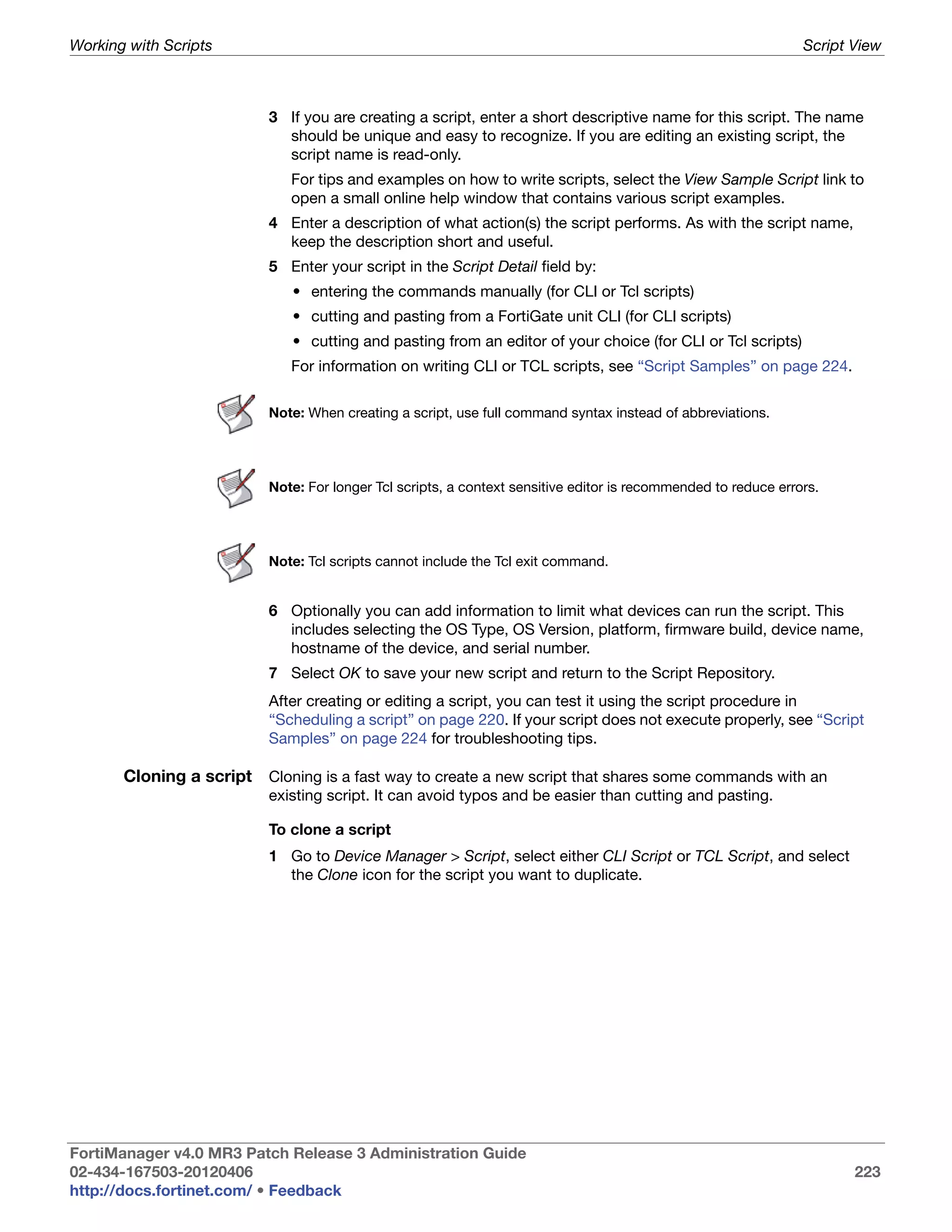
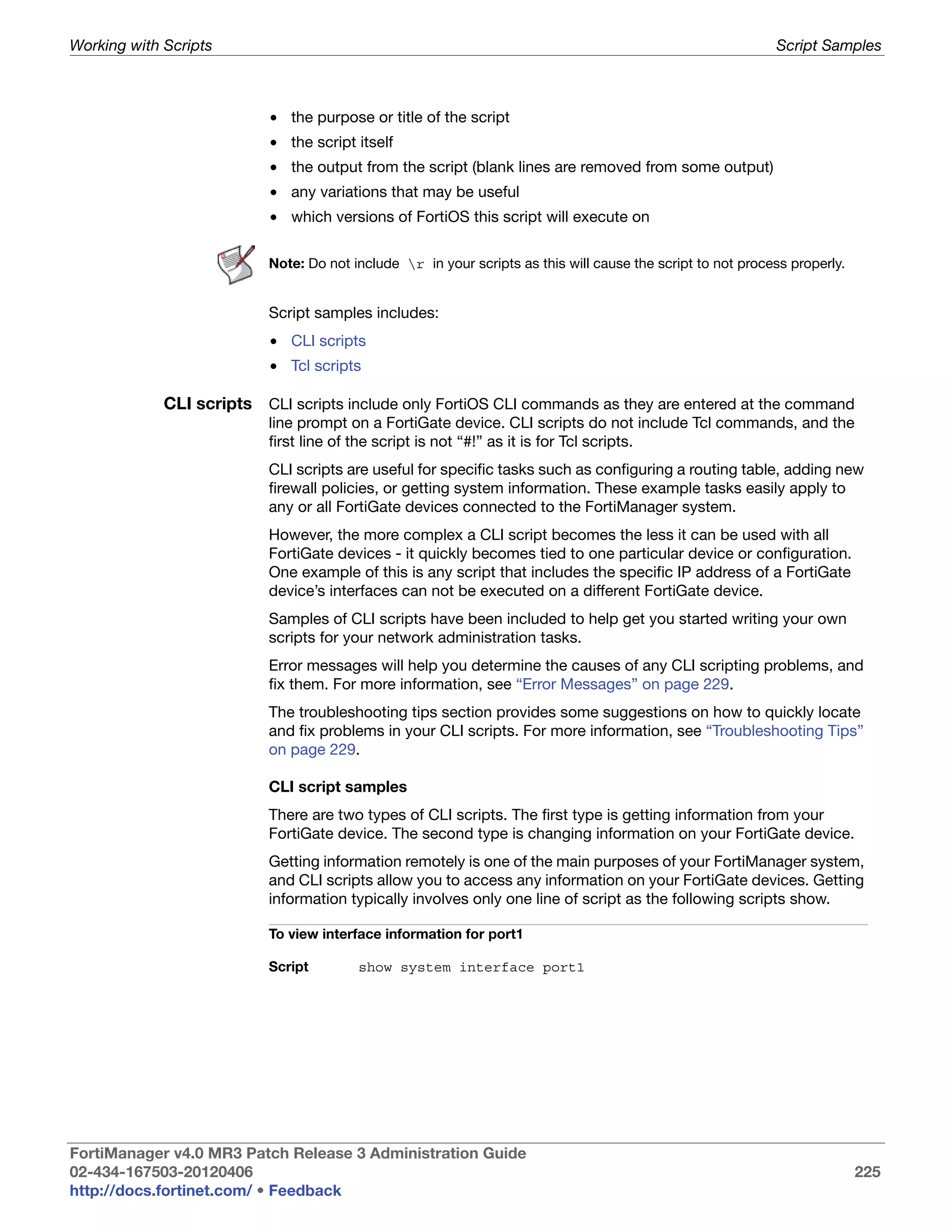
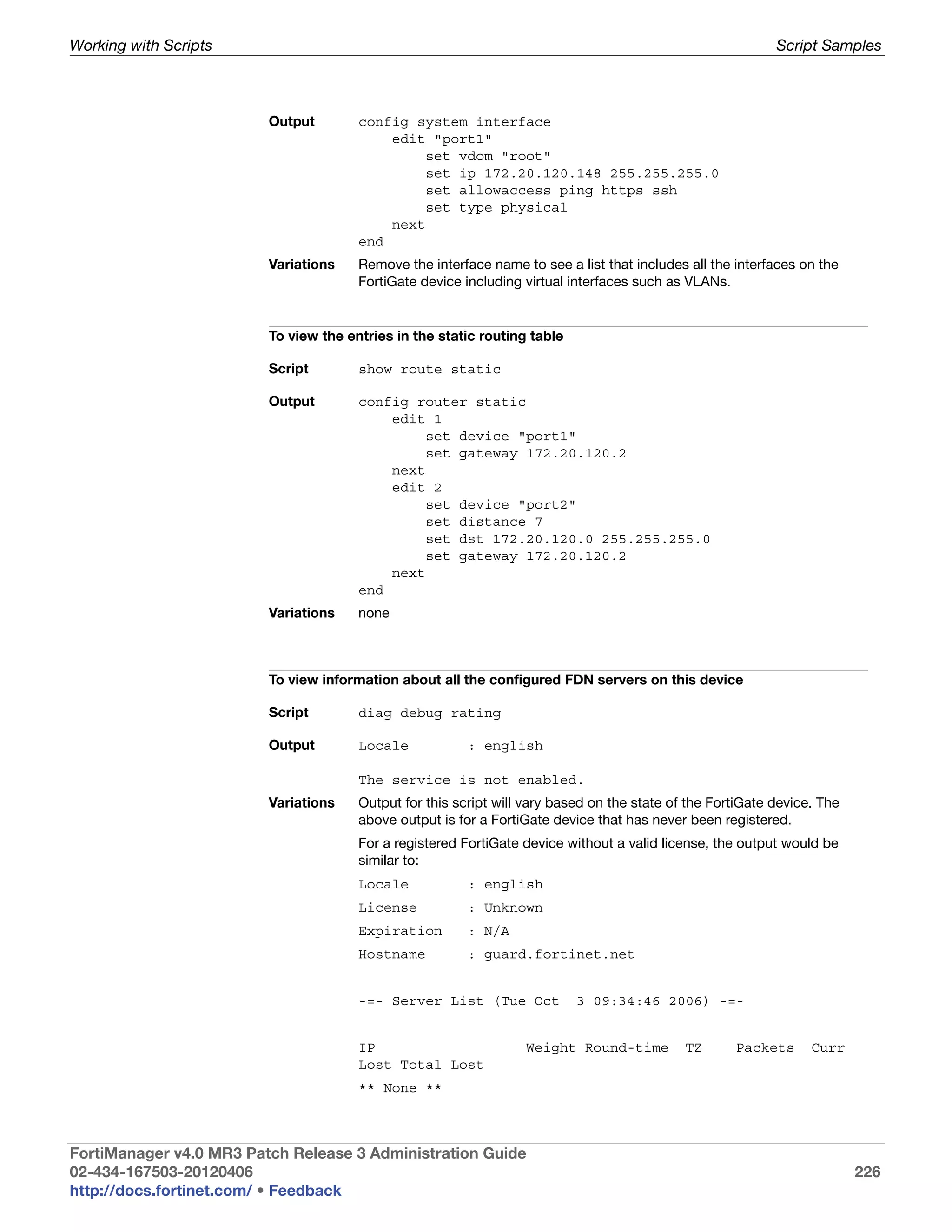
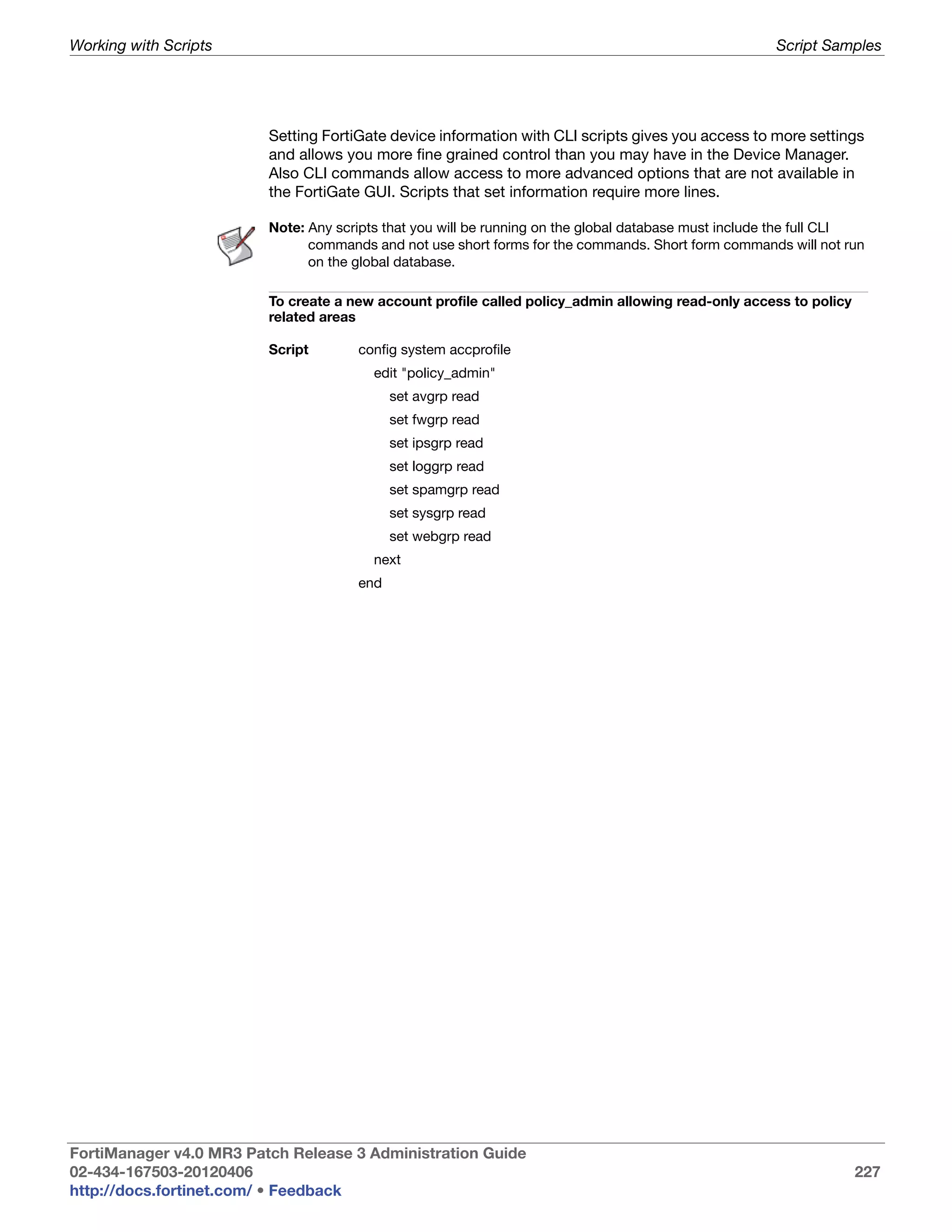
02-434-167503-20120406
Copyright© 2012 Fortinet, Inc. All rights reserved. Fortinet®, FortiGate®, and
FortiGuard®, are registered trademarks of Fortinet, Inc., and other Fortinet names herein
may also be trademarks of Fortinet. All other product or company names may be
trademarks of their respective owners. Performance metrics contained herein were
attained in internal lab tests under ideal conditions, and performance may vary. Network
variables, different network environments and other conditions may affect performance
results. Nothing herein represents any binding commitment by Fortinet, and Fortinet
disclaims all warranties, whether express or implied, except to the extent Fortinet enters
a binding written contract, signed by Fortinet’s General Counsel, with a purchaser that
expressly warrants that the identified product will perform according to the performance
metrics herein. For absolute clarity, any such warranty will be limited to performance in
the same ideal conditions as in Fortinet’s internal lab tests. Fortinet disclaims in full any
guarantees. Fortinet reserves the right to change, modify, transfer, or otherwise revise this
publication without notice, and the most current version of the publication shall be
applicable.


Technical Documentation:                    http://docs.fortinet.com
Knowledge Base:                             http://kb.fortinet.com
Customer Service & Support:                 https://support.fortinet.com
Training Services:                          http://training.fortinet.com
Table of Contents


                        Change Log ............................................................................................ 16
                        Introduction ............................................................................................ 17
                          About this document ...................................................................................... 17
                          FortiManager documentation ......................................................................... 19
                        What’s New in v4.0 MR3........................................................................ 20
                          Global Policy improvements...........................................................................               20
                          Administrative Domain (ADOM) ......................................................................                 21
                          Install Wizard/Import Wizard...........................................................................             21
                          Policy usability ................................................................................................   22
                          FortiToken support .........................................................................................        22
                          Management model........................................................................................            22
                          FortiManager VM licensing changes ..............................................................                    23
                          Web-based Manager changes .......................................................................                   23
                          User Workspaces ...........................................................................................         24
                          Search improvements.....................................................................................            24
                          Improvements to Device Manager..................................................................                    24
                          Firewall Policies Consistency Check ..............................................................                  24
                          Java Client for Windows .................................................................................           25
                          IPv6 support ...................................................................................................    25
                          Audit logging...................................................................................................    25
                          FortiGate to FortiManager Protocol................................................................                  25
                          FortiMail support.............................................................................................      25
                          High Availability improvements ......................................................................               25
                          SNMPv3 support added .................................................................................              26
                          Additional XML API extensions.......................................................................                26
                        Fortinet Management Theory ............................................................... 27
                          Key features of the FortiManager system.......................................................                      27
                              Configuration Revision Control and Tracking ...........................................                         27
                              Centralized Management..........................................................................                27
                              Administrative Domains ............................................................................             27
                              Local FortiGuard Service Provisioning .....................................................                     27
                              Firmware Management .............................................................................               27
                              Scripting....................................................................................................   27
                              FortiClient Management ...........................................................................              27
                              Fortinet Device Lifecycle Management ....................................................                       28
                          Inside the FortiManager system .....................................................................                28
                              Inside the FortiManager Management Module.........................................                              30


 FortiManager v4.0 MR3 Patch Release 3 Administration Guide
 02-434-167503-20120406                                                                                                                            3
 http://docs.fortinet.com/ • Feedback
Table of Contents


                       Using the Web-based Manager............................................................ 32
                         System requirements......................................................................................     32
                         Connecting to the Web-based Manager ........................................................                  32
                         Web-based Manager overview.......................................................................             33
                            Viewing the Web-based Manager.............................................................                 33
                            Using the main tool bar.............................................................................       34
                            Using the tab bar ......................................................................................   34
                            Using the navigation pane ........................................................................         35
                         Configuring Web-based Manager settings.....................................................                   35
                            Changing the Web-based Manager language ..........................................                         35
                            Changing administrative access to your FortiManager system................                                 36
                            Changing the Web-based Manager idle timeout......................................                          36
                         Reboot and shutdown of the FortiManager unit.............................................                     37
                       Administrative Domains ........................................................................ 38
                         Enabling and disabling the ADOM feature .....................................................                 38
                         About ADOM modes.......................................................................................       39
                            Switching between ADOMs ......................................................................             40
                            Normal mode ADOMs...............................................................................           40
                            Backup mode ADOMs ..............................................................................           40
                         Managing ADOMs ..........................................................................................     41
                            Concurrent ADOM access ........................................................................            42
                            Adding an ADOM ......................................................................................      42
                            Deleting an ADOM ....................................................................................      44
                            Assigning devices to an ADOM ................................................................              44
                            Assigning administrators to an ADOM......................................................                  45
                         Viewing ADOM assignments ..........................................................................           45
                            Viewing ADOM properties ........................................................................           46
                       System Settings ..................................................................................... 47
                         Viewing the system status ..............................................................................      48
                            Customizing the Dashboard .....................................................................            49
                            Viewing System Information .....................................................................           51
                            Viewing System Resource Information .....................................................                  52
                            Viewing the Device Summary ...................................................................             54
                            Viewing License Information .....................................................................          54
                            Viewing Unit Operation .............................................................................       55
                            Viewing RAID status .................................................................................      55
                            Viewing Alert Messages............................................................................         56
                            Using the CLI Console widget ..................................................................            58
                         Configuring General settings ..........................................................................       58
                            Changing the host name...........................................................................          59
                            Configuring the system time .....................................................................          60
                            Updating the system firmware..................................................................             61
                            Backing up and restoring the system .......................................................                62

FortiManager v4.0 MR3 Patch Release 3 Administration Guide
02-434-167503-20120406                                                                                                                      4
http://docs.fortinet.com/ • Feedback
Table of Contents


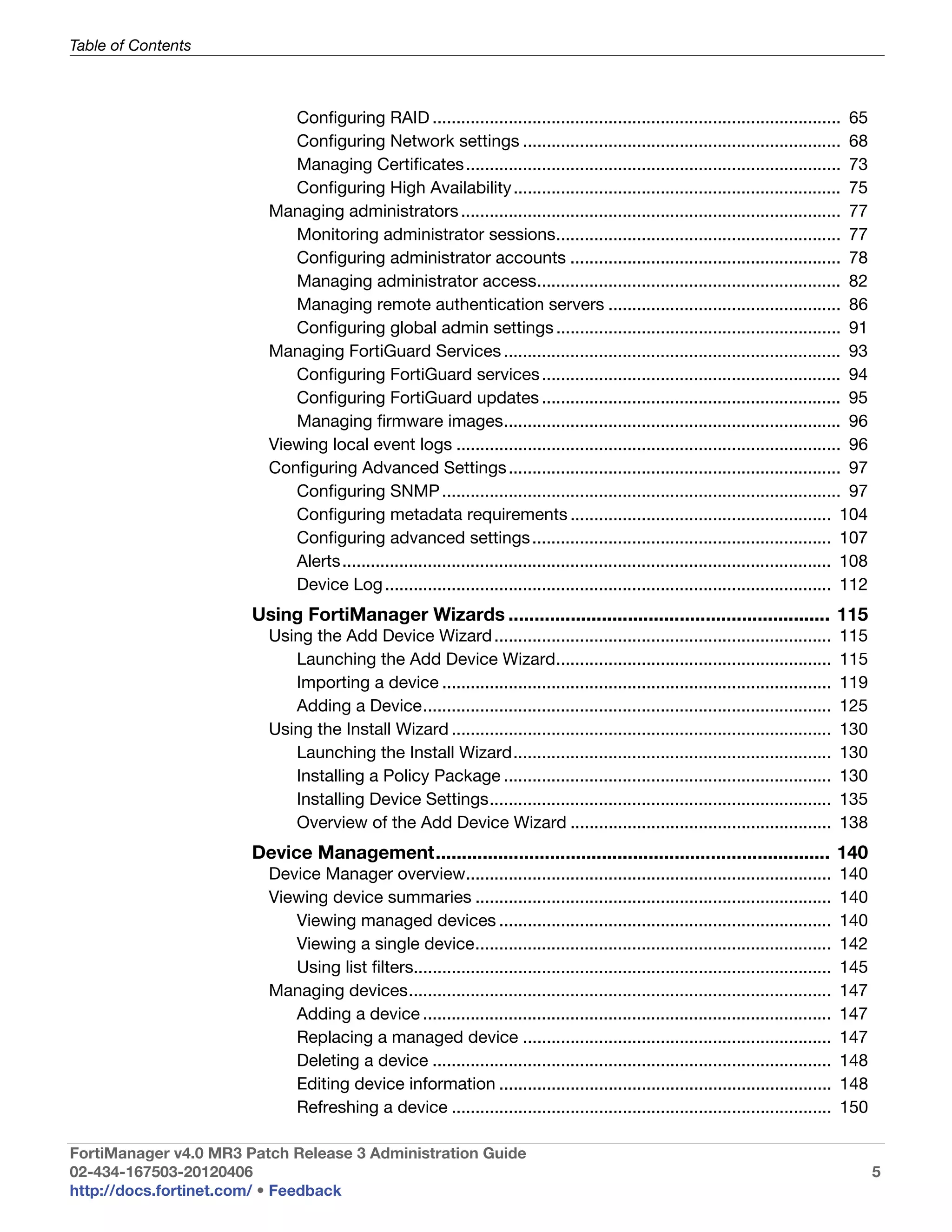
                            Configuring RAID ...................................................................................... 65
                            Configuring Network settings ................................................................... 68
                            Managing Certificates ............................................................................... 73
                            Configuring High Availability ..................................................................... 75
                         Managing administrators ................................................................................ 77
                            Monitoring administrator sessions............................................................ 77
                            Configuring administrator accounts ......................................................... 78
                            Managing administrator access................................................................ 82
                            Managing remote authentication servers ................................................. 86
                            Configuring global admin settings ............................................................ 91
                         Managing FortiGuard Services ....................................................................... 93
                            Configuring FortiGuard services ............................................................... 94
                            Configuring FortiGuard updates ............................................................... 95
                            Managing firmware images....................................................................... 96
                         Viewing local event logs ................................................................................. 96
                         Configuring Advanced Settings ...................................................................... 97
                            Configuring SNMP .................................................................................... 97
                            Configuring metadata requirements ....................................................... 104
                            Configuring advanced settings ............................................................... 107
                            Alerts....................................................................................................... 108
                            Device Log .............................................................................................. 112
                       Using FortiManager Wizards .............................................................. 115
                         Using the Add Device Wizard .......................................................................             115
                            Launching the Add Device Wizard..........................................................                    115
                            Importing a device ..................................................................................        119
                            Adding a Device......................................................................................        125
                         Using the Install Wizard ................................................................................       130
                            Launching the Install Wizard...................................................................              130
                            Installing a Policy Package .....................................................................            130
                            Installing Device Settings........................................................................           135
                            Overview of the Add Device Wizard .......................................................                    138
                       Device Management............................................................................ 140
                         Device Manager overview.............................................................................            140
                         Viewing device summaries ...........................................................................            140
                            Viewing managed devices ......................................................................               140
                            Viewing a single device...........................................................................           142
                            Using list filters........................................................................................   145
                         Managing devices.........................................................................................       147
                            Adding a device ......................................................................................       147
                            Replacing a managed device .................................................................                 147
                            Deleting a device ....................................................................................       148
                            Editing device information ......................................................................            148
                            Refreshing a device ................................................................................         150

FortiManager v4.0 MR3 Patch Release 3 Administration Guide
02-434-167503-20120406                                                                                                                          5
http://docs.fortinet.com/ • Feedback
Table of Contents


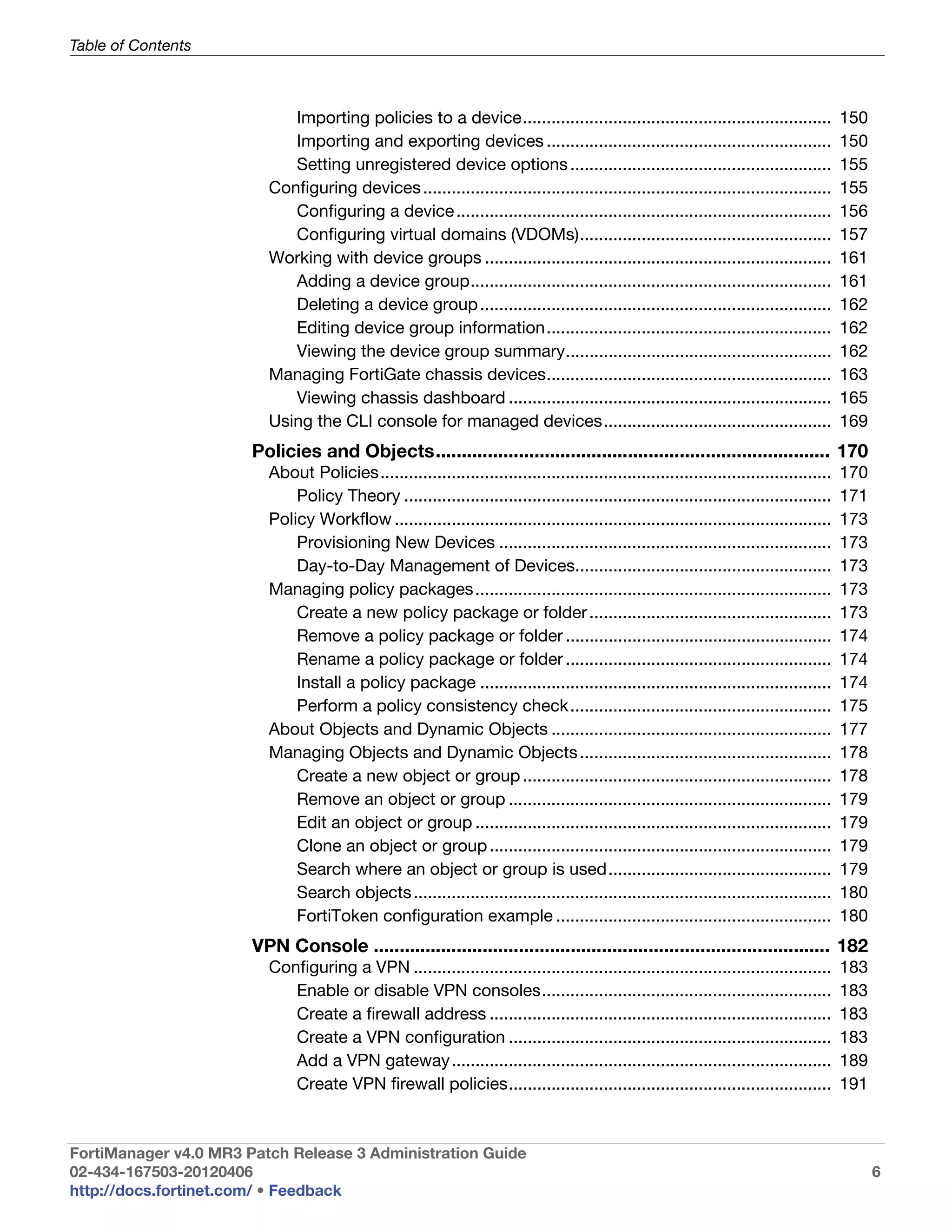
                            Importing policies to a device.................................................................              150
                            Importing and exporting devices ............................................................                 150
                            Setting unregistered device options .......................................................                  155
                         Configuring devices ......................................................................................      155
                            Configuring a device ...............................................................................         156
                            Configuring virtual domains (VDOMs).....................................................                     157
                         Working with device groups .........................................................................            161
                            Adding a device group............................................................................            161
                            Deleting a device group ..........................................................................           162
                            Editing device group information............................................................                 162
                            Viewing the device group summary........................................................                     162
                         Managing FortiGate chassis devices............................................................                  163
                            Viewing chassis dashboard ....................................................................               165
                         Using the CLI console for managed devices................................................                       169
                       Policies and Objects............................................................................ 170
                         About Policies...............................................................................................   170
                             Policy Theory ..........................................................................................    171
                         Policy Workflow ............................................................................................    173
                             Provisioning New Devices ......................................................................             173
                             Day-to-Day Management of Devices......................................................                      173
                         Managing policy packages ...........................................................................            173
                             Create a new policy package or folder ...................................................                   173
                             Remove a policy package or folder ........................................................                  174
                             Rename a policy package or folder ........................................................                  174
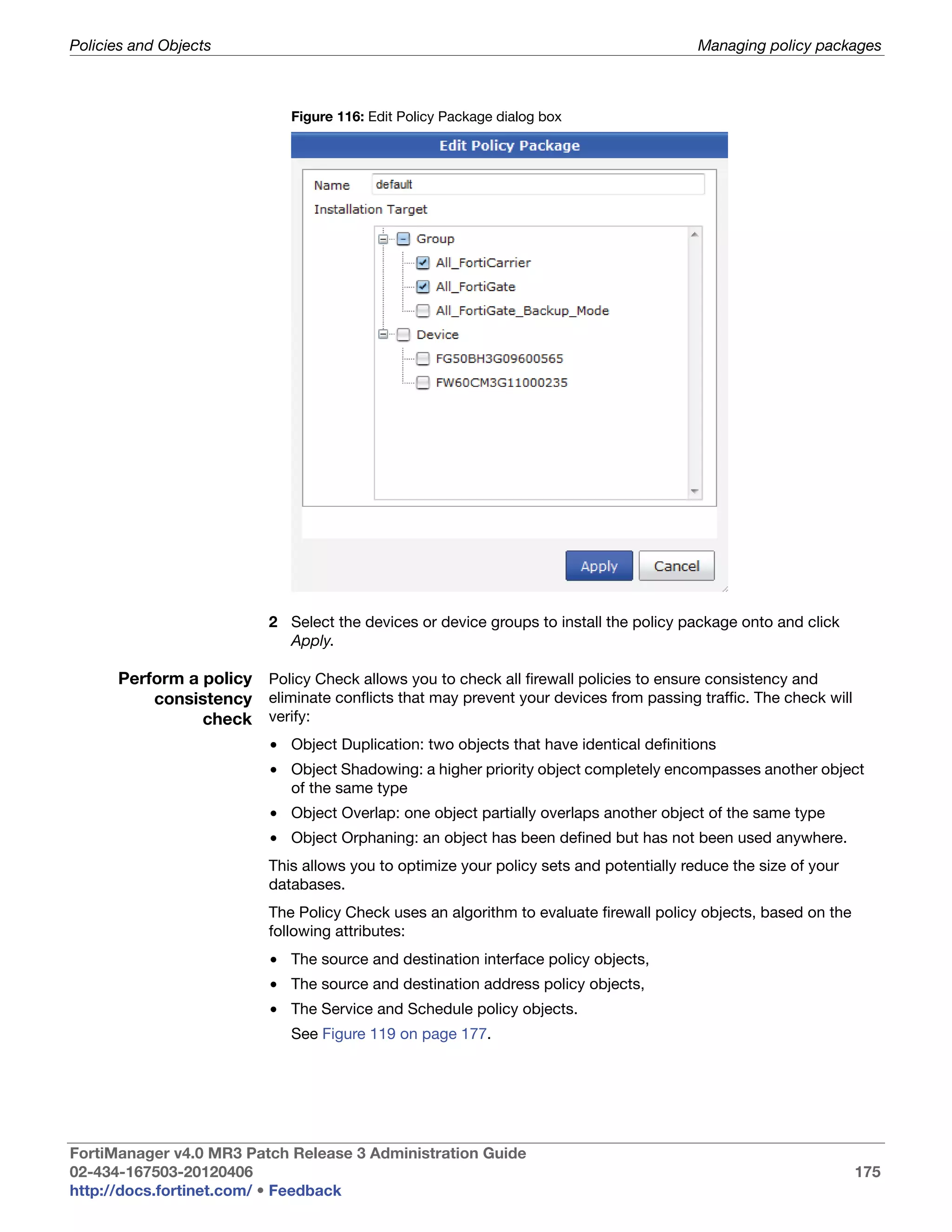
                             Install a policy package ..........................................................................         174
                             Perform a policy consistency check.......................................................                   175
                         About Objects and Dynamic Objects ...........................................................                   177
                         Managing Objects and Dynamic Objects .....................................................                      178
                             Create a new object or group .................................................................              178
                             Remove an object or group ....................................................................              179
                             Edit an object or group ...........................................................................         179
                             Clone an object or group ........................................................................           179
                             Search where an object or group is used...............................................                      179
                             Search objects ........................................................................................     180
                             FortiToken configuration example ..........................................................                 180
                       VPN Console ........................................................................................ 182
                         Configuring a VPN ........................................................................................      183
                            Enable or disable VPN consoles.............................................................                  183
                            Create a firewall address ........................................................................           183
                            Create a VPN configuration ....................................................................              183
                            Add a VPN gateway ................................................................................           189
                            Create VPN firewall policies....................................................................             191


FortiManager v4.0 MR3 Patch Release 3 Administration Guide
02-434-167503-20120406                                                                                                                         6
http://docs.fortinet.com/ • Feedback
Table of Contents


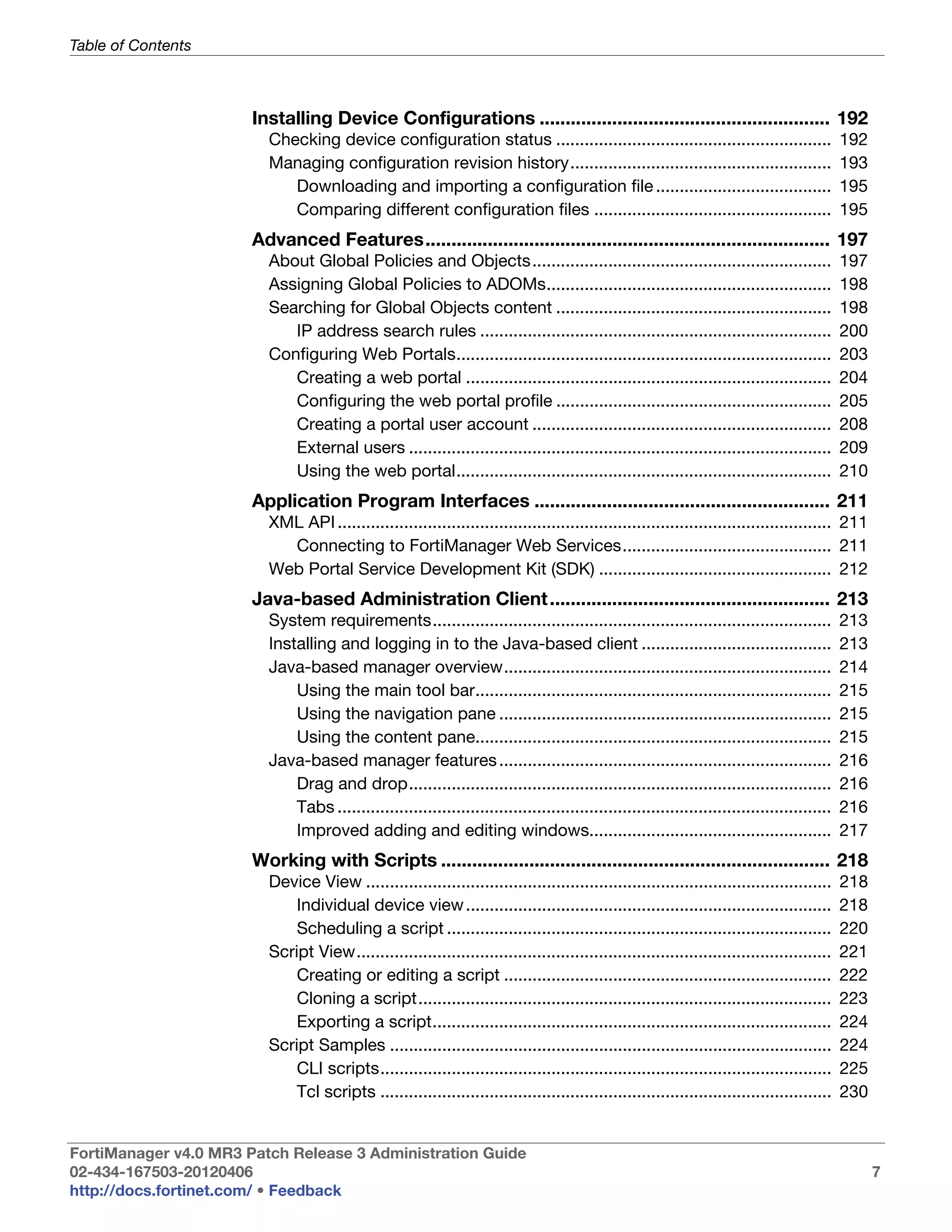
                       Installing Device Configurations ........................................................ 192
                         Checking device configuration status ..........................................................                     192
                         Managing configuration revision history.......................................................                      193
                            Downloading and importing a configuration file .....................................                             195
                            Comparing different configuration files ..................................................                       195
                       Advanced Features.............................................................................. 197
                         About Global Policies and Objects...............................................................                    197
                         Assigning Global Policies to ADOMs............................................................                      198
                         Searching for Global Objects content ..........................................................                     198
                            IP address search rules ..........................................................................               200
                         Configuring Web Portals...............................................................................              203
                            Creating a web portal .............................................................................              204
                            Configuring the web portal profile ..........................................................                    205
                            Creating a portal user account ...............................................................                   208
                            External users .........................................................................................         209
                            Using the web portal...............................................................................              210
                       Application Program Interfaces ......................................................... 211
                         XML API ........................................................................................................ 211
                           Connecting to FortiManager Web Services............................................ 211
                         Web Portal Service Development Kit (SDK) ................................................. 212
                       Java-based Administration Client ...................................................... 213
                         System requirements....................................................................................             213
                         Installing and logging in to the Java-based client ........................................                         213
                         Java-based manager overview.....................................................................                    214
                             Using the main tool bar...........................................................................              215
                             Using the navigation pane ......................................................................                215
                             Using the content pane...........................................................................               215
                         Java-based manager features ......................................................................                  216
                             Drag and drop.........................................................................................          216
                             Tabs ........................................................................................................   216
                             Improved adding and editing windows...................................................                          217
                       Working with Scripts ........................................................................... 218
                         Device View ..................................................................................................      218
                             Individual device view .............................................................................            218
                             Scheduling a script .................................................................................           220
                         Script View....................................................................................................     221
                             Creating or editing a script .....................................................................              222
                             Cloning a script.......................................................................................         223
                             Exporting a script....................................................................................          224
                         Script Samples .............................................................................................        224
                             CLI scripts...............................................................................................      225
                             Tcl scripts ...............................................................................................     230


FortiManager v4.0 MR3 Patch Release 3 Administration Guide
02-434-167503-20120406                                                                                                                             7
http://docs.fortinet.com/ • Feedback
Table of Contents


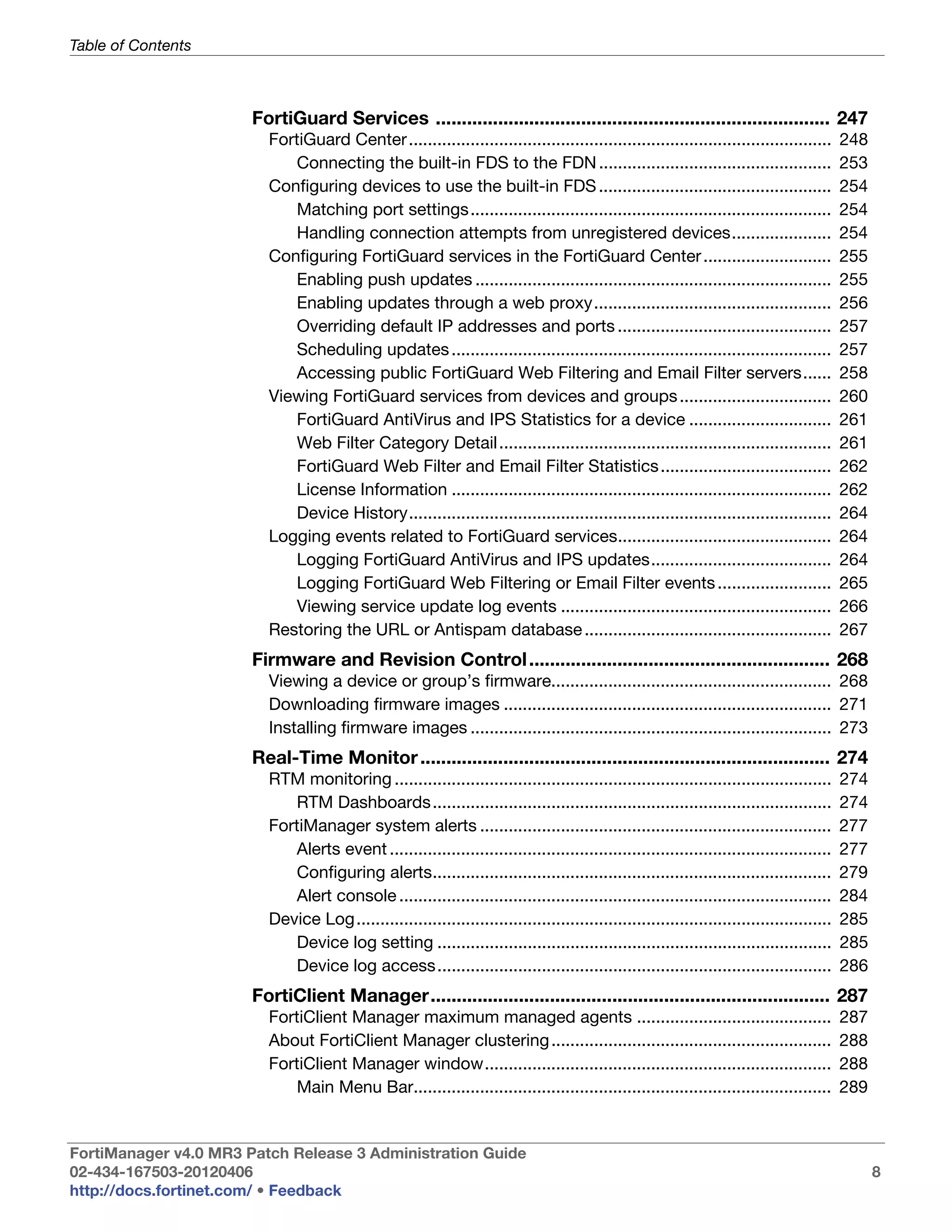
                       FortiGuard Services ............................................................................ 247
                         FortiGuard Center .........................................................................................       248
                            Connecting the built-in FDS to the FDN .................................................                       253
                         Configuring devices to use the built-in FDS .................................................                     254
                            Matching port settings............................................................................             254
                            Handling connection attempts from unregistered devices.....................                                    254
                         Configuring FortiGuard services in the FortiGuard Center ...........................                              255
                            Enabling push updates ...........................................................................              255
                            Enabling updates through a web proxy..................................................                         256
                            Overriding default IP addresses and ports .............................................                        257
                            Scheduling updates ................................................................................            257
                            Accessing public FortiGuard Web Filtering and Email Filter servers......                                       258
                         Viewing FortiGuard services from devices and groups ................................                              260
                            FortiGuard AntiVirus and IPS Statistics for a device ..............................                            261
                            Web Filter Category Detail ......................................................................              261
                            FortiGuard Web Filter and Email Filter Statistics ....................................                         262
                            License Information ................................................................................           262
                            Device History.........................................................................................        264
                         Logging events related to FortiGuard services.............................................                        264
                            Logging FortiGuard AntiVirus and IPS updates......................................                             264
                            Logging FortiGuard Web Filtering or Email Filter events ........................                               265
                            Viewing service update log events .........................................................                    266
                         Restoring the URL or Antispam database ....................................................                       267
                       Firmware and Revision Control .......................................................... 268
                         Viewing a device or group’s firmware........................................................... 268
                         Downloading firmware images ..................................................................... 271
                         Installing firmware images ............................................................................ 273
                       Real-Time Monitor ............................................................................... 274
                         RTM monitoring ............................................................................................       274
                            RTM Dashboards....................................................................................             274
                         FortiManager system alerts ..........................................................................             277
                            Alerts event .............................................................................................     277
                            Configuring alerts....................................................................................         279
                            Alert console ...........................................................................................      284
                         Device Log ....................................................................................................   285
                            Device log setting ...................................................................................         285
                            Device log access...................................................................................           286
                       FortiClient Manager............................................................................. 287
                         FortiClient Manager maximum managed agents .........................................                              287
                         About FortiClient Manager clustering ...........................................................                  288
                         FortiClient Manager window.........................................................................               288
                             Main Menu Bar........................................................................................         289


FortiManager v4.0 MR3 Patch Release 3 Administration Guide
02-434-167503-20120406                                                                                                                           8
http://docs.fortinet.com/ • Feedback
Table of Contents


                            Navigation Pane......................................................................................         289
                            Client Group Tree....................................................................................         291
                            FortiClient menu......................................................................................        291
                         Message Center............................................................................................       292
                            Dashboard ..............................................................................................      292
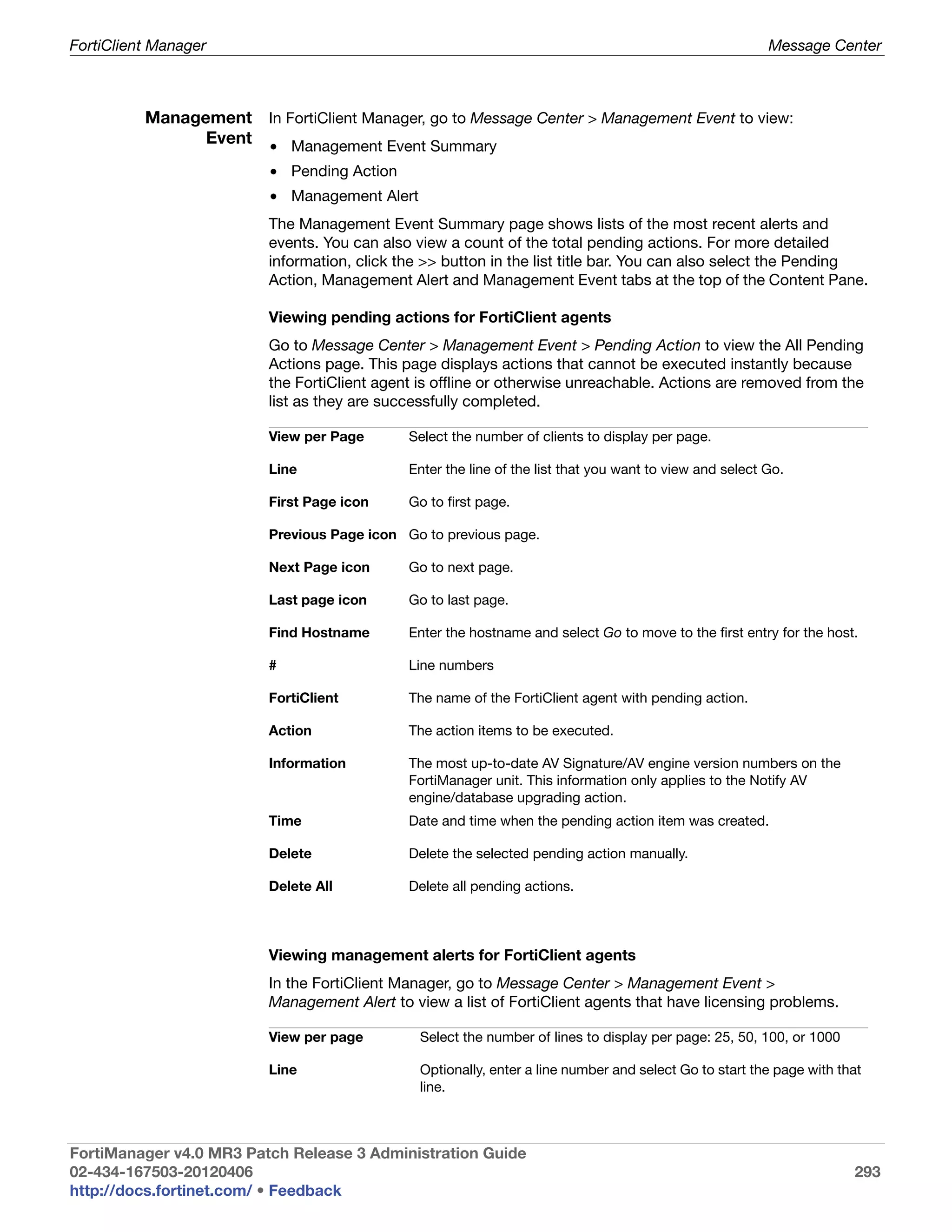
                            Management Event.................................................................................             293
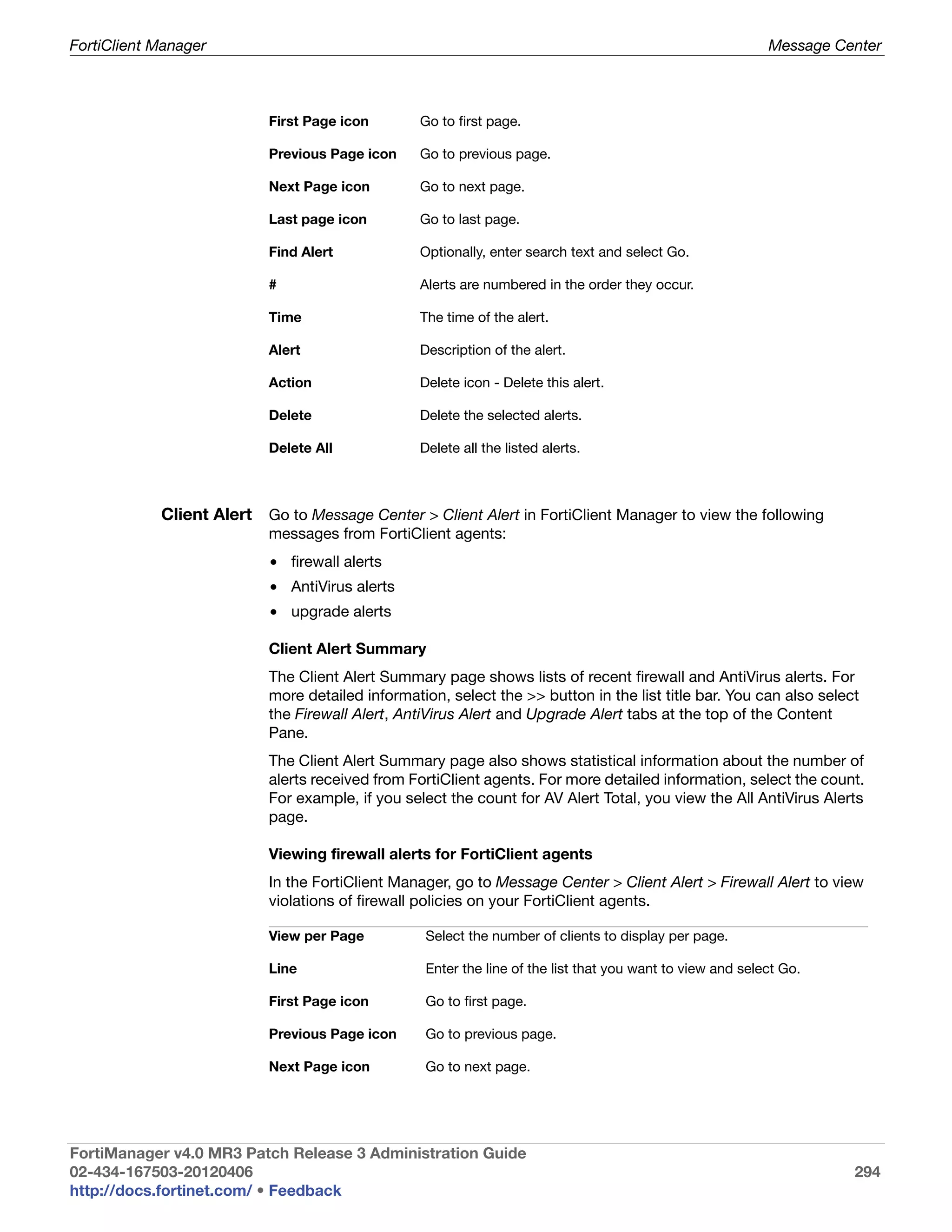
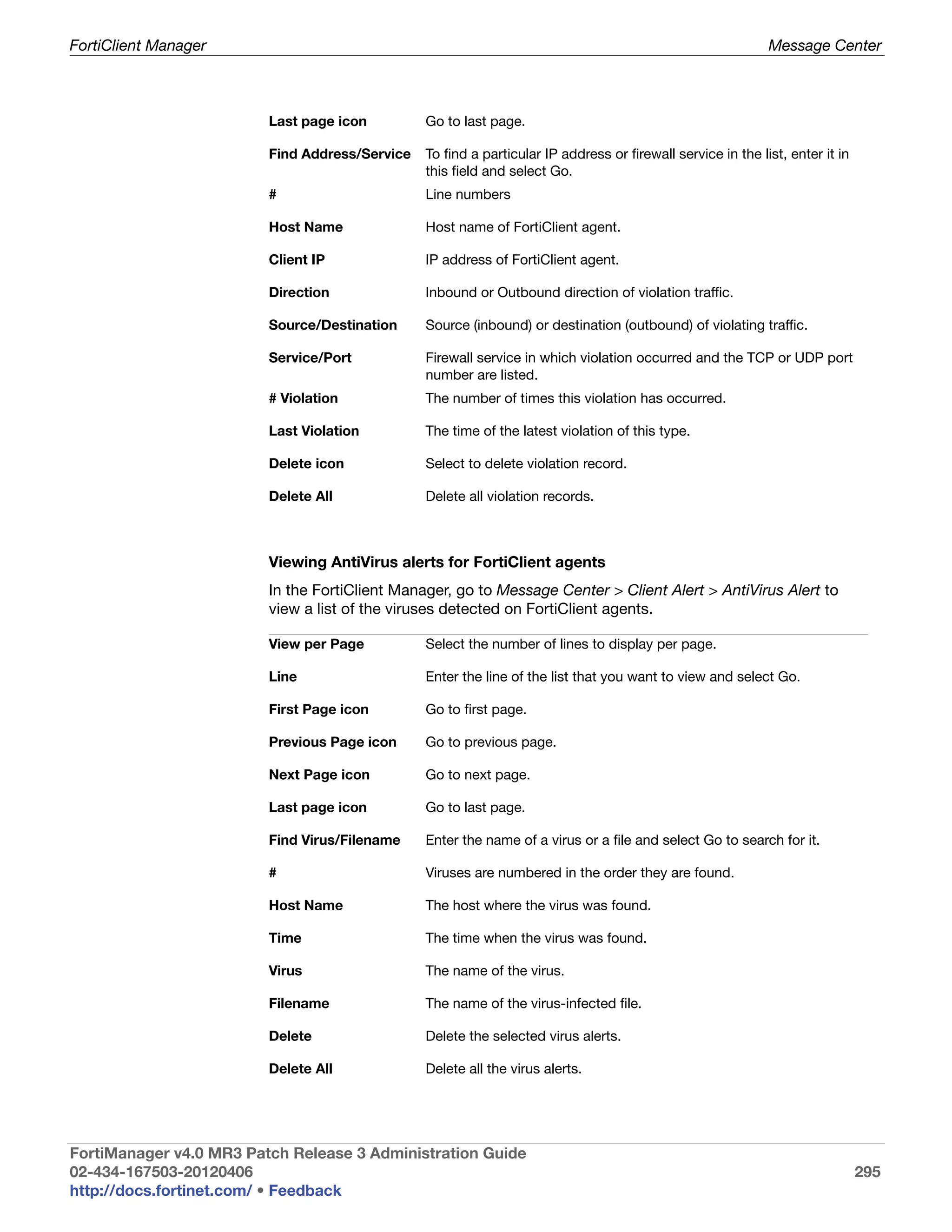
                            Client Alert ..............................................................................................   294
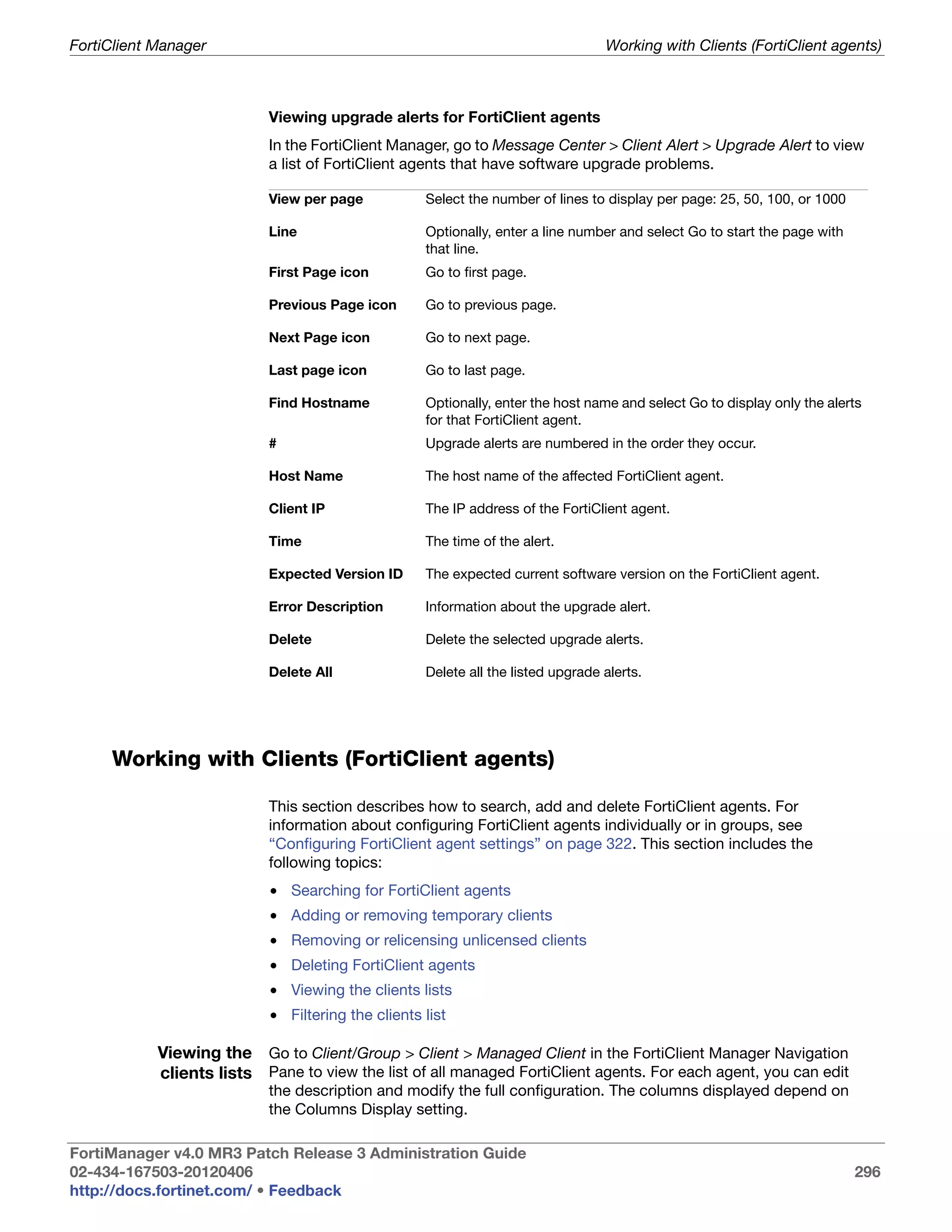
                         Working with Clients (FortiClient agents)......................................................                  296
                            Viewing the clients lists...........................................................................          296
                            Filtering the clients list ............................................................................       298
                            Searching for FortiClient agents .............................................................                298
                            Adding or removing temporary clients....................................................                      299
                            Removing or relicensing unlicensed clients............................................                        300
                            Deploying licenses to Standard (Free) Edition clients ............................                            301
                            Deleting FortiClient agents .....................................................................             301
                         Working with FortiClient groups ...................................................................              302
                            Overview of client groups .......................................................................             302
                            Viewing FortiClient groups......................................................................              303
                            Adding a FortiClient agent group............................................................                  303
                            Deleting a FortiClient agent group ..........................................................                 304
                            Editing a FortiClient agent group ............................................................                304
                            Viewing group summaries ......................................................................                304
                            Configuring settings for client groups.....................................................                   305
                         Managing client configurations and software...............................................                       306
                            Deploying FortiClient agent configurations ............................................                       306
                            Retrieving a FortiClient agent configuration ...........................................                      307
                            Working with FortiClient software upgrades ..........................................                         308
                            FortiClient license keys ...........................................................................          309
                         Working with Web Filter profiles...................................................................              310
                            About Web Filtering ................................................................................          310
                            Viewing and editing Web Filter profiles ..................................................                    311
                            Configuring a Web Filter profile ..............................................................               311
                         Configuring FortiClient Manager system settings ........................................                         312
                         Configuring FortiClient Manager clustering ..................................................                    313
                            Configuring FortiClient Manager cluster members.................................                              313
                         Configuring email alerts ................................................................................        314
                         Configuring LDAP for Web Filtering..............................................................                 315
                            Configuring LDAP settings......................................................................               315
                            Configuring an LDAP server ...................................................................                315
                            Working with Windows AD users and groups ........................................                             316
                            Active Directory Organizational Units Grouping .....................................                          317
                         Configuring FortiClient group-based administration ....................................                          319
                            Assigning group administrators ..............................................................                 320


FortiManager v4.0 MR3 Patch Release 3 Administration Guide
02-434-167503-20120406                                                                                                                          9
http://docs.fortinet.com/ • Feedback
Table of Contents


                         Configuring enterprise license management ................................................                      320
                            Configuring an enterprise license ...........................................................                321
                            Creating a customized FortiClient installer .............................................                    322
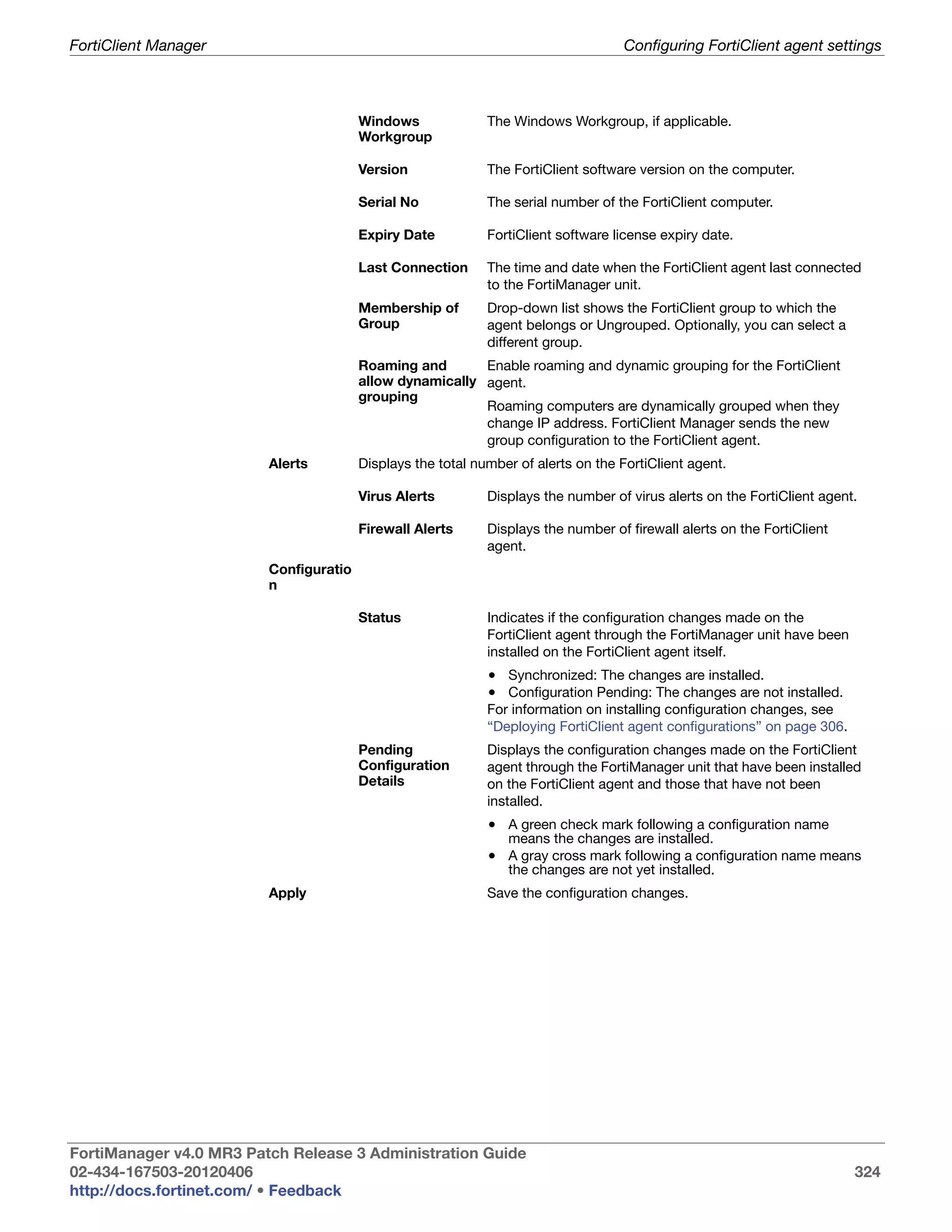
                         Configuring FortiClient agent settings ..........................................................               322
                            Viewing system status of a FortiClient agent..........................................                       323
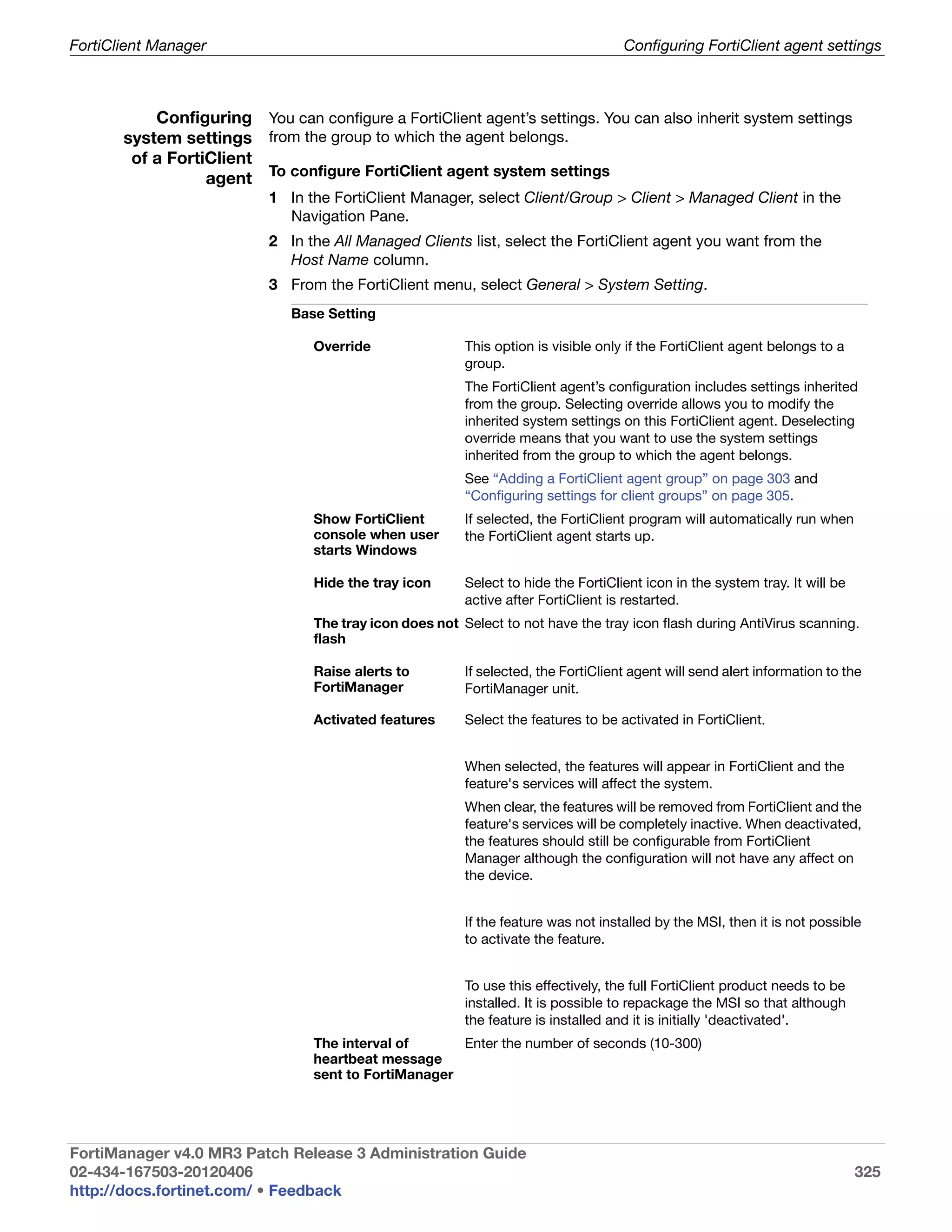
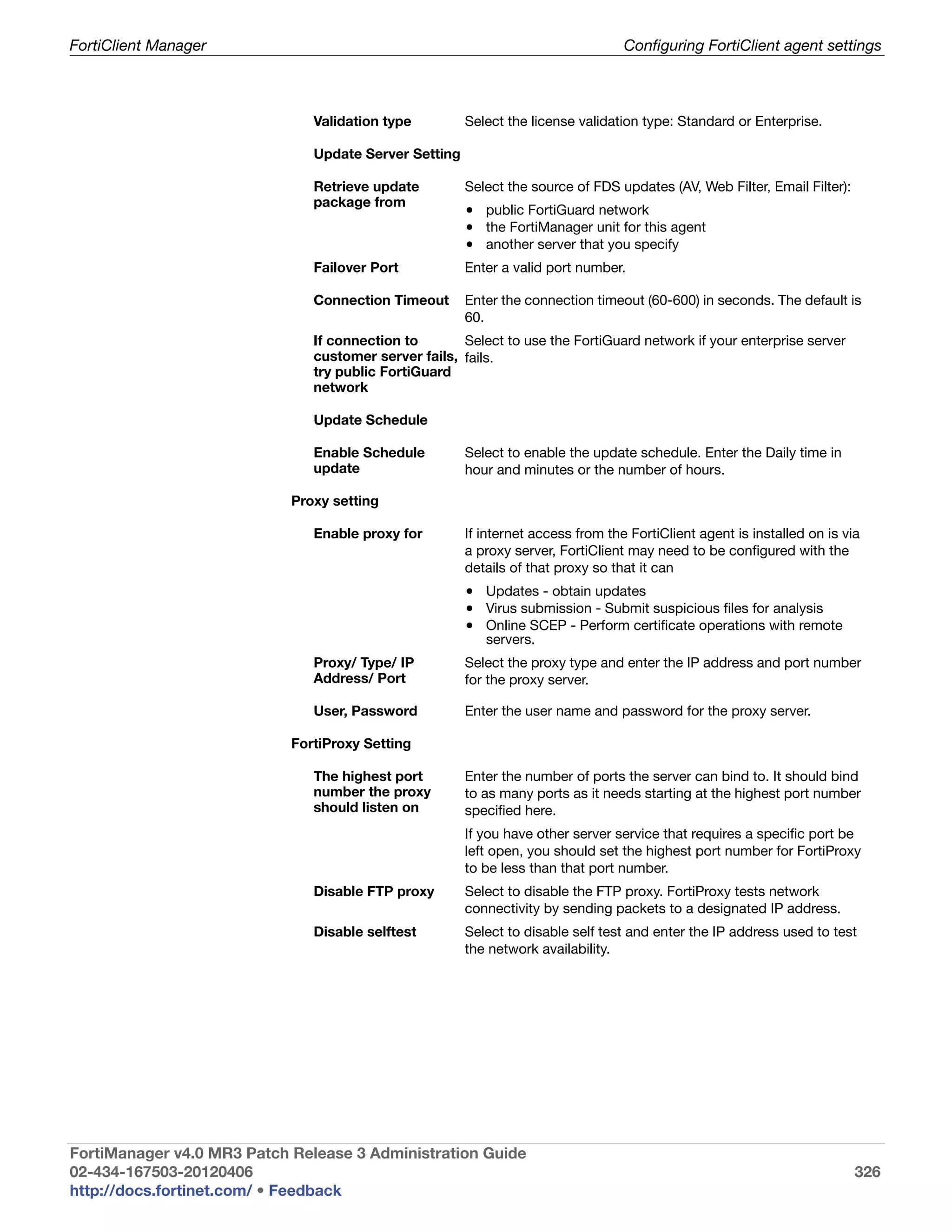
                            Configuring system settings of a FortiClient agent.................................                          325
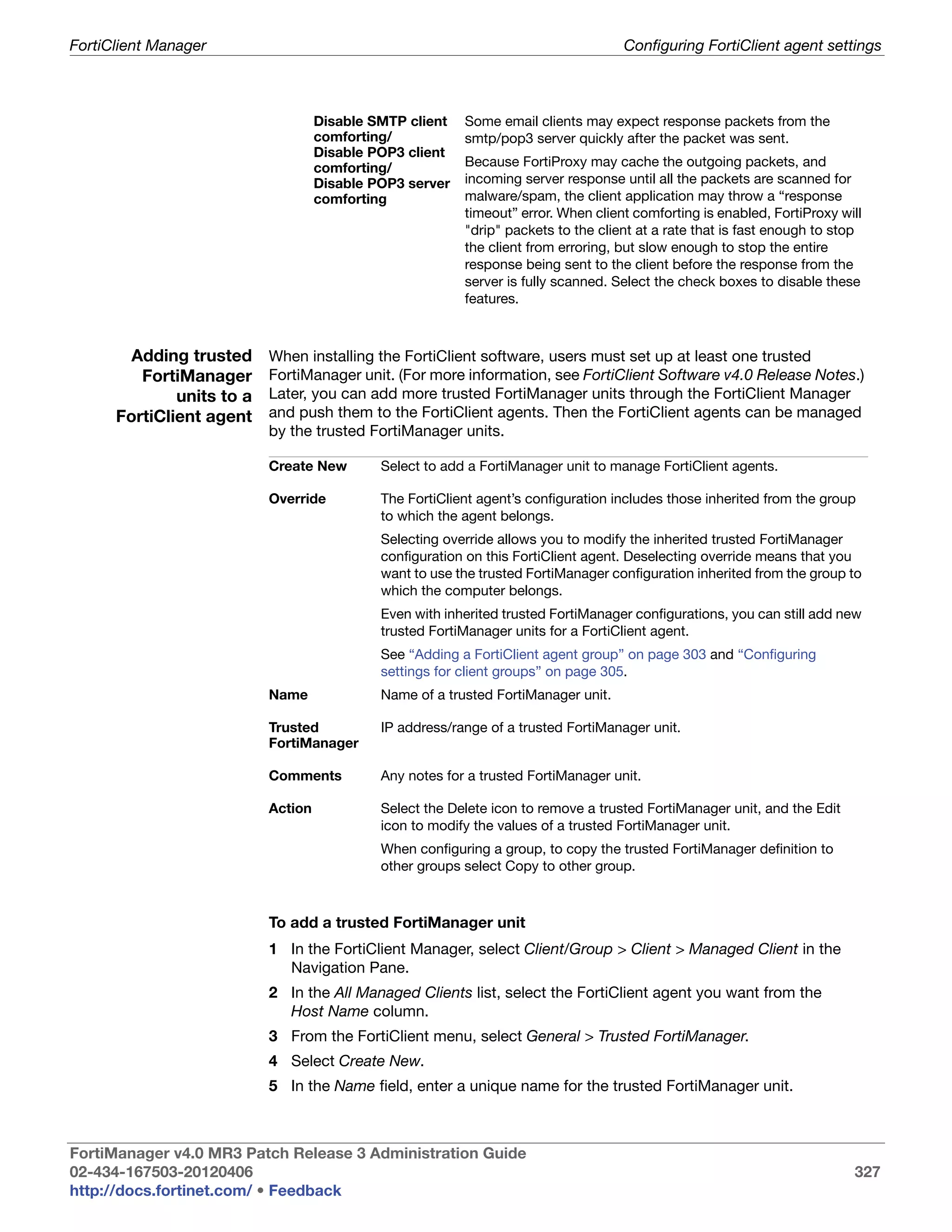
                            Adding trusted FortiManager units to a FortiClient agent ......................                              327
                            Managing pending actions for a FortiClient agent..................................                           328
                            Configuring the log settings of a FortiClient agent .................................                        329
                            Configuring Lockdown Settings .............................................................                  330
                            Configuring the VPN settings of a FortiClient agent ...............................                          330
                            Configuring a VPN security policy on a FortiClient agent.......................                              331
                            Configuring VPN options of a FortiClient agent......................................                         331
                            Configuring WAN Optimization settings of a FortiClient agent ..............                                  332
                            Configuring AntiVirus settings on a FortiClient agent .............................                          333
                            AntiVirus scans .......................................................................................      334
                            Configuring AntiVirus options .................................................................              335
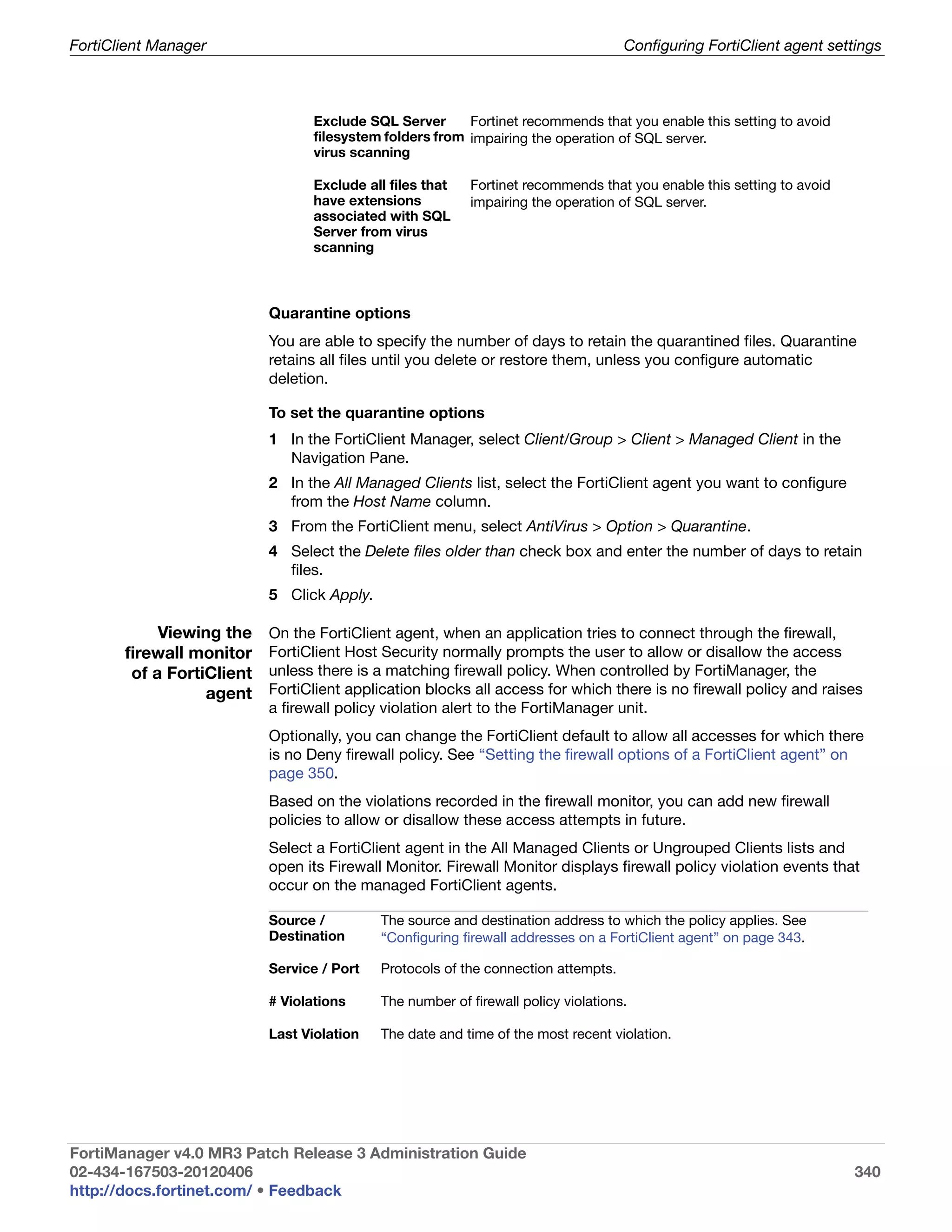
                            Viewing the firewall monitor of a FortiClient agent .................................                        340
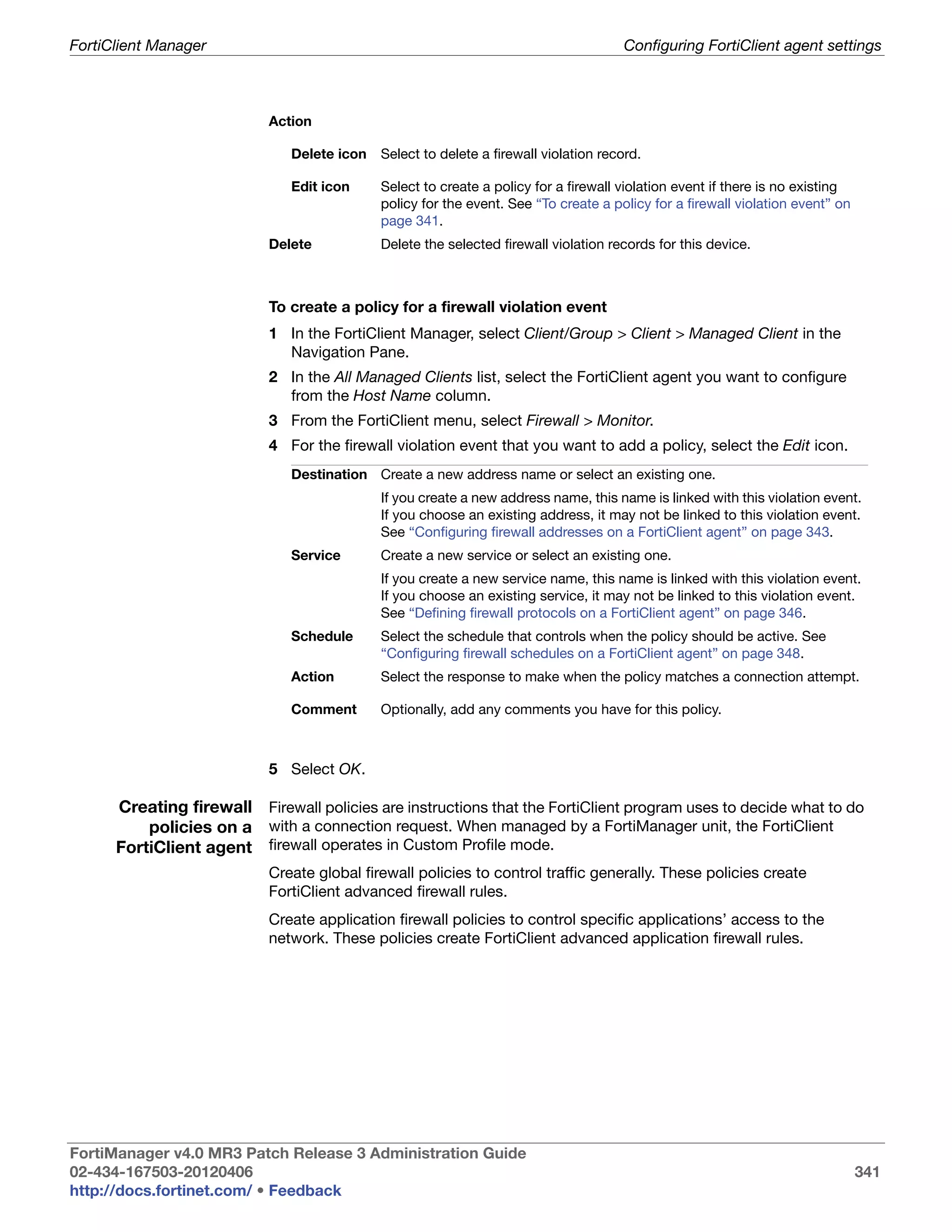
                            Creating firewall policies on a FortiClient agent .....................................                      341
                            Configuring firewall addresses on a FortiClient agent ............................                           343
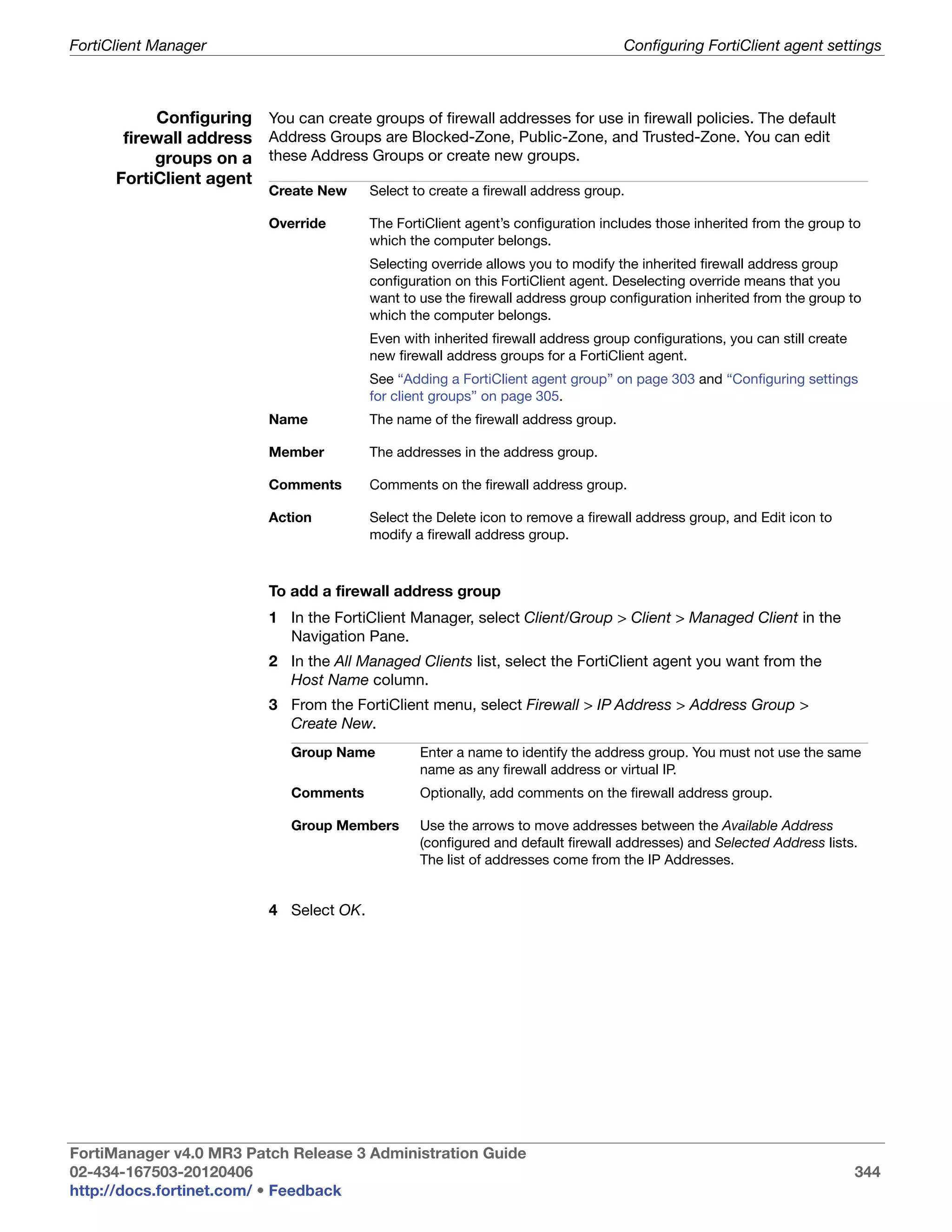
                            Configuring firewall address groups on a FortiClient agent ...................                               344
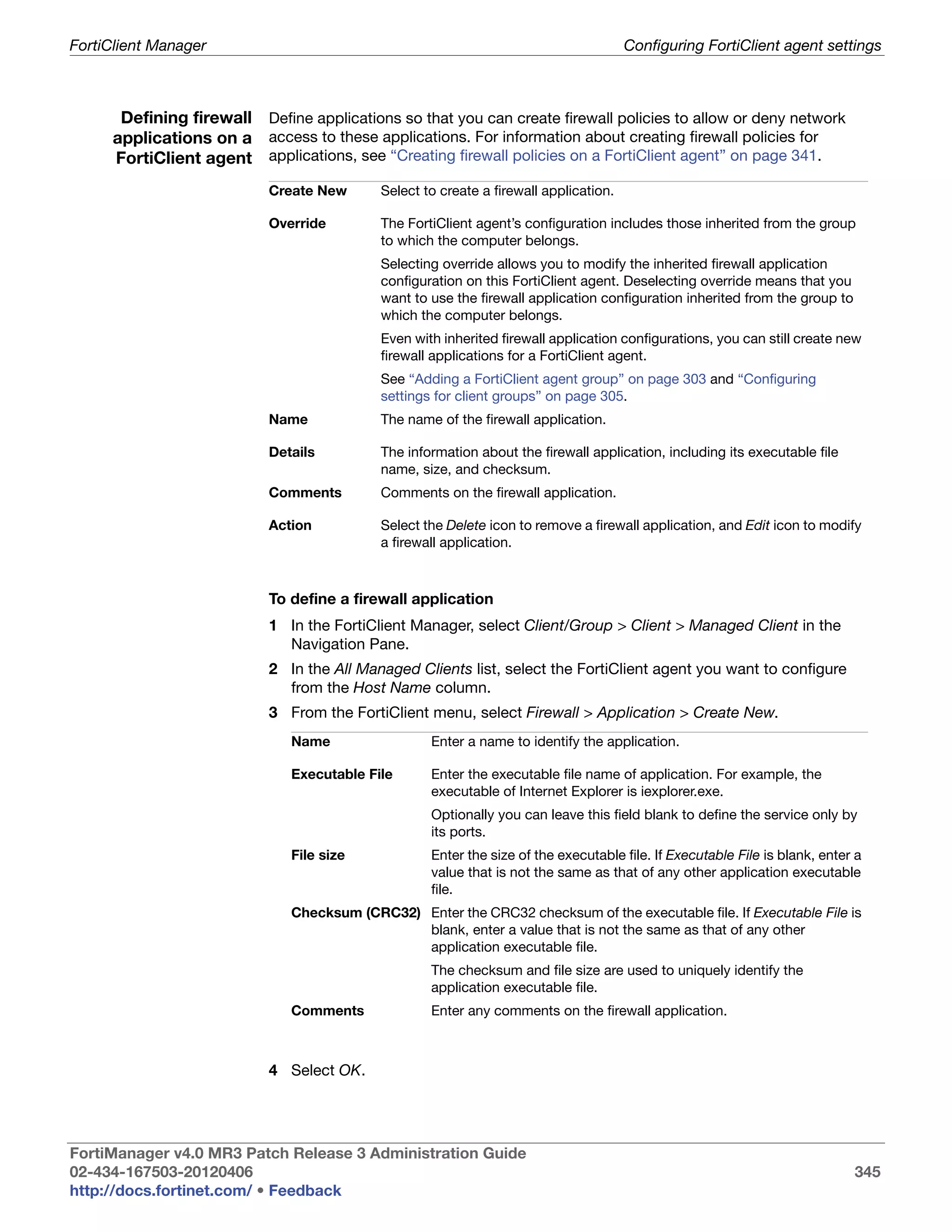
                            Defining firewall applications on a FortiClient agent...............................                         345
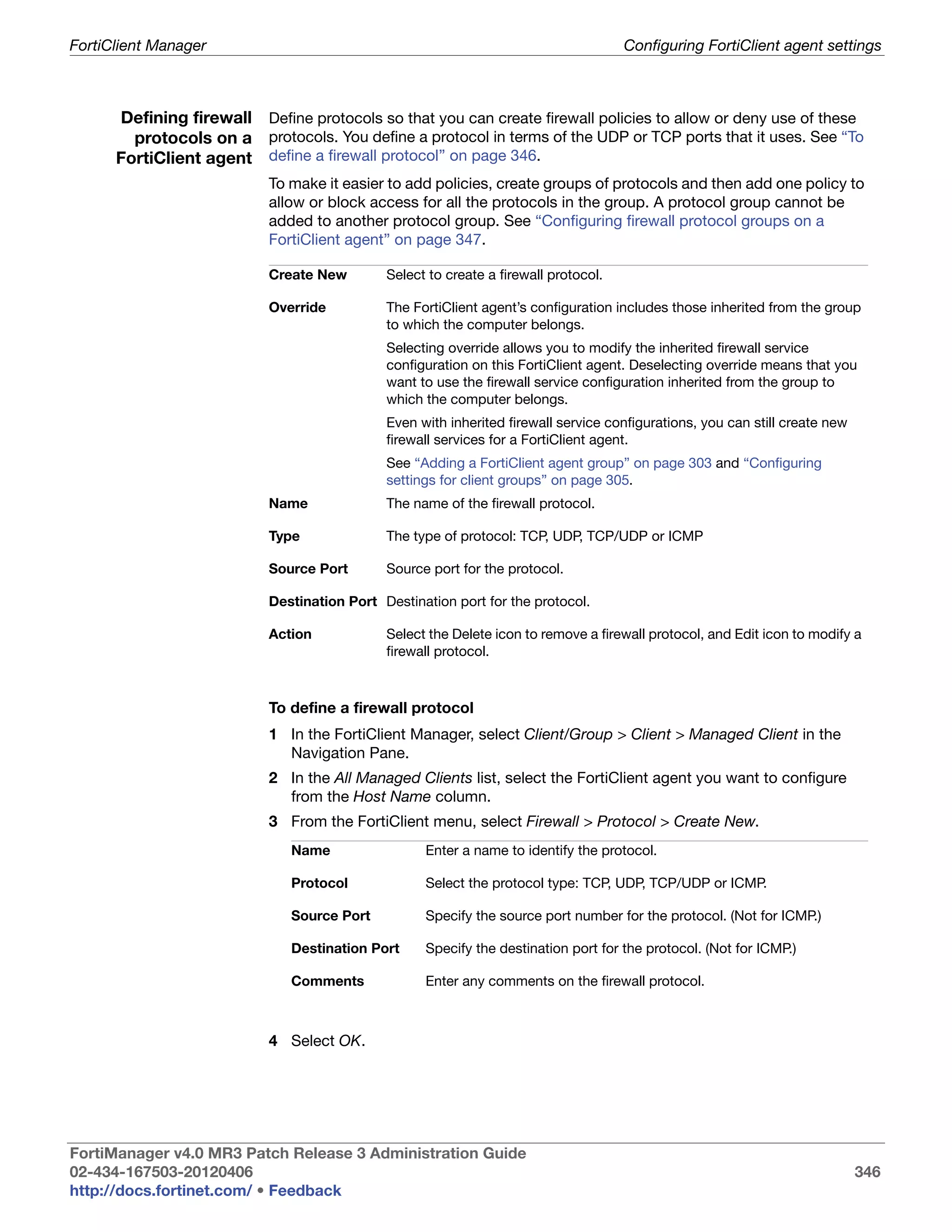
                            Defining firewall protocols on a FortiClient agent...................................                        346
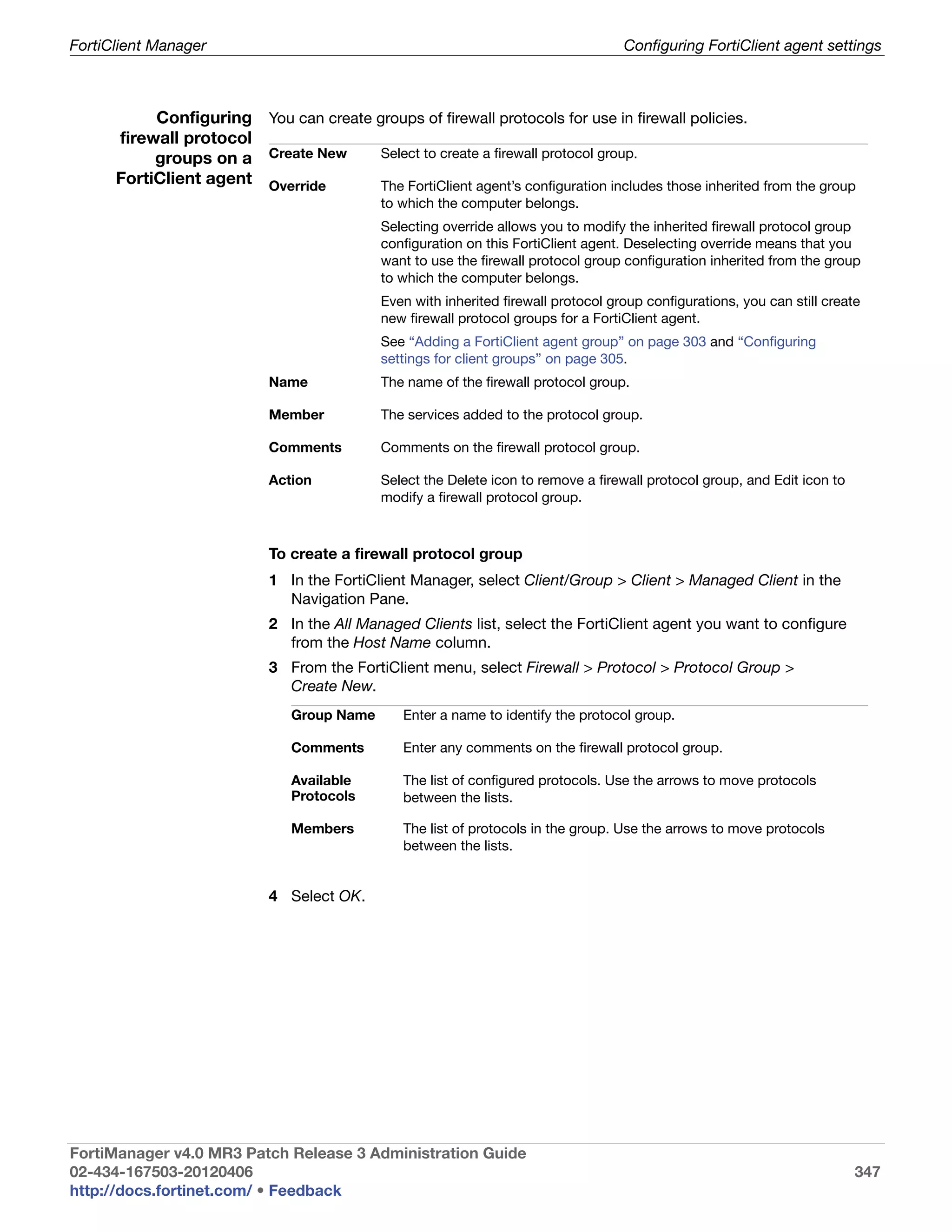
                            Configuring firewall protocol groups on a FortiClient agent ...................                              347
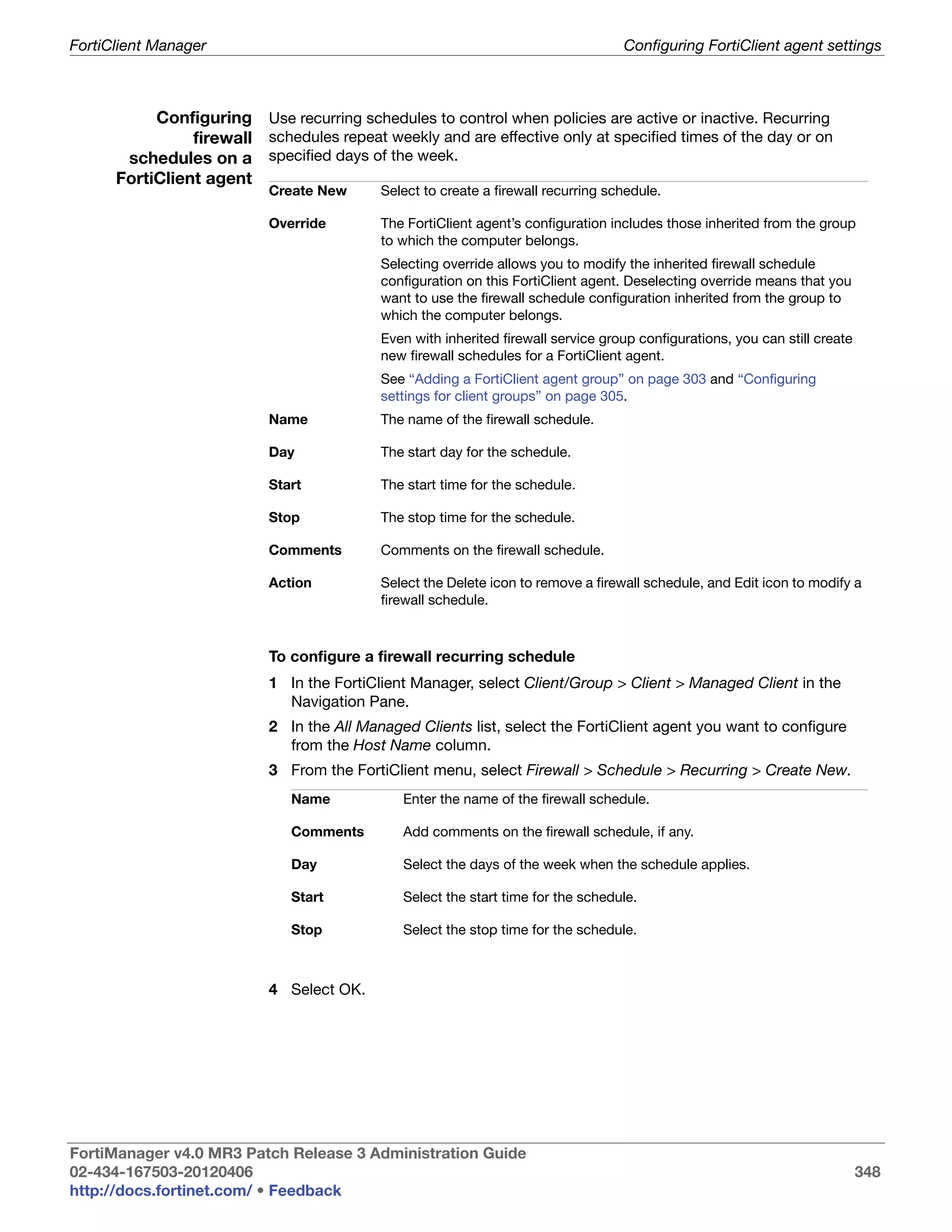
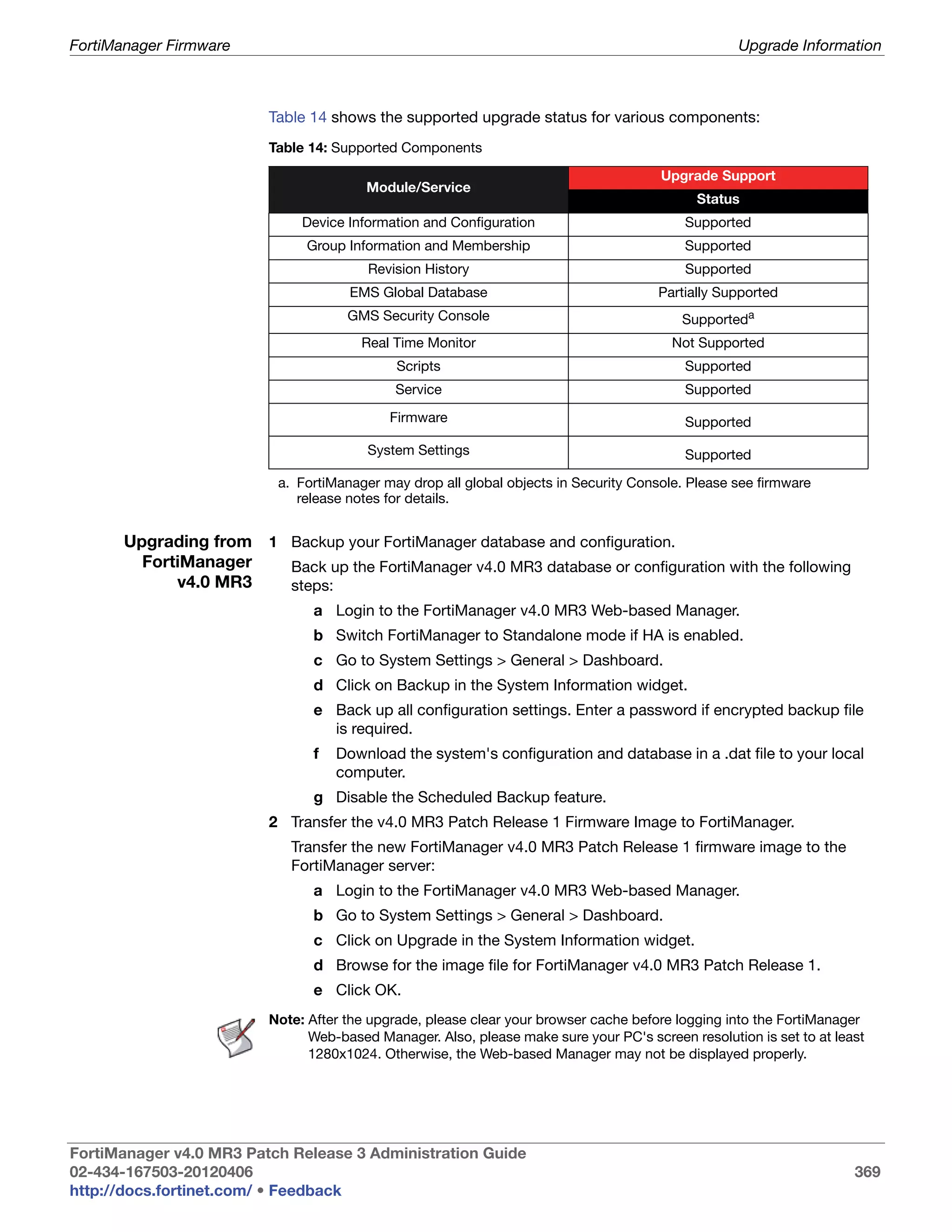
                            Configuring firewall schedules on a FortiClient agent ............................                           348
                            Configuring firewall schedule groups .....................................................                   349
                            Configuring trusted IPs exempted from intrusion detection...................                                 349
                            Configuring ping servers for a FortiClient agent firewall.........................                           350
                            Setting the firewall options of a FortiClient agent...................................                       350
                            Selecting a Web Filter profile for a FortiClient agent ..............................                        352
                            Configuring Web Filter options on a FortiClient agent ...........................                            353
                            Configuring Email Filter settings on a FortiClient agent .........................                           354
                            Configuring Email Filter options..............................................................               355
                            Configuring anti-leak options on a FortiClient agent ..............................                          356
                       High Availability.................................................................................... 357
                         HA overview..................................................................................................   357
                            Synchronizing the FortiManager configuration and HA heartbeat .........                                      358
                            If the primary unit or a backup unit fails .................................................                 358
                            FortiManager HA cluster startup steps...................................................                     359
                         Configuring HA options ................................................................................         359
                            General FortiManager HA configuration steps .......................................                          361
                            Web-based Manager configuration steps ..............................................                         362


FortiManager v4.0 MR3 Patch Release 3 Administration Guide
02-434-167503-20120406                                                                                                                     10
http://docs.fortinet.com/ • Feedback
Table of Contents


                          Monitoring HA status .................................................................................... 364
                          Upgrading the FortiManager firmware for an operating cluster ................... 365
                       FortiManager Firmware ...................................................................... 366
                          Introduction to FortiManager OS v4.0 Major Release 3 ...............................                             366
                          Cautions and Limitations ..............................................................................          366
                              Limitations...............................................................................................   367
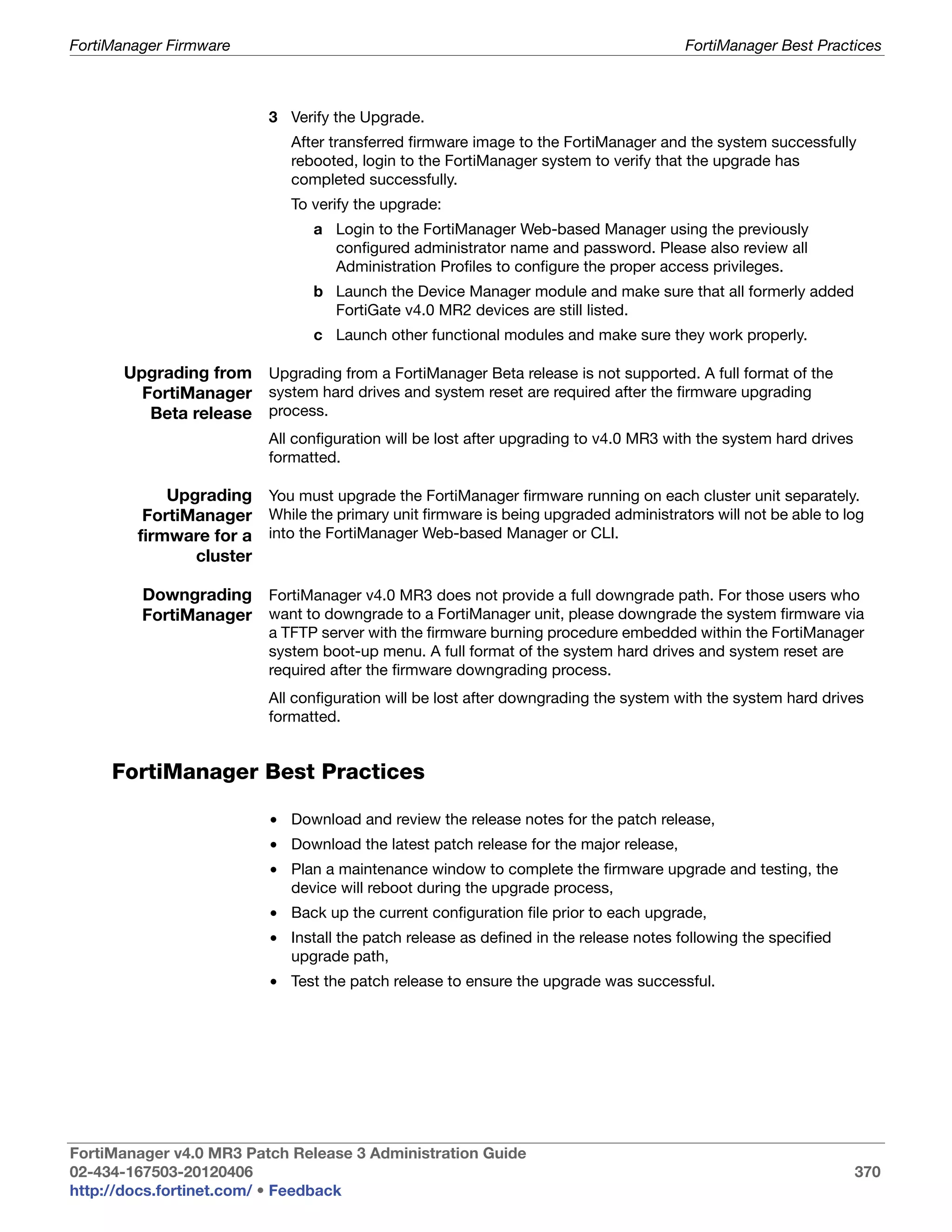
                          Upgrade Information.....................................................................................         368
                              Upgrading from FortiManager v4.0 MR2 ................................................                        368
                              Upgrading from FortiManager v4.0 MR3 ................................................                        369
                              Upgrading from FortiManager Beta release ...........................................                         370
                              Upgrading FortiManager firmware for a cluster......................................                          370
                              Downgrading FortiManager ....................................................................                370
                          FortiManager Best Practices ........................................................................             370
                       Appendix A ............................................................................................ 371
                          Product Life Cycle Information ..................................................................... 371
                          Software Support Policy............................................................................... 371
                       Appendix B ............................................................................................ 372
                          FortiManager-VM System Requirements ..................................................... 372
                          FortiManager-VM Licence Enhancements ................................................... 372
                       Index ......................................................................................................373


FortiManager v4.0 MR3 Patch Release 3 Administration Guide
02-434-167503-20120406                                                                                                                       11
http://docs.fortinet.com/ • Feedback
Table of Figures


                           FortiManager conceptual diagram .................................................................. 28
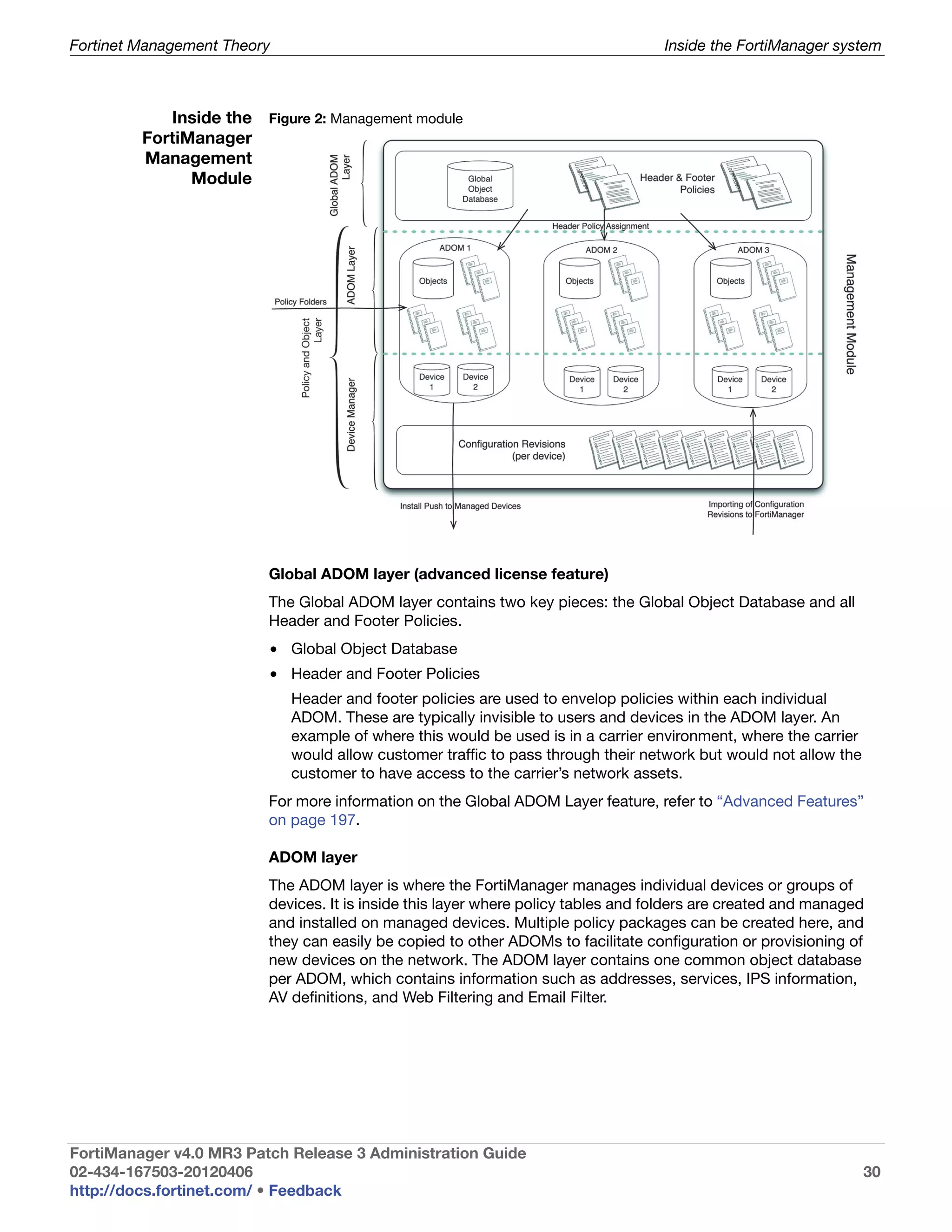
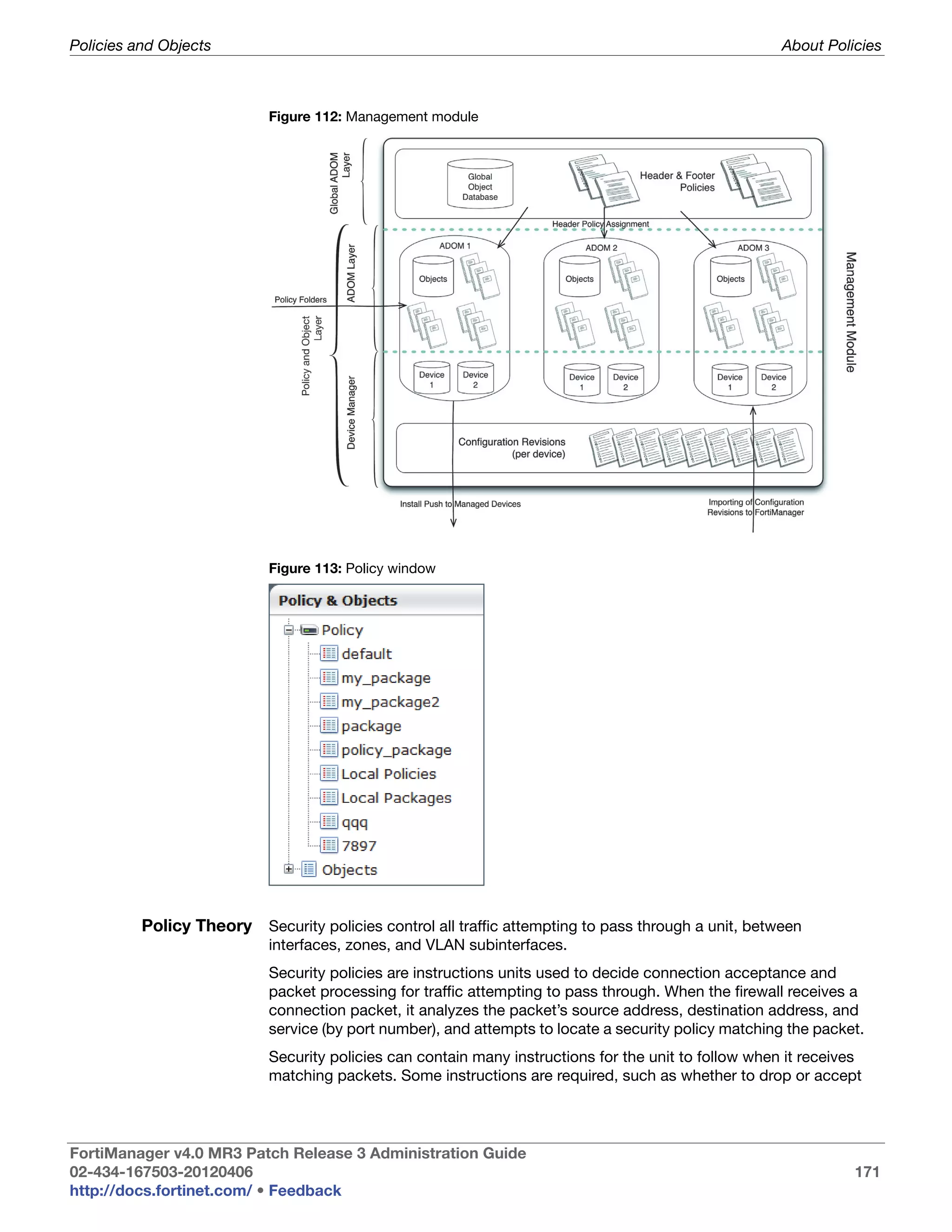
                           Management module....................................................................................... 30
                           Default FortiManager Configuration window ................................................... 33
                           Main tool bar.................................................................................................... 34
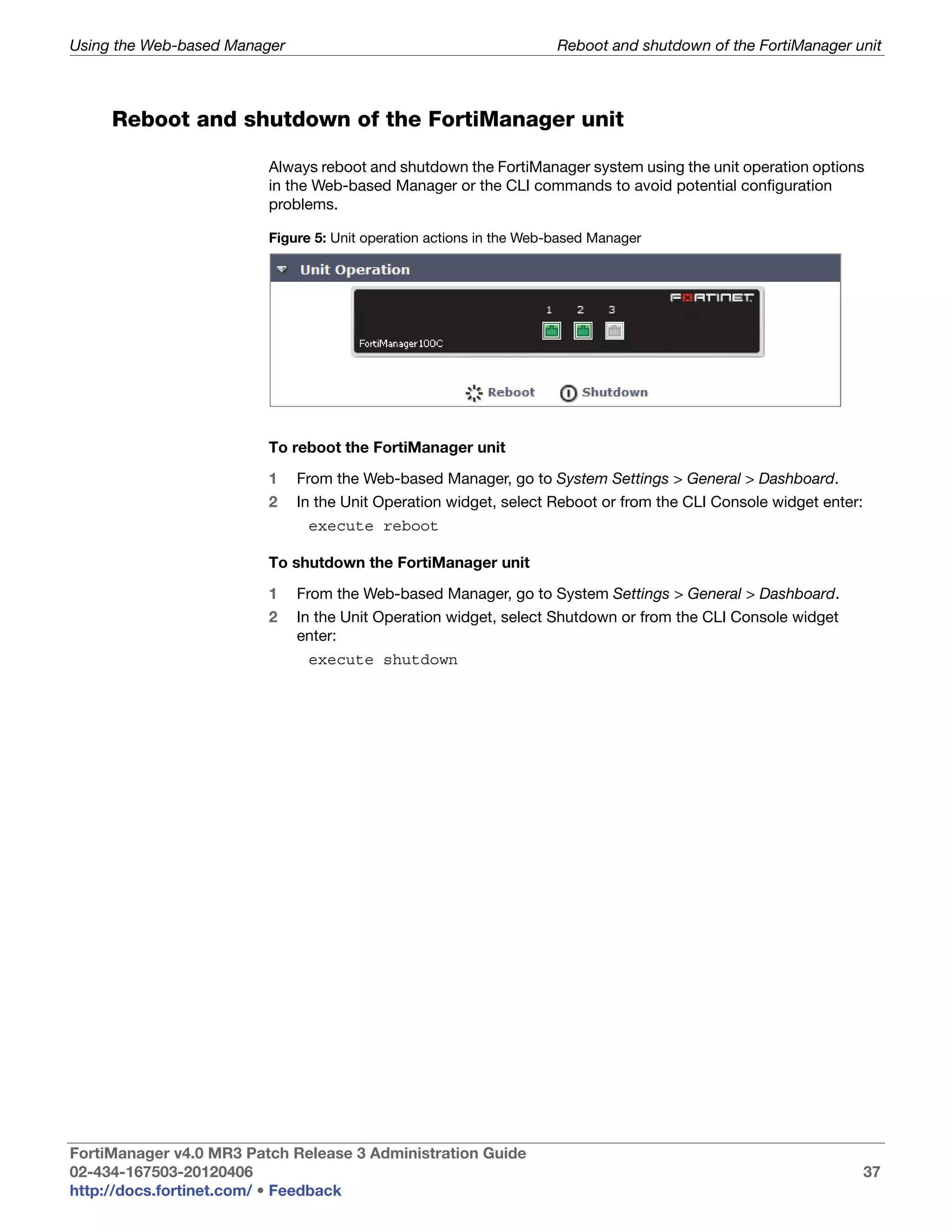
                           Unit operation actions in the Web-based Manager......................................... 37
                           Enabling ADOMs ............................................................................................. 39
                           Backup mode ADOM device revision history .................................................. 41
                           ADOM table ..................................................................................................... 41
                           Add an ADOM.................................................................................................. 43
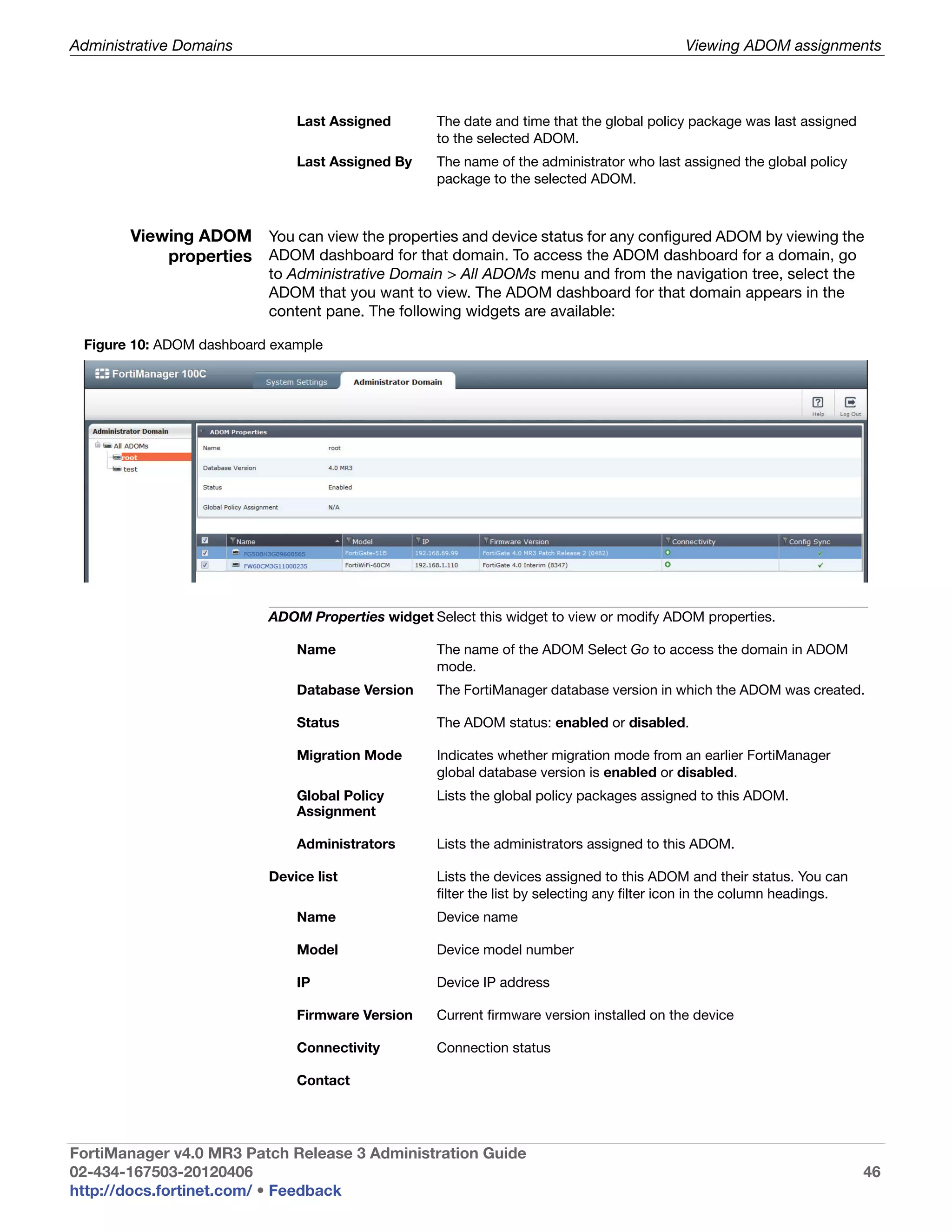
                           ADOM dashboard example ............................................................................. 46
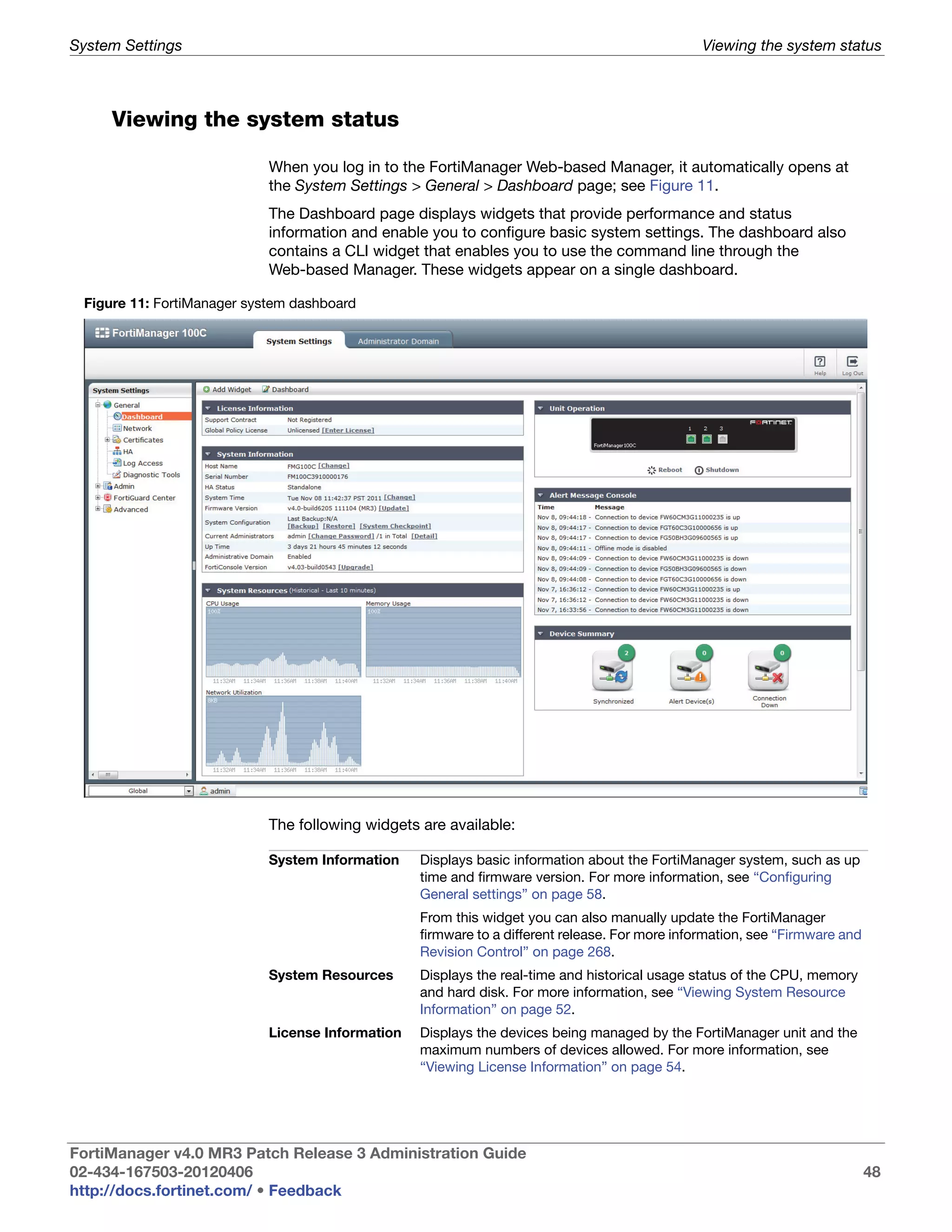
                           FortiManager system dashboard..................................................................... 48
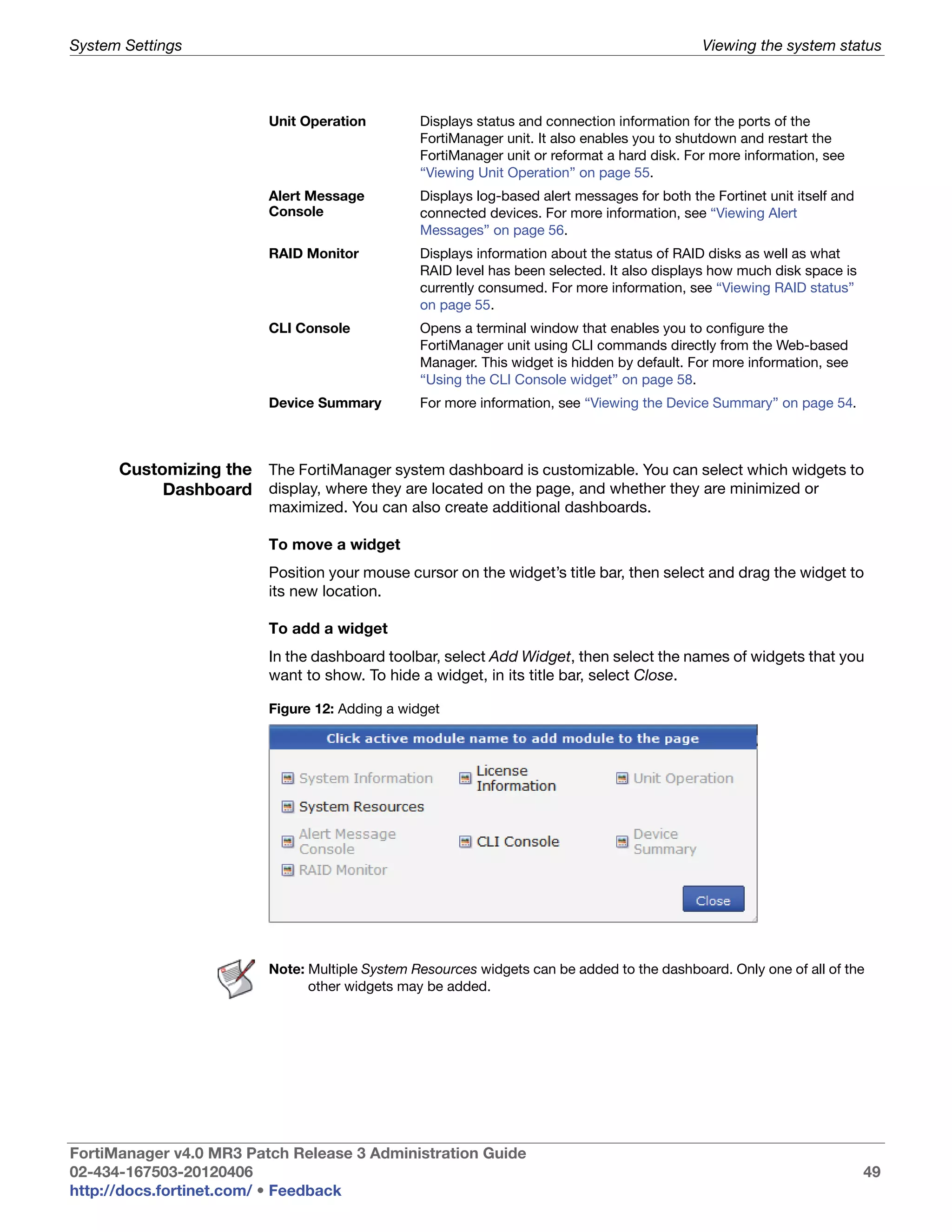
                           Adding a widget............................................................................................... 49
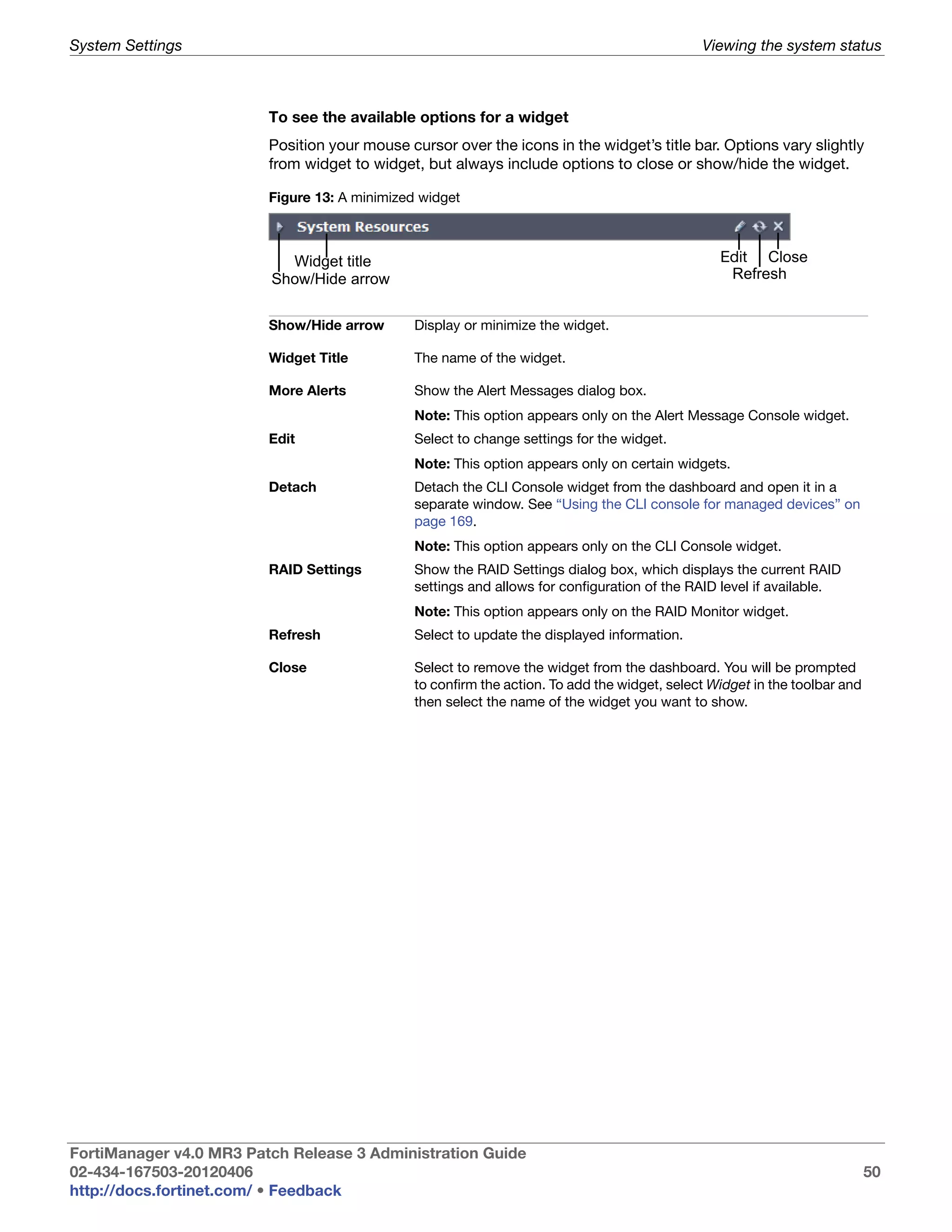
                           A minimized widget ......................................................................................... 50
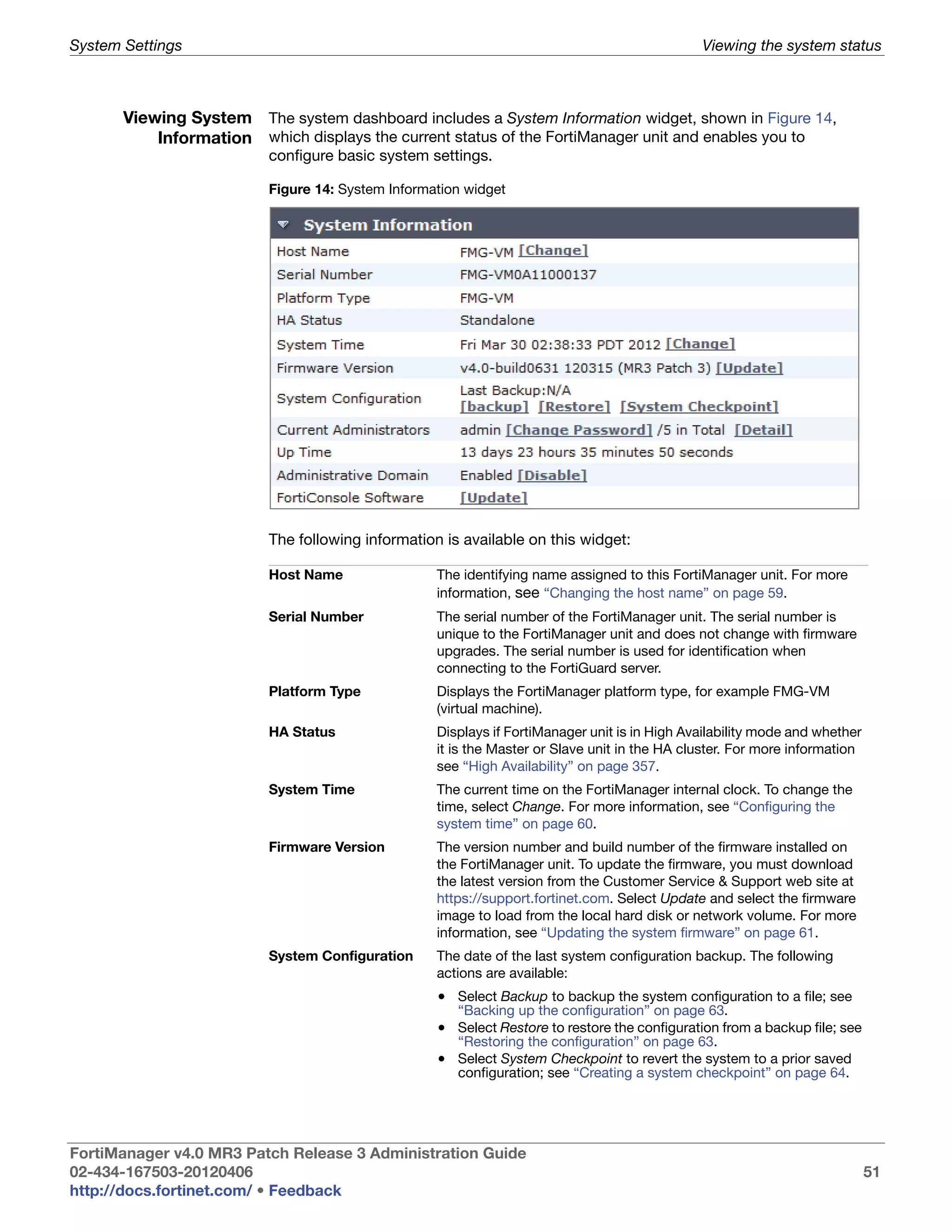
                           System Information widget.............................................................................. 51
                           System Resource widget (Real Time display).................................................. 52
                           System Resource widget (Historical display) .................................................. 52
                           Edit System Resources Settings window........................................................ 53
                           Device Summary widget.................................................................................. 54
                           VM License Information widget ....................................................................... 54
                           Unit Operation widget...................................................................................... 55
                           RAID Monitor displaying a RAID array without any failures............................. 55
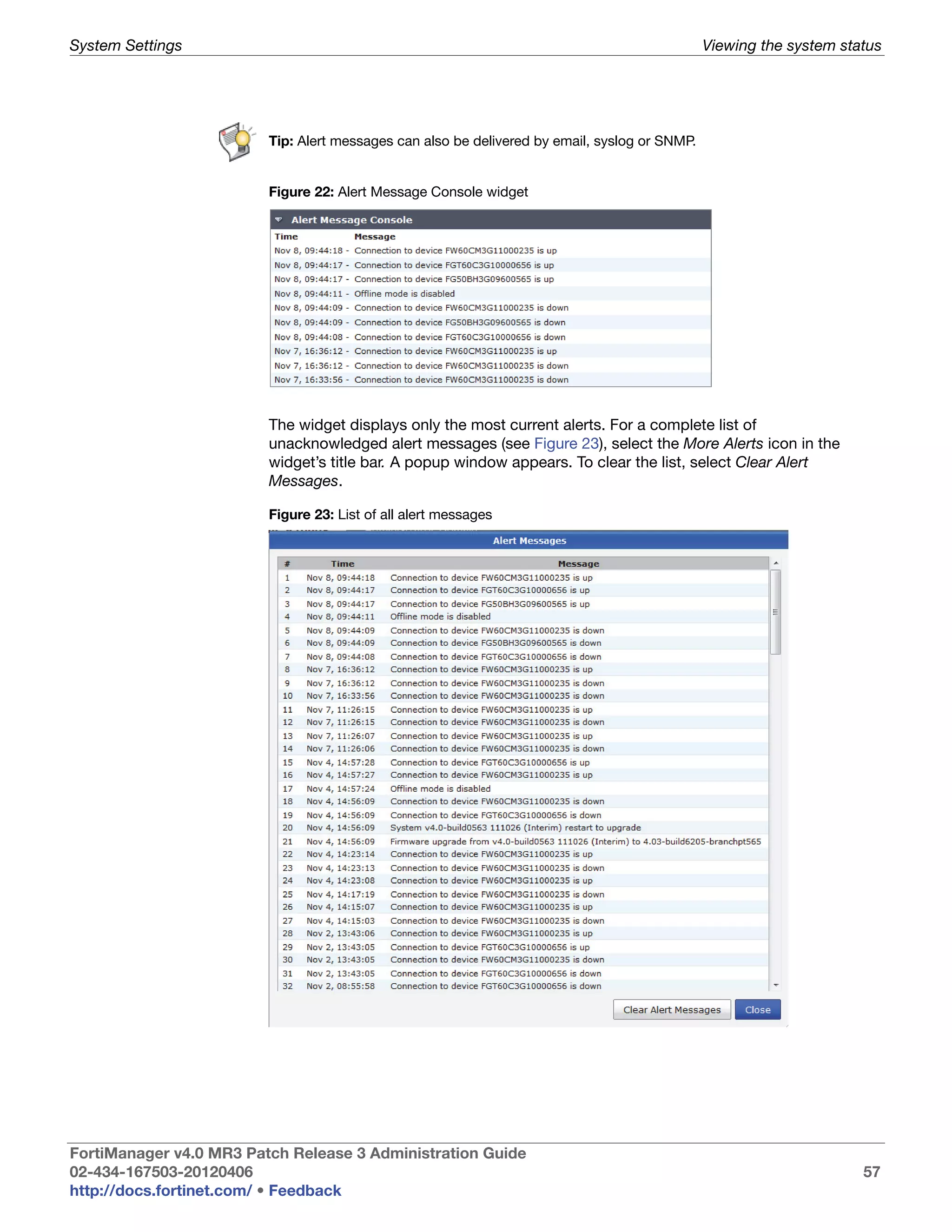
                           Alert Message Console widget ........................................................................ 57
                           List of all alert messages ................................................................................. 57
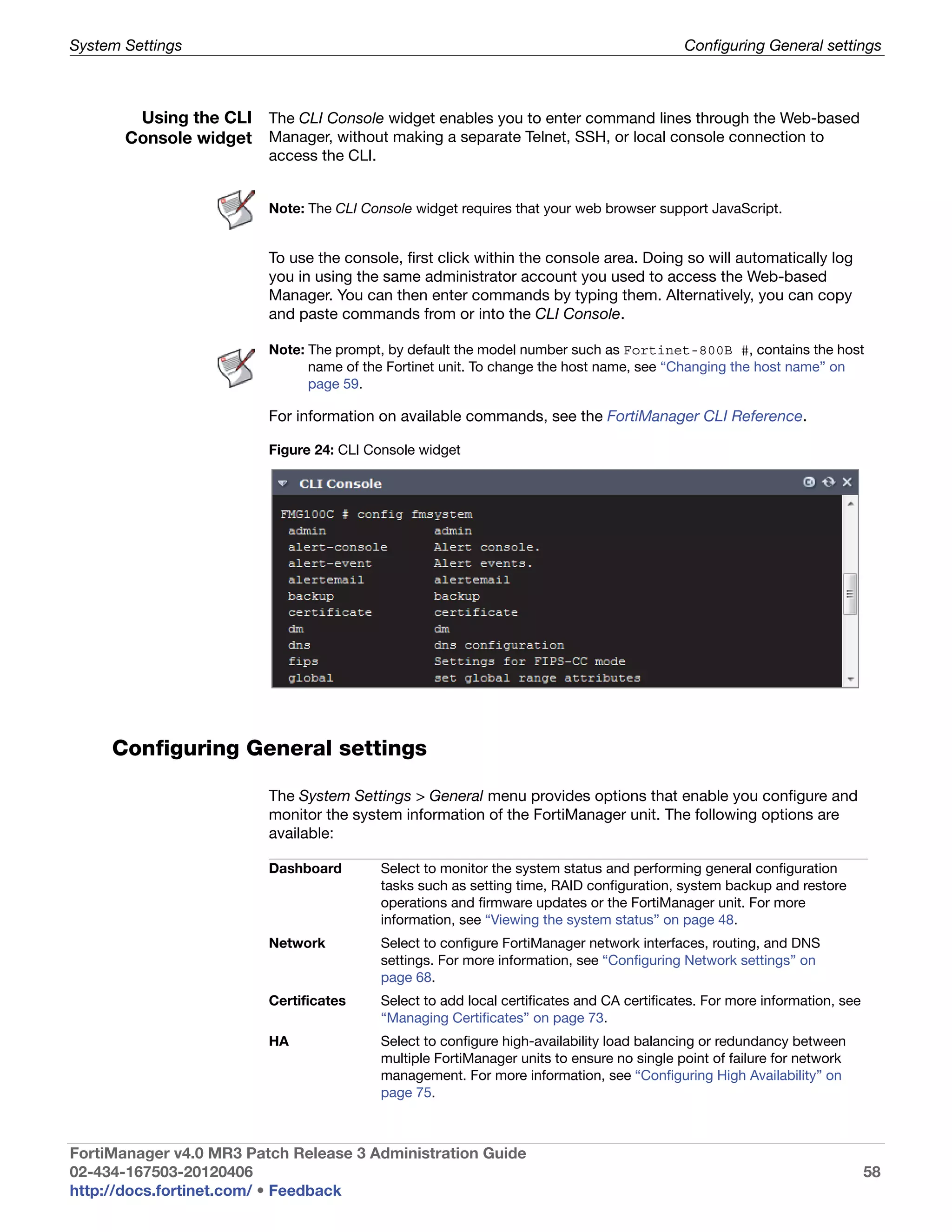
                           CLI Console widget ......................................................................................... 58
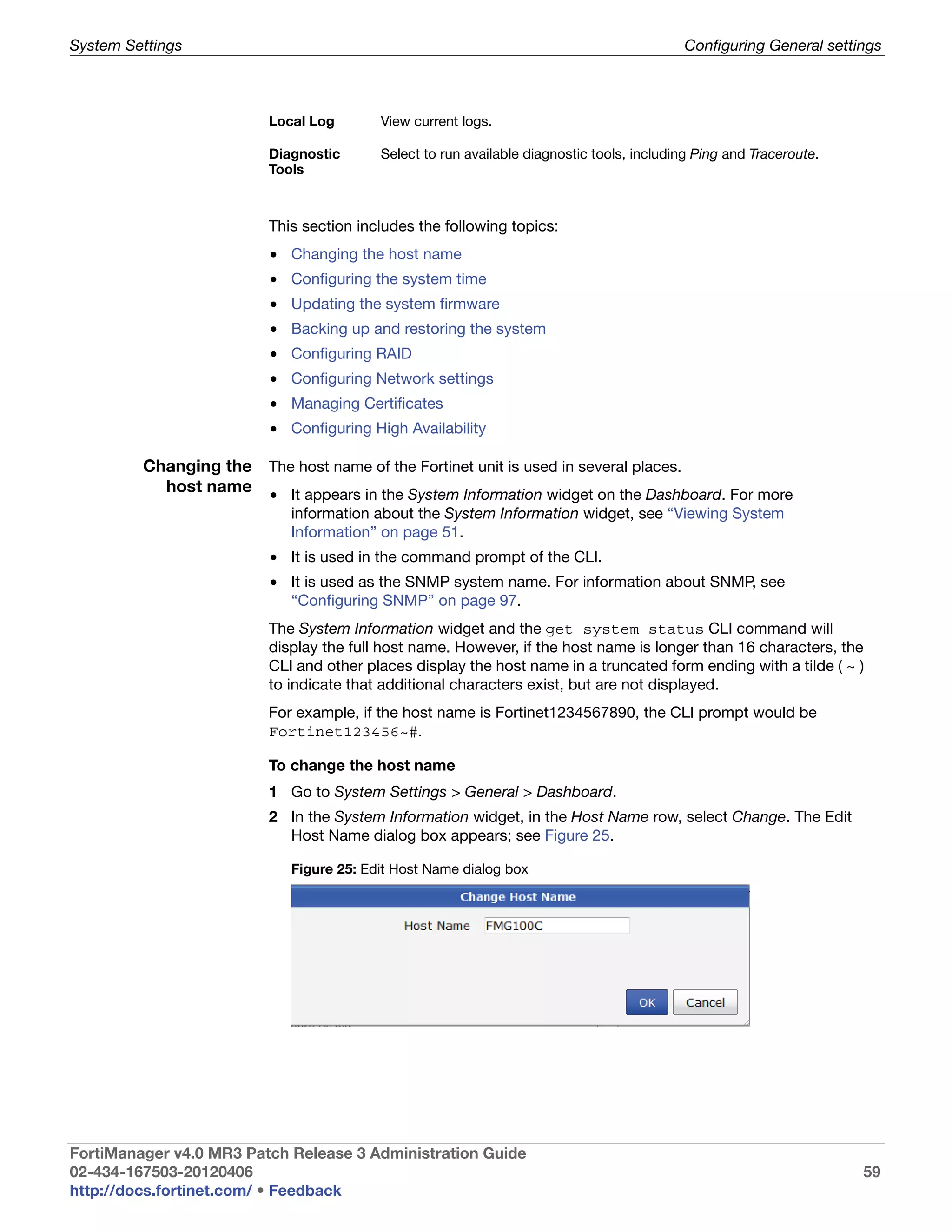
                           Edit Host Name dialog box.............................................................................. 59
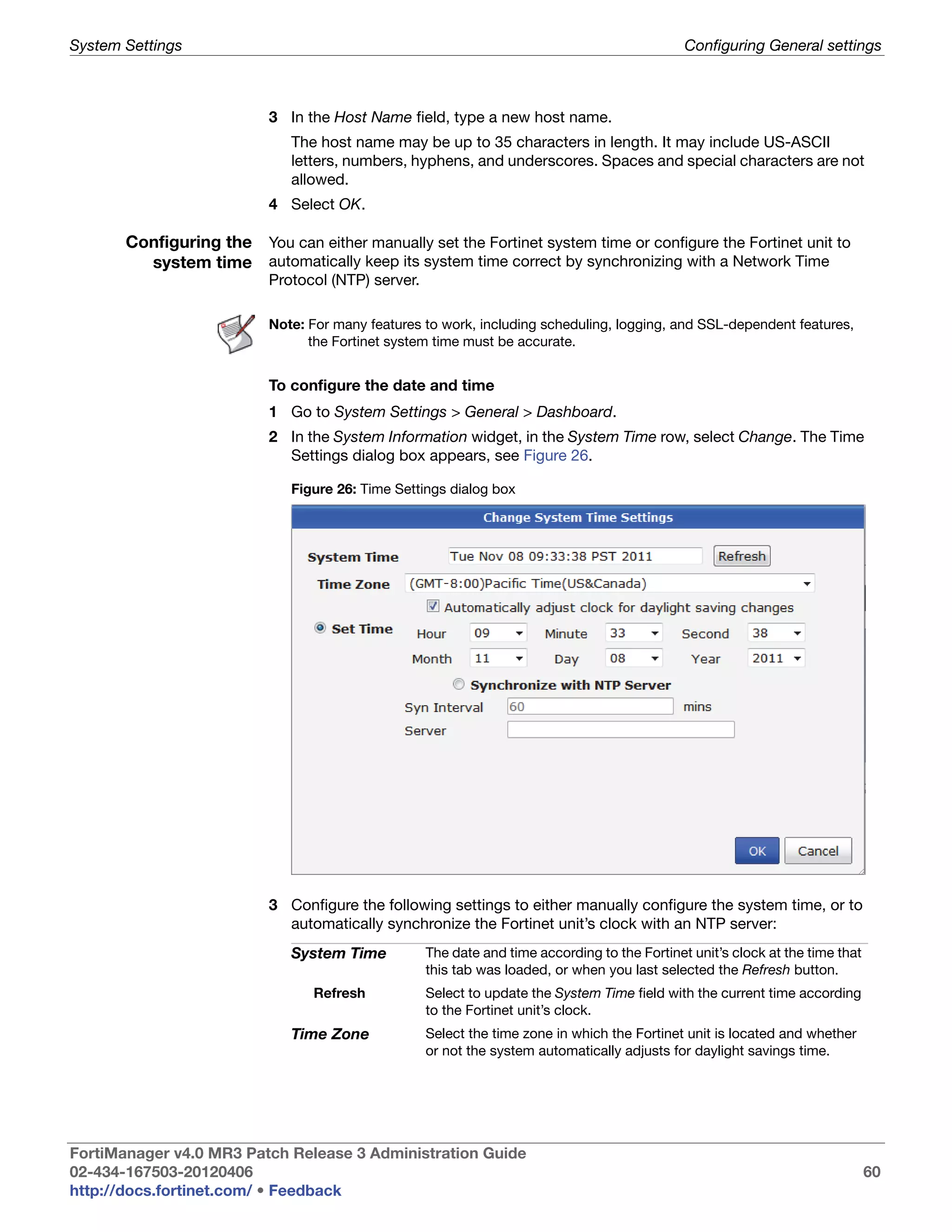
                           Time Settings dialog box ................................................................................. 60
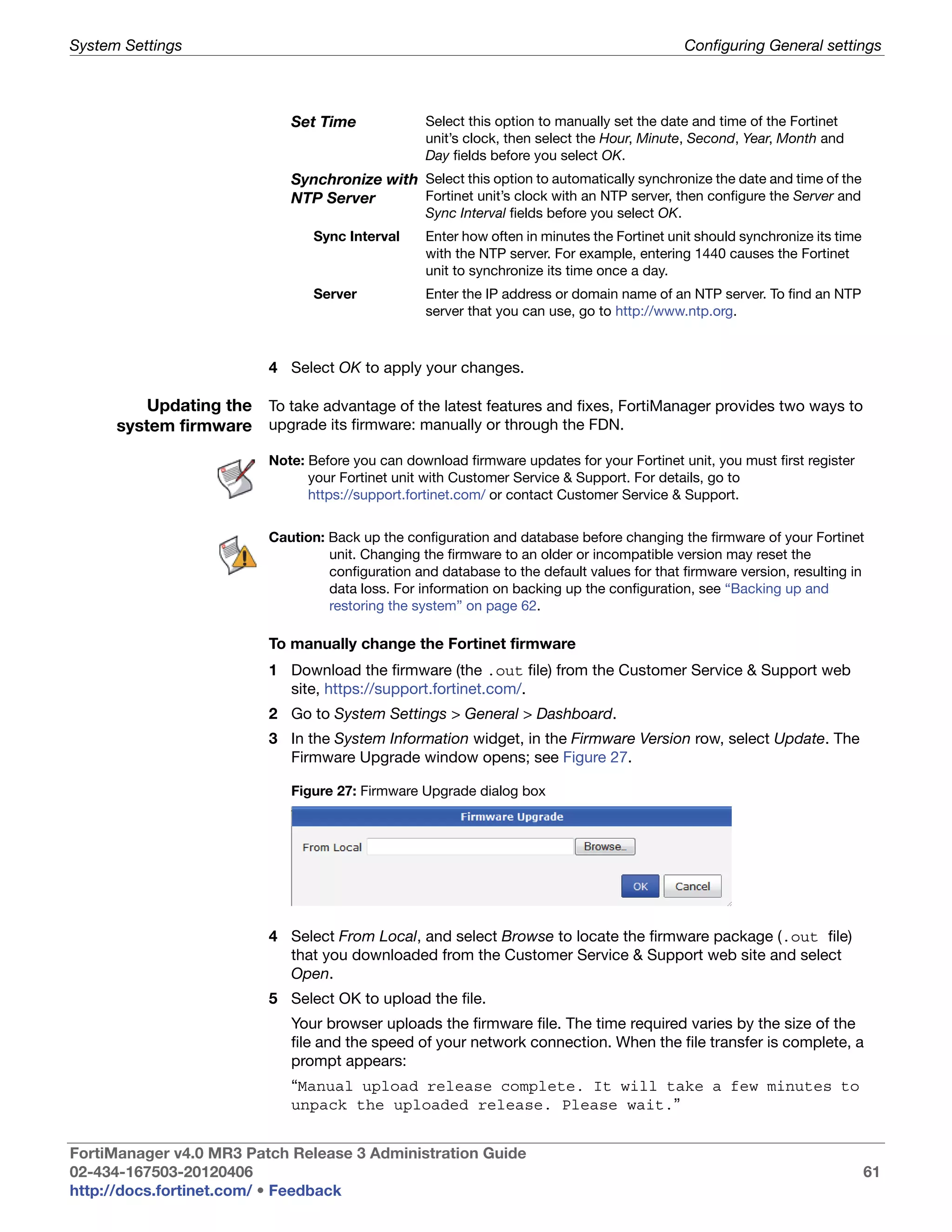
                           Firmware Upgrade dialog box ......................................................................... 61
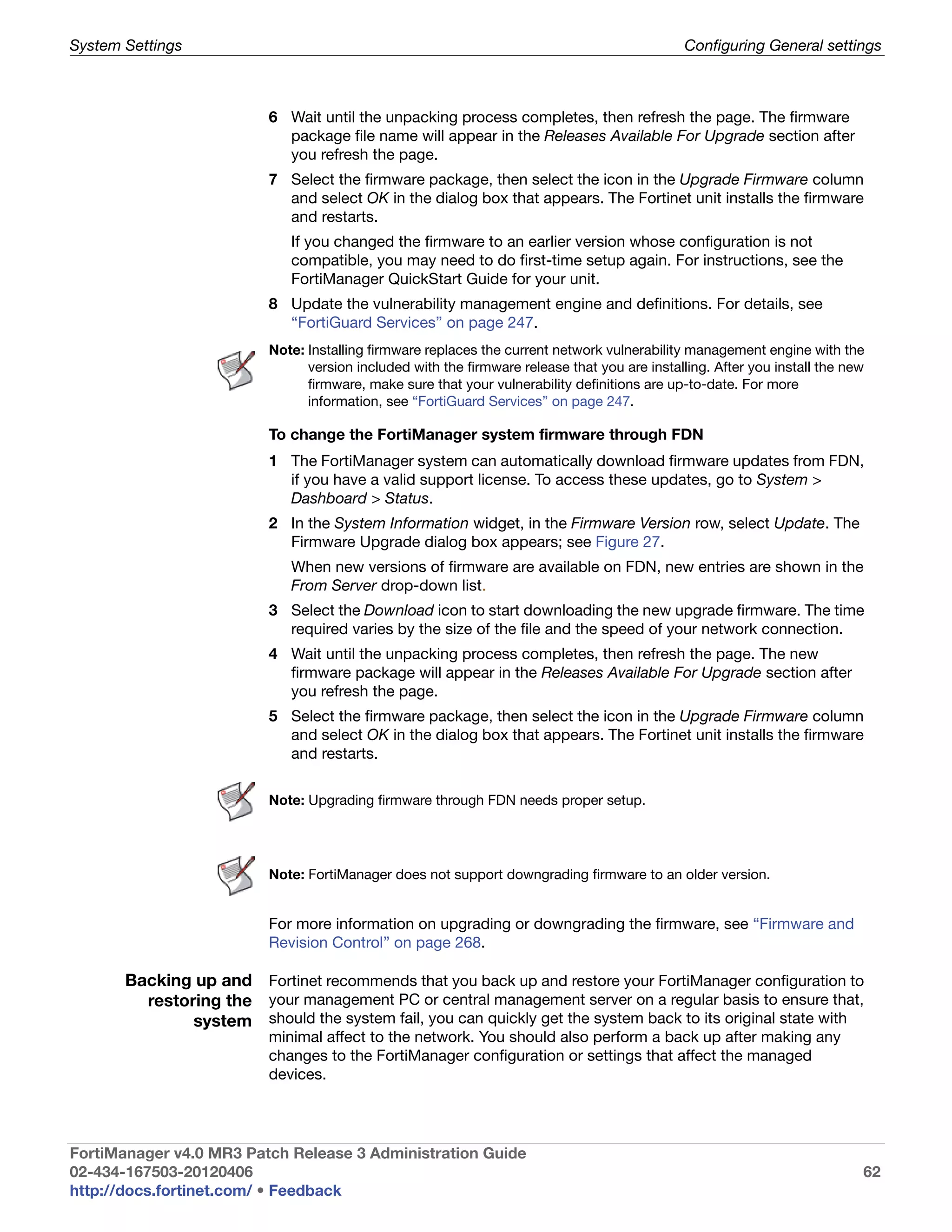
                           Backup dialog box........................................................................................... 63
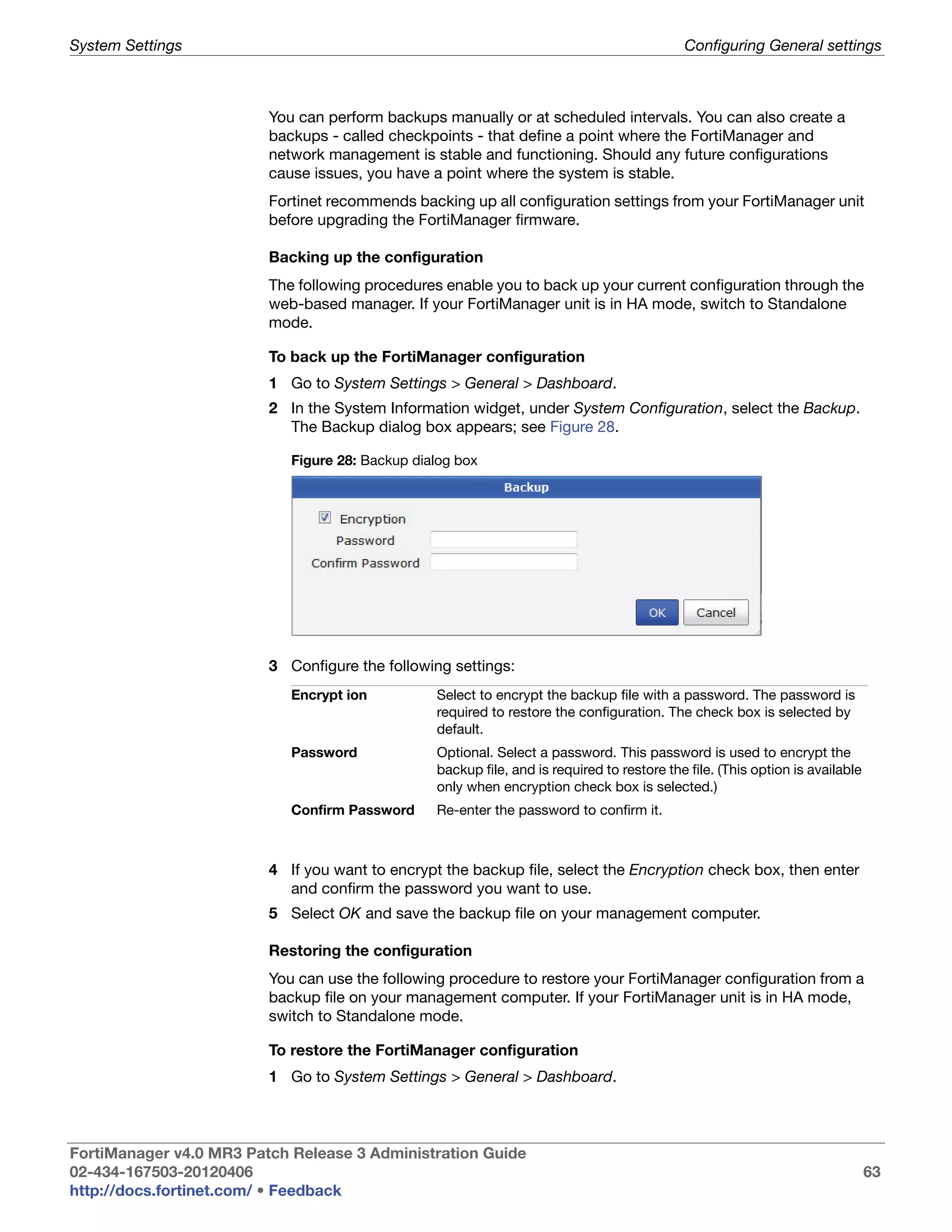
                           All Settings Configuration Restore dialog box................................................. 64
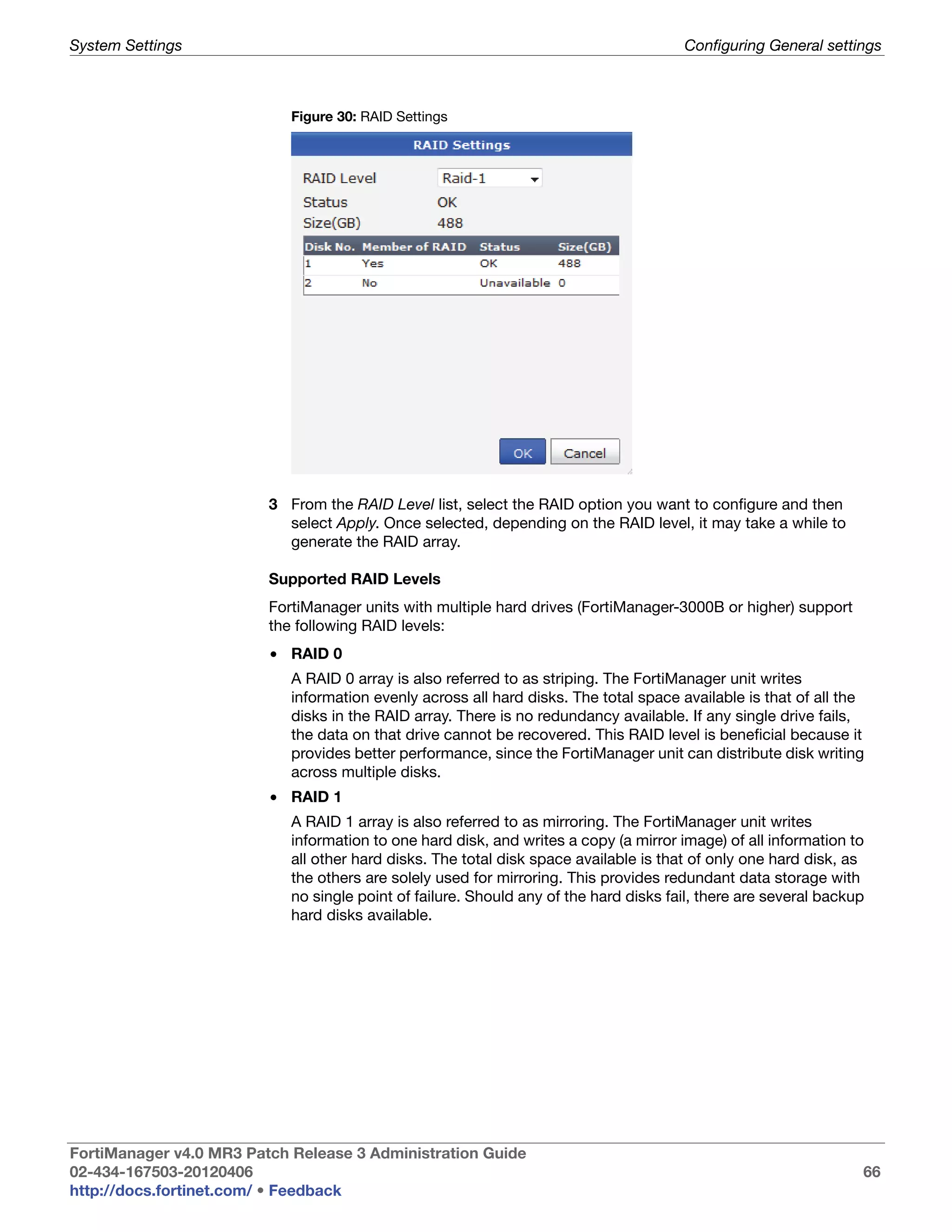
                           RAID Settings .................................................................................................. 66
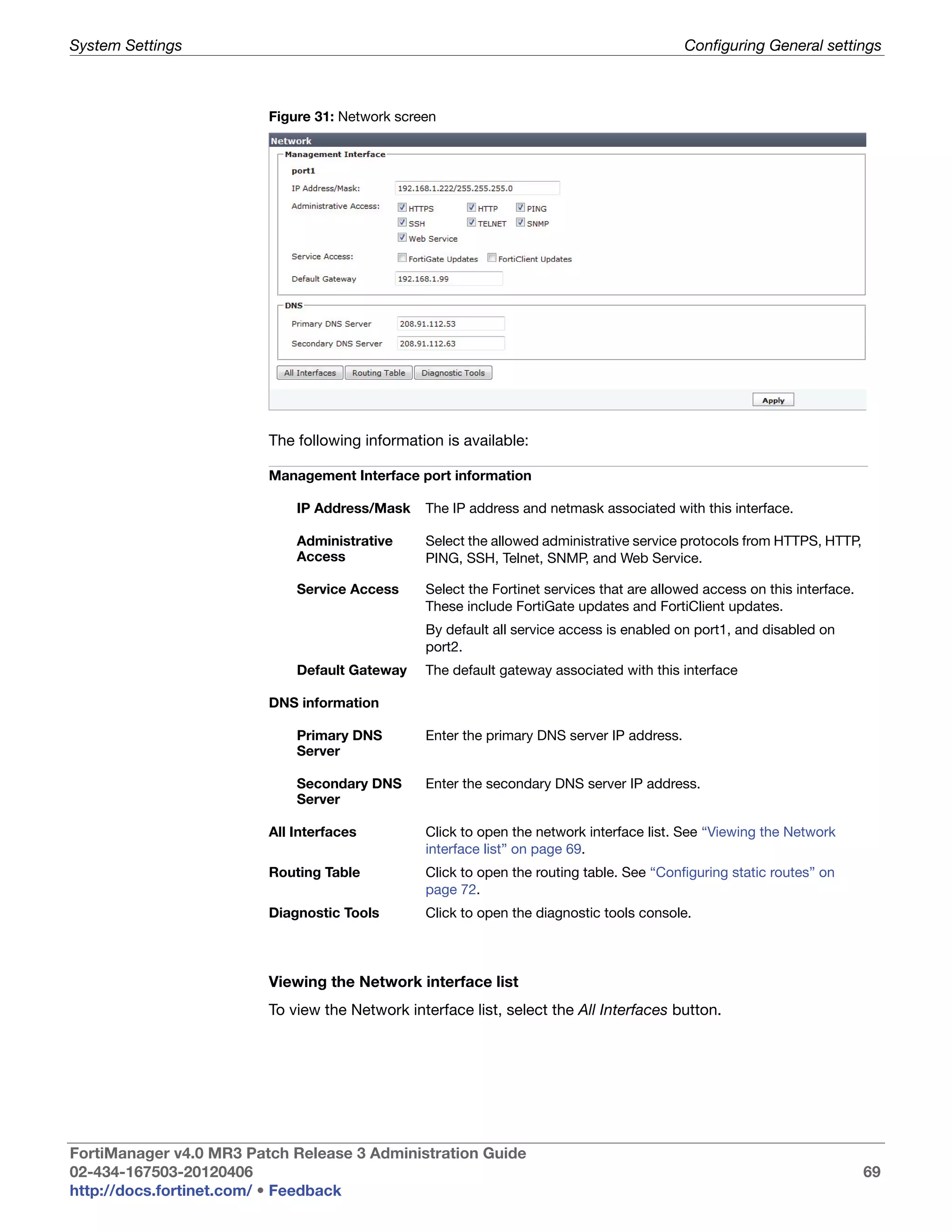
                           Network screen................................................................................................ 69
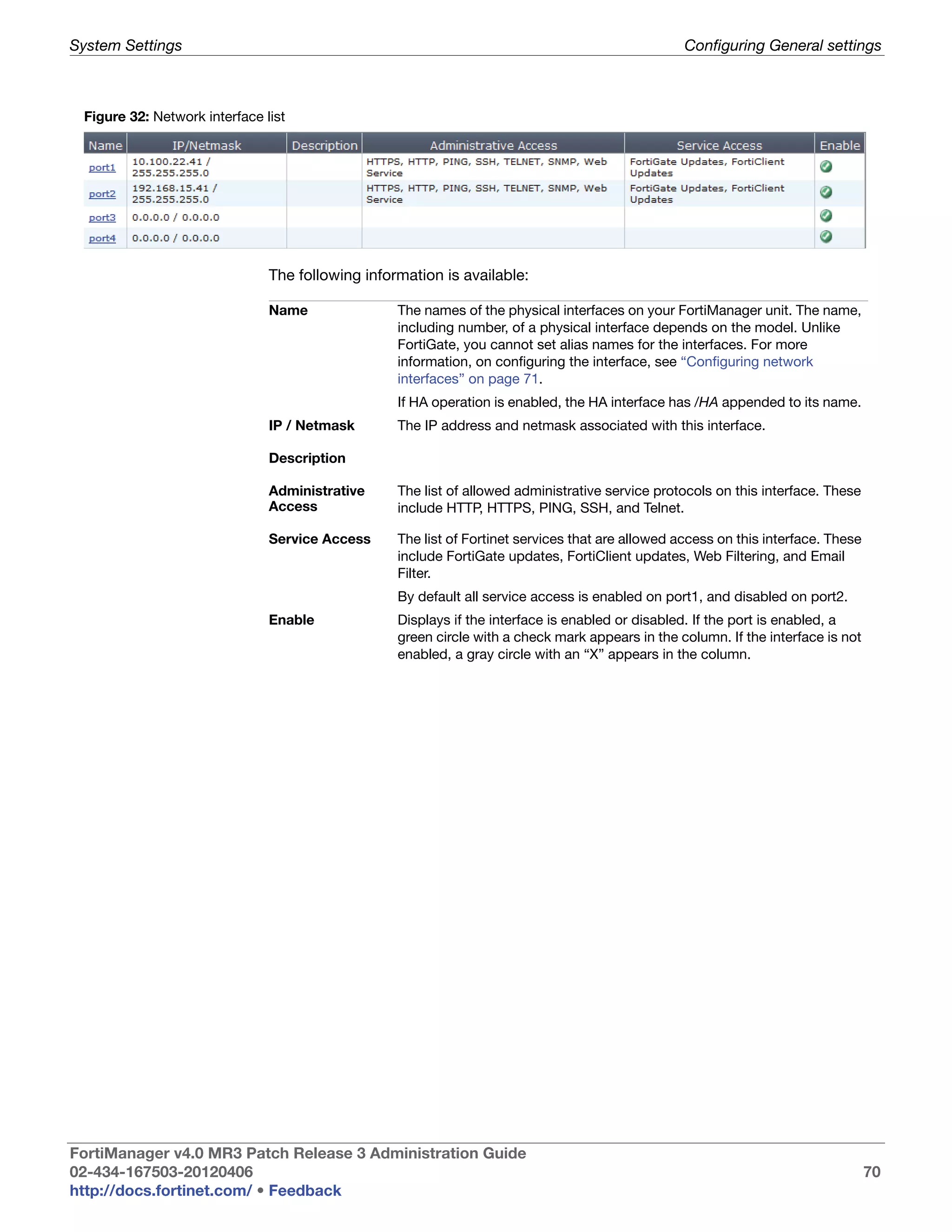
                           Network interface list ....................................................................................... 70
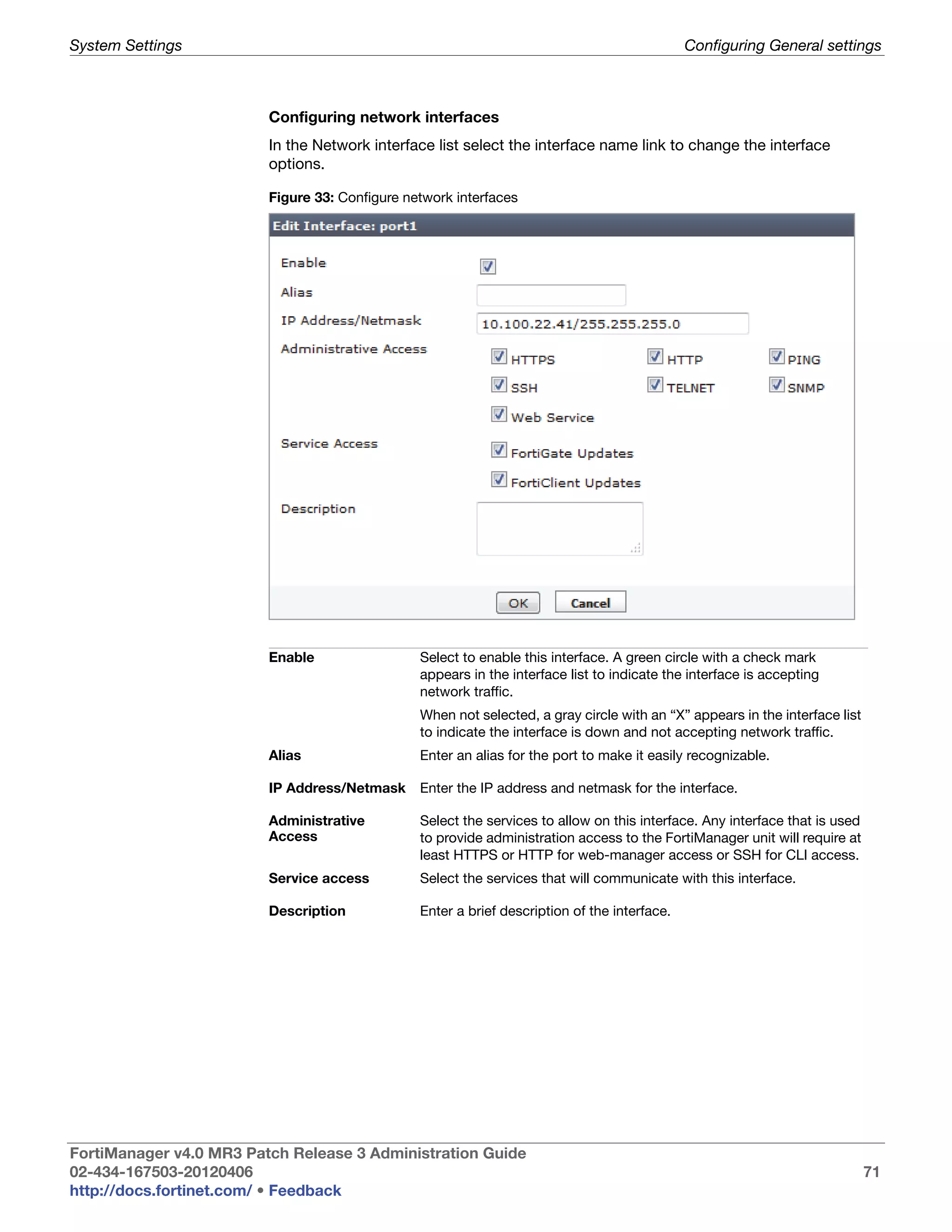
                           Configure network interfaces........................................................................... 71
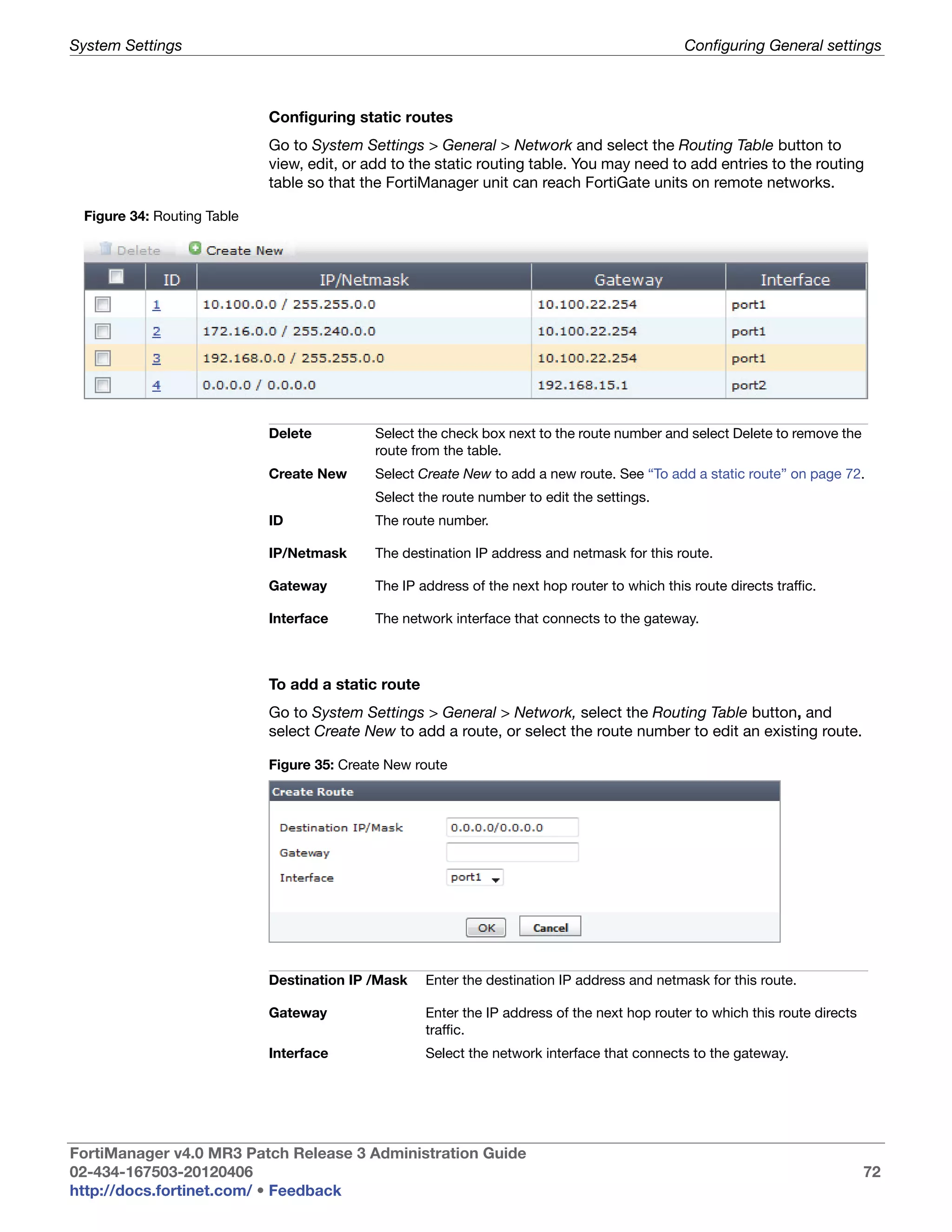
                           Routing Table................................................................................................... 72
                           Create New route............................................................................................. 72
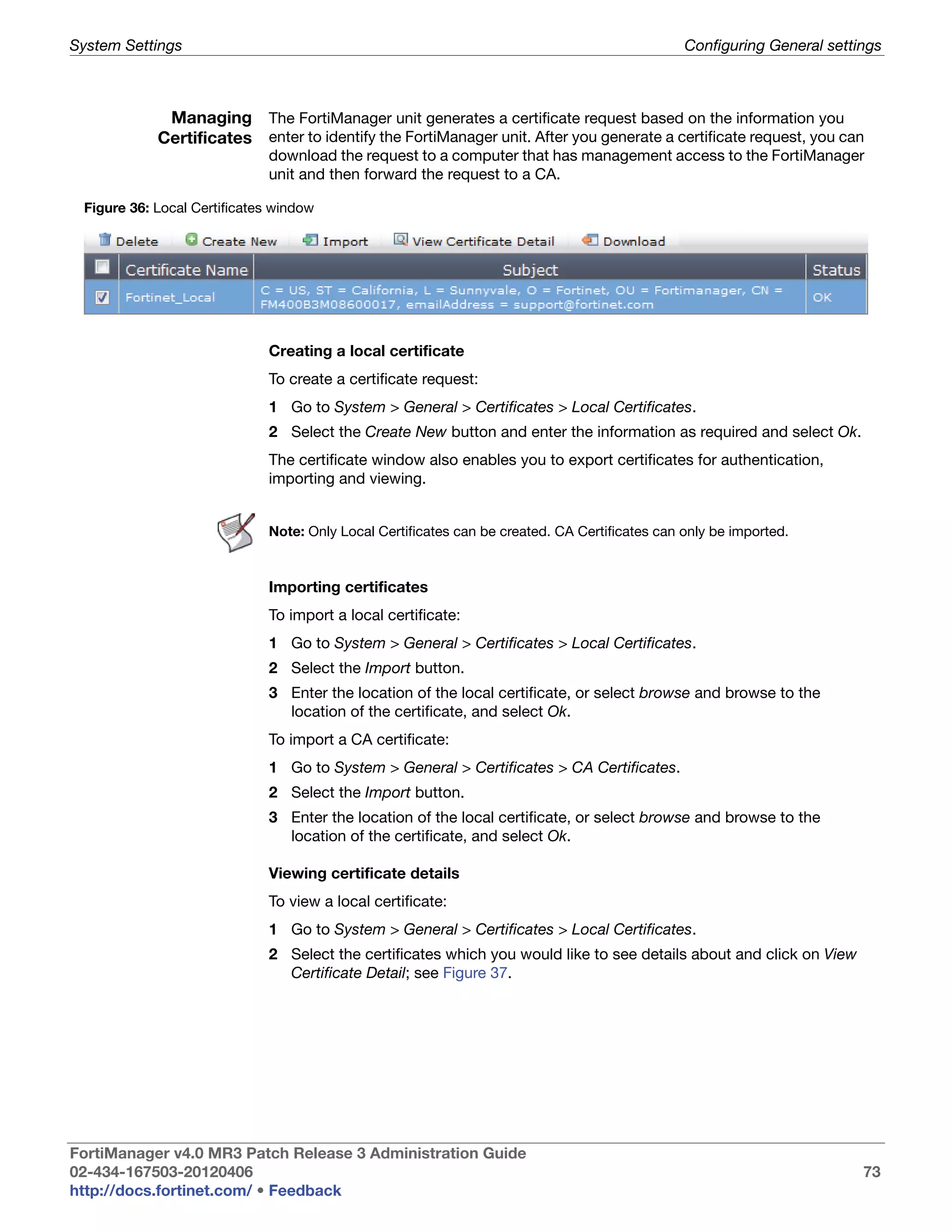
                           Local Certificates window ............................................................................... 73
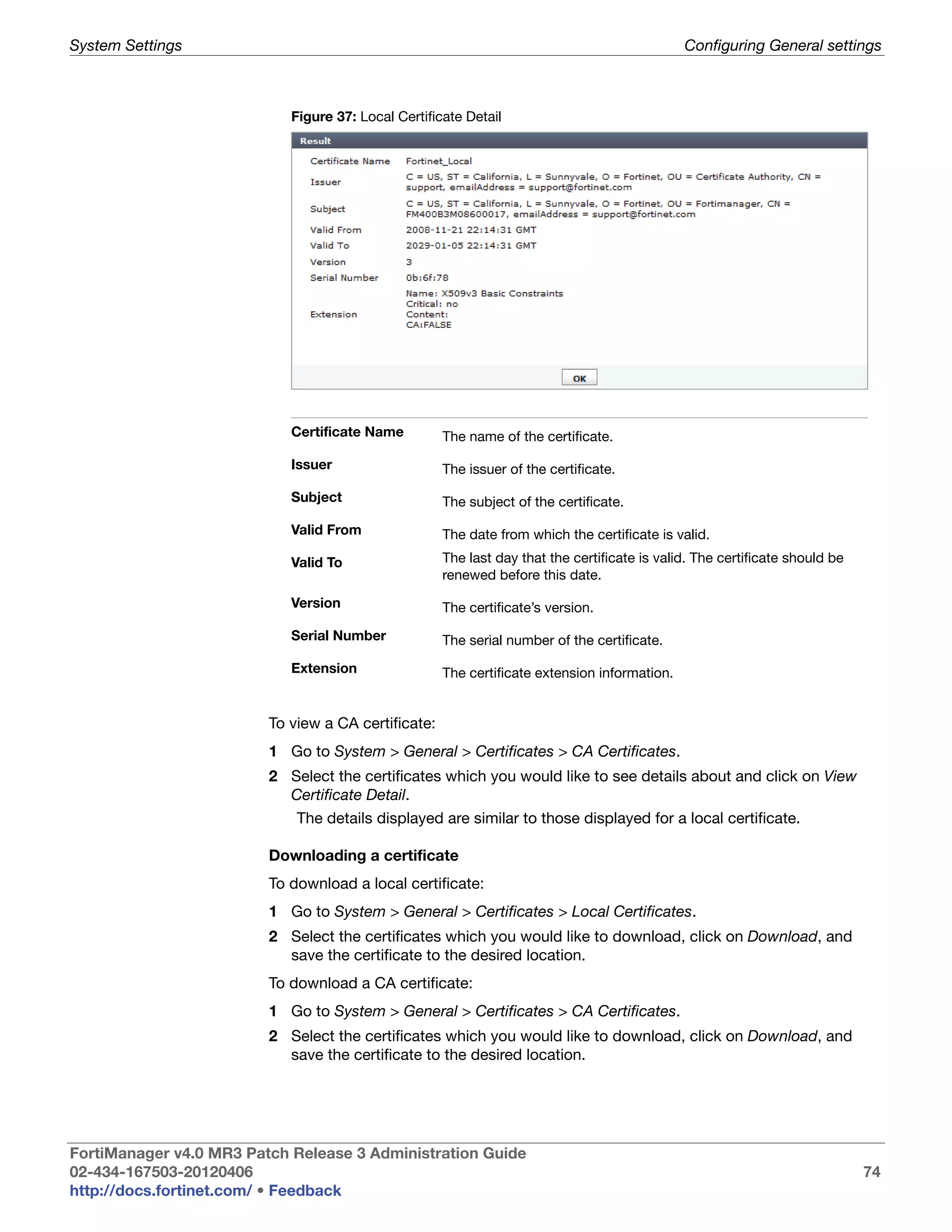
                           Local Certificate Detail..................................................................................... 74
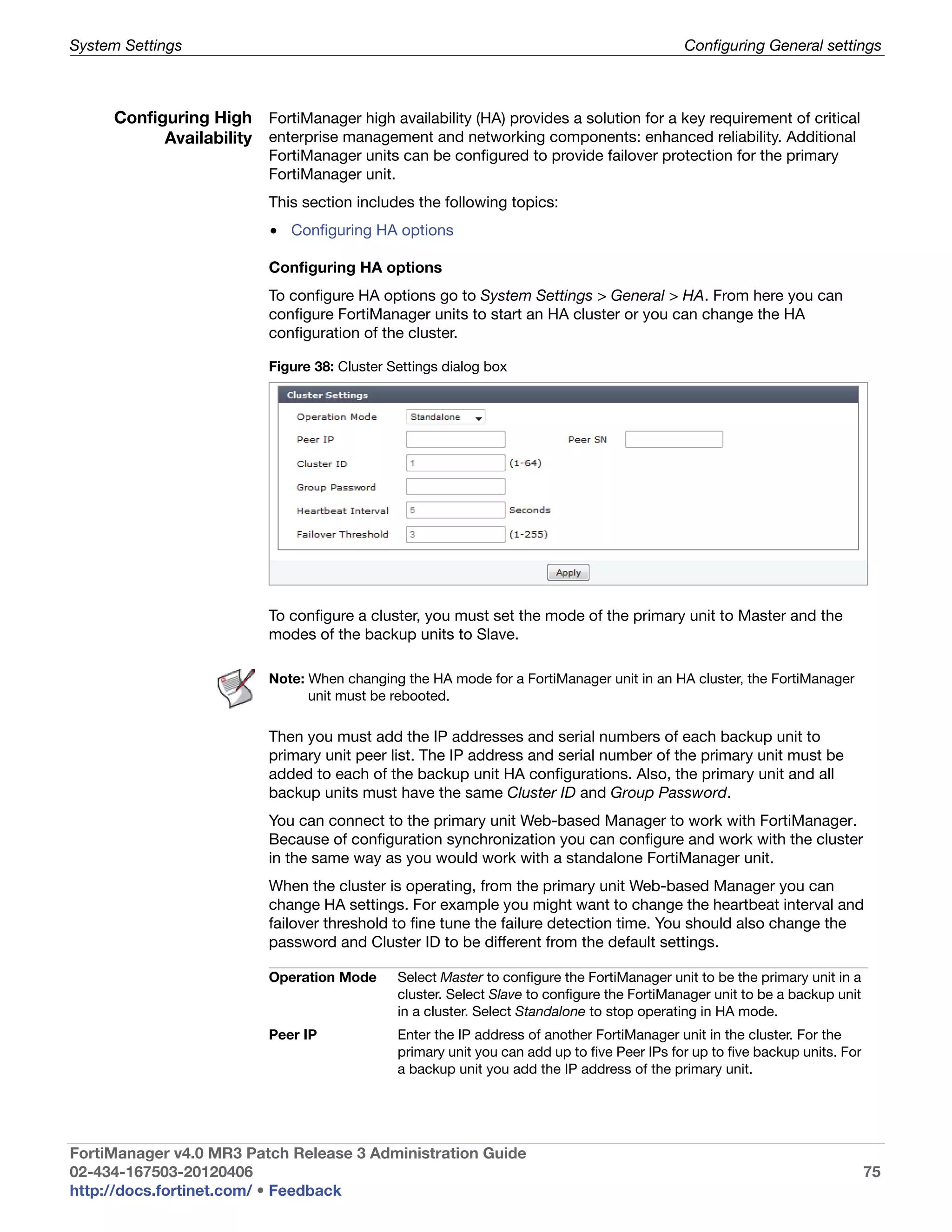
                           Cluster Settings dialog box ............................................................................. 75
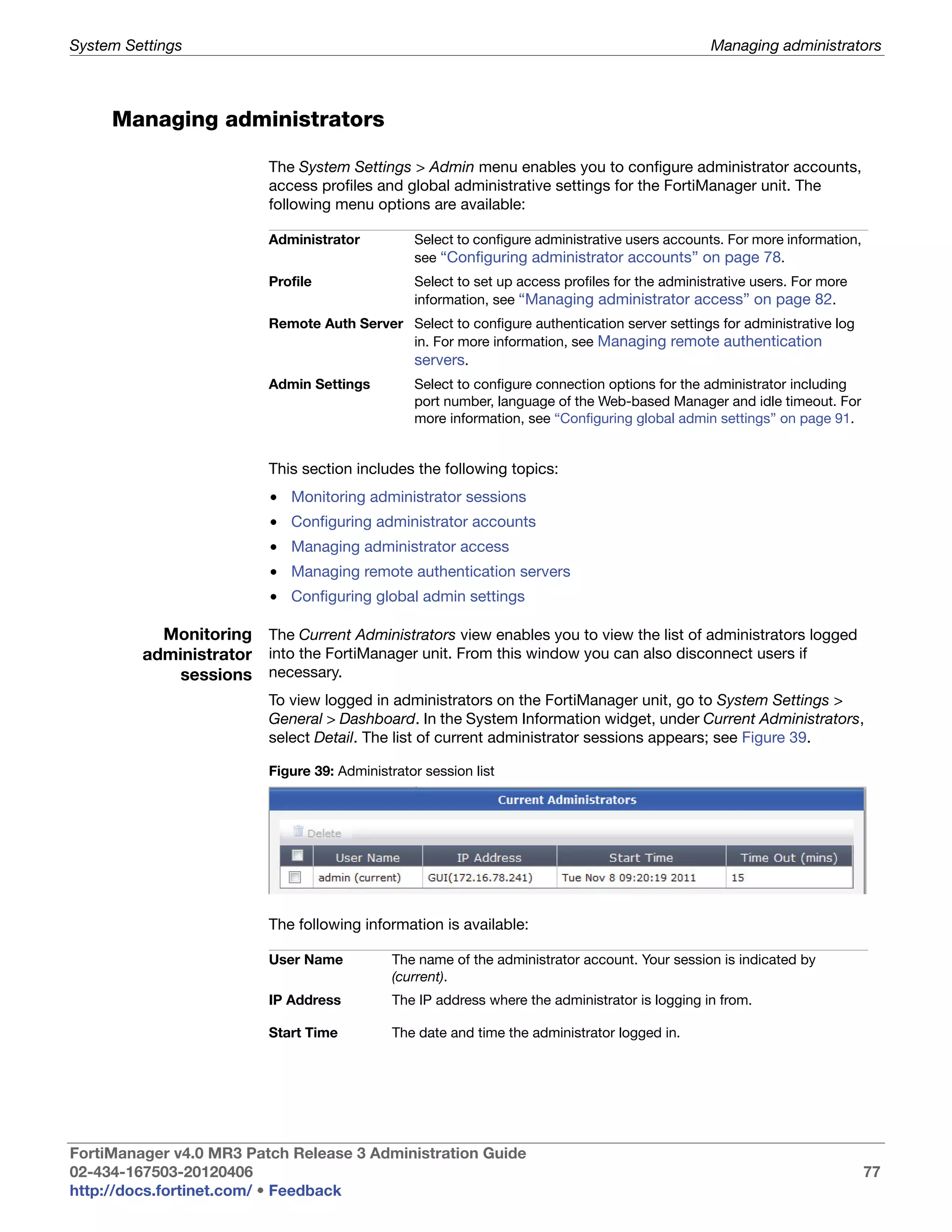
                           Administrator session list................................................................................. 77
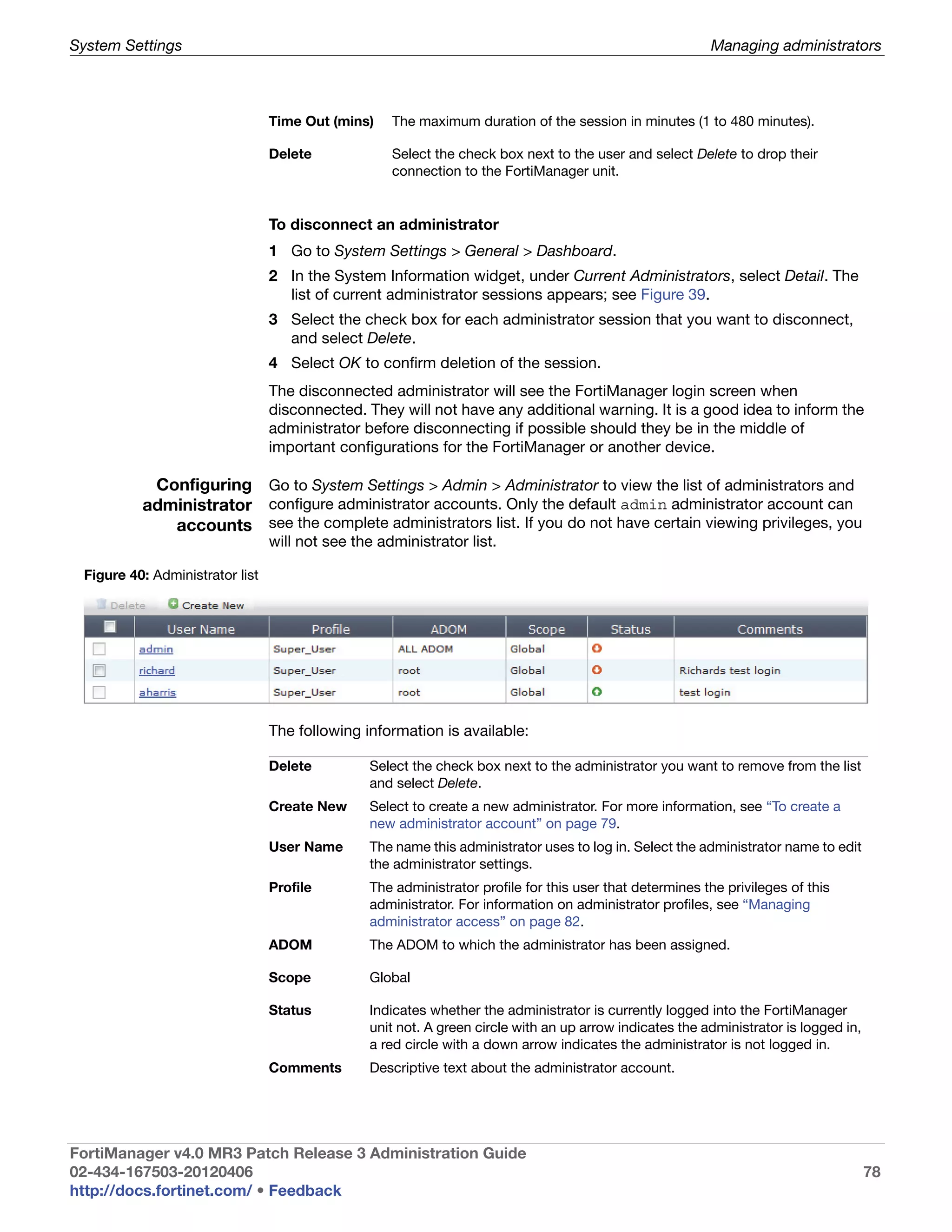
                           Administrator list.............................................................................................. 78
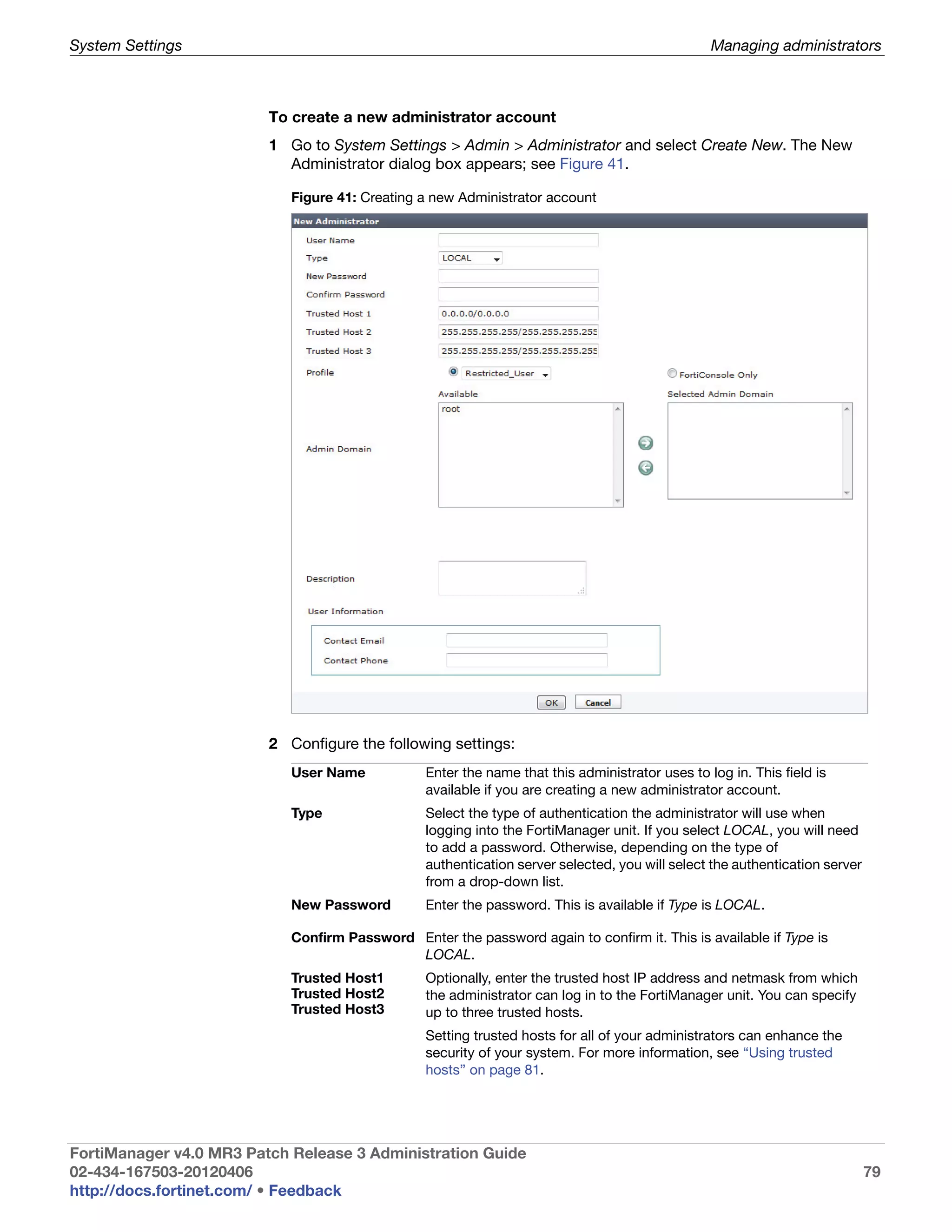
                           Creating a new Administrator account ............................................................ 79
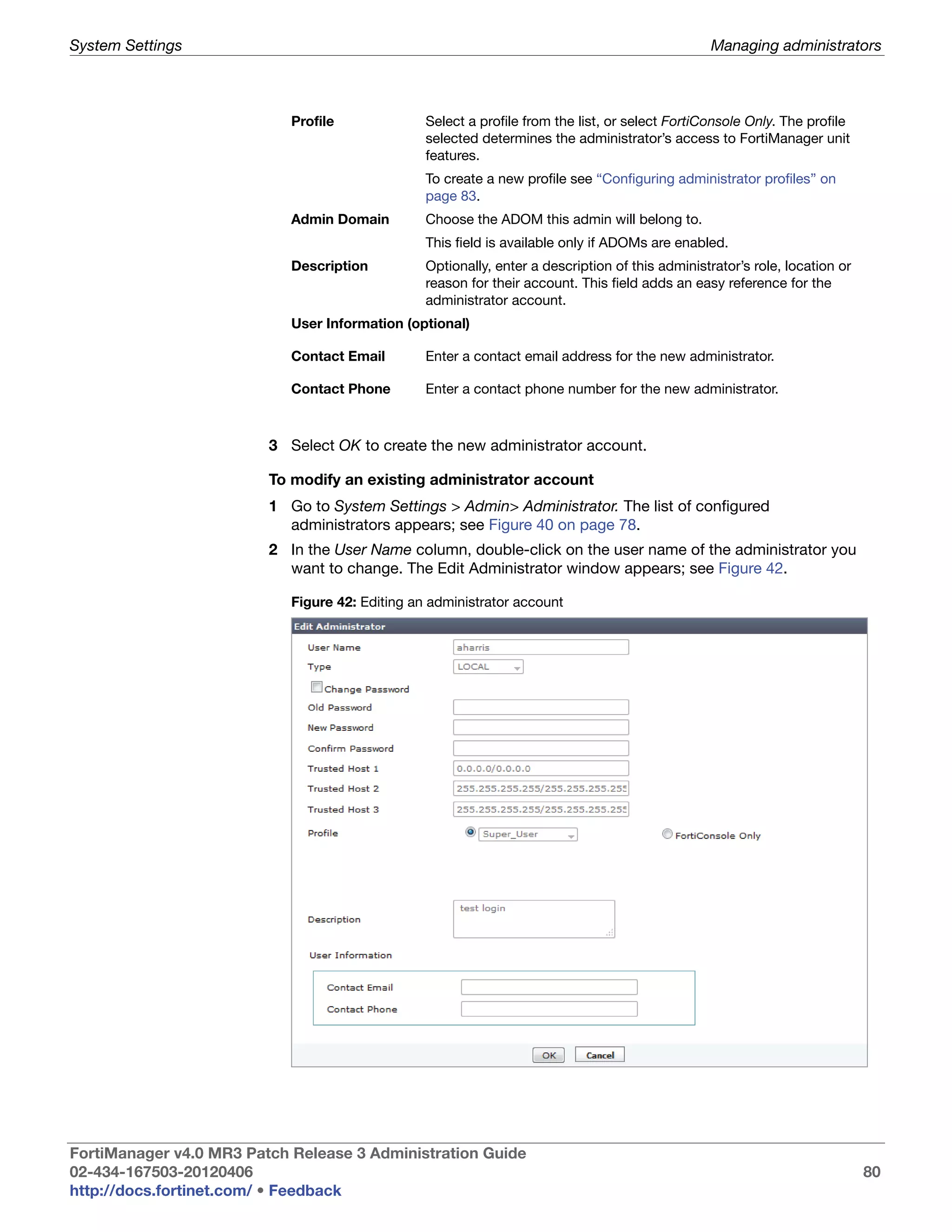
                           Editing an administrator account..................................................................... 80
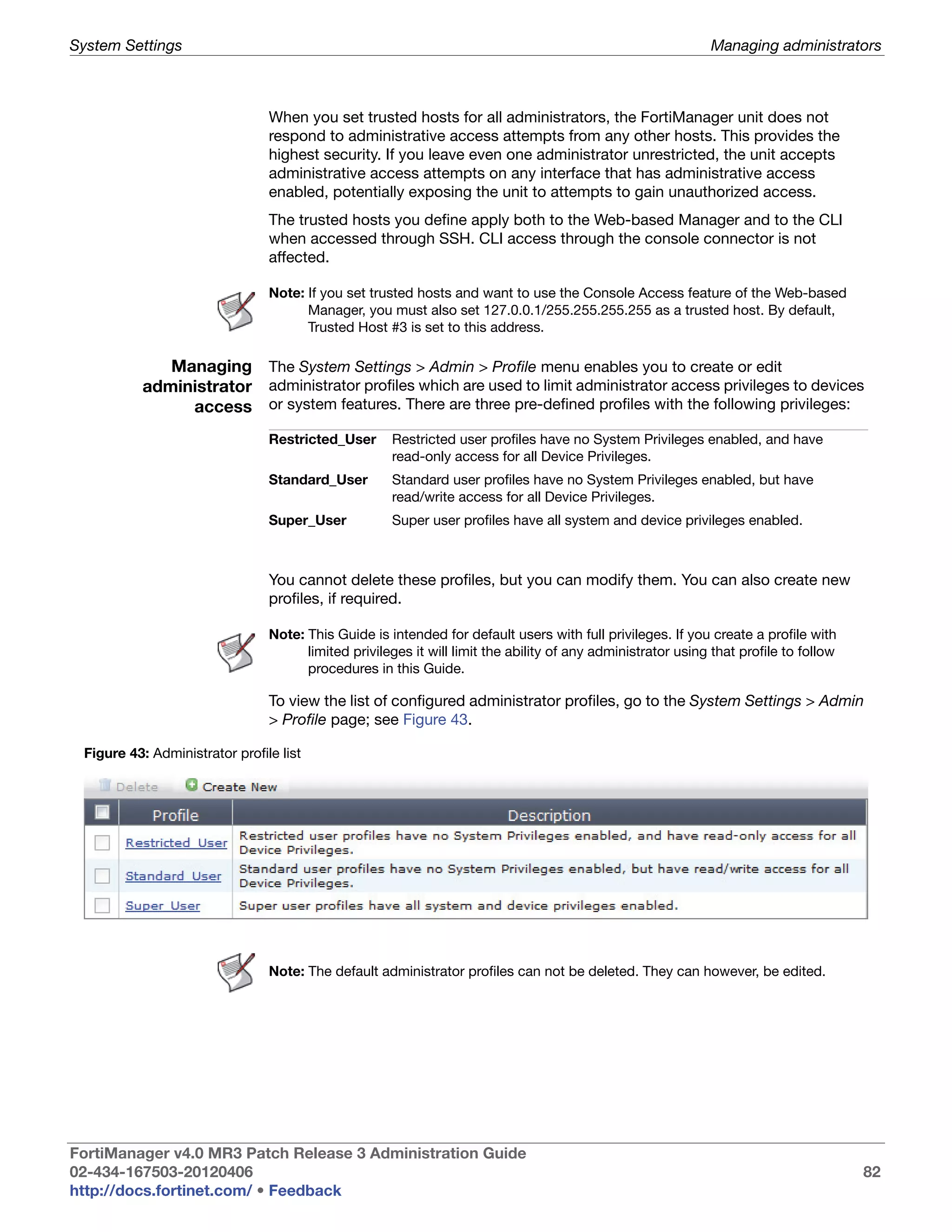
                           Administrator profile list................................................................................... 82
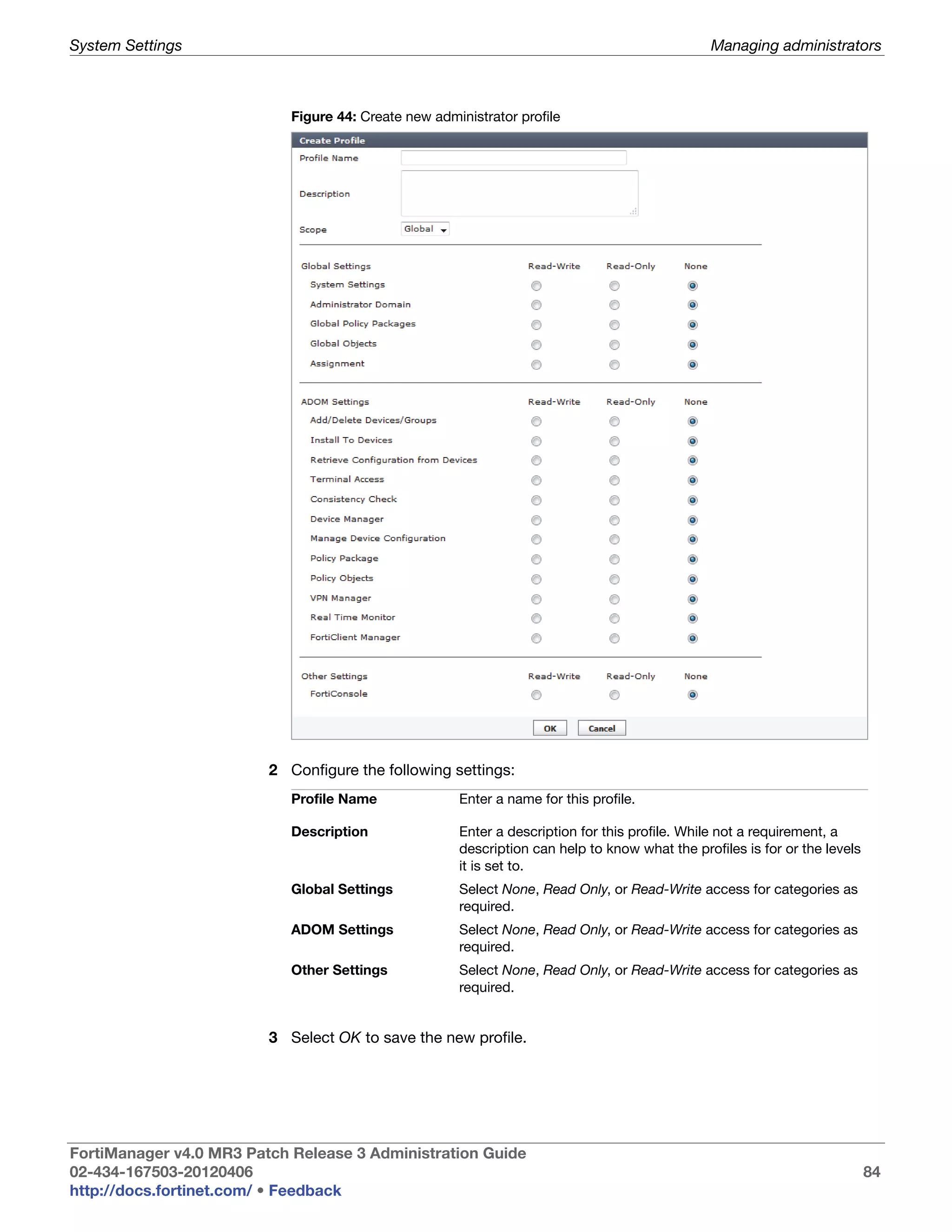
                           Create new administrator profile ..................................................................... 84
                           Edit administrator profile window .................................................................... 85


  FortiManager v4.0 MR3 Patch Release 3 Administration Guide
  02-434-167503-20120406                                                                                                                      12
  http://docs.fortinet.com/ • Feedback
Table of Figures


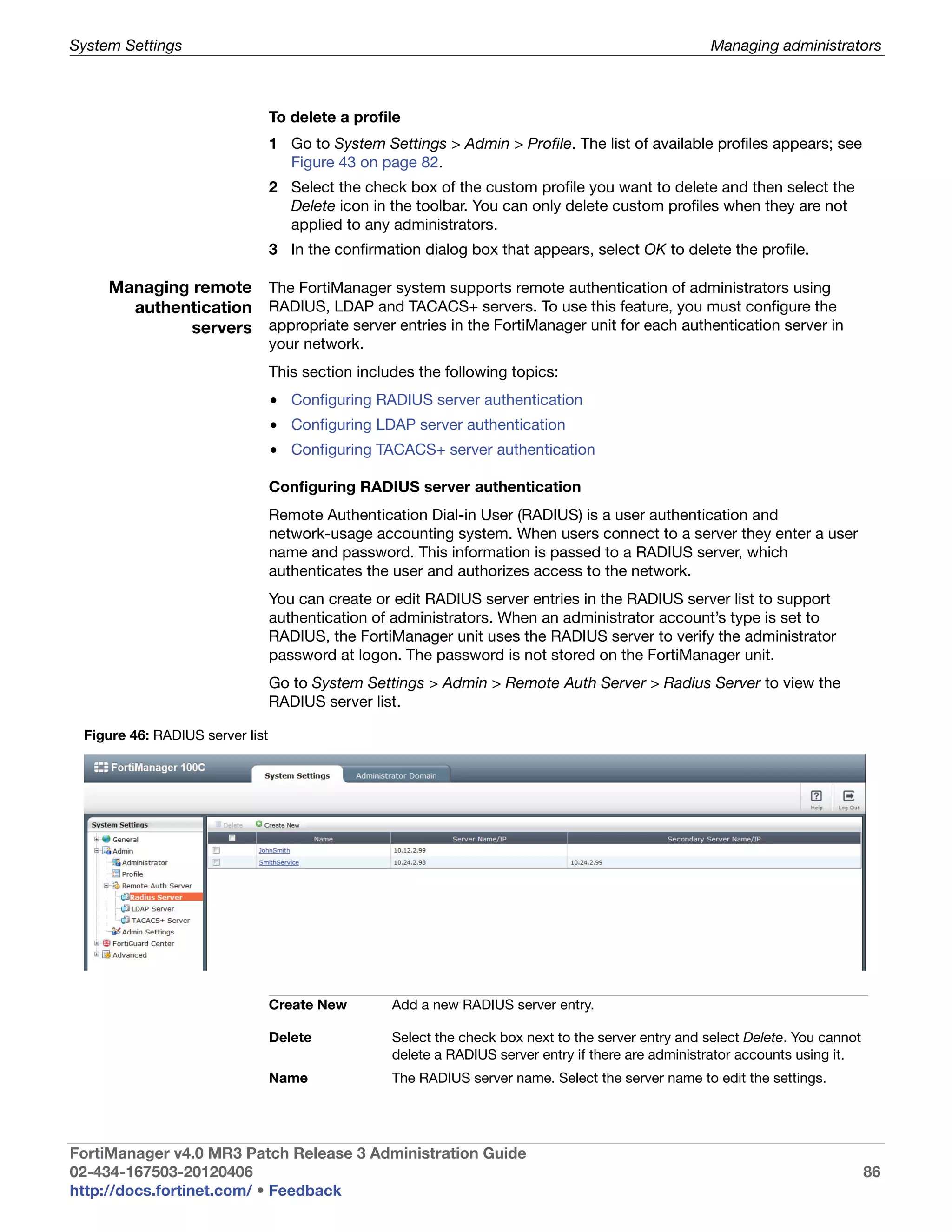
                         RADIUS server list ........................................................................................... 86
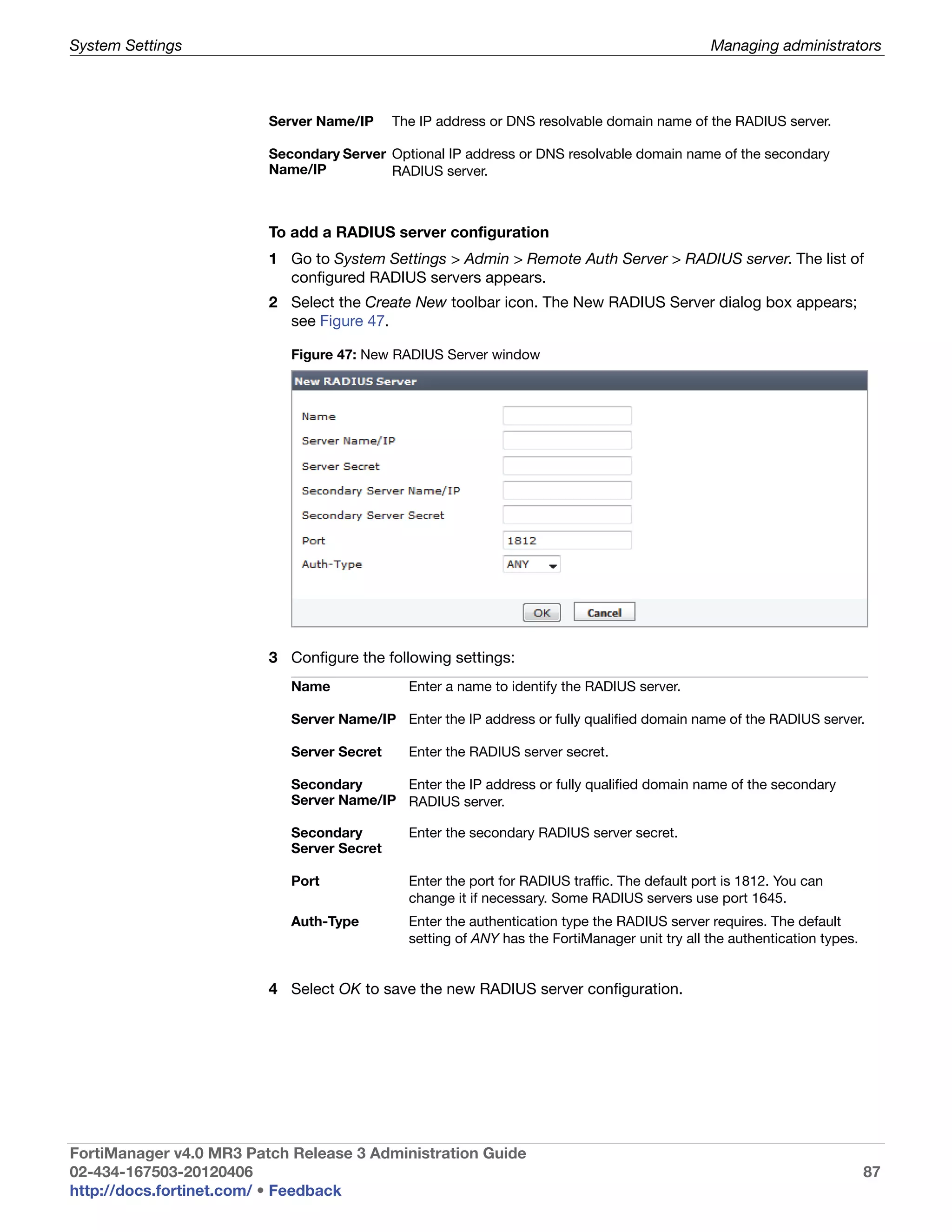
                         New RADIUS Server window........................................................................... 87
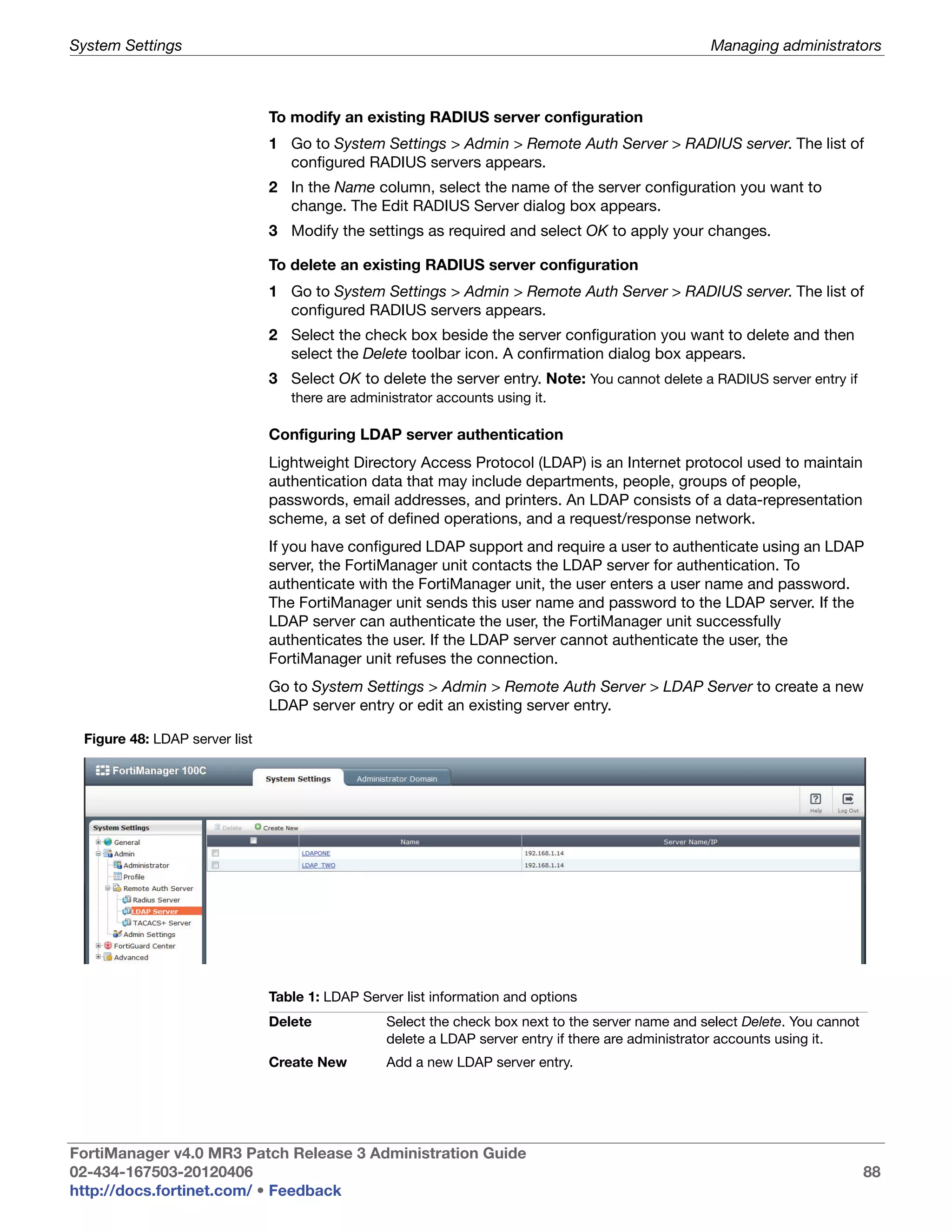
                         LDAP server list ............................................................................................... 88
                         New LDAP server dialog box........................................................................... 89
                         New TACACS+ server dialog box.................................................................... 91
                         Administrative settings dialog box................................................................... 92
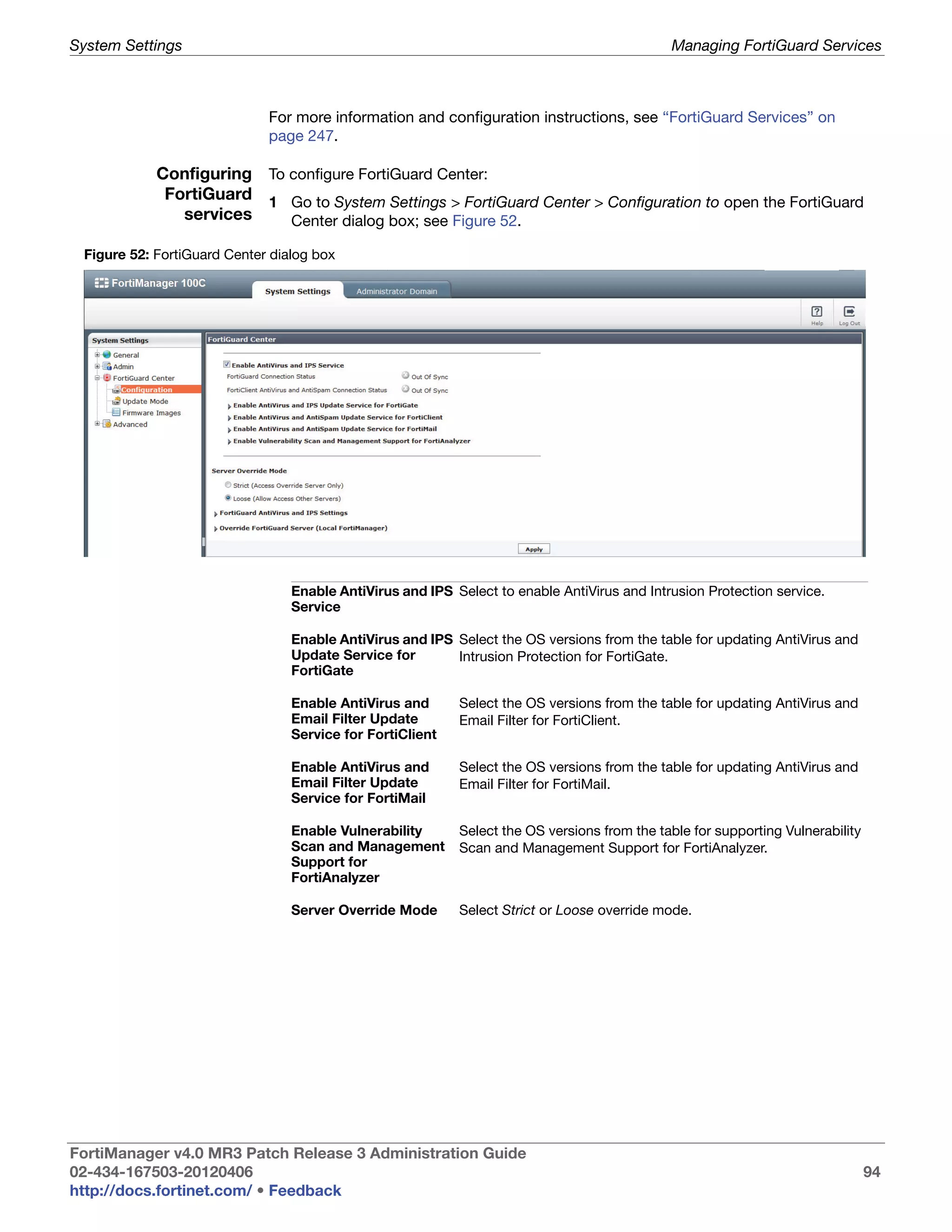
                         FortiGuard Center dialog box .......................................................................... 94
                         Server settings dialog box ............................................................................... 95
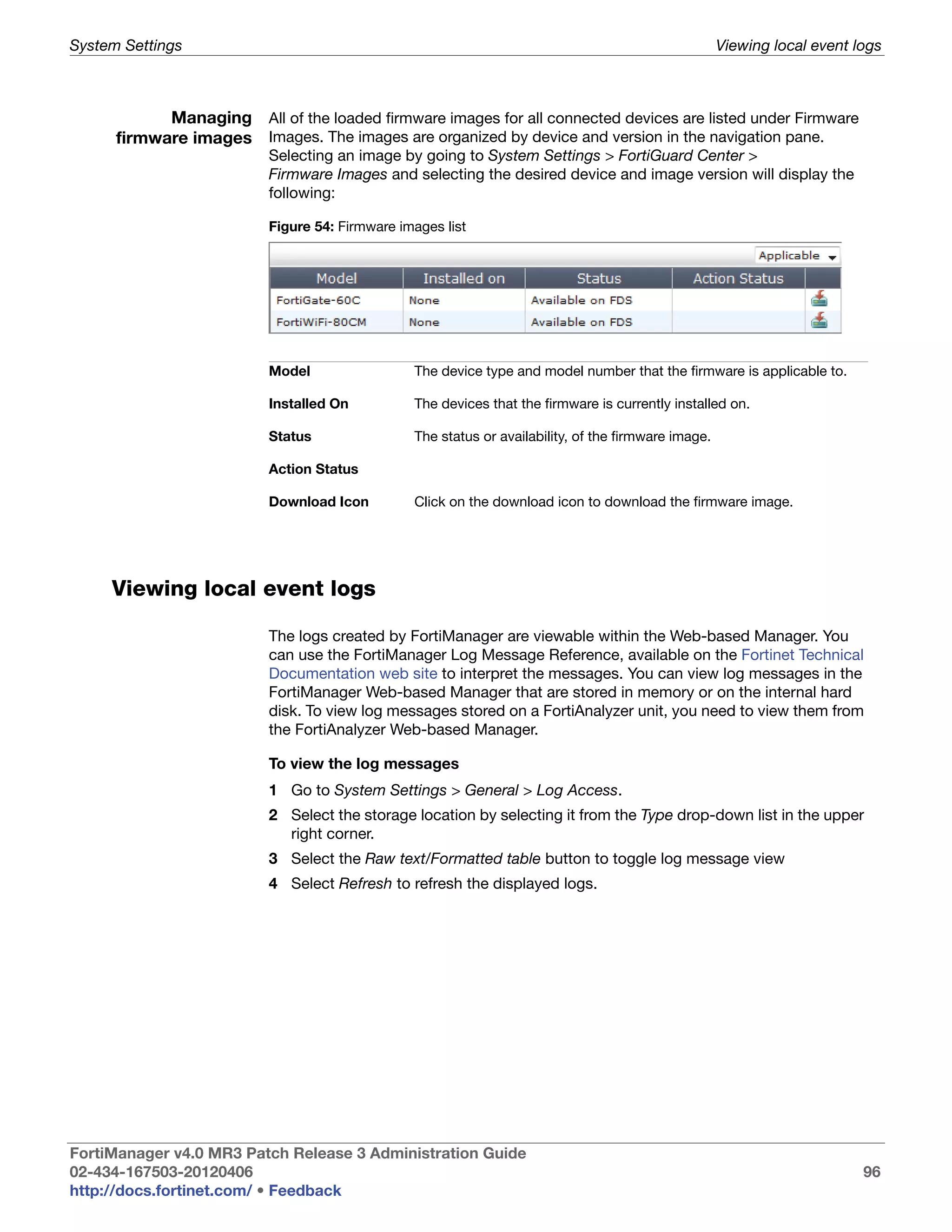
                         Firmware images list ........................................................................................ 96
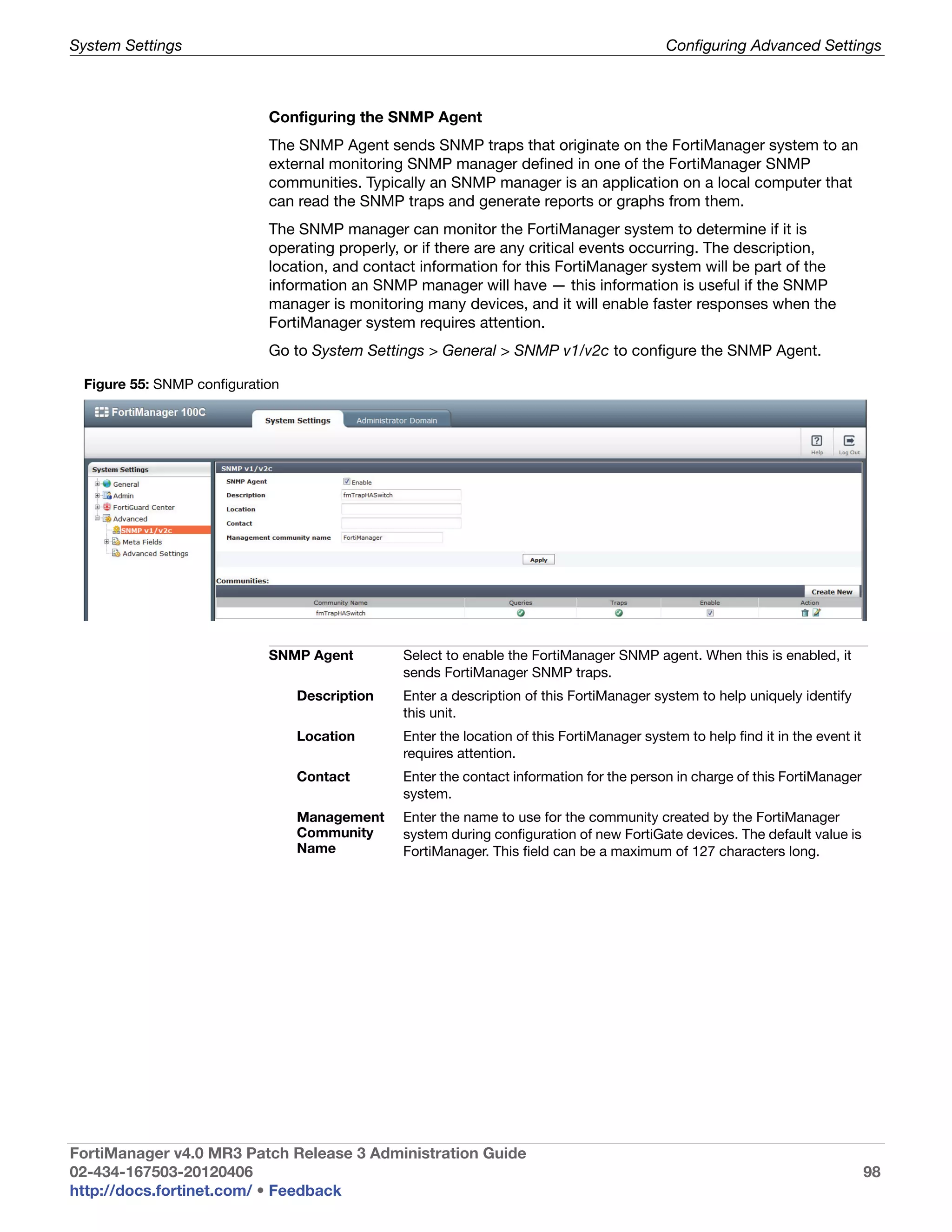
                         SNMP configuration ........................................................................................ 98
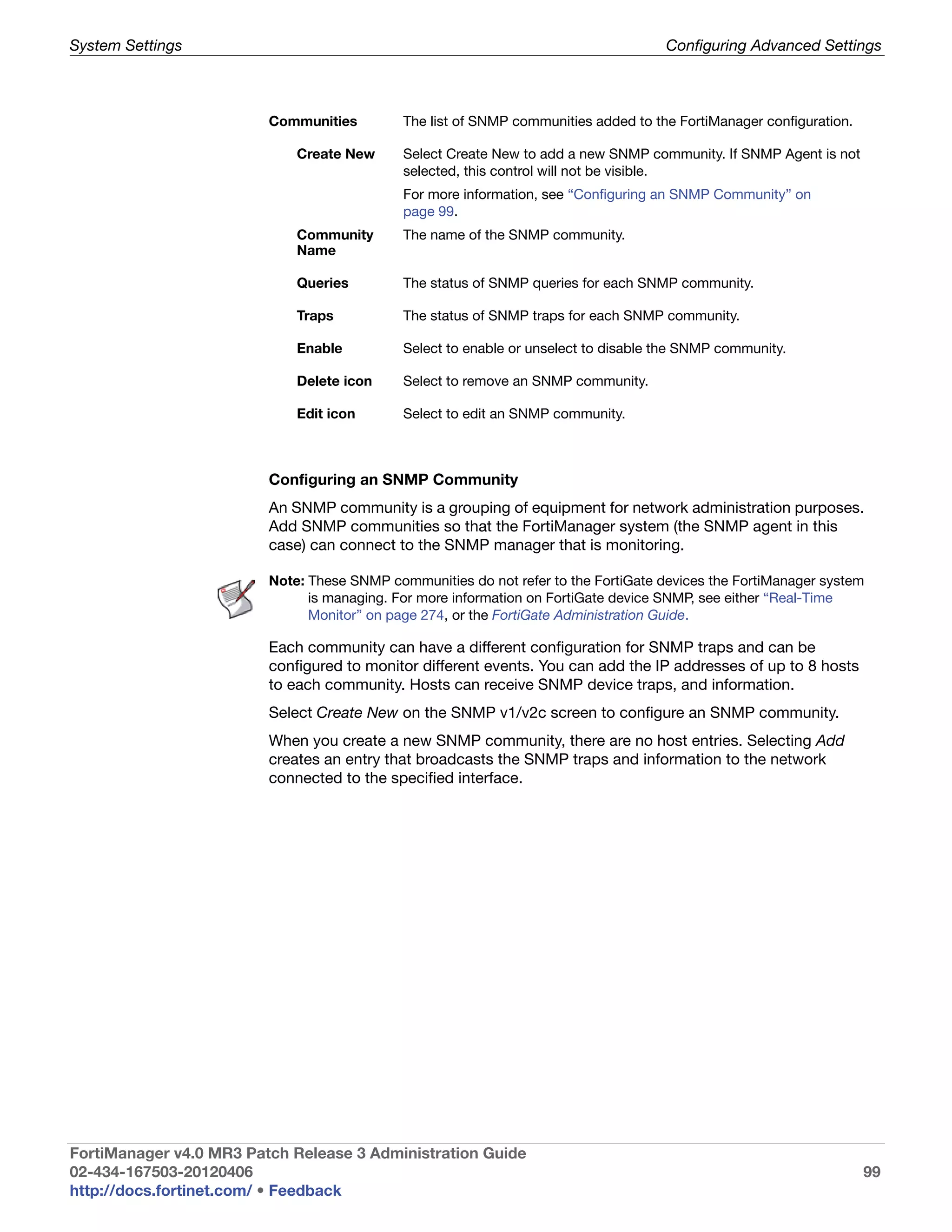
                         FortiManager SNMP Community................................................................... 100
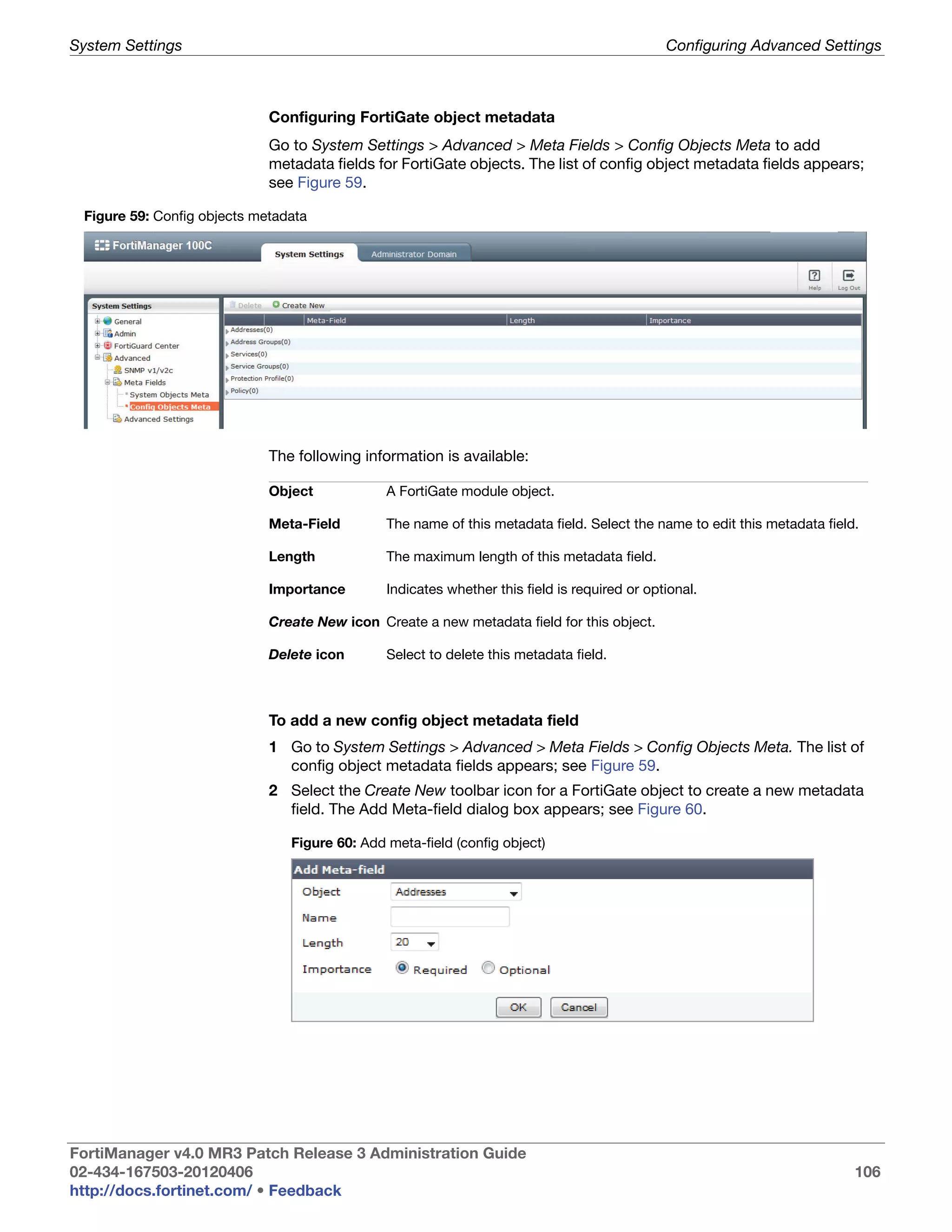
                         System objects metadata .............................................................................. 104
                         Add meta-field (system object)...................................................................... 105
                         Config objects metadata ............................................................................... 106
                         Add meta-field (config object) ....................................................................... 106
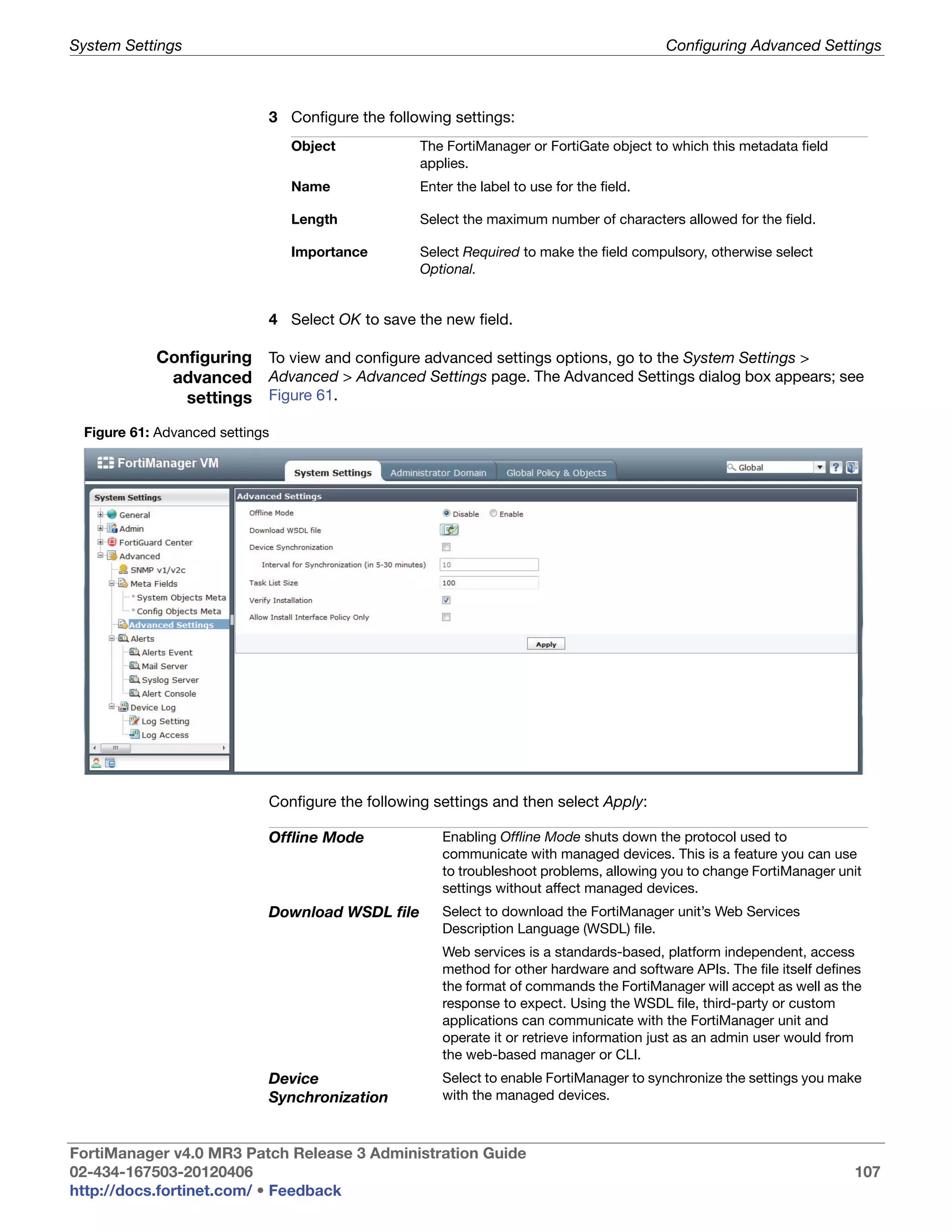
                         Advanced settings ......................................................................................... 107
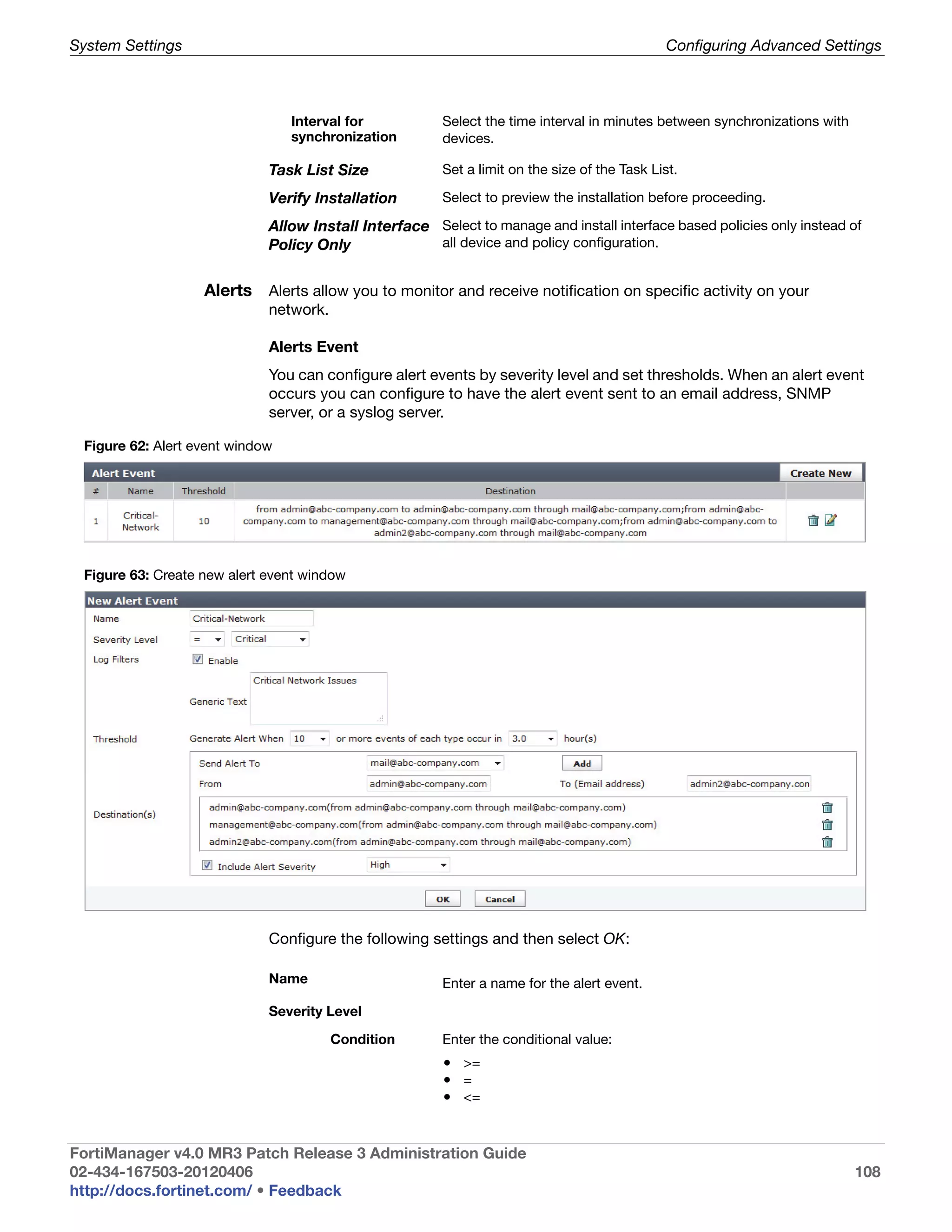
                         Alert event window ........................................................................................ 108
                         Create new alert event window ..................................................................... 108
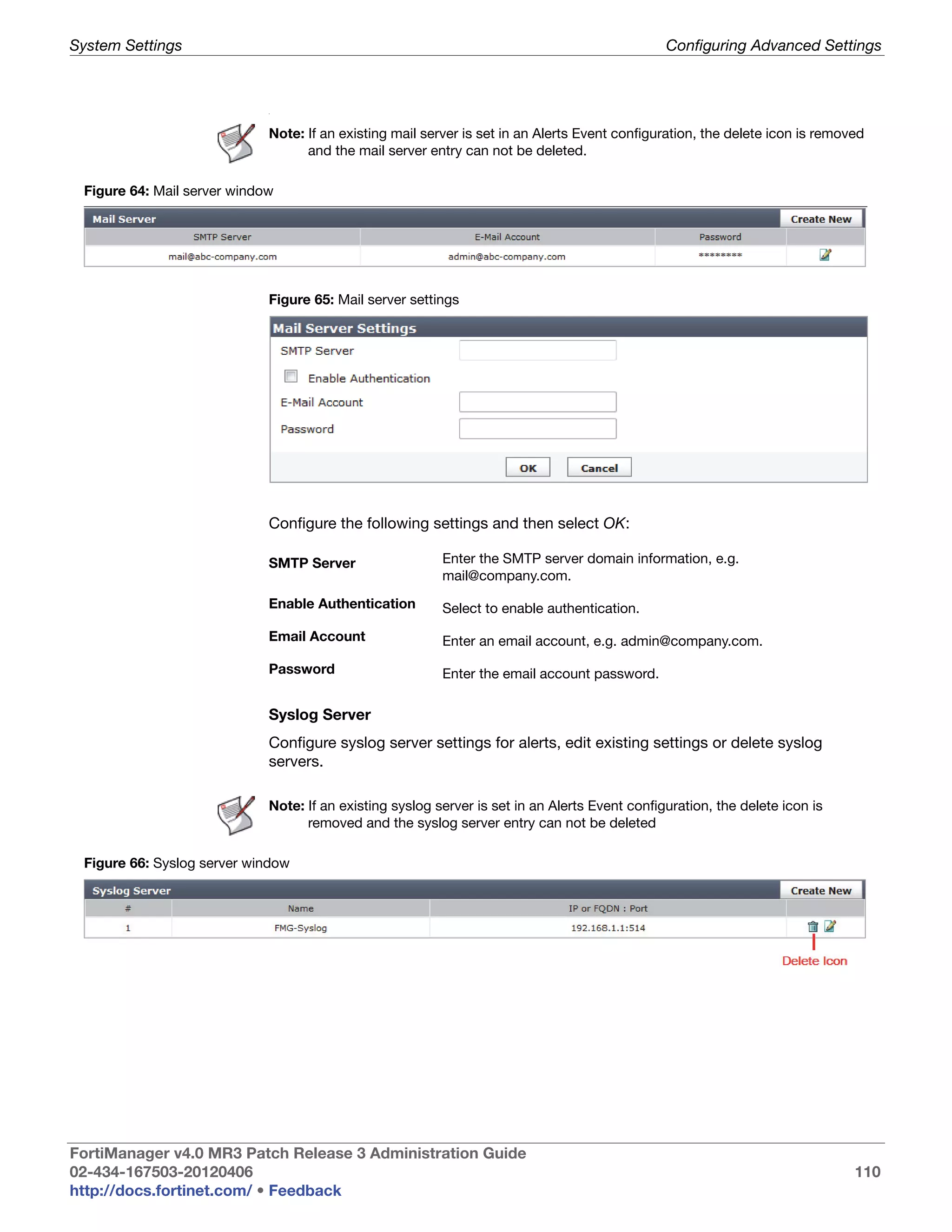
                         Mail server window ........................................................................................ 110
                         Mail server settings........................................................................................ 110
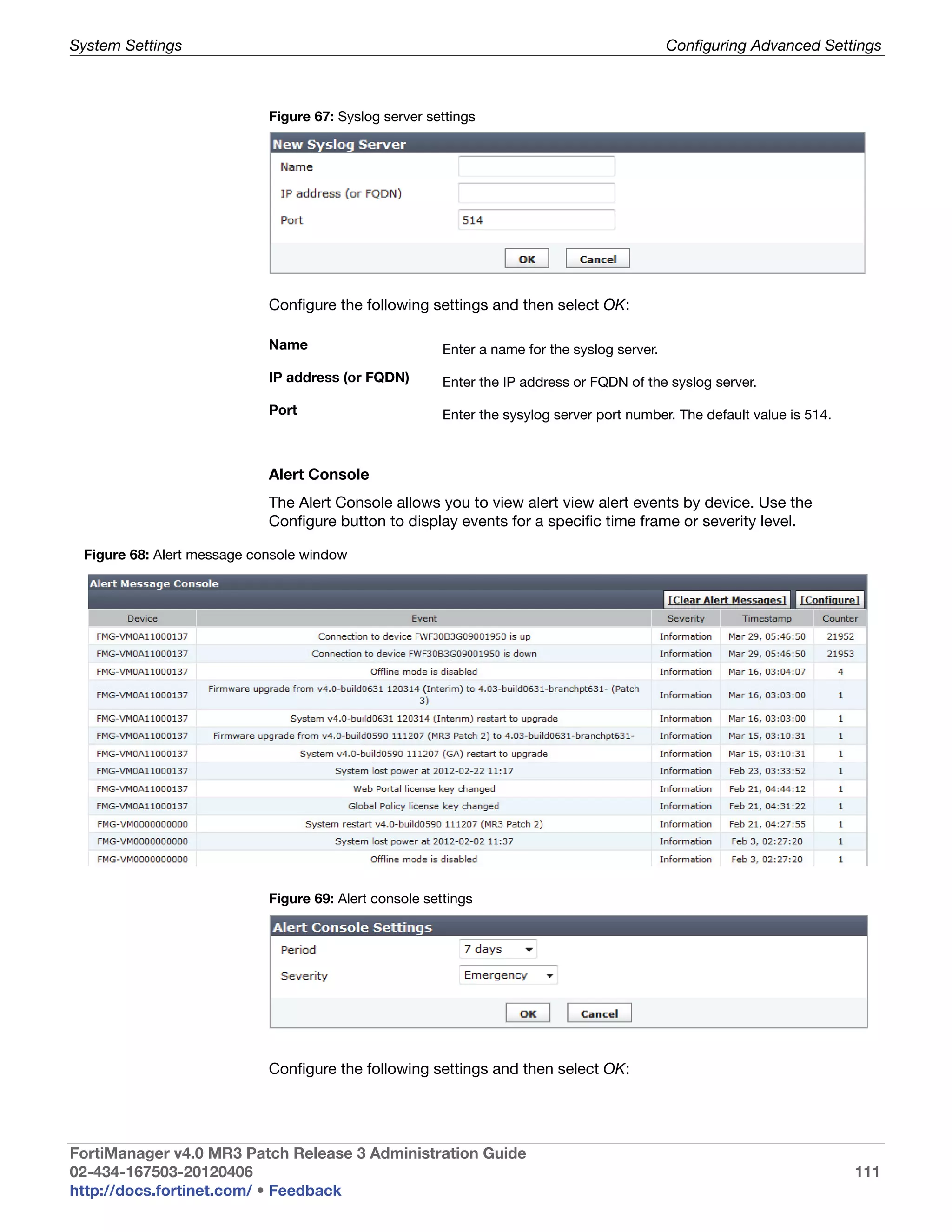
                         Syslog server window.................................................................................... 110
                         Syslog server settings.................................................................................... 111
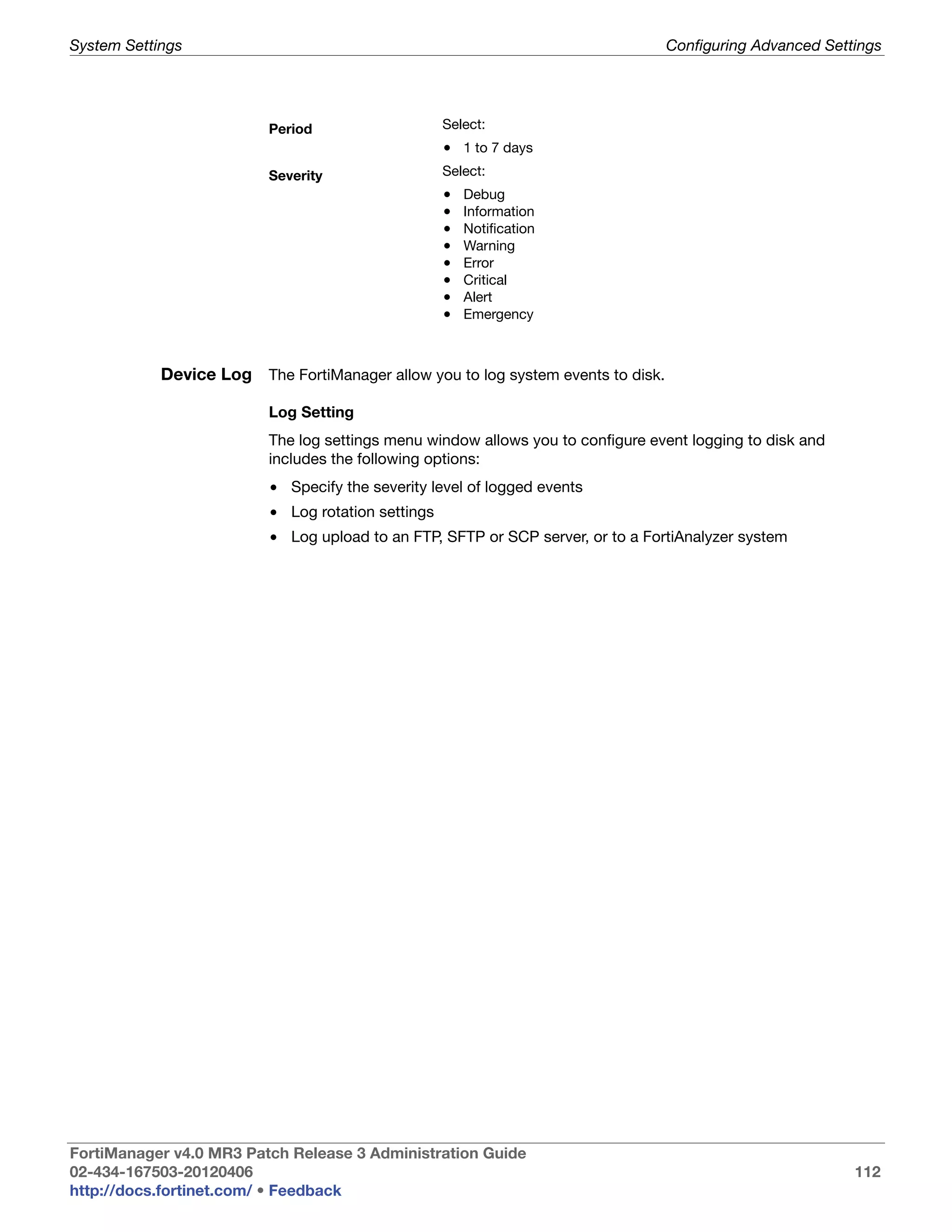
                         Alert message console window ..................................................................... 111
                         Alert console settings .................................................................................... 111
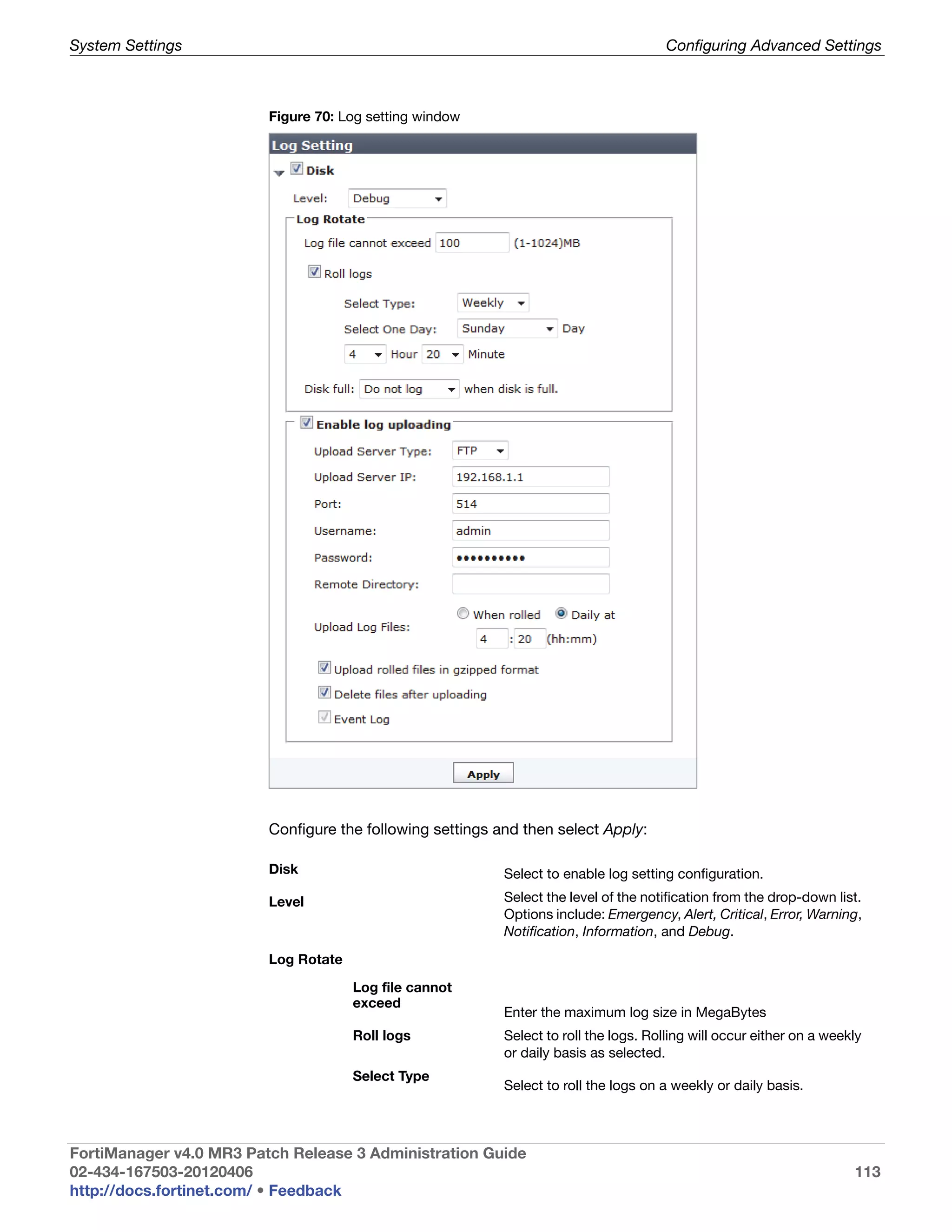
                         Log setting window ....................................................................................... 113
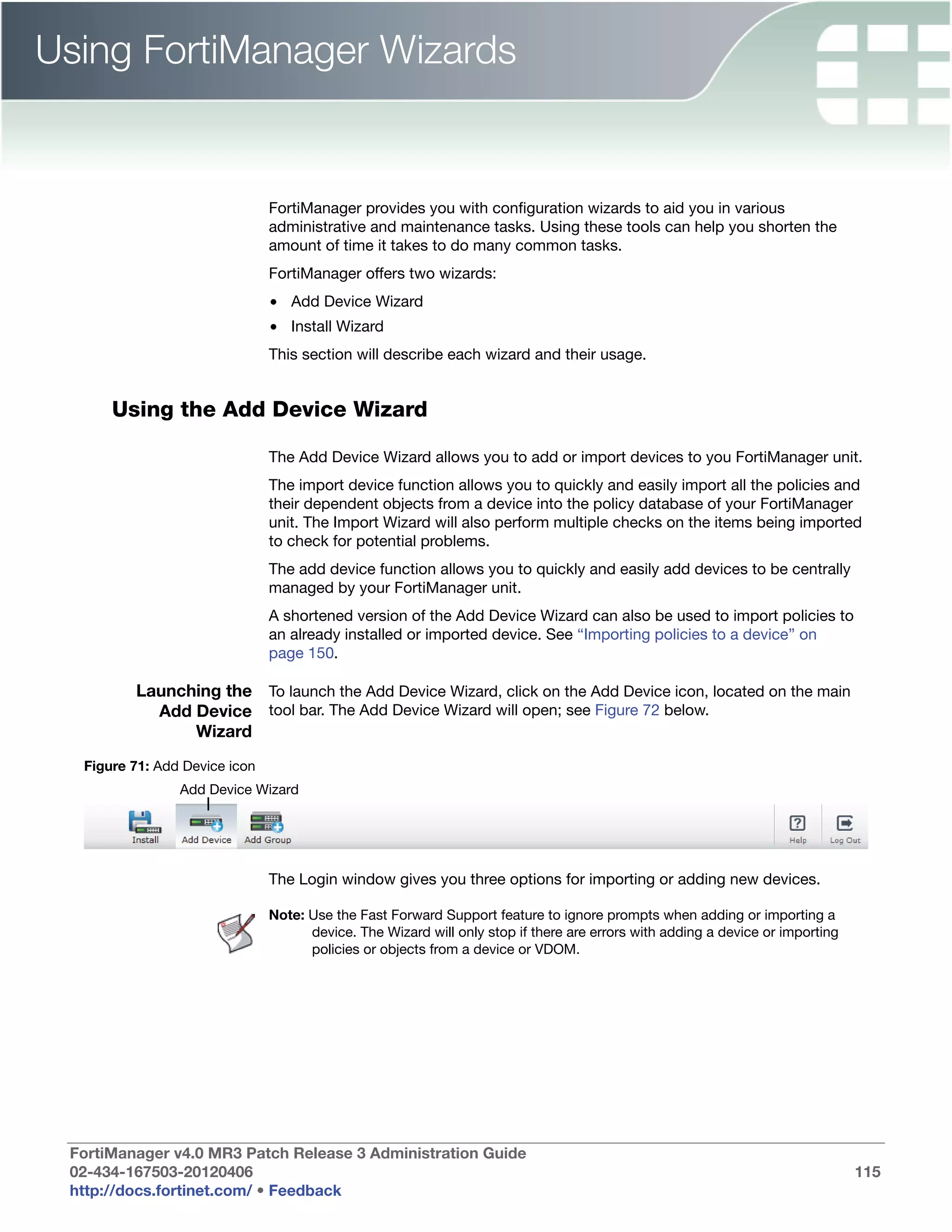
                         Add Device icon............................................................................................. 115
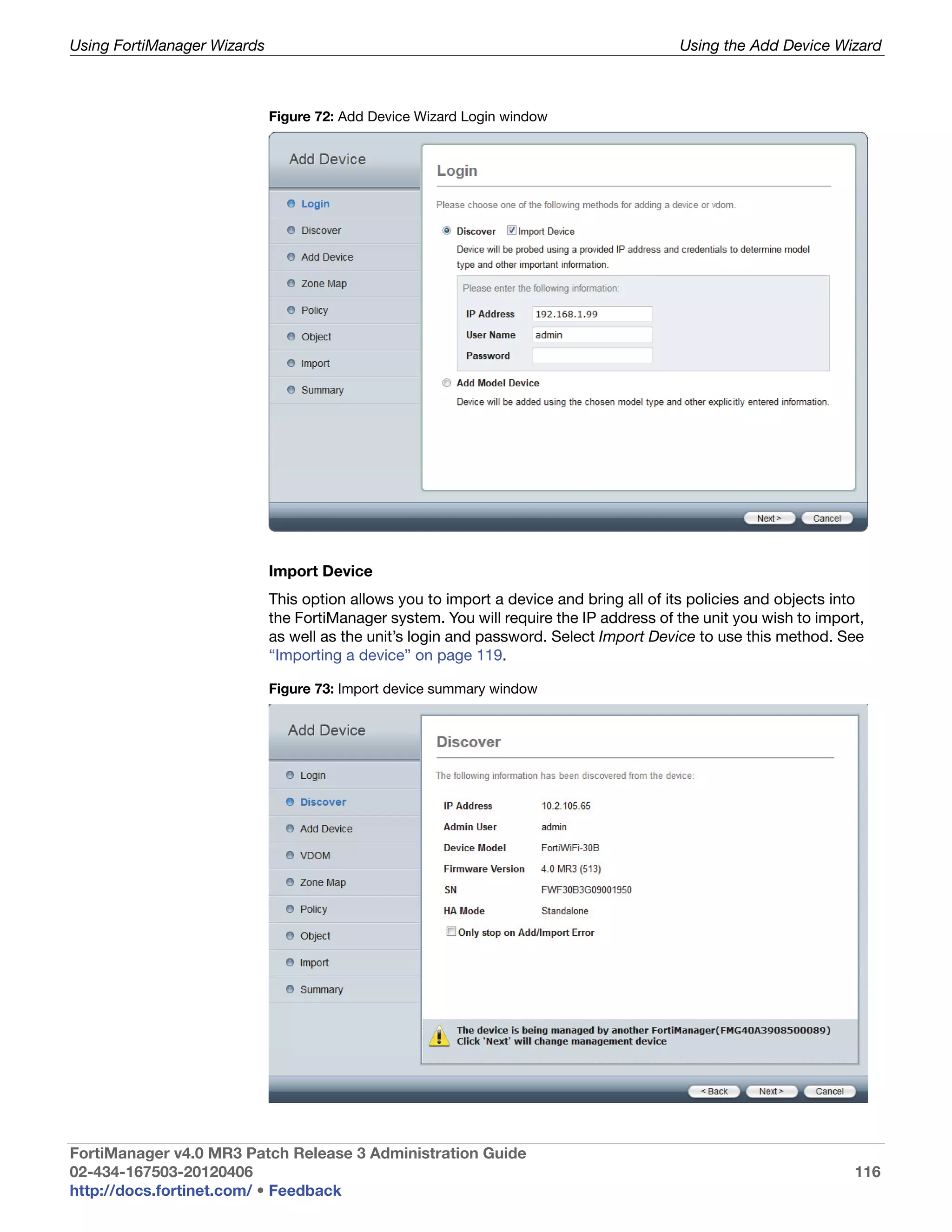
                         Add Device Wizard Login window ................................................................. 116
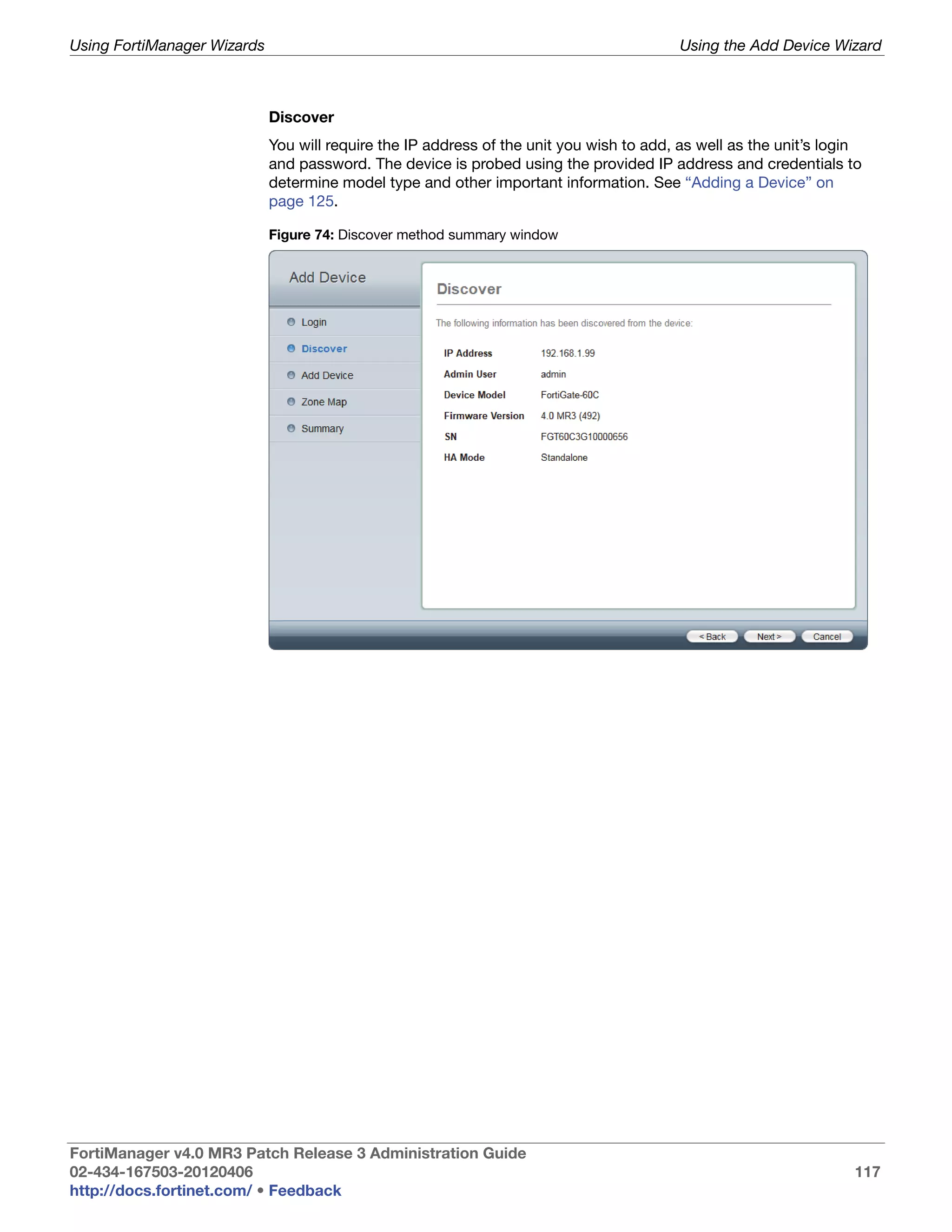
                         Import device summary window.................................................................... 116
                         Discover method summary window .............................................................. 117
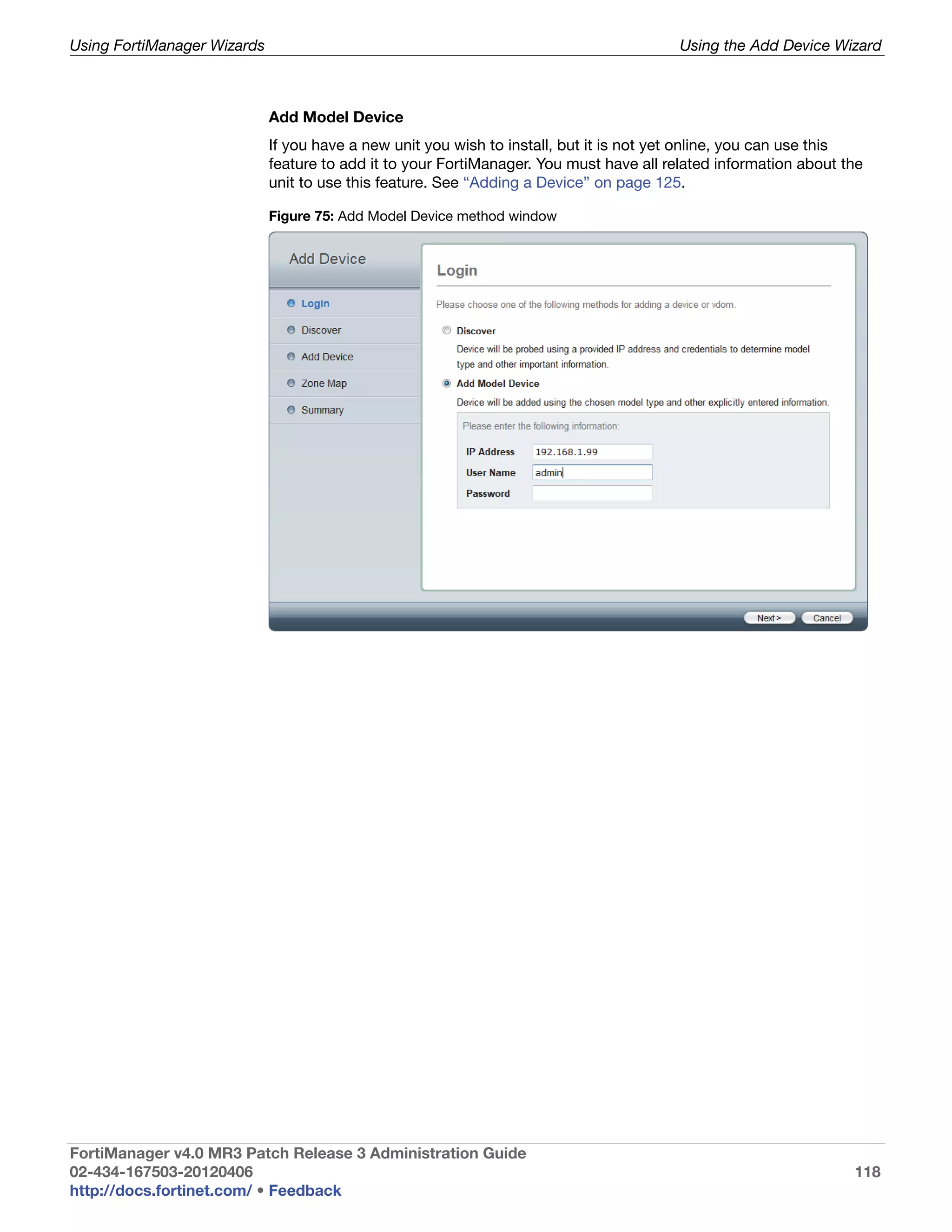
                         Add Model Device method window............................................................... 118
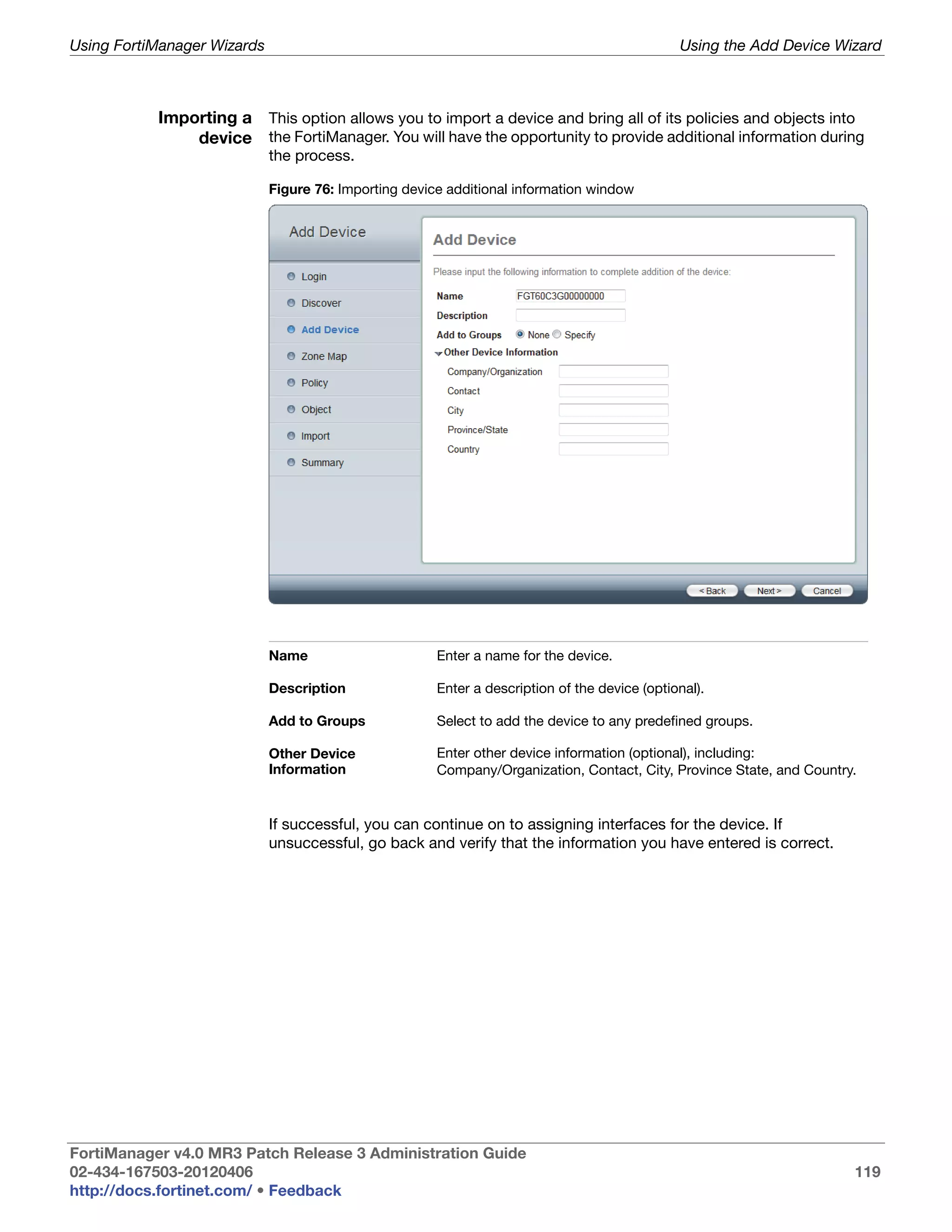
                         Importing device additional information window........................................... 119
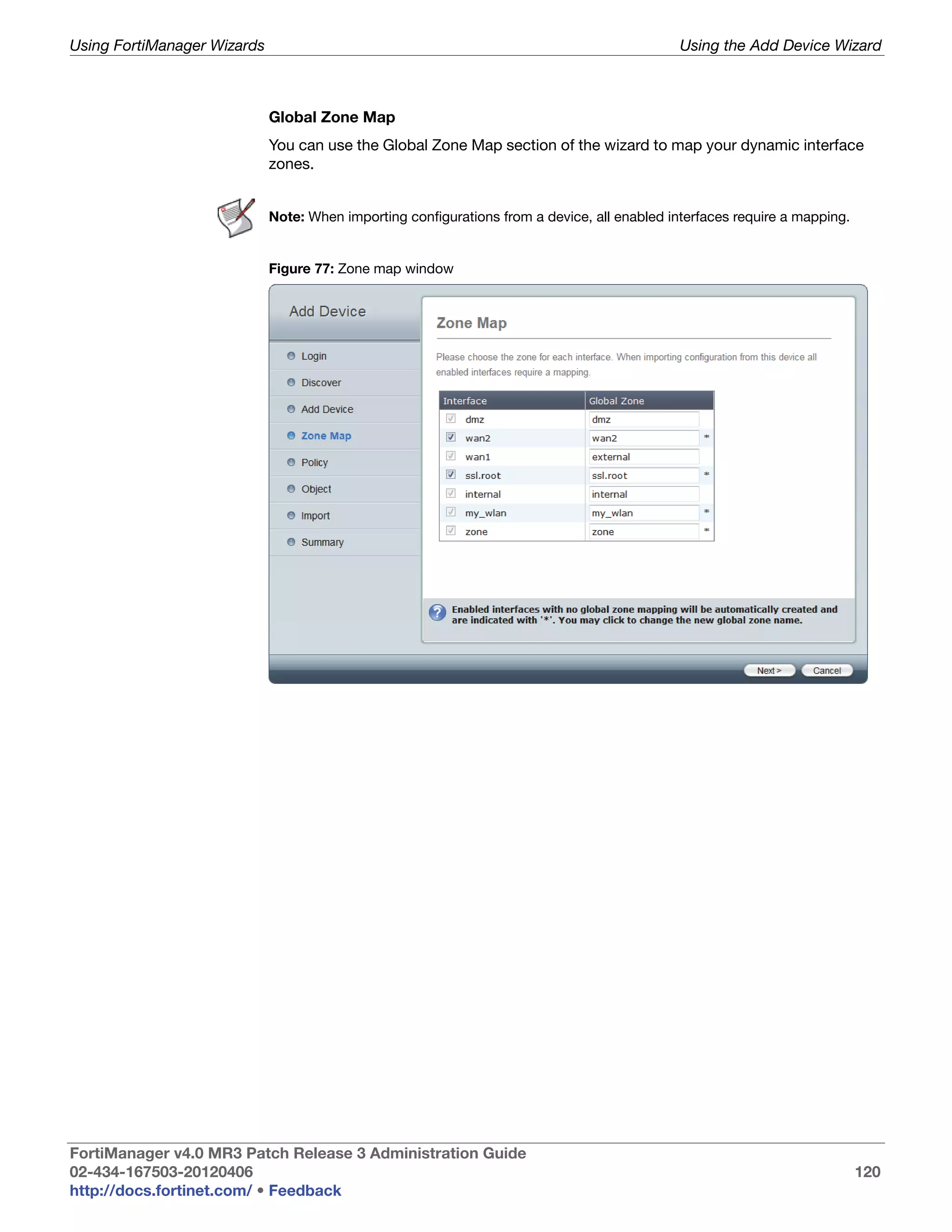
                         Zone map window ......................................................................................... 120
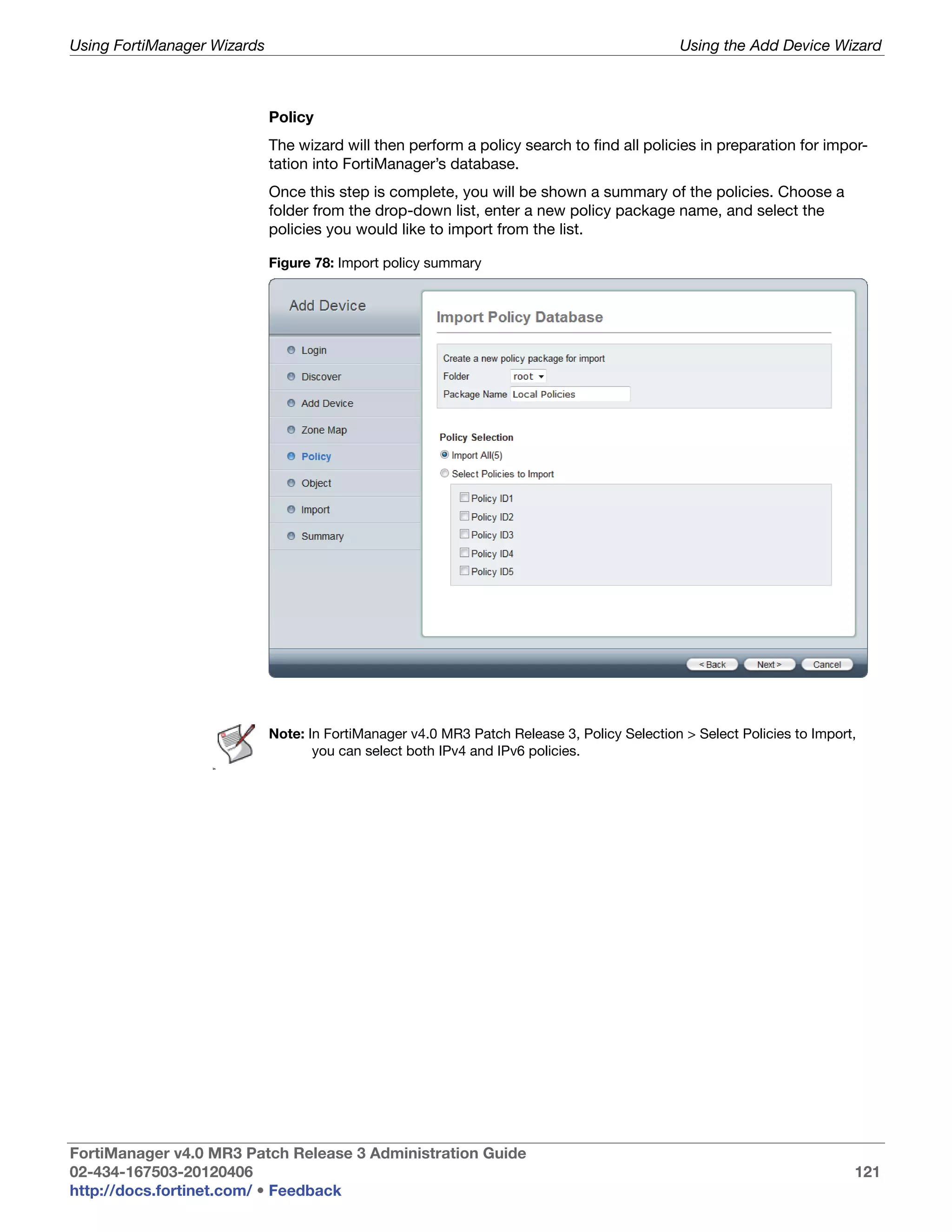
                         Import policy summary .................................................................................. 121
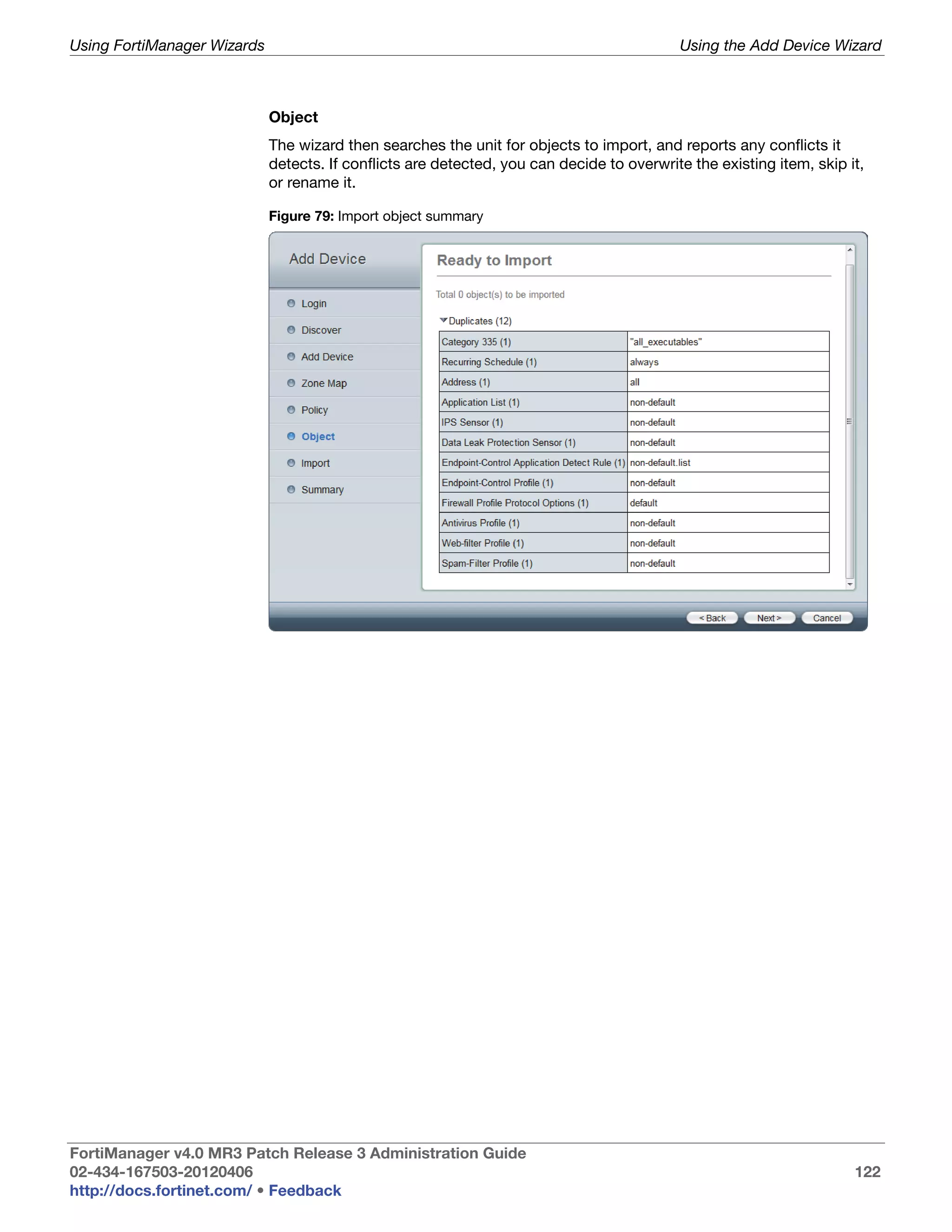
                         Import object summary.................................................................................. 122
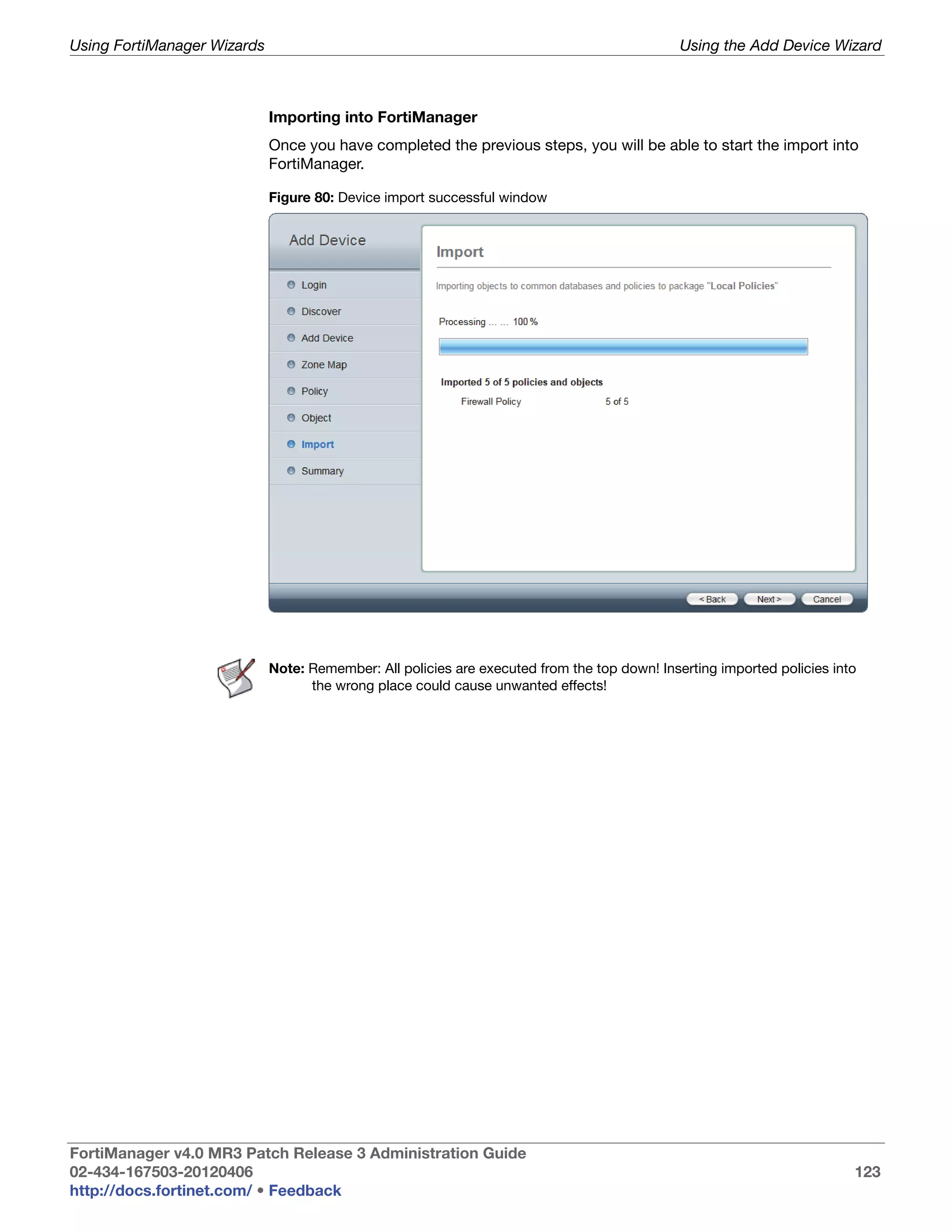
                         Device import successful window ................................................................. 123
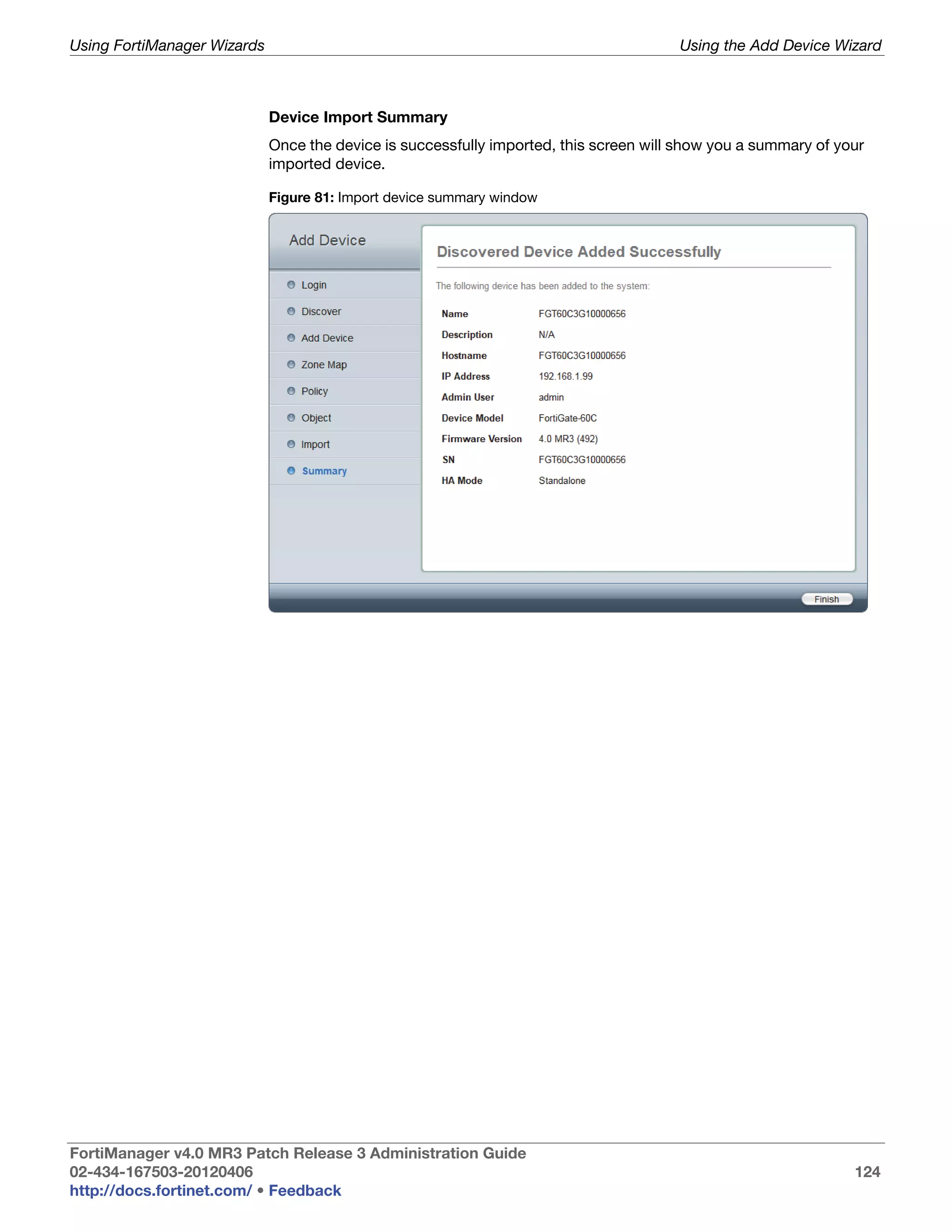
                         Import device summary window.................................................................... 124
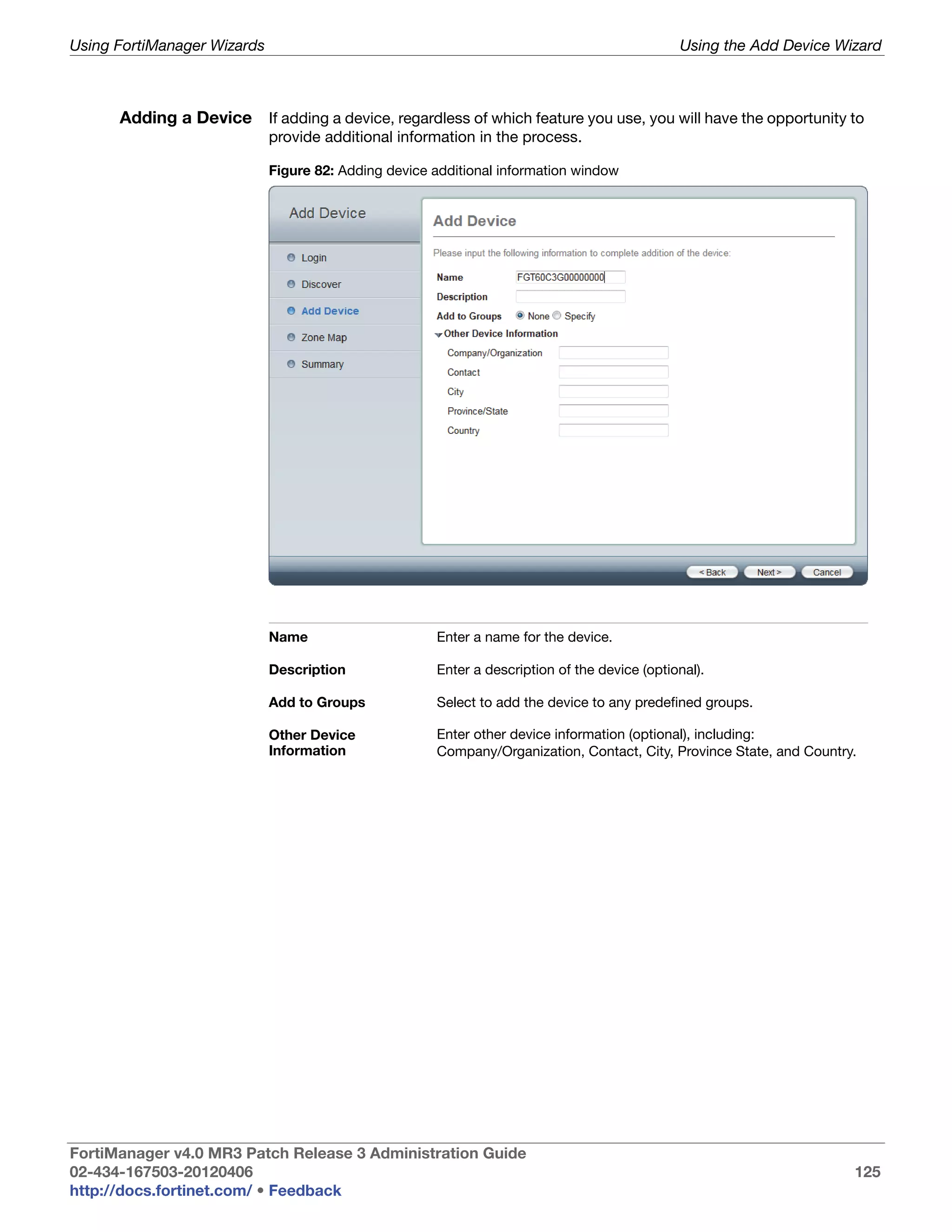
                         Adding device additional information window............................................... 125
                         Adding device model additional information window.................................... 126
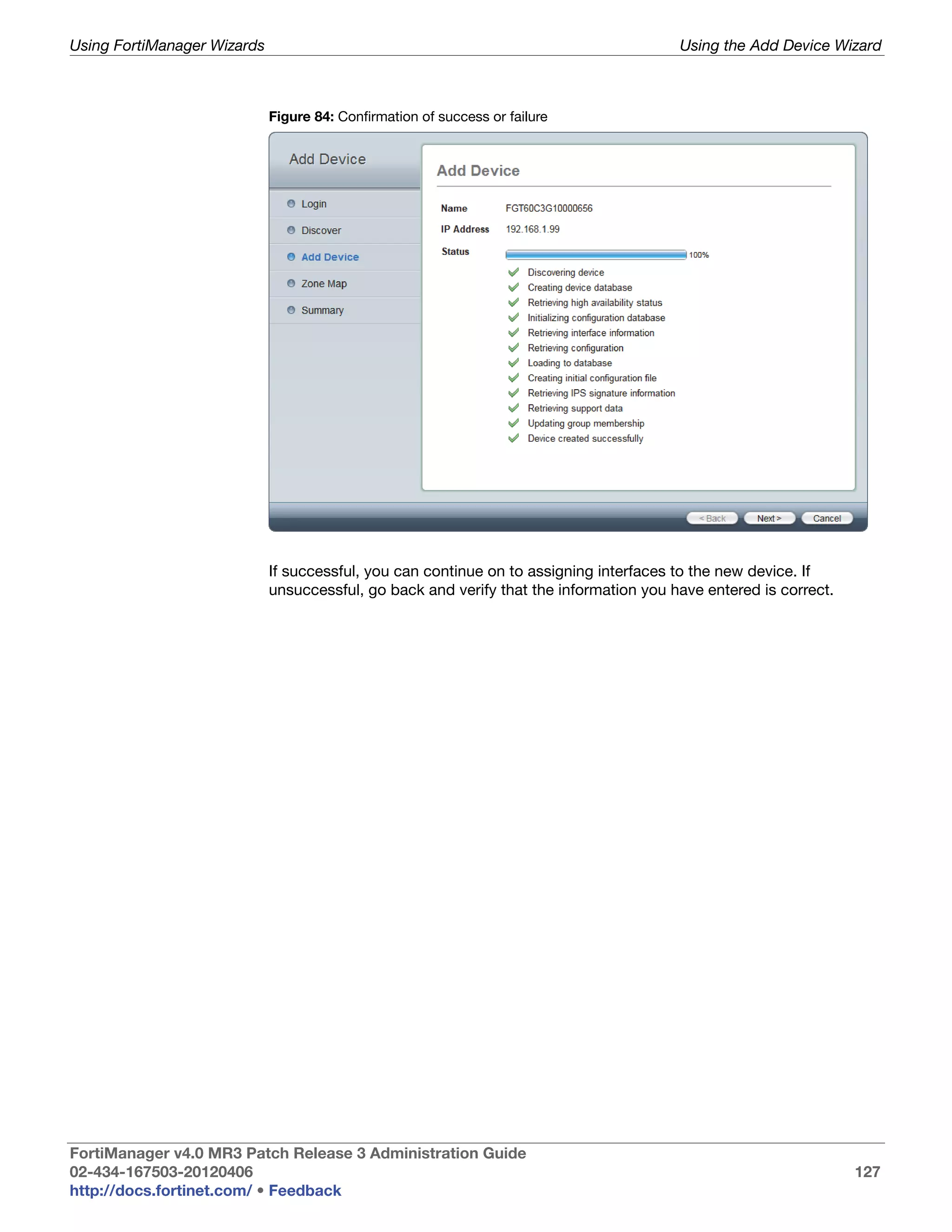
                         Confirmation of success or failure ................................................................. 127
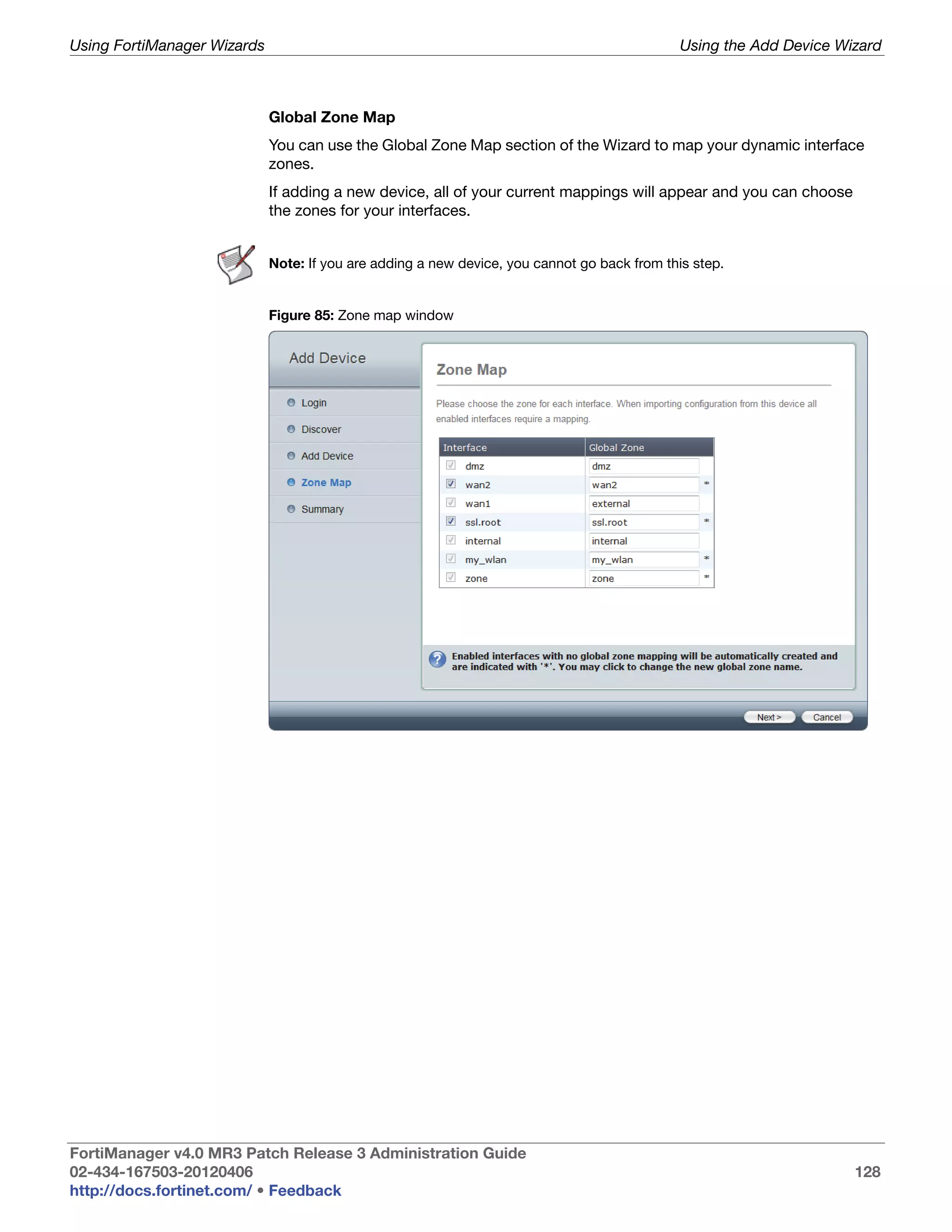
                         Zone map window ......................................................................................... 128
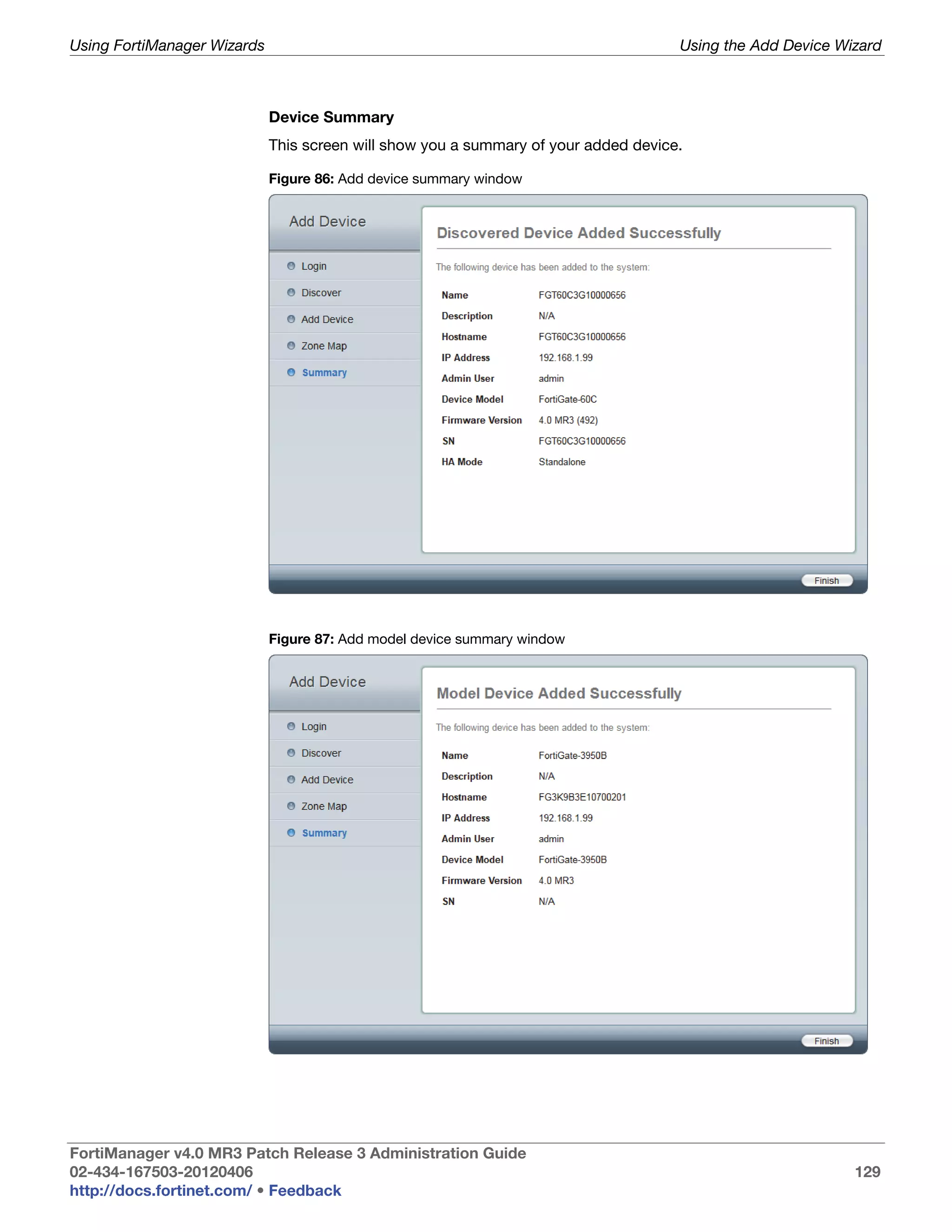
                         Add device summary window ....................................................................... 129
                         Add model device summary window ............................................................ 129
                         Install icon...................................................................................................... 130
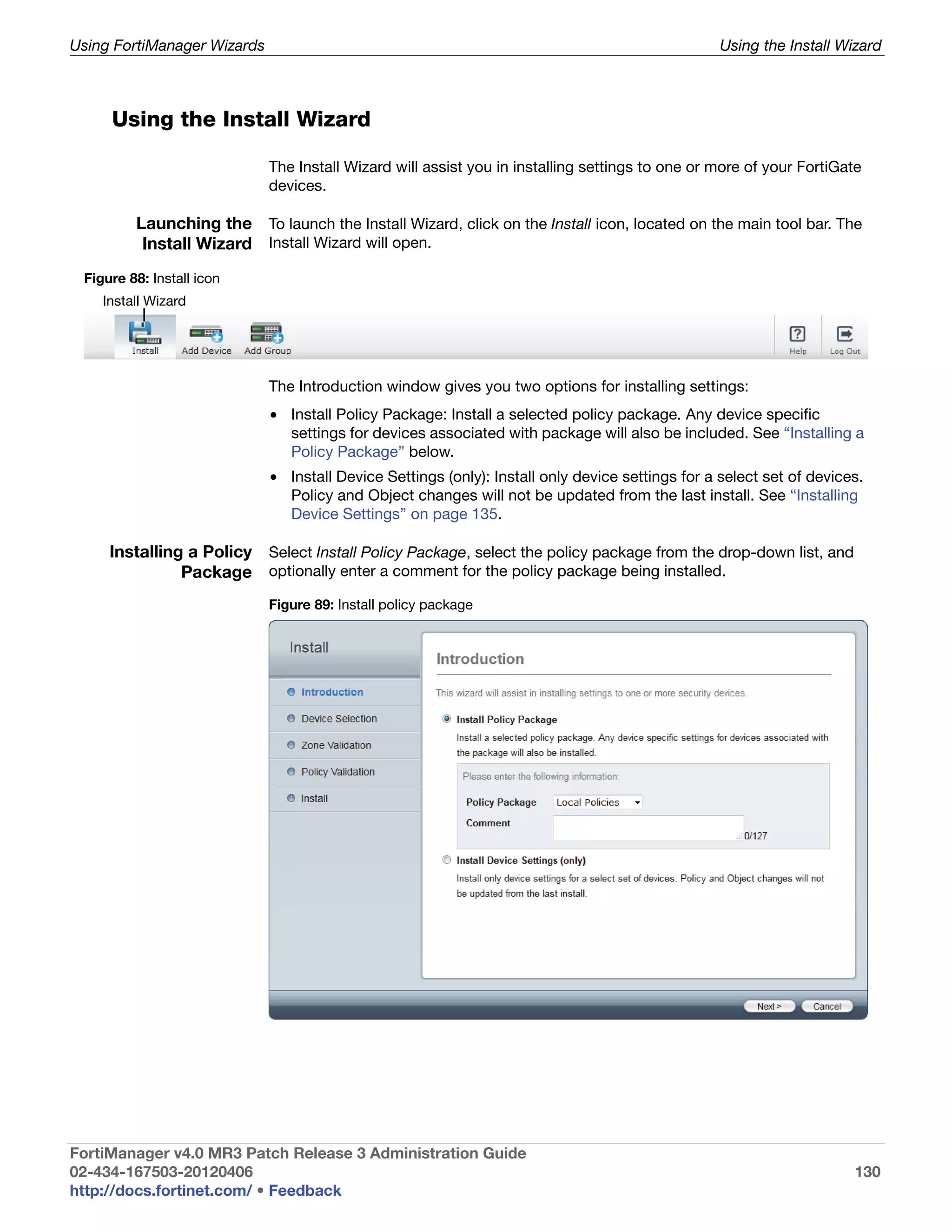
                         Install policy package .................................................................................... 130
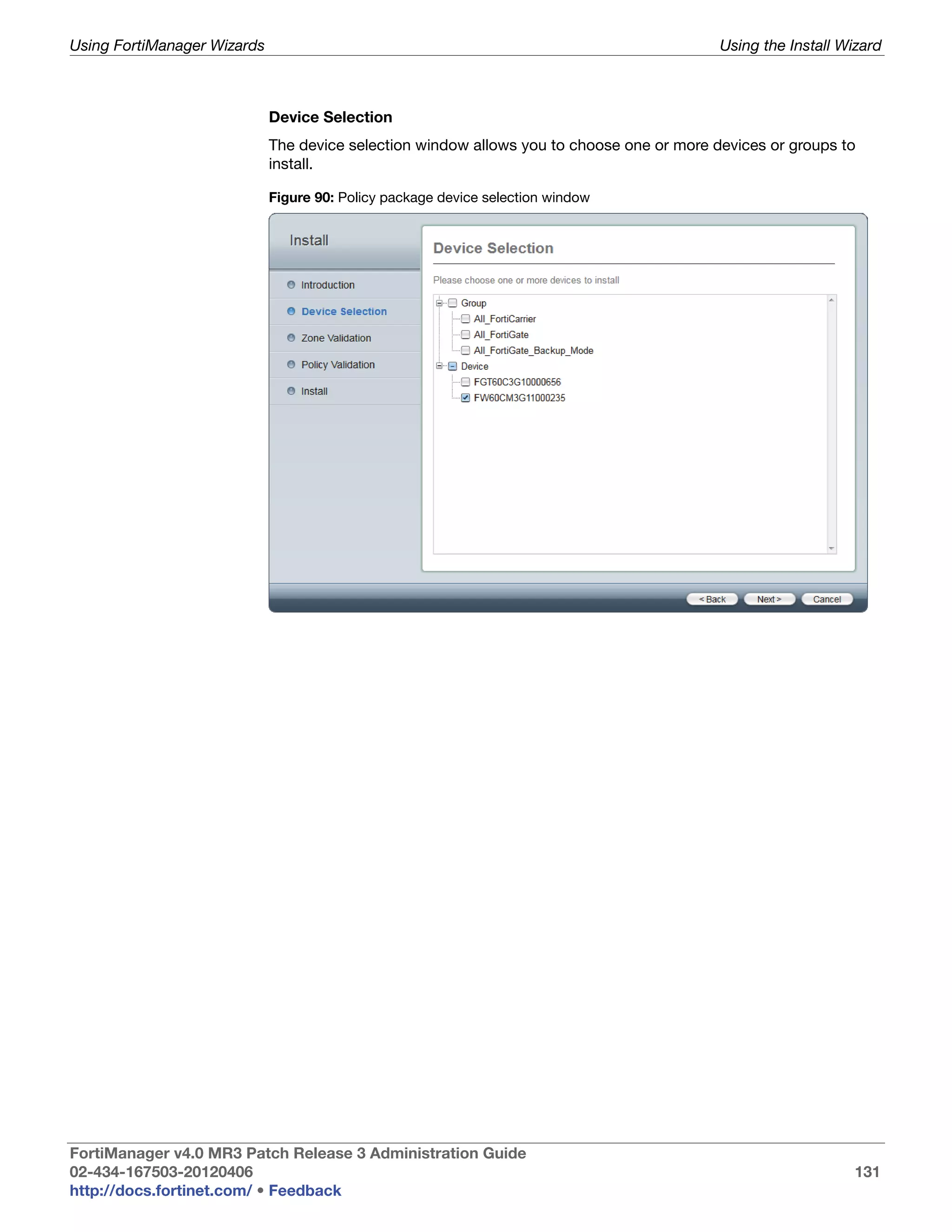
                         Policy package device selection window ...................................................... 131
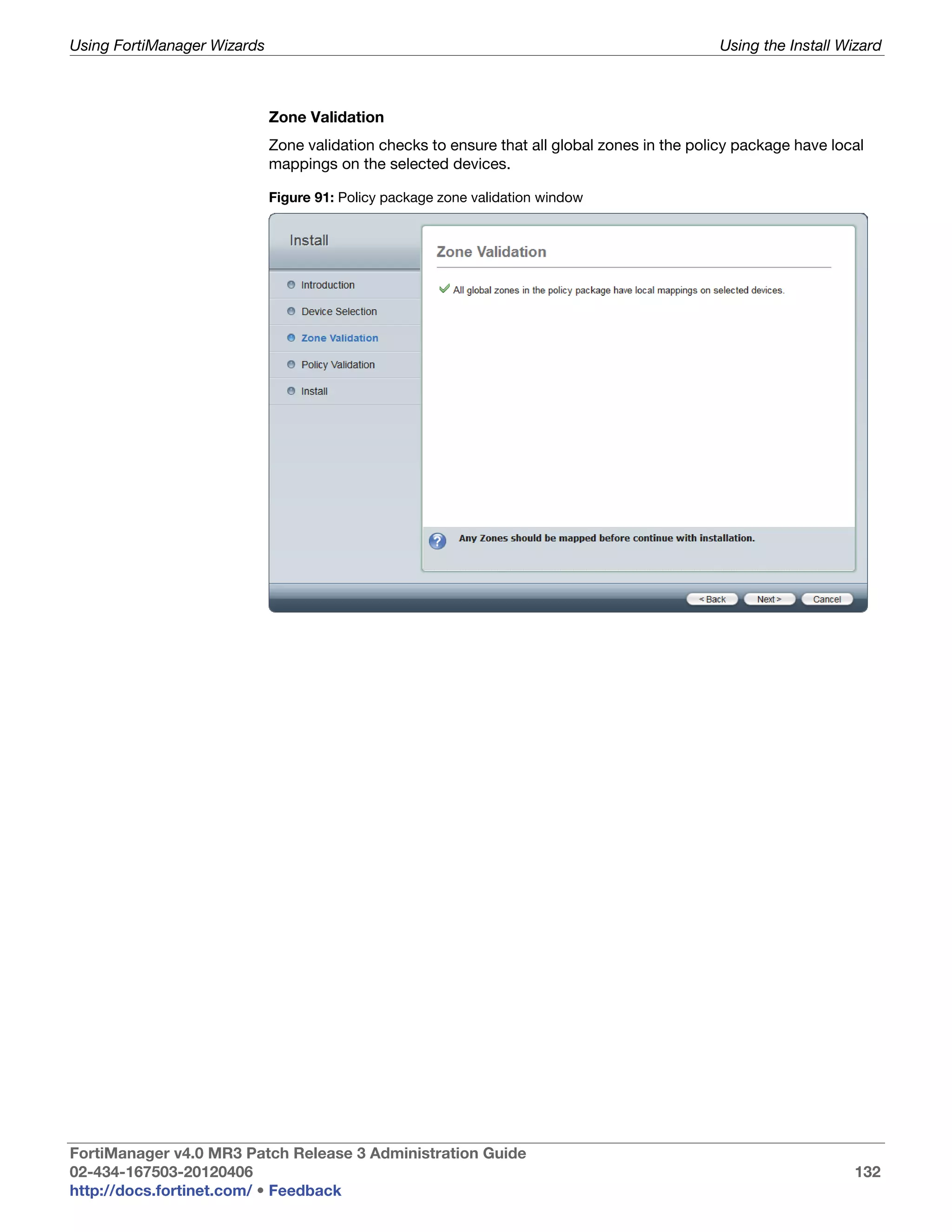
                         Policy package zone validation window........................................................ 132
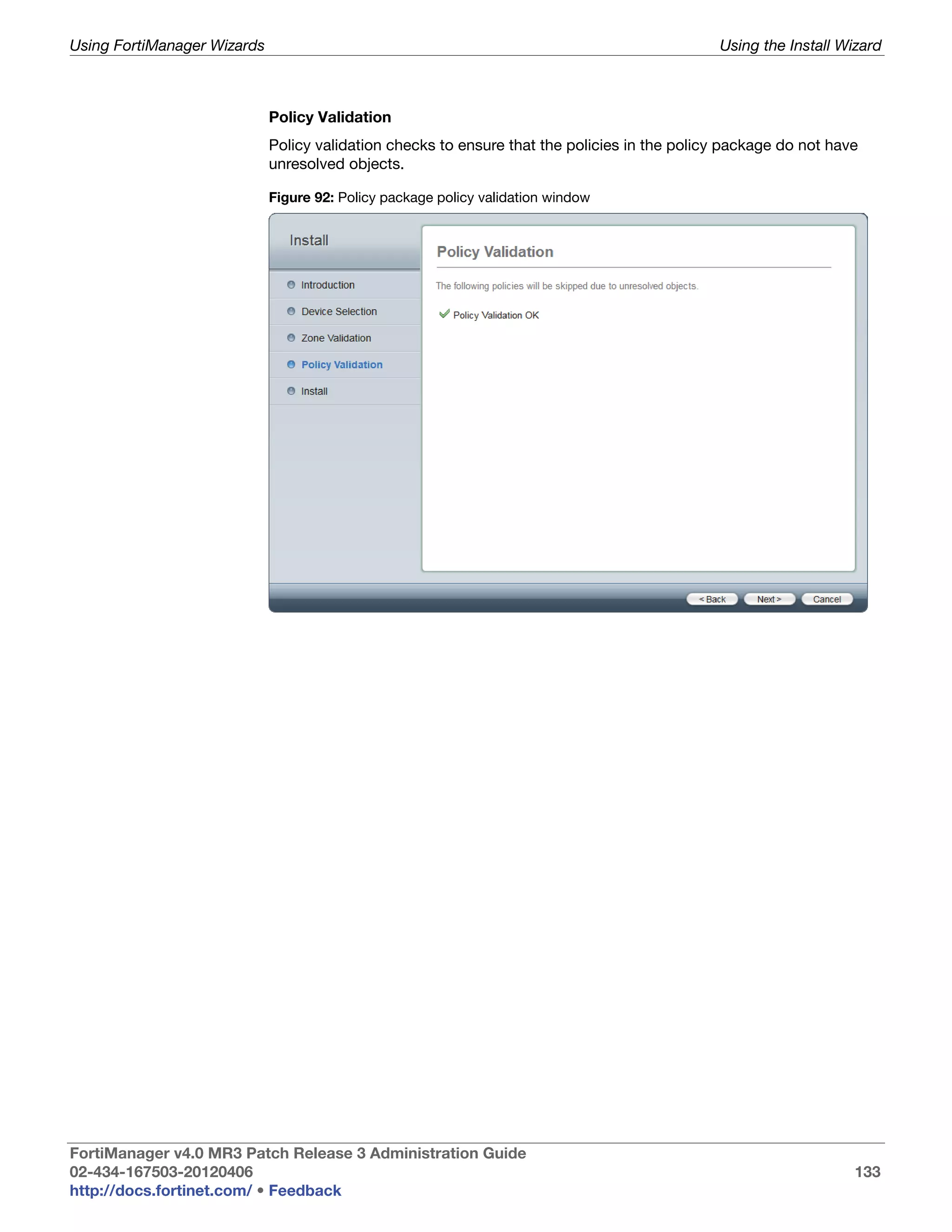
                         Policy package policy validation window ...................................................... 133
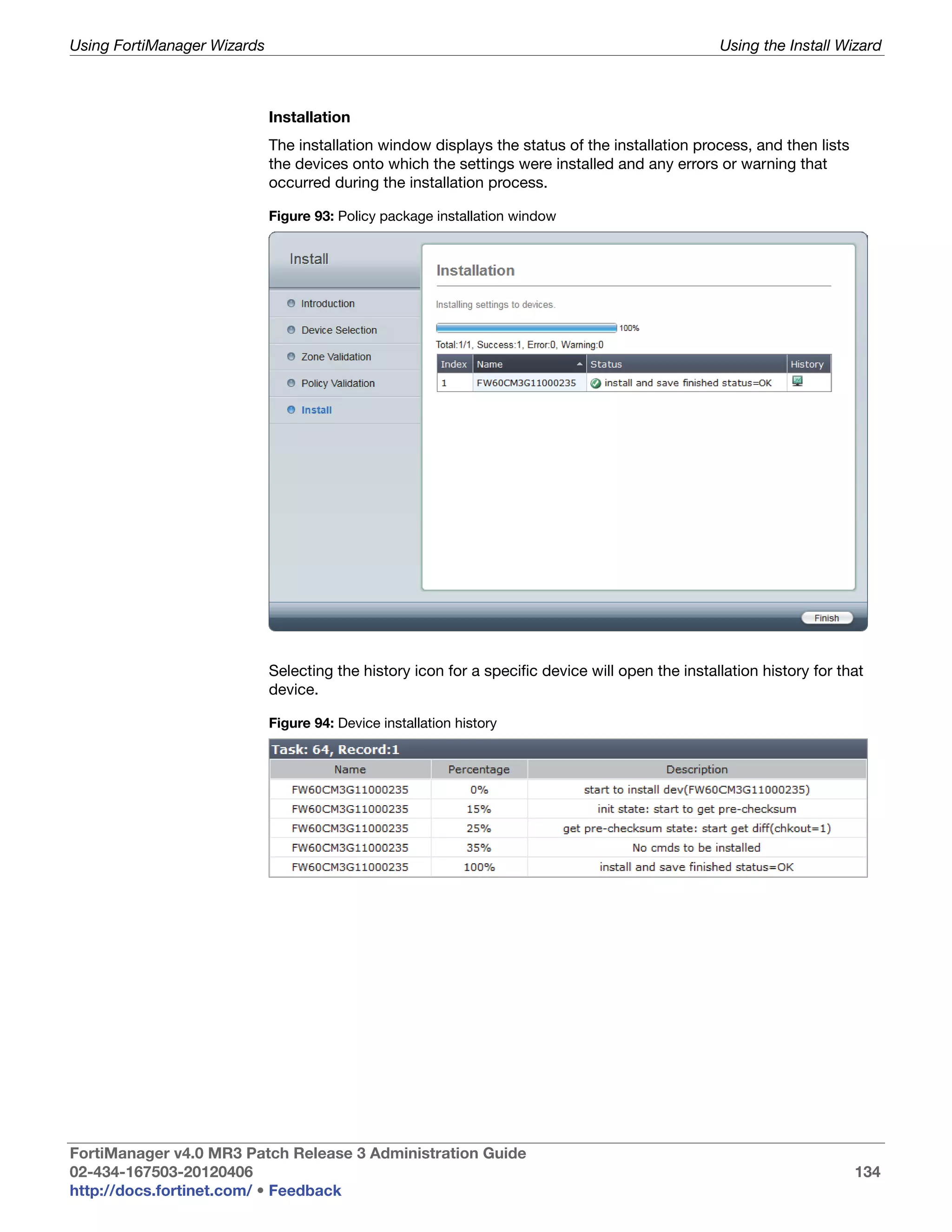
                         Policy package installation window............................................................... 134
                         Device installation history .............................................................................. 134
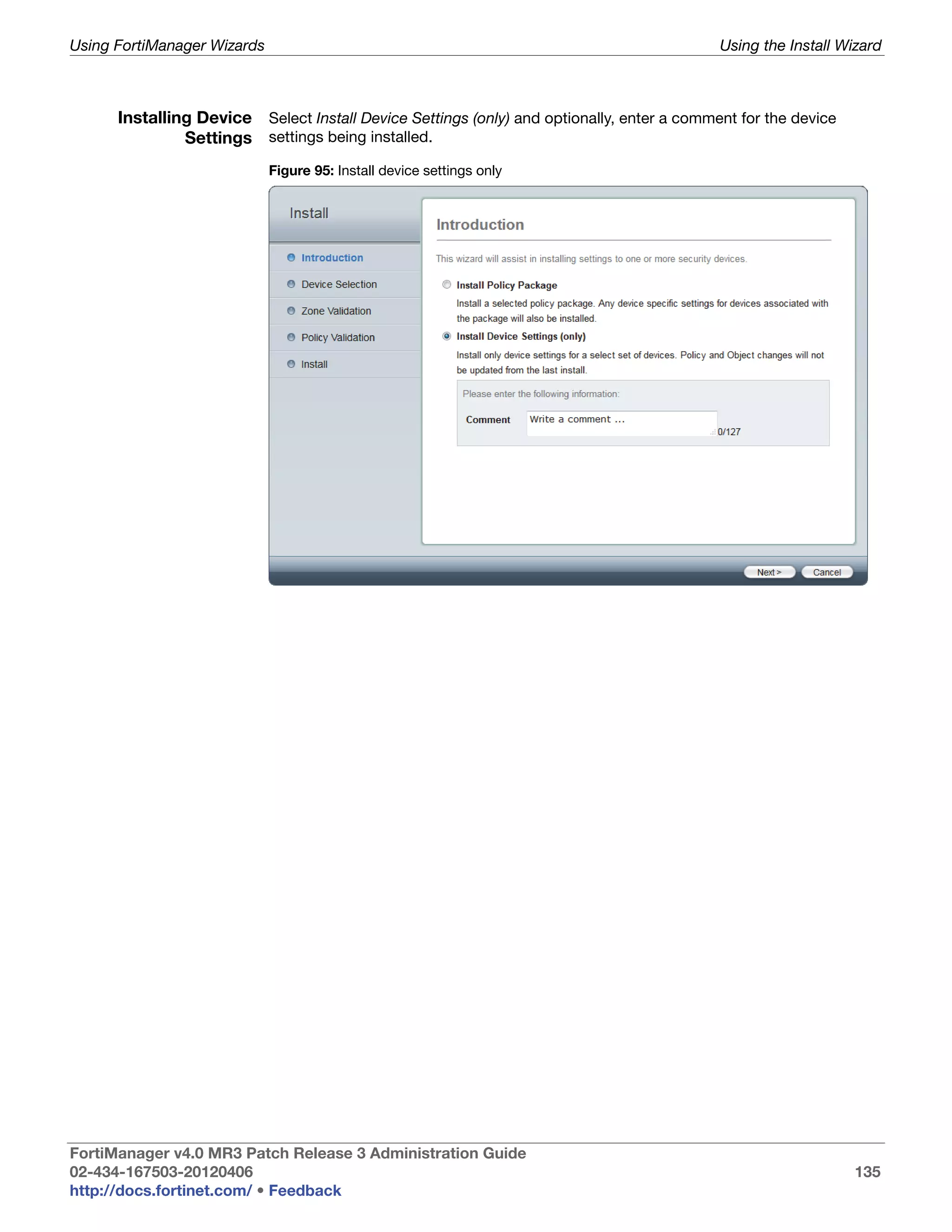
                         Install device settings only............................................................................. 135

FortiManager v4.0 MR3 Patch Release 3 Administration Guide
02-434-167503-20120406                                                                                                                        13
http://docs.fortinet.com/ • Feedback
Table of Figures


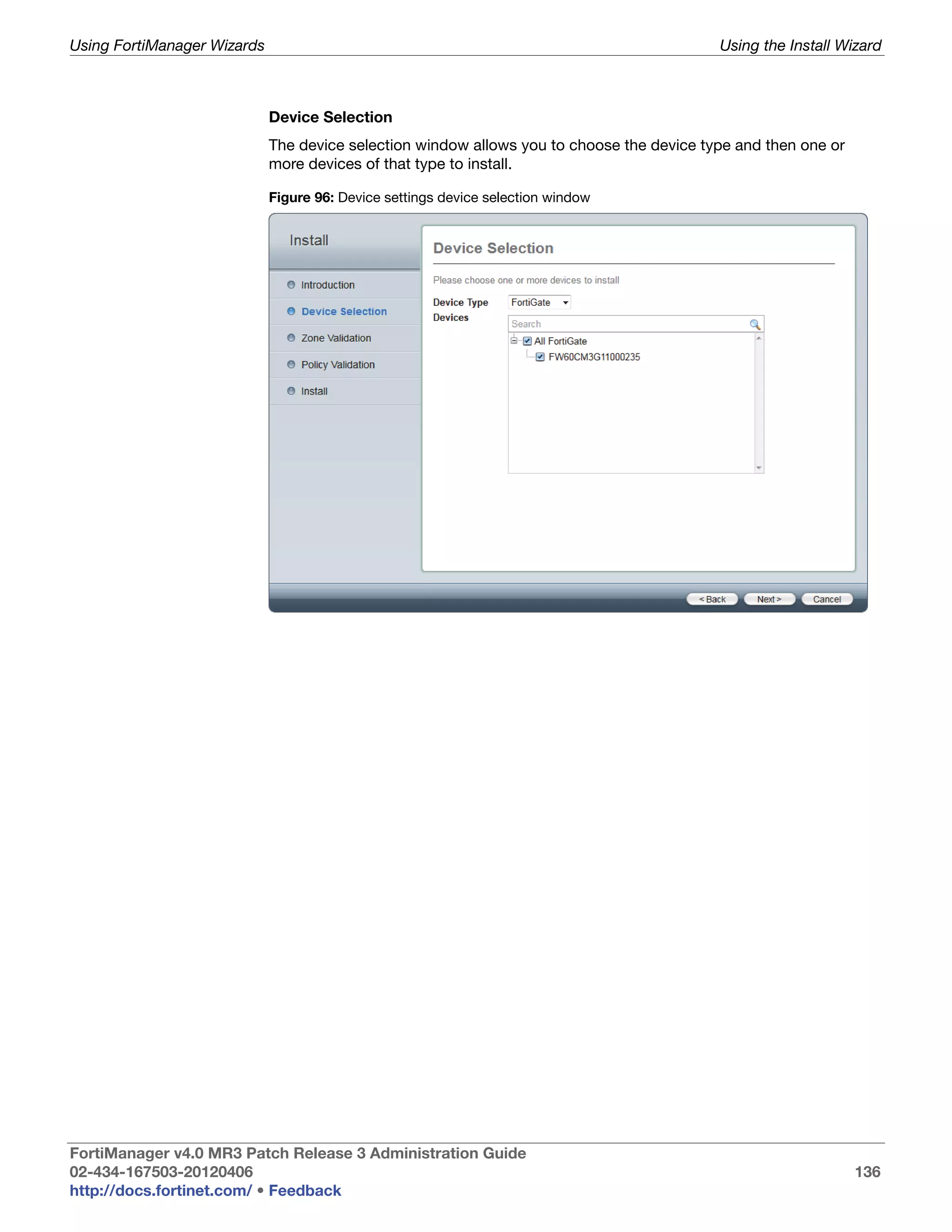
                         Device settings device selection window ...................................................... 136
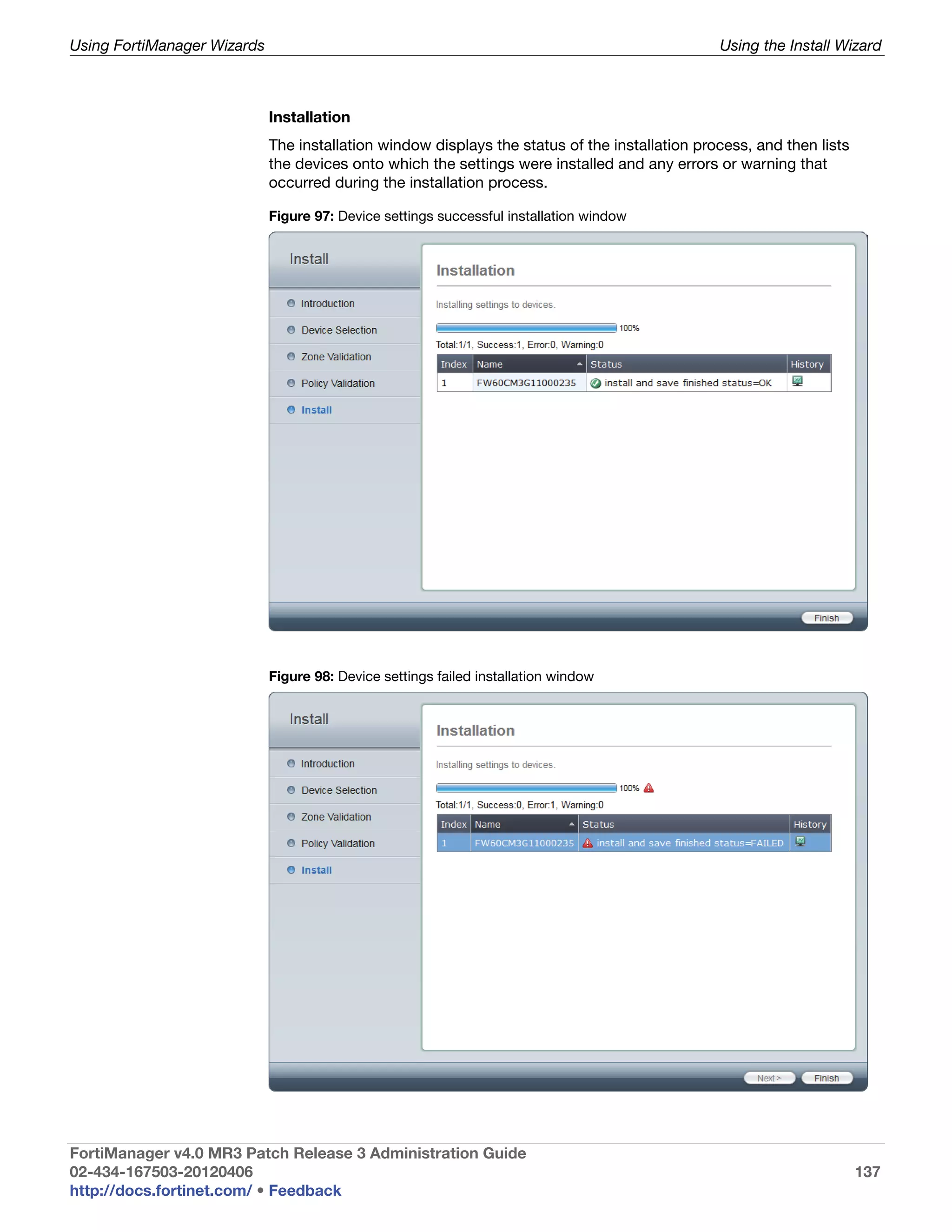
                         Device settings successful installation window............................................. 137
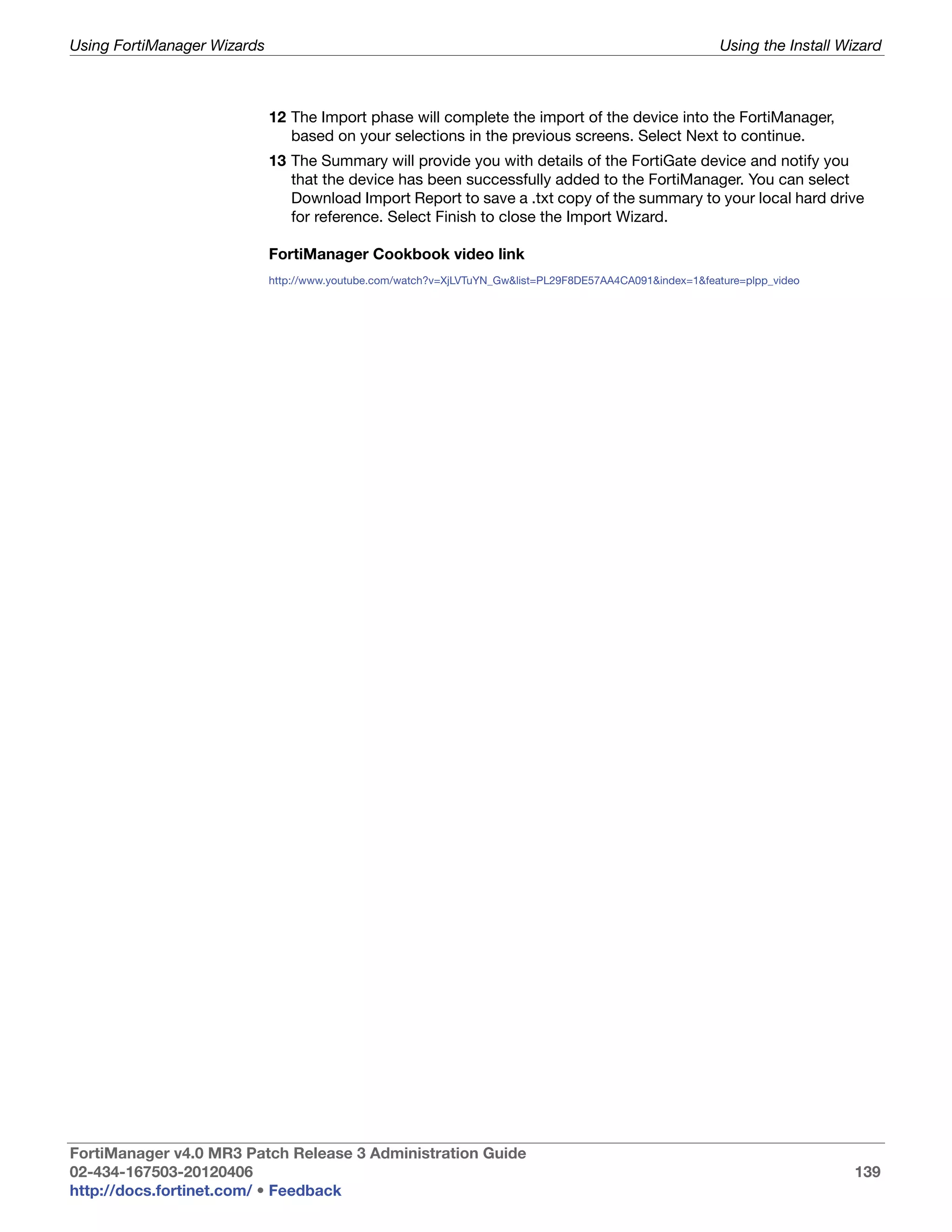
                         Device settings failed installation window ..................................................... 137
                         Device installation history .............................................................................. 138
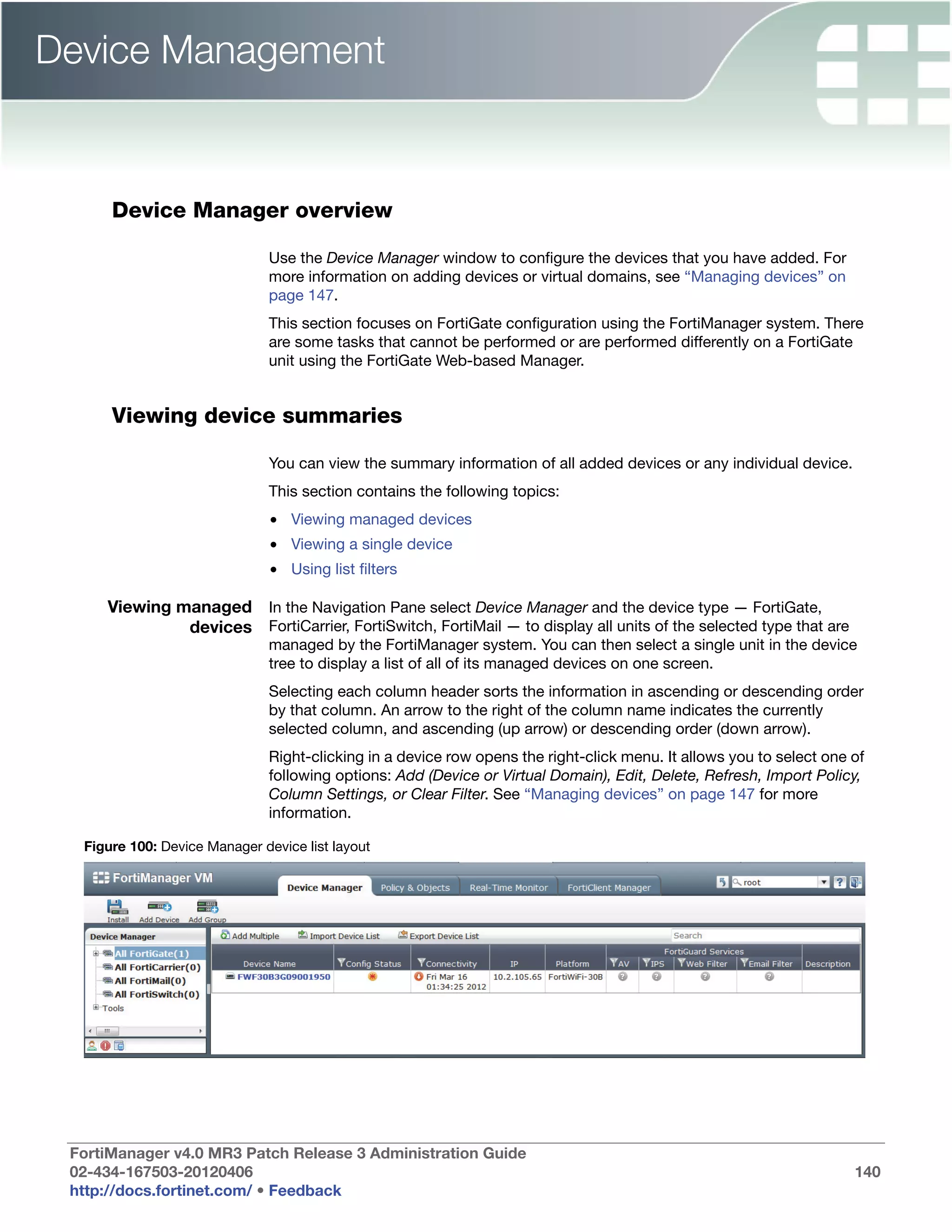
                         Device Manager device list layout ................................................................. 140
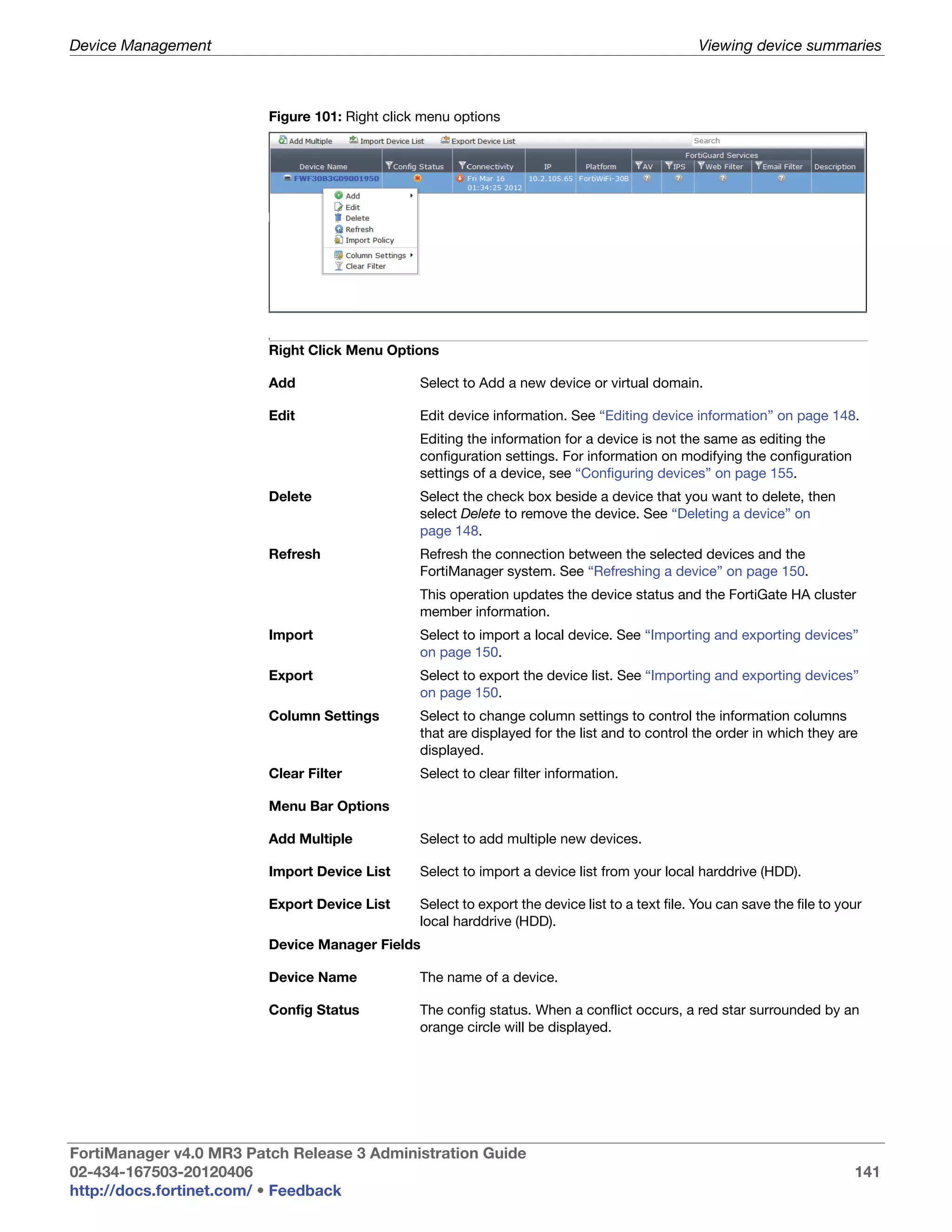
                         Right click menu options ............................................................................... 141
                         Example FortiGate unit summary .................................................................. 143
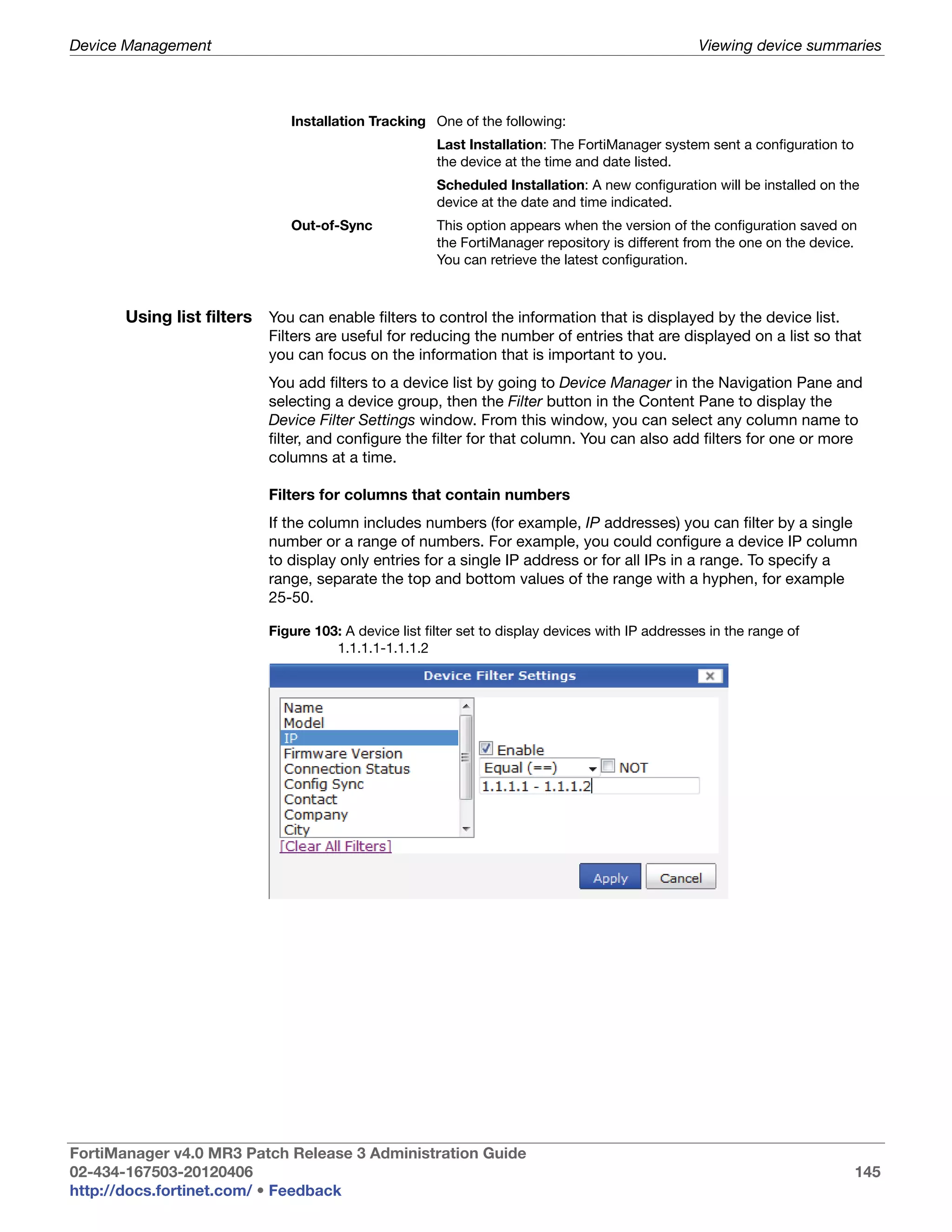
                         A device list filter set to display devices with IP addresses in the range of
                         1.1.1.1-1.1.1.2................................................................................................ 145
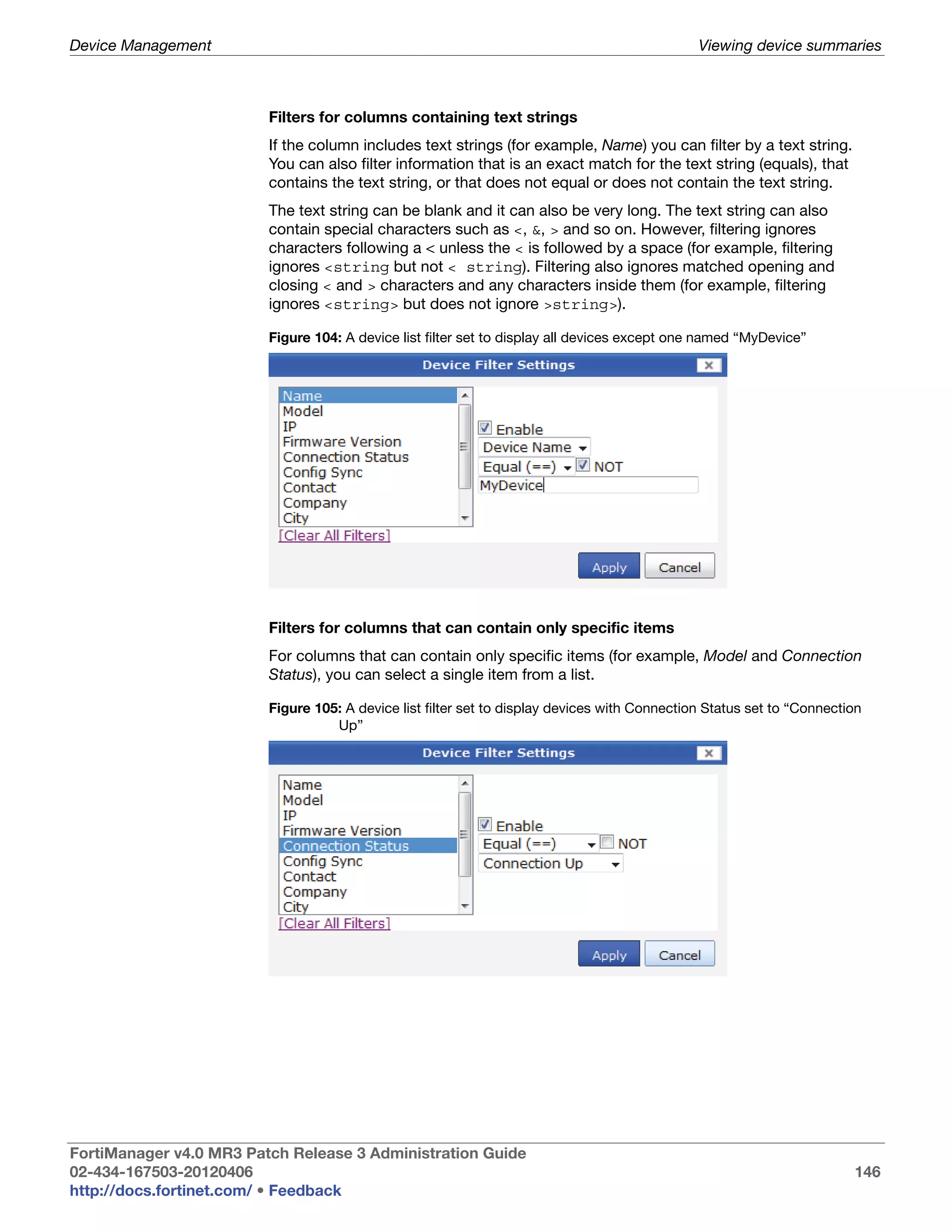
                         A device list filter set to display all devices except one named “MyDevice” 146
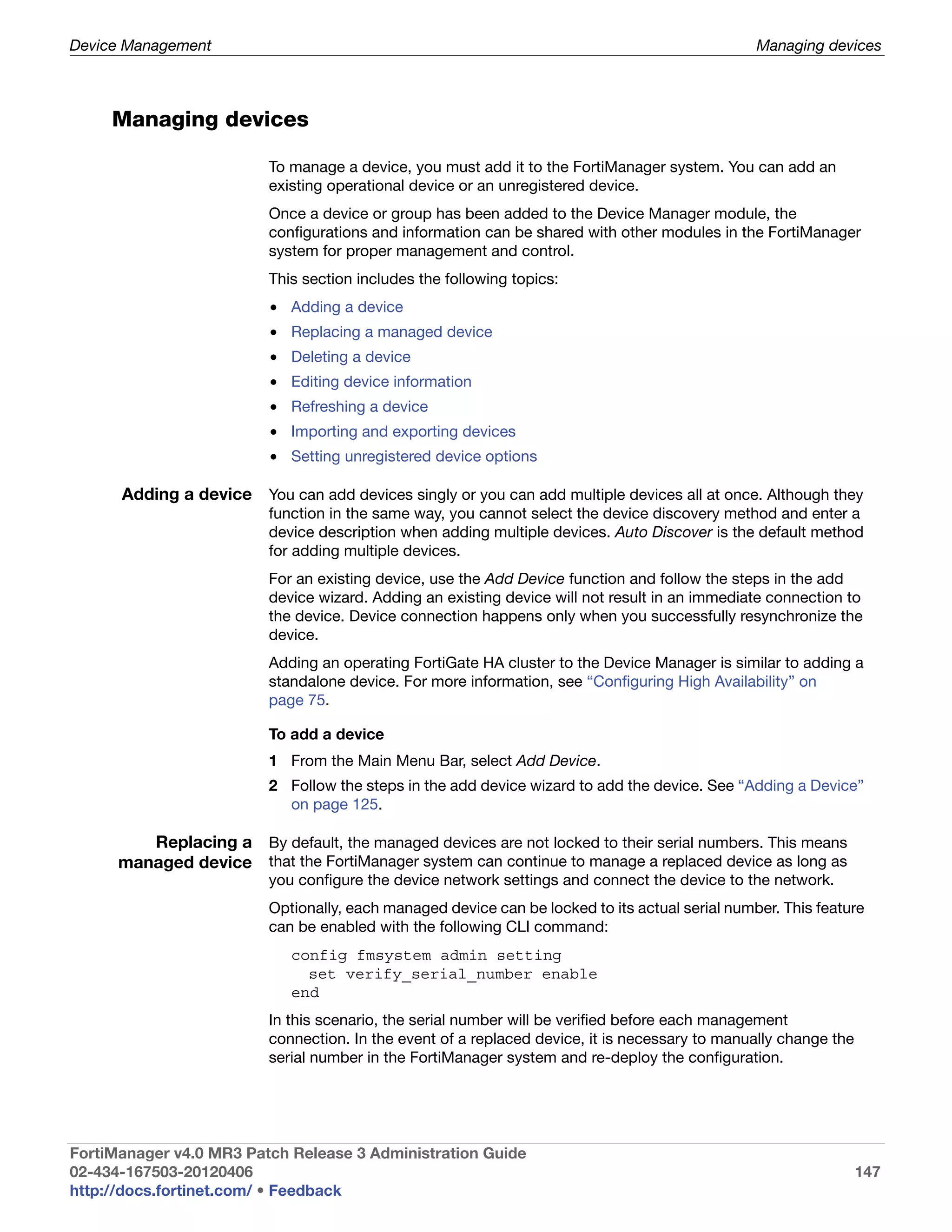
                         A device list filter set to display devices with Connection Status set to
                         “Connection Up”............................................................................................ 146
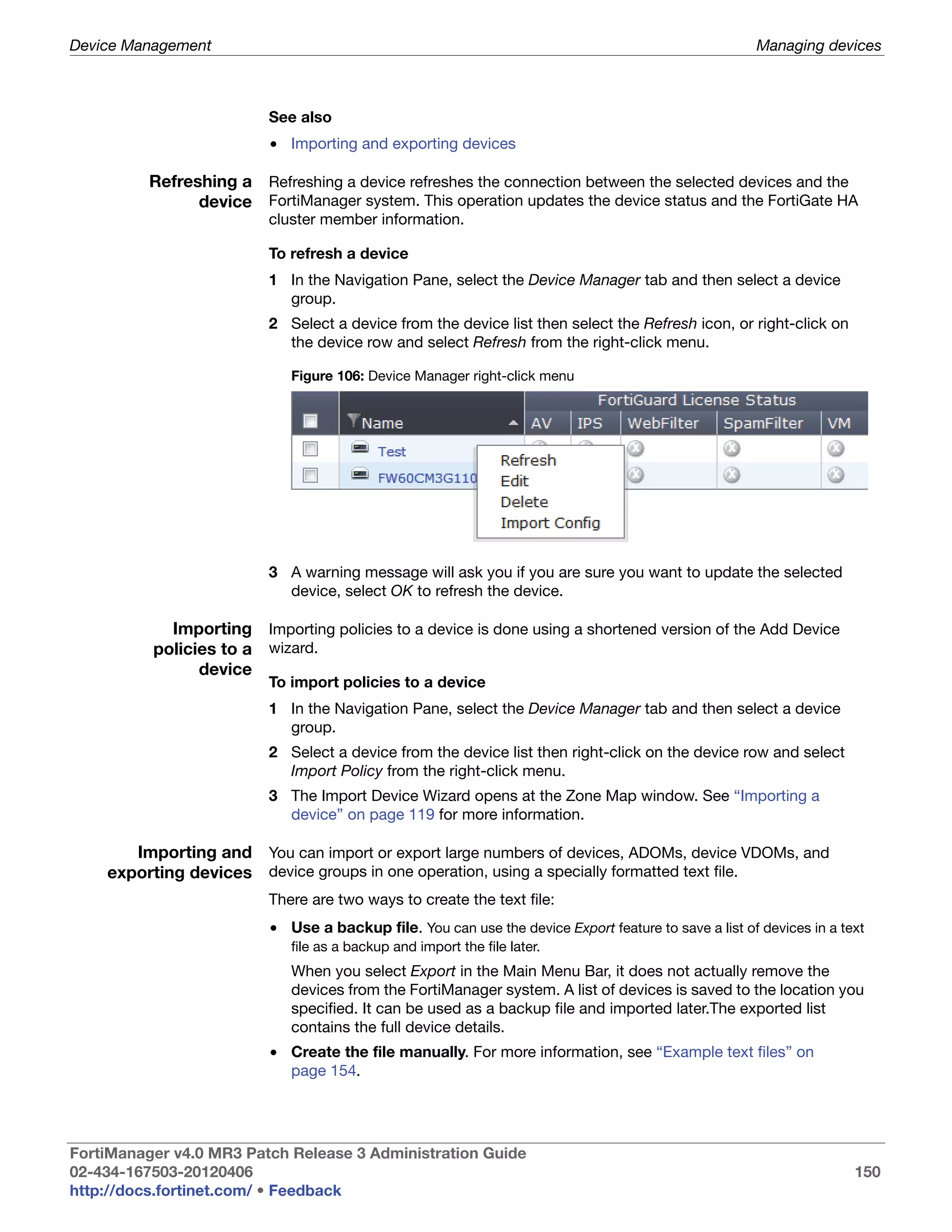
                         Device Manager right-click menu .................................................................. 150
                         Create new virtual domain ............................................................................. 158
                         Adding a group .............................................................................................. 161
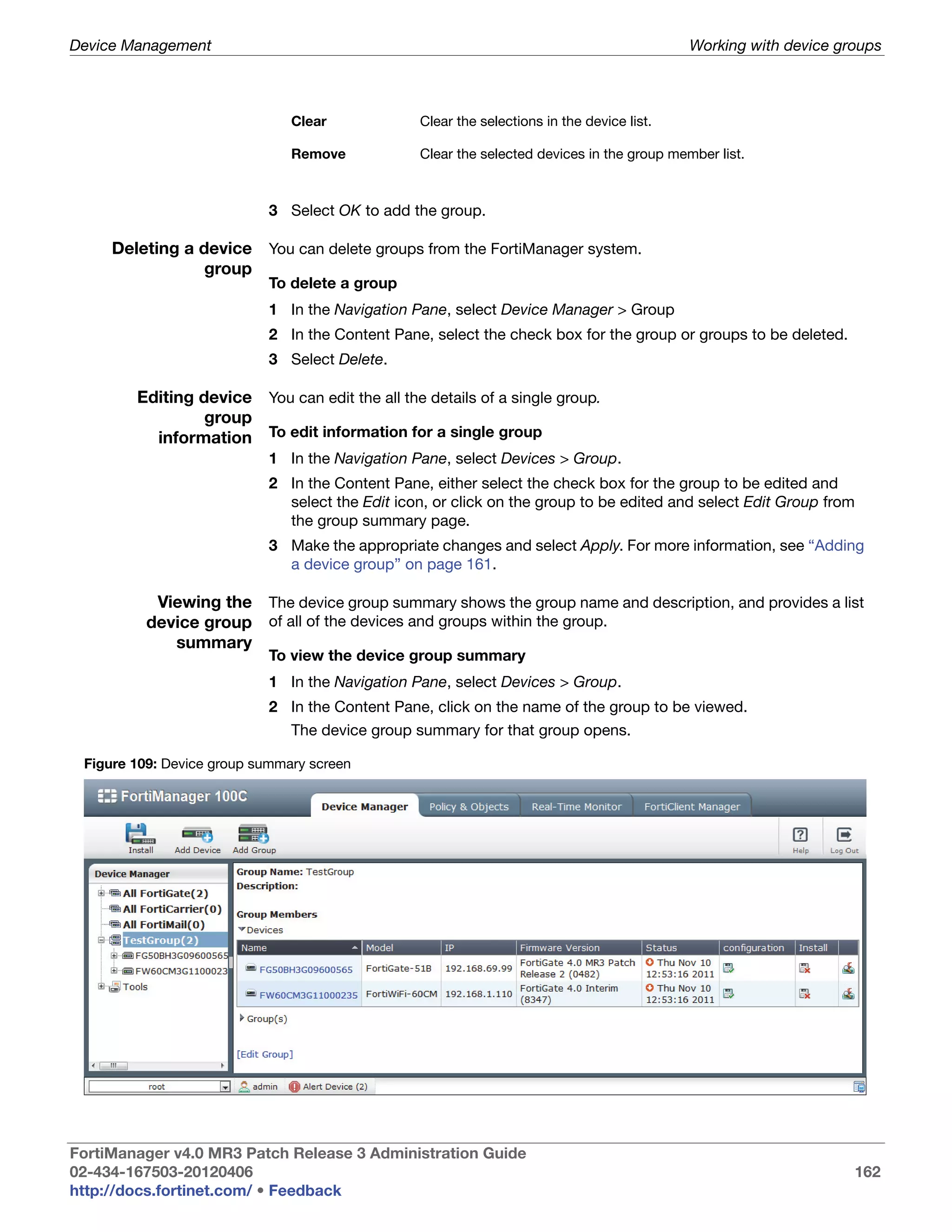
                         Device group summary screen ...................................................................... 162
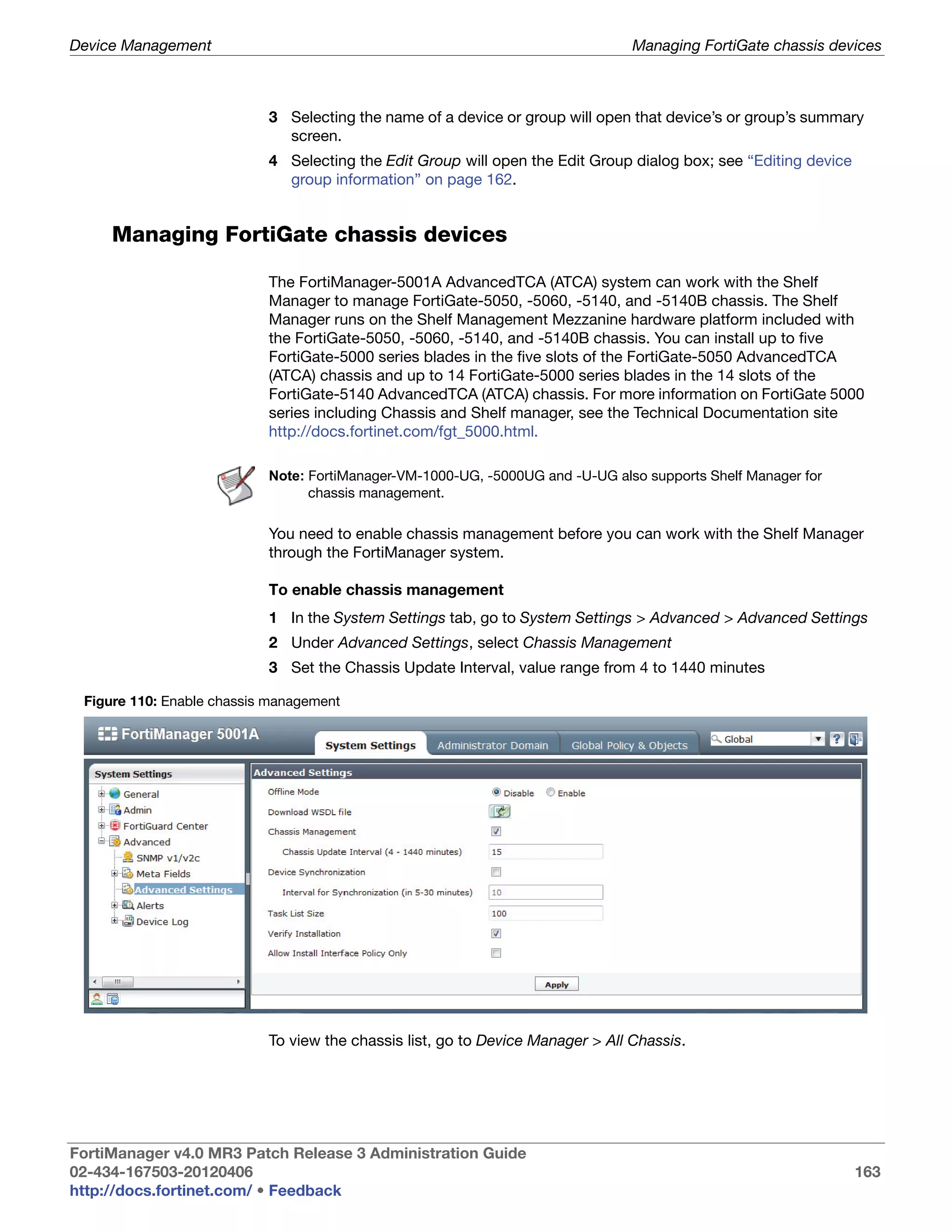
                         Enable chassis management......................................................................... 163
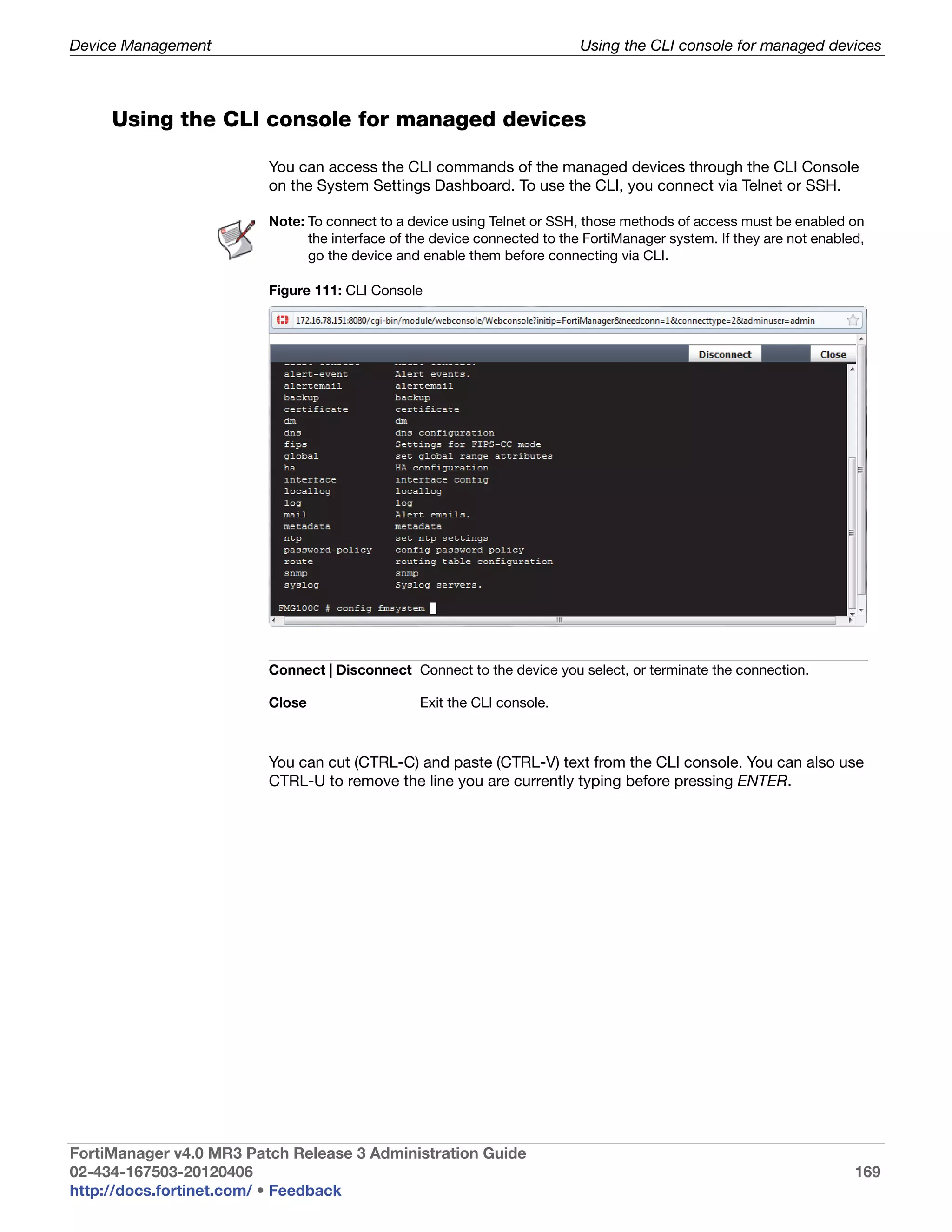
                         CLI Console ................................................................................................... 169
                         Management module..................................................................................... 171
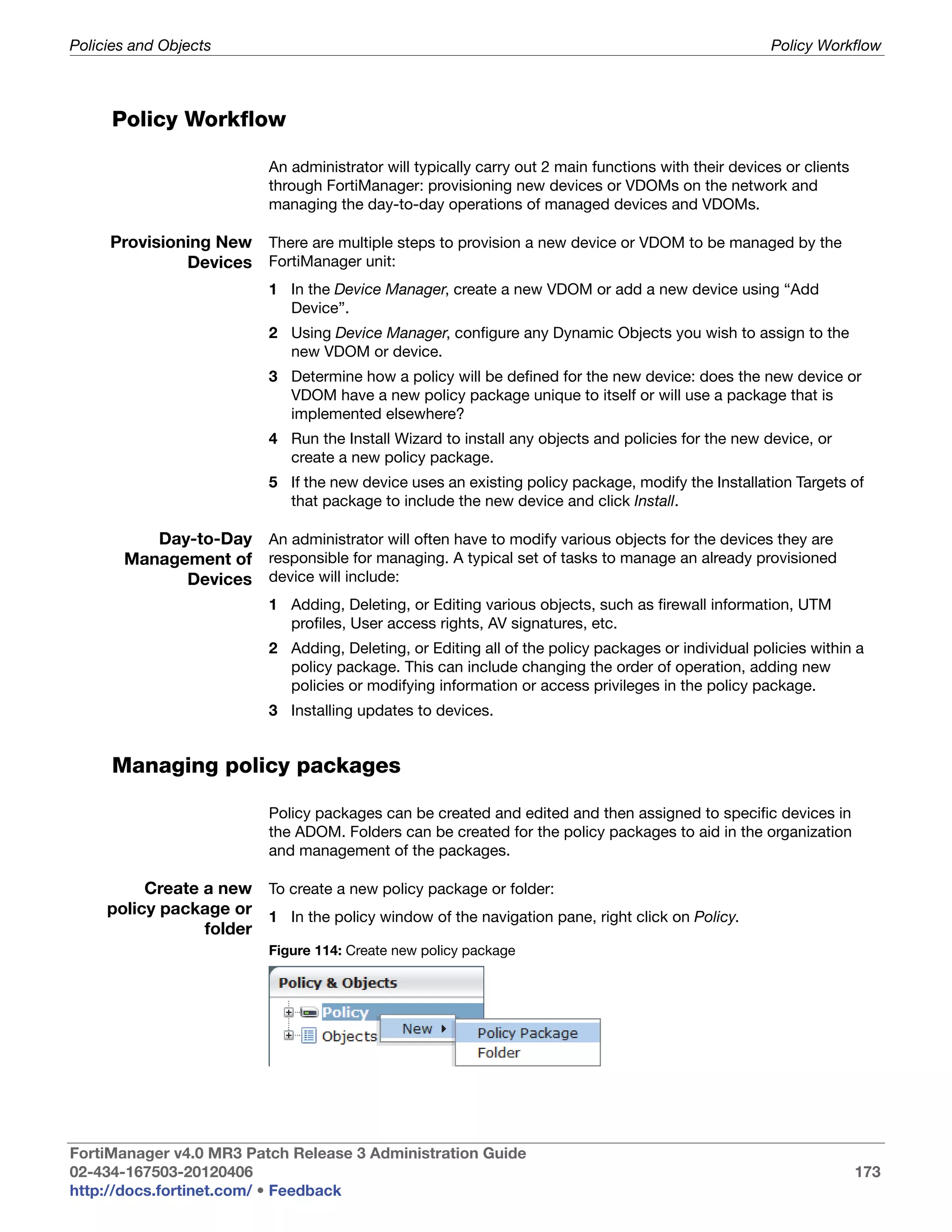
                         Policy window................................................................................................ 171
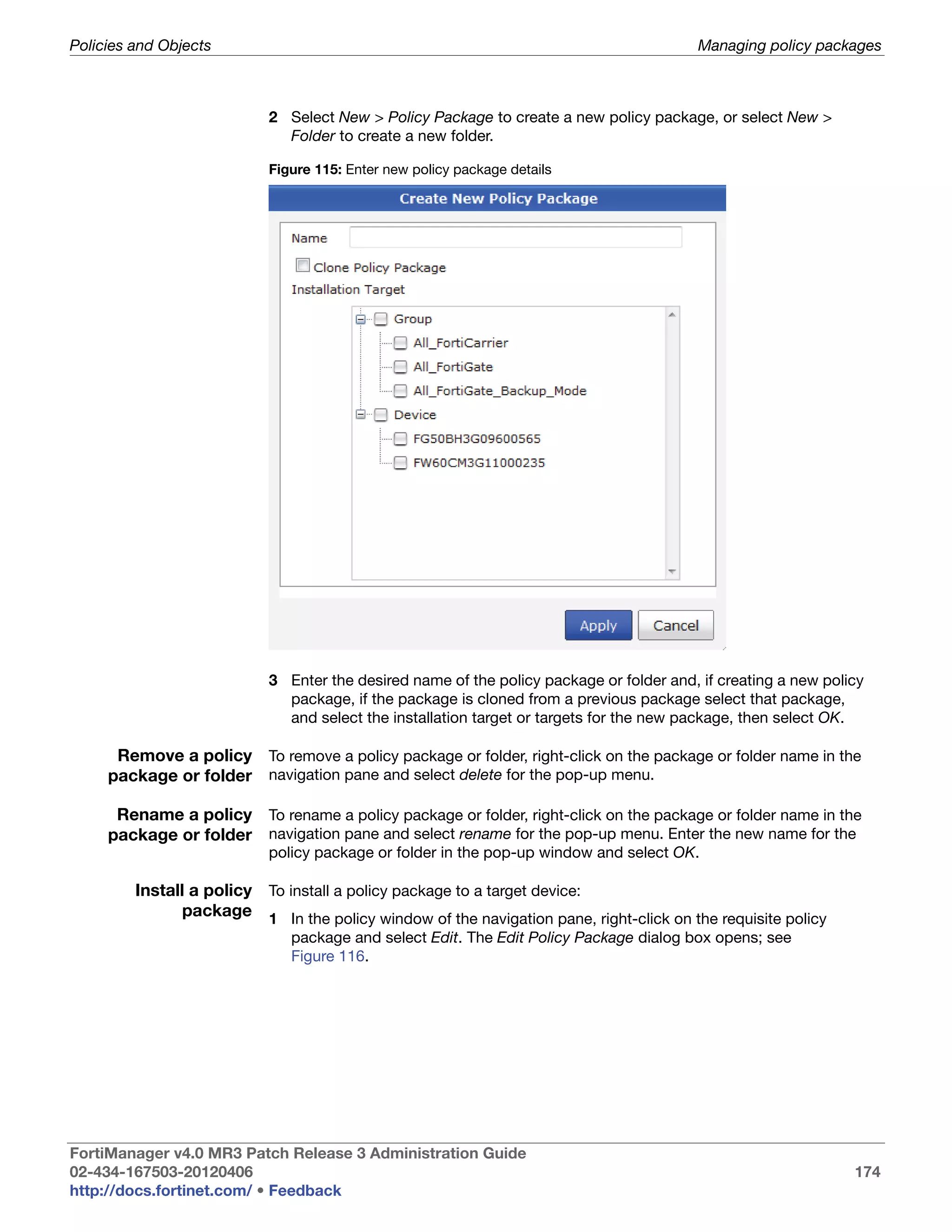
                         Create new policy package ........................................................................... 173
                         Enter new policy package details .................................................................. 174
                         Edit Policy Package dialog box ..................................................................... 175
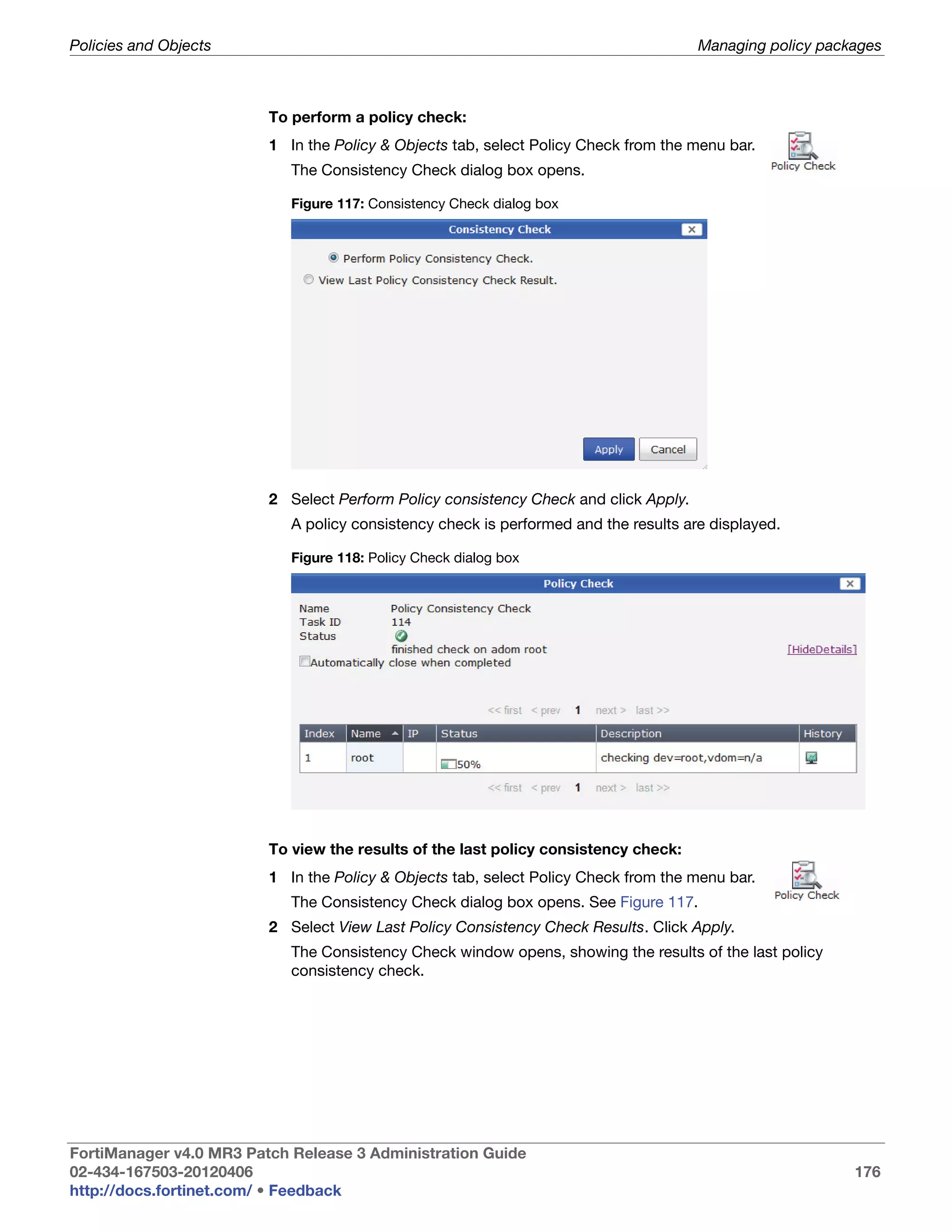
                         Consistency Check dialog box ...................................................................... 176
                         Policy Check dialog box ................................................................................ 176
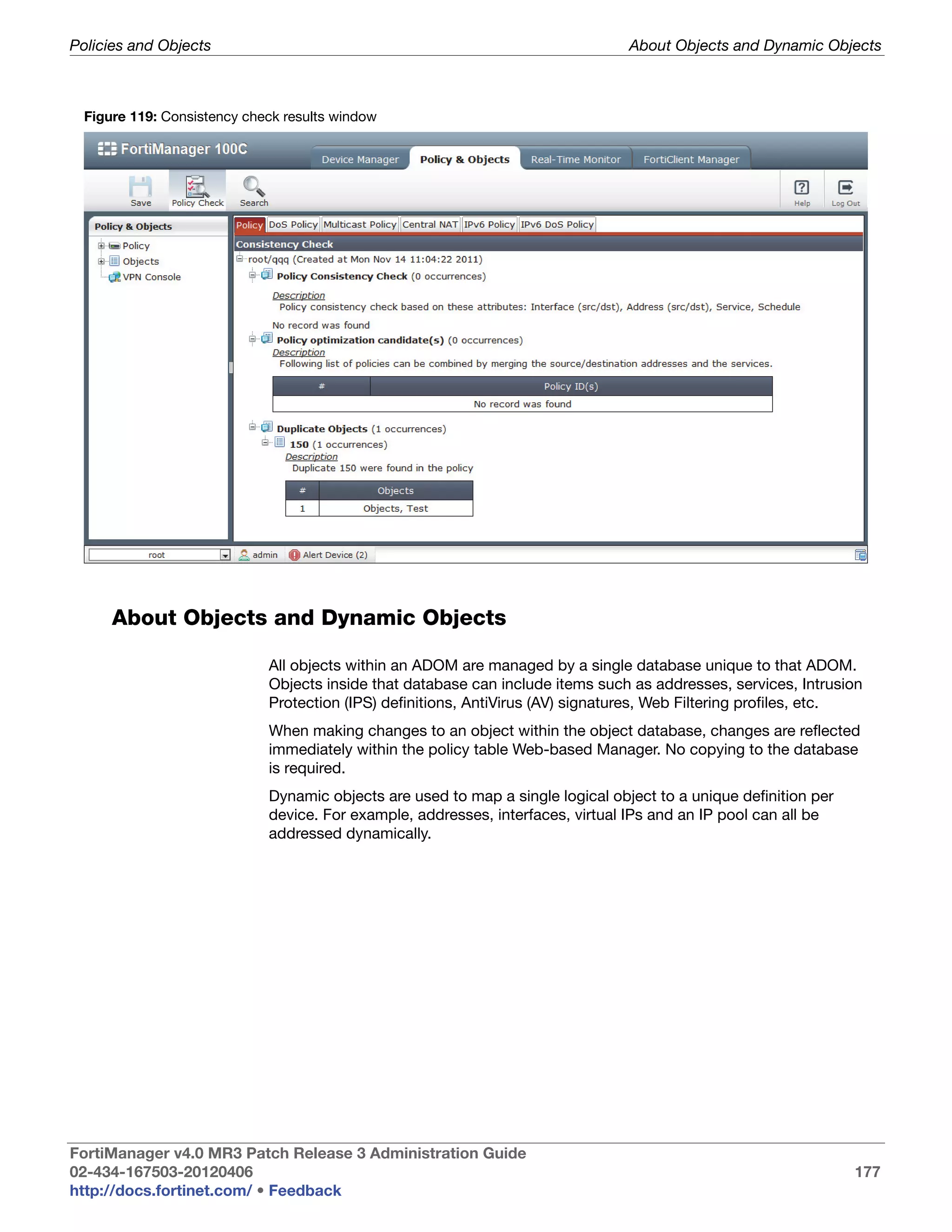
                         Consistency check results window ............................................................... 177
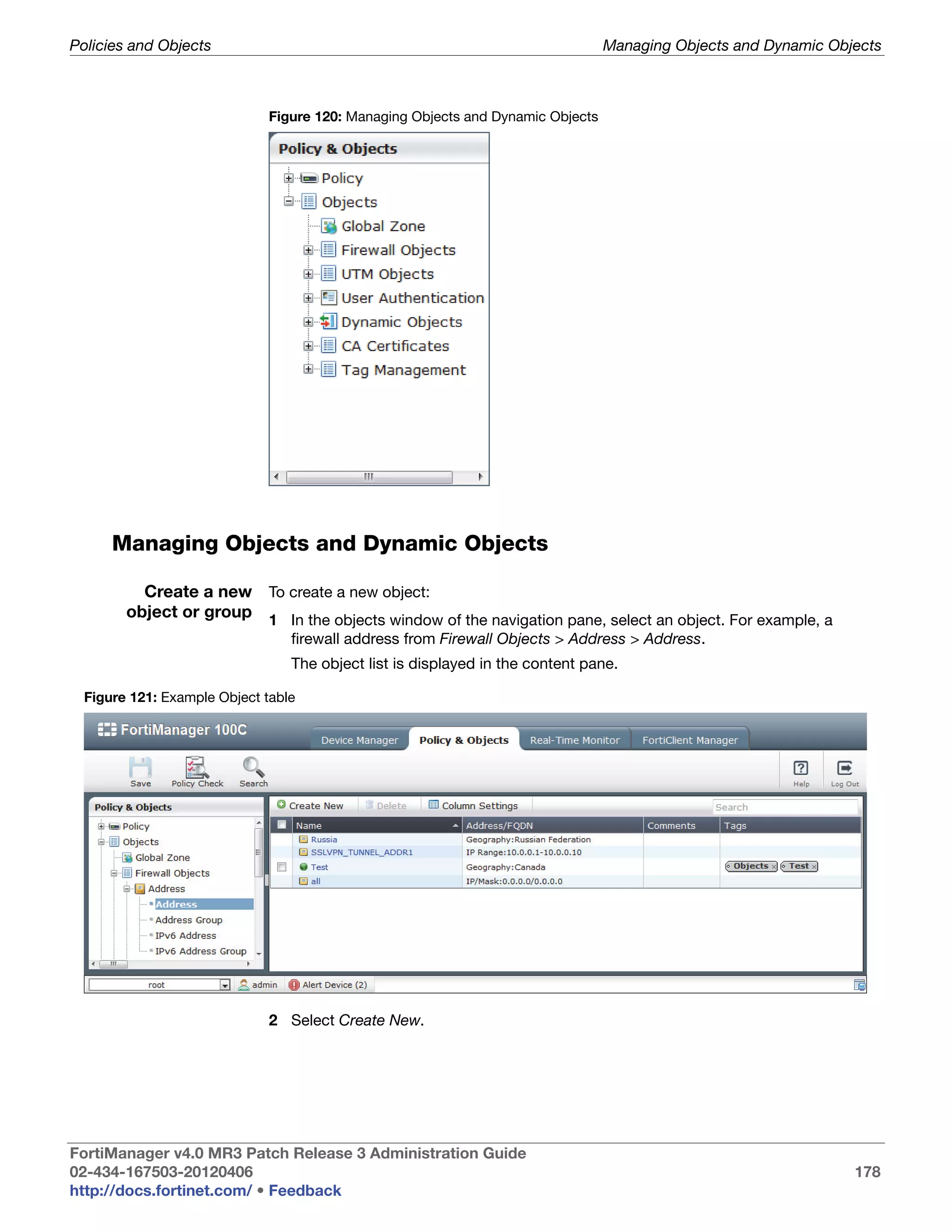
                         Managing Objects and Dynamic Objects ...................................................... 178
                         Example Object table .................................................................................... 178
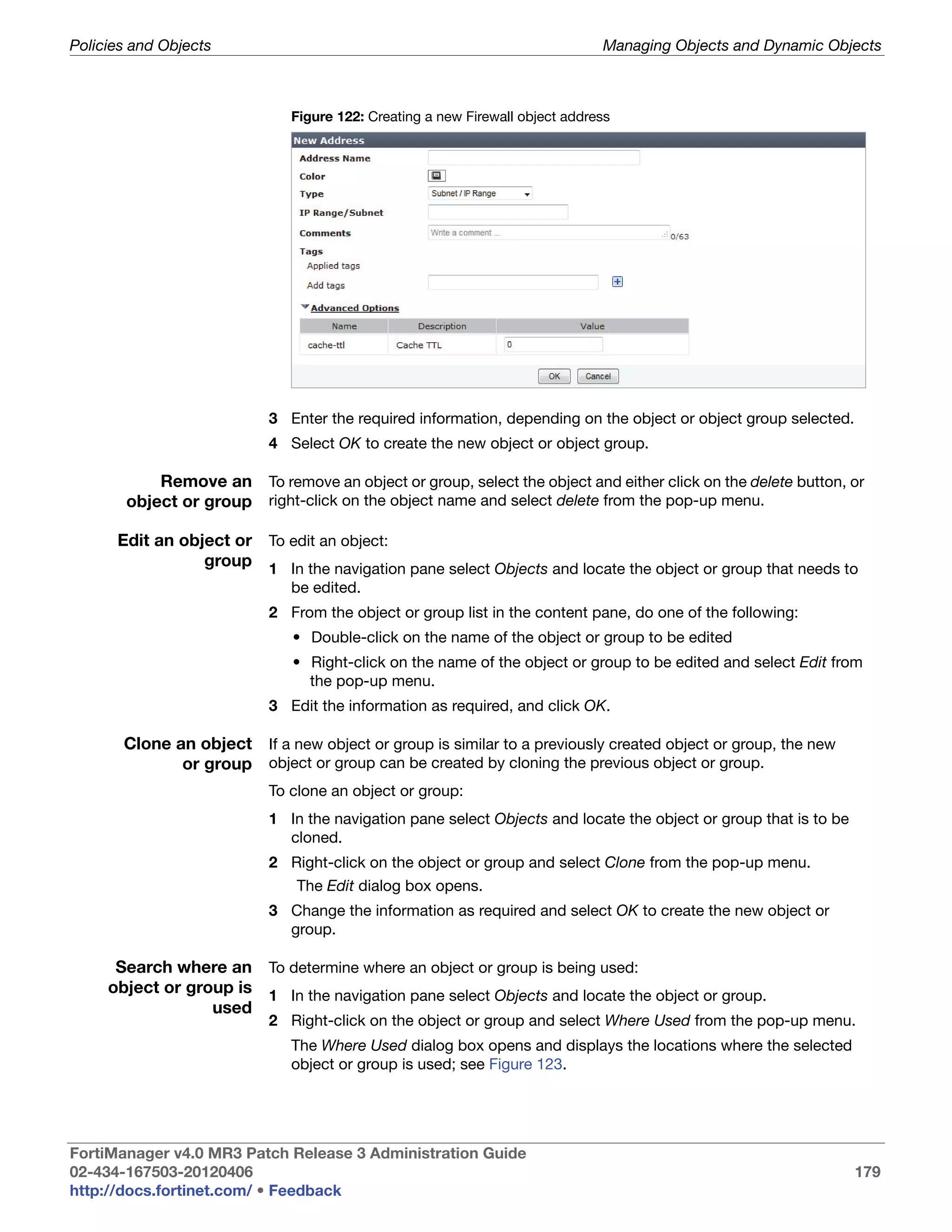
                         Creating a new Firewall object address......................................................... 179
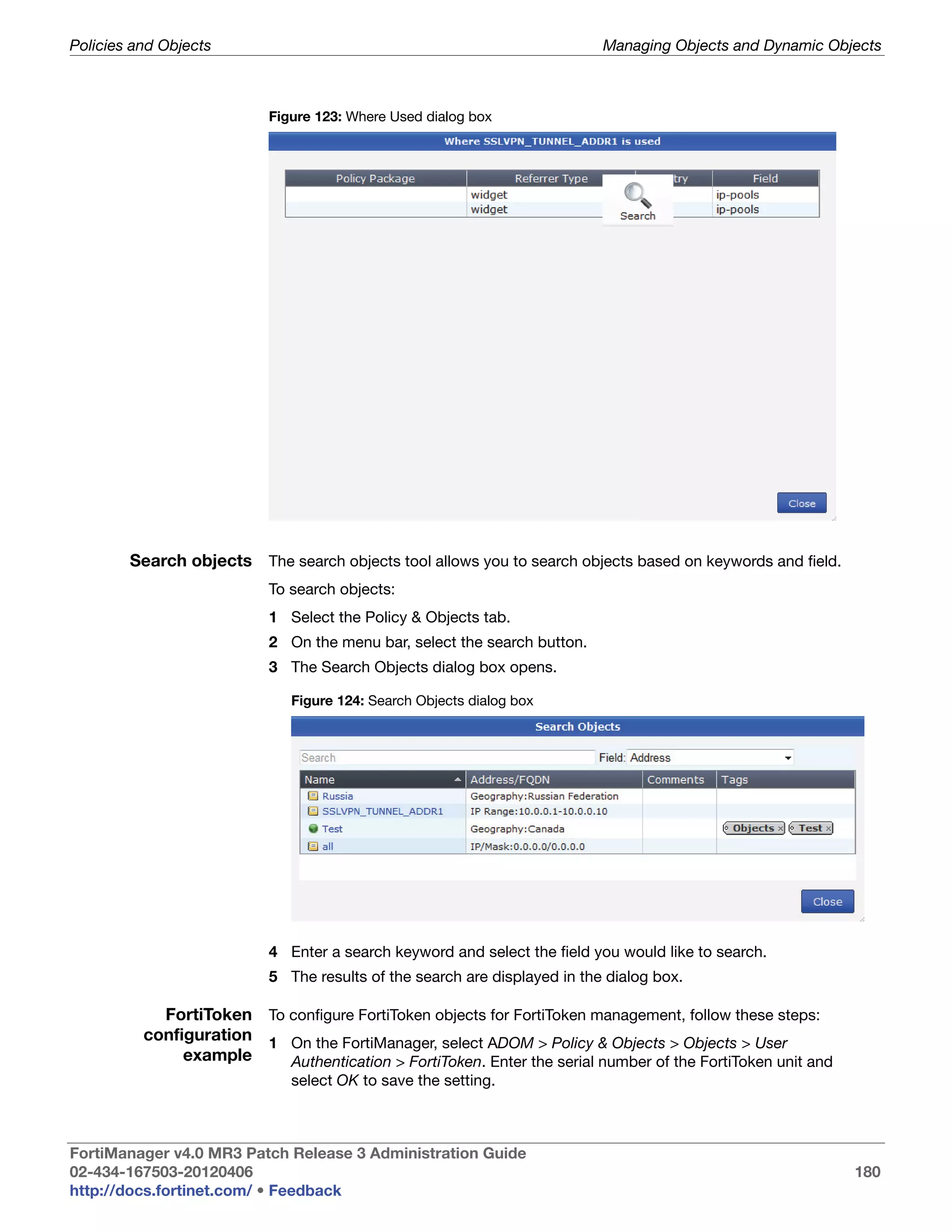
                         Where Used dialog box ................................................................................. 180
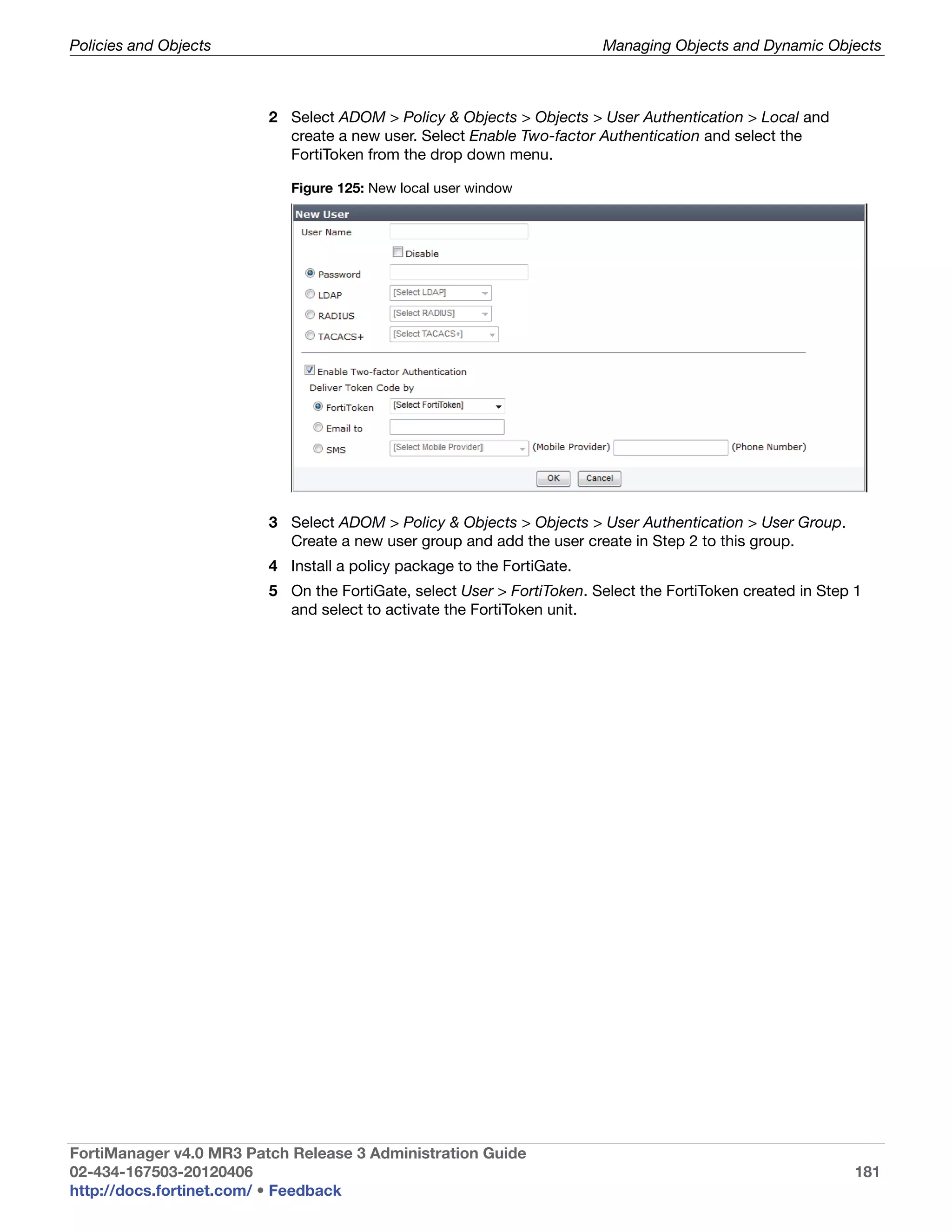
                         Search Objects dialog box ............................................................................ 180
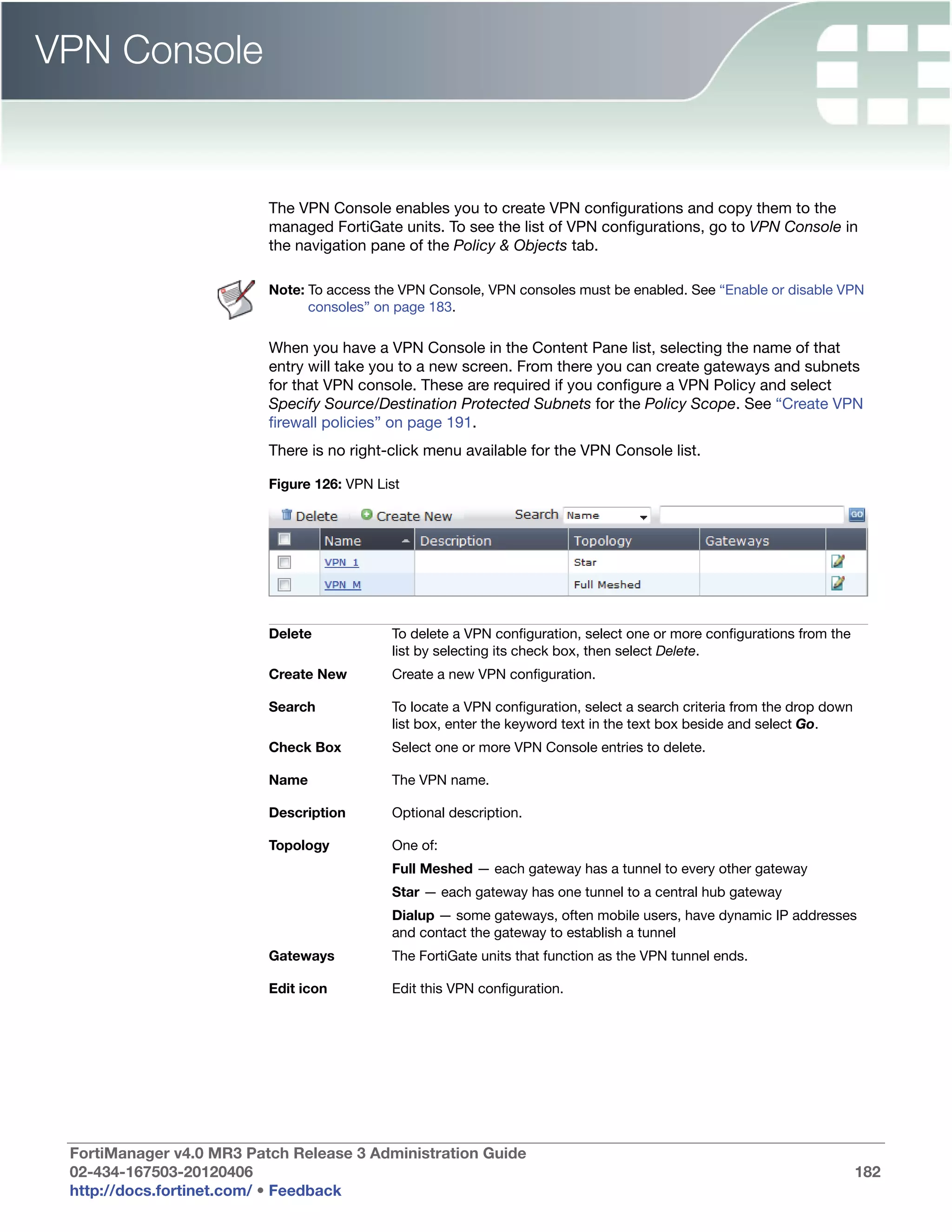
                         New local user window.................................................................................. 181
                         VPN List ......................................................................................................... 182
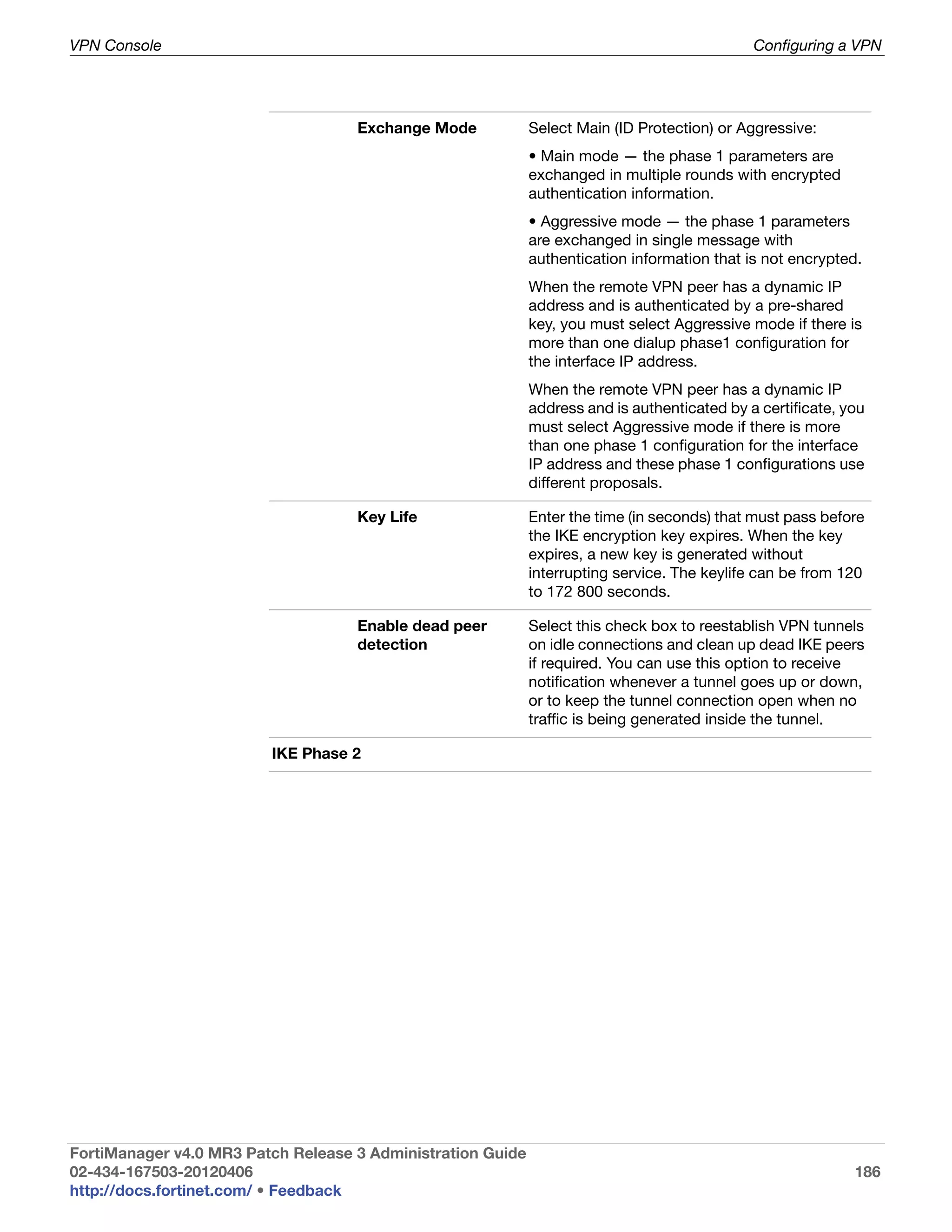
                         Create VPN window....................................................................................... 184
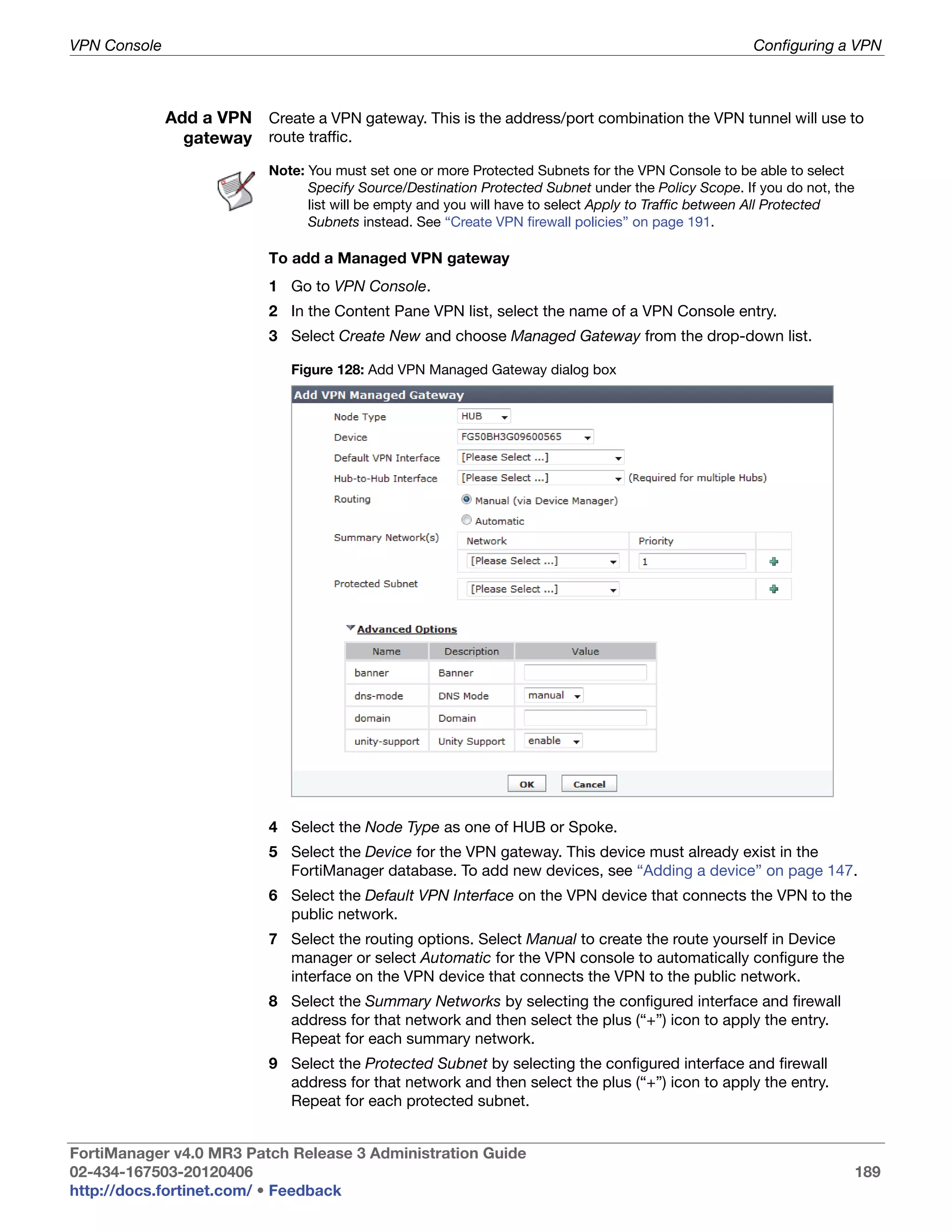
                         Add VPN Managed Gateway dialog box ....................................................... 189
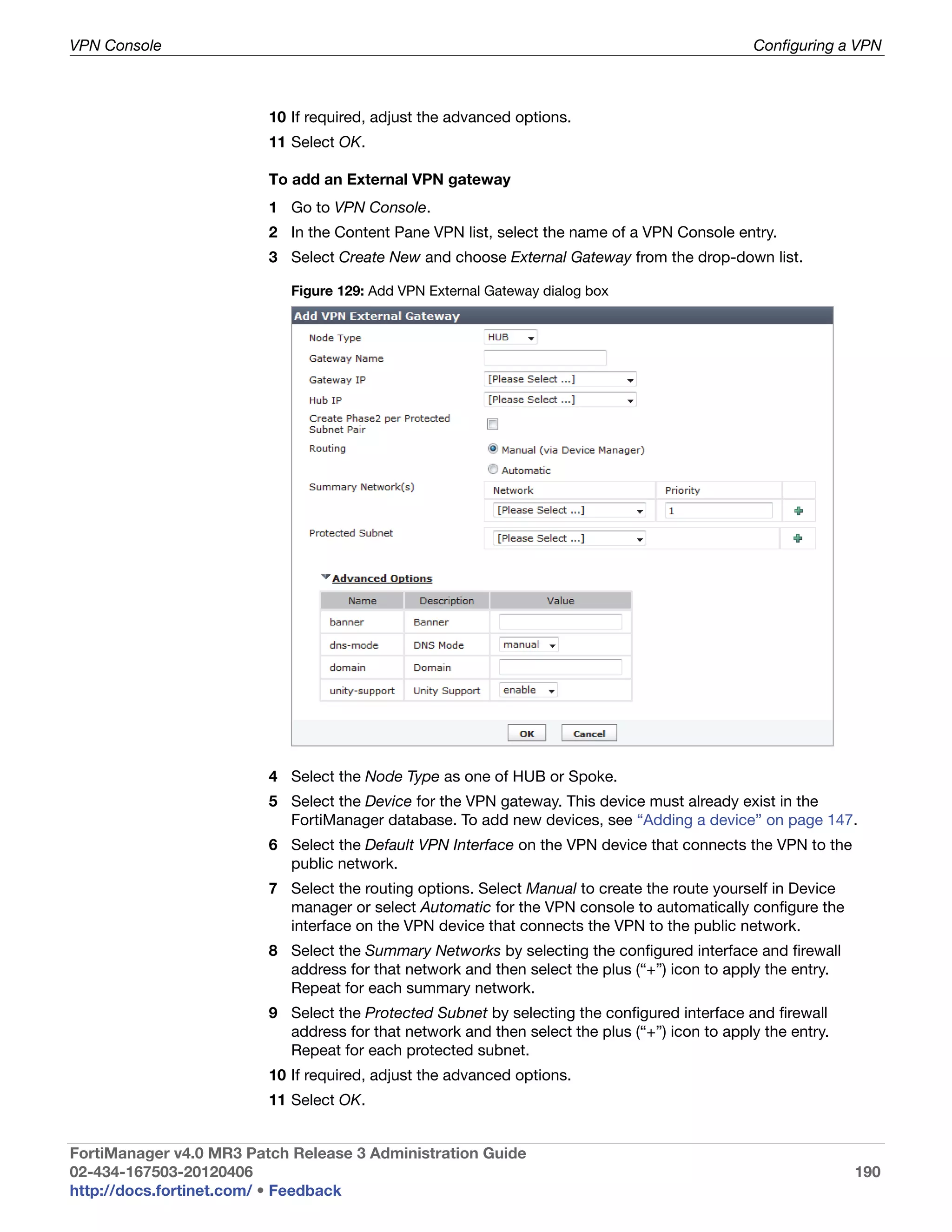
                         Add VPN External Gateway dialog box ......................................................... 190
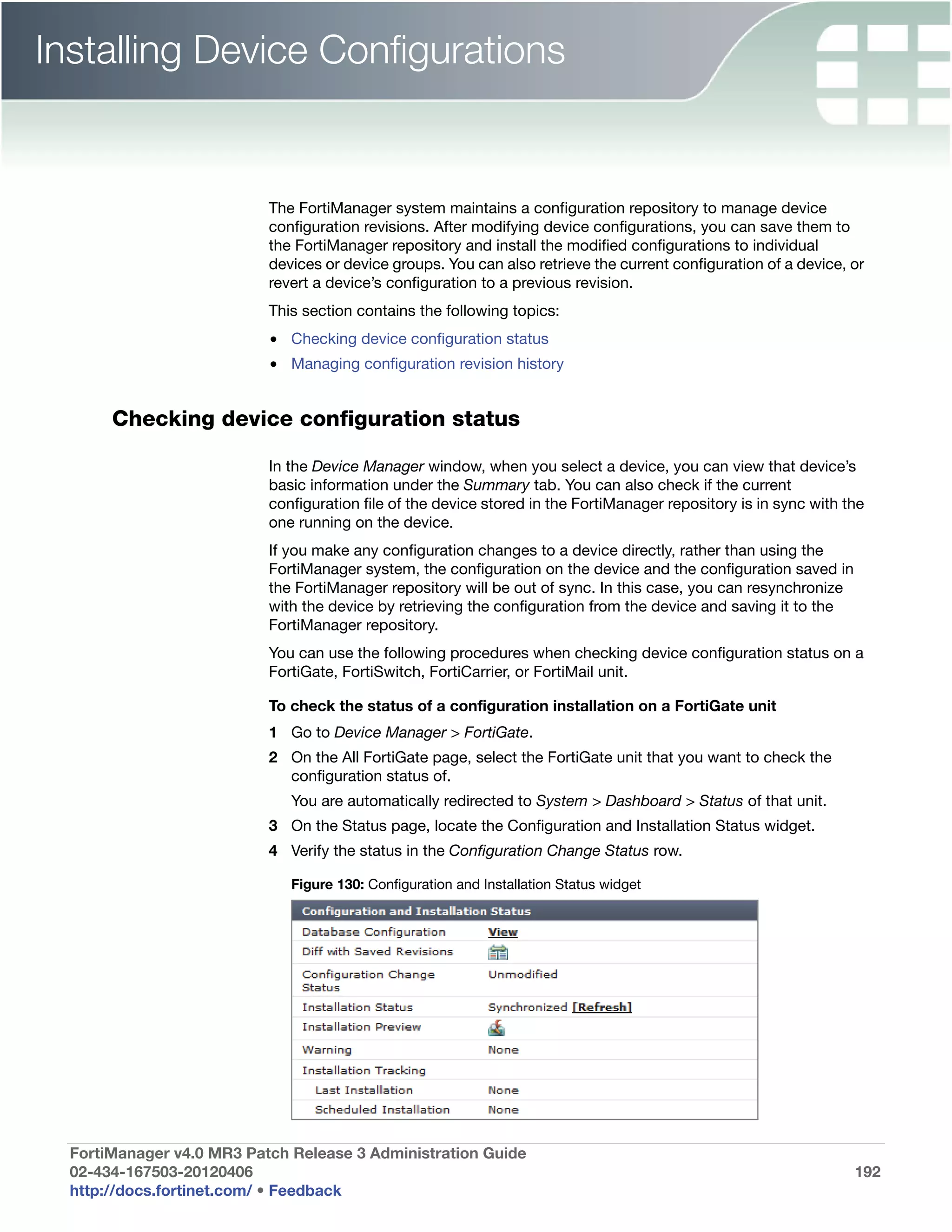
                         Configuration and Installation Status widget................................................. 192
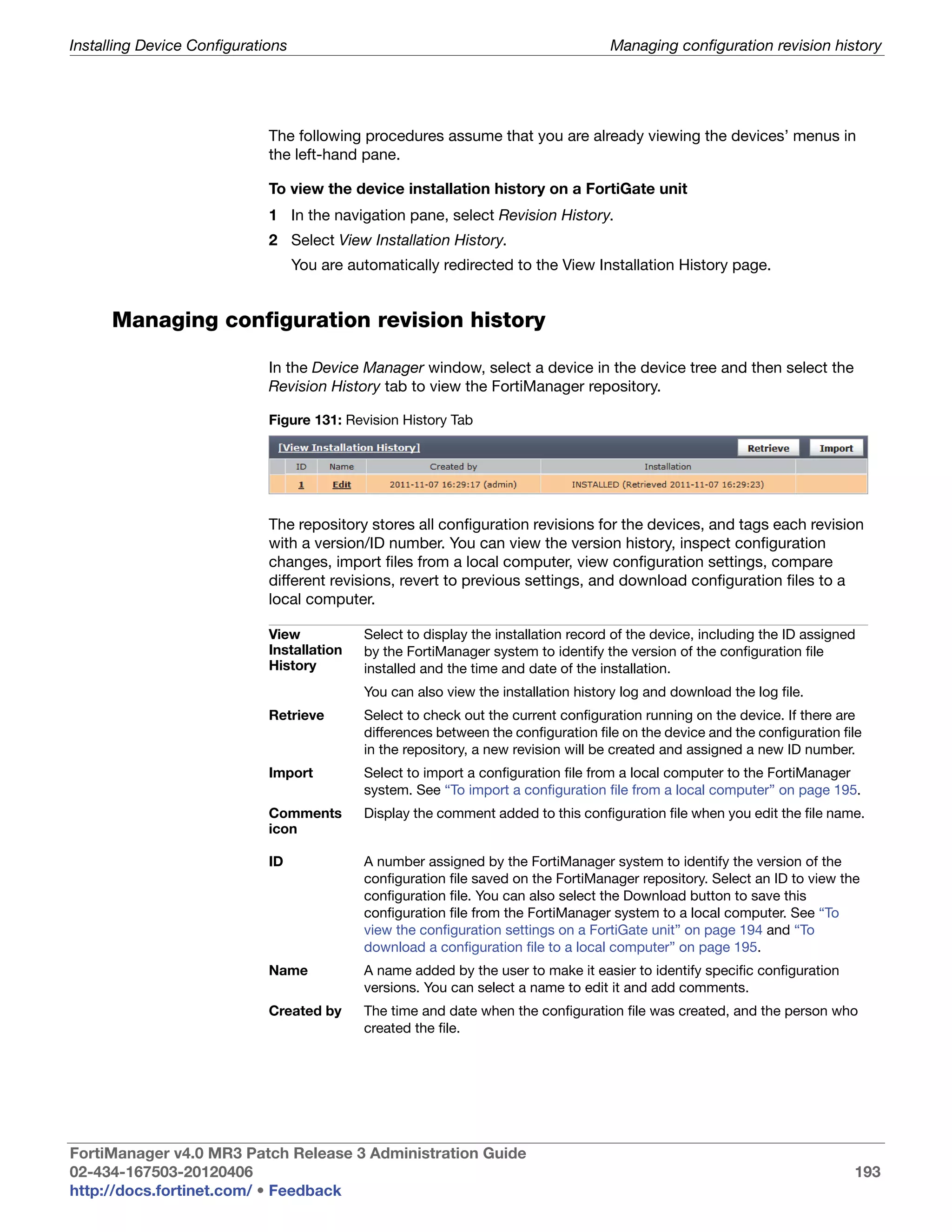
                         Revision History Tab...................................................................................... 193
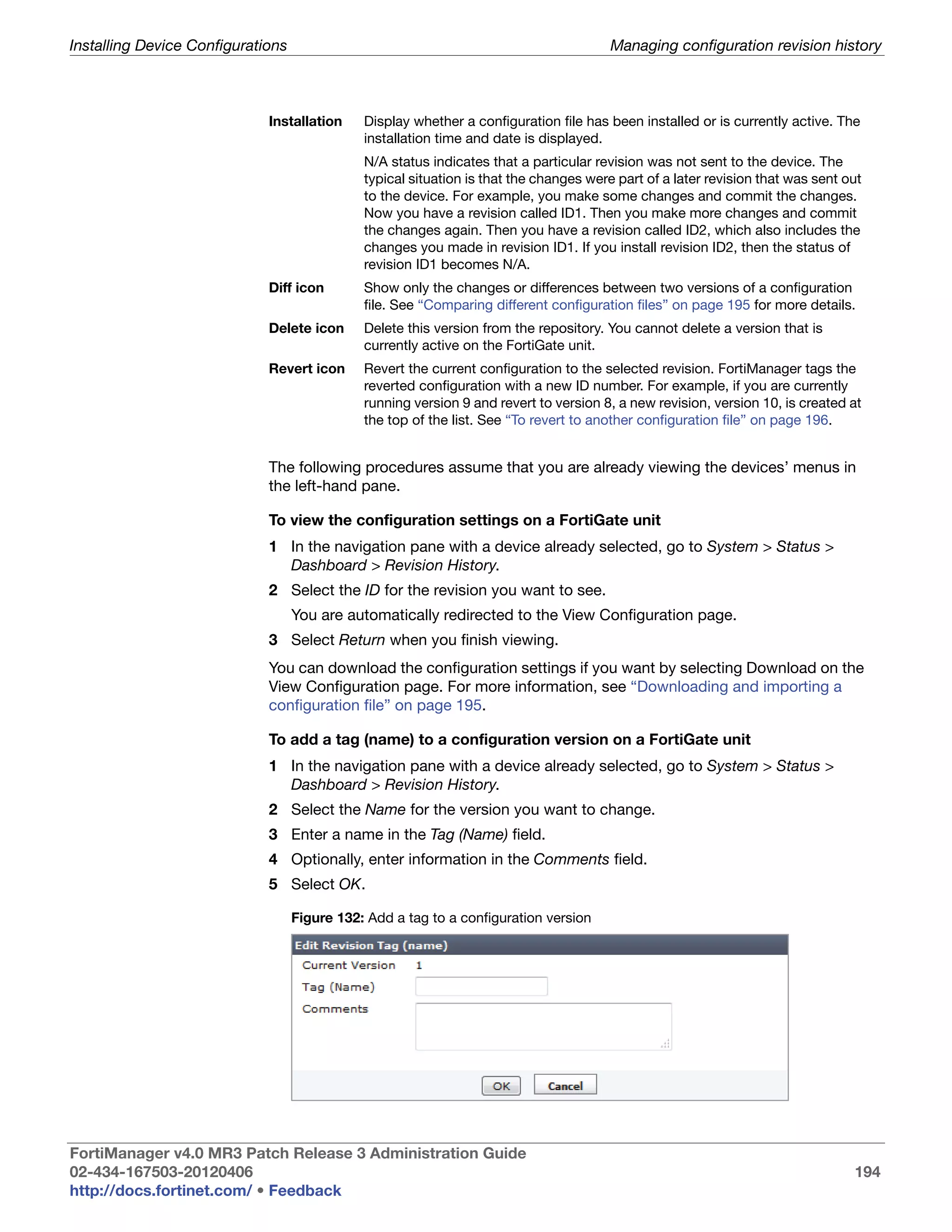
                         Add a tag to a configuration version ............................................................. 194
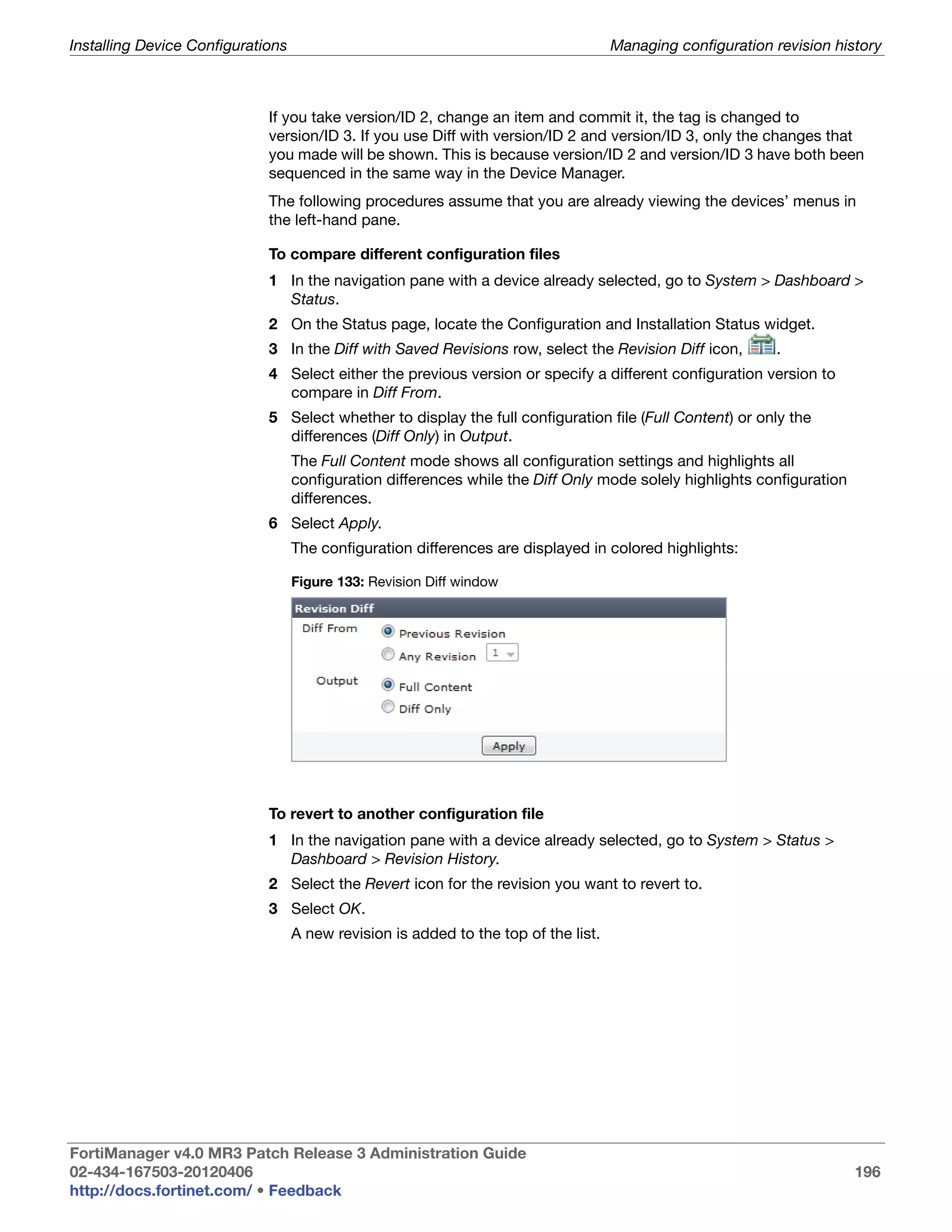
                         Revision Diff window ..................................................................................... 196
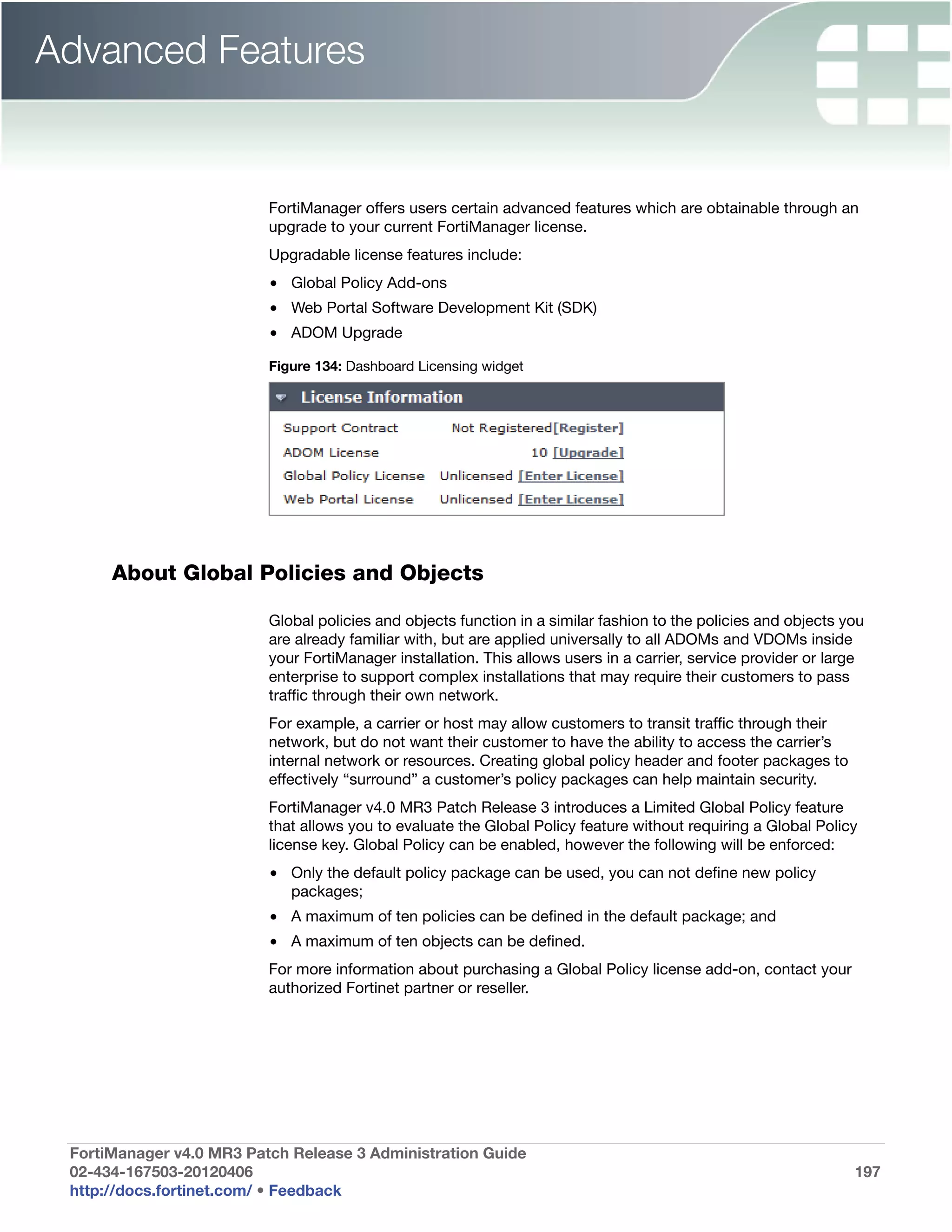
                         Dashboard Licensing widget ......................................................................... 197
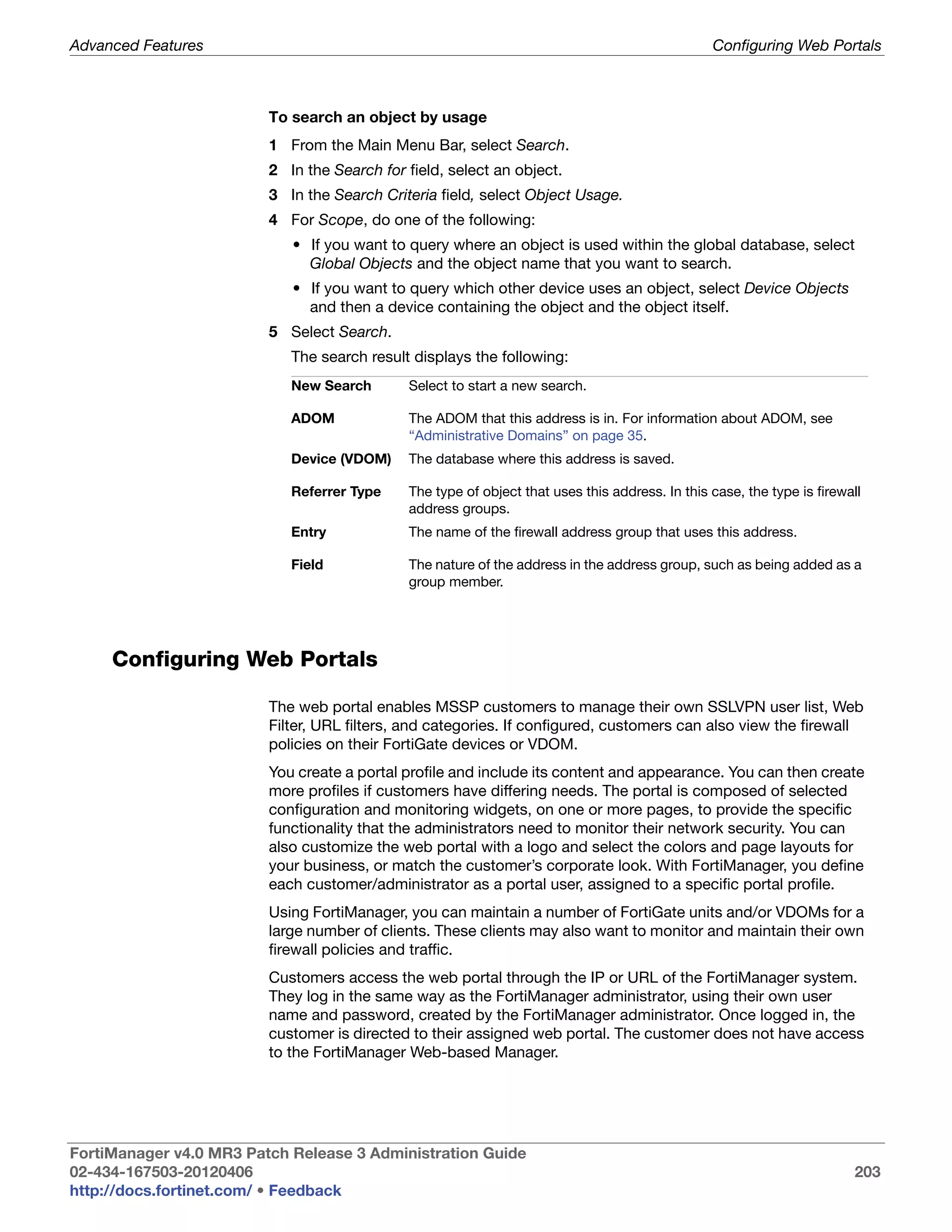
                         Web Portal Window ....................................................................................... 205
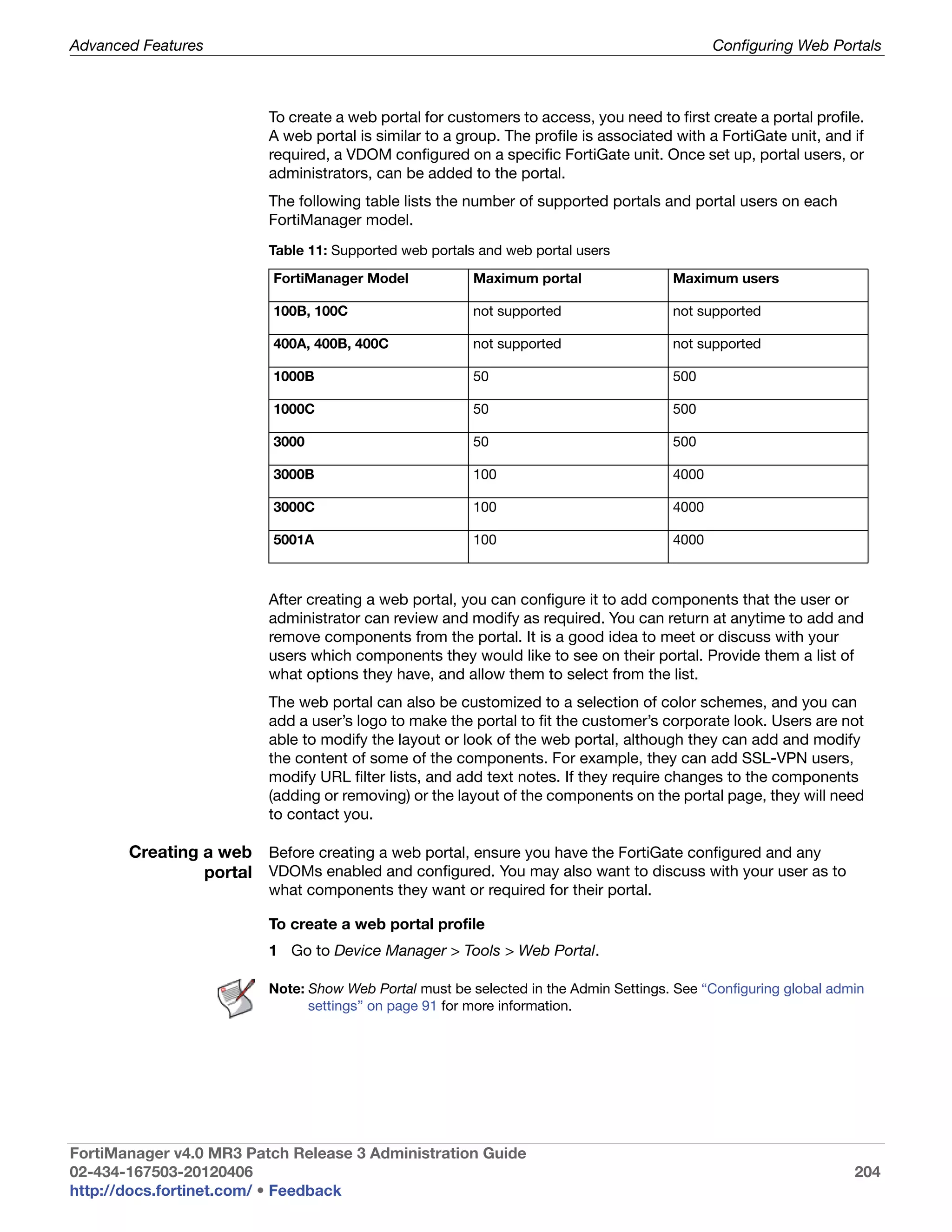
                         Add a Web Portal Profile ............................................................................... 205
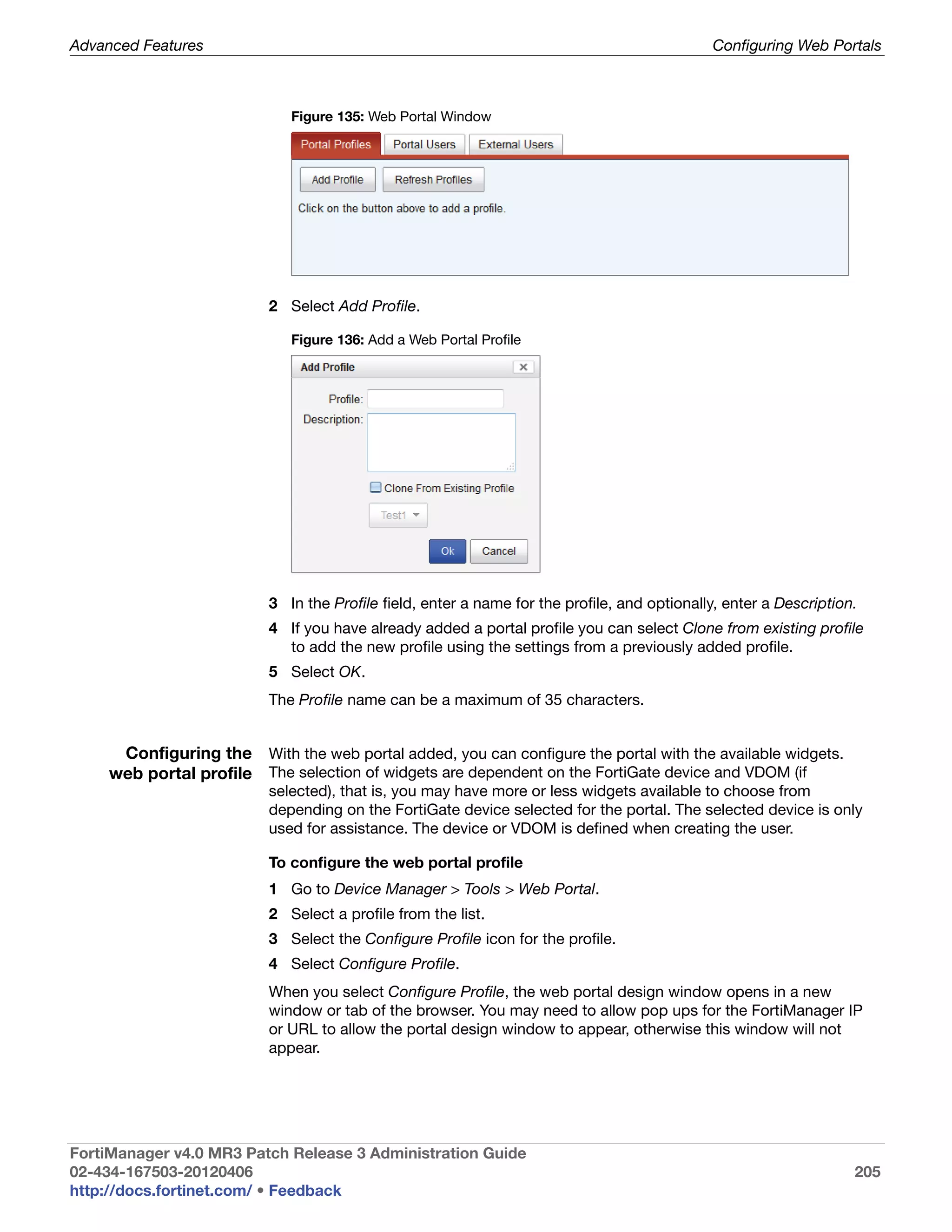
                         Blank Web Portal Window ............................................................................. 206
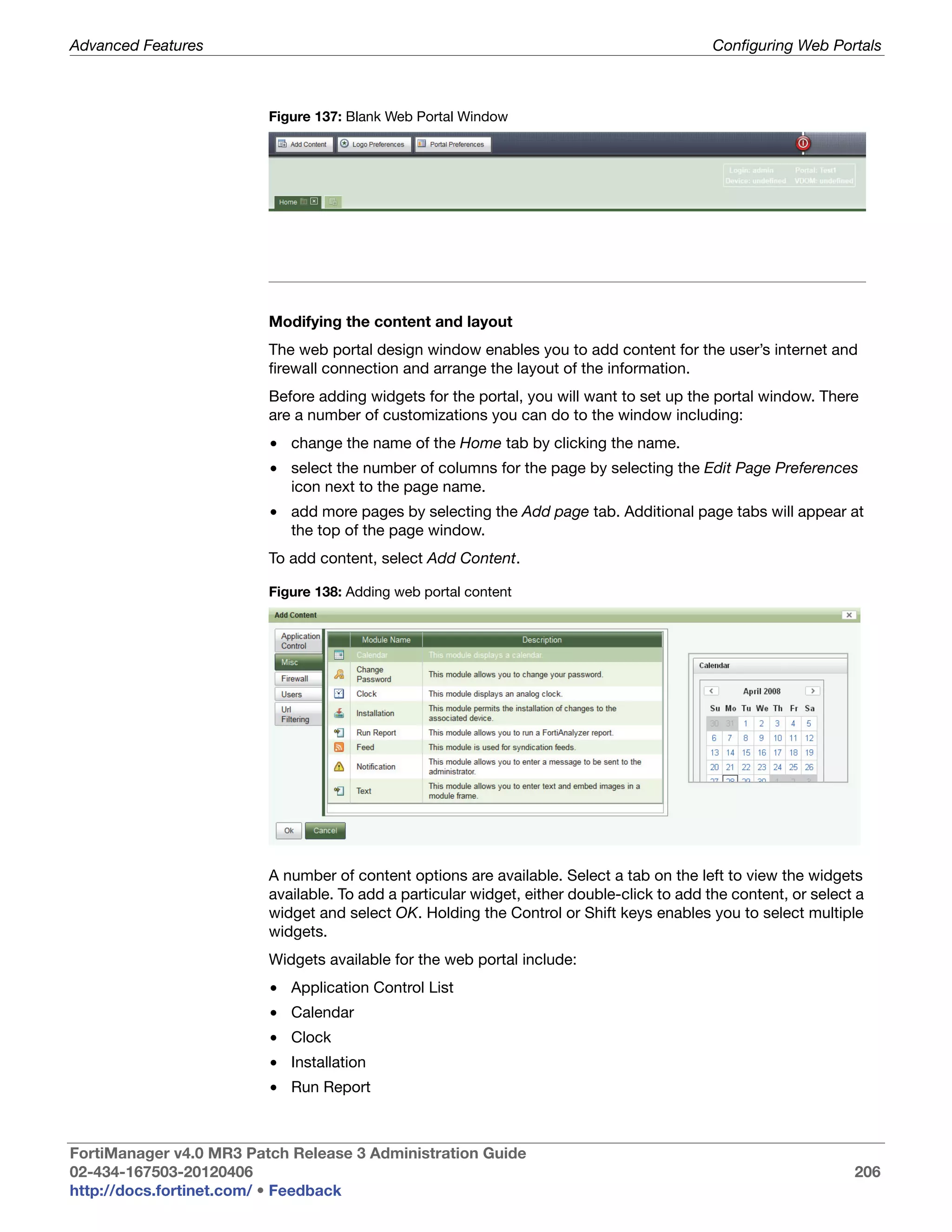
                         Adding web portal content ............................................................................ 206
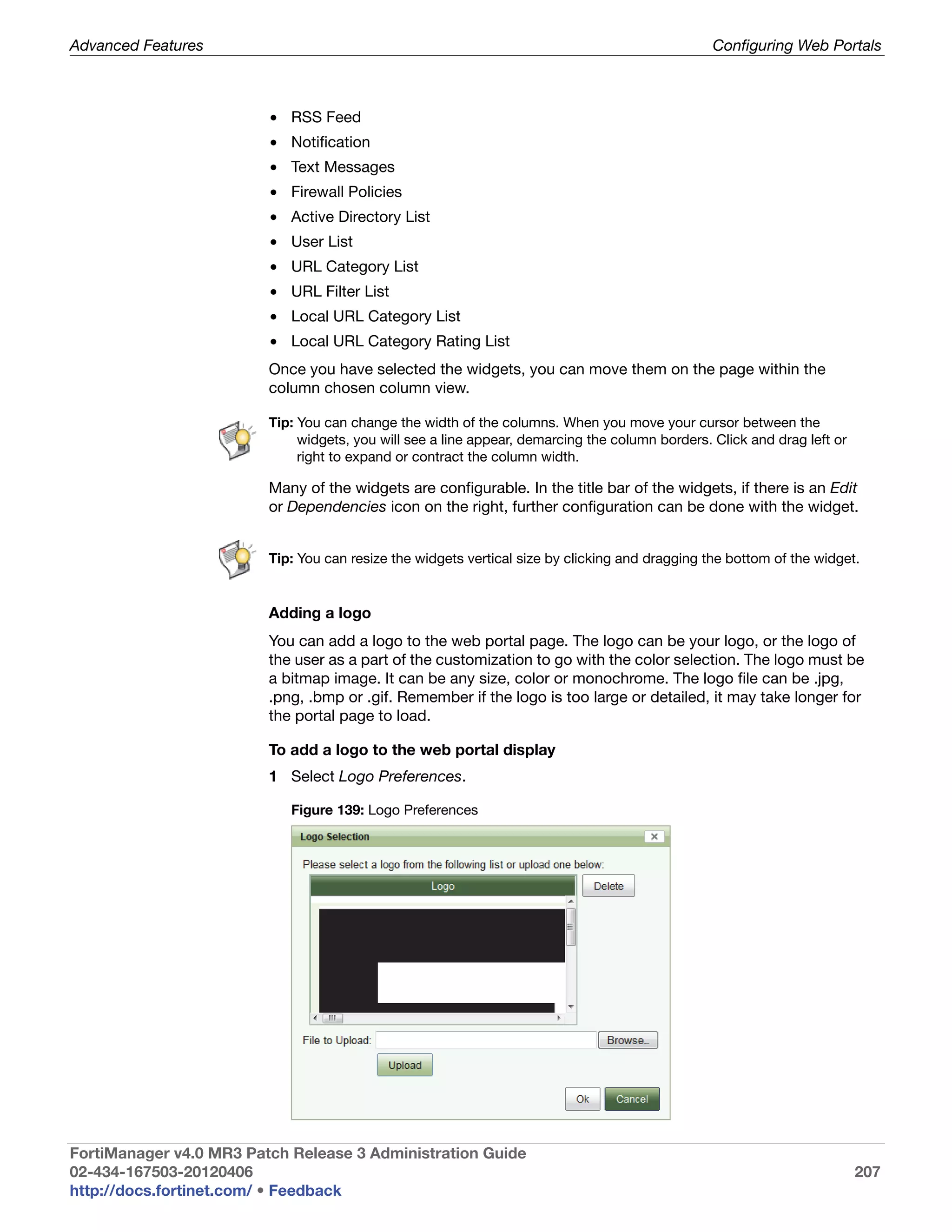
                         Logo Preferences .......................................................................................... 207
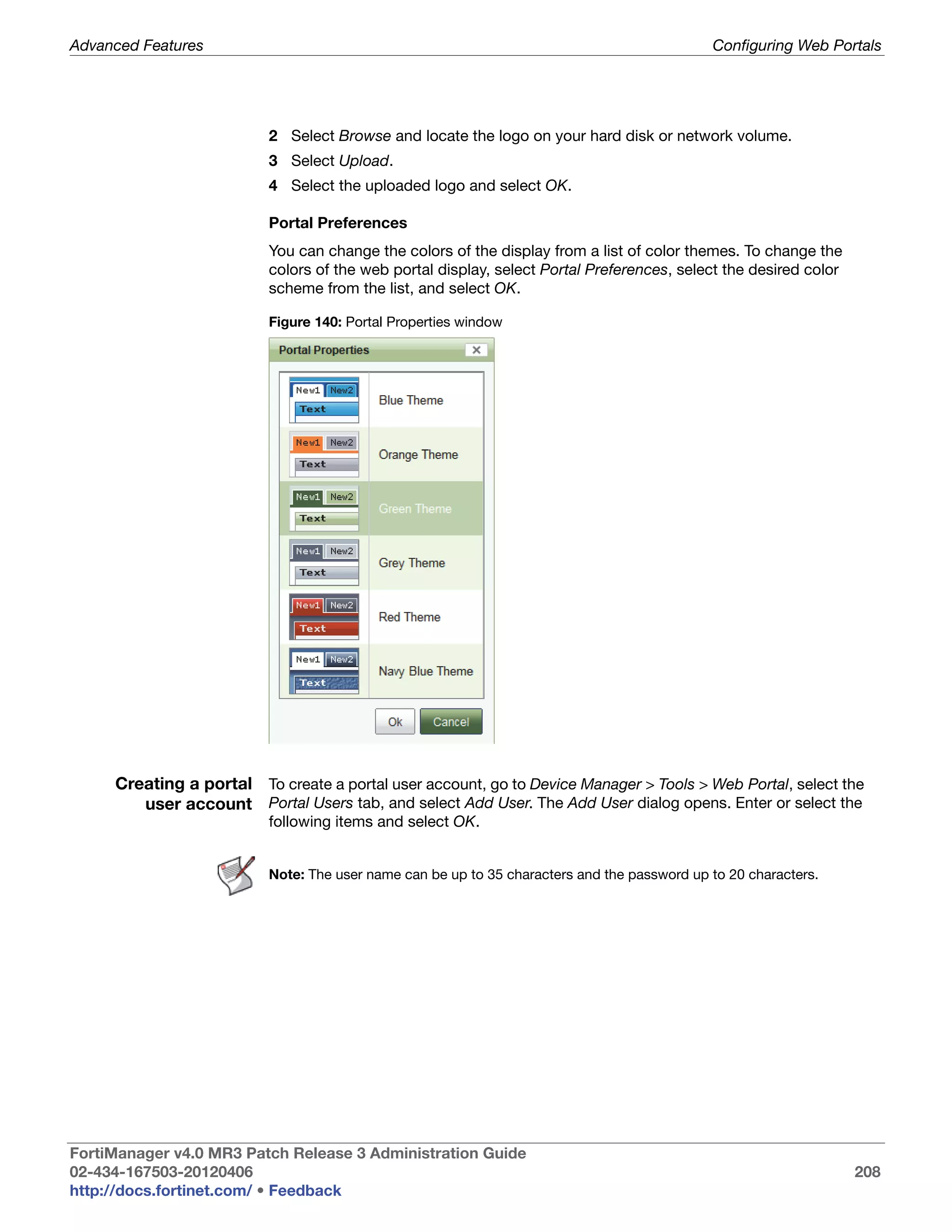
                         Portal Properties window .............................................................................. 208
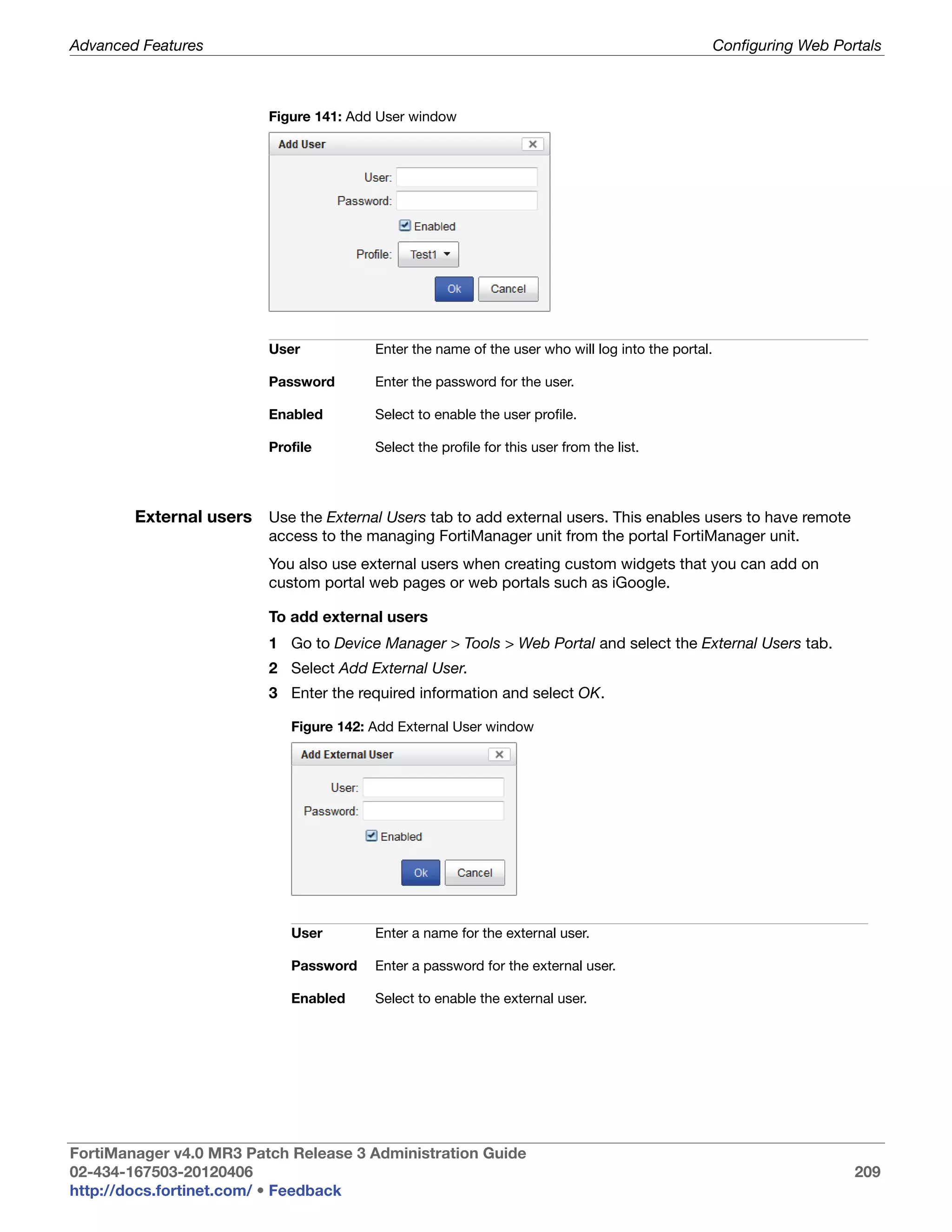
                         Add User window .......................................................................................... 209
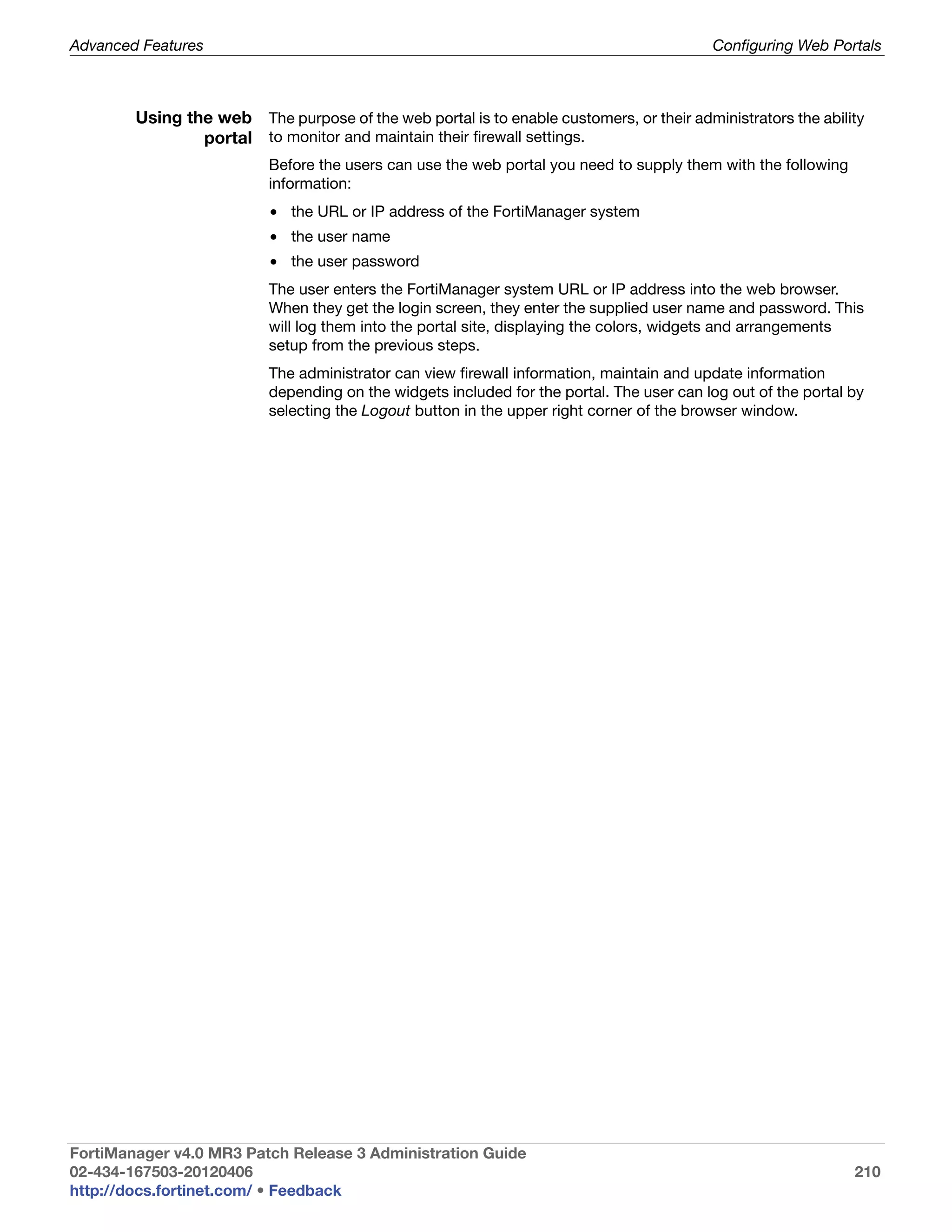
                         Add External User window ............................................................................ 209
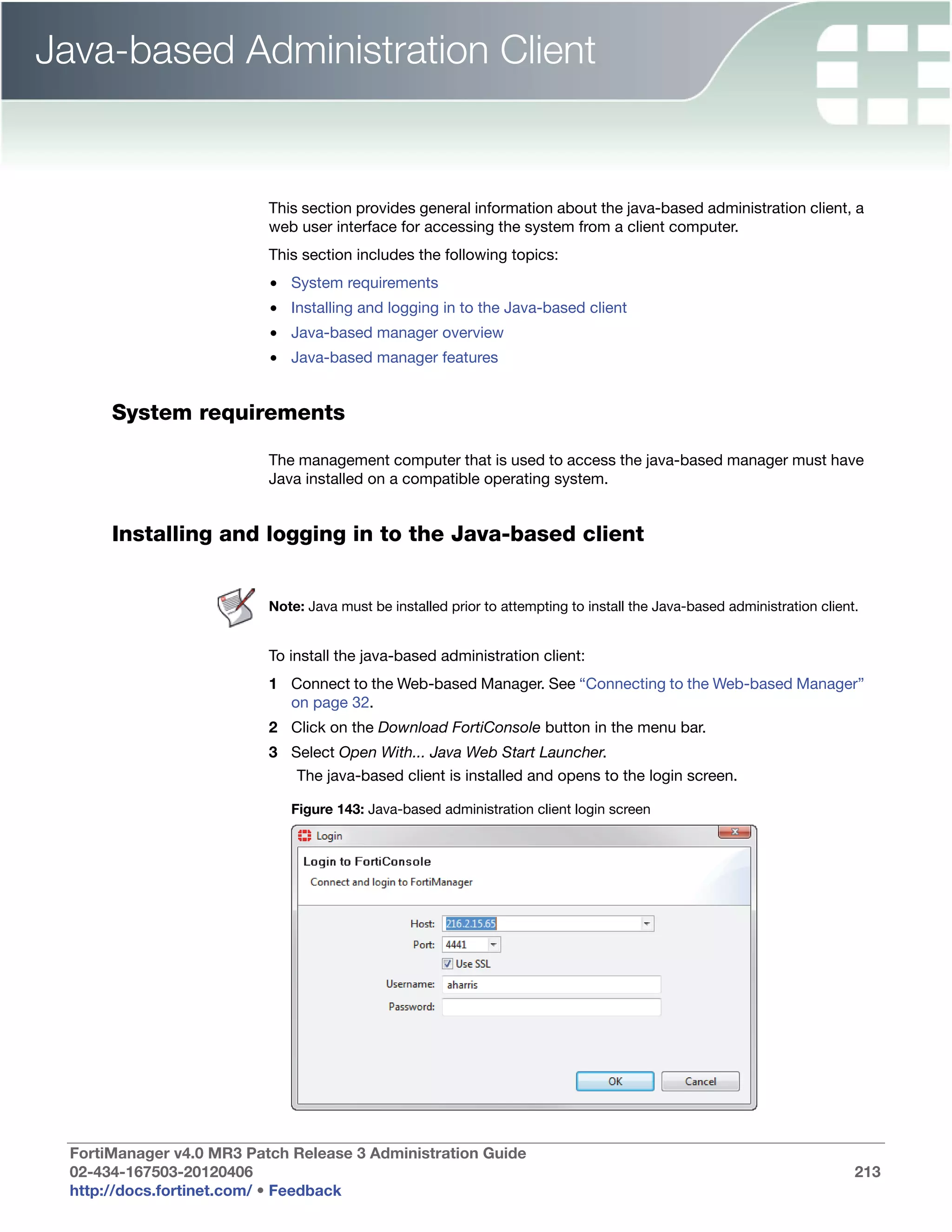
                         Java-based administration client login screen .............................................. 213

FortiManager v4.0 MR3 Patch Release 3 Administration Guide
02-434-167503-20120406                                                                                                                        14
http://docs.fortinet.com/ • Feedback
Table of Figures


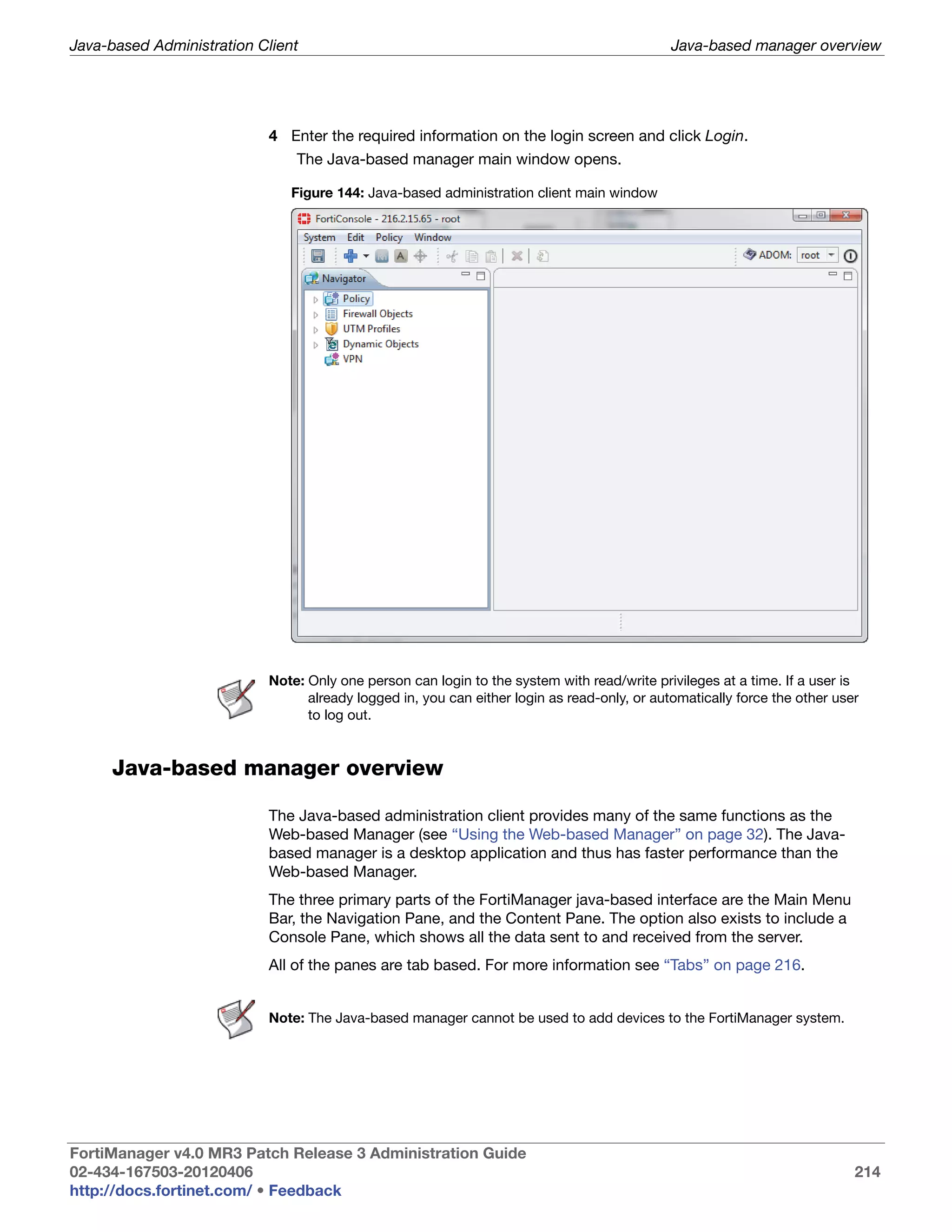
                         Java-based administration client main window ............................................ 214
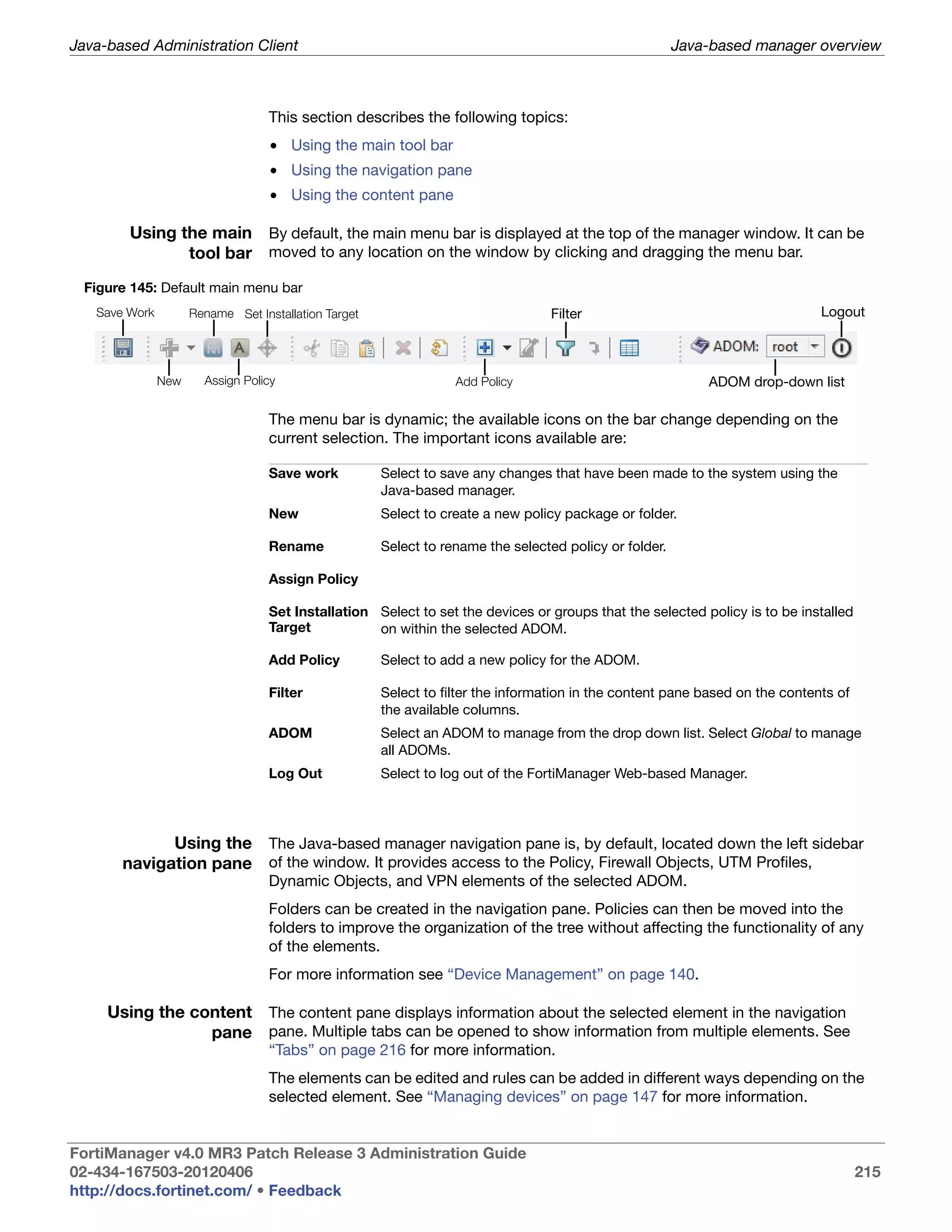
                         Default main menu bar .................................................................................. 215
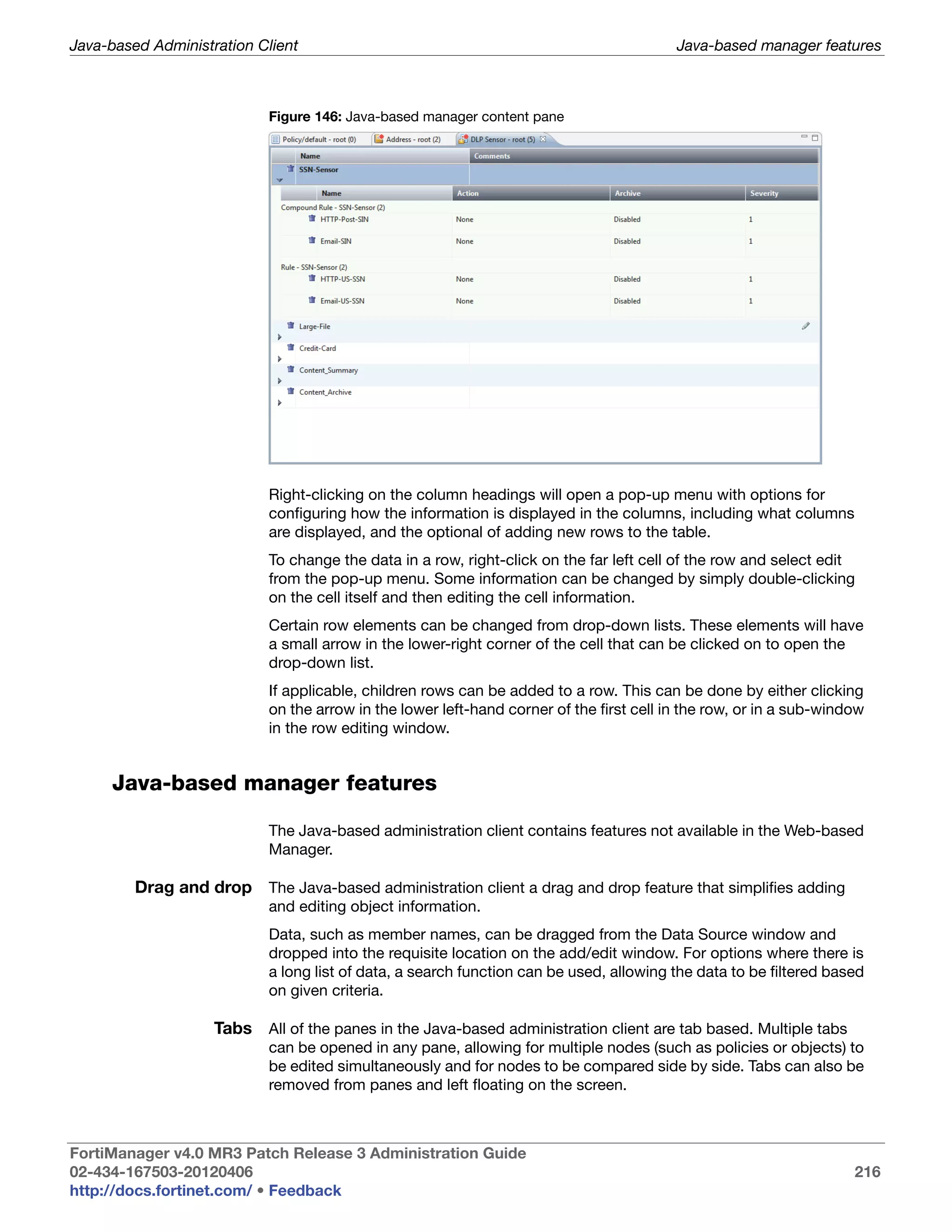
                         Java-based manager content pane............................................................... 216
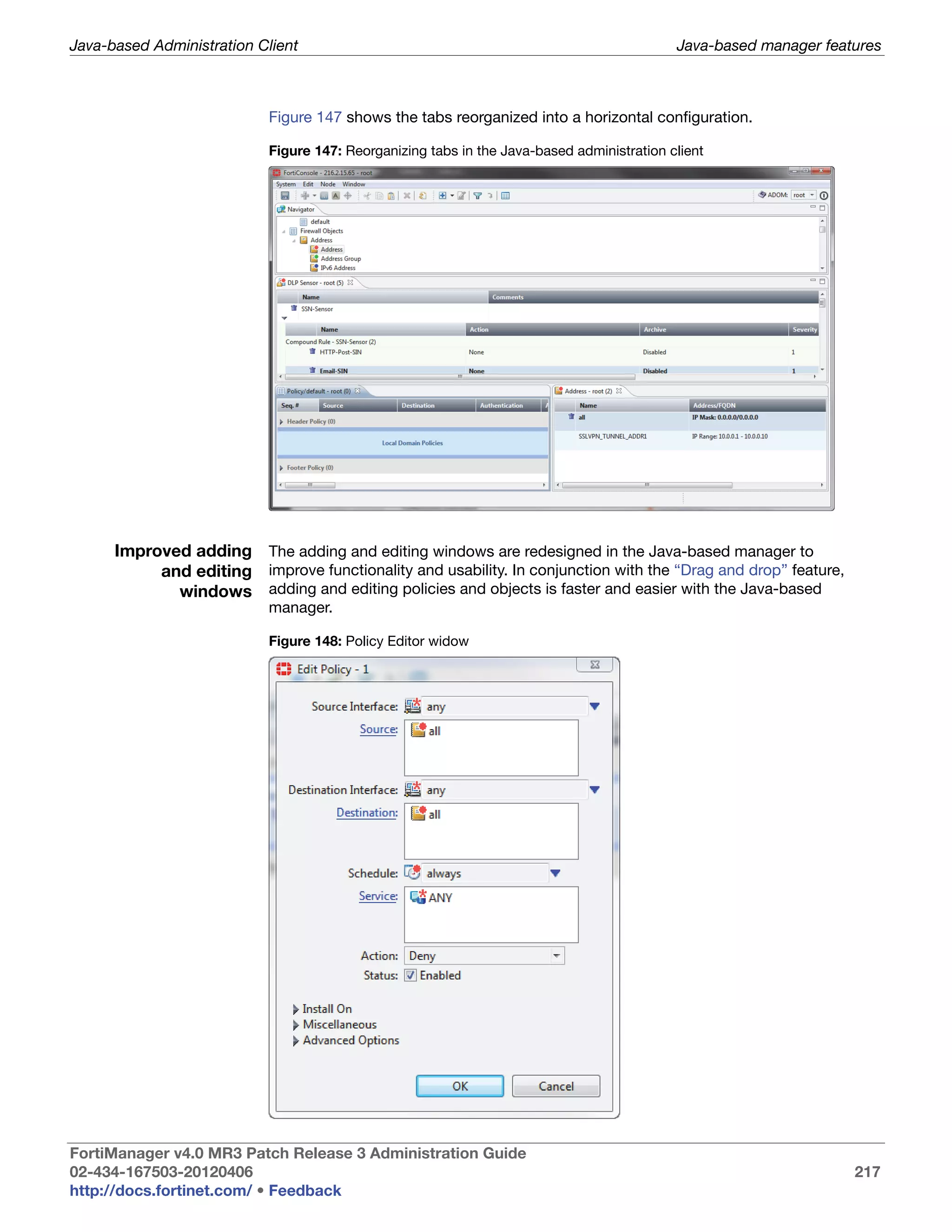
                         Reorganizing tabs in the Java-based administration client........................... 217
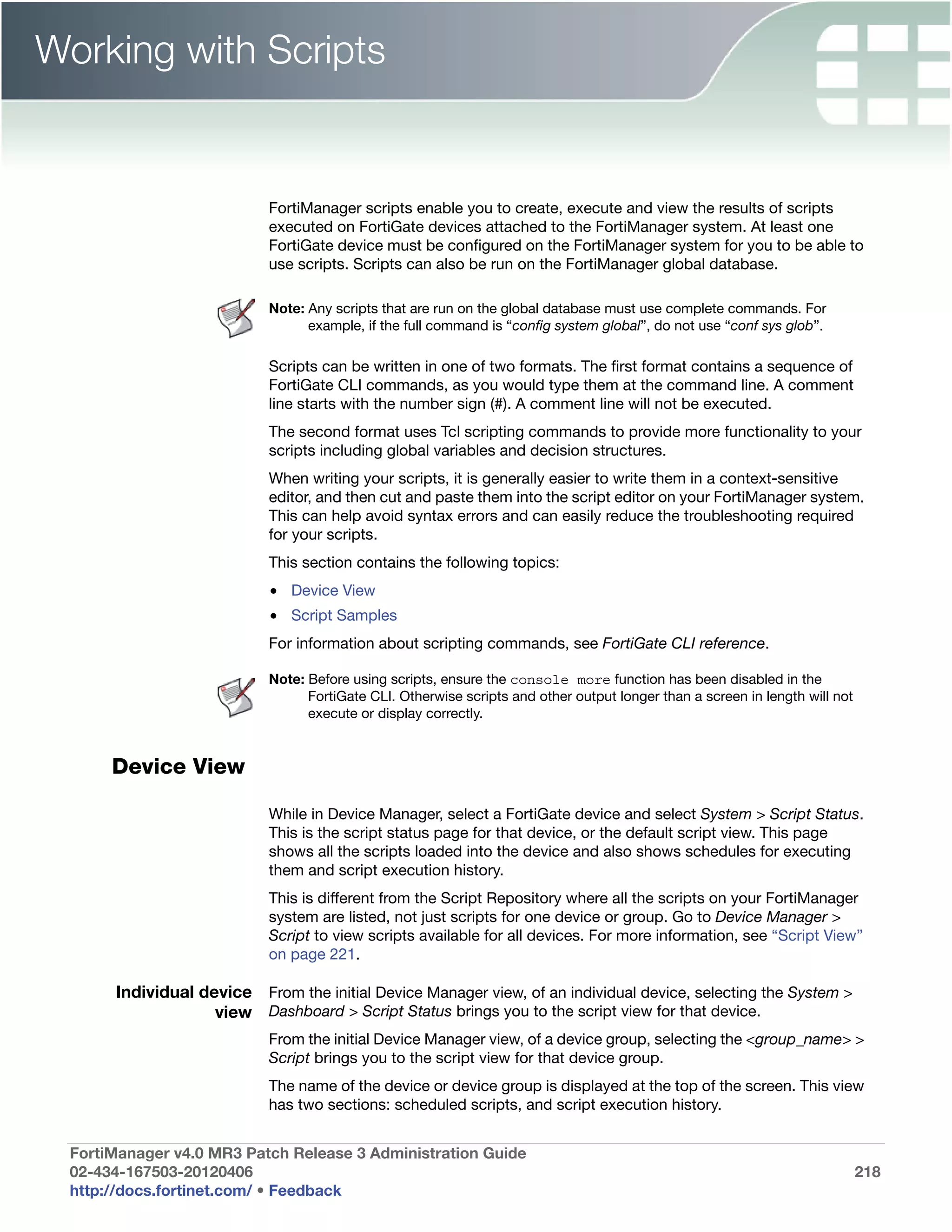
                         Policy Editor widow ....................................................................................... 217
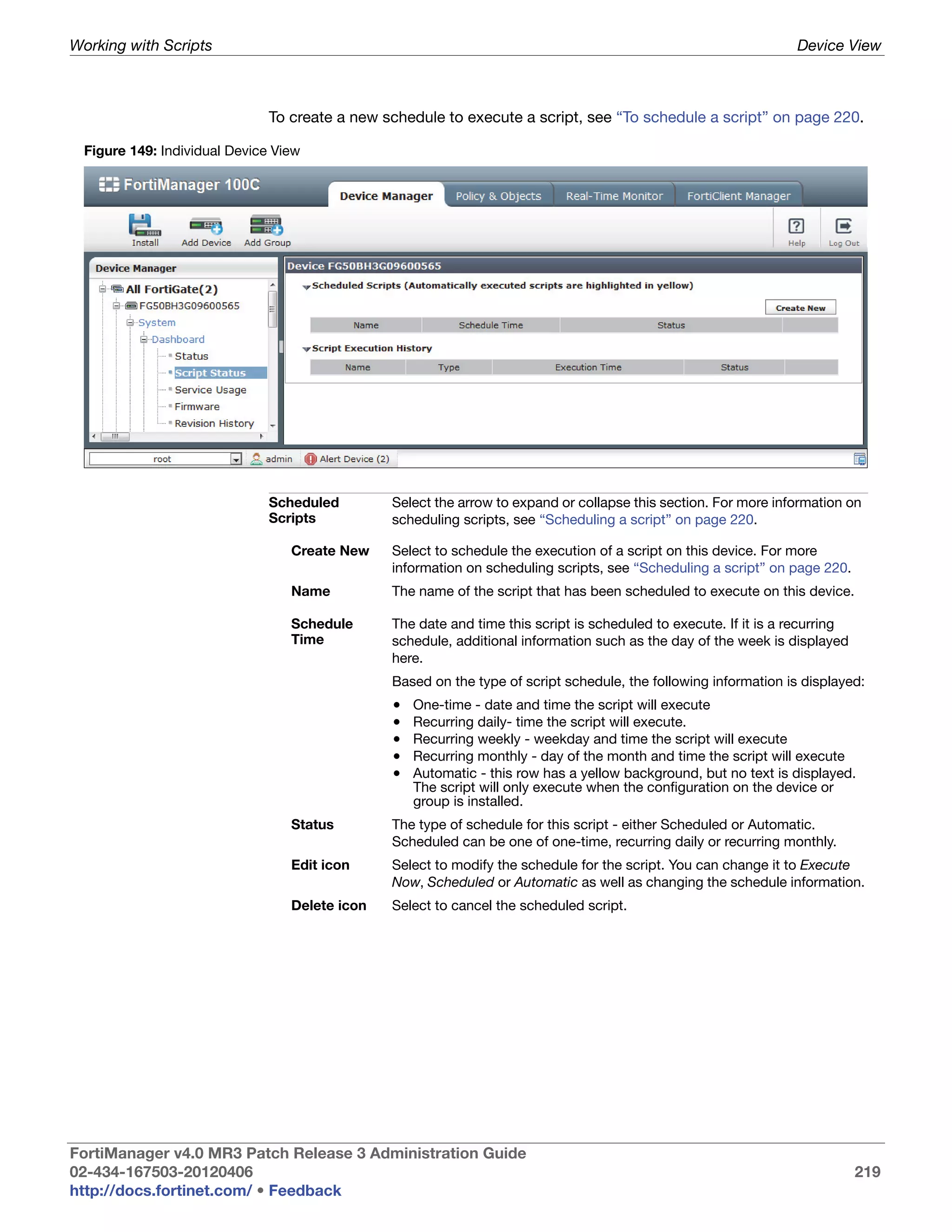
                         Individual Device View ................................................................................... 219
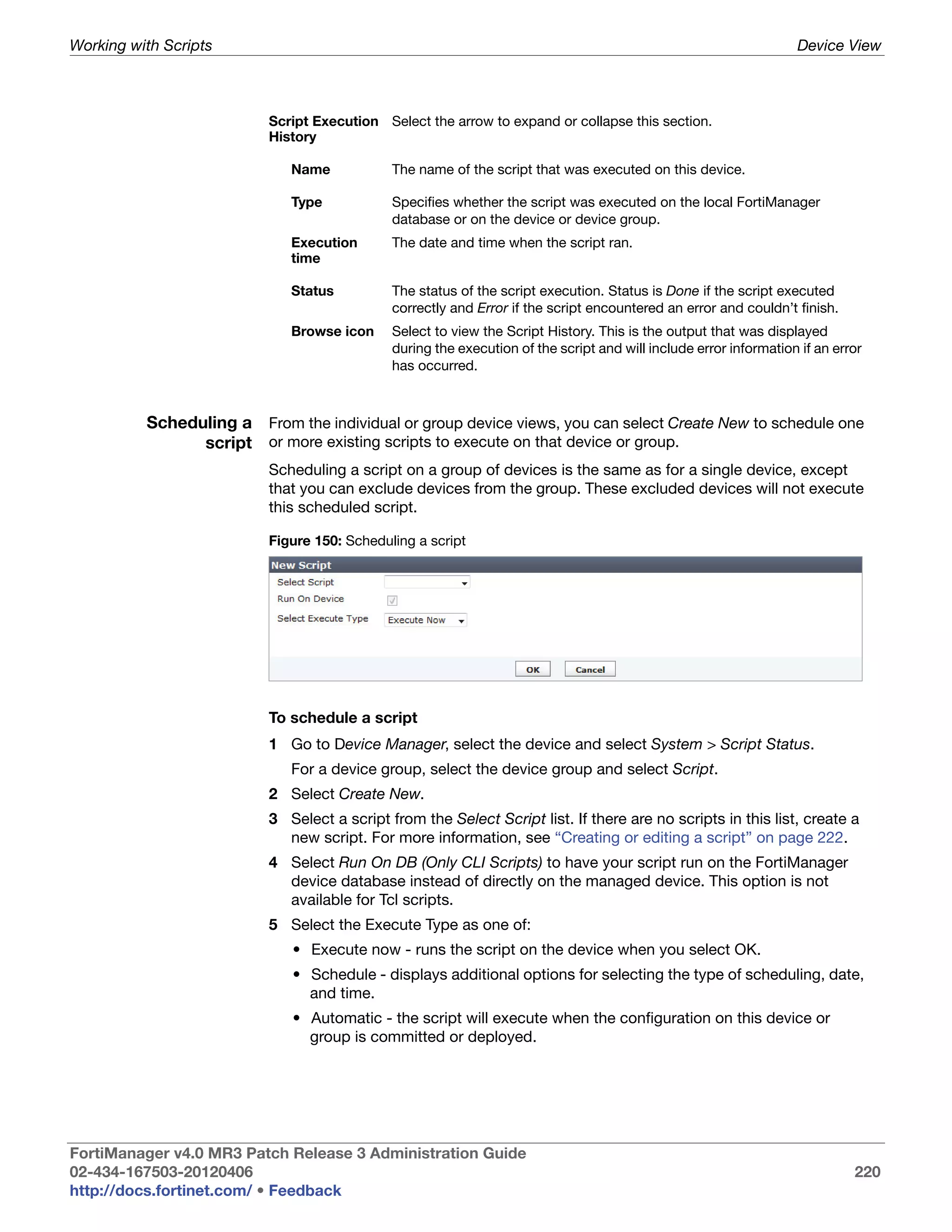
                         Scheduling a script ........................................................................................ 220
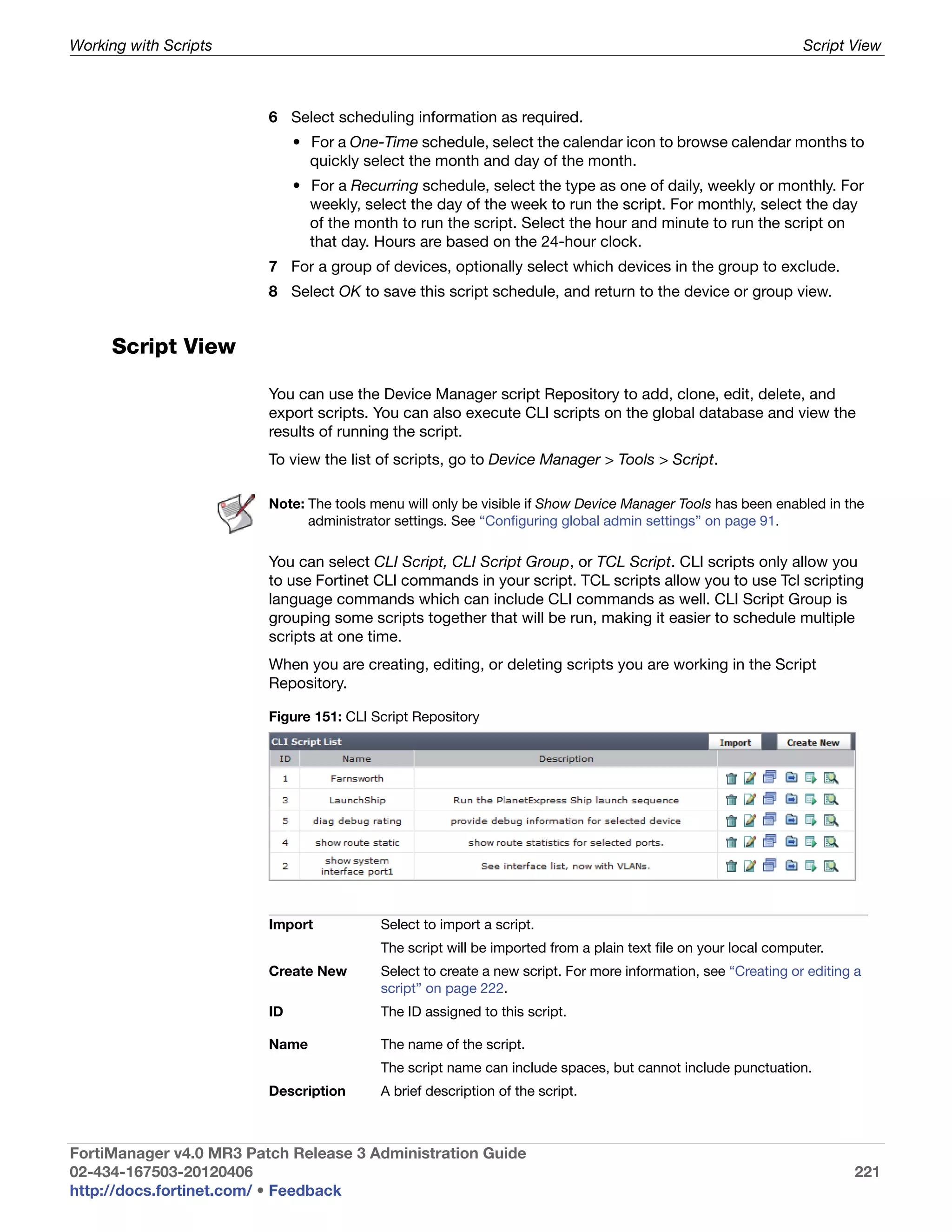
                         CLI Script Repository .................................................................................... 221
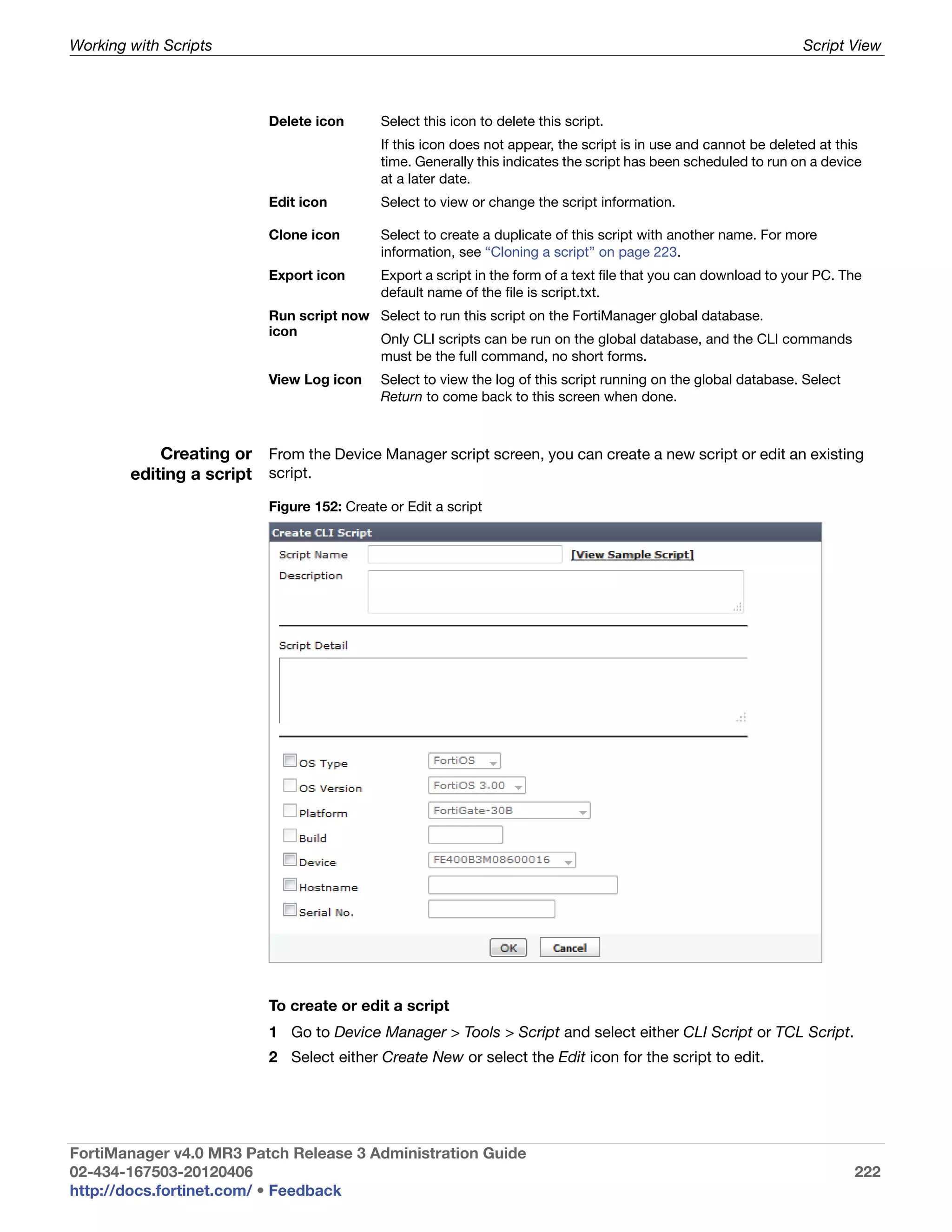
                         Create or Edit a script.................................................................................... 222
                         Cloning a script.............................................................................................. 224
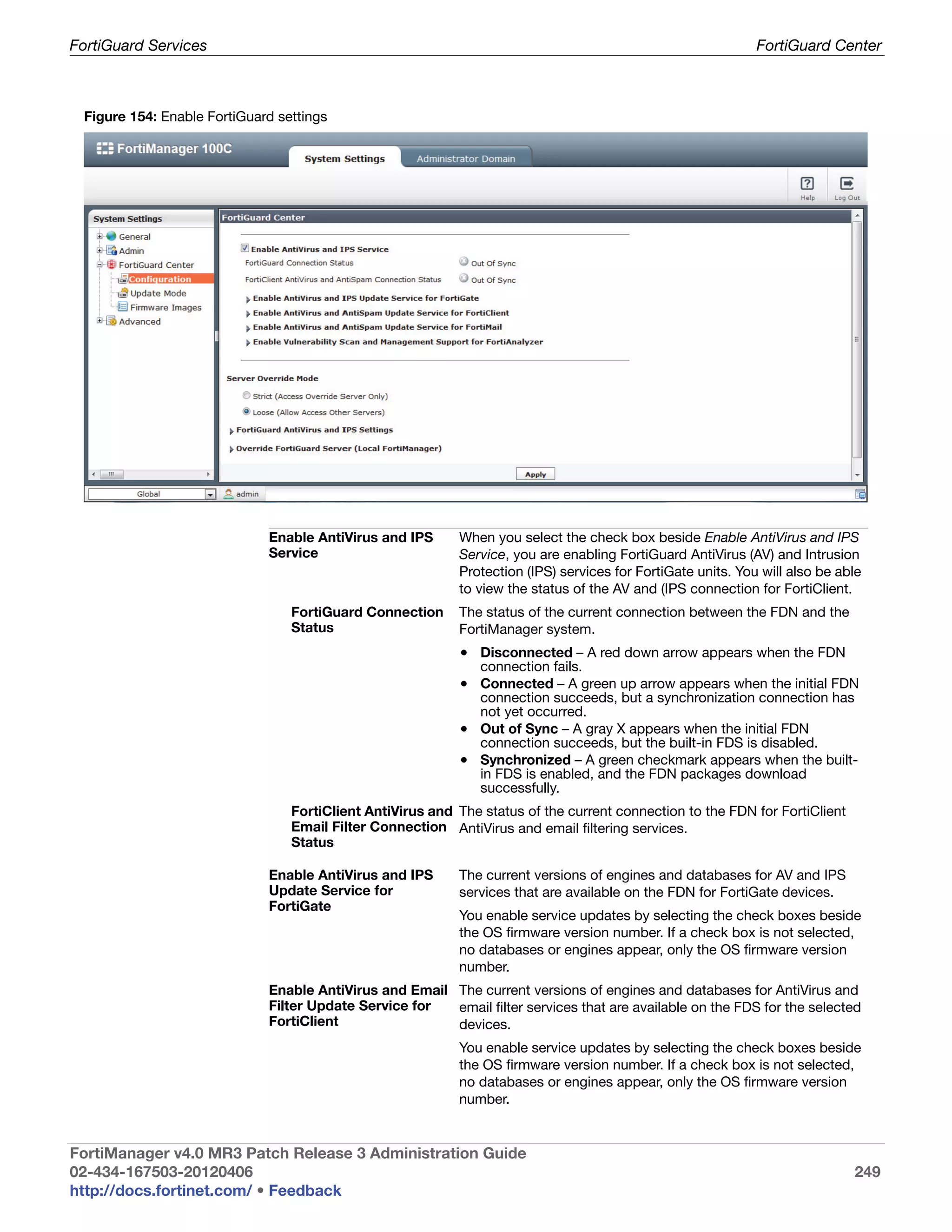
                         Enable FortiGuard settings ............................................................................ 249
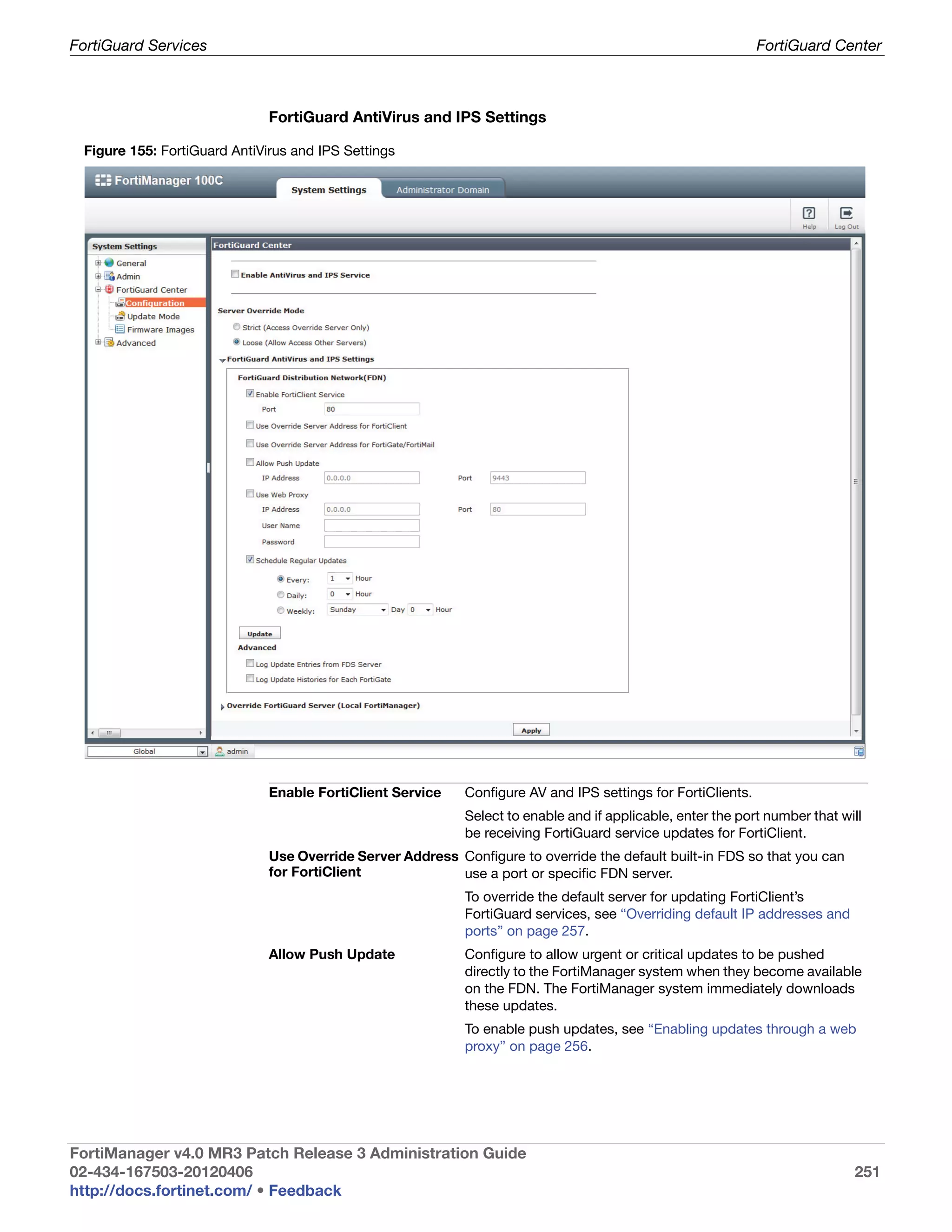
                         FortiGuard AntiVirus and IPS Settings........................................................... 251
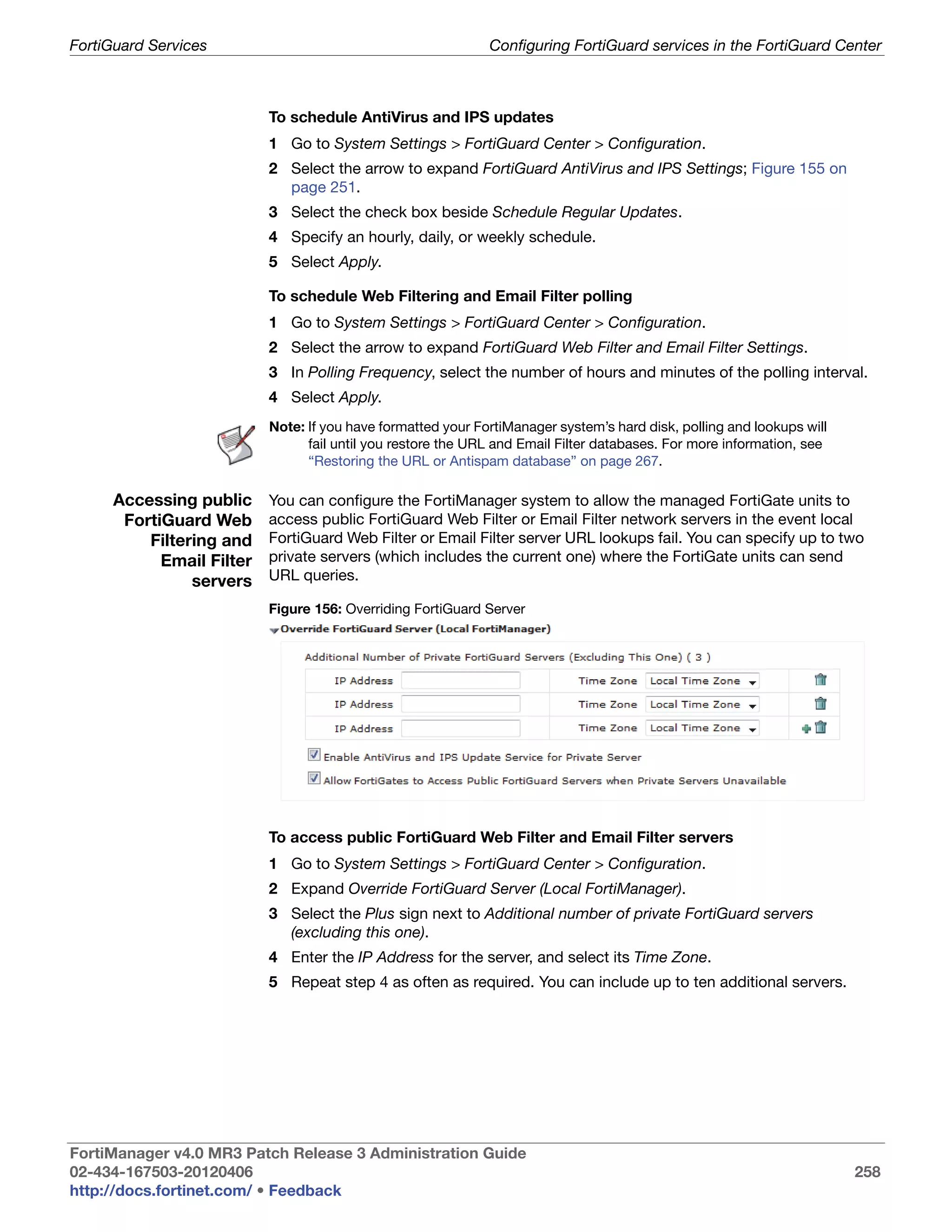
                         Overriding FortiGuard Server......................................................................... 258
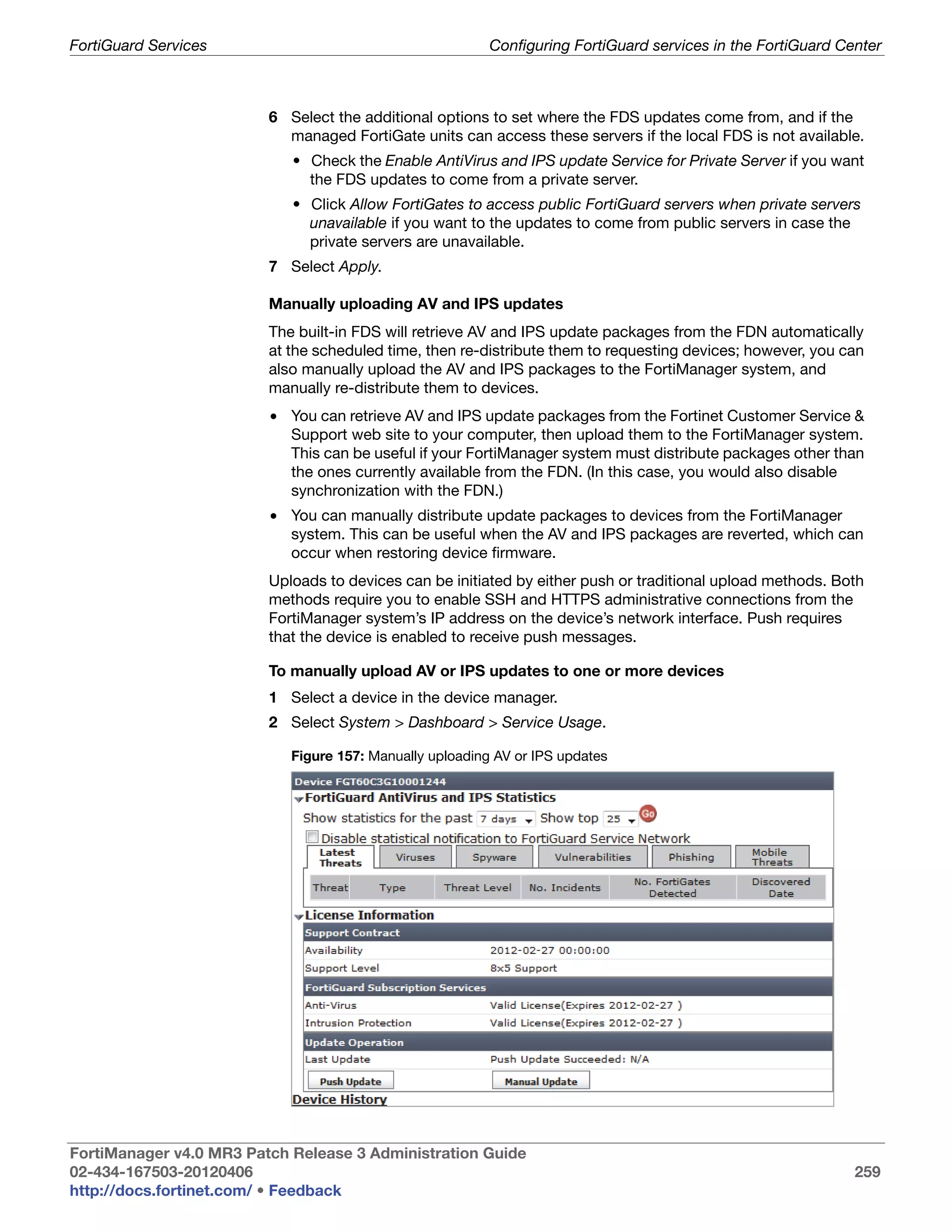
                         Manually uploading AV or IPS updates ......................................................... 259
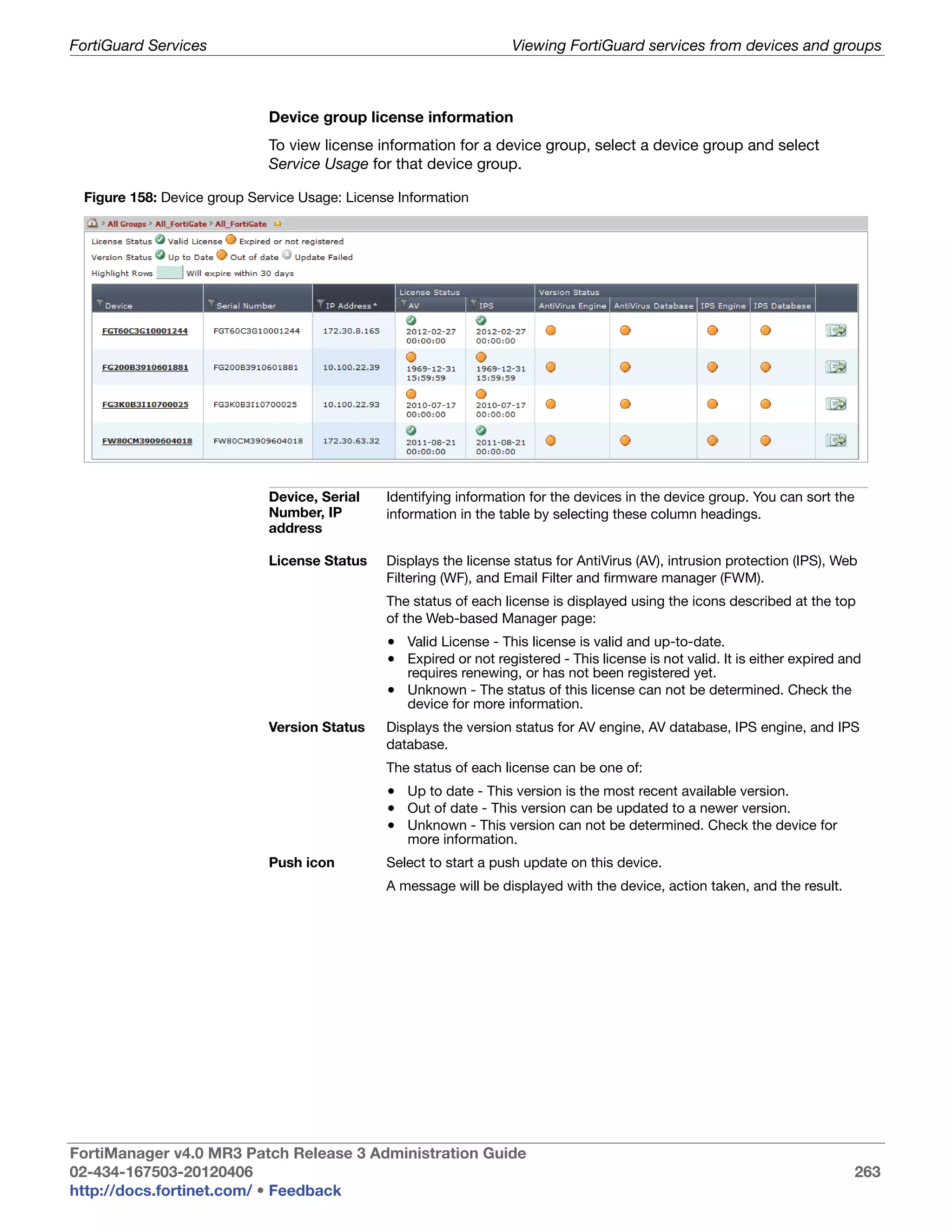
                         Device group Service Usage: License Information........................................ 263
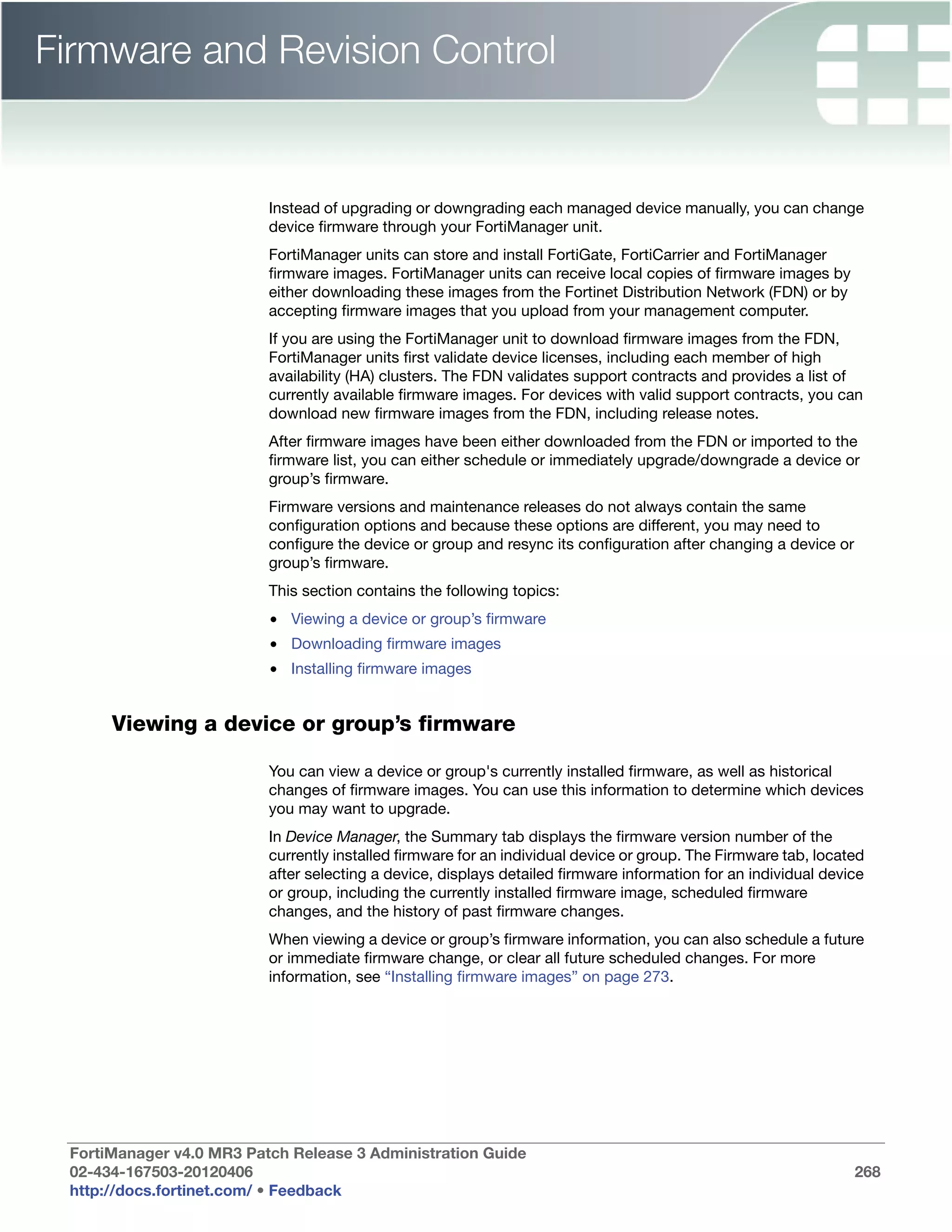
                         Firmware Information (device) ....................................................................... 269
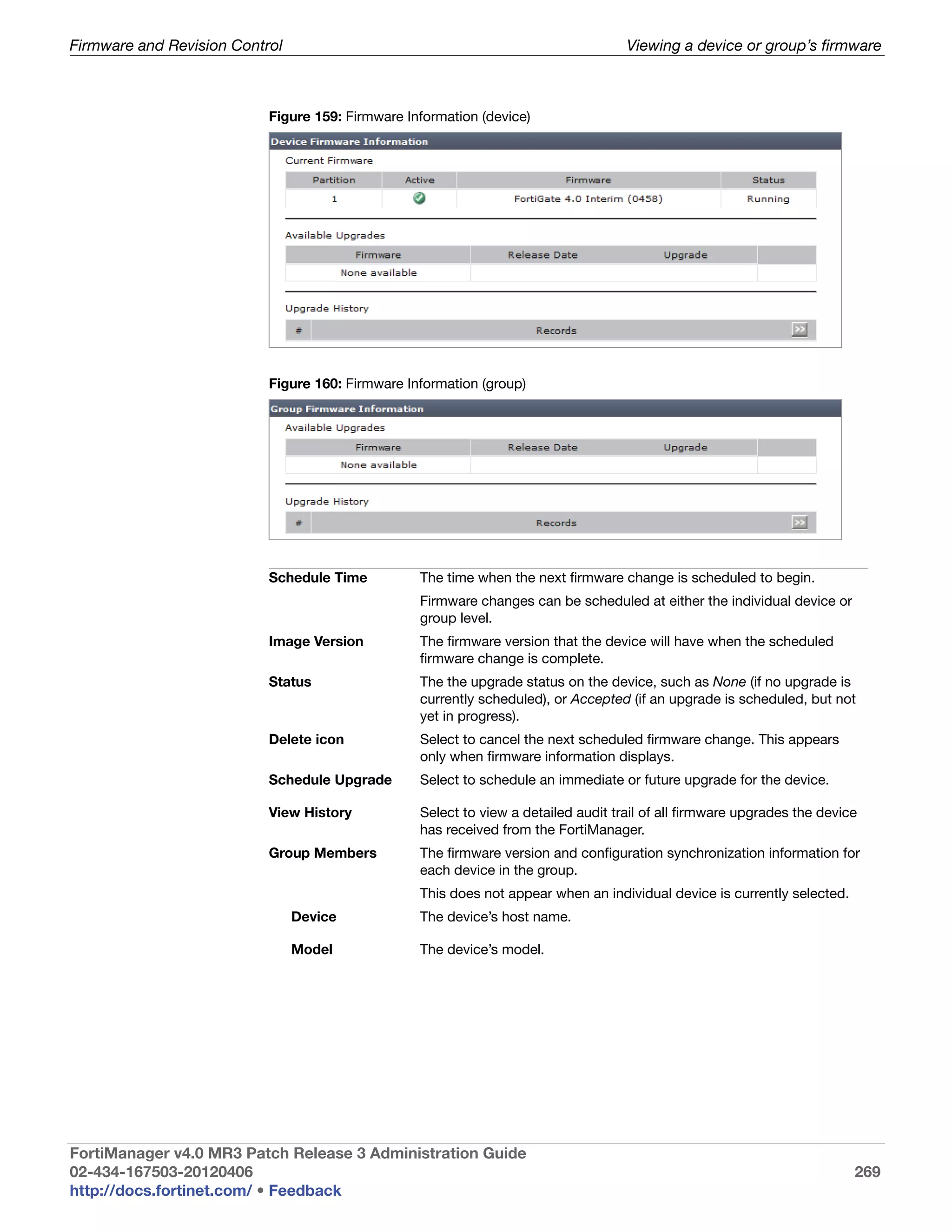
                         Firmware Information (group) ........................................................................ 269
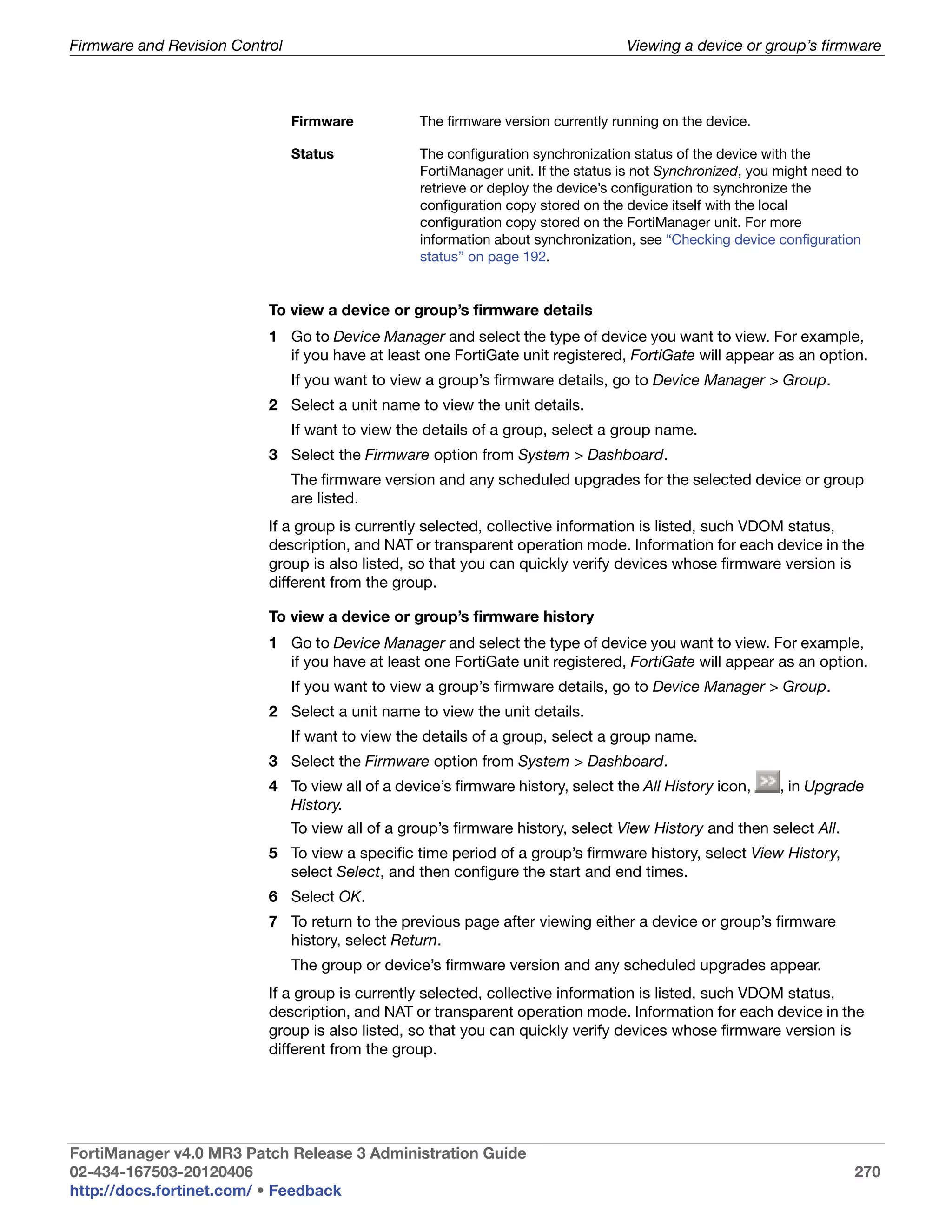
                         Firmware Images ........................................................................................... 271
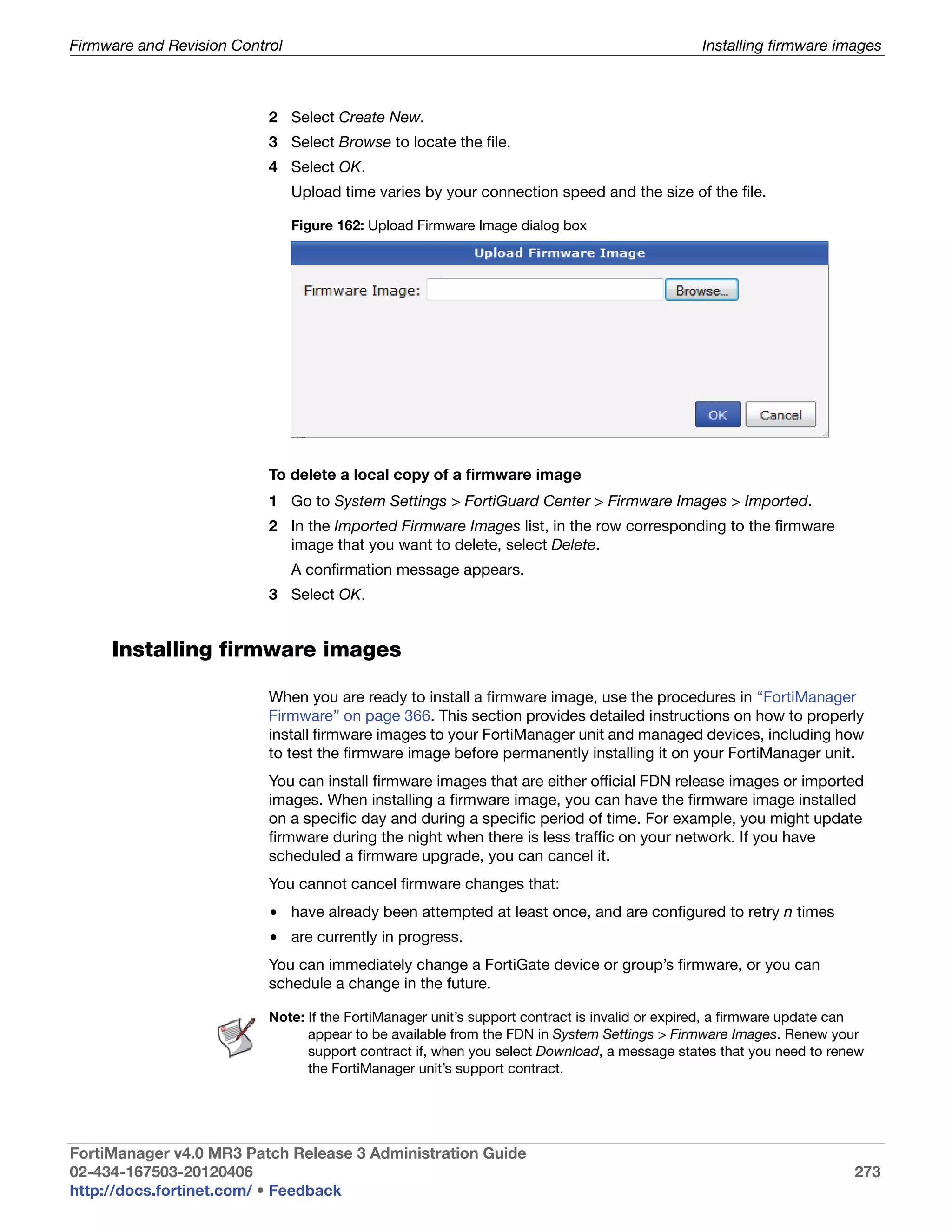
                         Upload Firmware Image dialog box............................................................... 273
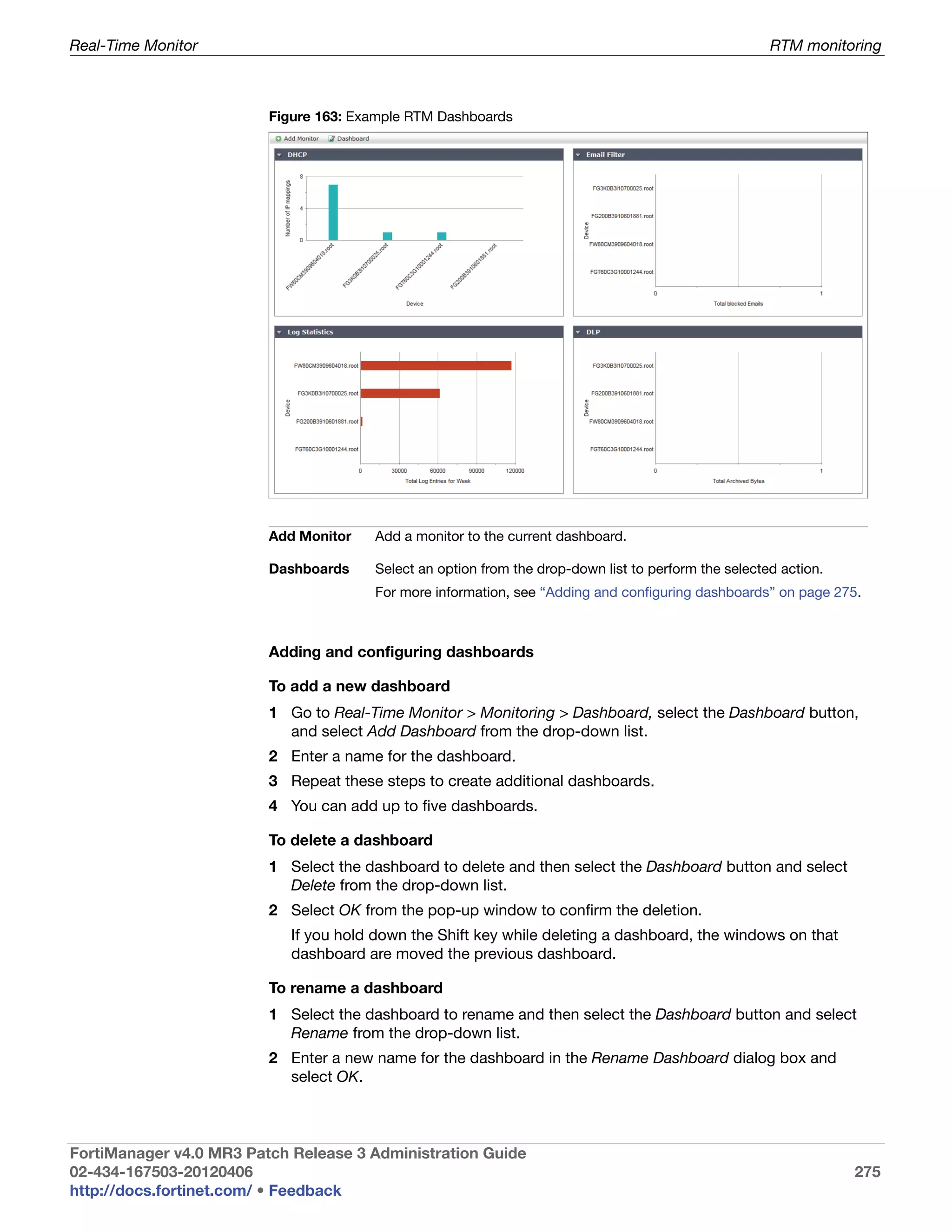
                         Example RTM Dashboards............................................................................ 275
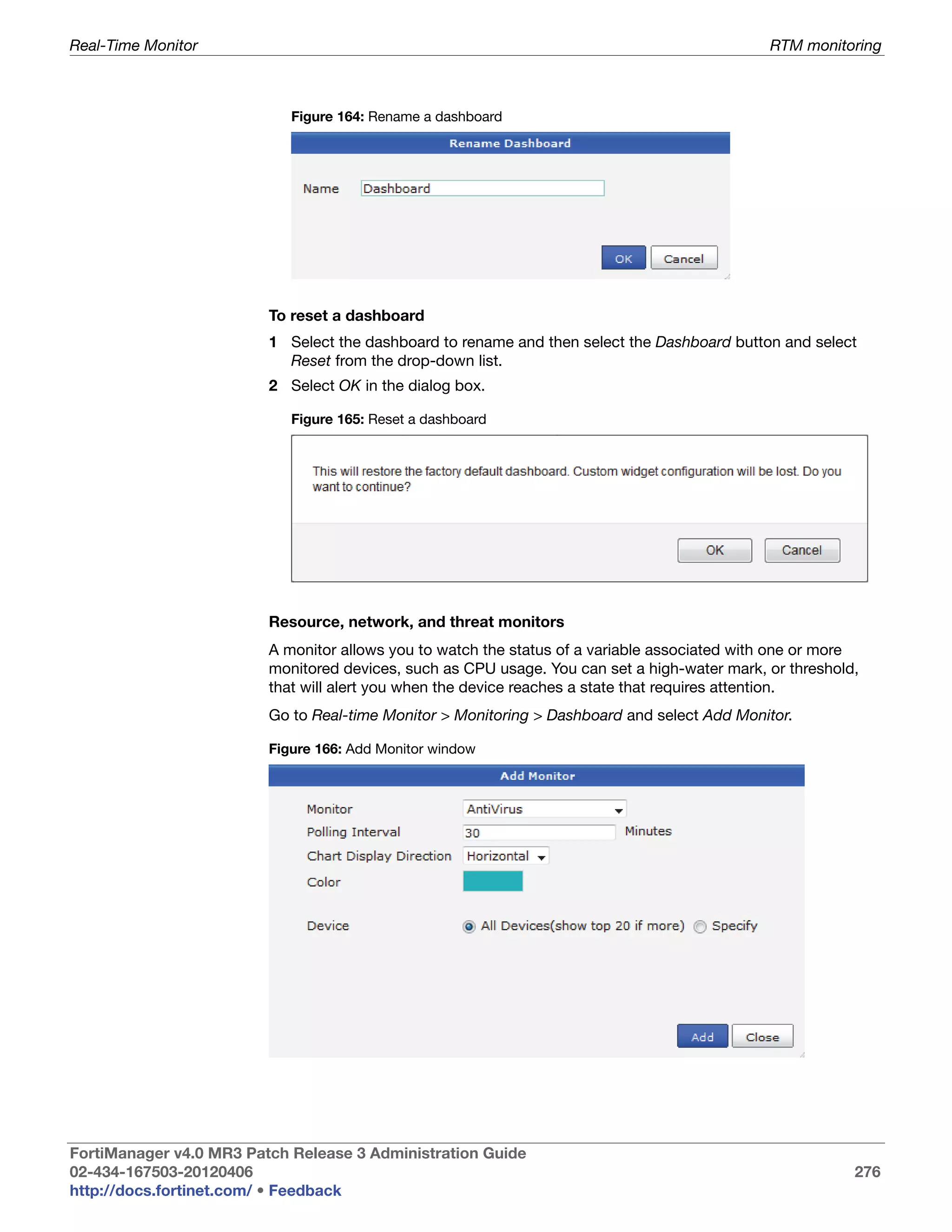
                         Rename a dashboard .................................................................................... 276
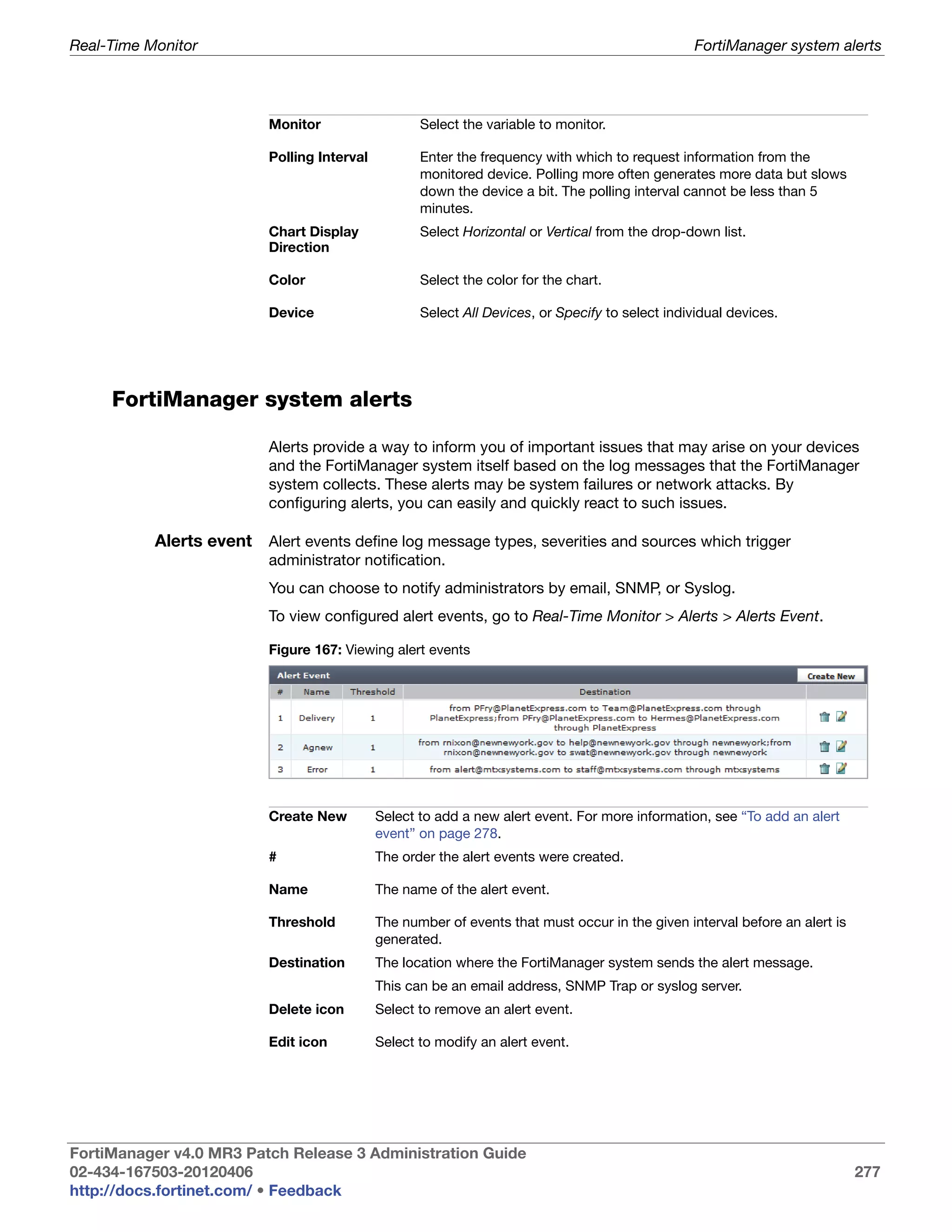
                         Reset a dashboard ........................................................................................ 276
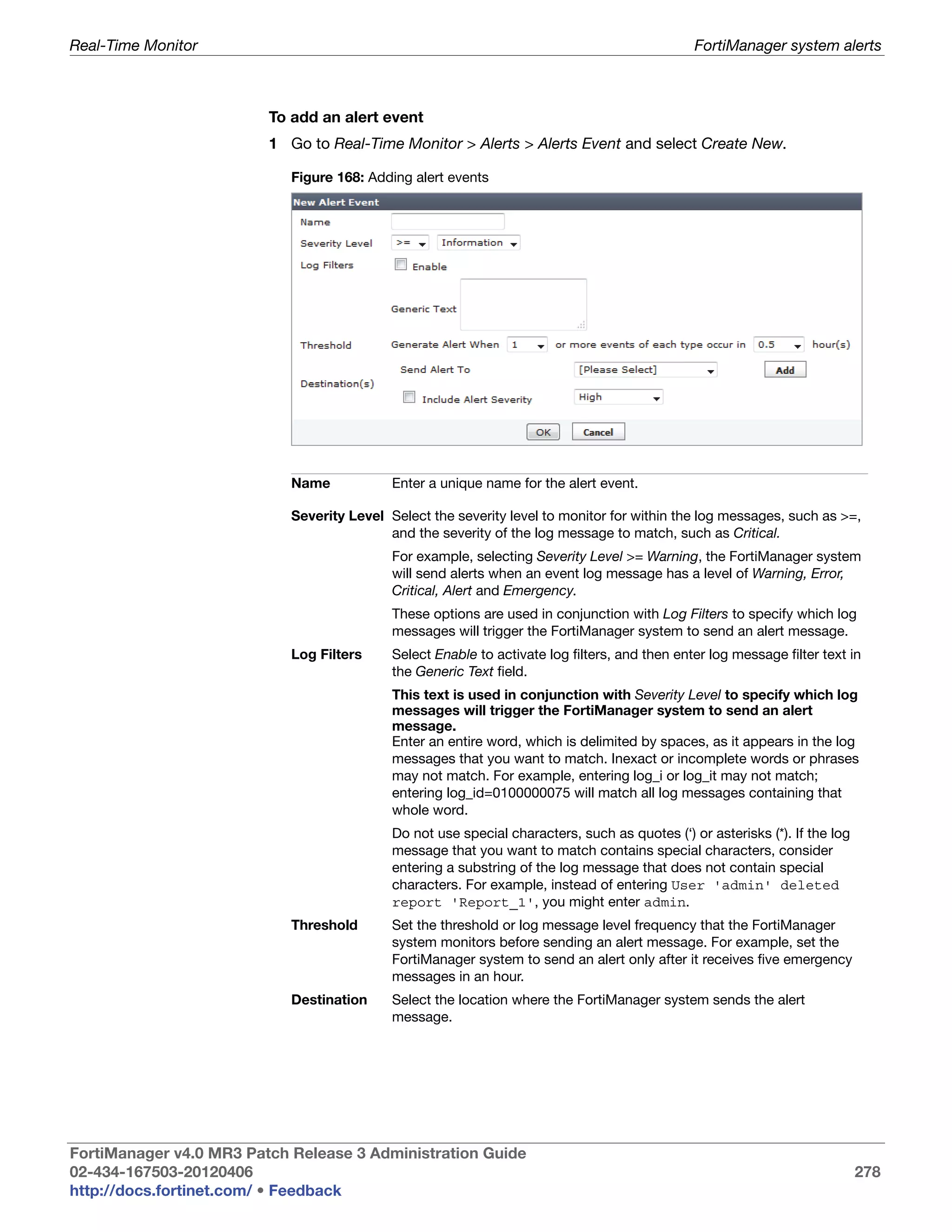
                         Add Monitor window ..................................................................................... 276
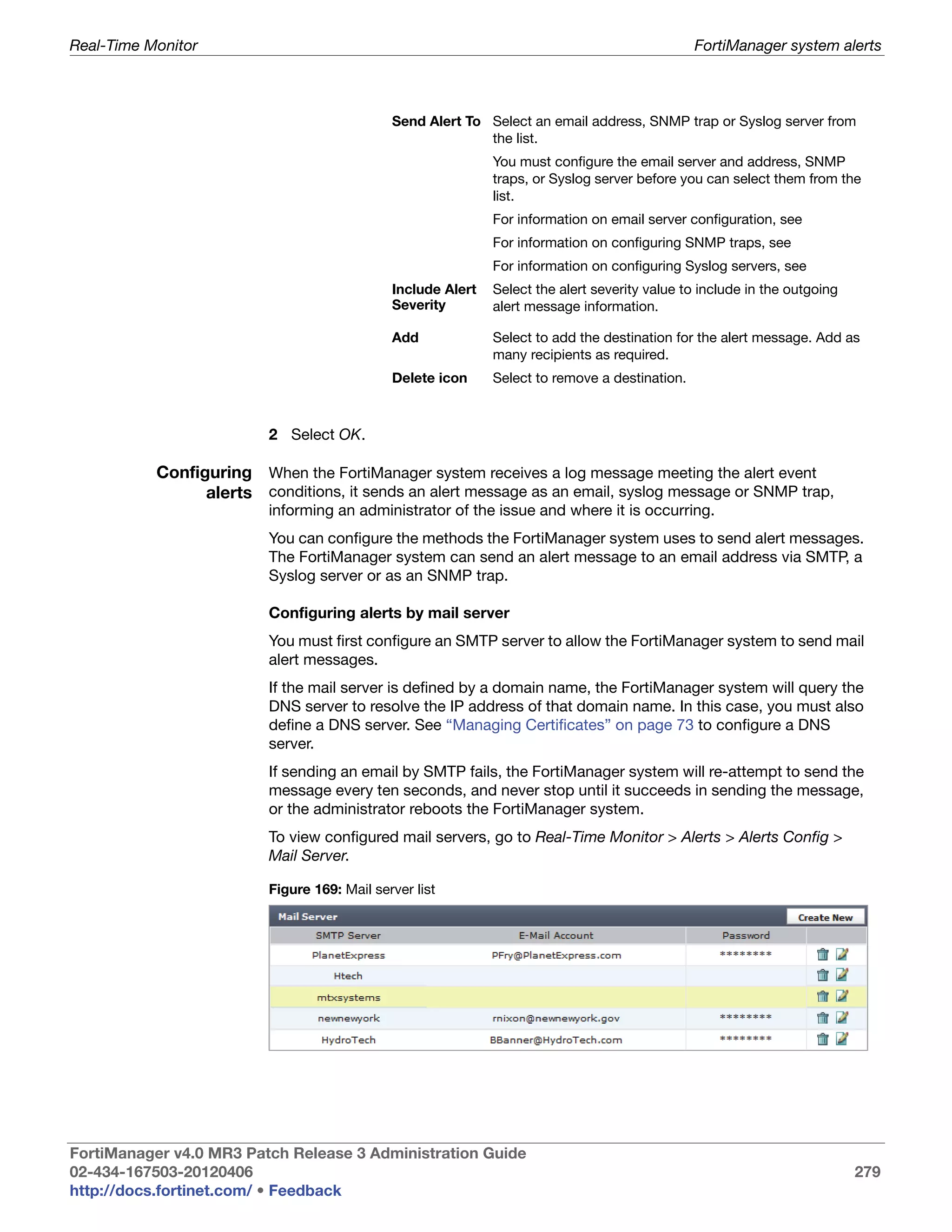
                         Viewing alert events....................................................................................... 277
                         Adding alert events ........................................................................................ 278
                         Mail server list ................................................................................................ 279
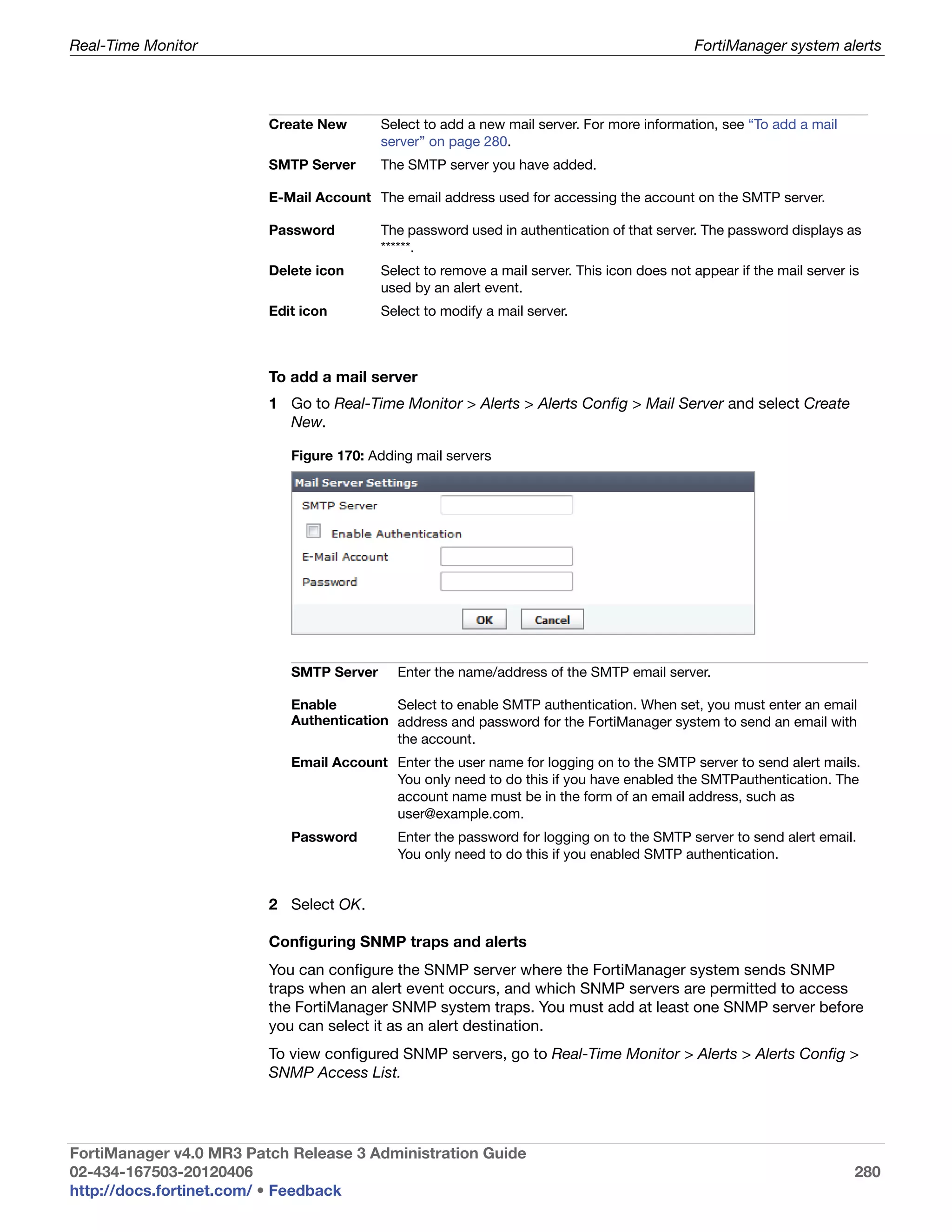
                         Adding mail servers ....................................................................................... 280
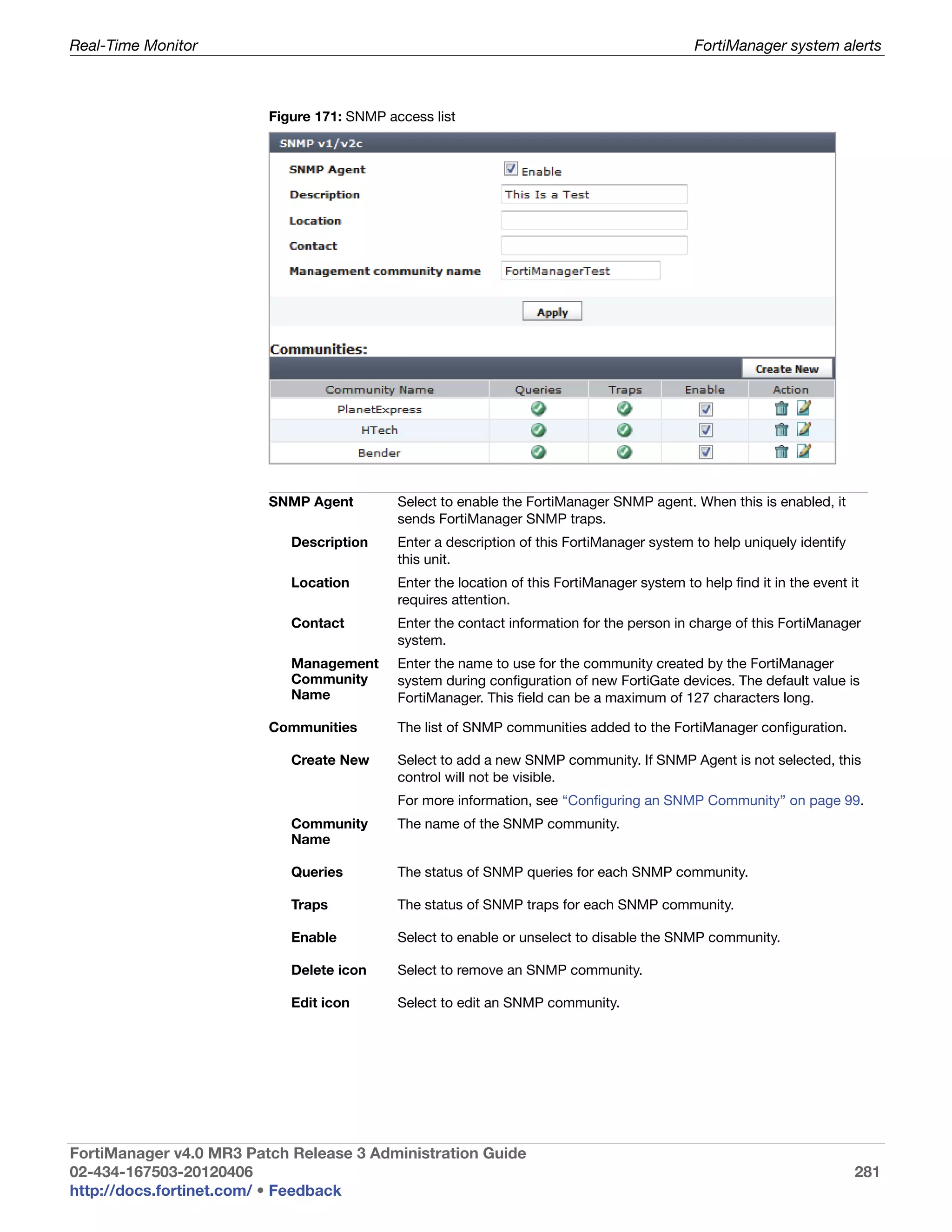
                         SNMP access list........................................................................................... 281
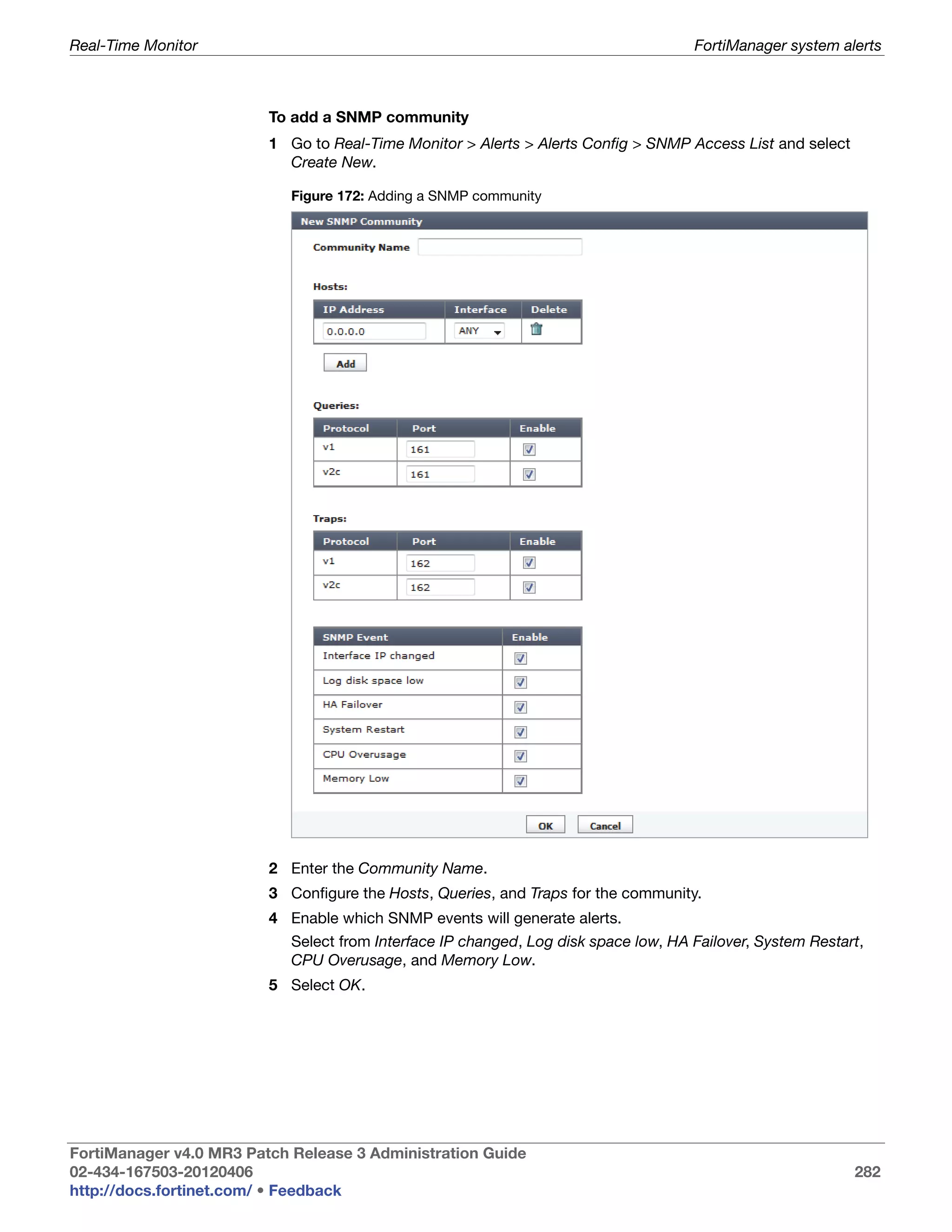
                         Adding a SNMP community .......................................................................... 282
                         Syslog server list............................................................................................ 283
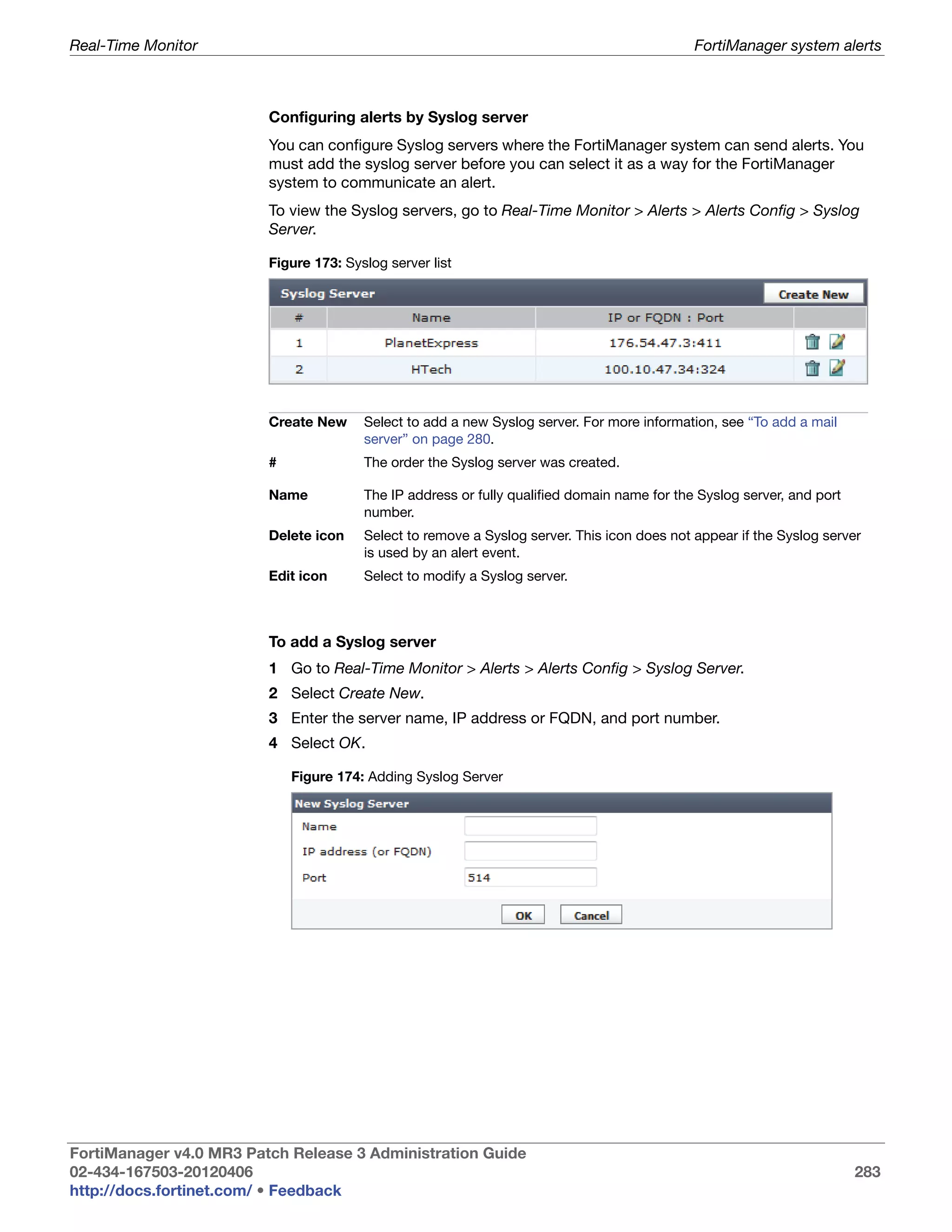
                         Adding Syslog Server .................................................................................... 283
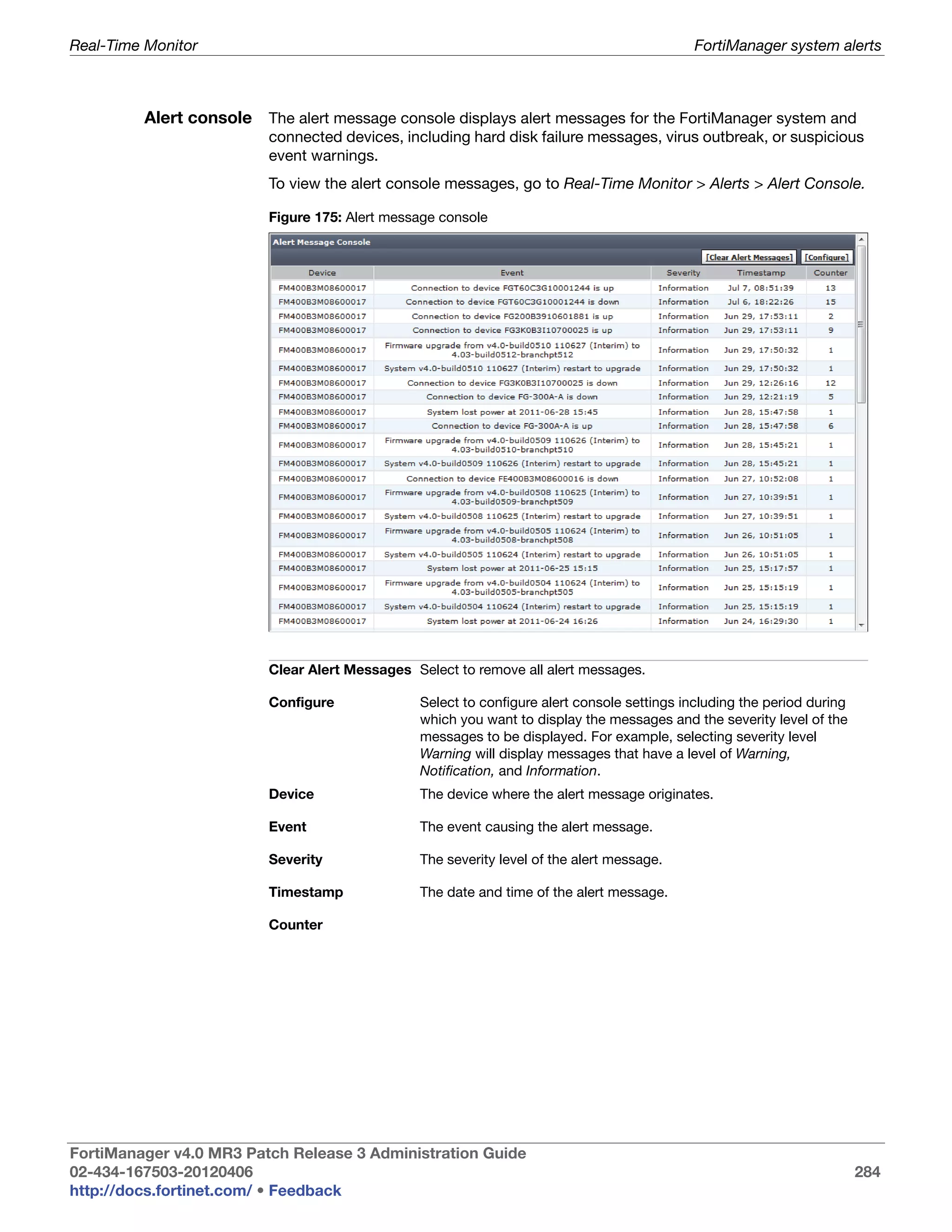
                         Alert message console .................................................................................. 284
                         Device Log Setting ........................................................................................ 285
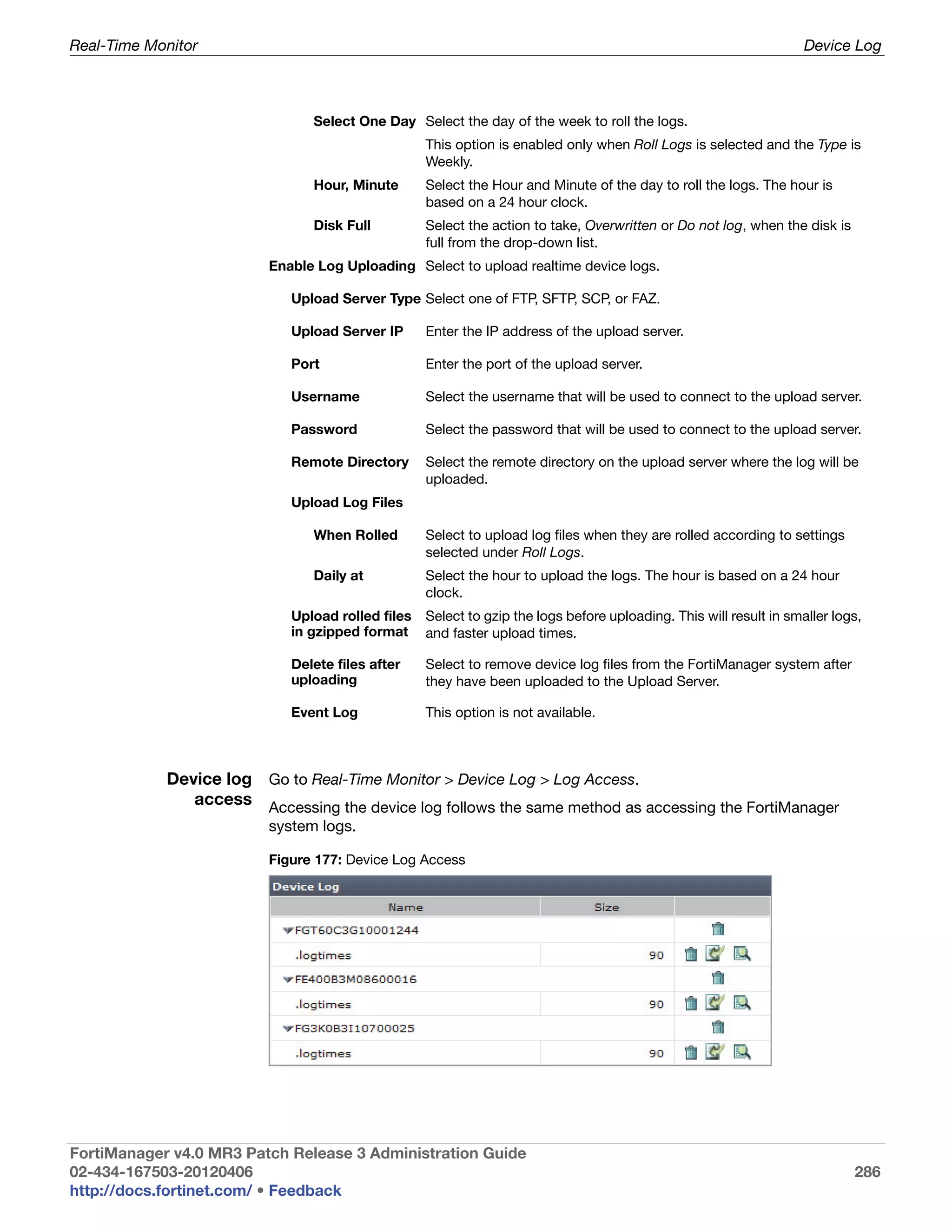
                         Device Log Access ........................................................................................ 286
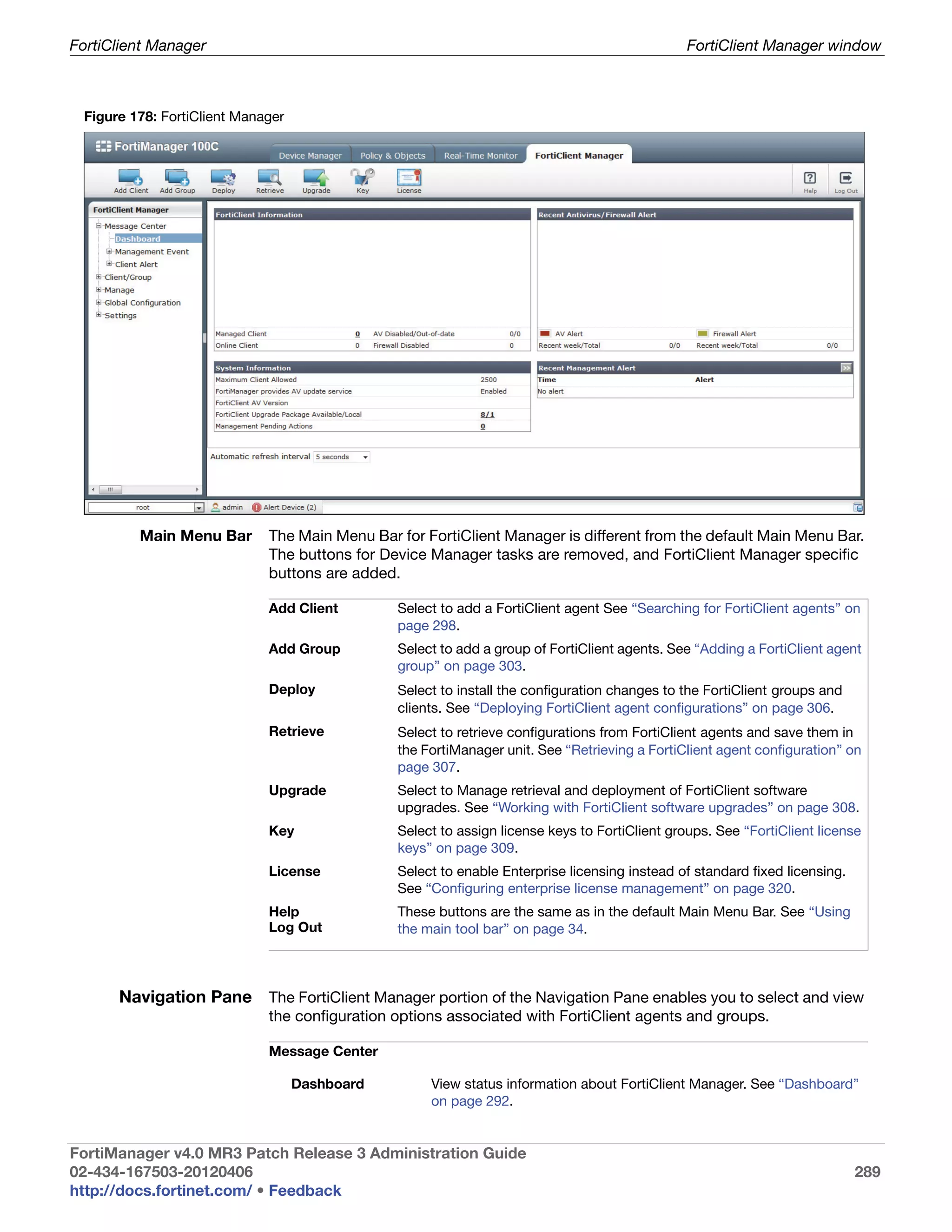
                         FortiClient Manager ....................................................................................... 289
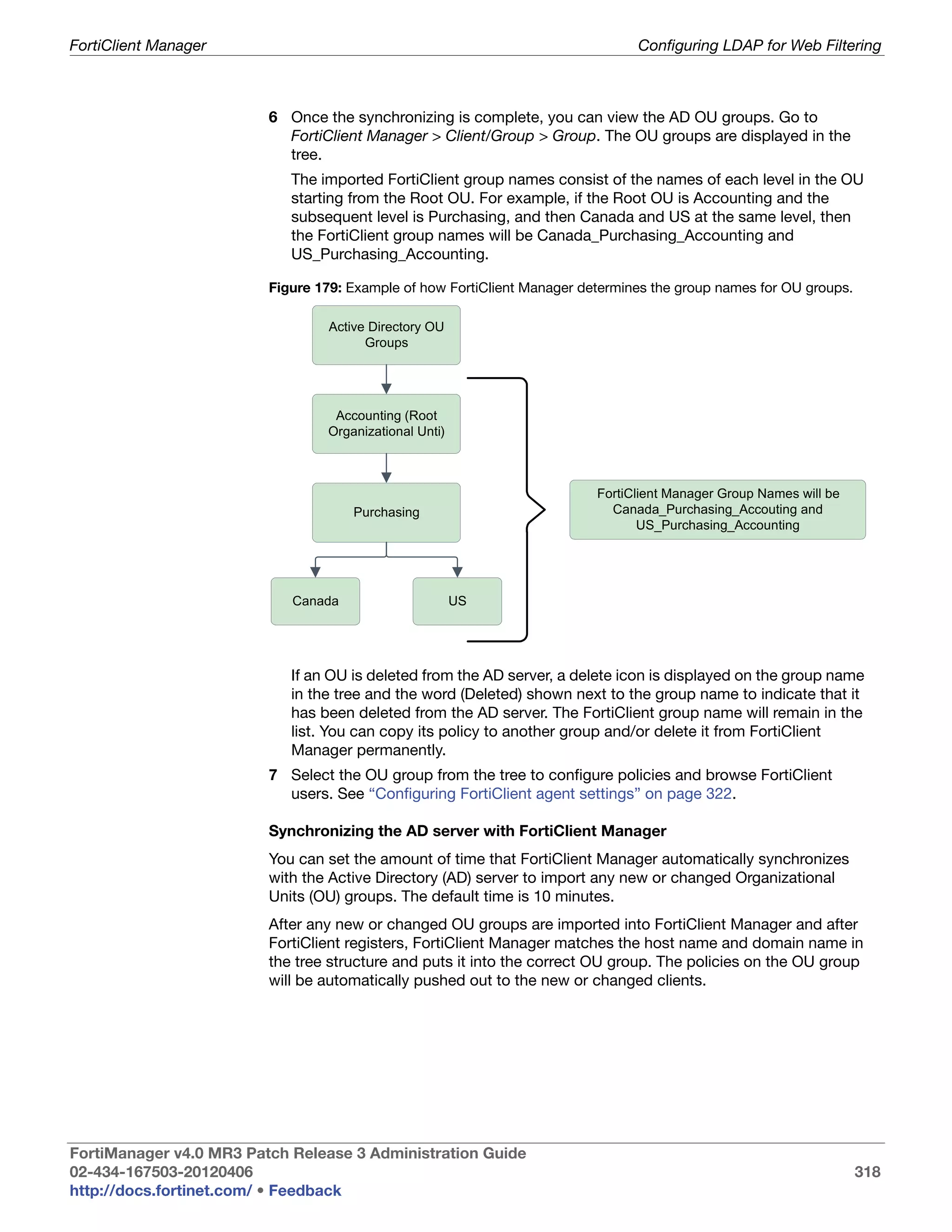
                         Example of how FortiClient Manager determines the group names for OU
                         groups............................................................................................................ 318
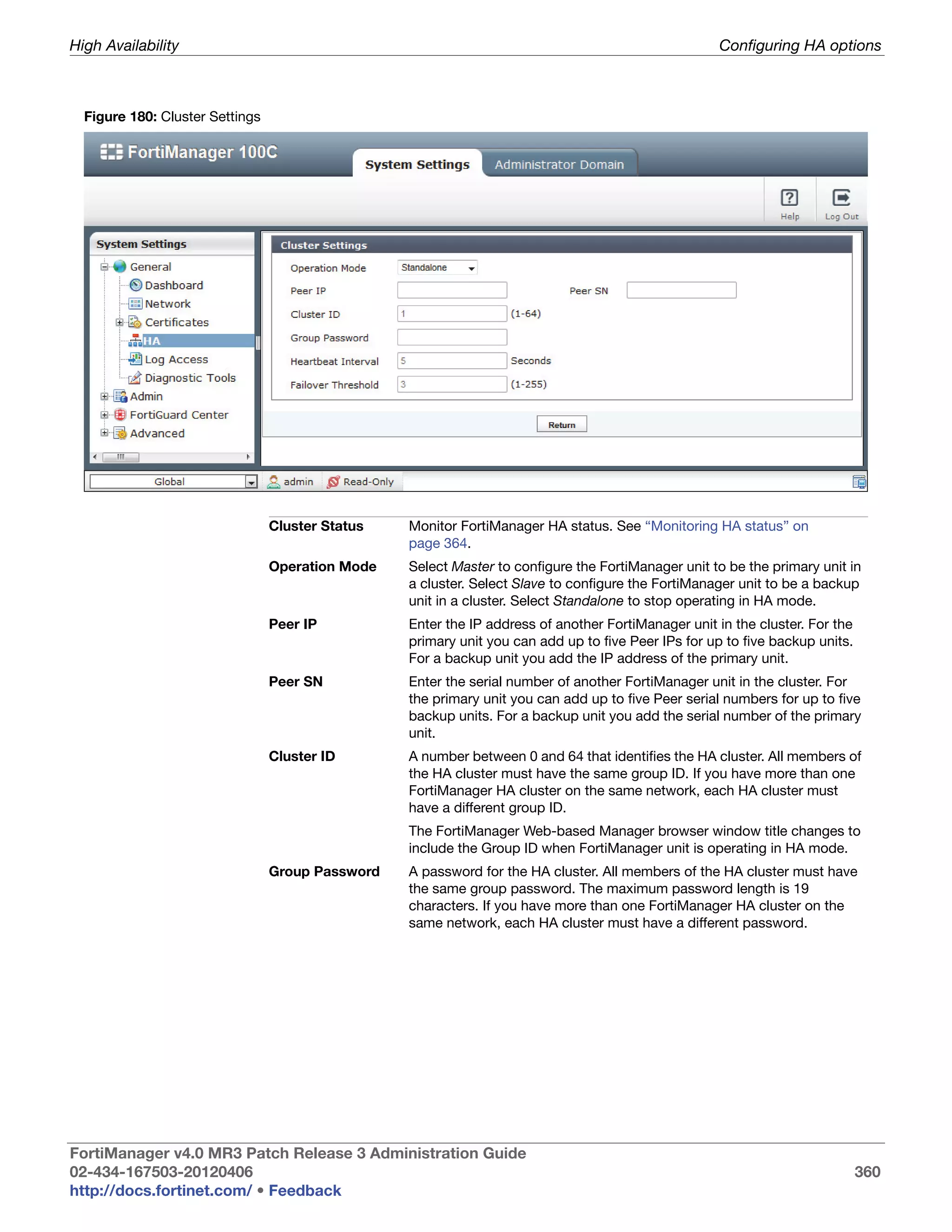
                         Cluster Settings ............................................................................................. 360
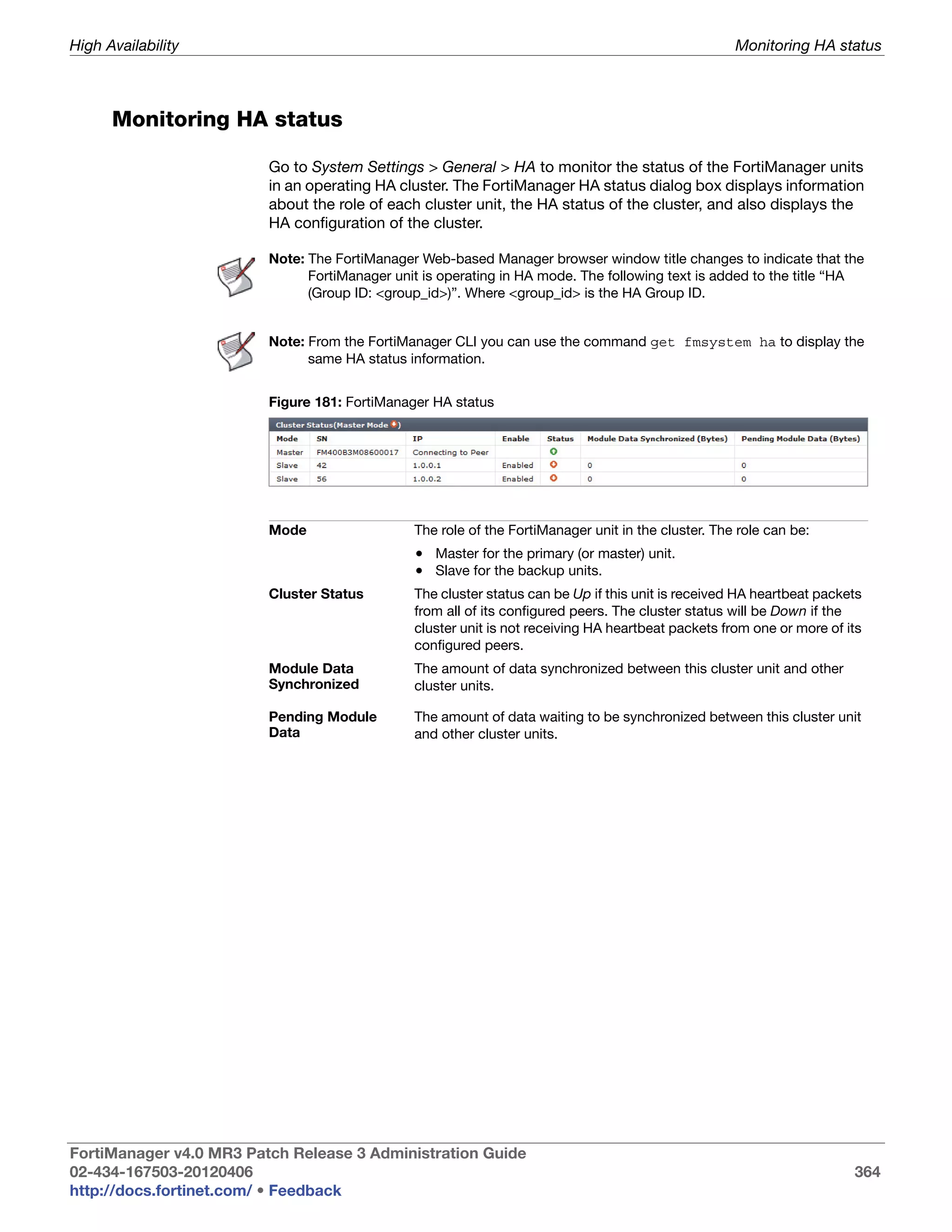
                         FortiManager HA status................................................................................. 364


FortiManager v4.0 MR3 Patch Release 3 Administration Guide
02-434-167503-20120406                                                                                                                        15
http://docs.fortinet.com/ • Feedback
Change Log


          Date         Change Description
        2012-04-06     Initial Release
        2012-04-12     Updated chassis management, under devices chapter. Updated Advanced Settings section.
        2012-06-08     Removed references to device locks.
        2012-06-18     Revised section on ADOM locking.


 FortiManager v4.0 MR3 Patch Release 3 Administration Guide
 02-434-167503-20120406                                                                                        16
 http://docs.fortinet.com/ • Feedback
Introduction


                           FortiManager centralized management appliances deliver the essential tools needed to
                           effectively manage your Fortinet-based security infrastructure.
                           Using the FortiManager system, you can:
                           • configure multiple FortiGate units (including FortiGate, FortiWiFi, FortiGate-One,
                             and FortiGate-Virtual Machine), FortiCarrier units, FortiMail units, FortiSwitch units,
                             and FortiClient endpoint security agents,
                           • segregate management of large deployments easily and securely by grouping
                             devices and agents into geographic or functional administrative domains (ADOMs),
                           • configure and manage VPN policies,
                           • monitor the status of these units,
                           • view device logs,
                           • update the AntiVirus and attack signatures,
                           • provide Web Filtering and Email Filter service to the licensed devices as a local
                             FortiGuard Distribution Network (FDN) server.
                           • update the firmware images of the devices.
                           The FortiManager system scales to manage up to 5,000 devices and virtual domains
                           (VDOMS) and up to 120,000 FortiClient agents from a single FortiManager interface. It
                           is designed for medium to large enterprises and managed security service providers.
                           FortiManager system architecture emphasizes reliability, scalability, ease of use, and
                           easy integration with third-party systems.
                           This section contains the following topics:
                           • About this document
                           • FortiManager documentation


       About this document

                           This document describes how to configure and manage your FortiManager system and
                           the devices that it manages.
                           The FortiManager system documentation assumes you have one or more FortiGate
                           units, you have FortiGate unit documentation, and you are familiar with configuring
                           your FortiGate units before using the FortiManager system. Where FortiManager
                           system features or parts of features are identical to FortiGate unit, the FortiManager
                           system documentation refers to the FortiGate unit documentation for further
                           configuration assistance with that feature.
                           This document contains the following information:
                           • What’s New in v4.0 MR3 lists and describes some of the new features and changes
                             in FortiManager v4.0 MR3 Patch Release 3.
                           • Fortinet Management Theory describes key features of the FortiManager system.


  FortiManager v4.0 MR3 Patch Release 3 Administration Guide
  02-434-167503-20120406                                                                                            17
  http://docs.fortinet.com/ • Feedback
Introduction                                                                                About this document


                         • Using the Web-based Manager introduces the FortiManager Web-based Manager
                           interface that is used to manage and configure supported Fortinet units and
                           FortiClient agents, and to view FortiGate unit configuration, device status, system
                           health, real time logs, and historical logs.
                         • Administrative Domains (ADOMs) describes ADOMs that can define sets of devices
                           to be controlled by one or more administrators.
                         • System Settings describes how to control and monitor the operation of the
                           FortiManager system, including network settings, managing firmware revisions,
                           configuration backup and administrator access.
                         • Using FortiManager Wizards describes how to use the Install, Add Device, and
                           Import Device wizards.
                         • Device Management describes adding, configuring and managing devices, Virtual
                           Domains (VDOMs) and working with device groups.
                         • Policies and Objects describes policy workflow, provisioning, policy packages,
                           objects and dynamic objects.
                         • VPN Console describes how to configure a VPN and firewall policies.
                         • Installing Device Configurations describes installing configuration changes to the
                           devices and pulling the existing configurations from the devices.
                         • Advanced Features describes administrative web portals and portal access.
                         • Application Program Interfaces
                         • Java-based Administration Client introduces the FortiManager java-based
                           administration client tool that can used to manage and configure supported devices
                           and FortiClient agents.
                         • Working with Scripts describes how to create and manage scripts from devices that
                           are in operation. Administrators can use functions, such as the configure function,
                           the debug function, the show function, and the get function, to manage devices
                           using scripts.
                         • FortiGuard Services describes how to use the FortiManager system as a local
                           update server for AV and IPS signatures and a on-site FDN server for FortiGuard
                           Web Filtering and Email Filter services.
                         • Firmware and Revision Control describes how to view, download and install device
                           firmware images.
                         • Real-Time Monitor describes how to monitor the status of a number of devices,
                           system alerts and device log.
                         • FortiClient Manager describes how to use the FortiClient Manager to centrally
                           manage FortiClient agents.
                         • High Availability describes how to configure and manage a FortiManager high
                           availability clusters.
                         • FortiManager Firmware


FortiManager v4.0 MR3 Patch Release 3 Administration Guide
02-434-167503-20120406                                                                                           18
http://docs.fortinet.com/ • Feedback
Introduction                                                                          FortiManager documentation


      FortiManager documentation

                         The following FortiManager product documentation is available:
                         • FortiManager Administration Guide
                            This document describes how to set up the FortiManager system and use it to
                            manage supported Fortinet units and FortiClient agents. It includes information on
                            how to configure multiple Fortinet units and FortiClient agents, configuring and
                            managing the FortiGate VPN policies, monitoring the status of the managed
                            devices, viewing and analyzing the FortiGate logs, updating the virus and attack
                            signatures, providing Web Filtering and Email Filter service to the licensed FortiGate
                            units as a local FortiGuard Distribution Network (FDN) server, firmware revision
                            control and updating the firmware images of the managed units and agents.
                         • FortiManager System QuickStart Guide
                            This document is included with your FortiManager system package. Use this
                            document to install and begin working with FortiManager system and FortiManager
                            Web-based Manager.
                         • FortiManager online help
                            You can get online help from the FortiManager Web-based Manager. FortiManager
                            online help contains detailed procedures for using the FortiManager Web-based
                            Manager to configure and manage FortiGate units.
                         • FortiManager CLI Reference
                            This document describes how to use the FortiManager CLI and contains a
                            reference to all FortiManager CLI commands.
                         • FortiManager Release Notes
                            This document describes the new features and enhancements in the FortiManager
                            system since the last release and lists the resolved and known issues. This
                            document also defines supported platforms and firmware versions.
                         • FortiManager Log Message Reference Guide
                            The FortiManager Log Message Reference Guide describes the structure of
                            FortiManager log messages and provides information about the log messages that
                            are generated by the FortiManager system.


FortiManager v4.0 MR3 Patch Release 3 Administration Guide
02-434-167503-20120406                                                                                           19
http://docs.fortinet.com/ • Feedback
What’s New in v4.0 MR3


                          This chapter lists and describes some of the key changes and new features added to
                          the FortiManager system.


                          Note: This document was written for FortiManager v4.0 MR3 Patch Release 5.


      Global Policy improvements

                          Global Policy evaluation
                          FortiManager v4.0 MR3 Patch Release 3 includes a limited Global Policy feature that
                          allows administrators to evaluate the Global Policy feature before purchasing the
                          Global Policy license.
                          When a license key is not installed on the FortiManager, you will be able to enable the
                          Global Policy feature, however the following will be enforced:
                          • Only the default policy package can be used
                          • A maximum of ten policies can be defined in the default package
                          • A maximum of ten objects can be defined.

                          Note: The Global Policy license is now available for the FortiManager 400B, 400C, 1000C,
                                3000B, 3000C, 5001A and FortiManager VM-Base (4.3).


                          Assigning Global Policies to ADOMs
                          FortiManager v4.0 MR3 Patch Release 3 allows you to specify which policy package
                          within each ADOM, will inherit the Global Policy or Global Database. This enhancement
                          provides a finer granularity to assign specific policy packages within each ADOM.

                          Add Global Zone to Global Policy
                          FortiManager v4.0 MR3 Patch Release 3 adds a Global Zone objects menu and table
                          for adding global zones to global policies. The following changes are included:
                          • Within an ADOM, the global zones are read-only and can not be deleted or edited in
                            the Objects database.
                          • You will need to populate the global zones with interfaces from each device
                            manager.
                          • Global zones can be used for both Global level policy packages as well as ADOM
                            level policy packages, after it is assigned from global to the specified ADOM.


 FortiManager v4.0 MR3 Patch Release 3 Administration Guide
 02-434-167503-20120406                                                                                              20
 http://docs.fortinet.com/ • Feedback
What’s New in v4.0 MR3                                                            Administrative Domain (ADOM)


                         Section View for Global and ADOM Policy Packages
                         FortiManager v4.0 MR3 Patch Release 3 improves the section view menu, by zone
                         with custom label sections. This change adds the following features:
                         • View with global sections or with zone sections with custom labels
                         • Option to toggle between views
                         • Support for both ADOM and Global Policy packages.


     Administrative Domain (ADOM)

                         The following improvements have been made to the ADOM list page:
                         • When the global admin user logs in, they are directed to the ADOM list page.
                         • When selecting the ADOM name, the left menu item will be selected and the ADOM
                           dashboard will be displayed.
                         • The right-click context menu has a new option to enter the ADOM.
                         • A search field has been added to the navigation pane to quickly search for a
                           specific ADOM.
                         • If backup mode has been configured, backup is displayed beside the ADOM name
                           in the column.
                         • A new column has been added to show if the ADOM has any alerts and a count of
                           the number of alerts.
                         • A status icon is displayed beside each device to show if communication is up or
                           down.
                         • When you hover the mouse pointer over an ADOM, an Enter dialogue box appears.
                           Left-click Enter to enter the ADOM menu.

                         ADOM Backup and Revision Control
                         FortiManager v4.0 MR3 Patch Release 2 introduced two administrative domain
                         (ADOM) configuration modes: Normal, and Backup. FortiManager v4.0 MR3 Patch
                         Release 3, introduces improvements with how the FortiManager handles backup and
                         revision control in both these modes of operation. See “Administrative Domains” on
                         page 38 for more information.


     Install Wizard/Import Wizard

                         FortiManager v4.0 MR3 Patch Release 3 provides enhancements to the install wizard
                         and import wizard. These changes include:
                         • Clear description of error messages
                         • Preview option to view the installation changes for a policy package
                         • Preview option for device settings installation

                         Add Device Wizard, Fast Forward Support
                         An option has been added to device discovery that allows you to ignore prompts when
                         adding or importing a device unless errors occur. If the device has VDOMs, this option
                         is hidden on the discovery page and displayed on the VDOM page.


FortiManager v4.0 MR3 Patch Release 3 Administration Guide
02-434-167503-20120406                                                                                        21
http://docs.fortinet.com/ • Feedback
What’s New in v4.0 MR3                                                                              Policy usability


                         Import Policy
                         FortiManager v4.0 MR3 Patch Release 3 provides enhancements to the import policy
                         wizard which allows you to select specific policies to import. This granularity provides
                         you with more control over the device and policy import process. Both IPv4 and IPv6
                         policies are supported.

                         Virtual Domain (VDOM)
                         FortiManager v4.0 MR3 Patch Release 3 provides the following improvements to the
                         Import Wizard and Device Management to handle the import of multiple VDOMs and
                         import of devices/VDOMs when upgrading or moving devices between ADOMS:
                         • New Add VDOM page in the Import Wizard
                         • If the device has VDOMs enabled with more than one VDOM, the ADD VDOM page
                           will be displayed.
                         • The first VDOM will be selected by default, as each VDOM is imported, it will be
                           greyed out in the list.
                         • You can specify a specific VDOM to import
                         • You can select the Import All checkbox to automatically import all VDOMs, or any
                           remaining VDOMs that have not been imported.
                         • You can choose the Skip Remaining button to ignore any remaining VDOMs and
                           jump straight to the summary page.
                         Once a VDOM is added, you will return to the Add VDOM page.


     Policy usability

                         FortiManager v4.0 MR3 Patch Release 3 adds a Set Profile option in the right-click
                         menu on the policy page. You can use option to assign a new profile to the firewall
                         policy without having to remove and re-add the profile or open the edit policy page.

                         Multiple policy edit
                         FortiManager v4.0 MR3 Patch Release 3 provides an enhancement to allow you to
                         select multiple policies and then right-click to modify the UTM settings for all the
                         selected policies.


     FortiToken support

                         FortiManager v4.0 MR3 Patch Release 3 provides FortiToken support as a configurable
                         object. See “FortiToken configuration example” on page 180.


     Management model

                         The FortiManager system in v4.0 MR3 has been changed from what you may be used
                         to from earlier versions. In previous versions there were 2 modes of operation: EMS
                         and GMS. In v4.0 MR3, these have been combined into a single, united workflow that
                         is suitable for users of either mode.


FortiManager v4.0 MR3 Patch Release 3 Administration Guide
02-434-167503-20120406                                                                                              22
http://docs.fortinet.com/ • Feedback
What’s New in v4.0 MR3                                                     FortiManager VM licensing changes


                         The new management model has the following configuration management
                         components per ADOM:
                            • Policy & Objects
                            • Real-Time Monitor
                            • FortiClient Manager
                            • Add Device Wizard
                            • Install Wizard
                            • Device Settings Management:
                               • Device Summary & Status
                               • VDOM Synchronization
                               • Web-based Manager Scripts
                         For more information on the new management model, see “Fortinet Management
                         Theory” on page 25.


     FortiManager VM licensing changes

                         With FortiManager v4.0 MR3 Patch Release 3, the following changes have been made
                         to FortiManager-VM:
                         • Automatic fifteen (15) day evaluation license
                         • Removal of requirement to have FortiManager-VM contact FortiGuard Distribution
                           Servers (FDS) for license activation
                         • Stackable license model for FortiManager-VM license add-ons
                         • License can be applied through the FortiManager-VM CLI.
                         See “FortiManager-VM Licence Enhancements” on page 372.


     Web-based Manager changes

                         FortiManager v4.0 MR3 includes a number of changes to the Web-based Manager:
                         • Tab Bar
                            The Web-based Manager now features a tab bar to improve its organization and
                            simplify access to important system functions.
                         • System Settings
                           The System menu in the Web-based Manager has been improved to make it easier
                           to use. Improved support for widgets has been added.
                         • Installation Improvements
                           FortiManager v4.0 MR3 simplifies installation of updates to managed devices,
                           allowing “1-click” installation of updates.
                         • Policy Table Improvements
                           The Policy Table has had several improvements made, including contextual menus,
                           to improve usability.


FortiManager v4.0 MR3 Patch Release 3 Administration Guide
02-434-167503-20120406                                                                                      23
http://docs.fortinet.com/ • Feedback
What’s New in v4.0 MR3                                                                            User Workspaces


     User Workspaces

                         System administrators can enable or disable concurrent access to the same ADOM if
                         multiple administrators are responsible for managing a single ADOM. When enabled,
                         multiple administrators can log in to the same ADOM concurrently. When disabled,
                         only a single administrator has read/write access to the ADOM, while all other
                         administrators have read-only access.
                         For further reading on how all the new changes to the Web-based Manager work,
                         please refer to “Concurrent ADOM access” on page 42.


     Search improvements

                         Searching in FortiManager v4.0 MR3 has been updated to allow users to find the
                         information they are looking for easier. This includes global object searches, plus the
                         ability to easily locate where objects are being used in specific policy packages with
                         the Where Used feature.


     Improvements to Device Manager

                         FortiManager v4.0 MR3 adds many usability improvements to the Add Device feature,
                         including:
                         • New layout design
                         • The process for adding, importing, and installing devices has been streamlined with
                           the Add Device and Install wizards
                         • Real-time progress monitoring
                         • Real-time FortiGate data.
                         For more information on Device Manager, please refer to “Device Management” on
                         page 140.


     Firewall Policies Consistency Check

                         FortiManager v4.0 MR3 adds the ability to check all firewall rules and policies to ensure
                         consistency and eliminate rule conflicts that may prevent your devices from passing
                         traffic. The check will verify:
                         • Object Duplication: two objects that have identical definitions
                         • Object Shadowing: one object completely shadows another object of the same
                           type
                         • Object Overlap: one object partially overlaps another object of the same type
                         • Object Orphaning: an object has been defined but has not been used anywhere.
                         This will allow you to optimize your rule and policy sets and potentially reduce the size
                         of your databases.
                         For more information, see “Perform a policy consistency check” on page 175.


FortiManager v4.0 MR3 Patch Release 3 Administration Guide
02-434-167503-20120406                                                                                             24
http://docs.fortinet.com/ • Feedback
What’s New in v4.0 MR3                                                                       Java Client for Windows


     Java Client for Windows

                         FortiManager v4.0 MR3 now supports a Java-based desktop client for Microsoft
                         Windows that allows an administrator to interact with FortiManager via their desktop.
                         For users with large data sets, this can assist in easier and faster management of their
                         networks.
                         Please see “Java-based Administration Client” on page 197.


     IPv6 support

                         FortiManager v4.0 MR3 now fully supports all FortiGate IPv6 features, both via the CLI
                         and the Web-based Manager.


     Audit logging

                         FortiManager v4.0 MR3 now provides full logging of all administrative activities.


     FortiGate to FortiManager Protocol

                         There have been revisions to the FGFM protocol used to communicate between
                         FortiGate and FortiManager devices, including the ability to remotely execute
                         commands on remote FortiGate devices.


     FortiMail support

                         FortiManager v4.0 MR3 now supports remote managing of FortiMail devices.
                         FortiManager is now able to discover and add FortiMail devices; remotely monitor
                         FortiMail status; view, edit, install and backup FortiMail settings and configuration files;
                         and remotely create, view, edit, delete and execute scripts.


     High Availability improvements

                         FortiManager v4.0 MR3 brings improvements to HA mode:
                         • Automatic firmware updating to slave units when the primary unit is upgraded
                         • Automatic removal of inoperable slave units, with notification to the administrator
                           indicating that action is required
                         • Improved uptime and availability enhancements.
                         Please review the High Availability section of this document, located on page 357 for
                         further reading.


FortiManager v4.0 MR3 Patch Release 3 Administration Guide
02-434-167503-20120406                                                                                              25
http://docs.fortinet.com/ • Feedback
What’s New in v4.0 MR3                                                                SNMPv3 support added


     SNMPv3 support added

                         FortiManager v4.0 MR3 now has SNMPv3 support, allowing SNMPv3 queries, replies,
                         authentication and views. More information on this feature is available in the
                         FortiManager CLI Reference, available online at http://docs.fortinet.com/.


     Additional XML API extensions

                         FortiManager v4.0 MR3 adds additional extensions to the XML definition to allow
                         better group management. Please refer to the FortiManager XML API Guide, available
                         online at http://docs.fortinet.com/.


FortiManager v4.0 MR3 Patch Release 3 Administration Guide
02-434-167503-20120406                                                                                        26
http://docs.fortinet.com/ • Feedback
Fortinet Management Theory


                           FortiManager is an integrated platform for the centralized management of products in a
                           Fortinet security infrastructure. A FortiManager installation provides centralized
                           policy-based provisioning, configuration and update management for FortiGate
                           (including FortiGate, FortiWiFi, FortiGate-One, and FortiGate-Virtual Machine),
                           FortiCarrier, FortiSwitch devices and FortiClient end-point security agents.
                           To reduce network delays and minimize external Internet usage, a FortiManager
                           installation can also act as an on-site FortiGuard Distribution Network (FDN) server for
                           your managed devices and agents to download updates to their virus and attack
                           signatures, and to use the built-in Web Filtering and Email Filter services.
                           The FortiManager a scales to manage up to 5,000 devices and virtual domains
                           (VDOMs) and up to 120,000 FortiClient agents from a single FortiManager interface. It
                           is primarily designed for medium to large enterprises and managed security service
                           providers.
                           Using a FortiManager device as part of an organization’s Fortinet security infrastructure
                           can help minimize both initial deployment costs and ongoing operating expenses. It
                           allows fast device and agent provisioning, detailed revision tracking, and thorough
                           auditing.


      Key features of the FortiManager system

         Configuration Your FortiManager unit records and maintains the history of all configuration changes
       Revision Control made over time. Revisions can be scheduled for deployment or rolled back to a
          and Tracking previous configuration when needed.

           Centralized FortiManager can centrally manage the configurations of multiple devices from a single
          Management console. Configurations can then be built in a central repository and deployed to
                           multiple devices when required.

         Administrative FortiManager can segregate management of large deployments by grouping devices
             Domains and agents into geographic or functional administrative domains (ADOMs).

      Local FortiGuard A FortiGate device can use the FortiManager unit for AntiVirus, intrusion prevention,
               Service Web Filter and Email Filtering to optimize performance of rating lookups, and definition
          Provisioning and signature downloads.

             Firmware FortiManager can centrally manage firmware images and schedule managed devices
          Management for upgrade.

               Scripting FortiManager supports CLI or TCL-based scripts to simplify configuration
                           deployments.

            FortiClient FortiManager can also be used to manage, monitor and update your FortiClient
          Management endpoint security agents.


 FortiManager v4.0 MR3 Patch Release 3 Administration Guide
 02-434-167503-20120406                                                                                            27
 http://docs.fortinet.com/ • Feedback
Fortinet Management Theory                                                          Inside the FortiManager system


       Fortinet Device The management tasks for devices in a Fortinet security infrastructure follow a typical
             Lifecycle lifecycle:
         Management • Deployment
                             An administrator completes configuration of the Fortinet devices in their network
                             after initial installation.
                          • Monitoring
                             The administrator monitors the status and health of devices in the security
                             infrastructure, including resource monitoring and network usage. External threats to
                             your network infrastructure can be monitored and alerts generated to advise.
                          • Maintenance
                             The administrator performs configuration updates as needed to keep devices
                             up-to-date.
                          • Upgrading
                             Virus definitions, attack and data leak prevention signatures, web and spam filtering
                             services as well as device firmware images, are all kept current to provide
                             continuous protection for devices in the security infrastructure.


     Inside the FortiManager system

                          FortiManager is a robust system with multiple layers to allow you to effectively manage
                          your Fortinet security infrastructure.

                          Figure 1: FortiManager conceptual diagram


FortiManager v4.0 MR3 Patch Release 3 Administration Guide
02-434-167503-20120406                                                                                           28
http://docs.fortinet.com/ • Feedback
Fortinet Management Theory                                                       Inside the FortiManager system


                         Management module
                         The management module contains all of your header and footer policies that are
                         applicable to all ADOMs, your individual Administration Domains, all policy folders,
                         objects and configuration revisions. This is also where the FortiManager sends
                         updates to managed devices. See “Inside the FortiManager Management Module” for
                         more details.

                         System settings
                         The systems settings module enables the configuration of system settings and
                         monitors the operation of your FortiManager unit.

                         Real-time Monitor
                         The real-time monitor is used to view the live status of managed devices to identify
                         trends, outages or other events that may require your attention. Where an
                         administrator would normally log on to each individual device to view system
                         resources and information, they can view that information from the real-time monitor
                         on the FortiManager unit.

                         FortiGuard services
                         Service updates and lookups are provided through the FortiGuard Distribution Network
                         (FDN). The FDN is a global network of FortiGuard Distribution Servers (FDS) providing
                         current AntiVirus and intrusion prevention and detection engines and signatures, Web
                         Filtering and Email Filter rating databases and lookups, and firmware images. If you
                         deploy your FortiManager unit to be a private FDS, the FortiManager unit will
                         synchronize available updates with the FDN, then provide FortiGuard updates to your
                         managed devices. Using a private FDS provides a faster connection to your security
                         infrastructure.

                         Logging and Reporting
                         The logging and reporting module provides detailed logging information which can be
                         exported and viewed.

                         FortiClient Manager
                         The FortiClient manager module can be used to centrally manage FortiClient endpoint
                         security agents. This feature allows administrators to update and manage FortiClient
                         agents from within the FortiClient manager module.


FortiManager v4.0 MR3 Patch Release 3 Administration Guide
02-434-167503-20120406                                                                                          29
http://docs.fortinet.com/ • Feedback
Fortinet Management Theory                                                         Inside the FortiManager system


            Inside the Figure 2: Management module
         FortiManager
         Management
               Module


                         Global ADOM layer (advanced license feature)
                         The Global ADOM layer contains two key pieces: the Global Object Database and all
                         Header and Footer Policies.
                         • Global Object Database
                         • Header and Footer Policies
                             Header and footer policies are used to envelop policies within each individual
                             ADOM. These are typically invisible to users and devices in the ADOM layer. An
                             example of where this would be used is in a carrier environment, where the carrier
                             would allow customer traffic to pass through their network but would not allow the
                             customer to have access to the carrier’s network assets.
                         For more information on the Global ADOM Layer feature, refer to “Advanced Features”
                         on page 197.

                         ADOM layer
                         The ADOM layer is where the FortiManager manages individual devices or groups of
                         devices. It is inside this layer where policy tables and folders are created and managed
                         and installed on managed devices. Multiple policy packages can be created here, and
                         they can easily be copied to other ADOMs to facilitate configuration or provisioning of
                         new devices on the network. The ADOM layer contains one common object database
                         per ADOM, which contains information such as addresses, services, IPS information,
                         AV definitions, and Web Filtering and Email Filter.


FortiManager v4.0 MR3 Patch Release 3 Administration Guide
02-434-167503-20120406                                                                                            30
http://docs.fortinet.com/ • Feedback
Fortinet Management Theory                                                          Inside the FortiManager system


                         Device Manager layer
                         The device manager layer records information on devices that are centrally managed
                         by the FortiManager unit such as the name and type of device, the specific device
                         model, its IP address, the current firmware installed on the unit, the device’s revision
                         history, and its real-time status.


FortiManager v4.0 MR3 Patch Release 3 Administration Guide
02-434-167503-20120406                                                                                              31
http://docs.fortinet.com/ • Feedback
Using the Web-based Manager


                          This section describes general information about using the Web-based Manager to
                          access the Fortinet system from within a current web browser.
                          This section includes the following topics:
                          • System requirements
                          • Connecting to the Web-based Manager
                          • Web-based Manager overview
                          • Configuring Web-based Manager settings
                          • Reboot and shutdown of the FortiManager unit


      System requirements

                          The management computer that you use to access the Web-based Manager must
                          have a compatible web browser, such as Microsoft Internet Explorer 7.0 or greater, or
                          Mozilla Firefox 3.5 or greater.
                          To minimize scrolling, the computer’s screen should have a resolution that is a
                          minimum of 1280 x 1024 pixels.


      Connecting to the Web-based Manager

                          The Web-based Manager can be accessed by URL using the network interfaces’
                          enabled administrative access protocols and IP addresses.
                          By default, the URL when accessing the Web-based Manager through port1 is
                          https://192.168.1.99/.
                          If the network interfaces have been configured differently during installation, the URL
                          and/or permitted administrative access protocols (such as HTTPS) may no longer be in
                          their default state. In that case, for the URL, use either a DNS-resolvable domain name
                          for the Fortinet unit, or the IP address that you configured for the network interface to
                          which you are connected.
                          For example, you might have configured port2 with the IP address 10.0.0.1 and
                          enabled HTTPS. You might have also configured a private DNS server on your network
                          to resolve fortimanager.example.com to 10.0.0.1. To access the Web-based Manager
                          through port2, you could enter either https://fortimanager.example.com/ or
                          https://10.0.0.1/.
                          For information on enabling administrative access protocols and configuring IP
                          addresses, see “Configuring network interfaces” on page 71.

                          Note: If the URL is correct and you still cannot access the Web-based Manager, you may also
                                need to configure static routes. For details, see “Configuring static routes” on page 72.


 FortiManager v4.0 MR3 Patch Release 3 Administration Guide
 02-434-167503-20120406                                                                                                     32
 http://docs.fortinet.com/ • Feedback
Using the Web-based Manager                                                             Web-based Manager overview


     Web-based Manager overview

                          The four main parts of the FortiManager Web-based Manager are the Main Menu Bar,
                          the Tab Bar, the Navigation Pane, and the Content Pane. You can use the Web-based
                          Manager menus, lists, and configuration pages to configure most FortiManager
                          settings. Configuration changes made using the Web-based Manager take effect
                          immediately without resetting the FortiManager system or interrupting service.
                          The Web-based Manager also includes detailed online help. Selecting Help on the
                          Main Menu Bar displays help for the current Web-based Manager module.
                          The navigation pane and content pane information displayed to an administrator vary
                          according to the administrator account settings and access profile that have be
                          configured for that user. The System Settings menu, for example, is available only
                          when you log in as the default admin administrator. This administrator has full
                          (super-user) privileges and is allowed to access and configure any part of the
                          FortiManager system and its managed devices. For more information about
                          administrator accounts and their privileges, see “Managing administrators” on
                          page 77.
                          When you log in to the FortiManager unit as the admin administrator, the Web-based
                          Manager opens to the System Settings menu and displays the system dashboard.
                          From this menu you can monitor the system status and perform various system
                          administration tasks. For more information about using the System Settings menu, see
                          “System Settings” on page 47.
                          This section describes the following topics:
                          • Using the main tool bar
                          • Using the tab bar
                          • Using the navigation pane

           Viewing the Figure 3: Default FortiManager Configuration window
           Web-based Main Menu Bar                Tab Bar
              Manager


                               Navigation Pane                           Content Pane
                           ADOM drop-down menu


FortiManager v4.0 MR3 Patch Release 3 Administration Guide
02-434-167503-20120406                                                                                          33
http://docs.fortinet.com/ • Feedback
Using the Web-based Manager                                                                    Web-based Manager overview


                           The illustration above shows the FortiManager Web-based Manager default screen.
                           The four main parts of the FortiManager Web-based Manager are the Main Menu Bar,
                           the Tab Bar, the Navigation Pane, and the Content Pane. Use the Web-based Manager
                           menus, lists, and configuration pages to configure most FortiManager settings.
                           Configuration changes made using the Web-based Manager take effect immediately
                           without resetting the FortiManager system or interrupting service.

        Using the main At the top of the FortiManager system display is the main tool bar, which includes
               tool bar icons for many common tasks. The following icons are available:
 Figure 4: Main tool bar


                           Install            Select to install changes from the FortiManager database to the physical
                                              devices. Optionally install to FortiGate or FortiCarrier units. See “Installing
                                              Device Configurations” on page 192.
                           Add Device         Select to add a FortiGate, FortiSwitch FortiCarrier, or FortiMail unit to the
                                              current administration domain. See “Adding a device” on page 147.
                           Add Group          Select to add a group of FortiGate devices to the current administration
                                              domain. See “Adding a device group” on page 161
                           Help               Select to view the online help for the current display.

                           Log Out            Select to log out of the FortiManager Web-based Manager.


     Using the tab bar The tab bar is located across the top of the window and provides access to all the
                           features of the Fortinet system. The following items are available in the tab bar:

                           System Settings         Select to configure system settings such as network interfaces,
                                                   administrators, system time, server settings, including widgets and tabs.
                                                   From this menu, you can also perform maintenance and firmware
                                                   operations. For more details on using this menu, see “System Settings”
                                                   on page 47.
                           Administrator           Select to add and manage administrator domains.
                           Domain

                           Device Manager          Select to add and manage devices, view the device information and
                                                   status, create and manage device groups and manage firewall global
                                                   policy objects. From this menu, you can also configure the web portal
                                                   configurations, users and groups. For more details on using this menu,
                                                   see “Managing devices” on page 147.
                           Policy & Objects
                                                   For more details on using this menu, see “Policies and Objects” on
                                                   page 170.
                           VPN Console             Select to add and manage VPN consoles.
                                                   For more details on using this menu, see “VPN Console” on page 182.


FortiManager v4.0 MR3 Patch Release 3 Administration Guide
02-434-167503-20120406                                                                                                          34
http://docs.fortinet.com/ • Feedback
Using the Web-based Manager                                                  Configuring Web-based Manager settings


                          Real-Time Monitor    Select to watch your managed devices for trends, outages, or events
                                               that require attention. From this menu you can also monitor any
                                               FortiGate, FortiSwitch, FortiCarrier or FortiMail device or device group to
                                               view system resources and information.
                          FortiClient Manager Select to manage FortiClient.


            Using the The Web-based Manager navigation pane is located down the left sidebar and
      navigation pane provides access to different features and options based on your currently selected tab.
                          For more information on the available options, see the chapter corresponding to your
                          selected tab.


     Configuring Web-based Manager settings

                          Global settings for the Web-based Manager apply regardless of which administrator
                          account you use to log in. Global settings include the idle timeout, TCP port number on
                          which the Web-based Manager listens for connection attempts, the network
                          interface(s) on which it listens, and the language of its display.
                          This section includes the following topics:
                          • Changing the Web-based Manager language
                          • Changing administrative access to your FortiManager system
                          • Changing the Web-based Manager idle timeout

         Changing the     The Web-based Manager supports multiple languages, but by default appears in
          Web-based       English on first use. You can change the Web-based Manager to display language in
             Manager      English, Simplified Chinese, Traditional Chinese, or Japanese. For best results, you
            language      should select the language that the management computer operating system uses.
                          You can also set the FortiManager Web-based Manager to automatically detect the
                          system language and by default show the screens in the proper language, if available.

                          To change the Web-based Manager language
                          1 Go to System Settings > Admin > Admin Settings.
                          2 For Web Administration, select the Web-based Manager display language or select
                            Auto Detect to use the same language as configured for your web browser.
                          3 Select OK.


FortiManager v4.0 MR3 Patch Release 3 Administration Guide
02-434-167503-20120406                                                                                                       35
http://docs.fortinet.com/ • Feedback
Using the Web-based Manager                                            Configuring Web-based Manager settings


            Changing     Administrative access enables an administrator to connect to the FortiManager system
       administrative    to view and change configuration settings. The default configuration of your
       access to your    FortiManager system allows administrative access to one or more of the interfaces of
        FortiManager     the unit as described in your FortiManager system QuickStart Guide and Install Guide.
              system     You can change administrative access by:
                         • enabling or disabling administrative access from any FortiManager interface
                         • enabling or disabling securing HTTPS administrative access to the Web-based
                           Manager (recommended)
                         • enabling or disabling HTTP administrative access to the Web-based Manager (not
                           recommended)
                         • enabling or disabling secure SSH administrative access to the CLI (recommended)
                         • enabling or disabling SSH or Telnet administrative access to the CLI (not
                           recommended).

                         To change administrative access to your FortiManager system
                         1 Go to System Settings > General > Network and select All Interfaces.
                         2 Select an interface for which to change administrative access.
                         3 Select one or more Administrative Access types for the interface.
                         4 Select OK.

         Changing the    By default, the Web-based Manager disconnects administrative sessions if no activity
          Web-based      takes place for 5 minutes. This idle timeout is recommended to prevent someone from
         Manager idle    using the web-based manager from a PC that is logged into the Web-based Manager
             timeout     and then left unattended. However, you can use the following steps to change this idle
                         timeout.

                         To change the web-based manager idle timeout
                         1 Go to System Settings > Admin > Admin Settings.
                         2 Change the Idle Timeout minutes as required.
                         3 Select OK.


FortiManager v4.0 MR3 Patch Release 3 Administration Guide
02-434-167503-20120406                                                                                        36
http://docs.fortinet.com/ • Feedback
Using the Web-based Manager                                          Reboot and shutdown of the FortiManager unit


     Reboot and shutdown of the FortiManager unit

                         Always reboot and shutdown the FortiManager system using the unit operation options
                         in the Web-based Manager or the CLI commands to avoid potential configuration
                         problems.

                         Figure 5: Unit operation actions in the Web-based Manager


                         To reboot the FortiManager unit

                         1    From the Web-based Manager, go to System Settings > General > Dashboard.
                         2    In the Unit Operation widget, select Reboot or from the CLI Console widget enter:
                               execute reboot

                         To shutdown the FortiManager unit

                         1    From the Web-based Manager, go to System Settings > General > Dashboard.
                         2    In the Unit Operation widget, select Shutdown or from the CLI Console widget
                              enter:
                               execute shutdown


FortiManager v4.0 MR3 Patch Release 3 Administration Guide
02-434-167503-20120406                                                                                            37
http://docs.fortinet.com/ • Feedback
Administrative Domains


                          FortiManager appliances scale to manage thousands of Fortinet devices and agents.
                          Administrative domains (ADOMs) enable administrators to manage only those devices
                          that are specific to their geographic location or business division. FortiGate devices
                          with multiple VDOMs can be divided among multiple ADOMs.
                          If ADOMs are enabled, each administrator account is tied to an ADOM. When a
                          particular administrator logs in, they see only those devices or VDOMs that have been
                          enabled for their account. Administrator accounts that have special permissions, such
                          as the admin account, can see and maintain all ADOMs and the devices within those
                          domains.
                          ADOMs are not enabled by default, and enabling and configuring the domains can only
                          be performed by the admin administrator. For more information, see “Enabling and
                          disabling the ADOM feature” on page 38.
                          The default and maximum number of ADOMs you can add depends on the
                          FortiManager system model and the available ADOM license key. Please refer to the
                          FortiManager datasheet for information on the maximum number of devices and
                          agents your model supports. You can contact your local Fortinet reseller to purchase
                          an ADOM licence to increase the number of device ADOMs.
                          This section includes the following topics:
                          • Enabling and disabling the ADOM feature
                          • About ADOM modes
                          • Managing ADOMs
                          • Viewing ADOM assignments

                          What is the best way to organize my devices using ADOMs?
                          You can organize devices into ADOMs to allow you to better manage these devices.
                          You can organize these devices by:
                             • firmware version; group all v4.0 MR2 into one ADOM, and all v4.0 MR3 into
                               another.
                             • Geographic regions; group all devices for a specific geographic region into an
                               ADOM, and devices for a separate region into another ADOM.
                             • Admin users; group devices into separate ADOMs based for specific
                               administrators responsible for the group of devices.
                             • Customers; group all devices for one customer into an ADOM, and devices for
                               another customer into another ADOM.
                             • Device type; create a separate ADOM for each device type, i.e. FortiGate,
                               FortiCarrier, FortiMail, FortiSwitch, and FortiClient ADOMs.


      Enabling and disabling the ADOM feature

                          To enable or disable the ADOM feature, you must be logged in as the admin
                          administrator. Only this user has the ability to enable or disable this feature.


 FortiManager v4.0 MR3 Patch Release 3 Administration Guide
 02-434-167503-20120406                                                                                          38
 http://docs.fortinet.com/ • Feedback
Administrative Domains                                                                           About ADOM modes


                         Note: The ADOMs feature cannot be disabled if ADOMs are still configured and listed and they
                               still have devices managed within it.


                         To enable the ADOM feature
                         1 Log in as admin.
                         2 Go to System Settings > General > Dashboard.
                         3 In System Information, select Enable next to Administrative Domain

                            Figure 6: Enabling ADOMs


                         To disable the ADOM feature
                         1 Remove the managed devices from all ADOMs.
                            • Switch to the ADOM by selecting the Administrator Domain tab from the Menu
                              Bar. For more information see “Switching between ADOMs” on page 40.
                            • Select the check boxes for each device and select Delete.
                         2 Delete all non-root ADOMs
                            • Select the check box beside the ADOMs and select Delete.
                            After removing the ADOMs, you can now disable the ADOM feature.
                         3 Go to System Settings > General > Dashboard.
                         4 In System Information, select Disable next to Administrative Domain.


     About ADOM modes

                         When the ADOMs feature is enabled and you log in as the admin user, an
                         Administrator Domain tab appears at the top navigation pane. You can choose one of
                         two administrative modes:
                         • Global — This mode enables you to configure, set up and manage ADOMs. For
                           more information about working in Global mode, see “Managing ADOMs” on
                           page 41.
                         • ADOM (name) — If any ADOMs have been configured, the individual ADOM names
                           will appear in the drop down list. Selecting an ADOM name will display the ADOM
                           properties. From here you can view the specific devices belonging to the selected
                           ADOM. For more information about working in ADOM mode, see “Managing
                           ADOMs” on page 41.


FortiManager v4.0 MR3 Patch Release 3 Administration Guide
02-434-167503-20120406                                                                                                  39
http://docs.fortinet.com/ • Feedback
Administrative Domains                                                                             About ADOM modes


                         .


                         Note: When the ADOMs feature is enabled, the Administrator Domain tab and only lists all of the
                               ADOMS when you log into the FortiManager unit as the admin user. All other
                               administrators can select only from the ADOMs which they have been assigned.

            Switching As an admin administrator, you are able to move between all the ADOMs created on
      between ADOMs the FortiManager system. This enables you to view, configure and manage the various
                         domains. When you log into the FortiManager system as the admin administrator, by
                         default you log in to the Global mode.
                         Other administrators are only able to move between the ADOMs to which they have
                         been given access. They are able to view and administer the domains based on their
                         account‘s permission settings.
                         To access a specific ADOM, from the ADOM mode dropdown list at the bottom of the
                         navigation tree, select the ADOM you want to enter.
                         Once switched over to the new ADOM, the FortiManager system presents you with the
                         Device Manager view for that domain. You will also have additional menu selections in
                         the navigation pane for Policy, Objects, VPN Console, and Real-Time Monitor.

         Normal mode When creating an ADOM in Normal Mode, the ADOM is considered Read/Write, where
             ADOMs you are able to make changes to the ADOM and managed devices from the
                         FortiManager. FortiGate units in the ADOM will query their own configuration every 5
                         seconds. If there has been a configuration change, the FortiGate unit will send a
                         diff revision on the change to the FortiManager using the FGFM protocol.

         Backup mode When creating an ADOM in Backup Mode, the ADOM is consider Read Only, where
              ADOMs you are not able to make changes to the ADOM and managed devices from the
                         FortiManager. Changes are made via scripts which are run on the managed device, or
                         through the device Web-based Manager or CLI directly. Revisions are sent to the
                         FortiManager when specific conditions are met:
                         • Configuration change and session timeout
                         • Configuration change and logout
                         • Configuration change and reboot
                         • Manual configuration backup from the managed device.
                         Backup mode enables you to configure an ADOM where all the devices that are added
                         to the ADOM will only have their configuration backed up. Configuration changes
                         cannot be made to the devices in backup ADOM. You can push any existing revisions
                         to managed devices. You can still monitor and review the revision history for these
                         devices, and scripting is still allowed for pushing scripts directly to FortiGate units.
                         Figure 7 shows the revision of a device in a backup mode ADOM.


FortiManager v4.0 MR3 Patch Release 3 Administration Guide
02-434-167503-20120406                                                                                                 40
http://docs.fortinet.com/ • Feedback
Administrative Domains                                                                                   Managing ADOMs


 Figure 7: Backup mode ADOM device revision history


     Managing ADOMs

                            When the ADOMs feature is enabled, the Administrative Domain menu appears on the
                            bottom left navigation pane. To configure and manage ADOMs, select the Global mode
                            from the dropdown list at the bottom of the navigation pane. In this mode you can
                            manage the ADOMs and device assignments.


                            Note: The Administrator Domain tab appears only when you log in as the admin user.


                            Go to Administrative Domain > All ADOMs. The ADOM table appears; see Figure 8.
                            The following information is available:

                            Figure 8: ADOM table
                              Delete     Create New


                            Delete Check box


                            Delete check Select the check box when you want to remove one or more ADOMs. Select
                            box          Delete (located above the table) to remove the domain or domains.
                                          Note: Before you can delete an ADOM, you must first remove all devices from
                                          that domain. See “Removing devices from a domain.”
                            Create New    Select to create a new ADOM. See “Adding an ADOM” on page 42.

                            Name          The name of the ADOM. Select the name to enter that ADOM. The new domain
                                          information will be displayed in the Main Menu Bar.
                            Version       The global database version and release of the objects to configure for the
                                          devices.


FortiManager v4.0 MR3 Patch Release 3 Administration Guide
02-434-167503-20120406                                                                                                  41
http://docs.fortinet.com/ • Feedback
Administrative Domains                                                                             Managing ADOMs


                         Mode          The ADOM mode, such as Backup Mode (see “Backup mode ADOMs” on
                                       page 40).
                         Device        A list of devices in the ADOM.

                         Group         A list of groups of devices in the ADOM.


          Concurrent System administrators can enable or disable concurrent access to the same ADOM if
        ADOM access multiple admins are responsible for managing a single ADOM. When enabled, multiple
                         administrators can log in to the same ADOM concurrently. When disabled, only a single
                         administrator has read/write access to the ADOM, while all other administrators have
                         read-only access.
                         Concurrent ADOM access can be enabled or disabled using the CLI.

                         Caution: Concurrent ADOM access is enabled by default. To prevent concurrent administrators
                                  from making changes to the FortiManager database at the same time, and thereby
                                  causing conflicts, you must enable the workspace function.

                         To enable ADOM locking and disable concurrent ADOM access:
                            config fmsystem global
                              set workspace enable
                            end
                         To disable ADOM locking and enable concurrent ADOM access:
                            config fmsystem global
                               set workspace disable
                                 Warning: disabling workspaces may cause some logged in
                                     users to lose their unsaved data. Do you want to
                                     continue? (y/n) y
                            end

     Adding an ADOM To add an ADOM, you must be logged in as the admin administrator. You must also
                         first enable administrative domains in the Web-based Manager; see “To enable the
                         ADOM feature” on page 39.

                         To create an ADOM
                         1 Log into the FortiManager Web-based Manager using an administrator account.
                           The Administrator Domain tab is the default window on login.
                         2 To create a new ADOM you can either select Create New from the top menu pane
                           or right click the body pane and select New from the right-click menu.


FortiManager v4.0 MR3 Patch Release 3 Administration Guide
02-434-167503-20120406                                                                                                 42
http://docs.fortinet.com/ • Feedback
Administrative Domains                                                                                        Managing ADOMs


                         3 Select Create New from the top menu pane to create a new ADOM. A Create ADOM
                           window will pop-up which will allow you to configure the new ADOM. Enter the
                           following information:
                             • Name: Enter a name that will allow you to distinguish this ADOM from your other
                               ADOMs.
                             • Version: Select the version of FortiGate devices in the ADOM. FortiManager v4.0
                               MR3 can manage FortiOS v4.0 MR2 and MR3.
                             • Mode: Select Normal mode if you want to manage and configure the connected
                               FortiGate devices from the FortiManager Web-based Manager. Select Backup
                               mode if you want to backup the FortiGate configurations to the FortiManager,
                               but configure each FortiGate locally.
                             • VPN Management: Select Central VPN Console or Select Policy & Device VPNs.
                             • Devices: Select which devices to add to the ADOM.
                         4 Select OK to create the ADOM.

                         FortiManager Cookbook video link
                         http://www.youtube.com/watch?v=1OMlRjx9eYE&list=PL29F8DE57AA4CA091&index=5&feature=plpp_video

                            Figure 9: Add an ADOM


                            Name                   Enter a name for the ADOM.

                            Version                Select the firmware release for the ADOM from the drop-down list.

                            Mode                   Normal or Backup Mode


FortiManager v4.0 MR3 Patch Release 3 Administration Guide
02-434-167503-20120406                                                                                                   43
http://docs.fortinet.com/ • Feedback
Administrative Domains                                                                                     Managing ADOMs


                             VPN Management Central VPN Console or Policy & Device VPNs

                             Device                Select members from the Available member list and transfer them to the
                                                   Selected member list.


            Deleting an To delete an ADOM, you must be logged in as the admin administrator.
                ADOM To delete an ADOM

                          1 In the navigation pane, select Global from the ADOM drop-down menu.
                          2 Administrative Domain > All ADOMs. The ADOM table appears; see Figure 8.
                          3 Do one of the following:
                             • Select the check box next to the ADOM you want to delete and from the menu
                               above the table select Delete.
                             • Right-click on the ADOM you want to delete and select delete from the pop-up
                               menu.
                          4 In the confirmation dialog box, select OK.

            Assigning The admin administrator selects the devices to be included in an ADOM. You cannot
         devices to an assign the same device to two different domain modes. For a description of the
               ADOM differences, see “About ADOM modes” on page 39.
                          To assign devices to an ADOM
                          1 In the navigation pane, select Global from the ADOM drop-down menu.
                          2 Select Administrator Domain in the navigation pane.
                          3 Double-click, or right-click and select edit, on the domain you want to configure. A
                            dialog box appears.
                          4 From the Available member list, select which devices you want to associate with
                            the ADOM and select the Right arrow to move them to the Selected member list.
                             If the administrative device mode is Advanced, you can add separate FortiGate
                             VDOMs to the ADOM as well as FortiGate units. For more information see “ADOM
                             device modes” on page 44.
                          5 When done, select OK. The selected devices appear in the Device column for the
                            ADOM in the ADOM table.
                          Tip: You can move multiple devices at once. To select multiple devices, select the first device,
                               then hold the Shift key while selecting the last device in a continuous range, or hold the Ctrl
                               key while selecting each additional device.

                          ADOM device modes
                          An ADOM has two device modes: normal and advanced. In normal mode, you cannot
                          assign different FortiGate VDOMs to multiple FortiManager ADOMs. The FortiGate unit
                          can only be added to a single ADOM.
                          In advanced mode, you can assign different VDOMs from the same FortiGate unit to
                          multiple ADOMs.
                          To change to a different device mode, use the following command in the CLI:
                             config fmsystem global
                               set adom-mode {normal | advanced}
                             end


FortiManager v4.0 MR3 Patch Release 3 Administration Guide
02-434-167503-20120406                                                                                                       44
http://docs.fortinet.com/ • Feedback
Administrative Domains                                                                      Viewing ADOM assignments


                          Normal mode is the default. To change from advanced back to normal, you must
                          ensure no FortiGate VDOMs are assigned to an ADOM.

            Assigning The admin administrator can create other administrators and assign an ADOM to their
     administrators to account, constraining them to configurations and data that apply only to devices in
            an ADOM their ADOM.
                          Note: By default, when ADOMs are enabled, existing administrator accounts other than admin
                                are assigned to the root domain, which contains all devices in the device list. For more
                                information about creating other ADOMs, see “Assigning devices to an ADOM” on
                                page 44.

                          To assign an administrator to an ADOM
                          1 Log in as admin.
                             Other administrators cannot configure administrator accounts when ADOMs are
                             enabled.
                          2 Go to System Settings > Admin > Administrator.
                          3 Configure the administrator account, and select the Admin Domains that the
                            administrator account will be able to use to access the FortiManager system.

                          Note: Do not select Edit for the admin account. The admin administrator account cannot be
                                restricted to an ADOM.


     Viewing ADOM assignments

                          The Administrative Domain > Assignment page lists the configured global policy
                          packages and the ADOMS to which the packages have been assigned.

                          Note: A Global Policy license is required to view ADOM assignments. For more information on
                                the Global ADOM Layer feature, refer to “Advanced Features” on page 197.

                          The following information is available for each global policy package:

                          No Global Policy          Lists ADOMs for which global policy packages are not used.

                          Global Policy Package Lists all the ADOMs to which the named global policy package has
                          Name                  been assigned.

                              ADOM Name             The name of the ADOM

                              Version               The ADOM FortiManager OS version

                              Devices               The list of devices assigned to the ADOM. A tooltip displays the full
                                                    list of devices when you hover your mouse over the field.
                              Assignment Status     An icon indicating the global policy package assignment status. A
                                                    green checkmark indicates that the ADOM is in compliance with the
                                                    assigned global policy package. A white x on a red background
                                                    indicates that the ADOM is out of synch with the assigned global
                                                    policy package.


FortiManager v4.0 MR3 Patch Release 3 Administration Guide
02-434-167503-20120406                                                                                                      45
http://docs.fortinet.com/ • Feedback
Administrative Domains                                                                      Viewing ADOM assignments


                              Last Assigned        The date and time that the global policy package was last assigned
                                                   to the selected ADOM.
                              Last Assigned By     The name of the administrator who last assigned the global policy
                                                   package to the selected ADOM.


        Viewing ADOM You can view the properties and device status for any configured ADOM by viewing the
            properties ADOM dashboard for that domain. To access the ADOM dashboard for a domain, go
                          to Administrative Domain > All ADOMs menu and from the navigation tree, select the
                          ADOM that you want to view. The ADOM dashboard for that domain appears in the
                          content pane. The following widgets are available:

 Figure 10: ADOM dashboard example


                          ADOM Properties widget Select this widget to view or modify ADOM properties.

                              Name                 The name of the ADOM Select Go to access the domain in ADOM
                                                   mode.
                              Database Version     The FortiManager database version in which the ADOM was created.

                              Status               The ADOM status: enabled or disabled.

                              Migration Mode       Indicates whether migration mode from an earlier FortiManager
                                                   global database version is enabled or disabled.
                              Global Policy        Lists the global policy packages assigned to this ADOM.
                              Assignment

                              Administrators       Lists the administrators assigned to this ADOM.

                          Device list              Lists the devices assigned to this ADOM and their status. You can
                                                   filter the list by selecting any filter icon in the column headings.
                              Name                 Device name

                              Model                Device model number

                              IP                   Device IP address

                              Firmware Version     Current firmware version installed on the device

                              Connectivity         Connection status

                              Contact


FortiManager v4.0 MR3 Patch Release 3 Administration Guide
02-434-167503-20120406                                                                                                    46
http://docs.fortinet.com/ • Feedback
System Settings


                          The System Settings module enables you to manage and configure the basic system
                          options for the FortiManager unit. This includes the basic network settings to connect
                          the device to the corporate network, the configuration of administrators and their
                          access privileges, managing and updating firmware for the device and configuring
                          logging and access to the FortiGuard Update Service for updates.

                          Note: If the administrator account you logged on with does not have System module privileges,
                                you will not be able to edit or delete settings, or apply any changes. Instead you are
                                limited to browsing. To modify these settings, see “Configuring administrator profiles” on
                                page 83.


                          The System Settings menu provides access to the following submenus:

                          General                Select this submenu to configure and monitor the main system
                                                 information. For more information, see “Configuring General settings” on
                                                 page 58.
                          Admin                  Select this menu to configure administrator user accounts, as well as
                                                 configure global administrative settings for the FortiManager unit. For
                                                 more information, see “Managing administrators” on page 77.
                          FortiGuard Update Select to view the version and status of AV, IPS and Email Filter versions,
                          Service           and enables you to configure override servers and push update settings.
                                                 For more information, see “Managing FortiGuard Services” on page 93.
                          Log Access             View current logs.

                          Advanced               Select to configure mail server settings, remote output, SNMP, metafield
                                                 data and other advanced settings. For more information, see
                                                 “Configuring Advanced Settings” on page 97.


                          This section describes the following topics:
                          • Viewing the system status
                          • Configuring General settings
                          • Managing administrators
                          • Managing FortiGuard Services
                          • Viewing local event logs
                          • Configuring Advanced Settings


 FortiManager v4.0 MR3 Patch Release 3 Administration Guide
 02-434-167503-20120406                                                                                                     47
 http://docs.fortinet.com/ • Feedback
System Settings                                                                                 Viewing the system status


     Viewing the system status

                            When you log in to the FortiManager Web-based Manager, it automatically opens at
                            the System Settings > General > Dashboard page; see Figure 11.
                            The Dashboard page displays widgets that provide performance and status
                            information and enable you to configure basic system settings. The dashboard also
                            contains a CLI widget that enables you to use the command line through the
                            Web-based Manager. These widgets appear on a single dashboard.

 Figure 11: FortiManager system dashboard


                            The following widgets are available:

                            System Information    Displays basic information about the FortiManager system, such as up
                                                  time and firmware version. For more information, see “Configuring
                                                  General settings” on page 58.
                                                  From this widget you can also manually update the FortiManager
                                                  firmware to a different release. For more information, see “Firmware and
                                                  Revision Control” on page 268.
                            System Resources      Displays the real-time and historical usage status of the CPU, memory
                                                  and hard disk. For more information, see “Viewing System Resource
                                                  Information” on page 52.
                            License Information   Displays the devices being managed by the FortiManager unit and the
                                                  maximum numbers of devices allowed. For more information, see
                                                  “Viewing License Information” on page 54.


FortiManager v4.0 MR3 Patch Release 3 Administration Guide
02-434-167503-20120406                                                                                                       48
http://docs.fortinet.com/ • Feedback
System Settings                                                                               Viewing the system status


                         Unit Operation         Displays status and connection information for the ports of the
                                                FortiManager unit. It also enables you to shutdown and restart the
                                                FortiManager unit or reformat a hard disk. For more information, see
                                                “Viewing Unit Operation” on page 55.
                         Alert Message          Displays log-based alert messages for both the Fortinet unit itself and
                         Console                connected devices. For more information, see “Viewing Alert
                                                Messages” on page 56.
                         RAID Monitor           Displays information about the status of RAID disks as well as what
                                                RAID level has been selected. It also displays how much disk space is
                                                currently consumed. For more information, see “Viewing RAID status”
                                                on page 55.
                         CLI Console            Opens a terminal window that enables you to configure the
                                                FortiManager unit using CLI commands directly from the Web-based
                                                Manager. This widget is hidden by default. For more information, see
                                                “Using the CLI Console widget” on page 58.
                         Device Summary         For more information, see “Viewing the Device Summary” on page 54.


      Customizing the The FortiManager system dashboard is customizable. You can select which widgets to
           Dashboard display, where they are located on the page, and whether they are minimized or
                         maximized. You can also create additional dashboards.

                         To move a widget
                         Position your mouse cursor on the widget’s title bar, then select and drag the widget to
                         its new location.

                         To add a widget
                         In the dashboard toolbar, select Add Widget, then select the names of widgets that you
                         want to show. To hide a widget, in its title bar, select Close.

                         Figure 12: Adding a widget


                         Note: Multiple System Resources widgets can be added to the dashboard. Only one of all of the
                               other widgets may be added.


FortiManager v4.0 MR3 Patch Release 3 Administration Guide
02-434-167503-20120406                                                                                                    49
http://docs.fortinet.com/ • Feedback
System Settings                                                                               Viewing the system status


                         To see the available options for a widget
                         Position your mouse cursor over the icons in the widget’s title bar. Options vary slightly
                         from widget to widget, but always include options to close or show/hide the widget.

                         Figure 13: A minimized widget


                           Widget title                                                          Edit Close
                         Show/Hide arrow                                                          Refresh


                         Show/Hide arrow       Display or minimize the widget.

                         Widget Title          The name of the widget.

                         More Alerts           Show the Alert Messages dialog box.
                                               Note: This option appears only on the Alert Message Console widget.
                         Edit                  Select to change settings for the widget.
                                               Note: This option appears only on certain widgets.
                         Detach                Detach the CLI Console widget from the dashboard and open it in a
                                               separate window. See “Using the CLI console for managed devices” on
                                               page 169.
                                               Note: This option appears only on the CLI Console widget.
                         RAID Settings         Show the RAID Settings dialog box, which displays the current RAID
                                               settings and allows for configuration of the RAID level if available.
                                               Note: This option appears only on the RAID Monitor widget.
                         Refresh               Select to update the displayed information.

                         Close                 Select to remove the widget from the dashboard. You will be prompted
                                               to confirm the action. To add the widget, select Widget in the toolbar and
                                               then select the name of the widget you want to show.


FortiManager v4.0 MR3 Patch Release 3 Administration Guide
02-434-167503-20120406                                                                                                      50
http://docs.fortinet.com/ • Feedback
System Settings                                                                              Viewing the system status


       Viewing System The system dashboard includes a System Information widget, shown in Figure 14,
           Information which displays the current status of the FortiManager unit and enables you to
                         configure basic system settings.

                         Figure 14: System Information widget


                         The following information is available on this widget:

                         Host Name                The identifying name assigned to this FortiManager unit. For more
                                                  information, see “Changing the host name” on page 59.
                         Serial Number            The serial number of the FortiManager unit. The serial number is
                                                  unique to the FortiManager unit and does not change with firmware
                                                  upgrades. The serial number is used for identification when
                                                  connecting to the FortiGuard server.
                         Platform Type            Displays the FortiManager platform type, for example FMG-VM
                                                  (virtual machine).
                         HA Status                Displays if FortiManager unit is in High Availability mode and whether
                                                  it is the Master or Slave unit in the HA cluster. For more information
                                                  see “High Availability” on page 357.
                         System Time              The current time on the FortiManager internal clock. To change the
                                                  time, select Change. For more information, see “Configuring the
                                                  system time” on page 60.
                         Firmware Version         The version number and build number of the firmware installed on
                                                  the FortiManager unit. To update the firmware, you must download
                                                  the latest version from the Customer Service & Support web site at
                                                  https://support.fortinet.com. Select Update and select the firmware
                                                  image to load from the local hard disk or network volume. For more
                                                  information, see “Updating the system firmware” on page 61.
                         System Configuration     The date of the last system configuration backup. The following
                                                  actions are available:
                                                  • Select Backup to backup the system configuration to a file; see
                                                     “Backing up the configuration” on page 63.
                                                  • Select Restore to restore the configuration from a backup file; see
                                                     “Restoring the configuration” on page 63.
                                                  • Select System Checkpoint to revert the system to a prior saved
                                                     configuration; see “Creating a system checkpoint” on page 64.


FortiManager v4.0 MR3 Patch Release 3 Administration Guide
02-434-167503-20120406                                                                                                     51
http://docs.fortinet.com/ • Feedback
System Settings                                                                                 Viewing the system status


                         Current Administrators    The number of administrators that are currently logged in. The
                                                   following actions are available:
                                                   • Select Change Password to change your own password.
                                                   • Select Details to view the session details for all currently logged in
                                                      administrators.
                         Up Time                   The duration of time the FortiManager unit has been running since it
                                                   was last started or restarted.
                         Administrative Domain     Displays whether ADOMs are enabled.

                         FortiConsole Software     Displays the current version of FortiConsole.

                         Offline Mode              Displays whether offline mode is enabled or disabled.


       Viewing System The System Resources widget on the Dashboard displays the usage status of the
             Resource CPU, memory and hard disk. You can view system resource information in both
           Information real-time and historical format.
                         Figure 15: System Resource widget (Real Time display)


                         Figure 16: System Resource widget (Historical display)


FortiManager v4.0 MR3 Patch Release 3 Administration Guide
02-434-167503-20120406                                                                                                        52
http://docs.fortinet.com/ • Feedback
System Settings                                                                               Viewing the system status


                         CPU Usage             The current CPU utilization. The Web-based Manager displays CPU
                                               usage for core processes only. CPU usage for management processes
                                               (for example, for HTTPS connections to the Web-based Manager) is
                                               excluded.
                         Memory Usage          The current memory utilization. The Web-based Manager displays
                                               memory usage for core processes only. Memory usage for management
                                               processes (for example, for HTTPS connections to the web-based
                                               manager) is excluded.
                         Hard Disk Usage       The current hard disk usage, shown on a pie chart as a percentage of
                                               total hard disk space.
                                               This item does not appear when viewing historical system resources.
                         Network Utilization The network utilization over the specified historical time period.
                                               This item does not appear when viewing current (Real Time) system
                                               resources.


                         To change system resource widget display settings
                         1 Go to System Settings > General > Dashboard.
                         2 In the System Resources widget, hover the mouse over the title bar and select the
                           Edit icon. The Edit System Resources Settings dialog box appears.

                         Figure 17: Edit System Resources Settings window


                         3 You can configure the following settings:
                            • To view only the most current information about system resources, from View
                              Type, select Real Time. This is the default.
                            • To view historical information about system resources, from View Type, select
                              History. To change the time range, from Time Period, select one of the following:
                              Last 10 minutes, Last 1 hour, or Last 24 hours.
                            • To automatically refresh the widget at intervals, in Refresh Interval, type a
                              number between 10 and 240 seconds. To disable the refresh interval feature,
                              type 0.
                         4 Select OK to apply your settings.


FortiManager v4.0 MR3 Patch Release 3 Administration Guide
02-434-167503-20120406                                                                                                53
http://docs.fortinet.com/ • Feedback
System Settings                                                                                 Viewing the system status


          Viewing the The Device Summary widget on the Dashboard displays the number of devices that
     Device Summary are synchronized, disconnected, or are in alert status.
                          Figure 18: Device Summary widget


                          Synchronized         The number of devices that are synchronized with the FortiManager unit.

                          Alert Device (s)     The number of devices with alert messages. Select the icon to view the list
                                               of alert devices.
                          Connection Down      The number of devices with which the FortiManager unit has lost
                                               connection. Select the icon to view the list of disconnected devices.


      Viewing License The license information displayed on the dashboard shows, in a single snapshot, the
          Information devices being managed by the FortiManager unit and the maximum numbers of
                          devices allowed. The maximums are based on FortiManager system resources.
                          An important listing is the number of unregistered devices. These are devices not
                          registered by the administrator with Fortinet. If the device is not registered, it cannot be
                          updated with new AntiVirus (AV) or Intrusion Protection (IPS) signatures or provide Web
                          Filter and Email Filter services either from FortiGuard services directly or from the
                          FortiManager updates.

                          Note: The options available within the License Information widget will vary as different models
                                may not support the same functions. See the FortiManager Family datasheet for more
                                information on your specific device.

                          Figure 19: VM License Information widget


FortiManager v4.0 MR3 Patch Release 3 Administration Guide
02-434-167503-20120406                                                                                                       54
http://docs.fortinet.com/ • Feedback
System Settings                                                                                  Viewing the system status


          Viewing Unit The Unit Operation widget on the Dashboard is a graphic representation of the
             Operation FortiManager unit. This graphic displays status and connection information for the
                          ports of the FortiManager unit. It also enables you to reboot or shutdown the
                          FortiManager hard disk with a quick click of the mouse.

                          Figure 20: Unit Operation widget


                          Port numbers (vary The image below the port name indicates its status by its color. Green
                          depending on       indicates the port is connected. Grey indicates there is no connection.
                          model)
                                             For more information about a port’s configuration and throughput, position
                                             your mouse over the icon for that port. You will see the full name of the
                                             interface, the IP address and netmask, the status of the link, the speed of
                                             the interface, and the number of sent and received packets.
                          Reboot               Select to restart the FortiManager unit. You are prompted to confirm
                                               before the reboot is executed.
                          Shutdown             Select to shutdown the FortiManager unit. You are prompted to confirm
                                               before the shutdown is executed.


         Viewing RAID The RAID Monitor widget, on the dashboard (System Settings > General > Dashboard),
                status displays information about the status of RAID disks as well as what RAID level has
                          been selected. The RAID Monitor also displays how much disk space is being used.
                          The RAID Monitor layout is similar to the look of the front panel. The Drive Status
                          Indicator allows you to view each disk’s name, a pie chart of the disk’s usage, and the
                          amount of space in GB each has.

                          Figure 21: RAID Monitor displaying a RAID array without any failures


                          The Drive Status Indicator will also show when a disk has failed. This is displayed by
                          both a warning symbol and text. The text appears when you hover your mouse over
                          the warning symbol. When a disk has failed, caution triangle icon appears in the Drive
                          Status Indicator.The following information is available:


FortiManager v4.0 MR3 Patch Release 3 Administration Guide
02-434-167503-20120406                                                                                                     55
http://docs.fortinet.com/ • Feedback
System Settings                                                                                  Viewing the system status


                          Array Status         Icons and text indicating the RAID level and one of the following RAID disk
                                               statuses:
                                               • green checkmark (OK): Indicates that the RAID disk has no problems
                                               • warning symbol (Warning): Indicates that there is a problem with the
                                                 RAID disk, such as a failure, and needs replacing. The RAID disk is also
                                                 in reduced reliability mode when this status is indicated in the widget.
                                               • wrench symbol (Rebuilding): Indicates that a drive has been replaced
                                                 and the RAID array is being rebuilt; it is also in reduced reliability mode.
                                               • exclamation mark (Failure): Indicates that one or more drives have
                                                 failed, the RAID array is corrupted, and the drive must be re-initialized.
                                                 This is displayed by both a warning symbol and text. The text appears
                                                 when you hover your mouse over the warning symbol; the text also
                                                 indicates the amount of space in GB.
                          Rebuild Status       A percentage bar indicating the progress of the rebuilding of a RAID array.
                                               The bar displays only when a RAID array is being rebuilt.
                          Estimated rebuild The time remaining to rebuild the RAID array, and the date and time the
                          time                 rebuild is expected to end. This time period displays only when an array is
                          [start and end time] being rebuilt.
                                               This time period will not display in hardware RAID, such as
                                               FortiManager-2000/2000A/2000B, and FortiManager-4000/4000A/4000B.
                          Rebuild Warning      Text reminding you the system has no redundancy protection until the
                                               rebuilding process is complete. This text displays only when an array is
                                               being rebuilt.
                          Disk space usage     The amount of disk used, displayed as a percentage and a percentage pie
                                               chart, and listing the number of GB used, free, and in total.
                                               Note that the FortiManager unit reserves some disk space for
                                               compression files, upload files, and temporary reports files.
                                               The total reserved space is:
                                               •  25% of total disk space if total < 500G, with MAX at 100G
                                               •  20% of total disk space if 500G< total <1000G, with MAX at 150G
                                               •  15% of total disk space if 1000G < total < 3000G, with MAX at 300G
                                               •  10% of total disk space if total > 3000G
                                               This is therefore to be deducted from the total capacity.


                          Fortinet units allocate most of their total disk space for both the Fortinet unit’s own
                          logs as well as logs and quarantined files from connecting devices. Disk space quota is
                          assigned to each device and the Fortinet unit itself. If the quota is consumed, the
                          Fortinet unit will either overwrite the oldest files saved or stop collecting new logs,
                          depending on your preference.
                          Remaining disk space is reserved for devices, FortiAnalyzer reports, and any
                          temporary files, such as configuration backups and log files that are currently queued
                          for upload to a server. The size of the reserved space varies by the total RAID/hard disk
                          capacity. For more information, see “Disk space usage” on page 56.
                          For more information about RAID, see “Configuring RAID” on page 65.

          Viewing Alert The Alert Message Console widget displays log-based alert messages for both the
             Messages Fortinet unit itself and connected devices.
                          Alert messages help you track system events on your Fortinet unit such as firmware
                          changes, and network events such as detected attacks. Each message shows the
                          date and time that the event occurred.


FortiManager v4.0 MR3 Patch Release 3 Administration Guide
02-434-167503-20120406                                                                                                       56
http://docs.fortinet.com/ • Feedback
System Settings                                                                                Viewing the system status


                         Tip: Alert messages can also be delivered by email, syslog or SNMP.


                         Figure 22: Alert Message Console widget


                         The widget displays only the most current alerts. For a complete list of
                         unacknowledged alert messages (see Figure 23), select the More Alerts icon in the
                         widget’s title bar. A popup window appears. To clear the list, select Clear Alert
                         Messages.

                         Figure 23: List of all alert messages


FortiManager v4.0 MR3 Patch Release 3 Administration Guide
02-434-167503-20120406                                                                                               57
http://docs.fortinet.com/ • Feedback
System Settings                                                                              Configuring General settings


        Using the CLI The CLI Console widget enables you to enter command lines through the Web-based
       Console widget Manager, without making a separate Telnet, SSH, or local console connection to
                         access the CLI.


                         Note: The CLI Console widget requires that your web browser support JavaScript.


                         To use the console, first click within the console area. Doing so will automatically log
                         you in using the same administrator account you used to access the Web-based
                         Manager. You can then enter commands by typing them. Alternatively, you can copy
                         and paste commands from or into the CLI Console.

                         Note: The prompt, by default the model number such as Fortinet-800B #, contains the host
                               name of the Fortinet unit. To change the host name, see “Changing the host name” on
                               page 59.

                         For information on available commands, see the FortiManager CLI Reference.

                         Figure 24: CLI Console widget


     Configuring General settings

                         The System Settings > General menu provides options that enable you configure and
                         monitor the system information of the FortiManager unit. The following options are
                         available:

                         Dashboard         Select to monitor the system status and performing general configuration
                                           tasks such as setting time, RAID configuration, system backup and restore
                                           operations and firmware updates or the FortiManager unit. For more
                                           information, see “Viewing the system status” on page 48.
                         Network           Select to configure FortiManager network interfaces, routing, and DNS
                                           settings. For more information, see “Configuring Network settings” on
                                           page 68.
                         Certificates      Select to add local certificates and CA certificates. For more information, see
                                           “Managing Certificates” on page 73.
                         HA                Select to configure high-availability load balancing or redundancy between
                                           multiple FortiManager units to ensure no single point of failure for network
                                           management. For more information, see “Configuring High Availability” on
                                           page 75.


FortiManager v4.0 MR3 Patch Release 3 Administration Guide
02-434-167503-20120406                                                                                                       58
http://docs.fortinet.com/ • Feedback
System Settings                                                                           Configuring General settings


                         Local Log       View current logs.

                         Diagnostic      Select to run available diagnostic tools, including Ping and Traceroute.
                         Tools


                         This section includes the following topics:
                         • Changing the host name
                         • Configuring the system time
                         • Updating the system firmware
                         • Backing up and restoring the system
                         • Configuring RAID
                         • Configuring Network settings
                         • Managing Certificates
                         • Configuring High Availability

         Changing the The host name of the Fortinet unit is used in several places.
           host name • It appears in the System Information widget on the Dashboard. For more
                            information about the System Information widget, see “Viewing System
                            Information” on page 51.
                         • It is used in the command prompt of the CLI.
                         • It is used as the SNMP system name. For information about SNMP, see
                           “Configuring SNMP” on page 97.
                         The System Information widget and the get system status CLI command will
                         display the full host name. However, if the host name is longer than 16 characters, the
                         CLI and other places display the host name in a truncated form ending with a tilde ( ~ )
                         to indicate that additional characters exist, but are not displayed.
                         For example, if the host name is Fortinet1234567890, the CLI prompt would be
                         Fortinet123456~#.

                         To change the host name
                         1 Go to System Settings > General > Dashboard.
                         2 In the System Information widget, in the Host Name row, select Change. The Edit
                           Host Name dialog box appears; see Figure 25.

                            Figure 25: Edit Host Name dialog box


FortiManager v4.0 MR3 Patch Release 3 Administration Guide
02-434-167503-20120406                                                                                              59
http://docs.fortinet.com/ • Feedback
System Settings                                                                                Configuring General settings


                           3 In the Host Name field, type a new host name.
                              The host name may be up to 35 characters in length. It may include US-ASCII
                              letters, numbers, hyphens, and underscores. Spaces and special characters are not
                              allowed.
                           4 Select OK.

       Configuring the You can either manually set the Fortinet system time or configure the Fortinet unit to
         system time automatically keep its system time correct by synchronizing with a Network Time
                           Protocol (NTP) server.

                           Note: For many features to work, including scheduling, logging, and SSL-dependent features,
                                 the Fortinet system time must be accurate.


                           To configure the date and time
                           1 Go to System Settings > General > Dashboard.
                           2 In the System Information widget, in the System Time row, select Change. The Time
                             Settings dialog box appears, see Figure 26.

                              Figure 26: Time Settings dialog box


                           3 Configure the following settings to either manually configure the system time, or to
                             automatically synchronize the Fortinet unit’s clock with an NTP server:
                              System Time           The date and time according to the Fortinet unit’s clock at the time that
                                                    this tab was loaded, or when you last selected the Refresh button.
                                 Refresh            Select to update the System Time field with the current time according
                                                    to the Fortinet unit’s clock.
                              Time Zone             Select the time zone in which the Fortinet unit is located and whether
                                                    or not the system automatically adjusts for daylight savings time.


FortiManager v4.0 MR3 Patch Release 3 Administration Guide
02-434-167503-20120406                                                                                                          60
http://docs.fortinet.com/ • Feedback
System Settings                                                                                 Configuring General settings


                             Set Time              Select this option to manually set the date and time of the Fortinet
                                                   unit’s clock, then select the Hour, Minute, Second, Year, Month and
                                                   Day fields before you select OK.
                             Synchronize with Select this option to automatically synchronize the date and time of the
                             NTP Server       Fortinet unit’s clock with an NTP server, then configure the Server and
                                                   Sync Interval fields before you select OK.
                                 Sync Interval     Enter how often in minutes the Fortinet unit should synchronize its time
                                                   with the NTP server. For example, entering 1440 causes the Fortinet
                                                   unit to synchronize its time once a day.
                                 Server            Enter the IP address or domain name of an NTP server. To find an NTP
                                                   server that you can use, go to http://www.ntp.org.


                          4 Select OK to apply your changes.

          Updating the To take advantage of the latest features and fixes, FortiManager provides two ways to
      system firmware upgrade its firmware: manually or through the FDN.
                          Note: Before you can download firmware updates for your Fortinet unit, you must first register
                                your Fortinet unit with Customer Service & Support. For details, go to
                                https://support.fortinet.com/ or contact Customer Service & Support.


                          Caution: Back up the configuration and database before changing the firmware of your Fortinet
                                   unit. Changing the firmware to an older or incompatible version may reset the
                                   configuration and database to the default values for that firmware version, resulting in
                                   data loss. For information on backing up the configuration, see “Backing up and
                                   restoring the system” on page 62.

                          To manually change the Fortinet firmware
                          1 Download the firmware (the .out file) from the Customer Service & Support web
                            site, https://support.fortinet.com/.
                          2 Go to System Settings > General > Dashboard.
                          3 In the System Information widget, in the Firmware Version row, select Update. The
                            Firmware Upgrade window opens; see Figure 27.

                             Figure 27: Firmware Upgrade dialog box


                          4 Select From Local, and select Browse to locate the firmware package (.out file)
                            that you downloaded from the Customer Service & Support web site and select
                            Open.
                          5 Select OK to upload the file.
                             Your browser uploads the firmware file. The time required varies by the size of the
                             file and the speed of your network connection. When the file transfer is complete, a
                             prompt appears:
                             “Manual upload release complete. It will take a few minutes to
                             unpack the uploaded release. Please wait.”


FortiManager v4.0 MR3 Patch Release 3 Administration Guide
02-434-167503-20120406                                                                                                        61
http://docs.fortinet.com/ • Feedback
System Settings                                                                                Configuring General settings


                          6 Wait until the unpacking process completes, then refresh the page. The firmware
                            package file name will appear in the Releases Available For Upgrade section after
                            you refresh the page.
                          7 Select the firmware package, then select the icon in the Upgrade Firmware column
                            and select OK in the dialog box that appears. The Fortinet unit installs the firmware
                            and restarts.
                             If you changed the firmware to an earlier version whose configuration is not
                             compatible, you may need to do first-time setup again. For instructions, see the
                             FortiManager QuickStart Guide for your unit.
                          8 Update the vulnerability management engine and definitions. For details, see
                            “FortiGuard Services” on page 247.
                          Note: Installing firmware replaces the current network vulnerability management engine with the
                                version included with the firmware release that you are installing. After you install the new
                                firmware, make sure that your vulnerability definitions are up-to-date. For more
                                information, see “FortiGuard Services” on page 247.

                          To change the FortiManager system firmware through FDN
                          1 The FortiManager system can automatically download firmware updates from FDN,
                            if you have a valid support license. To access these updates, go to System >
                            Dashboard > Status.
                          2 In the System Information widget, in the Firmware Version row, select Update. The
                            Firmware Upgrade dialog box appears; see Figure 27.
                             When new versions of firmware are available on FDN, new entries are shown in the
                             From Server drop-down list.
                          3 Select the Download icon to start downloading the new upgrade firmware. The time
                            required varies by the size of the file and the speed of your network connection.
                          4 Wait until the unpacking process completes, then refresh the page. The new
                            firmware package will appear in the Releases Available For Upgrade section after
                            you refresh the page.
                          5 Select the firmware package, then select the icon in the Upgrade Firmware column
                            and select OK in the dialog box that appears. The Fortinet unit installs the firmware
                            and restarts.

                          Note: Upgrading firmware through FDN needs proper setup.


                          Note: FortiManager does not support downgrading firmware to an older version.


                          For more information on upgrading or downgrading the firmware, see “Firmware and
                          Revision Control” on page 268.

       Backing up and Fortinet recommends that you back up and restore your FortiManager configuration to
         restoring the your management PC or central management server on a regular basis to ensure that,
               system should the system fail, you can quickly get the system back to its original state with
                          minimal affect to the network. You should also perform a back up after making any
                          changes to the FortiManager configuration or settings that affect the managed
                          devices.


FortiManager v4.0 MR3 Patch Release 3 Administration Guide
02-434-167503-20120406                                                                                                      62
http://docs.fortinet.com/ • Feedback
System Settings                                                                             Configuring General settings


                         You can perform backups manually or at scheduled intervals. You can also create a
                         backups - called checkpoints - that define a point where the FortiManager and
                         network management is stable and functioning. Should any future configurations
                         cause issues, you have a point where the system is stable.
                         Fortinet recommends backing up all configuration settings from your FortiManager unit
                         before upgrading the FortiManager firmware.

                         Backing up the configuration
                         The following procedures enable you to back up your current configuration through the
                         web-based manager. If your FortiManager unit is in HA mode, switch to Standalone
                         mode.

                         To back up the FortiManager configuration
                         1 Go to System Settings > General > Dashboard.
                         2 In the System Information widget, under System Configuration, select the Backup.
                           The Backup dialog box appears; see Figure 28.

                            Figure 28: Backup dialog box


                         3 Configure the following settings:
                            Encrypt ion          Select to encrypt the backup file with a password. The password is
                                                 required to restore the configuration. The check box is selected by
                                                 default.
                            Password             Optional. Select a password. This password is used to encrypt the
                                                 backup file, and is required to restore the file. (This option is available
                                                 only when encryption check box is selected.)
                            Confirm Password     Re-enter the password to confirm it.


                         4 If you want to encrypt the backup file, select the Encryption check box, then enter
                           and confirm the password you want to use.
                         5 Select OK and save the backup file on your management computer.

                         Restoring the configuration
                         You can use the following procedure to restore your FortiManager configuration from a
                         backup file on your management computer. If your FortiManager unit is in HA mode,
                         switch to Standalone mode.

                         To restore the FortiManager configuration
                         1 Go to System Settings > General > Dashboard.


FortiManager v4.0 MR3 Patch Release 3 Administration Guide
02-434-167503-20120406                                                                                                         63
http://docs.fortinet.com/ • Feedback
System Settings                                                                            Configuring General settings


                         2 In the System Information widget, under System Configuration, select Restore. The
                           All Settings Configuration Restore dialog box appears; see Figure 29.

                            Figure 29: All Settings Configuration Restore dialog box


                         3 Configure the following settings and select OK.
                            From Local              Select the configuration backup file you want to restore.

                            Password                Enter the encryption password, if applicable.

                            Keep IP, routing & HA Select the check box to retain the current IP, routing and HA
                            info on original unit settings.

                            Restore in Offline      Informational check box. Hover over help icon for more information.
                            Mode


                         Scheduling backups
                         You can schedule backups at a regular interval to ensure that you have a backup of the
                         FortiManager configuration, no matter when changes are made. It also ensures you do
                         not forget to backup the configuration. This feature is only available from the CLI
                         interface, which you can access from the CLI console widget on the system
                         dashboard. Use the command:
                            config fmsystem backup all-settings
                         For details on how to use this command, see the FortiManager 4.0 MR3 CLI
                         Reference.

                         Creating a system checkpoint
                         You can create a system checkpoint backup to capture a specific configuration. This
                         backup provides a history where the FortiManager and FortiGate units are completely
                         in sync. Should there be a major failure, you can completely revert to the network to
                         when it was in working order, and not have to be concerned about which device has
                         which versions of the firmware installed and so on. These are, in essence, snapshots of
                         your Fortinet managed network system.
                         You should make a system checkpoint backup before installing new firmware to
                         devices or making a major configuration change to the network. If the update or
                         modification causes problems, you can quickly revert to an earlier known “good”
                         version of the configuration to restore operation.


FortiManager v4.0 MR3 Patch Release 3 Administration Guide
02-434-167503-20120406                                                                                                64
http://docs.fortinet.com/ • Feedback
System Settings                                                                         Configuring General settings


                          A system checkpoint backup includes:
                          • the current configuration file from each managed device
                          • the entire system configuration of the FortiManager unit.

                          To create a checkpoint backup
                          1 Go to System Settings > General > Dashboard.
                          2 In the System Information widget, under System Configuration, select System
                            Checkpoint.
                          3 Select Create New.
                          4 In the Comments field, enter a description, up to 63 characters, for the reason or
                            state of the backup.
                          5 Select Submit.

     Configuring RAID RAID (Redundant Array of Independent Disks) helps to divide data storage over
                          multiple disks which provides increased data reliability. FortiManager units that contain
                          multiple hard disks (typically, the FortiManager-3000B or higher) can configure the
                          RAID array for capacity, performance and availability.
                          You can view the status of the RAID array from the RAID Monitor widget on the System
                          Settings > General > Dashboard page. The RAID Monitor widget displays the status of
                          each disk in the RAID array, including the disk’s RAID level. This widget also displays
                          how much disk space is being used. For more information, see “Viewing RAID status”
                          on page 55.
                          The Alert Message Console widget, located in System Settings> General > Dashboard
                          provides detailed information about RAID array failures. For more information see
                          “Viewing Alert Messages” on page 56.
                          If you need to remove a disk from the FortiManager unit, you can hot swap it. Hot
                          swapping means that you can remove a failed hard disk and replace it with a new one
                          even while the FortiManager unit is still in operation. Hot swapping is a quick and
                          efficient way to replace hard disks. For more information about hot swapping, see
                          “Hot-swapping hard disks” on page 67.

                          To configure RAID
                          1 Go to System Settings > General > Dashboard.
                          2 From the RAID Monitor widget title bar, select RAID Settings. The RAID Settings
                            dialog box appears; see Figure 30.


FortiManager v4.0 MR3 Patch Release 3 Administration Guide
02-434-167503-20120406                                                                                            65
http://docs.fortinet.com/ • Feedback
System Settings                                                                        Configuring General settings


                            Figure 30: RAID Settings


                         3 From the RAID Level list, select the RAID option you want to configure and then
                           select Apply. Once selected, depending on the RAID level, it may take a while to
                           generate the RAID array.

                         Supported RAID Levels
                         FortiManager units with multiple hard drives (FortiManager-3000B or higher) support
                         the following RAID levels:
                         • RAID 0
                            A RAID 0 array is also referred to as striping. The FortiManager unit writes
                            information evenly across all hard disks. The total space available is that of all the
                            disks in the RAID array. There is no redundancy available. If any single drive fails,
                            the data on that drive cannot be recovered. This RAID level is beneficial because it
                            provides better performance, since the FortiManager unit can distribute disk writing
                            across multiple disks.
                         • RAID 1
                            A RAID 1 array is also referred to as mirroring. The FortiManager unit writes
                            information to one hard disk, and writes a copy (a mirror image) of all information to
                            all other hard disks. The total disk space available is that of only one hard disk, as
                            the others are solely used for mirroring. This provides redundant data storage with
                            no single point of failure. Should any of the hard disks fail, there are several backup
                            hard disks available.


FortiManager v4.0 MR3 Patch Release 3 Administration Guide
02-434-167503-20120406                                                                                            66
http://docs.fortinet.com/ • Feedback
System Settings                                                                             Configuring General settings


                         • RAID 5
                            A RAID 5 array employs striping with a parity check. Similar to RAID 0, the
                            FortiManager unit writes information evenly across all drives but additional parity
                            blocks are written on the same stripes. The parity block is staggered for each stripe.
                            The total disk space is the total number of disks in the array, minus one disk for
                            parity storage. For example, with four hard disks, the total capacity available is
                            actually the total for three hard disks. RAID 5 performance is typically better with
                            reading than with writing, although performance is degraded when one disk has
                            failed or is missing. With RAID 5, one disk can fail without the loss of data. If a drive
                            fails, it can be replaced and the FortiManager unit will restore the data on the new
                            disk by using reference information from the parity volume.
                         • RAID 10
                            RAID 10 (or 1+0), includes nested RAID levels 1 and 0, or a stripe (RAID 0) of mirrors
                            (RAID 1). The total disk space available is the total number of disks in the array (a
                            minimum of 4) divided by 2, for example:
                            • two RAID 1 arrays of two disks each
                            • three RAID 1 arrays of two disks each
                            • six RAID1 arrays of two disks each.
                            One drive from a RAID 1 array can fail without the loss of data; however, should the
                            other drive in the RAID 1 array fail, all data will be lost. In this situation, it is
                            important to replace a failed drive as quickly as possible.

                         Hot-swapping hard disks
                         If a hard disk on a FortiManager unit fails, it must be replaced. The hard disk can be
                         replaced while the FortiManager unit is running, also known as hot swapping.
                         The Disk Monitor widget indicates a failed disk, including its RAID level, but does not
                         give specific information about when the disk failed. To identify which hard disk failed,
                         read the relevant log message in the Alert Message Console widget (see “Alert
                         Message Console widget” on page 57).

                         To hot-swap a hard disk

                         Caution: Electrostatic discharge (ESD) can damage FortiManager equipment. Only perform the
                                  procedures described in this document from an ESD workstation. If no such station is
                                  available, you can provide some ESD protection by wearing an anti-static wrist or
                                  ankle strap and attaching it to an ESD connector or to a metal part of a FortiManager
                                  chassis.
                                  When replacing a hard disk, you need to first verify that the new disk has the same size
                                  as those supplied by Fortinet and has at least the same capacity as the old one in the
                                  FortiManager unit. Installing a smaller hard disk will affect the RAID setup and may
                                  cause data loss. Due to possible differences in sector layout between disks, the only
                                  way to guarantee that two disks have the same size is to use the same brand and
                                  model.
                                  The size provided by the hard drive manufacturer for a given disk model is only an
                                  approximation. The exact size is determined by the number of sectors present on the
                                  disk.

                         1 Go to System > General > Dashboard.
                         2 In the Unit Operation widget, click Shutdown.
                         3 Click OK.
                         4 Remove the faulty hard disk and replace it with a new one.

FortiManager v4.0 MR3 Patch Release 3 Administration Guide
02-434-167503-20120406                                                                                                   67
http://docs.fortinet.com/ • Feedback
System Settings                                                                              Configuring General settings


                          5 Restart the FortiManager unit.
                             The FortiManager unit will automatically add the new disk to the current RAID array.
                             The status appears on the console. After the FortiManager unit boots, the widget
                             will display a green check mark icon for all disks and the RAID Status area will
                             display the progress of the RAID re-synchronization/rebuild.

                          Note: Once a RAID array is built, adding another disk with the same capacity will not affect the
                                array size until you rebuild the array by restarting the FortiManager unit.


                          See also
                          • Viewing RAID status
                          • Adding new disks for FortiManager 2000B, 4000B
                          • Configuring RAID

                          Adding new disks for FortiManager 2000B, 4000B
                          The FortiManager 2000B unit is shipped with 2 hard disks. You can add up to 4 more
                          disks to increase the storage capacity. The FortiManager 4000B unit is shipped with 6
                          hard disks. You can add up to 18 more disks to increase the storage capacity.

                          Note: Fortinet recommends that you use the same disks as those supplied by Fortinet. Disks of
                                other brands will not be supported by Fortinet. For information on purchasing extra hard
                                disks, contact your Fortinet reseller.

                          To add more hard disks
                          1 Obtain the same disks as those supplied by Fortinet.
                          2 Back up the log data on the FortiManager 2000B/4000B unit. You can also migrate
                            the data to another FortiManager unit if you have one. Data migration reduces
                            system down time and risk of data loss.
                             For information on data backup, see “Backing up the configuration” on page 63.
                          3 Install the disks on the FortiManager unit. You can do so while the FortiManager
                            unit is running.
                          4 Configure the RAID level. See “Configuring RAID” on page 65.
                          5 If you have backed up the log data, restore the data. For more information, see
                            “Restoring the configuration” on page 63.

                          See also
                          • Viewing RAID status
                          • Hot-swapping hard disks
                          • Configuring RAID

         Configuring The FortiManager unit can manage Fortinet devices connected to any of its interfaces.
     Network settings The only exception being if the FortiManager unit is operating as part of an HA cluster,
                          in which case, the interface used for HA operation is not available for other uses. The
                          DNS servers must be on the networks to which the FortiManager unit connects, and
                          should be two different addresses.
                          To view the configured network interfaces, go to System Settings > General > Network.
                          The Network screen is displayed.


FortiManager v4.0 MR3 Patch Release 3 Administration Guide
02-434-167503-20120406                                                                                                       68
http://docs.fortinet.com/ • Feedback
System Settings                                                                            Configuring General settings


                         Figure 31: Network screen


                         The following information is available:

                         Management Interface port information

                             IP Address/Mask    The IP address and netmask associated with this interface.

                             Administrative     Select the allowed administrative service protocols from HTTPS, HTTP,
                             Access             PING, SSH, Telnet, SNMP, and Web Service.

                             Service Access     Select the Fortinet services that are allowed access on this interface.
                                                These include FortiGate updates and FortiClient updates.
                                                By default all service access is enabled on port1, and disabled on
                                                port2.
                             Default Gateway    The default gateway associated with this interface

                         DNS information

                             Primary DNS        Enter the primary DNS server IP address.
                             Server

                             Secondary DNS      Enter the secondary DNS server IP address.
                             Server

                         All Interfaces         Click to open the network interface list. See “Viewing the Network
                                                interface list” on page 69.
                         Routing Table          Click to open the routing table. See “Configuring static routes” on
                                                page 72.
                         Diagnostic Tools       Click to open the diagnostic tools console.


                         Viewing the Network interface list
                         To view the Network interface list, select the All Interfaces button.


FortiManager v4.0 MR3 Patch Release 3 Administration Guide
02-434-167503-20120406                                                                                                    69
http://docs.fortinet.com/ • Feedback
System Settings                                                                                   Configuring General settings


 Figure 32: Network interface list


                               The following information is available:

                               Name               The names of the physical interfaces on your FortiManager unit. The name,
                                                  including number, of a physical interface depends on the model. Unlike
                                                  FortiGate, you cannot set alias names for the interfaces. For more
                                                  information, on configuring the interface, see “Configuring network
                                                  interfaces” on page 71.
                                                  If HA operation is enabled, the HA interface has /HA appended to its name.
                               IP / Netmask       The IP address and netmask associated with this interface.

                               Description

                               Administrative     The list of allowed administrative service protocols on this interface. These
                               Access             include HTTP, HTTPS, PING, SSH, and Telnet.

                               Service Access     The list of Fortinet services that are allowed access on this interface. These
                                                  include FortiGate updates, FortiClient updates, Web Filtering, and Email
                                                  Filter.
                                                  By default all service access is enabled on port1, and disabled on port2.
                               Enable             Displays if the interface is enabled or disabled. If the port is enabled, a
                                                  green circle with a check mark appears in the column. If the interface is not
                                                  enabled, a gray circle with an “X” appears in the column.


FortiManager v4.0 MR3 Patch Release 3 Administration Guide
02-434-167503-20120406                                                                                                             70
http://docs.fortinet.com/ • Feedback
System Settings                                                                               Configuring General settings


                         Configuring network interfaces
                         In the Network interface list select the interface name link to change the interface
                         options.

                         Figure 33: Configure network interfaces


                         Enable                 Select to enable this interface. A green circle with a check mark
                                                appears in the interface list to indicate the interface is accepting
                                                network traffic.
                                                When not selected, a gray circle with an “X” appears in the interface list
                                                to indicate the interface is down and not accepting network traffic.
                         Alias                  Enter an alias for the port to make it easily recognizable.

                         IP Address/Netmask     Enter the IP address and netmask for the interface.

                         Administrative         Select the services to allow on this interface. Any interface that is used
                         Access                 to provide administration access to the FortiManager unit will require at
                                                least HTTPS or HTTP for web-manager access or SSH for CLI access.
                         Service access         Select the services that will communicate with this interface.

                         Description            Enter a brief description of the interface.


FortiManager v4.0 MR3 Patch Release 3 Administration Guide
02-434-167503-20120406                                                                                                       71
http://docs.fortinet.com/ • Feedback
System Settings                                                                                Configuring General settings


                            Configuring static routes
                            Go to System Settings > General > Network and select the Routing Table button to
                            view, edit, or add to the static routing table. You may need to add entries to the routing
                            table so that the FortiManager unit can reach FortiGate units on remote networks.

 Figure 34: Routing Table


                            Delete          Select the check box next to the route number and select Delete to remove the
                                            route from the table.
                            Create New      Select Create New to add a new route. See “To add a static route” on page 72.
                                            Select the route number to edit the settings.
                            ID              The route number.

                            IP/Netmask      The destination IP address and netmask for this route.

                            Gateway         The IP address of the next hop router to which this route directs traffic.

                            Interface       The network interface that connects to the gateway.


                            To add a static route
                            Go to System Settings > General > Network, select the Routing Table button, and
                            select Create New to add a route, or select the route number to edit an existing route.

                            Figure 35: Create New route


                            Destination IP /Mask    Enter the destination IP address and netmask for this route.

                            Gateway                 Enter the IP address of the next hop router to which this route directs
                                                    traffic.
                            Interface               Select the network interface that connects to the gateway.


FortiManager v4.0 MR3 Patch Release 3 Administration Guide
02-434-167503-20120406                                                                                                        72
http://docs.fortinet.com/ • Feedback
System Settings                                                                                Configuring General settings


             Managing The FortiManager unit generates a certificate request based on the information you
            Certificates enter to identify the FortiManager unit. After you generate a certificate request, you can
                             download the request to a computer that has management access to the FortiManager
                             unit and then forward the request to a CA.

 Figure 36: Local Certificates window


                             Creating a local certificate
                             To create a certificate request:
                             1 Go to System > General > Certificates > Local Certificates.
                             2 Select the Create New button and enter the information as required and select Ok.
                             The certificate window also enables you to export certificates for authentication,
                             importing and viewing.


                             Note: Only Local Certificates can be created. CA Certificates can only be imported.


                             Importing certificates
                             To import a local certificate:
                             1 Go to System > General > Certificates > Local Certificates.
                             2 Select the Import button.
                             3 Enter the location of the local certificate, or select browse and browse to the
                               location of the certificate, and select Ok.
                             To import a CA certificate:
                             1 Go to System > General > Certificates > CA Certificates.
                             2 Select the Import button.
                             3 Enter the location of the local certificate, or select browse and browse to the
                               location of the certificate, and select Ok.

                             Viewing certificate details
                             To view a local certificate:
                             1 Go to System > General > Certificates > Local Certificates.
                             2 Select the certificates which you would like to see details about and click on View
                               Certificate Detail; see Figure 37.


FortiManager v4.0 MR3 Patch Release 3 Administration Guide
02-434-167503-20120406                                                                                                  73
http://docs.fortinet.com/ • Feedback
System Settings                                                                               Configuring General settings


                            Figure 37: Local Certificate Detail


                            Certificate Name         The name of the certificate.

                            Issuer                   The issuer of the certificate.

                            Subject                  The subject of the certificate.

                            Valid From               The date from which the certificate is valid.

                            Valid To                 The last day that the certificate is valid. The certificate should be
                                                     renewed before this date.

                            Version                  The certificate’s version.

                            Serial Number            The serial number of the certificate.

                            Extension                The certificate extension information.


                         To view a CA certificate:
                         1 Go to System > General > Certificates > CA Certificates.
                         2 Select the certificates which you would like to see details about and click on View
                           Certificate Detail.
                             The details displayed are similar to those displayed for a local certificate.

                         Downloading a certificate
                         To download a local certificate:
                         1 Go to System > General > Certificates > Local Certificates.
                         2 Select the certificates which you would like to download, click on Download, and
                           save the certificate to the desired location.
                         To download a CA certificate:
                         1 Go to System > General > Certificates > CA Certificates.
                         2 Select the certificates which you would like to download, click on Download, and
                           save the certificate to the desired location.


FortiManager v4.0 MR3 Patch Release 3 Administration Guide
02-434-167503-20120406                                                                                                       74
http://docs.fortinet.com/ • Feedback
System Settings                                                                              Configuring General settings


     Configuring High FortiManager high availability (HA) provides a solution for a key requirement of critical
           Availability enterprise management and networking components: enhanced reliability. Additional
                          FortiManager units can be configured to provide failover protection for the primary
                          FortiManager unit.
                          This section includes the following topics:
                          • Configuring HA options

                          Configuring HA options
                          To configure HA options go to System Settings > General > HA. From here you can
                          configure FortiManager units to start an HA cluster or you can change the HA
                          configuration of the cluster.

                          Figure 38: Cluster Settings dialog box


                          To configure a cluster, you must set the mode of the primary unit to Master and the
                          modes of the backup units to Slave.

                          Note: When changing the HA mode for a FortiManager unit in an HA cluster, the FortiManager
                                unit must be rebooted.

                          Then you must add the IP addresses and serial numbers of each backup unit to
                          primary unit peer list. The IP address and serial number of the primary unit must be
                          added to each of the backup unit HA configurations. Also, the primary unit and all
                          backup units must have the same Cluster ID and Group Password.
                          You can connect to the primary unit Web-based Manager to work with FortiManager.
                          Because of configuration synchronization you can configure and work with the cluster
                          in the same way as you would work with a standalone FortiManager unit.
                          When the cluster is operating, from the primary unit Web-based Manager you can
                          change HA settings. For example you might want to change the heartbeat interval and
                          failover threshold to fine tune the failure detection time. You should also change the
                          password and Cluster ID to be different from the default settings.

                          Operation Mode      Select Master to configure the FortiManager unit to be the primary unit in a
                                              cluster. Select Slave to configure the FortiManager unit to be a backup unit
                                              in a cluster. Select Standalone to stop operating in HA mode.
                          Peer IP             Enter the IP address of another FortiManager unit in the cluster. For the
                                              primary unit you can add up to five Peer IPs for up to five backup units. For
                                              a backup unit you add the IP address of the primary unit.


FortiManager v4.0 MR3 Patch Release 3 Administration Guide
02-434-167503-20120406                                                                                                        75
http://docs.fortinet.com/ • Feedback
System Settings                                                                              Configuring General settings


                         Peer SN             Enter the serial number of another FortiManager unit in the cluster. For the
                                             primary unit you can add up to five Peer serial numbers for up to five
                                             backup units. For a backup unit you add the serial number of the primary
                                             unit.
                         Cluster ID          A number between 0 and 64 that identifies the HA cluster. All members of
                                             the HA cluster must have the same group ID. If you have more than one
                                             FortiManager HA cluster on the same network, each HA cluster must have
                                             a different group ID.
                                             The FortiManager Web-based Manager browser window title changes to
                                             include the Group ID when FortiManager unit is operating in HA mode.
                         Group Password      A password for the HA cluster. All members of the HA cluster must have the
                                             same group password. The maximum password length is 19 characters. If
                                             you have more than one FortiManager HA cluster on the same network,
                                             each HA cluster must have a different password.
                         Heartbeat Interval The time in seconds that a cluster unit waits between sending heartbeat
                                            packets. The heartbeat interval is also the amount of time that a
                                            FortiManager unit waits before expecting to receive a heartbeat packet
                                            from the other cluster unit. The default heartbeat interval is 5 seconds. The
                                            heartbeat interval range is 1 to 255 seconds. You cannot configure the
                                            heartbeat interval of the backup units.
                         Failover Threshold The number of heartbeat intervals that one of the cluster units waits to
                                            receive HA heartbeat packets from other cluster units before assuming that
                                            the other cluster units have failed. The default failover threshold is 3. The
                                            failover threshold range is 1 to 255. You cannot configure the failover
                                            threshold of the backup units.
                                             In most cases you do not have to change the heartbeat interval or failover
                                             threshold. The default settings mean that if the a unit fails, the failure is
                                             detected after 3 x 5 or 15 seconds; resulting in a failure detection time of 15
                                             seconds.
                                             If the failure detection time is too short the HA cluster may detect a failure
                                             when none has occurred. For example, if the primary unit is very busy it
                                             may not respond to HA heartbeat packets in time. In this situation, the
                                             backup unit may assume that the primary unit has failed when the primary
                                             unit is actually just busy. Increase the failure detection time to prevent the
                                             backup unit from detecting a failure when none has occurred.
                                             If the failure detection time is too long, administrators will be delayed in
                                             learning that the cluster has failed. In most cases, a relatively long failure
                                             detection time will not have a major effect on operations. But if the failure
                                             detection time is too long for your network conditions, then you can reduce
                                             the heartbeat interval or failover threshold.


FortiManager v4.0 MR3 Patch Release 3 Administration Guide
02-434-167503-20120406                                                                                                         76
http://docs.fortinet.com/ • Feedback
System Settings                                                                                  Managing administrators


     Managing administrators

                          The System Settings > Admin menu enables you to configure administrator accounts,
                          access profiles and global administrative settings for the FortiManager unit. The
                          following menu options are available:

                          Administrator          Select to configure administrative users accounts. For more information,
                                                 see “Configuring administrator accounts” on page 78.
                          Profile                Select to set up access profiles for the administrative users. For more
                                                 information, see “Managing administrator access” on page 82.
                          Remote Auth Server Select to configure authentication server settings for administrative log
                                             in. For more information, see Managing remote authentication
                                             servers.
                          Admin Settings         Select to configure connection options for the administrator including
                                                 port number, language of the Web-based Manager and idle timeout. For
                                                 more information, see “Configuring global admin settings” on page 91.


                          This section includes the following topics:
                          • Monitoring administrator sessions
                          • Configuring administrator accounts
                          • Managing administrator access
                          • Managing remote authentication servers
                          • Configuring global admin settings

           Monitoring The Current Administrators view enables you to view the list of administrators logged
         administrator into the FortiManager unit. From this window you can also disconnect users if
             sessions necessary.
                          To view logged in administrators on the FortiManager unit, go to System Settings >
                          General > Dashboard. In the System Information widget, under Current Administrators,
                          select Detail. The list of current administrator sessions appears; see Figure 39.

                          Figure 39: Administrator session list


                          The following information is available:

                          User Name           The name of the administrator account. Your session is indicated by
                                              (current).
                          IP Address          The IP address where the administrator is logging in from.

                          Start Time          The date and time the administrator logged in.


FortiManager v4.0 MR3 Patch Release 3 Administration Guide
02-434-167503-20120406                                                                                                      77
http://docs.fortinet.com/ • Feedback
System Settings                                                                                          Managing administrators


                                 Time Out (mins)    The maximum duration of the session in minutes (1 to 480 minutes).

                                 Delete             Select the check box next to the user and select Delete to drop their
                                                    connection to the FortiManager unit.


                                 To disconnect an administrator
                                 1 Go to System Settings > General > Dashboard.
                                 2 In the System Information widget, under Current Administrators, select Detail. The
                                   list of current administrator sessions appears; see Figure 39.
                                 3 Select the check box for each administrator session that you want to disconnect,
                                   and select Delete.
                                 4 Select OK to confirm deletion of the session.
                                 The disconnected administrator will see the FortiManager login screen when
                                 disconnected. They will not have any additional warning. It is a good idea to inform the
                                 administrator before disconnecting if possible should they be in the middle of
                                 important configurations for the FortiManager or another device.

           Configuring Go to System Settings > Admin > Administrator to view the list of administrators and
          administrator configure administrator accounts. Only the default admin administrator account can
             accounts see the complete administrators list. If you do not have certain viewing privileges, you
                                 will not see the administrator list.

 Figure 40: Administrator list


                                 The following information is available:

                                 Delete         Select the check box next to the administrator you want to remove from the list
                                                and select Delete.
                                 Create New     Select to create a new administrator. For more information, see “To create a
                                                new administrator account” on page 79.
                                 User Name      The name this administrator uses to log in. Select the administrator name to edit
                                                the administrator settings.
                                 Profile        The administrator profile for this user that determines the privileges of this
                                                administrator. For information on administrator profiles, see “Managing
                                                administrator access” on page 82.
                                 ADOM           The ADOM to which the administrator has been assigned.

                                 Scope          Global

                                 Status         Indicates whether the administrator is currently logged into the FortiManager
                                                unit not. A green circle with an up arrow indicates the administrator is logged in,
                                                a red circle with a down arrow indicates the administrator is not logged in.
                                 Comments       Descriptive text about the administrator account.


FortiManager v4.0 MR3 Patch Release 3 Administration Guide
02-434-167503-20120406                                                                                                                78
http://docs.fortinet.com/ • Feedback
System Settings                                                                                  Managing administrators


                         To create a new administrator account
                         1 Go to System Settings > Admin > Administrator and select Create New. The New
                           Administrator dialog box appears; see Figure 41.

                            Figure 41: Creating a new Administrator account


                         2 Configure the following settings:
                            User Name            Enter the name that this administrator uses to log in. This field is
                                                 available if you are creating a new administrator account.
                            Type                 Select the type of authentication the administrator will use when
                                                 logging into the FortiManager unit. If you select LOCAL, you will need
                                                 to add a password. Otherwise, depending on the type of
                                                 authentication server selected, you will select the authentication server
                                                 from a drop-down list.
                            New Password         Enter the password. This is available if Type is LOCAL.

                            Confirm Password Enter the password again to confirm it. This is available if Type is
                                             LOCAL.
                            Trusted Host1        Optionally, enter the trusted host IP address and netmask from which
                            Trusted Host2        the administrator can log in to the FortiManager unit. You can specify
                            Trusted Host3        up to three trusted hosts.
                                                 Setting trusted hosts for all of your administrators can enhance the
                                                 security of your system. For more information, see “Using trusted
                                                 hosts” on page 81.


FortiManager v4.0 MR3 Patch Release 3 Administration Guide
02-434-167503-20120406                                                                                                       79
http://docs.fortinet.com/ • Feedback
System Settings                                                                                  Managing administrators


                            Profile              Select a profile from the list, or select FortiConsole Only. The profile
                                                 selected determines the administrator’s access to FortiManager unit
                                                 features.
                                                 To create a new profile see “Configuring administrator profiles” on
                                                 page 83.
                            Admin Domain         Choose the ADOM this admin will belong to.
                                                 This field is available only if ADOMs are enabled.
                            Description          Optionally, enter a description of this administrator’s role, location or
                                                 reason for their account. This field adds an easy reference for the
                                                 administrator account.
                            User Information (optional)

                            Contact Email        Enter a contact email address for the new administrator.

                            Contact Phone        Enter a contact phone number for the new administrator.


                         3 Select OK to create the new administrator account.

                         To modify an existing administrator account
                         1 Go to System Settings > Admin> Administrator. The list of configured
                           administrators appears; see Figure 40 on page 78.
                         2 In the User Name column, double-click on the user name of the administrator you
                           want to change. The Edit Administrator window appears; see Figure 42.

                            Figure 42: Editing an administrator account


FortiManager v4.0 MR3 Patch Release 3 Administration Guide
02-434-167503-20120406                                                                                                       80
http://docs.fortinet.com/ • Feedback
System Settings                                                                                  Managing administrators


                            User Name            The name that this administrator uses to log in.

                            Type                 The type of authentication the administrator will use when logging into
                                                 the FortiManager unit. If LOCAL is selected, you will need to add a
                                                 password. Otherwise, depending on the type of authentication server
                                                 selected, you will select the authentication server from a drop-down
                                                 list.
                            Change Password Select to change passwords. This is available only if Type is LOCAL.

                            Old Password         Enter your old password. This is available only if Type is LOCAL.

                            New Password         Enter the password. This is available only if Type is LOCAL.

                            Confirm Password Enter the password again to confirm it. This is available only if Type is
                                             LOCAL.
                            Trusted Host1        The trusted host IP address and netmask from which the administrator
                            Trusted Host2        logs in to the FortiManager unit. Up to three trusted hosts can be
                            Trusted Host3        specified.

                            Admin Domain         The ADOM this admin belongs to.
                                                 This field is available only if administrative domains are enabled.
                            Profile              The profile selected determines the administrator’s access to
                                                 FortiManager unit features.
                                                 To create a new profile see “Configuring administrator profiles” on
                                                 page 83.
                            Description          Optionally, A description of this administrator’s role, location or reason
                                                 for their account. This field adds an easy reference for the
                                                 administrator account.
                            User Information (optional)

                            Contact Email        A contact email address for the new administrator.

                            Contact Phone        A contact phone number for the new administrator.


                         3 Modify the settings as required. For more information about configuring account
                           settings, see “To create a new administrator account” on page 79.
                         4 Select OK to save your changes.

                         To delete an existing administrator account
                         1 Go to System Settings > Admin > Administrator. The list of configured
                           administrators appears; see Figure 40 on page 78.
                         2 Select the check box of the administrator account you want to delete and then
                           select the Delete icon in the toolbar.
                         3 In the dialog box that appears, select OK to confirm the deletion.

                         Using trusted hosts
                         Setting trusted hosts for all of your administrators increases the security of your
                         network by further restricting administrative access. In addition to knowing the
                         password, an administrator must connect only through the subnet or subnets you
                         specify. You can even restrict an administrator to a single IP address if you define only
                         one trusted host IP address with a netmask of 255.255.255.255.


FortiManager v4.0 MR3 Patch Release 3 Administration Guide
02-434-167503-20120406                                                                                                        81
http://docs.fortinet.com/ • Feedback
System Settings                                                                                              Managing administrators


                                When you set trusted hosts for all administrators, the FortiManager unit does not
                                respond to administrative access attempts from any other hosts. This provides the
                                highest security. If you leave even one administrator unrestricted, the unit accepts
                                administrative access attempts on any interface that has administrative access
                                enabled, potentially exposing the unit to attempts to gain unauthorized access.
                                The trusted hosts you define apply both to the Web-based Manager and to the CLI
                                when accessed through SSH. CLI access through the console connector is not
                                affected.

                                Note: If you set trusted hosts and want to use the Console Access feature of the Web-based
                                      Manager, you must also set 127.0.0.1/255.255.255.255 as a trusted host. By default,
                                      Trusted Host #3 is set to this address.

             Managing The System Settings > Admin > Profile menu enables you to create or edit
          administrator administrator profiles which are used to limit administrator access privileges to devices
               access or system features. There are three pre-defined profiles with the following privileges:
                                Restricted_User      Restricted user profiles have no System Privileges enabled, and have
                                                     read-only access for all Device Privileges.
                                Standard_User        Standard user profiles have no System Privileges enabled, but have
                                                     read/write access for all Device Privileges.
                                Super_User           Super user profiles have all system and device privileges enabled.


                                You cannot delete these profiles, but you can modify them. You can also create new
                                profiles, if required.

                                Note: This Guide is intended for default users with full privileges. If you create a profile with
                                      limited privileges it will limit the ability of any administrator using that profile to follow
                                      procedures in this Guide.

                                To view the list of configured administrator profiles, go to the System Settings > Admin
                                > Profile page; see Figure 43.

 Figure 43: Administrator profile list


                                Note: The default administrator profiles can not be deleted. They can however, be edited.


FortiManager v4.0 MR3 Patch Release 3 Administration Guide
02-434-167503-20120406                                                                                                                 82
http://docs.fortinet.com/ • Feedback
System Settings                                                                               Managing administrators


                         The following information is available:

                         Delete            Select the check box next to the profile you want to delete and select
                                           Delete. Predefined profiles cannot be deleted. You can only delete custom
                                           profiles when they are not applied to any administrators.
                         Create New        Select to create a custom administrator profile. See “Configuring
                                           administrator profiles” on page 83.
                         Profile           The administrator profile name. Select the profile name to view or modify
                                           existing settings. For more information about profile settings, see
                                           “Configuring administrator profiles” on page 83.
                         Description       Provides a brief description of the system and device access privileges
                                           allowed for the selected profile.


                         Configuring administrator profiles
                         You can modify one of the pre-defined profiles or create a custom profile if needed.
                         Only administrators with full system privileges can modify the administrator profiles.
                         To create a custom profile:
                         1 Go to System Settings > Admin > Profile and select Create New. The Create Profile
                           dialog box appears; see Figure 44.


FortiManager v4.0 MR3 Patch Release 3 Administration Guide
02-434-167503-20120406                                                                                                 83
http://docs.fortinet.com/ • Feedback
System Settings                                                                                 Managing administrators


                            Figure 44: Create new administrator profile


                         2 Configure the following settings:
                            Profile Name              Enter a name for this profile.

                            Description               Enter a description for this profile. While not a requirement, a
                                                      description can help to know what the profiles is for or the levels
                                                      it is set to.
                            Global Settings           Select None, Read Only, or Read-Write access for categories as
                                                      required.
                            ADOM Settings             Select None, Read Only, or Read-Write access for categories as
                                                      required.
                            Other Settings            Select None, Read Only, or Read-Write access for categories as
                                                      required.


                         3 Select OK to save the new profile.


FortiManager v4.0 MR3 Patch Release 3 Administration Guide
02-434-167503-20120406                                                                                                      84
http://docs.fortinet.com/ • Feedback
System Settings                                                                                 Managing administrators


                         To modify an existing profile:
                         1 Go to System Settings > Admin > Profile. The list of available profiles appears; see
                           Figure 43 on page 82.
                         2 In the Profile column, double-click on the name of the profile you want to change.
                           The Edit Profile dialog box appears.

                            Figure 45: Edit administrator profile window


                            Profile Name     Enter a name for this profile.

                            Description      Enter a description for this profile. While not a requirement, a description
                                             can help to know what the profiles is for or the levels it is set to.
                            Scope            Select the scope from the drop-down list.

                            Global Settings Select None, Read Only, or Read-Write access for categories as required.

                            ADOM Settings Select None, Read Only, or Read-Write access for categories as required.

                            Other Settings   Select None, Read Only, or Read-Write access for categories as required.


                         3 Configure the appropriate changes and then select OK to save the settings.


FortiManager v4.0 MR3 Patch Release 3 Administration Guide
02-434-167503-20120406                                                                                                      85
http://docs.fortinet.com/ • Feedback
System Settings                                                                                       Managing administrators


                                 To delete a profile
                                 1 Go to System Settings > Admin > Profile. The list of available profiles appears; see
                                   Figure 43 on page 82.
                                 2 Select the check box of the custom profile you want to delete and then select the
                                   Delete icon in the toolbar. You can only delete custom profiles when they are not
                                   applied to any administrators.
                                 3 In the confirmation dialog box that appears, select OK to delete the profile.

     Managing remote The FortiManager system supports remote authentication of administrators using
       authentication RADIUS, LDAP and TACACS+ servers. To use this feature, you must configure the
              servers appropriate server entries in the FortiManager unit for each authentication server in
                                 your network.
                                 This section includes the following topics:
                                 • Configuring RADIUS server authentication
                                 • Configuring LDAP server authentication
                                 • Configuring TACACS+ server authentication

                                 Configuring RADIUS server authentication
                                 Remote Authentication Dial-in User (RADIUS) is a user authentication and
                                 network-usage accounting system. When users connect to a server they enter a user
                                 name and password. This information is passed to a RADIUS server, which
                                 authenticates the user and authorizes access to the network.
                                 You can create or edit RADIUS server entries in the RADIUS server list to support
                                 authentication of administrators. When an administrator account’s type is set to
                                 RADIUS, the FortiManager unit uses the RADIUS server to verify the administrator
                                 password at logon. The password is not stored on the FortiManager unit.
                                 Go to System Settings > Admin > Remote Auth Server > Radius Server to view the
                                 RADIUS server list.

 Figure 46: RADIUS server list


                                 Create New        Add a new RADIUS server entry.

                                 Delete            Select the check box next to the server entry and select Delete. You cannot
                                                   delete a RADIUS server entry if there are administrator accounts using it.
                                 Name              The RADIUS server name. Select the server name to edit the settings.


FortiManager v4.0 MR3 Patch Release 3 Administration Guide
02-434-167503-20120406                                                                                                           86
http://docs.fortinet.com/ • Feedback
System Settings                                                                                Managing administrators


                         Server Name/IP     The IP address or DNS resolvable domain name of the RADIUS server.

                         Secondary Server Optional IP address or DNS resolvable domain name of the secondary
                         Name/IP          RADIUS server.


                         To add a RADIUS server configuration
                         1 Go to System Settings > Admin > Remote Auth Server > RADIUS server. The list of
                           configured RADIUS servers appears.
                         2 Select the Create New toolbar icon. The New RADIUS Server dialog box appears;
                           see Figure 47.

                            Figure 47: New RADIUS Server window


                         3 Configure the following settings:
                            Name              Enter a name to identify the RADIUS server.

                            Server Name/IP Enter the IP address or fully qualified domain name of the RADIUS server.

                            Server Secret     Enter the RADIUS server secret.

                            Secondary      Enter the IP address or fully qualified domain name of the secondary
                            Server Name/IP RADIUS server.

                            Secondary         Enter the secondary RADIUS server secret.
                            Server Secret

                            Port              Enter the port for RADIUS traffic. The default port is 1812. You can
                                              change it if necessary. Some RADIUS servers use port 1645.
                            Auth-Type         Enter the authentication type the RADIUS server requires. The default
                                              setting of ANY has the FortiManager unit try all the authentication types.


                         4 Select OK to save the new RADIUS server configuration.


FortiManager v4.0 MR3 Patch Release 3 Administration Guide
02-434-167503-20120406                                                                                                     87
http://docs.fortinet.com/ • Feedback
System Settings                                                                                    Managing administrators


                               To modify an existing RADIUS server configuration
                               1 Go to System Settings > Admin > Remote Auth Server > RADIUS server. The list of
                                 configured RADIUS servers appears.
                               2 In the Name column, select the name of the server configuration you want to
                                 change. The Edit RADIUS Server dialog box appears.
                               3 Modify the settings as required and select OK to apply your changes.

                               To delete an existing RADIUS server configuration
                               1 Go to System Settings > Admin > Remote Auth Server > RADIUS server. The list of
                                 configured RADIUS servers appears.
                               2 Select the check box beside the server configuration you want to delete and then
                                 select the Delete toolbar icon. A confirmation dialog box appears.
                               3 Select OK to delete the server entry. Note: You cannot delete a RADIUS server entry if
                                  there are administrator accounts using it.

                               Configuring LDAP server authentication
                               Lightweight Directory Access Protocol (LDAP) is an Internet protocol used to maintain
                               authentication data that may include departments, people, groups of people,
                               passwords, email addresses, and printers. An LDAP consists of a data-representation
                               scheme, a set of defined operations, and a request/response network.
                               If you have configured LDAP support and require a user to authenticate using an LDAP
                               server, the FortiManager unit contacts the LDAP server for authentication. To
                               authenticate with the FortiManager unit, the user enters a user name and password.
                               The FortiManager unit sends this user name and password to the LDAP server. If the
                               LDAP server can authenticate the user, the FortiManager unit successfully
                               authenticates the user. If the LDAP server cannot authenticate the user, the
                               FortiManager unit refuses the connection.
                               Go to System Settings > Admin > Remote Auth Server > LDAP Server to create a new
                               LDAP server entry or edit an existing server entry.

 Figure 48: LDAP server list


                               Table 1: LDAP Server list information and options
                               Delete            Select the check box next to the server name and select Delete. You cannot
                                                 delete a LDAP server entry if there are administrator accounts using it.
                               Create New        Add a new LDAP server entry.


FortiManager v4.0 MR3 Patch Release 3 Administration Guide
02-434-167503-20120406                                                                                                        88
http://docs.fortinet.com/ • Feedback
System Settings                                                                                Managing administrators


                         Name             The LDAP server name. Select the server name to edit the settings.

                         Server Name/IP The IP address or DNS resolvable domain name of the LDAP server.


                         To add a LDAP server
                         1 Go to System Settings > Admin > Remote Auth Server > LDAP Server. The list of
                           LDAP servers appears.
                         2 Select the Create New toolbar icon. The New LDAP Server dialog box appears; see
                           Figure 49.

                            Figure 49: New LDAP server dialog box


                         3 Configure the following information:
                            Name                 Enter a name to identify the LDAP server.

                            Server Name/IP       Enter the IP address or fully qualified domain name of the LDAP
                                                 server.
                            Port                 Enter the port for LDAP traffic. The default port is 389.

                            Common Name          The common name identifier for the LDAP server. Most LDAP servers
                            Identifier           use cn. However, some servers use other common name identifiers
                                                 such as uid.
                            Distinguished Name he distinguished name used to look up entries on the LDAP servers
                                               use. The distinguished name reflects the hierarchy of LDAP database
                                               object classes above the common name identifier.
                            Bind Type            Select the type of binding for LDAP authentication.

                            Secure Connection    Select to use a secure LDAP server connection for authentication.


                         4 Select OK to save the new LDAP server entry.

                         To modify an existing LDAP server configuration
                         1 Go to System Settings > Admin > Remote Auth Server > LDAP Server. The list of
                           configured LDAP servers appears.


FortiManager v4.0 MR3 Patch Release 3 Administration Guide
02-434-167503-20120406                                                                                               89
http://docs.fortinet.com/ • Feedback
System Settings                                                                               Managing administrators


                         2 In the Name column, select the name of the server configuration you want to
                           change. The Edit LDAP Server dialog box appears.
                         3 Modify the settings as required and select OK to apply your changes.

                         To delete an existing LDAP server configuration
                         1 Go to System Settings > Admin > Remote Auth Server > LDAP Server. The list of
                           configured LDAP servers appears.
                         2 Select the check box beside the server configuration you want to delete and then
                           select the Delete toolbar icon. A confirmation dialog box appears.
                         3 Select OK to delete the server entry. Note: You cannot delete a LDAP server entry if
                            there are administrator accounts using it.

                         Configuring TACACS+ server authentication
                         In recent years, remote network access has shifted from terminal access to LAN
                         access. Users connect to their corporate network (using notebooks or home PCs) with
                         computers that use complete network connections and have the same level of access
                         to the corporate network resources as if they were physically in the office. These
                         connections are made through a remote access server. As remote access technology
                         has evolved, the need for network access security has become increasingly important.
                         Terminal Access Controller Access-Control System (TACACS) is a remote
                         authentication protocol that provides access control for routers, network access
                         servers, and other networked computing devices via one or more centralized servers.
                         TACACS allows a client to accept a user name and password and send a query to a
                         TACACS authentication server. The server host determines whether to accept or deny
                         the request and sends a response back that allows or denies network access to the
                         user. The default TCP port for a TACACS server is 49.
                         For more information about TACACS servers, see the FortiGate documentation.
                         Go to System Settings > Admin > Remote Auth Server > TACACS+ Server to create a
                         new TACACS+ server entry or edit an existing server entry.

                         Table 2: TACACS+ server list information and options
                         Delete            Select the check box next to the server name and select Delete. You cannot
                                           delete a TACACS+ server entry if there are administrator accounts using it.
                         Create New        Add a new TACACS+ server entry.

                         Name              The TACACS+ server name. Select the server name to edit the settings.

                         Server Name/IP The IP address or DNS resolvable domain name of the TACACS+ server.


                         To add a TACACS+ server
                         1 Go to System Settings > Admin > Remote Auth Server > TACACS+ Server. The list
                           of TACACS+ servers appears.
                         2 Select the Create New toolbar icon. The New TACACS+ Server dialog box appears;
                           see Figure 50.


FortiManager v4.0 MR3 Patch Release 3 Administration Guide
02-434-167503-20120406                                                                                                   90
http://docs.fortinet.com/ • Feedback
System Settings                                                                                  Managing administrators


                             Figure 50: New TACACS+ server dialog box


                          3 Configure the following information:
                             Name               Enter a name to identify the TACACS+ server.

                             Server Name/IP Enter the IP address or fully qualified domain name of the TACACS+
                                            server.
                             Port               Enter the port for TACACS+ traffic. The default port is 389.

                             Server Key         Enter the key to access the TACACS+ server. The server key can be a
                                                maximum of 16 characters in length.
                             Auth-Type          Enter the authentication type the TACACS+ server requires. The default
                                                setting of ANY has the FortiManager unit try all the authentication types.


                          4 Select OK to save the new TACACS+ server entry.

                          To modify an existing TACACS+ server configuration
                          1 Go to System Settings > Admin > Remote Auth Server > TACACS+ Server. The list of
                            configured TACACS+ servers appears.
                          2 In the Name column, select the name of the server configuration you want to
                            change. The Edit TACACS+ Server dialog box appears.
                          3 Modify the settings as required and select OK to apply your changes.

                          To delete an existing TACACS+ server configuration
                          1 Go to System Settings > Admin > Remote Auth Server > TACACS+ Server. The list of
                            configured TACACS+ servers appears.
                          2 Select the check box beside the server configuration you want to delete and then
                            select the Delete toolbar icon. A confirmation dialog box appears.
                          3 Select OK to delete the server entry. Note: You cannot delete a TACACS+ server entry if
                             there are administrator accounts using it.

           Configuring The System Settings > Admin > Admin Settings page allows you to configure global
          global admin settings for administrator access to the FortiManager unit, including:
              settings • Ports for HTTPS and HTTP administrative access
                          • Idle Timeout settings
                          • Language of the web-based manager
                          • Password Policy
                          Only the admin administrator can configure these system options, which apply to all
                          administrators logging onto the FortiManager unit.


FortiManager v4.0 MR3 Patch Release 3 Administration Guide
02-434-167503-20120406                                                                                                       91
http://docs.fortinet.com/ • Feedback
System Settings                                                                                       Managing administrators


                              To configure the administrative settings
                              1 Go to System Settings > Admin > Admin Settings. The settings dialog box appears;
                                see Figure 51.

 Figure 51: Administrative settings dialog box


                              2 Configure the following information:
                                  Admin Settings

                                     HTTP Port        Enter the TCP port to be used for administrative HTTP access.

                                     HTTPS Port       Enter the TCP port to be used for administrative HTTPS access.

                                     HTTPS & Web      Select a certificate from the drop-down list.
                                     Service Server
                                     Certificate

                                     Idle Timeout     Enter the number of minutes that an administrative connection can be
                                                      idle before the administrator must log in again. The maximum is 480
                                                      minutes (8 hours). To ensure security, the idle timeout should be a
                                                      short period of time to avoid the administrator inadvertently leaving
                                                      the management computer logged in to the FortiManager unit and
                                                      opening the possibility of someone walking up and modifying the
                                                      network options.
                                     Language         Select a language from the drop-down list.


FortiManager v4.0 MR3 Patch Release 3 Administration Guide
02-434-167503-20120406                                                                                                        92
http://docs.fortinet.com/ • Feedback
System Settings                                                                           Managing FortiGuard Services


                            Password Policy

                               Enable             Select to enable administrator passwords.

                               Minimum Length Select the minimum length for a password. The default is eight
                                              characters.
                               Must Contain       Select the types of characters that a password must contain.

                               Admin Password Select the number of days that a password is valid for, after which
                               Expires after  time it must be changed.

                            Display Settings

                            Global Level          Select whether or not Global Policy Settings and Global Object
                                                  Settings are shown.
                            ADOM Level

                               Policy and         Select the required options from the list.
                               Object Options

                               Banner Buttons Select the required options from the list.

                               Miscellaneous      Select the required options from the list.
                               Options

                            Other Devices         Select whether FortiClient Manager Settings are shown.


                         3 Select Apply to save your settings. The settings are applied to all administrator
                           accounts.


     Managing FortiGuard Services

                         The FortiGuard Center, located in System Settings > FortiGuard Center menu provides
                         a central location for configuring and enabling your FortiManager system’s built-in FDS
                         as an FDN override server.
                         The default behavior of each FortiGate, FortiMail, and FortiCarrier unit is to directly
                         contact the nearest FDN server for Intrusion Protection (IPS) and AntiVirus (AV)
                         updates. To save network bandwidth and perhaps simplify your network configuration,
                         you can configure your FortiManager unit to act as an FDN server. Your FortiManager
                         unit retrieves the updates from the nearest FDN server for updates, and all your other
                         units will contact your FortiManager unit for the updates.
                         The System Settings > FortiGuard Center menu provides options that enable you
                         configure the FortiGuard services provided by the FortiManager unit. The following
                         options are available:

                         Configuration      Select to configure override servers.

                         Update Mode        Select to configure the FortiGuard update management mode.

                         Firmware Images Select to view the available firmware images for managed devices, and
                                         download firmware images for loading onto the managed devices. For more
                                         information see “Downloading firmware images” on page 271.


FortiManager v4.0 MR3 Patch Release 3 Administration Guide
02-434-167503-20120406                                                                                              93
http://docs.fortinet.com/ • Feedback
System Settings                                                                              Managing FortiGuard Services


                             For more information and configuration instructions, see “FortiGuard Services” on
                             page 247.

            Configuring To configure FortiGuard Center:
             FortiGuard 1 Go to System Settings > FortiGuard Center > Configuration to open the FortiGuard
               services    Center dialog box; see Figure 52.

 Figure 52: FortiGuard Center dialog box


                                 Enable AntiVirus and IPS Select to enable AntiVirus and Intrusion Protection service.
                                 Service

                                 Enable AntiVirus and IPS Select the OS versions from the table for updating AntiVirus and
                                 Update Service for       Intrusion Protection for FortiGate.
                                 FortiGate

                                 Enable AntiVirus and      Select the OS versions from the table for updating AntiVirus and
                                 Email Filter Update       Email Filter for FortiClient.
                                 Service for FortiClient

                                 Enable AntiVirus and      Select the OS versions from the table for updating AntiVirus and
                                 Email Filter Update       Email Filter for FortiMail.
                                 Service for FortiMail

                                 Enable Vulnerability      Select the OS versions from the table for supporting Vulnerability
                                 Scan and Management       Scan and Management Support for FortiAnalyzer.
                                 Support for
                                 FortiAnalyzer

                                 Server Override Mode      Select Strict or Loose override mode.


FortiManager v4.0 MR3 Patch Release 3 Administration Guide
02-434-167503-20120406                                                                                                          94
http://docs.fortinet.com/ • Feedback
System Settings                                                                           Managing FortiGuard Services


                            FortiGuard AntiVirus and IPS Settings

                               FortiGuard           Select the required settings from the following options:
                               Distribution Network
                               (FDN)
                                                    • Enable FortiClient Service; enter port number if selected
                                                    • Use Override Service Address for FortiClient
                                                    • Use Override Service Address for FortiGate/FortiMail
                                                    • Allow Push Update; enter IP address and port if selected
                                                    • Use Web Proxy; enter IP address, port, user name, and
                                                        password is selected
                                                    • Schedule Regular Updates; enter the update frequency if
                                                        selected.
                                                    Click Update to apply the changes.
                               Advanced                Select whether or not Update Entries from FDS Server and
                                                       Update Histories for Each FortiGate are logged.
                            Override FortiGuard Server (Local FortiManager)

                               Additional Number of Click on the plus icon on the right side of the column to add
                               Private FortiGuard   additional private servers. Enter the IP address and selected the
                               Servers              time zone of the private server to be added.

                               Select to enable AntiVirus (AV) and Intrusion Protection (IPS) update service for private
                               servers.
                               Select to allow FortiGates to access public FortiGuard servers when private serves are
                               unavailable.


                         2 Configure the required settings.
                         3 Select Apply to save your settings.
                         For more information and configuration instructions, see “FortiGuard Services” on
                         page 247.

           Configuring To configure FortiGuard updates:
            FortiGuard 1 Go to System Settings > FortiGuard Center > Update Mode. The server settings
              updates     dialog box appears; see Figure 53.

                            Figure 53: Server settings dialog box


                         2 Configure the FortiGuard Updates Management Mode by selecting, Automatic,
                           Manual, or Delay and entering the delay time.
                         3 Select Apply to save your settings.
                         For more information and configuration instructions, see “FortiGuard Services” on
                         page 247.


FortiManager v4.0 MR3 Patch Release 3 Administration Guide
02-434-167503-20120406                                                                                                     95
http://docs.fortinet.com/ • Feedback
System Settings                                                                                      Viewing local event logs


            Managing All of the loaded firmware images for all connected devices are listed under Firmware
      firmware images Images. The images are organized by device and version in the navigation pane.
                          Selecting an image by going to System Settings > FortiGuard Center >
                          Firmware Images and selecting the desired device and image version will display the
                          following:

                          Figure 54: Firmware images list


                          Model                 The device type and model number that the firmware is applicable to.

                          Installed On          The devices that the firmware is currently installed on.

                          Status                The status or availability, of the firmware image.

                          Action Status

                          Download Icon         Click on the download icon to download the firmware image.


     Viewing local event logs

                          The logs created by FortiManager are viewable within the Web-based Manager. You
                          can use the FortiManager Log Message Reference, available on the Fortinet Technical
                          Documentation web site to interpret the messages. You can view log messages in the
                          FortiManager Web-based Manager that are stored in memory or on the internal hard
                          disk. To view log messages stored on a FortiAnalyzer unit, you need to view them from
                          the FortiAnalyzer Web-based Manager.

                          To view the log messages
                          1 Go to System Settings > General > Log Access.
                          2 Select the storage location by selecting it from the Type drop-down list in the upper
                            right corner.
                          3 Select the Raw text/Formatted table button to toggle log message view
                          4 Select Refresh to refresh the displayed logs.


FortiManager v4.0 MR3 Patch Release 3 Administration Guide
02-434-167503-20120406                                                                                                    96
http://docs.fortinet.com/ • Feedback
System Settings                                                                           Configuring Advanced Settings


     Configuring Advanced Settings

                         The System Settings > Advanced menu enables you to configure mail server settings,
                         remote output, SNMP, metafield data and other advanced settings. The following
                         options are available:

                         SNMP v1/v2c           Select to configure FortiGate and FortiManager reporting through SNMP
                                               traps; see “Configuring SNMP” on page 97.
                         Meta Fields           Select to configure metadata fields for FortiGate objects, and for
                                               FortiGate-5000 series shelf managers. F.
                         Advanced settings     Select to configure global advanced settings such as offline mode, device
                                               synchronization settings and install interface policy only; see “Configuring
                                               advanced settings” on page 107.


           Configuring Simple Network Management Protocol (SNMP) is a method for a FortiManager system
                SNMP to monitor and report on FortiGate devices. It also can allow you to monitor a
                         FortiManager system on your local computer. You will need an SNMP agent on your
                         computer to read the SNMP information.
                         Using SNMP, your FortiManager system checks the attached FortiGate devices for
                         their system health, traffic levels, and many other details. By default when a FortiGate
                         device is initially configured on your FortiManager system, that FortiGate device’s
                         SNMP settings are configured to report to the FortiManager system.
                         Go to System Settings > Advanced > SNMP v1/v2c to configure your FortiManager
                         system’s SNMP settings.
                         The Real Time Monitor uses SNMP traps and variables to read, log, and display
                         information from connected FortiGate devices. For more information, see “Real-Time
                         Monitor” on page 274.
                         SNMP has two parts - the SNMP agent or the device that is sending traps, and the
                         SNMP manager that monitors those traps. The Real Time Monitor is the manager that
                         monitors the FortiGate devices that are sending traps. To this end, the SNMP
                         communities on the monitored FortiGate devices are hard coded and configured by
                         the FortiManager system - they are not user configurable.
                         The FortiManager SNMP implementation is read-only — SNMP v1 and v2c compliant
                         SNMP manager applications, such as those on your local computer, have read-only
                         access to FortiManager system information and can receive FortiManager system
                         traps.
                         Note: This section deals only with FortiManager system generated SNMP traps, not FortiGate
                               unit generated traps. For information on FortiGate unit generated traps, see “Real-Time
                               Monitor” on page 274.

                         This section provides an overview of the SNMP settings and MIB files that define the
                         Fortinet SNMP traps and variables: It includes the following topics:
                         • Configuring the SNMP Agent
                         • Configuring an SNMP Community
                         • Fortinet MIBs
                         • Fortinet traps
                         • Fortinet & FortiManager MIB fields


FortiManager v4.0 MR3 Patch Release 3 Administration Guide
02-434-167503-20120406                                                                                                        97
http://docs.fortinet.com/ • Feedback
System Settings                                                                            Configuring Advanced Settings


                            Configuring the SNMP Agent
                            The SNMP Agent sends SNMP traps that originate on the FortiManager system to an
                            external monitoring SNMP manager defined in one of the FortiManager SNMP
                            communities. Typically an SNMP manager is an application on a local computer that
                            can read the SNMP traps and generate reports or graphs from them.
                            The SNMP manager can monitor the FortiManager system to determine if it is
                            operating properly, or if there are any critical events occurring. The description,
                            location, and contact information for this FortiManager system will be part of the
                            information an SNMP manager will have — this information is useful if the SNMP
                            manager is monitoring many devices, and it will enable faster responses when the
                            FortiManager system requires attention.
                            Go to System Settings > General > SNMP v1/v2c to configure the SNMP Agent.

 Figure 55: SNMP configuration


                            SNMP Agent         Select to enable the FortiManager SNMP agent. When this is enabled, it
                                               sends FortiManager SNMP traps.
                                 Description   Enter a description of this FortiManager system to help uniquely identify
                                               this unit.
                                 Location      Enter the location of this FortiManager system to help find it in the event it
                                               requires attention.
                                 Contact       Enter the contact information for the person in charge of this FortiManager
                                               system.
                                 Management    Enter the name to use for the community created by the FortiManager
                                 Community     system during configuration of new FortiGate devices. The default value is
                                 Name          FortiManager. This field can be a maximum of 127 characters long.


FortiManager v4.0 MR3 Patch Release 3 Administration Guide
02-434-167503-20120406                                                                                                          98
http://docs.fortinet.com/ • Feedback
System Settings                                                                      Configuring Advanced Settings


                         Communities         The list of SNMP communities added to the FortiManager configuration.

                             Create New      Select Create New to add a new SNMP community. If SNMP Agent is not
                                             selected, this control will not be visible.
                                             For more information, see “Configuring an SNMP Community” on
                                             page 99.
                             Community       The name of the SNMP community.
                             Name

                             Queries         The status of SNMP queries for each SNMP community.

                             Traps           The status of SNMP traps for each SNMP community.

                             Enable          Select to enable or unselect to disable the SNMP community.

                             Delete icon     Select to remove an SNMP community.

                             Edit icon       Select to edit an SNMP community.


                         Configuring an SNMP Community
                         An SNMP community is a grouping of equipment for network administration purposes.
                         Add SNMP communities so that the FortiManager system (the SNMP agent in this
                         case) can connect to the SNMP manager that is monitoring.

                         Note: These SNMP communities do not refer to the FortiGate devices the FortiManager system
                               is managing. For more information on FortiGate device SNMP, see either “Real-Time
                               Monitor” on page 274, or the FortiGate Administration Guide.

                         Each community can have a different configuration for SNMP traps and can be
                         configured to monitor different events. You can add the IP addresses of up to 8 hosts
                         to each community. Hosts can receive SNMP device traps, and information.
                         Select Create New on the SNMP v1/v2c screen to configure an SNMP community.
                         When you create a new SNMP community, there are no host entries. Selecting Add
                         creates an entry that broadcasts the SNMP traps and information to the network
                         connected to the specified interface.


FortiManager v4.0 MR3 Patch Release 3 Administration Guide
02-434-167503-20120406                                                                                               99
http://docs.fortinet.com/ • Feedback
System Settings                                                                         Configuring Advanced Settings


                         Figure 56: FortiManager SNMP Community


                         Community Name Enter a name to identify the SNMP community. If you are editing an existing
                                        community, you will be unable to change the name.
                         Hosts              The list of FortiManager that can use the settings in this SNMP community
                                            to monitor the FortiManager system. Select Add to create a new entry that
                                            you can edit.
                             IP Address     Enter the IP address of an SNMP manager. By default, the IP address is
                                            0.0.0.0, so that any SNMP manager can use this SNMP community.
                             Interface      Select the name of the interface that connects to the network where this
                                            SNMP manager is located. You need to do this if the SNMP manager is on
                                            the Internet or behind a router.
                             Delete icon    Select to remove this SNMP manager.

                             Add            Select to add a new default entry to the Hosts list that you can edit as
                                            needed. You can have up to 8 SNMP manager entries for a single
                                            community.
                         Queries            Enter the port numbers (161by default) that the FortiManager system uses
                                            to send SNMP v1 and SNMP v2c queries to the FortiManager in this
                                            community. Enable queries for each SNMP version that the FortiManager
                                            system uses.


FortiManager v4.0 MR3 Patch Release 3 Administration Guide
02-434-167503-20120406                                                                                                 100
http://docs.fortinet.com/ • Feedback
System Settings                                                                           Configuring Advanced Settings


                         Traps               Enter the Remote port numbers (162 remote by default) that the
                                             FortiManager system uses to send SNMP v1 and SNMP v2c traps to the
                                             FortiManager in this community. Enable traps for each SNMP version that
                                             the FortiManager system uses.
                         SNMP Event          Enable the events that will cause the FortiManager unit to send SNMP
                                             traps to the community. These events include:
                                             •    Interface IP changed
                                             •    Log disk space low
                                             •    HA Failover
                                             •    System Restart
                                             •    CPU Overusage
                                             •    Memory Low


                         Fortinet MIBs
                         Fortinet device SNMP agents support Fortinet proprietary MIBs as well as standard
                         RFC 1213 and RFC 2665 MIBs. RFC support includes support for the parts of RFC
                         2665 (Ethernet-like MIB) and the parts of RFC 1213 (MIB II) that apply to Fortinet unit
                         configuration.
                         RFC support for SNMP v3 includes Architecture for SNMP Frameworks (RFC 3411),
                         and partial support of User-based Security Model (RFC 3414).
                         The Fortinet and FortiManager MIBs are listed in Table 3 along with the two RFC MIBs.
                         You can obtain these MIB files from Customer Service & Support. To be able to
                         communicate with the SNMP agent, you must compile all of these MIBs into your
                         SNMP manager. Generally your SNMP manager will be an application on your local
                         computer.
                         Your SNMP manager might already include standard and private MIBs in a compiled
                         database that is ready to use. You must add the Fortinet and FortiManager proprietary
                         MIBs to this database.
                         Table 3: Fortinet MIBs

                         MIB file name or RFC      Description

                         FORTINET-CORE-MIB The proprietary Fortinet MIB includes all system configuration
                         .mib              information and trap information that is common to all Fortinet
                                           products.
                                                   Your SNMP manager requires this information to monitor Fortinet unit
                                                   configuration settings and receive traps from the Fortinet SNMP
                                                   agent. For more information, see “Fortinet traps” on page 102 and
                                                   “Fortinet & FortiManager MIB fields” on page 103.
                         FORTINET-FORTIMA          The proprietary FortiManager MIB includes system information and
                         NAGER-MIB.mib             trap information for FortiManager units. For more information, see
                                                   “Fortinet & FortiManager MIB fields” on page 103.
                         RFC-1213 (MIB II)         The Fortinet SNMP agent supports MIB II groups with the following
                                                   exceptions.
                                                   • No support for the EGP group from MIB II (RFC 1213, section 3.11
                                                       and 6.10).
                                                   • Protocol statistics returned for MIB II groups
                                                       (IP/ICMP/TCP/UDP/etc.) do not accurately capture all Fortinet
                                                       traffic activity. More accurate information can be obtained from
                                                       the information reported by the Fortinet MIB.


FortiManager v4.0 MR3 Patch Release 3 Administration Guide
02-434-167503-20120406                                                                                                    101
http://docs.fortinet.com/ • Feedback
System Settings                                                                             Configuring Advanced Settings


                         Table 3: Fortinet MIBs (Continued)

                         MIB file name or RFC      Description

                         RFC-2665                  The Fortinet SNMP agent supports Ethernet-like MIB information with
                         (Ethernet-like MIB)       the following exception.
                                                   No support for the dot3Tests and dot3Errors groups.


                         Fortinet traps
                         Fortinet devices share SNMP traps, but each type of device also has traps specific to
                         that device. For example FortiManager units have FortiManager specific SNMP traps.
                         To receive Fortinet device SNMP traps, you must load and compile the
                         FORTINET-CORE-MIB into your SNMP manager.
                         Traps sent include the trap message as well as the unit serial number (fnSysSerial) and
                         hostname (sysName). The Trap Message column includes the message included with
                         the trap as well as the SNMP MIB field name to help locate the information about the
                         trap.
                         Table 4: Generic Fortinet traps

                         Trap message              Description

                         ColdStart                 Standard traps as described in RFC 1215.
                         WarmStart
                         LinkUp
                         LinkDown


                         Table 5: Fortinet system traps

                         Trap message                     Description

                         CPU usage high                   CPU usage exceeds 80%. This threshold can be set in the CLI
                         (fnTrapCpuThreshold)             using config system global.
                         Memory low                       Memory usage exceeds 90%. This threshold can be set in the
                         (fnTrapMemThreshold)             CLI using config system global.
                         Log disk too full                Log disk usage has exceeded the configured threshold. Only
                         (fnTrapLogDiskThreshold)         available on devices with log disks.

                         Temperature too high             A temperature sensor on the device has exceeded its threshold.
                         (fnTrapTempHigh)                 Not all devices have thermal sensors. See manual for
                                                          specifications.
                         Voltage outside acceptable       Power levels have fluctuated outside of normal levels. Not all
                         range                            devices have voltage monitoring instrumentation.
                         (fnTrapVoltageOutOfRange)
                         Power supply failure       Power supply failure detected. Not available on all models.
                         (fnTrapPowerSupplyFailure) Available on some devices which support redundant power
                                                    supplies.
                         Interface IP change              The IP address for an interface has changed.
                         (fnTrapIpChange)                 The trap message includes the name of the interface, the new IP
                                                          address and the serial number of the Fortinet unit. You can use
                                                          this trap to track interface IP address changes for interfaces with
                                                          dynamic IP addresses set using DHCP or PPPoE.


FortiManager v4.0 MR3 Patch Release 3 Administration Guide
02-434-167503-20120406                                                                                                      102
http://docs.fortinet.com/ • Feedback
System Settings                                                                        Configuring Advanced Settings


                         Table 6: FortiManager HA traps

                         Trap message             Description

                         HA switch                FortiManager HA cluster has been re-arranged. A new master has
                         (fmTrapHASwitch)         been selected and asserted.


                         Fortinet & FortiManager MIB fields
                         The Fortinet MIB contains fields reporting current Fortinet unit status information. The
                         tables below list the names of the MIB fields and describe the status information
                         available for each one. You can view more details about the information available from
                         all Fortinet MIB fields by compiling the fortinet.3.00.mib file into your SNMP manager
                         and browsing the Fortinet MIB fields.
                         Table 7: System MIB fields

                         MIB field             Description

                         fnSysSerial           Fortinet unit serial number.


                         Table 8: Administrator accounts

                         MIB field            Description

                         fnAdminNumber        The number of administrators on the Fortinet unit.

                         fnAdminTable         Table of administrators.
                                              fnAdminIndex          Administrator account index number.

                                              fnAdminName           The user name of the administrator account.

                                              fnAdminAddr           An address of a trusted host or subnet from which
                                                                    this administrator account can be used.
                                              fnAdminMask           The netmask for fnAdminAddr.


                         Table 9: Custom messages

                         MIB field             Description

                         fnMessages            The number of custom messages on the Fortinet unit.


FortiManager v4.0 MR3 Patch Release 3 Administration Guide
02-434-167503-20120406                                                                                              103
http://docs.fortinet.com/ • Feedback
System Settings                                                                            Configuring Advanced Settings


                            Table 10: FortiManager MIB fields and traps

                             MIB field            Description

                             fmModel              A table of all FortiManager models including:
                                                  •   fmg100 - FortiManager model 100
                                                  •   fmg400 - FortiManager model 400
                                                  •   fm400A - FortiManager model 400A
                                                  •   fm2000XL - FortiManager model 2000
                                                  •   fmg3000 - FortiManager model 3000
                                                  •   fmg3000B - FortiManager model 3000B
                             fmTrapHASwitch       The FortiManager HA cluster has been re-arranged. A new master has
                                                  been selected and asserted.


           Configuring The System Settings > Advanced > Meta Fields menu enables you and other
             metadata administrators to add extra information when configuring, adding or maintaining
         requirements FortiGate units or adding new administrators. You can make the fields mandatory or
                            optional, and set the side of the field.
                            With the fields set as mandatory, administrators must supply additional information
                            when they create a new FortiGate object such as an administrator account or firewall
                            policy. Fields for this new information are added to the FortiGate unit dialog boxes in
                            the locations where you create these objects. You can also provide fields for optional
                            additional information.
                            The one exception to this is the Administrators system object. This object applies only
                            to administrators on the FortiManager unit. All other objects are related to FortiGate
                            units.

                            Configuring System Metadata
                            Go to System Settings > Advanced > Meta Fields > System Objects Meta to add
                            metadata fields for system-wide objects. The list of system object metadata fields
                            appears; see Figure 57.

 Figure 57: System objects metadata


                            The following information is available:

                            Create New icon       Create a new metadata field for this object.

                            Delete icon           Select to delete this metadata field.

                            Object                A system module object.


FortiManager v4.0 MR3 Patch Release 3 Administration Guide
02-434-167503-20120406                                                                                                 104
http://docs.fortinet.com/ • Feedback
System Settings                                                                          Configuring Advanced Settings


                         Meta-Field            The name of this metadata field. Select the name to edit this field.

                         Length                The maximum length of this metadata field.

                         Importance            Indicates whether this field is required or optional.

                         Status                Indicates whether this field is enabled or disabled.


                         To add a new metadata field
                         1 Go to System Settings > Advanced > Meta Fields > System Objects Meta. The list
                           of configured system meta data objects appears; see Figure 57.
                         2 Select the Create New toolbar icon. The Add Meta-field dialog box appears; see
                           Figure 58.

                            Figure 58: Add meta-field (system object)


                         3 Configure the following settings:
                            Object              The system object to which this metadata field applies.

                            Name                Enter the label to use for the field.

                            Length              Select the maximum number of characters allowed for the field.

                            Importance          Select Required to make the field compulsory, otherwise select
                                                Optional.
                            Status              Select Disabled to disable this field. The default is enabled.


                         4 Select OK to save the new field.


FortiManager v4.0 MR3 Patch Release 3 Administration Guide
02-434-167503-20120406                                                                                                105
http://docs.fortinet.com/ • Feedback
System Settings                                                                               Configuring Advanced Settings


                             Configuring FortiGate object metadata
                             Go to System Settings > Advanced > Meta Fields > Config Objects Meta to add
                             metadata fields for FortiGate objects. The list of config object metadata fields appears;
                             see Figure 59.

 Figure 59: Config objects metadata


                             The following information is available:

                             Object            A FortiGate module object.

                             Meta-Field        The name of this metadata field. Select the name to edit this metadata field.

                             Length            The maximum length of this metadata field.

                             Importance        Indicates whether this field is required or optional.

                             Create New icon Create a new metadata field for this object.

                             Delete icon       Select to delete this metadata field.


                             To add a new config object metadata field
                             1 Go to System Settings > Advanced > Meta Fields > Config Objects Meta. The list of
                               config object metadata fields appears; see Figure 59.
                             2 Select the Create New toolbar icon for a FortiGate object to create a new metadata
                               field. The Add Meta-field dialog box appears; see Figure 60.

                                Figure 60: Add meta-field (config object)


FortiManager v4.0 MR3 Patch Release 3 Administration Guide
02-434-167503-20120406                                                                                                     106
http://docs.fortinet.com/ • Feedback
System Settings                                                                          Configuring Advanced Settings


                            3 Configure the following settings:
                                Object           The FortiManager or FortiGate object to which this metadata field
                                                 applies.
                                Name             Enter the label to use for the field.

                                Length           Select the maximum number of characters allowed for the field.

                                Importance       Select Required to make the field compulsory, otherwise select
                                                 Optional.


                            4 Select OK to save the new field.

           Configuring To view and configure advanced settings options, go to the System Settings >
            advanced Advanced > Advanced Settings page. The Advanced Settings dialog box appears; see
              settings Figure 61.
 Figure 61: Advanced settings


                            Configure the following settings and then select Apply:

                            Offline Mode             Enabling Offline Mode shuts down the protocol used to
                                                     communicate with managed devices. This is a feature you can use
                                                     to troubleshoot problems, allowing you to change FortiManager unit
                                                     settings without affect managed devices.
                            Download WSDL file       Select to download the FortiManager unit’s Web Services
                                                     Description Language (WSDL) file.
                                                     Web services is a standards-based, platform independent, access
                                                     method for other hardware and software APIs. The file itself defines
                                                     the format of commands the FortiManager will accept as well as the
                                                     response to expect. Using the WSDL file, third-party or custom
                                                     applications can communicate with the FortiManager unit and
                                                     operate it or retrieve information just as an admin user would from
                                                     the web-based manager or CLI.
                            Device                   Select to enable FortiManager to synchronize the settings you make
                            Synchronization          with the managed devices.


FortiManager v4.0 MR3 Patch Release 3 Administration Guide
02-434-167503-20120406                                                                                                 107
http://docs.fortinet.com/ • Feedback
System Settings                                                                                Configuring Advanced Settings


                                 Interval for           Select the time interval in minutes between synchronizations with
                                 synchronization        devices.

                             Task List Size             Set a limit on the size of the Task List.

                             Verify Installation        Select to preview the installation before proceeding.

                             Allow Install Interface Select to manage and install interface based policies only instead of
                             Policy Only             all device and policy configuration.


                   Alerts Alerts allow you to monitor and receive notification on specific activity on your
                             network.

                             Alerts Event
                             You can configure alert events by severity level and set thresholds. When an alert event
                             occurs you can configure to have the alert event sent to an email address, SNMP
                             server, or a syslog server.

 Figure 62: Alert event window


 Figure 63: Create new alert event window


                             Configure the following settings and then select OK:

                             Name                       Enter a name for the alert event.

                             Severity Level

                                        Condition       Enter the conditional value:
                                                        • >=
                                                        • =
                                                        • <=


FortiManager v4.0 MR3 Patch Release 3 Administration Guide
02-434-167503-20120406                                                                                                      108
http://docs.fortinet.com/ • Feedback
System Settings                                                                               Configuring Advanced Settings


                                   Level            Select the severity level:
                                                    •   Information
                                                    •   Notification
                                                    •   Warning
                                                    •   Error
                                                    •   Critical
                                                    •   Alert
                                                    •   Emergency

                         Log
                         Filters

                                   Enable
                                                    Select to enable log filters.
                                   Generic Text
                                                    Optional text field.

                         Threshold

                                   Generate Alert   Generate an alert after:
                                   When ....
                                                    •   1
                                                    •   5
                                                    •   10
                                                    •   50
                                                    •   100 or more events of each type occurs.
                                   Occurrence       Select:
                                                    •   0.5
                                                    •   1.0
                                                    •   3.0
                                                    •   6.0
                                                    •   12.0
                                                    •   24.0
                                                    •   168.0 hours.

                         Destination

                                   Send Alert To    Select:
                                                    • Email Address > Create New
                                                    • SNMP Server > Create New
                                                    • Syslog Server > Create New
                                   Add
                                                    Use the Add button to add multiple recipients.
                                   Include Alert
                                   Severity
                                                    Select to include alert severity level.
                                   Level            Select:
                                                    •   High
                                                    •   Medium High
                                                    •   Medium
                                                    •   Medium Low
                                                    •   Low alert severity level.


                         Mail Server
                         Configure mail server settings for alerts, edit existing settings or delete mail servers.


FortiManager v4.0 MR3 Patch Release 3 Administration Guide
02-434-167503-20120406                                                                                                 109
http://docs.fortinet.com/ • Feedback
System Settings                                                                                 Configuring Advanced Settings


                             .


                             Note: If an existing mail server is set in an Alerts Event configuration, the delete icon is removed
                                   and the mail server entry can not be deleted.

 Figure 64: Mail server window


                             Figure 65: Mail server settings


                             Configure the following settings and then select OK:

                             SMTP Server                  Enter the SMTP server domain information, e.g.
                                                          mail@company.com.

                             Enable Authentication        Select to enable authentication.

                             Email Account                Enter an email account, e.g. admin@company.com.

                             Password                     Enter the email account password.

                             Syslog Server
                             Configure syslog server settings for alerts, edit existing settings or delete syslog
                             servers.

                             Note: If an existing syslog server is set in an Alerts Event configuration, the delete icon is
                                   removed and the syslog server entry can not be deleted

 Figure 66: Syslog server window


FortiManager v4.0 MR3 Patch Release 3 Administration Guide
02-434-167503-20120406                                                                                                         110
http://docs.fortinet.com/ • Feedback
System Settings                                                                               Configuring Advanced Settings


                            Figure 67: Syslog server settings


                            Configure the following settings and then select OK:

                            Name                        Enter a name for the syslog server.

                            IP address (or FQDN)        Enter the IP address or FQDN of the syslog server.

                            Port                        Enter the sysylog server port number. The default value is 514.


                            Alert Console
                            The Alert Console allows you to view alert view alert events by device. Use the
                            Configure button to display events for a specific time frame or severity level.

 Figure 68: Alert message console window


                            Figure 69: Alert console settings


                            Configure the following settings and then select OK:


FortiManager v4.0 MR3 Patch Release 3 Administration Guide
02-434-167503-20120406                                                                                                    111
http://docs.fortinet.com/ • Feedback
System Settings                                                                   Configuring Advanced Settings


                          Period                    Select:
                                                    • 1 to 7 days
                          Severity                  Select:
                                                    •   Debug
                                                    •   Information
                                                    •   Notification
                                                    •   Warning
                                                    •   Error
                                                    •   Critical
                                                    •   Alert
                                                    •   Emergency


            Device Log The FortiManager allow you to log system events to disk.

                          Log Setting
                          The log settings menu window allows you to configure event logging to disk and
                          includes the following options:
                          • Specify the severity level of logged events
                          • Log rotation settings
                          • Log upload to an FTP, SFTP or SCP server, or to a FortiAnalyzer system


FortiManager v4.0 MR3 Patch Release 3 Administration Guide
02-434-167503-20120406                                                                                     112
http://docs.fortinet.com/ • Feedback
System Settings                                                                        Configuring Advanced Settings


                         Figure 70: Log setting window


                         Configure the following settings and then select Apply:

                         Disk                              Select to enable log setting configuration.

                         Level                             Select the level of the notification from the drop-down list.
                                                           Options include: Emergency, Alert, Critical, Error, Warning,
                                                           Notification, Information, and Debug.

                         Log Rotate

                                      Log file cannot
                                      exceed
                                                           Enter the maximum log size in MegaBytes
                                      Roll logs            Select to roll the logs. Rolling will occur either on a weekly
                                                           or daily basis as selected.
                                      Select Type
                                                           Select to roll the logs on a weekly or daily basis.


FortiManager v4.0 MR3 Patch Release 3 Administration Guide
02-434-167503-20120406                                                                                                 113
http://docs.fortinet.com/ • Feedback
System Settings                                                                          Configuring Advanced Settings


                                     Select One Day           Select the day of the week to roll the logs.
                                                              This option is enabled only when Roll Logs is selected
                                                              and the Type is Weekly.
                                     Time                     Select the Hour and Minute of the day to roll the logs. The
                                                              hour is based on a 24 hour clock.
                                     Disk full                Select the action to take, Overwritten or Do not log, when
                                                              the disk is full from the drop-down list.

                         Enable log uploading                 Select to upload realtime device logs.
                                     Upload Server Type       Select one of FTP, SFTP, SCP, or FAZ.

                                     Upload Server IP
                                                              Enter the IP address of the upload server.
                                     Port
                                                              Enter the port of the upload server.
                                     Username                 Select the username that will be used to connect to the
                                                              upload server.
                                     Password                 Select the password that will be used to connect to the
                                                              upload server.
                                     Remote Directory         Select the remote directory on the upload server where
                                                              the log will be uploaded.
                                     When rolled              Select to upload log files when they are rolled according
                                                              to settings selected under Roll Logs.
                                     Daily at                 Select the hour to upload the logs. The hour is based on a
                                                              24 hour clock
                                     Upload rolled files in
                                                              Select to gzip the logs before uploading. This will result in
                                     gzipped format
                                                              smaller logs, and faster upload times.
                                     Delete files after       Select to remove device log files from the FortiManager
                                     uploading                system after they have been uploaded to the Upload
                                                              Server.
                                     Event Log
                                                              This option is not available.


                         Log Access
                         Log access displays current logs and the size of the log file.


FortiManager v4.0 MR3 Patch Release 3 Administration Guide
02-434-167503-20120406                                                                                                    114
http://docs.fortinet.com/ • Feedback
Using FortiManager Wizards


                               FortiManager provides you with configuration wizards to aid you in various
                               administrative and maintenance tasks. Using these tools can help you shorten the
                               amount of time it takes to do many common tasks.
                               FortiManager offers two wizards:
                               • Add Device Wizard
                               • Install Wizard
                               This section will describe each wizard and their usage.


      Using the Add Device Wizard

                               The Add Device Wizard allows you to add or import devices to you FortiManager unit.
                               The import device function allows you to quickly and easily import all the policies and
                               their dependent objects from a device into the policy database of your FortiManager
                               unit. The Import Wizard will also perform multiple checks on the items being imported
                               to check for potential problems.
                               The add device function allows you to quickly and easily add devices to be centrally
                               managed by your FortiManager unit.
                               A shortened version of the Add Device Wizard can also be used to import policies to
                               an already installed or imported device. See “Importing policies to a device” on
                               page 150.

         Launching the To launch the Add Device Wizard, click on the Add Device icon, located on the main
           Add Device tool bar. The Add Device Wizard will open; see Figure 72 below.
               Wizard
  Figure 71: Add Device icon
                Add Device Wizard


                               The Login window gives you three options for importing or adding new devices.

                               Note: Use the Fast Forward Support feature to ignore prompts when adding or importing a
                                     device. The Wizard will only stop if there are errors with adding a device or importing
                                     policies or objects from a device or VDOM.


 FortiManager v4.0 MR3 Patch Release 3 Administration Guide
 02-434-167503-20120406                                                                                                        115
 http://docs.fortinet.com/ • Feedback
Using FortiManager Wizards                                                               Using the Add Device Wizard


                             Figure 72: Add Device Wizard Login window


                             Import Device
                             This option allows you to import a device and bring all of its policies and objects into
                             the FortiManager system. You will require the IP address of the unit you wish to import,
                             as well as the unit’s login and password. Select Import Device to use this method. See
                             “Importing a device” on page 119.

                             Figure 73: Import device summary window


FortiManager v4.0 MR3 Patch Release 3 Administration Guide
02-434-167503-20120406                                                                                             116
http://docs.fortinet.com/ • Feedback
Using FortiManager Wizards                                                                Using the Add Device Wizard


                             Discover
                             You will require the IP address of the unit you wish to add, as well as the unit’s login
                             and password. The device is probed using the provided IP address and credentials to
                             determine model type and other important information. See “Adding a Device” on
                             page 125.

                             Figure 74: Discover method summary window


FortiManager v4.0 MR3 Patch Release 3 Administration Guide
02-434-167503-20120406                                                                                             117
http://docs.fortinet.com/ • Feedback
Using FortiManager Wizards                                                               Using the Add Device Wizard


                             Add Model Device
                             If you have a new unit you wish to install, but it is not yet online, you can use this
                             feature to add it to your FortiManager. You must have all related information about the
                             unit to use this feature. See “Adding a Device” on page 125.

                             Figure 75: Add Model Device method window


FortiManager v4.0 MR3 Patch Release 3 Administration Guide
02-434-167503-20120406                                                                                            118
http://docs.fortinet.com/ • Feedback
Using FortiManager Wizards                                                                     Using the Add Device Wizard


           Importing a This option allows you to import a device and bring all of its policies and objects into
               device the FortiManager. You will have the opportunity to provide additional information during
                             the process.

                             Figure 76: Importing device additional information window


                             Name                      Enter a name for the device.

                             Description               Enter a description of the device (optional).

                             Add to Groups             Select to add the device to any predefined groups.

                             Other Device              Enter other device information (optional), including:
                             Information               Company/Organization, Contact, City, Province State, and Country.


                             If successful, you can continue on to assigning interfaces for the device. If
                             unsuccessful, go back and verify that the information you have entered is correct.


FortiManager v4.0 MR3 Patch Release 3 Administration Guide
02-434-167503-20120406                                                                                                 119
http://docs.fortinet.com/ • Feedback
Using FortiManager Wizards                                                                    Using the Add Device Wizard


                             Global Zone Map
                             You can use the Global Zone Map section of the wizard to map your dynamic interface
                             zones.


                             Note: When importing configurations from a device, all enabled interfaces require a mapping.


                             Figure 77: Zone map window


FortiManager v4.0 MR3 Patch Release 3 Administration Guide
02-434-167503-20120406                                                                                                      120
http://docs.fortinet.com/ • Feedback
Using FortiManager Wizards                                                                    Using the Add Device Wizard


                             Policy
                             The wizard will then perform a policy search to find all policies in preparation for impor-
                             tation into FortiManager’s database.
                             Once this step is complete, you will be shown a summary of the policies. Choose a
                             folder from the drop-down list, enter a new policy package name, and select the
                             policies you would like to import from the list.

                             Figure 78: Import policy summary


                             Note: In FortiManager v4.0 MR3 Patch Release 3, Policy Selection > Select Policies to Import,
                                    you can select both IPv4 and IPv6 policies.
                   In


FortiManager v4.0 MR3 Patch Release 3 Administration Guide
02-434-167503-20120406                                                                                                   121
http://docs.fortinet.com/ • Feedback
Using FortiManager Wizards                                                                 Using the Add Device Wizard


                             Object
                             The wizard then searches the unit for objects to import, and reports any conflicts it
                             detects. If conflicts are detected, you can decide to overwrite the existing item, skip it,
                             or rename it.

                             Figure 79: Import object summary


FortiManager v4.0 MR3 Patch Release 3 Administration Guide
02-434-167503-20120406                                                                                                122
http://docs.fortinet.com/ • Feedback
Using FortiManager Wizards                                                                    Using the Add Device Wizard


                             Importing into FortiManager
                             Once you have completed the previous steps, you will be able to start the import into
                             FortiManager.

                             Figure 80: Device import successful window


                             Note: Remember: All policies are executed from the top down! Inserting imported policies into
                                   the wrong place could cause unwanted effects!


FortiManager v4.0 MR3 Patch Release 3 Administration Guide
02-434-167503-20120406                                                                                                   123
http://docs.fortinet.com/ • Feedback
Using FortiManager Wizards                                                             Using the Add Device Wizard


                             Device Import Summary
                             Once the device is successfully imported, this screen will show you a summary of your
                             imported device.

                             Figure 81: Import device summary window


FortiManager v4.0 MR3 Patch Release 3 Administration Guide
02-434-167503-20120406                                                                                          124
http://docs.fortinet.com/ • Feedback
Using FortiManager Wizards                                                                    Using the Add Device Wizard


      Adding a Device If adding a device, regardless of which feature you use, you will have the opportunity to
                             provide additional information in the process.

                             Figure 82: Adding device additional information window


                             Name                     Enter a name for the device.

                             Description              Enter a description of the device (optional).

                             Add to Groups            Select to add the device to any predefined groups.

                             Other Device             Enter other device information (optional), including:
                             Information              Company/Organization, Contact, City, Province State, and Country.


FortiManager v4.0 MR3 Patch Release 3 Administration Guide
02-434-167503-20120406                                                                                                125
http://docs.fortinet.com/ • Feedback
Using FortiManager Wizards                                                                      Using the Add Device Wizard


                             Figure 83: Adding device model additional information window


                             Name                       Enter a name for the device.

                             Description                Enter a description of the device (optional).

                             Device Type                Select the device type from the drop-down list.

                             Device Model               Select the device model from the drop-down list.

                             Firmware Version           Select the firmware version from the drop-down lists.

                             SN                         Enter the serial number of the device (optional).

                             Hard Disk Installed        Select if there is a hard disk or hard disks installed in the device.

                             Add to Groups              Select to add the device to any predefined groups.

                             Other Device Information Enter other device information (optional), including:
                                                      Company/Organization, Contact, City, Province State, and
                                                      Country.


                             After you add your additional information, the FortiManager will add the device or
                             device model to the system and give you a confirmation of success or failure.


FortiManager v4.0 MR3 Patch Release 3 Administration Guide
02-434-167503-20120406                                                                                                          126
http://docs.fortinet.com/ • Feedback
Using FortiManager Wizards                                                              Using the Add Device Wizard


                             Figure 84: Confirmation of success or failure


                             If successful, you can continue on to assigning interfaces to the new device. If
                             unsuccessful, go back and verify that the information you have entered is correct.


FortiManager v4.0 MR3 Patch Release 3 Administration Guide
02-434-167503-20120406                                                                                            127
http://docs.fortinet.com/ • Feedback
Using FortiManager Wizards                                                                    Using the Add Device Wizard


                             Global Zone Map
                             You can use the Global Zone Map section of the Wizard to map your dynamic interface
                             zones.
                             If adding a new device, all of your current mappings will appear and you can choose
                             the zones for your interfaces.


                             Note: If you are adding a new device, you cannot go back from this step.


                             Figure 85: Zone map window


FortiManager v4.0 MR3 Patch Release 3 Administration Guide
02-434-167503-20120406                                                                                               128
http://docs.fortinet.com/ • Feedback
Using FortiManager Wizards                                                           Using the Add Device Wizard


                             Device Summary
                             This screen will show you a summary of your added device.

                             Figure 86: Add device summary window


                             Figure 87: Add model device summary window


FortiManager v4.0 MR3 Patch Release 3 Administration Guide
02-434-167503-20120406                                                                                      129
http://docs.fortinet.com/ • Feedback
Using FortiManager Wizards                                                                        Using the Install Wizard


     Using the Install Wizard

                             The Install Wizard will assist you in installing settings to one or more of your FortiGate
                             devices.

         Launching the To launch the Install Wizard, click on the Install icon, located on the main tool bar. The
          Install Wizard Install Wizard will open.
 Figure 88: Install icon
    Install Wizard


                             The Introduction window gives you two options for installing settings:
                             • Install Policy Package: Install a selected policy package. Any device specific
                               settings for devices associated with package will also be included. See “Installing a
                               Policy Package” below.
                             • Install Device Settings (only): Install only device settings for a select set of devices.
                               Policy and Object changes will not be updated from the last install. See “Installing
                               Device Settings” on page 135.

     Installing a Policy Select Install Policy Package, select the policy package from the drop-down list, and
               Package optionally enter a comment for the policy package being installed.
                             Figure 89: Install policy package


FortiManager v4.0 MR3 Patch Release 3 Administration Guide
02-434-167503-20120406                                                                                                130
http://docs.fortinet.com/ • Feedback
Using FortiManager Wizards                                                                 Using the Install Wizard


                             Device Selection
                             The device selection window allows you to choose one or more devices or groups to
                             install.

                             Figure 90: Policy package device selection window


FortiManager v4.0 MR3 Patch Release 3 Administration Guide
02-434-167503-20120406                                                                                        131
http://docs.fortinet.com/ • Feedback
Using FortiManager Wizards                                                                    Using the Install Wizard


                             Zone Validation
                             Zone validation checks to ensure that all global zones in the policy package have local
                             mappings on the selected devices.

                             Figure 91: Policy package zone validation window


FortiManager v4.0 MR3 Patch Release 3 Administration Guide
02-434-167503-20120406                                                                                            132
http://docs.fortinet.com/ • Feedback
Using FortiManager Wizards                                                                    Using the Install Wizard


                             Policy Validation
                             Policy validation checks to ensure that the policies in the policy package do not have
                             unresolved objects.

                             Figure 92: Policy package policy validation window


FortiManager v4.0 MR3 Patch Release 3 Administration Guide
02-434-167503-20120406                                                                                            133
http://docs.fortinet.com/ • Feedback
Using FortiManager Wizards                                                                        Using the Install Wizard


                             Installation
                             The installation window displays the status of the installation process, and then lists
                             the devices onto which the settings were installed and any errors or warning that
                             occurred during the installation process.

                             Figure 93: Policy package installation window


                             Selecting the history icon for a specific device will open the installation history for that
                             device.

                             Figure 94: Device installation history


FortiManager v4.0 MR3 Patch Release 3 Administration Guide
02-434-167503-20120406                                                                                                 134
http://docs.fortinet.com/ • Feedback
Using FortiManager Wizards                                                                 Using the Install Wizard


      Installing Device Select Install Device Settings (only) and optionally, enter a comment for the device
               Settings settings being installed.
                             Figure 95: Install device settings only


FortiManager v4.0 MR3 Patch Release 3 Administration Guide
02-434-167503-20120406                                                                                         135
http://docs.fortinet.com/ • Feedback
Using FortiManager Wizards                                                                 Using the Install Wizard


                             Device Selection
                             The device selection window allows you to choose the device type and then one or
                             more devices of that type to install.

                             Figure 96: Device settings device selection window


FortiManager v4.0 MR3 Patch Release 3 Administration Guide
02-434-167503-20120406                                                                                          136
http://docs.fortinet.com/ • Feedback
Using FortiManager Wizards                                                                      Using the Install Wizard


                             Installation
                             The installation window displays the status of the installation process, and then lists
                             the devices onto which the settings were installed and any errors or warning that
                             occurred during the installation process.

                             Figure 97: Device settings successful installation window


                             Figure 98: Device settings failed installation window


FortiManager v4.0 MR3 Patch Release 3 Administration Guide
02-434-167503-20120406                                                                                                 137
http://docs.fortinet.com/ • Feedback
Using FortiManager Wizards                                                                        Using the Install Wizard


                             Selecting the history icon for a specific device will open the installation history for that
                             device.

                             Figure 99: Device installation history


       Overview of the Use the Add Device Wizard to add a FortiGate device to an ADOM
          Add Device 1 Log into the FortiManager Web-based Manager using an administrator account.
               Wizard
                             2 Select the Administrator Domain tab, go to All ADOMs and select the ADOM for
                               which you want to add the device, from the drop down menu on the top navigation
                               pane.
                             3 Select the Device Manager tab. To add a device, you can either select the Add
                               Device icon on the top pane or right click in the body pane and select Add > Device
                               on the right-click menu. This will launch the Add Device Wizard.
                             4 There are two options within the wizard. The Discover option and the Add Model
                               Device. Select Discover and enable the Import Device checkbox to import the
                               policies and objects associated with the device.
                             5 Enter the IP Address of the FortiGate device, the device User Name and Password,
                               select Next. The wizard will go through the discovery phase and collects device
                               information. Select Next to continue.
                             6 You have the option to change the device host name, description, add the device to
                               an existing group, and enter device specific information including the
                               Company/Organization name and address. Select Next to continue.
                             7 The import wizard will go through various phases to retrieve device information,
                               configuration, and create the device for import. When the device has been
                               successfully created, select Next to continue.
                             8 If the device has virtual domains (VDOMs), you will have the option to import any or
                               all of the VDOMs. When importing a VDOM, the wizard will allow you to map zones
                               or add default zone mapping to unused interfaces. The second stage of the wizard
                               allows you to import the VDOM policy database, you can select to import any or all
                               of the VDOM policies, select Next to continue.
                             9 The Zone Map phase allows you to map zones for each interface. Select Add
                               mappings for all unused interfaces to automatically create zones for unused
                               interfaces, select Next to continue.
                             10 The Policy phase allows you to import all or select specific policies and profile
                                groups to import with the device. Select either Import All or specify policies and
                                profile groups and select Next to continue.
                             11 The Object phase will search for available objects and display results. Select Next
                                to proceed.


FortiManager v4.0 MR3 Patch Release 3 Administration Guide
02-434-167503-20120406                                                                                                 138
http://docs.fortinet.com/ • Feedback
Using FortiManager Wizards                                                                                  Using the Install Wizard


                             12 The Import phase will complete the import of the device into the FortiManager,
                                based on your selections in the previous screens. Select Next to continue.
                             13 The Summary will provide you with details of the FortiGate device and notify you
                                that the device has been successfully added to the FortiManager. You can select
                                Download Import Report to save a .txt copy of the summary to your local hard drive
                                for reference. Select Finish to close the Import Wizard.

                             FortiManager Cookbook video link
                             http://www.youtube.com/watch?v=XjLVTuYN_Gw&list=PL29F8DE57AA4CA091&index=1&feature=plpp_video


FortiManager v4.0 MR3 Patch Release 3 Administration Guide
02-434-167503-20120406                                                                                                         139
http://docs.fortinet.com/ • Feedback
Device Management


      Device Manager overview

                               Use the Device Manager window to configure the devices that you have added. For
                               more information on adding devices or virtual domains, see “Managing devices” on
                               page 147.
                               This section focuses on FortiGate configuration using the FortiManager system. There
                               are some tasks that cannot be performed or are performed differently on a FortiGate
                               unit using the FortiGate Web-based Manager.


      Viewing device summaries

                               You can view the summary information of all added devices or any individual device.
                               This section contains the following topics:
                               • Viewing managed devices
                               • Viewing a single device
                               • Using list filters

     Viewing managed In the Navigation Pane select Device Manager and the device type — FortiGate,
              devices FortiCarrier, FortiSwitch, FortiMail — to display all units of the selected type that are
                               managed by the FortiManager system. You can then select a single unit in the device
                               tree to display a list of all of its managed devices on one screen.
                               Selecting each column header sorts the information in ascending or descending order
                               by that column. An arrow to the right of the column name indicates the currently
                               selected column, and ascending (up arrow) or descending order (down arrow).
                               Right-clicking in a device row opens the right-click menu. It allows you to select one of
                               following options: Add (Device or Virtual Domain), Edit, Delete, Refresh, Import Policy,
                               Column Settings, or Clear Filter. See “Managing devices” on page 147 for more
                               information.

  Figure 100: Device Manager device list layout


 FortiManager v4.0 MR3 Patch Release 3 Administration Guide
 02-434-167503-20120406                                                                                               140
 http://docs.fortinet.com/ • Feedback
Device Management                                                                                Viewing device summaries


                         Figure 101: Right click menu options


                         I


                         Right Click Menu Options

                         Add                    Select to Add a new device or virtual domain.

                         Edit                   Edit device information. See “Editing device information” on page 148.
                                                Editing the information for a device is not the same as editing the
                                                configuration settings. For information on modifying the configuration
                                                settings of a device, see “Configuring devices” on page 155.
                         Delete                 Select the check box beside a device that you want to delete, then
                                                select Delete to remove the device. See “Deleting a device” on
                                                page 148.
                         Refresh                Refresh the connection between the selected devices and the
                                                FortiManager system. See “Refreshing a device” on page 150.
                                                This operation updates the device status and the FortiGate HA cluster
                                                member information.
                         Import                 Select to import a local device. See “Importing and exporting devices”
                                                on page 150.
                         Export                 Select to export the device list. See “Importing and exporting devices”
                                                on page 150.
                         Column Settings        Select to change column settings to control the information columns
                                                that are displayed for the list and to control the order in which they are
                                                displayed.
                         Clear Filter           Select to clear filter information.

                         Menu Bar Options

                         Add Multiple           Select to add multiple new devices.

                         Import Device List     Select to import a device list from your local harddrive (HDD).

                         Export Device List     Select to export the device list to a text file. You can save the file to your
                                                local harddrive (HDD).
                         Device Manager Fields

                         Device Name            The name of a device.

                         Config Status          The config status. When a conflict occurs, a red star surrounded by an
                                                orange circle will be displayed.


FortiManager v4.0 MR3 Patch Release 3 Administration Guide
02-434-167503-20120406                                                                                                      141
http://docs.fortinet.com/ • Feedback
Device Management                                                                              Viewing device summaries


                          Connectivity          The status of the device and the time and date the status was last
                                                checked.
                                                A green arrow indicates the connection between a device and the
                                                FortiManager system is up. A red arrow indicates the connection is
                                                down.
                          Arrow                 When displayed, select to expand device view to display the summary
                                                for the configured VDOMs. For more information, see “Configuring
                                                virtual domains (VDOMs)” on page 157.
                          Virtual Domain        If a device has VDOMs, a blue arrow appears beside it. Select the arrow
                                                to display the VDOM summary. Select the VDOM name to view or edit
                                                the VDOM configuration.
                                                For more information, see “Configuring virtual domains (VDOMs)” on
                                                page 157.
                          IP                    Displays the IP address of the connected device.

                          Platform              Displays the device platform type, for example, FortiWiFi-30B.

                          FortiGuard Services   The status of AntiVirus (AV), Intrusion Protection (IPS), Web Filter (WF),
                                                Email Filter, and Vulnerability Scan licenses for the device.
                          Description           Displays the optional description of the connected device.


      Viewing a single You can view information about individual devices in the FortiManager system. This
               device section describes only the FortiGate unit summary because it has more summary
                          items than the other devices. The other devices are similar.
                          To view a device, in the Navigation Pane, select Device Manager > All FortiGate, and
                          select a device in the Content Pane.
                          By default, the Navigation Pane will display the navigation options for that device —
                          normally System, Router, Firewall, UTM, VPN, User, WAN Optimization, Endpoint
                          Security, WiFi Controller, and Log & Report. For details about device fields, see the
                          FortiGate documentation for the specific feature. The Content Pane displays the status
                          information for the selected device.


FortiManager v4.0 MR3 Patch Release 3 Administration Guide
02-434-167503-20120406                                                                                                   142
http://docs.fortinet.com/ • Feedback
Device Management                                                                                Viewing device summaries


 Figure 102: Example FortiGate unit summary


                            License Information
                               Support Contract      The support contract information and the expiry date. The support
                                                     contract includes the following: Registration, Hardware, Firmware,
                                                     Support Level e.g. 8x5 & 24x7.
                               FortiGuard Services The contract version, issue date and service status. FortiGuard
                                                   Services includes the following: AntiVirus, Intrusion Protection, Web
                                                   Filtering, and Email Filter.
                               Virtual Domain        The number of virtual domains that the device supports.

                            System Information
                               Hostname              The name of the device.

                               Serial Number         The device serial number.

                               Firmware Version      The device firmware version and build number.

                               Operation Mode        Operational mode of the FortiGate unit: NAT or Transparent.

                               HA Mode               Standalone indicates non-HA mode.

                               System Time           The device system time and date information.

                               Description           Descriptive information about the device.

                            Unit Operation           An illustration of the FortiGate unit’s front panel showing the unit’s
                                                     Ethernet network interfaces. For more information, see the FortiGate
                                                     Administration Guide.


FortiManager v4.0 MR3 Patch Release 3 Administration Guide
02-434-167503-20120406                                                                                                    143
http://docs.fortinet.com/ • Feedback
Device Management                                                                              Viewing device summaries


                         Connection Summary
                            IP                     The IP address of the device.

                            Interface              The port used to connect to the FortiManager system.

                            Connecting User        The user name for logging in to the device.

                            Connectivity           The device connectivity status and the time it was last checked. A
                                                   green arrow means that the connection between the device and the
                                                   FortiManager system is up; a red arrow means that the connection is
                                                   down.
                                                   Select Check Now to test the connection between the device and
                                                   the FortiManager system.
                            Connect to CLI via     Select the method by which the you connect to the device CLI, either
                                                   SSH or TELNET.
                         Configuration and Installation Status
                            Database               Select View to display the configuration file of the FortiGate unit.
                            Configuration

                            Total Revisions        Displays the total number of configuration revisions and the revision
                                                   history.
                            Diff with Saved        Select Diff icon to show only the changes or differences between the
                            Revisions              saved configuration revision and another revision. For more
                                                   information, see “Comparing different configuration files” on
                                                   page 195.
                            Configuration          One of the following:
                            Change Status
                                                   Modified: All configuration displayed on the device is saved as the
                                                   latest revision in the FortiManager database.
                                                   Unmodified: Some configuration on the device has changed since
                                                   the latest revision in the FortiManager database. Select Save Now to
                                                   install and save the configuration.
                                                   For more information, see “Configuring devices” on page 155.
                            Installation Status    One of the following:
                                                   Synchronized: The latest revision is confirmed as running on the
                                                   device.
                                                   Out_of_sync: The configuration file on the device is not
                                                   synchronized with the FortiManager system.
                                                   Unknown: The FortiManager system is unable to detect which
                                                   revision (in revision history) is currently running on the device.
                                                   Select Refresh to update the Installation Status.
                            Installation preview   Select icon to display a set of commands that will be used in an
                                                   actual device configuration installation in a new window.
                            Warning                One of the following:
                                                   None: No warning.
                                                   Unknown configuration version running on FortiGate: FortiGate
                                                   configuration has been changed!: The FortiManager system
                                                   cannot detect which revision (in Revision History) is currently running
                                                   on the device.
                                                   Unable to detect the FortiGate version: Connectivity error!
                                                   Aborted: The FortiManager system cannot access the device.


FortiManager v4.0 MR3 Patch Release 3 Administration Guide
02-434-167503-20120406                                                                                                    144
http://docs.fortinet.com/ • Feedback
Device Management                                                                                   Viewing device summaries


                               Installation Tracking One of the following:
                                                        Last Installation: The FortiManager system sent a configuration to
                                                        the device at the time and date listed.
                                                        Scheduled Installation: A new configuration will be installed on the
                                                        device at the date and time indicated.
                               Out-of-Sync              This option appears when the version of the configuration saved on
                                                        the FortiManager repository is different from the one on the device.
                                                        You can retrieve the latest configuration.


       Using list filters You can enable filters to control the information that is displayed by the device list.
                            Filters are useful for reducing the number of entries that are displayed on a list so that
                            you can focus on the information that is important to you.
                            You add filters to a device list by going to Device Manager in the Navigation Pane and
                            selecting a device group, then the Filter button in the Content Pane to display the
                            Device Filter Settings window. From this window, you can select any column name to
                            filter, and configure the filter for that column. You can also add filters for one or more
                            columns at a time.

                            Filters for columns that contain numbers
                            If the column includes numbers (for example, IP addresses) you can filter by a single
                            number or a range of numbers. For example, you could configure a device IP column
                            to display only entries for a single IP address or for all IPs in a range. To specify a
                            range, separate the top and bottom values of the range with a hyphen, for example
                            25-50.

                            Figure 103: A device list filter set to display devices with IP addresses in the range of
                                      1.1.1.1-1.1.1.2


FortiManager v4.0 MR3 Patch Release 3 Administration Guide
02-434-167503-20120406                                                                                                       145
http://docs.fortinet.com/ • Feedback
Device Management                                                                              Viewing device summaries


                         Filters for columns containing text strings
                         If the column includes text strings (for example, Name) you can filter by a text string.
                         You can also filter information that is an exact match for the text string (equals), that
                         contains the text string, or that does not equal or does not contain the text string.
                         The text string can be blank and it can also be very long. The text string can also
                         contain special characters such as <, &, > and so on. However, filtering ignores
                         characters following a < unless the < is followed by a space (for example, filtering
                         ignores <string but not < string). Filtering also ignores matched opening and
                         closing < and > characters and any characters inside them (for example, filtering
                         ignores <string> but does not ignore >string>).

                         Figure 104: A device list filter set to display all devices except one named “MyDevice”


                         Filters for columns that can contain only specific items
                         For columns that can contain only specific items (for example, Model and Connection
                         Status), you can select a single item from a list.

                         Figure 105: A device list filter set to display devices with Connection Status set to “Connection
                                   Up”


FortiManager v4.0 MR3 Patch Release 3 Administration Guide
02-434-167503-20120406                                                                                                  146
http://docs.fortinet.com/ • Feedback
Device Management                                                                                Managing devices


     Managing devices

                          To manage a device, you must add it to the FortiManager system. You can add an
                          existing operational device or an unregistered device.
                          Once a device or group has been added to the Device Manager module, the
                          configurations and information can be shared with other modules in the FortiManager
                          system for proper management and control.
                          This section includes the following topics:
                          • Adding a device
                          • Replacing a managed device
                          • Deleting a device
                          • Editing device information
                          • Refreshing a device
                          • Importing and exporting devices
                          • Setting unregistered device options

      Adding a device You can add devices singly or you can add multiple devices all at once. Although they
                          function in the same way, you cannot select the device discovery method and enter a
                          device description when adding multiple devices. Auto Discover is the default method
                          for adding multiple devices.
                          For an existing device, use the Add Device function and follow the steps in the add
                          device wizard. Adding an existing device will not result in an immediate connection to
                          the device. Device connection happens only when you successfully resynchronize the
                          device.
                          Adding an operating FortiGate HA cluster to the Device Manager is similar to adding a
                          standalone device. For more information, see “Configuring High Availability” on
                          page 75.

                          To add a device
                          1 From the Main Menu Bar, select Add Device.
                          2 Follow the steps in the add device wizard to add the device. See “Adding a Device”
                            on page 125.

         Replacing a By default, the managed devices are not locked to their serial numbers. This means
      managed device that the FortiManager system can continue to manage a replaced device as long as
                          you configure the device network settings and connect the device to the network.
                          Optionally, each managed device can be locked to its actual serial number. This feature
                          can be enabled with the following CLI command:
                             config fmsystem admin setting
                               set verify_serial_number enable
                             end
                          In this scenario, the serial number will be verified before each management
                          connection. In the event of a replaced device, it is necessary to manually change the
                          serial number in the FortiManager system and re-deploy the configuration.


FortiManager v4.0 MR3 Patch Release 3 Administration Guide
02-434-167503-20120406                                                                                            147
http://docs.fortinet.com/ • Feedback
Device Management                                                                                        Managing devices


                          Note: You can only re-install a device that has a Retrieve button under the Revision History tab.
                                For more information, see “To re-install the configuration” on page 148.


                          To change the serial number
                          1 Configure the new device's IP address, gateway, admin password, and
                            SSH/HTTPS access, and connect it to the FortiManager system. For more
                            information, consult your device’s documentation.
                          2 Record the host name of the old device.
                          3 Use the following CLI command to replace the serial number of the old device with
                            that of the new device:
                             execute device replace <device-id> <dev-ser-no>
                             Where <device-id> is the host name of the old device and <dev-ser-no> is the
                             serial number of the new device.

                          To re-install the configuration
                          1 In the Device Manager window, select FortiGate, FortiSwitch, FortiCarrier, or
                            FortiMail in the Navigation Pane.
                          2 In the Content Pane, select a device’s name.
                          3 Select Revision History for that device in the Navigation Pane.
                             The FortiManager system retrieves the current configuration of the new device as a
                             new revision.
                          4 If available, select the last configuration revision that was installed to the old device
                            and select Revert to this version. If its not available, no revisions have been saved
                            for this device and the configuration cannot be re-installed.
                             A new revision is added to the Revision History.
                          5 In the Main Menu Bar, select Install to install the new revision.
                             For more information, see “Installing Device Configurations” on page 192.
                          6 Change the serial number from that of the old device to that of the new device in
                            the reverted configuration, using the preceding procedure.

     Deleting a device You can delete devices from the FortiManager system. If the device exists in device
                          groups, it will be removed from all device groups as well.

                          To delete a device
                          1 In the Navigation Pane, select Device Manager and the type of device.
                          2 In the Content Pane, select the check box for the device or devices to be deleted
                            and select Delete, or right-click on the device’s row and select Delete from the
                            right-click menu.

        Editing device You can edit the Name, Description, IP address, Admin User, and Password on single
          information devices.
                          To edit information for a single device
                          1 In the Navigation Pane, select the device type that you want to edit.
                          2 Select a device from the device list then select the Edit icon, or right-click on the
                            device row and select Edit from the right-click menu.


FortiManager v4.0 MR3 Patch Release 3 Administration Guide
02-434-167503-20120406                                                                                                   148
http://docs.fortinet.com/ • Feedback
Device Management                                                                                        Managing devices


                            Name                         The name of the device.

                            Description                  Descriptive information about the device.

                            Company /Organization

                            Country

                            Province/State

                            City

                            Contact

                            IP Address                   The IP address of the device.

                            Admin User                   The admin user username.

                            Password                     The admin user password

                            Device Information           Information about the device, including serial number, device
                                                         model, firmware version, connected interface, and HA mode.
                            Disk Log Quota               The amount of space that the disk log is allowed to use, in MB.

                            When Allocated Disk          The action for the system to take when the disk log quota is
                            Space is Full                filled.

                            Device Permissions           The device’s permissions.


                         3 After making the appropriate changes select Apply.
                         Note: Editing the information for a device is not the same as editing the configuration settings.
                               For information on modifying the configuration settings of a device, see “Configuring
                               devices” on page 155.


FortiManager v4.0 MR3 Patch Release 3 Administration Guide
02-434-167503-20120406                                                                                                   149
http://docs.fortinet.com/ • Feedback
Device Management                                                                                     Managing devices


                          See also
                          • Importing and exporting devices

          Refreshing a Refreshing a device refreshes the connection between the selected devices and the
                device FortiManager system. This operation updates the device status and the FortiGate HA
                          cluster member information.

                          To refresh a device
                          1 In the Navigation Pane, select the Device Manager tab and then select a device
                            group.
                          2 Select a device from the device list then select the Refresh icon, or right-click on
                            the device row and select Refresh from the right-click menu.

                             Figure 106: Device Manager right-click menu


                          3 A warning message will ask you if you are sure you want to update the selected
                            device, select OK to refresh the device.

            Importing Importing policies to a device is done using a shortened version of the Add Device
          policies to a wizard.
                device
                          To import policies to a device
                          1 In the Navigation Pane, select the Device Manager tab and then select a device
                            group.
                          2 Select a device from the device list then right-click on the device row and select
                            Import Policy from the right-click menu.
                          3 The Import Device Wizard opens at the Zone Map window. See “Importing a
                            device” on page 119 for more information.

       Importing and You can import or export large numbers of devices, ADOMs, device VDOMs, and
    exporting devices device groups in one operation, using a specially formatted text file.
                          There are two ways to create the text file:
                          • Use a backup file. You can use the device Export feature to save a list of devices in a text
                             file as a backup and import the file later.
                             When you select Export in the Main Menu Bar, it does not actually remove the
                             devices from the FortiManager system. A list of devices is saved to the location you
                             specified. It can be used as a backup file and imported later.The exported list
                             contains the full device details.
                          • Create the file manually. For more information, see “Example text files” on
                            page 154.


FortiManager v4.0 MR3 Patch Release 3 Administration Guide
02-434-167503-20120406                                                                                                150
http://docs.fortinet.com/ • Feedback
Device Management                                                                                     Managing devices


                         To bulk import devices
                         1 In the Navigation Pane, select the Device Manager tab and then select a device
                           group.
                         2 In the Content Pane, select Import.
                         3 Select Browse and locate and specify the device list text file.
                         4 Select Submit.

                         To bulk export devices
                         1 In the Navigation Pane, select Device Manager and type of device.
                         2 In the Content Pane, select Export.
                         3 Save the file.

                         Import text file general format
                         Before you can import new devices for the first time, you must have a text file that
                         contains information about the devices to be imported. The first line of the file specifies
                         the version of the format and is the same for every type of device:
                              device_list_ver=7
                         Following this line are a number of lines describing ADOMs, devices, device VDOMs,
                         and device groups. Blank lines and lines beginning with '#' as the first character are
                         ignored. These lines are for users to add comments when importing devices. In
                         addition, each entry in the file must span only a single line. No entries can span
                         multiple lines. Disable the text wrapping feature of your text editor.

                         Note: Users with access to the root ADOM have special privileges, and may import ADOM
                               definitions, devices with vdoms assigned to multiple ADOMs, and groups in multiple
                               ADOMs. These definitions can only be imported in the root ADOM. In non-root ADOMs,
                               only devices, VDOMs, and groups that belong to that ADOM can be imported. An error
                               occurs if you attempt to import ADOM definitions in a non-root ADOM.

                         Device file format
                         Devices are specified by the following device lines:
                              device_list_ver=7
                              device|ip|name|platform|admin|passwd|adom|desc|discover|reloa
                                 d|fwver|mr|patch|build|branch_pt|interim|sn|has_hd|


                         The fields after “reload” are optional, and only need to be provided if discover is set to
                         0. The list in the text file should contain the following fields:

                         Field Name   Blank Allowed Description

                         ip           No              Device IP address.

                         platform     No              The device type. For example, FortiGate, or the full platform
                                                      name: FortiWiFi-60B.
                         user         No              Admin username.

                         passwd       Yes             Admin password.

                         adom         Yes             The ADOM into which this device should be imported. If this field
                                                      is left blank, the device is imported into the current ADOM.


FortiManager v4.0 MR3 Patch Release 3 Administration Guide
02-434-167503-20120406                                                                                                151
http://docs.fortinet.com/ • Feedback
Device Management                                                                                      Managing devices


                         desc         Yes           Device description.

                         discover     No            Enter 1 to automatically discover device, 0 otherwise.

                         reload       No            Enter 1 to reload the device configuration after importing it, 0
                                                    otherwise.
                         fwver        No            Firmware version.

                         mr           No            MR designation of the device. For example, GA, MR1, MR2.

                         sn           No            Device serial number.

                         has_ha       No            Enter 1 if the device has a hard disk, 0 if not.


                         Following the device line, there may be one or more “+meta” lines specifying metadata
                         for the device (For more information, see “Metadata file format” on page 153), or one
                         or more “+vdom” lines specifying device VDOMs.
                         VDOMs are specified by the following lines:
                              +member|devname|vdom|
                              +subgroup|groupname|


                         Field Name   Blank Allowed Description

                         devname      No            Name of the device.

                         vdom         Yes           The VDOM of the device that belongs to this group. If this field is
                                                    left empty, the VDOM refers to the root VDOM.
                         groupname No               The name of the subgroup that belongs to this group. Note that
                                                    only 2 levels of group nestings are permitted in FortiManager
                                                    v4.0.

                         ADOM file format
                         ADOMs are specified by the following ADOM lines:
                              device_list_ver=7
                              adom|name|mode|enable|


                         One or more “+meta” lines may follow a ADOM line to specify the values of metadata
                         associated with that ADOM. See “Metadata file format” on page 153.

                         Field Name   Blank Allowed Description

                         Name         No            Name of the ADOM.

                         Mode         No            EMS or GMS.

                         Enable       No            Enter 1 to enable, 0 to disable.


FortiManager v4.0 MR3 Patch Release 3 Administration Guide
02-434-167503-20120406                                                                                                 152
http://docs.fortinet.com/ • Feedback
Device Management                                                                                    Managing devices


                         Group file format
                         Device group are specified as follows:
                            device_list_ver=7
                            group|name|desc|adom|


                         Field Name   Blank Allowed Description

                         Name         No            Name of the group.

                         desc         No            Group description.

                         adom         Yes           The ADOM to which the group belongs. If the field is left blank, it
                                                    refers to the ADOM from which the import operation is initiated.


                         One or more “+meta” lines describing metadata values for the group, or one or more
                         lines describing group members and subgroups, may follow the group line. See see
                         “Metadata file format” on page 153.
                            +member|devname|vdom|
                            +subgroup|groupname|


                         Field Name   Blank Allowed Description

                         devname      No            Name of the device.

                         vdom         Yes           The VDOM of the device that belongs to this group. If this field is
                                                    left empty, the VDOM refers to the root VDOM.
                         groupname No               The name of the subgroup that belongs to this group. Only two
                                                    levels of group nestings are permitted in FortiManager v4.0.

                         Metadata file format
                         ADOMs, devices, and groups may have metadata associated with them. Their values
                         are specified by +meta lines following the device, group, or ADOM. You can use
                         multiple lines to specify multiple metadata values.
                            +meta|name|value|


                         Field Name   Blank Allowed Description

                         name         No            The name of the metadata.

                         value        No            The associated value.


FortiManager v4.0 MR3 Patch Release 3 Administration Guide
02-434-167503-20120406                                                                                               153
http://docs.fortinet.com/ • Feedback
Device Management                                                                                 Managing devices


                         String transliterations
                         Certain fields, such as the description fields and metadata value fields, may contain
                         characters with special meaning in this file format. In order to safely represent these
                         characters, the following transliteration scheme is used:

                         Character                 Transliteration

                         newline                   n

                         carriage return           r

                         tab                       t

                         |                         !


                         non-printable character xAA where AA is a two-digit hexadecimal number representing the
                                                 byte value of the character.

                         Example text files
                         Here are three examples of what a text file might look like.
                         Example 1: Device
                               device_list_ver=7
                               # Device definitions. The lines beginning with '+' are
                               # associated with the device, and will cause an error if they
                               # appear out-of-context.

                               device|10.0.0.74|top|FortiGate|admin||root|My
                                  description.|1|1|
                               +meta|bogosity|10|
                               +vdom|vdom01|root|
                               +vdom|vdom02|root|
                               +vdom|vdom03|root|
                               +vdom|vdom04|root|

                               device|10.0.0.75|bottom|FortiGate-400A|admin|password|adom01|
                                  Your description.|0|1|4.00|MR3|FG400A2905550018|0|
                               +meta|bogosity|12|
                               +vdom|vdom01|adom01|
                         Example 2: ADOM
                               device_list_ver=7
                               # ADOM definitions. These are exported only from the root
                                  ADOM,
                               # and can only be imported in the root ADOM. Import will abort
                               # with an error if this is imported in a non-root ADOM.
                               # The lines beginning with '+' are associated with the
                               # last-defined ADOM, and will cause an error if they appear
                               # out-of-context.

                               adom|root|GMS|1|
                               +meta|tag|my domain|


FortiManager v4.0 MR3 Patch Release 3 Administration Guide
02-434-167503-20120406                                                                                             154
http://docs.fortinet.com/ • Feedback
Device Management                                                                                    Configuring devices


                            adom|adom01|EMS|1|
                            +meta|tag|your domain|
                         Example 3: Device group
                            device_list_ver=7
                            # Group definitions. Groups will be created in the order they
                            # appear here, so subgroups must be defined first, followed by
                            # top-level groups. Only two levels of nesting are supported.

                            group|group01|My description.|root|
                            +member|bottom||
                            +member|top|vdom03|

                            group|group02|Another description.|root|
                            +meta|supervisor|Philip J. Fry|
                            +member|top|vdom01|
                            +member|top|vdom02|
                            +subgroup|group01|

                            group|group03||adom01|
                            +meta|supervisor|Bender B. Rodriguez|


                         Note: Proper logging must be implemented when importing a list. If any add / discovery fails,
                               there must be appropriate event logs generated so you can trace what occurred.


               Setting To choose how FortiManager system handles unregistered devices, from the
          unregistered Navigation Pane, select Device Manager > Unregistered Device > Unregistered
        device options Devices Options.
                         Add unregistered devices to      Unregistered devices are automatically added to the
                         device table, but ignore         Unregistered Devices list, but cannot receive FortiGuard
                         service requests                 updates.

                         Add unregistered devices to Unregistered devices are automatically added to the
                         device table, and allow        Unregistered Devices list and subscribers to the FortiGuard
                         FortiGuard service and central service can receive updates.
                         management service

                         Apply                            Select to save the setting.


     Configuring devices

                         You can configure the FortiGate units in two ways:
                         • By selecting a single device from the Device Manager, you can configure the
                           settings of this device.
                         • By selecting a virtual domain (VDOM) from the Device Manager, you can configure
                           settings for that virtual domain.


FortiManager v4.0 MR3 Patch Release 3 Administration Guide
02-434-167503-20120406                                                                                                   155
http://docs.fortinet.com/ • Feedback
Device Management                                                                                       Configuring devices


                          This section contains the following topics:
                          • Configuring a device
                          • Configuring virtual domains (VDOMs)

         Configuring a Configuring a FortiGate unit using the Device Manager pane is very similar to
               device configuring FortiGate units using the FortiGate Web-based Manager. You can also save
                          the configuration changes to the configuration repository and install them to other
                          FortiGate unit(s) at the same time. For more information, see “Managing configuration
                          revision history” on page 193.
                          This document does not provide detailed procedures for configuring FortiGate units.
                          Note: In order to learn new IPS signatures (after FortiGate IPS is updated via FDS), FortiManager
                                needs to retrieve the information from the FortiGate unit. However, a full retrieve is not an
                                option because it impacts behavior such as removing group level configuration.
                                To avoid making unwanted changes, refresh just the IPS signatures before making any
                                policy configuration changes to the IPS section. Select a FortiGate unit in the device tree,
                                and in the FortiGate menu, select IPS > Signatures > Predefined and then select the
                                Refresh button.

                          See the FortiGate documentation for complete information. Complete FortiGate
                          documentation is available from the FortiManager system CD. The most up-to-date
                          FortiGate documentation is also available from the Fortinet Technical Documentation
                          web page.


                          To configure a FortiGate unit
                          1 In the Device Manager pane, select the unit you want to configure.
                          2 Select an option (such as System, Router, Firewall, UTM, VPN, User, Endpoint
                            Control, or Log & Report) for that unit in the Device Manager pane.
                          3 Configure the unit as required.
                              The configuration changes are saved to the FortiManager device database instead
                              of the FortiManager repository represented by the Revision History window.
                          Note: You can rename and reapply firewall objects such as address, address group, service,
                                schedule, VIP, load balance, protection profile, and traffic shaping after they are created
                                and applied to a firewall policy. When you do so, the FortiManager system will:
                          •   delete all dependencies such as the firewall policy
                          •   delete the object
                          •   recreate a new object with the same value, and
                          •   recreate the policy to reapply the new object.

                          Firewall policy reordering on first installation
                          On the first discovery of a FortiGate unit, the FortiManager system will retrieve the
                          unit's configuration and load it into the Device Manager. After you make configuration
                          changes and install them, you may see that the FortiManager system reorders some of
                          the firewall policies in the FortiGate unit’s configuration file.
                          This behavior is normal for the following reasons:
                          • The FortiManager system maintains the order of policies in the actual order you see
                            them and manipulate them in the WebUI, whereas the FortiGate unit maintains the
                            policies in a different order (such as order of creation).


FortiManager v4.0 MR3 Patch Release 3 Administration Guide
02-434-167503-20120406                                                                                                        156
http://docs.fortinet.com/ • Feedback
Device Management                                                                                       Configuring devices


                          • When loading the policy set, the FortiManager system re-organizes the policies
                            according to the logical order as they are shown in the web-based user interface. In
                            other words, FortiManager will group all policies that are organized within interface
                            pairs (internal -> external, port1 -> port3, etc.).
                          The FortiManager system does not move policies within interface pairs. It will only
                          move the configuration elements so that policies with the same source/destination
                          interface pairs are grouped together.
                          This behavior would only be seen:
                          • On the first installation.
                          • When the unit is first discovered by the FortiManager system. If using the
                            FortiManager system to manage the FortiGate unit from the start, you will not
                            observe the policy reordering behavior.

           Configuring Virtual domains (VDOMs) enable you to partition and use your FortiGate unit as if it
       virtual domains were multiple units. For more information see the FortiGate Administration Guide or the
               (VDOMs) VLAN and VDOM Guide.
                          To view the VDOM list, in the FortiGate menu of a device, select System > Virtual
                          Domain > Virtual Domain.

                          Delete           Select to remove this virtual domain. This function applies to all virtual
                                           domains except the root.
                          Create New       Select to create a new virtual domain.

                          Management       Select the management VDOM and click Apply.
                          Virtual Domain

                          Name             The name of the virtual domain and if it is the management VDOM.

                          Virtual Domain   Virtual domain type.

                          IP/Netmask       The IP address and mask. Normally used only for Transparent mode.

                          Type             Either VDOM Link or Physical.

                          Access           HTTP, HTTPS, SSH, PING, SNMP, and/or TELNET.

                          Resource Limit Select to configure the resource limit profile for this VDOM. For more
                                         information, see “Configuring VDOM resource limits” on page 159 and
                                         “Configuring VDOM global resources” on page 160.


                          Creating and editing virtual domains
                          Creating and editing virtual domains in the FortiManager system is very similar to
                          creating and editing VDOMs using the FortiGate Web-based Manager.
                          You need to enable virtual domains before you can create one.

                          To enable virtual domains
                          1 In the Device Manager pane, select the unit you want to configure.
                          2 In the FortiGate menu of a device, select System > Dashboard > Status.
                          3 In the System Information area, click the Enable link in the Virtual Domain field.


FortiManager v4.0 MR3 Patch Release 3 Administration Guide
02-434-167503-20120406                                                                                                  157
http://docs.fortinet.com/ • Feedback
Device Management                                                                                    Configuring devices


                         To create a virtual domain
                         1 In the Device Manager pane, select the unit you want to configure.
                         2 In the FortiGate menu, select System > Virtual Domain > Virtual Domain.
                         3 Click Create New.

                            Figure 107: Create new virtual domain


                         4 Enter the name, operation mode and an optional description for the new VDOM. If
                           you select Transparent mode you will also need to enter the management IP and
                           mask as well as the gateway.
                         5 Click Submit to create the new VDOM.
                            The new VDOM will appear in the list.

                         Configuring inter-VDOM routing
                         By default, for two virtual domains to communicate it must be through externally
                         connected physical interfaces. Inter-VDOM routing creates a link with two ends that
                         act as virtual interfaces, internally connecting the two virtual domains. This feature is
                         only available through the FortiGate CLI. For more information on inter-VDOM routing
                         see the VDOM Admin chapters of the FortiGate CLI Reference.
                         Before configuring inter-VDOM routing:
                         • you must have at least two virtual domains configured.
                         • the virtual domains must all be in NAT/route mode.
                         • each virtual domain to be linked must have at least one interface or subinterface
                           assigned to it.

                         To create an inter-VDOM link
                         1 In the Device Tree, select a virtual domain.
                         2 Select the Configuration tab.
                         3 On the Device Summary page, select the blue arrow to expand Configure
                           Inter-VDOM Routing.
                            If there is no blue arrow, there is only one virtual domain. You must create at least
                            one more virtual domain before continuing.
                         VDOM                       Name of the virtual domain to link the current virtual domain with.

                         VDOM Link Name             The name of the link that will inter-connect the current to the selected
                                                    virtual domain.


FortiManager v4.0 MR3 Patch Release 3 Administration Guide
02-434-167503-20120406                                                                                                  158
http://docs.fortinet.com/ • Feedback
Device Management                                                                                 Configuring devices


                         IP Addressing

                            Testing                IP address and netmask of the current virtual domain, the starting
                                                   point of the link between the two virtual domains.
                            peer vdom              IP address and netmask of the non-current virtual domain, the end
                                                   point being linked. For example if the VDOM selected is vdom2, that
                                                   is the peer vdom.
                         Traffic log               Select to log the traffic on this interface.


                         4 Select the check box next to the VDOM to be linked to the current VDOM (the one
                           selected in step 1).
                         5 Enter a name for the inter-VDOM link. Both virtual interfaces will use this name. For
                           example, if the link is “my_vlink”, the virtual interfaces created will be “my_vlink0”
                           and “my_vlink1”.
                         6 Enter the IP address and netmask for the virtual interface of this link on the current
                           VDOM and the peer VDOM. For example, if the current VDOM is vdom1, root could
                           be the peer VDOM.
                            Once the inter-VDOM link is created, these IP addresses cannot be changed
                            without deleting the link.
                         7 Select Traffic Log to log the traffic on this inter-VDOM link.
                         8 Select Apply to save your settings.
                         You can repeat these steps to create other inter-VDOM links if you have more than two
                         VDOMs.
                         To remove an inter-VDOM link, clear the check box next to it and select Apply. Both
                         ends of the link will be removed.

                         See also
                         • Configuring devices

                         Configuring VDOM resource limits
                         A VDOM’s resource limit defines how much resources a VDOM can consume. You can
                         set a VDOM’s maximum and guaranteed limits for each resource. You can also view
                         the current usage of the resources by the VDOM.
                         A VDOM’s maximum limit for a resource cannot be greater than the global maximum
                         limit set for this resource. This value is not guaranteed if you have more than one
                         VDOM with each one having a maximum limit value and all are running at the same
                         time.
                         A VDOM’s guaranteed resource limit is the actual amount of resource a VDOM can use
                         regardless of the number of VDOMs running at the same time. Although each VDOM
                         can have its own guaranteed limit, the sum of guaranteed resource limits for all VDOMs
                         must be less than or equal to the global maximum resource limit.
                         For more information, see “Configuring VDOM global resources” on page 160.

                         To configure a VDOM’s resource limits
                         1 In the Device Manager pane, select the unit you want to configure.
                         2 In the FortiGate menu, select System > Virtual Domain > Virtual Domain.
                         3 Click the Resource Limit icon of a VDOM.

FortiManager v4.0 MR3 Patch Release 3 Administration Guide
02-434-167503-20120406                                                                                              159
http://docs.fortinet.com/ • Feedback
Device Management                                                                                    Configuring devices


                         4 For each resource:
                            • enter the maximum value allowed for this resource. If you enter a wrong value, a
                              warning appears with the correct value range.
                            • enter the value allocated for this resource. This value must be lower than or
                              equal to the maximum value.
                         5 Click OK.

                         Configuring VDOM global resources
                         You can set a maximum limit for each resource that each VDOM in a device can
                         consume. Each VDOM’s maximum limit cannot exceed the global maximum limit set
                         for the same resource. This is a good way to allocate network resources.

                         To configure VDOM global resources
                         1 In the Device Manager, select the unit you want to configure.
                         2 In the FortiGate menu, select System > Virtual Domain > Global Resources.
                            Resource         The network resources that the VDOMs can use.

                            Configured       The maximum resource limit for all VDOMs set by the user. For more
                            Maximum          information, see “Edit icon” on page 160.

                            Default          The default maximum resource limit for all VDOMs.
                            Maximum

                            Current Usage    The total consumption of the resource by all VDOMs.

                            Edit icon        Select to set a maximum resource limit for all VDOMs.

                            Reset to default Select to set the configured maximum limit to the default maximum limit.
                            value


FortiManager v4.0 MR3 Patch Release 3 Administration Guide
02-434-167503-20120406                                                                                              160
http://docs.fortinet.com/ • Feedback
Device Management                                                                         Working with device groups


     Working with device groups

      Adding a device To add a group
                group 1 From the Main Menu Bar, select Add Group.

                            Figure 108: Adding a group


                         2 In the Discover New Device window, complete the following fields:
                            Group Name         Enter a unique name for the group (maximum 32 characters).
                                               The name cannot be the same as the name of another device or device
                                               group and may only contain numbers, letters, and the special
                                               characters ‘-’ and ‘_’.
                            Description        Enter a description for the group. The description can be used to
                                               provide more information about the group, such as its location.
                            OS Type            Select an OS type, such as FortiGate or FortiMail, from the drop-down
                                               list.
                            Firmware Version Select a firmware version for the group. All members of the group must
                                             run this firmware version.
                            Device Model       Select a device model.

                            Add icon           Move the selected device or group from the device list to the group
                                               member list.
                            Replace icon       Replace one or more devices in the group member list with selected
                                               ones in the device list.


FortiManager v4.0 MR3 Patch Release 3 Administration Guide
02-434-167503-20120406                                                                                               161
http://docs.fortinet.com/ • Feedback
Device Management                                                                          Working with device groups


                               Clear            Clear the selections in the device list.

                               Remove           Clear the selected devices in the group member list.


                           3 Select OK to add the group.

     Deleting a device You can delete groups from the FortiManager system.
                 group
                           To delete a group
                           1 In the Navigation Pane, select Device Manager > Group
                           2 In the Content Pane, select the check box for the group or groups to be deleted.
                           3 Select Delete.

        Editing device You can edit the all the details of a single group.
                 group
          information To edit information for a single group
                           1 In the Navigation Pane, select Devices > Group.
                           2 In the Content Pane, either select the check box for the group to be edited and
                             select the Edit icon, or click on the group to be edited and select Edit Group from
                             the group summary page.
                           3 Make the appropriate changes and select Apply. For more information, see “Adding
                             a device group” on page 161.

           Viewing the The device group summary shows the group name and description, and provides a list
          device group of all of the devices and groups within the group.
             summary
                           To view the device group summary
                           1 In the Navigation Pane, select Devices > Group.
                           2 In the Content Pane, click on the name of the group to be viewed.
                               The device group summary for that group opens.

 Figure 109: Device group summary screen


FortiManager v4.0 MR3 Patch Release 3 Administration Guide
02-434-167503-20120406                                                                                           162
http://docs.fortinet.com/ • Feedback
Device Management                                                               Managing FortiGate chassis devices


                           3 Selecting the name of a device or group will open that device’s or group’s summary
                             screen.
                           4 Selecting the Edit Group will open the Edit Group dialog box; see “Editing device
                             group information” on page 162.


     Managing FortiGate chassis devices

                           The FortiManager-5001A AdvancedTCA (ATCA) system can work with the Shelf
                           Manager to manage FortiGate-5050, -5060, -5140, and -5140B chassis. The Shelf
                           Manager runs on the Shelf Management Mezzanine hardware platform included with
                           the FortiGate-5050, -5060, -5140, and -5140B chassis. You can install up to five
                           FortiGate-5000 series blades in the five slots of the FortiGate-5050 AdvancedTCA
                           (ATCA) chassis and up to 14 FortiGate-5000 series blades in the 14 slots of the
                           FortiGate-5140 AdvancedTCA (ATCA) chassis. For more information on FortiGate 5000
                           series including Chassis and Shelf manager, see the Technical Documentation site
                           http://docs.fortinet.com/fgt_5000.html.

                           Note: FortiManager-VM-1000-UG, -5000UG and -U-UG also supports Shelf Manager for
                                 chassis management.

                           You need to enable chassis management before you can work with the Shelf Manager
                           through the FortiManager system.

                           To enable chassis management
                           1 In the System Settings tab, go to System Settings > Advanced > Advanced Settings
                           2 Under Advanced Settings, select Chassis Management
                           3 Set the Chassis Update Interval, value range from 4 to 1440 minutes

 Figure 110: Enable chassis management


                           To view the chassis list, go to Device Manager > All Chassis.


FortiManager v4.0 MR3 Patch Release 3 Administration Guide
02-434-167503-20120406                                                                                           163
http://docs.fortinet.com/ • Feedback
Device Management                                                                 Managing FortiGate chassis devices


                         Add Chassis      Select to add a new chassis. For more information, see “To add a chassis” on
                                          page 164.
                         Delete           Select the check box beside a chassis that you want to delete, then select
                                          Delete to remove it.
                         Chassis detail   Select to display the FortiGate-5000 series blades contained in the chassis
                         (button)         slots. For more information about the FortiGate blades list, see “Viewing
                                          device summaries” on page 140.
                         Name             Select the name of the chassis to display the blades in that chassis. See
                                          “Viewing the status of the FortiGate blades” on page 165.
                         Model            The model of a chassis.

                         IP               The IP address of the Shelf Manager running on the chassis.

                         Edit icon        Edit chassis information and assign FortiGate-5000 series blades to the slots.
                                          For information, see “To edit a chassis and assign FortiGate-5000 series blade
                                          to the slots” on page 165.
                         Update icon      Select to refresh the connection between a Shelf Manager and the
                                          FortiManager system.


                         To add a chassis
                         1 In the Navigation Pane, go to Device Manager > All Chassis
                         2 In the Content Pane, select Add Chassis


                         3 Complete the following fields:
                         Name             Enter a unique name for the chassis.

                         Description      Optionally, enter any comments or notes about this chassis.

                         Chassis Type     Select the chassis type: Chassis 5050, 5060, 5140 or 5140B.

                         IP Address       Enter the IP address of the Shelf Manager running on the chassis.

                         Chassis Slot     You cannot assign FortiGate-5000 series blades to the slot until after the
                         Assignment       chassis has been added. For information on assigning slots, see “To edit a
                                          chassis and assign FortiGate-5000 series blade to the slots” on page 165.


FortiManager v4.0 MR3 Patch Release 3 Administration Guide
02-434-167503-20120406                                                                                                  164
http://docs.fortinet.com/ • Feedback
Device Management                                                                      Managing FortiGate chassis devices


                          4 Select OK.

                          To edit a chassis and assign FortiGate-5000 series blade to the slots
                          1 In the Navigation Pane, go to Device Manager > All Chassis.
                          2 In the Content Pane, select the Edit icon of the chassis to edit.
                          3 Modify the fields except Chassis Type as required.
                          4 For Chassis Slot Assignment, from the drop-down list of a slot, select a
                            FortiGate-5000 series blade to assign it to the slot. You can select a FortiGate,
                            FortiCarrier, or FortiSwitch unit.

                          Note: You can only assign FortiSwitch units to slot 1 and 2.


                          5 Select OK.

      Viewing chassis You can select a chassis from the chassis list in the Content Pane, and view the status
           dashboard of the FortiGate blades in the slots, power entry module (PEM), fan tray
                          (FortiGate-5140 only), Shelf Manager, and shelf alarm panel (SAP).

                          Viewing the status of the FortiGate blades
                          In the Navigation Pane, go to Device Manager > All Chassis and in the Content Pane,
                          select the name of a chassis in the list. Optionally you can select Blade status from the
                          Navigation pane when the Chassis has been selected.

                          Refresh             Select to update the current page.
                                              If there are no entries, Refresh is not displayed.
                          Slot #              The slot number in the chassis. The FortiGate-5050 chassis contains five
                                              slots numbered 1 to 5. The FortiGate-5060 chassis contains six slots
                                              numbered 1 to 6. The FortiGate-5140 and -5140B chassis contains
                                              fourteen slots numbered 1 to 14.
                          Extension Card      If there is an extension card installed in the blade, this column displays an
                                              arrow you can select to expand the display. The expanded display shows
                                              details about the extension card as well as the blade.
                          Slot Info           Indicates whether the slot contains a node card (for example, a
                                              FortiGate-5001SX blade) or a switch card (for example, a FortiSwitch-5003
                                              blade) or is empty.
                          State               Indicates whether the card in the slot is installed or running, or if the slot is
                                              empty.
                          Temperature         Indicates if the temperature sensors for the blade in each slot are detecting
                          Sensors             a temperature within an acceptable range. OK indicates that all monitored
                                              temperatures are within acceptable ranges. Critical indicates that a
                                              monitored temperature is too high (usually about 75°C or higher) or too low
                                              (below 10°C).
                          Current Sensors     Indicates if the current sensors for the blade in each slot are detecting a
                                              current within an acceptable range. OK indicates that all monitored
                                              currents are within acceptable ranges. Critical indicates that a monitored
                                              current is too high or too low.
                          Voltage Sensors     Indicates if the voltage sensors for the blade in each slot are detecting a
                                              voltage within an acceptable range. OK indicates that all monitored
                                              voltages are within acceptable ranges. Critical indicates that a monitored
                                              voltage is too high or too low.


FortiManager v4.0 MR3 Patch Release 3 Administration Guide
02-434-167503-20120406                                                                                                       165
http://docs.fortinet.com/ • Feedback
Device Management                                                                  Managing FortiGate chassis devices


                         Power Used          Indicates the amount of power being consumed by each blade in the slot.

                         Action              Select Activate to turn the state of a blade from Installed into Running.
                                             Select Deactivate to turn the state of a blade from Running into Installed.
                         Edit icon           Select to view the detailed information on the voltage and temperature of a
                                             slot, including sensors, status, and state. You can also edit some voltage
                                             and temperature values. For more information, see “To edit voltage and
                                             temperature values” on page 166.
                         Browse icon         Select to update the slot.


                         To edit voltage and temperature values
                         1 Go to Device Manager > All Chassis and in the Content Pane select the name of a
                           chassis in the list.
                         2 In the Navigation Pane, select the Blades item.
                         3 Select the Edit icon of a slot.
                            The detailed information on the voltage and temperature of the slot including
                            sensors, status, and state displays.
                         4 Select the Edit icon of a voltage or temperature sensor.
                            For a voltage sensor, you can modify the Upper Non-critical, Upper Critical, Lower
                            Non-critical, and Lower Critical values.
                            For a temperature sensor, you can modify the Upper Non-critical and Upper Critical
                            values.
                         5 Select OK.

                         Viewing the status of the power entry modules
                         You can view the status of the power entry modules (PEM).
                         Go to Device Manager > All Chassis and in the Content Pane select the name of a
                         chassis in the list. In the Navigation Pane, select the PEM tab.
                         The FortiGate-5140 chassis displays more PEM information than the FortiGate-5050.

                         Refresh                       Select to update the current page.

                         PEM                           The order numbers of the PEM in the chassis.

                         Presence                      Indicates whether the PEM is present or absent.

                         Temperature                   The temperature of the PEM.

                         Temperature State             Indicates whether the temperature of the PEM is in the
                                                       acceptable range. OK indicates that the temperature is within
                                                       acceptable range.
                         Threshold                     PEM temperature thresholds.

                         Feed -48V                     Number of PEM fuses. There are four pairs per PEM.

                         Status                        PEM fuse status: present or absent.

                         Power Feed                    The power feed for each pair of fuses.


FortiManager v4.0 MR3 Patch Release 3 Administration Guide
02-434-167503-20120406                                                                                                     166
http://docs.fortinet.com/ • Feedback
Device Management                                                                   Managing FortiGate chassis devices


                         Maximum External Current Maximum external current for each pair of fuses.

                         Maximum Internal Current      Maximum internal current for each pair of fuses.

                         Minimum Voltage               Minimum voltage for each pair of fuses.

                         Power Available               Available power for each pair of fuses.

                         Power Used                    Power used by each pair of fuses.

                         Used By                       The slot that uses the power.


                         Viewing fan tray status (FortiGate-5140, -5140B chassis only)
                         Go to Device Manager > All Chassis > select the Chassis and select the name of a
                         FortiGate-5140, -5140B chassis in the list. Select the Fan Tray tab.

                         Refresh           Select to update the current page.

                         Thresholds        Displays the fan tray thresholds.

                         Fan Tray          The order numbers of the fan trays in the chassis.

                         Model             The fan tray model.

                         24V Bus           Status of the 24v Bus: present or absent.

                         -48V Bus A        Status of the -48v Bus A: present or absent.

                         -48V Bus B        Status of the -48v Bus B: present or absent.

                         Power Used        Power consumed by each fan tray.

                         Fans              Fans in each fan tray.

                         Status            The fan status. OK means it is working normally.

                         Speed             The fan speed.


                         Viewing shelf manager status
                         Go to Device Manager > All Chassis and in the Content Pane select the name of a
                         chassis in the list. In the Navigation Pane, select the Shelf Manager item.

                         Refresh               Select to update the current page.

                         Shelf Manager         The order numbers of the shelf managers in the chassis.

                         Model                 The shelf manager model.

                         State                 The operation status of the shelf manager.

                         Temperature           The temperature of the shelf manager.

                         -48V Bus A            Status of the -48v Bus A: present or absent.

                         -48V Bus B            Status of the -48v Bus B: present or absent.


FortiManager v4.0 MR3 Patch Release 3 Administration Guide
02-434-167503-20120406                                                                                            167
http://docs.fortinet.com/ • Feedback
Device Management                                                                    Managing FortiGate chassis devices


                         Power Used          Power consumed by each shelf manager.

                         Voltage Sensors     Lists the voltage sensors for the shelf manager.

                         State               Indicates if the voltage sensors for the shelf manager are detecting a
                                             voltage within an acceptable range. OK indicates that all monitored
                                             voltages are within acceptable ranges. Below lower critical indicates that
                                             a monitored voltage is too low.
                         Voltage             Voltage value for a voltage sensor.

                         Edit icon           Select to modify the thresholds of a voltage sensor.


                         Viewing shelf alarm panel (SAP) status
                         You can view the shelf alarm panel (SAP) status for a chassis. The shelf alarm panel
                         helps you monitor the temperature and state of various sensors in the chassis.
                         Go to Device Manager > All Chassis and in the Content Pane select the name of a
                         chassis in the list. In the Navigation Pane, select the SAP item.

                         Presence            Indicates if the SAP is present or absent.

                         Telco Alarm         Telco form-c relay connections for minor, major and critical power faults
                                             provided by the external dry relay Telco alarm interface (48VDC).
                         Air Filter          Indicates if the air filter is present or absent.

                         Model               The SAP model.

                         State               The operation status of the shelf manager.

                         Power Used          Power consumed by the SAP.

                         Temperature         The temperature sensors of the SAP
                         Sensors

                         Temperature         The temperature of the SAP read by each sensor.

                         State               Indicates if the temperature sensors for the SAP are detecting a
                                             temperature below the set threshold.
                         Edit icon           Select to modify the thresholds of a temperature sensor.


FortiManager v4.0 MR3 Patch Release 3 Administration Guide
02-434-167503-20120406                                                                                               168
http://docs.fortinet.com/ • Feedback
Device Management                                                          Using the CLI console for managed devices


     Using the CLI console for managed devices

                         You can access the CLI commands of the managed devices through the CLI Console
                         on the System Settings Dashboard. To use the CLI, you connect via Telnet or SSH.

                         Note: To connect to a device using Telnet or SSH, those methods of access must be enabled on
                               the interface of the device connected to the FortiManager system. If they are not enabled,
                               go the device and enable them before connecting via CLI.

                         Figure 111: CLI Console


                         Connect | Disconnect Connect to the device you select, or terminate the connection.

                         Close                   Exit the CLI console.


                         You can cut (CTRL-C) and paste (CTRL-V) text from the CLI console. You can also use
                         CTRL-U to remove the line you are currently typing before pressing ENTER.


FortiManager v4.0 MR3 Patch Release 3 Administration Guide
02-434-167503-20120406                                                                                                 169
http://docs.fortinet.com/ • Feedback
Policies and Objects


                          The Policies and Objects tab enables you to manage and configure the devices and
                          clients that are managed by the FortiManager unit. This includes the basic network
                          settings to connect the device to the corporate network, AntiVirus (AV) definitions,
                          Intrusion Protection (IPS) signatures, access rules, and managing and updating
                          firmware for the devices.

                          Note: If the administrator account you logged on with does not have the appropriate
                               privileges, you will not be able to edit or delete settings, or apply any changes.
                               Instead you are limited to browsing. To modify these settings, see “Configuring
                               administrator profiles” on page 83.

                          This section describes the following topics:
                          • About Policies
                          • Policy Workflow
                          • Managing policy packages
                          • About Objects and Dynamic Objects
                          • Managing Objects and Dynamic Objects


      About Policies

                          FortiManager provides administrators the ability to tailor policies within their
                          organization as they see fit. Typically, administrators may want to customize access
                          and policies based on such factors as geography, specific security requirements or
                          legal requirements.
                          Within a single ADOM, administrators can create multiple policy packages.
                          FortiManager provides you the ability to customize policy packages per device or
                          VDOM within a specific ADOM, or to apply a single policy package for all devices
                          within an ADOM. These policy packages can be targeted at single devices, many
                          devices, all devices, a single VDOM, multiple VDOMs or all devices within a single
                          ADOM. By defining the scope of a policy package, an administrator can modify or edit
                          the policies within that package and keep other policy packages unchanged.
                          FortiManager can help simplify provisioning of new devices, ADOMs or VDOMs by
                          allowing you to copy or clone existing policy packages.


 FortiManager v4.0 MR3 Patch Release 3 Administration Guide
 02-434-167503-20120406                                                                                             170
 http://docs.fortinet.com/ • Feedback
Policies and Objects                                                                                   About Policies


                            Figure 112: Management module


                            Figure 113: Policy window


          Policy Theory Security policies control all traffic attempting to pass through a unit, between
                            interfaces, zones, and VLAN subinterfaces.
                            Security policies are instructions units used to decide connection acceptance and
                            packet processing for traffic attempting to pass through. When the firewall receives a
                            connection packet, it analyzes the packet’s source address, destination address, and
                            service (by port number), and attempts to locate a security policy matching the packet.
                            Security policies can contain many instructions for the unit to follow when it receives
                            matching packets. Some instructions are required, such as whether to drop or accept


FortiManager v4.0 MR3 Patch Release 3 Administration Guide
02-434-167503-20120406                                                                                           171
http://docs.fortinet.com/ • Feedback
Policies and Objects                                                                                  About Policies


                         and process the packets, while other instructions, such as logging and authentication,
                         are optional.
                         Policy instructions may include network address translation (NAT), or port address
                         translation (PAT), or by using virtual IPs or IP pools to translate source and destination
                         IP addresses and port numbers.
                         Policy instructions may also include UTM profiles, which can specify application-layer
                         inspection and other protocol-specific protection and logging, as well as IPS
                         inspection at the transport layer.
                         You configure security policies to define which sessions will match the policy and what
                         actions the device or client will perform with packets from matching sessions.
                         Sessions are matched to a security policy by considering these features of both the
                         packet and policy:
                         • Source Interface/Zone
                         • Source Address
                         • Destination Interface/Zone
                         • Destination Address
                         • Schedule and time of the session’s initiation
                         • Service and the packet’s port numbers.
                         If the initial packet matches the security policy, the device performs the configured
                         action and any other configured options on all packets in the session.
                         Packet handling actions can be ACCEPT, DENY, IPSEC or SSL-VPN.
                         • ACCEPT policy actions permit communication sessions, and may optionally include
                           other packet processing instructions, such as requiring authentication to use the
                           policy, or specifying one or more UTM profiles to apply features such as virus
                           scanning to packets in the session. An ACCEPT policy can also apply interface-
                           mode IPSec VPN traffic if either the selected source or destination interface is an
                           IPSec virtual interface.
                         • DENY policy actions block communication sessions, and you can optionally log the
                           denied traffic. If no security policy matches the traffic, the packets are dropped,
                           therefore it is not required to configure a DENY security policy in the last position to
                           block the unauthorized traffic. A DENY security policy is needed when it is required
                           to log the denied traffic, also called “violation traffic”.
                         • IPSEC and SSL-VPN policy actions apply a tunnel mode IPSec VPN or SSL VPN
                           tunnel, respectively, and may optionally apply NAT and allow traffic for one or both
                           directions. If permitted by the firewall encryption policy, a tunnel may be initiated
                           automatically whenever a packet matching the policy arrives on the specified
                           network interface, destined for the local private network.
                         Create security policies based on traffic flow. For example, a policy for POP3, where
                         the email server is outside of the internal network, traffic should be from an internal
                         interface to an external interface rather than the other way around. It is typically the
                         user on the network requesting email content from the email server and thus the
                         originator of the open connection is on the internal port, not the external one of the
                         email server. This is also important to remember when view log messages as to where
                         the source and destination of the packets can seem backwards.


FortiManager v4.0 MR3 Patch Release 3 Administration Guide
02-434-167503-20120406                                                                                           172
http://docs.fortinet.com/ • Feedback
Policies and Objects                                                                                   Policy Workflow


     Policy Workflow

                           An administrator will typically carry out 2 main functions with their devices or clients
                           through FortiManager: provisioning new devices or VDOMs on the network and
                           managing the day-to-day operations of managed devices and VDOMs.

     Provisioning New There are multiple steps to provision a new device or VDOM to be managed by the
              Devices FortiManager unit:
                           1 In the Device Manager, create a new VDOM or add a new device using “Add
                             Device”.
                           2 Using Device Manager, configure any Dynamic Objects you wish to assign to the
                             new VDOM or device.
                           3 Determine how a policy will be defined for the new device: does the new device or
                             VDOM have a new policy package unique to itself or will use a package that is
                             implemented elsewhere?
                           4 Run the Install Wizard to install any objects and policies for the new device, or
                             create a new policy package.
                           5 If the new device uses an existing policy package, modify the Installation Targets of
                             that package to include the new device and click Install.

          Day-to-Day An administrator will often have to modify various objects for the devices they are
       Management of responsible for managing. A typical set of tasks to manage an already provisioned
             Devices device will include:
                           1 Adding, Deleting, or Editing various objects, such as firewall information, UTM
                             profiles, User access rights, AV signatures, etc.
                           2 Adding, Deleting, or Editing all of the policy packages or individual policies within a
                             policy package. This can include changing the order of operation, adding new
                             policies or modifying information or access privileges in the policy package.
                           3 Installing updates to devices.


     Managing policy packages

                           Policy packages can be created and edited and then assigned to specific devices in
                           the ADOM. Folders can be created for the policy packages to aid in the organization
                           and management of the packages.

          Create a new To create a new policy package or folder:
     policy package or 1 In the policy window of the navigation pane, right click on Policy.
                 folder
                           Figure 114: Create new policy package


FortiManager v4.0 MR3 Patch Release 3 Administration Guide
02-434-167503-20120406                                                                                                173
http://docs.fortinet.com/ • Feedback
Policies and Objects                                                                     Managing policy packages


                           2 Select New > Policy Package to create a new policy package, or select New >
                             Folder to create a new folder.

                           Figure 115: Enter new policy package details


                           3 Enter the desired name of the policy package or folder and, if creating a new policy
                             package, if the package is cloned from a previous package select that package,
                             and select the installation target or targets for the new package, then select OK.

      Remove a policy To remove a policy package or folder, right-click on the package or folder name in the
     package or folder navigation pane and select delete for the pop-up menu.

      Rename a policy To rename a policy package or folder, right-click on the package or folder name in the
     package or folder navigation pane and select rename for the pop-up menu. Enter the new name for the
                           policy package or folder in the pop-up window and select OK.

         Install a policy To install a policy package to a target device:
               package 1 In the policy window of the navigation pane, right-click on the requisite policy
                              package and select Edit. The Edit Policy Package dialog box opens; see
                              Figure 116.


FortiManager v4.0 MR3 Patch Release 3 Administration Guide
02-434-167503-20120406                                                                                         174
http://docs.fortinet.com/ • Feedback
Policies and Objects                                                                     Managing policy packages


                              Figure 116: Edit Policy Package dialog box


                          2 Select the devices or device groups to install the policy package onto and click
                            Apply.

      Perform a policy Policy Check allows you to check all firewall policies to ensure consistency and
          consistency eliminate conflicts that may prevent your devices from passing traffic. The check will
                check verify:
                          • Object Duplication: two objects that have identical definitions
                          • Object Shadowing: a higher priority object completely encompasses another object
                            of the same type
                          • Object Overlap: one object partially overlaps another object of the same type
                          • Object Orphaning: an object has been defined but has not been used anywhere.
                          This allows you to optimize your policy sets and potentially reduce the size of your
                          databases.
                          The Policy Check uses an algorithm to evaluate firewall policy objects, based on the
                          following attributes:
                          • The source and destination interface policy objects,
                          • The source and destination address policy objects,
                          • The Service and Schedule policy objects.
                              See Figure 119 on page 177.


FortiManager v4.0 MR3 Patch Release 3 Administration Guide
02-434-167503-20120406                                                                                           175
http://docs.fortinet.com/ • Feedback
Policies and Objects                                                                  Managing policy packages


                         To perform a policy check:
                         1 In the Policy & Objects tab, select Policy Check from the menu bar.
                            The Consistency Check dialog box opens.

                            Figure 117: Consistency Check dialog box


                         2 Select Perform Policy consistency Check and click Apply.
                            A policy consistency check is performed and the results are displayed.

                            Figure 118: Policy Check dialog box


                         To view the results of the last policy consistency check:
                         1 In the Policy & Objects tab, select Policy Check from the menu bar.
                            The Consistency Check dialog box opens. See Figure 117.
                         2 Select View Last Policy Consistency Check Results. Click Apply.
                            The Consistency Check window opens, showing the results of the last policy
                            consistency check.


FortiManager v4.0 MR3 Patch Release 3 Administration Guide
02-434-167503-20120406                                                                                    176
http://docs.fortinet.com/ • Feedback
Policies and Objects                                                             About Objects and Dynamic Objects


  Figure 119: Consistency check results window


      About Objects and Dynamic Objects

                             All objects within an ADOM are managed by a single database unique to that ADOM.
                             Objects inside that database can include items such as addresses, services, Intrusion
                             Protection (IPS) definitions, AntiVirus (AV) signatures, Web Filtering profiles, etc.
                             When making changes to an object within the object database, changes are reflected
                             immediately within the policy table Web-based Manager. No copying to the database
                             is required.
                             Dynamic objects are used to map a single logical object to a unique definition per
                             device. For example, addresses, interfaces, virtual IPs and an IP pool can all be
                             addressed dynamically.


FortiManager v4.0 MR3 Patch Release 3 Administration Guide
02-434-167503-20120406                                                                                            177
http://docs.fortinet.com/ • Feedback
Policies and Objects                                                             Managing Objects and Dynamic Objects


                              Figure 120: Managing Objects and Dynamic Objects


      Managing Objects and Dynamic Objects

          Create a new To create a new object:
        object or group 1 In the objects window of the navigation pane, select an object. For example, a
                                 firewall address from Firewall Objects > Address > Address.
                                 The object list is displayed in the content pane.

  Figure 121: Example Object table


                              2 Select Create New.


FortiManager v4.0 MR3 Patch Release 3 Administration Guide
02-434-167503-20120406                                                                                           178
http://docs.fortinet.com/ • Feedback
Policies and Objects                                                          Managing Objects and Dynamic Objects


                              Figure 122: Creating a new Firewall object address


                           3 Enter the required information, depending on the object or object group selected.
                           4 Select OK to create the new object or object group.

           Remove an To remove an object or group, select the object and either click on the delete button, or
       object or group right-click on the object name and select delete from the pop-up menu.

      Edit an object or To edit an object:
                 group 1 In the navigation pane select Objects and locate the object or group that needs to
                              be edited.
                           2 From the object or group list in the content pane, do one of the following:
                              • Double-click on the name of the object or group to be edited
                              • Right-click on the name of the object or group to be edited and select Edit from
                                the pop-up menu.
                           3 Edit the information as required, and click OK.

       Clone an object If a new object or group is similar to a previously created object or group, the new
              or group object or group can be created by cloning the previous object or group.
                           To clone an object or group:
                           1 In the navigation pane select Objects and locate the object or group that is to be
                             cloned.
                           2 Right-click on the object or group and select Clone from the pop-up menu.
                               The Edit dialog box opens.
                           3 Change the information as required and select OK to create the new object or
                             group.

      Search where an To determine where an object or group is being used:
     object or group is 1 In the navigation pane select Objects and locate the object or group.
                  used
                           2 Right-click on the object or group and select Where Used from the pop-up menu.
                              The Where Used dialog box opens and displays the locations where the selected
                              object or group is used; see Figure 123.


FortiManager v4.0 MR3 Patch Release 3 Administration Guide
02-434-167503-20120406                                                                                            179
http://docs.fortinet.com/ • Feedback
Policies and Objects                                                       Managing Objects and Dynamic Objects


                           Figure 123: Where Used dialog box


        Search objects The search objects tool allows you to search objects based on keywords and field.
                           To search objects:
                           1 Select the Policy & Objects tab.
                           2 On the menu bar, select the search button.
                           3 The Search Objects dialog box opens.

                              Figure 124: Search Objects dialog box


                           4 Enter a search keyword and select the field you would like to search.
                           5 The results of the search are displayed in the dialog box.

            FortiToken To configure FortiToken objects for FortiToken management, follow these steps:
          configuration 1 On the FortiManager, select ADOM > Policy & Objects > Objects > User
               example    Authentication > FortiToken. Enter the serial number of the FortiToken unit and
                              select OK to save the setting.


FortiManager v4.0 MR3 Patch Release 3 Administration Guide
02-434-167503-20120406                                                                                      180
http://docs.fortinet.com/ • Feedback
Policies and Objects                                                    Managing Objects and Dynamic Objects


                         2 Select ADOM > Policy & Objects > Objects > User Authentication > Local and
                           create a new user. Select Enable Two-factor Authentication and select the
                           FortiToken from the drop down menu.

                            Figure 125: New local user window


                         3 Select ADOM > Policy & Objects > Objects > User Authentication > User Group.
                           Create a new user group and add the user create in Step 2 to this group.
                         4 Install a policy package to the FortiGate.
                         5 On the FortiGate, select User > FortiToken. Select the FortiToken created in Step 1
                           and select to activate the FortiToken unit.


FortiManager v4.0 MR3 Patch Release 3 Administration Guide
02-434-167503-20120406                                                                                       181
http://docs.fortinet.com/ • Feedback
VPN Console


                          The VPN Console enables you to create VPN configurations and copy them to the
                          managed FortiGate units. To see the list of VPN configurations, go to VPN Console in
                          the navigation pane of the Policy & Objects tab.

                          Note: To access the VPN Console, VPN consoles must be enabled. See “Enable or disable VPN
                                consoles” on page 183.

                          When you have a VPN Console in the Content Pane list, selecting the name of that
                          entry will take you to a new screen. From there you can create gateways and subnets
                          for that VPN console. These are required if you configure a VPN Policy and select
                          Specify Source/Destination Protected Subnets for the Policy Scope. See “Create VPN
                          firewall policies” on page 191.
                          There is no right-click menu available for the VPN Console list.

                          Figure 126: VPN List


                          Delete            To delete a VPN configuration, select one or more configurations from the
                                            list by selecting its check box, then select Delete.
                          Create New        Create a new VPN configuration.

                          Search            To locate a VPN configuration, select a search criteria from the drop down
                                            list box, enter the keyword text in the text box beside and select Go.
                          Check Box         Select one or more VPN Console entries to delete.

                          Name              The VPN name.

                          Description       Optional description.

                          Topology          One of:
                                            Full Meshed — each gateway has a tunnel to every other gateway
                                            Star — each gateway has one tunnel to a central hub gateway
                                            Dialup — some gateways, often mobile users, have dynamic IP addresses
                                            and contact the gateway to establish a tunnel
                          Gateways          The FortiGate units that function as the VPN tunnel ends.

                          Edit icon         Edit this VPN configuration.


 FortiManager v4.0 MR3 Patch Release 3 Administration Guide
 02-434-167503-20120406                                                                                                  182
 http://docs.fortinet.com/ • Feedback
VPN Console                                                                                      Configuring a VPN


     Configuring a VPN

                          To create a VPN, you need to:
                          • Enable VPN Console connections.
                          • Create firewall addresses for your VPN’s protected subnets.
                          • Create the VPN configuration.
                          • Add VPN gateways.
                          • Create VPN firewall policies in the Policy Console.

     Enable or disable VPN console connections can be enabled or disabled on the Edit ADOM page. See
        VPN consoles “Managing ADOMs” on page 41.
                          When enabled, the VPN console is a central management module that controls all of
                          the VPNs within the ADOM. When the VPN Console is disabled, you can configure
                          VPN console connections in device manager, and in the policy console for policy-
                          based IPSec.

                          To enable or disable the VPN Console
                          1 In the navigation pane, select Global from the ADOM drop-down menu.
                          2 Select Administrator Domain in the navigation pane.
                          3 Double-click, or right-click and select edit, on the domain you want to configure. A
                            dialog box appears.
                          4 To enable the VPN Console, deselect No VPN Console.
                             To disable the VPN Console, select No VPN Console.
                          5 When done, select OK.

      Create a firewall Ensure the port needed to begin or end the VPN tunnel is setup with a valid IP address
              address and netmask. These addresses will be used by the firewall policy for the source and
                          destination addresses of the VPN policy.
                          To create a firewall address:
                          1 Go to Objects > Firewall Objects > Address > Address.
                          2 Select Create New. See Figure 122 on page 179.
                          3 Enter the port address information and select OK.

         Create a VPN The VPN configuration defines the structure of the VPN tunnel. It includes the type of
         configuration tunnel to create, and the encryption/security level to apply to the tunnel. The
                          configuration you create in the steps below are applied in the VPN firewall policy.

                          To create a VPN configuration
                          1 Go to VPN Console.
                          2 Select Create New; see Figure 127.
                          3 Enter a name and description for the VPN.
                          4 Select the VPN Topology to use.
                          5 Enter the IKE Phase 1, IKE Phase 2, Advanced, and Authentication settings.
                             For Pre-shared Key, select Generate (random) or select Specify and enter the key.


FortiManager v4.0 MR3 Patch Release 3 Administration Guide
02-434-167503-20120406                                                                                          183
http://docs.fortinet.com/ • Feedback
VPN Console                                                                                   Configuring a VPN


                         6 If required, select Advanced Options to configure advanced options.
                         7 Select OK.

                         Figure 127: Create VPN window


                         Name                                Enter a name for the new VPN configuration.

                         Description                         Enter a tunnel description. (Optional)

                         Topology                            Choose from Full Mesh, Star, or Dial up.

                         IKE Profile                         Create Phase 1 and Phase 2 configurations.

FortiManager v4.0 MR3 Patch Release 3 Administration Guide
02-434-167503-20120406                                                                                     184
http://docs.fortinet.com/ • Feedback
VPN Console                                                                                   Configuring a VPN


                         IKE Phase 1                         Select the encryption and authentication
                                                             algorithms used to generate keys for protecting
                                                             negotiations and add encryption and
                                                             authentication algorithms as required.
                                                             You need to select a minimum of one and a
                                                             maximum of three combinations. The remote
                                                             peer or client must be configured to use at least
                                                             one of the proposals that you define.

                                    1-Encryption             Select one of the following symmetric-key
                                    2-Encryption             encryption algorithms:
                                                             • DES — Digital Encryption Standard, a 64-bit
                                    Authentication
                                                             block algorithm that uses a 56-bit key.
                                                             • 3DES — Triple-DES, in which plain text is
                                                             encrypted three times by three keys.
                                                             • AES128 — a 128-bit block Cipher Block
                                                             Chaining (CBC) algorithm that uses a 128-bit key.
                                                             • AES192 — a 128-bit block Cipher Block
                                                             Chaining (CBC) algorithm that uses a 192-bit key.
                                                             • AES256 — a 128-bit block Cipher Block
                                                             Chaining (CBC) algorithm that uses a 256-bit key.
                                                             Select either of the following authentication
                                                             message digests to check the authenticity of
                                                             messages during phase 1 negotiations:
                                                             • MD5 — Message Digest 5, the hash algorithm
                                                             developed by RSA Data Security.
                                                             • SHA1 — Secure Hash Algorithm 1, which
                                                             produces a 160-bit message digest.
                                                             • SHA256 — Secure Hash Algorithm 2, which
                                                             produces a 256- bit message digest.
                                                             To specify a third combination, use the Add
                                                             button beside the fields for the second
                                                             combination.

                                    DH Group                 Select one or more Diffie-Hellman groups from
                                                             DH group 1, 2, 5, and 14. At least one of the DH
                                                             Group settings on the remote peer or client must
                                                             match one the selections on the FortiGate unit.
                                                             Failure to match one or more DH groups will
                                                             result in failed negotiations.


FortiManager v4.0 MR3 Patch Release 3 Administration Guide
02-434-167503-20120406                                                                                       185
http://docs.fortinet.com/ • Feedback
VPN Console                                                                                   Configuring a VPN


                                    Exchange Mode            Select Main (ID Protection) or Aggressive:
                                                             • Main mode — the phase 1 parameters are
                                                             exchanged in multiple rounds with encrypted
                                                             authentication information.
                                                             • Aggressive mode — the phase 1 parameters
                                                             are exchanged in single message with
                                                             authentication information that is not encrypted.
                                                             When the remote VPN peer has a dynamic IP
                                                             address and is authenticated by a pre-shared
                                                             key, you must select Aggressive mode if there is
                                                             more than one dialup phase1 configuration for
                                                             the interface IP address.
                                                             When the remote VPN peer has a dynamic IP
                                                             address and is authenticated by a certificate, you
                                                             must select Aggressive mode if there is more
                                                             than one phase 1 configuration for the interface
                                                             IP address and these phase 1 configurations use
                                                             different proposals.

                                    Key Life                 Enter the time (in seconds) that must pass before
                                                             the IKE encryption key expires. When the key
                                                             expires, a new key is generated without
                                                             interrupting service. The keylife can be from 120
                                                             to 172 800 seconds.

                                    Enable dead peer         Select this check box to reestablish VPN tunnels
                                    detection                on idle connections and clean up dead IKE peers
                                                             if required. You can use this option to receive
                                                             notification whenever a tunnel goes up or down,
                                                             or to keep the tunnel connection open when no
                                                             traffic is being generated inside the tunnel.

                         IKE Phase 2


FortiManager v4.0 MR3 Patch Release 3 Administration Guide
02-434-167503-20120406                                                                                       186
http://docs.fortinet.com/ • Feedback
VPN Console                                                                                  Configuring a VPN


                                    1-Encryption             Select one of the following symmetric-key
                                    2-Encryption             encryption algorithms:
                                                             • DES — Digital Encryption Standard, a 64-bit
                                    Authentication
                                                             block algorithm that uses a 56-bit key.
                                                             • 3DES — Triple-DES, in which plain text is
                                                             encrypted three times by three keys.
                                                             • AES128 — a 128-bit block Cipher Block
                                                             Chaining (CBC) algorithm that uses a 128-bit key.
                                                             • AES192 — a 128-bit block Cipher Block
                                                             Chaining (CBC) algorithm that uses a 192-bit key.
                                                             • AES256 — a 128-bit block Cipher Block
                                                             Chaining (CBC) algorithm that uses a 256-bit key.
                                                             Select either of the following authentication
                                                             message digests to check the authenticity of
                                                             messages during phase 1 negotiations:
                                                             • MD5 — Message Digest 5, the hash algorithm
                                                             developed by RSA Data Security.
                                                             • SHA1 — Secure Hash Algorithm 1, which
                                                             produces a 160-bit message digest.
                                                             • SHA256 — Secure Hash Algorithm 2, which
                                                             produces a 256- bit message digest.
                                                             To specify a third combination, use the Add
                                                             button beside the fields for the second
                                                             combination.

                                    DH Group                 Select one or more Diffie-Hellman groups from
                                                             DH group 1, 2, 5, and 14. At least one of the DH
                                                             Group settings on the remote peer or client must
                                                             match one the selections on the FortiGate unit.
                                                             Failure to match one or more DH groups will
                                                             result in failed negotiations.

                                    Enable replay            Replay attacks occur when an unauthorized
                                    detection                party intercepts a series of IPsec packets and
                                                             replays them back into the tunnel.

                                    Enable perfect        Perfect forward secrecy (PFS) improves security
                                    forward secrecy (PFS) by forcing a new Diffie-Hellman exchange
                                                          whenever keylife expires.

                                    Key Life                 Enter the time (in seconds) that must pass before
                                                             the IKE encryption key expires. When the key
                                                             expires, a new key is generated without
                                                             interrupting service. The keylife can be from 120
                                                             to 172 800 seconds.

                                    Enable autokey keep      Select the check box if you want the tunnel to
                                    alive                    remain active when no data is being processed.


FortiManager v4.0 MR3 Patch Release 3 Administration Guide
02-434-167503-20120406                                                                                        187
http://docs.fortinet.com/ • Feedback
VPN Console                                                                                      Configuring a VPN


                                    Enable auto-             When enabled, auto-negotiate initiates the phase
                                    negotiation              2 SA negotiation automatically, repeating every
                                                             five seconds until the SA is established.

                         Advanced

                                    Enable NAT Traversal Select the check box if a NAT device exists
                                                         between the local FortiGate unit and the VPN
                                                         peer or client. The local FortiGate unit and the
                                                         VPN peer or client must have the same NAT
                                                         traversal setting (both selected or both cleared)
                                                         to connect reliably.

                                    NAT Traversal Keep-      If you enabled NAT-traversal, enter a keepalive
                                    alive Frequency          frequency setting.

                         Authentication

                                    Pre-shared Key           If you selected Pre-shared Key, enter the pre-
                                                             shared key that the FortiGate unit will use to
                                                             authenticate itself to the remote peer or dialup
                                                             client during phase 1 negotiations. You must
                                                             define the same key at the remote peer or client.

                                    Certificates             If you selected RSA Signature, select the name
                                                             of the server certificate that the FortiGate unit will
                                                             use to authenticate itself to the remote peer or
                                                             dialup client during phase 1 negotiations.

                         Advanced Options

                                    FCC Enforcement          Select to enable or disable FCC Enforcement.

                                    IKE Version              Select the version of IKE to use. This is available
                                                             only if IPsec Interface Mode is enabled. For more
                                                             information about IKE v2, refer to RFC 4306.

                                    Local ID Type            Select auto, fqdn, user-fqdn, keyid, address, or
                                                             asn1dn from the drop-down menu.

                                    Negotiate Timeout        Enter a numerical value for the the negotiate
                                                             timeout period.


FortiManager v4.0 MR3 Patch Release 3 Administration Guide
02-434-167503-20120406                                                                                           188
http://docs.fortinet.com/ • Feedback
VPN Console                                                                                             Configuring a VPN


              Add a VPN Create a VPN gateway. This is the address/port combination the VPN tunnel will use to
                gateway route traffic.
                            Note: You must set one or more Protected Subnets for the VPN Console to be able to select
                                  Specify Source/Destination Protected Subnet under the Policy Scope. If you do not, the
                                  list will be empty and you will have to select Apply to Traffic between All Protected
                                  Subnets instead. See “Create VPN firewall policies” on page 191.

                            To add a Managed VPN gateway
                            1 Go to VPN Console.
                            2 In the Content Pane VPN list, select the name of a VPN Console entry.
                            3 Select Create New and choose Managed Gateway from the drop-down list.

                               Figure 128: Add VPN Managed Gateway dialog box


                            4 Select the Node Type as one of HUB or Spoke.
                            5 Select the Device for the VPN gateway. This device must already exist in the
                              FortiManager database. To add new devices, see “Adding a device” on page 147.
                            6 Select the Default VPN Interface on the VPN device that connects the VPN to the
                              public network.
                            7 Select the routing options. Select Manual to create the route yourself in Device
                              manager or select Automatic for the VPN console to automatically configure the
                              interface on the VPN device that connects the VPN to the public network.
                            8 Select the Summary Networks by selecting the configured interface and firewall
                              address for that network and then select the plus (“+”) icon to apply the entry.
                              Repeat for each summary network.
                            9 Select the Protected Subnet by selecting the configured interface and firewall
                              address for that network and then select the plus (“+”) icon to apply the entry.
                              Repeat for each protected subnet.


FortiManager v4.0 MR3 Patch Release 3 Administration Guide
02-434-167503-20120406                                                                                                     189
http://docs.fortinet.com/ • Feedback
VPN Console                                                                                    Configuring a VPN


                         10 If required, adjust the advanced options.
                         11 Select OK.

                         To add an External VPN gateway
                         1 Go to VPN Console.
                         2 In the Content Pane VPN list, select the name of a VPN Console entry.
                         3 Select Create New and choose External Gateway from the drop-down list.

                            Figure 129: Add VPN External Gateway dialog box


                         4 Select the Node Type as one of HUB or Spoke.
                         5 Select the Device for the VPN gateway. This device must already exist in the
                           FortiManager database. To add new devices, see “Adding a device” on page 147.
                         6 Select the Default VPN Interface on the VPN device that connects the VPN to the
                           public network.
                         7 Select the routing options. Select Manual to create the route yourself in Device
                           manager or select Automatic for the VPN console to automatically configure the
                           interface on the VPN device that connects the VPN to the public network.
                         8 Select the Summary Networks by selecting the configured interface and firewall
                           address for that network and then select the plus (“+”) icon to apply the entry.
                           Repeat for each summary network.
                         9 Select the Protected Subnet by selecting the configured interface and firewall
                           address for that network and then select the plus (“+”) icon to apply the entry.
                           Repeat for each protected subnet.
                         10 If required, adjust the advanced options.
                         11 Select OK.


FortiManager v4.0 MR3 Patch Release 3 Administration Guide
02-434-167503-20120406                                                                                        190
http://docs.fortinet.com/ • Feedback
VPN Console                                                                                     Configuring a VPN


           Create VPN Create the firewall policies that allows the network traffic through the FortiGate units
       firewall policies completing the tunnel.

                           To create VPN firewall policies
                           1 Go to Policy & Objects > Policy.
                           2 Right click on Policy in the navigation pane and select New > Policy Package.
                           3 Enter a name for the policy package and select the Installation Target and select
                             Apply.
                           4 Select the Policy Package in the Navigation Pane and right click Local Domain
                             Policies. Select Create New > Policy.
                           5 Define the Source Zone, Destination, Destination Zone, Destination Address,
                             Schedule, Service, Action.
                              If you select Specify Source/Destination Protected Subnets, you must select the
                              source and destination device and subnets from the VPN gateway Protected
                              Subnets configured in “Add a VPN gateway” on page 189.
                           6 Configure Logging and Advanced Options fields as required.
                           7 Select OK.


FortiManager v4.0 MR3 Patch Release 3 Administration Guide
02-434-167503-20120406                                                                                           191
http://docs.fortinet.com/ • Feedback
Installing Device Configurations


                           The FortiManager system maintains a configuration repository to manage device
                           configuration revisions. After modifying device configurations, you can save them to
                           the FortiManager repository and install the modified configurations to individual
                           devices or device groups. You can also retrieve the current configuration of a device, or
                           revert a device’s configuration to a previous revision.
                           This section contains the following topics:
                           • Checking device configuration status
                           • Managing configuration revision history


       Checking device configuration status

                           In the Device Manager window, when you select a device, you can view that device’s
                           basic information under the Summary tab. You can also check if the current
                           configuration file of the device stored in the FortiManager repository is in sync with the
                           one running on the device.
                           If you make any configuration changes to a device directly, rather than using the
                           FortiManager system, the configuration on the device and the configuration saved in
                           the FortiManager repository will be out of sync. In this case, you can resynchronize
                           with the device by retrieving the configuration from the device and saving it to the
                           FortiManager repository.
                           You can use the following procedures when checking device configuration status on a
                           FortiGate, FortiSwitch, FortiCarrier, or FortiMail unit.

                           To check the status of a configuration installation on a FortiGate unit
                           1 Go to Device Manager > FortiGate.
                           2 On the All FortiGate page, select the FortiGate unit that you want to check the
                             configuration status of.
                              You are automatically redirected to System > Dashboard > Status of that unit.
                           3 On the Status page, locate the Configuration and Installation Status widget.
                           4 Verify the status in the Configuration Change Status row.

                              Figure 130: Configuration and Installation Status widget


  FortiManager v4.0 MR3 Patch Release 3 Administration Guide
  02-434-167503-20120406                                                                                           192
  http://docs.fortinet.com/ • Feedback
Installing Device Configurations                                                      Managing configuration revision history


                             The following procedures assume that you are already viewing the devices’ menus in
                             the left-hand pane.

                             To view the device installation history on a FortiGate unit
                             1 In the navigation pane, select Revision History.
                             2 Select View Installation History.
                                   You are automatically redirected to the View Installation History page.


      Managing configuration revision history

                             In the Device Manager window, select a device in the device tree and then select the
                             Revision History tab to view the FortiManager repository.

                             Figure 131: Revision History Tab


                             The repository stores all configuration revisions for the devices, and tags each revision
                             with a version/ID number. You can view the version history, inspect configuration
                             changes, import files from a local computer, view configuration settings, compare
                             different revisions, revert to previous settings, and download configuration files to a
                             local computer.

                             View            Select to display the installation record of the device, including the ID assigned
                             Installation    by the FortiManager system to identify the version of the configuration file
                             History         installed and the time and date of the installation.
                                             You can also view the installation history log and download the log file.
                             Retrieve        Select to check out the current configuration running on the device. If there are
                                             differences between the configuration file on the device and the configuration file
                                             in the repository, a new revision will be created and assigned a new ID number.
                             Import          Select to import a configuration file from a local computer to the FortiManager
                                             system. See “To import a configuration file from a local computer” on page 195.
                             Comments        Display the comment added to this configuration file when you edit the file name.
                             icon

                             ID              A number assigned by the FortiManager system to identify the version of the
                                             configuration file saved on the FortiManager repository. Select an ID to view the
                                             configuration file. You can also select the Download button to save this
                                             configuration file from the FortiManager system to a local computer. See “To
                                             view the configuration settings on a FortiGate unit” on page 194 and “To
                                             download a configuration file to a local computer” on page 195.
                             Name            A name added by the user to make it easier to identify specific configuration
                                             versions. You can select a name to edit it and add comments.
                             Created by      The time and date when the configuration file was created, and the person who
                                             created the file.


FortiManager v4.0 MR3 Patch Release 3 Administration Guide
02-434-167503-20120406                                                                                                        193
http://docs.fortinet.com/ • Feedback
Installing Device Configurations                                                        Managing configuration revision history


                             Installation     Display whether a configuration file has been installed or is currently active. The
                                              installation time and date is displayed.
                                              N/A status indicates that a particular revision was not sent to the device. The
                                              typical situation is that the changes were part of a later revision that was sent out
                                              to the device. For example, you make some changes and commit the changes.
                                              Now you have a revision called ID1. Then you make more changes and commit
                                              the changes again. Then you have a revision called ID2, which also includes the
                                              changes you made in revision ID1. If you install revision ID2, then the status of
                                              revision ID1 becomes N/A.
                             Diff icon        Show only the changes or differences between two versions of a configuration
                                              file. See “Comparing different configuration files” on page 195 for more details.
                             Delete icon      Delete this version from the repository. You cannot delete a version that is
                                              currently active on the FortiGate unit.
                             Revert icon      Revert the current configuration to the selected revision. FortiManager tags the
                                              reverted configuration with a new ID number. For example, if you are currently
                                              running version 9 and revert to version 8, a new revision, version 10, is created at
                                              the top of the list. See “To revert to another configuration file” on page 196.


                             The following procedures assume that you are already viewing the devices’ menus in
                             the left-hand pane.

                             To view the configuration settings on a FortiGate unit
                             1 In the navigation pane with a device already selected, go to System > Status >
                               Dashboard > Revision History.
                             2 Select the ID for the revision you want to see.
                                   You are automatically redirected to the View Configuration page.
                             3 Select Return when you finish viewing.
                             You can download the configuration settings if you want by selecting Download on the
                             View Configuration page. For more information, see “Downloading and importing a
                             configuration file” on page 195.

                             To add a tag (name) to a configuration version on a FortiGate unit
                             1 In the navigation pane with a device already selected, go to System > Status >
                               Dashboard > Revision History.
                             2 Select the Name for the version you want to change.
                             3 Enter a name in the Tag (Name) field.
                             4 Optionally, enter information in the Comments field.
                             5 Select OK.

                                   Figure 132: Add a tag to a configuration version


FortiManager v4.0 MR3 Patch Release 3 Administration Guide
02-434-167503-20120406                                                                                                           194
http://docs.fortinet.com/ • Feedback
Installing Device Configurations                                                   Managing configuration revision history


     Downloading and You can download a configuration file to a local computer. You can also import the file
          importing a back to the FortiManager repository.
     configuration file The following procedures assume that you are already viewing the devices’ menus in
                             the left-hand pane.

                             Note: You can only import a configuration file that is downloaded from the FortiManager
                                   repository. Otherwise the import will fail.


                             To download a configuration file to a local computer
                             1 In the navigation pane with a device already selected, go to System > Status >
                               Dashboard > Revision History.
                             2 Select the ID for the revision you want to download.
                             3 Select the Download button.
                                   You may need to drag the scroll bar to the very right to see the button.
                             4 Select Regular or Encrypted download type. If you select Encrypted Download,
                               enter a password.
                             5 Select OK.
                             6 Specify a location to save the configuration file on the local computer.
                             7 Select Save.

                             To import a configuration file from a local computer
                             1 In the navigation pane with a device already selected, go to System > Status >
                               Dashboard > Revision History.
                             2 Select Import.
                             3 Select the location of the configuration file or choose Browse to locate the file.
                             4 If the file is encrypted, select the File is Encrypted check box and enter the
                               password.
                             5 Select OK.

            Comparing You can compare the changes or differences between two versions of a configuration
               different file by using the Diff function.
          configuration The Diff function behaves differently under certain circumstances.
                    files
                             For example, when a device is first added to the FortiManager system, the
                             FortiManager system gets the configuration file directly from the FortiGate unit and
                             stores it as is. This configuration file is version/ID 1.
                             If you make changes to the device configuration on Device Manager Configuration tab
                             and select Commit, the new configuration file will be saved as version/ID 2. If you use
                             the Diff icon to view the changes/differences between version/ID 1 and version/ID 2,
                             you will be shown more changes than you have made.
                             This happens because the items in the file version/ID 1 are ordered as they are on the
                             FortiGate unit. Configurations of version/ID 2 are sequenced differently when they are
                             edited and committed in the Device Manager. Therefore, when you compare
                             version/ID 1 and version/ID 2, the Diff function sees every item in the configuration file
                             as changed.


FortiManager v4.0 MR3 Patch Release 3 Administration Guide
02-434-167503-20120406                                                                                                 195
http://docs.fortinet.com/ • Feedback
Installing Device Configurations                                                     Managing configuration revision history


                             If you take version/ID 2, change an item and commit it, the tag is changed to
                             version/ID 3. If you use Diff with version/ID 2 and version/ID 3, only the changes that
                             you made will be shown. This is because version/ID 2 and version/ID 3 have both been
                             sequenced in the same way in the Device Manager.
                             The following procedures assume that you are already viewing the devices’ menus in
                             the left-hand pane.

                             To compare different configuration files
                             1 In the navigation pane with a device already selected, go to System > Dashboard >
                               Status.
                             2 On the Status page, locate the Configuration and Installation Status widget.
                             3 In the Diff with Saved Revisions row, select the Revision Diff icon,         .
                             4 Select either the previous version or specify a different configuration version to
                               compare in Diff From.
                             5 Select whether to display the full configuration file (Full Content) or only the
                               differences (Diff Only) in Output.
                                   The Full Content mode shows all configuration settings and highlights all
                                   configuration differences while the Diff Only mode solely highlights configuration
                                   differences.
                             6 Select Apply.
                                   The configuration differences are displayed in colored highlights:

                                   Figure 133: Revision Diff window


                             To revert to another configuration file
                             1 In the navigation pane with a device already selected, go to System > Status >
                               Dashboard > Revision History.
                             2 Select the Revert icon for the revision you want to revert to.
                             3 Select OK.
                                   A new revision is added to the top of the list.


FortiManager v4.0 MR3 Patch Release 3 Administration Guide
02-434-167503-20120406                                                                                                  196
http://docs.fortinet.com/ • Feedback
Advanced Features


                          FortiManager offers users certain advanced features which are obtainable through an
                          upgrade to your current FortiManager license.
                          Upgradable license features include:
                          • Global Policy Add-ons
                          • Web Portal Software Development Kit (SDK)
                          • ADOM Upgrade

                          Figure 134: Dashboard Licensing widget


      About Global Policies and Objects

                          Global policies and objects function in a similar fashion to the policies and objects you
                          are already familiar with, but are applied universally to all ADOMs and VDOMs inside
                          your FortiManager installation. This allows users in a carrier, service provider or large
                          enterprise to support complex installations that may require their customers to pass
                          traffic through their own network.
                          For example, a carrier or host may allow customers to transit traffic through their
                          network, but do not want their customer to have the ability to access the carrier’s
                          internal network or resources. Creating global policy header and footer packages to
                          effectively “surround” a customer’s policy packages can help maintain security.
                          FortiManager v4.0 MR3 Patch Release 3 introduces a Limited Global Policy feature
                          that allows you to evaluate the Global Policy feature without requiring a Global Policy
                          license key. Global Policy can be enabled, however the following will be enforced:
                          • Only the default policy package can be used, you can not define new policy
                            packages;
                          • A maximum of ten policies can be defined in the default package; and
                          • A maximum of ten objects can be defined.
                          For more information about purchasing a Global Policy license add-on, contact your
                          authorized Fortinet partner or reseller.


 FortiManager v4.0 MR3 Patch Release 3 Administration Guide
 02-434-167503-20120406                                                                                          197
 http://docs.fortinet.com/ • Feedback
Advanced Features                                                                Assigning Global Policies to ADOMs


     Assigning Global Policies to ADOMs

                         FortiManager v4.0 MR3 Patch Release 3 allows administrators to assign a Global
                         Policy or Global Database to more than one ADOM. This enhancement provides a finer
                         granularity to assign specific policy packages within each ADOM.

                         Caution: The three global SSL-VPN portal objects can be deleted, but can not be re-created.
                                  Reference Mantis Bug ID 161981.


     Searching for Global Objects content

                         You can search the FortiManager system databases for different types of global
                         objects based on the object input or usage.
                         Currently, you can search for the following global objects:

                         Address                         Recurring Schedule             AntiVirus Profile
                         Address Group                   One-time Schedule              Web Filter Profile
                         Service                         Schedule Group                 Spam Filter Profile
                         Service Group                   Protocol Options               VoIP Profile


                         To search, select Search from the Main Menu Bar. On the search screen, enter the
                         following information.


FortiManager v4.0 MR3 Patch Release 3 Administration Guide
02-434-167503-20120406                                                                                                 198
http://docs.fortinet.com/ • Feedback
Advanced Features                                                                 Searching for Global Objects content


                         Search for       Select the global object that you want to search.

                         Search Criteria Select the value upon which the search is based:
                                          • Object by Name: This option is available for all object types in the Search
                                            for field. If you select this option, enter the object name and select a
                                            matching method:
                                            Exact Match: Select to require that matching object must be the same as
                                            the object name entered. This is case sensitive. If an object name does not
                                            match the object name entered, it will not be included in the search
                                            results.
                                            Starts With: Select to require that matching object must start with a letter
                                            (case sensitive) or word at the beginning of the object name entered. For
                                            example, you can enter A to search for Addr1.
                                            Regular Expression: Select to search with wildcards or Perl regular
                                            expressions. See http://perldoc.perl.org/perlretut.html for detailed
                                            information about using Perl regular expressions.
                                          • Object by Value: This option is available only when you select Address or
                                            Service in the Search for field.
                                            If you select Address in the Search for field and then Object by Value in the
                                            Search Criteria field, select the value type (IP Address/Range or FQDN)
                                            and enter the IP or FQDN in the Address field. You can use the exact
                                            match or regular expression to enter the IP or FQDN.
                                            For information on IP search rules, see “IP address search rules” on
                                            page 200.
                                            If you select Service in the Search for field and then Object by Value in the
                                            Search Criteria field, select a protocol and enter the corresponding
                                            information for the protocol.
                                          • Unused Objects: This option is available for all object types in the Search
                                            for field. This option is typically used by system administrators on a
                                            periodic basis to clean up the system. Over time, more and more objects
                                            are added to the system and then removed from policies or other uses.
                                            However, they still exist in the FortiGate configuration. There are no
                                            additional search parameters required for this option.
                                          • Object usage: This option is available for all object types in the Search for
                                            field. This option is typically used by system administrators to identify
                                            where an object is being used, that is, which policy or device is using it.
                                            There are no additional search parameters required for this option.
                         Scope            Specify the search scope for an object.
                                          To access additional scope information, including Search All ADOMs and
                                          Narrow Search Parameters options, select more >>. To hide these options
                                          select << Less.
                                          When you select Object by Name, Object by Value, or Unused Objects in the
                                          Search Criteria field, after entering the search criteria, you can search an
                                          object globally or narrow the search by selecting an ADOM.
                                          • All Databases: Select to search all databases in the FortiManager system.
                                             You can also select Search All ADOMS to search the databases of each
                                             ADOM.
                                          • Narrow Search Parameters (optimized): If you know which ADOM the
                                             object is in, select this option to save search time. You can select the
                                             ADOM, the Global Database/Security Console of the ADOM, or a particular
                                             Device or Group of the ADOM.
                                          For more information, see “To search an object by name” on page 200, “To
                                          search an object by value” on page 201, and “To search an unused object” on
                                          page 202.
                                          When you select Object Usage in the Search Criteria field, you can find out
                                          where an object is being used, that is, which policy or which device is using it.
                                          For more information, see “To search an object by usage” on page 203.


FortiManager v4.0 MR3 Patch Release 3 Administration Guide
02-434-167503-20120406                                                                                                   199
http://docs.fortinet.com/ • Feedback
Advanced Features                                                                Searching for Global Objects content


    IP address search If you select Address in the Search for field and then Object by Value in the Search
                 rules Criteria field, select the value type (IP Address/Range or FQDN) and enter the IP or
                          FQDN in the Address field. You can use the exact match or regular expression to enter
                          the IP or FQDN.
                          The following examples explain the IP address search rules.
                          Assuming that we have the following IP address definitions:

                          #                IP Address/Mask or IP Range

                          1                192.169.10.1/32

                          2                192.169.10.0/24

                          3                192.169.0.0/16

                          4                192.169.10.1-192.169.10.9

                          5                192.169.10.10-192.169.10.19


                          • If you enter an IP/mask or IP range, the search result will be an exact match of the
                            value you entered.
                            For example, searching 192.169.10.1/32 returns IP #1 in the table and searching
                            192.169.10.1-192.169.10.9 returns IP #4 in the table.
                          • If you enter a single IP, all definitions that include the IP in its range will be
                            displayed.
                            For example, searching 192.169.10.2 returns #2, 3, and 4 in the table, and
                            searching 192.169.10.20 returns #2 and 3 in the table.
                          • If you enter an IP wildcard, all definitions within the subnet will be displayed.
                            For example, searching 192.169.10.* returns #1, 2, 4, and 5 in the table, and
                            searching 192.169.*.* returns #1, 2, 3, 4, and 5 in the table.

                          To search an object by name
                          1 From the Main Menu Bar, select Search.
                          2 In the Search for field, select an object.
                          3 In the Search Criteria field, select Object Name.
                          4 Enter the object name, then select a search method.
                          5 In the Scope field, select global database or a particular device/device group within
                            which to search for the object. You can select More>> to add more search
                            parameters:
                              • All Databases: Select to search all databases in the FortiManager system. You
                                can also select Search All ADOMS to search the databases of each ADOM.
                              • Narrow Search Parameters (optimized): If you know which ADOM the object is in,
                                select this option to save search time. You can select the ADOM, the Global
                                Database/Security Console of the ADOM, or a particular Device or Group in the
                                ADOM.


FortiManager v4.0 MR3 Patch Release 3 Administration Guide
02-434-167503-20120406                                                                                           200
http://docs.fortinet.com/ • Feedback
Advanced Features                                                                Searching for Global Objects content


                         6 Select Search.
                            The search result displays the following information:
                            Delete           Select the check box beside an address that you want to delete, then
                                             select Delete to remove it. If there is no check box beside an address, it
                                             means that this address is used by an address group.
                            New Search       Select to start a new search.

                            Name             The name of an address.

                            Address/FQDN The IP address/mask of the address.

                            Detail           Any comments added for the firewall address.

                            ADOM             The ADOM that this address is in. For information about ADOMs, see
                                             “Administrative Domains” on page 35.
                            Device (VDOM) The database where this address is saved.

                            Filter           Display the devices and groups that can use the global firewall address
                                             configuration.
                                             If specific devices and/or groups are listed, it means that these devices
                                             and groups are allowed to use the configuration.
                                             If All Devices/Groups displays, it means that all devices and groups are
                                             allowed to use the configuration.


                         To search an object by value
                         1 From the Main Menu Bar, select Search.
                         2 In the Search for field, select Address or Service.
                         3 In the Search Criteria field, select Object by Value.
                         4 Do one of the following:
                            • If you selected Address in the Search for field, select the value type (IP
                              Address/Range or FQDN) and enter the IP or FQDN in the Address field. You can
                              use the exact match or regular expression to enter the IP or FQDN.
                            • If you selected Service in the Search for field, select a protocol and enter the
                              corresponding information for the protocol following the table.
                            Protocol         Corresponding information

                            IP               Protocol Number: The IP protocol number for the service.
                            ICMP             Type: The ICMP type number for the service.
                                             Code: The ICMP code number for the service.
                            TCP/UDP          TCP Port Range: The TCP port number range.
                                             UDP Port Range: The UDP port number range.


                         5 Repeat step 5 in “To search an object by name” on page 200.


FortiManager v4.0 MR3 Patch Release 3 Administration Guide
02-434-167503-20120406                                                                                                    201
http://docs.fortinet.com/ • Feedback
Advanced Features                                                                  Searching for Global Objects content


                         6 Select Search.
                            The search result displays.
                            Delete           Select the check box beside a service that you want to delete, then select
                                             Delete to remove it. If there is no check box beside a service, it means
                                             that this service is used by a service group.
                            New Search       Select to start a new search.

                            Service Name     The name of the firewall service.

                            Detail           The protocol and port numbers for each service.

                            ADOM             The ADOM that this service is in. For information about ADOM, see
                                             “Administrative Domains” on page 35.
                            Device (VDOM)    The database where this service is saved.

                            Filter           Display the devices and groups that can use the global firewall service
                                             configuration.
                                             If specific devices and/or groups are listed, it means that these devices
                                             and groups are allowed to use the configuration.
                                             If All Devices/Groups displays, it means that all devices and groups are
                                             allowed to use the configuration.


                         To search an unused object
                         1 From the Main Menu Bar, select Search.
                         2 In the Search for field, select an object.
                         3 In the Search Criteria field, select Unused Objects.
                         4 Repeat step 5 in “To search an object by name” on page 200.
                         5 Select Search.
                            The search result displays the following:
                            Delete           Select the check box beside a profile that you want to delete, then select
                                             Delete to remove it. If there is no check box beside a profile, it means that
                                             this profile is used by a firewall policy.
                            New Search       Select to start a new search.

                            Name             The name of the protection profile.

                            ADOM             The ADOM that this service is in. For information about ADOM, see
                                             “Administrative Domains” on page 35.
                            Device (VDOM)    The database where this profile is saved.

                            Filter           Display the devices and groups that can use the global protection profile
                                             configuration.
                                             If specific devices and/or groups are listed, it means that these devices
                                             and groups are allowed to use the configuration.
                                             If All Devices/Groups displays, it means that all devices and groups are
                                             allowed to use the configuration.


FortiManager v4.0 MR3 Patch Release 3 Administration Guide
02-434-167503-20120406                                                                                                   202
http://docs.fortinet.com/ • Feedback
Advanced Features                                                                               Configuring Web Portals


                         To search an object by usage
                         1 From the Main Menu Bar, select Search.
                         2 In the Search for field, select an object.
                         3 In the Search Criteria field, select Object Usage.
                         4 For Scope, do one of the following:
                            • If you want to query where an object is used within the global database, select
                              Global Objects and the object name that you want to search.
                            • If you want to query which other device uses an object, select Device Objects
                              and then a device containing the object and the object itself.
                         5 Select Search.
                            The search result displays the following:
                            New Search       Select to start a new search.

                            ADOM             The ADOM that this address is in. For information about ADOM, see
                                             “Administrative Domains” on page 35.
                            Device (VDOM)    The database where this address is saved.

                            Referrer Type    The type of object that uses this address. In this case, the type is firewall
                                             address groups.
                            Entry            The name of the firewall address group that uses this address.

                            Field            The nature of the address in the address group, such as being added as a
                                             group member.


     Configuring Web Portals

                         The web portal enables MSSP customers to manage their own SSLVPN user list, Web
                         Filter, URL filters, and categories. If configured, customers can also view the firewall
                         policies on their FortiGate devices or VDOM.
                         You create a portal profile and include its content and appearance. You can then create
                         more profiles if customers have differing needs. The portal is composed of selected
                         configuration and monitoring widgets, on one or more pages, to provide the specific
                         functionality that the administrators need to monitor their network security. You can
                         also customize the web portal with a logo and select the colors and page layouts for
                         your business, or match the customer’s corporate look. With FortiManager, you define
                         each customer/administrator as a portal user, assigned to a specific portal profile.
                         Using FortiManager, you can maintain a number of FortiGate units and/or VDOMs for a
                         large number of clients. These clients may also want to monitor and maintain their own
                         firewall policies and traffic.
                         Customers access the web portal through the IP or URL of the FortiManager system.
                         They log in the same way as the FortiManager administrator, using their own user
                         name and password, created by the FortiManager administrator. Once logged in, the
                         customer is directed to their assigned web portal. The customer does not have access
                         to the FortiManager Web-based Manager.


FortiManager v4.0 MR3 Patch Release 3 Administration Guide
02-434-167503-20120406                                                                                                  203
http://docs.fortinet.com/ • Feedback
Advanced Features                                                                            Configuring Web Portals


                         To create a web portal for customers to access, you need to first create a portal profile.
                         A web portal is similar to a group. The profile is associated with a FortiGate unit, and if
                         required, a VDOM configured on a specific FortiGate unit. Once set up, portal users, or
                         administrators, can be added to the portal.
                         The following table lists the number of supported portals and portal users on each
                         FortiManager model.
                         Table 11: Supported web portals and web portal users

                          FortiManager Model            Maximum portal                Maximum users

                          100B, 100C                    not supported                 not supported

                          400A, 400B, 400C              not supported                 not supported

                          1000B                         50                            500

                          1000C                         50                            500

                          3000                          50                            500

                          3000B                         100                           4000

                          3000C                         100                           4000

                          5001A                         100                           4000


                         After creating a web portal, you can configure it to add components that the user or
                         administrator can review and modify as required. You can return at anytime to add and
                         remove components from the portal. It is a good idea to meet or discuss with your
                         users which components they would like to see on their portal. Provide them a list of
                         what options they have, and allow them to select from the list.
                         The web portal can also be customized to a selection of color schemes, and you can
                         add a user’s logo to make the portal to fit the customer’s corporate look. Users are not
                         able to modify the layout or look of the web portal, although they can add and modify
                         the content of some of the components. For example, they can add SSL-VPN users,
                         modify URL filter lists, and add text notes. If they require changes to the components
                         (adding or removing) or the layout of the components on the portal page, they will need
                         to contact you.

       Creating a web Before creating a web portal, ensure you have the FortiGate configured and any
                portal VDOMs enabled and configured. You may also want to discuss with your user as to
                         what components they want or required for their portal.

                         To create a web portal profile
                         1 Go to Device Manager > Tools > Web Portal.

                         Note: Show Web Portal must be selected in the Admin Settings. See “Configuring global admin
                               settings” on page 91 for more information.


FortiManager v4.0 MR3 Patch Release 3 Administration Guide
02-434-167503-20120406                                                                                            204
http://docs.fortinet.com/ • Feedback
Advanced Features                                                                           Configuring Web Portals


                            Figure 135: Web Portal Window


                         2 Select Add Profile.

                            Figure 136: Add a Web Portal Profile


                         3 In the Profile field, enter a name for the profile, and optionally, enter a Description.
                         4 If you have already added a portal profile you can select Clone from existing profile
                           to add the new profile using the settings from a previously added profile.
                         5 Select OK.
                         The Profile name can be a maximum of 35 characters.


     Configuring the With the web portal added, you can configure the portal with the available widgets.
    web portal profile The selection of widgets are dependent on the FortiGate device and VDOM (if
                         selected), that is, you may have more or less widgets available to choose from
                         depending on the FortiGate device selected for the portal. The selected device is only
                         used for assistance. The device or VDOM is defined when creating the user.

                         To configure the web portal profile
                         1 Go to Device Manager > Tools > Web Portal.
                         2 Select a profile from the list.
                         3 Select the Configure Profile icon for the profile.
                         4 Select Configure Profile.
                         When you select Configure Profile, the web portal design window opens in a new
                         window or tab of the browser. You may need to allow pop ups for the FortiManager IP
                         or URL to allow the portal design window to appear, otherwise this window will not
                         appear.


FortiManager v4.0 MR3 Patch Release 3 Administration Guide
02-434-167503-20120406                                                                                            205
http://docs.fortinet.com/ • Feedback
Advanced Features                                                                           Configuring Web Portals


                         Figure 137: Blank Web Portal Window


                         Modifying the content and layout
                         The web portal design window enables you to add content for the user’s internet and
                         firewall connection and arrange the layout of the information.
                         Before adding widgets for the portal, you will want to set up the portal window. There
                         are a number of customizations you can do to the window including:
                         • change the name of the Home tab by clicking the name.
                         • select the number of columns for the page by selecting the Edit Page Preferences
                           icon next to the page name.
                         • add more pages by selecting the Add page tab. Additional page tabs will appear at
                           the top of the page window.
                         To add content, select Add Content.

                         Figure 138: Adding web portal content


                         A number of content options are available. Select a tab on the left to view the widgets
                         available. To add a particular widget, either double-click to add the content, or select a
                         widget and select OK. Holding the Control or Shift keys enables you to select multiple
                         widgets.
                         Widgets available for the web portal include:
                         • Application Control List
                         • Calendar
                         • Clock
                         • Installation
                         • Run Report


FortiManager v4.0 MR3 Patch Release 3 Administration Guide
02-434-167503-20120406                                                                                           206
http://docs.fortinet.com/ • Feedback
Advanced Features                                                                                Configuring Web Portals


                         • RSS Feed
                         • Notification
                         • Text Messages
                         • Firewall Policies
                         • Active Directory List
                         • User List
                         • URL Category List
                         • URL Filter List
                         • Local URL Category List
                         • Local URL Category Rating List
                         Once you have selected the widgets, you can move them on the page within the
                         column chosen column view.

                         Tip: You can change the width of the columns. When you move your cursor between the
                              widgets, you will see a line appear, demarcing the column borders. Click and drag left or
                              right to expand or contract the column width.

                         Many of the widgets are configurable. In the title bar of the widgets, if there is an Edit
                         or Dependencies icon on the right, further configuration can be done with the widget.


                         Tip: You can resize the widgets vertical size by clicking and dragging the bottom of the widget.


                         Adding a logo
                         You can add a logo to the web portal page. The logo can be your logo, or the logo of
                         the user as a part of the customization to go with the color selection. The logo must be
                         a bitmap image. It can be any size, color or monochrome. The logo file can be .jpg,
                         .png, .bmp or .gif. Remember if the logo is too large or detailed, it may take longer for
                         the portal page to load.

                         To add a logo to the web portal display
                         1 Select Logo Preferences.

                            Figure 139: Logo Preferences


FortiManager v4.0 MR3 Patch Release 3 Administration Guide
02-434-167503-20120406                                                                                                    207
http://docs.fortinet.com/ • Feedback
Advanced Features                                                                            Configuring Web Portals


                          2 Select Browse and locate the logo on your hard disk or network volume.
                          3 Select Upload.
                          4 Select the uploaded logo and select OK.

                          Portal Preferences
                          You can change the colors of the display from a list of color themes. To change the
                          colors of the web portal display, select Portal Preferences, select the desired color
                          scheme from the list, and select OK.

                          Figure 140: Portal Properties window


     Creating a portal To create a portal user account, go to Device Manager > Tools > Web Portal, select the
        user account Portal Users tab, and select Add User. The Add User dialog opens. Enter or select the
                          following items and select OK.


                          Note: The user name can be up to 35 characters and the password up to 20 characters.


FortiManager v4.0 MR3 Patch Release 3 Administration Guide
02-434-167503-20120406                                                                                            208
http://docs.fortinet.com/ • Feedback
Advanced Features                                                                                   Configuring Web Portals


                          Figure 141: Add User window


                          User           Enter the name of the user who will log into the portal.

                          Password       Enter the password for the user.

                          Enabled        Select to enable the user profile.

                          Profile        Select the profile for this user from the list.


        External users Use the External Users tab to add external users. This enables users to have remote
                          access to the managing FortiManager unit from the portal FortiManager unit.
                          You also use external users when creating custom widgets that you can add on
                          custom portal web pages or web portals such as iGoogle.

                          To add external users
                          1 Go to Device Manager > Tools > Web Portal and select the External Users tab.
                          2 Select Add External User.
                          3 Enter the required information and select OK.

                             Figure 142: Add External User window


                             User        Enter a name for the external user.

                             Password    Enter a password for the external user.

                             Enabled     Select to enable the external user.


FortiManager v4.0 MR3 Patch Release 3 Administration Guide
02-434-167503-20120406                                                                                                 209
http://docs.fortinet.com/ • Feedback
Advanced Features                                                                         Configuring Web Portals


        Using the web The purpose of the web portal is to enable customers, or their administrators the ability
                portal to monitor and maintain their firewall settings.
                          Before the users can use the web portal you need to supply them with the following
                          information:
                          • the URL or IP address of the FortiManager system
                          • the user name
                          • the user password
                          The user enters the FortiManager system URL or IP address into the web browser.
                          When they get the login screen, they enter the supplied user name and password. This
                          will log them into the portal site, displaying the colors, widgets and arrangements
                          setup from the previous steps.
                          The administrator can view firewall information, maintain and update information
                          depending on the widgets included for the portal. The user can log out of the portal by
                          selecting the Logout button in the upper right corner of the browser window.


FortiManager v4.0 MR3 Patch Release 3 Administration Guide
02-434-167503-20120406                                                                                         210
http://docs.fortinet.com/ • Feedback
Application Program Interfaces


                          FortiManager has two application program interfaces (APIs): an Extensible Markup
                          Language (XML) based API for automation and to facilitate integration, and the web
                          portal SDK for creating administrative web portals for clients.
                          This chapter includes:
                          • XML API
                          • Web Portal Service Development Kit (SDK)


      XML API

                          FortiManager includes a Web Services interface to facilitate integration with
                          provisioning systems and automate the configuration of the many devices that
                          FortiManager is capable of managing. The FortiManager API is XML-based. You can
                          use the XML API to obtain information from the FortiManager unit, create and run
                          FortiOS CLI scripts to modify device configurations, and install the modified
                          configurations on your managed devices.
                          For more information about the XML-based API, and how to use it, see the
                          FortiManager v4.0 MR3 XML API Guide, available on the Fortinet Technical
                          Documentation web site at http://docs.fortinet.com.

         Connecting to To start working with Web Services on your FortiManager unit, enable Web Services
         FortiManager and obtain the Web Services Description Language (WSDL) file that defines the XML
         Web Services requests you can make and the responses that FortiManager can provide.
                          Enabling Web Services
                          You must enable Web Services on the network interfaces to which Web Services
                          clients will connect.
                          To enable Web Services on an interface using the Web-based Manager:
                          1 Go to System Settings > Network.
                          2 If you want to enable Web Services for all interfaces, select Web Service in the
                            Administrative Access section.
                          3 If you want to enable Web Services for a specific interface:
                                a Select the All Interfaces button.
                                b Select the name of the interface that you want to use.
                                c In the Administrative Access section, select Web Service.
                          4 Select OK.


 FortiManager v4.0 MR3 Patch Release 3 Administration Guide
 02-434-167503-20120406                                                                                        211
 http://docs.fortinet.com/ • Feedback
Application Program Interfaces                                              Web Portal Service Development Kit (SDK)


                           To enable Web Services on an interface using the CLI:
                           1 Enter the following CLI commands:
                             config fmsystem interface
                               edit <port>
                                  set allowaccess webservice
                               end
                                 where <port> is the network interface that you want to use for Web Services.
                                 The allowaccess command should also include the other types of administrative
                                 access that you want to permit. For example, to allow HTTPS, SSH, and Web
                                 Services, enter the command set allowaccess https ssh webservice.
                           The FortiManager unit handles Web Services requests on port 8080.

                           Obtaining the WSDL file
                           You can download the WDSL file directly from the URL https://<ip_address>:8080/.
                           You can also use the Web-based Manager to download the WSDL file. Go to
                           System Settings > Advanced > Advanced Settings and select the Download WSDL file
                           icon.
                           By using a web testing tool such as SoapUI, you can get information from the
                           FortiManager.


     Web Portal Service Development Kit (SDK)

                           The Web Portal SDK is designed for multi-tenancy applications within a single
                           management platform. This feature is a Javascript Object Notation (JSON) based
                           application program interface (API) that allows managed security service providers
                           (MSSPs) to offer administrative web portals to their customers. It provides an
                           administrative web portal for customers who require some degree of control over their
                           network security environment.
                           For more information on the Web Portal SDK API, please see the FortiManager v4.0
                           MR3 Web Portal SDK API Guide, available on the Fortinet Technical Documentation
                           web site at http://docs.fortinet.com.

                           Note: FortiManager Web Portal SDK requires a separate license. To purchase a license, contact
                                 your Fortinet partner or reseller.


FortiManager v4.0 MR3 Patch Release 3 Administration Guide
02-434-167503-20120406                                                                                                212
http://docs.fortinet.com/ • Feedback
Java-based Administration Client


                          This section provides general information about the java-based administration client, a
                          web user interface for accessing the system from a client computer.
                          This section includes the following topics:
                          • System requirements
                          • Installing and logging in to the Java-based client
                          • Java-based manager overview
                          • Java-based manager features


      System requirements

                          The management computer that is used to access the java-based manager must have
                          Java installed on a compatible operating system.


      Installing and logging in to the Java-based client


                          Note: Java must be installed prior to attempting to install the Java-based administration client.


                          To install the java-based administration client:
                          1 Connect to the Web-based Manager. See “Connecting to the Web-based Manager”
                            on page 32.
                          2 Click on the Download FortiConsole button in the menu bar.
                          3 Select Open With... Java Web Start Launcher.
                              The java-based client is installed and opens to the login screen.

                             Figure 143: Java-based administration client login screen


 FortiManager v4.0 MR3 Patch Release 3 Administration Guide
 02-434-167503-20120406                                                                                                   213
 http://docs.fortinet.com/ • Feedback
Java-based Administration Client                                                             Java-based manager overview


                           4 Enter the required information on the login screen and click Login.
                               The Java-based manager main window opens.

                              Figure 144: Java-based administration client main window


                           Note: Only one person can login to the system with read/write privileges at a time. If a user is
                                 already logged in, you can either login as read-only, or automatically force the other user
                                 to log out.


     Java-based manager overview

                           The Java-based administration client provides many of the same functions as the
                           Web-based Manager (see “Using the Web-based Manager” on page 32). The Java-
                           based manager is a desktop application and thus has faster performance than the
                           Web-based Manager.
                           The three primary parts of the FortiManager java-based interface are the Main Menu
                           Bar, the Navigation Pane, and the Content Pane. The option also exists to include a
                           Console Pane, which shows all the data sent to and received from the server.
                           All of the panes are tab based. For more information see “Tabs” on page 216.


                           Note: The Java-based manager cannot be used to add devices to the FortiManager system.


FortiManager v4.0 MR3 Patch Release 3 Administration Guide
02-434-167503-20120406                                                                                                     214
http://docs.fortinet.com/ • Feedback
Java-based Administration Client                                                                        Java-based manager overview


                                   This section describes the following topics:
                                   • Using the main tool bar
                                   • Using the navigation pane
                                   • Using the content pane

        Using the main By default, the main menu bar is displayed at the top of the manager window. It can be
               tool bar moved to any location on the window by clicking and dragging the menu bar.
 Figure 145: Default main menu bar
   Save Work         Rename Set Installation Target                              Filter                                       Logout


               New     Assign Policy                              Add Policy                                ADOM drop-down list

                                   The menu bar is dynamic; the available icons on the bar change depending on the
                                   current selection. The important icons available are:

                                   Save work          Select to save any changes that have been made to the system using the
                                                      Java-based manager.
                                   New                Select to create a new policy package or folder.

                                   Rename             Select to rename the selected policy or folder.

                                   Assign Policy

                                   Set Installation Select to set the devices or groups that the selected policy is to be installed
                                   Target           on within the selected ADOM.

                                   Add Policy         Select to add a new policy for the ADOM.

                                   Filter             Select to filter the information in the content pane based on the contents of
                                                      the available columns.
                                   ADOM               Select an ADOM to manage from the drop down list. Select Global to manage
                                                      all ADOMs.
                                   Log Out            Select to log out of the FortiManager Web-based Manager.


             Using the The Java-based manager navigation pane is, by default, located down the left sidebar
       navigation pane of the window. It provides access to the Policy, Firewall Objects, UTM Profiles,
                                   Dynamic Objects, and VPN elements of the selected ADOM.
                                   Folders can be created in the navigation pane. Policies can then be moved into the
                                   folders to improve the organization of the tree without affecting the functionality of any
                                   of the elements.
                                   For more information see “Device Management” on page 140.

     Using the content The content pane displays information about the selected element in the navigation
                 pane pane. Multiple tabs can be opened to show information from multiple elements. See
                                   “Tabs” on page 216 for more information.
                                   The elements can be edited and rules can be added in different ways depending on the
                                   selected element. See “Managing devices” on page 147 for more information.


FortiManager v4.0 MR3 Patch Release 3 Administration Guide
02-434-167503-20120406                                                                                                                215
http://docs.fortinet.com/ • Feedback
Java-based Administration Client                                                         Java-based manager features


                           Figure 146: Java-based manager content pane


                           Right-clicking on the column headings will open a pop-up menu with options for
                           configuring how the information is displayed in the columns, including what columns
                           are displayed, and the optional of adding new rows to the table.
                           To change the data in a row, right-click on the far left cell of the row and select edit
                           from the pop-up menu. Some information can be changed by simply double-clicking
                           on the cell itself and then editing the cell information.
                           Certain row elements can be changed from drop-down lists. These elements will have
                           a small arrow in the lower-right corner of the cell that can be clicked on to open the
                           drop-down list.
                           If applicable, children rows can be added to a row. This can be done by either clicking
                           on the arrow in the lower left-hand corner of the first cell in the row, or in a sub-window
                           in the row editing window.


     Java-based manager features

                           The Java-based administration client contains features not available in the Web-based
                           Manager.

         Drag and drop The Java-based administration client a drag and drop feature that simplifies adding
                           and editing object information.
                           Data, such as member names, can be dragged from the Data Source window and
                           dropped into the requisite location on the add/edit window. For options where there is
                           a long list of data, a search function can be used, allowing the data to be filtered based
                           on given criteria.

                    Tabs All of the panes in the Java-based administration client are tab based. Multiple tabs
                           can be opened in any pane, allowing for multiple nodes (such as policies or objects) to
                           be edited simultaneously and for nodes to be compared side by side. Tabs can also be
                           removed from panes and left floating on the screen.


FortiManager v4.0 MR3 Patch Release 3 Administration Guide
02-434-167503-20120406                                                                                              216
http://docs.fortinet.com/ • Feedback
Java-based Administration Client                                                           Java-based manager features


                           Figure 147 shows the tabs reorganized into a horizontal configuration.

                           Figure 147: Reorganizing tabs in the Java-based administration client


      Improved adding The adding and editing windows are redesigned in the Java-based manager to
           and editing improve functionality and usability. In conjunction with the “Drag and drop” feature,
             windows adding and editing policies and objects is faster and easier with the Java-based
                           manager.

                           Figure 148: Policy Editor widow


FortiManager v4.0 MR3 Patch Release 3 Administration Guide
02-434-167503-20120406                                                                                            217
http://docs.fortinet.com/ • Feedback
Working with Scripts


                           FortiManager scripts enable you to create, execute and view the results of scripts
                           executed on FortiGate devices attached to the FortiManager system. At least one
                           FortiGate device must be configured on the FortiManager system for you to be able to
                           use scripts. Scripts can also be run on the FortiManager global database.

                           Note: Any scripts that are run on the global database must use complete commands. For
                                 example, if the full command is “config system global”, do not use “conf sys glob”.

                           Scripts can be written in one of two formats. The first format contains a sequence of
                           FortiGate CLI commands, as you would type them at the command line. A comment
                           line starts with the number sign (#). A comment line will not be executed.
                           The second format uses Tcl scripting commands to provide more functionality to your
                           scripts including global variables and decision structures.
                           When writing your scripts, it is generally easier to write them in a context-sensitive
                           editor, and then cut and paste them into the script editor on your FortiManager system.
                           This can help avoid syntax errors and can easily reduce the troubleshooting required
                           for your scripts.
                           This section contains the following topics:
                           • Device View
                           • Script Samples
                           For information about scripting commands, see FortiGate CLI reference.

                           Note: Before using scripts, ensure the console more function has been disabled in the
                                 FortiGate CLI. Otherwise scripts and other output longer than a screen in length will not
                                 execute or display correctly.


      Device View

                           While in Device Manager, select a FortiGate device and select System > Script Status.
                           This is the script status page for that device, or the default script view. This page
                           shows all the scripts loaded into the device and also shows schedules for executing
                           them and script execution history.
                           This is different from the Script Repository where all the scripts on your FortiManager
                           system are listed, not just scripts for one device or group. Go to Device Manager >
                           Script to view scripts available for all devices. For more information, see “Script View”
                           on page 221.

      Individual device From the initial Device Manager view, of an individual device, selecting the System >
                   view Dashboard > Script Status brings you to the script view for that device.
                           From the initial Device Manager view, of a device group, selecting the <group_name> >
                           Script brings you to the script view for that device group.
                           The name of the device or device group is displayed at the top of the screen. This view
                           has two sections: scheduled scripts, and script execution history.


 FortiManager v4.0 MR3 Patch Release 3 Administration Guide
 02-434-167503-20120406                                                                                                      218
 http://docs.fortinet.com/ • Feedback
Working with Scripts                                                                                              Device View


                               To create a new schedule to execute a script, see “To schedule a script” on page 220.

  Figure 149: Individual Device View


                               Scheduled        Select the arrow to expand or collapse this section. For more information on
                               Scripts          scheduling scripts, see “Scheduling a script” on page 220.

                                  Create New    Select to schedule the execution of a script on this device. For more
                                                information on scheduling scripts, see “Scheduling a script” on page 220.
                                  Name          The name of the script that has been scheduled to execute on this device.

                                  Schedule      The date and time this script is scheduled to execute. If it is a recurring
                                  Time          schedule, additional information such as the day of the week is displayed
                                                here.
                                                Based on the type of script schedule, the following information is displayed:
                                                •   One-time - date and time the script will execute
                                                •   Recurring daily- time the script will execute.
                                                •   Recurring weekly - weekday and time the script will execute
                                                •   Recurring monthly - day of the month and time the script will execute
                                                •   Automatic - this row has a yellow background, but no text is displayed.
                                                    The script will only execute when the configuration on the device or
                                                    group is installed.
                                  Status        The type of schedule for this script - either Scheduled or Automatic.
                                                Scheduled can be one of one-time, recurring daily or recurring monthly.
                                  Edit icon     Select to modify the schedule for the script. You can change it to Execute
                                                Now, Scheduled or Automatic as well as changing the schedule information.
                                  Delete icon   Select to cancel the scheduled script.


FortiManager v4.0 MR3 Patch Release 3 Administration Guide
02-434-167503-20120406                                                                                                        219
http://docs.fortinet.com/ • Feedback
Working with Scripts                                                                                              Device View


                          Script Execution Select the arrow to expand or collapse this section.
                          History

                             Name            The name of the script that was executed on this device.

                             Type            Specifies whether the script was executed on the local FortiManager
                                             database or on the device or device group.
                             Execution       The date and time when the script ran.
                             time

                             Status          The status of the script execution. Status is Done if the script executed
                                             correctly and Error if the script encountered an error and couldn’t finish.
                             Browse icon     Select to view the Script History. This is the output that was displayed
                                             during the execution of the script and will include error information if an error
                                             has occurred.


          Scheduling a From the individual or group device views, you can select Create New to schedule one
                script or more existing scripts to execute on that device or group.
                          Scheduling a script on a group of devices is the same as for a single device, except
                          that you can exclude devices from the group. These excluded devices will not execute
                          this scheduled script.

                          Figure 150: Scheduling a script


                          To schedule a script
                          1 Go to Device Manager, select the device and select System > Script Status.
                             For a device group, select the device group and select Script.
                          2 Select Create New.
                          3 Select a script from the Select Script list. If there are no scripts in this list, create a
                            new script. For more information, see “Creating or editing a script” on page 222.
                          4 Select Run On DB (Only CLI Scripts) to have your script run on the FortiManager
                            device database instead of directly on the managed device. This option is not
                            available for Tcl scripts.
                          5 Select the Execute Type as one of:
                             • Execute now - runs the script on the device when you select OK.
                             • Schedule - displays additional options for selecting the type of scheduling, date,
                               and time.
                             • Automatic - the script will execute when the configuration on this device or
                               group is committed or deployed.


FortiManager v4.0 MR3 Patch Release 3 Administration Guide
02-434-167503-20120406                                                                                                      220
http://docs.fortinet.com/ • Feedback
Working with Scripts                                                                                            Script View


                         6 Select scheduling information as required.
                              • For a One-Time schedule, select the calendar icon to browse calendar months to
                                quickly select the month and day of the month.
                              • For a Recurring schedule, select the type as one of daily, weekly or monthly. For
                                weekly, select the day of the week to run the script. For monthly, select the day
                                of the month to run the script. Select the hour and minute to run the script on
                                that day. Hours are based on the 24-hour clock.
                         7 For a group of devices, optionally select which devices in the group to exclude.
                         8 Select OK to save this script schedule, and return to the device or group view.


     Script View

                         You can use the Device Manager script Repository to add, clone, edit, delete, and
                         export scripts. You can also execute CLI scripts on the global database and view the
                         results of running the script.
                         To view the list of scripts, go to Device Manager > Tools > Script.

                         Note: The tools menu will only be visible if Show Device Manager Tools has been enabled in the
                               administrator settings. See “Configuring global admin settings” on page 91.

                         You can select CLI Script, CLI Script Group, or TCL Script. CLI scripts only allow you
                         to use Fortinet CLI commands in your script. TCL scripts allow you to use Tcl scripting
                         language commands which can include CLI commands as well. CLI Script Group is
                         grouping some scripts together that will be run, making it easier to schedule multiple
                         scripts at one time.
                         When you are creating, editing, or deleting scripts you are working in the Script
                         Repository.

                         Figure 151: CLI Script Repository


                         Import           Select to import a script.
                                          The script will be imported from a plain text file on your local computer.
                         Create New       Select to create a new script. For more information, see “Creating or editing a
                                          script” on page 222.
                         ID               The ID assigned to this script.

                         Name             The name of the script.
                                          The script name can include spaces, but cannot include punctuation.
                         Description      A brief description of the script.


FortiManager v4.0 MR3 Patch Release 3 Administration Guide
02-434-167503-20120406                                                                                                 221
http://docs.fortinet.com/ • Feedback
Working with Scripts                                                                                               Script View


                           Delete icon       Select this icon to delete this script.
                                             If this icon does not appear, the script is in use and cannot be deleted at this
                                             time. Generally this indicates the script has been scheduled to run on a device
                                             at a later date.
                           Edit icon         Select to view or change the script information.

                           Clone icon        Select to create a duplicate of this script with another name. For more
                                             information, see “Cloning a script” on page 223.
                           Export icon       Export a script in the form of a text file that you can download to your PC. The
                                             default name of the file is script.txt.
                           Run script now Select to run this script on the FortiManager global database.
                           icon
                                          Only CLI scripts can be run on the global database, and the CLI commands
                                          must be the full command, no short forms.
                           View Log icon     Select to view the log of this script running on the global database. Select
                                             Return to come back to this screen when done.


            Creating or From the Device Manager script screen, you can create a new script or edit an existing
        editing a script script.
                           Figure 152: Create or Edit a script


                           To create or edit a script
                           1 Go to Device Manager > Tools > Script and select either CLI Script or TCL Script.
                           2 Select either Create New or select the Edit icon for the script to edit.


FortiManager v4.0 MR3 Patch Release 3 Administration Guide
02-434-167503-20120406                                                                                                      222
http://docs.fortinet.com/ • Feedback
Working with Scripts                                                                                            Script View


                          3 If you are creating a script, enter a short descriptive name for this script. The name
                            should be unique and easy to recognize. If you are editing an existing script, the
                            script name is read-only.
                             For tips and examples on how to write scripts, select the View Sample Script link to
                             open a small online help window that contains various script examples.
                          4 Enter a description of what action(s) the script performs. As with the script name,
                            keep the description short and useful.
                          5 Enter your script in the Script Detail field by:
                             • entering the commands manually (for CLI or Tcl scripts)
                             • cutting and pasting from a FortiGate unit CLI (for CLI scripts)
                             • cutting and pasting from an editor of your choice (for CLI or Tcl scripts)
                             For information on writing CLI or TCL scripts, see “Script Samples” on page 224.

                          Note: When creating a script, use full command syntax instead of abbreviations.


                          Note: For longer Tcl scripts, a context sensitive editor is recommended to reduce errors.


                          Note: Tcl scripts cannot include the Tcl exit command.


                          6 Optionally you can add information to limit what devices can run the script. This
                            includes selecting the OS Type, OS Version, platform, firmware build, device name,
                            hostname of the device, and serial number.
                          7 Select OK to save your new script and return to the Script Repository.
                          After creating or editing a script, you can test it using the script procedure in
                          “Scheduling a script” on page 220. If your script does not execute properly, see “Script
                          Samples” on page 224 for troubleshooting tips.

       Cloning a script Cloning is a fast way to create a new script that shares some commands with an
                          existing script. It can avoid typos and be easier than cutting and pasting.

                          To clone a script
                          1 Go to Device Manager > Script, select either CLI Script or TCL Script, and select
                            the Clone icon for the script you want to duplicate.


FortiManager v4.0 MR3 Patch Release 3 Administration Guide
02-434-167503-20120406                                                                                                 223
http://docs.fortinet.com/ • Feedback
Working with Scripts                                                                                   Script Samples


                              Figure 153: Cloning a script


                           2 Enter a new name for the duplicate script.
                              By default it is given the same name as the original script with the prefix of “copy_”,
                              so a script called “test” would result in a default duplicate called “copy_test”.
                           3 Optionally enter a new description.
                              It is recommended to change the description when cloning. This is another method
                              to ensure the original the cloned scripts are not confused for each other.
                           4 Edit the script to make the necessary changes.
                           5 Save your new script.

     Exporting a script You can export scripts as text files.

                           To export a script
                           1 Go to Device Manager > Script, select either CLI Script or TCL Script, and select
                             the Export icon for the script you want to export.
                           2 Download the text file to your PC.


     Script Samples

                           This section helps familiarize you with FortiManager scripts, provides some script
                           samples, and provides some troubleshooting tips.
                           The scripts presented in this section are in an easy to read format that includes:


FortiManager v4.0 MR3 Patch Release 3 Administration Guide
02-434-167503-20120406                                                                                             224
http://docs.fortinet.com/ • Feedback
Working with Scripts                                                                                        Script Samples


                          • the purpose or title of the script
                          • the script itself
                          • the output from the script (blank lines are removed from some output)
                          • any variations that may be useful
                          • which versions of FortiOS this script will execute on

                          Note: Do not include r in your scripts as this will cause the script to not process properly.


                          Script samples includes:
                          • CLI scripts
                          • Tcl scripts

             CLI scripts CLI scripts include only FortiOS CLI commands as they are entered at the command
                          line prompt on a FortiGate device. CLI scripts do not include Tcl commands, and the
                          first line of the script is not “#!” as it is for Tcl scripts.
                          CLI scripts are useful for specific tasks such as configuring a routing table, adding new
                          firewall policies, or getting system information. These example tasks easily apply to
                          any or all FortiGate devices connected to the FortiManager system.
                          However, the more complex a CLI script becomes the less it can be used with all
                          FortiGate devices - it quickly becomes tied to one particular device or configuration.
                          One example of this is any script that includes the specific IP address of a FortiGate
                          device’s interfaces can not be executed on a different FortiGate device.
                          Samples of CLI scripts have been included to help get you started writing your own
                          scripts for your network administration tasks.
                          Error messages will help you determine the causes of any CLI scripting problems, and
                          fix them. For more information, see “Error Messages” on page 229.
                          The troubleshooting tips section provides some suggestions on how to quickly locate
                          and fix problems in your CLI scripts. For more information, see “Troubleshooting Tips”
                          on page 229.

                          CLI script samples
                          There are two types of CLI scripts. The first type is getting information from your
                          FortiGate device. The second type is changing information on your FortiGate device.
                          Getting information remotely is one of the main purposes of your FortiManager system,
                          and CLI scripts allow you to access any information on your FortiGate devices. Getting
                          information typically involves only one line of script as the following scripts show.

                          To view interface information for port1

                          Script        show system interface port1


FortiManager v4.0 MR3 Patch Release 3 Administration Guide
02-434-167503-20120406                                                                                                     225
http://docs.fortinet.com/ • Feedback
Working with Scripts                                                                                        Script Samples


                         Output        config system interface
                                           edit "port1"
                                                set vdom "root"
                                                set ip 172.20.120.148 255.255.255.0
                                                set allowaccess ping https ssh
                                                set type physical
                                           next
                                       end
                         Variations    Remove the interface name to see a list that includes all the interfaces on the
                                       FortiGate device including virtual interfaces such as VLANs.


                         To view the entries in the static routing table

                         Script        show route static

                         Output        config router static
                                           edit 1
                                                set device "port1"
                                                set gateway 172.20.120.2
                                           next
                                           edit 2
                                                set device "port2"
                                                set distance 7
                                                set dst 172.20.120.0 255.255.255.0
                                                set gateway 172.20.120.2
                                           next
                                       end
                         Variations    none


                         To view information about all the configured FDN servers on this device

                         Script        diag debug rating

                         Output        Locale            : english

                                       The service is not enabled.
                         Variations    Output for this script will vary based on the state of the FortiGate device. The
                                       above output is for a FortiGate device that has never been registered.
                                       For a registered FortiGate device without a valid license, the output would be
                                       similar to:
                                       Locale            : english
                                       License           : Unknown
                                       Expiration        : N/A
                                       Hostname          : guard.fortinet.net


                                       -=- Server List (Tue Oct            3 09:34:46 2006) -=-


                                       IP                         Weight Round-time          TZ      Packets      Curr
                                       Lost Total Lost
                                       ** None **


FortiManager v4.0 MR3 Patch Release 3 Administration Guide
02-434-167503-20120406                                                                                                    226
http://docs.fortinet.com/ • Feedback
Working with Scripts                                                                                  Script Samples


                         Setting FortiGate device information with CLI scripts gives you access to more settings
                         and allows you more fine grained control than you may have in the Device Manager.
                         Also CLI commands allow access to more advanced options that are not available in
                         the FortiGate GUI. Scripts that set information require more lines.

                         Note: Any scripts that you will be running on the global database must include the full CLI
                               commands and not use short forms for the commands. Short form commands will not run
                               on the global database.

                         To create a new account profile called policy_admin allowing read-only access to policy
                         related areas

                         Script       config system accprofile
                                         edit "policy_admin"
                                            set avgrp read
                                            set fwgrp read
                                            set ipsgrp read
                                            set loggrp read
                                            set spamgrp read
                                            set sysgrp read
                                            set webgrp read
                                         next
                                      end


FortiManager v4.0 MR3 Patch Release 3 Administration Guide
02-434-167503-20120406                                                                                             227
http://docs.fortinet.com/ • Feedback
Working with Scripts                                                                                        Script Samples


                         Output       Starting script execution
                                      config system accprofile

                                      (accprofile)# edit "policy_admin"
                                      set avgrp read
                                      set fwgrp read
                                      set ipsgrp read
                                      set loggrp read
                                      set spamgrp read
                                      set sysgrp read
                                      set webgrp read
                                      next
                                      end

                                      exit
                                      new entry 'policy_admin' added
                                      (policy_admin)# set avgrp read
                                      (policy_admin)# set fwgrp read
                                      (policy_admin)# set ipsgrp read
                                      (policy_admin)# set loggrp read
                                      (policy_admin)# set spamgrp read
                                      (policy_admin)# set sysgrp read
                                      (policy_admin)# set webgrp read
                                      (policy_admin)# next
                                      (accprofile)# end
                                      MyFortiGate #
                                      MyFortiGate #
                                      MyFortiGate # exit
                         Variations   This profile is read-only to allow a policy administrator to monitor this device’s
                                      configuration and traffic.
                                      Variations may include enabling other areas as read-only or write privileges based
                                      on that account type’s needs.


                         With the introduction of global objects/security console (global database), you can run
                         a CLI script on the FortiManager global database in addition to running it on a
                         FortiGate unit directly. Compare the following sample scripts:
                         • Running a CLI script on a FortiGate unit

                            config firewall policy
                              edit 1
                                set srcintf “port1”
                                set dstintf “port2”
                                set srcaddr “all”
                                set dstaddr “all”
                                set status disable
                                set schedule "always"
                                set service "ANY"
                                set logtraffic enable
                                set status enable
                              next
                            end


FortiManager v4.0 MR3 Patch Release 3 Administration Guide
02-434-167503-20120406                                                                                                     228
http://docs.fortinet.com/ • Feedback
Working with Scripts                                                                                Script Samples


                         • Running a CLI script on the global database
                           config firewall policy
                             edit 1
                               set _global-srcintf "port1"
                               set _global-dstintf "port2"
                               set srcaddr "all"
                               set dstaddr "all"
                               set status disable
                               set schedule "always"
                               set service "ANY"
                               set logtraffic enable
                               set status enable
                             next
                           end

                         Error Messages
                         Most error messages you will see are regular FortiGate CLI error messages. If you are
                         familiar with the CLI you will likely recognize them.
                         Other error messages indicate your script encountered problems while executing, such
                         as:
                         • command parse error - It was not possible to parse this line of your script into a
                           valid FortiGate CLI command. Common causes for this are misspelled keywords or
                           an incorrect command format.
                         • unknown action - Generally this message indicates the previous line of the script
                           was not executed, especially if the previous line accesses an object such as “config
                           router static”.
                         • Device XXX failed-1 - This usually means there is a problem with the end of
                           the script. XXX is the name of the FortiGate unit the script is to be executed on. If a
                           script has no end statement or that line has an error in it you may see this error
                           message. You may also see this message if the FortiGate unit has not been
                           synchronized by deploying its current configuration.

                         Troubleshooting Tips
                         Here are some troubleshooting tips to help locate and fix problems you may
                         experience with your scripts.
                         • Check the script output. Generally the error messages displayed here will help you
                           locate and fix the problem.
                         • See the FortiGate CLI Reference for more information on all CLI commands.
                         • There is a limit to the number of scripts allowed on the FortiManager unit. Try
                           removing an old script before trying to save your current one.
                         • As mentioned at the start of this chapter, ensure the console more command is
                           disabled on the FortiGate devices where scripts execute. Otherwise a condition
                           may occur where both the FortiGate device and the FortiManager system are
                           waiting for each other to respond until they timeout.
                         • There should be no punctuation at the start or end of the lines.
                         • Only whitespace is allowed on the same line as the command. This is useful in
                           lining up end and next commands for quick and easy debugging of the script.


FortiManager v4.0 MR3 Patch Release 3 Administration Guide
02-434-167503-20120406                                                                                          229
http://docs.fortinet.com/ • Feedback
Working with Scripts                                                                                          Script Samples


                           • Keep your scripts short. They are easier to troubleshoot and it gives you more
                             flexibility. You can easily execute a number of scripts after each other.
                           • Use full command names. For example instead of “set host test” use “set hostname
                             test”. This is required for any scripts that are to be run on the global database.
                           • Use the number sign (#) to comment out a line you suspect contains an error.

             Tcl scripts Tcl is a mature scripting language that extends the functionality of CLI scripting. In
                           FortiManager Tcl scripts, the first line of the script is “#!” as it is for standard Tcl scripts.

                           Note: Do not include the exit command that normally ends Tcl scripts—it will cause the script to
                                 not run.

                           This guide assumes you are familiar with the Tcl language and regular expressions, and
                           instead focuses on how to use CLI commands in your Tcl scripts. Where you require
                           more information about Tcl commands than this guide contains, please refer to
                           resources such as the Tcl newsgroup, Tcl reference books, and the official Tcl web site
                           at http://www.tcl.tk.
                           Tcl scripts can do more than just get and set information. The benefits of Tcl come
                           from:
                           • variables to store information,
                           • loops to repeats commands that are slightly different each time
                           • decisions to compare information from the device
                           The sample scripts in this section will contain procedures that you can combine to use
                           your scripts. The samples will each focus on one of three areas:
                           • Tcl variables
                           • Tcl loops
                           • Tcl decisions
                           • Tcl file IO

                           Limitations of FortiManager Tcl
                           FortiManager Tcl executes in a controlled environment. You do not have to know the
                           location of the Tcl interpreter or environment variables to execute your scripts. This
                           also means some of the commands normally found in Tcl are not used in FortiManager
                           Tcl. For more information on the limitations of FortiManager Tcl, see your Release
                           Notes, and the Fortinet Knowledge Base.
                           Depending on the CLI commands you use in your Tcl scripts, you may not be able to
                           run some scripts on some versions of FortiOS as CLI commands change periodically.

                           Note: Before testing a new script on a FortiGate device, you should backup that device’s
                                 configuration and data to ensure it is not lost if the script does not work as expected.


                           Tcl variables
                           Variables allow you to store information from the FortiGate device, and use it later in
                           the script. Arrays allow you to easily manage information by storing multiple pieces of
                           data under a variable name. The next script uses an array to store the FortiGate system
                           information.


FortiManager v4.0 MR3 Patch Release 3 Administration Guide
02-434-167503-20120406                                                                                                      230
http://docs.fortinet.com/ • Feedback
Working with Scripts                                                                                   Script Samples


                         To save system status information in an array

                         Script       1    #!
                                      2    proc get_sys_status aname {
                                      3       upvar $aname a
                                      4       set input [exec "get system statusn" "# "]
                                      5       set linelist [split $input n]
                                      6       foreach line $linelist {
                                      7          if {![regexp {([^:]+):(.*)} $line dummy key value]}
                                           continue
                                      8           switch -regexp -- $key {
                                      9               Version {
                                      10                   regexp {Fortigate-([^ ]+)
                                           ([^,]+),build([d]+),.*} $value dummy a(platform)
                                           a(version) a(build)
                                      11              }
                                      12              Serial-Number {
                                                          set a(serial-number) [string trim $value]
                                                      }
                                      13              Hostname {
                                      14                  set a(hostname) [string trim $value]
                                                      }          }
                                              }
                                           }

                                      15 get_sys_status status

                                      16   puts   "This machine is a $status(platform) platform."
                                      17   puts   "It is running version $status(version) of FortiOS."
                                      18   puts   "The firmware is build# $status(build)."
                                      19   puts   "S/N: $status(serial-number)"
                                      20   puts   "This machine is called $status(hostname)"
                                      21

                                      22
                         Output            Starting script execution

                                           This machine is a 100A platform.
                                           It is running version 4.0 of FortiOS.
                                           The firmware is build# 482.
                                           S/N: FGT100A220120181
                                           This machine is called techdocs-100A.
                         Variations        Once the information is in the variable array, you can use it as part of
                                           commands you send to the FortiGate device or to make decisions based on
                                           the information. For example:
                                           if {$status(version) == 4.0} {
                                           # follow the version 4.0 commands
                                           } elseif {$status(version) == 4.0} {
                                           # follow the version 4.0 commands
                                           }


FortiManager v4.0 MR3 Patch Release 3 Administration Guide
02-434-167503-20120406                                                                                            231
http://docs.fortinet.com/ • Feedback
Working with Scripts                                                                                   Script Samples


                         This script introduces the concept of executing CLI commands within Tcl scripts using
                         the following method:
                            set input [exec "get system statusn" "# "]
                         This command executes the CLI command “get system status” and passes the
                         result into the variable called input. Without the “n” at the end of the CLI command,
                         the CLI command will not execute to provide output.
                         In analyzing this script:
                         • line 1 is the required #! to indicate this is a Tcl script
                         • lines 2-3 open the procedure declaration
                         • lines 4-5 puts the output from the CLI command into a Tcl variable as a string, and
                           breaks it up at each return character into an array of smaller strings
                         • line 6 starts a loop to go through the array of strings
                         • line 7 loops if the array element is punctuation or continues if its text
                         • line 8 takes the output of line 7’s regexp command and based on a match, performs
                           one of the actions listed in lines 9 through 17
                         • lines 9-11 if regexp matches ‘Version’ then parse the text and store values for the
                           platform, version, and build number in the named array elements
                         • line 12-14 if regexp matches ‘Serial-Number’ then store the value in an array
                           element named that after trimming the string down to text only
                         • lines 15-17 is similar to line 12 except the regexp is matched against ‘Hostname’
                         • line 17-19 close the switch decision statement, the foreach loop, and the procedure
                         • line 20 calls the procedure with an array name of status
                         • lines 21-25 output the information stored in the status array


FortiManager v4.0 MR3 Patch Release 3 Administration Guide
02-434-167503-20120406                                                                                           232
http://docs.fortinet.com/ • Feedback
Working with Scripts                                                                                 Script Samples


                         Tcl loops
                         Even though the last script used a loop, that script’s main purpose was storing
                         information in the array. The next script uses a loop to create a preset number of users
                         on the FortiGate device, in this case 10 users. The output is only shown for the first two
                         users due to space considerations.

                         To create 10 users from usr0001 to usr0010

                         Script       1    #!
                                      2    proc do_cmd {cmd} {
                                      3    puts [exec "$cmdn" "# " 15]
                                      4    }
                                      5    set num_users 10

                                      6    do_cmd "config user local"
                                      7    for {set i 1} {$i <= $num_users} {incr i} {
                                      8    set name [format "usr%04d" $i]
                                      9    puts "Adding user: $name"
                                      10   do_cmd "edit $name"
                                      11   do_cmd "set status enable"
                                      12   do_cmd "set type password"
                                      13   do_cmd "next"
                                      14   }
                                      15   do_cmd "end"

                                      16 do_cmd "show user local"

                                      17


FortiManager v4.0 MR3 Patch Release 3 Administration Guide
02-434-167503-20120406                                                                                           233
http://docs.fortinet.com/ • Feedback
Working with Scripts                                                                                        Script Samples


                         Output           Starting script execution
                                          config user local
                                          (local)#
                                          Adding user: usr0001
                                          edit usr0001
                                          new entry 'usr0001' added
                                          (usr0001)#
                                          set status enable
                                          (usr0001)#
                                          set type password
                                          (usr0001)#
                                          next

                                          (local)#
                                          Adding user: usr0002
                                          edit usr0002
                                          new entry 'usr0002' added
                                          (usr0002)#
                                          set status enable
                                          (usr0002)#
                                          set type password
                                          (usr0002)#
                                          next

                                          Fortigate-50A #
                                          show user local

                                          config user local
                                              edit "usr0001"
                                                   set type password
                                              next
                                              edit "usr0002"
                                                   set type password
                                              next
                                          end

                                          Fortigate-50A #
                         Variations       There are a number of uses for this kind of looping script. One example is to
                                          create firewall policies for each interface that deny all non-HTTPS and non-
                                          SSH traffic by default. Another example is a scheduled script to loop through
                                          the static routing table to check that each entry is still reachable, and if not
                                          remove it from the table.


                         This script loops 10 times creating a new user each time whose name is based on the
                         loop counter. The format command is used to force a four digit number.
                         In analyzing this script:
                         • line 1 is the required #! to indicate this is a Tcl script
                         • lines 2-4 open CLI command wrapper procedure
                         • line 5 declares the number of users to create
                         • line 6 gets the FortIGate ready for entering local users
                         • line 7 opens the for loop that will loop ten times
                         • line 8 sets the username based on the incremented loop counter variable
                         • line 9 is just a comment to the administrator which user is being created


FortiManager v4.0 MR3 Patch Release 3 Administration Guide
02-434-167503-20120406                                                                                                   234
http://docs.fortinet.com/ • Feedback
Working with Scripts                                                                               Script Samples


                         • lines 10-13 create and configure the user, leaving the CLI ready for the next user to
                           be added
                         • line 14 ends the for loop
                         • line 15 ends the adding of users in the CLI
                         • line 16 executes a CLI command to prove the users were added properly

                         Tcl decisions
                         Tcl has a number of decision structures that allow you to execute different CLI
                         commands based on what information you discover.
                         This script is more complex than the previous scripts as it uses two procedures that
                         read FortiGate information, make a decision based on that information, and then
                         executes one of the CLI sub-scripts based on that information.

                         To add information to existing firewall policies

                         Script        1    #!
                                       2    # need to define procedure do_cmd
                                       3    # the second parameter of exec should be "# "
                                       4    # If split one command to multiple lines use "" to
                                            continue


                                       5    proc do_cmd {cmd} {
                                       6      puts [exec "$cmdn" "# "]
                                            }
                                       7    foreach line [split [exec "show firewall policyn" "# "]
                                            n] {
                                       8      if {[regexp {edit[ ]+([0-9]+)} $line match policyid]} {
                                                continue
                                       9      } elseif {[regexp {set[ ]+(w+)[ ]+(.*)r} $line match
                                       10   key value]} {
                                       11       lappend fw_policy($policyid) "$key $value"
                                       12     }
                                            }
                                            do_cmd "config firewall policy"
                                       13   foreach policyid [array names fw_policy] {
                                       14     if {[lsearch $fw_policy($policyid){diffservcode_forward
                                       15   000011}] == -1} {
                                                do_cmd "edit $policyid"
                                                do_cmd "set diffserv-forward enable"
                                       16       do_cmd "set diffservcode-forward 000011"
                                       17       do_cmd "next"
                                       18     }
                                       19   }
                                            do_cmd "end"

                                       20

                                       21


FortiManager v4.0 MR3 Patch Release 3 Administration Guide
02-434-167503-20120406                                                                                          235
http://docs.fortinet.com/ • Feedback
Working with Scripts                                                                                        Script Samples


                         Output

                         Variations       This type of script is useful for updating long lists of records. For example if
                                          FortiOS version 4.0 MR1 adds new keywords to user accounts, you can
                                          create a script similar to this one to get the list of user accounts and for each
                                          one edit it, add the new information, and move on to the next.


                         This script uses two decision statements. Both are involved in text matching. The first
                         decision is checking each line of input for the policy id and if its not there it skips the
                         line. If it is there, all the policy information is saved to an array for future use. The
                         second decision searches the array of policy information to see which polices are miss
                         In analyzing this script:
                         • line 1 is the required #! to indicate this is a Tcl script
                         • line 2-8 is a loop that reads each policy’s information and appends only the policy id
                           number to an array variable called fw_policy
                         • line 9 opens the CLI to the firewall policy section to prepare for the loop
                         • line 10 starts the foreach loop that increments through all the firewall policy names
                           stored in fw_policy
                         • line 11 checks each policy for an existing differvcode_forward 000011 entry - if its
                           not found lines 12-15 are executed, otherwise they are skipped
                         • line 12 opens the policy determined by the loop counter
                         • line 13-14 enable diffserv_forward, and set it to 000011
                         • line 15 saves this entry and prepares for the next one
                         • line 16 closes the if statement
                         • line 17 closes the foreach loop
                         • line 18 saves all the updated firewall policy entries


FortiManager v4.0 MR3 Patch Release 3 Administration Guide
02-434-167503-20120406                                                                                                    236
http://docs.fortinet.com/ • Feedback
Working with Scripts                                                                             Script Samples


                         Additional Tcl Scripts

                         To get and display state information about the FortiGate device

                         Script       1    #!
                                      2
                                      3    #Run on FortiOS v4.00
                                      4    #This script will display FortiGate's CPU states,
                                      5    #Memory states, and Up time
                                      6
                                      7    set input [exec "get system statusn" "# "]
                                      8    regexp {Version: *([^ ]+) ([^,]+),build([0-9]+),[0
                                      9    -9]+} $input dummy status(Platform) status(Version)
                                      10 status(Build)
                                      11
                                      12 if {$status(Version) eq "4.00"} {
                                      13     puts -nonewline [exec "get system performance
                                      14 statusn" "# " 30]
                                      15 } else {
                                      16     puts -nonewline [exec "get system performancen" "#
                                      17 " 30]
                                      18 }
                                      19
                         Output            Starting script execution

                                           get system performance

                                           CPU states:     92% used, 8% idle
                                           Memory states: 55% used
                                           Up:             9 days, 5 hours,         1 minutes.
                                           Fortigate-50B #
                         Variations        none.

                         Versions          4.0


FortiManager v4.0 MR3 Patch Release 3 Administration Guide
02-434-167503-20120406                                                                                     237
http://docs.fortinet.com/ • Feedback
Working with Scripts                                                                      Script Samples


                         To configure common global settings

                         Script       1    #!
                                      2
                                      3    #Run on FortiOS v4.00
                                      4    #This script will configure common global settings
                                      5    #if you do not want to set a parameter, comment the
                                      6    #corresponding set command
                                      7    #if you want to reset a parameter to it's default
                                      8    #value, set it an empty string
                                      9
                                      10   set    sys_global(ntpserver) "2.2.2.2"
                                      11   set    sys_global(admintimeout) ""
                                      12   set    sys_global(authtimeout) 20
                                      13   set    sys_global(ntpsync) "enable"
                                      14
                                      15   #procedure to execute FortiGate command
                                      16   proc fgt_cmd cmd {
                                      17     puts -nonewline [exec "$cmdn" "# " 30]
                                      18   }
                                      19
                                      20   #config system global---begin
                                      21
                                      22   fgt_cmd "config system global"
                                      23   foreach key [array names sys_global] {
                                      24     if {$sys_global($key) ne ""} {
                                      25       fgt_cmd "set $key $sys_global($key)"
                                      26     } else {
                                      27       fgt_cmd "unset $key"
                                      28     }
                                      29   }
                                      30   fgt_cmd "end"
                                      31
                                      32   #config system global---end
                                      33
                                      34
                         Output            Starting script execution

                         Variations        none


FortiManager v4.0 MR3 Patch Release 3 Administration Guide
02-434-167503-20120406                                                                              238
http://docs.fortinet.com/ • Feedback
Working with Scripts                                                                         Script Samples


                         To configure syslogd settings and filters

                         Script       1    #!
                                      2
                                      3    #Run on FortiOS v4.00
                                      4    #This script will configure log syslogd setting and
                                      5    #filter
                                      6
                                      7    #key-value pairs for 'config log syslogd setting', no
                                      8    #value means default value.
                                      9    set setting_list {{status enable} {csv enable}
                                      10   {facility alert} {port} {server 1.1.1.2}}
                                      11
                                      12   #key-value pairs for 'config log syslogd filter', no
                                      13   #value means default value.
                                      14   set filter_list {{attack enable} {email enable} {im
                                      15   enable} {severity} {traffic enable} {virus disable}
                                      16   {web enable}}
                                      17
                                      18   #set the number of syslogd server, "", "2" or "3"
                                      19   set syslogd_no "2"
                                      20
                                      21   #procedure to execute FortiGate CLI command
                                      22   proc fgt_cmd cmd {
                                      23     puts -nonewline [exec "$cmdn" "# "]
                                      24   }
                                      25
                                      26   #procedure to set a series of key-value pairs
                                      27   proc set_kv kv_list {
                                      28     foreach kv $kv_list {
                                      29       set len [llength $kv]
                                      30       if {$len == 0} {
                                      31         continue
                                      32       } elseif {$len == 1} {
                                      33         fgt_cmd "unset [lindex $kv 0]"
                                      34       } else {
                                      35         fgt_cmd "set [lindex $kv 0] [lindex $kv 1]"
                                      36       }
                                      37     }
                                      38   }
                                      39
                                      40   #configure log syslogd setting---begin
                                      41
                                      42   fgt_cmd "config log syslogd$syslogd_no setting"
                                      43   set_kv $setting_list
                                      44   fgt_cmd "end"
                                      45
                                      46   #configure log syslogd setting---end
                                      47   #configure log syslogd filter---begin
                                      48   fgt_cmd "config log syslogd$syslogd_no filter"
                                      49   set_kv $filter_list
                                      50   fgt_cmd "end"
                                      51   #configure log syslogd filter---end
                                      52


FortiManager v4.0 MR3 Patch Release 3 Administration Guide
02-434-167503-20120406                                                                                 239
http://docs.fortinet.com/ • Feedback
Working with Scripts                                                     Script Samples


                         Output        Starting script execution

                                       config log syslogd2 setting
                                       (setting)# set status enable
                                       (setting)# set csv enable
                                       (setting)# set facility alert
                                       (setting)# unset port
                                       (setting)# set server 1.1.1.2
                                       (setting)# end
                                       FGT# config log syslogd2 filter
                                       (filter)# set attack enable
                                       (filter)# set email enable
                                       (filter)# set im enable
                                       (filter)# unset severity
                                       (filter)# set traffic enable
                                       (filter)# set virus disable
                                       (filter)# set web enable
                                       (filter)# end
                                       FGT#
                         Variations    none


FortiManager v4.0 MR3 Patch Release 3 Administration Guide
02-434-167503-20120406                                                             240
http://docs.fortinet.com/ • Feedback
Working with Scripts                                                                                  Script Samples


                         To configure the FortiGate device to communicate with a FortiAnalyzer unit

                         Script       1    #!
                                      2    #This script will configure the FortiGate device to
                                      3    #communicate with a FortiAnalyzer unit
                                      4
                                      5    #Enter the following key-value pairs for 'config
                                      6    #system fortianalyzer'
                                      7
                                      8    set status enable
                                      9    set address-mode static
                                      10   set encrypt enable
                                      11   #localid will be set as the hostname automatically
                                      12   #later
                                      13   set psksecret "123456"
                                      14   set server 1.1.1.1
                                      15   set ver-1 disable
                                      16
                                      17   #for fortianalyzer, fortianalyzer2 or
                                      18   #fortianalyzer3, enter the corresponding value "",
                                      19   #"2", "3"
                                      20   set faz_no ""
                                      21
                                      22   #keys used for 'config system fortianalyzer', if you
                                      23   #do not want to change the value of a key, do not put
                                      24   #it in the list
                                      25   set key_list {status address-mode encrypt localid
                                      26   psksecret server ver-1}
                                      27
                                      28   #procedure to get system status from a FortiGate
                                      29   proc get_sys_status aname {
                                      30       upvar $aname a
                                      31       set input [split [exec "get system statusn" "# "]
                                      32   n]
                                      33       foreach line $input {
                                      34          if {![regexp {([^:]+):(.*)} $line dummy key
                                      35   value]} continue
                                      36          set a([string trim $key]) [string trim $value]
                                      37       }
                                      38   }#procedure to execute FortiGate command
                                      39   proc fgt_cmd cmd {
                                      40     puts -nonewline [exec "$cmdn" "# "]
                                      41   }#set the localid as the FortiGate's hostname
                                      42   get_sys_status sys_status
                                      43   set localid $sys_status(Hostname)
                                      44
                                      45   #config system fortianalyzer---begin
                                      46   fgt_cmd "config system fortianalyzer$faz_no"
                                      47
                                      48   foreach key $key_list {
                                      49     if [info exists $key] {
                                      50       fgt_cmd "set $key [set $key]"
                                      51     } else {
                                      52       fgt_cmd "unset $key"
                                      53     } }
                                      54   fgt_cmd "end"
                                      55   #config system fortianalyzer---end
                                      56


FortiManager v4.0 MR3 Patch Release 3 Administration Guide
02-434-167503-20120406                                                                                          241
http://docs.fortinet.com/ • Feedback
Working with Scripts                                                                Script Samples


                         Output        Starting script execution
                                       config system fortianalyzer
                                       (fortianalyzer)# set status enable
                                       (fortianalyzer)# set address-mode static
                                       (fortianalyzer)# set encrypt enable
                                       (fortianalyzer)# set localid bob_the_great
                                       (fortianalyzer)# set psksecret 123456
                                       (fortianalyzer)# set server 1.1.1.1
                                       (fortianalyzer)# set ver-1 disable
                                       (fortianalyzer)# end
                                       FGT#
                         Variations    none


FortiManager v4.0 MR3 Patch Release 3 Administration Guide
02-434-167503-20120406                                                                        242
http://docs.fortinet.com/ • Feedback
Working with Scripts                                                                      Script Samples


                         To create custom IPS signatures and add them to a custom group

                         Script      1    #!
                                     2
                                     3    #Run on FortiOS v4.00
                                     4    #This script will create custom ips signatures and
                                     5    #add them to a custom signature group
                                     6
                                     7    #Enter custom ips signatures, signature names are the
                                     8    #names of array elements
                                     9    set custom_sig(c1) {"F-SBID(--protocol icmp;
                                     10   --icmp_type 10; )"}
                                     11   set custom_sig(c2) {"F-SBID(--protocol icmp;
                                     12   --icmp_type 0; )"}
                                     13
                                     14   #Enter custom ips group settings
                                     15   set custom_rule(c1) {{status enable} {action drop}
                                     16   {log enable} {log-packet} {severity high}}
                                     17
                                     18   set custom_rule(c2) {{status enable} {action reset}
                                     19   {log} {log-packet disable} {severity low}}
                                     20
                                     21   #procedure to execute FortiGate command
                                     22   proc fgt_cmd cmd {
                                     23     puts -nonewline [exec "$cmdn" "# "]
                                     24   }
                                     25
                                     26   #procedure to set a series of key-value pairs
                                     27   proc set_kv kv_list {
                                     28     foreach kv $kv_list {
                                     29       set len [llength $kv]
                                     30       if {$len == 0} {
                                     31         continue
                                     32       } elseif {$len == 1} {
                                     33         fgt_cmd "unset [lindex $kv 0]"
                                     34       } else {
                                     35         fgt_cmd "set [lindex $kv 0] [lindex $kv 1]"
                                     36       }
                                     37     } }
                                     38   #config ips custom---begin
                                     39   fgt_cmd "config ips custom"
                                     40   foreach sig_name [array names custom_sig] {
                                     41     fgt_cmd "edit $sig_name"
                                     42     fgt_cmd "set signature $custom_sig($sig_name)"
                                     43     fgt_cmd "next"
                                     44   }
                                     45   fgt_cmd "end"
                                     46   #config ips group custom---begin
                                     47   fgt_cmd "config ips group custom"
                                     48   foreach rule_name [array names custom_rule] {
                                     49     fgt_cmd "config rule $rule_name"
                                     50     set_kv $custom_rule($rule_name)
                                     51     fgt_cmd "end"
                                     52   }
                                     53   fgt_cmd "end"
                                     54   #config ips group custom---end
                                     55


FortiManager v4.0 MR3 Patch Release 3 Administration Guide
02-434-167503-20120406                                                                              243
http://docs.fortinet.com/ • Feedback
Working with Scripts                                                                                   Script Samples


                         Output           Starting script execution
                                          config ips custom
                                          (custom)# edit c1
                                          new entry 'c1' added
                                          (c1)# set signature "F-SBID(--protocol icmp; --icmp_type
                                          10; )"

                                          (c1)# next
                                          (custom)# edit c2
                                          new entry 'c2' added
                                          (c2)# set signature "F-SBID(--protocol icmp; --icmp_type
                                          0; )"

                                          (c2)# next
                                          (custom)# end
                                          FGT# config ips group custom
                                          (custom)# config rule c1
                                          (c1)# set status enable
                                          (c1)# set action drop
                                          (c1)# set log enable
                                          (c1)# unset log-packet
                                          (c1)# set severity high
                                          (c1)# end
                                          (custom)# config rule c2
                                          (c2)# set status enable
                                          (c2)# set action reset
                                          (c2)# unset log
                                          (c2)# set log-packet disable
                                          (c2)# set severity low
                                          (c2)# end
                                          (custom)# end
                                          FGT #
                         Variations       none


                         Tcl file IO
                         You can write to and read from files using Tcl scripts. For security reasons there is only
                         one directory on the FortiManager where scripts can access files. For this reason, there
                         is no reason to include the directory in the filename you are accessing. For example
                         “/var/temp/myfile” or “~/myfile” will cause an error, but “myfile” or “/myfile” is OK.
                         The Tcl commands that are supported for file IO are: file, open, gets, read, tell,
                         seek, eof, flush, close, fcopy, fconfigure, and fileevent.
                         The TCL file command only supports "delete" subcommand, and does not support the
                         -force option.
                         There is 10 M of diskspace allocated for Tcl scripts. An error will be reported if this size
                         is exceeded.
                         These files will be reset when the following CLI commands are run: exec format,
                         exec reset partition, or exec reset all. The files will not be reset when the
                         firmware is updated unless otherwise specified.


FortiManager v4.0 MR3 Patch Release 3 Administration Guide
02-434-167503-20120406                                                                                             244
http://docs.fortinet.com/ • Feedback
Working with Scripts                                                                                    Script Samples


                         To write to a file

                         Script         1     #!
                                        2
                                        3     set somefile {open “tcl_test” “w”}
                                        4     puts $somefile "Hello, world!"
                                        5     close $somefile
                                        6


                         Output

                         Variations

                         Versions             4.0


                         To read from a file

                         Script         1     #!
                                        2
                                        3     set otherfile {open “tcl_test” “r”}
                                        4     while {[gets $otherfile line] >= 0} {
                                        5           puts [string length $line]
                                              }
                                        7     close $otherfile
                                        8


                         Output               Hello, world!

                         Variations


                         These two short scripts write a file called tcl_test and then read it back.
                         Line 3 in both scripts opens the file either for reading (r) or writing (w) and assigns it to
                         a filehandle (somefile or otherfile). Later in the script when you see these filehandles, its
                         input or output passing to the open file.
                         When reading from the file, lines 4 and 5 loop through the file line by line until it reaches
                         the end of the file. Each line that is read is put to the screen.
                         Both scripts close the file before they exit.


FortiManager v4.0 MR3 Patch Release 3 Administration Guide
02-434-167503-20120406                                                                                              245
http://docs.fortinet.com/ • Feedback
Working with Scripts                                                                               Script Samples


                         Troubleshooting Tips
                         This section includes suggestions to help you find and fix problems you may be having
                         with your scripts.
                         • Make sure the commands you are trying to execute are valid for the version of
                           FortiOS running on your target FortiGate device.
                         • You should always use braces when evaluating code that may contain user input, to
                           avoid possible security breaches. To illustrate the danger, consider this interactive
                           session:
                           % set userinput {[puts DANGER!]}
                           [puts DANGER!]
                           % expr $userinput == 1
                           DANGER!
                           0
                           % expr {$userinput == 1}
                           0


                            In the first example, the code contained in the user-supplied input is evaluated,
                            whereas in the second the braces prevent this potential danger. As a general rule,
                            always surround expressions with braces, whether using expr directly or some
                            other command that takes an expression.
                         • A number that includes a leading zero or zeros, such as 0500 or 0011, is interpreted
                           as an octal number, not a decimal number. So 0500 is actually 320 in decimal, and
                           0011 is 9 in decimal.
                         • There is a limit to the number of scripts allowed on the FortiManager unit. Try
                           removing an old script before trying to save your current one.
                         • Using the Tcl command “catch” you can add custom error messages in your script
                           to alert you to problems during the script execution. When catch encounters an
                           error it will return 1, but if there is no error it will return 0. For example:
                           if { [catch {open $someFile w} fid] } {
                                 puts stderr "Could not open $someFile for writingn$fid"
                                 exit 1 ;# error opening the file!
                              } else {
                           # put the rest of your script here
                              }


FortiManager v4.0 MR3 Patch Release 3 Administration Guide
02-434-167503-20120406                                                                                        246
http://docs.fortinet.com/ • Feedback
FortiGuard Services


                          The FortiGuard Distribution Network (FDN) provides FortiGuard services for your
                          FortiManager system and its managed devices and agents. The FDN is a world-wide
                          network of FortiGuard Distribution Servers (FDS) which update the FortiGuard services
                          on your FortiManager system on a regular basis so that your FortiManager system is
                          protected against the latest threats.
                          The FortiGuard services available on the FortiManager system include:
                          • AntiVirus (AV) and Intrusion Protection (IPS) engines and signatures
                          • Web Filtering and Email Filter rating databases and lookups (select systems)
                          To view and configure these services, go to System Settings > FortiGuard Center >
                          Configuration. In FortiGuard Center, you can configure the FortiManager system to act
                          as local FDS or use a web proxy server to connect to the FDN. FortiManager systems
                          acting as a local FDS synchronize their FortiGuard service update packages with the
                          FDN, then provide FortiGuard these updates and lookup replies to your private
                          network’s FortiGate devices and FortiClient agents. The local FDS provides a faster
                          connection, reducing Internet connection load and time required to apply frequent
                          updates, such as AntiVirus signatures, to many devices. For example, you might
                          enable FortiGuard services to FortiClient agents on the built-in FDS, then specify the
                          FortiManager system’s IP address as the override server on your FortiClient agents.
                          Instead of burdening your Internet connection with all FortiClient agents downloading
                          AntiVirus updates separately, the FortiManager system would use the Internet
                          connection once to download the FortiClient AntiVirus package update, then
                          re-distribute the package to the FortiClient agents.
                          FortiGuard Center also includes firmware revision management. To view and configure
                          firmware options, go to System Settings > FortiGuard Center > Firmware Images. You
                          can download these images from the Customer Service & Support site to install on
                          your managed devices or on the FortiManager system. For more information, see
                          Before you can use your FortiManager system as a local FDS, you must:
                          • Register your devices with Fortinet Customer Service & Support and enable the
                            FortiGuard service licenses. See your device documentation for more information
                            on registering your products.
                          • If the FortiManager system’s Unregistered Device Options do not allow service to
                            unregistered devices, add your devices and FortiClient agents to the device list, or
                            change the option to allow services to unregistered devices.
                             For information about FDN service connection attempt handling or adding devices,
                             see “Viewing FortiGuard services from devices and groups” on page 260 and
                             “Managing devices” on page 147. For more information about adding FortiClient
                             agents, see “FortiClient Manager” on page 287.
                          • Enable and configure the FortiManager system’s built-in FDS. For more information,
                            see “Configuring network interfaces” on page 71.
                          • Connect the FortiManager system to the FDN.
                             The FortiManager system must retrieve service update packages from the FDN
                             before it can redistribute them to devices and agents on the device list. For more
                             information, see “Connecting the built-in FDS to the FDN” on page 253.


 FortiManager v4.0 MR3 Patch Release 3 Administration Guide
 02-434-167503-20120406                                                                                           247
 http://docs.fortinet.com/ • Feedback
FortiGuard Services                                                                                    FortiGuard Center


                         • Configure each device or FortiClient agent to use the FortiManager system’s built-in
                           FDS as their override server. You can do this when adding a FortiGate system. For
                           more information, see “Adding a device” on page 147.
                         This section contains the following topics:
                         • FortiGuard Center
                         • Configuring devices to use the built-in FDS
                         • Configuring FortiGuard services in the FortiGuard Center
                         • Viewing FortiGuard services from devices and groups
                         • Logging events related to FortiGuard services
                         • Restoring the URL or Antispam database
                         Note: For information on current security threats, virus and spam sample submission, and
                               FortiGuard service updates available through the FDN, including AntiVirus (AV), Intrusion
                               Protection (IPS), Web Filtering (WF), and Email Filter, see the FortiGuard web site,
                               http://www.fortiguard.com/.


     FortiGuard Center

                         The FortiGuard Center, located in System Settings > FortiGuard Center in the global
                         ADOM, provides a central location for configuring and enabling your FortiManager
                         system’s built-in FDS as an FDN override server.
                         By default, this option is disabled and devices contact FDN directly. After enabling and
                         configuring FortiGuard, and your devices are configured to use the FortiManager
                         system as their FortiGuard server, you can view overall and per device statistics on
                         FortiGuard service benefits. For more information, see “Viewing FortiGuard services
                         from devices and groups” on page 260.
                         The FortiGuard Center has four supported configuration options:
                         • AntiVirus and IPS Update Service for FortiGate
                         • AntiVirus and Email Filter Update Service for FortiClient
                         • AntiVirus and Email Filter update Service for FortiMail
                         • Vulnerability Scan and Management Support for FortiAnalyzer


FortiManager v4.0 MR3 Patch Release 3 Administration Guide
02-434-167503-20120406                                                                                                 248
http://docs.fortinet.com/ • Feedback
FortiGuard Services                                                                                          FortiGuard Center


 Figure 154: Enable FortiGuard settings


                             Enable AntiVirus and IPS      When you select the check box beside Enable AntiVirus and IPS
                             Service                       Service, you are enabling FortiGuard AntiVirus (AV) and Intrusion
                                                           Protection (IPS) services for FortiGate units. You will also be able
                                                           to view the status of the AV and (IPS connection for FortiClient.
                                 FortiGuard Connection     The status of the current connection between the FDN and the
                                 Status                    FortiManager system.
                                                           • Disconnected – A red down arrow appears when the FDN
                                                               connection fails.
                                                           • Connected – A green up arrow appears when the initial FDN
                                                             connection succeeds, but a synchronization connection has
                                                             not yet occurred.
                                                           • Out of Sync – A gray X appears when the initial FDN
                                                             connection succeeds, but the built-in FDS is disabled.
                                                           • Synchronized – A green checkmark appears when the built-
                                                             in FDS is enabled, and the FDN packages download
                                                             successfully.
                                 FortiClient AntiVirus and The status of the current connection to the FDN for FortiClient
                                 Email Filter Connection AntiVirus and email filtering services.
                                 Status

                             Enable AntiVirus and IPS      The current versions of engines and databases for AV and IPS
                             Update Service for            services that are available on the FDN for FortiGate devices.
                             FortiGate
                                                           You enable service updates by selecting the check boxes beside
                                                           the OS firmware version number. If a check box is not selected,
                                                           no databases or engines appear, only the OS firmware version
                                                           number.
                             Enable AntiVirus and Email The current versions of engines and databases for AntiVirus and
                             Filter Update Service for  email filter services that are available on the FDS for the selected
                             FortiClient                devices.
                                                           You enable service updates by selecting the check boxes beside
                                                           the OS firmware version number. If a check box is not selected,
                                                           no databases or engines appear, only the OS firmware version
                                                           number.


FortiManager v4.0 MR3 Patch Release 3 Administration Guide
02-434-167503-20120406                                                                                                       249
http://docs.fortinet.com/ • Feedback
FortiGuard Services                                                                                      FortiGuard Center


                         Enable AntiVirus and Email The current versions of engines and databases for AntiVirus and
                         Filter Update Service for  email filter services that are available on the FDS for the selected
                         FortiMail                  devices.
                                                       You enable service updates by selecting the check boxes beside
                                                       the OS firmware version number. If a check box is not selected,
                                                       no databases or engines appear, only the OS firmware version
                                                       number.
                         Enable Vulnerability Scan     The current versions of engines and databases for AntiVirus and
                         and Management Support        email filter services that are available on the FDS for the selected
                         for FortiAnalyzer             devices.
                                                       You enable service updates by selecting the check boxes beside
                                                       the OS firmware version number. If a check box is not selected,
                                                       no databases or engines appear, only the OS firmware version
                                                       number.
                         Enable Web Filter and Email Select to enable the service.
                         Filter Service

                            FortiGuard Web Filter      The status of the current connection between the FDN and the
                            and Email Filter           FortiManager system.
                            Connection Status
                                                       • Disconnected – A red down arrow appears when the FDN
                                                          connection fails.
                                                       • Connected – A green up arrow appears when the initial FDN
                                                          connection succeeds, but a synchronization connection has
                                                          not yet occurred.
                                                       • Out of Sync – A gray X appears when the initial FDN
                                                          connection succeeds, but the built-in FDS is disabled.
                                                       Synchronized – A green checkmark appears when the built-in
                                                       FDS is enabled, and the FDN packages download successfully.
                         Server Override Mode          Select the server override mode as either Strict or Loose.

                         FortiGuard Antivirus and      See “FortiGuard AntiVirus and IPS Settings” on page 251.
                         IPS Settings

                         Override FortiGuard Server Configure and enable alternate FortiManager FDS devices, rather
                         (Local FortiManager)       than using the local (current) FortiManager system. You can set
                                                    up as many alternate FDS locations, and select what services are
                                                    used.
                                                       To configure access to public Web Filtering and Email Filter
                                                       servers, see “Accessing public FortiGuard Web Filtering and
                                                       Email Filter servers” on page 258


FortiManager v4.0 MR3 Patch Release 3 Administration Guide
02-434-167503-20120406                                                                                                   250
http://docs.fortinet.com/ • Feedback
FortiGuard Services                                                                                           FortiGuard Center


                              FortiGuard AntiVirus and IPS Settings

 Figure 155: FortiGuard AntiVirus and IPS Settings


                              Enable FortiClient Service    Configure AV and IPS settings for FortiClients.
                                                            Select to enable and if applicable, enter the port number that will
                                                            be receiving FortiGuard service updates for FortiClient.
                              Use Override Server Address Configure to override the default built-in FDS so that you can
                              for FortiClient             use a port or specific FDN server.
                                                            To override the default server for updating FortiClient’s
                                                            FortiGuard services, see “Overriding default IP addresses and
                                                            ports” on page 257.
                              Allow Push Update             Configure to allow urgent or critical updates to be pushed
                                                            directly to the FortiManager system when they become available
                                                            on the FDN. The FortiManager system immediately downloads
                                                            these updates.
                                                            To enable push updates, see “Enabling updates through a web
                                                            proxy” on page 256.


FortiManager v4.0 MR3 Patch Release 3 Administration Guide
02-434-167503-20120406                                                                                                       251
http://docs.fortinet.com/ • Feedback
FortiGuard Services                                                                                     FortiGuard Center


                         Use Web Proxy                 Configure the FortiManager system’s built-in FDS to connect to
                                                       the FDN through a web proxy.
                                                       To enable updates using a web proxy, see “Enabling updates
                                                       through a web proxy” on page 256.
                         Scheduled Regular Updates Configure when packages are updated without manually
                                                   initiating an update request.
                                                       To schedule regular service updates, see “Scheduling updates”
                                                       on page 257.
                         Update                        Select to immediately update the configured AntiVirus and Email
                                                       Filter settings.
                         Advanced                      Enables logging of service updates and entries.
                                                       If either check box is not selected, you will not be able to view
                                                       these entries and events when you select View FDS and
                                                       FortiGuard Download History.


                         FortiGuard Web Filter and Email Filter Settings

                         Connection to FDS         Configure connections for overriding the default built-in FDS or web
                         server(s)                 proxy server for Web Filter and Email Filter settings.
                                                   To override an FDS server for Web Filter and Email Filter services,
                                                   see “Overriding default IP addresses and ports” on page 257.
                                                   To enable Web Filter and Email Filter service updates using a web
                                                   proxy server, see “Enabling updates through a web proxy” on
                                                   page 256.
                         Log Settings              Configure logging of FortiGuard Web Filtering and Email Filter events
                                                   or configure access to
                                                   • To configure logging of FortiGuard Web Filtering and Email Filter
                                                      events, see “Logging FortiGuard Web Filtering or Email Filter
                                                      events” on page 265
                         Override FortiGuard       Configure and enable alternate FortiManager FDS devices, rather
                         Server (Local             than using the local FortiManager system. You can set up as many
                         FortiManager)             alternate FDS locations, and select what services are used.
                                                   To configure access to public Web Filtering and Email Filter servers,
                                                   see “Accessing public FortiGuard Web Filtering and Email Filter
                                                   servers” on page 258
                         View FDS and              View the types of FortiGuard services that occurred, such as poll and
                         FortiGuard Download       push updates, from FDS, FortiGuard or FortiClient.
                         History

                         Additional number of      Select the + icon to add a private FortiGuard server.
                         private FortiGuard
                                                   When adding a private server, you must enter its IP address and time
                         servers (excluding this
                         one) (1) +                zone.
                                                   Private FortiGuard servers are used for
                         Enable AntiVirus and IPS When one or more private FortiGuard servers are configured, update
                         Update Service for       AV and IPS through this private server instead of using the default
                         Private Server           FDN.
                                                   This option is available only when a private server has been
                                                   configured.


FortiManager v4.0 MR3 Patch Release 3 Administration Guide
02-434-167503-20120406                                                                                                     252
http://docs.fortinet.com/ • Feedback
FortiGuard Services                                                                                      FortiGuard Center


                           Enable Web Filter and     When one or more private FortiGuard servers are configured, update
                           Email Filter Update       the Web Filter and Email Filter through this private server instead of
                           Service for Private       using the default FDN.
                           Server
                                                     This option is available only when a private server has been
                                                     configured.
                           Allow FortiGates to       When one or more private FortiGuard servers are configured,
                           access public             managed FortiGate units will go to those private servers for
                           FortiGuard servers when   FortiGuard updates. Enable this feature to allow those FortiGate
                           private servers           units to then try to access the public FDN servers if the private
                           unavailable               servers are unreachable.
                                                     This option is available only when a private server has been
                                                     configured.


                           Note: The FortiManager system’s network interface settings can restrict which network
                                 interfaces provide FDN services. For more information, see “Configuring network
                                 interfaces” on page 71.

       Connecting the When you enable the built-in FDS, and initiate an update either manually or by
        built-in FDS to schedule, the FortiManager system attempts to connect to the FDN.
               the FDN If all connection attempts to the server list fail, the connection status will be
                           Disconnected.
                           If the connection status remains Disconnected, you may need to configure the
                           FortiManager system’s connection to the FDN by:
                           • overriding the default IP address and/or port
                           • configuring a connection through a web proxy
                           After establishing a connection with the FDN, the built-in FDS can receive FortiGuard
                           service update packages, such as AntiVirus engines and signatures or Web Filtering
                           database updates, from the FDN.

                           To enable the built-in FDS
                           1 Go to System Settings > FortiGuard Center > Configuration.
                           2 Enable the types of FDN services that you want to provide through your
                             FortiManager system’s built-in FDS.
                              For more information, see “Configuring FortiGuard services in the FortiGuard
                              Center” on page 255.
                           3 Select Apply.
                              The built-in FDS attempts to connect to the FDN. To see the connection status go
                              to System Settings > FortiGuard Center > Configuration.
                              Disconnected      A red down arrow appears when the FDN connection fails.

                              Connected         A green up arrow appears when the initial FDN connection succeeds, but
                                                a synchronization connection has not yet occurred.
                              Out Of Sync       A gray X appears when the initial FDN connection succeeds, but the built-
                                                in FDS is disabled, and so cannot synchronize.
                              Synchronized      A green checkmark appears when the built-in FDS is enabled, and FDN
                                                package downloads were successfully completed.


FortiManager v4.0 MR3 Patch Release 3 Administration Guide
02-434-167503-20120406                                                                                                   253
http://docs.fortinet.com/ • Feedback
FortiGuard Services                                                         Configuring devices to use the built-in FDS


                          If the built-in FDS cannot connect, you may also need to enable the selected services
                          on a network interface. For more information, see “Configuring network interfaces” on
                          page 71.

                          Note: If you still cannot connect to the FDN, check routability, DNS, and any intermediary
                                firewalls or NAT devices for policies that block necessary FDN ports and protocols. For
                                additional FDN troubleshooting information, including FDN server selection, “FDN port
                                numbers and protocols” on page 257 and the Knowledge Base article FortiGuard
                                Distribution Network: Accessing and Debugging FortiGuard Services.


     Configuring devices to use the built-in FDS

                          After enabling and configuring the FortiManager system’s built-in FDS, you can
                          configure devices to use the built-in FDS by providing the FortiManager system’s IP
                          address and configured port as their override server.
                          Devices are not required to be registered with FortiManager system’s Device Manager
                          to use the built-in FDS for FortiGuard updates and services. For more information, see
                          “Viewing FortiGuard services from devices and groups” on page 260.
                          Procedures for configuring devices to use the built-in FDS vary by their device type.
                          See the documentation for your device for information.

                          Note: If you are connecting a device to a FortiManager system’s built-in FDS, some types of
                                updates, such as AntiVirus engine updates, require you to enable SSH and HTTPS
                                Administrative Access on the network interface which will receive push updates. If the
                                settings are disabled, see “Configuring Network settings” on page 68.

         Matching port When configuring a device to override default FDN ports and IP addresses with that of
              settings a FortiManager system, the default port settings for the device’s update or query
                          requests may not match the listening port of the FortiManager system’s built-in FDS. If
                          this is the case, the device’s requests will fail. To successfully connect them, you must
                          match the devices’ port settings with the FortiManager system’s built-in FDS listening
                          ports.
                          For example, the default port for FortiGuard AntiVirus (AV) and Intrusion Protection
                          (IPS) update requests is TCP 443 on FortiOS v4.0 and higher, but the FortiManager
                          system’s built-in FDS listens for those requests on TCP 8890. In this case, the
                          FortiGate unit’s update requests would fail until you configure the unit to send requests
                          on TCP 8890.
                          In some cases, the device may not be configurable; instead, you must configure the
                          FortiManager system to listen on an alternate port.

              Handling    The built-in FDS replies to FortiGuard update and query connections from devices
            connection    registered with the Device Manager’s device list. If Unregistered Device Options is
         attempts from    configured to allow connections from unregistered devices, unregistered devices can
          unregistered    also connect.
               devices    For example, you might choose to manage a FortiGate unit’s firmware and
                          configuration locally (from its web-based manager), but use the FortiManager system
                          when the FortiGate unit requests FortiGuard AntiVirus (AV) and Intrusion Protection
                          (IPS) updates. In this case, the FortiManager system considers the FortiGate unit to be
                          an unregistered device, and must decide how to handle the connection attempt. The
                          FortiManager system will handle the connection attempt as configured in Unregistered
                          Device Options.


FortiManager v4.0 MR3 Patch Release 3 Administration Guide
02-434-167503-20120406                                                                                                    254
http://docs.fortinet.com/ • Feedback
FortiGuard Services                                          Configuring FortiGuard services in the FortiGuard Center


                          Note: Unregistered FortiClient connections are handled in FortiClient Manager.


                          To configure connection attempt handling
                          1 Go to Device Manager > Unregistered Device > Unregistered Device Options.
                          2 Select which action the FortiManager system performs when receiving a
                            connection attempt from an unregistered device:
                              • Add unregistered devices to device table, but ignore service requests
                                The device appears in the Unregistered Devices item in the device list, but its
                                connection attempt is otherwise ignored.
                              • Add unregistered devices to device table, and allow FortiGuard service and
                                central management service.
                                The device appears in the Unregistered Devices item in the device list, and will
                                be allowed to receive FortiGuard services.
                          3 Select Apply.


     Configuring FortiGuard services in the FortiGuard Center

                          The FortiGuard Center provides a central location for configuring how the
                          FortiManager system accesses the FDN and FDS, including push updates. The
                          following procedures explain how to configure FortiGuard services and configuring
                          override and web proxy servers, if applicable.
                          If you need to host a custom URL list that are rated by the FortiGate unit, you can
                          import a this list using the CLI.

         Enabling push When an urgent or critical FortiGuard AV or IPS signature update becomes available,
               updates the FDN can push update notifications to the FortiManager system’s built-in FDS. The
                          FortiManager system then immediately downloads the update.
                          To use push update, you must enable both the built-in FDS and push updates. Push
                          update notifications will be ignored if the FortiManager system is not configured to
                          receive them. If TCP port 443 downloads must occur through a web proxy, you must
                          also configure the web proxy connection. See “Enabling updates through a web proxy”
                          on page 256.
                          If push updates must occur through a firewall or NAT device, you may also need to
                          override the default push IP address and port.
                          For example, overriding the push IP address can be useful when the FortiManager
                          system has a private IP address, and push connections to a FortiManager system
                          must traverse NAT. Normally, when push updates are enabled, the FortiManager
                          system sends its IP address to the FDN; this IP address is used by the FDN as the
                          destination for push messages; however, if the FortiManager system is on a private
                          network, this IP address may be a private IP address, which is not routable from the
                          FDN – causing push updates to fail.
                          To enable push through NAT, enter a push IP address override, replacing the default IP
                          address with an IP address of your choice such as the NAT device’s external or virtual
                          IP address. This causes the FDN to send push packets to the override IP address,


FortiManager v4.0 MR3 Patch Release 3 Administration Guide
02-434-167503-20120406                                                                                             255
http://docs.fortinet.com/ • Feedback
FortiGuard Services                                         Configuring FortiGuard services in the FortiGuard Center


                          rather than the FortiManager system’s private IP address. The NAT device can then
                          forward the connection to the FortiManager system’s private IP address.

                          Note: The built-in FDS may not receive push updates if the external IP address of any
                                intermediary NAT device is dynamic (such as an IP address from PPPoE or DHCP). When
                                the NAT device’s external IP address changes, the FortiManager system’s push IP address
                                configuration becomes out-of-date.

                          To enable push updates to the FortiManager system
                          1 Go to System Settings > FortiGuard Center > Configuration.
                          2 Select the arrow to expand the FortiGuard AntiVirus and IPS Settings; see
                            Figure 155 on page 251.
                          3 Select the check box beside Allow Push Update.
                          4 If there is a NAT device or firewall between the FortiManager system and the FDN
                            which denies push packets to the FortiManager system’s IP address on UDP port
                            9443, enter the IP Address and/or Port number on the NAT device which will
                            forward push packets to the FortiManager system. The FortiManager system will
                            notify the FDN to send push updates to this IP address and port number.
                             • IP Address is the external or virtual IP address on the NAT device for which you
                               will configure a static NAT or port forwarding.
                             • Port is the external port on the NAT device for which you will configure port
                               forwarding.
                          5 Select Apply.
                          6 If you performed step 4, also configure the device to direct that IP address and/or
                            port to the FortiManager system.
                             • If you entered a virtual IP address, configure the virtual IP address and port
                               forwarding, and use static NAT mapping.
                             • If you entered a port number, configure port forwarding; the destination port
                               must be UDP port 9443, the FortiManager system’s listening port for updates.

     Enabling updates If the FortiManager system’s built-in FDS must connect to the FDN through a web
       through a web (HTTP or HTTPS) proxy, you can specify the IP address and port of the proxy server.
                proxy If the proxy requires authentication, you can also specify a user name and password.

                          To enable updates to the FortiManager system through a proxy
                          1 Go to System Settings > FortiGuard Center > Configuration.
                          2 Expand FortiGuard AntiVirus and IPS Settings; Figure 155 on page 251.
                          3 Select the check box beside Use Web Proxy and enter the IP address and port
                            number of the proxy.
                          4 If the proxy requires authentication, enter the user name and password.
                          5 Select Apply.
                          6 Select Update to immediately connect and receive updates from the FDN.
                             The FortiManager system connects to the override server and receives updates
                             from the FDN.
                          If the FDN connection status is Disconnected, the FortiManager system cannot
                          connect through the web proxy.


FortiManager v4.0 MR3 Patch Release 3 Administration Guide
02-434-167503-20120406                                                                                               256
http://docs.fortinet.com/ • Feedback
FortiGuard Services                                       Configuring FortiGuard services in the FortiGuard Center


            Overriding FortiManager systems’ built-in FDS connect to the FDN servers using default IP
             default IP addresses and ports. You can override these defaults if you want to use a port or
        addresses and specific FDN server that is different from the default.
                 ports
                          To override default IP addresses and ports
                          1 Go to System Settings > FortiGuard Center > Configuration.
                          2 If you want to override the default IP address or port for synchronizing with
                            available FortiGuard AntiVirus (AV) and Intrusion Protection (IPS) updates, select the
                            arrow to expand FortiGuard AntiVirus and IPS Settings.
                              • Select the check box beside Use Override Server Address for FortiGate and
                                enter the IP address and/or port number for all FortiGate units.
                              • Select the check box beside Use Override Server Address for FortiClient and
                                enter the IP address and/or port number for all FortiClients.
                          3 Select Apply.
                          4 Select Update to immediately connect and receive updates from the FDN.
                              The FortiManager system connects to the override server and receives updates
                              from the FDN.
                          If the FDN connection status remains disconnected, the FortiManager system cannot
                          connect with the configured override.

                          FDN port numbers and protocols
                          Both the built-in FDS and devices use certain protocols and ports to successfully
                          request and receive updates from the FDN or override server. Any intermediary proxies
                          or firewalls must allow these protocols and ports, or the connection will fail.
                          For troubleshooting information and details on FDN ports, see and the Knowledge
                          Base article FDN Services and Ports.
                          After connecting to the FDS, you can verify connection status on the FortiGuard Center
                          page. For more information about connection status, see “Connecting the built-in FDS
                          to the FDN” on page 253.

            Scheduling Keeping the built-in FDS up-to-date is important to provide current FortiGuard update
              updates packages and rating lookups to requesting devices. This is especially true as new
                          viruses, malware and spam sources pop up on a very frequent basis. By configuring a
                          scheduled update, you are guaranteed to have a relatively recent version of database
                          updates.
                          A FortiManager system acting as an FDS synchronizes its local copies of FortiGuard
                          update packages with the FDN when:
                          • you manually initiate an update request by selecting Update Now
                          • it is scheduled to poll or update its local copies of update packages
                          • if push updates are enabled, it receives an update notification from the FDN
                          If the network is interrupted when the FortiManager system is downloading a large file,
                          it downloads all files again when the network resumes.


FortiManager v4.0 MR3 Patch Release 3 Administration Guide
02-434-167503-20120406                                                                                          257
http://docs.fortinet.com/ • Feedback
FortiGuard Services                                          Configuring FortiGuard services in the FortiGuard Center


                          To schedule AntiVirus and IPS updates
                          1 Go to System Settings > FortiGuard Center > Configuration.
                          2 Select the arrow to expand FortiGuard AntiVirus and IPS Settings; Figure 155 on
                            page 251.
                          3 Select the check box beside Schedule Regular Updates.
                          4 Specify an hourly, daily, or weekly schedule.
                          5 Select Apply.

                          To schedule Web Filtering and Email Filter polling
                          1 Go to System Settings > FortiGuard Center > Configuration.
                          2 Select the arrow to expand FortiGuard Web Filter and Email Filter Settings.
                          3 In Polling Frequency, select the number of hours and minutes of the polling interval.
                          4 Select Apply.
                          Note: If you have formatted your FortiManager system’s hard disk, polling and lookups will
                                fail until you restore the URL and Email Filter databases. For more information, see
                                “Restoring the URL or Antispam database” on page 267.

     Accessing public     You can configure the FortiManager system to allow the managed FortiGate units to
      FortiGuard Web      access public FortiGuard Web Filter or Email Filter network servers in the event local
         Filtering and    FortiGuard Web Filter or Email Filter server URL lookups fail. You can specify up to two
           Email Filter   private servers (which includes the current one) where the FortiGate units can send
               servers    URL queries.

                          Figure 156: Overriding FortiGuard Server


                          To access public FortiGuard Web Filter and Email Filter servers
                          1 Go to System Settings > FortiGuard Center > Configuration.
                          2 Expand Override FortiGuard Server (Local FortiManager).
                          3 Select the Plus sign next to Additional number of private FortiGuard servers
                            (excluding this one).
                          4 Enter the IP Address for the server, and select its Time Zone.
                          5 Repeat step 4 as often as required. You can include up to ten additional servers.


FortiManager v4.0 MR3 Patch Release 3 Administration Guide
02-434-167503-20120406                                                                                                 258
http://docs.fortinet.com/ • Feedback
FortiGuard Services                                       Configuring FortiGuard services in the FortiGuard Center


                         6 Select the additional options to set where the FDS updates come from, and if the
                           managed FortiGate units can access these servers if the local FDS is not available.
                            • Check the Enable AntiVirus and IPS update Service for Private Server if you want
                              the FDS updates to come from a private server.
                            • Click Allow FortiGates to access public FortiGuard servers when private servers
                              unavailable if you want to the updates to come from public servers in case the
                              private servers are unavailable.
                         7 Select Apply.

                         Manually uploading AV and IPS updates
                         The built-in FDS will retrieve AV and IPS update packages from the FDN automatically
                         at the scheduled time, then re-distribute them to requesting devices; however, you can
                         also manually upload the AV and IPS packages to the FortiManager system, and
                         manually re-distribute them to devices.
                         • You can retrieve AV and IPS update packages from the Fortinet Customer Service &
                           Support web site to your computer, then upload them to the FortiManager system.
                           This can be useful if your FortiManager system must distribute packages other than
                           the ones currently available from the FDN. (In this case, you would also disable
                           synchronization with the FDN.)
                         • You can manually distribute update packages to devices from the FortiManager
                           system. This can be useful when the AV and IPS packages are reverted, which can
                           occur when restoring device firmware.
                         Uploads to devices can be initiated by either push or traditional upload methods. Both
                         methods require you to enable SSH and HTTPS administrative connections from the
                         FortiManager system’s IP address on the device’s network interface. Push requires
                         that the device is enabled to receive push messages.

                         To manually upload AV or IPS updates to one or more devices
                         1 Select a device in the device manager.
                         2 Select System > Dashboard > Service Usage.

                            Figure 157: Manually uploading AV or IPS updates


FortiManager v4.0 MR3 Patch Release 3 Administration Guide
02-434-167503-20120406                                                                                        259
http://docs.fortinet.com/ • Feedback
FortiGuard Services                                             Viewing FortiGuard services from devices and groups


                         3 Select the tab for the type of threat to be manually updated.
                         4 Scroll to the bottom of the page and select Manual Update.
                         5 Select the AntiVirus or IPS file to be uploaded and click Push.
                         6 Select OK.
                            The FortiManager system uploads the selected package to the selected device(s).

                         To push AV or IPS updates to one or more devices
                         1 Select a device in the device manager.
                         2 Select System > Dashboard > Service Usage; see Figure 157 on page 259
                         3 In the License Information area, select Push for the device that you want to update.
                            A UDP message announcing the availability of the most current update is sent to
                            the device. If the device is enabled to receive push updates, it then downloads the
                            update from the FortiManager system.

                         Note: Manual uploads do not bypass the requirement that the FortiManager system must be
                               able to connect to the FDN to validate device licenses for FortiGuard AntiVirus and IPS.


     Viewing FortiGuard services from devices and groups

                         The Device Manager can be used to display FortiGuard license information and threat
                         detection statistics for devices that use the FortiManager unit for FortiGuard service
                         updates and queries. You can also push or manually issue FortiGuard service updates
                         to devices registered with Device Manager.
                         FortiGuard service statistics for an individual device or group are not available until
                         you:
                         • enable FortiGuard services via the built-in FDS (see “Connecting the built-in FDS to
                           the FDN” on page 253)
                         • enable FortiGuard service logging (see “Logging events related to FortiGuard
                           services” on page 264)
                         • register and connect the device/group to Device Manager
                         • provide the device/group with valid FortiGuard service licenses
                         • configure the device/group to request FortiGuard updates and ratings from the
                           FortiManager system, instead of the public FDN
                         Statistic columns are sortable. For example, you could sort device names in ascending
                         order (from A to Z), or IP addresses in descending order (from high to low numbers).
                         To sort columns in ascending or descending order, select the column heading. Each
                         time you click the column heading, the column will cycle between ascending and
                         descending order. An arrow next to the column heading indicates the current sort
                         order: an up arrow indicates ascending order, and a down arrow indicates descending
                         order. By default, columns are in ascending order.


FortiManager v4.0 MR3 Patch Release 3 Administration Guide
02-434-167503-20120406                                                                                                    260
http://docs.fortinet.com/ • Feedback
FortiGuard Services                                               Viewing FortiGuard services from devices and groups


                          To view a device’s FortiGuard service usage statistics
                          1 From the Device Manager select a device.
                          2 Select System > Dashboard > Service Usage; see Figure 157 on page 259

                          Note: Statistics are not available for unregistered devices. Additionally, the FortiManager system
                                cannot send Manual Update or Push messages to unregistered devices.


                          To view device group’s FortiGuard service usage statistics
                          1 From the Device Manager select a device group.
                          2 Select System > Dashboard > Service Usage.

            FortiGuard    If AV and IPS updates from the built-in FDS are currently disabled, a warning message
     AntiVirus and IPS    about the service being disabled appears:
       Statistics for a   To view FortiGuard AntiVirus and IPS statistics for a device, in the device manager
                device    select a device and select Relay Service. Then select the arrow to expand FortiGuard
                          AntiVirus and IPS Statistics.

                          Show statistics for the past Select a number of days (up to 7) to view statistics for that period
                          n                            of time and then select Go.

                          Show top n                     Select a number to view the top threat types and then select Go.

                          Disable statistical            Select if you do not want FortiManager system to send statistical
                          notification to FortiGuard     information on threats to Fortinet. By default, this feature is
                          Service Network                enabled.

                          Latest Threats, Viruses,       Select a tab to view detailed information about the latest threats,
                          Spyware, Vulnerabilities,      viruses etc. detected on the selected FortiGate device.
                          Phishing, Mobile Threats

                             Threat, Virus, spyware,     The name of the threat, virus etc.
                             Vulnerability, Phishing,
                             Mobile Threat

                             Type                        The category of threat, such as a Mass-Mailer.

                             Threat Level                The severity level of the threat (virus etc.): the higher the severity,
                                                         the higher the threat level.
                             %                           The threat level as a percent.

                             No. Incidents               The number of times that the threat was detected.

                             No. FortiGates Detected The number of FortiGate devices that detected the threat.

                             Discovered Date             The date that Fortinet added the ability to recognize the threat,
                                                         such as an IPS signature, virus signature, etc.


            Web Filter Web Filter Category Detail displays FortiGuard Web Filtering category and rating
       Category Detail statistics, and is available on FortiManager-3000 models and greater.
                          To view Web Filtering category details for a device, in the device manager select a
                          device and select Relay Service. Then select the arrow to expand Web Filter Category
                          Detail.


FortiManager v4.0 MR3 Patch Release 3 Administration Guide
02-434-167503-20120406                                                                                                        261
http://docs.fortinet.com/ • Feedback
FortiGuard Services                                              Viewing FortiGuard services from devices and groups


       FortiGuard Web Web and spam filtering statistics track the number of rating queries and their
       Filter and Email associated bandwidth, and are available on FortiManager-3000 models and greater.
        Filter Statistics Statistics are either a group total, or only for the device, depending on whether you
                           have selected a single device or a group in the Navigation Pane.
                           If Web Filtering and Email Filter lookups from the built-in FDS are currently disabled,
                           the following message appears:
                           Warning: This Update Manager service is currently disabled
                           To view FortiGuard Web Filtering and Email Filter statistics for a device, in the device
                           manager select a device and select Relay Service. Then select the arrow to expand
                           FortiGuard Web Filter & Email Filter Statistics.

                License License information includes devices’ FortiGuard service licenses, support contracts
            Information and update status. Statistics are either a group total, or only for the device, depending
                           on whether you have selected a single device or a group in the Navigation Pane.

                           Single device license information
                           To view license information for a device, in the device manager select a device and
                           select Relay Service. Then select the arrow to expand License Information.

                           Support Contract Information about the device’s support contract.
                              Availability     The date on which the support contract became valid.

                              Support Level    The level of support that Fortinet provides for the device.

                           FortiGuard Subscription Services
                              Anti-Virus       The status of the FortiGuard subscription for AntiVirus.

                              Intrusion        The status of the FortiGuard subscription for Intrusion Protection and
                              Protection       application control.

                              Web Filtering    The status of the FortiGuard subscription for Web Filtering.

                              Email Filter     The status of the FortiGuard subscription for Email Filter.

                           Update Operation
                              Last Update      The last update that was attempted (push update or scheduled update)
                                               and whether the update succeeded or failed.
                           Push Update         If push updates are enabled an configured for the FortiGate device, select
                                               Push to send an update availability notification to the FortiGate device. For
                                               more information about enabling and configuring push updates, see
                                               “Connecting the built-in FDS to the FDN” on page 253.
                           Manual Update       Select to manually update AV and IPS signatures by selecting AntiVirus
                                               and IPS signature files stored on the FortiManager device and selecting
                                               Push.


FortiManager v4.0 MR3 Patch Release 3 Administration Guide
02-434-167503-20120406                                                                                                    262
http://docs.fortinet.com/ • Feedback
FortiGuard Services                                                 Viewing FortiGuard services from devices and groups


                             Device group license information
                             To view license information for a device group, select a device group and select
                             Service Usage for that device group.

 Figure 158: Device group Service Usage: License Information


                             Device, Serial    Identifying information for the devices in the device group. You can sort the
                             Number, IP        information in the table by selecting these column headings.
                             address

                             License Status    Displays the license status for AntiVirus (AV), intrusion protection (IPS), Web
                                               Filtering (WF), and Email Filter and firmware manager (FWM).
                                               The status of each license is displayed using the icons described at the top
                                               of the Web-based Manager page:
                                               • Valid License - This license is valid and up-to-date.
                                               • Expired or not registered - This license is not valid. It is either expired and
                                                  requires renewing, or has not been registered yet.
                                               • Unknown - The status of this license can not be determined. Check the
                                                  device for more information.
                             Version Status    Displays the version status for AV engine, AV database, IPS engine, and IPS
                                               database.
                                               The status of each license can be one of:
                                               • Up to date - This version is the most recent available version.
                                               • Out of date - This version can be updated to a newer version.
                                               • Unknown - This version can not be determined. Check the device for
                                                  more information.
                             Push icon         Select to start a push update on this device.
                                               A message will be displayed with the device, action taken, and the result.


FortiManager v4.0 MR3 Patch Release 3 Administration Guide
02-434-167503-20120406                                                                                                         263
http://docs.fortinet.com/ • Feedback
FortiGuard Services                                                       Logging events related to FortiGuard services


        Device History Device History (also called Service History) provides historical data on what services
                          have been uploaded successfully to the device.
                          To view device history for a device, in the device manager select a device and select
                          System > Dashboard > Service Usage. Then scroll to the bottom of the page and select
                          Device History.

                          View n Per     The number of lines you are currently viewing on the page. Select 50, 100, 200
                          Page           or 500 lines.

                          Line n / n     The current line you are viewing out of the total number of lines, for example,
                                         line 2 of 50.
                                         Enter a number to go to a specific line, for example, 5 to view line 5 in the list.
                                         Use the arrows to go to the previous page, next page, first page, or last page.
                          Date           The date the last update occurred. You can display dates in either ascending
                                         order or descending order by selecting the Date column heading.
                          Download       The AV and IPS versions that were downloaded to that device.

                             AVEN        Whether the AV engine is up to date, out of date, or if the last update failed.

                             AVDB        Whether the AV database is up to date, out of date, or if the last update failed.

                             IPSEN       Whether the IPS engine is up to date, out of date, or if the last update failed.

                             IPSDB       Whether the IPS database is up to date, out of date, or if the last update failed.


     Logging events related to FortiGuard services

                          You can log a variety of events related to FortiGuard services. Depending on your
                          logging selections and which aspect you want to view, you may be able to view these
                          events from these locations:
                          • from System Settings > Local Log > Log Access
                          • from System Settings > FortiGuard Center > Log > Update Log
                          • from System Settings > FortiGuard Center > Log > Download History

                          Note: Logging events from the FortiManager system’s built-in FDS requires that you also enable
                                local event logging.


              Logging You can track FortiGuard AV and IPS updates to both the FortiManager system’s built-
            FortiGuard in FDS and any registered FortiGate devices which use the FortiManager system’s
     AntiVirus and IPS FDS.
              updates
                          To log updates and histories to the built-in FDS
                          1 Go to System Settings > FortiGuard Center > Configuration.
                          2 Select the arrow to expand FortiGuard AntiVirus and IPS Settings; see Figure 155
                            on page 251.
                          3 Under the Advanced heading, enable Log Update Entries from FDS Server.
                          4 Select Apply.


FortiManager v4.0 MR3 Patch Release 3 Administration Guide
02-434-167503-20120406                                                                                                         264
http://docs.fortinet.com/ • Feedback
FortiGuard Services                                                     Logging events related to FortiGuard services


                            To log updates to FortiGate devices
                            1 Go to System Settings > FortiGuard Center > Configuration.
                            2 Select the arrow to expand FortiGuard AntiVirus and IPS Settings; see Figure 155
                              on page 251.
                            3 Under the Advanced heading, enable Log Update Histories for Each FortiGate.
                            4 Select Apply.

                 Logging    You can track FortiGuard Web Filtering and Email Filter lookup and non-events
       FortiGuard Web       occurring on any registered FortiGate device which uses the FortiManager system’s
      Filtering or Email    FDS.
            Filter events   Before you can view lookup and non-event records, you must enable logging for
                            FortiGuard Web Filtering or Email Filter events.

                            To log rating queries
                            1 Go to System Settings > FortiGuard Center > Configuration.
                            2 Select the arrow to expand FortiGuard Web Filtering and Email Filter Settings.
                            3 Select the log settings:
                               FortiGuard Web
                               Filtering
                                  Log URL rating misses Logs URLs without ratings.

                                  Log all URL lookups    Logs all URL lookups (queries) sent to the FortiManager
                                                         system’s built-in FDS by FortiGate devices.
                               FortiGuard Email Filter
                                  Log all Spam lookups Logs all spam lookups (queries) sent to the FortiManager
                                                       system’s built-in FDS by FortiGate devices.
                                  Log non-spam events Logs email rated as non-spam.


                            4 Select Apply.


FortiManager v4.0 MR3 Patch Release 3 Administration Guide
02-434-167503-20120406                                                                                             265
http://docs.fortinet.com/ • Feedback
FortiGuard Services                                                    Logging events related to FortiGuard services


       Viewing service You can view the logged service update events from either the FortiGuard Center or
     update log events from a device or device group.
                          To view updates to registered FortiGate devices which use the FortiManager system’s
                          FDS, select a device from the device manager, select Relay Service, and select Device
                          History.

                          To view update logs for the built-in FDS
                          1 Go to System Settings > FortiGuard Center > Log > Download History.
                          2 From the Service list, select either FDS, FGD or FCT.
                              • FDS: Packages that the FortiManager system can redistribute to FortiGate units,
                                for their local use.
                              • FCT: Packages that the FortiManager system can redistribute to FortiClient
                                installations.
                              • FGD: Packages that the FortiManager system uses to respond to queries, such
                                as URL rating queries, from FortiGate units.
                             Service indicates the category of packages downloaded by the FortiManager
                             system.
                          3 From the Event list, select one of the following: All Event to view all events, Push
                            Update, Poll Update, or Manual Update.
                             Event indicates the update mechanism, such as updates that occur by either push
                             or poll mechanisms.
                          4 Select Go.
                             Details of the selected update events appear:
                             Date         The date and the time of the update or license check.

                             Event        The type of the update event, such as Poll Update or Push Update.

                             Status       The results of the update connection, such as Success, Up to Date, or
                                          Connection Failed.
                             Download     The version number for each item that the built-in FDS can download from the
                                          FDN.
                                          Download types vary by your selected Service.
                                          These appear if Service is FDS:
                                             • AVEN: FortiGuard AntiVirus engine
                                             • AVDB: FortiGuard AntiVirus signature database
                                             • IPSEN: FortiGuard IPS engine
                                             • IPSDB: FortiGuard IPS signature database
                                             • FASE: FortiGuard Antispam engine
                                             • FASR: FortiGuard Antispam rating
                                             • FEEN: FortiMail antispam engine
                                             • FEDB: FortiMail antispam database
                                          These appear if Service is FGD:
                                             • SPAM001: FortiGuard Antispam URL database
                                             • SPAM002: FortiGuard Antispam IP address database
                                             • SPAM004: FortiGuard Antispam hash database


FortiManager v4.0 MR3 Patch Release 3 Administration Guide
02-434-167503-20120406                                                                                              266
http://docs.fortinet.com/ • Feedback
FortiGuard Services                                                         Restoring the URL or Antispam database


                                            • FURL: FortiGuard Web Filtering URL database
                                            • FGAV: FortiGuard AntiVirus query database
                                         These appear if Service is FCT.
                                            • FVEN: FortiGuard AntiVirus engine for FortiClient
                                            • FVDB: FortiGuard AntiVirus signature database for FortiClient
                                            • FSEN: FortiGuard AntiVirus engine for FortiClient Mobile Symbian
                                            • FSDB: FortiGuard AntiVirus signature database for FortiClient Mobile
                                               Symbian
                                            • FMEN: FortiGuard AntiVirus engine for FortiClient Windows Mobile
                                            • FMDB: FortiGuard AntiVirus signature database for FortiClient Windows
                                               Mobile
                                         A green check mark appears next to all version numbers if one or more of the
                                         packages was updated during that connection (that is, the Status column is
                                         Success).
                                         A gray X appears next to all version numbers if none of the packages were
                                         updated during that connection (that is, the Status column is Up to Date or
                                         Connection Failed).


                         To view update logs from FortiGate devices
                         1 Select a device in the device manager.
                         2 Select Relay Service.
                         3 Select Device History.


     Restoring the URL or Antispam database

                         Formatting the hard disk or partition on FortiManager-3000 units and higher deletes
                         the URL and antispam databases required to provide FortiGuard Email Filter and Web
                         Filtering services through the built-in FDS. The databases will re-initialize when the
                         built-in FDS is scheduled next, to synchronize them with the FDN.
                         Before formatting the hard disk or partition, you can back up the URL and antispam
                         database using the CLI, which encrypts the file. You can also back up licenses as well.
                         The databases can be restored by importing them using the CLI. If you have created a
                         custom URL database, you can also backup or restore this customized database (for
                         FortiGate units).


FortiManager v4.0 MR3 Patch Release 3 Administration Guide
02-434-167503-20120406                                                                                                 267
http://docs.fortinet.com/ • Feedback
Firmware and Revision Control


                          Instead of upgrading or downgrading each managed device manually, you can change
                          device firmware through your FortiManager unit.
                          FortiManager units can store and install FortiGate, FortiCarrier and FortiManager
                          firmware images. FortiManager units can receive local copies of firmware images by
                          either downloading these images from the Fortinet Distribution Network (FDN) or by
                          accepting firmware images that you upload from your management computer.
                          If you are using the FortiManager unit to download firmware images from the FDN,
                          FortiManager units first validate device licenses, including each member of high
                          availability (HA) clusters. The FDN validates support contracts and provides a list of
                          currently available firmware images. For devices with valid support contracts, you can
                          download new firmware images from the FDN, including release notes.
                          After firmware images have been either downloaded from the FDN or imported to the
                          firmware list, you can either schedule or immediately upgrade/downgrade a device or
                          group’s firmware.
                          Firmware versions and maintenance releases do not always contain the same
                          configuration options and because these options are different, you may need to
                          configure the device or group and resync its configuration after changing a device or
                          group’s firmware.
                          This section contains the following topics:
                          • Viewing a device or group’s firmware
                          • Downloading firmware images
                          • Installing firmware images


      Viewing a device or group’s firmware

                          You can view a device or group's currently installed firmware, as well as historical
                          changes of firmware images. You can use this information to determine which devices
                          you may want to upgrade.
                          In Device Manager, the Summary tab displays the firmware version number of the
                          currently installed firmware for an individual device or group. The Firmware tab, located
                          after selecting a device, displays detailed firmware information for an individual device
                          or group, including the currently installed firmware image, scheduled firmware
                          changes, and the history of past firmware changes.
                          When viewing a device or group’s firmware information, you can also schedule a future
                          or immediate firmware change, or clear all future scheduled changes. For more
                          information, see “Installing firmware images” on page 273.


 FortiManager v4.0 MR3 Patch Release 3 Administration Guide
 02-434-167503-20120406                                                                                           268
 http://docs.fortinet.com/ • Feedback
Firmware and Revision Control                                                       Viewing a device or group’s firmware


                           Figure 159: Firmware Information (device)


                           Figure 160: Firmware Information (group)


                           Schedule Time          The time when the next firmware change is scheduled to begin.
                                                  Firmware changes can be scheduled at either the individual device or
                                                  group level.
                           Image Version          The firmware version that the device will have when the scheduled
                                                  firmware change is complete.
                           Status                 The the upgrade status on the device, such as None (if no upgrade is
                                                  currently scheduled), or Accepted (if an upgrade is scheduled, but not
                                                  yet in progress).
                           Delete icon            Select to cancel the next scheduled firmware change. This appears
                                                  only when firmware information displays.
                           Schedule Upgrade       Select to schedule an immediate or future upgrade for the device.

                           View History           Select to view a detailed audit trail of all firmware upgrades the device
                                                  has received from the FortiManager.
                           Group Members          The firmware version and configuration synchronization information for
                                                  each device in the group.
                                                  This does not appear when an individual device is currently selected.
                                Device            The device’s host name.

                                Model             The device’s model.


FortiManager v4.0 MR3 Patch Release 3 Administration Guide
02-434-167503-20120406                                                                                                    269
http://docs.fortinet.com/ • Feedback
Firmware and Revision Control                                                       Viewing a device or group’s firmware


                                Firmware           The firmware version currently running on the device.

                                Status             The configuration synchronization status of the device with the
                                                   FortiManager unit. If the status is not Synchronized, you might need to
                                                   retrieve or deploy the device’s configuration to synchronize the
                                                   configuration copy stored on the device itself with the local
                                                   configuration copy stored on the FortiManager unit. For more
                                                   information about synchronization, see “Checking device configuration
                                                   status” on page 192.


                           To view a device or group’s firmware details
                           1 Go to Device Manager and select the type of device you want to view. For example,
                             if you have at least one FortiGate unit registered, FortiGate will appear as an option.
                                If you want to view a group’s firmware details, go to Device Manager > Group.
                           2 Select a unit name to view the unit details.
                                If want to view the details of a group, select a group name.
                           3 Select the Firmware option from System > Dashboard.
                                The firmware version and any scheduled upgrades for the selected device or group
                                are listed.
                           If a group is currently selected, collective information is listed, such VDOM status,
                           description, and NAT or transparent operation mode. Information for each device in the
                           group is also listed, so that you can quickly verify devices whose firmware version is
                           different from the group.

                           To view a device or group’s firmware history
                           1 Go to Device Manager and select the type of device you want to view. For example,
                             if you have at least one FortiGate unit registered, FortiGate will appear as an option.
                                If you want to view a group’s firmware details, go to Device Manager > Group.
                           2 Select a unit name to view the unit details.
                                If want to view the details of a group, select a group name.
                           3 Select the Firmware option from System > Dashboard.
                           4 To view all of a device’s firmware history, select the All History icon,       , in Upgrade
                             History.
                                To view all of a group’s firmware history, select View History and then select All.
                           5 To view a specific time period of a group’s firmware history, select View History,
                             select Select, and then configure the start and end times.
                           6 Select OK.
                           7 To return to the previous page after viewing either a device or group’s firmware
                             history, select Return.
                                The group or device’s firmware version and any scheduled upgrades appear.
                           If a group is currently selected, collective information is listed, such VDOM status,
                           description, and NAT or transparent operation mode. Information for each device in the
                           group is also listed, so that you can quickly verify devices whose firmware version is
                           different from the group.


FortiManager v4.0 MR3 Patch Release 3 Administration Guide
02-434-167503-20120406                                                                                                  270
http://docs.fortinet.com/ • Feedback
Firmware and Revision Control                                                                Downloading firmware images


                           To determine if a FortiGate device or group has an available firmware upgrade
                           1 Go to System Settings > FortiGuard Center > Firmware Images.
                           2 Expand a device type to reveal the available firmware versions, maintenance
                             releases and patch releases.
                           3 Compare the firmware image to the current firmware image on the FortiGate device
                             or group.
                           You must have root administrative privileges to access System Settings > FortiGuard
                           Center > Firmware Images.
                           For more information about downloading firmware images, see “Downloading firmware
                           images” on page 271. For information about how to schedule or immediately install a
                           firmware upgrade for a device or group, see “Installing firmware images” on page 273.


     Downloading firmware images

                           You must first download a local copy of the firmware image to the FortiManager unit to
                           use the FortiManager unit to change managed FortiGate devices’ firmware, or to
                           change the FortiManager unit’s own firmware.
                           The Firmware Images page, located in System Settings > FortiGuard Center, displays
                           all firmware images uploaded to the FortiManager unit from your computer. If a
                           connection to the FDN is available, Firmware Images also displays official FDN
                           releases that you can download to the FortiManager unit. These local copies of
                           firmware images stored on the FortiManager unit are available for use when scheduling
                           firmware changes for FortiGate units, or when changing the firmware of the
                           FortiManager unit itself.
                           To display all firmware images stored on the FortiManager unit, or to download a local
                           copy of a firmware image, go to System Settings > FortiGuard Center > Firmware
                           Images.

                           Figure 161: Firmware Images


                           Base Information
                           Release Status    The release status of the firmware image.

                           Build No.         The build number of the firmware image, which can be used to distinguish
                                             different images with the same major release version.
                           Release Date      The release date of the firmware image.

                           Release Notes     Select to download the release notes for the firmware image.

                           Firmware
                           Applicable        Select to display only the devices that the specific firmware is for.

                           All               Select to display all available firmware for all of the devices.


FortiManager v4.0 MR3 Patch Release 3 Administration Guide
02-434-167503-20120406                                                                                                  271
http://docs.fortinet.com/ • Feedback
Firmware and Revision Control                                                             Downloading firmware images


                           Model              The firmware image’s compatible device model.

                           Installed On       Devices on which the FortiManager unit has installed with that firmware
                                              image.
                           Status             Whether the firmware has been downloaded to the FortiManager unit (Local)
                                              or is merely available on the FDN (Available on FDS).
                           Action Status      Whether the firmware is pending download (Accept) or has completed the
                                              download (Success).
                           Delete icon        Delete to local copy of a downloaded firmware image. If a firmware image is
                                              deleted, it can be downloaded again.
                           Download icon      Download a local copy of the firmware image from the FDN. For more
                                              information, see “To retrieve an image from the FDN to the FortiManager
                                              unit” on page 272.


                           To retrieve an image from the FDN to the FortiManager unit
                           1 Go to System Settings > FortiGuard Center > Firmware Images.
                           2 Expand the device type and the firmware version to reveal the available firmware
                             images, and select one of the images.
                                If no FDN releases appear in the Navigation Pane, check the unit’s FDN connection.
                           3 Select Applicable if you want to display firmware that is applicable to certain
                             devices. Select All if you want to display all available firmware for all devices.
                           4 In the column corresponding to the device’s Model, select Download.
                           If attempts to download the firmware image fail with the error message, “This image is
                           not downloadable,” verify that you have registered devices of that model with
                           Customer Service & Support. Images cannot be downloaded unless at least one
                           device of that model has been registered with Fortinet, and has a valid support
                           contract. If these requirements are satisfied, but the error message still appears, wait
                           ten minutes to allow the FortiManager unit to validate device support contracts with
                           the FDN, then retry the download.
                           To view support contract status and expiration date, in the Device Manager, select the
                           device, then select the Summary tab. Support contract information is located in the
                           License Information area.
                           Download time varies by your connection speed and the size of the file. The Status and
                           Action Status columns indicate if the firmware image is available, if its download to the
                           FortiManager unit is in progress, or if the download has successfully completed.
                           Table 12: Download progress indicators in Firmware Images
                           Status             Action Status     Indication

                           Available on FDS                     The firmware image is available on the FDN, but the
                                                                FortiManager unit has no local copy.
                           Available on FDS   Accept            The FortiManager unit is currently downloading a local
                                                                copy of the firmware image.
                           Local              Success           The FortiManager unit has successfully downloaded a
                                                                local copy of the firmware image.


                           To import a firmware image that you have already downloaded to your computer
                           1 Go to System Settings > FortiGuard Center > Firmware Images > Imported.

FortiManager v4.0 MR3 Patch Release 3 Administration Guide
02-434-167503-20120406                                                                                                   272
http://docs.fortinet.com/ • Feedback
Firmware and Revision Control                                                                  Installing firmware images


                           2 Select Create New.
                           3 Select Browse to locate the file.
                           4 Select OK.
                                Upload time varies by your connection speed and the size of the file.

                                Figure 162: Upload Firmware Image dialog box


                           To delete a local copy of a firmware image
                           1 Go to System Settings > FortiGuard Center > Firmware Images > Imported.
                           2 In the Imported Firmware Images list, in the row corresponding to the firmware
                             image that you want to delete, select Delete.
                                A confirmation message appears.
                           3 Select OK.


     Installing firmware images

                           When you are ready to install a firmware image, use the procedures in “FortiManager
                           Firmware” on page 366. This section provides detailed instructions on how to properly
                           install firmware images to your FortiManager unit and managed devices, including how
                           to test the firmware image before permanently installing it on your FortiManager unit.
                           You can install firmware images that are either official FDN release images or imported
                           images. When installing a firmware image, you can have the firmware image installed
                           on a specific day and during a specific period of time. For example, you might update
                           firmware during the night when there is less traffic on your network. If you have
                           scheduled a firmware upgrade, you can cancel it.
                           You cannot cancel firmware changes that:
                           • have already been attempted at least once, and are configured to retry n times
                           • are currently in progress.
                           You can immediately change a FortiGate device or group’s firmware, or you can
                           schedule a change in the future.

                           Note: If the FortiManager unit’s support contract is invalid or expired, a firmware update can
                                 appear to be available from the FDN in System Settings > Firmware Images. Renew your
                                 support contract if, when you select Download, a message states that you need to renew
                                 the FortiManager unit’s support contract.


FortiManager v4.0 MR3 Patch Release 3 Administration Guide
02-434-167503-20120406                                                                                                 273
http://docs.fortinet.com/ • Feedback
Real-Time Monitor


                          The Real-Time Monitor (RTM) allows you to monitor your managed devices for trends,
                          outages, or events that require attention. The RTM can be used to monitor any
                          FortiGate, or FortiCarrier device or device group. Where you would normally log on to
                          each individual device to view system resources and information, you can view that
                          same information for all your devices in the RTM.
                          In the RTM, all actions and configurations are by device. The FortiManager system
                          reads all of its information from the devices via SNMP traps and variables. SNMP traps
                          and variables provide access to a wide array of hardware information from percent of
                          disk usage to an IP address change warning to the number of network connections.
                          SNMP must be properly configured on both the devices and your FortiManager system
                          for this information to be accessible. For more information on SNMP traps, SNMP
                          variables, and FortiManager system SNMP settings, see “Configuring SNMP” on
                          page 97.
                          The two main parts of RTM are monitoring and alerts. You can use monitoring to view
                          the status information for one or more managed devices. Alerts inform you when an
                          important event occurs on a device, such as a hard disk getting too full. Generally
                          alerts require your attention; in all cases alerts can generate email alerts, log messages
                          or SNMP traps.
                          To see and change RTM settings, your administrator profile must have RTM enabled.
                          This includes RTM Dashboard, Global, and general RTM settings. For information on
                          administrator profiles, see “Configuring administrator profiles” on page 83.
                          The following topics are included in this section:
                          • RTM monitoring
                          • FortiManager system alerts
                          • Device Log


      RTM monitoring

                          Using RTM monitoring, you can display the RTM dashboard to view the current status
                          of managed devices and monitor alert messages such as Device Properties or Alerts,
                          SNMP Traps, and Device Reachability generated by the devices.

      RTM Dashboards Selecting Real-Time Monitor > Monitoring > Dashboard takes you to the RTM
                          dashboard. RTM dashboards display the current status of managed devices using pre-
                          configured and customizable windows. You can customize RTM dashboards by
                          adding or removing windows and by customizing each window. You can also create
                          multiple dashboards for different kinds of status information and different devices.

                          Note: When navigating the RTM dashboard, your browser must allow pop-up windows. If not,
                                you will not be able to view many of the configuration screens.


 FortiManager v4.0 MR3 Patch Release 3 Administration Guide
 02-434-167503-20120406                                                                                              274
 http://docs.fortinet.com/ • Feedback
Real-Time Monitor                                                                                     RTM monitoring


                         Figure 163: Example RTM Dashboards


                         Add Monitor   Add a monitor to the current dashboard.

                         Dashboards    Select an option from the drop-down list to perform the selected action.
                                       For more information, see “Adding and configuring dashboards” on page 275.


                         Adding and configuring dashboards

                         To add a new dashboard
                         1 Go to Real-Time Monitor > Monitoring > Dashboard, select the Dashboard button,
                           and select Add Dashboard from the drop-down list.
                         2 Enter a name for the dashboard.
                         3 Repeat these steps to create additional dashboards.
                         4 You can add up to five dashboards.

                         To delete a dashboard
                         1 Select the dashboard to delete and then select the Dashboard button and select
                           Delete from the drop-down list.
                         2 Select OK from the pop-up window to confirm the deletion.
                            If you hold down the Shift key while deleting a dashboard, the windows on that
                            dashboard are moved the previous dashboard.

                         To rename a dashboard
                         1 Select the dashboard to rename and then select the Dashboard button and select
                           Rename from the drop-down list.
                         2 Enter a new name for the dashboard in the Rename Dashboard dialog box and
                           select OK.


FortiManager v4.0 MR3 Patch Release 3 Administration Guide
02-434-167503-20120406                                                                                            275
http://docs.fortinet.com/ • Feedback
Real-Time Monitor                                                                             RTM monitoring


                            Figure 164: Rename a dashboard


                         To reset a dashboard
                         1 Select the dashboard to rename and then select the Dashboard button and select
                           Reset from the drop-down list.
                         2 Select OK in the dialog box.

                            Figure 165: Reset a dashboard


                         Resource, network, and threat monitors
                         A monitor allows you to watch the status of a variable associated with one or more
                         monitored devices, such as CPU usage. You can set a high-water mark, or threshold,
                         that will alert you when the device reaches a state that requires attention.
                         Go to Real-time Monitor > Monitoring > Dashboard and select Add Monitor.

                         Figure 166: Add Monitor window


FortiManager v4.0 MR3 Patch Release 3 Administration Guide
02-434-167503-20120406                                                                                    276
http://docs.fortinet.com/ • Feedback
Real-Time Monitor                                                                                 FortiManager system alerts


                          Monitor                   Select the variable to monitor.

                          Polling Interval          Enter the frequency with which to request information from the
                                                    monitored device. Polling more often generates more data but slows
                                                    down the device a bit. The polling interval cannot be less than 5
                                                    minutes.
                          Chart Display             Select Horizontal or Vertical from the drop-down list.
                          Direction

                          Color                     Select the color for the chart.

                          Device                    Select All Devices, or Specify to select individual devices.


     FortiManager system alerts

                          Alerts provide a way to inform you of important issues that may arise on your devices
                          and the FortiManager system itself based on the log messages that the FortiManager
                          system collects. These alerts may be system failures or network attacks. By
                          configuring alerts, you can easily and quickly react to such issues.

           Alerts event Alert events define log message types, severities and sources which trigger
                          administrator notification.
                          You can choose to notify administrators by email, SNMP, or Syslog.
                          To view configured alert events, go to Real-Time Monitor > Alerts > Alerts Event.

                          Figure 167: Viewing alert events


                          Create New         Select to add a new alert event. For more information, see “To add an alert
                                             event” on page 278.
                          #                  The order the alert events were created.

                          Name               The name of the alert event.

                          Threshold          The number of events that must occur in the given interval before an alert is
                                             generated.
                          Destination        The location where the FortiManager system sends the alert message.
                                             This can be an email address, SNMP Trap or syslog server.
                          Delete icon        Select to remove an alert event.

                          Edit icon          Select to modify an alert event.


FortiManager v4.0 MR3 Patch Release 3 Administration Guide
02-434-167503-20120406                                                                                                       277
http://docs.fortinet.com/ • Feedback
Real-Time Monitor                                                                              FortiManager system alerts


                         To add an alert event
                         1 Go to Real-Time Monitor > Alerts > Alerts Event and select Create New.

                            Figure 168: Adding alert events


                            Name            Enter a unique name for the alert event.

                            Severity Level Select the severity level to monitor for within the log messages, such as >=,
                                           and the severity of the log message to match, such as Critical.
                                            For example, selecting Severity Level >= Warning, the FortiManager system
                                            will send alerts when an event log message has a level of Warning, Error,
                                            Critical, Alert and Emergency.
                                            These options are used in conjunction with Log Filters to specify which log
                                            messages will trigger the FortiManager system to send an alert message.
                            Log Filters     Select Enable to activate log filters, and then enter log message filter text in
                                            the Generic Text field.
                                            This text is used in conjunction with Severity Level to specify which log
                                            messages will trigger the FortiManager system to send an alert
                                            message.
                                            Enter an entire word, which is delimited by spaces, as it appears in the log
                                            messages that you want to match. Inexact or incomplete words or phrases
                                            may not match. For example, entering log_i or log_it may not match;
                                            entering log_id=0100000075 will match all log messages containing that
                                            whole word.
                                            Do not use special characters, such as quotes (‘) or asterisks (*). If the log
                                            message that you want to match contains special characters, consider
                                            entering a substring of the log message that does not contain special
                                            characters. For example, instead of entering User 'admin' deleted
                                            report 'Report_1', you might enter admin.
                            Threshold       Set the threshold or log message level frequency that the FortiManager
                                            system monitors before sending an alert message. For example, set the
                                            FortiManager system to send an alert only after it receives five emergency
                                            messages in an hour.
                            Destination     Select the location where the FortiManager system sends the alert
                                            message.


FortiManager v4.0 MR3 Patch Release 3 Administration Guide
02-434-167503-20120406                                                                                                       278
http://docs.fortinet.com/ • Feedback
Real-Time Monitor                                                                               FortiManager system alerts


                                              Send Alert To Select an email address, SNMP trap or Syslog server from
                                                            the list.
                                                              You must configure the email server and address, SNMP
                                                              traps, or Syslog server before you can select them from the
                                                              list.
                                                              For information on email server configuration, see
                                                              For information on configuring SNMP traps, see
                                                              For information on configuring Syslog servers, see
                                              Include Alert   Select the alert severity value to include in the outgoing
                                              Severity        alert message information.

                                              Add             Select to add the destination for the alert message. Add as
                                                              many recipients as required.
                                              Delete icon     Select to remove a destination.


                          2 Select OK.

           Configuring When the FortiManager system receives a log message meeting the alert event
                 alerts conditions, it sends an alert message as an email, syslog message or SNMP trap,
                          informing an administrator of the issue and where it is occurring.
                          You can configure the methods the FortiManager system uses to send alert messages.
                          The FortiManager system can send an alert message to an email address via SMTP, a
                          Syslog server or as an SNMP trap.

                          Configuring alerts by mail server
                          You must first configure an SMTP server to allow the FortiManager system to send mail
                          alert messages.
                          If the mail server is defined by a domain name, the FortiManager system will query the
                          DNS server to resolve the IP address of that domain name. In this case, you must also
                          define a DNS server. See “Managing Certificates” on page 73 to configure a DNS
                          server.
                          If sending an email by SMTP fails, the FortiManager system will re-attempt to send the
                          message every ten seconds, and never stop until it succeeds in sending the message,
                          or the administrator reboots the FortiManager system.
                          To view configured mail servers, go to Real-Time Monitor > Alerts > Alerts Config >
                          Mail Server.

                          Figure 169: Mail server list


FortiManager v4.0 MR3 Patch Release 3 Administration Guide
02-434-167503-20120406                                                                                                     279
http://docs.fortinet.com/ • Feedback
Real-Time Monitor                                                                            FortiManager system alerts


                         Create New       Select to add a new mail server. For more information, see “To add a mail
                                          server” on page 280.
                         SMTP Server      The SMTP server you have added.

                         E-Mail Account The email address used for accessing the account on the SMTP server.

                         Password         The password used in authentication of that server. The password displays as
                                          ******.
                         Delete icon      Select to remove a mail server. This icon does not appear if the mail server is
                                          used by an alert event.
                         Edit icon        Select to modify a mail server.


                         To add a mail server
                         1 Go to Real-Time Monitor > Alerts > Alerts Config > Mail Server and select Create
                           New.

                            Figure 170: Adding mail servers


                            SMTP Server     Enter the name/address of the SMTP email server.

                            Enable         Select to enable SMTP authentication. When set, you must enter an email
                            Authentication address and password for the FortiManager system to send an email with
                                           the account.
                            Email Account Enter the user name for logging on to the SMTP server to send alert mails.
                                          You only need to do this if you have enabled the SMTPauthentication. The
                                          account name must be in the form of an email address, such as
                                          user@example.com.
                            Password        Enter the password for logging on to the SMTP server to send alert email.
                                            You only need to do this if you enabled SMTP authentication.


                         2 Select OK.

                         Configuring SNMP traps and alerts
                         You can configure the SNMP server where the FortiManager system sends SNMP
                         traps when an alert event occurs, and which SNMP servers are permitted to access
                         the FortiManager SNMP system traps. You must add at least one SNMP server before
                         you can select it as an alert destination.
                         To view configured SNMP servers, go to Real-Time Monitor > Alerts > Alerts Config >
                         SNMP Access List.


FortiManager v4.0 MR3 Patch Release 3 Administration Guide
02-434-167503-20120406                                                                                                  280
http://docs.fortinet.com/ • Feedback
Real-Time Monitor                                                                             FortiManager system alerts


                         Figure 171: SNMP access list


                         SNMP Agent         Select to enable the FortiManager SNMP agent. When this is enabled, it
                                            sends FortiManager SNMP traps.
                            Description     Enter a description of this FortiManager system to help uniquely identify
                                            this unit.
                            Location        Enter the location of this FortiManager system to help find it in the event it
                                            requires attention.
                            Contact         Enter the contact information for the person in charge of this FortiManager
                                            system.
                            Management      Enter the name to use for the community created by the FortiManager
                            Community       system during configuration of new FortiGate devices. The default value is
                            Name            FortiManager. This field can be a maximum of 127 characters long.

                         Communities        The list of SNMP communities added to the FortiManager configuration.

                            Create New      Select to add a new SNMP community. If SNMP Agent is not selected, this
                                            control will not be visible.
                                            For more information, see “Configuring an SNMP Community” on page 99.
                            Community       The name of the SNMP community.
                            Name

                            Queries         The status of SNMP queries for each SNMP community.

                            Traps           The status of SNMP traps for each SNMP community.

                            Enable          Select to enable or unselect to disable the SNMP community.

                            Delete icon     Select to remove an SNMP community.

                            Edit icon       Select to edit an SNMP community.


FortiManager v4.0 MR3 Patch Release 3 Administration Guide
02-434-167503-20120406                                                                                                   281
http://docs.fortinet.com/ • Feedback
Real-Time Monitor                                                                    FortiManager system alerts


                         To add a SNMP community
                         1 Go to Real-Time Monitor > Alerts > Alerts Config > SNMP Access List and select
                           Create New.

                            Figure 172: Adding a SNMP community


                         2 Enter the Community Name.
                         3 Configure the Hosts, Queries, and Traps for the community.
                         4 Enable which SNMP events will generate alerts.
                            Select from Interface IP changed, Log disk space low, HA Failover, System Restart,
                            CPU Overusage, and Memory Low.
                         5 Select OK.


FortiManager v4.0 MR3 Patch Release 3 Administration Guide
02-434-167503-20120406                                                                                      282
http://docs.fortinet.com/ • Feedback
Real-Time Monitor                                                                            FortiManager system alerts


                         Configuring alerts by Syslog server
                         You can configure Syslog servers where the FortiManager system can send alerts. You
                         must add the syslog server before you can select it as a way for the FortiManager
                         system to communicate an alert.
                         To view the Syslog servers, go to Real-Time Monitor > Alerts > Alerts Config > Syslog
                         Server.

                         Figure 173: Syslog server list


                         Create New     Select to add a new Syslog server. For more information, see “To add a mail
                                        server” on page 280.
                         #              The order the Syslog server was created.

                         Name           The IP address or fully qualified domain name for the Syslog server, and port
                                        number.
                         Delete icon    Select to remove a Syslog server. This icon does not appear if the Syslog server
                                        is used by an alert event.
                         Edit icon      Select to modify a Syslog server.


                         To add a Syslog server
                         1 Go to Real-Time Monitor > Alerts > Alerts Config > Syslog Server.
                         2 Select Create New.
                         3 Enter the server name, IP address or FQDN, and port number.
                         4 Select OK.

                             Figure 174: Adding Syslog Server


FortiManager v4.0 MR3 Patch Release 3 Administration Guide
02-434-167503-20120406                                                                                                  283
http://docs.fortinet.com/ • Feedback
Real-Time Monitor                                                                          FortiManager system alerts


         Alert console The alert message console displays alert messages for the FortiManager system and
                         connected devices, including hard disk failure messages, virus outbreak, or suspicious
                         event warnings.
                         To view the alert console messages, go to Real-Time Monitor > Alerts > Alert Console.

                         Figure 175: Alert message console


                         Clear Alert Messages Select to remove all alert messages.

                         Configure             Select to configure alert console settings including the period during
                                               which you want to display the messages and the severity level of the
                                               messages to be displayed. For example, selecting severity level
                                               Warning will display messages that have a level of Warning,
                                               Notification, and Information.
                         Device                The device where the alert message originates.

                         Event                 The event causing the alert message.

                         Severity              The severity level of the alert message.

                         Timestamp             The date and time of the alert message.

                         Counter


FortiManager v4.0 MR3 Patch Release 3 Administration Guide
02-434-167503-20120406                                                                                                  284
http://docs.fortinet.com/ • Feedback
Real-Time Monitor                                                                                                  Device Log


     Device Log

                          Information collected as part of Real-Time Monitor is saved to the Device Log. The
                          Device Log is different from the FortiManager system logs.

    Device log setting To adjust device log settings, go to Real-Time Monitor > Device Log > Log Setting.
                          When finished changing the settings, click Apply.

                          Figure 176: Device Log Setting


                          Disk                    Select to enable log setting configuration.

                          Level                   Select the level of the notification from the drop-down list. Options
                                                  include: Emergency, Alert, Critical, Error, Warning, Notification,
                                                  Information, and Debug.
                          Log rotate

                             Log file should not Enter the maximum log size in MegaBytes.
                             exceed

                             Roll Logs            Select to roll the logs. Rolling will occur either on a weekly or daily
                                                  basis as selected.
                                  Select Type     Select to roll the logs on a weekly or daily basis.


FortiManager v4.0 MR3 Patch Release 3 Administration Guide
02-434-167503-20120406                                                                                                      285
http://docs.fortinet.com/ • Feedback
Real-Time Monitor                                                                                                  Device Log


                               Select One Day Select the day of the week to roll the logs.
                                                  This option is enabled only when Roll Logs is selected and the Type is
                                                  Weekly.
                               Hour, Minute       Select the Hour and Minute of the day to roll the logs. The hour is
                                                  based on a 24 hour clock.
                               Disk Full          Select the action to take, Overwritten or Do not log, when the disk is
                                                  full from the drop-down list.
                         Enable Log Uploading Select to upload realtime device logs.

                            Upload Server Type Select one of FTP, SFTP, SCP, or FAZ.

                            Upload Server IP      Enter the IP address of the upload server.

                            Port                  Enter the port of the upload server.

                            Username              Select the username that will be used to connect to the upload server.

                            Password              Select the password that will be used to connect to the upload server.

                            Remote Directory      Select the remote directory on the upload server where the log will be
                                                  uploaded.
                            Upload Log Files

                               When Rolled        Select to upload log files when they are rolled according to settings
                                                  selected under Roll Logs.
                               Daily at           Select the hour to upload the logs. The hour is based on a 24 hour
                                                  clock.
                            Upload rolled files   Select to gzip the logs before uploading. This will result in smaller logs,
                            in gzipped format     and faster upload times.

                            Delete files after    Select to remove device log files from the FortiManager system after
                            uploading             they have been uploaded to the Upload Server.

                            Event Log             This option is not available.


            Device log Go to Real-Time Monitor > Device Log > Log Access.
               access Accessing the device log follows the same method as accessing the FortiManager
                         system logs.

                         Figure 177: Device Log Access


FortiManager v4.0 MR3 Patch Release 3 Administration Guide
02-434-167503-20120406                                                                                                     286
http://docs.fortinet.com/ • Feedback
FortiClient Manager


                          Use the FortiClient Manager to centrally manage FortiClient endpoint security agents.

                          Note: FortiManager v4.0 MR3 Patch Release 3 supports the following FortiClient versions:
                                FortiClient v4.0 GA /All Patch Releases
                                FortiClient v4.0 MR1 GA /Al Patch Releases
                                FortiClient v4.0 MR2 GA/All Patch Releases

                          This section contains the following topics:
                          • FortiClient Manager maximum managed agents
                          • About FortiClient Manager clustering
                          • FortiClient Manager window
                          • Message Center
                          • Working with Clients (FortiClient agents)
                          • Working with FortiClient groups
                          • Managing client configurations and software
                          • Working with Web Filter profiles
                          • Configuring FortiClient Manager system settings
                          • Configuring FortiClient Manager clustering
                          • Configuring email alerts
                          • Configuring LDAP for Web Filtering
                          • Configuring FortiClient group-based administration
                          • Configuring enterprise license management
                          • Configuring FortiClient agent settings


      FortiClient Manager maximum managed agents

                          The maximum number of FortiClient agents that FortiClient Manager can support
                          depends on which FortiManager model you have.
                          Table 13: FortiClient Manager maximum managed FortiClient agents by model.

                          FortiManager model         Maximum number of managed FortiClient agents

                          FMG-100/100C               2,500
                          FMG-400A/400B/400C         10,000
                          FMG-1000C                  25,000
                          FMG-3000B                  100,000
                          FMG-3000C                  120,000
                          FMG-5001A                  100,000


                          The FortiManager system logs alerts when the number of managed FortiClient agents
                          reaches 90 percent and 95 percent of the maximum. When the maximum is reached,


 FortiManager v4.0 MR3 Patch Release 3 Administration Guide
 02-434-167503-20120406                                                                                              287
 http://docs.fortinet.com/ • Feedback
FortiClient Manager                                                            About FortiClient Manager clustering


                         the system raises an alert for every attempt to add another FortiClient agent. The
                         FortiManager unit can continue to search for FortiClient agent, but it can add them only
                         to the Temporary Clients list.
                         If the number of FortiClient agents that you want to support exceeds the capacity of
                         your FortiManager unit, you can create a FortiClient Manager cluster of two or more
                         FortiManager units. See “About FortiClient Manager clustering” on page 288.


     About FortiClient Manager clustering

                         You can combine two or more FortiManager units into a FortiClient Manager cluster to
                         manage a large number of FortiClient agents. One FortiManager unit is designated as
                         the primary unit and all other units are secondary. The primary unit co-ordinates
                         sharing of information amongst all units in the cluster. FortiClient Manager clustering
                         uses TCP port 6028.
                         A managed FortiClient agent can log into any one of the units and receive its
                         configuration information from that unit. Similarly, the administrator can log into any
                         one of the units and modify the configuration of a FortiClient agent, even if that agent is
                         connected to a different FortiManager unit.
                         You must first select one FortiManager unit to act as the primary unit. After enabling
                         clustering, register each secondary unit by entering its serial number and IP address.
                         At each secondary unit, enable clustering and enter the IP address of the primary unit.
                         For detailed information about configuring clustering, see “Configuring FortiClient
                         Manager clustering” on page 313.


     FortiClient Manager window

                         The FortiClient Manager window is similar to other components of the FortiManager
                         web-based user interface — a Navigation Pane is presented on the left side of the
                         FortiClient Manager window, and when you select objects in the Navigation Pane,
                         information and/or configuration options are displayed in the Content Pane of the
                         FortiClient Manager window.
                         To view and configure FortiClient settings, select the FortiClient Manager tab in the
                         menu bar.


FortiManager v4.0 MR3 Patch Release 3 Administration Guide
02-434-167503-20120406                                                                                            288
http://docs.fortinet.com/ • Feedback
FortiClient Manager                                                                            FortiClient Manager window


 Figure 178: FortiClient Manager


         Main Menu Bar       The Main Menu Bar for FortiClient Manager is different from the default Main Menu Bar.
                             The buttons for Device Manager tasks are removed, and FortiClient Manager specific
                             buttons are added.

                             Add Client        Select to add a FortiClient agent See “Searching for FortiClient agents” on
                                               page 298.
                             Add Group         Select to add a group of FortiClient agents. See “Adding a FortiClient agent
                                               group” on page 303.
                             Deploy            Select to install the configuration changes to the FortiClient groups and
                                               clients. See “Deploying FortiClient agent configurations” on page 306.
                             Retrieve          Select to retrieve configurations from FortiClient agents and save them in
                                               the FortiManager unit. See “Retrieving a FortiClient agent configuration” on
                                               page 307.
                             Upgrade           Select to Manage retrieval and deployment of FortiClient software
                                               upgrades. See “Working with FortiClient software upgrades” on page 308.
                             Key               Select to assign license keys to FortiClient groups. See “FortiClient license
                                               keys” on page 309.
                             License           Select to enable Enterprise licensing instead of standard fixed licensing.
                                               See “Configuring enterprise license management” on page 320.
                             Help              These buttons are the same as in the default Main Menu Bar. See “Using
                             Log Out           the main tool bar” on page 34.


      Navigation Pane The FortiClient Manager portion of the Navigation Pane enables you to select and view
                             the configuration options associated with FortiClient agents and groups.

                             Message Center

                                   Dashboard        View status information about FortiClient Manager. See “Dashboard”
                                                    on page 292.


FortiManager v4.0 MR3 Patch Release 3 Administration Guide
02-434-167503-20120406                                                                                                      289
http://docs.fortinet.com/ • Feedback
FortiClient Manager                                                                         FortiClient Manager window


                            Management Event Select the tabs to view information.
                                                 Management Event Summary — View Management events, such as
                                                 settings changes. See “Management Event” on page 293.
                                                 Pending Action — View pending actions for FortiClient agents. See
                                                 “Viewing pending actions for FortiClient agents” on page 293.
                                                 Management Alert — View a list of FortiClient computers that have
                                                 licensing problems. See “Viewing management alerts for FortiClient
                                                 agents” on page 293.
                            Client Alert         Select the tabs to view information.
                                                 Client Alert Summary — View a brief listing of recent alerts and
                                                 messages.
                                                 Firewall Alert - View firewall alerts for FortiClient agents See “Viewing
                                                 firewall alerts for FortiClient agents” on page 294.
                                                 AntiVirus Alert - View AntiVirus alerts for FortiClient agents. See
                                                 “Viewing AntiVirus alerts for FortiClient agents” on page 295.
                                                 Upgrade Alert - View information about failed FortiClient software
                                                 upgrade attempts. See “Viewing upgrade alerts for FortiClient agents”
                                                 on page 296.
                         Client/Group            Add FortiClient agents and organize them into client groups. See
                                                 “Working with Clients (FortiClient agents)” on page 296 and “Working
                                                 with FortiClient groups” on page 302.
                            Client               Select this node to display all FortiClient agents managed by this
                                                 FortiManager unit. This node is not visible to a FortiClient group
                                                 administrator. There are four tabs:
                                                 Managed Client - all managed clients. See “Viewing the clients lists”
                                                 on page 296.
                                                 Ungrouped Client - managed clients that do not belong to a client
                                                 group. This node is not visible to a FortiClient group administrator that
                                                 does not have access to ungrouped clients.
                                                 Temporary Client - detected FortiClient agents that are not yet
                                                 managed. This node is always empty if you selected the Client
                                                 Discovery option Auto-populate managed clients list, which adds new
                                                 clients to the Ungrouped Client node. This node is not visible to a
                                                 FortiClient group administrator.
                                                 Unlicensed Client - FortiClient agents with an expired or missing
                                                 Enterprise license.
                                                 Free Edition Client- FortiClient agents running the Free Edition
                                                 Client.
                            Group                Select this node to display the FortiClient Group list.
                                                 You can use the Client Group Tree to quickly navigate to the group or
                                                 client that you want to configure.
                         Manage

                            Deploy               Install the configuration changes to the FortiClient groups and clients.
                            Configuration        See “Deploying FortiClient agent configurations” on page 306.

                            Retrieve             Retrieve configurations from FortiClient agents and save them in the
                            Configuration        FortiManager unit. See “Retrieving a FortiClient agent configuration”
                                                 on page 307.
                            FortiClient Upgrade Manage retrieval and deployment of FortiClient software upgrades.
                                                See “Working with FortiClient software upgrades” on page 308.


FortiManager v4.0 MR3 Patch Release 3 Administration Guide
02-434-167503-20120406                                                                                                  290
http://docs.fortinet.com/ • Feedback
FortiClient Manager                                                                           FortiClient Manager window


                              FortiClient Key       Assign license keys to FortiClient groups. See “FortiClient license
                                                    keys” on page 309.
                           Global Configuration

                              Web Filter Profile    Create Web Filter profiles that you can apply to users and groups. See
                                                    “Viewing and editing Web Filter profiles” on page 311.
                           Settings

                              System                System Setting — Configure FortiClient discovery and lockdown
                                                    settings. See “Configuring FortiClient Manager system settings” on
                                                    page 312.
                                                    Cluster Setting — Configure settings to create a FortiClient Manager
                                                    cluster. See “Configuring FortiClient Manager clustering” on
                                                    page 313.
                                                    Email Alert Setting — Configure sending of email messages for
                                                    management alerts and management events. See “Configuring email
                                                    alerts” on page 314.
                              LDAP Integration      LDAP Settings — Configure settings to access LDAP servers. See
                                                    “Configuring LDAP for Web Filtering” on page 315.
                                                    LDAP Group/User - Assign Web Filter profiles to Windows AD users
                                                    and groups. See “Working with Windows AD users and groups” on
                                                    page 316.
                              Group                 Assign client groups to FortiClient group administrators. Available
                              Administration        only to administrators with the Super_Admin profile. See “Configuring
                                                    FortiClient group-based administration” on page 319.
                              Enterprise License    Enable Enterprise licensing instead of standard fixed licensing.
                                                    “Configuring enterprise license management” on page 320.


     Client Group Tree When you go to Client/Group > Group in the FortiClient Manager, you see the Client
                           Group Tree immediately to the right of the Navigation Pane. Client groups and their
                           subgroups are clearly displayed. You can select a client group to configure. To provide
                           more space in the Content Pane, you can collapse the Client Group Tree panel.
                           At the top of the client group tree is a toolbar that controls the appearance of the tree
                           view.

                           Expand All       Expand all nodes in the tree

                           Collapse All     Collapse All nodes in the tree

                           Refresh Tree     Update the tree from the FortiClient Manager database


      FortiClient menu When you select a client group or a FortiClient agent to configure, the FortiClient menu
                           is visible at the left side of the Content Pane. You use the FortiClient menu to select
                           different parts of the FortiClient configuration for editing.
                           The FortiClient menu and configuration pages differ from the FortiClient application.
                           See “Configuring FortiClient agent settings” on page 322 for detailed information
                           about configuring these settings.


FortiManager v4.0 MR3 Patch Release 3 Administration Guide
02-434-167503-20120406                                                                                                    291
http://docs.fortinet.com/ • Feedback
FortiClient Manager                                                                                      Message Center


     Message Center

                          The Message Center provides status information about the FortiClient agents in your
                          network.
                          • Dashboard — statistical information and recent activity
                          • Management Event — management events and alerts, pending actions
                          • Client Alert — client firewall, AntiVirus and update alerts

            Dashboard The FortiClient Manager dashboard provides the following information:

                          FortiClient Information      Provides counts of
                                                       • managed clients (select count to see Managed Clients list)
                                                       • managed clients currently online (number and percentage)
                                                       • clients at risk due to disabled or outdated AntiVirus
                                                          protection (number and percentage)
                                                       • clients with firewall disabled
                          System Information

                             Maximum Client Allowed The maximum number of managed FortiClient agents. This
                                                    depends on the FortiManager model. See “FortiClient Manager
                                                    maximum managed agents” on page 287.
                             FortiManager provides     The status (enabled or disabled) of FortiClient Service in
                             AV update service         FortiGuard AV & IPS Settings. For more information, see
                                                       “FortiGuard Center” on page 248.
                             FortiClient AV Version    The current AntiVirus engine and signatures versions provided
                                                       by FortiGuard Center.
                             FortiClient Upgrade     The number of FortiClient software upgrade packages available
                             Package Available/Local from FortiGuard and on this FortiManager unit. Select the count
                                                     to view the FortiClient Upgrade page. See “Working with
                                                     FortiClient software upgrades” on page 308.
                             Management Pending        The number of pending actions on all managed FortiClient
                             Actions                   agents. Select the count to view the All Pending Actions list. For
                                                       more information, see “Viewing pending actions for FortiClient
                                                       agents” on page 293.
                          Recent Management Alert      The most recent management alerts. Click the >> button to view
                                                       the All Management Alert list. For more information, see
                                                       “Viewing management alerts for FortiClient agents” on
                                                       page 293.
                          Recent AntiVirus/Firewall    A graph showing the number of AntiVirus and firewall alerts over
                          Alert                        the past week.

                          Recent Event Message         Recent event messages. Click the >> button to view the All
                                                       Event Logging list. For more information, see “Management
                                                       Event” on page 293.
                          Automatic refresh interval   Sets how often FortiClient Manager updates dashboard
                                                       information.


FortiManager v4.0 MR3 Patch Release 3 Administration Guide
02-434-167503-20120406                                                                                                 292
http://docs.fortinet.com/ • Feedback
FortiClient Manager                                                                                      Message Center


          Management In FortiClient Manager, go to Message Center > Management Event to view:
                Event • Management Event Summary
                         • Pending Action
                         • Management Alert
                         The Management Event Summary page shows lists of the most recent alerts and
                         events. You can also view a count of the total pending actions. For more detailed
                         information, click the >> button in the list title bar. You can also select the Pending
                         Action, Management Alert and Management Event tabs at the top of the Content Pane.

                         Viewing pending actions for FortiClient agents
                         Go to Message Center > Management Event > Pending Action to view the All Pending
                         Actions page. This page displays actions that cannot be executed instantly because
                         the FortiClient agent is offline or otherwise unreachable. Actions are removed from the
                         list as they are successfully completed.

                         View per Page       Select the number of clients to display per page.

                         Line                Enter the line of the list that you want to view and select Go.

                         First Page icon     Go to first page.

                         Previous Page icon Go to previous page.

                         Next Page icon      Go to next page.

                         Last page icon      Go to last page.

                         Find Hostname       Enter the hostname and select Go to move to the first entry for the host.

                         #                   Line numbers

                         FortiClient         The name of the FortiClient agent with pending action.

                         Action              The action items to be executed.

                         Information         The most up-to-date AV Signature/AV engine version numbers on the
                                             FortiManager unit. This information only applies to the Notify AV
                                             engine/database upgrading action.
                         Time                Date and time when the pending action item was created.

                         Delete              Delete the selected pending action manually.

                         Delete All          Delete all pending actions.


                         Viewing management alerts for FortiClient agents
                         In the FortiClient Manager, go to Message Center > Management Event >
                         Management Alert to view a list of FortiClient agents that have licensing problems.

                         View per page         Select the number of lines to display per page: 25, 50, 100, or 1000

                         Line                  Optionally, enter a line number and select Go to start the page with that
                                               line.


FortiManager v4.0 MR3 Patch Release 3 Administration Guide
02-434-167503-20120406                                                                                                293
http://docs.fortinet.com/ • Feedback
FortiClient Manager                                                                                         Message Center


                           First Page icon        Go to first page.

                           Previous Page icon     Go to previous page.

                           Next Page icon         Go to next page.

                           Last page icon         Go to last page.

                           Find Alert             Optionally, enter search text and select Go.

                           #                      Alerts are numbered in the order they occur.

                           Time                   The time of the alert.

                           Alert                  Description of the alert.

                           Action                 Delete icon - Delete this alert.

                           Delete                 Delete the selected alerts.

                           Delete All             Delete all the listed alerts.


            Client Alert Go to Message Center > Client Alert in FortiClient Manager to view the following
                           messages from FortiClient agents:
                           • firewall alerts
                           • AntiVirus alerts
                           • upgrade alerts

                           Client Alert Summary
                           The Client Alert Summary page shows lists of recent firewall and AntiVirus alerts. For
                           more detailed information, select the >> button in the list title bar. You can also select
                           the Firewall Alert, AntiVirus Alert and Upgrade Alert tabs at the top of the Content
                           Pane.
                           The Client Alert Summary page also shows statistical information about the number of
                           alerts received from FortiClient agents. For more detailed information, select the count.
                           For example, if you select the count for AV Alert Total, you view the All AntiVirus Alerts
                           page.

                           Viewing firewall alerts for FortiClient agents
                           In the FortiClient Manager, go to Message Center > Client Alert > Firewall Alert to view
                           violations of firewall policies on your FortiClient agents.

                           View per Page           Select the number of clients to display per page.

                           Line                    Enter the line of the list that you want to view and select Go.

                           First Page icon         Go to first page.

                           Previous Page icon      Go to previous page.

                           Next Page icon          Go to next page.


FortiManager v4.0 MR3 Patch Release 3 Administration Guide
02-434-167503-20120406                                                                                                294
http://docs.fortinet.com/ • Feedback
FortiClient Manager                                                                                          Message Center


                         Last page icon         Go to last page.

                         Find Address/Service   To find a particular IP address or firewall service in the list, enter it in
                                                this field and select Go.
                         #                      Line numbers

                         Host Name              Host name of FortiClient agent.

                         Client IP              IP address of FortiClient agent.

                         Direction              Inbound or Outbound direction of violation traffic.

                         Source/Destination     Source (inbound) or destination (outbound) of violating traffic.

                         Service/Port           Firewall service in which violation occurred and the TCP or UDP port
                                                number are listed.
                         # Violation            The number of times this violation has occurred.

                         Last Violation         The time of the latest violation of this type.

                         Delete icon            Select to delete violation record.

                         Delete All             Delete all violation records.


                         Viewing AntiVirus alerts for FortiClient agents
                         In the FortiClient Manager, go to Message Center > Client Alert > AntiVirus Alert to
                         view a list of the viruses detected on FortiClient agents.

                         View per Page          Select the number of lines to display per page.

                         Line                   Enter the line of the list that you want to view and select Go.

                         First Page icon        Go to first page.

                         Previous Page icon     Go to previous page.

                         Next Page icon         Go to next page.

                         Last page icon         Go to last page.

                         Find Virus/Filename    Enter the name of a virus or a file and select Go to search for it.

                         #                      Viruses are numbered in the order they are found.

                         Host Name              The host where the virus was found.

                         Time                   The time when the virus was found.

                         Virus                  The name of the virus.

                         Filename               The name of the virus-infected file.

                         Delete                 Delete the selected virus alerts.

                         Delete All             Delete all the virus alerts.


FortiManager v4.0 MR3 Patch Release 3 Administration Guide
02-434-167503-20120406                                                                                                         295
http://docs.fortinet.com/ • Feedback
FortiClient Manager                                                              Working with Clients (FortiClient agents)


                           Viewing upgrade alerts for FortiClient agents
                           In the FortiClient Manager, go to Message Center > Client Alert > Upgrade Alert to view
                           a list of FortiClient agents that have software upgrade problems.

                           View per page           Select the number of lines to display per page: 25, 50, 100, or 1000

                           Line                    Optionally, enter a line number and select Go to start the page with
                                                   that line.
                           First Page icon         Go to first page.

                           Previous Page icon      Go to previous page.

                           Next Page icon          Go to next page.

                           Last page icon          Go to last page.

                           Find Hostname           Optionally, enter the host name and select Go to display only the alerts
                                                   for that FortiClient agent.
                           #                       Upgrade alerts are numbered in the order they occur.

                           Host Name               The host name of the affected FortiClient agent.

                           Client IP               The IP address of the FortiClient agent.

                           Time                    The time of the alert.

                           Expected Version ID     The expected current software version on the FortiClient agent.

                           Error Description       Information about the upgrade alert.

                           Delete                  Delete the selected upgrade alerts.

                           Delete All              Delete all the listed upgrade alerts.


     Working with Clients (FortiClient agents)

                           This section describes how to search, add and delete FortiClient agents. For
                           information about configuring FortiClient agents individually or in groups, see
                           “Configuring FortiClient agent settings” on page 322. This section includes the
                           following topics:
                           • Searching for FortiClient agents
                           • Adding or removing temporary clients
                           • Removing or relicensing unlicensed clients
                           • Deleting FortiClient agents
                           • Viewing the clients lists
                           • Filtering the clients list

            Viewing the Go to Client/Group > Client > Managed Client in the FortiClient Manager Navigation
            clients lists Pane to view the list of all managed FortiClient agents. For each agent, you can edit
                           the description and modify the full configuration. The columns displayed depend on
                           the Columns Display setting.

FortiManager v4.0 MR3 Patch Release 3 Administration Guide
02-434-167503-20120406                                                                                                    296
http://docs.fortinet.com/ • Feedback
FortiClient Manager                                                            Working with Clients (FortiClient agents)


                         You can also set the Display to Ungrouped Client to view only the FortiClient agents
                         that are not members of a client group.

                         Display                    Select the group of FortiClient agents to list. By default, all
                                                    FortiClient agents are listed.
                         Search/Add New             Find FortiClient agents on the network. This is only available when
                                                    viewing the All FortiClient list. See “Searching for FortiClient
                                                    agents” on page 298.
                         View per Page              Select the number of clients to display per page.

                         Line                       Enter the line of the list that you want to view and press Enter.

                         First Page icon            Go to first page.

                         Previous Page icon         Go to previous page.

                         Next Page icon             Go to next page.

                         Last page icon             Go to last page.

                         Find Hostname/IP           To find a particular FortiClient computer in the list, enter the host
                                                    name or IP address and select Go.
                         Columns Display            Select the which columns to display in this list. You can also
                                                    restore the default set of columns.
                         Columns Filter             Apply filters to display a subset of managed clients. See “Filtering
                                                    the clients list” on page 298.
                         #                          Line number. The number is black if the FortiClient agent has a
                                                    Standard Fixed license, blue if it has an Enterprise license.
                         The Columns Display setting determines which of the following columns are displayed.
                             Host Name              FortiClient agent host name. You can select the host name to
                                                    access configuration settings for the FortiClient agent.
                             IP Address             IP address of FortiClient agent.

                             OS                     Operating system of FortiClient agent.

                             DNS Domain             DNS domain name of FortiClient agent.

                             Windows Workgroup      Windows domain or workgroup of FortiClient agent.

                             Serial No              Serial number of FortiClient agent.

                             Version                FortiClient software version of FortiClient agent.

                             Expiry Date            License expiry date of FortiClient agent.

                             Last AV Update Check Time of last check for updated AV signatures.

                             Status                 Status indicators for Online, AntiVirus, Firewall, VPN. Green up
                                                    arrow indicates up/operational. Red down arrow indicates not
                                                    operational.
                             AV Update Status       Status indicators for AntiVirus engine and database.

                             Roaming                A checkmark indicates that Roaming is enabled for this client.

                             Membership             The client group to which the FortiClient agent belongs.


FortiManager v4.0 MR3 Patch Release 3 Administration Guide
02-434-167503-20120406                                                                                                      297
http://docs.fortinet.com/ • Feedback
FortiClient Manager                                                              Working with Clients (FortiClient agents)


                           Action

                              Delete icon              Delete the FortiClient agent from the database.

                              Edit icon                Edit the description for FortiClient agent.

                              Revoke icon              Revoke the enterprise client license of this FortiClient agent and
                                                       move the FortiClient agent to the Unlicensed Clients list. See
                                                       “Removing or relicensing unlicensed clients” on page 300.
                           Group To                    Change the group to which the selected agents belong. Select the
                                                       agents, select the group, and then select Group To.
                           Allow Roaming               Change the roaming status of the selected FortiClient agents.
                                                       Roaming agents are dynamically grouped when they change IP
                                                       address. FortiClient Manager sends the new group configuration to
                                                       the FortiClient agent.
                                                       Select agents, select Enable or Disable, and then select Allow
                                                       Roaming.


           Filtering the When viewing the All Managed Clients or Ungrouped Clients list, you can define filters
             clients list to reduce the list by including or excluding agents based on column values. For
                           example, you could display only the FortiClient agents on a particular subnet.

                           To filter the client list
                           1 In the FortiClient Manager, in the Managed Client list or the Ungrouped Client list,
                             select the Columns Filter icon.
                              The Columns Filter dialog opens.
                           2 Select the column(s) that you want to filter and enter the criteria for inclusion in the
                             list.
                           3 Select OK.

                           To turn off column filtering
                           1 In the FortiClient Manager, in the Managed Client list or the Ungrouped Client list,
                             select the Columns Filter button.
                              The Columns Filter dialog opens.
                           2 Clear the check box of each column you no longer want to filter, or select Clear to
                             end all column filtering.
                           3 Select OK.

          Searching for To add FortiClient computers to the FortiManager unit database, you must search the
     FortiClient agents network for computers running FortiClient software. You can search for a single
                           computer or multiple agents in the network.
                           If in FortiClient Manager Settings > System > System Setting you selected Auto-
                           populate managed client list, the discovered FortiClient agents are added to the
                           FortiManager unit as managed clients. Otherwise, the discovered clients appear in the
                           Temporary Clients list. See “Client Discovery” in “Configuring FortiClient Manager
                           system settings” on page 312. You can view the temporary clients and add them to the
                           FortiManager unit at any time.
                           By default, FortiClient Manager adds discovered FortiClient agents to the Ungrouped
                           Client list. If you selected the Add to temporary clients list option in the Client


FortiManager v4.0 MR3 Patch Release 3 Administration Guide
02-434-167503-20120406                                                                                                      298
http://docs.fortinet.com/ • Feedback
FortiClient Manager                                                            Working with Clients (FortiClient agents)


                           Discovery settings, FortiClient Manager adds discovered FortiClient agents to the
                           Temporary Clients list. You cannot configure temporary clients until you add them to
                           the list of managed clients. See “Adding or removing temporary clients” on page 299.

                           To search and add FortiClient agents
                           1 In the FortiClient Manager, select Client/Group > Client > Managed Client.
                           2 In the All Managed Clients list, select Search/Add New.
                           3 To search a single agent, select Lookup single client (IP/FQDN) and enter the
                             agent’s IP address or FQDN.
                           4 To search multiple agents, select Scan attached networks.
                              • Select the Interface through which the FortiManager unit is connected to the
                                network(s).
                              • Select the Network (IP/Mask) from which you want to search for FortiClient
                                agents.
                           5 Select Search.
                              The discovered agents are listed with hostnames and IP addresses.
                           6 To add the discovered agents to the FortiManager unit, do one of the following and
                             select Add to Managed:
                              • To add all discovered agents, select the check box at the top.
                              • To add a single discovered agent, select the check box before the agent in the
                                list.
                              If Auto-populate managed client list is enabled in FortiClient global settings, the
                              discovered agents are automatically added to the database and the Add to
                              Managed button is not available.

                           To view and add temporary FortiClient agents
                           1 In the FortiClient Manager, select Client Group > Client > Temporary Client.
                           2 To add listed agents to the FortiManager unit, do one of the following and select
                             Add to Managed:
                              • To add all discovered agents, select the check box at the top.
                              • To add a single discovered agent, select the check box before the agent in the
                                list.
                           3 To remove agents from the temporary FortiClient agent list, do one of the following
                             and select Delete:
                              • To delete all agents, select the check box at the top.
                              • To delete a single agent, select the check box before the agent in the list.

           Adding or Newly-discovered FortiClient agents are listed in the Temporary Clients list if you
            removing selected the Add to the temporary clients list option in FortiClient Manager system
     temporary clients settings. (See “Client Discovery” in “Configuring FortiClient Manager system settings”
                           on page 312.)
                           You can add temporary clients to the managed clients list or delete them.

                          View per page          Select the number of lines to display per page: 25, 50, 100, or 1000

                          Line                   Optionally, enter a line number and select Go to start the page with that
                                                 line.


FortiManager v4.0 MR3 Patch Release 3 Administration Guide
02-434-167503-20120406                                                                                                  299
http://docs.fortinet.com/ • Feedback
FortiClient Manager                                                             Working with Clients (FortiClient agents)


                           First Page icon        Go to first page.

                           Previous Page icon     Go to previous page.

                           Next Page icon         Go to next page.

                           Last page icon         Go to last page.

                           Find Hostname/IP       Optionally, enter the host name and select Go to display only that client.

                           #                      Temporary clients are numbered.

                           FortiClient            Host name of the FortiClient agent.

                           IP Address             IP address of the FortiClient agent.

                           OS                     Operating system of the FortiClient agent.

                           DNS Domain             DNS/domain name of the FortiClient agent.

                           Discovery Method       The method used to discover the FortiClient agent. One of:
                                                  FortiClient Register — FortiClient agent registered directly
                                                  FortiManager Scan Search — FortiManager searched the network
                                                  FortiClient Query — FortiClient agent sent discovery query on network
                                                  FortiManager Lookup Client — FortiManager searched the network
                                                  with a single client IP address
                           Add to Managed         Move the selected FortiClient agent to the Ungrouped Clients list.

                           Delete                 Remove the selected FortiClient agent from the Temporary Clients list.

                           Delete All             Remove all FortiClient agents from the Temporary Clients list.


                           To add temporary FortiClient agents
                           1 In the FortiClient Manager, select Client/Group > Client > Temporary Client.
                           2 Select the agents you want to add.
                           3 Select Add to Managed.
                                The FortiClient agents are added to the All Managed Clients and Ungrouped Clients
                                lists.

                           To delete temporary FortiClient agents
                           1 In the FortiClient Manager, select Client/Group > Client > Temporary Client.
                           2 Select the agents you want to remove
                           3 Select Delete.

          Removing or If you are using Enterprise redistributable licensing and you revoked a client’s license,
           relicensing that client is listed in the Unlicensed Client list. Go to Client/Group > Client >
           unlicensed Unlicensed Client to view the list of unlicensed clients.
                clients
                           View per page          Select the number of lines to display per page: 25, 50, 100, or 1000

                           Line                   Optionally, enter a line number and select Go to start the page with that
                                                  line.


FortiManager v4.0 MR3 Patch Release 3 Administration Guide
02-434-167503-20120406                                                                                                    300
http://docs.fortinet.com/ • Feedback
FortiClient Manager                                                             Working with Clients (FortiClient agents)


                           First Page icon       Go to first page.

                           Previous Page icon    Go to previous page.

                           Next Page icon        Go to next page.

                           Last page icon        Go to last page.

                           Find Hostname/IP      Optionally, enter the host name and select Go to display client.

                           #                     Temporary clients are numbered.

                           FortiClient           Host name of the FortiClient agent.

                           IP Address            IP address of the FortiClient agent.

                           OS                    Operating system of the FortiClient agent.

                           DNS Domain            DNS/domain name of the FortiClient agent.

                           Discovery Method      The method used to discover the FortiClient agent. One of:
                                                 FortiClient Register — FortiClient agent registered directly
                                                 FortiManager Scan Search — FortiManager searched the network
                                                 FortiClient Query — FortiClient agent sent discovery query on network
                                                 FortiManager Lookup Client — FortiManager searched the network
                                                 with a single client IP address
                           Grant                 Re-grant the FortiClient agents client license.

                           Delete                Remove the selected FortiClient agent from the Unlicensed Clients list.

                           Delete All            Remove all FortiClient agents from the Unlicensed Clients list.


            Deploying      You can view the agents running the Standard (Free) edition of FortiClient on the Free
           licenses to     License Clients tab. The Free edition of FortiClient are those agents running FortiClient
       Standard (Free)     but do not have licenses. You can deploy licenses so they will be upgraded to the
        Edition clients    Premium edition. With the Premium edition, all features are “unlocked’ and the clients
                           can be managed via FortiManager.

                           To deploy licenses to Free Edition clients
                           1 In the FortiClient Manager, select Client/Group > Client > Free Edition Client.
                           2 Select the client you want to deploy a license.
                           3 Enter the license number and click Deploy License.

               Deleting You can delete FortiClient agent records from the FortiManager unit. If the agent
     FortiClient agents belongs to a client group, it will be removed from the group.
                           To delete agents
                           4 In the FortiClient Manager, from the Main Menu Bar, select Client/Group > Client >
                             Managed Client.
                           5 Select FortiClient agents from the list.
                           6 Select Delete.


FortiManager v4.0 MR3 Patch Release 3 Administration Guide
02-434-167503-20120406                                                                                                 301
http://docs.fortinet.com/ • Feedback
FortiClient Manager                                                                         Working with FortiClient groups


     Working with FortiClient groups

                             You may want to divide the managed FortiClient agents into groups in order to:
                             • Configure group-shared settings and then install the configurations on the agents
                               all at once.
                             • Group FortiClient agents according to IP address, Windows Workgroup, DNS
                               domain or operating system.
                             • Manage a large number of agents more efficiently.

                             Note: Each FortiClient agent can be added to only one group.


     Overview of client FortiClient Manager supports both statically and dynamically populated groups.
               groups Groups can be nested to help you organize your FortiClient agents for convenient
                             management. A FortiClient agent can belong to only one group.

                      Static client group
                             A static group has a fixed membership that you define by selecting group members
                             manually. When a FortiClient agent belongs to a static group, it cannot become a
                             member of a dynamic group even if it matches the criteria.

                      Dynamic client group
                             A dynamic group has members who match one of the following criteria:
                             • the computer’s IP address, IP address range or subnet
                             • the computer’s DNS domain
                             • the operating system of the computer
                             • the Windows Workgroup to which the computer belongs
                             • the FortiClient agent’s Enterprise Client License
                             The FortiClient Manager compares agents to the criteria of each dynamic group
                             starting at the top of the list of groups. The agent is assigned to the first group that it
                             matches. This dynamic grouping process runs when
                             • you add a new FortiClient agent to the managed list
                             • you edit or add a new dynamic group
                             • you select Refresh while editing a FortiClient group
                             Dynamic grouping applies to
                             • ungrouped agents
                             • agents that are members of dynamic groups
                             • agents that have roaming enabled


FortiManager v4.0 MR3 Patch Release 3 Administration Guide
02-434-167503-20120406                                                                                                     302
http://docs.fortinet.com/ • Feedback
FortiClient Manager                                                                          Working with FortiClient groups


                      Nested groups
                            You can create groups of groups. To assign a group as a member of another group,
                            you select that group as the parent group. For example, to make Group B a member of
                            Group A, when you configure Group B you select Group A as the parent group.
                            Dynamic groups can be members of static groups and vice versa. Nesting is limited to
                            eight levels in depth.

               Viewing Select Client/Group > Group in the FortiClient Manager Navigation Pane to view the
             FortiClient FortiClient Group list.
                groups
                            Add                Create a new FortiClient group. See “Adding a FortiClient agent group” on
                                               page 303.
                            Refresh Dynamic Recreate dynamic groups based on their criteria.
                            Grouping

                            Name               FortiClient group name. Select to edit FortiClient settings for the group.

                            Member             The number of members in the group. This does not include members of
                                               nested groups.
                            Description        Optional description of the group.

                            Type               Static or Dynamic. For more information, see “Overview of client groups” on
                                               page 302.
                            Action

                               Delete icon     Delete this group.

                               Edit icon       Edit the group membership and settings. For information about fields, see
                                               “Adding a FortiClient agent group” on page 303.


              Adding a In the FortiClient Manager, to add a client group, select Client/Group > Group in the
      FortiClient agent Navigation Pane and then select Add in the Content Pane. Enter the required
                  group information and select OK.
                            Group Name               Enter a unique Group Name. The name cannot be the same as the
                                                     name of another agent or agent group.
                            Description              Enter a Description for the agent group.
                                                     You can use the description to provide more information about the
                                                     FortiClient agent group. For example, you could include its location or
                                                     any other useful information.
                            Redirect FortiManager This field is available only if clustering is enabled.
                            IP
                                                  In a FortiClient Manager cluster, this is the address of the FortiClient
                                                  Manager where FortiClient agents in this group should log on.
                                                  FortiClient agents can log on to the primary server in the cluster but
                                                  are redirected to this specified secondary server.
                                                     A value of 0.0.0.0 disables redirection.
                            FortiManager Serial      Enter the serial number of the FortiManager unit. This is necessary
                            Number                   only if the FortiClient agent or the FortiManager unit is behind a NAT
                                                     device.
                                                     If a FortiManager cluster manages the group, enter the serial numbers
                                                     of both units separated by a comma.


FortiManager v4.0 MR3 Patch Release 3 Administration Guide
02-434-167503-20120406                                                                                                        303
http://docs.fortinet.com/ • Feedback
FortiClient Manager                                                                      Working with FortiClient groups


                           Parent Group           To create a nested group, select the group to which this group
                                                  belongs.
                           Group Order            Select an existing group from the list and choose whether the new
                                                  group appears before or after that group in the Navigation Pane.
                           Group Type             Select Static Group to manually group agents using the Group
                                                  Members list.
                                                  Select Dynamic Group to group agents based on the Policy.
                           Policy                 For a dynamic group, select the criteria for membership in this client
                                                  group. One of:
                              DNS domain          Type the DNS domain name or select it from the Select list.

                              Operating System    Type the operating system name or select it from the Select list.

                              Windows             Type the Windows Workgroup name or select it from the Select list.
                              Workgroup

                              IP Range/Subnet     Enter an IP address, an IP address range such as 192.168.1.2-
                                                  192.168.1.5, or a subnet address such as 192.168.1.0/24. You can
                                                  specify multiple address criteria if you enter them as separate lines.
                              Enterprise Client   Type the Enterprise Client License key.
                              License


                           You add clients to the group by using the Group To button in the All Managed Clients
                           list. See “Viewing the clients lists” on page 296.

             Deleting a You can delete a single group, multiple groups, or all the groups at once. This does not
      FortiClient agent delete the member devices.
                  group
                           To delete agent groups
                           1 In the FortiClient Manager, select Client/Group > Group.
                           2 Select the group or groups you want to delete, then select Delete.
                           3 If you want to delete all the groups, select Delete All.

               Editing a You can modify group description, adjust group order, and change group type.
      FortiClient agent
                  group To edit a client group
                           1 In the FortiClient Manager, from the Navigation Pane, select Client/Group > Group.
                           2 Select the client group that you want to modify.
                           3 Select Edit.
                           4 Make the changes and select OK.

         Viewing group In the Navigation Pane, go to FortiClient Manager > Client/Group > Group. In the
            summaries FortiClient menu, go to System > Status to view the high level information for the
                           group.

                           Edit               Edit client group configuration.

                           Apply to all       Apply group settings to all members, eliminating overrides.
                           members


FortiManager v4.0 MR3 Patch Release 3 Administration Guide
02-434-167503-20120406                                                                                                     304
http://docs.fortinet.com/ • Feedback
FortiClient Manager                                                                         Working with FortiClient groups


                           Group Name         The name of the FortiClient agent group.

                           Description        Descriptive notes about the FortiClient agent group.

                           Group Type         The type of FortiClient agent group:
                                              Static Group - manually selected members
                                              Dynamic Group - membership based on IP address, domain, Windows
                                              Workgroup or operating system
                           Redirect           If clustering is enabled, this is the address of the secondary FortiClient
                           FortiManager IP    Manager to which FortiClient agents are redirected. A value of 0.0.0.0
                                              means that clustering or redirection is disabled. “About FortiClient Manager
                                              clustering” on page 288.
                           Redirect           This is the serial number of the secondary FortiClient Manager to which
                           FortiManager SN    FortiClient agents are redirected. See Redirect FortiManager IP, above.

                           Group Members      Member FortiClient agents in this group, including their hostnames and IP
                                              addresses.
                           Apply              Select to save the FortiClient agent group.


           Configuring You can select a FortiClient agent group and configure the settings shared by all the
     settings for client agents in this group, including trusted FortiManager units, firewall, VPN, AntiVirus, Web
                groups Filter, and logs.
                           The configuration steps are identical to configuring a single managed FortiClient agent,
                           except that group settings apply to all members in the group and that, in most cases,
                           there is no override function in group configurations. See “Configuring FortiClient
                           agent settings” on page 322.
                           The override server configuration under Web Filter is the only override function
                           associated with group settings. Once you select the override options and complete the
                           configuration, the FortiClient agents will get the Web Filtering and Email Filter settings
                           from the FortiManager unit instead of from the FortiGuard server through the Internet.
                           See “Configuring Web Filter options on a FortiClient agent” on page 353.
                           After completing a configuration for a group or a member FortiClient agent
                           configuration, you can copy the group configuration to other groups or the member
                           FortiClient agent configuration to the group to which it belongs.
                           The group and member configurations that can be copied include:
                           • System > Trusted FMGs
                           • Firewall > Policies/Addresses/Service/Schedules
                           • VPN
                           • Anti Virus > Scheduled Scans
                           You can override specific group settings in a group member’s configuration. In the
                           group configuration you can reapply the group settings to all members.

                           To copy a group configuration to other groups
                           1 In the FortiClient Manager, go to Client/Group > Group and select a FortiClient
                             group in the Client/Group Tree.
                           2 From the FortiClient menu, select the configuration that you want to copy, for
                             example Firewall > IP Address.


FortiManager v4.0 MR3 Patch Release 3 Administration Guide
02-434-167503-20120406                                                                                                  305
http://docs.fortinet.com/ • Feedback
FortiClient Manager                                                      Managing client configurations and software


                          3 From the Action column, select the Copy to other group(s) icon.
                          4 Select the target group(s) to which you want to copy a group configuration.
                          5 Select one of the options for When same name configuration exists in export-to
                            group(s): Overwrite or Keep unchanged.
                          6 Select OK.

                          To reapply group settings to all members
                          1 In the FortiClient Manager, go to Client/Group > Group and select a FortiClient
                            group in the Client/Group Tree.
                          2 From the FortiClient menu, select the configuration that you want to apply to all of
                            the group members, for example Firewall > IP Address.
                          3 Do one of the following:
                             • From the Action column, select the setting’s Apply to member(s) icon.
                             • To apply all settings on the configuration page to all group members, select
                               Apply to All Members at the top of the page.
                          4 Select OK to confirm copying the configuration.

                          To export a member configuration to its parent group
                          1 In the FortiClient Manager, go to Client/Group > Group and select a FortiClient
                            group in the Client/Group Tree.
                          2 In the Group Members list, select a member.
                          3 From the FortiClient menu, select the configuration that you want to copy to the
                            group, for example Firewall > IP Address.
                          4 Select Override.
                          5 Select the Copy to group icon for the configuration that you want to export.


     Managing client configurations and software

                          Using FortiClient Manager, you can
                          • deploy configurations to FortiClient agents
                          • retrieve configurations from newly-added FortiClient agents
                          • make software upgrades available to FortiClient agents
                          • manage the licensing of FortiClient software

             Deploying After you make configuration changes, you can deploy the changes to the FortiClient
      FortiClient agent agents. Before you deploy them, all the changes are stored in the FortiManager
        configurations database.

                          Note: Deployment may fail if you make configuration changes on the computer at the same time.
                                For details, see “Retrieving a FortiClient agent configuration” on page 307.


FortiManager v4.0 MR3 Patch Release 3 Administration Guide
02-434-167503-20120406                                                                                               306
http://docs.fortinet.com/ • Feedback
FortiClient Manager                                                      Managing client configurations and software


                            To deploy configuration changes to client groups
                            1 In the FortiClient Manager, select Manage > Deploy Configuration in the Main Menu
                              Bar.
                            2 Select one of these options:
                               Deploy all configuration changes — Deploy changes to all affected FortiClient
                               agents.
                               Deploy configuration changes for FortiClient agents in selected groups — FortiClient
                               agents in child groups of the selected group are not affected.
                               Deploy configuration changes for FortiClient agents in selected groups and child
                               groups — Changes are also deployed to FortiClient agents in child groups of the
                               selected group.
                            3 Unless you selected Deploy all configuration changes, select the groups to which
                              you want to deploy the changes.
                            4 Select Deploy.

                            To deploy configuration changes to individual FortiClient agents
                            1 In the FortiClient Manager, select Manage > Deploy Configuration in the Main Menu
                              Bar.
                            2 Select the Deploy Configuration to Client tab.
                            3 Select the FortiClient agents to which you want to deploy the updated
                              configuration.
                               If you select the check box in the table heading, all FortiClient agents are selected.
                            4 Select Deploy.

           Retrieving a After you add a FortiClient agent to the FortiManager system, you can resynchronize
      FortiClient agent with the agent by retrieving the FortiClient configuration from the agent and saving it to
         configuration the FortiManager database.
                            After resynchronization, if you make any FortiClient configuration changes on the agent
                            rather than through the FortiManager System, the configuration on the agent and the
                            configuration saved in the FortiManager database will be out of sync. In this case, you
                            can resync the agent again.
                            The installation of configuration changes to a agent may fail if you make configuration
                            changes on the agent at the same time.

                            To resynchronize a agent
                            1 In the FortiClient Manager, select Manage > Retrieve Configuration in the Main
                              Menu Bar.
                            2 Select the agents that you want to resync, then select Retrieve.
                               The resync process may take a few minutes, depending on network speed.


FortiManager v4.0 MR3 Patch Release 3 Administration Guide
02-434-167503-20120406                                                                                             307
http://docs.fortinet.com/ • Feedback
FortiClient Manager                                                        Managing client configurations and software


          Working with The FortiManager unit can update FortiClient application installations with software
            FortiClient updates retrieved from the FortiGuard service. In the FortiClient Manager, go to
              software Manage > FortiClient Upgrade to view the available upgrade packages.
             upgrades
                           Delete All      Delete all of the listed upgrade packages.

                           Refresh         Update the list.

                           Import          Manually import a software package. This is used to add customized
                                           FortiClient installation packages to the Imported Package list. For more
                                           information, see “Importing a software upgrade package” on page 308.
                           Version         The major version and build number. For example, 4.2.5.0286 is version 4.0,
                                           major release 2, patch release 5, build 0286.
                           Platform        One of:
                                           WIN 32 ENT - Windows 32-bit Enterprise edition
                                           WIN 64 ENT - Windows 64-bit Enterprise edition
                           Date            The date and time when the software upgrade was released.

                           Status          For official released packages only. One of:
                                           Ready - the software upgrade is ready to download from FDS.
                                           Accept - download requested
                                           Processing - FortiClient Manager is downloading the software upgrade
                                           Downloaded - imported software upgrade is ready to deploy
                                           Failed - download of software upgrade failed
                           Description     A description of the package.

                           Action          Download - download the software upgrade
                                           Deploy - deploy software upgrade to clients
                                           Delete - delete the upgrade package


                           Importing a software upgrade package
                           You can add customized FortiClient installation packages to the software upgrades list.

                           To import a package
                           1 In the FortiClient Manager, go to Manage > FortiClient Upgrade and select Import.
                           2 Enter the Version, 4.0.3, for example.
                           3 Enter a Description of the package.
                              This is important if you provide multiple custom installer packages.
                           4 From the Platform list, select the appropriate operating system type (32-bit or 64-bit
                             Windows) for the package you will upload.
                           5 Select Browse, find the customized FortiClient installation file, and select Open.
                           6 Select OK.
                              The file is uploaded and added to the FortiClient Software Upgrade list.


FortiManager v4.0 MR3 Patch Release 3 Administration Guide
02-434-167503-20120406                                                                                                   308
http://docs.fortinet.com/ • Feedback
FortiClient Manager                                                        Managing client configurations and software


                           Deploying a software upgrade to clients
                           When you have downloaded FortiClient software upgrades to the FortiManager unit
                           (see “Working with FortiClient software upgrades”), you can then deploy them to
                           FortiClient agents.

                           To deploy software upgrades to FortiClient agents
                           1 In the FortiClient Manager, select Manage > FortiClient Upgrade from the Main
                             Menu Bar.
                           2 Select the Deploy icon for the software upgrade that you want to deploy.
                           3 Select whether to deploy the software to groups or to individual FortiClient agents.
                             The options are
                              • selected groups
                              • selected groups and child groups
                              • selected FortiClient agents
                           4 Enable Select All or select the particular groups or agents to receive the software
                             upgrade.
                           5 Select Apply.
                           If an error occurs when upgrading a FortiClient agent’s software, an alert is raised. See
                           “Viewing upgrade alerts for FortiClient agents” on page 296.

              FortiClient You can assign and deploy Premium (Volume) license keys to client groups. In the
           license keys FortiClient Manager, go to Manage > FortiClient Key to view the current list of assigned
                           license keys.

                           Note: The FortiClient License Key Management page does not handle enterprise redistributable
                                 licensing. For information about using enterprise licensing, see “Configuring enterprise
                                 license management” on page 320.

                           There are several ways to apply Premium (Volume) licensing:
                           • Provide the license key to your users to enter directly into the FortiClient
                             application. The license will by managed by FDS, not by FortiManager.
                           • Create a customized FortiClient installer that includes the license key. Distribute the
                             customized FortiClient installer to your users. Use the “-a”, and “-k” switches in the
                             FCRepackager tool . For more information, see the FortiClient Administration
                             Guide.
                           • If you manage FortiClient agent with a FortiManager unit, you can deploy the
                             licenses. See “To deploy Premium (Volume) license with FortiManager”. The license
                             is applied to all of your managed FortiClient agents that already do not have a
                             Premium license. The volume license has a seat limit which the FortiManager unit
                             enforces.

                           To deploy Premium (Volume) license with FortiManager
                           1 Using FortiClient Manager, organize the managed FortiClient agent into client
                             groups where all members use the same license key.
                           2 In the FortiClient Manager, go to Manage > FortiClient Key and select Add to add a
                             license key to the FortiManager database.
                           3 In the License Key field, enter the license key.
                           4 Optionally, enter a description.


FortiManager v4.0 MR3 Patch Release 3 Administration Guide
02-434-167503-20120406                                                                                                 309
http://docs.fortinet.com/ • Feedback
FortiClient Manager                                                                        Working with Web Filter profiles


                          5 In the Available Group(s) list, select the client groups that use this license key and
                            then select the green right arrow button to move the selected groups to the
                            Assigned Group(s) list.
                          6 Click OK.
                          7 In the FortiClient License Key Management list, select the Deploy to group icon for
                            the license key that you added. Click OK to confirm your request to deploy.


     Working with Web Filter profiles

                          You can create Web Filter profiles in FortiManager and deploy them to FortiClient
                          agents, FortiClient groups, Windows AD users, and Windows AD groups.
                          To assign Web Filter profiles to FortiClient agents and groups, see “Selecting a Web
                          Filter profile for a FortiClient agent” on page 352.
                          To assign Web Filter profiles to Windows network users and groups, see “Working with
                          Windows AD users and groups” on page 316.

            About Web FortiGuard Web Filtering is a managed Web Filtering solution provided by Fortinet.
              Filtering FortiGuard Web Filtering sorts hundreds of millions of web pages into a wide range of
                          categories that users can allow, block, or monitor.
                          FortiGuard Web Filtering can also assign one of several classifications to denote web
                          sites that provide cached content, such as web site search engines, or web sites that
                          allow image, audio, or video searches.
                          The FortiClient agent accesses the nearest FortiGuard Web Service Point to determine
                          the categories and classification of a requested web page. The FortiClient application
                          blocks the web page if the web page is in a category or classification that is blocked in
                          the assigned web profile.
                          There three predefined profiles to allow or block different combinations of web
                          categories:

                          Default     Default Web Filter profile, which is initially the same as the Child profile.

                          Child       Blocks categories that are not suitable for children.

                          Adult       Only blocks the security violating web sites.


                          You cannot delete the predefined profiles, but you can modify them. You can also
                          create additional web profiles as needed.
                          You can assign web profiles to FortiClient agents and FortiClient groups. On a
                          Windows AD network, you can also assign web profiles to each network user.
                          FortiClient Manager sends the user’s Web Filter information to the FortiClient agent
                          where the user is logged on.


FortiManager v4.0 MR3 Patch Release 3 Administration Guide
02-434-167503-20120406                                                                                                 310
http://docs.fortinet.com/ • Feedback
FortiClient Manager                                                                           Working with Web Filter profiles


           Viewing and In the FortiClient Manager, go to Global Configuration > Web Filter Profile to manage
     editing Web Filter Web Filter profiles.
               profiles
                            Create New        Create a new Web Filter profile. See “Configuring a Web Filter profile” on
                                              page 311.
                            Name              The profile name

                            Comments          A description or comment about the profile

                            Action

                               Delete icon    Delete this profile. You cannot delete the predefined Default, Child or Adult
                                              profiles.
                               Edit icon      Edit this profile.


        Configuring a In the FortiClient Manager, go to Global Configuration > Web Filter Profile. Select
      Web Filter profile Create New to create a new profile or select the Edit icon of an existing profile to
                            modify the profile.
                            Enter the following information and select OK.

                            Name                             Enter a name for the profile.

                            Comments                         Optionally, enter descriptive information about the profile.

                            Bypass URLs                      Bypass URLs are allowed even if they are in a blocked category.
                            Block URLs
                                                             Block URLs are always blocked.
                                                             To add a URL, enter it in the field below the list and select Add.
                                                             To remove a URL, select it in the list and then select Delete.
                            Select category to block         Either select Select All or select individual categories to block.
                                                             You can expand the categories to select specific sub-
                                                             categories.
                            Select classification to block Either select Select All or select individual classifications to
                                                           block.


FortiManager v4.0 MR3 Patch Release 3 Administration Guide
02-434-167503-20120406                                                                                                            311
http://docs.fortinet.com/ • Feedback
FortiClient Manager                                                 Configuring FortiClient Manager system settings


     Configuring FortiClient Manager system settings

                         The FortiClient Manager system settings include:
                         • FortiClient configuration lockdown settings
                         • FortiClient agent discovery settings
                         FortiClient group administrators can only view these settings. For more information
                         about group administrators, see “Configuring FortiClient group-based administration”
                         on page 319.
                         In the FortiClient Manager, go to Settings > System > System Setting. Enter the
                         following information and then select Apply.

                         FortiClient Lockdown                You can lock the configuration of FortiClient agents. Users
                                                             cannot remove the software and cannot change the
                                                             settings. Users can connect and disconnect VPN tunnels
                                                             and can change certificates and CRLs.
                                                             You can override the lockdown setting on groups or
                                                             individual FortiClient agents. See “Configuring system
                                                             settings of a FortiClient agent” on page 325.
                            Default policy for new client    Select Enable Lockdown or Disable Lockdown.

                            Lockdown password                Enter a password. You can provide this password to users
                                                             to enable them to modify their own configuration, using
                                                             FortiClient override. For information on the
                                                             FortiClient override feature, see FortiClient Endpoint
                                                             Security User Guide.
                            Apply Lockdown Setting to All Apply the lockdown settings to all FortiClient agents that
                                                          this FortiManager unit manages.
                         Client Discovery

                            Accept client request            Select the network interfaces (ports) on which the
                                                             FortiManager unit listens for registration requests, either
                                                             broadcast or unicast, from FortiClient computers.
                            When new client is discovered Select Auto-populate managed client list if you want
                                                          newly-discovered FortiClient agents added to the
                                                          Managed Client and Ungrouped Client lists in the
                                                          Navigation Pane. Otherwise, select Add to temporary
                                                          client list.
                         Other Setting

                            Do retrieve configuration from Select to retrieve the configuration from a new client when
                            client                         it is added to the managed clients list.

                            Don't search static group and    Enable only to speed up dynamic grouping where there
                            its child group(s)               are no static groups with dynamic child groups. The
                                                             default is to not enable this option.
                            Keep monitor alerts duration     Enter the time that firewall and AntiVirus alerts are
                                                             retained before automatic deletion. Enter 0 to keep alerts
                                                             until you manually delete them.
                            Keep management Event            Enter the number of days to retain management event
                            Logging duration                 logs.


FortiManager v4.0 MR3 Patch Release 3 Administration Guide
02-434-167503-20120406                                                                                                     312
http://docs.fortinet.com/ • Feedback
FortiClient Manager                                                         Configuring FortiClient Manager clustering


     Configuring FortiClient Manager clustering

                         Clustering enables you to support a large number of FortiClient agents by using
                         multiple FortiManager units. One FortiManager unit must be declared as the primary
                         unit. The others are all secondary units. For more information, see “About FortiClient
                         Manager clustering” on page 288.
                         In the FortiClient Manager, go to Settings > System > Cluster Setting to configure
                         FortiClient Manager clustering.

                         Enable cluster                Select to enable clustering and then enable one of the following
                                                       options.
                         Cluster Run as Primary        Enable if this FortiManager is the primary unit. Select Manage
                                                       Secondary to register secondary units. See “Configuring
                                                       FortiClient Manager cluster members” on page 313.
                         Cluster Run as Secondary      Enable if this FortiManager is a secondary unit. Enter address of
                                                       the primary unit in the Primary IP Address field.


         Configuring     If you enable FortiClient Manager clustering and you set this FortiManager unit as the
          FortiClient    primary unit, you must register the other FortiManager units that are permitted to
      Manager cluster    connect as secondary cluster members.
           members       In the FortiClient Manager, go to Settings > System > Cluster Setting and select
                         Manage Secondary to view or modify the list of secondary FortiManager units. Select
                         Return when you are finished.

                         Register New         Select to add another secondary unit to the cluster.
                                              Enter the secondary FortiManager unit serial number and IP Address and
                                              then select OK.
                                              Note: If the secondary FortiManager is an HA cluster, enter the serial
                                              numbers of both units, separated by a comma.
                         FortiManager serial The serial number(s) of the secondary unit(s). You can find this information
                         number              on the each secondary unit’s System Settings > General page.

                         IP Address           The secondary unit’s IP Address.

                         Enable               Yes or No

                         Connection           Online or Offline

                         Action

                            Delete icon       Remove secondary unit from cluster.

                            Edit icon         Edit the secondary unit’s information.


FortiManager v4.0 MR3 Patch Release 3 Administration Guide
02-434-167503-20120406                                                                                                  313
http://docs.fortinet.com/ • Feedback
FortiClient Manager                                                                                Configuring email alerts


     Configuring email alerts

                         You can configure FortiClient Manager to send email messages to administrators, or
                         other parties, when there are management alerts or management events.
                         The FortiClient Manager sends an alert email message each day that there is a new
                         alert or event. The email message contains all existing management alerts, and the
                         total count of alerts. Optionally, the message can also contain the latest management
                         events and total count of existing events.
                         In FortiClient Manager, go to Settings > System > Email Alert Setting to configure email
                         alerts. Enter the following information and select Apply.

                         Enable Email alert         Send email alerts using the account and content settings below.

                         Email Account

                            SMTP Server             Enter the SMTP mail server IP address or fully qualified domain
                                                    name.
                            Port                    Enter the port number that the mail server uses. The default is 25.

                            User authentication     Select if the mail server requires authentication, then enter the
                                                    Username and Password of the sending email account.
                         Send to Administrator

                            Administrator's Email Enter the email address of the person who will receive alerts.
                            address

                            Sender's Email          Enter the reply-to address to provide in alert email messages.
                            address

                            Management Alert        Select if this email is in regards to a management alert.

                            Management Event        Select if this email is in regards to a management event.

                            Send test mail          Send a test email using the Email Account settings.

                         License notification

                            Send alert email for    Select if the email is to notify to user of the FortiClient license.
                            enterprise client
                            license

                            Sender’s email          Enter the email address.
                            address


FortiManager v4.0 MR3 Patch Release 3 Administration Guide
02-434-167503-20120406                                                                                                     314
http://docs.fortinet.com/ • Feedback
FortiClient Manager                                                                Configuring LDAP for Web Filtering


     Configuring LDAP for Web Filtering

                          The FortiManager system can provide individualized Web Filter settings for users and
                          groups on a Microsoft® Windows Active Directory network. A user can log on at any
                          computer in the network. The FortiClient application on that computer requests Web
                          Filter settings for that user from FortiManager.
                          In the FortiClient Manager, you assign Web Filter profiles to Active Directory (AD)
                          groups and users. Users to which you have not assigned a profile are assigned to a
                          default profile.

           Configuring FortiClient Manager uses LDAP protocol to retrieve information about Windows Active
         LDAP settings Directory users and groups from the domain controller.
                          In the FortiClient Manager, go to Settings > LDAP Group/User > LDAP Settings to view
                          the list of LDAP servers.

                          Create New        Add another LDAP server. See “Configuring an LDAP server” on page 315.

                          Name              The name of the LDAP server.

                          LDAP Server       The server IP address and port of the Windows AD domain controller.

                          BaseDN            The Base Distinguished Name for the server. This describes what portion of
                                            the users and groups are in this server’s database.
                          BindDN            The Distinguished Name the FortiManager must use to log on to the LDAP
                                            server to make queries. (Maximum 255 characters)
                          Action

                             Delete icon    Delete this entry.

                             Edit icon      Modify the settings for this LDAP server. See “Configuring an LDAP server”
                                            on page 315.


        Configuring an In the FortiClient Manager, go to Settings > LDAP Group/User > LDAP Settings and
          LDAP server select Create New to add an LDAP server. You can also select the Edit icon for an
                          LDAP server on the LDAP Settings page to modify the settings for an existing server.
                          Enter the following information and select OK.

                          Name              Enter a name for this LDAP server.

                          Server Name/IP    Enter the fully-qualified domain name or IP address of the Windows AD
                                            domain controller.
                          Server Port       Enter the port used to communicate with the LDAP server. The default is
                                            port 389. If needed, change the port to match the server.
                          BaseDN            Enter the Base Distinguished Name for the server. You can get this
                                            information from the server’s administrator.
                          BindDN            Enter the Bind Distinguished Name for the server. You can get this
                                            information from the server’s administrator.
                          Password          Enter the password required for logon to make queries.

                          Test Connection   Attempt to connect to LDAP server as configured. Results display below
                                            button.


FortiManager v4.0 MR3 Patch Release 3 Administration Guide
02-434-167503-20120406                                                                                                315
http://docs.fortinet.com/ • Feedback
FortiClient Manager                                                                    Configuring LDAP for Web Filtering


         Working with In the FortiClient Manager, go to Settings > LDAP Group/User > LDAP Group/User to
         Windows AD view a list of Windows Active Directory (AD) domains, groups and users. You can
     users and groups assign Web Filter profiles to groups and users.
                         LDAP Groups view

                         LDAP Users           Switch to LDAP Users view.

                         LDAP Server          Select the Windows Active Directory (AD) domain controller.

                         Synchronize          Update displayed group information from Windows AD server.

                         Domain               Windows AD domain. Expand domains to show groups. Each group names
                                              is preceded by a check box that you can use to select the group when
                                              assigning profiles.
                                              Select the group name to view group members.
                         Web Filter Profile   The Web Filter profile assigned to this group. To configure Web Filter
                                              profiles, see “Working with Web Filter profiles” on page 310.
                         Assign Profile /     Select a profile from the Web Filter Profile list and then select Assign Profile
                         Web Filter Profile   to assign it to the selected groups.


                         LDAP Users view

                         LDAP Groups          Switch to LDAP Groups view.

                         LDAP Server          Select the Windows AD domain controller.

                         Synchronize          Update displayed user information from Windows AD server.

                         View                 Select the number of users to list per page.

                         Line                 Select the line of the list you want to view and press Enter.

                         First Page icon      Go to first page.

                         Previous Page        Go to previous page.
                         icon

                         Next Page icon       Go to next page.

                         Last page icon       Go to last page.

                         Domain               Windows AD domain. Expand domains to show groups. Each group names
                                              is preceded by a check box that you can use to select the group when
                                              assigning profiles.
                         User Name /          Find a name in the list. Enter the name and select Go.
                         Go button

                         Check box            Use the check box to select the user for Web Filter profile assignment. The
                                              check box in the table heading selects all users.
                         User Name            User name retrieved from Windows AD

                         Domain               Windows AD domain name


FortiManager v4.0 MR3 Patch Release 3 Administration Guide
02-434-167503-20120406                                                                                                      316
http://docs.fortinet.com/ • Feedback
FortiClient Manager                                                                      Configuring LDAP for Web Filtering


                          LDAP Server           Windows AD domain controller

                          Web Filter Profile    The Web Filter profile assigned to this user. To configure Web Filter profiles,
                                                see “Working with Web Filter profiles” on page 310.
                          Action                Edit icon - View information about this user.

                          Assign Profile /      Assign the profile selected in Web Filter Profile list to the selected users.
                          Web Filter Profile


       Active Directory In a Microsoft® Windows server environment, a useful type of directory object
        Organizational contained within domains is the organizational unit. Organizational units (OU) are
        Units Grouping Active Directory (AD) containers into which you can place users, groups, computers,
                          and other organizational units. An organizational unit cannot contain objects from other
                          domains.
                          FortiClient Manager allows for AD OU grouping in order to easily manage
                          FortiClient/AD OU groups. After you synchronize the AD server to FortiClient Manager,
                          all the AD OUs are imported into into FortiClient Manager. You can then keep all the
                          policies set on a FortiClient group up to date, even when new FortiClient users are
                          added to AD OUs.
                          After a new user is added to a AD OU group and FortiClient is installed on the user’s
                          computer, FortiClient automatically registers with FortiClient Manager. Then FortiClient
                          Manager automatically places the new user into the correct group based on the
                          computer’s domain and computer name. After registration, FortiClient Manger sends
                          the policies for the group the new user was placed in.

                          To add Active Directory Organizational Unit to FortiClient Manager groups
                          1 Create the LDAP (Active Directory) server settings that will use the Organizational
                            Units (OU). Go to FortiClient Manager > Settings > LDAP Integration > LDAP
                            Settings and click Create New.
                          2 Configure the LDAP server settings. See “Configuring LDAP settings” on page 315.
                          3 Create the OU group. Go to FortiClient Manager > Settings > LDAP Integration >
                            AD OU Grouping and click Create New.
                          4 In the New AD Grouping window enter the following information:
                             Name              Enter a name for the AD OU grouping.

                             LDAP Name         Select the name of the LDAP server created in Step 1.

                             Root OU           Select the OU group level. You can select any OU as the root OU. All OUs
                                               under the root OU will be imported into the FortiClient groups.
                             Description       Enter a description for the OU group.


                          5 Synchronize the AD OU and FortiClient. In the AD OU Grouping tab, click the
                            Synchronizing with AD Server icon.


FortiManager v4.0 MR3 Patch Release 3 Administration Guide
02-434-167503-20120406                                                                                                          317
http://docs.fortinet.com/ • Feedback
FortiClient Manager                                                             Configuring LDAP for Web Filtering


                         6 Once the synchronizing is complete, you can view the AD OU groups. Go to
                           FortiClient Manager > Client/Group > Group. The OU groups are displayed in the
                           tree.
                            The imported FortiClient group names consist of the names of each level in the OU
                            starting from the Root OU. For example, if the Root OU is Accounting and the
                            subsequent level is Purchasing, and then Canada and US at the same level, then
                            the FortiClient group names will be Canada_Purchasing_Accounting and
                            US_Purchasing_Accounting.

                         Figure 179: Example of how FortiClient Manager determines the group names for OU groups.

                                  Active Directory OU
                                        Groups


                                  Accounting (Root
                                 Organizational Unti)


                                                                          FortiClient Manager Group Names will be
                                      Purchasing                            Canada_Purchasing_Accouting and
                                                                                 US_Purchasing_Accounting


                            Canada                      US


                            If an OU is deleted from the AD server, a delete icon is displayed on the group name
                            in the tree and the word (Deleted) shown next to the group name to indicate that it
                            has been deleted from the AD server. The FortiClient group name will remain in the
                            list. You can copy its policy to another group and/or delete it from FortiClient
                            Manager permanently.
                         7 Select the OU group from the tree to configure policies and browse FortiClient
                           users. See “Configuring FortiClient agent settings” on page 322.

                         Synchronizing the AD server with FortiClient Manager
                         You can set the amount of time that FortiClient Manager automatically synchronizes
                         with the Active Directory (AD) server to import any new or changed Organizational
                         Units (OU) groups. The default time is 10 minutes.
                         After any new or changed OU groups are imported into FortiClient Manager and after
                         FortiClient registers, FortiClient Manager matches the host name and domain name in
                         the tree structure and puts it into the correct OU group. The policies on the OU group
                         will be automatically pushed out to the new or changed clients.


FortiManager v4.0 MR3 Patch Release 3 Administration Guide
02-434-167503-20120406                                                                                              318
http://docs.fortinet.com/ • Feedback
FortiClient Manager                                            Configuring FortiClient group-based administration


                         To set the synchronize time
                         1 Go to FortiClient Manager > Settings > LDAP Integration > AD OU Grouping.
                         2 Click Settings.
                         3 In the AD Group Settings tab, enter the number of minutes to synchronize the AD
                           server with FortiClient Manager.
                         4 Click Apply.

                         Viewing the AD Grouping History
                         In the Active Directory (AD) Grouping History, you can see the Organizational Units
                         (OUs) that have been added, deleted and the FortiClient group it belongs to when the
                         AD server is synchronized with FortiClient Manager.

                         To view the AD Grouping history
                         1 Go to FortiClient Manager > Settings > LDAP Integration > AD OU Grouping.
                         2 Click the AD Grouping History link.
                         3 In the AD Grouping History tab, you can search, delete or delete all the history.


     Configuring FortiClient group-based administration

                         You can divide administration of FortiClient agent groups among several group
                         administrators. A group administrator is assigned particular FortiClient groups and
                         optionally also has access to ungrouped clients. With the assigned FortiClient agents,
                         the group administrator can
                         • monitor status
                         • retrieve, modify and deploy configurations
                         • change group membership (among assigned groups only).
                         Any FortiManager administrator who does not have the Super_User administrator
                         profile can become a FortiClient Manager group administrator. The permissions
                         settings of the profile apply, except that FortiClient group administrators
                         • cannot modify FortiClient Manager global settings
                         • cannot create or edit FortiClient groups
                         • cannot delete a FortiClient agent
                         • cannot perform the Search/Add Client function or add a temporary client to the
                           managed clients list
                         • cannot access clients that belong to another administrator’s assigned groups
                         • cannot set the Roaming status of a FortiClient agent.


FortiManager v4.0 MR3 Patch Release 3 Administration Guide
02-434-167503-20120406                                                                                         319
http://docs.fortinet.com/ • Feedback
FortiClient Manager                                                        Configuring enterprise license management


      Assigning group In the FortiClient Manager, go to Settings > Group Administration to view the list of
       administrators FortiClient group administrators. From this list, you can assign additional group
                          administrators.

                          Add Assign        Select to assign client groups to administrators not already listed. See “To
                                            assign client groups to an administrator”.
                          Administrator     The group administrator.

                          Assigned groups The client group(s) this administrator can manage.

                          Option            Shows “Allow access ungrouped client(s)” if that option is enabled.
                                            Otherwise, the field is blank.
                          Action

                              Edit icon     Select to modify client group assignments or options for this administrator.

                              Delete icon   Select to delete the client group assignments for this administrator. This
                                            does not delete the administrator or the client groups.


                          To assign client groups to an administrator
                          1 In the FortiClient Manager, go to Settings > Group Administration and select
                            Add Assign.
                              The Edit Assigned Groups page opens.
                          2 From the Administrator list, select the administrator.
                              Only administrators who do not have the Super_User profile are available. The
                              administrator must have read-write access to the FortiClient Manager configuration
                              to modify FortiClient agent settings.
                          3 Optionally, select Allow access ungrouped client(s).
                          4 In the Available Groups list, select the client groups that this administrator will
                            manage and select the right-pointing arrow to move them to the Selected Groups
                            list.
                          5 Select OK.


     Configuring enterprise license management

                          With Enterprise (Redistributable) licensing, you obtain a re-distributable license from
                          Customer Service & Support and subdivide that license into smaller “seat’ licenses for
                          your users. You can set the expiry date and seat count for each client license. The
                          expiry date of your client licenses cannot be later than that of the enterprise license.
                          The total seat count limit of your client licenses can exceed the seat count limit of the
                          enterprise license, but the total number of managed clients cannot. FortiClient
                          redistributable licensing can be validated by FortiClient Manager or by a company’s
                          own licensing validation system. For more information on internal validation, see the
                          FortiClient Administration Guide.
                          The Redistributable license key can also be given to users and input into FortiClient
                          manually.


FortiManager v4.0 MR3 Patch Release 3 Administration Guide
02-434-167503-20120406                                                                                                     320
http://docs.fortinet.com/ • Feedback
FortiClient Manager                                                         Configuring enterprise license management


                           To use enterprise licensing, you need to:
                           • Obtain an Enterprise License from Customer Service & Support and register it on
                             your FortiManager unit.
                           • Create at least one enterprise client license for your FortiClient agent. See
                             “Configuring an enterprise license” on page 321.
                           • Create a custom FortiClient installer that enables enterprise licensing. You can
                             include the client license key in the installer or provide the client license key to users
                             to apply after installation. The FortiClient application must be specifically
                             customized for use with re-distributable licensing. You can use the FCRepackager
                             tool to create a customized installer package that includes the redistributable
                             license. Use the “-a”, “-e” and “-k” switches. For more information, see the
                             FortiClient Administration Guide and the FCRepackager Read-Me file.
                           • Deploy the customized FortiClient installer to your users.

        Configuring an In the FortiClient Manager, go to Settings > Enterprise License to configure enterprise
     enterprise license licensing. Enter the following information and select Apply.
                              Enable License            Select the check box to use the FortiManager unit to manage
                              Management                licensing of FortiClient agents.

                              Enterprise License Key    Enter the license key purchased from your Fortinet partner. Select
                                                        Download to register the license. Information about the license
                                                        appears below this field.
                           Validation Type              This section is available only if you downloaded a redistributable
                                                        license.
                              Internal Validation       Use the FortiManager unit to validate FortiClient license keys.

                              Enterprise Client         Select this link to create enterprise client license keys for your
                              License Management        FortiClient agents. For more information, see “Creating an
                                                        enterprise client license key” on page 321.
                              External Validation       Use an external license key validation service.

                              Test Connection           If you are using external validation, select this button to confirm
                                                        that the FortiManager unit can communicate with the external
                                                        validation service.


                           Creating an enterprise client license key
                           After you register your enterprise license (see “Configuring an enterprise license” on
                           page 321), you can create enterprise client licenses. For each of these licenses, you
                           can set the expiry date and the seat limit. Client license expiry dates and the total
                           number of seats licensed through enterprise client licenses cannot exceed the limits of
                           the enterprise license.

                           To create enterprise client license keys
                           1 Go to Settings > Enterprise License to configure the enterprise license.
                              For more information, see “Configuring an enterprise license” on page 321.
                           2 Select the Enterprise Client License Management link.
                              The list of enterprise client licenses is displayed.


FortiManager v4.0 MR3 Patch Release 3 Administration Guide
02-434-167503-20120406                                                                                                       321
http://docs.fortinet.com/ • Feedback
FortiClient Manager                                                              Configuring FortiClient agent settings


                           3 Select Add.
                              The New Client License dialog opens, with an enterprise client license key value in
                              place.
                           4 In the Name field, enter a name to identify the license.
                           5 In the Seats Permitted field, enter a number seats that is within the range shown at
                             the right.
                              The maximum number of seats allowed is the enterprise license limit minus the
                              number of enterprise client licenses actually issued to FortiClient agents.
                              The total seats permitted in all enterprise client licenses can exceed the enterprise
                              client limit. The FortiManager unit enforces the enterprise license limit only on the
                              actual number of managed enterprise-client licensed FortiClient agents.
                           6 In the Expiry Date field, enter a date that is no later than that of the enterprise
                             license.
                           7 Optionally, enter a description.
                           8 Select OK.

             Creating a    An enterprise client license key is effective only on FortiClient installations that are
            customized     customized to accept an enterprise license instead of a standard fixed license. For
             FortiClient   more information, see the FortiClient Administration Guide. Distributing the customized
               installer   FortiClient installer
                           You can distribute the customized FortiClient installer in various ways:
                           • Put the installer on a file share. Users simply double-click the file to begin
                             installation.
                           • On a Windows Advanced Server network, install the application on end users’
                             computers remotely. For more information, see “Installing FortiClient using Active
                             Directory Server” in the Installation chapter of the FortiClient Administration Guide.


     Configuring FortiClient agent settings

                           You can configure managed FortiClient agents individually or in groups. All the
                           configuration changes are stored in the FortiManager database until they are installed
                           on the FortiClient agents.
                           For information on installing configuration changes on FortiClient agents, see
                           “Deploying FortiClient agent configurations” on page 306.
                           When a FortiClient agent is a member of a group, most of its configuration is inherited
                           from the group. You can only change an inherited setting by first selecting the Override
                           option for that part of the configuration. You can reapply the group settings by
                           selecting Apply to All Members in the group configuration.


FortiManager v4.0 MR3 Patch Release 3 Administration Guide
02-434-167503-20120406                                                                                             322
http://docs.fortinet.com/ • Feedback
FortiClient Manager                                                                Configuring FortiClient agent settings


                          To configure an individual FortiClient agent
                          1 In the FortiClient Manager, select Client/Group > Client > Managed Client in the
                            Navigation Pane.
                             You can also select Client/Group > Group, then select the group to which the client
                             belongs.
                          2 From the Host Name column of the list of clients, select the client you want to edit.
                             From the FortiClient menu, select the part of the configuration you want to edit,
                             Firewall > Policy for example.
                          3 Reconfigure the client as needed and then select Apply.

                          To configure a group of FortiClient agents
                          1 In the FortiClient Manager, in the Navigation Pane, select Client/Group > Group.
                          2 From the FortiClient Group list, select the name of the group that you want to
                            configure.
                          3 From the FortiClient menu, select the part of the configuration you want to edit,
                            Firewall > Policy for example.
                          4 Reconfigure the settings for the group as needed and then select Apply.
                             For more information about configuring groups of clients, see “Configuring settings
                             for client groups” on page 305.

       Viewing system You can display the managed FortiClient agents and view a agent’s detailed
            status of a information.
      FortiClient agent
                          To view detailed FortiClient agent system status information
                          1 In the FortiClient Manager, select Client/Group > Client > Managed Client in the
                            Navigation Pane.
                          2 In the All Managed Clients list, select the FortiClient agent you want from the
                            Host Name column.
                          3 From the FortiClient menu, select General > Status.
                          Connection Indicates if the FortiClient agent is connected to the FortiManager unit. Online
                          Status     means connected. Offline means disconnected.

                          AV Engine     Displays the FortiClient agent’s AntiVirus engine version number and whether it is
                          Version       up-to-date.

                          AV Signature Displays the FortiClient agent’s AntiVirus definition version number and whether it
                          Version      is up-to-date.

                          Information

                                        Host Name            The name of the FortiClient agent.

                                        Description          The description from the FortiManager database.

                                        IP Address           The IP address of the FortiClient agent.

                                        DNS Domain           The DNS domain for the computer.

                                        Operating System The FortiClient computer operating system.


FortiManager v4.0 MR3 Patch Release 3 Administration Guide
02-434-167503-20120406                                                                                                  323
http://docs.fortinet.com/ • Feedback
FortiClient Manager                                                                 Configuring FortiClient agent settings


                                        Windows              The Windows Workgroup, if applicable.
                                        Workgroup

                                        Version              The FortiClient software version on the computer.

                                        Serial No            The serial number of the FortiClient computer.

                                        Expiry Date          FortiClient software license expiry date.

                                        Last Connection      The time and date when the FortiClient agent last connected
                                                             to the FortiManager unit.
                                        Membership of        Drop-down list shows the FortiClient group to which the
                                        Group                agent belongs or Ungrouped. Optionally, you can select a
                                                             different group.
                                        Roaming and       Enable roaming and dynamic grouping for the FortiClient
                                        allow dynamically agent.
                                        grouping
                                                          Roaming computers are dynamically grouped when they
                                                          change IP address. FortiClient Manager sends the new
                                                          group configuration to the FortiClient agent.
                         Alerts         Displays the total number of alerts on the FortiClient agent.

                                        Virus Alerts         Displays the number of virus alerts on the FortiClient agent.

                                        Firewall Alerts      Displays the number of firewall alerts on the FortiClient
                                                             agent.
                         Configuratio
                         n

                                        Status               Indicates if the configuration changes made on the
                                                             FortiClient agent through the FortiManager unit have been
                                                             installed on the FortiClient agent itself.
                                                             • Synchronized: The changes are installed.
                                                             • Configuration Pending: The changes are not installed.
                                                             For information on installing configuration changes, see
                                                             “Deploying FortiClient agent configurations” on page 306.
                                        Pending              Displays the configuration changes made on the FortiClient
                                        Configuration        agent through the FortiManager unit that have been installed
                                        Details              on the FortiClient agent and those that have not been
                                                             installed.
                                                             • A green check mark following a configuration name
                                                                means the changes are installed.
                                                             • A gray cross mark following a configuration name means
                                                                the changes are not yet installed.
                         Apply                               Save the configuration changes.


FortiManager v4.0 MR3 Patch Release 3 Administration Guide
02-434-167503-20120406                                                                                                   324
http://docs.fortinet.com/ • Feedback
FortiClient Manager                                                                 Configuring FortiClient agent settings


           Configuring You can configure a FortiClient agent’s settings. You can also inherit system settings
       system settings from the group to which the agent belongs.
        of a FortiClient
                  agent To configure FortiClient agent system settings
                           1 In the FortiClient Manager, select Client/Group > Client > Managed Client in the
                             Navigation Pane.
                           2 In the All Managed Clients list, select the FortiClient agent you want from the
                             Host Name column.
                           3 From the FortiClient menu, select General > System Setting.
                              Base Setting

                                 Override                This option is visible only if the FortiClient agent belongs to a
                                                         group.
                                                         The FortiClient agent’s configuration includes settings inherited
                                                         from the group. Selecting override allows you to modify the
                                                         inherited system settings on this FortiClient agent. Deselecting
                                                         override means that you want to use the system settings
                                                         inherited from the group to which the agent belongs.
                                                         See “Adding a FortiClient agent group” on page 303 and
                                                         “Configuring settings for client groups” on page 305.
                                 Show FortiClient        If selected, the FortiClient program will automatically run when
                                 console when user       the FortiClient agent starts up.
                                 starts Windows

                                 Hide the tray icon      Select to hide the FortiClient icon in the system tray. It will be
                                                         active after FortiClient is restarted.
                                 The tray icon does not Select to not have the tray icon flash during AntiVirus scanning.
                                 flash

                                 Raise alerts to         If selected, the FortiClient agent will send alert information to the
                                 FortiManager            FortiManager unit.

                                 Activated features      Select the features to be activated in FortiClient.


                                                         When selected, the features will appear in FortiClient and the
                                                         feature's services will affect the system.
                                                         When clear, the features will be removed from FortiClient and the
                                                         feature's services will be completely inactive. When deactivated,
                                                         the features should still be configurable from FortiClient
                                                         Manager although the configuration will not have any affect on
                                                         the device.


                                                         If the feature was not installed by the MSI, then it is not possible
                                                         to activate the feature.


                                                         To use this effectively, the full FortiClient product needs to be
                                                         installed. It is possible to repackage the MSI so that although
                                                         the feature is installed and it is initially 'deactivated'.
                                 The interval of      Enter the number of seconds (10-300)
                                 heartbeat message
                                 sent to FortiManager


FortiManager v4.0 MR3 Patch Release 3 Administration Guide
02-434-167503-20120406                                                                                                        325
http://docs.fortinet.com/ • Feedback
FortiClient Manager                                                               Configuring FortiClient agent settings


                               Validation type         Select the license validation type: Standard or Enterprise.

                               Update Server Setting

                               Retrieve update         Select the source of FDS updates (AV, Web Filter, Email Filter):
                               package from
                                                       • public FortiGuard network
                                                       • the FortiManager unit for this agent
                                                       • another server that you specify
                               Failover Port           Enter a valid port number.

                               Connection Timeout      Enter the connection timeout (60-600) in seconds. The default is
                                                       60.
                               If connection to       Select to use the FortiGuard network if your enterprise server
                               customer server fails, fails.
                               try public FortiGuard
                               network

                               Update Schedule

                               Enable Schedule         Select to enable the update schedule. Enter the Daily time in
                               update                  hour and minutes or the number of hours.

                            Proxy setting

                               Enable proxy for        If internet access from the FortiClient agent is installed on is via
                                                       a proxy server, FortiClient may need to be configured with the
                                                       details of that proxy so that it can
                                                       • Updates - obtain updates
                                                       • Virus submission - Submit suspicious files for analysis
                                                       • Online SCEP - Perform certificate operations with remote
                                                          servers.
                               Proxy/ Type/ IP         Select the proxy type and enter the IP address and port number
                               Address/ Port           for the proxy server.

                               User, Password          Enter the user name and password for the proxy server.

                            FortiProxy Setting

                               The highest port        Enter the number of ports the server can bind to. It should bind
                               number the proxy        to as many ports as it needs starting at the highest port number
                               should listen on        specified here.
                                                       If you have other server service that requires a specific port be
                                                       left open, you should set the highest port number for FortiProxy
                                                       to be less than that port number.
                               Disable FTP proxy       Select to disable the FTP proxy. FortiProxy tests network
                                                       connectivity by sending packets to a designated IP address.
                               Disable selftest        Select to disable self test and enter the IP address used to test
                                                       the network availability.


FortiManager v4.0 MR3 Patch Release 3 Administration Guide
02-434-167503-20120406                                                                                                    326
http://docs.fortinet.com/ • Feedback
FortiClient Manager                                                                 Configuring FortiClient agent settings


                                    Disable SMTP client   Some email clients may expect response packets from the
                                    comforting/           smtp/pop3 server quickly after the packet was sent.
                                    Disable POP3 client
                                    comforting/           Because FortiProxy may cache the outgoing packets, and
                                    Disable POP3 server   incoming server response until all the packets are scanned for
                                    comforting            malware/spam, the client application may throw a “response
                                                          timeout” error. When client comforting is enabled, FortiProxy will
                                                          "drip" packets to the client at a rate that is fast enough to stop
                                                          the client from erroring, but slow enough to stop the entire
                                                          response being sent to the client before the response from the
                                                          server is fully scanned. Select the check boxes to disable these
                                                          features.


        Adding trusted     When installing the FortiClient software, users must set up at least one trusted
         FortiManager      FortiManager unit. (For more information, see FortiClient Software v4.0 Release Notes.)
              units to a   Later, you can add more trusted FortiManager units through the FortiClient Manager
      FortiClient agent    and push them to the FortiClient agents. Then the FortiClient agents can be managed
                           by the trusted FortiManager units.

                           Create New        Select to add a FortiManager unit to manage FortiClient agents.

                           Override          The FortiClient agent’s configuration includes those inherited from the group
                                             to which the agent belongs.
                                             Selecting override allows you to modify the inherited trusted FortiManager
                                             configuration on this FortiClient agent. Deselecting override means that you
                                             want to use the trusted FortiManager configuration inherited from the group to
                                             which the computer belongs.
                                             Even with inherited trusted FortiManager configurations, you can still add new
                                             trusted FortiManager units for a FortiClient agent.
                                             See “Adding a FortiClient agent group” on page 303 and “Configuring
                                             settings for client groups” on page 305.
                           Name              Name of a trusted FortiManager unit.

                           Trusted           IP address/range of a trusted FortiManager unit.
                           FortiManager

                           Comments          Any notes for a trusted FortiManager unit.

                           Action            Select the Delete icon to remove a trusted FortiManager unit, and the Edit
                                             icon to modify the values of a trusted FortiManager unit.
                                             When configuring a group, to copy the trusted FortiManager definition to
                                             other groups select Copy to other group.


                           To add a trusted FortiManager unit
                           1 In the FortiClient Manager, select Client/Group > Client > Managed Client in the
                             Navigation Pane.
                           2 In the All Managed Clients list, select the FortiClient agent you want from the
                             Host Name column.
                           3 From the FortiClient menu, select General > Trusted FortiManager.
                           4 Select Create New.
                           5 In the Name field, enter a unique name for the trusted FortiManager unit.


FortiManager v4.0 MR3 Patch Release 3 Administration Guide
02-434-167503-20120406                                                                                                    327
http://docs.fortinet.com/ • Feedback
FortiClient Manager                                                                  Configuring FortiClient agent settings


                           6 From the Type list, select the type of address information you have for the trusted
                             FortiManager unit and enter it in the field.
                              • Single Address — the IP address of the unit.
                              • IP Range — the IP range that includes the unit.
                              • Subnet — the IP address and netmask of the subnet that includes the unit.
                              • FQDN — the fully qualified domain name of the unit.
                           7 Optionally, add information about the unit in the Comments field.
                           8 Select OK.

             Managing      The Pending Action page displays the action items to be executed on the selected
       pending actions     FortiClient agent by the FortiManager unit. The queue appears when the action items
       for a FortiClient   cannot be executed instantly due to reasons such as the FortiClient agents are offline
                  agent    or behind firewalls. It disappears when the actions are successfully completed. The
                           action items include:
                           • Install configuration: install configuration changes to a FortiClient agent. See
                             “Deploying FortiClient agent configurations” on page 306.
                           • Retrieve configuration: resynchronize with a FortiClient agent by pulling the
                             FortiClient configurations from the computer and save it to the FortiManager
                             database. See “Retrieving a FortiClient agent configuration” on page 307.
                           • Notify AV engine/database upgrading: a FortiClient agent’s AntiVirus
                             engine/database expires.
                           • Change lockdown configuration: enable or disable lockdown on a FortiClient agent.
                             See “Configuring Lockdown Settings” on page 330.

                           To display the pending actions of a FortiClient agent
                           1 In the FortiClient Manager, select Client/Group > Client > Managed Client in the
                             Navigation Pane.
                           2 In the All Managed Clients list, select the FortiClient agent you want from the
                             Host Name column.
                           3 From the FortiClient menu, select General > Pending Action.
                           View Per Page   Select the maximum number of actions to display per page.

                           Page controls   Go to the first, previous, next or last page of the list.

                           Action          The action items to be executed.

                           Information     The most up-to-date AV Signature/AV engine version numbers on the
                                           FortiManager unit. This information only applies to the Notify AV
                                           engine/database upgrading action.
                           Time            When the action was initiated.

                           Action          Delete icon - Deletes the action item manually.

                           Delete          Delete the selected pending actions.

                           Delete All      Delete all pending actions.


FortiManager v4.0 MR3 Patch Release 3 Administration Guide
02-434-167503-20120406                                                                                                328
http://docs.fortinet.com/ • Feedback
FortiClient Manager                                                                    Configuring FortiClient agent settings


        Configuring the You can configure logging of different types of events for any or all of the FortiClient
       log settings of a services by specifying the log level, log type, log size, and log entry lifetime.
      FortiClient agent
                            To configure log settings
                            1 In the FortiClient Manager, select Client/Group > Client > Managed Client in the
                              Navigation Pane.
                            2 In the All Managed Clients list, select the FortiClient agent you want to configure
                              from the Host Name column.
                            3 From the FortiClient menu, select General > Log Setting.
                            4 Configure the following settings and select Apply.
                               Override            The FortiClient agent’s configuration includes those inherited from the
                                                   group to which the computer belongs.
                                                   Selecting override allows you to modify the inherited remote log
                                                   settings on this FortiClient agent. Deselecting override means that you
                                                   want to use the remote log settings inherited from the group to which
                                                   the computer belongs.
                                                   See “Adding a FortiClient agent group” on page 303 and “Configuring
                                                   settings for client groups” on page 305.
                               Remote Server       Select to save the logs to a remote FortiAnalyzer or Syslog unit.

                                  Server type      Select FortiAnalyzer or SysLog as required.

                                  Hostname/IP      Enter the FQDN or IP address of the logging server.

                                  Facility         Select the Facility setting as required. Facility is one of the information
                                                   fields associated with a log message. If each FortiClient installation is
                                                   configured to use a different facility setting, you can easily determine
                                                   the source of a FortiClient log message.
                                  Log level        Select the minimum severity of message to be logged. You can select
                                                   Error, Warning or Information. The default is Warning.
                               Local (Disk)        These settings apply to logging on the FortiClient agent.

                                  Log file size    Enter the maximum space allocated to FortiClient logs. The default is
                                  (max)            5120 KB. Log entries are overwritten, starting with the oldest, when the
                                                   maximum log file size is reached.
                                  Log level        Select the minimum severity of message to be logged. You can select
                                                   Error, Warning or Information. The default is Warning.
                               Enable Custom       Enable the following custom log field to be included in all logs from this
                               Field               FortiClient agent. This field can be used in generating reports on the
                                                   FortiAnalyzer unit.
                                  Name             Enter the name of the custom log field.

                                  Value            Enter the value of the log field.


                            5 Select Apply.


FortiManager v4.0 MR3 Patch Release 3 Administration Guide
02-434-167503-20120406                                                                                                      329
http://docs.fortinet.com/ • Feedback
FortiClient Manager                                                                Configuring FortiClient agent settings


            Configuring When Lockdown is enabled, all configuration on the selected FortiClient agent will be
             Lockdown read-only at the computer. Users cannot remove the software and cannot change the
               Settings settings. However, users can connect and disconnect VPN tunnels and can change
                           certificates and CRLs.
                           If you want to allow the FortiClient user to modify the configuration, you can set the
                           lockdown password and send it to the user who can then use the FortiClient override
                           feature to unlock the configuration.
                           For global FortiClient Lockdown settings, see “Configuring FortiClient Manager system
                           settings” on page 312.

                           To configure Lockdown settings
                           1 In the FortiClient Manager, select Client/Group > Client > Managed Client in the
                             Navigation Pane.
                           2 In the All Managed Clients list, select the FortiClient agent you want to configure
                             from the Host Name column.
                           3 From the FortiClient menu, select General > Lockdown.
                           4 Select the Settings are inherited from group check box to inherit the settings from
                             the group.
                           5 Select the Enable Lockdown check box.
                           6 Enter the password and click Apply Lockdown.

      Configuring the The FortiClient Manager can automatically download a VPN setting from the FortiGate
     VPN settings of a unit running FortiOS v4.0 or higher to which your FortiClient agent connects.
     FortiClient agent If the VPN gateway that your FortiClient agent connects to is a third-party gateway, you
                           must configure the FortiClient VPN settings on the FortiClient agent manually.

                           Note: If the agent is locked down by FortiClient Manager, you cannot change the VPN
                                 configuration. However, you can connect or disconnect VPN tunnels that are already
                                 configured. Lockdown can be applied globally (see “Configuring FortiClient Manager
                                 system settings” on page 312) or on specific FortiClient agents (see“Configuring system
                                 settings of a FortiClient agent” on page 325).

                           Create New       Select to create a VPN.

                           Override         The FortiClient agent’s configuration includes those inherited from the group
                                            to which the agent belongs.
                                            Selecting override allows you to modify the inherited VPN policy on this
                                            FortiClient agent. Deselecting override means that you want to use the VPN
                                            policy inherited from the group to which the agent belongs.
                                            Even with inherited VPN policies, you can still create new VPN policies for a
                                            FortiClient agent.
                                            See “Adding a FortiClient agent group” on page 303 and “Configuring
                                            settings for client groups” on page 305.
                           Name             The name for the VPN.

                           Type             The type of methods used to create VPNs. In this release, only the automatic
                                            method is supported.


FortiManager v4.0 MR3 Patch Release 3 Administration Guide
02-434-167503-20120406                                                                                                      330
http://docs.fortinet.com/ • Feedback
FortiClient Manager                                                               Configuring FortiClient agent settings


                           Policy Server   The IP address of the VPN gateway, that is, the FortiGate unit running FortiOS
                                           v4.0 that the FortiClient agent connects to.
                           Action          Select the Delete icon to remove a VPN, and Edit icon to modify a VPN.
                                           Select Copy to Group to add this configuration to the group to which this
                                           FortiClient agent belongs.


                           To configure VPN settings
                           1 In the FortiClient Manager, select Client/Group > Client > Managed Client in the
                             Navigation Pane.
                           2 In the All Managed Clients list, select the FortiClient agent you want to configure
                             from the Host Name column.
                           3 From the FortiClient menu, select VPN > Download Connection.
                           4 Select Create New.
                           5 Enter a descriptive name for the VPN connection.
                           6 For Category, select Automatic.
                           7 For Policy Server, enter the IP address of the VPN gateway.
                           8 Select OK.

         Configuring a For enhanced network security, you can require the FortiClient agent to have security
          VPN security features active before it initiates a VPN connection.
            policy on a
      FortiClient agent To configure a VPN security policy
                           1 In the FortiClient Manager, select Client/Group > Client > Managed Client in the
                             Navigation Pane.
                           2 In the All Managed Clients list, select the FortiClient agent you want to configure
                             from the Host Name column.
                           3 From the FortiClient menu, select VPN > Security Policy.
                           4 Select any of the following policies that you want to enforce:
                              • Firewall must be enabled
                              • Realtime AV must be enabled
                              • Webfiltering must be enabled
                              • Email Filter must be enabled
                           5 Select Apply.

      Configuring VPN Set the VPN options for computers running FortiClient.
           options of a
      FortiClient agent To set the VPN options
                           1 In the FortiClient Manager, select Client/Group > Client > Managed Client in the
                             Navigation Pane.
                           2 In the All Managed Clients list, select the FortiClient agent you want to configure
                             from the Host Name column.
                           3 From the FortiClient menu, select VPN > VPN Option.
                           4 Select Start VPN before logging on to Windows if you need to log on to a Windows
                             domain through a VPN when you start up your Windows workstation.


FortiManager v4.0 MR3 Patch Release 3 Administration Guide
02-434-167503-20120406                                                                                                 331
http://docs.fortinet.com/ • Feedback
FortiClient Manager                                                               Configuring FortiClient agent settings


                          5 Select Keep IPSec service running forever unless manually stopped to to retry
                            dropped connections indefinitely. By default, the FortiClient software retries a
                            dropped connection four times.
                          6 Select Beep when connection error occurs if you want the FortiClient software to
                            sound a beep when a VPN connection drops. By default, the alarm stops after 60
                            seconds, even if the connection has not been restored. You can change the
                            duration or select Continuously so that the alarm stops only when the connection is
                            restored.
                          7 Select Allow remember credentials to allow eXtended Authentication VPN
                            credentials for a tunnel to be remembered and automatically used the next time the
                            user tries to connect to the VPN tunnel. See the FortiClient Endpoint Security Guide
                            for more information on eXtended Authentication.

     Configuring WAN      FortiClient WAN Optimization can work together with WAN Optimization on a FortiGate
         Optimization     unit to accelerate network access. FortiClient will automatically detect if WAN
          settings of a   Optimization is enabled on the optimizing remote gateway it is connected to and
     FortiClient agent    transparently make use of the data reduction and compression features available. Data
                          reduction and compression are bidirectional.

                          Override       The FortiClient agent’s configuration includes those inherited from the group to
                                         which the computer belongs.
                                         Selecting override allows you to modify the inherited trusted FortiManager
                                         configuration on this FortiClient agent. Deselecting override means that you
                                         want to use the trusted FortiManager configuration inherited from the group to
                                         which the computer belongs.
                                         Even with inherited trusted FortiManager configurations, you can still add new
                                         trusted FortiManager units for a FortiClient agent.
                                         See “Adding a FortiClient agent group” on page 303 and “Configuring settings
                                         for client groups” on page 305.
                          Enable WAN     Enable the WAN Optimization feature. Configure the following options.
                          Optimization

                          Optimize for   Select the protocols to optimize: HTTP, CIFS, MAPI, FTP

                          Maximum disk Set maximum disk cache size. Range is 256 to 32 768 MBytes. Entry is rounded
                          cache size   to nearest 64MBytes (values 256, 320, 384, and so on).
                                         If your hard disk can accommodate a larger cache, better optimization
                                         performance is possible.


                          To enable WAN Optimization
                          1 In the FortiClient Manager, select Client/Group > Client > Managed Client in the
                            Navigation Pane.
                          2 In the All Managed Clients list, select the FortiClient agent you want from the
                            Host Name column.
                          3 From the FortiClient menu, select WAN Optimization > Settings.
                          4 Select Enable WAN Optimization.
                          5 Enable the protocols to be optimized: HTTP (web browsing), CIFS (file sharing),
                            MAPI (Microsoft Exchange) and FTP (file transfers).


FortiManager v4.0 MR3 Patch Release 3 Administration Guide
02-434-167503-20120406                                                                                                 332
http://docs.fortinet.com/ • Feedback
FortiClient Manager                                                                Configuring FortiClient agent settings


                          6 Set Maximum Disk Cache to 512, 1024, or 2048MB.
                             The default is 256MB. If your hard disk can accommodate a larger cache, better
                             optimization performance is possible.
                          7 Select Apply.

           Configuring The AntiVirus feature allows you to protect your computer by regularly scanning the
     AntiVirus settings computer for viruses. You can also configure real-time virus protection.
       on a FortiClient
                 agent To view AntiVirus alerts
                          1 In the FortiClient Manager, select Client/Group > Client > Managed Client in the
                            Navigation Pane.
                          2 In the All Managed Clients list, select the FortiClient agent you want to configure
                            from the Host Name column.
                          3 From the FortiClient menu, select AntiVirus > Alert to view the viruses found on the
                            selected computer.
                             Find             Enter the name of a virus and select Go to search for it.
                             Virus/Filename

                             Delete All       Select to delete all virus alerts.

                             #                The virus identifier. Viruses are numbered in the order they are found.

                             Time             The time when the virus was found.

                             Virus            The name of the virus.

                             Filename         The virus-infected files


                          To view virus scan schedules
                          1 In the FortiClient Manager, select Client/Group > Client > Managed Client in the
                            Navigation Pane.
                          2 In the All Managed Clients list, select the FortiClient agent you want to configure
                            from the Host Name column.
                          3 From the FortiClient menu, select AntiVirus > Scheduled Scan.
                             Create New       Select to create a virus scan schedule.

                             Override         The FortiClient agent’s configuration includes those inherited from the
                                              group to which the computer belongs.
                                              Selecting override allows you to modify the inherited virus scan schedule
                                              on this FortiClient agent. Deselecting override means that you want to use
                                              the virus scan schedule inherited from the group to which the computer
                                              belongs.
                                              Even with inherited virus scan schedules, you can still create new
                                              schedules for a FortiClient agent.
                                              See “Adding a FortiClient agent group” on page 303 and “Configuring
                                              settings for client groups” on page 305.
                             Name             Name of the virus scan schedule.

                             Type             Type of the virus scan schedule: daily, weekly, or one-time.


FortiManager v4.0 MR3 Patch Release 3 Administration Guide
02-434-167503-20120406                                                                                                  333
http://docs.fortinet.com/ • Feedback
FortiClient Manager                                                                Configuring FortiClient agent settings


                             Scan Level       Indicates whether it is a basic scan or full scan.

                             Schedule         Timing of the scan. This value is set depending on the type of the virus
                                              scan schedule.
                             Action           Select the Delete icon to remove a virus scan schedule, and Edit icon to
                                              modify a virus scan schedule.


                          To schedule a virus scan
                          1 In the FortiClient Manager, select Client/Group > Client > Managed Client in the
                            Navigation Pane.
                          2 In the All Managed Clients list, select the FortiClient agent you want to configure
                            from the Host Name column.
                          3 From the FortiClient menu, select AntiVirus > Scheduled Scan.
                          4 Select Create New.
                          5 Configure the following settings and then select OK.
                             Name             Enter a name for the scheduled scan.

                             Scan Level       Select a scan level: basic or full scan.

                             Type             Select the scan frequency.
                                              The fields change depending on the type you select. Enter the time, date,
                                              and year for the scan accordingly.
                             Scan Time        Select the scan starting time.


       AntiVirus scans The AntiVirus scan feature enables FortiClient Manager to request FortiClient to
                          perform scans immediately on the target drives and directories specified.
                          If FortiClient alerts FortiClient Manager if any viruses or malware is found. Virus alerts
                          are visible in the Message Center > Client Alert.

                          To do a quick scan
                             A quick scan scans “in memory” processes and malware using the malware
                             detection engine.
                          1 In the FortiClient Manager, select Client/Group > Client > Managed Client in the
                            Navigation Pane.
                          2 In the All Managed Clients list, select the FortiClient agent you want to configure
                            from the Host Name column.
                          3 From the FortiClient menu, select AntiVirus > Scan.
                          4 Click Quick Scan.
                             The AntiVirus Alert page is shown with the list of infected files. See “Viewing
                             AntiVirus alerts for FortiClient agents” on page 295.

                          To do a full system scan
                          1 In the FortiClient Manager, select Client/Group > Client > Managed Client in the
                            Navigation Pane.
                          2 In the All Managed Clients list, select the FortiClient agent you want to configure
                            from the Host Name column.


FortiManager v4.0 MR3 Patch Release 3 Administration Guide
02-434-167503-20120406                                                                                                   334
http://docs.fortinet.com/ • Feedback
FortiClient Manager                                                           Configuring FortiClient agent settings


                          3 From the FortiClient menu, select AntiVirus > Scan.
                          4 Select Network drives or Removable media if you want them included in the scan.
                          5 Select the relative priority of virus scanning compared to other processes
                          6 Click Quick Scan.
                             The AntiVirus Alert page is shown with the list of infected files. See “Viewing
                             AntiVirus alerts for FortiClient agents” on page 295.

                          To do a directory scan
                          1 In the FortiClient Manager, select Client/Group > Client > Managed Client in the
                            Navigation Pane.
                          2 In the All Managed Clients list, select the FortiClient agent you want to configure
                            from the Host Name column.
                          3 From the FortiClient menu, select AntiVirus > Scan.
                          4 Select one of the following:
                             • Scan drive — Enter the drive letter to scan.
                             • Scan the drive that the Windows is installed on
                             • Scan “Program Files” folder
                             • Scan “Windows” folder
                             • Scan “Documents and Settings” folder
                          5 Click Directory Scan.

           Configuring You can configure the following AntiVirus options:
      AntiVirus options • Email scan options
                          • Real-time protection options
                          • Scheduled scan options
                          • Server protection options
                          • Quarantine options

                          Email scan options
                          You can scan incoming and outgoing email messages and email attachments for
                          viruses and worms.

                          To configure an email scan
                          1 In the FortiClient Manager, select Client/Group > Client > Managed Client in the
                            Navigation Pane.
                          2 In the All Managed Clients list, select the FortiClient agent you want to configure
                            from the Host Name column.
                          3 From the FortiClient menu, select AntiVirus > Option > Email Scan.


FortiManager v4.0 MR3 Patch Release 3 Administration Guide
02-434-167503-20120406                                                                                            335
http://docs.fortinet.com/ • Feedback
FortiClient Manager                                                                 Configuring FortiClient agent settings


                         4 Configure the following settings:
                            Override           The FortiClient agent’s configuration includes those inherited from the
                                               group to which the computer belongs.
                                               Selecting override allows you to modify the inherited email scan
                                               configuration on this FortiClient agent. Deselecting override means that
                                               you want to use the email scan configuration inherited from the group to
                                               which the computer belongs.
                                               See “Adding a FortiClient agent group” on page 303 and “Configuring
                                               settings for client groups” on page 305.
                            Enable e-mail      Select to activate email scanning.
                            scanning

                            Enable worm        Select to prevent worms from spreading with emails.
                            detection (Email
                            client)

                            Enable heuristic   Select to scan email attachments to find the unknown viruses and
                            scan of            threats that have not yet been cataloged with signatures.
                            attachments

                            Virus or         Log/Alert Only — display a message if a virus is detected during real-
                            suspicious email time file system monitoring.
                            action
                                             Strip & Quarantine — move the file to a quarantine directory.


                         Real-time protection options
                         Configure the real-time protection settings to specify what types of files to scan and
                         exclude and what happens when a virus is detected during real-time system
                         monitoring.

                         To configure real-time protection
                         1 In the FortiClient Manager, select Client/Group > Client > Managed Client in the
                           Navigation Pane.
                         2 In the All Managed Clients list, select the FortiClient agent you want to configure
                           from the Host Name column.
                         3 From the FortiClient menu, select AntiVirus > Option > Real-time Protection.
                         4 Configure the following settings.
                            Override            The FortiClient agent’s configuration includes those inherited from the
                                                group to which the computer belongs.
                                                Selecting override allows you to modify the inherited realtime protection
                                                configuration on this FortiClient agent. Deselecting override means that
                                                you want to use the realtime protection configuration inherited from the
                                                group to which the computer belongs.
                                                See “Adding a FortiClient agent group” on page 303 and “Configuring
                                                settings for client groups” on page 305.
                            Enable Real-time    Select to activate real-time protection.
                            Protection

                            Monitoring startup Select to enable FortiClient to monitor changes to the list of programs
                            program list       that are started automatically when the computer starts.


FortiManager v4.0 MR3 Patch Release 3 Administration Guide
02-434-167503-20120406                                                                                                   336
http://docs.fortinet.com/ • Feedback
FortiClient Manager                                                                Configuring FortiClient agent settings


                            Virus found action Select the action FortiClient takes when a virus is found:
                                                Deny Access — Do not allow user to open, run or modify the file until it
                                                is cleaned.
                                                Quarantine — Move the file to a quarantine directory.
                                                Clean — Attempt to remove the virus from the infected file. If this is not
                                                possible, quarantine the file.
                            File type exempt    Use Add to enter the file types that you do not want to scan.
                            list
                                                Use Delete to remove file types.
                            File exempt list    Use Add to enter specific files that you do not want to scan.
                                                Use Delete to remove files from the list.
                            Folder exempt list Use Add to enter the folders that you do not want to scan.
                                                Use Delete to remove folders.
                            Advanced            Optionally, you can:
                                                • specify whether to scan compressed files and the file size limit. The
                                                    default size limit is 0, which means no limit.
                                                • specify whether to scan several types of grayware.
                                                • enable heuristic scanning. FortiClient software uses heuristic
                                                  techniques to scan files to find the unknown viruses and threats that
                                                  have not yet been cataloged with signatures. Heuristics looks at
                                                  characteristics of a file, such as size or architecture, as well as
                                                  behaviors of its code to determine the likelihood of an infection.
                                                • enable scanning when reading or writing to disk.
                                                • enable scanning of network drives.


                         5 Select Apply.

                         Scheduled scan options
                         You can set the options for when FortiClient performs a scheduled scan.

                         To set scheduled scan options
                         1 In the FortiClient Manager, select Client/Group > Client > Managed Client in the
                           Navigation Pane.
                         2 In the All Managed Clients list, select the FortiClient agent you want to configure
                           from the Host Name column.
                         3 From the FortiClient menu, select AntiVirus > Option > Scheduled Scan.
                         4 Configure the following options and then select Apply.
                            Scheduled Scan

                               Virus found action Select one of the following:
                                                     Alert - display a message
                                                     Quarantine - move the file to quarantine
                                                     Clean - attempt to remove the virus from the infected file. If this is
                                                     not possible, move the file to quarantine.
                               Integrate with        Add a FortiClient AntiVirus scan command to the Windows
                               Windows shell         Explorer shortcut menu.

                               Notify when the       Although the FortiClient application can alert the user that the virus
                               virus signature is    signature is outdated, if you manage AV updates centrally this
                               out of date           notification might confuse users.


FortiManager v4.0 MR3 Patch Release 3 Administration Guide
02-434-167503-20120406                                                                                                    337
http://docs.fortinet.com/ • Feedback
FortiClient Manager                                                                 Configuring FortiClient agent settings


                               Scan removable     Enable the FortiClient application to scan removable media, such
                               media on insertion as USB drives, automatically.

                               Pause AV scanning Enable to reduce drain on batteries by not scanning when the
                               if computer         computer is on battery power.
                               switches to battery
                               power or UPS

                            Exempt List

                               File type exempt      This list specifies file types to not scan.
                               list
                                                     To add a file type to the list, enter the file extension in the box and
                                                     select Add.
                                                     To remove a file type, select it in the list and then select Delete.
                               File exempt list      This is a list of specific files to not scan.
                                                     To add a file to the list, enter the file path in the box and select Add.
                                                     To remove a file, select it in the list and then select Delete.
                               Folder exempt list    This is a list of specific folders to not scan.
                                                     To add a folder to the list, enter its path in the box and select Add.
                                                     To remove a folder, select it in the list and then select Delete.
                            Virus Submission

                               Use this email    Instead of using the default mail server, you can specify an SMTP
                               account to submit server to use when submitting the quarantined files.
                               the virus

                               SMTP server           Enter the SMTP server that is used for outgoing mail.

                               User authentication If the SMTP server needs authentication to log on, select this
                                                   check box.
                               User name             Enter the user name for the SMTP server.

                               Password              Enter the password for the SMTP server.

                               Enable                Select to send any suspicious virus files to Fortinet.
                               automatically
                               submitting
                               suspicious files to
                               Fortinet Inc.

                               File types to scan

                               All files             Select to scan all files.

                               Program files and     If you do not want the FortiClient software to scan all files for
                               documents             viruses, select this option.

                               File types to scan    Enter the file types to scan for.

                               Files with no         Select to scan files that have no extension.
                               extension

                            Advanced

                               Scan Compressed Scan compressed files, such as .zip files. Enter the maximum size
                               Files           of file to scan. The default size limit is 0, which means no limit.


FortiManager v4.0 MR3 Patch Release 3 Administration Guide
02-434-167503-20120406                                                                                                      338
http://docs.fortinet.com/ • Feedback
FortiClient Manager                                                                Configuring FortiClient agent settings


                                Scan Grayware        Select the types of grayware that FortiClient looks for while
                                                     scanning.
                                Enable Heuristic     FortiClient software uses heuristic techniques to scan files to find
                                scanning             unknown viruses and threats that have not yet been cataloged with
                                                     signatures. Heuristics looks at characteristics of a file, such as size
                                                     or architecture, as well as behaviors of its code to determine the
                                                     likelihood of an infection.
                            AV signature

                                Use small DB         If you only want to scan for active viruses, select the check box.
                                (Small DB is only    The core signature database is comprised of viruses that are
                                supported by         currently active. This option will take lesser time to scan your
                                FortiClient v4.0)    computer because of the smaller database. The core signature
                                                     database does not require a license and is updated frequently.
                                Use Extended DB      Select the check box if you want to do AntiVirus scans using the
                                (Extended DB is      full AntiVirus database. The extended signature database is
                                supported by         comprised of the full AntiVirus database. Using this option will take
                                FortiClient 4.1      a longer time to scan your computer. The extended signature
                                upwards)             database requires a premium license and is updated less
                                                     frequently.


                         Server protection options
                         You can set the Microsoft Exchange and Microsoft SQL server settings options.

                         Caution: If Microsoft Exchange or SQL servers are installed, allowing AntiVirus to scan the
                                  product files can cause these products performance problems or cause product
                                  failure.

                         To set the server protection options
                         1 In the FortiClient Manager, select Client/Group > Client > Managed Client in the
                           Navigation Pane.
                         2 In the All Managed Clients list, select the FortiClient agent you want to configure
                           from the Host Name column.
                         3 From the FortiClient menu, select AntiVirus > Option > Server Protection.
                         4 Configure the following options and then select Apply.
                            Exchange Server Setting

                                Integrate virus          Select to scan Microsoft Exchange data stores for viruses.
                                scanning into
                                Exchange 2003/2007

                                What to do when a           • Quarantine the attachment — The message and
                                virus is found                 attachment is quarantined.
                                                            • Remove the attachment only — The infected attachment
                                                               is removed, but the body of the message remains.
                                Exclude the Exchange Fortinet recommends that you enable this setting to avoid
                                filesystem files from impairing the operation of the Exchange server.
                                scanning

                            SQL Server Setting


FortiManager v4.0 MR3 Patch Release 3 Administration Guide
02-434-167503-20120406                                                                                                    339
http://docs.fortinet.com/ • Feedback
FortiClient Manager                                                                 Configuring FortiClient agent settings


                                 Exclude SQL Server      Fortinet recommends that you enable this setting to avoid
                                 filesystem folders from impairing the operation of SQL server.
                                 virus scanning

                                 Exclude all files that   Fortinet recommends that you enable this setting to avoid
                                 have extensions          impairing the operation of SQL server.
                                 associated with SQL
                                 Server from virus
                                 scanning


                           Quarantine options
                           You are able to specify the number of days to retain the quarantined files. Quarantine
                           retains all files until you delete or restore them, unless you configure automatic
                           deletion.

                           To set the quarantine options
                           1 In the FortiClient Manager, select Client/Group > Client > Managed Client in the
                             Navigation Pane.
                           2 In the All Managed Clients list, select the FortiClient agent you want to configure
                             from the Host Name column.
                           3 From the FortiClient menu, select AntiVirus > Option > Quarantine.
                           4 Select the Delete files older than check box and enter the number of days to retain
                             files.
                           5 Click Apply.

            Viewing the    On the FortiClient agent, when an application tries to connect through the firewall,
       firewall monitor    FortiClient Host Security normally prompts the user to allow or disallow the access
        of a FortiClient   unless there is a matching firewall policy. When controlled by FortiManager, the
                  agent    FortiClient application blocks all access for which there is no firewall policy and raises
                           a firewall policy violation alert to the FortiManager unit.
                           Optionally, you can change the FortiClient default to allow all accesses for which there
                           is no Deny firewall policy. See “Setting the firewall options of a FortiClient agent” on
                           page 350.
                           Based on the violations recorded in the firewall monitor, you can add new firewall
                           policies to allow or disallow these access attempts in future.
                           Select a FortiClient agent in the All Managed Clients or Ungrouped Clients lists and
                           open its Firewall Monitor. Firewall Monitor displays firewall policy violation events that
                           occur on the managed FortiClient agents.

                           Source /         The source and destination address to which the policy applies. See
                           Destination      “Configuring firewall addresses on a FortiClient agent” on page 343.

                           Service / Port   Protocols of the connection attempts.

                           # Violations     The number of firewall policy violations.

                           Last Violation   The date and time of the most recent violation.


FortiManager v4.0 MR3 Patch Release 3 Administration Guide
02-434-167503-20120406                                                                                                340
http://docs.fortinet.com/ • Feedback
FortiClient Manager                                                                    Configuring FortiClient agent settings


                           Action

                               Delete icon   Select to delete a firewall violation record.

                               Edit icon     Select to create a policy for a firewall violation event if there is no existing
                                             policy for the event. See “To create a policy for a firewall violation event” on
                                             page 341.
                           Delete            Delete the selected firewall violation records for this device.


                           To create a policy for a firewall violation event
                           1 In the FortiClient Manager, select Client/Group > Client > Managed Client in the
                             Navigation Pane.
                           2 In the All Managed Clients list, select the FortiClient agent you want to configure
                             from the Host Name column.
                           3 From the FortiClient menu, select Firewall > Monitor.
                           4 For the firewall violation event that you want to add a policy, select the Edit icon.
                               Destination Create a new address name or select an existing one.
                                             If you create a new address name, this name is linked with this violation event.
                                             If you choose an existing address, it may not be linked to this violation event.
                                             See “Configuring firewall addresses on a FortiClient agent” on page 343.
                               Service       Create a new service or select an existing one.
                                             If you create a new service name, this name is linked with this violation event.
                                             If you choose an existing service, it may not be linked to this violation event.
                                             See “Defining firewall protocols on a FortiClient agent” on page 346.
                               Schedule      Select the schedule that controls when the policy should be active. See
                                             “Configuring firewall schedules on a FortiClient agent” on page 348.
                               Action        Select the response to make when the policy matches a connection attempt.

                               Comment       Optionally, add any comments you have for this policy.


                           5 Select OK.

      Creating firewall Firewall policies are instructions that the FortiClient program uses to decide what to do
          policies on a with a connection request. When managed by a FortiManager unit, the FortiClient
      FortiClient agent firewall operates in Custom Profile mode.
                           Create global firewall policies to control traffic generally. These policies create
                           FortiClient advanced firewall rules.
                           Create application firewall policies to control specific applications’ access to the
                           network. These policies create FortiClient advanced application firewall rules.


FortiManager v4.0 MR3 Patch Release 3 Administration Guide
02-434-167503-20120406                                                                                                          341
http://docs.fortinet.com/ • Feedback
FortiClient Manager                                                                Configuring FortiClient agent settings


                         Create New      Create a firewall policy.

                         Override        The FortiClient agent’s configuration includes those inherited from the group
                                         to which the computer belongs.
                                         Selecting override allows you to modify the inherited firewall policy on this
                                         FortiClient agent. Deselecting override means that you want to use the firewall
                                         policy inherited from the group to which the computer belongs.
                                         Even with inherited firewall policies, you can still create new firewall policies
                                         for a FortiClient agent.
                                         See “Adding a FortiClient agent group” on page 303 and “Configuring
                                         settings for client groups” on page 305.
                         Name            The policy name.

                         Application     For an application policy, select the application. If the application is not listed,
                                         go to Application > Application in the FortiClient menu. See “Defining firewall
                                         applications on a FortiClient agent” on page 345.
                         Source          The source address to which the policy applies. See “Configuring firewall
                                         addresses on a FortiClient agent” on page 343.
                         Destination     The destination address to which the policy applies. See “Configuring firewall
                                         addresses on a FortiClient agent” on page 343.
                         Schedule        The schedule that controls when the policy should be active. See
                                         “Configuring firewall schedules on a FortiClient agent” on page 348.
                         Protocol        The service to which the policy applies. See “Defining firewall protocols on a
                                         FortiClient agent” on page 346.
                         Action          The response to make when the policy matches a connection attempt: Allow
                                         or Block.
                         Enable          Enable or disable the policy. Enabling the policy makes it available for the
                                         firewall to match it to incoming or outgoing connections.
                         Action          Select the Delete icon to remove a policy, and Edit icon to modify a policy.


                         To create a firewall policy
                         1 In the FortiClient Manager, select Client/Group > Client > Managed Client in the
                           Navigation Pane.
                         2 In the All Managed Clients list, select the FortiClient agent you want to configure
                           from the Host Name column.
                         3 From the FortiClient menu, select one of the following:
                            • for a general firewall policy, Firewall > Policy > Global Policy
                            • for an application-specific policy, Firewall > Policy > Application Policy
                         4 Select Create New.
                         5 Enter the field value as described above and then select OK.


FortiManager v4.0 MR3 Patch Release 3 Administration Guide
02-434-167503-20120406                                                                                                       342
http://docs.fortinet.com/ • Feedback
FortiClient Manager                                                                Configuring FortiClient agent settings


           Configuring Add, edit, and delete firewall addresses as required. Firewall policies specify firewall
                firewall addresses to match the source or destination IP addresses of packets that the
       addresses on a FortiClient agent receives.
      FortiClient agent
                           Create New      Select to create a firewall address for the managed FortiClient agent.

                           Override        The FortiClient agent’s configuration includes those inherited from the group
                                           to which the computer belongs.
                                           Selecting override allows you to modify the inherited firewall address
                                           configuration on this FortiClient agent. Deselecting override means that you
                                           want to use the firewall address configuration inherited from the group to
                                           which the computer belongs.
                                           Even with inherited firewall address configurations, you can still create new
                                           firewall addresses for a FortiClient agent.
                                           See “Adding a FortiClient agent group” on page 303 and “Configuring
                                           settings for client groups” on page 305.
                           Name            The name of the firewall address.

                           Type            Select one of Single Address, IP Range, Subnet, or FQDN.

                           Single Address This name and format of this field depends on the Type setting.
                           IP Range
                                          Examples:
                           Subnet
                           FQDN           • Single Address: 10.10.1.2
                                          • IP Range: 10.10.1.[12-20] or 10.10.1.12-10.10.1.20
                                          • Subnet: 10.10.10.0/255.255.0.0
                                          • FQDN: mysite.example.com
                           Comments        Comments on the firewall address.

                           Action          Delete — Remove the selected firewall address.
                                           Edit — Modify the firewall address.
                                           Copy to group — If the FortiClient agent belongs to a client group, add this
                                           address to the group configuration.


                           To add a firewall address
                           1 In the FortiClient Manager, select Client/Group > Client > Managed Client in the
                             Navigation Pane.
                           2 In the All Managed Clients list, select the FortiClient agent you want from the
                             Host Name column.
                           3 From the FortiClient menu, select Firewall > IP Address > IP Address.
                           4 Select Create New, enter the information as described above and then select OK.


FortiManager v4.0 MR3 Patch Release 3 Administration Guide
02-434-167503-20120406                                                                                                     343
http://docs.fortinet.com/ • Feedback
FortiClient Manager                                                                 Configuring FortiClient agent settings


           Configuring You can create groups of firewall addresses for use in firewall policies. The default
       firewall address Address Groups are Blocked-Zone, Public-Zone, and Trusted-Zone. You can edit
           groups on a these Address Groups or create new groups.
      FortiClient agent
                           Create New     Select to create a firewall address group.

                           Override       The FortiClient agent’s configuration includes those inherited from the group to
                                          which the computer belongs.
                                          Selecting override allows you to modify the inherited firewall address group
                                          configuration on this FortiClient agent. Deselecting override means that you
                                          want to use the firewall address group configuration inherited from the group to
                                          which the computer belongs.
                                          Even with inherited firewall address group configurations, you can still create
                                          new firewall address groups for a FortiClient agent.
                                          See “Adding a FortiClient agent group” on page 303 and “Configuring settings
                                          for client groups” on page 305.
                           Name           The name of the firewall address group.

                           Member         The addresses in the address group.

                           Comments       Comments on the firewall address group.

                           Action         Select the Delete icon to remove a firewall address group, and Edit icon to
                                          modify a firewall address group.


                           To add a firewall address group
                           1 In the FortiClient Manager, select Client/Group > Client > Managed Client in the
                             Navigation Pane.
                           2 In the All Managed Clients list, select the FortiClient agent you want from the
                             Host Name column.
                           3 From the FortiClient menu, select Firewall > IP Address > Address Group >
                             Create New.
                              Group Name          Enter a name to identify the address group. You must not use the same
                                                  name as any firewall address or virtual IP.
                              Comments            Optionally, add comments on the firewall address group.

                              Group Members       Use the arrows to move addresses between the Available Address
                                                  (configured and default firewall addresses) and Selected Address lists.
                                                  The list of addresses come from the IP Addresses.


                           4 Select OK.


FortiManager v4.0 MR3 Patch Release 3 Administration Guide
02-434-167503-20120406                                                                                                      344
http://docs.fortinet.com/ • Feedback
FortiClient Manager                                                                   Configuring FortiClient agent settings


      Defining firewall Define applications so that you can create firewall policies to allow or deny network
     applications on a access to these applications. For information about creating firewall policies for
     FortiClient agent applications, see “Creating firewall policies on a FortiClient agent” on page 341.
                           Create New      Select to create a firewall application.

                           Override        The FortiClient agent’s configuration includes those inherited from the group
                                           to which the computer belongs.
                                           Selecting override allows you to modify the inherited firewall application
                                           configuration on this FortiClient agent. Deselecting override means that you
                                           want to use the firewall application configuration inherited from the group to
                                           which the computer belongs.
                                           Even with inherited firewall application configurations, you can still create new
                                           firewall applications for a FortiClient agent.
                                           See “Adding a FortiClient agent group” on page 303 and “Configuring
                                           settings for client groups” on page 305.
                           Name            The name of the firewall application.

                           Details         The information about the firewall application, including its executable file
                                           name, size, and checksum.
                           Comments        Comments on the firewall application.

                           Action          Select the Delete icon to remove a firewall application, and Edit icon to modify
                                           a firewall application.


                           To define a firewall application
                           1 In the FortiClient Manager, select Client/Group > Client > Managed Client in the
                             Navigation Pane.
                           2 In the All Managed Clients list, select the FortiClient agent you want to configure
                             from the Host Name column.
                           3 From the FortiClient menu, select Firewall > Application > Create New.
                              Name                 Enter a name to identify the application.

                              Executable File      Enter the executable file name of application. For example, the
                                                   executable of Internet Explorer is iexplorer.exe.
                                                   Optionally you can leave this field blank to define the service only by
                                                   its ports.
                              File size            Enter the size of the executable file. If Executable File is blank, enter a
                                                   value that is not the same as that of any other application executable
                                                   file.
                              Checksum (CRC32) Enter the CRC32 checksum of the executable file. If Executable File is
                                               blank, enter a value that is not the same as that of any other
                                               application executable file.
                                                   The checksum and file size are used to uniquely identify the
                                                   application executable file.
                              Comments             Enter any comments on the firewall application.


                           4 Select OK.


FortiManager v4.0 MR3 Patch Release 3 Administration Guide
02-434-167503-20120406                                                                                                      345
http://docs.fortinet.com/ • Feedback
FortiClient Manager                                                                  Configuring FortiClient agent settings


      Defining firewall Define protocols so that you can create firewall policies to allow or deny use of these
        protocols on a protocols. You define a protocol in terms of the UDP or TCP ports that it uses. See “To
      FortiClient agent define a firewall protocol” on page 346.
                           To make it easier to add policies, create groups of protocols and then add one policy to
                           allow or block access for all the protocols in the group. A protocol group cannot be
                           added to another protocol group. See “Configuring firewall protocol groups on a
                           FortiClient agent” on page 347.

                           Create New        Select to create a firewall protocol.

                           Override          The FortiClient agent’s configuration includes those inherited from the group
                                             to which the computer belongs.
                                             Selecting override allows you to modify the inherited firewall service
                                             configuration on this FortiClient agent. Deselecting override means that you
                                             want to use the firewall service configuration inherited from the group to
                                             which the computer belongs.
                                             Even with inherited firewall service configurations, you can still create new
                                             firewall services for a FortiClient agent.
                                             See “Adding a FortiClient agent group” on page 303 and “Configuring
                                             settings for client groups” on page 305.
                           Name              The name of the firewall protocol.

                           Type              The type of protocol: TCP, UDP, TCP/UDP or ICMP

                           Source Port       Source port for the protocol.

                           Destination Port Destination port for the protocol.

                           Action            Select the Delete icon to remove a firewall protocol, and Edit icon to modify a
                                             firewall protocol.


                           To define a firewall protocol
                           1 In the FortiClient Manager, select Client/Group > Client > Managed Client in the
                             Navigation Pane.
                           2 In the All Managed Clients list, select the FortiClient agent you want to configure
                             from the Host Name column.
                           3 From the FortiClient menu, select Firewall > Protocol > Create New.
                              Name                 Enter a name to identify the protocol.

                              Protocol             Select the protocol type: TCP, UDP, TCP/UDP or ICMP.

                              Source Port          Specify the source port number for the protocol. (Not for ICMP.)

                              Destination Port     Specify the destination port for the protocol. (Not for ICMP.)

                              Comments             Enter any comments on the firewall protocol.


                           4 Select OK.


FortiManager v4.0 MR3 Patch Release 3 Administration Guide
02-434-167503-20120406                                                                                                       346
http://docs.fortinet.com/ • Feedback
FortiClient Manager                                                                  Configuring FortiClient agent settings


           Configuring You can create groups of firewall protocols for use in firewall policies.
      firewall protocol
           groups on a Create New      Select to create a firewall protocol group.
      FortiClient agent Override       The FortiClient agent’s configuration includes those inherited from the group
                                             to which the computer belongs.
                                             Selecting override allows you to modify the inherited firewall protocol group
                                             configuration on this FortiClient agent. Deselecting override means that you
                                             want to use the firewall protocol group configuration inherited from the group
                                             to which the computer belongs.
                                             Even with inherited firewall protocol group configurations, you can still create
                                             new firewall protocol groups for a FortiClient agent.
                                             See “Adding a FortiClient agent group” on page 303 and “Configuring
                                             settings for client groups” on page 305.
                            Name             The name of the firewall protocol group.

                            Member           The services added to the protocol group.

                            Comments         Comments on the firewall protocol group.

                            Action           Select the Delete icon to remove a firewall protocol group, and Edit icon to
                                             modify a firewall protocol group.


                            To create a firewall protocol group
                            1 In the FortiClient Manager, select Client/Group > Client > Managed Client in the
                              Navigation Pane.
                            2 In the All Managed Clients list, select the FortiClient agent you want to configure
                              from the Host Name column.
                            3 From the FortiClient menu, select Firewall > Protocol > Protocol Group >
                              Create New.
                                Group Name      Enter a name to identify the protocol group.

                                Comments        Enter any comments on the firewall protocol group.

                                Available       The list of configured protocols. Use the arrows to move protocols
                                Protocols       between the lists.

                                Members         The list of protocols in the group. Use the arrows to move protocols
                                                between the lists.


                            4 Select OK.


FortiManager v4.0 MR3 Patch Release
Fortimanager admin-40-mr3

Fortimanager admin-40-mr3

  • 1.
    FortiManager v4.0 MR3 Administration Guide
  • 2.
    April 06, 2012 02-434-167503-20120406 Copyright©2012 Fortinet, Inc. All rights reserved. Fortinet®, FortiGate®, and FortiGuard®, are registered trademarks of Fortinet, Inc., and other Fortinet names herein may also be trademarks of Fortinet. All other product or company names may be trademarks of their respective owners. Performance metrics contained herein were attained in internal lab tests under ideal conditions, and performance may vary. Network variables, different network environments and other conditions may affect performance results. Nothing herein represents any binding commitment by Fortinet, and Fortinet disclaims all warranties, whether express or implied, except to the extent Fortinet enters a binding written contract, signed by Fortinet’s General Counsel, with a purchaser that expressly warrants that the identified product will perform according to the performance metrics herein. For absolute clarity, any such warranty will be limited to performance in the same ideal conditions as in Fortinet’s internal lab tests. Fortinet disclaims in full any guarantees. Fortinet reserves the right to change, modify, transfer, or otherwise revise this publication without notice, and the most current version of the publication shall be applicable. Technical Documentation: http://docs.fortinet.com Knowledge Base: http://kb.fortinet.com Customer Service & Support: https://support.fortinet.com Training Services: http://training.fortinet.com
  • 3.
    Table of Contents Change Log ............................................................................................ 16 Introduction ............................................................................................ 17 About this document ...................................................................................... 17 FortiManager documentation ......................................................................... 19 What’s New in v4.0 MR3........................................................................ 20 Global Policy improvements........................................................................... 20 Administrative Domain (ADOM) ...................................................................... 21 Install Wizard/Import Wizard........................................................................... 21 Policy usability ................................................................................................ 22 FortiToken support ......................................................................................... 22 Management model........................................................................................ 22 FortiManager VM licensing changes .............................................................. 23 Web-based Manager changes ....................................................................... 23 User Workspaces ........................................................................................... 24 Search improvements..................................................................................... 24 Improvements to Device Manager.................................................................. 24 Firewall Policies Consistency Check .............................................................. 24 Java Client for Windows ................................................................................. 25 IPv6 support ................................................................................................... 25 Audit logging................................................................................................... 25 FortiGate to FortiManager Protocol................................................................ 25 FortiMail support............................................................................................. 25 High Availability improvements ...................................................................... 25 SNMPv3 support added ................................................................................. 26 Additional XML API extensions....................................................................... 26 Fortinet Management Theory ............................................................... 27 Key features of the FortiManager system....................................................... 27 Configuration Revision Control and Tracking ........................................... 27 Centralized Management.......................................................................... 27 Administrative Domains ............................................................................ 27 Local FortiGuard Service Provisioning ..................................................... 27 Firmware Management ............................................................................. 27 Scripting.................................................................................................... 27 FortiClient Management ........................................................................... 27 Fortinet Device Lifecycle Management .................................................... 28 Inside the FortiManager system ..................................................................... 28 Inside the FortiManager Management Module......................................... 30 FortiManager v4.0 MR3 Patch Release 3 Administration Guide 02-434-167503-20120406 3 http://docs.fortinet.com/ • Feedback
  • 4.
    Table of Contents Using the Web-based Manager............................................................ 32 System requirements...................................................................................... 32 Connecting to the Web-based Manager ........................................................ 32 Web-based Manager overview....................................................................... 33 Viewing the Web-based Manager............................................................. 33 Using the main tool bar............................................................................. 34 Using the tab bar ...................................................................................... 34 Using the navigation pane ........................................................................ 35 Configuring Web-based Manager settings..................................................... 35 Changing the Web-based Manager language .......................................... 35 Changing administrative access to your FortiManager system................ 36 Changing the Web-based Manager idle timeout...................................... 36 Reboot and shutdown of the FortiManager unit............................................. 37 Administrative Domains ........................................................................ 38 Enabling and disabling the ADOM feature ..................................................... 38 About ADOM modes....................................................................................... 39 Switching between ADOMs ...................................................................... 40 Normal mode ADOMs............................................................................... 40 Backup mode ADOMs .............................................................................. 40 Managing ADOMs .......................................................................................... 41 Concurrent ADOM access ........................................................................ 42 Adding an ADOM ...................................................................................... 42 Deleting an ADOM .................................................................................... 44 Assigning devices to an ADOM ................................................................ 44 Assigning administrators to an ADOM...................................................... 45 Viewing ADOM assignments .......................................................................... 45 Viewing ADOM properties ........................................................................ 46 System Settings ..................................................................................... 47 Viewing the system status .............................................................................. 48 Customizing the Dashboard ..................................................................... 49 Viewing System Information ..................................................................... 51 Viewing System Resource Information ..................................................... 52 Viewing the Device Summary ................................................................... 54 Viewing License Information ..................................................................... 54 Viewing Unit Operation ............................................................................. 55 Viewing RAID status ................................................................................. 55 Viewing Alert Messages............................................................................ 56 Using the CLI Console widget .................................................................. 58 Configuring General settings .......................................................................... 58 Changing the host name........................................................................... 59 Configuring the system time ..................................................................... 60 Updating the system firmware.................................................................. 61 Backing up and restoring the system ....................................................... 62 FortiManager v4.0 MR3 Patch Release 3 Administration Guide 02-434-167503-20120406 4 http://docs.fortinet.com/ • Feedback
  • 5.
    Table of Contents Configuring RAID ...................................................................................... 65 Configuring Network settings ................................................................... 68 Managing Certificates ............................................................................... 73 Configuring High Availability ..................................................................... 75 Managing administrators ................................................................................ 77 Monitoring administrator sessions............................................................ 77 Configuring administrator accounts ......................................................... 78 Managing administrator access................................................................ 82 Managing remote authentication servers ................................................. 86 Configuring global admin settings ............................................................ 91 Managing FortiGuard Services ....................................................................... 93 Configuring FortiGuard services ............................................................... 94 Configuring FortiGuard updates ............................................................... 95 Managing firmware images....................................................................... 96 Viewing local event logs ................................................................................. 96 Configuring Advanced Settings ...................................................................... 97 Configuring SNMP .................................................................................... 97 Configuring metadata requirements ....................................................... 104 Configuring advanced settings ............................................................... 107 Alerts....................................................................................................... 108 Device Log .............................................................................................. 112 Using FortiManager Wizards .............................................................. 115 Using the Add Device Wizard ....................................................................... 115 Launching the Add Device Wizard.......................................................... 115 Importing a device .................................................................................. 119 Adding a Device...................................................................................... 125 Using the Install Wizard ................................................................................ 130 Launching the Install Wizard................................................................... 130 Installing a Policy Package ..................................................................... 130 Installing Device Settings........................................................................ 135 Overview of the Add Device Wizard ....................................................... 138 Device Management............................................................................ 140 Device Manager overview............................................................................. 140 Viewing device summaries ........................................................................... 140 Viewing managed devices ...................................................................... 140 Viewing a single device........................................................................... 142 Using list filters........................................................................................ 145 Managing devices......................................................................................... 147 Adding a device ...................................................................................... 147 Replacing a managed device ................................................................. 147 Deleting a device .................................................................................... 148 Editing device information ...................................................................... 148 Refreshing a device ................................................................................ 150 FortiManager v4.0 MR3 Patch Release 3 Administration Guide 02-434-167503-20120406 5 http://docs.fortinet.com/ • Feedback
  • 6.
    Table of Contents Importing policies to a device................................................................. 150 Importing and exporting devices ............................................................ 150 Setting unregistered device options ....................................................... 155 Configuring devices ...................................................................................... 155 Configuring a device ............................................................................... 156 Configuring virtual domains (VDOMs)..................................................... 157 Working with device groups ......................................................................... 161 Adding a device group............................................................................ 161 Deleting a device group .......................................................................... 162 Editing device group information............................................................ 162 Viewing the device group summary........................................................ 162 Managing FortiGate chassis devices............................................................ 163 Viewing chassis dashboard .................................................................... 165 Using the CLI console for managed devices................................................ 169 Policies and Objects............................................................................ 170 About Policies............................................................................................... 170 Policy Theory .......................................................................................... 171 Policy Workflow ............................................................................................ 173 Provisioning New Devices ...................................................................... 173 Day-to-Day Management of Devices...................................................... 173 Managing policy packages ........................................................................... 173 Create a new policy package or folder ................................................... 173 Remove a policy package or folder ........................................................ 174 Rename a policy package or folder ........................................................ 174 Install a policy package .......................................................................... 174 Perform a policy consistency check....................................................... 175 About Objects and Dynamic Objects ........................................................... 177 Managing Objects and Dynamic Objects ..................................................... 178 Create a new object or group ................................................................. 178 Remove an object or group .................................................................... 179 Edit an object or group ........................................................................... 179 Clone an object or group ........................................................................ 179 Search where an object or group is used............................................... 179 Search objects ........................................................................................ 180 FortiToken configuration example .......................................................... 180 VPN Console ........................................................................................ 182 Configuring a VPN ........................................................................................ 183 Enable or disable VPN consoles............................................................. 183 Create a firewall address ........................................................................ 183 Create a VPN configuration .................................................................... 183 Add a VPN gateway ................................................................................ 189 Create VPN firewall policies.................................................................... 191 FortiManager v4.0 MR3 Patch Release 3 Administration Guide 02-434-167503-20120406 6 http://docs.fortinet.com/ • Feedback
  • 7.
    Table of Contents Installing Device Configurations ........................................................ 192 Checking device configuration status .......................................................... 192 Managing configuration revision history....................................................... 193 Downloading and importing a configuration file ..................................... 195 Comparing different configuration files .................................................. 195 Advanced Features.............................................................................. 197 About Global Policies and Objects............................................................... 197 Assigning Global Policies to ADOMs............................................................ 198 Searching for Global Objects content .......................................................... 198 IP address search rules .......................................................................... 200 Configuring Web Portals............................................................................... 203 Creating a web portal ............................................................................. 204 Configuring the web portal profile .......................................................... 205 Creating a portal user account ............................................................... 208 External users ......................................................................................... 209 Using the web portal............................................................................... 210 Application Program Interfaces ......................................................... 211 XML API ........................................................................................................ 211 Connecting to FortiManager Web Services............................................ 211 Web Portal Service Development Kit (SDK) ................................................. 212 Java-based Administration Client ...................................................... 213 System requirements.................................................................................... 213 Installing and logging in to the Java-based client ........................................ 213 Java-based manager overview..................................................................... 214 Using the main tool bar........................................................................... 215 Using the navigation pane ...................................................................... 215 Using the content pane........................................................................... 215 Java-based manager features ...................................................................... 216 Drag and drop......................................................................................... 216 Tabs ........................................................................................................ 216 Improved adding and editing windows................................................... 217 Working with Scripts ........................................................................... 218 Device View .................................................................................................. 218 Individual device view ............................................................................. 218 Scheduling a script ................................................................................. 220 Script View.................................................................................................... 221 Creating or editing a script ..................................................................... 222 Cloning a script....................................................................................... 223 Exporting a script.................................................................................... 224 Script Samples ............................................................................................. 224 CLI scripts............................................................................................... 225 Tcl scripts ............................................................................................... 230 FortiManager v4.0 MR3 Patch Release 3 Administration Guide 02-434-167503-20120406 7 http://docs.fortinet.com/ • Feedback
  • 8.
    Table of Contents FortiGuard Services ............................................................................ 247 FortiGuard Center ......................................................................................... 248 Connecting the built-in FDS to the FDN ................................................. 253 Configuring devices to use the built-in FDS ................................................. 254 Matching port settings............................................................................ 254 Handling connection attempts from unregistered devices..................... 254 Configuring FortiGuard services in the FortiGuard Center ........................... 255 Enabling push updates ........................................................................... 255 Enabling updates through a web proxy.................................................. 256 Overriding default IP addresses and ports ............................................. 257 Scheduling updates ................................................................................ 257 Accessing public FortiGuard Web Filtering and Email Filter servers...... 258 Viewing FortiGuard services from devices and groups ................................ 260 FortiGuard AntiVirus and IPS Statistics for a device .............................. 261 Web Filter Category Detail ...................................................................... 261 FortiGuard Web Filter and Email Filter Statistics .................................... 262 License Information ................................................................................ 262 Device History......................................................................................... 264 Logging events related to FortiGuard services............................................. 264 Logging FortiGuard AntiVirus and IPS updates...................................... 264 Logging FortiGuard Web Filtering or Email Filter events ........................ 265 Viewing service update log events ......................................................... 266 Restoring the URL or Antispam database .................................................... 267 Firmware and Revision Control .......................................................... 268 Viewing a device or group’s firmware........................................................... 268 Downloading firmware images ..................................................................... 271 Installing firmware images ............................................................................ 273 Real-Time Monitor ............................................................................... 274 RTM monitoring ............................................................................................ 274 RTM Dashboards.................................................................................... 274 FortiManager system alerts .......................................................................... 277 Alerts event ............................................................................................. 277 Configuring alerts.................................................................................... 279 Alert console ........................................................................................... 284 Device Log .................................................................................................... 285 Device log setting ................................................................................... 285 Device log access................................................................................... 286 FortiClient Manager............................................................................. 287 FortiClient Manager maximum managed agents ......................................... 287 About FortiClient Manager clustering ........................................................... 288 FortiClient Manager window......................................................................... 288 Main Menu Bar........................................................................................ 289 FortiManager v4.0 MR3 Patch Release 3 Administration Guide 02-434-167503-20120406 8 http://docs.fortinet.com/ • Feedback
  • 9.
    Table of Contents Navigation Pane...................................................................................... 289 Client Group Tree.................................................................................... 291 FortiClient menu...................................................................................... 291 Message Center............................................................................................ 292 Dashboard .............................................................................................. 292 Management Event................................................................................. 293 Client Alert .............................................................................................. 294 Working with Clients (FortiClient agents)...................................................... 296 Viewing the clients lists........................................................................... 296 Filtering the clients list ............................................................................ 298 Searching for FortiClient agents ............................................................. 298 Adding or removing temporary clients.................................................... 299 Removing or relicensing unlicensed clients............................................ 300 Deploying licenses to Standard (Free) Edition clients ............................ 301 Deleting FortiClient agents ..................................................................... 301 Working with FortiClient groups ................................................................... 302 Overview of client groups ....................................................................... 302 Viewing FortiClient groups...................................................................... 303 Adding a FortiClient agent group............................................................ 303 Deleting a FortiClient agent group .......................................................... 304 Editing a FortiClient agent group ............................................................ 304 Viewing group summaries ...................................................................... 304 Configuring settings for client groups..................................................... 305 Managing client configurations and software............................................... 306 Deploying FortiClient agent configurations ............................................ 306 Retrieving a FortiClient agent configuration ........................................... 307 Working with FortiClient software upgrades .......................................... 308 FortiClient license keys ........................................................................... 309 Working with Web Filter profiles................................................................... 310 About Web Filtering ................................................................................ 310 Viewing and editing Web Filter profiles .................................................. 311 Configuring a Web Filter profile .............................................................. 311 Configuring FortiClient Manager system settings ........................................ 312 Configuring FortiClient Manager clustering .................................................. 313 Configuring FortiClient Manager cluster members................................. 313 Configuring email alerts ................................................................................ 314 Configuring LDAP for Web Filtering.............................................................. 315 Configuring LDAP settings...................................................................... 315 Configuring an LDAP server ................................................................... 315 Working with Windows AD users and groups ........................................ 316 Active Directory Organizational Units Grouping ..................................... 317 Configuring FortiClient group-based administration .................................... 319 Assigning group administrators .............................................................. 320 FortiManager v4.0 MR3 Patch Release 3 Administration Guide 02-434-167503-20120406 9 http://docs.fortinet.com/ • Feedback
  • 10.
    Table of Contents Configuring enterprise license management ................................................ 320 Configuring an enterprise license ........................................................... 321 Creating a customized FortiClient installer ............................................. 322 Configuring FortiClient agent settings .......................................................... 322 Viewing system status of a FortiClient agent.......................................... 323 Configuring system settings of a FortiClient agent................................. 325 Adding trusted FortiManager units to a FortiClient agent ...................... 327 Managing pending actions for a FortiClient agent.................................. 328 Configuring the log settings of a FortiClient agent ................................. 329 Configuring Lockdown Settings ............................................................. 330 Configuring the VPN settings of a FortiClient agent ............................... 330 Configuring a VPN security policy on a FortiClient agent....................... 331 Configuring VPN options of a FortiClient agent...................................... 331 Configuring WAN Optimization settings of a FortiClient agent .............. 332 Configuring AntiVirus settings on a FortiClient agent ............................. 333 AntiVirus scans ....................................................................................... 334 Configuring AntiVirus options ................................................................. 335 Viewing the firewall monitor of a FortiClient agent ................................. 340 Creating firewall policies on a FortiClient agent ..................................... 341 Configuring firewall addresses on a FortiClient agent ............................ 343 Configuring firewall address groups on a FortiClient agent ................... 344 Defining firewall applications on a FortiClient agent............................... 345 Defining firewall protocols on a FortiClient agent................................... 346 Configuring firewall protocol groups on a FortiClient agent ................... 347 Configuring firewall schedules on a FortiClient agent ............................ 348 Configuring firewall schedule groups ..................................................... 349 Configuring trusted IPs exempted from intrusion detection................... 349 Configuring ping servers for a FortiClient agent firewall......................... 350 Setting the firewall options of a FortiClient agent................................... 350 Selecting a Web Filter profile for a FortiClient agent .............................. 352 Configuring Web Filter options on a FortiClient agent ........................... 353 Configuring Email Filter settings on a FortiClient agent ......................... 354 Configuring Email Filter options.............................................................. 355 Configuring anti-leak options on a FortiClient agent .............................. 356 High Availability.................................................................................... 357 HA overview.................................................................................................. 357 Synchronizing the FortiManager configuration and HA heartbeat ......... 358 If the primary unit or a backup unit fails ................................................. 358 FortiManager HA cluster startup steps................................................... 359 Configuring HA options ................................................................................ 359 General FortiManager HA configuration steps ....................................... 361 Web-based Manager configuration steps .............................................. 362 FortiManager v4.0 MR3 Patch Release 3 Administration Guide 02-434-167503-20120406 10 http://docs.fortinet.com/ • Feedback
  • 11.
    Table of Contents Monitoring HA status .................................................................................... 364 Upgrading the FortiManager firmware for an operating cluster ................... 365 FortiManager Firmware ...................................................................... 366 Introduction to FortiManager OS v4.0 Major Release 3 ............................... 366 Cautions and Limitations .............................................................................. 366 Limitations............................................................................................... 367 Upgrade Information..................................................................................... 368 Upgrading from FortiManager v4.0 MR2 ................................................ 368 Upgrading from FortiManager v4.0 MR3 ................................................ 369 Upgrading from FortiManager Beta release ........................................... 370 Upgrading FortiManager firmware for a cluster...................................... 370 Downgrading FortiManager .................................................................... 370 FortiManager Best Practices ........................................................................ 370 Appendix A ............................................................................................ 371 Product Life Cycle Information ..................................................................... 371 Software Support Policy............................................................................... 371 Appendix B ............................................................................................ 372 FortiManager-VM System Requirements ..................................................... 372 FortiManager-VM Licence Enhancements ................................................... 372 Index ......................................................................................................373 FortiManager v4.0 MR3 Patch Release 3 Administration Guide 02-434-167503-20120406 11 http://docs.fortinet.com/ • Feedback
  • 12.
    Table of Figures FortiManager conceptual diagram .................................................................. 28 Management module....................................................................................... 30 Default FortiManager Configuration window ................................................... 33 Main tool bar.................................................................................................... 34 Unit operation actions in the Web-based Manager......................................... 37 Enabling ADOMs ............................................................................................. 39 Backup mode ADOM device revision history .................................................. 41 ADOM table ..................................................................................................... 41 Add an ADOM.................................................................................................. 43 ADOM dashboard example ............................................................................. 46 FortiManager system dashboard..................................................................... 48 Adding a widget............................................................................................... 49 A minimized widget ......................................................................................... 50 System Information widget.............................................................................. 51 System Resource widget (Real Time display).................................................. 52 System Resource widget (Historical display) .................................................. 52 Edit System Resources Settings window........................................................ 53 Device Summary widget.................................................................................. 54 VM License Information widget ....................................................................... 54 Unit Operation widget...................................................................................... 55 RAID Monitor displaying a RAID array without any failures............................. 55 Alert Message Console widget ........................................................................ 57 List of all alert messages ................................................................................. 57 CLI Console widget ......................................................................................... 58 Edit Host Name dialog box.............................................................................. 59 Time Settings dialog box ................................................................................. 60 Firmware Upgrade dialog box ......................................................................... 61 Backup dialog box........................................................................................... 63 All Settings Configuration Restore dialog box................................................. 64 RAID Settings .................................................................................................. 66 Network screen................................................................................................ 69 Network interface list ....................................................................................... 70 Configure network interfaces........................................................................... 71 Routing Table................................................................................................... 72 Create New route............................................................................................. 72 Local Certificates window ............................................................................... 73 Local Certificate Detail..................................................................................... 74 Cluster Settings dialog box ............................................................................. 75 Administrator session list................................................................................. 77 Administrator list.............................................................................................. 78 Creating a new Administrator account ............................................................ 79 Editing an administrator account..................................................................... 80 Administrator profile list................................................................................... 82 Create new administrator profile ..................................................................... 84 Edit administrator profile window .................................................................... 85 FortiManager v4.0 MR3 Patch Release 3 Administration Guide 02-434-167503-20120406 12 http://docs.fortinet.com/ • Feedback
  • 13.
    Table of Figures RADIUS server list ........................................................................................... 86 New RADIUS Server window........................................................................... 87 LDAP server list ............................................................................................... 88 New LDAP server dialog box........................................................................... 89 New TACACS+ server dialog box.................................................................... 91 Administrative settings dialog box................................................................... 92 FortiGuard Center dialog box .......................................................................... 94 Server settings dialog box ............................................................................... 95 Firmware images list ........................................................................................ 96 SNMP configuration ........................................................................................ 98 FortiManager SNMP Community................................................................... 100 System objects metadata .............................................................................. 104 Add meta-field (system object)...................................................................... 105 Config objects metadata ............................................................................... 106 Add meta-field (config object) ....................................................................... 106 Advanced settings ......................................................................................... 107 Alert event window ........................................................................................ 108 Create new alert event window ..................................................................... 108 Mail server window ........................................................................................ 110 Mail server settings........................................................................................ 110 Syslog server window.................................................................................... 110 Syslog server settings.................................................................................... 111 Alert message console window ..................................................................... 111 Alert console settings .................................................................................... 111 Log setting window ....................................................................................... 113 Add Device icon............................................................................................. 115 Add Device Wizard Login window ................................................................. 116 Import device summary window.................................................................... 116 Discover method summary window .............................................................. 117 Add Model Device method window............................................................... 118 Importing device additional information window........................................... 119 Zone map window ......................................................................................... 120 Import policy summary .................................................................................. 121 Import object summary.................................................................................. 122 Device import successful window ................................................................. 123 Import device summary window.................................................................... 124 Adding device additional information window............................................... 125 Adding device model additional information window.................................... 126 Confirmation of success or failure ................................................................. 127 Zone map window ......................................................................................... 128 Add device summary window ....................................................................... 129 Add model device summary window ............................................................ 129 Install icon...................................................................................................... 130 Install policy package .................................................................................... 130 Policy package device selection window ...................................................... 131 Policy package zone validation window........................................................ 132 Policy package policy validation window ...................................................... 133 Policy package installation window............................................................... 134 Device installation history .............................................................................. 134 Install device settings only............................................................................. 135 FortiManager v4.0 MR3 Patch Release 3 Administration Guide 02-434-167503-20120406 13 http://docs.fortinet.com/ • Feedback
  • 14.
    Table of Figures Device settings device selection window ...................................................... 136 Device settings successful installation window............................................. 137 Device settings failed installation window ..................................................... 137 Device installation history .............................................................................. 138 Device Manager device list layout ................................................................. 140 Right click menu options ............................................................................... 141 Example FortiGate unit summary .................................................................. 143 A device list filter set to display devices with IP addresses in the range of 1.1.1.1-1.1.1.2................................................................................................ 145 A device list filter set to display all devices except one named “MyDevice” 146 A device list filter set to display devices with Connection Status set to “Connection Up”............................................................................................ 146 Device Manager right-click menu .................................................................. 150 Create new virtual domain ............................................................................. 158 Adding a group .............................................................................................. 161 Device group summary screen ...................................................................... 162 Enable chassis management......................................................................... 163 CLI Console ................................................................................................... 169 Management module..................................................................................... 171 Policy window................................................................................................ 171 Create new policy package ........................................................................... 173 Enter new policy package details .................................................................. 174 Edit Policy Package dialog box ..................................................................... 175 Consistency Check dialog box ...................................................................... 176 Policy Check dialog box ................................................................................ 176 Consistency check results window ............................................................... 177 Managing Objects and Dynamic Objects ...................................................... 178 Example Object table .................................................................................... 178 Creating a new Firewall object address......................................................... 179 Where Used dialog box ................................................................................. 180 Search Objects dialog box ............................................................................ 180 New local user window.................................................................................. 181 VPN List ......................................................................................................... 182 Create VPN window....................................................................................... 184 Add VPN Managed Gateway dialog box ....................................................... 189 Add VPN External Gateway dialog box ......................................................... 190 Configuration and Installation Status widget................................................. 192 Revision History Tab...................................................................................... 193 Add a tag to a configuration version ............................................................. 194 Revision Diff window ..................................................................................... 196 Dashboard Licensing widget ......................................................................... 197 Web Portal Window ....................................................................................... 205 Add a Web Portal Profile ............................................................................... 205 Blank Web Portal Window ............................................................................. 206 Adding web portal content ............................................................................ 206 Logo Preferences .......................................................................................... 207 Portal Properties window .............................................................................. 208 Add User window .......................................................................................... 209 Add External User window ............................................................................ 209 Java-based administration client login screen .............................................. 213 FortiManager v4.0 MR3 Patch Release 3 Administration Guide 02-434-167503-20120406 14 http://docs.fortinet.com/ • Feedback
  • 15.
    Table of Figures Java-based administration client main window ............................................ 214 Default main menu bar .................................................................................. 215 Java-based manager content pane............................................................... 216 Reorganizing tabs in the Java-based administration client........................... 217 Policy Editor widow ....................................................................................... 217 Individual Device View ................................................................................... 219 Scheduling a script ........................................................................................ 220 CLI Script Repository .................................................................................... 221 Create or Edit a script.................................................................................... 222 Cloning a script.............................................................................................. 224 Enable FortiGuard settings ............................................................................ 249 FortiGuard AntiVirus and IPS Settings........................................................... 251 Overriding FortiGuard Server......................................................................... 258 Manually uploading AV or IPS updates ......................................................... 259 Device group Service Usage: License Information........................................ 263 Firmware Information (device) ....................................................................... 269 Firmware Information (group) ........................................................................ 269 Firmware Images ........................................................................................... 271 Upload Firmware Image dialog box............................................................... 273 Example RTM Dashboards............................................................................ 275 Rename a dashboard .................................................................................... 276 Reset a dashboard ........................................................................................ 276 Add Monitor window ..................................................................................... 276 Viewing alert events....................................................................................... 277 Adding alert events ........................................................................................ 278 Mail server list ................................................................................................ 279 Adding mail servers ....................................................................................... 280 SNMP access list........................................................................................... 281 Adding a SNMP community .......................................................................... 282 Syslog server list............................................................................................ 283 Adding Syslog Server .................................................................................... 283 Alert message console .................................................................................. 284 Device Log Setting ........................................................................................ 285 Device Log Access ........................................................................................ 286 FortiClient Manager ....................................................................................... 289 Example of how FortiClient Manager determines the group names for OU groups............................................................................................................ 318 Cluster Settings ............................................................................................. 360 FortiManager HA status................................................................................. 364 FortiManager v4.0 MR3 Patch Release 3 Administration Guide 02-434-167503-20120406 15 http://docs.fortinet.com/ • Feedback
  • 16.
    Change Log Date Change Description 2012-04-06 Initial Release 2012-04-12 Updated chassis management, under devices chapter. Updated Advanced Settings section. 2012-06-08 Removed references to device locks. 2012-06-18 Revised section on ADOM locking. FortiManager v4.0 MR3 Patch Release 3 Administration Guide 02-434-167503-20120406 16 http://docs.fortinet.com/ • Feedback
  • 17.
    Introduction FortiManager centralized management appliances deliver the essential tools needed to effectively manage your Fortinet-based security infrastructure. Using the FortiManager system, you can: • configure multiple FortiGate units (including FortiGate, FortiWiFi, FortiGate-One, and FortiGate-Virtual Machine), FortiCarrier units, FortiMail units, FortiSwitch units, and FortiClient endpoint security agents, • segregate management of large deployments easily and securely by grouping devices and agents into geographic or functional administrative domains (ADOMs), • configure and manage VPN policies, • monitor the status of these units, • view device logs, • update the AntiVirus and attack signatures, • provide Web Filtering and Email Filter service to the licensed devices as a local FortiGuard Distribution Network (FDN) server. • update the firmware images of the devices. The FortiManager system scales to manage up to 5,000 devices and virtual domains (VDOMS) and up to 120,000 FortiClient agents from a single FortiManager interface. It is designed for medium to large enterprises and managed security service providers. FortiManager system architecture emphasizes reliability, scalability, ease of use, and easy integration with third-party systems. This section contains the following topics: • About this document • FortiManager documentation About this document This document describes how to configure and manage your FortiManager system and the devices that it manages. The FortiManager system documentation assumes you have one or more FortiGate units, you have FortiGate unit documentation, and you are familiar with configuring your FortiGate units before using the FortiManager system. Where FortiManager system features or parts of features are identical to FortiGate unit, the FortiManager system documentation refers to the FortiGate unit documentation for further configuration assistance with that feature. This document contains the following information: • What’s New in v4.0 MR3 lists and describes some of the new features and changes in FortiManager v4.0 MR3 Patch Release 3. • Fortinet Management Theory describes key features of the FortiManager system. FortiManager v4.0 MR3 Patch Release 3 Administration Guide 02-434-167503-20120406 17 http://docs.fortinet.com/ • Feedback
  • 18.
    Introduction About this document • Using the Web-based Manager introduces the FortiManager Web-based Manager interface that is used to manage and configure supported Fortinet units and FortiClient agents, and to view FortiGate unit configuration, device status, system health, real time logs, and historical logs. • Administrative Domains (ADOMs) describes ADOMs that can define sets of devices to be controlled by one or more administrators. • System Settings describes how to control and monitor the operation of the FortiManager system, including network settings, managing firmware revisions, configuration backup and administrator access. • Using FortiManager Wizards describes how to use the Install, Add Device, and Import Device wizards. • Device Management describes adding, configuring and managing devices, Virtual Domains (VDOMs) and working with device groups. • Policies and Objects describes policy workflow, provisioning, policy packages, objects and dynamic objects. • VPN Console describes how to configure a VPN and firewall policies. • Installing Device Configurations describes installing configuration changes to the devices and pulling the existing configurations from the devices. • Advanced Features describes administrative web portals and portal access. • Application Program Interfaces • Java-based Administration Client introduces the FortiManager java-based administration client tool that can used to manage and configure supported devices and FortiClient agents. • Working with Scripts describes how to create and manage scripts from devices that are in operation. Administrators can use functions, such as the configure function, the debug function, the show function, and the get function, to manage devices using scripts. • FortiGuard Services describes how to use the FortiManager system as a local update server for AV and IPS signatures and a on-site FDN server for FortiGuard Web Filtering and Email Filter services. • Firmware and Revision Control describes how to view, download and install device firmware images. • Real-Time Monitor describes how to monitor the status of a number of devices, system alerts and device log. • FortiClient Manager describes how to use the FortiClient Manager to centrally manage FortiClient agents. • High Availability describes how to configure and manage a FortiManager high availability clusters. • FortiManager Firmware FortiManager v4.0 MR3 Patch Release 3 Administration Guide 02-434-167503-20120406 18 http://docs.fortinet.com/ • Feedback
  • 19.
    Introduction FortiManager documentation FortiManager documentation The following FortiManager product documentation is available: • FortiManager Administration Guide This document describes how to set up the FortiManager system and use it to manage supported Fortinet units and FortiClient agents. It includes information on how to configure multiple Fortinet units and FortiClient agents, configuring and managing the FortiGate VPN policies, monitoring the status of the managed devices, viewing and analyzing the FortiGate logs, updating the virus and attack signatures, providing Web Filtering and Email Filter service to the licensed FortiGate units as a local FortiGuard Distribution Network (FDN) server, firmware revision control and updating the firmware images of the managed units and agents. • FortiManager System QuickStart Guide This document is included with your FortiManager system package. Use this document to install and begin working with FortiManager system and FortiManager Web-based Manager. • FortiManager online help You can get online help from the FortiManager Web-based Manager. FortiManager online help contains detailed procedures for using the FortiManager Web-based Manager to configure and manage FortiGate units. • FortiManager CLI Reference This document describes how to use the FortiManager CLI and contains a reference to all FortiManager CLI commands. • FortiManager Release Notes This document describes the new features and enhancements in the FortiManager system since the last release and lists the resolved and known issues. This document also defines supported platforms and firmware versions. • FortiManager Log Message Reference Guide The FortiManager Log Message Reference Guide describes the structure of FortiManager log messages and provides information about the log messages that are generated by the FortiManager system. FortiManager v4.0 MR3 Patch Release 3 Administration Guide 02-434-167503-20120406 19 http://docs.fortinet.com/ • Feedback
  • 20.
    What’s New inv4.0 MR3 This chapter lists and describes some of the key changes and new features added to the FortiManager system. Note: This document was written for FortiManager v4.0 MR3 Patch Release 5. Global Policy improvements Global Policy evaluation FortiManager v4.0 MR3 Patch Release 3 includes a limited Global Policy feature that allows administrators to evaluate the Global Policy feature before purchasing the Global Policy license. When a license key is not installed on the FortiManager, you will be able to enable the Global Policy feature, however the following will be enforced: • Only the default policy package can be used • A maximum of ten policies can be defined in the default package • A maximum of ten objects can be defined. Note: The Global Policy license is now available for the FortiManager 400B, 400C, 1000C, 3000B, 3000C, 5001A and FortiManager VM-Base (4.3). Assigning Global Policies to ADOMs FortiManager v4.0 MR3 Patch Release 3 allows you to specify which policy package within each ADOM, will inherit the Global Policy or Global Database. This enhancement provides a finer granularity to assign specific policy packages within each ADOM. Add Global Zone to Global Policy FortiManager v4.0 MR3 Patch Release 3 adds a Global Zone objects menu and table for adding global zones to global policies. The following changes are included: • Within an ADOM, the global zones are read-only and can not be deleted or edited in the Objects database. • You will need to populate the global zones with interfaces from each device manager. • Global zones can be used for both Global level policy packages as well as ADOM level policy packages, after it is assigned from global to the specified ADOM. FortiManager v4.0 MR3 Patch Release 3 Administration Guide 02-434-167503-20120406 20 http://docs.fortinet.com/ • Feedback
  • 21.
    What’s New inv4.0 MR3 Administrative Domain (ADOM) Section View for Global and ADOM Policy Packages FortiManager v4.0 MR3 Patch Release 3 improves the section view menu, by zone with custom label sections. This change adds the following features: • View with global sections or with zone sections with custom labels • Option to toggle between views • Support for both ADOM and Global Policy packages. Administrative Domain (ADOM) The following improvements have been made to the ADOM list page: • When the global admin user logs in, they are directed to the ADOM list page. • When selecting the ADOM name, the left menu item will be selected and the ADOM dashboard will be displayed. • The right-click context menu has a new option to enter the ADOM. • A search field has been added to the navigation pane to quickly search for a specific ADOM. • If backup mode has been configured, backup is displayed beside the ADOM name in the column. • A new column has been added to show if the ADOM has any alerts and a count of the number of alerts. • A status icon is displayed beside each device to show if communication is up or down. • When you hover the mouse pointer over an ADOM, an Enter dialogue box appears. Left-click Enter to enter the ADOM menu. ADOM Backup and Revision Control FortiManager v4.0 MR3 Patch Release 2 introduced two administrative domain (ADOM) configuration modes: Normal, and Backup. FortiManager v4.0 MR3 Patch Release 3, introduces improvements with how the FortiManager handles backup and revision control in both these modes of operation. See “Administrative Domains” on page 38 for more information. Install Wizard/Import Wizard FortiManager v4.0 MR3 Patch Release 3 provides enhancements to the install wizard and import wizard. These changes include: • Clear description of error messages • Preview option to view the installation changes for a policy package • Preview option for device settings installation Add Device Wizard, Fast Forward Support An option has been added to device discovery that allows you to ignore prompts when adding or importing a device unless errors occur. If the device has VDOMs, this option is hidden on the discovery page and displayed on the VDOM page. FortiManager v4.0 MR3 Patch Release 3 Administration Guide 02-434-167503-20120406 21 http://docs.fortinet.com/ • Feedback
  • 22.
    What’s New inv4.0 MR3 Policy usability Import Policy FortiManager v4.0 MR3 Patch Release 3 provides enhancements to the import policy wizard which allows you to select specific policies to import. This granularity provides you with more control over the device and policy import process. Both IPv4 and IPv6 policies are supported. Virtual Domain (VDOM) FortiManager v4.0 MR3 Patch Release 3 provides the following improvements to the Import Wizard and Device Management to handle the import of multiple VDOMs and import of devices/VDOMs when upgrading or moving devices between ADOMS: • New Add VDOM page in the Import Wizard • If the device has VDOMs enabled with more than one VDOM, the ADD VDOM page will be displayed. • The first VDOM will be selected by default, as each VDOM is imported, it will be greyed out in the list. • You can specify a specific VDOM to import • You can select the Import All checkbox to automatically import all VDOMs, or any remaining VDOMs that have not been imported. • You can choose the Skip Remaining button to ignore any remaining VDOMs and jump straight to the summary page. Once a VDOM is added, you will return to the Add VDOM page. Policy usability FortiManager v4.0 MR3 Patch Release 3 adds a Set Profile option in the right-click menu on the policy page. You can use option to assign a new profile to the firewall policy without having to remove and re-add the profile or open the edit policy page. Multiple policy edit FortiManager v4.0 MR3 Patch Release 3 provides an enhancement to allow you to select multiple policies and then right-click to modify the UTM settings for all the selected policies. FortiToken support FortiManager v4.0 MR3 Patch Release 3 provides FortiToken support as a configurable object. See “FortiToken configuration example” on page 180. Management model The FortiManager system in v4.0 MR3 has been changed from what you may be used to from earlier versions. In previous versions there were 2 modes of operation: EMS and GMS. In v4.0 MR3, these have been combined into a single, united workflow that is suitable for users of either mode. FortiManager v4.0 MR3 Patch Release 3 Administration Guide 02-434-167503-20120406 22 http://docs.fortinet.com/ • Feedback
  • 23.
    What’s New inv4.0 MR3 FortiManager VM licensing changes The new management model has the following configuration management components per ADOM: • Policy & Objects • Real-Time Monitor • FortiClient Manager • Add Device Wizard • Install Wizard • Device Settings Management: • Device Summary & Status • VDOM Synchronization • Web-based Manager Scripts For more information on the new management model, see “Fortinet Management Theory” on page 25. FortiManager VM licensing changes With FortiManager v4.0 MR3 Patch Release 3, the following changes have been made to FortiManager-VM: • Automatic fifteen (15) day evaluation license • Removal of requirement to have FortiManager-VM contact FortiGuard Distribution Servers (FDS) for license activation • Stackable license model for FortiManager-VM license add-ons • License can be applied through the FortiManager-VM CLI. See “FortiManager-VM Licence Enhancements” on page 372. Web-based Manager changes FortiManager v4.0 MR3 includes a number of changes to the Web-based Manager: • Tab Bar The Web-based Manager now features a tab bar to improve its organization and simplify access to important system functions. • System Settings The System menu in the Web-based Manager has been improved to make it easier to use. Improved support for widgets has been added. • Installation Improvements FortiManager v4.0 MR3 simplifies installation of updates to managed devices, allowing “1-click” installation of updates. • Policy Table Improvements The Policy Table has had several improvements made, including contextual menus, to improve usability. FortiManager v4.0 MR3 Patch Release 3 Administration Guide 02-434-167503-20120406 23 http://docs.fortinet.com/ • Feedback
  • 24.
    What’s New inv4.0 MR3 User Workspaces User Workspaces System administrators can enable or disable concurrent access to the same ADOM if multiple administrators are responsible for managing a single ADOM. When enabled, multiple administrators can log in to the same ADOM concurrently. When disabled, only a single administrator has read/write access to the ADOM, while all other administrators have read-only access. For further reading on how all the new changes to the Web-based Manager work, please refer to “Concurrent ADOM access” on page 42. Search improvements Searching in FortiManager v4.0 MR3 has been updated to allow users to find the information they are looking for easier. This includes global object searches, plus the ability to easily locate where objects are being used in specific policy packages with the Where Used feature. Improvements to Device Manager FortiManager v4.0 MR3 adds many usability improvements to the Add Device feature, including: • New layout design • The process for adding, importing, and installing devices has been streamlined with the Add Device and Install wizards • Real-time progress monitoring • Real-time FortiGate data. For more information on Device Manager, please refer to “Device Management” on page 140. Firewall Policies Consistency Check FortiManager v4.0 MR3 adds the ability to check all firewall rules and policies to ensure consistency and eliminate rule conflicts that may prevent your devices from passing traffic. The check will verify: • Object Duplication: two objects that have identical definitions • Object Shadowing: one object completely shadows another object of the same type • Object Overlap: one object partially overlaps another object of the same type • Object Orphaning: an object has been defined but has not been used anywhere. This will allow you to optimize your rule and policy sets and potentially reduce the size of your databases. For more information, see “Perform a policy consistency check” on page 175. FortiManager v4.0 MR3 Patch Release 3 Administration Guide 02-434-167503-20120406 24 http://docs.fortinet.com/ • Feedback
  • 25.
    What’s New inv4.0 MR3 Java Client for Windows Java Client for Windows FortiManager v4.0 MR3 now supports a Java-based desktop client for Microsoft Windows that allows an administrator to interact with FortiManager via their desktop. For users with large data sets, this can assist in easier and faster management of their networks. Please see “Java-based Administration Client” on page 197. IPv6 support FortiManager v4.0 MR3 now fully supports all FortiGate IPv6 features, both via the CLI and the Web-based Manager. Audit logging FortiManager v4.0 MR3 now provides full logging of all administrative activities. FortiGate to FortiManager Protocol There have been revisions to the FGFM protocol used to communicate between FortiGate and FortiManager devices, including the ability to remotely execute commands on remote FortiGate devices. FortiMail support FortiManager v4.0 MR3 now supports remote managing of FortiMail devices. FortiManager is now able to discover and add FortiMail devices; remotely monitor FortiMail status; view, edit, install and backup FortiMail settings and configuration files; and remotely create, view, edit, delete and execute scripts. High Availability improvements FortiManager v4.0 MR3 brings improvements to HA mode: • Automatic firmware updating to slave units when the primary unit is upgraded • Automatic removal of inoperable slave units, with notification to the administrator indicating that action is required • Improved uptime and availability enhancements. Please review the High Availability section of this document, located on page 357 for further reading. FortiManager v4.0 MR3 Patch Release 3 Administration Guide 02-434-167503-20120406 25 http://docs.fortinet.com/ • Feedback
  • 26.
    What’s New inv4.0 MR3 SNMPv3 support added SNMPv3 support added FortiManager v4.0 MR3 now has SNMPv3 support, allowing SNMPv3 queries, replies, authentication and views. More information on this feature is available in the FortiManager CLI Reference, available online at http://docs.fortinet.com/. Additional XML API extensions FortiManager v4.0 MR3 adds additional extensions to the XML definition to allow better group management. Please refer to the FortiManager XML API Guide, available online at http://docs.fortinet.com/. FortiManager v4.0 MR3 Patch Release 3 Administration Guide 02-434-167503-20120406 26 http://docs.fortinet.com/ • Feedback
  • 27.
    Fortinet Management Theory FortiManager is an integrated platform for the centralized management of products in a Fortinet security infrastructure. A FortiManager installation provides centralized policy-based provisioning, configuration and update management for FortiGate (including FortiGate, FortiWiFi, FortiGate-One, and FortiGate-Virtual Machine), FortiCarrier, FortiSwitch devices and FortiClient end-point security agents. To reduce network delays and minimize external Internet usage, a FortiManager installation can also act as an on-site FortiGuard Distribution Network (FDN) server for your managed devices and agents to download updates to their virus and attack signatures, and to use the built-in Web Filtering and Email Filter services. The FortiManager a scales to manage up to 5,000 devices and virtual domains (VDOMs) and up to 120,000 FortiClient agents from a single FortiManager interface. It is primarily designed for medium to large enterprises and managed security service providers. Using a FortiManager device as part of an organization’s Fortinet security infrastructure can help minimize both initial deployment costs and ongoing operating expenses. It allows fast device and agent provisioning, detailed revision tracking, and thorough auditing. Key features of the FortiManager system Configuration Your FortiManager unit records and maintains the history of all configuration changes Revision Control made over time. Revisions can be scheduled for deployment or rolled back to a and Tracking previous configuration when needed. Centralized FortiManager can centrally manage the configurations of multiple devices from a single Management console. Configurations can then be built in a central repository and deployed to multiple devices when required. Administrative FortiManager can segregate management of large deployments by grouping devices Domains and agents into geographic or functional administrative domains (ADOMs). Local FortiGuard A FortiGate device can use the FortiManager unit for AntiVirus, intrusion prevention, Service Web Filter and Email Filtering to optimize performance of rating lookups, and definition Provisioning and signature downloads. Firmware FortiManager can centrally manage firmware images and schedule managed devices Management for upgrade. Scripting FortiManager supports CLI or TCL-based scripts to simplify configuration deployments. FortiClient FortiManager can also be used to manage, monitor and update your FortiClient Management endpoint security agents. FortiManager v4.0 MR3 Patch Release 3 Administration Guide 02-434-167503-20120406 27 http://docs.fortinet.com/ • Feedback
  • 28.
    Fortinet Management Theory Inside the FortiManager system Fortinet Device The management tasks for devices in a Fortinet security infrastructure follow a typical Lifecycle lifecycle: Management • Deployment An administrator completes configuration of the Fortinet devices in their network after initial installation. • Monitoring The administrator monitors the status and health of devices in the security infrastructure, including resource monitoring and network usage. External threats to your network infrastructure can be monitored and alerts generated to advise. • Maintenance The administrator performs configuration updates as needed to keep devices up-to-date. • Upgrading Virus definitions, attack and data leak prevention signatures, web and spam filtering services as well as device firmware images, are all kept current to provide continuous protection for devices in the security infrastructure. Inside the FortiManager system FortiManager is a robust system with multiple layers to allow you to effectively manage your Fortinet security infrastructure. Figure 1: FortiManager conceptual diagram FortiManager v4.0 MR3 Patch Release 3 Administration Guide 02-434-167503-20120406 28 http://docs.fortinet.com/ • Feedback
  • 29.
    Fortinet Management Theory Inside the FortiManager system Management module The management module contains all of your header and footer policies that are applicable to all ADOMs, your individual Administration Domains, all policy folders, objects and configuration revisions. This is also where the FortiManager sends updates to managed devices. See “Inside the FortiManager Management Module” for more details. System settings The systems settings module enables the configuration of system settings and monitors the operation of your FortiManager unit. Real-time Monitor The real-time monitor is used to view the live status of managed devices to identify trends, outages or other events that may require your attention. Where an administrator would normally log on to each individual device to view system resources and information, they can view that information from the real-time monitor on the FortiManager unit. FortiGuard services Service updates and lookups are provided through the FortiGuard Distribution Network (FDN). The FDN is a global network of FortiGuard Distribution Servers (FDS) providing current AntiVirus and intrusion prevention and detection engines and signatures, Web Filtering and Email Filter rating databases and lookups, and firmware images. If you deploy your FortiManager unit to be a private FDS, the FortiManager unit will synchronize available updates with the FDN, then provide FortiGuard updates to your managed devices. Using a private FDS provides a faster connection to your security infrastructure. Logging and Reporting The logging and reporting module provides detailed logging information which can be exported and viewed. FortiClient Manager The FortiClient manager module can be used to centrally manage FortiClient endpoint security agents. This feature allows administrators to update and manage FortiClient agents from within the FortiClient manager module. FortiManager v4.0 MR3 Patch Release 3 Administration Guide 02-434-167503-20120406 29 http://docs.fortinet.com/ • Feedback
  • 30.
    Fortinet Management Theory Inside the FortiManager system Inside the Figure 2: Management module FortiManager Management Module Global ADOM layer (advanced license feature) The Global ADOM layer contains two key pieces: the Global Object Database and all Header and Footer Policies. • Global Object Database • Header and Footer Policies Header and footer policies are used to envelop policies within each individual ADOM. These are typically invisible to users and devices in the ADOM layer. An example of where this would be used is in a carrier environment, where the carrier would allow customer traffic to pass through their network but would not allow the customer to have access to the carrier’s network assets. For more information on the Global ADOM Layer feature, refer to “Advanced Features” on page 197. ADOM layer The ADOM layer is where the FortiManager manages individual devices or groups of devices. It is inside this layer where policy tables and folders are created and managed and installed on managed devices. Multiple policy packages can be created here, and they can easily be copied to other ADOMs to facilitate configuration or provisioning of new devices on the network. The ADOM layer contains one common object database per ADOM, which contains information such as addresses, services, IPS information, AV definitions, and Web Filtering and Email Filter. FortiManager v4.0 MR3 Patch Release 3 Administration Guide 02-434-167503-20120406 30 http://docs.fortinet.com/ • Feedback
  • 31.
    Fortinet Management Theory Inside the FortiManager system Device Manager layer The device manager layer records information on devices that are centrally managed by the FortiManager unit such as the name and type of device, the specific device model, its IP address, the current firmware installed on the unit, the device’s revision history, and its real-time status. FortiManager v4.0 MR3 Patch Release 3 Administration Guide 02-434-167503-20120406 31 http://docs.fortinet.com/ • Feedback
  • 32.
    Using the Web-basedManager This section describes general information about using the Web-based Manager to access the Fortinet system from within a current web browser. This section includes the following topics: • System requirements • Connecting to the Web-based Manager • Web-based Manager overview • Configuring Web-based Manager settings • Reboot and shutdown of the FortiManager unit System requirements The management computer that you use to access the Web-based Manager must have a compatible web browser, such as Microsoft Internet Explorer 7.0 or greater, or Mozilla Firefox 3.5 or greater. To minimize scrolling, the computer’s screen should have a resolution that is a minimum of 1280 x 1024 pixels. Connecting to the Web-based Manager The Web-based Manager can be accessed by URL using the network interfaces’ enabled administrative access protocols and IP addresses. By default, the URL when accessing the Web-based Manager through port1 is https://192.168.1.99/. If the network interfaces have been configured differently during installation, the URL and/or permitted administrative access protocols (such as HTTPS) may no longer be in their default state. In that case, for the URL, use either a DNS-resolvable domain name for the Fortinet unit, or the IP address that you configured for the network interface to which you are connected. For example, you might have configured port2 with the IP address 10.0.0.1 and enabled HTTPS. You might have also configured a private DNS server on your network to resolve fortimanager.example.com to 10.0.0.1. To access the Web-based Manager through port2, you could enter either https://fortimanager.example.com/ or https://10.0.0.1/. For information on enabling administrative access protocols and configuring IP addresses, see “Configuring network interfaces” on page 71. Note: If the URL is correct and you still cannot access the Web-based Manager, you may also need to configure static routes. For details, see “Configuring static routes” on page 72. FortiManager v4.0 MR3 Patch Release 3 Administration Guide 02-434-167503-20120406 32 http://docs.fortinet.com/ • Feedback
  • 33.
    Using the Web-basedManager Web-based Manager overview Web-based Manager overview The four main parts of the FortiManager Web-based Manager are the Main Menu Bar, the Tab Bar, the Navigation Pane, and the Content Pane. You can use the Web-based Manager menus, lists, and configuration pages to configure most FortiManager settings. Configuration changes made using the Web-based Manager take effect immediately without resetting the FortiManager system or interrupting service. The Web-based Manager also includes detailed online help. Selecting Help on the Main Menu Bar displays help for the current Web-based Manager module. The navigation pane and content pane information displayed to an administrator vary according to the administrator account settings and access profile that have be configured for that user. The System Settings menu, for example, is available only when you log in as the default admin administrator. This administrator has full (super-user) privileges and is allowed to access and configure any part of the FortiManager system and its managed devices. For more information about administrator accounts and their privileges, see “Managing administrators” on page 77. When you log in to the FortiManager unit as the admin administrator, the Web-based Manager opens to the System Settings menu and displays the system dashboard. From this menu you can monitor the system status and perform various system administration tasks. For more information about using the System Settings menu, see “System Settings” on page 47. This section describes the following topics: • Using the main tool bar • Using the tab bar • Using the navigation pane Viewing the Figure 3: Default FortiManager Configuration window Web-based Main Menu Bar Tab Bar Manager Navigation Pane Content Pane ADOM drop-down menu FortiManager v4.0 MR3 Patch Release 3 Administration Guide 02-434-167503-20120406 33 http://docs.fortinet.com/ • Feedback
  • 34.
    Using the Web-basedManager Web-based Manager overview The illustration above shows the FortiManager Web-based Manager default screen. The four main parts of the FortiManager Web-based Manager are the Main Menu Bar, the Tab Bar, the Navigation Pane, and the Content Pane. Use the Web-based Manager menus, lists, and configuration pages to configure most FortiManager settings. Configuration changes made using the Web-based Manager take effect immediately without resetting the FortiManager system or interrupting service. Using the main At the top of the FortiManager system display is the main tool bar, which includes tool bar icons for many common tasks. The following icons are available: Figure 4: Main tool bar Install Select to install changes from the FortiManager database to the physical devices. Optionally install to FortiGate or FortiCarrier units. See “Installing Device Configurations” on page 192. Add Device Select to add a FortiGate, FortiSwitch FortiCarrier, or FortiMail unit to the current administration domain. See “Adding a device” on page 147. Add Group Select to add a group of FortiGate devices to the current administration domain. See “Adding a device group” on page 161 Help Select to view the online help for the current display. Log Out Select to log out of the FortiManager Web-based Manager. Using the tab bar The tab bar is located across the top of the window and provides access to all the features of the Fortinet system. The following items are available in the tab bar: System Settings Select to configure system settings such as network interfaces, administrators, system time, server settings, including widgets and tabs. From this menu, you can also perform maintenance and firmware operations. For more details on using this menu, see “System Settings” on page 47. Administrator Select to add and manage administrator domains. Domain Device Manager Select to add and manage devices, view the device information and status, create and manage device groups and manage firewall global policy objects. From this menu, you can also configure the web portal configurations, users and groups. For more details on using this menu, see “Managing devices” on page 147. Policy & Objects For more details on using this menu, see “Policies and Objects” on page 170. VPN Console Select to add and manage VPN consoles. For more details on using this menu, see “VPN Console” on page 182. FortiManager v4.0 MR3 Patch Release 3 Administration Guide 02-434-167503-20120406 34 http://docs.fortinet.com/ • Feedback
  • 35.
    Using the Web-basedManager Configuring Web-based Manager settings Real-Time Monitor Select to watch your managed devices for trends, outages, or events that require attention. From this menu you can also monitor any FortiGate, FortiSwitch, FortiCarrier or FortiMail device or device group to view system resources and information. FortiClient Manager Select to manage FortiClient. Using the The Web-based Manager navigation pane is located down the left sidebar and navigation pane provides access to different features and options based on your currently selected tab. For more information on the available options, see the chapter corresponding to your selected tab. Configuring Web-based Manager settings Global settings for the Web-based Manager apply regardless of which administrator account you use to log in. Global settings include the idle timeout, TCP port number on which the Web-based Manager listens for connection attempts, the network interface(s) on which it listens, and the language of its display. This section includes the following topics: • Changing the Web-based Manager language • Changing administrative access to your FortiManager system • Changing the Web-based Manager idle timeout Changing the The Web-based Manager supports multiple languages, but by default appears in Web-based English on first use. You can change the Web-based Manager to display language in Manager English, Simplified Chinese, Traditional Chinese, or Japanese. For best results, you language should select the language that the management computer operating system uses. You can also set the FortiManager Web-based Manager to automatically detect the system language and by default show the screens in the proper language, if available. To change the Web-based Manager language 1 Go to System Settings > Admin > Admin Settings. 2 For Web Administration, select the Web-based Manager display language or select Auto Detect to use the same language as configured for your web browser. 3 Select OK. FortiManager v4.0 MR3 Patch Release 3 Administration Guide 02-434-167503-20120406 35 http://docs.fortinet.com/ • Feedback
  • 36.
    Using the Web-basedManager Configuring Web-based Manager settings Changing Administrative access enables an administrator to connect to the FortiManager system administrative to view and change configuration settings. The default configuration of your access to your FortiManager system allows administrative access to one or more of the interfaces of FortiManager the unit as described in your FortiManager system QuickStart Guide and Install Guide. system You can change administrative access by: • enabling or disabling administrative access from any FortiManager interface • enabling or disabling securing HTTPS administrative access to the Web-based Manager (recommended) • enabling or disabling HTTP administrative access to the Web-based Manager (not recommended) • enabling or disabling secure SSH administrative access to the CLI (recommended) • enabling or disabling SSH or Telnet administrative access to the CLI (not recommended). To change administrative access to your FortiManager system 1 Go to System Settings > General > Network and select All Interfaces. 2 Select an interface for which to change administrative access. 3 Select one or more Administrative Access types for the interface. 4 Select OK. Changing the By default, the Web-based Manager disconnects administrative sessions if no activity Web-based takes place for 5 minutes. This idle timeout is recommended to prevent someone from Manager idle using the web-based manager from a PC that is logged into the Web-based Manager timeout and then left unattended. However, you can use the following steps to change this idle timeout. To change the web-based manager idle timeout 1 Go to System Settings > Admin > Admin Settings. 2 Change the Idle Timeout minutes as required. 3 Select OK. FortiManager v4.0 MR3 Patch Release 3 Administration Guide 02-434-167503-20120406 36 http://docs.fortinet.com/ • Feedback
  • 37.
    Using the Web-basedManager Reboot and shutdown of the FortiManager unit Reboot and shutdown of the FortiManager unit Always reboot and shutdown the FortiManager system using the unit operation options in the Web-based Manager or the CLI commands to avoid potential configuration problems. Figure 5: Unit operation actions in the Web-based Manager To reboot the FortiManager unit 1 From the Web-based Manager, go to System Settings > General > Dashboard. 2 In the Unit Operation widget, select Reboot or from the CLI Console widget enter: execute reboot To shutdown the FortiManager unit 1 From the Web-based Manager, go to System Settings > General > Dashboard. 2 In the Unit Operation widget, select Shutdown or from the CLI Console widget enter: execute shutdown FortiManager v4.0 MR3 Patch Release 3 Administration Guide 02-434-167503-20120406 37 http://docs.fortinet.com/ • Feedback
  • 38.
    Administrative Domains FortiManager appliances scale to manage thousands of Fortinet devices and agents. Administrative domains (ADOMs) enable administrators to manage only those devices that are specific to their geographic location or business division. FortiGate devices with multiple VDOMs can be divided among multiple ADOMs. If ADOMs are enabled, each administrator account is tied to an ADOM. When a particular administrator logs in, they see only those devices or VDOMs that have been enabled for their account. Administrator accounts that have special permissions, such as the admin account, can see and maintain all ADOMs and the devices within those domains. ADOMs are not enabled by default, and enabling and configuring the domains can only be performed by the admin administrator. For more information, see “Enabling and disabling the ADOM feature” on page 38. The default and maximum number of ADOMs you can add depends on the FortiManager system model and the available ADOM license key. Please refer to the FortiManager datasheet for information on the maximum number of devices and agents your model supports. You can contact your local Fortinet reseller to purchase an ADOM licence to increase the number of device ADOMs. This section includes the following topics: • Enabling and disabling the ADOM feature • About ADOM modes • Managing ADOMs • Viewing ADOM assignments What is the best way to organize my devices using ADOMs? You can organize devices into ADOMs to allow you to better manage these devices. You can organize these devices by: • firmware version; group all v4.0 MR2 into one ADOM, and all v4.0 MR3 into another. • Geographic regions; group all devices for a specific geographic region into an ADOM, and devices for a separate region into another ADOM. • Admin users; group devices into separate ADOMs based for specific administrators responsible for the group of devices. • Customers; group all devices for one customer into an ADOM, and devices for another customer into another ADOM. • Device type; create a separate ADOM for each device type, i.e. FortiGate, FortiCarrier, FortiMail, FortiSwitch, and FortiClient ADOMs. Enabling and disabling the ADOM feature To enable or disable the ADOM feature, you must be logged in as the admin administrator. Only this user has the ability to enable or disable this feature. FortiManager v4.0 MR3 Patch Release 3 Administration Guide 02-434-167503-20120406 38 http://docs.fortinet.com/ • Feedback
  • 39.
    Administrative Domains About ADOM modes Note: The ADOMs feature cannot be disabled if ADOMs are still configured and listed and they still have devices managed within it. To enable the ADOM feature 1 Log in as admin. 2 Go to System Settings > General > Dashboard. 3 In System Information, select Enable next to Administrative Domain Figure 6: Enabling ADOMs To disable the ADOM feature 1 Remove the managed devices from all ADOMs. • Switch to the ADOM by selecting the Administrator Domain tab from the Menu Bar. For more information see “Switching between ADOMs” on page 40. • Select the check boxes for each device and select Delete. 2 Delete all non-root ADOMs • Select the check box beside the ADOMs and select Delete. After removing the ADOMs, you can now disable the ADOM feature. 3 Go to System Settings > General > Dashboard. 4 In System Information, select Disable next to Administrative Domain. About ADOM modes When the ADOMs feature is enabled and you log in as the admin user, an Administrator Domain tab appears at the top navigation pane. You can choose one of two administrative modes: • Global — This mode enables you to configure, set up and manage ADOMs. For more information about working in Global mode, see “Managing ADOMs” on page 41. • ADOM (name) — If any ADOMs have been configured, the individual ADOM names will appear in the drop down list. Selecting an ADOM name will display the ADOM properties. From here you can view the specific devices belonging to the selected ADOM. For more information about working in ADOM mode, see “Managing ADOMs” on page 41. FortiManager v4.0 MR3 Patch Release 3 Administration Guide 02-434-167503-20120406 39 http://docs.fortinet.com/ • Feedback
  • 40.
    Administrative Domains About ADOM modes . Note: When the ADOMs feature is enabled, the Administrator Domain tab and only lists all of the ADOMS when you log into the FortiManager unit as the admin user. All other administrators can select only from the ADOMs which they have been assigned. Switching As an admin administrator, you are able to move between all the ADOMs created on between ADOMs the FortiManager system. This enables you to view, configure and manage the various domains. When you log into the FortiManager system as the admin administrator, by default you log in to the Global mode. Other administrators are only able to move between the ADOMs to which they have been given access. They are able to view and administer the domains based on their account‘s permission settings. To access a specific ADOM, from the ADOM mode dropdown list at the bottom of the navigation tree, select the ADOM you want to enter. Once switched over to the new ADOM, the FortiManager system presents you with the Device Manager view for that domain. You will also have additional menu selections in the navigation pane for Policy, Objects, VPN Console, and Real-Time Monitor. Normal mode When creating an ADOM in Normal Mode, the ADOM is considered Read/Write, where ADOMs you are able to make changes to the ADOM and managed devices from the FortiManager. FortiGate units in the ADOM will query their own configuration every 5 seconds. If there has been a configuration change, the FortiGate unit will send a diff revision on the change to the FortiManager using the FGFM protocol. Backup mode When creating an ADOM in Backup Mode, the ADOM is consider Read Only, where ADOMs you are not able to make changes to the ADOM and managed devices from the FortiManager. Changes are made via scripts which are run on the managed device, or through the device Web-based Manager or CLI directly. Revisions are sent to the FortiManager when specific conditions are met: • Configuration change and session timeout • Configuration change and logout • Configuration change and reboot • Manual configuration backup from the managed device. Backup mode enables you to configure an ADOM where all the devices that are added to the ADOM will only have their configuration backed up. Configuration changes cannot be made to the devices in backup ADOM. You can push any existing revisions to managed devices. You can still monitor and review the revision history for these devices, and scripting is still allowed for pushing scripts directly to FortiGate units. Figure 7 shows the revision of a device in a backup mode ADOM. FortiManager v4.0 MR3 Patch Release 3 Administration Guide 02-434-167503-20120406 40 http://docs.fortinet.com/ • Feedback
  • 41.
    Administrative Domains Managing ADOMs Figure 7: Backup mode ADOM device revision history Managing ADOMs When the ADOMs feature is enabled, the Administrative Domain menu appears on the bottom left navigation pane. To configure and manage ADOMs, select the Global mode from the dropdown list at the bottom of the navigation pane. In this mode you can manage the ADOMs and device assignments. Note: The Administrator Domain tab appears only when you log in as the admin user. Go to Administrative Domain > All ADOMs. The ADOM table appears; see Figure 8. The following information is available: Figure 8: ADOM table Delete Create New Delete Check box Delete check Select the check box when you want to remove one or more ADOMs. Select box Delete (located above the table) to remove the domain or domains. Note: Before you can delete an ADOM, you must first remove all devices from that domain. See “Removing devices from a domain.” Create New Select to create a new ADOM. See “Adding an ADOM” on page 42. Name The name of the ADOM. Select the name to enter that ADOM. The new domain information will be displayed in the Main Menu Bar. Version The global database version and release of the objects to configure for the devices. FortiManager v4.0 MR3 Patch Release 3 Administration Guide 02-434-167503-20120406 41 http://docs.fortinet.com/ • Feedback
  • 42.
    Administrative Domains Managing ADOMs Mode The ADOM mode, such as Backup Mode (see “Backup mode ADOMs” on page 40). Device A list of devices in the ADOM. Group A list of groups of devices in the ADOM. Concurrent System administrators can enable or disable concurrent access to the same ADOM if ADOM access multiple admins are responsible for managing a single ADOM. When enabled, multiple administrators can log in to the same ADOM concurrently. When disabled, only a single administrator has read/write access to the ADOM, while all other administrators have read-only access. Concurrent ADOM access can be enabled or disabled using the CLI. Caution: Concurrent ADOM access is enabled by default. To prevent concurrent administrators from making changes to the FortiManager database at the same time, and thereby causing conflicts, you must enable the workspace function. To enable ADOM locking and disable concurrent ADOM access: config fmsystem global set workspace enable end To disable ADOM locking and enable concurrent ADOM access: config fmsystem global set workspace disable Warning: disabling workspaces may cause some logged in users to lose their unsaved data. Do you want to continue? (y/n) y end Adding an ADOM To add an ADOM, you must be logged in as the admin administrator. You must also first enable administrative domains in the Web-based Manager; see “To enable the ADOM feature” on page 39. To create an ADOM 1 Log into the FortiManager Web-based Manager using an administrator account. The Administrator Domain tab is the default window on login. 2 To create a new ADOM you can either select Create New from the top menu pane or right click the body pane and select New from the right-click menu. FortiManager v4.0 MR3 Patch Release 3 Administration Guide 02-434-167503-20120406 42 http://docs.fortinet.com/ • Feedback
  • 43.
    Administrative Domains Managing ADOMs 3 Select Create New from the top menu pane to create a new ADOM. A Create ADOM window will pop-up which will allow you to configure the new ADOM. Enter the following information: • Name: Enter a name that will allow you to distinguish this ADOM from your other ADOMs. • Version: Select the version of FortiGate devices in the ADOM. FortiManager v4.0 MR3 can manage FortiOS v4.0 MR2 and MR3. • Mode: Select Normal mode if you want to manage and configure the connected FortiGate devices from the FortiManager Web-based Manager. Select Backup mode if you want to backup the FortiGate configurations to the FortiManager, but configure each FortiGate locally. • VPN Management: Select Central VPN Console or Select Policy & Device VPNs. • Devices: Select which devices to add to the ADOM. 4 Select OK to create the ADOM. FortiManager Cookbook video link http://www.youtube.com/watch?v=1OMlRjx9eYE&list=PL29F8DE57AA4CA091&index=5&feature=plpp_video Figure 9: Add an ADOM Name Enter a name for the ADOM. Version Select the firmware release for the ADOM from the drop-down list. Mode Normal or Backup Mode FortiManager v4.0 MR3 Patch Release 3 Administration Guide 02-434-167503-20120406 43 http://docs.fortinet.com/ • Feedback
  • 44.
    Administrative Domains Managing ADOMs VPN Management Central VPN Console or Policy & Device VPNs Device Select members from the Available member list and transfer them to the Selected member list. Deleting an To delete an ADOM, you must be logged in as the admin administrator. ADOM To delete an ADOM 1 In the navigation pane, select Global from the ADOM drop-down menu. 2 Administrative Domain > All ADOMs. The ADOM table appears; see Figure 8. 3 Do one of the following: • Select the check box next to the ADOM you want to delete and from the menu above the table select Delete. • Right-click on the ADOM you want to delete and select delete from the pop-up menu. 4 In the confirmation dialog box, select OK. Assigning The admin administrator selects the devices to be included in an ADOM. You cannot devices to an assign the same device to two different domain modes. For a description of the ADOM differences, see “About ADOM modes” on page 39. To assign devices to an ADOM 1 In the navigation pane, select Global from the ADOM drop-down menu. 2 Select Administrator Domain in the navigation pane. 3 Double-click, or right-click and select edit, on the domain you want to configure. A dialog box appears. 4 From the Available member list, select which devices you want to associate with the ADOM and select the Right arrow to move them to the Selected member list. If the administrative device mode is Advanced, you can add separate FortiGate VDOMs to the ADOM as well as FortiGate units. For more information see “ADOM device modes” on page 44. 5 When done, select OK. The selected devices appear in the Device column for the ADOM in the ADOM table. Tip: You can move multiple devices at once. To select multiple devices, select the first device, then hold the Shift key while selecting the last device in a continuous range, or hold the Ctrl key while selecting each additional device. ADOM device modes An ADOM has two device modes: normal and advanced. In normal mode, you cannot assign different FortiGate VDOMs to multiple FortiManager ADOMs. The FortiGate unit can only be added to a single ADOM. In advanced mode, you can assign different VDOMs from the same FortiGate unit to multiple ADOMs. To change to a different device mode, use the following command in the CLI: config fmsystem global set adom-mode {normal | advanced} end FortiManager v4.0 MR3 Patch Release 3 Administration Guide 02-434-167503-20120406 44 http://docs.fortinet.com/ • Feedback
  • 45.
    Administrative Domains Viewing ADOM assignments Normal mode is the default. To change from advanced back to normal, you must ensure no FortiGate VDOMs are assigned to an ADOM. Assigning The admin administrator can create other administrators and assign an ADOM to their administrators to account, constraining them to configurations and data that apply only to devices in an ADOM their ADOM. Note: By default, when ADOMs are enabled, existing administrator accounts other than admin are assigned to the root domain, which contains all devices in the device list. For more information about creating other ADOMs, see “Assigning devices to an ADOM” on page 44. To assign an administrator to an ADOM 1 Log in as admin. Other administrators cannot configure administrator accounts when ADOMs are enabled. 2 Go to System Settings > Admin > Administrator. 3 Configure the administrator account, and select the Admin Domains that the administrator account will be able to use to access the FortiManager system. Note: Do not select Edit for the admin account. The admin administrator account cannot be restricted to an ADOM. Viewing ADOM assignments The Administrative Domain > Assignment page lists the configured global policy packages and the ADOMS to which the packages have been assigned. Note: A Global Policy license is required to view ADOM assignments. For more information on the Global ADOM Layer feature, refer to “Advanced Features” on page 197. The following information is available for each global policy package: No Global Policy Lists ADOMs for which global policy packages are not used. Global Policy Package Lists all the ADOMs to which the named global policy package has Name been assigned. ADOM Name The name of the ADOM Version The ADOM FortiManager OS version Devices The list of devices assigned to the ADOM. A tooltip displays the full list of devices when you hover your mouse over the field. Assignment Status An icon indicating the global policy package assignment status. A green checkmark indicates that the ADOM is in compliance with the assigned global policy package. A white x on a red background indicates that the ADOM is out of synch with the assigned global policy package. FortiManager v4.0 MR3 Patch Release 3 Administration Guide 02-434-167503-20120406 45 http://docs.fortinet.com/ • Feedback
  • 46.
    Administrative Domains Viewing ADOM assignments Last Assigned The date and time that the global policy package was last assigned to the selected ADOM. Last Assigned By The name of the administrator who last assigned the global policy package to the selected ADOM. Viewing ADOM You can view the properties and device status for any configured ADOM by viewing the properties ADOM dashboard for that domain. To access the ADOM dashboard for a domain, go to Administrative Domain > All ADOMs menu and from the navigation tree, select the ADOM that you want to view. The ADOM dashboard for that domain appears in the content pane. The following widgets are available: Figure 10: ADOM dashboard example ADOM Properties widget Select this widget to view or modify ADOM properties. Name The name of the ADOM Select Go to access the domain in ADOM mode. Database Version The FortiManager database version in which the ADOM was created. Status The ADOM status: enabled or disabled. Migration Mode Indicates whether migration mode from an earlier FortiManager global database version is enabled or disabled. Global Policy Lists the global policy packages assigned to this ADOM. Assignment Administrators Lists the administrators assigned to this ADOM. Device list Lists the devices assigned to this ADOM and their status. You can filter the list by selecting any filter icon in the column headings. Name Device name Model Device model number IP Device IP address Firmware Version Current firmware version installed on the device Connectivity Connection status Contact FortiManager v4.0 MR3 Patch Release 3 Administration Guide 02-434-167503-20120406 46 http://docs.fortinet.com/ • Feedback
  • 47.
    System Settings The System Settings module enables you to manage and configure the basic system options for the FortiManager unit. This includes the basic network settings to connect the device to the corporate network, the configuration of administrators and their access privileges, managing and updating firmware for the device and configuring logging and access to the FortiGuard Update Service for updates. Note: If the administrator account you logged on with does not have System module privileges, you will not be able to edit or delete settings, or apply any changes. Instead you are limited to browsing. To modify these settings, see “Configuring administrator profiles” on page 83. The System Settings menu provides access to the following submenus: General Select this submenu to configure and monitor the main system information. For more information, see “Configuring General settings” on page 58. Admin Select this menu to configure administrator user accounts, as well as configure global administrative settings for the FortiManager unit. For more information, see “Managing administrators” on page 77. FortiGuard Update Select to view the version and status of AV, IPS and Email Filter versions, Service and enables you to configure override servers and push update settings. For more information, see “Managing FortiGuard Services” on page 93. Log Access View current logs. Advanced Select to configure mail server settings, remote output, SNMP, metafield data and other advanced settings. For more information, see “Configuring Advanced Settings” on page 97. This section describes the following topics: • Viewing the system status • Configuring General settings • Managing administrators • Managing FortiGuard Services • Viewing local event logs • Configuring Advanced Settings FortiManager v4.0 MR3 Patch Release 3 Administration Guide 02-434-167503-20120406 47 http://docs.fortinet.com/ • Feedback
  • 48.
    System Settings Viewing the system status Viewing the system status When you log in to the FortiManager Web-based Manager, it automatically opens at the System Settings > General > Dashboard page; see Figure 11. The Dashboard page displays widgets that provide performance and status information and enable you to configure basic system settings. The dashboard also contains a CLI widget that enables you to use the command line through the Web-based Manager. These widgets appear on a single dashboard. Figure 11: FortiManager system dashboard The following widgets are available: System Information Displays basic information about the FortiManager system, such as up time and firmware version. For more information, see “Configuring General settings” on page 58. From this widget you can also manually update the FortiManager firmware to a different release. For more information, see “Firmware and Revision Control” on page 268. System Resources Displays the real-time and historical usage status of the CPU, memory and hard disk. For more information, see “Viewing System Resource Information” on page 52. License Information Displays the devices being managed by the FortiManager unit and the maximum numbers of devices allowed. For more information, see “Viewing License Information” on page 54. FortiManager v4.0 MR3 Patch Release 3 Administration Guide 02-434-167503-20120406 48 http://docs.fortinet.com/ • Feedback
  • 49.
    System Settings Viewing the system status Unit Operation Displays status and connection information for the ports of the FortiManager unit. It also enables you to shutdown and restart the FortiManager unit or reformat a hard disk. For more information, see “Viewing Unit Operation” on page 55. Alert Message Displays log-based alert messages for both the Fortinet unit itself and Console connected devices. For more information, see “Viewing Alert Messages” on page 56. RAID Monitor Displays information about the status of RAID disks as well as what RAID level has been selected. It also displays how much disk space is currently consumed. For more information, see “Viewing RAID status” on page 55. CLI Console Opens a terminal window that enables you to configure the FortiManager unit using CLI commands directly from the Web-based Manager. This widget is hidden by default. For more information, see “Using the CLI Console widget” on page 58. Device Summary For more information, see “Viewing the Device Summary” on page 54. Customizing the The FortiManager system dashboard is customizable. You can select which widgets to Dashboard display, where they are located on the page, and whether they are minimized or maximized. You can also create additional dashboards. To move a widget Position your mouse cursor on the widget’s title bar, then select and drag the widget to its new location. To add a widget In the dashboard toolbar, select Add Widget, then select the names of widgets that you want to show. To hide a widget, in its title bar, select Close. Figure 12: Adding a widget Note: Multiple System Resources widgets can be added to the dashboard. Only one of all of the other widgets may be added. FortiManager v4.0 MR3 Patch Release 3 Administration Guide 02-434-167503-20120406 49 http://docs.fortinet.com/ • Feedback
  • 50.
    System Settings Viewing the system status To see the available options for a widget Position your mouse cursor over the icons in the widget’s title bar. Options vary slightly from widget to widget, but always include options to close or show/hide the widget. Figure 13: A minimized widget Widget title Edit Close Show/Hide arrow Refresh Show/Hide arrow Display or minimize the widget. Widget Title The name of the widget. More Alerts Show the Alert Messages dialog box. Note: This option appears only on the Alert Message Console widget. Edit Select to change settings for the widget. Note: This option appears only on certain widgets. Detach Detach the CLI Console widget from the dashboard and open it in a separate window. See “Using the CLI console for managed devices” on page 169. Note: This option appears only on the CLI Console widget. RAID Settings Show the RAID Settings dialog box, which displays the current RAID settings and allows for configuration of the RAID level if available. Note: This option appears only on the RAID Monitor widget. Refresh Select to update the displayed information. Close Select to remove the widget from the dashboard. You will be prompted to confirm the action. To add the widget, select Widget in the toolbar and then select the name of the widget you want to show. FortiManager v4.0 MR3 Patch Release 3 Administration Guide 02-434-167503-20120406 50 http://docs.fortinet.com/ • Feedback
  • 51.
    System Settings Viewing the system status Viewing System The system dashboard includes a System Information widget, shown in Figure 14, Information which displays the current status of the FortiManager unit and enables you to configure basic system settings. Figure 14: System Information widget The following information is available on this widget: Host Name The identifying name assigned to this FortiManager unit. For more information, see “Changing the host name” on page 59. Serial Number The serial number of the FortiManager unit. The serial number is unique to the FortiManager unit and does not change with firmware upgrades. The serial number is used for identification when connecting to the FortiGuard server. Platform Type Displays the FortiManager platform type, for example FMG-VM (virtual machine). HA Status Displays if FortiManager unit is in High Availability mode and whether it is the Master or Slave unit in the HA cluster. For more information see “High Availability” on page 357. System Time The current time on the FortiManager internal clock. To change the time, select Change. For more information, see “Configuring the system time” on page 60. Firmware Version The version number and build number of the firmware installed on the FortiManager unit. To update the firmware, you must download the latest version from the Customer Service & Support web site at https://support.fortinet.com. Select Update and select the firmware image to load from the local hard disk or network volume. For more information, see “Updating the system firmware” on page 61. System Configuration The date of the last system configuration backup. The following actions are available: • Select Backup to backup the system configuration to a file; see “Backing up the configuration” on page 63. • Select Restore to restore the configuration from a backup file; see “Restoring the configuration” on page 63. • Select System Checkpoint to revert the system to a prior saved configuration; see “Creating a system checkpoint” on page 64. FortiManager v4.0 MR3 Patch Release 3 Administration Guide 02-434-167503-20120406 51 http://docs.fortinet.com/ • Feedback
  • 52.
    System Settings Viewing the system status Current Administrators The number of administrators that are currently logged in. The following actions are available: • Select Change Password to change your own password. • Select Details to view the session details for all currently logged in administrators. Up Time The duration of time the FortiManager unit has been running since it was last started or restarted. Administrative Domain Displays whether ADOMs are enabled. FortiConsole Software Displays the current version of FortiConsole. Offline Mode Displays whether offline mode is enabled or disabled. Viewing System The System Resources widget on the Dashboard displays the usage status of the Resource CPU, memory and hard disk. You can view system resource information in both Information real-time and historical format. Figure 15: System Resource widget (Real Time display) Figure 16: System Resource widget (Historical display) FortiManager v4.0 MR3 Patch Release 3 Administration Guide 02-434-167503-20120406 52 http://docs.fortinet.com/ • Feedback
  • 53.
    System Settings Viewing the system status CPU Usage The current CPU utilization. The Web-based Manager displays CPU usage for core processes only. CPU usage for management processes (for example, for HTTPS connections to the Web-based Manager) is excluded. Memory Usage The current memory utilization. The Web-based Manager displays memory usage for core processes only. Memory usage for management processes (for example, for HTTPS connections to the web-based manager) is excluded. Hard Disk Usage The current hard disk usage, shown on a pie chart as a percentage of total hard disk space. This item does not appear when viewing historical system resources. Network Utilization The network utilization over the specified historical time period. This item does not appear when viewing current (Real Time) system resources. To change system resource widget display settings 1 Go to System Settings > General > Dashboard. 2 In the System Resources widget, hover the mouse over the title bar and select the Edit icon. The Edit System Resources Settings dialog box appears. Figure 17: Edit System Resources Settings window 3 You can configure the following settings: • To view only the most current information about system resources, from View Type, select Real Time. This is the default. • To view historical information about system resources, from View Type, select History. To change the time range, from Time Period, select one of the following: Last 10 minutes, Last 1 hour, or Last 24 hours. • To automatically refresh the widget at intervals, in Refresh Interval, type a number between 10 and 240 seconds. To disable the refresh interval feature, type 0. 4 Select OK to apply your settings. FortiManager v4.0 MR3 Patch Release 3 Administration Guide 02-434-167503-20120406 53 http://docs.fortinet.com/ • Feedback
  • 54.
    System Settings Viewing the system status Viewing the The Device Summary widget on the Dashboard displays the number of devices that Device Summary are synchronized, disconnected, or are in alert status. Figure 18: Device Summary widget Synchronized The number of devices that are synchronized with the FortiManager unit. Alert Device (s) The number of devices with alert messages. Select the icon to view the list of alert devices. Connection Down The number of devices with which the FortiManager unit has lost connection. Select the icon to view the list of disconnected devices. Viewing License The license information displayed on the dashboard shows, in a single snapshot, the Information devices being managed by the FortiManager unit and the maximum numbers of devices allowed. The maximums are based on FortiManager system resources. An important listing is the number of unregistered devices. These are devices not registered by the administrator with Fortinet. If the device is not registered, it cannot be updated with new AntiVirus (AV) or Intrusion Protection (IPS) signatures or provide Web Filter and Email Filter services either from FortiGuard services directly or from the FortiManager updates. Note: The options available within the License Information widget will vary as different models may not support the same functions. See the FortiManager Family datasheet for more information on your specific device. Figure 19: VM License Information widget FortiManager v4.0 MR3 Patch Release 3 Administration Guide 02-434-167503-20120406 54 http://docs.fortinet.com/ • Feedback
  • 55.
    System Settings Viewing the system status Viewing Unit The Unit Operation widget on the Dashboard is a graphic representation of the Operation FortiManager unit. This graphic displays status and connection information for the ports of the FortiManager unit. It also enables you to reboot or shutdown the FortiManager hard disk with a quick click of the mouse. Figure 20: Unit Operation widget Port numbers (vary The image below the port name indicates its status by its color. Green depending on indicates the port is connected. Grey indicates there is no connection. model) For more information about a port’s configuration and throughput, position your mouse over the icon for that port. You will see the full name of the interface, the IP address and netmask, the status of the link, the speed of the interface, and the number of sent and received packets. Reboot Select to restart the FortiManager unit. You are prompted to confirm before the reboot is executed. Shutdown Select to shutdown the FortiManager unit. You are prompted to confirm before the shutdown is executed. Viewing RAID The RAID Monitor widget, on the dashboard (System Settings > General > Dashboard), status displays information about the status of RAID disks as well as what RAID level has been selected. The RAID Monitor also displays how much disk space is being used. The RAID Monitor layout is similar to the look of the front panel. The Drive Status Indicator allows you to view each disk’s name, a pie chart of the disk’s usage, and the amount of space in GB each has. Figure 21: RAID Monitor displaying a RAID array without any failures The Drive Status Indicator will also show when a disk has failed. This is displayed by both a warning symbol and text. The text appears when you hover your mouse over the warning symbol. When a disk has failed, caution triangle icon appears in the Drive Status Indicator.The following information is available: FortiManager v4.0 MR3 Patch Release 3 Administration Guide 02-434-167503-20120406 55 http://docs.fortinet.com/ • Feedback
  • 56.
    System Settings Viewing the system status Array Status Icons and text indicating the RAID level and one of the following RAID disk statuses: • green checkmark (OK): Indicates that the RAID disk has no problems • warning symbol (Warning): Indicates that there is a problem with the RAID disk, such as a failure, and needs replacing. The RAID disk is also in reduced reliability mode when this status is indicated in the widget. • wrench symbol (Rebuilding): Indicates that a drive has been replaced and the RAID array is being rebuilt; it is also in reduced reliability mode. • exclamation mark (Failure): Indicates that one or more drives have failed, the RAID array is corrupted, and the drive must be re-initialized. This is displayed by both a warning symbol and text. The text appears when you hover your mouse over the warning symbol; the text also indicates the amount of space in GB. Rebuild Status A percentage bar indicating the progress of the rebuilding of a RAID array. The bar displays only when a RAID array is being rebuilt. Estimated rebuild The time remaining to rebuild the RAID array, and the date and time the time rebuild is expected to end. This time period displays only when an array is [start and end time] being rebuilt. This time period will not display in hardware RAID, such as FortiManager-2000/2000A/2000B, and FortiManager-4000/4000A/4000B. Rebuild Warning Text reminding you the system has no redundancy protection until the rebuilding process is complete. This text displays only when an array is being rebuilt. Disk space usage The amount of disk used, displayed as a percentage and a percentage pie chart, and listing the number of GB used, free, and in total. Note that the FortiManager unit reserves some disk space for compression files, upload files, and temporary reports files. The total reserved space is: • 25% of total disk space if total < 500G, with MAX at 100G • 20% of total disk space if 500G< total <1000G, with MAX at 150G • 15% of total disk space if 1000G < total < 3000G, with MAX at 300G • 10% of total disk space if total > 3000G This is therefore to be deducted from the total capacity. Fortinet units allocate most of their total disk space for both the Fortinet unit’s own logs as well as logs and quarantined files from connecting devices. Disk space quota is assigned to each device and the Fortinet unit itself. If the quota is consumed, the Fortinet unit will either overwrite the oldest files saved or stop collecting new logs, depending on your preference. Remaining disk space is reserved for devices, FortiAnalyzer reports, and any temporary files, such as configuration backups and log files that are currently queued for upload to a server. The size of the reserved space varies by the total RAID/hard disk capacity. For more information, see “Disk space usage” on page 56. For more information about RAID, see “Configuring RAID” on page 65. Viewing Alert The Alert Message Console widget displays log-based alert messages for both the Messages Fortinet unit itself and connected devices. Alert messages help you track system events on your Fortinet unit such as firmware changes, and network events such as detected attacks. Each message shows the date and time that the event occurred. FortiManager v4.0 MR3 Patch Release 3 Administration Guide 02-434-167503-20120406 56 http://docs.fortinet.com/ • Feedback
  • 57.
    System Settings Viewing the system status Tip: Alert messages can also be delivered by email, syslog or SNMP. Figure 22: Alert Message Console widget The widget displays only the most current alerts. For a complete list of unacknowledged alert messages (see Figure 23), select the More Alerts icon in the widget’s title bar. A popup window appears. To clear the list, select Clear Alert Messages. Figure 23: List of all alert messages FortiManager v4.0 MR3 Patch Release 3 Administration Guide 02-434-167503-20120406 57 http://docs.fortinet.com/ • Feedback
  • 58.
    System Settings Configuring General settings Using the CLI The CLI Console widget enables you to enter command lines through the Web-based Console widget Manager, without making a separate Telnet, SSH, or local console connection to access the CLI. Note: The CLI Console widget requires that your web browser support JavaScript. To use the console, first click within the console area. Doing so will automatically log you in using the same administrator account you used to access the Web-based Manager. You can then enter commands by typing them. Alternatively, you can copy and paste commands from or into the CLI Console. Note: The prompt, by default the model number such as Fortinet-800B #, contains the host name of the Fortinet unit. To change the host name, see “Changing the host name” on page 59. For information on available commands, see the FortiManager CLI Reference. Figure 24: CLI Console widget Configuring General settings The System Settings > General menu provides options that enable you configure and monitor the system information of the FortiManager unit. The following options are available: Dashboard Select to monitor the system status and performing general configuration tasks such as setting time, RAID configuration, system backup and restore operations and firmware updates or the FortiManager unit. For more information, see “Viewing the system status” on page 48. Network Select to configure FortiManager network interfaces, routing, and DNS settings. For more information, see “Configuring Network settings” on page 68. Certificates Select to add local certificates and CA certificates. For more information, see “Managing Certificates” on page 73. HA Select to configure high-availability load balancing or redundancy between multiple FortiManager units to ensure no single point of failure for network management. For more information, see “Configuring High Availability” on page 75. FortiManager v4.0 MR3 Patch Release 3 Administration Guide 02-434-167503-20120406 58 http://docs.fortinet.com/ • Feedback
  • 59.
    System Settings Configuring General settings Local Log View current logs. Diagnostic Select to run available diagnostic tools, including Ping and Traceroute. Tools This section includes the following topics: • Changing the host name • Configuring the system time • Updating the system firmware • Backing up and restoring the system • Configuring RAID • Configuring Network settings • Managing Certificates • Configuring High Availability Changing the The host name of the Fortinet unit is used in several places. host name • It appears in the System Information widget on the Dashboard. For more information about the System Information widget, see “Viewing System Information” on page 51. • It is used in the command prompt of the CLI. • It is used as the SNMP system name. For information about SNMP, see “Configuring SNMP” on page 97. The System Information widget and the get system status CLI command will display the full host name. However, if the host name is longer than 16 characters, the CLI and other places display the host name in a truncated form ending with a tilde ( ~ ) to indicate that additional characters exist, but are not displayed. For example, if the host name is Fortinet1234567890, the CLI prompt would be Fortinet123456~#. To change the host name 1 Go to System Settings > General > Dashboard. 2 In the System Information widget, in the Host Name row, select Change. The Edit Host Name dialog box appears; see Figure 25. Figure 25: Edit Host Name dialog box FortiManager v4.0 MR3 Patch Release 3 Administration Guide 02-434-167503-20120406 59 http://docs.fortinet.com/ • Feedback
  • 60.
    System Settings Configuring General settings 3 In the Host Name field, type a new host name. The host name may be up to 35 characters in length. It may include US-ASCII letters, numbers, hyphens, and underscores. Spaces and special characters are not allowed. 4 Select OK. Configuring the You can either manually set the Fortinet system time or configure the Fortinet unit to system time automatically keep its system time correct by synchronizing with a Network Time Protocol (NTP) server. Note: For many features to work, including scheduling, logging, and SSL-dependent features, the Fortinet system time must be accurate. To configure the date and time 1 Go to System Settings > General > Dashboard. 2 In the System Information widget, in the System Time row, select Change. The Time Settings dialog box appears, see Figure 26. Figure 26: Time Settings dialog box 3 Configure the following settings to either manually configure the system time, or to automatically synchronize the Fortinet unit’s clock with an NTP server: System Time The date and time according to the Fortinet unit’s clock at the time that this tab was loaded, or when you last selected the Refresh button. Refresh Select to update the System Time field with the current time according to the Fortinet unit’s clock. Time Zone Select the time zone in which the Fortinet unit is located and whether or not the system automatically adjusts for daylight savings time. FortiManager v4.0 MR3 Patch Release 3 Administration Guide 02-434-167503-20120406 60 http://docs.fortinet.com/ • Feedback
  • 61.
    System Settings Configuring General settings Set Time Select this option to manually set the date and time of the Fortinet unit’s clock, then select the Hour, Minute, Second, Year, Month and Day fields before you select OK. Synchronize with Select this option to automatically synchronize the date and time of the NTP Server Fortinet unit’s clock with an NTP server, then configure the Server and Sync Interval fields before you select OK. Sync Interval Enter how often in minutes the Fortinet unit should synchronize its time with the NTP server. For example, entering 1440 causes the Fortinet unit to synchronize its time once a day. Server Enter the IP address or domain name of an NTP server. To find an NTP server that you can use, go to http://www.ntp.org. 4 Select OK to apply your changes. Updating the To take advantage of the latest features and fixes, FortiManager provides two ways to system firmware upgrade its firmware: manually or through the FDN. Note: Before you can download firmware updates for your Fortinet unit, you must first register your Fortinet unit with Customer Service & Support. For details, go to https://support.fortinet.com/ or contact Customer Service & Support. Caution: Back up the configuration and database before changing the firmware of your Fortinet unit. Changing the firmware to an older or incompatible version may reset the configuration and database to the default values for that firmware version, resulting in data loss. For information on backing up the configuration, see “Backing up and restoring the system” on page 62. To manually change the Fortinet firmware 1 Download the firmware (the .out file) from the Customer Service & Support web site, https://support.fortinet.com/. 2 Go to System Settings > General > Dashboard. 3 In the System Information widget, in the Firmware Version row, select Update. The Firmware Upgrade window opens; see Figure 27. Figure 27: Firmware Upgrade dialog box 4 Select From Local, and select Browse to locate the firmware package (.out file) that you downloaded from the Customer Service & Support web site and select Open. 5 Select OK to upload the file. Your browser uploads the firmware file. The time required varies by the size of the file and the speed of your network connection. When the file transfer is complete, a prompt appears: “Manual upload release complete. It will take a few minutes to unpack the uploaded release. Please wait.” FortiManager v4.0 MR3 Patch Release 3 Administration Guide 02-434-167503-20120406 61 http://docs.fortinet.com/ • Feedback
  • 62.
    System Settings Configuring General settings 6 Wait until the unpacking process completes, then refresh the page. The firmware package file name will appear in the Releases Available For Upgrade section after you refresh the page. 7 Select the firmware package, then select the icon in the Upgrade Firmware column and select OK in the dialog box that appears. The Fortinet unit installs the firmware and restarts. If you changed the firmware to an earlier version whose configuration is not compatible, you may need to do first-time setup again. For instructions, see the FortiManager QuickStart Guide for your unit. 8 Update the vulnerability management engine and definitions. For details, see “FortiGuard Services” on page 247. Note: Installing firmware replaces the current network vulnerability management engine with the version included with the firmware release that you are installing. After you install the new firmware, make sure that your vulnerability definitions are up-to-date. For more information, see “FortiGuard Services” on page 247. To change the FortiManager system firmware through FDN 1 The FortiManager system can automatically download firmware updates from FDN, if you have a valid support license. To access these updates, go to System > Dashboard > Status. 2 In the System Information widget, in the Firmware Version row, select Update. The Firmware Upgrade dialog box appears; see Figure 27. When new versions of firmware are available on FDN, new entries are shown in the From Server drop-down list. 3 Select the Download icon to start downloading the new upgrade firmware. The time required varies by the size of the file and the speed of your network connection. 4 Wait until the unpacking process completes, then refresh the page. The new firmware package will appear in the Releases Available For Upgrade section after you refresh the page. 5 Select the firmware package, then select the icon in the Upgrade Firmware column and select OK in the dialog box that appears. The Fortinet unit installs the firmware and restarts. Note: Upgrading firmware through FDN needs proper setup. Note: FortiManager does not support downgrading firmware to an older version. For more information on upgrading or downgrading the firmware, see “Firmware and Revision Control” on page 268. Backing up and Fortinet recommends that you back up and restore your FortiManager configuration to restoring the your management PC or central management server on a regular basis to ensure that, system should the system fail, you can quickly get the system back to its original state with minimal affect to the network. You should also perform a back up after making any changes to the FortiManager configuration or settings that affect the managed devices. FortiManager v4.0 MR3 Patch Release 3 Administration Guide 02-434-167503-20120406 62 http://docs.fortinet.com/ • Feedback
  • 63.
    System Settings Configuring General settings You can perform backups manually or at scheduled intervals. You can also create a backups - called checkpoints - that define a point where the FortiManager and network management is stable and functioning. Should any future configurations cause issues, you have a point where the system is stable. Fortinet recommends backing up all configuration settings from your FortiManager unit before upgrading the FortiManager firmware. Backing up the configuration The following procedures enable you to back up your current configuration through the web-based manager. If your FortiManager unit is in HA mode, switch to Standalone mode. To back up the FortiManager configuration 1 Go to System Settings > General > Dashboard. 2 In the System Information widget, under System Configuration, select the Backup. The Backup dialog box appears; see Figure 28. Figure 28: Backup dialog box 3 Configure the following settings: Encrypt ion Select to encrypt the backup file with a password. The password is required to restore the configuration. The check box is selected by default. Password Optional. Select a password. This password is used to encrypt the backup file, and is required to restore the file. (This option is available only when encryption check box is selected.) Confirm Password Re-enter the password to confirm it. 4 If you want to encrypt the backup file, select the Encryption check box, then enter and confirm the password you want to use. 5 Select OK and save the backup file on your management computer. Restoring the configuration You can use the following procedure to restore your FortiManager configuration from a backup file on your management computer. If your FortiManager unit is in HA mode, switch to Standalone mode. To restore the FortiManager configuration 1 Go to System Settings > General > Dashboard. FortiManager v4.0 MR3 Patch Release 3 Administration Guide 02-434-167503-20120406 63 http://docs.fortinet.com/ • Feedback
  • 64.
    System Settings Configuring General settings 2 In the System Information widget, under System Configuration, select Restore. The All Settings Configuration Restore dialog box appears; see Figure 29. Figure 29: All Settings Configuration Restore dialog box 3 Configure the following settings and select OK. From Local Select the configuration backup file you want to restore. Password Enter the encryption password, if applicable. Keep IP, routing & HA Select the check box to retain the current IP, routing and HA info on original unit settings. Restore in Offline Informational check box. Hover over help icon for more information. Mode Scheduling backups You can schedule backups at a regular interval to ensure that you have a backup of the FortiManager configuration, no matter when changes are made. It also ensures you do not forget to backup the configuration. This feature is only available from the CLI interface, which you can access from the CLI console widget on the system dashboard. Use the command: config fmsystem backup all-settings For details on how to use this command, see the FortiManager 4.0 MR3 CLI Reference. Creating a system checkpoint You can create a system checkpoint backup to capture a specific configuration. This backup provides a history where the FortiManager and FortiGate units are completely in sync. Should there be a major failure, you can completely revert to the network to when it was in working order, and not have to be concerned about which device has which versions of the firmware installed and so on. These are, in essence, snapshots of your Fortinet managed network system. You should make a system checkpoint backup before installing new firmware to devices or making a major configuration change to the network. If the update or modification causes problems, you can quickly revert to an earlier known “good” version of the configuration to restore operation. FortiManager v4.0 MR3 Patch Release 3 Administration Guide 02-434-167503-20120406 64 http://docs.fortinet.com/ • Feedback
  • 65.
    System Settings Configuring General settings A system checkpoint backup includes: • the current configuration file from each managed device • the entire system configuration of the FortiManager unit. To create a checkpoint backup 1 Go to System Settings > General > Dashboard. 2 In the System Information widget, under System Configuration, select System Checkpoint. 3 Select Create New. 4 In the Comments field, enter a description, up to 63 characters, for the reason or state of the backup. 5 Select Submit. Configuring RAID RAID (Redundant Array of Independent Disks) helps to divide data storage over multiple disks which provides increased data reliability. FortiManager units that contain multiple hard disks (typically, the FortiManager-3000B or higher) can configure the RAID array for capacity, performance and availability. You can view the status of the RAID array from the RAID Monitor widget on the System Settings > General > Dashboard page. The RAID Monitor widget displays the status of each disk in the RAID array, including the disk’s RAID level. This widget also displays how much disk space is being used. For more information, see “Viewing RAID status” on page 55. The Alert Message Console widget, located in System Settings> General > Dashboard provides detailed information about RAID array failures. For more information see “Viewing Alert Messages” on page 56. If you need to remove a disk from the FortiManager unit, you can hot swap it. Hot swapping means that you can remove a failed hard disk and replace it with a new one even while the FortiManager unit is still in operation. Hot swapping is a quick and efficient way to replace hard disks. For more information about hot swapping, see “Hot-swapping hard disks” on page 67. To configure RAID 1 Go to System Settings > General > Dashboard. 2 From the RAID Monitor widget title bar, select RAID Settings. The RAID Settings dialog box appears; see Figure 30. FortiManager v4.0 MR3 Patch Release 3 Administration Guide 02-434-167503-20120406 65 http://docs.fortinet.com/ • Feedback
  • 66.
    System Settings Configuring General settings Figure 30: RAID Settings 3 From the RAID Level list, select the RAID option you want to configure and then select Apply. Once selected, depending on the RAID level, it may take a while to generate the RAID array. Supported RAID Levels FortiManager units with multiple hard drives (FortiManager-3000B or higher) support the following RAID levels: • RAID 0 A RAID 0 array is also referred to as striping. The FortiManager unit writes information evenly across all hard disks. The total space available is that of all the disks in the RAID array. There is no redundancy available. If any single drive fails, the data on that drive cannot be recovered. This RAID level is beneficial because it provides better performance, since the FortiManager unit can distribute disk writing across multiple disks. • RAID 1 A RAID 1 array is also referred to as mirroring. The FortiManager unit writes information to one hard disk, and writes a copy (a mirror image) of all information to all other hard disks. The total disk space available is that of only one hard disk, as the others are solely used for mirroring. This provides redundant data storage with no single point of failure. Should any of the hard disks fail, there are several backup hard disks available. FortiManager v4.0 MR3 Patch Release 3 Administration Guide 02-434-167503-20120406 66 http://docs.fortinet.com/ • Feedback
  • 67.
    System Settings Configuring General settings • RAID 5 A RAID 5 array employs striping with a parity check. Similar to RAID 0, the FortiManager unit writes information evenly across all drives but additional parity blocks are written on the same stripes. The parity block is staggered for each stripe. The total disk space is the total number of disks in the array, minus one disk for parity storage. For example, with four hard disks, the total capacity available is actually the total for three hard disks. RAID 5 performance is typically better with reading than with writing, although performance is degraded when one disk has failed or is missing. With RAID 5, one disk can fail without the loss of data. If a drive fails, it can be replaced and the FortiManager unit will restore the data on the new disk by using reference information from the parity volume. • RAID 10 RAID 10 (or 1+0), includes nested RAID levels 1 and 0, or a stripe (RAID 0) of mirrors (RAID 1). The total disk space available is the total number of disks in the array (a minimum of 4) divided by 2, for example: • two RAID 1 arrays of two disks each • three RAID 1 arrays of two disks each • six RAID1 arrays of two disks each. One drive from a RAID 1 array can fail without the loss of data; however, should the other drive in the RAID 1 array fail, all data will be lost. In this situation, it is important to replace a failed drive as quickly as possible. Hot-swapping hard disks If a hard disk on a FortiManager unit fails, it must be replaced. The hard disk can be replaced while the FortiManager unit is running, also known as hot swapping. The Disk Monitor widget indicates a failed disk, including its RAID level, but does not give specific information about when the disk failed. To identify which hard disk failed, read the relevant log message in the Alert Message Console widget (see “Alert Message Console widget” on page 57). To hot-swap a hard disk Caution: Electrostatic discharge (ESD) can damage FortiManager equipment. Only perform the procedures described in this document from an ESD workstation. If no such station is available, you can provide some ESD protection by wearing an anti-static wrist or ankle strap and attaching it to an ESD connector or to a metal part of a FortiManager chassis. When replacing a hard disk, you need to first verify that the new disk has the same size as those supplied by Fortinet and has at least the same capacity as the old one in the FortiManager unit. Installing a smaller hard disk will affect the RAID setup and may cause data loss. Due to possible differences in sector layout between disks, the only way to guarantee that two disks have the same size is to use the same brand and model. The size provided by the hard drive manufacturer for a given disk model is only an approximation. The exact size is determined by the number of sectors present on the disk. 1 Go to System > General > Dashboard. 2 In the Unit Operation widget, click Shutdown. 3 Click OK. 4 Remove the faulty hard disk and replace it with a new one. FortiManager v4.0 MR3 Patch Release 3 Administration Guide 02-434-167503-20120406 67 http://docs.fortinet.com/ • Feedback
  • 68.
    System Settings Configuring General settings 5 Restart the FortiManager unit. The FortiManager unit will automatically add the new disk to the current RAID array. The status appears on the console. After the FortiManager unit boots, the widget will display a green check mark icon for all disks and the RAID Status area will display the progress of the RAID re-synchronization/rebuild. Note: Once a RAID array is built, adding another disk with the same capacity will not affect the array size until you rebuild the array by restarting the FortiManager unit. See also • Viewing RAID status • Adding new disks for FortiManager 2000B, 4000B • Configuring RAID Adding new disks for FortiManager 2000B, 4000B The FortiManager 2000B unit is shipped with 2 hard disks. You can add up to 4 more disks to increase the storage capacity. The FortiManager 4000B unit is shipped with 6 hard disks. You can add up to 18 more disks to increase the storage capacity. Note: Fortinet recommends that you use the same disks as those supplied by Fortinet. Disks of other brands will not be supported by Fortinet. For information on purchasing extra hard disks, contact your Fortinet reseller. To add more hard disks 1 Obtain the same disks as those supplied by Fortinet. 2 Back up the log data on the FortiManager 2000B/4000B unit. You can also migrate the data to another FortiManager unit if you have one. Data migration reduces system down time and risk of data loss. For information on data backup, see “Backing up the configuration” on page 63. 3 Install the disks on the FortiManager unit. You can do so while the FortiManager unit is running. 4 Configure the RAID level. See “Configuring RAID” on page 65. 5 If you have backed up the log data, restore the data. For more information, see “Restoring the configuration” on page 63. See also • Viewing RAID status • Hot-swapping hard disks • Configuring RAID Configuring The FortiManager unit can manage Fortinet devices connected to any of its interfaces. Network settings The only exception being if the FortiManager unit is operating as part of an HA cluster, in which case, the interface used for HA operation is not available for other uses. The DNS servers must be on the networks to which the FortiManager unit connects, and should be two different addresses. To view the configured network interfaces, go to System Settings > General > Network. The Network screen is displayed. FortiManager v4.0 MR3 Patch Release 3 Administration Guide 02-434-167503-20120406 68 http://docs.fortinet.com/ • Feedback
  • 69.
    System Settings Configuring General settings Figure 31: Network screen The following information is available: Management Interface port information IP Address/Mask The IP address and netmask associated with this interface. Administrative Select the allowed administrative service protocols from HTTPS, HTTP, Access PING, SSH, Telnet, SNMP, and Web Service. Service Access Select the Fortinet services that are allowed access on this interface. These include FortiGate updates and FortiClient updates. By default all service access is enabled on port1, and disabled on port2. Default Gateway The default gateway associated with this interface DNS information Primary DNS Enter the primary DNS server IP address. Server Secondary DNS Enter the secondary DNS server IP address. Server All Interfaces Click to open the network interface list. See “Viewing the Network interface list” on page 69. Routing Table Click to open the routing table. See “Configuring static routes” on page 72. Diagnostic Tools Click to open the diagnostic tools console. Viewing the Network interface list To view the Network interface list, select the All Interfaces button. FortiManager v4.0 MR3 Patch Release 3 Administration Guide 02-434-167503-20120406 69 http://docs.fortinet.com/ • Feedback
  • 70.
    System Settings Configuring General settings Figure 32: Network interface list The following information is available: Name The names of the physical interfaces on your FortiManager unit. The name, including number, of a physical interface depends on the model. Unlike FortiGate, you cannot set alias names for the interfaces. For more information, on configuring the interface, see “Configuring network interfaces” on page 71. If HA operation is enabled, the HA interface has /HA appended to its name. IP / Netmask The IP address and netmask associated with this interface. Description Administrative The list of allowed administrative service protocols on this interface. These Access include HTTP, HTTPS, PING, SSH, and Telnet. Service Access The list of Fortinet services that are allowed access on this interface. These include FortiGate updates, FortiClient updates, Web Filtering, and Email Filter. By default all service access is enabled on port1, and disabled on port2. Enable Displays if the interface is enabled or disabled. If the port is enabled, a green circle with a check mark appears in the column. If the interface is not enabled, a gray circle with an “X” appears in the column. FortiManager v4.0 MR3 Patch Release 3 Administration Guide 02-434-167503-20120406 70 http://docs.fortinet.com/ • Feedback
  • 71.
    System Settings Configuring General settings Configuring network interfaces In the Network interface list select the interface name link to change the interface options. Figure 33: Configure network interfaces Enable Select to enable this interface. A green circle with a check mark appears in the interface list to indicate the interface is accepting network traffic. When not selected, a gray circle with an “X” appears in the interface list to indicate the interface is down and not accepting network traffic. Alias Enter an alias for the port to make it easily recognizable. IP Address/Netmask Enter the IP address and netmask for the interface. Administrative Select the services to allow on this interface. Any interface that is used Access to provide administration access to the FortiManager unit will require at least HTTPS or HTTP for web-manager access or SSH for CLI access. Service access Select the services that will communicate with this interface. Description Enter a brief description of the interface. FortiManager v4.0 MR3 Patch Release 3 Administration Guide 02-434-167503-20120406 71 http://docs.fortinet.com/ • Feedback
  • 72.
    System Settings Configuring General settings Configuring static routes Go to System Settings > General > Network and select the Routing Table button to view, edit, or add to the static routing table. You may need to add entries to the routing table so that the FortiManager unit can reach FortiGate units on remote networks. Figure 34: Routing Table Delete Select the check box next to the route number and select Delete to remove the route from the table. Create New Select Create New to add a new route. See “To add a static route” on page 72. Select the route number to edit the settings. ID The route number. IP/Netmask The destination IP address and netmask for this route. Gateway The IP address of the next hop router to which this route directs traffic. Interface The network interface that connects to the gateway. To add a static route Go to System Settings > General > Network, select the Routing Table button, and select Create New to add a route, or select the route number to edit an existing route. Figure 35: Create New route Destination IP /Mask Enter the destination IP address and netmask for this route. Gateway Enter the IP address of the next hop router to which this route directs traffic. Interface Select the network interface that connects to the gateway. FortiManager v4.0 MR3 Patch Release 3 Administration Guide 02-434-167503-20120406 72 http://docs.fortinet.com/ • Feedback
  • 73.
    System Settings Configuring General settings Managing The FortiManager unit generates a certificate request based on the information you Certificates enter to identify the FortiManager unit. After you generate a certificate request, you can download the request to a computer that has management access to the FortiManager unit and then forward the request to a CA. Figure 36: Local Certificates window Creating a local certificate To create a certificate request: 1 Go to System > General > Certificates > Local Certificates. 2 Select the Create New button and enter the information as required and select Ok. The certificate window also enables you to export certificates for authentication, importing and viewing. Note: Only Local Certificates can be created. CA Certificates can only be imported. Importing certificates To import a local certificate: 1 Go to System > General > Certificates > Local Certificates. 2 Select the Import button. 3 Enter the location of the local certificate, or select browse and browse to the location of the certificate, and select Ok. To import a CA certificate: 1 Go to System > General > Certificates > CA Certificates. 2 Select the Import button. 3 Enter the location of the local certificate, or select browse and browse to the location of the certificate, and select Ok. Viewing certificate details To view a local certificate: 1 Go to System > General > Certificates > Local Certificates. 2 Select the certificates which you would like to see details about and click on View Certificate Detail; see Figure 37. FortiManager v4.0 MR3 Patch Release 3 Administration Guide 02-434-167503-20120406 73 http://docs.fortinet.com/ • Feedback
  • 74.
    System Settings Configuring General settings Figure 37: Local Certificate Detail Certificate Name The name of the certificate. Issuer The issuer of the certificate. Subject The subject of the certificate. Valid From The date from which the certificate is valid. Valid To The last day that the certificate is valid. The certificate should be renewed before this date. Version The certificate’s version. Serial Number The serial number of the certificate. Extension The certificate extension information. To view a CA certificate: 1 Go to System > General > Certificates > CA Certificates. 2 Select the certificates which you would like to see details about and click on View Certificate Detail. The details displayed are similar to those displayed for a local certificate. Downloading a certificate To download a local certificate: 1 Go to System > General > Certificates > Local Certificates. 2 Select the certificates which you would like to download, click on Download, and save the certificate to the desired location. To download a CA certificate: 1 Go to System > General > Certificates > CA Certificates. 2 Select the certificates which you would like to download, click on Download, and save the certificate to the desired location. FortiManager v4.0 MR3 Patch Release 3 Administration Guide 02-434-167503-20120406 74 http://docs.fortinet.com/ • Feedback
  • 75.
    System Settings Configuring General settings Configuring High FortiManager high availability (HA) provides a solution for a key requirement of critical Availability enterprise management and networking components: enhanced reliability. Additional FortiManager units can be configured to provide failover protection for the primary FortiManager unit. This section includes the following topics: • Configuring HA options Configuring HA options To configure HA options go to System Settings > General > HA. From here you can configure FortiManager units to start an HA cluster or you can change the HA configuration of the cluster. Figure 38: Cluster Settings dialog box To configure a cluster, you must set the mode of the primary unit to Master and the modes of the backup units to Slave. Note: When changing the HA mode for a FortiManager unit in an HA cluster, the FortiManager unit must be rebooted. Then you must add the IP addresses and serial numbers of each backup unit to primary unit peer list. The IP address and serial number of the primary unit must be added to each of the backup unit HA configurations. Also, the primary unit and all backup units must have the same Cluster ID and Group Password. You can connect to the primary unit Web-based Manager to work with FortiManager. Because of configuration synchronization you can configure and work with the cluster in the same way as you would work with a standalone FortiManager unit. When the cluster is operating, from the primary unit Web-based Manager you can change HA settings. For example you might want to change the heartbeat interval and failover threshold to fine tune the failure detection time. You should also change the password and Cluster ID to be different from the default settings. Operation Mode Select Master to configure the FortiManager unit to be the primary unit in a cluster. Select Slave to configure the FortiManager unit to be a backup unit in a cluster. Select Standalone to stop operating in HA mode. Peer IP Enter the IP address of another FortiManager unit in the cluster. For the primary unit you can add up to five Peer IPs for up to five backup units. For a backup unit you add the IP address of the primary unit. FortiManager v4.0 MR3 Patch Release 3 Administration Guide 02-434-167503-20120406 75 http://docs.fortinet.com/ • Feedback
  • 76.
    System Settings Configuring General settings Peer SN Enter the serial number of another FortiManager unit in the cluster. For the primary unit you can add up to five Peer serial numbers for up to five backup units. For a backup unit you add the serial number of the primary unit. Cluster ID A number between 0 and 64 that identifies the HA cluster. All members of the HA cluster must have the same group ID. If you have more than one FortiManager HA cluster on the same network, each HA cluster must have a different group ID. The FortiManager Web-based Manager browser window title changes to include the Group ID when FortiManager unit is operating in HA mode. Group Password A password for the HA cluster. All members of the HA cluster must have the same group password. The maximum password length is 19 characters. If you have more than one FortiManager HA cluster on the same network, each HA cluster must have a different password. Heartbeat Interval The time in seconds that a cluster unit waits between sending heartbeat packets. The heartbeat interval is also the amount of time that a FortiManager unit waits before expecting to receive a heartbeat packet from the other cluster unit. The default heartbeat interval is 5 seconds. The heartbeat interval range is 1 to 255 seconds. You cannot configure the heartbeat interval of the backup units. Failover Threshold The number of heartbeat intervals that one of the cluster units waits to receive HA heartbeat packets from other cluster units before assuming that the other cluster units have failed. The default failover threshold is 3. The failover threshold range is 1 to 255. You cannot configure the failover threshold of the backup units. In most cases you do not have to change the heartbeat interval or failover threshold. The default settings mean that if the a unit fails, the failure is detected after 3 x 5 or 15 seconds; resulting in a failure detection time of 15 seconds. If the failure detection time is too short the HA cluster may detect a failure when none has occurred. For example, if the primary unit is very busy it may not respond to HA heartbeat packets in time. In this situation, the backup unit may assume that the primary unit has failed when the primary unit is actually just busy. Increase the failure detection time to prevent the backup unit from detecting a failure when none has occurred. If the failure detection time is too long, administrators will be delayed in learning that the cluster has failed. In most cases, a relatively long failure detection time will not have a major effect on operations. But if the failure detection time is too long for your network conditions, then you can reduce the heartbeat interval or failover threshold. FortiManager v4.0 MR3 Patch Release 3 Administration Guide 02-434-167503-20120406 76 http://docs.fortinet.com/ • Feedback
  • 77.
    System Settings Managing administrators Managing administrators The System Settings > Admin menu enables you to configure administrator accounts, access profiles and global administrative settings for the FortiManager unit. The following menu options are available: Administrator Select to configure administrative users accounts. For more information, see “Configuring administrator accounts” on page 78. Profile Select to set up access profiles for the administrative users. For more information, see “Managing administrator access” on page 82. Remote Auth Server Select to configure authentication server settings for administrative log in. For more information, see Managing remote authentication servers. Admin Settings Select to configure connection options for the administrator including port number, language of the Web-based Manager and idle timeout. For more information, see “Configuring global admin settings” on page 91. This section includes the following topics: • Monitoring administrator sessions • Configuring administrator accounts • Managing administrator access • Managing remote authentication servers • Configuring global admin settings Monitoring The Current Administrators view enables you to view the list of administrators logged administrator into the FortiManager unit. From this window you can also disconnect users if sessions necessary. To view logged in administrators on the FortiManager unit, go to System Settings > General > Dashboard. In the System Information widget, under Current Administrators, select Detail. The list of current administrator sessions appears; see Figure 39. Figure 39: Administrator session list The following information is available: User Name The name of the administrator account. Your session is indicated by (current). IP Address The IP address where the administrator is logging in from. Start Time The date and time the administrator logged in. FortiManager v4.0 MR3 Patch Release 3 Administration Guide 02-434-167503-20120406 77 http://docs.fortinet.com/ • Feedback
  • 78.
    System Settings Managing administrators Time Out (mins) The maximum duration of the session in minutes (1 to 480 minutes). Delete Select the check box next to the user and select Delete to drop their connection to the FortiManager unit. To disconnect an administrator 1 Go to System Settings > General > Dashboard. 2 In the System Information widget, under Current Administrators, select Detail. The list of current administrator sessions appears; see Figure 39. 3 Select the check box for each administrator session that you want to disconnect, and select Delete. 4 Select OK to confirm deletion of the session. The disconnected administrator will see the FortiManager login screen when disconnected. They will not have any additional warning. It is a good idea to inform the administrator before disconnecting if possible should they be in the middle of important configurations for the FortiManager or another device. Configuring Go to System Settings > Admin > Administrator to view the list of administrators and administrator configure administrator accounts. Only the default admin administrator account can accounts see the complete administrators list. If you do not have certain viewing privileges, you will not see the administrator list. Figure 40: Administrator list The following information is available: Delete Select the check box next to the administrator you want to remove from the list and select Delete. Create New Select to create a new administrator. For more information, see “To create a new administrator account” on page 79. User Name The name this administrator uses to log in. Select the administrator name to edit the administrator settings. Profile The administrator profile for this user that determines the privileges of this administrator. For information on administrator profiles, see “Managing administrator access” on page 82. ADOM The ADOM to which the administrator has been assigned. Scope Global Status Indicates whether the administrator is currently logged into the FortiManager unit not. A green circle with an up arrow indicates the administrator is logged in, a red circle with a down arrow indicates the administrator is not logged in. Comments Descriptive text about the administrator account. FortiManager v4.0 MR3 Patch Release 3 Administration Guide 02-434-167503-20120406 78 http://docs.fortinet.com/ • Feedback
  • 79.
    System Settings Managing administrators To create a new administrator account 1 Go to System Settings > Admin > Administrator and select Create New. The New Administrator dialog box appears; see Figure 41. Figure 41: Creating a new Administrator account 2 Configure the following settings: User Name Enter the name that this administrator uses to log in. This field is available if you are creating a new administrator account. Type Select the type of authentication the administrator will use when logging into the FortiManager unit. If you select LOCAL, you will need to add a password. Otherwise, depending on the type of authentication server selected, you will select the authentication server from a drop-down list. New Password Enter the password. This is available if Type is LOCAL. Confirm Password Enter the password again to confirm it. This is available if Type is LOCAL. Trusted Host1 Optionally, enter the trusted host IP address and netmask from which Trusted Host2 the administrator can log in to the FortiManager unit. You can specify Trusted Host3 up to three trusted hosts. Setting trusted hosts for all of your administrators can enhance the security of your system. For more information, see “Using trusted hosts” on page 81. FortiManager v4.0 MR3 Patch Release 3 Administration Guide 02-434-167503-20120406 79 http://docs.fortinet.com/ • Feedback
  • 80.
    System Settings Managing administrators Profile Select a profile from the list, or select FortiConsole Only. The profile selected determines the administrator’s access to FortiManager unit features. To create a new profile see “Configuring administrator profiles” on page 83. Admin Domain Choose the ADOM this admin will belong to. This field is available only if ADOMs are enabled. Description Optionally, enter a description of this administrator’s role, location or reason for their account. This field adds an easy reference for the administrator account. User Information (optional) Contact Email Enter a contact email address for the new administrator. Contact Phone Enter a contact phone number for the new administrator. 3 Select OK to create the new administrator account. To modify an existing administrator account 1 Go to System Settings > Admin> Administrator. The list of configured administrators appears; see Figure 40 on page 78. 2 In the User Name column, double-click on the user name of the administrator you want to change. The Edit Administrator window appears; see Figure 42. Figure 42: Editing an administrator account FortiManager v4.0 MR3 Patch Release 3 Administration Guide 02-434-167503-20120406 80 http://docs.fortinet.com/ • Feedback
  • 81.
    System Settings Managing administrators User Name The name that this administrator uses to log in. Type The type of authentication the administrator will use when logging into the FortiManager unit. If LOCAL is selected, you will need to add a password. Otherwise, depending on the type of authentication server selected, you will select the authentication server from a drop-down list. Change Password Select to change passwords. This is available only if Type is LOCAL. Old Password Enter your old password. This is available only if Type is LOCAL. New Password Enter the password. This is available only if Type is LOCAL. Confirm Password Enter the password again to confirm it. This is available only if Type is LOCAL. Trusted Host1 The trusted host IP address and netmask from which the administrator Trusted Host2 logs in to the FortiManager unit. Up to three trusted hosts can be Trusted Host3 specified. Admin Domain The ADOM this admin belongs to. This field is available only if administrative domains are enabled. Profile The profile selected determines the administrator’s access to FortiManager unit features. To create a new profile see “Configuring administrator profiles” on page 83. Description Optionally, A description of this administrator’s role, location or reason for their account. This field adds an easy reference for the administrator account. User Information (optional) Contact Email A contact email address for the new administrator. Contact Phone A contact phone number for the new administrator. 3 Modify the settings as required. For more information about configuring account settings, see “To create a new administrator account” on page 79. 4 Select OK to save your changes. To delete an existing administrator account 1 Go to System Settings > Admin > Administrator. The list of configured administrators appears; see Figure 40 on page 78. 2 Select the check box of the administrator account you want to delete and then select the Delete icon in the toolbar. 3 In the dialog box that appears, select OK to confirm the deletion. Using trusted hosts Setting trusted hosts for all of your administrators increases the security of your network by further restricting administrative access. In addition to knowing the password, an administrator must connect only through the subnet or subnets you specify. You can even restrict an administrator to a single IP address if you define only one trusted host IP address with a netmask of 255.255.255.255. FortiManager v4.0 MR3 Patch Release 3 Administration Guide 02-434-167503-20120406 81 http://docs.fortinet.com/ • Feedback
  • 82.
    System Settings Managing administrators When you set trusted hosts for all administrators, the FortiManager unit does not respond to administrative access attempts from any other hosts. This provides the highest security. If you leave even one administrator unrestricted, the unit accepts administrative access attempts on any interface that has administrative access enabled, potentially exposing the unit to attempts to gain unauthorized access. The trusted hosts you define apply both to the Web-based Manager and to the CLI when accessed through SSH. CLI access through the console connector is not affected. Note: If you set trusted hosts and want to use the Console Access feature of the Web-based Manager, you must also set 127.0.0.1/255.255.255.255 as a trusted host. By default, Trusted Host #3 is set to this address. Managing The System Settings > Admin > Profile menu enables you to create or edit administrator administrator profiles which are used to limit administrator access privileges to devices access or system features. There are three pre-defined profiles with the following privileges: Restricted_User Restricted user profiles have no System Privileges enabled, and have read-only access for all Device Privileges. Standard_User Standard user profiles have no System Privileges enabled, but have read/write access for all Device Privileges. Super_User Super user profiles have all system and device privileges enabled. You cannot delete these profiles, but you can modify them. You can also create new profiles, if required. Note: This Guide is intended for default users with full privileges. If you create a profile with limited privileges it will limit the ability of any administrator using that profile to follow procedures in this Guide. To view the list of configured administrator profiles, go to the System Settings > Admin > Profile page; see Figure 43. Figure 43: Administrator profile list Note: The default administrator profiles can not be deleted. They can however, be edited. FortiManager v4.0 MR3 Patch Release 3 Administration Guide 02-434-167503-20120406 82 http://docs.fortinet.com/ • Feedback
  • 83.
    System Settings Managing administrators The following information is available: Delete Select the check box next to the profile you want to delete and select Delete. Predefined profiles cannot be deleted. You can only delete custom profiles when they are not applied to any administrators. Create New Select to create a custom administrator profile. See “Configuring administrator profiles” on page 83. Profile The administrator profile name. Select the profile name to view or modify existing settings. For more information about profile settings, see “Configuring administrator profiles” on page 83. Description Provides a brief description of the system and device access privileges allowed for the selected profile. Configuring administrator profiles You can modify one of the pre-defined profiles or create a custom profile if needed. Only administrators with full system privileges can modify the administrator profiles. To create a custom profile: 1 Go to System Settings > Admin > Profile and select Create New. The Create Profile dialog box appears; see Figure 44. FortiManager v4.0 MR3 Patch Release 3 Administration Guide 02-434-167503-20120406 83 http://docs.fortinet.com/ • Feedback
  • 84.
    System Settings Managing administrators Figure 44: Create new administrator profile 2 Configure the following settings: Profile Name Enter a name for this profile. Description Enter a description for this profile. While not a requirement, a description can help to know what the profiles is for or the levels it is set to. Global Settings Select None, Read Only, or Read-Write access for categories as required. ADOM Settings Select None, Read Only, or Read-Write access for categories as required. Other Settings Select None, Read Only, or Read-Write access for categories as required. 3 Select OK to save the new profile. FortiManager v4.0 MR3 Patch Release 3 Administration Guide 02-434-167503-20120406 84 http://docs.fortinet.com/ • Feedback
  • 85.
    System Settings Managing administrators To modify an existing profile: 1 Go to System Settings > Admin > Profile. The list of available profiles appears; see Figure 43 on page 82. 2 In the Profile column, double-click on the name of the profile you want to change. The Edit Profile dialog box appears. Figure 45: Edit administrator profile window Profile Name Enter a name for this profile. Description Enter a description for this profile. While not a requirement, a description can help to know what the profiles is for or the levels it is set to. Scope Select the scope from the drop-down list. Global Settings Select None, Read Only, or Read-Write access for categories as required. ADOM Settings Select None, Read Only, or Read-Write access for categories as required. Other Settings Select None, Read Only, or Read-Write access for categories as required. 3 Configure the appropriate changes and then select OK to save the settings. FortiManager v4.0 MR3 Patch Release 3 Administration Guide 02-434-167503-20120406 85 http://docs.fortinet.com/ • Feedback
  • 86.
    System Settings Managing administrators To delete a profile 1 Go to System Settings > Admin > Profile. The list of available profiles appears; see Figure 43 on page 82. 2 Select the check box of the custom profile you want to delete and then select the Delete icon in the toolbar. You can only delete custom profiles when they are not applied to any administrators. 3 In the confirmation dialog box that appears, select OK to delete the profile. Managing remote The FortiManager system supports remote authentication of administrators using authentication RADIUS, LDAP and TACACS+ servers. To use this feature, you must configure the servers appropriate server entries in the FortiManager unit for each authentication server in your network. This section includes the following topics: • Configuring RADIUS server authentication • Configuring LDAP server authentication • Configuring TACACS+ server authentication Configuring RADIUS server authentication Remote Authentication Dial-in User (RADIUS) is a user authentication and network-usage accounting system. When users connect to a server they enter a user name and password. This information is passed to a RADIUS server, which authenticates the user and authorizes access to the network. You can create or edit RADIUS server entries in the RADIUS server list to support authentication of administrators. When an administrator account’s type is set to RADIUS, the FortiManager unit uses the RADIUS server to verify the administrator password at logon. The password is not stored on the FortiManager unit. Go to System Settings > Admin > Remote Auth Server > Radius Server to view the RADIUS server list. Figure 46: RADIUS server list Create New Add a new RADIUS server entry. Delete Select the check box next to the server entry and select Delete. You cannot delete a RADIUS server entry if there are administrator accounts using it. Name The RADIUS server name. Select the server name to edit the settings. FortiManager v4.0 MR3 Patch Release 3 Administration Guide 02-434-167503-20120406 86 http://docs.fortinet.com/ • Feedback
  • 87.
    System Settings Managing administrators Server Name/IP The IP address or DNS resolvable domain name of the RADIUS server. Secondary Server Optional IP address or DNS resolvable domain name of the secondary Name/IP RADIUS server. To add a RADIUS server configuration 1 Go to System Settings > Admin > Remote Auth Server > RADIUS server. The list of configured RADIUS servers appears. 2 Select the Create New toolbar icon. The New RADIUS Server dialog box appears; see Figure 47. Figure 47: New RADIUS Server window 3 Configure the following settings: Name Enter a name to identify the RADIUS server. Server Name/IP Enter the IP address or fully qualified domain name of the RADIUS server. Server Secret Enter the RADIUS server secret. Secondary Enter the IP address or fully qualified domain name of the secondary Server Name/IP RADIUS server. Secondary Enter the secondary RADIUS server secret. Server Secret Port Enter the port for RADIUS traffic. The default port is 1812. You can change it if necessary. Some RADIUS servers use port 1645. Auth-Type Enter the authentication type the RADIUS server requires. The default setting of ANY has the FortiManager unit try all the authentication types. 4 Select OK to save the new RADIUS server configuration. FortiManager v4.0 MR3 Patch Release 3 Administration Guide 02-434-167503-20120406 87 http://docs.fortinet.com/ • Feedback
  • 88.
    System Settings Managing administrators To modify an existing RADIUS server configuration 1 Go to System Settings > Admin > Remote Auth Server > RADIUS server. The list of configured RADIUS servers appears. 2 In the Name column, select the name of the server configuration you want to change. The Edit RADIUS Server dialog box appears. 3 Modify the settings as required and select OK to apply your changes. To delete an existing RADIUS server configuration 1 Go to System Settings > Admin > Remote Auth Server > RADIUS server. The list of configured RADIUS servers appears. 2 Select the check box beside the server configuration you want to delete and then select the Delete toolbar icon. A confirmation dialog box appears. 3 Select OK to delete the server entry. Note: You cannot delete a RADIUS server entry if there are administrator accounts using it. Configuring LDAP server authentication Lightweight Directory Access Protocol (LDAP) is an Internet protocol used to maintain authentication data that may include departments, people, groups of people, passwords, email addresses, and printers. An LDAP consists of a data-representation scheme, a set of defined operations, and a request/response network. If you have configured LDAP support and require a user to authenticate using an LDAP server, the FortiManager unit contacts the LDAP server for authentication. To authenticate with the FortiManager unit, the user enters a user name and password. The FortiManager unit sends this user name and password to the LDAP server. If the LDAP server can authenticate the user, the FortiManager unit successfully authenticates the user. If the LDAP server cannot authenticate the user, the FortiManager unit refuses the connection. Go to System Settings > Admin > Remote Auth Server > LDAP Server to create a new LDAP server entry or edit an existing server entry. Figure 48: LDAP server list Table 1: LDAP Server list information and options Delete Select the check box next to the server name and select Delete. You cannot delete a LDAP server entry if there are administrator accounts using it. Create New Add a new LDAP server entry. FortiManager v4.0 MR3 Patch Release 3 Administration Guide 02-434-167503-20120406 88 http://docs.fortinet.com/ • Feedback
  • 89.
    System Settings Managing administrators Name The LDAP server name. Select the server name to edit the settings. Server Name/IP The IP address or DNS resolvable domain name of the LDAP server. To add a LDAP server 1 Go to System Settings > Admin > Remote Auth Server > LDAP Server. The list of LDAP servers appears. 2 Select the Create New toolbar icon. The New LDAP Server dialog box appears; see Figure 49. Figure 49: New LDAP server dialog box 3 Configure the following information: Name Enter a name to identify the LDAP server. Server Name/IP Enter the IP address or fully qualified domain name of the LDAP server. Port Enter the port for LDAP traffic. The default port is 389. Common Name The common name identifier for the LDAP server. Most LDAP servers Identifier use cn. However, some servers use other common name identifiers such as uid. Distinguished Name he distinguished name used to look up entries on the LDAP servers use. The distinguished name reflects the hierarchy of LDAP database object classes above the common name identifier. Bind Type Select the type of binding for LDAP authentication. Secure Connection Select to use a secure LDAP server connection for authentication. 4 Select OK to save the new LDAP server entry. To modify an existing LDAP server configuration 1 Go to System Settings > Admin > Remote Auth Server > LDAP Server. The list of configured LDAP servers appears. FortiManager v4.0 MR3 Patch Release 3 Administration Guide 02-434-167503-20120406 89 http://docs.fortinet.com/ • Feedback
  • 90.
    System Settings Managing administrators 2 In the Name column, select the name of the server configuration you want to change. The Edit LDAP Server dialog box appears. 3 Modify the settings as required and select OK to apply your changes. To delete an existing LDAP server configuration 1 Go to System Settings > Admin > Remote Auth Server > LDAP Server. The list of configured LDAP servers appears. 2 Select the check box beside the server configuration you want to delete and then select the Delete toolbar icon. A confirmation dialog box appears. 3 Select OK to delete the server entry. Note: You cannot delete a LDAP server entry if there are administrator accounts using it. Configuring TACACS+ server authentication In recent years, remote network access has shifted from terminal access to LAN access. Users connect to their corporate network (using notebooks or home PCs) with computers that use complete network connections and have the same level of access to the corporate network resources as if they were physically in the office. These connections are made through a remote access server. As remote access technology has evolved, the need for network access security has become increasingly important. Terminal Access Controller Access-Control System (TACACS) is a remote authentication protocol that provides access control for routers, network access servers, and other networked computing devices via one or more centralized servers. TACACS allows a client to accept a user name and password and send a query to a TACACS authentication server. The server host determines whether to accept or deny the request and sends a response back that allows or denies network access to the user. The default TCP port for a TACACS server is 49. For more information about TACACS servers, see the FortiGate documentation. Go to System Settings > Admin > Remote Auth Server > TACACS+ Server to create a new TACACS+ server entry or edit an existing server entry. Table 2: TACACS+ server list information and options Delete Select the check box next to the server name and select Delete. You cannot delete a TACACS+ server entry if there are administrator accounts using it. Create New Add a new TACACS+ server entry. Name The TACACS+ server name. Select the server name to edit the settings. Server Name/IP The IP address or DNS resolvable domain name of the TACACS+ server. To add a TACACS+ server 1 Go to System Settings > Admin > Remote Auth Server > TACACS+ Server. The list of TACACS+ servers appears. 2 Select the Create New toolbar icon. The New TACACS+ Server dialog box appears; see Figure 50. FortiManager v4.0 MR3 Patch Release 3 Administration Guide 02-434-167503-20120406 90 http://docs.fortinet.com/ • Feedback
  • 91.
    System Settings Managing administrators Figure 50: New TACACS+ server dialog box 3 Configure the following information: Name Enter a name to identify the TACACS+ server. Server Name/IP Enter the IP address or fully qualified domain name of the TACACS+ server. Port Enter the port for TACACS+ traffic. The default port is 389. Server Key Enter the key to access the TACACS+ server. The server key can be a maximum of 16 characters in length. Auth-Type Enter the authentication type the TACACS+ server requires. The default setting of ANY has the FortiManager unit try all the authentication types. 4 Select OK to save the new TACACS+ server entry. To modify an existing TACACS+ server configuration 1 Go to System Settings > Admin > Remote Auth Server > TACACS+ Server. The list of configured TACACS+ servers appears. 2 In the Name column, select the name of the server configuration you want to change. The Edit TACACS+ Server dialog box appears. 3 Modify the settings as required and select OK to apply your changes. To delete an existing TACACS+ server configuration 1 Go to System Settings > Admin > Remote Auth Server > TACACS+ Server. The list of configured TACACS+ servers appears. 2 Select the check box beside the server configuration you want to delete and then select the Delete toolbar icon. A confirmation dialog box appears. 3 Select OK to delete the server entry. Note: You cannot delete a TACACS+ server entry if there are administrator accounts using it. Configuring The System Settings > Admin > Admin Settings page allows you to configure global global admin settings for administrator access to the FortiManager unit, including: settings • Ports for HTTPS and HTTP administrative access • Idle Timeout settings • Language of the web-based manager • Password Policy Only the admin administrator can configure these system options, which apply to all administrators logging onto the FortiManager unit. FortiManager v4.0 MR3 Patch Release 3 Administration Guide 02-434-167503-20120406 91 http://docs.fortinet.com/ • Feedback
  • 92.
    System Settings Managing administrators To configure the administrative settings 1 Go to System Settings > Admin > Admin Settings. The settings dialog box appears; see Figure 51. Figure 51: Administrative settings dialog box 2 Configure the following information: Admin Settings HTTP Port Enter the TCP port to be used for administrative HTTP access. HTTPS Port Enter the TCP port to be used for administrative HTTPS access. HTTPS & Web Select a certificate from the drop-down list. Service Server Certificate Idle Timeout Enter the number of minutes that an administrative connection can be idle before the administrator must log in again. The maximum is 480 minutes (8 hours). To ensure security, the idle timeout should be a short period of time to avoid the administrator inadvertently leaving the management computer logged in to the FortiManager unit and opening the possibility of someone walking up and modifying the network options. Language Select a language from the drop-down list. FortiManager v4.0 MR3 Patch Release 3 Administration Guide 02-434-167503-20120406 92 http://docs.fortinet.com/ • Feedback
  • 93.
    System Settings Managing FortiGuard Services Password Policy Enable Select to enable administrator passwords. Minimum Length Select the minimum length for a password. The default is eight characters. Must Contain Select the types of characters that a password must contain. Admin Password Select the number of days that a password is valid for, after which Expires after time it must be changed. Display Settings Global Level Select whether or not Global Policy Settings and Global Object Settings are shown. ADOM Level Policy and Select the required options from the list. Object Options Banner Buttons Select the required options from the list. Miscellaneous Select the required options from the list. Options Other Devices Select whether FortiClient Manager Settings are shown. 3 Select Apply to save your settings. The settings are applied to all administrator accounts. Managing FortiGuard Services The FortiGuard Center, located in System Settings > FortiGuard Center menu provides a central location for configuring and enabling your FortiManager system’s built-in FDS as an FDN override server. The default behavior of each FortiGate, FortiMail, and FortiCarrier unit is to directly contact the nearest FDN server for Intrusion Protection (IPS) and AntiVirus (AV) updates. To save network bandwidth and perhaps simplify your network configuration, you can configure your FortiManager unit to act as an FDN server. Your FortiManager unit retrieves the updates from the nearest FDN server for updates, and all your other units will contact your FortiManager unit for the updates. The System Settings > FortiGuard Center menu provides options that enable you configure the FortiGuard services provided by the FortiManager unit. The following options are available: Configuration Select to configure override servers. Update Mode Select to configure the FortiGuard update management mode. Firmware Images Select to view the available firmware images for managed devices, and download firmware images for loading onto the managed devices. For more information see “Downloading firmware images” on page 271. FortiManager v4.0 MR3 Patch Release 3 Administration Guide 02-434-167503-20120406 93 http://docs.fortinet.com/ • Feedback
  • 94.
    System Settings Managing FortiGuard Services For more information and configuration instructions, see “FortiGuard Services” on page 247. Configuring To configure FortiGuard Center: FortiGuard 1 Go to System Settings > FortiGuard Center > Configuration to open the FortiGuard services Center dialog box; see Figure 52. Figure 52: FortiGuard Center dialog box Enable AntiVirus and IPS Select to enable AntiVirus and Intrusion Protection service. Service Enable AntiVirus and IPS Select the OS versions from the table for updating AntiVirus and Update Service for Intrusion Protection for FortiGate. FortiGate Enable AntiVirus and Select the OS versions from the table for updating AntiVirus and Email Filter Update Email Filter for FortiClient. Service for FortiClient Enable AntiVirus and Select the OS versions from the table for updating AntiVirus and Email Filter Update Email Filter for FortiMail. Service for FortiMail Enable Vulnerability Select the OS versions from the table for supporting Vulnerability Scan and Management Scan and Management Support for FortiAnalyzer. Support for FortiAnalyzer Server Override Mode Select Strict or Loose override mode. FortiManager v4.0 MR3 Patch Release 3 Administration Guide 02-434-167503-20120406 94 http://docs.fortinet.com/ • Feedback
  • 95.
    System Settings Managing FortiGuard Services FortiGuard AntiVirus and IPS Settings FortiGuard Select the required settings from the following options: Distribution Network (FDN) • Enable FortiClient Service; enter port number if selected • Use Override Service Address for FortiClient • Use Override Service Address for FortiGate/FortiMail • Allow Push Update; enter IP address and port if selected • Use Web Proxy; enter IP address, port, user name, and password is selected • Schedule Regular Updates; enter the update frequency if selected. Click Update to apply the changes. Advanced Select whether or not Update Entries from FDS Server and Update Histories for Each FortiGate are logged. Override FortiGuard Server (Local FortiManager) Additional Number of Click on the plus icon on the right side of the column to add Private FortiGuard additional private servers. Enter the IP address and selected the Servers time zone of the private server to be added. Select to enable AntiVirus (AV) and Intrusion Protection (IPS) update service for private servers. Select to allow FortiGates to access public FortiGuard servers when private serves are unavailable. 2 Configure the required settings. 3 Select Apply to save your settings. For more information and configuration instructions, see “FortiGuard Services” on page 247. Configuring To configure FortiGuard updates: FortiGuard 1 Go to System Settings > FortiGuard Center > Update Mode. The server settings updates dialog box appears; see Figure 53. Figure 53: Server settings dialog box 2 Configure the FortiGuard Updates Management Mode by selecting, Automatic, Manual, or Delay and entering the delay time. 3 Select Apply to save your settings. For more information and configuration instructions, see “FortiGuard Services” on page 247. FortiManager v4.0 MR3 Patch Release 3 Administration Guide 02-434-167503-20120406 95 http://docs.fortinet.com/ • Feedback
  • 96.
    System Settings Viewing local event logs Managing All of the loaded firmware images for all connected devices are listed under Firmware firmware images Images. The images are organized by device and version in the navigation pane. Selecting an image by going to System Settings > FortiGuard Center > Firmware Images and selecting the desired device and image version will display the following: Figure 54: Firmware images list Model The device type and model number that the firmware is applicable to. Installed On The devices that the firmware is currently installed on. Status The status or availability, of the firmware image. Action Status Download Icon Click on the download icon to download the firmware image. Viewing local event logs The logs created by FortiManager are viewable within the Web-based Manager. You can use the FortiManager Log Message Reference, available on the Fortinet Technical Documentation web site to interpret the messages. You can view log messages in the FortiManager Web-based Manager that are stored in memory or on the internal hard disk. To view log messages stored on a FortiAnalyzer unit, you need to view them from the FortiAnalyzer Web-based Manager. To view the log messages 1 Go to System Settings > General > Log Access. 2 Select the storage location by selecting it from the Type drop-down list in the upper right corner. 3 Select the Raw text/Formatted table button to toggle log message view 4 Select Refresh to refresh the displayed logs. FortiManager v4.0 MR3 Patch Release 3 Administration Guide 02-434-167503-20120406 96 http://docs.fortinet.com/ • Feedback
  • 97.
    System Settings Configuring Advanced Settings Configuring Advanced Settings The System Settings > Advanced menu enables you to configure mail server settings, remote output, SNMP, metafield data and other advanced settings. The following options are available: SNMP v1/v2c Select to configure FortiGate and FortiManager reporting through SNMP traps; see “Configuring SNMP” on page 97. Meta Fields Select to configure metadata fields for FortiGate objects, and for FortiGate-5000 series shelf managers. F. Advanced settings Select to configure global advanced settings such as offline mode, device synchronization settings and install interface policy only; see “Configuring advanced settings” on page 107. Configuring Simple Network Management Protocol (SNMP) is a method for a FortiManager system SNMP to monitor and report on FortiGate devices. It also can allow you to monitor a FortiManager system on your local computer. You will need an SNMP agent on your computer to read the SNMP information. Using SNMP, your FortiManager system checks the attached FortiGate devices for their system health, traffic levels, and many other details. By default when a FortiGate device is initially configured on your FortiManager system, that FortiGate device’s SNMP settings are configured to report to the FortiManager system. Go to System Settings > Advanced > SNMP v1/v2c to configure your FortiManager system’s SNMP settings. The Real Time Monitor uses SNMP traps and variables to read, log, and display information from connected FortiGate devices. For more information, see “Real-Time Monitor” on page 274. SNMP has two parts - the SNMP agent or the device that is sending traps, and the SNMP manager that monitors those traps. The Real Time Monitor is the manager that monitors the FortiGate devices that are sending traps. To this end, the SNMP communities on the monitored FortiGate devices are hard coded and configured by the FortiManager system - they are not user configurable. The FortiManager SNMP implementation is read-only — SNMP v1 and v2c compliant SNMP manager applications, such as those on your local computer, have read-only access to FortiManager system information and can receive FortiManager system traps. Note: This section deals only with FortiManager system generated SNMP traps, not FortiGate unit generated traps. For information on FortiGate unit generated traps, see “Real-Time Monitor” on page 274. This section provides an overview of the SNMP settings and MIB files that define the Fortinet SNMP traps and variables: It includes the following topics: • Configuring the SNMP Agent • Configuring an SNMP Community • Fortinet MIBs • Fortinet traps • Fortinet & FortiManager MIB fields FortiManager v4.0 MR3 Patch Release 3 Administration Guide 02-434-167503-20120406 97 http://docs.fortinet.com/ • Feedback
  • 98.
    System Settings Configuring Advanced Settings Configuring the SNMP Agent The SNMP Agent sends SNMP traps that originate on the FortiManager system to an external monitoring SNMP manager defined in one of the FortiManager SNMP communities. Typically an SNMP manager is an application on a local computer that can read the SNMP traps and generate reports or graphs from them. The SNMP manager can monitor the FortiManager system to determine if it is operating properly, or if there are any critical events occurring. The description, location, and contact information for this FortiManager system will be part of the information an SNMP manager will have — this information is useful if the SNMP manager is monitoring many devices, and it will enable faster responses when the FortiManager system requires attention. Go to System Settings > General > SNMP v1/v2c to configure the SNMP Agent. Figure 55: SNMP configuration SNMP Agent Select to enable the FortiManager SNMP agent. When this is enabled, it sends FortiManager SNMP traps. Description Enter a description of this FortiManager system to help uniquely identify this unit. Location Enter the location of this FortiManager system to help find it in the event it requires attention. Contact Enter the contact information for the person in charge of this FortiManager system. Management Enter the name to use for the community created by the FortiManager Community system during configuration of new FortiGate devices. The default value is Name FortiManager. This field can be a maximum of 127 characters long. FortiManager v4.0 MR3 Patch Release 3 Administration Guide 02-434-167503-20120406 98 http://docs.fortinet.com/ • Feedback
  • 99.
    System Settings Configuring Advanced Settings Communities The list of SNMP communities added to the FortiManager configuration. Create New Select Create New to add a new SNMP community. If SNMP Agent is not selected, this control will not be visible. For more information, see “Configuring an SNMP Community” on page 99. Community The name of the SNMP community. Name Queries The status of SNMP queries for each SNMP community. Traps The status of SNMP traps for each SNMP community. Enable Select to enable or unselect to disable the SNMP community. Delete icon Select to remove an SNMP community. Edit icon Select to edit an SNMP community. Configuring an SNMP Community An SNMP community is a grouping of equipment for network administration purposes. Add SNMP communities so that the FortiManager system (the SNMP agent in this case) can connect to the SNMP manager that is monitoring. Note: These SNMP communities do not refer to the FortiGate devices the FortiManager system is managing. For more information on FortiGate device SNMP, see either “Real-Time Monitor” on page 274, or the FortiGate Administration Guide. Each community can have a different configuration for SNMP traps and can be configured to monitor different events. You can add the IP addresses of up to 8 hosts to each community. Hosts can receive SNMP device traps, and information. Select Create New on the SNMP v1/v2c screen to configure an SNMP community. When you create a new SNMP community, there are no host entries. Selecting Add creates an entry that broadcasts the SNMP traps and information to the network connected to the specified interface. FortiManager v4.0 MR3 Patch Release 3 Administration Guide 02-434-167503-20120406 99 http://docs.fortinet.com/ • Feedback
  • 100.
    System Settings Configuring Advanced Settings Figure 56: FortiManager SNMP Community Community Name Enter a name to identify the SNMP community. If you are editing an existing community, you will be unable to change the name. Hosts The list of FortiManager that can use the settings in this SNMP community to monitor the FortiManager system. Select Add to create a new entry that you can edit. IP Address Enter the IP address of an SNMP manager. By default, the IP address is 0.0.0.0, so that any SNMP manager can use this SNMP community. Interface Select the name of the interface that connects to the network where this SNMP manager is located. You need to do this if the SNMP manager is on the Internet or behind a router. Delete icon Select to remove this SNMP manager. Add Select to add a new default entry to the Hosts list that you can edit as needed. You can have up to 8 SNMP manager entries for a single community. Queries Enter the port numbers (161by default) that the FortiManager system uses to send SNMP v1 and SNMP v2c queries to the FortiManager in this community. Enable queries for each SNMP version that the FortiManager system uses. FortiManager v4.0 MR3 Patch Release 3 Administration Guide 02-434-167503-20120406 100 http://docs.fortinet.com/ • Feedback
  • 101.
    System Settings Configuring Advanced Settings Traps Enter the Remote port numbers (162 remote by default) that the FortiManager system uses to send SNMP v1 and SNMP v2c traps to the FortiManager in this community. Enable traps for each SNMP version that the FortiManager system uses. SNMP Event Enable the events that will cause the FortiManager unit to send SNMP traps to the community. These events include: • Interface IP changed • Log disk space low • HA Failover • System Restart • CPU Overusage • Memory Low Fortinet MIBs Fortinet device SNMP agents support Fortinet proprietary MIBs as well as standard RFC 1213 and RFC 2665 MIBs. RFC support includes support for the parts of RFC 2665 (Ethernet-like MIB) and the parts of RFC 1213 (MIB II) that apply to Fortinet unit configuration. RFC support for SNMP v3 includes Architecture for SNMP Frameworks (RFC 3411), and partial support of User-based Security Model (RFC 3414). The Fortinet and FortiManager MIBs are listed in Table 3 along with the two RFC MIBs. You can obtain these MIB files from Customer Service & Support. To be able to communicate with the SNMP agent, you must compile all of these MIBs into your SNMP manager. Generally your SNMP manager will be an application on your local computer. Your SNMP manager might already include standard and private MIBs in a compiled database that is ready to use. You must add the Fortinet and FortiManager proprietary MIBs to this database. Table 3: Fortinet MIBs MIB file name or RFC Description FORTINET-CORE-MIB The proprietary Fortinet MIB includes all system configuration .mib information and trap information that is common to all Fortinet products. Your SNMP manager requires this information to monitor Fortinet unit configuration settings and receive traps from the Fortinet SNMP agent. For more information, see “Fortinet traps” on page 102 and “Fortinet & FortiManager MIB fields” on page 103. FORTINET-FORTIMA The proprietary FortiManager MIB includes system information and NAGER-MIB.mib trap information for FortiManager units. For more information, see “Fortinet & FortiManager MIB fields” on page 103. RFC-1213 (MIB II) The Fortinet SNMP agent supports MIB II groups with the following exceptions. • No support for the EGP group from MIB II (RFC 1213, section 3.11 and 6.10). • Protocol statistics returned for MIB II groups (IP/ICMP/TCP/UDP/etc.) do not accurately capture all Fortinet traffic activity. More accurate information can be obtained from the information reported by the Fortinet MIB. FortiManager v4.0 MR3 Patch Release 3 Administration Guide 02-434-167503-20120406 101 http://docs.fortinet.com/ • Feedback
  • 102.
    System Settings Configuring Advanced Settings Table 3: Fortinet MIBs (Continued) MIB file name or RFC Description RFC-2665 The Fortinet SNMP agent supports Ethernet-like MIB information with (Ethernet-like MIB) the following exception. No support for the dot3Tests and dot3Errors groups. Fortinet traps Fortinet devices share SNMP traps, but each type of device also has traps specific to that device. For example FortiManager units have FortiManager specific SNMP traps. To receive Fortinet device SNMP traps, you must load and compile the FORTINET-CORE-MIB into your SNMP manager. Traps sent include the trap message as well as the unit serial number (fnSysSerial) and hostname (sysName). The Trap Message column includes the message included with the trap as well as the SNMP MIB field name to help locate the information about the trap. Table 4: Generic Fortinet traps Trap message Description ColdStart Standard traps as described in RFC 1215. WarmStart LinkUp LinkDown Table 5: Fortinet system traps Trap message Description CPU usage high CPU usage exceeds 80%. This threshold can be set in the CLI (fnTrapCpuThreshold) using config system global. Memory low Memory usage exceeds 90%. This threshold can be set in the (fnTrapMemThreshold) CLI using config system global. Log disk too full Log disk usage has exceeded the configured threshold. Only (fnTrapLogDiskThreshold) available on devices with log disks. Temperature too high A temperature sensor on the device has exceeded its threshold. (fnTrapTempHigh) Not all devices have thermal sensors. See manual for specifications. Voltage outside acceptable Power levels have fluctuated outside of normal levels. Not all range devices have voltage monitoring instrumentation. (fnTrapVoltageOutOfRange) Power supply failure Power supply failure detected. Not available on all models. (fnTrapPowerSupplyFailure) Available on some devices which support redundant power supplies. Interface IP change The IP address for an interface has changed. (fnTrapIpChange) The trap message includes the name of the interface, the new IP address and the serial number of the Fortinet unit. You can use this trap to track interface IP address changes for interfaces with dynamic IP addresses set using DHCP or PPPoE. FortiManager v4.0 MR3 Patch Release 3 Administration Guide 02-434-167503-20120406 102 http://docs.fortinet.com/ • Feedback
  • 103.
    System Settings Configuring Advanced Settings Table 6: FortiManager HA traps Trap message Description HA switch FortiManager HA cluster has been re-arranged. A new master has (fmTrapHASwitch) been selected and asserted. Fortinet & FortiManager MIB fields The Fortinet MIB contains fields reporting current Fortinet unit status information. The tables below list the names of the MIB fields and describe the status information available for each one. You can view more details about the information available from all Fortinet MIB fields by compiling the fortinet.3.00.mib file into your SNMP manager and browsing the Fortinet MIB fields. Table 7: System MIB fields MIB field Description fnSysSerial Fortinet unit serial number. Table 8: Administrator accounts MIB field Description fnAdminNumber The number of administrators on the Fortinet unit. fnAdminTable Table of administrators. fnAdminIndex Administrator account index number. fnAdminName The user name of the administrator account. fnAdminAddr An address of a trusted host or subnet from which this administrator account can be used. fnAdminMask The netmask for fnAdminAddr. Table 9: Custom messages MIB field Description fnMessages The number of custom messages on the Fortinet unit. FortiManager v4.0 MR3 Patch Release 3 Administration Guide 02-434-167503-20120406 103 http://docs.fortinet.com/ • Feedback
  • 104.
    System Settings Configuring Advanced Settings Table 10: FortiManager MIB fields and traps MIB field Description fmModel A table of all FortiManager models including: • fmg100 - FortiManager model 100 • fmg400 - FortiManager model 400 • fm400A - FortiManager model 400A • fm2000XL - FortiManager model 2000 • fmg3000 - FortiManager model 3000 • fmg3000B - FortiManager model 3000B fmTrapHASwitch The FortiManager HA cluster has been re-arranged. A new master has been selected and asserted. Configuring The System Settings > Advanced > Meta Fields menu enables you and other metadata administrators to add extra information when configuring, adding or maintaining requirements FortiGate units or adding new administrators. You can make the fields mandatory or optional, and set the side of the field. With the fields set as mandatory, administrators must supply additional information when they create a new FortiGate object such as an administrator account or firewall policy. Fields for this new information are added to the FortiGate unit dialog boxes in the locations where you create these objects. You can also provide fields for optional additional information. The one exception to this is the Administrators system object. This object applies only to administrators on the FortiManager unit. All other objects are related to FortiGate units. Configuring System Metadata Go to System Settings > Advanced > Meta Fields > System Objects Meta to add metadata fields for system-wide objects. The list of system object metadata fields appears; see Figure 57. Figure 57: System objects metadata The following information is available: Create New icon Create a new metadata field for this object. Delete icon Select to delete this metadata field. Object A system module object. FortiManager v4.0 MR3 Patch Release 3 Administration Guide 02-434-167503-20120406 104 http://docs.fortinet.com/ • Feedback
  • 105.
    System Settings Configuring Advanced Settings Meta-Field The name of this metadata field. Select the name to edit this field. Length The maximum length of this metadata field. Importance Indicates whether this field is required or optional. Status Indicates whether this field is enabled or disabled. To add a new metadata field 1 Go to System Settings > Advanced > Meta Fields > System Objects Meta. The list of configured system meta data objects appears; see Figure 57. 2 Select the Create New toolbar icon. The Add Meta-field dialog box appears; see Figure 58. Figure 58: Add meta-field (system object) 3 Configure the following settings: Object The system object to which this metadata field applies. Name Enter the label to use for the field. Length Select the maximum number of characters allowed for the field. Importance Select Required to make the field compulsory, otherwise select Optional. Status Select Disabled to disable this field. The default is enabled. 4 Select OK to save the new field. FortiManager v4.0 MR3 Patch Release 3 Administration Guide 02-434-167503-20120406 105 http://docs.fortinet.com/ • Feedback
  • 106.
    System Settings Configuring Advanced Settings Configuring FortiGate object metadata Go to System Settings > Advanced > Meta Fields > Config Objects Meta to add metadata fields for FortiGate objects. The list of config object metadata fields appears; see Figure 59. Figure 59: Config objects metadata The following information is available: Object A FortiGate module object. Meta-Field The name of this metadata field. Select the name to edit this metadata field. Length The maximum length of this metadata field. Importance Indicates whether this field is required or optional. Create New icon Create a new metadata field for this object. Delete icon Select to delete this metadata field. To add a new config object metadata field 1 Go to System Settings > Advanced > Meta Fields > Config Objects Meta. The list of config object metadata fields appears; see Figure 59. 2 Select the Create New toolbar icon for a FortiGate object to create a new metadata field. The Add Meta-field dialog box appears; see Figure 60. Figure 60: Add meta-field (config object) FortiManager v4.0 MR3 Patch Release 3 Administration Guide 02-434-167503-20120406 106 http://docs.fortinet.com/ • Feedback
  • 107.
    System Settings Configuring Advanced Settings 3 Configure the following settings: Object The FortiManager or FortiGate object to which this metadata field applies. Name Enter the label to use for the field. Length Select the maximum number of characters allowed for the field. Importance Select Required to make the field compulsory, otherwise select Optional. 4 Select OK to save the new field. Configuring To view and configure advanced settings options, go to the System Settings > advanced Advanced > Advanced Settings page. The Advanced Settings dialog box appears; see settings Figure 61. Figure 61: Advanced settings Configure the following settings and then select Apply: Offline Mode Enabling Offline Mode shuts down the protocol used to communicate with managed devices. This is a feature you can use to troubleshoot problems, allowing you to change FortiManager unit settings without affect managed devices. Download WSDL file Select to download the FortiManager unit’s Web Services Description Language (WSDL) file. Web services is a standards-based, platform independent, access method for other hardware and software APIs. The file itself defines the format of commands the FortiManager will accept as well as the response to expect. Using the WSDL file, third-party or custom applications can communicate with the FortiManager unit and operate it or retrieve information just as an admin user would from the web-based manager or CLI. Device Select to enable FortiManager to synchronize the settings you make Synchronization with the managed devices. FortiManager v4.0 MR3 Patch Release 3 Administration Guide 02-434-167503-20120406 107 http://docs.fortinet.com/ • Feedback
  • 108.
    System Settings Configuring Advanced Settings Interval for Select the time interval in minutes between synchronizations with synchronization devices. Task List Size Set a limit on the size of the Task List. Verify Installation Select to preview the installation before proceeding. Allow Install Interface Select to manage and install interface based policies only instead of Policy Only all device and policy configuration. Alerts Alerts allow you to monitor and receive notification on specific activity on your network. Alerts Event You can configure alert events by severity level and set thresholds. When an alert event occurs you can configure to have the alert event sent to an email address, SNMP server, or a syslog server. Figure 62: Alert event window Figure 63: Create new alert event window Configure the following settings and then select OK: Name Enter a name for the alert event. Severity Level Condition Enter the conditional value: • >= • = • <= FortiManager v4.0 MR3 Patch Release 3 Administration Guide 02-434-167503-20120406 108 http://docs.fortinet.com/ • Feedback
  • 109.
    System Settings Configuring Advanced Settings Level Select the severity level: • Information • Notification • Warning • Error • Critical • Alert • Emergency Log Filters Enable Select to enable log filters. Generic Text Optional text field. Threshold Generate Alert Generate an alert after: When .... • 1 • 5 • 10 • 50 • 100 or more events of each type occurs. Occurrence Select: • 0.5 • 1.0 • 3.0 • 6.0 • 12.0 • 24.0 • 168.0 hours. Destination Send Alert To Select: • Email Address > Create New • SNMP Server > Create New • Syslog Server > Create New Add Use the Add button to add multiple recipients. Include Alert Severity Select to include alert severity level. Level Select: • High • Medium High • Medium • Medium Low • Low alert severity level. Mail Server Configure mail server settings for alerts, edit existing settings or delete mail servers. FortiManager v4.0 MR3 Patch Release 3 Administration Guide 02-434-167503-20120406 109 http://docs.fortinet.com/ • Feedback
  • 110.
    System Settings Configuring Advanced Settings . Note: If an existing mail server is set in an Alerts Event configuration, the delete icon is removed and the mail server entry can not be deleted. Figure 64: Mail server window Figure 65: Mail server settings Configure the following settings and then select OK: SMTP Server Enter the SMTP server domain information, e.g. mail@company.com. Enable Authentication Select to enable authentication. Email Account Enter an email account, e.g. admin@company.com. Password Enter the email account password. Syslog Server Configure syslog server settings for alerts, edit existing settings or delete syslog servers. Note: If an existing syslog server is set in an Alerts Event configuration, the delete icon is removed and the syslog server entry can not be deleted Figure 66: Syslog server window FortiManager v4.0 MR3 Patch Release 3 Administration Guide 02-434-167503-20120406 110 http://docs.fortinet.com/ • Feedback
  • 111.
    System Settings Configuring Advanced Settings Figure 67: Syslog server settings Configure the following settings and then select OK: Name Enter a name for the syslog server. IP address (or FQDN) Enter the IP address or FQDN of the syslog server. Port Enter the sysylog server port number. The default value is 514. Alert Console The Alert Console allows you to view alert view alert events by device. Use the Configure button to display events for a specific time frame or severity level. Figure 68: Alert message console window Figure 69: Alert console settings Configure the following settings and then select OK: FortiManager v4.0 MR3 Patch Release 3 Administration Guide 02-434-167503-20120406 111 http://docs.fortinet.com/ • Feedback
  • 112.
    System Settings Configuring Advanced Settings Period Select: • 1 to 7 days Severity Select: • Debug • Information • Notification • Warning • Error • Critical • Alert • Emergency Device Log The FortiManager allow you to log system events to disk. Log Setting The log settings menu window allows you to configure event logging to disk and includes the following options: • Specify the severity level of logged events • Log rotation settings • Log upload to an FTP, SFTP or SCP server, or to a FortiAnalyzer system FortiManager v4.0 MR3 Patch Release 3 Administration Guide 02-434-167503-20120406 112 http://docs.fortinet.com/ • Feedback
  • 113.
    System Settings Configuring Advanced Settings Figure 70: Log setting window Configure the following settings and then select Apply: Disk Select to enable log setting configuration. Level Select the level of the notification from the drop-down list. Options include: Emergency, Alert, Critical, Error, Warning, Notification, Information, and Debug. Log Rotate Log file cannot exceed Enter the maximum log size in MegaBytes Roll logs Select to roll the logs. Rolling will occur either on a weekly or daily basis as selected. Select Type Select to roll the logs on a weekly or daily basis. FortiManager v4.0 MR3 Patch Release 3 Administration Guide 02-434-167503-20120406 113 http://docs.fortinet.com/ • Feedback
  • 114.
    System Settings Configuring Advanced Settings Select One Day Select the day of the week to roll the logs. This option is enabled only when Roll Logs is selected and the Type is Weekly. Time Select the Hour and Minute of the day to roll the logs. The hour is based on a 24 hour clock. Disk full Select the action to take, Overwritten or Do not log, when the disk is full from the drop-down list. Enable log uploading Select to upload realtime device logs. Upload Server Type Select one of FTP, SFTP, SCP, or FAZ. Upload Server IP Enter the IP address of the upload server. Port Enter the port of the upload server. Username Select the username that will be used to connect to the upload server. Password Select the password that will be used to connect to the upload server. Remote Directory Select the remote directory on the upload server where the log will be uploaded. When rolled Select to upload log files when they are rolled according to settings selected under Roll Logs. Daily at Select the hour to upload the logs. The hour is based on a 24 hour clock Upload rolled files in Select to gzip the logs before uploading. This will result in gzipped format smaller logs, and faster upload times. Delete files after Select to remove device log files from the FortiManager uploading system after they have been uploaded to the Upload Server. Event Log This option is not available. Log Access Log access displays current logs and the size of the log file. FortiManager v4.0 MR3 Patch Release 3 Administration Guide 02-434-167503-20120406 114 http://docs.fortinet.com/ • Feedback
  • 115.
    Using FortiManager Wizards FortiManager provides you with configuration wizards to aid you in various administrative and maintenance tasks. Using these tools can help you shorten the amount of time it takes to do many common tasks. FortiManager offers two wizards: • Add Device Wizard • Install Wizard This section will describe each wizard and their usage. Using the Add Device Wizard The Add Device Wizard allows you to add or import devices to you FortiManager unit. The import device function allows you to quickly and easily import all the policies and their dependent objects from a device into the policy database of your FortiManager unit. The Import Wizard will also perform multiple checks on the items being imported to check for potential problems. The add device function allows you to quickly and easily add devices to be centrally managed by your FortiManager unit. A shortened version of the Add Device Wizard can also be used to import policies to an already installed or imported device. See “Importing policies to a device” on page 150. Launching the To launch the Add Device Wizard, click on the Add Device icon, located on the main Add Device tool bar. The Add Device Wizard will open; see Figure 72 below. Wizard Figure 71: Add Device icon Add Device Wizard The Login window gives you three options for importing or adding new devices. Note: Use the Fast Forward Support feature to ignore prompts when adding or importing a device. The Wizard will only stop if there are errors with adding a device or importing policies or objects from a device or VDOM. FortiManager v4.0 MR3 Patch Release 3 Administration Guide 02-434-167503-20120406 115 http://docs.fortinet.com/ • Feedback
  • 116.
    Using FortiManager Wizards Using the Add Device Wizard Figure 72: Add Device Wizard Login window Import Device This option allows you to import a device and bring all of its policies and objects into the FortiManager system. You will require the IP address of the unit you wish to import, as well as the unit’s login and password. Select Import Device to use this method. See “Importing a device” on page 119. Figure 73: Import device summary window FortiManager v4.0 MR3 Patch Release 3 Administration Guide 02-434-167503-20120406 116 http://docs.fortinet.com/ • Feedback
  • 117.
    Using FortiManager Wizards Using the Add Device Wizard Discover You will require the IP address of the unit you wish to add, as well as the unit’s login and password. The device is probed using the provided IP address and credentials to determine model type and other important information. See “Adding a Device” on page 125. Figure 74: Discover method summary window FortiManager v4.0 MR3 Patch Release 3 Administration Guide 02-434-167503-20120406 117 http://docs.fortinet.com/ • Feedback
  • 118.
    Using FortiManager Wizards Using the Add Device Wizard Add Model Device If you have a new unit you wish to install, but it is not yet online, you can use this feature to add it to your FortiManager. You must have all related information about the unit to use this feature. See “Adding a Device” on page 125. Figure 75: Add Model Device method window FortiManager v4.0 MR3 Patch Release 3 Administration Guide 02-434-167503-20120406 118 http://docs.fortinet.com/ • Feedback
  • 119.
    Using FortiManager Wizards Using the Add Device Wizard Importing a This option allows you to import a device and bring all of its policies and objects into device the FortiManager. You will have the opportunity to provide additional information during the process. Figure 76: Importing device additional information window Name Enter a name for the device. Description Enter a description of the device (optional). Add to Groups Select to add the device to any predefined groups. Other Device Enter other device information (optional), including: Information Company/Organization, Contact, City, Province State, and Country. If successful, you can continue on to assigning interfaces for the device. If unsuccessful, go back and verify that the information you have entered is correct. FortiManager v4.0 MR3 Patch Release 3 Administration Guide 02-434-167503-20120406 119 http://docs.fortinet.com/ • Feedback
  • 120.
    Using FortiManager Wizards Using the Add Device Wizard Global Zone Map You can use the Global Zone Map section of the wizard to map your dynamic interface zones. Note: When importing configurations from a device, all enabled interfaces require a mapping. Figure 77: Zone map window FortiManager v4.0 MR3 Patch Release 3 Administration Guide 02-434-167503-20120406 120 http://docs.fortinet.com/ • Feedback
  • 121.
    Using FortiManager Wizards Using the Add Device Wizard Policy The wizard will then perform a policy search to find all policies in preparation for impor- tation into FortiManager’s database. Once this step is complete, you will be shown a summary of the policies. Choose a folder from the drop-down list, enter a new policy package name, and select the policies you would like to import from the list. Figure 78: Import policy summary Note: In FortiManager v4.0 MR3 Patch Release 3, Policy Selection > Select Policies to Import, you can select both IPv4 and IPv6 policies. In FortiManager v4.0 MR3 Patch Release 3 Administration Guide 02-434-167503-20120406 121 http://docs.fortinet.com/ • Feedback
  • 122.
    Using FortiManager Wizards Using the Add Device Wizard Object The wizard then searches the unit for objects to import, and reports any conflicts it detects. If conflicts are detected, you can decide to overwrite the existing item, skip it, or rename it. Figure 79: Import object summary FortiManager v4.0 MR3 Patch Release 3 Administration Guide 02-434-167503-20120406 122 http://docs.fortinet.com/ • Feedback
  • 123.
    Using FortiManager Wizards Using the Add Device Wizard Importing into FortiManager Once you have completed the previous steps, you will be able to start the import into FortiManager. Figure 80: Device import successful window Note: Remember: All policies are executed from the top down! Inserting imported policies into the wrong place could cause unwanted effects! FortiManager v4.0 MR3 Patch Release 3 Administration Guide 02-434-167503-20120406 123 http://docs.fortinet.com/ • Feedback
  • 124.
    Using FortiManager Wizards Using the Add Device Wizard Device Import Summary Once the device is successfully imported, this screen will show you a summary of your imported device. Figure 81: Import device summary window FortiManager v4.0 MR3 Patch Release 3 Administration Guide 02-434-167503-20120406 124 http://docs.fortinet.com/ • Feedback
  • 125.
    Using FortiManager Wizards Using the Add Device Wizard Adding a Device If adding a device, regardless of which feature you use, you will have the opportunity to provide additional information in the process. Figure 82: Adding device additional information window Name Enter a name for the device. Description Enter a description of the device (optional). Add to Groups Select to add the device to any predefined groups. Other Device Enter other device information (optional), including: Information Company/Organization, Contact, City, Province State, and Country. FortiManager v4.0 MR3 Patch Release 3 Administration Guide 02-434-167503-20120406 125 http://docs.fortinet.com/ • Feedback
  • 126.
    Using FortiManager Wizards Using the Add Device Wizard Figure 83: Adding device model additional information window Name Enter a name for the device. Description Enter a description of the device (optional). Device Type Select the device type from the drop-down list. Device Model Select the device model from the drop-down list. Firmware Version Select the firmware version from the drop-down lists. SN Enter the serial number of the device (optional). Hard Disk Installed Select if there is a hard disk or hard disks installed in the device. Add to Groups Select to add the device to any predefined groups. Other Device Information Enter other device information (optional), including: Company/Organization, Contact, City, Province State, and Country. After you add your additional information, the FortiManager will add the device or device model to the system and give you a confirmation of success or failure. FortiManager v4.0 MR3 Patch Release 3 Administration Guide 02-434-167503-20120406 126 http://docs.fortinet.com/ • Feedback
  • 127.
    Using FortiManager Wizards Using the Add Device Wizard Figure 84: Confirmation of success or failure If successful, you can continue on to assigning interfaces to the new device. If unsuccessful, go back and verify that the information you have entered is correct. FortiManager v4.0 MR3 Patch Release 3 Administration Guide 02-434-167503-20120406 127 http://docs.fortinet.com/ • Feedback
  • 128.
    Using FortiManager Wizards Using the Add Device Wizard Global Zone Map You can use the Global Zone Map section of the Wizard to map your dynamic interface zones. If adding a new device, all of your current mappings will appear and you can choose the zones for your interfaces. Note: If you are adding a new device, you cannot go back from this step. Figure 85: Zone map window FortiManager v4.0 MR3 Patch Release 3 Administration Guide 02-434-167503-20120406 128 http://docs.fortinet.com/ • Feedback
  • 129.
    Using FortiManager Wizards Using the Add Device Wizard Device Summary This screen will show you a summary of your added device. Figure 86: Add device summary window Figure 87: Add model device summary window FortiManager v4.0 MR3 Patch Release 3 Administration Guide 02-434-167503-20120406 129 http://docs.fortinet.com/ • Feedback
  • 130.
    Using FortiManager Wizards Using the Install Wizard Using the Install Wizard The Install Wizard will assist you in installing settings to one or more of your FortiGate devices. Launching the To launch the Install Wizard, click on the Install icon, located on the main tool bar. The Install Wizard Install Wizard will open. Figure 88: Install icon Install Wizard The Introduction window gives you two options for installing settings: • Install Policy Package: Install a selected policy package. Any device specific settings for devices associated with package will also be included. See “Installing a Policy Package” below. • Install Device Settings (only): Install only device settings for a select set of devices. Policy and Object changes will not be updated from the last install. See “Installing Device Settings” on page 135. Installing a Policy Select Install Policy Package, select the policy package from the drop-down list, and Package optionally enter a comment for the policy package being installed. Figure 89: Install policy package FortiManager v4.0 MR3 Patch Release 3 Administration Guide 02-434-167503-20120406 130 http://docs.fortinet.com/ • Feedback
  • 131.
    Using FortiManager Wizards Using the Install Wizard Device Selection The device selection window allows you to choose one or more devices or groups to install. Figure 90: Policy package device selection window FortiManager v4.0 MR3 Patch Release 3 Administration Guide 02-434-167503-20120406 131 http://docs.fortinet.com/ • Feedback
  • 132.
    Using FortiManager Wizards Using the Install Wizard Zone Validation Zone validation checks to ensure that all global zones in the policy package have local mappings on the selected devices. Figure 91: Policy package zone validation window FortiManager v4.0 MR3 Patch Release 3 Administration Guide 02-434-167503-20120406 132 http://docs.fortinet.com/ • Feedback
  • 133.
    Using FortiManager Wizards Using the Install Wizard Policy Validation Policy validation checks to ensure that the policies in the policy package do not have unresolved objects. Figure 92: Policy package policy validation window FortiManager v4.0 MR3 Patch Release 3 Administration Guide 02-434-167503-20120406 133 http://docs.fortinet.com/ • Feedback
  • 134.
    Using FortiManager Wizards Using the Install Wizard Installation The installation window displays the status of the installation process, and then lists the devices onto which the settings were installed and any errors or warning that occurred during the installation process. Figure 93: Policy package installation window Selecting the history icon for a specific device will open the installation history for that device. Figure 94: Device installation history FortiManager v4.0 MR3 Patch Release 3 Administration Guide 02-434-167503-20120406 134 http://docs.fortinet.com/ • Feedback
  • 135.
    Using FortiManager Wizards Using the Install Wizard Installing Device Select Install Device Settings (only) and optionally, enter a comment for the device Settings settings being installed. Figure 95: Install device settings only FortiManager v4.0 MR3 Patch Release 3 Administration Guide 02-434-167503-20120406 135 http://docs.fortinet.com/ • Feedback
  • 136.
    Using FortiManager Wizards Using the Install Wizard Device Selection The device selection window allows you to choose the device type and then one or more devices of that type to install. Figure 96: Device settings device selection window FortiManager v4.0 MR3 Patch Release 3 Administration Guide 02-434-167503-20120406 136 http://docs.fortinet.com/ • Feedback
  • 137.
    Using FortiManager Wizards Using the Install Wizard Installation The installation window displays the status of the installation process, and then lists the devices onto which the settings were installed and any errors or warning that occurred during the installation process. Figure 97: Device settings successful installation window Figure 98: Device settings failed installation window FortiManager v4.0 MR3 Patch Release 3 Administration Guide 02-434-167503-20120406 137 http://docs.fortinet.com/ • Feedback
  • 138.
    Using FortiManager Wizards Using the Install Wizard Selecting the history icon for a specific device will open the installation history for that device. Figure 99: Device installation history Overview of the Use the Add Device Wizard to add a FortiGate device to an ADOM Add Device 1 Log into the FortiManager Web-based Manager using an administrator account. Wizard 2 Select the Administrator Domain tab, go to All ADOMs and select the ADOM for which you want to add the device, from the drop down menu on the top navigation pane. 3 Select the Device Manager tab. To add a device, you can either select the Add Device icon on the top pane or right click in the body pane and select Add > Device on the right-click menu. This will launch the Add Device Wizard. 4 There are two options within the wizard. The Discover option and the Add Model Device. Select Discover and enable the Import Device checkbox to import the policies and objects associated with the device. 5 Enter the IP Address of the FortiGate device, the device User Name and Password, select Next. The wizard will go through the discovery phase and collects device information. Select Next to continue. 6 You have the option to change the device host name, description, add the device to an existing group, and enter device specific information including the Company/Organization name and address. Select Next to continue. 7 The import wizard will go through various phases to retrieve device information, configuration, and create the device for import. When the device has been successfully created, select Next to continue. 8 If the device has virtual domains (VDOMs), you will have the option to import any or all of the VDOMs. When importing a VDOM, the wizard will allow you to map zones or add default zone mapping to unused interfaces. The second stage of the wizard allows you to import the VDOM policy database, you can select to import any or all of the VDOM policies, select Next to continue. 9 The Zone Map phase allows you to map zones for each interface. Select Add mappings for all unused interfaces to automatically create zones for unused interfaces, select Next to continue. 10 The Policy phase allows you to import all or select specific policies and profile groups to import with the device. Select either Import All or specify policies and profile groups and select Next to continue. 11 The Object phase will search for available objects and display results. Select Next to proceed. FortiManager v4.0 MR3 Patch Release 3 Administration Guide 02-434-167503-20120406 138 http://docs.fortinet.com/ • Feedback
  • 139.
    Using FortiManager Wizards Using the Install Wizard 12 The Import phase will complete the import of the device into the FortiManager, based on your selections in the previous screens. Select Next to continue. 13 The Summary will provide you with details of the FortiGate device and notify you that the device has been successfully added to the FortiManager. You can select Download Import Report to save a .txt copy of the summary to your local hard drive for reference. Select Finish to close the Import Wizard. FortiManager Cookbook video link http://www.youtube.com/watch?v=XjLVTuYN_Gw&list=PL29F8DE57AA4CA091&index=1&feature=plpp_video FortiManager v4.0 MR3 Patch Release 3 Administration Guide 02-434-167503-20120406 139 http://docs.fortinet.com/ • Feedback
  • 140.
    Device Management Device Manager overview Use the Device Manager window to configure the devices that you have added. For more information on adding devices or virtual domains, see “Managing devices” on page 147. This section focuses on FortiGate configuration using the FortiManager system. There are some tasks that cannot be performed or are performed differently on a FortiGate unit using the FortiGate Web-based Manager. Viewing device summaries You can view the summary information of all added devices or any individual device. This section contains the following topics: • Viewing managed devices • Viewing a single device • Using list filters Viewing managed In the Navigation Pane select Device Manager and the device type — FortiGate, devices FortiCarrier, FortiSwitch, FortiMail — to display all units of the selected type that are managed by the FortiManager system. You can then select a single unit in the device tree to display a list of all of its managed devices on one screen. Selecting each column header sorts the information in ascending or descending order by that column. An arrow to the right of the column name indicates the currently selected column, and ascending (up arrow) or descending order (down arrow). Right-clicking in a device row opens the right-click menu. It allows you to select one of following options: Add (Device or Virtual Domain), Edit, Delete, Refresh, Import Policy, Column Settings, or Clear Filter. See “Managing devices” on page 147 for more information. Figure 100: Device Manager device list layout FortiManager v4.0 MR3 Patch Release 3 Administration Guide 02-434-167503-20120406 140 http://docs.fortinet.com/ • Feedback
  • 141.
    Device Management Viewing device summaries Figure 101: Right click menu options I Right Click Menu Options Add Select to Add a new device or virtual domain. Edit Edit device information. See “Editing device information” on page 148. Editing the information for a device is not the same as editing the configuration settings. For information on modifying the configuration settings of a device, see “Configuring devices” on page 155. Delete Select the check box beside a device that you want to delete, then select Delete to remove the device. See “Deleting a device” on page 148. Refresh Refresh the connection between the selected devices and the FortiManager system. See “Refreshing a device” on page 150. This operation updates the device status and the FortiGate HA cluster member information. Import Select to import a local device. See “Importing and exporting devices” on page 150. Export Select to export the device list. See “Importing and exporting devices” on page 150. Column Settings Select to change column settings to control the information columns that are displayed for the list and to control the order in which they are displayed. Clear Filter Select to clear filter information. Menu Bar Options Add Multiple Select to add multiple new devices. Import Device List Select to import a device list from your local harddrive (HDD). Export Device List Select to export the device list to a text file. You can save the file to your local harddrive (HDD). Device Manager Fields Device Name The name of a device. Config Status The config status. When a conflict occurs, a red star surrounded by an orange circle will be displayed. FortiManager v4.0 MR3 Patch Release 3 Administration Guide 02-434-167503-20120406 141 http://docs.fortinet.com/ • Feedback
  • 142.
    Device Management Viewing device summaries Connectivity The status of the device and the time and date the status was last checked. A green arrow indicates the connection between a device and the FortiManager system is up. A red arrow indicates the connection is down. Arrow When displayed, select to expand device view to display the summary for the configured VDOMs. For more information, see “Configuring virtual domains (VDOMs)” on page 157. Virtual Domain If a device has VDOMs, a blue arrow appears beside it. Select the arrow to display the VDOM summary. Select the VDOM name to view or edit the VDOM configuration. For more information, see “Configuring virtual domains (VDOMs)” on page 157. IP Displays the IP address of the connected device. Platform Displays the device platform type, for example, FortiWiFi-30B. FortiGuard Services The status of AntiVirus (AV), Intrusion Protection (IPS), Web Filter (WF), Email Filter, and Vulnerability Scan licenses for the device. Description Displays the optional description of the connected device. Viewing a single You can view information about individual devices in the FortiManager system. This device section describes only the FortiGate unit summary because it has more summary items than the other devices. The other devices are similar. To view a device, in the Navigation Pane, select Device Manager > All FortiGate, and select a device in the Content Pane. By default, the Navigation Pane will display the navigation options for that device — normally System, Router, Firewall, UTM, VPN, User, WAN Optimization, Endpoint Security, WiFi Controller, and Log & Report. For details about device fields, see the FortiGate documentation for the specific feature. The Content Pane displays the status information for the selected device. FortiManager v4.0 MR3 Patch Release 3 Administration Guide 02-434-167503-20120406 142 http://docs.fortinet.com/ • Feedback
  • 143.
    Device Management Viewing device summaries Figure 102: Example FortiGate unit summary License Information Support Contract The support contract information and the expiry date. The support contract includes the following: Registration, Hardware, Firmware, Support Level e.g. 8x5 & 24x7. FortiGuard Services The contract version, issue date and service status. FortiGuard Services includes the following: AntiVirus, Intrusion Protection, Web Filtering, and Email Filter. Virtual Domain The number of virtual domains that the device supports. System Information Hostname The name of the device. Serial Number The device serial number. Firmware Version The device firmware version and build number. Operation Mode Operational mode of the FortiGate unit: NAT or Transparent. HA Mode Standalone indicates non-HA mode. System Time The device system time and date information. Description Descriptive information about the device. Unit Operation An illustration of the FortiGate unit’s front panel showing the unit’s Ethernet network interfaces. For more information, see the FortiGate Administration Guide. FortiManager v4.0 MR3 Patch Release 3 Administration Guide 02-434-167503-20120406 143 http://docs.fortinet.com/ • Feedback
  • 144.
    Device Management Viewing device summaries Connection Summary IP The IP address of the device. Interface The port used to connect to the FortiManager system. Connecting User The user name for logging in to the device. Connectivity The device connectivity status and the time it was last checked. A green arrow means that the connection between the device and the FortiManager system is up; a red arrow means that the connection is down. Select Check Now to test the connection between the device and the FortiManager system. Connect to CLI via Select the method by which the you connect to the device CLI, either SSH or TELNET. Configuration and Installation Status Database Select View to display the configuration file of the FortiGate unit. Configuration Total Revisions Displays the total number of configuration revisions and the revision history. Diff with Saved Select Diff icon to show only the changes or differences between the Revisions saved configuration revision and another revision. For more information, see “Comparing different configuration files” on page 195. Configuration One of the following: Change Status Modified: All configuration displayed on the device is saved as the latest revision in the FortiManager database. Unmodified: Some configuration on the device has changed since the latest revision in the FortiManager database. Select Save Now to install and save the configuration. For more information, see “Configuring devices” on page 155. Installation Status One of the following: Synchronized: The latest revision is confirmed as running on the device. Out_of_sync: The configuration file on the device is not synchronized with the FortiManager system. Unknown: The FortiManager system is unable to detect which revision (in revision history) is currently running on the device. Select Refresh to update the Installation Status. Installation preview Select icon to display a set of commands that will be used in an actual device configuration installation in a new window. Warning One of the following: None: No warning. Unknown configuration version running on FortiGate: FortiGate configuration has been changed!: The FortiManager system cannot detect which revision (in Revision History) is currently running on the device. Unable to detect the FortiGate version: Connectivity error! Aborted: The FortiManager system cannot access the device. FortiManager v4.0 MR3 Patch Release 3 Administration Guide 02-434-167503-20120406 144 http://docs.fortinet.com/ • Feedback
  • 145.
    Device Management Viewing device summaries Installation Tracking One of the following: Last Installation: The FortiManager system sent a configuration to the device at the time and date listed. Scheduled Installation: A new configuration will be installed on the device at the date and time indicated. Out-of-Sync This option appears when the version of the configuration saved on the FortiManager repository is different from the one on the device. You can retrieve the latest configuration. Using list filters You can enable filters to control the information that is displayed by the device list. Filters are useful for reducing the number of entries that are displayed on a list so that you can focus on the information that is important to you. You add filters to a device list by going to Device Manager in the Navigation Pane and selecting a device group, then the Filter button in the Content Pane to display the Device Filter Settings window. From this window, you can select any column name to filter, and configure the filter for that column. You can also add filters for one or more columns at a time. Filters for columns that contain numbers If the column includes numbers (for example, IP addresses) you can filter by a single number or a range of numbers. For example, you could configure a device IP column to display only entries for a single IP address or for all IPs in a range. To specify a range, separate the top and bottom values of the range with a hyphen, for example 25-50. Figure 103: A device list filter set to display devices with IP addresses in the range of 1.1.1.1-1.1.1.2 FortiManager v4.0 MR3 Patch Release 3 Administration Guide 02-434-167503-20120406 145 http://docs.fortinet.com/ • Feedback
  • 146.
    Device Management Viewing device summaries Filters for columns containing text strings If the column includes text strings (for example, Name) you can filter by a text string. You can also filter information that is an exact match for the text string (equals), that contains the text string, or that does not equal or does not contain the text string. The text string can be blank and it can also be very long. The text string can also contain special characters such as <, &, > and so on. However, filtering ignores characters following a < unless the < is followed by a space (for example, filtering ignores <string but not < string). Filtering also ignores matched opening and closing < and > characters and any characters inside them (for example, filtering ignores <string> but does not ignore >string>). Figure 104: A device list filter set to display all devices except one named “MyDevice” Filters for columns that can contain only specific items For columns that can contain only specific items (for example, Model and Connection Status), you can select a single item from a list. Figure 105: A device list filter set to display devices with Connection Status set to “Connection Up” FortiManager v4.0 MR3 Patch Release 3 Administration Guide 02-434-167503-20120406 146 http://docs.fortinet.com/ • Feedback
  • 147.
    Device Management Managing devices Managing devices To manage a device, you must add it to the FortiManager system. You can add an existing operational device or an unregistered device. Once a device or group has been added to the Device Manager module, the configurations and information can be shared with other modules in the FortiManager system for proper management and control. This section includes the following topics: • Adding a device • Replacing a managed device • Deleting a device • Editing device information • Refreshing a device • Importing and exporting devices • Setting unregistered device options Adding a device You can add devices singly or you can add multiple devices all at once. Although they function in the same way, you cannot select the device discovery method and enter a device description when adding multiple devices. Auto Discover is the default method for adding multiple devices. For an existing device, use the Add Device function and follow the steps in the add device wizard. Adding an existing device will not result in an immediate connection to the device. Device connection happens only when you successfully resynchronize the device. Adding an operating FortiGate HA cluster to the Device Manager is similar to adding a standalone device. For more information, see “Configuring High Availability” on page 75. To add a device 1 From the Main Menu Bar, select Add Device. 2 Follow the steps in the add device wizard to add the device. See “Adding a Device” on page 125. Replacing a By default, the managed devices are not locked to their serial numbers. This means managed device that the FortiManager system can continue to manage a replaced device as long as you configure the device network settings and connect the device to the network. Optionally, each managed device can be locked to its actual serial number. This feature can be enabled with the following CLI command: config fmsystem admin setting set verify_serial_number enable end In this scenario, the serial number will be verified before each management connection. In the event of a replaced device, it is necessary to manually change the serial number in the FortiManager system and re-deploy the configuration. FortiManager v4.0 MR3 Patch Release 3 Administration Guide 02-434-167503-20120406 147 http://docs.fortinet.com/ • Feedback
  • 148.
    Device Management Managing devices Note: You can only re-install a device that has a Retrieve button under the Revision History tab. For more information, see “To re-install the configuration” on page 148. To change the serial number 1 Configure the new device's IP address, gateway, admin password, and SSH/HTTPS access, and connect it to the FortiManager system. For more information, consult your device’s documentation. 2 Record the host name of the old device. 3 Use the following CLI command to replace the serial number of the old device with that of the new device: execute device replace <device-id> <dev-ser-no> Where <device-id> is the host name of the old device and <dev-ser-no> is the serial number of the new device. To re-install the configuration 1 In the Device Manager window, select FortiGate, FortiSwitch, FortiCarrier, or FortiMail in the Navigation Pane. 2 In the Content Pane, select a device’s name. 3 Select Revision History for that device in the Navigation Pane. The FortiManager system retrieves the current configuration of the new device as a new revision. 4 If available, select the last configuration revision that was installed to the old device and select Revert to this version. If its not available, no revisions have been saved for this device and the configuration cannot be re-installed. A new revision is added to the Revision History. 5 In the Main Menu Bar, select Install to install the new revision. For more information, see “Installing Device Configurations” on page 192. 6 Change the serial number from that of the old device to that of the new device in the reverted configuration, using the preceding procedure. Deleting a device You can delete devices from the FortiManager system. If the device exists in device groups, it will be removed from all device groups as well. To delete a device 1 In the Navigation Pane, select Device Manager and the type of device. 2 In the Content Pane, select the check box for the device or devices to be deleted and select Delete, or right-click on the device’s row and select Delete from the right-click menu. Editing device You can edit the Name, Description, IP address, Admin User, and Password on single information devices. To edit information for a single device 1 In the Navigation Pane, select the device type that you want to edit. 2 Select a device from the device list then select the Edit icon, or right-click on the device row and select Edit from the right-click menu. FortiManager v4.0 MR3 Patch Release 3 Administration Guide 02-434-167503-20120406 148 http://docs.fortinet.com/ • Feedback
  • 149.
    Device Management Managing devices Name The name of the device. Description Descriptive information about the device. Company /Organization Country Province/State City Contact IP Address The IP address of the device. Admin User The admin user username. Password The admin user password Device Information Information about the device, including serial number, device model, firmware version, connected interface, and HA mode. Disk Log Quota The amount of space that the disk log is allowed to use, in MB. When Allocated Disk The action for the system to take when the disk log quota is Space is Full filled. Device Permissions The device’s permissions. 3 After making the appropriate changes select Apply. Note: Editing the information for a device is not the same as editing the configuration settings. For information on modifying the configuration settings of a device, see “Configuring devices” on page 155. FortiManager v4.0 MR3 Patch Release 3 Administration Guide 02-434-167503-20120406 149 http://docs.fortinet.com/ • Feedback
  • 150.
    Device Management Managing devices See also • Importing and exporting devices Refreshing a Refreshing a device refreshes the connection between the selected devices and the device FortiManager system. This operation updates the device status and the FortiGate HA cluster member information. To refresh a device 1 In the Navigation Pane, select the Device Manager tab and then select a device group. 2 Select a device from the device list then select the Refresh icon, or right-click on the device row and select Refresh from the right-click menu. Figure 106: Device Manager right-click menu 3 A warning message will ask you if you are sure you want to update the selected device, select OK to refresh the device. Importing Importing policies to a device is done using a shortened version of the Add Device policies to a wizard. device To import policies to a device 1 In the Navigation Pane, select the Device Manager tab and then select a device group. 2 Select a device from the device list then right-click on the device row and select Import Policy from the right-click menu. 3 The Import Device Wizard opens at the Zone Map window. See “Importing a device” on page 119 for more information. Importing and You can import or export large numbers of devices, ADOMs, device VDOMs, and exporting devices device groups in one operation, using a specially formatted text file. There are two ways to create the text file: • Use a backup file. You can use the device Export feature to save a list of devices in a text file as a backup and import the file later. When you select Export in the Main Menu Bar, it does not actually remove the devices from the FortiManager system. A list of devices is saved to the location you specified. It can be used as a backup file and imported later.The exported list contains the full device details. • Create the file manually. For more information, see “Example text files” on page 154. FortiManager v4.0 MR3 Patch Release 3 Administration Guide 02-434-167503-20120406 150 http://docs.fortinet.com/ • Feedback
  • 151.
    Device Management Managing devices To bulk import devices 1 In the Navigation Pane, select the Device Manager tab and then select a device group. 2 In the Content Pane, select Import. 3 Select Browse and locate and specify the device list text file. 4 Select Submit. To bulk export devices 1 In the Navigation Pane, select Device Manager and type of device. 2 In the Content Pane, select Export. 3 Save the file. Import text file general format Before you can import new devices for the first time, you must have a text file that contains information about the devices to be imported. The first line of the file specifies the version of the format and is the same for every type of device: device_list_ver=7 Following this line are a number of lines describing ADOMs, devices, device VDOMs, and device groups. Blank lines and lines beginning with '#' as the first character are ignored. These lines are for users to add comments when importing devices. In addition, each entry in the file must span only a single line. No entries can span multiple lines. Disable the text wrapping feature of your text editor. Note: Users with access to the root ADOM have special privileges, and may import ADOM definitions, devices with vdoms assigned to multiple ADOMs, and groups in multiple ADOMs. These definitions can only be imported in the root ADOM. In non-root ADOMs, only devices, VDOMs, and groups that belong to that ADOM can be imported. An error occurs if you attempt to import ADOM definitions in a non-root ADOM. Device file format Devices are specified by the following device lines: device_list_ver=7 device|ip|name|platform|admin|passwd|adom|desc|discover|reloa d|fwver|mr|patch|build|branch_pt|interim|sn|has_hd| The fields after “reload” are optional, and only need to be provided if discover is set to 0. The list in the text file should contain the following fields: Field Name Blank Allowed Description ip No Device IP address. platform No The device type. For example, FortiGate, or the full platform name: FortiWiFi-60B. user No Admin username. passwd Yes Admin password. adom Yes The ADOM into which this device should be imported. If this field is left blank, the device is imported into the current ADOM. FortiManager v4.0 MR3 Patch Release 3 Administration Guide 02-434-167503-20120406 151 http://docs.fortinet.com/ • Feedback
  • 152.
    Device Management Managing devices desc Yes Device description. discover No Enter 1 to automatically discover device, 0 otherwise. reload No Enter 1 to reload the device configuration after importing it, 0 otherwise. fwver No Firmware version. mr No MR designation of the device. For example, GA, MR1, MR2. sn No Device serial number. has_ha No Enter 1 if the device has a hard disk, 0 if not. Following the device line, there may be one or more “+meta” lines specifying metadata for the device (For more information, see “Metadata file format” on page 153), or one or more “+vdom” lines specifying device VDOMs. VDOMs are specified by the following lines: +member|devname|vdom| +subgroup|groupname| Field Name Blank Allowed Description devname No Name of the device. vdom Yes The VDOM of the device that belongs to this group. If this field is left empty, the VDOM refers to the root VDOM. groupname No The name of the subgroup that belongs to this group. Note that only 2 levels of group nestings are permitted in FortiManager v4.0. ADOM file format ADOMs are specified by the following ADOM lines: device_list_ver=7 adom|name|mode|enable| One or more “+meta” lines may follow a ADOM line to specify the values of metadata associated with that ADOM. See “Metadata file format” on page 153. Field Name Blank Allowed Description Name No Name of the ADOM. Mode No EMS or GMS. Enable No Enter 1 to enable, 0 to disable. FortiManager v4.0 MR3 Patch Release 3 Administration Guide 02-434-167503-20120406 152 http://docs.fortinet.com/ • Feedback
  • 153.
    Device Management Managing devices Group file format Device group are specified as follows: device_list_ver=7 group|name|desc|adom| Field Name Blank Allowed Description Name No Name of the group. desc No Group description. adom Yes The ADOM to which the group belongs. If the field is left blank, it refers to the ADOM from which the import operation is initiated. One or more “+meta” lines describing metadata values for the group, or one or more lines describing group members and subgroups, may follow the group line. See see “Metadata file format” on page 153. +member|devname|vdom| +subgroup|groupname| Field Name Blank Allowed Description devname No Name of the device. vdom Yes The VDOM of the device that belongs to this group. If this field is left empty, the VDOM refers to the root VDOM. groupname No The name of the subgroup that belongs to this group. Only two levels of group nestings are permitted in FortiManager v4.0. Metadata file format ADOMs, devices, and groups may have metadata associated with them. Their values are specified by +meta lines following the device, group, or ADOM. You can use multiple lines to specify multiple metadata values. +meta|name|value| Field Name Blank Allowed Description name No The name of the metadata. value No The associated value. FortiManager v4.0 MR3 Patch Release 3 Administration Guide 02-434-167503-20120406 153 http://docs.fortinet.com/ • Feedback
  • 154.
    Device Management Managing devices String transliterations Certain fields, such as the description fields and metadata value fields, may contain characters with special meaning in this file format. In order to safely represent these characters, the following transliteration scheme is used: Character Transliteration newline n carriage return r tab t | ! non-printable character xAA where AA is a two-digit hexadecimal number representing the byte value of the character. Example text files Here are three examples of what a text file might look like. Example 1: Device device_list_ver=7 # Device definitions. The lines beginning with '+' are # associated with the device, and will cause an error if they # appear out-of-context. device|10.0.0.74|top|FortiGate|admin||root|My description.|1|1| +meta|bogosity|10| +vdom|vdom01|root| +vdom|vdom02|root| +vdom|vdom03|root| +vdom|vdom04|root| device|10.0.0.75|bottom|FortiGate-400A|admin|password|adom01| Your description.|0|1|4.00|MR3|FG400A2905550018|0| +meta|bogosity|12| +vdom|vdom01|adom01| Example 2: ADOM device_list_ver=7 # ADOM definitions. These are exported only from the root ADOM, # and can only be imported in the root ADOM. Import will abort # with an error if this is imported in a non-root ADOM. # The lines beginning with '+' are associated with the # last-defined ADOM, and will cause an error if they appear # out-of-context. adom|root|GMS|1| +meta|tag|my domain| FortiManager v4.0 MR3 Patch Release 3 Administration Guide 02-434-167503-20120406 154 http://docs.fortinet.com/ • Feedback
  • 155.
    Device Management Configuring devices adom|adom01|EMS|1| +meta|tag|your domain| Example 3: Device group device_list_ver=7 # Group definitions. Groups will be created in the order they # appear here, so subgroups must be defined first, followed by # top-level groups. Only two levels of nesting are supported. group|group01|My description.|root| +member|bottom|| +member|top|vdom03| group|group02|Another description.|root| +meta|supervisor|Philip J. Fry| +member|top|vdom01| +member|top|vdom02| +subgroup|group01| group|group03||adom01| +meta|supervisor|Bender B. Rodriguez| Note: Proper logging must be implemented when importing a list. If any add / discovery fails, there must be appropriate event logs generated so you can trace what occurred. Setting To choose how FortiManager system handles unregistered devices, from the unregistered Navigation Pane, select Device Manager > Unregistered Device > Unregistered device options Devices Options. Add unregistered devices to Unregistered devices are automatically added to the device table, but ignore Unregistered Devices list, but cannot receive FortiGuard service requests updates. Add unregistered devices to Unregistered devices are automatically added to the device table, and allow Unregistered Devices list and subscribers to the FortiGuard FortiGuard service and central service can receive updates. management service Apply Select to save the setting. Configuring devices You can configure the FortiGate units in two ways: • By selecting a single device from the Device Manager, you can configure the settings of this device. • By selecting a virtual domain (VDOM) from the Device Manager, you can configure settings for that virtual domain. FortiManager v4.0 MR3 Patch Release 3 Administration Guide 02-434-167503-20120406 155 http://docs.fortinet.com/ • Feedback
  • 156.
    Device Management Configuring devices This section contains the following topics: • Configuring a device • Configuring virtual domains (VDOMs) Configuring a Configuring a FortiGate unit using the Device Manager pane is very similar to device configuring FortiGate units using the FortiGate Web-based Manager. You can also save the configuration changes to the configuration repository and install them to other FortiGate unit(s) at the same time. For more information, see “Managing configuration revision history” on page 193. This document does not provide detailed procedures for configuring FortiGate units. Note: In order to learn new IPS signatures (after FortiGate IPS is updated via FDS), FortiManager needs to retrieve the information from the FortiGate unit. However, a full retrieve is not an option because it impacts behavior such as removing group level configuration. To avoid making unwanted changes, refresh just the IPS signatures before making any policy configuration changes to the IPS section. Select a FortiGate unit in the device tree, and in the FortiGate menu, select IPS > Signatures > Predefined and then select the Refresh button. See the FortiGate documentation for complete information. Complete FortiGate documentation is available from the FortiManager system CD. The most up-to-date FortiGate documentation is also available from the Fortinet Technical Documentation web page. To configure a FortiGate unit 1 In the Device Manager pane, select the unit you want to configure. 2 Select an option (such as System, Router, Firewall, UTM, VPN, User, Endpoint Control, or Log & Report) for that unit in the Device Manager pane. 3 Configure the unit as required. The configuration changes are saved to the FortiManager device database instead of the FortiManager repository represented by the Revision History window. Note: You can rename and reapply firewall objects such as address, address group, service, schedule, VIP, load balance, protection profile, and traffic shaping after they are created and applied to a firewall policy. When you do so, the FortiManager system will: • delete all dependencies such as the firewall policy • delete the object • recreate a new object with the same value, and • recreate the policy to reapply the new object. Firewall policy reordering on first installation On the first discovery of a FortiGate unit, the FortiManager system will retrieve the unit's configuration and load it into the Device Manager. After you make configuration changes and install them, you may see that the FortiManager system reorders some of the firewall policies in the FortiGate unit’s configuration file. This behavior is normal for the following reasons: • The FortiManager system maintains the order of policies in the actual order you see them and manipulate them in the WebUI, whereas the FortiGate unit maintains the policies in a different order (such as order of creation). FortiManager v4.0 MR3 Patch Release 3 Administration Guide 02-434-167503-20120406 156 http://docs.fortinet.com/ • Feedback
  • 157.
    Device Management Configuring devices • When loading the policy set, the FortiManager system re-organizes the policies according to the logical order as they are shown in the web-based user interface. In other words, FortiManager will group all policies that are organized within interface pairs (internal -> external, port1 -> port3, etc.). The FortiManager system does not move policies within interface pairs. It will only move the configuration elements so that policies with the same source/destination interface pairs are grouped together. This behavior would only be seen: • On the first installation. • When the unit is first discovered by the FortiManager system. If using the FortiManager system to manage the FortiGate unit from the start, you will not observe the policy reordering behavior. Configuring Virtual domains (VDOMs) enable you to partition and use your FortiGate unit as if it virtual domains were multiple units. For more information see the FortiGate Administration Guide or the (VDOMs) VLAN and VDOM Guide. To view the VDOM list, in the FortiGate menu of a device, select System > Virtual Domain > Virtual Domain. Delete Select to remove this virtual domain. This function applies to all virtual domains except the root. Create New Select to create a new virtual domain. Management Select the management VDOM and click Apply. Virtual Domain Name The name of the virtual domain and if it is the management VDOM. Virtual Domain Virtual domain type. IP/Netmask The IP address and mask. Normally used only for Transparent mode. Type Either VDOM Link or Physical. Access HTTP, HTTPS, SSH, PING, SNMP, and/or TELNET. Resource Limit Select to configure the resource limit profile for this VDOM. For more information, see “Configuring VDOM resource limits” on page 159 and “Configuring VDOM global resources” on page 160. Creating and editing virtual domains Creating and editing virtual domains in the FortiManager system is very similar to creating and editing VDOMs using the FortiGate Web-based Manager. You need to enable virtual domains before you can create one. To enable virtual domains 1 In the Device Manager pane, select the unit you want to configure. 2 In the FortiGate menu of a device, select System > Dashboard > Status. 3 In the System Information area, click the Enable link in the Virtual Domain field. FortiManager v4.0 MR3 Patch Release 3 Administration Guide 02-434-167503-20120406 157 http://docs.fortinet.com/ • Feedback
  • 158.
    Device Management Configuring devices To create a virtual domain 1 In the Device Manager pane, select the unit you want to configure. 2 In the FortiGate menu, select System > Virtual Domain > Virtual Domain. 3 Click Create New. Figure 107: Create new virtual domain 4 Enter the name, operation mode and an optional description for the new VDOM. If you select Transparent mode you will also need to enter the management IP and mask as well as the gateway. 5 Click Submit to create the new VDOM. The new VDOM will appear in the list. Configuring inter-VDOM routing By default, for two virtual domains to communicate it must be through externally connected physical interfaces. Inter-VDOM routing creates a link with two ends that act as virtual interfaces, internally connecting the two virtual domains. This feature is only available through the FortiGate CLI. For more information on inter-VDOM routing see the VDOM Admin chapters of the FortiGate CLI Reference. Before configuring inter-VDOM routing: • you must have at least two virtual domains configured. • the virtual domains must all be in NAT/route mode. • each virtual domain to be linked must have at least one interface or subinterface assigned to it. To create an inter-VDOM link 1 In the Device Tree, select a virtual domain. 2 Select the Configuration tab. 3 On the Device Summary page, select the blue arrow to expand Configure Inter-VDOM Routing. If there is no blue arrow, there is only one virtual domain. You must create at least one more virtual domain before continuing. VDOM Name of the virtual domain to link the current virtual domain with. VDOM Link Name The name of the link that will inter-connect the current to the selected virtual domain. FortiManager v4.0 MR3 Patch Release 3 Administration Guide 02-434-167503-20120406 158 http://docs.fortinet.com/ • Feedback
  • 159.
    Device Management Configuring devices IP Addressing Testing IP address and netmask of the current virtual domain, the starting point of the link between the two virtual domains. peer vdom IP address and netmask of the non-current virtual domain, the end point being linked. For example if the VDOM selected is vdom2, that is the peer vdom. Traffic log Select to log the traffic on this interface. 4 Select the check box next to the VDOM to be linked to the current VDOM (the one selected in step 1). 5 Enter a name for the inter-VDOM link. Both virtual interfaces will use this name. For example, if the link is “my_vlink”, the virtual interfaces created will be “my_vlink0” and “my_vlink1”. 6 Enter the IP address and netmask for the virtual interface of this link on the current VDOM and the peer VDOM. For example, if the current VDOM is vdom1, root could be the peer VDOM. Once the inter-VDOM link is created, these IP addresses cannot be changed without deleting the link. 7 Select Traffic Log to log the traffic on this inter-VDOM link. 8 Select Apply to save your settings. You can repeat these steps to create other inter-VDOM links if you have more than two VDOMs. To remove an inter-VDOM link, clear the check box next to it and select Apply. Both ends of the link will be removed. See also • Configuring devices Configuring VDOM resource limits A VDOM’s resource limit defines how much resources a VDOM can consume. You can set a VDOM’s maximum and guaranteed limits for each resource. You can also view the current usage of the resources by the VDOM. A VDOM’s maximum limit for a resource cannot be greater than the global maximum limit set for this resource. This value is not guaranteed if you have more than one VDOM with each one having a maximum limit value and all are running at the same time. A VDOM’s guaranteed resource limit is the actual amount of resource a VDOM can use regardless of the number of VDOMs running at the same time. Although each VDOM can have its own guaranteed limit, the sum of guaranteed resource limits for all VDOMs must be less than or equal to the global maximum resource limit. For more information, see “Configuring VDOM global resources” on page 160. To configure a VDOM’s resource limits 1 In the Device Manager pane, select the unit you want to configure. 2 In the FortiGate menu, select System > Virtual Domain > Virtual Domain. 3 Click the Resource Limit icon of a VDOM. FortiManager v4.0 MR3 Patch Release 3 Administration Guide 02-434-167503-20120406 159 http://docs.fortinet.com/ • Feedback
  • 160.
    Device Management Configuring devices 4 For each resource: • enter the maximum value allowed for this resource. If you enter a wrong value, a warning appears with the correct value range. • enter the value allocated for this resource. This value must be lower than or equal to the maximum value. 5 Click OK. Configuring VDOM global resources You can set a maximum limit for each resource that each VDOM in a device can consume. Each VDOM’s maximum limit cannot exceed the global maximum limit set for the same resource. This is a good way to allocate network resources. To configure VDOM global resources 1 In the Device Manager, select the unit you want to configure. 2 In the FortiGate menu, select System > Virtual Domain > Global Resources. Resource The network resources that the VDOMs can use. Configured The maximum resource limit for all VDOMs set by the user. For more Maximum information, see “Edit icon” on page 160. Default The default maximum resource limit for all VDOMs. Maximum Current Usage The total consumption of the resource by all VDOMs. Edit icon Select to set a maximum resource limit for all VDOMs. Reset to default Select to set the configured maximum limit to the default maximum limit. value FortiManager v4.0 MR3 Patch Release 3 Administration Guide 02-434-167503-20120406 160 http://docs.fortinet.com/ • Feedback
  • 161.
    Device Management Working with device groups Working with device groups Adding a device To add a group group 1 From the Main Menu Bar, select Add Group. Figure 108: Adding a group 2 In the Discover New Device window, complete the following fields: Group Name Enter a unique name for the group (maximum 32 characters). The name cannot be the same as the name of another device or device group and may only contain numbers, letters, and the special characters ‘-’ and ‘_’. Description Enter a description for the group. The description can be used to provide more information about the group, such as its location. OS Type Select an OS type, such as FortiGate or FortiMail, from the drop-down list. Firmware Version Select a firmware version for the group. All members of the group must run this firmware version. Device Model Select a device model. Add icon Move the selected device or group from the device list to the group member list. Replace icon Replace one or more devices in the group member list with selected ones in the device list. FortiManager v4.0 MR3 Patch Release 3 Administration Guide 02-434-167503-20120406 161 http://docs.fortinet.com/ • Feedback
  • 162.
    Device Management Working with device groups Clear Clear the selections in the device list. Remove Clear the selected devices in the group member list. 3 Select OK to add the group. Deleting a device You can delete groups from the FortiManager system. group To delete a group 1 In the Navigation Pane, select Device Manager > Group 2 In the Content Pane, select the check box for the group or groups to be deleted. 3 Select Delete. Editing device You can edit the all the details of a single group. group information To edit information for a single group 1 In the Navigation Pane, select Devices > Group. 2 In the Content Pane, either select the check box for the group to be edited and select the Edit icon, or click on the group to be edited and select Edit Group from the group summary page. 3 Make the appropriate changes and select Apply. For more information, see “Adding a device group” on page 161. Viewing the The device group summary shows the group name and description, and provides a list device group of all of the devices and groups within the group. summary To view the device group summary 1 In the Navigation Pane, select Devices > Group. 2 In the Content Pane, click on the name of the group to be viewed. The device group summary for that group opens. Figure 109: Device group summary screen FortiManager v4.0 MR3 Patch Release 3 Administration Guide 02-434-167503-20120406 162 http://docs.fortinet.com/ • Feedback
  • 163.
    Device Management Managing FortiGate chassis devices 3 Selecting the name of a device or group will open that device’s or group’s summary screen. 4 Selecting the Edit Group will open the Edit Group dialog box; see “Editing device group information” on page 162. Managing FortiGate chassis devices The FortiManager-5001A AdvancedTCA (ATCA) system can work with the Shelf Manager to manage FortiGate-5050, -5060, -5140, and -5140B chassis. The Shelf Manager runs on the Shelf Management Mezzanine hardware platform included with the FortiGate-5050, -5060, -5140, and -5140B chassis. You can install up to five FortiGate-5000 series blades in the five slots of the FortiGate-5050 AdvancedTCA (ATCA) chassis and up to 14 FortiGate-5000 series blades in the 14 slots of the FortiGate-5140 AdvancedTCA (ATCA) chassis. For more information on FortiGate 5000 series including Chassis and Shelf manager, see the Technical Documentation site http://docs.fortinet.com/fgt_5000.html. Note: FortiManager-VM-1000-UG, -5000UG and -U-UG also supports Shelf Manager for chassis management. You need to enable chassis management before you can work with the Shelf Manager through the FortiManager system. To enable chassis management 1 In the System Settings tab, go to System Settings > Advanced > Advanced Settings 2 Under Advanced Settings, select Chassis Management 3 Set the Chassis Update Interval, value range from 4 to 1440 minutes Figure 110: Enable chassis management To view the chassis list, go to Device Manager > All Chassis. FortiManager v4.0 MR3 Patch Release 3 Administration Guide 02-434-167503-20120406 163 http://docs.fortinet.com/ • Feedback
  • 164.
    Device Management Managing FortiGate chassis devices Add Chassis Select to add a new chassis. For more information, see “To add a chassis” on page 164. Delete Select the check box beside a chassis that you want to delete, then select Delete to remove it. Chassis detail Select to display the FortiGate-5000 series blades contained in the chassis (button) slots. For more information about the FortiGate blades list, see “Viewing device summaries” on page 140. Name Select the name of the chassis to display the blades in that chassis. See “Viewing the status of the FortiGate blades” on page 165. Model The model of a chassis. IP The IP address of the Shelf Manager running on the chassis. Edit icon Edit chassis information and assign FortiGate-5000 series blades to the slots. For information, see “To edit a chassis and assign FortiGate-5000 series blade to the slots” on page 165. Update icon Select to refresh the connection between a Shelf Manager and the FortiManager system. To add a chassis 1 In the Navigation Pane, go to Device Manager > All Chassis 2 In the Content Pane, select Add Chassis 3 Complete the following fields: Name Enter a unique name for the chassis. Description Optionally, enter any comments or notes about this chassis. Chassis Type Select the chassis type: Chassis 5050, 5060, 5140 or 5140B. IP Address Enter the IP address of the Shelf Manager running on the chassis. Chassis Slot You cannot assign FortiGate-5000 series blades to the slot until after the Assignment chassis has been added. For information on assigning slots, see “To edit a chassis and assign FortiGate-5000 series blade to the slots” on page 165. FortiManager v4.0 MR3 Patch Release 3 Administration Guide 02-434-167503-20120406 164 http://docs.fortinet.com/ • Feedback
  • 165.
    Device Management Managing FortiGate chassis devices 4 Select OK. To edit a chassis and assign FortiGate-5000 series blade to the slots 1 In the Navigation Pane, go to Device Manager > All Chassis. 2 In the Content Pane, select the Edit icon of the chassis to edit. 3 Modify the fields except Chassis Type as required. 4 For Chassis Slot Assignment, from the drop-down list of a slot, select a FortiGate-5000 series blade to assign it to the slot. You can select a FortiGate, FortiCarrier, or FortiSwitch unit. Note: You can only assign FortiSwitch units to slot 1 and 2. 5 Select OK. Viewing chassis You can select a chassis from the chassis list in the Content Pane, and view the status dashboard of the FortiGate blades in the slots, power entry module (PEM), fan tray (FortiGate-5140 only), Shelf Manager, and shelf alarm panel (SAP). Viewing the status of the FortiGate blades In the Navigation Pane, go to Device Manager > All Chassis and in the Content Pane, select the name of a chassis in the list. Optionally you can select Blade status from the Navigation pane when the Chassis has been selected. Refresh Select to update the current page. If there are no entries, Refresh is not displayed. Slot # The slot number in the chassis. The FortiGate-5050 chassis contains five slots numbered 1 to 5. The FortiGate-5060 chassis contains six slots numbered 1 to 6. The FortiGate-5140 and -5140B chassis contains fourteen slots numbered 1 to 14. Extension Card If there is an extension card installed in the blade, this column displays an arrow you can select to expand the display. The expanded display shows details about the extension card as well as the blade. Slot Info Indicates whether the slot contains a node card (for example, a FortiGate-5001SX blade) or a switch card (for example, a FortiSwitch-5003 blade) or is empty. State Indicates whether the card in the slot is installed or running, or if the slot is empty. Temperature Indicates if the temperature sensors for the blade in each slot are detecting Sensors a temperature within an acceptable range. OK indicates that all monitored temperatures are within acceptable ranges. Critical indicates that a monitored temperature is too high (usually about 75°C or higher) or too low (below 10°C). Current Sensors Indicates if the current sensors for the blade in each slot are detecting a current within an acceptable range. OK indicates that all monitored currents are within acceptable ranges. Critical indicates that a monitored current is too high or too low. Voltage Sensors Indicates if the voltage sensors for the blade in each slot are detecting a voltage within an acceptable range. OK indicates that all monitored voltages are within acceptable ranges. Critical indicates that a monitored voltage is too high or too low. FortiManager v4.0 MR3 Patch Release 3 Administration Guide 02-434-167503-20120406 165 http://docs.fortinet.com/ • Feedback
  • 166.
    Device Management Managing FortiGate chassis devices Power Used Indicates the amount of power being consumed by each blade in the slot. Action Select Activate to turn the state of a blade from Installed into Running. Select Deactivate to turn the state of a blade from Running into Installed. Edit icon Select to view the detailed information on the voltage and temperature of a slot, including sensors, status, and state. You can also edit some voltage and temperature values. For more information, see “To edit voltage and temperature values” on page 166. Browse icon Select to update the slot. To edit voltage and temperature values 1 Go to Device Manager > All Chassis and in the Content Pane select the name of a chassis in the list. 2 In the Navigation Pane, select the Blades item. 3 Select the Edit icon of a slot. The detailed information on the voltage and temperature of the slot including sensors, status, and state displays. 4 Select the Edit icon of a voltage or temperature sensor. For a voltage sensor, you can modify the Upper Non-critical, Upper Critical, Lower Non-critical, and Lower Critical values. For a temperature sensor, you can modify the Upper Non-critical and Upper Critical values. 5 Select OK. Viewing the status of the power entry modules You can view the status of the power entry modules (PEM). Go to Device Manager > All Chassis and in the Content Pane select the name of a chassis in the list. In the Navigation Pane, select the PEM tab. The FortiGate-5140 chassis displays more PEM information than the FortiGate-5050. Refresh Select to update the current page. PEM The order numbers of the PEM in the chassis. Presence Indicates whether the PEM is present or absent. Temperature The temperature of the PEM. Temperature State Indicates whether the temperature of the PEM is in the acceptable range. OK indicates that the temperature is within acceptable range. Threshold PEM temperature thresholds. Feed -48V Number of PEM fuses. There are four pairs per PEM. Status PEM fuse status: present or absent. Power Feed The power feed for each pair of fuses. FortiManager v4.0 MR3 Patch Release 3 Administration Guide 02-434-167503-20120406 166 http://docs.fortinet.com/ • Feedback
  • 167.
    Device Management Managing FortiGate chassis devices Maximum External Current Maximum external current for each pair of fuses. Maximum Internal Current Maximum internal current for each pair of fuses. Minimum Voltage Minimum voltage for each pair of fuses. Power Available Available power for each pair of fuses. Power Used Power used by each pair of fuses. Used By The slot that uses the power. Viewing fan tray status (FortiGate-5140, -5140B chassis only) Go to Device Manager > All Chassis > select the Chassis and select the name of a FortiGate-5140, -5140B chassis in the list. Select the Fan Tray tab. Refresh Select to update the current page. Thresholds Displays the fan tray thresholds. Fan Tray The order numbers of the fan trays in the chassis. Model The fan tray model. 24V Bus Status of the 24v Bus: present or absent. -48V Bus A Status of the -48v Bus A: present or absent. -48V Bus B Status of the -48v Bus B: present or absent. Power Used Power consumed by each fan tray. Fans Fans in each fan tray. Status The fan status. OK means it is working normally. Speed The fan speed. Viewing shelf manager status Go to Device Manager > All Chassis and in the Content Pane select the name of a chassis in the list. In the Navigation Pane, select the Shelf Manager item. Refresh Select to update the current page. Shelf Manager The order numbers of the shelf managers in the chassis. Model The shelf manager model. State The operation status of the shelf manager. Temperature The temperature of the shelf manager. -48V Bus A Status of the -48v Bus A: present or absent. -48V Bus B Status of the -48v Bus B: present or absent. FortiManager v4.0 MR3 Patch Release 3 Administration Guide 02-434-167503-20120406 167 http://docs.fortinet.com/ • Feedback
  • 168.
    Device Management Managing FortiGate chassis devices Power Used Power consumed by each shelf manager. Voltage Sensors Lists the voltage sensors for the shelf manager. State Indicates if the voltage sensors for the shelf manager are detecting a voltage within an acceptable range. OK indicates that all monitored voltages are within acceptable ranges. Below lower critical indicates that a monitored voltage is too low. Voltage Voltage value for a voltage sensor. Edit icon Select to modify the thresholds of a voltage sensor. Viewing shelf alarm panel (SAP) status You can view the shelf alarm panel (SAP) status for a chassis. The shelf alarm panel helps you monitor the temperature and state of various sensors in the chassis. Go to Device Manager > All Chassis and in the Content Pane select the name of a chassis in the list. In the Navigation Pane, select the SAP item. Presence Indicates if the SAP is present or absent. Telco Alarm Telco form-c relay connections for minor, major and critical power faults provided by the external dry relay Telco alarm interface (48VDC). Air Filter Indicates if the air filter is present or absent. Model The SAP model. State The operation status of the shelf manager. Power Used Power consumed by the SAP. Temperature The temperature sensors of the SAP Sensors Temperature The temperature of the SAP read by each sensor. State Indicates if the temperature sensors for the SAP are detecting a temperature below the set threshold. Edit icon Select to modify the thresholds of a temperature sensor. FortiManager v4.0 MR3 Patch Release 3 Administration Guide 02-434-167503-20120406 168 http://docs.fortinet.com/ • Feedback
  • 169.
    Device Management Using the CLI console for managed devices Using the CLI console for managed devices You can access the CLI commands of the managed devices through the CLI Console on the System Settings Dashboard. To use the CLI, you connect via Telnet or SSH. Note: To connect to a device using Telnet or SSH, those methods of access must be enabled on the interface of the device connected to the FortiManager system. If they are not enabled, go the device and enable them before connecting via CLI. Figure 111: CLI Console Connect | Disconnect Connect to the device you select, or terminate the connection. Close Exit the CLI console. You can cut (CTRL-C) and paste (CTRL-V) text from the CLI console. You can also use CTRL-U to remove the line you are currently typing before pressing ENTER. FortiManager v4.0 MR3 Patch Release 3 Administration Guide 02-434-167503-20120406 169 http://docs.fortinet.com/ • Feedback
  • 170.
    Policies and Objects The Policies and Objects tab enables you to manage and configure the devices and clients that are managed by the FortiManager unit. This includes the basic network settings to connect the device to the corporate network, AntiVirus (AV) definitions, Intrusion Protection (IPS) signatures, access rules, and managing and updating firmware for the devices. Note: If the administrator account you logged on with does not have the appropriate privileges, you will not be able to edit or delete settings, or apply any changes. Instead you are limited to browsing. To modify these settings, see “Configuring administrator profiles” on page 83. This section describes the following topics: • About Policies • Policy Workflow • Managing policy packages • About Objects and Dynamic Objects • Managing Objects and Dynamic Objects About Policies FortiManager provides administrators the ability to tailor policies within their organization as they see fit. Typically, administrators may want to customize access and policies based on such factors as geography, specific security requirements or legal requirements. Within a single ADOM, administrators can create multiple policy packages. FortiManager provides you the ability to customize policy packages per device or VDOM within a specific ADOM, or to apply a single policy package for all devices within an ADOM. These policy packages can be targeted at single devices, many devices, all devices, a single VDOM, multiple VDOMs or all devices within a single ADOM. By defining the scope of a policy package, an administrator can modify or edit the policies within that package and keep other policy packages unchanged. FortiManager can help simplify provisioning of new devices, ADOMs or VDOMs by allowing you to copy or clone existing policy packages. FortiManager v4.0 MR3 Patch Release 3 Administration Guide 02-434-167503-20120406 170 http://docs.fortinet.com/ • Feedback
  • 171.
    Policies and Objects About Policies Figure 112: Management module Figure 113: Policy window Policy Theory Security policies control all traffic attempting to pass through a unit, between interfaces, zones, and VLAN subinterfaces. Security policies are instructions units used to decide connection acceptance and packet processing for traffic attempting to pass through. When the firewall receives a connection packet, it analyzes the packet’s source address, destination address, and service (by port number), and attempts to locate a security policy matching the packet. Security policies can contain many instructions for the unit to follow when it receives matching packets. Some instructions are required, such as whether to drop or accept FortiManager v4.0 MR3 Patch Release 3 Administration Guide 02-434-167503-20120406 171 http://docs.fortinet.com/ • Feedback
  • 172.
    Policies and Objects About Policies and process the packets, while other instructions, such as logging and authentication, are optional. Policy instructions may include network address translation (NAT), or port address translation (PAT), or by using virtual IPs or IP pools to translate source and destination IP addresses and port numbers. Policy instructions may also include UTM profiles, which can specify application-layer inspection and other protocol-specific protection and logging, as well as IPS inspection at the transport layer. You configure security policies to define which sessions will match the policy and what actions the device or client will perform with packets from matching sessions. Sessions are matched to a security policy by considering these features of both the packet and policy: • Source Interface/Zone • Source Address • Destination Interface/Zone • Destination Address • Schedule and time of the session’s initiation • Service and the packet’s port numbers. If the initial packet matches the security policy, the device performs the configured action and any other configured options on all packets in the session. Packet handling actions can be ACCEPT, DENY, IPSEC or SSL-VPN. • ACCEPT policy actions permit communication sessions, and may optionally include other packet processing instructions, such as requiring authentication to use the policy, or specifying one or more UTM profiles to apply features such as virus scanning to packets in the session. An ACCEPT policy can also apply interface- mode IPSec VPN traffic if either the selected source or destination interface is an IPSec virtual interface. • DENY policy actions block communication sessions, and you can optionally log the denied traffic. If no security policy matches the traffic, the packets are dropped, therefore it is not required to configure a DENY security policy in the last position to block the unauthorized traffic. A DENY security policy is needed when it is required to log the denied traffic, also called “violation traffic”. • IPSEC and SSL-VPN policy actions apply a tunnel mode IPSec VPN or SSL VPN tunnel, respectively, and may optionally apply NAT and allow traffic for one or both directions. If permitted by the firewall encryption policy, a tunnel may be initiated automatically whenever a packet matching the policy arrives on the specified network interface, destined for the local private network. Create security policies based on traffic flow. For example, a policy for POP3, where the email server is outside of the internal network, traffic should be from an internal interface to an external interface rather than the other way around. It is typically the user on the network requesting email content from the email server and thus the originator of the open connection is on the internal port, not the external one of the email server. This is also important to remember when view log messages as to where the source and destination of the packets can seem backwards. FortiManager v4.0 MR3 Patch Release 3 Administration Guide 02-434-167503-20120406 172 http://docs.fortinet.com/ • Feedback
  • 173.
    Policies and Objects Policy Workflow Policy Workflow An administrator will typically carry out 2 main functions with their devices or clients through FortiManager: provisioning new devices or VDOMs on the network and managing the day-to-day operations of managed devices and VDOMs. Provisioning New There are multiple steps to provision a new device or VDOM to be managed by the Devices FortiManager unit: 1 In the Device Manager, create a new VDOM or add a new device using “Add Device”. 2 Using Device Manager, configure any Dynamic Objects you wish to assign to the new VDOM or device. 3 Determine how a policy will be defined for the new device: does the new device or VDOM have a new policy package unique to itself or will use a package that is implemented elsewhere? 4 Run the Install Wizard to install any objects and policies for the new device, or create a new policy package. 5 If the new device uses an existing policy package, modify the Installation Targets of that package to include the new device and click Install. Day-to-Day An administrator will often have to modify various objects for the devices they are Management of responsible for managing. A typical set of tasks to manage an already provisioned Devices device will include: 1 Adding, Deleting, or Editing various objects, such as firewall information, UTM profiles, User access rights, AV signatures, etc. 2 Adding, Deleting, or Editing all of the policy packages or individual policies within a policy package. This can include changing the order of operation, adding new policies or modifying information or access privileges in the policy package. 3 Installing updates to devices. Managing policy packages Policy packages can be created and edited and then assigned to specific devices in the ADOM. Folders can be created for the policy packages to aid in the organization and management of the packages. Create a new To create a new policy package or folder: policy package or 1 In the policy window of the navigation pane, right click on Policy. folder Figure 114: Create new policy package FortiManager v4.0 MR3 Patch Release 3 Administration Guide 02-434-167503-20120406 173 http://docs.fortinet.com/ • Feedback
  • 174.
    Policies and Objects Managing policy packages 2 Select New > Policy Package to create a new policy package, or select New > Folder to create a new folder. Figure 115: Enter new policy package details 3 Enter the desired name of the policy package or folder and, if creating a new policy package, if the package is cloned from a previous package select that package, and select the installation target or targets for the new package, then select OK. Remove a policy To remove a policy package or folder, right-click on the package or folder name in the package or folder navigation pane and select delete for the pop-up menu. Rename a policy To rename a policy package or folder, right-click on the package or folder name in the package or folder navigation pane and select rename for the pop-up menu. Enter the new name for the policy package or folder in the pop-up window and select OK. Install a policy To install a policy package to a target device: package 1 In the policy window of the navigation pane, right-click on the requisite policy package and select Edit. The Edit Policy Package dialog box opens; see Figure 116. FortiManager v4.0 MR3 Patch Release 3 Administration Guide 02-434-167503-20120406 174 http://docs.fortinet.com/ • Feedback
  • 175.
    Policies and Objects Managing policy packages Figure 116: Edit Policy Package dialog box 2 Select the devices or device groups to install the policy package onto and click Apply. Perform a policy Policy Check allows you to check all firewall policies to ensure consistency and consistency eliminate conflicts that may prevent your devices from passing traffic. The check will check verify: • Object Duplication: two objects that have identical definitions • Object Shadowing: a higher priority object completely encompasses another object of the same type • Object Overlap: one object partially overlaps another object of the same type • Object Orphaning: an object has been defined but has not been used anywhere. This allows you to optimize your policy sets and potentially reduce the size of your databases. The Policy Check uses an algorithm to evaluate firewall policy objects, based on the following attributes: • The source and destination interface policy objects, • The source and destination address policy objects, • The Service and Schedule policy objects. See Figure 119 on page 177. FortiManager v4.0 MR3 Patch Release 3 Administration Guide 02-434-167503-20120406 175 http://docs.fortinet.com/ • Feedback
  • 176.
    Policies and Objects Managing policy packages To perform a policy check: 1 In the Policy & Objects tab, select Policy Check from the menu bar. The Consistency Check dialog box opens. Figure 117: Consistency Check dialog box 2 Select Perform Policy consistency Check and click Apply. A policy consistency check is performed and the results are displayed. Figure 118: Policy Check dialog box To view the results of the last policy consistency check: 1 In the Policy & Objects tab, select Policy Check from the menu bar. The Consistency Check dialog box opens. See Figure 117. 2 Select View Last Policy Consistency Check Results. Click Apply. The Consistency Check window opens, showing the results of the last policy consistency check. FortiManager v4.0 MR3 Patch Release 3 Administration Guide 02-434-167503-20120406 176 http://docs.fortinet.com/ • Feedback
  • 177.
    Policies and Objects About Objects and Dynamic Objects Figure 119: Consistency check results window About Objects and Dynamic Objects All objects within an ADOM are managed by a single database unique to that ADOM. Objects inside that database can include items such as addresses, services, Intrusion Protection (IPS) definitions, AntiVirus (AV) signatures, Web Filtering profiles, etc. When making changes to an object within the object database, changes are reflected immediately within the policy table Web-based Manager. No copying to the database is required. Dynamic objects are used to map a single logical object to a unique definition per device. For example, addresses, interfaces, virtual IPs and an IP pool can all be addressed dynamically. FortiManager v4.0 MR3 Patch Release 3 Administration Guide 02-434-167503-20120406 177 http://docs.fortinet.com/ • Feedback
  • 178.
    Policies and Objects Managing Objects and Dynamic Objects Figure 120: Managing Objects and Dynamic Objects Managing Objects and Dynamic Objects Create a new To create a new object: object or group 1 In the objects window of the navigation pane, select an object. For example, a firewall address from Firewall Objects > Address > Address. The object list is displayed in the content pane. Figure 121: Example Object table 2 Select Create New. FortiManager v4.0 MR3 Patch Release 3 Administration Guide 02-434-167503-20120406 178 http://docs.fortinet.com/ • Feedback
  • 179.
    Policies and Objects Managing Objects and Dynamic Objects Figure 122: Creating a new Firewall object address 3 Enter the required information, depending on the object or object group selected. 4 Select OK to create the new object or object group. Remove an To remove an object or group, select the object and either click on the delete button, or object or group right-click on the object name and select delete from the pop-up menu. Edit an object or To edit an object: group 1 In the navigation pane select Objects and locate the object or group that needs to be edited. 2 From the object or group list in the content pane, do one of the following: • Double-click on the name of the object or group to be edited • Right-click on the name of the object or group to be edited and select Edit from the pop-up menu. 3 Edit the information as required, and click OK. Clone an object If a new object or group is similar to a previously created object or group, the new or group object or group can be created by cloning the previous object or group. To clone an object or group: 1 In the navigation pane select Objects and locate the object or group that is to be cloned. 2 Right-click on the object or group and select Clone from the pop-up menu. The Edit dialog box opens. 3 Change the information as required and select OK to create the new object or group. Search where an To determine where an object or group is being used: object or group is 1 In the navigation pane select Objects and locate the object or group. used 2 Right-click on the object or group and select Where Used from the pop-up menu. The Where Used dialog box opens and displays the locations where the selected object or group is used; see Figure 123. FortiManager v4.0 MR3 Patch Release 3 Administration Guide 02-434-167503-20120406 179 http://docs.fortinet.com/ • Feedback
  • 180.
    Policies and Objects Managing Objects and Dynamic Objects Figure 123: Where Used dialog box Search objects The search objects tool allows you to search objects based on keywords and field. To search objects: 1 Select the Policy & Objects tab. 2 On the menu bar, select the search button. 3 The Search Objects dialog box opens. Figure 124: Search Objects dialog box 4 Enter a search keyword and select the field you would like to search. 5 The results of the search are displayed in the dialog box. FortiToken To configure FortiToken objects for FortiToken management, follow these steps: configuration 1 On the FortiManager, select ADOM > Policy & Objects > Objects > User example Authentication > FortiToken. Enter the serial number of the FortiToken unit and select OK to save the setting. FortiManager v4.0 MR3 Patch Release 3 Administration Guide 02-434-167503-20120406 180 http://docs.fortinet.com/ • Feedback
  • 181.
    Policies and Objects Managing Objects and Dynamic Objects 2 Select ADOM > Policy & Objects > Objects > User Authentication > Local and create a new user. Select Enable Two-factor Authentication and select the FortiToken from the drop down menu. Figure 125: New local user window 3 Select ADOM > Policy & Objects > Objects > User Authentication > User Group. Create a new user group and add the user create in Step 2 to this group. 4 Install a policy package to the FortiGate. 5 On the FortiGate, select User > FortiToken. Select the FortiToken created in Step 1 and select to activate the FortiToken unit. FortiManager v4.0 MR3 Patch Release 3 Administration Guide 02-434-167503-20120406 181 http://docs.fortinet.com/ • Feedback
  • 182.
    VPN Console The VPN Console enables you to create VPN configurations and copy them to the managed FortiGate units. To see the list of VPN configurations, go to VPN Console in the navigation pane of the Policy & Objects tab. Note: To access the VPN Console, VPN consoles must be enabled. See “Enable or disable VPN consoles” on page 183. When you have a VPN Console in the Content Pane list, selecting the name of that entry will take you to a new screen. From there you can create gateways and subnets for that VPN console. These are required if you configure a VPN Policy and select Specify Source/Destination Protected Subnets for the Policy Scope. See “Create VPN firewall policies” on page 191. There is no right-click menu available for the VPN Console list. Figure 126: VPN List Delete To delete a VPN configuration, select one or more configurations from the list by selecting its check box, then select Delete. Create New Create a new VPN configuration. Search To locate a VPN configuration, select a search criteria from the drop down list box, enter the keyword text in the text box beside and select Go. Check Box Select one or more VPN Console entries to delete. Name The VPN name. Description Optional description. Topology One of: Full Meshed — each gateway has a tunnel to every other gateway Star — each gateway has one tunnel to a central hub gateway Dialup — some gateways, often mobile users, have dynamic IP addresses and contact the gateway to establish a tunnel Gateways The FortiGate units that function as the VPN tunnel ends. Edit icon Edit this VPN configuration. FortiManager v4.0 MR3 Patch Release 3 Administration Guide 02-434-167503-20120406 182 http://docs.fortinet.com/ • Feedback
  • 183.
    VPN Console Configuring a VPN Configuring a VPN To create a VPN, you need to: • Enable VPN Console connections. • Create firewall addresses for your VPN’s protected subnets. • Create the VPN configuration. • Add VPN gateways. • Create VPN firewall policies in the Policy Console. Enable or disable VPN console connections can be enabled or disabled on the Edit ADOM page. See VPN consoles “Managing ADOMs” on page 41. When enabled, the VPN console is a central management module that controls all of the VPNs within the ADOM. When the VPN Console is disabled, you can configure VPN console connections in device manager, and in the policy console for policy- based IPSec. To enable or disable the VPN Console 1 In the navigation pane, select Global from the ADOM drop-down menu. 2 Select Administrator Domain in the navigation pane. 3 Double-click, or right-click and select edit, on the domain you want to configure. A dialog box appears. 4 To enable the VPN Console, deselect No VPN Console. To disable the VPN Console, select No VPN Console. 5 When done, select OK. Create a firewall Ensure the port needed to begin or end the VPN tunnel is setup with a valid IP address address and netmask. These addresses will be used by the firewall policy for the source and destination addresses of the VPN policy. To create a firewall address: 1 Go to Objects > Firewall Objects > Address > Address. 2 Select Create New. See Figure 122 on page 179. 3 Enter the port address information and select OK. Create a VPN The VPN configuration defines the structure of the VPN tunnel. It includes the type of configuration tunnel to create, and the encryption/security level to apply to the tunnel. The configuration you create in the steps below are applied in the VPN firewall policy. To create a VPN configuration 1 Go to VPN Console. 2 Select Create New; see Figure 127. 3 Enter a name and description for the VPN. 4 Select the VPN Topology to use. 5 Enter the IKE Phase 1, IKE Phase 2, Advanced, and Authentication settings. For Pre-shared Key, select Generate (random) or select Specify and enter the key. FortiManager v4.0 MR3 Patch Release 3 Administration Guide 02-434-167503-20120406 183 http://docs.fortinet.com/ • Feedback
  • 184.
    VPN Console Configuring a VPN 6 If required, select Advanced Options to configure advanced options. 7 Select OK. Figure 127: Create VPN window Name Enter a name for the new VPN configuration. Description Enter a tunnel description. (Optional) Topology Choose from Full Mesh, Star, or Dial up. IKE Profile Create Phase 1 and Phase 2 configurations. FortiManager v4.0 MR3 Patch Release 3 Administration Guide 02-434-167503-20120406 184 http://docs.fortinet.com/ • Feedback
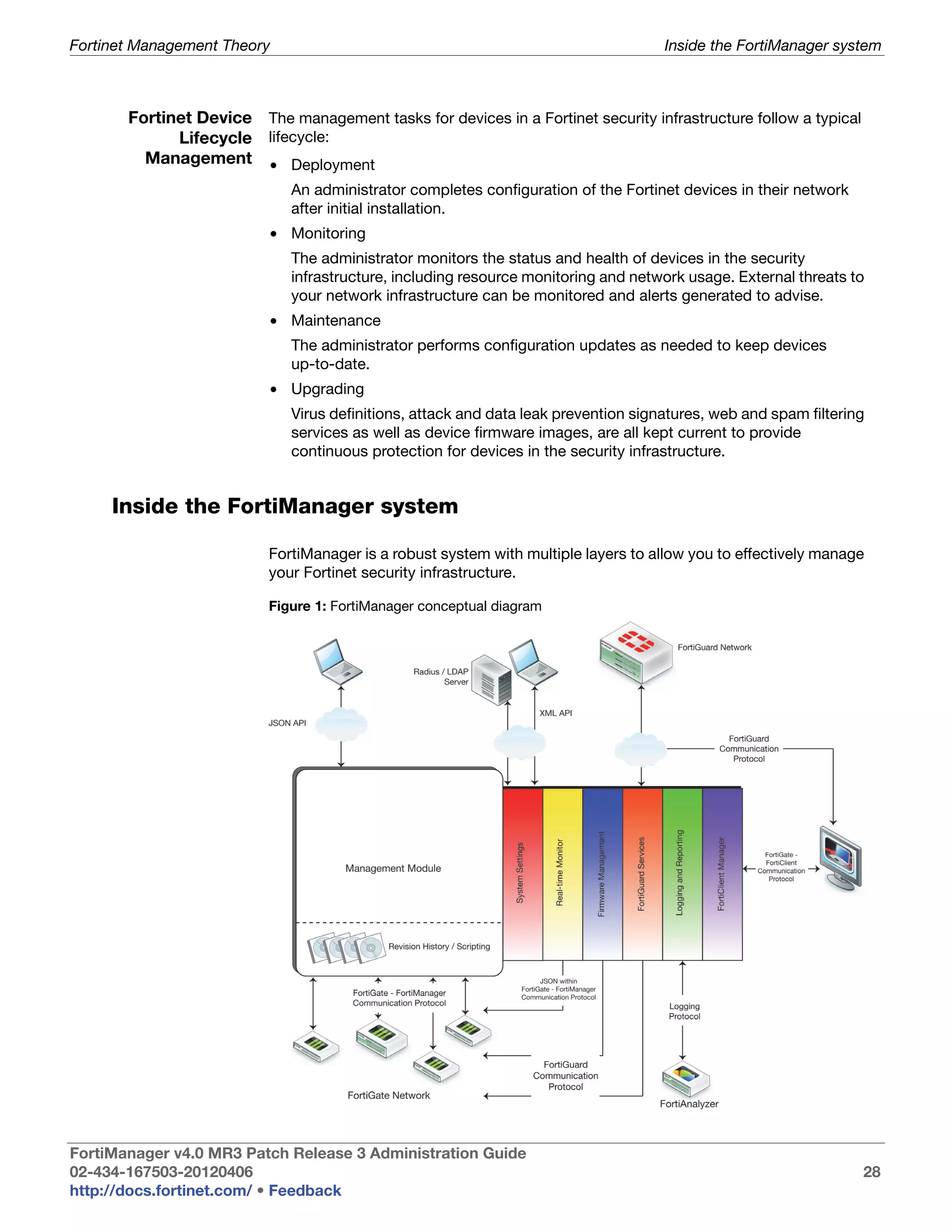
  • 185.
    VPN Console Configuring a VPN IKE Phase 1 Select the encryption and authentication algorithms used to generate keys for protecting negotiations and add encryption and authentication algorithms as required. You need to select a minimum of one and a maximum of three combinations. The remote peer or client must be configured to use at least one of the proposals that you define. 1-Encryption Select one of the following symmetric-key 2-Encryption encryption algorithms: • DES — Digital Encryption Standard, a 64-bit Authentication block algorithm that uses a 56-bit key. • 3DES — Triple-DES, in which plain text is encrypted three times by three keys. • AES128 — a 128-bit block Cipher Block Chaining (CBC) algorithm that uses a 128-bit key. • AES192 — a 128-bit block Cipher Block Chaining (CBC) algorithm that uses a 192-bit key. • AES256 — a 128-bit block Cipher Block Chaining (CBC) algorithm that uses a 256-bit key. Select either of the following authentication message digests to check the authenticity of messages during phase 1 negotiations: • MD5 — Message Digest 5, the hash algorithm developed by RSA Data Security. • SHA1 — Secure Hash Algorithm 1, which produces a 160-bit message digest. • SHA256 — Secure Hash Algorithm 2, which produces a 256- bit message digest. To specify a third combination, use the Add button beside the fields for the second combination. DH Group Select one or more Diffie-Hellman groups from DH group 1, 2, 5, and 14. At least one of the DH Group settings on the remote peer or client must match one the selections on the FortiGate unit. Failure to match one or more DH groups will result in failed negotiations. FortiManager v4.0 MR3 Patch Release 3 Administration Guide 02-434-167503-20120406 185 http://docs.fortinet.com/ • Feedback
  • 186.
    VPN Console Configuring a VPN Exchange Mode Select Main (ID Protection) or Aggressive: • Main mode — the phase 1 parameters are exchanged in multiple rounds with encrypted authentication information. • Aggressive mode — the phase 1 parameters are exchanged in single message with authentication information that is not encrypted. When the remote VPN peer has a dynamic IP address and is authenticated by a pre-shared key, you must select Aggressive mode if there is more than one dialup phase1 configuration for the interface IP address. When the remote VPN peer has a dynamic IP address and is authenticated by a certificate, you must select Aggressive mode if there is more than one phase 1 configuration for the interface IP address and these phase 1 configurations use different proposals. Key Life Enter the time (in seconds) that must pass before the IKE encryption key expires. When the key expires, a new key is generated without interrupting service. The keylife can be from 120 to 172 800 seconds. Enable dead peer Select this check box to reestablish VPN tunnels detection on idle connections and clean up dead IKE peers if required. You can use this option to receive notification whenever a tunnel goes up or down, or to keep the tunnel connection open when no traffic is being generated inside the tunnel. IKE Phase 2 FortiManager v4.0 MR3 Patch Release 3 Administration Guide 02-434-167503-20120406 186 http://docs.fortinet.com/ • Feedback
  • 187.
    VPN Console Configuring a VPN 1-Encryption Select one of the following symmetric-key 2-Encryption encryption algorithms: • DES — Digital Encryption Standard, a 64-bit Authentication block algorithm that uses a 56-bit key. • 3DES — Triple-DES, in which plain text is encrypted three times by three keys. • AES128 — a 128-bit block Cipher Block Chaining (CBC) algorithm that uses a 128-bit key. • AES192 — a 128-bit block Cipher Block Chaining (CBC) algorithm that uses a 192-bit key. • AES256 — a 128-bit block Cipher Block Chaining (CBC) algorithm that uses a 256-bit key. Select either of the following authentication message digests to check the authenticity of messages during phase 1 negotiations: • MD5 — Message Digest 5, the hash algorithm developed by RSA Data Security. • SHA1 — Secure Hash Algorithm 1, which produces a 160-bit message digest. • SHA256 — Secure Hash Algorithm 2, which produces a 256- bit message digest. To specify a third combination, use the Add button beside the fields for the second combination. DH Group Select one or more Diffie-Hellman groups from DH group 1, 2, 5, and 14. At least one of the DH Group settings on the remote peer or client must match one the selections on the FortiGate unit. Failure to match one or more DH groups will result in failed negotiations. Enable replay Replay attacks occur when an unauthorized detection party intercepts a series of IPsec packets and replays them back into the tunnel. Enable perfect Perfect forward secrecy (PFS) improves security forward secrecy (PFS) by forcing a new Diffie-Hellman exchange whenever keylife expires. Key Life Enter the time (in seconds) that must pass before the IKE encryption key expires. When the key expires, a new key is generated without interrupting service. The keylife can be from 120 to 172 800 seconds. Enable autokey keep Select the check box if you want the tunnel to alive remain active when no data is being processed. FortiManager v4.0 MR3 Patch Release 3 Administration Guide 02-434-167503-20120406 187 http://docs.fortinet.com/ • Feedback
  • 188.
    VPN Console Configuring a VPN Enable auto- When enabled, auto-negotiate initiates the phase negotiation 2 SA negotiation automatically, repeating every five seconds until the SA is established. Advanced Enable NAT Traversal Select the check box if a NAT device exists between the local FortiGate unit and the VPN peer or client. The local FortiGate unit and the VPN peer or client must have the same NAT traversal setting (both selected or both cleared) to connect reliably. NAT Traversal Keep- If you enabled NAT-traversal, enter a keepalive alive Frequency frequency setting. Authentication Pre-shared Key If you selected Pre-shared Key, enter the pre- shared key that the FortiGate unit will use to authenticate itself to the remote peer or dialup client during phase 1 negotiations. You must define the same key at the remote peer or client. Certificates If you selected RSA Signature, select the name of the server certificate that the FortiGate unit will use to authenticate itself to the remote peer or dialup client during phase 1 negotiations. Advanced Options FCC Enforcement Select to enable or disable FCC Enforcement. IKE Version Select the version of IKE to use. This is available only if IPsec Interface Mode is enabled. For more information about IKE v2, refer to RFC 4306. Local ID Type Select auto, fqdn, user-fqdn, keyid, address, or asn1dn from the drop-down menu. Negotiate Timeout Enter a numerical value for the the negotiate timeout period. FortiManager v4.0 MR3 Patch Release 3 Administration Guide 02-434-167503-20120406 188 http://docs.fortinet.com/ • Feedback
  • 189.
    VPN Console Configuring a VPN Add a VPN Create a VPN gateway. This is the address/port combination the VPN tunnel will use to gateway route traffic. Note: You must set one or more Protected Subnets for the VPN Console to be able to select Specify Source/Destination Protected Subnet under the Policy Scope. If you do not, the list will be empty and you will have to select Apply to Traffic between All Protected Subnets instead. See “Create VPN firewall policies” on page 191. To add a Managed VPN gateway 1 Go to VPN Console. 2 In the Content Pane VPN list, select the name of a VPN Console entry. 3 Select Create New and choose Managed Gateway from the drop-down list. Figure 128: Add VPN Managed Gateway dialog box 4 Select the Node Type as one of HUB or Spoke. 5 Select the Device for the VPN gateway. This device must already exist in the FortiManager database. To add new devices, see “Adding a device” on page 147. 6 Select the Default VPN Interface on the VPN device that connects the VPN to the public network. 7 Select the routing options. Select Manual to create the route yourself in Device manager or select Automatic for the VPN console to automatically configure the interface on the VPN device that connects the VPN to the public network. 8 Select the Summary Networks by selecting the configured interface and firewall address for that network and then select the plus (“+”) icon to apply the entry. Repeat for each summary network. 9 Select the Protected Subnet by selecting the configured interface and firewall address for that network and then select the plus (“+”) icon to apply the entry. Repeat for each protected subnet. FortiManager v4.0 MR3 Patch Release 3 Administration Guide 02-434-167503-20120406 189 http://docs.fortinet.com/ • Feedback
  • 190.
    VPN Console Configuring a VPN 10 If required, adjust the advanced options. 11 Select OK. To add an External VPN gateway 1 Go to VPN Console. 2 In the Content Pane VPN list, select the name of a VPN Console entry. 3 Select Create New and choose External Gateway from the drop-down list. Figure 129: Add VPN External Gateway dialog box 4 Select the Node Type as one of HUB or Spoke. 5 Select the Device for the VPN gateway. This device must already exist in the FortiManager database. To add new devices, see “Adding a device” on page 147. 6 Select the Default VPN Interface on the VPN device that connects the VPN to the public network. 7 Select the routing options. Select Manual to create the route yourself in Device manager or select Automatic for the VPN console to automatically configure the interface on the VPN device that connects the VPN to the public network. 8 Select the Summary Networks by selecting the configured interface and firewall address for that network and then select the plus (“+”) icon to apply the entry. Repeat for each summary network. 9 Select the Protected Subnet by selecting the configured interface and firewall address for that network and then select the plus (“+”) icon to apply the entry. Repeat for each protected subnet. 10 If required, adjust the advanced options. 11 Select OK. FortiManager v4.0 MR3 Patch Release 3 Administration Guide 02-434-167503-20120406 190 http://docs.fortinet.com/ • Feedback
  • 191.
    VPN Console Configuring a VPN Create VPN Create the firewall policies that allows the network traffic through the FortiGate units firewall policies completing the tunnel. To create VPN firewall policies 1 Go to Policy & Objects > Policy. 2 Right click on Policy in the navigation pane and select New > Policy Package. 3 Enter a name for the policy package and select the Installation Target and select Apply. 4 Select the Policy Package in the Navigation Pane and right click Local Domain Policies. Select Create New > Policy. 5 Define the Source Zone, Destination, Destination Zone, Destination Address, Schedule, Service, Action. If you select Specify Source/Destination Protected Subnets, you must select the source and destination device and subnets from the VPN gateway Protected Subnets configured in “Add a VPN gateway” on page 189. 6 Configure Logging and Advanced Options fields as required. 7 Select OK. FortiManager v4.0 MR3 Patch Release 3 Administration Guide 02-434-167503-20120406 191 http://docs.fortinet.com/ • Feedback
  • 192.
    Installing Device Configurations The FortiManager system maintains a configuration repository to manage device configuration revisions. After modifying device configurations, you can save them to the FortiManager repository and install the modified configurations to individual devices or device groups. You can also retrieve the current configuration of a device, or revert a device’s configuration to a previous revision. This section contains the following topics: • Checking device configuration status • Managing configuration revision history Checking device configuration status In the Device Manager window, when you select a device, you can view that device’s basic information under the Summary tab. You can also check if the current configuration file of the device stored in the FortiManager repository is in sync with the one running on the device. If you make any configuration changes to a device directly, rather than using the FortiManager system, the configuration on the device and the configuration saved in the FortiManager repository will be out of sync. In this case, you can resynchronize with the device by retrieving the configuration from the device and saving it to the FortiManager repository. You can use the following procedures when checking device configuration status on a FortiGate, FortiSwitch, FortiCarrier, or FortiMail unit. To check the status of a configuration installation on a FortiGate unit 1 Go to Device Manager > FortiGate. 2 On the All FortiGate page, select the FortiGate unit that you want to check the configuration status of. You are automatically redirected to System > Dashboard > Status of that unit. 3 On the Status page, locate the Configuration and Installation Status widget. 4 Verify the status in the Configuration Change Status row. Figure 130: Configuration and Installation Status widget FortiManager v4.0 MR3 Patch Release 3 Administration Guide 02-434-167503-20120406 192 http://docs.fortinet.com/ • Feedback
  • 193.
    Installing Device Configurations Managing configuration revision history The following procedures assume that you are already viewing the devices’ menus in the left-hand pane. To view the device installation history on a FortiGate unit 1 In the navigation pane, select Revision History. 2 Select View Installation History. You are automatically redirected to the View Installation History page. Managing configuration revision history In the Device Manager window, select a device in the device tree and then select the Revision History tab to view the FortiManager repository. Figure 131: Revision History Tab The repository stores all configuration revisions for the devices, and tags each revision with a version/ID number. You can view the version history, inspect configuration changes, import files from a local computer, view configuration settings, compare different revisions, revert to previous settings, and download configuration files to a local computer. View Select to display the installation record of the device, including the ID assigned Installation by the FortiManager system to identify the version of the configuration file History installed and the time and date of the installation. You can also view the installation history log and download the log file. Retrieve Select to check out the current configuration running on the device. If there are differences between the configuration file on the device and the configuration file in the repository, a new revision will be created and assigned a new ID number. Import Select to import a configuration file from a local computer to the FortiManager system. See “To import a configuration file from a local computer” on page 195. Comments Display the comment added to this configuration file when you edit the file name. icon ID A number assigned by the FortiManager system to identify the version of the configuration file saved on the FortiManager repository. Select an ID to view the configuration file. You can also select the Download button to save this configuration file from the FortiManager system to a local computer. See “To view the configuration settings on a FortiGate unit” on page 194 and “To download a configuration file to a local computer” on page 195. Name A name added by the user to make it easier to identify specific configuration versions. You can select a name to edit it and add comments. Created by The time and date when the configuration file was created, and the person who created the file. FortiManager v4.0 MR3 Patch Release 3 Administration Guide 02-434-167503-20120406 193 http://docs.fortinet.com/ • Feedback
  • 194.
    Installing Device Configurations Managing configuration revision history Installation Display whether a configuration file has been installed or is currently active. The installation time and date is displayed. N/A status indicates that a particular revision was not sent to the device. The typical situation is that the changes were part of a later revision that was sent out to the device. For example, you make some changes and commit the changes. Now you have a revision called ID1. Then you make more changes and commit the changes again. Then you have a revision called ID2, which also includes the changes you made in revision ID1. If you install revision ID2, then the status of revision ID1 becomes N/A. Diff icon Show only the changes or differences between two versions of a configuration file. See “Comparing different configuration files” on page 195 for more details. Delete icon Delete this version from the repository. You cannot delete a version that is currently active on the FortiGate unit. Revert icon Revert the current configuration to the selected revision. FortiManager tags the reverted configuration with a new ID number. For example, if you are currently running version 9 and revert to version 8, a new revision, version 10, is created at the top of the list. See “To revert to another configuration file” on page 196. The following procedures assume that you are already viewing the devices’ menus in the left-hand pane. To view the configuration settings on a FortiGate unit 1 In the navigation pane with a device already selected, go to System > Status > Dashboard > Revision History. 2 Select the ID for the revision you want to see. You are automatically redirected to the View Configuration page. 3 Select Return when you finish viewing. You can download the configuration settings if you want by selecting Download on the View Configuration page. For more information, see “Downloading and importing a configuration file” on page 195. To add a tag (name) to a configuration version on a FortiGate unit 1 In the navigation pane with a device already selected, go to System > Status > Dashboard > Revision History. 2 Select the Name for the version you want to change. 3 Enter a name in the Tag (Name) field. 4 Optionally, enter information in the Comments field. 5 Select OK. Figure 132: Add a tag to a configuration version FortiManager v4.0 MR3 Patch Release 3 Administration Guide 02-434-167503-20120406 194 http://docs.fortinet.com/ • Feedback
  • 195.
    Installing Device Configurations Managing configuration revision history Downloading and You can download a configuration file to a local computer. You can also import the file importing a back to the FortiManager repository. configuration file The following procedures assume that you are already viewing the devices’ menus in the left-hand pane. Note: You can only import a configuration file that is downloaded from the FortiManager repository. Otherwise the import will fail. To download a configuration file to a local computer 1 In the navigation pane with a device already selected, go to System > Status > Dashboard > Revision History. 2 Select the ID for the revision you want to download. 3 Select the Download button. You may need to drag the scroll bar to the very right to see the button. 4 Select Regular or Encrypted download type. If you select Encrypted Download, enter a password. 5 Select OK. 6 Specify a location to save the configuration file on the local computer. 7 Select Save. To import a configuration file from a local computer 1 In the navigation pane with a device already selected, go to System > Status > Dashboard > Revision History. 2 Select Import. 3 Select the location of the configuration file or choose Browse to locate the file. 4 If the file is encrypted, select the File is Encrypted check box and enter the password. 5 Select OK. Comparing You can compare the changes or differences between two versions of a configuration different file by using the Diff function. configuration The Diff function behaves differently under certain circumstances. files For example, when a device is first added to the FortiManager system, the FortiManager system gets the configuration file directly from the FortiGate unit and stores it as is. This configuration file is version/ID 1. If you make changes to the device configuration on Device Manager Configuration tab and select Commit, the new configuration file will be saved as version/ID 2. If you use the Diff icon to view the changes/differences between version/ID 1 and version/ID 2, you will be shown more changes than you have made. This happens because the items in the file version/ID 1 are ordered as they are on the FortiGate unit. Configurations of version/ID 2 are sequenced differently when they are edited and committed in the Device Manager. Therefore, when you compare version/ID 1 and version/ID 2, the Diff function sees every item in the configuration file as changed. FortiManager v4.0 MR3 Patch Release 3 Administration Guide 02-434-167503-20120406 195 http://docs.fortinet.com/ • Feedback
  • 196.
    Installing Device Configurations Managing configuration revision history If you take version/ID 2, change an item and commit it, the tag is changed to version/ID 3. If you use Diff with version/ID 2 and version/ID 3, only the changes that you made will be shown. This is because version/ID 2 and version/ID 3 have both been sequenced in the same way in the Device Manager. The following procedures assume that you are already viewing the devices’ menus in the left-hand pane. To compare different configuration files 1 In the navigation pane with a device already selected, go to System > Dashboard > Status. 2 On the Status page, locate the Configuration and Installation Status widget. 3 In the Diff with Saved Revisions row, select the Revision Diff icon, . 4 Select either the previous version or specify a different configuration version to compare in Diff From. 5 Select whether to display the full configuration file (Full Content) or only the differences (Diff Only) in Output. The Full Content mode shows all configuration settings and highlights all configuration differences while the Diff Only mode solely highlights configuration differences. 6 Select Apply. The configuration differences are displayed in colored highlights: Figure 133: Revision Diff window To revert to another configuration file 1 In the navigation pane with a device already selected, go to System > Status > Dashboard > Revision History. 2 Select the Revert icon for the revision you want to revert to. 3 Select OK. A new revision is added to the top of the list. FortiManager v4.0 MR3 Patch Release 3 Administration Guide 02-434-167503-20120406 196 http://docs.fortinet.com/ • Feedback
  • 197.
    Advanced Features FortiManager offers users certain advanced features which are obtainable through an upgrade to your current FortiManager license. Upgradable license features include: • Global Policy Add-ons • Web Portal Software Development Kit (SDK) • ADOM Upgrade Figure 134: Dashboard Licensing widget About Global Policies and Objects Global policies and objects function in a similar fashion to the policies and objects you are already familiar with, but are applied universally to all ADOMs and VDOMs inside your FortiManager installation. This allows users in a carrier, service provider or large enterprise to support complex installations that may require their customers to pass traffic through their own network. For example, a carrier or host may allow customers to transit traffic through their network, but do not want their customer to have the ability to access the carrier’s internal network or resources. Creating global policy header and footer packages to effectively “surround” a customer’s policy packages can help maintain security. FortiManager v4.0 MR3 Patch Release 3 introduces a Limited Global Policy feature that allows you to evaluate the Global Policy feature without requiring a Global Policy license key. Global Policy can be enabled, however the following will be enforced: • Only the default policy package can be used, you can not define new policy packages; • A maximum of ten policies can be defined in the default package; and • A maximum of ten objects can be defined. For more information about purchasing a Global Policy license add-on, contact your authorized Fortinet partner or reseller. FortiManager v4.0 MR3 Patch Release 3 Administration Guide 02-434-167503-20120406 197 http://docs.fortinet.com/ • Feedback
  • 198.
    Advanced Features Assigning Global Policies to ADOMs Assigning Global Policies to ADOMs FortiManager v4.0 MR3 Patch Release 3 allows administrators to assign a Global Policy or Global Database to more than one ADOM. This enhancement provides a finer granularity to assign specific policy packages within each ADOM. Caution: The three global SSL-VPN portal objects can be deleted, but can not be re-created. Reference Mantis Bug ID 161981. Searching for Global Objects content You can search the FortiManager system databases for different types of global objects based on the object input or usage. Currently, you can search for the following global objects: Address Recurring Schedule AntiVirus Profile Address Group One-time Schedule Web Filter Profile Service Schedule Group Spam Filter Profile Service Group Protocol Options VoIP Profile To search, select Search from the Main Menu Bar. On the search screen, enter the following information. FortiManager v4.0 MR3 Patch Release 3 Administration Guide 02-434-167503-20120406 198 http://docs.fortinet.com/ • Feedback
  • 199.
    Advanced Features Searching for Global Objects content Search for Select the global object that you want to search. Search Criteria Select the value upon which the search is based: • Object by Name: This option is available for all object types in the Search for field. If you select this option, enter the object name and select a matching method: Exact Match: Select to require that matching object must be the same as the object name entered. This is case sensitive. If an object name does not match the object name entered, it will not be included in the search results. Starts With: Select to require that matching object must start with a letter (case sensitive) or word at the beginning of the object name entered. For example, you can enter A to search for Addr1. Regular Expression: Select to search with wildcards or Perl regular expressions. See http://perldoc.perl.org/perlretut.html for detailed information about using Perl regular expressions. • Object by Value: This option is available only when you select Address or Service in the Search for field. If you select Address in the Search for field and then Object by Value in the Search Criteria field, select the value type (IP Address/Range or FQDN) and enter the IP or FQDN in the Address field. You can use the exact match or regular expression to enter the IP or FQDN. For information on IP search rules, see “IP address search rules” on page 200. If you select Service in the Search for field and then Object by Value in the Search Criteria field, select a protocol and enter the corresponding information for the protocol. • Unused Objects: This option is available for all object types in the Search for field. This option is typically used by system administrators on a periodic basis to clean up the system. Over time, more and more objects are added to the system and then removed from policies or other uses. However, they still exist in the FortiGate configuration. There are no additional search parameters required for this option. • Object usage: This option is available for all object types in the Search for field. This option is typically used by system administrators to identify where an object is being used, that is, which policy or device is using it. There are no additional search parameters required for this option. Scope Specify the search scope for an object. To access additional scope information, including Search All ADOMs and Narrow Search Parameters options, select more >>. To hide these options select << Less. When you select Object by Name, Object by Value, or Unused Objects in the Search Criteria field, after entering the search criteria, you can search an object globally or narrow the search by selecting an ADOM. • All Databases: Select to search all databases in the FortiManager system. You can also select Search All ADOMS to search the databases of each ADOM. • Narrow Search Parameters (optimized): If you know which ADOM the object is in, select this option to save search time. You can select the ADOM, the Global Database/Security Console of the ADOM, or a particular Device or Group of the ADOM. For more information, see “To search an object by name” on page 200, “To search an object by value” on page 201, and “To search an unused object” on page 202. When you select Object Usage in the Search Criteria field, you can find out where an object is being used, that is, which policy or which device is using it. For more information, see “To search an object by usage” on page 203. FortiManager v4.0 MR3 Patch Release 3 Administration Guide 02-434-167503-20120406 199 http://docs.fortinet.com/ • Feedback
  • 200.
    Advanced Features Searching for Global Objects content IP address search If you select Address in the Search for field and then Object by Value in the Search rules Criteria field, select the value type (IP Address/Range or FQDN) and enter the IP or FQDN in the Address field. You can use the exact match or regular expression to enter the IP or FQDN. The following examples explain the IP address search rules. Assuming that we have the following IP address definitions: # IP Address/Mask or IP Range 1 192.169.10.1/32 2 192.169.10.0/24 3 192.169.0.0/16 4 192.169.10.1-192.169.10.9 5 192.169.10.10-192.169.10.19 • If you enter an IP/mask or IP range, the search result will be an exact match of the value you entered. For example, searching 192.169.10.1/32 returns IP #1 in the table and searching 192.169.10.1-192.169.10.9 returns IP #4 in the table. • If you enter a single IP, all definitions that include the IP in its range will be displayed. For example, searching 192.169.10.2 returns #2, 3, and 4 in the table, and searching 192.169.10.20 returns #2 and 3 in the table. • If you enter an IP wildcard, all definitions within the subnet will be displayed. For example, searching 192.169.10.* returns #1, 2, 4, and 5 in the table, and searching 192.169.*.* returns #1, 2, 3, 4, and 5 in the table. To search an object by name 1 From the Main Menu Bar, select Search. 2 In the Search for field, select an object. 3 In the Search Criteria field, select Object Name. 4 Enter the object name, then select a search method. 5 In the Scope field, select global database or a particular device/device group within which to search for the object. You can select More>> to add more search parameters: • All Databases: Select to search all databases in the FortiManager system. You can also select Search All ADOMS to search the databases of each ADOM. • Narrow Search Parameters (optimized): If you know which ADOM the object is in, select this option to save search time. You can select the ADOM, the Global Database/Security Console of the ADOM, or a particular Device or Group in the ADOM. FortiManager v4.0 MR3 Patch Release 3 Administration Guide 02-434-167503-20120406 200 http://docs.fortinet.com/ • Feedback
  • 201.
    Advanced Features Searching for Global Objects content 6 Select Search. The search result displays the following information: Delete Select the check box beside an address that you want to delete, then select Delete to remove it. If there is no check box beside an address, it means that this address is used by an address group. New Search Select to start a new search. Name The name of an address. Address/FQDN The IP address/mask of the address. Detail Any comments added for the firewall address. ADOM The ADOM that this address is in. For information about ADOMs, see “Administrative Domains” on page 35. Device (VDOM) The database where this address is saved. Filter Display the devices and groups that can use the global firewall address configuration. If specific devices and/or groups are listed, it means that these devices and groups are allowed to use the configuration. If All Devices/Groups displays, it means that all devices and groups are allowed to use the configuration. To search an object by value 1 From the Main Menu Bar, select Search. 2 In the Search for field, select Address or Service. 3 In the Search Criteria field, select Object by Value. 4 Do one of the following: • If you selected Address in the Search for field, select the value type (IP Address/Range or FQDN) and enter the IP or FQDN in the Address field. You can use the exact match or regular expression to enter the IP or FQDN. • If you selected Service in the Search for field, select a protocol and enter the corresponding information for the protocol following the table. Protocol Corresponding information IP Protocol Number: The IP protocol number for the service. ICMP Type: The ICMP type number for the service. Code: The ICMP code number for the service. TCP/UDP TCP Port Range: The TCP port number range. UDP Port Range: The UDP port number range. 5 Repeat step 5 in “To search an object by name” on page 200. FortiManager v4.0 MR3 Patch Release 3 Administration Guide 02-434-167503-20120406 201 http://docs.fortinet.com/ • Feedback
  • 202.
    Advanced Features Searching for Global Objects content 6 Select Search. The search result displays. Delete Select the check box beside a service that you want to delete, then select Delete to remove it. If there is no check box beside a service, it means that this service is used by a service group. New Search Select to start a new search. Service Name The name of the firewall service. Detail The protocol and port numbers for each service. ADOM The ADOM that this service is in. For information about ADOM, see “Administrative Domains” on page 35. Device (VDOM) The database where this service is saved. Filter Display the devices and groups that can use the global firewall service configuration. If specific devices and/or groups are listed, it means that these devices and groups are allowed to use the configuration. If All Devices/Groups displays, it means that all devices and groups are allowed to use the configuration. To search an unused object 1 From the Main Menu Bar, select Search. 2 In the Search for field, select an object. 3 In the Search Criteria field, select Unused Objects. 4 Repeat step 5 in “To search an object by name” on page 200. 5 Select Search. The search result displays the following: Delete Select the check box beside a profile that you want to delete, then select Delete to remove it. If there is no check box beside a profile, it means that this profile is used by a firewall policy. New Search Select to start a new search. Name The name of the protection profile. ADOM The ADOM that this service is in. For information about ADOM, see “Administrative Domains” on page 35. Device (VDOM) The database where this profile is saved. Filter Display the devices and groups that can use the global protection profile configuration. If specific devices and/or groups are listed, it means that these devices and groups are allowed to use the configuration. If All Devices/Groups displays, it means that all devices and groups are allowed to use the configuration. FortiManager v4.0 MR3 Patch Release 3 Administration Guide 02-434-167503-20120406 202 http://docs.fortinet.com/ • Feedback
  • 203.
    Advanced Features Configuring Web Portals To search an object by usage 1 From the Main Menu Bar, select Search. 2 In the Search for field, select an object. 3 In the Search Criteria field, select Object Usage. 4 For Scope, do one of the following: • If you want to query where an object is used within the global database, select Global Objects and the object name that you want to search. • If you want to query which other device uses an object, select Device Objects and then a device containing the object and the object itself. 5 Select Search. The search result displays the following: New Search Select to start a new search. ADOM The ADOM that this address is in. For information about ADOM, see “Administrative Domains” on page 35. Device (VDOM) The database where this address is saved. Referrer Type The type of object that uses this address. In this case, the type is firewall address groups. Entry The name of the firewall address group that uses this address. Field The nature of the address in the address group, such as being added as a group member. Configuring Web Portals The web portal enables MSSP customers to manage their own SSLVPN user list, Web Filter, URL filters, and categories. If configured, customers can also view the firewall policies on their FortiGate devices or VDOM. You create a portal profile and include its content and appearance. You can then create more profiles if customers have differing needs. The portal is composed of selected configuration and monitoring widgets, on one or more pages, to provide the specific functionality that the administrators need to monitor their network security. You can also customize the web portal with a logo and select the colors and page layouts for your business, or match the customer’s corporate look. With FortiManager, you define each customer/administrator as a portal user, assigned to a specific portal profile. Using FortiManager, you can maintain a number of FortiGate units and/or VDOMs for a large number of clients. These clients may also want to monitor and maintain their own firewall policies and traffic. Customers access the web portal through the IP or URL of the FortiManager system. They log in the same way as the FortiManager administrator, using their own user name and password, created by the FortiManager administrator. Once logged in, the customer is directed to their assigned web portal. The customer does not have access to the FortiManager Web-based Manager. FortiManager v4.0 MR3 Patch Release 3 Administration Guide 02-434-167503-20120406 203 http://docs.fortinet.com/ • Feedback
  • 204.
    Advanced Features Configuring Web Portals To create a web portal for customers to access, you need to first create a portal profile. A web portal is similar to a group. The profile is associated with a FortiGate unit, and if required, a VDOM configured on a specific FortiGate unit. Once set up, portal users, or administrators, can be added to the portal. The following table lists the number of supported portals and portal users on each FortiManager model. Table 11: Supported web portals and web portal users FortiManager Model Maximum portal Maximum users 100B, 100C not supported not supported 400A, 400B, 400C not supported not supported 1000B 50 500 1000C 50 500 3000 50 500 3000B 100 4000 3000C 100 4000 5001A 100 4000 After creating a web portal, you can configure it to add components that the user or administrator can review and modify as required. You can return at anytime to add and remove components from the portal. It is a good idea to meet or discuss with your users which components they would like to see on their portal. Provide them a list of what options they have, and allow them to select from the list. The web portal can also be customized to a selection of color schemes, and you can add a user’s logo to make the portal to fit the customer’s corporate look. Users are not able to modify the layout or look of the web portal, although they can add and modify the content of some of the components. For example, they can add SSL-VPN users, modify URL filter lists, and add text notes. If they require changes to the components (adding or removing) or the layout of the components on the portal page, they will need to contact you. Creating a web Before creating a web portal, ensure you have the FortiGate configured and any portal VDOMs enabled and configured. You may also want to discuss with your user as to what components they want or required for their portal. To create a web portal profile 1 Go to Device Manager > Tools > Web Portal. Note: Show Web Portal must be selected in the Admin Settings. See “Configuring global admin settings” on page 91 for more information. FortiManager v4.0 MR3 Patch Release 3 Administration Guide 02-434-167503-20120406 204 http://docs.fortinet.com/ • Feedback
  • 205.
    Advanced Features Configuring Web Portals Figure 135: Web Portal Window 2 Select Add Profile. Figure 136: Add a Web Portal Profile 3 In the Profile field, enter a name for the profile, and optionally, enter a Description. 4 If you have already added a portal profile you can select Clone from existing profile to add the new profile using the settings from a previously added profile. 5 Select OK. The Profile name can be a maximum of 35 characters. Configuring the With the web portal added, you can configure the portal with the available widgets. web portal profile The selection of widgets are dependent on the FortiGate device and VDOM (if selected), that is, you may have more or less widgets available to choose from depending on the FortiGate device selected for the portal. The selected device is only used for assistance. The device or VDOM is defined when creating the user. To configure the web portal profile 1 Go to Device Manager > Tools > Web Portal. 2 Select a profile from the list. 3 Select the Configure Profile icon for the profile. 4 Select Configure Profile. When you select Configure Profile, the web portal design window opens in a new window or tab of the browser. You may need to allow pop ups for the FortiManager IP or URL to allow the portal design window to appear, otherwise this window will not appear. FortiManager v4.0 MR3 Patch Release 3 Administration Guide 02-434-167503-20120406 205 http://docs.fortinet.com/ • Feedback
  • 206.
    Advanced Features Configuring Web Portals Figure 137: Blank Web Portal Window Modifying the content and layout The web portal design window enables you to add content for the user’s internet and firewall connection and arrange the layout of the information. Before adding widgets for the portal, you will want to set up the portal window. There are a number of customizations you can do to the window including: • change the name of the Home tab by clicking the name. • select the number of columns for the page by selecting the Edit Page Preferences icon next to the page name. • add more pages by selecting the Add page tab. Additional page tabs will appear at the top of the page window. To add content, select Add Content. Figure 138: Adding web portal content A number of content options are available. Select a tab on the left to view the widgets available. To add a particular widget, either double-click to add the content, or select a widget and select OK. Holding the Control or Shift keys enables you to select multiple widgets. Widgets available for the web portal include: • Application Control List • Calendar • Clock • Installation • Run Report FortiManager v4.0 MR3 Patch Release 3 Administration Guide 02-434-167503-20120406 206 http://docs.fortinet.com/ • Feedback
  • 207.
    Advanced Features Configuring Web Portals • RSS Feed • Notification • Text Messages • Firewall Policies • Active Directory List • User List • URL Category List • URL Filter List • Local URL Category List • Local URL Category Rating List Once you have selected the widgets, you can move them on the page within the column chosen column view. Tip: You can change the width of the columns. When you move your cursor between the widgets, you will see a line appear, demarcing the column borders. Click and drag left or right to expand or contract the column width. Many of the widgets are configurable. In the title bar of the widgets, if there is an Edit or Dependencies icon on the right, further configuration can be done with the widget. Tip: You can resize the widgets vertical size by clicking and dragging the bottom of the widget. Adding a logo You can add a logo to the web portal page. The logo can be your logo, or the logo of the user as a part of the customization to go with the color selection. The logo must be a bitmap image. It can be any size, color or monochrome. The logo file can be .jpg, .png, .bmp or .gif. Remember if the logo is too large or detailed, it may take longer for the portal page to load. To add a logo to the web portal display 1 Select Logo Preferences. Figure 139: Logo Preferences FortiManager v4.0 MR3 Patch Release 3 Administration Guide 02-434-167503-20120406 207 http://docs.fortinet.com/ • Feedback
  • 208.
    Advanced Features Configuring Web Portals 2 Select Browse and locate the logo on your hard disk or network volume. 3 Select Upload. 4 Select the uploaded logo and select OK. Portal Preferences You can change the colors of the display from a list of color themes. To change the colors of the web portal display, select Portal Preferences, select the desired color scheme from the list, and select OK. Figure 140: Portal Properties window Creating a portal To create a portal user account, go to Device Manager > Tools > Web Portal, select the user account Portal Users tab, and select Add User. The Add User dialog opens. Enter or select the following items and select OK. Note: The user name can be up to 35 characters and the password up to 20 characters. FortiManager v4.0 MR3 Patch Release 3 Administration Guide 02-434-167503-20120406 208 http://docs.fortinet.com/ • Feedback
  • 209.
    Advanced Features Configuring Web Portals Figure 141: Add User window User Enter the name of the user who will log into the portal. Password Enter the password for the user. Enabled Select to enable the user profile. Profile Select the profile for this user from the list. External users Use the External Users tab to add external users. This enables users to have remote access to the managing FortiManager unit from the portal FortiManager unit. You also use external users when creating custom widgets that you can add on custom portal web pages or web portals such as iGoogle. To add external users 1 Go to Device Manager > Tools > Web Portal and select the External Users tab. 2 Select Add External User. 3 Enter the required information and select OK. Figure 142: Add External User window User Enter a name for the external user. Password Enter a password for the external user. Enabled Select to enable the external user. FortiManager v4.0 MR3 Patch Release 3 Administration Guide 02-434-167503-20120406 209 http://docs.fortinet.com/ • Feedback
  • 210.
    Advanced Features Configuring Web Portals Using the web The purpose of the web portal is to enable customers, or their administrators the ability portal to monitor and maintain their firewall settings. Before the users can use the web portal you need to supply them with the following information: • the URL or IP address of the FortiManager system • the user name • the user password The user enters the FortiManager system URL or IP address into the web browser. When they get the login screen, they enter the supplied user name and password. This will log them into the portal site, displaying the colors, widgets and arrangements setup from the previous steps. The administrator can view firewall information, maintain and update information depending on the widgets included for the portal. The user can log out of the portal by selecting the Logout button in the upper right corner of the browser window. FortiManager v4.0 MR3 Patch Release 3 Administration Guide 02-434-167503-20120406 210 http://docs.fortinet.com/ • Feedback
  • 211.
    Application Program Interfaces FortiManager has two application program interfaces (APIs): an Extensible Markup Language (XML) based API for automation and to facilitate integration, and the web portal SDK for creating administrative web portals for clients. This chapter includes: • XML API • Web Portal Service Development Kit (SDK) XML API FortiManager includes a Web Services interface to facilitate integration with provisioning systems and automate the configuration of the many devices that FortiManager is capable of managing. The FortiManager API is XML-based. You can use the XML API to obtain information from the FortiManager unit, create and run FortiOS CLI scripts to modify device configurations, and install the modified configurations on your managed devices. For more information about the XML-based API, and how to use it, see the FortiManager v4.0 MR3 XML API Guide, available on the Fortinet Technical Documentation web site at http://docs.fortinet.com. Connecting to To start working with Web Services on your FortiManager unit, enable Web Services FortiManager and obtain the Web Services Description Language (WSDL) file that defines the XML Web Services requests you can make and the responses that FortiManager can provide. Enabling Web Services You must enable Web Services on the network interfaces to which Web Services clients will connect. To enable Web Services on an interface using the Web-based Manager: 1 Go to System Settings > Network. 2 If you want to enable Web Services for all interfaces, select Web Service in the Administrative Access section. 3 If you want to enable Web Services for a specific interface: a Select the All Interfaces button. b Select the name of the interface that you want to use. c In the Administrative Access section, select Web Service. 4 Select OK. FortiManager v4.0 MR3 Patch Release 3 Administration Guide 02-434-167503-20120406 211 http://docs.fortinet.com/ • Feedback
  • 212.
    Application Program Interfaces Web Portal Service Development Kit (SDK) To enable Web Services on an interface using the CLI: 1 Enter the following CLI commands: config fmsystem interface edit <port> set allowaccess webservice end where <port> is the network interface that you want to use for Web Services. The allowaccess command should also include the other types of administrative access that you want to permit. For example, to allow HTTPS, SSH, and Web Services, enter the command set allowaccess https ssh webservice. The FortiManager unit handles Web Services requests on port 8080. Obtaining the WSDL file You can download the WDSL file directly from the URL https://<ip_address>:8080/. You can also use the Web-based Manager to download the WSDL file. Go to System Settings > Advanced > Advanced Settings and select the Download WSDL file icon. By using a web testing tool such as SoapUI, you can get information from the FortiManager. Web Portal Service Development Kit (SDK) The Web Portal SDK is designed for multi-tenancy applications within a single management platform. This feature is a Javascript Object Notation (JSON) based application program interface (API) that allows managed security service providers (MSSPs) to offer administrative web portals to their customers. It provides an administrative web portal for customers who require some degree of control over their network security environment. For more information on the Web Portal SDK API, please see the FortiManager v4.0 MR3 Web Portal SDK API Guide, available on the Fortinet Technical Documentation web site at http://docs.fortinet.com. Note: FortiManager Web Portal SDK requires a separate license. To purchase a license, contact your Fortinet partner or reseller. FortiManager v4.0 MR3 Patch Release 3 Administration Guide 02-434-167503-20120406 212 http://docs.fortinet.com/ • Feedback
  • 213.
    Java-based Administration Client This section provides general information about the java-based administration client, a web user interface for accessing the system from a client computer. This section includes the following topics: • System requirements • Installing and logging in to the Java-based client • Java-based manager overview • Java-based manager features System requirements The management computer that is used to access the java-based manager must have Java installed on a compatible operating system. Installing and logging in to the Java-based client Note: Java must be installed prior to attempting to install the Java-based administration client. To install the java-based administration client: 1 Connect to the Web-based Manager. See “Connecting to the Web-based Manager” on page 32. 2 Click on the Download FortiConsole button in the menu bar. 3 Select Open With... Java Web Start Launcher. The java-based client is installed and opens to the login screen. Figure 143: Java-based administration client login screen FortiManager v4.0 MR3 Patch Release 3 Administration Guide 02-434-167503-20120406 213 http://docs.fortinet.com/ • Feedback
  • 214.
    Java-based Administration Client Java-based manager overview 4 Enter the required information on the login screen and click Login. The Java-based manager main window opens. Figure 144: Java-based administration client main window Note: Only one person can login to the system with read/write privileges at a time. If a user is already logged in, you can either login as read-only, or automatically force the other user to log out. Java-based manager overview The Java-based administration client provides many of the same functions as the Web-based Manager (see “Using the Web-based Manager” on page 32). The Java- based manager is a desktop application and thus has faster performance than the Web-based Manager. The three primary parts of the FortiManager java-based interface are the Main Menu Bar, the Navigation Pane, and the Content Pane. The option also exists to include a Console Pane, which shows all the data sent to and received from the server. All of the panes are tab based. For more information see “Tabs” on page 216. Note: The Java-based manager cannot be used to add devices to the FortiManager system. FortiManager v4.0 MR3 Patch Release 3 Administration Guide 02-434-167503-20120406 214 http://docs.fortinet.com/ • Feedback
  • 215.
    Java-based Administration Client Java-based manager overview This section describes the following topics: • Using the main tool bar • Using the navigation pane • Using the content pane Using the main By default, the main menu bar is displayed at the top of the manager window. It can be tool bar moved to any location on the window by clicking and dragging the menu bar. Figure 145: Default main menu bar Save Work Rename Set Installation Target Filter Logout New Assign Policy Add Policy ADOM drop-down list The menu bar is dynamic; the available icons on the bar change depending on the current selection. The important icons available are: Save work Select to save any changes that have been made to the system using the Java-based manager. New Select to create a new policy package or folder. Rename Select to rename the selected policy or folder. Assign Policy Set Installation Select to set the devices or groups that the selected policy is to be installed Target on within the selected ADOM. Add Policy Select to add a new policy for the ADOM. Filter Select to filter the information in the content pane based on the contents of the available columns. ADOM Select an ADOM to manage from the drop down list. Select Global to manage all ADOMs. Log Out Select to log out of the FortiManager Web-based Manager. Using the The Java-based manager navigation pane is, by default, located down the left sidebar navigation pane of the window. It provides access to the Policy, Firewall Objects, UTM Profiles, Dynamic Objects, and VPN elements of the selected ADOM. Folders can be created in the navigation pane. Policies can then be moved into the folders to improve the organization of the tree without affecting the functionality of any of the elements. For more information see “Device Management” on page 140. Using the content The content pane displays information about the selected element in the navigation pane pane. Multiple tabs can be opened to show information from multiple elements. See “Tabs” on page 216 for more information. The elements can be edited and rules can be added in different ways depending on the selected element. See “Managing devices” on page 147 for more information. FortiManager v4.0 MR3 Patch Release 3 Administration Guide 02-434-167503-20120406 215 http://docs.fortinet.com/ • Feedback
  • 216.
    Java-based Administration Client Java-based manager features Figure 146: Java-based manager content pane Right-clicking on the column headings will open a pop-up menu with options for configuring how the information is displayed in the columns, including what columns are displayed, and the optional of adding new rows to the table. To change the data in a row, right-click on the far left cell of the row and select edit from the pop-up menu. Some information can be changed by simply double-clicking on the cell itself and then editing the cell information. Certain row elements can be changed from drop-down lists. These elements will have a small arrow in the lower-right corner of the cell that can be clicked on to open the drop-down list. If applicable, children rows can be added to a row. This can be done by either clicking on the arrow in the lower left-hand corner of the first cell in the row, or in a sub-window in the row editing window. Java-based manager features The Java-based administration client contains features not available in the Web-based Manager. Drag and drop The Java-based administration client a drag and drop feature that simplifies adding and editing object information. Data, such as member names, can be dragged from the Data Source window and dropped into the requisite location on the add/edit window. For options where there is a long list of data, a search function can be used, allowing the data to be filtered based on given criteria. Tabs All of the panes in the Java-based administration client are tab based. Multiple tabs can be opened in any pane, allowing for multiple nodes (such as policies or objects) to be edited simultaneously and for nodes to be compared side by side. Tabs can also be removed from panes and left floating on the screen. FortiManager v4.0 MR3 Patch Release 3 Administration Guide 02-434-167503-20120406 216 http://docs.fortinet.com/ • Feedback
  • 217.
    Java-based Administration Client Java-based manager features Figure 147 shows the tabs reorganized into a horizontal configuration. Figure 147: Reorganizing tabs in the Java-based administration client Improved adding The adding and editing windows are redesigned in the Java-based manager to and editing improve functionality and usability. In conjunction with the “Drag and drop” feature, windows adding and editing policies and objects is faster and easier with the Java-based manager. Figure 148: Policy Editor widow FortiManager v4.0 MR3 Patch Release 3 Administration Guide 02-434-167503-20120406 217 http://docs.fortinet.com/ • Feedback
  • 218.
    Working with Scripts FortiManager scripts enable you to create, execute and view the results of scripts executed on FortiGate devices attached to the FortiManager system. At least one FortiGate device must be configured on the FortiManager system for you to be able to use scripts. Scripts can also be run on the FortiManager global database. Note: Any scripts that are run on the global database must use complete commands. For example, if the full command is “config system global”, do not use “conf sys glob”. Scripts can be written in one of two formats. The first format contains a sequence of FortiGate CLI commands, as you would type them at the command line. A comment line starts with the number sign (#). A comment line will not be executed. The second format uses Tcl scripting commands to provide more functionality to your scripts including global variables and decision structures. When writing your scripts, it is generally easier to write them in a context-sensitive editor, and then cut and paste them into the script editor on your FortiManager system. This can help avoid syntax errors and can easily reduce the troubleshooting required for your scripts. This section contains the following topics: • Device View • Script Samples For information about scripting commands, see FortiGate CLI reference. Note: Before using scripts, ensure the console more function has been disabled in the FortiGate CLI. Otherwise scripts and other output longer than a screen in length will not execute or display correctly. Device View While in Device Manager, select a FortiGate device and select System > Script Status. This is the script status page for that device, or the default script view. This page shows all the scripts loaded into the device and also shows schedules for executing them and script execution history. This is different from the Script Repository where all the scripts on your FortiManager system are listed, not just scripts for one device or group. Go to Device Manager > Script to view scripts available for all devices. For more information, see “Script View” on page 221. Individual device From the initial Device Manager view, of an individual device, selecting the System > view Dashboard > Script Status brings you to the script view for that device. From the initial Device Manager view, of a device group, selecting the <group_name> > Script brings you to the script view for that device group. The name of the device or device group is displayed at the top of the screen. This view has two sections: scheduled scripts, and script execution history. FortiManager v4.0 MR3 Patch Release 3 Administration Guide 02-434-167503-20120406 218 http://docs.fortinet.com/ • Feedback
  • 219.
    Working with Scripts Device View To create a new schedule to execute a script, see “To schedule a script” on page 220. Figure 149: Individual Device View Scheduled Select the arrow to expand or collapse this section. For more information on Scripts scheduling scripts, see “Scheduling a script” on page 220. Create New Select to schedule the execution of a script on this device. For more information on scheduling scripts, see “Scheduling a script” on page 220. Name The name of the script that has been scheduled to execute on this device. Schedule The date and time this script is scheduled to execute. If it is a recurring Time schedule, additional information such as the day of the week is displayed here. Based on the type of script schedule, the following information is displayed: • One-time - date and time the script will execute • Recurring daily- time the script will execute. • Recurring weekly - weekday and time the script will execute • Recurring monthly - day of the month and time the script will execute • Automatic - this row has a yellow background, but no text is displayed. The script will only execute when the configuration on the device or group is installed. Status The type of schedule for this script - either Scheduled or Automatic. Scheduled can be one of one-time, recurring daily or recurring monthly. Edit icon Select to modify the schedule for the script. You can change it to Execute Now, Scheduled or Automatic as well as changing the schedule information. Delete icon Select to cancel the scheduled script. FortiManager v4.0 MR3 Patch Release 3 Administration Guide 02-434-167503-20120406 219 http://docs.fortinet.com/ • Feedback
  • 220.
    Working with Scripts Device View Script Execution Select the arrow to expand or collapse this section. History Name The name of the script that was executed on this device. Type Specifies whether the script was executed on the local FortiManager database or on the device or device group. Execution The date and time when the script ran. time Status The status of the script execution. Status is Done if the script executed correctly and Error if the script encountered an error and couldn’t finish. Browse icon Select to view the Script History. This is the output that was displayed during the execution of the script and will include error information if an error has occurred. Scheduling a From the individual or group device views, you can select Create New to schedule one script or more existing scripts to execute on that device or group. Scheduling a script on a group of devices is the same as for a single device, except that you can exclude devices from the group. These excluded devices will not execute this scheduled script. Figure 150: Scheduling a script To schedule a script 1 Go to Device Manager, select the device and select System > Script Status. For a device group, select the device group and select Script. 2 Select Create New. 3 Select a script from the Select Script list. If there are no scripts in this list, create a new script. For more information, see “Creating or editing a script” on page 222. 4 Select Run On DB (Only CLI Scripts) to have your script run on the FortiManager device database instead of directly on the managed device. This option is not available for Tcl scripts. 5 Select the Execute Type as one of: • Execute now - runs the script on the device when you select OK. • Schedule - displays additional options for selecting the type of scheduling, date, and time. • Automatic - the script will execute when the configuration on this device or group is committed or deployed. FortiManager v4.0 MR3 Patch Release 3 Administration Guide 02-434-167503-20120406 220 http://docs.fortinet.com/ • Feedback
  • 221.
    Working with Scripts Script View 6 Select scheduling information as required. • For a One-Time schedule, select the calendar icon to browse calendar months to quickly select the month and day of the month. • For a Recurring schedule, select the type as one of daily, weekly or monthly. For weekly, select the day of the week to run the script. For monthly, select the day of the month to run the script. Select the hour and minute to run the script on that day. Hours are based on the 24-hour clock. 7 For a group of devices, optionally select which devices in the group to exclude. 8 Select OK to save this script schedule, and return to the device or group view. Script View You can use the Device Manager script Repository to add, clone, edit, delete, and export scripts. You can also execute CLI scripts on the global database and view the results of running the script. To view the list of scripts, go to Device Manager > Tools > Script. Note: The tools menu will only be visible if Show Device Manager Tools has been enabled in the administrator settings. See “Configuring global admin settings” on page 91. You can select CLI Script, CLI Script Group, or TCL Script. CLI scripts only allow you to use Fortinet CLI commands in your script. TCL scripts allow you to use Tcl scripting language commands which can include CLI commands as well. CLI Script Group is grouping some scripts together that will be run, making it easier to schedule multiple scripts at one time. When you are creating, editing, or deleting scripts you are working in the Script Repository. Figure 151: CLI Script Repository Import Select to import a script. The script will be imported from a plain text file on your local computer. Create New Select to create a new script. For more information, see “Creating or editing a script” on page 222. ID The ID assigned to this script. Name The name of the script. The script name can include spaces, but cannot include punctuation. Description A brief description of the script. FortiManager v4.0 MR3 Patch Release 3 Administration Guide 02-434-167503-20120406 221 http://docs.fortinet.com/ • Feedback
  • 222.
    Working with Scripts Script View Delete icon Select this icon to delete this script. If this icon does not appear, the script is in use and cannot be deleted at this time. Generally this indicates the script has been scheduled to run on a device at a later date. Edit icon Select to view or change the script information. Clone icon Select to create a duplicate of this script with another name. For more information, see “Cloning a script” on page 223. Export icon Export a script in the form of a text file that you can download to your PC. The default name of the file is script.txt. Run script now Select to run this script on the FortiManager global database. icon Only CLI scripts can be run on the global database, and the CLI commands must be the full command, no short forms. View Log icon Select to view the log of this script running on the global database. Select Return to come back to this screen when done. Creating or From the Device Manager script screen, you can create a new script or edit an existing editing a script script. Figure 152: Create or Edit a script To create or edit a script 1 Go to Device Manager > Tools > Script and select either CLI Script or TCL Script. 2 Select either Create New or select the Edit icon for the script to edit. FortiManager v4.0 MR3 Patch Release 3 Administration Guide 02-434-167503-20120406 222 http://docs.fortinet.com/ • Feedback
  • 223.
    Working with Scripts Script View 3 If you are creating a script, enter a short descriptive name for this script. The name should be unique and easy to recognize. If you are editing an existing script, the script name is read-only. For tips and examples on how to write scripts, select the View Sample Script link to open a small online help window that contains various script examples. 4 Enter a description of what action(s) the script performs. As with the script name, keep the description short and useful. 5 Enter your script in the Script Detail field by: • entering the commands manually (for CLI or Tcl scripts) • cutting and pasting from a FortiGate unit CLI (for CLI scripts) • cutting and pasting from an editor of your choice (for CLI or Tcl scripts) For information on writing CLI or TCL scripts, see “Script Samples” on page 224. Note: When creating a script, use full command syntax instead of abbreviations. Note: For longer Tcl scripts, a context sensitive editor is recommended to reduce errors. Note: Tcl scripts cannot include the Tcl exit command. 6 Optionally you can add information to limit what devices can run the script. This includes selecting the OS Type, OS Version, platform, firmware build, device name, hostname of the device, and serial number. 7 Select OK to save your new script and return to the Script Repository. After creating or editing a script, you can test it using the script procedure in “Scheduling a script” on page 220. If your script does not execute properly, see “Script Samples” on page 224 for troubleshooting tips. Cloning a script Cloning is a fast way to create a new script that shares some commands with an existing script. It can avoid typos and be easier than cutting and pasting. To clone a script 1 Go to Device Manager > Script, select either CLI Script or TCL Script, and select the Clone icon for the script you want to duplicate. FortiManager v4.0 MR3 Patch Release 3 Administration Guide 02-434-167503-20120406 223 http://docs.fortinet.com/ • Feedback
  • 224.
    Working with Scripts Script Samples Figure 153: Cloning a script 2 Enter a new name for the duplicate script. By default it is given the same name as the original script with the prefix of “copy_”, so a script called “test” would result in a default duplicate called “copy_test”. 3 Optionally enter a new description. It is recommended to change the description when cloning. This is another method to ensure the original the cloned scripts are not confused for each other. 4 Edit the script to make the necessary changes. 5 Save your new script. Exporting a script You can export scripts as text files. To export a script 1 Go to Device Manager > Script, select either CLI Script or TCL Script, and select the Export icon for the script you want to export. 2 Download the text file to your PC. Script Samples This section helps familiarize you with FortiManager scripts, provides some script samples, and provides some troubleshooting tips. The scripts presented in this section are in an easy to read format that includes: FortiManager v4.0 MR3 Patch Release 3 Administration Guide 02-434-167503-20120406 224 http://docs.fortinet.com/ • Feedback
  • 225.
    Working with Scripts Script Samples • the purpose or title of the script • the script itself • the output from the script (blank lines are removed from some output) • any variations that may be useful • which versions of FortiOS this script will execute on Note: Do not include r in your scripts as this will cause the script to not process properly. Script samples includes: • CLI scripts • Tcl scripts CLI scripts CLI scripts include only FortiOS CLI commands as they are entered at the command line prompt on a FortiGate device. CLI scripts do not include Tcl commands, and the first line of the script is not “#!” as it is for Tcl scripts. CLI scripts are useful for specific tasks such as configuring a routing table, adding new firewall policies, or getting system information. These example tasks easily apply to any or all FortiGate devices connected to the FortiManager system. However, the more complex a CLI script becomes the less it can be used with all FortiGate devices - it quickly becomes tied to one particular device or configuration. One example of this is any script that includes the specific IP address of a FortiGate device’s interfaces can not be executed on a different FortiGate device. Samples of CLI scripts have been included to help get you started writing your own scripts for your network administration tasks. Error messages will help you determine the causes of any CLI scripting problems, and fix them. For more information, see “Error Messages” on page 229. The troubleshooting tips section provides some suggestions on how to quickly locate and fix problems in your CLI scripts. For more information, see “Troubleshooting Tips” on page 229. CLI script samples There are two types of CLI scripts. The first type is getting information from your FortiGate device. The second type is changing information on your FortiGate device. Getting information remotely is one of the main purposes of your FortiManager system, and CLI scripts allow you to access any information on your FortiGate devices. Getting information typically involves only one line of script as the following scripts show. To view interface information for port1 Script show system interface port1 FortiManager v4.0 MR3 Patch Release 3 Administration Guide 02-434-167503-20120406 225 http://docs.fortinet.com/ • Feedback
  • 226.
    Working with Scripts Script Samples Output config system interface edit "port1" set vdom "root" set ip 172.20.120.148 255.255.255.0 set allowaccess ping https ssh set type physical next end Variations Remove the interface name to see a list that includes all the interfaces on the FortiGate device including virtual interfaces such as VLANs. To view the entries in the static routing table Script show route static Output config router static edit 1 set device "port1" set gateway 172.20.120.2 next edit 2 set device "port2" set distance 7 set dst 172.20.120.0 255.255.255.0 set gateway 172.20.120.2 next end Variations none To view information about all the configured FDN servers on this device Script diag debug rating Output Locale : english The service is not enabled. Variations Output for this script will vary based on the state of the FortiGate device. The above output is for a FortiGate device that has never been registered. For a registered FortiGate device without a valid license, the output would be similar to: Locale : english License : Unknown Expiration : N/A Hostname : guard.fortinet.net -=- Server List (Tue Oct 3 09:34:46 2006) -=- IP Weight Round-time TZ Packets Curr Lost Total Lost ** None ** FortiManager v4.0 MR3 Patch Release 3 Administration Guide 02-434-167503-20120406 226 http://docs.fortinet.com/ • Feedback
  • 227.
    Working with Scripts Script Samples Setting FortiGate device information with CLI scripts gives you access to more settings and allows you more fine grained control than you may have in the Device Manager. Also CLI commands allow access to more advanced options that are not available in the FortiGate GUI. Scripts that set information require more lines. Note: Any scripts that you will be running on the global database must include the full CLI commands and not use short forms for the commands. Short form commands will not run on the global database. To create a new account profile called policy_admin allowing read-only access to policy related areas Script config system accprofile edit "policy_admin" set avgrp read set fwgrp read set ipsgrp read set loggrp read set spamgrp read set sysgrp read set webgrp read next end FortiManager v4.0 MR3 Patch Release 3 Administration Guide 02-434-167503-20120406 227 http://docs.fortinet.com/ • Feedback
  • 228.
    Working with Scripts Script Samples Output Starting script execution config system accprofile (accprofile)# edit "policy_admin" set avgrp read set fwgrp read set ipsgrp read set loggrp read set spamgrp read set sysgrp read set webgrp read next end exit new entry 'policy_admin' added (policy_admin)# set avgrp read (policy_admin)# set fwgrp read (policy_admin)# set ipsgrp read (policy_admin)# set loggrp read (policy_admin)# set spamgrp read (policy_admin)# set sysgrp read (policy_admin)# set webgrp read (policy_admin)# next (accprofile)# end MyFortiGate # MyFortiGate # MyFortiGate # exit Variations This profile is read-only to allow a policy administrator to monitor this device’s configuration and traffic. Variations may include enabling other areas as read-only or write privileges based on that account type’s needs. With the introduction of global objects/security console (global database), you can run a CLI script on the FortiManager global database in addition to running it on a FortiGate unit directly. Compare the following sample scripts: • Running a CLI script on a FortiGate unit config firewall policy edit 1 set srcintf “port1” set dstintf “port2” set srcaddr “all” set dstaddr “all” set status disable set schedule "always" set service "ANY" set logtraffic enable set status enable next end FortiManager v4.0 MR3 Patch Release 3 Administration Guide 02-434-167503-20120406 228 http://docs.fortinet.com/ • Feedback
  • 229.
    Working with Scripts Script Samples • Running a CLI script on the global database config firewall policy edit 1 set _global-srcintf "port1" set _global-dstintf "port2" set srcaddr "all" set dstaddr "all" set status disable set schedule "always" set service "ANY" set logtraffic enable set status enable next end Error Messages Most error messages you will see are regular FortiGate CLI error messages. If you are familiar with the CLI you will likely recognize them. Other error messages indicate your script encountered problems while executing, such as: • command parse error - It was not possible to parse this line of your script into a valid FortiGate CLI command. Common causes for this are misspelled keywords or an incorrect command format. • unknown action - Generally this message indicates the previous line of the script was not executed, especially if the previous line accesses an object such as “config router static”. • Device XXX failed-1 - This usually means there is a problem with the end of the script. XXX is the name of the FortiGate unit the script is to be executed on. If a script has no end statement or that line has an error in it you may see this error message. You may also see this message if the FortiGate unit has not been synchronized by deploying its current configuration. Troubleshooting Tips Here are some troubleshooting tips to help locate and fix problems you may experience with your scripts. • Check the script output. Generally the error messages displayed here will help you locate and fix the problem. • See the FortiGate CLI Reference for more information on all CLI commands. • There is a limit to the number of scripts allowed on the FortiManager unit. Try removing an old script before trying to save your current one. • As mentioned at the start of this chapter, ensure the console more command is disabled on the FortiGate devices where scripts execute. Otherwise a condition may occur where both the FortiGate device and the FortiManager system are waiting for each other to respond until they timeout. • There should be no punctuation at the start or end of the lines. • Only whitespace is allowed on the same line as the command. This is useful in lining up end and next commands for quick and easy debugging of the script. FortiManager v4.0 MR3 Patch Release 3 Administration Guide 02-434-167503-20120406 229 http://docs.fortinet.com/ • Feedback
  • 230.
    Working with Scripts Script Samples • Keep your scripts short. They are easier to troubleshoot and it gives you more flexibility. You can easily execute a number of scripts after each other. • Use full command names. For example instead of “set host test” use “set hostname test”. This is required for any scripts that are to be run on the global database. • Use the number sign (#) to comment out a line you suspect contains an error. Tcl scripts Tcl is a mature scripting language that extends the functionality of CLI scripting. In FortiManager Tcl scripts, the first line of the script is “#!” as it is for standard Tcl scripts. Note: Do not include the exit command that normally ends Tcl scripts—it will cause the script to not run. This guide assumes you are familiar with the Tcl language and regular expressions, and instead focuses on how to use CLI commands in your Tcl scripts. Where you require more information about Tcl commands than this guide contains, please refer to resources such as the Tcl newsgroup, Tcl reference books, and the official Tcl web site at http://www.tcl.tk. Tcl scripts can do more than just get and set information. The benefits of Tcl come from: • variables to store information, • loops to repeats commands that are slightly different each time • decisions to compare information from the device The sample scripts in this section will contain procedures that you can combine to use your scripts. The samples will each focus on one of three areas: • Tcl variables • Tcl loops • Tcl decisions • Tcl file IO Limitations of FortiManager Tcl FortiManager Tcl executes in a controlled environment. You do not have to know the location of the Tcl interpreter or environment variables to execute your scripts. This also means some of the commands normally found in Tcl are not used in FortiManager Tcl. For more information on the limitations of FortiManager Tcl, see your Release Notes, and the Fortinet Knowledge Base. Depending on the CLI commands you use in your Tcl scripts, you may not be able to run some scripts on some versions of FortiOS as CLI commands change periodically. Note: Before testing a new script on a FortiGate device, you should backup that device’s configuration and data to ensure it is not lost if the script does not work as expected. Tcl variables Variables allow you to store information from the FortiGate device, and use it later in the script. Arrays allow you to easily manage information by storing multiple pieces of data under a variable name. The next script uses an array to store the FortiGate system information. FortiManager v4.0 MR3 Patch Release 3 Administration Guide 02-434-167503-20120406 230 http://docs.fortinet.com/ • Feedback
  • 231.
    Working with Scripts Script Samples To save system status information in an array Script 1 #! 2 proc get_sys_status aname { 3 upvar $aname a 4 set input [exec "get system statusn" "# "] 5 set linelist [split $input n] 6 foreach line $linelist { 7 if {![regexp {([^:]+):(.*)} $line dummy key value]} continue 8 switch -regexp -- $key { 9 Version { 10 regexp {Fortigate-([^ ]+) ([^,]+),build([d]+),.*} $value dummy a(platform) a(version) a(build) 11 } 12 Serial-Number { set a(serial-number) [string trim $value] } 13 Hostname { 14 set a(hostname) [string trim $value] } } } } 15 get_sys_status status 16 puts "This machine is a $status(platform) platform." 17 puts "It is running version $status(version) of FortiOS." 18 puts "The firmware is build# $status(build)." 19 puts "S/N: $status(serial-number)" 20 puts "This machine is called $status(hostname)" 21 22 Output Starting script execution This machine is a 100A platform. It is running version 4.0 of FortiOS. The firmware is build# 482. S/N: FGT100A220120181 This machine is called techdocs-100A. Variations Once the information is in the variable array, you can use it as part of commands you send to the FortiGate device or to make decisions based on the information. For example: if {$status(version) == 4.0} { # follow the version 4.0 commands } elseif {$status(version) == 4.0} { # follow the version 4.0 commands } FortiManager v4.0 MR3 Patch Release 3 Administration Guide 02-434-167503-20120406 231 http://docs.fortinet.com/ • Feedback
  • 232.
    Working with Scripts Script Samples This script introduces the concept of executing CLI commands within Tcl scripts using the following method: set input [exec "get system statusn" "# "] This command executes the CLI command “get system status” and passes the result into the variable called input. Without the “n” at the end of the CLI command, the CLI command will not execute to provide output. In analyzing this script: • line 1 is the required #! to indicate this is a Tcl script • lines 2-3 open the procedure declaration • lines 4-5 puts the output from the CLI command into a Tcl variable as a string, and breaks it up at each return character into an array of smaller strings • line 6 starts a loop to go through the array of strings • line 7 loops if the array element is punctuation or continues if its text • line 8 takes the output of line 7’s regexp command and based on a match, performs one of the actions listed in lines 9 through 17 • lines 9-11 if regexp matches ‘Version’ then parse the text and store values for the platform, version, and build number in the named array elements • line 12-14 if regexp matches ‘Serial-Number’ then store the value in an array element named that after trimming the string down to text only • lines 15-17 is similar to line 12 except the regexp is matched against ‘Hostname’ • line 17-19 close the switch decision statement, the foreach loop, and the procedure • line 20 calls the procedure with an array name of status • lines 21-25 output the information stored in the status array FortiManager v4.0 MR3 Patch Release 3 Administration Guide 02-434-167503-20120406 232 http://docs.fortinet.com/ • Feedback
  • 233.
    Working with Scripts Script Samples Tcl loops Even though the last script used a loop, that script’s main purpose was storing information in the array. The next script uses a loop to create a preset number of users on the FortiGate device, in this case 10 users. The output is only shown for the first two users due to space considerations. To create 10 users from usr0001 to usr0010 Script 1 #! 2 proc do_cmd {cmd} { 3 puts [exec "$cmdn" "# " 15] 4 } 5 set num_users 10 6 do_cmd "config user local" 7 for {set i 1} {$i <= $num_users} {incr i} { 8 set name [format "usr%04d" $i] 9 puts "Adding user: $name" 10 do_cmd "edit $name" 11 do_cmd "set status enable" 12 do_cmd "set type password" 13 do_cmd "next" 14 } 15 do_cmd "end" 16 do_cmd "show user local" 17 FortiManager v4.0 MR3 Patch Release 3 Administration Guide 02-434-167503-20120406 233 http://docs.fortinet.com/ • Feedback
  • 234.
    Working with Scripts Script Samples Output Starting script execution config user local (local)# Adding user: usr0001 edit usr0001 new entry 'usr0001' added (usr0001)# set status enable (usr0001)# set type password (usr0001)# next (local)# Adding user: usr0002 edit usr0002 new entry 'usr0002' added (usr0002)# set status enable (usr0002)# set type password (usr0002)# next Fortigate-50A # show user local config user local edit "usr0001" set type password next edit "usr0002" set type password next end Fortigate-50A # Variations There are a number of uses for this kind of looping script. One example is to create firewall policies for each interface that deny all non-HTTPS and non- SSH traffic by default. Another example is a scheduled script to loop through the static routing table to check that each entry is still reachable, and if not remove it from the table. This script loops 10 times creating a new user each time whose name is based on the loop counter. The format command is used to force a four digit number. In analyzing this script: • line 1 is the required #! to indicate this is a Tcl script • lines 2-4 open CLI command wrapper procedure • line 5 declares the number of users to create • line 6 gets the FortIGate ready for entering local users • line 7 opens the for loop that will loop ten times • line 8 sets the username based on the incremented loop counter variable • line 9 is just a comment to the administrator which user is being created FortiManager v4.0 MR3 Patch Release 3 Administration Guide 02-434-167503-20120406 234 http://docs.fortinet.com/ • Feedback
  • 235.
    Working with Scripts Script Samples • lines 10-13 create and configure the user, leaving the CLI ready for the next user to be added • line 14 ends the for loop • line 15 ends the adding of users in the CLI • line 16 executes a CLI command to prove the users were added properly Tcl decisions Tcl has a number of decision structures that allow you to execute different CLI commands based on what information you discover. This script is more complex than the previous scripts as it uses two procedures that read FortiGate information, make a decision based on that information, and then executes one of the CLI sub-scripts based on that information. To add information to existing firewall policies Script 1 #! 2 # need to define procedure do_cmd 3 # the second parameter of exec should be "# " 4 # If split one command to multiple lines use "" to continue 5 proc do_cmd {cmd} { 6 puts [exec "$cmdn" "# "] } 7 foreach line [split [exec "show firewall policyn" "# "] n] { 8 if {[regexp {edit[ ]+([0-9]+)} $line match policyid]} { continue 9 } elseif {[regexp {set[ ]+(w+)[ ]+(.*)r} $line match 10 key value]} { 11 lappend fw_policy($policyid) "$key $value" 12 } } do_cmd "config firewall policy" 13 foreach policyid [array names fw_policy] { 14 if {[lsearch $fw_policy($policyid){diffservcode_forward 15 000011}] == -1} { do_cmd "edit $policyid" do_cmd "set diffserv-forward enable" 16 do_cmd "set diffservcode-forward 000011" 17 do_cmd "next" 18 } 19 } do_cmd "end" 20 21 FortiManager v4.0 MR3 Patch Release 3 Administration Guide 02-434-167503-20120406 235 http://docs.fortinet.com/ • Feedback
  • 236.
    Working with Scripts Script Samples Output Variations This type of script is useful for updating long lists of records. For example if FortiOS version 4.0 MR1 adds new keywords to user accounts, you can create a script similar to this one to get the list of user accounts and for each one edit it, add the new information, and move on to the next. This script uses two decision statements. Both are involved in text matching. The first decision is checking each line of input for the policy id and if its not there it skips the line. If it is there, all the policy information is saved to an array for future use. The second decision searches the array of policy information to see which polices are miss In analyzing this script: • line 1 is the required #! to indicate this is a Tcl script • line 2-8 is a loop that reads each policy’s information and appends only the policy id number to an array variable called fw_policy • line 9 opens the CLI to the firewall policy section to prepare for the loop • line 10 starts the foreach loop that increments through all the firewall policy names stored in fw_policy • line 11 checks each policy for an existing differvcode_forward 000011 entry - if its not found lines 12-15 are executed, otherwise they are skipped • line 12 opens the policy determined by the loop counter • line 13-14 enable diffserv_forward, and set it to 000011 • line 15 saves this entry and prepares for the next one • line 16 closes the if statement • line 17 closes the foreach loop • line 18 saves all the updated firewall policy entries FortiManager v4.0 MR3 Patch Release 3 Administration Guide 02-434-167503-20120406 236 http://docs.fortinet.com/ • Feedback
  • 237.
    Working with Scripts Script Samples Additional Tcl Scripts To get and display state information about the FortiGate device Script 1 #! 2 3 #Run on FortiOS v4.00 4 #This script will display FortiGate's CPU states, 5 #Memory states, and Up time 6 7 set input [exec "get system statusn" "# "] 8 regexp {Version: *([^ ]+) ([^,]+),build([0-9]+),[0 9 -9]+} $input dummy status(Platform) status(Version) 10 status(Build) 11 12 if {$status(Version) eq "4.00"} { 13 puts -nonewline [exec "get system performance 14 statusn" "# " 30] 15 } else { 16 puts -nonewline [exec "get system performancen" "# 17 " 30] 18 } 19 Output Starting script execution get system performance CPU states: 92% used, 8% idle Memory states: 55% used Up: 9 days, 5 hours, 1 minutes. Fortigate-50B # Variations none. Versions 4.0 FortiManager v4.0 MR3 Patch Release 3 Administration Guide 02-434-167503-20120406 237 http://docs.fortinet.com/ • Feedback
  • 238.
    Working with Scripts Script Samples To configure common global settings Script 1 #! 2 3 #Run on FortiOS v4.00 4 #This script will configure common global settings 5 #if you do not want to set a parameter, comment the 6 #corresponding set command 7 #if you want to reset a parameter to it's default 8 #value, set it an empty string 9 10 set sys_global(ntpserver) "2.2.2.2" 11 set sys_global(admintimeout) "" 12 set sys_global(authtimeout) 20 13 set sys_global(ntpsync) "enable" 14 15 #procedure to execute FortiGate command 16 proc fgt_cmd cmd { 17 puts -nonewline [exec "$cmdn" "# " 30] 18 } 19 20 #config system global---begin 21 22 fgt_cmd "config system global" 23 foreach key [array names sys_global] { 24 if {$sys_global($key) ne ""} { 25 fgt_cmd "set $key $sys_global($key)" 26 } else { 27 fgt_cmd "unset $key" 28 } 29 } 30 fgt_cmd "end" 31 32 #config system global---end 33 34 Output Starting script execution Variations none FortiManager v4.0 MR3 Patch Release 3 Administration Guide 02-434-167503-20120406 238 http://docs.fortinet.com/ • Feedback
  • 239.
    Working with Scripts Script Samples To configure syslogd settings and filters Script 1 #! 2 3 #Run on FortiOS v4.00 4 #This script will configure log syslogd setting and 5 #filter 6 7 #key-value pairs for 'config log syslogd setting', no 8 #value means default value. 9 set setting_list {{status enable} {csv enable} 10 {facility alert} {port} {server 1.1.1.2}} 11 12 #key-value pairs for 'config log syslogd filter', no 13 #value means default value. 14 set filter_list {{attack enable} {email enable} {im 15 enable} {severity} {traffic enable} {virus disable} 16 {web enable}} 17 18 #set the number of syslogd server, "", "2" or "3" 19 set syslogd_no "2" 20 21 #procedure to execute FortiGate CLI command 22 proc fgt_cmd cmd { 23 puts -nonewline [exec "$cmdn" "# "] 24 } 25 26 #procedure to set a series of key-value pairs 27 proc set_kv kv_list { 28 foreach kv $kv_list { 29 set len [llength $kv] 30 if {$len == 0} { 31 continue 32 } elseif {$len == 1} { 33 fgt_cmd "unset [lindex $kv 0]" 34 } else { 35 fgt_cmd "set [lindex $kv 0] [lindex $kv 1]" 36 } 37 } 38 } 39 40 #configure log syslogd setting---begin 41 42 fgt_cmd "config log syslogd$syslogd_no setting" 43 set_kv $setting_list 44 fgt_cmd "end" 45 46 #configure log syslogd setting---end 47 #configure log syslogd filter---begin 48 fgt_cmd "config log syslogd$syslogd_no filter" 49 set_kv $filter_list 50 fgt_cmd "end" 51 #configure log syslogd filter---end 52 FortiManager v4.0 MR3 Patch Release 3 Administration Guide 02-434-167503-20120406 239 http://docs.fortinet.com/ • Feedback
  • 240.
    Working with Scripts Script Samples Output Starting script execution config log syslogd2 setting (setting)# set status enable (setting)# set csv enable (setting)# set facility alert (setting)# unset port (setting)# set server 1.1.1.2 (setting)# end FGT# config log syslogd2 filter (filter)# set attack enable (filter)# set email enable (filter)# set im enable (filter)# unset severity (filter)# set traffic enable (filter)# set virus disable (filter)# set web enable (filter)# end FGT# Variations none FortiManager v4.0 MR3 Patch Release 3 Administration Guide 02-434-167503-20120406 240 http://docs.fortinet.com/ • Feedback
  • 241.
    Working with Scripts Script Samples To configure the FortiGate device to communicate with a FortiAnalyzer unit Script 1 #! 2 #This script will configure the FortiGate device to 3 #communicate with a FortiAnalyzer unit 4 5 #Enter the following key-value pairs for 'config 6 #system fortianalyzer' 7 8 set status enable 9 set address-mode static 10 set encrypt enable 11 #localid will be set as the hostname automatically 12 #later 13 set psksecret "123456" 14 set server 1.1.1.1 15 set ver-1 disable 16 17 #for fortianalyzer, fortianalyzer2 or 18 #fortianalyzer3, enter the corresponding value "", 19 #"2", "3" 20 set faz_no "" 21 22 #keys used for 'config system fortianalyzer', if you 23 #do not want to change the value of a key, do not put 24 #it in the list 25 set key_list {status address-mode encrypt localid 26 psksecret server ver-1} 27 28 #procedure to get system status from a FortiGate 29 proc get_sys_status aname { 30 upvar $aname a 31 set input [split [exec "get system statusn" "# "] 32 n] 33 foreach line $input { 34 if {![regexp {([^:]+):(.*)} $line dummy key 35 value]} continue 36 set a([string trim $key]) [string trim $value] 37 } 38 }#procedure to execute FortiGate command 39 proc fgt_cmd cmd { 40 puts -nonewline [exec "$cmdn" "# "] 41 }#set the localid as the FortiGate's hostname 42 get_sys_status sys_status 43 set localid $sys_status(Hostname) 44 45 #config system fortianalyzer---begin 46 fgt_cmd "config system fortianalyzer$faz_no" 47 48 foreach key $key_list { 49 if [info exists $key] { 50 fgt_cmd "set $key [set $key]" 51 } else { 52 fgt_cmd "unset $key" 53 } } 54 fgt_cmd "end" 55 #config system fortianalyzer---end 56 FortiManager v4.0 MR3 Patch Release 3 Administration Guide 02-434-167503-20120406 241 http://docs.fortinet.com/ • Feedback
  • 242.
    Working with Scripts Script Samples Output Starting script execution config system fortianalyzer (fortianalyzer)# set status enable (fortianalyzer)# set address-mode static (fortianalyzer)# set encrypt enable (fortianalyzer)# set localid bob_the_great (fortianalyzer)# set psksecret 123456 (fortianalyzer)# set server 1.1.1.1 (fortianalyzer)# set ver-1 disable (fortianalyzer)# end FGT# Variations none FortiManager v4.0 MR3 Patch Release 3 Administration Guide 02-434-167503-20120406 242 http://docs.fortinet.com/ • Feedback
  • 243.
    Working with Scripts Script Samples To create custom IPS signatures and add them to a custom group Script 1 #! 2 3 #Run on FortiOS v4.00 4 #This script will create custom ips signatures and 5 #add them to a custom signature group 6 7 #Enter custom ips signatures, signature names are the 8 #names of array elements 9 set custom_sig(c1) {"F-SBID(--protocol icmp; 10 --icmp_type 10; )"} 11 set custom_sig(c2) {"F-SBID(--protocol icmp; 12 --icmp_type 0; )"} 13 14 #Enter custom ips group settings 15 set custom_rule(c1) {{status enable} {action drop} 16 {log enable} {log-packet} {severity high}} 17 18 set custom_rule(c2) {{status enable} {action reset} 19 {log} {log-packet disable} {severity low}} 20 21 #procedure to execute FortiGate command 22 proc fgt_cmd cmd { 23 puts -nonewline [exec "$cmdn" "# "] 24 } 25 26 #procedure to set a series of key-value pairs 27 proc set_kv kv_list { 28 foreach kv $kv_list { 29 set len [llength $kv] 30 if {$len == 0} { 31 continue 32 } elseif {$len == 1} { 33 fgt_cmd "unset [lindex $kv 0]" 34 } else { 35 fgt_cmd "set [lindex $kv 0] [lindex $kv 1]" 36 } 37 } } 38 #config ips custom---begin 39 fgt_cmd "config ips custom" 40 foreach sig_name [array names custom_sig] { 41 fgt_cmd "edit $sig_name" 42 fgt_cmd "set signature $custom_sig($sig_name)" 43 fgt_cmd "next" 44 } 45 fgt_cmd "end" 46 #config ips group custom---begin 47 fgt_cmd "config ips group custom" 48 foreach rule_name [array names custom_rule] { 49 fgt_cmd "config rule $rule_name" 50 set_kv $custom_rule($rule_name) 51 fgt_cmd "end" 52 } 53 fgt_cmd "end" 54 #config ips group custom---end 55 FortiManager v4.0 MR3 Patch Release 3 Administration Guide 02-434-167503-20120406 243 http://docs.fortinet.com/ • Feedback
  • 244.
    Working with Scripts Script Samples Output Starting script execution config ips custom (custom)# edit c1 new entry 'c1' added (c1)# set signature "F-SBID(--protocol icmp; --icmp_type 10; )" (c1)# next (custom)# edit c2 new entry 'c2' added (c2)# set signature "F-SBID(--protocol icmp; --icmp_type 0; )" (c2)# next (custom)# end FGT# config ips group custom (custom)# config rule c1 (c1)# set status enable (c1)# set action drop (c1)# set log enable (c1)# unset log-packet (c1)# set severity high (c1)# end (custom)# config rule c2 (c2)# set status enable (c2)# set action reset (c2)# unset log (c2)# set log-packet disable (c2)# set severity low (c2)# end (custom)# end FGT # Variations none Tcl file IO You can write to and read from files using Tcl scripts. For security reasons there is only one directory on the FortiManager where scripts can access files. For this reason, there is no reason to include the directory in the filename you are accessing. For example “/var/temp/myfile” or “~/myfile” will cause an error, but “myfile” or “/myfile” is OK. The Tcl commands that are supported for file IO are: file, open, gets, read, tell, seek, eof, flush, close, fcopy, fconfigure, and fileevent. The TCL file command only supports "delete" subcommand, and does not support the -force option. There is 10 M of diskspace allocated for Tcl scripts. An error will be reported if this size is exceeded. These files will be reset when the following CLI commands are run: exec format, exec reset partition, or exec reset all. The files will not be reset when the firmware is updated unless otherwise specified. FortiManager v4.0 MR3 Patch Release 3 Administration Guide 02-434-167503-20120406 244 http://docs.fortinet.com/ • Feedback
  • 245.
    Working with Scripts Script Samples To write to a file Script 1 #! 2 3 set somefile {open “tcl_test” “w”} 4 puts $somefile "Hello, world!" 5 close $somefile 6 Output Variations Versions 4.0 To read from a file Script 1 #! 2 3 set otherfile {open “tcl_test” “r”} 4 while {[gets $otherfile line] >= 0} { 5 puts [string length $line] } 7 close $otherfile 8 Output Hello, world! Variations These two short scripts write a file called tcl_test and then read it back. Line 3 in both scripts opens the file either for reading (r) or writing (w) and assigns it to a filehandle (somefile or otherfile). Later in the script when you see these filehandles, its input or output passing to the open file. When reading from the file, lines 4 and 5 loop through the file line by line until it reaches the end of the file. Each line that is read is put to the screen. Both scripts close the file before they exit. FortiManager v4.0 MR3 Patch Release 3 Administration Guide 02-434-167503-20120406 245 http://docs.fortinet.com/ • Feedback
  • 246.
    Working with Scripts Script Samples Troubleshooting Tips This section includes suggestions to help you find and fix problems you may be having with your scripts. • Make sure the commands you are trying to execute are valid for the version of FortiOS running on your target FortiGate device. • You should always use braces when evaluating code that may contain user input, to avoid possible security breaches. To illustrate the danger, consider this interactive session: % set userinput {[puts DANGER!]} [puts DANGER!] % expr $userinput == 1 DANGER! 0 % expr {$userinput == 1} 0 In the first example, the code contained in the user-supplied input is evaluated, whereas in the second the braces prevent this potential danger. As a general rule, always surround expressions with braces, whether using expr directly or some other command that takes an expression. • A number that includes a leading zero or zeros, such as 0500 or 0011, is interpreted as an octal number, not a decimal number. So 0500 is actually 320 in decimal, and 0011 is 9 in decimal. • There is a limit to the number of scripts allowed on the FortiManager unit. Try removing an old script before trying to save your current one. • Using the Tcl command “catch” you can add custom error messages in your script to alert you to problems during the script execution. When catch encounters an error it will return 1, but if there is no error it will return 0. For example: if { [catch {open $someFile w} fid] } { puts stderr "Could not open $someFile for writingn$fid" exit 1 ;# error opening the file! } else { # put the rest of your script here } FortiManager v4.0 MR3 Patch Release 3 Administration Guide 02-434-167503-20120406 246 http://docs.fortinet.com/ • Feedback
  • 247.
    FortiGuard Services The FortiGuard Distribution Network (FDN) provides FortiGuard services for your FortiManager system and its managed devices and agents. The FDN is a world-wide network of FortiGuard Distribution Servers (FDS) which update the FortiGuard services on your FortiManager system on a regular basis so that your FortiManager system is protected against the latest threats. The FortiGuard services available on the FortiManager system include: • AntiVirus (AV) and Intrusion Protection (IPS) engines and signatures • Web Filtering and Email Filter rating databases and lookups (select systems) To view and configure these services, go to System Settings > FortiGuard Center > Configuration. In FortiGuard Center, you can configure the FortiManager system to act as local FDS or use a web proxy server to connect to the FDN. FortiManager systems acting as a local FDS synchronize their FortiGuard service update packages with the FDN, then provide FortiGuard these updates and lookup replies to your private network’s FortiGate devices and FortiClient agents. The local FDS provides a faster connection, reducing Internet connection load and time required to apply frequent updates, such as AntiVirus signatures, to many devices. For example, you might enable FortiGuard services to FortiClient agents on the built-in FDS, then specify the FortiManager system’s IP address as the override server on your FortiClient agents. Instead of burdening your Internet connection with all FortiClient agents downloading AntiVirus updates separately, the FortiManager system would use the Internet connection once to download the FortiClient AntiVirus package update, then re-distribute the package to the FortiClient agents. FortiGuard Center also includes firmware revision management. To view and configure firmware options, go to System Settings > FortiGuard Center > Firmware Images. You can download these images from the Customer Service & Support site to install on your managed devices or on the FortiManager system. For more information, see Before you can use your FortiManager system as a local FDS, you must: • Register your devices with Fortinet Customer Service & Support and enable the FortiGuard service licenses. See your device documentation for more information on registering your products. • If the FortiManager system’s Unregistered Device Options do not allow service to unregistered devices, add your devices and FortiClient agents to the device list, or change the option to allow services to unregistered devices. For information about FDN service connection attempt handling or adding devices, see “Viewing FortiGuard services from devices and groups” on page 260 and “Managing devices” on page 147. For more information about adding FortiClient agents, see “FortiClient Manager” on page 287. • Enable and configure the FortiManager system’s built-in FDS. For more information, see “Configuring network interfaces” on page 71. • Connect the FortiManager system to the FDN. The FortiManager system must retrieve service update packages from the FDN before it can redistribute them to devices and agents on the device list. For more information, see “Connecting the built-in FDS to the FDN” on page 253. FortiManager v4.0 MR3 Patch Release 3 Administration Guide 02-434-167503-20120406 247 http://docs.fortinet.com/ • Feedback
  • 248.
    FortiGuard Services FortiGuard Center • Configure each device or FortiClient agent to use the FortiManager system’s built-in FDS as their override server. You can do this when adding a FortiGate system. For more information, see “Adding a device” on page 147. This section contains the following topics: • FortiGuard Center • Configuring devices to use the built-in FDS • Configuring FortiGuard services in the FortiGuard Center • Viewing FortiGuard services from devices and groups • Logging events related to FortiGuard services • Restoring the URL or Antispam database Note: For information on current security threats, virus and spam sample submission, and FortiGuard service updates available through the FDN, including AntiVirus (AV), Intrusion Protection (IPS), Web Filtering (WF), and Email Filter, see the FortiGuard web site, http://www.fortiguard.com/. FortiGuard Center The FortiGuard Center, located in System Settings > FortiGuard Center in the global ADOM, provides a central location for configuring and enabling your FortiManager system’s built-in FDS as an FDN override server. By default, this option is disabled and devices contact FDN directly. After enabling and configuring FortiGuard, and your devices are configured to use the FortiManager system as their FortiGuard server, you can view overall and per device statistics on FortiGuard service benefits. For more information, see “Viewing FortiGuard services from devices and groups” on page 260. The FortiGuard Center has four supported configuration options: • AntiVirus and IPS Update Service for FortiGate • AntiVirus and Email Filter Update Service for FortiClient • AntiVirus and Email Filter update Service for FortiMail • Vulnerability Scan and Management Support for FortiAnalyzer FortiManager v4.0 MR3 Patch Release 3 Administration Guide 02-434-167503-20120406 248 http://docs.fortinet.com/ • Feedback
  • 249.
    FortiGuard Services FortiGuard Center Figure 154: Enable FortiGuard settings Enable AntiVirus and IPS When you select the check box beside Enable AntiVirus and IPS Service Service, you are enabling FortiGuard AntiVirus (AV) and Intrusion Protection (IPS) services for FortiGate units. You will also be able to view the status of the AV and (IPS connection for FortiClient. FortiGuard Connection The status of the current connection between the FDN and the Status FortiManager system. • Disconnected – A red down arrow appears when the FDN connection fails. • Connected – A green up arrow appears when the initial FDN connection succeeds, but a synchronization connection has not yet occurred. • Out of Sync – A gray X appears when the initial FDN connection succeeds, but the built-in FDS is disabled. • Synchronized – A green checkmark appears when the built- in FDS is enabled, and the FDN packages download successfully. FortiClient AntiVirus and The status of the current connection to the FDN for FortiClient Email Filter Connection AntiVirus and email filtering services. Status Enable AntiVirus and IPS The current versions of engines and databases for AV and IPS Update Service for services that are available on the FDN for FortiGate devices. FortiGate You enable service updates by selecting the check boxes beside the OS firmware version number. If a check box is not selected, no databases or engines appear, only the OS firmware version number. Enable AntiVirus and Email The current versions of engines and databases for AntiVirus and Filter Update Service for email filter services that are available on the FDS for the selected FortiClient devices. You enable service updates by selecting the check boxes beside the OS firmware version number. If a check box is not selected, no databases or engines appear, only the OS firmware version number. FortiManager v4.0 MR3 Patch Release 3 Administration Guide 02-434-167503-20120406 249 http://docs.fortinet.com/ • Feedback
  • 250.
    FortiGuard Services FortiGuard Center Enable AntiVirus and Email The current versions of engines and databases for AntiVirus and Filter Update Service for email filter services that are available on the FDS for the selected FortiMail devices. You enable service updates by selecting the check boxes beside the OS firmware version number. If a check box is not selected, no databases or engines appear, only the OS firmware version number. Enable Vulnerability Scan The current versions of engines and databases for AntiVirus and and Management Support email filter services that are available on the FDS for the selected for FortiAnalyzer devices. You enable service updates by selecting the check boxes beside the OS firmware version number. If a check box is not selected, no databases or engines appear, only the OS firmware version number. Enable Web Filter and Email Select to enable the service. Filter Service FortiGuard Web Filter The status of the current connection between the FDN and the and Email Filter FortiManager system. Connection Status • Disconnected – A red down arrow appears when the FDN connection fails. • Connected – A green up arrow appears when the initial FDN connection succeeds, but a synchronization connection has not yet occurred. • Out of Sync – A gray X appears when the initial FDN connection succeeds, but the built-in FDS is disabled. Synchronized – A green checkmark appears when the built-in FDS is enabled, and the FDN packages download successfully. Server Override Mode Select the server override mode as either Strict or Loose. FortiGuard Antivirus and See “FortiGuard AntiVirus and IPS Settings” on page 251. IPS Settings Override FortiGuard Server Configure and enable alternate FortiManager FDS devices, rather (Local FortiManager) than using the local (current) FortiManager system. You can set up as many alternate FDS locations, and select what services are used. To configure access to public Web Filtering and Email Filter servers, see “Accessing public FortiGuard Web Filtering and Email Filter servers” on page 258 FortiManager v4.0 MR3 Patch Release 3 Administration Guide 02-434-167503-20120406 250 http://docs.fortinet.com/ • Feedback
  • 251.
    FortiGuard Services FortiGuard Center FortiGuard AntiVirus and IPS Settings Figure 155: FortiGuard AntiVirus and IPS Settings Enable FortiClient Service Configure AV and IPS settings for FortiClients. Select to enable and if applicable, enter the port number that will be receiving FortiGuard service updates for FortiClient. Use Override Server Address Configure to override the default built-in FDS so that you can for FortiClient use a port or specific FDN server. To override the default server for updating FortiClient’s FortiGuard services, see “Overriding default IP addresses and ports” on page 257. Allow Push Update Configure to allow urgent or critical updates to be pushed directly to the FortiManager system when they become available on the FDN. The FortiManager system immediately downloads these updates. To enable push updates, see “Enabling updates through a web proxy” on page 256. FortiManager v4.0 MR3 Patch Release 3 Administration Guide 02-434-167503-20120406 251 http://docs.fortinet.com/ • Feedback
  • 252.
    FortiGuard Services FortiGuard Center Use Web Proxy Configure the FortiManager system’s built-in FDS to connect to the FDN through a web proxy. To enable updates using a web proxy, see “Enabling updates through a web proxy” on page 256. Scheduled Regular Updates Configure when packages are updated without manually initiating an update request. To schedule regular service updates, see “Scheduling updates” on page 257. Update Select to immediately update the configured AntiVirus and Email Filter settings. Advanced Enables logging of service updates and entries. If either check box is not selected, you will not be able to view these entries and events when you select View FDS and FortiGuard Download History. FortiGuard Web Filter and Email Filter Settings Connection to FDS Configure connections for overriding the default built-in FDS or web server(s) proxy server for Web Filter and Email Filter settings. To override an FDS server for Web Filter and Email Filter services, see “Overriding default IP addresses and ports” on page 257. To enable Web Filter and Email Filter service updates using a web proxy server, see “Enabling updates through a web proxy” on page 256. Log Settings Configure logging of FortiGuard Web Filtering and Email Filter events or configure access to • To configure logging of FortiGuard Web Filtering and Email Filter events, see “Logging FortiGuard Web Filtering or Email Filter events” on page 265 Override FortiGuard Configure and enable alternate FortiManager FDS devices, rather Server (Local than using the local FortiManager system. You can set up as many FortiManager) alternate FDS locations, and select what services are used. To configure access to public Web Filtering and Email Filter servers, see “Accessing public FortiGuard Web Filtering and Email Filter servers” on page 258 View FDS and View the types of FortiGuard services that occurred, such as poll and FortiGuard Download push updates, from FDS, FortiGuard or FortiClient. History Additional number of Select the + icon to add a private FortiGuard server. private FortiGuard When adding a private server, you must enter its IP address and time servers (excluding this one) (1) + zone. Private FortiGuard servers are used for Enable AntiVirus and IPS When one or more private FortiGuard servers are configured, update Update Service for AV and IPS through this private server instead of using the default Private Server FDN. This option is available only when a private server has been configured. FortiManager v4.0 MR3 Patch Release 3 Administration Guide 02-434-167503-20120406 252 http://docs.fortinet.com/ • Feedback
  • 253.
    FortiGuard Services FortiGuard Center Enable Web Filter and When one or more private FortiGuard servers are configured, update Email Filter Update the Web Filter and Email Filter through this private server instead of Service for Private using the default FDN. Server This option is available only when a private server has been configured. Allow FortiGates to When one or more private FortiGuard servers are configured, access public managed FortiGate units will go to those private servers for FortiGuard servers when FortiGuard updates. Enable this feature to allow those FortiGate private servers units to then try to access the public FDN servers if the private unavailable servers are unreachable. This option is available only when a private server has been configured. Note: The FortiManager system’s network interface settings can restrict which network interfaces provide FDN services. For more information, see “Configuring network interfaces” on page 71. Connecting the When you enable the built-in FDS, and initiate an update either manually or by built-in FDS to schedule, the FortiManager system attempts to connect to the FDN. the FDN If all connection attempts to the server list fail, the connection status will be Disconnected. If the connection status remains Disconnected, you may need to configure the FortiManager system’s connection to the FDN by: • overriding the default IP address and/or port • configuring a connection through a web proxy After establishing a connection with the FDN, the built-in FDS can receive FortiGuard service update packages, such as AntiVirus engines and signatures or Web Filtering database updates, from the FDN. To enable the built-in FDS 1 Go to System Settings > FortiGuard Center > Configuration. 2 Enable the types of FDN services that you want to provide through your FortiManager system’s built-in FDS. For more information, see “Configuring FortiGuard services in the FortiGuard Center” on page 255. 3 Select Apply. The built-in FDS attempts to connect to the FDN. To see the connection status go to System Settings > FortiGuard Center > Configuration. Disconnected A red down arrow appears when the FDN connection fails. Connected A green up arrow appears when the initial FDN connection succeeds, but a synchronization connection has not yet occurred. Out Of Sync A gray X appears when the initial FDN connection succeeds, but the built- in FDS is disabled, and so cannot synchronize. Synchronized A green checkmark appears when the built-in FDS is enabled, and FDN package downloads were successfully completed. FortiManager v4.0 MR3 Patch Release 3 Administration Guide 02-434-167503-20120406 253 http://docs.fortinet.com/ • Feedback
  • 254.
    FortiGuard Services Configuring devices to use the built-in FDS If the built-in FDS cannot connect, you may also need to enable the selected services on a network interface. For more information, see “Configuring network interfaces” on page 71. Note: If you still cannot connect to the FDN, check routability, DNS, and any intermediary firewalls or NAT devices for policies that block necessary FDN ports and protocols. For additional FDN troubleshooting information, including FDN server selection, “FDN port numbers and protocols” on page 257 and the Knowledge Base article FortiGuard Distribution Network: Accessing and Debugging FortiGuard Services. Configuring devices to use the built-in FDS After enabling and configuring the FortiManager system’s built-in FDS, you can configure devices to use the built-in FDS by providing the FortiManager system’s IP address and configured port as their override server. Devices are not required to be registered with FortiManager system’s Device Manager to use the built-in FDS for FortiGuard updates and services. For more information, see “Viewing FortiGuard services from devices and groups” on page 260. Procedures for configuring devices to use the built-in FDS vary by their device type. See the documentation for your device for information. Note: If you are connecting a device to a FortiManager system’s built-in FDS, some types of updates, such as AntiVirus engine updates, require you to enable SSH and HTTPS Administrative Access on the network interface which will receive push updates. If the settings are disabled, see “Configuring Network settings” on page 68. Matching port When configuring a device to override default FDN ports and IP addresses with that of settings a FortiManager system, the default port settings for the device’s update or query requests may not match the listening port of the FortiManager system’s built-in FDS. If this is the case, the device’s requests will fail. To successfully connect them, you must match the devices’ port settings with the FortiManager system’s built-in FDS listening ports. For example, the default port for FortiGuard AntiVirus (AV) and Intrusion Protection (IPS) update requests is TCP 443 on FortiOS v4.0 and higher, but the FortiManager system’s built-in FDS listens for those requests on TCP 8890. In this case, the FortiGate unit’s update requests would fail until you configure the unit to send requests on TCP 8890. In some cases, the device may not be configurable; instead, you must configure the FortiManager system to listen on an alternate port. Handling The built-in FDS replies to FortiGuard update and query connections from devices connection registered with the Device Manager’s device list. If Unregistered Device Options is attempts from configured to allow connections from unregistered devices, unregistered devices can unregistered also connect. devices For example, you might choose to manage a FortiGate unit’s firmware and configuration locally (from its web-based manager), but use the FortiManager system when the FortiGate unit requests FortiGuard AntiVirus (AV) and Intrusion Protection (IPS) updates. In this case, the FortiManager system considers the FortiGate unit to be an unregistered device, and must decide how to handle the connection attempt. The FortiManager system will handle the connection attempt as configured in Unregistered Device Options. FortiManager v4.0 MR3 Patch Release 3 Administration Guide 02-434-167503-20120406 254 http://docs.fortinet.com/ • Feedback
  • 255.
    FortiGuard Services Configuring FortiGuard services in the FortiGuard Center Note: Unregistered FortiClient connections are handled in FortiClient Manager. To configure connection attempt handling 1 Go to Device Manager > Unregistered Device > Unregistered Device Options. 2 Select which action the FortiManager system performs when receiving a connection attempt from an unregistered device: • Add unregistered devices to device table, but ignore service requests The device appears in the Unregistered Devices item in the device list, but its connection attempt is otherwise ignored. • Add unregistered devices to device table, and allow FortiGuard service and central management service. The device appears in the Unregistered Devices item in the device list, and will be allowed to receive FortiGuard services. 3 Select Apply. Configuring FortiGuard services in the FortiGuard Center The FortiGuard Center provides a central location for configuring how the FortiManager system accesses the FDN and FDS, including push updates. The following procedures explain how to configure FortiGuard services and configuring override and web proxy servers, if applicable. If you need to host a custom URL list that are rated by the FortiGate unit, you can import a this list using the CLI. Enabling push When an urgent or critical FortiGuard AV or IPS signature update becomes available, updates the FDN can push update notifications to the FortiManager system’s built-in FDS. The FortiManager system then immediately downloads the update. To use push update, you must enable both the built-in FDS and push updates. Push update notifications will be ignored if the FortiManager system is not configured to receive them. If TCP port 443 downloads must occur through a web proxy, you must also configure the web proxy connection. See “Enabling updates through a web proxy” on page 256. If push updates must occur through a firewall or NAT device, you may also need to override the default push IP address and port. For example, overriding the push IP address can be useful when the FortiManager system has a private IP address, and push connections to a FortiManager system must traverse NAT. Normally, when push updates are enabled, the FortiManager system sends its IP address to the FDN; this IP address is used by the FDN as the destination for push messages; however, if the FortiManager system is on a private network, this IP address may be a private IP address, which is not routable from the FDN – causing push updates to fail. To enable push through NAT, enter a push IP address override, replacing the default IP address with an IP address of your choice such as the NAT device’s external or virtual IP address. This causes the FDN to send push packets to the override IP address, FortiManager v4.0 MR3 Patch Release 3 Administration Guide 02-434-167503-20120406 255 http://docs.fortinet.com/ • Feedback
  • 256.
    FortiGuard Services Configuring FortiGuard services in the FortiGuard Center rather than the FortiManager system’s private IP address. The NAT device can then forward the connection to the FortiManager system’s private IP address. Note: The built-in FDS may not receive push updates if the external IP address of any intermediary NAT device is dynamic (such as an IP address from PPPoE or DHCP). When the NAT device’s external IP address changes, the FortiManager system’s push IP address configuration becomes out-of-date. To enable push updates to the FortiManager system 1 Go to System Settings > FortiGuard Center > Configuration. 2 Select the arrow to expand the FortiGuard AntiVirus and IPS Settings; see Figure 155 on page 251. 3 Select the check box beside Allow Push Update. 4 If there is a NAT device or firewall between the FortiManager system and the FDN which denies push packets to the FortiManager system’s IP address on UDP port 9443, enter the IP Address and/or Port number on the NAT device which will forward push packets to the FortiManager system. The FortiManager system will notify the FDN to send push updates to this IP address and port number. • IP Address is the external or virtual IP address on the NAT device for which you will configure a static NAT or port forwarding. • Port is the external port on the NAT device for which you will configure port forwarding. 5 Select Apply. 6 If you performed step 4, also configure the device to direct that IP address and/or port to the FortiManager system. • If you entered a virtual IP address, configure the virtual IP address and port forwarding, and use static NAT mapping. • If you entered a port number, configure port forwarding; the destination port must be UDP port 9443, the FortiManager system’s listening port for updates. Enabling updates If the FortiManager system’s built-in FDS must connect to the FDN through a web through a web (HTTP or HTTPS) proxy, you can specify the IP address and port of the proxy server. proxy If the proxy requires authentication, you can also specify a user name and password. To enable updates to the FortiManager system through a proxy 1 Go to System Settings > FortiGuard Center > Configuration. 2 Expand FortiGuard AntiVirus and IPS Settings; Figure 155 on page 251. 3 Select the check box beside Use Web Proxy and enter the IP address and port number of the proxy. 4 If the proxy requires authentication, enter the user name and password. 5 Select Apply. 6 Select Update to immediately connect and receive updates from the FDN. The FortiManager system connects to the override server and receives updates from the FDN. If the FDN connection status is Disconnected, the FortiManager system cannot connect through the web proxy. FortiManager v4.0 MR3 Patch Release 3 Administration Guide 02-434-167503-20120406 256 http://docs.fortinet.com/ • Feedback
  • 257.
    FortiGuard Services Configuring FortiGuard services in the FortiGuard Center Overriding FortiManager systems’ built-in FDS connect to the FDN servers using default IP default IP addresses and ports. You can override these defaults if you want to use a port or addresses and specific FDN server that is different from the default. ports To override default IP addresses and ports 1 Go to System Settings > FortiGuard Center > Configuration. 2 If you want to override the default IP address or port for synchronizing with available FortiGuard AntiVirus (AV) and Intrusion Protection (IPS) updates, select the arrow to expand FortiGuard AntiVirus and IPS Settings. • Select the check box beside Use Override Server Address for FortiGate and enter the IP address and/or port number for all FortiGate units. • Select the check box beside Use Override Server Address for FortiClient and enter the IP address and/or port number for all FortiClients. 3 Select Apply. 4 Select Update to immediately connect and receive updates from the FDN. The FortiManager system connects to the override server and receives updates from the FDN. If the FDN connection status remains disconnected, the FortiManager system cannot connect with the configured override. FDN port numbers and protocols Both the built-in FDS and devices use certain protocols and ports to successfully request and receive updates from the FDN or override server. Any intermediary proxies or firewalls must allow these protocols and ports, or the connection will fail. For troubleshooting information and details on FDN ports, see and the Knowledge Base article FDN Services and Ports. After connecting to the FDS, you can verify connection status on the FortiGuard Center page. For more information about connection status, see “Connecting the built-in FDS to the FDN” on page 253. Scheduling Keeping the built-in FDS up-to-date is important to provide current FortiGuard update updates packages and rating lookups to requesting devices. This is especially true as new viruses, malware and spam sources pop up on a very frequent basis. By configuring a scheduled update, you are guaranteed to have a relatively recent version of database updates. A FortiManager system acting as an FDS synchronizes its local copies of FortiGuard update packages with the FDN when: • you manually initiate an update request by selecting Update Now • it is scheduled to poll or update its local copies of update packages • if push updates are enabled, it receives an update notification from the FDN If the network is interrupted when the FortiManager system is downloading a large file, it downloads all files again when the network resumes. FortiManager v4.0 MR3 Patch Release 3 Administration Guide 02-434-167503-20120406 257 http://docs.fortinet.com/ • Feedback
  • 258.
    FortiGuard Services Configuring FortiGuard services in the FortiGuard Center To schedule AntiVirus and IPS updates 1 Go to System Settings > FortiGuard Center > Configuration. 2 Select the arrow to expand FortiGuard AntiVirus and IPS Settings; Figure 155 on page 251. 3 Select the check box beside Schedule Regular Updates. 4 Specify an hourly, daily, or weekly schedule. 5 Select Apply. To schedule Web Filtering and Email Filter polling 1 Go to System Settings > FortiGuard Center > Configuration. 2 Select the arrow to expand FortiGuard Web Filter and Email Filter Settings. 3 In Polling Frequency, select the number of hours and minutes of the polling interval. 4 Select Apply. Note: If you have formatted your FortiManager system’s hard disk, polling and lookups will fail until you restore the URL and Email Filter databases. For more information, see “Restoring the URL or Antispam database” on page 267. Accessing public You can configure the FortiManager system to allow the managed FortiGate units to FortiGuard Web access public FortiGuard Web Filter or Email Filter network servers in the event local Filtering and FortiGuard Web Filter or Email Filter server URL lookups fail. You can specify up to two Email Filter private servers (which includes the current one) where the FortiGate units can send servers URL queries. Figure 156: Overriding FortiGuard Server To access public FortiGuard Web Filter and Email Filter servers 1 Go to System Settings > FortiGuard Center > Configuration. 2 Expand Override FortiGuard Server (Local FortiManager). 3 Select the Plus sign next to Additional number of private FortiGuard servers (excluding this one). 4 Enter the IP Address for the server, and select its Time Zone. 5 Repeat step 4 as often as required. You can include up to ten additional servers. FortiManager v4.0 MR3 Patch Release 3 Administration Guide 02-434-167503-20120406 258 http://docs.fortinet.com/ • Feedback
  • 259.
    FortiGuard Services Configuring FortiGuard services in the FortiGuard Center 6 Select the additional options to set where the FDS updates come from, and if the managed FortiGate units can access these servers if the local FDS is not available. • Check the Enable AntiVirus and IPS update Service for Private Server if you want the FDS updates to come from a private server. • Click Allow FortiGates to access public FortiGuard servers when private servers unavailable if you want to the updates to come from public servers in case the private servers are unavailable. 7 Select Apply. Manually uploading AV and IPS updates The built-in FDS will retrieve AV and IPS update packages from the FDN automatically at the scheduled time, then re-distribute them to requesting devices; however, you can also manually upload the AV and IPS packages to the FortiManager system, and manually re-distribute them to devices. • You can retrieve AV and IPS update packages from the Fortinet Customer Service & Support web site to your computer, then upload them to the FortiManager system. This can be useful if your FortiManager system must distribute packages other than the ones currently available from the FDN. (In this case, you would also disable synchronization with the FDN.) • You can manually distribute update packages to devices from the FortiManager system. This can be useful when the AV and IPS packages are reverted, which can occur when restoring device firmware. Uploads to devices can be initiated by either push or traditional upload methods. Both methods require you to enable SSH and HTTPS administrative connections from the FortiManager system’s IP address on the device’s network interface. Push requires that the device is enabled to receive push messages. To manually upload AV or IPS updates to one or more devices 1 Select a device in the device manager. 2 Select System > Dashboard > Service Usage. Figure 157: Manually uploading AV or IPS updates FortiManager v4.0 MR3 Patch Release 3 Administration Guide 02-434-167503-20120406 259 http://docs.fortinet.com/ • Feedback
  • 260.
    FortiGuard Services Viewing FortiGuard services from devices and groups 3 Select the tab for the type of threat to be manually updated. 4 Scroll to the bottom of the page and select Manual Update. 5 Select the AntiVirus or IPS file to be uploaded and click Push. 6 Select OK. The FortiManager system uploads the selected package to the selected device(s). To push AV or IPS updates to one or more devices 1 Select a device in the device manager. 2 Select System > Dashboard > Service Usage; see Figure 157 on page 259 3 In the License Information area, select Push for the device that you want to update. A UDP message announcing the availability of the most current update is sent to the device. If the device is enabled to receive push updates, it then downloads the update from the FortiManager system. Note: Manual uploads do not bypass the requirement that the FortiManager system must be able to connect to the FDN to validate device licenses for FortiGuard AntiVirus and IPS. Viewing FortiGuard services from devices and groups The Device Manager can be used to display FortiGuard license information and threat detection statistics for devices that use the FortiManager unit for FortiGuard service updates and queries. You can also push or manually issue FortiGuard service updates to devices registered with Device Manager. FortiGuard service statistics for an individual device or group are not available until you: • enable FortiGuard services via the built-in FDS (see “Connecting the built-in FDS to the FDN” on page 253) • enable FortiGuard service logging (see “Logging events related to FortiGuard services” on page 264) • register and connect the device/group to Device Manager • provide the device/group with valid FortiGuard service licenses • configure the device/group to request FortiGuard updates and ratings from the FortiManager system, instead of the public FDN Statistic columns are sortable. For example, you could sort device names in ascending order (from A to Z), or IP addresses in descending order (from high to low numbers). To sort columns in ascending or descending order, select the column heading. Each time you click the column heading, the column will cycle between ascending and descending order. An arrow next to the column heading indicates the current sort order: an up arrow indicates ascending order, and a down arrow indicates descending order. By default, columns are in ascending order. FortiManager v4.0 MR3 Patch Release 3 Administration Guide 02-434-167503-20120406 260 http://docs.fortinet.com/ • Feedback
  • 261.
    FortiGuard Services Viewing FortiGuard services from devices and groups To view a device’s FortiGuard service usage statistics 1 From the Device Manager select a device. 2 Select System > Dashboard > Service Usage; see Figure 157 on page 259 Note: Statistics are not available for unregistered devices. Additionally, the FortiManager system cannot send Manual Update or Push messages to unregistered devices. To view device group’s FortiGuard service usage statistics 1 From the Device Manager select a device group. 2 Select System > Dashboard > Service Usage. FortiGuard If AV and IPS updates from the built-in FDS are currently disabled, a warning message AntiVirus and IPS about the service being disabled appears: Statistics for a To view FortiGuard AntiVirus and IPS statistics for a device, in the device manager device select a device and select Relay Service. Then select the arrow to expand FortiGuard AntiVirus and IPS Statistics. Show statistics for the past Select a number of days (up to 7) to view statistics for that period n of time and then select Go. Show top n Select a number to view the top threat types and then select Go. Disable statistical Select if you do not want FortiManager system to send statistical notification to FortiGuard information on threats to Fortinet. By default, this feature is Service Network enabled. Latest Threats, Viruses, Select a tab to view detailed information about the latest threats, Spyware, Vulnerabilities, viruses etc. detected on the selected FortiGate device. Phishing, Mobile Threats Threat, Virus, spyware, The name of the threat, virus etc. Vulnerability, Phishing, Mobile Threat Type The category of threat, such as a Mass-Mailer. Threat Level The severity level of the threat (virus etc.): the higher the severity, the higher the threat level. % The threat level as a percent. No. Incidents The number of times that the threat was detected. No. FortiGates Detected The number of FortiGate devices that detected the threat. Discovered Date The date that Fortinet added the ability to recognize the threat, such as an IPS signature, virus signature, etc. Web Filter Web Filter Category Detail displays FortiGuard Web Filtering category and rating Category Detail statistics, and is available on FortiManager-3000 models and greater. To view Web Filtering category details for a device, in the device manager select a device and select Relay Service. Then select the arrow to expand Web Filter Category Detail. FortiManager v4.0 MR3 Patch Release 3 Administration Guide 02-434-167503-20120406 261 http://docs.fortinet.com/ • Feedback
  • 262.
    FortiGuard Services Viewing FortiGuard services from devices and groups FortiGuard Web Web and spam filtering statistics track the number of rating queries and their Filter and Email associated bandwidth, and are available on FortiManager-3000 models and greater. Filter Statistics Statistics are either a group total, or only for the device, depending on whether you have selected a single device or a group in the Navigation Pane. If Web Filtering and Email Filter lookups from the built-in FDS are currently disabled, the following message appears: Warning: This Update Manager service is currently disabled To view FortiGuard Web Filtering and Email Filter statistics for a device, in the device manager select a device and select Relay Service. Then select the arrow to expand FortiGuard Web Filter & Email Filter Statistics. License License information includes devices’ FortiGuard service licenses, support contracts Information and update status. Statistics are either a group total, or only for the device, depending on whether you have selected a single device or a group in the Navigation Pane. Single device license information To view license information for a device, in the device manager select a device and select Relay Service. Then select the arrow to expand License Information. Support Contract Information about the device’s support contract. Availability The date on which the support contract became valid. Support Level The level of support that Fortinet provides for the device. FortiGuard Subscription Services Anti-Virus The status of the FortiGuard subscription for AntiVirus. Intrusion The status of the FortiGuard subscription for Intrusion Protection and Protection application control. Web Filtering The status of the FortiGuard subscription for Web Filtering. Email Filter The status of the FortiGuard subscription for Email Filter. Update Operation Last Update The last update that was attempted (push update or scheduled update) and whether the update succeeded or failed. Push Update If push updates are enabled an configured for the FortiGate device, select Push to send an update availability notification to the FortiGate device. For more information about enabling and configuring push updates, see “Connecting the built-in FDS to the FDN” on page 253. Manual Update Select to manually update AV and IPS signatures by selecting AntiVirus and IPS signature files stored on the FortiManager device and selecting Push. FortiManager v4.0 MR3 Patch Release 3 Administration Guide 02-434-167503-20120406 262 http://docs.fortinet.com/ • Feedback
  • 263.
    FortiGuard Services Viewing FortiGuard services from devices and groups Device group license information To view license information for a device group, select a device group and select Service Usage for that device group. Figure 158: Device group Service Usage: License Information Device, Serial Identifying information for the devices in the device group. You can sort the Number, IP information in the table by selecting these column headings. address License Status Displays the license status for AntiVirus (AV), intrusion protection (IPS), Web Filtering (WF), and Email Filter and firmware manager (FWM). The status of each license is displayed using the icons described at the top of the Web-based Manager page: • Valid License - This license is valid and up-to-date. • Expired or not registered - This license is not valid. It is either expired and requires renewing, or has not been registered yet. • Unknown - The status of this license can not be determined. Check the device for more information. Version Status Displays the version status for AV engine, AV database, IPS engine, and IPS database. The status of each license can be one of: • Up to date - This version is the most recent available version. • Out of date - This version can be updated to a newer version. • Unknown - This version can not be determined. Check the device for more information. Push icon Select to start a push update on this device. A message will be displayed with the device, action taken, and the result. FortiManager v4.0 MR3 Patch Release 3 Administration Guide 02-434-167503-20120406 263 http://docs.fortinet.com/ • Feedback
  • 264.
    FortiGuard Services Logging events related to FortiGuard services Device History Device History (also called Service History) provides historical data on what services have been uploaded successfully to the device. To view device history for a device, in the device manager select a device and select System > Dashboard > Service Usage. Then scroll to the bottom of the page and select Device History. View n Per The number of lines you are currently viewing on the page. Select 50, 100, 200 Page or 500 lines. Line n / n The current line you are viewing out of the total number of lines, for example, line 2 of 50. Enter a number to go to a specific line, for example, 5 to view line 5 in the list. Use the arrows to go to the previous page, next page, first page, or last page. Date The date the last update occurred. You can display dates in either ascending order or descending order by selecting the Date column heading. Download The AV and IPS versions that were downloaded to that device. AVEN Whether the AV engine is up to date, out of date, or if the last update failed. AVDB Whether the AV database is up to date, out of date, or if the last update failed. IPSEN Whether the IPS engine is up to date, out of date, or if the last update failed. IPSDB Whether the IPS database is up to date, out of date, or if the last update failed. Logging events related to FortiGuard services You can log a variety of events related to FortiGuard services. Depending on your logging selections and which aspect you want to view, you may be able to view these events from these locations: • from System Settings > Local Log > Log Access • from System Settings > FortiGuard Center > Log > Update Log • from System Settings > FortiGuard Center > Log > Download History Note: Logging events from the FortiManager system’s built-in FDS requires that you also enable local event logging. Logging You can track FortiGuard AV and IPS updates to both the FortiManager system’s built- FortiGuard in FDS and any registered FortiGate devices which use the FortiManager system’s AntiVirus and IPS FDS. updates To log updates and histories to the built-in FDS 1 Go to System Settings > FortiGuard Center > Configuration. 2 Select the arrow to expand FortiGuard AntiVirus and IPS Settings; see Figure 155 on page 251. 3 Under the Advanced heading, enable Log Update Entries from FDS Server. 4 Select Apply. FortiManager v4.0 MR3 Patch Release 3 Administration Guide 02-434-167503-20120406 264 http://docs.fortinet.com/ • Feedback
  • 265.
    FortiGuard Services Logging events related to FortiGuard services To log updates to FortiGate devices 1 Go to System Settings > FortiGuard Center > Configuration. 2 Select the arrow to expand FortiGuard AntiVirus and IPS Settings; see Figure 155 on page 251. 3 Under the Advanced heading, enable Log Update Histories for Each FortiGate. 4 Select Apply. Logging You can track FortiGuard Web Filtering and Email Filter lookup and non-events FortiGuard Web occurring on any registered FortiGate device which uses the FortiManager system’s Filtering or Email FDS. Filter events Before you can view lookup and non-event records, you must enable logging for FortiGuard Web Filtering or Email Filter events. To log rating queries 1 Go to System Settings > FortiGuard Center > Configuration. 2 Select the arrow to expand FortiGuard Web Filtering and Email Filter Settings. 3 Select the log settings: FortiGuard Web Filtering Log URL rating misses Logs URLs without ratings. Log all URL lookups Logs all URL lookups (queries) sent to the FortiManager system’s built-in FDS by FortiGate devices. FortiGuard Email Filter Log all Spam lookups Logs all spam lookups (queries) sent to the FortiManager system’s built-in FDS by FortiGate devices. Log non-spam events Logs email rated as non-spam. 4 Select Apply. FortiManager v4.0 MR3 Patch Release 3 Administration Guide 02-434-167503-20120406 265 http://docs.fortinet.com/ • Feedback
  • 266.
    FortiGuard Services Logging events related to FortiGuard services Viewing service You can view the logged service update events from either the FortiGuard Center or update log events from a device or device group. To view updates to registered FortiGate devices which use the FortiManager system’s FDS, select a device from the device manager, select Relay Service, and select Device History. To view update logs for the built-in FDS 1 Go to System Settings > FortiGuard Center > Log > Download History. 2 From the Service list, select either FDS, FGD or FCT. • FDS: Packages that the FortiManager system can redistribute to FortiGate units, for their local use. • FCT: Packages that the FortiManager system can redistribute to FortiClient installations. • FGD: Packages that the FortiManager system uses to respond to queries, such as URL rating queries, from FortiGate units. Service indicates the category of packages downloaded by the FortiManager system. 3 From the Event list, select one of the following: All Event to view all events, Push Update, Poll Update, or Manual Update. Event indicates the update mechanism, such as updates that occur by either push or poll mechanisms. 4 Select Go. Details of the selected update events appear: Date The date and the time of the update or license check. Event The type of the update event, such as Poll Update or Push Update. Status The results of the update connection, such as Success, Up to Date, or Connection Failed. Download The version number for each item that the built-in FDS can download from the FDN. Download types vary by your selected Service. These appear if Service is FDS: • AVEN: FortiGuard AntiVirus engine • AVDB: FortiGuard AntiVirus signature database • IPSEN: FortiGuard IPS engine • IPSDB: FortiGuard IPS signature database • FASE: FortiGuard Antispam engine • FASR: FortiGuard Antispam rating • FEEN: FortiMail antispam engine • FEDB: FortiMail antispam database These appear if Service is FGD: • SPAM001: FortiGuard Antispam URL database • SPAM002: FortiGuard Antispam IP address database • SPAM004: FortiGuard Antispam hash database FortiManager v4.0 MR3 Patch Release 3 Administration Guide 02-434-167503-20120406 266 http://docs.fortinet.com/ • Feedback
  • 267.
    FortiGuard Services Restoring the URL or Antispam database • FURL: FortiGuard Web Filtering URL database • FGAV: FortiGuard AntiVirus query database These appear if Service is FCT. • FVEN: FortiGuard AntiVirus engine for FortiClient • FVDB: FortiGuard AntiVirus signature database for FortiClient • FSEN: FortiGuard AntiVirus engine for FortiClient Mobile Symbian • FSDB: FortiGuard AntiVirus signature database for FortiClient Mobile Symbian • FMEN: FortiGuard AntiVirus engine for FortiClient Windows Mobile • FMDB: FortiGuard AntiVirus signature database for FortiClient Windows Mobile A green check mark appears next to all version numbers if one or more of the packages was updated during that connection (that is, the Status column is Success). A gray X appears next to all version numbers if none of the packages were updated during that connection (that is, the Status column is Up to Date or Connection Failed). To view update logs from FortiGate devices 1 Select a device in the device manager. 2 Select Relay Service. 3 Select Device History. Restoring the URL or Antispam database Formatting the hard disk or partition on FortiManager-3000 units and higher deletes the URL and antispam databases required to provide FortiGuard Email Filter and Web Filtering services through the built-in FDS. The databases will re-initialize when the built-in FDS is scheduled next, to synchronize them with the FDN. Before formatting the hard disk or partition, you can back up the URL and antispam database using the CLI, which encrypts the file. You can also back up licenses as well. The databases can be restored by importing them using the CLI. If you have created a custom URL database, you can also backup or restore this customized database (for FortiGate units). FortiManager v4.0 MR3 Patch Release 3 Administration Guide 02-434-167503-20120406 267 http://docs.fortinet.com/ • Feedback
  • 268.
    Firmware and RevisionControl Instead of upgrading or downgrading each managed device manually, you can change device firmware through your FortiManager unit. FortiManager units can store and install FortiGate, FortiCarrier and FortiManager firmware images. FortiManager units can receive local copies of firmware images by either downloading these images from the Fortinet Distribution Network (FDN) or by accepting firmware images that you upload from your management computer. If you are using the FortiManager unit to download firmware images from the FDN, FortiManager units first validate device licenses, including each member of high availability (HA) clusters. The FDN validates support contracts and provides a list of currently available firmware images. For devices with valid support contracts, you can download new firmware images from the FDN, including release notes. After firmware images have been either downloaded from the FDN or imported to the firmware list, you can either schedule or immediately upgrade/downgrade a device or group’s firmware. Firmware versions and maintenance releases do not always contain the same configuration options and because these options are different, you may need to configure the device or group and resync its configuration after changing a device or group’s firmware. This section contains the following topics: • Viewing a device or group’s firmware • Downloading firmware images • Installing firmware images Viewing a device or group’s firmware You can view a device or group's currently installed firmware, as well as historical changes of firmware images. You can use this information to determine which devices you may want to upgrade. In Device Manager, the Summary tab displays the firmware version number of the currently installed firmware for an individual device or group. The Firmware tab, located after selecting a device, displays detailed firmware information for an individual device or group, including the currently installed firmware image, scheduled firmware changes, and the history of past firmware changes. When viewing a device or group’s firmware information, you can also schedule a future or immediate firmware change, or clear all future scheduled changes. For more information, see “Installing firmware images” on page 273. FortiManager v4.0 MR3 Patch Release 3 Administration Guide 02-434-167503-20120406 268 http://docs.fortinet.com/ • Feedback
  • 269.
    Firmware and RevisionControl Viewing a device or group’s firmware Figure 159: Firmware Information (device) Figure 160: Firmware Information (group) Schedule Time The time when the next firmware change is scheduled to begin. Firmware changes can be scheduled at either the individual device or group level. Image Version The firmware version that the device will have when the scheduled firmware change is complete. Status The the upgrade status on the device, such as None (if no upgrade is currently scheduled), or Accepted (if an upgrade is scheduled, but not yet in progress). Delete icon Select to cancel the next scheduled firmware change. This appears only when firmware information displays. Schedule Upgrade Select to schedule an immediate or future upgrade for the device. View History Select to view a detailed audit trail of all firmware upgrades the device has received from the FortiManager. Group Members The firmware version and configuration synchronization information for each device in the group. This does not appear when an individual device is currently selected. Device The device’s host name. Model The device’s model. FortiManager v4.0 MR3 Patch Release 3 Administration Guide 02-434-167503-20120406 269 http://docs.fortinet.com/ • Feedback
  • 270.
    Firmware and RevisionControl Viewing a device or group’s firmware Firmware The firmware version currently running on the device. Status The configuration synchronization status of the device with the FortiManager unit. If the status is not Synchronized, you might need to retrieve or deploy the device’s configuration to synchronize the configuration copy stored on the device itself with the local configuration copy stored on the FortiManager unit. For more information about synchronization, see “Checking device configuration status” on page 192. To view a device or group’s firmware details 1 Go to Device Manager and select the type of device you want to view. For example, if you have at least one FortiGate unit registered, FortiGate will appear as an option. If you want to view a group’s firmware details, go to Device Manager > Group. 2 Select a unit name to view the unit details. If want to view the details of a group, select a group name. 3 Select the Firmware option from System > Dashboard. The firmware version and any scheduled upgrades for the selected device or group are listed. If a group is currently selected, collective information is listed, such VDOM status, description, and NAT or transparent operation mode. Information for each device in the group is also listed, so that you can quickly verify devices whose firmware version is different from the group. To view a device or group’s firmware history 1 Go to Device Manager and select the type of device you want to view. For example, if you have at least one FortiGate unit registered, FortiGate will appear as an option. If you want to view a group’s firmware details, go to Device Manager > Group. 2 Select a unit name to view the unit details. If want to view the details of a group, select a group name. 3 Select the Firmware option from System > Dashboard. 4 To view all of a device’s firmware history, select the All History icon, , in Upgrade History. To view all of a group’s firmware history, select View History and then select All. 5 To view a specific time period of a group’s firmware history, select View History, select Select, and then configure the start and end times. 6 Select OK. 7 To return to the previous page after viewing either a device or group’s firmware history, select Return. The group or device’s firmware version and any scheduled upgrades appear. If a group is currently selected, collective information is listed, such VDOM status, description, and NAT or transparent operation mode. Information for each device in the group is also listed, so that you can quickly verify devices whose firmware version is different from the group. FortiManager v4.0 MR3 Patch Release 3 Administration Guide 02-434-167503-20120406 270 http://docs.fortinet.com/ • Feedback
  • 271.
    Firmware and RevisionControl Downloading firmware images To determine if a FortiGate device or group has an available firmware upgrade 1 Go to System Settings > FortiGuard Center > Firmware Images. 2 Expand a device type to reveal the available firmware versions, maintenance releases and patch releases. 3 Compare the firmware image to the current firmware image on the FortiGate device or group. You must have root administrative privileges to access System Settings > FortiGuard Center > Firmware Images. For more information about downloading firmware images, see “Downloading firmware images” on page 271. For information about how to schedule or immediately install a firmware upgrade for a device or group, see “Installing firmware images” on page 273. Downloading firmware images You must first download a local copy of the firmware image to the FortiManager unit to use the FortiManager unit to change managed FortiGate devices’ firmware, or to change the FortiManager unit’s own firmware. The Firmware Images page, located in System Settings > FortiGuard Center, displays all firmware images uploaded to the FortiManager unit from your computer. If a connection to the FDN is available, Firmware Images also displays official FDN releases that you can download to the FortiManager unit. These local copies of firmware images stored on the FortiManager unit are available for use when scheduling firmware changes for FortiGate units, or when changing the firmware of the FortiManager unit itself. To display all firmware images stored on the FortiManager unit, or to download a local copy of a firmware image, go to System Settings > FortiGuard Center > Firmware Images. Figure 161: Firmware Images Base Information Release Status The release status of the firmware image. Build No. The build number of the firmware image, which can be used to distinguish different images with the same major release version. Release Date The release date of the firmware image. Release Notes Select to download the release notes for the firmware image. Firmware Applicable Select to display only the devices that the specific firmware is for. All Select to display all available firmware for all of the devices. FortiManager v4.0 MR3 Patch Release 3 Administration Guide 02-434-167503-20120406 271 http://docs.fortinet.com/ • Feedback
  • 272.
    Firmware and RevisionControl Downloading firmware images Model The firmware image’s compatible device model. Installed On Devices on which the FortiManager unit has installed with that firmware image. Status Whether the firmware has been downloaded to the FortiManager unit (Local) or is merely available on the FDN (Available on FDS). Action Status Whether the firmware is pending download (Accept) or has completed the download (Success). Delete icon Delete to local copy of a downloaded firmware image. If a firmware image is deleted, it can be downloaded again. Download icon Download a local copy of the firmware image from the FDN. For more information, see “To retrieve an image from the FDN to the FortiManager unit” on page 272. To retrieve an image from the FDN to the FortiManager unit 1 Go to System Settings > FortiGuard Center > Firmware Images. 2 Expand the device type and the firmware version to reveal the available firmware images, and select one of the images. If no FDN releases appear in the Navigation Pane, check the unit’s FDN connection. 3 Select Applicable if you want to display firmware that is applicable to certain devices. Select All if you want to display all available firmware for all devices. 4 In the column corresponding to the device’s Model, select Download. If attempts to download the firmware image fail with the error message, “This image is not downloadable,” verify that you have registered devices of that model with Customer Service & Support. Images cannot be downloaded unless at least one device of that model has been registered with Fortinet, and has a valid support contract. If these requirements are satisfied, but the error message still appears, wait ten minutes to allow the FortiManager unit to validate device support contracts with the FDN, then retry the download. To view support contract status and expiration date, in the Device Manager, select the device, then select the Summary tab. Support contract information is located in the License Information area. Download time varies by your connection speed and the size of the file. The Status and Action Status columns indicate if the firmware image is available, if its download to the FortiManager unit is in progress, or if the download has successfully completed. Table 12: Download progress indicators in Firmware Images Status Action Status Indication Available on FDS The firmware image is available on the FDN, but the FortiManager unit has no local copy. Available on FDS Accept The FortiManager unit is currently downloading a local copy of the firmware image. Local Success The FortiManager unit has successfully downloaded a local copy of the firmware image. To import a firmware image that you have already downloaded to your computer 1 Go to System Settings > FortiGuard Center > Firmware Images > Imported. FortiManager v4.0 MR3 Patch Release 3 Administration Guide 02-434-167503-20120406 272 http://docs.fortinet.com/ • Feedback
  • 273.
    Firmware and RevisionControl Installing firmware images 2 Select Create New. 3 Select Browse to locate the file. 4 Select OK. Upload time varies by your connection speed and the size of the file. Figure 162: Upload Firmware Image dialog box To delete a local copy of a firmware image 1 Go to System Settings > FortiGuard Center > Firmware Images > Imported. 2 In the Imported Firmware Images list, in the row corresponding to the firmware image that you want to delete, select Delete. A confirmation message appears. 3 Select OK. Installing firmware images When you are ready to install a firmware image, use the procedures in “FortiManager Firmware” on page 366. This section provides detailed instructions on how to properly install firmware images to your FortiManager unit and managed devices, including how to test the firmware image before permanently installing it on your FortiManager unit. You can install firmware images that are either official FDN release images or imported images. When installing a firmware image, you can have the firmware image installed on a specific day and during a specific period of time. For example, you might update firmware during the night when there is less traffic on your network. If you have scheduled a firmware upgrade, you can cancel it. You cannot cancel firmware changes that: • have already been attempted at least once, and are configured to retry n times • are currently in progress. You can immediately change a FortiGate device or group’s firmware, or you can schedule a change in the future. Note: If the FortiManager unit’s support contract is invalid or expired, a firmware update can appear to be available from the FDN in System Settings > Firmware Images. Renew your support contract if, when you select Download, a message states that you need to renew the FortiManager unit’s support contract. FortiManager v4.0 MR3 Patch Release 3 Administration Guide 02-434-167503-20120406 273 http://docs.fortinet.com/ • Feedback
  • 274.
    Real-Time Monitor The Real-Time Monitor (RTM) allows you to monitor your managed devices for trends, outages, or events that require attention. The RTM can be used to monitor any FortiGate, or FortiCarrier device or device group. Where you would normally log on to each individual device to view system resources and information, you can view that same information for all your devices in the RTM. In the RTM, all actions and configurations are by device. The FortiManager system reads all of its information from the devices via SNMP traps and variables. SNMP traps and variables provide access to a wide array of hardware information from percent of disk usage to an IP address change warning to the number of network connections. SNMP must be properly configured on both the devices and your FortiManager system for this information to be accessible. For more information on SNMP traps, SNMP variables, and FortiManager system SNMP settings, see “Configuring SNMP” on page 97. The two main parts of RTM are monitoring and alerts. You can use monitoring to view the status information for one or more managed devices. Alerts inform you when an important event occurs on a device, such as a hard disk getting too full. Generally alerts require your attention; in all cases alerts can generate email alerts, log messages or SNMP traps. To see and change RTM settings, your administrator profile must have RTM enabled. This includes RTM Dashboard, Global, and general RTM settings. For information on administrator profiles, see “Configuring administrator profiles” on page 83. The following topics are included in this section: • RTM monitoring • FortiManager system alerts • Device Log RTM monitoring Using RTM monitoring, you can display the RTM dashboard to view the current status of managed devices and monitor alert messages such as Device Properties or Alerts, SNMP Traps, and Device Reachability generated by the devices. RTM Dashboards Selecting Real-Time Monitor > Monitoring > Dashboard takes you to the RTM dashboard. RTM dashboards display the current status of managed devices using pre- configured and customizable windows. You can customize RTM dashboards by adding or removing windows and by customizing each window. You can also create multiple dashboards for different kinds of status information and different devices. Note: When navigating the RTM dashboard, your browser must allow pop-up windows. If not, you will not be able to view many of the configuration screens. FortiManager v4.0 MR3 Patch Release 3 Administration Guide 02-434-167503-20120406 274 http://docs.fortinet.com/ • Feedback
  • 275.
    Real-Time Monitor RTM monitoring Figure 163: Example RTM Dashboards Add Monitor Add a monitor to the current dashboard. Dashboards Select an option from the drop-down list to perform the selected action. For more information, see “Adding and configuring dashboards” on page 275. Adding and configuring dashboards To add a new dashboard 1 Go to Real-Time Monitor > Monitoring > Dashboard, select the Dashboard button, and select Add Dashboard from the drop-down list. 2 Enter a name for the dashboard. 3 Repeat these steps to create additional dashboards. 4 You can add up to five dashboards. To delete a dashboard 1 Select the dashboard to delete and then select the Dashboard button and select Delete from the drop-down list. 2 Select OK from the pop-up window to confirm the deletion. If you hold down the Shift key while deleting a dashboard, the windows on that dashboard are moved the previous dashboard. To rename a dashboard 1 Select the dashboard to rename and then select the Dashboard button and select Rename from the drop-down list. 2 Enter a new name for the dashboard in the Rename Dashboard dialog box and select OK. FortiManager v4.0 MR3 Patch Release 3 Administration Guide 02-434-167503-20120406 275 http://docs.fortinet.com/ • Feedback
  • 276.
    Real-Time Monitor RTM monitoring Figure 164: Rename a dashboard To reset a dashboard 1 Select the dashboard to rename and then select the Dashboard button and select Reset from the drop-down list. 2 Select OK in the dialog box. Figure 165: Reset a dashboard Resource, network, and threat monitors A monitor allows you to watch the status of a variable associated with one or more monitored devices, such as CPU usage. You can set a high-water mark, or threshold, that will alert you when the device reaches a state that requires attention. Go to Real-time Monitor > Monitoring > Dashboard and select Add Monitor. Figure 166: Add Monitor window FortiManager v4.0 MR3 Patch Release 3 Administration Guide 02-434-167503-20120406 276 http://docs.fortinet.com/ • Feedback
  • 277.
    Real-Time Monitor FortiManager system alerts Monitor Select the variable to monitor. Polling Interval Enter the frequency with which to request information from the monitored device. Polling more often generates more data but slows down the device a bit. The polling interval cannot be less than 5 minutes. Chart Display Select Horizontal or Vertical from the drop-down list. Direction Color Select the color for the chart. Device Select All Devices, or Specify to select individual devices. FortiManager system alerts Alerts provide a way to inform you of important issues that may arise on your devices and the FortiManager system itself based on the log messages that the FortiManager system collects. These alerts may be system failures or network attacks. By configuring alerts, you can easily and quickly react to such issues. Alerts event Alert events define log message types, severities and sources which trigger administrator notification. You can choose to notify administrators by email, SNMP, or Syslog. To view configured alert events, go to Real-Time Monitor > Alerts > Alerts Event. Figure 167: Viewing alert events Create New Select to add a new alert event. For more information, see “To add an alert event” on page 278. # The order the alert events were created. Name The name of the alert event. Threshold The number of events that must occur in the given interval before an alert is generated. Destination The location where the FortiManager system sends the alert message. This can be an email address, SNMP Trap or syslog server. Delete icon Select to remove an alert event. Edit icon Select to modify an alert event. FortiManager v4.0 MR3 Patch Release 3 Administration Guide 02-434-167503-20120406 277 http://docs.fortinet.com/ • Feedback
  • 278.
    Real-Time Monitor FortiManager system alerts To add an alert event 1 Go to Real-Time Monitor > Alerts > Alerts Event and select Create New. Figure 168: Adding alert events Name Enter a unique name for the alert event. Severity Level Select the severity level to monitor for within the log messages, such as >=, and the severity of the log message to match, such as Critical. For example, selecting Severity Level >= Warning, the FortiManager system will send alerts when an event log message has a level of Warning, Error, Critical, Alert and Emergency. These options are used in conjunction with Log Filters to specify which log messages will trigger the FortiManager system to send an alert message. Log Filters Select Enable to activate log filters, and then enter log message filter text in the Generic Text field. This text is used in conjunction with Severity Level to specify which log messages will trigger the FortiManager system to send an alert message. Enter an entire word, which is delimited by spaces, as it appears in the log messages that you want to match. Inexact or incomplete words or phrases may not match. For example, entering log_i or log_it may not match; entering log_id=0100000075 will match all log messages containing that whole word. Do not use special characters, such as quotes (‘) or asterisks (*). If the log message that you want to match contains special characters, consider entering a substring of the log message that does not contain special characters. For example, instead of entering User 'admin' deleted report 'Report_1', you might enter admin. Threshold Set the threshold or log message level frequency that the FortiManager system monitors before sending an alert message. For example, set the FortiManager system to send an alert only after it receives five emergency messages in an hour. Destination Select the location where the FortiManager system sends the alert message. FortiManager v4.0 MR3 Patch Release 3 Administration Guide 02-434-167503-20120406 278 http://docs.fortinet.com/ • Feedback
  • 279.
    Real-Time Monitor FortiManager system alerts Send Alert To Select an email address, SNMP trap or Syslog server from the list. You must configure the email server and address, SNMP traps, or Syslog server before you can select them from the list. For information on email server configuration, see For information on configuring SNMP traps, see For information on configuring Syslog servers, see Include Alert Select the alert severity value to include in the outgoing Severity alert message information. Add Select to add the destination for the alert message. Add as many recipients as required. Delete icon Select to remove a destination. 2 Select OK. Configuring When the FortiManager system receives a log message meeting the alert event alerts conditions, it sends an alert message as an email, syslog message or SNMP trap, informing an administrator of the issue and where it is occurring. You can configure the methods the FortiManager system uses to send alert messages. The FortiManager system can send an alert message to an email address via SMTP, a Syslog server or as an SNMP trap. Configuring alerts by mail server You must first configure an SMTP server to allow the FortiManager system to send mail alert messages. If the mail server is defined by a domain name, the FortiManager system will query the DNS server to resolve the IP address of that domain name. In this case, you must also define a DNS server. See “Managing Certificates” on page 73 to configure a DNS server. If sending an email by SMTP fails, the FortiManager system will re-attempt to send the message every ten seconds, and never stop until it succeeds in sending the message, or the administrator reboots the FortiManager system. To view configured mail servers, go to Real-Time Monitor > Alerts > Alerts Config > Mail Server. Figure 169: Mail server list FortiManager v4.0 MR3 Patch Release 3 Administration Guide 02-434-167503-20120406 279 http://docs.fortinet.com/ • Feedback
  • 280.
    Real-Time Monitor FortiManager system alerts Create New Select to add a new mail server. For more information, see “To add a mail server” on page 280. SMTP Server The SMTP server you have added. E-Mail Account The email address used for accessing the account on the SMTP server. Password The password used in authentication of that server. The password displays as ******. Delete icon Select to remove a mail server. This icon does not appear if the mail server is used by an alert event. Edit icon Select to modify a mail server. To add a mail server 1 Go to Real-Time Monitor > Alerts > Alerts Config > Mail Server and select Create New. Figure 170: Adding mail servers SMTP Server Enter the name/address of the SMTP email server. Enable Select to enable SMTP authentication. When set, you must enter an email Authentication address and password for the FortiManager system to send an email with the account. Email Account Enter the user name for logging on to the SMTP server to send alert mails. You only need to do this if you have enabled the SMTPauthentication. The account name must be in the form of an email address, such as user@example.com. Password Enter the password for logging on to the SMTP server to send alert email. You only need to do this if you enabled SMTP authentication. 2 Select OK. Configuring SNMP traps and alerts You can configure the SNMP server where the FortiManager system sends SNMP traps when an alert event occurs, and which SNMP servers are permitted to access the FortiManager SNMP system traps. You must add at least one SNMP server before you can select it as an alert destination. To view configured SNMP servers, go to Real-Time Monitor > Alerts > Alerts Config > SNMP Access List. FortiManager v4.0 MR3 Patch Release 3 Administration Guide 02-434-167503-20120406 280 http://docs.fortinet.com/ • Feedback
  • 281.
    Real-Time Monitor FortiManager system alerts Figure 171: SNMP access list SNMP Agent Select to enable the FortiManager SNMP agent. When this is enabled, it sends FortiManager SNMP traps. Description Enter a description of this FortiManager system to help uniquely identify this unit. Location Enter the location of this FortiManager system to help find it in the event it requires attention. Contact Enter the contact information for the person in charge of this FortiManager system. Management Enter the name to use for the community created by the FortiManager Community system during configuration of new FortiGate devices. The default value is Name FortiManager. This field can be a maximum of 127 characters long. Communities The list of SNMP communities added to the FortiManager configuration. Create New Select to add a new SNMP community. If SNMP Agent is not selected, this control will not be visible. For more information, see “Configuring an SNMP Community” on page 99. Community The name of the SNMP community. Name Queries The status of SNMP queries for each SNMP community. Traps The status of SNMP traps for each SNMP community. Enable Select to enable or unselect to disable the SNMP community. Delete icon Select to remove an SNMP community. Edit icon Select to edit an SNMP community. FortiManager v4.0 MR3 Patch Release 3 Administration Guide 02-434-167503-20120406 281 http://docs.fortinet.com/ • Feedback
  • 282.
    Real-Time Monitor FortiManager system alerts To add a SNMP community 1 Go to Real-Time Monitor > Alerts > Alerts Config > SNMP Access List and select Create New. Figure 172: Adding a SNMP community 2 Enter the Community Name. 3 Configure the Hosts, Queries, and Traps for the community. 4 Enable which SNMP events will generate alerts. Select from Interface IP changed, Log disk space low, HA Failover, System Restart, CPU Overusage, and Memory Low. 5 Select OK. FortiManager v4.0 MR3 Patch Release 3 Administration Guide 02-434-167503-20120406 282 http://docs.fortinet.com/ • Feedback
  • 283.
    Real-Time Monitor FortiManager system alerts Configuring alerts by Syslog server You can configure Syslog servers where the FortiManager system can send alerts. You must add the syslog server before you can select it as a way for the FortiManager system to communicate an alert. To view the Syslog servers, go to Real-Time Monitor > Alerts > Alerts Config > Syslog Server. Figure 173: Syslog server list Create New Select to add a new Syslog server. For more information, see “To add a mail server” on page 280. # The order the Syslog server was created. Name The IP address or fully qualified domain name for the Syslog server, and port number. Delete icon Select to remove a Syslog server. This icon does not appear if the Syslog server is used by an alert event. Edit icon Select to modify a Syslog server. To add a Syslog server 1 Go to Real-Time Monitor > Alerts > Alerts Config > Syslog Server. 2 Select Create New. 3 Enter the server name, IP address or FQDN, and port number. 4 Select OK. Figure 174: Adding Syslog Server FortiManager v4.0 MR3 Patch Release 3 Administration Guide 02-434-167503-20120406 283 http://docs.fortinet.com/ • Feedback
  • 284.
    Real-Time Monitor FortiManager system alerts Alert console The alert message console displays alert messages for the FortiManager system and connected devices, including hard disk failure messages, virus outbreak, or suspicious event warnings. To view the alert console messages, go to Real-Time Monitor > Alerts > Alert Console. Figure 175: Alert message console Clear Alert Messages Select to remove all alert messages. Configure Select to configure alert console settings including the period during which you want to display the messages and the severity level of the messages to be displayed. For example, selecting severity level Warning will display messages that have a level of Warning, Notification, and Information. Device The device where the alert message originates. Event The event causing the alert message. Severity The severity level of the alert message. Timestamp The date and time of the alert message. Counter FortiManager v4.0 MR3 Patch Release 3 Administration Guide 02-434-167503-20120406 284 http://docs.fortinet.com/ • Feedback
  • 285.
    Real-Time Monitor Device Log Device Log Information collected as part of Real-Time Monitor is saved to the Device Log. The Device Log is different from the FortiManager system logs. Device log setting To adjust device log settings, go to Real-Time Monitor > Device Log > Log Setting. When finished changing the settings, click Apply. Figure 176: Device Log Setting Disk Select to enable log setting configuration. Level Select the level of the notification from the drop-down list. Options include: Emergency, Alert, Critical, Error, Warning, Notification, Information, and Debug. Log rotate Log file should not Enter the maximum log size in MegaBytes. exceed Roll Logs Select to roll the logs. Rolling will occur either on a weekly or daily basis as selected. Select Type Select to roll the logs on a weekly or daily basis. FortiManager v4.0 MR3 Patch Release 3 Administration Guide 02-434-167503-20120406 285 http://docs.fortinet.com/ • Feedback
  • 286.
    Real-Time Monitor Device Log Select One Day Select the day of the week to roll the logs. This option is enabled only when Roll Logs is selected and the Type is Weekly. Hour, Minute Select the Hour and Minute of the day to roll the logs. The hour is based on a 24 hour clock. Disk Full Select the action to take, Overwritten or Do not log, when the disk is full from the drop-down list. Enable Log Uploading Select to upload realtime device logs. Upload Server Type Select one of FTP, SFTP, SCP, or FAZ. Upload Server IP Enter the IP address of the upload server. Port Enter the port of the upload server. Username Select the username that will be used to connect to the upload server. Password Select the password that will be used to connect to the upload server. Remote Directory Select the remote directory on the upload server where the log will be uploaded. Upload Log Files When Rolled Select to upload log files when they are rolled according to settings selected under Roll Logs. Daily at Select the hour to upload the logs. The hour is based on a 24 hour clock. Upload rolled files Select to gzip the logs before uploading. This will result in smaller logs, in gzipped format and faster upload times. Delete files after Select to remove device log files from the FortiManager system after uploading they have been uploaded to the Upload Server. Event Log This option is not available. Device log Go to Real-Time Monitor > Device Log > Log Access. access Accessing the device log follows the same method as accessing the FortiManager system logs. Figure 177: Device Log Access FortiManager v4.0 MR3 Patch Release 3 Administration Guide 02-434-167503-20120406 286 http://docs.fortinet.com/ • Feedback
  • 287.
    FortiClient Manager Use the FortiClient Manager to centrally manage FortiClient endpoint security agents. Note: FortiManager v4.0 MR3 Patch Release 3 supports the following FortiClient versions: FortiClient v4.0 GA /All Patch Releases FortiClient v4.0 MR1 GA /Al Patch Releases FortiClient v4.0 MR2 GA/All Patch Releases This section contains the following topics: • FortiClient Manager maximum managed agents • About FortiClient Manager clustering • FortiClient Manager window • Message Center • Working with Clients (FortiClient agents) • Working with FortiClient groups • Managing client configurations and software • Working with Web Filter profiles • Configuring FortiClient Manager system settings • Configuring FortiClient Manager clustering • Configuring email alerts • Configuring LDAP for Web Filtering • Configuring FortiClient group-based administration • Configuring enterprise license management • Configuring FortiClient agent settings FortiClient Manager maximum managed agents The maximum number of FortiClient agents that FortiClient Manager can support depends on which FortiManager model you have. Table 13: FortiClient Manager maximum managed FortiClient agents by model. FortiManager model Maximum number of managed FortiClient agents FMG-100/100C 2,500 FMG-400A/400B/400C 10,000 FMG-1000C 25,000 FMG-3000B 100,000 FMG-3000C 120,000 FMG-5001A 100,000 The FortiManager system logs alerts when the number of managed FortiClient agents reaches 90 percent and 95 percent of the maximum. When the maximum is reached, FortiManager v4.0 MR3 Patch Release 3 Administration Guide 02-434-167503-20120406 287 http://docs.fortinet.com/ • Feedback
  • 288.
    FortiClient Manager About FortiClient Manager clustering the system raises an alert for every attempt to add another FortiClient agent. The FortiManager unit can continue to search for FortiClient agent, but it can add them only to the Temporary Clients list. If the number of FortiClient agents that you want to support exceeds the capacity of your FortiManager unit, you can create a FortiClient Manager cluster of two or more FortiManager units. See “About FortiClient Manager clustering” on page 288. About FortiClient Manager clustering You can combine two or more FortiManager units into a FortiClient Manager cluster to manage a large number of FortiClient agents. One FortiManager unit is designated as the primary unit and all other units are secondary. The primary unit co-ordinates sharing of information amongst all units in the cluster. FortiClient Manager clustering uses TCP port 6028. A managed FortiClient agent can log into any one of the units and receive its configuration information from that unit. Similarly, the administrator can log into any one of the units and modify the configuration of a FortiClient agent, even if that agent is connected to a different FortiManager unit. You must first select one FortiManager unit to act as the primary unit. After enabling clustering, register each secondary unit by entering its serial number and IP address. At each secondary unit, enable clustering and enter the IP address of the primary unit. For detailed information about configuring clustering, see “Configuring FortiClient Manager clustering” on page 313. FortiClient Manager window The FortiClient Manager window is similar to other components of the FortiManager web-based user interface — a Navigation Pane is presented on the left side of the FortiClient Manager window, and when you select objects in the Navigation Pane, information and/or configuration options are displayed in the Content Pane of the FortiClient Manager window. To view and configure FortiClient settings, select the FortiClient Manager tab in the menu bar. FortiManager v4.0 MR3 Patch Release 3 Administration Guide 02-434-167503-20120406 288 http://docs.fortinet.com/ • Feedback
  • 289.
    FortiClient Manager FortiClient Manager window Figure 178: FortiClient Manager Main Menu Bar The Main Menu Bar for FortiClient Manager is different from the default Main Menu Bar. The buttons for Device Manager tasks are removed, and FortiClient Manager specific buttons are added. Add Client Select to add a FortiClient agent See “Searching for FortiClient agents” on page 298. Add Group Select to add a group of FortiClient agents. See “Adding a FortiClient agent group” on page 303. Deploy Select to install the configuration changes to the FortiClient groups and clients. See “Deploying FortiClient agent configurations” on page 306. Retrieve Select to retrieve configurations from FortiClient agents and save them in the FortiManager unit. See “Retrieving a FortiClient agent configuration” on page 307. Upgrade Select to Manage retrieval and deployment of FortiClient software upgrades. See “Working with FortiClient software upgrades” on page 308. Key Select to assign license keys to FortiClient groups. See “FortiClient license keys” on page 309. License Select to enable Enterprise licensing instead of standard fixed licensing. See “Configuring enterprise license management” on page 320. Help These buttons are the same as in the default Main Menu Bar. See “Using Log Out the main tool bar” on page 34. Navigation Pane The FortiClient Manager portion of the Navigation Pane enables you to select and view the configuration options associated with FortiClient agents and groups. Message Center Dashboard View status information about FortiClient Manager. See “Dashboard” on page 292. FortiManager v4.0 MR3 Patch Release 3 Administration Guide 02-434-167503-20120406 289 http://docs.fortinet.com/ • Feedback
  • 290.
    FortiClient Manager FortiClient Manager window Management Event Select the tabs to view information. Management Event Summary — View Management events, such as settings changes. See “Management Event” on page 293. Pending Action — View pending actions for FortiClient agents. See “Viewing pending actions for FortiClient agents” on page 293. Management Alert — View a list of FortiClient computers that have licensing problems. See “Viewing management alerts for FortiClient agents” on page 293. Client Alert Select the tabs to view information. Client Alert Summary — View a brief listing of recent alerts and messages. Firewall Alert - View firewall alerts for FortiClient agents See “Viewing firewall alerts for FortiClient agents” on page 294. AntiVirus Alert - View AntiVirus alerts for FortiClient agents. See “Viewing AntiVirus alerts for FortiClient agents” on page 295. Upgrade Alert - View information about failed FortiClient software upgrade attempts. See “Viewing upgrade alerts for FortiClient agents” on page 296. Client/Group Add FortiClient agents and organize them into client groups. See “Working with Clients (FortiClient agents)” on page 296 and “Working with FortiClient groups” on page 302. Client Select this node to display all FortiClient agents managed by this FortiManager unit. This node is not visible to a FortiClient group administrator. There are four tabs: Managed Client - all managed clients. See “Viewing the clients lists” on page 296. Ungrouped Client - managed clients that do not belong to a client group. This node is not visible to a FortiClient group administrator that does not have access to ungrouped clients. Temporary Client - detected FortiClient agents that are not yet managed. This node is always empty if you selected the Client Discovery option Auto-populate managed clients list, which adds new clients to the Ungrouped Client node. This node is not visible to a FortiClient group administrator. Unlicensed Client - FortiClient agents with an expired or missing Enterprise license. Free Edition Client- FortiClient agents running the Free Edition Client. Group Select this node to display the FortiClient Group list. You can use the Client Group Tree to quickly navigate to the group or client that you want to configure. Manage Deploy Install the configuration changes to the FortiClient groups and clients. Configuration See “Deploying FortiClient agent configurations” on page 306. Retrieve Retrieve configurations from FortiClient agents and save them in the Configuration FortiManager unit. See “Retrieving a FortiClient agent configuration” on page 307. FortiClient Upgrade Manage retrieval and deployment of FortiClient software upgrades. See “Working with FortiClient software upgrades” on page 308. FortiManager v4.0 MR3 Patch Release 3 Administration Guide 02-434-167503-20120406 290 http://docs.fortinet.com/ • Feedback
  • 291.
    FortiClient Manager FortiClient Manager window FortiClient Key Assign license keys to FortiClient groups. See “FortiClient license keys” on page 309. Global Configuration Web Filter Profile Create Web Filter profiles that you can apply to users and groups. See “Viewing and editing Web Filter profiles” on page 311. Settings System System Setting — Configure FortiClient discovery and lockdown settings. See “Configuring FortiClient Manager system settings” on page 312. Cluster Setting — Configure settings to create a FortiClient Manager cluster. See “Configuring FortiClient Manager clustering” on page 313. Email Alert Setting — Configure sending of email messages for management alerts and management events. See “Configuring email alerts” on page 314. LDAP Integration LDAP Settings — Configure settings to access LDAP servers. See “Configuring LDAP for Web Filtering” on page 315. LDAP Group/User - Assign Web Filter profiles to Windows AD users and groups. See “Working with Windows AD users and groups” on page 316. Group Assign client groups to FortiClient group administrators. Available Administration only to administrators with the Super_Admin profile. See “Configuring FortiClient group-based administration” on page 319. Enterprise License Enable Enterprise licensing instead of standard fixed licensing. “Configuring enterprise license management” on page 320. Client Group Tree When you go to Client/Group > Group in the FortiClient Manager, you see the Client Group Tree immediately to the right of the Navigation Pane. Client groups and their subgroups are clearly displayed. You can select a client group to configure. To provide more space in the Content Pane, you can collapse the Client Group Tree panel. At the top of the client group tree is a toolbar that controls the appearance of the tree view. Expand All Expand all nodes in the tree Collapse All Collapse All nodes in the tree Refresh Tree Update the tree from the FortiClient Manager database FortiClient menu When you select a client group or a FortiClient agent to configure, the FortiClient menu is visible at the left side of the Content Pane. You use the FortiClient menu to select different parts of the FortiClient configuration for editing. The FortiClient menu and configuration pages differ from the FortiClient application. See “Configuring FortiClient agent settings” on page 322 for detailed information about configuring these settings. FortiManager v4.0 MR3 Patch Release 3 Administration Guide 02-434-167503-20120406 291 http://docs.fortinet.com/ • Feedback
  • 292.
    FortiClient Manager Message Center Message Center The Message Center provides status information about the FortiClient agents in your network. • Dashboard — statistical information and recent activity • Management Event — management events and alerts, pending actions • Client Alert — client firewall, AntiVirus and update alerts Dashboard The FortiClient Manager dashboard provides the following information: FortiClient Information Provides counts of • managed clients (select count to see Managed Clients list) • managed clients currently online (number and percentage) • clients at risk due to disabled or outdated AntiVirus protection (number and percentage) • clients with firewall disabled System Information Maximum Client Allowed The maximum number of managed FortiClient agents. This depends on the FortiManager model. See “FortiClient Manager maximum managed agents” on page 287. FortiManager provides The status (enabled or disabled) of FortiClient Service in AV update service FortiGuard AV & IPS Settings. For more information, see “FortiGuard Center” on page 248. FortiClient AV Version The current AntiVirus engine and signatures versions provided by FortiGuard Center. FortiClient Upgrade The number of FortiClient software upgrade packages available Package Available/Local from FortiGuard and on this FortiManager unit. Select the count to view the FortiClient Upgrade page. See “Working with FortiClient software upgrades” on page 308. Management Pending The number of pending actions on all managed FortiClient Actions agents. Select the count to view the All Pending Actions list. For more information, see “Viewing pending actions for FortiClient agents” on page 293. Recent Management Alert The most recent management alerts. Click the >> button to view the All Management Alert list. For more information, see “Viewing management alerts for FortiClient agents” on page 293. Recent AntiVirus/Firewall A graph showing the number of AntiVirus and firewall alerts over Alert the past week. Recent Event Message Recent event messages. Click the >> button to view the All Event Logging list. For more information, see “Management Event” on page 293. Automatic refresh interval Sets how often FortiClient Manager updates dashboard information. FortiManager v4.0 MR3 Patch Release 3 Administration Guide 02-434-167503-20120406 292 http://docs.fortinet.com/ • Feedback
  • 293.
    FortiClient Manager Message Center Management In FortiClient Manager, go to Message Center > Management Event to view: Event • Management Event Summary • Pending Action • Management Alert The Management Event Summary page shows lists of the most recent alerts and events. You can also view a count of the total pending actions. For more detailed information, click the >> button in the list title bar. You can also select the Pending Action, Management Alert and Management Event tabs at the top of the Content Pane. Viewing pending actions for FortiClient agents Go to Message Center > Management Event > Pending Action to view the All Pending Actions page. This page displays actions that cannot be executed instantly because the FortiClient agent is offline or otherwise unreachable. Actions are removed from the list as they are successfully completed. View per Page Select the number of clients to display per page. Line Enter the line of the list that you want to view and select Go. First Page icon Go to first page. Previous Page icon Go to previous page. Next Page icon Go to next page. Last page icon Go to last page. Find Hostname Enter the hostname and select Go to move to the first entry for the host. # Line numbers FortiClient The name of the FortiClient agent with pending action. Action The action items to be executed. Information The most up-to-date AV Signature/AV engine version numbers on the FortiManager unit. This information only applies to the Notify AV engine/database upgrading action. Time Date and time when the pending action item was created. Delete Delete the selected pending action manually. Delete All Delete all pending actions. Viewing management alerts for FortiClient agents In the FortiClient Manager, go to Message Center > Management Event > Management Alert to view a list of FortiClient agents that have licensing problems. View per page Select the number of lines to display per page: 25, 50, 100, or 1000 Line Optionally, enter a line number and select Go to start the page with that line. FortiManager v4.0 MR3 Patch Release 3 Administration Guide 02-434-167503-20120406 293 http://docs.fortinet.com/ • Feedback
  • 294.
    FortiClient Manager Message Center First Page icon Go to first page. Previous Page icon Go to previous page. Next Page icon Go to next page. Last page icon Go to last page. Find Alert Optionally, enter search text and select Go. # Alerts are numbered in the order they occur. Time The time of the alert. Alert Description of the alert. Action Delete icon - Delete this alert. Delete Delete the selected alerts. Delete All Delete all the listed alerts. Client Alert Go to Message Center > Client Alert in FortiClient Manager to view the following messages from FortiClient agents: • firewall alerts • AntiVirus alerts • upgrade alerts Client Alert Summary The Client Alert Summary page shows lists of recent firewall and AntiVirus alerts. For more detailed information, select the >> button in the list title bar. You can also select the Firewall Alert, AntiVirus Alert and Upgrade Alert tabs at the top of the Content Pane. The Client Alert Summary page also shows statistical information about the number of alerts received from FortiClient agents. For more detailed information, select the count. For example, if you select the count for AV Alert Total, you view the All AntiVirus Alerts page. Viewing firewall alerts for FortiClient agents In the FortiClient Manager, go to Message Center > Client Alert > Firewall Alert to view violations of firewall policies on your FortiClient agents. View per Page Select the number of clients to display per page. Line Enter the line of the list that you want to view and select Go. First Page icon Go to first page. Previous Page icon Go to previous page. Next Page icon Go to next page. FortiManager v4.0 MR3 Patch Release 3 Administration Guide 02-434-167503-20120406 294 http://docs.fortinet.com/ • Feedback
  • 295.
    FortiClient Manager Message Center Last page icon Go to last page. Find Address/Service To find a particular IP address or firewall service in the list, enter it in this field and select Go. # Line numbers Host Name Host name of FortiClient agent. Client IP IP address of FortiClient agent. Direction Inbound or Outbound direction of violation traffic. Source/Destination Source (inbound) or destination (outbound) of violating traffic. Service/Port Firewall service in which violation occurred and the TCP or UDP port number are listed. # Violation The number of times this violation has occurred. Last Violation The time of the latest violation of this type. Delete icon Select to delete violation record. Delete All Delete all violation records. Viewing AntiVirus alerts for FortiClient agents In the FortiClient Manager, go to Message Center > Client Alert > AntiVirus Alert to view a list of the viruses detected on FortiClient agents. View per Page Select the number of lines to display per page. Line Enter the line of the list that you want to view and select Go. First Page icon Go to first page. Previous Page icon Go to previous page. Next Page icon Go to next page. Last page icon Go to last page. Find Virus/Filename Enter the name of a virus or a file and select Go to search for it. # Viruses are numbered in the order they are found. Host Name The host where the virus was found. Time The time when the virus was found. Virus The name of the virus. Filename The name of the virus-infected file. Delete Delete the selected virus alerts. Delete All Delete all the virus alerts. FortiManager v4.0 MR3 Patch Release 3 Administration Guide 02-434-167503-20120406 295 http://docs.fortinet.com/ • Feedback
  • 296.
    FortiClient Manager Working with Clients (FortiClient agents) Viewing upgrade alerts for FortiClient agents In the FortiClient Manager, go to Message Center > Client Alert > Upgrade Alert to view a list of FortiClient agents that have software upgrade problems. View per page Select the number of lines to display per page: 25, 50, 100, or 1000 Line Optionally, enter a line number and select Go to start the page with that line. First Page icon Go to first page. Previous Page icon Go to previous page. Next Page icon Go to next page. Last page icon Go to last page. Find Hostname Optionally, enter the host name and select Go to display only the alerts for that FortiClient agent. # Upgrade alerts are numbered in the order they occur. Host Name The host name of the affected FortiClient agent. Client IP The IP address of the FortiClient agent. Time The time of the alert. Expected Version ID The expected current software version on the FortiClient agent. Error Description Information about the upgrade alert. Delete Delete the selected upgrade alerts. Delete All Delete all the listed upgrade alerts. Working with Clients (FortiClient agents) This section describes how to search, add and delete FortiClient agents. For information about configuring FortiClient agents individually or in groups, see “Configuring FortiClient agent settings” on page 322. This section includes the following topics: • Searching for FortiClient agents • Adding or removing temporary clients • Removing or relicensing unlicensed clients • Deleting FortiClient agents • Viewing the clients lists • Filtering the clients list Viewing the Go to Client/Group > Client > Managed Client in the FortiClient Manager Navigation clients lists Pane to view the list of all managed FortiClient agents. For each agent, you can edit the description and modify the full configuration. The columns displayed depend on the Columns Display setting. FortiManager v4.0 MR3 Patch Release 3 Administration Guide 02-434-167503-20120406 296 http://docs.fortinet.com/ • Feedback
  • 297.
    FortiClient Manager Working with Clients (FortiClient agents) You can also set the Display to Ungrouped Client to view only the FortiClient agents that are not members of a client group. Display Select the group of FortiClient agents to list. By default, all FortiClient agents are listed. Search/Add New Find FortiClient agents on the network. This is only available when viewing the All FortiClient list. See “Searching for FortiClient agents” on page 298. View per Page Select the number of clients to display per page. Line Enter the line of the list that you want to view and press Enter. First Page icon Go to first page. Previous Page icon Go to previous page. Next Page icon Go to next page. Last page icon Go to last page. Find Hostname/IP To find a particular FortiClient computer in the list, enter the host name or IP address and select Go. Columns Display Select the which columns to display in this list. You can also restore the default set of columns. Columns Filter Apply filters to display a subset of managed clients. See “Filtering the clients list” on page 298. # Line number. The number is black if the FortiClient agent has a Standard Fixed license, blue if it has an Enterprise license. The Columns Display setting determines which of the following columns are displayed. Host Name FortiClient agent host name. You can select the host name to access configuration settings for the FortiClient agent. IP Address IP address of FortiClient agent. OS Operating system of FortiClient agent. DNS Domain DNS domain name of FortiClient agent. Windows Workgroup Windows domain or workgroup of FortiClient agent. Serial No Serial number of FortiClient agent. Version FortiClient software version of FortiClient agent. Expiry Date License expiry date of FortiClient agent. Last AV Update Check Time of last check for updated AV signatures. Status Status indicators for Online, AntiVirus, Firewall, VPN. Green up arrow indicates up/operational. Red down arrow indicates not operational. AV Update Status Status indicators for AntiVirus engine and database. Roaming A checkmark indicates that Roaming is enabled for this client. Membership The client group to which the FortiClient agent belongs. FortiManager v4.0 MR3 Patch Release 3 Administration Guide 02-434-167503-20120406 297 http://docs.fortinet.com/ • Feedback
  • 298.
    FortiClient Manager Working with Clients (FortiClient agents) Action Delete icon Delete the FortiClient agent from the database. Edit icon Edit the description for FortiClient agent. Revoke icon Revoke the enterprise client license of this FortiClient agent and move the FortiClient agent to the Unlicensed Clients list. See “Removing or relicensing unlicensed clients” on page 300. Group To Change the group to which the selected agents belong. Select the agents, select the group, and then select Group To. Allow Roaming Change the roaming status of the selected FortiClient agents. Roaming agents are dynamically grouped when they change IP address. FortiClient Manager sends the new group configuration to the FortiClient agent. Select agents, select Enable or Disable, and then select Allow Roaming. Filtering the When viewing the All Managed Clients or Ungrouped Clients list, you can define filters clients list to reduce the list by including or excluding agents based on column values. For example, you could display only the FortiClient agents on a particular subnet. To filter the client list 1 In the FortiClient Manager, in the Managed Client list or the Ungrouped Client list, select the Columns Filter icon. The Columns Filter dialog opens. 2 Select the column(s) that you want to filter and enter the criteria for inclusion in the list. 3 Select OK. To turn off column filtering 1 In the FortiClient Manager, in the Managed Client list or the Ungrouped Client list, select the Columns Filter button. The Columns Filter dialog opens. 2 Clear the check box of each column you no longer want to filter, or select Clear to end all column filtering. 3 Select OK. Searching for To add FortiClient computers to the FortiManager unit database, you must search the FortiClient agents network for computers running FortiClient software. You can search for a single computer or multiple agents in the network. If in FortiClient Manager Settings > System > System Setting you selected Auto- populate managed client list, the discovered FortiClient agents are added to the FortiManager unit as managed clients. Otherwise, the discovered clients appear in the Temporary Clients list. See “Client Discovery” in “Configuring FortiClient Manager system settings” on page 312. You can view the temporary clients and add them to the FortiManager unit at any time. By default, FortiClient Manager adds discovered FortiClient agents to the Ungrouped Client list. If you selected the Add to temporary clients list option in the Client FortiManager v4.0 MR3 Patch Release 3 Administration Guide 02-434-167503-20120406 298 http://docs.fortinet.com/ • Feedback
  • 299.
    FortiClient Manager Working with Clients (FortiClient agents) Discovery settings, FortiClient Manager adds discovered FortiClient agents to the Temporary Clients list. You cannot configure temporary clients until you add them to the list of managed clients. See “Adding or removing temporary clients” on page 299. To search and add FortiClient agents 1 In the FortiClient Manager, select Client/Group > Client > Managed Client. 2 In the All Managed Clients list, select Search/Add New. 3 To search a single agent, select Lookup single client (IP/FQDN) and enter the agent’s IP address or FQDN. 4 To search multiple agents, select Scan attached networks. • Select the Interface through which the FortiManager unit is connected to the network(s). • Select the Network (IP/Mask) from which you want to search for FortiClient agents. 5 Select Search. The discovered agents are listed with hostnames and IP addresses. 6 To add the discovered agents to the FortiManager unit, do one of the following and select Add to Managed: • To add all discovered agents, select the check box at the top. • To add a single discovered agent, select the check box before the agent in the list. If Auto-populate managed client list is enabled in FortiClient global settings, the discovered agents are automatically added to the database and the Add to Managed button is not available. To view and add temporary FortiClient agents 1 In the FortiClient Manager, select Client Group > Client > Temporary Client. 2 To add listed agents to the FortiManager unit, do one of the following and select Add to Managed: • To add all discovered agents, select the check box at the top. • To add a single discovered agent, select the check box before the agent in the list. 3 To remove agents from the temporary FortiClient agent list, do one of the following and select Delete: • To delete all agents, select the check box at the top. • To delete a single agent, select the check box before the agent in the list. Adding or Newly-discovered FortiClient agents are listed in the Temporary Clients list if you removing selected the Add to the temporary clients list option in FortiClient Manager system temporary clients settings. (See “Client Discovery” in “Configuring FortiClient Manager system settings” on page 312.) You can add temporary clients to the managed clients list or delete them. View per page Select the number of lines to display per page: 25, 50, 100, or 1000 Line Optionally, enter a line number and select Go to start the page with that line. FortiManager v4.0 MR3 Patch Release 3 Administration Guide 02-434-167503-20120406 299 http://docs.fortinet.com/ • Feedback
  • 300.
    FortiClient Manager Working with Clients (FortiClient agents) First Page icon Go to first page. Previous Page icon Go to previous page. Next Page icon Go to next page. Last page icon Go to last page. Find Hostname/IP Optionally, enter the host name and select Go to display only that client. # Temporary clients are numbered. FortiClient Host name of the FortiClient agent. IP Address IP address of the FortiClient agent. OS Operating system of the FortiClient agent. DNS Domain DNS/domain name of the FortiClient agent. Discovery Method The method used to discover the FortiClient agent. One of: FortiClient Register — FortiClient agent registered directly FortiManager Scan Search — FortiManager searched the network FortiClient Query — FortiClient agent sent discovery query on network FortiManager Lookup Client — FortiManager searched the network with a single client IP address Add to Managed Move the selected FortiClient agent to the Ungrouped Clients list. Delete Remove the selected FortiClient agent from the Temporary Clients list. Delete All Remove all FortiClient agents from the Temporary Clients list. To add temporary FortiClient agents 1 In the FortiClient Manager, select Client/Group > Client > Temporary Client. 2 Select the agents you want to add. 3 Select Add to Managed. The FortiClient agents are added to the All Managed Clients and Ungrouped Clients lists. To delete temporary FortiClient agents 1 In the FortiClient Manager, select Client/Group > Client > Temporary Client. 2 Select the agents you want to remove 3 Select Delete. Removing or If you are using Enterprise redistributable licensing and you revoked a client’s license, relicensing that client is listed in the Unlicensed Client list. Go to Client/Group > Client > unlicensed Unlicensed Client to view the list of unlicensed clients. clients View per page Select the number of lines to display per page: 25, 50, 100, or 1000 Line Optionally, enter a line number and select Go to start the page with that line. FortiManager v4.0 MR3 Patch Release 3 Administration Guide 02-434-167503-20120406 300 http://docs.fortinet.com/ • Feedback
  • 301.
    FortiClient Manager Working with Clients (FortiClient agents) First Page icon Go to first page. Previous Page icon Go to previous page. Next Page icon Go to next page. Last page icon Go to last page. Find Hostname/IP Optionally, enter the host name and select Go to display client. # Temporary clients are numbered. FortiClient Host name of the FortiClient agent. IP Address IP address of the FortiClient agent. OS Operating system of the FortiClient agent. DNS Domain DNS/domain name of the FortiClient agent. Discovery Method The method used to discover the FortiClient agent. One of: FortiClient Register — FortiClient agent registered directly FortiManager Scan Search — FortiManager searched the network FortiClient Query — FortiClient agent sent discovery query on network FortiManager Lookup Client — FortiManager searched the network with a single client IP address Grant Re-grant the FortiClient agents client license. Delete Remove the selected FortiClient agent from the Unlicensed Clients list. Delete All Remove all FortiClient agents from the Unlicensed Clients list. Deploying You can view the agents running the Standard (Free) edition of FortiClient on the Free licenses to License Clients tab. The Free edition of FortiClient are those agents running FortiClient Standard (Free) but do not have licenses. You can deploy licenses so they will be upgraded to the Edition clients Premium edition. With the Premium edition, all features are “unlocked’ and the clients can be managed via FortiManager. To deploy licenses to Free Edition clients 1 In the FortiClient Manager, select Client/Group > Client > Free Edition Client. 2 Select the client you want to deploy a license. 3 Enter the license number and click Deploy License. Deleting You can delete FortiClient agent records from the FortiManager unit. If the agent FortiClient agents belongs to a client group, it will be removed from the group. To delete agents 4 In the FortiClient Manager, from the Main Menu Bar, select Client/Group > Client > Managed Client. 5 Select FortiClient agents from the list. 6 Select Delete. FortiManager v4.0 MR3 Patch Release 3 Administration Guide 02-434-167503-20120406 301 http://docs.fortinet.com/ • Feedback
  • 302.
    FortiClient Manager Working with FortiClient groups Working with FortiClient groups You may want to divide the managed FortiClient agents into groups in order to: • Configure group-shared settings and then install the configurations on the agents all at once. • Group FortiClient agents according to IP address, Windows Workgroup, DNS domain or operating system. • Manage a large number of agents more efficiently. Note: Each FortiClient agent can be added to only one group. Overview of client FortiClient Manager supports both statically and dynamically populated groups. groups Groups can be nested to help you organize your FortiClient agents for convenient management. A FortiClient agent can belong to only one group. Static client group A static group has a fixed membership that you define by selecting group members manually. When a FortiClient agent belongs to a static group, it cannot become a member of a dynamic group even if it matches the criteria. Dynamic client group A dynamic group has members who match one of the following criteria: • the computer’s IP address, IP address range or subnet • the computer’s DNS domain • the operating system of the computer • the Windows Workgroup to which the computer belongs • the FortiClient agent’s Enterprise Client License The FortiClient Manager compares agents to the criteria of each dynamic group starting at the top of the list of groups. The agent is assigned to the first group that it matches. This dynamic grouping process runs when • you add a new FortiClient agent to the managed list • you edit or add a new dynamic group • you select Refresh while editing a FortiClient group Dynamic grouping applies to • ungrouped agents • agents that are members of dynamic groups • agents that have roaming enabled FortiManager v4.0 MR3 Patch Release 3 Administration Guide 02-434-167503-20120406 302 http://docs.fortinet.com/ • Feedback
  • 303.
    FortiClient Manager Working with FortiClient groups Nested groups You can create groups of groups. To assign a group as a member of another group, you select that group as the parent group. For example, to make Group B a member of Group A, when you configure Group B you select Group A as the parent group. Dynamic groups can be members of static groups and vice versa. Nesting is limited to eight levels in depth. Viewing Select Client/Group > Group in the FortiClient Manager Navigation Pane to view the FortiClient FortiClient Group list. groups Add Create a new FortiClient group. See “Adding a FortiClient agent group” on page 303. Refresh Dynamic Recreate dynamic groups based on their criteria. Grouping Name FortiClient group name. Select to edit FortiClient settings for the group. Member The number of members in the group. This does not include members of nested groups. Description Optional description of the group. Type Static or Dynamic. For more information, see “Overview of client groups” on page 302. Action Delete icon Delete this group. Edit icon Edit the group membership and settings. For information about fields, see “Adding a FortiClient agent group” on page 303. Adding a In the FortiClient Manager, to add a client group, select Client/Group > Group in the FortiClient agent Navigation Pane and then select Add in the Content Pane. Enter the required group information and select OK. Group Name Enter a unique Group Name. The name cannot be the same as the name of another agent or agent group. Description Enter a Description for the agent group. You can use the description to provide more information about the FortiClient agent group. For example, you could include its location or any other useful information. Redirect FortiManager This field is available only if clustering is enabled. IP In a FortiClient Manager cluster, this is the address of the FortiClient Manager where FortiClient agents in this group should log on. FortiClient agents can log on to the primary server in the cluster but are redirected to this specified secondary server. A value of 0.0.0.0 disables redirection. FortiManager Serial Enter the serial number of the FortiManager unit. This is necessary Number only if the FortiClient agent or the FortiManager unit is behind a NAT device. If a FortiManager cluster manages the group, enter the serial numbers of both units separated by a comma. FortiManager v4.0 MR3 Patch Release 3 Administration Guide 02-434-167503-20120406 303 http://docs.fortinet.com/ • Feedback
  • 304.
    FortiClient Manager Working with FortiClient groups Parent Group To create a nested group, select the group to which this group belongs. Group Order Select an existing group from the list and choose whether the new group appears before or after that group in the Navigation Pane. Group Type Select Static Group to manually group agents using the Group Members list. Select Dynamic Group to group agents based on the Policy. Policy For a dynamic group, select the criteria for membership in this client group. One of: DNS domain Type the DNS domain name or select it from the Select list. Operating System Type the operating system name or select it from the Select list. Windows Type the Windows Workgroup name or select it from the Select list. Workgroup IP Range/Subnet Enter an IP address, an IP address range such as 192.168.1.2- 192.168.1.5, or a subnet address such as 192.168.1.0/24. You can specify multiple address criteria if you enter them as separate lines. Enterprise Client Type the Enterprise Client License key. License You add clients to the group by using the Group To button in the All Managed Clients list. See “Viewing the clients lists” on page 296. Deleting a You can delete a single group, multiple groups, or all the groups at once. This does not FortiClient agent delete the member devices. group To delete agent groups 1 In the FortiClient Manager, select Client/Group > Group. 2 Select the group or groups you want to delete, then select Delete. 3 If you want to delete all the groups, select Delete All. Editing a You can modify group description, adjust group order, and change group type. FortiClient agent group To edit a client group 1 In the FortiClient Manager, from the Navigation Pane, select Client/Group > Group. 2 Select the client group that you want to modify. 3 Select Edit. 4 Make the changes and select OK. Viewing group In the Navigation Pane, go to FortiClient Manager > Client/Group > Group. In the summaries FortiClient menu, go to System > Status to view the high level information for the group. Edit Edit client group configuration. Apply to all Apply group settings to all members, eliminating overrides. members FortiManager v4.0 MR3 Patch Release 3 Administration Guide 02-434-167503-20120406 304 http://docs.fortinet.com/ • Feedback
  • 305.
    FortiClient Manager Working with FortiClient groups Group Name The name of the FortiClient agent group. Description Descriptive notes about the FortiClient agent group. Group Type The type of FortiClient agent group: Static Group - manually selected members Dynamic Group - membership based on IP address, domain, Windows Workgroup or operating system Redirect If clustering is enabled, this is the address of the secondary FortiClient FortiManager IP Manager to which FortiClient agents are redirected. A value of 0.0.0.0 means that clustering or redirection is disabled. “About FortiClient Manager clustering” on page 288. Redirect This is the serial number of the secondary FortiClient Manager to which FortiManager SN FortiClient agents are redirected. See Redirect FortiManager IP, above. Group Members Member FortiClient agents in this group, including their hostnames and IP addresses. Apply Select to save the FortiClient agent group. Configuring You can select a FortiClient agent group and configure the settings shared by all the settings for client agents in this group, including trusted FortiManager units, firewall, VPN, AntiVirus, Web groups Filter, and logs. The configuration steps are identical to configuring a single managed FortiClient agent, except that group settings apply to all members in the group and that, in most cases, there is no override function in group configurations. See “Configuring FortiClient agent settings” on page 322. The override server configuration under Web Filter is the only override function associated with group settings. Once you select the override options and complete the configuration, the FortiClient agents will get the Web Filtering and Email Filter settings from the FortiManager unit instead of from the FortiGuard server through the Internet. See “Configuring Web Filter options on a FortiClient agent” on page 353. After completing a configuration for a group or a member FortiClient agent configuration, you can copy the group configuration to other groups or the member FortiClient agent configuration to the group to which it belongs. The group and member configurations that can be copied include: • System > Trusted FMGs • Firewall > Policies/Addresses/Service/Schedules • VPN • Anti Virus > Scheduled Scans You can override specific group settings in a group member’s configuration. In the group configuration you can reapply the group settings to all members. To copy a group configuration to other groups 1 In the FortiClient Manager, go to Client/Group > Group and select a FortiClient group in the Client/Group Tree. 2 From the FortiClient menu, select the configuration that you want to copy, for example Firewall > IP Address. FortiManager v4.0 MR3 Patch Release 3 Administration Guide 02-434-167503-20120406 305 http://docs.fortinet.com/ • Feedback
  • 306.
    FortiClient Manager Managing client configurations and software 3 From the Action column, select the Copy to other group(s) icon. 4 Select the target group(s) to which you want to copy a group configuration. 5 Select one of the options for When same name configuration exists in export-to group(s): Overwrite or Keep unchanged. 6 Select OK. To reapply group settings to all members 1 In the FortiClient Manager, go to Client/Group > Group and select a FortiClient group in the Client/Group Tree. 2 From the FortiClient menu, select the configuration that you want to apply to all of the group members, for example Firewall > IP Address. 3 Do one of the following: • From the Action column, select the setting’s Apply to member(s) icon. • To apply all settings on the configuration page to all group members, select Apply to All Members at the top of the page. 4 Select OK to confirm copying the configuration. To export a member configuration to its parent group 1 In the FortiClient Manager, go to Client/Group > Group and select a FortiClient group in the Client/Group Tree. 2 In the Group Members list, select a member. 3 From the FortiClient menu, select the configuration that you want to copy to the group, for example Firewall > IP Address. 4 Select Override. 5 Select the Copy to group icon for the configuration that you want to export. Managing client configurations and software Using FortiClient Manager, you can • deploy configurations to FortiClient agents • retrieve configurations from newly-added FortiClient agents • make software upgrades available to FortiClient agents • manage the licensing of FortiClient software Deploying After you make configuration changes, you can deploy the changes to the FortiClient FortiClient agent agents. Before you deploy them, all the changes are stored in the FortiManager configurations database. Note: Deployment may fail if you make configuration changes on the computer at the same time. For details, see “Retrieving a FortiClient agent configuration” on page 307. FortiManager v4.0 MR3 Patch Release 3 Administration Guide 02-434-167503-20120406 306 http://docs.fortinet.com/ • Feedback
  • 307.
    FortiClient Manager Managing client configurations and software To deploy configuration changes to client groups 1 In the FortiClient Manager, select Manage > Deploy Configuration in the Main Menu Bar. 2 Select one of these options: Deploy all configuration changes — Deploy changes to all affected FortiClient agents. Deploy configuration changes for FortiClient agents in selected groups — FortiClient agents in child groups of the selected group are not affected. Deploy configuration changes for FortiClient agents in selected groups and child groups — Changes are also deployed to FortiClient agents in child groups of the selected group. 3 Unless you selected Deploy all configuration changes, select the groups to which you want to deploy the changes. 4 Select Deploy. To deploy configuration changes to individual FortiClient agents 1 In the FortiClient Manager, select Manage > Deploy Configuration in the Main Menu Bar. 2 Select the Deploy Configuration to Client tab. 3 Select the FortiClient agents to which you want to deploy the updated configuration. If you select the check box in the table heading, all FortiClient agents are selected. 4 Select Deploy. Retrieving a After you add a FortiClient agent to the FortiManager system, you can resynchronize FortiClient agent with the agent by retrieving the FortiClient configuration from the agent and saving it to configuration the FortiManager database. After resynchronization, if you make any FortiClient configuration changes on the agent rather than through the FortiManager System, the configuration on the agent and the configuration saved in the FortiManager database will be out of sync. In this case, you can resync the agent again. The installation of configuration changes to a agent may fail if you make configuration changes on the agent at the same time. To resynchronize a agent 1 In the FortiClient Manager, select Manage > Retrieve Configuration in the Main Menu Bar. 2 Select the agents that you want to resync, then select Retrieve. The resync process may take a few minutes, depending on network speed. FortiManager v4.0 MR3 Patch Release 3 Administration Guide 02-434-167503-20120406 307 http://docs.fortinet.com/ • Feedback
  • 308.
    FortiClient Manager Managing client configurations and software Working with The FortiManager unit can update FortiClient application installations with software FortiClient updates retrieved from the FortiGuard service. In the FortiClient Manager, go to software Manage > FortiClient Upgrade to view the available upgrade packages. upgrades Delete All Delete all of the listed upgrade packages. Refresh Update the list. Import Manually import a software package. This is used to add customized FortiClient installation packages to the Imported Package list. For more information, see “Importing a software upgrade package” on page 308. Version The major version and build number. For example, 4.2.5.0286 is version 4.0, major release 2, patch release 5, build 0286. Platform One of: WIN 32 ENT - Windows 32-bit Enterprise edition WIN 64 ENT - Windows 64-bit Enterprise edition Date The date and time when the software upgrade was released. Status For official released packages only. One of: Ready - the software upgrade is ready to download from FDS. Accept - download requested Processing - FortiClient Manager is downloading the software upgrade Downloaded - imported software upgrade is ready to deploy Failed - download of software upgrade failed Description A description of the package. Action Download - download the software upgrade Deploy - deploy software upgrade to clients Delete - delete the upgrade package Importing a software upgrade package You can add customized FortiClient installation packages to the software upgrades list. To import a package 1 In the FortiClient Manager, go to Manage > FortiClient Upgrade and select Import. 2 Enter the Version, 4.0.3, for example. 3 Enter a Description of the package. This is important if you provide multiple custom installer packages. 4 From the Platform list, select the appropriate operating system type (32-bit or 64-bit Windows) for the package you will upload. 5 Select Browse, find the customized FortiClient installation file, and select Open. 6 Select OK. The file is uploaded and added to the FortiClient Software Upgrade list. FortiManager v4.0 MR3 Patch Release 3 Administration Guide 02-434-167503-20120406 308 http://docs.fortinet.com/ • Feedback
  • 309.
    FortiClient Manager Managing client configurations and software Deploying a software upgrade to clients When you have downloaded FortiClient software upgrades to the FortiManager unit (see “Working with FortiClient software upgrades”), you can then deploy them to FortiClient agents. To deploy software upgrades to FortiClient agents 1 In the FortiClient Manager, select Manage > FortiClient Upgrade from the Main Menu Bar. 2 Select the Deploy icon for the software upgrade that you want to deploy. 3 Select whether to deploy the software to groups or to individual FortiClient agents. The options are • selected groups • selected groups and child groups • selected FortiClient agents 4 Enable Select All or select the particular groups or agents to receive the software upgrade. 5 Select Apply. If an error occurs when upgrading a FortiClient agent’s software, an alert is raised. See “Viewing upgrade alerts for FortiClient agents” on page 296. FortiClient You can assign and deploy Premium (Volume) license keys to client groups. In the license keys FortiClient Manager, go to Manage > FortiClient Key to view the current list of assigned license keys. Note: The FortiClient License Key Management page does not handle enterprise redistributable licensing. For information about using enterprise licensing, see “Configuring enterprise license management” on page 320. There are several ways to apply Premium (Volume) licensing: • Provide the license key to your users to enter directly into the FortiClient application. The license will by managed by FDS, not by FortiManager. • Create a customized FortiClient installer that includes the license key. Distribute the customized FortiClient installer to your users. Use the “-a”, and “-k” switches in the FCRepackager tool . For more information, see the FortiClient Administration Guide. • If you manage FortiClient agent with a FortiManager unit, you can deploy the licenses. See “To deploy Premium (Volume) license with FortiManager”. The license is applied to all of your managed FortiClient agents that already do not have a Premium license. The volume license has a seat limit which the FortiManager unit enforces. To deploy Premium (Volume) license with FortiManager 1 Using FortiClient Manager, organize the managed FortiClient agent into client groups where all members use the same license key. 2 In the FortiClient Manager, go to Manage > FortiClient Key and select Add to add a license key to the FortiManager database. 3 In the License Key field, enter the license key. 4 Optionally, enter a description. FortiManager v4.0 MR3 Patch Release 3 Administration Guide 02-434-167503-20120406 309 http://docs.fortinet.com/ • Feedback
  • 310.
    FortiClient Manager Working with Web Filter profiles 5 In the Available Group(s) list, select the client groups that use this license key and then select the green right arrow button to move the selected groups to the Assigned Group(s) list. 6 Click OK. 7 In the FortiClient License Key Management list, select the Deploy to group icon for the license key that you added. Click OK to confirm your request to deploy. Working with Web Filter profiles You can create Web Filter profiles in FortiManager and deploy them to FortiClient agents, FortiClient groups, Windows AD users, and Windows AD groups. To assign Web Filter profiles to FortiClient agents and groups, see “Selecting a Web Filter profile for a FortiClient agent” on page 352. To assign Web Filter profiles to Windows network users and groups, see “Working with Windows AD users and groups” on page 316. About Web FortiGuard Web Filtering is a managed Web Filtering solution provided by Fortinet. Filtering FortiGuard Web Filtering sorts hundreds of millions of web pages into a wide range of categories that users can allow, block, or monitor. FortiGuard Web Filtering can also assign one of several classifications to denote web sites that provide cached content, such as web site search engines, or web sites that allow image, audio, or video searches. The FortiClient agent accesses the nearest FortiGuard Web Service Point to determine the categories and classification of a requested web page. The FortiClient application blocks the web page if the web page is in a category or classification that is blocked in the assigned web profile. There three predefined profiles to allow or block different combinations of web categories: Default Default Web Filter profile, which is initially the same as the Child profile. Child Blocks categories that are not suitable for children. Adult Only blocks the security violating web sites. You cannot delete the predefined profiles, but you can modify them. You can also create additional web profiles as needed. You can assign web profiles to FortiClient agents and FortiClient groups. On a Windows AD network, you can also assign web profiles to each network user. FortiClient Manager sends the user’s Web Filter information to the FortiClient agent where the user is logged on. FortiManager v4.0 MR3 Patch Release 3 Administration Guide 02-434-167503-20120406 310 http://docs.fortinet.com/ • Feedback
  • 311.
    FortiClient Manager Working with Web Filter profiles Viewing and In the FortiClient Manager, go to Global Configuration > Web Filter Profile to manage editing Web Filter Web Filter profiles. profiles Create New Create a new Web Filter profile. See “Configuring a Web Filter profile” on page 311. Name The profile name Comments A description or comment about the profile Action Delete icon Delete this profile. You cannot delete the predefined Default, Child or Adult profiles. Edit icon Edit this profile. Configuring a In the FortiClient Manager, go to Global Configuration > Web Filter Profile. Select Web Filter profile Create New to create a new profile or select the Edit icon of an existing profile to modify the profile. Enter the following information and select OK. Name Enter a name for the profile. Comments Optionally, enter descriptive information about the profile. Bypass URLs Bypass URLs are allowed even if they are in a blocked category. Block URLs Block URLs are always blocked. To add a URL, enter it in the field below the list and select Add. To remove a URL, select it in the list and then select Delete. Select category to block Either select Select All or select individual categories to block. You can expand the categories to select specific sub- categories. Select classification to block Either select Select All or select individual classifications to block. FortiManager v4.0 MR3 Patch Release 3 Administration Guide 02-434-167503-20120406 311 http://docs.fortinet.com/ • Feedback
  • 312.
    FortiClient Manager Configuring FortiClient Manager system settings Configuring FortiClient Manager system settings The FortiClient Manager system settings include: • FortiClient configuration lockdown settings • FortiClient agent discovery settings FortiClient group administrators can only view these settings. For more information about group administrators, see “Configuring FortiClient group-based administration” on page 319. In the FortiClient Manager, go to Settings > System > System Setting. Enter the following information and then select Apply. FortiClient Lockdown You can lock the configuration of FortiClient agents. Users cannot remove the software and cannot change the settings. Users can connect and disconnect VPN tunnels and can change certificates and CRLs. You can override the lockdown setting on groups or individual FortiClient agents. See “Configuring system settings of a FortiClient agent” on page 325. Default policy for new client Select Enable Lockdown or Disable Lockdown. Lockdown password Enter a password. You can provide this password to users to enable them to modify their own configuration, using FortiClient override. For information on the FortiClient override feature, see FortiClient Endpoint Security User Guide. Apply Lockdown Setting to All Apply the lockdown settings to all FortiClient agents that this FortiManager unit manages. Client Discovery Accept client request Select the network interfaces (ports) on which the FortiManager unit listens for registration requests, either broadcast or unicast, from FortiClient computers. When new client is discovered Select Auto-populate managed client list if you want newly-discovered FortiClient agents added to the Managed Client and Ungrouped Client lists in the Navigation Pane. Otherwise, select Add to temporary client list. Other Setting Do retrieve configuration from Select to retrieve the configuration from a new client when client it is added to the managed clients list. Don't search static group and Enable only to speed up dynamic grouping where there its child group(s) are no static groups with dynamic child groups. The default is to not enable this option. Keep monitor alerts duration Enter the time that firewall and AntiVirus alerts are retained before automatic deletion. Enter 0 to keep alerts until you manually delete them. Keep management Event Enter the number of days to retain management event Logging duration logs. FortiManager v4.0 MR3 Patch Release 3 Administration Guide 02-434-167503-20120406 312 http://docs.fortinet.com/ • Feedback
  • 313.
    FortiClient Manager Configuring FortiClient Manager clustering Configuring FortiClient Manager clustering Clustering enables you to support a large number of FortiClient agents by using multiple FortiManager units. One FortiManager unit must be declared as the primary unit. The others are all secondary units. For more information, see “About FortiClient Manager clustering” on page 288. In the FortiClient Manager, go to Settings > System > Cluster Setting to configure FortiClient Manager clustering. Enable cluster Select to enable clustering and then enable one of the following options. Cluster Run as Primary Enable if this FortiManager is the primary unit. Select Manage Secondary to register secondary units. See “Configuring FortiClient Manager cluster members” on page 313. Cluster Run as Secondary Enable if this FortiManager is a secondary unit. Enter address of the primary unit in the Primary IP Address field. Configuring If you enable FortiClient Manager clustering and you set this FortiManager unit as the FortiClient primary unit, you must register the other FortiManager units that are permitted to Manager cluster connect as secondary cluster members. members In the FortiClient Manager, go to Settings > System > Cluster Setting and select Manage Secondary to view or modify the list of secondary FortiManager units. Select Return when you are finished. Register New Select to add another secondary unit to the cluster. Enter the secondary FortiManager unit serial number and IP Address and then select OK. Note: If the secondary FortiManager is an HA cluster, enter the serial numbers of both units, separated by a comma. FortiManager serial The serial number(s) of the secondary unit(s). You can find this information number on the each secondary unit’s System Settings > General page. IP Address The secondary unit’s IP Address. Enable Yes or No Connection Online or Offline Action Delete icon Remove secondary unit from cluster. Edit icon Edit the secondary unit’s information. FortiManager v4.0 MR3 Patch Release 3 Administration Guide 02-434-167503-20120406 313 http://docs.fortinet.com/ • Feedback
  • 314.
    FortiClient Manager Configuring email alerts Configuring email alerts You can configure FortiClient Manager to send email messages to administrators, or other parties, when there are management alerts or management events. The FortiClient Manager sends an alert email message each day that there is a new alert or event. The email message contains all existing management alerts, and the total count of alerts. Optionally, the message can also contain the latest management events and total count of existing events. In FortiClient Manager, go to Settings > System > Email Alert Setting to configure email alerts. Enter the following information and select Apply. Enable Email alert Send email alerts using the account and content settings below. Email Account SMTP Server Enter the SMTP mail server IP address or fully qualified domain name. Port Enter the port number that the mail server uses. The default is 25. User authentication Select if the mail server requires authentication, then enter the Username and Password of the sending email account. Send to Administrator Administrator's Email Enter the email address of the person who will receive alerts. address Sender's Email Enter the reply-to address to provide in alert email messages. address Management Alert Select if this email is in regards to a management alert. Management Event Select if this email is in regards to a management event. Send test mail Send a test email using the Email Account settings. License notification Send alert email for Select if the email is to notify to user of the FortiClient license. enterprise client license Sender’s email Enter the email address. address FortiManager v4.0 MR3 Patch Release 3 Administration Guide 02-434-167503-20120406 314 http://docs.fortinet.com/ • Feedback
  • 315.
    FortiClient Manager Configuring LDAP for Web Filtering Configuring LDAP for Web Filtering The FortiManager system can provide individualized Web Filter settings for users and groups on a Microsoft® Windows Active Directory network. A user can log on at any computer in the network. The FortiClient application on that computer requests Web Filter settings for that user from FortiManager. In the FortiClient Manager, you assign Web Filter profiles to Active Directory (AD) groups and users. Users to which you have not assigned a profile are assigned to a default profile. Configuring FortiClient Manager uses LDAP protocol to retrieve information about Windows Active LDAP settings Directory users and groups from the domain controller. In the FortiClient Manager, go to Settings > LDAP Group/User > LDAP Settings to view the list of LDAP servers. Create New Add another LDAP server. See “Configuring an LDAP server” on page 315. Name The name of the LDAP server. LDAP Server The server IP address and port of the Windows AD domain controller. BaseDN The Base Distinguished Name for the server. This describes what portion of the users and groups are in this server’s database. BindDN The Distinguished Name the FortiManager must use to log on to the LDAP server to make queries. (Maximum 255 characters) Action Delete icon Delete this entry. Edit icon Modify the settings for this LDAP server. See “Configuring an LDAP server” on page 315. Configuring an In the FortiClient Manager, go to Settings > LDAP Group/User > LDAP Settings and LDAP server select Create New to add an LDAP server. You can also select the Edit icon for an LDAP server on the LDAP Settings page to modify the settings for an existing server. Enter the following information and select OK. Name Enter a name for this LDAP server. Server Name/IP Enter the fully-qualified domain name or IP address of the Windows AD domain controller. Server Port Enter the port used to communicate with the LDAP server. The default is port 389. If needed, change the port to match the server. BaseDN Enter the Base Distinguished Name for the server. You can get this information from the server’s administrator. BindDN Enter the Bind Distinguished Name for the server. You can get this information from the server’s administrator. Password Enter the password required for logon to make queries. Test Connection Attempt to connect to LDAP server as configured. Results display below button. FortiManager v4.0 MR3 Patch Release 3 Administration Guide 02-434-167503-20120406 315 http://docs.fortinet.com/ • Feedback
  • 316.
    FortiClient Manager Configuring LDAP for Web Filtering Working with In the FortiClient Manager, go to Settings > LDAP Group/User > LDAP Group/User to Windows AD view a list of Windows Active Directory (AD) domains, groups and users. You can users and groups assign Web Filter profiles to groups and users. LDAP Groups view LDAP Users Switch to LDAP Users view. LDAP Server Select the Windows Active Directory (AD) domain controller. Synchronize Update displayed group information from Windows AD server. Domain Windows AD domain. Expand domains to show groups. Each group names is preceded by a check box that you can use to select the group when assigning profiles. Select the group name to view group members. Web Filter Profile The Web Filter profile assigned to this group. To configure Web Filter profiles, see “Working with Web Filter profiles” on page 310. Assign Profile / Select a profile from the Web Filter Profile list and then select Assign Profile Web Filter Profile to assign it to the selected groups. LDAP Users view LDAP Groups Switch to LDAP Groups view. LDAP Server Select the Windows AD domain controller. Synchronize Update displayed user information from Windows AD server. View Select the number of users to list per page. Line Select the line of the list you want to view and press Enter. First Page icon Go to first page. Previous Page Go to previous page. icon Next Page icon Go to next page. Last page icon Go to last page. Domain Windows AD domain. Expand domains to show groups. Each group names is preceded by a check box that you can use to select the group when assigning profiles. User Name / Find a name in the list. Enter the name and select Go. Go button Check box Use the check box to select the user for Web Filter profile assignment. The check box in the table heading selects all users. User Name User name retrieved from Windows AD Domain Windows AD domain name FortiManager v4.0 MR3 Patch Release 3 Administration Guide 02-434-167503-20120406 316 http://docs.fortinet.com/ • Feedback
  • 317.
    FortiClient Manager Configuring LDAP for Web Filtering LDAP Server Windows AD domain controller Web Filter Profile The Web Filter profile assigned to this user. To configure Web Filter profiles, see “Working with Web Filter profiles” on page 310. Action Edit icon - View information about this user. Assign Profile / Assign the profile selected in Web Filter Profile list to the selected users. Web Filter Profile Active Directory In a Microsoft® Windows server environment, a useful type of directory object Organizational contained within domains is the organizational unit. Organizational units (OU) are Units Grouping Active Directory (AD) containers into which you can place users, groups, computers, and other organizational units. An organizational unit cannot contain objects from other domains. FortiClient Manager allows for AD OU grouping in order to easily manage FortiClient/AD OU groups. After you synchronize the AD server to FortiClient Manager, all the AD OUs are imported into into FortiClient Manager. You can then keep all the policies set on a FortiClient group up to date, even when new FortiClient users are added to AD OUs. After a new user is added to a AD OU group and FortiClient is installed on the user’s computer, FortiClient automatically registers with FortiClient Manager. Then FortiClient Manager automatically places the new user into the correct group based on the computer’s domain and computer name. After registration, FortiClient Manger sends the policies for the group the new user was placed in. To add Active Directory Organizational Unit to FortiClient Manager groups 1 Create the LDAP (Active Directory) server settings that will use the Organizational Units (OU). Go to FortiClient Manager > Settings > LDAP Integration > LDAP Settings and click Create New. 2 Configure the LDAP server settings. See “Configuring LDAP settings” on page 315. 3 Create the OU group. Go to FortiClient Manager > Settings > LDAP Integration > AD OU Grouping and click Create New. 4 In the New AD Grouping window enter the following information: Name Enter a name for the AD OU grouping. LDAP Name Select the name of the LDAP server created in Step 1. Root OU Select the OU group level. You can select any OU as the root OU. All OUs under the root OU will be imported into the FortiClient groups. Description Enter a description for the OU group. 5 Synchronize the AD OU and FortiClient. In the AD OU Grouping tab, click the Synchronizing with AD Server icon. FortiManager v4.0 MR3 Patch Release 3 Administration Guide 02-434-167503-20120406 317 http://docs.fortinet.com/ • Feedback
  • 318.
    FortiClient Manager Configuring LDAP for Web Filtering 6 Once the synchronizing is complete, you can view the AD OU groups. Go to FortiClient Manager > Client/Group > Group. The OU groups are displayed in the tree. The imported FortiClient group names consist of the names of each level in the OU starting from the Root OU. For example, if the Root OU is Accounting and the subsequent level is Purchasing, and then Canada and US at the same level, then the FortiClient group names will be Canada_Purchasing_Accounting and US_Purchasing_Accounting. Figure 179: Example of how FortiClient Manager determines the group names for OU groups. Active Directory OU Groups Accounting (Root Organizational Unti) FortiClient Manager Group Names will be Purchasing Canada_Purchasing_Accouting and US_Purchasing_Accounting Canada US If an OU is deleted from the AD server, a delete icon is displayed on the group name in the tree and the word (Deleted) shown next to the group name to indicate that it has been deleted from the AD server. The FortiClient group name will remain in the list. You can copy its policy to another group and/or delete it from FortiClient Manager permanently. 7 Select the OU group from the tree to configure policies and browse FortiClient users. See “Configuring FortiClient agent settings” on page 322. Synchronizing the AD server with FortiClient Manager You can set the amount of time that FortiClient Manager automatically synchronizes with the Active Directory (AD) server to import any new or changed Organizational Units (OU) groups. The default time is 10 minutes. After any new or changed OU groups are imported into FortiClient Manager and after FortiClient registers, FortiClient Manager matches the host name and domain name in the tree structure and puts it into the correct OU group. The policies on the OU group will be automatically pushed out to the new or changed clients. FortiManager v4.0 MR3 Patch Release 3 Administration Guide 02-434-167503-20120406 318 http://docs.fortinet.com/ • Feedback
  • 319.
    FortiClient Manager Configuring FortiClient group-based administration To set the synchronize time 1 Go to FortiClient Manager > Settings > LDAP Integration > AD OU Grouping. 2 Click Settings. 3 In the AD Group Settings tab, enter the number of minutes to synchronize the AD server with FortiClient Manager. 4 Click Apply. Viewing the AD Grouping History In the Active Directory (AD) Grouping History, you can see the Organizational Units (OUs) that have been added, deleted and the FortiClient group it belongs to when the AD server is synchronized with FortiClient Manager. To view the AD Grouping history 1 Go to FortiClient Manager > Settings > LDAP Integration > AD OU Grouping. 2 Click the AD Grouping History link. 3 In the AD Grouping History tab, you can search, delete or delete all the history. Configuring FortiClient group-based administration You can divide administration of FortiClient agent groups among several group administrators. A group administrator is assigned particular FortiClient groups and optionally also has access to ungrouped clients. With the assigned FortiClient agents, the group administrator can • monitor status • retrieve, modify and deploy configurations • change group membership (among assigned groups only). Any FortiManager administrator who does not have the Super_User administrator profile can become a FortiClient Manager group administrator. The permissions settings of the profile apply, except that FortiClient group administrators • cannot modify FortiClient Manager global settings • cannot create or edit FortiClient groups • cannot delete a FortiClient agent • cannot perform the Search/Add Client function or add a temporary client to the managed clients list • cannot access clients that belong to another administrator’s assigned groups • cannot set the Roaming status of a FortiClient agent. FortiManager v4.0 MR3 Patch Release 3 Administration Guide 02-434-167503-20120406 319 http://docs.fortinet.com/ • Feedback
  • 320.
    FortiClient Manager Configuring enterprise license management Assigning group In the FortiClient Manager, go to Settings > Group Administration to view the list of administrators FortiClient group administrators. From this list, you can assign additional group administrators. Add Assign Select to assign client groups to administrators not already listed. See “To assign client groups to an administrator”. Administrator The group administrator. Assigned groups The client group(s) this administrator can manage. Option Shows “Allow access ungrouped client(s)” if that option is enabled. Otherwise, the field is blank. Action Edit icon Select to modify client group assignments or options for this administrator. Delete icon Select to delete the client group assignments for this administrator. This does not delete the administrator or the client groups. To assign client groups to an administrator 1 In the FortiClient Manager, go to Settings > Group Administration and select Add Assign. The Edit Assigned Groups page opens. 2 From the Administrator list, select the administrator. Only administrators who do not have the Super_User profile are available. The administrator must have read-write access to the FortiClient Manager configuration to modify FortiClient agent settings. 3 Optionally, select Allow access ungrouped client(s). 4 In the Available Groups list, select the client groups that this administrator will manage and select the right-pointing arrow to move them to the Selected Groups list. 5 Select OK. Configuring enterprise license management With Enterprise (Redistributable) licensing, you obtain a re-distributable license from Customer Service & Support and subdivide that license into smaller “seat’ licenses for your users. You can set the expiry date and seat count for each client license. The expiry date of your client licenses cannot be later than that of the enterprise license. The total seat count limit of your client licenses can exceed the seat count limit of the enterprise license, but the total number of managed clients cannot. FortiClient redistributable licensing can be validated by FortiClient Manager or by a company’s own licensing validation system. For more information on internal validation, see the FortiClient Administration Guide. The Redistributable license key can also be given to users and input into FortiClient manually. FortiManager v4.0 MR3 Patch Release 3 Administration Guide 02-434-167503-20120406 320 http://docs.fortinet.com/ • Feedback
  • 321.
    FortiClient Manager Configuring enterprise license management To use enterprise licensing, you need to: • Obtain an Enterprise License from Customer Service & Support and register it on your FortiManager unit. • Create at least one enterprise client license for your FortiClient agent. See “Configuring an enterprise license” on page 321. • Create a custom FortiClient installer that enables enterprise licensing. You can include the client license key in the installer or provide the client license key to users to apply after installation. The FortiClient application must be specifically customized for use with re-distributable licensing. You can use the FCRepackager tool to create a customized installer package that includes the redistributable license. Use the “-a”, “-e” and “-k” switches. For more information, see the FortiClient Administration Guide and the FCRepackager Read-Me file. • Deploy the customized FortiClient installer to your users. Configuring an In the FortiClient Manager, go to Settings > Enterprise License to configure enterprise enterprise license licensing. Enter the following information and select Apply. Enable License Select the check box to use the FortiManager unit to manage Management licensing of FortiClient agents. Enterprise License Key Enter the license key purchased from your Fortinet partner. Select Download to register the license. Information about the license appears below this field. Validation Type This section is available only if you downloaded a redistributable license. Internal Validation Use the FortiManager unit to validate FortiClient license keys. Enterprise Client Select this link to create enterprise client license keys for your License Management FortiClient agents. For more information, see “Creating an enterprise client license key” on page 321. External Validation Use an external license key validation service. Test Connection If you are using external validation, select this button to confirm that the FortiManager unit can communicate with the external validation service. Creating an enterprise client license key After you register your enterprise license (see “Configuring an enterprise license” on page 321), you can create enterprise client licenses. For each of these licenses, you can set the expiry date and the seat limit. Client license expiry dates and the total number of seats licensed through enterprise client licenses cannot exceed the limits of the enterprise license. To create enterprise client license keys 1 Go to Settings > Enterprise License to configure the enterprise license. For more information, see “Configuring an enterprise license” on page 321. 2 Select the Enterprise Client License Management link. The list of enterprise client licenses is displayed. FortiManager v4.0 MR3 Patch Release 3 Administration Guide 02-434-167503-20120406 321 http://docs.fortinet.com/ • Feedback
  • 322.
    FortiClient Manager Configuring FortiClient agent settings 3 Select Add. The New Client License dialog opens, with an enterprise client license key value in place. 4 In the Name field, enter a name to identify the license. 5 In the Seats Permitted field, enter a number seats that is within the range shown at the right. The maximum number of seats allowed is the enterprise license limit minus the number of enterprise client licenses actually issued to FortiClient agents. The total seats permitted in all enterprise client licenses can exceed the enterprise client limit. The FortiManager unit enforces the enterprise license limit only on the actual number of managed enterprise-client licensed FortiClient agents. 6 In the Expiry Date field, enter a date that is no later than that of the enterprise license. 7 Optionally, enter a description. 8 Select OK. Creating a An enterprise client license key is effective only on FortiClient installations that are customized customized to accept an enterprise license instead of a standard fixed license. For FortiClient more information, see the FortiClient Administration Guide. Distributing the customized installer FortiClient installer You can distribute the customized FortiClient installer in various ways: • Put the installer on a file share. Users simply double-click the file to begin installation. • On a Windows Advanced Server network, install the application on end users’ computers remotely. For more information, see “Installing FortiClient using Active Directory Server” in the Installation chapter of the FortiClient Administration Guide. Configuring FortiClient agent settings You can configure managed FortiClient agents individually or in groups. All the configuration changes are stored in the FortiManager database until they are installed on the FortiClient agents. For information on installing configuration changes on FortiClient agents, see “Deploying FortiClient agent configurations” on page 306. When a FortiClient agent is a member of a group, most of its configuration is inherited from the group. You can only change an inherited setting by first selecting the Override option for that part of the configuration. You can reapply the group settings by selecting Apply to All Members in the group configuration. FortiManager v4.0 MR3 Patch Release 3 Administration Guide 02-434-167503-20120406 322 http://docs.fortinet.com/ • Feedback
  • 323.
    FortiClient Manager Configuring FortiClient agent settings To configure an individual FortiClient agent 1 In the FortiClient Manager, select Client/Group > Client > Managed Client in the Navigation Pane. You can also select Client/Group > Group, then select the group to which the client belongs. 2 From the Host Name column of the list of clients, select the client you want to edit. From the FortiClient menu, select the part of the configuration you want to edit, Firewall > Policy for example. 3 Reconfigure the client as needed and then select Apply. To configure a group of FortiClient agents 1 In the FortiClient Manager, in the Navigation Pane, select Client/Group > Group. 2 From the FortiClient Group list, select the name of the group that you want to configure. 3 From the FortiClient menu, select the part of the configuration you want to edit, Firewall > Policy for example. 4 Reconfigure the settings for the group as needed and then select Apply. For more information about configuring groups of clients, see “Configuring settings for client groups” on page 305. Viewing system You can display the managed FortiClient agents and view a agent’s detailed status of a information. FortiClient agent To view detailed FortiClient agent system status information 1 In the FortiClient Manager, select Client/Group > Client > Managed Client in the Navigation Pane. 2 In the All Managed Clients list, select the FortiClient agent you want from the Host Name column. 3 From the FortiClient menu, select General > Status. Connection Indicates if the FortiClient agent is connected to the FortiManager unit. Online Status means connected. Offline means disconnected. AV Engine Displays the FortiClient agent’s AntiVirus engine version number and whether it is Version up-to-date. AV Signature Displays the FortiClient agent’s AntiVirus definition version number and whether it Version is up-to-date. Information Host Name The name of the FortiClient agent. Description The description from the FortiManager database. IP Address The IP address of the FortiClient agent. DNS Domain The DNS domain for the computer. Operating System The FortiClient computer operating system. FortiManager v4.0 MR3 Patch Release 3 Administration Guide 02-434-167503-20120406 323 http://docs.fortinet.com/ • Feedback
  • 324.
    FortiClient Manager Configuring FortiClient agent settings Windows The Windows Workgroup, if applicable. Workgroup Version The FortiClient software version on the computer. Serial No The serial number of the FortiClient computer. Expiry Date FortiClient software license expiry date. Last Connection The time and date when the FortiClient agent last connected to the FortiManager unit. Membership of Drop-down list shows the FortiClient group to which the Group agent belongs or Ungrouped. Optionally, you can select a different group. Roaming and Enable roaming and dynamic grouping for the FortiClient allow dynamically agent. grouping Roaming computers are dynamically grouped when they change IP address. FortiClient Manager sends the new group configuration to the FortiClient agent. Alerts Displays the total number of alerts on the FortiClient agent. Virus Alerts Displays the number of virus alerts on the FortiClient agent. Firewall Alerts Displays the number of firewall alerts on the FortiClient agent. Configuratio n Status Indicates if the configuration changes made on the FortiClient agent through the FortiManager unit have been installed on the FortiClient agent itself. • Synchronized: The changes are installed. • Configuration Pending: The changes are not installed. For information on installing configuration changes, see “Deploying FortiClient agent configurations” on page 306. Pending Displays the configuration changes made on the FortiClient Configuration agent through the FortiManager unit that have been installed Details on the FortiClient agent and those that have not been installed. • A green check mark following a configuration name means the changes are installed. • A gray cross mark following a configuration name means the changes are not yet installed. Apply Save the configuration changes. FortiManager v4.0 MR3 Patch Release 3 Administration Guide 02-434-167503-20120406 324 http://docs.fortinet.com/ • Feedback
  • 325.
    FortiClient Manager Configuring FortiClient agent settings Configuring You can configure a FortiClient agent’s settings. You can also inherit system settings system settings from the group to which the agent belongs. of a FortiClient agent To configure FortiClient agent system settings 1 In the FortiClient Manager, select Client/Group > Client > Managed Client in the Navigation Pane. 2 In the All Managed Clients list, select the FortiClient agent you want from the Host Name column. 3 From the FortiClient menu, select General > System Setting. Base Setting Override This option is visible only if the FortiClient agent belongs to a group. The FortiClient agent’s configuration includes settings inherited from the group. Selecting override allows you to modify the inherited system settings on this FortiClient agent. Deselecting override means that you want to use the system settings inherited from the group to which the agent belongs. See “Adding a FortiClient agent group” on page 303 and “Configuring settings for client groups” on page 305. Show FortiClient If selected, the FortiClient program will automatically run when console when user the FortiClient agent starts up. starts Windows Hide the tray icon Select to hide the FortiClient icon in the system tray. It will be active after FortiClient is restarted. The tray icon does not Select to not have the tray icon flash during AntiVirus scanning. flash Raise alerts to If selected, the FortiClient agent will send alert information to the FortiManager FortiManager unit. Activated features Select the features to be activated in FortiClient. When selected, the features will appear in FortiClient and the feature's services will affect the system. When clear, the features will be removed from FortiClient and the feature's services will be completely inactive. When deactivated, the features should still be configurable from FortiClient Manager although the configuration will not have any affect on the device. If the feature was not installed by the MSI, then it is not possible to activate the feature. To use this effectively, the full FortiClient product needs to be installed. It is possible to repackage the MSI so that although the feature is installed and it is initially 'deactivated'. The interval of Enter the number of seconds (10-300) heartbeat message sent to FortiManager FortiManager v4.0 MR3 Patch Release 3 Administration Guide 02-434-167503-20120406 325 http://docs.fortinet.com/ • Feedback
  • 326.
    FortiClient Manager Configuring FortiClient agent settings Validation type Select the license validation type: Standard or Enterprise. Update Server Setting Retrieve update Select the source of FDS updates (AV, Web Filter, Email Filter): package from • public FortiGuard network • the FortiManager unit for this agent • another server that you specify Failover Port Enter a valid port number. Connection Timeout Enter the connection timeout (60-600) in seconds. The default is 60. If connection to Select to use the FortiGuard network if your enterprise server customer server fails, fails. try public FortiGuard network Update Schedule Enable Schedule Select to enable the update schedule. Enter the Daily time in update hour and minutes or the number of hours. Proxy setting Enable proxy for If internet access from the FortiClient agent is installed on is via a proxy server, FortiClient may need to be configured with the details of that proxy so that it can • Updates - obtain updates • Virus submission - Submit suspicious files for analysis • Online SCEP - Perform certificate operations with remote servers. Proxy/ Type/ IP Select the proxy type and enter the IP address and port number Address/ Port for the proxy server. User, Password Enter the user name and password for the proxy server. FortiProxy Setting The highest port Enter the number of ports the server can bind to. It should bind number the proxy to as many ports as it needs starting at the highest port number should listen on specified here. If you have other server service that requires a specific port be left open, you should set the highest port number for FortiProxy to be less than that port number. Disable FTP proxy Select to disable the FTP proxy. FortiProxy tests network connectivity by sending packets to a designated IP address. Disable selftest Select to disable self test and enter the IP address used to test the network availability. FortiManager v4.0 MR3 Patch Release 3 Administration Guide 02-434-167503-20120406 326 http://docs.fortinet.com/ • Feedback
  • 327.
    FortiClient Manager Configuring FortiClient agent settings Disable SMTP client Some email clients may expect response packets from the comforting/ smtp/pop3 server quickly after the packet was sent. Disable POP3 client comforting/ Because FortiProxy may cache the outgoing packets, and Disable POP3 server incoming server response until all the packets are scanned for comforting malware/spam, the client application may throw a “response timeout” error. When client comforting is enabled, FortiProxy will "drip" packets to the client at a rate that is fast enough to stop the client from erroring, but slow enough to stop the entire response being sent to the client before the response from the server is fully scanned. Select the check boxes to disable these features. Adding trusted When installing the FortiClient software, users must set up at least one trusted FortiManager FortiManager unit. (For more information, see FortiClient Software v4.0 Release Notes.) units to a Later, you can add more trusted FortiManager units through the FortiClient Manager FortiClient agent and push them to the FortiClient agents. Then the FortiClient agents can be managed by the trusted FortiManager units. Create New Select to add a FortiManager unit to manage FortiClient agents. Override The FortiClient agent’s configuration includes those inherited from the group to which the agent belongs. Selecting override allows you to modify the inherited trusted FortiManager configuration on this FortiClient agent. Deselecting override means that you want to use the trusted FortiManager configuration inherited from the group to which the computer belongs. Even with inherited trusted FortiManager configurations, you can still add new trusted FortiManager units for a FortiClient agent. See “Adding a FortiClient agent group” on page 303 and “Configuring settings for client groups” on page 305. Name Name of a trusted FortiManager unit. Trusted IP address/range of a trusted FortiManager unit. FortiManager Comments Any notes for a trusted FortiManager unit. Action Select the Delete icon to remove a trusted FortiManager unit, and the Edit icon to modify the values of a trusted FortiManager unit. When configuring a group, to copy the trusted FortiManager definition to other groups select Copy to other group. To add a trusted FortiManager unit 1 In the FortiClient Manager, select Client/Group > Client > Managed Client in the Navigation Pane. 2 In the All Managed Clients list, select the FortiClient agent you want from the Host Name column. 3 From the FortiClient menu, select General > Trusted FortiManager. 4 Select Create New. 5 In the Name field, enter a unique name for the trusted FortiManager unit. FortiManager v4.0 MR3 Patch Release 3 Administration Guide 02-434-167503-20120406 327 http://docs.fortinet.com/ • Feedback
  • 328.
    FortiClient Manager Configuring FortiClient agent settings 6 From the Type list, select the type of address information you have for the trusted FortiManager unit and enter it in the field. • Single Address — the IP address of the unit. • IP Range — the IP range that includes the unit. • Subnet — the IP address and netmask of the subnet that includes the unit. • FQDN — the fully qualified domain name of the unit. 7 Optionally, add information about the unit in the Comments field. 8 Select OK. Managing The Pending Action page displays the action items to be executed on the selected pending actions FortiClient agent by the FortiManager unit. The queue appears when the action items for a FortiClient cannot be executed instantly due to reasons such as the FortiClient agents are offline agent or behind firewalls. It disappears when the actions are successfully completed. The action items include: • Install configuration: install configuration changes to a FortiClient agent. See “Deploying FortiClient agent configurations” on page 306. • Retrieve configuration: resynchronize with a FortiClient agent by pulling the FortiClient configurations from the computer and save it to the FortiManager database. See “Retrieving a FortiClient agent configuration” on page 307. • Notify AV engine/database upgrading: a FortiClient agent’s AntiVirus engine/database expires. • Change lockdown configuration: enable or disable lockdown on a FortiClient agent. See “Configuring Lockdown Settings” on page 330. To display the pending actions of a FortiClient agent 1 In the FortiClient Manager, select Client/Group > Client > Managed Client in the Navigation Pane. 2 In the All Managed Clients list, select the FortiClient agent you want from the Host Name column. 3 From the FortiClient menu, select General > Pending Action. View Per Page Select the maximum number of actions to display per page. Page controls Go to the first, previous, next or last page of the list. Action The action items to be executed. Information The most up-to-date AV Signature/AV engine version numbers on the FortiManager unit. This information only applies to the Notify AV engine/database upgrading action. Time When the action was initiated. Action Delete icon - Deletes the action item manually. Delete Delete the selected pending actions. Delete All Delete all pending actions. FortiManager v4.0 MR3 Patch Release 3 Administration Guide 02-434-167503-20120406 328 http://docs.fortinet.com/ • Feedback
  • 329.
    FortiClient Manager Configuring FortiClient agent settings Configuring the You can configure logging of different types of events for any or all of the FortiClient log settings of a services by specifying the log level, log type, log size, and log entry lifetime. FortiClient agent To configure log settings 1 In the FortiClient Manager, select Client/Group > Client > Managed Client in the Navigation Pane. 2 In the All Managed Clients list, select the FortiClient agent you want to configure from the Host Name column. 3 From the FortiClient menu, select General > Log Setting. 4 Configure the following settings and select Apply. Override The FortiClient agent’s configuration includes those inherited from the group to which the computer belongs. Selecting override allows you to modify the inherited remote log settings on this FortiClient agent. Deselecting override means that you want to use the remote log settings inherited from the group to which the computer belongs. See “Adding a FortiClient agent group” on page 303 and “Configuring settings for client groups” on page 305. Remote Server Select to save the logs to a remote FortiAnalyzer or Syslog unit. Server type Select FortiAnalyzer or SysLog as required. Hostname/IP Enter the FQDN or IP address of the logging server. Facility Select the Facility setting as required. Facility is one of the information fields associated with a log message. If each FortiClient installation is configured to use a different facility setting, you can easily determine the source of a FortiClient log message. Log level Select the minimum severity of message to be logged. You can select Error, Warning or Information. The default is Warning. Local (Disk) These settings apply to logging on the FortiClient agent. Log file size Enter the maximum space allocated to FortiClient logs. The default is (max) 5120 KB. Log entries are overwritten, starting with the oldest, when the maximum log file size is reached. Log level Select the minimum severity of message to be logged. You can select Error, Warning or Information. The default is Warning. Enable Custom Enable the following custom log field to be included in all logs from this Field FortiClient agent. This field can be used in generating reports on the FortiAnalyzer unit. Name Enter the name of the custom log field. Value Enter the value of the log field. 5 Select Apply. FortiManager v4.0 MR3 Patch Release 3 Administration Guide 02-434-167503-20120406 329 http://docs.fortinet.com/ • Feedback
  • 330.
    FortiClient Manager Configuring FortiClient agent settings Configuring When Lockdown is enabled, all configuration on the selected FortiClient agent will be Lockdown read-only at the computer. Users cannot remove the software and cannot change the Settings settings. However, users can connect and disconnect VPN tunnels and can change certificates and CRLs. If you want to allow the FortiClient user to modify the configuration, you can set the lockdown password and send it to the user who can then use the FortiClient override feature to unlock the configuration. For global FortiClient Lockdown settings, see “Configuring FortiClient Manager system settings” on page 312. To configure Lockdown settings 1 In the FortiClient Manager, select Client/Group > Client > Managed Client in the Navigation Pane. 2 In the All Managed Clients list, select the FortiClient agent you want to configure from the Host Name column. 3 From the FortiClient menu, select General > Lockdown. 4 Select the Settings are inherited from group check box to inherit the settings from the group. 5 Select the Enable Lockdown check box. 6 Enter the password and click Apply Lockdown. Configuring the The FortiClient Manager can automatically download a VPN setting from the FortiGate VPN settings of a unit running FortiOS v4.0 or higher to which your FortiClient agent connects. FortiClient agent If the VPN gateway that your FortiClient agent connects to is a third-party gateway, you must configure the FortiClient VPN settings on the FortiClient agent manually. Note: If the agent is locked down by FortiClient Manager, you cannot change the VPN configuration. However, you can connect or disconnect VPN tunnels that are already configured. Lockdown can be applied globally (see “Configuring FortiClient Manager system settings” on page 312) or on specific FortiClient agents (see“Configuring system settings of a FortiClient agent” on page 325). Create New Select to create a VPN. Override The FortiClient agent’s configuration includes those inherited from the group to which the agent belongs. Selecting override allows you to modify the inherited VPN policy on this FortiClient agent. Deselecting override means that you want to use the VPN policy inherited from the group to which the agent belongs. Even with inherited VPN policies, you can still create new VPN policies for a FortiClient agent. See “Adding a FortiClient agent group” on page 303 and “Configuring settings for client groups” on page 305. Name The name for the VPN. Type The type of methods used to create VPNs. In this release, only the automatic method is supported. FortiManager v4.0 MR3 Patch Release 3 Administration Guide 02-434-167503-20120406 330 http://docs.fortinet.com/ • Feedback
  • 331.
    FortiClient Manager Configuring FortiClient agent settings Policy Server The IP address of the VPN gateway, that is, the FortiGate unit running FortiOS v4.0 that the FortiClient agent connects to. Action Select the Delete icon to remove a VPN, and Edit icon to modify a VPN. Select Copy to Group to add this configuration to the group to which this FortiClient agent belongs. To configure VPN settings 1 In the FortiClient Manager, select Client/Group > Client > Managed Client in the Navigation Pane. 2 In the All Managed Clients list, select the FortiClient agent you want to configure from the Host Name column. 3 From the FortiClient menu, select VPN > Download Connection. 4 Select Create New. 5 Enter a descriptive name for the VPN connection. 6 For Category, select Automatic. 7 For Policy Server, enter the IP address of the VPN gateway. 8 Select OK. Configuring a For enhanced network security, you can require the FortiClient agent to have security VPN security features active before it initiates a VPN connection. policy on a FortiClient agent To configure a VPN security policy 1 In the FortiClient Manager, select Client/Group > Client > Managed Client in the Navigation Pane. 2 In the All Managed Clients list, select the FortiClient agent you want to configure from the Host Name column. 3 From the FortiClient menu, select VPN > Security Policy. 4 Select any of the following policies that you want to enforce: • Firewall must be enabled • Realtime AV must be enabled • Webfiltering must be enabled • Email Filter must be enabled 5 Select Apply. Configuring VPN Set the VPN options for computers running FortiClient. options of a FortiClient agent To set the VPN options 1 In the FortiClient Manager, select Client/Group > Client > Managed Client in the Navigation Pane. 2 In the All Managed Clients list, select the FortiClient agent you want to configure from the Host Name column. 3 From the FortiClient menu, select VPN > VPN Option. 4 Select Start VPN before logging on to Windows if you need to log on to a Windows domain through a VPN when you start up your Windows workstation. FortiManager v4.0 MR3 Patch Release 3 Administration Guide 02-434-167503-20120406 331 http://docs.fortinet.com/ • Feedback
  • 332.
    FortiClient Manager Configuring FortiClient agent settings 5 Select Keep IPSec service running forever unless manually stopped to to retry dropped connections indefinitely. By default, the FortiClient software retries a dropped connection four times. 6 Select Beep when connection error occurs if you want the FortiClient software to sound a beep when a VPN connection drops. By default, the alarm stops after 60 seconds, even if the connection has not been restored. You can change the duration or select Continuously so that the alarm stops only when the connection is restored. 7 Select Allow remember credentials to allow eXtended Authentication VPN credentials for a tunnel to be remembered and automatically used the next time the user tries to connect to the VPN tunnel. See the FortiClient Endpoint Security Guide for more information on eXtended Authentication. Configuring WAN FortiClient WAN Optimization can work together with WAN Optimization on a FortiGate Optimization unit to accelerate network access. FortiClient will automatically detect if WAN settings of a Optimization is enabled on the optimizing remote gateway it is connected to and FortiClient agent transparently make use of the data reduction and compression features available. Data reduction and compression are bidirectional. Override The FortiClient agent’s configuration includes those inherited from the group to which the computer belongs. Selecting override allows you to modify the inherited trusted FortiManager configuration on this FortiClient agent. Deselecting override means that you want to use the trusted FortiManager configuration inherited from the group to which the computer belongs. Even with inherited trusted FortiManager configurations, you can still add new trusted FortiManager units for a FortiClient agent. See “Adding a FortiClient agent group” on page 303 and “Configuring settings for client groups” on page 305. Enable WAN Enable the WAN Optimization feature. Configure the following options. Optimization Optimize for Select the protocols to optimize: HTTP, CIFS, MAPI, FTP Maximum disk Set maximum disk cache size. Range is 256 to 32 768 MBytes. Entry is rounded cache size to nearest 64MBytes (values 256, 320, 384, and so on). If your hard disk can accommodate a larger cache, better optimization performance is possible. To enable WAN Optimization 1 In the FortiClient Manager, select Client/Group > Client > Managed Client in the Navigation Pane. 2 In the All Managed Clients list, select the FortiClient agent you want from the Host Name column. 3 From the FortiClient menu, select WAN Optimization > Settings. 4 Select Enable WAN Optimization. 5 Enable the protocols to be optimized: HTTP (web browsing), CIFS (file sharing), MAPI (Microsoft Exchange) and FTP (file transfers). FortiManager v4.0 MR3 Patch Release 3 Administration Guide 02-434-167503-20120406 332 http://docs.fortinet.com/ • Feedback
  • 333.
    FortiClient Manager Configuring FortiClient agent settings 6 Set Maximum Disk Cache to 512, 1024, or 2048MB. The default is 256MB. If your hard disk can accommodate a larger cache, better optimization performance is possible. 7 Select Apply. Configuring The AntiVirus feature allows you to protect your computer by regularly scanning the AntiVirus settings computer for viruses. You can also configure real-time virus protection. on a FortiClient agent To view AntiVirus alerts 1 In the FortiClient Manager, select Client/Group > Client > Managed Client in the Navigation Pane. 2 In the All Managed Clients list, select the FortiClient agent you want to configure from the Host Name column. 3 From the FortiClient menu, select AntiVirus > Alert to view the viruses found on the selected computer. Find Enter the name of a virus and select Go to search for it. Virus/Filename Delete All Select to delete all virus alerts. # The virus identifier. Viruses are numbered in the order they are found. Time The time when the virus was found. Virus The name of the virus. Filename The virus-infected files To view virus scan schedules 1 In the FortiClient Manager, select Client/Group > Client > Managed Client in the Navigation Pane. 2 In the All Managed Clients list, select the FortiClient agent you want to configure from the Host Name column. 3 From the FortiClient menu, select AntiVirus > Scheduled Scan. Create New Select to create a virus scan schedule. Override The FortiClient agent’s configuration includes those inherited from the group to which the computer belongs. Selecting override allows you to modify the inherited virus scan schedule on this FortiClient agent. Deselecting override means that you want to use the virus scan schedule inherited from the group to which the computer belongs. Even with inherited virus scan schedules, you can still create new schedules for a FortiClient agent. See “Adding a FortiClient agent group” on page 303 and “Configuring settings for client groups” on page 305. Name Name of the virus scan schedule. Type Type of the virus scan schedule: daily, weekly, or one-time. FortiManager v4.0 MR3 Patch Release 3 Administration Guide 02-434-167503-20120406 333 http://docs.fortinet.com/ • Feedback
  • 334.
    FortiClient Manager Configuring FortiClient agent settings Scan Level Indicates whether it is a basic scan or full scan. Schedule Timing of the scan. This value is set depending on the type of the virus scan schedule. Action Select the Delete icon to remove a virus scan schedule, and Edit icon to modify a virus scan schedule. To schedule a virus scan 1 In the FortiClient Manager, select Client/Group > Client > Managed Client in the Navigation Pane. 2 In the All Managed Clients list, select the FortiClient agent you want to configure from the Host Name column. 3 From the FortiClient menu, select AntiVirus > Scheduled Scan. 4 Select Create New. 5 Configure the following settings and then select OK. Name Enter a name for the scheduled scan. Scan Level Select a scan level: basic or full scan. Type Select the scan frequency. The fields change depending on the type you select. Enter the time, date, and year for the scan accordingly. Scan Time Select the scan starting time. AntiVirus scans The AntiVirus scan feature enables FortiClient Manager to request FortiClient to perform scans immediately on the target drives and directories specified. If FortiClient alerts FortiClient Manager if any viruses or malware is found. Virus alerts are visible in the Message Center > Client Alert. To do a quick scan A quick scan scans “in memory” processes and malware using the malware detection engine. 1 In the FortiClient Manager, select Client/Group > Client > Managed Client in the Navigation Pane. 2 In the All Managed Clients list, select the FortiClient agent you want to configure from the Host Name column. 3 From the FortiClient menu, select AntiVirus > Scan. 4 Click Quick Scan. The AntiVirus Alert page is shown with the list of infected files. See “Viewing AntiVirus alerts for FortiClient agents” on page 295. To do a full system scan 1 In the FortiClient Manager, select Client/Group > Client > Managed Client in the Navigation Pane. 2 In the All Managed Clients list, select the FortiClient agent you want to configure from the Host Name column. FortiManager v4.0 MR3 Patch Release 3 Administration Guide 02-434-167503-20120406 334 http://docs.fortinet.com/ • Feedback
  • 335.
    FortiClient Manager Configuring FortiClient agent settings 3 From the FortiClient menu, select AntiVirus > Scan. 4 Select Network drives or Removable media if you want them included in the scan. 5 Select the relative priority of virus scanning compared to other processes 6 Click Quick Scan. The AntiVirus Alert page is shown with the list of infected files. See “Viewing AntiVirus alerts for FortiClient agents” on page 295. To do a directory scan 1 In the FortiClient Manager, select Client/Group > Client > Managed Client in the Navigation Pane. 2 In the All Managed Clients list, select the FortiClient agent you want to configure from the Host Name column. 3 From the FortiClient menu, select AntiVirus > Scan. 4 Select one of the following: • Scan drive — Enter the drive letter to scan. • Scan the drive that the Windows is installed on • Scan “Program Files” folder • Scan “Windows” folder • Scan “Documents and Settings” folder 5 Click Directory Scan. Configuring You can configure the following AntiVirus options: AntiVirus options • Email scan options • Real-time protection options • Scheduled scan options • Server protection options • Quarantine options Email scan options You can scan incoming and outgoing email messages and email attachments for viruses and worms. To configure an email scan 1 In the FortiClient Manager, select Client/Group > Client > Managed Client in the Navigation Pane. 2 In the All Managed Clients list, select the FortiClient agent you want to configure from the Host Name column. 3 From the FortiClient menu, select AntiVirus > Option > Email Scan. FortiManager v4.0 MR3 Patch Release 3 Administration Guide 02-434-167503-20120406 335 http://docs.fortinet.com/ • Feedback
  • 336.
    FortiClient Manager Configuring FortiClient agent settings 4 Configure the following settings: Override The FortiClient agent’s configuration includes those inherited from the group to which the computer belongs. Selecting override allows you to modify the inherited email scan configuration on this FortiClient agent. Deselecting override means that you want to use the email scan configuration inherited from the group to which the computer belongs. See “Adding a FortiClient agent group” on page 303 and “Configuring settings for client groups” on page 305. Enable e-mail Select to activate email scanning. scanning Enable worm Select to prevent worms from spreading with emails. detection (Email client) Enable heuristic Select to scan email attachments to find the unknown viruses and scan of threats that have not yet been cataloged with signatures. attachments Virus or Log/Alert Only — display a message if a virus is detected during real- suspicious email time file system monitoring. action Strip & Quarantine — move the file to a quarantine directory. Real-time protection options Configure the real-time protection settings to specify what types of files to scan and exclude and what happens when a virus is detected during real-time system monitoring. To configure real-time protection 1 In the FortiClient Manager, select Client/Group > Client > Managed Client in the Navigation Pane. 2 In the All Managed Clients list, select the FortiClient agent you want to configure from the Host Name column. 3 From the FortiClient menu, select AntiVirus > Option > Real-time Protection. 4 Configure the following settings. Override The FortiClient agent’s configuration includes those inherited from the group to which the computer belongs. Selecting override allows you to modify the inherited realtime protection configuration on this FortiClient agent. Deselecting override means that you want to use the realtime protection configuration inherited from the group to which the computer belongs. See “Adding a FortiClient agent group” on page 303 and “Configuring settings for client groups” on page 305. Enable Real-time Select to activate real-time protection. Protection Monitoring startup Select to enable FortiClient to monitor changes to the list of programs program list that are started automatically when the computer starts. FortiManager v4.0 MR3 Patch Release 3 Administration Guide 02-434-167503-20120406 336 http://docs.fortinet.com/ • Feedback
  • 337.
    FortiClient Manager Configuring FortiClient agent settings Virus found action Select the action FortiClient takes when a virus is found: Deny Access — Do not allow user to open, run or modify the file until it is cleaned. Quarantine — Move the file to a quarantine directory. Clean — Attempt to remove the virus from the infected file. If this is not possible, quarantine the file. File type exempt Use Add to enter the file types that you do not want to scan. list Use Delete to remove file types. File exempt list Use Add to enter specific files that you do not want to scan. Use Delete to remove files from the list. Folder exempt list Use Add to enter the folders that you do not want to scan. Use Delete to remove folders. Advanced Optionally, you can: • specify whether to scan compressed files and the file size limit. The default size limit is 0, which means no limit. • specify whether to scan several types of grayware. • enable heuristic scanning. FortiClient software uses heuristic techniques to scan files to find the unknown viruses and threats that have not yet been cataloged with signatures. Heuristics looks at characteristics of a file, such as size or architecture, as well as behaviors of its code to determine the likelihood of an infection. • enable scanning when reading or writing to disk. • enable scanning of network drives. 5 Select Apply. Scheduled scan options You can set the options for when FortiClient performs a scheduled scan. To set scheduled scan options 1 In the FortiClient Manager, select Client/Group > Client > Managed Client in the Navigation Pane. 2 In the All Managed Clients list, select the FortiClient agent you want to configure from the Host Name column. 3 From the FortiClient menu, select AntiVirus > Option > Scheduled Scan. 4 Configure the following options and then select Apply. Scheduled Scan Virus found action Select one of the following: Alert - display a message Quarantine - move the file to quarantine Clean - attempt to remove the virus from the infected file. If this is not possible, move the file to quarantine. Integrate with Add a FortiClient AntiVirus scan command to the Windows Windows shell Explorer shortcut menu. Notify when the Although the FortiClient application can alert the user that the virus virus signature is signature is outdated, if you manage AV updates centrally this out of date notification might confuse users. FortiManager v4.0 MR3 Patch Release 3 Administration Guide 02-434-167503-20120406 337 http://docs.fortinet.com/ • Feedback
  • 338.
    FortiClient Manager Configuring FortiClient agent settings Scan removable Enable the FortiClient application to scan removable media, such media on insertion as USB drives, automatically. Pause AV scanning Enable to reduce drain on batteries by not scanning when the if computer computer is on battery power. switches to battery power or UPS Exempt List File type exempt This list specifies file types to not scan. list To add a file type to the list, enter the file extension in the box and select Add. To remove a file type, select it in the list and then select Delete. File exempt list This is a list of specific files to not scan. To add a file to the list, enter the file path in the box and select Add. To remove a file, select it in the list and then select Delete. Folder exempt list This is a list of specific folders to not scan. To add a folder to the list, enter its path in the box and select Add. To remove a folder, select it in the list and then select Delete. Virus Submission Use this email Instead of using the default mail server, you can specify an SMTP account to submit server to use when submitting the quarantined files. the virus SMTP server Enter the SMTP server that is used for outgoing mail. User authentication If the SMTP server needs authentication to log on, select this check box. User name Enter the user name for the SMTP server. Password Enter the password for the SMTP server. Enable Select to send any suspicious virus files to Fortinet. automatically submitting suspicious files to Fortinet Inc. File types to scan All files Select to scan all files. Program files and If you do not want the FortiClient software to scan all files for documents viruses, select this option. File types to scan Enter the file types to scan for. Files with no Select to scan files that have no extension. extension Advanced Scan Compressed Scan compressed files, such as .zip files. Enter the maximum size Files of file to scan. The default size limit is 0, which means no limit. FortiManager v4.0 MR3 Patch Release 3 Administration Guide 02-434-167503-20120406 338 http://docs.fortinet.com/ • Feedback
  • 339.
    FortiClient Manager Configuring FortiClient agent settings Scan Grayware Select the types of grayware that FortiClient looks for while scanning. Enable Heuristic FortiClient software uses heuristic techniques to scan files to find scanning unknown viruses and threats that have not yet been cataloged with signatures. Heuristics looks at characteristics of a file, such as size or architecture, as well as behaviors of its code to determine the likelihood of an infection. AV signature Use small DB If you only want to scan for active viruses, select the check box. (Small DB is only The core signature database is comprised of viruses that are supported by currently active. This option will take lesser time to scan your FortiClient v4.0) computer because of the smaller database. The core signature database does not require a license and is updated frequently. Use Extended DB Select the check box if you want to do AntiVirus scans using the (Extended DB is full AntiVirus database. The extended signature database is supported by comprised of the full AntiVirus database. Using this option will take FortiClient 4.1 a longer time to scan your computer. The extended signature upwards) database requires a premium license and is updated less frequently. Server protection options You can set the Microsoft Exchange and Microsoft SQL server settings options. Caution: If Microsoft Exchange or SQL servers are installed, allowing AntiVirus to scan the product files can cause these products performance problems or cause product failure. To set the server protection options 1 In the FortiClient Manager, select Client/Group > Client > Managed Client in the Navigation Pane. 2 In the All Managed Clients list, select the FortiClient agent you want to configure from the Host Name column. 3 From the FortiClient menu, select AntiVirus > Option > Server Protection. 4 Configure the following options and then select Apply. Exchange Server Setting Integrate virus Select to scan Microsoft Exchange data stores for viruses. scanning into Exchange 2003/2007 What to do when a • Quarantine the attachment — The message and virus is found attachment is quarantined. • Remove the attachment only — The infected attachment is removed, but the body of the message remains. Exclude the Exchange Fortinet recommends that you enable this setting to avoid filesystem files from impairing the operation of the Exchange server. scanning SQL Server Setting FortiManager v4.0 MR3 Patch Release 3 Administration Guide 02-434-167503-20120406 339 http://docs.fortinet.com/ • Feedback
  • 340.
    FortiClient Manager Configuring FortiClient agent settings Exclude SQL Server Fortinet recommends that you enable this setting to avoid filesystem folders from impairing the operation of SQL server. virus scanning Exclude all files that Fortinet recommends that you enable this setting to avoid have extensions impairing the operation of SQL server. associated with SQL Server from virus scanning Quarantine options You are able to specify the number of days to retain the quarantined files. Quarantine retains all files until you delete or restore them, unless you configure automatic deletion. To set the quarantine options 1 In the FortiClient Manager, select Client/Group > Client > Managed Client in the Navigation Pane. 2 In the All Managed Clients list, select the FortiClient agent you want to configure from the Host Name column. 3 From the FortiClient menu, select AntiVirus > Option > Quarantine. 4 Select the Delete files older than check box and enter the number of days to retain files. 5 Click Apply. Viewing the On the FortiClient agent, when an application tries to connect through the firewall, firewall monitor FortiClient Host Security normally prompts the user to allow or disallow the access of a FortiClient unless there is a matching firewall policy. When controlled by FortiManager, the agent FortiClient application blocks all access for which there is no firewall policy and raises a firewall policy violation alert to the FortiManager unit. Optionally, you can change the FortiClient default to allow all accesses for which there is no Deny firewall policy. See “Setting the firewall options of a FortiClient agent” on page 350. Based on the violations recorded in the firewall monitor, you can add new firewall policies to allow or disallow these access attempts in future. Select a FortiClient agent in the All Managed Clients or Ungrouped Clients lists and open its Firewall Monitor. Firewall Monitor displays firewall policy violation events that occur on the managed FortiClient agents. Source / The source and destination address to which the policy applies. See Destination “Configuring firewall addresses on a FortiClient agent” on page 343. Service / Port Protocols of the connection attempts. # Violations The number of firewall policy violations. Last Violation The date and time of the most recent violation. FortiManager v4.0 MR3 Patch Release 3 Administration Guide 02-434-167503-20120406 340 http://docs.fortinet.com/ • Feedback
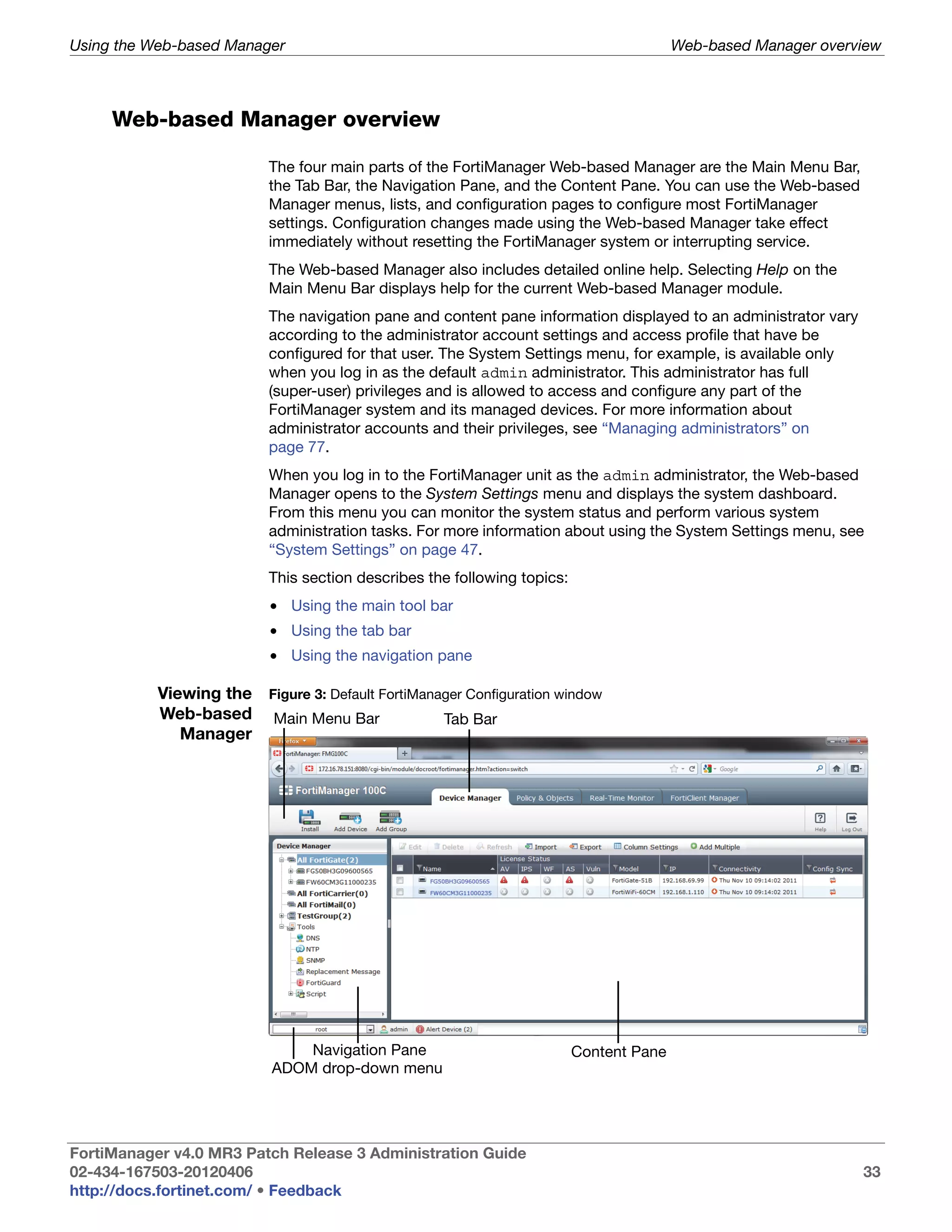
  • 341.
    FortiClient Manager Configuring FortiClient agent settings Action Delete icon Select to delete a firewall violation record. Edit icon Select to create a policy for a firewall violation event if there is no existing policy for the event. See “To create a policy for a firewall violation event” on page 341. Delete Delete the selected firewall violation records for this device. To create a policy for a firewall violation event 1 In the FortiClient Manager, select Client/Group > Client > Managed Client in the Navigation Pane. 2 In the All Managed Clients list, select the FortiClient agent you want to configure from the Host Name column. 3 From the FortiClient menu, select Firewall > Monitor. 4 For the firewall violation event that you want to add a policy, select the Edit icon. Destination Create a new address name or select an existing one. If you create a new address name, this name is linked with this violation event. If you choose an existing address, it may not be linked to this violation event. See “Configuring firewall addresses on a FortiClient agent” on page 343. Service Create a new service or select an existing one. If you create a new service name, this name is linked with this violation event. If you choose an existing service, it may not be linked to this violation event. See “Defining firewall protocols on a FortiClient agent” on page 346. Schedule Select the schedule that controls when the policy should be active. See “Configuring firewall schedules on a FortiClient agent” on page 348. Action Select the response to make when the policy matches a connection attempt. Comment Optionally, add any comments you have for this policy. 5 Select OK. Creating firewall Firewall policies are instructions that the FortiClient program uses to decide what to do policies on a with a connection request. When managed by a FortiManager unit, the FortiClient FortiClient agent firewall operates in Custom Profile mode. Create global firewall policies to control traffic generally. These policies create FortiClient advanced firewall rules. Create application firewall policies to control specific applications’ access to the network. These policies create FortiClient advanced application firewall rules. FortiManager v4.0 MR3 Patch Release 3 Administration Guide 02-434-167503-20120406 341 http://docs.fortinet.com/ • Feedback
  • 342.
    FortiClient Manager Configuring FortiClient agent settings Create New Create a firewall policy. Override The FortiClient agent’s configuration includes those inherited from the group to which the computer belongs. Selecting override allows you to modify the inherited firewall policy on this FortiClient agent. Deselecting override means that you want to use the firewall policy inherited from the group to which the computer belongs. Even with inherited firewall policies, you can still create new firewall policies for a FortiClient agent. See “Adding a FortiClient agent group” on page 303 and “Configuring settings for client groups” on page 305. Name The policy name. Application For an application policy, select the application. If the application is not listed, go to Application > Application in the FortiClient menu. See “Defining firewall applications on a FortiClient agent” on page 345. Source The source address to which the policy applies. See “Configuring firewall addresses on a FortiClient agent” on page 343. Destination The destination address to which the policy applies. See “Configuring firewall addresses on a FortiClient agent” on page 343. Schedule The schedule that controls when the policy should be active. See “Configuring firewall schedules on a FortiClient agent” on page 348. Protocol The service to which the policy applies. See “Defining firewall protocols on a FortiClient agent” on page 346. Action The response to make when the policy matches a connection attempt: Allow or Block. Enable Enable or disable the policy. Enabling the policy makes it available for the firewall to match it to incoming or outgoing connections. Action Select the Delete icon to remove a policy, and Edit icon to modify a policy. To create a firewall policy 1 In the FortiClient Manager, select Client/Group > Client > Managed Client in the Navigation Pane. 2 In the All Managed Clients list, select the FortiClient agent you want to configure from the Host Name column. 3 From the FortiClient menu, select one of the following: • for a general firewall policy, Firewall > Policy > Global Policy • for an application-specific policy, Firewall > Policy > Application Policy 4 Select Create New. 5 Enter the field value as described above and then select OK. FortiManager v4.0 MR3 Patch Release 3 Administration Guide 02-434-167503-20120406 342 http://docs.fortinet.com/ • Feedback
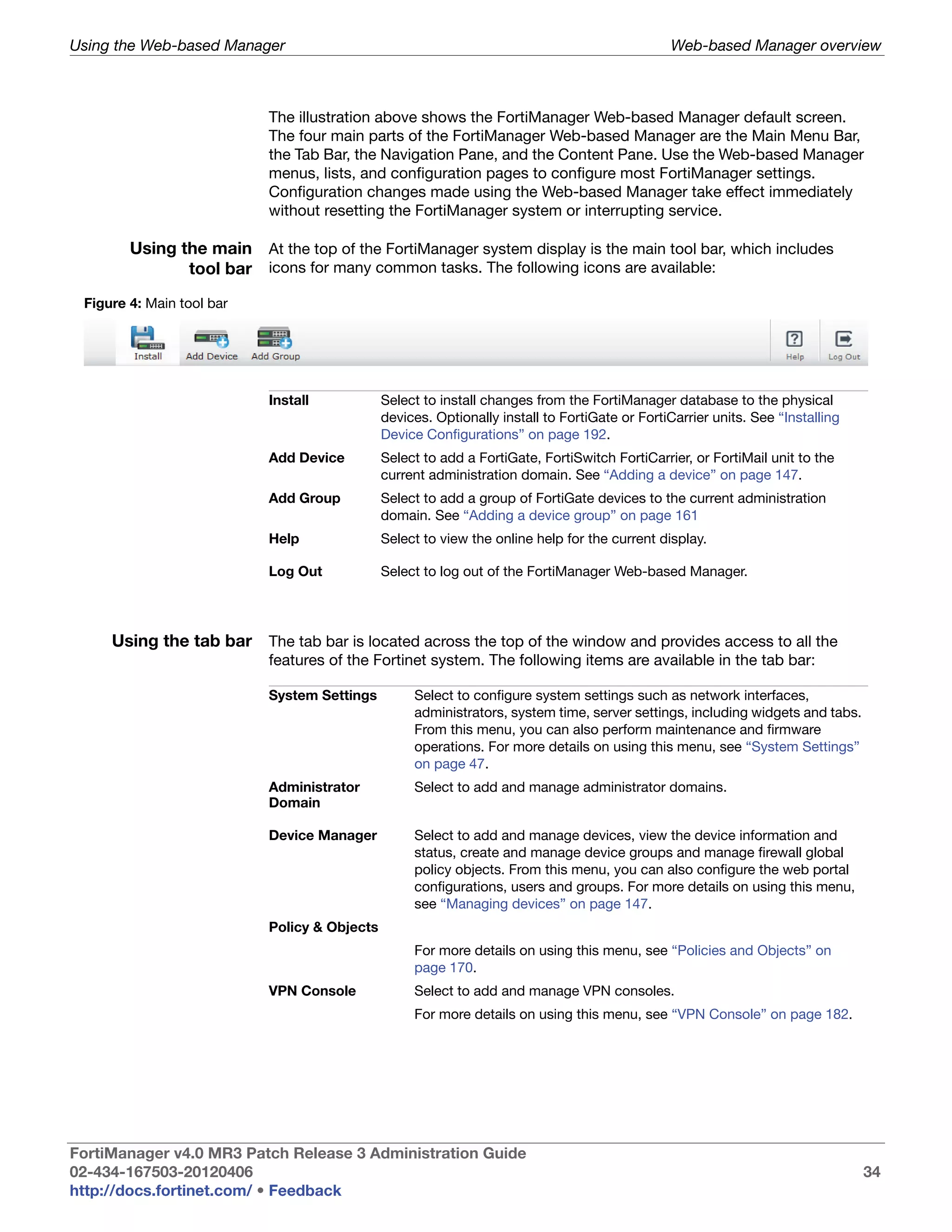
  • 343.
    FortiClient Manager Configuring FortiClient agent settings Configuring Add, edit, and delete firewall addresses as required. Firewall policies specify firewall firewall addresses to match the source or destination IP addresses of packets that the addresses on a FortiClient agent receives. FortiClient agent Create New Select to create a firewall address for the managed FortiClient agent. Override The FortiClient agent’s configuration includes those inherited from the group to which the computer belongs. Selecting override allows you to modify the inherited firewall address configuration on this FortiClient agent. Deselecting override means that you want to use the firewall address configuration inherited from the group to which the computer belongs. Even with inherited firewall address configurations, you can still create new firewall addresses for a FortiClient agent. See “Adding a FortiClient agent group” on page 303 and “Configuring settings for client groups” on page 305. Name The name of the firewall address. Type Select one of Single Address, IP Range, Subnet, or FQDN. Single Address This name and format of this field depends on the Type setting. IP Range Examples: Subnet FQDN • Single Address: 10.10.1.2 • IP Range: 10.10.1.[12-20] or 10.10.1.12-10.10.1.20 • Subnet: 10.10.10.0/255.255.0.0 • FQDN: mysite.example.com Comments Comments on the firewall address. Action Delete — Remove the selected firewall address. Edit — Modify the firewall address. Copy to group — If the FortiClient agent belongs to a client group, add this address to the group configuration. To add a firewall address 1 In the FortiClient Manager, select Client/Group > Client > Managed Client in the Navigation Pane. 2 In the All Managed Clients list, select the FortiClient agent you want from the Host Name column. 3 From the FortiClient menu, select Firewall > IP Address > IP Address. 4 Select Create New, enter the information as described above and then select OK. FortiManager v4.0 MR3 Patch Release 3 Administration Guide 02-434-167503-20120406 343 http://docs.fortinet.com/ • Feedback
  • 344.
    FortiClient Manager Configuring FortiClient agent settings Configuring You can create groups of firewall addresses for use in firewall policies. The default firewall address Address Groups are Blocked-Zone, Public-Zone, and Trusted-Zone. You can edit groups on a these Address Groups or create new groups. FortiClient agent Create New Select to create a firewall address group. Override The FortiClient agent’s configuration includes those inherited from the group to which the computer belongs. Selecting override allows you to modify the inherited firewall address group configuration on this FortiClient agent. Deselecting override means that you want to use the firewall address group configuration inherited from the group to which the computer belongs. Even with inherited firewall address group configurations, you can still create new firewall address groups for a FortiClient agent. See “Adding a FortiClient agent group” on page 303 and “Configuring settings for client groups” on page 305. Name The name of the firewall address group. Member The addresses in the address group. Comments Comments on the firewall address group. Action Select the Delete icon to remove a firewall address group, and Edit icon to modify a firewall address group. To add a firewall address group 1 In the FortiClient Manager, select Client/Group > Client > Managed Client in the Navigation Pane. 2 In the All Managed Clients list, select the FortiClient agent you want from the Host Name column. 3 From the FortiClient menu, select Firewall > IP Address > Address Group > Create New. Group Name Enter a name to identify the address group. You must not use the same name as any firewall address or virtual IP. Comments Optionally, add comments on the firewall address group. Group Members Use the arrows to move addresses between the Available Address (configured and default firewall addresses) and Selected Address lists. The list of addresses come from the IP Addresses. 4 Select OK. FortiManager v4.0 MR3 Patch Release 3 Administration Guide 02-434-167503-20120406 344 http://docs.fortinet.com/ • Feedback
  • 345.
    FortiClient Manager Configuring FortiClient agent settings Defining firewall Define applications so that you can create firewall policies to allow or deny network applications on a access to these applications. For information about creating firewall policies for FortiClient agent applications, see “Creating firewall policies on a FortiClient agent” on page 341. Create New Select to create a firewall application. Override The FortiClient agent’s configuration includes those inherited from the group to which the computer belongs. Selecting override allows you to modify the inherited firewall application configuration on this FortiClient agent. Deselecting override means that you want to use the firewall application configuration inherited from the group to which the computer belongs. Even with inherited firewall application configurations, you can still create new firewall applications for a FortiClient agent. See “Adding a FortiClient agent group” on page 303 and “Configuring settings for client groups” on page 305. Name The name of the firewall application. Details The information about the firewall application, including its executable file name, size, and checksum. Comments Comments on the firewall application. Action Select the Delete icon to remove a firewall application, and Edit icon to modify a firewall application. To define a firewall application 1 In the FortiClient Manager, select Client/Group > Client > Managed Client in the Navigation Pane. 2 In the All Managed Clients list, select the FortiClient agent you want to configure from the Host Name column. 3 From the FortiClient menu, select Firewall > Application > Create New. Name Enter a name to identify the application. Executable File Enter the executable file name of application. For example, the executable of Internet Explorer is iexplorer.exe. Optionally you can leave this field blank to define the service only by its ports. File size Enter the size of the executable file. If Executable File is blank, enter a value that is not the same as that of any other application executable file. Checksum (CRC32) Enter the CRC32 checksum of the executable file. If Executable File is blank, enter a value that is not the same as that of any other application executable file. The checksum and file size are used to uniquely identify the application executable file. Comments Enter any comments on the firewall application. 4 Select OK. FortiManager v4.0 MR3 Patch Release 3 Administration Guide 02-434-167503-20120406 345 http://docs.fortinet.com/ • Feedback
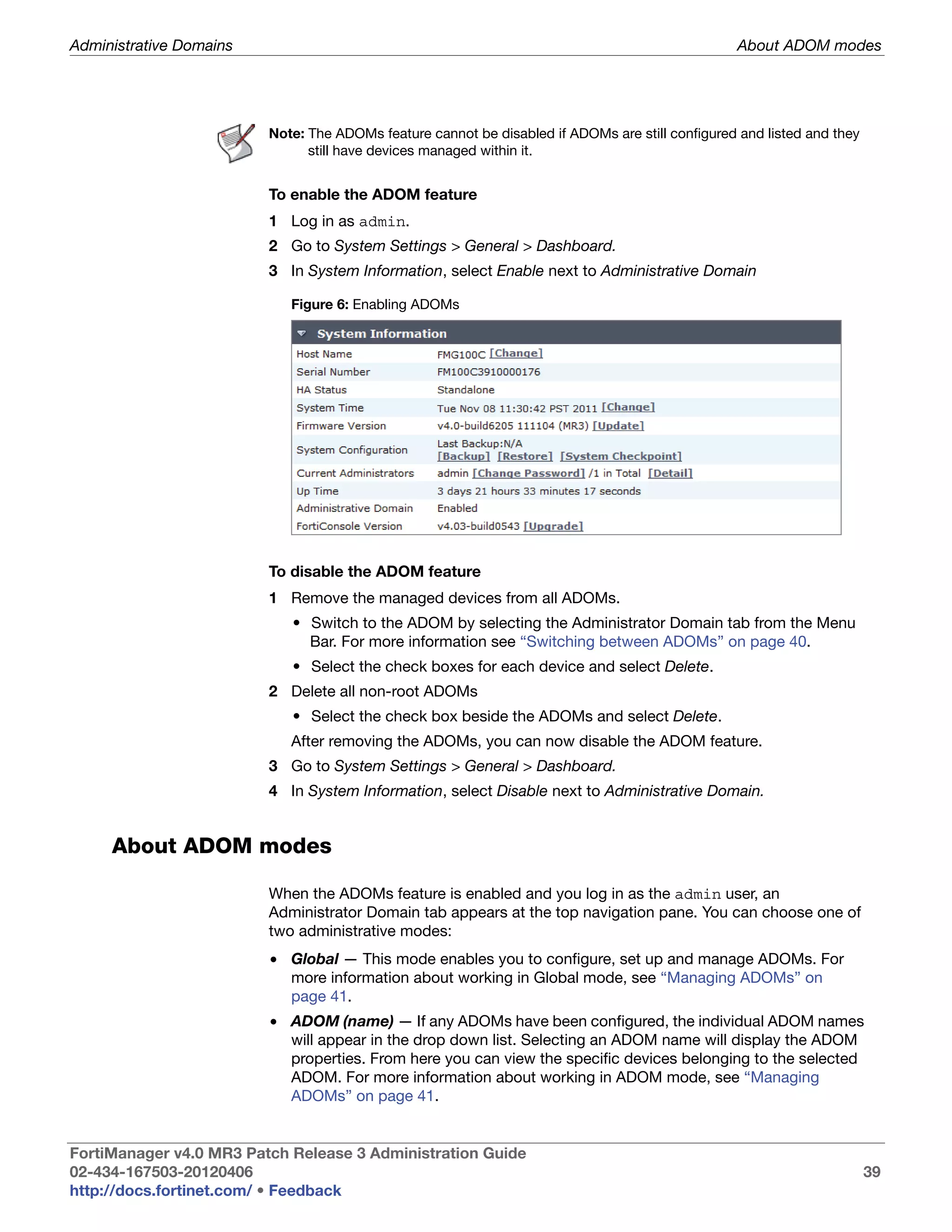
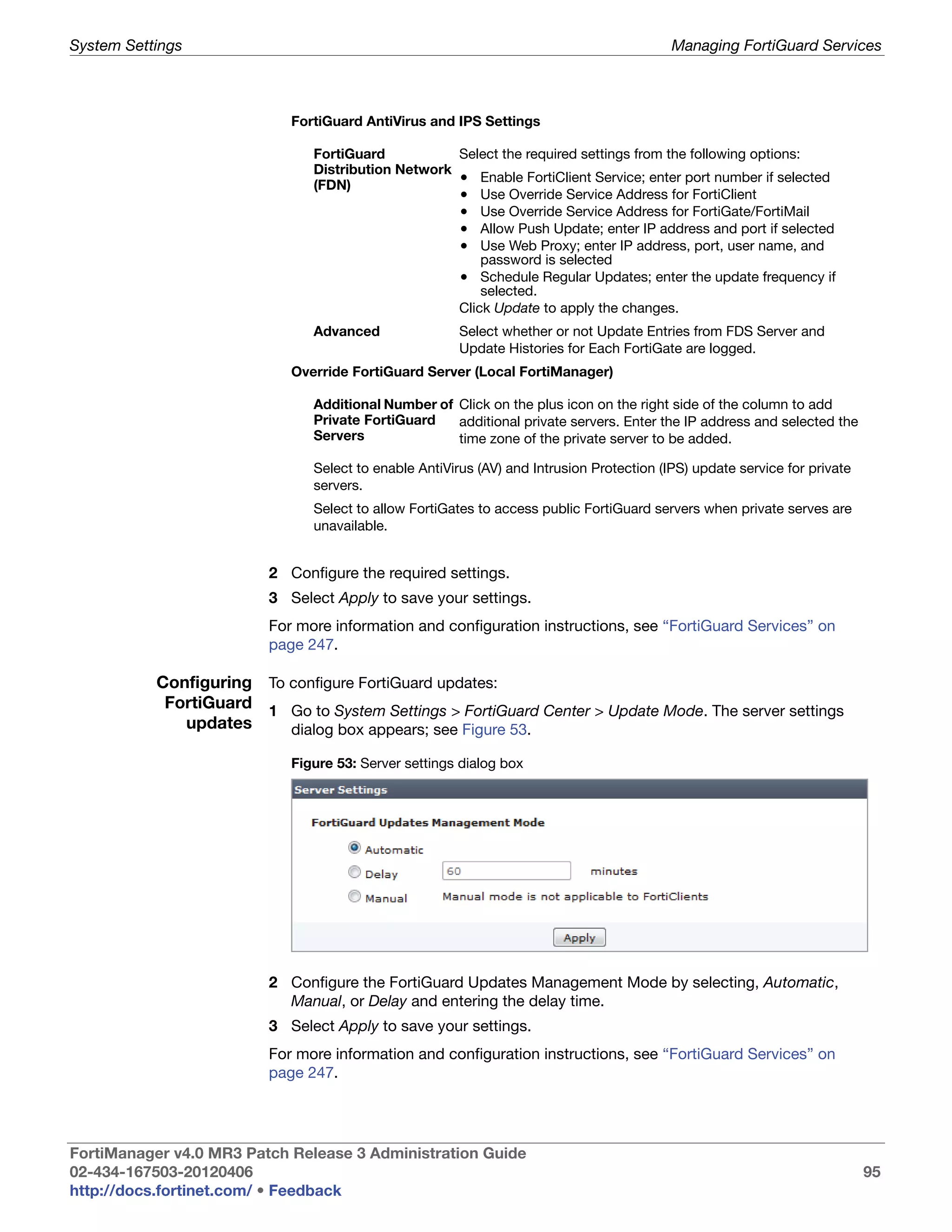
  • 346.
    FortiClient Manager Configuring FortiClient agent settings Defining firewall Define protocols so that you can create firewall policies to allow or deny use of these protocols on a protocols. You define a protocol in terms of the UDP or TCP ports that it uses. See “To FortiClient agent define a firewall protocol” on page 346. To make it easier to add policies, create groups of protocols and then add one policy to allow or block access for all the protocols in the group. A protocol group cannot be added to another protocol group. See “Configuring firewall protocol groups on a FortiClient agent” on page 347. Create New Select to create a firewall protocol. Override The FortiClient agent’s configuration includes those inherited from the group to which the computer belongs. Selecting override allows you to modify the inherited firewall service configuration on this FortiClient agent. Deselecting override means that you want to use the firewall service configuration inherited from the group to which the computer belongs. Even with inherited firewall service configurations, you can still create new firewall services for a FortiClient agent. See “Adding a FortiClient agent group” on page 303 and “Configuring settings for client groups” on page 305. Name The name of the firewall protocol. Type The type of protocol: TCP, UDP, TCP/UDP or ICMP Source Port Source port for the protocol. Destination Port Destination port for the protocol. Action Select the Delete icon to remove a firewall protocol, and Edit icon to modify a firewall protocol. To define a firewall protocol 1 In the FortiClient Manager, select Client/Group > Client > Managed Client in the Navigation Pane. 2 In the All Managed Clients list, select the FortiClient agent you want to configure from the Host Name column. 3 From the FortiClient menu, select Firewall > Protocol > Create New. Name Enter a name to identify the protocol. Protocol Select the protocol type: TCP, UDP, TCP/UDP or ICMP. Source Port Specify the source port number for the protocol. (Not for ICMP.) Destination Port Specify the destination port for the protocol. (Not for ICMP.) Comments Enter any comments on the firewall protocol. 4 Select OK. FortiManager v4.0 MR3 Patch Release 3 Administration Guide 02-434-167503-20120406 346 http://docs.fortinet.com/ • Feedback
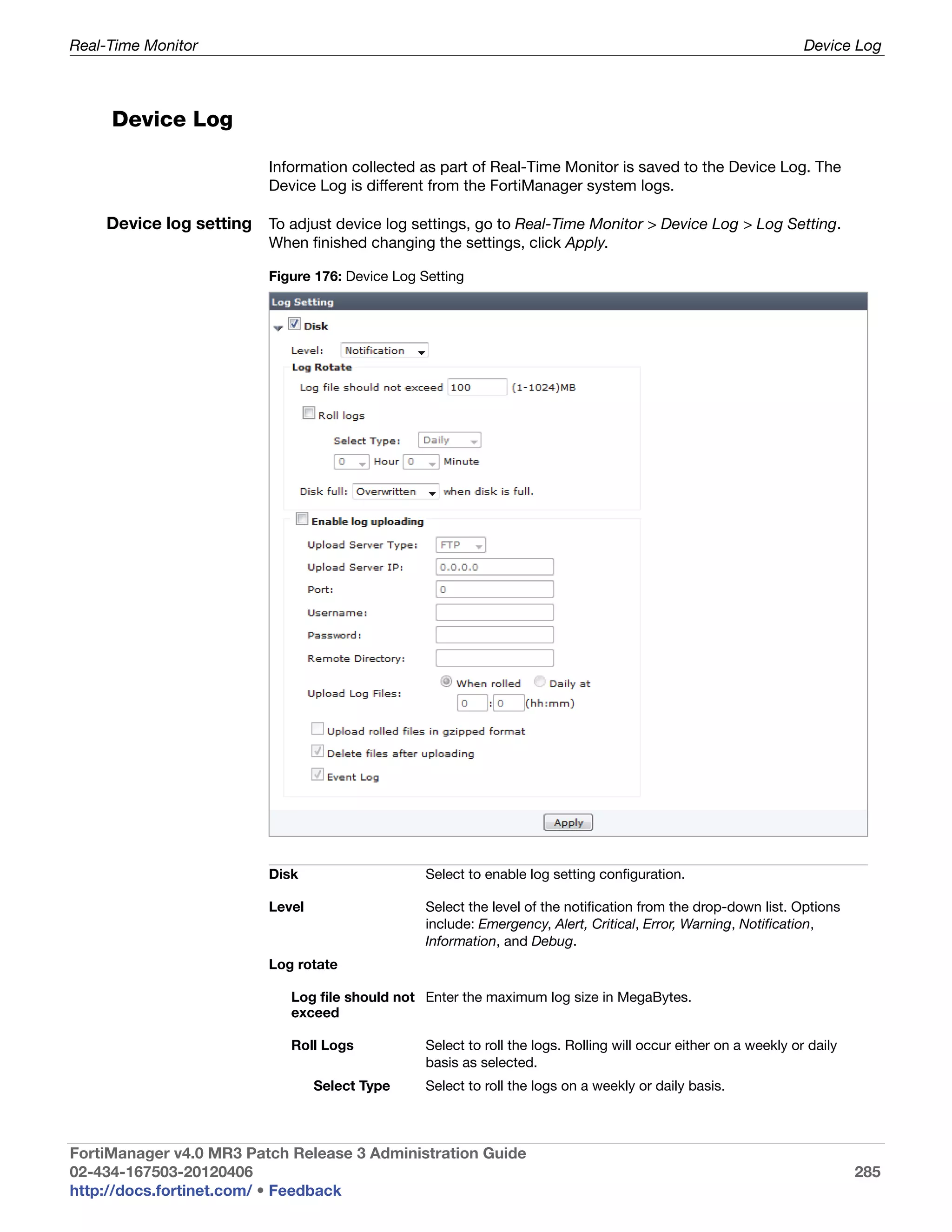
  • 347.
    FortiClient Manager Configuring FortiClient agent settings Configuring You can create groups of firewall protocols for use in firewall policies. firewall protocol groups on a Create New Select to create a firewall protocol group. FortiClient agent Override The FortiClient agent’s configuration includes those inherited from the group to which the computer belongs. Selecting override allows you to modify the inherited firewall protocol group configuration on this FortiClient agent. Deselecting override means that you want to use the firewall protocol group configuration inherited from the group to which the computer belongs. Even with inherited firewall protocol group configurations, you can still create new firewall protocol groups for a FortiClient agent. See “Adding a FortiClient agent group” on page 303 and “Configuring settings for client groups” on page 305. Name The name of the firewall protocol group. Member The services added to the protocol group. Comments Comments on the firewall protocol group. Action Select the Delete icon to remove a firewall protocol group, and Edit icon to modify a firewall protocol group. To create a firewall protocol group 1 In the FortiClient Manager, select Client/Group > Client > Managed Client in the Navigation Pane. 2 In the All Managed Clients list, select the FortiClient agent you want to configure from the Host Name column. 3 From the FortiClient menu, select Firewall > Protocol > Protocol Group > Create New. Group Name Enter a name to identify the protocol group. Comments Enter any comments on the firewall protocol group. Available The list of configured protocols. Use the arrows to move protocols Protocols between the lists. Members The list of protocols in the group. Use the arrows to move protocols between the lists. 4 Select OK. FortiManager v4.0 MR3 Patch Release