
















AP 7181 Access Point
Product Reference Guide
                Version 1.0.0.F
               October 20, 2010
AP 7181 Access Point
Product Reference Guide
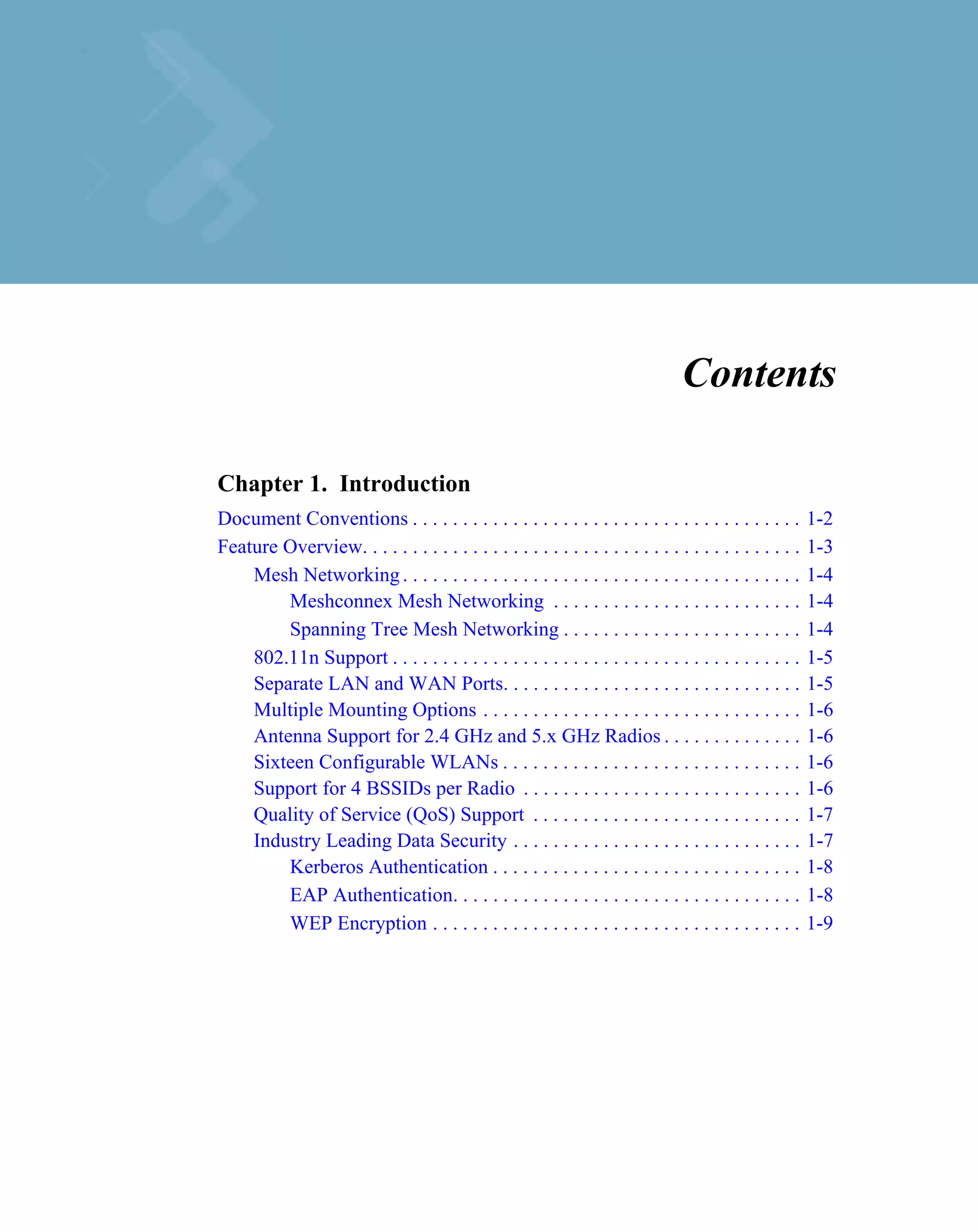
Contents

Chapter 1. Introduction
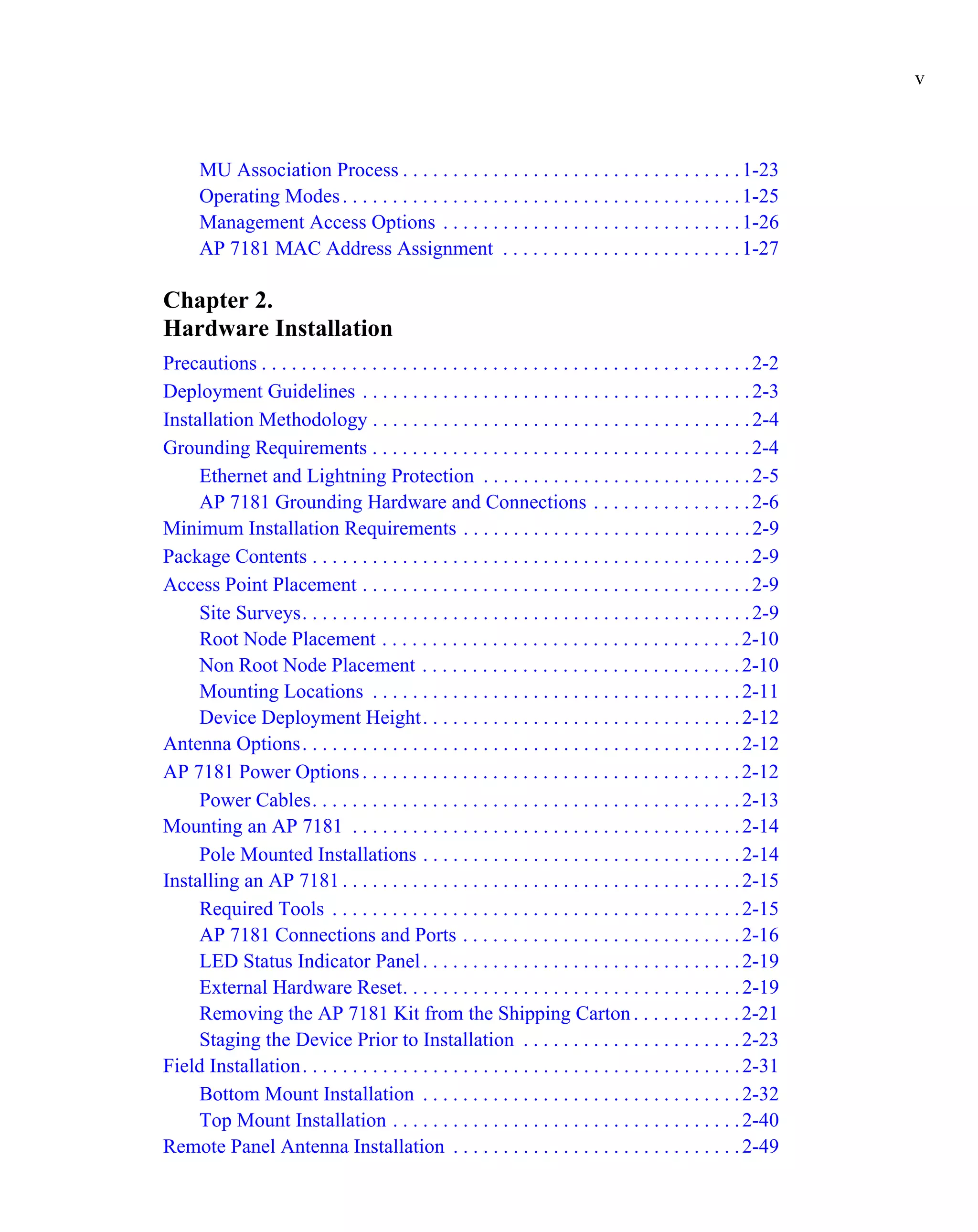
Document Conventions . . . . . . . . . . . . . . . . . . . . . . . . . . . . . . . . . . . . . . .        1-2
Feature Overview. . . . . . . . . . . . . . . . . . . . . . . . . . . . . . . . . . . . . . . . . . . .   1-3
    Mesh Networking . . . . . . . . . . . . . . . . . . . . . . . . . . . . . . . . . . . . . . . .       1-4
        Meshconnex Mesh Networking . . . . . . . . . . . . . . . . . . . . . . . . .                      1-4
        Spanning Tree Mesh Networking . . . . . . . . . . . . . . . . . . . . . . . .                     1-4
    802.11n Support . . . . . . . . . . . . . . . . . . . . . . . . . . . . . . . . . . . . . . . . .     1-5
    Separate LAN and WAN Ports. . . . . . . . . . . . . . . . . . . . . . . . . . . . . .                 1-5
    Multiple Mounting Options . . . . . . . . . . . . . . . . . . . . . . . . . . . . . . . .             1-6
    Antenna Support for 2.4 GHz and 5.x GHz Radios . . . . . . . . . . . . . .                            1-6
    Sixteen Configurable WLANs . . . . . . . . . . . . . . . . . . . . . . . . . . . . . .                1-6
    Support for 4 BSSIDs per Radio . . . . . . . . . . . . . . . . . . . . . . . . . . . .                1-6
    Quality of Service (QoS) Support . . . . . . . . . . . . . . . . . . . . . . . . . . .                1-7
    Industry Leading Data Security . . . . . . . . . . . . . . . . . . . . . . . . . . . . .              1-7
        Kerberos Authentication . . . . . . . . . . . . . . . . . . . . . . . . . . . . . . .             1-8
        EAP Authentication. . . . . . . . . . . . . . . . . . . . . . . . . . . . . . . . . . .           1-8
        WEP Encryption . . . . . . . . . . . . . . . . . . . . . . . . . . . . . . . . . . . . .          1-9
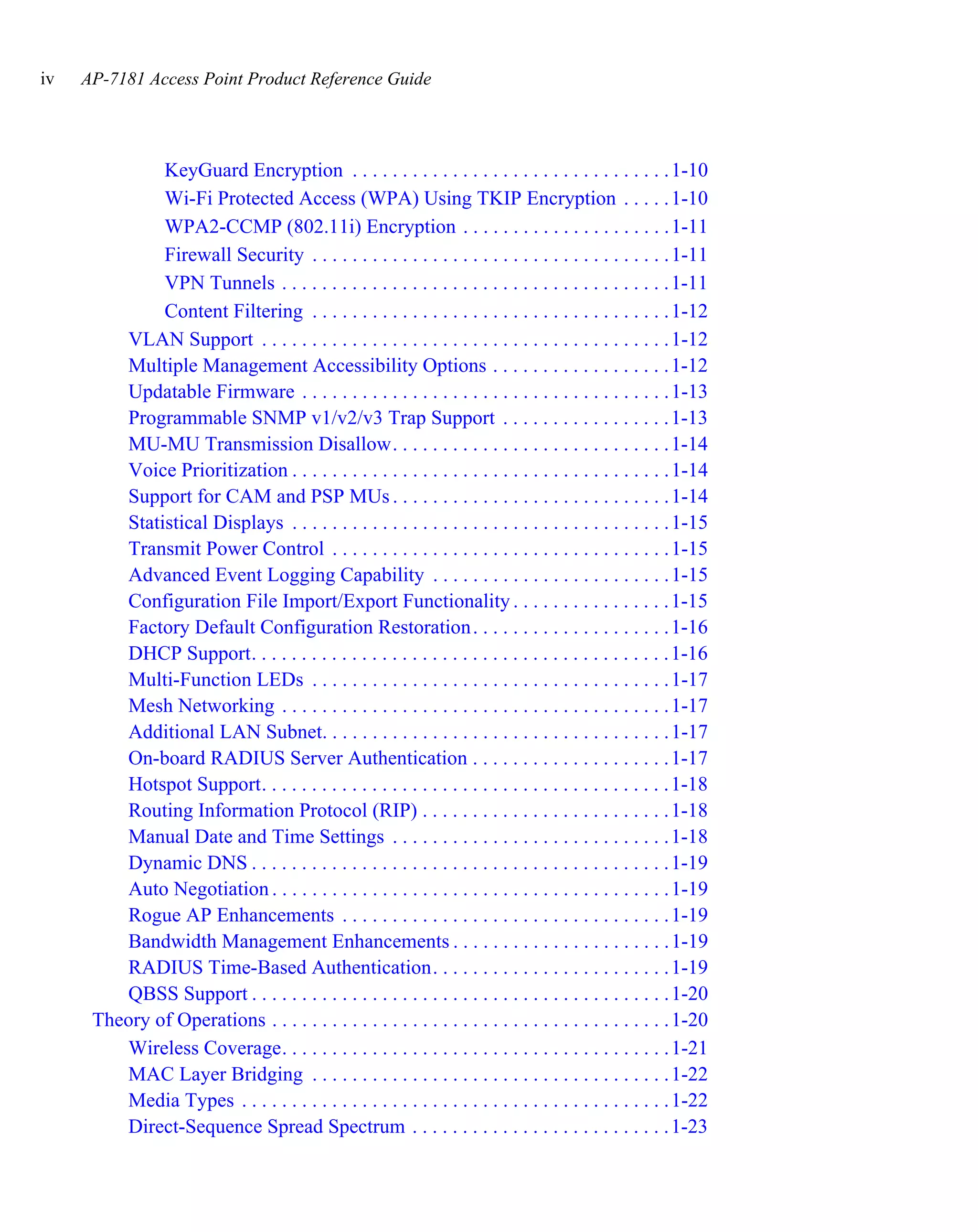
iv   AP-7181 Access Point Product Reference Guide


              KeyGuard Encryption . . . . . . . . . . . . . . . . . . . . . . . . . . . . . . . . 1-10
              Wi-Fi Protected Access (WPA) Using TKIP Encryption . . . . . 1-10
              WPA2-CCMP (802.11i) Encryption . . . . . . . . . . . . . . . . . . . . . 1-11
              Firewall Security . . . . . . . . . . . . . . . . . . . . . . . . . . . . . . . . . . . . 1-11
              VPN Tunnels . . . . . . . . . . . . . . . . . . . . . . . . . . . . . . . . . . . . . . . 1-11
              Content Filtering . . . . . . . . . . . . . . . . . . . . . . . . . . . . . . . . . . . . 1-12
         VLAN Support . . . . . . . . . . . . . . . . . . . . . . . . . . . . . . . . . . . . . . . . . 1-12
         Multiple Management Accessibility Options . . . . . . . . . . . . . . . . . . 1-12
         Updatable Firmware . . . . . . . . . . . . . . . . . . . . . . . . . . . . . . . . . . . . . 1-13
         Programmable SNMP v1/v2/v3 Trap Support . . . . . . . . . . . . . . . . . 1-13
         MU-MU Transmission Disallow. . . . . . . . . . . . . . . . . . . . . . . . . . . . 1-14
         Voice Prioritization . . . . . . . . . . . . . . . . . . . . . . . . . . . . . . . . . . . . . . 1-14
         Support for CAM and PSP MUs . . . . . . . . . . . . . . . . . . . . . . . . . . . . 1-14
         Statistical Displays . . . . . . . . . . . . . . . . . . . . . . . . . . . . . . . . . . . . . . 1-15
         Transmit Power Control . . . . . . . . . . . . . . . . . . . . . . . . . . . . . . . . . . 1-15
         Advanced Event Logging Capability . . . . . . . . . . . . . . . . . . . . . . . . 1-15
         Configuration File Import/Export Functionality . . . . . . . . . . . . . . . . 1-15
         Factory Default Configuration Restoration . . . . . . . . . . . . . . . . . . . . 1-16
         DHCP Support. . . . . . . . . . . . . . . . . . . . . . . . . . . . . . . . . . . . . . . . . . 1-16
         Multi-Function LEDs . . . . . . . . . . . . . . . . . . . . . . . . . . . . . . . . . . . . 1-17
         Mesh Networking . . . . . . . . . . . . . . . . . . . . . . . . . . . . . . . . . . . . . . . 1-17
         Additional LAN Subnet. . . . . . . . . . . . . . . . . . . . . . . . . . . . . . . . . . . 1-17
         On-board RADIUS Server Authentication . . . . . . . . . . . . . . . . . . . . 1-17
         Hotspot Support. . . . . . . . . . . . . . . . . . . . . . . . . . . . . . . . . . . . . . . . . 1-18
         Routing Information Protocol (RIP) . . . . . . . . . . . . . . . . . . . . . . . . . 1-18
         Manual Date and Time Settings . . . . . . . . . . . . . . . . . . . . . . . . . . . . 1-18
         Dynamic DNS . . . . . . . . . . . . . . . . . . . . . . . . . . . . . . . . . . . . . . . . . . 1-19
         Auto Negotiation . . . . . . . . . . . . . . . . . . . . . . . . . . . . . . . . . . . . . . . . 1-19
         Rogue AP Enhancements . . . . . . . . . . . . . . . . . . . . . . . . . . . . . . . . . 1-19
         Bandwidth Management Enhancements . . . . . . . . . . . . . . . . . . . . . . 1-19
         RADIUS Time-Based Authentication. . . . . . . . . . . . . . . . . . . . . . . . 1-19
         QBSS Support . . . . . . . . . . . . . . . . . . . . . . . . . . . . . . . . . . . . . . . . . . 1-20
      Theory of Operations . . . . . . . . . . . . . . . . . . . . . . . . . . . . . . . . . . . . . . . . 1-20
         Wireless Coverage. . . . . . . . . . . . . . . . . . . . . . . . . . . . . . . . . . . . . . . 1-21
         MAC Layer Bridging . . . . . . . . . . . . . . . . . . . . . . . . . . . . . . . . . . . . 1-22
         Media Types . . . . . . . . . . . . . . . . . . . . . . . . . . . . . . . . . . . . . . . . . . . 1-22
         Direct-Sequence Spread Spectrum . . . . . . . . . . . . . . . . . . . . . . . . . . 1-23
v


      MU Association Process . . . . . . . . . . . . . . . . . . . . . . . . . . . . . . . . . . 1-23
      Operating Modes . . . . . . . . . . . . . . . . . . . . . . . . . . . . . . . . . . . . . . . . 1-25
      Management Access Options . . . . . . . . . . . . . . . . . . . . . . . . . . . . . . 1-26
      AP 7181 MAC Address Assignment . . . . . . . . . . . . . . . . . . . . . . . . 1-27

Chapter 2.
Hardware Installation
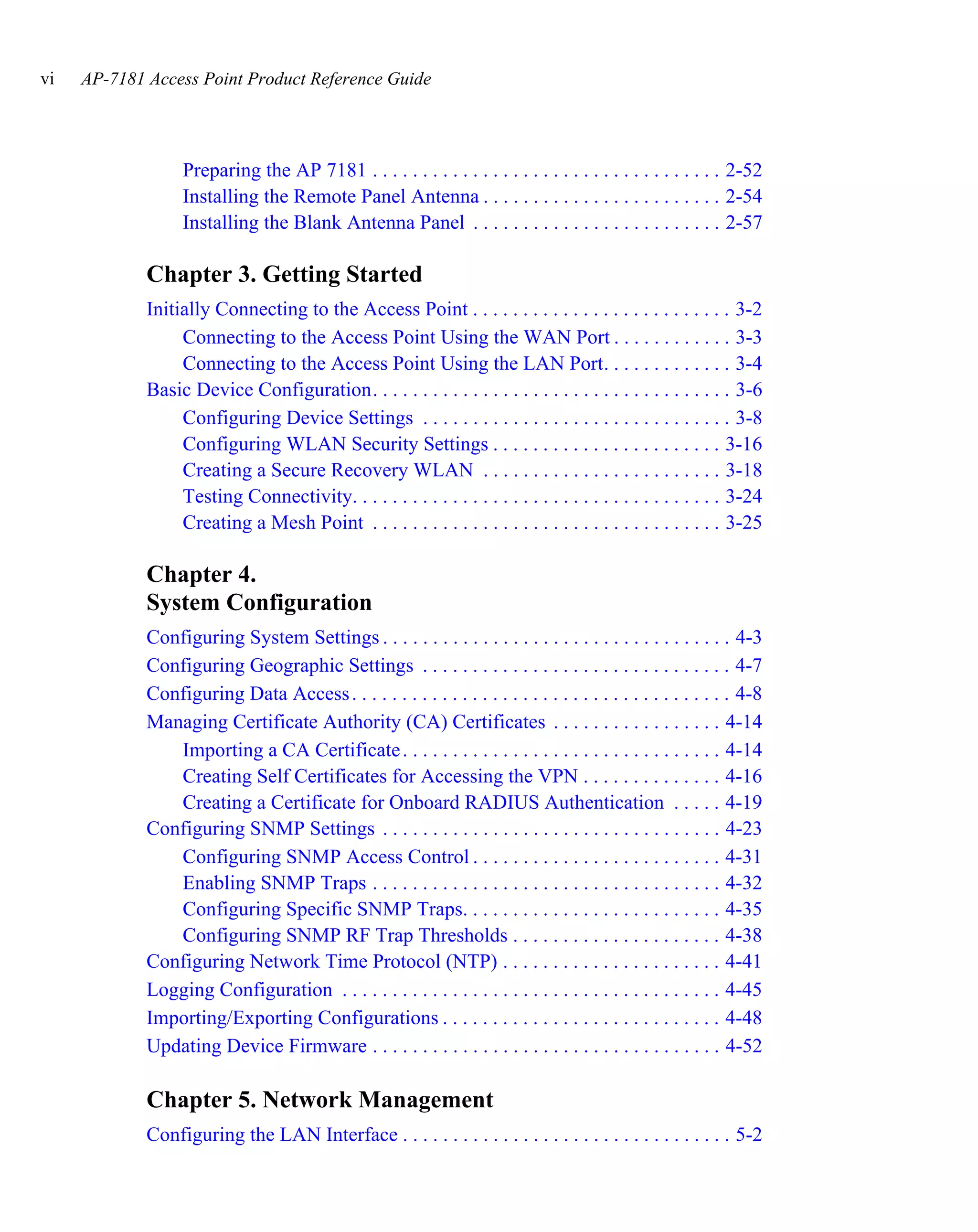
Precautions . . . . . . . . . . . . . . . . . . . . . . . . . . . . . . . . . . . . . . . . . . . . . . . . . 2-2
Deployment Guidelines . . . . . . . . . . . . . . . . . . . . . . . . . . . . . . . . . . . . . . . 2-3
Installation Methodology . . . . . . . . . . . . . . . . . . . . . . . . . . . . . . . . . . . . . . 2-4
Grounding Requirements . . . . . . . . . . . . . . . . . . . . . . . . . . . . . . . . . . . . . . 2-4
     Ethernet and Lightning Protection . . . . . . . . . . . . . . . . . . . . . . . . . . . 2-5
     AP 7181 Grounding Hardware and Connections . . . . . . . . . . . . . . . . 2-6
Minimum Installation Requirements . . . . . . . . . . . . . . . . . . . . . . . . . . . . . 2-9
Package Contents . . . . . . . . . . . . . . . . . . . . . . . . . . . . . . . . . . . . . . . . . . . . 2-9
Access Point Placement . . . . . . . . . . . . . . . . . . . . . . . . . . . . . . . . . . . . . . . 2-9
     Site Surveys. . . . . . . . . . . . . . . . . . . . . . . . . . . . . . . . . . . . . . . . . . . . . 2-9
     Root Node Placement . . . . . . . . . . . . . . . . . . . . . . . . . . . . . . . . . . . . 2-10
     Non Root Node Placement . . . . . . . . . . . . . . . . . . . . . . . . . . . . . . . . 2-10
     Mounting Locations . . . . . . . . . . . . . . . . . . . . . . . . . . . . . . . . . . . . . 2-11
     Device Deployment Height. . . . . . . . . . . . . . . . . . . . . . . . . . . . . . . . 2-12
Antenna Options. . . . . . . . . . . . . . . . . . . . . . . . . . . . . . . . . . . . . . . . . . . . 2-12
AP 7181 Power Options . . . . . . . . . . . . . . . . . . . . . . . . . . . . . . . . . . . . . . 2-12
     Power Cables. . . . . . . . . . . . . . . . . . . . . . . . . . . . . . . . . . . . . . . . . . . 2-13
Mounting an AP 7181 . . . . . . . . . . . . . . . . . . . . . . . . . . . . . . . . . . . . . . . 2-14
     Pole Mounted Installations . . . . . . . . . . . . . . . . . . . . . . . . . . . . . . . . 2-14
Installing an AP 7181 . . . . . . . . . . . . . . . . . . . . . . . . . . . . . . . . . . . . . . . . 2-15
     Required Tools . . . . . . . . . . . . . . . . . . . . . . . . . . . . . . . . . . . . . . . . . 2-15
     AP 7181 Connections and Ports . . . . . . . . . . . . . . . . . . . . . . . . . . . . 2-16
     LED Status Indicator Panel . . . . . . . . . . . . . . . . . . . . . . . . . . . . . . . . 2-19
     External Hardware Reset. . . . . . . . . . . . . . . . . . . . . . . . . . . . . . . . . . 2-19
     Removing the AP 7181 Kit from the Shipping Carton . . . . . . . . . . . 2-21
     Staging the Device Prior to Installation . . . . . . . . . . . . . . . . . . . . . . 2-23
Field Installation. . . . . . . . . . . . . . . . . . . . . . . . . . . . . . . . . . . . . . . . . . . . 2-31
     Bottom Mount Installation . . . . . . . . . . . . . . . . . . . . . . . . . . . . . . . . 2-32
     Top Mount Installation . . . . . . . . . . . . . . . . . . . . . . . . . . . . . . . . . . . 2-40
Remote Panel Antenna Installation . . . . . . . . . . . . . . . . . . . . . . . . . . . . . 2-49
vi   AP-7181 Access Point Product Reference Guide


                   Preparing the AP 7181 . . . . . . . . . . . . . . . . . . . . . . . . . . . . . . . . . . . 2-52
                   Installing the Remote Panel Antenna . . . . . . . . . . . . . . . . . . . . . . . . 2-54
                   Installing the Blank Antenna Panel . . . . . . . . . . . . . . . . . . . . . . . . . 2-57

             Chapter 3. Getting Started
             Initially Connecting to the Access Point . . . . . . . . . . . . . . . . . . . . . . . . . . 3-2
                  Connecting to the Access Point Using the WAN Port . . . . . . . . . . . . 3-3
                  Connecting to the Access Point Using the LAN Port. . . . . . . . . . . . . 3-4
             Basic Device Configuration. . . . . . . . . . . . . . . . . . . . . . . . . . . . . . . . . . . . 3-6
                  Configuring Device Settings . . . . . . . . . . . . . . . . . . . . . . . . . . . . . . . 3-8
                  Configuring WLAN Security Settings . . . . . . . . . . . . . . . . . . . . . . . 3-16
                  Creating a Secure Recovery WLAN . . . . . . . . . . . . . . . . . . . . . . . . 3-18
                  Testing Connectivity. . . . . . . . . . . . . . . . . . . . . . . . . . . . . . . . . . . . . 3-24
                  Creating a Mesh Point . . . . . . . . . . . . . . . . . . . . . . . . . . . . . . . . . . . 3-25

             Chapter 4.
             System Configuration
             Configuring System Settings . . . . . . . . . . . . . . . . . . . . . . . . . . . . . . . . . . . 4-3
             Configuring Geographic Settings . . . . . . . . . . . . . . . . . . . . . . . . . . . . . . . 4-7
             Configuring Data Access . . . . . . . . . . . . . . . . . . . . . . . . . . . . . . . . . . . . . . 4-8
             Managing Certificate Authority (CA) Certificates . . . . . . . . . . . . . . . . . 4-14
                Importing a CA Certificate . . . . . . . . . . . . . . . . . . . . . . . . . . . . . . . . 4-14
                Creating Self Certificates for Accessing the VPN . . . . . . . . . . . . . . 4-16
                Creating a Certificate for Onboard RADIUS Authentication . . . . . 4-19
             Configuring SNMP Settings . . . . . . . . . . . . . . . . . . . . . . . . . . . . . . . . . . 4-23
                Configuring SNMP Access Control . . . . . . . . . . . . . . . . . . . . . . . . . 4-31
                Enabling SNMP Traps . . . . . . . . . . . . . . . . . . . . . . . . . . . . . . . . . . . 4-32
                Configuring Specific SNMP Traps. . . . . . . . . . . . . . . . . . . . . . . . . . 4-35
                Configuring SNMP RF Trap Thresholds . . . . . . . . . . . . . . . . . . . . . 4-38
             Configuring Network Time Protocol (NTP) . . . . . . . . . . . . . . . . . . . . . . 4-41
             Logging Configuration . . . . . . . . . . . . . . . . . . . . . . . . . . . . . . . . . . . . . . 4-45
             Importing/Exporting Configurations . . . . . . . . . . . . . . . . . . . . . . . . . . . . 4-48
             Updating Device Firmware . . . . . . . . . . . . . . . . . . . . . . . . . . . . . . . . . . . 4-52

             Chapter 5. Network Management
             Configuring the LAN Interface . . . . . . . . . . . . . . . . . . . . . . . . . . . . . . . . . 5-2
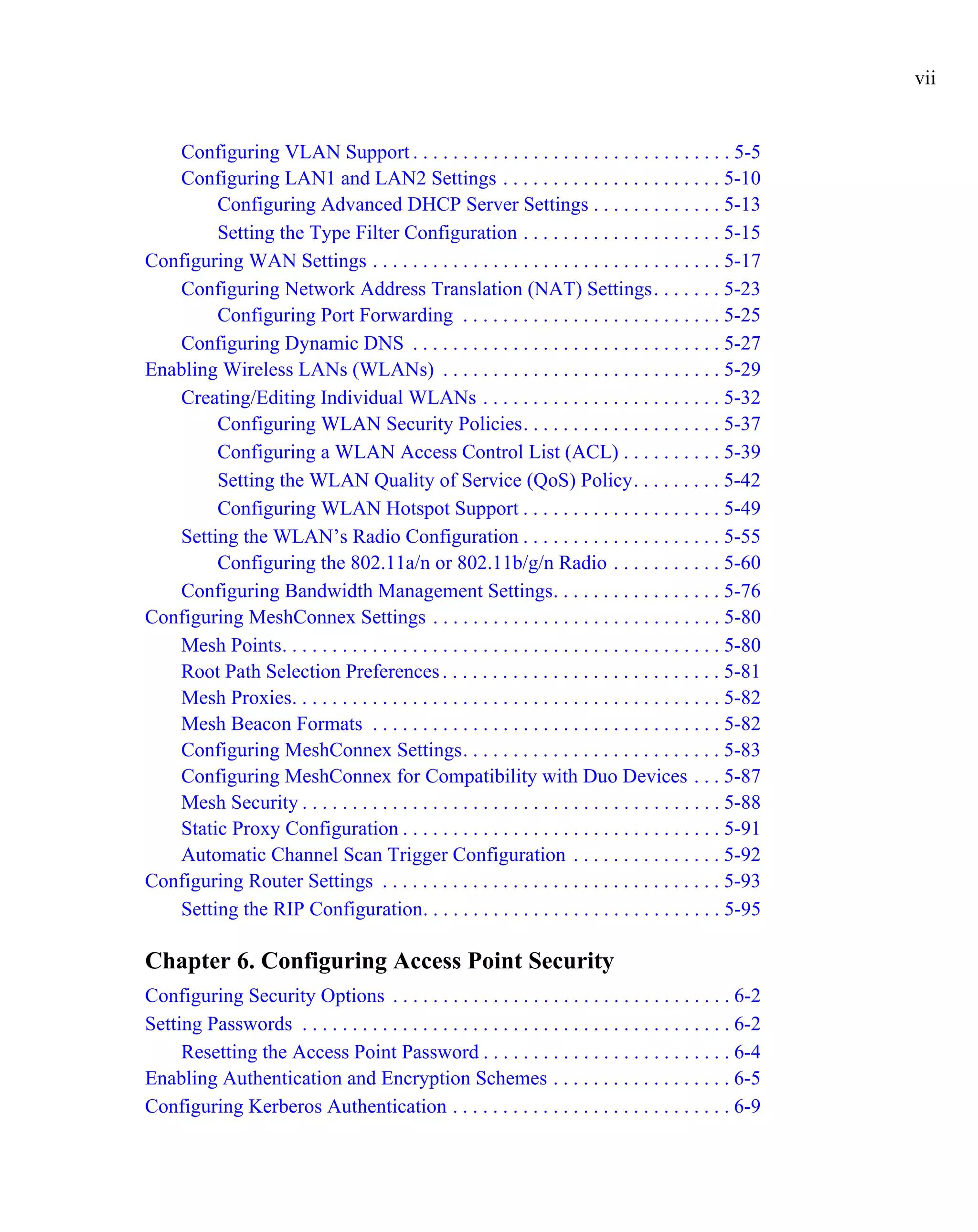
vii


   Configuring VLAN Support . . . . . . . . . . . . . . . . . . . . . . . . . . . . . . . . 5-5
   Configuring LAN1 and LAN2 Settings . . . . . . . . . . . . . . . . . . . . . . 5-10
        Configuring Advanced DHCP Server Settings . . . . . . . . . . . . . 5-13
        Setting the Type Filter Configuration . . . . . . . . . . . . . . . . . . . . 5-15
Configuring WAN Settings . . . . . . . . . . . . . . . . . . . . . . . . . . . . . . . . . . . 5-17
   Configuring Network Address Translation (NAT) Settings. . . . . . . 5-23
        Configuring Port Forwarding . . . . . . . . . . . . . . . . . . . . . . . . . . 5-25
   Configuring Dynamic DNS . . . . . . . . . . . . . . . . . . . . . . . . . . . . . . . 5-27
Enabling Wireless LANs (WLANs) . . . . . . . . . . . . . . . . . . . . . . . . . . . . 5-29
   Creating/Editing Individual WLANs . . . . . . . . . . . . . . . . . . . . . . . . 5-32
        Configuring WLAN Security Policies. . . . . . . . . . . . . . . . . . . . 5-37
        Configuring a WLAN Access Control List (ACL) . . . . . . . . . . 5-39
        Setting the WLAN Quality of Service (QoS) Policy. . . . . . . . . 5-42
        Configuring WLAN Hotspot Support . . . . . . . . . . . . . . . . . . . . 5-49
   Setting the WLAN’s Radio Configuration . . . . . . . . . . . . . . . . . . . . 5-55
        Configuring the 802.11a/n or 802.11b/g/n Radio . . . . . . . . . . . 5-60
   Configuring Bandwidth Management Settings. . . . . . . . . . . . . . . . . 5-76
Configuring MeshConnex Settings . . . . . . . . . . . . . . . . . . . . . . . . . . . . . 5-80
   Mesh Points. . . . . . . . . . . . . . . . . . . . . . . . . . . . . . . . . . . . . . . . . . . . 5-80
   Root Path Selection Preferences . . . . . . . . . . . . . . . . . . . . . . . . . . . . 5-81
   Mesh Proxies. . . . . . . . . . . . . . . . . . . . . . . . . . . . . . . . . . . . . . . . . . . 5-82
   Mesh Beacon Formats . . . . . . . . . . . . . . . . . . . . . . . . . . . . . . . . . . . 5-82
   Configuring MeshConnex Settings. . . . . . . . . . . . . . . . . . . . . . . . . . 5-83
   Configuring MeshConnex for Compatibility with Duo Devices . . . 5-87
   Mesh Security . . . . . . . . . . . . . . . . . . . . . . . . . . . . . . . . . . . . . . . . . . 5-88
   Static Proxy Configuration . . . . . . . . . . . . . . . . . . . . . . . . . . . . . . . . 5-91
   Automatic Channel Scan Trigger Configuration . . . . . . . . . . . . . . . 5-92
Configuring Router Settings . . . . . . . . . . . . . . . . . . . . . . . . . . . . . . . . . . 5-93
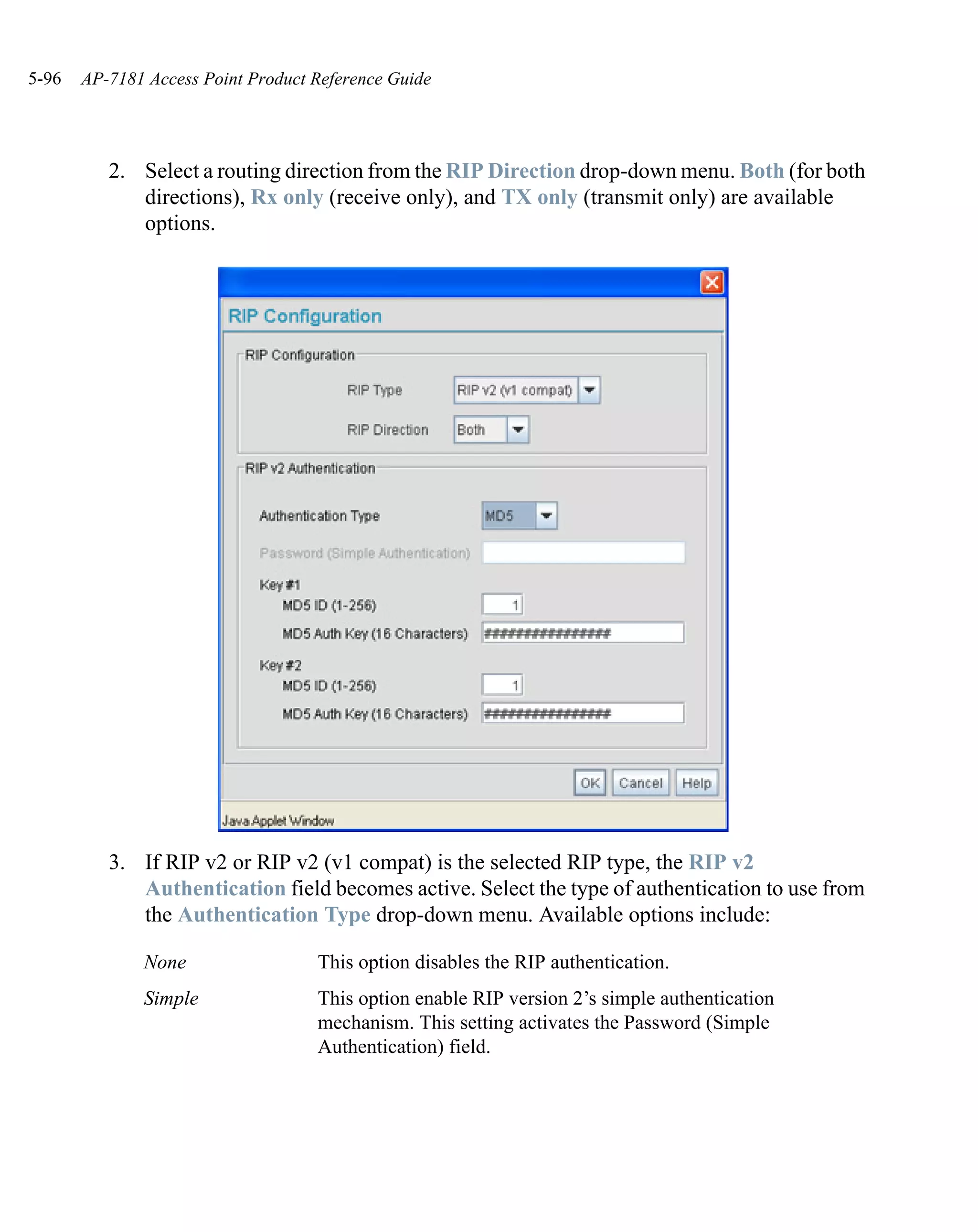
   Setting the RIP Configuration. . . . . . . . . . . . . . . . . . . . . . . . . . . . . . 5-95

Chapter 6. Configuring Access Point Security
Configuring Security Options . . . . . . . . . . . . . . . . . . . . . . . . . . . . . . . . . . 6-2
Setting Passwords . . . . . . . . . . . . . . . . . . . . . . . . . . . . . . . . . . . . . . . . . . . 6-2
     Resetting the Access Point Password . . . . . . . . . . . . . . . . . . . . . . . . . 6-4
Enabling Authentication and Encryption Schemes . . . . . . . . . . . . . . . . . . 6-5
Configuring Kerberos Authentication . . . . . . . . . . . . . . . . . . . . . . . . . . . . 6-9
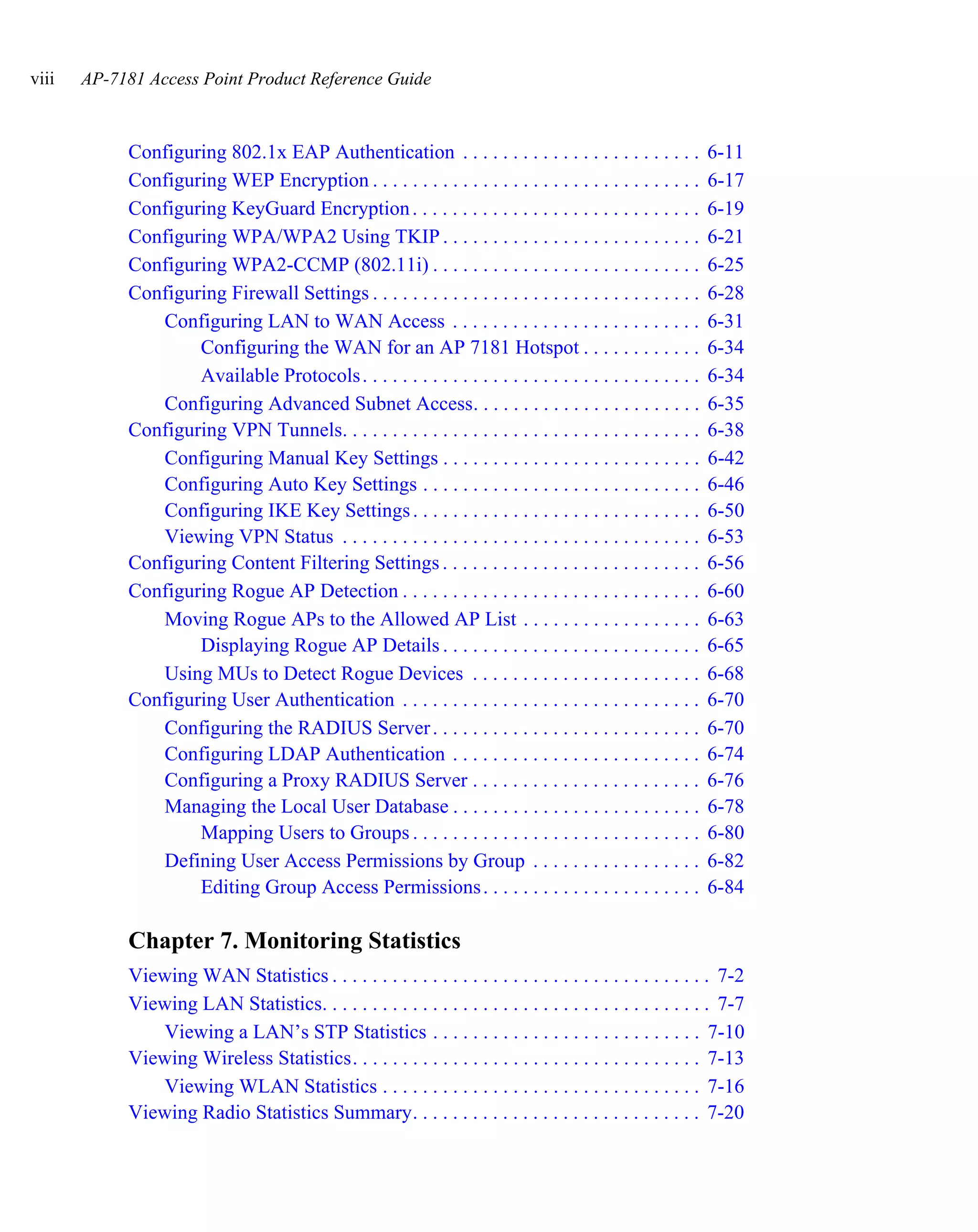
viii   AP-7181 Access Point Product Reference Guide


            Configuring 802.1x EAP Authentication . . . . . . . . . . . . . . . . . . . . . . . .             6-11
            Configuring WEP Encryption . . . . . . . . . . . . . . . . . . . . . . . . . . . . . . . . .      6-17
            Configuring KeyGuard Encryption . . . . . . . . . . . . . . . . . . . . . . . . . . . . .         6-19
            Configuring WPA/WPA2 Using TKIP . . . . . . . . . . . . . . . . . . . . . . . . . .               6-21
            Configuring WPA2-CCMP (802.11i) . . . . . . . . . . . . . . . . . . . . . . . . . . .             6-25
            Configuring Firewall Settings . . . . . . . . . . . . . . . . . . . . . . . . . . . . . . . . .   6-28
               Configuring LAN to WAN Access . . . . . . . . . . . . . . . . . . . . . . . . .                6-31
                    Configuring the WAN for an AP 7181 Hotspot . . . . . . . . . . . .                        6-34
                    Available Protocols . . . . . . . . . . . . . . . . . . . . . . . . . . . . . . . . . .   6-34
               Configuring Advanced Subnet Access. . . . . . . . . . . . . . . . . . . . . . .                6-35
            Configuring VPN Tunnels. . . . . . . . . . . . . . . . . . . . . . . . . . . . . . . . . . . .    6-38
               Configuring Manual Key Settings . . . . . . . . . . . . . . . . . . . . . . . . . .            6-42
               Configuring Auto Key Settings . . . . . . . . . . . . . . . . . . . . . . . . . . . .          6-46
               Configuring IKE Key Settings . . . . . . . . . . . . . . . . . . . . . . . . . . . . .         6-50
               Viewing VPN Status . . . . . . . . . . . . . . . . . . . . . . . . . . . . . . . . . . . .     6-53
            Configuring Content Filtering Settings . . . . . . . . . . . . . . . . . . . . . . . . . .        6-56
            Configuring Rogue AP Detection . . . . . . . . . . . . . . . . . . . . . . . . . . . . . .        6-60
               Moving Rogue APs to the Allowed AP List . . . . . . . . . . . . . . . . . .                    6-63
                    Displaying Rogue AP Details . . . . . . . . . . . . . . . . . . . . . . . . . .           6-65
               Using MUs to Detect Rogue Devices . . . . . . . . . . . . . . . . . . . . . . .                6-68
            Configuring User Authentication . . . . . . . . . . . . . . . . . . . . . . . . . . . . . .       6-70
               Configuring the RADIUS Server . . . . . . . . . . . . . . . . . . . . . . . . . . .            6-70
               Configuring LDAP Authentication . . . . . . . . . . . . . . . . . . . . . . . . .              6-74
               Configuring a Proxy RADIUS Server . . . . . . . . . . . . . . . . . . . . . . .                6-76
               Managing the Local User Database . . . . . . . . . . . . . . . . . . . . . . . . .             6-78
                    Mapping Users to Groups . . . . . . . . . . . . . . . . . . . . . . . . . . . . .         6-80
               Defining User Access Permissions by Group . . . . . . . . . . . . . . . . .                    6-82
                    Editing Group Access Permissions . . . . . . . . . . . . . . . . . . . . . .              6-84

            Chapter 7. Monitoring Statistics
            Viewing WAN Statistics . . . . . . . . . . . . . . . . . . . . . . . . . . . . . . . . . . . . . . 7-2
            Viewing LAN Statistics. . . . . . . . . . . . . . . . . . . . . . . . . . . . . . . . . . . . . . . 7-7
               Viewing a LAN’s STP Statistics . . . . . . . . . . . . . . . . . . . . . . . . . . . 7-10
            Viewing Wireless Statistics. . . . . . . . . . . . . . . . . . . . . . . . . . . . . . . . . . . 7-13
               Viewing WLAN Statistics . . . . . . . . . . . . . . . . . . . . . . . . . . . . . . . . 7-16
            Viewing Radio Statistics Summary. . . . . . . . . . . . . . . . . . . . . . . . . . . . . 7-20
ix


   Viewing Radio Statistics . . . . . . . . . . . . . . . . . . . . . . . . . . . . . . . . . . 7-22
        Retry Histogram . . . . . . . . . . . . . . . . . . . . . . . . . . . . . . . . . . . . . 7-27
        DFS Status . . . . . . . . . . . . . . . . . . . . . . . . . . . . . . . . . . . . . . . . . 7-28
Viewing MU Statistics Summary. . . . . . . . . . . . . . . . . . . . . . . . . . . . . . . 7-29
   Viewing MU Details . . . . . . . . . . . . . . . . . . . . . . . . . . . . . . . . . . . . . 7-31
   Pinging Individual MUs . . . . . . . . . . . . . . . . . . . . . . . . . . . . . . . . . . 7-34
   MU Authentication Statistics . . . . . . . . . . . . . . . . . . . . . . . . . . . . . . 7-35
Viewing the Mesh Statistics Summary. . . . . . . . . . . . . . . . . . . . . . . . . . . 7-36
Viewing MeshConnex Statistics. . . . . . . . . . . . . . . . . . . . . . . . . . . . . . . . 7-39
Viewing Known Access Point Statistics . . . . . . . . . . . . . . . . . . . . . . . . . 7-50

Chapter 8. Configuring Mesh Networking
Mesh Networking Overview . . . . . . . . . . . . . . . . . . . . . . . . . . . . . . . . . . . 8-1
   MeshConnex Mesh Networking . . . . . . . . . . . . . . . . . . . . . . . . . . . . . 8-2
   Spanning Tree Mesh Networking . . . . . . . . . . . . . . . . . . . . . . . . . . . . 8-3

Appendix A. Technical Specifications

802.11 b/g/n Radio Characteristics. . . . . . . . . . . . . . . . . . . . . . . . . . . . . .                   A-1
802.11 a/n Radio Characteristics . . . . . . . . . . . . . . . . . . . . . . . . . . . . . . .                  A-2
Antenna Specifications. . . . . . . . . . . . . . . . . . . . . . . . . . . . . . . . . . . . . . .             A-3
Hardware Specifications. . . . . . . . . . . . . . . . . . . . . . . . . . . . . . . . . . . . . .              A-4
Environmental Specifications. . . . . . . . . . . . . . . . . . . . . . . . . . . . . . . . . .                 A-5
Routing Protocol. . . . . . . . . . . . . . . . . . . . . . . . . . . . . . . . . . . . . . . . . . . .         A-5
Security. . . . . . . . . . . . . . . . . . . . . . . . . . . . . . . . . . . . . . . . . . . . . . . . . . .   A-6
Software Features . . . . . . . . . . . . . . . . . . . . . . . . . . . . . . . . . . . . . . . . . . .         A-6
Management . . . . . . . . . . . . . . . . . . . . . . . . . . . . . . . . . . . . . . . . . . . . . . .        A-6
Country Codes . . . . . . . . . . . . . . . . . . . . . . . . . . . . . . . . . . . . . . . . . . . . .         A-7

Appendix B. Third Party Licensing

Appendix C. Customer Support

Motorola Mesh Networks Support Web Site . . . . . . . . . . . . . . . . . . . . . . C-1
Motorola Mesh Networks Document Library . . . . . . . . . . . . . . . . . . . . . C-1
x   AP-7181 Access Point Product Reference Guide


       Appendix D. Managing AP 7181 Networks with Wireless Manager

       Discovering Network Devices . . . . . . . . . . . . . . . . . . . . . . . . . . . . . . . . . D-1
       System Settings . . . . . . . . . . . . . . . . . . . . . . . . . . . . . . . . . . . . . . . . . . . . . D-7
           Configurable Variables . . . . . . . . . . . . . . . . . . . . . . . . . . . . . . . . . . . D-7
           Reporting Variables . . . . . . . . . . . . . . . . . . . . . . . . . . . . . . . . . . . . . D-11
       Configuring Network Time Protocol (NTP). . . . . . . . . . . . . . . . . . . . . . D-13
       Import and Export Configuration Files. . . . . . . . . . . . . . . . . . . . . . . . . . D-15
           Configurable Variables . . . . . . . . . . . . . . . . . . . . . . . . . . . . . . . . . . D-15
           Reporting Variables . . . . . . . . . . . . . . . . . . . . . . . . . . . . . . . . . . . . . D-18
       2.4 GHz Radio Configuration . . . . . . . . . . . . . . . . . . . . . . . . . . . . . . . . . D-20
           2.4 GHz Configurable Variables . . . . . . . . . . . . . . . . . . . . . . . . . . . D-20
               2.4 GHz Radio Performance Variables . . . . . . . . . . . . . . . . . . D-21
               2.4 GHz RF QoS Variables . . . . . . . . . . . . . . . . . . . . . . . . . . . D-22
               2.4 GHz MAC Protocol Data Units Aggregation. . . . . . . . . . . D-25
               2.4 GHz Radio Beacon Settings . . . . . . . . . . . . . . . . . . . . . . . . D-26
               2.4 GHz Channel/Power/Rates/Placement Settings . . . . . . . . . D-27
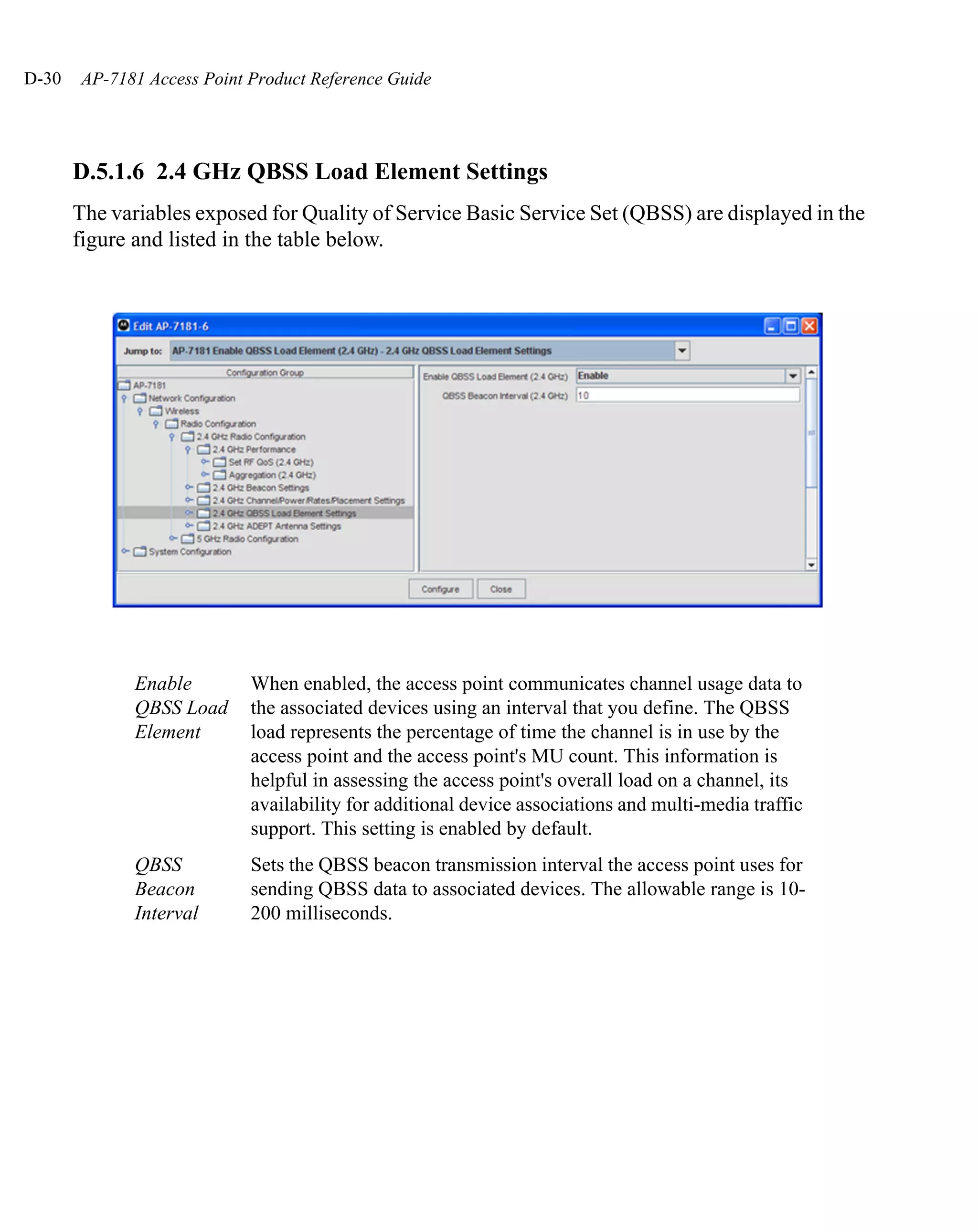
               2.4 GHz QBSS Load Element Settings . . . . . . . . . . . . . . . . . . D-30
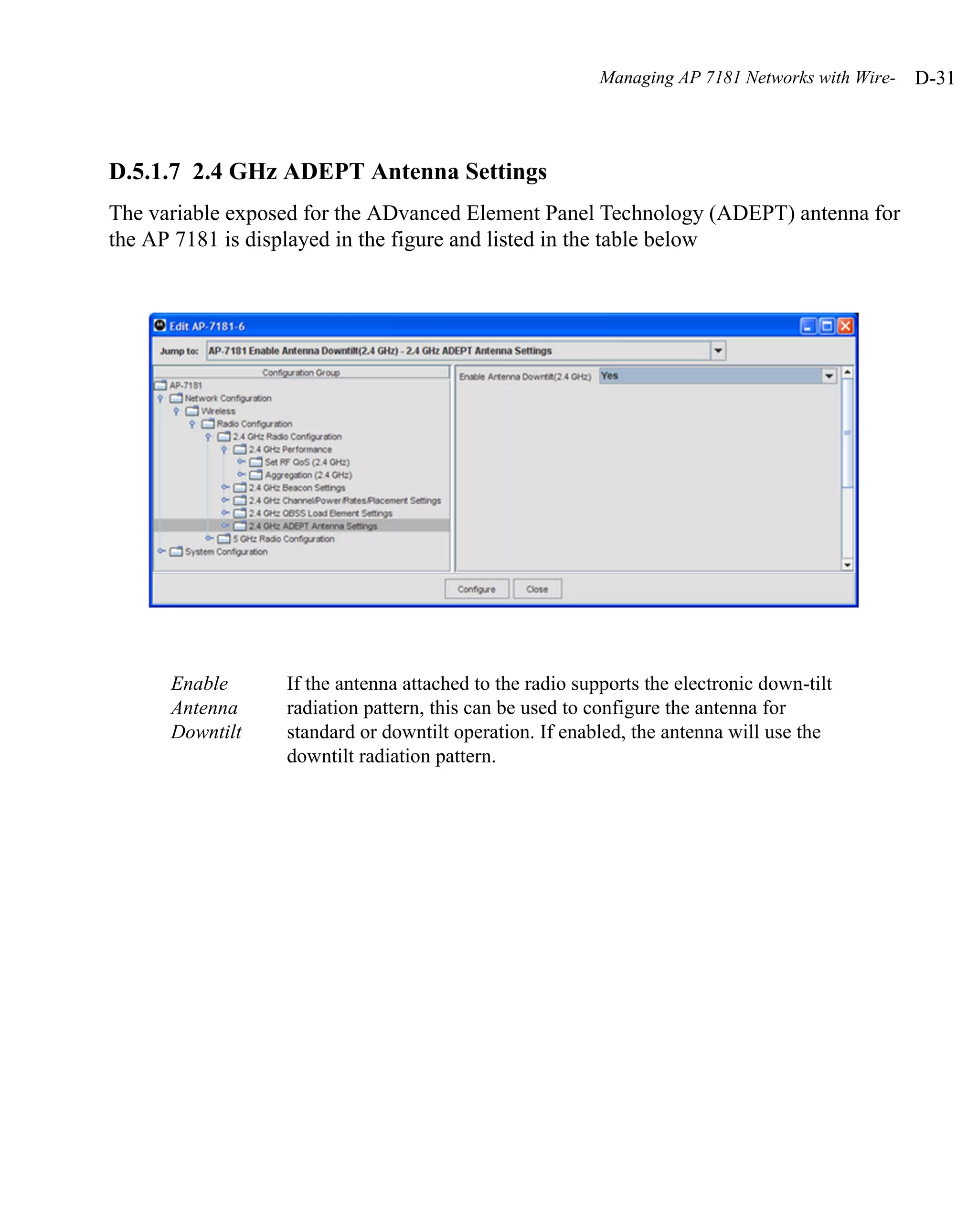
               2.4 GHz ADEPT Antenna Settings . . . . . . . . . . . . . . . . . . . . . D-31
           2.4 GHz Reporting Variables. . . . . . . . . . . . . . . . . . . . . . . . . . . . . . D-32
               2.4 GHz Radio Properties Reporting Variables . . . . . . . . . . . . D-32
               2.4 GHz Performance Reporting Variables . . . . . . . . . . . . . . . D-32
               2.4 GHz Channel/Power/Rates/Placement Reporting VariablesD-33
               2.4 GHz ADEPT Antenna Setting Variables . . . . . . . . . . . . . . D-34
           5 GHz Radio Configuration. . . . . . . . . . . . . . . . . . . . . . . . . . . . . . . D-35
           5 GHz Configurable Variables . . . . . . . . . . . . . . . . . . . . . . . . . . . . D-35
               5 GHz Radio Performance Variables . . . . . . . . . . . . . . . . . . . . D-36
               5 GHz RF QoS Variables . . . . . . . . . . . . . . . . . . . . . . . . . . . . . D-37
               5 GHz MAC Protocol Data Units Aggregation . . . . . . . . . . . . D-40
               5 GHz Radio Beacon Settings . . . . . . . . . . . . . . . . . . . . . . . . . D-41
               5 GHz Channel/Power/Rates/Placement Settings . . . . . . . . . . D-42
               5 GHz QBSS Load Element Settings . . . . . . . . . . . . . . . . . . . . D-45
           5 GHz Reporting Variables . . . . . . . . . . . . . . . . . . . . . . . . . . . . . . . D-46
               5 GHz Radio Properties Reporting Variables. . . . . . . . . . . . . . D-46
               5 GHz Performance Reporting Variables. . . . . . . . . . . . . . . . . D-46
               5 GHz Channel/Power/Rates/Placement Reporting Variables. D-47
xi


        5 GHz ADEPT Antenna Setting Variables . . . . . . . . . . . . . . . .D-48
MeshConnex Security Configuration. . . . . . . . . . . . . . . . . . . . . . . . . . . .D-49
    Certificate Configuration . . . . . . . . . . . . . . . . . . . . . . . . . . . . . . . . .D-51
System Logging Configuration . . . . . . . . . . . . . . . . . . . . . . . . . . . . . . . .D-52
    Configurable Variables . . . . . . . . . . . . . . . . . . . . . . . . . . . . . . . . . . .D-52
SNMP Trap Configuration. . . . . . . . . . . . . . . . . . . . . . . . . . . . . . . . . . . .D-55
Geographic Settings . . . . . . . . . . . . . . . . . . . . . . . . . . . . . . . . . . . . . . . . .D-59
Software Upgrades . . . . . . . . . . . . . . . . . . . . . . . . . . . . . . . . . . . . . . . . . .D-61
    Software Upgrades Using TFTP. . . . . . . . . . . . . . . . . . . . . . . . . . . .D-63
Software Inventory Report. . . . . . . . . . . . . . . . . . . . . . . . . . . . . . . . . . . .D-71
Neighbor Table Report. . . . . . . . . . . . . . . . . . . . . . . . . . . . . . . . . . . . . . .D-74
    Creating a Neighbor Table Report . . . . . . . . . . . . . . . . . . . . . . . . . .D-74
        States and Services Report. . . . . . . . . . . . . . . . . . . . . . . . . . . . .D-78
        Parallel Links Report . . . . . . . . . . . . . . . . . . . . . . . . . . . . . . . . .D-79

Index
xii   AP-7181 Access Point Product Reference Guide
1
                                                                    Introduction

As a standalone access point, the AP 7181 provides businesses with a consolidated wired
and wireless networking infrastructure, all in a single device. The integrated router,
gateway, firewall, DHCP and AAA RADIUS servers, VPN and hot-spot gateway simplify
and reduce the costs associated with networking by eliminating the need to purchase and
manage multiple pieces of equipment.
The AP 7181 is also designed to meet the needs of large outdoor networks. The network
can be configured and managed for optimal performance using the Wireless Manager
(WM) network management application. For more information, see Managing AP 7181
Networks with Wireless Manager on page D-1.
If you are new to using an access point for managing your network, refer to Theory of
Operations on page 1-20 for an overview on wireless networking fundamentals.
Updated versions of this manual and other AP 7181 documentation can be found at:
http://motorola.wirelessbroadbandsupport.com/support/mesh/library
1-2 AP-7181 Access Point Product Reference Guide


   1.1 Document Conventions
   The following graphical alerts are used in this document to indicate notable situations.


                 NOTE Tips, hints, or special requirements that you should take note of.


                 CAUTIONCare is required. Disregarding a caution can result in data loss
       !                or equipment malfunction.


                 WARNING!Indicates a condition or procedure that could result in personal
                         injury or equipment damage.
Introduction   1-3


1.2 Feature Overview
An AP 7181 access point supports the following feature set:
    •   Mesh Networking
    •   Separate LAN and WAN Ports
    •   Multiple Mounting Options
    •   Antenna Support for 2.4 GHz and 5.x GHz Radios
    •   Sixteen Configurable WLANs
    •   Support for 4 BSSIDs per Radio
    •   Quality of Service (QoS) Support
    •   Industry Leading Data Security
    •   VLAN Support
    •   Multiple Management Accessibility Options
    •   Updatable Firmware
    •   Programmable SNMP v1/v2/v3 Trap Support
    •   MU-MU Transmission Disallow
    •   Voice Prioritization
    •   Support for CAM and PSP MUs
    •   Statistical Displays
    •   Transmit Power Control
    •   Advanced Event Logging Capability
    •   Configuration File Import/Export Functionality
    •   Factory Default Configuration Restoration
    •   DHCP Support
    •   Multi-Function LEDs
    •   Additional LAN Subnet
    •   On-board RADIUS Server Authentication
    •   Hotspot Support
    •   Routing Information Protocol (RIP)
    •   Manual Date and Time Settings
    •   Dynamic DNS
1-4 AP-7181 Access Point Product Reference Guide


       •    Auto Negotiation
       •    Rogue AP Enhancements
       •    Bandwidth Management Enhancements
       •    RADIUS Time-Based Authentication
       •    QBSS Support

   1.2.1 Mesh Networking
   The AP 7181 can form a wireless mesh network, enabling multiple APs and clients to share
   a network connection wirelessly. APs participating in a mesh network can forward frames
   through other wireless APs over multiple "hops" to reach a bridged network.
   The AP 7181 supports two different types of mesh networking technology:
   The first type is MeshConnex Mesh Networking. MeshConnex is comparable to the
   technology used in drafts of the IEEE 802.11s mesh networking specification.
   The second type is Spanning Tree Mesh Networking, which uses standard bridge learning
   mechanisms. This technology is the same as that used in the AP 7131 and AP-51xx access
   points.
   For an overview on mesh networking as well as details on configuring the access point’s
   mesh networking functionality, see Configuring Mesh Networking on page 9-1.


   1.2.1.1 Meshconnex Mesh Networking
   MeshConnex Mesh Networking uses a hybrid proactive/on-demand path MeshConnex
   selection protocol, similar to Ad hoc On Demand Distance Vector (AODV) routing
   protocols. Each device in the MeshConnex mesh pro actively manages its own path to the
   distribution WAN, but can also form peer-to-peer paths on demand to improve forwarding
   efficiency. MeshConnex is designed for large-scale, high-mobility outdoor mesh
   deployments.

   1.2.1.2 Spanning Tree Mesh Networking
   Spanning Tree Mesh Networking uses industry-standard Spanning Tree protocols (1999
   compliant version (802.1d) ) to form the mesh network. Spanning Tree frames are
   periodically forwarded across the network to detect topology changes such as APs being
Introduction   1-5


added to or removed from the network. Spanning Tree Mesh Networking is designed for
smaller-scale indoor or point-to-point range extension networks.

1.2.2 802.11n Support
Motorola provides full life-cycle support for either a new or existing 802.11n mobility
deployment, from network design to day-to-day support. For information on deploying
your 802.11n radio, see Configuring the 802.11a/n or 802.11b/g/n Radio on page 5-60.

1.2.3 Separate LAN and WAN Ports
The access point has one LAN (GE1/POE) port. and one WAN (GE2) port, each with their
own MAC address. The GE2 port can be configured as a WAN or a second LAN.
The access point must manage all data traffic over the LAN connection carefully as either
a DHCP client, BOOTP client, DHCP server or using a static IP address. For detailed
information on configuring the LAN port, see Configuring the LAN Interface on page 5-2.
A Wide Area Network (WAN) is a widely dispersed telecommunications network. In a
corporate environment, the WAN port might connect to a larger corporate network. For a
small business, the WAN port might connect to a DSL or cable modem to access the
Internet. Regardless, network address information must be configured for the access point’s
intended mode of operation.
For detailed information on configuring the access point’s WAN port, see Configuring WAN
Settings on page 5-17.
The LAN and WAN port MAC addresses can be located within the LAN and WAN Stats
screens.
For detailed information on locating the access point’s MAC addresses, see Viewing WAN
Statistics on page 7-2 and Viewing LAN Statistics on page 7-7. For information on access
point MAC address assignments, see AP 7181 MAC Address Assignment on page 1-27.
1-6 AP-7181 Access Point Product Reference Guide


   1.2.4 Multiple Mounting Options
   The AP 7181 can attach to a wall, pole or roof parapet. Choose the appropriate mounting
   option based on the physical environment and coverage area requirements.
   Consultation with a Structural Engineer is recommended prior to installation. All hardware
   installations should be performed by a professional installer.
   For detailed information on the mounting options available , see Antenna Options on page
   2-12.

   1.2.5 Antenna Support for 2.4 GHz and 5.x GHz Radios
   The AP7181 features an integrated ADvanced Element Panel Technology (ADEPT)
   antenna system that is designed to support 802.11a/n and 802.11b/g/n radio. No other
   antennas are supported.

   1.2.6 Sixteen Configurable WLANs
   A Wireless Local Area Network (WLAN) is a data-communications system that flexibly
   extends the functionalities of a wired LAN. A WLAN does not require lining up devices
   for line-of-sight transmission, and are thus, desirable for wireless networking. Roaming
   users can be handed off from one access point to another like a cellular phone system.
   WLANs can therefore be configured around the needs of specific groups of users, even
   when they are not in physical proximity. Up to sixteen WLANs are configurable on each
   access point.
   To enable and configure WLANs on an access point radio, see Enabling Wireless LANs
   (WLANs) on page 5-29.

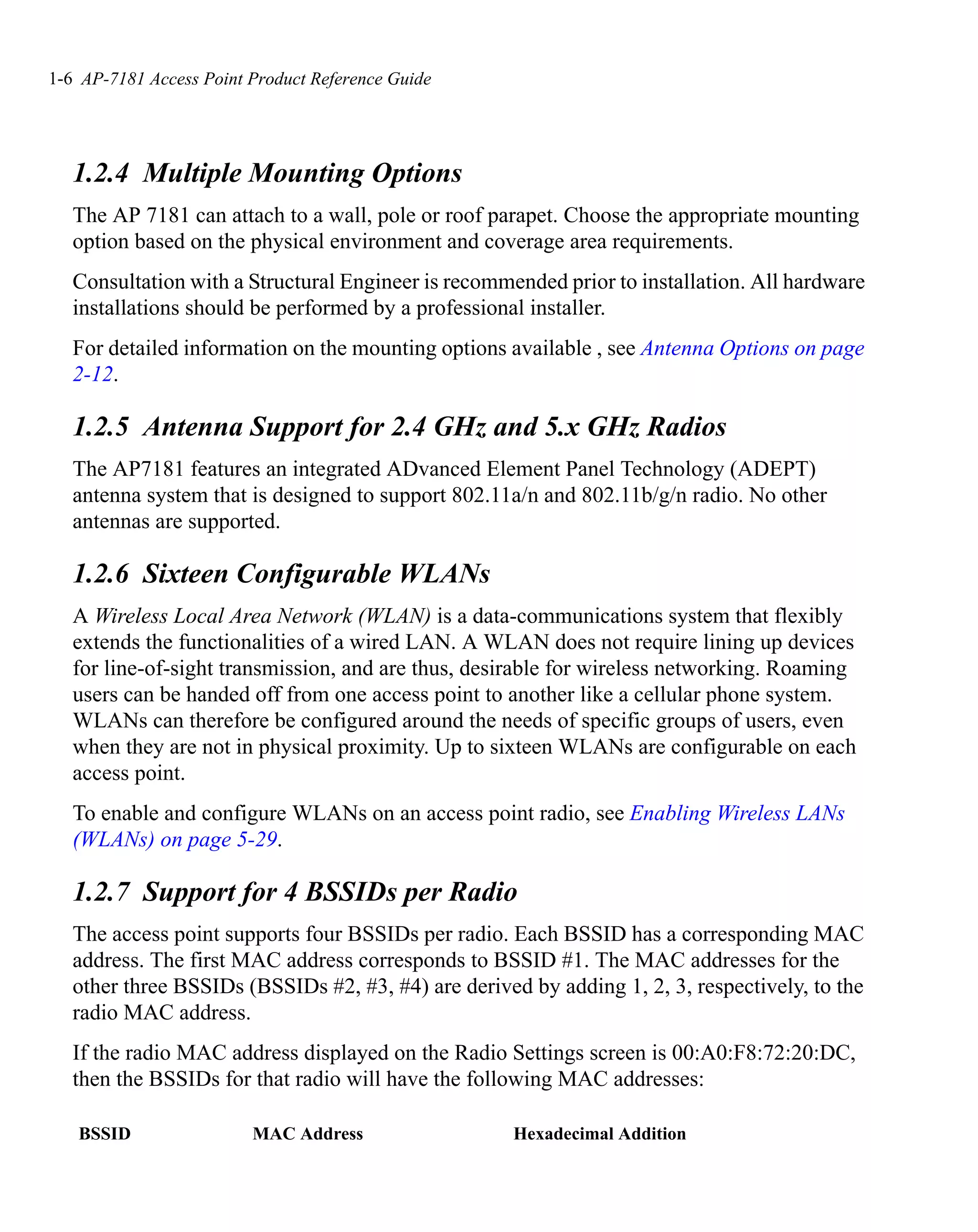
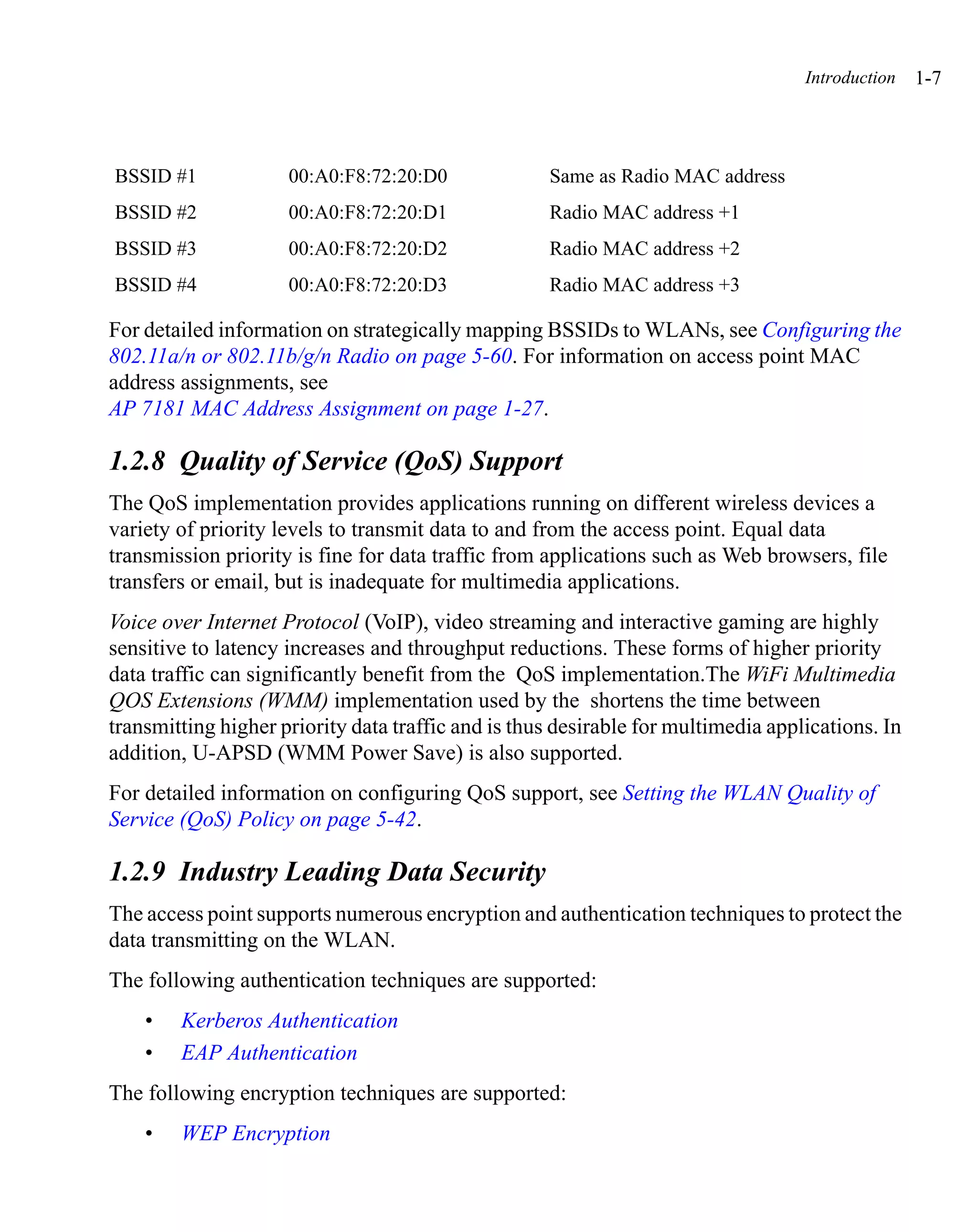
   1.2.7 Support for 4 BSSIDs per Radio
   The access point supports four BSSIDs per radio. Each BSSID has a corresponding MAC
   address. The first MAC address corresponds to BSSID #1. The MAC addresses for the
   other three BSSIDs (BSSIDs #2, #3, #4) are derived by adding 1, 2, 3, respectively, to the
   radio MAC address.
   If the radio MAC address displayed on the Radio Settings screen is 00:A0:F8:72:20:DC,
   then the BSSIDs for that radio will have the following MAC addresses:

   BSSID                 MAC Address                 Hexadecimal Addition
Introduction   1-7


BSSID #1             00:A0:F8:72:20:D0              Same as Radio MAC address
BSSID #2             00:A0:F8:72:20:D1              Radio MAC address +1
BSSID #3             00:A0:F8:72:20:D2              Radio MAC address +2
BSSID #4             00:A0:F8:72:20:D3              Radio MAC address +3

For detailed information on strategically mapping BSSIDs to WLANs, see Configuring the
802.11a/n or 802.11b/g/n Radio on page 5-60. For information on access point MAC
address assignments, see
AP 7181 MAC Address Assignment on page 1-27.

1.2.8 Quality of Service (QoS) Support
The QoS implementation provides applications running on different wireless devices a
variety of priority levels to transmit data to and from the access point. Equal data
transmission priority is fine for data traffic from applications such as Web browsers, file
transfers or email, but is inadequate for multimedia applications.
Voice over Internet Protocol (VoIP), video streaming and interactive gaming are highly
sensitive to latency increases and throughput reductions. These forms of higher priority
data traffic can significantly benefit from the QoS implementation.The WiFi Multimedia
QOS Extensions (WMM) implementation used by the shortens the time between
transmitting higher priority data traffic and is thus desirable for multimedia applications. In
addition, U-APSD (WMM Power Save) is also supported.
For detailed information on configuring QoS support, see Setting the WLAN Quality of
Service (QoS) Policy on page 5-42.

1.2.9 Industry Leading Data Security
The access point supports numerous encryption and authentication techniques to protect the
data transmitting on the WLAN.
The following authentication techniques are supported:
    •   Kerberos Authentication
    •   EAP Authentication
The following encryption techniques are supported:
    •   WEP Encryption
1-8 AP-7181 Access Point Product Reference Guide


       •    KeyGuard Encryption
       •    Wi-Fi Protected Access (WPA) Using TKIP Encryption
       •    WPA2-CCMP (802.11i) Encryption
   In addition, the access point supports the following additional security features:
       •    Firewall Security
       •    VPN Tunnels
       •    Content Filtering
   For an overview on the encryption and authentication schemes available, refer to
   Configuring Access Point Security on page 6-1.

   1.2.9.1 Kerberos Authentication
   Authentication is a means of verifying information transmitted from a secure source. If
   information is authentic, you know who created it and you know it has not been altered in
   any way since it was originated. Authentication entails a network administrator employing
   a software “supplicant” on their computer or wireless device.
   Authentication is critical for the security of any wireless LAN device. Traditional
   authentication methods are not suitable for use in wireless networks where an unauthorized
   user can monitor network traffic and intercept passwords. The use of strong authentication
   methods that do not disclose passwords is necessary. The access point uses the Kerberos
   authentication service protocol (specified in RFC 1510) to authenticate users/clients in a
   wireless network environment and to securely distribute the encryption keys used for both
   encrypting and decrypting.
   A basic understanding of RFC 1510 Kerberos Network Authentication Service (V5) is
   helpful in understanding how Kerberos works. By default, WLAN devices operate in an
   open system network where any wireless device can associate with an AP without
   authorization. Kerberos requires device authentication before access to the wired network
   is permitted.
   For detailed information on Kerbeors configurations, see Configuring Kerberos
   Authentication on page 6-9.

   1.2.9.2 EAP Authentication
   The Extensible Authentication Protocol (EAP) feature provides access points and their
   associated MUs an additional measure of security for data transmitted over the wireless
Introduction   1-9


network. Using EAP, authentication between devices is achieved through the exchange and
verification of certificates.
EAP is a mutual authentication method whereby both the MU and AP are required to prove
their identities. Like Kerberos, the user loses device authentication if the server cannot
provide proof of device identification.
Using EAP, a user requests connection to a WLAN through the access point. The access
point then requests the identity of the user and transmits that identity to an authentication
server. The server prompts the AP for proof of identity and then transmits the user data back
to the server to complete the authentication process.
An MU is not able to access the network if not authenticated. When configured for EAP
support, the access point displays the MU as an EAP station.
EAP is only supported on mobile devices running Windows XP, Windows 2000 (using
Service Pack #4) and Windows Mobile 2003. Refer to the system administrator for
information on configuring a RADIUS Server for EAP (802.1x) support.
For detailed information on EAP configurations, see Configuring 802.1x EAP
Authentication on page 6-11.

1.2.9.3 WEP Encryption
All WLAN devices face possible information theft. Theft occurs when an unauthorized
user eavesdrops to obtain information illegally. The absence of a physical connection
makes wireless links particularly vulnerable to this form of theft. Most forms of WLAN
security rely on encryption to various extents. Encryption entails scrambling and coding
information, typically with mathematical formulas called algorithms, before the
information is transmitted. An algorithm is a set of instructions or formula for scrambling
the data. A key is the specific code used by the algorithm to encrypt or decrypt the data.
Decryption is the decoding and unscrambling of received encrypted data.
The same device, host computer or front-end processor, usually performs both encryption
and decryption. The transmit or receive direction determines whether the encryption or
decryption function is performed. The device takes plain text, encrypts or scrambles the text
typically by mathematically combining the key with the plain text as instructed by the
algorithm, then transmits the data over the network. At the receiving end, another device
takes the encrypted text and decrypts, or unscrambles, the text revealing the original
message. An unauthorized user can know the algorithm, but cannot interpret the encrypted
1-10 AP-7181 Access Point Product Reference Guide


    data without the appropriate key. Only the sender and receiver of the transmitted data know
    the key.
    Wired Equivalent Privacy (WEP) is an encryption security protocol specified in the IEEE
    Wireless Fidelity (Wi-Fi) standard, 802.11b and supported by the AP. WEP encryption is
    designed to provide a WLAN with a level of security and privacy comparable to that of a
    wired LAN. The level of protection provided by WEP encryption is determined by the
    encryption key length and algorithm. An encryption key is a string of case sensitive
    characters used to encrypt and decrypt data packets transmitted between a mobile unit
    (MU) and the access point. An access point and its associated wireless clients must use the
    same encryption key (typically 1 through 4) to interoperate.
    For detailed information on WEP, see Configuring WEP Encryption on page 6-17.

    1.2.9.4 KeyGuard Encryption
    Use KeyGuard to shield the master encryption keys from being discovered through
    hacking. KeyGuard negotiation takes place between the access point and MU upon
    association. The access point can use KeyGuard with Motorola MUs. KeyGuard is only
    supported on Motorola MUs making it a Motorola proprietary security mechanism.
    For detailed information on KeyGuard configurations, see Configuring KeyGuard
    Encryption on page 6-19.

    1.2.9.5 Wi-Fi Protected Access (WPA) Using TKIP Encryption
    Wi-Fi Protected Access (WPA) is a security standard for systems operating with a Wi-Fi
    wireless connection. WEP’s lack of user authentication mechanisms is addressed by WPA.
    Compared to WEP, WPA provides superior data encryption and user authentication.
    WPA addresses the weaknesses of WEP by including:
        •    a per-packet key mixing function
        •    a message integrity check
        •    an extended initialization vector with sequencing rules
        •    a re-keying mechanism
    WPA uses an encryption method called Temporal Key Integrity Protocol (TKIP). WPA
    employs 802.1X and Extensible Authentication Protocol (EAP).
    For detailed information on WPA using TKIP configurations, see Configuring WPA/WPA2
    Using TKIP on page 6-21.
Introduction   1-11


1.2.9.6 WPA2-CCMP (802.11i) Encryption
WPA2 is a newer 802.11i standard that provides even stronger wireless security than Wi-Fi
Protected Access (WPA) and WEP. Counter-mode/CBC-MAC Protocol (CCMP) is the
security standard used by the Advanced Encryption Standard (AES). AES serves the same
function TKIP does for WPA-TKIP. CCMP computes a Message Integrity Check (MIC)
using the proven Cipher Block Message Authentication Code (CBC-MAC) technique.
Changing just one bit in a message produces a totally different result.
WPA2-CCMP is based on the concept of a Robust Security Network (RSN), which defines
a hierarchy of keys with a limited lifetime (similar to TKIP). Like TKIP, the keys the
administrator provides are used to derive other keys. Messages are encrypted using a 128-
bit secret key and a 128-bit block of data. The end result is an encryption scheme as secure
as any the access point provides.
For detailed information on WPA2-CCMP, see Configuring WPA2-CCMP (802.11i) on
page 6-25.

1.2.9.7 Firewall Security
A firewall keeps personal data in and hackers out. The access point’s firewall prevents
suspicious Internet traffic from proliferating the access point managed network. The access
point performs Network Address Translation (NAT) on packets passing to and from the
WAN port. This combination provides enhanced security by monitoring communication
with the wired network.
Most AP 7181 deployments do not require the use of a WAN port. Root nodes connected
to the wired network utilize the LAN port. Devices connected to a Root Node or a Non Root
Node Ethernet interface use a LAN interface. The WAN port is often used when deploying
a single AP 7181 as a hotspot and a wired interface is required to support Network Address
Translation (NAT) or for initial configuration.
For detailed information on configuring the access point’s firewall, see Configuring
Firewall Settings on page 6-28.

1.2.9.8 VPN Tunnels
Virtual Private Networks (VPNs) are IP-based networks using encryption and tunneling
providing users remote access to a secure LAN. In essence, the trust relationship is
extended from one LAN across the public network to another LAN, without sacrificing
security. A VPN behaves like a private network; however, because the data travels through
1-12 AP-7181 Access Point Product Reference Guide


    the public network, it needs several layers of security. The access point can function as a
    robust VPN gateway.
    For detailed information on configuring VPN security support, see Configuring VPN
    Tunnels on page 6-38.

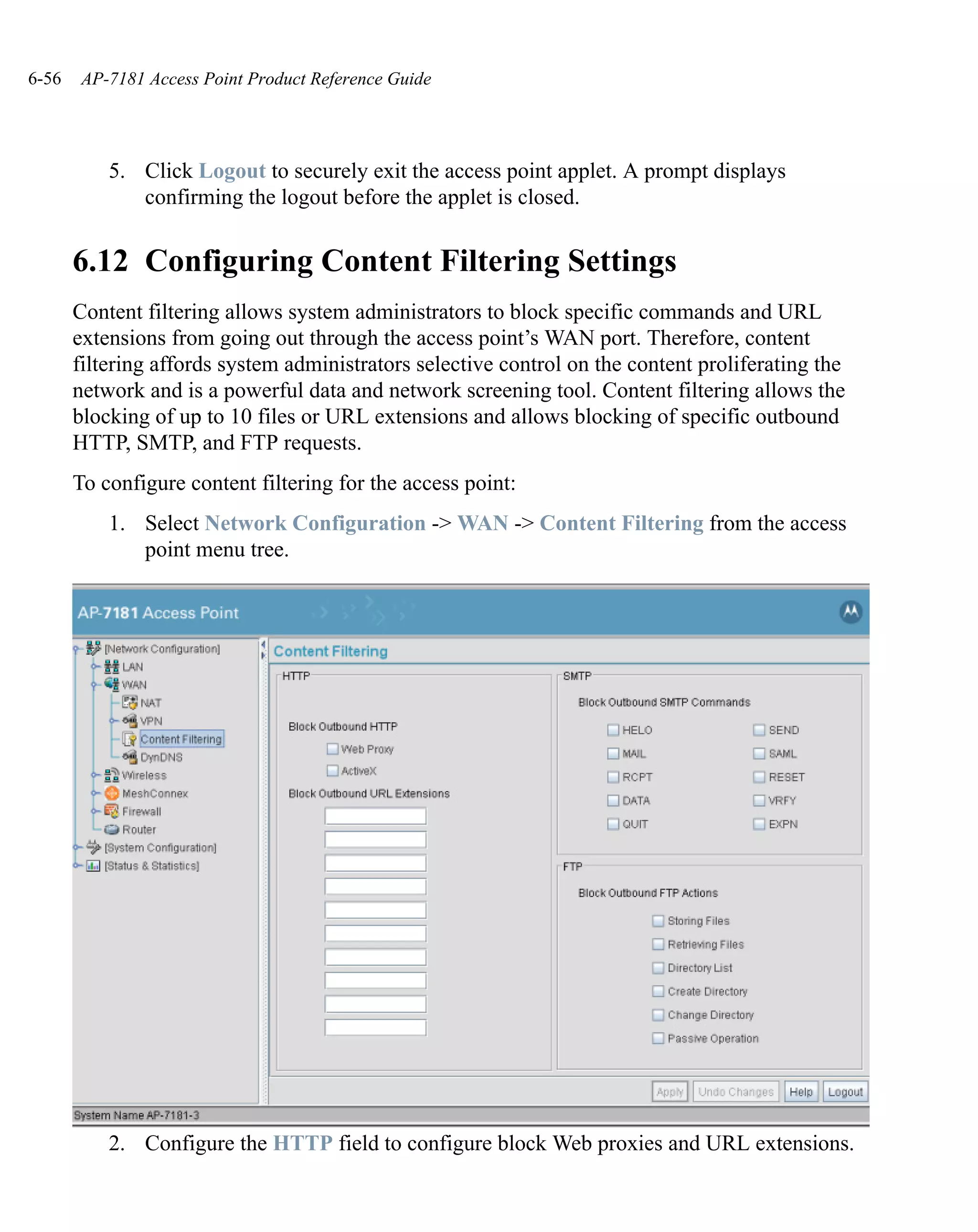
    1.2.9.9 Content Filtering
    Content filtering allows system administrators to block specific commands and URL
    extensions from going out through the WAN port. Therefore, content filtering affords
    system administrators selective control on the content proliferating the network and is a
    powerful screening tool. Content filtering allows the blocking of up to 10 files or URL
    extensions and allows blocking of specific outbound HTTP, SMTP, and FTP requests.
    For detailed information on configuring content filtering support, see Configuring Content
    Filtering Settings on page 6-56.

    1.2.10 VLAN Support
    A Virtual Local Area Network (VLAN) can electronically separate data on the same AP
    from a single broadcast domain into separate broadcast domains. By using a VLAN, you
    can group by logical function instead of physical location. There are 16 VLANs supported
    on the access point. An administrator can map up to 16 WLANs to 16 VLANs and enable
    or disable dynamic VLAN assignment. In addition to these 16 VLANs, the access point
    supports dynamic, user-based, VLANs when using EAP authentication.
    VLANs enable organizations to share network resources in various network segments
    within large areas (airports, shopping malls, etc.). A VLAN is a group of clients with a
    common set of requirements independent of their physical location. VLANs have the same
    attributes as physical LANs, but they enable administrators to group clients even when they
    are not members of the same network segment.
    For detailed information on configuring VLAN support, see Configuring VLAN Support on
    page 5-5.

    1.2.11 Multiple Management Accessibility Options
    The access point can be accessed and configured using one of the following:
        •    Java-Based Web UI
        •    Human readable config file (imported via FTP or TFTP)
Introduction   1-13


    •   MIB (Management Information Base)
    •   Command Line Interface (CLI) accessed via the RJ-45 port or Telnet. Use the
        access point’s RJ-45 serial port for direct access to the command-line interface
        from a PC. Use a Null-Modem cable for the best fitting connection.

1.2.12 Updatable Firmware
Motorola periodically releases updated versions of device firmware to the Motorola Web
site. If the firmware version displayed on the System Settings screen (see Configuring
System Settings on page 4-3) is older than the version on the Web site, Motorola
recommends updating the access point to the latest firmware version for full feature
functionality.
For detailed information on updating the firmware using FTP or TFTP, see Updating
Device Firmware on page 4-52.

1.2.13 Programmable SNMP v1/v2/v3 Trap Support
Simple Network Management Protocol (SNMP) facilitates the exchange of management
information between network devices. SNMP uses Management Information Bases (MIBs)
to manage the device configuration and monitor Internet devices in remote locations. MIB
information accessed via SNMP is defined by a set of managed objects called Object
Identifiers (OIDs). An OID is used to uniquely identify each object variable of a MIB.
SNMP allows a network administrator to configure the access point, manage network
performance, find and solve network problems, and plan network growth. The access point
supports SNMP management functions for gathering information from its network
components. The access point’s download site contains the following MIB files supporting
the AP 7181:
    •   Symbol-CC-WS2000-MIB-2.0 (standard MIB file)
    •   Symbol-AP-MIB (relevant to the AP 7181 feature set)
The access point’s SNMP agent functions as a command responder and is a multilingual
agent responding to SNMPv1, v2c and v3 managers (command generators). The factory
default configuration maintains SNMPv1/2c support of community names, thus providing
backward compatibility.
For detailed information on configuring SNMP traps, see Configuring SNMP Settings on
page 4-23.
1-14 AP-7181 Access Point Product Reference Guide


    1.2.14 MU-MU Transmission Disallow
    The access point’s MU-MU Disallow feature prohibits MUs from communicating with
    each other even if on the same WLAN, assuming one of the WLAN’s is configured to
    disallow MU-MU communication. Therefore, if an MU’s WLAN is configured for MU-
    MU disallow, it will not be able to communicate with any other MUs connected to this
    access point.
    For detailed information on configuring an WLAN to disallow MU to MU
    communications, see Creating/Editing Individual WLANs on page 5-32.

    1.2.15 Voice Prioritization
    Each access point WLAN has the capability of having its QoS policy configured to
    prioritize the network traffic requirements for associated MUs. A WLAN QoS page is
    available for each enabled WLAN on either the 802.11a/n or 802.11b/g/n radio.
    Use the QoS page to enable voice prioritization for devices to receive the transmission
    priority they may not normally receive over other data traffic. Voice prioritization allows
    the access point to assign priority to voice traffic over data traffic, and (if necessary) assign
    legacy voice supported devices (non WMM supported voice devices) additional priority.
    For detailed information on configuring voice prioritization over other voice enabled
    devices, see Setting the WLAN Quality of Service (QoS) Policy on page 5-42.

    1.2.16 Support for CAM and PSP MUs
    The access point supports both CAM and PSP powered MUs. CAM (Continuously Aware
    Mode) MUs leave their radios on continuously to hear every beacon and message
    transmitted. These systems operate without any adjustments by the access point.
    A beacon is a uniframe system packet broadcast by the AP to keep the network
    synchronized. A beacon includes the ESSID, MAC address, Broadcast destination
    addresses, a time stamp, a DTIM (Delivery Traffic Indication Message) and the TIM (Traffic
    Indication Map).
    PSP (Power Save Polling) MUs power off their radios for short periods. When a MU in PSP
    mode associates with an access point, it notifies the access point of its activity status. The
    access point responds by buffering packets received for the MU. PSP mode is used to
    extend an MU’s battery life by enabling the MU to “sleep” during periods of inactivity.
Introduction   1-15


1.2.17 Statistical Displays
The access point can display robust transmit and receive statistics for the WAN and LAN
ports. WLAN stats can be displayed collectively and individually for enabled WLANs.
Transmit and receive statistics are available for the access point’s 802.11a/n and 802.11b/
g/n radios. An advanced radio statistics page is also available to display retry histograms
for specific data packet retry information.
Associated MU stats can be displayed collectively and individually for specific MUs. An
echo (ping) test is also available to ping specific MUs to assess association strength.
Finally, the access point can detect and display the properties of other APs detected within
its radio coverage area. The type of AP detected can be displayed as well as the properties
of individual APs.
For detailed information on available access point statistical displays and the values they
represent, see Monitoring Statistics on page 7-1.

1.2.18 Transmit Power Control
The access point has a configurable power level for each radio. This enables the network
administrator to define the antenna’s transmission power level in respect to the access
point’s placement or network requirements as defined in the site survey.
For detailed information on setting the radio transmit power level, see Configuring the
802.11a/n or 802.11b/g/n Radio on page 5-60.

1.2.19 Advanced Event Logging Capability
The access point periodically logs system events. Logging events is useful in assessing the
throughput and performance of the access point or troubleshooting problems on the access
point managed Local Area Network (LAN).
For detailed information on access point events, see Logging Configuration on page 4-45.

1.2.20 Configuration File Import/Export Functionality
Configuration settings for an access point can be downloaded from the current
configuration of another access point. This affords the administrator the ability to save the
current configuration before making significant changes or restoring a default
configuration.
1-16 AP-7181 Access Point Product Reference Guide


    For detailed information on importing or exporting configuration files, see Importing/
    Exporting Configurations on page 4-48.

    1.2.21 Factory Default Configuration Restoration
    The access point can restore its default configuration or a partial default configuration (with
    the exception of current WAN and SNMP settings). Restoring the factory default
    configuration is a good way to create new WLANs if the MUs the access point supports
    have been moved to different radio coverage areas.
    For detailed information on restoring a default or partial default configuration, see

                  CAUTIONiIf the AP is NOT directly connected via a LAN cable,
         !               you will loose the Radio connection when performing a
                         default configuration restoration.

    Configuring System Settings on page 4-3.

    1.2.22 DHCP Support
    The access point can use Dynamic Host Configuration Protocol (DHCP) to obtain a leased
    IP address and configuration information from a remote server. DHCP is based on the
    BOOTP protocol and can coexist or interoperate with BOOTP. Configure the access point
    to send out a DHCP request searching for a DHCP/BOOTP server to acquire HTML,
    firmware or network configuration files when the access point boots. Because BOOTP and
    DHCP interoperate, whichever responds first becomes the server that allocates information.
    The access point can be set to only accept replies from DHCP or BOOTP servers or both
    (this is the default setting). Disabling DHCP disables BOOTP and DHCP and requires
    network settings to be set manually. If running both DHCP and BOOTP, do not select
    BOOTP Only. BOOTP should only be used when the server is running BOOTP exclusively.
    The DHCP client automatically sends a DHCP request at an interval specified by the DHCP
    server to renew the IP address lease as long as the access point is running (this parameter
    is programmed at the DHCP server). For example: Windows 2000 servers typically are set
    for 3 days.
Introduction   1-17


1.2.23 Multi-Function LEDs
Six LEDs located on the bottom of the AP 7181 illuminate to indicate various states for the
device. For detailed information on the access point LEDs and their functionality, see
Installing an AP 7181 on page 2-15.

1.2.24 Mesh Networking
1.2.25 Additional LAN Subnet
In a typical retail or small office environment (wherein a wireless network is available
along with a production WLAN) it is often necessary to segment a LAN into two subnets.
Consequently, a second LAN is required to “segregate” wireless traffic.
The access point has a second LAN subnet enabling administrators to segment the access
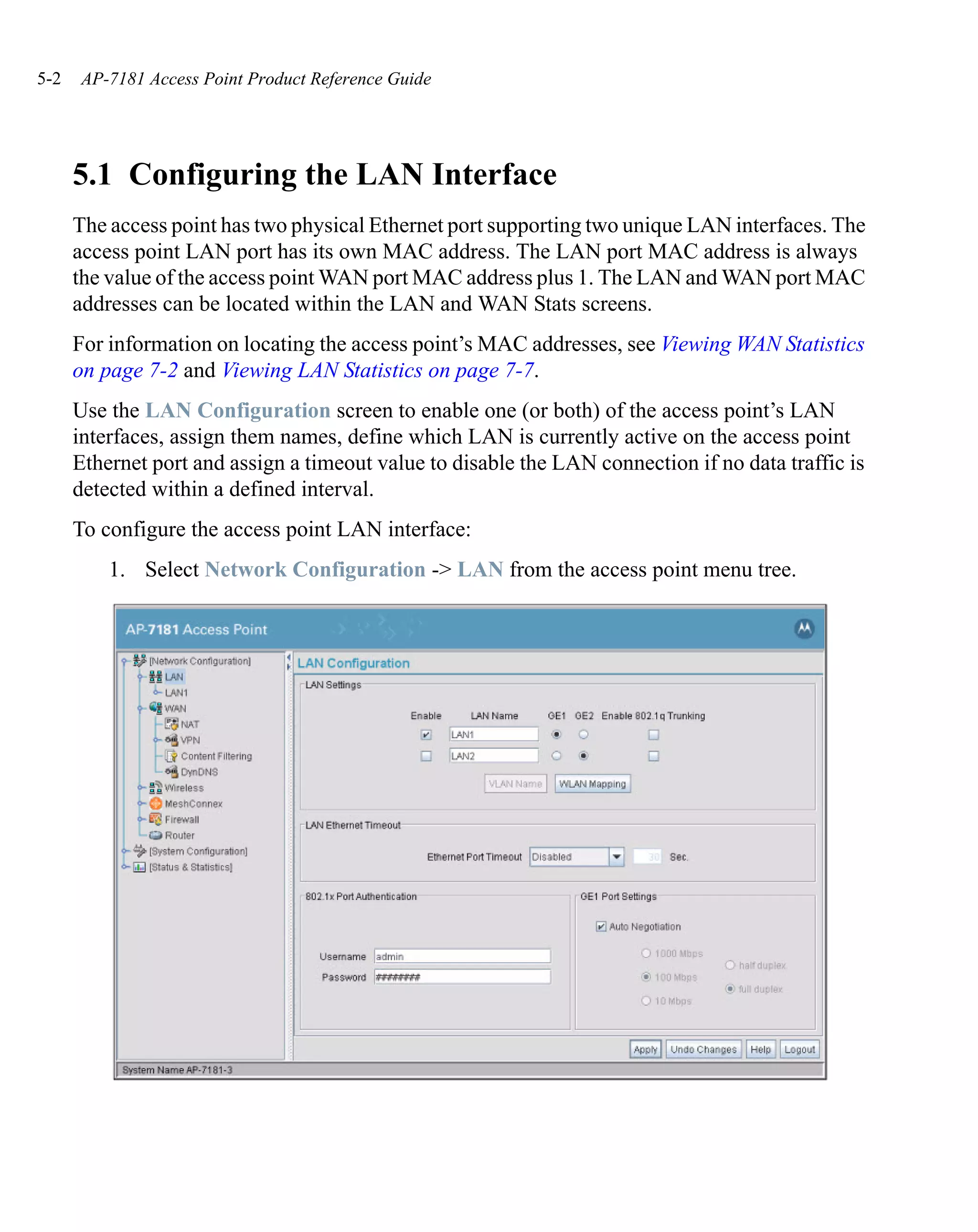
point’s LAN connection into two separate networks. The main access point LAN screen
now allows the user to select either LAN1 or LAN2 as the active LAN over the access
point’s Ethernet port. Both LANs can still be active at any given time, but only one can
transmit over the access point’s physical LAN connection. Each LAN has a separate
configuration screen (called LAN 1 and LAN 2 by default) accessible under the main LAN
screen. The user can rename each LAN as necessary. Additionally, each LAN can have its
own Ethernet Type Filter configuration, and subnet access (HTTP, SSH, SNMP and telnet)
configuration.
For detailed information on configuring the access point for additional LAN subnet
support, see Configuring the LAN Interface on page 5-2.

1.2.26 On-board RADIUS Server Authentication
The access point can function as a RADIUS Server to provide user database information
and user authentication. Several new screens have been added to the access point’s menu
tree to configure RADIUS server authentication and configure the local user database and
access policies. The new RADIUS Server functionality allows an administrator to define
the data source, authentication type and associate digital certificates with the authentication
scheme. The LDAP screen allows the administrator to configure an external LDAP Server
for use with the access point. A new Access Policy screen enables the administrator to set
WLAN access based on user groups defined within the User Database screen. Each user is
authorized based on the access policies applicable to that user. Access policies allow an
administrator to control access to a user groups based on the WLAN configurations.
1-18 AP-7181 Access Point Product Reference Guide


    For detailed information on configuring the access point for AAA RADIUS Server support,
    see Configuring User Authentication on page 6-70.

    1.2.27 Hotspot Support
    The access point allows hotspot operators to provide user authentication and accounting
    without a special client application. The access point uses a traditional Internet browser as
    a secure authentication device. Rather than rely on built-in 802.11security features to
    control access point association privileges, you can configure a WLAN with no WEP (an
    open network). The access point issues an IP address to the user using a DHCP server,
    authenticates the user and grants the user to access the Internet.
    If a tourist visits a public hotspot and wants to browse a Web page, they boot their laptop
    and associate with a local Wi-Fi network by entering a valid SSID. They start a browser,
    and the hotspot’s access controller forces the un-authenticated user to a Welcome page
    (from the hotspot operator) that allows the user to login with a username and password. In
    order to send a redirected page (a login page), a TCP termination exists locally on the access
    point. Once the login page displays, the user enters their credentials. The access point
    connects to the RADIUS server and determines the identity of the connected wireless user.
    Thus, allowing the user to access the Internet once successfully authenticated.
    For detailed information on configuring the access point for Hotspot support, see
    Configuring WLAN Hotspot Support on page 5-49.

    1.2.28 Routing Information Protocol (RIP)
    RIP is an interior gateway protocol that specifies how routers exchange routing-table
    information. The parent Router screen also allows the administrator to select the type of
    RIP and the type of RIP authentication used.
    For detailed information on configuring RIP functionality as part of the access point’s
    Router functionality, see Setting the RIP Configuration on page 5-95.

    1.2.29 Manual Date and Time Settings
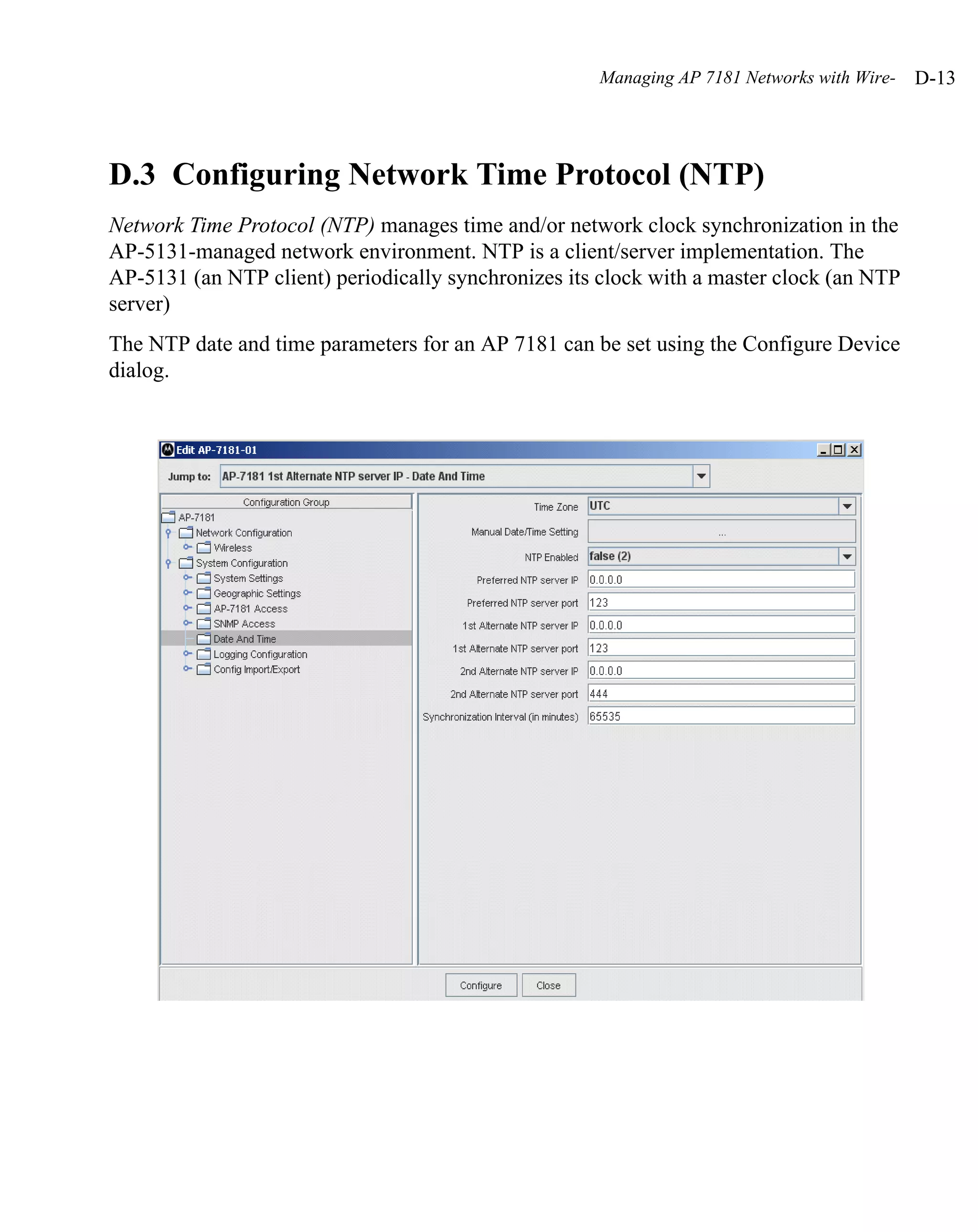
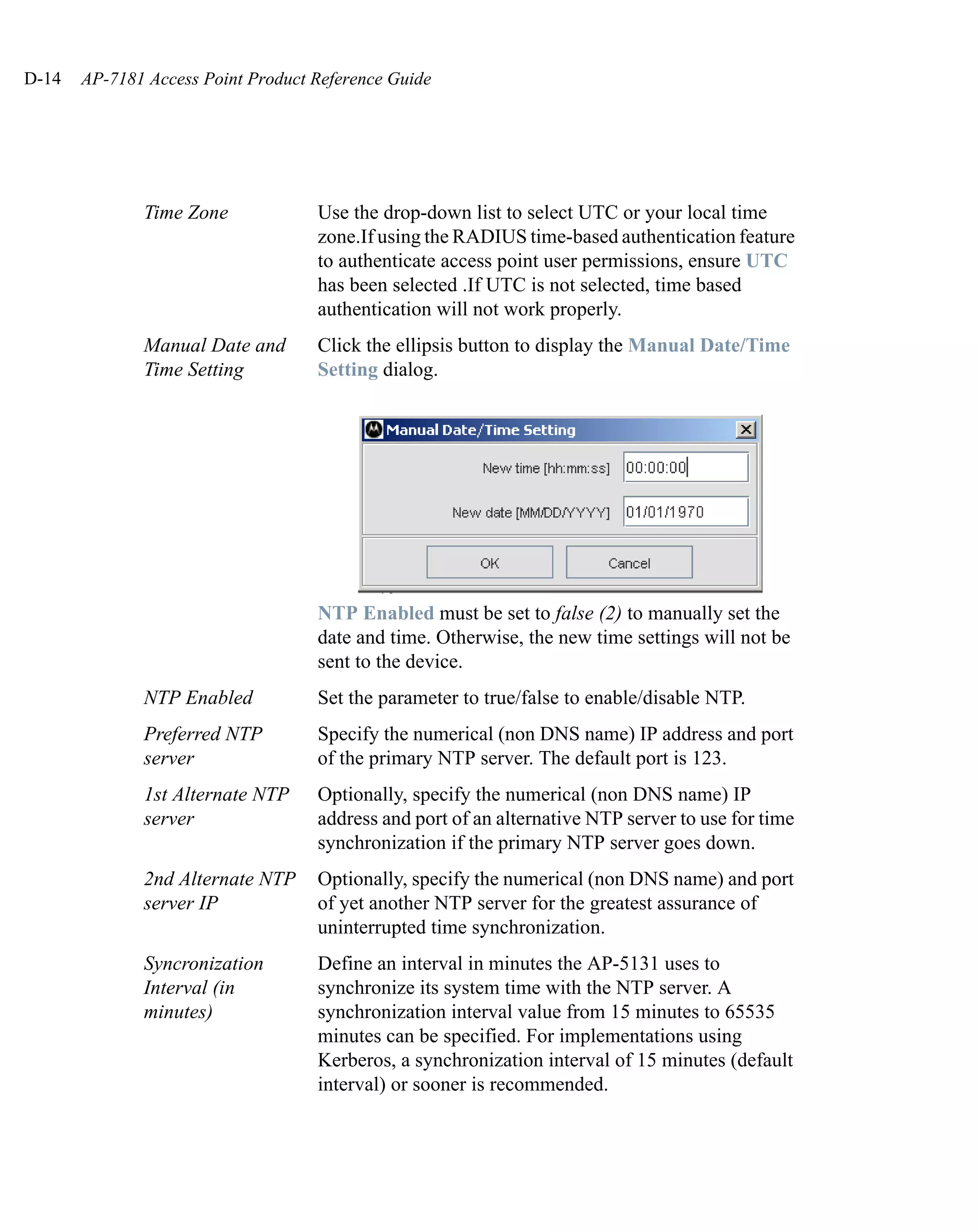
    As an alternative to defining a NTP server to provide access point system time, the access
    point can now have its date and time set manually. A new Manual Date/Time Setting screen
    can be used to set the time using a Year-Month-Day HH:MM:SS format.
    For detailed information on manually setting the access point’s system time, see
    Configuring Network Time Protocol (NTP) on page 4-41.
Introduction   1-19


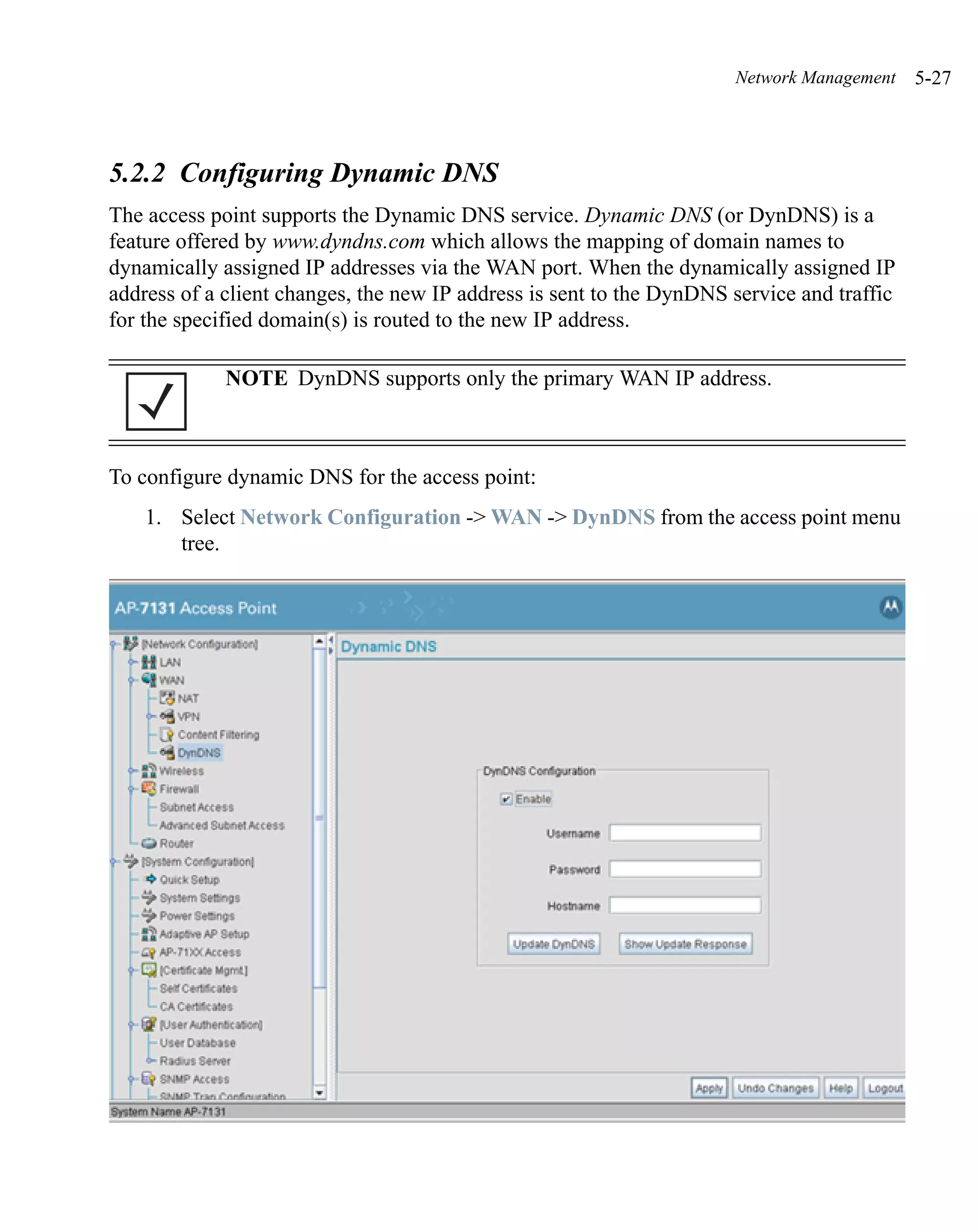
1.2.30 Dynamic DNS
The access point supports the Dynamic DNS service. Dynamic DNS (or DynDNS) is a
feature offered by www.dyndns.com allowing the mapping of domain names to dynamically
assigned IP addresses. When the dynamically assigned IP address of a client changes, the
new IP address is sent to the DynDNS service and traffic for the specified domain(s) is
routed to the new IP address. For information on configuring Dynamic DNS, see
Configuring Dynamic DNS on page 5-27.

1.2.31 Auto Negotiation
Auto negotiation enables the access point to automatically exchange information about data
transmission speed and duplex capabilities. Auto negotiation is helpful when using the
access point in an environment where different devices are connected and disconnected on
a regular basis. For information on configuring the auto negotiation feature, see
Configuring the LAN Interface on page 5-2 or Configuring WAN Settings on page 5-17.

1.2.32 Rogue AP Enhancements
The access point can scan for rogues over all channels on both of the access point’s radio
bands. For information on configuring the access point for Rogue AP support, see
Configuring Rogue AP Detection on page 6-60.

1.2.33 Bandwidth Management Enhancements
Use the Bandwidth Management screen to control the network bandwidth allotted to
individual WLANs. Define a weighted scheme as needed when WLAN traffic supporting
a specific network segment becomes critical. Bandwidth management is configured on a
per-WLAN basis. With this segregated radio approach, bandwidth management can be
configured uniquely for individual WLANs on different access point radios.
For information on configuring bandwidth management, see Configuring Bandwidth
Management Settings on page 5-76.

1.2.34 RADIUS Time-Based Authentication
An external server maintains a users and groups database used by the access point for
access permissions. Various kinds of access policies can be applied to each group.
Individual groups can be configured with their own time-based access policy. Each group’s
policy has a user defined interval defining the days and hours access is permitted.
1-20 AP-7181 Access Point Product Reference Guide


    Authentication requests for users belonging to the group are honored only during these
    defined hourly intervals.
    For more information on defining access point access policies by group, see Defining User
    Access Permissions by Group on page 6-82.

    1.2.35 QBSS Support
    Each access point radio can be configured to optionally allow the access point to
    communicate channel usage data to associated devices and define the beacon interval used
    for channel utilization transmissions. The QBSS load represents the percentage of time the
    channel is in use by the access point and the access point’s station count. This information
    is very helpful in assessing the access point’s overall load on a channel, its availability for
    additional device associations and multi media traffic support.
    For information on enabling QBSS and defining the channel utilization transmission
    interval, see Configuring the 802.11a/n or 802.11b/g/n Radio on page 5-60.


    1.3 Theory of Operations
    To understand access point management and performance alternatives, users need
    familiarity with functionality and configuration options. The access point includes features
    for different interface connections and network management.
    The access point uses electromagnetic waves to transmit and receive electric signals
    without wires. Users communicate with the network by establishing radio links between
    mobile units (MUs) and access points.
    The access point uses DSSS (direct sequence spread spectrum) to transmit digital data from
    one device to another. A radio signal begins with a carrier signal that provides the base or
    center frequency. The digital data signal is encoded onto carriers using a DSSS chipping
    algorithm. The radio signal propagates into the air as electromagnetic waves. A receiving
    antenna (on the MU) in the path of the waves absorbs the waves as electrical signals. The
    receiving MU interprets (demodulates) the signal by reapplying the direct sequence
    chipping code. This demodulation results in the original digital data.
    The access point uses its environment (the air and certain objects) as the transmission
    medium. the access point can either transmit in the 2.4 to 2.5-GHz frequency range
    (802.11b/g/n radio) or the 5 GHz frequency range (802.11a/n radio), the actual range is
    country-dependent. Motorola devices, like other Ethernet devices, have unique, hardware
Introduction   1-21


encoded Media Access Control (MAC) or IEEE addresses. MAC addresses determine the
device sending or receiving data. A MAC address is a 48-bit number written as six
hexadecimal bytes separated by colons. For example: 00:A0:F8:24:9A:C8
Also see the following:
    •   Wireless Coverage
    •   MAC Layer Bridging
    •   Content Filtering
    •   DHCP Support
    •   Media Types
    •   Direct-Sequence Spread Spectrum
    •   MU Association Process
    •   Operating Modes
    •   Management Access Options
    •   AP 7181 MAC Address Assignment

1.3.1 Wireless Coverage
An access point establishes an average communication range with MUs called a Basic
Service Set (BSS) or cell. When in a particular cell, the MU associates and communicates
with the access point supporting the radio coverage area of that cell. Adding access points
to a single LAN establishes more cells to extend the range of the network. Configuring the
same ESSID (Extended Service Set Identifier) on all access points makes them part of the
same Wireless LAN.
Access points with the same ESSID define a coverage area. A valid ESSID is an
alphanumeric, case-sensitive identifier up to 32 characters. An MU searches for an access
point with a matching ESSID and synchronizes (associates) to establish communications.
This device association allows MUs within the coverage area to move about or roam. As
the MU roams from cell to cell, it associates with a different access point. The roam occurs
when the MU analyzes the reception quality at a location and determines a different
provides better signal strength and lower MU load distribution.
If the MU does not find an access point with a workable signal, it can perform a scan to find
any AP. As MUs switch APs, the AP updates its association statistics.
1-22 AP-7181 Access Point Product Reference Guide


    The user can configure the ESSID to correspond to up to 16 WLANs on each 802.11a/n or
    802.11b/g/n radio. A Wireless Local Area Network (WLAN) is a data-communications
    system that flexibly extends the functionalities of a wired LAN. A WLAN does not require
    lining up devices for line-of-sight transmission, and are thus, desirable. Within the WLAN,
    roaming users can be handed off from one access point to another like a phone system.
    WLANs can therefore be configured around the needs of specific groups of users, even
    when they are not in physical proximity.

    1.3.2 MAC Layer Bridging
    The access point provides MAC layer bridging between its interfaces. The access point
    monitors traffic from its interfaces and, based on frame address, forwards the frames to the
    proper destination. The access point tracks source and destination addresses to provide
    intelligent bridging as MUs roam or network topologies change. The access point also
    handles broadcast and multicast messages and responds to MU association requests.
    The access point listens to all packets on its LAN and WAN interfaces and builds an address
    database using MAC addresses. An address in the database includes the interface media
    that the device uses to associate with the access point. The access point uses the database
    to forward packets from one interface to another. The bridge forwards packets addressed to
    unknown systems to the Default Interface (Ethernet).
    The access point internal stack interface handles all messages directed to the access point.
    Each stores information on destinations and their interfaces to facilitate forwarding. When
    a user sends an ARP (Address Resolution Protocol) request packet, the access point
    forwards it over all enabled interfaces except over the interface the ARP request packet was
    received.
    On receiving the ARP response packet, the access point database keeps a record of the
    destination address along with the receiving interface. With this information, the access
    point forwards any directed packet to the correct destination. Transmitted ARP request
    packets echo back to other MUs. The access point removes from its database the destination
    or interface information not used for a specified time. The AP refreshes its database when
    it transmits or receives data from these destinations and interfaces.

    1.3.3 Media Types
    The access point radio interface conforms to IEEE 802.11 specifications. The access point
    supports multiple-cell operations with fast roaming between cells. Within a direct-sequence
Introduction   1-23


system, each cell can operates independently. Adding cells to the network provides an
increased coverage area and total system capacity.
The serial port provides a Command Line Interface (CLI) connection. The serial link
supports a direct serial connection. The access point is a Data Terminal Equipment (DTE)
device with male pin connectors for the RS-232 port. Connecting the access point to a PC
requires a null modem serial cable.

1.3.4 Direct-Sequence Spread Spectrum
Spread spectrum (broadband) uses a narrowband signal to spread the transmission over a
segment of the radio frequency band or spectrum. Direct-sequence is a spread spectrum
technique where the transmitted signal is spread over a particular frequency range. The
access point uses
Direct-Sequence Spread Spectrum (DSSS) for radio communication.
Direct-sequence systems communicate by continuously transmitting a redundant pattern of
bits called a chipping sequence. Each bit of transmitted data is mapped into chips by the
access point and rearranged into a pseudorandom spreading code to form the chipping
sequence. The chipping sequence is combined with a transmitted data stream to produce the
output signal.
MUs receiving a direct-sequence transmission use the spreading code to map the chips
within the chipping sequence back into bits to recreate the original data transmitted by the
access point. Intercepting and decoding a direct-sequence transmission requires a
predefined algorithm to associate the spreading code used by the transmitting access point
to the receiving MU. This algorithm is established by IEEE 802.11b specifications. The bit
redundancy within the chipping sequence enables the receiving MU to recreate the original
data pattern, even if bits in the chipping sequence are corrupted by interference.
The ratio of chips per bit is called the spreading ratio. A high spreading ratio increases the
resistance of the signal to interference. A low spreading ratio increases the bandwidth
available to the user. The access point uses different modulation schemes to encode more
bits per chip at higher data rates.

1.3.5 MU Association Process
An access point recognizes MUs as they begin the association process. An access point
keeps a list of the MUs it services. MUs associate with an access point based on the
following conditions:
1-24 AP-7181 Access Point Product Reference Guide


        •    Signal strength between the Access Point and MU
        •    Number of MUs currently associated with the access point
        •    MUs encryption and authentication capabilities
        •    MUs supported data rate
    MUs perform pre-emptive roaming by intermittently scanning for ’s and associating with
    the best available access point. Before roaming and associating, MUs perform full or partial
    scans to collect statistics and determine the direct-sequence channel used by the access
    point.
    Scanning is a periodic process where the MU sends out probe messages on all channels
    defined by the country code. The statistics enable an MU to reassociate by synchronizing
    its channel to the access point. The MU continues communicating with that until it needs
    to switch cells or roam.
    MUs perform partial scans at programmed intervals, when missing expected beacons or
    after excessive transmission retries. In a partial scan, the MU scans access points classified
    as proximate on the access point table. For each channel, the MU tests for Clear Channel
    Assessment (CCA). The MU broadcasts a probe with the ESSID and broadcast BSS_ID
    when the channel is transmission-free. It sends an ACK to a directed probe response from
    the access point and updates the table.
    An MU can roam within a coverage area by switching access points. Roaming occurs when:
        •    Unassociated MU attempts to associate or reassociate with an available access
             point
        •    Supported rate changes or the MU finds a better transmit rate with another access
             point
        •    RSSI (received signal strength indicator) of a potential access point exceeds the
             current access point
        •    Ratio of good-transmitted packets to attempted-transmitted packets that fall below
             a threshold.
    An MU selects the best available access point and adjusts itself to the access point direct-
    sequence channel to begin association. Once associated, the access point begins forwarding
    frames addressed to the target MU. Each frame contains fields for the current direct-
    sequence channel. The MU uses these fields to resynchronize to the access point.
Introduction   1-25


The scanning and association process continues for active MUs. This process allows MUs
to find new access points and discard out-of-range or deactivated access points. By testing
the airwaves, MUs can choose the best network connection available.

1.3.6 Operating Modes
The access point can operate in a couple of configurations.
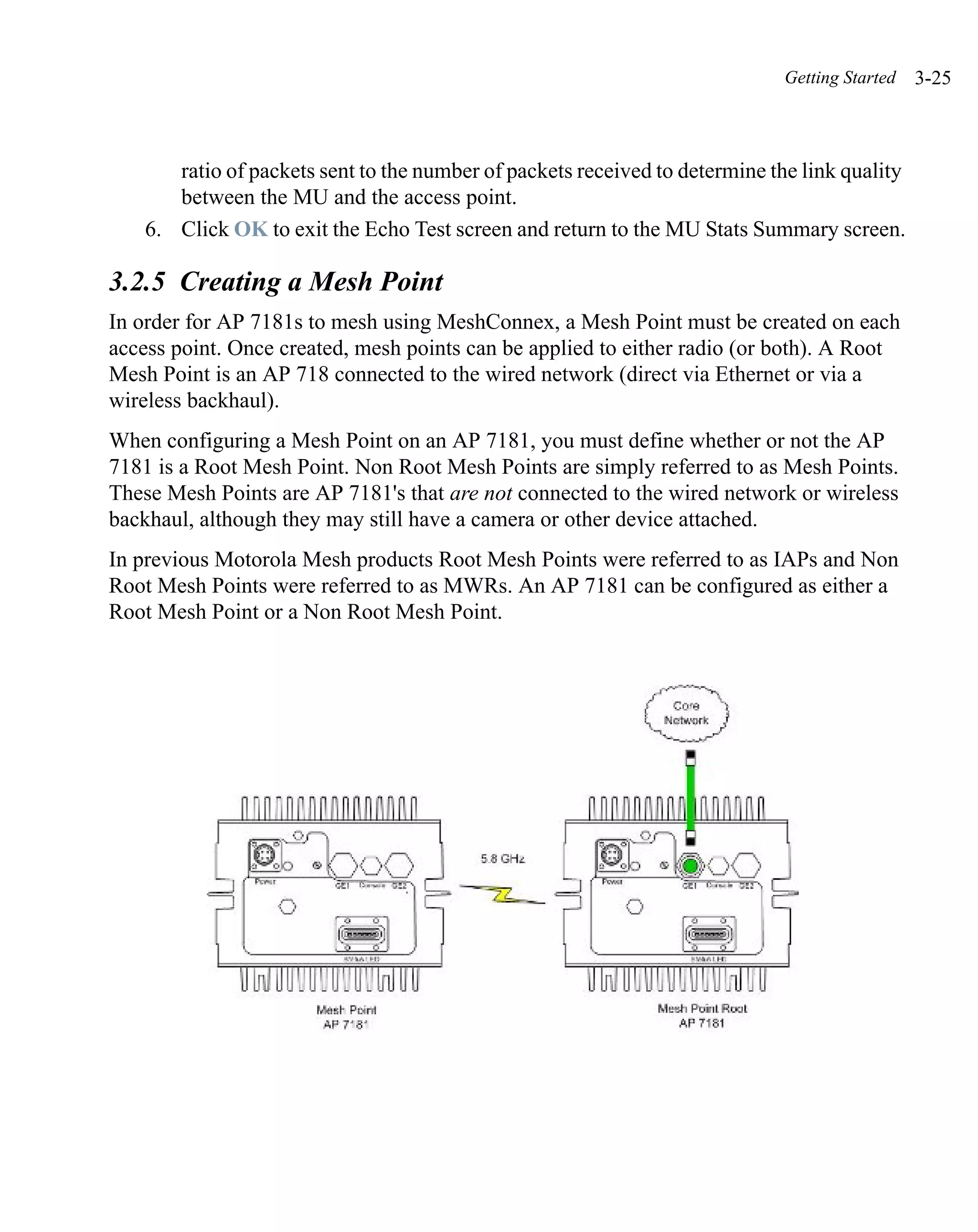
    •   Mesh Point Root Nodes - AP 7181 devices attached to the wired network are
        considered Root Nodes. Root nodes serve as gateways between the wireless mesh
        network and the wired network. Root node locations should be determined first
        since they control the critical function of routing to and from the wired network.
        Root nodes must have an Ethernet connection to the core network. The AP 7181
        Ethernet ports support 10/10/1000 Mbps Ethernet connections. If direct Ethernet is
        not available or within distance requirements of the core network wireless
        backhaul technology such as Motorola Point to Multi Point or Motorola Point to
        Point systems can be used.
        • PPPoE - The WAN interface can terminate a PPPoE connection, thus enabling
           the access point to operate in conjunction with a DSL or Cable modem to
           provide WAN connectivity.
        • NAT - (Network Address Translation) on the Wireless interface. Using NAT, the
           router is able to manage a private IP scheme. NAT allows translation of private
           addresses to the WAN IP address.
        • DHCP - The access point can assign private IP addresses.
        • Firewall - A Firewall protects against a number of known attacks.
    •   Mesh Point Nodes- Mesh Points are AP7181 devices that are not connected to the
        wired network. They can support a camera or other device attached via the Ethernet
        connection.
1-26 AP-7181 Access Point Product Reference Guide


    1.3.7 Management Access Options
    Managing the access point includes viewing network statistics and setting configuration
    options. Statistics track the network activity of associated MUs and data transfers on the AP
    interfaces.
    The access point requires one of the following connection methods to perform a custom
    installation and manage the network:
        •    Secure Java-Based WEB UI - (use Sun Microsystems’ JRE 1.5 or higher available
             from Sun’s Web site and be sure to disable Microsoft’s Java Virtual Machine if
             installed)
        •    Command Line Interface (CLI) via Serial, Telnet and SSH
        •    Config file - Human-readable; Importable/Exportable via FTP and TFTP
    MIB (Management Information Base) accessing the access point SNMP function using a
    MIB Browser. The access point’s download site contains the following MIB files
    supporting the AP 7181:
        •    Symbol-CC-WS2000-MIB-2.0 (standard MIB file)
        •    Symbol-AP-MIB (relevant to the AP 7181 feature set)
    Make configuration changes to access point’s individually. Optionally, use the access point
    import/export configuration function to download settings to other access points.
    For detailed information, see Importing/Exporting Configurations on page 4-48.
Introduction   1-27


1.3.8 AP 7181 MAC Address Assignment
For an AP 7181 model access point, MAC address assignments are as follows:
   •   WAN (GE2) - The access point MAC address can be found underneath the access
       point chassis.
   •   LAN1 (GE1) - WAN MAC address + 1.
   •   LAN2 - A virtual LAN not mapped to the LAN Ethernet port. This address is the
       lowest of the two radio MAC addresses.
   •   Radio1 (802.11b/g/n) - Random address located on the Web UI, CLI and SNMP
       interfaces.
   •   Radio2 (802.11a/n) - Random address located on the Web UI, CLI and SNMP
       interfaces.
The access point’s BSS (virtual AP) MAC addresses are calculated as follows:
   •   BSS1 - The same as the corresponding base radio’s MAC address.
   •   BSS2 - Base radio MAC address +1
   •   BSS3 - Base radio MAC address +2
   •   BSS4 - Base radio MAC address +3
1-28 AP-7181 Access Point Product Reference Guide
2
                                        Hardware Installation

An AP 7181 access point installation includes mounting the access point, connecting the
access point to the network, and applying power. Installation procedures vary for different
environments.
    •   Precautions
    •   Deployment Guidelines
    •   Installation Methodology
    •   Grounding Requirements
    •   Minimum Installation Requirements
    •   Package Contents
    •   Access Point Placement
    •   Antenna Options
    •   AP 7181 Power Options
    •   Mounting an AP 7181
    •   Installing an AP 7181
2-2   AP-7181 Access Point Product Reference Guide


          •   Field Installation
          •   Remote Panel Antenna Installation


      2.1 Precautions
      Before installing an AP 7181 model access point verify the following:
          •    Become familiar with grounding requirements (see Grounding Requirements).
          •    Verify the environment has a continuous temperature range between -40° C to 55°
               C
      AP 7181 devices must be installed by trained professionals familiar with RF planning and
      regulatory limits defined by the regulatory bodies of the country where the devices are
      being deployed. All common precautions for grounding and ESD (Electrostatic Discharge)
      protection should be observed during deployment and installation. AP 7181 devices are
      designed to be installed outdoors and must be installed such that no harmful interference
      results from device operation.


                   CAUTIONAll device wiring must comply with the National Electric code
                          (NEC) or regulations and procedures defined by the regulatory
          !               bodies of the country or region where the devices are being
                          deployed. All local building and structure codes must be
                          observed.


                   WARNING!Strictly observe the following Safety Precautions during the AP
                           7181 Installation Procedure.


          •   Installations must be performed by professionals who are properly trained and
              certified.
          •   Avoid contact with overhead power lines.
          •   Take precautions to avoid injury from falling tools and equipment. Crews should
              wear hard hats in and around the installation work site.
          •   Be aware of vehicular traffic in and around the installation work site.
Hardware Installation   2-3


   •   Do not hold any component containing a radio such that the antenna is very close
       to or touching any exposed parts of the body, especially the face or eyes, while
       transmitting.
   •   Do not operate a portable transmitter near unshielded blasting caps or in an
       environment where explosives are present unless the transmitter is especially
       certified for such use.


2.2 Deployment Guidelines
Observe the following recommended guidelines to help ensure a successful network
deployment:
   •   Mounting height for network devices should not exceed 30 to 35 feet. Mounting
       height should vary to accommodate the topography of the deployment area,
       foliage, and other obstructions.
   •   Devices can be deployed using either the Bottom Mount Installation or the Top
       Mount Installation procedure.
   •   Point-to-Point (PTP (Slave)) or Point-to-Multipoint (PMP (SM)) nodes providing
       backhaul should be oriented to point away from AP 7181 antenna panels.
   •   DO NOT assign the frequencies allocated for the AP 7181 2.4 (2.4-2.462 GHz)
       and 5.8 (5.725-5.850 GHz) radios to any of the PTP or PMP devices providing
       backhaul.


            NOTE For more detailed deployment considerations for backhaul, refer
                 to the Mesh AP 7181 System Planner.


   •   Custom stand-off brackets should be used as required to provide adequate pole
       separation in an effort to minimize reflective received power.
   •   LoS guidelines should be given special consideration whenever devices will not be
       installed in a straight line, such as deploying devices on alternating sides of a
       roadway.
   •   Ensure that all Root nodes are deployed with line of site to the wireless backhaul
       cluster points.
2-4    AP-7181 Access Point Product Reference Guide


      2.3 Installation Methodology
      Consideration of the order in which units are installed when deploying an AP 7181 wireless
      network can work to ensure a more stable and functional network. The PTP backhaul layer
      should be deployed first. Next deploy all nodes for the PMP Access Point distribution layer.
      Next deploy Root nodes along with PMP Subscriber Modules (SMs) such that backhaul
      and network connectivity can be verified or corrected. Finally, deploy all Mesh Point
      wireless nodes in order of the least to most hops (1 hop nodes first, followed by 2 hop nodes,
      etc.).


      2.4 Grounding Requirements
      To avoid damage to the equipment, become familiar with Motorola Policy R56 before
      installing AP 7181 units. Refer to Standards and Guidelines For Communication Sites,
      Version B. Both the hardcopy manual (Part Number 68P81089E50-B) and the CD version
      (Part Number 9880384V83) can be ordered from Motorola.
      Section 7.6.4 Broadband - Wireless Access Point Network from the Standards and
      Guidelines For Communication Sites applies directly to AP 7181 deployments:
      SPD (Surge Protection Device) considerations for broadband shall include the use of SPDs
      to protect pole-mounted access points and ground-based cabinet architecture. It is
      important to install proper SPD applications on both ends of Ethernet, Power-Over
      Ethernet (POE), Giga-Ethernet (GigE) and AC cable runs. SPDs shall be located within
      the node or cabinet, or as close to the entrance as possible, and properly installed into load
      centers, control panels and utility power cabinets. While RF protection is a consideration,
      it shall only be required when antennas are connected to the node with coaxial cables
      greater than 610 mm (2 ft.) in length.
      The grounding cable for an AP 7181 must be a #8 gauge (10 mm²) wire cross section and
      use a Ring Lug that will fit the M5 Grounding Screw on the bottom of the unit.


                    CAUTIONIt is required that all root and portal nodes be adequately
                           grounded. In addition, all root nodes and portals using the
                           Ethernet port or attached devices (e.g. a camera) must not only
          !                be grounded, but they should also include surge suppression
                           for network reliability. This is particularly important for
                           network configurations with a public safety component.
Hardware Installation   2-5


2.4.1 Ethernet and Lightning Protection
When installing an AP 7181 Root Node that has a direct connection between the shielded
CAT-5E Ethernet and the wired network, lightning protection should be used on all
Shielded CAT-5E Ethernet connections.
An outdoor rated Lightning Protection Unit (LPU) kit such as the Motorola PTP
WB2907AA or the HyperLink AL-CAT6HPJW Lightning Protector should be used. For
more information on Motorola’s PTP Lightning Protection Unit, refer to the PTP-LPU
Technical Specifications.
2-6   AP-7181 Access Point Product Reference Guide


                   NOTE Lightning damage is not covered under the conditions of a
                        standard Motorola product warranty. When installed correctly,
                        LPUs provide the best protection from the harmful effects of
                        lightning. Observe all regional and national codes that apply to
                        grounding for lightning protection.

      2.4.2 AP 7181 Grounding Hardware and Connections
      The grounding cable for an AP 7181 must be # 8 gauge wire and use a Ring Lug that will
      fit the M5 Grounding Screw on the bottom of the unit (see AP 7181 Connections and
      Ports).
      The Grounding Screw is shown below in green.


      When connecting the grounding cable to the unit, tighten the Grounding Screw to between
      21.9 and 29.2 inch pounds (lbf-in).
Hardware Installation   2-7


Access points mounted on a metallic pole should be grounded as shown in the following
figure.
2-8   AP-7181 Access Point Product Reference Guide


      Access points mounted on a nonmetallic pole should be grounded as shown in the following
      figure.


      When grounding a unit installed on a nonmetallic pole, a ground conductor and rod is
      required. This requirement should be factored into the project deployment costs,
      particularly if the equipment must be installed by a utility company.
      When grounding a unit installed on a wooden pole, a ground conductor and rod is required.
      This requirement should be factored into the project deployment costs, particularly if the
      equipment must be installed by a utility company.
Hardware Installation   2-9


2.5 Minimum Installation Requirements
The minimum requirements for installing an AP 7181:
    •   AP 7181 Access Point
    •   Power Cable (Flying Leads)
    •   Standard Ethernet cable
    •   Yoke (attached)
    •   22 mm Socket and driver to remove port caps
    •   #6 metric Allen Wrench to remove the Yoke


2.6 Package Contents
Check the package contents for the AP 7181. Each unit should contain:
    •   AP 7181 Access Point (assembled with Mounting Yoke attached)
    •   Power Cable
    •   Optional accessories (in a separate box inside the AP 7181 shipping container)
Contact the Motorola Support Center to report missing or improperly functioning items.
Refer to Customer Support.


2.7 Access Point Placement
Typically, roadways in the deployment area become main arteries for the wireless mesh
network. Roadways can provide line-of-sight coverage over large distances between Root
and Non Root APs.

2.7.1 Site Surveys
Motorola recommends conducting a site survey prior to installing an access point. A
thorough site survey must include a visit to the customer site to identify the characteristics
of the coverage area, including availability of electrical distribution for power sources and
the location of existing network infrastructure.The site survey should also include
preliminary WLAN measurements to identify candidate AP locations
When scheduling a visit to conduct a site survey, request access to wiring closets, adjacent
floors, and other locations that may require special permission.
2-10   AP-7181 Access Point Product Reference Guide


       2.7.2 Root Node Placement
       When planning for Root Node placement:
          •    Identify Root node wireless backhaul technology (Point to Point (PTP), Point to
               Multi Point (PMP)).
          •    Identify Ethernet or fiber optic backhaul.
          •    Identify Root node locations.
          •    Obtain all required permits and/or lease agreements.
          •    Verify that power is available at each potential node deployment location.
          •    Give careful consideration to the fact that Root nodes with a wireless backhaul
               usually backhaul traffic to a cluster point (i.e. PMP Canopy).
          •    Wireless backhaul clusters can be on towers, rooftops, etc.
          •    Ensure that all Root nodes are deployed with LoS to cluster points.
       When installing an AP7181 Root Node that has its Shielded CAT-5E Ethernet directly
       connected to the wired network Lightning protection should be used on all Shielded CAT-
       5E Ethernet connections. An outdoor rated Lightning Protection Unit kit such as the
       Motorola PTP WB2978AA or the HyperLink AL-CAT6HPJW Lightning Protector should
       be used. For more information on Motorola's PTP Lightning Protection Unit, refer to the
       PTP-LPU Technical Specifications.

       2.7.3 Non Root Node Placement
       The same guidelines as Root nodes apply with the exception of a backhaul requirement
       The placement of Non Root nodes will depend heavily on the RF network design. Consider
       the guidelines for optimizing wireless network performance when identifying potential
       mounting sites.
       In addition, consider the following when planning for Non Root node placement:
          •    Light Poles, Utility Poles, or Traffic Poles
               • Obtain all required supplemental agreements from local governments and
                  utilities.
               • Obtain a generic mounting agreement that is not specify specific poles, since
                  installation locations may need to be modified during deployment.
               • Plan for AC power usage of 84 watts average, 126 watts peak.
Hardware Installation   2-11


        • The AP 7181 is rated for wind loading of up to160 miles per hour and 30 pounds
           per square foot.
        • Ensure that proper grounding can be established.
        • The grounding cable for an AP 7181 must be a #8 gauge (10 mm²) wire cross
           section and use a Ring Lug that will fit the M5 Grounding Screw on the bottom
           of the unit.
    •   Rooftops and Towers
        • May require lease agreements.
    •   Identify AP locations based on optimal communication with the Root nodes.
        • Non Root node placement will be dependent on asset availability, terrain, etc.
        • Ensure that nodes are placed at the same height.
    •   Build the network outward from each root node, from least to greatest number of
        hops.
As with Root nodes, it should be noted that it is incumbent upon the customer to obtain the
required Pole Attachment Agreements for devices to be installed on traffic / utility poles.
Obtaining the agreements can be a lengthy process, so ample lead time must be allowed.
The potential pole locations should be logged with GPS to obtain accurate coordinates.
Also log any identifying numbers on the pole so that this information can be provided to
the appropriate utility agency. Alternate mounting locations should also be identified in the
event that your initial request is denied.
Specialized brackets may be required for attaching devices to decorative light poles and
these brackets may have to be custom fabricated. If this is the case, allow enough lead time
for ordering the proper equipment.
Also consider any requirements to coordinate requests with multiple utility agencies within
the same community. Verify that light pole selections have power available continuously
and that the power source is within the operational range of the device being connected.

2.7.4 Mounting Locations
To avoid distortion of the RF pattern, device locations should be chosen such that the AP
7181 ADvanced Element Panel Technology (ADEPT) antenna panels are at least 30 inches
from any nearby metal poles and not co-located or operating in conjunction with any other
antenna or transmitter.The antenna panels must also have a separation distance of at least 2
meters from anyone who may come into proximity of the AP 7181.
2-12   AP-7181 Access Point Product Reference Guide


       2.7.5 Device Deployment Height
       AP 7181 nodes are typically mounted at a height of 30 to 35 feet. Ensure that neighboring
       nodes are mounted at or near the same device height.
       Excessive height should be avoided since this may result in increased congestion and
       interference in dense RF environments. This is especially true for the 2.4 GHz band.
       Nodes deployed with too great a difference in height or too close to each other may not
       mesh properly.
       Always consider these general guidelines for device deployment height:
           •   Maintain a typical deployment height of 30 to 35 feet.
           •   For optimum performance, ensure that devices are oriented to have LoS to all
               neighboring devices.
           •   Locate Root Nodes which support Wireless Backhaul so that they have LoS to
               Backhaul clusters or PTP locations, such as towers.


       2.8 Antenna Options
       The AP 7181 features an integrated ADvanced Element Panel Technology (ADEPT)
       antenna system that is designed to take full advantage of the 802.11n radios. No other
       antennas are supported.


       2.9 AP 7181 Power Options
       Details of the power sourcing equipment for the AP 7181 should be handled by a
       professional installer. The requirements for deploying the system are:
           •   Over current protection device with a maximum rating of 20 Amps.
           •   AP 7181 AC Model - 100-240 VAC input capable of sourcing 180 watts.
           •   AP 7181 DC Model - Nominal 48 Volt Power source (41-58 VDC) capable of
               sourcing 150 watts. Battery floating voltage should not exceed 60 VDC.
Hardware Installation   2-13


2.9.1 Power Cables
Flying lead power cables are available based on the country of operation.


    Four Wire AC Right Angle Power Cable               Black (Line)
    (North America and International)                  White (Neutral)
                                                       Red (Unused)
                                                       Green/Yellow (Ground)
    Three Wire AC Power Cable                          Brown (Line)
    (International)                                    Blue (Neutral)
                                                       Green/Yellow (Ground)
    Two Wire DC Power Cable                            Black (Negative)
    (North America and International                   Red (Positive)


             CAUTIONNever plug a power cable wired to a power source for an AC
    !               unit into a DC unit.


If the units will be plugged directly into an electrical wall outlet, power plug adapters are
available for North America, Europe, and Australia.


             CAUTIONDo not use the connector on the power cables for
    !                    interrupting current. Never actively plug or unplug the
                         connector while the cable is energized.
2-14   AP-7181 Access Point Product Reference Guide


       2.10 Mounting an AP 7181
       The AP 7181 is designed for outdoor installations. All hardware installations should be
       performed by a professional installer.
       Devices can be deployed using either the Bottom Mount Installation or the Top Mount
       Installation procedure.

       2.10.1 Pole Mounted Installations
       The optional Wall Gooseneck can also be used with the Pole Adapter for pole mounting.


       The Wall Gooseneck dimensions are 10x12x6 inches and it weighs 4 pounds. The Pole
       Adapter dimensions are 4x2.62x7 inches and it weighs 3 pounds.
       The Gooseneck attaches to the Yoke, which can be attached to the top or the bottom of the
       AP 7181. Secure the Gooseneck and adaptor to the pole using band clamps with the
       threaded portion pointing either up or down.
       If using a bottom mount, drill a 1/2 inch diameter hole at the lowest point on the bend to
       allow water to drain from the Gooseneck.
Hardware Installation   2-15


2.11 Installing an AP 7181
The following guidelines and procedures should be observed when installing an AP 7181
device.

2.11.1 Required Tools
The following is a list of the minimal tool set required to install an AP 7181 device:
    • 24 mm Socket and driver - for cable gland
    • 22 mm Socket and driver - for port caps
    • 21 mm Socket and driver - for set screw
    • 8 mm Socket and driver - for ground screw
    • 6 mm Allen Wrench bit - for mounting bracket (Yoke)
    • T27 Torx bit - for Sun Shields
    • Torque Screwdriver - for Sun Shields
    • Torque Wrench
    • Adjustable Wrench
    • Standard Level
    • Anti-seize lubricant
You may also need a Phillips screw driver and a 2.5 mm Allen wrench to perform an
External Hardware Reset.
2-16   AP-7181 Access Point Product Reference Guide


       2.11.2 AP 7181 Connections and Ports
       The power cable and grounding connections, power indicator light, Ethernet and reset
       ports, and LED Status Panel for the AP 7181 are shown in the figure below.


                   NOTE The Grounding Screw shown in the figure below is a Phillips
                        head screw. The unit now uses a Hex head screw.
Hardware Installation   2-17


             NOTE The grounding cable for an AP 7181 must be a #8 gauge (10
                  mm²) wire cross section and use a Ring Lug that will fit the M5
                  Grounding Screw on the bottom of the unit.

The two pin DC power connector (phase-in) is shown below. All other connections, ports,
and the LED Status Panel for the are the same.


The Horizontal (HP) and Vertical (VP) connectors for the antenna cables are located on the
top of the AP 7181.
2-18   AP-7181 Access Point Product Reference Guide


       All Radome antenna panel cables are labeled as HP or VP. Attach each cable to the
       corresponding connector when performing a Remote Panel Antenna Installation or any
       other procedure which requires attaching antenna cables to the connectors.


                    NOTE The connectors on the AP 7181 are Ingress Protection 67 (IP67)
                         rated. No additional weatherproofing precautions are required.


                    WARNING!When disconnecting the antenna cables from the unit or
                            removing an antenna panel and replacing it with a Blank panel,
                            terminators MUST be placed on the unused horizontal and
                            vertical connectors on the top of the unit The terminators on the
                            AP 7181 are Ingress Protection 68 (IP68) rated. No additional
                            weatherproofing precautions are required.
Hardware Installation   2-19


2.11.3 LED Status Indicator Panel
There are six LEDs on the AP 7181 which are visible on the bottom of the unit
through light pipes.The LEDs have the following display characteristics and
functionality
                                              LED 4 - 5   LED 5 - 2.4
        LED 1        LED 2        LED 3         GHz         GHz            LED 6
       Blinking      Green      Green       Amber       Emerald          Not used.
         Red         defines    defines    defines 5   defines 2.4
       indicates   normal GE1 normal GE2 GHz radio as GHz radio as
       booting.     operation. operation. configured. configured.
      Solid Red      Yellow     Yellow
       defines a    defines a  defines a
        failure     collision. collision.
      condition.
        White
        defines
        normal
      operation


2.11.4 External Hardware Reset
An AP 7181 can be physically reset using the Hardware Reset button. The button is located
inside the Reset port on the bottom of the unit.
The Reset button is enabled only after the unit boots up and is running the operational
software. If any of LEDs 2 through 6 are active, it indicates that the unit has booted
successfully and the operational software is running.
To perform an External Hardware Reset:
    1. Using a Phillips screwdriver, remove the screw from the external Reset port.
    2. Carefully insert a 2.5 mm Allen wrench into the Reset port until you make contact
       with the Hardware Reset button.


             CAUTIONThe Hardware Reset button is attached to a circuit board inside
    !               the unit. Insert the Allen wrench carefully to make contact with
                    the top of the button and avoid touching the circuit board.
2-20   AP-7181 Access Point Product Reference Guide


          3. Gently press and hold the Reset button long enough to reach the desired reset level
             listed in the table below. When the button is pressed, LED 1 will change from
             WHITE to RED and remain RED until the button has been released.


           Reboot                    To reboot the device, hold the button for less than
                                     APPROXIMATELY 4 seconds. Release the button while only
                                     LED 1 illuminates RED.
           Partial Factory Default To reset the device to a partial factory default condition, hold
                                   the button for APPROXIMATELY 4 to 15 seconds. Release the
                                   button after LED 2 and LED 3 illuminate YELLOW.
           Full Factory Default      To reset the device to a full factory default condition, hold the
                                     button for longer than APPROXIMATELY 15 seconds.
                                     Release the button after LED 2 through LED 6 illuminate
                                     YELLOW.

          4. When the Reset button is released, the LEDs will be cleared and the unit will
             restart.
          5. Monitor the LED Status Indicator panel to confirm that the reset operation was
             successful.
Hardware Installation   2-21


2.11.5 Removing the AP 7181 Kit from the Shipping Carton


          CAUTIONNever lift an AP 7181 using the Radome antenna panels or
   !             other plastic parts. Always lift the unit by the Yoke or metal
                 antenna rings.


          WARNING!An AP 7181 weighs 39 pounds. Use all appropriate cautions
                  when lifting and consider a two man lift when necessary.


  1. Open the shipping carton and remove top packaging material.
2-22   AP-7181 Access Point Product Reference Guide


            2. Remove the accessories pack from the shipping carton.
       In the accessories box, you will find the following items:
          •    Weatherproof Ethernet Port Adaptor (Cable Gland) (Part number: HKLN4486A)
          •    Waterproof Console Port Adapter (Part number: HKLN4485A)
          •    Power Cable (Part number: 30009307001, 30009308001, or 30009315002)
          •    Sun Shields with Captive Screws (Part number: HKLN4446A)
          •    Yoke (Mounting Bracket) (Part number: HKLN4484A)
          •    Set Screw for Yoke (Part of the complete AP 7181 kit)


                    NOTE Only one Set Screw is included with each AP 7181 kit. If a second
                         Set Screw is required, purchase an M14x2.0, 20mm stainless steel
                         Hexagonal screw.

          3. Open the plastic bag covering the unit.
          4. Roll the plastic bag to the bottom of the shipping carton and using the Yoke or
             Antenna Ring, carefully remove the unit from the box. Using this method will help
             prevent damage to the antenna assembly.
Hardware Installation   2-23


2.11.6 Staging the Device Prior to Installation


           WARNING!An AP 7181 weighs 39 pounds.. Use all appropriate cautions
                   when lifting and consider a two man lift when necessary.


   1. Place on solid surface with the Yoke facing up.


           CAUTIONNever lift an AP 7181 using the radome antenna panels or
   !              other plastic parts. Always lift the unit by the Yoke or metal
                  Antenna rings.

   2. Using the 6mm Allen Wrench, loosen the Allen head bolts to remove the Yoke.
2-24   AP-7181 Access Point Product Reference Guide


          3. To gain access to the Ethernet and or console ports you will need to remove the
             protective caps. A 22 mm socket will be required to remove the Ethernet port caps
             covering Gigabit Ethernet ports GE1 and GE2. A 19 mm socket is required to
             remove the console port cap (if required).


          4. Using the 22 mm socket remove the port caps for Gigabit Ethernet GE1 and GE2.
Hardware Installation   2-25


5. Remove the cap on the cable gland as shown below.


6. Carefully hand tighten the gland into Gigabit port GE1. Once the gland is snug, use
   a 24 mm socket and finishing tighten the gland.
2-26   AP-7181 Access Point Product Reference Guide


       If the node is going to be configured as a Mesh Point Root node (Mesh Point Root nodes
       have a direct wired Ethernet connection to the core network or an Ethernet connection to a
       wireless backhaul) a cable gland will be required for Gigabit Ethernet port GE1.
Hardware Installation   2-27


If the Mesh Point Root node is also going to have an external device attached (e.g.
surveillance camera) an additional cable gland will be required for Gigabit Ethernet port
GE2 (make sure the WAN port GE2 has been configured to permit an attached external
device during the configuration process).


             NOTE The AP 7181 supports 802.af compliant Power over Ethernet
                  (PoE) on Ethernet port GE1 and can provide power to an external
                  PoE capable device such as a surveillance camera. PoE is auto
                  sensing and is enabled when the AP 7181 senses a PoE capable
                  device.
2-28   AP-7181 Access Point Product Reference Guide


       If the device being staged is a Mesh Point node (no wired connection to the core network)
       and no external device is going to be attached then no cable glands are required.


       If the Mesh Point node is going to have an external device attached (e.g. surveillance
       camera) a cable gland is required for Gigabit Ethernet port GE1.
Hardware Installation   2-29


7. Repeat the process if a second cable gland is required.


8. Attach an Ethernet cable to Gigabit Ethernet port GE2 (to be used with an external
   laptop for configuring the unit). You will also need to terminate the flying lead
   power cable with the proper plug (for the country of operation) so the unit can be
   powered for configuration. After preparing the power cable attach the cable to the
   power port. Notice that the power connector is keyed. Next configure the unit.
   Refer to Getting Started for initial device configuration.
2-30   AP-7181 Access Point Product Reference Guide


          9. After the unit has been configured, if the GE2 port is not going to be used to attach
             an external device to the AP7181, reattach the port cap. If the GE2 port is going to
             be used to attach and external device, attach the cable gland to the GE2 port.


          10. Reattach the Yoke.


          11. Return the unit to the shipping carton for transport to the installation site. Due to
              the nature of the electronic components and antenna array, using the shipping
              carton is the most secure method for transport.
Hardware Installation   2-31


2.12 Field Installation


           CAUTIONObserve the following precautions to avoid damage to the unit
  !               during installation.


  •   Only trained and qualified personnel should install this equipment.
  •   Only a licensed electrician should install power cable / energize circuits.
  •   All device wiring must follow the National Electric Code (NEC) or wiring
      requirements in the country of installation. All location building and structure
      codes must be observed.
  •   Ensure that the power source for the AP 7181 is de-energized prior to installation.


           WARNING!Observe the following safety precautions to avoid personal
                   injury during installation.


  •   Avoid exposure to high voltage power sources.
  •   Avoid contact with overhead power lines.
  •   Avoid falling tools or equipment.
  •   Be aware of vehicular traffic in the vicinity of the work area.


           WARNING!When disconnecting the antenna cables from the unit or
                   removing an antenna panel and replacing it with a Blank panel,
                   terminators MUST be placed on the unused connectors on the
                   top of the unit. The terminators for the AP 7181 are Ingress
                   Protection 68 (IP68) rated. No additional weatherproofing
                   precautions are required.
2-32   AP-7181 Access Point Product Reference Guide


       2.12.1 Bottom Mount Installation
       The pole mount adapter (Part Number RLN6197A) will accommodate a banding strap up
       to 1¼ inch width. Banding straps and the banding tool are not included when ordering the
       pole mount adapter.


       The pole mount adapter can be mounted to poles 3 inches to 15 inches in diameter and has
       a load rating of 75 lbs.
           1. Attach the pole mount adapter (or other mounting bracket hardware) to the
              mounting asset and ensure that the mounting bracket is level.
           2. Using the 4 hex head bolts (3/8"x16"x1") included with pole mount adapter (Part
              Number RLN6197A), secure the Gooseneck to the pole mount adapter.
Hardware Installation   2-33


         NOTE It is recommended to apply a small tube of anti-seize lubricant to
              the threads of the gooseneck to prevent corrosion and seizing.
              This will facilitate the mounting process and assure easier
              disassembly if the unit needs to be serviced.

3.   Grasp the Yoke and carefully remove the unit from the shipping carton.
4.   Place on a solid surface with the Yoke facing up.
5.   Remove the Yoke and the Allen socket head screws from the bottom of the unit.
6.   Attach the Yoke to the Gooseneck by rotating the device counter clockwise for a
     minimum of four turns.


         WARNING!Carefully align the Yoke with the Mounting Bracket to avoid
                 cross threading.


7. Ensure that the Yoke and the Mounting Bracket are level.
8. Loosely attach the Allen socket head screws to the unit. Leave the screws loose
   enough to attach the Yoke.
2-34   AP-7181 Access Point Product Reference Guide


          9. Carefully lift the unit into position, aligning the key slots for the Yoke with the
             Allen socket head screws and slide the Yoke to the final position.


                    WARNING!An AP 7181 unit weighs 39 pounds. Use all appropriate cautions
                            when lifting and consider a two man lift when necessary.


          10. Torque the Allen socket head screws to between 108.7 and 145.0 Inch Pounds (lbf-
              in).


                    CAUTIONEnsure that the Allen socket hex screws are tight and in the
          !                locked position before releasing the full weight of the unit.
Hardware Installation   2-35


    11. The Set Screw can now be inserted to increase stability. Tighten the Set Screw to
        between 214.2 and 250.0 inch pounds (lbf-in).


             NOTE Only one Set Screw is included with each AP 7181 kit. If a second
                  Set Screw is required, purchase an M14x2.0, 20mm stainless steel
                  Hexagonal screw.

    12. If the AP 7181 you are mounting is a Mesh Point Root node or a Mesh Point node
         with an external device (e.g. surveillance camera) perform the required Ethernet
         cabling.
The Ethernet cable gland is optimized for cables of diameter .39 to .55 inches. Smaller
diameter cables can achieve a watertight seal if the cable gland is properly tightened during
installation. It is recommended that an Outdoor- UV Rated, shielded cable is used in AP
7181 deployments. Some examples are:
    • Superior Essex 04-001-55
    • Best-Tronics BT-0562
In most cases Ethernet cable will need to be custom cut to length. After preparing the
Ethernet cable and attaching shielded RJ-45 end connectors feed the cable through the cable
gland cap and rubber insert as shown below.
2-36   AP-7181 Access Point Product Reference Guide


          13. Insert data cable through cable gland (i.e. the cable gland on Gigabit Ethernet port
              GE1)
              a. Connect the RJ45 Ethernet cable to the Ethernet port.
              b. Hand tighten the cap for the cable gland.


               c. Using an adjustable wrench, tighten the cable grip until it fits snugly around the
                  Ethernet cable.


               d. Repeat the process for additional Ethernet connections if required.
Hardware Installation   2-37


             CAUTIONObserve the following precautions to avoid damage to the unit
    !               during installation.


    •   Only trained and qualified personnel should install this equipment.
    •   Only a licensed electrician should install power cable / energize circuits.
    •   All device wiring must follow the National Electric Code (NEC) or wiring
        requirements in the country of installation. All location building and structure
        codes must be observed.
    •   Ensure that the power source for the AP 7181 is de-energized prior to installation.


             WARNING!Observe the following safety precautions to avoid personal
                     injury during installation.


    • Avoid exposure to high voltage power sources.
    • Avoid contact with overhead power lines.
    • Avoid falling tools or equipment.
    • Be aware of vehicular traffic in the vicinity of the work area.
The power cable included with the AP 7181 is a flying lead cable. Most installations will
require the installer to install an additional power cable.
The AP 7181 flying lead power cables are 12 feet long. The installer should splice the
power cable to the AP 7181 flying lead cable in accordance to the National Electric Code
(NEC) or wiring requirements in the country of operation. Only outdoor rated power cable
should be used.


             CAUTIONAC versions of the AP 7181 require an input voltage of 100 -
    !               240 VAC. DC versions require an input voltage of 41-58 VDC.
2-38   AP-7181 Access Point Product Reference Guide


          14. Once the power cable has been prepared, connect the power cable to the unit.


          15. he unit must be grounded according to the Motorola R56 2005 Manual for
              Standards and Guidelines for Communication Sites (see Grounding
              Requirements). The grounding cable for an AP 7181 must be a #8 gauge (10 mm²)
              wire cross section and use a Ring Lug that will fit the M5 Grounding Screw on the
              bottom of the unit.
              The Grounding Screw is shown below in green. When connecting the grounding
              cable to the unit, tighten the Grounding Screw to between 21.9 and 29.2 inch
              pounds (lbf-in).
Hardware Installation   2-39


16. Secure and conceal the cables using UV resistant tie wraps. Tie wraps should be
    used to secure the cables along the Gooseneck.


17. If desired, attach the sun shields to the top/bottom using the captive screws. If
    attaching the sun shields to the bottom of the unit, first remove the knock out discs
    in the center to fit around the Yoke. Tighten the captive screws to between 39.9 and
    53.1 inch pounds (lbf-in).


18. Once physical installation is completed the circuit powering the AP 7181 can be
    energized. Verify that the green power LED is illluminated and the unit is powered
    on.
2-40   AP-7181 Access Point Product Reference Guide


       2.12.2 Top Mount Installation
           1. Carefully remove the unit from the shipping carton.
           2. Place on a solid surface with the Yoke facing up.
           3. Remove the Yoke and the Allen socket head screws from the bottom of the unit.


       The pole mount adapter (Part Number RLN6197A) will accommodate a banding strap up
       to 1¼ inch width. Banding straps and the banding tool are not included when ordering the
       pole mount adapter.


       The pole mount adapter can be mounted to poles from 3 inches to 15 inches in diameter and
       has a load rating of 75 lbs.
Hardware Installation   2-41


4. Attach the pole mount adapter (or other mounting bracket hardware) to the
   mounting asset and ensure that the mounting bracket is level.
5. Using the 4 hex head bolts (3/8"x16"x1") included with pole mount adapter (Part
   Number RLN6197A), secure the Gooseneck to the pole mount adapter.


        NOTE It is recommended to apply a small tube of anti-seize lubricant to
             the threads of the gooseneck to prevent corrosion and seizing.
             This will facilitate the mounting process and assure easier
             disassembly if the unit needs to be serviced.
2-42   AP-7181 Access Point Product Reference Guide


          6. Attach the Yoke to the Gooseneck by rotating the device counter clockwise for a
             minimum of four turns.


                    WARNING!Carefully align the Yoke with the Mounting Bracket to avoid
                            cross threading.


          7. Ensure that the Yoke and the Mounting Bracket are level.
          8. Loosely attach the Allen socket head screws to the top of the unit. Leave the screws
             loose enough to attach the Yoke.


                    WARNING!An AP 7181 weighs 39 pounds. Use all appropriate cautions
                            when lifting and consider a two man lift when necessary.
Hardware Installation   2-43


9. Carefully lift the unit into position, aligning the key slots for the Yoke with the
   Allen socket head screws and slide the Yoke to the final position.


         CAUTIONEnsure that the Allen socket hex screws are tight and in the
!               locked position before releasing the full weight of the unit.


10. Torque the Allen socket head screws to between 108.7 and 145.0 Inch Pounds (lbf-
    in).
11. The Set Screw can now be inserted to increase stability. Using a 21mm socket with
    torque wrench, tighten the Set Screw to between 214.2 and 250.0 Inch Pounds (lbf-
    in).
2-44    AP-7181 Access Point Product Reference Guide


                     NOTE Only one Set Screw is included with each AP 7181 kit. If a second
                          Set Screw is required, purchase an M14x2.0, 20mm stainless steel
                          Hexagonal screw.

           12. If the AP 7181 you are mounting is a Mesh Point Root node or a Mesh Point node
                with an external device (e.g. surveillance camera) perform the required Ethernet
                cabling.
       The Ethernet cable gland is optimized for cables of diameter .39 to .55 inches. Smaller
       diameter cables can achieve a watertight seal if the cable gland is properly tightened during
       installation. It is recommended that an Outdoor- UV Rated, shielded cable is used in AP
       7181 deployments. Some examples are:
           • Superior Essex 04-001-55
           • Best-Tronics BT-0562
       In most cases Ethernet cable will need to be custom cut to length. After preparing the
       Ethernet cable and attaching shielded RJ-45 end connectors feed the cable through the cable
       gland cap and rubber insert as shown below.
Hardware Installation   2-45


13. Insert data cable through cable gland (i.e. the cable gland on Gigabit Ethernet port
    GE1)
    a. Connect the RJ45 Ethernet cable to the Ethernet port.
    b. Hand tighten the cap for the cable gland.


14. Using an adjustable wrench, tighten the cable grip until it fits snugly around the
    Ethernet cable.


    c. Repeat the process for additional Ethernet connections if required.


         CAUTIONObserve the following precautions to avoid damage to the unit
!               during installation.


•   Only trained and qualified personnel should install this equipment.
•   Only a licensed electrician should install power cable / energize circuits.
2-46   AP-7181 Access Point Product Reference Guide


           •   All device wiring must follow the National Electric Code (NEC) or wiring
               requirements in the country of installation. All location building and structure
               codes must be observed.
           •   Ensure that the power source for the AP 7181 is de-energized prior to installation.


                    WARNING!Observe the following safety precautions to avoid personal
                            injury during installation.


           • Avoid exposure to high voltage power sources.
           • Avoid contact with overhead power lines.
           • Avoid falling tools or equipment.
           • Be aware of vehicular traffic in the vicinity of the work area.
       The power cable included with the AP 7181 is a flying lead cable. Most installations will
       require the installer to install an additional power cable.
       The AP 7181 flying lead power cables are 12 feet long. The installer should splice the
       power cable to the AP 7181 flying lead cable in accordance to the National Electric Code
       (NEC) or wiring requirements in the country of operation. Only outdoor rated power cable
       should be used.


                    CAUTIONAC versions of the AP 7181 require an input voltage of 100-
           !               240 VAC. DC versions require an input voltage of 41-58 VDC.


           15. Once the power cable has been prepared, connect the power cable to the unit.
Hardware Installation   2-47


16. The unit must be grounded according to the Motorola R56 2005 Manual for
    Standards and Guidelines for Communication Sites (see Grounding
    Requirements). The grounding cable for an AP 7181 must be a #8 gauge (10 mm²)
    wire cross section and use a Ring Lug that will fit the M5 Grounding Screw on the
    bottom of the unit.
    The Grounding Screw is shown below in green. When connecting the grounding
    cable to the unit, tighten the Grounding Screw to between 21.9 and 29.2 inch
    pounds (lbf-in)
2-48   AP-7181 Access Point Product Reference Guide


           17. Secure and conceal the cables using sun resistant tie wraps. Tie wraps should also
               be used to secure the cables along the Gooseneck.
           18. If desired, attach the sun shields to the top/bottom using the captive screws. If
               attaching the sun shields to the bottom of the unit, first remove the knock out discs
               in the center to fit around the Yoke. Tighten the captive screws to between 39.9 and
               53.1 inch pounds (lbf-in).


       Once physical installation is completed the circuit powering the AP 7181 can be energized.
       Verify that the green power LED is lit and the unit is powered on.
Hardware Installation   2-49


2.13 Remote Panel Antenna Installation
When choosing a deployment location to optimize performance, it may be necessary to
mount a device such that one of the antenna panels may be obstructed. For example, traffic
light poles can completely obscure one of the panels in the AP 7181 antenna array. The
Remote Panel antenna kit can be used to address this use case.


In addition to the standard hardware, the following items are also required for installing a
Remote Panel antenna:
    •   Antenna Extension Cables (6 or 10 feet)
    •   Canopy Subscriber Module (SM) Mounting Bracket
    •   Terminators for the Horizontal (HP) and Vertical (VP) antenna connections on the
        top of the unit
2-50   AP-7181 Access Point Product Reference Guide


                    NOTE The terminators for the AP 7181 are Ingress Protection 68 (IP68)
                         rated. No additional weatherproofing precautions are required.


                    NOTE In addition to the required tools, you will need a cordless drill and
                         a 3.6 mm bit to predrill the hole for the set screw on the Canopy
                         SM Mounting Bracket.

       When the Remote Panel antenna installation is used, a Blank antenna panel should be
       attached to cover the side of the device facing the obstruction. Using a Blank antenna panel
       will help protect the interior of the AP 7181.


       Blank antenna panels can also be used when a device is installed directly against a wall or
       the side of a building. See Installing the Blank Antenna Panel.
Hardware Installation   2-51


WARNING!When disconnecting the antenna cables from the unit or
        removing an antenna panel and replacing it with a Blank panel,
        terminators MUST be placed on the unused horizontal and
        vertical connectors on the top of the unit.
2-52   AP-7181 Access Point Product Reference Guide


       0.0.1    Preparing the AP 7181
       To prepare the AP 7181 for installation using the Remote Panel antenna:
           1. Remove the screws for one of the four Radome antenna panels.


           2. Grasp the lower part (barrel) of the antenna cable connector and carefully detach
              the antenna cables from the connectors on the device. Remove the Radome antenna
              panel.
Hardware Installation   2-53


3. Attach the extension cable for the Remote Antenna panel to the device.


4. Carefully route the extension cable inside the antenna rings on the device.
2-54   AP-7181 Access Point Product Reference Guide


           5. Using the four screws provided, attach a Blank antenna panel to the unit to cover
              the side of the device where the functional antenna panel was removed.


           6. Return the unit to the shipping carton for transportation to the installation site.
           7. Collect the Radome panel that was removed from the unit and all other hardware
              and tools required for the installation.

       2.13.1 Installing the Remote Panel Antenna
       To complete the installation of the Remote Panel antenna at the site:
           1. At the installation site, install the AP 7181 using the appropriate Field Installation
              procedure.


                    WARNING!DO NOT apply power to the unit until the Remote Panel
                            installation procedure is complete.


           2. Assemble the Canopy SM Mounting Bracket using the instruction sheet supplied
              with the hardware.
           3. Test fit the Canopy SM Mounting Bracket at the installation site, positioning the
              bracket so that when the Remote Panel antenna is attached, it will be oriented to
              support line-of-sight communication with other devices.
Hardware Installation   2-55


4. Tighten the nuts on the mounting bracket so that the support arm remains in the
   desired position.
5. Use a cordless drill and a 3.6 mm bit to drill the hole for the set screw on the
   mounting bracket.
6. Insert and tighten the M4.8 set screw for the mounting bracket.


7. Using the supplied clamps, attach the Remote Antenna panel to the mounting
   bracket.
2-56   AP-7181 Access Point Product Reference Guide


                    CAUTIONWhen adjusting the Remote Mount antenna panel on the
                           mounting bracket, ensure that the mounting bracket does not
          !                extend past the top of the antenna panel to comply with wind
                           loading requirements.

          8. Complete the installation of the mounting bracket using the appropriate method for
             the installation requirements.
          9. Attach the extension cable from the AP 7181 to the connectors on the Remote
             Mount antenna panel.


                    NOTE The connectors on the AP 7181 are Ingress Protection 67 (IP67)
                         rated. No additional weatherproofing precautions are required.


          10. Scure the cables to the mounting bracket using UV resistant tie wraps.


                    NOTE Both 6 and 10 foot extension cables are available. The extension
                         cables can be configured in a daisy chain if additional length is
                         required.

          11. After the Remote Panel installation is complete, apply power to the AP 7181.
Hardware Installation   2-57


2.13.2 Installing the Blank Antenna Panel
In addition to Remote Panel antenna installations, Blank antenna panels can also be used if
the unit is going to be placed directly against a wall or building. The Radome antenna
should be removed and the Blank panel should be attached to side of the unit that will be
facing any obstruction.
2-58   AP-7181 Access Point Product Reference Guide


       WARNING!When disconnecting the antenna cables from the unit or
               removing an antenna panel and replacing it with a Blank panel,
               terminators MUST be placed on the unused horizontal and
               vertical connectors on the top of the unit. The terminators on the
               AP 7181 are Ingress Protection 68 (IP68) rated. No additional
               weatherproofing precautions are required.
Hardware Installation   2-59


To install a Blank antenna panel:
    1. Remove the screws for one of the four Radome antenna panels.


    2. Grasp the lower part (barrel) of the antenna cable connector and carefully detach
       the antenna cables from the connectors on the device. Remove the Radome antenna
       panel.
2-60   AP-7181 Access Point Product Reference Guide


          3. Attach the terminators to the antenna cable connectors.


                    NOTE The terminators for the AP 7181 are Ingress Protection 68 (IP68)
                         rated. No additional weatherproofing precautions are required.


          4. Using the four screws provided, attach a Blank antenna panel to the unit to cover
             the side of the device where the functional antenna panel was removed. Adjust the
             panel to the desired position. Torque the screws to 60 Inch Pounds (lbf-in).
3
                                                      Getting Started

Use the following procedures to configure and setup up the AP 7181.
   •   Initially Connecting to the Access Point
   •   Connecting to the Access Point Using the WAN Port
   •   Connecting to the Access Point Using the LAN Port
   •   Basic Device Configuration
   •   Configuring Device Settings
   •   Configuring WLAN Security Settings
   •   Creating a Secure Recovery WLAN
   •   Testing Connectivity
   •   Creating a Mesh Point
3-2   AP-7181 Access Point Product Reference Guide


      3.1 Initially Connecting to the Access Point
      The AP 7181 can be staged and configured using one of several connection techniques.
      Managing the access point includes viewing network statistics and setting configuration
      options. The access point requires one of the following connection methods to manage the
      network:
         •    Secure Java-Based WEB UI - (use Sun Microsystems JRE 1.5 or higher available
              from Sun's Web site. Disable Microsoft's Java Virtual Machine if installed). For
              information on using the Web UI to set access point default configuration, refer to
              Basic Device Configuration or chapters 4 through 7 of the AP 7181 Access Point
              Product Reference Guide.
         •    Command Line Interface (CLI) via Serial, Telnet and SSH. The access point CLI is
              accessed through the RS232 port, via Telnet or SSH. The CLI follows the same
              configuration conventions as the device user interface with a few documented AP
              7181 Command Line Interface Guide.
         •    Config file - Readable text file; Importable/Exportable via FTP, TFTP and HTTP.
              Configuration settings for an access point can be downloaded from the current
              configuration of another access point meeting the import/export requirement
Getting Started   3-3


3.1.1 Connecting to the Access Point Using the WAN Port


            NOTE These procedures are only valid for initially connecting to an
                 AP 7181.


To initially connect to the access point using the access point's WAN port:
    1. Connect AC power to the access point.
    2. The WAN (or GE2) port default is configured with an IP address of 10.1.1.1.
       Configure a laptop with an IP address of 10.1.1.2 / 255.0.0.0 and connect to the
       GE2 port.
    3. Launch a browser and enter the access point's static IP address (10.1.1.1). The
       default password is "motorola”.
3-4   AP-7181 Access Point Product Reference Guide


      3.1.2 Connecting to the Access Point Using the LAN Port
      To initially connect to the access point using the access point's LAN port:
          1. The LAN (or GE1/POE) port default is set to DHCP. Connect the access point's
             GE1/POE port to an Ethernet segment with access to a DHCP server. The access
             point will automatically receive an IP address.
          2. To view the IP address, connect one end of a null modem serial cable to the access
             point and the other end to the serial port of a computer running HyperTerminal or
             similar emulation program
          • Configure the following settings:
          • Baud Rate - 115200
          • Data Bits - 8
          • Stop Bits - 1
          • No Parity
          • No Flow Control
          3. Press <ESC> or <Enter> to access the access point CLI.
          4. Enter the default username of "admin" and the default password of "motorola."
          5. Since this is the first time you are logging into the access point, you will be
             prompted to enter a new password and set the county code.


                   NOTE AP 7181 units configured for deployment in the US will not
                        prompt the user for a country code.


          6. At the CLI prompt (admin>), type "summary."
          7. The access point's LAN IP address will be displayed.
          8. Connect a laptop on the same Ethernet segment as the access point (e.g. set the
             laptop for DHCP so it receives an IP address from the same DHCP server)
Getting Started   3-5


9. Using a Web browser, use the access point's IP address to access the access point.
3-6    AP-7181 Access Point Product Reference Guide


      3.2 Basic Device Configuration
      For the basic setup described in this section, the Java-based Web UI will be used to
      configure the access point. Use the access point's LAN interface for establishing a link with
      the access point. Configure the access point as a DHCP client. For optimal screen
      resolution, set your screen resolution to 1024 x 768 pixels or greater.
          1. Open a browser. If you used the WAN method, point your browser to 10.1.1.1. If
             you used the LAN method, point your browser to the IP address provided by the
             DHCP server.


                    NOTE For optimum compatibility, use Java Runtime Environment 1.5 or
                         higher and disable the Microsoft Java Virtual Machine.
Getting Started   3-7


    2. Log in using admin as the default Username and motorola as the default Password.
       Use your new password if it has been updated from default.
    3. If the default login is successful, the Change Admin Password window displays.
       Change the password.


Enter the current password and a new admin password in fields provided. Click Apply.
Once the admin password has been updated, a warning message displays stating the access
point must be set to a country.
The export function will always export the encrypted Admin User password. The import
function will import the Admin Password only if the access point is set to factory default.
If the access point is not configured to factory default settings, the Admin User password
WILL NOT be imported.


             NOTE For optimum compatibility, use Java Runtime Environment 1.5 or
                  higher and disable the Microsoft Java Virtual Machine.
3-8    AP-7181 Access Point Product Reference Guide


      3.2.1 Configuring Device Settings
      Many of the most important parameter settings located on the configuration pages
      throughout the menu tree have been consolidated on the Quick Setup screen to facilitate
      getting the unit up and running quickly. Configure a set of minimum required device
      settings within the Quick Setup screen. When you change the settings in the Quick Setup
      screen, the values also change for other screens where these parameters are displayed.
      Additionally, if the values are updated in these other screens, the values initially set within
      the Quick Setup screen will be updated.
      Basic Settings
      To define a basic access point configuration:
          1. If the Quick Setup screen is not already displayed, select System Configuration -
             > Quick Setup from the menu tree.
          2. Enter a System Name for the access point.


          The System Name is useful if multiple devices are being administered.
Getting Started   3-9


    3. Optionally enter the IP address of the server used to provide system time to the
       access point n the Time Server field.


             NOTE DNS names are not supported as a valid IP address. The user is
                  required to enter a numerical IP address.


        Once the IP address is entered, the access point's Network Time Protocol (NTP)
        functionality is engaged automatically. Refer to the AP 7181 Product Reference
        Guide for information on defining alternate time servers and setting a
        synchronization interval for the access point to adjust its displayed time and more
        detailed information on setting alternate time servers and setting a synchronization
        interval for the access point to adjust its displayed time.
    4. Enable the radio(s) using the Enable checkbox(es) in the Radio Configuration
        field. If using a single radio access point, enable the radio then select either 2.4
        GHz or 5.x GHz from the RF Band of Operation field.
IP Settings
The LAN 1 interface on the AP 7181 supports several different functions. The IP address
assigned to the LAN (by DHCP or via a static address) is the management IP address for
the access point. By default, the LAN 1 interface is tied to physical port GE1 and is
configured for DHCP.
Mesh Point Root nodes are gateway nodes. AP 7181 nodes that are configured as Mesh
Point Roots will utilize the LAN 1 interface (GE1) to connect to the core network.
Nodes that are Non Root Mesh Points also utilize LAN 1 since the IP address of LAN 1 is
the management IP address of the access point. LAN 1 is set to DHCP by default and Non
Root Nodes will receive their IP address over the mesh network. Non Root nodes can also
use GE1 to connect to external devices such as a surveillance camera.
3-10   AP-7181 Access Point Product Reference Guide


       To configure the IP Settings:
           1. Click the LAN tab to set a minimum set of parameters to use the access point LAN
              interface.
           2. Select the Enable LAN Interface checkbox to forward data traffic over the access
              point's LAN connection. The LAN connection is enabled by default.


           3. Use the This interface drop-down menu to specify how network address
              information is defined over the access point's LAN connection. Select DHCP
              Client if the access points will receive an IP address from the core network via
              DHCP. DHCP is a protocol that includes mechanisms for IP address allocation and
              delivery of host-specific configuration parameters, such as IP address, network
              mask, and gateway, from a DHCP server to a host.
           4. Select DHCP Server to use the access point as a DHCP server over the LAN
              connection. Select the Bootp client option if network addressing is provided by a
              Bootp server.
           5. If using the static or DHCP Server option, enter the network-assigned IP Address
              of the access point.
           6. The Subnet Mask defines the size of the subnet.The first two sets of numbers
              specify the network domain. The next set of numbers specifies the subset of hosts
              within a larger network. These values help divide a network into sub networks and
              simplify routing and data transmission.
Getting Started   3-11


   7. If using the Static or DHCP Server option, enter a Default Gateway to define the
      numerical IP address of a router the access point uses as a default gateway on the
      Ethernet.
   8. If using the static or DHCP Server option, enter the Primary DNS Server numeric
      IP address.
   9. If using the DHCP Server option, use the Address Assignment Range parameter
      to specify a range of addresses to be reserved for mapping clients to IP addresses.


            NOTE If a manually (static) mapped IP address is within the IP address
                 range specified, that IP address could still be assigned to another
                 client. To avoid this, ensure all statically mapped IP addresses are
                 outside of the IP address range assigned to the DHCP server.

WLAN Quick Configuration
The Quick Setup page includes a WLAN section to support WLAN creation. By default, a
single WLAN is configured as ESSID 101, Open, Available on both radios.
   1. WLANs 1-4 are available on the Quick Setup screen. Select the WLAN #1 tab to
      define its ESSID and security scheme for basic operation.
      a. Enter the Extended Services Set Identification (ESSID) and the name
          associated with the WLAN. This name is will be identified by 802.11 stations
          when searching for a network to connect to.
      b. Use the Available On checkboxes to define whether the target WLAN is
          operating in the 2.4 or 5.x GHz radio band. Ensure the radio selected has been
          enabled.
   2. Once the WLAN's radio designations have been made, the radio must be
      configured in respect to intended 2.4 or 5 GHz radio traffic and the antennas used.
      Select Network Configuration -> Wireless -> Radio Configuration -> Radio1
      (or Radio2), and configure the Radio Settings field. If you know the Properties,
      Performance and Beacon Settings for the radio, define those fields. Otherwise
      you can accept the factory default settings.
   3. Define the Channel Settings, Power Level and 802.11 mode with respect to the
      2.4 or 5.x GHz 802.11b/g/n or 802.11a/n radio traffic and anticipated gain of the
      antennas.
3-12   AP-7181 Access Point Product Reference Guide


                    CAUTIONOnly a qualified wireless network administrator should set the
                           access point radio configuration. Refer to Configuring the
          !                802.11a/n or 802.11b/g/n Radio in the AP 7181 Product
                           Reference Guide for an understanding of configurable radio
                           values and their implications.


                    NOTE Even an access point with a minimal configuration must be
                         protected against data theft and corruption. A security policy
                         should be configured for WLAN1 as part of the basic
                         configuration outlined in this guide. A security policy can be
                         configured for the WLAN using the Quick Setup screen. Policies
                         can be defined over time and saved to be used as needed as
                         security requirements change. Motorola recommends that you
                         familiarize yourself with the security options available on the
                         access point before defining a security policy. Refer to
                         Configuring WLAN Security Settings.

          4. Click Apply to save any changes to the access point Quick Setup screen.
             Dismissing the screen without clicking Apply results in all changes to the screens
             being lost.
          5. Click Undo Changes to delete any changes made in error. Undo Changes reverts
             the settings displayed on the access point Quick Setup screen to the last saved
             configuration.
Getting Started   3-13


Removing the WAN Interface from GE2
By default, the WAN interface is enabled and has a static IP address of 10.1.1.1/8. This
interface is tied to physical port GE2 and is used for initial configuration.
In order to use GE2 to connect external devices such as an IP surveillance camera, you will
need to configure the port from a WAN role to a LAN role. This is done by clicking on the
WAN branch under Network Configuration and selecting LAN in the drop down box for
GE2. This will bridge the GE1 and GE2 ports. Any device plugged into GE2 will then be
on the same LAN segment as GE1.
3-14   AP-7181 Access Point Product Reference Guide


       To remove the WAN interface from GE2:
          1. Select Network Configuration -> WAN from the menu tree.
          2. In the Role drop-down box, select LAN.
Getting Started   3-15


The following diagram illustrates the configuration changes that result from setting the
Role parameter to LAN.


                       GE1                              GE2


                    LAN1 Bridge                         WAN      Default Configuration


                                   DHCP     10.1. 1.1

                                      IP Stack


                        GE1                              G E2


                     LAN1 Bridge                                After changing the role of
                                                                GE2 from WAN to LAN

                                   DHCP

                                       IP St ack
3-16   AP-7181 Access Point Product Reference Guide


       3.2.2 Configuring WLAN Security Settings
       By default the AP 7181 has a default security policy of No Security. In the following
       example a WPA2/CCMP security policy will be configured that can be applied to newly
       created WLANs.
       To configure a basic security policy for a WLAN:

                    NOTE Even an access point with minimal configuration values must be
                         protected against data theft and corruption. A security policy
                         should be configured for WLAN1 as part of the basic
                         configuration outlined in this guide. A security policy can be
                         configured for the WLAN from within the Quick Setup screen.
                         Policies can be defined over time and saved to be used as needed
                         as security requirements change. Motorola recommends you
                         familiarize yourself with the security options available on the
                         access point before defining a security policy.

          1.  From the access point Quick Setup screen, click the Create button to the right of
             the Security Policy item.
          2. Ensure the Name of the security policy entered suits the intended configuration or
             function of the policy.


                    CAUTIONMultiple WLANs can share the same security policy. Avoid
                           naming security policies after specific WLANs to eliminate the
           !               risk of limiting a WLAN to single policy. Motorola
                           recommends naming the policy after the attributes of the
                           authentication or encryption type selected.
Getting Started   3-17


3. Select the WPA2/CCMP (802.11i) radio button. The WPA2/CCMP Settings field
   is displayed within the New Security Policy screen.


4. Configure the WPA2/CCMP Settings fields as required to define the Pass Key
   used to generate the WEP keys.


   Key Settings        Click the ASCII Passphrase box and enter a passphrase 8 to
                       63 characters long.
   Mixed Mode          Under WPA2-CCMP Mixed Mode select the Allow WPA/
                       WPA2-TKIP clients checkbox to enable support for TKIP
                       and AES encryption.

5. Click the Apply button to save the security policy and return to the access point
   Quick Setup screen.
You can now test the access point for MU (801.11 station) interoperability.
3-18   AP-7181 Access Point Product Reference Guide


       3.2.3 Creating a Secure Recovery WLAN
       When staging an AP 7181, it is recommended to create a security recovery WLAN to be
       used in case the unit becomes unreachable due to errors in configuration or fluctuating
       conditions which affect transmission across the wireless network. This is particularly
       important if your AP 7181 is addressed via DHCP as the IP address would be lost if a node
       became stranded. If the AP 7181 is statically addressed you can connect any configured
       WLAN mapped to LAN 1.
           1. Click the Enable button next to LAN2 in the LAN branch under Network
              Configuration.


               After enabling LAN2 you will see an entry for LAN2 under the LAN branch. Select
               LAN2. Notice that LAN2 is configured with an IP address of 192.168.1.1
               255.255.255.0 by default and is also a DHCP server.
Getting Started   3-19


2. Determine what ESSID (or network name) to use. It is recommended that a unique
   ESSID be used for each AP 7181. Since the recovery WLAN is going to be on the
   2.4 GHz radio, we chose to use the MAC address of the 2.4 GHz radio. This can be
   found by selecting Radio1 [802.11b/g/n] located under Network Configuration -
   Wireless - Radio Configuration. The radio MAC address is located in the
   properties window. Record this MAC address.
3-20   AP-7181 Access Point Product Reference Guide


          3. Create a non-broadcasting secure WLAN. Select Network Configuration ->
             Wireless. Click Create.
Getting Started   3-21


4. Enter an ESSID. Use the MAC address recorded in the previous step. Under
   Available On select the 802.11 b/g/n checkbox.
3-22   AP-7181 Access Point Product Reference Guide


          5. Select the Security Policy you previously created for WPA2/CCMP. Select the Use
             Secure Beacon checkbox to suppress the broadcasting of this network.
          6. Click Apply.
          7. To map the secure WLAN to LAN2, select Network Configuration -> LAN.
             Click WLAN Mapping.
Getting Started   3-23


8. In LAN/VLAN/WLAN Mapping, find the ESSID you created and use the drop-
   down box under LAN and select LAN2. Click OK.


9. The LAN Configuration screen will be displayed again. Click Apply.
10. The secure recovery WLAN is now configured. Record the ESSID for future
    reference.
3-24   AP-7181 Access Point Product Reference Guide


       3.2.4 Testing Connectivity
       Verify the access point's link with an MU by sending ping packets to the associated MU.
       Use the Echo Test screen to specify a target MU and configure the parameters of the test.
       Connect an MU to the hidden recovery WLAN and configure its IP address for DHCP.


                    NOTE Before testing for connectivity, the target MU needs to be set to
                         the same ESSID as the access point. Since WPA-PSK security has
                         been configured on the recovery WLAN for the access point, the
                         MU will be prompted for a passphrase after associated to the
                         ESSID.

       To test connectivity to a specific MU with an access point:
           1. Select Status and Statistics -> MU Stats from the menu tree.
           2. Click Echo Test on the MU Stats Summary screen.
           3. Define the following parameters for the test.


               Station Address      The station address is the IP address of the target MU. Refer
                                    to the MU Stats Summary screen for associated MU IP
                                    address information.
               Number of pings      Defines the number of packets to be transmitted to the MU.
                                    The default is 100.
               Pack Length          Specifies the length of each packet transmitted to the MU
                                    during the test. The default length is 100 bytes.

           4. Click Ping to begin transmitting packets to the specified MU address.


                    NOTE The Ping test can only be used with Symbol MUs.


           5. Refer to the Number of Responses value to assess the number of responses from
              the MU versus the number of ping packets transmitted by the access point. Use the
Getting Started   3-25


       ratio of packets sent to the number of packets received to determine the link quality
       between the MU and the access point.
    6. Click OK to exit the Echo Test screen and return to the MU Stats Summary screen.

3.2.5 Creating a Mesh Point
In order for AP 7181s to mesh using MeshConnex, a Mesh Point must be created on each
access point. Once created, mesh points can be applied to either radio (or both). A Root
Mesh Point is an AP 718 connected to the wired network (direct via Ethernet or via a
wireless backhaul).
When configuring a Mesh Point on an AP 7181, you must define whether or not the AP
7181 is a Root Mesh Point. Non Root Mesh Points are simply referred to as Mesh Points.
These Mesh Points are AP 7181's that are not connected to the wired network or wireless
backhaul, although they may still have a camera or other device attached.
In previous Motorola Mesh products Root Mesh Points were referred to as IAPs and Non
Root Mesh Points were referred to as MWRs. An AP 7181 can be configured as either a
Root Mesh Point or a Non Root Mesh Point.
3-26   AP-7181 Access Point Product Reference Guide


       To create a Mesh Point:
          1. Select Network Configuration -> Wireless -> Radio Configuration -> Radio1
             (or Radio2). Confirm that the Channel Selection parameter in the Channel, power
             and Rates Settings field is set to Automatic.
Getting Started   3-27


2. Select Network Configuration -> MeshConnex and click Create.
3-28   AP-7181 Access Point Product Reference Guide


          7. The New Mesh Point dialog is displayed. Enter a Mesh ID (case-sensitive). This
             Mesh ID must be the same on all AP 7181 devices. Next select a radio to mesh on
             by selecting the appropriate box next to Available On. If this AP 7181 will be
             connected to the wired network (Root node / Gateway node) select the Is Root
             checkbox.


          8. Click Apply to save your settings.
Getting Started   3-29


9. The Mesh Point you created will be displayed in the MeshConnex Configuration
   window. Highlight the Mesh Point and click Enable.


10. Repeat the process for each device you are staging.
3-30   AP-7181 Access Point Product Reference Guide


          11. To verify that a Mesh has been established, select Status & Statistics ->
              MeshConnex Stats and click on the name of the desired Mesh Point.
          12. Select the Neighbor tab. In this example, only one neighbor is displayed.


                    NOTE A neighboring device will not be displayed in the table on the
                         Neighbor tab if only a single device has been configured. Another
                         Non-Root device must have already been created and the devices
                         must be interconnected.
Getting Started   3-31


13. Select the Path tab to see if a route exists for each neighbor. The Path State should
    indicate Valid and the Bind State should indicate Bound.
3-32   AP-7181 Access Point Product Reference Guide
4
                                         System Configuration

The access point contains a built-in browser interface for system configuration and remote
management using a standard Web browser such as Microsoft Internet Explorer, Netscape
Navigator or Mozilla Firefox (version 0.8 or higher is recommended). The browser
interface also allows for system monitoring of the access point.
Web management of the access point requires either Microsoft Internet Explorer 5.0 or later
or Netscape Navigator 6.0 or later.

             NOTE For optimum compatibility, use Sun Microsystems’ JRE 1.5 or
                  higher (available from Sun’s Web site), and be sure to disable
                  Microsoft’s Java Virtual Machine if installed.

To connect to the access point, an IP address is required. If connected to the access point
using the WAN port, the default static IP address is 10.1.1.1. The default password is
“motorola.” If connected to the access point using the LAN port, the default setting is
DHCP client. The user is required to know the IP address to connect to the access point
using a Web browser.
4-2   AP-7181 Access Point Product Reference Guide


      System configuration topics include:
          •   Configuring System Settings
          •   Configuring Geographic Settings
          •   Managing Certificate Authority (CA) Certificates
          •   Configuring SNMP Settings
          •   Configuring Network Time Protocol (NTP)
          •   Logging Configuration
          •   Importing/Exporting Configurations
          •   Updating Device Firmware
System Configuration   4-3


4.1 Configuring System Settings
Use the System Settings screen to specify the name and location of the access point, assign
an email address for the network administrator, restore the AP’s default configuration or
restart the AP.
To configure System Settings for the access point:
    1. Select System Configuration -> System Settings from the access point menu tree.


    2. Configure the access point System Settings field to assign a system name and
       location, set the country of operation and view device version information.

        System Name         Specify a device name for the access point. Motorola
                            recommends selecting a name serving as a reminder of the
                            user base the access point supports (engineering, retail, etc.).
4-4   AP-7181 Access Point Product Reference Guide


             System Location       Enter the location of the access point. The System Location
                                   parameter acts as a reminder of where the AP can be found.
                                   Use the System Name field as a specific identifier of device
                                   location. Use the System Name and System Location fields
                                   together to optionally define the AP name by the radio
                                   coverage it supports and specific physical location. For
                                   example, “second floor engineering”
             Admin Email           Specify the AP administrator's email address.
             Address
             Country               The access point prompts the user for the correct country
                                   code after the first login. A warning message also displays
                                   stating that an incorrect country setting will lead to an illegal
                                   use of the access point. Use the pull-down menu to select the
                                   country of operation. Selecting the correct country is
                                   extremely important. Each country has its own regulatory
                                   restrictions concerning electromagnetic emissions (channel
                                   range) and the maximum RF signal strength transmitted. To
                                   ensure compliance with national and local laws, be sure to
                                   set the Country field correctly.
                                   If using the access point configuration file, CLI or MIB to
                                   configure the access point’s country code, see Country
                                   Codes on page A-7.
             AP 7181 Version       The dIsplayed number is the current version of the device
                                   firmware. Use this information to determine if the access
                                   point is running the most recent firmware available from
                                   Motorola. Use the Firmware Update screen to keep the
                                   AP’s firmware up to date. For more information, see
                                   Updating Device Firmware on page 4-52.
             System Uptime         Displays the current uptime of the access point defined in the
                                   System Name field. System Uptime is the cumulative time
                                   since the access point was last rebooted or lost power.
             Serial Number         Displays the access point Media Access Control (MAC)
                                   address. The access point MAC address is hard coded at the
                                   factory and cannot be modified. The LAN and WAN port
                                   MAC addresses can be located within the LAN and WAN
                                   Stats screens. For information on locating the access point
                                   MAC addresses, see Viewing WAN Statistics on page 7-2 and
                                   Viewing LAN Statistics on page 7-7.
System Configuration   4-5


    AP Mode             Displays the access point’s mode of operation to convey
                        whether the access point is functioning as a standalone
                        access point.

3. Refer to the Factory Defaults field to restore either a full or partial default
   configuration.

         CAUTIONRestoring the access point’s configuration back to default
!               settings changes the administrative password back to
                “motorola.” If restoring the configuration back to default
                settings, be sure you change the administrative password
                accordingly.


    Restore Default     Select the Restore Default Configuration button to reset
    Configuration       the AP’s configuration to factory default settings. If selected,
                        a message displays warning the user the current
                        configuration will be lost if the default configuration is
                        restored. Before using this feature, Motorola recommends
                        using the Config Import/Export screen to export the
                        current configuration for safekeeping, see Importing/
                        Exporting Configurations on page 4-48.
    Restore Partial     Select the Restore Partial Default Configuration button to
    Default             restore a default configuration with the exception of the
    Configuration       current LAN, WAN, SNMP settings and IP address used to
                        launch the browser. If selected, a message displays warning
                        the user all current configuration settings will be lost with
                        the exception of WAN and SNMP settings. Before using this
                        feature, Motorola recommends using the Config Import/
                        Export screen to export the current configuration for
                        safekeeping, see Importing/Exporting Configurations on
                        page 4-48.

4. Use the Restart access point field to restart the AP (if necessary).

    Restart AP 7181     Click the Restart access point button to reboot the AP.
                        Restarting the access point resets all data collection values to
                        zero. Motorola does not recommend restarting the AP
                        during significant system uptime or data collection
                        activities.
4-6   AP-7181 Access Point Product Reference Guide


                   CAUTIONAfter a reboot, static route entries disappear from the AP
         !                Route Table if a LAN Interface is set to DHCP Client. The
                          entries can be retrieved (once the reboot is done) by performing
                          an Apply operation from the WEB UI or a save operation from
                          the CLI.

         5. Click Apply to save any changes to the System Settings screen. Navigating away
            from the screen without clicking the Apply button results in all changes to the
            screen being lost.

                   NOTE The Apply button is not needed for restoring the access point
                        default configuration or restarting the access point.


         6. Click Undo Changes (if necessary) to undo any changes made. Undo Changes
            reverts the settings displayed on the System Settings screen to the last saved
            configuration.
         7. Click Logout to securely exit the access point Access Point applet. A prompt
            displays confirming the logout before the applet is closed.
System Configuration   4-7


4.2 Configuring Geographic Settings
Use Geographic Settings screen to specify the deployment position of the device in terms
of latitude, longitude and altitude.
4-8   AP-7181 Access Point Product Reference Guide


      To configure Geographic Settings for the access point:
          1. Select System Configuration -> Geographic Settings from the access point menu
             tree.
          2. Configure the fields for Longitude, Latitude and Altitude


         Longitude     The east/west coordinate of the physical location of the device. The vald range
                       is -180 to +180. You can enter this value in either decimal format or in degrees/
                       minute/seconds format. When the value is entered in degrees/minute/seconds
                       format, you must enter +/- for the Degrees parameter. The Minutes and
                       Seconds fileds are not examined when the Degrees parameter is +/- 180.
         Latitude      The north/south coordinate of the physical location of the device. The valid
                       range is -90 to + 90. When the value is entered in degrees/minute/seconds
                       format, you must enter +/- for the Degrees parameter. The Minutes and
                       Seconds fileds are not examined when the Degrees parameter is +/- 90.
         Altitude      The deployment height of the physical location of the device. This value can
                       be entered in meters or feet. The valid range is -800 to + 35000 meters or -2624
                       to 11482 feet.

      The values for Latitude and Longitude are recorded in decimal format. The value for
      Altitude is stored in meters.


      4.3 Configuring Data Access
      Use the AP 7181 Access screen to allow/deny management access to the access point from
      different subnets (LAN1, LAN2 or WAN) using different protocols such as HTTPS, Telnet,
      SSH or SNMP. The access options are either enabled or disabled. It is not meant to function
      as an ACL in routers or other firewalls, where you can specify and customize specific IPs
      to access specific interfaces.
      Use the Access screen checkboxes to enable or disable LAN1, LAN2 and/or WAN access
      using the protocols and ports listed. If access is disabled, this effectively locks out the
      administrator from configuring the access point using that interface. To avoid jeopardizing
      the network data managed by the access point, Motorola recommends enabling only those
      interfaces used in the routine (daily) management of the network, and disabling all other
      interfaces until they are required.
System Configuration   4-9


The Access screen also has a new facility allowing customers to create a login message with
customer generated text. When enabled (using either the access point Web UI or CLI), the
login message displays when the user is logging into the access point. If the login message
is disabled, the default login screen displays with no message.To configure access for the
access point:
    1. Select System Configuration -> AP-71XX Access from the menu tree.


    2. Use the access point Access field checkboxes to enable/disable the following on
       the access point’s LAN1, LAN2 or WAN interfaces:

        Applet HTTP (port   Select the LAN1, LAN2 and/or WAN checkboxes to enable
        80)                 access to the access point configuration applet using a Web
                            browser.
        Applet HTTPS (port Select the LAN1, LAN2 and/or WAN checkboxes to enable
        443)               access to the access point configuration applet using a
                           Secure Sockets Layer (SSL) for encrypted HTTP sessions.
4-10   AP-7181 Access Point Product Reference Guide


              CLI TELNET (port      Select the LAN1, LAN2 and/or WAN checkboxes to enable
              23)                   access to the access point CLI via the TELNET terminal
                                    emulation TCP/IP protocol.
              CLI SSH (port 22)     Select the LAN1, LAN2 and/or WAN checkboxes to enable
                                    access to the access point CLI using the SSH (Secure Shell)
                                    protocol.
              SNMP (port 161)       Select the LAN1, LAN2 and/or WAN checkboxes to enable
                                    access to the access point configuration settings from an
                                    SNMP-capable client.

          3. Refer to the Applet Timeout field to set an HTTPS timeout interval.

              HTTP/S Timeout        Disables access to the access point if no data activity is
                                    detected over Applet HTTPS (port 443) after the user
                                    defined interval. Default is 0 Mins (no timeout), Range is 0-
                                    1440 Mins.

          4. Configure the Secure Shell field to set timeout values to reduce network inactivity.

              Authentication        Defines the maximum time (between 30 - 120 seconds)
              Timeout               allowed for SSH authentication to occur before executing a
                                    timeout. The minimum permissible value is 30 seconds.
              SSH Keepalive         The SSH Keepalive Interval defines a period (in seconds)
              Interval              after which if no data has been received from a client, SSH
                                    sends a message through the encrypted channel to request a
                                    response from the client. Default is 120 seconds.
                                    Defining a Keepalive interval is important, otherwise
                                    programs running on a server may never notice if the other
                                    end of a connection is rebooted.

          5. Use the Admin Authentication buttons to specify the authentication server
             connection method.

              Local                 The access point authenticates the connection.
System Configuration   4-11


   RADIUS             Designates that a RADIUS server is used in the
                      authentication credential verification. If using this option,
                      the connected PC is required to have its RADIUS credentials
                      verified with an external RADIUS server. Additionally, the
                      RADIUS Server’s Active Directory should have a valid user
                      configured and have a PAP based Remote Access Policy
                      configured for RADIUS Admin Authentication to work.

6. Use the RADIUS Server for Admin Authentication if a RADIUS server has been
   selected as the authentication server. Enter the required network address
   information.

   RADIUS Server IP   Specify the numerical (non DNS name) IP address of the
                      Remote Authentication Dial-In User Service (RADIUS)
                      server. RADIUS is a client/server protocol and software
                      enabling remote-access servers to communicate with a
                      server used to authenticate users and authorize access to the
                      requested system or service.
   Port               Specify the port on which the server is listening. The
                      RADIUS server typically listens on ports 1812 (default
                      port).
   Shared Secret      Define a shared secret for authentication on the server. The
                      shared secret is required to be the same as the shared secret
                      defined on the RADIUS server. Use shared secrets to verify
                      RADIUS messages (with the exception of the Access-
                      Request message) sent by a RADIUS-enabled device
                      configured with the same shared secret.
                      Apply the qualifications of a well-chosen password to the
                      generation of a shared secret. Generate a random, case-
                      sensitive string using letters and numbers. The default is
                      motorola.

7. Update the Administrator Access field to change the administrative password
   used to access the configuration settings.

   Change Admin       Click the Change Admin Password button to display a
   Password           screen for updating the AP administrator password. Enter
                      and confirm a new administrator password as required.
4-12   AP-7181 Access Point Product Reference Guide


          8. AP-71XX devices can broadcast a message to other devices so that they can be
             identified as part of the network configuration. Use the Known AP Broadcast
             checkbox to enable the function.

              Known AP              Select or deselect the checkbox to enable/disable the
              Broadcast             message broadcast function.


          9. Refer to the Login Message field to optionally define a message displayed to the
             customer as they login into the access point.
              Message Settings      Click the Message Settings button to display a screen used
                                    to create a text message. Once displayed, select the Enable
                                    Login Message checkbox to allow your customized
                                    message to be displayed when the user is logging into the
                                    access point. If the checkbox is not selected (as is the case
                                    by default), the user will encounter the login screen with no
                                    additional message.
                                    When the login message function is enabled, the user can
                                    enter a (511 character maximum) message describing any
                                    usage caveat required (such as the authorization disclaimer
                                    displayed on the following page). Thus, the login message
                                    can serve an important function by discouraging
                                    unauthorized users from illegally managing the access point.
                                    As your message is entered, the character usage counter is
                                    updated to allow you to visualize how close you are coming
                                    to the maximum allowed number of characters. Click the
                                    Clear button at any time to remove the contents of the
                                    message and begin a new one. Once you have finished
                                    creating your message, click the OK button to return to the
                                    Access screen.
System Configuration   4-13


10. Click Apply to save any changes to the access point Access screen. Navigating
    away from the screen without clicking the Apply button results in all changes to the
    screen being lost.
11. Click Undo Changes (if necessary) to undo any changes made. Undo Changes
    reverts the settings displayed on the access point Access screen to the last saved
    configuration.
12. Click Logout to securely exit the access point Access Point applet. A prompt
    displays confirming the logout before the applet is closed.
4-14    AP-7181 Access Point Product Reference Guide


       4.4 Managing Certificate Authority (CA) Certificates
       Certificate management includes the following sections:
           •    Importing a CA Certificate
           •    Creating Self Certificates for Accessing the VPN

       4.4.1 Importing a CA Certificate
       A certificate authority (CA) is a network authority that issues and manages security
       credentials and public keys for message encryption. The CA signs all digital certificates
       that it issues with its own private key. The corresponding public key is contained within the
       certificate and is called a CA certificate. A browser must contain this CA certificate in its
       Trusted Root Library so it can trust certificates “signed” by the CA's private key.
       Depending on the public key infrastructure, the digital certificate includes the owner's
       public key, the certificate expiration date, the owner's name and other public key owner
       information.
       The access point can import and maintain a set of CA certificates to use as an authentication
       option for Virtual Private Network (VPN) access. To use the certificate for a VPN tunnel,
       define a tunnel and select the IKE settings to use either RSA or DES certificates. For
       additional information on configuring VPN tunnels, see Configuring VPN Tunnels on page
       6-38.

                     CAUTIONLoaded and signed CA certificates will be lost when changing

           !                the access point’s firmware version using either the GUI or
                            CLI. After a certificate has been successfully loaded, export it
                            to a secure location to ensure its availability after a firmware
                            update.

                                 If restoring the access point’s factory default firmware, you
                                 must export the certificate file BEFORE restoring the access
                                 point’s factory default configuration. Import the file back after
                                 the updated firmware is installed. For information on using the
                                 access point CLI to import and export the access point’s
                                 configuration, see the AP 7181 Command Line Interface
                                 Guide.

       Refer to your network administrator to obtain a CA certificate to import into the access
       point.
System Configuration   4-15


             NOTE Verify the access point device time is synchronized with an NTP
                  server before importing a certificate to avoid issues with
                  conflicting date/time stamps. For more information, see
                  Configuring Network Time Protocol (NTP) on page 4-41.

To import a CA certificate:
    1. Select System Configuration -> Certificate Mgmt -> CA Certificates from the
       menu tree.


    2. Copy the content of the CA Certificate message (using a text editor such as
       notepad) and click on Paste from Clipboard.
        The content of the certificate displays in the Import a root CA Certificate field.
    3. Click the Import root CA Certificate button to import it into the CA Certificate
       list.
4-16    AP-7181 Access Point Product Reference Guide


           4. Once in the list, select the certificate ID within the View Imported root CA
              Certificates field to view the certificate issuer name, subject, and certificate
              expiration data.
           5. To delete a certificate, select the Id from the drop-down menu and click the Del
              button.

       4.4.2 Creating Self Certificates for Accessing the VPN
       The access point requires two kinds of certificates for accessing the VPN, CA certificates
       and self certificates. Self certificates are certificate requests you create, send to a Certificate
       Authority (CA) to be signed, then import the signed certificate into the management system.

                     CAUTIONSelf certificates can only be generated using the access point
                            GUI and CLI interfaces. No functionality exists for creating a
            !               self-certificate using the access point’s SNMP configuration
                            option.

       To create a self certificate:
           1. Select System Configuration -> Certificate Mgmt -> Self Certificates from the
              access point menu tree.

           2. Click on the Add button to create the certificate request.
System Configuration   4-17


   The Certificate Request screen displays.

3. Complete the request form with the pertinent information. Only 4 values are
   required, the others optional.

   Key ID             Enter a logical name for the certificate to help distinguish
                      between certificates. The name can be up to 7 characters in
                      length.
   Subject            The required Subject value contains important information
                      about the certificate. Contact the CA signing the certificate
                      to determine the content of the Subject parameter.
4-18   AP-7181 Access Point Product Reference Guide


              Signature             Use the drop-down menu to select the signature algorithm
              Algorithm             used for the certificate. Options include:
                                     • MD5-RSA - Message Digest 5 algorithm in
                                          combination with RSA encryption.
                                     • SHA1-RSA - Secure Hash Algorithm 1 in combination
                                          with RSA encryption.
              Key Length            Defines the length of the key. Possible values are 512, 1024,
                                    and 2048.

          4. When the form is completed, click the Generate button.
               The Certificate Request screen disappears and the ID of the generated certificate
               request displays in the drop-down list of certificates within the Self Certificates
               screen.
          5. Click the Generate Request button.
System Configuration   4-19


        The generated certificate request displays in Self Certificates screen text box.
    6. Click the Copy to Clipboard button.
        The content of certificate request is copied to the clipboard.
        Create an email to your CA, paste the content of the request into the body of the
        message and send it to the CA.
        The CA signs the certificate and will send it back. Once received, copy the content
        from the email into the clipboard.
    7. Click the Paste from clipboard button.
        The content of the email displays in the window.
        Click the Load Certificate button to import the certificate and make it available
        for use as a VPN authentication option. The certificate ID displays in the Signed
        list.

             NOTE If the access point is restarted after a certificate request has been
                  generated but before the signed certificate is imported, the import
                  will not execute properly. Do not restart the access point during
                  this process.

    8. To use the certificate for a VPN tunnel, first define a tunnel and select the IKE
       settings to use either RSA or DES certificates. For additional information on
       configuring VPN tunnels, see Configuring VPN Tunnels on page 6-38.

4.4.3 Creating a Certificate for Onboard RADIUS Authentication
The access point can use its on-board RADIUS Server to generate certificates to
authenticate MUs for use with the access point. In addition, a Windows 2000 or 2003 Server
is used to sign the certificate before downloading it back to the access point’s on-board
RADIUS server and loading the certificate for use with the access point.
Both a CA and Self certificate are required for Onboard RADIUS Authentication. For
information on CA Certificates, see Importing a CA Certificate on page 4-14. Ensure the
certificate is in a Base 64 Encoded format or risk loading an invalid certificate.

             CAUTIONIf using the RADIUS time-based authentication feature to
    !               authenticate access point user permissions, ensure the access
                    point’s time is synchronized with the CA server used to
                    generate certificate requests.
4-20   AP-7181 Access Point Product Reference Guide


                        CAUTIONSelf certificates can only be generated using the access point
                               GUI and CLI interfaces. No functionality exists for creating a
            !                  self-certificate using the access point’s SNMP configuration
                               option.

       To create a self certificate for on-board RADIUS authentication:
           1. Select System Configuration -> Certificate Mgmt -> Self Certificates from the
              access point menu tree.
           2. Click on the Add button to create the certificate request.
                The Certificate Request screen displays.
           3. Complete the request form with the pertinent information.

                Key ID (required)    Enter a logical name for the certificate to help distinguish
                                     between certificates. The name can be up to 7 characters in
                                     length.
                Subject (required)   The required Subject value contains important information
                                     about the certificate. Contact the CA signing the certificate
                                     to determine the content of the Subject parameter.
                Department           Optionally enter a value for your organizations’s department
                                     name if needing to differentiate the certificate from similar
                                     certificates used in other departments within your
                                     organization.
                Organization         Optionally enter the name of your organization for
                                     supporting information for the certificate request.
                City                 Optionally enter the name of the City where the access point
                                     (using the certificate) resides.
                State                Optionally enter the name of the State where the access point
                                     (using the certificate) resides.
                Postal Code          Optionally enter the name of the Postal (Zip) Code where the
                                     access point (using the certificate) resides.
                Country Code         Optionally enter the access point’s Country Code.
                Email                Enter a organizational email address (avoid using a personal
                                     address if possible) to associate the request with the proper
                                     requesting organization.
System Configuration   4-21


   Domain Name          Ensure the Domain name is the name of the CA Server. This
                        value must be set correctly to ensure the certificate is
                        properly generated.
   IP Address           Enter the IP address of this access point (as you are using the
                        access point’s onbard RADIUS server).
   Signature            Use the drop-down menu to select the signature algorithm
   Algorithm            used for the certificate. Options include:
                         • MD5-RSA - Message Digest 5 algorithm in
                              combination with RSA encryption.
                         • SHA1-RSA - Secure Hash Algorithm 1 in combination
                              with RSA encryption.
   Key Length           Defines the length of the key. Possible values are 512, 1024,
                        and 2048. Motorola recommends setting this value to 1024
                        to ensure optimum functionality.

4. Complete as many of the optional values within the Certificate Request screen as
   possible.
5. When the form is completed, click the Generate button from within the Certificate
   Request screen.
    The Certificate Request screen disappears and the ID of the generated certificate
    request displays in the drop-down list of certificates within the Self Certificates
    screen.

         NOTE A Warning screen may display at this phase stating key
              information could be lost if you proceed with the certificate
              request. Click the OK button to continue, as the certificate has not
              been signed yet.

6. Click the Generate Request button from within the Self Certificates screen. The
    certificate content displays within the Self Certificate screen.
7. Click the Copy to clipboard button. Save the certificate content to a secure
    location.
8. Connect to the Windows 2000 or 2003 server used to sign the certificate.
9. Select the Request a certificate option. Click Next to continue.
10. Select the Advanced request checkbox from within the Choose Request Type
    screen and click Next to continue.
4-22   AP-7181 Access Point Product Reference Guide


          11. From within the Advanced Certificate Requests screen, select the Submit a
              certificate request using a base 64 encoded PKCS #10 file or a renewal request
              using a base64 encoded PKCS file option. Click Next to continue.
          12. Paste the content of certificate in the Saved Request field (within the Submit a
              Saved Request screen).

                    NOTE An administrator must make sure the Web Server option is
                         available as a selectable option for those without administrative
                         privileges.


               If you do not have administrative privileges, ensure the Web Server option has
               been selected from the Certificate Template drop-down menu. Click Submit.
          13. Select the Base 64 encoded checkbox option from within the Certificate Issued
              screen and select the Download CA Certificate link.
               A File Download screen displays prompting the user to select the download
               location for the certificate.
          14. Click the Save button and save the certificate to a secure location.
          15. Load the certificates on the access point.

                    CAUTIONEnsure the CA Certificate is loaded before the Self Certificate,
          !                or risk an invalid certificate load.


          16. Open the certificate file and copy its contents into the CA Certificates screen by
              clicking the Paste from Clipboard button.
               The certificate is now ready to be loaded into the access point’s flash memory.
          17. Click the Import root CA Certificate button from within the CA Certificates
              screen.
          18. Verify the contents of the certificate file display correctly within the CA
              Certificates screen.
          19. Open the certificate file and copy its contents into the Self Certificates screen by
              clicking the Paste from Clipboard button.
          20. Click the Load Certificate button.
          21. Verify the contents of the certificate file display correctly within the Self
              Certificates screen.
System Configuration   4-23


         The certificate for the onboard RADIUS authentication of MUs has now been
         generated and loaded into the access point’s flash memory.


4.5 Configuring SNMP Settings
Simple Network Management Protocol (SNMP) facilitates the exchange of management
information between network devices. SNMP uses Management Information Bases (MIBs)
to manage the device configuration and monitor Internet devices in potentially remote
locations. MIB information accessed via SNMP is defined by a set of managed objects
called object identifiers (OIDs). An object identifier (OID) is used to uniquely identify each
object variable of a MIB. The access point’s download site contains the following MIB files
supporting the AP 7181:
    •    Symbol-CC-WS2000-MIB-2.0 (standard MIB file)
    •    Symbol-AP-MIB

                  NOTE The Symbol-AP-MIB contains the majority of the information
                       contained within the Symbol-CC-WS2000-MIB-2.0 file. This
                       feature rich information has been validated with the Motorola
                       WS2000 and proven reliable for use with an AP 7181 model
                       access point. The remaining portion of the Symbol-AP-MIB
                       contains supplemental information unique to the access point
                       feature set.

Use the table below to locate the MIB where the given feature can be configured.

        Feature                  MIB                 Feature                  MIB
 LAN Configuration Symbol-AP-MIB               Subnet              Symbol-CC-WS2000-
                                               Configuration       MIB-2.0
VLAN                    Symbol-AP-MIB          DHCP Server         Symbol-CC-WS2000-
Configuration                                  Configuration       MIB-2.0


802.1x Port             Symbol-AP-MIB          Advanced DHCP       Symbol-CC-WS2000-
Authentication                                 Server              MIB-2.0
                                               configuration

Ethernet Type Filter Symbol-AP-MIB             WAN IP              Symbol-CC-WS2000-
Configuration                                  Configuration       MIB-2.0
4-24   AP-7181 Access Point Product Reference Guide


       Wireless             Symbol-AP-MIB             PPP Over Ethernet Symbol-CC-WS2000-
       Configuration                                                    MIB-2.0
       Security             Symbol-AP-MIB             NAT Address         Symbol-CC-WS2000-
       Configuration                                  Mapping             MIB-2.0
       MU ACL               Symbol-AP-MIB             VPN Tunnel          Symbol-CC-WS2000-
       Configuration                                  Configuration       MIB-2.0
       QOS Configuration Symbol-AP-MIB                VPN Tunnel status   Symbol-CC-WS2000-
                                                                          MIB-2.0
       Radio                Symbol-AP-MIB             Content Filtering   Symbol-CC-WS2000-
       Configuration                                                      MIB-2.0
       Bandwidth            Symbol-AP-MIB             Rogue AP Detection Symbol-CC-WS2000-
       Management                                                        MIB-2.0
       SNMP Trap            Symbol-AP-MIB             Firewall            Symbol-CC-WS2000-
       Selection                                      Configuration       MIB-2.0
       SNMP RF Trap         Symbol-AP-MIB             LAN to WAN Access Symbol-CC-WS2000-
       Thresholds                                                       MIB-2.0
       Config Import/       Symbol-AP-MIB             Advanced LAN        Symbol-CC-WS2000-
       Export                                         Access              MIB-2.0
       MU Authentication Symbol-AP-MIB                Router              Symbol-CC-WS2000-
       Stats                                          Configuration       MIB-2.0
       WNMP Ping            Symbol-AP-MIB             System Settings     Symbol-CC-WS2000-
       Configuration                                                      MIB-2.0
       Known AP Stats       Symbol-AP-MIB             AP 5131 Access      Symbol-CC-WS2000-
                                                                          MIB-2.0
       Flash LEDs           Symbol-AP-MIB             Certificate Mgt     Symbol-CC-WS2000-
                                                                          MIB-2.0
       Automatic Update     Symbol-AP-MIB             SNMP Access         Symbol-CC-WS2000-
                                                      Configuration       MIB-2.0
       Geographic           Symbol-AP 7181-MIB        SNMP Trap           Symbol-CC-WS2000-
       Settings                                       Configuration       MIB-2.0
       ADEPT Antenna        Symbol-AP 7181-MIB        NTP Server          Symbol-CC-WS2000-
       Settings                                       Configuration       MIB-2.0
System Configuration   4-25


Firmware Update     Symbol-AP 7181-MIB       Logging               Symbol-CC-WS2000-
(for AP 7181                                 Configuration         MIB-2.0
                                             Firmware Update       Symbol-CC-WS2000-
                                                                   MIB-2.0
                                             Wireless Stats        Symbol-CC-WS2000-
                                                                   MIB-2.0
                                             Radio Stats           Symbol-CC-WS2000-
                                                                   MIB-2.0
                                             MU Stats              Symbol-CC-WS2000-
                                                                   MIB-2.0
                                             Automatic Update      Symbol-CC-WS2000-
                                                                   MIB-2.0
                                             MeshConnex            Not available.
                                             Statistics - Path
                                             Table
                                             MeshConnex            Not available
                                             Statistics - Proxy
                                             Table
                                             MeshConnex            Not available
                                             Statistics - Secure
                                             Mesh Table
                                             MeshConnex            Not available
                                             Statistics - Root
                                             Table


SNMP allows a network administrator to manage network performance, find and solve
network problems, and plan for network growth. The access point supports SNMP
management functions for gathering information from its network components,
communicating that information to specified users and configuring the access point. All the
fields available within the access point are also configurable within the MIB.
4-26   AP-7181 Access Point Product Reference Guide


       The access point SNMP agent functions as a command responder and is a multilingual
       agent responding to SNMPv1, v2c and v3 managers (command generators). The factory
       default configuration maintains SNMPv1/2c support of the community names, hence
       providing backward compatibility.
       SNMP v1/v2c community definitions and SNMP v3 user definitions work independently,
       and both use the Access Control List (ACL) of the SNMP Access Control sub-screen.
       Use the SNMP Access screen to define SNMP v1/v2c community definitions and SNMP
       v3 user definitions. SNMP version 1 (v1) provides a strong network management system,
       but its security is relatively weak. The improvements in SNMP version 2c (v2c) do not
       include the attempted security enhancements of other version-2 protocols. Instead, SNMP
       v2c defaults to SNMP-standard community strings for read-only and read/write access.
       SNMP version 3 (v3) further enhances protocol features, providing much improved
       security. SNMP v3 encrypts transmissions and provides authentication for users generating
       requests.
System Configuration   4-27


To configure SNMP v1/v2c community definitions and SNMP v3 user definitions for the
access point:
   1. Select System Configuration - > SNMP Access from the access point menu tree.


       SNMP v1/v2c community definitions allow read-only or read/write access to
       access point management information. The SNMP community includes users
       whose IP addresses are specified on the SNMP Access Control screen.
       A read-only community string allows a remote device to retrieve information,
       while a read/write community string allows a remote device to modify settings.
       Motorola recommends considering adding a community definition using a site-
       appropriate name and access level. Set up a read/write definition (at a minimum)
       to facilitate full access by the access point administrator.
   2. Configure the SNMP v1/v2 Configuration field (if SNMP v1/v2 is used) to add
      or delete community definitions, name the community, specify the OID and define
      community access.
4-28   AP-7181 Access Point Product Reference Guide


              Add                   Click Add to create a new SNMP v1/v2c community
                                    definition.
              Delete                Select Delete to remove a SNMP v1/v2c community
                                    definition.
              Community             Use the Community field to specify a site-appropriate name
                                    for the community. The name is required to match the name
                                    used within the remote network management software.
              OID                   Use the OID (Object Identifier) pull-down list to specify a
                                    setting of All or a enter a Custom OID. Select All to assign
                                    the user access to all OIDs in the MIB. The OID field uses
                                    numbers expressed in dot notation.
              Access                Use the Access pull-down list to specify read-only (R)
                                    access or read/write (RW) access for the community. Read-
                                    only access allows a remote device to retrieve access point
                                    information, while read/write access allows a remote device
                                    to modify access point settings.

          3. Configure the SNMP v3 User Definitions field (if SNMP v3 is used) to add and
             configure SNMP v3 user definitions.
               SNMP v3 user definitions allow read-only or read/write access to management
               information as appropriate.

              Add                   Click Add to create a new entry for an SNMP v3 user.
              Delete                Select Delete to remove an entry for an SNMP v3 user.
              Username              Specify a username by typing an alphanumeric string of up
                                    to 31 characters.
              Security Level        Use the Security Level area to specify a security level of
                                    noAuth (no authorization), AuthNoPriv (authorization
                                    without privacy), or AuthPriv (authorization with privacy).
                                    The NoAuth setting specifies no login authorization or
                                    encryption for the user.
                                    The AuthNoPriv setting requires login authorization, but no
                                    encryption.
                                    The AuthPriv setting requires login authorization and uses
                                    the Data Encryption Standard (DES) protocol.
System Configuration   4-29


   OID                Use the OID (Object Identifier) area to specify a setting of
                      All or enter a Custom OID. Select All to assign the user
                      access to all OIDs in the MIB. The OID field uses numbers
                      expressed in dot notation.
   Passwords          Select Passwords to display the Password Settings screen
                      for specifying authentication and password settings for an
                      SNMP v3 user. The maximum password length is 11
                      characters. Use the Authentication Algorithm drop-down
                      menu to specify MD5 or SHA1 as the authentication
                      algorithm. Use the Privacy Algorithm drop-down menu to
                      define an algorithm of DES or AES-128bit.
                      When entering the same username on the SNMP Traps and
                      SNMP Access screens, the password entered on the SNMP
                      Traps page overwrites the password entered on the SNMP
                      Access page. To avoid this problem, enter the same
                      password on both pages.


   Access             Use the Access pull-down list to specify read-only (R)
                      access or read/write (RW) access for a user. Read-only
                      access permits a user to retrieve access point information,
                      while read/write access allows a user to modify access
                      pointsettings.

4. Specify the users who can read and optionally modify the SNMP-capable client.
4-30   AP-7181 Access Point Product Reference Guide


              SNMP Access           Click the SNMP Access Control button to display the
              Control               SNMP Access Control screen for specifying which users
                                    can read SNMP-generated information and potentially
                                    modify related settings from an SNMP-capable client.
                                    The SNMP Access Control screen's Access Control List
                                    (ACL) uses Internet Protocol (IP) addresses to restrict access
                                    to the AP’s SNMP interface. The ACL applies to both
                                    SNMP v3 user definitions and SNMP v1/v2c community
                                    definitions.
                                    For detailed instructions of configuring SNMP user access
                                    and modification privileges, see Configuring SNMP Access
                                    Control on page 4-31.

          5. If configuring SNMP v3 user definitions, set the SNMP v3 engine ID.

              SNMP v3 Engine ID The access point SNMP v3 Engine ID field lists the unique
                                SNMP v3 Engine ID for the access point. This ID is used in
                                SNMP v3 as the source for a trap, response or report. It is
                                also used as the destination ID when sending get, getnext,
                                getbulk, set or inform commands.

          6. Click Apply to save any changes to the SNMP Access screen. Navigating away
             from the screen without clicking the Apply button results in all changes to the
             screen being lost.
          7. Click Undo Changes (if necessary) to undo any changes made. Undo Changes
             reverts the settings displayed on the SNMP Access screen to the last saved
             configuration.
          8. Click Logout to securely exit the access point Access Point applet. A prompt
             displays confirming the logout before the applet is closed.
       For additional SNMP configuration information, see:
          •    Configuring SNMP Access Control
          •    Enabling SNMP Traps
          •    Configuring Specific SNMP Traps
          •    Configuring SNMP RF Trap Thresholds
System Configuration   4-31


4.5.1 Configuring SNMP Access Control
Use the SNMP Access Control screen (as launched from the SNMP Access screen) to
specify which users can read SNMP generated information and, if capable, modify related
settings from an SNMP-capable client.
Use the SNMP Access Control screen's Access Control List (ACL) to limit, by Internet
Protocol (IP) address, who can access the access point SNMP interface.

            NOTE The ACL applies to both SNMP v3 user definitions and SNMP v1/
                 v2c community definitions on the access point SNMP Access
                 screen.


To configure SNMP user access control for the access point:
   1. Select System Configuration - > SNMP Access from the access point menu tree.
      Click on the SNMP Access Control button from within the SNMP Access screen.


   2. Configure the SNMP Access Control screen to add the IP addresses of those users
      receiving SNMP access.
4-32   AP-7181 Access Point Product Reference Guide


               Access Control List Enter Start IP and End IP addresses (numerical addresses
                                   only, no DNS names supported) to specify a range of user
                                   that can access the access point SNMP interface. An SNMP-
                                   capable client can be set up whereby only the administrator
                                   (for example) can use a read/write community definition.
                                   Use just the Starting IP Address column to specify a single
                                   SNMP user. Use both the Starting IP Address and Ending IP
                                   Address columns to specify a range of addresses for SNMP
                                   users.
                                   To add a single IP address to the ACL, enter the same IP
                                   address in the Start IP and End IP fields.
                                   Leave the ACL blank to allow access to the SNMP interface
                                   from the IP addresses of all authorized users.
               Add                  Click Add to create a new ACL entry.
               Edit                 Click Edit to revise an existing ACL entry.
               Delete               Click Delete to remove a selected ACL entry for one or more
                                    SNMP users.
               OK                   Click Ok to return to the SNMP Access screen. Click Apply
                                    within the SNMP Access screen to save any changes made
                                    on the SNMP Access Control screen.
               Cancel               Click Cancel to undo any changes made on the SNMP
                                    Access Control screen. This reverts all settings for this
                                    screen to the last saved configuration.


       4.5.2 Enabling SNMP Traps
       SNMP provides the ability to send traps to notify the administrator that trap conditions are
       met. Traps are network packets containing data relating to network devices, or SNMP
       agents, that send the traps. SNMP management applications can receive and interpret these
       packets, and optionally can perform responsive actions. SNMP trap generation is
       programmable on a trap-by-trap basis.
       Use the SNMP Traps Configuration screen to enable traps and to configure appropriate
       settings for reporting this information. Trap configuration depends on the network machine
       that receives the generated traps. SNMP v1/v2c and v3 trap configurations function
       independently. In a mixed SNMP environment, generated traps can be sent using
       configurations for both SNMP v1/v2c and v3.
System Configuration   4-33


To configure SNMP traps on the access point:
   1. Select System Configuration - > SNMP Access - > SNMP Trap Configuration
      from the access point menu tree.


   2. Configure the SNMP v1/v2c Trap Configuration field (if SNMP v1/v2c Traps are
      used) to modify the following:

       Add                Click Add to create a new SNMP v1/v2c Trap Configuration
                          entry.
       Delete             Click Delete to remove a selected SNMP v1/v2c Trap
                          Configuration entry.
       Destination IP     Specify a numerical (non DNS name) destination IP address
                          for receiving the traps sent by the access point SNMP agent.
       Port               Specify a destination User Datagram Protocol (UDP) port
                          for receiving traps. The default is 162.
4-34   AP-7181 Access Point Product Reference Guide


              Add                   Click Add to create a new SNMP v1/v2c Trap Configuration
                                    entry.
              Community             Enter a community name specific to the SNMP-capable
                                    client that receives the traps.
              SNMP Version          Use the SNMP Version drop-down menu to specify v1 or v2.
                                    Some SNMP clients support only SNMP v1 traps, while
                                    others support SNMP v2 traps and possibly both, verify the
                                    correct traps are in use with clients that support them.

          3. Configure the SNMP v3 Trap Configuration field (if SNMP v3 Traps are used)
             to modify the following:

              Add                   Click Add to create a new SNMP v3 Trap Configuration
                                    entry.
              Delete                Select Delete to remove an entry for an SNMP v3 user.
              Destination IP        Specify a numerical (non DNS name) destination IP address
                                    for receiving the traps sent by the access point SNMP agent.
              Port                  Specify a destination User Datagram Protocol (UDP) port
                                    for receiving traps.
              Username              Enter a username specific to the SNMP-capable client
                                    receiving the traps.
              Security Level        Use the Security Level drop-down menu to specify a
                                    security level of noAuth (no authorization), AuthNoPriv
                                    (authorization without privacy), or AuthPriv (authorization
                                    with privacy).
                                    The “NoAuth” setting specifies no login authorization or
                                    encryption for the user. The “AuthNoPriv” setting requires
                                    login authorization, but no encryption. The “AuthPriv”
                                    setting requires login authorization and uses the Data
                                    Encryption Standard (DES).
System Configuration   4-35


       Passwords           Select Passwords to display the Password Settings screen
                           for specifying authentication and password settings for an
                           SNMP v3 user. The maximum password length is 11
                           characters. Use the Authentication Algorithm drop-down
                           menu to specify MD5 or SHA1 as the authentication
                           algorithm. Use the Privacy Algorithm drop-down menu to
                           define an algorithm of DES or AES-128bit.
                           If entering the same username on the SNMP Traps and
                           SNMP Access screens, the password entered on the SNMP
                           Traps page overwrites the password entered on the SNMP
                           Access page. To avoid this problem, enter the same
                           password on both pages.

    4. Click Apply to save any changes to the SNMP Trap Configuration screen.
       Navigating away from the screen without clicking the Apply button results in all
       changes being lost.
    5. Click Undo Changes (if necessary) to undo any changes made. Undo Changes
       reverts the settings displayed on SNMP Trap Configuration screen to the last saved
       configuration.
    6. Click Logout to securely exit the access point Access Point applet. A prompt
       displays confirming the logout before the applet is closed.

4.5.3 Configuring Specific SNMP Traps
Use the SNMP Traps screen to enable specific traps on the access point. Motorola
recommends defining traps to capture unauthorized devices operating within the access
point coverage area. Trap configuration depends on the network machine that receives the
generated traps. SNMP v1/v2c and v3 trap configurations function independently. In a
mixed SNMP environment, traps can be sent using configurations for both SNMP v1/v2c
and v3. To configure specific SNMP traps on the access point:
    1. Select System Configuration - > SNMP Access - > SNMP Traps from the menu
       tree.
4-36   AP-7181 Access Point Product Reference Guide


          2. Configure the MU Traps field to generate traps for MU associations, MU
             association denials and MU authentication denials. When a trap is enabled, a trap
             is sent every 10 seconds until the condition no longer exists.

              MU associated         Generates a trap when an MU becomes associated with one
                                    of the access point’s WLANs.
              MU unassociated       Generates a trap when an MU becomes unassociated with
                                    (or gets dropped from) one of the access point’s WLANs.
              MU denied             Generates a trap when an MU is denied association to a
              association           access point WLAN. Can be caused when the maximum
                                    number of MUs for a WLAN is exceeded or when an MU
                                    violates the access point’s Access Control List (ACL).
System Configuration   4-37


    MU denied            Generates a trap when an MU is denied authentication on
    authentication       one of the AP’s WLANs. Can be caused by the MU being set
                         for the wrong authentication type for the WLAN or by an
                         incorrect key or password.

3. Configure the SNMP Traps field to generate traps when SNMP capable MUs are
   denied authentication privileges or are subject of an ACL violation. When a trap is
   enabled, a trap is sent every 5 seconds until the condition no longer exists.

    SNMP                 Generates a trap when an SNMP-capable client is denied
    authentication       access to the access point’s SNMP management functions or
    failures             data. This can result from an incorrect login, or missing/
                         incorrect user credentials.
    SNMP ACL             Generates a trap when an SNMP client cannot access SNMP
    violation            management functions or data due to an Access Control List
                         (ACL) violation. This can result from a missing/incorrect IP
                         address entered within the SNMP Access Control screen.

4. Configure the Network Traps field to generate traps when the access point’s link
   status changes or when the AP’s firewall detects a DOS attack.

    Physical port status Generates a trap whenever the status changes on the access
    change               point. The physical port status changes when a link is lost
                         between the access point and a connected device.
    DynDNS Update        Generates a trap whenever domain name information is
                         updated as a result of the IP address associated with that
                         domain being modified.
    Denial of service    Generates a trap whenever a Denial of Service (DOS) attack
    (DOS) attempts       is detected by the access point firewall. A new trap is sent at
                         the specified interval until the attack has stopped.
    Send trap every      Defines the interval in seconds the access point uses to
                         generate a trap until the Denial of Service attack is stopped.
                         Default is 10 seconds.

5. Configure the System Traps field to generate traps when the access point re-
   initializes during transmission, saves its configuration file. When a trap is enabled,
   a trap is sent every 5 seconds until the condition no longer exists.
4-38   AP-7181 Access Point Product Reference Guide


              System Cold Start     Generates a trap when the access point re-initializes while
                                    transmitting, possibly altering the SNMP agent's
                                    configuration or protocol entity implementation.
              Configuration         Generates a trap whenever changes to the access point’s
              Changes               configuration file are saved.
              Rogue AP Detection Generates a trap if a Rogue AP is detected by the access
                                 point.
              AP Radar Detection Generates a trap if an AP is detected using a form of radar
                                 detection.
              WPA Counter           Generates a trap if an attack is detected against the WPA Key
              Measure               Exchange Mechanism.
              MU Hotspot Status     Generates a trap when a change to the status of MU hotspot
                                    member is detected.
              VLAN                  Generates a trap when a change to a VLAN state is detected.
              LAN Monitor           Generates a trap when a change to the LAN monitoring state
                                    is detected.

          6. Click Apply to save any changes to the SNMP Traps screen. Navigating away from
             the screen without clicking the Apply button results in all changes to the screen
             being lost.
          7. Click Undo Changes (if necessary) to undo any changes made. Undo Changes
             reverts the settings displayed on SNMP Traps screen to the last saved
             configuration.
          8. Click Logout to securely exit the access point Access Point applet. A prompt
             displays confirming the logout before the applet is closed.

       4.5.4 Configuring SNMP RF Trap Thresholds
       Use the SNMP RF Trap Threshold screen as a means to track RF activity and the access
       point’s radio and associated MU performance. SNMP RF Traps are sent when RF traffic
       exceeds defined limits set in the RF Trap Thresholds field of the SNMP RF Traps screen.
       Thresholds are displayed for the access point, WLAN, selected radio and the associated
       MU.
       To configure specific SNMP RF Traps on the access point:
System Configuration   4-39


1. Select System Configuration - > SNMP Access - > SNMP RF Trap Thresholds
   from the menu tree.


2. Configure the RF Trap Thresholds field to define device threshold values for
   SNMP traps.

        NOTE Average Bit Speed,% of Non-Unicast, Average Signal, Average
             Retries,% Dropped and% Undecryptable are not access point
             statistics.


   Pkts/s             Enter a maximum threshold for the total throughput in Pps
                      (Packets per second).
   Throughput         Set a maximum threshold for the total throughput in Mbps
                      (Megabits per second).
4-40   AP-7181 Access Point Product Reference Guide


              Average Bit Speed     Enter a minimum threshold for the average bit speed in
                                    Mbps (Megabits per second).
              Average Signal        Enter a minimum threshold for the average signal strength in
                                    dBm for each device.
              Average Retries       Set a maximum threshold for the average number of retries
                                    for each device.
              % Dropped             Enter a maximum threshold for the total percentage of
                                    packets dropped for each device. Dropped packets can be
                                    caused by poor RF signal or interference on the channel.
              % Undecryptable       Define a maximum threshold for the total percentage of
                                    packets undecryptable for each device. Undecryptable
                                    packets can be the result of corrupt packets, bad CRC checks
                                    or incomplete packets.
              Associated MUs        Set a maximum threshold for the total number of MUs
                                    associated with each device.

          3. Configure the Minimum Packets field to define a minimum packet throughput
             value for trap generation.

              Minimum number of Enter the minimum number of packets that must pass
              packets required for through the device before an SNMP rate trap is sent.
              a trap to fire       Motorola recommends using the default setting of 1000 as a
                                   minimum setting for the field.

          4. Click Apply to save any changes to the SNMP RF Traps screen. Navigating away
             from the screen without clicking the Apply button results in all changes to the
             screen being lost.
          5. Click Undo Changes (if necessary) to undo any changes made. Undo Changes
             reverts the settings displayed on SNMP RF Traps screen to the last saved
             configuration.
          6. Click Logout to securely exit the access point Access Point applet. A prompt
             displays confirming the logout before the applet is closed.
System Configuration   4-41


4.6 Configuring Network Time Protocol (NTP)
Network Time Protocol (NTP) manages time and/or network clock synchronization in the
access point-managed network environment. NTP is a client/server implementation. The
access point (an NTP client) periodically synchronizes its clock with a master clock (an
NTP server). For example, the access point resets its clock to 07:04:59 upon reading a time
of 07:04:59 from its designated NTP server.
Time synchronization is recommended for the access point’s network operations. For sites
using Kerberos authentication, time synchronization is required. Use the Date and Time
Settings screen to enable NTP and specify the IP addresses and ports of available NTP
servers.

             NOTE The current time is not set accurately when initially connecting to
                  the access point. Until a server is defined to provide the access
                  point the correct time, or the correct time is manually set, the
                  access point displays 1970-01-01 00:00:00 as the default time.

             CAUTIONIf using the RADIUS time-based authentication feature to
    !               authenticate access point user permissions, ensure UTC has
                    been selected from the Date and Time Settings screen’s Time
                    Zone field. If UTC is not selected, time based authentication
                    will not work properly. For information on configuring
                    RADIUS time-based authentication, see
                    Defining User Access Permissions by Group on page 6-82.
4-42   AP-7181 Access Point Product Reference Guide


       To manage clock synchronization on the access point:
          1. Select System Configuration - > Date/Time from the access point menu tree.


          2. From within the Current Time field, click the Refresh button to update the time
             since the screen was displayed by the user.
               The Current Time field displays the current time based on the access point system
               clock. If NTP is disabled or if there are no servers available, the system time
               displays the access point uptime starting at 1970-01-01 00:00:00, with the time and
               date advancing.
          3. Select the Set Date/Time button to display the Manual Date/Time Setting screen.
               This screen enables the user to manually enter the access point’s system time using
               a
               Year-Month-Day HH:MM:SS format.
System Configuration   4-43


    This option is disabled when the Enable NTP checkbox has been selected, and
    therefore should be viewed as a second means to define the access point system
    time.
4. If using the Manual Date/Time Setting screen to define the access point’s system
   time, refer to the Time Zone field to select the time used to use as complimentary
   information to the information entered within the Manual Date/Time Setting
   screen.


         CAUTIONIf using the RADIUS time-based authentication feature to
!               authenticate access point user permissions, ensure UTC has
                been selected from the Time Zone field. If UTC is not
                selected, time based authentication will not work properly. For
                information on configuring RADIUS
                time-based authentication, see Defining User Access
                Permissions by Group on page 6-82.

5. If using an NTP server to supply system time to the access point, configure the
   NTP Server Configuration field to define the server network address information
   required to acquire the access point network time.

    Enable NTP on        Select the Enable NTP on access point checkbox to allow a
    access point         connection between the access point and one or more
                         specified NTP servers. A preferred, first alternate and
                         second alternate NTP server cannot be defined unless this
                         checkbox is selected.
                         Disable this option (uncheck the checkbox) if Kerberos is
                         not in use and time synchronization is not necessary.
    Preferred Time       Specify the numerical (non DNS name) IP address and port
    Server               of the primary NTP server. The default port is 123.
    First Alternate Time Optionally, specify the numerical (non DNS name) IP
    Server               address and port of an alternative NTP server to use for time
                         synchronization if the primary NTP server goes down.
    Second Alternate     Optionally, specify the numerical (non DNS name) and port
    Time Server          of yet another NTP server for the greatest assurance of
                         uninterrupted time synchronization.
4-44   AP-7181 Access Point Product Reference Guide


              Synchronization       Define an interval in minutes the access point uses to
              Interval              synchronize its system time with the NTP server. A
                                    synchronization interval value from 15 minutes to 65535
                                    minutes can be specified. For implementations using
                                    Kerberos, a synchronization interval of 15 minutes (default
                                    interval) or sooner is recommended.

          6. Click Apply to save any changes to the Date and time Settings screen. Navigating
             away from the screen without clicking the Apply button results in all changes to the
             screen being lost.
          7. Click Undo Changes (if necessary) to undo any changes made. Undo Changes
             reverts the settings displayed on Date and Time Settings screen to the last saved
             configuration.
          8. Click Logout to securely exit the access point Access Point applet. A prompt
             displays confirming the logout before the applet is closed.
System Configuration   4-45


4.7 Logging Configuration
The access point provides the capability for periodically logging system events that prove
useful in assessing the throughput and performance of the access point or troubleshooting
problems on the access point managed Local Area Network (LAN). Use the Logging
Configuration screen to set the desired logging level (standard syslog levels) and view or
save the current access point system log.
To configure event logging for the access point:
    1. Select System Configuration - > Logging Configuration from the access point
       menu tree.


    2. Configure the Log Options field to save event logs, set the log level and optionally
       port the access point’s log to an external server.
4-46   AP-7181 Access Point Product Reference Guide


              View Log              Click View to save a log of events retained on the access
                                    point. The system displays a prompt requesting the
                                    administrator password before saving the log. After the
                                    password has been entered, click Get File to display a
                                    dialogue with buttons to Open or Save the log.txt file. Click
                                    Save and specify a location to save the log file.
                                    Use the WordPad application to view the saved log.txt file
                                    on a Microsoft Windows based computer. Do not view the
                                    log file using Notepad, as the Notepad application does not
                                    properly display the formatting of the access point log file.
                                    Log entries are not saved in the access point. While the AP
                                    is in operation, log data temporarily resides in memory. AP
                                    memory is completely cleared each time the AP reboots.
              Logging Level         Use the Logging Level drop-down menu to select the
                                    desired log level for tracking system events. Eight logging
                                    levels, (0 to 7) are available. Log Level 6: Info is the access
                                    point default log level. These are the standard UNIX/
                                    LINUX syslog levels.The levels are as follows:
                                    0 - Emergency
                                    1 - Alert
                                    2 - Critical
                                    3 - Errors
                                    4 - Warning
                                    5 - Notice
                                    6 - Info
                                    7 - Debug
              Enable logging to     The access point can log events to an external syslog (system
              an external syslog    log) server. Select the Enable logging to an external syslog
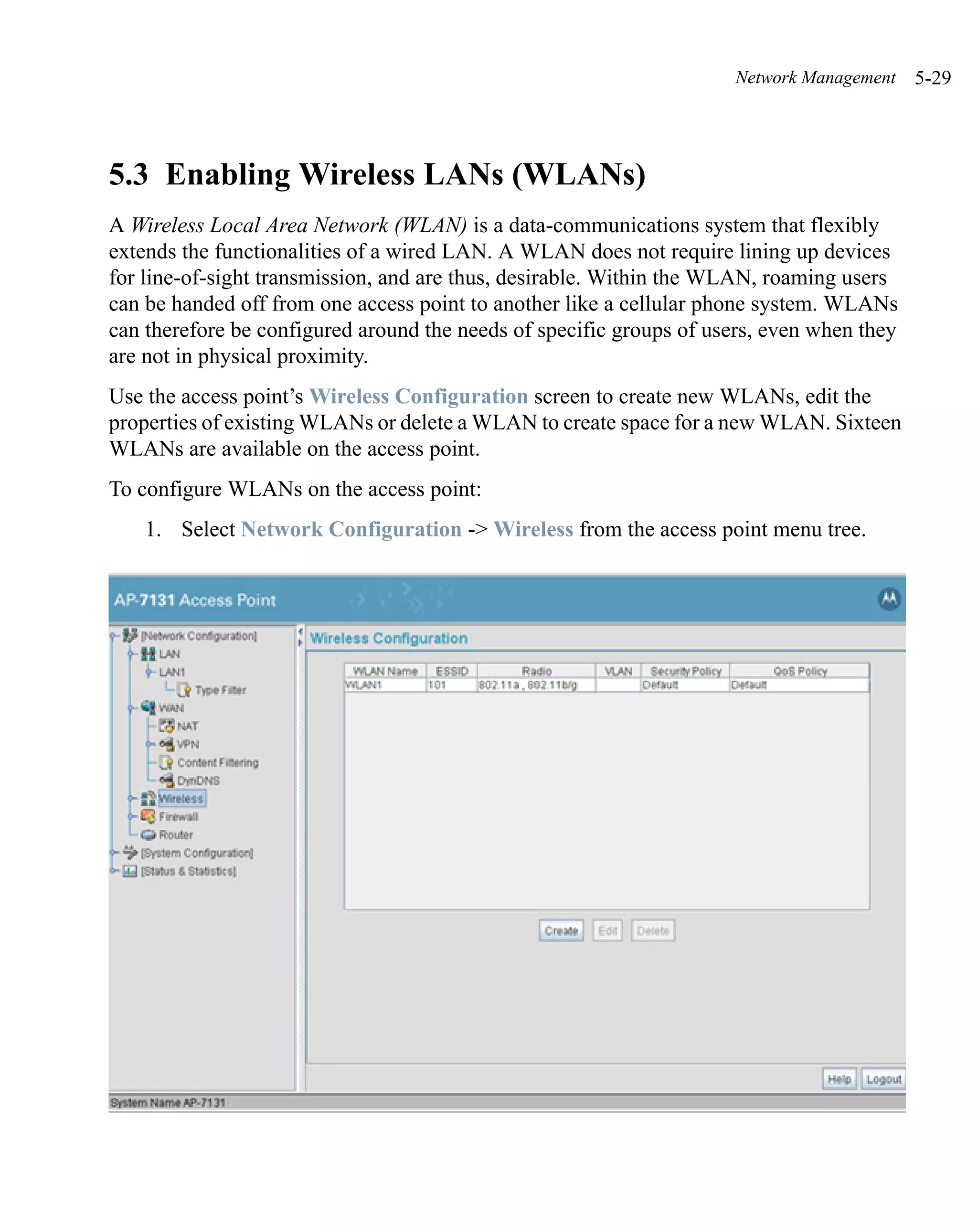
              server                server checkbox to enable the server to listen for incoming
                                    syslog messages and decode the messages into a log for
                                    viewing.
              Syslog server IP      If the Enable logging to an external syslog server
              address               checkbox is selected, the numerical (non DNS name) IP
                                    address of an external syslog server is required in order to
                                    route the syslog events to that destination.
System Configuration   4-47


3. Click Apply to save any changes to the Logging Configuration screen. Navigating
   away from the screen without clicking the Apply button results in all changes to the
   screen being lost.
4. Click Undo Changes (if necessary) to undo any changes made. Undo Changes
   reverts the settings displayed on the Logging Configuration screen to the last saved
   configuration.
5. Click Logout to securely exit the access point Access Point applet. A prompt
   displays confirming the logout before the applet is closed.
4-48   AP-7181 Access Point Product Reference Guide


       4.8 Importing/Exporting Configurations
       All of the configuration settings for an access point can be obtained from another access
       point in the form of a text file. Additionally, all of the access point’s settings can be
       downloaded to another access point. Use the file-based configuration feature to speed up
       the setup process significantly at sites using multiple access points.
       Another benefit is the opportunity to save the current AP configuration before making
       significant changes or restoring the default configuration. All options on the access point
       are deleted and updated by the imported file. Therefore, the imported configuration is not
       a merge with the configuration of the target access point. The exported file can be edited
       with any document editor if necessary.

                    NOTE Use the System Settings screen as necessary to restore an access
                         point’s default configuration. For more information on restoring
                         configurations, see Configuring System Settings on page 4-3.

       The export function will always export the encrypted Admin User password. The import
       function will import the Admin Password only if the access point is set to factory default.
       If the access point is not configured to factory default settings, the Admin User password
       WILL NOT get imported.

                    NOTE When modifying the text file manually and spaces are used for
                         wireless, security, MU policy names etc., ensure you use “20”
                         between the spaces. For example, “Second20Floor20Lab”. When
                         imported, the name would display as “Second Floor Lab”.
System Configuration   4-49


Use the Config Import/Export screen to configure an import or export operation for
access point configuration settings.


To create an importable/exportable access point configuration file:
    1. Select System Configuration - > Config Import/Export from the access point
       menu tree.


    2. Configure the FTP and TFTP Import/Export fields to import/export
       configuration settings.

        Filename           Specify the name of the configuration file to be written to the
                           FTP or TFTP server.
        Server IP          Enter the numerical (non DNS name) IP address of the
                           destination FTP or TFTP server where the configuration file
                           is imported or exported.
4-50   AP-7181 Access Point Product Reference Guide


              Filepath (optional)   Defines the optional path name used to import/export the
                                    target configuration file.
              FTP                   Select the FTP radio button if using an FTP server to import
                                    or export the configuration.
              TFTP                  Select the TFTP radio button if using an FTP server to
                                    import or export the configuration.
              Username              Specify a username to be used when logging in to the FTP
                                    server. A username is not required for TFTP server logins.
              Password              Define a password allowing access to the FTP server for the
                                    import or export operation.
              Import                Click the Import Configuration button to import the
              Configuration         configuration file from the server with the assigned filename
                                    and login information. The system displays a confirmation
                                    window indicating the administrator must log out of the
                                    access point after the operation completes for the changes to
                                    take effect. Click Yes to continue the operation. Click No to
                                    cancel the configuration file import.
              Export                Click the Export Configuration button to export the
              Configuration         configuration file from the server with the assigned filename
                                    and login information. If the IP mode is set to DHCP Client,
                                    IP address information is not exported (true for LAN1,
                                    LAN2 and the WAN port). For LAN1 and LAN2, IP address
                                    information is only exported when the IP mode is set to
                                    either static or DHCP Server. For the WAN port, IP address
                                    information is only exported when the This interface is a
                                    DHCP Client checkbox is not selected. For more
                                    information on these settings, see Configuring the LAN
                                    Interface on page 5-2 and Configuring WAN Settings on
                                    page 5-17.


          3. Configure the HTTP Import/Export field to import/export access point
             configuration settings using HTTP.

                    CAUTIONFor HTTP downloads (exports) to be successful, pop-up
          !                messages must be disabled.
System Configuration   4-51


   Upload and Apply A Click the Upload and Apply A Configuration File button
   Configuration File to upload a configuration file to this access point using
                      HTTP.
   Download             Click the Download Configuration File button to
   Configuration File   download this access point’s configuration file using HTTP.

4. Refer to the Status field to assess the completion of the import/export operation.
   Status               After executing an operation (by clicking any of the buttons
                        in the window), check the Status field for a progress
                        indicator and messages about the success or errors in
                        executing the Import/Export operation. Possible status
                        messages include:

                        ambiguous input before marker: line <number >
                        unknown input before marker: line <number>
                        ignored input after marker: line <number>
                        additional input required after marker: line <number>
                        invalid input length: line <number>
                        error reading input: line <number>
                        import file from incompatible hardware type: line
                        <number>
                        [0] Import operation done
                        [1] Export operation done
                        [2] Import operation failed
                        [3] Export operation failed
                        [4] File transfer in progress
                        [5] File transfer failed
                        [6] File transfer done
                        Auto cfg update: Error in applying config
                        Auto cfg update: Error in getting config file
                        Auto cfg update: Aborting due to fw update failure
                        The <number> value appearing at the end of some messages
                        relates to the line of the configuration file where an error or
                        ambiguous input was detected.
4-52   AP-7181 Access Point Product Reference Guide


                    CAUTIONIf errors occur when importing the configuration file, a parsing
           !               message displays defining the line number where the error
                           occurred. The configuration is still imported, except for the
                           error. Consequently, it is possible to import an invalid
                           configuration. The user is required to fix the problem and
                           repeat the import operation until an error-free import takes
                           place.

                    NOTE Motorola recommends importing configuration files using the
                         CLI. If errors occur during the import process, they display all at
                         once and are easier to troubleshoot. The access point GUI displays
                         errors one at a time, and troubleshooting can be a more time-
                         consuming process.

                    NOTE When importing the configuration, a xxxxxbytes loaded status
                         message indicates the file was downloaded successfully. An
                         Incompatible Hardware Type Error message indicates the
                         configuration was not applied due to a hardware compatibility
                         issue between the importing and exporting devices.

           5. Click Apply to save the filename and Server IP information. The Apply button
              does not execute the import or export operation, only saves the settings entered.
           6. Click Undo Changes (if necessary) to undo any changes made. Undo Changes
              reverts the settings displayed on Config Import/Export screen to the last saved
              configuration.
           7. Click Logout to securely exit the access point Motorola Access Point applet. A
              prompt displays confirming the logout before the applet is closed.


       4.9 Updating Device Firmware
       Motorola periodically releases updated versions of the access point device firmware to the
       Motorola Web site. If the access point firmware version displayed on the System Settings
       page (see Configuring System Settings on page 4-3) is older than the version on the Web
       site, Motorola recommends updating the access point to the latest firmware version for full
       feature functionality.
       The access point’s automatic update feature updates the access point’s firmware and
       configuration file automatically when the access point is reset or when the access point
       initiates a DHCP request.
System Configuration   4-53


The firmware is automatically updated each time firmware versions are found to be
different between what is running on the access point and the firmware file located on the
server. The configuration file is automatically updated when the configuration file name on
the server is different than the name of the file previously loaded on the access point or
when the file version (on the server) is different than the version currently in use on the
access point.
Additionally, the configuration version can be manually changed in the text file to cause the
configuration to be applied when required. The parameter name within the configuration
file is
“cfg-version-1.1-01.” The access point only checks the two characters after the third
hyphen (01) when making a comparison. Change the last two characters to update the
access point’s configuration. The two characters can be alpha-numeric.
Upgrading from a legacy to a new firmware version is a two step process requiring the same
upgrade procedure to be repeated twice. The first upgrade will result in a bootloader
change, and the second upgrade will result in the actual firmware update. For subsequent
upgrades, a single download will suffice. Using Auto Update, the access point will
automatically update itself twice when upgrading.
Upgrading to a new access point firmware baseline does not retain the configuration of the
previous (lower version) firmware. Motorola recommends users export their 1.0
configuration for backup purposes prior to upgrading.
When downloading to a lower firmware version, all configuration settings are lost and the
access point returns to factory default settings of the lower version.

             CAUTIONIf downgrading firmware from to a lower version, the access
    !               point automatically reverts to default settings of the lower
                    version, regardless of whether you are downloading the
                    firmware manually or using the automatic download feature.
                    The automatic feature allows the user to download the
                    configuration file at the same time, but since the firmware
                    reverts to the default settings of the lower version, the
                    configuration file is ignored.

For detailed update scenarios involving both a Windows DHCP and a Linux BootP server
configuration, see Configuring Automatic Updates using a DHCP or Linux BootP Server
on page B-1.
4-54   AP-7181 Access Point Product Reference Guide


                    CAUTIONLoaded and signed CA certificates will be lost when changing
           !               the access point’s firmware version using either the GUI or
                           CLI. After a certificate has been successfully loaded, export it
                           to a secure location to ensure its availability after a firmware
                           update.

                                If restoring the access point’s factory default firmware, you
                                must export the certificate file BEFORE restoring the access
                                point’s factory default configuration. Import the file back after
                                the updated firmware is installed. For information on using the
                                access point CLI to import and export the access point’s
                                configuration, see the AP 7181 Command Line Interface
                                Guide.

       If a firmware update is required, use the Firmware Update screen to specify a filename
       and define a file location for updating the firmware.

                    NOTE The firmware file must be available from an FTP or TFTP site to
                         perform the update.


                    CAUTIONMake sure a copy of the access point’s configuration is
           !               exported before updating the firmware.


       To conduct a firmware update on the access point:
          1. Export the access point current configuration settings before updating the firmware
             to have the most recent settings available after the firmware is updated.
               Refer to Importing/Exporting Configurations on page 4-48 for instructions on
               exporting the access point’s current configuration to have it available after the
               firmware is updated.
          2. Select System Configuration - > Firmware Update from the access point menu
             tree.
System Configuration   4-55


3. Configure the DHCP Options checkboxes to enable/disable automatic firmware
   and/or configuration file updates.
   DHCP options are used for out-of-the-box rapid deployment for Motorola wireless
   products. The following are the two options available on the access point:
   • Enable Automatic Firmware Update
   • Enable Automatic Configuration Update
   Both DHCP options are enabled by default.
   These options can be used to update newer firmware and configuration files on the
   access point.
   The update is conducted over the LAN or WAN port depending on which server
   responds first to the access point’s request for an automatic update.
4-56   AP-7181 Access Point Product Reference Guide


              Enable Automatic      Enable this checkbox to allow an automatic firmware update
              Firmware Update       when firmware versions are found to be different between
                                    what is running on the access point and the firmware that
                                    resides on the server. A firmware update will only occur if
                                    the access point is reset or when the access point does a
                                    DHCP request.
                                    This feature is used in conjunction with DHCP/BootP
                                    options configured on a DHCP or BootP server. For more
                                    information, see Third Party Licensing on page B-1.
                                    If this checkbox is not enabled, the firmware update is
                                    required to be conducted manually.
              Enable Automatic      Select this checkbox to allow an automatic configuration
              Configuration         update when the configuration filenames are found to be
              Update                different between the filename loaded on the access point
                                    and the configuration filename that resides on the server or
                                    when the configuration file versions are found to be different
                                    between the configuration file version loaded on the access
                                    point and the configuration file that resides on server. A
                                    configuration update will only occur if the access point is
                                    reset or when the access point does a DHCP request.
                                    This feature is used in conjunction with DHCP/BootP
                                    options configured on a DHCP or BootP server. For more
                                    information, see Third Party Licensing on page B-1.
                                    If this checkbox is not enabled, the configuration update is
                                    required to be done manually.


                    CAUTIONIf using a Linux server configured to support the BootP “bf”
          !                option, an automatic firmware update is not be triggered unless
                           both the Enable Automatic Firmware Update and Enable
                           Automatic Configuration Update options are selected. If the
                           Configuration Update option is disabled, the access point will
                           not download the configuration file. Without the configuration
                           file, the access point cannot parse for the firmware file name
                           required to trigger the firmware update.

               If updating the access point manually, configure the Update Firmware fields as
               required to set a filename and target firmware file upload location for firmware
               updates.
System Configuration   4-57


   4. Specify the name of the target firmware file within the Filename field.
   5. If the target firmware file resides within a directory, specify a complete path for the
      file within the Filepath(optional) field.
   6. Enter an IP address for the FTP or TFTP server used for the update. Only numerical
      IP address names are supported, no DNS can be used.
   7. Select FTP or TFTP to define whether the firmware file resides on a FTP or TFTP
      server.
   8. Set the following FTP or TFTP parameters:
         •Username - Specify a username for the FTP server login.
         • Password - Specify a password for FTP server login. Default is motorola. A
           blank password is not supported.

            NOTE Click Apply to save the settings before performing the firmware
                 update. The user is not able to navigate the access point user
                 interface while the firmware update is in process.

A Firmware Update warning dialog will display to note that a hardware reset is
required during the firmware update process and that the unit should not be powered
off during the upgrade process.


In some cases, the upgrade process may require longer than 3 to 4 minutes to
complete.
4-58   AP-7181 Access Point Product Reference Guide


                    CAUTION DO NOT interrupt the Firmware Update process by any
          !                method, including a Power Cycle or Reset of the device.
                           Update using FTP can take up to 25 seconds to initialize.
                           Update using TFTP can take even longer to initialize. Once the
                           device reboots to begin installing the firmware, it will take
                           from 6 to 8 minutes before the device will respond to a ping.


          9. If TFTP is selected, set the TFTP Port. In the current firmware version (3.2.1.0-
              43MR), setting a value other than the default 69 requires disabling the firewall
              using Network Configuration, Firewall dialog).
          10. Select the Reboot After Download checkbox if you wish to reboot the device
              immediately after completion of the firmware upgrade. If the checkbox is not
              selected, you will need to manually reboot the device.
          11. Click the Perform Update button to initiate the update.
                    NOTE The access point must complete the reboot process to successfully
                         update the device firmware, regardless of whether the reboot is
                         conducted using the GUI or CLI interfaces.

          12. If the Reboot After Download checkbox is clear, the number of bytes transferred
              will be displayed in the Status field.The Status will be displayed as Complete after
              a successful download or Failed if the download operation was not successful.
          13. If the Reboot After Download checkbox was is selected, the Firmware Update
              screen will be closed just before the update process is initiated. After the AP has
              been rebooted, return to the Firmware Update screen. Check the Status field to
              verify whether the firmware update was successful. If an error occurs, one of the
              following error messages will display:
               FAIL: auto fw update check
               FAIL: network activity time out
               FAIL: firmware check
               FAIL: exceed memory limit
               FAIL: authentication
               FAIL: connection time out
               FAIL: control channel error
System Configuration   4-59


    FAIL: data channel error
    FAIL: channel closed unexpected
    FAIL: establish data channel
    FAIL: accept data channel
    FAIL: user interrupted
    FAIL: no valid interface found
    FAIL: conflict ip address
    FAIL: command exchange time out
    FAIL: invalid subnet number

14. Confirm the access point configuration is the same as it was before the firmware
    update. If they are not, restore the settings. Refer to Importing/Exporting
    Configurations on page 4-48 for instructions on exporting the configuration back
    to the access point.
15. Click Apply to save the filename and filepath information entered into the
    Firmware Update screen. The Apply button does not execute the firmware, only
    saves the update settings entered.
16. Click Undo Changes (if necessary) to undo any changes made. Undo Changes
    reverts the settings displayed on Firmware Update screen to the last saved
    configuration.
17. Click Logout to securely exit the access point Access Point applet. A prompt
    displays confirming the logout before the applet is closed.
4-60   AP-7181 Access Point Product Reference Guide
5
                                       Network Management
Refer to the following for network management configuration activities supported by the
access point user interface:
    •   Configuring the LAN Interface
    •   Configuring WAN Settings
    •   Enabling Wireless LANs (WLANs)
    •   Configuring MeshConnex Settings
    •   Configuring Router Settings
5-2   AP-7181 Access Point Product Reference Guide


      5.1 Configuring the LAN Interface
      The access point has two physical Ethernet port supporting two unique LAN interfaces. The
      access point LAN port has its own MAC address. The LAN port MAC address is always
      the value of the access point WAN port MAC address plus 1. The LAN and WAN port MAC
      addresses can be located within the LAN and WAN Stats screens.
      For information on locating the access point’s MAC addresses, see Viewing WAN Statistics
      on page 7-2 and Viewing LAN Statistics on page 7-7.
      Use the LAN Configuration screen to enable one (or both) of the access point’s LAN
      interfaces, assign them names, define which LAN is currently active on the access point
      Ethernet port and assign a timeout value to disable the LAN connection if no data traffic is
      detected within a defined interval.
      To configure the access point LAN interface:
          1. Select Network Configuration -> LAN from the access point menu tree.
Network Management   5-3


2. Configure the LAN Settings field to enable the access point LAN1 and/or LAN2
   interface, assign a timeout value, enable 802.1q trunking, configure WLAN
   mapping and enable 802.1x port authentication.

   Enable             Select the LAN1 and/or LAN2 checkbox to allow the
                      forwarding of data traffic over the specified LAN
                      connection. The LAN1 connection is enabled by default, but
                      both LAN interfaces can be enabled simultaneously. The
                      LAN2 setting is disabled by default.
   LAN Name           Use the LAN Name field to modify the existing LAN name.
                      LAN1 and LAN2 are the default names assigned to the
                      LANs until modified by the user.
   GE1/GE2            The GE1 and GE2 radio buttons allow you to select one of
                      the two available LANs each of the ports will be assigned to.
                      The GE2 port is available to be mapped to as LAN1 or
                      LAN2 only after the user configures GE2 port to be a LAN
                      port.
                      Both LANs can be active at any given time, but only one can
                      transmit over the access point’s physical LAN connection,
                      thus the selected LAN has priority.
   Enable 802.1q      Select the Enable 802.1q Trunking checkbox to enable the
   Trunking           LAN to conduct VLAN tagging. If selected, click the
                      WLAN Mapping button to configure mappings between
                      individual WLANs and LANs. If enabled, the access point
                      is required to be connected to a trunked port.
   VLAN Name          Click the VLAN Name button to launch the VLAN Name
                      screen to create VLANs and assign them VLAN IDs. For
                      more information, see Configuring VLAN Support on page
                      5-5.
   WLAN Mapping       Click the WLAN Mapping button to launch the VLAN
                      Configuration screen to map existing WLANs to one of the
                      two LANs and define the WLAN’s VLAN membership (up
                      to 16 mappings are possible per access point). For more
                      information, see Configuring VLAN Support on page 5-5.

3. Refer to the LAN Ethernet Timeout field to define how LAN Ethernet inactivity
   is processed by the access point.
5-4   AP-7181 Access Point Product Reference Guide


              Use the Ethernet Port Timeout drop-down menu to define how the access point
              interprets inactivity for the LAN assigned to the Ethernet port. When Enabled is
              selected, the access point uses the value defined in the Sec. box (default is 30
              seconds). Selecting Disabled allows the LAN to use the Ethernet port for an
              indefinite timeout period.
         4. Refer to the 802.1x Port Authentication field if using port authentication over the
            access point’s LAN port.
              The access point only supports 802.1x authentication over its LAN port. The access
              point behaves as an 802.1x supplicant to authenticate to a server on the network. If
              using 802.1x authentication, enter the authentication server user name and
              password. The default password is “motorola.” For information on enabling and
              configuring authentication schemes on the access point, see Enabling
              Authentication and Encryption Schemes on page 6-5.
         5. Use the Port Settings field to define how the access point manages throughput
            over the LAN port.
             Auto Negotiation      Select the Auto Negotiation checkbox to enable the access
                                   point to automatically exchange information (over its LAN
                                   port) about data transmission speed and duplex capabilities.
                                   Auto negotiation is helpful when using the access point in an
                                   environment where different devices are connected and
                                   disconnected on a regular basis.
                                   Selecting Auto Negotiate disables the Mbps and duplex
                                   checkbox options.
             100 Mbps              Select this option to establish a 100 Mbps data transfer rate
                                   for the selected half duplex or full duplex transmission over
                                   the access point’s LAN port. This option is not available if
                                   Auto Negotiation is selected.
             10 Mbps               Select this option to establish a 10 Mbps data transfer rate for
                                   the selected half duplex or full duplex transmission over the
                                   access point’s LAN port. This option is not available if Auto
                                   Negotiation is selected.
Network Management   5-5


        half duplex         Select this option to transmit data to and from the access
                            point, but not at the same time. Using a half duplex
                            transmission, the access point can send data over its LAN
                            port then immediately receive data from the same direction
                            in which the data was transmitted. Like a full-duplex
                            transmission, a half-duplex transmission can carry data in
                            both directions, just not at the same time.
        full duplex         Select this option to transmit data to and from the access
                            point at the same time. Using full duplex, the access point
                            can send data over its LAN port while receiving data as well.

    6. Click Apply to save any changes to the LAN Configuration screen. Navigating
       away from the screen without clicking the Apply button results in all changes to the
       screen being lost if the prompts are ignored.
    7. Click Undo Changes (if necessary) to undo any changes made. Undo Changes
       reverts the settings displayed on the LAN configuration screen to the last saved
       configuration.
    8. Click Logout to securely exit the access point Access Point applet. A prompt
       displays confirming the logout before the applet is closed.

5.1.1 Configuring VLAN Support
A Virtual Local Area Network (VLAN) is a means to electronically separate data on the
same access point from a single broadcast domain into separate broadcast domains. The
access point can group devices on one or more WLANs so that they can communicate as if
they were attached to the same wire, when in fact they are located on a different LAN
segment. Because VLANs are based on logical instead of physical connections, they are
extremely flexible. By using a VLAN, you can group by logical function instead of physical
location. A maximum of 16 VLANs can be supported on the access point. An administrator
can map 16 WLANs to 16 VLANs and enable or disable dynamic VLAN assignment.
VLANs enable organizations to share network resources in various network segments
within large areas (airports, shopping malls, etc.). A VLAN is a group of clients with a
common set of requirements independent of their physical location. VLANs have the same
attributes as physical LANs, but they enable system administrators to group MUs even
when they are not members of the same network segment.
5-6   AP-7181 Access Point Product Reference Guide


                   NOTE A WLAN supporting a mesh network does not need to be assigned
                        to a particular VLAN, as all the traffic proliferating the mesh
                        network is already trunked. However, if MUs are to be connected
                        to the Mesh WLAN, the WLAN will need to be tied to a VLAN.

      The access point assignment of VLANs can be implemented using Static or Dynamic
      assignments (often referred to as memberships) for individual WLANs. Both methods have
      their advantages and disadvantages. Static VLAN membership is perhaps the most widely
      used method because of the relatively small administration overhead and security it
      provides. With Static VLANs, you manually assign individual WLANs to individual
      VLANs.
      Although static VLANs are the most common form of VLAN assignments, dynamic
      VLAN assignment is possible per WLAN. Configuring dynamic VLANs entail the access
      point sending a DHCP request for device information (such as an IP address). Additional
      information (such as device MAC address information) is sent to the access point. The
      access point sends this MAC address to a host housing a copy of the Dynamic VLAN
      database. This database houses the records of MAC addresses and VLAN assignments. The
      VLAN database looks up the MAC to determine what VLAN is assigned to it. If it is not in
      the database, it simply uses a default VLAN assignment. The VLAN assignment is sent to
      the access point. The access point then maps the target WLAN for the assigned VLAN and
      traffic passes normally, allowing for the completion of the DHCP request and further
      traffic.
      To create new VLANs or edit the properties of an existing VLAN:
          1. Select Network Configuration -> LAN from the access point menu tree.
          2. Ensure the Enable 802.1q Trunking button is selected from within the LAN
             Setting field.
              Trunk links are required to pass VLAN information between destinations. A trunk
              port is by default a member of all the VLANs existing on the access point and carry
              traffic for all those VLANs. Trunking is a function that must be enabled on both
              sides of a link.
Network Management    5-7


3. Select the VLAN Name button.


   The VLAN name screen displays. The first time the screen is launched a default
   VLAN name of 1 and a default VLAN ID of 1 display. The VLAN name is auto-
   generated once the user assigns a VLAN ID. However, the user has the option of
   re-assigning a name to the VLAN using New VLAN and Edit VLAN screens.
   To create a new VLAN, click the Add button, to edit the properties of an existing
   VLAN, click the Edit button.
5-8   AP-7181 Access Point Product Reference Guide


         4. Assign a unique VLAN ID (from 1 to 4095) to each VLAN added or modified.
              The VLAN ID associates a frame with a specific VLAN and provides the
              information the access point needs to process the frame across the network.
              Therefore, it may be practical to assign a name to a VLAN representative or the
              area or type of network traffic it represents.
              A business may have offices in different locations and want to extend an internal
              LAN between the locations. An access point managed infrastructure could provide
              this connectivity, but it requires VLAN numbering be managed carefully to avoid
              conflicts between two VLANs with the same ID.
         5. Define a 32 character maximum VLAN Name.
              Enter a unique name that identifies members of the VLAN. Motorola recommends
              selecting the name carefully, as the VLAN name should signify a group of clients
              with a common set of requirements independent of their physical location.
         6. Click Apply to save the changes to the new or modified VLAN.
         7. From the LAN Configuration screen, click the WLAN Mapping button. The
            Mapping Configuration screen displays.
Network Management     5-9


8. Enter a Management VLAN Tag for LAN1 and LAN2.
   The Management VLAN uses a default tag value of 1. The Management VLAN is
   used to distinguish VLAN traffic flows for the LAN. The trunk port marks the
   frames with special tags as they pass between the access point and its destination,
   these tags help distinguish data traffic.
   Authentication servers (such as RADIUS and Kerberos) must be on the same
   Management VLAN. Additionally, DHCP and BOOTP servers must be on the
   same Management VLAN as well.
9. Define a Native VLAN Tag for LAN1 and LAN2.
   A trunk port configured with 802.1Q tagging can receive both tagged and untagged
   traffic. By default, the access point forwards untagged traffic with the native
   VLAN configured for the port. The Native VLAN is VLAN 1 by default. Motorola
   suggests leaving the Native VLAN set to 1 as other layer 2 devices also have their
   Native VLAN set to 1.
10. Use the LAN drop-down menu to map one of the two LANs to the WLAN listed
    to the left. With this assignment, the WLAN uses this assigned LAN interface.
11. Select the Dynamic checkboxes (under the Mode column) to configure the VLAN
    mapping as a dynamic VLAN.
   Using Dynamic VLAN assignments, a VMPS (VLAN Management Policy Server)
   dynamically assigns VLAN ports. The access point uses a separate server as a
   VMPS server. When a frame arrives on the access point, it queries the VMPS for
   the VLAN assignment based on the source MAC address of the arriving frame.
   If statically mapping VLANs, leave the Dynamic checkbox specific to the target
   WLAN and its intended VLAN unselected. The administrator is then required to
   configure VLAN memberships manually.
   The Dynamic checkbox is enabled only when a WLAN is having EAP configured.
   Otherwise, the checkbox is disabled.
12. Use the VLAN drop-down menu to select the name of the target VLAN to map to
    the WLAN listed on the left-hand side of the screen.
   Motorola recommends mapping VLANs strategically in order to keep VLANs tied
   to the discipline they most closely match. For example, If WLAN1 is comprised of
   MUs supporting the sales area, then WLAN1 should be mapped to sales if a sales
   VLAN has been already been created.
5-10   AP-7181 Access Point Product Reference Guide


           13. Click Apply to return to the VLAN Name screen. Click OK to return to the LAN
               screen. Once at the LAN screen, click Apply to re-apply your changes.

       5.1.2 Configuring LAN1 and LAN2 Settings
       Both LAN1 and LAN2 have separate sub-screens to configure the DHCP settings used by
       the LAN1 and LAN2 interfaces. Within each LAN screen is a button to access a sub-screen
       to configure advanced DHCP settings for that LAN. For more information, see Configuring
       Advanced DHCP Server Settings on page 5-13. Additionally, LAN1 and LAN2 each have
       separate Type Filter submenu items used to prevent specific (an potentially unneccesary)
       frames from being processed, for more information, see Setting the Type Filter
       Configuration on page 5-15.
       To configure unique settings for either LAN1 or LAN2:
           1. Select Network Configuration -> LAN -> LAN1 (or LAN2) from the access
              point menu tree.
Network Management   5-11


2. Configure the DHCP Configuration field to define the DHCP settings used for the
   LAN.

        NOTE Motorola recommends the WAN and LAN ports should not both
             be configured as DHCP clients.


   This interface is a   Select this button to enable DHCP to set network address
   DHCP Client           information via this LAN1 or LAN2 connection. This is
                         recommended if the access point resides within a large
                         corporate network or the Internet Service Provider (ISP)
                         uses DHCP. This setting is enabled for LAN1 by default.
                         DHCP is a protocol that includes mechanisms for IP address
                         allocation and delivery of host-specific configuration
                         parameters from a DHCP server to a host. If DHCP Client is
                         selected, the first DHCP or BOOTP server to respond sets
                         the IP address and network address values since DHCP and
                         BOOTP are interoperable.
   This interface is a   Select this button to enable BOOTP to set access point
   BOOTP Client          network address information via this LAN1 or LAN2
                         connection.
                         When selected, only BOOTP responses are accepted by the
                         access point. If both DHCP and BOOTP services are
                         required, do not select BOOTP Client.
   This interface uses   Select the This interface uses static IP Address button, and
   static IP Address     manually enter static network address information in the
                         areas provided.
   This interface is a   The access point can be configured to function as a DHCP
   DHCP Server           server over the LAN1 or LAN2 connection. Select the This
                         interface is a DHCP Server button and manually enter
                         static network address information in the areas provided.
5-12   AP-7181 Access Point Product Reference Guide


              Address Assignment Use the address assignment parameter to specify a range of
              Range              numerical (non DNS name) IP addresses reserved for
                                 mapping client MAC addresses to IP addresses. If a
                                 manually (static) mapped IP address is within the IP address
                                 range specified, that IP address could still be assigned to
                                 another client. To avoid this, ensure all statically mapped IP
                                 addresses are outside of the IP address range assigned to the
                                 DHCP server.
              Advanced DHCP         Click the Advanced DHCP Server button to display a
              Server                screen used for generating a list of static MAC to IP address
                                    mappings for reserved clients. A separate screen exists for
                                    each of the LANs. For more information, see Configuring
                                    Advanced DHCP Server Settings on page 5-13.
              IP Address            The network-assigned numerical (non DNS name) IP
                                    address of the access point.
              Network Mask          The first two sets of numbers specify the network domain,
                                    the next set specifies the subset of hosts within a larger
                                    network. These values help divide a network into
                                    subnetworks and simplify routing and data transmission.
                                    The subnet mask defines the size of the subnet.
              Default Gateway       The Default Gateway parameter defines the numerical (non
                                    DNS name) IP address of a router the access point uses on
                                    the Ethernet as its default gateway.
              Domain Name           Enter the name assigned to the primary DNS server.
              Primary DNS           Enter the Primary DNS numerical (non DNS name) IP
              Server                address.
              Secondary DNS         Motorola recommends entering the numerical IP address of
              Server                an additional DNS server (if available), used if the primary
                                    DNS server goes down. A maximum of two DNS servers
                                    can be used.
              WINS Server           Enter the numerical (non DNS name) IP address of the
                                    WINS server. WINS is a Microsoft NetBIOS name server.
                                    Using a WINS server eliminates the broadcasts needed to
                                    resolve computer names to IP addresses by providing a
                                    cache or database of translations.
Network Management   5-13


        Mesh STP            Click the Mesh STP Configuration button to define bridge
        Configuration       settings for this specific LAN. Each of the access point’s two
                            LANs can have a separate mesh configuration. As the
                            Spanning Tree Protocol (STP) mentions, each mesh network
                            maintains hello, forward delay and max age timers. These
                            settings can be used as is using the current default settings,
                            or be modified. However, if these settings are modified, they
                            need to be configured for the LAN connecting to the mesh
                            network WLAN.
                            For information on mesh networking capabilities, see
                            Configuring Mesh Networking on page 9-1. If new to mesh
                            networking and in need of an overview, see Mesh
                            Networking Overview on page 9-1.

    3. Click Apply to save any changes to the LAN1 or LAN2 screen. Navigating away
       from the screen without clicking the Apply button results in all changes to the
       screen being lost if the prompts are ignored.
    4. Click Undo Changes (if necessary) to undo any changes made. Undo Changes
       reverts the settings displayed on the LAN1 or LAN2 screen to the last saved
       configuration.
    5. Click Logout to securely exit the Access Point applet. A prompt displays
       confirming the logout before the applet is closed.

5.1.2.1 Configuring Advanced DHCP Server Settings
Use the Advanced DHCP Server screen to specify (reserve) static (or fixed) IP addresses
for specific devices. Every wireless, 802.11x-standard device has a unique Media Access
Control (MAC) address. This address is the device's hard-coded hardware number (shown
on the bottom or back). An example of a MAC address is 00:A0:F8:45:9B:07.
The DHCP server can grant an IP address for as long as it remains in active use. The lease
time is the number of seconds an IP address is reserved for re-connection after its last use.
Using very short leases, DHCP can dynamically reconfigure networks in which there are
more computers than available IP addresses. This is useful, for example, in education and
customer environments where MU users change frequently. Use longer leases if there are
fewer users.
To generate a list of client MAC address to IP address mappings for the access point:
5-14   AP-7181 Access Point Product Reference Guide


          1. Select Network Configuration -> LAN -> LAN1 (or LAN2) from the access
             point menu tree.
          2. Click the Advanced DHCP Server button from within the LAN1 or LAN2 screen.


          3. Specify a lease period in seconds for available IP addresses using the DHCP Lease
             Time (Seconds) parameter. An IP address is reserved for re-connection for the
             length of time you specify. The default interval is 86400 seconds.
          4. Click the Add button to create a new table entry within the Reserved Clients field.
               If a statically mapped IP address is within the IP address range in use by the DHCP
               server, that IP address may still be assigned to another client. To avoid this, ensure
               all statically mapped IP addresses are outside of the IP address range assigned to
               the DHCP server.
               If multiple entries exist within the Reserved Clients field, use the scroll bar to the
               right of the window to navigate.
          5. Click the Del (delete) button to remove a selected table entry.
Network Management   5-15


    6. Click OK to return to the LAN1 or LAN2 page, where the updated settings within
       the Advanced DHCP Server screen can be saved by clicking the Apply button.
    7. Click Cancel to undo any changes made. Undo Changes reverts the settings
       displayed to the last saved configuration.

5.1.2.2 Setting the Type Filter Configuration
Each access point LAN (either LAN1 or LAN2) can keep a list of frame types that it
forwards or discards. The Type Filtering feature prevents specific (and potentially
unnecessary) frames from being processed by the access point in order to improve
throughput. These include certain broadcast frames from devices that consume bandwidth,
but are unnecessary to access point operations.
Use the Ethernet Type Filter Configuration screen to build a list of filter types and
configure them as either allowed or denied for use with the this particular LAN.
To configure type filtering on the access point:
    1. Select Network Configuration-> LAN -> LAN1 (or LAN2)-> Type Filter from
       the access point menu tree.
        The Ethernet Type Filter Configuration screen displays for the LAN. No
        Ethernet types are displayed (by default) when the screen is first launched.
5-16   AP-7181 Access Point Product Reference Guide


          2. Use the all ethernet types, except drop-down menu to designate whether the
             Ethernet Types defined for the LAN are allowed or denied for use by the access
             point.
          3. To add an Ethernet type, click the Add button.
               The Add Ethernet Type screen displays. Use this screen to add one type filter
               option at a time, for a list of up to 16 entries.


               Packet types supported for the type filtering function include 16-bit DIX Ethernet
               types as well as Motorola proprietary types. Select an Ethernet type from the drop
               down menu, or enter the Ethernet type’s hexadecimal value. See your System
               Administrator if unsure of the implication of adding or omitting a type from the list
               for either LAN1 or LAN2.
          4. To optionally delete a type filtering selection from the list, highlight the packet type
             and click the Delete button.
          5. Click Apply to save any changes to the LAN1 or LAN2 Ethernet Type Filter
             Configuration screen. Navigating away from the screen without clicking Apply
             results in all changes to the screens being lost.
          6. Click Cancel to securely exit the LAN1 or LAN2 Ethernet Type Filter
             Configuration screen without saving your changes.
          7. Click Logout to securely exit the Access Point applet. A prompt displays
             confirming the logout before the applet is closed.
Network Management    5-17


5.2 Configuring WAN Settings
A Wide Area Network (WAN) is a widely dispersed telecommunications network. The
access point includes one WAN port. The access point WAN port has its own MAC address.
In a corporate environment, the WAN port might connect to a larger corporate network. For
a small business, the WAN port might connect to a DSL or cable modem to access the
Internet.
Use the WAN screen to set the WAN IP configuration and Point-to-Point Protocol over
Ethernet (PPPoE) parameters.
To configure WAN settings for the access point:
    1. Select Network Configuration -> WAN from the access point menu tree.


    2. Refer to the WAN IP Configuration field to enable the WAN interface, and set
       network address information for the WAN connection.
5-18   AP-7181 Access Point Product Reference Guide


                    NOTE Motorola recommends that the WAN and LAN ports should not
                         both be configured as DHCP clients.


              Enable WAN            Select the Enable WAN Interface checkbox to enable a
              Interface             connection between the access point and a larger network
                                    or outside world through the WAN port.
                                    Disable this option to effectively isolate the access point’s
                                    WAN. No connections to a larger network or the Internet are
                                    possible. MUs cannot communicate beyond the LAN.
                                    By default, the WAN port is static with an IP address of
                                    10.1.1.1.
              This interface is a   This checkbox enables DHCP for the access point WAN
              DHCP Client           connection. This is useful, if the larger corporate network or
                                    Internet Service Provider (ISP) uses DHCP.
                                    DHCP is a protocol that includes mechanisms for IP address
                                    allocation and delivery of host-specific configuration
                                    parameters from a DHCP server to a host. Some of these
                                    parameters are IP address, network mask, and gateway.
                                    If DHCP client mode is enabled, the other WAN IP
                                    configuration parameters are grayed out.
              IP Address            Specify a numerical (non DNS name) IP address for the
                                    access point’s WAN connection. This address defines the
                                    AP's presence on a larger network or on the Internet.
                                    Obtain a static (dedicated) IP address from the ISP or
                                    network administrator. An IP address uses a series of four
                                    numbers expressed in dot notation, for example,
                                    190.188.12.1.
              Subnet Mask           Specify a subnet mask for the access point’s WAN
                                    connection. This number is available from the ISP for a DSL
                                    or cable-modem connection, or from an administrator if the
                                    access point connects to a larger network.
                                    A subnet mask uses a series of four numbers expressed in dot
                                    notation (similar to an IP address). For example,
                                    255.255.255.0 is a valid subnet mask.
Network Management   5-19


   Default Gateway     Specify the gateway address for the access point’s WAN
                       connection. The ISP or a network administrator provides
                       this address.
   Primary DNS         Specify the address of a primary Domain Name System
   Server              (DNS) server. The ISP or a network administrator provides
                       this address.
                       A DNS server translates a domain name (for example,
                       www.motorola.com) into an IP address that networks can
                       use.
   Secondary DNS       Specify the address of a secondary DNS server if one is
   Server              used. A secondary address is recommended if the primary
                       DNS server goes down.
   More IP Addresses   Click the More IP Addresses button to specify additional
                       static IP addresses for the access point. Additional IP
                       addresses are required when users within the WAN need
                       dedicated IP addresses, or when servers need to be accessed
                       (addressed) by the outside world. The More IP Addresses
                       screen allows the administrator to enter up to seven
                       additional WAN IP addresses for the access point WAN.
                       Only numeric, non-DNS names can be used.
                       If PPP over Ethernet is enabled from within the WAN
                       screen, the VPN WAN IP Configuration portion of the
                       More IP Addresses screen is enabled. Enter the IP address
                       and subnet mask used to provide the PPPoE connection over
                       the access point’s WAN port. Ensure the IP address is a
                       numerical (non DNS) name.
   Refresh             Click the Refresh button to update the network address
                       information displayed within the WAN IP Configuration
                       field.


3. Use the Port Settings field to define how the access point manages throughput
   over the WAN port.
   Role                Use the Role drop-down menu to assign the functional role
                       of the GE2 port. Select none to make the port available for
                       either LAN or WAN, WAN to make the port available for
                       WAN only, or LAN to make the port available for LAN only.
5-20   AP-7181 Access Point Product Reference Guide


              Auto Negotiation      Select the Auto Negotiation checkbox to enable the access
                                    point to automatically exchange information (over its WAN
                                    port) about data transmission speed and duplex capabilities.
                                    Auto negotiation is helpful when using the access point in an
                                    environment where different devices are connected and
                                    disconnected on a regular basis.
                                    Selecting Auto Negotiate disables the Mbps and duplex
                                    checkbox options.
              100 Mbps              Select this option to establish a 100 Mbps data transfer rate
                                    for the selected half duplex or full duplex transmission over
                                    the access point’s WAN port. This option is not available if
                                    Auto Negotiation is selected.
              10 Mbps               Select this option to establish a 10 Mbps data transfer rate for
                                    the selected half duplex or full duplex transmission over the
                                    access point’s WAN port. This option is not available if Auto
                                    Negotiation is selected.
              half duplex           Select this option to transmit data to and from the access
                                    point, but not at the same time. Using a half duplex
                                    transmission, the access point can send data over its WAN
                                    port then immediately receive data from the same direction
                                    in which the data was transmitted. Like a full-duplex
                                    transmission, a half-duplex transmission can carry data in
                                    both directions, just not at the same time.
              full duplex           Select this option to transmit data to and from the access
                                    point at the same time. Using full duplex, the access point
                                    can send data over its WAN port while receiving data as
                                    well.

          4. Configure the PPP over Ethernet field to enable high speed dial-up connections
             to the access point WAN port.


                    NOTE Be aware that the access point can (incorrectly) carry over
                         previously configured static IP information and maintain two
                         connected routes once it gets an IP address from a PPPOE
                         connection.
Network Management   5-21


Enable               Use the checkbox to enable Point-to-Point over Ethernet
                     (PPPoE) for a high-speed connection that supports this
                     protocol. Most DSL providers are currently using or
                     deploying this protocol.
                     PPPoE is a data-link protocol for dialup connections. PPPoE
                     allows a host PC to use a broadband modem (DSL) for
                     access to high-speed data networks.
Username             Specify a username entered when connecting to the ISP.
                     When the Internet session begins, the ISP authenticates the
                     username.
Password             Specify a password entered when connecting to the ISP.
                     When the Internet session starts, the ISP authenticates the
                     password.
PPPoE State          Displays the current connection state of the PPPoE client.
                     When a PPPoE connection is established, the status displays
                     Connected. When no PPPoE connection is active, the status
                     displays Disconnected.
Keep-Alive           Select the Keep-Alive checkbox to maintain the WAN
                     connection indefinitely (no timeout interval). Some ISPs
                     terminate inactive connections. Enabling Keep-Alive keeps
                     the access point’s WAN connection active, even when there
                     is no traffic. If the ISP drops the connection after an idle
                     period, the access point automatically re-establishes the
                     connection to the ISP. Enabling Keep-Alive mode disables
                     (grays out) the Idle Time field.
Idle Time (seconds) Specify an idle time in seconds to limit how long the access
                    point’s WAN connection remains active after outbound and
                    inbound traffic is not detected. The Idle Time field is grayed
                    out if Keep-Alive is enabled.
5-22   AP-7181 Access Point Product Reference Guide


              Authentication Type Use the Authentication Type menu to specify the
                                  authentication protocol(s) for the WAN connection. Choices
                                  include None, PAP or CHAP, PAP, or CHAP.
                                  Password Authentication Protocol (PAP) and Challenge
                                  Handshake Authentication Protocol (CHAP) are competing
                                  identify-verification methods.
                                  PAP sends a username and password over a network to a
                                  server that compares the username and password to a table
                                  of authorized users. If the username and password are
                                  matched in the table, server access is authorized.
                                  WatchGuard products do not support the PAP protocol
                                  because the username and password are sent as clear text
                                  that a hacker can read.
                                  CHAP uses secret information and mathematical algorithms
                                  to send a derived numeric value for login. The login server
                                  knows the secret information and performs the same
                                  mathematical operations to derive a numeric value. If the
                                  results match, server access is authorized. After login, one of
                                  the numbers in the mathematical operation is changed to
                                  secure the connection. This prevents any intruder from
                                  trying to copy a valid authentication session and replaying it
                                  later to log in.

          5. Click Apply to save any changes to the WAN screen. Navigating away from the
             screen without clicking the Apply button results in all changes to the screen being
             lost.
          6. Click Undo Changes (if necessary) to undo any changes made. Undo Changes
             reverts the settings displayed on the WAN screen to the last saved configuration.
          7. Click Logout to securely exit the Access Point applet. A prompt displays
             confirming the logout before the applet is closed.
Network Management   5-23


5.2.1 Configuring Network Address Translation (NAT) Settings
Network Address Translation (NAT) converts an IP address in one network to a different IP
address or set of IP addresses in another network. The access point router maps its local
(inside) network addresses to WAN (outside) IP addresses, and translates the WAN IP
addresses on incoming packets to local IP addresses. NAT is useful because it allows the
authentication of incoming and outgoing requests, and minimizes the number of WAN IP
addresses needed when a range of local IP addresses is mapped to each WAN IP address.
NAT can be applied in one of two ways:
    •   One-to-one mapping with a private side IP address
        The private side IP address can belong to any of the private side subnets.
    •   One-to-many mapping with a configurable range of private side IP addresses
        Ranges can be specified from each of the private side subnets.
To configure IP address mappings for the access point:
    1. Select Network Configuration -> WAN -> NAT from the access point menu tree.
5-24   AP-7181 Access Point Product Reference Guide


          2. Configure the Address Mappings field to generate a WAN IP address, define the
             NAT type and set outbound/inbound NAT mappings.

              WAN IP Address        The WAN IP addresses on the NAT screen are dynamically
                                    generated from address settings applied on the WAN screen.
              NAT Type              Specify the NAT Type as 1 to 1 to map a WAN IP address to
                                    a single host (local) IP address. 1 to 1 mapping is useful
                                    when users need dedicated addresses, and for public-facing
                                    servers connected to the access point.
                                    Set the NAT Type as 1 to Many to map a WAN IP address
                                    to multiple local IP addresses. This displays the mappings
                                    button in the adjacent Outbound Mappings field. This button
                                    displays a screen for mapping the LAN IP addresses that are
                                    associated with each subnet.
                                    Define the NAT Type as none when routable IP addresses
                                    are used on the internal network.
              Outbound              When 1 to 1 NAT is selected, a single IP address can be
              Mappings              entered in the Outbound Mappings area. This address
                                    provides a 1 to 1 mapping of the WAN IP address to the
                                    specified IP address.
                                    When 1 to Many is selected as the NAT Type, the Outbound
                                    Mappings area displays a 1 to Many Mappings button.
                                    Click the button to select the LAN1 or LAN2 IP address
                                    used to set the outbound IP address or select none to exclude
                                    the IP address.
                                    If none is selected as the NAT Type, The Outbound
                                    Mappings area is blank.
              Inbound Mappings      When 1 to 1 or 1 to Many is selected, the Inbound
                                    Mappings option displays a Port Forwarding button.
              Port Forwarding       Click the Port Forwarding button to display a screen of
                                    port forwarding parameters for inbound traffic from the
                                    associated WAN IP address. for information on configuring
                                    port forwarding, see Configuring Port Forwarding on page
                                    5-25.
Network Management     5-25


    3. Click Apply to save any changes to the NAT screen. Navigating away from the
       screen without clicking the Apply button results in all changes to the screens being
       lost.
    4. Click Undo Changes (if necessary) to undo any changes made. Undo Changes
       reverts the settings displayed on the NAT screen to the last saved configuration.
    5. Click Logout to securely exit the Access Point applet. A prompt displays
       confirming the logout before the applet is closed.

5.2.1.1 Configuring Port Forwarding
Use the Port Forwarding screen to configure port forwarding parameters for inbound
traffic from the associated WAN IP address.
To configure port forwarding for the access point:
    1. Select Network Configuration -> WAN -> NAT from the access point menu tree.
    2. Select 1 to 1 or 1 to Many from the NAT Type drop-down menu.
    3. Click on the Port Forwarding button within the Inbound Mappings area.
5-26   AP-7181 Access Point Product Reference Guide


          4. Configure the Port Forwarding screen to modify the following:

              Add                   Click Add to create a local map that includes the name,
                                    transport protocol, start port, end port, IP address and
                                    Translation Port for incoming packets.
              Delete                Click Delete to remove a selected local map entry.
              Name                  Enter a name for the service being forwarded. The name can
                                    be any alphanumeric string and is used for identification of
                                    the service.
              Transport             Use the Transport pull-down menu to specify the transport
                                    protocol used in this service. The choices are ALL, TCP,
                                    UDP, ICMP, AH, ESP, and GRE.
              Start Port and End    Enter the port or ports used by the port forwarding service.
              Port                  To specify a single port, enter the port number in the Start
                                    Port area. To specify a range of ports, use both the Start
                                    Port and End Port options to enter the port numbers. For
                                    example, enter 110 in the Start Port field and 115 in the End
                                    Port field.
              IP Address            Enter the numerical (non DNS name) IP address to which
                                    the specified service is forwarded. This address must be
                                    within the specified NAT range for the associated WAN IP
                                    address.
              Translation Port      Specify the port number used to translate data for the service
                                    being forwarded.
              Forward all          Use the Forward all unspecified ports to checkbox to
              unspecified ports to enable port forwarding for incoming packets with
                                   unspecified ports. In the adjacent area, enter a target
                                   forwarding IP address for incoming packets. This number
                                   must be within the specified NAT range for the associated
                                   WAN IP address.

          5. Click OK to return to the NAT screen. Within the NAT screen, click Apply to save
             any changes made on the Port Forwarding screen.
          6. Click Cancel to undo any changes made on Port Forwarding screen. This reverts
             all settings for the Port Forwarding screen to the last saved configuration.
Network Management    5-27


5.2.2 Configuring Dynamic DNS
The access point supports the Dynamic DNS service. Dynamic DNS (or DynDNS) is a
feature offered by www.dyndns.com which allows the mapping of domain names to
dynamically assigned IP addresses via the WAN port. When the dynamically assigned IP
address of a client changes, the new IP address is sent to the DynDNS service and traffic
for the specified domain(s) is routed to the new IP address.

             NOTE DynDNS supports only the primary WAN IP address.


To configure dynamic DNS for the access point:
    1. Select Network Configuration -> WAN -> DynDNS from the access point menu
       tree.
5-28   AP-7181 Access Point Product Reference Guide


          2. Select the Enable checkbox to allow domain name information to be updated when
             the IP address associated with that domain changes.
               A username, password and hostname must be specified for domain name
               information to be updated.

                    NOTE The username, password and hostname are required to be
                         registered at http://www.dyndns.com.


          3. Enter the DynDNS Username for the account you wish to use for the access point.
          4. Enter the DynDNS Password for the account you wish to use for the access point.
          5. Provide the Hostname for the DynDNS account you wish to use for the access
             point.
          6. Click the Update DynDNS button to update the access point’s current WAN IP
             address with the DynDNS service.

                    NOTE DynDNS supports devices directly connected to the Internet.
                         Having VPN enabled, and the DynDNS Server on the other side of
                         the VPN is not supported.

          7. Once the DynDNS configuration has been updated, click the Show Update
             Response button to open a sub-screen displaying the hostname, IP address and any
             messages received during an update from the DynDNS Server.
          8. Click Apply to save any changes to the Dynamic DNS screen. Navigating away
             from the screen without clicking the Apply button results in all changes to the
             screens being lost.
          9. Click Undo Changes (if necessary) to undo any changes made. Undo Changes
             reverts the settings displayed on the screen to the last saved configuration.
Network Management    5-29


5.3 Enabling Wireless LANs (WLANs)
A Wireless Local Area Network (WLAN) is a data-communications system that flexibly
extends the functionalities of a wired LAN. A WLAN does not require lining up devices
for line-of-sight transmission, and are thus, desirable. Within the WLAN, roaming users
can be handed off from one access point to another like a cellular phone system. WLANs
can therefore be configured around the needs of specific groups of users, even when they
are not in physical proximity.
Use the access point’s Wireless Configuration screen to create new WLANs, edit the
properties of existing WLANs or delete a WLAN to create space for a new WLAN. Sixteen
WLANs are available on the access point.
To configure WLANs on the access point:
    1. Select Network Configuration -> Wireless from the access point menu tree.
5-30   AP-7181 Access Point Product Reference Guide


               If a WLAN is defined, that WLAN displays within the Wireless Configuration
               screen. When the access point is first booted, WLAN1 exists as a default WLAN
               available immediately for connection.
          2. Refer to the information within the Wireless Configuration screen to view the
             name, ESSID, access point radio designation, VLAN ID and security policy of
             existing WLANs.

              WLAN Name             The Name field displays the name of each WLAN that has
                                    been defined. The WLAN names can be modified within
                                    individual WLAN configuration screens. See Creating/
                                    Editing Individual WLANs on page 5-32 to change the name
                                    of a WLAN.
              ESSID                 Displays the Extended Services Set Identification (ESSID)
                                    associated with each WLAN. The ESSID can be modified
                                    within individual WLAN configuration screens. See
                                    Creating/Editing Individual WLANs on page 5-32 to change
                                    the ESSID of a specific WLAN.
              Radio                 The Radio field displays the name of the access point radio
                                    the WLAN is mapped to (either the 802.11a/n radio or the
                                    802.11b/g/n radio). To change the radio designation for a
                                    specific WLAN, see Creating/Editing Individual WLANs on
                                    page 5-32.
              VLAN                  The VLAN field displays the specific VLAN the target
                                    WLAN is mapped to. For information on VLAN
                                    configuration for the WLAN, see Configuring VLAN
                                    Support on page 5-5.
              Security Policy       The Security Policy field displays the security profile
                                    configured for the target WLAN. For information on
                                    configuring security for a WLAN, see Enabling
                                    Authentication and Encryption Schemes on page 6-5.
              QoS Policy            The QoS Policy field displays the quality of service
                                    currently defined for the WLAN. This policy outlines which
                                    data types receive priority for the user base comprising the
                                    WLAN. For information on QoS configuration for the
                                    WLAN, see Setting the WLAN Quality of Service (QoS)
                                    Policy on page 5-42.
Network Management    5-31


3. Click the Create button (if necessary) to launch the New WLAN screen. Use the
   New WLAN screen to define the properties of a new WLAN that would display
   and be selectable within the Wireless Configuration screen. For additional
   information, see Creating/Editing Individual WLANs on page 5-32.
4. Click the Edit button (if necessary) to launch the Edit WLAN screen. Use the Edit
   WLAN screen to revise the properties of an existing WLAN that would continue
   display and be selectable within the Wireless Configuration screen. For additional
   information, see Creating/Editing Individual WLANs on page 5-32.
5. Consider using the Delete button to remove an existing WLAN if it has become
   outdated and is no longer required or if you are coming close the maximum 16
   WLANs available per access point.
6. Click Logout to securely exit the Access Point applet. A prompt displays
   confirming the logout before the applet is closed.
5-32   AP-7181 Access Point Product Reference Guide


       5.3.1 Creating/Editing Individual WLANs
       If the WLANs displayed within the Wireless Configuration screen do not satisfy your
       network requirements, you can either create a new WLAN or edit the properties of an
       existing WLAN.

                    NOTE Before editing the properties of an existing WLAN, ensure it is not
                         being used by an access point radio, or is a WLAN that is needed
                         in its current configuration. Once updated, the previous
                         configuration is not available unless saved.

       Use the New WLAN and Edit WLAN screens as required to create/modify a WLAN. To
       create a new WLAN or edit the properties of an existing WLAN:
          1. Select Network Configuration -> Wireless from the access point menu tree.
               The Wireless Configuration screen displays.
          2. Click the Create button to configure a new WLAN, or highlight a WLAN and click
             the Edit button to modify an existing WLAN. Either the New WLAN or Edit
             WLAN screen displays.
Network Management   5-33


3. Set the parameters in the Configuration field as required for the WLAN.

   ESSID              Enter the Extended Services Set Identification (ESSID)
                      associated with the WLAN. The WLAN name is auto-
                      generated using the ESSID until changed by the user. The
                      maximum number of characters that can be used for the
                      ESSID is 32.
5-34   AP-7181 Access Point Product Reference Guide


              Name                  Define or revise the name for the WLAN. The name should
                                    be logical representation of WLAN coverage area
                                    (engineering, marketing etc.). The maximum number of
                                    characters that can be used for the name is 31.
              Available On          Use the Available On checkboxes to define whether the
                                    WLAN you are creating or editing is available to clients on
                                    either the 802.11a/n or 802.11b/g/n radio (or both radios).
                                    The Available On checkbox should only be selected for a
                                    mesh WLAN if this target access point is to be configured as
                                    a base bridge or repeater (base and client bridge) on the
                                    radio. If the radio for the WLAN is to be defined as a client
                                    bridge only, the Available On checkbox should not be
                                    selected. For more information on defining a WLAN for
                                    mesh support, see Configuring a WLAN for Mesh
                                    Networking Support on page 9-9.
              Max MUs               Use the Max MUs field to define the number of MUs
                                    permitted to interoperate within the new or revised WLAN.
                                    The maximum (and default) is 127. However, each access
                                    point can only support a maximum 127 MUs spanned across
                                    its 16 available WLANs. If you intend to define numerous
                                    WLANs, ensure each is using a portion of the 127 available
                                    MUs and the sum of the supported MUs across all WLANs
                                    does not exceed 127.
              MU Idle Timeout       Set an MU Idle Timeout the access point uses to timeout
                                    idle mobile units from WLAN inclusion. When exceeded,
                                    the MU must re-establish its credentials to assume operation
                                    within the WLAN. Set a value between 1 - 65535 minutes.
                                    the default value is 30 minutes.
              Enable Client         Select the Enable Client Bridge Backhaul checkbox to
              Bridge Backhaul       make the WLAN available in the WLAN drop-down menu
                                    within the Radio Configuration screen. This checkbox can
                                    be ignored for WLANs not supporting mesh networking, to
                                    purposely exclude them from the list of WLANs available in
                                    the Radio Configuration page selected specifically for mesh
                                    networking support. Only WLANs defined for mesh
                                    networking support should have this checkbox selected.
Network Management   5-35


    Enable Hotspot      Select the Enable Hotspot checkbox to allow this WLAN
                        (whether it be a new or existing WLAN) to be configured for
                        hotspot support. Clicking the Configure Hotspot button
                        launches a screen wherein the parameters of the hotspot can
                        be defined. For information on configuring a target WLAN
                        for hotspot support, see Configuring WLAN Hotspot Support
                        on page 5-49. For an overview of what a hotspot is and what
                        it can provide your wireless network, see Hotspot Support
                        on page 1-18.


         CAUTIONA WLAN cannot be enabled for both mesh and hotspot
!               support at the same time. Only one of these two options can be
                enabled at one time, as the GUI and CLI will prevent both from
                being enabled.


         NOTE If 802.11a/n is selected as the radio used for the WLAN, the
              WLAN cannot use a Kerberos supported security policy.


4. Configure the Security field as required to set the data protection requirements for
   the WLAN.

         NOTE A WLAN configured to support Mesh should not have a Kerberos
              or 802.1x EAP security policy defined for it, as these two
              authentication schemes are not supported within a Mesh network.


    Security Policy     Use the scroll down Security Policies menu to select the
                        security scheme best suited for the new or revised WLAN.
                        Click the Create button to jump to the New Security Policy
                        screen where a new policy can be created to suit the needs of
                        the WLAN. For more information, see Configuring WLAN
                        Security Policies on page 5-37.
5-36   AP-7181 Access Point Product Reference Guide


              MU Access Control Select an ACL policy suiting the WLAN‘s MU
                                introperability requirements from the drop-down menu. If
                                the existing ACL policies do not satisfy the requirements of
                                the WLAN, a new ACL policy can be created by pressing
                                the Create button. For more information, see Configuring a
                                WLAN Access Control List (ACL) on page 5-39.
              Kerberos User         Displays the read-only Kerboros User Name used to
              Name                  associate the wireless client. This value is the ESSID of the
                                    access point.
              Kerberos Password Enter a Kerberos password if Kerberos has been selected as
                                the security scheme from within the Security Policies field.
                                The field is grayed out if Kerberos has not been selected for
                                the WLAN. For information on configuring Kerberos, see
                                Configuring Kerberos Authentication on page 6-9.

          5. Configure the Advanced field as required to set MU interoperability permissions,
             secure beacon transmissions, broadcast ESSID acceptance and Quality of Service
             (QoS) policies.

              Disallow MU to        The MU-MU Disallow feature prohibits MUs from
              MU                    communicating with each other even if they are on different
              Communication         WLANs, assuming one of the WLAN’s is configured to
                                    disallow MU-MU communication. Therefore, if an MU’s
                                    WLAN is configured for MU-MU disallow, it will not be
                                    able to communicate with any other MUs connected to this
                                    access point.
              Use Secure Beacon Select the Use Secure Beacon checkbox to not transmit the
                                access point’s ESSID. If a hacker tries to find an ESSID via
                                an MU, the ESSID does not display since the ESSID is not
                                in the beacon. Motorola recommends keeping the option
                                enabled to reduce the likelihood of hacking into the WLAN.
              Accept Broadcast      Select the Accept Broadcast ESSID checkbox to associate
              ESSID                 an MU that has a blank ESSID (regardless of which ESSID
                                    the access point is currently using). Sites with heightened
                                    security requirements may want to leave the checkbox
                                    unselected and configure each MU with an ESSID. The
                                    default is unselected, thus not allowing the acceptance of
                                    broadcast ESSIDs.
Network Management   5-37


        Quality of Service   If QoS policies are undefined (none), select the Create
        Policy               button to launch the New QoS Policy screen. Use this screen
                             to create a QoS policy, wherein data traffic for the new or
                             revised WLAN can be prioritized to best suit the MU
                             transmissions within that WLAN. For more information, see
                             Setting the WLAN Quality of Service (QoS) Policy on page
                             5-42.


             CAUTIONWhen using the access point’s hotspot functionality, ensure
    !               MUs are re-authenticated when changes are made to the
                    characteristics of a hotspot enabled WLAN, as MUs within the
                    WLAN will be dropped from device association.

    6. Click Apply to save any changes to the WLAN screen. Navigating away from the
       screen without clicking Apply results in all changes to the screens being lost.
    7. Click Cancel to securely exit the New WLAN or Edit WLAN screen and return to
       the Wireless Configuration screen.

5.3.1.1 Configuring WLAN Security Policies
As WLANs are being defined for an access point, a security policy can be created or an
existing policy edited (using the Create or Edit buttons within the Security Configuration
screen) to best serve the security requirements of the WLAN. Once new policies are
defined, they are available within the New WLAN or Edit WLAN screens and can be
mapped to any WLAN. A single security policy can be used by more than one WLAN if its
logical to do so. For example, there may be two or more WLANs within close proximity of
each other requiring the same data protection scheme.
To create a new security policy or modify an existing policy:
    1. Select Network Configuration -> Wireless -> Security from the access point
       menu tree.
        The Security Configuration screen appears with existing policies and their
        attributes displayed.
5-38   AP-7181 Access Point Product Reference Guide


                    NOTE When the access point is first launched, a single security policy
                         (default) is available and mapped to WLAN 1. It is anticipated
                         numerous additional security policies will be created as the list of
                         WLANs grows.

               Configuring a WLAN security scheme with a discussion of all the authentication
               and encryption options available is beyond the scope of this chapter. See Chapter
               6, Configuring Access Point Security on page 6-1 for more details on configuring
               access point security.
               For detailed information on the authentication and encryption options available to
               the access point and how to configure them, see to Configuring Security Options
               on page 6-2 and locate the section that describes your intended security scheme.
          2. Click Logout to exit the Security Configuration screen.
Network Management     5-39


5.3.1.2 Configuring a WLAN Access Control List (ACL)
An Access Control List (ACL) affords a system administrator the ability to grant or restrict
MU access by specifying a MU MAC address or range of MAC addresses to either include
or exclude from access point connectivity. Use the Mobile Unit Access Control List
Configuration screen to create new ACL policies (using the New MU ACL Policy sub-
screen) or edit existing policies (using the Edit MU ACL Policy sub-screen). Once new
policies are defined, they are available for use within the New WLAN or Edit WLAN
screens to assign to specific WLANs based on MU interoperability requirements.
Motorola recommends using the New MU ACL Policy or Edit MU ACL Policy screens
strategically to name and configure ACL policies meeting the requirements of the particular
WLANs they may map to. However, be careful not to name policies after specific WLANs,
as individual ACL policies can be used by more than one WLAN. For detailed information
on assigning ACL policies to specific WLANs, see Creating/Editing Individual WLANs on
page 5-32.
To create or edit ACL policies for WLANs:
    1. Select Network Configuration -> Wireless -> MU ACL from the access point
       menu tree.
        The Mobile Unit Access Control List Configuration screen displays with
        existing ACL policies and their current WLAN (if mapped to a WLAN).

             NOTE When the access point is first launched, a single ACL policy
                  (default) is available and mapped to WLAN 1. It is anticipated
                  numerous additional ACL policies will be created as the list of
                  WLANs grows.
5-40   AP-7181 Access Point Product Reference Guide


          2. Click the Create button to configure a new ACL policy, or select a policy and click
             the Edit button to modify an existing ACL policy. The access point supports a
             maximum of 16 MU ACL policies.
Network Management   5-41


    Either the New MU ACL Policy or Edit MU ACL Policy screens display.
3. Assign a name to the new or edited ACL policy that represents an inclusion or
   exclusion policy specific to a particular type of MU traffic you may want to use
   with a single or group of WLANs. More than one WLAN can use the same ACL
   policy.
4. Configure the parameters within the Mobile Unit Access Control List field to
   allow or deny MU access to the access point.
    The MU adoption list identifies MUs by their MAC address. The MAC address is
    the MU's unique Media Access Control number printed on the device (for example,
    00:09:5B:45:9B:07) by the manufacturer. A maximum of 200 MU MAC addresses
    can be added to the New/Edit MU ACL Policy screen.

   Access for the listed Use the drop-down list to select Allow or Deny. This rule
   Mobile Units          applies to the MUs listed in the table. For example, if the
                         adoption rule is to Allow, access is granted for all MUs
                         except those listed in the table.
5-42   AP-7181 Access Point Product Reference Guide


               Add                  Click the Add button to create a new entry using only the
                                    Start MAC column to specify a MAC address, or uses both
                                    the Start MAC and End MAC columns to specify a range
                                    of MAC addresses.
               Delete               Click the Delete button to remove a selected list entry.

           5. Click Apply to save any changes to the New MU ACL Policy or Edit MU ACL
              Policy screen and return to the Mobile Unit Access Control List Configuration
              screen. Navigating away from the screen without clicking Apply results in changes
              to the screens being lost.
           6. Click Cancel to securely exit the New MU ACL Policy or Edit MU ACL Policy
              screen and return to the Mobile Unit Access Control List Configuration screen.
           7. Click Logout within the Mobile Unit Access Control List Configuration screen to
              securely exit the Access Point applet. A prompt displays confirming the logout
              before the applet is closed.

       5.3.1.3 Setting the WLAN Quality of Service (QoS) Policy
       The access point can keep a list of QoS policies that can be used from the New WLAN or
       Edit WLAN screens to map to individual WLANs. Use the Quality of Service
       Configuration screen to configure WMM policies that can improve the user experience for
       audio, video and voice applications by shortening the time between packet transmissions
       for higher priority (multimedia) traffic.
       Use the Quality of Service Configuration screen to define the QoS policies for advanced
       network traffic management and multimedia applications support. If the existing QoS
       policies are insufficient, a new policy can be created or an existing policy can be modified
       using the New QoS Policy or Edit QoS Policy screens. Once new policies are defined, they
       are available for use within the New WLAN or Edit WLAN screens to assign to specific
       WLANs based on MU interoperability requirements.
       Motorola recommends using the New QoS Policy and Edit QoS Policy screens strategically
       to name and configure QoS policies meeting the requirements of the particular WLANs
       they may to. However, be careful not to name policies after specific WLANs, as individual
       QoS policies can be used by more than one WLAN. For detailed information on assigning
       QoS policies to specific WLANs, see
       Creating/Editing Individual WLANs on page 5-32.
       To configure QoS policies:
Network Management    5-43


1. Select Network Configuration -> Wireless -> QoS from the access point menu
   tree.
    The Quality of Service Configuration screen displays with existing QoS policies
    and their current WLAN (if mapped to a WLAN).

         NOTE When the access point is first launched, a single QoS policy
              (default) is available and mapped to WLAN 1. It is anticipated
              additional QoS policies will be created as the list of WLANs
              grows.


2. Click the Create button to configure a new QoS policy, or select a policy and click
   the Edit button to modify an existing QoS policy. The access point supports a
   maximum of 16 QoS policies.
5-44   AP-7181 Access Point Product Reference Guide


          3. Assign a name to the new or edited QoS policy that makes sense to the access point
             traffic receiving priority. More than one WLAN can use the same QoS policy.
          4. Select the Support Voice prioritization checkbox to allow legacy voice
             prioritization.
               Certain products may not receive priority over other voice or data traffic.
               Consequently, ensure the Support Voice Prioritization checkbox is selected if
               using products that do not support Wi-Fi Multimedia (WMM) to provide preferred
               queuing for these VOIP products.
               If the Support Voice Prioritization checkbox is selected, the access point will
               detect non-WMM capable (legacy) phones that connect to the access point and
               provide priority queueing for their traffic over normal data.
Network Management   5-45


         NOTE Wi-fi functionality requires both the access point and its associated
              clients are WMM-capable and have WMM enabled. WMM
              enabled devices can take advantage of their QoS functionality only
              if using applications that support WMM, and can assign an
              appropriate priority level to the traffic streams they generate.

5. Use the two Multicast Address fields to specify one or two MAC addresses to be
   used for multicast applications. Some VoIP devices make use of multicast
   addresses. Using this mechanism ensures that the multicast packets for these
   devices are not delayed by the packet queue.
6. Use the drop-down menu to select the radio traffic best representing the network
   requirements of this WLAN. Options include:

   manual              Select the manual option if intending to manually set the
                       Access Categories for the radio traffic within this WLAN.
                       Only advanced users should manually configure the Access
                       Categories, as setting them inappropriately could negatively
                       impact the access point’s performance.
   11ag - wifi         Use this setting for high-end multimedia devices that using
                       the high rate 802.11a or 802.11g radio.
   11b - wifi          Use this setting for high-end devices multimedia devices
                       that use the 802.11b radio.
   11ag - default      Use this setting for typical “data-centric” MU traffic over the
                       high rate 802.11a or 802.11g radio.
   11b - default       Use this setting for typical “data-centric” MU traffic over the
                       802.11b radio.
   11ag voice          Use this setting for “Voice-Over-IP” traffic over the high
                       rate 802.11a or 802.11g radio.
   11b voice           Use this setting for “Voice-Over-IP” traffic over the 802.11b
                       radio.
5-46   AP-7181 Access Point Product Reference Guide


                      CAUTIONMotorola recommends using the drop-down menu to define
          !                  the intended radio traffic within the WLAN. Once an option is
                             selected, you do not need to adjust the values for the Access
                             Categories, unless qualified to do so. Changing the Access
                             Category default values could negatively impact the
                             performance of the access point.

          7. Select the Enable Wi-Fi Multimedia (WMM) QoS Extensions checkbox to
             configure the access point’s QoS Access Categories. The Access Categories are not
             configurable unless the checkbox is selected. Access Categories include:

              Background            Backgrounds traffic is typically of a low priority (file
                                    transfers, print jobs ect.). Background traffic typically does
                                    not have strict latency (arrival) and throughput
                                    requirements.
              Best Effort           Best Effort traffic includes traffic from legacy devices or
                                    applications lacking QoS capabilities. Best Effort traffic is
                                    negatively impacted by data transfers with long delays as
                                    well as multimedia traffic.
              Video                 Video traffic includes music streaming and application
                                    traffic requiring priority over all other types of network
                                    traffic.
              Voice                 Voice traffic includes VoIP traffic and typically receives
                                    priority over Background and Best Effort traffic.

          8. Configure the CW min and CW max (contention windows), AIFSN (Arbitrary
             Inter-Frame Space Number) and TXOPs Time (opportunity to transmit) for each
             Access Category. Their values are explained as follows.

              CW Min                The contention window minimum value is the least amount
                                    of time the MU waits before transmitting when there is no
                                    other data traffic on the network. The longer the interval, the
                                    lesser likelihood of collision. This value should be set to a
                                    smaller increment for higher priority traffic. Reduce the
                                    value when traffic on the WLAN is anticipated as being
                                    smaller.
Network Management   5-47


       CW Max               The contention window maximum value is the maximum
                            amount of time the MU waits before transmitting when there
                            is no other data traffic on the network. The longer the
                            interval, the lesser likelihood of collision, but the greater
                            propensity for longer transmit periods.
       AIFSN                The AIFSN is the minimum interframe space between data
                            packets transmitted for the selected Access Category. This
                            value should be set to a smaller increment for higher priority
                            traffic to reduce packet delay time.
       TXOPs Time 32usec The TXOPs Time is the interval the transmitting MU is
                         assigned for transmitting. The default for Background traffic
                         is 0. The same TXOPs values should be used for either the
                         802.11a/n or
                         802.11b/g/n radio, there is no difference.
       TXOPs Time ms        TXOP times range from 0.2 ms (background priority) to 3
                            ms (video priority) in a 802.11a/n network, and from 1.2 ms
                            to 6 ms in an 802.11b/g/n network. The TXOP bursting
                            capability greatly enhances the efficiency for high rate
                            traffic such as streaming video.

   9. Click Apply to save any changes to the New QoS Policy or Edit QoS Policy screen
       to return to the Quality of Service Configuration screen. Navigating away from the
       screen without clicking Apply results in all changes to the screens being lost.
   10. Click Cancel to securely exit the New QoS Policy or Edit QoS Policy screen and
       return to the Quality of Service Configuration screen.
   11. Click Logout within the Quality of Service Configuration screen to securely exit
       the Access Point applet. A prompt displays confirming the logout before the applet
       is closed.
U-APSD (WMM Power Save) Support
The access point now supports Unscheduled Automatic Power Save Delivery (U-APSD),
often referred to as WMM Power Save. U-APSD provides a periodic frame exchange
between a voice capable MU and the access point during a VoIP call, while legacy power
management is still utilized for typical data frame exchanges. The access point and its
associated MU activate the new U-APSD power save approach when a VoIP traffic stream
is detected. The MU then buffers frames from the voice traffic stream and sends a VoIP
frame with an implicit "poll" request to its associated access point. The access point
5-48   AP-7181 Access Point Product Reference Guide


       responds to the poll request with buffered VoIP stream frame(s). When a voice-enabled MU
       wakes up at a designated VoIP frame interval, it sends a VoIP frame with an implicit "poll"
       request to its associated access point. The access point responds to the poll request with
       buffered VoIP stream frame(s).

                    NOTE The access point ships with the U-APSD feature disabled by
                         default. It is automatically enabled when WMM is enabled for a
                         WLAN. Thus, U-APSD is only functional when WMM is enabled.
                         If WMM is disabled, then
                         U-APSD is disabled as well.
Network Management     5-49


5.3.1.4 Configuring WLAN Hotspot Support
The access point enables hotspot operators to provide user authentication and accounting
without a special client application. The access point uses a traditional Internet browser as
a secure authentication device. Rather than rely on built-in 802.11security features to
control access point association privileges, configure a WLAN with no WEP (an open
network). The access point issues an IP address to the user using a DHCP server,
authenticates the user and grants the user to access the Internet.
When a user visits a public hotspot and wants to browse to a Web page, they boot up their
laptop and associate with the local Wi-Fi network by entering the correct SSID. They then
start a browser. The hotspot access controller forces this un-authenticated user to a
Welcome page from the hotspot Operator that allows the user to login with a username and
password.
The access point hotspot functionality requires the following:
        • HTTP Redirection - Redirects unauthenticated users to a specific page specified
          by the Hotspot provider.
        • User authentication - Authenticates users using a RADIUS server.
        • Walled garden support - Enables a list of IP address (not domain names)
          accessed without authentication.
        • Billing system integration - Sends accounting records to a RADIUS accounting
          server.

             CAUTIONWhen using the access point’s hotspot functionality, ensure
    !               MUs are re-authenticated when changes are made to the
                    characteristics of a hotspot enabled WLAN, as MUs within the
                    WLAN will be dropped from access point device association.

To configure hotspot functionality for an access point WLAN:
    1. Ensure the Enable Hotspot checkbox is selected from within the target WLAN
       screen, and ensure the WLAN is properly configured.
        Any of the sixteen WLANs on the access point can be configured as a hotspot. For
        hotspot enabled WLANs, DHCP, DNS, HTTP and HTTPS traffic is allowed
        (before you login to the hotspot), while TCP/IP packets are redirected to the port
        on the subnet to which the WLAN is mapped. For WLANs not hotspot-enabled, all
        packets are allowed.
5-50       AP-7181 Access Point Product Reference Guide


              2. Click the Configure Hotspot button within the WLAN screen to display the
                 Hotspot Configuration screen for that target WLAN.


              3. Refer to the HTTP Redirection field to specify how the Login, Welcome, and Fail
                 pages are maintained for this specific WLAN. The pages can be hosted locally or
                 remotely.
       .

                  Use Default Files     Select the Use Default Files checkbox if the login, welcome
                                        and fail pages reside on the access point.
Network Management   5-51


    Use External URL    Select the Use External URL checkbox to define a set of
                        external URLs for hotspot users to access the login,
                        welcome and fail pages. To create a redirected page, you
                        need to have a TCP termination locally. On receiving the
                        user credentials from the login page, the access point
                        connects to a RADIUS server, determines the identity of the
                        connected wireless user and allows the user to access the
                        Internet based on successful authentication.

4. Use the External URL field to specify the location of the login page, welcome
   page and fail page used for hotspot access. Defining these settings is required when
   the Use External URL checkbox has been selected within the HTTP Redirection
   field.
         NOTE If an external URL is used, the external Web pages are required to
              forward user credentials to the access point, which in turn forwards
              them to the authentication Server (either onboard or external
              server) in order to grant users Web access.


    Login Page URL      Define the complete URL for the location of the Login page.
                        The Login screen will prompt the hotspot user for a
                        username and password to access the Welcome page.
    Welcome Page URL Define the complete URL for the location of the Welcome
                     page. The Welcome page asserts the hotspot user has logged
                     in successfully and can access the Internet.
    Fail Page URL       Define the complete URL for the location of the Fail page.
                        The Fail screen asserts the hotspot authentication attempt
                        failed, you are not allowed to access the Internet and you
                        need to provide correct login information to access the
                        Internet.

5. Select the Enable Hotspot User Timeout checkbox to define a timeout interval
   forcing users (when exceeded) to re-establish their login credentials to continue
   using the access point supported hotspot.
    Leaving the checkbox unselected is not recommended unless you plan to provide
    unlimited hotspot support to users.
    If this option is selected, enter an interval (between 15 and 180 minutes). When the
    provided interval is exceeded, the user is logged out of their hotspot session and
5-52   AP-7181 Access Point Product Reference Guide


               forced to login to the hotspot again to access to the hotspot supported WLAN. The
               default timeout interval is 15 minutes.

                    NOTE The Enable Hotspot User Timeout option is only available if using
                         the access point’s internal RADIUS Server for user authentication.


          6. Click the White List Entries button (within the WhiteList Configuration field)
             to create a set of allowed destination IP addresses. These allowed destination IP
             addresses are called a White List. Ten configurable IP addresses are allowed for
             each WLAN. For more information, see Defining the Hotspot White List on page
             5-53.

                    NOTE If using an external Web Server over the WAN port, and the
                         hotspot’s HTTP pages (login or welcome) redirect to the access
                         point’s WAN IP address for CGI scripts, the IP address of the
                         external Web server and the access point’s WAN IP address should
                         be entered in the White List.

          7. Refer to the RADIUS Accounting field to enable RADIUS accounting and specify
             the a timeout and retry value for the RADIUS server.

              Enable Accounting     Select the Enable Accounting checkbox to enable a
                                    RADIUS Accounting Server used for RADIUS
                                    authentication for a target hotspot user.
              Server Address        Specify an IP address for the external RADIUS Accounting
                                    server used to provide RADIUS accounting for the hotspot.
                                    If using this option, an internal RADIUS server cannot be
                                    used. The IP address of the internal RADIUS server is fixed
                                    at 127.0.0.1 and cannot be used for the external RADIUS
                                    server.
              RADIUS Port           Specify the port on which the RADIUS accounting server is
                                    listening.
              Shared Secret         Specify a shared secret for accounting authentication for the
                                    hotspot. The shared secret is required to match the shared
                                    secret on the external RADIUS accounting server.
Network Management   5-53


        Timeout            Set the timeout value in seconds (1-255) used to timeout
                           users accessing the RADIUS Accounting server if they have
                           not successfully accessed the Accounting Server.
        Retries            Define the number of retries (1-10) the user is allowed to
                           access the RADIUS Accounting Server if the first attempt
                           fails. The default is 1.

    8. Refer to the RADIUS Configuration field to define a primary and secondary
       RADIUS server port and shared secret password.

        Select mode        Use the Select mode drop-down menu to define whether an
                           Internal or External server is to be used for the primary
                           server.
        Pri Server IP      Define the IP address of the primary RADIUS server. This
                           is the address of your first choice for RADIUS server.
        Pri Port           Enter the TCP/IP port number for the server acting as the
                           primary RADIUS server. The default port is 1812.
        Pri Secret         Enter the shared secret password used with the primary
                           RADIUS Server.
        Sec Server IP      Define the IP address of the secondary RADIUS server. This
                           is the address of your second choice for RADIUS server.
        Sec Port           Enter the TCP/IP port number for the server acting as the
                           secondary RADIUS server. The default port is 1812.
        Sec Secret         Enter the shared secret password used with the secondary
                           RADIUS Server.

    9. Click OK to save any changes to the Hotspot Configuration screen. Navigating
        away from the screen without clicking Apply results in all changes to the screens
        being lost.
    10. Click Cancel (if necessary) to undo any changes made. Cancel reverts the settings
        displayed on the Hotspot Configuration screen to the last saved configuration.
Defining the Hotspot White List
To host a Login, Welcome or Fail page on the external Web server, the IP address of that
Web server should be in access point’s White List.
5-54    AP-7181 Access Point Product Reference Guide


                     NOTE If using an external Web Server over the WAN port, and the
                          hotspot’s HTTP pages (login or welcome) redirect to the access
                          point’s WAN IP address for CGI scripts, the IP address of the
                          external Web server and the access point’s WAN IP address should
                          be entered in the White List.


       When a client requests a URL from a Web server, the login handler returns an HTTP
       redirection status code (for example, 301 Moved Permanently), which indicates to the
       browser it should look for the page at another URL. This other URL can be a local or remote
       login page (based on the hotspot configuration). The login page URL is specified in the
       location’s HTTP header.
       To host a Login page on the external Web server, the IP address of the Web server should
       be in the White list (list of IP addresses allowed to access the server) configuration. Ensure
       the Login page is designed so the submit action always posts the login data on the access
       point.
       To define the White List for a target WLAN:
           1. Click the White List Entries button from within the WLAN’s Hotspot Config
              screen.
           2. Click the Add button to define an IP address for an allowed destination IP address.
Network Management    5-55


    3. Select a White List entry and click the Del button to remove the address from the
       White List.
    4. Click OK to return to the Hotspot Config screen where the configuration can be
       saved by clicking the Apply button.
        Now user enters his/her credentials on Login page and submits the page. Login
        Handler will execute a CGI script, which will use this data as input.
    5. Click Cancel to return to the Hotspot Config screen without saving any of the
       White List entries defined within the White List Entries screen.

5.3.2 Setting the WLAN’s Radio Configuration
Each access point WLAN can have a separate 802.11a/n or 802.11b/g/n radio configured
and mapped to that WLAN. The first step is to enable the radio.
The Radio Configuration screen enables you to configure a dual-radio access point.
Individual 802.11a/n and 802.11b/g/n radios can be enabled or disabled using the Radio
Configuration screen checkboxes.

             NOTE This section describes mesh networking (setting the radio’s base
                  and client bridge configuration) at a high level. For a detailed
                  overview on the theory of mesh networking, see Mesh Networking
                  Overview on page 9-1. For detailed information on the
                  implications of setting the mesh network configuration, see
                  Configuring Mesh Networking Support on page 9-7. To review
                  mesh network deployment scenarios, see Mesh Network
                  Deployment - Quick Setup on page 9-20.

The Radio Configuration screen displays with two tabs. One tab each for the access point’s
radios. Verify both tabs are selected and configured separately to enable the radio(s), and
set their mesh networking definitions.
To set the access point radio configuration (this example is for a dual-radio access point):
    1. Select Network Configuration -> Wireless -> Radio Configuration from the
       access point menu tree.
5-56   AP-7181 Access Point Product Reference Guide


          2. Enable the radio(s) using the Enable checkbox(es).
               Review the Radio Function to assess if this radio is currently functioning as a
               WLAN.
               Refer to RF Band of Operation parameter to ensure you are enabling the correct
               802.11a/n or 802.11b/g/n radio. After the settings are applied within this Radio
               Configuration screen, the Radio Status and MUs connected values update. If this
               is an existing radio within a mesh network, these values update in real-time.

                    CAUTIONIf a radio is disabled, be careful not to accidentally configure a
          !                new WLAN, expecting the radio to be operating when you
                           have forgotten it was disabled.

          3. Select the Base Bridge checkbox to allow the radio to accept client bridge
             connections from other access points in client bridge mode. The base bridge is the
             acceptor of mesh network data from those client bridges within the mesh network
             and never the initiator.
Network Management     5-57


4. If the Base Bridge checkbox has been selected, use the Max# Client Bridges
   parameter to define the client bridge load on a particular base bridge.
    The maximum number of client bridge connections per radio is 12, with 24
    representing the maximum for dual-radio models.

         CAUTIONAn access point is Base Bridge mode logs out whenever a
!               Client Bridge associates to the Base Bridge over the LAN
                connection. This problem is not experienced over the access
                point’s WAN connection. If this situation is experienced, log-in
                to the access point again.

    Once the settings within the Radio Configuration screen are applied (for an initial
    deployment), the current number of client bridge connections for this specific radio
    displays within the CBs Connected field. If this is an existing radio within a mesh
    network, this value updates in real-time.

         CAUTIONA problem could arise if a Base Bridge’s Indoor channel is not
!               available on an Outdoor Client Bridge's list of available
                channels. As long as an Outdoor Client Bridge has the Indoor
                Base Bridge channel in its available list of channels, it can
                associate to the Base Bridge.

5. Select the Client Bridge checkbox to enable the access point radio to initiate client
   bridge connections with other mesh network supported access point’s using the
   same WLAN.
    If the Client Bridge checkbox has been selected, use the Mesh Network Name
    drop-down menu to select the WLAN (ESS) the client bridge uses to establish a
    wireless link. The default setting, is (WLAN1). Motorola recommends creating
    (and naming) a WLAN specifically for mesh networking support to differentiate
    the Mesh supported WLAN from non-Mesh supported WLANs.
5-58   AP-7181 Access Point Product Reference Guide


               If there is an enabled Mesh Point on the device, the Client Bridge cannot be enabled
               and an information dialog will be displayed.


               To disable the Mesh Point, refer to Mesh Points on page 5-80.

                    CAUTIONAn access point in client bridge mode cannot use a WLAN
          !                configured with a Kerberos or EAP 802.1x based security
                           scheme, as these authentication types secure user credentials
                           not the mesh network itself.


                    NOTE Ensure you have verified the radio configuration for both Radio 1
                         and Radio 2 before saving the existing settings and exiting the
                         Radio Configuration screen.

               Once the settings within the Radio Configuration screen are applied (for an initial
               deployment), the current number of base bridges visible to the radio displays
               within the BBs Visible field, and the number of base bridges currently connected
               to the radio displays within the BBs Connected field. If this is an existing radio
               within a mesh network, these values update in real-time.
          6. Click the Advanced button to define a prioritized list of access points to define
             Mesh Connection links. For a detailed overview on mesh networking and how to
             configure the radio for mesh networking support, see Configuring Mesh
             Networking Support on page 9-7.
          7. If using a dual-radio model access point, refer to the Mesh Timeout drop-down
             menu to define whether one of the radio’s beacons on an existing WLAN or if a
             client bridge radio uses an uplink connection.The following drop-down menu
             options are available:
Network Management   5-59


   Disabled            When disabled, both radios are up at boot time and
                       beaconing. If one radio (radio 1) does not have a mesh
                       connection, the other radio (radio 2) is not affected. Radio 2
                       continues to beacon and associate MUs, but MU's can only
                       communicate amongst themselves using the access point.
                       Disabled is the default value.
   Uplink Detect       When Uplink Detect is selected, the access point only boots
                       up the radio configured as a client bridge. The access point
                       boots up the second radio as soon as the first mesh
                       connection is established. However, if the client bridge radio
                       loses its uplink connection, the second radio shuts down
                       immediately. Uplink detect is the recommended setting
                       within a multi-hop mesh network.
   Enabled             If the mesh connection is down on one radio (radio 1), the
                       other radio (radio 2) is brought down and stops beaconing
                       after the timeout period (45 - 65535 seconds). This allows
                       the client bridge (radio 1) to roam without dropping the
                       MU's associated to radio 2. The disadvantage is that radio 2
                       may beacon for the timeout period and have to drop
                       associated MU's because radio 1 could not establish its
                       uplink. The default timeout period is 45 seconds.


        NOTE The Mesh Time Out variable overrides the Ethernet Port Time Out
             (EPTO) setting on the LAN page when the access point is in
             bridge mode. As long as the mesh is down, the access point acts in
             accordance to the Mesh Time Out setting regardless of the state of
             the Ethernet. However, if the Ethernet goes down and the mesh
             link is still up, the EPTO takes effect.

    For a detailed overview on mesh networking and how to configure the radio for
    mesh networking support, see Configuring Mesh Networking Support on page 9-7.
8. Click Apply to save any changes to the Radio Configuration screen. Navigating
   away from the screen without clicking Apply results in all changes to the screens
   being lost.
5-60   AP-7181 Access Point Product Reference Guide


                    CAUTIONWhen defining a Mesh configuration and changes are saved,
           !               the mesh network temporarily goes down. The Mesh network
                           is unavailable because the access point radio is reconfigured
                           when applying changes. This can be problematic for users
                           making changes within a deployed mesh network. If updating
                           the mesh network using a LAN connection, the access point
                           applet loses connection and the connection must be re-instated.
                           If updating the mesh network using a WAN connection, the
                           access point applet does not lose connection, but the mesh
                           network is unavailable until the changes have been applied.

           9. Click Undo Changes (if necessary) to undo any changes made. Undo Changes
               reverts the settings displayed on the Radio Configuration screen to the last saved
               configuration.
           10. Click Logout to securely exit the Access Point applet. A prompt displays
               confirming the logout before the applet is closed.
               Once the target radio has been enabled from the Radio Configuration screen,
               configure the radio’s properties by selecting it from the access point menu tree.
               For more information, see Configuring the 802.11a/n or 802.11b/g/n Radio on
               page 5-60.

       5.3.2.1 Configuring the 802.11a/n or 802.11b/g/n Radio
       Configure an 802.11a/n or 802.11b/g/n radio by selecting the radio’s name (as defined using
       the 802.11a/n or 802.11b/g/n radio configuration screen described below) as a sub-menu
       item under the Radio Configuration menu item. Use the radio configuration screen to set
       the radio’s placement properties, define the radio’s threshold and QoS settings, set the
       radio’s channel and antenna settings and define beacon and DTIM intervals.
       To configure the access point’s 802.11a/n or 802.11b/g/n radio:
           1. Select Network Configuration -> Wireless -> Radio Configuration -> Radio1
              (default name) from the access point menu tree.
Network Management   5-61


2. Configure the Properties field to assign a name and placement designation for the
   radio.

   Placement           Use the Placement drop-down menu to specify whether the
                       radio is located outdoors or indoors. Default placement
                       depends on the country of operation selected for the access
                       point.
   MAC Address         The access point, like other Ethernet devices, has a unique,
                       hardware encoded Media Access Control (MAC) or IEEE
                       address. MAC addresses determine the device sending or
                       receiving data. A MAC address is a 48-bit number written as
                       six hexadecimal bytes separated by colons. For example:
                       00:A0:F8:24:9A:C8. For additional information on access
                       point MAC address assignments, see AP 7181 MAC Address
                       Assignment on page 1-27.
5-62   AP-7181 Access Point Product Reference Guide


              Radio Type            The Radio Type parameter simply displays the radio type as
                                    802.11a/n or 802.11b/g/n. This field is read only and always
                                    displays the radio type selected from the access point menu
                                    tree under the Radio Configuration item.
              ERP Protection        Extended Rate PHY (ERP) allows 802.11g MUs to
                                    interoperate with 802.11b only MUs. ERP Protection is
                                    managed automatically by the access point and informs
                                    users when 802.11b MUs are present within the access
                                    point’s coverage area. The presence of 802.11b MUs within
                                    the 802.11g coverage area negatively impacts network
                                    performance, so this feature should looked to as an indicator
                                    of why network performance has been degraded.
              HT Protection         Displays the HT Protection state, and whether a non HT
                                    protected MU is currently associated with the AP.
Network Management   5-63


3. Configure the Channel, Power and Rate Settings field to assign a channel,
   antenna diversity setting, radio transmit power level and data rate.

   802.11 b/g/n mode   For radio1, specify B, G and N, B and G, G Only, B only
                       or N Only to define whether the 802.11b/g/n radio transmits
                       in the 2.4 Ghz band exclusively for 802.11b (legacy) clients
                       or transmits in the 2.4 Ghz band for 802.11g/n clients.
                       Selecting b and g enables the access point to transmit to both
                       b and g clients if legacy clients (802.11b) partially comprise
                       the network. Select accordingly based on the MU
                       requirements of the network.
                       The rates for the access point’s 2.4 GHz radio are as follows:
                       B, G and N - Allows only basic rates (default setting).
                       B and G - Allows 11b basic rates. Does not allow MCS rates.
                       G and N - Requires basic rates (either 6, 12, 24 or 1, 2, 5.5,
                       11, 6, 12, 24).
                       G Only - Requires one 11g basic rate. Does not allow MCS
                       rates.
                       B Only - Allows for 11b rates only. Does not allow G or N
                       rates.
                       N Only - Requires basic MCS rates.
                       Note: If the mode is B and G, the Channel Width option is
                       not available, and a Secondary Channel cannot be defined.
                       For the 5 GHz radio, specify A and N, A Only or N Only to
                       define whether the 802.11a/n radio transmits in the 5 Ghz
                       band exclusively for 802.11a clients, 802.11n clients or
                       transmits in the 5 Ghz band for both 802.11a/n clients.
                       A Only - Allows 11a rates.
                       N Only - Requires basic MCS rates.
                       A and N - Allows only 11a basic rates (default setting).
5-64   AP-7181 Access Point Product Reference Guide


              Channel Width         Select the Channel Width (MHz) from the drop-down
                                    menu. The AP radio can support 20 and 40 MHz channel
                                    widths. 20 MHz is the default setting for the 2.4 GHz radio.
                                    20/40 MHz operation (the default setting for the 5 GHz
                                    radio) allows the AP to receive packets from clients using 20
                                    MHz of bandwidth while transmitting a packet using 40
                                    MHz bandwidth. This mode is supported for 11n users on
                                    both the 2.4 and 5 GHz radios. If an 11n user selects two
                                    channels (a Primary and Secondary channel), the system is
                                    configured for dynamic 20/40 operation.
                                    When 20/40 is selected, clients can take advantage of “wider
                                    channels.” 802.11n clients experience improved throughput
                                    using 40 MHz while legacy clients (either 802.11a or
                                    802.11b/g depending on the radio selected) can still be
                                    serviced without interruption using 20 MHz. Define a value
                                    as needed depending on the channel used. This field is not
                                    available when B and G is selected as the 802.11 b/g/n mode.
              Channel Selection     The following channel selection options exist:
                                    User Selected - This is the default setting. If 20/40 MHz is
                                    selected as the Channel Width (supporting 11n), the
                                    Secondary Channel drop-down menu becomes enabled.
                                    The user must define the primary channel first. Then,
                                    depending on the primary channel defined, the secondary
                                    channel list is filled with channels making the combination
                                    of primary and secondary channels valid. The actual
                                    channels available depend on regulatory domain
                                    requirements.
                                    Automatic - When the access point is booted, the access
                                    point scans non-overlapping channels listening for beacons
                                    from other access points. After the channels are scanned, it
                                    will select the channel with the fewest access points. In the
                                    case of multiple access points on the same channel, it will
                                    select the channel with the lowest average power level.

                                    The Random option is available for use with the 802.11a/n
                                    radio. To comply with Dynamic Frequency Selection (DFS)
                                    requirements in the European Union, the 802.11a/n radio
                                    uses a randomly selected channel each time the access point
                                    is powered on.
Network Management   5-65


Channel Scan List   To activate the Channel Scan List function, Channel
                    Selection must be set to Automatic. Click the ellipsis button
                    to launch the Channel Configuration panel.


                    If Default is selected, the set of the default channels become
                    part of the scan list. The channels belonging to the default
                    list may vary depending on the country code and the channel
                    width. If All is selected, all the channels will be part of the
                    channel list. If Custom is selected, you can select a subset of
                    available channels to be part of the channel list.
                    The following is the list of channels for 5.X radio:
                    Band 1 (5150-5250) MHz: 36, 40, 44, 48
                    Band 2 (5250-5350) MHz: 52, 56, 60, 64
                    Band 3 (5470-5725) MHz: 100, 104, 108, 112, 116, 120,
                    124, 128, 132, 136, 140
                    Band 4 (5725-5865) MHz: 149, 153, 157, 161, 165, 169
                    For Japan only:
                    Band (5030 - 5090) MHz: 8, 12, and 16
5-66   AP-7181 Access Point Product Reference Guide


              Scan                  The Scan button is enabled only when Channel Selection is
                                    set to Automatic. Click Scan to initiate an auto channel scan.
                                    After channel scan completes, the new channels can be
                                    observed in the Radio Statistics page.
              Desired Power         Use the drop-down menu to define the desired transmit
              Level                 power of the 802.11a/n or 802.11b/g/n antenna(s). The
                                    values are expressed in dBm and mW.
              Current Power         The actual current transmit power of the 802.11a/n or
              Level                 802.11b/g/n antenna(s). This value may be lower than the
                                    Desired Power Level. The values are expressed in dBm and
                                    mW.
Network Management   5-67


Set Rates   Click the Set Rates button to define minimum and
            maximum data transmit rates for the radio.
            Use the Basic Rates drop-down menu to select the rates
            available for either the 2.4 GHz or 5 GHz radio band. The
            menu options differ, based on the radio band.
            For 2.4 GHz, the following options are available:
                 • 1 and 2 Mbps
                 • 1, 2, 5.5 and 11 Mbps (default setting)
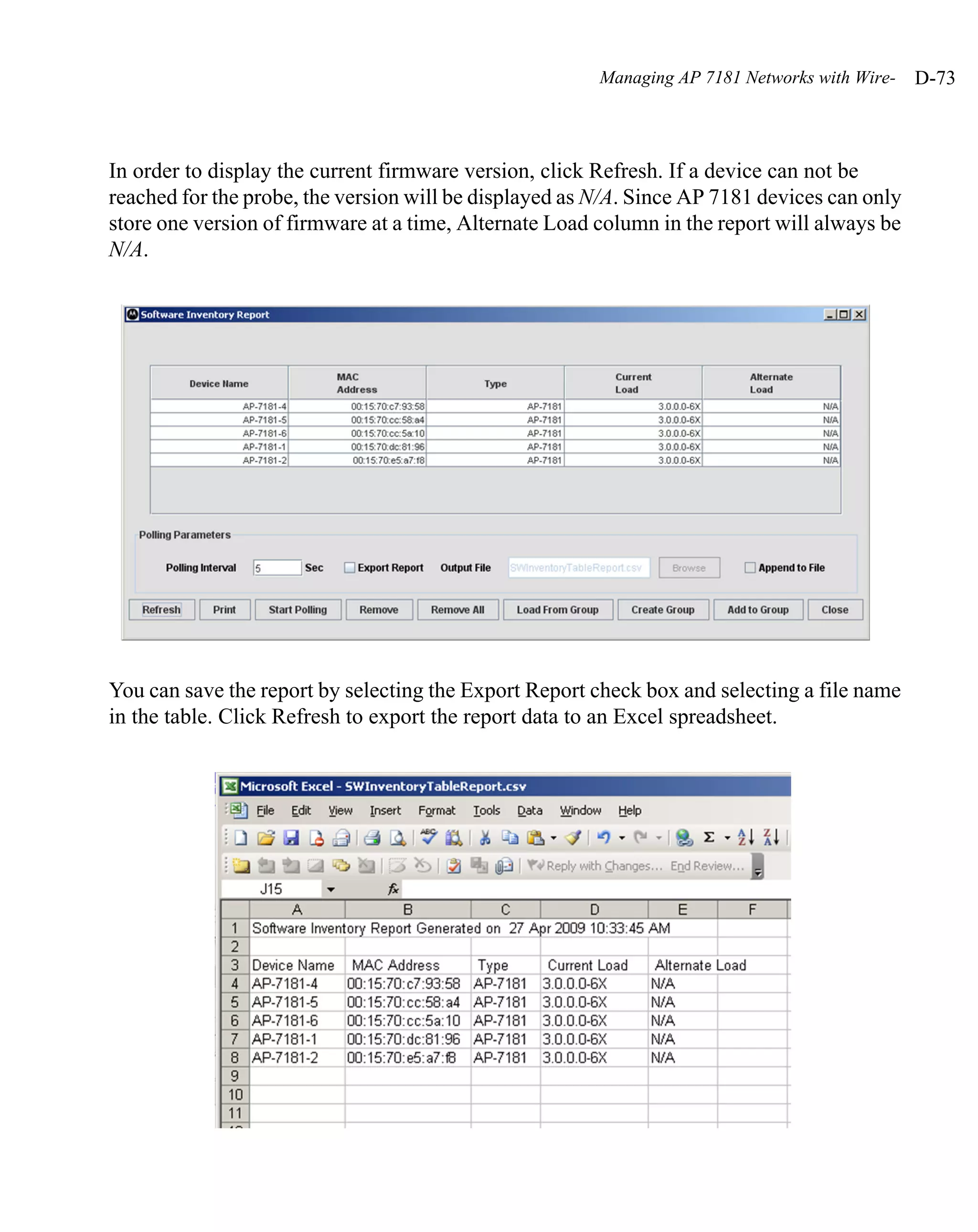
                 • 1, 2, 5.5, 11 and 6, 12, 24 Mbps
                 • 1, 2, 5.5, 11 and 6, 12, 24 Mbps and MCS 0-7
                 • 6, 12 and 24 Mbps
                 • 6, 12 and 24 Mbps and MCS 0-7
                 • MCS 0-7
            For 5 Ghz, the following options are available:
                 • 6, 12 and 24 Mbps
                 • 6, 12 and 24 Mbps and MCS 0-7
                 • MCS 0-7
            When a basic rate option is selected (from the drop-down
            menu), the rates are automatically selected and grayed out in
            the Supported Rates radio boxes. Select remaining rates as
            needed for additional supported rates.
            Enable the Support Short Guard Interval checkbox to set
            a guard interval (for interference protection) for 20 MHz and
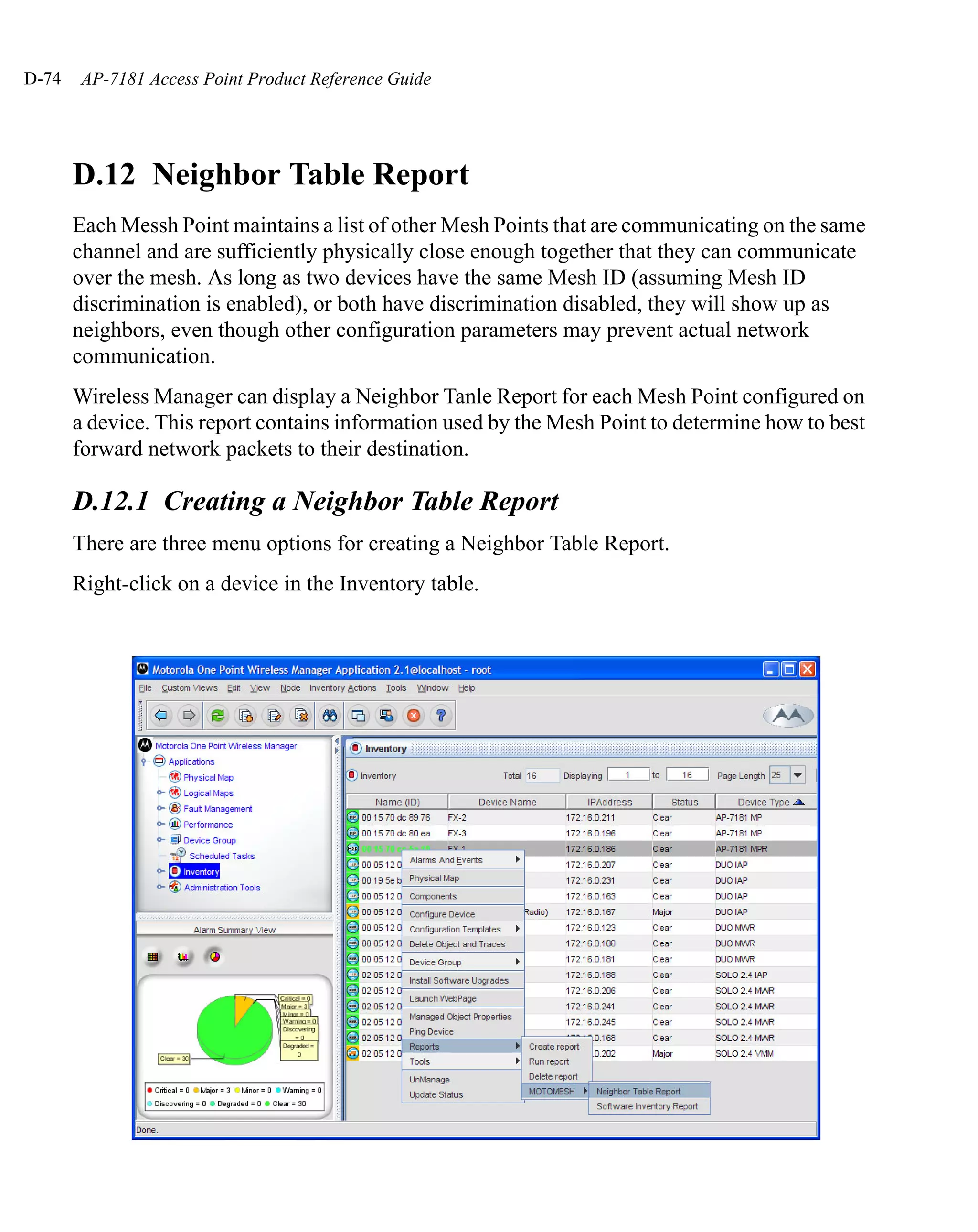
            40 MHz channel widths. When enabled, the AP’s radio
            defines values to enable a packet to be transmitted with
            guard interval based on the configuration and capabilities of
            associated clients. Clients can associate to an AP regardless
            of whether they support a short guard interval.
            If supporting 802.11n, select a Supported MCS index (0-
            15). Set a MCS (modulation and coding scheme) in respect
            to the radio’s channel width and guard interval. A MCS
            defines (based on RF channel conditions) an optimal
            combination of 8 data rates, bonded channels, multiple
            spatial streams, different guard intervals and modulation
            types. MUs can associate as long as they support basic MCS
            (as well as non-11n basic rates).
            Click OK to implement the selected rates and return to the
            radio configuration screen. Clicking Cancel reverts the Set
            Rates screen to the last saved configuration.
5-68   AP-7181 Access Point Product Reference Guide


          4. Configure the Performance field to set the preamble, thresholds values and QoS
             values for the radio.
Network Management   5-69


Support Short   The preamble is approximately 8 bytes of packet header
Preamble        generated by the access point and attached to a packet prior
                to transmission from the 802.11b radio. The preamble length
                for 802.11b transmissions is rate dependant. A short
                preamble is 50% shorter than a long preamble. Leave the
                checkbox unselected if in a mixed MU/AP environment, as
                MUs and the access point are required to have the same RF
                Preamble settings for interoperability. The default is
                Disabled. The preamble length for 802.11a and 802.11g
                transmissions is the same, with no long or short preamble
                lengths.
RTS Threshold   RTS allows the access point to use RTS (Request To Send)
                on frames longer than the specified length. The default is
                2341 bytes.
                NOTE: Outdoor networks tend to perform better when the
                RTS Threshold is set to a relatively low number. The RTS
                Threshold should be set to 64, particularly for 40 MHz
                channels.
5-70   AP-7181 Access Point Product Reference Guide


              Set RF QoS            Click the Set RF QoS button to display the Set RF QOS
                                    screen to set QoS parameters for the radio. Do not confuse
                                    with the QoS configuration screen used for a WLAN. The
                                    Set RF QoS screen initially appears with default values
                                    displayed.
                                    Select manual from the Select Parameter set drop-down
                                    menu to edit the CW min and CW max (contention
                                    window), AIFSN (Arbitrary Inter-Frame Space Number)
                                    and TXOPs Time for each Access Category. These are the
                                    QoS policies for the 802.11a/n or 802.11b/g/n radio, not the
                                    QoS policies configured for the WLAN (as created or edited
                                    from the Quality of Service Configuration screen).
                                    Motorola recommends only advanced users manually set
                                    these values. If the type of data-traffic is known, use the
                                    drop-down menu to select an option representative of the
                                    intended radio band support. Wifi represents multimedia
                                    traffic, default is typical data traffic and voice is for “Voice-
                                    Over-IP” supported wireless devices.
                                    Click OK to implement the selected QoS values and return
                                    to the 802.11a/n or 802.11b/g/n radio configuration screen.
                                    Clicking Cancel reverts the screen to the last saved
                                    configuration.
Network Management   5-71


   Set Aggregation     Select the Enable Transmit A-MSDU checkbox (within
                       the
                       A-MSDU Aggregation field) to allow the aggregation of
                       MAC Service frames. When enabled, long frames can be
                       both sent and received (up to 4 KB). Set the A-MSDU buffer
                       limit to either 3839 bytes (default) or 7935 bytes.
                       Select the Enable Transmit A-MPDU checkbox (within
                       the
                       A-MPDU Aggregation field) to allow the aggregation of
                       MAC Protocol frames. When enabled, long frames can be
                       both sent and received (up to 64 KB). When enabled, define
                       an A-MPDU Transmit Size Limit (default is 2 bytes), A-
                       MPDU Receive Size Limit (default is 65535 bytes) and an
                       A-MPDU Minimum Spacing Time (default is 0 usec). Set
                       these values as appropriate to broadcast the maximum length
                       A-MPDU transmit and receive intervals that can be used.


5. Refer to the Beacon Settings field to set the radio beacon and DTIM intervals.
5-72   AP-7181 Access Point Product Reference Guide


              Beacon Interval       The beacon interval controls the performance of power save
                                    stations. A small interval may make power save stations
                                    more responsive, but it will also cause them to consume
                                    more battery power. A large interval makes power save
                                    stations less responsive, but could increase power savings.
                                    The default is 100. Avoid changing this parameter as it can
                                    adversely affect performance.
              DTIM Interval         The DTIM interval defines how often broadcast frames are
                                    delivered for each of the four access point BSSIDs. If a
                                    system has an abundance of broadcast traffic and it needs to
                                    be delivered quickly, Motorola recommends decreasing the
                                    DTIM interval for that specific BSSID. However,
                                    decreasing the DTIM interval decreases the battery life on
                                    power save stations. The default is 10 for each BSSID.
                                    Motorola recommends using the default value unless
                                    qualified to understand the performance risks of changing it.

          6. Refer to the QBSS Load Element Settings field to determine whether channel
             usage data is transmitted to associated devices.
              Enable QBSS load      When enabled, the access point communicates channel
              element               usage data to associated devices using an interval you
                                    define. The QBSS load represents the percentage of time the
                                    channel is in use by the access point and the access point’s
                                    MU count. This information is helpful in assessing the
                                    access point’s overall load on a channel, its availability for
                                    additional device associations and multi media traffic
                                    support. This setting is enabled by default.
              QBSS Beacon           Set the QBSS beacon (transmission) interval the access
              Interval              point uses for sending QBSS data to associated devices.

          7. Configure the Interference Settings to select the appropriate levels for radio
             interference in the area.
         Profile      When enabled, the access point communicates channel usage data to associated
                      devices using an interval you define. The QBSS load represents the percentage
                      of time the channel is in use by the access point and the access point’s MU
                      count. This information is helpful in assessing the access point’s overall load on
                      a channel, its availability for additional device associations and multi media
                      traffic support. This setting is enabled by default.
Network Management   5-73


View       Click the View Parameters button to view the current Interference Settings or
Parameters change the parameters.

             When the Profile is set as Typical, Low(default), or High, the Interferance
             Settings cannot be changed. When you click on the View Parameters button, the
             settings will display the default values.


             When the Profile is set to Custom, the parameters can be changed to the desired
             settings.
             WARNING! The Intererence Tolerance Setting parameters should only
             be set with the direction of Motorola Support personnel. Improperly
             configuring these parmeters will render a device unreachable.


             The Noise Imminity Level range is 0-4.
             The FIR Step Level range is 0-2.
             The Spur Immunity Level range is 0-7.
             The 802.11 Signal Detection Level range is from 0-13.
5-74   AP-7181 Access Point Product Reference Guide


          8. Refer to the ADEPT Antenna Settings field and select or clear the Enable Down-
             tilt checkbox to enable/disable antenna downtilt functionality.


                    NOTE The device must support Antenna Downtilt functionality for this
                         setting to be used.

          9. If the Enable Down-tilt checkbox is selected then the Antenna Gain field is
              deselected.
          10. Select the Advanced Settings tab to strategically map BSSIDs to WLANs in order
              to define them as primary WLANs.
Network Management   5-75


   Defining Primary WLANs allows an administrator to dedicate BSSIDs (4 BSSIDs
   are available for mapping) to WLANs.
   The user should assign each WLAN to its own BSSID. In cases where more than
   four WLANs are required, WLANs should be grouped according to their security
   policies so all of the WLANs on a BSSID have the same security policy. It is
   generally not good paratice to have WLANs with different security policies on the
   same BSSID. This will result in excessive warning or error messages.


   WLAN               Lists the WLAN names available to the 802.11a/n or
                      802.11b/g/n radio that can be assigned to a BSSID.
   BSSID              Assign a BSSID value of 1 through 4 to a WLAN in order to
                      map the WLAN to a specific BSSID.
   BC/MC Cipher       A read only field displaying the downgraded BC/MC
                      (Broadcast/Multicast) cipher for a WLAN based on the
                      BSSID and VLAN ID to which it has been mapped.
   Status             Displays the following color coded status:

                      Red - Error (Invalid Configuration)
                      Yellow - Warning (Broadcast Downgrade)
                      Green - Good (Configuration is OK)
   Message            Displays the status of the WLAN and BSSID assignments.
                      If the Status column displays green, the Message will
                      typically be Configuration is OK. If yellow, a description
                      of invalid configuration displays.
   Mesh Point/BSSID   Use the drop-down list to assign the BSSID (1-4) for up to 6
                      Mesh Points.
   BSSID/Primary      Use the drop-down list to assign the Primary WLAN for the
   WLAN/Mesh Point    active Mesh Points on the device. From the initial BSSID
                      assignment, Primary WLANs can be defined from within
                      the WLANs assigned to BSSID groups 1 through 4. Each
                      BSSID beacons only on the primary WLAN.

11. Use the Primary WLAN drop-down menu to select a WLAN from those WLANs
    sharing the same BSSID. The selected WLAN is the primary WLAN for the
    specified BSSID.
5-76   AP-7181 Access Point Product Reference Guide


          12. Click Apply to save any changes to the Radio Settings and Advanced Settings
              screens. Navigating away from the screen without clicking Apply results in
              changes to the screens being lost.
          13. Click Undo Changes (if necessary) to undo any changes made to the screen and
              its sub-screens. Undo Changes reverts the settings to the last saved configuration.
          14. Click Logout to securely exit the Access Point applet. A prompt displays
              confirming the logout before the applet is closed.

       5.3.3 Configuring Bandwidth Management Settings
       The access point can be configured to grant individual WLAN’s network bandwidth
       priority levels. Use the Bandwidth Management screen to control the network bandwidth
       allotted to individual WLANs. Define a weighted scheme as needed when WLAN traffic
       supporting a specific network segment becomes critical on either of the access point’s
       802.11b/g/n or 802.11a/n radios. Bandwidth management is configured on a per-WLAN
       basis for each access point radio. With this new segregated radio approach, bandwidth
       management can be configured uniquely for individual WLANs on different access point
       radios.
          1. Select Network Configuration -> Wireless -> Bandwidth Management from
             the access point menu tree.
Network Management   5-77


2. Select either the Radio 1(802.11b/g/n) or Radio 2(802.11a/n) tab to display the
   WLANs enabled for the selected radio and their existing configurations.
   The WLANs displaying for the selected radio were assigned when the WLAN was
   created or modified. A single WLAN can be assigned to either radio, and if
   necessary have different bandwidth management configurations. To modify a
   WLAN-to-radio assignment, see Creating/Editing Individual WLANs on page 5-
   32.
3. Use the Bandwidth Share Mode drop-down menu to define the order enabled
   WLANs receive access point services. Select one of the following three options:

   First In First Out   WLANs receive services from the access point on a first-
                        come, first-served basis. This is the default setting.
   Round-Robin          Each WLAN receives access point services in turn as long
                        the access point has data traffic to forward.
5-78   AP-7181 Access Point Product Reference Guide


              Weighted Round-       If selected, a weighting (prioritization) scheme (configured
              Robin                 within the QoS Configuration screen) is used to define
                                    which WLANs receive access point resources first.

          4. Configure the Bandwidth Share for Each WLAN field to set a raw weight (for
             WLANs using the Weighted Round-Robin option) for each WLAN. The weight%
             changes as the weight is entered.
               If a WLAN has not been enabled from the Wireless screen, it is not configurable
               using the Bandwidth Management screen. To enable a specific WLAN, see
               Enabling Wireless LANs (WLANs) on page 5-29.

              WLAN Name             Displays the name of the WLAN. This field is read-only. To
                                    change the name of the WLAN, see Creating/Editing
                                    Individual WLANs on page 5-32.
              Weight                This column is not available unless Weighted Round-
                                    Robin is selected. Assign a weight to each WLAN. This
                                    percentage equals the access point bandwidth share for that
                                    WLAN when network traffic is detected.
              Weight (%)            This column is automatically updated with the appropriate
                                    WLAN bandwidth share when the Weight is modified.
              QoS Policy            Displays the name of the QoS policy defined for each
                                    WLAN within the Quality of Service for WLAN screen. If
                                    no policy has been set, the WLAN uses the default policy.
                                    For information on assigning QoS policies for specific
                                    WLANs, see Setting the WLAN Quality of Service (QoS)
                                    Policy on page 5-42.

          5. Click Apply to save any changes to the Bandwidth Management screen.
             Navigating away from the screen without clicking Apply results in all changes to
             the screens being lost.
          6. Click Undo Changes (if necessary) to undo any changes made. Undo Changes
             reverts the settings displayed on the Bandwidth Management screen to the last
             saved configuration.
          7. Click Logout to securely exit the Access Point applet. A prompt displays
             confirming the logout before the applet is closed.
Network Management   5-79


NOTE Though the Rogue AP and Firewall features appear after the
     Bandwidth Management features within the access point menu
     tree, they are described in Chapter 6, Configuring Access Point
     Security on page 6-1, as both items are data protection functions.
     More specifically, see, Configuring Firewall Settings on page 6-28
     and Configuring Rogue AP Detection on page 6-60.
5-80   AP-7181 Access Point Product Reference Guide


       5.4 Configuring MeshConnex Settings
       MeshConnex is a mesh networking technology that is comparable to drafts of the 802.11s
       mesh networking specification. MCX meshing uses a hybrid proactive/on-demand path
       selection protocol, similar to Ad hoc On Demand Distance Vector (AODV) routing
       protocols. This allows it to form efficient paths using multiple attachment points to a
       distribution WAN, or form purely ad-hoc peer-to-peer mesh networks in the absence of a
       WAN. MeshConnex continually gathers data from beacons and transmission attempts to
       estimate the efficiency and throughput of each MP-to-MP link. MeshConnex uses this data
       to dynamically form and continually maintain paths for forwarding network frames.
       MeshConnex is not compatible with Spanning Tree meshing, though the two technologies
       can be enabled simultaneously in certain circumstances. See chapter 9 for a comparison of
       the mesh networking technologies available in the AP 7181.
                    NOTE Mesh Points can be instantiated one or both radios. Up to 4 Mesh
                         Points can be created but only one Mesh Point can be enabled at a
                         time.


       5.4.1 Mesh Points
       In MeshConnex systems, a Mesh Point (MP) is a virtual mesh networking instance on a
       device, similar to a WLAN AP. On each device, up to 4 MPs can be created and configured
       but only one MP can be enabled at a time. MPs can be configured to use one or both radios
       in the device. If the MP is configured to use both radios, the path selection protocols will
       continually select the best radio to reach each destination.
       Each MP participates in a single Mesh Network, defined by the MeshID. The MeshID is
       typically a descriptive network name, similar to the SSID of a WLAN. All MPs configured
       to use the same MeshID will attempt to form a mesh and interoperate. The MeshID allows
       overlapping mesh networks to discriminate and disregard MPs belonging to different
       networks.
Network Management     5-81


             WARNING!IIf the MeshID for an AP using PSK security mode, the pre-
                     shared key MUST be regenerated. The generation of a pre-
                     shared key using a passphrase includes identification of the
                     MeshID. If the MeshID is changed, the corresponding pre-
                     shared key is NOT automatically regenerated. This may result in
                     a loss of communication with APs usinging the current pre-
                     shared key.

Each MP is uniquely defined by a MAC address called the Mesh Point ID (MPID). Each
radio interface attached to an MP also has a unique MAC address called the Interface ID
(IFID). On a given MP, the MPID can be the same as one of the attached IFIDs. In a mesh
network, MPIDs define the endpoints of a multi-hop path -- that is, the MPs at which a
payload frame enters and exits the mesh network. Along these multi-hop paths, IFIDs
define the point-to-point links between the MPs -- that is, the individual hops that the
payload takes as it traverses the mesh network. IFIDs that can be reached directly by one
of an MP's radios are considered to be neighbors.
MPs that connect the wireless mesh network to the distribution WAN are referred to as Root
MPs. All Root MPs operating in a given Mesh Network must be attached to the same WAN
so that frames can be bridged between all the Root MPs. If a network deployment requires
Root connection points that are on different network subnets, these subnets must be bridged
through tunneling protocols. Alternately, the Roots of the different subnets could be
assigned different MeshIDs to keep the networks separate.
Any MP that is not configured as a Root will proactively maintain a mesh path to the best
Root MP so it can forward data to and from the distribution WAN. Feedback from every
frame that is sent or received along a path helps to refine the path choice, so paths can
change as the environment changes. Non Root MPs will also form on-demand paths
directly to other Non Root MPs as needed.

5.4.2 Root Path Selection Preferences
The path selection algorithms used on Non Root MPs can be biased to prefer a specific
Root, next-hop, or radio interface for the proactive path to the WAN. These settings should
be used with discretion. MeshConnex is designed to constantly evaluate the environment
and maintain the best possible path to the WAN. The Root Selection Preferences add
5-82   AP-7181 Access Point Product Reference Guide


       significant biasing to the path selection mechanism and should only be used when a manual
       override is deemed necessary.

       5.4.3 Mesh Proxies
       Typical bridging networks use a technique called "flood forwarding" to send frames to
       destinations when the destination is not explicitly known in the bridge tables. That is, the
       data is simply sent to every port and segment to ensure that the destination receives the
       frame. The MeshConnex protocol only forwards data to explicitly known destinations. The
       advantage to this approach is that MeshConnex can be much more efficient and can scale
       to much larger networks than flood-forwarding systems would allow. However, this
       technique requires each MP to either passively learn or be explicitly configured with a list
       of attached destination addresses known as proxies before the destinations can receive
       frames. Each MP maintains a proxy list that includes both attached ethernet devices and
       wireless stations. Stations can typically be learned passively because they send frames
       regularly, but attached ethernet devices may be too "quiet" for passive learning if they do
       not generate periodic traffic. MPs can be configured with a list of "static" proxies to
       facilitate service for these devices.

       5.4.4 Mesh Beacon Formats
       MeshConnex MPs send beacons to communicate with other MPs. Older versions of
       MeshConnex used "AP-style" beacons on 802.11 radios. These beacons can cause issues
       with older stations, so newer versions of MeshConnex also support "MP-style" beacons.
       MP-style beacons should be used unless the MP is interoperating with older versions of
       MeshConnex.
Network Management   5-83


5.4.5 Configuring MeshConnex Settings
To configure MeshConnex Settings for an access point:
   1. Select Network Configuration -> MeshConnex from the access point menu tree.
      The existing Mesh Points for the device will be displayed.
5-84   AP-7181 Access Point Product Reference Guide


          2. Click Create to create a new Mesh Point. The Mesh Point will be displayed in the
             MeshConnex Configuration table.
          3. Select the Mesh Point in the table and click Edit to edit an existing Mesh Point.


          4. Select a Mesh Point and click Edit to edit an existing Mesh Point.
          5. Select a Mesh Point and click Delete to delete a mesh point.
          6. To enable/disable a Mesh Point select a Mesh Point and click Enable/Disable.
             a. Since an MP cannot be enabled if the Client Bridge Mode is enabled, the device
                configuration is checked to determine if the device is currently in Client Bridge
                mode. If so, the following Information dialog will be displayed.
Network Management     5-85


        Click OK to dismiss the dialog.
            For more infomation on how to enable/disable the Client Bridge, refer to
            Setting the WLAN’s Radio Configuration on page 5-55.
        b. If the Client Bridge Mode is not enabled for the device, a warning dialog will
           be displayed for the potential loss of network connectivity if the MP is disabled.
           Click Yes to disable the MP. Click No to cancel the operation.


The following is a list of Mesh Point configuration parameters.
Mesh ID specifies the Mesh ID of the mesh network in which the Mesh Point will
participate. The Mesh ID can be 0 to 31 characters in length. The Mesh ID must match on
all MPs which interoperate to form a Mesh Network.
Available On is the list of the radio interfaces that the MP is attached to.
Is Root specifies whether this device is connected to WAN or not. MPs acting as root are
expected to be connected to a flat/bridged network with all other roots for the mesh in
which the MP participates.
Use the Beacon Format drop-down menu to select MP or AP. Select MP for new
installations. Select AP to support compatibility with earlier version of MeshConnex.
Click Mesh Security to display the Security Configuration dialog.
Click Static Proxy Configuration to display the Static Proxy Configuration dialog.
Max Active MPs specifies the maximum number of Mesh Points that can be supported by
the current mesh configuration.
Root Mesh Point ID (MPID) specifies the Root MP to prefer when selecting a path to the
WAN. Setting this parameter biases the MP against selecting any other root for its path to
the WAN.
5-86   AP-7181 Access Point Product Reference Guide


                    NOTE The Preferred Root Mesh Point (MPID) settings should be used
                         with discretion. The user should manually control the paths only
                         when absolutely necessary. The recommended method is to let the
                         software select a root path.

       Next Hop IFID specifies the next-hop Neighbor's interface to prefer when selecting a path
       to the WAN. Setting this parameter biases the MP against selecting any other next-hop
       neighbor or interface for its path to the WAN.
       Next Hop Local Interface specifies the local radio to prefer when selecting a path to the
       WAN. Setting this parameter biases the MP against selecting next-hop neighbors available
       on other radio interfaces for its path to the WAN.
Network Management    5-87


5.4.6 Configuring MeshConnex for Compatibility with Duo Devices
Perform the following steps to configure MeshConnex settings for compatibility with
existing 2.4 / 5.X GHz Duo devices.
    1. Select Network Configuration -> MeshConnex from the access point menu tree.
    2. The existing Mesh Points for the device will be displayed.
    3. Click Create to create a new Mesh Point.
To support meshing and interoperability with AP-81 devices, Duo devices must have
Network Discrimination enabled.
Mesh ID specifies the Mesh ID of the mesh network in which the Mesh Point will
participate. The Mesh ID can be 0 to 31 characters in length. The Mesh ID for Duo devices
must match the AP7181 Mesh ID to interoperate with the Mesh Network.
When configuring the Mesh Point on each AP7181, assign only one radio to the mesh point.
For example if you are meshing on 5.8 GHz select the Available On 802.11 a/n Radio
checkbox.
When configuring the Mesh Point for each AP7181, select AP for the Beacon Format.
5-88   AP-7181 Access Point Product Reference Guide


       5.4.7 Mesh Security
       Security is a critical part of Mesh Point configuration. All MPs in the mesh network must
       have compatible Mesh Security parameters.
       There are currently only two modes for Mesh Security
       Use the Security Configuration dialog to configure the Mesh Security scheme.
Network Management   5-89


MeshID           Displays the MeshID of the MP. This field is read-only.
Security Mode    This drop-down box is used to select either PSK or OPEN.
                 If OPEN is selected, all traffic originating from the MP will
                 not be encrypted.
                 If PSK is selected, the MP will impose a 32-bit encryption
                 key for the data. When oprating in PSK mode, there are no
                 specific requirements for Infrastructure configuration.
                 Instead, the remaining parameters on the Security
                 Configration dialog are used to configure the security
                 scheme.
                 NOTE: EAP Mode is not supported for this release.
GTK Lifetime     The Group Transient Key (GTK) is used when devices send
                 broadcast or multicast data to devices included in a group
                 wihin in a PSK secured mesh. Devices then exchange GTKs
                 as they authenticate during data transfers. The GTK is
                 changed periodically to help mitigate against attacks.
Passphrase       The 32-bit ASCII character string used to generate the pre-
                 shared key. You can either enter a passphrase or the pre-
                 shared key. If the passphrase is used the system will generate
                 a corresponding pre-shared key. Only the pre-shared key is
                 preserved, not the passphrase.The data must match on all
                 devices in the PSK mesh network.
                 WARNING! If the MeshID is changed for an AP, the pre-
                 shared key MUST be regenerated. The generation of a pre-
                 shared key using a passphrase includes identification of the
                 MeshID. If the MeshID is changed, the corresponding pre-
                 shared key is NOT automatically regenerated. This may
                 result in a loss of communication with APs usinging the
                 current pre-shared key.
Pre-Shared Key   The pre-shared key used in PSK protocol. The pre-shared
                 key must be equal to 64 octal characters.The data must
                 match on all devices in the PSK mesh network.
5-90   AP-7181 Access Point Product Reference Guide


              PSK Lifetime          When using the PSK security mode, as devices authenticate
                                    they are required to periodically refresh the session and
                                    generate new transient keys used to protect data transfers
                                    between the devices.
                                    The lifetime interval can be different for devices. The
                                    shorter interval will determine the lifetime of the session.
                                    The lifetime interval is measured in seconds. Shorter
                                    lifetime intervals are theoretically more secure because they
                                    provide less time for a transient key to be compromised.
                                    The PSK Lifetime defaults to 3600 seconds (1 hour) for new
                                    devices added to the mesh network. The setting may be
                                    configured differently for each device. Settings below 300
                                    seconds or above 1 week are not recommended.
                                    Whe the PSK Lifetime interval is changed, the new lifetime
                                    interval takes effect immediately. Current key sessions will
                                    not be impacted but future sessions will use the new lifetime
                                    interval.
Network Management   5-91


5.4.8 Static Proxy Configuration
Use the Static Proxy Configuration dialog to set the proxy parameters.


MAC Address: The MAC address of the proxy for the attached device.
VLAN Name: The name of VLAN to be used to access the attached device.
Add: Click Add to include additional devices in the list of attached devices.
Remove: Click Remove to delete a selected proxy from the list of attached devices.
5-92   AP-7181 Access Point Product Reference Guide


       5.4.9 Automatic Channel Scan Trigger Configuration
       To configure Automatic Channel Scan Trigger parameters for the access point, select
       Network Configuration -> MeshConnex -> ACS Triggers.


       Configure Timeout and Root Path Metric Threshold field. The combination of these two
       parameters determines when the automatic channel scan has to be initiated. For the device
       to trigger an automatic channel scan, the Root Path Metric value of the enabled mesh point
       has to remain equal to or greater than the specified Root Path Metric Threshold for the
       timeout value in seconds
               Timeout              The value in seconds used to determine if aChannel Scan
                                    should be initiated (range is 0 to 604800 seconds).
               Root Path Metric     The desired threshold level in seconds used to determine
               Threshold            when to trigger an channel scan should be initiated (range is
                                    0 to 214748347)
Network Management     5-93


5.5 Configuring Router Settings
The access point router uses routing tables and protocols to forward data packets from one
network to another. The access point router manages traffic within the network, and directs
traffic from the WAN to destinations on the access point managed LAN. Use the access
point Router screen to view the router's connected routes. To access the Router screen:
    1. Select Network Configuration -> Router from the access point menu tree.


    2. Refer to the access point Router Table field to view existing routes.
        The access point Router Table field displays a list of connected routes between an
        enabled subnet and the router. These routes can be changed by modifying the IP
        address and subnet masks of the enabled subnets.
        The information in the access point Router Table is dynamically generated from
        settings applied on the WAN screen. The destination for each subnet is its IP
        address. The subnet mask (or network mask) and gateway settings are those
        belonging to each subnet. Displayed interfaces are those associated with
5-94   AP-7181 Access Point Product Reference Guide


               destination IP addresses. To change any of the network address information within
               the WAN screen, see Configuring WAN Settings on page 5-17.
          3. From the Use Default Gateway drop-down menu, select the WAN or either of the
             two LANs (if enabled) to server as the default gateway to forward data packets
             from one network to another.
          4. To set or view the RIP configuration, click the RIP Configuration button.
               Routing Information Protocol (RIP) is an interior gateway protocol that specifies
               how routers exchange routing-table information. The Router screen also allows the
               administrator to select the type of RIP and the type of RIP authentication used by
               the switch. For more information on configuring RIP, see Setting the RIP
               Configuration on page 5-95.
          5. Use the User Defined Routes field to add or delete static routes.
               The User Defined Routes field allows the administrator to view, add or delete
               internal static (dedicated) routes.
             c. Click the Add button to create a new table entry.
             d. Highlight an entry and click the Del (delete) button to remove an entry.
             e. Specify the destination IP address, subnet mask, and gateway information for
                the internal static route.
             f. Select an enabled subnet from the Interface(s) column’s drop-down menu to
                complete the table entry. Information in the Metric column is a user-defined
                value (from 1 to 65535) used by router protocols to determine the best hop
                routes.
          6. Click the Apply button to save the changes.
          7. Click Logout to securely exit the access point applet. A prompt displays
             confirming the logout before the applet is closed.
Network Management   5-95


5.5.1 Setting the RIP Configuration
To set the RIP configuration:
    1. From within the RIP Configuration field, select the RIP Type from the drop-down
       menu. The following options are available:

        No RIP               The No RIP option prevents the access point’s router from
                             exchanging routing information with other routers. Routing
                             information may not be appropriate to share, for example, if
                             the access point manages a private LAN.
        RIP v1               RIP version 1 is a mature, stable, and widely supported
                             protocol. It is well suited for use in stub networks and in
                             small autonomous systems that do not have enough
                             redundant paths to warrant the overhead of a more
                             sophisticated protocol.
        RIP v2 (v1 compat) RIP version 2 (compatible with version 1) is an extension of
                           RIP v1’s capabilities, but it is still compatible with RIP
                           version 1. RIP version 2 increases the amount of packet
                           information to provide the a simple authentication
                           mechanism to secure table updates.
        RIP v2               RIP version 2 enables the use of a simple authentication
                             mechanism to secure table updates. More importantly, RIP
                             version 2 supports subnet masks, a critical feature not
                             available in RIP version 1. This selection is not compatible
                             with RIP version 1 support.
5-96   AP-7181 Access Point Product Reference Guide


          2. Select a routing direction from the RIP Direction drop-down menu. Both (for both
             directions), Rx only (receive only), and TX only (transmit only) are available
             options.


          3. If RIP v2 or RIP v2 (v1 compat) is the selected RIP type, the RIP v2
             Authentication field becomes active. Select the type of authentication to use from
             the Authentication Type drop-down menu. Available options include:

              None                  This option disables the RIP authentication.
              Simple                This option enable RIP version 2’s simple authentication
                                    mechanism. This setting activates the Password (Simple
                                    Authentication) field.
Network Management   5-97


   MD5                 This option enables the MD5 algorithm for data verification.
                       MD5 takes as input a message of arbitrary length and
                       produces a 128-bit fingerprint. The MD5 setting activates
                       the RIP v2 Authentication settings for keys (below).

4. If the Simple authentication method is selected, specify a password of up to 15
   alphanumeric characters in the Password (Simple Authentication) area.
5. If the MD5 authentication method is selected, fill in the Key #1 field (Key #2 is
   optional). Enter any numeric value between 0 and 256 into the MD5 ID area. Enter
   a string consisting of up to 16 alphanumeric characters in the MD5 Auth Key area.
6. Click the OK button to return to the Router screen. From there, click Apply to save
   the changes.
5-98   AP-7181 Access Point Product Reference Guide
6
            Configuring Access Point Security

Security measures for the access point and its WLANs are critical. Use the available access
point security options to protect the access point LAN from wireless vulnerabilities, and
safeguard the transmission of RF packets between the access point and its associated MUs.
WLAN security can be configured on an ESS by ESS basis on the access point. Sixteen
separate ESSIDs (WLANs) can be supported on an access point, and must be managed (if
necessary) between the 802.11a/n and 802.11b/g/n radio. The user has the capability of
configuring separate security policies for each WLAN. Each security policy can be
configured based on the authentication (Kerberos, 802.1x EAP) or encryption (WEP,
KeyGuard, WPA/TKIP or WPA2/CCMP) scheme best suited to the coverage area that
security policy supports.
The access point can also create VPN tunnels to securely route traffic through a IPSEC
tunnel and block transmissions with devices interpreted as Rogue APs.
6-2   AP-7181 Access Point Product Reference Guide


      6.1 Configuring Security Options
      To configure the data protection options available on the access point, refer to the
      following:
          •   To set an administrative password for secure access point logins, see Setting
              Passwords on page 6-2.
          •   To display security policy screens used to configure the authetication and
              encryption schemes available to the access point, see Enabling Authentication and
              Encryption Schemes on page 6-5. These security policies can be used on more than
              one WLAN.
          •   To create a security policy supporting 802.1x EAP, see Configuring 802.1x EAP
              Authentication on page 6-11.
          •   To define a security policy supporting Kerberos, see, Configuring Kerberos
              Authentication on page 6-9.
          •   To create a security policy supporting WEP, see Configuring WEP Encryption on
              page 6-17.
          •   To configure a security policy supporting KeyGuard, see, Configuring KeyGuard
              Encryption on page 6-19.
          •   To define a security policy supporting WPA-TKIP, see Configuring WPA/WPA2
              Using TKIP on page 6-21.
          •   To create a security policy supporting WPA2-CCMP, see Configuring WPA2-
              CCMP (802.11i) on page 6-25.
          •   To configure the access point to block specific kinds of HTTP, SMTP and FTP data
              traffic, see Configuring Firewall Settings on page 6-28.
          •   To create VPN tunnels allowing traffic to route securely through a IPSEC tunnel to
              a private network, see Configuring VPN Tunnels on page 6-38.
          •   To configure the access point to block transmissions with devices detected as
              Rogue AP’s (hostile devices), see Configuring Rogue AP Detection on page 6-60.


      6.2 Setting Passwords
      Before setting the access point security parameters, verify an administrative password for
      the access point has been created to restrict access to the device before advanced device
      security is configured.
Configuring Access Point Security   6-3


To password protect and restrict access point device access:
    1. Connect a wired computer to the access point LAN port using a standard CAT-5
       cable.
    2. Set up the computer for TCP/IP DHCP network addressing and make sure the DNS
       settings are not hardcoded.
    3. Start Internet Explorer (with Sun Micro Systems’ Java Runtime Environment
       (JRE) 1.5 or higher installed) and type in the default IP address in the address field.
        To connect to the access point, the IP address is required. If connected to the access
        point using the WAN port, the default static IP address is 10.1.1.1. The default
        password is “motorola.” If connected to the access point using the LAN port, the
        default setting is DHCP client. The user is required to know the IP address to
        connect to the access point using a Web browser.
        The access point Login screen displays.

             NOTE For optimum compatibility use Sun Microsystems’ JRE 1.5 or
                  higher (available from Sun’s Web site), and be sure to disable
                  Microsoft’s Java Virtual Machine if it is installed.


             NOTE DNS names are not supported as a valid IP address for the access
                  point. The user is required to enter a numerical IP address.


    4. Log in using the “admin” as the default Username and “motorola” as the default
       Password.
        If the default login is successful, the Change Admin Password window displays.
        Change the default login and password to significantly decrease the likelihood of
        hacking.
6-4    AP-7181 Access Point Product Reference Guide


                    CAUTIONRestoring the access point’s configuration back to default
          !                settings changes the administrative password back to
                           “motorola.” If restoring the configuration back to default
                           settings, be sure you change the administrative password
                           accordingly.

          5. Enter the previous password and the new admin password in the two fields
             provided. Click the Apply button.
               Once the admin password has been created/updated, the System Settings screen
               displays. If the access point has not had its System Settings (device name, location
               etc.) configured, see Configuring System Settings on page 4-2.
               Once the password has been set, refer back to Configuring Security Options on
               page 6-2 to determine which access point security feature to configure next.

      6.2.1 Resetting the Access Point Password
      The access point Command Line Interface (CLI) enables users who forget their password
      to reset it to the factory default (motorola). From there, a new password can be defined.
      To reset the password back to its default setting:
          1. Connect one end of a null modem serial cable to the access point’s serial connector.
          2. Attach the other end of the null modem serial cable to the serial port of a PC
             running HyperTerminal or a similar emulation program.
Configuring Access Point Security   6-5


    3. Set the HyperTerminal program to use 115200 baud, 8 data bits, 1 stop bit, no
       parity, no flow control and auto-detect for terminal emulation.
    4. Press <ESC> or <Enter> to access the CLI.
        A serial connection has now been established and the user should be able to view
        the serial connection window.
    5. Reset the access point.
        An access point can be reset by removing and re-inserting the LAN cable or
        removing and re-inserting the power cable.
        As the access point is re-booting, a “Press esc key to run boot firmware” message
        displays.
    6. Quickly press <ESC>.

             CAUTIONIf the <ESC> key is not pressed within three seconds after the
    !               “Press esc key to run boot firmware” message displays, the
                    access point will continue to boot.

        If the <ESC> key is pressed within three seconds a boot> prompt displays.
    7. Type the following at the boot prompt:
        passwd default
    8. Reset the access point by typing the following at the boot prompt:
        reset system
        When the access point re-boots again, the password will return to its default value
        of “motorola.” You can now access the access point.


6.3 Enabling Authentication and Encryption Schemes
To complement the built-in firewall filters on the WAN side of the access point, the WLAN
side of the access point supports authentication and encryption schemes. Authentication is
a challenge-response procedure for validating user credentials such as username, password,
and sometimes secret-key information. The access point provides two schemes for
authenticating users: 802.1x EAP and Kerberos.
Encryption applies a specific algorithm to alter its appearance and prevent unauthorized
reading. Decryption applies the algorithm in reverse to restore the data to its original form.
Sender and receiver must employ the same encryption/decryption method to interoperate.
6-6   AP-7181 Access Point Product Reference Guide


      Wired Equivalent Privacy (WEP) is available in two encryption modes: 40 bit (also called
      WEP 64) and 104 bit (also called WEP 128). The 104-bit encryption mode provides a
      longer algorithm (better security) that takes longer to decode (hack) than the 40-bit
      encryption mode.
      Each WLAN (16 WLANs available in total to an access point regardless of the model) can
      have a separate security policy. However, more than one WLAN can use the same security
      policy. Therefore, to avoid confusion, do not name security policies the same name as
      WLANs. Once security policies have been created, they are selectable within the Security
      field of each WLAN screen. If the existing default security policy does not satisfy the data
      protection requirements of a specific WLAN, a new security policy (using the
      authentication and encryption schemes discussed above) can be created.
      To enable an existing WLAN security policy or create a new policy:
          1. Select Network Configuration -> Wireless -> Security from the access point
             menu tree.
              The Security Configuration screen displays.
          2. If a new security policy is required, click the Create button.
              The New Security Policy screen displays with the Manually Pre-shared key/No
              authentication and No Encryption options selected. Naming and saving such a
              policy (as is) would provide no security and might only make sense in a guest
              network wherein no sensitive data is either transmitted or received.
              However, selecting any other authetnication or encryption checkbox displays a
              configuration field for the selected security scheme within the New Security Policy
              screen.

                   NOTE An existing security policy can be edited from the Security
                        Configuration screen by selecting an existing policy and clicking
                        the Edit button. Use the Edit Security Policy screen to edit the
                        policy. For more information on editing an existing security policy,
                        refer to security configuration sections described in steps 4 and 5.

          3. Use the Name field to define a logical security policy name.
              Remember, multiple WLANs can share the same security policy, so be careful not
              to name security policies after specific WLANs or risk defining a WLAN to single
              policy. Motorola recommends naming the policy after the attributes of the
              authentication or encryption type selected (for example, WPA2 Allow TKIP).
Configuring Access Point Security   6-7


4. Enable and configure an Authentication option if necessary for the target security
   policy.

   Manually Pre-        Select this button to disable authentication. This is the
   Shared Key / No      default value for the Authentication field.
   Authentication
   Kerberos             Select the Kerberos button to display the Kerberos
                        Configuration field within the New Security Policy screen.
                        For specific information on configuring Kerberos, see
                        Configuring Kerberos Authentication on page 6-9.
   802.1x EAP           Select the 802.1x EAP button to display the 802.1x EAP
                        Settings field within the New Security Policy screen. For
                        specific information on configuring EAP, see Configuring
                        802.1x EAP Authentication on page 6-11.

5. Enable and configure an Encryption option if necessary for the target security
   policy.

   No Encryption        If No Encryption is selected, encryption is disabled for the
                        security policy. If security is not an issue, this setting avoids
                        the overhead an encryption protocol causes on the access
                        point. No Encryption is the default value for the Encryption
                        field.
   WEP 64 (40-bit key) Select the WEP 64 (40 bit key) button to display the WEP
                       64 Settings field within the New Security Policy screen. For
                       specific information on configuring WEP 64, see
                       Configuring WEP Encryption on page 6-17.
   WEP 128 (104-bit     Select the WEP 128 (104 bit key) button to display the
   key)                 WEP 128 Settings field within the New Security Policy
                        screen. For specific information on configuring WEP 128,
                        see Configuring WEP Encryption on page 6-17.
   KeyGuard             Select the KeyGuard button to display the KeyGuard
                        Settings field within the New Security Policy screen. For
                        specific information on configuring KeyGuard, see
                        Configuring KeyGuard Encryption on page 6-19.
6-8   AP-7181 Access Point Product Reference Guide


               WPA/WPA2 TKIP        Select the WPA/WPA2 TKIP button to display the WPA/
                                    TKIP Settings field within the New Security Policy screen.
                                    For specific information on configuring WPA/WPA2 TKIP,
                                    see Configuring WPA/WPA2 Using TKIP on page 6-21.
               WPA2/CCMP            Select the WPA2/CCMP (802.11) button to display the
               (802.11i)            WPA2/CCMP Settings field within the New Security
                                    Policy screen. For detailed information on configuring
                                    WPA2/CCMP, see Configuring WPA2-CCMP (802.11i) on
                                    page 6-25.

         6. Click Apply to keep changes made within the New Security Policy screen (if any).
              Configure encryption or authentication supported security policies by referring to the
              following:
      access point authentication:
              • To create a security policy supporting Kerberos, see, Configuring Kerberos
                Authentication on page 6-9.
              • To define a security policy supporting 802.1x EAP, see Configuring 802.1x EAP
                Authentication on page 6-11.
      access point encryption:
            • To create a security policy supporting WEP, see Configuring WEP Encryption on
               page 6-17.
            • To define a security policy supporting KeyGuard, see, Configuring KeyGuard
               Encryption on page 6-19.
            • To configure a security policy supporting WPA/TKIP, see Configuring WPA/
               WPA2 Using TKIP on page 6-21.
            • To create a security policy supporting WPA2/CCMP, see Configuring WPA2-
               CCMP (802.11i) on page 6-25.
         7. Click Cancel to return to the target WLAN screen without keeping any of the
            changes made within the New Security Policy screen.
Configuring Access Point Security   6-9


6.4 Configuring Kerberos Authentication
Kerberos (designed and developed by MIT) provides strong authentication for client/server
applications using secret-key cryptography. Using Kerberos, a client must prove its identity
to a server (and vice versa) across an insecure network connection.
Once a client and server use Kerberos to prove their identity, they can encrypt all
communications to assure privacy and data integrity. Kerberos can only be used on the
access point with Motorola 802.11b clients.

             CAUTIONKerberos makes no provisions for host security. Kerberos
    !               assumes that it is running on a trusted host with an untrusted
                    network. If host security is compromised, Kerberos is
                    compromised as well

Kerberos uses the Network Time Protocol (NTP) for synchronizing the clocks of its Key
Distribution Center (KDC) server(s). Use the NTP Servers screen to specify the IP
addresses and ports of available NTP servers. Kerberos requires the Enable NTP on
checkbox be selected for authentication to function properly. See Configuring Network
Time Protocol (NTP) on page 4-41 to configure the NTP server.

             NOTE If 802.11a/n is selected as the radio used for a specific WLAN, the
                  WLAN cannot use a Kerberos supported security policy, as no
                  Motorola
                  802.11a/n clients can support Kerberos.

To configure Kerberos on the access point:
    1. Select Network Configuration -> Wireless -> Security from the access point
       menu tree.
        If security policies supporting Kerberos exist, they appear within the Security
        Configuration screen. These existing policies can be used as is, or their properties
        edited by clicking the Edit button. To configure a new security policy supporting
        Kerberos, continue to step 2.
    2. Click the Create button to configure a new policy supporting Kerberos.
        The New Security Policy screen displays with no authentication or encryption
        options selected.
6-10   AP-7181 Access Point Product Reference Guide


          3. Select the Kerberos radio button.
               The Kerberos Configuration field displays within the New Security Policy
               screen.
          4. Ensure the Name of the security policy entered suits the intended configuration or
             function of the policy.


          5. Set the Kerberos Configuration field as required to define the parameters of the
             Kerberos authentication server and access point.

              Realm Name            Specify a realm name that is case-sensitive, for example,
                                    MOTOROLA.COM. The realm name is the name domain/
                                    realm name of the KDC Server. A realm name functions
                                    similarly to a DNS domain name. In theory, the realm name
                                    is arbitrary. However, in practice a Kerberos realm is named
                                    by uppercasing the DNS domain name that is associated
                                    with hosts in the realm.
Configuring Access Point Security   6-11


        Primary KDC          Specify a numerical (non-DNS) IP address and port for the
                             primary Key Distribution Center (KDC). The KDC
                             implements an Authentication Service and a Ticket Granting
                             Service, whereby an authorized user is granted a ticket
                             encrypted with the user's password. The KDC has a copy of
                             every user password.
        Backup KDC           Optionally, specify a numerical (non-DNS) IP address and
                             port for a backup KDC. Backup KDCs are referred to as
                             slave servers. The slave server periodically synchronizes its
                             database with the primary (or master) KDC.
        Remote KDC           Optionally, specify a numerical (non-DNS) IP address and
                             port for a remote KDC. Kerberos implementations can use
                             an administration server allowing remote manipulation of
                             the Kerberos database. This administration server usually
                             runs on the KDC.
        Port                 Specify the ports on which the Primary, Backup and Remote
                             KDCs reside. The default port number for Kerberos Key
                             Distribution Centers is Port 88.

    6. Click the Apply button to return to the WLAN screen to save any changes made
       within the Kerberos Configuration field of the New Security Policy screen.
    7. Click the Cancel button to undo any changes made within the Kerberos
       Configuration field and return to the WLAN screen. This reverts all settings for the
       Kerberos Configuration field to the last saved configuration.


6.5 Configuring 802.1x EAP Authentication
The IEEE 802.1x standard ties the 802.1x EAP authentication protocol to both wired and
wireless LAN applications.
The EAP process begins when an unauthenticated supplicant (client device) tries to connect
with an authenticator (in this case, the authentication server). The access point passes EAP
packets from the client to an authentication server on the wired side of the access point. All
other packet types are blocked until the authentication server (typically, a RADIUS server)
verifies the MU’s identity.
To configure 802.1x EAP authentication on the access point:
6-12   AP-7181 Access Point Product Reference Guide


          1. Select Network Configuration -> Wireless -> Security from the access point
             menu tree.
               If security policies supporting 802.1x EAP exist, they appear within the Security
               Configuration screen. These existing policies can be used as is, or their properties
               edited by clicking the Edit button. To configure a new security policy supporting
               802.1x EAP, continue to step 2.
          2. Click the Create button to configure a new policy supporting 802.1x EAP.
               The New Security Policy screen displays with no authentication or encryption
               options selected.
          3. Select the 802.1x EAP radio button.
               The 802.1x EAP Settings field displays within the New Security Policy screen.
          4. Ensure the Name of the security policy entered suits the intended configuration or
             function of the policy.
          5. If using the access point’s Internal RADIUS server, leave the RADIUS Server
             drop-down menu in the default setting of Internal. If an external RADIUS server
             is used, select External from the drop-down menu.
Configuring Access Point Security   6-13


6. Configure the Server Settings field as required to define address information for
   the authentication server. The appearance of the Server Settings field varies
   depending on whether Internal or External has been selected from the RADIUS
   Server drop-down menu.

   RADIUS Server       If using an External RADIUS Server, specify the numerical
   Address             (non-DNS) IP address of a primary Remote Dial-In User
                       Service (RADIUS) server. Optionally, specify the IP address
                       of a secondary server. The secondary server acts as a failover
                       server if the primary server cannot be contacted. An ISP or
                       a network administrator provides these addresses.
                       RADIUS is a client/server protocol and software enabling
                       remote-access clients to communicate with a server used to
                       authenticate users and authorize access to the requested
                       system or service. This setting is not available if Internal has
                       been selected from the RADIUS Server drop-down menu.
6-14   AP-7181 Access Point Product Reference Guide


              RADIUS Port           If using an External RADIUS Server, specify the port on
                                    which the primary RADIUS server is listening. Optionally,
                                    specify the port of a secondary (failover) server. Older
                                    RADIUS servers listen on ports 1645 and 1646. Newer
                                    servers listen on ports 1812 and 1813. Port 1645 or 1812 is
                                    used for authentication. Port 1646 or 1813 is used for
                                    accounting. The ISP or a network administrator needs to
                                    confirm the appropriate primary and secondary port
                                    numbers for authentication. This setting is not available if
                                    Internal has been selected from the RADIUS Server drop-
                                    down menu.
              RADIUS Shared         Specify a shared secret for authentication on the Internal or
              Secret                Primary RADIUS server (External RADIUS Server only).
                                    The shared secret is required to match the shared secret on
                                    the RADIUS server. Optionally, specify a shared secret for a
                                    secondary (failover) server. Use shared secrets to verify
                                    RADIUS messages (with the exception of the Access-
                                    Request message) sent by a RADIUS enabled device
                                    configured with the same shared secret.
                                    Apply the qualifications of a well-chosen password to the
                                    generation of a shared secret. Generate a random, case-
                                    sensitive string using letters and numbers. Verify the shared
                                    secret is at least 22 characters to protect the RADIUS server
                                    from brute-force attacks. An example of a strong and secure
                                    shared secret is: 8d#>9fq4bV)H7%a3-zE13sW.
Configuring Access Point Security   6-15


7. Select the Accounting tab as required to define a timeout period and retry interval
   Syslog for MUs interoperating with the access point and EAP authentication
   server. The items within this tab could be enabled or disabled depending on
   whether Internal or External has been selected from the RADIUS Server drop-
   down menu.

   External RADIUS     Specify the IP address of the external RADIUS server used
   Server Address      to provide RADIUS accounting.
   External RADIUS     Specify the port on which the RADIUS server is listening.
   Port                The default port is 1813.
   External RADIUS     Specify a shared secret for authentication. The shared secret
   Shared Secret       is required to match the shared secret on the RADIUS server.
   MU Timeout          Specify the time (in seconds) for the access point’s
                       retransmission of EAP-Request packets. The default is 10
                       seconds. If this time is exceeded, the authentication session
                       is terminated.
   Retries             Specify the number of retries for the MU to retransmit a
                       missed frame to the RADIUS server before it times out of
                       the authentication session. The default is 2 retries.
   Enable Syslog       Select the Enable Syslog checkbox to enable RADIUS
                       accounting syslog messages relating to EAP events to be
                       written to the specified syslog server.
   Syslog Server IP    Enter the IP address of the destination syslog server to be
   Address             used to log EAP events.

8. Select the Reauthentication tab as required to define authentication connection
   policies, intervals and maximum retries. The items within this tab are identical
   regardless of whether Internal or External is selected from the RADIUS Server
   drop-down menu.

   Enable              Select the Enable Reauthentication checkbox to configure
   Reauthentication    a wireless connection policy so MUs are forced to
                       reauthenticate periodically. Periodic repetition of the EAP
                       process provides ongoing security for current authorized
                       connections.
6-16   AP-7181 Access Point Product Reference Guide


              Period (30-9999)      Set the EAP reauthentication period to a shorter interval for
              secs                  tighter security on the WLAN's connections. Set the EAP
                                    reauthentication period to a longer time interval (at most,
                                    9999 seconds) to relax security on wireless connections. The
                                    default interval of 3600 seconds is recommended.
              Max. Retries (1-99) Define the maximum number of MU retries to reauthenticate
              retries             after failing to complete the EAP process. Failure to
                                  reauthenticate in the specified number of retries results in a
                                  terminated connection. The default is 2 retries.


                    NOTE The default values described are the recommended values. Do not
                         change these values unless consulted otherwise by an
                         administrator.


          9. Select the Advanced Settings tab as required to specify a MU quiet period, timeout
             interval, transmit period, and retry period for MUs and the authentication server.
             The items within this tab are identical regardless of whether Internal or External is
             selected from the RADIUS Server drop-down menu.

              MU Quiet Period       Specify an idle time (in seconds) between MU
              (1-65535) secs        authentication attempts, as required by the authentication
                                    server. The default is 10 seconds.
              MU Timeout            Define the time (in seconds) for the access point’s
              (1-255) secs          retransmission of EAP-Request packets. The default is 10
                                    seconds.
              MU Tx Period          Specify the time period (in seconds) for the access point's
              (1-65635) secs        retransmission of the EAP Identity Request frame. The
                                    default is 5 seconds.
              MU Max Retries        Specify the maximum number of times the access point
              (1-10) retries        retransmits an EAP-Request frame to the client before it
                                    times out the authentication session. The default is 2 retries.
              Server Timeout        Specify the time (in seconds) for the access point's
              (1-255) secs          retransmission of EAP-Request packets to the server. The
                                    default is 5 seconds. If this time is exceeded, the
                                    authetnication session is terminated.
Configuring Access Point Security   6-17


        Server Max Retries Specify the maximum number of times for the access point
        (1-255 retries)    to retransmit an EAP-Request frame to the server before it
                           times out the authentication session. The default is 2 retries.

    10. Click the Apply button to save any changes made within the 802.1x EAP Settings
        field (including all 5 selectable tabs) of the New Security Policy screen.
    11. Click the Cancel button to undo any changes made within the 802.1x EAP Settings
        field and return to the WLAN screen. This reverts all settings for the 802.1x EAP
        Settings field to the last saved configuration.


6.6 Configuring WEP Encryption
Wired Equivalent Privacy (WEP) is a security protocol specified in the IEEE Wireless
Fidelity (Wi-Fi) standard. WEP is designed to provide a WLAN with a level of security and
privacy comparable to that of a wired LAN.
WEP may be all that a small-business user needs for the simple encryption of wireless data.
However, networks that require more security are at risk from a WEP flaw. The existing
802.11 standard alone offers administrators no effective method to update keys.
To configure WEP on the access point:
    1. Select Network Configuration -> Wireless -> Security from the access point
       menu tree.
        If security policies supporting WEP exist, they appear within the Security
        Configuration screen. These existing policies can be used as is, or their properties
        edited by clicking the Edit button. To configure a new security policy supporting
        WEP, continue to step 2.
    2. Click the Create button to configure a new policy supporting WEP.
        The New Security Policy screen displays with no authentication or encryption
        options selected.
    3. Select either the WEP 64 (40 bit key) or WEP 128 (104 bit key) radio button.
        The WEP 64 Settings or WEP 128 Settings field displays within the New
        Security Policy screen.
    4. Ensure the Name of the security policy entered suits the intended configuration or
       function of the policy.
6-18   AP-7181 Access Point Product Reference Guide


          5. Configure the WEP 64 Settings or WEP 128 Settings field as required to define
             the Pass Key used to generate the WEP keys. These keys must be the same between
             the access point and its MU to encrypt packets between the two devices.

              Pass Key              Specify a 4 to 32 character pass key and click the Generate
                                    button. The pass key can be any alphanumeric string. The
                                    access point, other proprietary routers and Motorola MUs
                                    use the algorithm to convert a string to the same
                                    hexadecimal number. MUs without Motorola adapters need
                                    to use WEP keys manually configured as hexadecimal
                                    numbers.
              Keys #1-4             Use the Key #1-4 areas to specify key numbers. For WEP 64
                                    (40-bit key), the keys are 10 hexadecimal characters in
                                    length. For WEP 128 (104-bit key), the keys are 26
                                    hexadecimal characters in length. Select one of these keys
                                    for activation by clicking its radio button.
Configuring Access Point Security   6-19


       Default (hexadecimal) keys for WEP 64 include:

       Key 1               1011121314
       Key 2               2021222324
       Key 3               3031323334
       Key 4               4041424344

       Default (hexadecimal) keys for WEP 128 include:

       Key 1               101112131415161718191A1B1C
       Key 2               202122232425262728292A2B2C
       Key 3               303132333435363738393A3B3C
       Key 4               404142434445464748494A4B4C

   6. Click the Apply button to save any changes made within the WEP 64 Setting or
      WEP 128 Setting field of the New Security Policy screen.
   7. Click the Cancel button to undo any changes made within the WEP 64 Setting or
      WEP 128 Setting field and return to the WLAN screen. This reverts all settings to
      the last saved configuration.


6.7 Configuring KeyGuard Encryption
KeyGuard is a proprietary encryption method developed by Motorola. KeyGuard is
Motorola's enhancement to WEP encryption, and was developed before the finalization of
WPA-TKIP. This encryption implementation is based on the IEEE Wireless Fidelity (Wi-
Fi) standard, 802.11i.
WPA2-CCMP (not KeyGuard) offers the highest level of security among the encryption
methods available with the access point.
   1. Select Network Configuration -> Wireless -> Security from the access point
      menu tree.
       If security policies supporting KeyGuard exist, they appear within the Security
       Configuration screen. These existing policies can be used as is, or their properties
       edited by clicking the Edit button. To configure a new security policy supporting
       KeyGuard, continue to step 2.
6-20   AP-7181 Access Point Product Reference Guide


          2. Click the Create button to configure a new policy supporting KeyGuard.
               The New Security Policy screen displays with no authentication or encryption
               options selected.
          3. Select the KeyGuard radio button.
               The KeyGuard Settings field displays within the New Security Policy screen.
          4. Ensure the Name of the security policy entered suits the intended configuration or
             function of the policy.


          5. Configure the KeyGuard Settings field as required to define the Pass Key used to
             generate the WEP keys used with the KeyGuard algorithm. These keys must be the
             same between the access point and its MU to encrypt packets between the two
             devices
Configuring Access Point Security   6-21


       Pass Key           Specify a 4 to 32 character pass key and click the Generate
                          button. The pass key can be any alphanumeric string. The
                          access point, other proprietary routers, and Motorola MUs
                          use the algorithm to convert a string to the same
                          hexadecimal number. MUs without Motorola adapters need
                          to use WEP keys manually configured as hexadecimal
                          numbers.
       Keys #1-4          Use the Key #1-4 areas to specify key numbers. The keys are
                          26 hexadecimal characters in length. Select one of these
                          keys for activation by clicking its radio button.

       Default (hexadecimal) keys for KeyGuard include:

       Key 1              101112131415161718191A1B1C
       Key 2              202122232425262728292A2B2C
       Key 3              303132333435363738393A3B3C
       Key 4              404142434445464748494A4B4C

   6. Select the Allow WEP128 Clients checkbox (from within the KeyGuard Mixed
      Mode field) to enable WEP128 clients to associate with an access point’s
      KeyGuard supported WLAN. The WEP128 clients must use the same keys as the
      KeyGuard clients to interoperate within the access point’s KeyGuard supported
      WLAN.
   7. Click the Apply button to save any changes made within the KeyGuard Setting
      field of the New Security Policy screen.
   8. Click the Cancel button to undo any changes made within the KeyGuard Setting
      field and return to the WLAN screen. This reverts all settings to the last saved
      configuration.


6.8 Configuring WPA/WPA2 Using TKIP
Wi-Fi Protected Access (WPA) is a robust encryption scheme specified in the IEEE
Wireless Fidelity (Wi-Fi) standard, 802.11i. WPA provides more sophisticated data
encryption than WEP. WPA is designed for corporate networks and small-business
environments where more wireless traffic allows quicker discovery of encryption keys by
an unauthorized person.
6-22   AP-7181 Access Point Product Reference Guide


       The encryption method is Temporal Key Integrity Protocol (TKIP). TKIP addresses WEP’s
       weaknesses with a re-keying mechanism, a per-packet mixing function, a message integrity
       check, and an extended initialization vector.
       Wi-Fi Protected Access 2 (WPA2) is an enhanced version of WPA. WPA2 uses the
       Advanced Encryption Standard (AES) instead of TKIP. AES supports 128-bit, 192-bit and
       256-bit keys.
       WPA/WPA2 also provide strong user authentication based on 802.1x EAP. To configure
       WPA/WPA2 encryption on the access point:
           1. Select Network Configuration -> Wireless -> Security from the access point
              menu tree.
               If security policies supporting WPA-TKIP exist, they appear within the Security
               Configuration screen. These existing policies can be used as is, or their properties
               edited by clicking the Edit button. To configure a new security policy supporting
               WPA-TKIP, continue to step 2.
           2. Click the Create button to configure a new policy supporting WPA-TKIP.
               The New Security Policy screen displays with no authentication or encryption
               options selected.
           3. Select the WPA/WPA2 TKIP radio button.
               The WPA/TKIP Settings field displays within the New Security Policy screen.
           4. Ensure the Name of the security policy entered suits the intended configuration or
              function of the policy.
Configuring Access Point Security   6-23


5. Configure the Key Rotation Settings area as needed to broadcast encryption key
   changes to MUs and define the broadcast interval.

   Broadcast Key      Select the Broadcast Key Rotation checkbox to enable or
   Rotation           disable broadcast key rotation. When enabled, the key
                      indices used for encrypting/decrypting broadcast traffic will
                      be alternatively rotated on every interval specified in the
                      Broadcast Key Rotation Interval. Enabling broadcast key
                      rotation enhances the broadcast traffic security on the
                      WLAN. This value is disabled by default.
6-24   AP-7181 Access Point Product Reference Guide


              Update broadcast      Specify a time period in seconds to rotate the key index used
              keys every (300-      for the broadcast key. Set the interval to a shorter duration
              604800 seconds)       like 3600 seconds for tighter broadcast traffic security on the
                                    wireless LAN. Set the interval to a longer duration like
                                    86400 seconds for less broadcast traffic security
                                    requirements. Default value is 86400 secs.

          6. Configure the Key Settings area as needed to set an ASCII Passphrase and key
             values.

              ASCII Passphrase      To use an ASCII passphrase (and not a hexadecimal value),
                                    select the checkbox and enter an alphanumeric string of 8 to
                                    63 characters. The alphanumeric string allows character
                                    spaces. The access point converts the string to a numeric
                                    value. This passphrase saves the administrator from entering
                                    the 256-bit key each time keys are generated.
              256-bit Key           To use a hexadecimal value (and not an ASCII passphrase),
                                    select the checkbox and enter 16 hexadecimal characters
                                    into each of the four fields displayed.

               Default (hexadecimal) 256-bit keys for WPA/TKIP include:
               1011121314151617
               18191A1B1C1D1E1F
               2021222324252627
               28292A2B2C2D2E2F
          7. Enable WPA2-TKIP Support as needed to allow WPA2 and TKIP client
             interoperation.

              Allow WPA2-TKIP       WPA2-TKIP support enables WPA2 and TKIP clients to
              clients               operate together on the network.

          8. Configure the Fast Roaming (802.1x only) field as required to enable additional
             access point roaming and key caching options. This feature is applicable only when
             using 802.1x EAP authentication with WPA2-TKIP.
Configuring Access Point Security   6-25


        Pre-Authentication   Selecting this option enables an associated MU to carry out
                             an 802.1x authentication with another access point before it
                             roams to it. The access point caches the keying information
                             of the client until it roams to the other access point. This
                             enables the roaming client to start sending and receiving
                             data sooner by not having to do 802.1x authentication after
                             it roams. This feature is only supported when 802.1x EAP
                             authentication and WPA2-TKIP is enabled.


             NOTE PMK key caching is enabled internally by default for WPA2-TKIP
                  when 802.1x EAP authentication is enabled.


    9. Click the Apply button to save any changes made within this New Security Policy
        screen.
    10. Click the Cancel button to undo any changes made within the WPA/TKIP Settings
        field and return to the WLAN screen. This reverts all settings to the last saved
        configuration.


6.9 Configuring WPA2-CCMP (802.11i)
WPA2 is a newer 802.11i standard that provides even stronger wireless security than Wi-Fi
Protected Access (WPA) and WEP. CCMP is the security standard used by the Advanced
Encryption Standard (AES). AES serves the same function TKIP does for WPA-TKIP.
CCMP computes a Message Integrity Check (MIC) using the proven Cipher Block
Chaining (CBC) technique. Changing just one bit in a message produces a totally different
result.
WPA2/CCMP is based on the concept of a Robust Security Network (RSN), which defines
a hierarchy of keys with a limited lifetime (similar to TKIP). Like TKIP, the keys the
administrator provides are used to derive other keys. Messages are encrypted using a 128-
bit secret key and a 128-bit block of data. The end result is an encryption scheme as secure
as any the access point provides.
To configure WPA2-CCMP on the access point:
    1. Select Network Configuration -> Wireless -> Security from the access point
       menu tree.
6-26   AP-7181 Access Point Product Reference Guide


               If security policies supporting WPA2-CCMP exist, they appear within the Security
               Configuration screen. These existing policies can be used as is, or their properties
               edited by clicking the Edit button. To configure a new security policy supporting
               WPA2-CCMP, continue to step 2.
          2. Click the Create button to configure a new policy supporting WPA2-CCMP.
               The New Security Policy screen displays with no authentication or encryption
               options selected.
          3. Select the WPA2/CCMP (802.11i) checkbox.
               The WPA2/CCMP Settings field displays within the New Security Policy screen.
          4. Ensure the Name of the security policy entered suits the intended configuration or
             function of the policy.


          5. Configure the Key Rotation Settings field as required to set Broadcast Key
             Rotation and the update interval.
Configuring Access Point Security   6-27


   Broadcast Key      Select the Broadcast Key Rotation checkbox to enable or
   Rotation           disable broadcast key rotation. When enabled, the key
                      indices used for encrypting/decrypting broadcast traffic will
                      be alternatively rotated on every interval specified in the
                      Broadcast Key Rotation Interval. Enabling broadcast key
                      rotation enhances the broadcast traffic security on the
                      WLAN. This value is disabled by default.
   Update broadcast   Specify a time period in seconds to rotate the key index used
   keys every (300-   for the broadcast key. Set the interval to a shorter duration
   604800 seconds)    like 3600 seconds for tighter broadcast traffic security on the
                      wireless LAN. Set the interval to a longer duration like
                      86400 seconds for less broadcast traffic security
                      requirements. Default value is 86400 secs.

6. Configure the Key Settings area as needed to set an ASCII Passphrase and 128-bit
   key.

   ASCII Passphrase   To use an ASCII passphrase (and not a hexadecimal value),
                      select the checkbox enter an alphanumeric string of 8 to 63
                      characters. The string allows character spaces. The access
                      point converts the string to a numeric value. This passphrase
                      saves the administrator from entering the 256-bit key each
                      time keys are generated.
   256-bit Key        To use a hexadecimal value (and not an ASCII passphrase),
                      select the checkbox and enter 16 hexadecimal characters
                      into each of the four fields displayed.

   Default (hexadecimal) 256-bit keys for WP2A/CCMP include:
   1011121314151617
   18191A1B1C1D1E1F
   2021222324252627
   28292A2B2C2D2E2F
7. Configure the WPA2-CCMP Mixed Mode field as needed to allow WPA and
   WPA2 TKIP client interoperation.
6-28   AP-7181 Access Point Product Reference Guide


               Allow                WPA2-CCMP Mixed Mode enables WPA2-CCMP, WPA-
               WPA/WPA2-TKIP        TKIP and WPA2-TKIP clients to operate together on the
               clients              network. Enabling this option allows backwards
                                    compatibility for clients that support WPA-TKIP and
                                    WPA2-TKIP but do not support WPA2-CCMP. Motorola
                                    recommends enabling this feature if WPA-TKIP or
                                    WPA2-TKIP supported MUs operate within a WLAN
                                    populated by WPA2-CCMP enabled clients.

           8. Configure the Fast Roaming (802.1x only) field as required to enable additional
              access point roaming and key caching options. This feature is applicable only when
              using 802.1x EAP authentication with WPA2/CCMP.

               Pre-Authentication   Selecting this option enables an associated MU to carry out
                                    an 802.1x authentication with another access point before it
                                    roams to it. The access point caches the keying information
                                    of the client until it roams to the other access point. This
                                    enables the roaming client to start sending and receiving
                                    data sooner by not having to do 802.1x authentication after
                                    it roams. This feature is only supported when 802.1x EAP
                                    authentication is enabled.


                    NOTE PMK key caching is enabled internally by default when 802.1x
                         EAP authentication is enabled.


           9. Click the Apply button to save any changes made within this New Security Policy
               screen.
           10. Click the Cancel button to undo any changes made within the WPA2/CCMP
               Settings field and return to the WLAN screen. This reverts all settings to the last
               saved configuration.


       6.10 Configuring Firewall Settings
       The access point's firewall is a set of related programs located in the gateway on the WAN
       side of the access point. The firewall uses a collection of filters to screen information
       packets for known types of system attacks. Some of the access point's filters are
       continuously enabled, others are configurable.
Configuring Access Point Security   6-29


Use the access point’s Firewall screen to enable or disable the configurable firewall filters.
Enable each filter for maximum security. Disable a filter if the corresponding attack does
not seem a threat in order to reduce processor overhead. Use the WLAN Security screens
(WEP, Kerberos etc.) as required for setting user authentication and data encryption
parameters.
To configure the access point firewall settings:
    1. Select Network Configuration -> Firewall from the access point menu tree.


    2. Refer to the Global Firewall Disable field to enable or disable the access point
       firewall.
6-30   AP-7181 Access Point Product Reference Guide


              Disable Firewall      Select the Disable Firewall checkbox to disable all firewall
                                    functions on the access point. This includes firewall filters,
                                    NAT, VP, content filtering, and subnet access. Disabling the
                                    access point firewall makes the access point vulnerable to
                                    data attacks and is not recommended during normal
                                    operation if using the WAN port.

          3. Refer to the Timeout Configuration field to define a timeout interval to terminate IP
             address translations.

              NAT Timeout           Network Address Translation (NAT) converts an IP address
                                    in one network to a different IP address or set of IP addresses
                                    in a different network. Set a NAT Timeout interval (in
                                    minutes) the access point uses to terminate the IP address
                                    translation process if no translation activity is detected after
                                    the specified interval.

          4. Refer to the Configurable Firewall Filters field to set the following firewall
             filters:

               SYN Flood Attack A SYN flood attack requests a connection and then fails to
               Check            promptly acknowledge a destination host's response, leaving
                                the destination host vulnerable to a flood of connection
                                requests.
               Source Routing      A source routing attack specifies an exact route for a packet's
               Check               travel through a network, while exploiting the use of an
                                   intermediate host to gain access to a private host.
               Winnuke Attack      A "Win-nuking" attack uses the IP address of a destination
               Check               host to send junk packets to its receiving port.
               FTP Bounce          An FTP bounce attack uses the PORT command in FTP
               Attack Check        mode to gain access to arbitrary ports on machines other
                                   than the originating client.
               IP Unaligned    An IP unaligned timestamp attack uses a frame with the IP
               Timestamp Check timestamp option, where the timestamp is not aligned on a
                               32-bit boundary.
Configuring Access Point Security   6-31


         Sequence Number A sequence number prediction attack establishes a three-
         Prediction Check way TCP connection with a forged source address. The
                          attacker guesses the sequence number of the destination host
                          response.
         Mime Flood         A MIME flood attack uses an improperly formatted MIME
         Attack Check       header in "sendmail" to cause a buffer overflow on the
                            destination host.
         Max Header         Use the Max Header Length field to set the maximum
         Length             allowable header length (at least 256 bytes).
         (>=256)
         Max Headers        Use the Max Headers field to set the maximum number of
         (>=12)             headers allowed (at least 12 headers).

    5. Click Apply to save any changes to the Firewall screen. Navigating away from the
       screen without clicking the Apply button results in all changes to the screens being
       lost.
    6. Click Undo Changes (if necessary) to undo any changes made. Undo Changes
       reverts the settings displayed on the Firewall screen to the last saved configuration.
    7. Click Logout to securely exit the Access Point applet. A prompt displays
       confirming the logout before the applet is closed.

6.10.1 Configuring LAN to WAN Access
The access point LAN can be configured to communicate with the WAN side of the access
point. Use the Subnet Access screen to control access from the LAN1 (or LAN2) interfaces
to the WAN interface. This access level will function as an ACL in a router to allow/deny
certain IP addresses or subnets to access certain interfaces (or subnets belonging to those
interfaces) by creating access policies. It also functions as a filter to allow/deny access for
certain protocols such as HTTP, Telnet, FTP etc.
To configure access point subnet access:
    1. Select Network Configuration -> Firewall -> Subnet Access from the access
       point menu tree.
    2. Refer to the Overview field to view rectangles representing subnet associations.
       The three possible colors indicate the current access level, as defined, for each
       subnet association.
6-32   AP-7181 Access Point Product Reference Guide


                 Color         Access Type                         Description
           Green             Full Access       No protocol exceptions (rules) are specified. All
                                               traffic may pass between these two areas.
           Yellow            Limited Access One or more protocol rules are specified. Specific
                                            protocols are either enabled or disabled between
                                            these two areas. Click the table cell of interest and
                                            look at the exceptions area in the lower half of the
                                            screen to determine the protocols that are either
                                            allowed or denied.
           Red               No Access         All protocols are denied, without exception. No
                                               traffic will pass between these two areas.


          3. Configure the Rules field as required to allow or deny access to selected (enabled)
             protocols.
Configuring Access Point Security   6-33


Allow or Deny all   Use the drop-down menu to select either Allow or Deny.
protocols, except   The selected setting applies to all protocols except those
                    with enabled checkboxes and any traffic that is added to the
                    table. For example, if the adoption rule is to Deny access to
                    all protocols except those listed, access is allowed only to
                    those selected protocols.
Pre configured      The following protocols are preconfigured with the access
Rules               point. To enable a protocol, check the box next to the
                    protocol name.
                     • HTTP - Hypertext Transfer Protocol is the protocol for
                          transferring files on the Web. HTTP is an application
                          protocol running on top of the TCP/IP suite of
                          protocols, the foundation protocols for the Internet.
                          The HTTP protocol uses TCP port 80.
                     • TELNET - TELNET is the terminal emulation protocol
                          of TCP/IP. TELNET uses TCP to achieve a virtual
                          connection between server and client, then negotiates
                          options on both sides of the connection. TELNET uses
                          TCP port 23.
                     • FTP - File Transfer Protocol (FTP) is an application
                          protocol using the Internet's TCP/IP protocols. FTP
                          provides an efficient way to exchange files between
                          computers on the Internet. FTP uses TCP port 21.
                     • SMTP - Simple Mail Transfer Protocol is a TCP/IP
                          protocol for sending and receiving email. Due to its
                          limited ability to queue messages at the receiving end,
                          SMTP is often used with POP3 or IMAP. SMTP sends
                          the email, and POP3 or IMAP receives the email.
                          SMTP uses TCP port 25.
                     • POP - Post Office Protocol is a TCP/IP protocol
                          intended to permit a workstation to dynamically access
                          a maildrop on a server host. A workstation uses POP3
                          to retrieve email that the server is holding for it.
                     • DNS - Domain Name Service protocol searches for
                          resources using a database distributed among different
                          name servers.
Add                 Click Add to create a new table entry.
6-34   AP-7181 Access Point Product Reference Guide


               Del (Delete)         Click Del (Delete) to remove a selected list entry.
               Name                 Specify a name for a newly configured protocol.
               Transport            Select a protocol from the drop-down menu. For a detailed
                                    description of the protocols available, see on page 6-34.
               Start Port           Enter the starting port number for a range of ports. If the
                                    protocol uses a single port, enter that port in this field.
               End Port             Enter the ending port number for a port range. If the protocol
                                    uses a single port, leave the field blank. A new entry might
                                    use Web Traffic for its name, TCP for its protocol, and 80 for
                                    its port number.

           4. Click Apply to save any changes to the Subnet Access screen. Navigating away
              from the screen without clicking the Apply button results in all changes to the
              screens being lost.
           5. Click Undo Changes (if necessary) to undo any changes made. Undo Changes
              reverts the settings displayed on the Subnet Access screen to the last saved
              configuration.
           6. Click Logout to securely exit the Access Point applet. A prompt displays
              confirming the logout before the applet is closed.

       6.10.1.1 Configuring the WAN for an AP 7181 Hotspot
       The AP 7181 WAN can also be configured to support Hotspot functionality.


       6.10.1.2 Available Protocols
       Protocols that are not pre-configured can be specified using the drop down list within the
       Transport column within the Subnet Access and Advanced Subnet Access screens. They
       include:
           •   ALL - Enables all of the protocol options displayed in the drop-down menu (as
               described below).
           •   TCP - Transmission Control Protocol is a set of rules for sending data as message
               units over the Internet. TCP manages individual data packets. Messages are
               divided into packets for efficient routing through the Internet.
Configuring Access Point Security   6-35


    •   UDP - User Datagram Protocol is used for broadcasting data over the Internet.
        Like TCP, UDP runs on top of Internet Protocol (IP) networks. Unlike TCP/IP,
        UDP/IP provides few error recovery services. UDP offers a way to directly
        connect, and then send and receive datagrams over an IP network.
    •   ICMP - Internet Control Message Protocol is tightly integrated with IP. ICMP
        messages are used for out-of-band messages related to network operation. ICMP
        packet delivery is unreliable. Hosts cannot count on receiving ICMP packets for a
        network problem.
    •   AH - Authentication Header is one of the two key components of IP Security
        Protocol (IPsec). The other key component is Encapsulating Security Protocol
        (ESP).
        AH provides authentication, proving the packet sender really is the sender, and the
        data really is the data sent. AH can be used in transport mode, providing security
        between two end points. Also, AH can be used in tunnel mode, providing security
        like that of a Virtual Private Network (VPN).
    •   ESP - Encapsulating Security Protocol is one of two key components of IP
        Security Protocol (IPsec). The other key component is Authentication Header
        (AH). ESP encrypts the packets and provides authentication services. ESP can be
        used in transport mode, providing security between two end points. ESP can also
        be used in tunnel mode, providing security like that of a Virtual Private Network
        (VPN).
    •   GRE - General Routing Encapsulation supports VPNs across the Internet. GRE is
        a mechanism for encapsulating network layer protocols over any other network
        layer protocol. Such encapsulation allows routing of IP packets between private IP
        networks across an Internet using globally assigned IP addresses.

6.10.2 Configuring Advanced Subnet Access
Use the Advanced Subnet Access screen to configure complex access rules and filtering
based on source port, destination port, and transport protocol. To enable advanced subnet
access, the subnet access rules must be overridden. However, the Advanced Subnet Access
screen allows you to import existing subnet access rules into the advanced subnet access
rules.
To configure access point Advanced Subnet Access:
    1. Select Network Configuration -> Firewall -> Advanced Subnet Access from the
       access point menu tree.
6-36   AP-7181 Access Point Product Reference Guide


          2. Configure the Settings field as needed to override the settings in the Subnet Access
             screen and import firewall rules into the Advanced Subnet Access screen.

              Override Subnet       Select this checkbox to enable advanced subnet access rules
              Access settings       and disable existing subnet access rules, port forwarding,
                                    and 1 to many mappings from the system. Only enable
                                    advanced subnet access rules if your configuration requires
                                    rules that cannot be configured within the Subnet Access
                                    screen.
              Import rules from     Select this checkbox to import existing access rules (NAT,
              Subnet Access         packet forwarding, VPN rules etc.) into the Firewall Rules
                                    field. This rule import overrides any existing rules
                                    configured in the Advanced Subnet Access screen. A
                                    warning box displays stating the operation cannot be
                                    undone.
Configuring Access Point Security   6-37


3. Configure the Firewall Rules field as required add, insert or delete firewall rules
   into the list of advanced rules.

    Inbound or         Select Inbound or Outbound from the drop-down menu to
    Outbound           specify if a firewall rule is intended for inbound traffic to an
                       interface or outbound traffic from that interface.
    Add                Click the Add button to insert a new rule at the bottom of the
                       table. Click on a row to display a new window with
                       configuration options for that field.
    Insert             Click the Insert button to insert a new rule directly above a
                       selected rule in the table. Clicking on a field in the row
                       displays a new window with configuration options.
    Del (Delete)       Click Del to remove the selected rule from the table. The
                       index numbers for all the rows below the deleted row
                       decrease by 1.
    Move Up            Clicking the Move Up button moves the selected rule up by
                       one row in the table. The index numbers for the affected
                       rows adjust to reflect the new order.
    Move Down          Clicking the Move Down button moves the selected rule
                       down by one row in the table. The index numbers for the
                       affected rows adjust to reflect the new order.
    Index              The index number determines the order firewall rules are
                       executed. Rules are executed from the lowest number to the
                       highest number.
    Source IP          The Source IP range defines the origin address or address
                       range for the firewall rule. To configure the Source IP range,
                       click on the field. A new window displays for entering the IP
                       address and range.
    Destination IP     The Destination IP range determines the target address or
                       address range for the firewall rule. To configure the
                       Destination IP range, click on the field. A new window
                       displays for entering the IP address and range.
    Transport          Select a protocol from the drop-down list. For a detailed
                       description of the protocols available, see on page 6-34.
6-38    AP-7181 Access Point Product Reference Guide


               Src. Ports (Source    The source port range determines which ports the firewall
               Ports)                rule applies to on the source IP address. Click on the field to
                                     configure the source port range. A new window displays to
                                     enter the starting and ending port ranges. For rules where
                                     only a single port is necessary, enter the same port in the start
                                     and end port fields.
               Dst. Ports          The destination port range determines which ports the
               (Destination Ports) firewall rule applies to on the destination IP address. Click
                                   on the field to configure the destination port range. A new
                                   window displays to enter the starting and ending ports in the
                                   range. For rules where only a single port is necessary, enter
                                   the same port in the start and end port fields.

           4. Click Apply to save any changes to the Advanced Subnet Access screen.
              Navigating away from the screen without clicking Apply results in all changes to
              the screens being lost.
           5. Click Undo Changes (if necessary) to undo any changes made. Undo Changes
              reverts the settings displayed on the Advanced Subnet Access screen to the last
              saved configuration.
           6. Click Logout to securely exit the Access Point applet. A prompt displays
              confirming the logout before the applet is closed.


       6.11 Configuring VPN Tunnels
       The access point allows up to 25 VPN tunnels to either a VPN endpoint or to another access
       point. VPN tunnels allow all traffic on a local subnet to route securely through a IPSEC
       tunnel to a private network. A VPN port is a virtual port which handles tunneled traffic.
       When connecting to another site using a VPN, the traffic is encrypted so if anyone
       intercepts the traffic, they cannot see what it is unless they can break the encryption. The
       traffic is encrypted from your computer through the network to the VPN. At that point the
       traffic is decrypted.
       Use the VPN screen to add and remove VPN tunnels. To configure an existing VPN tunnel,
       select it from the list in the VPN Tunnels field. The selected tunnel’s configuration displays
       in a VPN Tunnel Config field.
       To configure a VPN tunnel on the access point:
Configuring Access Point Security   6-39


1. Select Network Configuration -> WAN -> VPN from the access point menu tree.


2. Use the VPN Tunnels field to add or delete a tunnel to the list of available tunnels,
   list tunnel network address information and display key exchange information for
   each tunnel.

    Add                 Click Add to add a VPN tunnel to the list. To configure a
                        specific tunnel, select it from the list and use the parameters
                        within the VPN Tunnel Config field to set its properties.
    Del                 Click Del to delete a highlighted VPN tunnel. There is no
                        confirmation before deleting the tunnel.
    Tunnel Name         The Tunnel Name column lists the name of each VPN
                        tunnel on the access point.
    Remote Subnet       The Remote Subnet column lists the remote subnet for each
                        tunnel. The remote subnet is the subnet the remote network
                        uses for connection.
6-40   AP-7181 Access Point Product Reference Guide


              Remote Gateway        The Remote Gateway column lists a remote gateway IP
                                    address for each tunnel. The numeric remote gateway is the
                                    gateway IP address on the remote network the VPN tunnel
                                    connects to. Ensure the address is the same as the WAN port
                                    address of the target gateway AP or switch.
              Key Exchange Type The Key Exchange Type column lists the key exchange
                                type for passing keys between both ends of a VPN tunnel. If
                                Manual Key Exchange is selected, this column displays
                                Manual. If Auto (IKE) Key Exchange is selected, the field
                                displays Automatic.


                    NOTE When creating a tunnel, the remote subnet and remote subnet mask
                         must be that of the target device’s LAN settings. The remote
                         gateway must be that of the target device’s WAN IP address.

               If access point #1 has the following values:
               • WAN IP address: 20.1.1.2
               • LAN IP address: 10.1.1.1
               • Subnet Mask: 255.0.0.0
               Then, the VPN values for access point #2 should be:
             • Remote subnet: 10.1.1.0 or 10.0.0.0
             • Remote subnet mask: 255.0.0.0
             • Remote gateway: 20.1.1.2
          3. If a VPN tunnel has been added to the list of available access point tunnels, use the
             VPN Tunnel Config field to optionally modify the tunnel’s properties.

              Tunnel Name           Enter a name to define the VPN tunnel. The tunnel name is
                                    used to uniquely identify each tunnel. Select a name best
                                    suited to that tunnel’s function so it can be selected again in
                                    the future if required in a similar application.
Configuring Access Point Security   6-41


Interface name      Use the drop-down menu to specify the LAN1, LAN2 or
                    WAN connection used for routing VPN traffic. Remember,
                    only one LAN connection can be active on the access point
                    Ethernet port at a time. The LAN connection specified from
                    the LAN screen to receive priority for Ethernet port
                    connectivity may be the better subnet to select for VPN
                    traffic.
Local WAN IP        Enter the WAN’s numerical (non-DNS) IP address in order
                    for the tunnel to pass traffic to a remote network.
Remote Subnet       Specify the numerical (non-DNS) IP address for the Remote
                    Subnet.
Remote Subnet       Enter the subnet mask for the tunnel’s remote network for
Mask                the tunnel. The remote subnet mask is the subnet setting for
                    the remote network the tunnel connects to.
Remote Gateway      Enter a numerical (non-DNS) remote gateway IP address for
                    the tunnel. The remote gateway IP address is the gateway
                    address on the remote network the VPN tunnel connects to.
Default Gateway     Displays the WAN interface's default gateway IP address.
Manual Key          Selecting Manual Key Exchange requires you to manually
Exchange            enter keys for AH and/or ESP encryption and authentication.
                    Click the Manual Key Settings button to configure the
                    settings.
Manual Key          Select Manual Key Exchange and click the Manual Key
Settings            Settings button to open a screen where AH authentication
                    and ESP encryption/authentication can be configured and
                    keys entered. For more information, see Configuring
                    Manual Key Settings on page 6-42.
Auto (IKE) Key      Select the Auto (IKE) Key Exchange checkbox to configure
Exchange            AH and/or ESP without having to manually enter keys. The
                    keys automatically generate and rotate for the authentication
                    and encryption type selected.
Auto Key Settings   Select the Auto (IKE) Key Exchange checkbox, and click
                    the Auto Key Settings button to open a screen where AH
                    authentication and ESP encryption/authentication can be
                    configured. For more information, see Configuring Auto
                    Key Settings on page 6-46.
6-42   AP-7181 Access Point Product Reference Guide


               IKE Settings         After selecting Auto (IKE) Key Exchange, click the IKE
                                    Settings button to open a screen where IKE specific settings
                                    can be configured. For more information, see Configuring
                                    IKE Key Settings on page 6-50.

           4. Click Apply to save any changes to the VPN screen as well as changes made to the
              Auto Key Settings, IKE Settings and Manual Key Settings screens. Navigating
              away from the screen without clicking the Apply button results in all changes to the
              screens being lost.
           5. Click Undo Changes (if necessary) to undo any changes made. Undo Changes
              reverts the settings displayed on the VPN, Auto Key Settings, IKE Settings and
              Manual Key Settings screens to the last saved configuration.
           6. Click Logout to securely exit the Access Point applet. A prompt displays
              confirming the logout before the applet is closed.

       6.11.1 Configuring Manual Key Settings
       A transform set is a combination of security protocols and algorithms applied to IPSec
       protected traffic. During security association (SA) negotiation, both gateways agree to use
       a particular transform set to protect data flow.
       A transform set specifies one or two IPSec security protocols (either AH, ESP, or both) and
       specifies the algorithms to use for the selected security protocol. If you specify an ESP
       protocol in a transform set, specify just an ESP encryption transform or both an ESP
       encryption transform and an ESP authentication transform.
       When the particular transform set is used during negotiations for IPSec SAs, the entire
       transform set (the combination of protocols, algorithms, and other settings) must match a
       transform set at the remote end of the gateway.
       Use the Manual Key Settings screen to specify the transform sets used for VPN access.
       To configure manual key settings for the access point:
           1. Select Network Configuration -> WAN -> VPN from the access point menu tree.
           2. Refer to the VPN Tunnel Config field, select the Manual Key Exchange radio
              button and click the Manual Key Settings button.
Configuring Access Point Security   6-43


3. Configure the Manual Key Settings screen to modify the following:

        NOTE When entering Inbound or Outbound encryption or authentication
             keys, an error message could display stating the keys provided are
             “weak”. Some WEP attack tools invoke a dictionary to hack WEP
             keys based on commonly used words. To avoid entering a weak
             key, try to not to produce a WEP key using commonly used terms
             and attempt to mix alphabetic and numerical key attributes when
             possible.
6-44   AP-7181 Access Point Product Reference Guide


              AH Authentication     AH provides data authentication and anti-replay services for
                                    the VPN tunnel. Select the required authentication method
                                    from the drop-down menu:
                                      • None - Disables AH authentication. The rest of the
                                         fields are not active.
                                      • MD5 - Enables the Message Digest 5 algorithm
                                         requiring 128-bit (32-character hexadecimal) keys.
                                      • SHA1 - Enables Secure Hash Algorithm 1, requiring
                                         160-bit (40-character hexadecimal) keys.
              Inbound AH         Configure a key for computing the integrity check on
              Authentication Key inbound traffic with the selected authentication algorithm.
                                 The key must be 32/40 (for MD5/SHA1) hexadecimal (0-9,
                                 A-F) characters in length. The key value must match the
                                 corresponding outbound key on the remote security
                                 gateway.
              Outbound AH        Configure a key for computing the integrity check on
              Authentication Key outbound traffic with the selected authentication algorithm.
                                 The key must be 32/40 (for MD5/SHA1) hexadecimal (0-9,
                                 A-F) characters in length. The key value must match the
                                 corresponding inbound key on the remote security gateway.
              Inbound SPI (Hex)     Enter an up to six-character hexadecimal value to identify
                                    the inbound security association created by the AH
                                    algorithm. The value must match the corresponding
                                    outbound SPI value configured on the remote security
                                    gateway.
              Outbound SPI          Provide an up to six-character hexadecimal value to identify
              (Hex)                 the outbound security association created by the AH
                                    algorithm. The value must match the corresponding inbound
                                    SPI value configured on the remote security gateway.
Configuring Access Point Security   6-45


ESP Type            ESP provides packet encryption, optional data
                    authentication and anti-replay services for the VPN tunnel.
                    Use the drop-down menu to select the ESP type. Options
                    include:
                     • None - Disables ESP. The rest of the fields are not be
                          active.
                     • ESP - Enables ESP for the tunnel.
                     • ESP with Authentication - Enables ESP with
                          authentication.
ESP Encryption      Select the encryption and authentication algorithms for the
Algorithm           VPN tunnel using the drop-down menu.
                     • DES - Uses the DES encryption algorithm requiring
                         64-bit (16-character hexadecimal) keys.
                     • 3DES - Uses the 3DES encryption algorithm requiring
                         192-bit (48-character hexadecimal) keys.
                     • AES 128-bit - Uses the Advanced Encryption Standard
                         algorithm with 128-bit (32-character hexadecimal)
                         keys.
                     • AES 192-bit - Uses the Advanced Encryption Standard
                         algorithm with 192-bit (48-character hexadecimal)
                         keys.
                     • AES 256-bit - Uses the Advanced Encryption Standard
                         algorithm with 256-bit (64-character hexadecimal)
                         keys.
Inbound ESP         Enter a key for inbound traffic. The length of the key is
Encryption Key      determined by the selected encryption algorithm. The key
                    must match the outbound key at the remote gateway.
Outbound ESP        Define a key for outbound traffic. The length of the key is
Encryption Key      determined by the selected encryption algorithm. The key
                    must match the inbound key at the remote gateway.
ESP Authentication Select the authentication algorithm to use with ESP. This
Algorithm          option is available only when ESP with Authentication
                   was selected for the ESP type. Options include:
                    •    MD5 - Enables the Message Digest 5 algorithm, which
                         requires 128-bit (32-character hexadecimal) keys.
                    •    SHA1 - Enables Secure Hash Algorithm 1, which
                         requires 160-bit (40-character hexadecimal) keys.
6-46   AP-7181 Access Point Product Reference Guide


              Inbound ESP        Define a key for computing the integrity check on the
              Authentication Key inbound traffic with the selected authentication algorithm.
                                 The key must be 32/40 (for MD5/SHA1) hexadecimal (0-9,
                                 A-F) characters in length. The key must match the
                                 corresponding outbound key on the remote security
                                 gateway.
              Outbound ESP       Enter a key for computing the integrity check on outbound
              Authentication Key traffic with the selected authentication algorithm. The key
                                 must be 32/40 (for MD5/SHA1) hexadecimal (0-9, A-F)
                                 characters in length. The key must match the corresponding
                                 inbound key on the remote security gateway.
              Inbound SPI (Hex)     Define an (up to) six-character (maximum) hexadecimal
                                    value to identify the inbound security association created by
                                    the encryption algorithm. The value must match the
                                    corresponding outbound SPI value configured on the remote
                                    security gateway.
              Outbound SPI          Enter an (up to) six-character (maximum) hexadecimal
              (Hex)                 value to identify the outbound security association created
                                    by the encryption algorithm. The value must match the
                                    corresponding inbound SPI value configured on the remote
                                    security gateway.

               The Inbound and Outbound SPI settings are required to be interpolated to function
               correctly. For example:
              • AP1 Inbound SPI = 800
              • AP1 Outbound SPI = 801
              • AP2 Inbound SPI = 801
              • AP2 Outbound SPI = 800
           4. Click Ok to return to the VPN screen. Click Apply to retain the settings made on
              the Manual Key Settings screen.
           5. Click Cancel to return to the VPN screen without retaining the changes made to
              the Manual Key Settings screen.

       6.11.2 Configuring Auto Key Settings
       The access point’s Network Management System can automatically set encryption and
       authentication keys for VPN access. Use the Auto Key Settings screen to specify the type
Configuring Access Point Security   6-47


of encryption and authentication, without specifying the keys. To manually specify keys,
cancel out of the Auto Key Settings screen, select the Manual Key Exchange radio
button, and set the keys within the Manual Key Setting screen.
To configure auto key settings for the access point:
    1. Select Network Configuration -> WAN -> VPN from the access point menu tree.
    2. Refer to the VPN Tunnel Config field, select the Auto (IKE) Key Exchange radio
       button and click the Auto Key Settings button.


    3. Configure the Auto Key Settings screen to modify the following:

        Use Perfect         Forward secrecy is a key-establishment protocol
        Forward Secrecy     guaranteeing the discovery of a session key or long-term
                            private key does not compromise the keys of other sessions.
                            Select Yes to enable Perfect Forward Secrecy. Select No to
                            disable Perfect Forward Secrecy.
        Security            The Security Association Life Time is the configurable
        Association Life    interval used to timeout association requests that exceed the
        Time                defined interval. The available range is from 300 to 65535
                            seconds. The default is 300 seconds.
6-48   AP-7181 Access Point Product Reference Guide


              AH Authentication     AH provides data authentication and anti-replay services for
                                    the VPN tunnel. Select the desired authentication method
                                    from the drop-down menu.
                                     •   None - Disables AH authentication. No keys are
                                         required to be manually provided.
                                     •   MD5 - Enables the Message Digest 5 algorithm. No
                                         keys are required to be manually provided.
                                     •   SHA1 - Enables Secure Hash Algorithm 1. No keys are
                                         required to be manually provided.
              ESP Type              ESP provides packet encryption, optional data
                                    authentication and anti-replay services for the VPN tunnel.
                                    Use the drop-down menu to select the ESP type.
                                     •   None - Disables ESP. The rest of the fields are not
                                         active.
                                     •   ESP - Enables ESP for this tunnel.
                                     •   ESP with Authentication - Enables ESP with
                                         authentication.
              ESP Encryption        Use this menu to select the encryption and authentication
              Algorithm             algorithms for this VPN tunnel.
                                     •    DES - Selects the DES algorithm.No keys are required
                                          to be manually provided.
                                     •    3DES - Selects the 3DES algorithm. No keys are
                                          required to be manually provided.
                                     •    AES 128-bit - Selects the Advanced Encryption
                                          Standard algorithm with 128-bit. No keys are required
                                          to be manually provided.
                                     •    AES 192-bit - Selects the Advanced Encryption
                                          Standard algorithm with 192-bit. No keys are required
                                          to be manually provided.
                                     •    AES 256-bit - Selects the Advanced Encryption
                                          Standard algorithm with 256-bit. No keys are required
                                          to be manually provided.
Configuring Access Point Security   6-49


   ESP Authentication Use this menu to select the authentication algorithm to be
   Algorithm          used with ESP. This menu is only active when ESP with
                      Authentication was selected for the ESP type.
                       •   MD5 - Enables the Message Digest 5 algorithm
                           requiring 128-bit. No keys are required to be manually
                           provided.
                       •   SHA1 - Enables Secure Hash Algorithm. No keys are
                           required to be manually provided.

4. Click Ok to return to the VPN screen. Click Apply to retain the settings made on
   the Auto Key Settings screen.
5. Click Cancel to return to the VPN screen without retaining the changes made to
   this screen.
6-50   AP-7181 Access Point Product Reference Guide


       6.11.3 Configuring IKE Key Settings
       The Internet Key Exchange (IKE) is an IPsec standard protocol used to ensure security for
       VPN negotiation and remote host or network access. IKE provides an automatic means of
       negotiation and authentication for communication between two or more parties. In essence,
       IKE manages IPSec keys automatically for the parties.
       To configure IKE key settings for the access point:
           1. Select Network Configuration -> WAN -> VPN from the access point menu tree.
           2. Refer to the VPN Tunnel Config field, select the Auto (IKE) Key Exchange radio
              button and click the IKE Settings button.


           3. Configure the IKE Key Settings screen to modify the following:
Configuring Access Point Security   6-51


Operation Mode   The Phase I protocols of IKE are based on the ISAKMP
                 identity-protection and aggressive exchanges. IKE main
                 mode refers to the identity-protection exchange, and IKE
                 aggressive mode refers to the aggressive exchange.
                  •    Main - Standard IKE mode for communication and
                       key exchange.
                  •    Aggressive - Aggressive mode is faster, but less secure
                       than Main mode. Identities are not encrypted unless
                       public key encryption is used. The authentication
                       method cannot be negotiated if the initiator chooses
                       public key encryption
Local ID Type    Select the type of ID to be used for the access point end of
                 the SA.
                  •    IP - Select IP if the local ID type is the IP address
                      specified as part of the tunnel.
                  •    FQDN - Use FQDN if the local ID is a fully qualified
                      domain name (such as sj.motorola.com).
                  •    UFQDN - Select UFQDN if the local ID is a user fully-
                      qualified email (such as johndoe@motorola.com).
Local ID Data    Specify the FQDN or UFQDN based on the Local ID type
                 assigned.
Remote ID Type   Select the type of ID to be used for the access point end of
                 the tunnel from the Remote ID Type drop-down menu.
                  •    IP - Select the IP option if the remote ID type is the IP
                       address specified as part of the tunnel.
                  •    FQDN - Select FQDN if the remote ID type is a fully
                       qualified domain name (such as sj.motorola.com). The
                       setting for this field does not have to be fully qualified,
                       however it must match the setting for the Certificate
                       Authority.
                  •    UFQDN - Select this item if the remote ID type is a
                       user unqualified email address (such as
                       johndoe@motorola.com). The setting for this field
                       does not have to be unqualified, it just must match the
                       setting of the field of the Certificate Authority.
6-52   AP-7181 Access Point Product Reference Guide


              Remote ID Data        If FQDN or UFQDN is selected, specify the data (either the
                                    qualified domain name or the user name) in the Remote ID
                                    Data field.
              IKE Authentication Select the appropriate IKE authentication mode:
              Mode                •    Pre-Shared Key (PSK) - Specify an authenticating
                                      algorithm and passcode used during authentication.
                                  •    RSA Certificates - Select this option to use RSA
                                      certificates for authentication purposes. See the CA
                                      Certificates and Self certificates screens to create and
                                      import certificates into the system.
              IKE Authentication IKE provides data authentication and anti-replay services
              Algorithm          for the VPN tunnel. Select an authentication methods from
                                 the drop-down menu.
                                  •    MD5 - Enables the Message Digest 5 algorithm. No
                                       keys are required to be manually provided.
                                  •    SHA1 - Enables Secure Hash Algorithm. No keys are
                                       required to be manually provided.
              IKE Authentication If you selected Pre-Shared Key as the authentication mode,
              Passphrase         you must provide a passphrase.
              IKE Encryption        Select the encryption and authentication algorithms for the
              Algorithm             VPN tunnel from the drop-down menu.
                                     • DES - Uses the DES encryption algorithm. No keys
                                          are required to be manually provided.
                                     • 3DES - Enables the 3DES encryption algorithm. No
                                          keys are required to be manually provided.
                                     • AES 128-bit - Uses the Advanced Encryption Standard
                                          algorithm with 128-bit. No keys are required to be
                                          manually provided.
                                     • AES 192-bit - Enables the Advanced Encryption
                                          Standard algorithm with 192-bit. No keys are required
                                          to be manually provided.
                                     • AES 256-bit - Uses the Advanced Encryption Standard
                                          algorithm with 256-bit. No keys are required to be
                                          manually provided.
Configuring Access Point Security   6-53


        Key Lifetime         The number of seconds the key is valid. At the end of the
                             lifetime, the key is renegotiated.
                             The access point forces renegotiation every 3600 seconds.
                             There is no way to change the renegotiation value. If the IKE
                             Lifetime is greater than 3600, the keys still get renegotiated
                             every 3600 seconds.
        Diffie Hellman       Select a Diffie-Hellman Group to use. The Diffie-Hellman
        Group                key agreement protocol allows two users to exchange a
                             secret key over an insecure medium without any prior
                             secrets. Two algorithms exist, 768-bit and 1024-bit. Select
                             one of the following options:
                              • Group 1 - 768 bit - Somewhat faster than the 1024-bit
                                   algorithm, but secure enough in most situations.
                              • Group 2 - 1024 bit - Somewhat slower than the 768-bit
                                   algorithm, but much more secure and a better choice
                                   for extremely sensitive situations.

    4. Click Ok to return to the VPN screen. Click Apply to retain the settings made on
       the IKE Settings screen.
    5. Click Cancel to return to the VPN screen without retaining the changes made to
       the IKE Settings screen.

6.11.4 Viewing VPN Status
Use the VPN Status screen to display the status of the tunnels configured on the access
point as well as their lifetime, transmit and receive statistics. The VPN Status screen is read-
only with no configurable parameters. To configure a VPN tunnel, use the VPN
configuration screen in the WAN section of the access point menu tree.
6-54   AP-7181 Access Point Product Reference Guide


       To view VPN status:
          1. Select Network Configuration -> WAN -> VPN -> VPN Status from the access
             point menu tree.


          2. Reference the Security Associations field to view the following:

              Tunnel Name           The Tunnel Name column lists the names of all the tunnels
                                    configured on the access point. For information on
                                    configuring a tunnel, see Configuring VPN Tunnels on page
                                    6-38.
              Status                The Status column lists the status of each configured tunnel.
                                    When the tunnel is not in use, the status reads
                                    NOT_ACTIVE. When the tunnel is connected, the status
                                    reads ACTIVE.
Configuring Access Point Security   6-55


    Outb SPI            The Outb SPI column displays the outbound Security
                        Parameter Index (SPI) for each tunnel. The SPI is used
                        locally by the access point to identify a security association.
                        There are unique outbound and inbound SPIs.
    Inb SPI             The Inb SPI column displays the inbound Security
                        Parameter Index (SPI) for each of the tunnels. The SPI is
                        used locally by the access point to identify a security
                        association. There are unique outbound and inbound SPIs.
    Life Time           Use the Life Time column to view the lifetime associated
                        with a particular Security Association (SA). Each SA has a
                        finite lifetime defined. When the lifetime expires, the SA
                        can no longer be used to protect data traffic. The maximum
                        SA lifetime is 65535 seconds.
    Tx Bytes            The Tx Bytes column lists the amount of data (in bytes)
                        transmitted through each configured tunnel.
    Rx Bytes            The Rx Bytes column lists the amount of data (in bytes)
                        received through each configured tunnel.

3. Click the Reset VPNs button to reset active VPNs. Selecting Reset VPNs forces
   renegotiation of all the Security Associations and keys. Users could notice a slight
   pause in network performance.
4. Reference the IKE Summary field to view the following:

    Tunnel Name         Displays the name of each of the tunnels configured to use
                        IKE for automatic key exchange.
    IKE State           Lists the state for each of the tunnels configured to use IKE
                        for automatic key exchange. When the tunnel is not active,
                        the IKE State field displays NOT_CONNECTED. When
                        the tunnel is active, the IKE State field displays
                        CONNECTED.
    Destination IP      Displays the destination IP address for each tunnel
                        configured to use IKE for automatic key exchange.
    Remaining Life      Lists the remaining life of the current IKE key for each
                        tunnel. When the remaining life on the IKE key reaches 0,
                        IKE initiates a negotiation for a new key. IKE keys
                        associated with a renegotiated tunnel.
6-56    AP-7181 Access Point Product Reference Guide


           5. Click Logout to securely exit the access point applet. A prompt displays
              confirming the logout before the applet is closed.


       6.12 Configuring Content Filtering Settings
       Content filtering allows system administrators to block specific commands and URL
       extensions from going out through the access point’s WAN port. Therefore, content
       filtering affords system administrators selective control on the content proliferating the
       network and is a powerful data and network screening tool. Content filtering allows the
       blocking of up to 10 files or URL extensions and allows blocking of specific outbound
       HTTP, SMTP, and FTP requests.
       To configure content filtering for the access point:
           1. Select Network Configuration -> WAN -> Content Filtering from the access
              point menu tree.


           2. Configure the HTTP field to configure block Web proxies and URL extensions.
Configuring Access Point Security   6-57


   Block Outbound      HyperText Transport Protocol (HTTP) is the protocol used
   HTTP                to transfer information to and from Web sites. HTTP
                       Blocking allows for blocking of specific HTTP commands
                       going outbound on the access point WAN port. HTTP
                       blocks commands on port 80 only.
                       The Block Outbound HTTP option allows blocking of the
                       following (user selectable) outgoing HTTP requests:
                        • Web Proxy - Blocks the use of Web proxies by clients
                        • ActiveX - Blocks all outgoing ActiveX requests by
                             clients. Selecting ActiveX only blocks traffic
                             (scripting language) with a .ocx extension.
   Block Outbound      Enter a URL extension or file name per line in the format of
   URL Extensions      filename.ext. An asterisk (*) can be used as a wildcard in
                       place of the filename to block all files with a specific
                       extension.

3. Configure the SMTP field to disable or restrict specific kinds of network mail
   traffic.
6-58   AP-7181 Access Point Product Reference Guide


              Block Outbound        Simple Mail Transport Protocol (SMTP) is the Internet
              SMTP Commands         standard for host-to-host mail transport. SMTP generally
                                    operates over TCP on port 25. SMTP filtering allows the
                                    blocking of any or all outgoing SMTP commands. Check the
                                    box next to the command to disable that command when
                                    using SMTP across the access point’s WAN port.
                                      • HELO - (Hello) Identifies the SMTP sender to the
                                         SMTP receiver.
                                      • MAIL- Initiates a mail transaction where data is
                                         delivered to one or more mailboxes on the local server.
                                      • RCPT - (Recipient) Identifies a recipient of mail data.
                                      • DATA - Tells the SMTP receiver to treat the following
                                         information as mail data from the sender.
                                      • QUIT - Tells the receiver to respond with an OK reply
                                         and terminate communication with the sender.
                                      • SEND - Initiates a mail transaction where mail is sent
                                         to one or more remote terminals.
                                      • SAML - (Send and Mail) Initiates a transaction where
                                         mail data is sent to one or more local mailboxes and
                                         remote terminals.
                                      • RESET - Cancels mail transaction and informs the
                                         recipient to discard data sent during transaction.
                                      • VRFY - Asks receiver to confirm the specified
                                         argument identifies a user. If argument does identify a
                                         user, the full name and qualified mailbox is returned.
                                      • EXPN - (Expand) Asks receiver to confirm a specified
                                         argument identifies a mailing list. If the argument
                                         identifies a list, the membership list of the mailing list
                                         is returned.

          4. Configure the FTP field to block or restrict various FTP traffic on the network.
Configuring Access Point Security   6-59


   Block Outbound     File Transfer Protocol (FTP) is the Internet standard for
   FTP Actions        host-to-host mail transport. FTP generally operates over
                      TCP port 20 and 21. FTP filtering allows the blocking of any
                      or all outgoing FTP functions.
                      Check the box next to the command to disable the command
                      when using FTP across the access point’s WAN port.
                       • Storing Files - Blocks the request to transfer files sent
                             from the client across the AP’s WAN port to the FTP
                             server.
                       • Retrieving Files - Blocks the request to retrieve files
                             sent from the FTP server across the AP’s WAN port to
                             the client.
                       • Directory List - Blocks requests to retrieve a directory
                             listing sent from the client across the AP’s WAN port
                             to the FTP server.
                       • Create Directory - Blocks requests to create directories
                             sent from the client across the AP’s WAN port to the
                             FTP server.
                       • Change Directory - Blocks requests to change
                             directories sent from the client across the AP's WAN
                             port to the FTP server.
                       • Passive Operation - Blocks passive mode FTP
                             requests sent from the client across the AP's WAN port
                             to the FTP server.

5. Click Apply to save any changes to the Content Filtering screen. Navigating away
   from the screen without clicking the Apply button results in all changes to the
   screens being lost.
6. Click Undo Changes (if necessary) to undo any changes made. Undo Changes
   reverts the settings displayed on the Content Filtering screen to the last saved
   configuration.
7. Click Logout to securely exit the Access Point applet. A prompt displays
   confirming the logout before the applet is closed.
6-60    AP-7181 Access Point Product Reference Guide


       6.13 Configuring Rogue AP Detection
       It is possible that not all of the devices identified by the access point are operating
       legitimately within the access point’s radio coverage area. A rogue AP is a device located
       nearby an authorized Motorola access point but recognized as having properties rendering
       its operation illegal and threatening to the access point and the LAN. Rogue AP detection
       can be configured independently for both access point 802.11a/n and 802.11b/g/n radios (if
       using a dual radio sku access point). A rogue detection interval is the user-defined interval
       the access point waits to search for rogue APs. Additionally, the access point does not detect
       rogue APs on illegal channels (channels not allowed by the regulatory requirements of the
       country the access point is operating in).
       The rogue detection interval is used in conjunction with Motorola MUs that identify
       themselves as rogue detection capable to the access point. The detection interval defines
       how often the access point requests these MUs to scan for a rogue AP. A shorter interval
       can affect the performance of the MU, but it will also decrease the time it takes for the
       access point to scan for a rogue AP. A longer interval will have less of an impact to the
       MU’s, but it will increase the amount of time used to detect rogue APs. Therefore, the
       interval should be set according to the perceived risk of rogue devices and the criticality of
       MU performance.
       To configure Rogue AP detection for the access point:
           1. Select Network Configuration -> Wireless -> Rogue AP Detection from the
              access point menu tree.
Configuring Access Point Security   6-61


2. Configure the Detection Method field to set the detection method (MU or access
   point) and define the 802.11a/n or 802.11b/g/n radio to conduct the rogue AP
   search.

   RF Scan by MU      Select the RF Scan by MU checkbox to enable MUs to scan
                      for potential rogue APs within the network. Define an
                      interval in the Scan Interval field for associated MUs to
                      beacon in an attempt to locate a rogue AP. Set the interval to
                      a value sooner than the default if a large volume of device
                      network traffic is anticipated within the coverage area of the
                      target access point. The Scan Interval field is not available
                      unless the RF Scan by MU checkbox is selected. Motorola
                      clients must be associated and have rogue AP detection
                      enabled.
6-62   AP-7181 Access Point Product Reference Guide


              RF On-Channel         Select the RF On-Channel Detection checkbox to enable
              Detection             the access point to detect rogue APs on its current (legal)
                                    channel setting.
              RF Scan by            If the access point is a dual-radio model, select the RF Scan
              Detector Radio        by Detector Radio checkbox to enable the selected 11a or
                                    11b/g radio to scan for rogue APs. For example, if 11b/g is
                                    selected, the existing 11a radio would act as the “detector
                                    radio,” scanning on all 11b/g channels while the existing
                                    11b/g radio continues to service MUs. The assumption is,
                                    when planning to do an all channel scan on one band, the
                                    MUs would also be on that band. The radio on the other band
                                    is used as the “detector radio.”
                                    NOTE: This field will be displayed only if the device is
                                    capable of performing an RF scan across the band.
              RF A/BG Scan          Select this checkbox to scan for rouges over all channels on
                                    both of the access point’s 11a and 11bg radio bands. The
                                    switching of radio bands is based on a timer with no user
                                    intervention required. This option provides a good
                                    opportunity to detect rogues, as rogues often roam from one
                                    association to a stronger one regardless of the current
                                    operating channel.
                                    NOTE: This field will be displayed only if the device is
                                    capable of performing an RF scan across the band.

          3. Use the Allowed AP List field to restrict Motorola AP’s from Rogue AP detection
             and create a list of device MAC addresses and ESSID’s approved for
             interoperability with the access point.

              Authorize Any AP      Select this checkbox to enable all access points with a
              Having Motorola       Motorola MAC address to interoperate with the access point
              Defined MAC           conducting a scan for rogue devices.
              Address
              Add                   Click Add to display a single set of editable MAC address
                                    and ESS address values.
              Del (Delete)          Click the Delete button to remove the highlighted line from
                                    the Rule Management field. The MAC and ESS address
                                    information previously defined is no longer applicable
                                    unless the previous configuration is restored.
Configuring Access Point Security   6-63


        Delete All         Click the Delete All button to remove all entries from the
                           Rule Management field. All MAC and ESS address
                           information previously defined is no longer applicable
                           unless the previous configuration is restored.
        Any MAC            Select the Any MAC checkbox to prevent a device’s MAC
                           address (whether it is a known device MAC address or not)
                           from being considered a rogue device.
        MAC Address        Click Add, and enter the device MAC address to be
                           excluded from classification as a rogue device.
        Any ESSID          Select the Any ESSid checkbox to prevent a device’s ESSID
                           (whether it is a known device ESSID or not) from being
                           considered a rogue device
        ESSID              Click Add, and enter the name of a device ESSID to be
                           excluded from classification as a rogue device. Do not use <
                           > | " &  ?
                           as characters for the ESSID name.

    4. Click Apply to save any changes to the Rogue AP Detection screen. Navigating
       away from the screen without clicking Apply results in all changes to the screens
       being lost.
    5. Click Undo Changes (if necessary) to undo any changes made. Undo Changes
       reverts the settings displayed on the Rogue AP Detection screen to the last saved
       configuration.
    6. Click Logout to securely exit the Access Point applet. A prompt displays
       confirming the logout before the applet is closed.

6.13.1 Moving Rogue APs to the Allowed AP List
The Active APs screen enables the user to view the list of detected rogue APs and, if
necessary, select and move an AP into a list of allowed devices. This is helpful when the
settings defined within the Rogue AP Detection screen inadvertently detect and define a
device as a rogue AP.
To move detected rogue APs into a list of allowed APs:
    1. Select Network Configuration -> Wireless -> Rogue AP Detection -> Active
       APs from the access point menu tree.
6-64   AP-7181 Access Point Product Reference Guide


               The Active APs screen displays with detected rogue devices displayed within the
               Rogue APs table.
          2. Enter a value (in minutes) in the Allowed APs Age Out Time field to indicate the
             number of elapsed minutes before an AP will be removed from the approved list
             and reevaluated. A zero (0) for this value (default value) indicates an AP can
             remain on the approved AP list permanently.
          3. Enter a value (in minutes) in the Rogue APs Age Out Time field to indicate the
             number of elapsed minutes before an AP will be removed from the rogue AP list
             and reevaluated. A zero (0) for this value (default value) indicates an AP can
             remain on the rogue AP list permanently.
          4. Highlight an AP from within the Rogue APs table and click the Add to Allowed
             APs List button to move the device into the list of Allowed APs.
          5. Click the Add All to Allowed APs List button to move each of the APs displayed
             within the Rogue APs table to the list of allowed APs.
Configuring Access Point Security   6-65


    6. Highlight a rogue AP and click the Details button to display a screen with device
       and detection information specific to that rogue device. This information is helpful
       in determining if a rogue AP should be moved to the Allowed APs table.
        For more information on the displaying information on detected rogue APs, see
        Displaying Rogue AP Details on page 6-65.
    7. To remove the Rogue AP entries displayed within the e Rogue APs field, click the
       Clear Rogue AP List button.
        Motorola only recommends clearing the list of Rogue APs when the devices
        displaying within the list do not represent a threat to the access point managed
        network.
    8. Click Apply to save any changes to the Active APs screen. Navigating away from
        the screen without clicking Apply results in all changes to the screen being lost.
    9. Click Undo Changes (if necessary) to undo any changes made. Undo Changes
        reverts the settings displayed on the Active APs screen to the last saved
        configuration.
    10. Click Logout to securely exit the Access Point applet. A prompt displays
        confirming the logout before the applet is closed.

6.13.1.1 Displaying Rogue AP Details
Before moving a rogue AP into the list of allowed APs within the Active APs screen, the
device address and rogue detection information for that AP should be evaluated.
To evaluate the properties of a rogue AP:
    1. Select Network Configuration -> Wireless -> Rogue AP Detection -> Active
       APs from the access point menu tree.
    2. Highlight a target rogue AP from within Rogue APs table and click the Details
       button.
        The Detail screen displays for the rogue AP.
6-66   AP-7181 Access Point Product Reference Guide


          3. Refer to the Rogue AP Detail field for the following information:

              BSSID/MAC             Displays the MAC address of the rogue AP. This
                                    information could be useful if the MAC address is
                                    determined to be a Motorola MAC address and the device is
                                    interpreted as non-hostile and the device should be defined
                                    as an allowed AP.
              ESSID                 Displays the ESSID of the rogue AP. This information could
                                    be useful if the ESSID is determined to be non-hostile and
                                    the device should be defined as an allowed AP.
              RSSI                  Shows the Relative Signal Strength (RSSI) of the rogue AP.
                                    Use this information to assess how close the rogue AP is.
                                    The higher the RSSI, the closer the rogue AP. If multiple
                                    access point’s have detected the same rogue AP, RSSI can be
                                    useful in triangulating the location of the rogue AP.

          4. Refer to the Rogue Detector Detail field for the following information:

              Finder’s MAC          The MAC address of the access point detecting the rogue
                                    AP.
Configuring Access Point Security   6-67


   Detection Method    Displays the RF Scan by MU, RF On-Channel Detection
                       or RF Scan by Detector Radio method selected from the
                       Rogue AP screen to detect rogue devices. For information
                       on detection methods, see Configuring Rogue AP Detection
                       on page 6-60.
   First Heard         Defines the time in (days:hrs:min) that the rogue AP was
   (days:hrs:min)      initially heard by the detecting AP.
   Last Heard          Defines the time in (days:hrs:min) that the rogue AP was last
   (days:hrs:min)      heard by the detecting AP.
   Channel             Displays the channel the rogue AP is using.

5. Click OK to securely exit the Detail screen and return to the Active APs screen.
6. Click Cancel (if necessary) to undo any changes made and return to the Active APs
   screen.
6-68   AP-7181 Access Point Product Reference Guide


       6.13.2 Using MUs to Detect Rogue Devices
       The access point can use an associated MU that has its rogue AP detection feature enabled
       to scan for rogue APs. Once detected, the rogue AP(s) can be moved to the list of allowed
       devices (if appropriate) within the Active APs screen. When adding an MU’s detection
       capabilities with the access point’s own rogue AP detection functionality, the rogue
       detection area can be significantly extended.
       To use associated rogue AP enabled MUs to scan for rogue APs:
           1. Select Network Configuration -> Wireless -> Rogue AP Detection -> MU Scan
              from the access point menu tree.
               The On Demand MU Scan screen displays with associated MUs with rogue AP
               detection enabled


           2. Highlight an MU from within the Rogue AP enabled MUs field and click the scan
              button.
Configuring Access Point Security   6-69


    The target MU begins scanning for rogue devices using the detection parameters
    defined within the Rogue AP Detection screen. To modify the detection
    parameters, see Configuring Rogue AP Detection on page 6-60.
    Those devices detected as rogue APs display within the Scan Result table. Use the
    displayed AP MAC, ESSID and RSSI values to determine the device listed in the
    table is truly a rogue device or one inadvertently detected as a rogue AP.
3. If necessary, highlight an individual MU from within the Scan Result field and
   click the Add to Allowed AP List button to move the AP into the Allowed APs
   table within the Active APs screen.
4. Additionally, if necessary, click the Add All to Allowed APs List button to move
   every device within the Scan Result table into the Allowed APs table within the
   Active APs screen. Only use this option if you are sure all of the devices detected
   and displayed within the Scan Results table are non-hostile APs.
5. Highlight a different MU from the Rogue AP enabled MUs field as needed to scan
   for additional rogue APs.
6. Click Logout to return to the Rogue AP Detection screen.
6-70   AP-7181 Access Point Product Reference Guide


       6.14 Configuring User Authentication
       The access point can work with external RADIUS and LDAP Servers (AAA Servers) to
       provide user database information and user authentication.

       6.14.1 Configuring the RADIUS Server
       The RADIUS Server screen enables an administrator to define data sources and specify
       authentication information for the RADIUS Server.
       To configure the RADIUS Server:
          1. Select System Configuration -> User Authentication -> RADIUS Server from the
             menu tree.


          2. From within the Data Source Configuration field, use the Data Source drop-
             down menu to select the data source for the RADIUS server.
Configuring Access Point Security   6-71


   Local             An internal user database serves as the data source. Use the
                     User Database screen to enter the user data. For more
                     information, see Managing the Local User Database on
                     page 6-78.
   LDAP              If LDAP is selected, the switch will use the data in an LDAP
                     server. Configure the LDAP server settings on the LDAP
                     screen under RADIUS Server on the menu tree. For more
                     information, see Configuring LDAP Authentication on page
                     6-74.


        NOTE When using LDAP, only PEAP-GTC and TTLS/PAP are
             supported.


3. Use the TTLS/PEAP Configuration field to specify the RADIUS Server default
   EAP type, EAP authentication type and a Server or CA certificate (if used).

   EAP Type          Use the EAP Type checkboxes to enable the default EAP
                     type(s) for the RADIUS server. Options include:
                      • PEAP - Select the PEAP checkbox to enable both
                          PEAP types (GTC and MSCHAP-V2) available to the
                          access point. PEAP uses a TLS layer on top of EAP as
                          a carrier for other EAP modules. PEAP is an ideal
                          choice for networks using legacy EAP authentication
                          methods.
                      • TTLS - Select the TTLS checkbox to enable all three
                           TTLS types (MD5, PAP and MSCHAP-V2) available
                           to the access point.TTLS is similar to EAP-TLS, but
                           the client authentication portion of the protocol is not
                           performed until after a secure transport tunnel is
                           established. This allows EAP-TTLS to protect legacy
                           authentication methods used by some RADIUS
                           servers.
                      • TLS - The TLS checkbox is selected but disabled by
                          default and resides in the background as it does not
                          contain user configurable parameters.
6-72   AP-7181 Access Point Product Reference Guide


              Default             Specify a PEAP and/or TTLS Authentication Type for EAP
              Authentication Type to use from the drop-down menu to the right of each
                                  checkbox item. PEAP options include:
                                   • GTC - EAP Generic Token Card (GTC) is a challenge
                                       handshake authentication protocol using a hardware
                                       token card to provide the response string.
                                   • MSCHAP-V2 - Microsoft CHAP (MSCHAP-V2) is an
                                        encrypted authentication method based on Microsoft's
                                        challenge/response authentication protocol.
                                  TTLS options include:
                                   • PAP - Password Authentication Protocol sends a
                                        username and password over a network to a server that
                                        compares the username and password to a table of
                                        authorized users. If the username and password are
                                        matched in the table, server access is authorized.
                                        WatchGuard products do not support the PAP protocol
                                        because the username and password are sent as clear
                                        text that a hacker can read.
                                   • MD5 - This option enables the MD5 algorithm for data
                                        verification. MD5 takes as input a message of arbitrary
                                        length and produces a 128- bit fingerprint. The MD5
                                        algorithm is intended for digital signature applications,
                                        in which a large file must be compressed in a secure
                                        manner before being encrypted with a private (secret)
                                        key under a public-key cryptographic system.
                                   • MSCHAP-V2 - Microsoft CHAP (MSCHAP-V2) is an
                                        encrypted authentication method based on Microsoft's
                                        challenge/response authentication protocol.
              Server Certificate    If you have a server certificate from a CA and wish to use it
                                    on the RADIUS server, select it from the drop-down menu.
                                    Only certificates imported to the access point are available
                                    in the menu. For information on creating a certificate, see
                                    Creating Self Certificates for Accessing the VPN on page 4-
                                    16.
Configuring Access Point Security   6-73


   CA Certificate      You can also choose an imported CA Certificate to use on
                       the RADIUS server. If using a server certificate signed by a
                       CA, import that CA's root certificate using the CA
                       certificates screen (for information, see Importing a CA
                       Certificate on page 4-14). After a valid CA certificate has
                       been imported, it is available from the CA Certificate drop-
                       down menu.


         WARNING!If you have imported a Server or CA certificate, the certificate
                will not be saved when updating the access point’s firmware.
                Export your certificates before upgrading the access point’s
                firmware. From the access point CLI, use the
                admin(system.cmgr)> expcert command to export the certificate
                to a secure location.

4. Use the RADIUS Client Authentication table to configure multiple shared secrets
   based on the subnet or host attempting to authenticate with the RADIUS server.
   Use the Add button to add entries to the list. Modify the following information as
   needed within the table.

   Subnet/Host         Defines the IP address of the subnet or host that will be
                       authenticating with the RADIUS server. If a WLAN has
                       been created to support mesh networking, then enter the IP
                       address of mesh client bridge in order for the MU to
                       authenticate with a base bridge.
   Netmask             Defines the netmask (subnet mask) of the subnet or host
                       authenticating with the RADIUS server.
   Shared Secret       Click the Passwords button and set a shared secret used for
                       each host or subnet authenticating against the RADIUS
                       server. The shared secret can be up to 7 characters in length.

5. Click Apply to save any changes to the RADIUS Server screen. Navigating away
   from the screen without clicking Apply results in all changes to the screen being
   lost.
6. Click Undo Changes (if necessary) to undo any changes made. Undo Changes
   reverts the settings displayed on the RADIUS Server screen to the last saved
   configuration.
6-74   AP-7181 Access Point Product Reference Guide


          7. Click Logout to securely exit the Access Point applet. A prompt displays
             confirming the logout before the applet is closed.

       6.14.2 Configuring LDAP Authentication
       When the RADIUS Data Source is set to use an external LDAP server (see Configuring the
       RADIUS Server on page 6-70), the LDAP screen is used to configure the properties of the
       external LDAP server.
       To configure the LDAP server:
          1. Select System Configuration -> User Authentication -> RADIUS Server ->
             LDAP from the menu tree.


                    NOTE For the onboard RADIUS server to work with Windows Active
                         Directory or open LDAP as the database, the user has to be present
                         in a group within the organizational unit. The same group must be
                         present within the onboard RADIUS server’s database. The group
                         configured within the onboard RADIUS server is used for group
                         policy configuration to support a new Time Based Rule restriction
                         feature.


                    NOTE The LDAP screen displays with unfamiliar alphanumeric
                         characters (if new to LDAP configuration). Motorola recommends
                         only qualified administrators change the default values within the
                         LDAP screen.
Configuring Access Point Security   6-75


2. Enter the appropriate information within the LDAP Configuration field to allow
   the access point to interoperate with the LDAP server. Consult with your LDAP
   server administrator for details on how to define the values in this screen.

   LDAP Server IP     Enter the IP address of the external LDAP server acting as
                      the data source for the RADIUS server. The LDAP server
                      must be accessible from the WAN port or from the access
                      point’s active subnet.
   Port               Enter the TCP/IP port number for the LDAP server acting as
                      a data source for the RADIUS. The default port is 389.
   Login Attribute    Specify the login attribute used by the LDAP server for
                      authentication. In most cases, the default value should work.
                      Windows Active Directory users must use
                      “sAMAccountName” as their login attribute to successfully
                      login to the LDAP server.
6-76   AP-7181 Access Point Product Reference Guide


               Password Attribute Enter the password used by the LDAP server for
                                  authentication.
               Bind Distinguished Specify the distinguished name used to bind with the LDAP
               Name               server.
               Password             Enter a valid password for the LDAP server.
               Base Distinguished Enter a name that establishes the base object for the search.
               Name               The base object is the point in the LDAP tree at which to
                                  start searching.
               Group Attribute      Define the group attribute used by the LDAP server.
               Group Filter         Specify the group filters used by the LDAP server.
               Group Member         Enter the Group Member Attribute sent to the LDAP server
               Attribute            when authenticating users.


                    CAUTIONWindows Active Directory users must set their Login
           !               Attribute to “sAMAccountName” in order to successfully login
                           to the LDAP server.


           3. Click Apply to save any changes to the LDAP screen. Navigating away from the
              screen without clicking Apply results in all changes to the screen being lost.
           4. Click Undo Changes (if necessary) to undo any changes made. Undo Changes
              reverts the settings displayed on the LDAP screen to the last saved configuration.
           5. Click Logout to securely exit the Access Point applet. A prompt displays
              confirming the logout before the applet is closed.

       6.14.3 Configuring a Proxy RADIUS Server
       The access point has the capability to proxy authentication requests to a remote RADIUS
       server based on the suffix of the user ID (such as myisp.com or company.com). The access
       point supports up to 10 proxy servers.

                    CAUTIONIf using a proxy server for RADIUS authentication, the Data
           !               Source field within the RADIUS server screen must be set to
                           Local. If set to LDAP, the proxy server will not be successful
                           when performing the authentication. To verify the existing
                           settings, see Configuring the RADIUS Server on page 6-70.
Configuring Access Point Security   6-77


             CAUTIONWhen configuring the credentials of an MU, ensure its login
    !               (or user) name is a Fully Qualified Domain Name (FQDN), or
                    it cannot be authenticated by the access point’s proxy server.
                    For example; ap7181@2kserver.FUSCIA.com.

To configure the proxy RADIUS server for the access point:
   1. Select System Configuration -> User Authentication -> RADIUS Server ->
      Proxy from the menu tree.


   2. Refer to the Proxy Configuration field to define the proxy server’s retry count and
      timeout values.

        Retry Count       Enter a value between 3 and 6 to indicate the number of
                          times the access point attempts to reach a proxy server
                          before giving up.
6-78   AP-7181 Access Point Product Reference Guide


               Timeout              Enter a value between 5 and 10 to indicate the number of
                                    elapsed seconds causing the access point to time out on a
                                    request to a proxy server.

           3. Use the Add button to add a new proxy server. Define the following information
              for each entry:

               Suffix               Enter the domain suffix (such as myisp.com or
                                    mycompany.com) of the users sent to the specified proxy
                                    server.
               RADIUS Server IP     Specify the IP address of the RADIUS server acting as a
                                    proxy server.
               Port                 Enter the TCP/IP port number for the RADIUS server acting
                                    as a proxy server. The default port is 1812.
               Shared Secret        Set a shared secret used for each suffix used for
                                    authentication with the RADIUS proxy server.

           4. To remove a row, select the row and click the Del (Delete) button.
           5. Click Apply to save any changes to the Proxy screen. Navigating away from the
              screen without clicking Apply results in all changes to the screen being lost.
           6. Click Undo Changes (if necessary) to undo any changes made. Undo Changes
              reverts the settings displayed on the Proxy screen to the last saved configuration.
           7. Click Logout to securely exit the Access Point applet. A prompt displays
              confirming the logout before the applet is closed.

       6.14.4 Managing the Local User Database
       Use the User Database screen to create groups for use with the RADIUS server. The
       database of groups is employed if Local is selected as the Data Source from the RADIUS
       Server screen. For information on selecting Local as the Data Source, see Configuring the
       RADIUS Server on page 6-70.
       To add groups to the User database:

                      NOTE Each group can be configured to have its own access policy using
                           the Access Policy screen. For more information, see Defining User
                           Access Permissions by Group on page 6-82.
Configuring Access Point Security   6-79


1. Select System Configuration -> User Authentication -> User Database from the
   menu tree.


    Refer to the Groups field for a list of all groups in the local RADIUS database. The
    groups are listed in the order added. Although groups can be added and deleted,
    there is no capability to edit a group name.
2. Click the Add button and enter the name of the group in the new blank field in the
   Groups table.
3. To remove a group, select the group from the table and click the Del (Delete) key.
    The Users table displays the entire list of users. Up to 100 users can be entered
    here. The users are listed in the order added. Users can be added and deleted, but
    there is no capability to edit the name of a group.
4. To add a new user, click the Add button at the bottom of the Users area.
5. In the new line, type a User ID (username).
6-80   AP-7181 Access Point Product Reference Guide


           6. Click the Password cell. A small window displays. Enter a password for the user
               and click OK to return to the Users screen.
           7. Click the List of Groups cell. A new screen displays enabling you to associate
               groups with the user. For more information on mapping groups with a user, see
               Mapping Users to Groups on page 6-80.
           8. Click Apply to save any changes to the Users screen. Navigating away from the
               screen without clicking Apply results in all changes to the screen being lost.
           9. Click Undo Changes (if necessary) to undo any changes made. Undo Changes
               reverts the settings displayed on the Users screen to the last saved configuration.
           10. Click Logout to securely exit the Access Point applet. A prompt displays
               confirming the logout before the applet is closed.

       6.14.4.1 Mapping Users to Groups
       Once users have been created within the Users screen, their access privileges need to be
       configured for inclusion to one, some or all of the groups also created within the Users
       screen.
       To map users to groups for group authentication privileges:
           1. If you are not already in the Users screen, select System Configuration -> User
              Authentication -> User Database from the menu tree.
               Existing users and groups display within their respective fields. If user or group
               requires creation or modification, make your changes before you begin to map
               them.
           2. Refer to the Users field and select the List of Groups column for the particular user
              you wish to map to one or more groups.
               The Users Group Setting screen displays with the groups available for user
               inclusion displayed within the Available column.
Configuring Access Point Security   6-81


3. To add the user to a group, select the group in the Available list (on the right) and
   click the <-Add button.
    Assigned users will display within the Assigned table. Map one or more groups as
    needed for group authentication access for this particular user.
4. To remove the user from a group, select the group in the Assigned list (on the left)
   and click the Delete-> button.
5. Click the OK button to save your user and group mapping assignments and return
   to the Users screen.
6-82   AP-7181 Access Point Product Reference Guide


       6.14.5 Defining User Access Permissions by Group
       An external AAA server maintains the users and groups database used by the access point
       for access permissions. Various kinds of access policies can be applied to each group.
       Individual groups can be associated with their own time-based access policy. Each group’s
       policy has a user defined interval defining the days and hours access is permitted.
       Authentication requests for users belonging to the group are honored only during these
       defined hourly intervals.
       Refer to the Access Policy screen to define WLAN access for the user group(s) defined
       within the Users screen. Each group created within the Users screen displays in the Access
       Policy screen within the groups column. Similarly, existing WLANs can be individually
       mapped to user groups by clicking the WLANs button to the right of each group name. For
       more information on creating groups and users, see Managing the Local User Database on
       page 6-78. For information on creating a new WLAN or editing the properties of an
       existing WLAN, see Creating/Editing Individual WLANs on page 5-33.

                    CAUTIONIf using the RADIUS time-based authentication feature to
           !               authenticate access point user permissions, ensure UTC has
                           been selected from the Date and Time Settings screen’s Time
                           Zone field. If UTC is not selected, time based authentication
                           will not work properly. For information on setting the time
                           zone for the access point, see
                           Configuring Network Time Protocol (NTP) on page 4-41.
Configuring Access Point Security   6-83


1. Select User Authentication -> RADIUS Server -> Access Policy from the menu
   tree.


   The Access Policy screen displays the following fields:
   Groups             The Groups field displays the names of those existing
                      groups that can have access intervals applied to them. Click
                      the Edit button to display a screen designed to create access
                      intervals for specific days and hours. A mechanism also
                      exists for mapping specific WLANs to these intervals. For
                      more information, see Editing Group Access Permissions on
                      page 6-84. For information on creating a new group, see
                      Managing the Local User Database on page 6-78.
   Time of Access     The Time of Access field displays the days of the week and
                      the hours defined for group access to access point resources.
                      This data is defined for the group by selecting the Edit
                      button from within the groups field.
6-84   AP-7181 Access Point Product Reference Guide


               Associated WLANs     The Associated WLANs field displays the WLANs
                                    assigned the user group access permissions listed within the
                                    filters and grid fields. Add additional WLANs to a group by
                                    selecting the Edit button within the groups field.
               grid                 Refer to the grid field to review a bar graph of the selected
                                    group’s access privileges. Revise the selected group’s
                                    privileges as needed to

           2. Review the existing access intervals assigned to each group by selecting the group
              from amongst those displayed. To modify a group’s permissions, see Editing
              Group Access Permissions on page 6-84.
           3. Click Logout to securely exit the access point applet. A prompt displays
              confirming the logout before the applet is closed.

       6.14.5.1 Editing Group Access Permissions
       The Access Policy screen provides a mechanism for modifying an existing group’s access
       permissions. A group’s permissions can be set for any day of the week and include any hour
       of the day. Ten unique access intervals can be defined for each existing group.
       To update a group’s access permissions:
           1. Select User Authentication -> RADIUS Server -> Access Policy from the menu
              tree.
           2. Select an existing group from within the groups field.
           3. Select the Edit button.
               The Edit Access Policy screen displays.
Configuring Access Point Security   6-85


4. Define up to 10 access policies for the selected group within the Time Based
   Access Policy field.
   Use the drop-down menus on the left-hand side of the screen to define the day of
   the week for which each policy applies. If continual access is required, select the
   All Days option. If continual access is required during Monday through Friday, but
   not Saturday or Sunday, select the Weekdays option.
   Use the Start Time and End Time values to define the access interval (in HHMM
   format) for each access policy. Each policy for a given group should have unique
   intervals. Policies can be created for different intervals on the same day of the
   week.
6-86   AP-7181 Access Point Product Reference Guide


                    NOTE Groups have a strict start and end time (as defined using the Edit
                         Access Policy screen). Only during this period of time can
                         authentication requests from users be honored (with no overlaps).
                         Any authentication request outside of this defined interval is
                         denied regardless of whether a user’s credentials match or not.

          5. Refer to the WLANs field to select existing WLANs to apply to the selected group’s
             set of access permissions.
               The group’s existing WLANs are already selected within the Edit screen. Select
               those additional WLANs requiring the access permissions specified in options 1-
               10 within the Time Based Access Policy field.
          6. Click Apply to save any changes to the Edit Access Policy screen. Navigating
             away from the screen without clicking Apply results in all changes to the screen
             being lost.
          7. Click Cancel if necessary) to undo any changes made. Undo Changes reverts the
             settings displayed on the Edit Access Policy screen to the last saved configuration.
7
                                            Monitoring Statistics

The access point has functionality to display robust transmit and receive statistics for its
WAN and LAN port. Wireless Local Area Network (WLAN) stats can also be displayed
collectively for each enabled WLAN as well as individually for up to 16 specific WLANs.
Transmit and receive statistics can also be displayed for the access point’s 802.11a/n and
802.11b/g/n radios. An advanced radio statistics page is also available to display retry
histograms for specific data packet retry information.
Associated MU stats can be displayed collectively for associated MUs and individually for
specific MUs. An echo (ping) test is also available to ping specific MUs to assess the
strength of the AP association.
Finally, the access point can detect and display the properties of other APs detected within
the access point radio coverage area. The type of AP detected can be displayed as well as
the properties of individual APs.
7-2    AP-7181 Access Point Product Reference Guide


      See the following sections for more details on viewing statistics for the access point:
          •    Viewing WAN Statistics
          •    Viewing LAN Statistics
          •    Viewing Wireless Statistics
          •    Viewing Radio Statistics Summary
          •    Viewing MU Statistics Summary
          •    Viewing the Mesh Statistics Summary
          •    Viewing MeshConnex Statistics
          •    Click on the Secure Mesh Tab to display the link characteristics and status for the
               Mesh Point relevant to Secure Mesh.


      7.1 Viewing WAN Statistics
      Use the access point WAN Stats screen to view real-time statistics for monitoring the
      access point activity through its Wide Area Network (WAN) port.
      The Information field of the WAN Stats screen displays basic WAN information,
      generated from settings on the WAN screen. The Received and Transmitted fields display
      statistics for the cumulative packets, bytes, and errors received and transmitted through the
      WAN interface since it was last enabled or the AP was last rebooted. The access point WAN
      Stats screen is view-only with no configurable data fields.
      To view access point WAN Statistics:
          1. Select Status and Statistics -> WAN Stats from the access point menu tree.
Monitoring Statistics   7-3


2. Refer to the Information field to reference the following access point WAN data:

   Status             The Status field displays Enabled if the WAN interface is
                      enabled on the WAN screen. If the WAN interface is
                      disabled on the WAN screen, the WAN Stats screen displays
                      no connection information and statistics. To enable the
                      WAN connection, see Configuring WAN Settings on page 5-
                      17
   HW Address         The Media Access Control (MAC) address of the access
                      point WAN port. The WAN port MAC address is hard coded
                      at the factory and cannot be changed. For more information
                      on how access point MAC addresses are assigned, see AP
                      7181 MAC Address Assignment on page 1-27.
   IP Addresses       The displayed Internet Protocol (IP) addresses for the
                      access point WAN port.
7-4   AP-7181 Access Point Product Reference Guide


             Mask                  The Mask field displays the subnet mask number for the
                                   access point’s WAN connection. This value is set on the
                                   WAN screen. Refer to Configuring WAN Settings on page 5-
                                   17 to change the subnet mask.
             Link                  The Link parameter displays Up if the WAN connection is
                                   active between the access point and network, and Down if
                                   the WAN connection is interrupted or lost. Use this
                                   information to assess the current connection status of the
                                   WAN port.
             Speed                 The WAN connection speed is displayed in Megabits per
                                   second (Mbps), for example, 54Mbps. If the throughput
                                   speed is not achieved, examine the number of transmit and
                                   receive errors, or consider increasing the supported data rate.
                                   To change the data rate of the 802.11a/n or 802.11b/g/n
                                   radio, see Configuring the 802.11a/n or 802.11b/g/n Radio
                                   on page 5-61.

         3. Refer to the Received field to reference data received over the access point WAN
            port.

             RX Packets            RX packets are data packets received over the WAN port.
                                   The displayed number is a cumulative total since the WAN
                                   interface was last enabled or the access point was last
                                   restarted. To restart the access point to begin a new data
                                   collection, see Configuring System Settings on page 4-2.
             RX Bytes              RX bytes are bytes of information received over the WAN
                                   port. The displayed number is a cumulative total since the
                                   WAN interface was last enabled or the access point was last
                                   restarted. To restart the access point to begin a new data
                                   collection, see Configuring System Settings on page 4-2.
             RX Errors             RX errors include dropped data packets, buffer overruns,
                                   and frame errors on inbound traffic. The number of RX
                                   errors is a total of RX Dropped, RX Overruns and RX Carrier
                                   errors. Use this information to determine performance
                                   quality of the current WAN connection.
             RX Dropped            The RX Dropped field displays the number of data packets
                                   that fail to reach the WAN interface. If this number appears
                                   excessive, consider a new connection to the device.
Monitoring Statistics   7-5


   RX Overruns         RX overruns are buffer overruns on the WAN connection.
                       RX overruns occur when packets are received faster than the
                       WAN port can handle them. If RX overruns are excessive,
                       consider reducing the data rate, for more information, see
                       Configuring the 802.11a/n or 802.11b/g/n Radio on page 5-
                       61.
   RX Frame            The RX Frame field displays the number of TCP/IP data
                       frame errors received.

4. Refer to the Transmitted field to reference data received over the access point
   WAN port.

   TX Packets          TX packets are data packets sent over the WAN connection.
                       The displayed number is a cumulative total since the WAN
                       was last enabled or the access point was last restarted. To
                       restart the access point to begin a new data collection, see
                       Configuring System Settings on page 4-2.
   TX Bytes            TX bytes are bytes of information sent over the WAN
                       connection. The displayed number is a cumulative total
                       since the WAN interface was last enabled or the access point
                       was last restarted. To restart the access point to begin a new
                       data collection, see Configuring System Settings on page 4-
                       2.
   TX Errors           TX errors include dropped data packets, buffer overruns,
                       and carrier errors on outbound traffic. The displayed number
                       of TX errors is the total of TX Dropped, TX Overruns and TX
                       Carrier errors. Use this information to assess access point
                       location and transmit speed.
   TX Dropped          The TX Dropped field displays the number of data packets
                       that fail to get sent from the WAN interface.
   TX Overruns         TX overruns are buffer overruns on the WAN connection.
                       TX overruns occur when packets are sent faster than the
                       WAN interface can handle. If TX overruns are excessive,
                       consider reducing the data rate, for more information, see
                       Configuring the 802.11a/n or 802.11b/g/n Radio on page 5-
                       61.
7-6   AP-7181 Access Point Product Reference Guide


             TX Carrier            The TX Carrier field displays the number of TCP/IP data
                                   carrier errors.

         5. Click the Clear WAN Stats button to reset each of the data collection counters to
            zero in order to begin new data collections. The RX/TX Packets and RX/TX Bytes
            totals remain at their present values and are not cleared.
              Do not clear the WAN stats if currently in an important data gathering activity or
              risk losing all data calculations to that point.
         6. Click Logout to securely exit the access point applet. A prompt displays
            confirming the logout before the applet is closed.
Monitoring Statistics   7-7


7.2 Viewing LAN Statistics
Use the LAN Stats screen to monitor the activity of the access point’s LAN1 or LAN2
connection. The Information field of the LAN Stats screen displays network traffic
information as monitored over the access point LAN1 or LAN2 port. The Received and
Transmitted fields of the screen display statistics for the cumulative packets, bytes, and
errors received and transmitted over the LAN1 or LAN2 port since it was last enabled or
the access point was last restarted. The LAN Stats screen is view-only with no user
configurable data fields.
To view access point LAN connection stats:
    1. Select Status and Statistics -> LAN Stats -> LAN1 Stats (or LAN2 Stats) from
       the access point menu tree.


    2. Refer to the Information field to view the following access point device address
       information:
7-8   AP-7181 Access Point Product Reference Guide


             Status                Displays whether this particular LAN has been enabled as
                                   viable subnet from within the LAN Configuration screen.
             IP Address            The Internet Protocol (IP) addresses for the access point
                                   LAN port.
             Network Mask          The first two sets of numbers specify the network domain,
                                   the next set specifies the subset of hosts within a larger
                                   network. These values help divide a network into
                                   subnetworks and simplify routing and data transmission.
             Ethernet Address      The Media Access Control (MAC) address of the access
                                   point. The MAC address is hard coded at the factory and
                                   cannot be changed. For more information on how access
                                   point MAC addresses are assigned, see AP 7181 MAC
                                   Address Assignment on page 1-27.
             Link                  The Link parameter displays Up if the LAN connection is
                                   active between the access point and network, and Down if
                                   the LAN connection is interrupted or lost. Use this
                                   information to assess the current connection status of LAN
                                   1 or LAN2.
             Speed                 The LAN 1 or LAN 2 connection speed is displayed in
                                   Megabits per second (Mbps), for example, 54Mbps. If the
                                   throughput speed is not achieved, examine the number of
                                   transmit and receive errors, or consider increasing the
                                   supported data rate. To change the data rate of the 802.11a/n
                                   or 802.11b/g/n radio, see Configuring the 802.11a/n or
                                   802.11b/g/n Radio on page 5-61.
             Duplex                Displays whether the current LAN connection is full or half
                                   duplex.
             WLANs Mapped          The WLANs Mapped table lists the WLANs mapped to this
                                   LAN (either LAN1 or LAN2) as their LAN interface.

         3. Refer to the Received field to view data received over the access point LAN port.
Monitoring Statistics   7-9


   RX Packets          RX packets are data packets received over the access point
                       LAN port. The number is a cumulative total since the LAN
                       connection was last enabled or the access point was last
                       restarted. To begin a new data collection, see Configuring
                       System Settings on page 4-2.
   RX Bytes            RX bytes are bytes of information received over the LAN
                       port. The value is a cumulative total since the LAN
                       connection was last enabled or the access point was last
                       restarted. To begin a new data collection, see Configuring
                       System Settings on page 4-2.
   RX Errors           RX errors include dropped data packets, buffer overruns,
                       and frame errors on inbound traffic. The number of RX
                       errors is a total of RX Dropped, RX Overruns and RX Carrier
                       errors. Use this information to determine performance
                       quality of the current LAN connection.
   RX Dropped          The RX Dropped field displays the number of data packets
                       failing to reach the LAN port. If this number appears
                       excessive, consider a new connection to the device.
   RX Overruns         RX overruns are buffer overruns on the access point LAN
                       port. RX overruns occur when packets are received faster
                       than the LAN connection can handle them. If RX overruns
                       are excessive, consider reducing the data rate, for more
                       information, see Configuring the 802.11a/n or 802.11b/g/n
                       Radio on page 5-61.
   RX Frame            The RX Frame field displays the number of TCP/IP data
                       frame errors received.

4. Refer to the Transmitted field to view statistics transmitted over the access point
   LAN port.

   TX Packets          TX packets are data packets sent over the access point LAN
                       port. The displayed number is a cumulative total since the
                       LAN connection was last enabled or the access point was
                       last restarted. To begin a new data collection, see
                       Configuring System Settings on page 4-2.
7-10    AP-7181 Access Point Product Reference Guide


               TX Bytes              TX bytes are bytes of information sent over the LAN port.
                                     The displayed number is a cumulative total since the LAN
                                     Connection was last enabled or the access point was last
                                     restarted. To begin a new data collection, see Configuring
                                     System Settings on page 4-2.
               TX Errors             TX errors include dropped data packets, buffer overruns,
                                     and carrier errors on outbound traffic. The displayed number
                                     of TX errors is a total of TX Dropped, TX Overruns and TX
                                     Carrier errors. Use this information to re-assess AP location
                                     and transmit speed.
               TX Dropped            The TX Dropped field displays the number of data packets
                                     that fail to get sent from the access point LAN port.
               TX Overruns           TX overruns are buffer overruns on the LAN port. TX
                                     overruns occur when packets are sent faster than the LAN
                                     connection can handle. If TX overruns are excessive,
                                     consider reducing the data rate, for more information, see
                                     Configuring the 802.11a/n or 802.11b/g/n Radio on page 5-
                                     61.
               TX Carrier            The TX Carrier field displays the number of TCP/IP data
                                     carrier errors.

           5. Click the Clear LAN Stats button to reset each of the data collection counters to
              zero in order to begin new data collections. The RX/TX Packets and RX/TX Bytes
              totals remain at their present values and are not cleared.
           6. Click the Logout button to securely exit the Access Point applet. There will be a
              prompt confirming logout before the applet is closed.

       7.2.1 Viewing a LAN’s STP Statistics
       Each access point LAN has the ability to track its own unique STP statistics. Refer to the
       LAN STP Stats page when accessing mesh networking functionality for each of the two
       access point LANs. Access points in bridge mode exchange configuration messages at
       regular intervals (typically 1 to 4 seconds). If a bridge fails, neighboring bridges detect a
Monitoring Statistics   7-11


lack of configuration messaging and initiate a spanning-tree recalculation (when spanning
tree is enabled).
To view access point LAN’s STP statistics:
    1. Select Status and Statistics -> LAN Stats -> LAN1 Stats (or LAN2 Stats) > STP
       Stats from the access point menu tree.


    2. Refer to the Spanning Tree Info field to for details on spanning tree state, and root
       access point designation.

        Spanning Tree State Displays whether the spanning tree state is currently enabled
                            or disabled. The spanning tree state must be enabled for a
                            unique spanning-tree calculation to occur when the bridge is
                            powered up or when a topology change is detected.
7-12   AP-7181 Access Point Product Reference Guide


              Designated Root       Displays the access point MAC address of the bridge
                                    defined as the root bridge in the Bridge STP Configuration
                                    screen. For information on defining an access point as a root
                                    bridge, see Setting the LAN Configuration for Mesh
                                    Networking Support on page 9-6.
              Bridge ID             The Bridge ID identifies the priority and ID of the bridge
                                    sending the message
              Root Port Number      Identifies the root bridge by listing its 2-byte priority
                                    followed by its 6-byte ID.
              Root Path Cost        Bridge message traffic contains information identifying the
                                    root bridge and the sending bridge. The root path cost
                                    represents the distance (cost) from the sending bridge to the
                                    root bridge.
              Bridge Max Msg.       The Max Msg Age measures the age of received protocol
              Age                   information recorded for a port, and to ensure the
                                    information is discarded when it exceeds the value set for the
                                    Maximum Message age timer. For information on setting the
                                    Maximum Message Age. For information on setting the
                                    Bridge Max Msg. Age, see Setting the LAN Configuration
                                    for Mesh Networking Support on page 9-6.
              Bridge Hello Time     The Bridge Hello Time is the time between each bridge
                                    protocol data unit sent. This time is equal to 2 seconds (sec)
                                    by default, but can tuned between 1 and 10 sec. For
                                    information on setting the Bridge Hello Time, see Setting the
                                    LAN Configuration for Mesh Networking Support on page
                                    9-6. The 802.1d specification recommends the Hello Time
                                    be set to a value less than half of the Max Message age value.
              Bridge Forward        The Bridge Forward Delay value is the time spent in a
              Delay                 listening and learning state. This time is equal to 15 sec by
                                    default, but you can tune the time to be between 4 and 30 sec.
                                    For information on setting the Bridge Forward Delay, see
                                    Setting the LAN Configuration for Mesh Networking
                                    Support on page 9-6.

          3. Refer to the Port Interface Table to assess the state of the traffic over the ports
             listed within the table for the root and bridge and designated bridges.
Monitoring Statistics   7-13


        Port ID             Identifies the port from which the configuration message
                            was sent.
        State               Displays whether a bridge is forwarding traffic to other
                            members of the mesh network (over this port) or blocking
                            traffic. Each viable member of the mesh network must
                            forward traffic to extend the coverage area of the mesh
                            network.
        Path Cost           The root path cost is the distance (cost) from the sending
                            bridge to the root bridge.
        Designated Root     Displays the MAC address of the access point defined with
                            the lowest priority within the Mesh STP Configuration
                            screen.
        Designated Bridge There is only one root bridge within each mesh network. All
                          other bridges are designated bridges that look to the root
                          bridge for several mesh network timeout values. For
                          information on root and bridge designations, see Setting the
                          LAN Configuration for Mesh Networking Support on page
                          9-6.
        Designated Port     Each designated bridge must use a unique port. The value
                            listed represents the port used by each bridge listed within
                            the table to route traffic to other members of the mesh
                            network.
        Designated Cost     Displays the unique distance between each access point
                            MAC address listed in the Designated Bridge column and
                            the access point MAC address listed in the Designated Root
                            column.

    4. Click the Logout button to securely exit the Access Point applet. There will be a
       prompt confirming logout before the applet is closed.


7.3 Viewing Wireless Statistics
Use the WLAN Statistics Summary screen to view overview statistics for active (enabled)
WLANs on the access point. The WLAN Summary field displays basic information such
as number of Mobile Units (MUs) and total throughput for each of the active WLANs. The
Total RF Traffic section displays basic throughput information for all RF activity on the
7-14   AP-7181 Access Point Product Reference Guide


       access point. The WLAN Statistics Summary screen is view-only with no user configurable
       data fields.
       If a WLAN is not displayed within the Wireless Statistics Summary screen, see Enabling
       Wireless LANs (WLANs) on page 5-29 to enable the WLAN. For information on configuring the
       properties of individual WLANs, see Creating/Editing Individual WLANs on page 5-33.
       To view access point WLAN Statistics:
           1. Select Status and Statistics -> Wireless Stats from the access point menu tree.


           2. Refer to the WLAN Summary field to reference high-level data for each enabled
              WLAN.

               Name                 Displays the names of all the enabled WLANs on the access
                                    point. For information on enabling a WLAN, see Enabling
                                    Wireless LANs (WLANs) on page 5-29.
Monitoring Statistics   7-15


   MUs                Displays the total number of MUs currently associated with
                      each enabled WLAN. Use this information to assess if the
                      MUs are properly grouped by function within each enabled
                      WLAN. To adjust the maximum number of MUs
                      permissible per WLAN, see Creating/Editing Individual
                      WLANs on page 5-33.
   T-put              Displays the total throughput in Megabits per second (Mbps)
                      for each active WLAN.
   ABS                Displays the Average Bit Speed (ABS) in Megabits per
                      second (Mbps) for each active WLAN displayed.
   % NU               Displays a percentage of the total packets for each active
                      WLAN that are non-unicast. Non-unicast packets include
                      broadcast and multicast packets.
   Retries            Displays the average number of retries per packet. An
                      excessive number could indicate possible network or
                      hardware problems.
   Clear All WLAN     Click this button to reset each of the data collection counters
   Stats              to zero in order to begin new data collections.
                      Do not clear the WLAN stats if currently in an important
                      data gathering activity or risk losing all data calculations to
                      that point.

3. Refer to the Total AP RF Traffic field to view throughput information for the
   access point and WLAN.

   Total pkts per     Displays the average number of RF packets sent per second
   second             across all active WLANs on the access point. The number in
                      black represents packets for the last 30 seconds and the
                      number in blue represents total pkts per second for the last
                      hour.
   Total bits per     Displays the average bits sent per second across all active
   second             WLANs on the access point. The number in black displays
                      this statistic for the last 30 seconds and the number in blue
                      displays this statistic for the last hour.
7-16   AP-7181 Access Point Product Reference Guide


               Total associated     Displays the current number of MUs associated with the
               MUs                  active WLANs on the access point. If the number is
                                    excessive, reduce the maximum number of MUs that can
                                    associate with the access point, for more information, see
                                    Creating/Editing Individual WLANs on page 5-33.
               Clear all RF Stats   Click the Clear all RF Stats button to reset statistic counters
                                    for each WLAN, and the Total AP RF totals to 0. Do not
                                    clear RF stats if currently in an important data gathering
                                    activity or risk losing all data calculations to that point.

           4. Click the Clear RF Stats button to reset each of the data collection counters to zero
              in order to begin new data collections.
           5. Click the Logout button to securely exit the access point applet. A prompt displays
              confirming the logout before the applet is closed.

       7.3.1 Viewing WLAN Statistics
       Use the WLAN Stats screen to view detailed statistics for individual WLANs.The WLAN
       Stats screen is separated into four fields; Information, Traffic, RF Status, and Errors. The
       Information field displays basic information such as number of associated Mobile Units,
       ESSID and security information. The Traffic field displays statistics on RF traffic and
       throughput. The RF Status field displays information on RF signal averages from the
       associated MUs. The Error field displays RF traffic errors based on retries, dropped
       packets, and undecryptable packets. The WLAN Stats screen is view-only with no user
       configurable data fields.
       To view statistics for an individual WLAN:
           1. Select Status and Statistics -> Wireless Stats -> WLAN1 Stats from the access
              point menu tree.
Monitoring Statistics   7-17


2. Refer to the Information field to view specific WLAN address, MU and security
   scheme information for the WLAN selected from the access point menu tree.

   ESSID               Displays the Extended Service Set ID (ESSID) for the target
                       WLAN.
   Radio/s             Displays the name of the 802.11a/n or 802.11b/g/n radio the
                       target WLAN is using for access point transmissions.
   Authentication Type Displays the authentication type (802.1x EAP or Kerberos)
                       defined for the WLAN. If the authentication type does not
                       match the desired scheme for the WLAN or needs to be
                       enabled, see Enabling Authentication and Encryption
                       Schemes on page 6-5.
7-18   AP-7181 Access Point Product Reference Guide


              Encryption Type       Displays the encryption method defined for the WLAN. If
                                    the encryption type does not match the desired scheme for
                                    the WLAN or needs to be enabled, see Enabling
                                    Authentication and Encryption Schemes on page 6-5.
              Num. Associated       Displays the total number of MUs currently associated with
              MUs                   the WLAN. If this number seems excessive, consider
                                    segregating MU’s to other WLANs if appropriate.

          3. Refer to the Traffic field to view performance and throughput information for the
             WLAN selected from the access point menu tree.

              Pkts per second       The Total column displays the average total packets per
                                    second crossing the selected WLAN. The Rx column
                                    displays the average total packets per second received on the
                                    selected WLAN. The Tx column displays the average total
                                    packets per second sent on the selected WLAN. The number
                                    in black represents this statistic for the last 30 seconds and
                                    the number in blue represents this statistic for the last hour.
              Throughput            The Total column displays average throughput in Mbps for
                                    a given time period on the selected WLAN. The Rx column
                                    displays average throughput in Mbps for packets received on
                                    the selected WLAN. The Tx column displays average
                                    throughput for packets sent on the selected WLAN. The
                                    number in black represents statistics for the last 30 seconds
                                    and the number in blue represents statistics for the last hour.
                                    Use this information to assess whether the current access
                                    point data rate is sufficient to support required network
                                    traffic.
              Avg. Bit Speed        The Total column displays the average bit speed in Mbps for
                                    a given time period on the selected WLAN.This includes all
                                    packets that are sent and received. The number in black
                                    represents statistics for the last 30 seconds and the number
                                    in blue represents statistics for the last hour. If the bit speed
                                    is significantly slower than the selected data rate, refer to the
                                    RF Statistics and Errors fields to troubleshoot.
Monitoring Statistics   7-19


   % Non-unicast pkts Displays the percentage of the total packets that are non-
                      unicast. Non-unicast packets include broadcast and
                      multicast packets.The number in black represents packets
                      for the last 30 seconds and the number in blue represents
                      packets for the last hour.

4. Refer to the RF Status field to view the following MU signal, noise and
   performance information for the WLAN selected from the access point menu tree.

   Avg MU Signal        Displays the average RF signal strength in dBm for all MUs
                        associated with the selected WLAN. The number in black
                        represents this statistic for the last 30 seconds and the
                        number in blue represents this statistic for the last hour. If the
                        signal is low, consider mapping the MU to a different
                        WLAN if a better functional grouping of MUs can be
                        determined.
   Avg MU Noise         Displays the average RF noise for all MUs associated with
                        the selected WLAN. The number in black represents MU
                        noise for the last 30 seconds and the number in blue
                        represents MU noise for the last hour. If MU noise is
                        excessive, consider moving the MU closer to the access
                        point, or in area with less conflicting network traffic.
   Avg MU SNR           Displays the average Signal to Noise Ratio (SNR) for all
                        MUs associated with the selected WLAN. The Signal to
                        Noise Ratio is an indication of overall RF performance on
                        your wireless networks.

5. Refer to the Errors field to view MU association error statistics for the WLAN
   selected from the access point menu tree.

   Avg Num of Retries Displays the average number of retries for all MUs
                      associated with the selected WLAN. The number in black
                      represents average retries for the last 30 seconds and the
                      number in blue represents average retries for the last hour.
   Dropped Packets      Displays the percentage of packets which the AP gave up on
                        for all MUs associated with the selected WLAN. The
                        number in black represents this statistic for the last 30
                        seconds and the number in blue represents this statistic for
                        the last hour.
7-20    AP-7181 Access Point Product Reference Guide


               % of Undecryptable Displays the percentage of undecryptable packets for all
               Pkts               MUs associated with the selected WLAN. The number in
                                  black represents undecryptable pkts for the last 30 seconds
                                  and the number in blue represents undecryptable pkts for the
                                  last hour.


                     NOTE The Apply and Undo Changes buttons are not available on the
                          WLAN Statistics screen as this screen is view only with no
                          configurable data fields.

           6. Click the Clear WLAN Stats button to reset each of the data collection counters
              to zero in order to begin new data collections.
                Do not clear the WLAN stats if currently in an important data gathering activity or
                risk losing all data calculations to that point.
           7. Click the Logout button to securely exit the access point applet. A prompt displays
              confirming the logout before the applet is closed.


       7.4 Viewing Radio Statistics Summary
       Select the Radio Stats Summary screen to view high-level information (radio name, type,
       number of associated MUs, etc.) for the radio(s) enabled on an access point. Individual
       radio statistics can be displayed as well by selecting a specific radio from within the access
       point menu tree.
       To view high-level access point radio statistics:
           1. Select Status and Statistics -> Radio Stats from the access point menu tree.
Monitoring Statistics   7-21


2. Refer to the Radio Summary field to reference access point radio information.

   Type               Displays the type of radio (either 802.11a/n or 802.11b/g/n)
                      currently deployed by the access point. To configure the
                      radio type, see Setting the WLAN’s Radio Configuration on
                      page 5-56.
   MUs                Displays the total number of MUs currently associated with
                      each access point radio.
   T-put              Displays the total throughput in Megabits per second (Mbps)
                      for each access point radio listed. To adjust the data rate for
                      a specific radio, see Configuring the 802.11a/n or 802.11b/
                      g/n Radio on page 5-61.
   ABS                Displays the Average Bit Speed (ABS) in Megabits per
                      second (Mbps) for each access point radio.
7-22    AP-7181 Access Point Product Reference Guide


               RF Util               Displays the approximate RF Utilization for each access
                                     point radio
               % NU                  Displays the percentage of the total packets that are non-
                                     unicast. Non-unicast packets include broadcast and
                                     multicast packets.
               Retries               Displays the average number of retries per packet on each
                                     radio. A high number could indicate network or hardware
                                     problems.

           3. Click the Clear All Radio Stats button to reset each of the data collection counters
              to zero in order to begin new data collections.
                Do not clear the radio stats if currently in an important data gathering activity or
                risk losing all data calculations to that point.
                For information on viewing radio statistics particular to the access point radio type
                displayed within the AP Stats Summary screen, see Viewing Radio Statistics on
                page 7-22.
           4. Click the Logout button to securely exit the Access Point applet.

       7.4.1 Viewing Radio Statistics
       Refer to the Radio Stats screen to view detailed information for the access point radio
       (either 802.11a/n or 802.11b/g/n) displayed within the Radio Summary screen. There are
       four fields within the screen. The Information field displays device address and location
       information, as well as channel and power information. The Traffic field displays statistics
       for cumulative packets, bytes, and errors received and transmitted. The Traffic field does
       not add retry information to the stats displayed. Refer to the RF Status field for an average
       MU signal, noise and signal to noise ratio information. Finally, the Errors field displays
       retry information as well as data transmissions the access point radio either dropped or
       could not decrypt. The information within the 802.11a/n Radio Statistics screen is view-
       only with no configurable data fields.
       To view detailed radio statistics:
           1. Select Status and Statistics -> Radio Stats -> Radio1(802.11b/g/n) Stats from the
              access point menu tree.
Monitoring Statistics   7-23


2. Refer to the Information field to view the access point 802.11a/n or 802.11b/g/n
   radio’s MAC address, placement and transmission information.

   HW Address          The Media Access Control (MAC) address of the access
                       point housing the 802.11a/n radio. The MAC address is set
                       at the factory and can be found on the bottom of the access
                       point. For more information on how access point MAC
                       addresses are assigned, see AP 7181 MAC Address
                       Assignment on page 1-27.
   Radio Type          Displays the radio type (either 802.11a/n or 802.11b/g/n).
   Last Channel Scan   Displays the time for when a Channel Scan was last
                       performed.
   Power               The power level in milliwatts (mW) for RF signal strength.
                       To change the power setting for the radio, see Configuring
                       the 802.11a/n or 802.11b/g/n Radio on page 5-61.
7-24   AP-7181 Access Point Product Reference Guide


              Active WLANs          Lists the access point WLANs adopted by the 802.11a/n or
                                    802.11b/g/n radio.
              Placement             Lists whether the access point radio is indoors or outdoors.
                                    To change the placement setting, see Configuring the
                                    802.11a/n or 802.11b/g/n Radio on page 5-61.
              Current Channel       Indicates the channel for communications between the
                                    access point radio and its associated MUs. To change the
                                    channel setting, see Configuring the 802.11a/n or 802.11b/g/
                                    n Radio on page 5-61.
              Num Associated        Lists the number of mobile units (MUs) currently associated
              MUs                   with the access point 802.11a/n or 802.11b/g/n radio.

          3. Refer to the Traffic field to view performance and throughput information for the
             target access point 802.11a/n or 802.11b/g/n radio.

              Pkts per second       The Total column displays the average total packets per
                                    second crossing the radio. The Rx column displays the
                                    average total packets per second received. The Tx column
                                    displays the average total packets per second transmitted.
                                    The number in black represents this statistic for the last 30
                                    seconds and the number in blue represents this statistic for
                                    the last hour.
              Throughput            The Total column displays average throughput on the radio.
                                    The Rx column displays average throughput in Mbps for
                                    packets received. The Tx column displays average
                                    throughput for packets transmitted. The average throughput
                                    measurement is based on the number of layer 2 bits of data
                                    received/transmitted. The number in black represents
                                    statistics for the last 30 seconds and the number in blue
                                    represents statistics for the last hour. Use this information to
                                    assess whether the current throughput is sufficient to support
                                    required network traffic.
              Avg. Bit Speed        The Total column displays the average bit speed in Mbps for
                                    the radio This includes all packets transmitted and received.
                                    The number in black represents statistics for the last 30
                                    seconds and the number in blue represents statistics for the
                                    last hour.
Monitoring Statistics   7-25


   Approximate RF       The approximate RF utilization of the access point radio.
   Utilization          This value is calculated as throughput divided by average bit
                        speed. The number in black represents this statistic for the
                        last 30 seconds and the number in blue represents this
                        statistic for the last hour.
   % Non-unicast pkts Displays the percentage of total radio packets that are non-
                      unicast. Non-unicast packets include broadcast and
                      multicast packets.The number in black represents packets
                      for the last 30 seconds and the number in blue represents
                      packets for the last hour.

4. Refer to the RF Status field to view the following MU signal, noise and
   performance information for the target access point 802.11a/n or 802.11b/g/n radio.

   Avg MU Signal        Displays the average RF signal strength in dBm for all MUs
                        associated with the radio. The number in black represents
                        the average signal for the last 30 seconds and the number in
                        blue represents the average signal for the last hour. If the
                        signal is low, consider mapping the MU to a different
                        WLAN, if a better functional grouping of MUs can be
                        determined.
   Avg MU Noise         Displays the average RF noise for all MUs associated with
                        the access point radio. The number in black represents MU
                        noise for the last 30 seconds and the number in blue
                        represents MU noise for the last hour. If MU noise is
                        excessive, consider moving the MU closer to the access
                        point, or in area with less conflicting network traffic.
   Avg MU SNR           Displays the average Signal to Noise Ratio (SNR) for all
                        MUs associated with the access point radio. The Signal to
                        Noise Ratio is an indication of overall RF performance on
                        your wireless network.

5. Refer to the Errors field to reference retry information as well as data
   transmissions the target access point 802.11a/n or 802.11 b/g radio either gave up
   on could not decrypt.
7-26   AP-7181 Access Point Product Reference Guide


              Avg Num. of Retries Displays the average number of retries for all MUs
                                  associated with the access point 802.11a/n or 802.11b/g/n
                                  radio. The number in black represents retries for the last 30
                                  seconds and the number in blue represents retries for the last
                                  hour.
              Dropped Packets       Displays the percentage of packets the AP gave up on for all
                                    MUs associated with the access point 802.11a/n or 802.11b/
                                    g/n radio. The number in black represents this statistic for
                                    the last 30 seconds and the number in blue represents this
                                    statistic for the last hour.
              % of Undecryptable Displays the percentage of undecryptable packets for all
              Pkts               MUs associated with the 802.11a/n or 802.11b/g/n radio.
                                 The number in black represents packets for the last 30
                                 seconds and the number in blue represents packets for the
                                 last hour.

          6. Click the Clear Radio Stats button to reset each of the data collection counters to
             zero in order to begin new data collections.
          7. Click the Logout button to securely exit the Access Point applet.
Monitoring Statistics   7-27


7.4.1.1 Retry Histogram
Refer to the Retry Histrogram screen for an overview of the retries transmitted by an
access point radio and whether those retries contained any data packets. Use this
information in combination with the error fields within a Radio Stats screen to assess
overall radio performance.
To display a Retry Histogram screen for an access point radio:
    1. Select Status and Statistics -> Radio Stats -> Radio1(802.11b/g/n) Stats ->
       Retry Histogram from the access point menu tree.
        A Radio Histogram screen is available for each access point radio.


        The table’s first column shows 0 under Retries. The value under the Packets
        column directly to the right shows the number of packets transmitted by this access
        point radio that required 0 retries (delivered on the first attempt). As you go down
        the table you can see the number of packets requiring 1 retry, 2 retries etc. Use this
        information to assess whether an abundance of retries warrants reconfiguring the
        access point radio to achieve better performance.
7-28   AP-7181 Access Point Product Reference Guide


           2. Click Logout to securely exit the Access Point applet. A prompt displays
              confirming the logout before the applet is closed.

       7.4.1.2 DFS Status
       Refer to the DFS Status screen for an overview of the current status of Dynamic Frequency
       functionality.
       A DFS Status screen is available for each access point radio.
       To display a DFS Status screenscreen for an access point radio:
           1. Select Status and Statistics -> Radio Stats -> Radio1(802.11b/g/n) Stats -> DFS
              from the access point menu tree.


               Current Channel      Displays the current transmit channel. Supplementary
                                    information is displayed for the 40MHz channel.
Monitoring Statistics   7-29


        State               Displays the current status of DFS for the access point radio.
                            In use indicates the radio is open and ready to transmit.
                            Disabled (No Channel Available) indicates there are no
                            available channels for the radio which are free of
                            interference.
                            Scanning indicates an scan is in progress to identify the best
                            channel for transmission.
                            Channel Availability Check (CAC) indicates the access point
                            is monitoring the current channel to determine if there is
                            radar present. No transmissions will occur while CAC is
                            active.
                            Disabled (By User) indicates the radio has been manually
                            disabled.
        CAC Time            Displays the amount of time remaining for the currently
                            active CAC.
        Radar Non-          This table displays a list of all channels where interference
        Occupancy List      has been detected. These channels cannot be selected for
                            transmission until the period lsited in the Time Left (mm:ss)
                            has elapsed.

Click Logout to securely exit the Access Point applet. A prompt displays confirming the
logout before the applet is closed.


7.5 Viewing MU Statistics Summary
Use the MU Stats Summary screen to display overview statistics for mobile units (MUs)
associated with the access point. The MU List field displays basic information such as IP
Address and total throughput for each associated MU. The MU Stats screen is view-only
with no user configurable data fields. However, individual MUs can be selected from
within the MU Stats Summary screen to either ping to assess interoperability or display
authentication statistics.
To view access point overview statistics for all of the MUs associated to the access point:
    1. Select Status and Statistics - > MU Stats from the access point menu tree.
7-30   AP-7181 Access Point Product Reference Guide


          2. Refer to the MU List field to reference associated MU address, throughput and
             retry information.

              IP Address            Displays the IP address of each of the associated MU.
              MAC Address           Displays the MAC address of each of the associated MU.
              WLAN                  Displays the WLAN name each MU is interoperating with.
              Radio                 Displays the name of the 802.11a/n or 802.11b/g/n radio
                                    each MU is associated with.
              T-put                 Displays the total throughput in Megabits per second (Mbps)
                                    for each associated MU.
              ABS                   Displays the Average Bit Speed (ABS) in Megabits per
                                    second (Mbps) for each associated MU.
Monitoring Statistics   7-31


       Retries             Displays the average number of retries per packet. A high
                           number retries could indicate possible network or hardware
                           problems.
       Hotspot             Displays whether this radio is currently supporting a
                           hotspot.

    3. Click the Refresh button to update the data collections displayed without resetting
       the data collections to zero.
    4. Click the Echo Test button to display a screen for verifying the link with an
       associated MU.
        For detailed information on conducting a ping test for an MUs, see Pinging
        Individual MUs on page 7-34.

             NOTE An echo test initiated from the access point MU Stats Summary
                  screen uses WNMP pings. Therefore, target clients that are not
                  Motorola MUs are unable to respond to the echo test.

    5. Click the MU Authentication Statistics button to display a screen with detailed
       authentication statistics for the an MU.
        For information on individual MU authentication statistics, see MU Authentication
        Statistics on page 7-35.
    6. Click the MU Details button to display a screen with detailed statistics for a
       selected MU.
        For detailed information on individual MU authentication statistics, see Viewing
        MU Details on page 7-31.
    7. Click the Clear All MU Stats button to reset each of the data collection counters
       to zero in order to begin new data collections.
    8. Click the Logout button to securely exit the Access Point applet. A prompt
       displays confirming the logout before the applet is closed.

7.5.1 Viewing MU Details
Use the MU Details screen to display throughput, signal strength and transmit error
information for a specific MU associated with the access point.
The MU Details screen is separated into four fields; MU Properties, MU Traffic, MU
Signal, and MU Errors. The MU Properties field displays basic information such as
7-32   AP-7181 Access Point Product Reference Guide


       hardware address, IP address, and associated WLAN and AP. Reference the MU Traffic
       field for MU RF traffic and throughput data. Use the RF Status field to reference
       information on RF signal averages from the target MU. The Error field displays RF traffic
       errors based on retries, dropped packets and undecryptable packets. The MU Details screen
       is view-only with no user configurable data fields.
       To view details specific to an individual MU:
           1.   Select Status and Statistics -> MU Stats from the access point menu tree.
           2.   Highlight a specific MU.
           3.   Select the MU Details button.
           4.   Refer to the MU Properties field to view MU address information.

                IP Address          Displays the IP address of the MU.
                WLAN Association    Displays the name of the WLAN the MU is associated with.
                                    Use this information to assess whether the MU is properly
                                    grouped within that specific WLAN.
                PSP State           Displays the current PSP state of the MU. The PSP Mode
                                    field has two potential settings. PSP indicates the MU is
                                    operating in Power Save Protocol mode. In PSP, the MU
                                    runs enough power to check for beacons and is otherwise
                                    inactive. CAM indicates the MU is continuously aware of all
                                    radio traffic. Motorola recommends CAM for those MUs
                                    transmitting with the AP frequently and for periods of time
                                    of two hours.
                HW Address          Displays the Media Access Control (MAC) address for the
                                    MU.
                Radio Association   Displays the name of the AP MU is currently associated
                                    with. If the name of the access point requires modification,
                                    see Configuring System Settings on page 4-2.
                QoS Client Type     Displays the data type transmitted by the mobile unit.
                                    Possible types include Legacy, Voice, WMM Baseline and
                                    Power Save. For more information, see Setting the WLAN
                                    Quality of Service (QoS) Policy on page 5-43.
                Encryption          Displays the encryption scheme deployed by the associated
                                    MU.
Monitoring Statistics   7-33


5. Refer to the Traffic field to view individual MU RF throughput information.

   Packets per second The Total column displays average total packets per second
                      crossing the MU. The Rx column displays the average total
                      packets per second received on the MU. The Tx column
                      displays the average total packets per second sent on the
                      MU. The number in black represents Pkts per second for the
                      last 30 seconds and the number in blue represents Pkts per
                      second for the last hour.
   Throughput          The Total column displays the average total packets per
                       second crossing the selected MU. The Rx column displays
                       the average total packets per second received on the MU.
                       The Tx column displays the average total packets per second
                       sent on the MU. The number in black represents throughput
                       for the last 30 seconds, the number in blue represents
                       throughput for the last hour.
   Avg. Bit Speed      The Total column displays the average bit speed in Mbps for
                       a given time period on the MU. This includes all packets sent
                       and received. The number in black represents average bit
                       speed for the last 30 seconds and the number in blue
                       represents average bit speed for the last hour. Consider
                       increasing the data rate of the AP if the current bit speed
                       does not meet network requirements. For more information,
                       see Configuring the 802.11a/n or 802.11b/g/n Radio on page
                       5-61. The associated MU must also be set to the higher rate
                       to interoperate with the access point at that data rate.
   % of Non-unicast    Displays the percentage of the total packets for the selected
   pkts                mobile unit that are non-unicast. Non-unicast packets
                       include broadcast and multicast packets. The number in
                       black represents packets for the last 30 seconds and the
                       number in blue represents packets for the last hour.

6. Refer to the RF Status field to view MU signal and signal disturbance information.

   Avg MU Signal       Displays RF signal strength in dBm for the target MU. The
                       number in black represents signal information for the last 30
                       seconds and the number in blue represents signal
                       information for the last hour.
7-34   AP-7181 Access Point Product Reference Guide


              Avg MU Noise          Displays RF noise for the target MU. The number in black
                                    represents noise for the last 30 seconds, the number in blue
                                    represents noise for the last hour.
              Avg MU SNR            Displays the Signal to Noise Ratio (SNR) for the target MU.
                                    The Signal to Noise Ratio is an indication of overall RF
                                    performance on your wireless network.

          7. Refer to the Errors field to view MU retry information and statistics on packets
             not transmitted.

              Avg Num of Retries Displays the average number of retries for the MU. The
                                 number in black represents average retries for the last 30
                                 seconds and the number in blue represents average retries
                                 for the last hour.
              Dropped Packets       Displays the percentage of packets the AP gave up as not
                                    received on for the selected MU. The number in black
                                    represents the percentage of packets for the last 30 seconds
                                    and the number in blue represents the percentage of packets
                                    for the last hour.
              % of Undecryptable Displays the percentage of undecryptable packets for the
              Pkts               MU. The number in black represents the percentage of
                                 undecryptable packets for the last 30 seconds and the
                                 number in blue represents the percentage of undecryptable
                                 packets for the last hour.

          8. Click OK to exit the screen.

       7.5.2 Pinging Individual MUs
       The access point can verify its link with an MU by sending WNMP ping packets to the
       associated MU. Use the Echo Test screen to specify a target MU and configure the
       parameters of the ping test.

                    NOTE An echo test initiated from the access point MU Stats Summary
                         screen uses WNMP pings. Therefore, target clients that are not
                         Motorola MUs are unable to respond to the echo test.
Monitoring Statistics   7-35


To ping a specific MU to assess its connection with an access point:
    1. Select Status and Statistics - > MU Stats from the access point menu tree.
    2. Select the Echo Test button from within the MU Stats Summary screen
    3. Specify the following ping test parameters.

        Station Address     The IP address of the target MU. Refer to the MU Stats
                            Summary screen for associated MU IP address information.
        Number of ping      Specify the number of ping packets to transmit to the target
                            MU. The default is 100.
        Packet Length       Specify the length of each data packet transmitted to the
                            target MU during the ping test. The default is 100 bytes.
        Packet Data         Defines the data to be transmitted as part of the test.

    4. Click the Ping button to begin transmitting ping packets to the station address
       specified.
        Refer to the Number of Responses parameter to assess the number of responses
        from the target MU versus the number of pings transmitted by the access point. Use
        the ratio of packets sent versus packets received to assess the link quality between
        MU and the access point
        Click the Ok button to exit the Echo Test screen and return to the MU Stats
        Summary screen.

7.5.3 MU Authentication Statistics
The access point can access and display authentication statistics for individual MUs.
To view access point authentication statistics for a specific MU:
    1. Select Status and Statistics - > MU Stats from the access point menu tree.
    2. Highlight a target MU from within the MU List field.
    3. Click the MU Authentication Statistics button
        Use the displayed statistics to determine if the target MU would be better served
        with a different access point WLAN or access point radio.
    4. Click Ok to return to the MU Stats Summary screen.
7-36   AP-7181 Access Point Product Reference Guide


       7.6 Viewing the Mesh Statistics Summary
       The access point has the capability of detecting and displaying the properties of other
       access points in mesh network (either base bridges or client bridges) mode. This
       information is used to create a list of known wireless bridges.
       To view detected mesh network statistics:
           1. Select Status and Statistics -> Mesh Stats from the access point menu tree.


               The Mesh Statistics Summary screen displays the following information:

               Conn Type            Displays whether the bridge has been defined as a base
                                    bridge or a client bridge. For information on defining
                                    configuring the access point as either a base or client bridge,
                                    see Configuring Mesh Networking Support on page 9-6.
Monitoring Statistics   7-37


MAC Address   The unique 48-bit, hard-coded Media Access Control
              address, known as the devices station identifier. This value
              is hard coded at the factory by the manufacturer and cannot
              be changed.
WLAN          Displays the WLAN name or the Mesh Point index for each
              wireless bridge is interoperating with.
Radio         Displays the name of the 802.11a/n or 802.11b/g/n radio
              each bridge is associated with.
T-put         Displays the total throughput in Megabits per second (Mbps)
              for each associated bridge.
ABS           Displays the Average Bit Speed (ABS) in Megabits per
              second (Mbps) for each associated bridge.
Retries       Displays the average number of retries per packet. A high
              number retries could indicate possible network or hardware
              problems.
7-38   AP-7181 Access Point Product Reference Guide


          2. Click the Details button to display AP properties and radio information for those
             access points in a mesh configuration with this detecting access point.


          3. Click the Logout button to securely exit the Access Point applet. A prompt
             displays confirming the logout before the applet is closed.
Monitoring Statistics   7-39


7.7 Viewing MeshConnex Statistics
The access point has the capability of detecting and displaying information for the
MeshConnex software functionality for a selected Mesh Point. The table columns on the
tabs can be reordered by dragging the column header left or right to a new position in the
table header.
To view the MeshConnex statistics:
    1. Select Status and Statistics -> MeshConnex Stats from the access point menu
       tree.Each Mesh Point defined on the device will be displayed under MeshConnex
       Stats. Click on a desired Mesh Point to display the statistics.


        The MeshConnex Statistics General Tab screen displays the following
        information:

        MeshID              The MeshID assigned to the Mesh Point.
7-40   AP-7181 Access Point Product Reference Guide


              Available On          The radios on which MeshConnex is available for the Mesh
                                    Point.
              Is Root?              A Root Mesh Point is defined as a Mesh Point that is
                                    connected to the WAN and provides a wired backhaul to the
                                    network. (Yes/No)
              Status                The current status of MeshConnex (Enabled/Disabled).
              MPID                  The MAC Address that the device uses to define the Mesh
                                    Point in the device that the neighbor is a part of. It is used to
                                    distinguish the device that is the neighbor.
              Root MPID             The MAC Address of the neighbor's Root Mesh Point.
              Beacon Format         The device type broadcast by the beacon (AP or MP).
                                    MP indicates the device is visible only to 802.11s compliant
                                    devices.
                                    AP indicates the device will also be visible to devices which
                                    are not 802.11s compliant.
Monitoring Statistics   7-41


2. Click Refresh to update the data listed in the tables on the MeshConnex Statistics
   tabs.
3. Click the Path Tab to display Path statistics for the Mesh Point.


   Destination         The MAC Address used by the interface on the neighbor
                       device to communicate with this device. This may define a
                       particular radio or Ethernet port that communicates with this
                       device over the mesh.
   Is Root             A Root Mesh Point is defined as a Mesh Point that is
                       connected to the WAN and provides a wired backhaul to the
                       network. This table entry specifies if the Destination node is
                       a Root Mesh Point (Yes/No).
   Hops                The number of devices between the selected Mesh Point and
                       the destination device.
7-42   AP-7181 Access Point Product Reference Guide


              Next Hop              The MAC address of the Mesh Point that traffic is being
                                    directed to.
              Metric                A measure of the quality of the path. A lower value indicates
                                    a better path.
              Path State            Indicates whether the path is currently Valid of Invalid.
              Bind State            Indicates whether the path is bound or unbound.

          4. Click on the Neighbor Tab to display the Neighbor statistics for the Mesh Point.


              Neighbor IFID         The MAC Address used by the interface on the neighbor
                                    device to communicate with this device. This may define a
                                    particular radio or Ethernet port that communicates with this
                                    device over the mesh.
Monitoring Statistics   7-43


Neighbor MPID   The MAC Address that the device uses to define the Mesh
                Point in the device that the neighbor is a part of. It is used to
                distinguish the device that is the neighbor.
Is Root         A Root Mesh Point is defined as a Mesh Point that is
                connected to the WAN and provides a wired backhaul to the
                network. Yes if the Mesh Point that is the neighbor is a Root
                Mesh Point or No if the Mesh Point that is the neighbor is not
                a Root Mesh Point.
Hops            The number of devices between the neighbor and its Root
                Mesh Point. If the neighbor is a Root Mesh Point, this value
                will be 0. If the neighbor is not a Root Mesh Point but it has
                a neighbor that is a Root Mesh Point, this value will be 1.
                Each Mesh Point between the neighbor and its Root Mesh
                Point is counted as 1 hop.
Link State      The state of the mesh link between the device and the
                neighbor.
                Broken indicates that the link authentication between the
                device and this neighbor has failed.
                Weak or Good indicate the quality of a successfully
                authenticated link between the device and the neighbor.
Link Quality    An abstract value depicting the quality of the mesh link
                between the device and the neighbor. The range is from 0
                (weakest) to 100 (strongest).
Link Metric     This value shows the computed path metric from the device
                to the neighbor Mesh Point using this interface. The lower
                the number the better the possibility that the neighbor will be
                chosen as the path to the Root Mesh Point.
Interface       This indicates the interface that is used by the device to
                communicate with this neighbor. The values are 2.4 and 5.8,
                indicating the frequency of the radio that is used to
                communicate with the neighbor.
Root MPID       The MAC Address of the neighbor's Root Mesh Point.
Root Metric     The computed path metric between the neighbor and their
                Root Mesh Point.
7-44   AP-7181 Access Point Product Reference Guide


          5. Click on the Proxy Tab to display the Proxy statistics for the Mesh Point.


              Destination           The MAC Address used by the interface on the neighbor
                                    device to communicate with this device. This may define a
                                    particular radio or Ethernet port that communicates with this
                                    device over the mesh.
              Owner (MPID)          The MAC Address used by the device to define the Mesh
                                    Point in the device that the neighbor is a part of. The Owner
                                    (MPID) is used to distinguish the device that is the neighbor.
Monitoring Statistics   7-45


Type   This indicates the persistence of the proxy (Timed or
       Untimed).
       Timed is a typical device such as a client or other mesh
       infrastructure device and indicates that the entry will expire
       if there is no communication from the device.
       Untimed indicates that this is a permanent entry and is used
       when there is a device, such as a camera, that is physically
       attached to this mesh device. Untimed devices are
       configured using the proxy-init table.
VLAN   The VLAN ID that is used for communication with this
       proxy. A value of 4095 indicates that there is no VLAN ID.
7-46   AP-7181 Access Point Product Reference Guide


          6. Click on the Secure Mesh Tab to display the link characteristics and status for the
             Mesh Point relevant to Secure Mesh.


              Neighbor IFID         The MAC Address used by the interface on the neighbor
                                    device to communicate with this device. This may define a
                                    particular radio or Ethernet port that communicates with this
                                    device over the mesh.
              Interface             This indicates the interface that is used by the device to
                                    communicate with this neighbor. The values are 2.4 and 5.8,
                                    indicating the frequency of the radio that is used to
                                    communicate with the neighbor.
Monitoring Statistics   7-47


Keep Alive         Yes indicates that the local MP will act as a supplicant to
                   authenticate the link and not let it expire (if possible). The "
                   No indicates that the local MP does not need the link and
                   will let it expire if not maintained by the remote MP.
State              Init indicates the link has not been established or has
                   expired.
                   Enabled indicates the link is available for communication.
                   Failed indicates the attempt to establish the link failed and
                   cannot be retried yet.
                   In Progress indicates the link is being established but is not
                   yet available.
Timeout Duration   The timeout interval in seconds. The interpretation this
                   value will vary depending on the value of the state.
                   If the state is Init or In Progress, the timeout duration has
                   no significance. If the state is Enabled, the timeout duration
                   indicates the amount of time left before the security validity
                   check is initiated. If the state is Failed, the timeout duration
                   is the amount of time after which the system will retry.
7-48   AP-7181 Access Point Product Reference Guide


          7. Click on the Root Tab to display the Proxy statistics for the Root Path.


              Root MPID             The MAC Address of the bound Root Mesh Point.
              Next Hop IFID         The IFID of the next hop. The IFID is the MAC Address on
                                    the destination device.
              Interface Bias        This field lists any bias applied because of the Preferred
                                    Root Interface Index.
              Neighbor IFID Bias This field lists any bias applied because of the Preferred
                                 Root Next-Hop Neighbor IFID.
              Root MPID Bias        This field lists any bias applied because of the Preferred
                                    Root MPID.
Monitoring Statistics   7-49


8. Click on the Multicast Path Tab to list each subscribed multicast group by the
   group's MAC address


   Group Address      The MAC address for the Group.
   Subscriber         The MPID of the subscribed MP, which may be the local
                      MPID.
   Timeout Duration   The number of milliseconds remaining in the subscription.
7-50    AP-7181 Access Point Product Reference Guide


       7.8 Viewing Known Access Point Statistics
       The access point has the capability of detecting and displaying the properties of other
       Motorola access points located within its coverage area. Detected access point’s transmit a
       WNMP message indicating their channel, IP address, firmware version, etc. This
       information is used to create a known AP list. The list has field indicating the properties of
       the access point discovered.

                     NOTE The Known AP Statistics screen only displays statistics for access
                          points located on the same subnet.


       To view detected access point statistics:
           1. Select Status and Statistics -> Known AP Stats from the access point menu tree.
Monitoring Statistics   7-51


    The Known AP Statistics screen displays the following information:

   IP Address          The network-assigned Internet Protocol address of the
                       located AP.
   MAC Address         The unique 48-bit, hard-coded Media Access Control
                       address, known as the devices station identifier. This value
                       is hard coded at the factory by the manufacturer and cannot
                       be changed.
   MUs                 The number MUs associated with the located access point.
   Unit Name           Displays the name assigned to the access point using the
                       System Settings screen. For information on changing the
                       unit name, see Configuring System Settings on page 4-2.

2. Click the Clear Known AP Stats button to reset each of the data collection
   counters to zero in order to begin new data collections.
3. Click the Details button to display access point address and radio information.
7-52   AP-7181 Access Point Product Reference Guide


               The Known AP Details screen displays the target AP’s MAC address, IP address,
               radio channel, number of associated MUs, packet throughput per second, radio
               type(s), model, firmware version, ESS and client bridges currently connected to the
               AP radio. Use this information to determine whether this AP provides better MU
               association support than the locating access point or warrants consideration as a
               member of a different mesh network.
          4. Click the Ping button to display a screen for verifying the link with a highlighted
             access point.
Monitoring Statistics   7-53


         NOTE A ping test initiated from the access point Known AP Statistics
              screen uses WNMP pings. Therefore, target devices that are not
              Motorola access points are unable to respond to the ping test.

5. Click the Send Cfg to APs button to send the your access point’s configuration to
   other access point’s. The recipient access point must be the same single or dual-
   radio model as the access point sending the configuration. The sending and
   recipient access point’s must also be running the same major firmware version.

         CAUTIONWhen using the Send Cfg to APs function to migrate an access
!               point’s configuration to other access points, it is important to
                keep in mind mesh network configuration parameters do not
                get completely sent to other access points. The Send Cfg to
                APs function will not send the “auto-select” and “preferred
                list” settings. Additionally, LAN1 and LAN2 IP mode settings
                will only be sent if the sender’s AP mode is DHCP or BOOTP.
                The WAN’s IP mode will only be sent if the sender’s IP mode
                is DHCP.


6. Click the Start Flash button to flash the LEDs of other access points detected and
   displayed within the Known AP Statistics screen.
    Use the Start Flash button to determine the location of the devices displayed
    within the Known AP Statistics screen. When an access point is highlighted and the
    Start Flash button is selected, the LEDs on the selected access point flash. When
    the Stop Flash button is selected, the LEDs on the selected access point go back to
    normal operation.
7. Click the Logout button to securely exit the Access Point applet. A prompt
   displays confirming the logout before the applet is closed.
7-54   AP-7181 Access Point Product Reference Guide
8
                    Configuring Mesh Networking

8.1 Mesh Networking Overview
The AP 7181 can form a wireless mesh network, enabling multiple APs and clients to share
a network connection wirelessly. APs participating in a mesh network can forward frames
through other wireless APs over multiple "hops" to reach a bridged network.
The AP 7181 supports two different types of mesh networking technology. The first type is
based on Spanning Tree Mesh Networking and uses standard bridge learning mechanisms.
This technology is the same as that used in the AP-7131 and AP-51xx access points.
The second type of mesh networking technology is MeshConnex Mesh Networking.
MeshConnex is comparable to the technology used in drafts of the IEEE 802.11s mesh
networking specification.
To interoperate as a mesh network, all APs must be configured to use the same mesh
technology. Careful consideration should be given when selecting the most suitable
technology for the application before the network is deployed.
8-2 AP-7181 Access Point Product Reference Guide


   8.1.1 MeshConnex Mesh Networking
   MeshConnex Mesh Networking uses a hybrid proactive/on-demand path MeshConnex
   selection protocol, similar to Ad hoc On Demand Distance Vector (AODV) routing
   protocols. Each Mesh Point (MP) in the MeshConnex mesh proactively manages its own
   path to an aggregation point (Root) in the network, but can also form peer-to-peer paths on
   demand to improve forwarding efficiency. Frames are only forwarded to known
   destinations, which can be actively learned (as with 802.11 clients), passively learned (as
   with ethernet clients) or configured manually. This means that MeshConnex MPs may need
   to be configured with the addresses of certain "silent" ethernet clients (e.g. IP cameras), but
   greatly enhances the performance and scalability of the wireless mesh network by
   eliminating flood-forwarding of frames. All MeshConnex nodes act as peers in the
   network, and each node may be configured to offer different services (such as root service)
   and support different path selection options.
   Advantages of MeshConnex Mesh Networking include:
       •    No learning curve for those knowledgeable about configuring MotoMesh
            networks.
       •    Highly scalable for use in very large networks.
       •    Supports stability of high-speed mobility and challenging/dynamic link
            environments.
   These strengths make MeshConnex Mesh Networking best suited to support the following
   applications:
       •    "Greenfield"Networks - The advantages of MeshConnex make it better suited to
            networks that will be expanded or are intended to interoperate with future
            MeshConnex devices. MeshConnex will offer a simpler upgrade path to 802.11s
            once the standard is implemented.
       •    Fixed outdoor or mobile mesh networks - Outdoor environments are typically
            prone to interference and other causes of spurious connections which can cause
            rapid topology changes, even when the network consists of fixed devices. The
            MeshConnex proactive path selection protocols are designed to detect and handle
            topology changes quickly and seamlessly. This also makes MeshConnex ideal for
            supporting networks with highly-mobile mesh devices and/or client devices.
       •    Large-scale networks with multiple hops - Because the MeshConnex protocols
            are peer-to-peer in nature, each path consumes very few resources on each device.
            MeshConnex mesh networks are scalable and can support networks consisting of
Configuring Mesh Networking   8-3


        thousands of mesh devices and requiring many wireless hops between mesh
        devices.
MeshConnex is the preferred method for configuring mesh networking in networks which
include AP 7181 devices. For more information on configuring MeshConnex, see
Configuring MeshConnex Settings on page 5-80.

8.1.2 Spanning Tree Mesh Networking
Spanning Tree Mesh Networking uses industry-standard Spanning Tree Mesh Networking
(1999 compliant version (802.1d) ). Spanning Tree Mesh Networking frames are
periodically flood-forwarded across the network to detect topology changes such as APs
being added to or removed from the network.
Because Spanning Tree Mesh Networking uses a standard learning bridge, frames to
unknown destinations are flood-forwarded through the wireless mesh until the target
destination is determined.The AP 7181 implementation of Spanning Tree Mesh
Networking has defined access roles. As a result, APs may be configured to act as client
bridges, base bridges, or both.
Advantages of Spanning Tree Mesh Networking include:
    •   Interoperates with existing Spanning Tree Mesh Networking mesh equipment.
    •   No learning curve for those knowledgeable about configuring AP-51xx or AP 7181
        mesh networks.
    •   Wired devices can be attached to mesh nodes without configuration.
These strengths make Spanning Tree Mesh Networking MeshConnex best suited to support
the following applications:
    •   Interoperation with and extension of existing AP-51xx or AP 7181 mesh
        networks - The AP 7181 Spanning Tree Mesh Networking technology is
        completely compatible with existing AP-51xx and AP 7181 mesh networks. This
        makes the AP 7181 ideal for extending an existing Spanning Tree Mesh
        Networking mesh network.
    •   Wireless bridging of ethernet segments - Frames targeted for unknown
        destinations are flood-forwarded just as with an ethernet switch. No additional
        configuration is required when connecting wired ethernet clients to a bridged
        ethernet segment. Standard switch learning rules apply.
8-4 AP-7181 Access Point Product Reference Guide


       •    Fixed (non-mobile) indoor mesh networks - Because Spanning Tree Mesh
            Networkings rely on periodic flood-forwarded messaging and bridge port
            assignment, it can take time for topology changes to be detected and propagated.
            This makes Spanning Tree Mesh Networking best suited to networks where access
            points and clients are relatively stationary or slow-moving with consistent
            connections between the mesh APs.
       •    Small-scale networks with limited hops- Each connection through an AP
            requires a bridge port in the form of a client or base bridge. This limits the number
            of mesh connections that may be provided by a single AP but the connections can
            be explicitly controlled by configuring the base bridge/client bridge settings.
A
                                 Technical Specifications

A.1 802.11 b/g/n Radio Characteristics

  Operating Frequency            2.4-2.462 GHZ
  Modulations                    Orthogonal Frequency Division Multiplexing
                                 (OFDM)
                                 (BPSK, QPSK, 16-QAM, 64-QAM)
                                 802.11b - DSS (BPSK, QPSK, CCK)
  3x3 MIMO with 2 Data Streams   20 and 40 MHz
  Supported Channels
  Maximum Transmit Power         36 dBM EIRP graduated in 1 dB increments
                                 (may vary based on Transmit Power Level
                                 regulations for the area of deployment)
A-2   AP-7181 Access Point Product Reference Guide


          Receiver Sensitivity             802.11b 2.4 GHz: -89 dBm @ 1 Mbps
                                           •802.11g 2.4 GHz: -78 dBm @ 54 Mbps
                                           to -89 dBm @ 6 Mbps
                                           802.11n 2.4 GHz: -73 dBm @ MCS 15
                                           to -89 dBm @ MCS0


      A.2 802.11 a/n Radio Characteristics

          Operating Frequency                5.470 -5.865 GHz (ETSI/EU)
                                             5.725-5.850 GHz (FCC/IC)
          Modulations                        Orthogonal Frequency Division Multiplexing
                                             (OFDM)
                                             (BPSK, QPSK, 16-QAM, 64-QAM)
                                             802.11b - DSS (BPSK, QPSK, CCK)
          3x3 MIMO with 2 Data Streams       20 and 40 MHz
          Supported Channels
          Maximum Transmit Power             32 dBM EIRP graduated in 1 dB increments (may
                                             vary based on Transmit Power Level regulations
                                             for the area of deployment)
          Receiver Sensitivity               802.11a 5.x GHz: -72 dBm @ 54 Mbps
                                             to -89 dBm @ 6 Mbps
                                             •802.11n 5.x GHz: -68 dBm @ MCS15
                                             to -89 dBm @ MCS0
          DFS Support                        ETSI EN 301 893 v1.5.1 for 5.4 GHz
                                             ETSI EN 302 502 v1.2.1 for 5.8 GHz
Technical Specifications   A-3


A.3 Antenna Specifications
             WARNING!The ADEPT antenna panels contain active electronics.If
                    antenna connections are cabled to a device other than an ADEPT
                    antenna panel, a DC blocker MUST be attached to each antenna
                    connection.

    •   Integrated 2.4/5.x GHz Antenna System
    •   Dual Polarization
    •   Software Configurable Down Tilt
    •   Optional Remote Mounted Panel Antennas
Motorola ADEPT (ADvanced Element Panel Technology) is a superior antenna technology
developed to complement Motorola's 802.11n high quality RF solution. ADEPT is
designed to deliver high performance for outdoor deployments. ADEPT increases
performance by creating signals that allow parallel data streams in outdoor conditions.
Additionally, the ADEPT antenna system has a programmable radio beam control that can
down tilt 2.4GHz radio beams when needed. Down tilt enables advanced radio software to
optimize the coverage and data rates. ADEPT is developed to work with 802.11n as well as
existing 802.11a/b/g technologies. To solve installation issues ADEPT panels can be
moved around obstacles, for example, behind a light pole to create true 360 degree radiation
patterns.
An ADEPT antenna system enables the electronics to be built into the radio and four
antenna panels that surround the center electronics enclosure creating a compact and
streamlined design. Each of the ADEPT panels is identical and contains up to six antenna
arrays inside a plastic radome.
The AP 7181 contains four ADEPT antenna panels. Each antenna panel contains two
antenna connections, one for vertical elements and one for horizontal elements.
A-4   AP-7181 Access Point Product Reference Guide


      NNTN7660A AP 7181 Radome Antenna Panel 2.4, 5.X
      This is a spare 2.4/5.X Radome panel antenna. Existing sales kits contains four radome
      antennas.
      NNTN7678A AP 7181 Blank Radome Antenna Panel
      This is a blank Radome panel to be used if the unit is going to be placed directly against a
      wall or building. Remove the existing antenna panel and replace with the blank Radome.


      A.4 Hardware Specifications
      AC Option: 90 – 260 VAC at 47-63 Hz
      AC Power Consumption: 84 Watts Average, 126 Watts Peak
      DC Option: 48 VDC
      DC Power Consumption: 66 Watts Average, 99 Watts Peak
      Operating Temperature Range: -40 to +55 degrees Celsius
      Storage Temperature Range: -40 to +85 degrees Celsius
      AC Option: 100 - 240 VAC at 47-63 Hz

      AC Power Consumption: 84 Watts average, 126 Watts Peak
      DC Option: 48 VDC
      DC Power Consumption: 66 Watts average, 99 Watts Peak
Technical Specifications   A-5


Ethernet Ports:
   •   2 ports auto sensing 10/100/1000
   •   Base-T Ethernet
   •   RJ45 Console port
   •   Integrated 802.3af PoE out
Dimensions (Height and Width at Widest Point): 15.35" x 14" (39cm x 35.5cm)
Weight: 39.0 Pounds (17.7 Kilograms)
Hardware reset button
Network status LEDs


A.5 Environmental Specifications
Operating Temperature: -40 to +55 degrees Celsius
Storage Temperature: -40 to +85 degrees Celsius
Humidity: 5 to 95% RH non-condensing
Enclosure:
   •   IP67 rated NEMA 4x enclosure
   •   ASTM B117 salt, fog, and rust resistance
Wind Loading: Wind Survivability Rating of > 165 MPH
Operational Shock: MIL-STD-516.5 Procedure
Operational Vibration: MIL-STD-810F method 514.5A Procedure


A.6 Routing Protocol
MeshConnex™
   •   Layer 2 based routing providing greater performance and less overhead
   •   Multi-Radio mesh allows meshing on each radio
   •   Automatic neighbor detection and route determination
A-6   AP-7181 Access Point Product Reference Guide


         •    Self-healing enabled by dynamic path selection


      A.7 Security
      Client Security: WPA, WPA2-PSK, WEP, 802.11i, RADIUS, 802.1X (includes EAP-TLS,
      EAP-TTLS)
      Encryption: WEP, AES-CCM, TKIP
      Intra-Mesh Encryption: Secure Mesh with AES
      Authentication: 802.1x (Infrastructure/Client) and MAC address hardware authentication


      A.8 Software Features
         •    16 WLANs
         •    Multi-Radio mesh routing
         •    802.11e QoS
         •    4 BSSIDs per radio
         •    On demand channel scan
         •    Auto channel select
         •    Frame aggregation
         •    WEB-based GUI for local configuration
         •    Ethernet filters


      A.9 Management
      One Point Wireless Manager
         •    Device discovery
         •    Inventory management
         •    Alarm/event management
         •    Google Maps network view
         •    Over-the-air upgrades
         •    Fault, Configuration, Administration,
Technical Specifications   A-7


    •   Performance and Security (FCAPS)
Broadband Planner
    •   Performance prediction tools
    •   Streamline mesh deployments


A.10 Country Codes
The following list of countries and their country codes is useful when using the access point
configuration file, CLI or the MIB to configure the access point:

        Country                  Code     Country                   Code
        Argentina                 AR      Montenegro               ME
        Australia                 AU      Morocco                   MA
        Austria                  AT       Nambia                   NA
        Bahamas                  BS       Netherlands              NL
        Bahrain                   BH      Netherlands Antilles     AN
        Barbados                 BB       New Zealand              NZ
        Belarus                  BY       Nicaragua                NI
        Bermuda                  BM       Norfolk Island           NF
        Belgium                   BE      Norway                   NO
        Bolivia                  BO       Oman                     OM
        Botswana                 BW       Panama                   PA
        Boznia-Herzegovina       BA       Pakistan                 PK
        Brazil                    BR      Paraguay                  PY
        Bulgaria                 BG       Peru                     PE
        Canada                   CA       Philippines              PH
        Cayman Islands           KY       Poland                    PL
        Chile                    CL       Portugal                 PT
A-8   AP-7181 Access Point Product Reference Guide


              China                      CN          Puerto Rico                PR
              Christmas Islands          CX          Qatar                      QA
              Colombia                   CO          Romania                    RO
              Costa Rica                 CR          Russian Federation         RU
              Croatia                    HR          Saudi Arabia               SA
              Cypress                    CY          Serbia                     RS
              Czech Rep.                 CZ          Singapore                  SG
              Denmark                    DK          Slovak Republic            SK
              Dominican Republic         DO          Slovenia                   SI
              Ecuador                    EC          South Africa               ZA
              El Salvador                SV          South Korea                KR
              Estonia                    EE          Spain                      ES
              Egypt                      EG          Sri Lanka                  LK
              Falkland Islands           FK          Sweden                     SE
              Finland                    FI          Switzerland                CH
              France                     FR          Taiwan                     TW
              Germany                    DE          Thailand                   TH
              Greece                     GR          Trinidad and Tobago        TT
              Guam                       GU          Turkey                     TR
              Guatemala                  GT          Ukraine                    UA
              Guinea                     GN          UAE                        AE
              Haiti                      HT          United Kingdom             UK
              Honduras                   HN          USA                        US
              Hong Kong                  HK          Uruguay                    UY
              Hungary                    HU          Virgin Islands (British)   VG
              Iceland                    IS          Virgin Islands (US)        VI
              India                      IN          Vietnam                    VN
Technical Specifications   A-9


Indonesia       ID   Venezuela   VE
Ireland         IE
Israel          IL
Italy           IT
Jamaica         JM
Japan           JP
Jordan          JO
Kazakhstan      KZ
Kuwait          KW
Latvia          LV
Lebanon         LB
Liechtenstein   LI
Lithuania       LT
Luxembourg      LU
Macedonia       MK
Malaysia        MY
Malta           MT
Martinique      MQ
Mexico          MX
A-10   AP-7181 Access Point Product Reference Guide
B
                                             Third Party Licensing

This appendix contains the required licensing information for all Third Party software
incorporated into the AP 7181 product.
AES/CCM
Various copyrights apply to this package, listed in various separateparts below. Please make sure
that you read all the parts.
Part 1: CMU/UCD copyright notice: (BSD like)
Copyright 1989, 1991, 1992 by Carnegie Mellon University
Derivative Work - 1996, 1998-2000
Copyright 1996, 1998-2000 The Regents of the University of California all Right Reserved
Permission to use, copy, modify and distribute this software and its documentation for any purpose
and without fee is hereby granted, provided that the above copyright notice appears in all copies and
that both that copyright notice and this permission notice appear in supporting documentation, and
that the name of CMU and The Regents of the University of California not be used in advertising or
publicity pertaining to distribution of the software without specific written permission.
B-2    AP-7181 Access Point Product Reference Guide


      CMU AND THE REGENTS OF THE UNIVERSITY OF CALIFORNIA DISCLAIM ALL
      WARRANTIES WITH REGARD TO THIS SOFTWARE, INCLUDING ALL IMPLIED
      WARRANTIES OF MERCHANTABILITY AND FITNESS. IN NO EVENT SHALL CMU OR
      THE REGENTS OF THE UNIVERSITY OF CALIFORNIA BE LIABLE FOR ANY SPECIAL,
      INDIRECT OR CONSEQUENTIAL DAMAGES OR ANY DAMAGES WHATSOEVER
      RESULTING FROM THE LOSS OF USE, DATA OR PROFITS, WHETHER IN AN ACTION OF
      CONTRACT, NEGLIGENCE OR OTHER TORTIOUS ACTION, ARISING OUT OF OR IN
      CONNECTION WITH THE USE OR PERFORMANCE OF THIS SOFTWARE.
      Part 2: Networks Associates Technology, Inc copyright notice (BSD)
      Copyright (c) 2001-2003, Networks Associates Technology, Inc All rights reserved.
      Redistribution and use in source and binary forms, with or without modification, are permitted
      provided that the following conditions are met:
      * Redistributions of source code must retain the above copyright notice, this list of conditions and
      the following disclaimer.
      * Redistributions in binary form must reproduce the above copyright notice, this list of conditions
      and the following disclaimer in the documentation and/or other materials provided with the
      distribution.
      * Neither the name of the Networks Associates Technology, Inc nor the names of its contributors
      may be used to endorse or promote products derived from this software without specific prior written
      permission.
      THIS SOFTWARE IS PROVIDED BY THE COPYRIGHT HOLDERS AND CONTRIBUTORS
      ``AS IS'' AND ANY EXPRESS OR IMPLIED WARRANTIES, INCLUDING, BUT NOT
      LIMITED TO, THE IMPLIED WARRANTIES OF MERCHANTABILITY AND FITNESS FOR
      A PARTICULAR PURPOSE ARE DISCLAIMED. IN NO EVENT SHALL THE COPYRIGHT
      HOLDERS OR CONTRIBUTORS BE LIABLE FOR ANY DIRECT, INDIRECT, INCIDENTAL,
      SPECIAL, EXEMPLARY, OR CONSEQUENTIAL DAMAGES (INCLUDING, BUT NOT
      LIMITED TO, PROCUREMENT OF SUBSTITUTE GOODS OR SERVICES; LOSS OF USE,
      DATA, OR PROFITS; OR BUSINESS INTERRUPTION) HOWEVER CAUSED AND ON ANY
      THEORY OF LIABILITY, WHETHER IN CONTRACT, STRICT LIABILITY, OR TORT
      (INCLUDING NEGLIGENCE OR OTHERWISE) ARISING IN ANY WAY OUT OF THE USE
      OF THIS SOFTWARE, EVEN IF ADVISED OF THE POSSIBILITY OF SUCH DAMAGE.
      Part 3: Cambridge Broadband Ltd. copyright notice (BSD)
      Portions of this code are copyright (c) 2001-2003, Cambridge Broadband Ltd. All rights reserved.
      Redistribution and use in source and binary forms, with or without modification, are permitted
      provided that the following conditions are met:
Third Party Licensing    B-3


* Redistributions of source code must retain the above copyright notice, this list of conditions and
the following disclaimer.
* Redistributions in binary form must reproduce the above copyright notice, this list of conditions
and the following disclaimer in the documentation and/or other materials provided with the
distribution.
* The name of Cambridge Broadband Ltd. may not be used to endorse or promote products derived
from this software without specific prior written permission.
THIS SOFTWARE IS PROVIDED BY THE COPYRIGHT HOLDER ``AS IS'' AND ANY
EXPRESS OR IMPLIED WARRANTIES, INCLUDING, BUT NOT LIMITED TO, THE
IMPLIED WARRANTIES OF MERCHANTABILITY AND FITNESS FOR A PARTICULAR
PURPOSE ARE DISCLAIMED. IN NO EVENT SHALL THE COPYRIGHT HOLDER BE
LIABLE FOR ANY DIRECT, INDIRECT, INCIDENTAL, SPECIAL, EXEMPLARY, OR
CONSEQUENTIAL DAMAGES (INCLUDING, BUT NOT LIMITED TO, PROCUREMENT OF
SUBSTITUTE GOODS OR SERVICES; LOSS OF USE, DATA, OR PROFITS; OR BUSINESS
INTERRUPTION) HOWEVER CAUSED AND ON ANY THEORY OF LIABILITY, WHETHER
IN CONTRACT, STRICT LIABILITY, OR TORT (INCLUDING NEGLIGENCE OR
OTHERWISE) ARISING IN ANY WAY OUT OF THE USE OF THIS SOFTWARE, EVEN IF
ADVISED OF THE POSSIBILITY OF SUCH DAMAGE.
Part 4: Sun Microsystems, Inc. copyright notice (BSD)
Copyright © 2003 Sun Microsystems, Inc., 4150 Network Circle, Santa Clara, California 95054,
U.S.A. All rights reserved.


Use is subject to license terms below.
This distribution may include materials developed by third parties. Sun, Sun Microsystems, the Sun
logo and Solaris are trademarks or registered trademarks of Sun Microsystems, Inc. in the U.S. and
other countries. Redistribution and use in source and binary forms, with or without modification, are
permitted provided that the following conditions are met:
* Redistributions of source code must retain the above copyright notice, this list of conditions and
the following disclaimer.
* Redistributions in binary form must reproduce the above copyrightnotice, this list of conditions
and the following disclaimer in the documentation and/or other materials provided with the
distribution.
* Neither the name of the Sun Microsystems, Inc. nor the names of its contributors may be used to
endorse or promote products derived from this software without specific prior written permission.
B-4    AP-7181 Access Point Product Reference Guide


      THIS SOFTWARE IS PROVIDED BY THE COPYRIGHT HOLDERS AND CONTRIBUTORS
      ``AS IS'' AND ANY EXPRESS OR IMPLIED WARRANTIES, INCLUDING, BUT NOT
      LIMITED TO, THE IMPLIED WARRANTIES OF MERCHANTABILITY AND FITNESS FOR
      A PARTICULAR PURPOSE ARE DISCLAIMED. IN NO EVENT SHALL THE COPYRIGHT
      HOLDERS OR CONTRIBUTORS BE LIABLE FOR ANY DIRECT, INDIRECT, INCIDENTAL,
      SPECIAL, EXEMPLARY, OR CONSEQUENTIAL DAMAGES (INCLUDING, BUT NOT
      LIMITED TO, PROCUREMENT OF SUBSTITUTE GOODS OR SERVICES; LOSS OF USE,
      DATA, OR PROFITS; OR BUSINESS INTERRUPTION) HOWEVER CAUSED AND ON ANY
      THEORY OF LIABILITY, WHETHER IN CONTRACT, STRICT LIABILITY, OR TORT
      (INCLUDING NEGLIGENCE OR OTHERWISE) ARISING IN ANY WAY OUT OF THE USE
      OF THIS SOFTWARE, EVEN IF ADVISED OF THE POSSIBILITY OF SUCH DAMAGE.
      Part 5: Sparta, Inc copyright notice (BSD)
      Copyright (c) 2003-2008, Sparta, Inc All rights reserved.
      Redistribution and use in source and binary forms, with or without modification, are permitted
      provided that the following conditions are met:
      * Redistributions of source code must retain the above copyright notice, this list of conditions and
      the following disclaimer.
      * Redistributions in binary form must reproduce the above copyright notice, this list of conditions
      and the following disclaimer in the documentation and/or other materials provided with the
      distribution.
      * Neither the name of Sparta, Inc nor the names of its contributors may be used to endorse or
      promote products derived from this software without specific prior written permission.
      THIS SOFTWARE IS PROVIDED BY THE COPYRIGHT HOLDERS AND CONTRIBUTORS
      ``AS IS'' AND ANY EXPRESS OR IMPLIED WARRANTIES, INCLUDING, BUT NOT
      LIMITED TO, THE IMPLIED WARRANTIES OF MERCHANTABILITY AND FITNESS FOR
      A PARTICULAR PURPOSE ARE DISCLAIMED. IN NO EVENT SHALL THE COPYRIGHT
      HOLDERS OR CONTRIBUTORS BE LIABLE FOR ANY DIRECT, INDIRECT, INCIDENTAL,
      SPECIAL, EXEMPLARY, OR CONSEQUENTIAL DAMAGES (INCLUDING, BUT NOT
      LIMITED TO,PROCUREMENT OF SUBSTITUTE GOODS OR SERVICES; LOSS OF USE,
      DATA, OR PROFITS; OR BUSINESS INTERRUPTION) HOWEVER CAUSED AND ON ANY
      THEORY OF LIABILITY, WHETHER IN CONTRACT, STRICT LIABILITY, OR TORT
      (INCLUDING NEGLIGENCE OR OTHERWISE) ARISING IN ANY WAY OUT OF THE USE
      OF THIS SOFTWARE, EVEN IF ADVISED OF THE POSSIBILITY OF SUCH DAMAGE.
      Part 6: Cisco/BUPTNIC copyright notice (BSD)
      Copyright (c) 2004, Cisco, Inc and Information Network Center of Beijing University of Posts and
      Telecommunications. All rights reserved.
Third Party Licensing   B-5


Redistribution and use in source and binary forms, with or without modification, are permitted
provided that the following conditions are met:
* Redistributions of source code must retain the above copyright notice, this list of conditions and
the following disclaimer.
* Redistributions in binary form must reproduce the above copyright notice, this list of conditions
and the following disclaimer in the documentation and/or other materials provided with the
distribution.
* Neither the name of Cisco, Inc, Beijing University of Posts and Telecommunications, nor the
names of their contributors may be used to endorse or promote products derived from this software
without specific prior written permission.
THIS SOFTWARE IS PROVIDED BY THE COPYRIGHT HOLDERS AND CONTRIBUTORS
``AS IS'' AND ANY EXPRESS OR IMPLIED WARRANTIES, INCLUDING, BUT NOT
LIMITED TO, THE IMPLIED WARRANTIES OF MERCHANTABILITY AND FITNESS FOR
A PARTICULAR PURPOSE ARE DISCLAIMED. IN NO EVENT SHALL THE COPYRIGHT
HOLDERS OR CONTRIBUTORS BE LIABLE FOR ANY DIRECT, INDIRECT, INCIDENTAL,
SPECIAL, EXEMPLARY, OR CONSEQUENTIAL DAMAGES (INCLUDING, BUT NOT
LIMITED TO, PROCUREMENT OF SUBSTITUTE GOODS OR SERVICES; LOSS OF USE,
DATA, OR PROFITS; OR BUSINESS INTERRUPTION) HOWEVER CAUSED AND ON ANY
THEORY OF LIABILITY, WHETHER IN CONTRACT, STRICT LIABILITY, OR TORT
(INCLUDING NEGLIGENCE OR OTHERWISE) ARISING IN ANY WAY OUT OF THE USE
OF THIS SOFTWARE, EVEN IF ADVISED OF THE POSSIBILITY OF SUCH DAMAGE.
Part 7: Fabasoft R&D Software GmbH & Co KG copyright notice (BSD)
Copyright (c) Fabasoft R&D Software GmbH & Co KG, 2003 oss@fabasoft.com Author: Bernhard
Penz
Redistribution and use in source and binary forms, with or without modification, are permitted
provided that the following conditions are met:
* Redistributions of source code must retain the above copyright notice, this list of conditions and
the following disclaimer.
* Redistributions in binary form must reproduce the above copyright notice, this list of conditions
and the following disclaimer in the documentation and/or other materials provided with the
distribution.
* The name of Fabasoft R&D Software GmbH & Co KG or any of its subsidiaries, brand or product
names may not be used to endorse or promote products derived from this software without specific
prior written permission.
B-6    AP-7181 Access Point Product Reference Guide


      THIS SOFTWARE IS PROVIDED BY THE COPYRIGHT HOLDER ``AS IS'' AND ANY
      EXPRESS OR IMPLIED WARRANTIES, INCLUDING, BUT NOT LIMITED TO, THE
      IMPLIED WARRANTIES OF MERCHANTABILITY AND FITNESS FOR A PARTICULAR
      PURPOSE ARE DISCLAIMED. IN NO EVENT SHALL THE COPYRIGHT HOLDER BE
      LIABLE FOR ANY DIRECT, INDIRECT, INCIDENTAL, SPECIAL, EXEMPLARY, OR
      CONSEQUENTIAL DAMAGES (INCLUDING, BUT NOT LIMITED TO, PROCUREMENT OF
      SUBSTITUTE GOODS OR SERVICES; LOSS OF USE, DATA, OR PROFITS; OR BUSINESS
      INTERRUPTION) HOWEVER CAUSED AND ON ANY THEORY OF LIABILITY, WHETHER
      IN CONTRACT, STRICT LIABILITY, OR TORT (INCLUDING NEGLIGENCE OR
      OTHERWISE) ARISING IN ANY WAY OUT OF THE USE OF THIS SOFTWARE, EVENIF
      ADVISED OF THE POSSIBILITY OF SUCH DAMAGE.
      Apache Software Foundation
                                                 Apache License
                                            Version 2.0, January 2004
                                         http://www.apache.org/licenses/


       TERMS AND CONDITIONS FOR USE, REPRODUCTION, AND DISTRIBUTION
      1. Definitions.
      "License" shall mean the terms and conditions for use, reproduction, and distribution as defined by
      Sections 1 through 9 of this document.
      "Licensor" shall mean the copyright owner or entity authorized by the copyright owner that is
      granting the License.
      "Legal Entity" shall mean the union of the acting entity and all other entities that control, are
      controlled by, or are under common control with that entity. For the purposes of this definition,
      "control" means (i) the power, direct or indirect, to cause the direction or management of such entity,
      whether by contract or otherwise, or (ii) ownership of fifty percent (50%) or more of the outstanding
      shares, or (iii) beneficial ownership of such entity.
      "You" (or "Your") shall mean an individual or Legal Entity exercising permissions granted by this
      License.
      "Source" form shall mean the preferred form for making modifications, including but not limited to
      software source code, documentation source, and configuration files.
      "Object" form shall mean any form resulting from mechanical transformation or translation of a
      Source form, including but not limited to compiled object code, generated documentation, and
      conversions to other media types.
Third Party Licensing     B-7


"Work" shall mean the work of authorship, whether in Source or Object form, made available under
the License, as indicated by a copyright notice that is included in or attached to the work (an example
is provided in the Appendix below).
"Derivative Works" shall mean any work, whether in Source or Object form, that is based on (or
derived from) the Work and for which the editorial revisions, annotations, elaborations, or other
modifications represent, as a whole, an original work of authorship. For the purposes of this License,
Derivative Works shall not include works that remain separable from, or merely link (or bind by
name) to the interfaces of, the Work and Derivative Works thereof.
"Contribution" shall mean any work of authorship, including the original version of the Work and
any modifications or additions to that Work or Derivative Works thereof, that is intentionally
submitted to Licensor for inclusion in the Work by the copyright owner or by an individual or Legal
Entity authorized to submit on behalf of the copyright owner. For the purposes of this definition,
"submitted" means any form of electronic, verbal, or written communication sent to the Licensor or
its representatives, including but not limited to communication on electronic mailing lists, source
code control systems, and issue tracking systems that are managed by, or on behalf of, the Licensor
for the purpose of discussing and improving the Work, but excluding communication that is
conspicuously marked or otherwise designated in writing by the copyright owner as "Not a
Contribution."
"Contributor" shall mean Licensor and any individual or Legal Entity on behalf of whom a
Contribution has been received by Licensor and subsequently incorporated within the Work.
2. Grant of Copyright License. Subject to the terms and conditions of this License, each Contributor
hereby grants to You a perpetual, worldwide, non-exclusive, no-charge, royalty-free, irrevocable
copyright license to reproduce, prepare Derivative Works of, publicly display, publicly perform,
sublicense, and distribute the Work and such Derivative Works in Source or Object form.
3. Grant of Patent License. Subject to the terms and conditions of this License, each Contributor
hereby grants to You a perpetual, worldwide, non-exclusive, no-charge, royalty-free, irrevocable
(except as stated in this section) patent license to make, have made, use, offer to sell, sell, import,
and otherwise transfer the Work, where such license applies only to those patent claims licensable
by such Contributor that are necessarily infringed by their Contribution(s) alone or by combination
of their Contribution(s) with the Work to which such Contribution(s) was submitted. If You institute
patent litigation against any entity (including a cross-claim or counterclaim in a lawsuit) alleging that
the Work or a Contribution incorporated within the Work constitutes direct or contributory patent
infringement, then any patent licenses granted to You under this License for that Work shall
terminate s of the date such litigation is filed.
4. Redistribution. You may reproduce and distribute copies of the Work or Derivative Works thereof
in any medium, with or without modifications, and in Source or Object form, provided that You meet
the following conditions:
B-8    AP-7181 Access Point Product Reference Guide


      (a) You must give any other recipients of the Work or Derivative Works a copy of this License; and
      (b) You must cause any modified files to carry prominent noticesstating that You changed the files;
      and
      (c) You must retain, in the Source form of any Derivative Works that You distribute, all copyright,
      patent, trademark, and attribution notices from the Source form of the Work, excluding those notices
      that do not pertain to any part ofthe Derivative Works; and
      (d) If the Work includes a "NOTICE" text file as part of its distribution, then any Derivative Works
      that You distribute must include a readable copy of the attribution notices contained within such
      NOTICE file, excluding those notices that do not pertain to any part of the Derivative Works, in at
      least one of the following places: within a NOTICE text file distributed as part of the Derivative
      Works; within the Source form or documentation, if provided along with the Derivative Works; or,
      within a display generated by the Derivative Works, if and wherever such third-party notices
      normally appear. The contents of the NOTICE file are for informational purposes only and do not
      modify the License. You may add Your own attribution notices within Derivative Works that You
      distribute, alongside or as an addendum to the NOTICE text from the Work, provided that such
      additional attribution notices cannot be construed as modifying the License.
      You may add Your own copyright statement to Your modifications and may provide additional or
      different license terms and conditions for use, reproduction, or distribution of Your modifications,
      or for any such Derivative Works as a whole, provided Your use, reproduction, and distribution of
      the Work otherwise complies with the conditions stated in this License.
      5. Submission of Contributions. Unless You explicitly state otherwise, any Contribution
      intentionally submitted for inclusion in the Work by You to the Licensor shall be under the terms and
      conditions of this License, without any additional terms or conditions. Notwithstanding the above,
      nothing herein shall supersede or modify the terms of any separate license agreement you may have
      executed with Licensor regarding such Contributions.
      6. Trademarks. This License does not grant permission to use the trade names, trademarks, service
      marks, or product names of the Licensor, except as required for reasonable and customary use in
      describing the origin of the Work and reproducing the content of the NOTICE file.
      7. Disclaimer of Warranty. Unless required by applicable law or agreed to in writing, Licensor
      provides the Work (and each Contributor provides its Contributions) on an "AS IS" BASIS,
      WITHOUT WARRANTIES OR CONDITIONS OF ANY KIND, either express or mplied,
      including, without limitation, any warranties or conditions of TITLE, NON-INFRINGEMENT,
      MERCHANTABILITY, or FITNESS FOR A PARTICULAR PURPOSE. You are solely responsible
      for determining the appropriateness of using or redistributing the Work and assume any risks
      associated with Your exercise of permissions under this License.
      8. Limitation of Liability. In no event and under no legal theory, whether in tort (including
      negligence), contract, or otherwise, unless required by applicable law (such as deliberate and grossly
Third Party Licensing    B-9


negligent acts) or agreed to in writing, shall any Contributor be liable to You for damages, including
any direct, indirect, special, incidental, or consequential damages of any character arising as a result
of this License or out of the use or inability to use the Work (including but not limited to damages
for loss of goodwill, work stoppage, computer failure or malfunction, or any and all other
commercial damages or losses), even if such Contributor has been advised of the possibility of such
damages.
9. Accepting Warranty or Additional Liability. While redistributing the Work or Derivative Works
thereof, You may choose to offer, and charge a fee for, acceptance of support, warranty, indemnity,
or other liability obligations and/or rights consistent with this License. However, in accepting such
obligations, You may act only on Your own behalf and on Your sole responsibi ity, not on behalf of
any other Contributor, and only if You agree to indemnify, defend, and hold each Contributor
harmless for any liability incurred by, or claims asserted against, such Contributor by reason of your
accepting any such warranty or additional liability.
END OF TERMS AND CONDITIONS
APPENDIX: How to apply the Apache License to your work.
To apply the Apache License to your work, attach the following boilerplate notice, with the fields
enclosed by brackets "[]" replaced with your own identifying information. (Don't include the
brackets!) The text should be enclosed in the appropriate omment syntax for the file format. We also
recommend that a file or class name and description of purpose be included on the same "printed
page" as the copyright notice for easier identification within third-party archives.
Copyright [yyyy] [name of copyright owner]
Licensed under the Apache License, Version 2.0 (the "License"); you may not use this file except in
compliance with the License. You may obtain a copy of the License at
http://www.apache.org/licenses/LICENSE-2.0
Unless required by applicable law or agreed to in writing, software distributed under the License is
distributed on an "AS IS" BASIS, WITHOUT WARRANTIES OR CONDITIONS OF ANY KIND,
either express or implied. See the License for the specific language governing permissions and
limitations under the License.
Internet Systems Consortiums, Inc.
Copyright (C) 1996-2003 Internet Software Consortium.
Permission to use, copy, modify, and distribute this software for any purpose with or without fee is
hereby granted, provided that the above copyright notice and this permission notice appear in all
copies.
THE SOFTWARE IS PROVIDED "AS IS" AND ISC DISCLAIMS ALL WARRANTIES
REGARD TO THIS SOFTWARE INCLUDING ALL IMPLIED WARRANTIES OF
MERCHANTABILITY AND FITNESS. IN NO EVENT SHALL ISC BE LIABLE FOR ANY
B-10    AP-7181 Access Point Product Reference Guide


       SPECIAL, DIRECT, INDIRECT, OR CONSEQUENTIAL DAMAGES OR ANY DAMAGES
       WHATSOEVER RESULTING FROM LOSS OF USE, DATA OR PROFITS, WHETHER IN AN
       ACTION OF CONTRACT, NEGLIGENCE OR OTHER TORTIOUS ACTION, ARISING OUT
       OF OR IN CONNECTION WITH THE USE OR PERFORMANCE OF THIS SOFTWARE. $Id:
       COPYRIGHT,v 1.6.2.2.8.3 2005/01/10 23:51:37 marka Exp $ Portions Copyright (C) 1996-2001
       Nominum, Inc.
       Permission to use, copy, modify, and distribute this software for any purpose with or without fee is
       hereby granted, provided that the above copyright notice and this permission notice appear in all
       copies.
       THE SOFTWARE IS PROVIDED "AS IS" AND NOMINUM DISCLAIMS ALL WARRANTIES
       WITH REGARD TO THIS SOFTWARE INCLUDING ALL IMPLIED WARRANTIES OF
       MERCHANTABILITY AND FITNESS. IN NO EVENT SHALL NOMINUM BE LIABLE FOR
       ANY SPECIAL, DIRECT, INDIRECT, OR CONSEQUENTIAL DAMAGES OR ANY
       DAMAGES WHATSOEVER RESULTING FROM LOSS OF USE, DATA OR PROFITS,
       WHETHER IN AN ACTION OF CONTRACT, NEGLIGENCE OR OTHER TORTIOUS
       ACTION, ARISING OUT OF OR IN CONNECTION WITH THE USE OR PERFORMANCE OF
       THIS SOFTWARE.
       GNU Project
       http://sourceforge.net/projects/bridge/files
       GNU GENERAL PUBLIC LICENSE

       Version 2, June 1991
       Copyright (C) 1989, 1991 Free Software Foundation, Inc.
       51 Franklin St, Fifth Floor, Boston, MA 02110-1301 USA
       Everyone is permitted to copy and distribute verbatim copies
       of this license document, but changing it is not allowed.
       Preamble
       The licenses for most software are designed to take away your freedom to share and change it. By
       contrast, the GNU General Public License is intended to guarantee your freedom to share and change
       free software--to make sure the software is free for all its users. This General Public License applies
       to most of the Free Software Foundation's software and to any other program whose authors commit
       to using it. (Some other Free Software Foundation software is covered by the GNU Library General
       Public License instead.) You can apply it to your programs, too.
       When we speak of free software, we are referring to freedom, not price. Our General Public
       Licenses are designed to make sure that you have the freedom to distribute copies of free software
Third Party Licensing     B-11


(and charge for this service if you wish), that you receive source code or can get it if you want it, that
you can change the software or use pieces of it in new free programs; and that you know you can do
these things.
To protect your rights, we need to make restrictions that forbid anyone to deny you these rights or to
ask you to surrender the rights. These restrictions translate to certain responsibilities for you if you
distribute copies of the software, or if you modify it.
For example, if you distribute copies of such a program, whether gratis or for a fee, you must give
the recipients all the rights that you have. You must make sure that they, too, receive or can get the
source code. And you must show them these terms so they know their rights.
We protect your rights with two steps: (1) copyright the software, and (2) offer you this license which
gives you legal permission to copy, distribute and/or modify the software.
Also, for each author's protection and ours, we want to make certain that everyone understands that
there is no warranty for this free software. If the software is modified by someone else and passed
on, we want its recipients to know that what they have is not the original, so that any problems
introduced by others will not reflect on the original authors' reputations.
Finally, any free program is threatened constantly by software patents. We wish to avoid the danger
that redistributors of a free program will individually obtain patent licenses, in effect making the
program proprietary. To prevent this, we have made it clear that any patent must be licensed for
everyone's free use or not licensed at all.
The precise terms and conditions for copying, distribution and modification follow.
GNU GENERAL PUBLIC LICENSE
TERMS AND CONDITIONS FOR COPYING, DISTRIBUTION AND MODIFICATION
0. This License applies to any program or other work which contains a notice placed by the copyright
holder saying it may be distributed under the terms of this General Public License. The "Program",
below, refers to any such program or work, and a "work based on the Program" means either the
Program or any derivative work under copyright law: that is to say, a work containing the Program
or a portion of it, either verbatim or with modifications and/or translated into another
language. (Hereinafter, translation is included without limitation in the term "modification".) Each
licensee is addressed as "you".
Activities other than copying, distribution and modification are not covered by this License; they are
outside its scope. The act of running the Program is not restricted, and the output from the Program
is covered only if its contents constitute a work based on the Program (independent of having been
made by running the Program). Whether that is true depends on what the Program does.
B-12    AP-7181 Access Point Product Reference Guide


       1. You may copy and distribute verbatim copies of the Program's source code as you receive it, in
       any medium, provided that you conspicuously and appropriately publish on each copy an
       appropriate copyright notice and disclaimer of warranty; keep intact all the notices that refer to this
       License and to the absence of any warranty; and give any other recipients of the Program a copy of
       this License along with the Program.
       You may charge a fee for the physical act of transferring a copy, and you may at your option offer
       warranty protection in exchange for a fee.
       2. You may modify your copy or copies of the Program or any portion of it, thus forming a work
       based on the Program, and copy and distribute such modifications or work under the terms of Section
       1 above, provided that you also meet all of these conditions:
       a) You must cause the modified files to carry prominent notices stating that you changed the files
       and the date of any change.
       b) You must cause any work that you distribute or publish, that in whole or in part contains or is
       derived from the Program or any part thereof, to be licensed as a whole at no charge to all third
       parties under the terms of this License.
       c) If the modified program normally reads commands interactively when run, you must cause it,
       when started running for such interactive use in the most ordinary way, to print or display an
       announcement including an appropriate copyright notice and a notice that there is no warranty (or
       else, saying that you provide a warranty) and that users may redistribute the program under these
       conditions, and telling the user how to view a copy of this License. (Exception: if the Program itself
       is interactive but does not normally print such an announcement, your work based on the Program
       is not required to print an announcement.)
       BUSYBOX
       http://www.busybox.net/
       Refer to the GNU GENERAL PUBLIC LICENSE.
       freeRADIUS
       http://freeRADIUS.org
       Refer to the GNU GENERAL PUBLIC LICENSE.
Third Party Licensing   B-13


Kerberos Consortium
Various copyrights apply to this package, listed in various separate parts below. Please make sure
that you read all the parts.
---- Part 1: CMU/UCD copyright notice: (BSD like) -----
Copyright 1989, 1991, 1992 by Carnegie Mellon University
Derivative Work - 1996, 1998-2000
Copyright 1996, 1998-2000 The Regents of the University of California
All Rights Reserved
Permission to use, copy, modify and distribute this software and its documentation for any purpose
and without fee is hereby granted, provided that the above copyright notice appears in all copies and
that both that copyright notice and this permission notice appear in supporting documentation, and
that the name of CMU and The Regents of the University of California not be used in advertising or
publicity pertaining to distribution of the software without specific written permission.
CMU AND THE REGENTS OF THE UNIVERSITY OF CALIFORNIA DISCLAIM ALL
WARRANTIES WITH REGARD TO THIS SOFTWARE, INCLUDING ALL IMPLIED
WARRANTIES OF MERCHANTABILITY AND FITNESS. IN NO EVENT SHALL CMU OR
THE REGENTS OF THE UNIVERSITY OF CALIFORNIA BE LIABLE FOR ANY SPECIAL,
INDIRECT OR CONSEQUENTIAL DAMAGES OR ANY DAMAGES WHATSOEVER
RESULTING FROM THE LOSS OF USE, DATA OR PROFITS, WHETHER IN AN ACTION OF
CONTRACT, NEGLIGENCE OR OTHER TORTIOUS ACTION, ARISING OUT OF OR IN
CONNECTION WITH THE USE OR PERFORMANCE OF THIS SOFTWARE.
---- Part 2: Networks Associates Technology, Inc copyright notice (BSD) -----
Copyright (c) 2001-2003, Networks Associates Technology, Inc
All rights reserved.
Redistribution and use in source and binary forms, with or without modification, are permitted
provided that the following conditions are met:
* Redistributions of source code must retain the above copyright notice, this list of conditions and
the following disclaimer.
* Redistributions in binary form must reproduce the above copyright notice, this list of conditions
and the following disclaimer in the documentation and/or other materials provided with the
distribution.
B-14    AP-7181 Access Point Product Reference Guide


       * Neither the name of the Networks Associates Technology, Inc nor the names of its contributors
       may be used to endorse or promote products derived from this software without specific prior written
       permission.
       THIS SOFTWARE IS PROVIDED BY THE COPYRIGHT HOLDERS AND CONTRIBUTORS
       ``AS IS'' AND ANY EXPRESS OR IMPLIED WARRANTIES, INCLUDING, BUT NOT
       LIMITED TO, THE IMPLIED WARRANTIES OF MERCHANTABILITY AND FITNESS FOR
       A PARTICULAR PURPOSE ARE DISCLAIMED. IN NO EVENT SHALL THE COPYRIGHT
       HOLDERS OR CONTRIBUTORS BE LIABLE FOR ANY DIRECT, INDIRECT, INCIDENTAL,
       SPECIAL, EXEMPLARY, OR CONSEQUENTIAL DAMAGES (INCLUDING, BUT NOT
       LIMITED TO, PROCUREMENT OF SUBSTITUTE GOODS OR SERVICES; LOSS OF USE,
       DATA, OR PROFITS; OR BUSINESS INTERRUPTION) HOWEVER CAUSED AND ON ANY
       THEORY OF LIABILITY, WHETHER IN CONTRACT, STRICT LIABILITY, OR TORT
       (INCLUDING NEGLIGENCE OR OTHERWISE) ARISING IN ANY WAY OUT OF THE USE
       OF THIS SOFTWARE, EVEN IF ADVISED OF THE POSSIBILITY OF SUCH DAMAGE.
       ---- Part 3: Cambridge Broadband Ltd. copyright notice (BSD) -----
       Portions of this code are copyright (c) 2001-2003, Cambridge Broadband Ltd.
       All rights reserved.
       Redistribution and use in source and binary forms, with or without modification, are permitted
       provided that the following conditions are met:
       * Redistributions of source code must retain the above copyright notice, this list of conditions and
       the following disclaimer.
       * Redistributions in binary form must reproduce the above copyright notice, this list of conditions
       and the following disclaimer in the documentation and/or other materials provided with the
       distribution.
       * The name of Cambridge Broadband Ltd. may not be used to endorse or promote products derived
       from this software without specific prior written permission.


       THIS SOFTWARE IS PROVIDED BY THE COPYRIGHT HOLDER ``AS IS'' AND ANY
       EXPRESS OR IMPLIED WARRANTIES, INCLUDING, BUT NOT LIMITED TO, THE
       IMPLIED WARRANTIES OF MERCHANTABILITY AND FITNESS FOR A PARTICULAR
       PURPOSE ARE DISCLAIMED. IN NO EVENT SHALL THE COPYRIGHT HOLDER BE
       LIABLE FOR ANY DIRECT, INDIRECT, INCIDENTAL, SPECIAL, EXEMPLARY, OR
       CONSEQUENTIAL DAMAGES (INCLUDING, BUT NOT LIMITED TO, PROCUREMENT OF
       SUBSTITUTE GOODS OR SERVICES; LOSS OF USE, DATA, OR PROFITS; OR BUSINESS
       INTERRUPTION) HOWEVER CAUSED AND ON ANY THEORY OF LIABILITY, WHETHER
       IN CONTRACT, STRICT LIABILITY, OR TORT (INCLUDING NEGLIGENCE OR
Third Party Licensing   B-15


OTHERWISE) ARISING IN ANY WAY OUT OF THE USE OF THIS SOFTWARE, EVEN IF
ADVISED OF THE POSSIBILITY OF SUCH DAMAGE.
---- Part 4: Sun Microsystems, Inc. copyright notice (BSD) -----
Copyright © 2003 Sun Microsystems, Inc., 4150 Network Circle, Santa Clara, California 95054,
U.S.A. All rights reserved.
Use is subject to license terms below.
This distribution may include materials developed by third parties.
Sun, Sun Microsystems, the Sun logo and Solaris are trademarks or registered
trademarks of Sun Microsystems, Inc. in the U.S. and other countries. Redistribution and use in
source and binary forms, with or without modification, are permitted provided that the following
conditions are met:
* Redistributions of source code must retain the above copyright notice, this list of conditions and
the following disclaimer.
* Redistributions in binary form must reproduce the above copyright notice, this list of conditions
and the following disclaimer in the documentation and/or other materials provided with the
distribution.
* Neither the name of the Sun Microsystems, Inc. nor the names of its contributors may be used to
endorse or promote products derived from this software without specific prior written permission.
THIS SOFTWARE IS PROVIDED BY THE COPYRIGHT HOLDERS AND CONTRIBUTORS
``AS IS'' AND ANY EXPRESS OR IMPLIED WARRANTIES, INCLUDING, BUT NOT
LIMITED TO, THE IMPLIED WARRANTIES OF MERCHANTABILITY AND FITNESS FOR
A PARTICULAR PURPOSE ARE DISCLAIMED. IN NO EVENT SHALL THE COPYRIGHT
HOLDERS OR CONTRIBUTORS BE LIABLE FOR ANY DIRECT, INDIRECT, INCIDENTAL,
SPECIAL, EXEMPLARY, OR CONSEQUENTIAL DAMAGES (INCLUDING, BUT NOT
LIMITED TO, PROCUREMENT OF SUBSTITUTE GOODS OR SERVICES; LOSS OF USE,
DATA, OR PROFITS; OR BUSINESS INTERRUPTION) HOWEVER CAUSED AND ON ANY
THEORY OF LIABILITY, WHETHER IN CONTRACT, STRICT LIABILITY, OR TORT
(INCLUDING NEGLIGENCE OR OTHERWISE) ARISING IN ANY WAY OUT OF THE USE
OF THIS SOFTWARE, EVEN IF ADVISED OF THE POSSIBILITY OF SUCH DAMAGE.
---- Part 5: Sparta, Inc copyright notice (BSD) -----
Copyright (c) 2003-2008, Sparta, Inc All rights reserved.
Redistribution and use in source and binary forms, with or without modification, are permitted
provided that the following conditions are met:
B-16    AP-7181 Access Point Product Reference Guide


       * Redistributions of source code must retain the above copyright notice, this list of conditions and
       the following disclaimer.
       * Redistributions in binary form must reproduce the above copyright notice, this list of conditions
       and the following disclaimer in the documentation and/or other materials provided with the
       distribution.
       * Neither the name of Sparta, Inc nor the names of its contributors may be used to endorse or
       promote products derived from this software without specific prior written permission.
       THIS SOFTWARE IS PROVIDED BY THE COPYRIGHT HOLDERS AND CONTRIBUTORS
       ``AS IS'' AND ANY EXPRESS OR IMPLIED WARRANTIES, INCLUDING, BUT NOT
       LIMITED TO, THE IMPLIED WARRANTIES OF MERCHANTABILITY AND FITNESS FOR
       A PARTICULAR PURPOSE ARE DISCLAIMED. IN NO EVENT SHALL THE COPYRIGHT
       HOLDERS OR CONTRIBUTORS BE LIABLE FOR ANY DIRECT, INDIRECT, INCIDENTAL,
       SPECIAL, EXEMPLARY, OR CONSEQUENTIAL DAMAGES (INCLUDING, BUT NOT
       LIMITED TO, PROCUREMENT OF SUBSTITUTE GOODS OR SERVICES; LOSS OF USE,
       DATA, OR PROFITS; OR BUSINESS INTERRUPTION) HOWEVER CAUSED AND ON ANY
       THEORY OF LIABILITY, WHETHER IN CONTRACT, STRICT LIABILITY, OR TORT
       (INCLUDING NEGLIGENCE OR OTHERWISE) ARISING IN ANY WAY OUT OF THE USE
       OF THIS SOFTWARE, EVEN IF ADVISED OF THE POSSIBILITY OF SUCH DAMAGE.
       ---- Part 6: Cisco/BUPTNIC copyright notice (BSD) -----
       Copyright (c) 2004, Cisco, Inc and Information Network Center of Beijing University of Posts and
       Telecommunications. All rights reserved.
       Redistribution and use in source and binary forms, with or without modification, are permitted
       provided that the following conditions are met:
       * Redistributions of source code must retain the above copyright notice, this list of conditions and
       the following disclaimer.
       * Redistributions in binary form must reproduce the above copyright notice, this list of conditions
       and the following disclaimer in the documentation and/or other materials provided with the
       distribution.
       * Neither the name of Cisco, Inc, Beijing University of Posts and Telecommunications, nor the
       names of their contributors may be used to endorse or promote products derived from this software
       without specific prior written permission.
       THIS SOFTWARE IS PROVIDED BY THE COPYRIGHT HOLDERS AND CONTRIBUTORS
       ``AS IS'' AND ANY EXPRESS OR IMPLIED WARRANTIES, INCLUDING, BUT NOT
       LIMITED TO, THE IMPLIED WARRANTIES OF MERCHANTABILITY AND FITNESS FOR
       A PARTICULAR PURPOSE ARE DISCLAIMED. IN NO EVENT SHALL THE COPYRIGHT
       HOLDERS OR CONTRIBUTORS BE LIABLE FOR ANY DIRECT, INDIRECT, INCIDENTAL,
Third Party Licensing   B-17


SPECIAL, EXEMPLARY, OR CONSEQUENTIAL DAMAGES (INCLUDING, BUT NOT
LIMITED TO, PROCUREMENT OF SUBSTITUTE GOODS OR SERVICES; LOSS OF USE,
DATA, OR PROFITS; OR BUSINESS INTERRUPTION) HOWEVER CAUSED AND ON ANY
THEORY OF LIABILITY, WHETHER IN CONTRACT, STRICT LIABILITY, OR TORT
(INCLUDING NEGLIGENCE OR OTHERWISE) ARISING IN ANY WAY OUT OF THE USE
OF THIS SOFTWARE, EVEN IF ADVISED OF THE POSSIBILITY OF SUCH DAMAGE.
---- Part 7: Fabasoft R&D Software GmbH & Co KG copyright notice (BSD) -----
Copyright (c) Fabasoft R&D Software GmbH & Co KG, 2003 oss@fabasoft.com
Author: Bernhard Penz
Redistribution and use in source and binary forms, with or without modification, are permitted
provided that the following conditions are met:
* Redistributions of source code must retain the above copyright notice, this list of conditions and
the following disclaimer.
* Redistributions in binary form must reproduce the above copyright notice, this list of conditions
and the following disclaimer in the documentation and/or other materials provided with the
distribution.
* The name of Fabasoft R&D Software GmbH & Co KG or any of its subsidiaries, brand or product
names may not be used to endorse or promote products derived from this software without specific
prior written permission.
THIS SOFTWARE IS PROVIDED BY THE COPYRIGHT HOLDER ``AS IS'' AND ANY
EXPRESS OR IMPLIED WARRANTIES, INCLUDING, BUT NOT LIMITED TO, THE
IMPLIED WARRANTIES OF MERCHANTABILITY AND FITNESS FOR A PARTICULAR
PURPOSE ARE DISCLAIMED. IN NO EVENT SHALL THE COPYRIGHT HOLDER BE
LIABLE FOR ANY DIRECT, INDIRECT, INCIDENTAL, SPECIAL, EXEMPLARY, OR
CONSEQUENTIAL DAMAGES (INCLUDING, BUT NOT LIMITED TO, PROCUREMENT OF
SUBSTITUTE GOODS OR SERVICES; LOSS OF USE, DATA, OR PROFITS; OR BUSINESS
INTERRUPTION) HOWEVER CAUSED AND ON ANY THEORY OF LIABILITY, WHETHER
IN CONTRACT, STRICT LIABILITY, OR TORT (INCLUDING NEGLIGENCE OR
OTHERWISE) ARISING IN ANY WAY OUT OF THE USE OF THIS SOFTWARE, EVEN IF
ADVISED OF THE POSSIBILITY OF SUCH DAMAGE
Internet Engineering Task Force (IETF)
Various copyrights apply to this package, listed in various separate parts below. Please make sure
that you read all the parts.
---- Part 1: CMU/UCD copyright notice: (BSD like) -----
Copyright 1989, 1991, 1992 by Carnegie Mellon University
B-18    AP-7181 Access Point Product Reference Guide


       Derivative Work - 1996, 1998-2000
       Copyright 1996, 1998-2000 The Regents of the University of California
       All Right Reserved
       Permission to use, copy, modify and distribute this software and its documentation for any purpose
       and without fee is hereby granted, provided that the above copyright notice appears in all copies and
       that both that copyright notice and this permission notice appear in supporting documentation, and
       that the name of CMU and The Regents of the University of California not be used in advertising or
       publicity pertaining to distribution of the software without specific written permission.
       CMU AND THE REGENTS OF THE UNIVERSITY OF CALIFORNIA DISCLAIM ALL
       WARRANTIES WITH REGARD TO THIS SOFTWARE, INCLUDING ALL IMPLIED
       WARRANTIES OF MERCHANTABILITY AND FITNESS. IN NO EVENT SHALL CMU OR
       THE REGENTS OF THE UNIVERSITY OF CALIFORNIA BE LIABLE FOR ANY SPECIAL,
       INDIRECT OR CONSEQUENTIAL DAMAGES OR ANY DAMAGES WHATSOEVER
       RESULTING
       FROM THE LOSS OF USE, DATA OR PROFITS, WHETHER IN AN ACTION OF
       CONTRACT, NEGLIGENCE OR OTHER TORTIOUS ACTION, ARISING OUT OF OR IN
       CONNECTION WITH THE USE OR PERFORMANCE OF THIS SOFTWARE.
       ---- Part 2: Networks Associates Technology, Inc copyright notice (BSD) -----
       Copyright (c) 2001-2003, Networks Associates Technology, Inc All rights reserved.
       Redistribution and use in source and binary forms, with or without modification, are permitted
       provided that the following conditions are met:
       * Redistributions of source code must retain the above copyright notice, this list of conditions and
       the following disclaimer.
       * Redistributions in binary form must reproduce the above copyright notice, this list of conditions
       and the following disclaimer in the documentation and/or other materials provided with the
       distribution.
       * Neither the name of the Networks Associates Technology, Inc nor the names of its contributors
       may be used to endorse or promote products derived from this software without specific prior written
       permission.
       THIS SOFTWARE IS PROVIDED BY THE COPYRIGHT HOLDERS AND CONTRIBUTORS
       ``AS IS'' AND ANY EXPRESS OR IMPLIED WARRANTIES, INCLUDING, BUT NOT
       LIMITED TO, THE IMPLIED WARRANTIES OF MERCHANTABILITY AND FITNESS FOR
       A PARTICULAR PURPOSE ARE DISCLAIMED. IN NO EVENT SHALL THE COPYRIGHT
       HOLDERS OR CONTRIBUTORS BE LIABLE FOR ANY DIRECT, INDIRECT, INCIDENTAL,
Third Party Licensing   B-19


SPECIAL, EXEMPLARY, OR CONSEQUENTIAL DAMAGES (INCLUDING, BUT NOT
LIMITED TO, PROCUREMENT OF SUBSTITUTE GOODS OR SERVICES; LOSS OF USE,
DATA, OR PROFITS;
OR BUSINESS INTERRUPTION) HOWEVER CAUSED AND ON ANY THEORY OF
LIABILITY, WHETHER IN CONTRACT, STRICT LIABILITY, OR TORT (INCLUDING
NEGLIGENCE OR OTHERWISE) ARISING IN ANY WAY OUT OF THE USE OF THIS
SOFTWARE, EVEN IF ADVISED OF THE POSSIBILITY OF SUCH DAMAGE.
---- Part 3: Cambridge Broadband Ltd. copyright notice (BSD) -----
Portions of this code are copyright (c) 2001-2003, Cambridge Broadband Ltd. All rights reserved.
Redistribution and use in source and binary forms, with or without modification, are permitted
provided that the following conditions are met:
* Redistributions of source code must retain the above copyright notice, this list of conditions and
the following disclaimer.
* Redistributions in binary form must reproduce the above copyright notice, this list of conditions
and the following disclaimer in the documentation and/or other materials provided with the
distribution.
* The name of Cambridge Broadband Ltd. may not be used to endorse or promote products derived
from this software without specific prior written permission.
THIS SOFTWARE IS PROVIDED BY THE COPYRIGHT HOLDER ``AS IS'' AND ANY
EXPRESS OR IMPLIED WARRANTIES, INCLUDING, BUT NOT LIMITED TO, THE
IMPLIED WARRANTIES OF MERCHANTABILITY AND FITNESS FOR A PARTICULAR
PURPOSE ARE DISCLAIMED. IN NO EVENT SHALL THE COPYRIGHT HOLDER BE
LIABLE FOR ANY DIRECT, INDIRECT, INCIDENTAL, SPECIAL, EXEMPLARY, OR
CONSEQUENTIAL DAMAGES (INCLUDING, BUT NOT LIMITED TO, PROCUREMENT OF
SUBSTITUTE GOODS OR SERVICES; LOSS OF USE, DATA, OR PROFITS; OR BUSINESS
INTERRUPTION) HOWEVER CAUSED AND ON ANY THEORY OF LIABILITY, WHETHER
IN CONTRACT, STRICT LIABILITY, OR TORT (INCLUDING NEGLIGENCE OR
OTHERWISE) ARISING IN ANY WAY OUT OF THE USE OF THIS SOFTWARE, EVEN IF
ADVISED OF THE POSSIBILITY OF SUCH DAMAGE.
---- Part 4: Sun Microsystems, Inc. copyright notice (BSD) -----
Copyright © 2003 Sun Microsystems, Inc., 4150 Network Circle, Santa Clara, California 95054,
U.S.A. All rights reserved.
Use is subject to license terms below.
This distribution may include materials developed by third parties.
B-20    AP-7181 Access Point Product Reference Guide


       Sun, Sun Microsystems, the Sun logo and Solaris are trademarks or registered trademarks of Sun
       Microsystems, Inc. in the U.S. and other countries.
       Redistribution and use in source and binary forms, with or without modification, are permitted
       provided that the following conditions are met:
       * Redistributions of source code must retain the above copyright notice, this list of conditions and
       the following disclaimer.
       * Redistributions in binary form must reproduce the above copyright notice, this list of conditions
       and the following disclaimer in the documentation and/or other materials provided with the
       distribution.
       * Neither the name of the Sun Microsystems, Inc. nor the names of its contributors may be used to
       endorse or promote products derived from this software without specific prior written permission.
       THIS SOFTWARE IS PROVIDED BY THE COPYRIGHT HOLDERS AND CONTRIBUTORS
       ``AS IS'' AND ANY EXPRESS OR IMPLIED WARRANTIES, INCLUDING, BUT NOT
       LIMITED TO, THE IMPLIED WARRANTIES OF MERCHANTABILITY AND FITNESS FOR
       A PARTICULAR PURPOSE ARE DISCLAIMED. IN NO EVENT SHALL THE COPYRIGHT
       HOLDERS OR CONTRIBUTORS BE LIABLE FOR ANY DIRECT, INDIRECT, INCIDENTAL,
       SPECIAL, EXEMPLARY, OR CONSEQUENTIAL DAMAGES (INCLUDING, BUT NOT
       LIMITED TO, PROCUREMENT OF SUBSTITUTE GOODS OR SERVICES; LOSS OF USE,
       DATA, OR PROFITS; OR BUSINESS INTERRUPTION) HOWEVER CAUSED AND ON ANY
       THEORY OF LIABILITY, WHETHER IN CONTRACT, STRICT LIABILITY, OR TORT
       (INCLUDING NEGLIGENCE OROTHERWISE) ARISING IN ANY WAY OUT OF THE USE
       OF THIS SOFTWARE, EVEN IF ADVISED OF THE POSSIBILITY OF SUCH DAMAGE.
       ---- Part 5: Sparta, Inc copyright notice (BSD) -----
       Copyright (c) 2003-2008, Sparta, Inc All rights reserved.
       Redistribution and use in source and binary forms, with or without modification, are permitted
       provided that the following conditions are met:
       * Redistributions of source code must retain the above copyright notice, this list of conditions and
       the following disclaimer.
       * Redistributions in binary form must reproduce the above copyright notice, this list of conditions
       and the following disclaimer in the documentation and/or other materials provided with the
       distribution.
       * Neither the name of Sparta, Inc nor the names of its contributors may be used to endorse or
       promote products derived from this software without specific prior written permission.
       THIS SOFTWARE IS PROVIDED BY THE COPYRIGHT HOLDERS AND CONTRIBUTORS
       ``AS IS'' AND ANY EXPRESS OR IMPLIED WARRANTIES, INCLUDING, BUT NOT
Third Party Licensing   B-21


LIMITED TO, THE IMPLIED WARRANTIES OF MERCHANTABILITY AND FITNESS FOR
A PARTICULAR PURPOSE ARE DISCLAIMED. IN NO EVENT SHALL THE COPYRIGHT
HOLDERS OR CONTRIBUTORS BE LIABLE FOR ANY DIRECT, INDIRECT, INCIDENTAL,
SPECIAL, EXEMPLARY, OR CONSEQUENTIAL DAMAGES (INCLUDING, BUT NOT
LIMITED TO, PROCUREMENT OF SUBSTITUTE GOODS OR SERVICES; LOSS OF USE,
DATA, OR PROFITS; OR BUSINESS INTERRUPTION) HOWEVER CAUSED AND ON ANY
THEORY OF LIABILITY, WHETHER IN CONTRACT, STRICT LIABILITY, OR TORT
(INCLUDING NEGLIGENCE OR OTHERWISE) ARISING IN ANY WAY OUT OF THE USE
OF THIS SOFTWARE, EVEN IF ADVISED OF THE POSSIBILITY OF SUCH DAMAGE.
---- Part 6: Cisco/BUPTNIC copyright notice (BSD) -----
Copyright (c) 2004, Cisco, Inc and Information Network Center of Beijing University of Posts and
Telecommunications. All rights reserved.
Redistribution and use in source and binary forms, with or without modification, are permitted
provided that the following conditions are met:
* Redistributions of source code must retain the above copyright notice, this list of conditions and
the following disclaimer.
* Redistributions in binary form must reproduce the above copyright notice, this list of conditions
and the following disclaimer in the documentation and/or other materials provided with the
distribution.
* Neither the name of Cisco, Inc, Beijing University of Posts and Telecommunications, nor the
names of their contributors may be used to endorse or promote products derived from this software
without specific prior written permission.
THIS SOFTWARE IS PROVIDED BY THE COPYRIGHT HOLDERS AND CONTRIBUTORS
``AS IS'' AND ANY EXPRESS OR IMPLIED WARRANTIES, INCLUDING, BUT NOT
LIMITED TO, THE IMPLIED WARRANTIES OF MERCHANTABILITY AND FITNESS FOR
A PARTICULAR PURPOSE ARE DISCLAIMED. IN NO EVENT SHALL THE COPYRIGHT
HOLDERS OR CONTRIBUTORS BE LIABLE FOR ANY DIRECT, INDIRECT, INCIDENTAL,
SPECIAL, EXEMPLARY, OR CONSEQUENTIAL DAMAGES (INCLUDING, BUT NOT
LIMITED TO, PROCUREMENT OF SUBSTITUTE GOODS OR SERVICES; LOSS OF USE,
DATA, OR PROFITS; OR BUSINESS INTERRUPTION) HOWEVER CAUSED AND ON ANY
THEORY OF LIABILITY, WHETHER IN CONTRACT, STRICT LIABILITY, OR TORT
(INCLUDING NEGLIGENCE OR OTHERWISE) ARISING IN ANY WAY OUT OF THE USE
OF THIS SOFTWARE, EVEN IF ADVISED OF THE POSSIBILITY OF SUCH DAMAGE.
---- Part 7: Fabasoft R&D Software GmbH & Co KG copyright notice (BSD) -----
Copyright (c) Fabasoft R&D Software GmbH & Co KG, 2003
oss@fabasoft.com
B-22    AP-7181 Access Point Product Reference Guide


       Author: Bernhard Penz
       Redistribution and use in source and binary forms, with or without modification, are permitted
       provided that the following conditions are met:
       * Redistributions of source code must retain the above copyright notice, this list of conditions and
       the following disclaimer.
       * Redistributions in binary form must reproduce the above copyright notice, this list of conditions
       and the following disclaimer in the documentation and/or other materials provided with the
       distribution.
       * The name of Fabasoft R&D Software GmbH & Co KG or any of its subsidiaries, brand or product
       names may not be used to endorse or promote products derived from this software without specific
       prior written permission.
       THIS SOFTWARE IS PROVIDED BY THE COPYRIGHT HOLDER ``AS IS'' AND ANY
       EXPRESS OR IMPLIED WARRANTIES, INCLUDING, BUT NOT LIMITED TO, THE
       IMPLIED WARRANTIES OF MERCHANTABILITY AND FITNESS FOR A PARTICULAR
       PURPOSE ARE DISCLAIMED. IN NO EVENT SHALL THE COPYRIGHT HOLDER BE
       LIABLE FOR ANY DIRECT, INDIRECT, INCIDENTAL, SPECIAL, EXEMPLARY, OR
       CONSEQUENTIAL DAMAGES (INCLUDING, BUT NOT LIMITED TO, PROCUREMENT OF
       SUBSTITUTE GOODS OR SERVICES; LOSS OF USE, DATA, OR PROFITS; OR BUSINESS
       INTERRUPTION) HOWEVER CAUSED AND ON ANY THEORY OF LIABILITY, WHETHER
       IN CONTRACT, STRICT LIABILITY, OR TORT (INCLUDING NEGLIGENCE OR
       OTHERWISE) ARISING IN ANY WAY OUT OF THE USE OF THIS SOFTWARE, EVEN IF
       ADVISED OF THE POSSIBILITY OF SUCH DAMAGE.
       OpenLDAP
                                         The OpenLDAP Public License
                                           Version 2.8, 17 August 2003
       Redistribution and use of this software and associated documentation ("Software"), with or without
       modification, are permitted provided that the following conditions are met:
       1. Redistributions in source form must retain copyright statements and notices,
       2. Redistributions in binary form must reproduce applicable copyright statements and notices, this
       list of conditions, and the following disclaimer in the documentation and/or other materials provided
       with the distribution, and
       3. Redistributions must contain a verbatim copy of this document. The OpenLDAP Foundation may
       revise this license from time to time. Each revision is distinguished by a version number. You may
       use this Software under terms of this license revision or under the terms of any subsequent revision
       of the license.
Third Party Licensing    B-23


THIS SOFTWARE IS PROVIDED BY THE OPENLDAP FOUNDATION AND ITS
CONTRIBUTORS ``AS IS'' AND ANY EXPRESSED OR IMPLIED WARRANTIES,
INCLUDING, BUT NOT LIMITED TO, THE IMPLIED WARRANTIES OF
MERCHANTABILITY AND FITNESS FOR A PARTICULAR PURPOSE ARE DISCLAIMED.
IN NO EVENT SHALL THE OPENLDAP FOUNDATION, ITS CONTRIBUTORS, OR THE
AUTHOR(S) OR OWNER(S) OF THE SOFTWARE BE LIABLE FOR ANY DIRECT,
INDIRECT, INCIDENTAL, SPECIAL, EXEMPLARY, OR CONSEQUENTIAL DAMAGES
(INCLUDING, BUT NOT LIMITED TO, PROCUREMENT OF SUBSTITUTE GOODS OR
SERVICES; LOSS OF USE, DATA, OR PROFITS; OR BUSINESS INTERRUPTION)
HOWEVER CAUSED AND ON ANY THEORY OF LIABILITY, WHETHER IN CONTRACT,
STRICT LIABILITY, OR TORT (INCLUDING NEGLIGENCE OR OTHERWISE) ARISING IN
ANY WAY OUT OF THE USE OF THIS SOFTWARE, EVEN IF ADVISED OF THE
POSSIBILITY OF SUCH DAMAGE.
The names of the authors and copyright holders must not be used in advertising or otherwise to
promote the sale, use or other dealing in this Software without specific, written prior permission.
Title to copyright in this Software shall at all times remain with copyright holders.
OpenLDAP is a registered trademark of the OpenLDAP Foundation.
Copyright 1999-2003 The OpenLDAP Foundation, Redwood City, California, USA. All Rights
Reserved. Permission to copy and distribute verbatim copies of this document is granted.
OpenSSH
Various copyrights apply to this package, listed in various separate parts below. Please make sure
that you read all the parts.
---- Part 1: CMU/UCD copyright notice: (BSD like) -----
Copyright 1989, 1991, 1992 by Carnegie Mellon University
Derivative Work - 1996, 1998-2000
Copyright 1996, 1998-2000 The Regents of the University of California All Rights Reserved
Permission to use, copy, modify and distribute this software and its documentation for any purpose
and without fee is hereby granted, provided that the above copyright notice appears in all copies and
that both that copyright notice and this permission notice appear in supporting documentation, and
that the name of CMU and The Regents of the University of California not be used in advertising or
publicity pertaining to distribution of the software without specific written permission.
CMU AND THE REGENTS OF THE UNIVERSITY OF CALIFORNIA DISCLAIM ALL
WARRANTIES WITH REGARD TO THIS SOFTWARE, INCLUDING ALL IMPLIED
WARRANTIES OF MERCHANTABILITY AND FITNESS. IN NO EVENT SHALL CMU OR
THE REGENTS OF THE UNIVERSITY OF CALIFORNIA BE LIABLE FOR ANY SPECIAL,
B-24    AP-7181 Access Point Product Reference Guide


       INDIRECT OR CONSEQUENTIAL DAMAGES OR ANY DAMAGES WHATSOEVER
       RESULTING FROM THE LOSS OF USE, DATA OR PROFITS, WHETHER IN AN ACTION OF
       CONTRACT, NEGLIGENCE OR OTHER TORTIOUS ACTION, ARISING OUT OF OR IN
       CONNECTION WITH THE USE OR PERFORMANCE OF THIS SOFTWARE.
       ---- Part 2: Networks Associates Technology, Inc copyright notice (BSD) -----
       Copyright (c) 2001-2003, Networks Associates Technology, Inc All rights reserved.
       Redistribution and use in source and binary forms, with or without modification, are permitted
       provided that the following conditions are met:
       * Redistributions of source code must retain the above copyright notice this list of conditions and
       the following disclaimer.
       * Redistributions in binary form must reproduce the above copyright notice, this list of conditions
       and the following disclaimer in the documentation and/or other materials provided with the
       distribution.
       * Neither the name of the Networks Associates Technology, Inc nor the names of its contributors
       may be used to endorse or promote products derived from this software without specific prior written
       permission.
       THIS SOFTWARE IS PROVIDED BY THE COPYRIGHT HOLDERS AND CONTRIBUTORS
       ``AS IS'' AND ANY EXPRESS OR IMPLIED WARRANTIES, INCLUDING, BUT NOT
       LIMITED TO, THE IMPLIED WARRANTIES OF MERCHANTABILITY AND FITNESS FOR
       A PARTICULAR PURPOSE ARE DISCLAIMED. IN NO EVENT SHALL THE COPYRIGHT
       HOLDERS OR CONTRIBUTORS BE LIABLE FOR ANY DIRECT, INDIRECT, INCIDENTAL,
       SPECIAL, EXEMPLARY, OR CONSEQUENTIAL DAMAGES (INCLUDING, BUT NOT
       LIMITED TO, PROCUREMENT OF SUBSTITUTE GOODS OR SERVICES; LOSS OF USE,
       DATA, OR PROFITS; OR BUSINESS INTERRUPTION) HOWEVER CAUSED AND ON ANY
       THEORY OF LIABILITY, WHETHER IN CONTRACT, STRICT LIABILITY, OR TORT
       (INCLUDING NEGLIGENCE OR OTHERWISE) ARISING IN ANY WAY OUT OF THE USE
       OF THIS SOFTWARE, EVEN IF ADVISED OF THE POSSIBILITY OF SUCH DAMAGE.
       ---- Part 3: Cambridge Broadband Ltd. copyright notice (BSD) -----
       Portions of this code are copyright (c) 2001-2003, Cambridge Broadband Ltd. All rights reserved.
       Redistribution and use in source and binary forms, with or without modification, are permitted
       provided that the following conditions are met:
       * Redistributions of source code must retain the above copyright notice, this list of conditions and
       the following disclaimer.
Third Party Licensing   B-25


* Redistributions in binary form must reproduce the above copyright notice, this list of conditions
and the following disclaimer in the documentation and/or other materials provided with the
distribution.
* The name of Cambridge Broadband Ltd. may not be used to endorse or promote products derived
from this software without specific prior written permission.
THIS SOFTWARE IS PROVIDED BY THE COPYRIGHT HOLDER ``AS IS'' AND ANY
EXPRESS OR IMPLIED WARRANTIES, INCLUDING, BUT NOT LIMITED TO, THE
IMPLIED WARRANTIES OF MERCHANTABILITY AND FITNESS FOR A PARTICULAR
PURPOSE ARE DISCLAIMED. IN NO EVENT SHALL THE COPYRIGHT HOLDER BE
LIABLE FOR ANY DIRECT, INDIRECT, INCIDENTAL, SPECIAL, EXEMPLARY, OR
CONSEQUENTIAL DAMAGES (INCLUDING, BUT NOT LIMITED TO, PROCUREMENT OF
SUBSTITUTE GOODS OR SERVICES; LOSS OF USE, DATA, OR PROFITS; OR BUSINESS
INTERRUPTION) HOWEVER CAUSED AND ON ANY THEORY OF LIABILITY, WHETHER
IN CONTRACT, STRICT LIABILITY, OR TORT (INCLUDING NEGLIGENCE OR
OTHERWISE) ARISING IN ANY WAY OUT OF THE USE OF THIS SOFTWARE, EVEN IF
ADVISED OF THE POSSIBILITY OF SUCH DAMAGE.
---- Part 4: Sun Microsystems, Inc. copyright notice (BSD) -----
Copyright © 2003 Sun Microsystems, Inc., 4150 Network Circle, Santa Clara, California 95054,
U.S.A. All rights reserved.
Use is subject to license terms below.
This distribution may include materials developed by third parties.
Sun, Sun Microsystems, the Sun logo and Solaris are trademarks or registered trademarks of Sun
Microsystems, Inc. in the U.S. and other countries.
Redistribution and use in source and binary forms, with or without modification, are permitted
provided that the following conditions are met:
* Redistributions of source code must retain the above copyright notice, this list of conditions and
the following disclaimer.
* Redistributions in binary form must reproduce the above copyright notice, this list of conditions
and the following disclaimer in the documentation and/or other materials provided with the
distribution.
* Neither the name of the Sun Microsystems, Inc. nor the names of its contributors may be used to
endorse or promote products derived from this software without specific prior written permission.
THIS SOFTWARE IS PROVIDED BY THE COPYRIGHT HOLDERS AND CONTRIBUTORS
``AS IS'' AND ANY EXPRESS OR IMPLIED WARRANTIES, INCLUDING, BUT NOT
LIMITED TO, THE IMPLIED WARRANTIES OF MERCHANTABILITY AND FITNESS FOR
B-26    AP-7181 Access Point Product Reference Guide


       A PARTICULAR PURPOSE ARE DISCLAIMED. IN NO EVENT SHALL THE COPYRIGHT
       HOLDERS OR CONTRIBUTORS BE LIABLE FOR ANY DIRECT, INDIRECT, INCIDENTAL,
       SPECIAL, EXEMPLARY, OR CONSEQUENTIAL DAMAGES (INCLUDING, BUT NOT
       LIMITED TO, PROCUREMENT OF SUBSTITUTE GOODS OR SERVICES; LOSS OF USE,
       DATA, OR PROFITS; OR BUSINESS INTERRUPTION) HOWEVER CAUSED AND ON ANY
       THEORY OF LIABILITY, WHETHER IN CONTRACT, STRICT LIABILITY, OR TORT
       (INCLUDING NEGLIGENCE OR OTHERWISE) ARISING IN ANY WAY OUT OF THE USE
       OF THIS SOFTWARE, EVEN IF ADVISED OF THE POSSIBILITY OF SUCH DAMAGE.
       ---- Part 5: Sparta, Inc copyright notice (BSD) -----
       Copyright (c) 2003-2008, Sparta, Inc All rights reserved.
       Redistribution and use in source and binary forms, with or without modification, are permitted
       provided that the following conditions are met:
       * Redistributions of source code must retain the above copyright notice, this list of conditions and
       the following disclaimer.
       * Redistributions in binary form must reproduce the above copyright notice, this list of conditions
       and the following disclaimer in the documentation and/or other materials provided with the
       distribution.
       * Neither the name of Sparta, Inc nor the names of its contributors may be used to endorse or
       promote products derived from this software without specific prior written permission.
       THIS SOFTWARE IS PROVIDED BY THE COPYRIGHT HOLDERS AND CONTRIBUTORS
       ``AS IS'' AND ANY EXPRESS OR IMPLIED WARRANTIES, INCLUDING, BUT NOT
       LIMITED TO, THE IMPLIED WARRANTIES OF MERCHANTABILITY AND FITNESS FOR
       A PARTICULAR PURPOSE ARE DISCLAIMED. IN NO EVENT SHALL THE COPYRIGHT
       HOLDERS OR CONTRIBUTORS BE LIABLE FOR ANY DIRECT, INDIRECT, INCIDENTAL,
       SPECIAL, EXEMPLARY, OR CONSEQUENTIAL DAMAGES (INCLUDING, BUT NOT
       LIMITED TO, PROCUREMENT OF SUBSTITUTE GOODS OR SERVICES; LOSS OF USE,
       DATA, OR PROFITS; OR BUSINESS INTERRUPTION) HOWEVER CAUSED AND ON ANY
       THEORY OF LIABILITY, WHETHER IN CONTRACT, STRICT LIABILITY, OR TORT
       (INCLUDING NEGLIGENCE OR OTHERWISE) ARISING IN ANY WAY OUT OF THE USE
       OF THIS SOFTWARE, EVEN IF ADVISED OF THE POSSIBILITY OF SUCH DAMAGE.
       ---- Part 6: Cisco/BUPTNIC copyright notice (BSD) -----
       Copyright (c) 2004, Cisco, Inc and Information NetworkCenter of Beijing University of Posts and
       Telecommunications. All rights reserved.
       Redistribution and use in source and binary forms, with or without modification, are permitted
       provided that the following conditions are met:
Third Party Licensing   B-27


* Redistributions of source code must retain the above copyright notice, this list of conditions and
the following disclaimer.
* Redistributions in binary form must reproduce the above copyright notice, this list of conditions
and the following disclaimer in the documentation and/or other materials provided with the
distribution.
* Neither the name of Cisco, Inc, Beijing University of Posts and Telecommunications, nor the
names of their contributors may be used to endorse or promote products derived from this software
without specific prior written permission.
THIS SOFTWARE IS PROVIDED BY THE COPYRIGHT HOLDERS AND CONTRIBUTORS
``AS IS'' AND ANY EXPRESS OR IMPLIED WARRANTIES, INCLUDING, BUT NOT
LIMITED TO, THE IMPLIED WARRANTIES OF MERCHANTABILITY AND FITNESS FOR
A PARTICULAR PURPOSE ARE DISCLAIMED. IN NO EVENT SHALL THE COPYRIGHT
HOLDERS OR CONTRIBUTORS BE LIABLE FOR ANY DIRECT, INDIRECT, INCIDENTAL,
SPECIAL, EXEMPLARY, OR CONSEQUENTIAL DAMAGES (INCLUDING, BUT NOT
LIMITED TO, PROCUREMENT OF SUBSTITUTE GOODS OR SERVICES; LOSS OF USE,
DATA, OR PROFITS; OR BUSINESS INTERRUPTION) HOWEVER CAUSED AND ON ANY
THEORY OF LIABILITY, WHETHER IN CONTRACT, STRICT LIABILITY, OR TORT
(INCLUDING NEGLIGENCE OR OTHERWISE) ARISING IN ANY WAY OUT OF THE USE
OF THIS SOFTWARE, EVEN IF ADVISED OF THE POSSIBILITY OF SUCH DAMAGE.
---- Part 7: Fabasoft R&D Software GmbH & Co KG copyright notice (BSD) -----
Copyright (c) Fabasoft R&D Software GmbH & Co KG, 2003
oss@fabasoft.com
Author: Bernhard Penz
Redistribution and use in source and binary forms, with or without modification, are permitted
provided that the following conditions are met:
* Redistributions of source code must retain the above copyright notice, this list of conditions and
the following disclaimer.
* Redistributions in binary form must reproduce the above copyright notice, this list of conditions
and the following disclaimer in the documentation and/or other materials provided with the
distribution.
* The name of Fabasoft R&D Software GmbH & Co KG or any of its subsidiaries, brand or product
names may not be used to endorse or promote products derived from this software without specific
prior written permission.
THIS SOFTWARE IS PROVIDED BY THE COPYRIGHT HOLDER ``AS IS'' AND ANY
EXPRESS OR IMPLIED WARRANTIES, INCLUDING, BUT NOT LIMITED TO, THE
B-28    AP-7181 Access Point Product Reference Guide


       IMPLIED WARRANTIES OF MERCHANTABILITY AND FITNESS FOR A PARTICULAR
       PURPOSE ARE DISCLAIMED. IN NO EVENT SHALL THE COPYRIGHT HOLDER BE
       LIABLE FOR ANY DIRECT, INDIRECT, INCIDENTAL, SPECIAL, EXEMPLARY, OR
       CONSEQUENTIAL DAMAGES (INCLUDING, BUT NOT LIMITED TO, PROCUREMENT OF
       SUBSTITUTE GOODS OR SERVICES; LOSS OF USE, DATA, OR PROFITS; OR BUSINESS
       INTERRUPTION) HOWEVER CAUSED AND ON ANY THEORY OF LIABILITY, WHETHER
       IN CONTRACT, STRICT LIABILITY, OR TORT (INCLUDING NEGLIGENCE OR
       OTHERWISE) ARISING IN ANY WAY OUT OF THE USE OF THIS SOFTWARE, EVEN IF
       ADVISED OF THE POSSIBILITY OF SUCH DAMAGE.
       OpenSSL
       LICENSE ISSUES
        ==============
       The OpenSSL toolkit stays under a dual license, i.e. both the conditions of the OpenSSL
       License and the original SSLeay license apply to the toolkit. See below for the actual
       license texts. Actually both licenses are BSD-style Open Source licenses. In case of any
       license issues related to OpenSSL please contact openssl-core@openssl.org.
       OpenSSL License
       Copyright (c) 1998-2007 The OpenSSL Project. All rights reserved.
       Redistribution and use in source and binary forms, with or without modification, are
       permitted provided that the following conditions are met:
       1. Redistributions of source code must retain the above copyright notice, this list of
       conditions and the following disclaimer.
       2. Redistributions in binary form must reproduce the above copyright notice, this list of
       conditions and the following disclaimer in the documentation and/or other materials
       provided with the distribution.
       3. All advertising materials mentioning features or use of this software must display the
       following acknowledgment:
       "This product includes software developed by the OpenSSL Project or use in the OpenSSL
       Toolkit. (http://www.openssl.org/)"
       4. The names "OpenSSL Toolkit" and "OpenSSL Project" must not be used to endorse or
       promote products derived from this software without prior written permission. For written
       permission, please contact openssl-core@openssl.org.
Third Party Licensing   B-29


5. Products derived from this software may not be called "OpenSSL" nor may "OpenSSL"
appear in their names without prior written permission of the OpenSSL Project.
6. Redistributions of any form whatsoever must retain the following acknowledgment:
"This product includes software developed by the OpenSSL Project for use in the OpenSSL
Toolkit (http://www.openssl.org/)"
THIS SOFTWARE IS PROVIDED BY THE OpenSSL PROJECT ``AS IS'' AND ANY
EXPRESSED OR IMPLIED WARRANTIES, INCLUDING, BUT NOT LIMITED TO,
THE IMPLIED WARRANTIES OF MERCHANTABILITY AND FITNESS FOR A
PARTICULAR PURPOSE ARE DISCLAIMED. IN NO EVENT SHALL THE OpenSSL
PROJECT OR ITS CONTRIBUTORS BE LIABLE FOR ANY DIRECT, INDIRECT,
INCIDENTAL, SPECIAL, EXEMPLARY, OR CONSEQUENTIAL DAMAGES
(INCLUDING, BUT NOT LIMITED TO, PROCUREMENT OF SUBSTITUTE GOODS
OR SERVICES; LOSS OF USE, DATA, OR PROFITS; OR BUSINESS
INTERRUPTION) HOWEVER CAUSED AND ON ANY THEORY OF LIABILITY,
WHETHER IN CONTRACT, STRICT LIABILITY, OR TORT (INCLUDING
NEGLIGENCE OR OTHERWISE) ARISING IN ANY WAY OUT OF THE USE OF
THIS SOFTWARE, EVEN IF ADVISED OF THE POSSIBILITY OF SUCH DAMAGE.
This product includes cryptographic software written by Eric Young (eay@cryptsoft.com).
This product includes software written by Tim Hudson (tjh@cryptsoft.com).
Original SSLeay License
-----------------------
Copyright (C) 1995-1998 Eric Young (eay@cryptsoft.com) All rights reserved.
This package is an SSL implementation written by Eric Young (eay@cryptsoft.com). The
implementation was written so as to conform with Netscapes SSL. This library is free for
commercial and non-commercial use as long as the following conditions are aheared to.
The following conditions apply to all code found in this distribution, be it the RC4, RSA,
lhash, DES, etc., code; not just the SSL code. The SSL documentation included with this
distribution is covered by the same copyright terms except that the holder is Tim Hudson
(tjh@cryptsoft.com).
Copyright remains Eric Young's, and as such any Copyright notices in the code are not to
be removed. If this package is used in a product, Eric Young should be given attribution as
the author of the parts of the library used. This can be in the form of a textual message at
program startup or in documentation (online or textual) provided with the package.
B-30    AP-7181 Access Point Product Reference Guide


       Redistribution and use in source and binary forms, with or without modification, are
       permitted provided that the following conditions are met:
       1. Redistributions of source code must retain the copyright notice, this list of conditions and
       the following disclaimer.
       2. Redistributions in binary form must reproduce the above copyright notice, this list of
       conditions and the following disclaimer in the documentation and/or other materials
       provided with the distribution.
       3. All advertising materials mentioning features or use of this software must display the
       following acknowledgement: "This product includes cryptographic software written by
       Eric Young (eay@cryptsoft.com)". The word 'cryptographic' can be left out if the rouines
       from the library being used are not cryptographic related :-).
       4. If you include any Windows specific code (or a derivative thereof) from the apps
       directory (application code) you must include an acknowledgement: "This product includes
       software written by Tim Hudson (tjh@cryptsoft.com)"
       THIS SOFTWARE IS PROVIDED BY ERIC YOUNG ``AS IS'' AND ANY EXPRESS
       OR IMPLIED WARRANTIES, INCLUDING, BUT NOT LIMITED TO, THE IMPLIED
       WARRANTIES OF MERCHANTABILITY AND FITNESS FOR A PARTICULAR
       PURPOSE ARE DISCLAIMED. IN NO EVENT SHALL THE AUTHOR OR
       CONTRIBUTORS BE LIABLE FOR ANY DIRECT, INDIRECT, INCIDENTAL,
       SPECIAL, EXEMPLARY, OR CONSEQUENTIAL DAMAGES (INCLUDING, BUT
       NOT LIMITED TO, PROCUREMENT OF SUBSTITUTE GOODS OR SERVICES;
       LOSS OF USE, DATA, OR PROFITS; OR BUSINESS INTERRUPTION) HOWEVER
       CAUSED AND ON ANY THEORY OF LIABILITY, WHETHER IN CONTRACT,
       STRICT LIABILITY, OR TORT (INCLUDING NEGLIGENCE OR OTHERWISE)
       ARISING IN ANY WAY OUT OF THE USE OF THIS SOFTWARE, EVEN IF ADVISED
       OF THE POSSIBILITY OF SUCH DAMAGE.
       The licence and distribution terms for any publically available version or derivative of this
       code cannot be changed. i.e. this code cannot simply be copied and put under another
       distribution licence s[including the GNU Public Licence.]
Third Party Licensing   B-31


PROCPS
http://procps.sourceforge.net/
Refer to the GNU GENERAL PUBLIC LICENSE
Pure-FTPd
Pure-FTPd is covered by the following license :
Copyright (c) 2001, 2002, 2003, 2004, 2005, 2006
Frank Denis <j@pureftpd.org> with the help of all Pure-FTPd contributors.
Permission to use, copy, modify, and distribute this software for any purpose with or
without fee is hereby granted, provided that the above copyright notice and this permission
notice appear in all copies.
THE SOFTWARE IS PROVIDED "AS IS" AND THE AUTHOR DISCLAIMS ALL
WARRANTIES WITH REGARD TO THIS SOFTWARE INCLUDING ALL IMPLIED
WARRANTIES OF MERCHANTABILITY AND FITNESS. IN NO EVENT SHALL
THE AUTHOR BE LIABLE FOR ANY SPECIAL, DIRECT, INDIRECT, OR
CONSEQUENTIAL DAMAGES OR ANY DAMAGES WHATSOEVER RESULTING
FROM LOSS OF USE, DATA OR PROFITS, WHETHER IN AN ACTION OF
CONTRACT, NEGLIGENCE OR OTHER TORTIOUS ACTION, ARISING OUT OF OR
IN CONNECTION WITH THE USE OR PERFORMANCE OF THIS SOFTWARE.
------------------------------------------
The bsd-glob.c, bsd-glob.h, bsd-realpath.c, bsd-getopt_long.c and bsd-getopt_long.h
source codes are based upon the OpenBSD and NetBSD projects and they are covered by
the BSD license. The original license is enclosed at the beginning of the related files.
Copyright (c) 1989, 1993
The Regents of the University of California. All rights reserved.
This code is derived from software contributed to Berkeley byGuido van Rossum.
Redistribution and use in source and binary forms, with or without modification, are
permitted provided that the following conditions are met:
1. Redistributions of source code must retain the above copyright notice, this list of
conditions and the following disclaimer.
B-32   AP-7181 Access Point Product Reference Guide


       2. Redistributions in binary form must reproduce the above copyright notice, this list of
       conditions and the following disclaimer in the documentation and/or other materials
       provided with the distribution.
       3. Neither the name of the University nor the names of its contributors may be used to
       endorse or promote products derived from this software without specific prior written
       permission.
       THIS SOFTWARE IS PROVIDED BY THE REGENTS AND CONTRIBUTORS ``AS
       IS'' AND ANY EXPRESS OR IMPLIED WARRANTIES, INCLUDING, BUT NOT
       LIMITED TO, THE IMPLIED WARRANTIES OF MERCHANTABILITY AND
       FITNESS FOR A PARTICULAR PURPOSE ARE DISCLAIMED. IN NO EVENT
       SHALL THE REGENTS OR CONTRIBUTORS BE LIABLE FOR ANY DIRECT,
       INDIRECT, INCIDENTAL, SPECIAL, EXEMPLARY, OR CONSEQUENTIAL
       DAMAGES (INCLUDING, BUT NOT LIMITED TO, PROCUREMENT OF
       SUBSTITUTE GOODS OR SERVICES; LOSS OF USE, DATA, OR PROFITS; OR
       BUSINESS INTERRUPTION) HOWEVER CAUSED AND ON ANY THEORY OF
       LIABILITY, WHETHER IN CONTRACT, STRICT LIABILITY, OR TORT
       (INCLUDING NEGLIGENCE OR OTHERWISE) ARISING IN ANY WAY OUT OF
       THE USE OF THIS SOFTWARE, EVEN IF ADVISED OF THE POSSIBILITY OF
       SUCH DAMAGE.
       Net-SNMP
       Various copyrights apply to this package, listed in various separate parts below. Please
       make sure that you read all the parts.
       Part 1: CMU/UCD copyright notice: (BSD like)
       Copyright 1989, 1991, 1992 by Carnegie Mellon University
       Derivative Work - 1996, 1998-2000
       Copyright 1996, 1998-2000 The Regents of the University of California
       All Rights Reserved
       Permission to use, copy, modify and distribute this software and its documentation for any
       purpose and without fee is hereby granted, provided that the above copyright notice appears
       in all copies and that both that copyright notice and this permission notice appear in
       supporting documentation, and that the name of CMU and The Regents of the University
Third Party Licensing   B-33


of California not be used in advertising or publicity pertaining to distribution of the
software without specific written permission.
CMU AND THE REGENTS OF THE UNIVERSITY OF CALIFORNIA DISCLAIM
ALL WARRANTIES WITH REGARD TO THIS SOFTWARE, INCLUDING ALL
IMPLIED WARRANTIES OF MERCHANTABILITY AND FITNESS. IN NO EVENT
SHALL CMU OR THE REGENTS OF THE UNIVERSITY OF CALIFORNIA BE
LIABLE FOR ANY SPECIAL, INDIRECT OR CONSEQUENTIAL DAMAGES OR
ANY DAMAGES WHATSOEVER RESULTING FROM THE LOSS OF USE, DATA OR
PROFITS, WHETHER IN AN ACTION OF CONTRACT, NEGLIGENCE OR OTHER
TORTIOUS ACTION, ARISING OUT OF OR IN CONNECTION WITH THE USE OR
PERFORMANCE OF THIS SOFTWARE.
Part 2: Networks Associates Technology, Inc copyright notice (BSD)
Copyright (c) 2001-2003, Networks Associates Technology, Inc All rights reserved.
* Redistribution and use in source and binary forms, with or without modification, are
permitted provided that the following conditions are met:
* Redistributions of source code must retain the above copyright notice, this list of
conditions and the following disclaimer.
* Redistributions in binary form must reproduce the above copyright notice, this list of
conditions and the following disclaimer in the documentation and/or other materials
provided with the distribution.
* Neither the name of the Networks Associates Technology, Inc nor the names of its
contributors may be used to endorse or promote products derived from this software
without specific prior written permission.
THIS SOFTWARE IS PROVIDED BY THE COPYRIGHT HOLDERS AND
CONTRIBUTORS ``AS IS'' AND ANY EXPRESS OR IMPLIED WARRANTIES,
INCLUDING, BUT NOT LIMITED TO, THE IMPLIED WARRANTIES OF
MERCHANTABILITY AND FITNESS FOR A PARTICULAR PURPOSE ARE
DISCLAIMED. IN NO EVENT SHALL THE COPYRIGHT HOLDERS OR
CONTRIBUTORS BE LIABLE FOR ANY DIRECT, INDIRECT, INCIDENTAL,
SPECIAL, EXEMPLARY, OR CONSEQUENTIAL DAMAGES (INCLUDING, BUT
NOT LIMITED TO, PROCUREMENT OF SUBSTITUTE GOODS OR SERVICES;
LOSS OF USE, DATA, OR PROFITS; OR BUSINESS INTERRUPTION) HOWEVER
CAUSED AND ON ANY THEORY OF LIABILITY, WHETHER IN CONTRACT,
B-34   AP-7181 Access Point Product Reference Guide


       STRICT LIABILITY, OR TORT (INCLUDING NEGLIGENCE OR OTHERWISE)
       ARISING IN ANY WAY OUT OF THE USE OF THIS SOFTWARE, EVEN IF ADVISED
       OF THE POSSIBILITY OF SUCH DAMAGE.
       Part 3: Cambridge Broadband Ltd. copyright notice (BSD)
       Portions of this code are copyright (c) 2001-2003, Cambridge Broadband Ltd. All rights
       reserved.
       Redistribution and use in source and binary forms, with or without modification, are
       permitted provided that the following conditions are met:
       * Redistributions of source code must retain the above copyright notice, this list of
       conditions and the following disclaimer.
       * Redistributions in binary form must reproduce the above copyright notice, this list of c
       documentation and/or other materials provided with the distribution.
       * The name of Cambridge Broadband Ltd. may not be used to endorse or promote products
       derived from this software without specific prior written permission.
       THIS SOFTWARE IS PROVIDED BY THE COPYRIGHT HOLDER ``AS IS'' AND
       ANY EXPRESS OR IMPLIED WARRANTIES, INCLUDING, BUT NOT LIMITED TO,
       THE IMPLIED WARRANTIES OF MERCHANTABILITY AND FITNESS FOR A
       PARTICULAR PURPOSE ARE DISCLAIMED. IN NO EVENT SHALL THE
       COPYRIGHT HOLDER BE LIABLE FOR ANY DIRECT, INDIRECT, INCIDENTAL,
       SPECIAL, EXEMPLARY, OR CONSEQUENTIAL DAMAGES (INCLUDING, BUT
       NOT LIMITED TO, PROCUREMENT OF SUBSTITUTE GOODS OR SERVICES;
       LOSS OF USE, DATA, OR PROFITS; OR BUSINESS INTERRUPTION) HOWEVER
       WHETHER IN CONTRACT, STRICT LIABILITY, OR TORT (INCLUDING
       NEGLIGENCE OR OTHERWISE) ARISING IN ANY WAY OUT OF THE USE OF
       THIS SOFTWARE, EVEN IF ADVISED OF THE POSSIBILITY OF SUCH DAMAGE.
       Part 4: Sun Microsystems, Inc. copyright notice (BSD)
       Copyright © 2003 Sun Microsystems, Inc., 4150 Network Circle, Santa Clara, California
       95054, U.S.A. All rights reserved.
       Use is subject to license terms below.
       This distribution may include materials developed by third parties.
Third Party Licensing   B-35


Sun, Sun Microsystems, the Sun logo and Solaris are trademarks or registered trademarks
of Sun Microsystems, Inc. in the U.S. and other countries.
Redistribution and use in source and binary forms, with or without modification, are
permitted provided that the following conditions are met:
* Redistributions of source code must retain the above copyright notice, this list of
conditions and the following disclaimer.
* Redistributions in binary form must reproduce the above copyright notice, this list of
conditions and the following disclaimer in the documentation and/or other materials
provided with the distribution.
* Neither the name of the Sun Microsystems, Inc. nor the names of its contributors may be
used to endorse or promote products derived from this software without specific prior
written permission.
THIS SOFTWARE IS PROVIDED BY THE COPYRIGHT HOLDERS AND
CONTRIBUTORS ``AS IS'' AND ANY EXPRESS OR IMPLIED WARRANTIES,
INCLUDING, BUT NOT LIMITED TO, THE IMPLIED WARRANTIES OF
MERCHANTABILITY AND FITNESS FOR A PARTICULAR PURPOSE ARE
DISCLAIMED. IN NO EVENT SHALL THE COPYRIGHT HOLDERS OR
CONTRIBUTORS BE LIABLE FOR ANY DIRECT, INDIRECT, INCIDENTAL,
SPECIAL, EXEMPLARY, OR CONSEQUENTIAL DAMAGES (INCLUDING, BUT
NOT LIMITED TO, PROCUREMENT OF SUBSTITUTE GOODS OR SERVICES;
LOSS OF USE, DATA, OR PROFITS; OR BUSINESS INTERRUPTION) HOWEVER
CAUSED AND ON ANY THEORY OF LIABILITY, WHETHER IN CONTRACT,
STRICT LIABILITY, OR TORT (INCLUDING NEGLIGENCE OR OTHERWISE)
ARISING IN ANY WAY OUT OF THE USE OF THIS SOFTWARE, EVEN IF ADVISED
OF THE POSSIBILITY OF SUCH DAMAGE.
Part 5: Sparta, Inc copyright notice (BSD)
Copyright (c) 2003-2008, Sparta, Inc All rights reserved.
Redistribution and use in source and binary forms, with or without modification, are
permitted provided that the following conditions are met:
* Redistributions of source code must retain the above copyright notice, this list of
conditions and the following disclaimer.
B-36   AP-7181 Access Point Product Reference Guide


       * Redistributions in binary form must reproduce the above copyright notice, this list of
       conditions and the following disclaimer in the documentation and/or other materials
       provided with the distribution.
       * Neither the name of Sparta, Inc nor the names of its contributors may be used to endorse
       or promote products derived from this software without specific prior written permission.
       THIS SOFTWARE IS PROVIDED BY THE COPYRIGHT HOLDERS AND
       CONTRIBUTORS ``AS IS'' AND ANY EXPRESS OR IMPLIED WARRANTIES,
       INCLUDING, BUT NOT LIMITED TO, THE IMPLIED WARRANTIES OF
       MERCHANTABILITY AND FITNESS FOR A PARTICULAR PURPOSE ARE
       DISCLAIMED. IN NO EVENT SHALL THE COPYRIGHT HOLDERS OR
       CONTRIBUTORS BE LIABLE FOR ANY DIRECT, INDIRECT, INCIDENTAL,
       SPECIAL, EXEMPLARY, OR CONSEQUENTIAL DAMAGES (INCLUDING, BUT
       NOT LIMITED TO, PROCUREMENT OF SUBSTITUTE GOODS OR SERVICES;
       LOSS OF USE, DATA, OR PROFITS; OR BUSINESS INTERRUPTION) HOWEVER
       CAUSED AND ON ANY THEORY OF LIABILITY,
       WHETHER IN CONTRACT, STRICT LIABILITY, OR TORT (INCLUDING
       NEGLIGENCE OR OTHERWISE) ARISING IN ANY WAY OUT OF THE USE OF
       THIS SOFTWARE, EVEN IF ADVISED OF THE POSSIBILITY OF SUCH DAMAGE.
       Part 6: Cisco/BUPTNIC copyright notice (BSD)
       Copyright (c) 2004, Cisco, Inc and Information Network Center of Beijing University of
       Posts and Telecommunications. All rights reserved.
       Redistribution and use in source and binary forms, with or without modification, are
       permitted provided that the following conditions are met:
       * Redistributions of source code must retain the above copyright notice, this list of
       conditions and the following disclaimer.
       * Redistributions in binary form must reproduce the above copyright notice, this list of
       conditions and the following disclaimer in the documentation and/or other materials
       provided with the distribution.
       * Neither the name of Cisco, Inc, Beijing University of Posts and Telecommunications, nor
       the names of their contributors may be used to endorse or promote products derived from
       this software without specific prior written permission.
Third Party Licensing   B-37


THIS SOFTWARE IS PROVIDED BY THE COPYRIGHT HOLDERS AND
CONTRIBUTORS ``AS IS'' AND ANY EXPRESS OR IMPLIED WARRANTIES,
INCLUDING, BUT NOT LIMITED TO, THE IMPLIED WARRANTIES OF
MERCHANTABILITY AND FITNESS FOR A PARTICULAR PURPOSE ARE
DISCLAIMED. IN NO EVENT SHALL THE COPYRIGHT HOLDERS OR
CONTRIBUTORS BE LIABLE FOR ANY DIRECT, INDIRECT, INCIDENTAL,
SPECIAL, EXEMPLARY, OR CONSEQUENTIAL DAMAGES (INCLUDING, BUT
NOT LIMITED TO, PROCUREMENT OF SUBSTITUTE GOODS OR SERVICES;
LOSS OF USE, DATA, OR PROFITS; OR BUSINESS INTERRUPTION) HOWEVER
CAUSED AND ON ANY THEORY OF LIABILITY, WHETHER IN CONTRACT,
STRICT LIABILITY, OR TORT (INCLUDING NEGLIGENCE OR OTHERWISE)
ARISING IN ANY WAY OUT OF THE USE OF THIS SOFTWARE, EVEN IF ADVISED
OF THE POSSIBILITY OF SUCH DAMAGE.
Part 7: Fabasoft R&D Software GmbH & Co KG copyright notice (BSD)
Copyright (c) Fabasoft R&D Software GmbH & Co KG, 2003
oss@fabasoft.com
Author: Bernhard Penz
Redistribution and use in source and binary forms, with or without modification, are
permitted provided that the following conditions are met:
* Redistributions of source code must retain the above copyright notice, this list of
conditions and the following disclaimer.
* Redistributions in binary form must reproduce the above copyright notice, this list of
conditions and the following disclaimer in the documentation and/or other materials
provided with the distribution.
* The name of Fabasoft R&D Software GmbH & Co KG or any of its subsidiaries, brand
or product names may not be used to endorse or promote products derived from this
software without specific prior written permission.
THIS SOFTWARE IS PROVIDED BY THE COPYRIGHT HOLDER ``AS IS'' AND
ANY EXPRESS OR IMPLIED WARRANTIES, INCLUDING, BUT NOT LIMITED TO,
THE IMPLIED WARRANTIES OF MERCHANTABILITY AND FITNESS FOR A
PARTICULAR PURPOSE ARE DISCLAIMED. IN NO EVENT SHALL THE
COPYRIGHT HOLDER BE LIABLE FOR ANY DIRECT, INDIRECT, INCIDENTAL,
SPECIAL, EXEMPLARY, OR
B-38   AP-7181 Access Point Product Reference Guide


       CONSEQUENTIAL DAMAGES (INCLUDING, BUT NOT LIMITED TO,
       PROCUREMENT OF SUBSTITUTE GOODS OR SERVICES; LOSS OF USE, DATA,
       OR PROFITS; OR BUSINESS INTERRUPTION) HOWEVER CAUSED AND ON ANY
       THEORY OF LIABILITY, WHETHER IN CONTRACT, STRICT LIABILITY, OR TORT
       (INCLUDING NEGLIGENCE OR OTHERWISE) ARISING IN ANY WAY OUT OF
       THE USE OF THIS SOFTWARE, EVEN IF ADVISED OF THE POSSIBILITY OF
       SUCH DAMAGE.
C
                                                 Customer Support

C.1 Motorola Mesh Networks Support Web Site
If you have read this document and made every effort to resolve installation or operation
issues yourself and still require support, please contact your regional Motorola support
representatives or visit the Motorola Mesh Networks web site at:
http://www.wirelessbroadbandsupport.com/support/technical.php


C.2 Motorola Mesh Networks Document Library
For the most current version of this manual and other Mesh Networks documentation, visit
the Mesh Networks document library at:
http://www.wirelessbroadbandsupport.com/support/mesh/library
C-2   AP-7181 Access Point Product Reference Guide
D
           Managing AP 7181 Networks with
                        Wireless Manager

The following sections describe the Wireless Manager (WM) functionality which supports
management of AP 7181 devices in a wireless network. For more detailed information on
how to manage wireless networks using WM, refer to the Motorola Wireless Manager
Release 2.2 User Guide or later.


D.1 Discovering Network Devices
The Wireless Manager discovery process uses the standard WM device Configuration file.
The device configuration file contains the following information:
   •   Logical Map information used to determine the position of devices in the
       Application Tree.
   •   Discovery information that allows WM to properly identify the AP 7181/AP-7131
       device by reading specific SNMP information.
D-2   AP-7181 Access Point Product Reference Guide


         •    Agent information that allows WM to provide a menu of supported functions for
              the device once it has been discovered.
      Both the AP 7181 and AP-7131 device logical maps will be displayed under the Devices
      branch of the Application Tree.
      Two two sub-branches will be displayed under the AP 7181 branch, one for the AP 7181
      devices which are configured as Mesh Point Roots (MPRs) and one for devices configured
      as a Mesh Point (MP). In the example below, the devices listed under AP 7181 MPR are
      Mesh Point Roots and the devices listed under AP 7181 MP are Mesh Points.


      There will be one sub-branch labeled AP-7131 AP containing all AP-7131 devices.
Managing AP 7181 Networks with Wire-   D-3


Both device types will be displayed on the logical map for Devices.


All AP-7181 devices will be displayed as either AP-7181 MP or AP-7181 MPR and the
agent name will be displayed as AP-7181. All AP-7131 devices will be displayed as AP-
7131 AP and the agent name will be displayed as AP-7131.
D-4   AP-7181 Access Point Product Reference Guide


      The AP 7181 and AP 7131devices will also be displayed in the Inventory view and in the
      Inventory view.


      Initially, the Inventory branch will contain only the following sub-branches:
          •   VAP
          •   Configuration Templates
          •   Report Templates
      The device-specific branches under the Inventory view are created dynamically based on
      the information contained in the device configuration files. Initially the Inventory branch
      will contain only the following sub-branches:
          •   -VAP
          •   -Configuration Templates
          •   -Report Templates
      Device-specific branches will be added as other devices are being discovered. For AP-7181
      devices, there will be a branch labeled AP-7181 MPR which will contain all AP-7181 Mesh
      Point Root devices, and another branch labeled AP-7181 MP which will contain all AP-
      7181 Mesh Points. For AP-7131 devices, there will be a branch labeled AP-7131 AP which
      will contain all AP-7131 devices
Managing AP 7181 Networks with Wire-   D-5


The AP 7181 MP and AP 7181 MPR devices will have an associated menu. The menus for
the AP 7181 MP and AP 7181 MPR are identical.
D-6       AP-7181 Access Point Product Reference Guide


      The AP-7131 currently has limited support in Wireless Manager. As a result, fewer menu
      options are available.


      .
Managing AP 7181 Networks with Wire-   D-7


D.2 System Settings
The System Configuration variables allow you to configure and report on all of the global
settings of the device. The System Settings parameters available under System
Configuration, allow you to configure some of the generic global settings of the device.
The variables exposed for configuration are the following: The settings encompassed by
this feature are shown in the System Configuration / System Settings tree item in the AP
7181 web page configuration. Some of these items are configurable items, while some are
only available for reporting.

D.2.1 Configurable Variables
The variables exposed for configuration are:


        System Name        This is the host name for the device. It must be unique
                           throughout the network. This variable can contain a
                           maximum of 59 characters.
        System Location    This is a description for the geographic location of the
                           device (eg. "Corner of 5th and main - Streetlight"). This
                           variable can contain a maximum of 59 characters.
        Admin Email        This is the name of the person that will administer the
        Address            device. This variable can contain a maximum of 59
                           characters.
        Country            This is the country that the device is located in. This is used
                           to establish operating parameters for the device, such as
                           maximum transmit power and allowed frequencies of
                           operation.
        Restore Default    This can be set to either Yes or No. Setting to Yes will cause
        Configuration      the device to reset all of its configuration variables back to
                           their factory defaults. Restoring an installed device to its
                           factory default configuration may disrupt network
                           connectivity for the wireless network that it is participating
                           in. Setting this to Yes will cause the device to be restarted.
D-8   AP-7181 Access Point Product Reference Guide


             Restore Partial       This can be set to either Yes or No. Setting to Yes will cause
             Default               the device to reset all of its configuration variables back to
             Configuration         their factory defaults except for some communication
                                   parameters, such as device passwords and SNMP
                                   authentication variables. Setting this to Yes will cause the
                                   device to be restarted.


      The menu can also be accessed from the main Menu bar. The Menu option will be labeled
      as Node when selecting devices in the Inventory view or Mesh Map Menu when selecting
      devices in the Logical Maps view.
      Variables can be configured either using the Configure Device menu option for a selected
      device or through the use of a configuration template.
      On the Configure Device screen, note that the configuration groups that are shown in the
      Configuration Group column will change as other configuration groups will be added
      throughout the course of product development.
Managing AP 7181 Networks with Wire-   D-9


When these variables are configured using the configuration template system, the system
setting selection screen is displayed.
D-10   AP-7181 Access Point Product Reference Guide


       An example of a template showing all of the System Settings variables that can be
       configured is shown below. As is indicated in the figure, a configuration template that
       includes the Country attribute, Restore Default Configuration attribute, or the Restore
       Partial Default Configuration attribute, will cause the device to be rebooted, and as such
       may cause a temporary network outage as the device restarts.
Managing AP 7181 Networks with Wire-   D-11


D.2.2 Reporting Variables
The variables exposed only for reporting are:
        AP 71XX Version     This reports the version of the software currently running on
                            the device.
        System Uptime       This is the amount of time that has elapsed since the device
                            was last rebooted. It is in a human readable format (eg. 12
                            days, 16 hours, 42 minutes, 23 seconds)
        Serial Number       This reports the device's serial number, which is unique for
                            each device.

The reporting system can report on all of the configurable variables, as well as the report-
only variables. The figure below shows the report template creation screen where some of
the system settings are selected.
D-12    AP-7181 Access Point Product Reference Guide


       The report resulting from this report template is shown below.


       The lower half of the report which contains all of the buttons, check boxes, and edit controls
       is part of the standard Wireless Manager reporting system, and will not be described in
       detail here, as this functionality has not changed from previous versions.
Managing AP 7181 Networks with Wire-   D-13


D.3 Configuring Network Time Protocol (NTP)
Network Time Protocol (NTP) manages time and/or network clock synchronization in the
AP-5131-managed network environment. NTP is a client/server implementation. The
AP-5131 (an NTP client) periodically synchronizes its clock with a master clock (an NTP
server)
The NTP date and time parameters for an AP 7181 can be set using the Configure Device
dialog.
D-14   AP-7181 Access Point Product Reference Guide


              Time Zone             Use the drop-down list to select UTC or your local time
                                    zone.If using the RADIUS time-based authentication feature
                                    to authenticate access point user permissions, ensure UTC
                                    has been selected .If UTC is not selected, time based
                                    authentication will not work properly.
              Manual Date and       Click the ellipsis button to display the Manual Date/Time
              Time Setting          Setting dialog.


                                    NTP Enabled must be set to false (2) to manually set the
                                    date and time. Otherwise, the new time settings will not be
                                    sent to the device.
              NTP Enabled           Set the parameter to true/false to enable/disable NTP.
              Preferred NTP         Specify the numerical (non DNS name) IP address and port
              server                of the primary NTP server. The default port is 123.
              1st Alternate NTP     Optionally, specify the numerical (non DNS name) IP
              server                address and port of an alternative NTP server to use for time
                                    synchronization if the primary NTP server goes down.
              2nd Alternate NTP     Optionally, specify the numerical (non DNS name) and port
              server IP             of yet another NTP server for the greatest assurance of
                                    uninterrupted time synchronization.
              Syncronization        Define an interval in minutes the AP-5131 uses to
              Interval (in          synchronize its system time with the NTP server. A
              minutes)              synchronization interval value from 15 minutes to 65535
                                    minutes can be specified. For implementations using
                                    Kerberos, a synchronization interval of 15 minutes (default
                                    interval) or sooner is recommended.
Managing AP 7181 Networks with Wire-   D-15


D.4 Import and Export Configuration Files
The Config Import/Export feature allows you save and restore backup copies of an AP
7181's configuration. Support has been added to Wireless Manager to configure all of the
Config Import/Export settings. The settings encompassed by this feature are shown in the
System Configuration / Config Import/Export branch of the configuration tree on the AP
7181's configuration web page. Some of these items are configurable, while some are only
available for reporting.

D.4.1 Configurable Variables
The variables exposed for configuration are:
       Server IP Address   This is the IP address of the TFTP or FTP server that will be
                           used to send or receive the configuration file.

       Filename            This is the filename of the configuration file that will be sent
                           to or received from the TFTP or FTP server.
       Filepath            This is the path to the location of the configuration file on the
                           server.
       Import/Export       This selects the operation that will be performed. The
       Operation           options are:
                               • FTP from server to device
                               • FTP from device to server
                               • TFTP from server to device
                               • TFTP from device to server
       FTP Username        If using an FTP server, this is the username to be used when
                           logging into the server.
       FTP Password        If using an FTP server, this is the password to be used when
                           logging into the server with the specified username.
       Start Config File   This initiates the config file transfer. The only option is Start.
       Transfer

Configurable variables can be configured either using the Configure Device menu option
for a selected device, or through the use of a configuration template.
D-16   AP-7181 Access Point Product Reference Guide


       The figure below provides an example of the Configure Device option.
Managing AP 7181 Networks with Wire-   D-17


When these variables are configured using the configuration template system, the system
setting selection screen will be used.
D-18   AP-7181 Access Point Product Reference Guide


       A template showing all of the System Settings variables that can be configured is shown
       below.


       D.4.2 Reporting Variables
       The variables exposed only for reporting are:
               Cfg Xfer Operations The number of config file import/export operations that have
               Completed           been completed, regardless of success or failure.


               Config File          This is the status of the last completed config file transfer.
               Transfer Result Text
               Config File           This is the Success/Failure status of the most recent
               Transfer Success      configuration file load/store operation.
Managing AP 7181 Networks with Wire-   D-19


The reporting system can report on all of the configurable variables, as well as the report-
only variables. Figure 4 below shows the report template creation screen where some of the
Config Import/Export settings are selected.


An example of the resulting report is shown below.
D-20       AP-7181 Access Point Product Reference Guide


       D.5 2.4 GHz Radio Configuration
       The settings for the 2.4 GHz Radio Configuration are shown in the Network Configuration
       / Radio Configuration / Radio1[802.11b/g/n] tree item in the AP 7181 web page
       configuration. The enable/disable configuration and some of the reporting items from the
       Network Configuration / Radio Configuration tree item in the AP 7181 web page
       configuration are also supported.

       D.5.1 2.4 GHz Configurable Variables
       Only one variable is exposed to enable the 2.4 GHz radio


       :
                  Radio Enable          This setting enables or disables the 2.4 GHz radio. When
                                        disabled, the radio will not transmit or receive.
Managing AP 7181 Networks with Wire-   D-21


D.5.1.1 2.4 GHz Radio Performance Variables
The variables exposed for configuration of the 2.4 GHz radio performance are displayed in
the figure and listed in the table below.


:
        Support Short      Enables or disables the use of the 2.4 GHz short preamble.
        Preamble
        RTS Threshold      Configures the RTS Threshold in bytes for the radio. The
                           minimum allowable value is 0 bytes and the maximum
                           allowable value is 2347 bytes.
                           NOTE: Outdoor networks tend to perform better when the
                           RTS Threshold is set to a relatively low number. The RTS
                           Threshold should be set to 64, particularly for 40 MHz
                           channels.
D-22   AP-7181 Access Point Product Reference Guide


       D.5.1.2 2.4 GHz RF QoS Variables
       The variables exposed for configuration of the RF QoS are displayed in the figure and listed
       in the table below. These parameters are for the radio itself, and are not used for WLANs
       (configured separately)
Managing AP 7181 Networks with Wire-   D-23


RF QoS Parameter Set   Configures either automatic or manual setting of the RF QoS
                       parameters.
                            •   Manual - Accept user settings
                            •   802.11 g/n WiFi - Use RF QoS parameters for
                                standard WiFi operation (multi-media traffic).
                            •   802.11 b WiFi - Use RF QoS parameters for
                                standard WiFi operation using 802.11b only.
                            •   802.11 g/n Voice - Use RF QoS parameters
                                tuned for voice (VOIP traffic).
                            •   802.11 b Voice - Use RF QoS parameters
                                tuned for voice on 802.11b (VOIP traffic).
                            •   802.11 g/n Default - Use device default
                                settings for RF QoS parameters (typical data
                                traffic).
                            •   802.11 b Default - Use device default settings
                                for RF QoS parameters on 802.11b (typical
                                data traffic).
                       It is recommended that only advanced users configure these
                       values manually. If the type of data traffic is known, use the
                       most appropriate option from the list above.
RF QoS Background      Configures the minimum value for the contention window in
CW Min                 Background mode.
RF QoS Background      Configures the Arbitrary Inter-Frame Space Number in
CW Max                 Background mode.
RF QoS Background      Configures the maximum value for the contention window
AIFSN                  in Background mode.
RF QoS Background      Configures the Transmission Opportunities (TXOPs) time in
TXOPs Time (ms)        milliseconds in Background mode.
RF QoS Best Effort CW Configures the minimum value for the contention window in
Min                   Best Effort mode.
RF QoS Best Effort CW Configures the maximum value for the contention window
Max                   in Best Effort mode.
D-24   AP-7181 Access Point Product Reference Guide


            RF QoS Best Effort        Configures the Arbitrary Inter-Frame Space Number in Best
            AIFSN                     Effort mode.
            RF QoS Best Effort        Configures the TXOPs time in milliseconds in Best Effort
            TXOPs Time (ms)           mode.
            RF QoS Video CW Min Configures the minimum value for the contention window in
                                Video mode.
            RF QoS Video CW Max Configures the maximum value for the contention window
                                in Video mode.
            RF QoS Video AIFSN        Configures the Arbitrary Inter-Frame Space Number in
                                      Video mode.
            RF QoS Video TXOPs        Configures the TXOPs time in milliseconds in Video mode.
            Time (ms)
            RF QoS Voice CW Min       Configures the minimum value for the contention window in
                                      Voice mode.
            RF QoS Voice CW Max Configures the maximum value for the contention window
                                in Voice mode.
            RF QoS Voice AIFSN        Configures the Arbitrary Inter-Frame Space Number in
                                      Voice mode.
            RF QoS Voice TXOPs        Configures the TXOPs time in milliseconds in Voice mode.
            Time (ms)
Managing AP 7181 Networks with Wire-   D-25


D.5.1.3 2.4 GHz MAC Protocol Data Units Aggregation
The variables exposed for configuration of the MAC Protocol Data Units aggregation (A-
MPDU) of MAC Protocol frames are displayed in the figure and listed in the table below.


       Enable Transmit A- When enabled, long frames can be both sent and received
       MPDU               (up to 64KB). When enabled, define a transmit size limit,
                          receive size limit, and a minimum spacing time.
       A-MPDU Transmit     Configures the maximum size frame that can be sent. The
       Size Limit          allowable range is 0-65535 bytes.
       A-MPDU Receive      Configures the maximum size frame in bytes that can be
       Size Limit          received. The allowable values are 8191, 16383, 32767, and
                           65535.
       A-MPDU Minimum Set this parameter to the appropriate value to broadcast the
       Spacing Time   maximum length A-MPDU transmit and receive intervals
                      that can be used. The allowable values are 0 milliseconds,
                      250 nanoseconds, 500 nanoseconds, 1 microsecond, 2
                      microseconds, 4 microseconds, and 8 microseconds.
D-26   AP-7181 Access Point Product Reference Guide


       D.5.1.4 2.4 GHz Radio Beacon Settings
       The variables exposed for configuration of the Beacon settings are displayed in the figure
       and listed in the table below.
       The Delivery Traffic Indication Message (DTIM) interval defines how often broadcast
       frames are delivered for each of the access point BSSIDs. If a system has an abundance of
       broadcast traffic and it needs to be delivered quickly, it is recommended to decrease the
       DTIM interval for that specific BSSID.


               Beacon Interval      The beacon interval in milliseconds. The range is from 50-
                                    200 ms. The default is 100ms. Changing this parameter can
                                    adversely affect performance.
               DTIM Interval        This parameter defines how often broadcast frames are
                                    delivered for each of the access point BSSIDs.
Managing AP 7181 Networks with Wire-   D-27


D.5.1.5 2.4 GHz Channel/Power/Rates/Placement Settings
The variables exposed for the device placement, radio channel, power, and data rates are
displayed in the figures and listed in the table below.


        Channel Selection    The type of channel selection mechanism must be selected
                             here. The options are:
                                 • Automatic - When the access point is booted, it
                                      scans non-overlapping channels listening for
                                      beacons from other access points. After the
                                      channels are scanned, it will select the channel with
                                      the fewest access points. In the case of multiple
                                      access points on the same channel, it will select the
                                      channel with the lowest average power level.
                                 • User Selected - This is the default setting. This
                                      allows the other channel configuration parameters
                                      listed below to take effect.
        Begin                If configuring any of the options listed below, this must be
        reconfiguration of   set to Yes or the device may become unreachable by this
        2.4 GHz radio        radio.
        Requested radio      This parameter sets the placement as either indoor or
        placement            outdoor. This affects the possible values that may be
                             configured by the other parameters below.
D-28   AP-7181 Access Point Product Reference Guide


              Channel Width         Sets either a 20 MHz channel width or a 40 MHz channel
                                    width.
                                    When using a 40 MHz channel width, consult the 802.11b/
                                    g/n specifications as to the channel combinations allowed in
                                    your country. The options are:
                                         • 20 MHz - Only allows 20 MHz of bandwidth to be
                                             used for both transmit and receive.
                                         • 20/40 MHz - Allows the access point to receive
                                             packets from clients using 20 MHz of bandwidth
                                             while transmitting a packet using 40 MHz of
                                             bandwidth. This mode is supported for 11n users. If
                                             both a primary and secondary channel are chosen,
                                             the device will use a 40 MHz bandwidth.
              Desired Primary       The primary channel that the radio will operate on. The
              Channel               allowable options are channels 1 through 11. If you are
                                    configuring for 40 MHz channel width, consult the 802.11b/
                                    g/n specifications for your country as to the allowable
                                    primary channels.
              Secondary Channel When using a 20 MHz channel width, this variable is
              Offset            unused. When configuring for a 40 MHz channel width, this
                                indicates if the second channel used for the additional 20
                                MHz of bandwidth required will be provided by the next
                                adjacent higher or lower channel.
              Desired Power         The desired power level in dBm. The range is from 0 to 30
              Level                 dBm.
              Commit                Setting this to Yes commits the changes made to the radio
              reconfiguration       and forces the new values to take effect. If set to No, the
              changes for 2.4       changes are not committed to the radio and the changes will
              GHz radio             not take effect.
Managing AP 7181 Networks with Wire-   D-29


Data Rates   This option displays a separate configuration dialog allowing you to
             select the radio mode (802.11b, 802.11g, 802.11n, 802.11b/g 802.11g/
             n, or 802.11b/g/n), basic data rates, 802.11n Modulation Coding
             Schemes, and 802.11b/g data rates. Consult the access point reference
             guide for details on configuring the data rates.
D-30   AP-7181 Access Point Product Reference Guide


       D.5.1.6 2.4 GHz QBSS Load Element Settings
       The variables exposed for Quality of Service Basic Service Set (QBSS) are displayed in the
       figure and listed in the table below.


              Enable        When enabled, the access point communicates channel usage data to
              QBSS Load     the associated devices using an interval that you define. The QBSS
              Element       load represents the percentage of time the channel is in use by the
                            access point and the access point's MU count. This information is
                            helpful in assessing the access point's overall load on a channel, its
                            availability for additional device associations and multi-media traffic
                            support. This setting is enabled by default.
              QBSS          Sets the QBSS beacon transmission interval the access point uses for
              Beacon        sending QBSS data to associated devices. The allowable range is 10-
              Interval      200 milliseconds.
Managing AP 7181 Networks with Wire-   D-31


D.5.1.7 2.4 GHz ADEPT Antenna Settings
The variable exposed for the ADvanced Element Panel Technology (ADEPT) antenna for
the AP 7181 is displayed in the figure and listed in the table below


      Enable      If the antenna attached to the radio supports the electronic down-tilt
      Antenna     radiation pattern, this can be used to configure the antenna for
      Downtilt    standard or downtilt operation. If enabled, the antenna will use the
                  downtilt radiation pattern.
D-32    AP-7181 Access Point Product Reference Guide


       D.5.2 2.4 GHz Reporting Variables
       The variables listed in the tables below are additional variables that are provided for
       reporting only.

       D.5.2.1 2.4 GHz Radio Properties Reporting Variables


              Radio MAC      The MAC address for the radio.
              Address
              ERP            Extended Rate PHY (ERP) allows 802.11g MUs to interoperate with
              Protection     802.11b only MUs. The presence of 802.11b MUs within the 802.11g
                             coverage area negatively impacts network performance, so this
                             feature should be used as an indicator of why network performance
                             has been degraded.
              HT             Displays the protection mode used when using 40 MHz channels. The
              Protection     possible reported values are:
                                 • Pure HT
                                 • Non-HT STA on Channel
                                 • HT with 20 MHz-only STA
                                 • Non-HT STA associated

       D.5.2.2 2.4 GHz Performance Reporting Variables


              A-MSDU       Displays the A-MSDU buffer limit in the aggregation variables
              Buffer Limit section.
Managing AP 7181 Networks with Wire-   D-33


D.5.2.3 2.4 GHz Channel/Power/Rates/Placement Reporting Variables


 Current placement          The active value for the radio placement.
 Current Primary Channel The active primary channel being used by the radio.
 Max Possible Power Lvl     The maximum possible power level in dBm
 Current Power Level        The current radio power level in dBm.
 (dBm)
 Current Power Level        The current radio power level in mW.
 (mW)
 Antenna Gain (dBm)         The current antenna gain in dBm.
 Antenna Cable Loss         The antenna cable loss in dBm
 (dBm)
 Max Regulatory Pwr         The maximum power that can be legally set for the device based on
 (dBm)                      the active regulatory domain.
 Current Tx Pwr (dBm)       The current transmit power in dBm.
 Current Max EIRP (dBm) The current maximum effective radiated power.
 Calibrated Max Tx Pwr      The maximum Tx power the radio is calibrated for.
 (dBm)

There are also variables exposed for reporting in this section that indicate the current
available channels.


       Ch. 1          If Yes, then channel 1 may be used.
       Ch. 2          If Yes, then channel 2 may be used.
       Ch. 3          If Yes, then channel 3 may be used.
       Ch. 4          If Yes, then channel 4 may be used.
       Ch. 5          If Yes, then channel 5 may be used.
       Ch. 6          If Yes, then channel 6 may be used.
       Ch. 7          If Yes, then channel 7 may be used.
D-34   AP-7181 Access Point Product Reference Guide


             Ch. 8          If Yes, then channel 8 may be used.
             Ch. 9          If Yes, then channel 9 may be used.
             Ch. 10         If Yes, then channel 10 may be used.
             Ch. 11         If Yes, then channel 11 may be used.

       D.5.2.4 2.4 GHz ADEPT Antenna Setting Variables


             ADEPT          Indicates if an ADEPT antenna is attached to the device, which will
             Antenna        allow for an electronic down-tilt radiation pattern.
             Supported
Managing AP 7181 Networks with Wire-   D-35


D.5.3 5 GHz Radio Configuration
The settings for the 5.x GHz Radio Configuration are shown in the Network Configuration
/ Radio Configuration / Radio2[802.11a/n] tree item in the AP 7181 web page
configuration. The enable/disable configuration and some of the reporting items from the
Network Configuration / Radio Configuration tree item in the AP 7181 web page
configuration are also supported.

D.5.4 5 GHz Configurable Variables
Only one variable is exposed to enable the 5 GHz radio:


       Radio Enable        This setting enables or disables the 5 GHz radio. When
                           disabled, the radio will not transmit or receive.
D-36       AP-7181 Access Point Product Reference Guide


       D.5.4.1 5 GHz Radio Performance Variables
       Only the RTS Threshold variables is exposed for configuration of the 5 GHz radio
       performance.


       :
                  RTS Threshold         Configures the RTS Threshold in bytes for the radio. The
                                        minimum allowable value is 0 bytes and the maximum
                                        allowable value is 2347 bytes.
                                        NOTE: Outdoor networks tend to perform better when the
                                        RTS Threshold is set to a relatively low number. The RTS
                                        Threshold should be set to 64, particularly for 40 MHz
                                        channels.
Managing AP 7181 Networks with Wire-   D-37


D.5.4.2 5 GHz RF QoS Variables
The variables exposed for configuration of the RF QoS are displayed in the figure and listed
in the table below. These parameters are for the radio itself, and are not used for WLANs
(configured separately)
D-38   AP-7181 Access Point Product Reference Guide


            RF QoS Parameter Set      Configures either automatic or manual setting of the RF QoS
                                      parameters.
                                           •   Manual - Accept user settings
                                           •   802.11 a/n WiFi - Use RF QoS parameters for
                                               standard WiFi operation (multi-media traffic).
                                           •   802.11 a/n Voice - Use RF QoS parameters
                                               tuned for voice (VOIP traffic).
                                           •   802.11 a/n Default - Use device default
                                               settings for RF QoS parameters (typical data
                                               traffic).
                                      It is recommended that only advanced users configure these
                                      values manually. If the type of data traffic is known, use the
                                      most appropriate option from the list above.
            RF QoS Background         Configures the minimum value for the contention window in
            CW Min                    Background mode.
            RF QoS Background         Configures the Arbitrary Inter-Frame Space Number in
            CW Max                    Background mode.
            RF QoS Background         Configures the maximum value for the contention window
            AIFSN                     in Background mode.
            RF QoS Background         Configures the Transmission Opportunities (TXOPs) time in
            TXOPs Time (ms)           milliseconds in Background mode.
            RF QoS Best Effort CW Configures the minimum value for the contention window in
            Min                   Best Effort mode.
            RF QoS Best Effort CW Configures the maximum value for the contention window
            Max                   in Best Effort mode.
            RF QoS Best Effort        Configures the Arbitrary Inter-Frame Space Number in Best
            AIFSN                     Effort mode.
            RF QoS Best Effort        Configures the TXOPs time in milliseconds in Best Effort
            TXOPs Time (ms)           mode.
            RF QoS Video CW Min Configures the minimum value for the contention window in
                                Video mode.
Managing AP 7181 Networks with Wire-   D-39


RF QoS Video CW Max Configures the maximum value for the contention window
                    in Video mode.
RF QoS Video AIFSN    Configures the Arbitrary Inter-Frame Space Number in
                      Video mode.
RF QoS Video TXOPs    Configures the TXOPs time in milliseconds in Video mode.
Time (ms)
RF QoS Voice CW Min   Configures the minimum value for the contention window in
                      Voice mode.
RF QoS Voice CW Max Configures the maximum value for the contention window
                    in Voice mode.
RF QoS Voice AIFSN    Configures the Arbitrary Inter-Frame Space Number in
                      Voice mode.
RF QoS Voice TXOPs    Configures the TXOPs time in milliseconds in Voice mode.
Time (ms)
D-40   AP-7181 Access Point Product Reference Guide


       D.5.4.3 5 GHz MAC Protocol Data Units Aggregation
       The variables exposed for configuration of the MAC Protocol Data Units aggregation (A-
       MPDU) of MAC Protocol frames are displayed in the figure and listed in the table below.


              Enable Transmit A- When enabled, long frames can be both sent and received
              MPDU               (up to 64KB). When enabled, define a transmit size limit,
                                 receive size limit, and a minimum spacing time.
              A-MPDU Transmit       Configures the maximum size frame that can be sent. The
              Size Limit            allowable range is 0-65535 bytes.
              A-MPDU Receive        Configures the maximum size frame in bytes that can be
              Size Limit            received. The allowable values are 8191, 16383, 32767, and
                                    65535.
              A-MPDU Minimum Set this parameter to the appropriate value to broadcast the
              Spacing Time   maximum length A-MPDU transmit and receive intervals
                             that can be used. The allowable values are 0 milliseconds,
                             250 nanoseconds, 500 nanoseconds, 1 microsecond, 2
                             microseconds, 4 microseconds, and 8 microseconds.
Managing AP 7181 Networks with Wire-   D-41


D.5.4.4 5 GHz Radio Beacon Settings
The variables exposed for configuration of the Beacon settings are displayed in the figure
and listed in the table below.
The Delivery Traffic Indication Message (DTIM) interval defines how often broadcast
frames are delivered for each of the access point BSSIDs. If a system has an abundance of
broadcast traffic and it needs to be delivered quickly, it is recommended to decrease the
DTIM interval for that specific BSSID.


        Beacon Interval    The beacon interval in milliseconds. The range is from 50-
                           200 ms. The default is 100ms. Changing this parameter can
                           adversely affect performance.
        DTIM Interval      This parameter defines how often broadcast frames are
                           delivered for each of the access point BSSIDs.
D-42   AP-7181 Access Point Product Reference Guide


       D.5.4.5 5 GHz Channel/Power/Rates/Placement Settings
       The variables exposed for the device placement, radio channel, power, and data rates are
       displayed in the figures and listed in the tablev below.


               Channel Selection    The type of channel selection mechanism must be selected
                                    here. The options are:
                                        • Automatic - When the access point is booted, it
                                             scans non-overlapping channels listening for
                                             beacons from other access points. After the
                                             channels are scanned, it will select the channel with
                                             the fewest access points. In the case of multiple
                                             access points on the same channel, it will select the
                                             channel with the lowest average power level.
                                        • User Selected - This is the default setting. This
                                             allows the other channel configuration parameters
                                             listed below to take effect.
               Begin                If configuring any of the options listed below, this must be
               reconfiguration of 5 set to Yes or the device may become unreachable by this
               GHz radio            radio.
               Requested radio      This parameter sets the placement as either indoor or
               placement            outdoor. This affects the possible values that may be
                                    configured by the other parameters below.
Managing AP 7181 Networks with Wire-   D-43


Channel Width       Sets either a 20 MHz channel width or a 40 MHz channel
                    width.
                    When using a 40 MHz channel width, consult the 802.11b/
                    g/n specifications as to the channel combinations allowed in
                    your country. The options are:
                         • 20 MHz - Only allows 20 MHz of bandwidth to be
                             used for both transmit and receive.
                         • 20/40 MHz - Allows the access point to receive
                             packets from clients using 20 MHz of bandwidth
                             while transmitting a packet using 40 MHz of
                             bandwidth. This mode is supported for 11n users. If
                             both a primary and secondary channel are chosen,
                             the device will use a 40 MHz bandwidth.
Desired Primary     The primary channel that the radio will operate on. The
Channel             allowable options are channels 1 through 11. If you are
                    configuring for 40 MHz channel width, consult the 802.11b/
                    g/n specifications for your country as to the allowable
                    primary channels.
Secondary Channel When using a 20 MHz channel width, this variable is
Offset            unused. When configuring for a 40 MHz channel width, this
                  indicates if the second channel used for the additional 20
                  MHz of bandwidth required will be provided by the next
                  adjacent higher or lower channel.
Desired Power       The desired power level in dBm. The range is from 1 to 27
Level               dBm.
Commit              Setting this to Yes commits the changes made to the radio
reconfiguration     and forces the new values to take effect. If set to No, the
changes for 5 GHz   changes are not committed to the radio and the changes will
radio               not take effect.
D-44   AP-7181 Access Point Product Reference Guide


             Data Rates     This option displays a separate configuration dialog allowing you to
                            select the radio mode (802.11a, 802.11n, or 802.11a/n), basic data
                            rates, 802.11n Modulation Coding Schemes, and 802.11a data rates.
                            Consult the access point reference guide for details on configuring the
                            data rates.
Managing AP 7181 Networks with Wire-   D-45


D.5.4.6 5 GHz QBSS Load Element Settings
The variables exposed for Quality of Service Basic Service Set (QBSS) are displayed in the
figure and listed in the table below.


       Enable       When enabled, the access point communicates channel usage data to
       QBSS Load    the associated devices using an interval that you define. The QBSS
       Element      load represents the percentage of time the channel is in use by the
                    access point and the access point's MU count. This information is
                    helpful in assessing the access point's overall load on a channel, its
                    availability for additional device associations and multi-media traffic
                    support. This setting is enabled by default.
       QBSS         Sets the QBSS beacon transmission interval the access point uses for
       Beacon       sending QBSS data to associated devices. The allowable range is 10-
       Interval     200 milliseconds.
D-46    AP-7181 Access Point Product Reference Guide


       D.5.5 5 GHz Reporting Variables
       The variables listed in the tables below are additional variables that are provided for
       reporting only.

       D.5.5.1 5 GHz Radio Properties Reporting Variables


              Radio MAC      The MAC address for the radio.
              Address
              HT             Displays the protection mode used when using 40 MHz channels. The
              Protection     possible reported values are:
                                 • Pure HT
                                 • Non-HT STA on Channel
                                 • HT with 20 MHz-only STA
                                 • Non-HT STA associated

       D.5.5.2 5 GHz Performance Reporting Variables


              A-MSDU       Displays the A-MSDU buffer limit in the aggregation variables
              Buffer Limit section.
Managing AP 7181 Networks with Wire-   D-47


D.5.5.3 5 GHz Channel/Power/Rates/Placement Reporting Variables


 Current placement          The active value for the radio placement.
 Current Primary Channel The active primary channel being used by the radio.
 Max Possible Power Lvl     The maximum possible power level in dBm
 Current Power Level        The current radio power level in dBm.
 (dBm)
 Current Power Level        The current radio power level in mW.
 (mW)
 Antenna Gain (dBm)         The current antenna gain in dBm.
 Antenna Cable Loss         The antenna cable loss in dBm
 (dBm)
 Max Regulatory Pwr         The maximum power that can be legally set for the device based on
 (dBm)                      the active regulatory domain.
 Current Tx Pwr (dBm)       The current transmit power in dBm.
 Current Max EIRP (dBm) The current maximum effective radiated power.
 Calibrated Max Tx Pwr      The maximum Tx power the radio is calibrated for.
 (dBm)

There are also variables exposed for reporting in this section that indicate the current
available channels.


       Ch. 100        If Yes, then channel 100 may be used.
       Ch. 104        If Yes, then channel 104 may be used.
       Ch. 108        If Yes, then channel 108 may be used.
       Ch. 112        If Yes, then channel 112 may be used.
       Ch. 116        If Yes, then channel 116 may be used.
       Ch. 120        If Yes, then channel 120 may be used.
       Ch. 124        If Yes, then channel 124 may be used.
D-48   AP-7181 Access Point Product Reference Guide


             Ch. 128        If Yes, then channel 128 may be used.
             Ch. 132        If Yes, then channel 132 may be used.
             Ch. 136        If Yes, then channel 136 may be used.
             Ch. 140        If Yes, then channel 140 may be used.
             Ch. 149        If Yes, then channel 149 may be used.
             Ch. 153        If Yes, then channel 153 may be used.
             Ch. 157        If Yes, then channel 157 may be used.
             Ch. 161        If Yes, then channel 161 may be used.
             Ch. 165        If Yes, then channel 165 may be used.

       D.5.5.4 5 GHz ADEPT Antenna Setting Variables


          ADEPT Antenna        Indicates if an ADEPT antenna is attached to the device, which will
          Supported            allow for an electronic down-tilt radiation pattern.
Managing AP 7181 Networks with Wire-   D-49


D.6 MeshConnex Security Configuration
To configure the parameters for MeshConnex Security for AP 7181, use the MeshConnex
Security dialog To launch the dialog, click Mesh Security on the MeshConnex
Configuration -> New Mesh Point dialog.
D-50   AP-7181 Access Point Product Reference Guide


       The parameters that can be configured for MeshConnex Security are displayed in the figure
       and listed in the table below. The set of parameters that can be changed is based on the
       security mode selected.


        Security Mode             The Security Mode options are OPEN, PSK or EAP.
        Group Master Key          Available in PSK and EAP modes
        (GMK)
        GMK Lifetime              Available in PSK and EAP modes
        Pre-Shared Key (PSK)      Available in PSK mode
Managing AP 7181 Networks with Wire-   D-51


 PSK Lifetime             Available in PSK mode
 EAP TTLS Username        Available in EAP mode
 EAP TTLS Password        Available in EAP mode
 EAP Identity             Available in EAP mode
 Certificate              Available in EAP mode
 R0KH IP Address          Available in EAP mode
 R0KH Port                Available in EAP mode
 R0KH ID                  Available in EAP mode
 Mobility Domain ID       Available in EAP mode

D.6.1 Certificate Configuration
When EAP mode is selected, a security Certificate can be configured. by Click Certificate
on the MeshConnex Security dialog to display the Certificate Configuration dialog.


Use the buttons on the dialog to copy to and paste from clipboard, or to clear the text
displayed in the frame.
D-52   AP-7181 Access Point Product Reference Guide


       D.7 System Logging Configuration
       The AP 7181 supports transmission of device diagnostic messages at levels configured by
       the user to a standard Syslog server. Wireless Manager does not include a Syslog server, but
       third-party Syslog applications are available.
       The Logging Configuration variables allow you to configure or report on the current Syslog
       logging settings of the device. The Logging Configuration settings available under System
       Configuration allow for configuration of the remote logging settings of the device.

       D.7.1 Configurable Variables
       The variable exposed for logging configuration are displayed in the figure and listed in the
       table below.
Managing AP 7181 Networks with Wire-   D-53


Syslog      Enables or disables logging to the Syslog server specified by the IP
logging     Address.


Syslog      The IP Address of the server that will accept the Syslog messages. The
Server IP   device will report an error if you attempt to set this parameter to
Addr        0.0.0.0
Logging     This is the standard Syslog error level of messages to be sent to the
Level       Syslog server. The available settings are:
                 • Level 0 : Emergency
                 • Level 1: Alert
                 • Level 2: Critical
                 • Level 3: Errors
                 • Level 4: Warnings
                 • Level 5: Notice
                 • Level 6: Info
                 • Level 7: Debug
            Any messages with a level equal to or less than the level specified here
            will be sent to the Syslog server. For example, if you specify Level 2
            all Critical, Alert, and Emergency messages will be sent to the Syslog
            server.
D-54   AP-7181 Access Point Product Reference Guide


       All of the Logging Configuration variables that can be set using a template.
Managing AP 7181 Networks with Wire-   D-55


D.8 SNMP Trap Configuration
An AP 7181 will send traps only if the trap generation is enabled. When WM receives a
trap that is defined in the device configuration files, notice of the event will be generated.
If the event severity is labeled as anything other than Info, and an alarm can be generated.
AP 7181 devices must be configured to send traps to WM by using the Configure Device
dialog.
D-56   AP-7181 Access Point Product Reference Guide


       The following traps and are defined in the device configuration file for AP 7181. refer to
       the AP 7181 MIB file for more details.


                   Trap Type                              Severity Level
                   fx_coldStart                           Info
                   fx_linkDown                            Critical
                   fx_linkUp                              Clear
                   fx_authenticationFailure               Minor
                   fx_ccPortalAdopted                     Info
                   fx_ccPortalUnadopted                   Info
                   fx_portalDenied                        Info
                   fx_ccMuAssociated                      Info
                   fx_ccmuUnAssociated                    Info
                   fx_ccMuDenied                          Info
                   fx_ccConfigChange                      Info
                   fx_ccSnmpAclViolation                  Minor
                   fx_ccPortStatusChange                  Info
                   fx_ccCfAlmostFull                      Minor
                   fx_ccFirewallUnderAttack               Major
                   fx_ccRadarDetected                     Info
                   fx_ccSumStatsMu                        Minor
                   fx_ccSumStatsPortal                    Minor
                   fx_ccSumStatsWlan                      Minor
                   x_ccSumStatsSwitch                     Minor
                   ffx_ccLanVlanActivated                 Info
                   fx_ccDhcpOptionsFileTransferStatus     Info
                   fx_ccRedundancyStateChange             Info
Managing AP 7181 Networks with Wire-   D-57


Each trap type can be enabled or disabled by using the Trap Enable Configuration dialog.
D-58   AP-7181 Access Point Product Reference Guide


       Trap thresholds can be defined so that a trap is only generated when the threshold severity
       is reached. Refer to the AP 7181 MIB for more details.
Managing AP 7181 Networks with Wire-   D-59


D.9 Geographic Settings
The Geographic Settings variables allow you to configure or report on the Geo Location
settings of the device. The Geographic Settings, found within the System Configuration,
allow you to configure some of the generic global settings of the device.


   Longitude   The longitude of the device, in degrees. The allowable range is -180 to +180
               degrees.
   Latitude    The latitude of the device, in degrees. The allowable range is -90 to +90
               degrees.
   Altitude    The altitude of the device, in meters. The allowable range is -800 to 350,000
               meters.

The figure below shows the available parameters when using the Configure Device option.
D-60   AP-7181 Access Point Product Reference Guide


       The Geographic Settings variables can also be included in a configuration template. The
       figure below shows Geographic Selection screen and the variables that can be configured
       using the Configuration Template system.


       The AP 7181 Geographic Settings variables available when using a template are shown in
       the figure below.
Managing AP 7181 Networks with Wire-   D-61


D.10 Software Upgrades
The tool can be accessed from either Inventory or Logical Maps views. In order to run the
tool, the user must select one or more AP 7181 devices and right click to bring up the
device-specific menu.
Alternatively, the user can open the menu from the application menu located at the top of
the window (the menu is called Node if the user selected the devices in the Inventory view,
or Mesh Map Menu if the user selected the devices under Logical Maps view).


Initially the Software Upgrade tool displays a table containing all the selected devices, with
no information about the current firmware version.
D-62   AP-7181 Access Point Product Reference Guide
Managing AP 7181 Networks with Wire-    D-63


D.10.1 Software Upgrades Using TFTP
The user must select first the firmware file to be transferred, by clicking the Select button.


Before starting the upgrade process, the user must click the Probe button. During probing,
WM checks if the devices are reachable and determines the current firmware version and
the hop count for each device. The download will always be performed in the descending
order of hop count.
D-64    AP-7181 Access Point Product Reference Guide


       AP 7181 devices can store only one firmware at a time, so the column "Alternate" will
       always be set as "N/A".
       To begin the upgrade process, click Start. Up to 10 devices can download the file from the
       TFTP server at any point of time. WM sends the TFTP information to each device so the
       device can initiate the transfer.
       WM will always set the "Defer Reboot" flag on the devices, so that the device does not
       reboot automatically once the TFTP transfer completes.
       CAUTION! DO NOT interrupt the Firmware Update process by any method, including a
       Power Cycle or Reset of the device. Update using FTP can take up to 25 seconds to
       initialize. Update using TFTP can take even longer to initialize. Once the device reboots to
       begin installing the firmware, it will take from 6 to 8 minutes before the device will respond
       to a ping.
Managing AP 7181 Networks with Wire-   D-65


Once the transfer begins, the devices will transition through different statuses (blue means
normal status, red means an error status):


 STARTING DOWNLOAD             WM sent the "start download" commands and the device
                               accepted the commands
 CONFIG FAILED                 the device did not accept the "start download" commands
 DOWNLOAD STARTED              the device contacted the TFTP server and initiated the file
                               transfer
 DOWNLOAD ABORTED              the TFTP connection was dropped before finishing the transfer
 FINISHING DOWNLOAD            the device verifies the new load, after download has finished
 DOWNLOAD COMPLETED the TFTP transfer was completed and the new load was verified.
                    At this point, the device is moved from the first tab in the second
                    tab.
 RESTART PENDING               WM sent the "reboot" commands and the device accepted the
                               commands
 RESTART SENT                  WM waits for the device to complete the reboot
 RESTART COMPLETE              the device finished the reboot processThe next figures show AP
                               7181 devices in different stages of TFTP upgrade.
D-66   AP-7181 Access Point Product Reference Guide


       The next figures show AP 7181 devices in different stages of TFTP upgrade.
       All devices accepted the start TFTP download command
Managing AP 7181 Networks with Wire-   D-67


Three devices started the TFTP transfer.
D-68   AP-7181 Access Point Product Reference Guide


       Two devices completed the TFTP transfer.


       After a device successfully completes the upgrade process and the reboot, it is moved in the
       4th table ("Restart Complete" tab). The user can then probe the device and make sure the
       device contains the new firmware, by looking at the "Current" column.
Managing AP 7181 Networks with Wire-   D-69


WM restarted the device and it’s waiting for complettion.
D-70   AP-7181 Access Point Product Reference Guide


       Device completed the Restart process.
Managing AP 7181 Networks with Wire-   D-71


D.11 Software Inventory Report
The Software Inventory Report displays the firmware version currently installed on the
selected device(s).The report can be accessed using the right-click drop-down menu from
either the Inventory or Logical Maps view. To run the report, first select one or more rows
in the Inventory table or one or more icons in the Logical Maps view and right-click to
display the device-specific menu.
D-72   AP-7181 Access Point Product Reference Guide


       The menu can also be accessed from the main Menu bar. The Menu option will be labeled
       as Node when selecting devices in the Inventory view or Mesh Map Menu when selecting
       devices in the Logical Maps view.
       If a group has been created for AP 7181 devices, you can also select the group in the
       Applications Tree and right click to access the group menu. The report option is located
       under Reports -> MOTOMESH.
       Initially, the Software Inventory Report displays a table containing only the selected
       devices, with no information about the current firmware version.
Managing AP 7181 Networks with Wire-   D-73


In order to display the current firmware version, click Refresh. If a device can not be
reached for the probe, the version will be displayed as N/A. Since AP 7181 devices can only
store one version of firmware at a time, Alternate Load column in the report will always be
N/A.


You can save the report by selecting the Export Report check box and selecting a file name
in the table. Click Refresh to export the report data to an Excel spreadsheet.
D-74   AP-7181 Access Point Product Reference Guide


       D.12 Neighbor Table Report
       Each Messh Point maintains a list of other Mesh Points that are communicating on the same
       channel and are sufficiently physically close enough together that they can communicate
       over the mesh. As long as two devices have the same Mesh ID (assuming Mesh ID
       discrimination is enabled), or both have discrimination disabled, they will show up as
       neighbors, even though other configuration parameters may prevent actual network
       communication.
       Wireless Manager can display a Neighbor Tanle Report for each Mesh Point configured on
       a device. This report contains information used by the Mesh Point to determine how to best
       forward network packets to their destination.

       D.12.1 Creating a Neighbor Table Report
       There are three menu options for creating a Neighbor Table Report.
       Right-click on a device in the Inventory table.
Managing AP 7181 Networks with Wire-   D-75


Right-click on a device in the Logical Map view.


Selecting an AP 7181 device in the Inventory table and select Node from the main menu
bar.
D-76    AP-7181 Access Point Product Reference Guide


       Before the Neighbor Table Report can be created, you must first determine which Mesh
       Point will be selected for display. Since each Mesh Point is a separate network, the
       Neighbor Table reports will be different for each Mesh Point on a device. Choose the
       desired Mesh Point from the Mesh droplist box.
       Once the desired Mesh Point is selected, click Get Data . When the Neighbor Table is
       retrieved from the device, it will be displayed in a format similar to the report below.


       Neighbor MPID        The Neighbor Mesh Point ID (MPID) that uniquely identifies this Mesh Point.
                            Each Mesh Point on a device has a unique identifier (MAC Address) that
                            identifies the Mesh Point.
                            Since a device can have multiple Mesh Points operating on it, this column
                            identifies a particular Mesh Point on the device.
       Neighbor IFID        The Neighbor Interface ID (IFID) that uniquely identifies an interface
                            associated with the MPID. Each Mesh Point on a device can be associated with
                            one or more interfaces. Currently, the interfaces are limited to the 2.4 GHz and
                            5.x GHz Radio. If only a single radio is assigned to a Mesh Point, then the
                            neighbor MPID will typically be the same as the Neighbor IFID.
       Type                 Indicates the Neighbor device type. The AP 7181 device will will
                            communicate as a Neighbor with other AP 7181 devices as well as DUO
                            devices.
Managing AP 7181 Networks with Wire-        D-77


Data Rate            The data rate at which the AP 7181 is communicating with the Neighbor
                    device. Currently, the data rate is not available on the AP 7181 and is displayed
                    as N/A.
Signal Level from   The signal level the AP 7181 device is receiving from the Neighbor device.
Nbr (dBm)
Metric              The path metric from the AP 7181 device to the Neighbor device. The path
                    metric is a calculation indicating the cost of establishing a path to the Neighbor
                    device. Lower metric numbers indicate a lower cost to use the Neighbor.
Link Quality        An indicator of the link quality to the Neighbor. It is proportional to the packet
                    completion rate to the Neighbor. It is expressed in a value of 0-100 with higher
                    values indicating a higher link quality and a higher packet completion rate.
Mesh Interface      The unique interface that the Neighbor appears on. If the Mesh Point and the
                    Neighbor are configured to use both the 2.4 GHz and 5.x GHz radio interfaces,
                    the Neighbor device will be displayed twice in the Neighbor table. Each entry
                    will contain a different Neighbor IFID and a different Mesh Interface. The
                    values displayed in this column for the AP 7181 device are 2.4GHz Radio (1)
                    and 5.xGHz Radio (2).
Root/IAP            Indicates the identification of the root device to which this Neighbor is bound.
                    This provides the MAC Address as well as the device name.
Root/IAP Metric     The path metric from the Neighbor device to the bound root device.
Hops to Root/IAP    The number of hops in the path from the Neighbor to the bound root device.
D-78    AP-7181 Access Point Product Reference Guide


       D.12.1.1 States and Services Report
       The State and Services sub-report is an extension of the Neighbor Table report. It provides
       the authentication or Neighbor state, Mesh Point services, and Path preference for each
       Neighbor shown in the Neighbor Table report.


       Neighbor MPID        The Neighbor Mesh Point ID (MPID) that uniquely identifies this Mesh Point.
                            Each Mesh Point on a device uses the MAC Address as a unique identifier for
                            the Mesh Point.
       Neighbor IFID        The Neighbor Interface ID (IFID) that uniquely identifies an interface
                            associated with the MPID. Each Mesh Point on a device can be associated with
                            one or more interfaces. For the current release, the interfaces are limited to the
                            2.4 GHz Radio and the 5.x GHz Radio. If only one radio is assigned to a Mesh
                            Point, the Neighbor MPID will typically be the same as the Neighbor IFID.
       Type                 This column indicates the Neighbor device type. The AP 7181 device will
                            communicate with other AP 7181 devices as well as DUO devices.
Managing AP 7181 Networks with Wire-        D-79


Data Rate             The data rate at which the AP 7181 is communicating with the Neighbor
                     device. Currently, the data rate is not available for the AP 7181 and is displayed
                     as N/A.


D.12.1.2 Parallel Links Report
The Neighbor Table Report only provides information for results of the communication
between devices in one direction per statistic. It does not indicate what the statistic is in the
opposite direction. The Parallel Links sub-report is used to provide the statistics for Path
Metric, Link Quality, and Signal Level in both directions on the link.


Neighbor MPID        Tthe Neighbor Mesh Point ID (MPID) that uniquely identifies this Mesh Point.
                     Each Mesh Point on a device uses the MAC Address as a unique identifier for
                     the Mesh Point.
Neighbor IFID        The Neighbor Interface ID (IFID) that uniquely identifies an interface
                     associated with the MPID. Each Mesh Point on a device can be associated with
                     one or more interfaces. Currently, the interfaces are limited to the 2.4 GHz and
                     the 5.x GHz Radio. If only one radio is assigned to a Mesh Point, the Neighbor
                     MPID will typically be the same as the Neighbor IFID.
Type                 This column indicates the Neighbor device type. The AP 7181 device will
                     communicate with other AP 7181 devices as well as DUO devices.
D-80    AP-7181 Access Point Product Reference Guide


       Data Rate             The data rate at which the AP 7181 is communicating with the neighbor
                            device. Currently, the data rate is not available for the AP 7181 and is displayed
                            as N/A.
Index


Numerics                                                                    AP-5131 operating modes . . . . . . . . . . . . . . . . 1-25
32735                                                                       AP-5131 statistical displays . . . . . . . . . . . . . . . 1-15
    Heading 2                                                               AP-5131 version . . . . . . . . . . . . . . . . . . . . . . . . . 4-4
          1.1.11 Symbol NetVision Phone/                                    association process
Spectralink Voice Prioritization . . . . . . . . . . . . 1-14                    beacon . . . . . . . . . . . . . . . . . . . . . . . . . . . . 1-14
                                                                                 RSSI . . . . . . . . . . . . . . . . . . . . . . . . . . . . . 1-24
A                                                                           automatic firmware update . . . . . . . . . . . . . . . . 4-56
access options . . . . . . . . . . . . . . . . . . . . . . . . . . 1-26     available protocols . . . . . . . . . . . . . . . . . . . . . . 6-34
Access Point
     CAM . . . . . . . . . . . . . . . . . . . . . . . . . . . . . 1-14     B
     encryption . . . . . . . . . . . . . . . . . . . . . . . . . . 1-9     Bandwidth Management . . . . . . . . . . . . . . . . . . 5-76
     PSP . . . . . . . . . . . . . . . . . . . . . . . . . . . . . . 1-14   beacon . . . . . . . . . . . . . . . . . . . . . . . . . . . . . . . . 1-14
     RSSI . . . . . . . . . . . . . . . . . . . . . . . . . . . . . 1-24        CAM stations . . . . . . . . . . . . . . . . . . . . . . 1-14
Adaptive AP Setup . . . . . . . . . . . . . . . . . . . . . . . 4-8             PSP stations . . . . . . . . . . . . . . . . . . . . . . . 1-14
administrator access . . . . . . . . . . . . . . . . . 4-11, 4-12           BSSID . . . . . . . . . . . . . . . . . . . . . . . . . . . . . . . . . 1-6
antenna support . . . . . . . . . . . . . . . . . . . . . . . . . . 1-6
AP-5131 access. . . . . . . . . . . . . . . . . . . . . . . . . . 4-8       C
AP-5131 Features . . . . . . . . . . . . . . . . . . . . . . . . 1-3        CA certificate . . . . . . . . . . . . . . . . . . . . . . . . . . 4-14
AP-5131 Firmware . . . . . . . . . . . . . . . . . . . . . . 1-13           CAM . . . . . . . . . . . . . . . . . . . . . . . . . . . . . . . . . 1-14
AP-5131 management options . . . . . . . . . . . . . 1-12                   certificate authority . . . . . . . . . . . . . . . . . . . . . . 4-14
IN-82    AP-7131 Access Point Product Reference Guide


        certificate management . . . . . . . . . . . . . . . . . . . 4-14               K
        config import/export . . . . . . . . . . . . . . . . . . . . . 4-49             Kerberos . . . . . . . . . . . . . . . . . . . . . . . . . . . . 1-7, 1-8
        configuration file import/export . . . . . . . . . . . . 1-15                       authentication . . . . . . . . . . . . . . . . . . . . . . . 1-8
        configuration options . . . . . . . . . . . . . . . . . . . . . 3-6                 implementation . . . . . . . . . . . . . . . . . . . . . . 1-8
        configuration restoration. . . . . . . . . . . . . . . . . . 1-16               Kerberos authentication . . . . . . . . . . . . . . . . . . . 1-8
        Content Filtering . . . . . . . . . . . . . . . . . . . . . . . . 1-12          KeyGuard . . . . . . . . . . . . . . . . . . . . . 1-8, 1-10, 6-19
        content filtering. . . . . . . . . . . . . . . . . . . . . . . . . 6-56
        country codes . . . . . . . . . . . . . . . . . . . . . . . 4-4, A-7            L
        customer support. . . . . . . . . . . . . . . . . . . . . . . . . B-1           LAN port. . . . . . . . . . . . . . . . . . . . . . . . . . . . . . . 1-5
                                                                                        LAN to WAN access . . . . . . . . . . . . . . . . . . . . 6-31
        D                                                                               LAN, configuring . . . . . . . . . . . . . . . . . . . . . . . . 5-2
        data access, configuring . . . . . . . . . . . . . . . . . . . 4-8              LAN, statistics . . . . . . . . . . . . . . . . . . . . . . . . . . 7-7
        data decryption . . . . . . . . . . . . . . . . . . . . . . . . . . 1-9         LAN, timeout . . . . . . . . . . . . . . . . . . . . . . . . . . . 5-3
        data encryption . . . . . . . . . . . . . . . . . . . . . . . . . . 1-7         LEDs . . . . . . . . . . . . . . . . . . . . . . . . . . . . . 1-17, 2-15
        data security . . . . . . . . . . . . . . . . . . . . . . . . . . . . 1-7       logging configuration . . . . . . . . . . . . . . . . . . . . 4-45
        device firmware . . . . . . . . . . . . . . . . . . . . . . . . 4-52            login screen . . . . . . . . . . . . . . . . . . . . . . . . . . . . . 4-1
        DHCP support. . . . . . . . . . . . . . . . . . . . . . . . . . 1-16
        DHCP, advanced settings . . . . . . . . . . . . . . . . . 5-13                  M
        direct-sequence spread spectrum . . . . . . . . . . . 1-23                      MAC layer bridging . . . . . . . . . . . . . . . . . . . . . 1-22
                                                                                        management options . . . . . . . . . . . . . . . . . 1-26, 1-27
        E                                                                                   SNMP . . . . . . . . . . . . . . . . . . . . . . . . . . . . 1-12
        EAP . . . . . . . . . . . . . . . . . . . . . . . . . . . . . . . . 1-7, 1-8    media types . . . . . . . . . . . . . . . . . . . . . . . . . . . . 1-22
        EAP authentication . . . . . . . . . . . . . . . . . . . . . . . 1-8            mesh overview . . . . . . . . . . . . . . . . . . . . . . . . . . 8-1
        event logging. . . . . . . . . . . . . . . . . . . . . . . . . . . 1-15         MIB. . . . . . . . . . . . . . . . . . . . . . . . . . . . . . . . . . . 3-8
                                                                                        monitoring statistics . . . . . . . . . . . . . . . . . . . 7-1, 8-1
        F                                                                               mounting options . . . . . . . . . . . . . . . . . . . . . . . . 1-6
        firewall . . . . . . . . . . . . . . . . . . . . . . . . . . . . . . .   1-11   Mounting the AP-5131 . . . . . . . . . . . . . . . . . . . 2-12
        Firewall Security. . . . . . . . . . . . . . . . . . . . . . . .         1-11   MU
        firewall, configuring . . . . . . . . . . . . . . . . . . . . .          6-28       CAM . . . . . . . . . . . . . . . . . . . . . . . . . . . . . 1-14
        firmware . . . . . . . . . . . . . . . . . . . . . . . . . . . . . .     1-13       data decryption . . . . . . . . . . . . . . . . . . . . . . 1-9
        firmware update . . . . . . . . . . . . . . . . . . . . . . . .          4-54       data encryption . . . . . . . . . . . . . . . . . . . . . . 1-7
        firmware, updates . . . . . . . . . . . . . . . . . . . . . . .          4-52   MU association . . . . . . . . . . . . . . . . . . . . . . . . . 1-23
                                                                                        MU association process . . . . . . . . . . . . . . . . . . 1-23
        H                                                                               MU-MU transmission disallow . . . . . . . . . . . . 1-14
        hardware installation. . . . . . . . . . . . . . . . . . . . . . 2-1
                                                                                        N
        I                                                                               NAT, configuring . . . . . . . . . . . . . . . . . . . . . . . 5-23
        importing certificates . . . . . . . . . . . . . . . . . . . .           4-14   Network Time Protocol (NTP) . . . . . . . . . . . . . 4-41
        importing/exporting configurations . . . . . . . . .                     4-48   NTP. . . . . . . . . . . . . . . . . . . . . . . . . . . . . . . . . . 4-41
        initial connection. . . . . . . . . . . . . . . . . . . . . . . .        3-31   NTP, configuring . . . . . . . . . . . . . . . . . . 4-41, D-13
        installation, ceiling T-Bar . . . . . . . . . . . . . . . . .            2-14
                                                                                        O
                                                                                        operating modes . . . . . . . . . . . . . . . . . . . . . . . . 1-25
IN-83


P                                                                              SNMP, RF trap thresholds . . . . . . . . . . . . . . . . 4-38
precautions . . . . . . . . . . . . . . . . . . . . . . . . . . . . . 2-2      SNMP, specific traps . . . . . . . . . . . . . . . . . . . . 4-35
programmable SNMP trap . . . . . . . . . . . . . . . . . 1-5                   SNMP, traps . . . . . . . . . . . . . . . . . . . . . . . . . . . 4-32
PSP . . . . . . . . . . . . . . . . . . . . . . . . . . . . . . . . . . 1-14   SNMP, v1/v2c. . . . . . . . . . . . . . . . . . . . . . . . . . 4-33
PSP stations. . . . . . . . . . . . . . . . . . . . . . . . . . . . 1-14       SNMP, v3 user definitions . . . . . . . . . . . . . . . . 4-28
     beacon . . . . . . . . . . . . . . . . . . . . . . . . . . . . 1-14       statistics, AP-5131 . . . . . . . . . . . . . . . . . . . . . . 7-50
     MU . . . . . . . . . . . . . . . . . . . . . . . . . . . . . . 1-14       statistics, LAN . . . . . . . . . . . . . . . . . . . . . . . . . . 7-7
                                                                               statistics, mu . . . . . . . . . . . . . . . . . . . . . . . . . . . 7-29
Q                                                                              statistics, radio . . . . . . . . . . . . . . . . . . . . . . . . . 7-20
QoS support . . . . . . . . . . . . . . . . . . . . . . . . . . . . 1-7        statistics, WAN . . . . . . . . . . . . . . . . . . . . . . . . . . 7-2
Quality of Service (QoS) . . . . . . . . . . . . . . . . . . 1-7               statistics, WLAN. . . . . . . . . . . . . . . . . . . . . . . . 7-13
                                                                               suspended T-Bar installations. . . . . . . . . . . . . . 2-14
R                                                                              system
radio, retry histogram . . . . . . . . . . . . . . . . . . . . 7-27                  information
radio, statistics . . . . . . . . . . . . . . . . . . . . . . . . . 7-20                   general. . . . . . . . . . . . . . . . . . . . . . . . . 4-1
restore default configuration . . . . . . . . . . . . . . . . 4-5              System Configuration . . . . . . . . . . . . . . . . . . . . . 4-1
roaming across routers                                                         system configuration. . . . . . . . . . . . . . . . . . . . . . 4-1
     TIM . . . . . . . . . . . . . . . . . . . . . . . . . . . . . . 1-14      system location . . . . . . . . . . . . . . . . . . . . . . . 4-4, 4-8
rogue AP detection . . . . . . . . . . . . . . . . . . . . . . 6-60            system name . . . . . . . . . . . . . . . . . . . . . . . . . . . . 4-3
rogue AP detection, allowed APs . . . . . . . . . . . 6-63                     system settings . . . . . . . . . . . . . . . . . . . . . . . . . . 4-3
rogue AP, details. . . . . . . . . . . . . . . . . . . . . . . . 6-66          system settings, configuration . . . . . . . . . . . . . . 4-3
Routing Information Protocol (RIP) . . . . . . . . . 1-18                      system uptime . . . . . . . . . . . . . . . . . . . . . . . . . . . 4-4

S                                                                              T
secuirty, WPA. . . . . . . . . . . . . . . . . . . . . . . . . . 6-21          theory of operations . . . . . . . . . . . . . . . . . . . . .           1-20
security . . . . . . . . . . . . . . . . . . . . . . . . . . . . . . . . 1-9   TKIP . . . . . . . . . . . . . . . . . . . . . . . . . . . . . . . . .   1-10
      decryption . . . . . . . . . . . . . . . . . . . . . . . . . . 1-9       transmit power control . . . . . . . . . . . . . . . . . . .             1-15
security, content filtering . . . . . . . . . . . . . . . . . 6-56             type filter, configuration . . . . . . . . . . . . . . . . . .           5-15
security, firewall . . . . . . . . . . . . . . . . . . . . . . . . 6-28
security, KeyGuard . . . . . . . . . . . . . . . . . . . . . . 6-19            V
security, rogue AP detection. . . . . . . . . . . . . . . 6-60                 VLAN support . . . . . . . . . . . . . . . . . . . . . . . . . 1-12
security, VPN . . . . . . . . . . . . . . . . . . . . . . . . . . 6-38         VLAN, configuring. . . . . . . . . . . . . . . . . . . . . . . 5-5
security, WPA2-CCMP . . . . . . . . . . . . . . . . . . 6-25                   VLAN, management tag. . . . . . . . . . . . . . . . . . . 5-9
self certificates . . . . . . . . . . . . . . . . . . . . . . . . . 4-16       VLAN, name. . . . . . . . . . . . . . . . . . . . . . . . . . . . 5-3
serial number. . . . . . . . . . . . . . . . . . . . . . . . . . . . 4-4       VLAN, native tag . . . . . . . . . . . . . . . . . . . . . . . . 5-9
SNMP . . . . . . . . . . . . . . . . . . . . . . . . . . . . . . . . 1-13      Voice prioritization . . . . . . . . . . . . . . . . . . . . . . 1-14
SNMP Access . . . . . . . . . . . . . . . . . . . . . . . . . . 4-26           VPN . . . . . . . . . . . . . . . . . . . . . . . . . . . . . . . . . 1-11
SNMP access control . . . . . . . . . . . . . . . . . . . . 4-31               VPN Tunnels . . . . . . . . . . . . . . . . . . . . . . . . . . 1-11
SNMP settings . . . . . . . . . . . . . . . . . . . . . . . . . 4-23           VPN, auto key settings . . . . . . . . . . . . . . . 6-46, 6-47
SNMP v1/v2 . . . . . . . . . . . . . . . . . . . . . . . . . . . 4-27          VPN, configuring . . . . . . . . . . . . . . . . . . . . . . . 6-38
SNMP v1/v2/v3 trap support . . . . . . . . . . . . . . 1-13                    VPN, IKE key settings . . . . . . . . . . . . . . . . . . . 6-50
SNMP v3. . . . . . . . . . . . . . . . . . . . . . . . . . . . . . 4-28        VPN, manual key settings. . . . . . . . . . . . . . . . . 6-42
SNMP, access control . . . . . . . . . . . . . . . . . . . . 4-31              VPN, status . . . . . . . . . . . . . . . . . . . . . . . . . . . . 6-53
IN-84    AP-7131 Access Point Product Reference Guide


        W                                                                             WLAN, editing . . . . . . . . . . . . . . . . . . . . . . . . . 5-32
        wall mounting . . . . . . . . . . . . . . . . . . . . . . . . . . 2-14        WLAN, enabling. . . . . . . . . . . . . . . . . . . . . . . . 5-29
        WAN port . . . . . . . . . . . . . . . . . . . . . . . . . . . . . . 1-5      WLAN, security . . . . . . . . . . . . . . . . . . . . . . . . 5-37
        WAN, configuring . . . . . . . . . . . . . . . . . . . . . . 5-17             WLAN, statistics. . . . . . . . . . . . . . . . . . . . . . . . 7-13
        WAN, port forwarding . . . . . . . . . . . . . . . . . . . 5-25               WPA . . . . . . . . . . . . . . . . . . . . . . . . . . . . . . . . . 6-21
        WAN, statistics . . . . . . . . . . . . . . . . . . . . . . . . . . 7-2       WPA2-CCMP . . . . . . . . . . . . . . . . . . . . . . 1-11, 6-25
        WEP . . . . . . . . . . . . . . . . . . . . . . . . . . . . . . . . . . 1-9   WPA2-CCMP (802.11i) . . . . . . . . . . . . . . . . . . 1-11
        WEP encryption . . . . . . . . . . . . . . . . . . . . . . 1-7, 1-9           WPA-CCMP (802.11i) . . . . . . . . . . . . . . . . . . . . 1-8
        Wi-Fi Protected Access (WPA) . . . . . . . . . . . . 1-10                     WPA-TKIP . . . . . . . . . . . . . . . . . . . . . . . . . . . . . 1-8
        WLAN, ACL . . . . . . . . . . . . . . . . . . . . . . . . . . 5-39            WPA, 256-bit keys . . . . . . . . . . . . . . . . . . . . . . 6-24
        WLAN, creating . . . . . . . . . . . . . . . . . . . . . . . . 5-32
MOTOROLA INC.
1303 E. ALGONQUIN ROAD
SCHAUMBURG, IL 60196
http://www.motorola.com

Version 1.0.0.F
October 2010

Ap7181 product referenceguide

  • 1.
    AP 7181 AccessPoint Product Reference Guide Version 1.0.0.F October 20, 2010
  • 3.
    AP 7181 AccessPoint Product Reference Guide
  • 5.
    Contents Chapter 1. Introduction DocumentConventions . . . . . . . . . . . . . . . . . . . . . . . . . . . . . . . . . . . . . . . 1-2 Feature Overview. . . . . . . . . . . . . . . . . . . . . . . . . . . . . . . . . . . . . . . . . . . . 1-3 Mesh Networking . . . . . . . . . . . . . . . . . . . . . . . . . . . . . . . . . . . . . . . . 1-4 Meshconnex Mesh Networking . . . . . . . . . . . . . . . . . . . . . . . . . 1-4 Spanning Tree Mesh Networking . . . . . . . . . . . . . . . . . . . . . . . . 1-4 802.11n Support . . . . . . . . . . . . . . . . . . . . . . . . . . . . . . . . . . . . . . . . . 1-5 Separate LAN and WAN Ports. . . . . . . . . . . . . . . . . . . . . . . . . . . . . . 1-5 Multiple Mounting Options . . . . . . . . . . . . . . . . . . . . . . . . . . . . . . . . 1-6 Antenna Support for 2.4 GHz and 5.x GHz Radios . . . . . . . . . . . . . . 1-6 Sixteen Configurable WLANs . . . . . . . . . . . . . . . . . . . . . . . . . . . . . . 1-6 Support for 4 BSSIDs per Radio . . . . . . . . . . . . . . . . . . . . . . . . . . . . 1-6 Quality of Service (QoS) Support . . . . . . . . . . . . . . . . . . . . . . . . . . . 1-7 Industry Leading Data Security . . . . . . . . . . . . . . . . . . . . . . . . . . . . . 1-7 Kerberos Authentication . . . . . . . . . . . . . . . . . . . . . . . . . . . . . . . 1-8 EAP Authentication. . . . . . . . . . . . . . . . . . . . . . . . . . . . . . . . . . . 1-8 WEP Encryption . . . . . . . . . . . . . . . . . . . . . . . . . . . . . . . . . . . . . 1-9
  • 6.
    iv AP-7181 Access Point Product Reference Guide KeyGuard Encryption . . . . . . . . . . . . . . . . . . . . . . . . . . . . . . . . 1-10 Wi-Fi Protected Access (WPA) Using TKIP Encryption . . . . . 1-10 WPA2-CCMP (802.11i) Encryption . . . . . . . . . . . . . . . . . . . . . 1-11 Firewall Security . . . . . . . . . . . . . . . . . . . . . . . . . . . . . . . . . . . . 1-11 VPN Tunnels . . . . . . . . . . . . . . . . . . . . . . . . . . . . . . . . . . . . . . . 1-11 Content Filtering . . . . . . . . . . . . . . . . . . . . . . . . . . . . . . . . . . . . 1-12 VLAN Support . . . . . . . . . . . . . . . . . . . . . . . . . . . . . . . . . . . . . . . . . 1-12 Multiple Management Accessibility Options . . . . . . . . . . . . . . . . . . 1-12 Updatable Firmware . . . . . . . . . . . . . . . . . . . . . . . . . . . . . . . . . . . . . 1-13 Programmable SNMP v1/v2/v3 Trap Support . . . . . . . . . . . . . . . . . 1-13 MU-MU Transmission Disallow. . . . . . . . . . . . . . . . . . . . . . . . . . . . 1-14 Voice Prioritization . . . . . . . . . . . . . . . . . . . . . . . . . . . . . . . . . . . . . . 1-14 Support for CAM and PSP MUs . . . . . . . . . . . . . . . . . . . . . . . . . . . . 1-14 Statistical Displays . . . . . . . . . . . . . . . . . . . . . . . . . . . . . . . . . . . . . . 1-15 Transmit Power Control . . . . . . . . . . . . . . . . . . . . . . . . . . . . . . . . . . 1-15 Advanced Event Logging Capability . . . . . . . . . . . . . . . . . . . . . . . . 1-15 Configuration File Import/Export Functionality . . . . . . . . . . . . . . . . 1-15 Factory Default Configuration Restoration . . . . . . . . . . . . . . . . . . . . 1-16 DHCP Support. . . . . . . . . . . . . . . . . . . . . . . . . . . . . . . . . . . . . . . . . . 1-16 Multi-Function LEDs . . . . . . . . . . . . . . . . . . . . . . . . . . . . . . . . . . . . 1-17 Mesh Networking . . . . . . . . . . . . . . . . . . . . . . . . . . . . . . . . . . . . . . . 1-17 Additional LAN Subnet. . . . . . . . . . . . . . . . . . . . . . . . . . . . . . . . . . . 1-17 On-board RADIUS Server Authentication . . . . . . . . . . . . . . . . . . . . 1-17 Hotspot Support. . . . . . . . . . . . . . . . . . . . . . . . . . . . . . . . . . . . . . . . . 1-18 Routing Information Protocol (RIP) . . . . . . . . . . . . . . . . . . . . . . . . . 1-18 Manual Date and Time Settings . . . . . . . . . . . . . . . . . . . . . . . . . . . . 1-18 Dynamic DNS . . . . . . . . . . . . . . . . . . . . . . . . . . . . . . . . . . . . . . . . . . 1-19 Auto Negotiation . . . . . . . . . . . . . . . . . . . . . . . . . . . . . . . . . . . . . . . . 1-19 Rogue AP Enhancements . . . . . . . . . . . . . . . . . . . . . . . . . . . . . . . . . 1-19 Bandwidth Management Enhancements . . . . . . . . . . . . . . . . . . . . . . 1-19 RADIUS Time-Based Authentication. . . . . . . . . . . . . . . . . . . . . . . . 1-19 QBSS Support . . . . . . . . . . . . . . . . . . . . . . . . . . . . . . . . . . . . . . . . . . 1-20 Theory of Operations . . . . . . . . . . . . . . . . . . . . . . . . . . . . . . . . . . . . . . . . 1-20 Wireless Coverage. . . . . . . . . . . . . . . . . . . . . . . . . . . . . . . . . . . . . . . 1-21 MAC Layer Bridging . . . . . . . . . . . . . . . . . . . . . . . . . . . . . . . . . . . . 1-22 Media Types . . . . . . . . . . . . . . . . . . . . . . . . . . . . . . . . . . . . . . . . . . . 1-22 Direct-Sequence Spread Spectrum . . . . . . . . . . . . . . . . . . . . . . . . . . 1-23
  • 7.
    v MU Association Process . . . . . . . . . . . . . . . . . . . . . . . . . . . . . . . . . . 1-23 Operating Modes . . . . . . . . . . . . . . . . . . . . . . . . . . . . . . . . . . . . . . . . 1-25 Management Access Options . . . . . . . . . . . . . . . . . . . . . . . . . . . . . . 1-26 AP 7181 MAC Address Assignment . . . . . . . . . . . . . . . . . . . . . . . . 1-27 Chapter 2. Hardware Installation Precautions . . . . . . . . . . . . . . . . . . . . . . . . . . . . . . . . . . . . . . . . . . . . . . . . . 2-2 Deployment Guidelines . . . . . . . . . . . . . . . . . . . . . . . . . . . . . . . . . . . . . . . 2-3 Installation Methodology . . . . . . . . . . . . . . . . . . . . . . . . . . . . . . . . . . . . . . 2-4 Grounding Requirements . . . . . . . . . . . . . . . . . . . . . . . . . . . . . . . . . . . . . . 2-4 Ethernet and Lightning Protection . . . . . . . . . . . . . . . . . . . . . . . . . . . 2-5 AP 7181 Grounding Hardware and Connections . . . . . . . . . . . . . . . . 2-6 Minimum Installation Requirements . . . . . . . . . . . . . . . . . . . . . . . . . . . . . 2-9 Package Contents . . . . . . . . . . . . . . . . . . . . . . . . . . . . . . . . . . . . . . . . . . . . 2-9 Access Point Placement . . . . . . . . . . . . . . . . . . . . . . . . . . . . . . . . . . . . . . . 2-9 Site Surveys. . . . . . . . . . . . . . . . . . . . . . . . . . . . . . . . . . . . . . . . . . . . . 2-9 Root Node Placement . . . . . . . . . . . . . . . . . . . . . . . . . . . . . . . . . . . . 2-10 Non Root Node Placement . . . . . . . . . . . . . . . . . . . . . . . . . . . . . . . . 2-10 Mounting Locations . . . . . . . . . . . . . . . . . . . . . . . . . . . . . . . . . . . . . 2-11 Device Deployment Height. . . . . . . . . . . . . . . . . . . . . . . . . . . . . . . . 2-12 Antenna Options. . . . . . . . . . . . . . . . . . . . . . . . . . . . . . . . . . . . . . . . . . . . 2-12 AP 7181 Power Options . . . . . . . . . . . . . . . . . . . . . . . . . . . . . . . . . . . . . . 2-12 Power Cables. . . . . . . . . . . . . . . . . . . . . . . . . . . . . . . . . . . . . . . . . . . 2-13 Mounting an AP 7181 . . . . . . . . . . . . . . . . . . . . . . . . . . . . . . . . . . . . . . . 2-14 Pole Mounted Installations . . . . . . . . . . . . . . . . . . . . . . . . . . . . . . . . 2-14 Installing an AP 7181 . . . . . . . . . . . . . . . . . . . . . . . . . . . . . . . . . . . . . . . . 2-15 Required Tools . . . . . . . . . . . . . . . . . . . . . . . . . . . . . . . . . . . . . . . . . 2-15 AP 7181 Connections and Ports . . . . . . . . . . . . . . . . . . . . . . . . . . . . 2-16 LED Status Indicator Panel . . . . . . . . . . . . . . . . . . . . . . . . . . . . . . . . 2-19 External Hardware Reset. . . . . . . . . . . . . . . . . . . . . . . . . . . . . . . . . . 2-19 Removing the AP 7181 Kit from the Shipping Carton . . . . . . . . . . . 2-21 Staging the Device Prior to Installation . . . . . . . . . . . . . . . . . . . . . . 2-23 Field Installation. . . . . . . . . . . . . . . . . . . . . . . . . . . . . . . . . . . . . . . . . . . . 2-31 Bottom Mount Installation . . . . . . . . . . . . . . . . . . . . . . . . . . . . . . . . 2-32 Top Mount Installation . . . . . . . . . . . . . . . . . . . . . . . . . . . . . . . . . . . 2-40 Remote Panel Antenna Installation . . . . . . . . . . . . . . . . . . . . . . . . . . . . . 2-49
  • 8.
    vi AP-7181 Access Point Product Reference Guide Preparing the AP 7181 . . . . . . . . . . . . . . . . . . . . . . . . . . . . . . . . . . . 2-52 Installing the Remote Panel Antenna . . . . . . . . . . . . . . . . . . . . . . . . 2-54 Installing the Blank Antenna Panel . . . . . . . . . . . . . . . . . . . . . . . . . 2-57 Chapter 3. Getting Started Initially Connecting to the Access Point . . . . . . . . . . . . . . . . . . . . . . . . . . 3-2 Connecting to the Access Point Using the WAN Port . . . . . . . . . . . . 3-3 Connecting to the Access Point Using the LAN Port. . . . . . . . . . . . . 3-4 Basic Device Configuration. . . . . . . . . . . . . . . . . . . . . . . . . . . . . . . . . . . . 3-6 Configuring Device Settings . . . . . . . . . . . . . . . . . . . . . . . . . . . . . . . 3-8 Configuring WLAN Security Settings . . . . . . . . . . . . . . . . . . . . . . . 3-16 Creating a Secure Recovery WLAN . . . . . . . . . . . . . . . . . . . . . . . . 3-18 Testing Connectivity. . . . . . . . . . . . . . . . . . . . . . . . . . . . . . . . . . . . . 3-24 Creating a Mesh Point . . . . . . . . . . . . . . . . . . . . . . . . . . . . . . . . . . . 3-25 Chapter 4. System Configuration Configuring System Settings . . . . . . . . . . . . . . . . . . . . . . . . . . . . . . . . . . . 4-3 Configuring Geographic Settings . . . . . . . . . . . . . . . . . . . . . . . . . . . . . . . 4-7 Configuring Data Access . . . . . . . . . . . . . . . . . . . . . . . . . . . . . . . . . . . . . . 4-8 Managing Certificate Authority (CA) Certificates . . . . . . . . . . . . . . . . . 4-14 Importing a CA Certificate . . . . . . . . . . . . . . . . . . . . . . . . . . . . . . . . 4-14 Creating Self Certificates for Accessing the VPN . . . . . . . . . . . . . . 4-16 Creating a Certificate for Onboard RADIUS Authentication . . . . . 4-19 Configuring SNMP Settings . . . . . . . . . . . . . . . . . . . . . . . . . . . . . . . . . . 4-23 Configuring SNMP Access Control . . . . . . . . . . . . . . . . . . . . . . . . . 4-31 Enabling SNMP Traps . . . . . . . . . . . . . . . . . . . . . . . . . . . . . . . . . . . 4-32 Configuring Specific SNMP Traps. . . . . . . . . . . . . . . . . . . . . . . . . . 4-35 Configuring SNMP RF Trap Thresholds . . . . . . . . . . . . . . . . . . . . . 4-38 Configuring Network Time Protocol (NTP) . . . . . . . . . . . . . . . . . . . . . . 4-41 Logging Configuration . . . . . . . . . . . . . . . . . . . . . . . . . . . . . . . . . . . . . . 4-45 Importing/Exporting Configurations . . . . . . . . . . . . . . . . . . . . . . . . . . . . 4-48 Updating Device Firmware . . . . . . . . . . . . . . . . . . . . . . . . . . . . . . . . . . . 4-52 Chapter 5. Network Management Configuring the LAN Interface . . . . . . . . . . . . . . . . . . . . . . . . . . . . . . . . . 5-2
  • 9.
    vii Configuring VLAN Support . . . . . . . . . . . . . . . . . . . . . . . . . . . . . . . . 5-5 Configuring LAN1 and LAN2 Settings . . . . . . . . . . . . . . . . . . . . . . 5-10 Configuring Advanced DHCP Server Settings . . . . . . . . . . . . . 5-13 Setting the Type Filter Configuration . . . . . . . . . . . . . . . . . . . . 5-15 Configuring WAN Settings . . . . . . . . . . . . . . . . . . . . . . . . . . . . . . . . . . . 5-17 Configuring Network Address Translation (NAT) Settings. . . . . . . 5-23 Configuring Port Forwarding . . . . . . . . . . . . . . . . . . . . . . . . . . 5-25 Configuring Dynamic DNS . . . . . . . . . . . . . . . . . . . . . . . . . . . . . . . 5-27 Enabling Wireless LANs (WLANs) . . . . . . . . . . . . . . . . . . . . . . . . . . . . 5-29 Creating/Editing Individual WLANs . . . . . . . . . . . . . . . . . . . . . . . . 5-32 Configuring WLAN Security Policies. . . . . . . . . . . . . . . . . . . . 5-37 Configuring a WLAN Access Control List (ACL) . . . . . . . . . . 5-39 Setting the WLAN Quality of Service (QoS) Policy. . . . . . . . . 5-42 Configuring WLAN Hotspot Support . . . . . . . . . . . . . . . . . . . . 5-49 Setting the WLAN’s Radio Configuration . . . . . . . . . . . . . . . . . . . . 5-55 Configuring the 802.11a/n or 802.11b/g/n Radio . . . . . . . . . . . 5-60 Configuring Bandwidth Management Settings. . . . . . . . . . . . . . . . . 5-76 Configuring MeshConnex Settings . . . . . . . . . . . . . . . . . . . . . . . . . . . . . 5-80 Mesh Points. . . . . . . . . . . . . . . . . . . . . . . . . . . . . . . . . . . . . . . . . . . . 5-80 Root Path Selection Preferences . . . . . . . . . . . . . . . . . . . . . . . . . . . . 5-81 Mesh Proxies. . . . . . . . . . . . . . . . . . . . . . . . . . . . . . . . . . . . . . . . . . . 5-82 Mesh Beacon Formats . . . . . . . . . . . . . . . . . . . . . . . . . . . . . . . . . . . 5-82 Configuring MeshConnex Settings. . . . . . . . . . . . . . . . . . . . . . . . . . 5-83 Configuring MeshConnex for Compatibility with Duo Devices . . . 5-87 Mesh Security . . . . . . . . . . . . . . . . . . . . . . . . . . . . . . . . . . . . . . . . . . 5-88 Static Proxy Configuration . . . . . . . . . . . . . . . . . . . . . . . . . . . . . . . . 5-91 Automatic Channel Scan Trigger Configuration . . . . . . . . . . . . . . . 5-92 Configuring Router Settings . . . . . . . . . . . . . . . . . . . . . . . . . . . . . . . . . . 5-93 Setting the RIP Configuration. . . . . . . . . . . . . . . . . . . . . . . . . . . . . . 5-95 Chapter 6. Configuring Access Point Security Configuring Security Options . . . . . . . . . . . . . . . . . . . . . . . . . . . . . . . . . . 6-2 Setting Passwords . . . . . . . . . . . . . . . . . . . . . . . . . . . . . . . . . . . . . . . . . . . 6-2 Resetting the Access Point Password . . . . . . . . . . . . . . . . . . . . . . . . . 6-4 Enabling Authentication and Encryption Schemes . . . . . . . . . . . . . . . . . . 6-5 Configuring Kerberos Authentication . . . . . . . . . . . . . . . . . . . . . . . . . . . . 6-9
  • 10.
    viii AP-7181 Access Point Product Reference Guide Configuring 802.1x EAP Authentication . . . . . . . . . . . . . . . . . . . . . . . . 6-11 Configuring WEP Encryption . . . . . . . . . . . . . . . . . . . . . . . . . . . . . . . . . 6-17 Configuring KeyGuard Encryption . . . . . . . . . . . . . . . . . . . . . . . . . . . . . 6-19 Configuring WPA/WPA2 Using TKIP . . . . . . . . . . . . . . . . . . . . . . . . . . 6-21 Configuring WPA2-CCMP (802.11i) . . . . . . . . . . . . . . . . . . . . . . . . . . . 6-25 Configuring Firewall Settings . . . . . . . . . . . . . . . . . . . . . . . . . . . . . . . . . 6-28 Configuring LAN to WAN Access . . . . . . . . . . . . . . . . . . . . . . . . . 6-31 Configuring the WAN for an AP 7181 Hotspot . . . . . . . . . . . . 6-34 Available Protocols . . . . . . . . . . . . . . . . . . . . . . . . . . . . . . . . . . 6-34 Configuring Advanced Subnet Access. . . . . . . . . . . . . . . . . . . . . . . 6-35 Configuring VPN Tunnels. . . . . . . . . . . . . . . . . . . . . . . . . . . . . . . . . . . . 6-38 Configuring Manual Key Settings . . . . . . . . . . . . . . . . . . . . . . . . . . 6-42 Configuring Auto Key Settings . . . . . . . . . . . . . . . . . . . . . . . . . . . . 6-46 Configuring IKE Key Settings . . . . . . . . . . . . . . . . . . . . . . . . . . . . . 6-50 Viewing VPN Status . . . . . . . . . . . . . . . . . . . . . . . . . . . . . . . . . . . . 6-53 Configuring Content Filtering Settings . . . . . . . . . . . . . . . . . . . . . . . . . . 6-56 Configuring Rogue AP Detection . . . . . . . . . . . . . . . . . . . . . . . . . . . . . . 6-60 Moving Rogue APs to the Allowed AP List . . . . . . . . . . . . . . . . . . 6-63 Displaying Rogue AP Details . . . . . . . . . . . . . . . . . . . . . . . . . . 6-65 Using MUs to Detect Rogue Devices . . . . . . . . . . . . . . . . . . . . . . . 6-68 Configuring User Authentication . . . . . . . . . . . . . . . . . . . . . . . . . . . . . . 6-70 Configuring the RADIUS Server . . . . . . . . . . . . . . . . . . . . . . . . . . . 6-70 Configuring LDAP Authentication . . . . . . . . . . . . . . . . . . . . . . . . . 6-74 Configuring a Proxy RADIUS Server . . . . . . . . . . . . . . . . . . . . . . . 6-76 Managing the Local User Database . . . . . . . . . . . . . . . . . . . . . . . . . 6-78 Mapping Users to Groups . . . . . . . . . . . . . . . . . . . . . . . . . . . . . 6-80 Defining User Access Permissions by Group . . . . . . . . . . . . . . . . . 6-82 Editing Group Access Permissions . . . . . . . . . . . . . . . . . . . . . . 6-84 Chapter 7. Monitoring Statistics Viewing WAN Statistics . . . . . . . . . . . . . . . . . . . . . . . . . . . . . . . . . . . . . . 7-2 Viewing LAN Statistics. . . . . . . . . . . . . . . . . . . . . . . . . . . . . . . . . . . . . . . 7-7 Viewing a LAN’s STP Statistics . . . . . . . . . . . . . . . . . . . . . . . . . . . 7-10 Viewing Wireless Statistics. . . . . . . . . . . . . . . . . . . . . . . . . . . . . . . . . . . 7-13 Viewing WLAN Statistics . . . . . . . . . . . . . . . . . . . . . . . . . . . . . . . . 7-16 Viewing Radio Statistics Summary. . . . . . . . . . . . . . . . . . . . . . . . . . . . . 7-20
  • 11.
    ix Viewing Radio Statistics . . . . . . . . . . . . . . . . . . . . . . . . . . . . . . . . . . 7-22 Retry Histogram . . . . . . . . . . . . . . . . . . . . . . . . . . . . . . . . . . . . . 7-27 DFS Status . . . . . . . . . . . . . . . . . . . . . . . . . . . . . . . . . . . . . . . . . 7-28 Viewing MU Statistics Summary. . . . . . . . . . . . . . . . . . . . . . . . . . . . . . . 7-29 Viewing MU Details . . . . . . . . . . . . . . . . . . . . . . . . . . . . . . . . . . . . . 7-31 Pinging Individual MUs . . . . . . . . . . . . . . . . . . . . . . . . . . . . . . . . . . 7-34 MU Authentication Statistics . . . . . . . . . . . . . . . . . . . . . . . . . . . . . . 7-35 Viewing the Mesh Statistics Summary. . . . . . . . . . . . . . . . . . . . . . . . . . . 7-36 Viewing MeshConnex Statistics. . . . . . . . . . . . . . . . . . . . . . . . . . . . . . . . 7-39 Viewing Known Access Point Statistics . . . . . . . . . . . . . . . . . . . . . . . . . 7-50 Chapter 8. Configuring Mesh Networking Mesh Networking Overview . . . . . . . . . . . . . . . . . . . . . . . . . . . . . . . . . . . 8-1 MeshConnex Mesh Networking . . . . . . . . . . . . . . . . . . . . . . . . . . . . . 8-2 Spanning Tree Mesh Networking . . . . . . . . . . . . . . . . . . . . . . . . . . . . 8-3 Appendix A. Technical Specifications 802.11 b/g/n Radio Characteristics. . . . . . . . . . . . . . . . . . . . . . . . . . . . . . A-1 802.11 a/n Radio Characteristics . . . . . . . . . . . . . . . . . . . . . . . . . . . . . . . A-2 Antenna Specifications. . . . . . . . . . . . . . . . . . . . . . . . . . . . . . . . . . . . . . . A-3 Hardware Specifications. . . . . . . . . . . . . . . . . . . . . . . . . . . . . . . . . . . . . . A-4 Environmental Specifications. . . . . . . . . . . . . . . . . . . . . . . . . . . . . . . . . . A-5 Routing Protocol. . . . . . . . . . . . . . . . . . . . . . . . . . . . . . . . . . . . . . . . . . . . A-5 Security. . . . . . . . . . . . . . . . . . . . . . . . . . . . . . . . . . . . . . . . . . . . . . . . . . . A-6 Software Features . . . . . . . . . . . . . . . . . . . . . . . . . . . . . . . . . . . . . . . . . . . A-6 Management . . . . . . . . . . . . . . . . . . . . . . . . . . . . . . . . . . . . . . . . . . . . . . . A-6 Country Codes . . . . . . . . . . . . . . . . . . . . . . . . . . . . . . . . . . . . . . . . . . . . . A-7 Appendix B. Third Party Licensing Appendix C. Customer Support Motorola Mesh Networks Support Web Site . . . . . . . . . . . . . . . . . . . . . . C-1 Motorola Mesh Networks Document Library . . . . . . . . . . . . . . . . . . . . . C-1
  • 12.
    x AP-7181 Access Point Product Reference Guide Appendix D. Managing AP 7181 Networks with Wireless Manager Discovering Network Devices . . . . . . . . . . . . . . . . . . . . . . . . . . . . . . . . . D-1 System Settings . . . . . . . . . . . . . . . . . . . . . . . . . . . . . . . . . . . . . . . . . . . . . D-7 Configurable Variables . . . . . . . . . . . . . . . . . . . . . . . . . . . . . . . . . . . D-7 Reporting Variables . . . . . . . . . . . . . . . . . . . . . . . . . . . . . . . . . . . . . D-11 Configuring Network Time Protocol (NTP). . . . . . . . . . . . . . . . . . . . . . D-13 Import and Export Configuration Files. . . . . . . . . . . . . . . . . . . . . . . . . . D-15 Configurable Variables . . . . . . . . . . . . . . . . . . . . . . . . . . . . . . . . . . D-15 Reporting Variables . . . . . . . . . . . . . . . . . . . . . . . . . . . . . . . . . . . . . D-18 2.4 GHz Radio Configuration . . . . . . . . . . . . . . . . . . . . . . . . . . . . . . . . . D-20 2.4 GHz Configurable Variables . . . . . . . . . . . . . . . . . . . . . . . . . . . D-20 2.4 GHz Radio Performance Variables . . . . . . . . . . . . . . . . . . D-21 2.4 GHz RF QoS Variables . . . . . . . . . . . . . . . . . . . . . . . . . . . D-22 2.4 GHz MAC Protocol Data Units Aggregation. . . . . . . . . . . D-25 2.4 GHz Radio Beacon Settings . . . . . . . . . . . . . . . . . . . . . . . . D-26 2.4 GHz Channel/Power/Rates/Placement Settings . . . . . . . . . D-27 2.4 GHz QBSS Load Element Settings . . . . . . . . . . . . . . . . . . D-30 2.4 GHz ADEPT Antenna Settings . . . . . . . . . . . . . . . . . . . . . D-31 2.4 GHz Reporting Variables. . . . . . . . . . . . . . . . . . . . . . . . . . . . . . D-32 2.4 GHz Radio Properties Reporting Variables . . . . . . . . . . . . D-32 2.4 GHz Performance Reporting Variables . . . . . . . . . . . . . . . D-32 2.4 GHz Channel/Power/Rates/Placement Reporting VariablesD-33 2.4 GHz ADEPT Antenna Setting Variables . . . . . . . . . . . . . . D-34 5 GHz Radio Configuration. . . . . . . . . . . . . . . . . . . . . . . . . . . . . . . D-35 5 GHz Configurable Variables . . . . . . . . . . . . . . . . . . . . . . . . . . . . D-35 5 GHz Radio Performance Variables . . . . . . . . . . . . . . . . . . . . D-36 5 GHz RF QoS Variables . . . . . . . . . . . . . . . . . . . . . . . . . . . . . D-37 5 GHz MAC Protocol Data Units Aggregation . . . . . . . . . . . . D-40 5 GHz Radio Beacon Settings . . . . . . . . . . . . . . . . . . . . . . . . . D-41 5 GHz Channel/Power/Rates/Placement Settings . . . . . . . . . . D-42 5 GHz QBSS Load Element Settings . . . . . . . . . . . . . . . . . . . . D-45 5 GHz Reporting Variables . . . . . . . . . . . . . . . . . . . . . . . . . . . . . . . D-46 5 GHz Radio Properties Reporting Variables. . . . . . . . . . . . . . D-46 5 GHz Performance Reporting Variables. . . . . . . . . . . . . . . . . D-46 5 GHz Channel/Power/Rates/Placement Reporting Variables. D-47
  • 13.
    xi 5 GHz ADEPT Antenna Setting Variables . . . . . . . . . . . . . . . .D-48 MeshConnex Security Configuration. . . . . . . . . . . . . . . . . . . . . . . . . . . .D-49 Certificate Configuration . . . . . . . . . . . . . . . . . . . . . . . . . . . . . . . . .D-51 System Logging Configuration . . . . . . . . . . . . . . . . . . . . . . . . . . . . . . . .D-52 Configurable Variables . . . . . . . . . . . . . . . . . . . . . . . . . . . . . . . . . . .D-52 SNMP Trap Configuration. . . . . . . . . . . . . . . . . . . . . . . . . . . . . . . . . . . .D-55 Geographic Settings . . . . . . . . . . . . . . . . . . . . . . . . . . . . . . . . . . . . . . . . .D-59 Software Upgrades . . . . . . . . . . . . . . . . . . . . . . . . . . . . . . . . . . . . . . . . . .D-61 Software Upgrades Using TFTP. . . . . . . . . . . . . . . . . . . . . . . . . . . .D-63 Software Inventory Report. . . . . . . . . . . . . . . . . . . . . . . . . . . . . . . . . . . .D-71 Neighbor Table Report. . . . . . . . . . . . . . . . . . . . . . . . . . . . . . . . . . . . . . .D-74 Creating a Neighbor Table Report . . . . . . . . . . . . . . . . . . . . . . . . . .D-74 States and Services Report. . . . . . . . . . . . . . . . . . . . . . . . . . . . .D-78 Parallel Links Report . . . . . . . . . . . . . . . . . . . . . . . . . . . . . . . . .D-79 Index
  • 14.
    xii AP-7181 Access Point Product Reference Guide
  • 15.
    1 Introduction As a standalone access point, the AP 7181 provides businesses with a consolidated wired and wireless networking infrastructure, all in a single device. The integrated router, gateway, firewall, DHCP and AAA RADIUS servers, VPN and hot-spot gateway simplify and reduce the costs associated with networking by eliminating the need to purchase and manage multiple pieces of equipment. The AP 7181 is also designed to meet the needs of large outdoor networks. The network can be configured and managed for optimal performance using the Wireless Manager (WM) network management application. For more information, see Managing AP 7181 Networks with Wireless Manager on page D-1. If you are new to using an access point for managing your network, refer to Theory of Operations on page 1-20 for an overview on wireless networking fundamentals. Updated versions of this manual and other AP 7181 documentation can be found at: http://motorola.wirelessbroadbandsupport.com/support/mesh/library
  • 16.
    1-2 AP-7181 AccessPoint Product Reference Guide 1.1 Document Conventions The following graphical alerts are used in this document to indicate notable situations. NOTE Tips, hints, or special requirements that you should take note of. CAUTIONCare is required. Disregarding a caution can result in data loss ! or equipment malfunction. WARNING!Indicates a condition or procedure that could result in personal injury or equipment damage.
  • 17.
    Introduction 1-3 1.2 Feature Overview An AP 7181 access point supports the following feature set: • Mesh Networking • Separate LAN and WAN Ports • Multiple Mounting Options • Antenna Support for 2.4 GHz and 5.x GHz Radios • Sixteen Configurable WLANs • Support for 4 BSSIDs per Radio • Quality of Service (QoS) Support • Industry Leading Data Security • VLAN Support • Multiple Management Accessibility Options • Updatable Firmware • Programmable SNMP v1/v2/v3 Trap Support • MU-MU Transmission Disallow • Voice Prioritization • Support for CAM and PSP MUs • Statistical Displays • Transmit Power Control • Advanced Event Logging Capability • Configuration File Import/Export Functionality • Factory Default Configuration Restoration • DHCP Support • Multi-Function LEDs • Additional LAN Subnet • On-board RADIUS Server Authentication • Hotspot Support • Routing Information Protocol (RIP) • Manual Date and Time Settings • Dynamic DNS
  • 18.
    1-4 AP-7181 AccessPoint Product Reference Guide • Auto Negotiation • Rogue AP Enhancements • Bandwidth Management Enhancements • RADIUS Time-Based Authentication • QBSS Support 1.2.1 Mesh Networking The AP 7181 can form a wireless mesh network, enabling multiple APs and clients to share a network connection wirelessly. APs participating in a mesh network can forward frames through other wireless APs over multiple "hops" to reach a bridged network. The AP 7181 supports two different types of mesh networking technology: The first type is MeshConnex Mesh Networking. MeshConnex is comparable to the technology used in drafts of the IEEE 802.11s mesh networking specification. The second type is Spanning Tree Mesh Networking, which uses standard bridge learning mechanisms. This technology is the same as that used in the AP 7131 and AP-51xx access points. For an overview on mesh networking as well as details on configuring the access point’s mesh networking functionality, see Configuring Mesh Networking on page 9-1. 1.2.1.1 Meshconnex Mesh Networking MeshConnex Mesh Networking uses a hybrid proactive/on-demand path MeshConnex selection protocol, similar to Ad hoc On Demand Distance Vector (AODV) routing protocols. Each device in the MeshConnex mesh pro actively manages its own path to the distribution WAN, but can also form peer-to-peer paths on demand to improve forwarding efficiency. MeshConnex is designed for large-scale, high-mobility outdoor mesh deployments. 1.2.1.2 Spanning Tree Mesh Networking Spanning Tree Mesh Networking uses industry-standard Spanning Tree protocols (1999 compliant version (802.1d) ) to form the mesh network. Spanning Tree frames are periodically forwarded across the network to detect topology changes such as APs being
  • 19.
    Introduction 1-5 added to or removed from the network. Spanning Tree Mesh Networking is designed for smaller-scale indoor or point-to-point range extension networks. 1.2.2 802.11n Support Motorola provides full life-cycle support for either a new or existing 802.11n mobility deployment, from network design to day-to-day support. For information on deploying your 802.11n radio, see Configuring the 802.11a/n or 802.11b/g/n Radio on page 5-60. 1.2.3 Separate LAN and WAN Ports The access point has one LAN (GE1/POE) port. and one WAN (GE2) port, each with their own MAC address. The GE2 port can be configured as a WAN or a second LAN. The access point must manage all data traffic over the LAN connection carefully as either a DHCP client, BOOTP client, DHCP server or using a static IP address. For detailed information on configuring the LAN port, see Configuring the LAN Interface on page 5-2. A Wide Area Network (WAN) is a widely dispersed telecommunications network. In a corporate environment, the WAN port might connect to a larger corporate network. For a small business, the WAN port might connect to a DSL or cable modem to access the Internet. Regardless, network address information must be configured for the access point’s intended mode of operation. For detailed information on configuring the access point’s WAN port, see Configuring WAN Settings on page 5-17. The LAN and WAN port MAC addresses can be located within the LAN and WAN Stats screens. For detailed information on locating the access point’s MAC addresses, see Viewing WAN Statistics on page 7-2 and Viewing LAN Statistics on page 7-7. For information on access point MAC address assignments, see AP 7181 MAC Address Assignment on page 1-27.
  • 20.
    1-6 AP-7181 AccessPoint Product Reference Guide 1.2.4 Multiple Mounting Options The AP 7181 can attach to a wall, pole or roof parapet. Choose the appropriate mounting option based on the physical environment and coverage area requirements. Consultation with a Structural Engineer is recommended prior to installation. All hardware installations should be performed by a professional installer. For detailed information on the mounting options available , see Antenna Options on page 2-12. 1.2.5 Antenna Support for 2.4 GHz and 5.x GHz Radios The AP7181 features an integrated ADvanced Element Panel Technology (ADEPT) antenna system that is designed to support 802.11a/n and 802.11b/g/n radio. No other antennas are supported. 1.2.6 Sixteen Configurable WLANs A Wireless Local Area Network (WLAN) is a data-communications system that flexibly extends the functionalities of a wired LAN. A WLAN does not require lining up devices for line-of-sight transmission, and are thus, desirable for wireless networking. Roaming users can be handed off from one access point to another like a cellular phone system. WLANs can therefore be configured around the needs of specific groups of users, even when they are not in physical proximity. Up to sixteen WLANs are configurable on each access point. To enable and configure WLANs on an access point radio, see Enabling Wireless LANs (WLANs) on page 5-29. 1.2.7 Support for 4 BSSIDs per Radio The access point supports four BSSIDs per radio. Each BSSID has a corresponding MAC address. The first MAC address corresponds to BSSID #1. The MAC addresses for the other three BSSIDs (BSSIDs #2, #3, #4) are derived by adding 1, 2, 3, respectively, to the radio MAC address. If the radio MAC address displayed on the Radio Settings screen is 00:A0:F8:72:20:DC, then the BSSIDs for that radio will have the following MAC addresses: BSSID MAC Address Hexadecimal Addition
  • 21.
    Introduction 1-7 BSSID #1 00:A0:F8:72:20:D0 Same as Radio MAC address BSSID #2 00:A0:F8:72:20:D1 Radio MAC address +1 BSSID #3 00:A0:F8:72:20:D2 Radio MAC address +2 BSSID #4 00:A0:F8:72:20:D3 Radio MAC address +3 For detailed information on strategically mapping BSSIDs to WLANs, see Configuring the 802.11a/n or 802.11b/g/n Radio on page 5-60. For information on access point MAC address assignments, see AP 7181 MAC Address Assignment on page 1-27. 1.2.8 Quality of Service (QoS) Support The QoS implementation provides applications running on different wireless devices a variety of priority levels to transmit data to and from the access point. Equal data transmission priority is fine for data traffic from applications such as Web browsers, file transfers or email, but is inadequate for multimedia applications. Voice over Internet Protocol (VoIP), video streaming and interactive gaming are highly sensitive to latency increases and throughput reductions. These forms of higher priority data traffic can significantly benefit from the QoS implementation.The WiFi Multimedia QOS Extensions (WMM) implementation used by the shortens the time between transmitting higher priority data traffic and is thus desirable for multimedia applications. In addition, U-APSD (WMM Power Save) is also supported. For detailed information on configuring QoS support, see Setting the WLAN Quality of Service (QoS) Policy on page 5-42. 1.2.9 Industry Leading Data Security The access point supports numerous encryption and authentication techniques to protect the data transmitting on the WLAN. The following authentication techniques are supported: • Kerberos Authentication • EAP Authentication The following encryption techniques are supported: • WEP Encryption
  • 22.
    1-8 AP-7181 AccessPoint Product Reference Guide • KeyGuard Encryption • Wi-Fi Protected Access (WPA) Using TKIP Encryption • WPA2-CCMP (802.11i) Encryption In addition, the access point supports the following additional security features: • Firewall Security • VPN Tunnels • Content Filtering For an overview on the encryption and authentication schemes available, refer to Configuring Access Point Security on page 6-1. 1.2.9.1 Kerberos Authentication Authentication is a means of verifying information transmitted from a secure source. If information is authentic, you know who created it and you know it has not been altered in any way since it was originated. Authentication entails a network administrator employing a software “supplicant” on their computer or wireless device. Authentication is critical for the security of any wireless LAN device. Traditional authentication methods are not suitable for use in wireless networks where an unauthorized user can monitor network traffic and intercept passwords. The use of strong authentication methods that do not disclose passwords is necessary. The access point uses the Kerberos authentication service protocol (specified in RFC 1510) to authenticate users/clients in a wireless network environment and to securely distribute the encryption keys used for both encrypting and decrypting. A basic understanding of RFC 1510 Kerberos Network Authentication Service (V5) is helpful in understanding how Kerberos works. By default, WLAN devices operate in an open system network where any wireless device can associate with an AP without authorization. Kerberos requires device authentication before access to the wired network is permitted. For detailed information on Kerbeors configurations, see Configuring Kerberos Authentication on page 6-9. 1.2.9.2 EAP Authentication The Extensible Authentication Protocol (EAP) feature provides access points and their associated MUs an additional measure of security for data transmitted over the wireless
  • 23.
    Introduction 1-9 network. Using EAP, authentication between devices is achieved through the exchange and verification of certificates. EAP is a mutual authentication method whereby both the MU and AP are required to prove their identities. Like Kerberos, the user loses device authentication if the server cannot provide proof of device identification. Using EAP, a user requests connection to a WLAN through the access point. The access point then requests the identity of the user and transmits that identity to an authentication server. The server prompts the AP for proof of identity and then transmits the user data back to the server to complete the authentication process. An MU is not able to access the network if not authenticated. When configured for EAP support, the access point displays the MU as an EAP station. EAP is only supported on mobile devices running Windows XP, Windows 2000 (using Service Pack #4) and Windows Mobile 2003. Refer to the system administrator for information on configuring a RADIUS Server for EAP (802.1x) support. For detailed information on EAP configurations, see Configuring 802.1x EAP Authentication on page 6-11. 1.2.9.3 WEP Encryption All WLAN devices face possible information theft. Theft occurs when an unauthorized user eavesdrops to obtain information illegally. The absence of a physical connection makes wireless links particularly vulnerable to this form of theft. Most forms of WLAN security rely on encryption to various extents. Encryption entails scrambling and coding information, typically with mathematical formulas called algorithms, before the information is transmitted. An algorithm is a set of instructions or formula for scrambling the data. A key is the specific code used by the algorithm to encrypt or decrypt the data. Decryption is the decoding and unscrambling of received encrypted data. The same device, host computer or front-end processor, usually performs both encryption and decryption. The transmit or receive direction determines whether the encryption or decryption function is performed. The device takes plain text, encrypts or scrambles the text typically by mathematically combining the key with the plain text as instructed by the algorithm, then transmits the data over the network. At the receiving end, another device takes the encrypted text and decrypts, or unscrambles, the text revealing the original message. An unauthorized user can know the algorithm, but cannot interpret the encrypted
  • 24.
    1-10 AP-7181 AccessPoint Product Reference Guide data without the appropriate key. Only the sender and receiver of the transmitted data know the key. Wired Equivalent Privacy (WEP) is an encryption security protocol specified in the IEEE Wireless Fidelity (Wi-Fi) standard, 802.11b and supported by the AP. WEP encryption is designed to provide a WLAN with a level of security and privacy comparable to that of a wired LAN. The level of protection provided by WEP encryption is determined by the encryption key length and algorithm. An encryption key is a string of case sensitive characters used to encrypt and decrypt data packets transmitted between a mobile unit (MU) and the access point. An access point and its associated wireless clients must use the same encryption key (typically 1 through 4) to interoperate. For detailed information on WEP, see Configuring WEP Encryption on page 6-17. 1.2.9.4 KeyGuard Encryption Use KeyGuard to shield the master encryption keys from being discovered through hacking. KeyGuard negotiation takes place between the access point and MU upon association. The access point can use KeyGuard with Motorola MUs. KeyGuard is only supported on Motorola MUs making it a Motorola proprietary security mechanism. For detailed information on KeyGuard configurations, see Configuring KeyGuard Encryption on page 6-19. 1.2.9.5 Wi-Fi Protected Access (WPA) Using TKIP Encryption Wi-Fi Protected Access (WPA) is a security standard for systems operating with a Wi-Fi wireless connection. WEP’s lack of user authentication mechanisms is addressed by WPA. Compared to WEP, WPA provides superior data encryption and user authentication. WPA addresses the weaknesses of WEP by including: • a per-packet key mixing function • a message integrity check • an extended initialization vector with sequencing rules • a re-keying mechanism WPA uses an encryption method called Temporal Key Integrity Protocol (TKIP). WPA employs 802.1X and Extensible Authentication Protocol (EAP). For detailed information on WPA using TKIP configurations, see Configuring WPA/WPA2 Using TKIP on page 6-21.
  • 25.
    Introduction 1-11 1.2.9.6 WPA2-CCMP (802.11i) Encryption WPA2 is a newer 802.11i standard that provides even stronger wireless security than Wi-Fi Protected Access (WPA) and WEP. Counter-mode/CBC-MAC Protocol (CCMP) is the security standard used by the Advanced Encryption Standard (AES). AES serves the same function TKIP does for WPA-TKIP. CCMP computes a Message Integrity Check (MIC) using the proven Cipher Block Message Authentication Code (CBC-MAC) technique. Changing just one bit in a message produces a totally different result. WPA2-CCMP is based on the concept of a Robust Security Network (RSN), which defines a hierarchy of keys with a limited lifetime (similar to TKIP). Like TKIP, the keys the administrator provides are used to derive other keys. Messages are encrypted using a 128- bit secret key and a 128-bit block of data. The end result is an encryption scheme as secure as any the access point provides. For detailed information on WPA2-CCMP, see Configuring WPA2-CCMP (802.11i) on page 6-25. 1.2.9.7 Firewall Security A firewall keeps personal data in and hackers out. The access point’s firewall prevents suspicious Internet traffic from proliferating the access point managed network. The access point performs Network Address Translation (NAT) on packets passing to and from the WAN port. This combination provides enhanced security by monitoring communication with the wired network. Most AP 7181 deployments do not require the use of a WAN port. Root nodes connected to the wired network utilize the LAN port. Devices connected to a Root Node or a Non Root Node Ethernet interface use a LAN interface. The WAN port is often used when deploying a single AP 7181 as a hotspot and a wired interface is required to support Network Address Translation (NAT) or for initial configuration. For detailed information on configuring the access point’s firewall, see Configuring Firewall Settings on page 6-28. 1.2.9.8 VPN Tunnels Virtual Private Networks (VPNs) are IP-based networks using encryption and tunneling providing users remote access to a secure LAN. In essence, the trust relationship is extended from one LAN across the public network to another LAN, without sacrificing security. A VPN behaves like a private network; however, because the data travels through
  • 26.
    1-12 AP-7181 AccessPoint Product Reference Guide the public network, it needs several layers of security. The access point can function as a robust VPN gateway. For detailed information on configuring VPN security support, see Configuring VPN Tunnels on page 6-38. 1.2.9.9 Content Filtering Content filtering allows system administrators to block specific commands and URL extensions from going out through the WAN port. Therefore, content filtering affords system administrators selective control on the content proliferating the network and is a powerful screening tool. Content filtering allows the blocking of up to 10 files or URL extensions and allows blocking of specific outbound HTTP, SMTP, and FTP requests. For detailed information on configuring content filtering support, see Configuring Content Filtering Settings on page 6-56. 1.2.10 VLAN Support A Virtual Local Area Network (VLAN) can electronically separate data on the same AP from a single broadcast domain into separate broadcast domains. By using a VLAN, you can group by logical function instead of physical location. There are 16 VLANs supported on the access point. An administrator can map up to 16 WLANs to 16 VLANs and enable or disable dynamic VLAN assignment. In addition to these 16 VLANs, the access point supports dynamic, user-based, VLANs when using EAP authentication. VLANs enable organizations to share network resources in various network segments within large areas (airports, shopping malls, etc.). A VLAN is a group of clients with a common set of requirements independent of their physical location. VLANs have the same attributes as physical LANs, but they enable administrators to group clients even when they are not members of the same network segment. For detailed information on configuring VLAN support, see Configuring VLAN Support on page 5-5. 1.2.11 Multiple Management Accessibility Options The access point can be accessed and configured using one of the following: • Java-Based Web UI • Human readable config file (imported via FTP or TFTP)
  • 27.
    Introduction 1-13 • MIB (Management Information Base) • Command Line Interface (CLI) accessed via the RJ-45 port or Telnet. Use the access point’s RJ-45 serial port for direct access to the command-line interface from a PC. Use a Null-Modem cable for the best fitting connection. 1.2.12 Updatable Firmware Motorola periodically releases updated versions of device firmware to the Motorola Web site. If the firmware version displayed on the System Settings screen (see Configuring System Settings on page 4-3) is older than the version on the Web site, Motorola recommends updating the access point to the latest firmware version for full feature functionality. For detailed information on updating the firmware using FTP or TFTP, see Updating Device Firmware on page 4-52. 1.2.13 Programmable SNMP v1/v2/v3 Trap Support Simple Network Management Protocol (SNMP) facilitates the exchange of management information between network devices. SNMP uses Management Information Bases (MIBs) to manage the device configuration and monitor Internet devices in remote locations. MIB information accessed via SNMP is defined by a set of managed objects called Object Identifiers (OIDs). An OID is used to uniquely identify each object variable of a MIB. SNMP allows a network administrator to configure the access point, manage network performance, find and solve network problems, and plan network growth. The access point supports SNMP management functions for gathering information from its network components. The access point’s download site contains the following MIB files supporting the AP 7181: • Symbol-CC-WS2000-MIB-2.0 (standard MIB file) • Symbol-AP-MIB (relevant to the AP 7181 feature set) The access point’s SNMP agent functions as a command responder and is a multilingual agent responding to SNMPv1, v2c and v3 managers (command generators). The factory default configuration maintains SNMPv1/2c support of community names, thus providing backward compatibility. For detailed information on configuring SNMP traps, see Configuring SNMP Settings on page 4-23.
  • 28.
    1-14 AP-7181 AccessPoint Product Reference Guide 1.2.14 MU-MU Transmission Disallow The access point’s MU-MU Disallow feature prohibits MUs from communicating with each other even if on the same WLAN, assuming one of the WLAN’s is configured to disallow MU-MU communication. Therefore, if an MU’s WLAN is configured for MU- MU disallow, it will not be able to communicate with any other MUs connected to this access point. For detailed information on configuring an WLAN to disallow MU to MU communications, see Creating/Editing Individual WLANs on page 5-32. 1.2.15 Voice Prioritization Each access point WLAN has the capability of having its QoS policy configured to prioritize the network traffic requirements for associated MUs. A WLAN QoS page is available for each enabled WLAN on either the 802.11a/n or 802.11b/g/n radio. Use the QoS page to enable voice prioritization for devices to receive the transmission priority they may not normally receive over other data traffic. Voice prioritization allows the access point to assign priority to voice traffic over data traffic, and (if necessary) assign legacy voice supported devices (non WMM supported voice devices) additional priority. For detailed information on configuring voice prioritization over other voice enabled devices, see Setting the WLAN Quality of Service (QoS) Policy on page 5-42. 1.2.16 Support for CAM and PSP MUs The access point supports both CAM and PSP powered MUs. CAM (Continuously Aware Mode) MUs leave their radios on continuously to hear every beacon and message transmitted. These systems operate without any adjustments by the access point. A beacon is a uniframe system packet broadcast by the AP to keep the network synchronized. A beacon includes the ESSID, MAC address, Broadcast destination addresses, a time stamp, a DTIM (Delivery Traffic Indication Message) and the TIM (Traffic Indication Map). PSP (Power Save Polling) MUs power off their radios for short periods. When a MU in PSP mode associates with an access point, it notifies the access point of its activity status. The access point responds by buffering packets received for the MU. PSP mode is used to extend an MU’s battery life by enabling the MU to “sleep” during periods of inactivity.
  • 29.
    Introduction 1-15 1.2.17 Statistical Displays The access point can display robust transmit and receive statistics for the WAN and LAN ports. WLAN stats can be displayed collectively and individually for enabled WLANs. Transmit and receive statistics are available for the access point’s 802.11a/n and 802.11b/ g/n radios. An advanced radio statistics page is also available to display retry histograms for specific data packet retry information. Associated MU stats can be displayed collectively and individually for specific MUs. An echo (ping) test is also available to ping specific MUs to assess association strength. Finally, the access point can detect and display the properties of other APs detected within its radio coverage area. The type of AP detected can be displayed as well as the properties of individual APs. For detailed information on available access point statistical displays and the values they represent, see Monitoring Statistics on page 7-1. 1.2.18 Transmit Power Control The access point has a configurable power level for each radio. This enables the network administrator to define the antenna’s transmission power level in respect to the access point’s placement or network requirements as defined in the site survey. For detailed information on setting the radio transmit power level, see Configuring the 802.11a/n or 802.11b/g/n Radio on page 5-60. 1.2.19 Advanced Event Logging Capability The access point periodically logs system events. Logging events is useful in assessing the throughput and performance of the access point or troubleshooting problems on the access point managed Local Area Network (LAN). For detailed information on access point events, see Logging Configuration on page 4-45. 1.2.20 Configuration File Import/Export Functionality Configuration settings for an access point can be downloaded from the current configuration of another access point. This affords the administrator the ability to save the current configuration before making significant changes or restoring a default configuration.
  • 30.
    1-16 AP-7181 AccessPoint Product Reference Guide For detailed information on importing or exporting configuration files, see Importing/ Exporting Configurations on page 4-48. 1.2.21 Factory Default Configuration Restoration The access point can restore its default configuration or a partial default configuration (with the exception of current WAN and SNMP settings). Restoring the factory default configuration is a good way to create new WLANs if the MUs the access point supports have been moved to different radio coverage areas. For detailed information on restoring a default or partial default configuration, see CAUTIONiIf the AP is NOT directly connected via a LAN cable, ! you will loose the Radio connection when performing a default configuration restoration. Configuring System Settings on page 4-3. 1.2.22 DHCP Support The access point can use Dynamic Host Configuration Protocol (DHCP) to obtain a leased IP address and configuration information from a remote server. DHCP is based on the BOOTP protocol and can coexist or interoperate with BOOTP. Configure the access point to send out a DHCP request searching for a DHCP/BOOTP server to acquire HTML, firmware or network configuration files when the access point boots. Because BOOTP and DHCP interoperate, whichever responds first becomes the server that allocates information. The access point can be set to only accept replies from DHCP or BOOTP servers or both (this is the default setting). Disabling DHCP disables BOOTP and DHCP and requires network settings to be set manually. If running both DHCP and BOOTP, do not select BOOTP Only. BOOTP should only be used when the server is running BOOTP exclusively. The DHCP client automatically sends a DHCP request at an interval specified by the DHCP server to renew the IP address lease as long as the access point is running (this parameter is programmed at the DHCP server). For example: Windows 2000 servers typically are set for 3 days.
  • 31.
    Introduction 1-17 1.2.23 Multi-Function LEDs Six LEDs located on the bottom of the AP 7181 illuminate to indicate various states for the device. For detailed information on the access point LEDs and their functionality, see Installing an AP 7181 on page 2-15. 1.2.24 Mesh Networking 1.2.25 Additional LAN Subnet In a typical retail or small office environment (wherein a wireless network is available along with a production WLAN) it is often necessary to segment a LAN into two subnets. Consequently, a second LAN is required to “segregate” wireless traffic. The access point has a second LAN subnet enabling administrators to segment the access point’s LAN connection into two separate networks. The main access point LAN screen now allows the user to select either LAN1 or LAN2 as the active LAN over the access point’s Ethernet port. Both LANs can still be active at any given time, but only one can transmit over the access point’s physical LAN connection. Each LAN has a separate configuration screen (called LAN 1 and LAN 2 by default) accessible under the main LAN screen. The user can rename each LAN as necessary. Additionally, each LAN can have its own Ethernet Type Filter configuration, and subnet access (HTTP, SSH, SNMP and telnet) configuration. For detailed information on configuring the access point for additional LAN subnet support, see Configuring the LAN Interface on page 5-2. 1.2.26 On-board RADIUS Server Authentication The access point can function as a RADIUS Server to provide user database information and user authentication. Several new screens have been added to the access point’s menu tree to configure RADIUS server authentication and configure the local user database and access policies. The new RADIUS Server functionality allows an administrator to define the data source, authentication type and associate digital certificates with the authentication scheme. The LDAP screen allows the administrator to configure an external LDAP Server for use with the access point. A new Access Policy screen enables the administrator to set WLAN access based on user groups defined within the User Database screen. Each user is authorized based on the access policies applicable to that user. Access policies allow an administrator to control access to a user groups based on the WLAN configurations.
  • 32.
    1-18 AP-7181 AccessPoint Product Reference Guide For detailed information on configuring the access point for AAA RADIUS Server support, see Configuring User Authentication on page 6-70. 1.2.27 Hotspot Support The access point allows hotspot operators to provide user authentication and accounting without a special client application. The access point uses a traditional Internet browser as a secure authentication device. Rather than rely on built-in 802.11security features to control access point association privileges, you can configure a WLAN with no WEP (an open network). The access point issues an IP address to the user using a DHCP server, authenticates the user and grants the user to access the Internet. If a tourist visits a public hotspot and wants to browse a Web page, they boot their laptop and associate with a local Wi-Fi network by entering a valid SSID. They start a browser, and the hotspot’s access controller forces the un-authenticated user to a Welcome page (from the hotspot operator) that allows the user to login with a username and password. In order to send a redirected page (a login page), a TCP termination exists locally on the access point. Once the login page displays, the user enters their credentials. The access point connects to the RADIUS server and determines the identity of the connected wireless user. Thus, allowing the user to access the Internet once successfully authenticated. For detailed information on configuring the access point for Hotspot support, see Configuring WLAN Hotspot Support on page 5-49. 1.2.28 Routing Information Protocol (RIP) RIP is an interior gateway protocol that specifies how routers exchange routing-table information. The parent Router screen also allows the administrator to select the type of RIP and the type of RIP authentication used. For detailed information on configuring RIP functionality as part of the access point’s Router functionality, see Setting the RIP Configuration on page 5-95. 1.2.29 Manual Date and Time Settings As an alternative to defining a NTP server to provide access point system time, the access point can now have its date and time set manually. A new Manual Date/Time Setting screen can be used to set the time using a Year-Month-Day HH:MM:SS format. For detailed information on manually setting the access point’s system time, see Configuring Network Time Protocol (NTP) on page 4-41.
  • 33.
    Introduction 1-19 1.2.30 Dynamic DNS The access point supports the Dynamic DNS service. Dynamic DNS (or DynDNS) is a feature offered by www.dyndns.com allowing the mapping of domain names to dynamically assigned IP addresses. When the dynamically assigned IP address of a client changes, the new IP address is sent to the DynDNS service and traffic for the specified domain(s) is routed to the new IP address. For information on configuring Dynamic DNS, see Configuring Dynamic DNS on page 5-27. 1.2.31 Auto Negotiation Auto negotiation enables the access point to automatically exchange information about data transmission speed and duplex capabilities. Auto negotiation is helpful when using the access point in an environment where different devices are connected and disconnected on a regular basis. For information on configuring the auto negotiation feature, see Configuring the LAN Interface on page 5-2 or Configuring WAN Settings on page 5-17. 1.2.32 Rogue AP Enhancements The access point can scan for rogues over all channels on both of the access point’s radio bands. For information on configuring the access point for Rogue AP support, see Configuring Rogue AP Detection on page 6-60. 1.2.33 Bandwidth Management Enhancements Use the Bandwidth Management screen to control the network bandwidth allotted to individual WLANs. Define a weighted scheme as needed when WLAN traffic supporting a specific network segment becomes critical. Bandwidth management is configured on a per-WLAN basis. With this segregated radio approach, bandwidth management can be configured uniquely for individual WLANs on different access point radios. For information on configuring bandwidth management, see Configuring Bandwidth Management Settings on page 5-76. 1.2.34 RADIUS Time-Based Authentication An external server maintains a users and groups database used by the access point for access permissions. Various kinds of access policies can be applied to each group. Individual groups can be configured with their own time-based access policy. Each group’s policy has a user defined interval defining the days and hours access is permitted.
  • 34.
    1-20 AP-7181 AccessPoint Product Reference Guide Authentication requests for users belonging to the group are honored only during these defined hourly intervals. For more information on defining access point access policies by group, see Defining User Access Permissions by Group on page 6-82. 1.2.35 QBSS Support Each access point radio can be configured to optionally allow the access point to communicate channel usage data to associated devices and define the beacon interval used for channel utilization transmissions. The QBSS load represents the percentage of time the channel is in use by the access point and the access point’s station count. This information is very helpful in assessing the access point’s overall load on a channel, its availability for additional device associations and multi media traffic support. For information on enabling QBSS and defining the channel utilization transmission interval, see Configuring the 802.11a/n or 802.11b/g/n Radio on page 5-60. 1.3 Theory of Operations To understand access point management and performance alternatives, users need familiarity with functionality and configuration options. The access point includes features for different interface connections and network management. The access point uses electromagnetic waves to transmit and receive electric signals without wires. Users communicate with the network by establishing radio links between mobile units (MUs) and access points. The access point uses DSSS (direct sequence spread spectrum) to transmit digital data from one device to another. A radio signal begins with a carrier signal that provides the base or center frequency. The digital data signal is encoded onto carriers using a DSSS chipping algorithm. The radio signal propagates into the air as electromagnetic waves. A receiving antenna (on the MU) in the path of the waves absorbs the waves as electrical signals. The receiving MU interprets (demodulates) the signal by reapplying the direct sequence chipping code. This demodulation results in the original digital data. The access point uses its environment (the air and certain objects) as the transmission medium. the access point can either transmit in the 2.4 to 2.5-GHz frequency range (802.11b/g/n radio) or the 5 GHz frequency range (802.11a/n radio), the actual range is country-dependent. Motorola devices, like other Ethernet devices, have unique, hardware
  • 35.
    Introduction 1-21 encoded Media Access Control (MAC) or IEEE addresses. MAC addresses determine the device sending or receiving data. A MAC address is a 48-bit number written as six hexadecimal bytes separated by colons. For example: 00:A0:F8:24:9A:C8 Also see the following: • Wireless Coverage • MAC Layer Bridging • Content Filtering • DHCP Support • Media Types • Direct-Sequence Spread Spectrum • MU Association Process • Operating Modes • Management Access Options • AP 7181 MAC Address Assignment 1.3.1 Wireless Coverage An access point establishes an average communication range with MUs called a Basic Service Set (BSS) or cell. When in a particular cell, the MU associates and communicates with the access point supporting the radio coverage area of that cell. Adding access points to a single LAN establishes more cells to extend the range of the network. Configuring the same ESSID (Extended Service Set Identifier) on all access points makes them part of the same Wireless LAN. Access points with the same ESSID define a coverage area. A valid ESSID is an alphanumeric, case-sensitive identifier up to 32 characters. An MU searches for an access point with a matching ESSID and synchronizes (associates) to establish communications. This device association allows MUs within the coverage area to move about or roam. As the MU roams from cell to cell, it associates with a different access point. The roam occurs when the MU analyzes the reception quality at a location and determines a different provides better signal strength and lower MU load distribution. If the MU does not find an access point with a workable signal, it can perform a scan to find any AP. As MUs switch APs, the AP updates its association statistics.
  • 36.
    1-22 AP-7181 AccessPoint Product Reference Guide The user can configure the ESSID to correspond to up to 16 WLANs on each 802.11a/n or 802.11b/g/n radio. A Wireless Local Area Network (WLAN) is a data-communications system that flexibly extends the functionalities of a wired LAN. A WLAN does not require lining up devices for line-of-sight transmission, and are thus, desirable. Within the WLAN, roaming users can be handed off from one access point to another like a phone system. WLANs can therefore be configured around the needs of specific groups of users, even when they are not in physical proximity. 1.3.2 MAC Layer Bridging The access point provides MAC layer bridging between its interfaces. The access point monitors traffic from its interfaces and, based on frame address, forwards the frames to the proper destination. The access point tracks source and destination addresses to provide intelligent bridging as MUs roam or network topologies change. The access point also handles broadcast and multicast messages and responds to MU association requests. The access point listens to all packets on its LAN and WAN interfaces and builds an address database using MAC addresses. An address in the database includes the interface media that the device uses to associate with the access point. The access point uses the database to forward packets from one interface to another. The bridge forwards packets addressed to unknown systems to the Default Interface (Ethernet). The access point internal stack interface handles all messages directed to the access point. Each stores information on destinations and their interfaces to facilitate forwarding. When a user sends an ARP (Address Resolution Protocol) request packet, the access point forwards it over all enabled interfaces except over the interface the ARP request packet was received. On receiving the ARP response packet, the access point database keeps a record of the destination address along with the receiving interface. With this information, the access point forwards any directed packet to the correct destination. Transmitted ARP request packets echo back to other MUs. The access point removes from its database the destination or interface information not used for a specified time. The AP refreshes its database when it transmits or receives data from these destinations and interfaces. 1.3.3 Media Types The access point radio interface conforms to IEEE 802.11 specifications. The access point supports multiple-cell operations with fast roaming between cells. Within a direct-sequence
  • 37.
    Introduction 1-23 system, each cell can operates independently. Adding cells to the network provides an increased coverage area and total system capacity. The serial port provides a Command Line Interface (CLI) connection. The serial link supports a direct serial connection. The access point is a Data Terminal Equipment (DTE) device with male pin connectors for the RS-232 port. Connecting the access point to a PC requires a null modem serial cable. 1.3.4 Direct-Sequence Spread Spectrum Spread spectrum (broadband) uses a narrowband signal to spread the transmission over a segment of the radio frequency band or spectrum. Direct-sequence is a spread spectrum technique where the transmitted signal is spread over a particular frequency range. The access point uses Direct-Sequence Spread Spectrum (DSSS) for radio communication. Direct-sequence systems communicate by continuously transmitting a redundant pattern of bits called a chipping sequence. Each bit of transmitted data is mapped into chips by the access point and rearranged into a pseudorandom spreading code to form the chipping sequence. The chipping sequence is combined with a transmitted data stream to produce the output signal. MUs receiving a direct-sequence transmission use the spreading code to map the chips within the chipping sequence back into bits to recreate the original data transmitted by the access point. Intercepting and decoding a direct-sequence transmission requires a predefined algorithm to associate the spreading code used by the transmitting access point to the receiving MU. This algorithm is established by IEEE 802.11b specifications. The bit redundancy within the chipping sequence enables the receiving MU to recreate the original data pattern, even if bits in the chipping sequence are corrupted by interference. The ratio of chips per bit is called the spreading ratio. A high spreading ratio increases the resistance of the signal to interference. A low spreading ratio increases the bandwidth available to the user. The access point uses different modulation schemes to encode more bits per chip at higher data rates. 1.3.5 MU Association Process An access point recognizes MUs as they begin the association process. An access point keeps a list of the MUs it services. MUs associate with an access point based on the following conditions:
  • 38.
    1-24 AP-7181 AccessPoint Product Reference Guide • Signal strength between the Access Point and MU • Number of MUs currently associated with the access point • MUs encryption and authentication capabilities • MUs supported data rate MUs perform pre-emptive roaming by intermittently scanning for ’s and associating with the best available access point. Before roaming and associating, MUs perform full or partial scans to collect statistics and determine the direct-sequence channel used by the access point. Scanning is a periodic process where the MU sends out probe messages on all channels defined by the country code. The statistics enable an MU to reassociate by synchronizing its channel to the access point. The MU continues communicating with that until it needs to switch cells or roam. MUs perform partial scans at programmed intervals, when missing expected beacons or after excessive transmission retries. In a partial scan, the MU scans access points classified as proximate on the access point table. For each channel, the MU tests for Clear Channel Assessment (CCA). The MU broadcasts a probe with the ESSID and broadcast BSS_ID when the channel is transmission-free. It sends an ACK to a directed probe response from the access point and updates the table. An MU can roam within a coverage area by switching access points. Roaming occurs when: • Unassociated MU attempts to associate or reassociate with an available access point • Supported rate changes or the MU finds a better transmit rate with another access point • RSSI (received signal strength indicator) of a potential access point exceeds the current access point • Ratio of good-transmitted packets to attempted-transmitted packets that fall below a threshold. An MU selects the best available access point and adjusts itself to the access point direct- sequence channel to begin association. Once associated, the access point begins forwarding frames addressed to the target MU. Each frame contains fields for the current direct- sequence channel. The MU uses these fields to resynchronize to the access point.
  • 39.
    Introduction 1-25 The scanning and association process continues for active MUs. This process allows MUs to find new access points and discard out-of-range or deactivated access points. By testing the airwaves, MUs can choose the best network connection available. 1.3.6 Operating Modes The access point can operate in a couple of configurations. • Mesh Point Root Nodes - AP 7181 devices attached to the wired network are considered Root Nodes. Root nodes serve as gateways between the wireless mesh network and the wired network. Root node locations should be determined first since they control the critical function of routing to and from the wired network. Root nodes must have an Ethernet connection to the core network. The AP 7181 Ethernet ports support 10/10/1000 Mbps Ethernet connections. If direct Ethernet is not available or within distance requirements of the core network wireless backhaul technology such as Motorola Point to Multi Point or Motorola Point to Point systems can be used. • PPPoE - The WAN interface can terminate a PPPoE connection, thus enabling the access point to operate in conjunction with a DSL or Cable modem to provide WAN connectivity. • NAT - (Network Address Translation) on the Wireless interface. Using NAT, the router is able to manage a private IP scheme. NAT allows translation of private addresses to the WAN IP address. • DHCP - The access point can assign private IP addresses. • Firewall - A Firewall protects against a number of known attacks. • Mesh Point Nodes- Mesh Points are AP7181 devices that are not connected to the wired network. They can support a camera or other device attached via the Ethernet connection.
  • 40.
    1-26 AP-7181 AccessPoint Product Reference Guide 1.3.7 Management Access Options Managing the access point includes viewing network statistics and setting configuration options. Statistics track the network activity of associated MUs and data transfers on the AP interfaces. The access point requires one of the following connection methods to perform a custom installation and manage the network: • Secure Java-Based WEB UI - (use Sun Microsystems’ JRE 1.5 or higher available from Sun’s Web site and be sure to disable Microsoft’s Java Virtual Machine if installed) • Command Line Interface (CLI) via Serial, Telnet and SSH • Config file - Human-readable; Importable/Exportable via FTP and TFTP MIB (Management Information Base) accessing the access point SNMP function using a MIB Browser. The access point’s download site contains the following MIB files supporting the AP 7181: • Symbol-CC-WS2000-MIB-2.0 (standard MIB file) • Symbol-AP-MIB (relevant to the AP 7181 feature set) Make configuration changes to access point’s individually. Optionally, use the access point import/export configuration function to download settings to other access points. For detailed information, see Importing/Exporting Configurations on page 4-48.
  • 41.
    Introduction 1-27 1.3.8 AP 7181 MAC Address Assignment For an AP 7181 model access point, MAC address assignments are as follows: • WAN (GE2) - The access point MAC address can be found underneath the access point chassis. • LAN1 (GE1) - WAN MAC address + 1. • LAN2 - A virtual LAN not mapped to the LAN Ethernet port. This address is the lowest of the two radio MAC addresses. • Radio1 (802.11b/g/n) - Random address located on the Web UI, CLI and SNMP interfaces. • Radio2 (802.11a/n) - Random address located on the Web UI, CLI and SNMP interfaces. The access point’s BSS (virtual AP) MAC addresses are calculated as follows: • BSS1 - The same as the corresponding base radio’s MAC address. • BSS2 - Base radio MAC address +1 • BSS3 - Base radio MAC address +2 • BSS4 - Base radio MAC address +3
  • 42.
    1-28 AP-7181 AccessPoint Product Reference Guide
  • 43.
    2 Hardware Installation An AP 7181 access point installation includes mounting the access point, connecting the access point to the network, and applying power. Installation procedures vary for different environments. • Precautions • Deployment Guidelines • Installation Methodology • Grounding Requirements • Minimum Installation Requirements • Package Contents • Access Point Placement • Antenna Options • AP 7181 Power Options • Mounting an AP 7181 • Installing an AP 7181
  • 44.
    2-2 AP-7181 Access Point Product Reference Guide • Field Installation • Remote Panel Antenna Installation 2.1 Precautions Before installing an AP 7181 model access point verify the following: • Become familiar with grounding requirements (see Grounding Requirements). • Verify the environment has a continuous temperature range between -40° C to 55° C AP 7181 devices must be installed by trained professionals familiar with RF planning and regulatory limits defined by the regulatory bodies of the country where the devices are being deployed. All common precautions for grounding and ESD (Electrostatic Discharge) protection should be observed during deployment and installation. AP 7181 devices are designed to be installed outdoors and must be installed such that no harmful interference results from device operation. CAUTIONAll device wiring must comply with the National Electric code (NEC) or regulations and procedures defined by the regulatory ! bodies of the country or region where the devices are being deployed. All local building and structure codes must be observed. WARNING!Strictly observe the following Safety Precautions during the AP 7181 Installation Procedure. • Installations must be performed by professionals who are properly trained and certified. • Avoid contact with overhead power lines. • Take precautions to avoid injury from falling tools and equipment. Crews should wear hard hats in and around the installation work site. • Be aware of vehicular traffic in and around the installation work site.
  • 45.
    Hardware Installation 2-3 • Do not hold any component containing a radio such that the antenna is very close to or touching any exposed parts of the body, especially the face or eyes, while transmitting. • Do not operate a portable transmitter near unshielded blasting caps or in an environment where explosives are present unless the transmitter is especially certified for such use. 2.2 Deployment Guidelines Observe the following recommended guidelines to help ensure a successful network deployment: • Mounting height for network devices should not exceed 30 to 35 feet. Mounting height should vary to accommodate the topography of the deployment area, foliage, and other obstructions. • Devices can be deployed using either the Bottom Mount Installation or the Top Mount Installation procedure. • Point-to-Point (PTP (Slave)) or Point-to-Multipoint (PMP (SM)) nodes providing backhaul should be oriented to point away from AP 7181 antenna panels. • DO NOT assign the frequencies allocated for the AP 7181 2.4 (2.4-2.462 GHz) and 5.8 (5.725-5.850 GHz) radios to any of the PTP or PMP devices providing backhaul. NOTE For more detailed deployment considerations for backhaul, refer to the Mesh AP 7181 System Planner. • Custom stand-off brackets should be used as required to provide adequate pole separation in an effort to minimize reflective received power. • LoS guidelines should be given special consideration whenever devices will not be installed in a straight line, such as deploying devices on alternating sides of a roadway. • Ensure that all Root nodes are deployed with line of site to the wireless backhaul cluster points.
  • 46.
    2-4 AP-7181 Access Point Product Reference Guide 2.3 Installation Methodology Consideration of the order in which units are installed when deploying an AP 7181 wireless network can work to ensure a more stable and functional network. The PTP backhaul layer should be deployed first. Next deploy all nodes for the PMP Access Point distribution layer. Next deploy Root nodes along with PMP Subscriber Modules (SMs) such that backhaul and network connectivity can be verified or corrected. Finally, deploy all Mesh Point wireless nodes in order of the least to most hops (1 hop nodes first, followed by 2 hop nodes, etc.). 2.4 Grounding Requirements To avoid damage to the equipment, become familiar with Motorola Policy R56 before installing AP 7181 units. Refer to Standards and Guidelines For Communication Sites, Version B. Both the hardcopy manual (Part Number 68P81089E50-B) and the CD version (Part Number 9880384V83) can be ordered from Motorola. Section 7.6.4 Broadband - Wireless Access Point Network from the Standards and Guidelines For Communication Sites applies directly to AP 7181 deployments: SPD (Surge Protection Device) considerations for broadband shall include the use of SPDs to protect pole-mounted access points and ground-based cabinet architecture. It is important to install proper SPD applications on both ends of Ethernet, Power-Over Ethernet (POE), Giga-Ethernet (GigE) and AC cable runs. SPDs shall be located within the node or cabinet, or as close to the entrance as possible, and properly installed into load centers, control panels and utility power cabinets. While RF protection is a consideration, it shall only be required when antennas are connected to the node with coaxial cables greater than 610 mm (2 ft.) in length. The grounding cable for an AP 7181 must be a #8 gauge (10 mm²) wire cross section and use a Ring Lug that will fit the M5 Grounding Screw on the bottom of the unit. CAUTIONIt is required that all root and portal nodes be adequately grounded. In addition, all root nodes and portals using the Ethernet port or attached devices (e.g. a camera) must not only ! be grounded, but they should also include surge suppression for network reliability. This is particularly important for network configurations with a public safety component.
  • 47.
    Hardware Installation 2-5 2.4.1 Ethernet and Lightning Protection When installing an AP 7181 Root Node that has a direct connection between the shielded CAT-5E Ethernet and the wired network, lightning protection should be used on all Shielded CAT-5E Ethernet connections. An outdoor rated Lightning Protection Unit (LPU) kit such as the Motorola PTP WB2907AA or the HyperLink AL-CAT6HPJW Lightning Protector should be used. For more information on Motorola’s PTP Lightning Protection Unit, refer to the PTP-LPU Technical Specifications.
  • 48.
    2-6 AP-7181 Access Point Product Reference Guide NOTE Lightning damage is not covered under the conditions of a standard Motorola product warranty. When installed correctly, LPUs provide the best protection from the harmful effects of lightning. Observe all regional and national codes that apply to grounding for lightning protection. 2.4.2 AP 7181 Grounding Hardware and Connections The grounding cable for an AP 7181 must be # 8 gauge wire and use a Ring Lug that will fit the M5 Grounding Screw on the bottom of the unit (see AP 7181 Connections and Ports). The Grounding Screw is shown below in green. When connecting the grounding cable to the unit, tighten the Grounding Screw to between 21.9 and 29.2 inch pounds (lbf-in).
  • 49.
    Hardware Installation 2-7 Access points mounted on a metallic pole should be grounded as shown in the following figure.
  • 50.
    2-8 AP-7181 Access Point Product Reference Guide Access points mounted on a nonmetallic pole should be grounded as shown in the following figure. When grounding a unit installed on a nonmetallic pole, a ground conductor and rod is required. This requirement should be factored into the project deployment costs, particularly if the equipment must be installed by a utility company. When grounding a unit installed on a wooden pole, a ground conductor and rod is required. This requirement should be factored into the project deployment costs, particularly if the equipment must be installed by a utility company.
  • 51.
    Hardware Installation 2-9 2.5 Minimum Installation Requirements The minimum requirements for installing an AP 7181: • AP 7181 Access Point • Power Cable (Flying Leads) • Standard Ethernet cable • Yoke (attached) • 22 mm Socket and driver to remove port caps • #6 metric Allen Wrench to remove the Yoke 2.6 Package Contents Check the package contents for the AP 7181. Each unit should contain: • AP 7181 Access Point (assembled with Mounting Yoke attached) • Power Cable • Optional accessories (in a separate box inside the AP 7181 shipping container) Contact the Motorola Support Center to report missing or improperly functioning items. Refer to Customer Support. 2.7 Access Point Placement Typically, roadways in the deployment area become main arteries for the wireless mesh network. Roadways can provide line-of-sight coverage over large distances between Root and Non Root APs. 2.7.1 Site Surveys Motorola recommends conducting a site survey prior to installing an access point. A thorough site survey must include a visit to the customer site to identify the characteristics of the coverage area, including availability of electrical distribution for power sources and the location of existing network infrastructure.The site survey should also include preliminary WLAN measurements to identify candidate AP locations When scheduling a visit to conduct a site survey, request access to wiring closets, adjacent floors, and other locations that may require special permission.
  • 52.
    2-10 AP-7181 Access Point Product Reference Guide 2.7.2 Root Node Placement When planning for Root Node placement: • Identify Root node wireless backhaul technology (Point to Point (PTP), Point to Multi Point (PMP)). • Identify Ethernet or fiber optic backhaul. • Identify Root node locations. • Obtain all required permits and/or lease agreements. • Verify that power is available at each potential node deployment location. • Give careful consideration to the fact that Root nodes with a wireless backhaul usually backhaul traffic to a cluster point (i.e. PMP Canopy). • Wireless backhaul clusters can be on towers, rooftops, etc. • Ensure that all Root nodes are deployed with LoS to cluster points. When installing an AP7181 Root Node that has its Shielded CAT-5E Ethernet directly connected to the wired network Lightning protection should be used on all Shielded CAT- 5E Ethernet connections. An outdoor rated Lightning Protection Unit kit such as the Motorola PTP WB2978AA or the HyperLink AL-CAT6HPJW Lightning Protector should be used. For more information on Motorola's PTP Lightning Protection Unit, refer to the PTP-LPU Technical Specifications. 2.7.3 Non Root Node Placement The same guidelines as Root nodes apply with the exception of a backhaul requirement The placement of Non Root nodes will depend heavily on the RF network design. Consider the guidelines for optimizing wireless network performance when identifying potential mounting sites. In addition, consider the following when planning for Non Root node placement: • Light Poles, Utility Poles, or Traffic Poles • Obtain all required supplemental agreements from local governments and utilities. • Obtain a generic mounting agreement that is not specify specific poles, since installation locations may need to be modified during deployment. • Plan for AC power usage of 84 watts average, 126 watts peak.
  • 53.
    Hardware Installation 2-11 • The AP 7181 is rated for wind loading of up to160 miles per hour and 30 pounds per square foot. • Ensure that proper grounding can be established. • The grounding cable for an AP 7181 must be a #8 gauge (10 mm²) wire cross section and use a Ring Lug that will fit the M5 Grounding Screw on the bottom of the unit. • Rooftops and Towers • May require lease agreements. • Identify AP locations based on optimal communication with the Root nodes. • Non Root node placement will be dependent on asset availability, terrain, etc. • Ensure that nodes are placed at the same height. • Build the network outward from each root node, from least to greatest number of hops. As with Root nodes, it should be noted that it is incumbent upon the customer to obtain the required Pole Attachment Agreements for devices to be installed on traffic / utility poles. Obtaining the agreements can be a lengthy process, so ample lead time must be allowed. The potential pole locations should be logged with GPS to obtain accurate coordinates. Also log any identifying numbers on the pole so that this information can be provided to the appropriate utility agency. Alternate mounting locations should also be identified in the event that your initial request is denied. Specialized brackets may be required for attaching devices to decorative light poles and these brackets may have to be custom fabricated. If this is the case, allow enough lead time for ordering the proper equipment. Also consider any requirements to coordinate requests with multiple utility agencies within the same community. Verify that light pole selections have power available continuously and that the power source is within the operational range of the device being connected. 2.7.4 Mounting Locations To avoid distortion of the RF pattern, device locations should be chosen such that the AP 7181 ADvanced Element Panel Technology (ADEPT) antenna panels are at least 30 inches from any nearby metal poles and not co-located or operating in conjunction with any other antenna or transmitter.The antenna panels must also have a separation distance of at least 2 meters from anyone who may come into proximity of the AP 7181.
  • 54.
    2-12 AP-7181 Access Point Product Reference Guide 2.7.5 Device Deployment Height AP 7181 nodes are typically mounted at a height of 30 to 35 feet. Ensure that neighboring nodes are mounted at or near the same device height. Excessive height should be avoided since this may result in increased congestion and interference in dense RF environments. This is especially true for the 2.4 GHz band. Nodes deployed with too great a difference in height or too close to each other may not mesh properly. Always consider these general guidelines for device deployment height: • Maintain a typical deployment height of 30 to 35 feet. • For optimum performance, ensure that devices are oriented to have LoS to all neighboring devices. • Locate Root Nodes which support Wireless Backhaul so that they have LoS to Backhaul clusters or PTP locations, such as towers. 2.8 Antenna Options The AP 7181 features an integrated ADvanced Element Panel Technology (ADEPT) antenna system that is designed to take full advantage of the 802.11n radios. No other antennas are supported. 2.9 AP 7181 Power Options Details of the power sourcing equipment for the AP 7181 should be handled by a professional installer. The requirements for deploying the system are: • Over current protection device with a maximum rating of 20 Amps. • AP 7181 AC Model - 100-240 VAC input capable of sourcing 180 watts. • AP 7181 DC Model - Nominal 48 Volt Power source (41-58 VDC) capable of sourcing 150 watts. Battery floating voltage should not exceed 60 VDC.
  • 55.
    Hardware Installation 2-13 2.9.1 Power Cables Flying lead power cables are available based on the country of operation. Four Wire AC Right Angle Power Cable Black (Line) (North America and International) White (Neutral) Red (Unused) Green/Yellow (Ground) Three Wire AC Power Cable Brown (Line) (International) Blue (Neutral) Green/Yellow (Ground) Two Wire DC Power Cable Black (Negative) (North America and International Red (Positive) CAUTIONNever plug a power cable wired to a power source for an AC ! unit into a DC unit. If the units will be plugged directly into an electrical wall outlet, power plug adapters are available for North America, Europe, and Australia. CAUTIONDo not use the connector on the power cables for ! interrupting current. Never actively plug or unplug the connector while the cable is energized.
  • 56.
    2-14 AP-7181 Access Point Product Reference Guide 2.10 Mounting an AP 7181 The AP 7181 is designed for outdoor installations. All hardware installations should be performed by a professional installer. Devices can be deployed using either the Bottom Mount Installation or the Top Mount Installation procedure. 2.10.1 Pole Mounted Installations The optional Wall Gooseneck can also be used with the Pole Adapter for pole mounting. The Wall Gooseneck dimensions are 10x12x6 inches and it weighs 4 pounds. The Pole Adapter dimensions are 4x2.62x7 inches and it weighs 3 pounds. The Gooseneck attaches to the Yoke, which can be attached to the top or the bottom of the AP 7181. Secure the Gooseneck and adaptor to the pole using band clamps with the threaded portion pointing either up or down. If using a bottom mount, drill a 1/2 inch diameter hole at the lowest point on the bend to allow water to drain from the Gooseneck.
  • 57.
    Hardware Installation 2-15 2.11 Installing an AP 7181 The following guidelines and procedures should be observed when installing an AP 7181 device. 2.11.1 Required Tools The following is a list of the minimal tool set required to install an AP 7181 device: • 24 mm Socket and driver - for cable gland • 22 mm Socket and driver - for port caps • 21 mm Socket and driver - for set screw • 8 mm Socket and driver - for ground screw • 6 mm Allen Wrench bit - for mounting bracket (Yoke) • T27 Torx bit - for Sun Shields • Torque Screwdriver - for Sun Shields • Torque Wrench • Adjustable Wrench • Standard Level • Anti-seize lubricant You may also need a Phillips screw driver and a 2.5 mm Allen wrench to perform an External Hardware Reset.
  • 58.
    2-16 AP-7181 Access Point Product Reference Guide 2.11.2 AP 7181 Connections and Ports The power cable and grounding connections, power indicator light, Ethernet and reset ports, and LED Status Panel for the AP 7181 are shown in the figure below. NOTE The Grounding Screw shown in the figure below is a Phillips head screw. The unit now uses a Hex head screw.
  • 59.
    Hardware Installation 2-17 NOTE The grounding cable for an AP 7181 must be a #8 gauge (10 mm²) wire cross section and use a Ring Lug that will fit the M5 Grounding Screw on the bottom of the unit. The two pin DC power connector (phase-in) is shown below. All other connections, ports, and the LED Status Panel for the are the same. The Horizontal (HP) and Vertical (VP) connectors for the antenna cables are located on the top of the AP 7181.
  • 60.
    2-18 AP-7181 Access Point Product Reference Guide All Radome antenna panel cables are labeled as HP or VP. Attach each cable to the corresponding connector when performing a Remote Panel Antenna Installation or any other procedure which requires attaching antenna cables to the connectors. NOTE The connectors on the AP 7181 are Ingress Protection 67 (IP67) rated. No additional weatherproofing precautions are required. WARNING!When disconnecting the antenna cables from the unit or removing an antenna panel and replacing it with a Blank panel, terminators MUST be placed on the unused horizontal and vertical connectors on the top of the unit The terminators on the AP 7181 are Ingress Protection 68 (IP68) rated. No additional weatherproofing precautions are required.
  • 61.
    Hardware Installation 2-19 2.11.3 LED Status Indicator Panel There are six LEDs on the AP 7181 which are visible on the bottom of the unit through light pipes.The LEDs have the following display characteristics and functionality LED 4 - 5 LED 5 - 2.4 LED 1 LED 2 LED 3 GHz GHz LED 6 Blinking Green Green Amber Emerald Not used. Red defines defines defines 5 defines 2.4 indicates normal GE1 normal GE2 GHz radio as GHz radio as booting. operation. operation. configured. configured. Solid Red Yellow Yellow defines a defines a defines a failure collision. collision. condition. White defines normal operation 2.11.4 External Hardware Reset An AP 7181 can be physically reset using the Hardware Reset button. The button is located inside the Reset port on the bottom of the unit. The Reset button is enabled only after the unit boots up and is running the operational software. If any of LEDs 2 through 6 are active, it indicates that the unit has booted successfully and the operational software is running. To perform an External Hardware Reset: 1. Using a Phillips screwdriver, remove the screw from the external Reset port. 2. Carefully insert a 2.5 mm Allen wrench into the Reset port until you make contact with the Hardware Reset button. CAUTIONThe Hardware Reset button is attached to a circuit board inside ! the unit. Insert the Allen wrench carefully to make contact with the top of the button and avoid touching the circuit board.
  • 62.
    2-20 AP-7181 Access Point Product Reference Guide 3. Gently press and hold the Reset button long enough to reach the desired reset level listed in the table below. When the button is pressed, LED 1 will change from WHITE to RED and remain RED until the button has been released. Reboot To reboot the device, hold the button for less than APPROXIMATELY 4 seconds. Release the button while only LED 1 illuminates RED. Partial Factory Default To reset the device to a partial factory default condition, hold the button for APPROXIMATELY 4 to 15 seconds. Release the button after LED 2 and LED 3 illuminate YELLOW. Full Factory Default To reset the device to a full factory default condition, hold the button for longer than APPROXIMATELY 15 seconds. Release the button after LED 2 through LED 6 illuminate YELLOW. 4. When the Reset button is released, the LEDs will be cleared and the unit will restart. 5. Monitor the LED Status Indicator panel to confirm that the reset operation was successful.
  • 63.
    Hardware Installation 2-21 2.11.5 Removing the AP 7181 Kit from the Shipping Carton CAUTIONNever lift an AP 7181 using the Radome antenna panels or ! other plastic parts. Always lift the unit by the Yoke or metal antenna rings. WARNING!An AP 7181 weighs 39 pounds. Use all appropriate cautions when lifting and consider a two man lift when necessary. 1. Open the shipping carton and remove top packaging material.
  • 64.
    2-22 AP-7181 Access Point Product Reference Guide 2. Remove the accessories pack from the shipping carton. In the accessories box, you will find the following items: • Weatherproof Ethernet Port Adaptor (Cable Gland) (Part number: HKLN4486A) • Waterproof Console Port Adapter (Part number: HKLN4485A) • Power Cable (Part number: 30009307001, 30009308001, or 30009315002) • Sun Shields with Captive Screws (Part number: HKLN4446A) • Yoke (Mounting Bracket) (Part number: HKLN4484A) • Set Screw for Yoke (Part of the complete AP 7181 kit) NOTE Only one Set Screw is included with each AP 7181 kit. If a second Set Screw is required, purchase an M14x2.0, 20mm stainless steel Hexagonal screw. 3. Open the plastic bag covering the unit. 4. Roll the plastic bag to the bottom of the shipping carton and using the Yoke or Antenna Ring, carefully remove the unit from the box. Using this method will help prevent damage to the antenna assembly.
  • 65.
    Hardware Installation 2-23 2.11.6 Staging the Device Prior to Installation WARNING!An AP 7181 weighs 39 pounds.. Use all appropriate cautions when lifting and consider a two man lift when necessary. 1. Place on solid surface with the Yoke facing up. CAUTIONNever lift an AP 7181 using the radome antenna panels or ! other plastic parts. Always lift the unit by the Yoke or metal Antenna rings. 2. Using the 6mm Allen Wrench, loosen the Allen head bolts to remove the Yoke.
  • 66.
    2-24 AP-7181 Access Point Product Reference Guide 3. To gain access to the Ethernet and or console ports you will need to remove the protective caps. A 22 mm socket will be required to remove the Ethernet port caps covering Gigabit Ethernet ports GE1 and GE2. A 19 mm socket is required to remove the console port cap (if required). 4. Using the 22 mm socket remove the port caps for Gigabit Ethernet GE1 and GE2.
  • 67.
    Hardware Installation 2-25 5. Remove the cap on the cable gland as shown below. 6. Carefully hand tighten the gland into Gigabit port GE1. Once the gland is snug, use a 24 mm socket and finishing tighten the gland.
  • 68.
    2-26 AP-7181 Access Point Product Reference Guide If the node is going to be configured as a Mesh Point Root node (Mesh Point Root nodes have a direct wired Ethernet connection to the core network or an Ethernet connection to a wireless backhaul) a cable gland will be required for Gigabit Ethernet port GE1.
  • 69.
    Hardware Installation 2-27 If the Mesh Point Root node is also going to have an external device attached (e.g. surveillance camera) an additional cable gland will be required for Gigabit Ethernet port GE2 (make sure the WAN port GE2 has been configured to permit an attached external device during the configuration process). NOTE The AP 7181 supports 802.af compliant Power over Ethernet (PoE) on Ethernet port GE1 and can provide power to an external PoE capable device such as a surveillance camera. PoE is auto sensing and is enabled when the AP 7181 senses a PoE capable device.
  • 70.
    2-28 AP-7181 Access Point Product Reference Guide If the device being staged is a Mesh Point node (no wired connection to the core network) and no external device is going to be attached then no cable glands are required. If the Mesh Point node is going to have an external device attached (e.g. surveillance camera) a cable gland is required for Gigabit Ethernet port GE1.
  • 71.
    Hardware Installation 2-29 7. Repeat the process if a second cable gland is required. 8. Attach an Ethernet cable to Gigabit Ethernet port GE2 (to be used with an external laptop for configuring the unit). You will also need to terminate the flying lead power cable with the proper plug (for the country of operation) so the unit can be powered for configuration. After preparing the power cable attach the cable to the power port. Notice that the power connector is keyed. Next configure the unit. Refer to Getting Started for initial device configuration.
  • 72.
    2-30 AP-7181 Access Point Product Reference Guide 9. After the unit has been configured, if the GE2 port is not going to be used to attach an external device to the AP7181, reattach the port cap. If the GE2 port is going to be used to attach and external device, attach the cable gland to the GE2 port. 10. Reattach the Yoke. 11. Return the unit to the shipping carton for transport to the installation site. Due to the nature of the electronic components and antenna array, using the shipping carton is the most secure method for transport.
  • 73.
    Hardware Installation 2-31 2.12 Field Installation CAUTIONObserve the following precautions to avoid damage to the unit ! during installation. • Only trained and qualified personnel should install this equipment. • Only a licensed electrician should install power cable / energize circuits. • All device wiring must follow the National Electric Code (NEC) or wiring requirements in the country of installation. All location building and structure codes must be observed. • Ensure that the power source for the AP 7181 is de-energized prior to installation. WARNING!Observe the following safety precautions to avoid personal injury during installation. • Avoid exposure to high voltage power sources. • Avoid contact with overhead power lines. • Avoid falling tools or equipment. • Be aware of vehicular traffic in the vicinity of the work area. WARNING!When disconnecting the antenna cables from the unit or removing an antenna panel and replacing it with a Blank panel, terminators MUST be placed on the unused connectors on the top of the unit. The terminators for the AP 7181 are Ingress Protection 68 (IP68) rated. No additional weatherproofing precautions are required.
  • 74.
    2-32 AP-7181 Access Point Product Reference Guide 2.12.1 Bottom Mount Installation The pole mount adapter (Part Number RLN6197A) will accommodate a banding strap up to 1¼ inch width. Banding straps and the banding tool are not included when ordering the pole mount adapter. The pole mount adapter can be mounted to poles 3 inches to 15 inches in diameter and has a load rating of 75 lbs. 1. Attach the pole mount adapter (or other mounting bracket hardware) to the mounting asset and ensure that the mounting bracket is level. 2. Using the 4 hex head bolts (3/8"x16"x1") included with pole mount adapter (Part Number RLN6197A), secure the Gooseneck to the pole mount adapter.
  • 75.
    Hardware Installation 2-33 NOTE It is recommended to apply a small tube of anti-seize lubricant to the threads of the gooseneck to prevent corrosion and seizing. This will facilitate the mounting process and assure easier disassembly if the unit needs to be serviced. 3. Grasp the Yoke and carefully remove the unit from the shipping carton. 4. Place on a solid surface with the Yoke facing up. 5. Remove the Yoke and the Allen socket head screws from the bottom of the unit. 6. Attach the Yoke to the Gooseneck by rotating the device counter clockwise for a minimum of four turns. WARNING!Carefully align the Yoke with the Mounting Bracket to avoid cross threading. 7. Ensure that the Yoke and the Mounting Bracket are level. 8. Loosely attach the Allen socket head screws to the unit. Leave the screws loose enough to attach the Yoke.
  • 76.
    2-34 AP-7181 Access Point Product Reference Guide 9. Carefully lift the unit into position, aligning the key slots for the Yoke with the Allen socket head screws and slide the Yoke to the final position. WARNING!An AP 7181 unit weighs 39 pounds. Use all appropriate cautions when lifting and consider a two man lift when necessary. 10. Torque the Allen socket head screws to between 108.7 and 145.0 Inch Pounds (lbf- in). CAUTIONEnsure that the Allen socket hex screws are tight and in the ! locked position before releasing the full weight of the unit.
  • 77.
    Hardware Installation 2-35 11. The Set Screw can now be inserted to increase stability. Tighten the Set Screw to between 214.2 and 250.0 inch pounds (lbf-in). NOTE Only one Set Screw is included with each AP 7181 kit. If a second Set Screw is required, purchase an M14x2.0, 20mm stainless steel Hexagonal screw. 12. If the AP 7181 you are mounting is a Mesh Point Root node or a Mesh Point node with an external device (e.g. surveillance camera) perform the required Ethernet cabling. The Ethernet cable gland is optimized for cables of diameter .39 to .55 inches. Smaller diameter cables can achieve a watertight seal if the cable gland is properly tightened during installation. It is recommended that an Outdoor- UV Rated, shielded cable is used in AP 7181 deployments. Some examples are: • Superior Essex 04-001-55 • Best-Tronics BT-0562 In most cases Ethernet cable will need to be custom cut to length. After preparing the Ethernet cable and attaching shielded RJ-45 end connectors feed the cable through the cable gland cap and rubber insert as shown below.
  • 78.
    2-36 AP-7181 Access Point Product Reference Guide 13. Insert data cable through cable gland (i.e. the cable gland on Gigabit Ethernet port GE1) a. Connect the RJ45 Ethernet cable to the Ethernet port. b. Hand tighten the cap for the cable gland. c. Using an adjustable wrench, tighten the cable grip until it fits snugly around the Ethernet cable. d. Repeat the process for additional Ethernet connections if required.
  • 79.
    Hardware Installation 2-37 CAUTIONObserve the following precautions to avoid damage to the unit ! during installation. • Only trained and qualified personnel should install this equipment. • Only a licensed electrician should install power cable / energize circuits. • All device wiring must follow the National Electric Code (NEC) or wiring requirements in the country of installation. All location building and structure codes must be observed. • Ensure that the power source for the AP 7181 is de-energized prior to installation. WARNING!Observe the following safety precautions to avoid personal injury during installation. • Avoid exposure to high voltage power sources. • Avoid contact with overhead power lines. • Avoid falling tools or equipment. • Be aware of vehicular traffic in the vicinity of the work area. The power cable included with the AP 7181 is a flying lead cable. Most installations will require the installer to install an additional power cable. The AP 7181 flying lead power cables are 12 feet long. The installer should splice the power cable to the AP 7181 flying lead cable in accordance to the National Electric Code (NEC) or wiring requirements in the country of operation. Only outdoor rated power cable should be used. CAUTIONAC versions of the AP 7181 require an input voltage of 100 - ! 240 VAC. DC versions require an input voltage of 41-58 VDC.
  • 80.
    2-38 AP-7181 Access Point Product Reference Guide 14. Once the power cable has been prepared, connect the power cable to the unit. 15. he unit must be grounded according to the Motorola R56 2005 Manual for Standards and Guidelines for Communication Sites (see Grounding Requirements). The grounding cable for an AP 7181 must be a #8 gauge (10 mm²) wire cross section and use a Ring Lug that will fit the M5 Grounding Screw on the bottom of the unit. The Grounding Screw is shown below in green. When connecting the grounding cable to the unit, tighten the Grounding Screw to between 21.9 and 29.2 inch pounds (lbf-in).
  • 81.
    Hardware Installation 2-39 16. Secure and conceal the cables using UV resistant tie wraps. Tie wraps should be used to secure the cables along the Gooseneck. 17. If desired, attach the sun shields to the top/bottom using the captive screws. If attaching the sun shields to the bottom of the unit, first remove the knock out discs in the center to fit around the Yoke. Tighten the captive screws to between 39.9 and 53.1 inch pounds (lbf-in). 18. Once physical installation is completed the circuit powering the AP 7181 can be energized. Verify that the green power LED is illluminated and the unit is powered on.
  • 82.
    2-40 AP-7181 Access Point Product Reference Guide 2.12.2 Top Mount Installation 1. Carefully remove the unit from the shipping carton. 2. Place on a solid surface with the Yoke facing up. 3. Remove the Yoke and the Allen socket head screws from the bottom of the unit. The pole mount adapter (Part Number RLN6197A) will accommodate a banding strap up to 1¼ inch width. Banding straps and the banding tool are not included when ordering the pole mount adapter. The pole mount adapter can be mounted to poles from 3 inches to 15 inches in diameter and has a load rating of 75 lbs.
  • 83.
    Hardware Installation 2-41 4. Attach the pole mount adapter (or other mounting bracket hardware) to the mounting asset and ensure that the mounting bracket is level. 5. Using the 4 hex head bolts (3/8"x16"x1") included with pole mount adapter (Part Number RLN6197A), secure the Gooseneck to the pole mount adapter. NOTE It is recommended to apply a small tube of anti-seize lubricant to the threads of the gooseneck to prevent corrosion and seizing. This will facilitate the mounting process and assure easier disassembly if the unit needs to be serviced.
  • 84.
    2-42 AP-7181 Access Point Product Reference Guide 6. Attach the Yoke to the Gooseneck by rotating the device counter clockwise for a minimum of four turns. WARNING!Carefully align the Yoke with the Mounting Bracket to avoid cross threading. 7. Ensure that the Yoke and the Mounting Bracket are level. 8. Loosely attach the Allen socket head screws to the top of the unit. Leave the screws loose enough to attach the Yoke. WARNING!An AP 7181 weighs 39 pounds. Use all appropriate cautions when lifting and consider a two man lift when necessary.
  • 85.
    Hardware Installation 2-43 9. Carefully lift the unit into position, aligning the key slots for the Yoke with the Allen socket head screws and slide the Yoke to the final position. CAUTIONEnsure that the Allen socket hex screws are tight and in the ! locked position before releasing the full weight of the unit. 10. Torque the Allen socket head screws to between 108.7 and 145.0 Inch Pounds (lbf- in). 11. The Set Screw can now be inserted to increase stability. Using a 21mm socket with torque wrench, tighten the Set Screw to between 214.2 and 250.0 Inch Pounds (lbf- in).
  • 86.
    2-44 AP-7181 Access Point Product Reference Guide NOTE Only one Set Screw is included with each AP 7181 kit. If a second Set Screw is required, purchase an M14x2.0, 20mm stainless steel Hexagonal screw. 12. If the AP 7181 you are mounting is a Mesh Point Root node or a Mesh Point node with an external device (e.g. surveillance camera) perform the required Ethernet cabling. The Ethernet cable gland is optimized for cables of diameter .39 to .55 inches. Smaller diameter cables can achieve a watertight seal if the cable gland is properly tightened during installation. It is recommended that an Outdoor- UV Rated, shielded cable is used in AP 7181 deployments. Some examples are: • Superior Essex 04-001-55 • Best-Tronics BT-0562 In most cases Ethernet cable will need to be custom cut to length. After preparing the Ethernet cable and attaching shielded RJ-45 end connectors feed the cable through the cable gland cap and rubber insert as shown below.
  • 87.
    Hardware Installation 2-45 13. Insert data cable through cable gland (i.e. the cable gland on Gigabit Ethernet port GE1) a. Connect the RJ45 Ethernet cable to the Ethernet port. b. Hand tighten the cap for the cable gland. 14. Using an adjustable wrench, tighten the cable grip until it fits snugly around the Ethernet cable. c. Repeat the process for additional Ethernet connections if required. CAUTIONObserve the following precautions to avoid damage to the unit ! during installation. • Only trained and qualified personnel should install this equipment. • Only a licensed electrician should install power cable / energize circuits.
  • 88.
    2-46 AP-7181 Access Point Product Reference Guide • All device wiring must follow the National Electric Code (NEC) or wiring requirements in the country of installation. All location building and structure codes must be observed. • Ensure that the power source for the AP 7181 is de-energized prior to installation. WARNING!Observe the following safety precautions to avoid personal injury during installation. • Avoid exposure to high voltage power sources. • Avoid contact with overhead power lines. • Avoid falling tools or equipment. • Be aware of vehicular traffic in the vicinity of the work area. The power cable included with the AP 7181 is a flying lead cable. Most installations will require the installer to install an additional power cable. The AP 7181 flying lead power cables are 12 feet long. The installer should splice the power cable to the AP 7181 flying lead cable in accordance to the National Electric Code (NEC) or wiring requirements in the country of operation. Only outdoor rated power cable should be used. CAUTIONAC versions of the AP 7181 require an input voltage of 100- ! 240 VAC. DC versions require an input voltage of 41-58 VDC. 15. Once the power cable has been prepared, connect the power cable to the unit.
  • 89.
    Hardware Installation 2-47 16. The unit must be grounded according to the Motorola R56 2005 Manual for Standards and Guidelines for Communication Sites (see Grounding Requirements). The grounding cable for an AP 7181 must be a #8 gauge (10 mm²) wire cross section and use a Ring Lug that will fit the M5 Grounding Screw on the bottom of the unit. The Grounding Screw is shown below in green. When connecting the grounding cable to the unit, tighten the Grounding Screw to between 21.9 and 29.2 inch pounds (lbf-in)
  • 90.
    2-48 AP-7181 Access Point Product Reference Guide 17. Secure and conceal the cables using sun resistant tie wraps. Tie wraps should also be used to secure the cables along the Gooseneck. 18. If desired, attach the sun shields to the top/bottom using the captive screws. If attaching the sun shields to the bottom of the unit, first remove the knock out discs in the center to fit around the Yoke. Tighten the captive screws to between 39.9 and 53.1 inch pounds (lbf-in). Once physical installation is completed the circuit powering the AP 7181 can be energized. Verify that the green power LED is lit and the unit is powered on.
  • 91.
    Hardware Installation 2-49 2.13 Remote Panel Antenna Installation When choosing a deployment location to optimize performance, it may be necessary to mount a device such that one of the antenna panels may be obstructed. For example, traffic light poles can completely obscure one of the panels in the AP 7181 antenna array. The Remote Panel antenna kit can be used to address this use case. In addition to the standard hardware, the following items are also required for installing a Remote Panel antenna: • Antenna Extension Cables (6 or 10 feet) • Canopy Subscriber Module (SM) Mounting Bracket • Terminators for the Horizontal (HP) and Vertical (VP) antenna connections on the top of the unit
  • 92.
    2-50 AP-7181 Access Point Product Reference Guide NOTE The terminators for the AP 7181 are Ingress Protection 68 (IP68) rated. No additional weatherproofing precautions are required. NOTE In addition to the required tools, you will need a cordless drill and a 3.6 mm bit to predrill the hole for the set screw on the Canopy SM Mounting Bracket. When the Remote Panel antenna installation is used, a Blank antenna panel should be attached to cover the side of the device facing the obstruction. Using a Blank antenna panel will help protect the interior of the AP 7181. Blank antenna panels can also be used when a device is installed directly against a wall or the side of a building. See Installing the Blank Antenna Panel.
  • 93.
    Hardware Installation 2-51 WARNING!When disconnecting the antenna cables from the unit or removing an antenna panel and replacing it with a Blank panel, terminators MUST be placed on the unused horizontal and vertical connectors on the top of the unit.
  • 94.
    2-52 AP-7181 Access Point Product Reference Guide 0.0.1 Preparing the AP 7181 To prepare the AP 7181 for installation using the Remote Panel antenna: 1. Remove the screws for one of the four Radome antenna panels. 2. Grasp the lower part (barrel) of the antenna cable connector and carefully detach the antenna cables from the connectors on the device. Remove the Radome antenna panel.
  • 95.
    Hardware Installation 2-53 3. Attach the extension cable for the Remote Antenna panel to the device. 4. Carefully route the extension cable inside the antenna rings on the device.
  • 96.
    2-54 AP-7181 Access Point Product Reference Guide 5. Using the four screws provided, attach a Blank antenna panel to the unit to cover the side of the device where the functional antenna panel was removed. 6. Return the unit to the shipping carton for transportation to the installation site. 7. Collect the Radome panel that was removed from the unit and all other hardware and tools required for the installation. 2.13.1 Installing the Remote Panel Antenna To complete the installation of the Remote Panel antenna at the site: 1. At the installation site, install the AP 7181 using the appropriate Field Installation procedure. WARNING!DO NOT apply power to the unit until the Remote Panel installation procedure is complete. 2. Assemble the Canopy SM Mounting Bracket using the instruction sheet supplied with the hardware. 3. Test fit the Canopy SM Mounting Bracket at the installation site, positioning the bracket so that when the Remote Panel antenna is attached, it will be oriented to support line-of-sight communication with other devices.
  • 97.
    Hardware Installation 2-55 4. Tighten the nuts on the mounting bracket so that the support arm remains in the desired position. 5. Use a cordless drill and a 3.6 mm bit to drill the hole for the set screw on the mounting bracket. 6. Insert and tighten the M4.8 set screw for the mounting bracket. 7. Using the supplied clamps, attach the Remote Antenna panel to the mounting bracket.
  • 98.
    2-56 AP-7181 Access Point Product Reference Guide CAUTIONWhen adjusting the Remote Mount antenna panel on the mounting bracket, ensure that the mounting bracket does not ! extend past the top of the antenna panel to comply with wind loading requirements. 8. Complete the installation of the mounting bracket using the appropriate method for the installation requirements. 9. Attach the extension cable from the AP 7181 to the connectors on the Remote Mount antenna panel. NOTE The connectors on the AP 7181 are Ingress Protection 67 (IP67) rated. No additional weatherproofing precautions are required. 10. Scure the cables to the mounting bracket using UV resistant tie wraps. NOTE Both 6 and 10 foot extension cables are available. The extension cables can be configured in a daisy chain if additional length is required. 11. After the Remote Panel installation is complete, apply power to the AP 7181.
  • 99.
    Hardware Installation 2-57 2.13.2 Installing the Blank Antenna Panel In addition to Remote Panel antenna installations, Blank antenna panels can also be used if the unit is going to be placed directly against a wall or building. The Radome antenna should be removed and the Blank panel should be attached to side of the unit that will be facing any obstruction.
  • 100.
    2-58 AP-7181 Access Point Product Reference Guide WARNING!When disconnecting the antenna cables from the unit or removing an antenna panel and replacing it with a Blank panel, terminators MUST be placed on the unused horizontal and vertical connectors on the top of the unit. The terminators on the AP 7181 are Ingress Protection 68 (IP68) rated. No additional weatherproofing precautions are required.
  • 101.
    Hardware Installation 2-59 To install a Blank antenna panel: 1. Remove the screws for one of the four Radome antenna panels. 2. Grasp the lower part (barrel) of the antenna cable connector and carefully detach the antenna cables from the connectors on the device. Remove the Radome antenna panel.
  • 102.
    2-60 AP-7181 Access Point Product Reference Guide 3. Attach the terminators to the antenna cable connectors. NOTE The terminators for the AP 7181 are Ingress Protection 68 (IP68) rated. No additional weatherproofing precautions are required. 4. Using the four screws provided, attach a Blank antenna panel to the unit to cover the side of the device where the functional antenna panel was removed. Adjust the panel to the desired position. Torque the screws to 60 Inch Pounds (lbf-in).
  • 103.
    3 Getting Started Use the following procedures to configure and setup up the AP 7181. • Initially Connecting to the Access Point • Connecting to the Access Point Using the WAN Port • Connecting to the Access Point Using the LAN Port • Basic Device Configuration • Configuring Device Settings • Configuring WLAN Security Settings • Creating a Secure Recovery WLAN • Testing Connectivity • Creating a Mesh Point
  • 104.
    3-2 AP-7181 Access Point Product Reference Guide 3.1 Initially Connecting to the Access Point The AP 7181 can be staged and configured using one of several connection techniques. Managing the access point includes viewing network statistics and setting configuration options. The access point requires one of the following connection methods to manage the network: • Secure Java-Based WEB UI - (use Sun Microsystems JRE 1.5 or higher available from Sun's Web site. Disable Microsoft's Java Virtual Machine if installed). For information on using the Web UI to set access point default configuration, refer to Basic Device Configuration or chapters 4 through 7 of the AP 7181 Access Point Product Reference Guide. • Command Line Interface (CLI) via Serial, Telnet and SSH. The access point CLI is accessed through the RS232 port, via Telnet or SSH. The CLI follows the same configuration conventions as the device user interface with a few documented AP 7181 Command Line Interface Guide. • Config file - Readable text file; Importable/Exportable via FTP, TFTP and HTTP. Configuration settings for an access point can be downloaded from the current configuration of another access point meeting the import/export requirement
  • 105.
    Getting Started 3-3 3.1.1 Connecting to the Access Point Using the WAN Port NOTE These procedures are only valid for initially connecting to an AP 7181. To initially connect to the access point using the access point's WAN port: 1. Connect AC power to the access point. 2. The WAN (or GE2) port default is configured with an IP address of 10.1.1.1. Configure a laptop with an IP address of 10.1.1.2 / 255.0.0.0 and connect to the GE2 port. 3. Launch a browser and enter the access point's static IP address (10.1.1.1). The default password is "motorola”.
  • 106.
    3-4 AP-7181 Access Point Product Reference Guide 3.1.2 Connecting to the Access Point Using the LAN Port To initially connect to the access point using the access point's LAN port: 1. The LAN (or GE1/POE) port default is set to DHCP. Connect the access point's GE1/POE port to an Ethernet segment with access to a DHCP server. The access point will automatically receive an IP address. 2. To view the IP address, connect one end of a null modem serial cable to the access point and the other end to the serial port of a computer running HyperTerminal or similar emulation program • Configure the following settings: • Baud Rate - 115200 • Data Bits - 8 • Stop Bits - 1 • No Parity • No Flow Control 3. Press <ESC> or <Enter> to access the access point CLI. 4. Enter the default username of "admin" and the default password of "motorola." 5. Since this is the first time you are logging into the access point, you will be prompted to enter a new password and set the county code. NOTE AP 7181 units configured for deployment in the US will not prompt the user for a country code. 6. At the CLI prompt (admin>), type "summary." 7. The access point's LAN IP address will be displayed. 8. Connect a laptop on the same Ethernet segment as the access point (e.g. set the laptop for DHCP so it receives an IP address from the same DHCP server)
  • 107.
    Getting Started 3-5 9. Using a Web browser, use the access point's IP address to access the access point.
  • 108.
    3-6 AP-7181 Access Point Product Reference Guide 3.2 Basic Device Configuration For the basic setup described in this section, the Java-based Web UI will be used to configure the access point. Use the access point's LAN interface for establishing a link with the access point. Configure the access point as a DHCP client. For optimal screen resolution, set your screen resolution to 1024 x 768 pixels or greater. 1. Open a browser. If you used the WAN method, point your browser to 10.1.1.1. If you used the LAN method, point your browser to the IP address provided by the DHCP server. NOTE For optimum compatibility, use Java Runtime Environment 1.5 or higher and disable the Microsoft Java Virtual Machine.
  • 109.
    Getting Started 3-7 2. Log in using admin as the default Username and motorola as the default Password. Use your new password if it has been updated from default. 3. If the default login is successful, the Change Admin Password window displays. Change the password. Enter the current password and a new admin password in fields provided. Click Apply. Once the admin password has been updated, a warning message displays stating the access point must be set to a country. The export function will always export the encrypted Admin User password. The import function will import the Admin Password only if the access point is set to factory default. If the access point is not configured to factory default settings, the Admin User password WILL NOT be imported. NOTE For optimum compatibility, use Java Runtime Environment 1.5 or higher and disable the Microsoft Java Virtual Machine.
  • 110.
    3-8 AP-7181 Access Point Product Reference Guide 3.2.1 Configuring Device Settings Many of the most important parameter settings located on the configuration pages throughout the menu tree have been consolidated on the Quick Setup screen to facilitate getting the unit up and running quickly. Configure a set of minimum required device settings within the Quick Setup screen. When you change the settings in the Quick Setup screen, the values also change for other screens where these parameters are displayed. Additionally, if the values are updated in these other screens, the values initially set within the Quick Setup screen will be updated. Basic Settings To define a basic access point configuration: 1. If the Quick Setup screen is not already displayed, select System Configuration - > Quick Setup from the menu tree. 2. Enter a System Name for the access point. The System Name is useful if multiple devices are being administered.
  • 111.
    Getting Started 3-9 3. Optionally enter the IP address of the server used to provide system time to the access point n the Time Server field. NOTE DNS names are not supported as a valid IP address. The user is required to enter a numerical IP address. Once the IP address is entered, the access point's Network Time Protocol (NTP) functionality is engaged automatically. Refer to the AP 7181 Product Reference Guide for information on defining alternate time servers and setting a synchronization interval for the access point to adjust its displayed time and more detailed information on setting alternate time servers and setting a synchronization interval for the access point to adjust its displayed time. 4. Enable the radio(s) using the Enable checkbox(es) in the Radio Configuration field. If using a single radio access point, enable the radio then select either 2.4 GHz or 5.x GHz from the RF Band of Operation field. IP Settings The LAN 1 interface on the AP 7181 supports several different functions. The IP address assigned to the LAN (by DHCP or via a static address) is the management IP address for the access point. By default, the LAN 1 interface is tied to physical port GE1 and is configured for DHCP. Mesh Point Root nodes are gateway nodes. AP 7181 nodes that are configured as Mesh Point Roots will utilize the LAN 1 interface (GE1) to connect to the core network. Nodes that are Non Root Mesh Points also utilize LAN 1 since the IP address of LAN 1 is the management IP address of the access point. LAN 1 is set to DHCP by default and Non Root Nodes will receive their IP address over the mesh network. Non Root nodes can also use GE1 to connect to external devices such as a surveillance camera.
  • 112.
    3-10 AP-7181 Access Point Product Reference Guide To configure the IP Settings: 1. Click the LAN tab to set a minimum set of parameters to use the access point LAN interface. 2. Select the Enable LAN Interface checkbox to forward data traffic over the access point's LAN connection. The LAN connection is enabled by default. 3. Use the This interface drop-down menu to specify how network address information is defined over the access point's LAN connection. Select DHCP Client if the access points will receive an IP address from the core network via DHCP. DHCP is a protocol that includes mechanisms for IP address allocation and delivery of host-specific configuration parameters, such as IP address, network mask, and gateway, from a DHCP server to a host. 4. Select DHCP Server to use the access point as a DHCP server over the LAN connection. Select the Bootp client option if network addressing is provided by a Bootp server. 5. If using the static or DHCP Server option, enter the network-assigned IP Address of the access point. 6. The Subnet Mask defines the size of the subnet.The first two sets of numbers specify the network domain. The next set of numbers specifies the subset of hosts within a larger network. These values help divide a network into sub networks and simplify routing and data transmission.
  • 113.
    Getting Started 3-11 7. If using the Static or DHCP Server option, enter a Default Gateway to define the numerical IP address of a router the access point uses as a default gateway on the Ethernet. 8. If using the static or DHCP Server option, enter the Primary DNS Server numeric IP address. 9. If using the DHCP Server option, use the Address Assignment Range parameter to specify a range of addresses to be reserved for mapping clients to IP addresses. NOTE If a manually (static) mapped IP address is within the IP address range specified, that IP address could still be assigned to another client. To avoid this, ensure all statically mapped IP addresses are outside of the IP address range assigned to the DHCP server. WLAN Quick Configuration The Quick Setup page includes a WLAN section to support WLAN creation. By default, a single WLAN is configured as ESSID 101, Open, Available on both radios. 1. WLANs 1-4 are available on the Quick Setup screen. Select the WLAN #1 tab to define its ESSID and security scheme for basic operation. a. Enter the Extended Services Set Identification (ESSID) and the name associated with the WLAN. This name is will be identified by 802.11 stations when searching for a network to connect to. b. Use the Available On checkboxes to define whether the target WLAN is operating in the 2.4 or 5.x GHz radio band. Ensure the radio selected has been enabled. 2. Once the WLAN's radio designations have been made, the radio must be configured in respect to intended 2.4 or 5 GHz radio traffic and the antennas used. Select Network Configuration -> Wireless -> Radio Configuration -> Radio1 (or Radio2), and configure the Radio Settings field. If you know the Properties, Performance and Beacon Settings for the radio, define those fields. Otherwise you can accept the factory default settings. 3. Define the Channel Settings, Power Level and 802.11 mode with respect to the 2.4 or 5.x GHz 802.11b/g/n or 802.11a/n radio traffic and anticipated gain of the antennas.
  • 114.
    3-12 AP-7181 Access Point Product Reference Guide CAUTIONOnly a qualified wireless network administrator should set the access point radio configuration. Refer to Configuring the ! 802.11a/n or 802.11b/g/n Radio in the AP 7181 Product Reference Guide for an understanding of configurable radio values and their implications. NOTE Even an access point with a minimal configuration must be protected against data theft and corruption. A security policy should be configured for WLAN1 as part of the basic configuration outlined in this guide. A security policy can be configured for the WLAN using the Quick Setup screen. Policies can be defined over time and saved to be used as needed as security requirements change. Motorola recommends that you familiarize yourself with the security options available on the access point before defining a security policy. Refer to Configuring WLAN Security Settings. 4. Click Apply to save any changes to the access point Quick Setup screen. Dismissing the screen without clicking Apply results in all changes to the screens being lost. 5. Click Undo Changes to delete any changes made in error. Undo Changes reverts the settings displayed on the access point Quick Setup screen to the last saved configuration.
  • 115.
    Getting Started 3-13 Removing the WAN Interface from GE2 By default, the WAN interface is enabled and has a static IP address of 10.1.1.1/8. This interface is tied to physical port GE2 and is used for initial configuration. In order to use GE2 to connect external devices such as an IP surveillance camera, you will need to configure the port from a WAN role to a LAN role. This is done by clicking on the WAN branch under Network Configuration and selecting LAN in the drop down box for GE2. This will bridge the GE1 and GE2 ports. Any device plugged into GE2 will then be on the same LAN segment as GE1.
  • 116.
    3-14 AP-7181 Access Point Product Reference Guide To remove the WAN interface from GE2: 1. Select Network Configuration -> WAN from the menu tree. 2. In the Role drop-down box, select LAN.
  • 117.
    Getting Started 3-15 The following diagram illustrates the configuration changes that result from setting the Role parameter to LAN. GE1 GE2 LAN1 Bridge WAN Default Configuration DHCP 10.1. 1.1 IP Stack GE1 G E2 LAN1 Bridge After changing the role of GE2 from WAN to LAN DHCP IP St ack
  • 118.
    3-16 AP-7181 Access Point Product Reference Guide 3.2.2 Configuring WLAN Security Settings By default the AP 7181 has a default security policy of No Security. In the following example a WPA2/CCMP security policy will be configured that can be applied to newly created WLANs. To configure a basic security policy for a WLAN: NOTE Even an access point with minimal configuration values must be protected against data theft and corruption. A security policy should be configured for WLAN1 as part of the basic configuration outlined in this guide. A security policy can be configured for the WLAN from within the Quick Setup screen. Policies can be defined over time and saved to be used as needed as security requirements change. Motorola recommends you familiarize yourself with the security options available on the access point before defining a security policy. 1. From the access point Quick Setup screen, click the Create button to the right of the Security Policy item. 2. Ensure the Name of the security policy entered suits the intended configuration or function of the policy. CAUTIONMultiple WLANs can share the same security policy. Avoid naming security policies after specific WLANs to eliminate the ! risk of limiting a WLAN to single policy. Motorola recommends naming the policy after the attributes of the authentication or encryption type selected.
  • 119.
    Getting Started 3-17 3. Select the WPA2/CCMP (802.11i) radio button. The WPA2/CCMP Settings field is displayed within the New Security Policy screen. 4. Configure the WPA2/CCMP Settings fields as required to define the Pass Key used to generate the WEP keys. Key Settings Click the ASCII Passphrase box and enter a passphrase 8 to 63 characters long. Mixed Mode Under WPA2-CCMP Mixed Mode select the Allow WPA/ WPA2-TKIP clients checkbox to enable support for TKIP and AES encryption. 5. Click the Apply button to save the security policy and return to the access point Quick Setup screen. You can now test the access point for MU (801.11 station) interoperability.
  • 120.
    3-18 AP-7181 Access Point Product Reference Guide 3.2.3 Creating a Secure Recovery WLAN When staging an AP 7181, it is recommended to create a security recovery WLAN to be used in case the unit becomes unreachable due to errors in configuration or fluctuating conditions which affect transmission across the wireless network. This is particularly important if your AP 7181 is addressed via DHCP as the IP address would be lost if a node became stranded. If the AP 7181 is statically addressed you can connect any configured WLAN mapped to LAN 1. 1. Click the Enable button next to LAN2 in the LAN branch under Network Configuration. After enabling LAN2 you will see an entry for LAN2 under the LAN branch. Select LAN2. Notice that LAN2 is configured with an IP address of 192.168.1.1 255.255.255.0 by default and is also a DHCP server.
  • 121.
    Getting Started 3-19 2. Determine what ESSID (or network name) to use. It is recommended that a unique ESSID be used for each AP 7181. Since the recovery WLAN is going to be on the 2.4 GHz radio, we chose to use the MAC address of the 2.4 GHz radio. This can be found by selecting Radio1 [802.11b/g/n] located under Network Configuration - Wireless - Radio Configuration. The radio MAC address is located in the properties window. Record this MAC address.
  • 122.
    3-20 AP-7181 Access Point Product Reference Guide 3. Create a non-broadcasting secure WLAN. Select Network Configuration -> Wireless. Click Create.
  • 123.
    Getting Started 3-21 4. Enter an ESSID. Use the MAC address recorded in the previous step. Under Available On select the 802.11 b/g/n checkbox.
  • 124.
    3-22 AP-7181 Access Point Product Reference Guide 5. Select the Security Policy you previously created for WPA2/CCMP. Select the Use Secure Beacon checkbox to suppress the broadcasting of this network. 6. Click Apply. 7. To map the secure WLAN to LAN2, select Network Configuration -> LAN. Click WLAN Mapping.
  • 125.
    Getting Started 3-23 8. In LAN/VLAN/WLAN Mapping, find the ESSID you created and use the drop- down box under LAN and select LAN2. Click OK. 9. The LAN Configuration screen will be displayed again. Click Apply. 10. The secure recovery WLAN is now configured. Record the ESSID for future reference.
  • 126.
    3-24 AP-7181 Access Point Product Reference Guide 3.2.4 Testing Connectivity Verify the access point's link with an MU by sending ping packets to the associated MU. Use the Echo Test screen to specify a target MU and configure the parameters of the test. Connect an MU to the hidden recovery WLAN and configure its IP address for DHCP. NOTE Before testing for connectivity, the target MU needs to be set to the same ESSID as the access point. Since WPA-PSK security has been configured on the recovery WLAN for the access point, the MU will be prompted for a passphrase after associated to the ESSID. To test connectivity to a specific MU with an access point: 1. Select Status and Statistics -> MU Stats from the menu tree. 2. Click Echo Test on the MU Stats Summary screen. 3. Define the following parameters for the test. Station Address The station address is the IP address of the target MU. Refer to the MU Stats Summary screen for associated MU IP address information. Number of pings Defines the number of packets to be transmitted to the MU. The default is 100. Pack Length Specifies the length of each packet transmitted to the MU during the test. The default length is 100 bytes. 4. Click Ping to begin transmitting packets to the specified MU address. NOTE The Ping test can only be used with Symbol MUs. 5. Refer to the Number of Responses value to assess the number of responses from the MU versus the number of ping packets transmitted by the access point. Use the
  • 127.
    Getting Started 3-25 ratio of packets sent to the number of packets received to determine the link quality between the MU and the access point. 6. Click OK to exit the Echo Test screen and return to the MU Stats Summary screen. 3.2.5 Creating a Mesh Point In order for AP 7181s to mesh using MeshConnex, a Mesh Point must be created on each access point. Once created, mesh points can be applied to either radio (or both). A Root Mesh Point is an AP 718 connected to the wired network (direct via Ethernet or via a wireless backhaul). When configuring a Mesh Point on an AP 7181, you must define whether or not the AP 7181 is a Root Mesh Point. Non Root Mesh Points are simply referred to as Mesh Points. These Mesh Points are AP 7181's that are not connected to the wired network or wireless backhaul, although they may still have a camera or other device attached. In previous Motorola Mesh products Root Mesh Points were referred to as IAPs and Non Root Mesh Points were referred to as MWRs. An AP 7181 can be configured as either a Root Mesh Point or a Non Root Mesh Point.
  • 128.
    3-26 AP-7181 Access Point Product Reference Guide To create a Mesh Point: 1. Select Network Configuration -> Wireless -> Radio Configuration -> Radio1 (or Radio2). Confirm that the Channel Selection parameter in the Channel, power and Rates Settings field is set to Automatic.
  • 129.
    Getting Started 3-27 2. Select Network Configuration -> MeshConnex and click Create.
  • 130.
    3-28 AP-7181 Access Point Product Reference Guide 7. The New Mesh Point dialog is displayed. Enter a Mesh ID (case-sensitive). This Mesh ID must be the same on all AP 7181 devices. Next select a radio to mesh on by selecting the appropriate box next to Available On. If this AP 7181 will be connected to the wired network (Root node / Gateway node) select the Is Root checkbox. 8. Click Apply to save your settings.
  • 131.
    Getting Started 3-29 9. The Mesh Point you created will be displayed in the MeshConnex Configuration window. Highlight the Mesh Point and click Enable. 10. Repeat the process for each device you are staging.
  • 132.
    3-30 AP-7181 Access Point Product Reference Guide 11. To verify that a Mesh has been established, select Status & Statistics -> MeshConnex Stats and click on the name of the desired Mesh Point. 12. Select the Neighbor tab. In this example, only one neighbor is displayed. NOTE A neighboring device will not be displayed in the table on the Neighbor tab if only a single device has been configured. Another Non-Root device must have already been created and the devices must be interconnected.
  • 133.
    Getting Started 3-31 13. Select the Path tab to see if a route exists for each neighbor. The Path State should indicate Valid and the Bind State should indicate Bound.
  • 134.
    3-32 AP-7181 Access Point Product Reference Guide
  • 135.
    4 System Configuration The access point contains a built-in browser interface for system configuration and remote management using a standard Web browser such as Microsoft Internet Explorer, Netscape Navigator or Mozilla Firefox (version 0.8 or higher is recommended). The browser interface also allows for system monitoring of the access point. Web management of the access point requires either Microsoft Internet Explorer 5.0 or later or Netscape Navigator 6.0 or later. NOTE For optimum compatibility, use Sun Microsystems’ JRE 1.5 or higher (available from Sun’s Web site), and be sure to disable Microsoft’s Java Virtual Machine if installed. To connect to the access point, an IP address is required. If connected to the access point using the WAN port, the default static IP address is 10.1.1.1. The default password is “motorola.” If connected to the access point using the LAN port, the default setting is DHCP client. The user is required to know the IP address to connect to the access point using a Web browser.
  • 136.
    4-2 AP-7181 Access Point Product Reference Guide System configuration topics include: • Configuring System Settings • Configuring Geographic Settings • Managing Certificate Authority (CA) Certificates • Configuring SNMP Settings • Configuring Network Time Protocol (NTP) • Logging Configuration • Importing/Exporting Configurations • Updating Device Firmware
  • 137.
    System Configuration 4-3 4.1 Configuring System Settings Use the System Settings screen to specify the name and location of the access point, assign an email address for the network administrator, restore the AP’s default configuration or restart the AP. To configure System Settings for the access point: 1. Select System Configuration -> System Settings from the access point menu tree. 2. Configure the access point System Settings field to assign a system name and location, set the country of operation and view device version information. System Name Specify a device name for the access point. Motorola recommends selecting a name serving as a reminder of the user base the access point supports (engineering, retail, etc.).
  • 138.
    4-4 AP-7181 Access Point Product Reference Guide System Location Enter the location of the access point. The System Location parameter acts as a reminder of where the AP can be found. Use the System Name field as a specific identifier of device location. Use the System Name and System Location fields together to optionally define the AP name by the radio coverage it supports and specific physical location. For example, “second floor engineering” Admin Email Specify the AP administrator's email address. Address Country The access point prompts the user for the correct country code after the first login. A warning message also displays stating that an incorrect country setting will lead to an illegal use of the access point. Use the pull-down menu to select the country of operation. Selecting the correct country is extremely important. Each country has its own regulatory restrictions concerning electromagnetic emissions (channel range) and the maximum RF signal strength transmitted. To ensure compliance with national and local laws, be sure to set the Country field correctly. If using the access point configuration file, CLI or MIB to configure the access point’s country code, see Country Codes on page A-7. AP 7181 Version The dIsplayed number is the current version of the device firmware. Use this information to determine if the access point is running the most recent firmware available from Motorola. Use the Firmware Update screen to keep the AP’s firmware up to date. For more information, see Updating Device Firmware on page 4-52. System Uptime Displays the current uptime of the access point defined in the System Name field. System Uptime is the cumulative time since the access point was last rebooted or lost power. Serial Number Displays the access point Media Access Control (MAC) address. The access point MAC address is hard coded at the factory and cannot be modified. The LAN and WAN port MAC addresses can be located within the LAN and WAN Stats screens. For information on locating the access point MAC addresses, see Viewing WAN Statistics on page 7-2 and Viewing LAN Statistics on page 7-7.
  • 139.
    System Configuration 4-5 AP Mode Displays the access point’s mode of operation to convey whether the access point is functioning as a standalone access point. 3. Refer to the Factory Defaults field to restore either a full or partial default configuration. CAUTIONRestoring the access point’s configuration back to default ! settings changes the administrative password back to “motorola.” If restoring the configuration back to default settings, be sure you change the administrative password accordingly. Restore Default Select the Restore Default Configuration button to reset Configuration the AP’s configuration to factory default settings. If selected, a message displays warning the user the current configuration will be lost if the default configuration is restored. Before using this feature, Motorola recommends using the Config Import/Export screen to export the current configuration for safekeeping, see Importing/ Exporting Configurations on page 4-48. Restore Partial Select the Restore Partial Default Configuration button to Default restore a default configuration with the exception of the Configuration current LAN, WAN, SNMP settings and IP address used to launch the browser. If selected, a message displays warning the user all current configuration settings will be lost with the exception of WAN and SNMP settings. Before using this feature, Motorola recommends using the Config Import/ Export screen to export the current configuration for safekeeping, see Importing/Exporting Configurations on page 4-48. 4. Use the Restart access point field to restart the AP (if necessary). Restart AP 7181 Click the Restart access point button to reboot the AP. Restarting the access point resets all data collection values to zero. Motorola does not recommend restarting the AP during significant system uptime or data collection activities.
  • 140.
    4-6 AP-7181 Access Point Product Reference Guide CAUTIONAfter a reboot, static route entries disappear from the AP ! Route Table if a LAN Interface is set to DHCP Client. The entries can be retrieved (once the reboot is done) by performing an Apply operation from the WEB UI or a save operation from the CLI. 5. Click Apply to save any changes to the System Settings screen. Navigating away from the screen without clicking the Apply button results in all changes to the screen being lost. NOTE The Apply button is not needed for restoring the access point default configuration or restarting the access point. 6. Click Undo Changes (if necessary) to undo any changes made. Undo Changes reverts the settings displayed on the System Settings screen to the last saved configuration. 7. Click Logout to securely exit the access point Access Point applet. A prompt displays confirming the logout before the applet is closed.
  • 141.
    System Configuration 4-7 4.2 Configuring Geographic Settings Use Geographic Settings screen to specify the deployment position of the device in terms of latitude, longitude and altitude.
  • 142.
    4-8 AP-7181 Access Point Product Reference Guide To configure Geographic Settings for the access point: 1. Select System Configuration -> Geographic Settings from the access point menu tree. 2. Configure the fields for Longitude, Latitude and Altitude Longitude The east/west coordinate of the physical location of the device. The vald range is -180 to +180. You can enter this value in either decimal format or in degrees/ minute/seconds format. When the value is entered in degrees/minute/seconds format, you must enter +/- for the Degrees parameter. The Minutes and Seconds fileds are not examined when the Degrees parameter is +/- 180. Latitude The north/south coordinate of the physical location of the device. The valid range is -90 to + 90. When the value is entered in degrees/minute/seconds format, you must enter +/- for the Degrees parameter. The Minutes and Seconds fileds are not examined when the Degrees parameter is +/- 90. Altitude The deployment height of the physical location of the device. This value can be entered in meters or feet. The valid range is -800 to + 35000 meters or -2624 to 11482 feet. The values for Latitude and Longitude are recorded in decimal format. The value for Altitude is stored in meters. 4.3 Configuring Data Access Use the AP 7181 Access screen to allow/deny management access to the access point from different subnets (LAN1, LAN2 or WAN) using different protocols such as HTTPS, Telnet, SSH or SNMP. The access options are either enabled or disabled. It is not meant to function as an ACL in routers or other firewalls, where you can specify and customize specific IPs to access specific interfaces. Use the Access screen checkboxes to enable or disable LAN1, LAN2 and/or WAN access using the protocols and ports listed. If access is disabled, this effectively locks out the administrator from configuring the access point using that interface. To avoid jeopardizing the network data managed by the access point, Motorola recommends enabling only those interfaces used in the routine (daily) management of the network, and disabling all other interfaces until they are required.
  • 143.
    System Configuration 4-9 The Access screen also has a new facility allowing customers to create a login message with customer generated text. When enabled (using either the access point Web UI or CLI), the login message displays when the user is logging into the access point. If the login message is disabled, the default login screen displays with no message.To configure access for the access point: 1. Select System Configuration -> AP-71XX Access from the menu tree. 2. Use the access point Access field checkboxes to enable/disable the following on the access point’s LAN1, LAN2 or WAN interfaces: Applet HTTP (port Select the LAN1, LAN2 and/or WAN checkboxes to enable 80) access to the access point configuration applet using a Web browser. Applet HTTPS (port Select the LAN1, LAN2 and/or WAN checkboxes to enable 443) access to the access point configuration applet using a Secure Sockets Layer (SSL) for encrypted HTTP sessions.
  • 144.
    4-10 AP-7181 Access Point Product Reference Guide CLI TELNET (port Select the LAN1, LAN2 and/or WAN checkboxes to enable 23) access to the access point CLI via the TELNET terminal emulation TCP/IP protocol. CLI SSH (port 22) Select the LAN1, LAN2 and/or WAN checkboxes to enable access to the access point CLI using the SSH (Secure Shell) protocol. SNMP (port 161) Select the LAN1, LAN2 and/or WAN checkboxes to enable access to the access point configuration settings from an SNMP-capable client. 3. Refer to the Applet Timeout field to set an HTTPS timeout interval. HTTP/S Timeout Disables access to the access point if no data activity is detected over Applet HTTPS (port 443) after the user defined interval. Default is 0 Mins (no timeout), Range is 0- 1440 Mins. 4. Configure the Secure Shell field to set timeout values to reduce network inactivity. Authentication Defines the maximum time (between 30 - 120 seconds) Timeout allowed for SSH authentication to occur before executing a timeout. The minimum permissible value is 30 seconds. SSH Keepalive The SSH Keepalive Interval defines a period (in seconds) Interval after which if no data has been received from a client, SSH sends a message through the encrypted channel to request a response from the client. Default is 120 seconds. Defining a Keepalive interval is important, otherwise programs running on a server may never notice if the other end of a connection is rebooted. 5. Use the Admin Authentication buttons to specify the authentication server connection method. Local The access point authenticates the connection.
  • 145.
    System Configuration 4-11 RADIUS Designates that a RADIUS server is used in the authentication credential verification. If using this option, the connected PC is required to have its RADIUS credentials verified with an external RADIUS server. Additionally, the RADIUS Server’s Active Directory should have a valid user configured and have a PAP based Remote Access Policy configured for RADIUS Admin Authentication to work. 6. Use the RADIUS Server for Admin Authentication if a RADIUS server has been selected as the authentication server. Enter the required network address information. RADIUS Server IP Specify the numerical (non DNS name) IP address of the Remote Authentication Dial-In User Service (RADIUS) server. RADIUS is a client/server protocol and software enabling remote-access servers to communicate with a server used to authenticate users and authorize access to the requested system or service. Port Specify the port on which the server is listening. The RADIUS server typically listens on ports 1812 (default port). Shared Secret Define a shared secret for authentication on the server. The shared secret is required to be the same as the shared secret defined on the RADIUS server. Use shared secrets to verify RADIUS messages (with the exception of the Access- Request message) sent by a RADIUS-enabled device configured with the same shared secret. Apply the qualifications of a well-chosen password to the generation of a shared secret. Generate a random, case- sensitive string using letters and numbers. The default is motorola. 7. Update the Administrator Access field to change the administrative password used to access the configuration settings. Change Admin Click the Change Admin Password button to display a Password screen for updating the AP administrator password. Enter and confirm a new administrator password as required.
  • 146.
    4-12 AP-7181 Access Point Product Reference Guide 8. AP-71XX devices can broadcast a message to other devices so that they can be identified as part of the network configuration. Use the Known AP Broadcast checkbox to enable the function. Known AP Select or deselect the checkbox to enable/disable the Broadcast message broadcast function. 9. Refer to the Login Message field to optionally define a message displayed to the customer as they login into the access point. Message Settings Click the Message Settings button to display a screen used to create a text message. Once displayed, select the Enable Login Message checkbox to allow your customized message to be displayed when the user is logging into the access point. If the checkbox is not selected (as is the case by default), the user will encounter the login screen with no additional message. When the login message function is enabled, the user can enter a (511 character maximum) message describing any usage caveat required (such as the authorization disclaimer displayed on the following page). Thus, the login message can serve an important function by discouraging unauthorized users from illegally managing the access point. As your message is entered, the character usage counter is updated to allow you to visualize how close you are coming to the maximum allowed number of characters. Click the Clear button at any time to remove the contents of the message and begin a new one. Once you have finished creating your message, click the OK button to return to the Access screen.
  • 147.
    System Configuration 4-13 10. Click Apply to save any changes to the access point Access screen. Navigating away from the screen without clicking the Apply button results in all changes to the screen being lost. 11. Click Undo Changes (if necessary) to undo any changes made. Undo Changes reverts the settings displayed on the access point Access screen to the last saved configuration. 12. Click Logout to securely exit the access point Access Point applet. A prompt displays confirming the logout before the applet is closed.
  • 148.
    4-14 AP-7181 Access Point Product Reference Guide 4.4 Managing Certificate Authority (CA) Certificates Certificate management includes the following sections: • Importing a CA Certificate • Creating Self Certificates for Accessing the VPN 4.4.1 Importing a CA Certificate A certificate authority (CA) is a network authority that issues and manages security credentials and public keys for message encryption. The CA signs all digital certificates that it issues with its own private key. The corresponding public key is contained within the certificate and is called a CA certificate. A browser must contain this CA certificate in its Trusted Root Library so it can trust certificates “signed” by the CA's private key. Depending on the public key infrastructure, the digital certificate includes the owner's public key, the certificate expiration date, the owner's name and other public key owner information. The access point can import and maintain a set of CA certificates to use as an authentication option for Virtual Private Network (VPN) access. To use the certificate for a VPN tunnel, define a tunnel and select the IKE settings to use either RSA or DES certificates. For additional information on configuring VPN tunnels, see Configuring VPN Tunnels on page 6-38. CAUTIONLoaded and signed CA certificates will be lost when changing ! the access point’s firmware version using either the GUI or CLI. After a certificate has been successfully loaded, export it to a secure location to ensure its availability after a firmware update. If restoring the access point’s factory default firmware, you must export the certificate file BEFORE restoring the access point’s factory default configuration. Import the file back after the updated firmware is installed. For information on using the access point CLI to import and export the access point’s configuration, see the AP 7181 Command Line Interface Guide. Refer to your network administrator to obtain a CA certificate to import into the access point.
  • 149.
    System Configuration 4-15 NOTE Verify the access point device time is synchronized with an NTP server before importing a certificate to avoid issues with conflicting date/time stamps. For more information, see Configuring Network Time Protocol (NTP) on page 4-41. To import a CA certificate: 1. Select System Configuration -> Certificate Mgmt -> CA Certificates from the menu tree. 2. Copy the content of the CA Certificate message (using a text editor such as notepad) and click on Paste from Clipboard. The content of the certificate displays in the Import a root CA Certificate field. 3. Click the Import root CA Certificate button to import it into the CA Certificate list.
  • 150.
    4-16 AP-7181 Access Point Product Reference Guide 4. Once in the list, select the certificate ID within the View Imported root CA Certificates field to view the certificate issuer name, subject, and certificate expiration data. 5. To delete a certificate, select the Id from the drop-down menu and click the Del button. 4.4.2 Creating Self Certificates for Accessing the VPN The access point requires two kinds of certificates for accessing the VPN, CA certificates and self certificates. Self certificates are certificate requests you create, send to a Certificate Authority (CA) to be signed, then import the signed certificate into the management system. CAUTIONSelf certificates can only be generated using the access point GUI and CLI interfaces. No functionality exists for creating a ! self-certificate using the access point’s SNMP configuration option. To create a self certificate: 1. Select System Configuration -> Certificate Mgmt -> Self Certificates from the access point menu tree. 2. Click on the Add button to create the certificate request.
  • 151.
    System Configuration 4-17 The Certificate Request screen displays. 3. Complete the request form with the pertinent information. Only 4 values are required, the others optional. Key ID Enter a logical name for the certificate to help distinguish between certificates. The name can be up to 7 characters in length. Subject The required Subject value contains important information about the certificate. Contact the CA signing the certificate to determine the content of the Subject parameter.
  • 152.
    4-18 AP-7181 Access Point Product Reference Guide Signature Use the drop-down menu to select the signature algorithm Algorithm used for the certificate. Options include: • MD5-RSA - Message Digest 5 algorithm in combination with RSA encryption. • SHA1-RSA - Secure Hash Algorithm 1 in combination with RSA encryption. Key Length Defines the length of the key. Possible values are 512, 1024, and 2048. 4. When the form is completed, click the Generate button. The Certificate Request screen disappears and the ID of the generated certificate request displays in the drop-down list of certificates within the Self Certificates screen. 5. Click the Generate Request button.
  • 153.
    System Configuration 4-19 The generated certificate request displays in Self Certificates screen text box. 6. Click the Copy to Clipboard button. The content of certificate request is copied to the clipboard. Create an email to your CA, paste the content of the request into the body of the message and send it to the CA. The CA signs the certificate and will send it back. Once received, copy the content from the email into the clipboard. 7. Click the Paste from clipboard button. The content of the email displays in the window. Click the Load Certificate button to import the certificate and make it available for use as a VPN authentication option. The certificate ID displays in the Signed list. NOTE If the access point is restarted after a certificate request has been generated but before the signed certificate is imported, the import will not execute properly. Do not restart the access point during this process. 8. To use the certificate for a VPN tunnel, first define a tunnel and select the IKE settings to use either RSA or DES certificates. For additional information on configuring VPN tunnels, see Configuring VPN Tunnels on page 6-38. 4.4.3 Creating a Certificate for Onboard RADIUS Authentication The access point can use its on-board RADIUS Server to generate certificates to authenticate MUs for use with the access point. In addition, a Windows 2000 or 2003 Server is used to sign the certificate before downloading it back to the access point’s on-board RADIUS server and loading the certificate for use with the access point. Both a CA and Self certificate are required for Onboard RADIUS Authentication. For information on CA Certificates, see Importing a CA Certificate on page 4-14. Ensure the certificate is in a Base 64 Encoded format or risk loading an invalid certificate. CAUTIONIf using the RADIUS time-based authentication feature to ! authenticate access point user permissions, ensure the access point’s time is synchronized with the CA server used to generate certificate requests.
  • 154.
    4-20 AP-7181 Access Point Product Reference Guide CAUTIONSelf certificates can only be generated using the access point GUI and CLI interfaces. No functionality exists for creating a ! self-certificate using the access point’s SNMP configuration option. To create a self certificate for on-board RADIUS authentication: 1. Select System Configuration -> Certificate Mgmt -> Self Certificates from the access point menu tree. 2. Click on the Add button to create the certificate request. The Certificate Request screen displays. 3. Complete the request form with the pertinent information. Key ID (required) Enter a logical name for the certificate to help distinguish between certificates. The name can be up to 7 characters in length. Subject (required) The required Subject value contains important information about the certificate. Contact the CA signing the certificate to determine the content of the Subject parameter. Department Optionally enter a value for your organizations’s department name if needing to differentiate the certificate from similar certificates used in other departments within your organization. Organization Optionally enter the name of your organization for supporting information for the certificate request. City Optionally enter the name of the City where the access point (using the certificate) resides. State Optionally enter the name of the State where the access point (using the certificate) resides. Postal Code Optionally enter the name of the Postal (Zip) Code where the access point (using the certificate) resides. Country Code Optionally enter the access point’s Country Code. Email Enter a organizational email address (avoid using a personal address if possible) to associate the request with the proper requesting organization.
  • 155.
    System Configuration 4-21 Domain Name Ensure the Domain name is the name of the CA Server. This value must be set correctly to ensure the certificate is properly generated. IP Address Enter the IP address of this access point (as you are using the access point’s onbard RADIUS server). Signature Use the drop-down menu to select the signature algorithm Algorithm used for the certificate. Options include: • MD5-RSA - Message Digest 5 algorithm in combination with RSA encryption. • SHA1-RSA - Secure Hash Algorithm 1 in combination with RSA encryption. Key Length Defines the length of the key. Possible values are 512, 1024, and 2048. Motorola recommends setting this value to 1024 to ensure optimum functionality. 4. Complete as many of the optional values within the Certificate Request screen as possible. 5. When the form is completed, click the Generate button from within the Certificate Request screen. The Certificate Request screen disappears and the ID of the generated certificate request displays in the drop-down list of certificates within the Self Certificates screen. NOTE A Warning screen may display at this phase stating key information could be lost if you proceed with the certificate request. Click the OK button to continue, as the certificate has not been signed yet. 6. Click the Generate Request button from within the Self Certificates screen. The certificate content displays within the Self Certificate screen. 7. Click the Copy to clipboard button. Save the certificate content to a secure location. 8. Connect to the Windows 2000 or 2003 server used to sign the certificate. 9. Select the Request a certificate option. Click Next to continue. 10. Select the Advanced request checkbox from within the Choose Request Type screen and click Next to continue.
  • 156.
    4-22 AP-7181 Access Point Product Reference Guide 11. From within the Advanced Certificate Requests screen, select the Submit a certificate request using a base 64 encoded PKCS #10 file or a renewal request using a base64 encoded PKCS file option. Click Next to continue. 12. Paste the content of certificate in the Saved Request field (within the Submit a Saved Request screen). NOTE An administrator must make sure the Web Server option is available as a selectable option for those without administrative privileges. If you do not have administrative privileges, ensure the Web Server option has been selected from the Certificate Template drop-down menu. Click Submit. 13. Select the Base 64 encoded checkbox option from within the Certificate Issued screen and select the Download CA Certificate link. A File Download screen displays prompting the user to select the download location for the certificate. 14. Click the Save button and save the certificate to a secure location. 15. Load the certificates on the access point. CAUTIONEnsure the CA Certificate is loaded before the Self Certificate, ! or risk an invalid certificate load. 16. Open the certificate file and copy its contents into the CA Certificates screen by clicking the Paste from Clipboard button. The certificate is now ready to be loaded into the access point’s flash memory. 17. Click the Import root CA Certificate button from within the CA Certificates screen. 18. Verify the contents of the certificate file display correctly within the CA Certificates screen. 19. Open the certificate file and copy its contents into the Self Certificates screen by clicking the Paste from Clipboard button. 20. Click the Load Certificate button. 21. Verify the contents of the certificate file display correctly within the Self Certificates screen.
  • 157.
    System Configuration 4-23 The certificate for the onboard RADIUS authentication of MUs has now been generated and loaded into the access point’s flash memory. 4.5 Configuring SNMP Settings Simple Network Management Protocol (SNMP) facilitates the exchange of management information between network devices. SNMP uses Management Information Bases (MIBs) to manage the device configuration and monitor Internet devices in potentially remote locations. MIB information accessed via SNMP is defined by a set of managed objects called object identifiers (OIDs). An object identifier (OID) is used to uniquely identify each object variable of a MIB. The access point’s download site contains the following MIB files supporting the AP 7181: • Symbol-CC-WS2000-MIB-2.0 (standard MIB file) • Symbol-AP-MIB NOTE The Symbol-AP-MIB contains the majority of the information contained within the Symbol-CC-WS2000-MIB-2.0 file. This feature rich information has been validated with the Motorola WS2000 and proven reliable for use with an AP 7181 model access point. The remaining portion of the Symbol-AP-MIB contains supplemental information unique to the access point feature set. Use the table below to locate the MIB where the given feature can be configured. Feature MIB Feature MIB LAN Configuration Symbol-AP-MIB Subnet Symbol-CC-WS2000- Configuration MIB-2.0 VLAN Symbol-AP-MIB DHCP Server Symbol-CC-WS2000- Configuration Configuration MIB-2.0 802.1x Port Symbol-AP-MIB Advanced DHCP Symbol-CC-WS2000- Authentication Server MIB-2.0 configuration Ethernet Type Filter Symbol-AP-MIB WAN IP Symbol-CC-WS2000- Configuration Configuration MIB-2.0
  • 158.
    4-24 AP-7181 Access Point Product Reference Guide Wireless Symbol-AP-MIB PPP Over Ethernet Symbol-CC-WS2000- Configuration MIB-2.0 Security Symbol-AP-MIB NAT Address Symbol-CC-WS2000- Configuration Mapping MIB-2.0 MU ACL Symbol-AP-MIB VPN Tunnel Symbol-CC-WS2000- Configuration Configuration MIB-2.0 QOS Configuration Symbol-AP-MIB VPN Tunnel status Symbol-CC-WS2000- MIB-2.0 Radio Symbol-AP-MIB Content Filtering Symbol-CC-WS2000- Configuration MIB-2.0 Bandwidth Symbol-AP-MIB Rogue AP Detection Symbol-CC-WS2000- Management MIB-2.0 SNMP Trap Symbol-AP-MIB Firewall Symbol-CC-WS2000- Selection Configuration MIB-2.0 SNMP RF Trap Symbol-AP-MIB LAN to WAN Access Symbol-CC-WS2000- Thresholds MIB-2.0 Config Import/ Symbol-AP-MIB Advanced LAN Symbol-CC-WS2000- Export Access MIB-2.0 MU Authentication Symbol-AP-MIB Router Symbol-CC-WS2000- Stats Configuration MIB-2.0 WNMP Ping Symbol-AP-MIB System Settings Symbol-CC-WS2000- Configuration MIB-2.0 Known AP Stats Symbol-AP-MIB AP 5131 Access Symbol-CC-WS2000- MIB-2.0 Flash LEDs Symbol-AP-MIB Certificate Mgt Symbol-CC-WS2000- MIB-2.0 Automatic Update Symbol-AP-MIB SNMP Access Symbol-CC-WS2000- Configuration MIB-2.0 Geographic Symbol-AP 7181-MIB SNMP Trap Symbol-CC-WS2000- Settings Configuration MIB-2.0 ADEPT Antenna Symbol-AP 7181-MIB NTP Server Symbol-CC-WS2000- Settings Configuration MIB-2.0
  • 159.
    System Configuration 4-25 Firmware Update Symbol-AP 7181-MIB Logging Symbol-CC-WS2000- (for AP 7181 Configuration MIB-2.0 Firmware Update Symbol-CC-WS2000- MIB-2.0 Wireless Stats Symbol-CC-WS2000- MIB-2.0 Radio Stats Symbol-CC-WS2000- MIB-2.0 MU Stats Symbol-CC-WS2000- MIB-2.0 Automatic Update Symbol-CC-WS2000- MIB-2.0 MeshConnex Not available. Statistics - Path Table MeshConnex Not available Statistics - Proxy Table MeshConnex Not available Statistics - Secure Mesh Table MeshConnex Not available Statistics - Root Table SNMP allows a network administrator to manage network performance, find and solve network problems, and plan for network growth. The access point supports SNMP management functions for gathering information from its network components, communicating that information to specified users and configuring the access point. All the fields available within the access point are also configurable within the MIB.
  • 160.
    4-26 AP-7181 Access Point Product Reference Guide The access point SNMP agent functions as a command responder and is a multilingual agent responding to SNMPv1, v2c and v3 managers (command generators). The factory default configuration maintains SNMPv1/2c support of the community names, hence providing backward compatibility. SNMP v1/v2c community definitions and SNMP v3 user definitions work independently, and both use the Access Control List (ACL) of the SNMP Access Control sub-screen. Use the SNMP Access screen to define SNMP v1/v2c community definitions and SNMP v3 user definitions. SNMP version 1 (v1) provides a strong network management system, but its security is relatively weak. The improvements in SNMP version 2c (v2c) do not include the attempted security enhancements of other version-2 protocols. Instead, SNMP v2c defaults to SNMP-standard community strings for read-only and read/write access. SNMP version 3 (v3) further enhances protocol features, providing much improved security. SNMP v3 encrypts transmissions and provides authentication for users generating requests.
  • 161.
    System Configuration 4-27 To configure SNMP v1/v2c community definitions and SNMP v3 user definitions for the access point: 1. Select System Configuration - > SNMP Access from the access point menu tree. SNMP v1/v2c community definitions allow read-only or read/write access to access point management information. The SNMP community includes users whose IP addresses are specified on the SNMP Access Control screen. A read-only community string allows a remote device to retrieve information, while a read/write community string allows a remote device to modify settings. Motorola recommends considering adding a community definition using a site- appropriate name and access level. Set up a read/write definition (at a minimum) to facilitate full access by the access point administrator. 2. Configure the SNMP v1/v2 Configuration field (if SNMP v1/v2 is used) to add or delete community definitions, name the community, specify the OID and define community access.
  • 162.
    4-28 AP-7181 Access Point Product Reference Guide Add Click Add to create a new SNMP v1/v2c community definition. Delete Select Delete to remove a SNMP v1/v2c community definition. Community Use the Community field to specify a site-appropriate name for the community. The name is required to match the name used within the remote network management software. OID Use the OID (Object Identifier) pull-down list to specify a setting of All or a enter a Custom OID. Select All to assign the user access to all OIDs in the MIB. The OID field uses numbers expressed in dot notation. Access Use the Access pull-down list to specify read-only (R) access or read/write (RW) access for the community. Read- only access allows a remote device to retrieve access point information, while read/write access allows a remote device to modify access point settings. 3. Configure the SNMP v3 User Definitions field (if SNMP v3 is used) to add and configure SNMP v3 user definitions. SNMP v3 user definitions allow read-only or read/write access to management information as appropriate. Add Click Add to create a new entry for an SNMP v3 user. Delete Select Delete to remove an entry for an SNMP v3 user. Username Specify a username by typing an alphanumeric string of up to 31 characters. Security Level Use the Security Level area to specify a security level of noAuth (no authorization), AuthNoPriv (authorization without privacy), or AuthPriv (authorization with privacy). The NoAuth setting specifies no login authorization or encryption for the user. The AuthNoPriv setting requires login authorization, but no encryption. The AuthPriv setting requires login authorization and uses the Data Encryption Standard (DES) protocol.
  • 163.
    System Configuration 4-29 OID Use the OID (Object Identifier) area to specify a setting of All or enter a Custom OID. Select All to assign the user access to all OIDs in the MIB. The OID field uses numbers expressed in dot notation. Passwords Select Passwords to display the Password Settings screen for specifying authentication and password settings for an SNMP v3 user. The maximum password length is 11 characters. Use the Authentication Algorithm drop-down menu to specify MD5 or SHA1 as the authentication algorithm. Use the Privacy Algorithm drop-down menu to define an algorithm of DES or AES-128bit. When entering the same username on the SNMP Traps and SNMP Access screens, the password entered on the SNMP Traps page overwrites the password entered on the SNMP Access page. To avoid this problem, enter the same password on both pages. Access Use the Access pull-down list to specify read-only (R) access or read/write (RW) access for a user. Read-only access permits a user to retrieve access point information, while read/write access allows a user to modify access pointsettings. 4. Specify the users who can read and optionally modify the SNMP-capable client.
  • 164.
    4-30 AP-7181 Access Point Product Reference Guide SNMP Access Click the SNMP Access Control button to display the Control SNMP Access Control screen for specifying which users can read SNMP-generated information and potentially modify related settings from an SNMP-capable client. The SNMP Access Control screen's Access Control List (ACL) uses Internet Protocol (IP) addresses to restrict access to the AP’s SNMP interface. The ACL applies to both SNMP v3 user definitions and SNMP v1/v2c community definitions. For detailed instructions of configuring SNMP user access and modification privileges, see Configuring SNMP Access Control on page 4-31. 5. If configuring SNMP v3 user definitions, set the SNMP v3 engine ID. SNMP v3 Engine ID The access point SNMP v3 Engine ID field lists the unique SNMP v3 Engine ID for the access point. This ID is used in SNMP v3 as the source for a trap, response or report. It is also used as the destination ID when sending get, getnext, getbulk, set or inform commands. 6. Click Apply to save any changes to the SNMP Access screen. Navigating away from the screen without clicking the Apply button results in all changes to the screen being lost. 7. Click Undo Changes (if necessary) to undo any changes made. Undo Changes reverts the settings displayed on the SNMP Access screen to the last saved configuration. 8. Click Logout to securely exit the access point Access Point applet. A prompt displays confirming the logout before the applet is closed. For additional SNMP configuration information, see: • Configuring SNMP Access Control • Enabling SNMP Traps • Configuring Specific SNMP Traps • Configuring SNMP RF Trap Thresholds
  • 165.
    System Configuration 4-31 4.5.1 Configuring SNMP Access Control Use the SNMP Access Control screen (as launched from the SNMP Access screen) to specify which users can read SNMP generated information and, if capable, modify related settings from an SNMP-capable client. Use the SNMP Access Control screen's Access Control List (ACL) to limit, by Internet Protocol (IP) address, who can access the access point SNMP interface. NOTE The ACL applies to both SNMP v3 user definitions and SNMP v1/ v2c community definitions on the access point SNMP Access screen. To configure SNMP user access control for the access point: 1. Select System Configuration - > SNMP Access from the access point menu tree. Click on the SNMP Access Control button from within the SNMP Access screen. 2. Configure the SNMP Access Control screen to add the IP addresses of those users receiving SNMP access.
  • 166.
    4-32 AP-7181 Access Point Product Reference Guide Access Control List Enter Start IP and End IP addresses (numerical addresses only, no DNS names supported) to specify a range of user that can access the access point SNMP interface. An SNMP- capable client can be set up whereby only the administrator (for example) can use a read/write community definition. Use just the Starting IP Address column to specify a single SNMP user. Use both the Starting IP Address and Ending IP Address columns to specify a range of addresses for SNMP users. To add a single IP address to the ACL, enter the same IP address in the Start IP and End IP fields. Leave the ACL blank to allow access to the SNMP interface from the IP addresses of all authorized users. Add Click Add to create a new ACL entry. Edit Click Edit to revise an existing ACL entry. Delete Click Delete to remove a selected ACL entry for one or more SNMP users. OK Click Ok to return to the SNMP Access screen. Click Apply within the SNMP Access screen to save any changes made on the SNMP Access Control screen. Cancel Click Cancel to undo any changes made on the SNMP Access Control screen. This reverts all settings for this screen to the last saved configuration. 4.5.2 Enabling SNMP Traps SNMP provides the ability to send traps to notify the administrator that trap conditions are met. Traps are network packets containing data relating to network devices, or SNMP agents, that send the traps. SNMP management applications can receive and interpret these packets, and optionally can perform responsive actions. SNMP trap generation is programmable on a trap-by-trap basis. Use the SNMP Traps Configuration screen to enable traps and to configure appropriate settings for reporting this information. Trap configuration depends on the network machine that receives the generated traps. SNMP v1/v2c and v3 trap configurations function independently. In a mixed SNMP environment, generated traps can be sent using configurations for both SNMP v1/v2c and v3.
  • 167.
    System Configuration 4-33 To configure SNMP traps on the access point: 1. Select System Configuration - > SNMP Access - > SNMP Trap Configuration from the access point menu tree. 2. Configure the SNMP v1/v2c Trap Configuration field (if SNMP v1/v2c Traps are used) to modify the following: Add Click Add to create a new SNMP v1/v2c Trap Configuration entry. Delete Click Delete to remove a selected SNMP v1/v2c Trap Configuration entry. Destination IP Specify a numerical (non DNS name) destination IP address for receiving the traps sent by the access point SNMP agent. Port Specify a destination User Datagram Protocol (UDP) port for receiving traps. The default is 162.
  • 168.
    4-34 AP-7181 Access Point Product Reference Guide Add Click Add to create a new SNMP v1/v2c Trap Configuration entry. Community Enter a community name specific to the SNMP-capable client that receives the traps. SNMP Version Use the SNMP Version drop-down menu to specify v1 or v2. Some SNMP clients support only SNMP v1 traps, while others support SNMP v2 traps and possibly both, verify the correct traps are in use with clients that support them. 3. Configure the SNMP v3 Trap Configuration field (if SNMP v3 Traps are used) to modify the following: Add Click Add to create a new SNMP v3 Trap Configuration entry. Delete Select Delete to remove an entry for an SNMP v3 user. Destination IP Specify a numerical (non DNS name) destination IP address for receiving the traps sent by the access point SNMP agent. Port Specify a destination User Datagram Protocol (UDP) port for receiving traps. Username Enter a username specific to the SNMP-capable client receiving the traps. Security Level Use the Security Level drop-down menu to specify a security level of noAuth (no authorization), AuthNoPriv (authorization without privacy), or AuthPriv (authorization with privacy). The “NoAuth” setting specifies no login authorization or encryption for the user. The “AuthNoPriv” setting requires login authorization, but no encryption. The “AuthPriv” setting requires login authorization and uses the Data Encryption Standard (DES).
  • 169.
    System Configuration 4-35 Passwords Select Passwords to display the Password Settings screen for specifying authentication and password settings for an SNMP v3 user. The maximum password length is 11 characters. Use the Authentication Algorithm drop-down menu to specify MD5 or SHA1 as the authentication algorithm. Use the Privacy Algorithm drop-down menu to define an algorithm of DES or AES-128bit. If entering the same username on the SNMP Traps and SNMP Access screens, the password entered on the SNMP Traps page overwrites the password entered on the SNMP Access page. To avoid this problem, enter the same password on both pages. 4. Click Apply to save any changes to the SNMP Trap Configuration screen. Navigating away from the screen without clicking the Apply button results in all changes being lost. 5. Click Undo Changes (if necessary) to undo any changes made. Undo Changes reverts the settings displayed on SNMP Trap Configuration screen to the last saved configuration. 6. Click Logout to securely exit the access point Access Point applet. A prompt displays confirming the logout before the applet is closed. 4.5.3 Configuring Specific SNMP Traps Use the SNMP Traps screen to enable specific traps on the access point. Motorola recommends defining traps to capture unauthorized devices operating within the access point coverage area. Trap configuration depends on the network machine that receives the generated traps. SNMP v1/v2c and v3 trap configurations function independently. In a mixed SNMP environment, traps can be sent using configurations for both SNMP v1/v2c and v3. To configure specific SNMP traps on the access point: 1. Select System Configuration - > SNMP Access - > SNMP Traps from the menu tree.
  • 170.
    4-36 AP-7181 Access Point Product Reference Guide 2. Configure the MU Traps field to generate traps for MU associations, MU association denials and MU authentication denials. When a trap is enabled, a trap is sent every 10 seconds until the condition no longer exists. MU associated Generates a trap when an MU becomes associated with one of the access point’s WLANs. MU unassociated Generates a trap when an MU becomes unassociated with (or gets dropped from) one of the access point’s WLANs. MU denied Generates a trap when an MU is denied association to a association access point WLAN. Can be caused when the maximum number of MUs for a WLAN is exceeded or when an MU violates the access point’s Access Control List (ACL).
  • 171.
    System Configuration 4-37 MU denied Generates a trap when an MU is denied authentication on authentication one of the AP’s WLANs. Can be caused by the MU being set for the wrong authentication type for the WLAN or by an incorrect key or password. 3. Configure the SNMP Traps field to generate traps when SNMP capable MUs are denied authentication privileges or are subject of an ACL violation. When a trap is enabled, a trap is sent every 5 seconds until the condition no longer exists. SNMP Generates a trap when an SNMP-capable client is denied authentication access to the access point’s SNMP management functions or failures data. This can result from an incorrect login, or missing/ incorrect user credentials. SNMP ACL Generates a trap when an SNMP client cannot access SNMP violation management functions or data due to an Access Control List (ACL) violation. This can result from a missing/incorrect IP address entered within the SNMP Access Control screen. 4. Configure the Network Traps field to generate traps when the access point’s link status changes or when the AP’s firewall detects a DOS attack. Physical port status Generates a trap whenever the status changes on the access change point. The physical port status changes when a link is lost between the access point and a connected device. DynDNS Update Generates a trap whenever domain name information is updated as a result of the IP address associated with that domain being modified. Denial of service Generates a trap whenever a Denial of Service (DOS) attack (DOS) attempts is detected by the access point firewall. A new trap is sent at the specified interval until the attack has stopped. Send trap every Defines the interval in seconds the access point uses to generate a trap until the Denial of Service attack is stopped. Default is 10 seconds. 5. Configure the System Traps field to generate traps when the access point re- initializes during transmission, saves its configuration file. When a trap is enabled, a trap is sent every 5 seconds until the condition no longer exists.
  • 172.
    4-38 AP-7181 Access Point Product Reference Guide System Cold Start Generates a trap when the access point re-initializes while transmitting, possibly altering the SNMP agent's configuration or protocol entity implementation. Configuration Generates a trap whenever changes to the access point’s Changes configuration file are saved. Rogue AP Detection Generates a trap if a Rogue AP is detected by the access point. AP Radar Detection Generates a trap if an AP is detected using a form of radar detection. WPA Counter Generates a trap if an attack is detected against the WPA Key Measure Exchange Mechanism. MU Hotspot Status Generates a trap when a change to the status of MU hotspot member is detected. VLAN Generates a trap when a change to a VLAN state is detected. LAN Monitor Generates a trap when a change to the LAN monitoring state is detected. 6. Click Apply to save any changes to the SNMP Traps screen. Navigating away from the screen without clicking the Apply button results in all changes to the screen being lost. 7. Click Undo Changes (if necessary) to undo any changes made. Undo Changes reverts the settings displayed on SNMP Traps screen to the last saved configuration. 8. Click Logout to securely exit the access point Access Point applet. A prompt displays confirming the logout before the applet is closed. 4.5.4 Configuring SNMP RF Trap Thresholds Use the SNMP RF Trap Threshold screen as a means to track RF activity and the access point’s radio and associated MU performance. SNMP RF Traps are sent when RF traffic exceeds defined limits set in the RF Trap Thresholds field of the SNMP RF Traps screen. Thresholds are displayed for the access point, WLAN, selected radio and the associated MU. To configure specific SNMP RF Traps on the access point:
  • 173.
    System Configuration 4-39 1. Select System Configuration - > SNMP Access - > SNMP RF Trap Thresholds from the menu tree. 2. Configure the RF Trap Thresholds field to define device threshold values for SNMP traps. NOTE Average Bit Speed,% of Non-Unicast, Average Signal, Average Retries,% Dropped and% Undecryptable are not access point statistics. Pkts/s Enter a maximum threshold for the total throughput in Pps (Packets per second). Throughput Set a maximum threshold for the total throughput in Mbps (Megabits per second).
  • 174.
    4-40 AP-7181 Access Point Product Reference Guide Average Bit Speed Enter a minimum threshold for the average bit speed in Mbps (Megabits per second). Average Signal Enter a minimum threshold for the average signal strength in dBm for each device. Average Retries Set a maximum threshold for the average number of retries for each device. % Dropped Enter a maximum threshold for the total percentage of packets dropped for each device. Dropped packets can be caused by poor RF signal or interference on the channel. % Undecryptable Define a maximum threshold for the total percentage of packets undecryptable for each device. Undecryptable packets can be the result of corrupt packets, bad CRC checks or incomplete packets. Associated MUs Set a maximum threshold for the total number of MUs associated with each device. 3. Configure the Minimum Packets field to define a minimum packet throughput value for trap generation. Minimum number of Enter the minimum number of packets that must pass packets required for through the device before an SNMP rate trap is sent. a trap to fire Motorola recommends using the default setting of 1000 as a minimum setting for the field. 4. Click Apply to save any changes to the SNMP RF Traps screen. Navigating away from the screen without clicking the Apply button results in all changes to the screen being lost. 5. Click Undo Changes (if necessary) to undo any changes made. Undo Changes reverts the settings displayed on SNMP RF Traps screen to the last saved configuration. 6. Click Logout to securely exit the access point Access Point applet. A prompt displays confirming the logout before the applet is closed.
  • 175.
    System Configuration 4-41 4.6 Configuring Network Time Protocol (NTP) Network Time Protocol (NTP) manages time and/or network clock synchronization in the access point-managed network environment. NTP is a client/server implementation. The access point (an NTP client) periodically synchronizes its clock with a master clock (an NTP server). For example, the access point resets its clock to 07:04:59 upon reading a time of 07:04:59 from its designated NTP server. Time synchronization is recommended for the access point’s network operations. For sites using Kerberos authentication, time synchronization is required. Use the Date and Time Settings screen to enable NTP and specify the IP addresses and ports of available NTP servers. NOTE The current time is not set accurately when initially connecting to the access point. Until a server is defined to provide the access point the correct time, or the correct time is manually set, the access point displays 1970-01-01 00:00:00 as the default time. CAUTIONIf using the RADIUS time-based authentication feature to ! authenticate access point user permissions, ensure UTC has been selected from the Date and Time Settings screen’s Time Zone field. If UTC is not selected, time based authentication will not work properly. For information on configuring RADIUS time-based authentication, see Defining User Access Permissions by Group on page 6-82.
  • 176.
    4-42 AP-7181 Access Point Product Reference Guide To manage clock synchronization on the access point: 1. Select System Configuration - > Date/Time from the access point menu tree. 2. From within the Current Time field, click the Refresh button to update the time since the screen was displayed by the user. The Current Time field displays the current time based on the access point system clock. If NTP is disabled or if there are no servers available, the system time displays the access point uptime starting at 1970-01-01 00:00:00, with the time and date advancing. 3. Select the Set Date/Time button to display the Manual Date/Time Setting screen. This screen enables the user to manually enter the access point’s system time using a Year-Month-Day HH:MM:SS format.
  • 177.
    System Configuration 4-43 This option is disabled when the Enable NTP checkbox has been selected, and therefore should be viewed as a second means to define the access point system time. 4. If using the Manual Date/Time Setting screen to define the access point’s system time, refer to the Time Zone field to select the time used to use as complimentary information to the information entered within the Manual Date/Time Setting screen. CAUTIONIf using the RADIUS time-based authentication feature to ! authenticate access point user permissions, ensure UTC has been selected from the Time Zone field. If UTC is not selected, time based authentication will not work properly. For information on configuring RADIUS time-based authentication, see Defining User Access Permissions by Group on page 6-82. 5. If using an NTP server to supply system time to the access point, configure the NTP Server Configuration field to define the server network address information required to acquire the access point network time. Enable NTP on Select the Enable NTP on access point checkbox to allow a access point connection between the access point and one or more specified NTP servers. A preferred, first alternate and second alternate NTP server cannot be defined unless this checkbox is selected. Disable this option (uncheck the checkbox) if Kerberos is not in use and time synchronization is not necessary. Preferred Time Specify the numerical (non DNS name) IP address and port Server of the primary NTP server. The default port is 123. First Alternate Time Optionally, specify the numerical (non DNS name) IP Server address and port of an alternative NTP server to use for time synchronization if the primary NTP server goes down. Second Alternate Optionally, specify the numerical (non DNS name) and port Time Server of yet another NTP server for the greatest assurance of uninterrupted time synchronization.
  • 178.
    4-44 AP-7181 Access Point Product Reference Guide Synchronization Define an interval in minutes the access point uses to Interval synchronize its system time with the NTP server. A synchronization interval value from 15 minutes to 65535 minutes can be specified. For implementations using Kerberos, a synchronization interval of 15 minutes (default interval) or sooner is recommended. 6. Click Apply to save any changes to the Date and time Settings screen. Navigating away from the screen without clicking the Apply button results in all changes to the screen being lost. 7. Click Undo Changes (if necessary) to undo any changes made. Undo Changes reverts the settings displayed on Date and Time Settings screen to the last saved configuration. 8. Click Logout to securely exit the access point Access Point applet. A prompt displays confirming the logout before the applet is closed.
  • 179.
    System Configuration 4-45 4.7 Logging Configuration The access point provides the capability for periodically logging system events that prove useful in assessing the throughput and performance of the access point or troubleshooting problems on the access point managed Local Area Network (LAN). Use the Logging Configuration screen to set the desired logging level (standard syslog levels) and view or save the current access point system log. To configure event logging for the access point: 1. Select System Configuration - > Logging Configuration from the access point menu tree. 2. Configure the Log Options field to save event logs, set the log level and optionally port the access point’s log to an external server.
  • 180.
    4-46 AP-7181 Access Point Product Reference Guide View Log Click View to save a log of events retained on the access point. The system displays a prompt requesting the administrator password before saving the log. After the password has been entered, click Get File to display a dialogue with buttons to Open or Save the log.txt file. Click Save and specify a location to save the log file. Use the WordPad application to view the saved log.txt file on a Microsoft Windows based computer. Do not view the log file using Notepad, as the Notepad application does not properly display the formatting of the access point log file. Log entries are not saved in the access point. While the AP is in operation, log data temporarily resides in memory. AP memory is completely cleared each time the AP reboots. Logging Level Use the Logging Level drop-down menu to select the desired log level for tracking system events. Eight logging levels, (0 to 7) are available. Log Level 6: Info is the access point default log level. These are the standard UNIX/ LINUX syslog levels.The levels are as follows: 0 - Emergency 1 - Alert 2 - Critical 3 - Errors 4 - Warning 5 - Notice 6 - Info 7 - Debug Enable logging to The access point can log events to an external syslog (system an external syslog log) server. Select the Enable logging to an external syslog server server checkbox to enable the server to listen for incoming syslog messages and decode the messages into a log for viewing. Syslog server IP If the Enable logging to an external syslog server address checkbox is selected, the numerical (non DNS name) IP address of an external syslog server is required in order to route the syslog events to that destination.
  • 181.
    System Configuration 4-47 3. Click Apply to save any changes to the Logging Configuration screen. Navigating away from the screen without clicking the Apply button results in all changes to the screen being lost. 4. Click Undo Changes (if necessary) to undo any changes made. Undo Changes reverts the settings displayed on the Logging Configuration screen to the last saved configuration. 5. Click Logout to securely exit the access point Access Point applet. A prompt displays confirming the logout before the applet is closed.
  • 182.
    4-48 AP-7181 Access Point Product Reference Guide 4.8 Importing/Exporting Configurations All of the configuration settings for an access point can be obtained from another access point in the form of a text file. Additionally, all of the access point’s settings can be downloaded to another access point. Use the file-based configuration feature to speed up the setup process significantly at sites using multiple access points. Another benefit is the opportunity to save the current AP configuration before making significant changes or restoring the default configuration. All options on the access point are deleted and updated by the imported file. Therefore, the imported configuration is not a merge with the configuration of the target access point. The exported file can be edited with any document editor if necessary. NOTE Use the System Settings screen as necessary to restore an access point’s default configuration. For more information on restoring configurations, see Configuring System Settings on page 4-3. The export function will always export the encrypted Admin User password. The import function will import the Admin Password only if the access point is set to factory default. If the access point is not configured to factory default settings, the Admin User password WILL NOT get imported. NOTE When modifying the text file manually and spaces are used for wireless, security, MU policy names etc., ensure you use “20” between the spaces. For example, “Second20Floor20Lab”. When imported, the name would display as “Second Floor Lab”.
  • 183.
    System Configuration 4-49 Use the Config Import/Export screen to configure an import or export operation for access point configuration settings. To create an importable/exportable access point configuration file: 1. Select System Configuration - > Config Import/Export from the access point menu tree. 2. Configure the FTP and TFTP Import/Export fields to import/export configuration settings. Filename Specify the name of the configuration file to be written to the FTP or TFTP server. Server IP Enter the numerical (non DNS name) IP address of the destination FTP or TFTP server where the configuration file is imported or exported.
  • 184.
    4-50 AP-7181 Access Point Product Reference Guide Filepath (optional) Defines the optional path name used to import/export the target configuration file. FTP Select the FTP radio button if using an FTP server to import or export the configuration. TFTP Select the TFTP radio button if using an FTP server to import or export the configuration. Username Specify a username to be used when logging in to the FTP server. A username is not required for TFTP server logins. Password Define a password allowing access to the FTP server for the import or export operation. Import Click the Import Configuration button to import the Configuration configuration file from the server with the assigned filename and login information. The system displays a confirmation window indicating the administrator must log out of the access point after the operation completes for the changes to take effect. Click Yes to continue the operation. Click No to cancel the configuration file import. Export Click the Export Configuration button to export the Configuration configuration file from the server with the assigned filename and login information. If the IP mode is set to DHCP Client, IP address information is not exported (true for LAN1, LAN2 and the WAN port). For LAN1 and LAN2, IP address information is only exported when the IP mode is set to either static or DHCP Server. For the WAN port, IP address information is only exported when the This interface is a DHCP Client checkbox is not selected. For more information on these settings, see Configuring the LAN Interface on page 5-2 and Configuring WAN Settings on page 5-17. 3. Configure the HTTP Import/Export field to import/export access point configuration settings using HTTP. CAUTIONFor HTTP downloads (exports) to be successful, pop-up ! messages must be disabled.
  • 185.
    System Configuration 4-51 Upload and Apply A Click the Upload and Apply A Configuration File button Configuration File to upload a configuration file to this access point using HTTP. Download Click the Download Configuration File button to Configuration File download this access point’s configuration file using HTTP. 4. Refer to the Status field to assess the completion of the import/export operation. Status After executing an operation (by clicking any of the buttons in the window), check the Status field for a progress indicator and messages about the success or errors in executing the Import/Export operation. Possible status messages include: ambiguous input before marker: line <number > unknown input before marker: line <number> ignored input after marker: line <number> additional input required after marker: line <number> invalid input length: line <number> error reading input: line <number> import file from incompatible hardware type: line <number> [0] Import operation done [1] Export operation done [2] Import operation failed [3] Export operation failed [4] File transfer in progress [5] File transfer failed [6] File transfer done Auto cfg update: Error in applying config Auto cfg update: Error in getting config file Auto cfg update: Aborting due to fw update failure The <number> value appearing at the end of some messages relates to the line of the configuration file where an error or ambiguous input was detected.
  • 186.
    4-52 AP-7181 Access Point Product Reference Guide CAUTIONIf errors occur when importing the configuration file, a parsing ! message displays defining the line number where the error occurred. The configuration is still imported, except for the error. Consequently, it is possible to import an invalid configuration. The user is required to fix the problem and repeat the import operation until an error-free import takes place. NOTE Motorola recommends importing configuration files using the CLI. If errors occur during the import process, they display all at once and are easier to troubleshoot. The access point GUI displays errors one at a time, and troubleshooting can be a more time- consuming process. NOTE When importing the configuration, a xxxxxbytes loaded status message indicates the file was downloaded successfully. An Incompatible Hardware Type Error message indicates the configuration was not applied due to a hardware compatibility issue between the importing and exporting devices. 5. Click Apply to save the filename and Server IP information. The Apply button does not execute the import or export operation, only saves the settings entered. 6. Click Undo Changes (if necessary) to undo any changes made. Undo Changes reverts the settings displayed on Config Import/Export screen to the last saved configuration. 7. Click Logout to securely exit the access point Motorola Access Point applet. A prompt displays confirming the logout before the applet is closed. 4.9 Updating Device Firmware Motorola periodically releases updated versions of the access point device firmware to the Motorola Web site. If the access point firmware version displayed on the System Settings page (see Configuring System Settings on page 4-3) is older than the version on the Web site, Motorola recommends updating the access point to the latest firmware version for full feature functionality. The access point’s automatic update feature updates the access point’s firmware and configuration file automatically when the access point is reset or when the access point initiates a DHCP request.
  • 187.
    System Configuration 4-53 The firmware is automatically updated each time firmware versions are found to be different between what is running on the access point and the firmware file located on the server. The configuration file is automatically updated when the configuration file name on the server is different than the name of the file previously loaded on the access point or when the file version (on the server) is different than the version currently in use on the access point. Additionally, the configuration version can be manually changed in the text file to cause the configuration to be applied when required. The parameter name within the configuration file is “cfg-version-1.1-01.” The access point only checks the two characters after the third hyphen (01) when making a comparison. Change the last two characters to update the access point’s configuration. The two characters can be alpha-numeric. Upgrading from a legacy to a new firmware version is a two step process requiring the same upgrade procedure to be repeated twice. The first upgrade will result in a bootloader change, and the second upgrade will result in the actual firmware update. For subsequent upgrades, a single download will suffice. Using Auto Update, the access point will automatically update itself twice when upgrading. Upgrading to a new access point firmware baseline does not retain the configuration of the previous (lower version) firmware. Motorola recommends users export their 1.0 configuration for backup purposes prior to upgrading. When downloading to a lower firmware version, all configuration settings are lost and the access point returns to factory default settings of the lower version. CAUTIONIf downgrading firmware from to a lower version, the access ! point automatically reverts to default settings of the lower version, regardless of whether you are downloading the firmware manually or using the automatic download feature. The automatic feature allows the user to download the configuration file at the same time, but since the firmware reverts to the default settings of the lower version, the configuration file is ignored. For detailed update scenarios involving both a Windows DHCP and a Linux BootP server configuration, see Configuring Automatic Updates using a DHCP or Linux BootP Server on page B-1.
  • 188.
    4-54 AP-7181 Access Point Product Reference Guide CAUTIONLoaded and signed CA certificates will be lost when changing ! the access point’s firmware version using either the GUI or CLI. After a certificate has been successfully loaded, export it to a secure location to ensure its availability after a firmware update. If restoring the access point’s factory default firmware, you must export the certificate file BEFORE restoring the access point’s factory default configuration. Import the file back after the updated firmware is installed. For information on using the access point CLI to import and export the access point’s configuration, see the AP 7181 Command Line Interface Guide. If a firmware update is required, use the Firmware Update screen to specify a filename and define a file location for updating the firmware. NOTE The firmware file must be available from an FTP or TFTP site to perform the update. CAUTIONMake sure a copy of the access point’s configuration is ! exported before updating the firmware. To conduct a firmware update on the access point: 1. Export the access point current configuration settings before updating the firmware to have the most recent settings available after the firmware is updated. Refer to Importing/Exporting Configurations on page 4-48 for instructions on exporting the access point’s current configuration to have it available after the firmware is updated. 2. Select System Configuration - > Firmware Update from the access point menu tree.
  • 189.
    System Configuration 4-55 3. Configure the DHCP Options checkboxes to enable/disable automatic firmware and/or configuration file updates. DHCP options are used for out-of-the-box rapid deployment for Motorola wireless products. The following are the two options available on the access point: • Enable Automatic Firmware Update • Enable Automatic Configuration Update Both DHCP options are enabled by default. These options can be used to update newer firmware and configuration files on the access point. The update is conducted over the LAN or WAN port depending on which server responds first to the access point’s request for an automatic update.
  • 190.
    4-56 AP-7181 Access Point Product Reference Guide Enable Automatic Enable this checkbox to allow an automatic firmware update Firmware Update when firmware versions are found to be different between what is running on the access point and the firmware that resides on the server. A firmware update will only occur if the access point is reset or when the access point does a DHCP request. This feature is used in conjunction with DHCP/BootP options configured on a DHCP or BootP server. For more information, see Third Party Licensing on page B-1. If this checkbox is not enabled, the firmware update is required to be conducted manually. Enable Automatic Select this checkbox to allow an automatic configuration Configuration update when the configuration filenames are found to be Update different between the filename loaded on the access point and the configuration filename that resides on the server or when the configuration file versions are found to be different between the configuration file version loaded on the access point and the configuration file that resides on server. A configuration update will only occur if the access point is reset or when the access point does a DHCP request. This feature is used in conjunction with DHCP/BootP options configured on a DHCP or BootP server. For more information, see Third Party Licensing on page B-1. If this checkbox is not enabled, the configuration update is required to be done manually. CAUTIONIf using a Linux server configured to support the BootP “bf” ! option, an automatic firmware update is not be triggered unless both the Enable Automatic Firmware Update and Enable Automatic Configuration Update options are selected. If the Configuration Update option is disabled, the access point will not download the configuration file. Without the configuration file, the access point cannot parse for the firmware file name required to trigger the firmware update. If updating the access point manually, configure the Update Firmware fields as required to set a filename and target firmware file upload location for firmware updates.
  • 191.
    System Configuration 4-57 4. Specify the name of the target firmware file within the Filename field. 5. If the target firmware file resides within a directory, specify a complete path for the file within the Filepath(optional) field. 6. Enter an IP address for the FTP or TFTP server used for the update. Only numerical IP address names are supported, no DNS can be used. 7. Select FTP or TFTP to define whether the firmware file resides on a FTP or TFTP server. 8. Set the following FTP or TFTP parameters: •Username - Specify a username for the FTP server login. • Password - Specify a password for FTP server login. Default is motorola. A blank password is not supported. NOTE Click Apply to save the settings before performing the firmware update. The user is not able to navigate the access point user interface while the firmware update is in process. A Firmware Update warning dialog will display to note that a hardware reset is required during the firmware update process and that the unit should not be powered off during the upgrade process. In some cases, the upgrade process may require longer than 3 to 4 minutes to complete.
  • 192.
    4-58 AP-7181 Access Point Product Reference Guide CAUTION DO NOT interrupt the Firmware Update process by any ! method, including a Power Cycle or Reset of the device. Update using FTP can take up to 25 seconds to initialize. Update using TFTP can take even longer to initialize. Once the device reboots to begin installing the firmware, it will take from 6 to 8 minutes before the device will respond to a ping. 9. If TFTP is selected, set the TFTP Port. In the current firmware version (3.2.1.0- 43MR), setting a value other than the default 69 requires disabling the firewall using Network Configuration, Firewall dialog). 10. Select the Reboot After Download checkbox if you wish to reboot the device immediately after completion of the firmware upgrade. If the checkbox is not selected, you will need to manually reboot the device. 11. Click the Perform Update button to initiate the update. NOTE The access point must complete the reboot process to successfully update the device firmware, regardless of whether the reboot is conducted using the GUI or CLI interfaces. 12. If the Reboot After Download checkbox is clear, the number of bytes transferred will be displayed in the Status field.The Status will be displayed as Complete after a successful download or Failed if the download operation was not successful. 13. If the Reboot After Download checkbox was is selected, the Firmware Update screen will be closed just before the update process is initiated. After the AP has been rebooted, return to the Firmware Update screen. Check the Status field to verify whether the firmware update was successful. If an error occurs, one of the following error messages will display: FAIL: auto fw update check FAIL: network activity time out FAIL: firmware check FAIL: exceed memory limit FAIL: authentication FAIL: connection time out FAIL: control channel error
  • 193.
    System Configuration 4-59 FAIL: data channel error FAIL: channel closed unexpected FAIL: establish data channel FAIL: accept data channel FAIL: user interrupted FAIL: no valid interface found FAIL: conflict ip address FAIL: command exchange time out FAIL: invalid subnet number 14. Confirm the access point configuration is the same as it was before the firmware update. If they are not, restore the settings. Refer to Importing/Exporting Configurations on page 4-48 for instructions on exporting the configuration back to the access point. 15. Click Apply to save the filename and filepath information entered into the Firmware Update screen. The Apply button does not execute the firmware, only saves the update settings entered. 16. Click Undo Changes (if necessary) to undo any changes made. Undo Changes reverts the settings displayed on Firmware Update screen to the last saved configuration. 17. Click Logout to securely exit the access point Access Point applet. A prompt displays confirming the logout before the applet is closed.
  • 194.
    4-60 AP-7181 Access Point Product Reference Guide
  • 195.
    5 Network Management Refer to the following for network management configuration activities supported by the access point user interface: • Configuring the LAN Interface • Configuring WAN Settings • Enabling Wireless LANs (WLANs) • Configuring MeshConnex Settings • Configuring Router Settings
  • 196.
    5-2 AP-7181 Access Point Product Reference Guide 5.1 Configuring the LAN Interface The access point has two physical Ethernet port supporting two unique LAN interfaces. The access point LAN port has its own MAC address. The LAN port MAC address is always the value of the access point WAN port MAC address plus 1. The LAN and WAN port MAC addresses can be located within the LAN and WAN Stats screens. For information on locating the access point’s MAC addresses, see Viewing WAN Statistics on page 7-2 and Viewing LAN Statistics on page 7-7. Use the LAN Configuration screen to enable one (or both) of the access point’s LAN interfaces, assign them names, define which LAN is currently active on the access point Ethernet port and assign a timeout value to disable the LAN connection if no data traffic is detected within a defined interval. To configure the access point LAN interface: 1. Select Network Configuration -> LAN from the access point menu tree.
  • 197.
    Network Management 5-3 2. Configure the LAN Settings field to enable the access point LAN1 and/or LAN2 interface, assign a timeout value, enable 802.1q trunking, configure WLAN mapping and enable 802.1x port authentication. Enable Select the LAN1 and/or LAN2 checkbox to allow the forwarding of data traffic over the specified LAN connection. The LAN1 connection is enabled by default, but both LAN interfaces can be enabled simultaneously. The LAN2 setting is disabled by default. LAN Name Use the LAN Name field to modify the existing LAN name. LAN1 and LAN2 are the default names assigned to the LANs until modified by the user. GE1/GE2 The GE1 and GE2 radio buttons allow you to select one of the two available LANs each of the ports will be assigned to. The GE2 port is available to be mapped to as LAN1 or LAN2 only after the user configures GE2 port to be a LAN port. Both LANs can be active at any given time, but only one can transmit over the access point’s physical LAN connection, thus the selected LAN has priority. Enable 802.1q Select the Enable 802.1q Trunking checkbox to enable the Trunking LAN to conduct VLAN tagging. If selected, click the WLAN Mapping button to configure mappings between individual WLANs and LANs. If enabled, the access point is required to be connected to a trunked port. VLAN Name Click the VLAN Name button to launch the VLAN Name screen to create VLANs and assign them VLAN IDs. For more information, see Configuring VLAN Support on page 5-5. WLAN Mapping Click the WLAN Mapping button to launch the VLAN Configuration screen to map existing WLANs to one of the two LANs and define the WLAN’s VLAN membership (up to 16 mappings are possible per access point). For more information, see Configuring VLAN Support on page 5-5. 3. Refer to the LAN Ethernet Timeout field to define how LAN Ethernet inactivity is processed by the access point.
  • 198.
    5-4 AP-7181 Access Point Product Reference Guide Use the Ethernet Port Timeout drop-down menu to define how the access point interprets inactivity for the LAN assigned to the Ethernet port. When Enabled is selected, the access point uses the value defined in the Sec. box (default is 30 seconds). Selecting Disabled allows the LAN to use the Ethernet port for an indefinite timeout period. 4. Refer to the 802.1x Port Authentication field if using port authentication over the access point’s LAN port. The access point only supports 802.1x authentication over its LAN port. The access point behaves as an 802.1x supplicant to authenticate to a server on the network. If using 802.1x authentication, enter the authentication server user name and password. The default password is “motorola.” For information on enabling and configuring authentication schemes on the access point, see Enabling Authentication and Encryption Schemes on page 6-5. 5. Use the Port Settings field to define how the access point manages throughput over the LAN port. Auto Negotiation Select the Auto Negotiation checkbox to enable the access point to automatically exchange information (over its LAN port) about data transmission speed and duplex capabilities. Auto negotiation is helpful when using the access point in an environment where different devices are connected and disconnected on a regular basis. Selecting Auto Negotiate disables the Mbps and duplex checkbox options. 100 Mbps Select this option to establish a 100 Mbps data transfer rate for the selected half duplex or full duplex transmission over the access point’s LAN port. This option is not available if Auto Negotiation is selected. 10 Mbps Select this option to establish a 10 Mbps data transfer rate for the selected half duplex or full duplex transmission over the access point’s LAN port. This option is not available if Auto Negotiation is selected.
  • 199.
    Network Management 5-5 half duplex Select this option to transmit data to and from the access point, but not at the same time. Using a half duplex transmission, the access point can send data over its LAN port then immediately receive data from the same direction in which the data was transmitted. Like a full-duplex transmission, a half-duplex transmission can carry data in both directions, just not at the same time. full duplex Select this option to transmit data to and from the access point at the same time. Using full duplex, the access point can send data over its LAN port while receiving data as well. 6. Click Apply to save any changes to the LAN Configuration screen. Navigating away from the screen without clicking the Apply button results in all changes to the screen being lost if the prompts are ignored. 7. Click Undo Changes (if necessary) to undo any changes made. Undo Changes reverts the settings displayed on the LAN configuration screen to the last saved configuration. 8. Click Logout to securely exit the access point Access Point applet. A prompt displays confirming the logout before the applet is closed. 5.1.1 Configuring VLAN Support A Virtual Local Area Network (VLAN) is a means to electronically separate data on the same access point from a single broadcast domain into separate broadcast domains. The access point can group devices on one or more WLANs so that they can communicate as if they were attached to the same wire, when in fact they are located on a different LAN segment. Because VLANs are based on logical instead of physical connections, they are extremely flexible. By using a VLAN, you can group by logical function instead of physical location. A maximum of 16 VLANs can be supported on the access point. An administrator can map 16 WLANs to 16 VLANs and enable or disable dynamic VLAN assignment. VLANs enable organizations to share network resources in various network segments within large areas (airports, shopping malls, etc.). A VLAN is a group of clients with a common set of requirements independent of their physical location. VLANs have the same attributes as physical LANs, but they enable system administrators to group MUs even when they are not members of the same network segment.
  • 200.
    5-6 AP-7181 Access Point Product Reference Guide NOTE A WLAN supporting a mesh network does not need to be assigned to a particular VLAN, as all the traffic proliferating the mesh network is already trunked. However, if MUs are to be connected to the Mesh WLAN, the WLAN will need to be tied to a VLAN. The access point assignment of VLANs can be implemented using Static or Dynamic assignments (often referred to as memberships) for individual WLANs. Both methods have their advantages and disadvantages. Static VLAN membership is perhaps the most widely used method because of the relatively small administration overhead and security it provides. With Static VLANs, you manually assign individual WLANs to individual VLANs. Although static VLANs are the most common form of VLAN assignments, dynamic VLAN assignment is possible per WLAN. Configuring dynamic VLANs entail the access point sending a DHCP request for device information (such as an IP address). Additional information (such as device MAC address information) is sent to the access point. The access point sends this MAC address to a host housing a copy of the Dynamic VLAN database. This database houses the records of MAC addresses and VLAN assignments. The VLAN database looks up the MAC to determine what VLAN is assigned to it. If it is not in the database, it simply uses a default VLAN assignment. The VLAN assignment is sent to the access point. The access point then maps the target WLAN for the assigned VLAN and traffic passes normally, allowing for the completion of the DHCP request and further traffic. To create new VLANs or edit the properties of an existing VLAN: 1. Select Network Configuration -> LAN from the access point menu tree. 2. Ensure the Enable 802.1q Trunking button is selected from within the LAN Setting field. Trunk links are required to pass VLAN information between destinations. A trunk port is by default a member of all the VLANs existing on the access point and carry traffic for all those VLANs. Trunking is a function that must be enabled on both sides of a link.
  • 201.
    Network Management 5-7 3. Select the VLAN Name button. The VLAN name screen displays. The first time the screen is launched a default VLAN name of 1 and a default VLAN ID of 1 display. The VLAN name is auto- generated once the user assigns a VLAN ID. However, the user has the option of re-assigning a name to the VLAN using New VLAN and Edit VLAN screens. To create a new VLAN, click the Add button, to edit the properties of an existing VLAN, click the Edit button.
  • 202.
    5-8 AP-7181 Access Point Product Reference Guide 4. Assign a unique VLAN ID (from 1 to 4095) to each VLAN added or modified. The VLAN ID associates a frame with a specific VLAN and provides the information the access point needs to process the frame across the network. Therefore, it may be practical to assign a name to a VLAN representative or the area or type of network traffic it represents. A business may have offices in different locations and want to extend an internal LAN between the locations. An access point managed infrastructure could provide this connectivity, but it requires VLAN numbering be managed carefully to avoid conflicts between two VLANs with the same ID. 5. Define a 32 character maximum VLAN Name. Enter a unique name that identifies members of the VLAN. Motorola recommends selecting the name carefully, as the VLAN name should signify a group of clients with a common set of requirements independent of their physical location. 6. Click Apply to save the changes to the new or modified VLAN. 7. From the LAN Configuration screen, click the WLAN Mapping button. The Mapping Configuration screen displays.
  • 203.
    Network Management 5-9 8. Enter a Management VLAN Tag for LAN1 and LAN2. The Management VLAN uses a default tag value of 1. The Management VLAN is used to distinguish VLAN traffic flows for the LAN. The trunk port marks the frames with special tags as they pass between the access point and its destination, these tags help distinguish data traffic. Authentication servers (such as RADIUS and Kerberos) must be on the same Management VLAN. Additionally, DHCP and BOOTP servers must be on the same Management VLAN as well. 9. Define a Native VLAN Tag for LAN1 and LAN2. A trunk port configured with 802.1Q tagging can receive both tagged and untagged traffic. By default, the access point forwards untagged traffic with the native VLAN configured for the port. The Native VLAN is VLAN 1 by default. Motorola suggests leaving the Native VLAN set to 1 as other layer 2 devices also have their Native VLAN set to 1. 10. Use the LAN drop-down menu to map one of the two LANs to the WLAN listed to the left. With this assignment, the WLAN uses this assigned LAN interface. 11. Select the Dynamic checkboxes (under the Mode column) to configure the VLAN mapping as a dynamic VLAN. Using Dynamic VLAN assignments, a VMPS (VLAN Management Policy Server) dynamically assigns VLAN ports. The access point uses a separate server as a VMPS server. When a frame arrives on the access point, it queries the VMPS for the VLAN assignment based on the source MAC address of the arriving frame. If statically mapping VLANs, leave the Dynamic checkbox specific to the target WLAN and its intended VLAN unselected. The administrator is then required to configure VLAN memberships manually. The Dynamic checkbox is enabled only when a WLAN is having EAP configured. Otherwise, the checkbox is disabled. 12. Use the VLAN drop-down menu to select the name of the target VLAN to map to the WLAN listed on the left-hand side of the screen. Motorola recommends mapping VLANs strategically in order to keep VLANs tied to the discipline they most closely match. For example, If WLAN1 is comprised of MUs supporting the sales area, then WLAN1 should be mapped to sales if a sales VLAN has been already been created.
  • 204.
    5-10 AP-7181 Access Point Product Reference Guide 13. Click Apply to return to the VLAN Name screen. Click OK to return to the LAN screen. Once at the LAN screen, click Apply to re-apply your changes. 5.1.2 Configuring LAN1 and LAN2 Settings Both LAN1 and LAN2 have separate sub-screens to configure the DHCP settings used by the LAN1 and LAN2 interfaces. Within each LAN screen is a button to access a sub-screen to configure advanced DHCP settings for that LAN. For more information, see Configuring Advanced DHCP Server Settings on page 5-13. Additionally, LAN1 and LAN2 each have separate Type Filter submenu items used to prevent specific (an potentially unneccesary) frames from being processed, for more information, see Setting the Type Filter Configuration on page 5-15. To configure unique settings for either LAN1 or LAN2: 1. Select Network Configuration -> LAN -> LAN1 (or LAN2) from the access point menu tree.
  • 205.
    Network Management 5-11 2. Configure the DHCP Configuration field to define the DHCP settings used for the LAN. NOTE Motorola recommends the WAN and LAN ports should not both be configured as DHCP clients. This interface is a Select this button to enable DHCP to set network address DHCP Client information via this LAN1 or LAN2 connection. This is recommended if the access point resides within a large corporate network or the Internet Service Provider (ISP) uses DHCP. This setting is enabled for LAN1 by default. DHCP is a protocol that includes mechanisms for IP address allocation and delivery of host-specific configuration parameters from a DHCP server to a host. If DHCP Client is selected, the first DHCP or BOOTP server to respond sets the IP address and network address values since DHCP and BOOTP are interoperable. This interface is a Select this button to enable BOOTP to set access point BOOTP Client network address information via this LAN1 or LAN2 connection. When selected, only BOOTP responses are accepted by the access point. If both DHCP and BOOTP services are required, do not select BOOTP Client. This interface uses Select the This interface uses static IP Address button, and static IP Address manually enter static network address information in the areas provided. This interface is a The access point can be configured to function as a DHCP DHCP Server server over the LAN1 or LAN2 connection. Select the This interface is a DHCP Server button and manually enter static network address information in the areas provided.
  • 206.
    5-12 AP-7181 Access Point Product Reference Guide Address Assignment Use the address assignment parameter to specify a range of Range numerical (non DNS name) IP addresses reserved for mapping client MAC addresses to IP addresses. If a manually (static) mapped IP address is within the IP address range specified, that IP address could still be assigned to another client. To avoid this, ensure all statically mapped IP addresses are outside of the IP address range assigned to the DHCP server. Advanced DHCP Click the Advanced DHCP Server button to display a Server screen used for generating a list of static MAC to IP address mappings for reserved clients. A separate screen exists for each of the LANs. For more information, see Configuring Advanced DHCP Server Settings on page 5-13. IP Address The network-assigned numerical (non DNS name) IP address of the access point. Network Mask The first two sets of numbers specify the network domain, the next set specifies the subset of hosts within a larger network. These values help divide a network into subnetworks and simplify routing and data transmission. The subnet mask defines the size of the subnet. Default Gateway The Default Gateway parameter defines the numerical (non DNS name) IP address of a router the access point uses on the Ethernet as its default gateway. Domain Name Enter the name assigned to the primary DNS server. Primary DNS Enter the Primary DNS numerical (non DNS name) IP Server address. Secondary DNS Motorola recommends entering the numerical IP address of Server an additional DNS server (if available), used if the primary DNS server goes down. A maximum of two DNS servers can be used. WINS Server Enter the numerical (non DNS name) IP address of the WINS server. WINS is a Microsoft NetBIOS name server. Using a WINS server eliminates the broadcasts needed to resolve computer names to IP addresses by providing a cache or database of translations.
  • 207.
    Network Management 5-13 Mesh STP Click the Mesh STP Configuration button to define bridge Configuration settings for this specific LAN. Each of the access point’s two LANs can have a separate mesh configuration. As the Spanning Tree Protocol (STP) mentions, each mesh network maintains hello, forward delay and max age timers. These settings can be used as is using the current default settings, or be modified. However, if these settings are modified, they need to be configured for the LAN connecting to the mesh network WLAN. For information on mesh networking capabilities, see Configuring Mesh Networking on page 9-1. If new to mesh networking and in need of an overview, see Mesh Networking Overview on page 9-1. 3. Click Apply to save any changes to the LAN1 or LAN2 screen. Navigating away from the screen without clicking the Apply button results in all changes to the screen being lost if the prompts are ignored. 4. Click Undo Changes (if necessary) to undo any changes made. Undo Changes reverts the settings displayed on the LAN1 or LAN2 screen to the last saved configuration. 5. Click Logout to securely exit the Access Point applet. A prompt displays confirming the logout before the applet is closed. 5.1.2.1 Configuring Advanced DHCP Server Settings Use the Advanced DHCP Server screen to specify (reserve) static (or fixed) IP addresses for specific devices. Every wireless, 802.11x-standard device has a unique Media Access Control (MAC) address. This address is the device's hard-coded hardware number (shown on the bottom or back). An example of a MAC address is 00:A0:F8:45:9B:07. The DHCP server can grant an IP address for as long as it remains in active use. The lease time is the number of seconds an IP address is reserved for re-connection after its last use. Using very short leases, DHCP can dynamically reconfigure networks in which there are more computers than available IP addresses. This is useful, for example, in education and customer environments where MU users change frequently. Use longer leases if there are fewer users. To generate a list of client MAC address to IP address mappings for the access point:
  • 208.
    5-14 AP-7181 Access Point Product Reference Guide 1. Select Network Configuration -> LAN -> LAN1 (or LAN2) from the access point menu tree. 2. Click the Advanced DHCP Server button from within the LAN1 or LAN2 screen. 3. Specify a lease period in seconds for available IP addresses using the DHCP Lease Time (Seconds) parameter. An IP address is reserved for re-connection for the length of time you specify. The default interval is 86400 seconds. 4. Click the Add button to create a new table entry within the Reserved Clients field. If a statically mapped IP address is within the IP address range in use by the DHCP server, that IP address may still be assigned to another client. To avoid this, ensure all statically mapped IP addresses are outside of the IP address range assigned to the DHCP server. If multiple entries exist within the Reserved Clients field, use the scroll bar to the right of the window to navigate. 5. Click the Del (delete) button to remove a selected table entry.
  • 209.
    Network Management 5-15 6. Click OK to return to the LAN1 or LAN2 page, where the updated settings within the Advanced DHCP Server screen can be saved by clicking the Apply button. 7. Click Cancel to undo any changes made. Undo Changes reverts the settings displayed to the last saved configuration. 5.1.2.2 Setting the Type Filter Configuration Each access point LAN (either LAN1 or LAN2) can keep a list of frame types that it forwards or discards. The Type Filtering feature prevents specific (and potentially unnecessary) frames from being processed by the access point in order to improve throughput. These include certain broadcast frames from devices that consume bandwidth, but are unnecessary to access point operations. Use the Ethernet Type Filter Configuration screen to build a list of filter types and configure them as either allowed or denied for use with the this particular LAN. To configure type filtering on the access point: 1. Select Network Configuration-> LAN -> LAN1 (or LAN2)-> Type Filter from the access point menu tree. The Ethernet Type Filter Configuration screen displays for the LAN. No Ethernet types are displayed (by default) when the screen is first launched.
  • 210.
    5-16 AP-7181 Access Point Product Reference Guide 2. Use the all ethernet types, except drop-down menu to designate whether the Ethernet Types defined for the LAN are allowed or denied for use by the access point. 3. To add an Ethernet type, click the Add button. The Add Ethernet Type screen displays. Use this screen to add one type filter option at a time, for a list of up to 16 entries. Packet types supported for the type filtering function include 16-bit DIX Ethernet types as well as Motorola proprietary types. Select an Ethernet type from the drop down menu, or enter the Ethernet type’s hexadecimal value. See your System Administrator if unsure of the implication of adding or omitting a type from the list for either LAN1 or LAN2. 4. To optionally delete a type filtering selection from the list, highlight the packet type and click the Delete button. 5. Click Apply to save any changes to the LAN1 or LAN2 Ethernet Type Filter Configuration screen. Navigating away from the screen without clicking Apply results in all changes to the screens being lost. 6. Click Cancel to securely exit the LAN1 or LAN2 Ethernet Type Filter Configuration screen without saving your changes. 7. Click Logout to securely exit the Access Point applet. A prompt displays confirming the logout before the applet is closed.
  • 211.
    Network Management 5-17 5.2 Configuring WAN Settings A Wide Area Network (WAN) is a widely dispersed telecommunications network. The access point includes one WAN port. The access point WAN port has its own MAC address. In a corporate environment, the WAN port might connect to a larger corporate network. For a small business, the WAN port might connect to a DSL or cable modem to access the Internet. Use the WAN screen to set the WAN IP configuration and Point-to-Point Protocol over Ethernet (PPPoE) parameters. To configure WAN settings for the access point: 1. Select Network Configuration -> WAN from the access point menu tree. 2. Refer to the WAN IP Configuration field to enable the WAN interface, and set network address information for the WAN connection.
  • 212.
    5-18 AP-7181 Access Point Product Reference Guide NOTE Motorola recommends that the WAN and LAN ports should not both be configured as DHCP clients. Enable WAN Select the Enable WAN Interface checkbox to enable a Interface connection between the access point and a larger network or outside world through the WAN port. Disable this option to effectively isolate the access point’s WAN. No connections to a larger network or the Internet are possible. MUs cannot communicate beyond the LAN. By default, the WAN port is static with an IP address of 10.1.1.1. This interface is a This checkbox enables DHCP for the access point WAN DHCP Client connection. This is useful, if the larger corporate network or Internet Service Provider (ISP) uses DHCP. DHCP is a protocol that includes mechanisms for IP address allocation and delivery of host-specific configuration parameters from a DHCP server to a host. Some of these parameters are IP address, network mask, and gateway. If DHCP client mode is enabled, the other WAN IP configuration parameters are grayed out. IP Address Specify a numerical (non DNS name) IP address for the access point’s WAN connection. This address defines the AP's presence on a larger network or on the Internet. Obtain a static (dedicated) IP address from the ISP or network administrator. An IP address uses a series of four numbers expressed in dot notation, for example, 190.188.12.1. Subnet Mask Specify a subnet mask for the access point’s WAN connection. This number is available from the ISP for a DSL or cable-modem connection, or from an administrator if the access point connects to a larger network. A subnet mask uses a series of four numbers expressed in dot notation (similar to an IP address). For example, 255.255.255.0 is a valid subnet mask.
  • 213.
    Network Management 5-19 Default Gateway Specify the gateway address for the access point’s WAN connection. The ISP or a network administrator provides this address. Primary DNS Specify the address of a primary Domain Name System Server (DNS) server. The ISP or a network administrator provides this address. A DNS server translates a domain name (for example, www.motorola.com) into an IP address that networks can use. Secondary DNS Specify the address of a secondary DNS server if one is Server used. A secondary address is recommended if the primary DNS server goes down. More IP Addresses Click the More IP Addresses button to specify additional static IP addresses for the access point. Additional IP addresses are required when users within the WAN need dedicated IP addresses, or when servers need to be accessed (addressed) by the outside world. The More IP Addresses screen allows the administrator to enter up to seven additional WAN IP addresses for the access point WAN. Only numeric, non-DNS names can be used. If PPP over Ethernet is enabled from within the WAN screen, the VPN WAN IP Configuration portion of the More IP Addresses screen is enabled. Enter the IP address and subnet mask used to provide the PPPoE connection over the access point’s WAN port. Ensure the IP address is a numerical (non DNS) name. Refresh Click the Refresh button to update the network address information displayed within the WAN IP Configuration field. 3. Use the Port Settings field to define how the access point manages throughput over the WAN port. Role Use the Role drop-down menu to assign the functional role of the GE2 port. Select none to make the port available for either LAN or WAN, WAN to make the port available for WAN only, or LAN to make the port available for LAN only.
  • 214.
    5-20 AP-7181 Access Point Product Reference Guide Auto Negotiation Select the Auto Negotiation checkbox to enable the access point to automatically exchange information (over its WAN port) about data transmission speed and duplex capabilities. Auto negotiation is helpful when using the access point in an environment where different devices are connected and disconnected on a regular basis. Selecting Auto Negotiate disables the Mbps and duplex checkbox options. 100 Mbps Select this option to establish a 100 Mbps data transfer rate for the selected half duplex or full duplex transmission over the access point’s WAN port. This option is not available if Auto Negotiation is selected. 10 Mbps Select this option to establish a 10 Mbps data transfer rate for the selected half duplex or full duplex transmission over the access point’s WAN port. This option is not available if Auto Negotiation is selected. half duplex Select this option to transmit data to and from the access point, but not at the same time. Using a half duplex transmission, the access point can send data over its WAN port then immediately receive data from the same direction in which the data was transmitted. Like a full-duplex transmission, a half-duplex transmission can carry data in both directions, just not at the same time. full duplex Select this option to transmit data to and from the access point at the same time. Using full duplex, the access point can send data over its WAN port while receiving data as well. 4. Configure the PPP over Ethernet field to enable high speed dial-up connections to the access point WAN port. NOTE Be aware that the access point can (incorrectly) carry over previously configured static IP information and maintain two connected routes once it gets an IP address from a PPPOE connection.
  • 215.
    Network Management 5-21 Enable Use the checkbox to enable Point-to-Point over Ethernet (PPPoE) for a high-speed connection that supports this protocol. Most DSL providers are currently using or deploying this protocol. PPPoE is a data-link protocol for dialup connections. PPPoE allows a host PC to use a broadband modem (DSL) for access to high-speed data networks. Username Specify a username entered when connecting to the ISP. When the Internet session begins, the ISP authenticates the username. Password Specify a password entered when connecting to the ISP. When the Internet session starts, the ISP authenticates the password. PPPoE State Displays the current connection state of the PPPoE client. When a PPPoE connection is established, the status displays Connected. When no PPPoE connection is active, the status displays Disconnected. Keep-Alive Select the Keep-Alive checkbox to maintain the WAN connection indefinitely (no timeout interval). Some ISPs terminate inactive connections. Enabling Keep-Alive keeps the access point’s WAN connection active, even when there is no traffic. If the ISP drops the connection after an idle period, the access point automatically re-establishes the connection to the ISP. Enabling Keep-Alive mode disables (grays out) the Idle Time field. Idle Time (seconds) Specify an idle time in seconds to limit how long the access point’s WAN connection remains active after outbound and inbound traffic is not detected. The Idle Time field is grayed out if Keep-Alive is enabled.
  • 216.
    5-22 AP-7181 Access Point Product Reference Guide Authentication Type Use the Authentication Type menu to specify the authentication protocol(s) for the WAN connection. Choices include None, PAP or CHAP, PAP, or CHAP. Password Authentication Protocol (PAP) and Challenge Handshake Authentication Protocol (CHAP) are competing identify-verification methods. PAP sends a username and password over a network to a server that compares the username and password to a table of authorized users. If the username and password are matched in the table, server access is authorized. WatchGuard products do not support the PAP protocol because the username and password are sent as clear text that a hacker can read. CHAP uses secret information and mathematical algorithms to send a derived numeric value for login. The login server knows the secret information and performs the same mathematical operations to derive a numeric value. If the results match, server access is authorized. After login, one of the numbers in the mathematical operation is changed to secure the connection. This prevents any intruder from trying to copy a valid authentication session and replaying it later to log in. 5. Click Apply to save any changes to the WAN screen. Navigating away from the screen without clicking the Apply button results in all changes to the screen being lost. 6. Click Undo Changes (if necessary) to undo any changes made. Undo Changes reverts the settings displayed on the WAN screen to the last saved configuration. 7. Click Logout to securely exit the Access Point applet. A prompt displays confirming the logout before the applet is closed.
  • 217.
    Network Management 5-23 5.2.1 Configuring Network Address Translation (NAT) Settings Network Address Translation (NAT) converts an IP address in one network to a different IP address or set of IP addresses in another network. The access point router maps its local (inside) network addresses to WAN (outside) IP addresses, and translates the WAN IP addresses on incoming packets to local IP addresses. NAT is useful because it allows the authentication of incoming and outgoing requests, and minimizes the number of WAN IP addresses needed when a range of local IP addresses is mapped to each WAN IP address. NAT can be applied in one of two ways: • One-to-one mapping with a private side IP address The private side IP address can belong to any of the private side subnets. • One-to-many mapping with a configurable range of private side IP addresses Ranges can be specified from each of the private side subnets. To configure IP address mappings for the access point: 1. Select Network Configuration -> WAN -> NAT from the access point menu tree.
  • 218.
    5-24 AP-7181 Access Point Product Reference Guide 2. Configure the Address Mappings field to generate a WAN IP address, define the NAT type and set outbound/inbound NAT mappings. WAN IP Address The WAN IP addresses on the NAT screen are dynamically generated from address settings applied on the WAN screen. NAT Type Specify the NAT Type as 1 to 1 to map a WAN IP address to a single host (local) IP address. 1 to 1 mapping is useful when users need dedicated addresses, and for public-facing servers connected to the access point. Set the NAT Type as 1 to Many to map a WAN IP address to multiple local IP addresses. This displays the mappings button in the adjacent Outbound Mappings field. This button displays a screen for mapping the LAN IP addresses that are associated with each subnet. Define the NAT Type as none when routable IP addresses are used on the internal network. Outbound When 1 to 1 NAT is selected, a single IP address can be Mappings entered in the Outbound Mappings area. This address provides a 1 to 1 mapping of the WAN IP address to the specified IP address. When 1 to Many is selected as the NAT Type, the Outbound Mappings area displays a 1 to Many Mappings button. Click the button to select the LAN1 or LAN2 IP address used to set the outbound IP address or select none to exclude the IP address. If none is selected as the NAT Type, The Outbound Mappings area is blank. Inbound Mappings When 1 to 1 or 1 to Many is selected, the Inbound Mappings option displays a Port Forwarding button. Port Forwarding Click the Port Forwarding button to display a screen of port forwarding parameters for inbound traffic from the associated WAN IP address. for information on configuring port forwarding, see Configuring Port Forwarding on page 5-25.
  • 219.
    Network Management 5-25 3. Click Apply to save any changes to the NAT screen. Navigating away from the screen without clicking the Apply button results in all changes to the screens being lost. 4. Click Undo Changes (if necessary) to undo any changes made. Undo Changes reverts the settings displayed on the NAT screen to the last saved configuration. 5. Click Logout to securely exit the Access Point applet. A prompt displays confirming the logout before the applet is closed. 5.2.1.1 Configuring Port Forwarding Use the Port Forwarding screen to configure port forwarding parameters for inbound traffic from the associated WAN IP address. To configure port forwarding for the access point: 1. Select Network Configuration -> WAN -> NAT from the access point menu tree. 2. Select 1 to 1 or 1 to Many from the NAT Type drop-down menu. 3. Click on the Port Forwarding button within the Inbound Mappings area.
  • 220.
    5-26 AP-7181 Access Point Product Reference Guide 4. Configure the Port Forwarding screen to modify the following: Add Click Add to create a local map that includes the name, transport protocol, start port, end port, IP address and Translation Port for incoming packets. Delete Click Delete to remove a selected local map entry. Name Enter a name for the service being forwarded. The name can be any alphanumeric string and is used for identification of the service. Transport Use the Transport pull-down menu to specify the transport protocol used in this service. The choices are ALL, TCP, UDP, ICMP, AH, ESP, and GRE. Start Port and End Enter the port or ports used by the port forwarding service. Port To specify a single port, enter the port number in the Start Port area. To specify a range of ports, use both the Start Port and End Port options to enter the port numbers. For example, enter 110 in the Start Port field and 115 in the End Port field. IP Address Enter the numerical (non DNS name) IP address to which the specified service is forwarded. This address must be within the specified NAT range for the associated WAN IP address. Translation Port Specify the port number used to translate data for the service being forwarded. Forward all Use the Forward all unspecified ports to checkbox to unspecified ports to enable port forwarding for incoming packets with unspecified ports. In the adjacent area, enter a target forwarding IP address for incoming packets. This number must be within the specified NAT range for the associated WAN IP address. 5. Click OK to return to the NAT screen. Within the NAT screen, click Apply to save any changes made on the Port Forwarding screen. 6. Click Cancel to undo any changes made on Port Forwarding screen. This reverts all settings for the Port Forwarding screen to the last saved configuration.
  • 221.
    Network Management 5-27 5.2.2 Configuring Dynamic DNS The access point supports the Dynamic DNS service. Dynamic DNS (or DynDNS) is a feature offered by www.dyndns.com which allows the mapping of domain names to dynamically assigned IP addresses via the WAN port. When the dynamically assigned IP address of a client changes, the new IP address is sent to the DynDNS service and traffic for the specified domain(s) is routed to the new IP address. NOTE DynDNS supports only the primary WAN IP address. To configure dynamic DNS for the access point: 1. Select Network Configuration -> WAN -> DynDNS from the access point menu tree.
  • 222.
    5-28 AP-7181 Access Point Product Reference Guide 2. Select the Enable checkbox to allow domain name information to be updated when the IP address associated with that domain changes. A username, password and hostname must be specified for domain name information to be updated. NOTE The username, password and hostname are required to be registered at http://www.dyndns.com. 3. Enter the DynDNS Username for the account you wish to use for the access point. 4. Enter the DynDNS Password for the account you wish to use for the access point. 5. Provide the Hostname for the DynDNS account you wish to use for the access point. 6. Click the Update DynDNS button to update the access point’s current WAN IP address with the DynDNS service. NOTE DynDNS supports devices directly connected to the Internet. Having VPN enabled, and the DynDNS Server on the other side of the VPN is not supported. 7. Once the DynDNS configuration has been updated, click the Show Update Response button to open a sub-screen displaying the hostname, IP address and any messages received during an update from the DynDNS Server. 8. Click Apply to save any changes to the Dynamic DNS screen. Navigating away from the screen without clicking the Apply button results in all changes to the screens being lost. 9. Click Undo Changes (if necessary) to undo any changes made. Undo Changes reverts the settings displayed on the screen to the last saved configuration.
  • 223.
    Network Management 5-29 5.3 Enabling Wireless LANs (WLANs) A Wireless Local Area Network (WLAN) is a data-communications system that flexibly extends the functionalities of a wired LAN. A WLAN does not require lining up devices for line-of-sight transmission, and are thus, desirable. Within the WLAN, roaming users can be handed off from one access point to another like a cellular phone system. WLANs can therefore be configured around the needs of specific groups of users, even when they are not in physical proximity. Use the access point’s Wireless Configuration screen to create new WLANs, edit the properties of existing WLANs or delete a WLAN to create space for a new WLAN. Sixteen WLANs are available on the access point. To configure WLANs on the access point: 1. Select Network Configuration -> Wireless from the access point menu tree.
  • 224.
    5-30 AP-7181 Access Point Product Reference Guide If a WLAN is defined, that WLAN displays within the Wireless Configuration screen. When the access point is first booted, WLAN1 exists as a default WLAN available immediately for connection. 2. Refer to the information within the Wireless Configuration screen to view the name, ESSID, access point radio designation, VLAN ID and security policy of existing WLANs. WLAN Name The Name field displays the name of each WLAN that has been defined. The WLAN names can be modified within individual WLAN configuration screens. See Creating/ Editing Individual WLANs on page 5-32 to change the name of a WLAN. ESSID Displays the Extended Services Set Identification (ESSID) associated with each WLAN. The ESSID can be modified within individual WLAN configuration screens. See Creating/Editing Individual WLANs on page 5-32 to change the ESSID of a specific WLAN. Radio The Radio field displays the name of the access point radio the WLAN is mapped to (either the 802.11a/n radio or the 802.11b/g/n radio). To change the radio designation for a specific WLAN, see Creating/Editing Individual WLANs on page 5-32. VLAN The VLAN field displays the specific VLAN the target WLAN is mapped to. For information on VLAN configuration for the WLAN, see Configuring VLAN Support on page 5-5. Security Policy The Security Policy field displays the security profile configured for the target WLAN. For information on configuring security for a WLAN, see Enabling Authentication and Encryption Schemes on page 6-5. QoS Policy The QoS Policy field displays the quality of service currently defined for the WLAN. This policy outlines which data types receive priority for the user base comprising the WLAN. For information on QoS configuration for the WLAN, see Setting the WLAN Quality of Service (QoS) Policy on page 5-42.
  • 225.
    Network Management 5-31 3. Click the Create button (if necessary) to launch the New WLAN screen. Use the New WLAN screen to define the properties of a new WLAN that would display and be selectable within the Wireless Configuration screen. For additional information, see Creating/Editing Individual WLANs on page 5-32. 4. Click the Edit button (if necessary) to launch the Edit WLAN screen. Use the Edit WLAN screen to revise the properties of an existing WLAN that would continue display and be selectable within the Wireless Configuration screen. For additional information, see Creating/Editing Individual WLANs on page 5-32. 5. Consider using the Delete button to remove an existing WLAN if it has become outdated and is no longer required or if you are coming close the maximum 16 WLANs available per access point. 6. Click Logout to securely exit the Access Point applet. A prompt displays confirming the logout before the applet is closed.
  • 226.
    5-32 AP-7181 Access Point Product Reference Guide 5.3.1 Creating/Editing Individual WLANs If the WLANs displayed within the Wireless Configuration screen do not satisfy your network requirements, you can either create a new WLAN or edit the properties of an existing WLAN. NOTE Before editing the properties of an existing WLAN, ensure it is not being used by an access point radio, or is a WLAN that is needed in its current configuration. Once updated, the previous configuration is not available unless saved. Use the New WLAN and Edit WLAN screens as required to create/modify a WLAN. To create a new WLAN or edit the properties of an existing WLAN: 1. Select Network Configuration -> Wireless from the access point menu tree. The Wireless Configuration screen displays. 2. Click the Create button to configure a new WLAN, or highlight a WLAN and click the Edit button to modify an existing WLAN. Either the New WLAN or Edit WLAN screen displays.
  • 227.
    Network Management 5-33 3. Set the parameters in the Configuration field as required for the WLAN. ESSID Enter the Extended Services Set Identification (ESSID) associated with the WLAN. The WLAN name is auto- generated using the ESSID until changed by the user. The maximum number of characters that can be used for the ESSID is 32.
  • 228.
    5-34 AP-7181 Access Point Product Reference Guide Name Define or revise the name for the WLAN. The name should be logical representation of WLAN coverage area (engineering, marketing etc.). The maximum number of characters that can be used for the name is 31. Available On Use the Available On checkboxes to define whether the WLAN you are creating or editing is available to clients on either the 802.11a/n or 802.11b/g/n radio (or both radios). The Available On checkbox should only be selected for a mesh WLAN if this target access point is to be configured as a base bridge or repeater (base and client bridge) on the radio. If the radio for the WLAN is to be defined as a client bridge only, the Available On checkbox should not be selected. For more information on defining a WLAN for mesh support, see Configuring a WLAN for Mesh Networking Support on page 9-9. Max MUs Use the Max MUs field to define the number of MUs permitted to interoperate within the new or revised WLAN. The maximum (and default) is 127. However, each access point can only support a maximum 127 MUs spanned across its 16 available WLANs. If you intend to define numerous WLANs, ensure each is using a portion of the 127 available MUs and the sum of the supported MUs across all WLANs does not exceed 127. MU Idle Timeout Set an MU Idle Timeout the access point uses to timeout idle mobile units from WLAN inclusion. When exceeded, the MU must re-establish its credentials to assume operation within the WLAN. Set a value between 1 - 65535 minutes. the default value is 30 minutes. Enable Client Select the Enable Client Bridge Backhaul checkbox to Bridge Backhaul make the WLAN available in the WLAN drop-down menu within the Radio Configuration screen. This checkbox can be ignored for WLANs not supporting mesh networking, to purposely exclude them from the list of WLANs available in the Radio Configuration page selected specifically for mesh networking support. Only WLANs defined for mesh networking support should have this checkbox selected.
  • 229.
    Network Management 5-35 Enable Hotspot Select the Enable Hotspot checkbox to allow this WLAN (whether it be a new or existing WLAN) to be configured for hotspot support. Clicking the Configure Hotspot button launches a screen wherein the parameters of the hotspot can be defined. For information on configuring a target WLAN for hotspot support, see Configuring WLAN Hotspot Support on page 5-49. For an overview of what a hotspot is and what it can provide your wireless network, see Hotspot Support on page 1-18. CAUTIONA WLAN cannot be enabled for both mesh and hotspot ! support at the same time. Only one of these two options can be enabled at one time, as the GUI and CLI will prevent both from being enabled. NOTE If 802.11a/n is selected as the radio used for the WLAN, the WLAN cannot use a Kerberos supported security policy. 4. Configure the Security field as required to set the data protection requirements for the WLAN. NOTE A WLAN configured to support Mesh should not have a Kerberos or 802.1x EAP security policy defined for it, as these two authentication schemes are not supported within a Mesh network. Security Policy Use the scroll down Security Policies menu to select the security scheme best suited for the new or revised WLAN. Click the Create button to jump to the New Security Policy screen where a new policy can be created to suit the needs of the WLAN. For more information, see Configuring WLAN Security Policies on page 5-37.
  • 230.
    5-36 AP-7181 Access Point Product Reference Guide MU Access Control Select an ACL policy suiting the WLAN‘s MU introperability requirements from the drop-down menu. If the existing ACL policies do not satisfy the requirements of the WLAN, a new ACL policy can be created by pressing the Create button. For more information, see Configuring a WLAN Access Control List (ACL) on page 5-39. Kerberos User Displays the read-only Kerboros User Name used to Name associate the wireless client. This value is the ESSID of the access point. Kerberos Password Enter a Kerberos password if Kerberos has been selected as the security scheme from within the Security Policies field. The field is grayed out if Kerberos has not been selected for the WLAN. For information on configuring Kerberos, see Configuring Kerberos Authentication on page 6-9. 5. Configure the Advanced field as required to set MU interoperability permissions, secure beacon transmissions, broadcast ESSID acceptance and Quality of Service (QoS) policies. Disallow MU to The MU-MU Disallow feature prohibits MUs from MU communicating with each other even if they are on different Communication WLANs, assuming one of the WLAN’s is configured to disallow MU-MU communication. Therefore, if an MU’s WLAN is configured for MU-MU disallow, it will not be able to communicate with any other MUs connected to this access point. Use Secure Beacon Select the Use Secure Beacon checkbox to not transmit the access point’s ESSID. If a hacker tries to find an ESSID via an MU, the ESSID does not display since the ESSID is not in the beacon. Motorola recommends keeping the option enabled to reduce the likelihood of hacking into the WLAN. Accept Broadcast Select the Accept Broadcast ESSID checkbox to associate ESSID an MU that has a blank ESSID (regardless of which ESSID the access point is currently using). Sites with heightened security requirements may want to leave the checkbox unselected and configure each MU with an ESSID. The default is unselected, thus not allowing the acceptance of broadcast ESSIDs.
  • 231.
    Network Management 5-37 Quality of Service If QoS policies are undefined (none), select the Create Policy button to launch the New QoS Policy screen. Use this screen to create a QoS policy, wherein data traffic for the new or revised WLAN can be prioritized to best suit the MU transmissions within that WLAN. For more information, see Setting the WLAN Quality of Service (QoS) Policy on page 5-42. CAUTIONWhen using the access point’s hotspot functionality, ensure ! MUs are re-authenticated when changes are made to the characteristics of a hotspot enabled WLAN, as MUs within the WLAN will be dropped from device association. 6. Click Apply to save any changes to the WLAN screen. Navigating away from the screen without clicking Apply results in all changes to the screens being lost. 7. Click Cancel to securely exit the New WLAN or Edit WLAN screen and return to the Wireless Configuration screen. 5.3.1.1 Configuring WLAN Security Policies As WLANs are being defined for an access point, a security policy can be created or an existing policy edited (using the Create or Edit buttons within the Security Configuration screen) to best serve the security requirements of the WLAN. Once new policies are defined, they are available within the New WLAN or Edit WLAN screens and can be mapped to any WLAN. A single security policy can be used by more than one WLAN if its logical to do so. For example, there may be two or more WLANs within close proximity of each other requiring the same data protection scheme. To create a new security policy or modify an existing policy: 1. Select Network Configuration -> Wireless -> Security from the access point menu tree. The Security Configuration screen appears with existing policies and their attributes displayed.
  • 232.
    5-38 AP-7181 Access Point Product Reference Guide NOTE When the access point is first launched, a single security policy (default) is available and mapped to WLAN 1. It is anticipated numerous additional security policies will be created as the list of WLANs grows. Configuring a WLAN security scheme with a discussion of all the authentication and encryption options available is beyond the scope of this chapter. See Chapter 6, Configuring Access Point Security on page 6-1 for more details on configuring access point security. For detailed information on the authentication and encryption options available to the access point and how to configure them, see to Configuring Security Options on page 6-2 and locate the section that describes your intended security scheme. 2. Click Logout to exit the Security Configuration screen.
  • 233.
    Network Management 5-39 5.3.1.2 Configuring a WLAN Access Control List (ACL) An Access Control List (ACL) affords a system administrator the ability to grant or restrict MU access by specifying a MU MAC address or range of MAC addresses to either include or exclude from access point connectivity. Use the Mobile Unit Access Control List Configuration screen to create new ACL policies (using the New MU ACL Policy sub- screen) or edit existing policies (using the Edit MU ACL Policy sub-screen). Once new policies are defined, they are available for use within the New WLAN or Edit WLAN screens to assign to specific WLANs based on MU interoperability requirements. Motorola recommends using the New MU ACL Policy or Edit MU ACL Policy screens strategically to name and configure ACL policies meeting the requirements of the particular WLANs they may map to. However, be careful not to name policies after specific WLANs, as individual ACL policies can be used by more than one WLAN. For detailed information on assigning ACL policies to specific WLANs, see Creating/Editing Individual WLANs on page 5-32. To create or edit ACL policies for WLANs: 1. Select Network Configuration -> Wireless -> MU ACL from the access point menu tree. The Mobile Unit Access Control List Configuration screen displays with existing ACL policies and their current WLAN (if mapped to a WLAN). NOTE When the access point is first launched, a single ACL policy (default) is available and mapped to WLAN 1. It is anticipated numerous additional ACL policies will be created as the list of WLANs grows.
  • 234.
    5-40 AP-7181 Access Point Product Reference Guide 2. Click the Create button to configure a new ACL policy, or select a policy and click the Edit button to modify an existing ACL policy. The access point supports a maximum of 16 MU ACL policies.
  • 235.
    Network Management 5-41 Either the New MU ACL Policy or Edit MU ACL Policy screens display. 3. Assign a name to the new or edited ACL policy that represents an inclusion or exclusion policy specific to a particular type of MU traffic you may want to use with a single or group of WLANs. More than one WLAN can use the same ACL policy. 4. Configure the parameters within the Mobile Unit Access Control List field to allow or deny MU access to the access point. The MU adoption list identifies MUs by their MAC address. The MAC address is the MU's unique Media Access Control number printed on the device (for example, 00:09:5B:45:9B:07) by the manufacturer. A maximum of 200 MU MAC addresses can be added to the New/Edit MU ACL Policy screen. Access for the listed Use the drop-down list to select Allow or Deny. This rule Mobile Units applies to the MUs listed in the table. For example, if the adoption rule is to Allow, access is granted for all MUs except those listed in the table.
  • 236.
    5-42 AP-7181 Access Point Product Reference Guide Add Click the Add button to create a new entry using only the Start MAC column to specify a MAC address, or uses both the Start MAC and End MAC columns to specify a range of MAC addresses. Delete Click the Delete button to remove a selected list entry. 5. Click Apply to save any changes to the New MU ACL Policy or Edit MU ACL Policy screen and return to the Mobile Unit Access Control List Configuration screen. Navigating away from the screen without clicking Apply results in changes to the screens being lost. 6. Click Cancel to securely exit the New MU ACL Policy or Edit MU ACL Policy screen and return to the Mobile Unit Access Control List Configuration screen. 7. Click Logout within the Mobile Unit Access Control List Configuration screen to securely exit the Access Point applet. A prompt displays confirming the logout before the applet is closed. 5.3.1.3 Setting the WLAN Quality of Service (QoS) Policy The access point can keep a list of QoS policies that can be used from the New WLAN or Edit WLAN screens to map to individual WLANs. Use the Quality of Service Configuration screen to configure WMM policies that can improve the user experience for audio, video and voice applications by shortening the time between packet transmissions for higher priority (multimedia) traffic. Use the Quality of Service Configuration screen to define the QoS policies for advanced network traffic management and multimedia applications support. If the existing QoS policies are insufficient, a new policy can be created or an existing policy can be modified using the New QoS Policy or Edit QoS Policy screens. Once new policies are defined, they are available for use within the New WLAN or Edit WLAN screens to assign to specific WLANs based on MU interoperability requirements. Motorola recommends using the New QoS Policy and Edit QoS Policy screens strategically to name and configure QoS policies meeting the requirements of the particular WLANs they may to. However, be careful not to name policies after specific WLANs, as individual QoS policies can be used by more than one WLAN. For detailed information on assigning QoS policies to specific WLANs, see Creating/Editing Individual WLANs on page 5-32. To configure QoS policies:
  • 237.
    Network Management 5-43 1. Select Network Configuration -> Wireless -> QoS from the access point menu tree. The Quality of Service Configuration screen displays with existing QoS policies and their current WLAN (if mapped to a WLAN). NOTE When the access point is first launched, a single QoS policy (default) is available and mapped to WLAN 1. It is anticipated additional QoS policies will be created as the list of WLANs grows. 2. Click the Create button to configure a new QoS policy, or select a policy and click the Edit button to modify an existing QoS policy. The access point supports a maximum of 16 QoS policies.
  • 238.
    5-44 AP-7181 Access Point Product Reference Guide 3. Assign a name to the new or edited QoS policy that makes sense to the access point traffic receiving priority. More than one WLAN can use the same QoS policy. 4. Select the Support Voice prioritization checkbox to allow legacy voice prioritization. Certain products may not receive priority over other voice or data traffic. Consequently, ensure the Support Voice Prioritization checkbox is selected if using products that do not support Wi-Fi Multimedia (WMM) to provide preferred queuing for these VOIP products. If the Support Voice Prioritization checkbox is selected, the access point will detect non-WMM capable (legacy) phones that connect to the access point and provide priority queueing for their traffic over normal data.
  • 239.
    Network Management 5-45 NOTE Wi-fi functionality requires both the access point and its associated clients are WMM-capable and have WMM enabled. WMM enabled devices can take advantage of their QoS functionality only if using applications that support WMM, and can assign an appropriate priority level to the traffic streams they generate. 5. Use the two Multicast Address fields to specify one or two MAC addresses to be used for multicast applications. Some VoIP devices make use of multicast addresses. Using this mechanism ensures that the multicast packets for these devices are not delayed by the packet queue. 6. Use the drop-down menu to select the radio traffic best representing the network requirements of this WLAN. Options include: manual Select the manual option if intending to manually set the Access Categories for the radio traffic within this WLAN. Only advanced users should manually configure the Access Categories, as setting them inappropriately could negatively impact the access point’s performance. 11ag - wifi Use this setting for high-end multimedia devices that using the high rate 802.11a or 802.11g radio. 11b - wifi Use this setting for high-end devices multimedia devices that use the 802.11b radio. 11ag - default Use this setting for typical “data-centric” MU traffic over the high rate 802.11a or 802.11g radio. 11b - default Use this setting for typical “data-centric” MU traffic over the 802.11b radio. 11ag voice Use this setting for “Voice-Over-IP” traffic over the high rate 802.11a or 802.11g radio. 11b voice Use this setting for “Voice-Over-IP” traffic over the 802.11b radio.
  • 240.
    5-46 AP-7181 Access Point Product Reference Guide CAUTIONMotorola recommends using the drop-down menu to define ! the intended radio traffic within the WLAN. Once an option is selected, you do not need to adjust the values for the Access Categories, unless qualified to do so. Changing the Access Category default values could negatively impact the performance of the access point. 7. Select the Enable Wi-Fi Multimedia (WMM) QoS Extensions checkbox to configure the access point’s QoS Access Categories. The Access Categories are not configurable unless the checkbox is selected. Access Categories include: Background Backgrounds traffic is typically of a low priority (file transfers, print jobs ect.). Background traffic typically does not have strict latency (arrival) and throughput requirements. Best Effort Best Effort traffic includes traffic from legacy devices or applications lacking QoS capabilities. Best Effort traffic is negatively impacted by data transfers with long delays as well as multimedia traffic. Video Video traffic includes music streaming and application traffic requiring priority over all other types of network traffic. Voice Voice traffic includes VoIP traffic and typically receives priority over Background and Best Effort traffic. 8. Configure the CW min and CW max (contention windows), AIFSN (Arbitrary Inter-Frame Space Number) and TXOPs Time (opportunity to transmit) for each Access Category. Their values are explained as follows. CW Min The contention window minimum value is the least amount of time the MU waits before transmitting when there is no other data traffic on the network. The longer the interval, the lesser likelihood of collision. This value should be set to a smaller increment for higher priority traffic. Reduce the value when traffic on the WLAN is anticipated as being smaller.
  • 241.
    Network Management 5-47 CW Max The contention window maximum value is the maximum amount of time the MU waits before transmitting when there is no other data traffic on the network. The longer the interval, the lesser likelihood of collision, but the greater propensity for longer transmit periods. AIFSN The AIFSN is the minimum interframe space between data packets transmitted for the selected Access Category. This value should be set to a smaller increment for higher priority traffic to reduce packet delay time. TXOPs Time 32usec The TXOPs Time is the interval the transmitting MU is assigned for transmitting. The default for Background traffic is 0. The same TXOPs values should be used for either the 802.11a/n or 802.11b/g/n radio, there is no difference. TXOPs Time ms TXOP times range from 0.2 ms (background priority) to 3 ms (video priority) in a 802.11a/n network, and from 1.2 ms to 6 ms in an 802.11b/g/n network. The TXOP bursting capability greatly enhances the efficiency for high rate traffic such as streaming video. 9. Click Apply to save any changes to the New QoS Policy or Edit QoS Policy screen to return to the Quality of Service Configuration screen. Navigating away from the screen without clicking Apply results in all changes to the screens being lost. 10. Click Cancel to securely exit the New QoS Policy or Edit QoS Policy screen and return to the Quality of Service Configuration screen. 11. Click Logout within the Quality of Service Configuration screen to securely exit the Access Point applet. A prompt displays confirming the logout before the applet is closed. U-APSD (WMM Power Save) Support The access point now supports Unscheduled Automatic Power Save Delivery (U-APSD), often referred to as WMM Power Save. U-APSD provides a periodic frame exchange between a voice capable MU and the access point during a VoIP call, while legacy power management is still utilized for typical data frame exchanges. The access point and its associated MU activate the new U-APSD power save approach when a VoIP traffic stream is detected. The MU then buffers frames from the voice traffic stream and sends a VoIP frame with an implicit "poll" request to its associated access point. The access point
  • 242.
    5-48 AP-7181 Access Point Product Reference Guide responds to the poll request with buffered VoIP stream frame(s). When a voice-enabled MU wakes up at a designated VoIP frame interval, it sends a VoIP frame with an implicit "poll" request to its associated access point. The access point responds to the poll request with buffered VoIP stream frame(s). NOTE The access point ships with the U-APSD feature disabled by default. It is automatically enabled when WMM is enabled for a WLAN. Thus, U-APSD is only functional when WMM is enabled. If WMM is disabled, then U-APSD is disabled as well.
  • 243.
    Network Management 5-49 5.3.1.4 Configuring WLAN Hotspot Support The access point enables hotspot operators to provide user authentication and accounting without a special client application. The access point uses a traditional Internet browser as a secure authentication device. Rather than rely on built-in 802.11security features to control access point association privileges, configure a WLAN with no WEP (an open network). The access point issues an IP address to the user using a DHCP server, authenticates the user and grants the user to access the Internet. When a user visits a public hotspot and wants to browse to a Web page, they boot up their laptop and associate with the local Wi-Fi network by entering the correct SSID. They then start a browser. The hotspot access controller forces this un-authenticated user to a Welcome page from the hotspot Operator that allows the user to login with a username and password. The access point hotspot functionality requires the following: • HTTP Redirection - Redirects unauthenticated users to a specific page specified by the Hotspot provider. • User authentication - Authenticates users using a RADIUS server. • Walled garden support - Enables a list of IP address (not domain names) accessed without authentication. • Billing system integration - Sends accounting records to a RADIUS accounting server. CAUTIONWhen using the access point’s hotspot functionality, ensure ! MUs are re-authenticated when changes are made to the characteristics of a hotspot enabled WLAN, as MUs within the WLAN will be dropped from access point device association. To configure hotspot functionality for an access point WLAN: 1. Ensure the Enable Hotspot checkbox is selected from within the target WLAN screen, and ensure the WLAN is properly configured. Any of the sixteen WLANs on the access point can be configured as a hotspot. For hotspot enabled WLANs, DHCP, DNS, HTTP and HTTPS traffic is allowed (before you login to the hotspot), while TCP/IP packets are redirected to the port on the subnet to which the WLAN is mapped. For WLANs not hotspot-enabled, all packets are allowed.
  • 244.
    5-50 AP-7181 Access Point Product Reference Guide 2. Click the Configure Hotspot button within the WLAN screen to display the Hotspot Configuration screen for that target WLAN. 3. Refer to the HTTP Redirection field to specify how the Login, Welcome, and Fail pages are maintained for this specific WLAN. The pages can be hosted locally or remotely. . Use Default Files Select the Use Default Files checkbox if the login, welcome and fail pages reside on the access point.
  • 245.
    Network Management 5-51 Use External URL Select the Use External URL checkbox to define a set of external URLs for hotspot users to access the login, welcome and fail pages. To create a redirected page, you need to have a TCP termination locally. On receiving the user credentials from the login page, the access point connects to a RADIUS server, determines the identity of the connected wireless user and allows the user to access the Internet based on successful authentication. 4. Use the External URL field to specify the location of the login page, welcome page and fail page used for hotspot access. Defining these settings is required when the Use External URL checkbox has been selected within the HTTP Redirection field. NOTE If an external URL is used, the external Web pages are required to forward user credentials to the access point, which in turn forwards them to the authentication Server (either onboard or external server) in order to grant users Web access. Login Page URL Define the complete URL for the location of the Login page. The Login screen will prompt the hotspot user for a username and password to access the Welcome page. Welcome Page URL Define the complete URL for the location of the Welcome page. The Welcome page asserts the hotspot user has logged in successfully and can access the Internet. Fail Page URL Define the complete URL for the location of the Fail page. The Fail screen asserts the hotspot authentication attempt failed, you are not allowed to access the Internet and you need to provide correct login information to access the Internet. 5. Select the Enable Hotspot User Timeout checkbox to define a timeout interval forcing users (when exceeded) to re-establish their login credentials to continue using the access point supported hotspot. Leaving the checkbox unselected is not recommended unless you plan to provide unlimited hotspot support to users. If this option is selected, enter an interval (between 15 and 180 minutes). When the provided interval is exceeded, the user is logged out of their hotspot session and
  • 246.
    5-52 AP-7181 Access Point Product Reference Guide forced to login to the hotspot again to access to the hotspot supported WLAN. The default timeout interval is 15 minutes. NOTE The Enable Hotspot User Timeout option is only available if using the access point’s internal RADIUS Server for user authentication. 6. Click the White List Entries button (within the WhiteList Configuration field) to create a set of allowed destination IP addresses. These allowed destination IP addresses are called a White List. Ten configurable IP addresses are allowed for each WLAN. For more information, see Defining the Hotspot White List on page 5-53. NOTE If using an external Web Server over the WAN port, and the hotspot’s HTTP pages (login or welcome) redirect to the access point’s WAN IP address for CGI scripts, the IP address of the external Web server and the access point’s WAN IP address should be entered in the White List. 7. Refer to the RADIUS Accounting field to enable RADIUS accounting and specify the a timeout and retry value for the RADIUS server. Enable Accounting Select the Enable Accounting checkbox to enable a RADIUS Accounting Server used for RADIUS authentication for a target hotspot user. Server Address Specify an IP address for the external RADIUS Accounting server used to provide RADIUS accounting for the hotspot. If using this option, an internal RADIUS server cannot be used. The IP address of the internal RADIUS server is fixed at 127.0.0.1 and cannot be used for the external RADIUS server. RADIUS Port Specify the port on which the RADIUS accounting server is listening. Shared Secret Specify a shared secret for accounting authentication for the hotspot. The shared secret is required to match the shared secret on the external RADIUS accounting server.
  • 247.
    Network Management 5-53 Timeout Set the timeout value in seconds (1-255) used to timeout users accessing the RADIUS Accounting server if they have not successfully accessed the Accounting Server. Retries Define the number of retries (1-10) the user is allowed to access the RADIUS Accounting Server if the first attempt fails. The default is 1. 8. Refer to the RADIUS Configuration field to define a primary and secondary RADIUS server port and shared secret password. Select mode Use the Select mode drop-down menu to define whether an Internal or External server is to be used for the primary server. Pri Server IP Define the IP address of the primary RADIUS server. This is the address of your first choice for RADIUS server. Pri Port Enter the TCP/IP port number for the server acting as the primary RADIUS server. The default port is 1812. Pri Secret Enter the shared secret password used with the primary RADIUS Server. Sec Server IP Define the IP address of the secondary RADIUS server. This is the address of your second choice for RADIUS server. Sec Port Enter the TCP/IP port number for the server acting as the secondary RADIUS server. The default port is 1812. Sec Secret Enter the shared secret password used with the secondary RADIUS Server. 9. Click OK to save any changes to the Hotspot Configuration screen. Navigating away from the screen without clicking Apply results in all changes to the screens being lost. 10. Click Cancel (if necessary) to undo any changes made. Cancel reverts the settings displayed on the Hotspot Configuration screen to the last saved configuration. Defining the Hotspot White List To host a Login, Welcome or Fail page on the external Web server, the IP address of that Web server should be in access point’s White List.
  • 248.
    5-54 AP-7181 Access Point Product Reference Guide NOTE If using an external Web Server over the WAN port, and the hotspot’s HTTP pages (login or welcome) redirect to the access point’s WAN IP address for CGI scripts, the IP address of the external Web server and the access point’s WAN IP address should be entered in the White List. When a client requests a URL from a Web server, the login handler returns an HTTP redirection status code (for example, 301 Moved Permanently), which indicates to the browser it should look for the page at another URL. This other URL can be a local or remote login page (based on the hotspot configuration). The login page URL is specified in the location’s HTTP header. To host a Login page on the external Web server, the IP address of the Web server should be in the White list (list of IP addresses allowed to access the server) configuration. Ensure the Login page is designed so the submit action always posts the login data on the access point. To define the White List for a target WLAN: 1. Click the White List Entries button from within the WLAN’s Hotspot Config screen. 2. Click the Add button to define an IP address for an allowed destination IP address.
  • 249.
    Network Management 5-55 3. Select a White List entry and click the Del button to remove the address from the White List. 4. Click OK to return to the Hotspot Config screen where the configuration can be saved by clicking the Apply button. Now user enters his/her credentials on Login page and submits the page. Login Handler will execute a CGI script, which will use this data as input. 5. Click Cancel to return to the Hotspot Config screen without saving any of the White List entries defined within the White List Entries screen. 5.3.2 Setting the WLAN’s Radio Configuration Each access point WLAN can have a separate 802.11a/n or 802.11b/g/n radio configured and mapped to that WLAN. The first step is to enable the radio. The Radio Configuration screen enables you to configure a dual-radio access point. Individual 802.11a/n and 802.11b/g/n radios can be enabled or disabled using the Radio Configuration screen checkboxes. NOTE This section describes mesh networking (setting the radio’s base and client bridge configuration) at a high level. For a detailed overview on the theory of mesh networking, see Mesh Networking Overview on page 9-1. For detailed information on the implications of setting the mesh network configuration, see Configuring Mesh Networking Support on page 9-7. To review mesh network deployment scenarios, see Mesh Network Deployment - Quick Setup on page 9-20. The Radio Configuration screen displays with two tabs. One tab each for the access point’s radios. Verify both tabs are selected and configured separately to enable the radio(s), and set their mesh networking definitions. To set the access point radio configuration (this example is for a dual-radio access point): 1. Select Network Configuration -> Wireless -> Radio Configuration from the access point menu tree.
  • 250.
    5-56 AP-7181 Access Point Product Reference Guide 2. Enable the radio(s) using the Enable checkbox(es). Review the Radio Function to assess if this radio is currently functioning as a WLAN. Refer to RF Band of Operation parameter to ensure you are enabling the correct 802.11a/n or 802.11b/g/n radio. After the settings are applied within this Radio Configuration screen, the Radio Status and MUs connected values update. If this is an existing radio within a mesh network, these values update in real-time. CAUTIONIf a radio is disabled, be careful not to accidentally configure a ! new WLAN, expecting the radio to be operating when you have forgotten it was disabled. 3. Select the Base Bridge checkbox to allow the radio to accept client bridge connections from other access points in client bridge mode. The base bridge is the acceptor of mesh network data from those client bridges within the mesh network and never the initiator.
  • 251.
    Network Management 5-57 4. If the Base Bridge checkbox has been selected, use the Max# Client Bridges parameter to define the client bridge load on a particular base bridge. The maximum number of client bridge connections per radio is 12, with 24 representing the maximum for dual-radio models. CAUTIONAn access point is Base Bridge mode logs out whenever a ! Client Bridge associates to the Base Bridge over the LAN connection. This problem is not experienced over the access point’s WAN connection. If this situation is experienced, log-in to the access point again. Once the settings within the Radio Configuration screen are applied (for an initial deployment), the current number of client bridge connections for this specific radio displays within the CBs Connected field. If this is an existing radio within a mesh network, this value updates in real-time. CAUTIONA problem could arise if a Base Bridge’s Indoor channel is not ! available on an Outdoor Client Bridge's list of available channels. As long as an Outdoor Client Bridge has the Indoor Base Bridge channel in its available list of channels, it can associate to the Base Bridge. 5. Select the Client Bridge checkbox to enable the access point radio to initiate client bridge connections with other mesh network supported access point’s using the same WLAN. If the Client Bridge checkbox has been selected, use the Mesh Network Name drop-down menu to select the WLAN (ESS) the client bridge uses to establish a wireless link. The default setting, is (WLAN1). Motorola recommends creating (and naming) a WLAN specifically for mesh networking support to differentiate the Mesh supported WLAN from non-Mesh supported WLANs.
  • 252.
    5-58 AP-7181 Access Point Product Reference Guide If there is an enabled Mesh Point on the device, the Client Bridge cannot be enabled and an information dialog will be displayed. To disable the Mesh Point, refer to Mesh Points on page 5-80. CAUTIONAn access point in client bridge mode cannot use a WLAN ! configured with a Kerberos or EAP 802.1x based security scheme, as these authentication types secure user credentials not the mesh network itself. NOTE Ensure you have verified the radio configuration for both Radio 1 and Radio 2 before saving the existing settings and exiting the Radio Configuration screen. Once the settings within the Radio Configuration screen are applied (for an initial deployment), the current number of base bridges visible to the radio displays within the BBs Visible field, and the number of base bridges currently connected to the radio displays within the BBs Connected field. If this is an existing radio within a mesh network, these values update in real-time. 6. Click the Advanced button to define a prioritized list of access points to define Mesh Connection links. For a detailed overview on mesh networking and how to configure the radio for mesh networking support, see Configuring Mesh Networking Support on page 9-7. 7. If using a dual-radio model access point, refer to the Mesh Timeout drop-down menu to define whether one of the radio’s beacons on an existing WLAN or if a client bridge radio uses an uplink connection.The following drop-down menu options are available:
  • 253.
    Network Management 5-59 Disabled When disabled, both radios are up at boot time and beaconing. If one radio (radio 1) does not have a mesh connection, the other radio (radio 2) is not affected. Radio 2 continues to beacon and associate MUs, but MU's can only communicate amongst themselves using the access point. Disabled is the default value. Uplink Detect When Uplink Detect is selected, the access point only boots up the radio configured as a client bridge. The access point boots up the second radio as soon as the first mesh connection is established. However, if the client bridge radio loses its uplink connection, the second radio shuts down immediately. Uplink detect is the recommended setting within a multi-hop mesh network. Enabled If the mesh connection is down on one radio (radio 1), the other radio (radio 2) is brought down and stops beaconing after the timeout period (45 - 65535 seconds). This allows the client bridge (radio 1) to roam without dropping the MU's associated to radio 2. The disadvantage is that radio 2 may beacon for the timeout period and have to drop associated MU's because radio 1 could not establish its uplink. The default timeout period is 45 seconds. NOTE The Mesh Time Out variable overrides the Ethernet Port Time Out (EPTO) setting on the LAN page when the access point is in bridge mode. As long as the mesh is down, the access point acts in accordance to the Mesh Time Out setting regardless of the state of the Ethernet. However, if the Ethernet goes down and the mesh link is still up, the EPTO takes effect. For a detailed overview on mesh networking and how to configure the radio for mesh networking support, see Configuring Mesh Networking Support on page 9-7. 8. Click Apply to save any changes to the Radio Configuration screen. Navigating away from the screen without clicking Apply results in all changes to the screens being lost.
  • 254.
    5-60 AP-7181 Access Point Product Reference Guide CAUTIONWhen defining a Mesh configuration and changes are saved, ! the mesh network temporarily goes down. The Mesh network is unavailable because the access point radio is reconfigured when applying changes. This can be problematic for users making changes within a deployed mesh network. If updating the mesh network using a LAN connection, the access point applet loses connection and the connection must be re-instated. If updating the mesh network using a WAN connection, the access point applet does not lose connection, but the mesh network is unavailable until the changes have been applied. 9. Click Undo Changes (if necessary) to undo any changes made. Undo Changes reverts the settings displayed on the Radio Configuration screen to the last saved configuration. 10. Click Logout to securely exit the Access Point applet. A prompt displays confirming the logout before the applet is closed. Once the target radio has been enabled from the Radio Configuration screen, configure the radio’s properties by selecting it from the access point menu tree. For more information, see Configuring the 802.11a/n or 802.11b/g/n Radio on page 5-60. 5.3.2.1 Configuring the 802.11a/n or 802.11b/g/n Radio Configure an 802.11a/n or 802.11b/g/n radio by selecting the radio’s name (as defined using the 802.11a/n or 802.11b/g/n radio configuration screen described below) as a sub-menu item under the Radio Configuration menu item. Use the radio configuration screen to set the radio’s placement properties, define the radio’s threshold and QoS settings, set the radio’s channel and antenna settings and define beacon and DTIM intervals. To configure the access point’s 802.11a/n or 802.11b/g/n radio: 1. Select Network Configuration -> Wireless -> Radio Configuration -> Radio1 (default name) from the access point menu tree.
  • 255.
    Network Management 5-61 2. Configure the Properties field to assign a name and placement designation for the radio. Placement Use the Placement drop-down menu to specify whether the radio is located outdoors or indoors. Default placement depends on the country of operation selected for the access point. MAC Address The access point, like other Ethernet devices, has a unique, hardware encoded Media Access Control (MAC) or IEEE address. MAC addresses determine the device sending or receiving data. A MAC address is a 48-bit number written as six hexadecimal bytes separated by colons. For example: 00:A0:F8:24:9A:C8. For additional information on access point MAC address assignments, see AP 7181 MAC Address Assignment on page 1-27.
  • 256.
    5-62 AP-7181 Access Point Product Reference Guide Radio Type The Radio Type parameter simply displays the radio type as 802.11a/n or 802.11b/g/n. This field is read only and always displays the radio type selected from the access point menu tree under the Radio Configuration item. ERP Protection Extended Rate PHY (ERP) allows 802.11g MUs to interoperate with 802.11b only MUs. ERP Protection is managed automatically by the access point and informs users when 802.11b MUs are present within the access point’s coverage area. The presence of 802.11b MUs within the 802.11g coverage area negatively impacts network performance, so this feature should looked to as an indicator of why network performance has been degraded. HT Protection Displays the HT Protection state, and whether a non HT protected MU is currently associated with the AP.
  • 257.
    Network Management 5-63 3. Configure the Channel, Power and Rate Settings field to assign a channel, antenna diversity setting, radio transmit power level and data rate. 802.11 b/g/n mode For radio1, specify B, G and N, B and G, G Only, B only or N Only to define whether the 802.11b/g/n radio transmits in the 2.4 Ghz band exclusively for 802.11b (legacy) clients or transmits in the 2.4 Ghz band for 802.11g/n clients. Selecting b and g enables the access point to transmit to both b and g clients if legacy clients (802.11b) partially comprise the network. Select accordingly based on the MU requirements of the network. The rates for the access point’s 2.4 GHz radio are as follows: B, G and N - Allows only basic rates (default setting). B and G - Allows 11b basic rates. Does not allow MCS rates. G and N - Requires basic rates (either 6, 12, 24 or 1, 2, 5.5, 11, 6, 12, 24). G Only - Requires one 11g basic rate. Does not allow MCS rates. B Only - Allows for 11b rates only. Does not allow G or N rates. N Only - Requires basic MCS rates. Note: If the mode is B and G, the Channel Width option is not available, and a Secondary Channel cannot be defined. For the 5 GHz radio, specify A and N, A Only or N Only to define whether the 802.11a/n radio transmits in the 5 Ghz band exclusively for 802.11a clients, 802.11n clients or transmits in the 5 Ghz band for both 802.11a/n clients. A Only - Allows 11a rates. N Only - Requires basic MCS rates. A and N - Allows only 11a basic rates (default setting).
  • 258.
    5-64 AP-7181 Access Point Product Reference Guide Channel Width Select the Channel Width (MHz) from the drop-down menu. The AP radio can support 20 and 40 MHz channel widths. 20 MHz is the default setting for the 2.4 GHz radio. 20/40 MHz operation (the default setting for the 5 GHz radio) allows the AP to receive packets from clients using 20 MHz of bandwidth while transmitting a packet using 40 MHz bandwidth. This mode is supported for 11n users on both the 2.4 and 5 GHz radios. If an 11n user selects two channels (a Primary and Secondary channel), the system is configured for dynamic 20/40 operation. When 20/40 is selected, clients can take advantage of “wider channels.” 802.11n clients experience improved throughput using 40 MHz while legacy clients (either 802.11a or 802.11b/g depending on the radio selected) can still be serviced without interruption using 20 MHz. Define a value as needed depending on the channel used. This field is not available when B and G is selected as the 802.11 b/g/n mode. Channel Selection The following channel selection options exist: User Selected - This is the default setting. If 20/40 MHz is selected as the Channel Width (supporting 11n), the Secondary Channel drop-down menu becomes enabled. The user must define the primary channel first. Then, depending on the primary channel defined, the secondary channel list is filled with channels making the combination of primary and secondary channels valid. The actual channels available depend on regulatory domain requirements. Automatic - When the access point is booted, the access point scans non-overlapping channels listening for beacons from other access points. After the channels are scanned, it will select the channel with the fewest access points. In the case of multiple access points on the same channel, it will select the channel with the lowest average power level. The Random option is available for use with the 802.11a/n radio. To comply with Dynamic Frequency Selection (DFS) requirements in the European Union, the 802.11a/n radio uses a randomly selected channel each time the access point is powered on.
  • 259.
    Network Management 5-65 Channel Scan List To activate the Channel Scan List function, Channel Selection must be set to Automatic. Click the ellipsis button to launch the Channel Configuration panel. If Default is selected, the set of the default channels become part of the scan list. The channels belonging to the default list may vary depending on the country code and the channel width. If All is selected, all the channels will be part of the channel list. If Custom is selected, you can select a subset of available channels to be part of the channel list. The following is the list of channels for 5.X radio: Band 1 (5150-5250) MHz: 36, 40, 44, 48 Band 2 (5250-5350) MHz: 52, 56, 60, 64 Band 3 (5470-5725) MHz: 100, 104, 108, 112, 116, 120, 124, 128, 132, 136, 140 Band 4 (5725-5865) MHz: 149, 153, 157, 161, 165, 169 For Japan only: Band (5030 - 5090) MHz: 8, 12, and 16
  • 260.
    5-66 AP-7181 Access Point Product Reference Guide Scan The Scan button is enabled only when Channel Selection is set to Automatic. Click Scan to initiate an auto channel scan. After channel scan completes, the new channels can be observed in the Radio Statistics page. Desired Power Use the drop-down menu to define the desired transmit Level power of the 802.11a/n or 802.11b/g/n antenna(s). The values are expressed in dBm and mW. Current Power The actual current transmit power of the 802.11a/n or Level 802.11b/g/n antenna(s). This value may be lower than the Desired Power Level. The values are expressed in dBm and mW.
  • 261.
    Network Management 5-67 Set Rates Click the Set Rates button to define minimum and maximum data transmit rates for the radio. Use the Basic Rates drop-down menu to select the rates available for either the 2.4 GHz or 5 GHz radio band. The menu options differ, based on the radio band. For 2.4 GHz, the following options are available: • 1 and 2 Mbps • 1, 2, 5.5 and 11 Mbps (default setting) • 1, 2, 5.5, 11 and 6, 12, 24 Mbps • 1, 2, 5.5, 11 and 6, 12, 24 Mbps and MCS 0-7 • 6, 12 and 24 Mbps • 6, 12 and 24 Mbps and MCS 0-7 • MCS 0-7 For 5 Ghz, the following options are available: • 6, 12 and 24 Mbps • 6, 12 and 24 Mbps and MCS 0-7 • MCS 0-7 When a basic rate option is selected (from the drop-down menu), the rates are automatically selected and grayed out in the Supported Rates radio boxes. Select remaining rates as needed for additional supported rates. Enable the Support Short Guard Interval checkbox to set a guard interval (for interference protection) for 20 MHz and 40 MHz channel widths. When enabled, the AP’s radio defines values to enable a packet to be transmitted with guard interval based on the configuration and capabilities of associated clients. Clients can associate to an AP regardless of whether they support a short guard interval. If supporting 802.11n, select a Supported MCS index (0- 15). Set a MCS (modulation and coding scheme) in respect to the radio’s channel width and guard interval. A MCS defines (based on RF channel conditions) an optimal combination of 8 data rates, bonded channels, multiple spatial streams, different guard intervals and modulation types. MUs can associate as long as they support basic MCS (as well as non-11n basic rates). Click OK to implement the selected rates and return to the radio configuration screen. Clicking Cancel reverts the Set Rates screen to the last saved configuration.
  • 262.
    5-68 AP-7181 Access Point Product Reference Guide 4. Configure the Performance field to set the preamble, thresholds values and QoS values for the radio.
  • 263.
    Network Management 5-69 Support Short The preamble is approximately 8 bytes of packet header Preamble generated by the access point and attached to a packet prior to transmission from the 802.11b radio. The preamble length for 802.11b transmissions is rate dependant. A short preamble is 50% shorter than a long preamble. Leave the checkbox unselected if in a mixed MU/AP environment, as MUs and the access point are required to have the same RF Preamble settings for interoperability. The default is Disabled. The preamble length for 802.11a and 802.11g transmissions is the same, with no long or short preamble lengths. RTS Threshold RTS allows the access point to use RTS (Request To Send) on frames longer than the specified length. The default is 2341 bytes. NOTE: Outdoor networks tend to perform better when the RTS Threshold is set to a relatively low number. The RTS Threshold should be set to 64, particularly for 40 MHz channels.
  • 264.
    5-70 AP-7181 Access Point Product Reference Guide Set RF QoS Click the Set RF QoS button to display the Set RF QOS screen to set QoS parameters for the radio. Do not confuse with the QoS configuration screen used for a WLAN. The Set RF QoS screen initially appears with default values displayed. Select manual from the Select Parameter set drop-down menu to edit the CW min and CW max (contention window), AIFSN (Arbitrary Inter-Frame Space Number) and TXOPs Time for each Access Category. These are the QoS policies for the 802.11a/n or 802.11b/g/n radio, not the QoS policies configured for the WLAN (as created or edited from the Quality of Service Configuration screen). Motorola recommends only advanced users manually set these values. If the type of data-traffic is known, use the drop-down menu to select an option representative of the intended radio band support. Wifi represents multimedia traffic, default is typical data traffic and voice is for “Voice- Over-IP” supported wireless devices. Click OK to implement the selected QoS values and return to the 802.11a/n or 802.11b/g/n radio configuration screen. Clicking Cancel reverts the screen to the last saved configuration.
  • 265.
    Network Management 5-71 Set Aggregation Select the Enable Transmit A-MSDU checkbox (within the A-MSDU Aggregation field) to allow the aggregation of MAC Service frames. When enabled, long frames can be both sent and received (up to 4 KB). Set the A-MSDU buffer limit to either 3839 bytes (default) or 7935 bytes. Select the Enable Transmit A-MPDU checkbox (within the A-MPDU Aggregation field) to allow the aggregation of MAC Protocol frames. When enabled, long frames can be both sent and received (up to 64 KB). When enabled, define an A-MPDU Transmit Size Limit (default is 2 bytes), A- MPDU Receive Size Limit (default is 65535 bytes) and an A-MPDU Minimum Spacing Time (default is 0 usec). Set these values as appropriate to broadcast the maximum length A-MPDU transmit and receive intervals that can be used. 5. Refer to the Beacon Settings field to set the radio beacon and DTIM intervals.
  • 266.
    5-72 AP-7181 Access Point Product Reference Guide Beacon Interval The beacon interval controls the performance of power save stations. A small interval may make power save stations more responsive, but it will also cause them to consume more battery power. A large interval makes power save stations less responsive, but could increase power savings. The default is 100. Avoid changing this parameter as it can adversely affect performance. DTIM Interval The DTIM interval defines how often broadcast frames are delivered for each of the four access point BSSIDs. If a system has an abundance of broadcast traffic and it needs to be delivered quickly, Motorola recommends decreasing the DTIM interval for that specific BSSID. However, decreasing the DTIM interval decreases the battery life on power save stations. The default is 10 for each BSSID. Motorola recommends using the default value unless qualified to understand the performance risks of changing it. 6. Refer to the QBSS Load Element Settings field to determine whether channel usage data is transmitted to associated devices. Enable QBSS load When enabled, the access point communicates channel element usage data to associated devices using an interval you define. The QBSS load represents the percentage of time the channel is in use by the access point and the access point’s MU count. This information is helpful in assessing the access point’s overall load on a channel, its availability for additional device associations and multi media traffic support. This setting is enabled by default. QBSS Beacon Set the QBSS beacon (transmission) interval the access Interval point uses for sending QBSS data to associated devices. 7. Configure the Interference Settings to select the appropriate levels for radio interference in the area. Profile When enabled, the access point communicates channel usage data to associated devices using an interval you define. The QBSS load represents the percentage of time the channel is in use by the access point and the access point’s MU count. This information is helpful in assessing the access point’s overall load on a channel, its availability for additional device associations and multi media traffic support. This setting is enabled by default.
  • 267.
    Network Management 5-73 View Click the View Parameters button to view the current Interference Settings or Parameters change the parameters. When the Profile is set as Typical, Low(default), or High, the Interferance Settings cannot be changed. When you click on the View Parameters button, the settings will display the default values. When the Profile is set to Custom, the parameters can be changed to the desired settings. WARNING! The Intererence Tolerance Setting parameters should only be set with the direction of Motorola Support personnel. Improperly configuring these parmeters will render a device unreachable. The Noise Imminity Level range is 0-4. The FIR Step Level range is 0-2. The Spur Immunity Level range is 0-7. The 802.11 Signal Detection Level range is from 0-13.
  • 268.
    5-74 AP-7181 Access Point Product Reference Guide 8. Refer to the ADEPT Antenna Settings field and select or clear the Enable Down- tilt checkbox to enable/disable antenna downtilt functionality. NOTE The device must support Antenna Downtilt functionality for this setting to be used. 9. If the Enable Down-tilt checkbox is selected then the Antenna Gain field is deselected. 10. Select the Advanced Settings tab to strategically map BSSIDs to WLANs in order to define them as primary WLANs.
  • 269.
    Network Management 5-75 Defining Primary WLANs allows an administrator to dedicate BSSIDs (4 BSSIDs are available for mapping) to WLANs. The user should assign each WLAN to its own BSSID. In cases where more than four WLANs are required, WLANs should be grouped according to their security policies so all of the WLANs on a BSSID have the same security policy. It is generally not good paratice to have WLANs with different security policies on the same BSSID. This will result in excessive warning or error messages. WLAN Lists the WLAN names available to the 802.11a/n or 802.11b/g/n radio that can be assigned to a BSSID. BSSID Assign a BSSID value of 1 through 4 to a WLAN in order to map the WLAN to a specific BSSID. BC/MC Cipher A read only field displaying the downgraded BC/MC (Broadcast/Multicast) cipher for a WLAN based on the BSSID and VLAN ID to which it has been mapped. Status Displays the following color coded status: Red - Error (Invalid Configuration) Yellow - Warning (Broadcast Downgrade) Green - Good (Configuration is OK) Message Displays the status of the WLAN and BSSID assignments. If the Status column displays green, the Message will typically be Configuration is OK. If yellow, a description of invalid configuration displays. Mesh Point/BSSID Use the drop-down list to assign the BSSID (1-4) for up to 6 Mesh Points. BSSID/Primary Use the drop-down list to assign the Primary WLAN for the WLAN/Mesh Point active Mesh Points on the device. From the initial BSSID assignment, Primary WLANs can be defined from within the WLANs assigned to BSSID groups 1 through 4. Each BSSID beacons only on the primary WLAN. 11. Use the Primary WLAN drop-down menu to select a WLAN from those WLANs sharing the same BSSID. The selected WLAN is the primary WLAN for the specified BSSID.
  • 270.
    5-76 AP-7181 Access Point Product Reference Guide 12. Click Apply to save any changes to the Radio Settings and Advanced Settings screens. Navigating away from the screen without clicking Apply results in changes to the screens being lost. 13. Click Undo Changes (if necessary) to undo any changes made to the screen and its sub-screens. Undo Changes reverts the settings to the last saved configuration. 14. Click Logout to securely exit the Access Point applet. A prompt displays confirming the logout before the applet is closed. 5.3.3 Configuring Bandwidth Management Settings The access point can be configured to grant individual WLAN’s network bandwidth priority levels. Use the Bandwidth Management screen to control the network bandwidth allotted to individual WLANs. Define a weighted scheme as needed when WLAN traffic supporting a specific network segment becomes critical on either of the access point’s 802.11b/g/n or 802.11a/n radios. Bandwidth management is configured on a per-WLAN basis for each access point radio. With this new segregated radio approach, bandwidth management can be configured uniquely for individual WLANs on different access point radios. 1. Select Network Configuration -> Wireless -> Bandwidth Management from the access point menu tree.
  • 271.
    Network Management 5-77 2. Select either the Radio 1(802.11b/g/n) or Radio 2(802.11a/n) tab to display the WLANs enabled for the selected radio and their existing configurations. The WLANs displaying for the selected radio were assigned when the WLAN was created or modified. A single WLAN can be assigned to either radio, and if necessary have different bandwidth management configurations. To modify a WLAN-to-radio assignment, see Creating/Editing Individual WLANs on page 5- 32. 3. Use the Bandwidth Share Mode drop-down menu to define the order enabled WLANs receive access point services. Select one of the following three options: First In First Out WLANs receive services from the access point on a first- come, first-served basis. This is the default setting. Round-Robin Each WLAN receives access point services in turn as long the access point has data traffic to forward.
  • 272.
    5-78 AP-7181 Access Point Product Reference Guide Weighted Round- If selected, a weighting (prioritization) scheme (configured Robin within the QoS Configuration screen) is used to define which WLANs receive access point resources first. 4. Configure the Bandwidth Share for Each WLAN field to set a raw weight (for WLANs using the Weighted Round-Robin option) for each WLAN. The weight% changes as the weight is entered. If a WLAN has not been enabled from the Wireless screen, it is not configurable using the Bandwidth Management screen. To enable a specific WLAN, see Enabling Wireless LANs (WLANs) on page 5-29. WLAN Name Displays the name of the WLAN. This field is read-only. To change the name of the WLAN, see Creating/Editing Individual WLANs on page 5-32. Weight This column is not available unless Weighted Round- Robin is selected. Assign a weight to each WLAN. This percentage equals the access point bandwidth share for that WLAN when network traffic is detected. Weight (%) This column is automatically updated with the appropriate WLAN bandwidth share when the Weight is modified. QoS Policy Displays the name of the QoS policy defined for each WLAN within the Quality of Service for WLAN screen. If no policy has been set, the WLAN uses the default policy. For information on assigning QoS policies for specific WLANs, see Setting the WLAN Quality of Service (QoS) Policy on page 5-42. 5. Click Apply to save any changes to the Bandwidth Management screen. Navigating away from the screen without clicking Apply results in all changes to the screens being lost. 6. Click Undo Changes (if necessary) to undo any changes made. Undo Changes reverts the settings displayed on the Bandwidth Management screen to the last saved configuration. 7. Click Logout to securely exit the Access Point applet. A prompt displays confirming the logout before the applet is closed.
  • 273.
    Network Management 5-79 NOTE Though the Rogue AP and Firewall features appear after the Bandwidth Management features within the access point menu tree, they are described in Chapter 6, Configuring Access Point Security on page 6-1, as both items are data protection functions. More specifically, see, Configuring Firewall Settings on page 6-28 and Configuring Rogue AP Detection on page 6-60.
  • 274.
    5-80 AP-7181 Access Point Product Reference Guide 5.4 Configuring MeshConnex Settings MeshConnex is a mesh networking technology that is comparable to drafts of the 802.11s mesh networking specification. MCX meshing uses a hybrid proactive/on-demand path selection protocol, similar to Ad hoc On Demand Distance Vector (AODV) routing protocols. This allows it to form efficient paths using multiple attachment points to a distribution WAN, or form purely ad-hoc peer-to-peer mesh networks in the absence of a WAN. MeshConnex continually gathers data from beacons and transmission attempts to estimate the efficiency and throughput of each MP-to-MP link. MeshConnex uses this data to dynamically form and continually maintain paths for forwarding network frames. MeshConnex is not compatible with Spanning Tree meshing, though the two technologies can be enabled simultaneously in certain circumstances. See chapter 9 for a comparison of the mesh networking technologies available in the AP 7181. NOTE Mesh Points can be instantiated one or both radios. Up to 4 Mesh Points can be created but only one Mesh Point can be enabled at a time. 5.4.1 Mesh Points In MeshConnex systems, a Mesh Point (MP) is a virtual mesh networking instance on a device, similar to a WLAN AP. On each device, up to 4 MPs can be created and configured but only one MP can be enabled at a time. MPs can be configured to use one or both radios in the device. If the MP is configured to use both radios, the path selection protocols will continually select the best radio to reach each destination. Each MP participates in a single Mesh Network, defined by the MeshID. The MeshID is typically a descriptive network name, similar to the SSID of a WLAN. All MPs configured to use the same MeshID will attempt to form a mesh and interoperate. The MeshID allows overlapping mesh networks to discriminate and disregard MPs belonging to different networks.
  • 275.
    Network Management 5-81 WARNING!IIf the MeshID for an AP using PSK security mode, the pre- shared key MUST be regenerated. The generation of a pre- shared key using a passphrase includes identification of the MeshID. If the MeshID is changed, the corresponding pre- shared key is NOT automatically regenerated. This may result in a loss of communication with APs usinging the current pre- shared key. Each MP is uniquely defined by a MAC address called the Mesh Point ID (MPID). Each radio interface attached to an MP also has a unique MAC address called the Interface ID (IFID). On a given MP, the MPID can be the same as one of the attached IFIDs. In a mesh network, MPIDs define the endpoints of a multi-hop path -- that is, the MPs at which a payload frame enters and exits the mesh network. Along these multi-hop paths, IFIDs define the point-to-point links between the MPs -- that is, the individual hops that the payload takes as it traverses the mesh network. IFIDs that can be reached directly by one of an MP's radios are considered to be neighbors. MPs that connect the wireless mesh network to the distribution WAN are referred to as Root MPs. All Root MPs operating in a given Mesh Network must be attached to the same WAN so that frames can be bridged between all the Root MPs. If a network deployment requires Root connection points that are on different network subnets, these subnets must be bridged through tunneling protocols. Alternately, the Roots of the different subnets could be assigned different MeshIDs to keep the networks separate. Any MP that is not configured as a Root will proactively maintain a mesh path to the best Root MP so it can forward data to and from the distribution WAN. Feedback from every frame that is sent or received along a path helps to refine the path choice, so paths can change as the environment changes. Non Root MPs will also form on-demand paths directly to other Non Root MPs as needed. 5.4.2 Root Path Selection Preferences The path selection algorithms used on Non Root MPs can be biased to prefer a specific Root, next-hop, or radio interface for the proactive path to the WAN. These settings should be used with discretion. MeshConnex is designed to constantly evaluate the environment and maintain the best possible path to the WAN. The Root Selection Preferences add
  • 276.
    5-82 AP-7181 Access Point Product Reference Guide significant biasing to the path selection mechanism and should only be used when a manual override is deemed necessary. 5.4.3 Mesh Proxies Typical bridging networks use a technique called "flood forwarding" to send frames to destinations when the destination is not explicitly known in the bridge tables. That is, the data is simply sent to every port and segment to ensure that the destination receives the frame. The MeshConnex protocol only forwards data to explicitly known destinations. The advantage to this approach is that MeshConnex can be much more efficient and can scale to much larger networks than flood-forwarding systems would allow. However, this technique requires each MP to either passively learn or be explicitly configured with a list of attached destination addresses known as proxies before the destinations can receive frames. Each MP maintains a proxy list that includes both attached ethernet devices and wireless stations. Stations can typically be learned passively because they send frames regularly, but attached ethernet devices may be too "quiet" for passive learning if they do not generate periodic traffic. MPs can be configured with a list of "static" proxies to facilitate service for these devices. 5.4.4 Mesh Beacon Formats MeshConnex MPs send beacons to communicate with other MPs. Older versions of MeshConnex used "AP-style" beacons on 802.11 radios. These beacons can cause issues with older stations, so newer versions of MeshConnex also support "MP-style" beacons. MP-style beacons should be used unless the MP is interoperating with older versions of MeshConnex.
  • 277.
    Network Management 5-83 5.4.5 Configuring MeshConnex Settings To configure MeshConnex Settings for an access point: 1. Select Network Configuration -> MeshConnex from the access point menu tree. The existing Mesh Points for the device will be displayed.
  • 278.
    5-84 AP-7181 Access Point Product Reference Guide 2. Click Create to create a new Mesh Point. The Mesh Point will be displayed in the MeshConnex Configuration table. 3. Select the Mesh Point in the table and click Edit to edit an existing Mesh Point. 4. Select a Mesh Point and click Edit to edit an existing Mesh Point. 5. Select a Mesh Point and click Delete to delete a mesh point. 6. To enable/disable a Mesh Point select a Mesh Point and click Enable/Disable. a. Since an MP cannot be enabled if the Client Bridge Mode is enabled, the device configuration is checked to determine if the device is currently in Client Bridge mode. If so, the following Information dialog will be displayed.
  • 279.
    Network Management 5-85 Click OK to dismiss the dialog. For more infomation on how to enable/disable the Client Bridge, refer to Setting the WLAN’s Radio Configuration on page 5-55. b. If the Client Bridge Mode is not enabled for the device, a warning dialog will be displayed for the potential loss of network connectivity if the MP is disabled. Click Yes to disable the MP. Click No to cancel the operation. The following is a list of Mesh Point configuration parameters. Mesh ID specifies the Mesh ID of the mesh network in which the Mesh Point will participate. The Mesh ID can be 0 to 31 characters in length. The Mesh ID must match on all MPs which interoperate to form a Mesh Network. Available On is the list of the radio interfaces that the MP is attached to. Is Root specifies whether this device is connected to WAN or not. MPs acting as root are expected to be connected to a flat/bridged network with all other roots for the mesh in which the MP participates. Use the Beacon Format drop-down menu to select MP or AP. Select MP for new installations. Select AP to support compatibility with earlier version of MeshConnex. Click Mesh Security to display the Security Configuration dialog. Click Static Proxy Configuration to display the Static Proxy Configuration dialog. Max Active MPs specifies the maximum number of Mesh Points that can be supported by the current mesh configuration. Root Mesh Point ID (MPID) specifies the Root MP to prefer when selecting a path to the WAN. Setting this parameter biases the MP against selecting any other root for its path to the WAN.
  • 280.
    5-86 AP-7181 Access Point Product Reference Guide NOTE The Preferred Root Mesh Point (MPID) settings should be used with discretion. The user should manually control the paths only when absolutely necessary. The recommended method is to let the software select a root path. Next Hop IFID specifies the next-hop Neighbor's interface to prefer when selecting a path to the WAN. Setting this parameter biases the MP against selecting any other next-hop neighbor or interface for its path to the WAN. Next Hop Local Interface specifies the local radio to prefer when selecting a path to the WAN. Setting this parameter biases the MP against selecting next-hop neighbors available on other radio interfaces for its path to the WAN.
  • 281.
    Network Management 5-87 5.4.6 Configuring MeshConnex for Compatibility with Duo Devices Perform the following steps to configure MeshConnex settings for compatibility with existing 2.4 / 5.X GHz Duo devices. 1. Select Network Configuration -> MeshConnex from the access point menu tree. 2. The existing Mesh Points for the device will be displayed. 3. Click Create to create a new Mesh Point. To support meshing and interoperability with AP-81 devices, Duo devices must have Network Discrimination enabled. Mesh ID specifies the Mesh ID of the mesh network in which the Mesh Point will participate. The Mesh ID can be 0 to 31 characters in length. The Mesh ID for Duo devices must match the AP7181 Mesh ID to interoperate with the Mesh Network. When configuring the Mesh Point on each AP7181, assign only one radio to the mesh point. For example if you are meshing on 5.8 GHz select the Available On 802.11 a/n Radio checkbox. When configuring the Mesh Point for each AP7181, select AP for the Beacon Format.
  • 282.
    5-88 AP-7181 Access Point Product Reference Guide 5.4.7 Mesh Security Security is a critical part of Mesh Point configuration. All MPs in the mesh network must have compatible Mesh Security parameters. There are currently only two modes for Mesh Security Use the Security Configuration dialog to configure the Mesh Security scheme.
  • 283.
    Network Management 5-89 MeshID Displays the MeshID of the MP. This field is read-only. Security Mode This drop-down box is used to select either PSK or OPEN. If OPEN is selected, all traffic originating from the MP will not be encrypted. If PSK is selected, the MP will impose a 32-bit encryption key for the data. When oprating in PSK mode, there are no specific requirements for Infrastructure configuration. Instead, the remaining parameters on the Security Configration dialog are used to configure the security scheme. NOTE: EAP Mode is not supported for this release. GTK Lifetime The Group Transient Key (GTK) is used when devices send broadcast or multicast data to devices included in a group wihin in a PSK secured mesh. Devices then exchange GTKs as they authenticate during data transfers. The GTK is changed periodically to help mitigate against attacks. Passphrase The 32-bit ASCII character string used to generate the pre- shared key. You can either enter a passphrase or the pre- shared key. If the passphrase is used the system will generate a corresponding pre-shared key. Only the pre-shared key is preserved, not the passphrase.The data must match on all devices in the PSK mesh network. WARNING! If the MeshID is changed for an AP, the pre- shared key MUST be regenerated. The generation of a pre- shared key using a passphrase includes identification of the MeshID. If the MeshID is changed, the corresponding pre- shared key is NOT automatically regenerated. This may result in a loss of communication with APs usinging the current pre-shared key. Pre-Shared Key The pre-shared key used in PSK protocol. The pre-shared key must be equal to 64 octal characters.The data must match on all devices in the PSK mesh network.
  • 284.
    5-90 AP-7181 Access Point Product Reference Guide PSK Lifetime When using the PSK security mode, as devices authenticate they are required to periodically refresh the session and generate new transient keys used to protect data transfers between the devices. The lifetime interval can be different for devices. The shorter interval will determine the lifetime of the session. The lifetime interval is measured in seconds. Shorter lifetime intervals are theoretically more secure because they provide less time for a transient key to be compromised. The PSK Lifetime defaults to 3600 seconds (1 hour) for new devices added to the mesh network. The setting may be configured differently for each device. Settings below 300 seconds or above 1 week are not recommended. Whe the PSK Lifetime interval is changed, the new lifetime interval takes effect immediately. Current key sessions will not be impacted but future sessions will use the new lifetime interval.
  • 285.
    Network Management 5-91 5.4.8 Static Proxy Configuration Use the Static Proxy Configuration dialog to set the proxy parameters. MAC Address: The MAC address of the proxy for the attached device. VLAN Name: The name of VLAN to be used to access the attached device. Add: Click Add to include additional devices in the list of attached devices. Remove: Click Remove to delete a selected proxy from the list of attached devices.
  • 286.
    5-92 AP-7181 Access Point Product Reference Guide 5.4.9 Automatic Channel Scan Trigger Configuration To configure Automatic Channel Scan Trigger parameters for the access point, select Network Configuration -> MeshConnex -> ACS Triggers. Configure Timeout and Root Path Metric Threshold field. The combination of these two parameters determines when the automatic channel scan has to be initiated. For the device to trigger an automatic channel scan, the Root Path Metric value of the enabled mesh point has to remain equal to or greater than the specified Root Path Metric Threshold for the timeout value in seconds Timeout The value in seconds used to determine if aChannel Scan should be initiated (range is 0 to 604800 seconds). Root Path Metric The desired threshold level in seconds used to determine Threshold when to trigger an channel scan should be initiated (range is 0 to 214748347)
  • 287.
    Network Management 5-93 5.5 Configuring Router Settings The access point router uses routing tables and protocols to forward data packets from one network to another. The access point router manages traffic within the network, and directs traffic from the WAN to destinations on the access point managed LAN. Use the access point Router screen to view the router's connected routes. To access the Router screen: 1. Select Network Configuration -> Router from the access point menu tree. 2. Refer to the access point Router Table field to view existing routes. The access point Router Table field displays a list of connected routes between an enabled subnet and the router. These routes can be changed by modifying the IP address and subnet masks of the enabled subnets. The information in the access point Router Table is dynamically generated from settings applied on the WAN screen. The destination for each subnet is its IP address. The subnet mask (or network mask) and gateway settings are those belonging to each subnet. Displayed interfaces are those associated with
  • 288.
    5-94 AP-7181 Access Point Product Reference Guide destination IP addresses. To change any of the network address information within the WAN screen, see Configuring WAN Settings on page 5-17. 3. From the Use Default Gateway drop-down menu, select the WAN or either of the two LANs (if enabled) to server as the default gateway to forward data packets from one network to another. 4. To set or view the RIP configuration, click the RIP Configuration button. Routing Information Protocol (RIP) is an interior gateway protocol that specifies how routers exchange routing-table information. The Router screen also allows the administrator to select the type of RIP and the type of RIP authentication used by the switch. For more information on configuring RIP, see Setting the RIP Configuration on page 5-95. 5. Use the User Defined Routes field to add or delete static routes. The User Defined Routes field allows the administrator to view, add or delete internal static (dedicated) routes. c. Click the Add button to create a new table entry. d. Highlight an entry and click the Del (delete) button to remove an entry. e. Specify the destination IP address, subnet mask, and gateway information for the internal static route. f. Select an enabled subnet from the Interface(s) column’s drop-down menu to complete the table entry. Information in the Metric column is a user-defined value (from 1 to 65535) used by router protocols to determine the best hop routes. 6. Click the Apply button to save the changes. 7. Click Logout to securely exit the access point applet. A prompt displays confirming the logout before the applet is closed.
  • 289.
    Network Management 5-95 5.5.1 Setting the RIP Configuration To set the RIP configuration: 1. From within the RIP Configuration field, select the RIP Type from the drop-down menu. The following options are available: No RIP The No RIP option prevents the access point’s router from exchanging routing information with other routers. Routing information may not be appropriate to share, for example, if the access point manages a private LAN. RIP v1 RIP version 1 is a mature, stable, and widely supported protocol. It is well suited for use in stub networks and in small autonomous systems that do not have enough redundant paths to warrant the overhead of a more sophisticated protocol. RIP v2 (v1 compat) RIP version 2 (compatible with version 1) is an extension of RIP v1’s capabilities, but it is still compatible with RIP version 1. RIP version 2 increases the amount of packet information to provide the a simple authentication mechanism to secure table updates. RIP v2 RIP version 2 enables the use of a simple authentication mechanism to secure table updates. More importantly, RIP version 2 supports subnet masks, a critical feature not available in RIP version 1. This selection is not compatible with RIP version 1 support.
  • 290.
    5-96 AP-7181 Access Point Product Reference Guide 2. Select a routing direction from the RIP Direction drop-down menu. Both (for both directions), Rx only (receive only), and TX only (transmit only) are available options. 3. If RIP v2 or RIP v2 (v1 compat) is the selected RIP type, the RIP v2 Authentication field becomes active. Select the type of authentication to use from the Authentication Type drop-down menu. Available options include: None This option disables the RIP authentication. Simple This option enable RIP version 2’s simple authentication mechanism. This setting activates the Password (Simple Authentication) field.
  • 291.
    Network Management 5-97 MD5 This option enables the MD5 algorithm for data verification. MD5 takes as input a message of arbitrary length and produces a 128-bit fingerprint. The MD5 setting activates the RIP v2 Authentication settings for keys (below). 4. If the Simple authentication method is selected, specify a password of up to 15 alphanumeric characters in the Password (Simple Authentication) area. 5. If the MD5 authentication method is selected, fill in the Key #1 field (Key #2 is optional). Enter any numeric value between 0 and 256 into the MD5 ID area. Enter a string consisting of up to 16 alphanumeric characters in the MD5 Auth Key area. 6. Click the OK button to return to the Router screen. From there, click Apply to save the changes.
  • 292.
    5-98 AP-7181 Access Point Product Reference Guide
  • 293.
    6 Configuring Access Point Security Security measures for the access point and its WLANs are critical. Use the available access point security options to protect the access point LAN from wireless vulnerabilities, and safeguard the transmission of RF packets between the access point and its associated MUs. WLAN security can be configured on an ESS by ESS basis on the access point. Sixteen separate ESSIDs (WLANs) can be supported on an access point, and must be managed (if necessary) between the 802.11a/n and 802.11b/g/n radio. The user has the capability of configuring separate security policies for each WLAN. Each security policy can be configured based on the authentication (Kerberos, 802.1x EAP) or encryption (WEP, KeyGuard, WPA/TKIP or WPA2/CCMP) scheme best suited to the coverage area that security policy supports. The access point can also create VPN tunnels to securely route traffic through a IPSEC tunnel and block transmissions with devices interpreted as Rogue APs.
  • 294.
    6-2 AP-7181 Access Point Product Reference Guide 6.1 Configuring Security Options To configure the data protection options available on the access point, refer to the following: • To set an administrative password for secure access point logins, see Setting Passwords on page 6-2. • To display security policy screens used to configure the authetication and encryption schemes available to the access point, see Enabling Authentication and Encryption Schemes on page 6-5. These security policies can be used on more than one WLAN. • To create a security policy supporting 802.1x EAP, see Configuring 802.1x EAP Authentication on page 6-11. • To define a security policy supporting Kerberos, see, Configuring Kerberos Authentication on page 6-9. • To create a security policy supporting WEP, see Configuring WEP Encryption on page 6-17. • To configure a security policy supporting KeyGuard, see, Configuring KeyGuard Encryption on page 6-19. • To define a security policy supporting WPA-TKIP, see Configuring WPA/WPA2 Using TKIP on page 6-21. • To create a security policy supporting WPA2-CCMP, see Configuring WPA2- CCMP (802.11i) on page 6-25. • To configure the access point to block specific kinds of HTTP, SMTP and FTP data traffic, see Configuring Firewall Settings on page 6-28. • To create VPN tunnels allowing traffic to route securely through a IPSEC tunnel to a private network, see Configuring VPN Tunnels on page 6-38. • To configure the access point to block transmissions with devices detected as Rogue AP’s (hostile devices), see Configuring Rogue AP Detection on page 6-60. 6.2 Setting Passwords Before setting the access point security parameters, verify an administrative password for the access point has been created to restrict access to the device before advanced device security is configured.
  • 295.
    Configuring Access PointSecurity 6-3 To password protect and restrict access point device access: 1. Connect a wired computer to the access point LAN port using a standard CAT-5 cable. 2. Set up the computer for TCP/IP DHCP network addressing and make sure the DNS settings are not hardcoded. 3. Start Internet Explorer (with Sun Micro Systems’ Java Runtime Environment (JRE) 1.5 or higher installed) and type in the default IP address in the address field. To connect to the access point, the IP address is required. If connected to the access point using the WAN port, the default static IP address is 10.1.1.1. The default password is “motorola.” If connected to the access point using the LAN port, the default setting is DHCP client. The user is required to know the IP address to connect to the access point using a Web browser. The access point Login screen displays. NOTE For optimum compatibility use Sun Microsystems’ JRE 1.5 or higher (available from Sun’s Web site), and be sure to disable Microsoft’s Java Virtual Machine if it is installed. NOTE DNS names are not supported as a valid IP address for the access point. The user is required to enter a numerical IP address. 4. Log in using the “admin” as the default Username and “motorola” as the default Password. If the default login is successful, the Change Admin Password window displays. Change the default login and password to significantly decrease the likelihood of hacking.
  • 296.
    6-4 AP-7181 Access Point Product Reference Guide CAUTIONRestoring the access point’s configuration back to default ! settings changes the administrative password back to “motorola.” If restoring the configuration back to default settings, be sure you change the administrative password accordingly. 5. Enter the previous password and the new admin password in the two fields provided. Click the Apply button. Once the admin password has been created/updated, the System Settings screen displays. If the access point has not had its System Settings (device name, location etc.) configured, see Configuring System Settings on page 4-2. Once the password has been set, refer back to Configuring Security Options on page 6-2 to determine which access point security feature to configure next. 6.2.1 Resetting the Access Point Password The access point Command Line Interface (CLI) enables users who forget their password to reset it to the factory default (motorola). From there, a new password can be defined. To reset the password back to its default setting: 1. Connect one end of a null modem serial cable to the access point’s serial connector. 2. Attach the other end of the null modem serial cable to the serial port of a PC running HyperTerminal or a similar emulation program.
  • 297.
    Configuring Access PointSecurity 6-5 3. Set the HyperTerminal program to use 115200 baud, 8 data bits, 1 stop bit, no parity, no flow control and auto-detect for terminal emulation. 4. Press <ESC> or <Enter> to access the CLI. A serial connection has now been established and the user should be able to view the serial connection window. 5. Reset the access point. An access point can be reset by removing and re-inserting the LAN cable or removing and re-inserting the power cable. As the access point is re-booting, a “Press esc key to run boot firmware” message displays. 6. Quickly press <ESC>. CAUTIONIf the <ESC> key is not pressed within three seconds after the ! “Press esc key to run boot firmware” message displays, the access point will continue to boot. If the <ESC> key is pressed within three seconds a boot> prompt displays. 7. Type the following at the boot prompt: passwd default 8. Reset the access point by typing the following at the boot prompt: reset system When the access point re-boots again, the password will return to its default value of “motorola.” You can now access the access point. 6.3 Enabling Authentication and Encryption Schemes To complement the built-in firewall filters on the WAN side of the access point, the WLAN side of the access point supports authentication and encryption schemes. Authentication is a challenge-response procedure for validating user credentials such as username, password, and sometimes secret-key information. The access point provides two schemes for authenticating users: 802.1x EAP and Kerberos. Encryption applies a specific algorithm to alter its appearance and prevent unauthorized reading. Decryption applies the algorithm in reverse to restore the data to its original form. Sender and receiver must employ the same encryption/decryption method to interoperate.
  • 298.
    6-6 AP-7181 Access Point Product Reference Guide Wired Equivalent Privacy (WEP) is available in two encryption modes: 40 bit (also called WEP 64) and 104 bit (also called WEP 128). The 104-bit encryption mode provides a longer algorithm (better security) that takes longer to decode (hack) than the 40-bit encryption mode. Each WLAN (16 WLANs available in total to an access point regardless of the model) can have a separate security policy. However, more than one WLAN can use the same security policy. Therefore, to avoid confusion, do not name security policies the same name as WLANs. Once security policies have been created, they are selectable within the Security field of each WLAN screen. If the existing default security policy does not satisfy the data protection requirements of a specific WLAN, a new security policy (using the authentication and encryption schemes discussed above) can be created. To enable an existing WLAN security policy or create a new policy: 1. Select Network Configuration -> Wireless -> Security from the access point menu tree. The Security Configuration screen displays. 2. If a new security policy is required, click the Create button. The New Security Policy screen displays with the Manually Pre-shared key/No authentication and No Encryption options selected. Naming and saving such a policy (as is) would provide no security and might only make sense in a guest network wherein no sensitive data is either transmitted or received. However, selecting any other authetnication or encryption checkbox displays a configuration field for the selected security scheme within the New Security Policy screen. NOTE An existing security policy can be edited from the Security Configuration screen by selecting an existing policy and clicking the Edit button. Use the Edit Security Policy screen to edit the policy. For more information on editing an existing security policy, refer to security configuration sections described in steps 4 and 5. 3. Use the Name field to define a logical security policy name. Remember, multiple WLANs can share the same security policy, so be careful not to name security policies after specific WLANs or risk defining a WLAN to single policy. Motorola recommends naming the policy after the attributes of the authentication or encryption type selected (for example, WPA2 Allow TKIP).
  • 299.
    Configuring Access PointSecurity 6-7 4. Enable and configure an Authentication option if necessary for the target security policy. Manually Pre- Select this button to disable authentication. This is the Shared Key / No default value for the Authentication field. Authentication Kerberos Select the Kerberos button to display the Kerberos Configuration field within the New Security Policy screen. For specific information on configuring Kerberos, see Configuring Kerberos Authentication on page 6-9. 802.1x EAP Select the 802.1x EAP button to display the 802.1x EAP Settings field within the New Security Policy screen. For specific information on configuring EAP, see Configuring 802.1x EAP Authentication on page 6-11. 5. Enable and configure an Encryption option if necessary for the target security policy. No Encryption If No Encryption is selected, encryption is disabled for the security policy. If security is not an issue, this setting avoids the overhead an encryption protocol causes on the access point. No Encryption is the default value for the Encryption field. WEP 64 (40-bit key) Select the WEP 64 (40 bit key) button to display the WEP 64 Settings field within the New Security Policy screen. For specific information on configuring WEP 64, see Configuring WEP Encryption on page 6-17. WEP 128 (104-bit Select the WEP 128 (104 bit key) button to display the key) WEP 128 Settings field within the New Security Policy screen. For specific information on configuring WEP 128, see Configuring WEP Encryption on page 6-17. KeyGuard Select the KeyGuard button to display the KeyGuard Settings field within the New Security Policy screen. For specific information on configuring KeyGuard, see Configuring KeyGuard Encryption on page 6-19.
  • 300.
    6-8 AP-7181 Access Point Product Reference Guide WPA/WPA2 TKIP Select the WPA/WPA2 TKIP button to display the WPA/ TKIP Settings field within the New Security Policy screen. For specific information on configuring WPA/WPA2 TKIP, see Configuring WPA/WPA2 Using TKIP on page 6-21. WPA2/CCMP Select the WPA2/CCMP (802.11) button to display the (802.11i) WPA2/CCMP Settings field within the New Security Policy screen. For detailed information on configuring WPA2/CCMP, see Configuring WPA2-CCMP (802.11i) on page 6-25. 6. Click Apply to keep changes made within the New Security Policy screen (if any). Configure encryption or authentication supported security policies by referring to the following: access point authentication: • To create a security policy supporting Kerberos, see, Configuring Kerberos Authentication on page 6-9. • To define a security policy supporting 802.1x EAP, see Configuring 802.1x EAP Authentication on page 6-11. access point encryption: • To create a security policy supporting WEP, see Configuring WEP Encryption on page 6-17. • To define a security policy supporting KeyGuard, see, Configuring KeyGuard Encryption on page 6-19. • To configure a security policy supporting WPA/TKIP, see Configuring WPA/ WPA2 Using TKIP on page 6-21. • To create a security policy supporting WPA2/CCMP, see Configuring WPA2- CCMP (802.11i) on page 6-25. 7. Click Cancel to return to the target WLAN screen without keeping any of the changes made within the New Security Policy screen.
  • 301.
    Configuring Access PointSecurity 6-9 6.4 Configuring Kerberos Authentication Kerberos (designed and developed by MIT) provides strong authentication for client/server applications using secret-key cryptography. Using Kerberos, a client must prove its identity to a server (and vice versa) across an insecure network connection. Once a client and server use Kerberos to prove their identity, they can encrypt all communications to assure privacy and data integrity. Kerberos can only be used on the access point with Motorola 802.11b clients. CAUTIONKerberos makes no provisions for host security. Kerberos ! assumes that it is running on a trusted host with an untrusted network. If host security is compromised, Kerberos is compromised as well Kerberos uses the Network Time Protocol (NTP) for synchronizing the clocks of its Key Distribution Center (KDC) server(s). Use the NTP Servers screen to specify the IP addresses and ports of available NTP servers. Kerberos requires the Enable NTP on checkbox be selected for authentication to function properly. See Configuring Network Time Protocol (NTP) on page 4-41 to configure the NTP server. NOTE If 802.11a/n is selected as the radio used for a specific WLAN, the WLAN cannot use a Kerberos supported security policy, as no Motorola 802.11a/n clients can support Kerberos. To configure Kerberos on the access point: 1. Select Network Configuration -> Wireless -> Security from the access point menu tree. If security policies supporting Kerberos exist, they appear within the Security Configuration screen. These existing policies can be used as is, or their properties edited by clicking the Edit button. To configure a new security policy supporting Kerberos, continue to step 2. 2. Click the Create button to configure a new policy supporting Kerberos. The New Security Policy screen displays with no authentication or encryption options selected.
  • 302.
    6-10 AP-7181 Access Point Product Reference Guide 3. Select the Kerberos radio button. The Kerberos Configuration field displays within the New Security Policy screen. 4. Ensure the Name of the security policy entered suits the intended configuration or function of the policy. 5. Set the Kerberos Configuration field as required to define the parameters of the Kerberos authentication server and access point. Realm Name Specify a realm name that is case-sensitive, for example, MOTOROLA.COM. The realm name is the name domain/ realm name of the KDC Server. A realm name functions similarly to a DNS domain name. In theory, the realm name is arbitrary. However, in practice a Kerberos realm is named by uppercasing the DNS domain name that is associated with hosts in the realm.
  • 303.
    Configuring Access PointSecurity 6-11 Primary KDC Specify a numerical (non-DNS) IP address and port for the primary Key Distribution Center (KDC). The KDC implements an Authentication Service and a Ticket Granting Service, whereby an authorized user is granted a ticket encrypted with the user's password. The KDC has a copy of every user password. Backup KDC Optionally, specify a numerical (non-DNS) IP address and port for a backup KDC. Backup KDCs are referred to as slave servers. The slave server periodically synchronizes its database with the primary (or master) KDC. Remote KDC Optionally, specify a numerical (non-DNS) IP address and port for a remote KDC. Kerberos implementations can use an administration server allowing remote manipulation of the Kerberos database. This administration server usually runs on the KDC. Port Specify the ports on which the Primary, Backup and Remote KDCs reside. The default port number for Kerberos Key Distribution Centers is Port 88. 6. Click the Apply button to return to the WLAN screen to save any changes made within the Kerberos Configuration field of the New Security Policy screen. 7. Click the Cancel button to undo any changes made within the Kerberos Configuration field and return to the WLAN screen. This reverts all settings for the Kerberos Configuration field to the last saved configuration. 6.5 Configuring 802.1x EAP Authentication The IEEE 802.1x standard ties the 802.1x EAP authentication protocol to both wired and wireless LAN applications. The EAP process begins when an unauthenticated supplicant (client device) tries to connect with an authenticator (in this case, the authentication server). The access point passes EAP packets from the client to an authentication server on the wired side of the access point. All other packet types are blocked until the authentication server (typically, a RADIUS server) verifies the MU’s identity. To configure 802.1x EAP authentication on the access point:
  • 304.
    6-12 AP-7181 Access Point Product Reference Guide 1. Select Network Configuration -> Wireless -> Security from the access point menu tree. If security policies supporting 802.1x EAP exist, they appear within the Security Configuration screen. These existing policies can be used as is, or their properties edited by clicking the Edit button. To configure a new security policy supporting 802.1x EAP, continue to step 2. 2. Click the Create button to configure a new policy supporting 802.1x EAP. The New Security Policy screen displays with no authentication or encryption options selected. 3. Select the 802.1x EAP radio button. The 802.1x EAP Settings field displays within the New Security Policy screen. 4. Ensure the Name of the security policy entered suits the intended configuration or function of the policy. 5. If using the access point’s Internal RADIUS server, leave the RADIUS Server drop-down menu in the default setting of Internal. If an external RADIUS server is used, select External from the drop-down menu.
  • 305.
    Configuring Access PointSecurity 6-13 6. Configure the Server Settings field as required to define address information for the authentication server. The appearance of the Server Settings field varies depending on whether Internal or External has been selected from the RADIUS Server drop-down menu. RADIUS Server If using an External RADIUS Server, specify the numerical Address (non-DNS) IP address of a primary Remote Dial-In User Service (RADIUS) server. Optionally, specify the IP address of a secondary server. The secondary server acts as a failover server if the primary server cannot be contacted. An ISP or a network administrator provides these addresses. RADIUS is a client/server protocol and software enabling remote-access clients to communicate with a server used to authenticate users and authorize access to the requested system or service. This setting is not available if Internal has been selected from the RADIUS Server drop-down menu.
  • 306.
    6-14 AP-7181 Access Point Product Reference Guide RADIUS Port If using an External RADIUS Server, specify the port on which the primary RADIUS server is listening. Optionally, specify the port of a secondary (failover) server. Older RADIUS servers listen on ports 1645 and 1646. Newer servers listen on ports 1812 and 1813. Port 1645 or 1812 is used for authentication. Port 1646 or 1813 is used for accounting. The ISP or a network administrator needs to confirm the appropriate primary and secondary port numbers for authentication. This setting is not available if Internal has been selected from the RADIUS Server drop- down menu. RADIUS Shared Specify a shared secret for authentication on the Internal or Secret Primary RADIUS server (External RADIUS Server only). The shared secret is required to match the shared secret on the RADIUS server. Optionally, specify a shared secret for a secondary (failover) server. Use shared secrets to verify RADIUS messages (with the exception of the Access- Request message) sent by a RADIUS enabled device configured with the same shared secret. Apply the qualifications of a well-chosen password to the generation of a shared secret. Generate a random, case- sensitive string using letters and numbers. Verify the shared secret is at least 22 characters to protect the RADIUS server from brute-force attacks. An example of a strong and secure shared secret is: 8d#>9fq4bV)H7%a3-zE13sW.
  • 307.
    Configuring Access PointSecurity 6-15 7. Select the Accounting tab as required to define a timeout period and retry interval Syslog for MUs interoperating with the access point and EAP authentication server. The items within this tab could be enabled or disabled depending on whether Internal or External has been selected from the RADIUS Server drop- down menu. External RADIUS Specify the IP address of the external RADIUS server used Server Address to provide RADIUS accounting. External RADIUS Specify the port on which the RADIUS server is listening. Port The default port is 1813. External RADIUS Specify a shared secret for authentication. The shared secret Shared Secret is required to match the shared secret on the RADIUS server. MU Timeout Specify the time (in seconds) for the access point’s retransmission of EAP-Request packets. The default is 10 seconds. If this time is exceeded, the authentication session is terminated. Retries Specify the number of retries for the MU to retransmit a missed frame to the RADIUS server before it times out of the authentication session. The default is 2 retries. Enable Syslog Select the Enable Syslog checkbox to enable RADIUS accounting syslog messages relating to EAP events to be written to the specified syslog server. Syslog Server IP Enter the IP address of the destination syslog server to be Address used to log EAP events. 8. Select the Reauthentication tab as required to define authentication connection policies, intervals and maximum retries. The items within this tab are identical regardless of whether Internal or External is selected from the RADIUS Server drop-down menu. Enable Select the Enable Reauthentication checkbox to configure Reauthentication a wireless connection policy so MUs are forced to reauthenticate periodically. Periodic repetition of the EAP process provides ongoing security for current authorized connections.
  • 308.
    6-16 AP-7181 Access Point Product Reference Guide Period (30-9999) Set the EAP reauthentication period to a shorter interval for secs tighter security on the WLAN's connections. Set the EAP reauthentication period to a longer time interval (at most, 9999 seconds) to relax security on wireless connections. The default interval of 3600 seconds is recommended. Max. Retries (1-99) Define the maximum number of MU retries to reauthenticate retries after failing to complete the EAP process. Failure to reauthenticate in the specified number of retries results in a terminated connection. The default is 2 retries. NOTE The default values described are the recommended values. Do not change these values unless consulted otherwise by an administrator. 9. Select the Advanced Settings tab as required to specify a MU quiet period, timeout interval, transmit period, and retry period for MUs and the authentication server. The items within this tab are identical regardless of whether Internal or External is selected from the RADIUS Server drop-down menu. MU Quiet Period Specify an idle time (in seconds) between MU (1-65535) secs authentication attempts, as required by the authentication server. The default is 10 seconds. MU Timeout Define the time (in seconds) for the access point’s (1-255) secs retransmission of EAP-Request packets. The default is 10 seconds. MU Tx Period Specify the time period (in seconds) for the access point's (1-65635) secs retransmission of the EAP Identity Request frame. The default is 5 seconds. MU Max Retries Specify the maximum number of times the access point (1-10) retries retransmits an EAP-Request frame to the client before it times out the authentication session. The default is 2 retries. Server Timeout Specify the time (in seconds) for the access point's (1-255) secs retransmission of EAP-Request packets to the server. The default is 5 seconds. If this time is exceeded, the authetnication session is terminated.
  • 309.
    Configuring Access PointSecurity 6-17 Server Max Retries Specify the maximum number of times for the access point (1-255 retries) to retransmit an EAP-Request frame to the server before it times out the authentication session. The default is 2 retries. 10. Click the Apply button to save any changes made within the 802.1x EAP Settings field (including all 5 selectable tabs) of the New Security Policy screen. 11. Click the Cancel button to undo any changes made within the 802.1x EAP Settings field and return to the WLAN screen. This reverts all settings for the 802.1x EAP Settings field to the last saved configuration. 6.6 Configuring WEP Encryption Wired Equivalent Privacy (WEP) is a security protocol specified in the IEEE Wireless Fidelity (Wi-Fi) standard. WEP is designed to provide a WLAN with a level of security and privacy comparable to that of a wired LAN. WEP may be all that a small-business user needs for the simple encryption of wireless data. However, networks that require more security are at risk from a WEP flaw. The existing 802.11 standard alone offers administrators no effective method to update keys. To configure WEP on the access point: 1. Select Network Configuration -> Wireless -> Security from the access point menu tree. If security policies supporting WEP exist, they appear within the Security Configuration screen. These existing policies can be used as is, or their properties edited by clicking the Edit button. To configure a new security policy supporting WEP, continue to step 2. 2. Click the Create button to configure a new policy supporting WEP. The New Security Policy screen displays with no authentication or encryption options selected. 3. Select either the WEP 64 (40 bit key) or WEP 128 (104 bit key) radio button. The WEP 64 Settings or WEP 128 Settings field displays within the New Security Policy screen. 4. Ensure the Name of the security policy entered suits the intended configuration or function of the policy.
  • 310.
    6-18 AP-7181 Access Point Product Reference Guide 5. Configure the WEP 64 Settings or WEP 128 Settings field as required to define the Pass Key used to generate the WEP keys. These keys must be the same between the access point and its MU to encrypt packets between the two devices. Pass Key Specify a 4 to 32 character pass key and click the Generate button. The pass key can be any alphanumeric string. The access point, other proprietary routers and Motorola MUs use the algorithm to convert a string to the same hexadecimal number. MUs without Motorola adapters need to use WEP keys manually configured as hexadecimal numbers. Keys #1-4 Use the Key #1-4 areas to specify key numbers. For WEP 64 (40-bit key), the keys are 10 hexadecimal characters in length. For WEP 128 (104-bit key), the keys are 26 hexadecimal characters in length. Select one of these keys for activation by clicking its radio button.
  • 311.
    Configuring Access PointSecurity 6-19 Default (hexadecimal) keys for WEP 64 include: Key 1 1011121314 Key 2 2021222324 Key 3 3031323334 Key 4 4041424344 Default (hexadecimal) keys for WEP 128 include: Key 1 101112131415161718191A1B1C Key 2 202122232425262728292A2B2C Key 3 303132333435363738393A3B3C Key 4 404142434445464748494A4B4C 6. Click the Apply button to save any changes made within the WEP 64 Setting or WEP 128 Setting field of the New Security Policy screen. 7. Click the Cancel button to undo any changes made within the WEP 64 Setting or WEP 128 Setting field and return to the WLAN screen. This reverts all settings to the last saved configuration. 6.7 Configuring KeyGuard Encryption KeyGuard is a proprietary encryption method developed by Motorola. KeyGuard is Motorola's enhancement to WEP encryption, and was developed before the finalization of WPA-TKIP. This encryption implementation is based on the IEEE Wireless Fidelity (Wi- Fi) standard, 802.11i. WPA2-CCMP (not KeyGuard) offers the highest level of security among the encryption methods available with the access point. 1. Select Network Configuration -> Wireless -> Security from the access point menu tree. If security policies supporting KeyGuard exist, they appear within the Security Configuration screen. These existing policies can be used as is, or their properties edited by clicking the Edit button. To configure a new security policy supporting KeyGuard, continue to step 2.
  • 312.
    6-20 AP-7181 Access Point Product Reference Guide 2. Click the Create button to configure a new policy supporting KeyGuard. The New Security Policy screen displays with no authentication or encryption options selected. 3. Select the KeyGuard radio button. The KeyGuard Settings field displays within the New Security Policy screen. 4. Ensure the Name of the security policy entered suits the intended configuration or function of the policy. 5. Configure the KeyGuard Settings field as required to define the Pass Key used to generate the WEP keys used with the KeyGuard algorithm. These keys must be the same between the access point and its MU to encrypt packets between the two devices
  • 313.
    Configuring Access PointSecurity 6-21 Pass Key Specify a 4 to 32 character pass key and click the Generate button. The pass key can be any alphanumeric string. The access point, other proprietary routers, and Motorola MUs use the algorithm to convert a string to the same hexadecimal number. MUs without Motorola adapters need to use WEP keys manually configured as hexadecimal numbers. Keys #1-4 Use the Key #1-4 areas to specify key numbers. The keys are 26 hexadecimal characters in length. Select one of these keys for activation by clicking its radio button. Default (hexadecimal) keys for KeyGuard include: Key 1 101112131415161718191A1B1C Key 2 202122232425262728292A2B2C Key 3 303132333435363738393A3B3C Key 4 404142434445464748494A4B4C 6. Select the Allow WEP128 Clients checkbox (from within the KeyGuard Mixed Mode field) to enable WEP128 clients to associate with an access point’s KeyGuard supported WLAN. The WEP128 clients must use the same keys as the KeyGuard clients to interoperate within the access point’s KeyGuard supported WLAN. 7. Click the Apply button to save any changes made within the KeyGuard Setting field of the New Security Policy screen. 8. Click the Cancel button to undo any changes made within the KeyGuard Setting field and return to the WLAN screen. This reverts all settings to the last saved configuration. 6.8 Configuring WPA/WPA2 Using TKIP Wi-Fi Protected Access (WPA) is a robust encryption scheme specified in the IEEE Wireless Fidelity (Wi-Fi) standard, 802.11i. WPA provides more sophisticated data encryption than WEP. WPA is designed for corporate networks and small-business environments where more wireless traffic allows quicker discovery of encryption keys by an unauthorized person.
  • 314.
    6-22 AP-7181 Access Point Product Reference Guide The encryption method is Temporal Key Integrity Protocol (TKIP). TKIP addresses WEP’s weaknesses with a re-keying mechanism, a per-packet mixing function, a message integrity check, and an extended initialization vector. Wi-Fi Protected Access 2 (WPA2) is an enhanced version of WPA. WPA2 uses the Advanced Encryption Standard (AES) instead of TKIP. AES supports 128-bit, 192-bit and 256-bit keys. WPA/WPA2 also provide strong user authentication based on 802.1x EAP. To configure WPA/WPA2 encryption on the access point: 1. Select Network Configuration -> Wireless -> Security from the access point menu tree. If security policies supporting WPA-TKIP exist, they appear within the Security Configuration screen. These existing policies can be used as is, or their properties edited by clicking the Edit button. To configure a new security policy supporting WPA-TKIP, continue to step 2. 2. Click the Create button to configure a new policy supporting WPA-TKIP. The New Security Policy screen displays with no authentication or encryption options selected. 3. Select the WPA/WPA2 TKIP radio button. The WPA/TKIP Settings field displays within the New Security Policy screen. 4. Ensure the Name of the security policy entered suits the intended configuration or function of the policy.
  • 315.
    Configuring Access PointSecurity 6-23 5. Configure the Key Rotation Settings area as needed to broadcast encryption key changes to MUs and define the broadcast interval. Broadcast Key Select the Broadcast Key Rotation checkbox to enable or Rotation disable broadcast key rotation. When enabled, the key indices used for encrypting/decrypting broadcast traffic will be alternatively rotated on every interval specified in the Broadcast Key Rotation Interval. Enabling broadcast key rotation enhances the broadcast traffic security on the WLAN. This value is disabled by default.
  • 316.
    6-24 AP-7181 Access Point Product Reference Guide Update broadcast Specify a time period in seconds to rotate the key index used keys every (300- for the broadcast key. Set the interval to a shorter duration 604800 seconds) like 3600 seconds for tighter broadcast traffic security on the wireless LAN. Set the interval to a longer duration like 86400 seconds for less broadcast traffic security requirements. Default value is 86400 secs. 6. Configure the Key Settings area as needed to set an ASCII Passphrase and key values. ASCII Passphrase To use an ASCII passphrase (and not a hexadecimal value), select the checkbox and enter an alphanumeric string of 8 to 63 characters. The alphanumeric string allows character spaces. The access point converts the string to a numeric value. This passphrase saves the administrator from entering the 256-bit key each time keys are generated. 256-bit Key To use a hexadecimal value (and not an ASCII passphrase), select the checkbox and enter 16 hexadecimal characters into each of the four fields displayed. Default (hexadecimal) 256-bit keys for WPA/TKIP include: 1011121314151617 18191A1B1C1D1E1F 2021222324252627 28292A2B2C2D2E2F 7. Enable WPA2-TKIP Support as needed to allow WPA2 and TKIP client interoperation. Allow WPA2-TKIP WPA2-TKIP support enables WPA2 and TKIP clients to clients operate together on the network. 8. Configure the Fast Roaming (802.1x only) field as required to enable additional access point roaming and key caching options. This feature is applicable only when using 802.1x EAP authentication with WPA2-TKIP.
  • 317.
    Configuring Access PointSecurity 6-25 Pre-Authentication Selecting this option enables an associated MU to carry out an 802.1x authentication with another access point before it roams to it. The access point caches the keying information of the client until it roams to the other access point. This enables the roaming client to start sending and receiving data sooner by not having to do 802.1x authentication after it roams. This feature is only supported when 802.1x EAP authentication and WPA2-TKIP is enabled. NOTE PMK key caching is enabled internally by default for WPA2-TKIP when 802.1x EAP authentication is enabled. 9. Click the Apply button to save any changes made within this New Security Policy screen. 10. Click the Cancel button to undo any changes made within the WPA/TKIP Settings field and return to the WLAN screen. This reverts all settings to the last saved configuration. 6.9 Configuring WPA2-CCMP (802.11i) WPA2 is a newer 802.11i standard that provides even stronger wireless security than Wi-Fi Protected Access (WPA) and WEP. CCMP is the security standard used by the Advanced Encryption Standard (AES). AES serves the same function TKIP does for WPA-TKIP. CCMP computes a Message Integrity Check (MIC) using the proven Cipher Block Chaining (CBC) technique. Changing just one bit in a message produces a totally different result. WPA2/CCMP is based on the concept of a Robust Security Network (RSN), which defines a hierarchy of keys with a limited lifetime (similar to TKIP). Like TKIP, the keys the administrator provides are used to derive other keys. Messages are encrypted using a 128- bit secret key and a 128-bit block of data. The end result is an encryption scheme as secure as any the access point provides. To configure WPA2-CCMP on the access point: 1. Select Network Configuration -> Wireless -> Security from the access point menu tree.
  • 318.
    6-26 AP-7181 Access Point Product Reference Guide If security policies supporting WPA2-CCMP exist, they appear within the Security Configuration screen. These existing policies can be used as is, or their properties edited by clicking the Edit button. To configure a new security policy supporting WPA2-CCMP, continue to step 2. 2. Click the Create button to configure a new policy supporting WPA2-CCMP. The New Security Policy screen displays with no authentication or encryption options selected. 3. Select the WPA2/CCMP (802.11i) checkbox. The WPA2/CCMP Settings field displays within the New Security Policy screen. 4. Ensure the Name of the security policy entered suits the intended configuration or function of the policy. 5. Configure the Key Rotation Settings field as required to set Broadcast Key Rotation and the update interval.
  • 319.
    Configuring Access PointSecurity 6-27 Broadcast Key Select the Broadcast Key Rotation checkbox to enable or Rotation disable broadcast key rotation. When enabled, the key indices used for encrypting/decrypting broadcast traffic will be alternatively rotated on every interval specified in the Broadcast Key Rotation Interval. Enabling broadcast key rotation enhances the broadcast traffic security on the WLAN. This value is disabled by default. Update broadcast Specify a time period in seconds to rotate the key index used keys every (300- for the broadcast key. Set the interval to a shorter duration 604800 seconds) like 3600 seconds for tighter broadcast traffic security on the wireless LAN. Set the interval to a longer duration like 86400 seconds for less broadcast traffic security requirements. Default value is 86400 secs. 6. Configure the Key Settings area as needed to set an ASCII Passphrase and 128-bit key. ASCII Passphrase To use an ASCII passphrase (and not a hexadecimal value), select the checkbox enter an alphanumeric string of 8 to 63 characters. The string allows character spaces. The access point converts the string to a numeric value. This passphrase saves the administrator from entering the 256-bit key each time keys are generated. 256-bit Key To use a hexadecimal value (and not an ASCII passphrase), select the checkbox and enter 16 hexadecimal characters into each of the four fields displayed. Default (hexadecimal) 256-bit keys for WP2A/CCMP include: 1011121314151617 18191A1B1C1D1E1F 2021222324252627 28292A2B2C2D2E2F 7. Configure the WPA2-CCMP Mixed Mode field as needed to allow WPA and WPA2 TKIP client interoperation.
  • 320.
    6-28 AP-7181 Access Point Product Reference Guide Allow WPA2-CCMP Mixed Mode enables WPA2-CCMP, WPA- WPA/WPA2-TKIP TKIP and WPA2-TKIP clients to operate together on the clients network. Enabling this option allows backwards compatibility for clients that support WPA-TKIP and WPA2-TKIP but do not support WPA2-CCMP. Motorola recommends enabling this feature if WPA-TKIP or WPA2-TKIP supported MUs operate within a WLAN populated by WPA2-CCMP enabled clients. 8. Configure the Fast Roaming (802.1x only) field as required to enable additional access point roaming and key caching options. This feature is applicable only when using 802.1x EAP authentication with WPA2/CCMP. Pre-Authentication Selecting this option enables an associated MU to carry out an 802.1x authentication with another access point before it roams to it. The access point caches the keying information of the client until it roams to the other access point. This enables the roaming client to start sending and receiving data sooner by not having to do 802.1x authentication after it roams. This feature is only supported when 802.1x EAP authentication is enabled. NOTE PMK key caching is enabled internally by default when 802.1x EAP authentication is enabled. 9. Click the Apply button to save any changes made within this New Security Policy screen. 10. Click the Cancel button to undo any changes made within the WPA2/CCMP Settings field and return to the WLAN screen. This reverts all settings to the last saved configuration. 6.10 Configuring Firewall Settings The access point's firewall is a set of related programs located in the gateway on the WAN side of the access point. The firewall uses a collection of filters to screen information packets for known types of system attacks. Some of the access point's filters are continuously enabled, others are configurable.
  • 321.
    Configuring Access PointSecurity 6-29 Use the access point’s Firewall screen to enable or disable the configurable firewall filters. Enable each filter for maximum security. Disable a filter if the corresponding attack does not seem a threat in order to reduce processor overhead. Use the WLAN Security screens (WEP, Kerberos etc.) as required for setting user authentication and data encryption parameters. To configure the access point firewall settings: 1. Select Network Configuration -> Firewall from the access point menu tree. 2. Refer to the Global Firewall Disable field to enable or disable the access point firewall.
  • 322.
    6-30 AP-7181 Access Point Product Reference Guide Disable Firewall Select the Disable Firewall checkbox to disable all firewall functions on the access point. This includes firewall filters, NAT, VP, content filtering, and subnet access. Disabling the access point firewall makes the access point vulnerable to data attacks and is not recommended during normal operation if using the WAN port. 3. Refer to the Timeout Configuration field to define a timeout interval to terminate IP address translations. NAT Timeout Network Address Translation (NAT) converts an IP address in one network to a different IP address or set of IP addresses in a different network. Set a NAT Timeout interval (in minutes) the access point uses to terminate the IP address translation process if no translation activity is detected after the specified interval. 4. Refer to the Configurable Firewall Filters field to set the following firewall filters: SYN Flood Attack A SYN flood attack requests a connection and then fails to Check promptly acknowledge a destination host's response, leaving the destination host vulnerable to a flood of connection requests. Source Routing A source routing attack specifies an exact route for a packet's Check travel through a network, while exploiting the use of an intermediate host to gain access to a private host. Winnuke Attack A "Win-nuking" attack uses the IP address of a destination Check host to send junk packets to its receiving port. FTP Bounce An FTP bounce attack uses the PORT command in FTP Attack Check mode to gain access to arbitrary ports on machines other than the originating client. IP Unaligned An IP unaligned timestamp attack uses a frame with the IP Timestamp Check timestamp option, where the timestamp is not aligned on a 32-bit boundary.
  • 323.
    Configuring Access PointSecurity 6-31 Sequence Number A sequence number prediction attack establishes a three- Prediction Check way TCP connection with a forged source address. The attacker guesses the sequence number of the destination host response. Mime Flood A MIME flood attack uses an improperly formatted MIME Attack Check header in "sendmail" to cause a buffer overflow on the destination host. Max Header Use the Max Header Length field to set the maximum Length allowable header length (at least 256 bytes). (>=256) Max Headers Use the Max Headers field to set the maximum number of (>=12) headers allowed (at least 12 headers). 5. Click Apply to save any changes to the Firewall screen. Navigating away from the screen without clicking the Apply button results in all changes to the screens being lost. 6. Click Undo Changes (if necessary) to undo any changes made. Undo Changes reverts the settings displayed on the Firewall screen to the last saved configuration. 7. Click Logout to securely exit the Access Point applet. A prompt displays confirming the logout before the applet is closed. 6.10.1 Configuring LAN to WAN Access The access point LAN can be configured to communicate with the WAN side of the access point. Use the Subnet Access screen to control access from the LAN1 (or LAN2) interfaces to the WAN interface. This access level will function as an ACL in a router to allow/deny certain IP addresses or subnets to access certain interfaces (or subnets belonging to those interfaces) by creating access policies. It also functions as a filter to allow/deny access for certain protocols such as HTTP, Telnet, FTP etc. To configure access point subnet access: 1. Select Network Configuration -> Firewall -> Subnet Access from the access point menu tree. 2. Refer to the Overview field to view rectangles representing subnet associations. The three possible colors indicate the current access level, as defined, for each subnet association.
  • 324.
    6-32 AP-7181 Access Point Product Reference Guide Color Access Type Description Green Full Access No protocol exceptions (rules) are specified. All traffic may pass between these two areas. Yellow Limited Access One or more protocol rules are specified. Specific protocols are either enabled or disabled between these two areas. Click the table cell of interest and look at the exceptions area in the lower half of the screen to determine the protocols that are either allowed or denied. Red No Access All protocols are denied, without exception. No traffic will pass between these two areas. 3. Configure the Rules field as required to allow or deny access to selected (enabled) protocols.
  • 325.
    Configuring Access PointSecurity 6-33 Allow or Deny all Use the drop-down menu to select either Allow or Deny. protocols, except The selected setting applies to all protocols except those with enabled checkboxes and any traffic that is added to the table. For example, if the adoption rule is to Deny access to all protocols except those listed, access is allowed only to those selected protocols. Pre configured The following protocols are preconfigured with the access Rules point. To enable a protocol, check the box next to the protocol name. • HTTP - Hypertext Transfer Protocol is the protocol for transferring files on the Web. HTTP is an application protocol running on top of the TCP/IP suite of protocols, the foundation protocols for the Internet. The HTTP protocol uses TCP port 80. • TELNET - TELNET is the terminal emulation protocol of TCP/IP. TELNET uses TCP to achieve a virtual connection between server and client, then negotiates options on both sides of the connection. TELNET uses TCP port 23. • FTP - File Transfer Protocol (FTP) is an application protocol using the Internet's TCP/IP protocols. FTP provides an efficient way to exchange files between computers on the Internet. FTP uses TCP port 21. • SMTP - Simple Mail Transfer Protocol is a TCP/IP protocol for sending and receiving email. Due to its limited ability to queue messages at the receiving end, SMTP is often used with POP3 or IMAP. SMTP sends the email, and POP3 or IMAP receives the email. SMTP uses TCP port 25. • POP - Post Office Protocol is a TCP/IP protocol intended to permit a workstation to dynamically access a maildrop on a server host. A workstation uses POP3 to retrieve email that the server is holding for it. • DNS - Domain Name Service protocol searches for resources using a database distributed among different name servers. Add Click Add to create a new table entry.
  • 326.
    6-34 AP-7181 Access Point Product Reference Guide Del (Delete) Click Del (Delete) to remove a selected list entry. Name Specify a name for a newly configured protocol. Transport Select a protocol from the drop-down menu. For a detailed description of the protocols available, see on page 6-34. Start Port Enter the starting port number for a range of ports. If the protocol uses a single port, enter that port in this field. End Port Enter the ending port number for a port range. If the protocol uses a single port, leave the field blank. A new entry might use Web Traffic for its name, TCP for its protocol, and 80 for its port number. 4. Click Apply to save any changes to the Subnet Access screen. Navigating away from the screen without clicking the Apply button results in all changes to the screens being lost. 5. Click Undo Changes (if necessary) to undo any changes made. Undo Changes reverts the settings displayed on the Subnet Access screen to the last saved configuration. 6. Click Logout to securely exit the Access Point applet. A prompt displays confirming the logout before the applet is closed. 6.10.1.1 Configuring the WAN for an AP 7181 Hotspot The AP 7181 WAN can also be configured to support Hotspot functionality. 6.10.1.2 Available Protocols Protocols that are not pre-configured can be specified using the drop down list within the Transport column within the Subnet Access and Advanced Subnet Access screens. They include: • ALL - Enables all of the protocol options displayed in the drop-down menu (as described below). • TCP - Transmission Control Protocol is a set of rules for sending data as message units over the Internet. TCP manages individual data packets. Messages are divided into packets for efficient routing through the Internet.
  • 327.
    Configuring Access PointSecurity 6-35 • UDP - User Datagram Protocol is used for broadcasting data over the Internet. Like TCP, UDP runs on top of Internet Protocol (IP) networks. Unlike TCP/IP, UDP/IP provides few error recovery services. UDP offers a way to directly connect, and then send and receive datagrams over an IP network. • ICMP - Internet Control Message Protocol is tightly integrated with IP. ICMP messages are used for out-of-band messages related to network operation. ICMP packet delivery is unreliable. Hosts cannot count on receiving ICMP packets for a network problem. • AH - Authentication Header is one of the two key components of IP Security Protocol (IPsec). The other key component is Encapsulating Security Protocol (ESP). AH provides authentication, proving the packet sender really is the sender, and the data really is the data sent. AH can be used in transport mode, providing security between two end points. Also, AH can be used in tunnel mode, providing security like that of a Virtual Private Network (VPN). • ESP - Encapsulating Security Protocol is one of two key components of IP Security Protocol (IPsec). The other key component is Authentication Header (AH). ESP encrypts the packets and provides authentication services. ESP can be used in transport mode, providing security between two end points. ESP can also be used in tunnel mode, providing security like that of a Virtual Private Network (VPN). • GRE - General Routing Encapsulation supports VPNs across the Internet. GRE is a mechanism for encapsulating network layer protocols over any other network layer protocol. Such encapsulation allows routing of IP packets between private IP networks across an Internet using globally assigned IP addresses. 6.10.2 Configuring Advanced Subnet Access Use the Advanced Subnet Access screen to configure complex access rules and filtering based on source port, destination port, and transport protocol. To enable advanced subnet access, the subnet access rules must be overridden. However, the Advanced Subnet Access screen allows you to import existing subnet access rules into the advanced subnet access rules. To configure access point Advanced Subnet Access: 1. Select Network Configuration -> Firewall -> Advanced Subnet Access from the access point menu tree.
  • 328.
    6-36 AP-7181 Access Point Product Reference Guide 2. Configure the Settings field as needed to override the settings in the Subnet Access screen and import firewall rules into the Advanced Subnet Access screen. Override Subnet Select this checkbox to enable advanced subnet access rules Access settings and disable existing subnet access rules, port forwarding, and 1 to many mappings from the system. Only enable advanced subnet access rules if your configuration requires rules that cannot be configured within the Subnet Access screen. Import rules from Select this checkbox to import existing access rules (NAT, Subnet Access packet forwarding, VPN rules etc.) into the Firewall Rules field. This rule import overrides any existing rules configured in the Advanced Subnet Access screen. A warning box displays stating the operation cannot be undone.
  • 329.
    Configuring Access PointSecurity 6-37 3. Configure the Firewall Rules field as required add, insert or delete firewall rules into the list of advanced rules. Inbound or Select Inbound or Outbound from the drop-down menu to Outbound specify if a firewall rule is intended for inbound traffic to an interface or outbound traffic from that interface. Add Click the Add button to insert a new rule at the bottom of the table. Click on a row to display a new window with configuration options for that field. Insert Click the Insert button to insert a new rule directly above a selected rule in the table. Clicking on a field in the row displays a new window with configuration options. Del (Delete) Click Del to remove the selected rule from the table. The index numbers for all the rows below the deleted row decrease by 1. Move Up Clicking the Move Up button moves the selected rule up by one row in the table. The index numbers for the affected rows adjust to reflect the new order. Move Down Clicking the Move Down button moves the selected rule down by one row in the table. The index numbers for the affected rows adjust to reflect the new order. Index The index number determines the order firewall rules are executed. Rules are executed from the lowest number to the highest number. Source IP The Source IP range defines the origin address or address range for the firewall rule. To configure the Source IP range, click on the field. A new window displays for entering the IP address and range. Destination IP The Destination IP range determines the target address or address range for the firewall rule. To configure the Destination IP range, click on the field. A new window displays for entering the IP address and range. Transport Select a protocol from the drop-down list. For a detailed description of the protocols available, see on page 6-34.
  • 330.
    6-38 AP-7181 Access Point Product Reference Guide Src. Ports (Source The source port range determines which ports the firewall Ports) rule applies to on the source IP address. Click on the field to configure the source port range. A new window displays to enter the starting and ending port ranges. For rules where only a single port is necessary, enter the same port in the start and end port fields. Dst. Ports The destination port range determines which ports the (Destination Ports) firewall rule applies to on the destination IP address. Click on the field to configure the destination port range. A new window displays to enter the starting and ending ports in the range. For rules where only a single port is necessary, enter the same port in the start and end port fields. 4. Click Apply to save any changes to the Advanced Subnet Access screen. Navigating away from the screen without clicking Apply results in all changes to the screens being lost. 5. Click Undo Changes (if necessary) to undo any changes made. Undo Changes reverts the settings displayed on the Advanced Subnet Access screen to the last saved configuration. 6. Click Logout to securely exit the Access Point applet. A prompt displays confirming the logout before the applet is closed. 6.11 Configuring VPN Tunnels The access point allows up to 25 VPN tunnels to either a VPN endpoint or to another access point. VPN tunnels allow all traffic on a local subnet to route securely through a IPSEC tunnel to a private network. A VPN port is a virtual port which handles tunneled traffic. When connecting to another site using a VPN, the traffic is encrypted so if anyone intercepts the traffic, they cannot see what it is unless they can break the encryption. The traffic is encrypted from your computer through the network to the VPN. At that point the traffic is decrypted. Use the VPN screen to add and remove VPN tunnels. To configure an existing VPN tunnel, select it from the list in the VPN Tunnels field. The selected tunnel’s configuration displays in a VPN Tunnel Config field. To configure a VPN tunnel on the access point:
  • 331.
    Configuring Access PointSecurity 6-39 1. Select Network Configuration -> WAN -> VPN from the access point menu tree. 2. Use the VPN Tunnels field to add or delete a tunnel to the list of available tunnels, list tunnel network address information and display key exchange information for each tunnel. Add Click Add to add a VPN tunnel to the list. To configure a specific tunnel, select it from the list and use the parameters within the VPN Tunnel Config field to set its properties. Del Click Del to delete a highlighted VPN tunnel. There is no confirmation before deleting the tunnel. Tunnel Name The Tunnel Name column lists the name of each VPN tunnel on the access point. Remote Subnet The Remote Subnet column lists the remote subnet for each tunnel. The remote subnet is the subnet the remote network uses for connection.
  • 332.
    6-40 AP-7181 Access Point Product Reference Guide Remote Gateway The Remote Gateway column lists a remote gateway IP address for each tunnel. The numeric remote gateway is the gateway IP address on the remote network the VPN tunnel connects to. Ensure the address is the same as the WAN port address of the target gateway AP or switch. Key Exchange Type The Key Exchange Type column lists the key exchange type for passing keys between both ends of a VPN tunnel. If Manual Key Exchange is selected, this column displays Manual. If Auto (IKE) Key Exchange is selected, the field displays Automatic. NOTE When creating a tunnel, the remote subnet and remote subnet mask must be that of the target device’s LAN settings. The remote gateway must be that of the target device’s WAN IP address. If access point #1 has the following values: • WAN IP address: 20.1.1.2 • LAN IP address: 10.1.1.1 • Subnet Mask: 255.0.0.0 Then, the VPN values for access point #2 should be: • Remote subnet: 10.1.1.0 or 10.0.0.0 • Remote subnet mask: 255.0.0.0 • Remote gateway: 20.1.1.2 3. If a VPN tunnel has been added to the list of available access point tunnels, use the VPN Tunnel Config field to optionally modify the tunnel’s properties. Tunnel Name Enter a name to define the VPN tunnel. The tunnel name is used to uniquely identify each tunnel. Select a name best suited to that tunnel’s function so it can be selected again in the future if required in a similar application.
  • 333.
    Configuring Access PointSecurity 6-41 Interface name Use the drop-down menu to specify the LAN1, LAN2 or WAN connection used for routing VPN traffic. Remember, only one LAN connection can be active on the access point Ethernet port at a time. The LAN connection specified from the LAN screen to receive priority for Ethernet port connectivity may be the better subnet to select for VPN traffic. Local WAN IP Enter the WAN’s numerical (non-DNS) IP address in order for the tunnel to pass traffic to a remote network. Remote Subnet Specify the numerical (non-DNS) IP address for the Remote Subnet. Remote Subnet Enter the subnet mask for the tunnel’s remote network for Mask the tunnel. The remote subnet mask is the subnet setting for the remote network the tunnel connects to. Remote Gateway Enter a numerical (non-DNS) remote gateway IP address for the tunnel. The remote gateway IP address is the gateway address on the remote network the VPN tunnel connects to. Default Gateway Displays the WAN interface's default gateway IP address. Manual Key Selecting Manual Key Exchange requires you to manually Exchange enter keys for AH and/or ESP encryption and authentication. Click the Manual Key Settings button to configure the settings. Manual Key Select Manual Key Exchange and click the Manual Key Settings Settings button to open a screen where AH authentication and ESP encryption/authentication can be configured and keys entered. For more information, see Configuring Manual Key Settings on page 6-42. Auto (IKE) Key Select the Auto (IKE) Key Exchange checkbox to configure Exchange AH and/or ESP without having to manually enter keys. The keys automatically generate and rotate for the authentication and encryption type selected. Auto Key Settings Select the Auto (IKE) Key Exchange checkbox, and click the Auto Key Settings button to open a screen where AH authentication and ESP encryption/authentication can be configured. For more information, see Configuring Auto Key Settings on page 6-46.
  • 334.
    6-42 AP-7181 Access Point Product Reference Guide IKE Settings After selecting Auto (IKE) Key Exchange, click the IKE Settings button to open a screen where IKE specific settings can be configured. For more information, see Configuring IKE Key Settings on page 6-50. 4. Click Apply to save any changes to the VPN screen as well as changes made to the Auto Key Settings, IKE Settings and Manual Key Settings screens. Navigating away from the screen without clicking the Apply button results in all changes to the screens being lost. 5. Click Undo Changes (if necessary) to undo any changes made. Undo Changes reverts the settings displayed on the VPN, Auto Key Settings, IKE Settings and Manual Key Settings screens to the last saved configuration. 6. Click Logout to securely exit the Access Point applet. A prompt displays confirming the logout before the applet is closed. 6.11.1 Configuring Manual Key Settings A transform set is a combination of security protocols and algorithms applied to IPSec protected traffic. During security association (SA) negotiation, both gateways agree to use a particular transform set to protect data flow. A transform set specifies one or two IPSec security protocols (either AH, ESP, or both) and specifies the algorithms to use for the selected security protocol. If you specify an ESP protocol in a transform set, specify just an ESP encryption transform or both an ESP encryption transform and an ESP authentication transform. When the particular transform set is used during negotiations for IPSec SAs, the entire transform set (the combination of protocols, algorithms, and other settings) must match a transform set at the remote end of the gateway. Use the Manual Key Settings screen to specify the transform sets used for VPN access. To configure manual key settings for the access point: 1. Select Network Configuration -> WAN -> VPN from the access point menu tree. 2. Refer to the VPN Tunnel Config field, select the Manual Key Exchange radio button and click the Manual Key Settings button.
  • 335.
    Configuring Access PointSecurity 6-43 3. Configure the Manual Key Settings screen to modify the following: NOTE When entering Inbound or Outbound encryption or authentication keys, an error message could display stating the keys provided are “weak”. Some WEP attack tools invoke a dictionary to hack WEP keys based on commonly used words. To avoid entering a weak key, try to not to produce a WEP key using commonly used terms and attempt to mix alphabetic and numerical key attributes when possible.
  • 336.
    6-44 AP-7181 Access Point Product Reference Guide AH Authentication AH provides data authentication and anti-replay services for the VPN tunnel. Select the required authentication method from the drop-down menu: • None - Disables AH authentication. The rest of the fields are not active. • MD5 - Enables the Message Digest 5 algorithm requiring 128-bit (32-character hexadecimal) keys. • SHA1 - Enables Secure Hash Algorithm 1, requiring 160-bit (40-character hexadecimal) keys. Inbound AH Configure a key for computing the integrity check on Authentication Key inbound traffic with the selected authentication algorithm. The key must be 32/40 (for MD5/SHA1) hexadecimal (0-9, A-F) characters in length. The key value must match the corresponding outbound key on the remote security gateway. Outbound AH Configure a key for computing the integrity check on Authentication Key outbound traffic with the selected authentication algorithm. The key must be 32/40 (for MD5/SHA1) hexadecimal (0-9, A-F) characters in length. The key value must match the corresponding inbound key on the remote security gateway. Inbound SPI (Hex) Enter an up to six-character hexadecimal value to identify the inbound security association created by the AH algorithm. The value must match the corresponding outbound SPI value configured on the remote security gateway. Outbound SPI Provide an up to six-character hexadecimal value to identify (Hex) the outbound security association created by the AH algorithm. The value must match the corresponding inbound SPI value configured on the remote security gateway.
  • 337.
    Configuring Access PointSecurity 6-45 ESP Type ESP provides packet encryption, optional data authentication and anti-replay services for the VPN tunnel. Use the drop-down menu to select the ESP type. Options include: • None - Disables ESP. The rest of the fields are not be active. • ESP - Enables ESP for the tunnel. • ESP with Authentication - Enables ESP with authentication. ESP Encryption Select the encryption and authentication algorithms for the Algorithm VPN tunnel using the drop-down menu. • DES - Uses the DES encryption algorithm requiring 64-bit (16-character hexadecimal) keys. • 3DES - Uses the 3DES encryption algorithm requiring 192-bit (48-character hexadecimal) keys. • AES 128-bit - Uses the Advanced Encryption Standard algorithm with 128-bit (32-character hexadecimal) keys. • AES 192-bit - Uses the Advanced Encryption Standard algorithm with 192-bit (48-character hexadecimal) keys. • AES 256-bit - Uses the Advanced Encryption Standard algorithm with 256-bit (64-character hexadecimal) keys. Inbound ESP Enter a key for inbound traffic. The length of the key is Encryption Key determined by the selected encryption algorithm. The key must match the outbound key at the remote gateway. Outbound ESP Define a key for outbound traffic. The length of the key is Encryption Key determined by the selected encryption algorithm. The key must match the inbound key at the remote gateway. ESP Authentication Select the authentication algorithm to use with ESP. This Algorithm option is available only when ESP with Authentication was selected for the ESP type. Options include: • MD5 - Enables the Message Digest 5 algorithm, which requires 128-bit (32-character hexadecimal) keys. • SHA1 - Enables Secure Hash Algorithm 1, which requires 160-bit (40-character hexadecimal) keys.
  • 338.
    6-46 AP-7181 Access Point Product Reference Guide Inbound ESP Define a key for computing the integrity check on the Authentication Key inbound traffic with the selected authentication algorithm. The key must be 32/40 (for MD5/SHA1) hexadecimal (0-9, A-F) characters in length. The key must match the corresponding outbound key on the remote security gateway. Outbound ESP Enter a key for computing the integrity check on outbound Authentication Key traffic with the selected authentication algorithm. The key must be 32/40 (for MD5/SHA1) hexadecimal (0-9, A-F) characters in length. The key must match the corresponding inbound key on the remote security gateway. Inbound SPI (Hex) Define an (up to) six-character (maximum) hexadecimal value to identify the inbound security association created by the encryption algorithm. The value must match the corresponding outbound SPI value configured on the remote security gateway. Outbound SPI Enter an (up to) six-character (maximum) hexadecimal (Hex) value to identify the outbound security association created by the encryption algorithm. The value must match the corresponding inbound SPI value configured on the remote security gateway. The Inbound and Outbound SPI settings are required to be interpolated to function correctly. For example: • AP1 Inbound SPI = 800 • AP1 Outbound SPI = 801 • AP2 Inbound SPI = 801 • AP2 Outbound SPI = 800 4. Click Ok to return to the VPN screen. Click Apply to retain the settings made on the Manual Key Settings screen. 5. Click Cancel to return to the VPN screen without retaining the changes made to the Manual Key Settings screen. 6.11.2 Configuring Auto Key Settings The access point’s Network Management System can automatically set encryption and authentication keys for VPN access. Use the Auto Key Settings screen to specify the type
  • 339.
    Configuring Access PointSecurity 6-47 of encryption and authentication, without specifying the keys. To manually specify keys, cancel out of the Auto Key Settings screen, select the Manual Key Exchange radio button, and set the keys within the Manual Key Setting screen. To configure auto key settings for the access point: 1. Select Network Configuration -> WAN -> VPN from the access point menu tree. 2. Refer to the VPN Tunnel Config field, select the Auto (IKE) Key Exchange radio button and click the Auto Key Settings button. 3. Configure the Auto Key Settings screen to modify the following: Use Perfect Forward secrecy is a key-establishment protocol Forward Secrecy guaranteeing the discovery of a session key or long-term private key does not compromise the keys of other sessions. Select Yes to enable Perfect Forward Secrecy. Select No to disable Perfect Forward Secrecy. Security The Security Association Life Time is the configurable Association Life interval used to timeout association requests that exceed the Time defined interval. The available range is from 300 to 65535 seconds. The default is 300 seconds.
  • 340.
    6-48 AP-7181 Access Point Product Reference Guide AH Authentication AH provides data authentication and anti-replay services for the VPN tunnel. Select the desired authentication method from the drop-down menu. • None - Disables AH authentication. No keys are required to be manually provided. • MD5 - Enables the Message Digest 5 algorithm. No keys are required to be manually provided. • SHA1 - Enables Secure Hash Algorithm 1. No keys are required to be manually provided. ESP Type ESP provides packet encryption, optional data authentication and anti-replay services for the VPN tunnel. Use the drop-down menu to select the ESP type. • None - Disables ESP. The rest of the fields are not active. • ESP - Enables ESP for this tunnel. • ESP with Authentication - Enables ESP with authentication. ESP Encryption Use this menu to select the encryption and authentication Algorithm algorithms for this VPN tunnel. • DES - Selects the DES algorithm.No keys are required to be manually provided. • 3DES - Selects the 3DES algorithm. No keys are required to be manually provided. • AES 128-bit - Selects the Advanced Encryption Standard algorithm with 128-bit. No keys are required to be manually provided. • AES 192-bit - Selects the Advanced Encryption Standard algorithm with 192-bit. No keys are required to be manually provided. • AES 256-bit - Selects the Advanced Encryption Standard algorithm with 256-bit. No keys are required to be manually provided.
  • 341.
    Configuring Access PointSecurity 6-49 ESP Authentication Use this menu to select the authentication algorithm to be Algorithm used with ESP. This menu is only active when ESP with Authentication was selected for the ESP type. • MD5 - Enables the Message Digest 5 algorithm requiring 128-bit. No keys are required to be manually provided. • SHA1 - Enables Secure Hash Algorithm. No keys are required to be manually provided. 4. Click Ok to return to the VPN screen. Click Apply to retain the settings made on the Auto Key Settings screen. 5. Click Cancel to return to the VPN screen without retaining the changes made to this screen.
  • 342.
    6-50 AP-7181 Access Point Product Reference Guide 6.11.3 Configuring IKE Key Settings The Internet Key Exchange (IKE) is an IPsec standard protocol used to ensure security for VPN negotiation and remote host or network access. IKE provides an automatic means of negotiation and authentication for communication between two or more parties. In essence, IKE manages IPSec keys automatically for the parties. To configure IKE key settings for the access point: 1. Select Network Configuration -> WAN -> VPN from the access point menu tree. 2. Refer to the VPN Tunnel Config field, select the Auto (IKE) Key Exchange radio button and click the IKE Settings button. 3. Configure the IKE Key Settings screen to modify the following:
  • 343.
    Configuring Access PointSecurity 6-51 Operation Mode The Phase I protocols of IKE are based on the ISAKMP identity-protection and aggressive exchanges. IKE main mode refers to the identity-protection exchange, and IKE aggressive mode refers to the aggressive exchange. • Main - Standard IKE mode for communication and key exchange. • Aggressive - Aggressive mode is faster, but less secure than Main mode. Identities are not encrypted unless public key encryption is used. The authentication method cannot be negotiated if the initiator chooses public key encryption Local ID Type Select the type of ID to be used for the access point end of the SA. • IP - Select IP if the local ID type is the IP address specified as part of the tunnel. • FQDN - Use FQDN if the local ID is a fully qualified domain name (such as sj.motorola.com). • UFQDN - Select UFQDN if the local ID is a user fully- qualified email (such as johndoe@motorola.com). Local ID Data Specify the FQDN or UFQDN based on the Local ID type assigned. Remote ID Type Select the type of ID to be used for the access point end of the tunnel from the Remote ID Type drop-down menu. • IP - Select the IP option if the remote ID type is the IP address specified as part of the tunnel. • FQDN - Select FQDN if the remote ID type is a fully qualified domain name (such as sj.motorola.com). The setting for this field does not have to be fully qualified, however it must match the setting for the Certificate Authority. • UFQDN - Select this item if the remote ID type is a user unqualified email address (such as johndoe@motorola.com). The setting for this field does not have to be unqualified, it just must match the setting of the field of the Certificate Authority.
  • 344.
    6-52 AP-7181 Access Point Product Reference Guide Remote ID Data If FQDN or UFQDN is selected, specify the data (either the qualified domain name or the user name) in the Remote ID Data field. IKE Authentication Select the appropriate IKE authentication mode: Mode • Pre-Shared Key (PSK) - Specify an authenticating algorithm and passcode used during authentication. • RSA Certificates - Select this option to use RSA certificates for authentication purposes. See the CA Certificates and Self certificates screens to create and import certificates into the system. IKE Authentication IKE provides data authentication and anti-replay services Algorithm for the VPN tunnel. Select an authentication methods from the drop-down menu. • MD5 - Enables the Message Digest 5 algorithm. No keys are required to be manually provided. • SHA1 - Enables Secure Hash Algorithm. No keys are required to be manually provided. IKE Authentication If you selected Pre-Shared Key as the authentication mode, Passphrase you must provide a passphrase. IKE Encryption Select the encryption and authentication algorithms for the Algorithm VPN tunnel from the drop-down menu. • DES - Uses the DES encryption algorithm. No keys are required to be manually provided. • 3DES - Enables the 3DES encryption algorithm. No keys are required to be manually provided. • AES 128-bit - Uses the Advanced Encryption Standard algorithm with 128-bit. No keys are required to be manually provided. • AES 192-bit - Enables the Advanced Encryption Standard algorithm with 192-bit. No keys are required to be manually provided. • AES 256-bit - Uses the Advanced Encryption Standard algorithm with 256-bit. No keys are required to be manually provided.
  • 345.
    Configuring Access PointSecurity 6-53 Key Lifetime The number of seconds the key is valid. At the end of the lifetime, the key is renegotiated. The access point forces renegotiation every 3600 seconds. There is no way to change the renegotiation value. If the IKE Lifetime is greater than 3600, the keys still get renegotiated every 3600 seconds. Diffie Hellman Select a Diffie-Hellman Group to use. The Diffie-Hellman Group key agreement protocol allows two users to exchange a secret key over an insecure medium without any prior secrets. Two algorithms exist, 768-bit and 1024-bit. Select one of the following options: • Group 1 - 768 bit - Somewhat faster than the 1024-bit algorithm, but secure enough in most situations. • Group 2 - 1024 bit - Somewhat slower than the 768-bit algorithm, but much more secure and a better choice for extremely sensitive situations. 4. Click Ok to return to the VPN screen. Click Apply to retain the settings made on the IKE Settings screen. 5. Click Cancel to return to the VPN screen without retaining the changes made to the IKE Settings screen. 6.11.4 Viewing VPN Status Use the VPN Status screen to display the status of the tunnels configured on the access point as well as their lifetime, transmit and receive statistics. The VPN Status screen is read- only with no configurable parameters. To configure a VPN tunnel, use the VPN configuration screen in the WAN section of the access point menu tree.
  • 346.
    6-54 AP-7181 Access Point Product Reference Guide To view VPN status: 1. Select Network Configuration -> WAN -> VPN -> VPN Status from the access point menu tree. 2. Reference the Security Associations field to view the following: Tunnel Name The Tunnel Name column lists the names of all the tunnels configured on the access point. For information on configuring a tunnel, see Configuring VPN Tunnels on page 6-38. Status The Status column lists the status of each configured tunnel. When the tunnel is not in use, the status reads NOT_ACTIVE. When the tunnel is connected, the status reads ACTIVE.
  • 347.
    Configuring Access PointSecurity 6-55 Outb SPI The Outb SPI column displays the outbound Security Parameter Index (SPI) for each tunnel. The SPI is used locally by the access point to identify a security association. There are unique outbound and inbound SPIs. Inb SPI The Inb SPI column displays the inbound Security Parameter Index (SPI) for each of the tunnels. The SPI is used locally by the access point to identify a security association. There are unique outbound and inbound SPIs. Life Time Use the Life Time column to view the lifetime associated with a particular Security Association (SA). Each SA has a finite lifetime defined. When the lifetime expires, the SA can no longer be used to protect data traffic. The maximum SA lifetime is 65535 seconds. Tx Bytes The Tx Bytes column lists the amount of data (in bytes) transmitted through each configured tunnel. Rx Bytes The Rx Bytes column lists the amount of data (in bytes) received through each configured tunnel. 3. Click the Reset VPNs button to reset active VPNs. Selecting Reset VPNs forces renegotiation of all the Security Associations and keys. Users could notice a slight pause in network performance. 4. Reference the IKE Summary field to view the following: Tunnel Name Displays the name of each of the tunnels configured to use IKE for automatic key exchange. IKE State Lists the state for each of the tunnels configured to use IKE for automatic key exchange. When the tunnel is not active, the IKE State field displays NOT_CONNECTED. When the tunnel is active, the IKE State field displays CONNECTED. Destination IP Displays the destination IP address for each tunnel configured to use IKE for automatic key exchange. Remaining Life Lists the remaining life of the current IKE key for each tunnel. When the remaining life on the IKE key reaches 0, IKE initiates a negotiation for a new key. IKE keys associated with a renegotiated tunnel.
  • 348.
    6-56 AP-7181 Access Point Product Reference Guide 5. Click Logout to securely exit the access point applet. A prompt displays confirming the logout before the applet is closed. 6.12 Configuring Content Filtering Settings Content filtering allows system administrators to block specific commands and URL extensions from going out through the access point’s WAN port. Therefore, content filtering affords system administrators selective control on the content proliferating the network and is a powerful data and network screening tool. Content filtering allows the blocking of up to 10 files or URL extensions and allows blocking of specific outbound HTTP, SMTP, and FTP requests. To configure content filtering for the access point: 1. Select Network Configuration -> WAN -> Content Filtering from the access point menu tree. 2. Configure the HTTP field to configure block Web proxies and URL extensions.
  • 349.
    Configuring Access PointSecurity 6-57 Block Outbound HyperText Transport Protocol (HTTP) is the protocol used HTTP to transfer information to and from Web sites. HTTP Blocking allows for blocking of specific HTTP commands going outbound on the access point WAN port. HTTP blocks commands on port 80 only. The Block Outbound HTTP option allows blocking of the following (user selectable) outgoing HTTP requests: • Web Proxy - Blocks the use of Web proxies by clients • ActiveX - Blocks all outgoing ActiveX requests by clients. Selecting ActiveX only blocks traffic (scripting language) with a .ocx extension. Block Outbound Enter a URL extension or file name per line in the format of URL Extensions filename.ext. An asterisk (*) can be used as a wildcard in place of the filename to block all files with a specific extension. 3. Configure the SMTP field to disable or restrict specific kinds of network mail traffic.
  • 350.
    6-58 AP-7181 Access Point Product Reference Guide Block Outbound Simple Mail Transport Protocol (SMTP) is the Internet SMTP Commands standard for host-to-host mail transport. SMTP generally operates over TCP on port 25. SMTP filtering allows the blocking of any or all outgoing SMTP commands. Check the box next to the command to disable that command when using SMTP across the access point’s WAN port. • HELO - (Hello) Identifies the SMTP sender to the SMTP receiver. • MAIL- Initiates a mail transaction where data is delivered to one or more mailboxes on the local server. • RCPT - (Recipient) Identifies a recipient of mail data. • DATA - Tells the SMTP receiver to treat the following information as mail data from the sender. • QUIT - Tells the receiver to respond with an OK reply and terminate communication with the sender. • SEND - Initiates a mail transaction where mail is sent to one or more remote terminals. • SAML - (Send and Mail) Initiates a transaction where mail data is sent to one or more local mailboxes and remote terminals. • RESET - Cancels mail transaction and informs the recipient to discard data sent during transaction. • VRFY - Asks receiver to confirm the specified argument identifies a user. If argument does identify a user, the full name and qualified mailbox is returned. • EXPN - (Expand) Asks receiver to confirm a specified argument identifies a mailing list. If the argument identifies a list, the membership list of the mailing list is returned. 4. Configure the FTP field to block or restrict various FTP traffic on the network.
  • 351.
    Configuring Access PointSecurity 6-59 Block Outbound File Transfer Protocol (FTP) is the Internet standard for FTP Actions host-to-host mail transport. FTP generally operates over TCP port 20 and 21. FTP filtering allows the blocking of any or all outgoing FTP functions. Check the box next to the command to disable the command when using FTP across the access point’s WAN port. • Storing Files - Blocks the request to transfer files sent from the client across the AP’s WAN port to the FTP server. • Retrieving Files - Blocks the request to retrieve files sent from the FTP server across the AP’s WAN port to the client. • Directory List - Blocks requests to retrieve a directory listing sent from the client across the AP’s WAN port to the FTP server. • Create Directory - Blocks requests to create directories sent from the client across the AP’s WAN port to the FTP server. • Change Directory - Blocks requests to change directories sent from the client across the AP's WAN port to the FTP server. • Passive Operation - Blocks passive mode FTP requests sent from the client across the AP's WAN port to the FTP server. 5. Click Apply to save any changes to the Content Filtering screen. Navigating away from the screen without clicking the Apply button results in all changes to the screens being lost. 6. Click Undo Changes (if necessary) to undo any changes made. Undo Changes reverts the settings displayed on the Content Filtering screen to the last saved configuration. 7. Click Logout to securely exit the Access Point applet. A prompt displays confirming the logout before the applet is closed.
  • 352.
    6-60 AP-7181 Access Point Product Reference Guide 6.13 Configuring Rogue AP Detection It is possible that not all of the devices identified by the access point are operating legitimately within the access point’s radio coverage area. A rogue AP is a device located nearby an authorized Motorola access point but recognized as having properties rendering its operation illegal and threatening to the access point and the LAN. Rogue AP detection can be configured independently for both access point 802.11a/n and 802.11b/g/n radios (if using a dual radio sku access point). A rogue detection interval is the user-defined interval the access point waits to search for rogue APs. Additionally, the access point does not detect rogue APs on illegal channels (channels not allowed by the regulatory requirements of the country the access point is operating in). The rogue detection interval is used in conjunction with Motorola MUs that identify themselves as rogue detection capable to the access point. The detection interval defines how often the access point requests these MUs to scan for a rogue AP. A shorter interval can affect the performance of the MU, but it will also decrease the time it takes for the access point to scan for a rogue AP. A longer interval will have less of an impact to the MU’s, but it will increase the amount of time used to detect rogue APs. Therefore, the interval should be set according to the perceived risk of rogue devices and the criticality of MU performance. To configure Rogue AP detection for the access point: 1. Select Network Configuration -> Wireless -> Rogue AP Detection from the access point menu tree.
  • 353.
    Configuring Access PointSecurity 6-61 2. Configure the Detection Method field to set the detection method (MU or access point) and define the 802.11a/n or 802.11b/g/n radio to conduct the rogue AP search. RF Scan by MU Select the RF Scan by MU checkbox to enable MUs to scan for potential rogue APs within the network. Define an interval in the Scan Interval field for associated MUs to beacon in an attempt to locate a rogue AP. Set the interval to a value sooner than the default if a large volume of device network traffic is anticipated within the coverage area of the target access point. The Scan Interval field is not available unless the RF Scan by MU checkbox is selected. Motorola clients must be associated and have rogue AP detection enabled.
  • 354.
    6-62 AP-7181 Access Point Product Reference Guide RF On-Channel Select the RF On-Channel Detection checkbox to enable Detection the access point to detect rogue APs on its current (legal) channel setting. RF Scan by If the access point is a dual-radio model, select the RF Scan Detector Radio by Detector Radio checkbox to enable the selected 11a or 11b/g radio to scan for rogue APs. For example, if 11b/g is selected, the existing 11a radio would act as the “detector radio,” scanning on all 11b/g channels while the existing 11b/g radio continues to service MUs. The assumption is, when planning to do an all channel scan on one band, the MUs would also be on that band. The radio on the other band is used as the “detector radio.” NOTE: This field will be displayed only if the device is capable of performing an RF scan across the band. RF A/BG Scan Select this checkbox to scan for rouges over all channels on both of the access point’s 11a and 11bg radio bands. The switching of radio bands is based on a timer with no user intervention required. This option provides a good opportunity to detect rogues, as rogues often roam from one association to a stronger one regardless of the current operating channel. NOTE: This field will be displayed only if the device is capable of performing an RF scan across the band. 3. Use the Allowed AP List field to restrict Motorola AP’s from Rogue AP detection and create a list of device MAC addresses and ESSID’s approved for interoperability with the access point. Authorize Any AP Select this checkbox to enable all access points with a Having Motorola Motorola MAC address to interoperate with the access point Defined MAC conducting a scan for rogue devices. Address Add Click Add to display a single set of editable MAC address and ESS address values. Del (Delete) Click the Delete button to remove the highlighted line from the Rule Management field. The MAC and ESS address information previously defined is no longer applicable unless the previous configuration is restored.
  • 355.
    Configuring Access PointSecurity 6-63 Delete All Click the Delete All button to remove all entries from the Rule Management field. All MAC and ESS address information previously defined is no longer applicable unless the previous configuration is restored. Any MAC Select the Any MAC checkbox to prevent a device’s MAC address (whether it is a known device MAC address or not) from being considered a rogue device. MAC Address Click Add, and enter the device MAC address to be excluded from classification as a rogue device. Any ESSID Select the Any ESSid checkbox to prevent a device’s ESSID (whether it is a known device ESSID or not) from being considered a rogue device ESSID Click Add, and enter the name of a device ESSID to be excluded from classification as a rogue device. Do not use < > | " & ? as characters for the ESSID name. 4. Click Apply to save any changes to the Rogue AP Detection screen. Navigating away from the screen without clicking Apply results in all changes to the screens being lost. 5. Click Undo Changes (if necessary) to undo any changes made. Undo Changes reverts the settings displayed on the Rogue AP Detection screen to the last saved configuration. 6. Click Logout to securely exit the Access Point applet. A prompt displays confirming the logout before the applet is closed. 6.13.1 Moving Rogue APs to the Allowed AP List The Active APs screen enables the user to view the list of detected rogue APs and, if necessary, select and move an AP into a list of allowed devices. This is helpful when the settings defined within the Rogue AP Detection screen inadvertently detect and define a device as a rogue AP. To move detected rogue APs into a list of allowed APs: 1. Select Network Configuration -> Wireless -> Rogue AP Detection -> Active APs from the access point menu tree.
  • 356.
    6-64 AP-7181 Access Point Product Reference Guide The Active APs screen displays with detected rogue devices displayed within the Rogue APs table. 2. Enter a value (in minutes) in the Allowed APs Age Out Time field to indicate the number of elapsed minutes before an AP will be removed from the approved list and reevaluated. A zero (0) for this value (default value) indicates an AP can remain on the approved AP list permanently. 3. Enter a value (in minutes) in the Rogue APs Age Out Time field to indicate the number of elapsed minutes before an AP will be removed from the rogue AP list and reevaluated. A zero (0) for this value (default value) indicates an AP can remain on the rogue AP list permanently. 4. Highlight an AP from within the Rogue APs table and click the Add to Allowed APs List button to move the device into the list of Allowed APs. 5. Click the Add All to Allowed APs List button to move each of the APs displayed within the Rogue APs table to the list of allowed APs.
  • 357.
    Configuring Access PointSecurity 6-65 6. Highlight a rogue AP and click the Details button to display a screen with device and detection information specific to that rogue device. This information is helpful in determining if a rogue AP should be moved to the Allowed APs table. For more information on the displaying information on detected rogue APs, see Displaying Rogue AP Details on page 6-65. 7. To remove the Rogue AP entries displayed within the e Rogue APs field, click the Clear Rogue AP List button. Motorola only recommends clearing the list of Rogue APs when the devices displaying within the list do not represent a threat to the access point managed network. 8. Click Apply to save any changes to the Active APs screen. Navigating away from the screen without clicking Apply results in all changes to the screen being lost. 9. Click Undo Changes (if necessary) to undo any changes made. Undo Changes reverts the settings displayed on the Active APs screen to the last saved configuration. 10. Click Logout to securely exit the Access Point applet. A prompt displays confirming the logout before the applet is closed. 6.13.1.1 Displaying Rogue AP Details Before moving a rogue AP into the list of allowed APs within the Active APs screen, the device address and rogue detection information for that AP should be evaluated. To evaluate the properties of a rogue AP: 1. Select Network Configuration -> Wireless -> Rogue AP Detection -> Active APs from the access point menu tree. 2. Highlight a target rogue AP from within Rogue APs table and click the Details button. The Detail screen displays for the rogue AP.
  • 358.
    6-66 AP-7181 Access Point Product Reference Guide 3. Refer to the Rogue AP Detail field for the following information: BSSID/MAC Displays the MAC address of the rogue AP. This information could be useful if the MAC address is determined to be a Motorola MAC address and the device is interpreted as non-hostile and the device should be defined as an allowed AP. ESSID Displays the ESSID of the rogue AP. This information could be useful if the ESSID is determined to be non-hostile and the device should be defined as an allowed AP. RSSI Shows the Relative Signal Strength (RSSI) of the rogue AP. Use this information to assess how close the rogue AP is. The higher the RSSI, the closer the rogue AP. If multiple access point’s have detected the same rogue AP, RSSI can be useful in triangulating the location of the rogue AP. 4. Refer to the Rogue Detector Detail field for the following information: Finder’s MAC The MAC address of the access point detecting the rogue AP.
  • 359.
    Configuring Access PointSecurity 6-67 Detection Method Displays the RF Scan by MU, RF On-Channel Detection or RF Scan by Detector Radio method selected from the Rogue AP screen to detect rogue devices. For information on detection methods, see Configuring Rogue AP Detection on page 6-60. First Heard Defines the time in (days:hrs:min) that the rogue AP was (days:hrs:min) initially heard by the detecting AP. Last Heard Defines the time in (days:hrs:min) that the rogue AP was last (days:hrs:min) heard by the detecting AP. Channel Displays the channel the rogue AP is using. 5. Click OK to securely exit the Detail screen and return to the Active APs screen. 6. Click Cancel (if necessary) to undo any changes made and return to the Active APs screen.
  • 360.
    6-68 AP-7181 Access Point Product Reference Guide 6.13.2 Using MUs to Detect Rogue Devices The access point can use an associated MU that has its rogue AP detection feature enabled to scan for rogue APs. Once detected, the rogue AP(s) can be moved to the list of allowed devices (if appropriate) within the Active APs screen. When adding an MU’s detection capabilities with the access point’s own rogue AP detection functionality, the rogue detection area can be significantly extended. To use associated rogue AP enabled MUs to scan for rogue APs: 1. Select Network Configuration -> Wireless -> Rogue AP Detection -> MU Scan from the access point menu tree. The On Demand MU Scan screen displays with associated MUs with rogue AP detection enabled 2. Highlight an MU from within the Rogue AP enabled MUs field and click the scan button.
  • 361.
    Configuring Access PointSecurity 6-69 The target MU begins scanning for rogue devices using the detection parameters defined within the Rogue AP Detection screen. To modify the detection parameters, see Configuring Rogue AP Detection on page 6-60. Those devices detected as rogue APs display within the Scan Result table. Use the displayed AP MAC, ESSID and RSSI values to determine the device listed in the table is truly a rogue device or one inadvertently detected as a rogue AP. 3. If necessary, highlight an individual MU from within the Scan Result field and click the Add to Allowed AP List button to move the AP into the Allowed APs table within the Active APs screen. 4. Additionally, if necessary, click the Add All to Allowed APs List button to move every device within the Scan Result table into the Allowed APs table within the Active APs screen. Only use this option if you are sure all of the devices detected and displayed within the Scan Results table are non-hostile APs. 5. Highlight a different MU from the Rogue AP enabled MUs field as needed to scan for additional rogue APs. 6. Click Logout to return to the Rogue AP Detection screen.
  • 362.
    6-70 AP-7181 Access Point Product Reference Guide 6.14 Configuring User Authentication The access point can work with external RADIUS and LDAP Servers (AAA Servers) to provide user database information and user authentication. 6.14.1 Configuring the RADIUS Server The RADIUS Server screen enables an administrator to define data sources and specify authentication information for the RADIUS Server. To configure the RADIUS Server: 1. Select System Configuration -> User Authentication -> RADIUS Server from the menu tree. 2. From within the Data Source Configuration field, use the Data Source drop- down menu to select the data source for the RADIUS server.
  • 363.
    Configuring Access PointSecurity 6-71 Local An internal user database serves as the data source. Use the User Database screen to enter the user data. For more information, see Managing the Local User Database on page 6-78. LDAP If LDAP is selected, the switch will use the data in an LDAP server. Configure the LDAP server settings on the LDAP screen under RADIUS Server on the menu tree. For more information, see Configuring LDAP Authentication on page 6-74. NOTE When using LDAP, only PEAP-GTC and TTLS/PAP are supported. 3. Use the TTLS/PEAP Configuration field to specify the RADIUS Server default EAP type, EAP authentication type and a Server or CA certificate (if used). EAP Type Use the EAP Type checkboxes to enable the default EAP type(s) for the RADIUS server. Options include: • PEAP - Select the PEAP checkbox to enable both PEAP types (GTC and MSCHAP-V2) available to the access point. PEAP uses a TLS layer on top of EAP as a carrier for other EAP modules. PEAP is an ideal choice for networks using legacy EAP authentication methods. • TTLS - Select the TTLS checkbox to enable all three TTLS types (MD5, PAP and MSCHAP-V2) available to the access point.TTLS is similar to EAP-TLS, but the client authentication portion of the protocol is not performed until after a secure transport tunnel is established. This allows EAP-TTLS to protect legacy authentication methods used by some RADIUS servers. • TLS - The TLS checkbox is selected but disabled by default and resides in the background as it does not contain user configurable parameters.
  • 364.
    6-72 AP-7181 Access Point Product Reference Guide Default Specify a PEAP and/or TTLS Authentication Type for EAP Authentication Type to use from the drop-down menu to the right of each checkbox item. PEAP options include: • GTC - EAP Generic Token Card (GTC) is a challenge handshake authentication protocol using a hardware token card to provide the response string. • MSCHAP-V2 - Microsoft CHAP (MSCHAP-V2) is an encrypted authentication method based on Microsoft's challenge/response authentication protocol. TTLS options include: • PAP - Password Authentication Protocol sends a username and password over a network to a server that compares the username and password to a table of authorized users. If the username and password are matched in the table, server access is authorized. WatchGuard products do not support the PAP protocol because the username and password are sent as clear text that a hacker can read. • MD5 - This option enables the MD5 algorithm for data verification. MD5 takes as input a message of arbitrary length and produces a 128- bit fingerprint. The MD5 algorithm is intended for digital signature applications, in which a large file must be compressed in a secure manner before being encrypted with a private (secret) key under a public-key cryptographic system. • MSCHAP-V2 - Microsoft CHAP (MSCHAP-V2) is an encrypted authentication method based on Microsoft's challenge/response authentication protocol. Server Certificate If you have a server certificate from a CA and wish to use it on the RADIUS server, select it from the drop-down menu. Only certificates imported to the access point are available in the menu. For information on creating a certificate, see Creating Self Certificates for Accessing the VPN on page 4- 16.
  • 365.
    Configuring Access PointSecurity 6-73 CA Certificate You can also choose an imported CA Certificate to use on the RADIUS server. If using a server certificate signed by a CA, import that CA's root certificate using the CA certificates screen (for information, see Importing a CA Certificate on page 4-14). After a valid CA certificate has been imported, it is available from the CA Certificate drop- down menu. WARNING!If you have imported a Server or CA certificate, the certificate will not be saved when updating the access point’s firmware. Export your certificates before upgrading the access point’s firmware. From the access point CLI, use the admin(system.cmgr)> expcert command to export the certificate to a secure location. 4. Use the RADIUS Client Authentication table to configure multiple shared secrets based on the subnet or host attempting to authenticate with the RADIUS server. Use the Add button to add entries to the list. Modify the following information as needed within the table. Subnet/Host Defines the IP address of the subnet or host that will be authenticating with the RADIUS server. If a WLAN has been created to support mesh networking, then enter the IP address of mesh client bridge in order for the MU to authenticate with a base bridge. Netmask Defines the netmask (subnet mask) of the subnet or host authenticating with the RADIUS server. Shared Secret Click the Passwords button and set a shared secret used for each host or subnet authenticating against the RADIUS server. The shared secret can be up to 7 characters in length. 5. Click Apply to save any changes to the RADIUS Server screen. Navigating away from the screen without clicking Apply results in all changes to the screen being lost. 6. Click Undo Changes (if necessary) to undo any changes made. Undo Changes reverts the settings displayed on the RADIUS Server screen to the last saved configuration.
  • 366.
    6-74 AP-7181 Access Point Product Reference Guide 7. Click Logout to securely exit the Access Point applet. A prompt displays confirming the logout before the applet is closed. 6.14.2 Configuring LDAP Authentication When the RADIUS Data Source is set to use an external LDAP server (see Configuring the RADIUS Server on page 6-70), the LDAP screen is used to configure the properties of the external LDAP server. To configure the LDAP server: 1. Select System Configuration -> User Authentication -> RADIUS Server -> LDAP from the menu tree. NOTE For the onboard RADIUS server to work with Windows Active Directory or open LDAP as the database, the user has to be present in a group within the organizational unit. The same group must be present within the onboard RADIUS server’s database. The group configured within the onboard RADIUS server is used for group policy configuration to support a new Time Based Rule restriction feature. NOTE The LDAP screen displays with unfamiliar alphanumeric characters (if new to LDAP configuration). Motorola recommends only qualified administrators change the default values within the LDAP screen.
  • 367.
    Configuring Access PointSecurity 6-75 2. Enter the appropriate information within the LDAP Configuration field to allow the access point to interoperate with the LDAP server. Consult with your LDAP server administrator for details on how to define the values in this screen. LDAP Server IP Enter the IP address of the external LDAP server acting as the data source for the RADIUS server. The LDAP server must be accessible from the WAN port or from the access point’s active subnet. Port Enter the TCP/IP port number for the LDAP server acting as a data source for the RADIUS. The default port is 389. Login Attribute Specify the login attribute used by the LDAP server for authentication. In most cases, the default value should work. Windows Active Directory users must use “sAMAccountName” as their login attribute to successfully login to the LDAP server.
  • 368.
    6-76 AP-7181 Access Point Product Reference Guide Password Attribute Enter the password used by the LDAP server for authentication. Bind Distinguished Specify the distinguished name used to bind with the LDAP Name server. Password Enter a valid password for the LDAP server. Base Distinguished Enter a name that establishes the base object for the search. Name The base object is the point in the LDAP tree at which to start searching. Group Attribute Define the group attribute used by the LDAP server. Group Filter Specify the group filters used by the LDAP server. Group Member Enter the Group Member Attribute sent to the LDAP server Attribute when authenticating users. CAUTIONWindows Active Directory users must set their Login ! Attribute to “sAMAccountName” in order to successfully login to the LDAP server. 3. Click Apply to save any changes to the LDAP screen. Navigating away from the screen without clicking Apply results in all changes to the screen being lost. 4. Click Undo Changes (if necessary) to undo any changes made. Undo Changes reverts the settings displayed on the LDAP screen to the last saved configuration. 5. Click Logout to securely exit the Access Point applet. A prompt displays confirming the logout before the applet is closed. 6.14.3 Configuring a Proxy RADIUS Server The access point has the capability to proxy authentication requests to a remote RADIUS server based on the suffix of the user ID (such as myisp.com or company.com). The access point supports up to 10 proxy servers. CAUTIONIf using a proxy server for RADIUS authentication, the Data ! Source field within the RADIUS server screen must be set to Local. If set to LDAP, the proxy server will not be successful when performing the authentication. To verify the existing settings, see Configuring the RADIUS Server on page 6-70.
  • 369.
    Configuring Access PointSecurity 6-77 CAUTIONWhen configuring the credentials of an MU, ensure its login ! (or user) name is a Fully Qualified Domain Name (FQDN), or it cannot be authenticated by the access point’s proxy server. For example; ap7181@2kserver.FUSCIA.com. To configure the proxy RADIUS server for the access point: 1. Select System Configuration -> User Authentication -> RADIUS Server -> Proxy from the menu tree. 2. Refer to the Proxy Configuration field to define the proxy server’s retry count and timeout values. Retry Count Enter a value between 3 and 6 to indicate the number of times the access point attempts to reach a proxy server before giving up.
  • 370.
    6-78 AP-7181 Access Point Product Reference Guide Timeout Enter a value between 5 and 10 to indicate the number of elapsed seconds causing the access point to time out on a request to a proxy server. 3. Use the Add button to add a new proxy server. Define the following information for each entry: Suffix Enter the domain suffix (such as myisp.com or mycompany.com) of the users sent to the specified proxy server. RADIUS Server IP Specify the IP address of the RADIUS server acting as a proxy server. Port Enter the TCP/IP port number for the RADIUS server acting as a proxy server. The default port is 1812. Shared Secret Set a shared secret used for each suffix used for authentication with the RADIUS proxy server. 4. To remove a row, select the row and click the Del (Delete) button. 5. Click Apply to save any changes to the Proxy screen. Navigating away from the screen without clicking Apply results in all changes to the screen being lost. 6. Click Undo Changes (if necessary) to undo any changes made. Undo Changes reverts the settings displayed on the Proxy screen to the last saved configuration. 7. Click Logout to securely exit the Access Point applet. A prompt displays confirming the logout before the applet is closed. 6.14.4 Managing the Local User Database Use the User Database screen to create groups for use with the RADIUS server. The database of groups is employed if Local is selected as the Data Source from the RADIUS Server screen. For information on selecting Local as the Data Source, see Configuring the RADIUS Server on page 6-70. To add groups to the User database: NOTE Each group can be configured to have its own access policy using the Access Policy screen. For more information, see Defining User Access Permissions by Group on page 6-82.
  • 371.
    Configuring Access PointSecurity 6-79 1. Select System Configuration -> User Authentication -> User Database from the menu tree. Refer to the Groups field for a list of all groups in the local RADIUS database. The groups are listed in the order added. Although groups can be added and deleted, there is no capability to edit a group name. 2. Click the Add button and enter the name of the group in the new blank field in the Groups table. 3. To remove a group, select the group from the table and click the Del (Delete) key. The Users table displays the entire list of users. Up to 100 users can be entered here. The users are listed in the order added. Users can be added and deleted, but there is no capability to edit the name of a group. 4. To add a new user, click the Add button at the bottom of the Users area. 5. In the new line, type a User ID (username).
  • 372.
    6-80 AP-7181 Access Point Product Reference Guide 6. Click the Password cell. A small window displays. Enter a password for the user and click OK to return to the Users screen. 7. Click the List of Groups cell. A new screen displays enabling you to associate groups with the user. For more information on mapping groups with a user, see Mapping Users to Groups on page 6-80. 8. Click Apply to save any changes to the Users screen. Navigating away from the screen without clicking Apply results in all changes to the screen being lost. 9. Click Undo Changes (if necessary) to undo any changes made. Undo Changes reverts the settings displayed on the Users screen to the last saved configuration. 10. Click Logout to securely exit the Access Point applet. A prompt displays confirming the logout before the applet is closed. 6.14.4.1 Mapping Users to Groups Once users have been created within the Users screen, their access privileges need to be configured for inclusion to one, some or all of the groups also created within the Users screen. To map users to groups for group authentication privileges: 1. If you are not already in the Users screen, select System Configuration -> User Authentication -> User Database from the menu tree. Existing users and groups display within their respective fields. If user or group requires creation or modification, make your changes before you begin to map them. 2. Refer to the Users field and select the List of Groups column for the particular user you wish to map to one or more groups. The Users Group Setting screen displays with the groups available for user inclusion displayed within the Available column.
  • 373.
    Configuring Access PointSecurity 6-81 3. To add the user to a group, select the group in the Available list (on the right) and click the <-Add button. Assigned users will display within the Assigned table. Map one or more groups as needed for group authentication access for this particular user. 4. To remove the user from a group, select the group in the Assigned list (on the left) and click the Delete-> button. 5. Click the OK button to save your user and group mapping assignments and return to the Users screen.
  • 374.
    6-82 AP-7181 Access Point Product Reference Guide 6.14.5 Defining User Access Permissions by Group An external AAA server maintains the users and groups database used by the access point for access permissions. Various kinds of access policies can be applied to each group. Individual groups can be associated with their own time-based access policy. Each group’s policy has a user defined interval defining the days and hours access is permitted. Authentication requests for users belonging to the group are honored only during these defined hourly intervals. Refer to the Access Policy screen to define WLAN access for the user group(s) defined within the Users screen. Each group created within the Users screen displays in the Access Policy screen within the groups column. Similarly, existing WLANs can be individually mapped to user groups by clicking the WLANs button to the right of each group name. For more information on creating groups and users, see Managing the Local User Database on page 6-78. For information on creating a new WLAN or editing the properties of an existing WLAN, see Creating/Editing Individual WLANs on page 5-33. CAUTIONIf using the RADIUS time-based authentication feature to ! authenticate access point user permissions, ensure UTC has been selected from the Date and Time Settings screen’s Time Zone field. If UTC is not selected, time based authentication will not work properly. For information on setting the time zone for the access point, see Configuring Network Time Protocol (NTP) on page 4-41.
  • 375.
    Configuring Access PointSecurity 6-83 1. Select User Authentication -> RADIUS Server -> Access Policy from the menu tree. The Access Policy screen displays the following fields: Groups The Groups field displays the names of those existing groups that can have access intervals applied to them. Click the Edit button to display a screen designed to create access intervals for specific days and hours. A mechanism also exists for mapping specific WLANs to these intervals. For more information, see Editing Group Access Permissions on page 6-84. For information on creating a new group, see Managing the Local User Database on page 6-78. Time of Access The Time of Access field displays the days of the week and the hours defined for group access to access point resources. This data is defined for the group by selecting the Edit button from within the groups field.
  • 376.
    6-84 AP-7181 Access Point Product Reference Guide Associated WLANs The Associated WLANs field displays the WLANs assigned the user group access permissions listed within the filters and grid fields. Add additional WLANs to a group by selecting the Edit button within the groups field. grid Refer to the grid field to review a bar graph of the selected group’s access privileges. Revise the selected group’s privileges as needed to 2. Review the existing access intervals assigned to each group by selecting the group from amongst those displayed. To modify a group’s permissions, see Editing Group Access Permissions on page 6-84. 3. Click Logout to securely exit the access point applet. A prompt displays confirming the logout before the applet is closed. 6.14.5.1 Editing Group Access Permissions The Access Policy screen provides a mechanism for modifying an existing group’s access permissions. A group’s permissions can be set for any day of the week and include any hour of the day. Ten unique access intervals can be defined for each existing group. To update a group’s access permissions: 1. Select User Authentication -> RADIUS Server -> Access Policy from the menu tree. 2. Select an existing group from within the groups field. 3. Select the Edit button. The Edit Access Policy screen displays.
  • 377.
    Configuring Access PointSecurity 6-85 4. Define up to 10 access policies for the selected group within the Time Based Access Policy field. Use the drop-down menus on the left-hand side of the screen to define the day of the week for which each policy applies. If continual access is required, select the All Days option. If continual access is required during Monday through Friday, but not Saturday or Sunday, select the Weekdays option. Use the Start Time and End Time values to define the access interval (in HHMM format) for each access policy. Each policy for a given group should have unique intervals. Policies can be created for different intervals on the same day of the week.
  • 378.
    6-86 AP-7181 Access Point Product Reference Guide NOTE Groups have a strict start and end time (as defined using the Edit Access Policy screen). Only during this period of time can authentication requests from users be honored (with no overlaps). Any authentication request outside of this defined interval is denied regardless of whether a user’s credentials match or not. 5. Refer to the WLANs field to select existing WLANs to apply to the selected group’s set of access permissions. The group’s existing WLANs are already selected within the Edit screen. Select those additional WLANs requiring the access permissions specified in options 1- 10 within the Time Based Access Policy field. 6. Click Apply to save any changes to the Edit Access Policy screen. Navigating away from the screen without clicking Apply results in all changes to the screen being lost. 7. Click Cancel if necessary) to undo any changes made. Undo Changes reverts the settings displayed on the Edit Access Policy screen to the last saved configuration.
  • 379.
    7 Monitoring Statistics The access point has functionality to display robust transmit and receive statistics for its WAN and LAN port. Wireless Local Area Network (WLAN) stats can also be displayed collectively for each enabled WLAN as well as individually for up to 16 specific WLANs. Transmit and receive statistics can also be displayed for the access point’s 802.11a/n and 802.11b/g/n radios. An advanced radio statistics page is also available to display retry histograms for specific data packet retry information. Associated MU stats can be displayed collectively for associated MUs and individually for specific MUs. An echo (ping) test is also available to ping specific MUs to assess the strength of the AP association. Finally, the access point can detect and display the properties of other APs detected within the access point radio coverage area. The type of AP detected can be displayed as well as the properties of individual APs.
  • 380.
    7-2 AP-7181 Access Point Product Reference Guide See the following sections for more details on viewing statistics for the access point: • Viewing WAN Statistics • Viewing LAN Statistics • Viewing Wireless Statistics • Viewing Radio Statistics Summary • Viewing MU Statistics Summary • Viewing the Mesh Statistics Summary • Viewing MeshConnex Statistics • Click on the Secure Mesh Tab to display the link characteristics and status for the Mesh Point relevant to Secure Mesh. 7.1 Viewing WAN Statistics Use the access point WAN Stats screen to view real-time statistics for monitoring the access point activity through its Wide Area Network (WAN) port. The Information field of the WAN Stats screen displays basic WAN information, generated from settings on the WAN screen. The Received and Transmitted fields display statistics for the cumulative packets, bytes, and errors received and transmitted through the WAN interface since it was last enabled or the AP was last rebooted. The access point WAN Stats screen is view-only with no configurable data fields. To view access point WAN Statistics: 1. Select Status and Statistics -> WAN Stats from the access point menu tree.
  • 381.
    Monitoring Statistics 7-3 2. Refer to the Information field to reference the following access point WAN data: Status The Status field displays Enabled if the WAN interface is enabled on the WAN screen. If the WAN interface is disabled on the WAN screen, the WAN Stats screen displays no connection information and statistics. To enable the WAN connection, see Configuring WAN Settings on page 5- 17 HW Address The Media Access Control (MAC) address of the access point WAN port. The WAN port MAC address is hard coded at the factory and cannot be changed. For more information on how access point MAC addresses are assigned, see AP 7181 MAC Address Assignment on page 1-27. IP Addresses The displayed Internet Protocol (IP) addresses for the access point WAN port.
  • 382.
    7-4 AP-7181 Access Point Product Reference Guide Mask The Mask field displays the subnet mask number for the access point’s WAN connection. This value is set on the WAN screen. Refer to Configuring WAN Settings on page 5- 17 to change the subnet mask. Link The Link parameter displays Up if the WAN connection is active between the access point and network, and Down if the WAN connection is interrupted or lost. Use this information to assess the current connection status of the WAN port. Speed The WAN connection speed is displayed in Megabits per second (Mbps), for example, 54Mbps. If the throughput speed is not achieved, examine the number of transmit and receive errors, or consider increasing the supported data rate. To change the data rate of the 802.11a/n or 802.11b/g/n radio, see Configuring the 802.11a/n or 802.11b/g/n Radio on page 5-61. 3. Refer to the Received field to reference data received over the access point WAN port. RX Packets RX packets are data packets received over the WAN port. The displayed number is a cumulative total since the WAN interface was last enabled or the access point was last restarted. To restart the access point to begin a new data collection, see Configuring System Settings on page 4-2. RX Bytes RX bytes are bytes of information received over the WAN port. The displayed number is a cumulative total since the WAN interface was last enabled or the access point was last restarted. To restart the access point to begin a new data collection, see Configuring System Settings on page 4-2. RX Errors RX errors include dropped data packets, buffer overruns, and frame errors on inbound traffic. The number of RX errors is a total of RX Dropped, RX Overruns and RX Carrier errors. Use this information to determine performance quality of the current WAN connection. RX Dropped The RX Dropped field displays the number of data packets that fail to reach the WAN interface. If this number appears excessive, consider a new connection to the device.
  • 383.
    Monitoring Statistics 7-5 RX Overruns RX overruns are buffer overruns on the WAN connection. RX overruns occur when packets are received faster than the WAN port can handle them. If RX overruns are excessive, consider reducing the data rate, for more information, see Configuring the 802.11a/n or 802.11b/g/n Radio on page 5- 61. RX Frame The RX Frame field displays the number of TCP/IP data frame errors received. 4. Refer to the Transmitted field to reference data received over the access point WAN port. TX Packets TX packets are data packets sent over the WAN connection. The displayed number is a cumulative total since the WAN was last enabled or the access point was last restarted. To restart the access point to begin a new data collection, see Configuring System Settings on page 4-2. TX Bytes TX bytes are bytes of information sent over the WAN connection. The displayed number is a cumulative total since the WAN interface was last enabled or the access point was last restarted. To restart the access point to begin a new data collection, see Configuring System Settings on page 4- 2. TX Errors TX errors include dropped data packets, buffer overruns, and carrier errors on outbound traffic. The displayed number of TX errors is the total of TX Dropped, TX Overruns and TX Carrier errors. Use this information to assess access point location and transmit speed. TX Dropped The TX Dropped field displays the number of data packets that fail to get sent from the WAN interface. TX Overruns TX overruns are buffer overruns on the WAN connection. TX overruns occur when packets are sent faster than the WAN interface can handle. If TX overruns are excessive, consider reducing the data rate, for more information, see Configuring the 802.11a/n or 802.11b/g/n Radio on page 5- 61.
  • 384.
    7-6 AP-7181 Access Point Product Reference Guide TX Carrier The TX Carrier field displays the number of TCP/IP data carrier errors. 5. Click the Clear WAN Stats button to reset each of the data collection counters to zero in order to begin new data collections. The RX/TX Packets and RX/TX Bytes totals remain at their present values and are not cleared. Do not clear the WAN stats if currently in an important data gathering activity or risk losing all data calculations to that point. 6. Click Logout to securely exit the access point applet. A prompt displays confirming the logout before the applet is closed.
  • 385.
    Monitoring Statistics 7-7 7.2 Viewing LAN Statistics Use the LAN Stats screen to monitor the activity of the access point’s LAN1 or LAN2 connection. The Information field of the LAN Stats screen displays network traffic information as monitored over the access point LAN1 or LAN2 port. The Received and Transmitted fields of the screen display statistics for the cumulative packets, bytes, and errors received and transmitted over the LAN1 or LAN2 port since it was last enabled or the access point was last restarted. The LAN Stats screen is view-only with no user configurable data fields. To view access point LAN connection stats: 1. Select Status and Statistics -> LAN Stats -> LAN1 Stats (or LAN2 Stats) from the access point menu tree. 2. Refer to the Information field to view the following access point device address information:
  • 386.
    7-8 AP-7181 Access Point Product Reference Guide Status Displays whether this particular LAN has been enabled as viable subnet from within the LAN Configuration screen. IP Address The Internet Protocol (IP) addresses for the access point LAN port. Network Mask The first two sets of numbers specify the network domain, the next set specifies the subset of hosts within a larger network. These values help divide a network into subnetworks and simplify routing and data transmission. Ethernet Address The Media Access Control (MAC) address of the access point. The MAC address is hard coded at the factory and cannot be changed. For more information on how access point MAC addresses are assigned, see AP 7181 MAC Address Assignment on page 1-27. Link The Link parameter displays Up if the LAN connection is active between the access point and network, and Down if the LAN connection is interrupted or lost. Use this information to assess the current connection status of LAN 1 or LAN2. Speed The LAN 1 or LAN 2 connection speed is displayed in Megabits per second (Mbps), for example, 54Mbps. If the throughput speed is not achieved, examine the number of transmit and receive errors, or consider increasing the supported data rate. To change the data rate of the 802.11a/n or 802.11b/g/n radio, see Configuring the 802.11a/n or 802.11b/g/n Radio on page 5-61. Duplex Displays whether the current LAN connection is full or half duplex. WLANs Mapped The WLANs Mapped table lists the WLANs mapped to this LAN (either LAN1 or LAN2) as their LAN interface. 3. Refer to the Received field to view data received over the access point LAN port.
  • 387.
    Monitoring Statistics 7-9 RX Packets RX packets are data packets received over the access point LAN port. The number is a cumulative total since the LAN connection was last enabled or the access point was last restarted. To begin a new data collection, see Configuring System Settings on page 4-2. RX Bytes RX bytes are bytes of information received over the LAN port. The value is a cumulative total since the LAN connection was last enabled or the access point was last restarted. To begin a new data collection, see Configuring System Settings on page 4-2. RX Errors RX errors include dropped data packets, buffer overruns, and frame errors on inbound traffic. The number of RX errors is a total of RX Dropped, RX Overruns and RX Carrier errors. Use this information to determine performance quality of the current LAN connection. RX Dropped The RX Dropped field displays the number of data packets failing to reach the LAN port. If this number appears excessive, consider a new connection to the device. RX Overruns RX overruns are buffer overruns on the access point LAN port. RX overruns occur when packets are received faster than the LAN connection can handle them. If RX overruns are excessive, consider reducing the data rate, for more information, see Configuring the 802.11a/n or 802.11b/g/n Radio on page 5-61. RX Frame The RX Frame field displays the number of TCP/IP data frame errors received. 4. Refer to the Transmitted field to view statistics transmitted over the access point LAN port. TX Packets TX packets are data packets sent over the access point LAN port. The displayed number is a cumulative total since the LAN connection was last enabled or the access point was last restarted. To begin a new data collection, see Configuring System Settings on page 4-2.
  • 388.
    7-10 AP-7181 Access Point Product Reference Guide TX Bytes TX bytes are bytes of information sent over the LAN port. The displayed number is a cumulative total since the LAN Connection was last enabled or the access point was last restarted. To begin a new data collection, see Configuring System Settings on page 4-2. TX Errors TX errors include dropped data packets, buffer overruns, and carrier errors on outbound traffic. The displayed number of TX errors is a total of TX Dropped, TX Overruns and TX Carrier errors. Use this information to re-assess AP location and transmit speed. TX Dropped The TX Dropped field displays the number of data packets that fail to get sent from the access point LAN port. TX Overruns TX overruns are buffer overruns on the LAN port. TX overruns occur when packets are sent faster than the LAN connection can handle. If TX overruns are excessive, consider reducing the data rate, for more information, see Configuring the 802.11a/n or 802.11b/g/n Radio on page 5- 61. TX Carrier The TX Carrier field displays the number of TCP/IP data carrier errors. 5. Click the Clear LAN Stats button to reset each of the data collection counters to zero in order to begin new data collections. The RX/TX Packets and RX/TX Bytes totals remain at their present values and are not cleared. 6. Click the Logout button to securely exit the Access Point applet. There will be a prompt confirming logout before the applet is closed. 7.2.1 Viewing a LAN’s STP Statistics Each access point LAN has the ability to track its own unique STP statistics. Refer to the LAN STP Stats page when accessing mesh networking functionality for each of the two access point LANs. Access points in bridge mode exchange configuration messages at regular intervals (typically 1 to 4 seconds). If a bridge fails, neighboring bridges detect a
  • 389.
    Monitoring Statistics 7-11 lack of configuration messaging and initiate a spanning-tree recalculation (when spanning tree is enabled). To view access point LAN’s STP statistics: 1. Select Status and Statistics -> LAN Stats -> LAN1 Stats (or LAN2 Stats) > STP Stats from the access point menu tree. 2. Refer to the Spanning Tree Info field to for details on spanning tree state, and root access point designation. Spanning Tree State Displays whether the spanning tree state is currently enabled or disabled. The spanning tree state must be enabled for a unique spanning-tree calculation to occur when the bridge is powered up or when a topology change is detected.
  • 390.
    7-12 AP-7181 Access Point Product Reference Guide Designated Root Displays the access point MAC address of the bridge defined as the root bridge in the Bridge STP Configuration screen. For information on defining an access point as a root bridge, see Setting the LAN Configuration for Mesh Networking Support on page 9-6. Bridge ID The Bridge ID identifies the priority and ID of the bridge sending the message Root Port Number Identifies the root bridge by listing its 2-byte priority followed by its 6-byte ID. Root Path Cost Bridge message traffic contains information identifying the root bridge and the sending bridge. The root path cost represents the distance (cost) from the sending bridge to the root bridge. Bridge Max Msg. The Max Msg Age measures the age of received protocol Age information recorded for a port, and to ensure the information is discarded when it exceeds the value set for the Maximum Message age timer. For information on setting the Maximum Message Age. For information on setting the Bridge Max Msg. Age, see Setting the LAN Configuration for Mesh Networking Support on page 9-6. Bridge Hello Time The Bridge Hello Time is the time between each bridge protocol data unit sent. This time is equal to 2 seconds (sec) by default, but can tuned between 1 and 10 sec. For information on setting the Bridge Hello Time, see Setting the LAN Configuration for Mesh Networking Support on page 9-6. The 802.1d specification recommends the Hello Time be set to a value less than half of the Max Message age value. Bridge Forward The Bridge Forward Delay value is the time spent in a Delay listening and learning state. This time is equal to 15 sec by default, but you can tune the time to be between 4 and 30 sec. For information on setting the Bridge Forward Delay, see Setting the LAN Configuration for Mesh Networking Support on page 9-6. 3. Refer to the Port Interface Table to assess the state of the traffic over the ports listed within the table for the root and bridge and designated bridges.
  • 391.
    Monitoring Statistics 7-13 Port ID Identifies the port from which the configuration message was sent. State Displays whether a bridge is forwarding traffic to other members of the mesh network (over this port) or blocking traffic. Each viable member of the mesh network must forward traffic to extend the coverage area of the mesh network. Path Cost The root path cost is the distance (cost) from the sending bridge to the root bridge. Designated Root Displays the MAC address of the access point defined with the lowest priority within the Mesh STP Configuration screen. Designated Bridge There is only one root bridge within each mesh network. All other bridges are designated bridges that look to the root bridge for several mesh network timeout values. For information on root and bridge designations, see Setting the LAN Configuration for Mesh Networking Support on page 9-6. Designated Port Each designated bridge must use a unique port. The value listed represents the port used by each bridge listed within the table to route traffic to other members of the mesh network. Designated Cost Displays the unique distance between each access point MAC address listed in the Designated Bridge column and the access point MAC address listed in the Designated Root column. 4. Click the Logout button to securely exit the Access Point applet. There will be a prompt confirming logout before the applet is closed. 7.3 Viewing Wireless Statistics Use the WLAN Statistics Summary screen to view overview statistics for active (enabled) WLANs on the access point. The WLAN Summary field displays basic information such as number of Mobile Units (MUs) and total throughput for each of the active WLANs. The Total RF Traffic section displays basic throughput information for all RF activity on the
  • 392.
    7-14 AP-7181 Access Point Product Reference Guide access point. The WLAN Statistics Summary screen is view-only with no user configurable data fields. If a WLAN is not displayed within the Wireless Statistics Summary screen, see Enabling Wireless LANs (WLANs) on page 5-29 to enable the WLAN. For information on configuring the properties of individual WLANs, see Creating/Editing Individual WLANs on page 5-33. To view access point WLAN Statistics: 1. Select Status and Statistics -> Wireless Stats from the access point menu tree. 2. Refer to the WLAN Summary field to reference high-level data for each enabled WLAN. Name Displays the names of all the enabled WLANs on the access point. For information on enabling a WLAN, see Enabling Wireless LANs (WLANs) on page 5-29.
  • 393.
    Monitoring Statistics 7-15 MUs Displays the total number of MUs currently associated with each enabled WLAN. Use this information to assess if the MUs are properly grouped by function within each enabled WLAN. To adjust the maximum number of MUs permissible per WLAN, see Creating/Editing Individual WLANs on page 5-33. T-put Displays the total throughput in Megabits per second (Mbps) for each active WLAN. ABS Displays the Average Bit Speed (ABS) in Megabits per second (Mbps) for each active WLAN displayed. % NU Displays a percentage of the total packets for each active WLAN that are non-unicast. Non-unicast packets include broadcast and multicast packets. Retries Displays the average number of retries per packet. An excessive number could indicate possible network or hardware problems. Clear All WLAN Click this button to reset each of the data collection counters Stats to zero in order to begin new data collections. Do not clear the WLAN stats if currently in an important data gathering activity or risk losing all data calculations to that point. 3. Refer to the Total AP RF Traffic field to view throughput information for the access point and WLAN. Total pkts per Displays the average number of RF packets sent per second second across all active WLANs on the access point. The number in black represents packets for the last 30 seconds and the number in blue represents total pkts per second for the last hour. Total bits per Displays the average bits sent per second across all active second WLANs on the access point. The number in black displays this statistic for the last 30 seconds and the number in blue displays this statistic for the last hour.
  • 394.
    7-16 AP-7181 Access Point Product Reference Guide Total associated Displays the current number of MUs associated with the MUs active WLANs on the access point. If the number is excessive, reduce the maximum number of MUs that can associate with the access point, for more information, see Creating/Editing Individual WLANs on page 5-33. Clear all RF Stats Click the Clear all RF Stats button to reset statistic counters for each WLAN, and the Total AP RF totals to 0. Do not clear RF stats if currently in an important data gathering activity or risk losing all data calculations to that point. 4. Click the Clear RF Stats button to reset each of the data collection counters to zero in order to begin new data collections. 5. Click the Logout button to securely exit the access point applet. A prompt displays confirming the logout before the applet is closed. 7.3.1 Viewing WLAN Statistics Use the WLAN Stats screen to view detailed statistics for individual WLANs.The WLAN Stats screen is separated into four fields; Information, Traffic, RF Status, and Errors. The Information field displays basic information such as number of associated Mobile Units, ESSID and security information. The Traffic field displays statistics on RF traffic and throughput. The RF Status field displays information on RF signal averages from the associated MUs. The Error field displays RF traffic errors based on retries, dropped packets, and undecryptable packets. The WLAN Stats screen is view-only with no user configurable data fields. To view statistics for an individual WLAN: 1. Select Status and Statistics -> Wireless Stats -> WLAN1 Stats from the access point menu tree.
  • 395.
    Monitoring Statistics 7-17 2. Refer to the Information field to view specific WLAN address, MU and security scheme information for the WLAN selected from the access point menu tree. ESSID Displays the Extended Service Set ID (ESSID) for the target WLAN. Radio/s Displays the name of the 802.11a/n or 802.11b/g/n radio the target WLAN is using for access point transmissions. Authentication Type Displays the authentication type (802.1x EAP or Kerberos) defined for the WLAN. If the authentication type does not match the desired scheme for the WLAN or needs to be enabled, see Enabling Authentication and Encryption Schemes on page 6-5.
  • 396.
    7-18 AP-7181 Access Point Product Reference Guide Encryption Type Displays the encryption method defined for the WLAN. If the encryption type does not match the desired scheme for the WLAN or needs to be enabled, see Enabling Authentication and Encryption Schemes on page 6-5. Num. Associated Displays the total number of MUs currently associated with MUs the WLAN. If this number seems excessive, consider segregating MU’s to other WLANs if appropriate. 3. Refer to the Traffic field to view performance and throughput information for the WLAN selected from the access point menu tree. Pkts per second The Total column displays the average total packets per second crossing the selected WLAN. The Rx column displays the average total packets per second received on the selected WLAN. The Tx column displays the average total packets per second sent on the selected WLAN. The number in black represents this statistic for the last 30 seconds and the number in blue represents this statistic for the last hour. Throughput The Total column displays average throughput in Mbps for a given time period on the selected WLAN. The Rx column displays average throughput in Mbps for packets received on the selected WLAN. The Tx column displays average throughput for packets sent on the selected WLAN. The number in black represents statistics for the last 30 seconds and the number in blue represents statistics for the last hour. Use this information to assess whether the current access point data rate is sufficient to support required network traffic. Avg. Bit Speed The Total column displays the average bit speed in Mbps for a given time period on the selected WLAN.This includes all packets that are sent and received. The number in black represents statistics for the last 30 seconds and the number in blue represents statistics for the last hour. If the bit speed is significantly slower than the selected data rate, refer to the RF Statistics and Errors fields to troubleshoot.
  • 397.
    Monitoring Statistics 7-19 % Non-unicast pkts Displays the percentage of the total packets that are non- unicast. Non-unicast packets include broadcast and multicast packets.The number in black represents packets for the last 30 seconds and the number in blue represents packets for the last hour. 4. Refer to the RF Status field to view the following MU signal, noise and performance information for the WLAN selected from the access point menu tree. Avg MU Signal Displays the average RF signal strength in dBm for all MUs associated with the selected WLAN. The number in black represents this statistic for the last 30 seconds and the number in blue represents this statistic for the last hour. If the signal is low, consider mapping the MU to a different WLAN if a better functional grouping of MUs can be determined. Avg MU Noise Displays the average RF noise for all MUs associated with the selected WLAN. The number in black represents MU noise for the last 30 seconds and the number in blue represents MU noise for the last hour. If MU noise is excessive, consider moving the MU closer to the access point, or in area with less conflicting network traffic. Avg MU SNR Displays the average Signal to Noise Ratio (SNR) for all MUs associated with the selected WLAN. The Signal to Noise Ratio is an indication of overall RF performance on your wireless networks. 5. Refer to the Errors field to view MU association error statistics for the WLAN selected from the access point menu tree. Avg Num of Retries Displays the average number of retries for all MUs associated with the selected WLAN. The number in black represents average retries for the last 30 seconds and the number in blue represents average retries for the last hour. Dropped Packets Displays the percentage of packets which the AP gave up on for all MUs associated with the selected WLAN. The number in black represents this statistic for the last 30 seconds and the number in blue represents this statistic for the last hour.
  • 398.
    7-20 AP-7181 Access Point Product Reference Guide % of Undecryptable Displays the percentage of undecryptable packets for all Pkts MUs associated with the selected WLAN. The number in black represents undecryptable pkts for the last 30 seconds and the number in blue represents undecryptable pkts for the last hour. NOTE The Apply and Undo Changes buttons are not available on the WLAN Statistics screen as this screen is view only with no configurable data fields. 6. Click the Clear WLAN Stats button to reset each of the data collection counters to zero in order to begin new data collections. Do not clear the WLAN stats if currently in an important data gathering activity or risk losing all data calculations to that point. 7. Click the Logout button to securely exit the access point applet. A prompt displays confirming the logout before the applet is closed. 7.4 Viewing Radio Statistics Summary Select the Radio Stats Summary screen to view high-level information (radio name, type, number of associated MUs, etc.) for the radio(s) enabled on an access point. Individual radio statistics can be displayed as well by selecting a specific radio from within the access point menu tree. To view high-level access point radio statistics: 1. Select Status and Statistics -> Radio Stats from the access point menu tree.
  • 399.
    Monitoring Statistics 7-21 2. Refer to the Radio Summary field to reference access point radio information. Type Displays the type of radio (either 802.11a/n or 802.11b/g/n) currently deployed by the access point. To configure the radio type, see Setting the WLAN’s Radio Configuration on page 5-56. MUs Displays the total number of MUs currently associated with each access point radio. T-put Displays the total throughput in Megabits per second (Mbps) for each access point radio listed. To adjust the data rate for a specific radio, see Configuring the 802.11a/n or 802.11b/ g/n Radio on page 5-61. ABS Displays the Average Bit Speed (ABS) in Megabits per second (Mbps) for each access point radio.
  • 400.
    7-22 AP-7181 Access Point Product Reference Guide RF Util Displays the approximate RF Utilization for each access point radio % NU Displays the percentage of the total packets that are non- unicast. Non-unicast packets include broadcast and multicast packets. Retries Displays the average number of retries per packet on each radio. A high number could indicate network or hardware problems. 3. Click the Clear All Radio Stats button to reset each of the data collection counters to zero in order to begin new data collections. Do not clear the radio stats if currently in an important data gathering activity or risk losing all data calculations to that point. For information on viewing radio statistics particular to the access point radio type displayed within the AP Stats Summary screen, see Viewing Radio Statistics on page 7-22. 4. Click the Logout button to securely exit the Access Point applet. 7.4.1 Viewing Radio Statistics Refer to the Radio Stats screen to view detailed information for the access point radio (either 802.11a/n or 802.11b/g/n) displayed within the Radio Summary screen. There are four fields within the screen. The Information field displays device address and location information, as well as channel and power information. The Traffic field displays statistics for cumulative packets, bytes, and errors received and transmitted. The Traffic field does not add retry information to the stats displayed. Refer to the RF Status field for an average MU signal, noise and signal to noise ratio information. Finally, the Errors field displays retry information as well as data transmissions the access point radio either dropped or could not decrypt. The information within the 802.11a/n Radio Statistics screen is view- only with no configurable data fields. To view detailed radio statistics: 1. Select Status and Statistics -> Radio Stats -> Radio1(802.11b/g/n) Stats from the access point menu tree.
  • 401.
    Monitoring Statistics 7-23 2. Refer to the Information field to view the access point 802.11a/n or 802.11b/g/n radio’s MAC address, placement and transmission information. HW Address The Media Access Control (MAC) address of the access point housing the 802.11a/n radio. The MAC address is set at the factory and can be found on the bottom of the access point. For more information on how access point MAC addresses are assigned, see AP 7181 MAC Address Assignment on page 1-27. Radio Type Displays the radio type (either 802.11a/n or 802.11b/g/n). Last Channel Scan Displays the time for when a Channel Scan was last performed. Power The power level in milliwatts (mW) for RF signal strength. To change the power setting for the radio, see Configuring the 802.11a/n or 802.11b/g/n Radio on page 5-61.
  • 402.
    7-24 AP-7181 Access Point Product Reference Guide Active WLANs Lists the access point WLANs adopted by the 802.11a/n or 802.11b/g/n radio. Placement Lists whether the access point radio is indoors or outdoors. To change the placement setting, see Configuring the 802.11a/n or 802.11b/g/n Radio on page 5-61. Current Channel Indicates the channel for communications between the access point radio and its associated MUs. To change the channel setting, see Configuring the 802.11a/n or 802.11b/g/ n Radio on page 5-61. Num Associated Lists the number of mobile units (MUs) currently associated MUs with the access point 802.11a/n or 802.11b/g/n radio. 3. Refer to the Traffic field to view performance and throughput information for the target access point 802.11a/n or 802.11b/g/n radio. Pkts per second The Total column displays the average total packets per second crossing the radio. The Rx column displays the average total packets per second received. The Tx column displays the average total packets per second transmitted. The number in black represents this statistic for the last 30 seconds and the number in blue represents this statistic for the last hour. Throughput The Total column displays average throughput on the radio. The Rx column displays average throughput in Mbps for packets received. The Tx column displays average throughput for packets transmitted. The average throughput measurement is based on the number of layer 2 bits of data received/transmitted. The number in black represents statistics for the last 30 seconds and the number in blue represents statistics for the last hour. Use this information to assess whether the current throughput is sufficient to support required network traffic. Avg. Bit Speed The Total column displays the average bit speed in Mbps for the radio This includes all packets transmitted and received. The number in black represents statistics for the last 30 seconds and the number in blue represents statistics for the last hour.
  • 403.
    Monitoring Statistics 7-25 Approximate RF The approximate RF utilization of the access point radio. Utilization This value is calculated as throughput divided by average bit speed. The number in black represents this statistic for the last 30 seconds and the number in blue represents this statistic for the last hour. % Non-unicast pkts Displays the percentage of total radio packets that are non- unicast. Non-unicast packets include broadcast and multicast packets.The number in black represents packets for the last 30 seconds and the number in blue represents packets for the last hour. 4. Refer to the RF Status field to view the following MU signal, noise and performance information for the target access point 802.11a/n or 802.11b/g/n radio. Avg MU Signal Displays the average RF signal strength in dBm for all MUs associated with the radio. The number in black represents the average signal for the last 30 seconds and the number in blue represents the average signal for the last hour. If the signal is low, consider mapping the MU to a different WLAN, if a better functional grouping of MUs can be determined. Avg MU Noise Displays the average RF noise for all MUs associated with the access point radio. The number in black represents MU noise for the last 30 seconds and the number in blue represents MU noise for the last hour. If MU noise is excessive, consider moving the MU closer to the access point, or in area with less conflicting network traffic. Avg MU SNR Displays the average Signal to Noise Ratio (SNR) for all MUs associated with the access point radio. The Signal to Noise Ratio is an indication of overall RF performance on your wireless network. 5. Refer to the Errors field to reference retry information as well as data transmissions the target access point 802.11a/n or 802.11 b/g radio either gave up on could not decrypt.
  • 404.
    7-26 AP-7181 Access Point Product Reference Guide Avg Num. of Retries Displays the average number of retries for all MUs associated with the access point 802.11a/n or 802.11b/g/n radio. The number in black represents retries for the last 30 seconds and the number in blue represents retries for the last hour. Dropped Packets Displays the percentage of packets the AP gave up on for all MUs associated with the access point 802.11a/n or 802.11b/ g/n radio. The number in black represents this statistic for the last 30 seconds and the number in blue represents this statistic for the last hour. % of Undecryptable Displays the percentage of undecryptable packets for all Pkts MUs associated with the 802.11a/n or 802.11b/g/n radio. The number in black represents packets for the last 30 seconds and the number in blue represents packets for the last hour. 6. Click the Clear Radio Stats button to reset each of the data collection counters to zero in order to begin new data collections. 7. Click the Logout button to securely exit the Access Point applet.
  • 405.
    Monitoring Statistics 7-27 7.4.1.1 Retry Histogram Refer to the Retry Histrogram screen for an overview of the retries transmitted by an access point radio and whether those retries contained any data packets. Use this information in combination with the error fields within a Radio Stats screen to assess overall radio performance. To display a Retry Histogram screen for an access point radio: 1. Select Status and Statistics -> Radio Stats -> Radio1(802.11b/g/n) Stats -> Retry Histogram from the access point menu tree. A Radio Histogram screen is available for each access point radio. The table’s first column shows 0 under Retries. The value under the Packets column directly to the right shows the number of packets transmitted by this access point radio that required 0 retries (delivered on the first attempt). As you go down the table you can see the number of packets requiring 1 retry, 2 retries etc. Use this information to assess whether an abundance of retries warrants reconfiguring the access point radio to achieve better performance.
  • 406.
    7-28 AP-7181 Access Point Product Reference Guide 2. Click Logout to securely exit the Access Point applet. A prompt displays confirming the logout before the applet is closed. 7.4.1.2 DFS Status Refer to the DFS Status screen for an overview of the current status of Dynamic Frequency functionality. A DFS Status screen is available for each access point radio. To display a DFS Status screenscreen for an access point radio: 1. Select Status and Statistics -> Radio Stats -> Radio1(802.11b/g/n) Stats -> DFS from the access point menu tree. Current Channel Displays the current transmit channel. Supplementary information is displayed for the 40MHz channel.
  • 407.
    Monitoring Statistics 7-29 State Displays the current status of DFS for the access point radio. In use indicates the radio is open and ready to transmit. Disabled (No Channel Available) indicates there are no available channels for the radio which are free of interference. Scanning indicates an scan is in progress to identify the best channel for transmission. Channel Availability Check (CAC) indicates the access point is monitoring the current channel to determine if there is radar present. No transmissions will occur while CAC is active. Disabled (By User) indicates the radio has been manually disabled. CAC Time Displays the amount of time remaining for the currently active CAC. Radar Non- This table displays a list of all channels where interference Occupancy List has been detected. These channels cannot be selected for transmission until the period lsited in the Time Left (mm:ss) has elapsed. Click Logout to securely exit the Access Point applet. A prompt displays confirming the logout before the applet is closed. 7.5 Viewing MU Statistics Summary Use the MU Stats Summary screen to display overview statistics for mobile units (MUs) associated with the access point. The MU List field displays basic information such as IP Address and total throughput for each associated MU. The MU Stats screen is view-only with no user configurable data fields. However, individual MUs can be selected from within the MU Stats Summary screen to either ping to assess interoperability or display authentication statistics. To view access point overview statistics for all of the MUs associated to the access point: 1. Select Status and Statistics - > MU Stats from the access point menu tree.
  • 408.
    7-30 AP-7181 Access Point Product Reference Guide 2. Refer to the MU List field to reference associated MU address, throughput and retry information. IP Address Displays the IP address of each of the associated MU. MAC Address Displays the MAC address of each of the associated MU. WLAN Displays the WLAN name each MU is interoperating with. Radio Displays the name of the 802.11a/n or 802.11b/g/n radio each MU is associated with. T-put Displays the total throughput in Megabits per second (Mbps) for each associated MU. ABS Displays the Average Bit Speed (ABS) in Megabits per second (Mbps) for each associated MU.
  • 409.
    Monitoring Statistics 7-31 Retries Displays the average number of retries per packet. A high number retries could indicate possible network or hardware problems. Hotspot Displays whether this radio is currently supporting a hotspot. 3. Click the Refresh button to update the data collections displayed without resetting the data collections to zero. 4. Click the Echo Test button to display a screen for verifying the link with an associated MU. For detailed information on conducting a ping test for an MUs, see Pinging Individual MUs on page 7-34. NOTE An echo test initiated from the access point MU Stats Summary screen uses WNMP pings. Therefore, target clients that are not Motorola MUs are unable to respond to the echo test. 5. Click the MU Authentication Statistics button to display a screen with detailed authentication statistics for the an MU. For information on individual MU authentication statistics, see MU Authentication Statistics on page 7-35. 6. Click the MU Details button to display a screen with detailed statistics for a selected MU. For detailed information on individual MU authentication statistics, see Viewing MU Details on page 7-31. 7. Click the Clear All MU Stats button to reset each of the data collection counters to zero in order to begin new data collections. 8. Click the Logout button to securely exit the Access Point applet. A prompt displays confirming the logout before the applet is closed. 7.5.1 Viewing MU Details Use the MU Details screen to display throughput, signal strength and transmit error information for a specific MU associated with the access point. The MU Details screen is separated into four fields; MU Properties, MU Traffic, MU Signal, and MU Errors. The MU Properties field displays basic information such as
  • 410.
    7-32 AP-7181 Access Point Product Reference Guide hardware address, IP address, and associated WLAN and AP. Reference the MU Traffic field for MU RF traffic and throughput data. Use the RF Status field to reference information on RF signal averages from the target MU. The Error field displays RF traffic errors based on retries, dropped packets and undecryptable packets. The MU Details screen is view-only with no user configurable data fields. To view details specific to an individual MU: 1. Select Status and Statistics -> MU Stats from the access point menu tree. 2. Highlight a specific MU. 3. Select the MU Details button. 4. Refer to the MU Properties field to view MU address information. IP Address Displays the IP address of the MU. WLAN Association Displays the name of the WLAN the MU is associated with. Use this information to assess whether the MU is properly grouped within that specific WLAN. PSP State Displays the current PSP state of the MU. The PSP Mode field has two potential settings. PSP indicates the MU is operating in Power Save Protocol mode. In PSP, the MU runs enough power to check for beacons and is otherwise inactive. CAM indicates the MU is continuously aware of all radio traffic. Motorola recommends CAM for those MUs transmitting with the AP frequently and for periods of time of two hours. HW Address Displays the Media Access Control (MAC) address for the MU. Radio Association Displays the name of the AP MU is currently associated with. If the name of the access point requires modification, see Configuring System Settings on page 4-2. QoS Client Type Displays the data type transmitted by the mobile unit. Possible types include Legacy, Voice, WMM Baseline and Power Save. For more information, see Setting the WLAN Quality of Service (QoS) Policy on page 5-43. Encryption Displays the encryption scheme deployed by the associated MU.
  • 411.
    Monitoring Statistics 7-33 5. Refer to the Traffic field to view individual MU RF throughput information. Packets per second The Total column displays average total packets per second crossing the MU. The Rx column displays the average total packets per second received on the MU. The Tx column displays the average total packets per second sent on the MU. The number in black represents Pkts per second for the last 30 seconds and the number in blue represents Pkts per second for the last hour. Throughput The Total column displays the average total packets per second crossing the selected MU. The Rx column displays the average total packets per second received on the MU. The Tx column displays the average total packets per second sent on the MU. The number in black represents throughput for the last 30 seconds, the number in blue represents throughput for the last hour. Avg. Bit Speed The Total column displays the average bit speed in Mbps for a given time period on the MU. This includes all packets sent and received. The number in black represents average bit speed for the last 30 seconds and the number in blue represents average bit speed for the last hour. Consider increasing the data rate of the AP if the current bit speed does not meet network requirements. For more information, see Configuring the 802.11a/n or 802.11b/g/n Radio on page 5-61. The associated MU must also be set to the higher rate to interoperate with the access point at that data rate. % of Non-unicast Displays the percentage of the total packets for the selected pkts mobile unit that are non-unicast. Non-unicast packets include broadcast and multicast packets. The number in black represents packets for the last 30 seconds and the number in blue represents packets for the last hour. 6. Refer to the RF Status field to view MU signal and signal disturbance information. Avg MU Signal Displays RF signal strength in dBm for the target MU. The number in black represents signal information for the last 30 seconds and the number in blue represents signal information for the last hour.
  • 412.
    7-34 AP-7181 Access Point Product Reference Guide Avg MU Noise Displays RF noise for the target MU. The number in black represents noise for the last 30 seconds, the number in blue represents noise for the last hour. Avg MU SNR Displays the Signal to Noise Ratio (SNR) for the target MU. The Signal to Noise Ratio is an indication of overall RF performance on your wireless network. 7. Refer to the Errors field to view MU retry information and statistics on packets not transmitted. Avg Num of Retries Displays the average number of retries for the MU. The number in black represents average retries for the last 30 seconds and the number in blue represents average retries for the last hour. Dropped Packets Displays the percentage of packets the AP gave up as not received on for the selected MU. The number in black represents the percentage of packets for the last 30 seconds and the number in blue represents the percentage of packets for the last hour. % of Undecryptable Displays the percentage of undecryptable packets for the Pkts MU. The number in black represents the percentage of undecryptable packets for the last 30 seconds and the number in blue represents the percentage of undecryptable packets for the last hour. 8. Click OK to exit the screen. 7.5.2 Pinging Individual MUs The access point can verify its link with an MU by sending WNMP ping packets to the associated MU. Use the Echo Test screen to specify a target MU and configure the parameters of the ping test. NOTE An echo test initiated from the access point MU Stats Summary screen uses WNMP pings. Therefore, target clients that are not Motorola MUs are unable to respond to the echo test.
  • 413.
    Monitoring Statistics 7-35 To ping a specific MU to assess its connection with an access point: 1. Select Status and Statistics - > MU Stats from the access point menu tree. 2. Select the Echo Test button from within the MU Stats Summary screen 3. Specify the following ping test parameters. Station Address The IP address of the target MU. Refer to the MU Stats Summary screen for associated MU IP address information. Number of ping Specify the number of ping packets to transmit to the target MU. The default is 100. Packet Length Specify the length of each data packet transmitted to the target MU during the ping test. The default is 100 bytes. Packet Data Defines the data to be transmitted as part of the test. 4. Click the Ping button to begin transmitting ping packets to the station address specified. Refer to the Number of Responses parameter to assess the number of responses from the target MU versus the number of pings transmitted by the access point. Use the ratio of packets sent versus packets received to assess the link quality between MU and the access point Click the Ok button to exit the Echo Test screen and return to the MU Stats Summary screen. 7.5.3 MU Authentication Statistics The access point can access and display authentication statistics for individual MUs. To view access point authentication statistics for a specific MU: 1. Select Status and Statistics - > MU Stats from the access point menu tree. 2. Highlight a target MU from within the MU List field. 3. Click the MU Authentication Statistics button Use the displayed statistics to determine if the target MU would be better served with a different access point WLAN or access point radio. 4. Click Ok to return to the MU Stats Summary screen.
  • 414.
    7-36 AP-7181 Access Point Product Reference Guide 7.6 Viewing the Mesh Statistics Summary The access point has the capability of detecting and displaying the properties of other access points in mesh network (either base bridges or client bridges) mode. This information is used to create a list of known wireless bridges. To view detected mesh network statistics: 1. Select Status and Statistics -> Mesh Stats from the access point menu tree. The Mesh Statistics Summary screen displays the following information: Conn Type Displays whether the bridge has been defined as a base bridge or a client bridge. For information on defining configuring the access point as either a base or client bridge, see Configuring Mesh Networking Support on page 9-6.
  • 415.
    Monitoring Statistics 7-37 MAC Address The unique 48-bit, hard-coded Media Access Control address, known as the devices station identifier. This value is hard coded at the factory by the manufacturer and cannot be changed. WLAN Displays the WLAN name or the Mesh Point index for each wireless bridge is interoperating with. Radio Displays the name of the 802.11a/n or 802.11b/g/n radio each bridge is associated with. T-put Displays the total throughput in Megabits per second (Mbps) for each associated bridge. ABS Displays the Average Bit Speed (ABS) in Megabits per second (Mbps) for each associated bridge. Retries Displays the average number of retries per packet. A high number retries could indicate possible network or hardware problems.
  • 416.
    7-38 AP-7181 Access Point Product Reference Guide 2. Click the Details button to display AP properties and radio information for those access points in a mesh configuration with this detecting access point. 3. Click the Logout button to securely exit the Access Point applet. A prompt displays confirming the logout before the applet is closed.
  • 417.
    Monitoring Statistics 7-39 7.7 Viewing MeshConnex Statistics The access point has the capability of detecting and displaying information for the MeshConnex software functionality for a selected Mesh Point. The table columns on the tabs can be reordered by dragging the column header left or right to a new position in the table header. To view the MeshConnex statistics: 1. Select Status and Statistics -> MeshConnex Stats from the access point menu tree.Each Mesh Point defined on the device will be displayed under MeshConnex Stats. Click on a desired Mesh Point to display the statistics. The MeshConnex Statistics General Tab screen displays the following information: MeshID The MeshID assigned to the Mesh Point.
  • 418.
    7-40 AP-7181 Access Point Product Reference Guide Available On The radios on which MeshConnex is available for the Mesh Point. Is Root? A Root Mesh Point is defined as a Mesh Point that is connected to the WAN and provides a wired backhaul to the network. (Yes/No) Status The current status of MeshConnex (Enabled/Disabled). MPID The MAC Address that the device uses to define the Mesh Point in the device that the neighbor is a part of. It is used to distinguish the device that is the neighbor. Root MPID The MAC Address of the neighbor's Root Mesh Point. Beacon Format The device type broadcast by the beacon (AP or MP). MP indicates the device is visible only to 802.11s compliant devices. AP indicates the device will also be visible to devices which are not 802.11s compliant.
  • 419.
    Monitoring Statistics 7-41 2. Click Refresh to update the data listed in the tables on the MeshConnex Statistics tabs. 3. Click the Path Tab to display Path statistics for the Mesh Point. Destination The MAC Address used by the interface on the neighbor device to communicate with this device. This may define a particular radio or Ethernet port that communicates with this device over the mesh. Is Root A Root Mesh Point is defined as a Mesh Point that is connected to the WAN and provides a wired backhaul to the network. This table entry specifies if the Destination node is a Root Mesh Point (Yes/No). Hops The number of devices between the selected Mesh Point and the destination device.
  • 420.
    7-42 AP-7181 Access Point Product Reference Guide Next Hop The MAC address of the Mesh Point that traffic is being directed to. Metric A measure of the quality of the path. A lower value indicates a better path. Path State Indicates whether the path is currently Valid of Invalid. Bind State Indicates whether the path is bound or unbound. 4. Click on the Neighbor Tab to display the Neighbor statistics for the Mesh Point. Neighbor IFID The MAC Address used by the interface on the neighbor device to communicate with this device. This may define a particular radio or Ethernet port that communicates with this device over the mesh.
  • 421.
    Monitoring Statistics 7-43 Neighbor MPID The MAC Address that the device uses to define the Mesh Point in the device that the neighbor is a part of. It is used to distinguish the device that is the neighbor. Is Root A Root Mesh Point is defined as a Mesh Point that is connected to the WAN and provides a wired backhaul to the network. Yes if the Mesh Point that is the neighbor is a Root Mesh Point or No if the Mesh Point that is the neighbor is not a Root Mesh Point. Hops The number of devices between the neighbor and its Root Mesh Point. If the neighbor is a Root Mesh Point, this value will be 0. If the neighbor is not a Root Mesh Point but it has a neighbor that is a Root Mesh Point, this value will be 1. Each Mesh Point between the neighbor and its Root Mesh Point is counted as 1 hop. Link State The state of the mesh link between the device and the neighbor. Broken indicates that the link authentication between the device and this neighbor has failed. Weak or Good indicate the quality of a successfully authenticated link between the device and the neighbor. Link Quality An abstract value depicting the quality of the mesh link between the device and the neighbor. The range is from 0 (weakest) to 100 (strongest). Link Metric This value shows the computed path metric from the device to the neighbor Mesh Point using this interface. The lower the number the better the possibility that the neighbor will be chosen as the path to the Root Mesh Point. Interface This indicates the interface that is used by the device to communicate with this neighbor. The values are 2.4 and 5.8, indicating the frequency of the radio that is used to communicate with the neighbor. Root MPID The MAC Address of the neighbor's Root Mesh Point. Root Metric The computed path metric between the neighbor and their Root Mesh Point.
  • 422.
    7-44 AP-7181 Access Point Product Reference Guide 5. Click on the Proxy Tab to display the Proxy statistics for the Mesh Point. Destination The MAC Address used by the interface on the neighbor device to communicate with this device. This may define a particular radio or Ethernet port that communicates with this device over the mesh. Owner (MPID) The MAC Address used by the device to define the Mesh Point in the device that the neighbor is a part of. The Owner (MPID) is used to distinguish the device that is the neighbor.
  • 423.
    Monitoring Statistics 7-45 Type This indicates the persistence of the proxy (Timed or Untimed). Timed is a typical device such as a client or other mesh infrastructure device and indicates that the entry will expire if there is no communication from the device. Untimed indicates that this is a permanent entry and is used when there is a device, such as a camera, that is physically attached to this mesh device. Untimed devices are configured using the proxy-init table. VLAN The VLAN ID that is used for communication with this proxy. A value of 4095 indicates that there is no VLAN ID.
  • 424.
    7-46 AP-7181 Access Point Product Reference Guide 6. Click on the Secure Mesh Tab to display the link characteristics and status for the Mesh Point relevant to Secure Mesh. Neighbor IFID The MAC Address used by the interface on the neighbor device to communicate with this device. This may define a particular radio or Ethernet port that communicates with this device over the mesh. Interface This indicates the interface that is used by the device to communicate with this neighbor. The values are 2.4 and 5.8, indicating the frequency of the radio that is used to communicate with the neighbor.
  • 425.
    Monitoring Statistics 7-47 Keep Alive Yes indicates that the local MP will act as a supplicant to authenticate the link and not let it expire (if possible). The " No indicates that the local MP does not need the link and will let it expire if not maintained by the remote MP. State Init indicates the link has not been established or has expired. Enabled indicates the link is available for communication. Failed indicates the attempt to establish the link failed and cannot be retried yet. In Progress indicates the link is being established but is not yet available. Timeout Duration The timeout interval in seconds. The interpretation this value will vary depending on the value of the state. If the state is Init or In Progress, the timeout duration has no significance. If the state is Enabled, the timeout duration indicates the amount of time left before the security validity check is initiated. If the state is Failed, the timeout duration is the amount of time after which the system will retry.
  • 426.
    7-48 AP-7181 Access Point Product Reference Guide 7. Click on the Root Tab to display the Proxy statistics for the Root Path. Root MPID The MAC Address of the bound Root Mesh Point. Next Hop IFID The IFID of the next hop. The IFID is the MAC Address on the destination device. Interface Bias This field lists any bias applied because of the Preferred Root Interface Index. Neighbor IFID Bias This field lists any bias applied because of the Preferred Root Next-Hop Neighbor IFID. Root MPID Bias This field lists any bias applied because of the Preferred Root MPID.
  • 427.
    Monitoring Statistics 7-49 8. Click on the Multicast Path Tab to list each subscribed multicast group by the group's MAC address Group Address The MAC address for the Group. Subscriber The MPID of the subscribed MP, which may be the local MPID. Timeout Duration The number of milliseconds remaining in the subscription.
  • 428.
    7-50 AP-7181 Access Point Product Reference Guide 7.8 Viewing Known Access Point Statistics The access point has the capability of detecting and displaying the properties of other Motorola access points located within its coverage area. Detected access point’s transmit a WNMP message indicating their channel, IP address, firmware version, etc. This information is used to create a known AP list. The list has field indicating the properties of the access point discovered. NOTE The Known AP Statistics screen only displays statistics for access points located on the same subnet. To view detected access point statistics: 1. Select Status and Statistics -> Known AP Stats from the access point menu tree.
  • 429.
    Monitoring Statistics 7-51 The Known AP Statistics screen displays the following information: IP Address The network-assigned Internet Protocol address of the located AP. MAC Address The unique 48-bit, hard-coded Media Access Control address, known as the devices station identifier. This value is hard coded at the factory by the manufacturer and cannot be changed. MUs The number MUs associated with the located access point. Unit Name Displays the name assigned to the access point using the System Settings screen. For information on changing the unit name, see Configuring System Settings on page 4-2. 2. Click the Clear Known AP Stats button to reset each of the data collection counters to zero in order to begin new data collections. 3. Click the Details button to display access point address and radio information.
  • 430.
    7-52 AP-7181 Access Point Product Reference Guide The Known AP Details screen displays the target AP’s MAC address, IP address, radio channel, number of associated MUs, packet throughput per second, radio type(s), model, firmware version, ESS and client bridges currently connected to the AP radio. Use this information to determine whether this AP provides better MU association support than the locating access point or warrants consideration as a member of a different mesh network. 4. Click the Ping button to display a screen for verifying the link with a highlighted access point.
  • 431.
    Monitoring Statistics 7-53 NOTE A ping test initiated from the access point Known AP Statistics screen uses WNMP pings. Therefore, target devices that are not Motorola access points are unable to respond to the ping test. 5. Click the Send Cfg to APs button to send the your access point’s configuration to other access point’s. The recipient access point must be the same single or dual- radio model as the access point sending the configuration. The sending and recipient access point’s must also be running the same major firmware version. CAUTIONWhen using the Send Cfg to APs function to migrate an access ! point’s configuration to other access points, it is important to keep in mind mesh network configuration parameters do not get completely sent to other access points. The Send Cfg to APs function will not send the “auto-select” and “preferred list” settings. Additionally, LAN1 and LAN2 IP mode settings will only be sent if the sender’s AP mode is DHCP or BOOTP. The WAN’s IP mode will only be sent if the sender’s IP mode is DHCP. 6. Click the Start Flash button to flash the LEDs of other access points detected and displayed within the Known AP Statistics screen. Use the Start Flash button to determine the location of the devices displayed within the Known AP Statistics screen. When an access point is highlighted and the Start Flash button is selected, the LEDs on the selected access point flash. When the Stop Flash button is selected, the LEDs on the selected access point go back to normal operation. 7. Click the Logout button to securely exit the Access Point applet. A prompt displays confirming the logout before the applet is closed.
  • 432.
    7-54 AP-7181 Access Point Product Reference Guide
  • 433.
    8 Configuring Mesh Networking 8.1 Mesh Networking Overview The AP 7181 can form a wireless mesh network, enabling multiple APs and clients to share a network connection wirelessly. APs participating in a mesh network can forward frames through other wireless APs over multiple "hops" to reach a bridged network. The AP 7181 supports two different types of mesh networking technology. The first type is based on Spanning Tree Mesh Networking and uses standard bridge learning mechanisms. This technology is the same as that used in the AP-7131 and AP-51xx access points. The second type of mesh networking technology is MeshConnex Mesh Networking. MeshConnex is comparable to the technology used in drafts of the IEEE 802.11s mesh networking specification. To interoperate as a mesh network, all APs must be configured to use the same mesh technology. Careful consideration should be given when selecting the most suitable technology for the application before the network is deployed.
  • 434.
    8-2 AP-7181 AccessPoint Product Reference Guide 8.1.1 MeshConnex Mesh Networking MeshConnex Mesh Networking uses a hybrid proactive/on-demand path MeshConnex selection protocol, similar to Ad hoc On Demand Distance Vector (AODV) routing protocols. Each Mesh Point (MP) in the MeshConnex mesh proactively manages its own path to an aggregation point (Root) in the network, but can also form peer-to-peer paths on demand to improve forwarding efficiency. Frames are only forwarded to known destinations, which can be actively learned (as with 802.11 clients), passively learned (as with ethernet clients) or configured manually. This means that MeshConnex MPs may need to be configured with the addresses of certain "silent" ethernet clients (e.g. IP cameras), but greatly enhances the performance and scalability of the wireless mesh network by eliminating flood-forwarding of frames. All MeshConnex nodes act as peers in the network, and each node may be configured to offer different services (such as root service) and support different path selection options. Advantages of MeshConnex Mesh Networking include: • No learning curve for those knowledgeable about configuring MotoMesh networks. • Highly scalable for use in very large networks. • Supports stability of high-speed mobility and challenging/dynamic link environments. These strengths make MeshConnex Mesh Networking best suited to support the following applications: • "Greenfield"Networks - The advantages of MeshConnex make it better suited to networks that will be expanded or are intended to interoperate with future MeshConnex devices. MeshConnex will offer a simpler upgrade path to 802.11s once the standard is implemented. • Fixed outdoor or mobile mesh networks - Outdoor environments are typically prone to interference and other causes of spurious connections which can cause rapid topology changes, even when the network consists of fixed devices. The MeshConnex proactive path selection protocols are designed to detect and handle topology changes quickly and seamlessly. This also makes MeshConnex ideal for supporting networks with highly-mobile mesh devices and/or client devices. • Large-scale networks with multiple hops - Because the MeshConnex protocols are peer-to-peer in nature, each path consumes very few resources on each device. MeshConnex mesh networks are scalable and can support networks consisting of
  • 435.
    Configuring Mesh Networking 8-3 thousands of mesh devices and requiring many wireless hops between mesh devices. MeshConnex is the preferred method for configuring mesh networking in networks which include AP 7181 devices. For more information on configuring MeshConnex, see Configuring MeshConnex Settings on page 5-80. 8.1.2 Spanning Tree Mesh Networking Spanning Tree Mesh Networking uses industry-standard Spanning Tree Mesh Networking (1999 compliant version (802.1d) ). Spanning Tree Mesh Networking frames are periodically flood-forwarded across the network to detect topology changes such as APs being added to or removed from the network. Because Spanning Tree Mesh Networking uses a standard learning bridge, frames to unknown destinations are flood-forwarded through the wireless mesh until the target destination is determined.The AP 7181 implementation of Spanning Tree Mesh Networking has defined access roles. As a result, APs may be configured to act as client bridges, base bridges, or both. Advantages of Spanning Tree Mesh Networking include: • Interoperates with existing Spanning Tree Mesh Networking mesh equipment. • No learning curve for those knowledgeable about configuring AP-51xx or AP 7181 mesh networks. • Wired devices can be attached to mesh nodes without configuration. These strengths make Spanning Tree Mesh Networking MeshConnex best suited to support the following applications: • Interoperation with and extension of existing AP-51xx or AP 7181 mesh networks - The AP 7181 Spanning Tree Mesh Networking technology is completely compatible with existing AP-51xx and AP 7181 mesh networks. This makes the AP 7181 ideal for extending an existing Spanning Tree Mesh Networking mesh network. • Wireless bridging of ethernet segments - Frames targeted for unknown destinations are flood-forwarded just as with an ethernet switch. No additional configuration is required when connecting wired ethernet clients to a bridged ethernet segment. Standard switch learning rules apply.
  • 436.
    8-4 AP-7181 AccessPoint Product Reference Guide • Fixed (non-mobile) indoor mesh networks - Because Spanning Tree Mesh Networkings rely on periodic flood-forwarded messaging and bridge port assignment, it can take time for topology changes to be detected and propagated. This makes Spanning Tree Mesh Networking best suited to networks where access points and clients are relatively stationary or slow-moving with consistent connections between the mesh APs. • Small-scale networks with limited hops- Each connection through an AP requires a bridge port in the form of a client or base bridge. This limits the number of mesh connections that may be provided by a single AP but the connections can be explicitly controlled by configuring the base bridge/client bridge settings.
  • 437.
    A Technical Specifications A.1 802.11 b/g/n Radio Characteristics Operating Frequency 2.4-2.462 GHZ Modulations Orthogonal Frequency Division Multiplexing (OFDM) (BPSK, QPSK, 16-QAM, 64-QAM) 802.11b - DSS (BPSK, QPSK, CCK) 3x3 MIMO with 2 Data Streams 20 and 40 MHz Supported Channels Maximum Transmit Power 36 dBM EIRP graduated in 1 dB increments (may vary based on Transmit Power Level regulations for the area of deployment)
  • 438.
    A-2 AP-7181 Access Point Product Reference Guide Receiver Sensitivity 802.11b 2.4 GHz: -89 dBm @ 1 Mbps •802.11g 2.4 GHz: -78 dBm @ 54 Mbps to -89 dBm @ 6 Mbps 802.11n 2.4 GHz: -73 dBm @ MCS 15 to -89 dBm @ MCS0 A.2 802.11 a/n Radio Characteristics Operating Frequency 5.470 -5.865 GHz (ETSI/EU) 5.725-5.850 GHz (FCC/IC) Modulations Orthogonal Frequency Division Multiplexing (OFDM) (BPSK, QPSK, 16-QAM, 64-QAM) 802.11b - DSS (BPSK, QPSK, CCK) 3x3 MIMO with 2 Data Streams 20 and 40 MHz Supported Channels Maximum Transmit Power 32 dBM EIRP graduated in 1 dB increments (may vary based on Transmit Power Level regulations for the area of deployment) Receiver Sensitivity 802.11a 5.x GHz: -72 dBm @ 54 Mbps to -89 dBm @ 6 Mbps •802.11n 5.x GHz: -68 dBm @ MCS15 to -89 dBm @ MCS0 DFS Support ETSI EN 301 893 v1.5.1 for 5.4 GHz ETSI EN 302 502 v1.2.1 for 5.8 GHz
  • 439.
    Technical Specifications A-3 A.3 Antenna Specifications WARNING!The ADEPT antenna panels contain active electronics.If antenna connections are cabled to a device other than an ADEPT antenna panel, a DC blocker MUST be attached to each antenna connection. • Integrated 2.4/5.x GHz Antenna System • Dual Polarization • Software Configurable Down Tilt • Optional Remote Mounted Panel Antennas Motorola ADEPT (ADvanced Element Panel Technology) is a superior antenna technology developed to complement Motorola's 802.11n high quality RF solution. ADEPT is designed to deliver high performance for outdoor deployments. ADEPT increases performance by creating signals that allow parallel data streams in outdoor conditions. Additionally, the ADEPT antenna system has a programmable radio beam control that can down tilt 2.4GHz radio beams when needed. Down tilt enables advanced radio software to optimize the coverage and data rates. ADEPT is developed to work with 802.11n as well as existing 802.11a/b/g technologies. To solve installation issues ADEPT panels can be moved around obstacles, for example, behind a light pole to create true 360 degree radiation patterns. An ADEPT antenna system enables the electronics to be built into the radio and four antenna panels that surround the center electronics enclosure creating a compact and streamlined design. Each of the ADEPT panels is identical and contains up to six antenna arrays inside a plastic radome. The AP 7181 contains four ADEPT antenna panels. Each antenna panel contains two antenna connections, one for vertical elements and one for horizontal elements.
  • 440.
    A-4 AP-7181 Access Point Product Reference Guide NNTN7660A AP 7181 Radome Antenna Panel 2.4, 5.X This is a spare 2.4/5.X Radome panel antenna. Existing sales kits contains four radome antennas. NNTN7678A AP 7181 Blank Radome Antenna Panel This is a blank Radome panel to be used if the unit is going to be placed directly against a wall or building. Remove the existing antenna panel and replace with the blank Radome. A.4 Hardware Specifications AC Option: 90 – 260 VAC at 47-63 Hz AC Power Consumption: 84 Watts Average, 126 Watts Peak DC Option: 48 VDC DC Power Consumption: 66 Watts Average, 99 Watts Peak Operating Temperature Range: -40 to +55 degrees Celsius Storage Temperature Range: -40 to +85 degrees Celsius AC Option: 100 - 240 VAC at 47-63 Hz AC Power Consumption: 84 Watts average, 126 Watts Peak DC Option: 48 VDC DC Power Consumption: 66 Watts average, 99 Watts Peak
  • 441.
    Technical Specifications A-5 Ethernet Ports: • 2 ports auto sensing 10/100/1000 • Base-T Ethernet • RJ45 Console port • Integrated 802.3af PoE out Dimensions (Height and Width at Widest Point): 15.35" x 14" (39cm x 35.5cm) Weight: 39.0 Pounds (17.7 Kilograms) Hardware reset button Network status LEDs A.5 Environmental Specifications Operating Temperature: -40 to +55 degrees Celsius Storage Temperature: -40 to +85 degrees Celsius Humidity: 5 to 95% RH non-condensing Enclosure: • IP67 rated NEMA 4x enclosure • ASTM B117 salt, fog, and rust resistance Wind Loading: Wind Survivability Rating of > 165 MPH Operational Shock: MIL-STD-516.5 Procedure Operational Vibration: MIL-STD-810F method 514.5A Procedure A.6 Routing Protocol MeshConnex™ • Layer 2 based routing providing greater performance and less overhead • Multi-Radio mesh allows meshing on each radio • Automatic neighbor detection and route determination
  • 442.
    A-6 AP-7181 Access Point Product Reference Guide • Self-healing enabled by dynamic path selection A.7 Security Client Security: WPA, WPA2-PSK, WEP, 802.11i, RADIUS, 802.1X (includes EAP-TLS, EAP-TTLS) Encryption: WEP, AES-CCM, TKIP Intra-Mesh Encryption: Secure Mesh with AES Authentication: 802.1x (Infrastructure/Client) and MAC address hardware authentication A.8 Software Features • 16 WLANs • Multi-Radio mesh routing • 802.11e QoS • 4 BSSIDs per radio • On demand channel scan • Auto channel select • Frame aggregation • WEB-based GUI for local configuration • Ethernet filters A.9 Management One Point Wireless Manager • Device discovery • Inventory management • Alarm/event management • Google Maps network view • Over-the-air upgrades • Fault, Configuration, Administration,
  • 443.
    Technical Specifications A-7 • Performance and Security (FCAPS) Broadband Planner • Performance prediction tools • Streamline mesh deployments A.10 Country Codes The following list of countries and their country codes is useful when using the access point configuration file, CLI or the MIB to configure the access point: Country Code Country Code Argentina AR Montenegro ME Australia AU Morocco MA Austria AT Nambia NA Bahamas BS Netherlands NL Bahrain BH Netherlands Antilles AN Barbados BB New Zealand NZ Belarus BY Nicaragua NI Bermuda BM Norfolk Island NF Belgium BE Norway NO Bolivia BO Oman OM Botswana BW Panama PA Boznia-Herzegovina BA Pakistan PK Brazil BR Paraguay PY Bulgaria BG Peru PE Canada CA Philippines PH Cayman Islands KY Poland PL Chile CL Portugal PT
  • 444.
    A-8 AP-7181 Access Point Product Reference Guide China CN Puerto Rico PR Christmas Islands CX Qatar QA Colombia CO Romania RO Costa Rica CR Russian Federation RU Croatia HR Saudi Arabia SA Cypress CY Serbia RS Czech Rep. CZ Singapore SG Denmark DK Slovak Republic SK Dominican Republic DO Slovenia SI Ecuador EC South Africa ZA El Salvador SV South Korea KR Estonia EE Spain ES Egypt EG Sri Lanka LK Falkland Islands FK Sweden SE Finland FI Switzerland CH France FR Taiwan TW Germany DE Thailand TH Greece GR Trinidad and Tobago TT Guam GU Turkey TR Guatemala GT Ukraine UA Guinea GN UAE AE Haiti HT United Kingdom UK Honduras HN USA US Hong Kong HK Uruguay UY Hungary HU Virgin Islands (British) VG Iceland IS Virgin Islands (US) VI India IN Vietnam VN
  • 445.
    Technical Specifications A-9 Indonesia ID Venezuela VE Ireland IE Israel IL Italy IT Jamaica JM Japan JP Jordan JO Kazakhstan KZ Kuwait KW Latvia LV Lebanon LB Liechtenstein LI Lithuania LT Luxembourg LU Macedonia MK Malaysia MY Malta MT Martinique MQ Mexico MX
  • 446.
    A-10 AP-7181 Access Point Product Reference Guide
  • 447.
    B Third Party Licensing This appendix contains the required licensing information for all Third Party software incorporated into the AP 7181 product. AES/CCM Various copyrights apply to this package, listed in various separateparts below. Please make sure that you read all the parts. Part 1: CMU/UCD copyright notice: (BSD like) Copyright 1989, 1991, 1992 by Carnegie Mellon University Derivative Work - 1996, 1998-2000 Copyright 1996, 1998-2000 The Regents of the University of California all Right Reserved Permission to use, copy, modify and distribute this software and its documentation for any purpose and without fee is hereby granted, provided that the above copyright notice appears in all copies and that both that copyright notice and this permission notice appear in supporting documentation, and that the name of CMU and The Regents of the University of California not be used in advertising or publicity pertaining to distribution of the software without specific written permission.
  • 448.
    B-2 AP-7181 Access Point Product Reference Guide CMU AND THE REGENTS OF THE UNIVERSITY OF CALIFORNIA DISCLAIM ALL WARRANTIES WITH REGARD TO THIS SOFTWARE, INCLUDING ALL IMPLIED WARRANTIES OF MERCHANTABILITY AND FITNESS. IN NO EVENT SHALL CMU OR THE REGENTS OF THE UNIVERSITY OF CALIFORNIA BE LIABLE FOR ANY SPECIAL, INDIRECT OR CONSEQUENTIAL DAMAGES OR ANY DAMAGES WHATSOEVER RESULTING FROM THE LOSS OF USE, DATA OR PROFITS, WHETHER IN AN ACTION OF CONTRACT, NEGLIGENCE OR OTHER TORTIOUS ACTION, ARISING OUT OF OR IN CONNECTION WITH THE USE OR PERFORMANCE OF THIS SOFTWARE. Part 2: Networks Associates Technology, Inc copyright notice (BSD) Copyright (c) 2001-2003, Networks Associates Technology, Inc All rights reserved. Redistribution and use in source and binary forms, with or without modification, are permitted provided that the following conditions are met: * Redistributions of source code must retain the above copyright notice, this list of conditions and the following disclaimer. * Redistributions in binary form must reproduce the above copyright notice, this list of conditions and the following disclaimer in the documentation and/or other materials provided with the distribution. * Neither the name of the Networks Associates Technology, Inc nor the names of its contributors may be used to endorse or promote products derived from this software without specific prior written permission. THIS SOFTWARE IS PROVIDED BY THE COPYRIGHT HOLDERS AND CONTRIBUTORS ``AS IS'' AND ANY EXPRESS OR IMPLIED WARRANTIES, INCLUDING, BUT NOT LIMITED TO, THE IMPLIED WARRANTIES OF MERCHANTABILITY AND FITNESS FOR A PARTICULAR PURPOSE ARE DISCLAIMED. IN NO EVENT SHALL THE COPYRIGHT HOLDERS OR CONTRIBUTORS BE LIABLE FOR ANY DIRECT, INDIRECT, INCIDENTAL, SPECIAL, EXEMPLARY, OR CONSEQUENTIAL DAMAGES (INCLUDING, BUT NOT LIMITED TO, PROCUREMENT OF SUBSTITUTE GOODS OR SERVICES; LOSS OF USE, DATA, OR PROFITS; OR BUSINESS INTERRUPTION) HOWEVER CAUSED AND ON ANY THEORY OF LIABILITY, WHETHER IN CONTRACT, STRICT LIABILITY, OR TORT (INCLUDING NEGLIGENCE OR OTHERWISE) ARISING IN ANY WAY OUT OF THE USE OF THIS SOFTWARE, EVEN IF ADVISED OF THE POSSIBILITY OF SUCH DAMAGE. Part 3: Cambridge Broadband Ltd. copyright notice (BSD) Portions of this code are copyright (c) 2001-2003, Cambridge Broadband Ltd. All rights reserved. Redistribution and use in source and binary forms, with or without modification, are permitted provided that the following conditions are met:
  • 449.
    Third Party Licensing B-3 * Redistributions of source code must retain the above copyright notice, this list of conditions and the following disclaimer. * Redistributions in binary form must reproduce the above copyright notice, this list of conditions and the following disclaimer in the documentation and/or other materials provided with the distribution. * The name of Cambridge Broadband Ltd. may not be used to endorse or promote products derived from this software without specific prior written permission. THIS SOFTWARE IS PROVIDED BY THE COPYRIGHT HOLDER ``AS IS'' AND ANY EXPRESS OR IMPLIED WARRANTIES, INCLUDING, BUT NOT LIMITED TO, THE IMPLIED WARRANTIES OF MERCHANTABILITY AND FITNESS FOR A PARTICULAR PURPOSE ARE DISCLAIMED. IN NO EVENT SHALL THE COPYRIGHT HOLDER BE LIABLE FOR ANY DIRECT, INDIRECT, INCIDENTAL, SPECIAL, EXEMPLARY, OR CONSEQUENTIAL DAMAGES (INCLUDING, BUT NOT LIMITED TO, PROCUREMENT OF SUBSTITUTE GOODS OR SERVICES; LOSS OF USE, DATA, OR PROFITS; OR BUSINESS INTERRUPTION) HOWEVER CAUSED AND ON ANY THEORY OF LIABILITY, WHETHER IN CONTRACT, STRICT LIABILITY, OR TORT (INCLUDING NEGLIGENCE OR OTHERWISE) ARISING IN ANY WAY OUT OF THE USE OF THIS SOFTWARE, EVEN IF ADVISED OF THE POSSIBILITY OF SUCH DAMAGE. Part 4: Sun Microsystems, Inc. copyright notice (BSD) Copyright © 2003 Sun Microsystems, Inc., 4150 Network Circle, Santa Clara, California 95054, U.S.A. All rights reserved. Use is subject to license terms below. This distribution may include materials developed by third parties. Sun, Sun Microsystems, the Sun logo and Solaris are trademarks or registered trademarks of Sun Microsystems, Inc. in the U.S. and other countries. Redistribution and use in source and binary forms, with or without modification, are permitted provided that the following conditions are met: * Redistributions of source code must retain the above copyright notice, this list of conditions and the following disclaimer. * Redistributions in binary form must reproduce the above copyrightnotice, this list of conditions and the following disclaimer in the documentation and/or other materials provided with the distribution. * Neither the name of the Sun Microsystems, Inc. nor the names of its contributors may be used to endorse or promote products derived from this software without specific prior written permission.
  • 450.
    B-4 AP-7181 Access Point Product Reference Guide THIS SOFTWARE IS PROVIDED BY THE COPYRIGHT HOLDERS AND CONTRIBUTORS ``AS IS'' AND ANY EXPRESS OR IMPLIED WARRANTIES, INCLUDING, BUT NOT LIMITED TO, THE IMPLIED WARRANTIES OF MERCHANTABILITY AND FITNESS FOR A PARTICULAR PURPOSE ARE DISCLAIMED. IN NO EVENT SHALL THE COPYRIGHT HOLDERS OR CONTRIBUTORS BE LIABLE FOR ANY DIRECT, INDIRECT, INCIDENTAL, SPECIAL, EXEMPLARY, OR CONSEQUENTIAL DAMAGES (INCLUDING, BUT NOT LIMITED TO, PROCUREMENT OF SUBSTITUTE GOODS OR SERVICES; LOSS OF USE, DATA, OR PROFITS; OR BUSINESS INTERRUPTION) HOWEVER CAUSED AND ON ANY THEORY OF LIABILITY, WHETHER IN CONTRACT, STRICT LIABILITY, OR TORT (INCLUDING NEGLIGENCE OR OTHERWISE) ARISING IN ANY WAY OUT OF THE USE OF THIS SOFTWARE, EVEN IF ADVISED OF THE POSSIBILITY OF SUCH DAMAGE. Part 5: Sparta, Inc copyright notice (BSD) Copyright (c) 2003-2008, Sparta, Inc All rights reserved. Redistribution and use in source and binary forms, with or without modification, are permitted provided that the following conditions are met: * Redistributions of source code must retain the above copyright notice, this list of conditions and the following disclaimer. * Redistributions in binary form must reproduce the above copyright notice, this list of conditions and the following disclaimer in the documentation and/or other materials provided with the distribution. * Neither the name of Sparta, Inc nor the names of its contributors may be used to endorse or promote products derived from this software without specific prior written permission. THIS SOFTWARE IS PROVIDED BY THE COPYRIGHT HOLDERS AND CONTRIBUTORS ``AS IS'' AND ANY EXPRESS OR IMPLIED WARRANTIES, INCLUDING, BUT NOT LIMITED TO, THE IMPLIED WARRANTIES OF MERCHANTABILITY AND FITNESS FOR A PARTICULAR PURPOSE ARE DISCLAIMED. IN NO EVENT SHALL THE COPYRIGHT HOLDERS OR CONTRIBUTORS BE LIABLE FOR ANY DIRECT, INDIRECT, INCIDENTAL, SPECIAL, EXEMPLARY, OR CONSEQUENTIAL DAMAGES (INCLUDING, BUT NOT LIMITED TO,PROCUREMENT OF SUBSTITUTE GOODS OR SERVICES; LOSS OF USE, DATA, OR PROFITS; OR BUSINESS INTERRUPTION) HOWEVER CAUSED AND ON ANY THEORY OF LIABILITY, WHETHER IN CONTRACT, STRICT LIABILITY, OR TORT (INCLUDING NEGLIGENCE OR OTHERWISE) ARISING IN ANY WAY OUT OF THE USE OF THIS SOFTWARE, EVEN IF ADVISED OF THE POSSIBILITY OF SUCH DAMAGE. Part 6: Cisco/BUPTNIC copyright notice (BSD) Copyright (c) 2004, Cisco, Inc and Information Network Center of Beijing University of Posts and Telecommunications. All rights reserved.
  • 451.
    Third Party Licensing B-5 Redistribution and use in source and binary forms, with or without modification, are permitted provided that the following conditions are met: * Redistributions of source code must retain the above copyright notice, this list of conditions and the following disclaimer. * Redistributions in binary form must reproduce the above copyright notice, this list of conditions and the following disclaimer in the documentation and/or other materials provided with the distribution. * Neither the name of Cisco, Inc, Beijing University of Posts and Telecommunications, nor the names of their contributors may be used to endorse or promote products derived from this software without specific prior written permission. THIS SOFTWARE IS PROVIDED BY THE COPYRIGHT HOLDERS AND CONTRIBUTORS ``AS IS'' AND ANY EXPRESS OR IMPLIED WARRANTIES, INCLUDING, BUT NOT LIMITED TO, THE IMPLIED WARRANTIES OF MERCHANTABILITY AND FITNESS FOR A PARTICULAR PURPOSE ARE DISCLAIMED. IN NO EVENT SHALL THE COPYRIGHT HOLDERS OR CONTRIBUTORS BE LIABLE FOR ANY DIRECT, INDIRECT, INCIDENTAL, SPECIAL, EXEMPLARY, OR CONSEQUENTIAL DAMAGES (INCLUDING, BUT NOT LIMITED TO, PROCUREMENT OF SUBSTITUTE GOODS OR SERVICES; LOSS OF USE, DATA, OR PROFITS; OR BUSINESS INTERRUPTION) HOWEVER CAUSED AND ON ANY THEORY OF LIABILITY, WHETHER IN CONTRACT, STRICT LIABILITY, OR TORT (INCLUDING NEGLIGENCE OR OTHERWISE) ARISING IN ANY WAY OUT OF THE USE OF THIS SOFTWARE, EVEN IF ADVISED OF THE POSSIBILITY OF SUCH DAMAGE. Part 7: Fabasoft R&D Software GmbH & Co KG copyright notice (BSD) Copyright (c) Fabasoft R&D Software GmbH & Co KG, 2003 oss@fabasoft.com Author: Bernhard Penz Redistribution and use in source and binary forms, with or without modification, are permitted provided that the following conditions are met: * Redistributions of source code must retain the above copyright notice, this list of conditions and the following disclaimer. * Redistributions in binary form must reproduce the above copyright notice, this list of conditions and the following disclaimer in the documentation and/or other materials provided with the distribution. * The name of Fabasoft R&D Software GmbH & Co KG or any of its subsidiaries, brand or product names may not be used to endorse or promote products derived from this software without specific prior written permission.
  • 452.
    B-6 AP-7181 Access Point Product Reference Guide THIS SOFTWARE IS PROVIDED BY THE COPYRIGHT HOLDER ``AS IS'' AND ANY EXPRESS OR IMPLIED WARRANTIES, INCLUDING, BUT NOT LIMITED TO, THE IMPLIED WARRANTIES OF MERCHANTABILITY AND FITNESS FOR A PARTICULAR PURPOSE ARE DISCLAIMED. IN NO EVENT SHALL THE COPYRIGHT HOLDER BE LIABLE FOR ANY DIRECT, INDIRECT, INCIDENTAL, SPECIAL, EXEMPLARY, OR CONSEQUENTIAL DAMAGES (INCLUDING, BUT NOT LIMITED TO, PROCUREMENT OF SUBSTITUTE GOODS OR SERVICES; LOSS OF USE, DATA, OR PROFITS; OR BUSINESS INTERRUPTION) HOWEVER CAUSED AND ON ANY THEORY OF LIABILITY, WHETHER IN CONTRACT, STRICT LIABILITY, OR TORT (INCLUDING NEGLIGENCE OR OTHERWISE) ARISING IN ANY WAY OUT OF THE USE OF THIS SOFTWARE, EVENIF ADVISED OF THE POSSIBILITY OF SUCH DAMAGE. Apache Software Foundation Apache License Version 2.0, January 2004 http://www.apache.org/licenses/ TERMS AND CONDITIONS FOR USE, REPRODUCTION, AND DISTRIBUTION 1. Definitions. "License" shall mean the terms and conditions for use, reproduction, and distribution as defined by Sections 1 through 9 of this document. "Licensor" shall mean the copyright owner or entity authorized by the copyright owner that is granting the License. "Legal Entity" shall mean the union of the acting entity and all other entities that control, are controlled by, or are under common control with that entity. For the purposes of this definition, "control" means (i) the power, direct or indirect, to cause the direction or management of such entity, whether by contract or otherwise, or (ii) ownership of fifty percent (50%) or more of the outstanding shares, or (iii) beneficial ownership of such entity. "You" (or "Your") shall mean an individual or Legal Entity exercising permissions granted by this License. "Source" form shall mean the preferred form for making modifications, including but not limited to software source code, documentation source, and configuration files. "Object" form shall mean any form resulting from mechanical transformation or translation of a Source form, including but not limited to compiled object code, generated documentation, and conversions to other media types.
  • 453.
    Third Party Licensing B-7 "Work" shall mean the work of authorship, whether in Source or Object form, made available under the License, as indicated by a copyright notice that is included in or attached to the work (an example is provided in the Appendix below). "Derivative Works" shall mean any work, whether in Source or Object form, that is based on (or derived from) the Work and for which the editorial revisions, annotations, elaborations, or other modifications represent, as a whole, an original work of authorship. For the purposes of this License, Derivative Works shall not include works that remain separable from, or merely link (or bind by name) to the interfaces of, the Work and Derivative Works thereof. "Contribution" shall mean any work of authorship, including the original version of the Work and any modifications or additions to that Work or Derivative Works thereof, that is intentionally submitted to Licensor for inclusion in the Work by the copyright owner or by an individual or Legal Entity authorized to submit on behalf of the copyright owner. For the purposes of this definition, "submitted" means any form of electronic, verbal, or written communication sent to the Licensor or its representatives, including but not limited to communication on electronic mailing lists, source code control systems, and issue tracking systems that are managed by, or on behalf of, the Licensor for the purpose of discussing and improving the Work, but excluding communication that is conspicuously marked or otherwise designated in writing by the copyright owner as "Not a Contribution." "Contributor" shall mean Licensor and any individual or Legal Entity on behalf of whom a Contribution has been received by Licensor and subsequently incorporated within the Work. 2. Grant of Copyright License. Subject to the terms and conditions of this License, each Contributor hereby grants to You a perpetual, worldwide, non-exclusive, no-charge, royalty-free, irrevocable copyright license to reproduce, prepare Derivative Works of, publicly display, publicly perform, sublicense, and distribute the Work and such Derivative Works in Source or Object form. 3. Grant of Patent License. Subject to the terms and conditions of this License, each Contributor hereby grants to You a perpetual, worldwide, non-exclusive, no-charge, royalty-free, irrevocable (except as stated in this section) patent license to make, have made, use, offer to sell, sell, import, and otherwise transfer the Work, where such license applies only to those patent claims licensable by such Contributor that are necessarily infringed by their Contribution(s) alone or by combination of their Contribution(s) with the Work to which such Contribution(s) was submitted. If You institute patent litigation against any entity (including a cross-claim or counterclaim in a lawsuit) alleging that the Work or a Contribution incorporated within the Work constitutes direct or contributory patent infringement, then any patent licenses granted to You under this License for that Work shall terminate s of the date such litigation is filed. 4. Redistribution. You may reproduce and distribute copies of the Work or Derivative Works thereof in any medium, with or without modifications, and in Source or Object form, provided that You meet the following conditions:
  • 454.
    B-8 AP-7181 Access Point Product Reference Guide (a) You must give any other recipients of the Work or Derivative Works a copy of this License; and (b) You must cause any modified files to carry prominent noticesstating that You changed the files; and (c) You must retain, in the Source form of any Derivative Works that You distribute, all copyright, patent, trademark, and attribution notices from the Source form of the Work, excluding those notices that do not pertain to any part ofthe Derivative Works; and (d) If the Work includes a "NOTICE" text file as part of its distribution, then any Derivative Works that You distribute must include a readable copy of the attribution notices contained within such NOTICE file, excluding those notices that do not pertain to any part of the Derivative Works, in at least one of the following places: within a NOTICE text file distributed as part of the Derivative Works; within the Source form or documentation, if provided along with the Derivative Works; or, within a display generated by the Derivative Works, if and wherever such third-party notices normally appear. The contents of the NOTICE file are for informational purposes only and do not modify the License. You may add Your own attribution notices within Derivative Works that You distribute, alongside or as an addendum to the NOTICE text from the Work, provided that such additional attribution notices cannot be construed as modifying the License. You may add Your own copyright statement to Your modifications and may provide additional or different license terms and conditions for use, reproduction, or distribution of Your modifications, or for any such Derivative Works as a whole, provided Your use, reproduction, and distribution of the Work otherwise complies with the conditions stated in this License. 5. Submission of Contributions. Unless You explicitly state otherwise, any Contribution intentionally submitted for inclusion in the Work by You to the Licensor shall be under the terms and conditions of this License, without any additional terms or conditions. Notwithstanding the above, nothing herein shall supersede or modify the terms of any separate license agreement you may have executed with Licensor regarding such Contributions. 6. Trademarks. This License does not grant permission to use the trade names, trademarks, service marks, or product names of the Licensor, except as required for reasonable and customary use in describing the origin of the Work and reproducing the content of the NOTICE file. 7. Disclaimer of Warranty. Unless required by applicable law or agreed to in writing, Licensor provides the Work (and each Contributor provides its Contributions) on an "AS IS" BASIS, WITHOUT WARRANTIES OR CONDITIONS OF ANY KIND, either express or mplied, including, without limitation, any warranties or conditions of TITLE, NON-INFRINGEMENT, MERCHANTABILITY, or FITNESS FOR A PARTICULAR PURPOSE. You are solely responsible for determining the appropriateness of using or redistributing the Work and assume any risks associated with Your exercise of permissions under this License. 8. Limitation of Liability. In no event and under no legal theory, whether in tort (including negligence), contract, or otherwise, unless required by applicable law (such as deliberate and grossly
  • 455.
    Third Party Licensing B-9 negligent acts) or agreed to in writing, shall any Contributor be liable to You for damages, including any direct, indirect, special, incidental, or consequential damages of any character arising as a result of this License or out of the use or inability to use the Work (including but not limited to damages for loss of goodwill, work stoppage, computer failure or malfunction, or any and all other commercial damages or losses), even if such Contributor has been advised of the possibility of such damages. 9. Accepting Warranty or Additional Liability. While redistributing the Work or Derivative Works thereof, You may choose to offer, and charge a fee for, acceptance of support, warranty, indemnity, or other liability obligations and/or rights consistent with this License. However, in accepting such obligations, You may act only on Your own behalf and on Your sole responsibi ity, not on behalf of any other Contributor, and only if You agree to indemnify, defend, and hold each Contributor harmless for any liability incurred by, or claims asserted against, such Contributor by reason of your accepting any such warranty or additional liability. END OF TERMS AND CONDITIONS APPENDIX: How to apply the Apache License to your work. To apply the Apache License to your work, attach the following boilerplate notice, with the fields enclosed by brackets "[]" replaced with your own identifying information. (Don't include the brackets!) The text should be enclosed in the appropriate omment syntax for the file format. We also recommend that a file or class name and description of purpose be included on the same "printed page" as the copyright notice for easier identification within third-party archives. Copyright [yyyy] [name of copyright owner] Licensed under the Apache License, Version 2.0 (the "License"); you may not use this file except in compliance with the License. You may obtain a copy of the License at http://www.apache.org/licenses/LICENSE-2.0 Unless required by applicable law or agreed to in writing, software distributed under the License is distributed on an "AS IS" BASIS, WITHOUT WARRANTIES OR CONDITIONS OF ANY KIND, either express or implied. See the License for the specific language governing permissions and limitations under the License. Internet Systems Consortiums, Inc. Copyright (C) 1996-2003 Internet Software Consortium. Permission to use, copy, modify, and distribute this software for any purpose with or without fee is hereby granted, provided that the above copyright notice and this permission notice appear in all copies. THE SOFTWARE IS PROVIDED "AS IS" AND ISC DISCLAIMS ALL WARRANTIES REGARD TO THIS SOFTWARE INCLUDING ALL IMPLIED WARRANTIES OF MERCHANTABILITY AND FITNESS. IN NO EVENT SHALL ISC BE LIABLE FOR ANY
  • 456.
    B-10 AP-7181 Access Point Product Reference Guide SPECIAL, DIRECT, INDIRECT, OR CONSEQUENTIAL DAMAGES OR ANY DAMAGES WHATSOEVER RESULTING FROM LOSS OF USE, DATA OR PROFITS, WHETHER IN AN ACTION OF CONTRACT, NEGLIGENCE OR OTHER TORTIOUS ACTION, ARISING OUT OF OR IN CONNECTION WITH THE USE OR PERFORMANCE OF THIS SOFTWARE. $Id: COPYRIGHT,v 1.6.2.2.8.3 2005/01/10 23:51:37 marka Exp $ Portions Copyright (C) 1996-2001 Nominum, Inc. Permission to use, copy, modify, and distribute this software for any purpose with or without fee is hereby granted, provided that the above copyright notice and this permission notice appear in all copies. THE SOFTWARE IS PROVIDED "AS IS" AND NOMINUM DISCLAIMS ALL WARRANTIES WITH REGARD TO THIS SOFTWARE INCLUDING ALL IMPLIED WARRANTIES OF MERCHANTABILITY AND FITNESS. IN NO EVENT SHALL NOMINUM BE LIABLE FOR ANY SPECIAL, DIRECT, INDIRECT, OR CONSEQUENTIAL DAMAGES OR ANY DAMAGES WHATSOEVER RESULTING FROM LOSS OF USE, DATA OR PROFITS, WHETHER IN AN ACTION OF CONTRACT, NEGLIGENCE OR OTHER TORTIOUS ACTION, ARISING OUT OF OR IN CONNECTION WITH THE USE OR PERFORMANCE OF THIS SOFTWARE. GNU Project http://sourceforge.net/projects/bridge/files GNU GENERAL PUBLIC LICENSE Version 2, June 1991 Copyright (C) 1989, 1991 Free Software Foundation, Inc. 51 Franklin St, Fifth Floor, Boston, MA 02110-1301 USA Everyone is permitted to copy and distribute verbatim copies of this license document, but changing it is not allowed. Preamble The licenses for most software are designed to take away your freedom to share and change it. By contrast, the GNU General Public License is intended to guarantee your freedom to share and change free software--to make sure the software is free for all its users. This General Public License applies to most of the Free Software Foundation's software and to any other program whose authors commit to using it. (Some other Free Software Foundation software is covered by the GNU Library General Public License instead.) You can apply it to your programs, too. When we speak of free software, we are referring to freedom, not price. Our General Public Licenses are designed to make sure that you have the freedom to distribute copies of free software
  • 457.
    Third Party Licensing B-11 (and charge for this service if you wish), that you receive source code or can get it if you want it, that you can change the software or use pieces of it in new free programs; and that you know you can do these things. To protect your rights, we need to make restrictions that forbid anyone to deny you these rights or to ask you to surrender the rights. These restrictions translate to certain responsibilities for you if you distribute copies of the software, or if you modify it. For example, if you distribute copies of such a program, whether gratis or for a fee, you must give the recipients all the rights that you have. You must make sure that they, too, receive or can get the source code. And you must show them these terms so they know their rights. We protect your rights with two steps: (1) copyright the software, and (2) offer you this license which gives you legal permission to copy, distribute and/or modify the software. Also, for each author's protection and ours, we want to make certain that everyone understands that there is no warranty for this free software. If the software is modified by someone else and passed on, we want its recipients to know that what they have is not the original, so that any problems introduced by others will not reflect on the original authors' reputations. Finally, any free program is threatened constantly by software patents. We wish to avoid the danger that redistributors of a free program will individually obtain patent licenses, in effect making the program proprietary. To prevent this, we have made it clear that any patent must be licensed for everyone's free use or not licensed at all. The precise terms and conditions for copying, distribution and modification follow. GNU GENERAL PUBLIC LICENSE TERMS AND CONDITIONS FOR COPYING, DISTRIBUTION AND MODIFICATION 0. This License applies to any program or other work which contains a notice placed by the copyright holder saying it may be distributed under the terms of this General Public License. The "Program", below, refers to any such program or work, and a "work based on the Program" means either the Program or any derivative work under copyright law: that is to say, a work containing the Program or a portion of it, either verbatim or with modifications and/or translated into another language. (Hereinafter, translation is included without limitation in the term "modification".) Each licensee is addressed as "you". Activities other than copying, distribution and modification are not covered by this License; they are outside its scope. The act of running the Program is not restricted, and the output from the Program is covered only if its contents constitute a work based on the Program (independent of having been made by running the Program). Whether that is true depends on what the Program does.
  • 458.
    B-12 AP-7181 Access Point Product Reference Guide 1. You may copy and distribute verbatim copies of the Program's source code as you receive it, in any medium, provided that you conspicuously and appropriately publish on each copy an appropriate copyright notice and disclaimer of warranty; keep intact all the notices that refer to this License and to the absence of any warranty; and give any other recipients of the Program a copy of this License along with the Program. You may charge a fee for the physical act of transferring a copy, and you may at your option offer warranty protection in exchange for a fee. 2. You may modify your copy or copies of the Program or any portion of it, thus forming a work based on the Program, and copy and distribute such modifications or work under the terms of Section 1 above, provided that you also meet all of these conditions: a) You must cause the modified files to carry prominent notices stating that you changed the files and the date of any change. b) You must cause any work that you distribute or publish, that in whole or in part contains or is derived from the Program or any part thereof, to be licensed as a whole at no charge to all third parties under the terms of this License. c) If the modified program normally reads commands interactively when run, you must cause it, when started running for such interactive use in the most ordinary way, to print or display an announcement including an appropriate copyright notice and a notice that there is no warranty (or else, saying that you provide a warranty) and that users may redistribute the program under these conditions, and telling the user how to view a copy of this License. (Exception: if the Program itself is interactive but does not normally print such an announcement, your work based on the Program is not required to print an announcement.) BUSYBOX http://www.busybox.net/ Refer to the GNU GENERAL PUBLIC LICENSE. freeRADIUS http://freeRADIUS.org Refer to the GNU GENERAL PUBLIC LICENSE.
  • 459.
    Third Party Licensing B-13 Kerberos Consortium Various copyrights apply to this package, listed in various separate parts below. Please make sure that you read all the parts. ---- Part 1: CMU/UCD copyright notice: (BSD like) ----- Copyright 1989, 1991, 1992 by Carnegie Mellon University Derivative Work - 1996, 1998-2000 Copyright 1996, 1998-2000 The Regents of the University of California All Rights Reserved Permission to use, copy, modify and distribute this software and its documentation for any purpose and without fee is hereby granted, provided that the above copyright notice appears in all copies and that both that copyright notice and this permission notice appear in supporting documentation, and that the name of CMU and The Regents of the University of California not be used in advertising or publicity pertaining to distribution of the software without specific written permission. CMU AND THE REGENTS OF THE UNIVERSITY OF CALIFORNIA DISCLAIM ALL WARRANTIES WITH REGARD TO THIS SOFTWARE, INCLUDING ALL IMPLIED WARRANTIES OF MERCHANTABILITY AND FITNESS. IN NO EVENT SHALL CMU OR THE REGENTS OF THE UNIVERSITY OF CALIFORNIA BE LIABLE FOR ANY SPECIAL, INDIRECT OR CONSEQUENTIAL DAMAGES OR ANY DAMAGES WHATSOEVER RESULTING FROM THE LOSS OF USE, DATA OR PROFITS, WHETHER IN AN ACTION OF CONTRACT, NEGLIGENCE OR OTHER TORTIOUS ACTION, ARISING OUT OF OR IN CONNECTION WITH THE USE OR PERFORMANCE OF THIS SOFTWARE. ---- Part 2: Networks Associates Technology, Inc copyright notice (BSD) ----- Copyright (c) 2001-2003, Networks Associates Technology, Inc All rights reserved. Redistribution and use in source and binary forms, with or without modification, are permitted provided that the following conditions are met: * Redistributions of source code must retain the above copyright notice, this list of conditions and the following disclaimer. * Redistributions in binary form must reproduce the above copyright notice, this list of conditions and the following disclaimer in the documentation and/or other materials provided with the distribution.
  • 460.
    B-14 AP-7181 Access Point Product Reference Guide * Neither the name of the Networks Associates Technology, Inc nor the names of its contributors may be used to endorse or promote products derived from this software without specific prior written permission. THIS SOFTWARE IS PROVIDED BY THE COPYRIGHT HOLDERS AND CONTRIBUTORS ``AS IS'' AND ANY EXPRESS OR IMPLIED WARRANTIES, INCLUDING, BUT NOT LIMITED TO, THE IMPLIED WARRANTIES OF MERCHANTABILITY AND FITNESS FOR A PARTICULAR PURPOSE ARE DISCLAIMED. IN NO EVENT SHALL THE COPYRIGHT HOLDERS OR CONTRIBUTORS BE LIABLE FOR ANY DIRECT, INDIRECT, INCIDENTAL, SPECIAL, EXEMPLARY, OR CONSEQUENTIAL DAMAGES (INCLUDING, BUT NOT LIMITED TO, PROCUREMENT OF SUBSTITUTE GOODS OR SERVICES; LOSS OF USE, DATA, OR PROFITS; OR BUSINESS INTERRUPTION) HOWEVER CAUSED AND ON ANY THEORY OF LIABILITY, WHETHER IN CONTRACT, STRICT LIABILITY, OR TORT (INCLUDING NEGLIGENCE OR OTHERWISE) ARISING IN ANY WAY OUT OF THE USE OF THIS SOFTWARE, EVEN IF ADVISED OF THE POSSIBILITY OF SUCH DAMAGE. ---- Part 3: Cambridge Broadband Ltd. copyright notice (BSD) ----- Portions of this code are copyright (c) 2001-2003, Cambridge Broadband Ltd. All rights reserved. Redistribution and use in source and binary forms, with or without modification, are permitted provided that the following conditions are met: * Redistributions of source code must retain the above copyright notice, this list of conditions and the following disclaimer. * Redistributions in binary form must reproduce the above copyright notice, this list of conditions and the following disclaimer in the documentation and/or other materials provided with the distribution. * The name of Cambridge Broadband Ltd. may not be used to endorse or promote products derived from this software without specific prior written permission. THIS SOFTWARE IS PROVIDED BY THE COPYRIGHT HOLDER ``AS IS'' AND ANY EXPRESS OR IMPLIED WARRANTIES, INCLUDING, BUT NOT LIMITED TO, THE IMPLIED WARRANTIES OF MERCHANTABILITY AND FITNESS FOR A PARTICULAR PURPOSE ARE DISCLAIMED. IN NO EVENT SHALL THE COPYRIGHT HOLDER BE LIABLE FOR ANY DIRECT, INDIRECT, INCIDENTAL, SPECIAL, EXEMPLARY, OR CONSEQUENTIAL DAMAGES (INCLUDING, BUT NOT LIMITED TO, PROCUREMENT OF SUBSTITUTE GOODS OR SERVICES; LOSS OF USE, DATA, OR PROFITS; OR BUSINESS INTERRUPTION) HOWEVER CAUSED AND ON ANY THEORY OF LIABILITY, WHETHER IN CONTRACT, STRICT LIABILITY, OR TORT (INCLUDING NEGLIGENCE OR
  • 461.
    Third Party Licensing B-15 OTHERWISE) ARISING IN ANY WAY OUT OF THE USE OF THIS SOFTWARE, EVEN IF ADVISED OF THE POSSIBILITY OF SUCH DAMAGE. ---- Part 4: Sun Microsystems, Inc. copyright notice (BSD) ----- Copyright © 2003 Sun Microsystems, Inc., 4150 Network Circle, Santa Clara, California 95054, U.S.A. All rights reserved. Use is subject to license terms below. This distribution may include materials developed by third parties. Sun, Sun Microsystems, the Sun logo and Solaris are trademarks or registered trademarks of Sun Microsystems, Inc. in the U.S. and other countries. Redistribution and use in source and binary forms, with or without modification, are permitted provided that the following conditions are met: * Redistributions of source code must retain the above copyright notice, this list of conditions and the following disclaimer. * Redistributions in binary form must reproduce the above copyright notice, this list of conditions and the following disclaimer in the documentation and/or other materials provided with the distribution. * Neither the name of the Sun Microsystems, Inc. nor the names of its contributors may be used to endorse or promote products derived from this software without specific prior written permission. THIS SOFTWARE IS PROVIDED BY THE COPYRIGHT HOLDERS AND CONTRIBUTORS ``AS IS'' AND ANY EXPRESS OR IMPLIED WARRANTIES, INCLUDING, BUT NOT LIMITED TO, THE IMPLIED WARRANTIES OF MERCHANTABILITY AND FITNESS FOR A PARTICULAR PURPOSE ARE DISCLAIMED. IN NO EVENT SHALL THE COPYRIGHT HOLDERS OR CONTRIBUTORS BE LIABLE FOR ANY DIRECT, INDIRECT, INCIDENTAL, SPECIAL, EXEMPLARY, OR CONSEQUENTIAL DAMAGES (INCLUDING, BUT NOT LIMITED TO, PROCUREMENT OF SUBSTITUTE GOODS OR SERVICES; LOSS OF USE, DATA, OR PROFITS; OR BUSINESS INTERRUPTION) HOWEVER CAUSED AND ON ANY THEORY OF LIABILITY, WHETHER IN CONTRACT, STRICT LIABILITY, OR TORT (INCLUDING NEGLIGENCE OR OTHERWISE) ARISING IN ANY WAY OUT OF THE USE OF THIS SOFTWARE, EVEN IF ADVISED OF THE POSSIBILITY OF SUCH DAMAGE. ---- Part 5: Sparta, Inc copyright notice (BSD) ----- Copyright (c) 2003-2008, Sparta, Inc All rights reserved. Redistribution and use in source and binary forms, with or without modification, are permitted provided that the following conditions are met:
  • 462.
    B-16 AP-7181 Access Point Product Reference Guide * Redistributions of source code must retain the above copyright notice, this list of conditions and the following disclaimer. * Redistributions in binary form must reproduce the above copyright notice, this list of conditions and the following disclaimer in the documentation and/or other materials provided with the distribution. * Neither the name of Sparta, Inc nor the names of its contributors may be used to endorse or promote products derived from this software without specific prior written permission. THIS SOFTWARE IS PROVIDED BY THE COPYRIGHT HOLDERS AND CONTRIBUTORS ``AS IS'' AND ANY EXPRESS OR IMPLIED WARRANTIES, INCLUDING, BUT NOT LIMITED TO, THE IMPLIED WARRANTIES OF MERCHANTABILITY AND FITNESS FOR A PARTICULAR PURPOSE ARE DISCLAIMED. IN NO EVENT SHALL THE COPYRIGHT HOLDERS OR CONTRIBUTORS BE LIABLE FOR ANY DIRECT, INDIRECT, INCIDENTAL, SPECIAL, EXEMPLARY, OR CONSEQUENTIAL DAMAGES (INCLUDING, BUT NOT LIMITED TO, PROCUREMENT OF SUBSTITUTE GOODS OR SERVICES; LOSS OF USE, DATA, OR PROFITS; OR BUSINESS INTERRUPTION) HOWEVER CAUSED AND ON ANY THEORY OF LIABILITY, WHETHER IN CONTRACT, STRICT LIABILITY, OR TORT (INCLUDING NEGLIGENCE OR OTHERWISE) ARISING IN ANY WAY OUT OF THE USE OF THIS SOFTWARE, EVEN IF ADVISED OF THE POSSIBILITY OF SUCH DAMAGE. ---- Part 6: Cisco/BUPTNIC copyright notice (BSD) ----- Copyright (c) 2004, Cisco, Inc and Information Network Center of Beijing University of Posts and Telecommunications. All rights reserved. Redistribution and use in source and binary forms, with or without modification, are permitted provided that the following conditions are met: * Redistributions of source code must retain the above copyright notice, this list of conditions and the following disclaimer. * Redistributions in binary form must reproduce the above copyright notice, this list of conditions and the following disclaimer in the documentation and/or other materials provided with the distribution. * Neither the name of Cisco, Inc, Beijing University of Posts and Telecommunications, nor the names of their contributors may be used to endorse or promote products derived from this software without specific prior written permission. THIS SOFTWARE IS PROVIDED BY THE COPYRIGHT HOLDERS AND CONTRIBUTORS ``AS IS'' AND ANY EXPRESS OR IMPLIED WARRANTIES, INCLUDING, BUT NOT LIMITED TO, THE IMPLIED WARRANTIES OF MERCHANTABILITY AND FITNESS FOR A PARTICULAR PURPOSE ARE DISCLAIMED. IN NO EVENT SHALL THE COPYRIGHT HOLDERS OR CONTRIBUTORS BE LIABLE FOR ANY DIRECT, INDIRECT, INCIDENTAL,
  • 463.
    Third Party Licensing B-17 SPECIAL, EXEMPLARY, OR CONSEQUENTIAL DAMAGES (INCLUDING, BUT NOT LIMITED TO, PROCUREMENT OF SUBSTITUTE GOODS OR SERVICES; LOSS OF USE, DATA, OR PROFITS; OR BUSINESS INTERRUPTION) HOWEVER CAUSED AND ON ANY THEORY OF LIABILITY, WHETHER IN CONTRACT, STRICT LIABILITY, OR TORT (INCLUDING NEGLIGENCE OR OTHERWISE) ARISING IN ANY WAY OUT OF THE USE OF THIS SOFTWARE, EVEN IF ADVISED OF THE POSSIBILITY OF SUCH DAMAGE. ---- Part 7: Fabasoft R&D Software GmbH & Co KG copyright notice (BSD) ----- Copyright (c) Fabasoft R&D Software GmbH & Co KG, 2003 oss@fabasoft.com Author: Bernhard Penz Redistribution and use in source and binary forms, with or without modification, are permitted provided that the following conditions are met: * Redistributions of source code must retain the above copyright notice, this list of conditions and the following disclaimer. * Redistributions in binary form must reproduce the above copyright notice, this list of conditions and the following disclaimer in the documentation and/or other materials provided with the distribution. * The name of Fabasoft R&D Software GmbH & Co KG or any of its subsidiaries, brand or product names may not be used to endorse or promote products derived from this software without specific prior written permission. THIS SOFTWARE IS PROVIDED BY THE COPYRIGHT HOLDER ``AS IS'' AND ANY EXPRESS OR IMPLIED WARRANTIES, INCLUDING, BUT NOT LIMITED TO, THE IMPLIED WARRANTIES OF MERCHANTABILITY AND FITNESS FOR A PARTICULAR PURPOSE ARE DISCLAIMED. IN NO EVENT SHALL THE COPYRIGHT HOLDER BE LIABLE FOR ANY DIRECT, INDIRECT, INCIDENTAL, SPECIAL, EXEMPLARY, OR CONSEQUENTIAL DAMAGES (INCLUDING, BUT NOT LIMITED TO, PROCUREMENT OF SUBSTITUTE GOODS OR SERVICES; LOSS OF USE, DATA, OR PROFITS; OR BUSINESS INTERRUPTION) HOWEVER CAUSED AND ON ANY THEORY OF LIABILITY, WHETHER IN CONTRACT, STRICT LIABILITY, OR TORT (INCLUDING NEGLIGENCE OR OTHERWISE) ARISING IN ANY WAY OUT OF THE USE OF THIS SOFTWARE, EVEN IF ADVISED OF THE POSSIBILITY OF SUCH DAMAGE Internet Engineering Task Force (IETF) Various copyrights apply to this package, listed in various separate parts below. Please make sure that you read all the parts. ---- Part 1: CMU/UCD copyright notice: (BSD like) ----- Copyright 1989, 1991, 1992 by Carnegie Mellon University
  • 464.
    B-18 AP-7181 Access Point Product Reference Guide Derivative Work - 1996, 1998-2000 Copyright 1996, 1998-2000 The Regents of the University of California All Right Reserved Permission to use, copy, modify and distribute this software and its documentation for any purpose and without fee is hereby granted, provided that the above copyright notice appears in all copies and that both that copyright notice and this permission notice appear in supporting documentation, and that the name of CMU and The Regents of the University of California not be used in advertising or publicity pertaining to distribution of the software without specific written permission. CMU AND THE REGENTS OF THE UNIVERSITY OF CALIFORNIA DISCLAIM ALL WARRANTIES WITH REGARD TO THIS SOFTWARE, INCLUDING ALL IMPLIED WARRANTIES OF MERCHANTABILITY AND FITNESS. IN NO EVENT SHALL CMU OR THE REGENTS OF THE UNIVERSITY OF CALIFORNIA BE LIABLE FOR ANY SPECIAL, INDIRECT OR CONSEQUENTIAL DAMAGES OR ANY DAMAGES WHATSOEVER RESULTING FROM THE LOSS OF USE, DATA OR PROFITS, WHETHER IN AN ACTION OF CONTRACT, NEGLIGENCE OR OTHER TORTIOUS ACTION, ARISING OUT OF OR IN CONNECTION WITH THE USE OR PERFORMANCE OF THIS SOFTWARE. ---- Part 2: Networks Associates Technology, Inc copyright notice (BSD) ----- Copyright (c) 2001-2003, Networks Associates Technology, Inc All rights reserved. Redistribution and use in source and binary forms, with or without modification, are permitted provided that the following conditions are met: * Redistributions of source code must retain the above copyright notice, this list of conditions and the following disclaimer. * Redistributions in binary form must reproduce the above copyright notice, this list of conditions and the following disclaimer in the documentation and/or other materials provided with the distribution. * Neither the name of the Networks Associates Technology, Inc nor the names of its contributors may be used to endorse or promote products derived from this software without specific prior written permission. THIS SOFTWARE IS PROVIDED BY THE COPYRIGHT HOLDERS AND CONTRIBUTORS ``AS IS'' AND ANY EXPRESS OR IMPLIED WARRANTIES, INCLUDING, BUT NOT LIMITED TO, THE IMPLIED WARRANTIES OF MERCHANTABILITY AND FITNESS FOR A PARTICULAR PURPOSE ARE DISCLAIMED. IN NO EVENT SHALL THE COPYRIGHT HOLDERS OR CONTRIBUTORS BE LIABLE FOR ANY DIRECT, INDIRECT, INCIDENTAL,
  • 465.
    Third Party Licensing B-19 SPECIAL, EXEMPLARY, OR CONSEQUENTIAL DAMAGES (INCLUDING, BUT NOT LIMITED TO, PROCUREMENT OF SUBSTITUTE GOODS OR SERVICES; LOSS OF USE, DATA, OR PROFITS; OR BUSINESS INTERRUPTION) HOWEVER CAUSED AND ON ANY THEORY OF LIABILITY, WHETHER IN CONTRACT, STRICT LIABILITY, OR TORT (INCLUDING NEGLIGENCE OR OTHERWISE) ARISING IN ANY WAY OUT OF THE USE OF THIS SOFTWARE, EVEN IF ADVISED OF THE POSSIBILITY OF SUCH DAMAGE. ---- Part 3: Cambridge Broadband Ltd. copyright notice (BSD) ----- Portions of this code are copyright (c) 2001-2003, Cambridge Broadband Ltd. All rights reserved. Redistribution and use in source and binary forms, with or without modification, are permitted provided that the following conditions are met: * Redistributions of source code must retain the above copyright notice, this list of conditions and the following disclaimer. * Redistributions in binary form must reproduce the above copyright notice, this list of conditions and the following disclaimer in the documentation and/or other materials provided with the distribution. * The name of Cambridge Broadband Ltd. may not be used to endorse or promote products derived from this software without specific prior written permission. THIS SOFTWARE IS PROVIDED BY THE COPYRIGHT HOLDER ``AS IS'' AND ANY EXPRESS OR IMPLIED WARRANTIES, INCLUDING, BUT NOT LIMITED TO, THE IMPLIED WARRANTIES OF MERCHANTABILITY AND FITNESS FOR A PARTICULAR PURPOSE ARE DISCLAIMED. IN NO EVENT SHALL THE COPYRIGHT HOLDER BE LIABLE FOR ANY DIRECT, INDIRECT, INCIDENTAL, SPECIAL, EXEMPLARY, OR CONSEQUENTIAL DAMAGES (INCLUDING, BUT NOT LIMITED TO, PROCUREMENT OF SUBSTITUTE GOODS OR SERVICES; LOSS OF USE, DATA, OR PROFITS; OR BUSINESS INTERRUPTION) HOWEVER CAUSED AND ON ANY THEORY OF LIABILITY, WHETHER IN CONTRACT, STRICT LIABILITY, OR TORT (INCLUDING NEGLIGENCE OR OTHERWISE) ARISING IN ANY WAY OUT OF THE USE OF THIS SOFTWARE, EVEN IF ADVISED OF THE POSSIBILITY OF SUCH DAMAGE. ---- Part 4: Sun Microsystems, Inc. copyright notice (BSD) ----- Copyright © 2003 Sun Microsystems, Inc., 4150 Network Circle, Santa Clara, California 95054, U.S.A. All rights reserved. Use is subject to license terms below. This distribution may include materials developed by third parties.
  • 466.
    B-20 AP-7181 Access Point Product Reference Guide Sun, Sun Microsystems, the Sun logo and Solaris are trademarks or registered trademarks of Sun Microsystems, Inc. in the U.S. and other countries. Redistribution and use in source and binary forms, with or without modification, are permitted provided that the following conditions are met: * Redistributions of source code must retain the above copyright notice, this list of conditions and the following disclaimer. * Redistributions in binary form must reproduce the above copyright notice, this list of conditions and the following disclaimer in the documentation and/or other materials provided with the distribution. * Neither the name of the Sun Microsystems, Inc. nor the names of its contributors may be used to endorse or promote products derived from this software without specific prior written permission. THIS SOFTWARE IS PROVIDED BY THE COPYRIGHT HOLDERS AND CONTRIBUTORS ``AS IS'' AND ANY EXPRESS OR IMPLIED WARRANTIES, INCLUDING, BUT NOT LIMITED TO, THE IMPLIED WARRANTIES OF MERCHANTABILITY AND FITNESS FOR A PARTICULAR PURPOSE ARE DISCLAIMED. IN NO EVENT SHALL THE COPYRIGHT HOLDERS OR CONTRIBUTORS BE LIABLE FOR ANY DIRECT, INDIRECT, INCIDENTAL, SPECIAL, EXEMPLARY, OR CONSEQUENTIAL DAMAGES (INCLUDING, BUT NOT LIMITED TO, PROCUREMENT OF SUBSTITUTE GOODS OR SERVICES; LOSS OF USE, DATA, OR PROFITS; OR BUSINESS INTERRUPTION) HOWEVER CAUSED AND ON ANY THEORY OF LIABILITY, WHETHER IN CONTRACT, STRICT LIABILITY, OR TORT (INCLUDING NEGLIGENCE OROTHERWISE) ARISING IN ANY WAY OUT OF THE USE OF THIS SOFTWARE, EVEN IF ADVISED OF THE POSSIBILITY OF SUCH DAMAGE. ---- Part 5: Sparta, Inc copyright notice (BSD) ----- Copyright (c) 2003-2008, Sparta, Inc All rights reserved. Redistribution and use in source and binary forms, with or without modification, are permitted provided that the following conditions are met: * Redistributions of source code must retain the above copyright notice, this list of conditions and the following disclaimer. * Redistributions in binary form must reproduce the above copyright notice, this list of conditions and the following disclaimer in the documentation and/or other materials provided with the distribution. * Neither the name of Sparta, Inc nor the names of its contributors may be used to endorse or promote products derived from this software without specific prior written permission. THIS SOFTWARE IS PROVIDED BY THE COPYRIGHT HOLDERS AND CONTRIBUTORS ``AS IS'' AND ANY EXPRESS OR IMPLIED WARRANTIES, INCLUDING, BUT NOT
  • 467.
    Third Party Licensing B-21 LIMITED TO, THE IMPLIED WARRANTIES OF MERCHANTABILITY AND FITNESS FOR A PARTICULAR PURPOSE ARE DISCLAIMED. IN NO EVENT SHALL THE COPYRIGHT HOLDERS OR CONTRIBUTORS BE LIABLE FOR ANY DIRECT, INDIRECT, INCIDENTAL, SPECIAL, EXEMPLARY, OR CONSEQUENTIAL DAMAGES (INCLUDING, BUT NOT LIMITED TO, PROCUREMENT OF SUBSTITUTE GOODS OR SERVICES; LOSS OF USE, DATA, OR PROFITS; OR BUSINESS INTERRUPTION) HOWEVER CAUSED AND ON ANY THEORY OF LIABILITY, WHETHER IN CONTRACT, STRICT LIABILITY, OR TORT (INCLUDING NEGLIGENCE OR OTHERWISE) ARISING IN ANY WAY OUT OF THE USE OF THIS SOFTWARE, EVEN IF ADVISED OF THE POSSIBILITY OF SUCH DAMAGE. ---- Part 6: Cisco/BUPTNIC copyright notice (BSD) ----- Copyright (c) 2004, Cisco, Inc and Information Network Center of Beijing University of Posts and Telecommunications. All rights reserved. Redistribution and use in source and binary forms, with or without modification, are permitted provided that the following conditions are met: * Redistributions of source code must retain the above copyright notice, this list of conditions and the following disclaimer. * Redistributions in binary form must reproduce the above copyright notice, this list of conditions and the following disclaimer in the documentation and/or other materials provided with the distribution. * Neither the name of Cisco, Inc, Beijing University of Posts and Telecommunications, nor the names of their contributors may be used to endorse or promote products derived from this software without specific prior written permission. THIS SOFTWARE IS PROVIDED BY THE COPYRIGHT HOLDERS AND CONTRIBUTORS ``AS IS'' AND ANY EXPRESS OR IMPLIED WARRANTIES, INCLUDING, BUT NOT LIMITED TO, THE IMPLIED WARRANTIES OF MERCHANTABILITY AND FITNESS FOR A PARTICULAR PURPOSE ARE DISCLAIMED. IN NO EVENT SHALL THE COPYRIGHT HOLDERS OR CONTRIBUTORS BE LIABLE FOR ANY DIRECT, INDIRECT, INCIDENTAL, SPECIAL, EXEMPLARY, OR CONSEQUENTIAL DAMAGES (INCLUDING, BUT NOT LIMITED TO, PROCUREMENT OF SUBSTITUTE GOODS OR SERVICES; LOSS OF USE, DATA, OR PROFITS; OR BUSINESS INTERRUPTION) HOWEVER CAUSED AND ON ANY THEORY OF LIABILITY, WHETHER IN CONTRACT, STRICT LIABILITY, OR TORT (INCLUDING NEGLIGENCE OR OTHERWISE) ARISING IN ANY WAY OUT OF THE USE OF THIS SOFTWARE, EVEN IF ADVISED OF THE POSSIBILITY OF SUCH DAMAGE. ---- Part 7: Fabasoft R&D Software GmbH & Co KG copyright notice (BSD) ----- Copyright (c) Fabasoft R&D Software GmbH & Co KG, 2003 oss@fabasoft.com
  • 468.
    B-22 AP-7181 Access Point Product Reference Guide Author: Bernhard Penz Redistribution and use in source and binary forms, with or without modification, are permitted provided that the following conditions are met: * Redistributions of source code must retain the above copyright notice, this list of conditions and the following disclaimer. * Redistributions in binary form must reproduce the above copyright notice, this list of conditions and the following disclaimer in the documentation and/or other materials provided with the distribution. * The name of Fabasoft R&D Software GmbH & Co KG or any of its subsidiaries, brand or product names may not be used to endorse or promote products derived from this software without specific prior written permission. THIS SOFTWARE IS PROVIDED BY THE COPYRIGHT HOLDER ``AS IS'' AND ANY EXPRESS OR IMPLIED WARRANTIES, INCLUDING, BUT NOT LIMITED TO, THE IMPLIED WARRANTIES OF MERCHANTABILITY AND FITNESS FOR A PARTICULAR PURPOSE ARE DISCLAIMED. IN NO EVENT SHALL THE COPYRIGHT HOLDER BE LIABLE FOR ANY DIRECT, INDIRECT, INCIDENTAL, SPECIAL, EXEMPLARY, OR CONSEQUENTIAL DAMAGES (INCLUDING, BUT NOT LIMITED TO, PROCUREMENT OF SUBSTITUTE GOODS OR SERVICES; LOSS OF USE, DATA, OR PROFITS; OR BUSINESS INTERRUPTION) HOWEVER CAUSED AND ON ANY THEORY OF LIABILITY, WHETHER IN CONTRACT, STRICT LIABILITY, OR TORT (INCLUDING NEGLIGENCE OR OTHERWISE) ARISING IN ANY WAY OUT OF THE USE OF THIS SOFTWARE, EVEN IF ADVISED OF THE POSSIBILITY OF SUCH DAMAGE. OpenLDAP The OpenLDAP Public License Version 2.8, 17 August 2003 Redistribution and use of this software and associated documentation ("Software"), with or without modification, are permitted provided that the following conditions are met: 1. Redistributions in source form must retain copyright statements and notices, 2. Redistributions in binary form must reproduce applicable copyright statements and notices, this list of conditions, and the following disclaimer in the documentation and/or other materials provided with the distribution, and 3. Redistributions must contain a verbatim copy of this document. The OpenLDAP Foundation may revise this license from time to time. Each revision is distinguished by a version number. You may use this Software under terms of this license revision or under the terms of any subsequent revision of the license.
  • 469.
    Third Party Licensing B-23 THIS SOFTWARE IS PROVIDED BY THE OPENLDAP FOUNDATION AND ITS CONTRIBUTORS ``AS IS'' AND ANY EXPRESSED OR IMPLIED WARRANTIES, INCLUDING, BUT NOT LIMITED TO, THE IMPLIED WARRANTIES OF MERCHANTABILITY AND FITNESS FOR A PARTICULAR PURPOSE ARE DISCLAIMED. IN NO EVENT SHALL THE OPENLDAP FOUNDATION, ITS CONTRIBUTORS, OR THE AUTHOR(S) OR OWNER(S) OF THE SOFTWARE BE LIABLE FOR ANY DIRECT, INDIRECT, INCIDENTAL, SPECIAL, EXEMPLARY, OR CONSEQUENTIAL DAMAGES (INCLUDING, BUT NOT LIMITED TO, PROCUREMENT OF SUBSTITUTE GOODS OR SERVICES; LOSS OF USE, DATA, OR PROFITS; OR BUSINESS INTERRUPTION) HOWEVER CAUSED AND ON ANY THEORY OF LIABILITY, WHETHER IN CONTRACT, STRICT LIABILITY, OR TORT (INCLUDING NEGLIGENCE OR OTHERWISE) ARISING IN ANY WAY OUT OF THE USE OF THIS SOFTWARE, EVEN IF ADVISED OF THE POSSIBILITY OF SUCH DAMAGE. The names of the authors and copyright holders must not be used in advertising or otherwise to promote the sale, use or other dealing in this Software without specific, written prior permission. Title to copyright in this Software shall at all times remain with copyright holders. OpenLDAP is a registered trademark of the OpenLDAP Foundation. Copyright 1999-2003 The OpenLDAP Foundation, Redwood City, California, USA. All Rights Reserved. Permission to copy and distribute verbatim copies of this document is granted. OpenSSH Various copyrights apply to this package, listed in various separate parts below. Please make sure that you read all the parts. ---- Part 1: CMU/UCD copyright notice: (BSD like) ----- Copyright 1989, 1991, 1992 by Carnegie Mellon University Derivative Work - 1996, 1998-2000 Copyright 1996, 1998-2000 The Regents of the University of California All Rights Reserved Permission to use, copy, modify and distribute this software and its documentation for any purpose and without fee is hereby granted, provided that the above copyright notice appears in all copies and that both that copyright notice and this permission notice appear in supporting documentation, and that the name of CMU and The Regents of the University of California not be used in advertising or publicity pertaining to distribution of the software without specific written permission. CMU AND THE REGENTS OF THE UNIVERSITY OF CALIFORNIA DISCLAIM ALL WARRANTIES WITH REGARD TO THIS SOFTWARE, INCLUDING ALL IMPLIED WARRANTIES OF MERCHANTABILITY AND FITNESS. IN NO EVENT SHALL CMU OR THE REGENTS OF THE UNIVERSITY OF CALIFORNIA BE LIABLE FOR ANY SPECIAL,
  • 470.
    B-24 AP-7181 Access Point Product Reference Guide INDIRECT OR CONSEQUENTIAL DAMAGES OR ANY DAMAGES WHATSOEVER RESULTING FROM THE LOSS OF USE, DATA OR PROFITS, WHETHER IN AN ACTION OF CONTRACT, NEGLIGENCE OR OTHER TORTIOUS ACTION, ARISING OUT OF OR IN CONNECTION WITH THE USE OR PERFORMANCE OF THIS SOFTWARE. ---- Part 2: Networks Associates Technology, Inc copyright notice (BSD) ----- Copyright (c) 2001-2003, Networks Associates Technology, Inc All rights reserved. Redistribution and use in source and binary forms, with or without modification, are permitted provided that the following conditions are met: * Redistributions of source code must retain the above copyright notice this list of conditions and the following disclaimer. * Redistributions in binary form must reproduce the above copyright notice, this list of conditions and the following disclaimer in the documentation and/or other materials provided with the distribution. * Neither the name of the Networks Associates Technology, Inc nor the names of its contributors may be used to endorse or promote products derived from this software without specific prior written permission. THIS SOFTWARE IS PROVIDED BY THE COPYRIGHT HOLDERS AND CONTRIBUTORS ``AS IS'' AND ANY EXPRESS OR IMPLIED WARRANTIES, INCLUDING, BUT NOT LIMITED TO, THE IMPLIED WARRANTIES OF MERCHANTABILITY AND FITNESS FOR A PARTICULAR PURPOSE ARE DISCLAIMED. IN NO EVENT SHALL THE COPYRIGHT HOLDERS OR CONTRIBUTORS BE LIABLE FOR ANY DIRECT, INDIRECT, INCIDENTAL, SPECIAL, EXEMPLARY, OR CONSEQUENTIAL DAMAGES (INCLUDING, BUT NOT LIMITED TO, PROCUREMENT OF SUBSTITUTE GOODS OR SERVICES; LOSS OF USE, DATA, OR PROFITS; OR BUSINESS INTERRUPTION) HOWEVER CAUSED AND ON ANY THEORY OF LIABILITY, WHETHER IN CONTRACT, STRICT LIABILITY, OR TORT (INCLUDING NEGLIGENCE OR OTHERWISE) ARISING IN ANY WAY OUT OF THE USE OF THIS SOFTWARE, EVEN IF ADVISED OF THE POSSIBILITY OF SUCH DAMAGE. ---- Part 3: Cambridge Broadband Ltd. copyright notice (BSD) ----- Portions of this code are copyright (c) 2001-2003, Cambridge Broadband Ltd. All rights reserved. Redistribution and use in source and binary forms, with or without modification, are permitted provided that the following conditions are met: * Redistributions of source code must retain the above copyright notice, this list of conditions and the following disclaimer.
  • 471.
    Third Party Licensing B-25 * Redistributions in binary form must reproduce the above copyright notice, this list of conditions and the following disclaimer in the documentation and/or other materials provided with the distribution. * The name of Cambridge Broadband Ltd. may not be used to endorse or promote products derived from this software without specific prior written permission. THIS SOFTWARE IS PROVIDED BY THE COPYRIGHT HOLDER ``AS IS'' AND ANY EXPRESS OR IMPLIED WARRANTIES, INCLUDING, BUT NOT LIMITED TO, THE IMPLIED WARRANTIES OF MERCHANTABILITY AND FITNESS FOR A PARTICULAR PURPOSE ARE DISCLAIMED. IN NO EVENT SHALL THE COPYRIGHT HOLDER BE LIABLE FOR ANY DIRECT, INDIRECT, INCIDENTAL, SPECIAL, EXEMPLARY, OR CONSEQUENTIAL DAMAGES (INCLUDING, BUT NOT LIMITED TO, PROCUREMENT OF SUBSTITUTE GOODS OR SERVICES; LOSS OF USE, DATA, OR PROFITS; OR BUSINESS INTERRUPTION) HOWEVER CAUSED AND ON ANY THEORY OF LIABILITY, WHETHER IN CONTRACT, STRICT LIABILITY, OR TORT (INCLUDING NEGLIGENCE OR OTHERWISE) ARISING IN ANY WAY OUT OF THE USE OF THIS SOFTWARE, EVEN IF ADVISED OF THE POSSIBILITY OF SUCH DAMAGE. ---- Part 4: Sun Microsystems, Inc. copyright notice (BSD) ----- Copyright © 2003 Sun Microsystems, Inc., 4150 Network Circle, Santa Clara, California 95054, U.S.A. All rights reserved. Use is subject to license terms below. This distribution may include materials developed by third parties. Sun, Sun Microsystems, the Sun logo and Solaris are trademarks or registered trademarks of Sun Microsystems, Inc. in the U.S. and other countries. Redistribution and use in source and binary forms, with or without modification, are permitted provided that the following conditions are met: * Redistributions of source code must retain the above copyright notice, this list of conditions and the following disclaimer. * Redistributions in binary form must reproduce the above copyright notice, this list of conditions and the following disclaimer in the documentation and/or other materials provided with the distribution. * Neither the name of the Sun Microsystems, Inc. nor the names of its contributors may be used to endorse or promote products derived from this software without specific prior written permission. THIS SOFTWARE IS PROVIDED BY THE COPYRIGHT HOLDERS AND CONTRIBUTORS ``AS IS'' AND ANY EXPRESS OR IMPLIED WARRANTIES, INCLUDING, BUT NOT LIMITED TO, THE IMPLIED WARRANTIES OF MERCHANTABILITY AND FITNESS FOR
  • 472.
    B-26 AP-7181 Access Point Product Reference Guide A PARTICULAR PURPOSE ARE DISCLAIMED. IN NO EVENT SHALL THE COPYRIGHT HOLDERS OR CONTRIBUTORS BE LIABLE FOR ANY DIRECT, INDIRECT, INCIDENTAL, SPECIAL, EXEMPLARY, OR CONSEQUENTIAL DAMAGES (INCLUDING, BUT NOT LIMITED TO, PROCUREMENT OF SUBSTITUTE GOODS OR SERVICES; LOSS OF USE, DATA, OR PROFITS; OR BUSINESS INTERRUPTION) HOWEVER CAUSED AND ON ANY THEORY OF LIABILITY, WHETHER IN CONTRACT, STRICT LIABILITY, OR TORT (INCLUDING NEGLIGENCE OR OTHERWISE) ARISING IN ANY WAY OUT OF THE USE OF THIS SOFTWARE, EVEN IF ADVISED OF THE POSSIBILITY OF SUCH DAMAGE. ---- Part 5: Sparta, Inc copyright notice (BSD) ----- Copyright (c) 2003-2008, Sparta, Inc All rights reserved. Redistribution and use in source and binary forms, with or without modification, are permitted provided that the following conditions are met: * Redistributions of source code must retain the above copyright notice, this list of conditions and the following disclaimer. * Redistributions in binary form must reproduce the above copyright notice, this list of conditions and the following disclaimer in the documentation and/or other materials provided with the distribution. * Neither the name of Sparta, Inc nor the names of its contributors may be used to endorse or promote products derived from this software without specific prior written permission. THIS SOFTWARE IS PROVIDED BY THE COPYRIGHT HOLDERS AND CONTRIBUTORS ``AS IS'' AND ANY EXPRESS OR IMPLIED WARRANTIES, INCLUDING, BUT NOT LIMITED TO, THE IMPLIED WARRANTIES OF MERCHANTABILITY AND FITNESS FOR A PARTICULAR PURPOSE ARE DISCLAIMED. IN NO EVENT SHALL THE COPYRIGHT HOLDERS OR CONTRIBUTORS BE LIABLE FOR ANY DIRECT, INDIRECT, INCIDENTAL, SPECIAL, EXEMPLARY, OR CONSEQUENTIAL DAMAGES (INCLUDING, BUT NOT LIMITED TO, PROCUREMENT OF SUBSTITUTE GOODS OR SERVICES; LOSS OF USE, DATA, OR PROFITS; OR BUSINESS INTERRUPTION) HOWEVER CAUSED AND ON ANY THEORY OF LIABILITY, WHETHER IN CONTRACT, STRICT LIABILITY, OR TORT (INCLUDING NEGLIGENCE OR OTHERWISE) ARISING IN ANY WAY OUT OF THE USE OF THIS SOFTWARE, EVEN IF ADVISED OF THE POSSIBILITY OF SUCH DAMAGE. ---- Part 6: Cisco/BUPTNIC copyright notice (BSD) ----- Copyright (c) 2004, Cisco, Inc and Information NetworkCenter of Beijing University of Posts and Telecommunications. All rights reserved. Redistribution and use in source and binary forms, with or without modification, are permitted provided that the following conditions are met:
  • 473.
    Third Party Licensing B-27 * Redistributions of source code must retain the above copyright notice, this list of conditions and the following disclaimer. * Redistributions in binary form must reproduce the above copyright notice, this list of conditions and the following disclaimer in the documentation and/or other materials provided with the distribution. * Neither the name of Cisco, Inc, Beijing University of Posts and Telecommunications, nor the names of their contributors may be used to endorse or promote products derived from this software without specific prior written permission. THIS SOFTWARE IS PROVIDED BY THE COPYRIGHT HOLDERS AND CONTRIBUTORS ``AS IS'' AND ANY EXPRESS OR IMPLIED WARRANTIES, INCLUDING, BUT NOT LIMITED TO, THE IMPLIED WARRANTIES OF MERCHANTABILITY AND FITNESS FOR A PARTICULAR PURPOSE ARE DISCLAIMED. IN NO EVENT SHALL THE COPYRIGHT HOLDERS OR CONTRIBUTORS BE LIABLE FOR ANY DIRECT, INDIRECT, INCIDENTAL, SPECIAL, EXEMPLARY, OR CONSEQUENTIAL DAMAGES (INCLUDING, BUT NOT LIMITED TO, PROCUREMENT OF SUBSTITUTE GOODS OR SERVICES; LOSS OF USE, DATA, OR PROFITS; OR BUSINESS INTERRUPTION) HOWEVER CAUSED AND ON ANY THEORY OF LIABILITY, WHETHER IN CONTRACT, STRICT LIABILITY, OR TORT (INCLUDING NEGLIGENCE OR OTHERWISE) ARISING IN ANY WAY OUT OF THE USE OF THIS SOFTWARE, EVEN IF ADVISED OF THE POSSIBILITY OF SUCH DAMAGE. ---- Part 7: Fabasoft R&D Software GmbH & Co KG copyright notice (BSD) ----- Copyright (c) Fabasoft R&D Software GmbH & Co KG, 2003 oss@fabasoft.com Author: Bernhard Penz Redistribution and use in source and binary forms, with or without modification, are permitted provided that the following conditions are met: * Redistributions of source code must retain the above copyright notice, this list of conditions and the following disclaimer. * Redistributions in binary form must reproduce the above copyright notice, this list of conditions and the following disclaimer in the documentation and/or other materials provided with the distribution. * The name of Fabasoft R&D Software GmbH & Co KG or any of its subsidiaries, brand or product names may not be used to endorse or promote products derived from this software without specific prior written permission. THIS SOFTWARE IS PROVIDED BY THE COPYRIGHT HOLDER ``AS IS'' AND ANY EXPRESS OR IMPLIED WARRANTIES, INCLUDING, BUT NOT LIMITED TO, THE
  • 474.
    B-28 AP-7181 Access Point Product Reference Guide IMPLIED WARRANTIES OF MERCHANTABILITY AND FITNESS FOR A PARTICULAR PURPOSE ARE DISCLAIMED. IN NO EVENT SHALL THE COPYRIGHT HOLDER BE LIABLE FOR ANY DIRECT, INDIRECT, INCIDENTAL, SPECIAL, EXEMPLARY, OR CONSEQUENTIAL DAMAGES (INCLUDING, BUT NOT LIMITED TO, PROCUREMENT OF SUBSTITUTE GOODS OR SERVICES; LOSS OF USE, DATA, OR PROFITS; OR BUSINESS INTERRUPTION) HOWEVER CAUSED AND ON ANY THEORY OF LIABILITY, WHETHER IN CONTRACT, STRICT LIABILITY, OR TORT (INCLUDING NEGLIGENCE OR OTHERWISE) ARISING IN ANY WAY OUT OF THE USE OF THIS SOFTWARE, EVEN IF ADVISED OF THE POSSIBILITY OF SUCH DAMAGE. OpenSSL LICENSE ISSUES ============== The OpenSSL toolkit stays under a dual license, i.e. both the conditions of the OpenSSL License and the original SSLeay license apply to the toolkit. See below for the actual license texts. Actually both licenses are BSD-style Open Source licenses. In case of any license issues related to OpenSSL please contact openssl-core@openssl.org. OpenSSL License Copyright (c) 1998-2007 The OpenSSL Project. All rights reserved. Redistribution and use in source and binary forms, with or without modification, are permitted provided that the following conditions are met: 1. Redistributions of source code must retain the above copyright notice, this list of conditions and the following disclaimer. 2. Redistributions in binary form must reproduce the above copyright notice, this list of conditions and the following disclaimer in the documentation and/or other materials provided with the distribution. 3. All advertising materials mentioning features or use of this software must display the following acknowledgment: "This product includes software developed by the OpenSSL Project or use in the OpenSSL Toolkit. (http://www.openssl.org/)" 4. The names "OpenSSL Toolkit" and "OpenSSL Project" must not be used to endorse or promote products derived from this software without prior written permission. For written permission, please contact openssl-core@openssl.org.
  • 475.
    Third Party Licensing B-29 5. Products derived from this software may not be called "OpenSSL" nor may "OpenSSL" appear in their names without prior written permission of the OpenSSL Project. 6. Redistributions of any form whatsoever must retain the following acknowledgment: "This product includes software developed by the OpenSSL Project for use in the OpenSSL Toolkit (http://www.openssl.org/)" THIS SOFTWARE IS PROVIDED BY THE OpenSSL PROJECT ``AS IS'' AND ANY EXPRESSED OR IMPLIED WARRANTIES, INCLUDING, BUT NOT LIMITED TO, THE IMPLIED WARRANTIES OF MERCHANTABILITY AND FITNESS FOR A PARTICULAR PURPOSE ARE DISCLAIMED. IN NO EVENT SHALL THE OpenSSL PROJECT OR ITS CONTRIBUTORS BE LIABLE FOR ANY DIRECT, INDIRECT, INCIDENTAL, SPECIAL, EXEMPLARY, OR CONSEQUENTIAL DAMAGES (INCLUDING, BUT NOT LIMITED TO, PROCUREMENT OF SUBSTITUTE GOODS OR SERVICES; LOSS OF USE, DATA, OR PROFITS; OR BUSINESS INTERRUPTION) HOWEVER CAUSED AND ON ANY THEORY OF LIABILITY, WHETHER IN CONTRACT, STRICT LIABILITY, OR TORT (INCLUDING NEGLIGENCE OR OTHERWISE) ARISING IN ANY WAY OUT OF THE USE OF THIS SOFTWARE, EVEN IF ADVISED OF THE POSSIBILITY OF SUCH DAMAGE. This product includes cryptographic software written by Eric Young (eay@cryptsoft.com). This product includes software written by Tim Hudson (tjh@cryptsoft.com). Original SSLeay License ----------------------- Copyright (C) 1995-1998 Eric Young (eay@cryptsoft.com) All rights reserved. This package is an SSL implementation written by Eric Young (eay@cryptsoft.com). The implementation was written so as to conform with Netscapes SSL. This library is free for commercial and non-commercial use as long as the following conditions are aheared to. The following conditions apply to all code found in this distribution, be it the RC4, RSA, lhash, DES, etc., code; not just the SSL code. The SSL documentation included with this distribution is covered by the same copyright terms except that the holder is Tim Hudson (tjh@cryptsoft.com). Copyright remains Eric Young's, and as such any Copyright notices in the code are not to be removed. If this package is used in a product, Eric Young should be given attribution as the author of the parts of the library used. This can be in the form of a textual message at program startup or in documentation (online or textual) provided with the package.
  • 476.
    B-30 AP-7181 Access Point Product Reference Guide Redistribution and use in source and binary forms, with or without modification, are permitted provided that the following conditions are met: 1. Redistributions of source code must retain the copyright notice, this list of conditions and the following disclaimer. 2. Redistributions in binary form must reproduce the above copyright notice, this list of conditions and the following disclaimer in the documentation and/or other materials provided with the distribution. 3. All advertising materials mentioning features or use of this software must display the following acknowledgement: "This product includes cryptographic software written by Eric Young (eay@cryptsoft.com)". The word 'cryptographic' can be left out if the rouines from the library being used are not cryptographic related :-). 4. If you include any Windows specific code (or a derivative thereof) from the apps directory (application code) you must include an acknowledgement: "This product includes software written by Tim Hudson (tjh@cryptsoft.com)" THIS SOFTWARE IS PROVIDED BY ERIC YOUNG ``AS IS'' AND ANY EXPRESS OR IMPLIED WARRANTIES, INCLUDING, BUT NOT LIMITED TO, THE IMPLIED WARRANTIES OF MERCHANTABILITY AND FITNESS FOR A PARTICULAR PURPOSE ARE DISCLAIMED. IN NO EVENT SHALL THE AUTHOR OR CONTRIBUTORS BE LIABLE FOR ANY DIRECT, INDIRECT, INCIDENTAL, SPECIAL, EXEMPLARY, OR CONSEQUENTIAL DAMAGES (INCLUDING, BUT NOT LIMITED TO, PROCUREMENT OF SUBSTITUTE GOODS OR SERVICES; LOSS OF USE, DATA, OR PROFITS; OR BUSINESS INTERRUPTION) HOWEVER CAUSED AND ON ANY THEORY OF LIABILITY, WHETHER IN CONTRACT, STRICT LIABILITY, OR TORT (INCLUDING NEGLIGENCE OR OTHERWISE) ARISING IN ANY WAY OUT OF THE USE OF THIS SOFTWARE, EVEN IF ADVISED OF THE POSSIBILITY OF SUCH DAMAGE. The licence and distribution terms for any publically available version or derivative of this code cannot be changed. i.e. this code cannot simply be copied and put under another distribution licence s[including the GNU Public Licence.]
  • 477.
    Third Party Licensing B-31 PROCPS http://procps.sourceforge.net/ Refer to the GNU GENERAL PUBLIC LICENSE Pure-FTPd Pure-FTPd is covered by the following license : Copyright (c) 2001, 2002, 2003, 2004, 2005, 2006 Frank Denis <j@pureftpd.org> with the help of all Pure-FTPd contributors. Permission to use, copy, modify, and distribute this software for any purpose with or without fee is hereby granted, provided that the above copyright notice and this permission notice appear in all copies. THE SOFTWARE IS PROVIDED "AS IS" AND THE AUTHOR DISCLAIMS ALL WARRANTIES WITH REGARD TO THIS SOFTWARE INCLUDING ALL IMPLIED WARRANTIES OF MERCHANTABILITY AND FITNESS. IN NO EVENT SHALL THE AUTHOR BE LIABLE FOR ANY SPECIAL, DIRECT, INDIRECT, OR CONSEQUENTIAL DAMAGES OR ANY DAMAGES WHATSOEVER RESULTING FROM LOSS OF USE, DATA OR PROFITS, WHETHER IN AN ACTION OF CONTRACT, NEGLIGENCE OR OTHER TORTIOUS ACTION, ARISING OUT OF OR IN CONNECTION WITH THE USE OR PERFORMANCE OF THIS SOFTWARE. ------------------------------------------ The bsd-glob.c, bsd-glob.h, bsd-realpath.c, bsd-getopt_long.c and bsd-getopt_long.h source codes are based upon the OpenBSD and NetBSD projects and they are covered by the BSD license. The original license is enclosed at the beginning of the related files. Copyright (c) 1989, 1993 The Regents of the University of California. All rights reserved. This code is derived from software contributed to Berkeley byGuido van Rossum. Redistribution and use in source and binary forms, with or without modification, are permitted provided that the following conditions are met: 1. Redistributions of source code must retain the above copyright notice, this list of conditions and the following disclaimer.
  • 478.
    B-32 AP-7181 Access Point Product Reference Guide 2. Redistributions in binary form must reproduce the above copyright notice, this list of conditions and the following disclaimer in the documentation and/or other materials provided with the distribution. 3. Neither the name of the University nor the names of its contributors may be used to endorse or promote products derived from this software without specific prior written permission. THIS SOFTWARE IS PROVIDED BY THE REGENTS AND CONTRIBUTORS ``AS IS'' AND ANY EXPRESS OR IMPLIED WARRANTIES, INCLUDING, BUT NOT LIMITED TO, THE IMPLIED WARRANTIES OF MERCHANTABILITY AND FITNESS FOR A PARTICULAR PURPOSE ARE DISCLAIMED. IN NO EVENT SHALL THE REGENTS OR CONTRIBUTORS BE LIABLE FOR ANY DIRECT, INDIRECT, INCIDENTAL, SPECIAL, EXEMPLARY, OR CONSEQUENTIAL DAMAGES (INCLUDING, BUT NOT LIMITED TO, PROCUREMENT OF SUBSTITUTE GOODS OR SERVICES; LOSS OF USE, DATA, OR PROFITS; OR BUSINESS INTERRUPTION) HOWEVER CAUSED AND ON ANY THEORY OF LIABILITY, WHETHER IN CONTRACT, STRICT LIABILITY, OR TORT (INCLUDING NEGLIGENCE OR OTHERWISE) ARISING IN ANY WAY OUT OF THE USE OF THIS SOFTWARE, EVEN IF ADVISED OF THE POSSIBILITY OF SUCH DAMAGE. Net-SNMP Various copyrights apply to this package, listed in various separate parts below. Please make sure that you read all the parts. Part 1: CMU/UCD copyright notice: (BSD like) Copyright 1989, 1991, 1992 by Carnegie Mellon University Derivative Work - 1996, 1998-2000 Copyright 1996, 1998-2000 The Regents of the University of California All Rights Reserved Permission to use, copy, modify and distribute this software and its documentation for any purpose and without fee is hereby granted, provided that the above copyright notice appears in all copies and that both that copyright notice and this permission notice appear in supporting documentation, and that the name of CMU and The Regents of the University
  • 479.
    Third Party Licensing B-33 of California not be used in advertising or publicity pertaining to distribution of the software without specific written permission. CMU AND THE REGENTS OF THE UNIVERSITY OF CALIFORNIA DISCLAIM ALL WARRANTIES WITH REGARD TO THIS SOFTWARE, INCLUDING ALL IMPLIED WARRANTIES OF MERCHANTABILITY AND FITNESS. IN NO EVENT SHALL CMU OR THE REGENTS OF THE UNIVERSITY OF CALIFORNIA BE LIABLE FOR ANY SPECIAL, INDIRECT OR CONSEQUENTIAL DAMAGES OR ANY DAMAGES WHATSOEVER RESULTING FROM THE LOSS OF USE, DATA OR PROFITS, WHETHER IN AN ACTION OF CONTRACT, NEGLIGENCE OR OTHER TORTIOUS ACTION, ARISING OUT OF OR IN CONNECTION WITH THE USE OR PERFORMANCE OF THIS SOFTWARE. Part 2: Networks Associates Technology, Inc copyright notice (BSD) Copyright (c) 2001-2003, Networks Associates Technology, Inc All rights reserved. * Redistribution and use in source and binary forms, with or without modification, are permitted provided that the following conditions are met: * Redistributions of source code must retain the above copyright notice, this list of conditions and the following disclaimer. * Redistributions in binary form must reproduce the above copyright notice, this list of conditions and the following disclaimer in the documentation and/or other materials provided with the distribution. * Neither the name of the Networks Associates Technology, Inc nor the names of its contributors may be used to endorse or promote products derived from this software without specific prior written permission. THIS SOFTWARE IS PROVIDED BY THE COPYRIGHT HOLDERS AND CONTRIBUTORS ``AS IS'' AND ANY EXPRESS OR IMPLIED WARRANTIES, INCLUDING, BUT NOT LIMITED TO, THE IMPLIED WARRANTIES OF MERCHANTABILITY AND FITNESS FOR A PARTICULAR PURPOSE ARE DISCLAIMED. IN NO EVENT SHALL THE COPYRIGHT HOLDERS OR CONTRIBUTORS BE LIABLE FOR ANY DIRECT, INDIRECT, INCIDENTAL, SPECIAL, EXEMPLARY, OR CONSEQUENTIAL DAMAGES (INCLUDING, BUT NOT LIMITED TO, PROCUREMENT OF SUBSTITUTE GOODS OR SERVICES; LOSS OF USE, DATA, OR PROFITS; OR BUSINESS INTERRUPTION) HOWEVER CAUSED AND ON ANY THEORY OF LIABILITY, WHETHER IN CONTRACT,
  • 480.
    B-34 AP-7181 Access Point Product Reference Guide STRICT LIABILITY, OR TORT (INCLUDING NEGLIGENCE OR OTHERWISE) ARISING IN ANY WAY OUT OF THE USE OF THIS SOFTWARE, EVEN IF ADVISED OF THE POSSIBILITY OF SUCH DAMAGE. Part 3: Cambridge Broadband Ltd. copyright notice (BSD) Portions of this code are copyright (c) 2001-2003, Cambridge Broadband Ltd. All rights reserved. Redistribution and use in source and binary forms, with or without modification, are permitted provided that the following conditions are met: * Redistributions of source code must retain the above copyright notice, this list of conditions and the following disclaimer. * Redistributions in binary form must reproduce the above copyright notice, this list of c documentation and/or other materials provided with the distribution. * The name of Cambridge Broadband Ltd. may not be used to endorse or promote products derived from this software without specific prior written permission. THIS SOFTWARE IS PROVIDED BY THE COPYRIGHT HOLDER ``AS IS'' AND ANY EXPRESS OR IMPLIED WARRANTIES, INCLUDING, BUT NOT LIMITED TO, THE IMPLIED WARRANTIES OF MERCHANTABILITY AND FITNESS FOR A PARTICULAR PURPOSE ARE DISCLAIMED. IN NO EVENT SHALL THE COPYRIGHT HOLDER BE LIABLE FOR ANY DIRECT, INDIRECT, INCIDENTAL, SPECIAL, EXEMPLARY, OR CONSEQUENTIAL DAMAGES (INCLUDING, BUT NOT LIMITED TO, PROCUREMENT OF SUBSTITUTE GOODS OR SERVICES; LOSS OF USE, DATA, OR PROFITS; OR BUSINESS INTERRUPTION) HOWEVER WHETHER IN CONTRACT, STRICT LIABILITY, OR TORT (INCLUDING NEGLIGENCE OR OTHERWISE) ARISING IN ANY WAY OUT OF THE USE OF THIS SOFTWARE, EVEN IF ADVISED OF THE POSSIBILITY OF SUCH DAMAGE. Part 4: Sun Microsystems, Inc. copyright notice (BSD) Copyright © 2003 Sun Microsystems, Inc., 4150 Network Circle, Santa Clara, California 95054, U.S.A. All rights reserved. Use is subject to license terms below. This distribution may include materials developed by third parties.
  • 481.
    Third Party Licensing B-35 Sun, Sun Microsystems, the Sun logo and Solaris are trademarks or registered trademarks of Sun Microsystems, Inc. in the U.S. and other countries. Redistribution and use in source and binary forms, with or without modification, are permitted provided that the following conditions are met: * Redistributions of source code must retain the above copyright notice, this list of conditions and the following disclaimer. * Redistributions in binary form must reproduce the above copyright notice, this list of conditions and the following disclaimer in the documentation and/or other materials provided with the distribution. * Neither the name of the Sun Microsystems, Inc. nor the names of its contributors may be used to endorse or promote products derived from this software without specific prior written permission. THIS SOFTWARE IS PROVIDED BY THE COPYRIGHT HOLDERS AND CONTRIBUTORS ``AS IS'' AND ANY EXPRESS OR IMPLIED WARRANTIES, INCLUDING, BUT NOT LIMITED TO, THE IMPLIED WARRANTIES OF MERCHANTABILITY AND FITNESS FOR A PARTICULAR PURPOSE ARE DISCLAIMED. IN NO EVENT SHALL THE COPYRIGHT HOLDERS OR CONTRIBUTORS BE LIABLE FOR ANY DIRECT, INDIRECT, INCIDENTAL, SPECIAL, EXEMPLARY, OR CONSEQUENTIAL DAMAGES (INCLUDING, BUT NOT LIMITED TO, PROCUREMENT OF SUBSTITUTE GOODS OR SERVICES; LOSS OF USE, DATA, OR PROFITS; OR BUSINESS INTERRUPTION) HOWEVER CAUSED AND ON ANY THEORY OF LIABILITY, WHETHER IN CONTRACT, STRICT LIABILITY, OR TORT (INCLUDING NEGLIGENCE OR OTHERWISE) ARISING IN ANY WAY OUT OF THE USE OF THIS SOFTWARE, EVEN IF ADVISED OF THE POSSIBILITY OF SUCH DAMAGE. Part 5: Sparta, Inc copyright notice (BSD) Copyright (c) 2003-2008, Sparta, Inc All rights reserved. Redistribution and use in source and binary forms, with or without modification, are permitted provided that the following conditions are met: * Redistributions of source code must retain the above copyright notice, this list of conditions and the following disclaimer.
  • 482.
    B-36 AP-7181 Access Point Product Reference Guide * Redistributions in binary form must reproduce the above copyright notice, this list of conditions and the following disclaimer in the documentation and/or other materials provided with the distribution. * Neither the name of Sparta, Inc nor the names of its contributors may be used to endorse or promote products derived from this software without specific prior written permission. THIS SOFTWARE IS PROVIDED BY THE COPYRIGHT HOLDERS AND CONTRIBUTORS ``AS IS'' AND ANY EXPRESS OR IMPLIED WARRANTIES, INCLUDING, BUT NOT LIMITED TO, THE IMPLIED WARRANTIES OF MERCHANTABILITY AND FITNESS FOR A PARTICULAR PURPOSE ARE DISCLAIMED. IN NO EVENT SHALL THE COPYRIGHT HOLDERS OR CONTRIBUTORS BE LIABLE FOR ANY DIRECT, INDIRECT, INCIDENTAL, SPECIAL, EXEMPLARY, OR CONSEQUENTIAL DAMAGES (INCLUDING, BUT NOT LIMITED TO, PROCUREMENT OF SUBSTITUTE GOODS OR SERVICES; LOSS OF USE, DATA, OR PROFITS; OR BUSINESS INTERRUPTION) HOWEVER CAUSED AND ON ANY THEORY OF LIABILITY, WHETHER IN CONTRACT, STRICT LIABILITY, OR TORT (INCLUDING NEGLIGENCE OR OTHERWISE) ARISING IN ANY WAY OUT OF THE USE OF THIS SOFTWARE, EVEN IF ADVISED OF THE POSSIBILITY OF SUCH DAMAGE. Part 6: Cisco/BUPTNIC copyright notice (BSD) Copyright (c) 2004, Cisco, Inc and Information Network Center of Beijing University of Posts and Telecommunications. All rights reserved. Redistribution and use in source and binary forms, with or without modification, are permitted provided that the following conditions are met: * Redistributions of source code must retain the above copyright notice, this list of conditions and the following disclaimer. * Redistributions in binary form must reproduce the above copyright notice, this list of conditions and the following disclaimer in the documentation and/or other materials provided with the distribution. * Neither the name of Cisco, Inc, Beijing University of Posts and Telecommunications, nor the names of their contributors may be used to endorse or promote products derived from this software without specific prior written permission.
  • 483.
    Third Party Licensing B-37 THIS SOFTWARE IS PROVIDED BY THE COPYRIGHT HOLDERS AND CONTRIBUTORS ``AS IS'' AND ANY EXPRESS OR IMPLIED WARRANTIES, INCLUDING, BUT NOT LIMITED TO, THE IMPLIED WARRANTIES OF MERCHANTABILITY AND FITNESS FOR A PARTICULAR PURPOSE ARE DISCLAIMED. IN NO EVENT SHALL THE COPYRIGHT HOLDERS OR CONTRIBUTORS BE LIABLE FOR ANY DIRECT, INDIRECT, INCIDENTAL, SPECIAL, EXEMPLARY, OR CONSEQUENTIAL DAMAGES (INCLUDING, BUT NOT LIMITED TO, PROCUREMENT OF SUBSTITUTE GOODS OR SERVICES; LOSS OF USE, DATA, OR PROFITS; OR BUSINESS INTERRUPTION) HOWEVER CAUSED AND ON ANY THEORY OF LIABILITY, WHETHER IN CONTRACT, STRICT LIABILITY, OR TORT (INCLUDING NEGLIGENCE OR OTHERWISE) ARISING IN ANY WAY OUT OF THE USE OF THIS SOFTWARE, EVEN IF ADVISED OF THE POSSIBILITY OF SUCH DAMAGE. Part 7: Fabasoft R&D Software GmbH & Co KG copyright notice (BSD) Copyright (c) Fabasoft R&D Software GmbH & Co KG, 2003 oss@fabasoft.com Author: Bernhard Penz Redistribution and use in source and binary forms, with or without modification, are permitted provided that the following conditions are met: * Redistributions of source code must retain the above copyright notice, this list of conditions and the following disclaimer. * Redistributions in binary form must reproduce the above copyright notice, this list of conditions and the following disclaimer in the documentation and/or other materials provided with the distribution. * The name of Fabasoft R&D Software GmbH & Co KG or any of its subsidiaries, brand or product names may not be used to endorse or promote products derived from this software without specific prior written permission. THIS SOFTWARE IS PROVIDED BY THE COPYRIGHT HOLDER ``AS IS'' AND ANY EXPRESS OR IMPLIED WARRANTIES, INCLUDING, BUT NOT LIMITED TO, THE IMPLIED WARRANTIES OF MERCHANTABILITY AND FITNESS FOR A PARTICULAR PURPOSE ARE DISCLAIMED. IN NO EVENT SHALL THE COPYRIGHT HOLDER BE LIABLE FOR ANY DIRECT, INDIRECT, INCIDENTAL, SPECIAL, EXEMPLARY, OR
  • 484.
    B-38 AP-7181 Access Point Product Reference Guide CONSEQUENTIAL DAMAGES (INCLUDING, BUT NOT LIMITED TO, PROCUREMENT OF SUBSTITUTE GOODS OR SERVICES; LOSS OF USE, DATA, OR PROFITS; OR BUSINESS INTERRUPTION) HOWEVER CAUSED AND ON ANY THEORY OF LIABILITY, WHETHER IN CONTRACT, STRICT LIABILITY, OR TORT (INCLUDING NEGLIGENCE OR OTHERWISE) ARISING IN ANY WAY OUT OF THE USE OF THIS SOFTWARE, EVEN IF ADVISED OF THE POSSIBILITY OF SUCH DAMAGE.
  • 485.
    C Customer Support C.1 Motorola Mesh Networks Support Web Site If you have read this document and made every effort to resolve installation or operation issues yourself and still require support, please contact your regional Motorola support representatives or visit the Motorola Mesh Networks web site at: http://www.wirelessbroadbandsupport.com/support/technical.php C.2 Motorola Mesh Networks Document Library For the most current version of this manual and other Mesh Networks documentation, visit the Mesh Networks document library at: http://www.wirelessbroadbandsupport.com/support/mesh/library
  • 486.
    C-2 AP-7181 Access Point Product Reference Guide
  • 487.
    D Managing AP 7181 Networks with Wireless Manager The following sections describe the Wireless Manager (WM) functionality which supports management of AP 7181 devices in a wireless network. For more detailed information on how to manage wireless networks using WM, refer to the Motorola Wireless Manager Release 2.2 User Guide or later. D.1 Discovering Network Devices The Wireless Manager discovery process uses the standard WM device Configuration file. The device configuration file contains the following information: • Logical Map information used to determine the position of devices in the Application Tree. • Discovery information that allows WM to properly identify the AP 7181/AP-7131 device by reading specific SNMP information.
  • 488.
    D-2 AP-7181 Access Point Product Reference Guide • Agent information that allows WM to provide a menu of supported functions for the device once it has been discovered. Both the AP 7181 and AP-7131 device logical maps will be displayed under the Devices branch of the Application Tree. Two two sub-branches will be displayed under the AP 7181 branch, one for the AP 7181 devices which are configured as Mesh Point Roots (MPRs) and one for devices configured as a Mesh Point (MP). In the example below, the devices listed under AP 7181 MPR are Mesh Point Roots and the devices listed under AP 7181 MP are Mesh Points. There will be one sub-branch labeled AP-7131 AP containing all AP-7131 devices.
  • 489.
    Managing AP 7181Networks with Wire- D-3 Both device types will be displayed on the logical map for Devices. All AP-7181 devices will be displayed as either AP-7181 MP or AP-7181 MPR and the agent name will be displayed as AP-7181. All AP-7131 devices will be displayed as AP- 7131 AP and the agent name will be displayed as AP-7131.
  • 490.
    D-4 AP-7181 Access Point Product Reference Guide The AP 7181 and AP 7131devices will also be displayed in the Inventory view and in the Inventory view. Initially, the Inventory branch will contain only the following sub-branches: • VAP • Configuration Templates • Report Templates The device-specific branches under the Inventory view are created dynamically based on the information contained in the device configuration files. Initially the Inventory branch will contain only the following sub-branches: • -VAP • -Configuration Templates • -Report Templates Device-specific branches will be added as other devices are being discovered. For AP-7181 devices, there will be a branch labeled AP-7181 MPR which will contain all AP-7181 Mesh Point Root devices, and another branch labeled AP-7181 MP which will contain all AP- 7181 Mesh Points. For AP-7131 devices, there will be a branch labeled AP-7131 AP which will contain all AP-7131 devices
  • 491.
    Managing AP 7181Networks with Wire- D-5 The AP 7181 MP and AP 7181 MPR devices will have an associated menu. The menus for the AP 7181 MP and AP 7181 MPR are identical.
  • 492.
    D-6 AP-7181 Access Point Product Reference Guide The AP-7131 currently has limited support in Wireless Manager. As a result, fewer menu options are available. .
  • 493.
    Managing AP 7181Networks with Wire- D-7 D.2 System Settings The System Configuration variables allow you to configure and report on all of the global settings of the device. The System Settings parameters available under System Configuration, allow you to configure some of the generic global settings of the device. The variables exposed for configuration are the following: The settings encompassed by this feature are shown in the System Configuration / System Settings tree item in the AP 7181 web page configuration. Some of these items are configurable items, while some are only available for reporting. D.2.1 Configurable Variables The variables exposed for configuration are: System Name This is the host name for the device. It must be unique throughout the network. This variable can contain a maximum of 59 characters. System Location This is a description for the geographic location of the device (eg. "Corner of 5th and main - Streetlight"). This variable can contain a maximum of 59 characters. Admin Email This is the name of the person that will administer the Address device. This variable can contain a maximum of 59 characters. Country This is the country that the device is located in. This is used to establish operating parameters for the device, such as maximum transmit power and allowed frequencies of operation. Restore Default This can be set to either Yes or No. Setting to Yes will cause Configuration the device to reset all of its configuration variables back to their factory defaults. Restoring an installed device to its factory default configuration may disrupt network connectivity for the wireless network that it is participating in. Setting this to Yes will cause the device to be restarted.
  • 494.
    D-8 AP-7181 Access Point Product Reference Guide Restore Partial This can be set to either Yes or No. Setting to Yes will cause Default the device to reset all of its configuration variables back to Configuration their factory defaults except for some communication parameters, such as device passwords and SNMP authentication variables. Setting this to Yes will cause the device to be restarted. The menu can also be accessed from the main Menu bar. The Menu option will be labeled as Node when selecting devices in the Inventory view or Mesh Map Menu when selecting devices in the Logical Maps view. Variables can be configured either using the Configure Device menu option for a selected device or through the use of a configuration template. On the Configure Device screen, note that the configuration groups that are shown in the Configuration Group column will change as other configuration groups will be added throughout the course of product development.
  • 495.
    Managing AP 7181Networks with Wire- D-9 When these variables are configured using the configuration template system, the system setting selection screen is displayed.
  • 496.
    D-10 AP-7181 Access Point Product Reference Guide An example of a template showing all of the System Settings variables that can be configured is shown below. As is indicated in the figure, a configuration template that includes the Country attribute, Restore Default Configuration attribute, or the Restore Partial Default Configuration attribute, will cause the device to be rebooted, and as such may cause a temporary network outage as the device restarts.
  • 497.
    Managing AP 7181Networks with Wire- D-11 D.2.2 Reporting Variables The variables exposed only for reporting are: AP 71XX Version This reports the version of the software currently running on the device. System Uptime This is the amount of time that has elapsed since the device was last rebooted. It is in a human readable format (eg. 12 days, 16 hours, 42 minutes, 23 seconds) Serial Number This reports the device's serial number, which is unique for each device. The reporting system can report on all of the configurable variables, as well as the report- only variables. The figure below shows the report template creation screen where some of the system settings are selected.
  • 498.
    D-12 AP-7181 Access Point Product Reference Guide The report resulting from this report template is shown below. The lower half of the report which contains all of the buttons, check boxes, and edit controls is part of the standard Wireless Manager reporting system, and will not be described in detail here, as this functionality has not changed from previous versions.
  • 499.
    Managing AP 7181Networks with Wire- D-13 D.3 Configuring Network Time Protocol (NTP) Network Time Protocol (NTP) manages time and/or network clock synchronization in the AP-5131-managed network environment. NTP is a client/server implementation. The AP-5131 (an NTP client) periodically synchronizes its clock with a master clock (an NTP server) The NTP date and time parameters for an AP 7181 can be set using the Configure Device dialog.
  • 500.
    D-14 AP-7181 Access Point Product Reference Guide Time Zone Use the drop-down list to select UTC or your local time zone.If using the RADIUS time-based authentication feature to authenticate access point user permissions, ensure UTC has been selected .If UTC is not selected, time based authentication will not work properly. Manual Date and Click the ellipsis button to display the Manual Date/Time Time Setting Setting dialog. NTP Enabled must be set to false (2) to manually set the date and time. Otherwise, the new time settings will not be sent to the device. NTP Enabled Set the parameter to true/false to enable/disable NTP. Preferred NTP Specify the numerical (non DNS name) IP address and port server of the primary NTP server. The default port is 123. 1st Alternate NTP Optionally, specify the numerical (non DNS name) IP server address and port of an alternative NTP server to use for time synchronization if the primary NTP server goes down. 2nd Alternate NTP Optionally, specify the numerical (non DNS name) and port server IP of yet another NTP server for the greatest assurance of uninterrupted time synchronization. Syncronization Define an interval in minutes the AP-5131 uses to Interval (in synchronize its system time with the NTP server. A minutes) synchronization interval value from 15 minutes to 65535 minutes can be specified. For implementations using Kerberos, a synchronization interval of 15 minutes (default interval) or sooner is recommended.
  • 501.
    Managing AP 7181Networks with Wire- D-15 D.4 Import and Export Configuration Files The Config Import/Export feature allows you save and restore backup copies of an AP 7181's configuration. Support has been added to Wireless Manager to configure all of the Config Import/Export settings. The settings encompassed by this feature are shown in the System Configuration / Config Import/Export branch of the configuration tree on the AP 7181's configuration web page. Some of these items are configurable, while some are only available for reporting. D.4.1 Configurable Variables The variables exposed for configuration are: Server IP Address This is the IP address of the TFTP or FTP server that will be used to send or receive the configuration file. Filename This is the filename of the configuration file that will be sent to or received from the TFTP or FTP server. Filepath This is the path to the location of the configuration file on the server. Import/Export This selects the operation that will be performed. The Operation options are: • FTP from server to device • FTP from device to server • TFTP from server to device • TFTP from device to server FTP Username If using an FTP server, this is the username to be used when logging into the server. FTP Password If using an FTP server, this is the password to be used when logging into the server with the specified username. Start Config File This initiates the config file transfer. The only option is Start. Transfer Configurable variables can be configured either using the Configure Device menu option for a selected device, or through the use of a configuration template.
  • 502.
    D-16 AP-7181 Access Point Product Reference Guide The figure below provides an example of the Configure Device option.
  • 503.
    Managing AP 7181Networks with Wire- D-17 When these variables are configured using the configuration template system, the system setting selection screen will be used.
  • 504.
    D-18 AP-7181 Access Point Product Reference Guide A template showing all of the System Settings variables that can be configured is shown below. D.4.2 Reporting Variables The variables exposed only for reporting are: Cfg Xfer Operations The number of config file import/export operations that have Completed been completed, regardless of success or failure. Config File This is the status of the last completed config file transfer. Transfer Result Text Config File This is the Success/Failure status of the most recent Transfer Success configuration file load/store operation.
  • 505.
    Managing AP 7181Networks with Wire- D-19 The reporting system can report on all of the configurable variables, as well as the report- only variables. Figure 4 below shows the report template creation screen where some of the Config Import/Export settings are selected. An example of the resulting report is shown below.
  • 506.
    D-20 AP-7181 Access Point Product Reference Guide D.5 2.4 GHz Radio Configuration The settings for the 2.4 GHz Radio Configuration are shown in the Network Configuration / Radio Configuration / Radio1[802.11b/g/n] tree item in the AP 7181 web page configuration. The enable/disable configuration and some of the reporting items from the Network Configuration / Radio Configuration tree item in the AP 7181 web page configuration are also supported. D.5.1 2.4 GHz Configurable Variables Only one variable is exposed to enable the 2.4 GHz radio : Radio Enable This setting enables or disables the 2.4 GHz radio. When disabled, the radio will not transmit or receive.
  • 507.
    Managing AP 7181Networks with Wire- D-21 D.5.1.1 2.4 GHz Radio Performance Variables The variables exposed for configuration of the 2.4 GHz radio performance are displayed in the figure and listed in the table below. : Support Short Enables or disables the use of the 2.4 GHz short preamble. Preamble RTS Threshold Configures the RTS Threshold in bytes for the radio. The minimum allowable value is 0 bytes and the maximum allowable value is 2347 bytes. NOTE: Outdoor networks tend to perform better when the RTS Threshold is set to a relatively low number. The RTS Threshold should be set to 64, particularly for 40 MHz channels.
  • 508.
    D-22 AP-7181 Access Point Product Reference Guide D.5.1.2 2.4 GHz RF QoS Variables The variables exposed for configuration of the RF QoS are displayed in the figure and listed in the table below. These parameters are for the radio itself, and are not used for WLANs (configured separately)
  • 509.
    Managing AP 7181Networks with Wire- D-23 RF QoS Parameter Set Configures either automatic or manual setting of the RF QoS parameters. • Manual - Accept user settings • 802.11 g/n WiFi - Use RF QoS parameters for standard WiFi operation (multi-media traffic). • 802.11 b WiFi - Use RF QoS parameters for standard WiFi operation using 802.11b only. • 802.11 g/n Voice - Use RF QoS parameters tuned for voice (VOIP traffic). • 802.11 b Voice - Use RF QoS parameters tuned for voice on 802.11b (VOIP traffic). • 802.11 g/n Default - Use device default settings for RF QoS parameters (typical data traffic). • 802.11 b Default - Use device default settings for RF QoS parameters on 802.11b (typical data traffic). It is recommended that only advanced users configure these values manually. If the type of data traffic is known, use the most appropriate option from the list above. RF QoS Background Configures the minimum value for the contention window in CW Min Background mode. RF QoS Background Configures the Arbitrary Inter-Frame Space Number in CW Max Background mode. RF QoS Background Configures the maximum value for the contention window AIFSN in Background mode. RF QoS Background Configures the Transmission Opportunities (TXOPs) time in TXOPs Time (ms) milliseconds in Background mode. RF QoS Best Effort CW Configures the minimum value for the contention window in Min Best Effort mode. RF QoS Best Effort CW Configures the maximum value for the contention window Max in Best Effort mode.
  • 510.
    D-24 AP-7181 Access Point Product Reference Guide RF QoS Best Effort Configures the Arbitrary Inter-Frame Space Number in Best AIFSN Effort mode. RF QoS Best Effort Configures the TXOPs time in milliseconds in Best Effort TXOPs Time (ms) mode. RF QoS Video CW Min Configures the minimum value for the contention window in Video mode. RF QoS Video CW Max Configures the maximum value for the contention window in Video mode. RF QoS Video AIFSN Configures the Arbitrary Inter-Frame Space Number in Video mode. RF QoS Video TXOPs Configures the TXOPs time in milliseconds in Video mode. Time (ms) RF QoS Voice CW Min Configures the minimum value for the contention window in Voice mode. RF QoS Voice CW Max Configures the maximum value for the contention window in Voice mode. RF QoS Voice AIFSN Configures the Arbitrary Inter-Frame Space Number in Voice mode. RF QoS Voice TXOPs Configures the TXOPs time in milliseconds in Voice mode. Time (ms)
  • 511.
    Managing AP 7181Networks with Wire- D-25 D.5.1.3 2.4 GHz MAC Protocol Data Units Aggregation The variables exposed for configuration of the MAC Protocol Data Units aggregation (A- MPDU) of MAC Protocol frames are displayed in the figure and listed in the table below. Enable Transmit A- When enabled, long frames can be both sent and received MPDU (up to 64KB). When enabled, define a transmit size limit, receive size limit, and a minimum spacing time. A-MPDU Transmit Configures the maximum size frame that can be sent. The Size Limit allowable range is 0-65535 bytes. A-MPDU Receive Configures the maximum size frame in bytes that can be Size Limit received. The allowable values are 8191, 16383, 32767, and 65535. A-MPDU Minimum Set this parameter to the appropriate value to broadcast the Spacing Time maximum length A-MPDU transmit and receive intervals that can be used. The allowable values are 0 milliseconds, 250 nanoseconds, 500 nanoseconds, 1 microsecond, 2 microseconds, 4 microseconds, and 8 microseconds.
  • 512.
    D-26 AP-7181 Access Point Product Reference Guide D.5.1.4 2.4 GHz Radio Beacon Settings The variables exposed for configuration of the Beacon settings are displayed in the figure and listed in the table below. The Delivery Traffic Indication Message (DTIM) interval defines how often broadcast frames are delivered for each of the access point BSSIDs. If a system has an abundance of broadcast traffic and it needs to be delivered quickly, it is recommended to decrease the DTIM interval for that specific BSSID. Beacon Interval The beacon interval in milliseconds. The range is from 50- 200 ms. The default is 100ms. Changing this parameter can adversely affect performance. DTIM Interval This parameter defines how often broadcast frames are delivered for each of the access point BSSIDs.
  • 513.
    Managing AP 7181Networks with Wire- D-27 D.5.1.5 2.4 GHz Channel/Power/Rates/Placement Settings The variables exposed for the device placement, radio channel, power, and data rates are displayed in the figures and listed in the table below. Channel Selection The type of channel selection mechanism must be selected here. The options are: • Automatic - When the access point is booted, it scans non-overlapping channels listening for beacons from other access points. After the channels are scanned, it will select the channel with the fewest access points. In the case of multiple access points on the same channel, it will select the channel with the lowest average power level. • User Selected - This is the default setting. This allows the other channel configuration parameters listed below to take effect. Begin If configuring any of the options listed below, this must be reconfiguration of set to Yes or the device may become unreachable by this 2.4 GHz radio radio. Requested radio This parameter sets the placement as either indoor or placement outdoor. This affects the possible values that may be configured by the other parameters below.
  • 514.
    D-28 AP-7181 Access Point Product Reference Guide Channel Width Sets either a 20 MHz channel width or a 40 MHz channel width. When using a 40 MHz channel width, consult the 802.11b/ g/n specifications as to the channel combinations allowed in your country. The options are: • 20 MHz - Only allows 20 MHz of bandwidth to be used for both transmit and receive. • 20/40 MHz - Allows the access point to receive packets from clients using 20 MHz of bandwidth while transmitting a packet using 40 MHz of bandwidth. This mode is supported for 11n users. If both a primary and secondary channel are chosen, the device will use a 40 MHz bandwidth. Desired Primary The primary channel that the radio will operate on. The Channel allowable options are channels 1 through 11. If you are configuring for 40 MHz channel width, consult the 802.11b/ g/n specifications for your country as to the allowable primary channels. Secondary Channel When using a 20 MHz channel width, this variable is Offset unused. When configuring for a 40 MHz channel width, this indicates if the second channel used for the additional 20 MHz of bandwidth required will be provided by the next adjacent higher or lower channel. Desired Power The desired power level in dBm. The range is from 0 to 30 Level dBm. Commit Setting this to Yes commits the changes made to the radio reconfiguration and forces the new values to take effect. If set to No, the changes for 2.4 changes are not committed to the radio and the changes will GHz radio not take effect.
  • 515.
    Managing AP 7181Networks with Wire- D-29 Data Rates This option displays a separate configuration dialog allowing you to select the radio mode (802.11b, 802.11g, 802.11n, 802.11b/g 802.11g/ n, or 802.11b/g/n), basic data rates, 802.11n Modulation Coding Schemes, and 802.11b/g data rates. Consult the access point reference guide for details on configuring the data rates.
  • 516.
    D-30 AP-7181 Access Point Product Reference Guide D.5.1.6 2.4 GHz QBSS Load Element Settings The variables exposed for Quality of Service Basic Service Set (QBSS) are displayed in the figure and listed in the table below. Enable When enabled, the access point communicates channel usage data to QBSS Load the associated devices using an interval that you define. The QBSS Element load represents the percentage of time the channel is in use by the access point and the access point's MU count. This information is helpful in assessing the access point's overall load on a channel, its availability for additional device associations and multi-media traffic support. This setting is enabled by default. QBSS Sets the QBSS beacon transmission interval the access point uses for Beacon sending QBSS data to associated devices. The allowable range is 10- Interval 200 milliseconds.
  • 517.
    Managing AP 7181Networks with Wire- D-31 D.5.1.7 2.4 GHz ADEPT Antenna Settings The variable exposed for the ADvanced Element Panel Technology (ADEPT) antenna for the AP 7181 is displayed in the figure and listed in the table below Enable If the antenna attached to the radio supports the electronic down-tilt Antenna radiation pattern, this can be used to configure the antenna for Downtilt standard or downtilt operation. If enabled, the antenna will use the downtilt radiation pattern.
  • 518.
    D-32 AP-7181 Access Point Product Reference Guide D.5.2 2.4 GHz Reporting Variables The variables listed in the tables below are additional variables that are provided for reporting only. D.5.2.1 2.4 GHz Radio Properties Reporting Variables Radio MAC The MAC address for the radio. Address ERP Extended Rate PHY (ERP) allows 802.11g MUs to interoperate with Protection 802.11b only MUs. The presence of 802.11b MUs within the 802.11g coverage area negatively impacts network performance, so this feature should be used as an indicator of why network performance has been degraded. HT Displays the protection mode used when using 40 MHz channels. The Protection possible reported values are: • Pure HT • Non-HT STA on Channel • HT with 20 MHz-only STA • Non-HT STA associated D.5.2.2 2.4 GHz Performance Reporting Variables A-MSDU Displays the A-MSDU buffer limit in the aggregation variables Buffer Limit section.
  • 519.
    Managing AP 7181Networks with Wire- D-33 D.5.2.3 2.4 GHz Channel/Power/Rates/Placement Reporting Variables Current placement The active value for the radio placement. Current Primary Channel The active primary channel being used by the radio. Max Possible Power Lvl The maximum possible power level in dBm Current Power Level The current radio power level in dBm. (dBm) Current Power Level The current radio power level in mW. (mW) Antenna Gain (dBm) The current antenna gain in dBm. Antenna Cable Loss The antenna cable loss in dBm (dBm) Max Regulatory Pwr The maximum power that can be legally set for the device based on (dBm) the active regulatory domain. Current Tx Pwr (dBm) The current transmit power in dBm. Current Max EIRP (dBm) The current maximum effective radiated power. Calibrated Max Tx Pwr The maximum Tx power the radio is calibrated for. (dBm) There are also variables exposed for reporting in this section that indicate the current available channels. Ch. 1 If Yes, then channel 1 may be used. Ch. 2 If Yes, then channel 2 may be used. Ch. 3 If Yes, then channel 3 may be used. Ch. 4 If Yes, then channel 4 may be used. Ch. 5 If Yes, then channel 5 may be used. Ch. 6 If Yes, then channel 6 may be used. Ch. 7 If Yes, then channel 7 may be used.
  • 520.
    D-34 AP-7181 Access Point Product Reference Guide Ch. 8 If Yes, then channel 8 may be used. Ch. 9 If Yes, then channel 9 may be used. Ch. 10 If Yes, then channel 10 may be used. Ch. 11 If Yes, then channel 11 may be used. D.5.2.4 2.4 GHz ADEPT Antenna Setting Variables ADEPT Indicates if an ADEPT antenna is attached to the device, which will Antenna allow for an electronic down-tilt radiation pattern. Supported
  • 521.
    Managing AP 7181Networks with Wire- D-35 D.5.3 5 GHz Radio Configuration The settings for the 5.x GHz Radio Configuration are shown in the Network Configuration / Radio Configuration / Radio2[802.11a/n] tree item in the AP 7181 web page configuration. The enable/disable configuration and some of the reporting items from the Network Configuration / Radio Configuration tree item in the AP 7181 web page configuration are also supported. D.5.4 5 GHz Configurable Variables Only one variable is exposed to enable the 5 GHz radio: Radio Enable This setting enables or disables the 5 GHz radio. When disabled, the radio will not transmit or receive.
  • 522.
    D-36 AP-7181 Access Point Product Reference Guide D.5.4.1 5 GHz Radio Performance Variables Only the RTS Threshold variables is exposed for configuration of the 5 GHz radio performance. : RTS Threshold Configures the RTS Threshold in bytes for the radio. The minimum allowable value is 0 bytes and the maximum allowable value is 2347 bytes. NOTE: Outdoor networks tend to perform better when the RTS Threshold is set to a relatively low number. The RTS Threshold should be set to 64, particularly for 40 MHz channels.
  • 523.
    Managing AP 7181Networks with Wire- D-37 D.5.4.2 5 GHz RF QoS Variables The variables exposed for configuration of the RF QoS are displayed in the figure and listed in the table below. These parameters are for the radio itself, and are not used for WLANs (configured separately)
  • 524.
    D-38 AP-7181 Access Point Product Reference Guide RF QoS Parameter Set Configures either automatic or manual setting of the RF QoS parameters. • Manual - Accept user settings • 802.11 a/n WiFi - Use RF QoS parameters for standard WiFi operation (multi-media traffic). • 802.11 a/n Voice - Use RF QoS parameters tuned for voice (VOIP traffic). • 802.11 a/n Default - Use device default settings for RF QoS parameters (typical data traffic). It is recommended that only advanced users configure these values manually. If the type of data traffic is known, use the most appropriate option from the list above. RF QoS Background Configures the minimum value for the contention window in CW Min Background mode. RF QoS Background Configures the Arbitrary Inter-Frame Space Number in CW Max Background mode. RF QoS Background Configures the maximum value for the contention window AIFSN in Background mode. RF QoS Background Configures the Transmission Opportunities (TXOPs) time in TXOPs Time (ms) milliseconds in Background mode. RF QoS Best Effort CW Configures the minimum value for the contention window in Min Best Effort mode. RF QoS Best Effort CW Configures the maximum value for the contention window Max in Best Effort mode. RF QoS Best Effort Configures the Arbitrary Inter-Frame Space Number in Best AIFSN Effort mode. RF QoS Best Effort Configures the TXOPs time in milliseconds in Best Effort TXOPs Time (ms) mode. RF QoS Video CW Min Configures the minimum value for the contention window in Video mode.
  • 525.
    Managing AP 7181Networks with Wire- D-39 RF QoS Video CW Max Configures the maximum value for the contention window in Video mode. RF QoS Video AIFSN Configures the Arbitrary Inter-Frame Space Number in Video mode. RF QoS Video TXOPs Configures the TXOPs time in milliseconds in Video mode. Time (ms) RF QoS Voice CW Min Configures the minimum value for the contention window in Voice mode. RF QoS Voice CW Max Configures the maximum value for the contention window in Voice mode. RF QoS Voice AIFSN Configures the Arbitrary Inter-Frame Space Number in Voice mode. RF QoS Voice TXOPs Configures the TXOPs time in milliseconds in Voice mode. Time (ms)
  • 526.
    D-40 AP-7181 Access Point Product Reference Guide D.5.4.3 5 GHz MAC Protocol Data Units Aggregation The variables exposed for configuration of the MAC Protocol Data Units aggregation (A- MPDU) of MAC Protocol frames are displayed in the figure and listed in the table below. Enable Transmit A- When enabled, long frames can be both sent and received MPDU (up to 64KB). When enabled, define a transmit size limit, receive size limit, and a minimum spacing time. A-MPDU Transmit Configures the maximum size frame that can be sent. The Size Limit allowable range is 0-65535 bytes. A-MPDU Receive Configures the maximum size frame in bytes that can be Size Limit received. The allowable values are 8191, 16383, 32767, and 65535. A-MPDU Minimum Set this parameter to the appropriate value to broadcast the Spacing Time maximum length A-MPDU transmit and receive intervals that can be used. The allowable values are 0 milliseconds, 250 nanoseconds, 500 nanoseconds, 1 microsecond, 2 microseconds, 4 microseconds, and 8 microseconds.
  • 527.
    Managing AP 7181Networks with Wire- D-41 D.5.4.4 5 GHz Radio Beacon Settings The variables exposed for configuration of the Beacon settings are displayed in the figure and listed in the table below. The Delivery Traffic Indication Message (DTIM) interval defines how often broadcast frames are delivered for each of the access point BSSIDs. If a system has an abundance of broadcast traffic and it needs to be delivered quickly, it is recommended to decrease the DTIM interval for that specific BSSID. Beacon Interval The beacon interval in milliseconds. The range is from 50- 200 ms. The default is 100ms. Changing this parameter can adversely affect performance. DTIM Interval This parameter defines how often broadcast frames are delivered for each of the access point BSSIDs.
  • 528.
    D-42 AP-7181 Access Point Product Reference Guide D.5.4.5 5 GHz Channel/Power/Rates/Placement Settings The variables exposed for the device placement, radio channel, power, and data rates are displayed in the figures and listed in the tablev below. Channel Selection The type of channel selection mechanism must be selected here. The options are: • Automatic - When the access point is booted, it scans non-overlapping channels listening for beacons from other access points. After the channels are scanned, it will select the channel with the fewest access points. In the case of multiple access points on the same channel, it will select the channel with the lowest average power level. • User Selected - This is the default setting. This allows the other channel configuration parameters listed below to take effect. Begin If configuring any of the options listed below, this must be reconfiguration of 5 set to Yes or the device may become unreachable by this GHz radio radio. Requested radio This parameter sets the placement as either indoor or placement outdoor. This affects the possible values that may be configured by the other parameters below.
  • 529.
    Managing AP 7181Networks with Wire- D-43 Channel Width Sets either a 20 MHz channel width or a 40 MHz channel width. When using a 40 MHz channel width, consult the 802.11b/ g/n specifications as to the channel combinations allowed in your country. The options are: • 20 MHz - Only allows 20 MHz of bandwidth to be used for both transmit and receive. • 20/40 MHz - Allows the access point to receive packets from clients using 20 MHz of bandwidth while transmitting a packet using 40 MHz of bandwidth. This mode is supported for 11n users. If both a primary and secondary channel are chosen, the device will use a 40 MHz bandwidth. Desired Primary The primary channel that the radio will operate on. The Channel allowable options are channels 1 through 11. If you are configuring for 40 MHz channel width, consult the 802.11b/ g/n specifications for your country as to the allowable primary channels. Secondary Channel When using a 20 MHz channel width, this variable is Offset unused. When configuring for a 40 MHz channel width, this indicates if the second channel used for the additional 20 MHz of bandwidth required will be provided by the next adjacent higher or lower channel. Desired Power The desired power level in dBm. The range is from 1 to 27 Level dBm. Commit Setting this to Yes commits the changes made to the radio reconfiguration and forces the new values to take effect. If set to No, the changes for 5 GHz changes are not committed to the radio and the changes will radio not take effect.
  • 530.
    D-44 AP-7181 Access Point Product Reference Guide Data Rates This option displays a separate configuration dialog allowing you to select the radio mode (802.11a, 802.11n, or 802.11a/n), basic data rates, 802.11n Modulation Coding Schemes, and 802.11a data rates. Consult the access point reference guide for details on configuring the data rates.
  • 531.
    Managing AP 7181Networks with Wire- D-45 D.5.4.6 5 GHz QBSS Load Element Settings The variables exposed for Quality of Service Basic Service Set (QBSS) are displayed in the figure and listed in the table below. Enable When enabled, the access point communicates channel usage data to QBSS Load the associated devices using an interval that you define. The QBSS Element load represents the percentage of time the channel is in use by the access point and the access point's MU count. This information is helpful in assessing the access point's overall load on a channel, its availability for additional device associations and multi-media traffic support. This setting is enabled by default. QBSS Sets the QBSS beacon transmission interval the access point uses for Beacon sending QBSS data to associated devices. The allowable range is 10- Interval 200 milliseconds.
  • 532.
    D-46 AP-7181 Access Point Product Reference Guide D.5.5 5 GHz Reporting Variables The variables listed in the tables below are additional variables that are provided for reporting only. D.5.5.1 5 GHz Radio Properties Reporting Variables Radio MAC The MAC address for the radio. Address HT Displays the protection mode used when using 40 MHz channels. The Protection possible reported values are: • Pure HT • Non-HT STA on Channel • HT with 20 MHz-only STA • Non-HT STA associated D.5.5.2 5 GHz Performance Reporting Variables A-MSDU Displays the A-MSDU buffer limit in the aggregation variables Buffer Limit section.
  • 533.
    Managing AP 7181Networks with Wire- D-47 D.5.5.3 5 GHz Channel/Power/Rates/Placement Reporting Variables Current placement The active value for the radio placement. Current Primary Channel The active primary channel being used by the radio. Max Possible Power Lvl The maximum possible power level in dBm Current Power Level The current radio power level in dBm. (dBm) Current Power Level The current radio power level in mW. (mW) Antenna Gain (dBm) The current antenna gain in dBm. Antenna Cable Loss The antenna cable loss in dBm (dBm) Max Regulatory Pwr The maximum power that can be legally set for the device based on (dBm) the active regulatory domain. Current Tx Pwr (dBm) The current transmit power in dBm. Current Max EIRP (dBm) The current maximum effective radiated power. Calibrated Max Tx Pwr The maximum Tx power the radio is calibrated for. (dBm) There are also variables exposed for reporting in this section that indicate the current available channels. Ch. 100 If Yes, then channel 100 may be used. Ch. 104 If Yes, then channel 104 may be used. Ch. 108 If Yes, then channel 108 may be used. Ch. 112 If Yes, then channel 112 may be used. Ch. 116 If Yes, then channel 116 may be used. Ch. 120 If Yes, then channel 120 may be used. Ch. 124 If Yes, then channel 124 may be used.
  • 534.
    D-48 AP-7181 Access Point Product Reference Guide Ch. 128 If Yes, then channel 128 may be used. Ch. 132 If Yes, then channel 132 may be used. Ch. 136 If Yes, then channel 136 may be used. Ch. 140 If Yes, then channel 140 may be used. Ch. 149 If Yes, then channel 149 may be used. Ch. 153 If Yes, then channel 153 may be used. Ch. 157 If Yes, then channel 157 may be used. Ch. 161 If Yes, then channel 161 may be used. Ch. 165 If Yes, then channel 165 may be used. D.5.5.4 5 GHz ADEPT Antenna Setting Variables ADEPT Antenna Indicates if an ADEPT antenna is attached to the device, which will Supported allow for an electronic down-tilt radiation pattern.
  • 535.
    Managing AP 7181Networks with Wire- D-49 D.6 MeshConnex Security Configuration To configure the parameters for MeshConnex Security for AP 7181, use the MeshConnex Security dialog To launch the dialog, click Mesh Security on the MeshConnex Configuration -> New Mesh Point dialog.
  • 536.
    D-50 AP-7181 Access Point Product Reference Guide The parameters that can be configured for MeshConnex Security are displayed in the figure and listed in the table below. The set of parameters that can be changed is based on the security mode selected. Security Mode The Security Mode options are OPEN, PSK or EAP. Group Master Key Available in PSK and EAP modes (GMK) GMK Lifetime Available in PSK and EAP modes Pre-Shared Key (PSK) Available in PSK mode
  • 537.
    Managing AP 7181Networks with Wire- D-51 PSK Lifetime Available in PSK mode EAP TTLS Username Available in EAP mode EAP TTLS Password Available in EAP mode EAP Identity Available in EAP mode Certificate Available in EAP mode R0KH IP Address Available in EAP mode R0KH Port Available in EAP mode R0KH ID Available in EAP mode Mobility Domain ID Available in EAP mode D.6.1 Certificate Configuration When EAP mode is selected, a security Certificate can be configured. by Click Certificate on the MeshConnex Security dialog to display the Certificate Configuration dialog. Use the buttons on the dialog to copy to and paste from clipboard, or to clear the text displayed in the frame.
  • 538.
    D-52 AP-7181 Access Point Product Reference Guide D.7 System Logging Configuration The AP 7181 supports transmission of device diagnostic messages at levels configured by the user to a standard Syslog server. Wireless Manager does not include a Syslog server, but third-party Syslog applications are available. The Logging Configuration variables allow you to configure or report on the current Syslog logging settings of the device. The Logging Configuration settings available under System Configuration allow for configuration of the remote logging settings of the device. D.7.1 Configurable Variables The variable exposed for logging configuration are displayed in the figure and listed in the table below.
  • 539.
    Managing AP 7181Networks with Wire- D-53 Syslog Enables or disables logging to the Syslog server specified by the IP logging Address. Syslog The IP Address of the server that will accept the Syslog messages. The Server IP device will report an error if you attempt to set this parameter to Addr 0.0.0.0 Logging This is the standard Syslog error level of messages to be sent to the Level Syslog server. The available settings are: • Level 0 : Emergency • Level 1: Alert • Level 2: Critical • Level 3: Errors • Level 4: Warnings • Level 5: Notice • Level 6: Info • Level 7: Debug Any messages with a level equal to or less than the level specified here will be sent to the Syslog server. For example, if you specify Level 2 all Critical, Alert, and Emergency messages will be sent to the Syslog server.
  • 540.
    D-54 AP-7181 Access Point Product Reference Guide All of the Logging Configuration variables that can be set using a template.
  • 541.
    Managing AP 7181Networks with Wire- D-55 D.8 SNMP Trap Configuration An AP 7181 will send traps only if the trap generation is enabled. When WM receives a trap that is defined in the device configuration files, notice of the event will be generated. If the event severity is labeled as anything other than Info, and an alarm can be generated. AP 7181 devices must be configured to send traps to WM by using the Configure Device dialog.
  • 542.
    D-56 AP-7181 Access Point Product Reference Guide The following traps and are defined in the device configuration file for AP 7181. refer to the AP 7181 MIB file for more details. Trap Type Severity Level fx_coldStart Info fx_linkDown Critical fx_linkUp Clear fx_authenticationFailure Minor fx_ccPortalAdopted Info fx_ccPortalUnadopted Info fx_portalDenied Info fx_ccMuAssociated Info fx_ccmuUnAssociated Info fx_ccMuDenied Info fx_ccConfigChange Info fx_ccSnmpAclViolation Minor fx_ccPortStatusChange Info fx_ccCfAlmostFull Minor fx_ccFirewallUnderAttack Major fx_ccRadarDetected Info fx_ccSumStatsMu Minor fx_ccSumStatsPortal Minor fx_ccSumStatsWlan Minor x_ccSumStatsSwitch Minor ffx_ccLanVlanActivated Info fx_ccDhcpOptionsFileTransferStatus Info fx_ccRedundancyStateChange Info
  • 543.
    Managing AP 7181Networks with Wire- D-57 Each trap type can be enabled or disabled by using the Trap Enable Configuration dialog.
  • 544.
    D-58 AP-7181 Access Point Product Reference Guide Trap thresholds can be defined so that a trap is only generated when the threshold severity is reached. Refer to the AP 7181 MIB for more details.
  • 545.
    Managing AP 7181Networks with Wire- D-59 D.9 Geographic Settings The Geographic Settings variables allow you to configure or report on the Geo Location settings of the device. The Geographic Settings, found within the System Configuration, allow you to configure some of the generic global settings of the device. Longitude The longitude of the device, in degrees. The allowable range is -180 to +180 degrees. Latitude The latitude of the device, in degrees. The allowable range is -90 to +90 degrees. Altitude The altitude of the device, in meters. The allowable range is -800 to 350,000 meters. The figure below shows the available parameters when using the Configure Device option.
  • 546.
    D-60 AP-7181 Access Point Product Reference Guide The Geographic Settings variables can also be included in a configuration template. The figure below shows Geographic Selection screen and the variables that can be configured using the Configuration Template system. The AP 7181 Geographic Settings variables available when using a template are shown in the figure below.
  • 547.
    Managing AP 7181Networks with Wire- D-61 D.10 Software Upgrades The tool can be accessed from either Inventory or Logical Maps views. In order to run the tool, the user must select one or more AP 7181 devices and right click to bring up the device-specific menu. Alternatively, the user can open the menu from the application menu located at the top of the window (the menu is called Node if the user selected the devices in the Inventory view, or Mesh Map Menu if the user selected the devices under Logical Maps view). Initially the Software Upgrade tool displays a table containing all the selected devices, with no information about the current firmware version.
  • 548.
    D-62 AP-7181 Access Point Product Reference Guide
  • 549.
    Managing AP 7181Networks with Wire- D-63 D.10.1 Software Upgrades Using TFTP The user must select first the firmware file to be transferred, by clicking the Select button. Before starting the upgrade process, the user must click the Probe button. During probing, WM checks if the devices are reachable and determines the current firmware version and the hop count for each device. The download will always be performed in the descending order of hop count.
  • 550.
    D-64 AP-7181 Access Point Product Reference Guide AP 7181 devices can store only one firmware at a time, so the column "Alternate" will always be set as "N/A". To begin the upgrade process, click Start. Up to 10 devices can download the file from the TFTP server at any point of time. WM sends the TFTP information to each device so the device can initiate the transfer. WM will always set the "Defer Reboot" flag on the devices, so that the device does not reboot automatically once the TFTP transfer completes. CAUTION! DO NOT interrupt the Firmware Update process by any method, including a Power Cycle or Reset of the device. Update using FTP can take up to 25 seconds to initialize. Update using TFTP can take even longer to initialize. Once the device reboots to begin installing the firmware, it will take from 6 to 8 minutes before the device will respond to a ping.
  • 551.
    Managing AP 7181Networks with Wire- D-65 Once the transfer begins, the devices will transition through different statuses (blue means normal status, red means an error status): STARTING DOWNLOAD WM sent the "start download" commands and the device accepted the commands CONFIG FAILED the device did not accept the "start download" commands DOWNLOAD STARTED the device contacted the TFTP server and initiated the file transfer DOWNLOAD ABORTED the TFTP connection was dropped before finishing the transfer FINISHING DOWNLOAD the device verifies the new load, after download has finished DOWNLOAD COMPLETED the TFTP transfer was completed and the new load was verified. At this point, the device is moved from the first tab in the second tab. RESTART PENDING WM sent the "reboot" commands and the device accepted the commands RESTART SENT WM waits for the device to complete the reboot RESTART COMPLETE the device finished the reboot processThe next figures show AP 7181 devices in different stages of TFTP upgrade.
  • 552.
    D-66 AP-7181 Access Point Product Reference Guide The next figures show AP 7181 devices in different stages of TFTP upgrade. All devices accepted the start TFTP download command
  • 553.
    Managing AP 7181Networks with Wire- D-67 Three devices started the TFTP transfer.
  • 554.
    D-68 AP-7181 Access Point Product Reference Guide Two devices completed the TFTP transfer. After a device successfully completes the upgrade process and the reboot, it is moved in the 4th table ("Restart Complete" tab). The user can then probe the device and make sure the device contains the new firmware, by looking at the "Current" column.
  • 555.
    Managing AP 7181Networks with Wire- D-69 WM restarted the device and it’s waiting for complettion.
  • 556.
    D-70 AP-7181 Access Point Product Reference Guide Device completed the Restart process.
  • 557.
    Managing AP 7181Networks with Wire- D-71 D.11 Software Inventory Report The Software Inventory Report displays the firmware version currently installed on the selected device(s).The report can be accessed using the right-click drop-down menu from either the Inventory or Logical Maps view. To run the report, first select one or more rows in the Inventory table or one or more icons in the Logical Maps view and right-click to display the device-specific menu.
  • 558.
    D-72 AP-7181 Access Point Product Reference Guide The menu can also be accessed from the main Menu bar. The Menu option will be labeled as Node when selecting devices in the Inventory view or Mesh Map Menu when selecting devices in the Logical Maps view. If a group has been created for AP 7181 devices, you can also select the group in the Applications Tree and right click to access the group menu. The report option is located under Reports -> MOTOMESH. Initially, the Software Inventory Report displays a table containing only the selected devices, with no information about the current firmware version.
  • 559.
    Managing AP 7181Networks with Wire- D-73 In order to display the current firmware version, click Refresh. If a device can not be reached for the probe, the version will be displayed as N/A. Since AP 7181 devices can only store one version of firmware at a time, Alternate Load column in the report will always be N/A. You can save the report by selecting the Export Report check box and selecting a file name in the table. Click Refresh to export the report data to an Excel spreadsheet.
  • 560.
    D-74 AP-7181 Access Point Product Reference Guide D.12 Neighbor Table Report Each Messh Point maintains a list of other Mesh Points that are communicating on the same channel and are sufficiently physically close enough together that they can communicate over the mesh. As long as two devices have the same Mesh ID (assuming Mesh ID discrimination is enabled), or both have discrimination disabled, they will show up as neighbors, even though other configuration parameters may prevent actual network communication. Wireless Manager can display a Neighbor Tanle Report for each Mesh Point configured on a device. This report contains information used by the Mesh Point to determine how to best forward network packets to their destination. D.12.1 Creating a Neighbor Table Report There are three menu options for creating a Neighbor Table Report. Right-click on a device in the Inventory table.
  • 561.
    Managing AP 7181Networks with Wire- D-75 Right-click on a device in the Logical Map view. Selecting an AP 7181 device in the Inventory table and select Node from the main menu bar.
  • 562.
    D-76 AP-7181 Access Point Product Reference Guide Before the Neighbor Table Report can be created, you must first determine which Mesh Point will be selected for display. Since each Mesh Point is a separate network, the Neighbor Table reports will be different for each Mesh Point on a device. Choose the desired Mesh Point from the Mesh droplist box. Once the desired Mesh Point is selected, click Get Data . When the Neighbor Table is retrieved from the device, it will be displayed in a format similar to the report below. Neighbor MPID The Neighbor Mesh Point ID (MPID) that uniquely identifies this Mesh Point. Each Mesh Point on a device has a unique identifier (MAC Address) that identifies the Mesh Point. Since a device can have multiple Mesh Points operating on it, this column identifies a particular Mesh Point on the device. Neighbor IFID The Neighbor Interface ID (IFID) that uniquely identifies an interface associated with the MPID. Each Mesh Point on a device can be associated with one or more interfaces. Currently, the interfaces are limited to the 2.4 GHz and 5.x GHz Radio. If only a single radio is assigned to a Mesh Point, then the neighbor MPID will typically be the same as the Neighbor IFID. Type Indicates the Neighbor device type. The AP 7181 device will will communicate as a Neighbor with other AP 7181 devices as well as DUO devices.
  • 563.
    Managing AP 7181Networks with Wire- D-77 Data Rate The data rate at which the AP 7181 is communicating with the Neighbor device. Currently, the data rate is not available on the AP 7181 and is displayed as N/A. Signal Level from The signal level the AP 7181 device is receiving from the Neighbor device. Nbr (dBm) Metric The path metric from the AP 7181 device to the Neighbor device. The path metric is a calculation indicating the cost of establishing a path to the Neighbor device. Lower metric numbers indicate a lower cost to use the Neighbor. Link Quality An indicator of the link quality to the Neighbor. It is proportional to the packet completion rate to the Neighbor. It is expressed in a value of 0-100 with higher values indicating a higher link quality and a higher packet completion rate. Mesh Interface The unique interface that the Neighbor appears on. If the Mesh Point and the Neighbor are configured to use both the 2.4 GHz and 5.x GHz radio interfaces, the Neighbor device will be displayed twice in the Neighbor table. Each entry will contain a different Neighbor IFID and a different Mesh Interface. The values displayed in this column for the AP 7181 device are 2.4GHz Radio (1) and 5.xGHz Radio (2). Root/IAP Indicates the identification of the root device to which this Neighbor is bound. This provides the MAC Address as well as the device name. Root/IAP Metric The path metric from the Neighbor device to the bound root device. Hops to Root/IAP The number of hops in the path from the Neighbor to the bound root device.
  • 564.
    D-78 AP-7181 Access Point Product Reference Guide D.12.1.1 States and Services Report The State and Services sub-report is an extension of the Neighbor Table report. It provides the authentication or Neighbor state, Mesh Point services, and Path preference for each Neighbor shown in the Neighbor Table report. Neighbor MPID The Neighbor Mesh Point ID (MPID) that uniquely identifies this Mesh Point. Each Mesh Point on a device uses the MAC Address as a unique identifier for the Mesh Point. Neighbor IFID The Neighbor Interface ID (IFID) that uniquely identifies an interface associated with the MPID. Each Mesh Point on a device can be associated with one or more interfaces. For the current release, the interfaces are limited to the 2.4 GHz Radio and the 5.x GHz Radio. If only one radio is assigned to a Mesh Point, the Neighbor MPID will typically be the same as the Neighbor IFID. Type This column indicates the Neighbor device type. The AP 7181 device will communicate with other AP 7181 devices as well as DUO devices.
  • 565.
    Managing AP 7181Networks with Wire- D-79 Data Rate The data rate at which the AP 7181 is communicating with the Neighbor device. Currently, the data rate is not available for the AP 7181 and is displayed as N/A. D.12.1.2 Parallel Links Report The Neighbor Table Report only provides information for results of the communication between devices in one direction per statistic. It does not indicate what the statistic is in the opposite direction. The Parallel Links sub-report is used to provide the statistics for Path Metric, Link Quality, and Signal Level in both directions on the link. Neighbor MPID Tthe Neighbor Mesh Point ID (MPID) that uniquely identifies this Mesh Point. Each Mesh Point on a device uses the MAC Address as a unique identifier for the Mesh Point. Neighbor IFID The Neighbor Interface ID (IFID) that uniquely identifies an interface associated with the MPID. Each Mesh Point on a device can be associated with one or more interfaces. Currently, the interfaces are limited to the 2.4 GHz and the 5.x GHz Radio. If only one radio is assigned to a Mesh Point, the Neighbor MPID will typically be the same as the Neighbor IFID. Type This column indicates the Neighbor device type. The AP 7181 device will communicate with other AP 7181 devices as well as DUO devices.
  • 566.
    D-80 AP-7181 Access Point Product Reference Guide Data Rate The data rate at which the AP 7181 is communicating with the neighbor device. Currently, the data rate is not available for the AP 7181 and is displayed as N/A.
  • 567.
    Index Numerics AP-5131 operating modes . . . . . . . . . . . . . . . . 1-25 32735 AP-5131 statistical displays . . . . . . . . . . . . . . . 1-15 Heading 2 AP-5131 version . . . . . . . . . . . . . . . . . . . . . . . . . 4-4 1.1.11 Symbol NetVision Phone/ association process Spectralink Voice Prioritization . . . . . . . . . . . . 1-14 beacon . . . . . . . . . . . . . . . . . . . . . . . . . . . . 1-14 RSSI . . . . . . . . . . . . . . . . . . . . . . . . . . . . . 1-24 A automatic firmware update . . . . . . . . . . . . . . . . 4-56 access options . . . . . . . . . . . . . . . . . . . . . . . . . . 1-26 available protocols . . . . . . . . . . . . . . . . . . . . . . 6-34 Access Point CAM . . . . . . . . . . . . . . . . . . . . . . . . . . . . . 1-14 B encryption . . . . . . . . . . . . . . . . . . . . . . . . . . 1-9 Bandwidth Management . . . . . . . . . . . . . . . . . . 5-76 PSP . . . . . . . . . . . . . . . . . . . . . . . . . . . . . . 1-14 beacon . . . . . . . . . . . . . . . . . . . . . . . . . . . . . . . . 1-14 RSSI . . . . . . . . . . . . . . . . . . . . . . . . . . . . . 1-24 CAM stations . . . . . . . . . . . . . . . . . . . . . . 1-14 Adaptive AP Setup . . . . . . . . . . . . . . . . . . . . . . . 4-8 PSP stations . . . . . . . . . . . . . . . . . . . . . . . 1-14 administrator access . . . . . . . . . . . . . . . . . 4-11, 4-12 BSSID . . . . . . . . . . . . . . . . . . . . . . . . . . . . . . . . . 1-6 antenna support . . . . . . . . . . . . . . . . . . . . . . . . . . 1-6 AP-5131 access. . . . . . . . . . . . . . . . . . . . . . . . . . 4-8 C AP-5131 Features . . . . . . . . . . . . . . . . . . . . . . . . 1-3 CA certificate . . . . . . . . . . . . . . . . . . . . . . . . . . 4-14 AP-5131 Firmware . . . . . . . . . . . . . . . . . . . . . . 1-13 CAM . . . . . . . . . . . . . . . . . . . . . . . . . . . . . . . . . 1-14 AP-5131 management options . . . . . . . . . . . . . 1-12 certificate authority . . . . . . . . . . . . . . . . . . . . . . 4-14
  • 568.
    IN-82 AP-7131 Access Point Product Reference Guide certificate management . . . . . . . . . . . . . . . . . . . 4-14 K config import/export . . . . . . . . . . . . . . . . . . . . . 4-49 Kerberos . . . . . . . . . . . . . . . . . . . . . . . . . . . . 1-7, 1-8 configuration file import/export . . . . . . . . . . . . 1-15 authentication . . . . . . . . . . . . . . . . . . . . . . . 1-8 configuration options . . . . . . . . . . . . . . . . . . . . . 3-6 implementation . . . . . . . . . . . . . . . . . . . . . . 1-8 configuration restoration. . . . . . . . . . . . . . . . . . 1-16 Kerberos authentication . . . . . . . . . . . . . . . . . . . 1-8 Content Filtering . . . . . . . . . . . . . . . . . . . . . . . . 1-12 KeyGuard . . . . . . . . . . . . . . . . . . . . . 1-8, 1-10, 6-19 content filtering. . . . . . . . . . . . . . . . . . . . . . . . . 6-56 country codes . . . . . . . . . . . . . . . . . . . . . . . 4-4, A-7 L customer support. . . . . . . . . . . . . . . . . . . . . . . . . B-1 LAN port. . . . . . . . . . . . . . . . . . . . . . . . . . . . . . . 1-5 LAN to WAN access . . . . . . . . . . . . . . . . . . . . 6-31 D LAN, configuring . . . . . . . . . . . . . . . . . . . . . . . . 5-2 data access, configuring . . . . . . . . . . . . . . . . . . . 4-8 LAN, statistics . . . . . . . . . . . . . . . . . . . . . . . . . . 7-7 data decryption . . . . . . . . . . . . . . . . . . . . . . . . . . 1-9 LAN, timeout . . . . . . . . . . . . . . . . . . . . . . . . . . . 5-3 data encryption . . . . . . . . . . . . . . . . . . . . . . . . . . 1-7 LEDs . . . . . . . . . . . . . . . . . . . . . . . . . . . . . 1-17, 2-15 data security . . . . . . . . . . . . . . . . . . . . . . . . . . . . 1-7 logging configuration . . . . . . . . . . . . . . . . . . . . 4-45 device firmware . . . . . . . . . . . . . . . . . . . . . . . . 4-52 login screen . . . . . . . . . . . . . . . . . . . . . . . . . . . . . 4-1 DHCP support. . . . . . . . . . . . . . . . . . . . . . . . . . 1-16 DHCP, advanced settings . . . . . . . . . . . . . . . . . 5-13 M direct-sequence spread spectrum . . . . . . . . . . . 1-23 MAC layer bridging . . . . . . . . . . . . . . . . . . . . . 1-22 management options . . . . . . . . . . . . . . . . . 1-26, 1-27 E SNMP . . . . . . . . . . . . . . . . . . . . . . . . . . . . 1-12 EAP . . . . . . . . . . . . . . . . . . . . . . . . . . . . . . . . 1-7, 1-8 media types . . . . . . . . . . . . . . . . . . . . . . . . . . . . 1-22 EAP authentication . . . . . . . . . . . . . . . . . . . . . . . 1-8 mesh overview . . . . . . . . . . . . . . . . . . . . . . . . . . 8-1 event logging. . . . . . . . . . . . . . . . . . . . . . . . . . . 1-15 MIB. . . . . . . . . . . . . . . . . . . . . . . . . . . . . . . . . . . 3-8 monitoring statistics . . . . . . . . . . . . . . . . . . . 7-1, 8-1 F mounting options . . . . . . . . . . . . . . . . . . . . . . . . 1-6 firewall . . . . . . . . . . . . . . . . . . . . . . . . . . . . . . . 1-11 Mounting the AP-5131 . . . . . . . . . . . . . . . . . . . 2-12 Firewall Security. . . . . . . . . . . . . . . . . . . . . . . . 1-11 MU firewall, configuring . . . . . . . . . . . . . . . . . . . . . 6-28 CAM . . . . . . . . . . . . . . . . . . . . . . . . . . . . . 1-14 firmware . . . . . . . . . . . . . . . . . . . . . . . . . . . . . . 1-13 data decryption . . . . . . . . . . . . . . . . . . . . . . 1-9 firmware update . . . . . . . . . . . . . . . . . . . . . . . . 4-54 data encryption . . . . . . . . . . . . . . . . . . . . . . 1-7 firmware, updates . . . . . . . . . . . . . . . . . . . . . . . 4-52 MU association . . . . . . . . . . . . . . . . . . . . . . . . . 1-23 MU association process . . . . . . . . . . . . . . . . . . 1-23 H MU-MU transmission disallow . . . . . . . . . . . . 1-14 hardware installation. . . . . . . . . . . . . . . . . . . . . . 2-1 N I NAT, configuring . . . . . . . . . . . . . . . . . . . . . . . 5-23 importing certificates . . . . . . . . . . . . . . . . . . . . 4-14 Network Time Protocol (NTP) . . . . . . . . . . . . . 4-41 importing/exporting configurations . . . . . . . . . 4-48 NTP. . . . . . . . . . . . . . . . . . . . . . . . . . . . . . . . . . 4-41 initial connection. . . . . . . . . . . . . . . . . . . . . . . . 3-31 NTP, configuring . . . . . . . . . . . . . . . . . . 4-41, D-13 installation, ceiling T-Bar . . . . . . . . . . . . . . . . . 2-14 O operating modes . . . . . . . . . . . . . . . . . . . . . . . . 1-25
  • 569.
    IN-83 P SNMP, RF trap thresholds . . . . . . . . . . . . . . . . 4-38 precautions . . . . . . . . . . . . . . . . . . . . . . . . . . . . . 2-2 SNMP, specific traps . . . . . . . . . . . . . . . . . . . . 4-35 programmable SNMP trap . . . . . . . . . . . . . . . . . 1-5 SNMP, traps . . . . . . . . . . . . . . . . . . . . . . . . . . . 4-32 PSP . . . . . . . . . . . . . . . . . . . . . . . . . . . . . . . . . . 1-14 SNMP, v1/v2c. . . . . . . . . . . . . . . . . . . . . . . . . . 4-33 PSP stations. . . . . . . . . . . . . . . . . . . . . . . . . . . . 1-14 SNMP, v3 user definitions . . . . . . . . . . . . . . . . 4-28 beacon . . . . . . . . . . . . . . . . . . . . . . . . . . . . 1-14 statistics, AP-5131 . . . . . . . . . . . . . . . . . . . . . . 7-50 MU . . . . . . . . . . . . . . . . . . . . . . . . . . . . . . 1-14 statistics, LAN . . . . . . . . . . . . . . . . . . . . . . . . . . 7-7 statistics, mu . . . . . . . . . . . . . . . . . . . . . . . . . . . 7-29 Q statistics, radio . . . . . . . . . . . . . . . . . . . . . . . . . 7-20 QoS support . . . . . . . . . . . . . . . . . . . . . . . . . . . . 1-7 statistics, WAN . . . . . . . . . . . . . . . . . . . . . . . . . . 7-2 Quality of Service (QoS) . . . . . . . . . . . . . . . . . . 1-7 statistics, WLAN. . . . . . . . . . . . . . . . . . . . . . . . 7-13 suspended T-Bar installations. . . . . . . . . . . . . . 2-14 R system radio, retry histogram . . . . . . . . . . . . . . . . . . . . 7-27 information radio, statistics . . . . . . . . . . . . . . . . . . . . . . . . . 7-20 general. . . . . . . . . . . . . . . . . . . . . . . . . 4-1 restore default configuration . . . . . . . . . . . . . . . . 4-5 System Configuration . . . . . . . . . . . . . . . . . . . . . 4-1 roaming across routers system configuration. . . . . . . . . . . . . . . . . . . . . . 4-1 TIM . . . . . . . . . . . . . . . . . . . . . . . . . . . . . . 1-14 system location . . . . . . . . . . . . . . . . . . . . . . . 4-4, 4-8 rogue AP detection . . . . . . . . . . . . . . . . . . . . . . 6-60 system name . . . . . . . . . . . . . . . . . . . . . . . . . . . . 4-3 rogue AP detection, allowed APs . . . . . . . . . . . 6-63 system settings . . . . . . . . . . . . . . . . . . . . . . . . . . 4-3 rogue AP, details. . . . . . . . . . . . . . . . . . . . . . . . 6-66 system settings, configuration . . . . . . . . . . . . . . 4-3 Routing Information Protocol (RIP) . . . . . . . . . 1-18 system uptime . . . . . . . . . . . . . . . . . . . . . . . . . . . 4-4 S T secuirty, WPA. . . . . . . . . . . . . . . . . . . . . . . . . . 6-21 theory of operations . . . . . . . . . . . . . . . . . . . . . 1-20 security . . . . . . . . . . . . . . . . . . . . . . . . . . . . . . . . 1-9 TKIP . . . . . . . . . . . . . . . . . . . . . . . . . . . . . . . . . 1-10 decryption . . . . . . . . . . . . . . . . . . . . . . . . . . 1-9 transmit power control . . . . . . . . . . . . . . . . . . . 1-15 security, content filtering . . . . . . . . . . . . . . . . . 6-56 type filter, configuration . . . . . . . . . . . . . . . . . . 5-15 security, firewall . . . . . . . . . . . . . . . . . . . . . . . . 6-28 security, KeyGuard . . . . . . . . . . . . . . . . . . . . . . 6-19 V security, rogue AP detection. . . . . . . . . . . . . . . 6-60 VLAN support . . . . . . . . . . . . . . . . . . . . . . . . . 1-12 security, VPN . . . . . . . . . . . . . . . . . . . . . . . . . . 6-38 VLAN, configuring. . . . . . . . . . . . . . . . . . . . . . . 5-5 security, WPA2-CCMP . . . . . . . . . . . . . . . . . . 6-25 VLAN, management tag. . . . . . . . . . . . . . . . . . . 5-9 self certificates . . . . . . . . . . . . . . . . . . . . . . . . . 4-16 VLAN, name. . . . . . . . . . . . . . . . . . . . . . . . . . . . 5-3 serial number. . . . . . . . . . . . . . . . . . . . . . . . . . . . 4-4 VLAN, native tag . . . . . . . . . . . . . . . . . . . . . . . . 5-9 SNMP . . . . . . . . . . . . . . . . . . . . . . . . . . . . . . . . 1-13 Voice prioritization . . . . . . . . . . . . . . . . . . . . . . 1-14 SNMP Access . . . . . . . . . . . . . . . . . . . . . . . . . . 4-26 VPN . . . . . . . . . . . . . . . . . . . . . . . . . . . . . . . . . 1-11 SNMP access control . . . . . . . . . . . . . . . . . . . . 4-31 VPN Tunnels . . . . . . . . . . . . . . . . . . . . . . . . . . 1-11 SNMP settings . . . . . . . . . . . . . . . . . . . . . . . . . 4-23 VPN, auto key settings . . . . . . . . . . . . . . . 6-46, 6-47 SNMP v1/v2 . . . . . . . . . . . . . . . . . . . . . . . . . . . 4-27 VPN, configuring . . . . . . . . . . . . . . . . . . . . . . . 6-38 SNMP v1/v2/v3 trap support . . . . . . . . . . . . . . 1-13 VPN, IKE key settings . . . . . . . . . . . . . . . . . . . 6-50 SNMP v3. . . . . . . . . . . . . . . . . . . . . . . . . . . . . . 4-28 VPN, manual key settings. . . . . . . . . . . . . . . . . 6-42 SNMP, access control . . . . . . . . . . . . . . . . . . . . 4-31 VPN, status . . . . . . . . . . . . . . . . . . . . . . . . . . . . 6-53
  • 570.
    IN-84 AP-7131 Access Point Product Reference Guide W WLAN, editing . . . . . . . . . . . . . . . . . . . . . . . . . 5-32 wall mounting . . . . . . . . . . . . . . . . . . . . . . . . . . 2-14 WLAN, enabling. . . . . . . . . . . . . . . . . . . . . . . . 5-29 WAN port . . . . . . . . . . . . . . . . . . . . . . . . . . . . . . 1-5 WLAN, security . . . . . . . . . . . . . . . . . . . . . . . . 5-37 WAN, configuring . . . . . . . . . . . . . . . . . . . . . . 5-17 WLAN, statistics. . . . . . . . . . . . . . . . . . . . . . . . 7-13 WAN, port forwarding . . . . . . . . . . . . . . . . . . . 5-25 WPA . . . . . . . . . . . . . . . . . . . . . . . . . . . . . . . . . 6-21 WAN, statistics . . . . . . . . . . . . . . . . . . . . . . . . . . 7-2 WPA2-CCMP . . . . . . . . . . . . . . . . . . . . . . 1-11, 6-25 WEP . . . . . . . . . . . . . . . . . . . . . . . . . . . . . . . . . . 1-9 WPA2-CCMP (802.11i) . . . . . . . . . . . . . . . . . . 1-11 WEP encryption . . . . . . . . . . . . . . . . . . . . . . 1-7, 1-9 WPA-CCMP (802.11i) . . . . . . . . . . . . . . . . . . . . 1-8 Wi-Fi Protected Access (WPA) . . . . . . . . . . . . 1-10 WPA-TKIP . . . . . . . . . . . . . . . . . . . . . . . . . . . . . 1-8 WLAN, ACL . . . . . . . . . . . . . . . . . . . . . . . . . . 5-39 WPA, 256-bit keys . . . . . . . . . . . . . . . . . . . . . . 6-24 WLAN, creating . . . . . . . . . . . . . . . . . . . . . . . . 5-32
  • 572.
    MOTOROLA INC. 1303 E.ALGONQUIN ROAD SCHAUMBURG, IL 60196 http://www.motorola.com Version 1.0.0.F October 2010