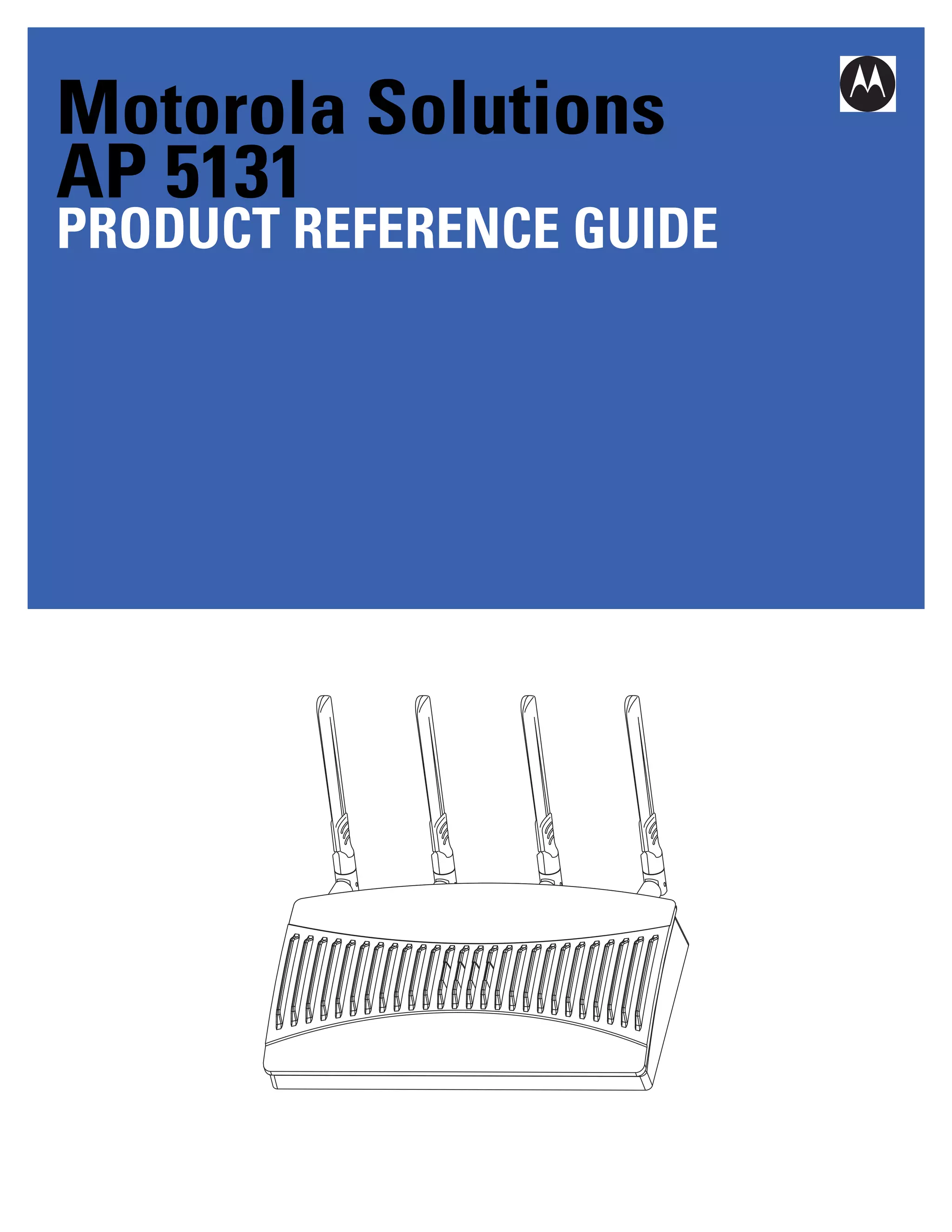









Motorola Solutions
AP 5131
PRODUCT REFERENCE GUIDE
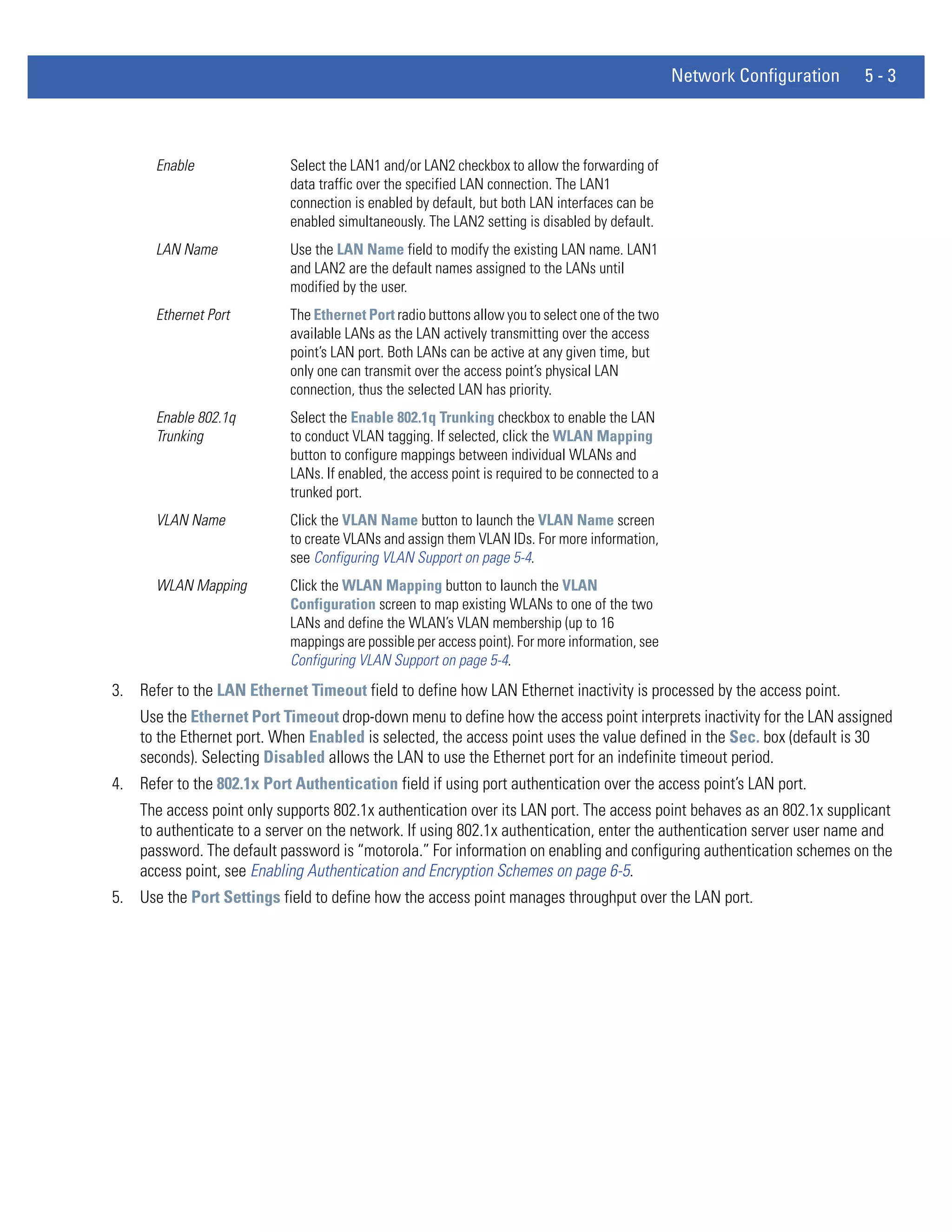
MOTOROLA SOLUTIONS AP 51XX
  PRODUCT REFERENCE GUIDE
                  72E-157066-01
                      Revision A
                   January 2012
ii   WiNG 4.4 AP-5131 Product Reference Guide


     No part of this publication may be reproduced or used in any form, or by any electrical or mechanical means,
     without permission in writing from Motorola Solutions. This includes electronic or mechanical means, such as
     photocopying, recording, or information storage and retrieval systems. The material in this manual is subject to
     change without notice.

     The software is provided strictly on an “as is” basis. All software, including firmware, furnished to the user is on
     a licensed basis. Motorola Solutions grants to the user a non-transferable and non-exclusive license to use
     each software or firmware program delivered hereunder (licensed program). Except as noted below, such
     license may not be assigned, sublicensed, or otherwise transferred by the user without prior written consent of
     Motorola Solutions. No right to copy a licensed program in whole or in part is granted, except as permitted
     under copyright law. The user shall not modify, merge, or incorporate any form or portion of a licensed program
     with other program material, create a derivative work from a licensed program, or use a licensed program in a
     network without written permission from Motorola Solutions. The user agrees to maintain Motorola Solutions’s
     copyright notice on the licensed programs delivered hereunder, and to include the same on any authorized
     copies it makes, in whole or in part. The user agrees not to decompile, disassemble, decode, or reverse
     engineer any licensed program delivered to the user or any portion thereof.

     Motorola Solutions reserves the right to make changes to any software or product to improve reliability,
     function, or design.

     Motorola Solutions does not assume any product liability arising out of, or in connection with, the application or
     use of any product, circuit, or application described herein.

     No license is granted, either expressly or by implication, estoppel, or otherwise under any Motorola Solutions,
     Inc., intellectual property rights. An implied license only exists for equipment, circuits, and subsystems
     contained in Motorola Solutions products.
iii


Revision History
     Changes to the original guide are listed below:

        Change             Date                                      Description

      Rev A        January 2012           Manual updated to WiNG 4.4 baseline
iv   WiNG 4.4 AP-5131 Product Reference Guide
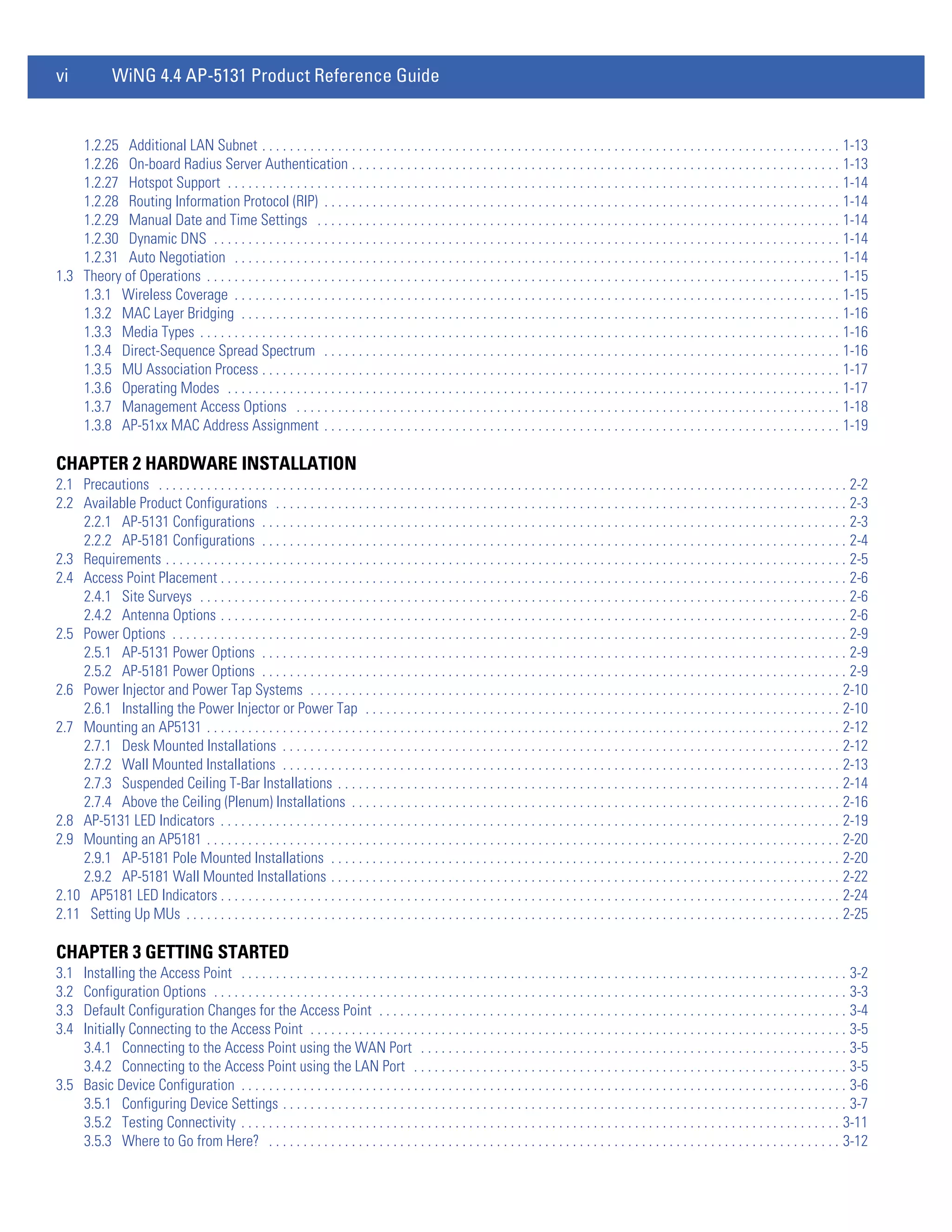
CONTENTS

ABOUT THIS GUIDE

CHAPTER 1 INTRODUCTION
1.1 New Features . . . . . . . . . . . . . . . . . . . . . . . . . . . . . . . . . . . . . . . . . . . . . . . . . . . . . . . . . . . . . . . . . . . . . . . . . . . . . . . . . . . . . . . . . . . . . . . . . . . 1-2
    1.1.1 WIPS Support . . . . . . . . . . . . . . . . . . . . . . . . . . . . . . . . . . . . . . . . . . . . . . . . . . . . . . . . . . . . . . . . . . . . . . . . . . . . . . . . . . . . . . . . . . . . . 1-2
    1.1.2 Trusted Host Management . . . . . . . . . . . . . . . . . . . . . . . . . . . . . . . . . . . . . . . . . . . . . . . . . . . . . . . . . . . . . . . . . . . . . . . . . . . . . . . . . . . 1-2
    1.1.3 Apache Certificate Management . . . . . . . . . . . . . . . . . . . . . . . . . . . . . . . . . . . . . . . . . . . . . . . . . . . . . . . . . . . . . . . . . . . . . . . . . . . . . . 1-2
    1.1.4 Adaptive AP . . . . . . . . . . . . . . . . . . . . . . . . . . . . . . . . . . . . . . . . . . . . . . . . . . . . . . . . . . . . . . . . . . . . . . . . . . . . . . . . . . . . . . . . . . . . . . 1-3
    1.1.5 Rogue AP Enhancements . . . . . . . . . . . . . . . . . . . . . . . . . . . . . . . . . . . . . . . . . . . . . . . . . . . . . . . . . . . . . . . . . . . . . . . . . . . . . . . . . . . . 1-3
    1.1.6 Bandwidth Management Enhancements . . . . . . . . . . . . . . . . . . . . . . . . . . . . . . . . . . . . . . . . . . . . . . . . . . . . . . . . . . . . . . . . . . . . . . . . 1-3
    1.1.7 Radius Time-Based Authentication . . . . . . . . . . . . . . . . . . . . . . . . . . . . . . . . . . . . . . . . . . . . . . . . . . . . . . . . . . . . . . . . . . . . . . . . . . . . 1-3
    1.1.8 QBSS Support . . . . . . . . . . . . . . . . . . . . . . . . . . . . . . . . . . . . . . . . . . . . . . . . . . . . . . . . . . . . . . . . . . . . . . . . . . . . . . . . . . . . . . . . . . . . . 1-3
1.2 Feature Overview . . . . . . . . . . . . . . . . . . . . . . . . . . . . . . . . . . . . . . . . . . . . . . . . . . . . . . . . . . . . . . . . . . . . . . . . . . . . . . . . . . . . . . . . . . . . . . . . 1-4
    1.2.1 Single or Dual Mode Radio Options . . . . . . . . . . . . . . . . . . . . . . . . . . . . . . . . . . . . . . . . . . . . . . . . . . . . . . . . . . . . . . . . . . . . . . . . . . . . 1-5
    1.2.2 Separate LAN and WAN Ports . . . . . . . . . . . . . . . . . . . . . . . . . . . . . . . . . . . . . . . . . . . . . . . . . . . . . . . . . . . . . . . . . . . . . . . . . . . . . . . . 1-5
    1.2.3 Multiple Mounting Options . . . . . . . . . . . . . . . . . . . . . . . . . . . . . . . . . . . . . . . . . . . . . . . . . . . . . . . . . . . . . . . . . . . . . . . . . . . . . . . . . . 1-5
    1.2.4 Antenna Support for 2.4 GHz and 5 GHz Radios . . . . . . . . . . . . . . . . . . . . . . . . . . . . . . . . . . . . . . . . . . . . . . . . . . . . . . . . . . . . . . . . . . 1-5
    1.2.5 Sixteen Configurable WLANs . . . . . . . . . . . . . . . . . . . . . . . . . . . . . . . . . . . . . . . . . . . . . . . . . . . . . . . . . . . . . . . . . . . . . . . . . . . . . . . . . 1-5
    1.2.6 Support for 4 BSSIDs per Radio . . . . . . . . . . . . . . . . . . . . . . . . . . . . . . . . . . . . . . . . . . . . . . . . . . . . . . . . . . . . . . . . . . . . . . . . . . . . . . . 1-6
    1.2.7 Quality of Service (QoS) Support . . . . . . . . . . . . . . . . . . . . . . . . . . . . . . . . . . . . . . . . . . . . . . . . . . . . . . . . . . . . . . . . . . . . . . . . . . . . . . 1-6
    1.2.8 Industry Leading Data Security . . . . . . . . . . . . . . . . . . . . . . . . . . . . . . . . . . . . . . . . . . . . . . . . . . . . . . . . . . . . . . . . . . . . . . . . . . . . . . . 1-6
    1.2.9 VLAN Support . . . . . . . . . . . . . . . . . . . . . . . . . . . . . . . . . . . . . . . . . . . . . . . . . . . . . . . . . . . . . . . . . . . . . . . . . . . . . . . . . . . . . . . . . . . . . 1-9
    1.2.10 Multiple Management Accessibility Options . . . . . . . . . . . . . . . . . . . . . . . . . . . . . . . . . . . . . . . . . . . . . . . . . . . . . . . . . . . . . . . . . . . . 1-9
    1.2.11 Updatable Firmware . . . . . . . . . . . . . . . . . . . . . . . . . . . . . . . . . . . . . . . . . . . . . . . . . . . . . . . . . . . . . . . . . . . . . . . . . . . . . . . . . . . . . . 1-10
    1.2.12 Programmable SNMP v1/v2/v3 Trap Support . . . . . . . . . . . . . . . . . . . . . . . . . . . . . . . . . . . . . . . . . . . . . . . . . . . . . . . . . . . . . . . . . . 1-10
    1.2.13 Power-over-Ethernet Support . . . . . . . . . . . . . . . . . . . . . . . . . . . . . . . . . . . . . . . . . . . . . . . . . . . . . . . . . . . . . . . . . . . . . . . . . . . . . . . 1-10
    1.2.14 MU-MU Transmission Disallow . . . . . . . . . . . . . . . . . . . . . . . . . . . . . . . . . . . . . . . . . . . . . . . . . . . . . . . . . . . . . . . . . . . . . . . . . . . . . 1-10
    1.2.15 Voice Prioritization . . . . . . . . . . . . . . . . . . . . . . . . . . . . . . . . . . . . . . . . . . . . . . . . . . . . . . . . . . . . . . . . . . . . . . . . . . . . . . . . . . . . . . . 1-11
    1.2.16 Support for CAM and PSP MUs . . . . . . . . . . . . . . . . . . . . . . . . . . . . . . . . . . . . . . . . . . . . . . . . . . . . . . . . . . . . . . . . . . . . . . . . . . . . . 1-11
    1.2.17 Statistical Displays . . . . . . . . . . . . . . . . . . . . . . . . . . . . . . . . . . . . . . . . . . . . . . . . . . . . . . . . . . . . . . . . . . . . . . . . . . . . . . . . . . . . . . . 1-11
    1.2.18 Transmit Power Control . . . . . . . . . . . . . . . . . . . . . . . . . . . . . . . . . . . . . . . . . . . . . . . . . . . . . . . . . . . . . . . . . . . . . . . . . . . . . . . . . . . 1-11
    1.2.19 Advanced Event Logging Capability . . . . . . . . . . . . . . . . . . . . . . . . . . . . . . . . . . . . . . . . . . . . . . . . . . . . . . . . . . . . . . . . . . . . . . . . . . 1-11
    1.2.20 Configuration File Import/Export Functionality . . . . . . . . . . . . . . . . . . . . . . . . . . . . . . . . . . . . . . . . . . . . . . . . . . . . . . . . . . . . . . . . . 1-12
    1.2.21 Default Configuration Restoration . . . . . . . . . . . . . . . . . . . . . . . . . . . . . . . . . . . . . . . . . . . . . . . . . . . . . . . . . . . . . . . . . . . . . . . . . . . 1-12
    1.2.22 DHCP Support . . . . . . . . . . . . . . . . . . . . . . . . . . . . . . . . . . . . . . . . . . . . . . . . . . . . . . . . . . . . . . . . . . . . . . . . . . . . . . . . . . . . . . . . . . . 1-12
    1.2.23 Multi-Function LEDs . . . . . . . . . . . . . . . . . . . . . . . . . . . . . . . . . . . . . . . . . . . . . . . . . . . . . . . . . . . . . . . . . . . . . . . . . . . . . . . . . . . . . . 1-12
    1.2.24 Mesh Networking . . . . . . . . . . . . . . . . . . . . . . . . . . . . . . . . . . . . . . . . . . . . . . . . . . . . . . . . . . . . . . . . . . . . . . . . . . . . . . . . . . . . . . . . 1-12
vi             WiNG 4.4 AP-5131 Product Reference Guide


    1.2.25 Additional LAN Subnet . . . . . . . . . . . . . . . . . . . . . . . . . . . . . . . . . . . . . . . . . . . . . . . . . . . . . . . . . . . . . . . . . . . . . . . . . . . . . . . . . . . . 1-13
    1.2.26 On-board Radius Server Authentication . . . . . . . . . . . . . . . . . . . . . . . . . . . . . . . . . . . . . . . . . . . . . . . . . . . . . . . . . . . . . . . . . . . . . . . 1-13
    1.2.27 Hotspot Support . . . . . . . . . . . . . . . . . . . . . . . . . . . . . . . . . . . . . . . . . . . . . . . . . . . . . . . . . . . . . . . . . . . . . . . . . . . . . . . . . . . . . . . . . 1-14
    1.2.28 Routing Information Protocol (RIP) . . . . . . . . . . . . . . . . . . . . . . . . . . . . . . . . . . . . . . . . . . . . . . . . . . . . . . . . . . . . . . . . . . . . . . . . . . . 1-14
    1.2.29 Manual Date and Time Settings . . . . . . . . . . . . . . . . . . . . . . . . . . . . . . . . . . . . . . . . . . . . . . . . . . . . . . . . . . . . . . . . . . . . . . . . . . . . 1-14
    1.2.30 Dynamic DNS . . . . . . . . . . . . . . . . . . . . . . . . . . . . . . . . . . . . . . . . . . . . . . . . . . . . . . . . . . . . . . . . . . . . . . . . . . . . . . . . . . . . . . . . . . . 1-14
    1.2.31 Auto Negotiation . . . . . . . . . . . . . . . . . . . . . . . . . . . . . . . . . . . . . . . . . . . . . . . . . . . . . . . . . . . . . . . . . . . . . . . . . . . . . . . . . . . . . . . . 1-14
1.3 Theory of Operations . . . . . . . . . . . . . . . . . . . . . . . . . . . . . . . . . . . . . . . . . . . . . . . . . . . . . . . . . . . . . . . . . . . . . . . . . . . . . . . . . . . . . . . . . . . . 1-15
    1.3.1 Wireless Coverage . . . . . . . . . . . . . . . . . . . . . . . . . . . . . . . . . . . . . . . . . . . . . . . . . . . . . . . . . . . . . . . . . . . . . . . . . . . . . . . . . . . . . . . . 1-15
    1.3.2 MAC Layer Bridging . . . . . . . . . . . . . . . . . . . . . . . . . . . . . . . . . . . . . . . . . . . . . . . . . . . . . . . . . . . . . . . . . . . . . . . . . . . . . . . . . . . . . . . 1-16
    1.3.3 Media Types . . . . . . . . . . . . . . . . . . . . . . . . . . . . . . . . . . . . . . . . . . . . . . . . . . . . . . . . . . . . . . . . . . . . . . . . . . . . . . . . . . . . . . . . . . . . . 1-16
    1.3.4 Direct-Sequence Spread Spectrum . . . . . . . . . . . . . . . . . . . . . . . . . . . . . . . . . . . . . . . . . . . . . . . . . . . . . . . . . . . . . . . . . . . . . . . . . . . 1-16
    1.3.5 MU Association Process . . . . . . . . . . . . . . . . . . . . . . . . . . . . . . . . . . . . . . . . . . . . . . . . . . . . . . . . . . . . . . . . . . . . . . . . . . . . . . . . . . . . 1-17
    1.3.6 Operating Modes . . . . . . . . . . . . . . . . . . . . . . . . . . . . . . . . . . . . . . . . . . . . . . . . . . . . . . . . . . . . . . . . . . . . . . . . . . . . . . . . . . . . . . . . . 1-17
    1.3.7 Management Access Options . . . . . . . . . . . . . . . . . . . . . . . . . . . . . . . . . . . . . . . . . . . . . . . . . . . . . . . . . . . . . . . . . . . . . . . . . . . . . . . 1-18
    1.3.8 AP-51xx MAC Address Assignment . . . . . . . . . . . . . . . . . . . . . . . . . . . . . . . . . . . . . . . . . . . . . . . . . . . . . . . . . . . . . . . . . . . . . . . . . . . 1-19

CHAPTER 2 HARDWARE INSTALLATION
2.1 Precautions . . . . . . . . . . . . . . . . . . . . . . . . . . . . . . . . . . . . . . . . . . . . . . . . . . . . . . . . . . . . . . . . . . . . . . . . . . . . . . . . . . . . . . . . . . . . . . . . . . . . 2-2
2.2 Available Product Configurations . . . . . . . . . . . . . . . . . . . . . . . . . . . . . . . . . . . . . . . . . . . . . . . . . . . . . . . . . . . . . . . . . . . . . . . . . . . . . . . . . . . 2-3
    2.2.1 AP-5131 Configurations . . . . . . . . . . . . . . . . . . . . . . . . . . . . . . . . . . . . . . . . . . . . . . . . . . . . . . . . . . . . . . . . . . . . . . . . . . . . . . . . . . . . . 2-3
    2.2.2 AP-5181 Configurations . . . . . . . . . . . . . . . . . . . . . . . . . . . . . . . . . . . . . . . . . . . . . . . . . . . . . . . . . . . . . . . . . . . . . . . . . . . . . . . . . . . . . 2-4
2.3 Requirements . . . . . . . . . . . . . . . . . . . . . . . . . . . . . . . . . . . . . . . . . . . . . . . . . . . . . . . . . . . . . . . . . . . . . . . . . . . . . . . . . . . . . . . . . . . . . . . . . . . 2-5
2.4 Access Point Placement . . . . . . . . . . . . . . . . . . . . . . . . . . . . . . . . . . . . . . . . . . . . . . . . . . . . . . . . . . . . . . . . . . . . . . . . . . . . . . . . . . . . . . . . . . . 2-6
    2.4.1 Site Surveys . . . . . . . . . . . . . . . . . . . . . . . . . . . . . . . . . . . . . . . . . . . . . . . . . . . . . . . . . . . . . . . . . . . . . . . . . . . . . . . . . . . . . . . . . . . . . . 2-6
    2.4.2 Antenna Options . . . . . . . . . . . . . . . . . . . . . . . . . . . . . . . . . . . . . . . . . . . . . . . . . . . . . . . . . . . . . . . . . . . . . . . . . . . . . . . . . . . . . . . . . . . 2-6
2.5 Power Options . . . . . . . . . . . . . . . . . . . . . . . . . . . . . . . . . . . . . . . . . . . . . . . . . . . . . . . . . . . . . . . . . . . . . . . . . . . . . . . . . . . . . . . . . . . . . . . . . . 2-9
    2.5.1 AP-5131 Power Options . . . . . . . . . . . . . . . . . . . . . . . . . . . . . . . . . . . . . . . . . . . . . . . . . . . . . . . . . . . . . . . . . . . . . . . . . . . . . . . . . . . . . 2-9
    2.5.2 AP-5181 Power Options . . . . . . . . . . . . . . . . . . . . . . . . . . . . . . . . . . . . . . . . . . . . . . . . . . . . . . . . . . . . . . . . . . . . . . . . . . . . . . . . . . . . . 2-9
2.6 Power Injector and Power Tap Systems . . . . . . . . . . . . . . . . . . . . . . . . . . . . . . . . . . . . . . . . . . . . . . . . . . . . . . . . . . . . . . . . . . . . . . . . . . . . . 2-10
    2.6.1 Installing the Power Injector or Power Tap . . . . . . . . . . . . . . . . . . . . . . . . . . . . . . . . . . . . . . . . . . . . . . . . . . . . . . . . . . . . . . . . . . . . . 2-10
2.7 Mounting an AP5131 . . . . . . . . . . . . . . . . . . . . . . . . . . . . . . . . . . . . . . . . . . . . . . . . . . . . . . . . . . . . . . . . . . . . . . . . . . . . . . . . . . . . . . . . . . . . 2-12
    2.7.1 Desk Mounted Installations . . . . . . . . . . . . . . . . . . . . . . . . . . . . . . . . . . . . . . . . . . . . . . . . . . . . . . . . . . . . . . . . . . . . . . . . . . . . . . . . . 2-12
    2.7.2 Wall Mounted Installations . . . . . . . . . . . . . . . . . . . . . . . . . . . . . . . . . . . . . . . . . . . . . . . . . . . . . . . . . . . . . . . . . . . . . . . . . . . . . . . . . 2-13
    2.7.3 Suspended Ceiling T-Bar Installations . . . . . . . . . . . . . . . . . . . . . . . . . . . . . . . . . . . . . . . . . . . . . . . . . . . . . . . . . . . . . . . . . . . . . . . . . 2-14
    2.7.4 Above the Ceiling (Plenum) Installations . . . . . . . . . . . . . . . . . . . . . . . . . . . . . . . . . . . . . . . . . . . . . . . . . . . . . . . . . . . . . . . . . . . . . . . 2-16
2.8 AP-5131 LED Indicators . . . . . . . . . . . . . . . . . . . . . . . . . . . . . . . . . . . . . . . . . . . . . . . . . . . . . . . . . . . . . . . . . . . . . . . . . . . . . . . . . . . . . . . . . . 2-19
2.9 Mounting an AP5181 . . . . . . . . . . . . . . . . . . . . . . . . . . . . . . . . . . . . . . . . . . . . . . . . . . . . . . . . . . . . . . . . . . . . . . . . . . . . . . . . . . . . . . . . . . . . 2-20
    2.9.1 AP-5181 Pole Mounted Installations . . . . . . . . . . . . . . . . . . . . . . . . . . . . . . . . . . . . . . . . . . . . . . . . . . . . . . . . . . . . . . . . . . . . . . . . . . 2-20
    2.9.2 AP-5181 Wall Mounted Installations . . . . . . . . . . . . . . . . . . . . . . . . . . . . . . . . . . . . . . . . . . . . . . . . . . . . . . . . . . . . . . . . . . . . . . . . . . 2-22
2.10 AP5181 LED Indicators . . . . . . . . . . . . . . . . . . . . . . . . . . . . . . . . . . . . . . . . . . . . . . . . . . . . . . . . . . . . . . . . . . . . . . . . . . . . . . . . . . . . . . . . . . 2-24
2.11 Setting Up MUs . . . . . . . . . . . . . . . . . . . . . . . . . . . . . . . . . . . . . . . . . . . . . . . . . . . . . . . . . . . . . . . . . . . . . . . . . . . . . . . . . . . . . . . . . . . . . . . 2-25

CHAPTER 3 GETTING STARTED
3.1 Installing the Access Point . . . . . . . . . . . . . . . . . . . . . . . . . . . . . . . . . . . . . . . . . . . . . . . . . . . . . . . . . . . . . . . . . . . . . . . . . . . . . . . . . . . . . . . . 3-2
3.2 Configuration Options . . . . . . . . . . . . . . . . . . . . . . . . . . . . . . . . . . . . . . . . . . . . . . . . . . . . . . . . . . . . . . . . . . . . . . . . . . . . . . . . . . . . . . . . . . . . 3-3
3.3 Default Configuration Changes for the Access Point . . . . . . . . . . . . . . . . . . . . . . . . . . . . . . . . . . . . . . . . . . . . . . . . . . . . . . . . . . . . . . . . . . . . 3-4
3.4 Initially Connecting to the Access Point . . . . . . . . . . . . . . . . . . . . . . . . . . . . . . . . . . . . . . . . . . . . . . . . . . . . . . . . . . . . . . . . . . . . . . . . . . . . . . 3-5
    3.4.1 Connecting to the Access Point using the WAN Port . . . . . . . . . . . . . . . . . . . . . . . . . . . . . . . . . . . . . . . . . . . . . . . . . . . . . . . . . . . . . . 3-5
    3.4.2 Connecting to the Access Point using the LAN Port . . . . . . . . . . . . . . . . . . . . . . . . . . . . . . . . . . . . . . . . . . . . . . . . . . . . . . . . . . . . . . . 3-5
3.5 Basic Device Configuration . . . . . . . . . . . . . . . . . . . . . . . . . . . . . . . . . . . . . . . . . . . . . . . . . . . . . . . . . . . . . . . . . . . . . . . . . . . . . . . . . . . . . . . . 3-6
    3.5.1 Configuring Device Settings . . . . . . . . . . . . . . . . . . . . . . . . . . . . . . . . . . . . . . . . . . . . . . . . . . . . . . . . . . . . . . . . . . . . . . . . . . . . . . . . . . 3-7
    3.5.2 Testing Connectivity . . . . . . . . . . . . . . . . . . . . . . . . . . . . . . . . . . . . . . . . . . . . . . . . . . . . . . . . . . . . . . . . . . . . . . . . . . . . . . . . . . . . . . . 3-11
    3.5.3 Where to Go from Here? . . . . . . . . . . . . . . . . . . . . . . . . . . . . . . . . . . . . . . . . . . . . . . . . . . . . . . . . . . . . . . . . . . . . . . . . . . . . . . . . . . . 3-12
About This Guide                            vii


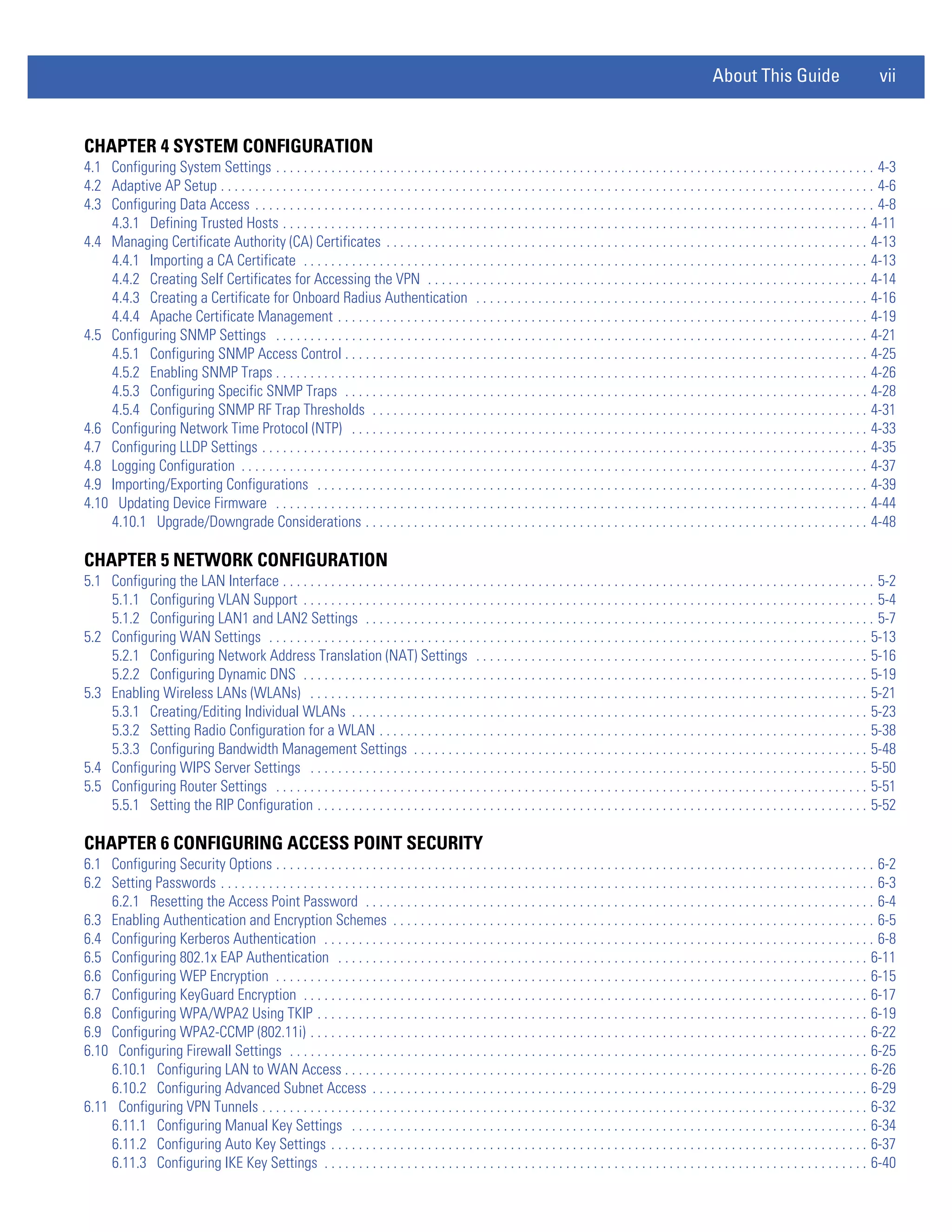
CHAPTER 4 SYSTEM CONFIGURATION
4.1 Configuring System Settings . . . . . . . . . . . . . . . . . . . . . . . . . . . . . . . . . . . . . . . . . . . . . . . . . . . . . . . . . . . . . . . . . . . . . . . . . . . . . . . . . . . . . . . 4-3
4.2 Adaptive AP Setup . . . . . . . . . . . . . . . . . . . . . . . . . . . . . . . . . . . . . . . . . . . . . . . . . . . . . . . . . . . . . . . . . . . . . . . . . . . . . . . . . . . . . . . . . . . . . . . 4-6
4.3 Configuring Data Access . . . . . . . . . . . . . . . . . . . . . . . . . . . . . . . . . . . . . . . . . . . . . . . . . . . . . . . . . . . . . . . . . . . . . . . . . . . . . . . . . . . . . . . . . . 4-8
    4.3.1 Defining Trusted Hosts . . . . . . . . . . . . . . . . . . . . . . . . . . . . . . . . . . . . . . . . . . . . . . . . . . . . . . . . . . . . . . . . . . . . . . . . . . . . . . . . . . . . . 4-11
4.4 Managing Certificate Authority (CA) Certificates . . . . . . . . . . . . . . . . . . . . . . . . . . . . . . . . . . . . . . . . . . . . . . . . . . . . . . . . . . . . . . . . . . . . . . 4-13
    4.4.1 Importing a CA Certificate . . . . . . . . . . . . . . . . . . . . . . . . . . . . . . . . . . . . . . . . . . . . . . . . . . . . . . . . . . . . . . . . . . . . . . . . . . . . . . . . . . 4-13
    4.4.2 Creating Self Certificates for Accessing the VPN . . . . . . . . . . . . . . . . . . . . . . . . . . . . . . . . . . . . . . . . . . . . . . . . . . . . . . . . . . . . . . . . 4-14
    4.4.3 Creating a Certificate for Onboard Radius Authentication . . . . . . . . . . . . . . . . . . . . . . . . . . . . . . . . . . . . . . . . . . . . . . . . . . . . . . . . . 4-16
    4.4.4 Apache Certificate Management . . . . . . . . . . . . . . . . . . . . . . . . . . . . . . . . . . . . . . . . . . . . . . . . . . . . . . . . . . . . . . . . . . . . . . . . . . . . . 4-19
4.5 Configuring SNMP Settings . . . . . . . . . . . . . . . . . . . . . . . . . . . . . . . . . . . . . . . . . . . . . . . . . . . . . . . . . . . . . . . . . . . . . . . . . . . . . . . . . . . . . . 4-21
    4.5.1 Configuring SNMP Access Control . . . . . . . . . . . . . . . . . . . . . . . . . . . . . . . . . . . . . . . . . . . . . . . . . . . . . . . . . . . . . . . . . . . . . . . . . . . . 4-25
    4.5.2 Enabling SNMP Traps . . . . . . . . . . . . . . . . . . . . . . . . . . . . . . . . . . . . . . . . . . . . . . . . . . . . . . . . . . . . . . . . . . . . . . . . . . . . . . . . . . . . . . 4-26
    4.5.3 Configuring Specific SNMP Traps . . . . . . . . . . . . . . . . . . . . . . . . . . . . . . . . . . . . . . . . . . . . . . . . . . . . . . . . . . . . . . . . . . . . . . . . . . . . 4-28
    4.5.4 Configuring SNMP RF Trap Thresholds . . . . . . . . . . . . . . . . . . . . . . . . . . . . . . . . . . . . . . . . . . . . . . . . . . . . . . . . . . . . . . . . . . . . . . . . 4-31
4.6 Configuring Network Time Protocol (NTP) . . . . . . . . . . . . . . . . . . . . . . . . . . . . . . . . . . . . . . . . . . . . . . . . . . . . . . . . . . . . . . . . . . . . . . . . . . . 4-33
4.7 Configuring LLDP Settings . . . . . . . . . . . . . . . . . . . . . . . . . . . . . . . . . . . . . . . . . . . . . . . . . . . . . . . . . . . . . . . . . . . . . . . . . . . . . . . . . . . . . . . . 4-35
4.8 Logging Configuration . . . . . . . . . . . . . . . . . . . . . . . . . . . . . . . . . . . . . . . . . . . . . . . . . . . . . . . . . . . . . . . . . . . . . . . . . . . . . . . . . . . . . . . . . . . 4-37
4.9 Importing/Exporting Configurations . . . . . . . . . . . . . . . . . . . . . . . . . . . . . . . . . . . . . . . . . . . . . . . . . . . . . . . . . . . . . . . . . . . . . . . . . . . . . . . . 4-39
4.10 Updating Device Firmware . . . . . . . . . . . . . . . . . . . . . . . . . . . . . . . . . . . . . . . . . . . . . . . . . . . . . . . . . . . . . . . . . . . . . . . . . . . . . . . . . . . . . . 4-44
    4.10.1 Upgrade/Downgrade Considerations . . . . . . . . . . . . . . . . . . . . . . . . . . . . . . . . . . . . . . . . . . . . . . . . . . . . . . . . . . . . . . . . . . . . . . . . . 4-48

CHAPTER 5 NETWORK CONFIGURATION
5.1 Configuring the LAN Interface . . . . . . . . . . . . . . . . . . . . . . . . . . . . . . . . . . . . . . . . . . . . . . . . . . . . . . . . . . . . . . . . . . . . . . . . . . . . . . . . . . . . . . 5-2
    5.1.1 Configuring VLAN Support . . . . . . . . . . . . . . . . . . . . . . . . . . . . . . . . . . . . . . . . . . . . . . . . . . . . . . . . . . . . . . . . . . . . . . . . . . . . . . . . . . . 5-4
    5.1.2 Configuring LAN1 and LAN2 Settings . . . . . . . . . . . . . . . . . . . . . . . . . . . . . . . . . . . . . . . . . . . . . . . . . . . . . . . . . . . . . . . . . . . . . . . . . . 5-7
5.2 Configuring WAN Settings . . . . . . . . . . . . . . . . . . . . . . . . . . . . . . . . . . . . . . . . . . . . . . . . . . . . . . . . . . . . . . . . . . . . . . . . . . . . . . . . . . . . . . . 5-13
    5.2.1 Configuring Network Address Translation (NAT) Settings . . . . . . . . . . . . . . . . . . . . . . . . . . . . . . . . . . . . . . . . . . . . . . . . . . . . . . . . . 5-16
    5.2.2 Configuring Dynamic DNS . . . . . . . . . . . . . . . . . . . . . . . . . . . . . . . . . . . . . . . . . . . . . . . . . . . . . . . . . . . . . . . . . . . . . . . . . . . . . . . . . . 5-19
5.3 Enabling Wireless LANs (WLANs) . . . . . . . . . . . . . . . . . . . . . . . . . . . . . . . . . . . . . . . . . . . . . . . . . . . . . . . . . . . . . . . . . . . . . . . . . . . . . . . . . 5-21
    5.3.1 Creating/Editing Individual WLANs . . . . . . . . . . . . . . . . . . . . . . . . . . . . . . . . . . . . . . . . . . . . . . . . . . . . . . . . . . . . . . . . . . . . . . . . . . . 5-23
    5.3.2 Setting Radio Configuration for a WLAN . . . . . . . . . . . . . . . . . . . . . . . . . . . . . . . . . . . . . . . . . . . . . . . . . . . . . . . . . . . . . . . . . . . . . . . 5-38
    5.3.3 Configuring Bandwidth Management Settings . . . . . . . . . . . . . . . . . . . . . . . . . . . . . . . . . . . . . . . . . . . . . . . . . . . . . . . . . . . . . . . . . . 5-48
5.4 Configuring WIPS Server Settings . . . . . . . . . . . . . . . . . . . . . . . . . . . . . . . . . . . . . . . . . . . . . . . . . . . . . . . . . . . . . . . . . . . . . . . . . . . . . . . . . 5-50
5.5 Configuring Router Settings . . . . . . . . . . . . . . . . . . . . . . . . . . . . . . . . . . . . . . . . . . . . . . . . . . . . . . . . . . . . . . . . . . . . . . . . . . . . . . . . . . . . . . 5-51
    5.5.1 Setting the RIP Configuration . . . . . . . . . . . . . . . . . . . . . . . . . . . . . . . . . . . . . . . . . . . . . . . . . . . . . . . . . . . . . . . . . . . . . . . . . . . . . . . . 5-52

CHAPTER 6 CONFIGURING ACCESS POINT SECURITY
6.1 Configuring Security Options . . . . . . . . . . . . . . . . . . . . . . . . . . . . . . . . . . . . . . . . . . . . . . . . . . . . . . . . . . . . . . . . . . . . . . . . . . . . . . . . . . . . . . . 6-2
6.2 Setting Passwords . . . . . . . . . . . . . . . . . . . . . . . . . . . . . . . . . . . . . . . . . . . . . . . . . . . . . . . . . . . . . . . . . . . . . . . . . . . . . . . . . . . . . . . . . . . . . . . 6-3
    6.2.1 Resetting the Access Point Password . . . . . . . . . . . . . . . . . . . . . . . . . . . . . . . . . . . . . . . . . . . . . . . . . . . . . . . . . . . . . . . . . . . . . . . . . . 6-4
6.3 Enabling Authentication and Encryption Schemes . . . . . . . . . . . . . . . . . . . . . . . . . . . . . . . . . . . . . . . . . . . . . . . . . . . . . . . . . . . . . . . . . . . . . . 6-5
6.4 Configuring Kerberos Authentication . . . . . . . . . . . . . . . . . . . . . . . . . . . . . . . . . . . . . . . . . . . . . . . . . . . . . . . . . . . . . . . . . . . . . . . . . . . . . . . . 6-8
6.5 Configuring 802.1x EAP Authentication . . . . . . . . . . . . . . . . . . . . . . . . . . . . . . . . . . . . . . . . . . . . . . . . . . . . . . . . . . . . . . . . . . . . . . . . . . . . . 6-11
6.6 Configuring WEP Encryption . . . . . . . . . . . . . . . . . . . . . . . . . . . . . . . . . . . . . . . . . . . . . . . . . . . . . . . . . . . . . . . . . . . . . . . . . . . . . . . . . . . . . . 6-15
6.7 Configuring KeyGuard Encryption . . . . . . . . . . . . . . . . . . . . . . . . . . . . . . . . . . . . . . . . . . . . . . . . . . . . . . . . . . . . . . . . . . . . . . . . . . . . . . . . . . 6-17
6.8 Configuring WPA/WPA2 Using TKIP . . . . . . . . . . . . . . . . . . . . . . . . . . . . . . . . . . . . . . . . . . . . . . . . . . . . . . . . . . . . . . . . . . . . . . . . . . . . . . . . 6-19
6.9 Configuring WPA2-CCMP (802.11i) . . . . . . . . . . . . . . . . . . . . . . . . . . . . . . . . . . . . . . . . . . . . . . . . . . . . . . . . . . . . . . . . . . . . . . . . . . . . . . . . . 6-22
6.10 Configuring Firewall Settings . . . . . . . . . . . . . . . . . . . . . . . . . . . . . . . . . . . . . . . . . . . . . . . . . . . . . . . . . . . . . . . . . . . . . . . . . . . . . . . . . . . . 6-25
    6.10.1 Configuring LAN to WAN Access . . . . . . . . . . . . . . . . . . . . . . . . . . . . . . . . . . . . . . . . . . . . . . . . . . . . . . . . . . . . . . . . . . . . . . . . . . . . 6-26
    6.10.2 Configuring Advanced Subnet Access . . . . . . . . . . . . . . . . . . . . . . . . . . . . . . . . . . . . . . . . . . . . . . . . . . . . . . . . . . . . . . . . . . . . . . . . 6-29
6.11 Configuring VPN Tunnels . . . . . . . . . . . . . . . . . . . . . . . . . . . . . . . . . . . . . . . . . . . . . . . . . . . . . . . . . . . . . . . . . . . . . . . . . . . . . . . . . . . . . . . . 6-32
    6.11.1 Configuring Manual Key Settings . . . . . . . . . . . . . . . . . . . . . . . . . . . . . . . . . . . . . . . . . . . . . . . . . . . . . . . . . . . . . . . . . . . . . . . . . . . 6-34
    6.11.2 Configuring Auto Key Settings . . . . . . . . . . . . . . . . . . . . . . . . . . . . . . . . . . . . . . . . . . . . . . . . . . . . . . . . . . . . . . . . . . . . . . . . . . . . . . 6-37
    6.11.3 Configuring IKE Key Settings . . . . . . . . . . . . . . . . . . . . . . . . . . . . . . . . . . . . . . . . . . . . . . . . . . . . . . . . . . . . . . . . . . . . . . . . . . . . . . . 6-40
viii          WiNG 4.4 AP-5131 Product Reference Guide


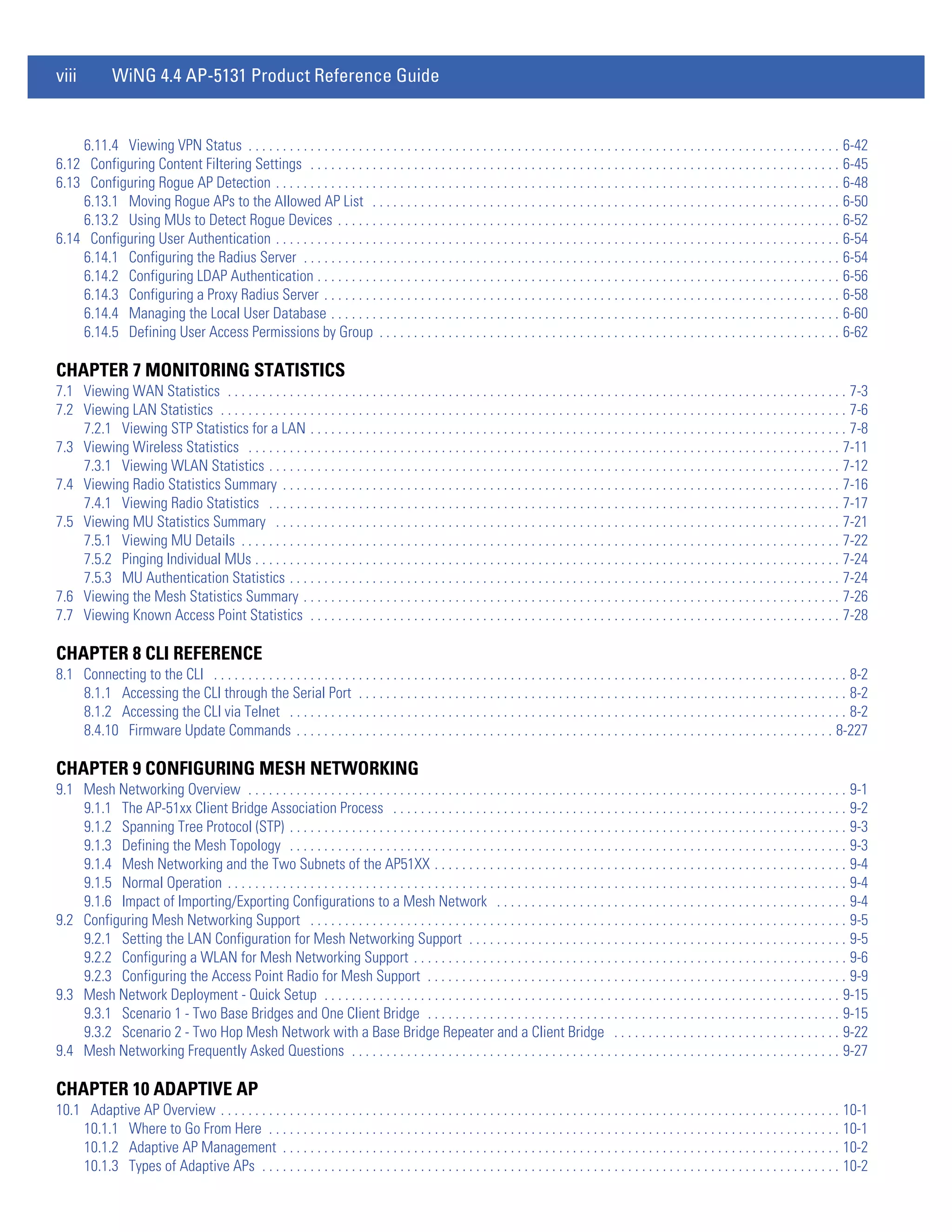
    6.11.4 Viewing VPN Status . . . . . . . . . . . . . . . . . . . . . . . . . . . . . . . . . . . . . . . . . . . . . . . . . . . . . . . . . . . . . . . . . . . . . . . . . . . . . . . . . . . . . . 6-42
6.12 Configuring Content Filtering Settings . . . . . . . . . . . . . . . . . . . . . . . . . . . . . . . . . . . . . . . . . . . . . . . . . . . . . . . . . . . . . . . . . . . . . . . . . . . . . 6-45
6.13 Configuring Rogue AP Detection . . . . . . . . . . . . . . . . . . . . . . . . . . . . . . . . . . . . . . . . . . . . . . . . . . . . . . . . . . . . . . . . . . . . . . . . . . . . . . . . . . 6-48
    6.13.1 Moving Rogue APs to the Allowed AP List . . . . . . . . . . . . . . . . . . . . . . . . . . . . . . . . . . . . . . . . . . . . . . . . . . . . . . . . . . . . . . . . . . . . 6-50
    6.13.2 Using MUs to Detect Rogue Devices . . . . . . . . . . . . . . . . . . . . . . . . . . . . . . . . . . . . . . . . . . . . . . . . . . . . . . . . . . . . . . . . . . . . . . . . . 6-52
6.14 Configuring User Authentication . . . . . . . . . . . . . . . . . . . . . . . . . . . . . . . . . . . . . . . . . . . . . . . . . . . . . . . . . . . . . . . . . . . . . . . . . . . . . . . . . . 6-54
    6.14.1 Configuring the Radius Server . . . . . . . . . . . . . . . . . . . . . . . . . . . . . . . . . . . . . . . . . . . . . . . . . . . . . . . . . . . . . . . . . . . . . . . . . . . . . . 6-54
    6.14.2 Configuring LDAP Authentication . . . . . . . . . . . . . . . . . . . . . . . . . . . . . . . . . . . . . . . . . . . . . . . . . . . . . . . . . . . . . . . . . . . . . . . . . . . . 6-56
    6.14.3 Configuring a Proxy Radius Server . . . . . . . . . . . . . . . . . . . . . . . . . . . . . . . . . . . . . . . . . . . . . . . . . . . . . . . . . . . . . . . . . . . . . . . . . . . 6-58
    6.14.4 Managing the Local User Database . . . . . . . . . . . . . . . . . . . . . . . . . . . . . . . . . . . . . . . . . . . . . . . . . . . . . . . . . . . . . . . . . . . . . . . . . . 6-60
    6.14.5 Defining User Access Permissions by Group . . . . . . . . . . . . . . . . . . . . . . . . . . . . . . . . . . . . . . . . . . . . . . . . . . . . . . . . . . . . . . . . . . . 6-62

CHAPTER 7 MONITORING STATISTICS
7.1 Viewing WAN Statistics . . . . . . . . . . . . . . . . . . . . . . . . . . . . . . . . . . . . . . . . . . . . . . . . . . . . . . . . . . . . . . . . . . . . . . . . . . . . . . . . . . . . . . . . . . 7-3
7.2 Viewing LAN Statistics . . . . . . . . . . . . . . . . . . . . . . . . . . . . . . . . . . . . . . . . . . . . . . . . . . . . . . . . . . . . . . . . . . . . . . . . . . . . . . . . . . . . . . . . . . . 7-6
    7.2.1 Viewing STP Statistics for a LAN . . . . . . . . . . . . . . . . . . . . . . . . . . . . . . . . . . . . . . . . . . . . . . . . . . . . . . . . . . . . . . . . . . . . . . . . . . . . . . 7-8
7.3 Viewing Wireless Statistics . . . . . . . . . . . . . . . . . . . . . . . . . . . . . . . . . . . . . . . . . . . . . . . . . . . . . . . . . . . . . . . . . . . . . . . . . . . . . . . . . . . . . . 7-11
    7.3.1 Viewing WLAN Statistics . . . . . . . . . . . . . . . . . . . . . . . . . . . . . . . . . . . . . . . . . . . . . . . . . . . . . . . . . . . . . . . . . . . . . . . . . . . . . . . . . . . 7-12
7.4 Viewing Radio Statistics Summary . . . . . . . . . . . . . . . . . . . . . . . . . . . . . . . . . . . . . . . . . . . . . . . . . . . . . . . . . . . . . . . . . . . . . . . . . . . . . . . . . 7-16
    7.4.1 Viewing Radio Statistics . . . . . . . . . . . . . . . . . . . . . . . . . . . . . . . . . . . . . . . . . . . . . . . . . . . . . . . . . . . . . . . . . . . . . . . . . . . . . . . . . . . 7-17
7.5 Viewing MU Statistics Summary . . . . . . . . . . . . . . . . . . . . . . . . . . . . . . . . . . . . . . . . . . . . . . . . . . . . . . . . . . . . . . . . . . . . . . . . . . . . . . . . . . 7-21
    7.5.1 Viewing MU Details . . . . . . . . . . . . . . . . . . . . . . . . . . . . . . . . . . . . . . . . . . . . . . . . . . . . . . . . . . . . . . . . . . . . . . . . . . . . . . . . . . . . . . . 7-22
    7.5.2 Pinging Individual MUs . . . . . . . . . . . . . . . . . . . . . . . . . . . . . . . . . . . . . . . . . . . . . . . . . . . . . . . . . . . . . . . . . . . . . . . . . . . . . . . . . . . . . 7-24
    7.5.3 MU Authentication Statistics . . . . . . . . . . . . . . . . . . . . . . . . . . . . . . . . . . . . . . . . . . . . . . . . . . . . . . . . . . . . . . . . . . . . . . . . . . . . . . . . 7-24
7.6 Viewing the Mesh Statistics Summary . . . . . . . . . . . . . . . . . . . . . . . . . . . . . . . . . . . . . . . . . . . . . . . . . . . . . . . . . . . . . . . . . . . . . . . . . . . . . . 7-26
7.7 Viewing Known Access Point Statistics . . . . . . . . . . . . . . . . . . . . . . . . . . . . . . . . . . . . . . . . . . . . . . . . . . . . . . . . . . . . . . . . . . . . . . . . . . . . . 7-28

CHAPTER 8 CLI REFERENCE
8.1 Connecting to the CLI . . . . . . . . . . . . . . . . . . . . . . . . . . . . . . . . . . . . . . . . . . . . . . . . . . . . . . . . . . . . . . . . . . . . . . . . . . . . . . . . . . . . . . . . . . . . 8-2
    8.1.1 Accessing the CLI through the Serial Port . . . . . . . . . . . . . . . . . . . . . . . . . . . . . . . . . . . . . . . . . . . . . . . . . . . . . . . . . . . . . . . . . . . . . . . 8-2
    8.1.2 Accessing the CLI via Telnet . . . . . . . . . . . . . . . . . . . . . . . . . . . . . . . . . . . . . . . . . . . . . . . . . . . . . . . . . . . . . . . . . . . . . . . . . . . . . . . . . 8-2
    8.4.10 Firmware Update Commands . . . . . . . . . . . . . . . . . . . . . . . . . . . . . . . . . . . . . . . . . . . . . . . . . . . . . . . . . . . . . . . . . . . . . . . . . . . . . . 8-227

CHAPTER 9 CONFIGURING MESH NETWORKING
9.1 Mesh Networking Overview . . . . . . . . . . . . . . . . . . . . . . . . . . . . . . . . . . . . . . . . . . . . . . . . . . . . . . . . . . . . . . . . . . . . . . . . . . . . . . . . . . . . . . . 9-1
    9.1.1 The AP-51xx Client Bridge Association Process . . . . . . . . . . . . . . . . . . . . . . . . . . . . . . . . . . . . . . . . . . . . . . . . . . . . . . . . . . . . . . . . . . 9-2
    9.1.2 Spanning Tree Protocol (STP) . . . . . . . . . . . . . . . . . . . . . . . . . . . . . . . . . . . . . . . . . . . . . . . . . . . . . . . . . . . . . . . . . . . . . . . . . . . . . . . . . 9-3
    9.1.3 Defining the Mesh Topology . . . . . . . . . . . . . . . . . . . . . . . . . . . . . . . . . . . . . . . . . . . . . . . . . . . . . . . . . . . . . . . . . . . . . . . . . . . . . . . . . 9-3
    9.1.4 Mesh Networking and the Two Subnets of the AP51XX . . . . . . . . . . . . . . . . . . . . . . . . . . . . . . . . . . . . . . . . . . . . . . . . . . . . . . . . . . . . 9-4
    9.1.5 Normal Operation . . . . . . . . . . . . . . . . . . . . . . . . . . . . . . . . . . . . . . . . . . . . . . . . . . . . . . . . . . . . . . . . . . . . . . . . . . . . . . . . . . . . . . . . . . 9-4
    9.1.6 Impact of Importing/Exporting Configurations to a Mesh Network . . . . . . . . . . . . . . . . . . . . . . . . . . . . . . . . . . . . . . . . . . . . . . . . . . . 9-4
9.2 Configuring Mesh Networking Support . . . . . . . . . . . . . . . . . . . . . . . . . . . . . . . . . . . . . . . . . . . . . . . . . . . . . . . . . . . . . . . . . . . . . . . . . . . . . . 9-5
    9.2.1 Setting the LAN Configuration for Mesh Networking Support . . . . . . . . . . . . . . . . . . . . . . . . . . . . . . . . . . . . . . . . . . . . . . . . . . . . . . . 9-5
    9.2.2 Configuring a WLAN for Mesh Networking Support . . . . . . . . . . . . . . . . . . . . . . . . . . . . . . . . . . . . . . . . . . . . . . . . . . . . . . . . . . . . . . . 9-6
    9.2.3 Configuring the Access Point Radio for Mesh Support . . . . . . . . . . . . . . . . . . . . . . . . . . . . . . . . . . . . . . . . . . . . . . . . . . . . . . . . . . . . . 9-9
9.3 Mesh Network Deployment - Quick Setup . . . . . . . . . . . . . . . . . . . . . . . . . . . . . . . . . . . . . . . . . . . . . . . . . . . . . . . . . . . . . . . . . . . . . . . . . . . 9-15
    9.3.1 Scenario 1 - Two Base Bridges and One Client Bridge . . . . . . . . . . . . . . . . . . . . . . . . . . . . . . . . . . . . . . . . . . . . . . . . . . . . . . . . . . . . 9-15
    9.3.2 Scenario 2 - Two Hop Mesh Network with a Base Bridge Repeater and a Client Bridge . . . . . . . . . . . . . . . . . . . . . . . . . . . . . . . . . 9-22
9.4 Mesh Networking Frequently Asked Questions . . . . . . . . . . . . . . . . . . . . . . . . . . . . . . . . . . . . . . . . . . . . . . . . . . . . . . . . . . . . . . . . . . . . . . . 9-27

CHAPTER 10 ADAPTIVE AP
10.1 Adaptive AP Overview . . . . . . . . . . . . . . . . . . . . . . . . . . . . . . . . . . . . . . . . . . . . . . . . . . . . . . . . . . . . . . . . . . . . . . . . . . . . . . . . . . . . . . . . . . 10-1
    10.1.1 Where to Go From Here . . . . . . . . . . . . . . . . . . . . . . . . . . . . . . . . . . . . . . . . . . . . . . . . . . . . . . . . . . . . . . . . . . . . . . . . . . . . . . . . . . . 10-1
    10.1.2 Adaptive AP Management . . . . . . . . . . . . . . . . . . . . . . . . . . . . . . . . . . . . . . . . . . . . . . . . . . . . . . . . . . . . . . . . . . . . . . . . . . . . . . . . . 10-2
    10.1.3 Types of Adaptive APs . . . . . . . . . . . . . . . . . . . . . . . . . . . . . . . . . . . . . . . . . . . . . . . . . . . . . . . . . . . . . . . . . . . . . . . . . . . . . . . . . . . . 10-2
About This Guide                              ix


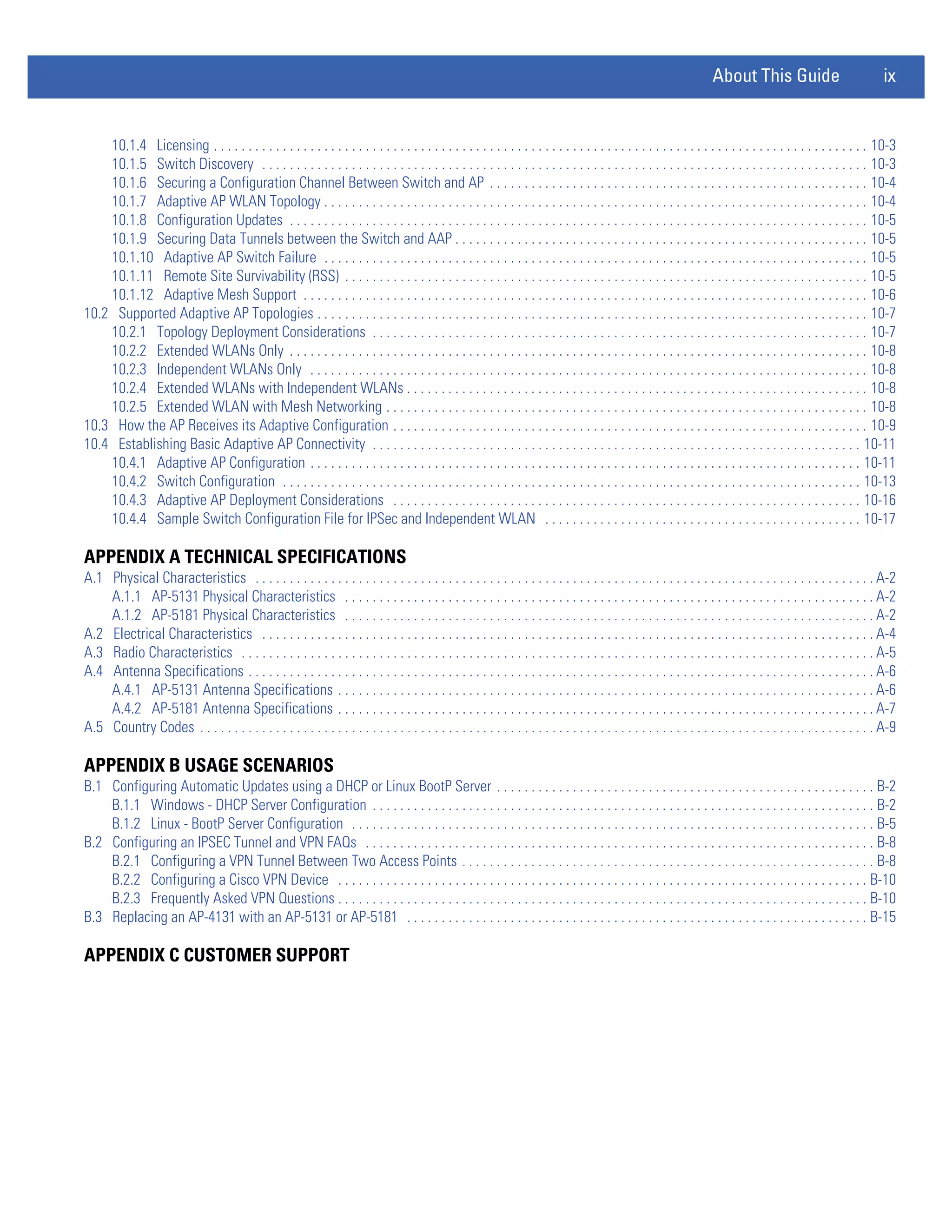
    10.1.4 Licensing . . . . . . . . . . . . . . . . . . . . . . . . . . . . . . . . . . . . . . . . . . . . . . . . . . . . . . . . . . . . . . . . . . . . . . . . . . . . . . . . . . . . . . . . . . . . . . . 10-3
    10.1.5 Switch Discovery . . . . . . . . . . . . . . . . . . . . . . . . . . . . . . . . . . . . . . . . . . . . . . . . . . . . . . . . . . . . . . . . . . . . . . . . . . . . . . . . . . . . . . . . 10-3
    10.1.6 Securing a Configuration Channel Between Switch and AP . . . . . . . . . . . . . . . . . . . . . . . . . . . . . . . . . . . . . . . . . . . . . . . . . . . . . . . 10-4
    10.1.7 Adaptive AP WLAN Topology . . . . . . . . . . . . . . . . . . . . . . . . . . . . . . . . . . . . . . . . . . . . . . . . . . . . . . . . . . . . . . . . . . . . . . . . . . . . . . . 10-4
    10.1.8 Configuration Updates . . . . . . . . . . . . . . . . . . . . . . . . . . . . . . . . . . . . . . . . . . . . . . . . . . . . . . . . . . . . . . . . . . . . . . . . . . . . . . . . . . . . 10-5
    10.1.9 Securing Data Tunnels between the Switch and AAP . . . . . . . . . . . . . . . . . . . . . . . . . . . . . . . . . . . . . . . . . . . . . . . . . . . . . . . . . . . . 10-5
    10.1.10 Adaptive AP Switch Failure . . . . . . . . . . . . . . . . . . . . . . . . . . . . . . . . . . . . . . . . . . . . . . . . . . . . . . . . . . . . . . . . . . . . . . . . . . . . . . . 10-5
    10.1.11 Remote Site Survivability (RSS) . . . . . . . . . . . . . . . . . . . . . . . . . . . . . . . . . . . . . . . . . . . . . . . . . . . . . . . . . . . . . . . . . . . . . . . . . . . . 10-5
    10.1.12 Adaptive Mesh Support . . . . . . . . . . . . . . . . . . . . . . . . . . . . . . . . . . . . . . . . . . . . . . . . . . . . . . . . . . . . . . . . . . . . . . . . . . . . . . . . . . 10-6
10.2 Supported Adaptive AP Topologies . . . . . . . . . . . . . . . . . . . . . . . . . . . . . . . . . . . . . . . . . . . . . . . . . . . . . . . . . . . . . . . . . . . . . . . . . . . . . . . . 10-7
    10.2.1 Topology Deployment Considerations . . . . . . . . . . . . . . . . . . . . . . . . . . . . . . . . . . . . . . . . . . . . . . . . . . . . . . . . . . . . . . . . . . . . . . . . 10-7
    10.2.2 Extended WLANs Only . . . . . . . . . . . . . . . . . . . . . . . . . . . . . . . . . . . . . . . . . . . . . . . . . . . . . . . . . . . . . . . . . . . . . . . . . . . . . . . . . . . . 10-8
    10.2.3 Independent WLANs Only . . . . . . . . . . . . . . . . . . . . . . . . . . . . . . . . . . . . . . . . . . . . . . . . . . . . . . . . . . . . . . . . . . . . . . . . . . . . . . . . . 10-8
    10.2.4 Extended WLANs with Independent WLANs . . . . . . . . . . . . . . . . . . . . . . . . . . . . . . . . . . . . . . . . . . . . . . . . . . . . . . . . . . . . . . . . . . . 10-8
    10.2.5 Extended WLAN with Mesh Networking . . . . . . . . . . . . . . . . . . . . . . . . . . . . . . . . . . . . . . . . . . . . . . . . . . . . . . . . . . . . . . . . . . . . . . 10-8
10.3 How the AP Receives its Adaptive Configuration . . . . . . . . . . . . . . . . . . . . . . . . . . . . . . . . . . . . . . . . . . . . . . . . . . . . . . . . . . . . . . . . . . . . . 10-9
10.4 Establishing Basic Adaptive AP Connectivity . . . . . . . . . . . . . . . . . . . . . . . . . . . . . . . . . . . . . . . . . . . . . . . . . . . . . . . . . . . . . . . . . . . . . . . 10-11
    10.4.1 Adaptive AP Configuration . . . . . . . . . . . . . . . . . . . . . . . . . . . . . . . . . . . . . . . . . . . . . . . . . . . . . . . . . . . . . . . . . . . . . . . . . . . . . . . . 10-11
    10.4.2 Switch Configuration . . . . . . . . . . . . . . . . . . . . . . . . . . . . . . . . . . . . . . . . . . . . . . . . . . . . . . . . . . . . . . . . . . . . . . . . . . . . . . . . . . . . 10-13
    10.4.3 Adaptive AP Deployment Considerations . . . . . . . . . . . . . . . . . . . . . . . . . . . . . . . . . . . . . . . . . . . . . . . . . . . . . . . . . . . . . . . . . . . . 10-16
    10.4.4 Sample Switch Configuration File for IPSec and Independent WLAN . . . . . . . . . . . . . . . . . . . . . . . . . . . . . . . . . . . . . . . . . . . . . . 10-17

APPENDIX A TECHNICAL SPECIFICATIONS
A.1 Physical Characteristics . . . . . . . . . . . . . . . . . . . . . . . . . . . . . . . . . . . . . . . . . . . . . . . . . . . . . . . . . . . . . . . . . . . . . . . . . . . . . . . . . . . . . . . . . . A-2
    A.1.1 AP-5131 Physical Characteristics . . . . . . . . . . . . . . . . . . . . . . . . . . . . . . . . . . . . . . . . . . . . . . . . . . . . . . . . . . . . . . . . . . . . . . . . . . . . . A-2
    A.1.2 AP-5181 Physical Characteristics . . . . . . . . . . . . . . . . . . . . . . . . . . . . . . . . . . . . . . . . . . . . . . . . . . . . . . . . . . . . . . . . . . . . . . . . . . . . . A-2
A.2 Electrical Characteristics . . . . . . . . . . . . . . . . . . . . . . . . . . . . . . . . . . . . . . . . . . . . . . . . . . . . . . . . . . . . . . . . . . . . . . . . . . . . . . . . . . . . . . . . . A-4
A.3 Radio Characteristics . . . . . . . . . . . . . . . . . . . . . . . . . . . . . . . . . . . . . . . . . . . . . . . . . . . . . . . . . . . . . . . . . . . . . . . . . . . . . . . . . . . . . . . . . . . . A-5
A.4 Antenna Specifications . . . . . . . . . . . . . . . . . . . . . . . . . . . . . . . . . . . . . . . . . . . . . . . . . . . . . . . . . . . . . . . . . . . . . . . . . . . . . . . . . . . . . . . . . . . A-6
    A.4.1 AP-5131 Antenna Specifications . . . . . . . . . . . . . . . . . . . . . . . . . . . . . . . . . . . . . . . . . . . . . . . . . . . . . . . . . . . . . . . . . . . . . . . . . . . . . . A-6
    A.4.2 AP-5181 Antenna Specifications . . . . . . . . . . . . . . . . . . . . . . . . . . . . . . . . . . . . . . . . . . . . . . . . . . . . . . . . . . . . . . . . . . . . . . . . . . . . . . A-7
A.5 Country Codes . . . . . . . . . . . . . . . . . . . . . . . . . . . . . . . . . . . . . . . . . . . . . . . . . . . . . . . . . . . . . . . . . . . . . . . . . . . . . . . . . . . . . . . . . . . . . . . . . . A-9

APPENDIX B USAGE SCENARIOS
B.1 Configuring Automatic Updates using a DHCP or Linux BootP Server . . . . . . . . . . . . . . . . . . . . . . . . . . . . . . . . . . . . . . . . . . . . . . . . . . . . . . . B-2
    B.1.1 Windows - DHCP Server Configuration . . . . . . . . . . . . . . . . . . . . . . . . . . . . . . . . . . . . . . . . . . . . . . . . . . . . . . . . . . . . . . . . . . . . . . . . . B-2
    B.1.2 Linux - BootP Server Configuration . . . . . . . . . . . . . . . . . . . . . . . . . . . . . . . . . . . . . . . . . . . . . . . . . . . . . . . . . . . . . . . . . . . . . . . . . . . . B-5
B.2 Configuring an IPSEC Tunnel and VPN FAQs . . . . . . . . . . . . . . . . . . . . . . . . . . . . . . . . . . . . . . . . . . . . . . . . . . . . . . . . . . . . . . . . . . . . . . . . . . B-8
    B.2.1 Configuring a VPN Tunnel Between Two Access Points . . . . . . . . . . . . . . . . . . . . . . . . . . . . . . . . . . . . . . . . . . . . . . . . . . . . . . . . . . . . B-8
    B.2.2 Configuring a Cisco VPN Device . . . . . . . . . . . . . . . . . . . . . . . . . . . . . . . . . . . . . . . . . . . . . . . . . . . . . . . . . . . . . . . . . . . . . . . . . . . . . B-10
    B.2.3 Frequently Asked VPN Questions . . . . . . . . . . . . . . . . . . . . . . . . . . . . . . . . . . . . . . . . . . . . . . . . . . . . . . . . . . . . . . . . . . . . . . . . . . . . . B-10
B.3 Replacing an AP-4131 with an AP-5131 or AP-5181 . . . . . . . . . . . . . . . . . . . . . . . . . . . . . . . . . . . . . . . . . . . . . . . . . . . . . . . . . . . . . . . . . . . B-15

APPENDIX C CUSTOMER SUPPORT
x   WiNG 4.4 AP-5131 Product Reference Guide
ABOUT THIS GUIDE

  Introduction
  This guide provides configuration and setup information for the both AP-5131 and AP-5181 model access points. For the
  purposes of this guide, the devices will be called AP-51xx or the generic term “access point” when identical configuration
  activities are applied to both models.


  Document Conventions
  The following document conventions are used in this document:

                 NOTE        Indicate tips or special requirements.


                 CAUTION Indicates conditions that can cause equipment damage or data loss.
       !
                 WARNING! Indicates a condition or procedure that could result in personal injury or
                          equipment damage.


  Notational Conventions
  The following notational conventions are used in this document:
   • Italics are used to highlight specific items in the general text, and to identify chapters and sections in this and related
     documents.
   • Bullets (•) indicate:
     • action items
     • lists of alternatives
     • lists of required steps that are not necessarily sequential
   • Sequential lists (those describing step-by-step procedures) appear as numbered lists.
xii   WiNG 4.4 AP-5131 Product Reference Guide


       Service Information
       If a problem is encountered with the access point, contact Customer Support. Refer to Appendix C for contact information.
       Before calling, have the model and serial number on hand.
       If the problem cannot be solved over the phone, you may need to return your equipment for servicing. If that is necessary,
       you will be given specific instructions.
       Motorola Solutions is not responsible for any damages incurred during shipment if the approved shipping container is not
       used. Shipping the units improperly can possibly void the warranty. If the original shipping container was not kept, contact
       Motorola Solutions to have another sent to you.
CHAPTER 1 INTRODUCTION

  This AP-51xx Product Reference Guide contains setup and advanced configuration instructions for both the AP-5131 and
  AP-5181 model access points. Both the AP-5131 and AP-5181 model access points share the same Web UI, CLI and MIB
  interfaces. There are no differences in how the devices are configured using the instructions within this guide, even though
  the Web UI displays AP-5131 or AP-5181 specifically.
  However, there are several differences between the two models you should be aware of. The
  AP-5181 is constructed to support outdoor installations, while the AP-5131 model is constructed primarily for indoor
  deployments. The AP-5131 is available in numerous single and dual-radio SKUs, while an AP-5181 is available in only a
  dual-radio SKU. An AP-5181 cannot use the AP-5131’s 48 volt power supply (Part No. 50-14000-243R) and, therefore, is
  recommended to use the AP-5181 Power Tap (Part No. AP-PSBIAS-5181-01R) designed specifically for outdoor
  deployments. An AP-5181 model access point also must use an RJ-45 to Serial cable to establish a serial connection to a
  host computer. Additionally, an AP-5181 model access point cannot downgrade to 1.1.0.x (or earlier) firmware.
  The access point (AP) provides a bridge between Ethernet wired LANs or WANs and wireless networks. It provides
  connectivity between Ethernet wired networks and radio-equipped mobile units (MUs). MUs include the full line of
  terminals, adapters (PC cards, Compact Flash cards and PCI adapters) and other devices.
  The AP-51x1 access point provides a maximum 54Mbps data transfer rate via each radio. It monitors Ethernet traffic and
  forwards appropriate Ethernet messages to MUs over the network. It also monitors MU radio traffic and forwards MU
  packets to the Ethernet LAN.
  If you are new to using an access point for managing your network, refer to Theory of Operations on page 1-15 for an
  overview on wireless networking fundamentals.
1-2   WiNG 4.4 AP-5131 Product Reference Guide


  1.1 New Features
       The following new features have been introduced since the 2.0 release:
        • WIPS Support
        • Trusted Host Management
        • Apache Certificate Management
        • Adaptive AP
        • Rogue AP Enhancements
        • Bandwidth Management Enhancements
        • Radius Time-Based Authentication
        • QBSS Support
       Legacy users can upgrade their firmware image to version 2.1 to benefit from the new features described in this section.
       For information on upgrading the access point’s firmware image, see Updating Device Firmware on page 4-44.

 1.1.1 WIPS Support
       An access point can radio can function as a Wireless Intrusion Protection System (WIPS) sensor and upload sensor mode
       operation information to a WIPS Server.
       WIPS protects your wireless network, mobile devices and traffic from attacks and unauthorized access. WIPS provides
       tools for standards compliance and around-the-clock 802.11a/b/g wireless network security in a distributed environment.
       WIPS allows administrators to identify and accurately locate attacks, rogue devices and network vulnerabilities in real
       time and permits both a wired and wireless lockdown of wireless device connections upon acknowledgement of a threat.
       For use in configuring the access point for WIPS support, see Configuring WIPS Server Settings on page 5-50.

 1.1.2 Trusted Host Management
       Trusted subnet management restricts AP-51x1 LAN1, LAN2 and WAN interface access (via SNMP, HTTP, HTTPS, Telnet and
       SSH) to a set of user defined trusted host or subnets. Only hosts with matching subnet (or IP) addresses are able to access
       the access point. Enabling the feature denies access from any subnet not defined as trusted. Once a set of trusted hosts
       is defined and applied, the settings can be imported and exported as a part of the access point’s configuration import/
       export functionality.
       For information on defining a set of trusted hosts for exclusive access point access, see Defining Trusted Hosts on page 4-
       11.

 1.1.3 Apache Certificate Management
       Apache certificate managament allows the update and management of security certificates for an Apache HTTP server.
       This allows users to upload a trusted certificate to their AP. When a client attaches to it with a browser, a warning message
       pertaining to the certificate no longer displays.
       Apache certificate managament utilizes the access point’s existing Certificate Manager for the creation of certificates and
       keys. The certificate can then be loaded into the apache file system using a command.
       For information on defining the Apache certificate management configuration, see Apache Certificate Management on
       page 4-19.
Introduction        1-3


1.1.4 Adaptive AP
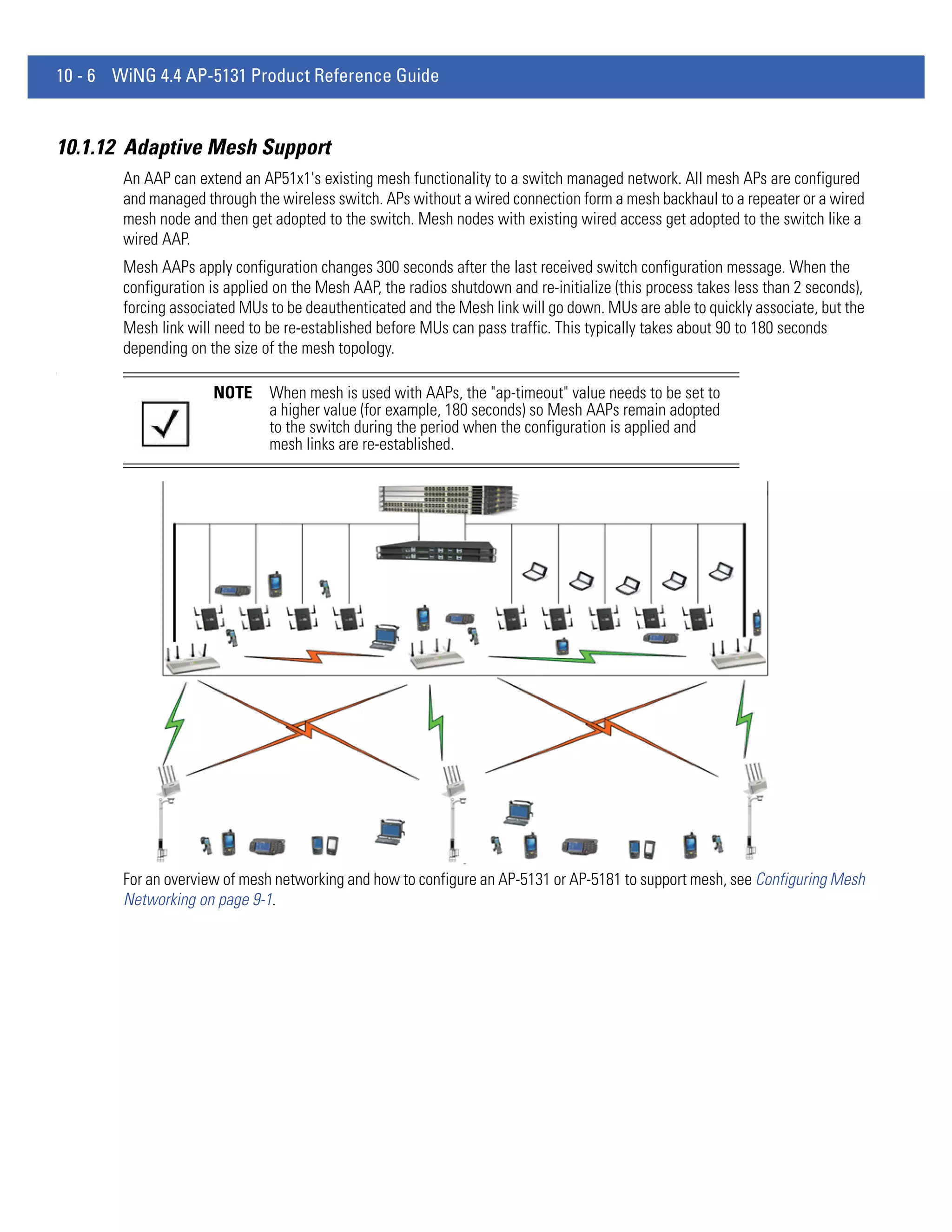
     An adaptive AP (AAP) is an AP-51XX access point that can adopt like an AP300 (L3). The management of an AAP is
     conducted by a switch, once the access point connects to a Motorola Solutions WS5100, RFS6000 or RFS7000 model
     switch and receives its AAP configuration.
     An AAP provides:
     • local 802.11 traffic termination
     • local encryption/decryption
     • local traffic bridging
     • the tunneling of centralized traffic to the wireless switch
     For a information overview of the adaptive AP feature as well as how to configure it, refer to
     Adaptive AP on page 10-1.

1.1.5 Rogue AP Enhancements
     With the 2.1 release of the access point firmware, the access point now has the option to scan for rogues over all channels
     on both of the access point’s 11a and 11bg radio bands. The switching of radio bands is based on a timer with no user
     intervention required.
     For information on configuring the access point for Rogue AP support, see Configuring Rogue AP Detection on page 6-48.

1.1.6 Bandwidth Management Enhancements
     Use the Bandwidth Management screen to control the network bandwidth allotted to individual WLANs. Define a
     weighted scheme as needed when WLAN traffic supporting a specific network segment becomes critical. Bandwidth
     management is configured on a per-WLAN basis. However, with this latest version 2.1 release, a separate tab has been
     created for each access point radio. With this new segregated radio approach, bandwidth management can be configured
     uniquely for individual WLANs on different access point radios.
     For information on configuring bandwidth management, see Configuring Bandwidth Management Settings on page 5-48.

1.1.7 Radius Time-Based Authentication
     An external server maintains a users and groups database used by the access point for access permissions. Various kinds
     of access policies can be applied to each group. With this latest 2.1 version access point firmware, individual groups can
     be configured with their own time-based access policy. Each group’s policy has a user defined interval defining the days
     and hours access is permitted. Authentication requests for users belonging to the group are honored only during these
     defined hourly intervals.
     For more information on defining access point access policies by group, see Defining User Access Permissions by Group
     on page 6-62.

1.1.8 QBSS Support
     Each access point radio can be configured to optionally allow the access point to communicate channel usage data to
     associated devices and define the beacon interval used for channel utilization transmissions. The QBSS load represents
     the percentage of time the channel is in use by the access point and the access point’s station count. This information is
     very helpful in assessing the access point’s overall load on a channel, its availability for additional device associations and
     multi media traffic support.
     For information on enabling QBSS and defining the channel utilization transmission interval, see Configuring the 802.11a
     or 802.11b/g Radio on page 5-42.
1-4   WiNG 4.4 AP-5131 Product Reference Guide


  1.2 Feature Overview
       The access point has the following features carried forward from previous releases:
        • Single or Dual Mode Radio Options
        • Separate LAN and WAN Ports
        • Multiple Mounting Options
        • Antenna Support for 2.4 GHz and 5 GHz Radios
        • Sixteen Configurable WLANs
        • Support for 4 BSSIDs per Radio
        • Quality of Service (QoS) Support
        • Industry Leading Data Security
        • VLAN Support
        • Multiple Management Accessibility Options
        • Updatable Firmware
        • Programmable SNMP v1/v2/v3 Trap Support
        • Power-over-Ethernet Support
        • MU-MU Transmission Disallow
        • Voice Prioritization
        • Support for CAM and PSP MUs
        • Statistical Displays
        • Transmit Power Control
        • Advanced Event Logging Capability
        • Configuration File Import/Export Functionality
        • Default Configuration Restoration
        • DHCP Support
        • Multi-Function LEDs
        • Mesh Networking
        • Additional LAN Subnet
        • On-board Radius Server Authentication
        • Hotspot Support
        • Routing Information Protocol (RIP)
        • Manual Date and Time Settings
        • Dynamic DNS
        • Auto Negotiation
Introduction       1-5


1.2.1 Single or Dual Mode Radio Options
     One or two possible configurations are available on the access point depending on which model is purchased. If the access
     point is manufactured as a single radio access point, the access point enables you to configure the single radio for either
     802.11a or 802.11b/g. However, an AP-5181 model access point is only available in a dual-radio model.
     If the access point is manufactured as a dual-radio access point, the access point enables you to configure one radio for
     802.11a support, and the other for 802.11b/g support.
     For detailed information, see Setting Radio Configuration for a WLAN on page 5-38.

1.2.2 Separate LAN and WAN Ports
     The access point has one LAN port and one WAN port, each with their own MAC address. The access point must manage
     all data traffic over the LAN connection carefully as either a DHCP client, BOOTP client, DHCP server or using a static IP
     address. The access point can only use a Power-over-Ethernet device when connected to the LAN port.
     For detailed information on configuring the AP-51x1 LAN port, see Configuring the LAN Interface on page 5-2.
     A Wide Area Network (WAN) is a widely dispersed telecommunications network. In a corporate environment, the WAN
     port might connect to a larger corporate network. For a small business, the WAN port might connect to a DSL or cable
     modem to access the Internet. Regardless, network address information must be configured for the AP-51x1’s intended
     mode of operation.
     For detailed information on configuring the access point’s WAN port, see Configuring WAN Settings on page 5-13.
     The LAN and WAN port MAC addresses can be located within the LAN and WAN Stats screens.
     For detailed information on locating the access point’s MAC addresses, see Viewing WAN Statistics on page 7-3 and
     Viewing LAN Statistics on page 7-6. For information on access point MAC address assignments, see AP-51xx MAC
     Address Assignment on page 1-19.

1.2.3 Multiple Mounting Options
     The access point rests on a flat surface, attaches to a wall, mounts under a ceiling or above a ceiling (attic). Choose a
     mounting option based on the physical environment of the coverage area. Do not mount the access point in a location that
     has not been approved in an either an AP-5131 or outdoor AP-5181 radio coverage site survey.
     For detailed information on the mounting options available AP-51x1, see Mounting an AP5131 on page 2-12 or Mounting
     an AP5181 on page 2-20.

1.2.4 Antenna Support for 2.4 GHz and 5 GHz Radios
     The AP-51x1access point supports several 802.11a and 802.11b/g radio antennas. Select the antenna best suited to the
     radio transmission requirements of your coverage area.
     For an overview of the Radio 1 (2.4 GHz) and Radio 2 (5 GHz) antennas supported on the AP-51x1access point’s connectors,
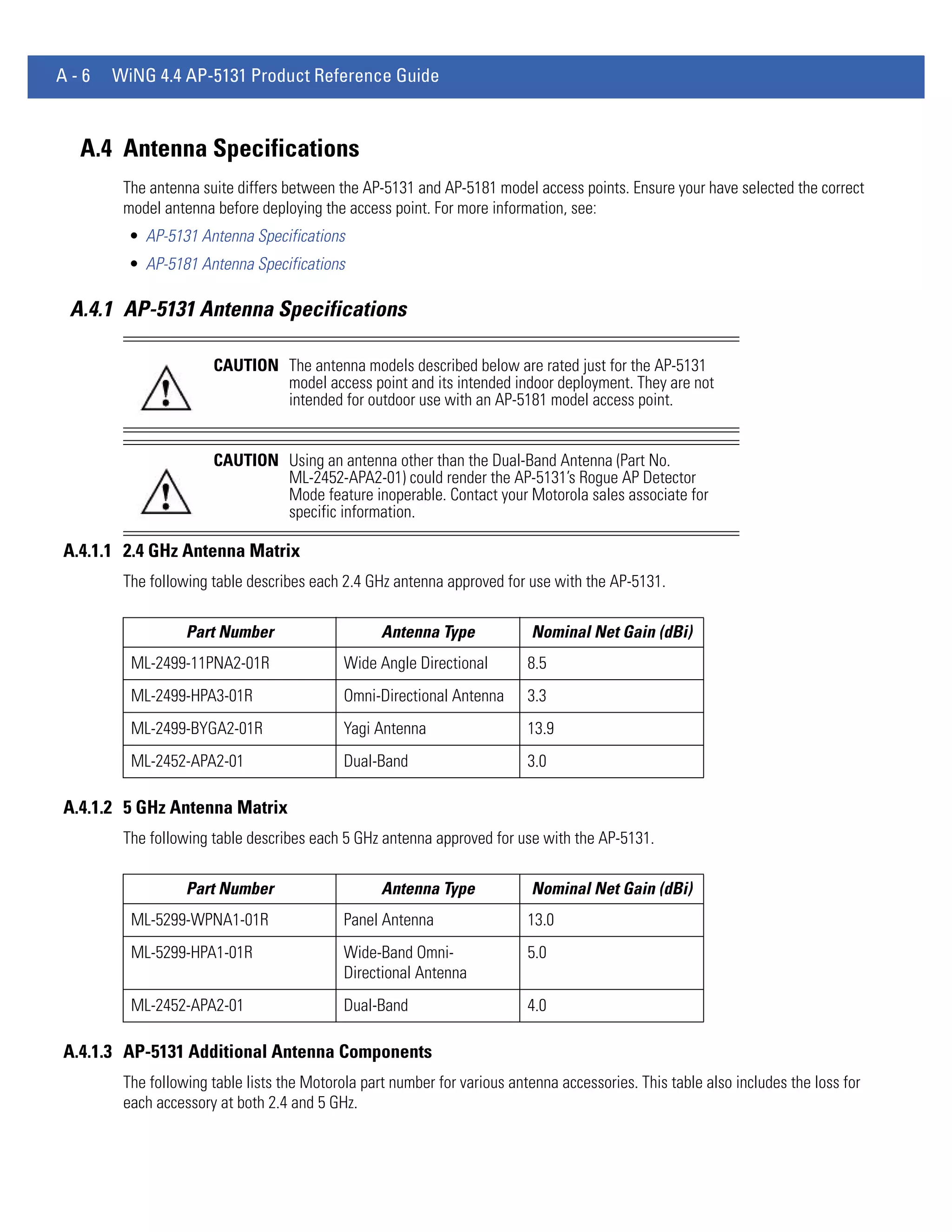
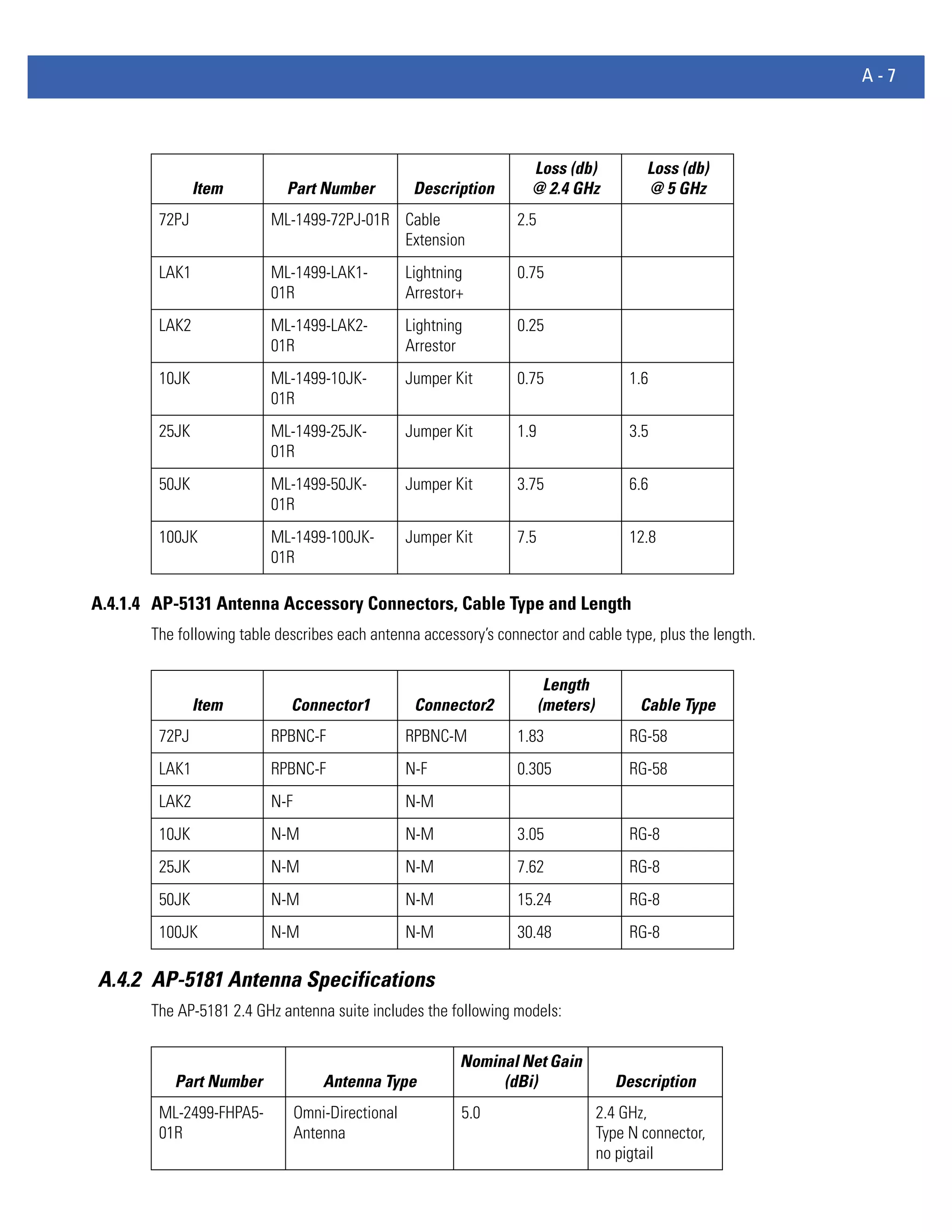
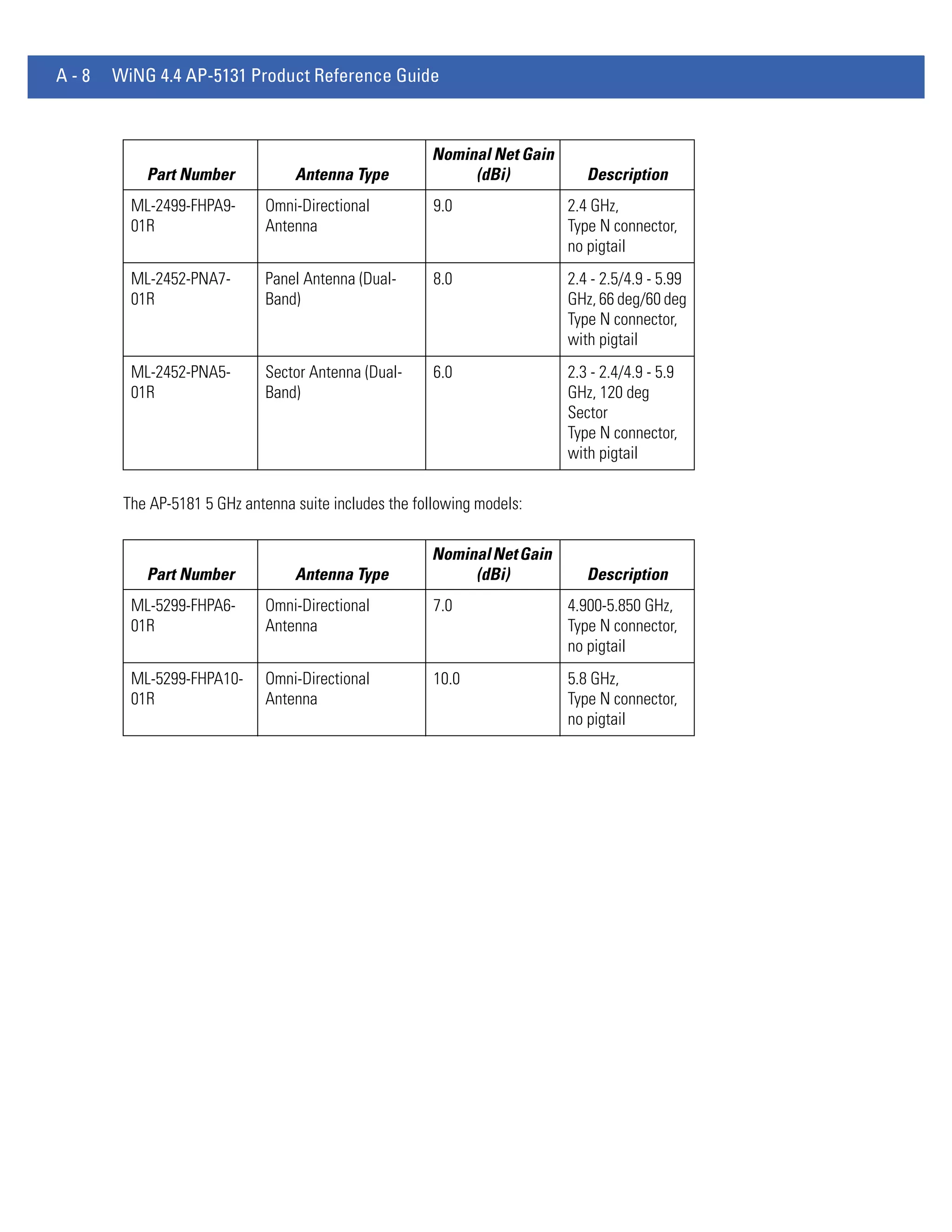
     see Antenna Specifications on page A-6. The AP-5181 model access point uses an antenna suite primarily suited for
     outdoor use.

1.2.5 Sixteen Configurable WLANs
     A Wireless Local Area Network (WLAN) is a data-communications system that flexibly extends the functionalities of a
     wired LAN. A WLAN does not require lining up devices for line-of-sight transmission, and are thus, desirable for wireless
     networking. Roaming users can be handed off from one access point to another like a cellular phone system. WLANs can
     therefore be configured around the needs of specific groups of users, even when they are not in physical proximity. Sixteen
     WLANs are configurable on each access point.
1-6   WiNG 4.4 AP-5131 Product Reference Guide


       To enable and configure WLANs on an access point radio, see Enabling Wireless LANs (WLANs) on page 5-21.

 1.2.6 Support for 4 BSSIDs per Radio
       The access point supports four BSSIDs per radio. Each BSSID has a corresponding MAC address. The first MAC address
       corresponds to BSSID #1. The MAC addresses for the other three BSSIDs (BSSIDs #2, #3, #4) are derived by adding 1, 2,
       3, respectively, to the radio MAC address.
       If the radio MAC address displayed on the Radio Settings screen is 00:A0:F8:72:20:DC, then the BSSIDs for that radio will
       have the following MAC addresses:

               BSSID                   MAC Address                          Hexadecimal Addition
       BSSID #1               00:A0:F8:72:20:DC                 Same as Radio MAC address
       BSSID #2               00:A0:F8:72:20:DD                 Radio MAC address +1
       BSSID #3               00:A0:F8:72:20:DE                 Radio MAC address +2
       BSSID #4               00:A0:F8:72:20:DF                 Radio MAC address +3
       For detailed information on strategically mapping BSSIDs to WLANs, see Configuring the 802.11a or 802.11b/g Radio on
       page 5-42. For information on access point MAC address assignments, see
       AP-51xx MAC Address Assignment on page 1-19.

 1.2.7 Quality of Service (QoS) Support
       The AP-51x1QoS implementation provides applications running on different wireless devices a variety of priority levels to
       transmit data to and from the access point. Equal data transmission priority is fine for data traffic from applications such
       as Web browsers, file transfers or email, but is inadequate for multimedia applications.
       Voice over Internet Protocol (VoIP), video streaming and interactive gaming are highly sensitive to latency increases and
       throughput reductions. These forms of higher priority data traffic can significantly benefit from the AP-51x1 QoS
       implementation. The WiFi Multimedia QOS Extensions (WMM) implementation used by the access point shortens the time
       between transmitting higher priority data traffic and is thus desirable for multimedia applications. In addition,
       U-APSD (WMM Power Save) is also supported.
       WMM defines four access categories—voice, video, best effort and background—to prioritize traffic for enhanced
       multimedia support.
       For detailed information on configuring QoS support, see Setting the WLAN Quality of Service (QoS) Policy on page 5-29.

 1.2.8 Industry Leading Data Security
       The AP-51x1access point supports numerous encryption and authentication techniques to protect the data transmitting on
       the WLAN.
       The following authentication techniques are supported:
        • Kerberos Authentication
        • EAP Authentication
       The following encryption techniques are supported:
        • WEP Encryption
        • KeyGuard Encryption
        • Wi-Fi Protected Access (WPA) Using TKIP Encryption
        • WPA2-CCMP (802.11i) Encryption
Introduction       1-7


       In addition, the access point supports the following additional security features:
        • Firewall Security
        • VPN Tunnels
        • Content Filtering
       For an overview on the encryption and authentication schemes available, refer to Configuring Access Point Security on
       page 6-1.

1.2.8.1 Kerberos Authentication
       Authentication is a means of verifying information transmitted from a secure source. If information is authentic, you know
       who created it and you know it has not been altered in any way since originated. Authentication entails a network
       administrator employing a software “supplicant” on their computer or wireless device.
       Authentication is critical for the security of any wireless LAN device. Traditional authentication methods are not suitable
       for use in wireless networks where an unauthorized user can monitor network traffic and intercept passwords. The use of
       strong authentication methods that do not disclose passwords is necessary. The access point uses the Kerberos
       authentication service protocol (specified in RFC 1510) to authenticate users/clients in a wireless network environment
       and to securely distribute the encryption keys used for both encrypting and decrypting.
       A basic understanding of RFC 1510 Kerberos Network Authentication Service (V5) is helpful in understanding how
       Kerberos functions. By default, WLAN devices operate in an open system network where any wireless device can
       associate with an AP without authorization. Kerberos requires device authentication before access to the wired network
       is permitted.
       For detailed information on Kerbeors configurations, see Configuring Kerberos Authentication on page 6-8.

1.2.8.2 EAP Authentication
       The Extensible Authentication Protocol (EAP) feature provides access points and their associated MU’s an additional
       measure of security for data transmitted over the wireless network. Using EAP, authentication between devices is achieved
       through the exchange and verification of certificates.
       EAP is a mutual authentication method whereby both the MU and AP are required to prove their identities. Like Kerberos,
       the user loses device authentication if the server cannot provide proof of device identification.
       Using EAP, a user requests connection to a WLAN through the access point. The access point then requests the identity of
       the user and transmits that identity to an authentication server. The server prompts the AP for proof of identity (supplied
       to the AP-51x1 by the user) and then transmits the user data back to the server to complete the authentication process.
       An MU is not able to access the network if not authenticated. When configured for EAP support, the access point displays
       the MU as an EAP station.
       EAP is only supported on mobile devices running Windows XP, Windows 2000 (using Service Pack #4) and Windows Mobile
       2003. Refer to the system administrator for information on configuring a Radius Server for EAP (802.1x) support.
       For detailed information on EAP configurations, see Configuring 802.1x EAP Authentication on page 6-11.

1.2.8.3 WEP Encryption
       All WLAN devices face possible information theft. Theft occurs when an unauthorized user eavesdrops to obtain
       information illegally. The absence of a physical connection makes wireless links particularly vulnerable to this form of
       theft. Most forms of WLAN security rely on encryption to various extents. Encryption entails scrambling and coding
       information, typically with mathematical formulas called algorithms, before the information is transmitted. An algorithm
       is a set of instructions or formula for scrambling the data. A key is the specific code used by the algorithm to encrypt or
       decrypt the data. Decryption is the decoding and unscrambling of received encrypted data.
1-8   WiNG 4.4 AP-5131 Product Reference Guide


        The same device, host computer or front-end processor, usually performs both encryption and decryption. The transmit or
        receive direction determines whether the encryption or decryption function is performed. The device takes plain text,
        encrypts or scrambles the text typically by mathematically combining the key with the plain text as instructed by the
        algorithm, then transmits the data over the network. At the receiving end, another device takes the encrypted text and
        decrypts, or unscrambles, the text revealing the original message. An unauthorized user can know the algorithm, but
        cannot interpret the encrypted data without the appropriate key. Only the sender and receiver of the transmitted data know
        the key.
        Wired Equivalent Privacy (WEP) is an encryption security protocol specified in the IEEE Wireless Fidelity (Wi-Fi) standard,
        802.11b and supported by the AP-51x1 AP. WEP encryption is designed to provide a WLAN with a level of security and
        privacy comparable to that of a wired LAN. The level of protection provided by WEP encryption is determined by the
        encryption key length and algorithm. An encryption key is a string of case sensitive characters used to encrypt and decrypt
        data packets transmitted between a mobile unit (MU) and the access point. An access point and its associated wireless
        clients must use the same encryption key (typically 1 through 4) to interoperate.
        For detailed information on WEP, see Configuring WEP Encryption on page 6-15.

 1.2.8.4 KeyGuard Encryption
        Use KeyGuard to shield the master encryption keys from being discovered through hacking. KeyGuard negotiation takes
        place between the access point and MU upon association. The access point can use KeyGuard with Motorola Solutions
        MUs. KeyGuard is only supported on Motorola Solutions MUs making it a Motorola Solutions proprietary security
        mechanism.
        For detailed information on KeyGuard configurations, see Configuring KeyGuard Encryption on page 6-17.

 1.2.8.5 Wi-Fi Protected Access (WPA) Using TKIP Encryption
        Wi-Fi Protected Access (WPA) is a security standard for systems operating with a Wi-Fi wireless connection. WEP’s lack
        of user authentication mechanisms is addressed by WPA. Compared to WEP, WPA provides superior data encryption and
        user authentication.
        WPA addresses the weaknesses of WEP by including:
        • a per-packet key mixing function
        • a message integrity check
        • an extended initialization vector with sequencing rules
        • a re-keying mechanism
        WPA uses an encryption method called Temporal Key Integrity Protocol (TKIP). WPA employs 802.1X and Extensible
        Authentication Protocol (EAP).
        For detailed information on WPA using TKIP configurations, see Configuring WPA/WPA2 Using TKIP on page 6-19.

 1.2.8.6 WPA2-CCMP (802.11i) Encryption
        WPA2 is a newer 802.11i standard that provides even stronger wireless security than Wi-Fi Protected Access (WPA) and
        WEP. Counter-mode/CBC-MAC Protocol (CCMP) is the security standard used by the Advanced Encryption Standard (AES).
        AES serves the same function TKIP does for WPA-TKIP. CCMP computes a Message Integrity Check (MIC) using the proven
        Cipher Block Message Authentication Code (CBC-MAC) technique. Changing just one bit in a message produces a totally
        different result.
        WPA2-CCMP is based on the concept of a Robust Security Network (RSN), which defines a hierarchy of keys with a limited
        lifetime (similar to TKIP). Like TKIP, the keys the administrator provides are used to derive other keys. Messages are
        encrypted using a 128-bit secret key and a 128-bit block of data. The end result is an encryption scheme as secure as any
        the AP-51x1 provides.
Introduction        1-9


       For detailed information on WPA2-CCMP, see Configuring WPA2-CCMP (802.11i) on page 6-22.

1.2.8.7 Firewall Security
       A firewall keeps personal data in and hackers out. The firewall prevents suspicious Internet traffic from proliferating the
       access point managed network. The AP-51x1access point performs Network Address Translation (NAT) on packets passing
       to and from the WAN port. This combination provides enhanced security by monitoring communication with the wired
       network.
       For detailed information on configuring the access point’s firewall, see Configuring Firewall Settings on page 6-25.

1.2.8.8 VPN Tunnels
       Virtual Private Networks (VPNs) are IP-based networks using encryption and tunneling providing users remote access to a
       secure LAN. In essence, the trust relationship is extended from one LAN across the public network to another LAN, without
       sacrificing security. A VPN behaves like a private network; however, because the data travels through the public network,
       it needs several layers of security. The access point can function as a robust VPN gateway.
       For detailed information on configuring VPN security support, see Configuring VPN Tunnels on page 6-32.

1.2.8.9 Content Filtering
       Content filtering allows system administrators to block specific commands and URL extensions from going out through the
       WAN port. Therefore, content filtering affords system administrators selective control on the content proliferating the
       network and is a powerful screening tool. Content filtering allows the blocking of up to 10 files or URL extensions and
       allows blocking of specific outbound HTTP, SMTP, and FTP requests.
       For detailed information on configuring content filtering support, see Configuring Content Filtering Settings on page 6-45.

 1.2.9 VLAN Support
       A Virtual Local Area Network (VLAN) can electronically separate data on the same AP from a single broadcast domain into
       separate broadcast domains. By using a VLAN, you can group by logical function instead of physical location. There are 16
       VLANs supported on the access point. An administrator can map up to 16 WLANs to 16 VLANs and enable or disable
       dynamic VLAN assignment. In addition to these 16 VLANs, the access point supports dynamic, user-based, VLANs when
       using EAP authentication.
       VLANs enable organizations to share network resources in various network segments within large areas (airports,
       shopping malls, etc.). A VLAN is a group of clients with a common set of requirements independent of their physical
       location. VLANs have the same attributes as physical LANs, but they enable administrators to group clients even when
       they are not members of the same network segment.
       For detailed information on configuring VLAN support, see Configuring VLAN Support on page 5-4.

1.2.10 Multiple Management Accessibility Options
       The access point can be accessed and configured using one of the following methods:
        • Java-Based Web UI
        • Human readable config file (imported via FTP or TFTP)
        • MIB (Management Information Base)
        • Command Line Interface (CLI) accessed via RS-232 or Telnet. Use the AP-5131’s DB-9 serial port for direct access to
          the command-line interface from a PC.
1 - 10 WiNG 4.4 AP-5131 Product Reference Guide


1.2.11 Updatable Firmware
        Motorola Solutions periodically releases updated versions of device firmware to the Motorola Solutions Web site. If the
        AP-51x1 firmware version displayed on the System Settings page (see Configuring System Settings on page 4-3) is older
        than the version on the Web site, Motorola Solutions recommends updating the access point to the latest firmware version
        for full feature functionality. An AP-5181 model access point does not support firmware earlier than 1.1.1.0.
        For detailed information on updating the AP-51x1 firmware using FTP or TFTP, see Updating Device Firmware on page 4-44.

1.2.12 Programmable SNMP v1/v2/v3 Trap Support
        Simple Network Management Protocol (SNMP) facilitates the exchange of management information between network
        devices. SNMP uses Management Information Bases (MIBs) to manage the device configuration and monitor Internet
        devices in remote locations. MIB information accessed via SNMP is defined by a set of managed objects called Object
        Identifiers (OIDs). An object identifier (OID) is used to uniquely identify each object variable of a MIB.
        SNMP allows a network administrator to configure the access point, manage network performance, find and solve network
        problems, and plan for network growth. The access point supports SNMP management functions for gathering information
        from its network components. The access point’s download site contains the following 2 MIB files:
        • Symbol-CC-WS2000-MIB-2.0 (standard MIB file)
        • Symbol-AP-5131-MIB (both the AP-5131 and AP-5181 use the same MIB, there is no specific MIB for an AP-5181)
        The access point’s SNMP agent functions as a command responder and is a multilingual agent responding to SNMPv1, v2c
        and v3 managers (command generators). The factory default configuration maintains SNMPv1/2c support of community
        names, thus providing backward compatibility.
        For detailed information on configuring SNMP traps, see Configuring SNMP Settings on page 4-21.

1.2.13 Power-over-Ethernet Support
        When users purchase a Motorola Solutions WLAN solution, they often need to place access points in obscure locations.
        In the past, a dedicated power source was required for each access point in addition to the Ethernet infrastructure. This
        often required an electrical contractor to install power drops at each access point location.
        An approved power injector solution merges power and Ethernet into one cable, reducing the burden of installation and
        allows optimal access point placement in respect to the intended radio coverage area.
        The AP-5131 Power Injector is a single-port, 802.3af compliant Power over Ethernet hub combining low-voltage DC with
        Ethernet data in a single cable connecting to the access point. The Power Injector’s single DC and Ethernet data cable
        creates a modified Ethernet cabling environment on the access point’s LAN port eliminating the need for separate Ethernet
        and power cables. For detailed information on using the Power Injector, see Power Injector and Power Tap Systems on
        page 2-10.
        The AP-5181 Power Tap is also a single-port, 802.3af compliant Power over Ethernet hub combining low-voltage DC with
        Ethernet data in a single cable connecting to the access point. However, the Power Tap is designed and ruggedized for use
        with an AP-5181’s outdoor deployment. For detailed information on using the Power Tap, see Power Injector and Power
        Tap Systems on page 2-10.

1.2.14 MU-MU Transmission Disallow
        The access point’s MU-MU Disallow feature prohibits MUs from communicating with each other even if on the same
        WLAN, assuming one WLAN is configured to disallow MU-MU communication. Therefore, if an MU’s WLAN is configured
        for MU-MU disallow, it will not be able to communicate with any other MUs connected to this access point.
        For detailed information on configuring an AP-51x1 WLAN to disallow MU to MU communications, see Creating/Editing
        Individual WLANs on page 5-23.
Introduction 1 - 11


1.2.15 Voice Prioritization
       Each AP-51x1access point WLAN has the capability of having its QoS policy configured to prioritize the network traffic
       requirements for associated MUs. A WLAN QoS page is available for each enabled WLAN on both the 802.11a and
       802.11b/g radio.
       Use the QoS page to enable voice prioritization for devices to receive the transmission priority they may not normally
       receive over other data traffic. Voice prioritization allows the access point to assign priority to voice traffic over data traffic,
       and (if necessary) assign legacy voice supported devices (non WMM supported voice devices) additional priority.
       For detailed information on configuring voice prioritization over other voice enabled devices, see Setting the WLAN Quality
       of Service (QoS) Policy on page 5-29.

1.2.16 Support for CAM and PSP MUs
       The access point supports both CAM and PSP powered MUs. CAM (Continuously Aware Mode) MUs leave their radios on
       continuously to hear every beacon and message transmitted. These systems operate without any adjustments by the
       access point.
       A beacon is a uniframe system packet broadcast by the AP to keep the network synchronized. A beacon includes the ESSID,
       AP-51x1 MAC address, Broadcast destination addresses, a time stamp, a DTIM (Delivery Traffic Indication Message) and
       the TIM (Traffic Indication Map).
       PSP (Power Save Polling) MUs power off their radios for short periods. When a MU in PSP mode associates with an access
       point, it notifies the AP-51x1 access point of its activity status. The access point AP-51x1 responds by buffering packets
       received for the MU. PSP mode is used to extend an MU’s battery life by enabling the MU to “sleep” during periods of
       inactivity.

1.2.17 Statistical Displays
       The access point can display robust transmit and receive statistics for the WAN and LAN ports. WLAN stats can be
       displayed collectively and individually for enabled WLANs. Transmit and receive statistics are available for the access
       point’s 802.11a and 802.11b/g radios. An advanced radio statistics page is also available to display retry histograms for
       specific data packet retry information.
       Associated MU stats can be displayed collectively and individually for specific MUs. An echo (ping) test is also available
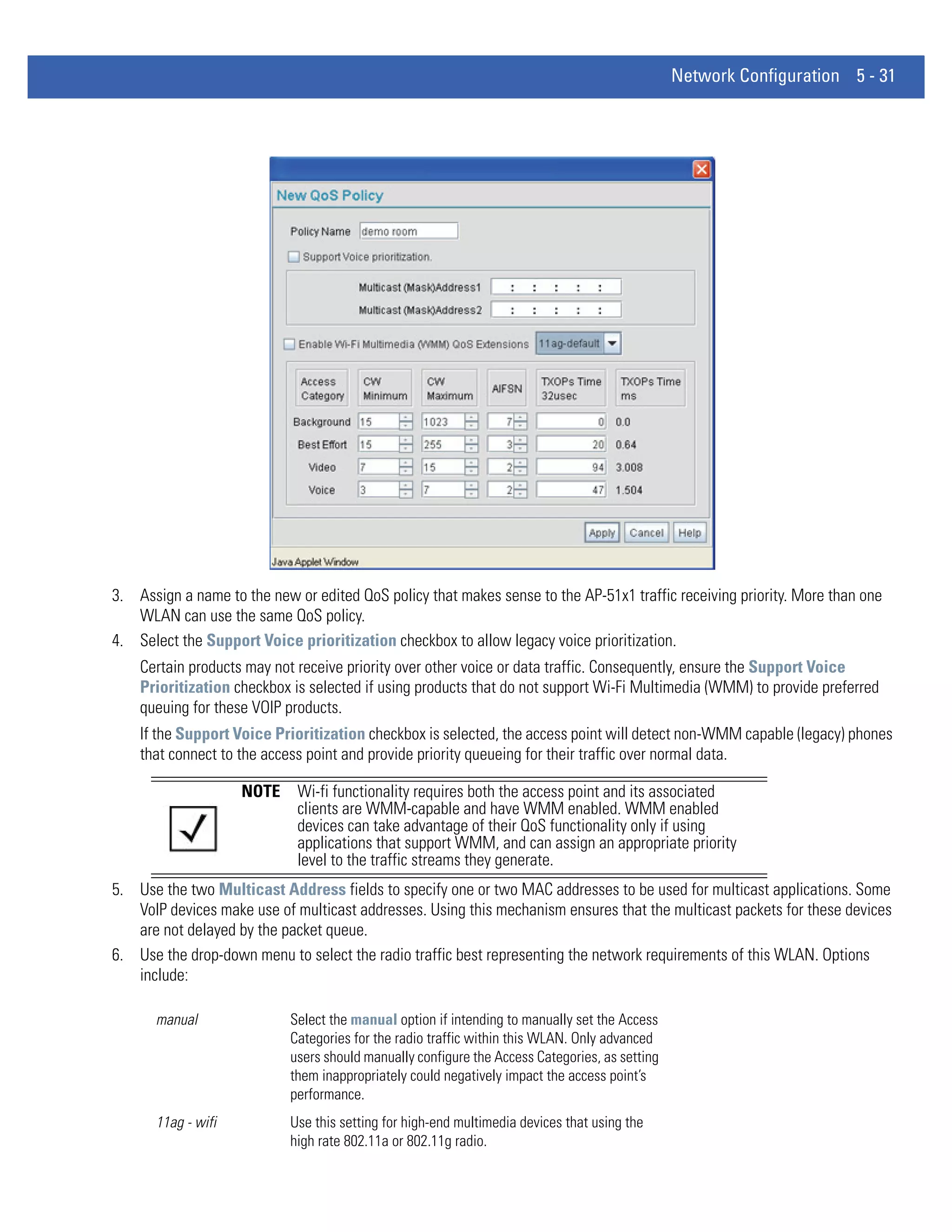
       to ping specific MUs to assess association strength. Finally, the access pointAP-51x1 can detect and display the properties
       of other APs detected within the access point’s radio coverage area. The type of AP detected can be displayed as well as
       the properties of individual APs.
       For detailed information on available access point statistical displays and the values they represent, see Monitoring
       Statistics on page 7-1.

1.2.18 Transmit Power Control
       The access point has a configurable power level for each radio. This enables the network administrator to define the
       antenna’s transmission power level in respect to the access point’s placement or network requirements as defined in the
       AP-51x1 site survey.
       For detailed information on setting the radio transmit power level, see Configuring the 802.11a or 802.11b/g Radio on page
       5-42.

1.2.19 Advanced Event Logging Capability
       The access point provides the capability for periodically logging system events. Logging events is useful in assessing the
       throughput and performance of the access point or troubleshooting problems on the access point managed Local Area
       Network (LAN).
1 - 12 WiNG 4.4 AP-5131 Product Reference Guide


        For detailed information on access point events, see Logging Configuration on page 4-37.

1.2.20 Configuration File Import/Export Functionality
        Configuration settings for an access point can be downloaded from the current configuration of another access point. This
        affords the administrator the opportunity to save the current configuration before making significant changes or restoring
        the default configuration.
        For detailed information on importing or exporting configuration files, see Importing/Exporting Configurations on page 4-
        39.

1.2.21 Default Configuration Restoration
        The access point has the ability to restore its default configuration or a partial default configuration (with the exception of
        current WAN and SNMP settings). Restoring the default configuration is a good way to create new WLANs if the MUs the
        access point supports have been moved to different radio coverage areas.
        For detailed information on restoring a default or partial default configuration, see Configuring System Settings on page
        4-3.

1.2.22 DHCP Support
        The access point can use Dynamic Host Configuration Protocol (DHCP) to obtain a leased IP address and configuration
        information from a remote server. DHCP is based on the BOOTP protocol and can coexist or interoperate with BOOTP.
        Configure the access point to send out a DHCP request searching for a DHCP/BOOTP server to acquire HTML, firmware or
        network configuration files when the access point boots. Because BOOTP and DHCP interoperate, whichever responds first
        becomes the server that allocates information.
        The access point can be set to only accept replies from DHCP or BOOTP servers or both (this is the default setting).
        Disabling DHCP disables BOOTP and DHCP and requires network settings to be set manually. If running both DHCP and
        BOOTP, do not select BOOTP Only. BOOTP should only be used when the server is running BOOTP exclusively.
        The DHCP client automatically sends a DHCP request at an interval specified by the DHCP server to renew the IP address
        lease as long as the access point is running (this parameter is programmed at the DHCP server). For example: Windows
        2000 servers typically are set for 3 days.

1.2.23 Multi-Function LEDs
        An AP-5131 model access point has seven LED indicators. Four LEDs exist on the top of the AP-51x1 and are visible from
        wall, ceiling and table-top orientations. Three of these four LEDs are single color activity LEDs, and one is a multi-function
        red and white status LED. Two LEDs exist on the rear of the access point and are viewable using a single (customer
        installed) extended light pipe, adjusted as required to suit above the ceiling installations. An AP-5181 model access point
        houses four LEDs on the bottom/back side of the unit.
        For detailed information on the access point LEDs and their functionality, see AP-5131 LED Indicators on page 2-19 or
        AP5181 LED Indicators on page 2-24.

1.2.24 Mesh Networking
        Utilize the new mesh networking functionality to allow the access point to function as a bridge to connect two Ethernet
        networks or as a repeater to extend your network’s coverage area without additional cabling. Mesh networking is
        configurable in two modes. It can be set in a wireless client bridge mode and/or a wireless base bridge mode (which
        accepts connections from client bridges). These two modes are not mutually exclusive.
        In client bridge mode, the access point scans to find other access points using the selected WLAN’s ESSID. The access
        point must go through the association and authentication process to establish a wireless connection. The mesh networking
Introduction 1 - 13


      association process is identical to the access point’s MU association process. Once the association/authentication process
      is complete, the wireless client adds the connection as a port on its bridge module. This causes the access point (in client
      bridge mode) to begin forwarding configuration packets to the base bridge. An access point in base bridge mode allows
      the access point radio to accept client bridge connections.
      The two bridges communicate using the Spanning Tree Protocol (STP). The spanning tree determines the path to the root
      and detects if the current connection is part of a network loop with another connection. Once the spanning tree converges,
      both access points begin learning which destinations reside on which side of the network. This allows them to forward
      traffic intelligently.
      After the access point (in client bridge mode) establishes at least one wireless connection, it will begin beaconing and
      accepting wireless connections (if configured to support mobile users). If the access point is configured as both a client
      bridge and a base bridge, it begins accepting client bridge connections. In this way, the mesh network builds itself over
      time and distance.
      Once the access point (in client bridge mode) establishes at least one wireless connection, it establishes other wireless
      connections in the background as they become available. In this way, the access point can establish simultaneous
      redundant links. An access point (in client bridge mode) can establish up to 3 simultaneous wireless connections with other
      AP-5131s or AP-5181s. A client bridge always initiates the connections and the base bridge is always the acceptor of the
      mesh network data proliferating the network.
      Since each access point can establish up to 3 simultaneous wireless connections, some of these connections may be
      redundant. In that case, the STP algorithm determines which links are the redundant links and disables the links from
      forwarding.
      For an overview on mesh networking as well as details on configuring the access point’s mesh networking functionality,
      see Configuring Mesh Networking on page 9-1.

1.2.25 Additional LAN Subnet
      In a typical retail or small office environment (wherein a wireless network is available along with a production WLAN) it
      is frequently necessary to segment a LAN into two subnets. Consequently, a second LAN is necessary to “segregate”
      wireless traffic.
      The access point has a second LAN subnet enabling administrators to segment the access point’s LAN connection into two
      separate networks. The main access point LAN screen allows the user to select either LAN1 or LAN2 as the active LAN
      over the access point’s Ethernet port. Both LANs can still be active at any given time, but only one can transmit over the
      access point’s physical LAN connection. Each LAN has a separate configuration screen (called LAN 1 and LAN 2 by default)
      accessible under the main LAN screen. The user can rename each LAN as necessary. Additionally, each LAN can have its
      own Ethernet Type Filter configuration, and subnet access (HTTP, SSH, SNMP and telnet) configuration.
      For detailed information on configuring the access point for additional LAN subnet support, see Configuring the LAN
      Interface on page 5-2.

1.2.26 On-board Radius Server Authentication
      The access point has the ability to work as a Radius Server to provide user database information and user authentication.
      Several new screens have been added to the access point’s menu tree to configure Radius server authentication and
      configure the local user database and access policies. A new Radius Server screen allows an administrator to define the
      data source, authentication type and associate digital certificates with the authentication scheme. The LDAP screen
      allows the administrator to configure an external LDAP Server for use with the access point. A new Access Policy screen
      enables the administrator to set WLAN access based on user groups defined within the User Database screen. Each user
      is authorized based on the access policies applicable to that user. Access policies allow an administrator to control access
      to a user groups based on the WLAN configurations.
1 - 14 WiNG 4.4 AP-5131 Product Reference Guide


        For detailed information on configuring the access point for AAA Radius Server support, see Configuring User
        Authentication on page 6-54.

1.2.27 Hotspot Support
        The access point allows hotspot operators to provide user authentication and accounting without a special client
        application. The access point uses a traditional Internet browser as a secure authentication device. Rather than rely on
        built-in 802.11security features to control access point association privileges, you can configure a WLAN with no WEP (an
        open network). The access point issues an IP address to the user using a DHCP server, authenticates the user and grants
        the user to access the Internet.
        If a tourist visits a public hotspot and wants to browse a Web page, they boot their laptop and associate with a local Wi-
        Fi network by entering a valid SSID. They start a browser, and the hotspot’s access controller forces the un-authenticated
        user to a Welcome page (from the hotspot operator) that allows the user to login with a username and password. In order
        to send a redirected page (a login page), a TCP termination exists locally on the access point. Once the login page displays,
        the user enters their credentials. The access point connects to the Radius server and determines the identity of the
        connected wireless user. Thus, allowing the user to access the Internet once successfully authenticated.
        For detailed information on configuring the access point for Hotspot support, see Configuring WLAN Hotspot Support on
        page 5-34.

1.2.28 Routing Information Protocol (RIP)
        RIP is an interior gateway protocol that specifies how routers exchange routing-table information. The parent Router
        screen also allows the administrator to select the type of RIP and the type of RIP authentication used.
        For detailed information on configuring RIP functionality as part of the access point’s Router functionality, see Setting the
        RIP Configuration on page 5-52.

1.2.29 Manual Date and Time Settings
        As an alternative to defining a NTP server to provide access point system time, the access point can now have its date and
        time set manually. A new Manual Date/Time Setting screen can be used to set the time using a Year-Month-Day
        HH:MM:SS format.
        For detailed information on manually setting the access point’s system time, see Configuring Network Time Protocol (NTP)
        on page 4-33.

1.2.30 Dynamic DNS
        The access point supports the Dynamic DNS service. Dynamic DNS (or DynDNS) is a feature offered by www.dyndns.com
        which allows the mapping of domain names to dynamically assigned IP addresses. When the dynamically assigned IP
        address of a client changes, the new IP address is sent to the DynDNS service and traffic for the specified domain(s) is
        routed to the new IP address. For information on configuring the Dynamic DNS feature, see Configuring Dynamic DNS on
        page 5-19.

1.2.31 Auto Negotiation
        Auto negotiation enables the access point to automatically exchange information (over either its LAN or WAN port) about
        data transmission speed and duplex capabilities. Auto negotiation is helpful when using the access point in an
        environment where different devices are connected and disconnected on a regular basis. For information on configuring
        the auto negotiation feature, see Configuring the LAN Interface on page 5-2 or Configuring WAN Settings on page 5-13
Introduction 1 - 15


 1.3 Theory of Operations
     To understand AP-51x1access point management and performance alternatives, users need familiarity with AP-51x1
     functionality and configuration options. The AP-51x1access point includes features for different interface connections and
     network management.
     The AP-51x1access point uses electromagnetic waves to transmit and receive electric signals without wires. Users
     communicate with the network by establishing radio links between mobile units (MUs) and access points.
     The access pointAP-51x1 uses DSSS (direct sequence spread spectrum) to transmit digital data from one device to another.
     A radio signal begins with a carrier signal that provides the base or center frequency. The digital data signal is encoded
     onto the carriers using a DSSS chipping algorithm. The AP-51x1 radio signal propagates into the air as electromagnetic
     waves. A receiving antenna (on the MU) in the path of the waves absorbs the waves as electrical signals. The receiving
     MU interprets (demodulates) the signal by reapplying the direct sequence chipping code. This demodulation results in the
     original digital data.
     The access pointAP-51x1 uses its environment (the air and certain objects) as the transmission medium.The AP-51x1
     access point can either transmit in the 2.4 to 2.5-GHz frequency range (802.11b/g radio) or the 5 GHz frequency range
     (802.11a radio), the actual range is country-dependent. Motorola Solutions devices, like other Ethernet devices, have
     unique, hardware encoded Media Access Control (MAC) or IEEE addresses. MAC addresses determine the device sending
     or receiving data. A MAC address is a 48-bit number written as six hexadecimal bytes separated by colons. For example:
     00:A0:F8:24:9A:C8
     Also see the following sections:
     • Wireless Coverage
     • MAC Layer Bridging
     • Content Filtering
     • DHCP Support
     • Media Types
     • Direct-Sequence Spread Spectrum
     • MU Association Process
     • Operating Modes
     • Management Access Options
     • AP-51xx MAC Address Assignment

1.3.1 Wireless Coverage
     An access point establishes an average communication range with MUs called a Basic Service Set (BSS) or cell. When in
     a particular cell, the MU associates and communicates with the access point supporting the radio coverage area of that
     cell. Adding access points to a single LAN establishes more cells to extend the range of the network. Configuring the same
     ESSID (Extended Service Set Identifier) on all access points makes them part of the same Wireless LAN.
     Access points with the same ESSID define a coverage area. A valid ESSID is an alphanumeric, case-sensitive identifier up
     to 32 characters. An MU searches for an access point with a matching ESSID and synchronizes (associates) to establish
     communications. This device association allows MUs within the coverage area to move about or roam. As the MU roams
     from cell to cell, it associates with a different access point. The roam occurs when the MU analyzes the reception quality
     at a location and determines a different AP-51x1 access point provides better signal strength and lower MU load
     distribution.
     If the MU does not find an AP-51x1access point with a workable signal, it can perform a scan to find any AP. As MUs switch
     APs, the AP updates its association statistics.
1 - 16 WiNG 4.4 AP-5131 Product Reference Guide


        The user can configure the ESSID to correspond to up to 16 WLANs on each 802.11a or 802.11b/g radio. A Wireless Local
        Area Network (WLAN) is a data-communications system that flexibly extends the functionalities of a wired LAN. A WLAN
        does not require lining up devices for line-of-sight transmission, and are thus, desirable. Within the WLAN, roaming users
        can be handed off from one AP-51x1 access point to another like a cellular phone system. WLANs can therefore be
        configured around the needs of specific groups of users, even when they are not in physical proximity.

  1.3.2 MAC Layer Bridging
        The access point provides MAC layer bridging between its interfaces. The access point monitors traffic from its interfaces
        and, based on frame address, forwards the frames to the proper destination. The access point tracks source and
        destination addresses to provide intelligent bridging as MUs roam or network topologies change. The access point also
        handles broadcast and multicast messages and responds to MU association requests.
        The access point listens to all packets on its LAN and WAN interfaces and builds an address database using MAC
        addresses. An address in the database includes the interface media that the device uses to associate with the access
        point. The access point uses the database to forward packets from one interface to another. The bridge forwards packets
        addressed to unknown systems to the Default Interface (Ethernet).
        The access point internal stack interface handles all messages directed to the access point. Each AP-51x1 stores
        information on destinations and their interfaces to facilitate forwarding. When a user sends an ARP (Address Resolution
        Protocol) request packet, the access point forwards it over all enabled interfaces except over the interface the ARP request
        packet was received.
        On receiving the ARP response packet, the access point database keeps a record of the destination address along with the
        receiving interface. With this information, the access point forwards any directed packet to the correct destination.
        Transmitted ARP request packets echo back to other MUs. The access point removes from its database the destination or
        interface information that is not used for a specified time. The AP refreshes its database when it transmits or receives data
        from these destinations and interfaces.

  1.3.3 Media Types
        The access point radio interface conforms to IEEE 802.11a/b/g specifications. The interface operates at a maximum
        54Mbps (802.11a radio) using direct-sequence radio technology. The access point supports multiple-cell operations with
        fast roaming between cells. Within a direct-sequence system, each cell can operate independently. Adding cells to the
        network provides an increased coverage area and total system capacity.
        The RS-232 serial port provides a Command Line Interface (CLI) connection. The serial link supports a direct serial
        connection (assuming a DB9 connector is used). The access point is a Data Terminal Equipment (DTE) device with male pin
        connectors for the RS-232 port. Connecting the access point to a PC requires a null modem serial cable.

  1.3.4 Direct-Sequence Spread Spectrum
        Spread spectrum (broadband) uses a narrowband signal to spread the transmission over a segment of the radio frequency
        band or spectrum. Direct-sequence is a spread spectrum technique where the transmitted signal is spread over a particular
        frequency range. The access point uses Direct-Sequence Spread Spectrum (DSSS) for radio communication.
        Direct-sequence systems communicate by continuously transmitting a redundant pattern of bits called a chipping
        sequence. Each bit of transmitted data is mapped into chips by the access point and rearranged into a pseudorandom
        spreading code to form the chipping sequence. The chipping sequence is combined with a transmitted data stream to
        produce the output signal.
        MUs receiving a direct-sequence transmission use the spreading code to map the chips within the chipping sequence back
        into bits to recreate the original data transmitted by the access point. Intercepting and decoding a direct-sequence
        transmission requires a predefined algorithm to associate the spreading code used by the transmitting access point to the
        receiving MU. This algorithm is established by IEEE 802.11 specifications. The bit redundancy within the chipping
Introduction 1 - 17


     sequence enables the receiving MU to recreate the original data pattern, even if bits in the chipping sequence are
     corrupted by interference.
     The ratio of chips per bit is called the spreading ratio. A high spreading ratio increases the resistance of the signal to
     interference. A low spreading ratio increases the bandwidth available to the user. The access point uses different
     modulation schemes to encode more bits per chip at higher data rates. The access point is capable of a maximum 54Mbps
     data transmission rate (802.11a radio), but the coverage area is less than that of an access point operating at lower data
     rates since coverage area decreases as bandwidth increases.

1.3.5 MU Association Process
     An access point recognizes MUs as they begin the association process. An access point also keeps a list of the MUs it
     services. MUs associate with an access point based on the following conditions:
     • Signal strength between the access point and MU
     • Number of MUs currently associated with the access point
     • MUs encryption and authentication capabilities
     • MUs supported data rate
     MUs perform pre-emptive roaming by intermittently scanning for access point’s and associating with the best available
     access point. Before roaming and associating, MUs perform full or partial scans to collect statistics and determine the
     direct-sequence channel used by the access point.
     Scanning is a periodic process where the MU sends out probe messages on all channels defined by the country code. The
     statistics enable an MU to reassociate by synchronizing its channel to the access pointAP-51x1. The MU continues
     communicating with that access point until it needs to switch cells or roam.
     MUs perform partial scans at programmed intervals, when missing expected beacons or after excessive transmission
     retries. In a partial scan, the MU scans AP-51x1’s classified as proximate on the access point table. For each channel, the
     MU tests for Clear Channel Assessment (CCA). The MU broadcasts a probe with the ESSID and broadcast BSS_ID when
     the channel is transmission-free. It sends an ACK to a directed probe response from the AP-51x1 and updates the table.
     An MU can roam within a coverage area by switching access points. Roaming occurs when:
     • Unassociated MU attempts to associate or reassociate with an available access point
     • Supported rate changes or the MU finds a better transmit rate with another access point
     • RSSI (received signal strength indicator) of a potential access point exceeds the current access pointAP-51x1
     • Ratio of good-transmitted packets to attempted-transmitted packets falls below a threshold.
     An MU selects the best available access point and adjusts itself to the access pointAP-51x1 direct-sequence channel to
     begin association. Once associated, the access point begins forwarding frames addressed to the target MU. Each frame
     contains fields for the current direct-sequence channel. The MU uses these fields to resynchronize to the access point.
     The scanning and association process continues for active MUs. This process allows the MUs to find new access points
     and discard out-of-range or deactivated access points. By testing the airwaves, the MUs can choose the best network
     connection available.

1.3.6 Operating Modes
     The access point can operate in a couple of configurations.
     • Access Point - As an Access Point, the access point functions as a layer 2 bridge. The wired uplink can operate as a
       trunk and support multiple VLANs. Up to 16 WLANs can be defined and mapped to AP-51x1 XX WLANs. Each WLAN
       can be configured to be broadcast by one or both AP-51x1 radios (unlike the AP-4131 model access point). An AP-5131
       or AP-5181 can operate in both an Access Point mode and Wireless Gateway/Router mode simultaneously. The
1 - 18 WiNG 4.4 AP-5131 Product Reference Guide


           network architecture and access point configuration define how the Access Point and Wireless Gateway/Router mode
           are negotiated.
        • Wireless Gateway/Router - If operating as a Wireless Gateway/Router, the access point functions as a router between
          two layer 2 networks: the WAN uplink (the ethernet port) and the Wireless side. The following options are available
          providing a solution for single-cell deployment:
           • PPPoE - The WAN interface can terminate a PPPoE connection, thus enabling the access point to operate in
             conjunction with a DSL or Cable modem to provide WAN connectivity.
           • NAT - (Network Address Translation) on the Wireless interface. Using NAT, the AP-51x1 router is able to manage a
             private IP scheme. NAT allows translation of private addresses to the WAN IP address.
           • DHCP - On the wireless and LAN side, the access point can assign private IP addresses.
           • Firewall - A Firewall protects against a number of known attacks.

  1.3.7 Management Access Options
        Managing the AP-51x1access point includes viewing network statistics and setting configuration options. Statistics track
        the network activity of associated MUs and data transfers on the AP interfaces.
        The AP-51x1access point requires one of the following connection methods to perform a custom installation and manage
        the network:
        • Secure Java-Based WEB UI - (use Sun Microsystems’ JRE 1.5 or higher available from Sun’s Web site and be sure to
          disable Microsoft’s Java Virtual Machine if installed)
        • Command Line Interface (CLI) via Serial, Telnet and SSH
        • Config file - Human-readable; Importable/Exportable via FTP and TFTP
        • MIB (Management Information Base) accessing the access point SNMP function using a MIB Browser. The AP-5131 or
          AP-5181 downloads site contains the following 2 MIB files:
           • Symbol-CC-WS2000-MIB-2.0 (standard MIB file)
           • Symbol-AP-5131-MIB (AP-5131/AP-5181 MIB file)
        Make configuration changes to access points individually. Optionally, use the access point
        import/export configuration function to download settings to other access points.
        For detailed information, see Importing/Exporting Configurations on page 4-39.
Introduction 1 - 19


1.3.8 AP-51xx MAC Address Assignment
     For both an AP-5131 and AP-5181 model access point, MAC address assignments are as follows:
     • WAN - The access point MAC address can be found underneath the access point chassis.
     • LAN1 - WAN MAC address + 1.
     • LAN2 - A virtual LAN not mapped to the LAN Ethernet port. This address is the lowest of the two radio MAC addresses.
     • Radio1 (802.11bg) - Random address located on the Web UI, CLI and SNMP interfaces.
     • Radio2 (802.11a) - Random address located on the Web UI, CLI and SNMP interfaces.
     The access point’s BSS (virtual AP) MAC addresses are calculated as follows:
     • BSS1 - The same as the corresponding base radio’s MAC address.
     • BSS2 - Base radio MAC address +1
     • BSS3 - Base radio MAC address +2
     • BSS4 - Base radio MAC address +3
1 - 20 WiNG 4.4 AP-5131 Product Reference Guide
CHAPTER 2 HARDWARE INSTALLATION

  An access point installation includes mounting the access point, connecting the access point to the network (LAN or WAN
  port connection), connecting antennae and applying power. Installation procedures vary for different environments. See
  the following sections for more details:
   • Precautions
   • Requirements
   • Access Point Placement
   • Power Options
   • Power Injector and Power Tap Systems
   • Mounting an AP5131
   • AP-5131 LED Indicators
   • Mounting an AP5181
   • AP5181 LED Indicators
   • Setting Up MUs

                CAUTION Motorola Solutions recommends conducting a radio site survey prior
                        to installing an access point. A site survey is an excellent method of
                        documenting areas of radio interference and providing a tool for
                        device placement.
2-2   WiNG 4.4 AP-5131 Product Reference Guide


  2.1 Precautions
       Before installing an AP-5131 or AP-5181 model access point verify the following:
        • Do not install in wet or dusty areas without additional protection. Contact a Motorola Solutions representative for more
          information.
        • Verify the environment has a continuous temperature range between -20° C to 50° C.
Hardware Installation   2-3


 2.2 Available Product Configurations
2.2.1 AP-5131 Configurations
     An AP-5131 can be ordered in the following access point and accessory combinations:

     Part No.                          Description
     AP-5131-13040-WW                  AP-5131 802.11a+g Dual Radio Access Point
                                       AP-5131 Install Guide
                                       Software and Documentation CD-ROM
                                       Accessories Bag
     AP-5131-13041-WWR                 AP-5131 802.11a+g Dual Radio Access Point
                                       AP-5131 Install Guide
                                       Power Injector (Part No. AP-PSBIAS-1P2-AFR)
                                       Software and Documentation CD-ROM
                                       Accessories Bag
     AP-5131-13042-WW                  AP-5131 802.11a+g Dual Radio Access Point
                                       AP-5131 Install Guide
                                       Software and Documentation CD-ROM
                                       (4) Dual-Band Antennae (Part No. ML-2452-APA2-01)
                                       Accessories Bag
     AP-5131-13043-WWR                 AP-5131 802.11a+g Dual Radio Access Point
                                       AP-5131 Install Guide
                                       Software and Documentation CD-ROM
                                       Power Injector (Part No. AP-PSBIAS-1P2-AFR)
                                       (4) Dual-Band Antennae (Part No. ML-2452-APA2-01)
                                       Accessories Bag
     AP-5131-40020-WW                  AP-5131 802.11a/g Single Radio Access Point
                                       AP-5131 Install Guide
                                       Software and Documentation CD-ROM
                                       Accessories Bag
     AP-5131-40021-WWR                 AP-5131 802.11a/g Single Radio Access Point
                                       AP-5131 Install Guide
                                       Software and Documentation CD-ROM
                                       Power Injector (Part No. AP-PSBIAS-1P2-AFR)
                                       Accessories Bag
     AP-5131-40022-WW                  AP-5131 802.11a/g Single Radio Access Point
                                       AP-5131 Install Guide
                                       Software and Documentation CD-ROM
                                       (2) Dual-Band Antennae (Part No. ML-2452-APA2-01)
                                       Accessories Bag
     AP-5131-40023-WWR                 AP-5131 802.11a/g Single Radio Access Point
                                       AP-5131 Install Guide
                                       Software and Documentation CD-ROM
                                       Power Injector (Part No. AP-PSBIAS-1P2-AFR)
                                       (2) Dual-Band Antennae (Part No. ML-2452-APA2-01)
                                       Accessories Bag
     AP-5131-13040-D-WR                Dependent AP-5131 Dual Radio (Switch Required)
     AP-5131-40020-D-WR                Dependent AP-5131 Single Radio (Switch Required)
2-4   WiNG 4.4 AP-5131 Product Reference Guide


       Verify the model indicated on the bottom of the AP-5131 is correct. Contact the Support Center to report missing or
       improperly functioning items.
       The Power Injector (Part No. AP-PSBIAS-1P2-AFR) is included in certain orderable configurations, but can be added to any
       configuration. For more information on the Power Injector, see Power Injector and Power Tap Systems on page 2-10.


                     NOTE     A standard 48 Volt Power Adapter (Part No. 50-14000-243R) is
                              recommended with AP-5131 product SKUs that do not include the Power
                              Injector.

       For an overview on the optional antennae for the AP-5131, see Antenna Options on page 2-6. For detailed specifications
       on the 2.4 GHz and 5 GHz antenna suite, see 2.4 GHz Antenna Matrix on page A-6 and 5 GHz Antenna Matrix on page A-6.

                     CAUTION Using an antenna other than the Dual-Band Antenna (Part No.
                             ML-2452-APA2-01) could render the AP-5131’s Rogue AP Detector
            !                Mode feature inoperable. Contact your sales associate for specific
                             information.

 2.2.2 AP-5181 Configurations
       Unlike the AP-5131, an AP-5181 is only available in a dual-radio configuration. There is one mechanical version of the AP-
       5181 providing one SKU option (with both 802.11a and 802.11g radios in the access point). The following is the AP-5181
       orderable SKU:

       Part No.                            Description
       AP-5181-13040-WWR                   1 AP-5181 802.11a+g Dual Radio Access Point
                                           1 AP-5181 Install Guide
                                           1 WEEE Regulatory Addendum
                                           1 set of cable connectors
                                           3 antenna dust cover
                                           2 connector cover AP67 jack, plus chain_LTW-M9/14-SB


                     NOTE     To mount the AP-5181 access point to a pole (1.5 - 18 inches in diameter)
                              an AP-5181 Mounting Kit (Part No. KT-5181-WP-01R) can be separately
                              ordered. This kit contains the brackets and accessories required to mount
                              the AP-5181 to a pole or wall.


                     NOTE     If installing the AP-5181 in an outdoor area prone to high winds and rain,
                              Motorola Solutions recommends using the AP-5181 Heavy Weather Kit
                              (Part No. KT-5181-HW-01R). This kit shields an AP-5181 from wind and
                              rain damage resulting from driving rain.


                     NOTE     Though the AP-5181 can use the Power Injector solution
                              (Part No. AP-PSBIAS-1P2-AFR), Motorola Solutions recommends using
                              the AP-5181 Power Tap (Part No. AP-PSBIAS-5181-01R), designed
                              specifically for outdoor deployments.
Hardware Installation         2-5


2.3 Requirements
   The minimum installation requirements for a single-cell, peer-to-peer network (regardless of access point model)
   • An AP-5131 (either a dual or single radio model) or AP-5181 model access point
   • 48 Volt Power Supply Part No. 50-14000-243R (AP-5131 models only) or Power Injector
     (Part No. AP-PSBIAS-1P2-AFR or AP-PSBIAS-5181-01R)
   • A power outlet
   • Dual-Band Antennae.

                 NOTE     An AP-5131 or AP-5181 model access point optimally uses 2 antennae for
                          the single-radio model and 4 antenna for the dual-radio model. The
                          AP-5181 uses an antenna suite designed primarily for outdoor usage. For
                          more information, see Antenna Specifications on page A-6.
2-6   WiNG 4.4 AP-5131 Product Reference Guide


   2.4 Access Point Placement
        For optimal performance, install the access point (regardless of model) away from transformers, heavy-duty motors,
        fluorescent lights, microwave ovens, refrigerators and other industrial equipment. Signal loss can occur when metal,
        concrete, walls or floors block transmission. Install the access point in open areas or add access points as needed to
        improve coverage.
        Antenna coverage is analogous to lighting. Users might find an area lit from far away to be not bright enough. An area lit
        sharply might minimize coverage and create dark areas. Uniform antenna placement in an area (like even placement of a
        light bulb) provides even, efficient coverage.
        Place the access point using the following guidelines:
        • Install the access point at an ideal height of 10 feet from the ground.
        • Orient the access point antennae vertically for best reception.
        • Point the access point antenna(s) downward if attaching to the ceiling.
        To maximize the access point’s radio coverage area, Motorola Solutions recommends conducting a site survey to define
        and document radio interference obstacles before installing the access point.

 2.4.1 Site Surveys
        A site survey analyzes the installation environment and provides users with recommendations for equipment and
        placement. The optimum placement of 802.11a access points differs from 802.11b/g access points, because the locations
        and number of access points required are different to support the radio coverage area.
        Motorola Solutions recommends conducting a new site survey and developing a new coverage area floor plan when
        switching from 2 or 11Mbps access points (AP-3021 or AP-4131 models) to 54Mbps access points (AP-5131 and AP-5181
        models), as the device placement requirements are significantly different.

 2.4.2 Antenna Options
 2.4.2.1 AP-5131 Antenna Options
        Both Radio 1 and Radio 2 require one antenna and can optimally use two antennae per radio (4 antennae total for dual-
        radio models). Two antennae per radio provides diversity that can improve performance and signal reception. Motorola
        Solutions supports two antenna suites for the AP-5131. One antenna suite supporting the 2.4 GHz band and another
        antenna suite supporting the 5 GHz band. Select an antenna model best suited to the intended operational environment
        of your AP-5131.

                      NOTE      On a single-radio AP-5131, Radio 1 can be configured to be either a 2.4
                                GHz or 5 GHz radio. On a dual-radio model, Radio 1 refers to the AP-
                                5131’s 2.4 GHz radio and Radio 2 refers to the AP-5131 5 GHz radio.
                                However, there could be some cases where a dual-radio AP-5131 is
                                performing a Rogue AP detector function. In this scenario, the AP-5131 is
                                receiving in either 2.4 GHz or 5 GHz over the Radio 1 or Radio 2 antennae
                                depending on which radio is selected for the scan.
        Antenna connectors for Radio 1 are located in a different location from the Radio 2 antenna connectors. On single radio
        versions, the R-SMA connectors can support both bands and should be connected to a R-SMA dual-band antenna or an
        appropriate single band antenna. If necessary a R-SMA to R-BNC adapter (Part No. 25-72178-01) can be purchased
        separately.
Hardware Installation      2-7


The AP-5131 2.4 GHz antenna suite includes the following models:

             Part No.                    Antenna Type              Nominal Net Gain (dBi)
ML-2499-11PNA2-01R                Wide Angle Directional         8.5
ML-2499-HPA3-01R                  Omni-Directional Antenna       3.3
ML-2499-BYGA2-01R                 Yagi Antenna                   13.9
ML-2452-APA2-01                   Dual-Band                      3.0


              NOTE      An additional adapter is required to use ML-2499-11PNA2-01 and
                        ML-2499-BYGA2-01 model antennae. Please contact Motorola Solutions
                        for more information.


The AP-5131 5 GHz antenna suite includes the following models:

             Part No.                     Antenna Type                 Nominal Net Gain (dBi)
ML-5299-WPNA1-01R                  Panel Antenna                  13.0
ML-5299-HPA1-01R                   Wide-Band Omni-Directional     5.0
                                   Antenna
ML-2452-APA2-0                     Dual-Band                      4.0


For detailed specifications on the 2.4 GHz and 5 GHz antennae mentioned in this section, see section 2.4 GHz Antenna
Matrix on page A-6 and section 5 GHz Antenna Matrix on page A-6.
2-8   WiNG 4.4 AP-5131 Product Reference Guide


 2.4.2.2 AP-5181 Antenna Options
        Both Radio 1 and Radio 2 require one antenna and can optimally use two antennae per radio (4 antennae total). Antenna
        connectors for Radio 1 are located in a different location from the Radio 2 antenna connectors. Two antennae per radio
        provides diversity that can improve performance and signal reception. Motorola Solutions supports two antenna suites for
        the AP-5181. One antenna suite supporting the 2.4 GHz band and another antenna suite supporting the 5 GHz band. Select
        an antenna model best suited to the intended operational environment of your AP-5181.
        Refer to the following for the antenna options available to an AP-5181 model access point:
        The AP-5181 2.4 GHz antenna suite includes the following models:

                                                           Nominal Net Gain
            Part Number             Antenna Type                (dBi)               Description
        ML-2499-FHPA5-01R     Omni-Directional Antenna    5.0                  2.4 GHz,
                                                                               Type N connector,
                                                                               no pigtail
        ML-2499-FHPA9-01R     Omni-Directional Antenna    9.0                  2.4 GHz,
                                                                               Type N connector,
                                                                               no pigtail
        ML-2452-PNA7-01R      Panel Antenna (Dual-Band)   8.0                  2.4 - 2.5/4.9 - 5.99
                                                                               GHz, 66 deg/60 deg
                                                                               Type N connector,
                                                                               with pigtail
        ML-2452-PNA5-01R      Sector Antenna (Dual-Band) 6.0                   2.3 - 2.4/4.9 - 5.9 GHz,
                                                                               120 deg Sector
                                                                               Type N connector,
                                                                               with pigtail

        The AP-5181 5 GHz antenna suite includes the following models:

                                                           Nominal Net Gain
            Part Number             Antenna Type                (dBi)               Description
        ML-5299-FHPA6-01R     Omni-Directional Antenna    7.0                  4.900-5.850 GHz,
                                                                               Type N connector,
                                                                               no pigtail
        ML-5299-FHPA10-01R Omni-Directional Antenna       10.0                 5.8 GHz,
                                                                               Type N connector,
                                                                               no pigtail
Hardware Installation   2-9


 2.5 Power Options
2.5.1 AP-5131 Power Options
     The power options for the AP-5131 include:
     • Power Injector (Part No. AP-PSBIAS-1P2-AFR)
     • 48-Volt Power Supply (Part No. 50-14000-243R)
     • Any 802.3af midspan device.

2.5.2 AP-5181 Power Options
     The power options for the AP-5181 include:

                   CAUTION An AP-5181 model access point cannot use the AP-5131
                           recommended 48-Volt Power Supply (Part No. 50-14000-243R).
                           Motorola Solutions recommends the AP-PSBIAS-5181-01R Power Tap
                           for use an AP-5181 and its intended outdoor deployment.

     • Power Injector (Part No. AP-PSBIAS-1P2-AFR)
     • Power Tap (Part No. AP-PSBIAS-5181-01R)
     • Any 802.3af midspan device.
2 - 10 WiNG 4.4 AP-5131 Product Reference Guide


   2.6 Power Injector and Power Tap Systems
        An AP-5131 or AP-5181 access point can receive power via an Ethernet cable connected to the access point’s LAN port
        (using 802.3af). When users purchase a WLAN solution, they often need to place access points in obscure locations. In the
        past, a dedicated power source was required for each access point in addition to the Ethernet infrastructure. This often
        required an electrical contractor to install power drops at each access point location.
        The Power Injector and Power Tap solutions merge power and Ethernet into one cable, reducing the burden of installation
        and allow optimal access point placement in respect to the intended radio coverage area.
        Both the Power Injector and Power Tap are integrated AC-DC converters requiring 110-220 VAC power to combine low-
        voltage DC with Ethernet data in a single cable connecting to the access point. The access point can only use a Power
        Injector or Power Tap when connecting the unit to the access point’s LAN port. The Power Injector (Part No. AP-PSBIAS-
        1P2-AFR) is included in certain AP-5131 kits. The AP-5181 Power Tap (Part No. AP-PSBIAS-5181-01R) is ordered separately
        and is intended for AP-5181 outdoor deployments.

                       NOTE     Though an AP-5181 can use the Power Injector solution (Part No. AP-
                                PSBIAS-1P2-AFR), Motorola Solutions recommends using the AP-5181
                                Power Tap (Part No. AP-PSBIAS-5181-01R) designed especially for
                                outdoor deployments.

                       CAUTION The access point supports a 802.3af compliant power source
                               (including non-Motorola Solutions power sources). However, using the
                               wrong solution (including a POE system used on a legacy Motorola
                               Solutions access point) could severely damage the access point and
                               void the product warranty.
        A separate Power Injector or Power Tap is required for each access point comprising the network.

  2.6.1 Installing the Power Injector or Power Tap
        Refer to the following sections for information on planning, installing, and validating the installation:
         • Preparing for Site Installation
         • Cabling the Power Injector and Power Tap
         • Power Injector LED Indicators

 2.6.1.1 Preparing for Site Installation
        The Power Injector or Power Tap can be installed free standing, on an even horizontal surface or wall mounted using the
        unit’s wall mounting key holes. The following guidelines should be adhered to before cabling the Power Injector or Power
        Tap to an Ethernet source and an access point:
         • Do not block or cover airflow to the Power Injector or Power Tap.
         • Keep the unit away from excessive heat, humidity, vibration and dust.
         • The Power Injector and Power Tap are not repeaters, and do not amplify the Ethernet data signal. For optimal
           performance, ensure the unit is placed as close as possible to the network data port.

 2.6.1.2 Cabling the Power Injector and Power Tap
        To install a Power Injector or Power Tap to an Ethernet data source and access point:
Hardware Installation 2 - 11


                          CAUTION For Power Tap installations, an electrician is required to open the
                                  Power Tap unit, feed the power cable through the Line AC connector,
                                  secure the power cable to the unit’s three screw termination block and
                                  tighten the unit’s Line AC clamp (by hand) to ensure the power cable
                                  cannot be pulled from the Power Tap enclosure. Only a certified
                                  electrician should conduct the installation.


                          CAUTION Ensure AC power is supplied to the Power Injector or Power Tap (for
                                  AP-5181 installations) using an AC cable with an appropriate ground
                                  connection approved for the country of operation.

  1. Connect an RJ-45 Ethernet cable between the network data supply (host) and the Power Injector’s Data In or the Power Tap’s
     DATA IN connector.
  2. Connect an RJ-45 Ethernet cable between the Power Injector’s Data & Power Out connector or the Power Tap’s DATA/
     PWR OUT connector and the access point’s LAN port.

                          CAUTION Cabling the Power Injector to the access point’s WAN port renders the
                                  access point non-operational. Only use a Power Injector or Power Tap
                                  with the access point’s LAN port.

      Ensure the cable length from the Ethernet source (host) to the Power Tap (or Power Injector) and access point does not exceed
      100 meters (333 ft). Neither the Power Tap or Power Injector has an On/Off switch. Each receives power as soon as AC power
      is applied.
  3. For Power Tap installations, have a certified electrician open the Power Tap enclosure, feed the power cable through the
     unit’s LINE AC connector, secure the power cable to the unit’s three screw termination block and tighten the unit’s LINE AC
     clamp (by hand) to ensure the power cable cannot be pulled from the unit and is protected from the elements.
  4. For Power Tap installations, attach a ground cable between the EARTH GROUND connector (on the back of the unit) to a
     suitable earth ground connection as defined by your local electrical code.
  5. Verify all cable connections are complete before supplying power to the access point.

2.6.1.3 Power Injector LED Indicators

                          NOTE     The AP-5181 Power Tap (Part No. AP-PSBIAS-5181-01R) does not have
                                   LED indicators.


        The Power Injector demonstrates the following LED behavior under normal and/or problematic operating conditions:

              LED                         AC (Main)                                    Port
         Green (Steady)     Power Injector is receiving power from an Indicates a device is connected to the
                            AC outlet.                                Power Injector’s outgoing Data & Power
                                                                      cable.
         Green (Blinking) Output voltage source is out of range.     The Power Injector is overloaded or has a
                                                                     short circuit.

        For more information and device specifications for the Power Injector, refer to the Power Injector Quick Install Guide (Part
        No. 72-70762-01) available from the Motorola Solutions Web site.
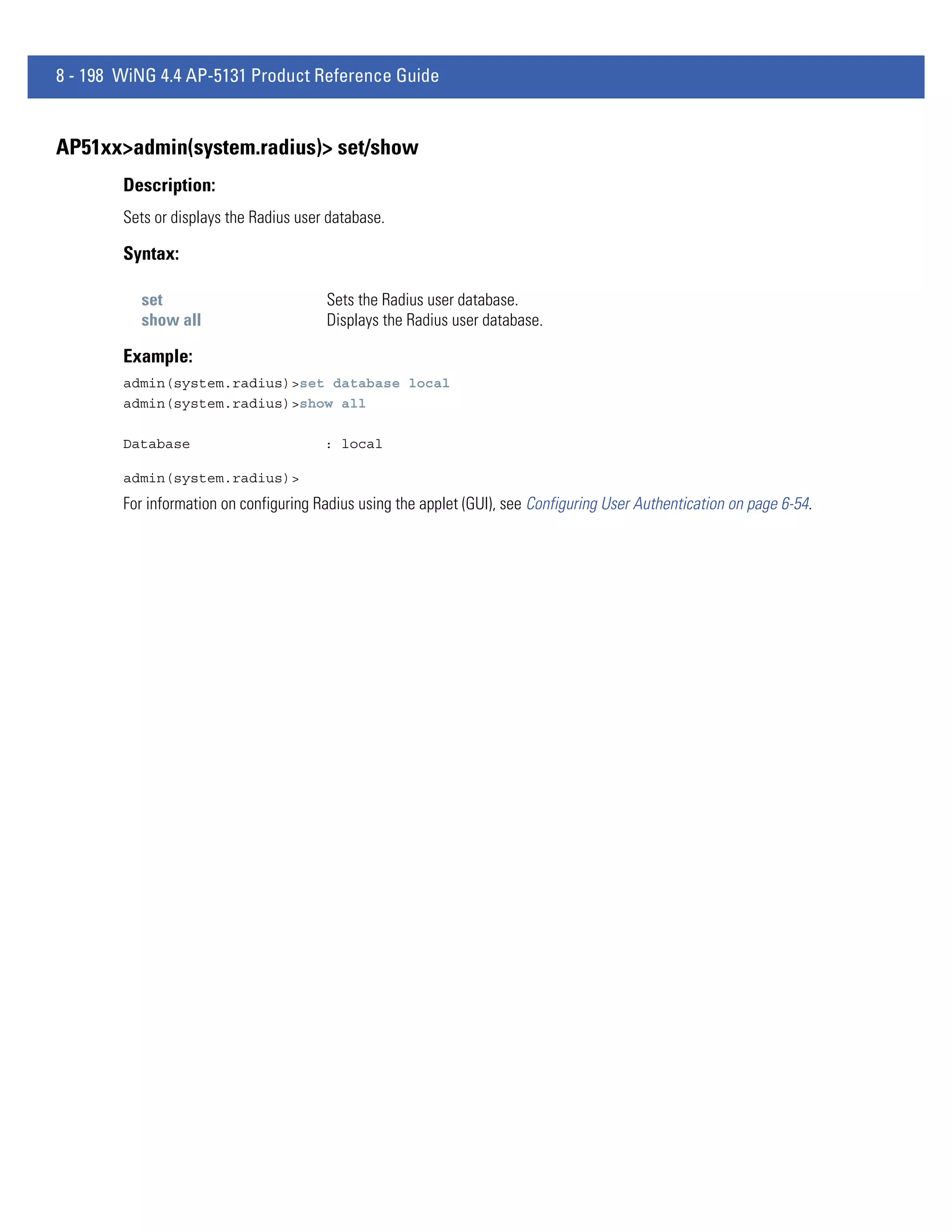
2 - 12 WiNG 4.4 AP-5131 Product Reference Guide


   2.7 Mounting an AP5131
         The AP-5131 can rest on a flat surface, attach to a wall, mount under a suspended T-Bar or above a ceiling (plenum or
         attic). Choose one of the following mounting options based on the physical environment of the coverage area. Do not
         mount the AP-5131 in a location that has not been approved in a site survey.
         Refer to the following, depending on how you intend to mount the AP-5131:
          • Desk Mounted Installations
          • Wall Mounted Installations
          • Suspended Ceiling T-Bar Installations
          • Above the Ceiling (Plenum) Installations

  2.7.1 Desk Mounted Installations
         The desk mount option uses rubber feet allowing the unit to sit on most flat surfaces. The four (4) round rubber feet can
         be found in the AP-5131 (main) box in a separate plastic bag.
         To install the AP-5131 in a desk mount orientation:
   1. Turn the AP-5131 upside down.
   2. Attach the radio antennae to their correct connectors.
       The antenna protection plate cannot be used in a desk mount configuration, as the plate only allows antennas to be
       positioned in a downward orientation.

                        CAUTION Both the Dual and Single Radio model AP-5131’s use RSMA type
                                antenna connectors. On the Dual Radio AP-5131, a single dot on the
                                antenna connector indicates the primary antenna for both Radio 1 (2.4
                                GHz) and Radio 2 (5 GHz). Two dots designate the secondary antenna
                                for both Radio 1 and Radio 2. On Single Radio models, a single dot on
                                the antenna connector indicates the primary antenna for Radio 1, and
                                two dots designate the secondary antenna for Radio 1.
   3. Remove the backings from the four (4) rubber feet and attach them to the four rubber feet recess areas on the AP-5131.


   4. Cable the AP-5131 using either the Power Injector solution or an approved line cord and power supply.

                        CAUTION Do not supply power to the AP-5131 until the cabling of the unit is
                                complete.


       For Power Injector installations:
       a. Connect a RJ-45 Ethernet cable between the network data supply (host) and the power injector Data In connector.
Hardware Installation 2 - 13


      b. Connect a RJ-45 Ethernet cable between the Power Injector Data & Power Out connector and the AP-5131 LAN port.
      c. Ensure the cable length from the Ethernet source (host) to the Power Injector and AP-5131 does not exceed 100 meters
         (333 ft). The Power Injector has no On/Off power switch. The Power Injector receives power as soon as AC power is
         applied. For more information on using the Power Injector, see Power Injector and Power Tap Systems on page 2-10.
      For standard 48-Volt power adapter (Part No. 50-14000-243R) and line cord installations:
    a. Connect RJ-45 Ethernet cable between the network data supply (host) and the AP-5131 LAN port.
    b. Verify the power adapter is correctly rated according the country of operation.
    c. Connect the power supply line cord to the power adapter.
    d. Attach the power adapter cable into the power connector on the AP-5131.
    e. Plug the power adapter into an outlet.
 5. Verify the behavior of the AP-5131 LEDs. For more information, see
    AP-5131 LED Indicators on page 2-19.
 6. Return the AP-5131 to an upright position and place it in the location you wish it to operate. Ensure the AP-5131 is sitting
    evenly on all four rubber feet.
      The AP-5131 is ready to configure. For information on an AP-5131 default configuration, see Getting Started on page 3-1.
      For specific details on AP-5131 system configurations, see System Configuration on page 4-1.

2.7.2 Wall Mounted Installations
       Wall mounting requires hanging the AP-5131 along its width (or length) using the pair of slots on the bottom of the unit
       and using the AP-5131 itself as a mounting template for the screws. The AP-5131 can be mounted onto any plaster or wood
       wall surface.
       The mounting hardware and tools (customer provided) required to install the AP-5131 on a wall consists of:
        • Two Phillips pan head self-tapping screws (ANSI Standard) #6-18 X 0.875in. Type A or AB Self-Tapping screw, or (ANSI
          Standard Metric) M3.5 X 0.6 X 20mm Type D Self-Tapping screw
        • Two wall anchors
        • Security cable (optional)
       To mount the AP-5131 on a wall:
 1. Orient the AP-5131 on the wall by its width or length.
 2. Using the arrows on one edge of the case as guides, move the edge to the midline of the mounting area and mark points on
    the midline for the screws.
 3. At each point, drill a hole in the wall, insert an anchor, screw into the anchor the wall mounting screw and stop when there
    is 1mm between the screw head and the wall.
      If pre-drilling a hole, the recommended hole size is 2.8mm (0.11in.) if the screws are going directly into the wall and 6mm
      (0.23in.) if wall anchors are being used.
 4.   If required, install and attach a security cable to the AP-5131 lock port.
 5.   Place the large corner of each of the mount slots over the screw heads.
 6.   Slide the AP-5131 down along the mounting surface to hang the mount slots on the screw heads.
 7.   Attach the radio antennae to their correct connectors.
2 - 14 WiNG 4.4 AP-5131 Product Reference Guide


                        CAUTION Both the Dual and Single Radio model AP-5131s use RSMA type
                                antenna connectors. On the Dual Radio AP-5131, a single dot on the
                                antenna connector indicates the primary antenna for both Radio 1 (2.4
                                GHz) and Radio 2 (5 GHz). Two dots designate the secondary antenna
                                for both Radio 1 and Radio 2. On Single Radio models, a single dot on
                                the antenna connector indicates the primary antenna for Radio 1, and
                                two dots designate the secondary antenna for Radio 1.
   8. Cable the AP-5131 using either the Power Injector solution or an approved line cord and power supply.


                        NOTE     The access point must be mounted with the RJ45 cable connector
                                 oriented upwards to ensure proper operation.


                        CAUTION Do not supply power to the AP-5131 until the cabling of the unit is
                                complete.


       For Power Injector installations:
       a. Connect a RJ-45 Ethernet cable between the network data supply (host) and the Power Injector Data In connector.
       b. Connect a RJ-45 Ethernet cable between the Power Injector Data & Power Out connector and the AP-5131 LAN port.
       c. Ensure the cable length from the Ethernet source (host) to the Power Injector and AP-5131 does not exceed 100 meters
          (333 ft). The Power Injector has no On/Off power switch. The Power Injector receives power as soon as AC power is
          applied. For more information on using the Power Injector, see Power Injector and Power Tap Systems on page 2-10.
       For standard 48-Volt Power Adapter (Part No. 50-14000-243R) and line cord installations:
       a.   Connect RJ-45 Ethernet cable between the network data supply (host) and the AP-5131 LAN port.
       b.   Verify the power adapter is correctly rated according the country of operation.
       c.   Connect the power supply line cord to the power adapter.
       d.   Attach the power adapter cable into the power connector on the AP-5131.
       e.   Plug the power adapter into an outlet.

                        NOTE     If the AP-5131 is utilizing remote management antennae, a wire cover
                                 can be used to provide a clean finished look to the installation. Contact
                                 Motorola Solutions for more information.

   9. Verify the behavior of the AP-5131 LEDs. For more information, see AP-5131 LED Indicators on page 2-19.
       The AP-5131 is ready to configure. For information on an AP-5131 default configuration, see Getting Started on page 3-1.
       For specific details on AP-5131 system configurations, see System Configuration on page 4-1.

  2.7.3 Suspended Ceiling T-Bar Installations
         A suspended ceiling mount requires holding the AP-5131 up against the T-bar of a suspended ceiling grid and twisting the
         AP-5131 chassis onto the T-bar.
         The mounting hardware and tools (customer provided) required to install the AP-5131 on a ceiling
         T-bar consists of:
            • Safety wire (recommended)
Hardware Installation 2 - 15


       • Security cable (optional)
      To install the AP-5131 on a ceiling T-bar:
1. If required, loop a safety wire —with a diameter of at least 1.01 mm (.04 in.), but no more than 0.158 mm (.0625 in.) —
   through the tie post (above the AP-5131’s console connector) and secure the loop.
2. If required, install and attach a security cable to the AP-5131 lock port.
3. Attach the radio antennae to their correct connectors.

                      CAUTION Both the Dual and Single Radio model AP-5131s use RSMA type
                              antenna connectors. On a Dual Radio AP-5131, a single dot on the
                              antenna connector indicates the primary antenna for both Radio 1 (2.4
                              GHz) and Radio 2 (5 GHz). Two dots designate the secondary antenna
                              for both Radio 1 and Radio 2. On Single Radio models, a single dot on
                              the antenna connector indicates the primary antenna for Radio 1, and
                              two dots designate the secondary antenna for Radio 1
4. Cable the AP-5131 using either the Power Injector solution or an approved line cord and power supply.

                      CAUTION Do not supply power to the AP-5131 until the cabling of the unit is
                              complete.


     For Power Injector installations:
     a. Connect a RJ-45 Ethernet cable between the network data supply (host) and the Power Injector Data In connector.
     b. Connect a RJ-45 Ethernet cable between the Power Injector Data & Power Out connector and the AP-5131 LAN port.
     c. Ensure the cable length from the Ethernet source (host) to the Power Injector and AP-5131 does not exceed 100 meters
        (333 ft). The Power Injector has no On/Off power switch. The Power Injector receives power as soon as AC power is
        applied. For more information on using the Power Injector, see Power Injector and Power Tap Systems on page 2-10.
     For standard 48-Volt Power Adapter (Part No. 50-14000-243R) and line cord installations:
     a. Connect RJ-45 Ethernet cable between the network data supply (host) and the AP-5131 LAN port.
     b. Verify the power adapter is correctly rated according the country of operation.
     c. Connect the power supply line cord to the power adapter.
     d. Attach the power adapter cable into the power connector on the AP-5131.
     e. Plug the power adapter into an outlet.
5.   Verify the behavior of the AP-5131 LEDs. For more information, see AP-5131 LED Indicators on page 2-19.
6.   Align the bottom of the ceiling T-bar with the back of the AP-5131.
7.   Orient the AP-5131 chassis by its length and the length of the ceiling T-bar.
8.   Rotate the AP-5131 chassis 45 degrees clockwise, or about 10 o’clock.
9.   Push the back of the AP-5131 chassis on to the bottom of the ceiling T-bar.

                      CAUTION Ensure the safety wire and cabling used in the T-Bar AP-5131
                              installation is securely fastened to the building structure in order to
                              provide a safe operating environment.

10. Rotate the AP-5131 chassis 45 degrees counter-clockwise. The clips click as they fasten to the T-bar.
2 - 16 WiNG 4.4 AP-5131 Product Reference Guide


   11. The AP-5131 is ready to configure. For information on an AP-5131 default configuration, see Getting Started on page 3-1.
       For specific details on AP-5131 system configurations, see System Configuration on page 4-1.

                         NOTE      If the AP-5131 is utilizing remote management antennae, a wire cover
                                   can be used to provide a clean finished look to the installation. Contact
                                   Motorola Solutions for more information.


  2.7.4 Above the Ceiling (Plenum) Installations
         An AP-5131 above the ceiling installation requires placing the AP-5131 above a suspended ceiling and installing the
         provided light pipe under the ceiling tile for viewing the rear panel status LEDs of the unit. An above the ceiling AP-5131
         installation enables installations compliant with drop ceilings, suspended ceilings and industry standard tiles from .625 to
         .75 inches thick.


                         NOTE      The AP-5131 is Plenum rated to UL2043 and NEC1999 to support above
                                   the ceiling installations.


                         CAUTION Motorola Solutions does not recommend mounting the AP-5131
                                 directly to any suspended ceiling tile with a thickness less than
                                 12.7mm (0.5in.) or a suspended ceiling tile with an unsupported span
                                 greater than 660mm (26in.). Motorola Solutions strongly recommends
                                 fitting the AP-5131 with a safety wire suitable for supporting the
                                 weight of the device. The safety wire should be a standard ceiling
                                 suspension cable or equivalent steel wire between 1.59mm (.062in.)
                                 and 2.5mm (.10in.) in diameter.
         The mounting hardware required to install the AP-5131 above a ceiling consists of:
          • Light pipe
          • Badge for light pipe
          • Decal for badge
          • Safety wire (strongly recommended)
          • Security cable (optional)
Hardware Installation 2 - 17


       To install the AP-5131 above a ceiling:
1.    If possible, remove the adjacent ceiling tile from its frame and place it aside.
2.    Install a safety wire, between 1.5mm (.06in.) and 2.5mm (.10in.) in diameter, in the ceiling space.
3.    If required, install and attach a security cable to the AP-5131’s lock port.
4.    Mark a point on the finished side of the tile where the light pipe is to be located.
5.    Create a light pipe path hole in the target position on the ceiling tile.
6.    Use a drill to make a hole in the tile the approximate size of the AP-5131 LED light pipe.

                      CAUTION Motorola Solutions recommends care be taken not to damage the
                              finished surface of the ceiling tile when creating the light pipe hole
                              and installing the light pipe.

7. Remove the light pipe’s rubber stopper before installing the light pipe.
8. Connect the light pipe to the bottom of the AP-5131. Align the tabs and rotate approximately 90 degrees. Do not over tighten


                                                                      Light Pipe


                                                                                               Ceiling Tile

                                                                      Decal

                                                                      Badge

9.    Snap the clips of the light pipe into the bottom of the AP-5131.
10.   Fit the light pipe into hole in the tile from its unfinished side.
11.   Place the decal on the back of the badge and slide the badge onto the light pipe from the finished side of the tile.
12.   Attach the radio antennae to their correct connectors.

                      CAUTION Both the Dual and Single Radio model AP-5131s use RSMA type
                              antenna connectors. On the Dual Radio AP-5131, a single dot on the
                              antenna connector indicates the primary antenna for both Radio 1 (2.4
                              GHz) and Radio 2 (5 GHz). Two dots designate the secondary antenna
                              for both Radio 1 and Radio 2. On Single Radio models, a single dot on
                              the antenna connector indicates the primary antenna for Radio 1, and
                              two dots designate the secondary antenna for Radio 1.
13. Attach safety wire (if used) to the AP-5131 safety wire tie point or security cable (if used) to the AP-5131’s lock port.
14. Align the ceiling tile into its former ceiling space.
15. Cable the AP-5131 using either the Power Injector solution or an approved line cord and power supply.
2 - 18 WiNG 4.4 AP-5131 Product Reference Guide


                        CAUTION Do not supply power to the AP-5131 until the cabling of the unit is
                                complete.


       For Power Injector installations:
       a. Connect a RJ-45 Ethernet cable between the network data supply (host) and the Power Injector Data In connector.
       b. Connect a RJ-45 Ethernet cable between the Power Injector Data & Power Out connector and the AP-5131 LAN port.
       c. Ensure the cable length from the Ethernet source (host) to the Power Injector and AP-5131 does not exceed 100 meters
          (333 ft). The Power Injector has no On/Off power switch. The Power Injector receives power as soon as AC power is
          applied. For more information on using the Power Injector, see Power Injector and Power Tap Systems on page 2-10.
       For standard 48-Volt Power Adapter (Part No. 50-14000-243R) and line cord installations:
       a. Connect a RJ-45 Ethernet cable between the network data supply (host) and the AP-5131 LAN port.
       b. Verify the power adapter is correctly rated according the country of operation.
       c. Connect the power supply line cord to the power adapter.
       d. Attach the power adapter cable into the power connector on the AP-5131.
       e. Plug the power adapter into an outlet.
   16. Verify the behavior of the AP-5131 LED lightpipe. For more information, see AP-5131 LED Indicators on page 2-19.
   17. Place the ceiling tile back in its frame and verify it is secure.
       The AP-5131 is ready to configure. For information on an AP-5131 default configuration, see Getting Started on page 3-1.
       For specific details on AP-5131 system configurations, see System Configuration on page 4-1.
Hardware Installation 2 - 19


2.8 AP-5131 LED Indicators
   The AP-5131 utilizes seven LED indicators. Five LEDs display within four LED slots on the front of the AP-5131 (on top of
   the AP-5131 housing) and two LEDs (for above the ceiling installations) are located on the back of the device (the side
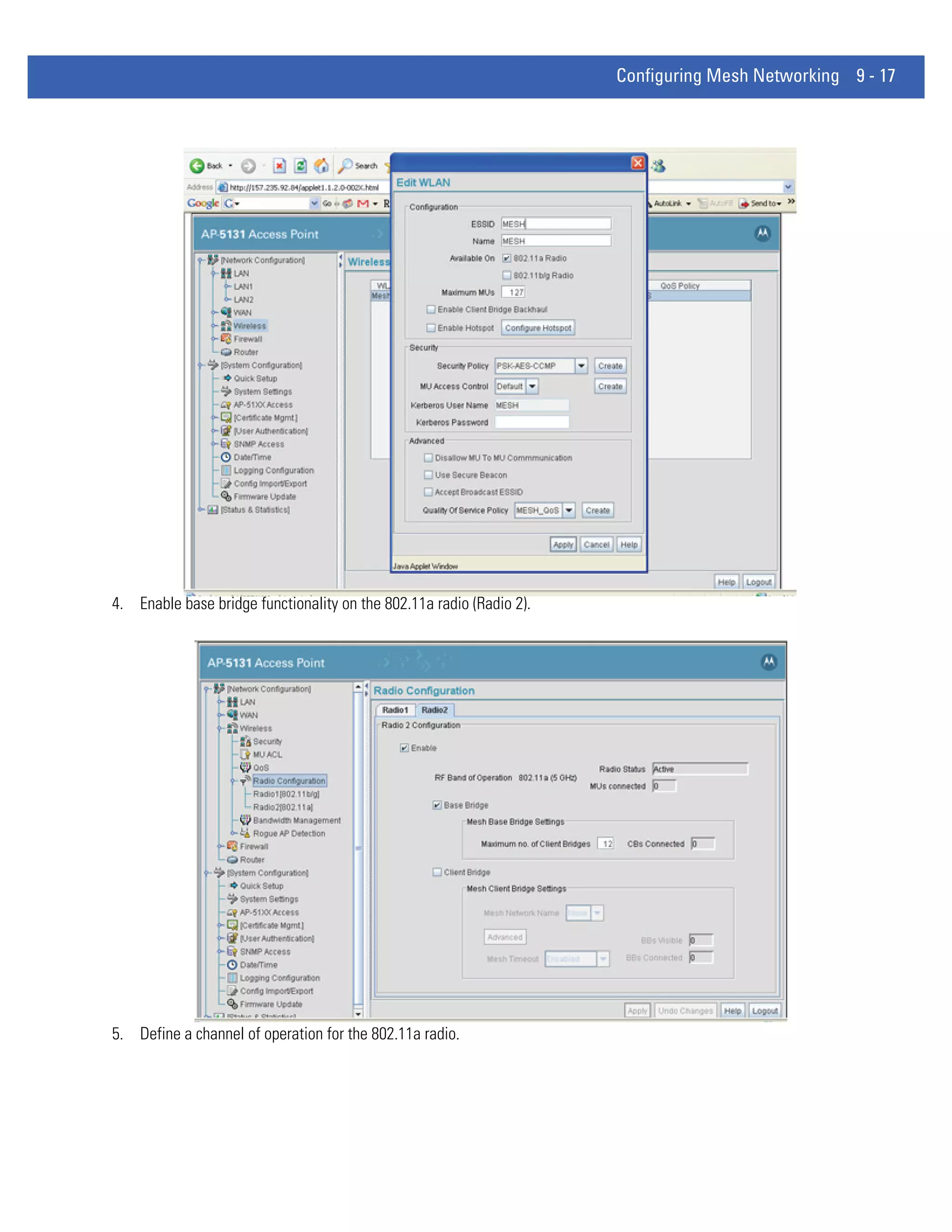
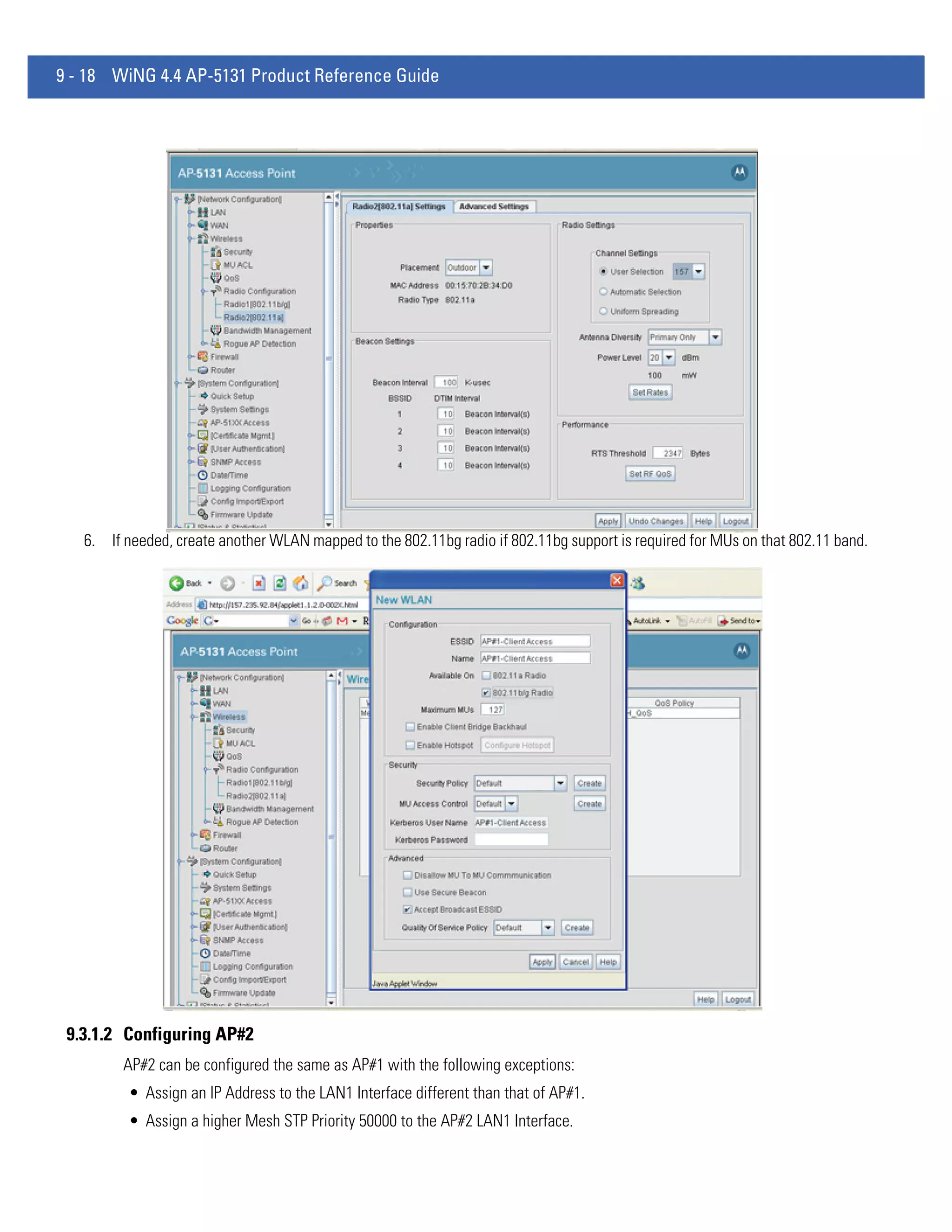
   containing the LAN, WAN and antenna connectors).


   The five LEDs on the top housing of the AP-5131 are clearly visible in table-top, wall and below ceiling installations. The
   five AP-5131 top housing LEDs have the following display and functionality:


           Power Status             Solid white indicates the AP-5131 is adequately powered.


                                    Solid red indicates the AP-5131 is experiencing a problem condition requiring
           Error Conditions         immediate attention.


           Ethernet Activity        Flashing white indicates data transfers and Ethernet activity.


                                    Flickering amber indicates beacons and data transfers over the AP-5131
           802.11a Radio Activity   802.11a radio.


                                    Flickering green indicates beacons and data transfers over the AP-5131
           802.11b/g Radio Activity 802.11b/g radio.
   The LEDs on the rear of the AP-5131 are viewed using a single (customer installed) extended lightpipe, adjusted as
   required to suit above the ceiling installations. The LEDs displayed using the lightpipe have the following color display and
   functionality:


           Boot and Power Status Solid white indicates the AP-5131 is adequately powered.


                                    Solid red indicates the AP-5131 is experiencing a problem condition requiring
           Error Conditions         immediate attention.


           Power and Error          Blinking red indicates the AP-5131 Rogue AP Detection feature has located a
           Conditions               rogue device
2 - 20 WiNG 4.4 AP-5131 Product Reference Guide


   2.9 Mounting an AP5181
         The AP-5181 can be connected to a pole or attach to a wall. Choose one of the following mounting options based on the
         physical environment of the coverage area. Do not mount the AP-5181 in a location that has not been approved in a site
         survey.
         Refer to the following, depending on how you intend to mount the AP-5181:
          • AP-5181 Pole Mounted Installations
          • AP-5181 Wall Mounted Installations

  2.9.1 AP-5181 Pole Mounted Installations
         Complete the following steps to mount the AP-5181 to a (1.5 to 18 inch diameter) steel pole or tube (using the mounting
         bracket):
   1. Fit the edges of the V-shaped clamp parts into the slots on the flat side of the rectangular plate.
   2. Place the V-shaped bracket clamp parts around the pole and tighten the nuts just enough to hold the bracket to the pole.
      (The bracket may need to be rotated around the pole during the antenna alignment process).


          Fit the edges of the
          V-shaped part into the slots


                       Tighten the
                       securing bolts


   3. Attach the square mounting plate to the bridge with the supplied screws.

                                               Attach the square
                                               plate to the bridge


   4. Attach the AP-5181 and mounting plate to the bracket already fixed to the pole.
   5. Secure the AP-5181 to the pole bracket using the provided nuts.
Hardware Installation 2 - 21


                    NOTE     The AP-5181 tilt angle may need to be adjusted during the antenna
                             alignment process. Verify the antenna polarization angle when installing,
                             ensure the antennas are oriented correctly in respect to the AP-5181's
                             coverage area.

6. Attach the radio antenna to their correct connectors.
7. Cable the AP-5181 using either the AP-5181 Power Tap (Part No. AP-PSBIAS-5181-01R) or the Power Injector (Part No. AP-
   PSBIAS-1P2-AFR).

                    NOTE     The access point must be mounted with the RJ45 cable connectors
                             oriented upwards to ensure proper operation.


                    CAUTION Do not supply power to the AP-5181 Power Tap or Power Injector until
                            the cabling of the access point is complete.


                    CAUTION For Power Tap installations, an electrician is required to open the
                            Power Tap unit, feed the power cable through the Line AC connector,
                            secure the power cable to the unit’s three screw termination block and
                            tighten the unit’s Line AC clamp (by hand) to ensure the power cable
                            cannot be pulled from the Power Tap enclosure. Only a certified
                            electrician should conduct the installation.
   a. Connect a RJ-45 Ethernet cable between the network data supply (host) and the Power Tap’s DATA IN connector or the
      Power Injector’s Data In connector.
   b. Connect a RJ-45 Ethernet cable between the Power Tap’s DATA/PWR OUT connector or the Power Injector’s Data &
      Power Out connector and the AP-5181 LAN port.
   c. For Power Tap installations, have a certified electrician open the Power Tap enclosure, feed the power cable through the
      unit’s LINE AC connector, secure the power cable to the unit’s three screw termination block and tighten the unit’s LINE
      AC clamp (by hand) to ensure the power cable cannot be pulled from the unit.
   d. For Power Tap installations, attach a ground cable between the EARTH GROUND connector (on the back of the unit) to
      a suitable earth ground connection as defined by your local electrical code.
   e. Ensure the cable length from the Ethernet source (host) to the Power Tap (or Power Injector) and AP-5181 does not exceed
      100 meters (333 ft). Neither the Power Tap or Power injector has an On/Off power switch. Each receives power as soon
      as AC power is applied. For more information on using the see, Power Injector and Power Tap Systems on page 2-10.
8. Use the supplied cable connector to cover the AP-5181’s Console, LAN/PoE and WAN connectors.
9. Once power has been applied, Verify the behavior of the AP-5181 LEDs. For more information, see AP5181 LED Indicators on
   page 2-24.
    The AP-5181 is ready to configure. For information on an AP-5181 default configuration, see Getting Started on page 3-1.
    For specific details on AP-5131 system configurations, see System Configuration on page 4-1.

                    NOTE     If installing the AP-5181 in an outdoor area prone to high winds and rain,
                             Motorola Solutions recommends using the AP-5181 Heavy Weather Kit
                             (Part No. KT-5181-HW-01R). This kit shields an AP-5181 from high winds
                             and water damage as a result of driving rain.
2 - 22 WiNG 4.4 AP-5131 Product Reference Guide


  2.9.2 AP-5181 Wall Mounted Installations
         Complete the following steps to mount the AP-5181 to a wall using the supplied wall-mounting bracket:
   1. Attach the bracket to a wall with flat side flush against the wall (see the illustration below). Position the bracket in the
      intended location and mark the positions of the four mounting screw holes.


   2. Drill four holes in the wall that match the screws and wall plugs.
   3. Secure the bracket to the wall.
   4. Attach the square mounting plate to the bridge with the supplied screws. Attach the bridge to the plate on the pole.


   5. Use the included nuts to tightly secure the wireless bridge to the bracket. Fit the edges of the V-shaped clamp into the slots
      on the flat side of the rectangular plate.
   6. Attach the radio antenna to their correct connectors.
   7. Cable the AP-5181 using either the AP-5181 Power Tap (Part No. AP-PSBIAS-5181-01R) or the Power Injector (Part No. AP-
      PSBIAS-1P2-AFR).

                        NOTE     Once ready for the final positioning of the access point, ensure the RJ45
                                 cable connectors are oriented upwards to ensure proper operation.


                        CAUTION Do not supply power to the AP-5181 Power Tap or Power Injector until
                                the cabling of the access point is complete.
Hardware Installation 2 - 23


                    CAUTION For Power Tap installations, an electrician is required to open the
                            Power Tap unit, feed the power cable through the Line AC connector,
                            secure the power cable to the unit’s three screw termination block and
                            tighten the unit’s Line AC clamp (by hand) to ensure the power cable
                            cannot be pulled from the Power Tap enclosure. Only a certified
                            electrician should conduct the installation.
   a. Connect a RJ-45 Ethernet cable between the network data supply (host) and the Power Tap’s DATA IN connector or the
      Power Injector’s Data In connector.
   b. Connect a RJ-45 Ethernet cable between the Power Tap’s DATA/PWR OUT connector or the Power Injector’s Data &
      Power Out connector and the AP-5181 LAN port.
   c. For Power Tap installations, have a certified electrician open the Power Tap enclosure, feed the power cable through the
      unit’s LINE AC connector, secure the power cable to the unit’s three screw termination block and tighten the unit’s LINE
      AC clamp (by hand) to ensure the power cable cannot be pulled from the unit.
   d. For Power Tap installations, attach a ground cable between the EARTH GROUND connector (on the back of the unit) to
      a suitable earth ground connection as defined by your local electrical code.
   e. Ensure the cable length from the Ethernet source (host) to the Power Tap (or Power Injector) and AP-5181 does not exceed
      100 meters (333 ft). Neither the Power Tap or Power injector has an On/Off power switch. Each receives power as soon
      as AC power is applied. For more information on using the see, Power Injector and Power Tap Systems on page 2-10.
8. Use the supplied cable connector to cover the AP-5181’s Console, LAN/PoE and WAN connectors.
9. Once power has been applied, Verify the behavior of the AP-5181 LEDs. For more information, see AP5181 LED Indicators on
   page 2-24.
    The AP-5181 is ready to configure. For information on an AP-5181 default configuration, see Getting Started on page 3-1.
    For specific details on AP-5131 system configurations, see System Configuration on page 4-1.

                    NOTE     If installing the AP-5181 in an outdoor area prone to high winds and rain,
                             Motorola Solutions recommends using the AP-5181 Heavy Weather Kit
                             (Part No. KT-5181-HW-01R). This kit shields an AP-5181 from high winds
                             and water damage as a result of driving rain.
2 - 24 WiNG 4.4 AP-5131 Product Reference Guide


  2.10 AP5181 LED Indicators
        The AP-5181 utilizes four LED indicators. Five LEDs display within four LED slots on the back of the access point. The five
        LEDs have the following display and functionality:

                                                            Power and error conditions (split LED)
                                                            Data over Ethernet
                                                            802.11a radio activity
                                                            802.11b/g radio activity


                Power Status             Solid white indicates the access point is adequately powered.


                                         Solid red indicates the access point is experiencing a problem condition
                Error Conditions         requiring immediate attention.


                Ethernet Activity        Flashing white indicates data transfers and Ethernet activity.


                                         Flickering amber indicates beacons and data transfers over the access point
                802.11a Radio Activity   802.11a radio.


                                         Flickering green indicates beacons and data transfers over the access point
                802.11b/g Radio Activity 802.11b/g radio.
Hardware Installation 2 - 25


2.11 Setting Up MUs
    For a discussion of how to initially test the access point to ensure it can interoperate with the MUs intended for its
    operational environment, see Basic Device Configuration on page 3-6 and specifically Testing Connectivity on page 3-11.
    Refer to the LA-5030 & LA-5033 Wireless Networker PC Card and PCI Adapter Users Guide, available from the Motorola
    Solutions Web site, for installing drivers and client software if operating in an 802.11a/g network environment.
    Refer to the Spectrum24 LA-4121 PC Card, LA-4123 PCI Adapter & LA-4137 Wireless Networker User Guide, available from
    the Motorola Solutions Web site, for installing drivers and client software if operating in an 802.11b network environment.
    Use the default values for the ESSID and other configuration parameters until the network connection is verified. MUs
    attach to the network and interact with the AP transparently.
2 - 26 WiNG 4.4 AP-5131 Product Reference Guide
CHAPTER 3 GETTING STARTED

  The access point should be installed in an area tested for radio coverage using one of the site survey tools available to the
  field service technician. Once an installation site has been identified, the installer should carefully follow the hardware
  precautions, requirements, mounting guidelines and power options outlined in Hardware Installation.
  See the following sections for more details:
   • Installing the Access Point
   • Configuration Options
   • Basic Device Configuration
3-2   WiNG 4.4 AP-5131 Product Reference Guide


  3.1 Installing the Access Point
       Make the required cable and power connections before mounting the access point in its final operating position. Test the
       access point with an associated MU before mounting and securing the access point. Carefully follow the mounting
       instructions in one of the following sections to ensure the access point is installed correctly:
       For installing an AP-5131 model access point
        • For instructions on installing the AP-5131 on a table top, see Desk Mounted Installations on page 2-12.
        • For instructions on mounting an AP-5131 to a wall, see Wall Mounted Installations on page 2-13.
        • For instructions on mounting an AP-5131 to a ceiling T-bar, see Suspended Ceiling T-Bar Installations on page 2-14.
        • For instructions on installing the AP-5131 in an above the ceiling attic space, see Above the Ceiling (Plenum)
          Installations on page 2-16.
       For installing an AP-5181 model access point:
        • For instructions on installing the AP-5181 to a pole, see AP-5181 Pole Mounted Installations on page 2-20.
        • For instructions on installing the AP-5181 to a wall, see AP-5181 Wall Mounted Installations on page 2-22.
       For information on the 802.11a and 802.11b/g radio antenna suite available to the AP-51x1, see Antenna Options on page
       2-6. For more information on using a Power Injector to combine Ethernet and power in one cable to an AP-5131 model
       access point, see Power Injector and Power Tap Systems on page 2-10. To verify AP-5131 LED behavior once installed, see
       AP-5131 LED Indicators on page 2-19. To verify the behavior of the AP-5181 LEDs once installed, see AP5181 LED Indicators
       on page 2-24.
Getting Started        3-3


3.2 Configuration Options
   Once installed and powered, an AP-5131 or AP-5181 can be configured using one of several connection techniques.
   Managing the AP-51x1 includes viewing network statistics and setting configuration options. The AP-51x1 requires one of
   the following connection methods to manage the network:
    • Secure Java-Based WEB UI - (use Sun Microsystems’ JRE 1.5 or higher available from Sun’s Web site. Disable
      Microsoft’s Java Virtual Machine if installed). For information on using the Web UI to set AP-51x1 default
      configuration, see Basic Device Configuration on page 3-6 or chapters 4 through 7 of this guide.
    • Command Line Interface (CLI) via Serial, Telnet and SSH. The access point CLI is accessed through the RS232 port, via
      Telnet or SSH. The CLI follows the same configuration conventions as the device user interface with a few documented
      exceptions. For details on using the CLI to manage the access point, see CLI Reference on page 8-1.
    • Config file - Readable text file; Importable/Exportable via FTP, TFTP and HTTP. Configuration settings for an access point
      can be downloaded from the current configuration of another access point meeting the import/export requirements.
      For information on importing or exporting configuration files, see Importing/Exporting Configurations on page 4-39.
    • MIB (Management Information Base) accessing the AP-51x1 SNMP functions using a MIB Browser. The access point
      download package contains the following 2 MIB files:
      • Symbol-CC-WS2000-MIB-2.0
      • Symbol-AP-5131-MIB (can be used for both an AP-5131 and AP-5181 model access point, an AP-5181 does not have
        its own MIB)
3-4   WiNG 4.4 AP-5131 Product Reference Guide


  3.3 Default Configuration Changes for the Access Point
       The following table illustrates the changes made to the access point default configuration from its initial 1.0 release
       through this most recent 2.0 release.

                       Version 1.0             Version 1.1           Version 1.1.1.0    Version 2.0 & 2.1
                                                                        & 1.1.2.0
          WAN          DHCP client       Static IP: 10.1.1.1    Static IP: 10.1.1.1    Static IP: 10.1.1.1
                   Auto-Update Enabled Static Mask: 255.0.0.0 Static Mask: 255.0.0.0 Static Mask: 255.0.0.0
         LAN1      Static IP: 192.168.0.1     DHCP Client         DHCP Client          DHCP Client
                       Static Mask:       Auto-Update Enabled Auto-Update Enabled Auto-Update Enabled
                      255.255.255.0         Default Gateway     Default Gateway      Default Gateway
                   DHCP Server Enabled Ethernet Port Enabled Ethernet Port Enabled Ethernet Port Enabled
         LAN2      Not applicable in 1.0   Static IP: 192.168.1.1       Disabled            Disabled
                    release (no LAN2           Static Mask:
                         support)             255.255.255.0
                                           DHCP Server Enabled
         Access    HTTPS, SSH, SNMP:        HTTP, HTTPS, SSH,       HTTP, HTTPS, SSH,   HTTP, HTTPS, SSH,
        via WAN         Enabled               SNMP, Telnet:           SNMP, Telnet:       SNMP, Telnet:
           port                                  Enabled                 Enabled             Enabled
Getting Started        3-5


 3.4 Initially Connecting to the Access Point

                      NOTE     The procedures described below assume this is the first time you are
                               connecting to either an AP-5131 or AP-5181 model access point.


3.4.1 Connecting to the Access Point using the WAN Port
       To initially connect to the access point using the access point’s WAN port:
 1. Connect AC power to the access point, as Power-Over-Ether support is not available on the access point’s WAN port.
 2. Start a browser and enter the access point’s static IP WAN address (10.1.1.1). The default password is “motorola.”
 3. Refer to Basic Device Configuration on page 3-6 for instructions on the initial (basic) configuration of the access point.

3.4.2 Connecting to the Access Point using the LAN Port
       To initially connect to the access point using the access point’s LAN port:
 1. The LAN port default is set to DHCP. Connect the access point’s LAN port to a DHCP server.
     The access point will receive its IP address automatically.
 2. To view the IP address, connect one end of a null modem serial cable to the access point and the other end to the serial port
    of a computer running HyperTerminal or similar emulation program.

                      NOTE     If using an AP-5131 model access point, a null modem cable is required. If
                               using an AP-5181 model access point, an RJ-45 to Serial cable is required
                               to make the connection.

 3. Configure the following settings:
           • Baud Rate - 19200
           • Data Bits - 8
           • Stop Bits - 1
           • No Parity
           • No Flow Control
 4. Press <ESC> or <Enter> to access the access point CLI.
 5. Enter the default username of “admin” and the default password of “motorola.”
     As this is the first time you are logging into the access point, you are prompted to enter a new password and set the county
     code. Refer to Country Codes on page A-9 for a list of each available countries two digit country code.
 6. At the CLI prompt (admin>), type “summary.”
     The access point’s LAN IP address will display.
 7. Using a Web browser, use the access point’s IP address to access the access point.
 8. Refer to Basic Device Configuration on page 3-6 for instructions on the initial (basic) configuration of the access point.
3-6   WiNG 4.4 AP-5131 Product Reference Guide


  3.5 Basic Device Configuration
        For the basic setup described in this section, the Java-based Web UI will be used to configure the access point. Use the
        access point’s LAN interface for establishing a link with the access point. Configure the access point as a DHCP client. For
        optimal screen resolution, set your screen resolution to 1024 x 768 pixels or greater.
  1. Log in using admin as the default Username and motorola as the default Password. Use your new password if it has been
     updated from default.
      There is no difference in the login method between the AP-5131 and AP-5181 model access points. However, each model
      displays a login screen unique in appearance (with a different model name). Additionally, each model access point displays
      a banner on top of each menu screen unique to the AP-5131 or AP-5181 model supported.


                       NOTE     For optimum compatibility, use Sun Microsystems’ JRE 1.5 or higher
                                (available from Sun’s Website), and be sure to disable Microsoft’s Java
                                Virtual Machine if installed.


  2. If the default login is successful, the Change Admin Password window displays. Change the password.


      Enter the current password and a new admin password in fields provided. Click Apply. Once the admin password has been
      updated, a warning message displays stating the access point must be set to a country.
Getting Started         3-7


     The export function will always export the encrypted Admin User password. The import function will import the Admin
     Password only if the access point is set to factory default. If the access point is not configured to factory default settings,
     the Admin User password WILL NOT get imported.

                      NOTE     Though the AP-51x1 can have its basic settings defined using a number of
                               different screens, Motorola Solutions recommends using the AP-51x1
                               Quick Setup screen to set the correct country of operation and define its
                               minimum required configuration from one convenient location.

3.5.1 Configuring Device Settings
       Configure a set of minimum required device settings within the Quick Setup screen. The values defined within the Quick
       Setup screen are also configurable in numerous other locations within the menu tree. When you change the settings in
       the Quick Setup screen, the values also change within the screen where these parameters also exist. Additionally, if the
       values are updated in these other screens, the values initially set within the Quick Setup screen will be updated.
       To define a basic access point configuration:
 1. Select System Configuration -> Quick Setup from the menu tree, if the Quick Setup screen is not already displayed.
 2. Enter a System Name for the AP-51x1.


     The System Name is useful if multiple devices are being administered.
 3. Select the Country for the AP-51x1’s country of operation from the drop-down menu
     The access point prompts the user for the correct country code on the first login. A warning message also displays stating
     that an incorrect country settings may result in illegal radio operation. Selecting the correct country is central to legally
     operating the access point. Each country has its own regulatory restrictions concerning electromagnetic emissions and the
     maximum RF signal strength that can be transmitted. To ensure compliance with national and local laws, be sure to set the
     country accurately. CLI and MIB users cannot configure their access point until a two character country code (for example,
     United States - us) is set. Refer to Appendix A, Country Codes on page A-9 for the two character country codes.
3-8   WiNG 4.4 AP-5131 Product Reference Guide


                       NOTE     The System Name and Country are also configurable within the System
                                Settings screen. Refer to Configuring System Settings on page 4-3 (if
                                necessary) to set a system location and admin email address for the
                                AP-51x1 or to view other default settings.

  4. Optionally enter the IP address of the server used to provide system time to the AP-51x1 within the Time Server field.

                       NOTE     DNS names are not supported as a valid IP address. The user is required
                                to enter a numerical IP address.


      Once the IP address is entered, the AP-51x1’s Network Time Protocol (NTP) functionality is engaged automatically. Refer to
      the AP-51x1 Product Reference Guide for information on defining alternate time servers and setting a synchronization
      interval for the AP-51x1 to adjust its displayed time. Refer to Configuring Network Time Protocol (NTP) on page 4-33 (if
      necessary) for information on setting alternate time servers and setting a synchronization interval for the AP-51x1 to adjust
      its displayed time.
  5. Click the WAN tab to set a minimum set of parameters for using the WAN interface.
     a. Select the Enable WAN Interface checkbox to enable a connection between the AP-51x1 and a larger network or
         outside world through the WAN port. Disable this option to effectively isolate the AP-51x1’s WAN connection. No
         connections to a larger network or the Internet will be possible. MUs cannot communicate beyond the configured
         subnets.
     b. Select the This Interface is a DHCP Client checkbox to enable DHCP for the AP-51x1’s WAN connection. This is useful,
         if the larger corporate network or Internet Service Provider (ISP) uses DHCP. DHCP is a protocol that includes mechanisms
         for IP address allocation and delivery of host-specific configuration parameters from a DHCP server to a host. Some of
         these parameters are IP address, network mask, and gateway.

                       NOTE     Motorola Solutions recommends that the WAN and LAN ports should not
                                both be configured as DHCP clients.


     c. Specify an IP address for the AP-51x1’s WAN connection. An IP address uses a series of four numbers expressed in dot
         notation, for example, 190.188.12.1 (no DNS names supported).
     d. Specify a Subnet Mask for the AP-51x1’s WAN connection. This number is available from the ISP for a DSL or cable-
         modem connection, or from an administrator if the AP-51x1 connects to a larger network. A subnet mask uses a series
         of four numbers expressed in dot notation. For example, 255.255.255.0 is a valid subnet mask.
     e. Define a Default Gateway address for the AP-51x1’s WAN connection. The ISP or a network administrator provides this
         address.
     f. Specify the address of a Primary DNS Server. The ISP or a network administrator provides this address.
  6. Optionally, use the Enable PPP over Ethernet checkbox to enable Point-to-Point over Ethernet (PPPoE) for a high-speed
     connection that supports this protocol. Most DSL providers are currently using or deploying this protocol. PPPoE is a data-
     link protocol for dialup connections. PPPoE will allow the access point to use a broadband modem (DSL, cable modem, etc.)
     for access to high-speed data networks.
     a. Select the Keep Alive checkbox to enable occasional communications over the WAN port even when client
         communications to the WAN are idle. Some ISPs terminate inactive connections, while others do not. In either case,
         enabling Keep-Alive maintains the WAN connection, even when there is no traffic. If the ISP drops the connection after
         the idle time, the AP-51x1 automatically reestablishes the connection to the ISP.
     b. Specify the Username entered when connecting to the ISP. When the Internet session begins, the ISP authenticates the
         username.
Getting Started         3-9


    c. Specify the Password entered when connecting to the ISP. When the Internet session starts, the ISP authenticates the
       password.
    For additional AP-51x1 WAN port configuration options, see Configuring WAN Settings on page 5-13.
7. Click the LAN tab to set a minimum set of parameters to use the AP-51x1 LAN interface.
   a. Select the Enable LAN Interface checkbox to forward data traffic over the AP-51x1’s LAN connection. The LAN
       connection is enabled by default.
   b. Use the This Interface drop-down menu to specify how network address information is defined over the AP-51x1’s LAN
       connection. Select DHCP Client if the larger corporate network uses DHCP. DHCP is a protocol that includes
       mechanisms for IP address allocation and delivery of host-specific configuration parameters from a DHCP server to a
       host. Some of these parameters are IP address, network mask, and gateway. Select DHCP Server to use the AP-51x1
       as a DHCP server over the LAN connection. Select the Bootp client option to enable a diskless system to discover its
       own IP address.

                     NOTE     Motorola Solutions recommends that the WAN and LAN ports should not
                              both be configured as DHCP clients.


    c. If using the static or DHCP Server option, enter the network-assigned IP Address of the AP-51x1.

                     NOTE     DNS names are not supported as a valid IP address for the AP-51x1. The
                              user is required to enter a numerical IP address.


    d. The Subnet Mask defines the size of the subnet. The first two sets of numbers specify the network domain, the next
       set specifies the subset of hosts within a larger network. These values help divide a network into subnetworks and
       simplify routing and data transmission.
    e. If using the static or DHCP Server option, enter a Default Gateway to define the numerical IP address of a router the
       AP-51x1 uses on the Ethernet as its default gateway.
    f. If using the static or DHCP Server option, enter the Primary DNS Server numerical IP address.
    g. If using the DHCP Server option, use the Address Assignment Range parameter to specify a range of IP address
       reserved for mapping clients to IP addresses. If a manually (static) mapped IP address is within the IP address range
       specified, that IP address could still be assigned to another client. To avoid this, ensure all statically mapped IP addresses
       are outside of the IP address range assigned to the DHCP server.
    For additional AP-51x1 LAN port configuration options, see Configuring the LAN Interface on page 5-2.
8. Enable the radio(s) using the Enable checkbox(es) within the Radio Configuration field. If using a single radio access point,
   enable the radio, then select either 2.4 GHz or 5 GHz from the RF Band of Operation field. Only one RF band option at a
   time is permissible in a single-radio model. If using a dual-radio model, the user can enable both RF bands. For additional
   radio configuration options, see Configuring the 802.11a or 802.11b/g Radio on page 5-42.
9. Select the WLAN #1 tab (WLANs 1 - 4 are available within the Quick Setup screen) to define its ESSID and security scheme
   for basic operation.

                     NOTE     A maximum of 16 WLANs are configurable within the Wireless
                              Configuration screen. The limitation of 16 WLANs exists regardless of
                              whether the access point is a single or dual-radio model.

    a. Enter the Extended Services Set Identification (ESSID) and name associated with the WLAN. For additional information
       on creating and editing up to 16 WLANs per AP-51x1, see Creating/Editing Individual WLANs on page 5-23.
3 - 10 WiNG 4.4 AP-5131 Product Reference Guide


       b. Use the Available On checkboxes to define whether the target WLAN is operating over the 802.11a or 802.11b/g radio.
           Ensure the radio selected has been enabled (see step 8).
       c. Even an access point configured with minimal values must protect its data against theft and corruption. A security policy
           should be configured for WLAN1 as part of the basic configuration outlined in this guide. A security policy can be
           configured for the WLAN from within the Quick Setup screen. Policies can be defined over time and saved to be used
           as needed as security requirements change. Motorola Solutions recommends you familiarize yourself with the security
           options available on the access point before defining a security policy. Refer to Configuring WLAN Security Settings on
           page 3-10.
   10. Click Apply to save any changes to the AP-51x1 Quick Setup screen. Navigating away from the screen without clicking Apply
       results in all changes to the screens being lost.
   11. Click Undo Changes (if necessary) to undo any changes made. Undo Changes reverts the settings displayed on the AP-51x1
       Quick Setup screen to the last saved configuration.

 3.5.1.1 Configuring WLAN Security Settings
         To configure a basic security policy for a WLAN:
   1. From the AP-51x1 Quick Setup screen, click the Create button to the right of the Security Policy item.
       The New Security Policy screen displays with the Manually Pre-shared key/No authentication and No Encryption
       options selected. Naming and saving such a policy (as is) would provide no security and might only make sense in a guest
       network wherein no sensitive data is either transmitted or received. Consequently, at a minimum, a basic security scheme
       (in this case WEP 128) is recommended in a network environment wherein sensitive data is transmitted.


                        NOTE     For information on configuring the other encryption and authentication
                                 options available to the AP-51x1, see Configuring Security Options on
                                 page 6-2.

   2. Ensure the Name of the security policy entered suits the intended configuration or function of the policy.
       Multiple WLANs can share the same security policy, so be careful not to name security policies after specific WLANs or risk
       defining a WLAN to single policy. Motorola Solutions recommends naming the policy after the attributes of the
       authentication or encryption type selected.
   3. Select the WEP 128 (104 bit key) checkbox.
       The WEP 128 Settings field displays within the New Security Policy screen.
Getting Started 3 - 11


 4. Configure the WEP 128 Settings field as required to define the Pass Key used to generate the WEP keys.

       Pass Key              Specify a 4 to 32 character pass key and click the Generate
                             button. The access point, other proprietary routers and MUs use
                             the same algorithm to convert an ASCII string to the same
                             hexadecimal number. Non-Motorola Solutions clients and
                             devices need to enter WEP keys manually as hexadecimal
                             numbers. The access point and its target client(s) must use the
                             same pass key to interoperate.
       Keys #1-4             Use the Key #1-4 fields to specify key numbers. The key can be
                             either a hexidecimal or ASCII depending on which option is
                             selected from the drop-down menu. For WEP 64 (40-bit key), the
                             keys are 10 hexadecimal characters in length or 5 ASCII
                             characters. For WEP 128 (104-bit key), the keys are 26
                             hexadecimal characters in length or 13 ASCII characters. Select
                             one of these keys for activation by clicking its radio button. The
                             access point and its target client(s) must use the same key to
                             interoperate.
 5. Click the Apply button to save the security policy and return to the AP-51x1 Quick Setup screen.
     At this point, you can test the AP-51x1 for MU interoperability.

3.5.2 Testing Connectivity
       Verify the access point’s link with an MU by sending Wireless Network Management Protocol (WNMP) ping packets to the
       associated MU. Use the Echo Test screen to specify a target MU and configure the parameters of the test. The WNMP
       ping test only works with Motorola Solutions MUs. Only use a Motorola Solutions MU to test access point connectivity
       using WNMP.
3 - 12 WiNG 4.4 AP-5131 Product Reference Guide


                         NOTE    Before testing for connectivity, the target MU needs to be set to the same
                                 ESSID as the access point. Since WEP 128 has been configured for the
                                 access point, the MU also needs to be configured for WEP 128 and use
                                 the same WEP keys. Ensure the MU is associated with the access point
                                 before testing for connectivity.
         To ping a specific MU to assess its connection with an access point:
   1. Select Status and Statistics -> MU Stats from the menu tree.
   2. Select the Echo Test button from within the MU Stats Summary screen.
   3. Define the following parameters for the test.

         Station Address        The station address is the IP address of the target MU. Refer to
                                the MU Stats Summary screen for associated MU IP address
                                information.
         Number of pings        Defines the number of packets to be transmitted to the MU. The
                                default is 100.
         Packet Length          Specifies the length of each packet transmitted to the MU during
                                the test. The default length is 100 bytes.
   4. Click the Ping button to begin transmitting packets to the specified MU address.
       Refer to the Number of Responses value to assess the number of responses from the MU versus the number of ping packets
       transmitted by the access point. Use the ratio of packets sent versus the number of packets received the link quality between
       the MU and the access point.
       Click the OK button to exit the Echo Test screen and return to the MU Stats Summary screen.

  3.5.3 Where to Go from Here?
         Once basic connectivity has been verified, the AP-51x1 can be fully configured to meet the needs of the network and the
         users it supports. Refer to the following:
          • For detailed information on AP-51x1 device access, SNMP settings, network time, importing/exporting device
            configurations and device firmware updates, see Chapter 4, System Configuration on page 4-1.
          • For detailed information on configuring AP-51x1 LAN interface (subnet) and WAN interface see, Chapter 5, Network
            Configuration on page 5-1.
          • For detailed information on configuring specific encryption and authentication security schemes for individual AP-51x1
            WLANs, see Chapter 6, Configuring Access Point Security on page 6-1.
          • To view detailed statistics on the AP-51x1 and its associated MUs, see Chapter 7, Monitoring Statistics on page 7-1.
CHAPTER 4 SYSTEM CONFIGURATION

  The access point contains a built-in browser interface for system configuration and remote management using a standard
  Web browser such as Microsoft Internet Explorer, Netscape Navigator or Mozilla Firefox (version 0.8 or higher is
  recommended). The browser interface also allows for system monitoring of the access point.
  Web management of the AP-51x1 requires either Microsoft Internet Explorer 5.0 or later or Netscape Navigator 6.0 or later.


                NOTE      For optimum compatibility, use Sun Microsystems’ JRE 1.5 or higher
                          (available from Sun’s Web site), and be sure to disable Microsoft’s Java
                          Virtual Machine if installed.

  To connect to the access point, an IP address is required. If connected to the access point using the WAN port, the default
  static IP address is 10.1.1.1. The default password is “motorola.” If connected to the access point using the LAN port, the
  default setting is DHCP client. The user is required to know the IP address to connect to the access point using a Web
  browser.
4-2   WiNG 4.4 AP-5131 Product Reference Guide


       System configuration topics include:
        • Configuring System Settings
        • Adaptive AP Setup
        • Configuring Data Access
        • Managing Certificate Authority (CA) Certificates
        • Configuring SNMP Settings
        • Configuring LLDP Settings
        • Configuring Network Time Protocol (NTP)
        • Logging Configuration
        • Importing/Exporting Configurations
        • Updating Device Firmware
System Configuration   4-3


4.1 Configuring System Settings
      Use the System Settings screen to specify the name and location of the AP-51x1, assign an email address for the network
      administrator, restore the AP’s default configuration or restart the AP.
      To configure System Settings for the AP-51x1:
1. Select System Configuration -> System Settings from the AP-51x1 menu tree.


2. Configure the AP-51x1 System Settings field to assign a system name and location, set the country of operation and view
   device version information.

      System Name           Specify a device name for the AP-51x1. Motorola Solutions
                            recommends selecting a name serving as a reminder of the user
                            base the AP-51x1 supports (engineering, retail, etc.).
      System Location       Enter the location of the AP-51x1. The System Location
                            parameter acts as a reminder of where the AP can be found. Use
                            the System Name field as a specific identifier of device location.
                            Use the System Name and System Location fields together to
                            optionally define the AP name by the radio coverage it supports and
                            specific physical location. For example, “second floor engineering”
      Admin Email Address Specify the AP administrator's email address.
4-4   WiNG 4.4 AP-5131 Product Reference Guide


         Country                The AP-51x1 prompts the user for the correct country code after the
                                first login. A warning message also displays stating that an
                                incorrect country setting will lead to an illegal use of the access
                                point. Use the pull-down menu to select the country of operation.
                                Selecting the correct country is extremely important. Each country
                                has its own regulatory restrictions concerning electromagnetic
                                emissions (channel range) and the maximum RF signal strength
                                transmitted. To ensure compliance with national and local laws, be
                                sure to set the Country field correctly.
                                If using the AP-51x1 configuration file, CLI or MIB to configure the
                                AP-51x1’s country code, see Country Codes on page A-9.
         AP-51xx Version        The displayed number is the current version of the device firmware.
                                Use this information to determine if the access point is running the
                                most recent firmware available from Motorola Solutions. Use the
                                Firmware Update screen to keep the AP’s firmware up to date.
                                For more information, see Updating Device Firmware on page 4-44.
         System Uptime          Displays the current uptime of the AP-51x1 defined in the System
                                Name field. System Uptime is the cumulative time since the AP-
                                51x1 was last rebooted or lost power.
         Serial Number          Displays the AP-51x1 Media Access Control (MAC) address. The
                                AP-51x1 MAC address is hard coded at the factory and cannot be
                                modified. The LAN and WAN port MAC addresses can be located
                                within the LAN and WAN Stats screens. For information on
                                locating the access point MAC addresses, see Viewing WAN
                                Statistics on page 7-3 and Viewing LAN Statistics on page 7-6.
         AP Mode                Displays the access point’s mode of operation to convey whether
                                the access point is functioning as a standalone access point
                                (Independent mode) or in Adaptive (thin AP) mode. If in Adaptive
                                mode, the access point attempts to discover a switch through one
                                or more of several mechanisms: DNS, DHCP, ICMP, CAPWAP or a
                                statically programmed IP address. For information on adaptive AP,
                                see, Adaptive AP on page 10-1.

  3. Refer to the Factory Defaults field to restore either a full or partial default configuration.

                         CAUTION Restoring the access point’s configuration back to default settings
                                 changes the administrative password back to “motorola.” If restoring
                                 the configuration back to default settings, be sure you change the
                                 administrative password accordingly.
System Configuration   4-5


       Restore Default        Select the Restore Default Configuration button to reset the
       Configuration          AP’s configuration to factory default settings. If selected, a
                              message displays warning the user the current configuration will
                              be lost if the default configuration is restored. Before using this
                              feature, Motorola Solutions recommends using the Config
                              Import/Export screen to export the current configuration for
                              safekeeping, see Importing/Exporting Configurations on page 4-39.
       Restore Partial       Select the Restore Partial Default Configuration button to
       Default Configuration restore a default configuration with the exception of the current
                             LAN, WAN, SNMP settings and IP address used to launch the
                             browser. If selected, a message displays warning the user all
                             current configuration settings will be lost with the exception of
                             WAN and SNMP settings. Before using this feature, Motorola
                             Solutions recommends using the Config Import/Export screen to
                             export the current configuration for safekeeping, see Importing/
                             Exporting Configurations on page 4-39.
4. Use the Restart AP-51x1 field to restart the AP (if necessary).

       Restart AP-51xx        Click the Restart AP-51x1 button to reboot the AP. Restarting the
                              AP-51x1 resets all data collection values to zero. Motorola
                              Solutions does not recommend restarting the AP during significant
                              system uptime or data collection activities.


                     CAUTION After a reboot, static route entries disappear from the AP Route Table
                             if a LAN Interface is set to DHCP Client. The entries can be retrieved
                             (once the reboot is done) by performing an Apply operation from the
                             WEB UI or a save operation from the CLI.

5. Click Apply to save any changes to the System Settings screen. Navigating away from the screen without clicking the Apply
   button results in all changes to the screen being lost.

                     NOTE      The Apply button is not needed for restoring the AP-51x1 default
                               configuration or restarting the AP-51x1.


6. Click Undo Changes (if necessary) to undo any changes made. Undo Changes reverts the settings displayed on the System
   Settings screen to the last saved configuration.
7. Click Logout to securely exit the AP-51x1 Access Point applet. A prompt displays confirming the logout before the applet is
   closed.
4-6     WiNG 4.4 AP-5131 Product Reference Guide


    4.2 Adaptive AP Setup
          An access point needs settings defined to discover (and adopt) an available switch and establish a connection and data
          tunnel. It’s through this switch adoption that the access point receives its adaptive AP (AAP) configuration. A new screen
          has been added to define the mechanisms used to adopt a switch and route AAP configuration information.
.


                        NOTE      For an AAP overview and a theoretical discussion of how an access point
                                  discovers a switch to creates a secure data tunnel for adaptive AP
                                  operation, see Adaptive AP on page 10-1.


                        NOTE      AAP functionality is only supported on a Motorola Solutions WS5100
                                  model switch (running firmware version 3.1) or higher and a Motorola
                                  Solutions RFS6000/RFS7000 model switch (running firmware version 1.1
                                  or higher).


                        NOTE      The Adaptive AP Setup screen does not display the AAP’s adoption status
                                  or adopted switch. This information is available using the access point’s
                                  CLI. To review AAP adoption status and adopted switch information, see
                                  AP51xx>admin(system.aap-setup)>show on page 8-139.

          To configure the access point’s switch discovery method and connection medium:
    1. Select System Configuration -> Adaptive AP Setup from the menu tree.


    2. Define the following to prioritize a switch connection scheme and AP interface used to adopt to the switch.
System Configuration   4-7


.


           Control Port            Define the port used by the switch FQDN to transmit and receive
                                   with the AAP. The default control port is 24576.
           Switch FQDN             Add a complete switch fully qualified domain name (FQDN) to add
                                   a switch to the 12 available switch IP addresses available for
                                   connection. The access point resolves the name to one or more IP
                                   addresses if a DNS IP address is present. This method is used when
                                   the access point fails to obtain an IP address using DHCP.
           PSK                     Before the access point sends a packet requesting its mode and
                                   configuration, the switch and the access point require a secure link
                                   using a pre-shared key.
           Auto Discovery Enable When the Auto Discovery Enable checkbox is selected, the
                                 access point begins the switch discovery (adoption) process using
                                 DHCP first, then a user provided domain name, lastly using static IP
                                 addresses. This setting is disabled by default. When disabled, the
                                 AP functions as a standalone access point without trying to adopt
                                 a switch. Consequently, the access point will not be able to obtain
                                 an AAP configuration. For an overview of AAP and instructions on
                                 how to setup the AP and switch, see Adaptive AP Overview.
           Switch Interface        Use the Switch Interface drop-down menu to specify the
                                   interface used by the switch for connectivity with the access point.
                                   Options include LAN1, LAN2 and WAN. The default setting is
                                   LAN1.
           Enable AP-Switch        This setting is required to enable an IPSec VPN from the AAP to the
           Tunnel                  wireless switch.
           Keep-alive Period       The Keepalive interval defines a period (in seconds) the AAP uses
                                   to terminate its connection to the switch if no data is received.
           Current Switch          Displays the IP address of the connected switch. This is the switch
                                   from which the access point receives its adaptive configuration.
           AP Adoption State       Displays whether the access point has been adopted by the switch
                                   (whose IP address is listed in the Current Switch parameter). The
                                   access point cannot receive its adaptive configuration without
                                   association.
    3. Refer to the 12 available Switch IP Addresses to review the addresses the access point t uses to adopt with a switch.
        The access point contacts each switch on the list (from top to bottom) until a viable switch adoption is made. The access
        point first populates the list with the IP addresses received from its DHCP resource. If DHCP is not able to obtain IP
        addresses, the access point attempts to resolve the switch's Domain Name if provided within the Switch FQDN parameter.
        However, if the access point receives one or more IP addresses from the DHCP server, it will not solicit an IP address from a
        user provided domain name. Lastly, provide static (manually provided) IP addresses to the list as long as there is room. The
        access point will defer to these addresses if DHCP and a provided domain address fail to secure a switch adoption.
    4. Click Apply to save any changes to the Adaptive AP Setup screen. Navigating away from the screen without clicking the
       Apply button results in all changes to the screen being lost.
    5. Click Undo Changes (if necessary) to undo any changes made. Undo Changes reverts the settings displayed on the Adaptive
       AP Setup screen to the last saved configuration.
    6. Click Logout to securely exit the AP-51x1 Access Point applet. A prompt displays confirming the logout before the applet is
       closed.
4-8   WiNG 4.4 AP-5131 Product Reference Guide


  4.3 Configuring Data Access
        Use the AP-51xx Access screen to allow/deny management access to the access point from different subnets (LAN1,
        LAN2 or WAN) using different protocols such as HTTP, HTTPS, Telnet, SSH or SNMP. The access options are either enabled
        or disabled. It is not meant to function as an ACL in routers or other firewalls, where you can specify and customize specific
        IPs to access specific interfaces.
        Use the AP-51x1’s Access screen checkboxes to enable or disable LAN1, LAN2 and/or WAN access using the protocols
        and ports listed. If access is disabled, this effectively locks out the administrator from configuring the AP-51x1 using that
        interface. To avoid jeopardizing the network data managed by the AP-51x1, Motorola Solutions recommends enabling only
        those interfaces used in the routine (daily) management of the network, and disabling all other interfaces until they are
        required.
        The AP-51XX Access screen also has a facility allowing customers to create a login message with customer generated
        text. When enabled (using either the access point Web UI or CLI), the login message displays when the user is logging into
        the access point. If the login message is disabled, the default login screen displays with no message.
        With this new 2.1 release of access point firmware, AP access can be restricted to specific IP addresses. Trusted Host
        subnet management restricts LAN1, LAN2 and WAN interface access (via SNMP, HTTP, HTTPS, Telnet and/or SSH) to a set
        of (up to 8) user defined trusted hosts or subnets. Only hosts with matching IP addresses can access the access point.
        Enabling the feature denies access from any subnet (IP address) not defined as trusted. Once a set of trusted hosts is
        defined and applied, the settings can be imported and exported as a part of the access point’s configuration import/export
        functionality. For information on defining trusted hosts for exclusive AP access, see Defining Trusted Hosts on page 4-11.
        To configure access for the AP-51x1:
  1. Select System Configuration -> AP-51xx Access from the menu tree.
      The Trusted Hosts field appears at the top of the screen, but the remainder of the screen can be viewed by using the scroll
      bar on the right-hand side of the screen.


  2. Select the Trusted Hosts checkbox to display a field where up to 8 IP addresses can be defined for exclusive access to the
     AP. For more information, see Defining Trusted Hosts on page 4-11.
System Configuration   4-9


3. Use the AP-51x1 Access field checkboxes to enable/disable the following on the access point’s LAN1, LAN2 or WAN
   interfaces:

       Applet HTTP (port 80) Select the LAN1, LAN2 and/or WAN checkboxes to enable access
                             to the AP-51x1 configuration applet using a Web browser.
       Applet HTTPS (port     Select the LAN1, LAN2 and/or WAN checkboxes to enable access
       443)                   to the AP-51x1 configuration applet using a Secure Sockets Layer
                              (SSL) for encrypted HTTP sessions.
       CLI TELNET (port 23)   Select the LAN1, LAN2 and/or WAN checkboxes to enable access
                              to the AP-51x1 CLI via the TELNET terminal emulation TCP/IP
                              protocol.
       CLI SSH (port 22)      Select the LAN1, LAN2 and/or WAN checkboxes to enable access
                              to the AP-51x1 CLI using the SSH (Secure Shell) protocol.
       SNMP (port 161)        Select the LAN1, LAN2 and/or WAN checkboxes to enable access
                              to the AP-51x1 configuration settings from an SNMP-capable
                              client.
4. Refer to the Applet Timeout field to set an HTTPS timeout interval.

       HTTP/S Timeout         Disables access to the access point if no data activity is detected
                              over Applet HTTPS (port 443) after the user defined interval.
                              Default is 0 Mins.
5. Use the Admin Authentication buttons to specify the authentication server connection method.

       Local                  The AP-51x1 verifies the authentication connection.
       Radius                 Designates that a Radius server is used in the authentication
                              credential verification. If using this option, the connected PC is
                              required to have its Radius credentials verified with an external
                              Radius server. Additionally, the Radius Server’s Active Directory
                              should have a valid user configured and have a PAP based Remote
                              Access Policy configured for Radius Admin Authentication to work.
6. Configure the Secure Shell field to set timeout values to reduce network inactivity.

       Authentication         Defines the maximum time (between 30 - 120 seconds) allowed for
       Timeout                SSH authentication to occur before executing a timeout. The
                              minimum permissible value is 30 seconds.
       SSH Keepalive          The SSH Keepalive Interval defines a period (in seconds) after
       Interval               which if no data has been received from a client, SSH sends a
                              message through the encrypted channel to request a response from
                              the client. The default is 0, and no messages will be sent to the
                              client until a non-zero value is set. Defining a Keepalive interval is
                              important, otherwise programs running on a server may never
                              notice if the other end of a connection is rebooted.
7. Use the Radius Server if a Radius server has been selected as the authentication server. Enter the required network address
   information.
4 - 10 WiNG 4.4 AP-5131 Product Reference Guide


         Radius Server IP     Specify the numerical (non DNS name) IP address of the Remote
                              Authentication Dial-In User Service (Radius) server. Radius is a
                              client/server protocol and software enabling remote-access
                              servers to communicate with a server used to authenticate users
                              and authorize access to the requested system or service.
         Port                 Specify the port on which the server is listening. The Radius server
                              typically listens on ports 1812 (default port).
         Shared Secret        Define a shared secret for authentication on the server. The shared
                              secret is required to be the same as the shared secret defined on
                              the Radius server. Use shared secrets to verify Radius messages
                              (with the exception of the Access-Request message) sent by a
                              Radius-enabled device configured with the same shared secret.
                              Apply the qualifications of a well-chosen password to the
                              generation of a shared secret. Generate a random, case-sensitive
                              string using letters and numbers. The default is motorola.
   8. Update the Administrator Access field to change the administrative password used to access the configuration settings.

         Change Admin         Click the Change Admin Password button to display a screen
         Password             for updating the AP administrator password. Enter and confirm a
                              new administrator password as required.
   9. Refer to the Login Message field to optionally define a message displayed to the customer as they login into the access
      point.

         Message Settings     Click the Message Settings button to display a screen used to
                              create a text message. Once displayed, select the Enable Login
                              Message checkbox to allow your customized message to be
                              displayed when the user is logging into the access point. If the
                              checkbox is not selected (as is the case by default), the user will
                              encounter the login screen with no additional message.
                              When the login message function is enabled, the user can enter a
                              (511 character maximum) message describing any usage caveat
                              required (such as the authorization disclaimer displayed on the
                              following page). Thus, the login message can serve an important
                              function by discouraging unauthorized users from illegally
                              managing the access point. As your message is entered, the
                              character usage counter is updated to allow you to visualize how
                              close you are coming to the maximum allowed number of
                              characters. Click the Clear button at any time to remove the
                              contents of the message and begin a new one. Once you have
                              finished creating your message, click the OK button to return to the
                              AP-51XX access screen.
System Configuration 4 - 11


 10. Click Apply to save any changes to the AP-51x1 Access screen. Navigating away from the screen without clicking the Apply
     button results in all changes to the screen being lost.
 11. Click Undo Changes (if necessary) to undo any changes made. Undo Changes reverts the settings displayed on the AP-51x1
     Access screen to the last saved configuration.
 12. Click Logout to securely exit the AP-51x1 Access Point applet. A prompt displays confirming the logout before the applet is
     closed.

4.3.1 Defining Trusted Hosts
       AP-51xx access can be restricted to up 8 specific IP addresses. Trusted Host management restricts LAN1, LAN2 and WAN
       access (via SNMP, HTTP, HTTPS, Telnet and SSH). Only hosts with IP addresses matching those defined within the Trusted
       Host Access field are able to access the access point. Enabling the feature denies access from any subnet (IP address)
       not defined as trusted.
       To restrict AP access to a set of user defined IP addresses:
 1. Select System Configuration -> AP-51xx Access from the menu tree.
4 - 12 WiNG 4.4 AP-5131 Product Reference Guide


   2. Select the Trusted Hosts checkbox.
       The Trusted Host Access field displays. The remaining portion of the Access screen (not related to Trusted Host support)
       can be accessed using the scroll bar on the right-hand side of the AP-51XX Access screen.
   3. Click the Add button and define an IP address in the subsequent pop-up screen.
       Individually define up to 8 addresses using the Add function. Each address defined will be granted permission to access point
       resources.
   4. Select an existing IP address and click the Edit button to modify the address if no longer relevant.
   5. If you are near the capacity of 8 allowed IP addresses or an address becomes obsolete, consider selecting an existing
      address and click the Delete button to remove an address.
   6. Click Apply to save any changes to the Access screen’s Trusted Host configuration. Navigating away from the screen
      without clicking Apply results in all changes to the screen being lost.
   7. Click Undo Changes (if necessary) to undo any changes made. Undo Changes reverts the Trusted Host settings within the
      Access screen to the last saved configuration.
   8. Click Logout to securely exit the AP-51x1 Access Point applet. A prompt displays confirming the logout before the applet is
      closed.
System Configuration 4 - 13


 4.4 Managing Certificate Authority (CA) Certificates
      Certificate management includes the following sections:
       • Importing a CA Certificate
       • Creating Self Certificates for Accessing the VPN
       • Apache Certificate Management

4.4.1 Importing a CA Certificate
      A certificate authority (CA) is a network authority that issues and manages security credentials and public keys for
      message encryption. The CA signs all digital certificates that it issues with its own private key. The corresponding public
      key is contained within the certificate and is called a CA certificate. A browser must contain this CA certificate in its
      Trusted Root Library so it can trust certificates “signed” by the CA's private key.
      Depending on the public key infrastructure, the digital certificate includes the owner's public key, the certificate expiration
      date, the owner's name and other public key owner information.
      The AP-51x1 can import and maintain a set of CA certificates to use as an authentication option for Virtual Private Network
      (VPN) access. To use the certificate for a VPN tunnel, define a tunnel and select the IKE settings to use either RSA or DES
      certificates. For additional information on configuring VPN tunnels, see Configuring VPN Tunnels on page 6-32.

                     CAUTION Loaded and signed CA certificates will be lost when changing the
                             access point’s firmware version using either the GUI or CLI. After a
                             certificate has been successfully loaded, export it to a secure location
                             to ensure its availability after a firmware update.
                                    If restoring the access point’s factory default firmware, you must
                                    export the certificate file BEFORE restoring the access point’s factory
                                    default configuration. Import the file back after the updated firmware
                                    is installed. For information on using the access point CLI to import
                                    and export the access point’s configuration, see
                                    AP51xx>admin(system.cmgr)> impcert on page 8-160 and
                                    AP51xx>admin(system.cmgr)> expcert on page 8-159.
      Refer to your network administrator to obtain a CA certificate to import into the AP-51x1.

                     NOTE      Verify the AP-51x1 device time is synchronized with an NTP server before
                               importing a certificate to avoid issues with conflicting date/time stamps.
                               For more information, see Configuring Network Time Protocol (NTP) on
                               page 4-33.

      To import a CA certificate:
 1. Select System Configuration -> Certificate Mgmt -> CA Certificates from the menu tree.
4 - 14 WiNG 4.4 AP-5131 Product Reference Guide


   2. Copy the content of the CA Certificate message (using a text editor such as notepad) and click on Paste from Clipboard.
       The content of the certificate displays in the Import a root CA Certificate field.
   3. Click the Import root CA Certificate button to import it into the CA Certificate list.
   4. Once in the list, select the certificate ID within the View Imported root CA Certificates field to view the certificate issuer
      name, subject, and certificate expiration data.
   5. To delete a certificate, select the Id from the drop-down menu and click the Del button.

  4.4.2 Creating Self Certificates for Accessing the VPN
         The AP-51x1 requires two kinds of certificates for accessing the VPN, CA certificates and self certificates. Self certificates
         are certificate requests you create, send to a Certificate Authority (CA) to be signed, then import the signed certificate into
         the management system.


                        CAUTION Self certificates can only be generated using the access point GUI and
                                CLI interfaces. No functionality exists for creating a self-certificate
                                using the access point’s SNMP configuration option.

         To create a self certificate:
   1. Select System Configuration -> Certificate Mgmt -> Self Certificates from the AP-51x1 menu tree.

   2. Click on the Add button to create the certificate request.
System Configuration 4 - 15


    The Certificate Request screen displays.

3. Complete the request form with the pertinent information. Only 4 values are required, the others optional.

       Key ID                Enter a logical name for the certificate to help distinguish between
                             certificates. The name can be up to 7 characters in length.
       Subject               The required Subject value contains important information about
                             the certificate. Contact the CA signing the certificate to determine
                             the content of the Subject parameter.
       Signature Algorithm   Use the drop-down menu to select the signature algorithm used for
                             the certificate. Options include:
                               • MD5-RSA - Message Digest 5 algorithm in combination with
                                   RSA encryption.
                               • SHA1-RSA - Secure Hash Algorithm 1 in combination with
                                   RSA encryption.
       Key Length            Defines the length of the key. Possible values are 512, 1024, and
                             2048.

4. When the form is completed, click the Generate button.
    The Certificate Request screen disappears and the ID of the generated certificate request displays in the drop-down list of
    certificates within the Self Certificates screen.
5. Click the Generate Request button.
4 - 16 WiNG 4.4 AP-5131 Product Reference Guide


       The generated certificate request displays in Self Certificates screen text box.
   6. Click the Copy to Clipboard button.
       The content of certificate request is copied to the clipboard.
       Create an email to your CA, paste the content of the request into the body of the message and send it to the CA.
       The CA signs the certificate and will send it back. Once received, copy the content from the email into the clipboard.
   7. Click the Paste from clipboard button.
       The content of the email displays in the window.
       Click the Load Certificate button to import the certificate and make it available for use as a VPN authentication option. The
       certificate ID displays in the Signed list.


                        NOTE      If the AP-51x1 is restarted after a certificate request has been generated
                                  but before the signed certificate is imported, the import will not execute
                                  properly. Do not restart the AP-51x1 during this process.

   8. To use the certificate for a VPN tunnel, first define a tunnel and select the IKE settings to use either RSA or DES certificates.
      For additional information on configuring VPN tunnels, see Configuring VPN Tunnels on page 6-32.

  4.4.3 Creating a Certificate for Onboard Radius Authentication
         The AP-51x1 can use its on-board Radius Server to generate certificates to authenticate MUs for use with the access point.
         In addition, a Windows 2000 or 2003 Server is used to sign the certificate before downloading it back to the access point’s
         on-board Radius server and loading the certificate for use with the access point.
         Both a CA and Self certificate are required for Onboard Radius Authentication. For information on CA Certificates, see
         Importing a CA Certificate on page 4-13. Ensure the certificate is in a Base 64 Encoded format or risk loading an invalid
         certificate.
System Configuration 4 - 17


                     CAUTION If using the Radius time-based authentication feature to authenticate
                             access point user permissions, ensure the access point’s time is
                             synchronized with the CA server used to generate certificate requests.


                     CAUTION Self certificates can only be generated using the access point GUI and
                             CLI interfaces. No functionality exists for creating a self-certificate
                             using the access point’s SNMP configuration option.

      To create a self certificate for on-board Radius authentication:
1. Select System Configuration -> Certificate Mgmt -> Self Certificates from the AP-51x1 menu tree.
2. Click on the Add button to create the certificate request.
    The Certificate Request screen displays.
3. Complete the request form with the pertinent information.

      Key ID (required)      Enter a logical name for the certificate to help distinguish between
                             certificates. The name can be up to 7 characters in length.
      Subject (required)     The required Subject value contains important information about
                             the certificate. Contact the CA signing the certificate to determine
                             the content of the Subject parameter.
      Department             Optionally enter a value for your organizations’s department name
                             if needing to differentiate the certificate from similar certificates
                             used in other departments within your organization.
      Organization           Optionally enter the name of your organization for supporting
                             information for the certificate request.
      City                   Optionally enter the name of the City where the access point (using
                             the certificate) resides.
      State                  Optionally enter the name of the State where the access point
                             (using the certificate) resides.
      Postal Code            Optionally enter the name of the Postal (Zip) Code where the
                             access point (using the certificate) resides.
      Country Code           Optionally enter the access point’s Country Code.
      Email                  Enter a organizational email address (avoid using a personal
                             address if possible) to associate the request with the proper
                             requesting organization.
      Domain Name            Ensure the Domain name is the name of the CA Server. This value
                             must be set correctly to ensure the certificate is properly
                             generated.
      IP Address             Enter the IP address of this access point (as you are using the
                             access point’s onbard Radius server).
4 - 18 WiNG 4.4 AP-5131 Product Reference Guide


          Signature Algorithm   Use the drop-down menu to select the signature algorithm used for
                                the certificate. Options include:
                                  • MD5-RSA - Message Digest 5 algorithm in combination with
                                      RSA encryption.
                                  • SHA1-RSA - Secure Hash Algorithm 1 in combination with
                                      RSA encryption.
          Key Length            Defines the length of the key. Possible values are 512, 1024, and
                                2048. Motorola Solutions recommends setting this value to 1024 to
                                ensure optimum functionality.

   4. Complete as many of the optional values within the Certificate Request screen as possible.
   5. When the form is completed, click the Generate button from within the Certificate Request screen.
       The Certificate Request screen disappears and the ID of the generated certificate request displays in the drop-down list of
       certificates within the Self Certificates screen.


                        NOTE     A Warning screen may display at this phase stating key information could
                                 be lost if you proceed with the certificate request. Click the OK button to
                                 continue, as the certificate has not been signed yet.

   6. Click the Generate Request button from within the Self Certificates screen. The certificate content displays within the Self
       Certificate screen.
   7. Click the Copy to clipboard button. Save the certificate content to a secure location.
   8. Connect to the Windows 2000 or 2003 server used to sign the certificate.
   9. Select the Request a certificate option. Click Next to continue.
   10. Select the Advanced request checkbox from within the Choose Request Type screen and click Next to continue.
   11. From within the Advanced Certificate Requests screen, select the Submit a certificate request using a base 64
       encoded PKCS #10 file or a renewal request using a base64 encoded PKCS file option. Click Next to continue.
   12. Paste the content of certificate in the Saved Request field (within the Submit a Saved Request screen).

                        NOTE     An administrator must make sure the Web Server option is available as a
                                 selectable option for those without administrative privileges.


       If you do not have administrative privileges, ensure the Web Server option has been selected from the Certificate Template
       drop-down menu. Click Submit.
   13. Select the Base 64 encoded checkbox option from within the Certificate Issued screen and select the Download CA
       Certificate link.
       A File Download screen displays prompting the user to select the download location for the certificate.
   14. Click the Save button and save the certificate to a secure location.
   15. Load the certificates on the access point.

                        CAUTION Ensure the CA Certificate is loaded before the Self Certificate, or risk
                                an invalid certificate load.


   16. Open the certificate file and copy its contents into the CA Certificates screen by clicking the Paste from Clipboard button.
System Configuration 4 - 19


       The certificate is now ready to be loaded into the access point’s flash memory.
 17.   Click the Import root CA Certificate button from within the CA Certificates screen.
 18.   Verify the contents of the certificate file display correctly within the CA Certificates screen.
 19.   Open the certificate file and copy its contents into the Self Certificates screen by clicking the Paste from Clipboard button.
 20.   Click the Load Certificate button.
 21.   Verify the contents of the certificate file display correctly within the Self Certificates screen.
       The certificate for the onboard Radius authentication of MUs has now been generated and loaded into the access point’s
       flash memory.

4.4.4 Apache Certificate Management
        Apache certificate management allows the update and management of security certificates for an Apache HTTP server.
        This allows users to upload a trusted certificate to their AP. When a client attaches to it with a browser, a warning message
        pertaining to the certificate no longer displays.
        Apache certificate management utilizes the access point’s existing Certificate Manager for the creation of certificates and
        keys. The certificate can then be loaded into the Apache file system.
        To import or export an Apache certificate:
 1. Select System Configuration -> Certificate Mgmt -> Apache Certificates from the AP-51x1 menu tree.
       The Apache Certificate Import/Export screen displays.


 2. Configure the FTP and TFTP Import/Export field to import/export security certificates for an Apache HTTP server.
4 - 20 WiNG 4.4 AP-5131 Product Reference Guide


          Certificate Name (no   Specify the name of the certificate file to be written to the FTP or
          extension)             TFTP server. Do not enter the file’s extension.
          FTP/TFTP Server IP     Enter the numerical (non DNS name) IP address of the destination
          Address                FTP or TFTP server where the security certificate is imported or
                                 exported.
          Filepath (optional)    Defines the optional path name used to import/export the target
                                 security certificate.
          FTP                    Select the FTP radio button if using an FTP server to import or
                                 export the security certificate.
          TFTP                   Select the TFTP radio button if using an FTP server to import or
                                 export the security certificate.
          Username               Specify a username to be used when logging in to the FTP server.
                                 A username is not required for TFTP server logins.
          Password               Define a password allowing access to the FTP server for the import
                                 or export operation.
          Import Certificate and Click the Import Certificate and Key button to import the security
          Key                    certificate from the server with the assigned filename and login
                                 information.
          Export Certificate and Click the Export Certificate and Key button to export the security
          Key                    certificate from the server with the assigned filename and login
                                 information.
   3. Refer to the Status field to review the progress of an import or export operation.
       When an import operation is in progress, an “importing certificate and key” message displays. Once completed, an
       indication of the import or export operation’s success or failure displays.
   4. Click Apply to save any changes to the Apache certificate import/export configuration. Navigating away from the screen
      without clicking Apply results in all changes to the screen being lost.
   5. Click Undo Changes (if necessary) to undo any changes made. Undo Changes reverts the settings within the screen to the
      last saved configuration.
   6. Click Logout to securely exit the Access Point applet. A prompt displays confirming the logout before the applet is closed.
System Configuration 4 - 21


4.5 Configuring SNMP Settings
   Simple Network Management Protocol (SNMP) facilitates the exchange of management information between network
   devices. SNMP uses Management Information Bases (MIBs) to manage the device configuration and monitor Internet
   devices in potentially remote locations. MIB information accessed via SNMP is defined by a set of managed objects called
   object identifiers (OIDs). An object identifier (OID) is used to uniquely identify each object variable of a MIB. The AP-5131-
   MIB can be used with an AP-5181 model access point (there is no separate MIB for an AP-5181 model access point). The
   access point Web download package contains the following 2 MIB files:
    • Symbol-CC-WS2000-MIB-2.0 (common MIB file)
    • Symbol-AP-5131-MIB (AP-5131 specific MIB file)

                     NOTE    The Symbol-AP-5131-MIB contains the majority of the information
                             contained within the Symbol-CC-WS2000-MIB-2.0 file. This feature rich
                             information has been validated with the Motorola Solutions WS2000 and
                             proven reliable. The remaining portion of the Symbol-AP-5131-MIB
                             contains supplemental information unique to the access point feature set.
   If using the Symbol-CC-WS2000-MIB-2.0 and/or Symbol-AP-5131-MIB to configure the AP-5131, use the table below to
   locate the MIB where the feature can be configured.

           Feature                    MIB                    Feature                      MIB
    LAN Configuration       Symbol-AP-5131-MIB        Subnet Configuration Symbol-CC-WS2000-MIB-2.0
    VLAN Configuration      Symbol-AP-5131-MIB        DHCP Server            Symbol-CC-WS2000-MIB-2.0
                                                      Configuration

    802.1x Port             Symbol-AP-5131-MIB        Advanced DHCP          Symbol-CC-WS2000-MIB-2.0
    Authentication                                    Server configuration

    Ethernet Type Filter    Symbol-AP-5131-MIB        WAN IP Configuration Symbol-CC-WS2000-MIB-2.0
    Configuration
    Wireless                Symbol-AP-5131-MIB        PPP Over Ethernet      Symbol-CC-WS2000-MIB-2.0
    Configuration
    Security Configuration Symbol-AP-5131-MIB         NAT Address Mapping Symbol-CC-WS2000-MIB-2.0
    MU ACL Configuration Symbol-AP-5131-MIB           VPN Tunnel             Symbol-CC-WS2000-MIB-2.0
                                                      Configuration
    QOS Configuration       Symbol-AP-5131-MIB        VPN Tunnel status      Symbol-CC-WS2000-MIB-2.0
    Radio Configuration     Symbol-AP-5131-MIB        Content Filtering      Symbol-CC-WS2000-MIB-2.0
    Bandwidth               Symbol-AP-5131-MIB        Rogue AP Detection     Symbol-CC-WS2000-MIB-2.0
    Management
    SNMP Trap Selection Symbol-AP-5131-MIB            Firewall Configuration Symbol-CC-WS2000-MIB-2.0
    SNMP RF Trap            Symbol-AP-5131-MIB        LAN to WAN Access      Symbol-CC-WS2000-MIB-2.0
    Thresholds
    Config Import/Export    Symbol-AP-5131-MIB        Advanced LAN Access Symbol-CC-WS2000-MIB-2.0
    MU Authentication       Symbol-AP-5131-MIB        Router Configuration   Symbol-CC-WS2000-MIB-2.0
    Stats
    WNMP Ping               Symbol-AP-5131-MIB        System Settings        Symbol-CC-WS2000-MIB-2.0
    Configuration
4 - 22 WiNG 4.4 AP-5131 Product Reference Guide


         Known AP Stats       Symbol-AP-5131-MIB         AP 5131 Access        Symbol-CC-WS2000-MIB-2.0
         Flash LEDs           Symbol-AP-5131-MIB         Certificate Mgt       Symbol-CC-WS2000-MIB-2.0
         Automatic Update     Symbol-AP-5131-MIB         SNMP Access           Symbol-CC-WS2000-MIB-2.0
                                                         Configuration
                                                         SNMP Trap             Symbol-CC-WS2000-MIB-2.0
                                                         Configuration
                                                         NTP Server            Symbol-CC-WS2000-MIB-2.0
                                                         Configuration
                                                         Logging Configuration Symbol-CC-WS2000-MIB-2.0
                                                         Firmware Update       Symbol-CC-WS2000-MIB-2.0
                                                         Wireless Stats        Symbol-CC-WS2000-MIB-2.0
                                                         Radio Stats           Symbol-CC-WS2000-MIB-2.0
                                                         MU Stats              Symbol-CC-WS2000-MIB-2.0
                                                         Automatic Update      Symbol-CC-WS2000-MIB-2.0

        SNMP allows a network administrator to manage network performance, find and solve network problems, and plan for
        network growth. The AP-51x1 supports SNMP management functions for gathering information from its network
        components, communicating that information to specified users and configuring the access point. All the fields available
        within the access point are also configurable within the MIB.
        The AP-51x1 SNMP agent functions as a command responder and is a multilingual agent responding to SNMPv1, v2c and
        v3 managers (command generators). The factory default configuration maintains SNMPv1/2c support of the community
        names, hence providing backward compatibility.
        SNMP v1/v2c community definitions and SNMP v3 user definitions work independently, and both use the Access Control
        List (ACL) of the SNMP Access Control sub-screen.
        Use the SNMP Access screen to define SNMP v1/v2c community definitions and SNMP v3 user definitions. SNMP
        version 1 (v1) provides a strong network management system, but its security is relatively weak. The improvements in
        SNMP version 2c (v2c) do not include the attempted security enhancements of other version-2 protocols. Instead, SNMP
        v2c defaults to SNMP-standard community strings for read-only and read/write access. SNMP version 3 (v3) further
        enhances protocol features, providing much improved security. SNMP v3 encrypts transmissions and provides
        authentication for users generating requests.
        To configure SNMP v1/v2c community definitions and SNMP v3 user definitions for the AP-51x1:
   1. Select System Configuration - > SNMP Access from the AP-51x1 menu tree.
System Configuration 4 - 23


    SNMP v1/v2c community definitions allow read-only or read/write access to AP-51x1 management information. The SNMP
    community includes users whose IP addresses are specified on the SNMP Access Control screen.
    A read-only community string allows a remote device to retrieve information, while a read/write community string allows a
    remote device to modify settings. Motorola Solutions recommends considering adding a community definition using a site-
    appropriate name and access level. Set up a read/write definition (at a minimum) to facilitate full access by the AP-51x1
    administrator.
2. Configure the SNMP v1/v2 Configuration field (if SNMP v1/v2 is used) to add or delete community definitions, name the
   community, specify the OID and define community access.

      Add                   Click Add to create a new SNMP v1/v2c community definition.
      Delete                Select Delete to remove a SNMP v1/v2c community definition.
      Community             Use the Community field to specify a site-appropriate name for
                            the community. The name is required to match the name used
                            within the remote network management software.
      OID                   Use the OID (Object Identifier) pull-down list to specify a setting of
                            All or a enter a Custom OID. Select All to assign the user access to
                            all OIDs in the MIB. The OID field uses numbers expressed in dot
                            notation.
      Access                Use the Access pull-down list to specify read-only (R) access or
                            read/write (RW) access for the community. Read-only access
                            allows a remote device to retrieve access point information, while
                            read/write access allows a remote device to modify access point
                            settings.
3. Configure the SNMP v3 User Definitions field (if SNMP v3 is used) to add and configure SNMP v3 user definitions.
    SNMP v3 user definitions allow read-only or read/write access to management information as appropriate.
4 - 24 WiNG 4.4 AP-5131 Product Reference Guide


         Add                    Click Add to create a new entry for an SNMP v3 user.
         Delete                 Select Delete to remove an entry for an SNMP v3 user.
         Username               Specify a username by typing an alphanumeric string of up to 31
                                characters.
         Security Level         Use the Security Level area to specify a security level of noAuth
                                (no authorization), AuthNoPriv (authorization without privacy), or
                                AuthPriv (authorization with privacy).
                                The NoAuth setting specifies no login authorization or encryption
                                for the user.
                                The AuthNoPriv setting requires login authorization, but no
                                encryption.
                                The AuthPriv setting requires login authorization and uses the
                                Data Encryption Standard (DES) protocol.
         OID                    Use the OID (Object Identifier) area to specify a setting of All or
                                enter a Custom OID. Select All to assign the user access to all OIDs
                                in the MIB. The OID field uses numbers expressed in dot notation.
         Passwords              Select Passwords to display the Password Settings screen for
                                specifying authentication and password settings for an SNMP v3
                                user. The maximum password length is 11 characters. Use the
                                Authentication Algorithm drop-down menu to specify MD5 or
                                SHA1 as the authentication algorithm. Use the Privacy Algorithm
                                drop-down menu to define an algorithm of DES or AES-128bit.
                                When entering the same username on the SNMP Traps and
                                SNMP Access screens, the password entered on the SNMP Traps
                                page overwrites the password entered on the SNMP Access page.
                                To avoid this problem, enter the same password on both pages.
         Access                 Use the Access pull-down list to specify read-only (R) access or
                                read/write (RW) access for a user. Read-only access permits a user
                                to retrieve AP-51x1 information, while read/write access allows a
                                user to modify AP-51x1settings.
   4. Specify the users who can read and optionally modify the SNMP-capable client.

         SNMP Access Control Click the SNMP Access Control button to display the SNMP
                             Access Control screen for specifying which users can read
                             SNMP-generated information and potentially modify related
                             settings from an SNMP-capable client.
                             The SNMP Access Control screen's Access Control List (ACL) uses
                             Internet Protocol (IP) addresses to restrict access to the AP’s SNMP
                             interface. The ACL applies to both SNMP v3 user definitions and
                             SNMP v1/v2c community definitions.
                             For detailed instructions of configuring SNMP user access and
                             modification privileges, see Configuring SNMP Access Control on
                             page 4-25.
   5. If configuring SNMP v3 user definitions, set the SNMP v3 engine ID.
System Configuration 4 - 25


        AP-51xx SNMP v3      The AP-51x1 SNMP v3 Engine ID field lists the unique SNMP v3
        Engine ID            Engine ID for the AP-51x1. This ID is used in SNMP v3 as the source
                             for a trap, response or report. It is also used as the destination ID
                             when sending get, getnext, getbulk, set or inform commands.
 6. Click Apply to save any changes to the SNMP Access screen. Navigating away from the screen without clicking the Apply
    button results in all changes to the screen being lost.
 7. Click Undo Changes (if necessary) to undo any changes made. Undo Changes reverts the settings displayed on the SNMP
    Access screen to the last saved configuration.
 8. Click Logout to securely exit the AP-51x1 Access Point applet. A prompt displays confirming the logout before the applet is
    closed.
       For additional SNMP configuration information, see:
        • Configuring SNMP Access Control
        • Enabling SNMP Traps
        • Configuring Specific SNMP Traps
        • Configuring SNMP RF Trap Thresholds

4.5.1 Configuring SNMP Access Control
       Use the SNMP Access Control screen (as launched from the SNMP Access screen) to specify which users can read
       SNMP generated information and, if capable, modify related settings from an SNMP-capable client.
       Use the SNMP Access Control screen's Access Control List (ACL) to limit, by Internet Protocol (IP) address, who can access
       the AP-51x1 SNMP interface.


                     NOTE      The ACL applies to both SNMP v3 user definitions and SNMP v1/v2c
                               community definitions on the AP-51x1 SNMP Access screen.


       To configure SNMP user access control for the AP-51x1:
 1. Select System Configuration - > SNMP Access from the AP-51x1 menu tree. Click on the SNMP Access Control button
    from within the SNMP Access screen.
4 - 26 WiNG 4.4 AP-5131 Product Reference Guide


   2. Configure the SNMP Access Control screen to add the IP addresses of those users receiving SNMP access.

         Access Control List   Enter Start IP and End IP addresses (numerical addresses only, no
                               DNS names supported) to specify a range of user that can access
                               the AP-51x1 SNMP interface. An SNMP-capable client can be set
                               up whereby only the administrator (for example) can use a read/
                               write community definition.
                               Use just the Starting IP Address column to specify a single SNMP
                               user. Use both the Starting IP Address and Ending IP Address
                               columns to specify a range of addresses for SNMP users.
                               To add a single IP address to the ACL, enter the same IP address in
                               the Start IP and End IP fields.
                               Leave the ACL blank to allow access to the SNMP interface from
                               the IP addresses of all authorized users.
         Add                   Click Add to create a new ACL entry.
         Edit                  Click Edit to revise an existing ACL entry.
         Delete                Click Delete to remove a selected ACL entry for one or more SNMP
                               users.
         OK                    Click Ok to return to the SNMP Access screen. Click Apply within
                               the SNMP Access screen to save any changes made on the SNMP
                               Access Control screen.
         Cancel                Click Cancel to undo any changes made on the SNMP Access
                               Control screen. This reverts all settings for this screen to the last
                               saved configuration.

  4.5.2 Enabling SNMP Traps
        SNMP provides the ability to send traps to notify the administrator that trap conditions are met. Traps are network packets
        containing data relating to network devices, or SNMP agents, that send the traps. SNMP management applications can
        receive and interpret these packets, and optionally can perform responsive actions. SNMP trap generation is
        programmable on a trap-by-trap basis.
System Configuration 4 - 27


     Use the SNMP Traps Configuration screen to enable traps and to configure appropriate settings for reporting this
     information. Trap configuration depends on the network machine that receives the generated traps. SNMP v1/v2c and v3
     trap configurations function independently. In a mixed SNMP environment, generated traps can be sent using
     configurations for both SNMP v1/v2c and v3.
     To configure SNMP traps on the AP-51x1:
1. Select System Configuration - > SNMP Access - > SNMP Trap Configuration from the AP-51x1 menu tree.


2. Configure the SNMP v1/v2c Trap Configuration field (if SNMP v1/v2c Traps are used) to modify the following:

      Add                  Click Add to create a new SNMP v1/v2c Trap Configuration entry.
      Delete               Click Delete to remove a selected SNMP v1/v2c Trap
                           Configuration entry.
      Destination IP       Specify a numerical (non DNS name) destination IP address for
                           receiving the traps sent by the AP-51x1 SNMP agent.
      Port                 Specify a destination User Datagram Protocol (UDP) port for
                           receiving traps. The default is 162.
      Community            Enter a community name specific to the SNMP-capable client that
                           receives the traps.
      SNMP Version         Use the SNMP Version drop-down menu to specify v1 or v2.
                           Some SNMP clients support only SNMP v1 traps, while others
                           support SNMP v2 traps and possibly both, verify the correct traps
                           are in use with clients that support them.
3. Configure the SNMP v3 Trap Configuration field (if SNMP v3 Traps are used) to modify the following:

      Add                  Click Add to create a new SNMP v3 Trap Configuration entry.
      Delete               Select Delete to remove an entry for an SNMP v3 user.
4 - 28 WiNG 4.4 AP-5131 Product Reference Guide


          Destination IP       Specify a numerical (non DNS name) destination IP address for
                               receiving the traps sent by the AP-51x1 SNMP agent.
          Port                 Specify a destination User Datagram Protocol (UDP) port for
                               receiving traps.
          Username             Enter a username specific to the SNMP-capable client receiving
                               the traps.
          Security Level       Use the Security Level drop-down menu to specify a security
                               level of noAuth (no authorization), AuthNoPriv (authorization
                               without privacy), or AuthPriv (authorization with privacy).
                               The “NoAuth” setting specifies no login authorization or encryption
                               for the user. The “AuthNoPriv” setting requires login authorization,
                               but no encryption. The “AuthPriv” setting requires login
                               authorization and uses the Data Encryption Standard (DES).
          Passwords            Select Passwords to display the Password Settings screen for
                               specifying authentication and password settings for an SNMP v3
                               user. The maximum password length is 11 characters. Use the
                               Authentication Algorithm drop-down menu to specify MD5 or
                               SHA1 as the authentication algorithm. Use the Privacy Algorithm
                               drop-down menu to define an algorithm of DES or AES-128bit.
                               If entering the same username on the SNMP Traps and SNMP
                               Access screens, the password entered on the SNMP Traps page
                               overwrites the password entered on the SNMP Access page. To
                               avoid this problem, enter the same password on both pages.

   4. Click Apply to save any changes to the SNMP Trap Configuration screen. Navigating away from the screen without clicking
      the Apply button results in all changes being lost.
   5. Click Undo Changes (if necessary) to undo any changes made. Undo Changes reverts the settings displayed on SNMP Trap
      Configuration screen to the last saved configuration.
   6. Click Logout to securely exit the AP-51x1 Access Point applet. A prompt displays confirming the logout before the applet is
      closed.

  4.5.3 Configuring Specific SNMP Traps
         Use the SNMP Traps screen to enable specific traps on the AP-51x1. Motorola Solutions recommends defining traps to
         capture unauthorized devices operating within the AP-51x1 coverage area. Trap configuration depends on the network
         machine that receives the generated traps. SNMP v1/v2c and v3 trap configurations function independently. In a mixed
         SNMP environment, traps can be sent using configurations for both SNMP v1/v2c and v3. To configure specific SNMP traps
         on the AP-51x1:
   1. Select System Configuration - > SNMP Access - > SNMP Traps from the menu tree.
System Configuration 4 - 29


2. Configure the MU Traps field to generate traps for MU associations, MU association denials and MU authentication
   denials. When a trap is enabled, a trap is sent every 10 seconds until the condition no longer exists.

       MU associated          Generates a trap when an MU becomes associated with one of the
                              AP-51x1’s WLANs.
       MU unassociated        Generates a trap when an MU becomes unassociated with (or gets
                              dropped from) one of the AP-51x1’s WLANs.
       MU denied              Generates a trap when an MU is denied association to a AP-51x1
       association            WLAN. Can be caused when the maximum number of MUs for a
                              WLAN is exceeded or when an MU violates the AP-51x1’s Access
                              Control List (ACL).
       MU denied              Generates a trap when an MU is denied authentication on one of
       authentication         the AP’s WLANs. Can be caused by the MU being set for the wrong
                              authentication type for the WLAN or by an incorrect key or
                              password.
3. Configure the SNMP Traps field to generate traps when SNMP capable MUs are denied authentication privileges or are
   subject of an ACL violation. When a trap is enabled, a trap is sent every 5 seconds until the condition no longer exists.

       SNMP authentication Generates a trap when an SNMP-capable client is denied access
       failures            to the AP-51x1’s SNMP management functions or data. This can
                           result from an incorrect login, or missing/incorrect user credentials.
       SNMP ACL violation     Generates a trap when an SNMP client cannot access SNMP
                              management functions or data due to an Access Control List (ACL)
                              violation. This can result from a missing/incorrect IP address
                              entered within the SNMP Access Control screen.
4 - 30 WiNG 4.4 AP-5131 Product Reference Guide


   4. Configure the Network Traps field to generate traps when the AP-51x1’s link status changes or when the AP’s firewall
      detects a DOS attack.

          Physical port status   Generates a trap whenever the status changes on the AP-51x1. The
          change                 physical port status changes when a link is lost between the AP-
                                 51x1 and a connected device.
          DynDNS Update          Generates a trap whenever domain name information is updated as
                                 a result of the IP address associated with that domain being
                                 modified.
          Denial of service      Generates a trap whenever a Denial of Service (DOS) attack is
          (DOS) attempts         detected by the AP-51x1 firewall. A new trap is sent at the
                                 specified interval until the attack has stopped.
          Send trap every        Defines the interval in seconds the AP-51x1 uses to generate a trap
                                 until the Denial of Service attack is stopped. Default is 10 seconds.
   5. Configure the System Traps field to generate traps when the AP-51x1 re-initializes during transmission, saves its
      configuration file. When a trap is enabled, a trap is sent every 5 seconds until the condition no longer exists.

          System Cold Start      Generates a trap when the AP-51x1 re-initializes while
                                 transmitting, possibly altering the SNMP agent's configuration or
                                 protocol entity implementation.
          Configuration          Generates a trap whenever changes to the AP-51x1’s configuration
          Changes                file are saved.
          Rogue AP Detection     Generates a trap if a Rogue AP is detected by the AP-51x1.
          AP Radar Detection     Generates a trap if an AP is detected using a form of radar
                                 detection.
          WPA Counter            Generates a trap if an attack is detected against the WPA Key
          Measure                Exchange Mechanism.
          MU Hotspot Status      Generates a trap when a change to the status of MU hotspot
                                 member is detected.
          VLAN                   Generates a trap when a change to a VLAN state is detected.
          LAN Monitor            Generates a trap when a change to the LAN monitoring state is
                                 detected.
          Health Check Trap      Generates a trap when access to a configured resource such as a
                                 RADIUS server or a web portal is lost.
   6. Refer to the Set All Traps field to use a single location to either enable or disable each trap listed within the SNMP Traps
      screen.

          Enable All             Select this button to enable each trap defined within the SNMP
                                 Traps screen. Once the changes are applied, each event listed will
                                 generate a trap upon its occurrence.
          Disable All            Select this button to disable each trap defined within the SNMP
                                 Traps screen. Once the changes are applied, none of the events
                                 listed will generate a trap upon their occurrence.
   7. Click Apply to save any changes to the SNMP Traps screen. Navigating away from the screen without clicking the Apply
      button results in all changes to the screen being lost.
System Configuration 4 - 31


 8. Click Undo Changes (if necessary) to undo any changes made. Undo Changes reverts the settings displayed on SNMP Traps
    screen to the last saved configuration.
 9. Click Logout to securely exit the AP-51x1 Access Point applet. A prompt displays confirming the logout before the applet is
    closed.

4.5.4 Configuring SNMP RF Trap Thresholds
       Use the SNMP RF Trap Threshold screen as a means to track RF activity and the AP-51x1’s radio and associated MU
       performance. SNMP RF Traps are sent when RF traffic exceeds defined limits set in the RF Trap Thresholds field of the
       SNMP RF Traps screen. Thresholds are displayed for the AP-51x1, WLAN, selected radio and the associated MU.
       To configure specific SNMP RF Traps on the AP-51x1:
 1. Select System Configuration - > SNMP Access - > SNMP RF Trap Thresholds from the menu tree.


 2. Configure the RF Trap Thresholds field to define device threshold values for SNMP traps.

                         NOTE    Average Bit Speed,% of Non-Unicast, Average Signal, Average Retries,%
                                 Dropped and % Undecryptable are not access point statistics.


        Pkts/s                  Enter a maximum threshold for the total throughput in Pps (Packets
                                per second).
        Throughput              Set a maximum threshold for the total throughput in Mbps
                                (Megabits per second).
        Average Bit Speed       Enter a minimum threshold for the average bit speed in Mbps
                                (Megabits per second).
        Average Signal          Enter a minimum threshold for the average signal strength in dBm
                                for each device.
4 - 32 WiNG 4.4 AP-5131 Product Reference Guide


          Average Retries      Set a maximum threshold for the average number of retries for
                               each device.
          % Dropped            Enter a maximum threshold for the total percentage of packets
                               dropped for each device. Dropped packets can be caused by poor
                               RF signal or interference on the channel.
          % Undecryptable      Define a maximum threshold for the total percentage of packets
                               undecryptable for each device. Undecryptable packets can be the
                               result of corrupt packets, bad CRC checks or incomplete packets.
          Associated MUs       Set a maximum threshold for the total number of MUs associated
                               with each device.

   3. Configure the Minimum Packets field to define a minimum packet throughput value for trap generation.

          Minimum number of Enter the minimum number of packets that must pass through the
          packets required for a device before an SNMP rate trap is sent. Motorola Solutions
          trap to fire           recommends using the default setting of 1000 as a minimum
                                 setting for the field.
   4. Click Apply to save any changes to the SNMP RF Traps screen. Navigating away from the screen without clicking the Apply
      button results in all changes to the screen being lost.
   5. Click Undo Changes (if necessary) to undo any changes made. Undo Changes reverts the settings displayed on SNMP RF
      Traps screen to the last saved configuration.
   6. Click Logout to securely exit the AP-51x1 Access Point applet. A prompt displays confirming the logout before the applet is
      closed.
System Configuration 4 - 33


4.6 Configuring Network Time Protocol (NTP)
      Network Time Protocol (NTP) manages time and/or network clock synchronization in the AP-51x1-managed network
      environment. NTP is a client/server implementation. The AP-51x1 (an NTP client) periodically synchronizes its clock with
      a master clock (an NTP server). For example, the AP-51x1 resets its clock to 07:04:59 upon reading a time of 07:04:59 from
      its designated NTP server.
      Time synchronization is recommended for the access point’s network operations. For sites using Kerberos authentication,
      time synchronization is required. Use the Date and Time Settings screen to enable NTP and specify the IP addresses and
      ports of available NTP servers.

                    NOTE      The current time is not set accurately when initially connecting to the AP-
                              51x1. Until a server is defined to provide the AP-51x1 the correct time, or
                              the correct time is manually set, the AP-51x1 displays 1970-01-01
                              00:00:00 as the default time.

                    NOTE      If using the Radius time-based authentication feature to authenticate
                              access point user permissions, ensure UTC has been selected from the
                              Date and Time Settings screen’s Time Zone field. If UTC is not selected,
                              time based authentication will not work properly. For information on
                              configuring Radius time-based authentication, see
                              Defining User Access Permissions by Group on page 6-62.
      To manage clock synchronization on the AP-51x1:
1. Select System Configuration - > Date/Time from the AP-51x1 menu tree.


2. From within the Current Time field, click the Refresh button to update the time since the screen was displayed by the user.
    The Current Time field displays the current time based on the AP-51x1 system clock. If NTP is disabled or if there are no
    servers available, the system time displays the AP-51x1 uptime starting at 1970-01-01 00:00:00, with the time and date
    advancing.
3. Select the Set Date/Time button to display the Manual Date/Time Setting screen.
4 - 34 WiNG 4.4 AP-5131 Product Reference Guide


       This screen enables the user to manually enter the access point’s system time using a
       Year-Month-Day HH:MM:SS format.
       This option is disabled when the Enable NTP checkbox has been selected, and therefore should be viewed as a second
       means to define the access point system time.
   4. If using the Manual Date/Time Setting screen to define the access point’s system time, refer to the Time Zone field to select
      the time used to use as complimentary information to the information entered within the Manual Date/Time Setting screen.

                         CAUTION If using the Radius time-based authentication feature to authenticate
                                 access point user permissions, ensure UTC has been selected from
                                 the Time Zone field. If UTC is not selected, time based authentication
                                 will not work properly. For information on configuring Radius
                                 time-based authentication, see Defining User Access Permissions by
                                 Group on page 6-62.
   5. If using an NTP server to supply system time to the access point, configure the NTP Server Configuration field to define
      the server network address information required to acquire the AP-51x1 network time.

          Enable NTP on AP-      Select the Enable NTP on AP-51x1 checkbox to allow a
          51x1                   connection between the AP-51x1 and one or more specified NTP
                                 servers. A preferred, first alternate and second alternate NTP
                                 server cannot be defined unless this checkbox is selected.
                                 Disable this option (uncheck the checkbox) if Kerberos is not in use
                                 and time synchronization is not necessary.
          Preferred Time Server Specify the numerical (non DNS name) IP address and port of the
                                primary NTP server. The default port is 123.
          First Alternate Time   Optionally, specify the numerical (non DNS name) IP address and
          Server                 port of an alternative NTP server to use for time synchronization if
                                 the primary NTP server goes down.
          Second Alternate       Optionally, specify the numerical (non DNS name) and port of yet
          Time Server            another NTP server for the greatest assurance of uninterrupted
                                 time synchronization.
          Synchronization        Define an interval in minutes the AP-51x1 uses to synchronize its
          Interval               system time with the NTP server. A synchronization interval value
                                 from 15 minutes to 65535 minutes can be specified. For
                                 implementations using Kerberos, a synchronization interval of 15
                                 minutes (default interval) or sooner is recommended.
   6. Click Apply to save any changes to the Date and time Settings screen. Navigating away from the screen without clicking
      the Apply button results in all changes to the screen being lost.
   7. Click Undo Changes (if necessary) to undo any changes made. Undo Changes reverts the settings displayed on Date and
      Time Settings screen to the last saved configuration.
   8. Click Logout to securely exit the AP-51x1 Access Point applet. A prompt displays confirming the logout before the applet is
      closed.
System Configuration 4 - 35


4.7 Configuring LLDP Settings
      Link Layer Discovery Protocol (LLDP) is a Layer 2 protocol (IEEE standard 802.1AB) used to determine the capabilities of
      devices such as repeaters, bridges, access points, routers and wireless clients. LLDP enables devices to advertise their
      capabilities and media-specific configurations. LLDP provides a method of discovering and representing the physical
      network connections of a given network management domain. The LLDP neighbor discovery protocol allows you to
      discover and maintain accurate network topologies in a multi-vendor environment.
      The information is in a Type Length Value (TLV) format for each data item. TLV information is transmitted in a LLDP protocol
      data unit (LLDPDU), enclosed in an Ethernet frame and sent to a destination MAC address. Certain TLVs are mandatory,
      and always sent once LLDP is enabled, while other TLVs are optionally configured. LLDP defines a set of common
      advertisement messages, a protocol for transmitting the advertisements and a method for storing information in received
      advertisements. A switch can receive and record the TLVs, but not transmit them. The information distributed using LLDP
      is stored by its recipients in a standard MIB, making it possible for the information to be accessed by a NMS using a
      management protocol such as SNMP.
      LLDP transmits periodic advertisements containing device information and media-specific configuration information to
      neighbors attached to the same network. LLDP agents cannot solicit information from other agents by using LLDP.


      To configure LLDP support:
1. Select System Configuration - > LLDP from the menu tree.
2. Select the Enable LLDP radio button to enable or disable the transmission of LLDP advertisements. LLDP is enabled by
   default.
3. Set a Refresh Interval (in seconds 5-32768) to define the LLDP refresh-interval/transmit-interval. The Refresh Interval is
   the interval LLDP frames are transmitted on behalf of the LLDP agent. The default is 30 seconds.
4. Set a Holdtime Multiplier (2-10) to define the holdtime multiplier. This parameter is a multiplier on the Refresh Interval
   that determines the actual TTL value used in an LLDPDU.The default setting is 4.
5. Click Apply to save any changes to the LLDP screen. Navigating away from the screen without clicking the Apply button
   results in all changes to the screen being lost.
4 - 36 WiNG 4.4 AP-5131 Product Reference Guide


   6. Click Undo Changes (if necessary) to undo any changes made. Undo Changes reverts the settings displayed on LLDP screen
      to the last saved configuration.
System Configuration 4 - 37


4.8 Logging Configuration
      The AP-51x1 provides the capability for periodically logging system events that prove useful in assessing the throughput
      and performance of the AP-51x1 or troubleshooting problems on the AP-51x1 managed Local Area Network (LAN). Use the
      Logging Configuration screen to set the desired logging level (standard syslog levels) and view or save the current AP-
      51x1 system log.
      To configure event logging for the AP-51x1:
1. Select System Configuration - > Logging Configuration from the AP-51x1 menu tree.


2. Configure the Log Options field to save event logs, set the log level and optionally port the AP-51x1’s log to an external
   server.
4 - 38 WiNG 4.4 AP-5131 Product Reference Guide


          View Log              Click View to save a log of events retained on the AP-51x1. The
                                system displays a prompt requesting the administrator password
                                before saving the log. After the password has been entered, click
                                Get File to display a dialogue with buttons to Open or Save the
                                log.txt file. Click Save and specify a location to save the log file.
                                Use the WordPad application to view the saved log.txt file on a
                                Microsoft Windows based computer. Do not view the log file using
                                Notepad, as the Notepad application does not properly display the
                                formatting of the AP-51x1 log file. Log entries are not saved in the
                                AP-51x1. While the AP is in operation, log data temporarily resides
                                in memory. AP memory is completely cleared each time the AP
                                reboots.
          Logging Level         Use the Logging Level drop-down menu to select the desired log
                                level for tracking system events. Eight logging levels, (0 to 7) are
                                available. Log Level 6: Info is the AP-51x1 default log level. These
                                are the standard UNIX/LINUX syslog levels.The levels are as
                                follows:
                                0 - Emergency
                                1 - Alert
                                2 - Critical
                                3 - Errors
                                4 - Warning
                                5 - Notice
                                6 - Info
                                7 - Debug
          Enable logging to an The AP-51x1 can log events to an external syslog (system log)
          external syslog server server. Select the Enable logging to an external syslog server
                                 checkbox to enable the server to listen for incoming syslog
                                 messages and decode the messages into a log for viewing.
          Syslog server IP      If the Enable logging to an external syslog server checkbox is
          address               selected, the numerical (non DNS name) IP address of an external
                                syslog server is required in order to route the syslog events to that
                                destination.
   3. Click Apply to save any changes to the Logging Configuration screen. Navigating away from the screen without clicking the
      Apply button results in all changes to the screen being lost.
   4. Click Undo Changes (if necessary) to undo any changes made. Undo Changes reverts the settings displayed on the Logging
      Configuration screen to the last saved configuration.
   5. Click Logout to securely exit the AP-51x1 Access Point applet. A prompt displays confirming the logout before the applet is
      closed.
System Configuration 4 - 39


4.9 Importing/Exporting Configurations
     All of the configuration settings for an AP-51x1 can be obtained from another AP-51x1 in the form of a text file.
     Additionally, all of the AP-51x1’s settings can be downloaded to another AP-51x1. Use the file-based configuration feature
     to speed up the setup process significantly at sites using multiple AP-51x1s.
     Another benefit is the opportunity to save the current AP configuration before making significant changes or restoring the
     default configuration. All options on the access point are deleted and updated by the imported file. Therefore, the imported
     configuration is not a merge with the configuration of the target access point. The exported file can be edited with any
     document editor if necessary.


                    NOTE      Use the System Settings screen as necessary to restore an AP-51x1’s
                              default configuration. For more information on restoring configurations,
                              see Configuring System Settings on page 4-3.

     The export function will always export the encrypted Admin User password. The import function will import the Admin
     Password only if the access point is set to factory default. If the access point is not configured to factory default settings,
     the Admin User password WILL NOT get imported.

                    NOTE      When modifying the text file manually and spaces are used for wireless,
                              security, MU policy names etc., ensure you use “20” between the spaces.
                              For example, “Second20Floor20Lab”. When imported, the name would
                              display as “Second Floor Lab”.


                    CAUTION A single-radio model access point cannot import/export its
                            configuration to a dual-radio model access point. In turn, a dual-radio
                            model access point cannot import/export its configuration to a single-
                            radio access point.

     Use the Config Import/Export screen to configure an import or export operation for AP-51x1 configuration settings.

                    CAUTION If importing a 1.1 baseline configuration onto this 2.1 baseline, the
                            802.1x EAP Radius shared secret password will remain “symbol,”
                            instead of “motorola” (as now required with the 2.0 baseline).
                            If the shared secret password is not changed to “motorola” there will
                            be a shared secret mis-match resulting in MU authentication failures.
                            This password cannot be set using the access point Web UI, and must
                            be changed using the CLI. For information on changing the shared
                            secret password using the access point CLI, see
                            AP51xx>admin(network.wireless.security)> create on page 8-75.

                    CAUTION Motorola Solutions discourages importing a 1.0 baseline
                            configuration file to a 1.1 version access point. Similarly, a 1.1
                            baseline configuration file should not be imported to a 1.0 version
                            access point. Importing configuration files between different version
                            access point’s results in broken configurations, since new features
                            added to the 1.1 version access point cannot be supported in a 1.0
                            version access point.
     To create an importable/exportable AP-51x1 configuration file:
1. Select System Configuration - > Config Import/Export from the AP-51x1 menu tree.
4 - 40 WiNG 4.4 AP-5131 Product Reference Guide


   2. Configure the FTP and TFTP Import/Export field to import/export configuration settings.

         Filename              Specify the name of the configuration file to be written to the FTP
                               or TFTP server.
         FTP/TFTP Server IP    Enter the numerical (non DNS name) IP address of the destination
         Address               FTP or TFTP server where the configuration file is imported or
                               exported.
         Filepath (optional)   Defines the optional path name used to import/export the target
                               configuration file.
         FTP                   Select the FTP radio button if using an FTP server to import or
                               export the configuration.
         TFTP                  Select the TFTP radio button if using an FTP server to import or
                               export the configuration.
         Username              Specify a username to be used when logging in to the FTP server.
                               A username is not required for TFTP server logins.
         Password              Define a password allowing access to the FTP server for the import
                               or export operation.
System Configuration 4 - 41


       Import Configuration   Click the Import Configuration button to import the configuration
                              file from the server with the assigned filename and login
                              information. The system displays a confirmation window indicating
                              the administrator must log out of the AP-51x1 after the operation
                              completes for the changes to take effect. Click Yes to continue the
                              operation. Click No to cancel the configuration file import.
       Export Configuration   Click the Export Configuration button to export the configuration
                              file from the server with the assigned filename and login
                              information. If the IP mode is set to DHCP Client, IP address
                              information is not exported (true for both LAN1, LAN2 and the
                              WAN port). For LAN1 and LAN2, IP address information is only
                              exported when the IP mode is set to either static or DHCP Server.
                              For the WAN port, IP address information is only exported when the
                              This interface is a DHCP Client checkbox is not selected. For
                              more information on these settings, see Configuring the LAN
                              Interface on page 5-2 and Configuring WAN Settings on page 5-13.
                              The system displays a confirmation window prompting the
                              administrator to log out of the AP-51x1 after the operation
                              completes for the changes to take effect. Click Yes to continue the
                              operation. Click No to cancel the configuration file export.

3. Configure the HTTP Import/Export field to import/export AP-51x1 configuration settings using HTTP.

                      CAUTION For HTTP downloads (exports) to be successful, pop-up messages
                              must be disabled.


       Upload and Apply A     Click the Upload and Apply A Configuration File button to
       Configuration File     upload a configuration file to this access point using HTTP.
       Download               Click the Download Configuration File button to download this
       Configuration File     access point’s configuration file using HTTP.
4. Refer to the Status field to assess the completion of the import/export operation.
4 - 42 WiNG 4.4 AP-5131 Product Reference Guide


         Status                After executing an operation (by clicking any of the buttons in the
                               window), check the Status field for a progress indicator and
                               messages about the success or errors in executing the Import/
                               Export operation. Possible status messages include:

                               ambiguous input before marker: line <number >
                               unknown input before marker: line <number>
                               ignored input after marker: line <number>
                               additional input required after marker: line <number>
                               invalid input length: line <number>
                               error reading input: line <number>
                               import file from incompatible hardware type: line <number>
                               [0] Import operation done
                               [1] Export operation done
                               [2] Import operation failed
                               [3] Export operation failed
                               [4] File transfer in progress
                               [5] File transfer failed
                               [6] File transfer done
                               Auto cfg update: Error in applying config
                               Auto cfg update: Error in getting config file
                               Auto cfg update: Aborting due to fw update failure
                               The <number> value appearing at the end of some messages
                               relates to the line of the configuration file where an error or
                               ambiguous input was detected.

                       CAUTION If errors occur when importing the configuration file, a parsing
                               message displays defining the line number where the error occurred.
                               The configuration is still imported, except for the error. Consequently,
                               it is possible to import an invalid configuration. The user is required to
                               fix the problem and repeat the import operation until an error-free
                               import takes place.

                       NOTE     Motorola Solutions recommends importing configuration files using the
                                CLI. If errors occur during the import process, they display all at once and
                                are easier to troubleshoot. The access point GUI displays errors one at a
                                time, and troubleshooting can be a more time-consuming process.


                       NOTE     When importing the configuration, a xxxxxbytes loaded status message
                                indicates the file was downloaded successfully. An Incompatible
                                Hardware Type Error message indicates the configuration was not applied
                                due to a hardware compatibility issue between the importing and
                                exporting devices.
   5. Click Apply to save the filename and Server IP information. The Apply button does not execute the import or export
      operation, only saves the settings entered.
   6. Click Undo Changes (if necessary) to undo any changes made. Undo Changes reverts the settings displayed on Config
      Import/Export screen to the last saved configuration.
   7. Click Logout to securely exit the AP-51x1 Motorola Solutions access point applet. A prompt displays confirming the logout
      before the applet is closed.
System Configuration 4 - 43


NOTE   For a discussion on the implications of replacing an existing AP-4131
       deployment with an AP-5131 or AP-5181, see Replacing an AP-4131 with
       an AP-5131 or AP-5181 on page B-15.
4 - 44 WiNG 4.4 AP-5131 Product Reference Guide


  4.10 Updating Device Firmware
        Motorola Solutions periodically releases updated versions of the AP-51x1 device firmware to the Motorola Solutions Web
        site. If the AP-51x1 firmware version displayed on the System Settings page (see Configuring System Settings on page
        4-3) is older than the version on the Web site, Motorola Solutions recommends updating the AP-51x1 to the latest firmware
        version for full feature functionality.
        The access point’s automatic update feature updates the access point’s firmware and configuration file automatically
        when the access point is reset or when the access point initiates a DHCP request.
        The firmware is automatically updated each time firmware versions are found to be different between what is running on
        the access point and the firmware file located on the server. The configuration file is automatically updated when the
        configuration file name on the server is different than the name of the file previously loaded on the access point or when
        the file version (on the server) is different than the version currently in use on the access point.
        Additionally, the configuration version can be manually changed in the text file to cause the configuration to be applied
        when required. The parameter name within the configuration file is “cfg-version-1.1-01.” The access point only checks the
        two characters after the third hyphen (01) when making a comparison. Change the last two characters to update the access
        point’s configuration. The two characters can be alpha-numeric.
        Upgrading from a legacy to a new firmware version is a two step process requiring the same upgrade procedure to be
        repeated twice. The first upgrade will result in a bootloader change, and the second upgrade will result in the actual
        firmware update. For subsequent upgrades, a single download will suffice. Using Auto Update, the access point will
        automatically update itself twice when upgrading.
        Upgrading to a new access point firmware baseline does not retain the configuration of the previous (lower version)
        firmware. Motorola Solutions recommends users export their 1.0 configuration for backup purposes prior to upgrading.
        When downloading to a lower firmware version, all configuration settings are lost and the access point returns to factory
        default settings of the lower version.

                      CAUTION Downgrading firmware from to a lower version, the access point
                              automatically reverts to default settings of the lower version,
                              regardless of whether you are downloading the firmware manually or
                              using the automatic download feature. The automatic feature allows
                              the user to download the configuration file at the same time, but since
                              the firmware reverts to the default settings of the lower version, the
                              configuration file is ignored.


                      NOTE      An AP-5181 does not support any firmware versions prior to 1.1.1.0.


        For detailed update scenarios involving both a Windows DHCP and a Linux BootP server configuration, see Configuring
        Automatic Updates using a DHCP or Linux BootP Server on page B-2.
System Configuration 4 - 45


                    CAUTION Loaded and signed CA certificates will be lost when changing the
                            access point’s firmware version using either the GUI or CLI. After a
                            certificate has been successfully loaded, export it to a secure location
                            to ensure its availability after a firmware update.

                                If restoring the access point’s factory default firmware, you must
                                export the certificate file BEFORE restoring the access point’s factory
                                default configuration. Import the file back after the updated firmware
                                is installed. For information on using the access point CLI to import
                                and export the access point’s configuration, see
                                AP51xx>admin(system.cmgr)> impcert on page 8-160 and
                                AP51xx>admin(system.cmgr)> expcert on page 8-159.
      If a firmware update is required, use the Firmware Update screen to specify a filename and define a file location for
      updating the firmware.


                    NOTE     The firmware file must be available from an FTP or TFTP site to perform
                             the update.


                    CAUTION Make sure a copy of the AP-51x1’s configuration is exported before
                            updating the firmware.


      To conduct a firmware update on the AP-51x1:
1. Export the AP-51x1 current configuration settings before updating the firmware to have the most recent settings available
   after the firmware is updated.
    Refer to Importing/Exporting Configurations on page 4-39 for instructions on exporting the AP-51x1’s current configuration
    to have it available after the firmware is updated.
2. Select System Configuration - > Firmware Update from the AP-51x1 menu tree.
4 - 46 WiNG 4.4 AP-5131 Product Reference Guide


   3. Configure the DHCP Options checkboxes to enable/disable automatic firmware and/or configuration file updates.
       DHCP options are used for out-of-the-box rapid deployment for Motorola Solutions wireless products. The following are the
       two options available on the access point:
            • Enable Automatic Firmware Update
            • Enable Automatic Configuration Update
       Both DHCP options are enabled by default.
       These options can be used to update newer firmware and configuration files on the access point. For more information on
       how to configure a DHCP or BootP Server for the automatic upgrade process, see Usage Scenarios on page B-1.
       The update is conducted over the LAN or WAN port depending on which server responds first to the access point’s request
       for an automatic update.
System Configuration 4 - 47


       Enable Automatic        Enable this checkbox to allow an automatic firmware update when
       Firmware Update         firmware versions are found to be different between what is
                               running on the access point and the firmware that resides on the
                               server. A firmware update will only occur if the access point is reset
                               or when the access point does a DHCP request.
                               This feature is used in conjunction with DHCP/BootP options
                               configured on a DHCP or BootP server. For more information, see
                               Usage Scenarios on page B-1.
                               If this checkbox is not enabled, the firmware update is required to
                               be conducted manually.
       Enable Automatic     Select this checkbox to allow an automatic configuration update
       Configuration Update when the configuration filenames are found to be different
                            between the filename loaded on the access point and the
                            configuration filename that resides on the server or when the
                            configuration file versions are found to be different between the
                            configuration file version loaded on the access point and the
                            configuration file that resides on server. A configuration update
                            will only occur if the access point is reset or when the access point
                            does a DHCP request.
                            This feature is used in conjunction with DHCP/BootP options
                            configured on a DHCP or BootP server. For more information, see
                            Usage Scenarios on page B-1.
                            If this checkbox is not enabled, the configuration update is required
                            to be done manually.

                      CAUTION If using a Linux server configured to support the BootP “bf” option, an
                              automatic firmware update is not be triggered unless both the Enable
                              Automatic Firmware Update and Enable Automatic
                              Configuration Update options are selected. If the Configuration
                              Update option is disabled, the access point will not download the
                              configuration file. Without the configuration file, the access point
                              cannot parse for the firmware file name required to trigger the
                              firmware update.
    If updating the access point manually, configure the Update Firmware fields as required to set a filename and target
    firmware file upload location for firmware updates.
4. Specify the name of the target firmware file within the Filename field.
5. If the target firmware file resides within a directory, specify a complete path for the file within the Filepath(optional) field.
6. Enter an IP address for the FTP or TFTP server used for the update. Only numerical IP address names are supported, no DNS
   can be used.
7. Select FTP or TFTP to define whether the firmware file resides on a FTP or TFTP server.
8. Set the following FTP or TFTP parameters:
       • Username - Specify a username for the FTP server login.
       • Password - Specify a password for FTP server login. Default is motorola. A blank password is not supported.


                      NOTE      Click Apply to save the settings before performing the firmware update.
                                The user is not able to navigate the AP-51x1 user interface while the
                                firmware update is in process.
4 - 48 WiNG 4.4 AP-5131 Product Reference Guide


   9. Click the Perform Update button to initiate the update. Upon confirming the firmware update, the AP reboots and
      completes the update.

                         NOTE        The access point must complete the reboot process to successfully update
                                     the device firmware, regardless of whether the reboot is conducted using
                                     the GUI or CLI interfaces.

   10. After the AP reboots, return to the Firmware Update screen. Check the Status field to verify whether the firmware update
       was successful. If an error occurs, one of the following error messages will display:
       FAIL: auto fw update check
       FAIL: network activity time out
       FAIL: firmware check
       FAIL: exceed memory limit
       FAIL: authentication
       FAIL: connection time out
       FAIL: control channel error
       FAIL: data channel error
       FAIL: channel closed unexpected
       FAIL: establish data channel
       FAIL: accept data channel
       FAIL: user interrupted
       FAIL: no valid interface found
       FAIL: conflict ip address
       FAIL: command exchange time out
       FAIL: invalid subnet number

   11. Confirm the AP-51x1 configuration is the same as it was before the firmware update. If they are not, restore the settings.
       Refer to Importing/Exporting Configurations on page 4-39 for instructions on exporting the configuration back to the AP-
       51x1.
   12. Click Apply to save the filename and filepath information entered into the Firmware Update screen. The Apply button does
       not execute the firmware, only saves the update settings entered.
   13. Click Undo Changes (if necessary) to undo any changes made. Undo Changes reverts the settings displayed on Firmware
       Update screen to the last saved configuration.
   14. Click Logout to securely exit the AP-51x1 Access Point applet. A prompt displays confirming the logout before the applet is
       closed.

4.10.1 Upgrade/Downgrade Considerations
         When upgrading or downgrading access point configurations between the 1.0.0.0-xx (or 1.0.1.0-xx) and 1.1.0.0-xx
         baselines, the following should be taken into consideration as certain functionalities may not be available to the user after
         an upgrade/downgrade:

                         CAUTION Prior to upgrading/downgrading the access point’s configuration,
                                 ensure the access point’s current configuration has been exported to a
                                 secure location. Having the configuration available is recommended in
                                 case errors occur in the upgrade/downgrade process.

          • When downgrading from 1.1.1/1.1 to 1.0, the access point is configured to default values.
System Configuration 4 - 49


• After a downgrade from 1.1/1.1.0 to 1.0.x.x, WLANs mapped to LAN2 would still be usable, but now only available on
  LAN1. Once upgraded back, those WLANs previously available on LAN2 would still be mapped to LAN2.
• If downgraded to the 1.0.0.0-xx baseline, and a restore factory defaults function is performed, only 1.0.0.0-xx default
  values are restored to their factory default values. The feature set unique to 1.1/1.1.1 can only be restored to factory
  default when the access point is running 1.1.0.0-xx firmware.
• An AP-5181 model access point does not support firmware prior to 1.1.1.0.
• Export either a CA or Self Certificate to a safe and secure location before upgrading or downgrading your access point
  firmware. If the certificate is not saved, it will be discarded and not available to the user after the upgrade or
  downgrade. If discarded, a new certificate request would be required.


              NOTE     For a discussion on the implications of replacing an existing AP-4131
                       deployment with an AP-5131 or AP-5181, see Replacing an AP-4131 with
                       an AP-5131 or AP-5181 on page B-15.

• Upgrading from v1.0.x.x to 1.1.x.x/1.1.1 is a two step process requiring the same upgrade procedure to be repeated
  twice. The first upgrade will result in a bootloader change, and the second upgrade will result in a firmware change.
  For subsequent upgrades, a single download will suffice. Using Auto Update, the access point will automatically
  update itself twice when upgrading. Upgrading from v1.0 to v1.1/v1.1.1 retains existing settings. Motorola Solutions
  recommends that users export their 1.0 configuration for backup purposes prior to upgrading. When downloading from
  v1.1.1/v1.1 to v1.0, all configuration settings are lost and the access point returns to factory default settings.
4 - 50 WiNG 4.4 AP-5131 Product Reference Guide
CHAPTER 5 NETWORK CONFIGURATION

  Refer to the following for network management configuration activities supported by the access point user interface:
  • Configuring the LAN Interface
  • Configuring WAN Settings
  • Enabling Wireless LANs (WLANs)
  • Configuring WIPS Server Settings
  • Configuring Router Settings
5-2     WiNG 4.4 AP-5131 Product Reference Guide


    5.1 Configuring the LAN Interface
          The AP-51x1 has one physical LAN port supporting two unique LAN interfaces. The AP-51x1 LAN port has its own MAC
          address. The LAN port MAC address is always the value of the AP-51x1 WAN port MAC address plus 1. The LAN and WAN
          port MAC addresses can be located within the LAN and WAN Stats screens.
          For information on locating the access point’s MAC addresses, see Viewing WAN Statistics on page 7-3 and Viewing LAN
          Statistics on page 7-6.
          Use the LAN Configuration screen to enable one (or both) of the access point’s LAN interfaces, assign them names,
          define which LAN is currently active on the access point Ethernet port and assign a timeout value to disable the LAN
          connection if no data traffic is detected within a defined interval.
          To configure the AP-51x1 LAN interface:
    1. Select Network Configuration -> LAN from the AP-51x1 menu tree.
.


                        CAUTION If deploying the access point as an AAP with a remote layer 3
                                configuration and the AAP is set for switch auto discovery
                                (primary/standby), the access point will un-adopt from its switch after
                                a few moments. To remedy this problem, ensure LAN1 has 802.1q
                                trunking enabled and the correct management VLAN defined.
    2. Configure the LAN Settings field to enable the AP-51x1 LAN1 and/or LAN2 interface, assign a timeout value, enable 802.1q
       trunking, configure WLAN mapping and enable 802.1x port authentication.
Network Configuration   5-3


       Enable               Select the LAN1 and/or LAN2 checkbox to allow the forwarding of
                            data traffic over the specified LAN connection. The LAN1
                            connection is enabled by default, but both LAN interfaces can be
                            enabled simultaneously. The LAN2 setting is disabled by default.
       LAN Name             Use the LAN Name field to modify the existing LAN name. LAN1
                            and LAN2 are the default names assigned to the LANs until
                            modified by the user.
       Ethernet Port        The Ethernet Port radio buttons allow you to select one of the two
                            available LANs as the LAN actively transmitting over the access
                            point’s LAN port. Both LANs can be active at any given time, but
                            only one can transmit over the access point’s physical LAN
                            connection, thus the selected LAN has priority.
       Enable 802.1q        Select the Enable 802.1q Trunking checkbox to enable the LAN
       Trunking             to conduct VLAN tagging. If selected, click the WLAN Mapping
                            button to configure mappings between individual WLANs and
                            LANs. If enabled, the access point is required to be connected to a
                            trunked port.
       VLAN Name            Click the VLAN Name button to launch the VLAN Name screen
                            to create VLANs and assign them VLAN IDs. For more information,
                            see Configuring VLAN Support on page 5-4.
       WLAN Mapping         Click the WLAN Mapping button to launch the VLAN
                            Configuration screen to map existing WLANs to one of the two
                            LANs and define the WLAN’s VLAN membership (up to 16
                            mappings are possible per access point). For more information, see
                            Configuring VLAN Support on page 5-4.
3. Refer to the LAN Ethernet Timeout field to define how LAN Ethernet inactivity is processed by the access point.
    Use the Ethernet Port Timeout drop-down menu to define how the access point interprets inactivity for the LAN assigned
    to the Ethernet port. When Enabled is selected, the access point uses the value defined in the Sec. box (default is 30
    seconds). Selecting Disabled allows the LAN to use the Ethernet port for an indefinite timeout period.
4. Refer to the 802.1x Port Authentication field if using port authentication over the access point’s LAN port.
    The access point only supports 802.1x authentication over its LAN port. The access point behaves as an 802.1x supplicant
    to authenticate to a server on the network. If using 802.1x authentication, enter the authentication server user name and
    password. The default password is “motorola.” For information on enabling and configuring authentication schemes on the
    access point, see Enabling Authentication and Encryption Schemes on page 6-5.
5. Use the Port Settings field to define how the access point manages throughput over the LAN port.
5-4      WiNG 4.4 AP-5131 Product Reference Guide


.


            Auto Negotiation     Select the Auto Negotiation checkbox to enable the access point
                                 to automatically exchange information (over its LAN port) about
                                 data transmission speed and duplex capabilities.
                                 Auto negotiation is helpful when using the access point in an
                                 environment where different devices are connected and
                                 disconnected on a regular basis.
                                 Selecting Auto Negotiate disables the Mbps and duplex checkbox
                                 options.
            100 Mbps             Select this option to establish a 100 Mbps data transfer rate for the
                                 selected half duplex or full duplex transmission over the access
                                 point’s LAN port. This option is not available if Auto Negotiation is
                                 selected.
            10 Mbps              Select this option to establish a 10 Mbps data transfer rate for the
                                 selected half duplex or full duplex transmission over the access
                                 point’s LAN port. This option is not available if Auto Negotiation is
                                 selected.
            half duplex          Select this option to transmit data to and from the access point, but
                                 not at the same time. Using a half duplex transmission, the access
                                 point can send data over its LAN port then immediately receive
                                 data from the same direction in which the data was transmitted.
                                 Like a full-duplex transmission, a half-duplex transmission can
                                 carry data in both directions, just not at the same time.
            full duplex          Select this option to transmit data to and from the access point at
                                 the same time. Using full duplex, the access point can send data
                                 over its LAN port while receiving data as well.
     6. Click Apply to save any changes to the LAN Configuration screen. Navigating away from the screen without clicking the
        Apply button results in all changes to the screen being lost if the prompts are ignored.
     7. Click Undo Changes (if necessary) to undo any changes made. Undo Changes reverts the settings displayed on the LAN
        configuration screen to the last saved configuration.
     8. Click Logout to securely exit the AP-51x1 Access Point applet. A prompt displays confirming the logout before the applet is
        closed.

    5.1.1 Configuring VLAN Support
           A Virtual Local Area Network (VLAN) is a means to electronically separate data on the same AP-51x1 from a single
           broadcast domain into separate broadcast domains. The AP-51x1 can group devices on one or more WLANs so that they
           can communicate as if they were attached to the same wire, when in fact they are located on a different LAN segment.
           Because VLANs are based on logical instead of physical connections, they are extremely flexible. By using a VLAN, you
           can group by logical function instead of physical location. A maximum of 16 VLANs can be supported on the access point
           (regardless of the access point being single or dual-radio model). An administrator can map 16 WLANs to 16 VLANs and
           enable or disable dynamic VLAN assignment.
           VLANs enable organizations to share network resources in various network segments within large areas (airports,
           shopping malls, etc.). A VLAN is a group of clients with a common set of requirements independent of their physical
           location. VLANs have the same attributes as physical LANs, but they enable system administrators to group MUs even
           when they are not members of the same network segment.
Network Configuration           5-5


                    NOTE      A WLAN supporting a mesh network does not need to be assigned to a
                              particular VLAN, as all the traffic proliferating the mesh network is
                              already trunked. However, if MUs are to be connected to the Mesh WLAN,
                              the WLAN will need to be tied to a VLAN.

      The AP-51x1 assignment of VLANs can be implemented using Static or Dynamic assignments (often referred to as
      memberships) for individual WLANs. Both methods have their advantages and disadvantages. Static VLAN membership is
      perhaps the most widely used method because of the relatively small administration overhead and security it provides.
      With Static VLANs, you manually assign individual WLANs to individual VLANs.
      Although static VLANs are the most common form of VLAN assignments, dynamic VLAN assignment is possible per WLAN.
      Configuring dynamic VLANs entail the AP-51x1 sending a DHCP request for device information (such as an IP address).
      Additional information (such as device MAC address information) is sent to the AP-51x1. The AP-51x1 sends this MAC
      address to a host housing a copy of the Dynamic VLAN database. This database houses the records of MAC addresses and
      VLAN assignments. The VLAN database looks up the MAC to determine what VLAN is assigned to it. If it is not in the
      database, it simply uses a default VLAN assignment. The VLAN assignment is sent to the AP-51x1. The AP-51x1 then maps
      the target WLAN for the assigned VLAN and traffic passes normally, allowing for the completion of the DHCP request and
      further traffic.
      To create new VLANs or edit the properties of an existing VLAN:
1. Select Network Configuration -> LAN from the AP-51x1 menu tree.
2. Ensure the Enable 802.1q Trunking button is selected from within the LAN Setting field.
    Trunk links are required to pass VLAN information between destinations. A trunk port is by default a member of all the VLANs
    existing on the AP-51x1 and carry traffic for all those VLANs. Trunking is a function that must be enabled on both sides of a
    link.
3. Select the VLAN Name button.


    The VLAN name screen displays. The first time the screen is launched a default VLAN name of 1 and a default VLAN ID of
    1 display. The VLAN name is auto-generated once the user assigns a VLAN ID. However, the user has the option of re-
    assigning a name to the VLAN using New VLAN and Edit VLAN screens.
5-6   WiNG 4.4 AP-5131 Product Reference Guide


      To create a new VLAN, click the Add button, to edit the properties of an existing VLAN, click the Edit button.


  4. Assign a unique VLAN ID (from 1 to 4095) to each VLAN added or modified.
      The VLAN ID associates a frame with a specific VLAN and provides the information the AP-51x1 needs to process the frame
      across the network. Therefore, it may be practical to assign a name to a VLAN representative or the area or type of network
      traffic it represents.
      A business may have offices in different locations and want to extend an internal LAN between the locations. An AP-51x1
      managed infrastructure could provide this connectivity, but it requires VLAN numbering be managed carefully to avoid
      conflicts between two VLANs with the same ID.
  5. Define a 32 ASCII character maximum VLAN Name.
      Enter a unique name that identifies members of the VLAN. Motorola Solutions recommends selecting the name carefully, as
      the VLAN name should signify a group of clients with a common set of requirements independent of their physical location.
  6. Click Apply to save the changes to the new or modified VLAN.
  7. From the LAN Configuration screen, click the WLAN Mapping button. The Mapping Configuration screen displays.


  8. Enter a Management VLAN Tag for LAN1 and LAN2.
      The Management VLAN uses a default tag value of 1. The Management VLAN is used to distinguish VLAN traffic flows for
      the LAN. The trunk port marks the frames with special tags as they pass between the AP-51x1 and its destination, these
      tags help distinguish data traffic.
      Authentication servers (such as Radius and Kerberos) must be on the same Management VLAN. Additionally, DHCP and
      BOOTP servers must be on the same Management VLAN as well.
  9. Define a Native VLAN Tag for LAN1 and LAN2.
Network Configuration          5-7


     A trunk port configured with 802.1Q tagging can receive both tagged and untagged traffic. By default, the access point
     forwards untagged traffic with the native VLAN configured for the port. The Native VLAN is VLAN 1 by default. Motorola
     Solutions suggests leaving the Native VLAN set to 1 as other layer 2 devices also have their Native VLAN set to 1.
 10. Use the LAN drop-down menu to map one of the two LANs to the WLAN listed to the left. With this assignment, the WLAN
     uses this assigned LAN interface.
 11. Select the Dynamic checkboxes (under the Mode column) to configure the VLAN mapping as a dynamic VLAN.
     Using Dynamic VLAN assignments, a VMPS (VLAN Management Policy Server) dynamically assigns VLAN ports. The
     AP-51x1 uses a separate server as a VMPS server. When a frame arrives on the AP-51x1, it queries the VMPS for the VLAN
     assignment based on the source MAC address of the arriving frame.
     If statically mapping VLANs, leave the Dynamic checkbox specific to the target WLAN and its intended VLAN unselected.
     The administrator is then required to configure VLAN memberships manually.
     The Dynamic checkbox is enabled only when a WLAN is having EAP configured. Otherwise, the checkbox is disabled.
 12. Use the VLAN drop-down menu to select the name of the target VLAN to map to the WLAN listed on the left-hand side of
     the screen.
     Motorola Solutions recommends mapping VLANs strategically in order to keep VLANs tied to the discipline they most closely
     match. For example, If WLAN1 is comprised of MUs supporting the sales area, then WLAN1 should be mapped to sales if a
     sales VLAN has been already been created.
 13. Click Apply to return to the VLAN Name screen. Click OK to return to the LAN screen. Once at the LAN screen, click Apply
     to re-apply your changes.

5.1.2 Configuring LAN1 and LAN2 Settings
       Both LAN1 and LAN2 have separate sub-screens to configure the DHCP settings used by the LAN1 and LAN2 interfaces.
       Within each LAN screen is a button to access a sub-screen to configure advanced DHCP settings for that LAN. For more
       information, see Configuring Advanced DHCP Server Settings on page 5-10. Additionally, LAN1 and LAN2 each have
       separate Type Filter submenu items used to prevent specific (an potentially unneccesary) frames from being processed,
       for more information, see Setting the Type Filter Configuration on page 5-10.
       To configure unique settings for either LAN1 or LAN2:
 1. Select Network Configuration -> LAN -> LAN1 (or LAN2) from the AP-51x1 menu tree.
5-8   WiNG 4.4 AP-5131 Product Reference Guide


  2. Configure the DHCP Configuration field to define the DHCP settings used for the LAN.

                        NOTE    Motorola Solutions recommends the WAN and LAN ports should not both
                                be configured as DHCP clients.


        This interface is a    Select this button to enable DHCP to set network address
        DHCP Client            information via this LAN1 or LAN2 connection. This is
                               recommended if the AP-51x1 resides within a large corporate
                               network or the Internet Service Provider (ISP) uses DHCP. This
                               setting is enabled for LAN1 by default.
                               DHCP is a protocol that includes mechanisms for IP address
                               allocation and delivery of host-specific configuration parameters
                               from a DHCP server to a host. If DHCP Client is selected, the first
                               DHCP or BOOTP server to respond sets the IP address and network
                               address values since DHCP and BOOTP are interoperable.
        This interface is a    Select this button to enable BOOTP to set AP-51x1 network address
        BOOTP Client           information via this LAN1 or LAN2 connection.
                               When selected, only BOOTP responses are accepted by the
                               AP-51x1. If both DHCP and BOOTP services are required, do not
                               select BOOTP Client.
        This interface uses    Select the This interface uses static IP Address button, and
        static IP Address      manually enter static network address information in the areas
                               provided.
        This interface is a    The AP-51x1 can be configured to function as a DHCP server over
        DHCP Server            the LAN1 or LAN2 connection. Select the This interface is a
                               DHCP Server button and manually enter static network address
                               information in the areas provided.
Network Configuration   5-9


       Address Assignment   Use the address assignment parameter to specify a range of
       Range                numerical (non DNS name) IP addresses reserved for mapping
                            client MAC addresses to IP addresses. If a manually (static)
                            mapped IP address is within the IP address range specified, that IP
                            address could still be assigned to another client. To avoid this,
                            ensure all statically mapped IP addresses are outside of the IP
                            address range assigned to the DHCP server.
       Advanced DHCP        Click the Advanced DHCP Server button to display a screen used
       Server               for generating a list of static MAC to IP address mappings for
                            reserved clients. A separate screen exists for each of the LANs. For
                            more information, see Configuring Advanced DHCP Server Settings
                            on page 5-10.
       IP Address           The network-assigned numerical (non DNS name) IP address of the
                            AP-51x1.
       Network Mask         The first two sets of numbers specify the network domain, the next
                            set specifies the subset of hosts within a larger network. These
                            values help divide a network into subnetworks and simplify routing
                            and data transmission. The subnet mask defines the size of the
                            subnet.
       Default Gateway      The Default Gateway parameter defines the numerical (non DNS
                            name) IP address of a router the AP-51x1 uses on the Ethernet as
                            its default gateway.
       Domain Name          Enter the name assigned to the primary DNS server.
       Primary DNS Server   Enter the Primary DNS numerical (non DNS name) IP address.
       Secondary DNS        Motorola Solutions recommends entering the numerical IP address
       Server               of an additional DNS server (if available), used if the primary DNS
                            server goes down. A maximum of two DNS servers can be used.
       WINS Server          Enter the numerical (non DNS name) IP address of the WINS server.
                            WINS is a Microsoft NetBIOS name server. Using a WINS server
                            eliminates the broadcasts needed to resolve computer names to IP
                            addresses by providing a cache or database of translations.
       Mesh STP             Click the Mesh STP Configuration button to define bridge
       Configuration        settings for this specific LAN. Each of the access point’s two LANs
                            can have a separate mesh configuration. As the Spanning Tree
                            Protocol (STP) mentions, each mesh network maintains hello,
                            forward delay and max age timers. These settings can be used as
                            is using the current default settings, or be modified. However, if
                            these settings are modified, they need to be configured for the LAN
                            connecting to the mesh network WLAN.
                            For information on mesh networking capabilities, see Configuring
                            Mesh Networking on page 9-1. If new to mesh networking and in
                            need of an overview, see Mesh Networking Overview on page 9-1.

3. Click Apply to save any changes to the LAN1 or LAN2 screen. Navigating away from the screen without clicking the Apply
   button results in all changes to the screen being lost if the prompts are ignored.
4. Click Undo Changes (if necessary) to undo any changes made. Undo Changes reverts the settings displayed on the LAN1
   or LAN2 screen to the last saved configuration.
5. Click Logout to securely exit the Access Point applet. A prompt displays confirming the logout before the applet is closed.
5 - 10 WiNG 4.4 AP-5131 Product Reference Guide


 5.1.2.1 Configuring Advanced DHCP Server Settings
        Use the Advanced DHCP Server screen to specify (reserve) static (or fixed) IP addresses for specific devices. Every
        wireless, 802.11x-standard device has a unique Media Access Control (MAC) address. This address is the device's hard-
        coded hardware number (shown on the bottom or back). An example of a MAC address is 00:A0:F8:45:9B:07.
        The DHCP server can grant an IP address for as long as it remains in active use. The lease time is the number of seconds
        an IP address is reserved for re-connection after its last use. Using very short leases, DHCP can dynamically reconfigure
        networks in which there are more computers than available IP addresses. This is useful, for example, in education and
        customer environments where MU users change frequently. Use longer leases if there are fewer users.
        To generate a list of client MAC address to IP address mappings for the AP-51x1:
   1. Select Network Configuration -> LAN -> LAN1 (or LAN2) from the AP-51x1 menu tree.
   2. Click the Advanced DHCP Server button from within the LAN1 or LAN2 screen.


   3. Specify a lease period in seconds for available IP addresses using the DHCP Lease Time (Seconds) parameter. An IP
      address is reserved for re-connection for the length of time you specify. The default interval is 86400 seconds.
   4. Click the Add button to create a new table entry within the Reserved Clients field.
       If a statically mapped IP address is within the IP address range in use by the DHCP server, that IP address may still be
       assigned to another client. To avoid this, ensure all statically mapped IP addresses are outside of the IP address range
       assigned to the DHCP server.
       If multiple entries exist within the Reserved Clients field, use the scroll bar to the right of the window to navigate.
   5. Click the Del (delete) button to remove a selected table entry.
   6. Click OK to return to the LAN1 or LAN2 page, where the updated settings within the Advanced DHCP Server screen can
      be saved by clicking the Apply button.
   7. Click Cancel to undo any changes made. Undo Changes reverts the settings displayed to the last saved configuration.

 5.1.2.2 Setting the Type Filter Configuration
        Each AP-51x1 LAN (either LAN1 or LAN2) can keep a list of frame types that it forwards or discards. The Type Filtering
        feature prevents specific (a potentially unneccesary) frames from being processed by the AP-51x1 in order to improve
Network Configuration 5 - 11


      throughput. These include certain broadcast frames from devices that consume bandwidth, but are unnecessary to
      AP-51x1 operations.
      Use the Ethernet Type Filter Configuration screen to build a list of filter types and configure them as either allowed or
      denied for use with the this particular LAN.
      To configure type filtering on the AP-51x1:
1. Select Network Configuration-> LAN -> LAN1 (or LAN2)-> Type Filter from the AP-51x1 menu tree.
    The Ethernet Type Filter Configuration screen displays for the LAN. No Ethernet types are displayed (by default) when
    the screen is first launched.


2. Use the all ethernet types, except drop-down menu to designate whether the Ethernet Types defined for the LAN are
   allowed or denied for use by the AP-51x1.
3. To add an Ethernet type, click the Add button.
    The Add Ethernet Type screen displays. Use this screen to add one type filter option at a time, for a list of up to 16 entries.


    Packet types supported for the type filtering function include 16-bit DIX Ethernet types as well as Motorola Solutions
    proprietary types. Select an Ethernet type from the drop down menu, or enter the Ethernet type’s hexadecimal value. See
    your System Administrator if unsure of the implication of adding or omitting a type from the list for either LAN1 or LAN2.
4. To optionally delete a type filtering selection from the list, highlight the packet type and click the Delete button.
5 - 12 WiNG 4.4 AP-5131 Product Reference Guide


   5. Click Apply to save any changes to the LAN1 or LAN2 Ethernet Type Filter Configuration screen. Navigating away from the
      screen without clicking Apply results in all changes to the screens being lost.
   6. Click Cancel to securely exit the LAN1 or LAN2 Ethernet Type Filter Configuration screen without saving your changes.
   7. Click Logout to securely exit the Access Point applet. A prompt displays confirming the logout before the applet is closed.
Network Configuration 5 - 13


5.2 Configuring WAN Settings
     A Wide Area Network (WAN) is a widely dispersed telecommunications network. The AP-51x1 includes one WAN port.
     The AP-51x1 WAN port has its own MAC address. In a corporate environment, the WAN port might connect to a larger
     corporate network. For a small business, the WAN port might connect to a DSL or cable modem to access the Internet.
     Use the WAN screen to set the WAN IP configuration and Point-to-Point Protocol over Ethernet (PPPoE) parameters.
     To configure WAN settings for the AP-51x1:
1. Select Network Configuration -> WAN from the AP-51x1 menu tree.


2. Refer to the WAN IP Configuration field to enable the WAN interface, and set network address information for the WAN
   connection.

                   NOTE     Motorola Solutions recommends that the WAN and LAN ports should not
                            both be configured as DHCP clients.
5 - 14 WiNG 4.4 AP-5131 Product Reference Guide


        Enable WAN Interface Select the Enable WAN Interface checkbox to enable a
                             connection between the AP-51x1 and a larger network or outside
                             world through the WAN port.
                             Disable this option to effectively isolate the AP-51x1’s WAN. No
                             connections to a larger network or the Internet are possible. MUs
                             cannot communicate beyond the LAN.
                             By default, the WAN port is static with an IP address of 10.1.1.1.
        This interface is a    This checkbox enables DHCP for the AP-51x1 WAN connection.
        DHCP Client            This is useful, if the larger corporate network or Internet Service
                               Provider (ISP) uses DHCP.
                               DHCP is a protocol that includes mechanisms for IP address
                               allocation and delivery of host-specific configuration parameters
                               from a DHCP server to a host. Some of these parameters are IP
                               address, network mask, and gateway.
                               If DHCP client mode is enabled, the other WAN IP configuration
                               parameters are grayed out.
        IP Address             Specify a numerical (non DNS name) IP address for the AP-51x1’s
                               WAN connection. This address defines the AP's presence on a
                               larger network or on the Internet.
                               Obtain a static (dedicated) IP address from the ISP or network
                               administrator. An IP address uses a series of four numbers
                               expressed in dot notation, for example, 190.188.12.1.
        Subnet Mask            Specify a subnet mask for the AP-51x1’s WAN connection. This
                               number is available from the ISP for a DSL or cable-modem
                               connection, or from an administrator if the AP-51x1 connects to a
                               larger network.
                               A subnet mask uses a series of four numbers expressed in dot
                               notation (similar to an IP address). For example, 255.255.255.0 is a
                               valid subnet mask.
        Default Gateway        Specify the gateway address for the AP-51x1’s WAN connection.
                               The ISP or a network administrator provides this address.
        Primary DNS Server     Specify the address of a primary Domain Name System (DNS)
                               server. The ISP or a network administrator provides this address.
                               A DNS server translates a domain name (for example,
                               www.motorola.com) into an IP address that networks can use.
        Secondary DNS          Specify the address of a secondary DNS server if one is used. A
        Server                 secondary address is recommended if the primary DNS server goes
                               down.
Network Configuration 5 - 15


      More IP Addresses    Click the More IP Addresses button to specify additional static IP
                           addresses for the AP-51x1. Additional IP addresses are required
                           when users within the WAN need dedicated IP addresses, or when
                           servers need to be accessed (addressed) by the outside world. The
                           More IP Addresses screen allows the administrator to enter up to
                           seven additional WAN IP addresses for the AP-51x1 WAN. Only
                           numeric, non-DNS names can be used.
                           If PPP over Ethernet is enabled from within the WAN screen, the
                           VPN WAN IP Configuration portion of the More IP Addresses
                           screen is enabled. Enter the IP address and subnet mask used to
                           provide the PPPoE connection over the access point’s WAN port.
                           Ensure the IP address is a numerical (non DNS) name.
      Refresh              Click the Refresh button to update the network address
                           information displayed within the WAN IP Configuration field.

3. Use the Port Settings field to define how the access point manages throughput over the WAN port.

      Enable               Use the checkbox to enable Point-to-Point over Ethernet (PPPoE) for
                           a high-speed connection that supports this protocol. Most DSL
                           providers are currently using or deploying this protocol.
                           PPPoE is a data-link protocol for dialup connections. PPPoE allows
                           a host PC to use a broadband modem (DSL) for access to high-
                           speed data networks.
      Username             Specify a username entered when connecting to the ISP. When the
                           Internet session begins, the ISP authenticates the username.
      Password             Specify a password entered when connecting to the ISP. When the
                           Internet session starts, the ISP authenticates the password.
      PPPoE State          Displays the current connection state of the PPPoE client. When a
                           PPPoE connection is established, the status displays Connected.
                           When no PPPoE connection is active, the status displays
                           Disconnected.
      Keep-Alive           Select the Keep-Alive checkbox to maintain the WAN connection
                           indefinitely (no timeout interval). Some ISPs terminate inactive
                           connections. Enabling Keep-Alive keeps the AP-51x1’s WAN
                           connection active, even when there is no traffic. If the ISP drops the
                           connection after an idle period, the AP-51x1 automatically re-
                           establishes the connection to the ISP. Enabling Keep-Alive mode
                           disables (grays out) the Idle Time field.
5 - 16 WiNG 4.4 AP-5131 Product Reference Guide


          Idle Time (seconds)   Specify an idle time in seconds to limit how long the AP-51x1’s
                                WAN connection remains active after outbound and inbound traffic
                                is not detected. The Idle Time field is grayed out if Keep-Alive is
                                enabled.
          Authentication Type   Use the Authentication Type menu to specify the authentication
                                protocol(s) for the WAN connection. Choices include None, PAP or
                                CHAP, PAP, or CHAP.
                                Password Authentication Protocol (PAP) and Challenge Handshake
                                Authentication Protocol (CHAP) are competing identify-verification
                                methods.
                                PAP sends a username and password over a network to a server
                                that compares the username and password to a table of authorized
                                users. If the username and password are matched in the table,
                                server access is authorized. WatchGuard products do not support
                                the PAP protocol because the username and password are sent as
                                clear text that a hacker can read.
                                CHAP uses secret information and mathematical algorithms to
                                send a derived numeric value for login. The login server knows the
                                secret information and performs the same mathematical
                                operations to derive a numeric value. If the results match, server
                                access is authorized. After login, one of the numbers in the
                                mathematical operation is changed to secure the connection. This
                                prevents any intruder from trying to copy a valid authentication
                                session and replaying it later to log in.

   4. Click Apply to save any changes to the WAN screen. Navigating away from the screen without clicking the Apply button
      results in all changes to the screen being lost.
   5. Click Undo Changes (if necessary) to undo any changes made. Undo Changes reverts the settings displayed on the WAN
      screen to the last saved configuration.
   6. Click Logout to securely exit the Access Point applet. A prompt displays confirming the logout before the applet is closed.

  5.2.1 Configuring Network Address Translation (NAT) Settings
         Network Address Translation (NAT) converts an IP address in one network to a different IP address or set of IP addresses
         in another network. The AP-51x1 router maps its local (inside) network addresses to WAN (outside) IP addresses, and
         translates the WAN IP addresses on incoming packets to local IP addresses. NAT is useful because it allows the
         authentication of incoming and outgoing requests, and minimizes the number of WAN IP addresses needed when a range
         of local IP addresses is mapped to each WAN IP address. NAT can be applied in one of two ways:
          • One-to-one mapping with a private side IP address
       The private side IP address can belong to any of the private side subnets.
          • One-to-many mapping with a configurable range of private side IP addresses
       Ranges can be specified from each of the private side subnets.
         To configure IP address mappings for the AP-51x1:
   1. Select Network Configuration -> WAN -> NAT from the AP-51x1 menu tree.
Network Configuration 5 - 17


2. Configure the Address Mappings field to generate a WAN IP address, define the NAT type and set outbound/inbound NAT
   mappings.

      WAN IP Address      The WAN IP addresses on the NAT screen are dynamically
                          generated from address settings applied on the WAN screen.
      NAT Type            Specify the NAT Type as 1 to 1 to map a WAN IP address to a single
                          host (local) IP address. 1 to 1 mapping is useful when users need
                          dedicated addresses, and for public-facing servers connected to
                          the AP-51x1.
                          Set the NAT Type as 1 to Many to map a WAN IP address to
                          multiple local IP addresses. This displays the mappings button in
                          the adjacent Outbound Mappings field. This button displays a
                          screen for mapping the LAN IP addresses that are associated with
                          each subnet.
                          Define the NAT Type as none when routable IP addresses are used
                          on the internal network.
      Outbound Mappings   When 1 to 1 NAT is selected, a single IP address can be entered in
                          the Outbound Mappings area. This address provides a 1 to 1
                          mapping of the WAN IP address to the specified IP address.
                          When 1 to Many is selected as the NAT Type, the Outbound
                          Mappings area displays a mappings button. Click the button to
                          select the LAN1 or LAN2 IP address used to set the outbound IP
                          address or select none to exclude the IP address.
                          If none is selected as the NAT Type, The Outbound Mappings area
                          is blank.
5 - 18 WiNG 4.4 AP-5131 Product Reference Guide


          Inbound Mappings     When 1 to 1 or 1 to Many is selected, the Inbound Mappings
                               option displays a Port Forwarding button.
          Port Forwarding      Click the Port Forwarding button to display a screen of port
                               forwarding parameters for inbound traffic from the associated
                               WAN IP address. for information on configuring port forwarding,
                               see Configuring Port Forwarding on page 5-18.

   3. Click Apply to save any changes to the NAT screen. Navigating away from the screen without clicking the Apply button
      results in all changes to the screens being lost.
   4. Click Undo Changes (if necessary) to undo any changes made. Undo Changes reverts the settings displayed on the NAT
      screen to the last saved configuration.
   5. Click Logout to securely exit the Access Point applet. A prompt displays confirming the logout before the applet is closed.

 5.2.1.1 Configuring Port Forwarding
         Use the Port Forwarding screen to configure port forwarding parameters for inbound traffic from the associated WAN
         IP address.
         To configure port forwarding for the AP-51x1:
   1. Select Network Configuration -> WAN -> NAT from the AP-51x1 menu tree.
   2. Select 1 to 1 or 1 to Many from the NAT Type drop-down menu.
   3. Click on the Port Forwarding button within the Inbound Mappings area.


   4. Configure the Port Forwarding screen to modify the following:

          Add                  Click Add to create a local map that includes the name, transport
                               protocol, start port, end port, IP address and Translation Port for
                               incoming packets.
          Delete               Click Delete to remove a selected local map entry.
          Name                 Enter a name for the service being forwarded. The name can be any
                               alphanumeric string and is used for identification of the service.
Network Configuration 5 - 19


       Transport               Use the Transport pull-down menu to specify the transport
                               protocol used in this service. The choices are ALL, TCP, UDP, ICMP,
                               AH, ESP, and GRE.
       Start Port and End Port Enter the port or ports used by the port forwarding service. To
                               specify a single port, enter the port number in the Start Port area.
                               To specify a range of ports, use both the Start Port and End Port
                               options to enter the port numbers. For example, enter 110 in the
                               Start Port field and 115 in the End Port field.
       IP Address              Enter the numerical (non DNS name) IP address to which the
                               specified service is forwarded. This address must be within the
                               specified NAT range for the associated WAN IP address.
       Translation Port        Specify the port number used to translate data for the service being
                               forwarded.
       Forward all             Use the Forward all unspecified ports to checkbox to enable
       unspecified ports to    port forwarding for incoming packets with unspecified ports. In the
                               adjacent area, enter a target forwarding IP address for incoming
                               packets. This number must be within the specified NAT range for
                               the associated WAN IP address.

 5. Click OK to return to the NAT screen. Within the NAT screen, click Apply to save any changes made on the Port Forwarding
    screen.
 6. Click Cancel to undo any changes made on Port Forwarding screen. This reverts all settings for the Port Forwarding screen
    to the last saved configuration.

5.2.2 Configuring Dynamic DNS
       The access point supports the Dynamic DNS service. Dynamic DNS (or DynDNS) is a feature offered by www.dyndns.com
       which allows the mapping of domain names to dynamically assigned IP addresses via the WAN port. When the
       dynamically assigned IP address of a client changes, the new IP address is sent to the DynDNS service and traffic for the
       specified domain(s) is routed to the new IP address.


                      NOTE      DynDNS supports only the primary WAN IP address.


       To configure dynamic DNS for the AP-51x1:
 1. Select Network Configuration -> WAN -> DynDNS from the AP-51x1 menu tree.
5 - 20 WiNG 4.4 AP-5131 Product Reference Guide


   2. Select the Enable checkbox to allow domain name information to be updated when the IP address associated with that
      domain changes.
        A username, password and hostname must be specified for domain name information to be updated.


                       NOTE     The username, password and hostname are required to be registered at
                                http://www.dyndns.com.


   3.   Enter the DynDNS Username for the account you wish to use for the access point.
   4.   Enter the DynDNS Password for the account you wish to use for the access point.
   5.   Provide the Hostname for the DynDNS account you wish to use for the access point.
   6.   Click the Update DynDNS button to update the access point’s current WAN IP address with the DynDNS service.

                       NOTE     DynDNS supports devices directly connected to the Internet. Having VPN
                                enabled, and the DynDNS Server on the other side of the VPN is not
                                supported.

   7. Once the DynDNS configuration has been updated, click the Show Update Response button to open a sub-screen
      displaying the hostname, IP address and any messages received during an update from the DynDNS Server.
   8. Click Apply to save any changes to the Dynamic DNS screen. Navigating away from the screen without clicking the Apply
      button results in all changes to the screens being lost.
   9. Click Undo Changes (if necessary) to undo any changes made. Undo Changes reverts the settings displayed on the screen
      to the last saved configuration.
Network Configuration 5 - 21


5.3 Enabling Wireless LANs (WLANs)
      A Wireless Local Area Network (WLAN) is a data-communications system that flexibly extends the functionalities of a
      wired LAN. A WLAN does not require lining up devices for line-of-sight transmission, and are thus, desirable. Within the
      WLAN, roaming users can be handed off from one AP-51x1 to another like a cellular phone system. WLANs can therefore
      be configured around the needs of specific groups of users, even when they are not in physical proximity.
      Use the AP-51x1’s Wireless Configuration screen to create new WLANs, edit the properties of existing WLANs or delete
      a WLAN to create space for a new WLAN. Sixteen WLANs are available on the access point (regardless of single or dual-
      radio model).
      To configure WLANs on the AP-51x1:
1. Select Network Configuration -> Wireless from the AP-51x1 menu tree.
    If a WLAN is defined, that WLAN displays within the Wireless Configuration screen. When the AP-51x1 is first booted,


    WLAN1 exists as a default WLAN available immediately for connection.
2. Refer to the information within the Wireless Configuration screen to view the name, ESSID, AP-51x1 radio designation,
   VLAN ID and security policy of existing WLANs.

      WLAN Name             The Name field displays the name of each WLAN that has been
                            defined. The WLAN names can be modified within individual
                            WLAN configuration screens. See Creating/Editing Individual
                            WLANs on page 5-23 to change the name of a WLAN.
      ESSID                 Displays the Extended Services Set Identification (ESSID)
                            associated with each WLAN. The ESSID can be modified within
                            individual WLAN configuration screens. See Creating/Editing
                            Individual WLANs on page 5-23 to change the ESSID of a specific
                            WLAN.
5 - 22 WiNG 4.4 AP-5131 Product Reference Guide


          Radio                The Radio field displays the name of the AP-51x1 radio the WLAN
                               is mapped to (either the 802.11a radio or the 802.11b/g radio). To
                               change the radio designation for a specific WLAN, see Creating/
                               Editing Individual WLANs on page 5-23.
          VLAN                 The VLAN field displays the specific VLAN the target WLAN is
                               mapped to. For information on VLAN configuration for the WLAN,
                               see Configuring VLAN Support on page 5-4.
          Security Policy      The Security Policy field displays the security profile configured
                               for the target WLAN. For information on configuring security for a
                               WLAN, see Enabling Authentication and Encryption Schemes on
                               page 6-5.
          QoS Policy           The QoS Policy field displays the quality of service currently
                               defined for the WLAN. This policy outlines which data types
                               receive priority for the user base comprising the WLAN. For
                               information on QoS configuration for the WLAN, see Setting the
                               WLAN Quality of Service (QoS) Policy on page 5-29.

   3. Click the Create button (if necessary) to launch the New WLAN screen. Use the New WLAN screen to define the properties
      of a new WLAN that would display and be selectable within the Wireless Configuration screen. For additional
      information, see Creating/Editing Individual WLANs on page 5-23.
   4. Click the Edit button (if necessary) to launch the Edit WLAN screen. Use the Edit WLAN screen to revise the properties of
      an existing WLAN that would continue display and be selectable within the Wireless Configuration screen. For additional
      information, see Creating/Editing Individual WLANs on page 5-23.
   5. Consider using the Delete button to remove an existing WLAN if it has become outdated and is no longer required or if you
      are coming close the maximum 16 WLANs available per AP-51x1.
   6. Click Logout to securely exit the Access Point applet. A prompt displays confirming the logout before the applet is closed.
Network Configuration 5 - 23


5.3.1 Creating/Editing Individual WLANs
       If the WLANs displayed within the Wireless Configuration screen do not satisfy your network requirements, you can
       either create a new WLAN or edit the properties of an existing WLAN.

                     NOTE     Before editing the properties of an existing WLAN, ensure it is not being
                              used by an AP-51x1 radio, or is a WLAN that is needed in its current
                              configuration. Once updated, the previous configuration is not available
                              unless saved.

       Use the New WLAN and Edit WLAN screens as required to create/modify a WLAN. To create a new WLAN or edit the
       properties of an existing WLAN:
 1. Select Network Configuration -> Wireless from the AP-51x1 menu tree.
     The Wireless Configuration screen displays.
 2. Click the Create button to configure a new WLAN, or highlight a WLAN and click the Edit button to modify an existing
    WLAN. Either the New WLAN or Edit WLAN screen displays.


 3. Set the parameters in the Configuration field as required for the WLAN.
5 - 24 WiNG 4.4 AP-5131 Product Reference Guide


        ESSID                   Enter the Extended Services Set Identification (ESSID) associated
                                with the WLAN. The WLAN name is auto-generated using the
                                ESSID until changed by the user. The maximum number of
                                characters that can be used for the ESSID is 32.
        Name                    Define or revise the name for the WLAN. The name should be
                                logical representation of WLAN coverage area (engineering,
                                marketing etc.). The maximum number of characters that can be
                                used for the name is 31.
        Available On            Use the Available On checkboxes to define whether the WLAN
                                you are creating or editing is available to clients on either the
                                802.11a or 802.11b/g radio (or both radios). The Available On
                                checkbox should only be selected for a mesh WLAN if this target
                                access point is to be configured as a base bridge or repeater (base
                                and client bridge) on the radio. If the radio for the WLAN is to be
                                defined as a client bridge only, the Available On checkbox should
                                not be selected. For more information on defining a WLAN for
                                mesh support, see Configuring a WLAN for Mesh Networking
                                Support on page 9-6.
        Max MUs                 Use the Max MUs field to define the number of MUs permitted to
                                interoperate within the new or revised WLAN. The maximum (and
                                default) is 127. However, each access point can only support a
                                maximum 127 MUs spanned across its 16 available WLANs. If you
                                intend to define numerous WLANs, ensure each is using a portion
                                of the 127 available MUs and the sum of the supported MUs across
                                all WLANs does not exceed 127.
        Enable Client Bridge    Select the Enable Client Bridge Backhaul checkbox to make the
        Backhaul                WLAN available in the WLAN drop-down menu within the Radio
                                Configuration screen. This checkbox can be ignored for WLANs
                                not supporting mesh networking, to purposely exclude them from
                                the list of WLANs available in the Radio Configuration page
                                selected specifically for mesh networking support. Only WLANs
                                defined for mesh networking support should have this checkbox
                                selected.
        Enable Hotspot          Select the Enable Hotspot checkbox to allow this WLAN (whether
                                it be a new or existing WLAN) to be configured for hotspot support.
                                Clicking the Configure Hotspot button launches a screen wherein
                                the parameters of the hotspot can be defined. For information on
                                configuring a target WLAN for hotspot support, see Configuring
                                WLAN Hotspot Support on page 5-34. For an overview of what a
                                hotspot is and what it can provide your wireless network, see
                                Hotspot Support on page 1-14.


                         CAUTION A WLAN cannot be enabled for both mesh and hotspot support at the
                                 same time. Only one of these two options can be enabled at one time,
                                 as the GUI and CLI will prevent both from being enabled.
Network Configuration 5 - 25


                        NOTE    If 802.11a is selected as the radio used for the WLAN, the WLAN cannot
                                use a Kerberos supported security policy.


4. Configure the Security field as required to set the data protection requirements for the WLAN.

                        NOTE    A WLAN configured to support Mesh should not have a Kerberos or
                                802.1x EAP security policy defined for it, as these two authentication
                                schemes are not supported within a Mesh network.


      Security Policy          Use the scroll down Security Policies menu to select the security
                               scheme best suited for the new or revised WLAN. Click the Create
                               button to jump to the New Security Policy screen where a new
                               policy can be created to suit the needs of the WLAN. For more
                               information, see Configuring WLAN Security Policies on page 5-26.
      MU Access Control        Select an ACL policy suiting the WLAN‘s MU introperability
                               requirements from the drop-down menu. If the existing ACL
                               policies do not satisfy the requirements of the WLAN, a new ACL
                               policy can be created by pressing the Create button. For more
                               information, see Configuring a WLAN Access Control List (ACL) on
                               page 5-27.
      Kerberos User Name       Displays the read-only Kerboros User Name used to associate the
                               wireless client. This value is the ESSID of the access point.
      Kerberos Password        Enter a Kerberos password if Kerberos has been selected as the
                               security scheme from within the Security Policies field. The field
                               is grayed out if Kerberos has not been selected for the WLAN. For
                               information on configuring Kerberos, see Configuring Kerberos
                               Authentication on page 6-8.
5. Configure the Advanced field as required to set MU interoperability permissions, secure beacon transmissions, broadcast
   ESSID acceptance and Quality of Service (QoS) policies.

      Disallow MU to MU        The MU-MU Disallow feature prohibits MUs from communicating
      Communication            with each other even if they are on different WLANs, assuming one
                               of the WLAN’s is configured to disallow MU-MU communication.
                               Therefore, if an MU’s WLAN is configured for MU-MU disallow, it
                               will not be able to communicate with any other MUs connected to
                               this access point.
      Use Secure Beacon        Select the Use Secure Beacon checkbox to not transmit the
                               access point’s ESSID. If a hacker tries to find an ESSID via an MU,
                               the ESSID does not display since the ESSID is not in the beacon.
                               Motorola Solutions recommends keeping the option enabled to
                               reduce the likelihood of hacking into the WLAN.
5 - 26 WiNG 4.4 AP-5131 Product Reference Guide


         Accept Broadcast       Select the Accept Broadcast ESSID checkbox to associate an
         ESSID                  MU that has a blank ESSID (regardless of which ESSID the access
                                point is currently using). Sites with heightened security
                                requirements may want to leave the checkbox unselected and
                                configure each MU with an ESSID. The default is unselected, thus
                                not allowing the acceptance of broadcast ESSIDs.
         Quality of Service     If QoS policies are undefined (none), select the Create button to
         Policy                 launch the New QoS Policy screen. Use this screen to create a
                                QoS policy, wherein data traffic for the new or revised WLAN can
                                be prioritized to best suit the MU transmissions within that WLAN.
                                For more information, see Setting the WLAN Quality of Service
                                (QoS) Policy on page 5-29.


                        CAUTION When using the access point’s hotspot functionality, ensure MUs are
                                re-authenticated when changes are made to the characteristics of a
                                hotspot enabled WLAN, as MUs within the WLAN will be dropped
                                from device association.

   6. Click Apply to save any changes to the WLAN screen. Navigating away from the screen without clicking Apply results in all
      changes to the screens being lost.
   7. Click Cancel to securely exit the New WLAN or Edit WLAN screen and return to the Wireless Configuration screen.

 5.3.1.1 Configuring WLAN Security Policies
         As WLANs are being defined for an AP-51x1, a security policy can be created or an existing policy edited (using the Create
         or Edit buttons within the Security Configuration screen) to best serve the security requirements of the WLAN. Once
         new policies are defined, they are available within the New WLAN or Edit WLAN screens and can be mapped to any
         WLAN. A single security policy can be used by more than one WLAN if its logical to do so. For example, there may be two
         or more WLANs within close proximity of each other requiring the same data protection scheme.
         To create a new security policy or modify an existing policy:
   1. Select Network Configuration -> Wireless -> Security from the AP-51x1 menu tree.
       The Security Configuration screen appears with existing policies and their attributes displayed.
Network Configuration 5 - 27


                      NOTE     When the AP-51x1 is first launched, a single security policy (default) is
                               available and mapped to WLAN 1. It is anticipated numerous additional
                               security policies will be created as the list of WLANs grows.

      Configuring a WLAN security scheme with a discussion of all the authentication and encryption options available is beyond
      the scope of this chapter. See Chapter 6, Configuring Access Point Security on page 6-1 for more details on configuring
      AP-51x1 security.
      For detailed information on the authentication and encryption options available to the AP-51x1 and how to configure them,
      see to Configuring Security Options on page 6-2 and locate the section that describes your intended security scheme.
  2. Click Logout to exit the Security Configuration screen.

5.3.1.2 Configuring a WLAN Access Control List (ACL)
        An Access Control List (ACL) affords a system administrator the ability to grant or restrict MU access by specifying a MU
        MAC address or range of MAC addresses to either include or exclude from AP-51x1 connectivity. Use the Mobile Unit
        Access Control List Configuration screen to create new ACL policies (using the New MU ACL Policy sub-screen) or
        edit existing policies (using the Edit MU ACL Policy sub-screen). Once new policies are defined, they are available for
        use within the New WLAN or Edit WLAN screens to assign to specific WLANs based on MU interoperability
        requirements.
        Motorola Solutions recommends using the New MU ACL Policy or Edit MU ACL Policy screens strategically to name and
        configure ACL policies meeting the requirements of the particular WLANs they may map to. However, be careful not to
        name policies after specific WLANs, as individual ACL policies can be used by more than one WLAN. For detailed
        information on assigning ACL policies to specific WLANs, see Creating/Editing Individual WLANs on page 5-23.
        To create or edit ACL policies for WLANs:
  1. Select Network Configuration -> Wireless -> MU ACL from the AP-51x1 menu tree.
      The Mobile Unit Access Control List Configuration screen displays with existing ACL policies and their current WLAN
      (if mapped to a WLAN).
5 - 28 WiNG 4.4 AP-5131 Product Reference Guide


                        NOTE     When the AP-51x1 is first launched, a single ACL policy (default) is
                                 available and mapped to WLAN 1. It is anticipated numerous additional
                                 ACL policies will be created as the list of WLANs grows.


   2. Click the Create button to configure a new ACL policy, or select a policy and click the Edit button to modify an existing ACL
      policy. The access point supports a maximum of 16 MU ACL policies.


       Either the New MU ACL Policy or Edit MU ACL Policy screens display.
Network Configuration 5 - 29


  3. Assign a name to the new or edited ACL policy that represents an inclusion or exclusion policy specific to a particular type
     of MU traffic you may want to use with a single or group of WLANs. More than one WLAN can use the same ACL policy.
  4. Configure the parameters within the Mobile Unit Access Control List field to allow or deny MU access to the AP-51x1.
      The MU adoption list identifies MUs by their MAC address. The MAC address is the MU's unique Media Access Control
      number printed on the device (for example, 00:09:5B:45:9B:07) by the manufacturer. A maximum of 200 MU MAC addresses
      can be added to the New/Edit MU ACL Policy screen.

         Access for the listed   Use the drop-down list to select Allow or Deny. This rule applies
         Mobile Units            to the MUs listed in the table. For example, if the adoption rule is
                                 to Allow, access is granted for all MUs except those listed in the
                                 table.
         Add                     Click the Add button to create a new entry using only the Start
                                 MAC column to specify a MAC address, or uses both the Start
                                 MAC and End MAC columns to specify a range of MAC addresses.
         Delete                  Click the Delete button to remove a selected list entry.
  5. Click Apply to save any changes to the New MU ACL Policy or Edit MU ACL Policy screen and return to the Mobile Unit
     Access Control List Configuration screen. Navigating away from the screen without clicking Apply results in changes to the
     screens being lost.
  6. Click Cancel to securely exit the New MU ACL Policy or Edit MU ACL Policy screen and return to the Mobile Unit Access
     Control List Configuration screen.
  7. Click Logout within the Mobile Unit Access Control List Configuration screen to securely exit the Access Point applet. A
     prompt displays confirming the logout before the applet is closed.

5.3.1.3 Setting the WLAN Quality of Service (QoS) Policy
        The AP-51x1 can keep a list of QoS policies that can be used from the New WLAN or Edit WLAN screens to map to
        individual WLANs. Use the Quality of Service Configuration screen to configure WMM policies that can improve the
        user experience for audio, video and voice applications by shortening the time between packet transmissions for higher
        priority (multimedia) traffic.
        Use the Quality of Service Configuration screen to define the QoS policies for advanced network traffic management
        and multimedia applications support. If the existing QoS policies are insufficient, a new policy can be created or an existing
        policy can be modified using the New QoS Policy or Edit QoS Policy screens. Once new policies are defined, they are
        available for use within the New WLAN or Edit WLAN screens to assign to specific WLANs based on MU
        interoperability requirements.
        Motorola Solutions recommends using the New QoS Policy and Edit QoS Policy screens strategically to name and
        configure QoS policies meeting the requirements of the particular WLANs they may to. However, be careful not to name
        policies after specific WLANs, as individual QoS policies can be used by more than one WLAN. For detailed information
        on assigning QoS policies to specific WLANs, see
        Creating/Editing Individual WLANs on page 5-23.
        To configure QoS policies:
  1. Select Network Configuration -> Wireless -> QoS from the AP-51x1 menu tree.
      The Quality of Service Configuration screen displays with existing QoS policies and their current WLAN (if mapped to a
      WLAN).
5 - 30 WiNG 4.4 AP-5131 Product Reference Guide


                        NOTE     When the AP-51x1 is first launched, a single QoS policy (default) is
                                 available and mapped to WLAN 1. It is anticipated additional QoS policies
                                 will be created as the list of WLANs grows.


   2. Click the Create button to configure a new QoS policy, or select a policy and click the Edit button to modify an existing QoS
      policy. The access point supports a maximum of 16 QoS policies.
Network Configuration 5 - 31


3. Assign a name to the new or edited QoS policy that makes sense to the AP-51x1 traffic receiving priority. More than one
   WLAN can use the same QoS policy.
4. Select the Support Voice prioritization checkbox to allow legacy voice prioritization.
    Certain products may not receive priority over other voice or data traffic. Consequently, ensure the Support Voice
    Prioritization checkbox is selected if using products that do not support Wi-Fi Multimedia (WMM) to provide preferred
    queuing for these VOIP products.
    If the Support Voice Prioritization checkbox is selected, the access point will detect non-WMM capable (legacy) phones
    that connect to the access point and provide priority queueing for their traffic over normal data.

                    NOTE     Wi-fi functionality requires both the access point and its associated
                             clients are WMM-capable and have WMM enabled. WMM enabled
                             devices can take advantage of their QoS functionality only if using
                             applications that support WMM, and can assign an appropriate priority
                             level to the traffic streams they generate.
5. Use the two Multicast Address fields to specify one or two MAC addresses to be used for multicast applications. Some
   VoIP devices make use of multicast addresses. Using this mechanism ensures that the multicast packets for these devices
   are not delayed by the packet queue.
6. Use the drop-down menu to select the radio traffic best representing the network requirements of this WLAN. Options
   include:

      manual                Select the manual option if intending to manually set the Access
                            Categories for the radio traffic within this WLAN. Only advanced
                            users should manually configure the Access Categories, as setting
                            them inappropriately could negatively impact the access point’s
                            performance.
      11ag - wifi           Use this setting for high-end multimedia devices that using the
                            high rate 802.11a or 802.11g radio.
5 - 32 WiNG 4.4 AP-5131 Product Reference Guide


         11b - wifi              Use this setting for high-end devices multimedia devices that use
                                 the 802.11b radio.
         11ag - default          Use this setting for typical “data-centric” MU traffic over the high
                                 rate 802.11a or 802.11g radio.
         11b - default           Use this setting for typical “data-centric” MU traffic over the
                                 802.11b radio.
         11ag voice              Use this setting for “Voice-Over-IP” traffic over the high rate
                                 802.11a or 802.11g radio.
         11b voice               Use this setting for “Voice-Over-IP” traffic over the 802.11b radio.

                          CAUTION Motorola Solutions recommends using the drop-down menu to define
                                  the intended radio traffic within the WLAN. Once an option is
                                  selected, you do not need to adjust the values for the Access
                                  Categories, unless qualified to do so. Changing the Access Category
                                  default values could negatively impact the performance of the access
                                  point.
   7. Select the Enable Wi-Fi Multimedia (WMM) QoS Extensions checkbox to configure the AP-51x1’s QoS Access
      Categories. The Access Categories are not configurable unless the checkbox is selected. Access Categories include:

         Background              Backgrounds traffic is typically of a low priority (file transfers, print
                                 jobs ect.). Background traffic typically does not have strict latency
                                 (arrival) and throughput requirements.
         Best Effort             Best Effort traffic includes traffic from legacy devices or
                                 applications lacking QoS capabilities. Best Effort traffic is
                                 negatively impacted by data transfers with long delays as well as
                                 multimedia traffic.
         Video                   Video traffic includes music streaming and application traffic
                                 requiring priority over all other types of network traffic.
         Voice                   Voice traffic includes VoIP traffic and typically receives priority over
                                 Background and Best Effort traffic.
   8. Configure the CW min and CW max (contention windows), AIFSN (Arbitrary Inter-Frame Space Number) and TXOPs Time
      (opportunity to transmit) for each Access Category. Their values are explained as follows.

         CW Min                  The contention window minimum value is the least amount of time
                                 the MU waits before transmitting when there is no other data
                                 traffic on the network. The longer the interval, the lesser likelihood
                                 of collision. This value should be set to a smaller increment for
                                 higher priority traffic. Reduce the value when traffic on the WLAN
                                 is anticipated as being smaller.
         CW Max                  The contention window maximum value is the maximum amount of
                                 time the MU waits before transmitting when there is no other data
                                 traffic on the network. The longer the interval, the lesser likelihood
                                 of collision, but the greater propensity for longer transmit periods.
         AIFSN                   The AIFSN is the minimum interframe space between data packets
                                 transmitted for the selected Access Category. This value should be
                                 set to a smaller increment for higher priority traffic to reduce
                                 packet delay time.
Network Configuration 5 - 33


          TXOPs Time 32usec     The TXOPs Time is the interval the transmitting MU is assigned
                                for transmitting. The default for Background traffic is 0. The same
                                TXOPs values should be used for either the 802.11a or 802.11b/g
                                radio, there is no difference.
          TXOPs Time ms         TXOP times range from 0.2 ms (background priority) to 3 ms (video
                                priority) in a 802.11a network, and from 1.2 ms to 6 ms in an
                                802.11b/g network. The TXOP bursting capability greatly enhances
                                the efficiency for high data rate traffic such as streaming video

   9. Click Apply to save any changes to the New QoS Policy or Edit QoS Policy screen to return to the Quality of Service
       Configuration screen. Navigating away from the screen without clicking Apply results in all changes to the screens being
       lost.
   10. Click Cancel to securely exit the New QoS Policy or Edit QoS Policy screen and return to the Quality of Service Configuration
       screen.
   11. Click Logout within the Quality of Service Configuration screen to securely exit the Access Point applet. A prompt displays
       confirming the logout before the applet is closed.
5.3.1.3.1 U-APSD (WMM Power Save) Support
         The access point now supports Unscheduled Automatic Power Save Delivery (U-APSD), often referred to as WMM Power
         Save. U-APSD provides a periodic frame exchange between a voice capable MU and the access point during a VoIP call,
         while legacy power management is still utilized for typical data frame exchanges. The access point and its associated MU
         activate the new U-APSD power save approach when a VoIP traffic stream is detected. The MU then buffers frames from
         the voice traffic stream and sends a VoIP frame with an implicit "poll" request to its associated access point. The access
         point responds to the poll request with buffered VoIP stream frame(s). When a voice-enabled MU wakes up at a designated
         VoIP frame interval, it sends a VoIP frame with an implicit "poll" request to its associated access point. The access point
         responds to the poll request with buffered VoIP stream frame(s).

                        NOTE     The access point ships with the U-APSD feature disabled by default. It is
                                 automatically enabled when WMM is enabled for a WLAN. Thus, U-APSD
                                 is only functional when WMM is enabled. If WMM is disabled, then
                                 U-APSD is disabled as well.
5 - 34 WiNG 4.4 AP-5131 Product Reference Guide


 5.3.1.4 Configuring WLAN Hotspot Support
         The access point enables hotspot operators to provide user authentication and accounting without a special client
         application. The access point uses a traditional Internet browser as a secure authentication device. Rather than rely on
         built-in 802.11security features to control access point association privileges, configure a WLAN with no WEP (an open
         network). The access point issues an IP address to the user using a DHCP server, authenticates the user and grants the
         user to access the Internet.
         When a user visits a public hotspot and wants to browse to a Web page, they boot up their laptop and associate with the
         local Wi-Fi network by entering the correct SSID. They then start a browser. The hotspot access controller forces this un-
         authenticated user to a Welcome page from the hotspot Operator that allows the user to login with a username and
         password.
         The access point hotspot functionality requires the following:
            • HTTP Redirection - Redirects unauthenticated users to a specific page specified by the Hotspot provider.
            • User authentication - Authenticates users using a Radius server.
            • Walled garden support - Enables a list of IP address (not domain names) accessed without authentication.
            • Billing system integration - Sends accounting records to a Radius accounting server.

                       CAUTION When using the access point’s hotspot functionality, ensure MUs are
                               re-authenticated when changes are made to the characteristics of a
                               hotspot enabled WLAN, as MUs within the WLAN will be dropped
                               from access point device association.

         To configure hotspot functionality for an access point WLAN:
   1. Ensure the Enable Hotspot checkbox is selected from within the target WLAN screen, and ensure the WLAN is properly
      configured.
       Any of the sixteen WLANs on the access point can be configured as a hotspot. For hotspot enabled WLANs, DHCP, DNS,HTTP
       and HTTP-S traffic is allowed (before you login to the hotspot), while TCP/IP packets are redirected to the port on the subnet
       to which the WLAN is mapped. For WLANs not hotspot-enabled, all packets are allowed.
   2. Click the Configure Hotspot button within the WLAN screen to display the Hotspot Configuration screen for that target
      WLAN.
Network Configuration 5 - 35


    3. Refer to the HTTP Redirection field to specify how the Login, Welcome, and Fail pages are maintained for this specific
       WLAN. The pages can be hosted locally or remotely.
.


          Use Default Files     Select the Use Default Files checkbox if the login, welcome and
                                fail pages reside on the access point.
          Use External URL      Select the Use External URL checkbox to define a set of external
                                URLs for hotspot users to access the login, welcome and fail pages.
                                To create a redirected page, you need to have a TCP termination
                                locally. On receiving the user credentials from the login page, the
                                access point connects to a radius server, determines the identity of
                                the connected wireless user and allows the user to access the
                                Internet based on successful authentication.
    4. Use the External URL field to specify the location of the login page, welcome page and fail page used for hotspot access.
       Defining these settings is required when the Use External URL checkbox has been selected within the HTTP Redirection
       field.

                         NOTE    If an external URL is used, the external Web pages are required to forward
                                 user credentials to the access point, which in turn forwards them to the
                                 authentication Server (either onboard or external server) in order to grant
                                 users Web access.
5 - 36 WiNG 4.4 AP-5131 Product Reference Guide


         Login Page URL          Define the complete URL for the location of the Login page. The
                                 Login screen will prompt the hotspot user for a username and
                                 password to access the Welcome page.
         Welcome Page URL        Define the complete URL for the location of the Welcome page. The
                                 Welcome page asserts the hotspot user has logged in successfully
                                 and can access the Internet.
         Fail Page URL           Define the complete URL for the location of the Fail page. The Fail
                                 screen asserts the hotspot authentication attempt failed, you are
                                 not allowed to access the Internet and you need to provide correct
                                 login information to access the Internet.
   5. Select the Enable Hotspot User Timeout checkbox to define a timeout interval forcing users (when exceeded) to re-
      establish their login credentials to continue using the access point supported hotspot.
       Leaving the checkbox unselected is not recommended unless you plan to provide unlimited hotspot support to users.
       If this option is selected, enter an interval (between 15 and 180 minutes). When the provided interval is exceeded, the user
       is logged out of their hotspot session and forced to login to the hotspot again to access to the hotspot supported WLAN. The
       default timeout interval is 15 minutes.


                          NOTE    The Enable Hotspot User Timeout option is only available if using the
                                  access point’s internal Radius Server for user authentication.


   6. Click the White List Entries button (within the WhiteList Configuration field) to create a set of allowed destination IP
      addresses. These allowed destination IP addresses are called a White List. Ten configurable IP addresses are allowed for
      each WLAN. For more information, see Defining the Hotspot White List on page 5-37.

                          NOTE    If using an external Web Server over the WAN port, and the hotspot’s
                                  HTTP pages (login or welcome) redirect to the access point’s WAN IP
                                  address for CGI scripts, the IP address of the external Web server and the
                                  access point’s WAN IP address should be entered in the White List.

   7. Refer to the Radius Accounting field to enable Radius accounting and specify the a timeout and retry value for the Radius
      server.

         Enable Accounting       Select the Enable Accounting checkbox to enable a Radius
                                 Accounting Server used for Radius authentication for a target
                                 hotspot user.
         Server Address          Specify an IP address for the external Radius Accounting server
                                 used to provide Radius accounting for the hotspot. If using this
                                 option, an internal Radius server cannot be used. The IP address of
                                 the internal Radius server is fixed at 127.0.0.1 and cannot be used
                                 for the external Radius server.
         Radius Port             Specify the port on which the Radius accounting server is listening.
         Shared Secret           Specify a shared secret for accounting authentication for the
                                 hotspot. The shared secret is required to match the shared secret
                                 on the external Radius accounting server.
Network Configuration 5 - 37


         Timeout                Set the timeout value in seconds (1-255) used to timeout users
                                accessing the Radius Accounting server if they have not
                                successfully accessed the Accounting Server.
         Retries                Define the number of retries (1-10) the user is allowed to access
                                the Radius Accounting Server if the first attempt fails. The default
                                is 1.

   8. Refer to the Radius Configuration field to define a primary and secondary Radius server port and shared secret password.

         Select mode            Use the Select mode drop-down menu to define whether an
                                Internal or External server is to be used for the primary server.
         Pri Server IP          Define the IP address of the primary Radius server. This is the
                                address of your first choice for Radius server.
         Pri Port               Enter the TCP/IP port number for the server acting as the primary
                                Radius server. The default port is 1812.
         Pri Secret             Enter the shared secret password used with the primary Radius
                                Server.
         Sec Server IP          Define the IP address of the secondary Radius server. This is the
                                address of your second choice for Radius server.
         Sec Port               Enter the TCP/IP port number for the server acting as the secondary
                                Radius server. The default port is 1812.
         Sec Secret             Enter the shared secret password used with the secondary Radius
                                Server.
   9. Click OK to save any changes to the Hotspot Configuration screen. Navigating away from the screen without clicking Apply
       results in all changes to the screens being lost.
   10. Click Cancel (if necessary) to undo any changes made. Cancel reverts the settings displayed on the Hotspot Configuration
       screen to the last saved configuration.
5.3.1.4.2 Defining the Hotspot White List
         To host a Login, Welcome or Fail page on the external Web server, the IP address of that Web server should be in access
         point’s White List.

                         NOTE    If using an external Web Server over the WAN port, and the hotspot’s
                                 HTTP pages (login or welcome) redirect to the access point’s WAN IP
                                 address for CGI scripts, the IP address of the external Web server and the
                                 access point’s WAN IP address should be entered in the White List.
5 - 38 WiNG 4.4 AP-5131 Product Reference Guide


         When a client requests a URL from a Web server, the login handler returns an HTTP redirection status code (for example,
         301 Moved Permanently), which indicates to the browser it should look for the page at another URL. This other URL can
         be a local or remote login page (based on the hotspot configuration). The login page URL is specified in the location’s HTTP
         header.
         To host a Login page on the external Web server, the IP address of the Web server should be in the White list (list of IP
         addresses allowed to access the server) configuration. Ensure the Login page is designed so the submit action always
         posts the login data on the access point.
         To define the White List for a target WLAN:
   1.   Click the White List Entries button from within the WLAN’s Hotspot Config screen.
   2.   Click the Add button to define an IP address for an allowed destination IP address.
   3.   Select a White List entry and click the Del button to remove the address from the White List.
   4.   Click OK to return to the Hotspot Config screen where the configuration can be saved by clicking the Apply button.
        Now user enters his/her credentials on Login page and submits the page. Login Handler will execute a CGI script, which will
        use this data as input.
   5. Click Cancel to return to the Hotspot Config screen without saving any of the White List entries defined within the White
      List Entries screen.

  5.3.2 Setting Radio Configuration for a WLAN
         Each AP-51x1 WLAN can have a separate 802.11a or 802.11b/g radio configured and mapped to that WLAN. The first step
         is to enable the radio.
         One of two possible radio configuration pages are available on the AP-51x1 depending on which model SKU is purchased.
         If the AP-51x1 is a single-radio model, the Radio Configuration screen enables you to configure the single radio for either
         802.11a or 802.11b/g use. The Radio Configuration screen contains two radio buttons whose selection is mutually
         exclusive.
         If the AP-51x1 is a dual-radio model, the Radio Configuration screen enables you to configure one radio for 802.11a use
         and the other for 802.11b/g (no other alternatives exist for the dual-radio model). Using a dual-radio access point,
         individual 802.11a and 802.11b/g radios can be enabled or disabled using the Radio Configuration screen checkboxes.
Network Configuration 5 - 39


                     NOTE     This section describes mesh networking (setting the radio’s base and
                              client bridge configuration) at a high level. For a detailed overview on the
                              theory of mesh networking, see Mesh Networking Overview on page 9-1.
                              For detailed information on the implications of setting the mesh network
                              configuration, see Configuring Mesh Networking Support on page 9-5. To
                              review mesh network deployment scenarios, see Mesh Network
                              Deployment - Quick Setup on page 9-15.
      The Radio Configuration screen displays with two tabs. One tab each for the access point’s radios. Verify both tabs are
      selected and configured separately to enable the radio(s), and set their mesh networking definitions.
      To set the AP-51x1 radio configuration (this example is for a dual-radio access point):
1. Select Network Configuration -> Wireless -> Radio Configuration from the AP-51x1 menu tree.


2. Enable the radio(s) using the Enable checkbox(es).
    Refer to RF Band of Operation parameter to ensure you are enabling the correct 802.11a or 802.11b/g radio. After the
    settings are applied within this Radio Configuration screen, the Radio Status and MUs connected values update. If this
    is an existing radio within a mesh network, these values update in real-time.


                     CAUTION If a radio is disabled, be careful not to accidentally configure a new
                             WLAN, expecting the radio to be operating when you have forgotten it
                             was disabled.

3. Select the Base Bridge checkbox to allow the access point radio to accept client bridge connections from other access
   points in client bridge mode. The base bridge is the acceptor of mesh network data from those client bridges within the mesh
   network and never the initiator.
4. If the Base Bridge checkbox has been selected, use the Max# Client Bridges parameter to define the client bridge load on
   a particular base bridge.
    The maximum number of client bridge connections per radio is 12, with 24 representing the maximum for dual-radio models.
5 - 40 WiNG 4.4 AP-5131 Product Reference Guide


                       CAUTION An access point is Base Bridge mode logs out whenever a Client
                               Bridge associates to the Base Bridge over the LAN connection. This
                               problem is not experienced over the access point’s WAN connection. If
                               this situation is experienced, log-in to the access point again.

       Once the settings within the Radio Configuration screen are applied (for an initial deployment), the current number of client
       bridge connections for this specific radio displays within the CBs Connected field. If this is an existing radio within a mesh
       network, this value updates in real-time.

                       CAUTION A problem could arise if a Base Bridge’s Indoor channel is not
                               available on an Outdoor Client Bridge's list of available channels. As
                               long as an Outdoor Client Bridge has the Indoor Base Bridge channel
                               in its available list of channels, it can associate to the Base Bridge.

   5. Select the Client Bridge checkbox to enable the access point radio to initiate client bridge connections with other mesh
      network supported access point’s using the same WLAN.
       If the Client Bridge checkbox has been selected, use the Mesh Network Name drop-down menu to select the WLAN (ESS)
       the client bridge uses to establish a wireless link. The default setting, is (WLAN1). Motorola Solutions recommends creating
       (and naming) a WLAN specifically for mesh networking support to differentiate the Mesh supported WLAN from non-Mesh
       supported WLANs.

                       CAUTION An access point in client bridge mode cannot use a WLAN configured
                               with a Kerberos or EAP 802.1x based security scheme, as these
                               authentication types secure user credentials not the mesh network
                               itself.


                       NOTE      Ensure you have verified the radio configuration for both Radio 1 and
                                 Radio 2 before saving the existing settings and exiting the Radio
                                 Configuration screen.

       Once the settings within the Radio Configuration screen are applied (for an initial deployment), the current number of base
       bridges visible to the radio displays within the BBs Visible field, and the number of base bridges currently connected to
       the radio displays within the BBs Connected field. If this is an existing radio within a mesh network, these values update
       in real-time.
   6. Click the Advanced button to define a prioritized list of access points to define Mesh Connection links. For a detailed
      overview on mesh networking and how to configure the radio for mesh networking support, see Configuring Mesh
      Networking Support on page 9-5.
   7. If using a dual-radio model access point, refer to the Mesh Timeout drop-down menu to define whether one of the radio’s
      beacons on an existing WLAN or if a client bridge radio uses an uplink connection. The Mesh Timeout value is not available
      on a single-radio access point, since the radio would have to stop beaconing and go into scan mode to determine if a base
      bridge uplink is lost. The following drop-down menu options are available:
Network Configuration 5 - 41


       Disabled               When disabled, both radios are up at boot time and beaconing. If
                              one radio (radio 1) does not have a mesh connection, the other
                              radio (radio 2) is not affected. Radio 2 continues to beacon and
                              associate MUs, but MU's can only communicate amongst
                              themselves using the access point. Disabled is the default value.
       Uplink Detect          When Uplink Detect is selected, the access point only boots up the
                              radio configured as a client bridge. The access point boots up the
                              second radio as soon as the first mesh connection is established.
                              However, if the client bridge radio loses its uplink connection, the
                              second radio shuts down immediately. Uplink detect is the
                              recommended setting within a multi-hop mesh network.
       Enabled                If the mesh connection is down on one radio (radio 1), the other
                              radio (radio 2) is brought down and stops beaconing after the
                              timeout period (45 - 65535 seconds). This allows the client bridge
                              (radio 1) to roam without dropping the MU's associated to radio 2.
                              The disadvantage is that radio 2 may beacon for the timeout period
                              and have to drop associated MU's because radio 1 could not
                              establish its uplink. The default timeout period is 45 seconds.

                       NOTE    The Mesh Time Out variable overrides the Ethernet Port Time Out (EPTO)
                               setting on the LAN page when the access point is in bridge mode. As long
                               as the mesh is down, the access point acts in accordance to the Mesh
                               Time Out setting regardless of the state of the Ethernet. However, if the
                               Ethernet goes down and the mesh link is still up, the EPTO takes effect.
    For a detailed overview on mesh networking and how to configure the radio for mesh networking support, see Configuring
    Mesh Networking Support on page 9-5.
8. The Client Bridge Signal Monitor feature continuously monitors the connection between the AP and the Base Bridge to which
   it is mesh connected to. When the signal strength of the Base Bridge falls below a configured threshold, the AP starts a
   periodic monitoring of the Base Bridge’s signal strength for 60 seconds. This monitoring is abandoned if the signal strength
   becomes more than the configured threshold during the period of monitoring. When this happens, the monitoring period is
   reset back to 60 seconds. While this monitoring happens, the AP also passively listens to and monitors the signal strength
   of the other Base Bridges.
    If, at the end of 60 seconds, the Base Bridge’s signal strength remains below the configured threshold, the AP compares the
    signal strength of the existing Base Bridge with the signal strength of each of the found Base Bridges. All Base Bridges with
    signal strength below the signal strength of the connected Base Bridge are ignored. Of the remaining Base Bridges, if the
    difference in signal strength is greater than the configured delta value, the connection to the existing Base Bridge is dropped
    and a new Base Bridge is selected based on the highest RSSI value. If the difference in signal strength is less than the
    configured delta value, the existing connection is maintained.
    Click the Client Bridge Signal Monitor to enable the device to monitor the signal strength of the base bridge it is
    connected to.
    Enter a value in the Client Bridge Signal Threshold field. This configures the signal strength of the base bridge below
    which the device keeps monitoring the connection to the base bridge. The default value is 65 dbm.
    Enter a value in the Client Bridge Signal Delta field. This is the difference between the signal strength of the monitored
    base bridge and the found base bridges that causes the AP to drop its existing Base Bridge and establish a connection to a
    new Base Bridge.
9. Click Apply to save any changes to the Radio Configuration screen. Navigating away from the screen without clicking Apply
   results in all changes to the screens being lost.
5 - 42 WiNG 4.4 AP-5131 Product Reference Guide


                        CAUTION When defining a Mesh configuration and changes are saved, the
                                mesh network temporarily goes down. The Mesh network is
                                unavailable because the access point radio is reconfigured when
                                applying changes. This can be problematic for users making changes
                                within a deployed mesh network. If updating the mesh network using
                                a LAN connection, the access point applet loses connection and the
                                connection must be re-instated. If updating the mesh network using a
                                WAN connection, the access point applet does not lose connection,
                                but the mesh network is unavailable until the changes have been
                                applied.
   10. Click Undo Changes (if necessary) to undo any changes made. Undo Changes reverts the settings displayed on the Radio
       Configuration screen to the last saved configuration.
   11. Click Logout to securely exit the Access Point applet. A prompt displays confirming the logout before the applet is closed.
       Once the target radio has been enabled from the Radio Configuration screen, configure the radio’s properties by selecting
       it from the AP-51x1 menu tree.
       For more information, see Configuring the 802.11a or 802.11b/g Radio on page 5-42.

 5.3.2.1 Configuring the 802.11a or 802.11b/g Radio
         Configure an 802.11a or 802.11b/g radio by selecting the radio’s name (as defined using the 802.11a or 802.11b/g radio
         configuration screen described below) as a sub-menu item under the Radio Configuration menu item. Use the radio
         configuration screen to set the radio’s placement properties, define the radio’s threshold and QoS settings, set the radio’s
         channel and antenna settings and define beacon and DTIM intervals.
         To configure the AP-51x1’s 802.11a or 802.11b/g radio:
   1. Select Network Configuration -> Wireless -> Radio Configuration -> Radio1 (default name) from the AP-51x1 menu
      tree.
       On a single-radio model, Radio1 could either be an 802.11a or 802.11b/g radio depending on which radio has been enabled.


   2. Configure the Properties field to assign a name and placement designation for the radio.
Network Configuration 5 - 43


       Placement            Use the Placement drop-down menu to specify whether the radio
                            is located outdoors or indoors. Default placement depends on the
                            country of operation selected for the AP-51x1.
       MAC Address          The AP-51x1, like other Ethernet devices, has a unique, hardware
                            encoded Media Access Control (MAC) or IEEE address. MAC
                            addresses determine the device sending or receiving data. A MAC
                            address is a 48-bit number written as six hexadecimal bytes
                            separated by colons. For example: 00:A0:F8:24:9A:C8. For
                            additional information on access point MAC address assignments,
                            see AP-51xx MAC Address Assignment on page 1-19.
       Radio Type           The Radio Type parameter simply displays the radio type as
                            802.11a or 802.11b/g. This field is read only and always displays
                            the radio type selected from the AP-51x1 menu tree under the
                            Radio Configuration item.
       ERP Protection       Extended Rate PHY (ERP) allows 802.11g MUs to interoperate with
                            802.11b only MUs. ERP Protection is managed automatically by the
                            access point and informs users when 802.11b MUs are present
                            within the access point’s coverage area. The presence of 802.11b
                            MUs within the 802.11g coverage area negatively impacts network
                            performance, so this feature should looked to as an indicator of
                            why network performance has been degraded.
3. Configure the Radio Settings field to assign a channel, antenna diversity setting, radio transmit power level and data rate.

       Channel Setting      The following channel setting options exist:
                            User Selection - If selected, use the drop-down menu to specify
                            the legal channel for the intended country of operation. The drop-
                            down menu is not available if this option is not selected.
                            Automatic Selection - When the access point is booted, the
                            access point scans non-overlapping channels listening for beacons
                            from other access points. For 802.11b, it scans channels 1, 6, and
                            11. For 802.11a, all channels are non-overlapping. After the
                            channels are scanned, it will select the channel with the fewest
                            access points. In the case of multiple access points on the same
                            channel, it will select the channel with the lowest average power
                            level.
                            The Uniform Spreading option is available (and is the default
                            setting for the 802.11a radio). To comply with Dynamic Frequency
                            Selection (DFS) requirements in the European Union, the 802.11a
                            radio uses a randomly selected channel each time the access point
                            is powered on.
       Antenna Diversity    Specifies the antenna selection for the 802.11a radio. Options
                            include Primary Only, Secondary Only and Full Diversity. The default
                            setting is Primary. However, Diversity can improve performance
                            and signal reception in areas where interference is significant and
                            is recommended when two antennas are supported.
       Power Level          Defines the transmit power of the 802.11a or 802.11b/g antenna(s).
                            The values are expressed in dBm and mW.
5 - 44 WiNG 4.4 AP-5131 Product Reference Guide


         802.11 b/g mode      Specify b only, g only or b and g to define whether the 802.11b/
                              g radio transmits in the 2.4 Ghz band exclusively for 802.11b
                              (legacy) clients or transmits in the 2.4 Ghz band for 802.11g clients.
                              Selecting b and g enables the AP-51x1 to transmit to both b and g
                              clients if legacy clients (802.11b) partially comprise the network.
                              Select accordingly based on the MU requirements of the network.
                              This parameter does not apply to AP-51x1 802.11a radios.
         Set Rates            Click the Set Rates button to display a window for selecting
                              minimum and maximum data transmit rates for the radio. At least
                              one Basic Rate must be selected as a minimum transmit rate
                              value. Supported Rates define the data rate the radio defaults to
                              if a higher selected data rate cannot be maintained. Click OK to
                              implement the selected rates and return to the 802.11a or
                              802.11b/g radio configuration screen.
                              Clicking Cancel reverts the Set Rates screen to the last saved
                              configuration. Motorola Solutions recommends using the default
                              rates unless qualified to understand the performance risks of
                              changing them. The appearance of the Set Rates screen varies
                              depending on the 802.11a or 802.11b/g used, as the dates rates
                              available to the two radios are different.


   4. Refer to the Beacon Settings field to set the radio beacon and DTIM intervals.
Network Configuration 5 - 45


       Beacon Interval       The beacon interval controls the performance of power save
                             stations. A small interval may make power save stations more
                             responsive, but it will also cause them to consume more battery
                             power. A large interval makes power save stations less responsive,
                             but could increase power savings. The default is 100. Avoid
                             changing this parameter as it can adversely affect performance.
       DTIM Interval         The DTIM interval defines how often broadcast frames are
                             delivered for each of the four access point BSSIDs. If a system has
                             an abundance of broadcast traffic and it needs to be delivered
                             quickly, Motorola Solutions recommends decreasing the DTIM
                             interval for that specific BSSID. However, decreasing the DTIM
                             interval decreases the battery life on power save stations. The
                             default is 10 for each BSSID. Motorola Solutions recommends
                             using the default value unless qualified to understand the
                             performance risks of changing it.
5. Refer to the QBSS Load Element Setting field to optionally allow the access point to communicate channel usage data to
   associated devices and define the beacon interval used for channel utilization transmissions. The QBSS load represents the
   percentage of time the channel is in use by the access point and its station count. This information is very helpful in
   assessing the access point’s overall load on the channel, its availability for additional device associations and multi media
   traffic support.
    Select the Enable QBSS load element checkbox (its selected by default) to enable the access point to communicate
    channel usage to MUs. Access points with high channel usage may not be able to process real-time traffic effectively.
    Therefore, VOIP phones can use the QBSS value to determine whether a different access point association can provide better
    wireless support, since the QBSS network load is reduced as additional access points are added.
    If QBSS is enabled, define a QBSS Beacon Interval to define the beacon time (in seconds) the access point uses to
    broadcast channel utilization information. This information should be periodically accessed, as the access point’s network
    load will fluctuate throughout the day.
6. Configure the Performance field to set the preamble, thresholds values and QoS values for the radio.

       Support Short         The preamble is approximately 8 bytes of packet header generated
       Preamble              by the AP-51x1 and attached to the packet prior to transmission
                             from the 802.11b radio. The preamble length for 802.11b
                             transmissions is data rate dependant. The short preamble is 50%
                             shorter than the long preamble. Leave the checkbox unselected if
                             in a mixed MU/AP environment, as MUs and the AP-51x1 are
                             required to have the same RF Preamble settings for interoperability.
                             The default is Disabled. The preamble length for 802.11a and
                             802.11g transmissions is the same, with no long or short preamble
                             lengths.
5 - 46 WiNG 4.4 AP-5131 Product Reference Guide


         RTS Threshold       RTS allows the AP-51x1 to use RTS (Request To Send) on frames
                             longer than the specified length. The default is 2341bytes.
         Set RF QoS          Click the Set RF QoS button to display the Set RF QOS screen to
                             set QoS parameters for the radio. Do not confuse with the QoS
                             configuration screen used for a WLAN. The Set RF QoS screen
                             initially appears with default values displayed.
                             Select manual from the Select Parameter set drop-down menu
                             to edit the CW min and CW max (contention window), AIFSN
                             (Arbitrary Inter-Frame Space Number) and TXOPs Time for each
                             Access Category. These are the QoS policies for the 802.11a or
                             802.11b/g radio, not the QoS policies configured for the WLAN (as
                             created or edited from the Quality of Service Configuration
                             screen).
                             Motorola Solutions recommends only advanced users manually set
                             these values. If the type of data-traffic is known, use the drop-
                             down menu to select a 11g-wifi, 11b-wifi, 11g-default, 11b-
                             default, 11g-voice or 11b-voice option. Wifi represents
                             multimedia traffic, default is typical data traffic and voice is for
                             “Voice-Over-IP” supported wireless devices.
                             Click OK to implement the selected QoS values and return to the
                             802.11a or 802.11b/g radio configuration screen. Clicking Cancel
                             reverts the screen to the last saved configuration.


   7. Select the Advanced Settings tab to strategically map BSSIDs to WLANs in order to define them as primary WLANs.
Network Configuration 5 - 47


Defining Primary WLANs allows an administrator to dedicate BSSIDs (4 BSSIDs are available for mapping) to WLANs. From
that initial BSSID assignment, Primary WLANs can be defined from within the WLANs assigned to BSSID groups 1 through
4. Each BSSID beacons only on the primary WLAN.
The user should assign each WLAN to its own BSSID. In cases where more than four WLANs are required, WLANs should
be grouped according to their security policies so all of the WLANs on a BSSID have the same security policy. It is generally
a bad idea to have WLANs with different security policies on the same BSSID, as this will result in warning or error
messages.


                 NOTE     If using a single-radio access point, there are 4 BSSIDs available. If using
                          a dual-radio access point, 4 BSSIDs for the 802.11b/g radio and 4 BSSIDs
                          for the 802.11a radio are available.


  WLAN                  Lists the WLAN names available to the 802.11a or 802.11b/g radio
                        that can be assigned to a BSSID.
  BSSID                 Assign a BSSID value of 1 through 4 to a WLAN in order to map the
                        WLAN to a specific BSSID.
  BC/MC Cipher          A read only field displaying the downgraded BC/MC (Broadcast/
                        Multicast) cipher for a WLAN based on the BSSID and VLAN ID to
                        which it has been mapped.
5 - 48 WiNG 4.4 AP-5131 Product Reference Guide


          Status               Displays the following color coded status:

                               Red - Error (Invalid Configuration)
                               Yellow - Warning (Broadcast Downgrade)
                               Green - Good (Configuration is OK)
          Message              Displays the verbal status of the WLAN and BSSID assignments. If
                               the Status column displays green, the Message will typically be
                               Configuration is OK. If yellow, a description of invalid
                               configuration displays.

   8. Use the Primary WLAN drop-down menu to select a WLAN from those WLANs sharing the same BSSID. The selected
       WLAN is the primary WLAN for the specified BSSID.
   9. Click Apply to save any changes to the Radio Settings and Advanced Settings screens. Navigating away from the screen
       without clicking Apply results in changes to the screens being lost.
   10. Click Undo Changes (if necessary) to undo any changes made to the screen and its sub-screens. Undo Changes reverts the
       settings to the last saved configuration.
   11. Click Logout to securely exit the Access Point applet. A prompt displays confirming the logout before the applet is closed.

  5.3.3 Configuring Bandwidth Management Settings
         The AP-51x1 can be configured to grant individual WLAN’s network bandwidth priority levels. Use the Bandwidth
         Management screen to control the network bandwidth allotted to individual WLANs. Define a weighted scheme as
         needed when WLAN traffic supporting a specific network segment becomes critical. Bandwidth management is
         configured on a per-WLAN basis. However, with this latest version 2.0 release of access point firmware, a separate tab
         has been created for each access point radio. With this new segregated radio approach, bandwidth management can be
         configured uniquely for individual WLANs on different access point radios.
   1. Select Network Configuration -> Wireless -> Bandwidth Management from the AP-51x1 menu tree.
Network Configuration 5 - 49


2. Select either the Radio 1(802.11b/g) or Radio 2(802.11a) tab to display the WLANs enabled for the selected radio and their
   existing configurations.
    The WLANs displaying for the selected radio were assigned when the WLAN was created or modified. A single WLAN can
    be assigned to either radio, and if necessary have different bandwidth management configurations. To modify a WLAN-to-
    radio assignment, see Creating/Editing Individual WLANs on page 5-23.
3. Use the Bandwidth Share Mode drop-down menu to define the order enabled WLANs receive AP-51x1 services. Select
   one of the following three options:

       First In First Out      WLANs receive services from the AP-51x1 on a first-come, first-
                               served basis. This is the default setting.
       Round-Robin             Each WLAN receives AP-51x1 services in turn as long the
                               AP-51x1 has data traffic to forward.
       Weighted Round-         If selected, a weighting (prioritization) scheme (configured within
       Robin                   the QoS Configuration screen) is used to define which WLANs
                               receive AP-51x1 resources first.
4. Configure the Bandwidth Share for Each WLAN field to set a raw weight (for WLANs using the Weighted Round-Robin
   option) for each WLAN. The weight% changes as the weight is entered.
    If a WLAN has not been enabled from the Wireless screen, it is not configurable using the Bandwidth Management
    screen. To enable a specific WLAN, see Enabling Wireless LANs (WLANs) on page 5-21.

       WLAN Name               Displays the name of the WLAN. This field is read-only. To change
                               the name of the WLAN, see Creating/Editing Individual WLANs on
                               page 5-23.
       Weight                  This column is not available unless Weighted Round-Robin is
                               selected. Assign a weight to each WLAN. This percentage equals
                               the AP-51x1 bandwidth share for that WLAN when network traffic
                               is detected.
       Weight (%)              This column is automatically updated with the appropriate WLAN
                               bandwidth share when the Weight is modified.
       QoS Policy              Displays the name of the QoS policy defined for each WLAN within
                               the Quality of Service for WLAN screen. If no policy has been
                               set, the WLAN uses the default policy. For information on assigning
                               QoS policies for specific WLANs, see Setting the WLAN Quality of
                               Service (QoS) Policy on page 5-29.
5. Click Apply to save any changes to the Bandwidth Management screen. Navigating away from the screen without clicking
   Apply results in all changes to the screens being lost.
6. Click Undo Changes (if necessary) to undo any changes made. Undo Changes reverts the settings displayed on the
   Bandwidth Management screen to the last saved configuration.
7. Click Logout to securely exit the Access Point applet. A prompt displays confirming the logout before the applet is closed.

                        NOTE    Though the Rogue AP and Firewall features appear after the Bandwidth
                                Management features within the AP-51x1 menu tree, they are described
                                in Chapter 6, Configuring Access Point Security on page 6-1, as both items
                                are data protection functions. More specifically, see, Configuring Firewall
                                Settings on page 6-25 and Configuring Rogue AP Detection on page 6-48.
5 - 50 WiNG 4.4 AP-5131 Product Reference Guide


   5.4 Configuring WIPS Server Settings
         With this most recent release of the access point firmware, an access point radio can function as a Wireless Intrusion
         Protection System (WIPS) sensor and upload sensor mode operation information to its parent WIPS Server. Either or both
         of the access point’s radios can be set as a WIPS sensor. When an access point radio is functioning as a WIPS sensor, it
         is able to scan in sensor mode across all available channels.
         Additionally, use the WIPS screen to define a primary and alternate WIPS server to submit event information for use
         within the WIPS console for device management and potential threat notification.
         To define the attributes of the WIPS Server:
   1. Select Network Configuration -> Wireless -> WIPS from the AP-51x1 menu tree.


   2. Within the WIPS Status field, define whether the access point’s 802.11a or 802.11b/g radio is servicing its coverage area
      as a typical access point or as a WIPS sensor.
       Selecting the disabled radio button defines the radio as a typical access point. Selecting the enabled radio button defines
       the radio as a WIPS sensor.


                       NOTE     The AP-51x1 radios are dual band capable radios. When selected as a
                                WIPS sensor these radios scan both the 2.4 GHz and 5 GHz bands.


   3. Define a primary and alternate WIPS server IP Address within the WIPS Server 1 and WIPS Server 2 fields.
       This is the address of the WIPS console server.
   4. Click Apply to save any changes to the WIPS screen. Navigating away from the screen without clicking Apply results in all
      changes to the screens being lost.
   5. Click Undo Changes (if necessary) to undo any changes made. Undo Changes reverts the settings displayed on the WIPS
      screen to the last saved configuration.
   6. Click Logout to securely exit the access point applet. A prompt displays confirming the logout before the applet is closed.
Network Configuration 5 - 51


5.5 Configuring Router Settings
      The AP-51x1 router uses routing tables and protocols to forward data packets from one network to another. The AP-51x1
      router manages traffic within the network, and directs traffic from the WAN to destinations on the AP-51x1 managed LAN.
      Use the AP-51x1 Router screen to view the router's connected routes. To access the Router screen.
1. Select Network Configuration -> Router from the AP-51x1 menu tree.


2. Refer to the AP-51x1 Router Table field to view existing routes.
    The AP-51x1 Router Table field displays a list of connected routes between an enabled subnet and the router. These routes
    can be changed by modifying the IP address and subnet masks of the enabled subnets.
    The information in the AP-51x1 Router Table is dynamically generated from settings applied on the WAN screen. The
    destination for each subnet is its IP address. The subnet mask (or network mask) and gateway settings are those belonging
    to each subnet. Displayed interfaces are those associated with destination IP addresses. To change any of the network
    address information within the WAN screen, see Configuring WAN Settings on page 5-13.
3. From the Use Default Gateway drop-down menu, select the WAN or either of the two LANs (if enabled) to server as the
   default gateway to forward data packets from one network to another.
4. To set or view the RIP configuration, click the RIP Configuration button.
    Routing Information Protocol (RIP) is an interior gateway protocol that specifies how routers exchange routing-table
    information. The Router screen also allows the administrator to select the type of RIP and the type of RIP authentication used
    by the switch. For more information on configuring RIP, see Setting the RIP Configuration on page 5-52.
5. Use the User Defined Routes field to add or delete static routes.
    The User Defined Routes field allows the administrator to view, add or delete internal static (dedicated) routes.
    a. Click the Add button to create a new table entry.
    b. Highlight an entry and click the Del (delete) button to remove an entry.
    c. Specify the destination IP address, subnet mask, and gateway information for the internal static route.
5 - 52 WiNG 4.4 AP-5131 Product Reference Guide


      d. Select an enabled subnet from the Interface(s) column’s drop-down menu to complete the table entry. Information in
          the Metric column is a user-defined value (from 1 to 65535) used by router protocols to determine the best hop routes.
   6. Click the Apply button to save the changes.
   7. Click Logout to securely exit the access point applet. A prompt displays confirming the logout before the applet is closed.

  5.5.1 Setting the RIP Configuration
         To set the RIP configuration:
   1. From within the RIP Configuration field, select the RIP Type from the drop-down menu. The following options are available:

          No RIP                The No RIP option prevents the access point’s router from
                                exchanging routing information with other routers. Routing
                                information may not be appropriate to share, for example, if the
                                access point manages a private LAN.
          RIP v1                RIP version 1 is a mature, stable, and widely supported protocol. It
                                is well suited for use in stub networks and in small autonomous
                                systems that do not have enough redundant paths to warrant the
                                overhead of a more sophisticated protocol.
          RIP v2 (v1 compat)    RIP version 2 (compatible with version 1) is an extension of RIP v1’s
                                capabilities, but it is still compatible with RIP version 1. RIP version
                                2 increases the amount of packet information to provide the a
                                simple authentication mechanism to secure table updates.
          RIP v2                RIP version 2 enables the use of a simple authentication
                                mechanism to secure table updates. More importantly, RIP version
                                2 supports subnet masks, a critical feature not available in RIP
                                version 1. This selection is not compatible with RIP version 1
                                support.
   2. Select a routing direction from the RIP Direction drop-down menu. Both (for both directions), Rx only (receive only), and
      TX only (transmit only) are available options.
Network Configuration 5 - 53


3. If RIP v2 or RIP v2 (v1 compat) is the selected RIP type, the RIP v2 Authentication field becomes active. Select the type of
   authentication to use from the Authentication Type drop-down menu. Available options include:

       None                  This option disables the RIP authentication.
       Simple                This option enable RIP version 2’s simple authentication
                             mechanism. This setting activates the Password (Simple
                             Authentication) field.
       MD5                   This option enables the MD5 algorithm for data verification. MD5
                             takes as input a message of arbitrary length and produces a 128-
                             bit fingerprint. The MD5 setting activates the RIP v2 Authentication
                             settings for keys (below).
4. If the Simple authentication method is selected, specify a password of up to 15 alphanumeric characters in the Password
   (Simple Authentication) area.
5. If the MD5 authentication method is selected, fill in the Key #1 field (Key #2 is optional). Enter any numeric value between
   0 and 256 into the MD5 ID area. Enter a string consisting of up to 16 alphanumeric characters in the MD5 Auth Key area.
6. Click the OK button to return to the Router screen. From there, click Apply to save the changes.
5 - 54 WiNG 4.4 AP-5131 Product Reference Guide
CHAPTER 6 CONFIGURING ACCESS POINT
          SECURITY
  Security measures for the AP-51x1 and its WLANs are critical. Use the available AP-51x1 security options to protect the
  AP-51x1 LAN from wireless vulnerabilities, and safeguard the transmission of RF packets between the AP-51x1 and its
  associated MUs.
  WLAN security can be configured on an ESS by ESS basis on the AP-51x1. Sixteen separate ESSIDs (WLANs) can be
  supported on an AP-51x1, and must be managed (if necessary) between the 802.11a and 802.11b/g radio. The user has
  the capability of configuring separate security policies for each WLAN. Each security policy can be configured based on
  the authentication (Kerberos, 802.1x EAP) or encryption (WEP, KeyGuard, WPA/TKIP or WPA2/CCMP) scheme best suited
  to the coverage area that security policy supports.
  The AP-51x1 can also create VPN tunnels to securely route traffic through a IPSEC tunnel and block transmissions with
  devices interpreted as Rogue APs.

                NOTE     Security for the AP-51x1 can be configured in various locations throughout
                         the AP-51x1 menu structure. This chapter outlines the security options
                         available to the AP-51x1, and the menu locations and steps required to
                         configure specific security measures.
6-2   WiNG 4.4 AP-5131 Product Reference Guide


  6.1 Configuring Security Options
       To configure the data protection options available on the AP-51x1, refer to the following:
        • To set an administrative password for secure AP-51x1 logins, see Setting Passwords on page 6-3.
        • To display security policy screens used to configure the authetication and encryption schemes available to the AP-51x1,
          see Enabling Authentication and Encryption Schemes on page 6-5. These security policies can be used on more than
          one WLAN.
        • To create a security policy supporting 802.1x EAP, see Configuring 802.1x EAP Authentication on page 6-11.
        • To define a security policy supporting Kerberos, see, Configuring Kerberos Authentication on page 6-8.
        • To create a security policy supporting WEP, see Configuring WEP Encryption on page 6-15.
        • To configure a security policy supporting KeyGuard, see, Configuring KeyGuard Encryption on page 6-17.
        • To define a security policy supporting WPA-TKIP, see Configuring WPA/WPA2 Using TKIP on page 6-19.
        • To create a security policy supporting WPA2-CCMP, see Configuring WPA2-CCMP (802.11i) on page 6-22.
        • To configure the AP-51x1 to block specific kinds of HTTP, SMTP and FTP data traffic, see Configuring Firewall Settings
          on page 6-25.
        • To create VPN tunnels allowing traffic to route securely through a IPSEC tunnel to a private network, see Configuring
          VPN Tunnels on page 6-32.
        • To configure the AP-51x1 to block transmissions with devices detected as Rogue AP’s (hostile devices), see Configuring
          Rogue AP Detection on page 6-48.
Configuring Access Point Security             6-3


6.2 Setting Passwords
      Before setting the AP-51x1 security parameters, verify an administrative password for the AP-51x1 has been created to
      restrict access to the device before advanced device security is configured.
      To password protect and restrict AP-51x1 device access:
1. Connect a wired computer to the AP-51x1 LAN port using a standard CAT-5 cable.
2. Set up the computer for TCP/IP DHCP network addressing and make sure the DNS settings are not hardcoded.
3. Start Internet Explorer (with Sun Micro Systems’ Java Runtime Environment (JRE) 1.5 or higher installed) and type in the
   default IP address in the address field.
    To connect to the access point, the IP address is required. If connected to the access point using the WAN port, the default
    static IP address is 10.1.1.1. The default password is “motorola.” If connected to the access point using the LAN port, the
    default setting is DHCP client. The user is required to know the IP address to connect to the access point using a Web
    browser.
    The AP-51x1 Login screen displays.


                    NOTE     For optimum compatibility use Sun Microsystems’ JRE 1.5 or higher
                             (available from Sun’s Web site), and be sure to disable Microsoft’s Java
                             Virtual Machine if it is installed.


                    NOTE     DNS names are not supported as a valid IP address for the AP-51x1. The
                             user is required to enter a numerical IP address.


4. Log in using the “admin” as the default Username and “motorola” as the default Password.
    If the default login is successful, the Change Admin Password window displays. Change the default login and password
    to significantly decrease the likelihood of hacking.


                    CAUTION Restoring the access point’s configuration back to default settings
                            changes the administrative password back to “motorola.” If restoring
                            the configuration back to default settings, be sure you change the
                            administrative password accordingly.

5. Enter the previous password and the new admin password in the two fields provided. Click the Apply button.
6-4   WiNG 4.4 AP-5131 Product Reference Guide


      Once the admin password has been created/updated, the System Settings screen displays. If the AP-51x1 has not had its
      System Settings (device name, location etc.) configured, see Configuring System Settings on page 4-3.
      Once the password has been set, refer back to Configuring Security Options on page 6-2 to determine which AP-51x1
      security feature to configure next.

 6.2.1 Resetting the Access Point Password
       The access point has a means of restoring its password to its default value. Doing so also reverts the access point’s
       security, radio and power management configuration to their default settings. Only an installation professional should
       reset the access point’s password and promptly define a new restrictive password.
       To contact Motorola Solutions Support in the event of a password reset requirement, go to:
       http://www.symbol.com/contactsupport


                     CAUTION Only a qualified installation professional should set or restore the
                             access point’s radio and power management configuration in the
                             event of a password reset.
Configuring Access Point Security         6-5


6.3 Enabling Authentication and Encryption Schemes
      To complement the built-in firewall filters on the WAN side of the AP-51x1, the WLAN side of the AP-51x1 supports
      authentication and encryption schemes. Authentication is a challenge-response procedure for validating user credentials
      such as username, password, and sometimes secret-key information. The AP-51x1 provides two schemes for
      authenticating users: 802.1x EAP and Kerberos.
      Encryption applies a specific algorithm to alter its appearance and prevent unauthorized reading. Decryption applies the
      algorithm in reverse to restore the data to its original form. Sender and receiver must employ the same encryption/
      decryption method to interoperate.
      Wired Equivalent Privacy (WEP) is available in two encryption modes: 40 bit (also called WEP 64) and 104 bit (also called
      WEP 128). The 104-bit encryption mode provides a longer algorithm (better security) that takes longer to decode (hack)
      than the 40-bit encryption mode.
      Each WLAN (16 WLANs available in total to an AP-51x1 regardless of the model) can have a separate security policy.
      However, more than one WLAN can use the same security policy. Therefore, to avoid confusion, do not name security
      policies the same name as WLANs. Once security policies have been created, they are selectable within the Security field
      of each WLAN screen. If the existing default security policy does not satisfy the data protection requirements of a specific
      WLAN, a new security policy (using the authentication and encryption schemes discussed above) can be created.
      To enable an existing WLAN security policy or create a new policy:
1. Select Network Configuration -> Wireless -> Security from the AP-51x1 menu tree.
    The Security Configuration screen displays.
2. If a new security policy is required, click the Create button.
    The New Security Policy screen displays with the Manually Pre-shared key/No authentication and No Encryption
    options selected. Naming and saving such a policy (as is) would provide no security and might only make sense in a guest
    network wherein no sensitive data is either transmitted or received.
    However, selecting any other authetnication or encryption checkbox displays a configuration field for the selected security
    scheme within the New Security Policy screen.

                     NOTE     An existing security policy can be edited from the Security Configuration
                              screen by selecting an existing policy and clicking the Edit button. Use the
                              Edit Security Policy screen to edit the policy. For more information on
                              editing an existing security policy, refer to security configuration sections
                              described in steps 4 and 5.
3. Use the Name field to define a logical security policy name.
    Remember, multiple WLANs can share the same security policy, so be careful not to name security policies after specific
    WLANs or risk defining a WLAN to single policy. Motorola Solutions recommends naming the policy after the attributes of
    the authentication or encryption type selected (for example, WPA2 Allow TKIP).
4. Enable and configure an Authentication option if necessary for the target security policy.

       Manually Pre-Shared   Select this button to disable authentication. This is the default
       Key / No              value for the Authentication field.
       Authentication
6-6   WiNG 4.4 AP-5131 Product Reference Guide


         Kerberos               Select the Kerberos button to display the Kerberos
                                Configuration field within the New Security Policy screen. For
                                specific information on configuring Kerberos, see Configuring
                                Kerberos Authentication on page 6-8.
         802.1x EAP             Select the 802.1x EAP button to display the 802.1x EAP Settings
                                field within the New Security Policy screen. For specific
                                information on configuring EAP, see Configuring 802.1x EAP
                                Authentication on page 6-11.

  5. Enable and configure an Encryption option if necessary for the target security policy.

         No Encryption          If No Encryption is selected, encryption is disabled for the
                                security policy. If security is not an issue, this setting avoids the
                                overhead an encryption protocol causes on the AP-51x1. No
                                Encryption is the default value for the Encryption field.
         WEP 64 (40-bit key)    Select the WEP 64 (40 bit key) button to display the WEP 64
                                Settings field within the New Security Policy screen. For specific
                                information on configuring WEP 64, see Configuring WEP
                                Encryption on page 6-15.
         WEP 128 (104-bit key) Select the WEP 128 (104 bit key) button to display the WEP 128
                               Settings field within the New Security Policy screen. For specific
                               information on configuring WEP 128, see Configuring WEP
                               Encryption on page 6-15.
         KeyGuard               Select the KeyGuard button to display the KeyGuard Settings
                                field within the New Security Policy screen. For specific
                                information on configuring KeyGuard, see Configuring KeyGuard
                                Encryption on page 6-17.
         WPA/WPA2 TKIP          Select the WPA/WPA2 TKIP button to display the WPA/TKIP
                                Settings field within the New Security Policy screen. For specific
                                information on configuring WPA/WPA2 TKIP, see Configuring
                                WPA/WPA2 Using TKIP on page 6-19.
         WPA2/CCMP              Select the WPA2/CCMP (802.11) button to display the WPA2/
         (802.11i)              CCMP Settings field within the New Security Policy screen. For
                                detailed information on configuring WPA2/CCMP, see Configuring
                                WPA2-CCMP (802.11i) on page 6-22.
  6. Click Apply to keep changes made within the New Security Policy screen (if any).
      Configure encryption or authentication supported security policies by referring to the following:
        AP-51x1 authentication:
            • To create a security policy supporting Kerberos, see, Configuring Kerberos Authentication on page 6-8.
            • To define a security policy supporting 802.1x EAP, see Configuring 802.1x EAP Authentication on page 6-11.
        AP-51x1 encryption:
            • To create a security policy supporting WEP, see Configuring WEP Encryption on page 6-15.
            • To define a security policy supporting KeyGuard, see, Configuring KeyGuard Encryption on page 6-17.
            • To configure a security policy supporting WPA/TKIP, see Configuring WPA/WPA2 Using TKIP on page 6-19.
            • To create a security policy supporting WPA2/CCMP, see Configuring WPA2-CCMP (802.11i) on page 6-22.
Configuring Access Point Security           6-7


7. Click Cancel to return to the target WLAN screen without keeping any of the changes made within the New Security Policy
   screen.
6-8   WiNG 4.4 AP-5131 Product Reference Guide


  6.4 Configuring Kerberos Authentication
        Kerberos (designed and developed by MIT) provides strong authentication for client/server applications using secret-key
        cryptography. Using Kerberos, a client must prove its identity to a server (and vice versa) across an insecure network connection.
        Once a client and server use Kerberos to prove their identity, they can encrypt all communications to assure privacy and data
        integrity. Kerberos can only be used on the access point with Motorola Solutions 802.11b clients.


                       CAUTION Kerberos makes no provisions for host security. Kerberos assumes
                               that it is running on a trusted host with an untrusted network. If host
                               security is compromised, Kerberos is compromised as well

        Kerberos uses the Network Time Protocol (NTP) for synchronizing the clocks of its Key Distribution Center (KDC) server(s). Use
        the NTP Servers screen to specify the IP addresses and ports of available NTP servers. Kerberos requires the Enable NTP on
        checkbox be selected for authentication to function properly. See Configuring Network Time Protocol (NTP) on page 4-33 to
        configure the NTP server.


                       NOTE     If 802.11a is selected as the radio used for a specific WLAN, the WLAN
                                cannot use a Kerberos supported security policy, as no Motorola Solutions
                                802.11a clients can support Kerberos.

        To configure Kerberos on the AP-51x1:
  1. Select Network Configuration -> Wireless -> Security from the AP-51x1 menu tree.
      If security policies supporting Kerberos exist, they appear within the Security Configuration screen. These existing policies can
      be used as is, or their properties edited by clicking the Edit button. To configure a new security policy supporting Kerberos,
      continue to step 2.
  2. Click the Create button to configure a new policy supporting Kerberos.
      The New Security Policy screen displays with no authentication or encryption options selected.
  3. Select the Kerberos radio button.
      The Kerberos Configuration field displays within the New Security Policy screen.
  4. Ensure the Name of the security policy entered suits the intended configuration or function of the policy.
Configuring Access Point Security    6-9


5. Set the Kerberos Configuration field as required to define the parameters of the Kerberos authentication server and
   AP-51x1.

      Realm Name           Specify a realm name that is case-sensitive, for example,
                           MOTOROLA.COM. The realm name is the name domain/realm
                           name of the KDC Server. A realm name functions similarly to a DNS
                           domain name. In theory, the realm name is arbitrary. However, in
                           practice a Kerberos realm is named by uppercasing the DNS
                           domain name that is associated with hosts in the realm.
      Primary KDC          Specify a numerical (non-DNS) IP address and port for the primary
                           Key Distribution Center (KDC). The KDC implements an
                           Authentication Service and a Ticket Granting Service, whereby an
                           authorized user is granted a ticket encrypted with the user's
                           password. The KDC has a copy of every user password.
      Backup KDC           Optionally, specify a numerical (non-DNS) IP address and port for a
                           backup KDC. Backup KDCs are referred to as slave servers. The
                           slave server periodically synchronizes its database with the
                           primary (or master) KDC.
      Remote KDC           Optionally, specify a numerical (non-DNS) IP address and port for a
                           remote KDC. Kerberos implementations can use an administration
                           server allowing remote manipulation of the Kerberos database.
                           This administration server usually runs on the KDC.
      Port                 Specify the ports on which the Primary, Backup and Remote KDCs
                           reside. The default port number for Kerberos Key Distribution
                           Centers is Port 88.
6. Click the Apply button to return to the WLAN screen to save any changes made within the Kerberos Configuration field of
   the New Security Policy screen.
6 - 10 WiNG 4.4 AP-5131 Product Reference Guide


   7. Click the Cancel button to undo any changes made within the Kerberos Configuration field and return to the WLAN screen.
      This reverts all settings for the Kerberos Configuration field to the last saved configuration.
Configuring Access Point Security 6 - 11


6.5 Configuring 802.1x EAP Authentication
      The IEEE 802.1x standard ties the 802.1x EAP authentication protocol to both wired and wireless LAN applications.
      The EAP process begins when an unauthenticated supplicant (client device) tries to connect with an authenticator (in this
      case, the authentication server). The AP-51x1 passes EAP packets from the client to an authentication server on the wired
      side of the AP-51x1. All other packet types are blocked until the authentication server (typically, a Radius server) verifies
      the MU’s identity.
      To configure 802.1x EAP authentication on the AP-51x1:
1. Select Network Configuration -> Wireless -> Security from the AP-51x1 menu tree.
    If security policies supporting 802.1x EAP exist, they appear within the Security Configuration screen. These existing
    policies can be used as is, or their properties edited by clicking the Edit button. To configure a new security policy supporting
    802.1x EAP, continue to step 2.
2. Click the Create button to configure a new policy supporting 802.1x EAP.
    The New Security Policy screen displays with no authentication or encryption options selected.
3. Select the 802.1x EAP radio button.
    The 802.1x EAP Settings field displays within the New Security Policy screen.
4. Ensure the Name of the security policy entered suits the intended configuration or function of the policy.
5. If using the access point’s Internal Radius server, leave the Radius Server drop-down menu in the default setting of
   Internal. If an external Radius server is used, select External from the drop-down menu.


6. Configure the Server Settings field as required to define address information for the authentication server. The appearance
   of the Server Settings field varies depending on whether Internal or External has been selected from the Radius Server drop-
   down menu.
6 - 12 WiNG 4.4 AP-5131 Product Reference Guide


        Radius Server    If using an External Radius Server, specify the numerical (non-DNS)
        Address          IP address of a primary Remote Dial-In User Service (Radius) server.
                         Optionally, specify the IP address of a secondary server. The
                         secondary server acts as a failover server if the primary server
                         cannot be contacted. An ISP or a network administrator provides
                         these addresses.
                         Radius is a client/server protocol and software enabling remote-
                         access clients to communicate with a server used to authenticate
                         users and authorize access to the requested system or service. This
                         setting is not available if Internal has been selected from the
                         Radius Server drop-down menu.
        RADIUS Port      If using an External Radius Server, specify the port on which the
                         primary Radius server is listening. Optionally, specify the port of a
                         secondary (failover) server. Older Radius servers listen on ports
                         1645 and 1646. Newer servers listen on ports 1812 and 1813. Port
                         1645 or 1812 is used for authentication. Port 1646 or 1813 is used
                         for accounting. The ISP or a network administrator needs to confirm
                         the appropriate primary and secondary port numbers for
                         authentication. This setting is not available if Internal has been
                         selected from the Radius Server drop-down menu.
        RADIUS Shared    Specify a shared secret for authentication on the Internal or
        Secret           Primary Radius server (External Radius Server only). The shared
                         secret is required to match the shared secret on the Radius server.
                         Optionally, specify a shared secret for a secondary (failover) server.
                         Use shared secrets to verify Radius messages (with the exception
                         of the Access-Request message) sent by a Radius enabled device
                         configured with the same shared secret.
                         Apply the qualifications of a well-chosen password to the
                         generation of a shared secret. Generate a random, case-sensitive
                         string using letters and numbers. Verify the shared secret is at least
                         22 characters to protect the Radius server from brute-force attacks.
                         An example of a strong and secure shared secret is:
                         8d#>9fq4bV)H7%a3-zE13sW.
Configuring Access Point Security 6 - 13


7. Select the Accounting tab as required to define a timeout period and retry interval Syslog for MUs interoperating with the
   AP-51x1 and EAP authentication server. The items within this tab could be enabled or disabled depending on whether
   Internal or External has been selected from the Radius Server drop-down menu.

       External Radius         Specify the IP address of the external Radius server used to provide
       Server Address          Radius accounting.
       External Radius Port    Specify the port on which the Radius server is listening. The default
                               port is 1813.
       External Radius         Specify a shared secret for authentication. The shared secret is
       Shared Secret           required to match the shared secret on the Radius server.
       MU Timeout              Specify the time (in seconds) for the access point’s retransmission
                               of EAP-Request packets. The default is 10 seconds. If this time is
                               exceeded, the authentication session is terminated.
       Retries                 Specify the number of retries for the MU to retransmit a missed
                               frame to the Radius server before it times out of the authentication
                               session. The default is 2 retries.
       Enable Syslog           Select the Enable Syslog checkbox to enable Radius accounting
                               syslog messages relating to EAP events to be written to the
                               specified syslog server.
       Syslog Server IP        Enter the IP address of the destination syslog server to be used to
       Address                 log EAP events.
8. Select the Reauthentication tab as required to define authentication connection policies, intervals and maximum retries.
   The items within this tab are identical regardless of whether Internal or External is selected from the Radius Server drop-
   down menu.

       Enable                  Select the Enable Reauthentication checkbox to configure a
       Reauthentication        wireless connection policy so MUs are forced to reauthenticate
                               periodically. Periodic repetition of the EAP process provides
                               ongoing security for current authorized connections.
       Period (30-9999) secs Set the EAP reauthentication period to a shorter interval for tighter
                             security on the WLAN's connections. Set the EAP reauthentication
                             period to a longer time interval (at most, 9999 seconds) to relax
                             security on wireless connections. The default interval of 3600
                             seconds is recommended.
       Max. Retries (1-99)     Define the maximum number of MU retries to reauthenticate after
       retries                 failing to complete the EAP process. Failure to reauthenticate in the
                               specified number of retries results in a terminated connection. The
                               default is 2 retries.


                       NOTE     The default values described are the recommended values. Do not change
                                these values unless consulted otherwise by an administrator.


9. Select the Advanced Settings tab as required to specify a MU quiet period, timeout interval, transmit period, and retry
   period for MUs and the authentication server. The items within this tab are identical regardless of whether Internal or
   External is selected from the Radius Server drop-down menu.
6 - 14 WiNG 4.4 AP-5131 Product Reference Guide


          MU Quiet Period      Specify an idle time (in seconds) between MU authentication
          (1-65535) secs       attempts, as required by the authentication server. The default is
                               10 seconds.
          MU Timeout           Define the time (in seconds) for the access point’s retransmission
          (1-255) secs         of EAP-Request packets. The default is 10 seconds.
          MU Tx Period         Specify the time period (in seconds) for the access point's
          (1-65635) secs       retransmission of the EAP Identity Request frame. The default is 5
                               seconds.
          MU Max Retries       Specify the maximum number of times the access point retransmits
          (1-10) retries       an EAP-Request frame to the client before it times out the
                               authentication session. The default is 2 retries.
          Server Timeout       Specify the time (in seconds) for the access point's retransmission
          (1-255) secs         of EAP-Request packets to the server. The default is 5 seconds. If
                               this time is exceeded, the authetnication session is terminated.
          Server Max Retries   Specify the maximum number of times for the access point to
          (1-255 retries)      retransmit an EAP-Request frame to the server before it times out
                               the authentication session. The default is 2 retries.
   10. Click the Apply button to save any changes made within the 802.1x EAP Settings field (including all 5 selectable tabs) of
       the New Security Policy screen.
   11. Click the Cancel button to undo any changes made within the 802.1x EAP Settings field and return to the WLAN screen.
       This reverts all settings for the 802.1x EAP Settings field to the last saved configuration.
Configuring Access Point Security 6 - 15


6.6 Configuring WEP Encryption
      Wired Equivalent Privacy (WEP) is a security protocol specified in the IEEE Wireless Fidelity (Wi-Fi) standard. WEP is
      designed to provide a WLAN with a level of security and privacy comparable to that of a wired LAN.
      WEP may be all that a small-business user needs for the simple encryption of wireless data. However, networks that
      require more security are at risk from a WEP flaw. The existing 802.11 standard alone offers administrators no effective
      method to update keys.
      To configure WEP on the AP-51x1:
1. Select Network Configuration -> Wireless -> Security from the AP-51x1 menu tree.
    If security policies supporting WEP exist, they appear within the Security Configuration screen. These existing policies
    can be used as is, or their properties edited by clicking the Edit button. To configure a new security policy supporting WEP,
    continue to step 2.
2. Click the Create button to configure a new policy supporting WEP.
    The New Security Policy screen displays with no authentication or encryption options selected.
3. Select either the WEP 64 (40 bit key) or WEP 128 (104 bit key) radio button.
    The WEP 64 Settings or WEP 128 Settings field displays within the New Security Policy screen.
4. Ensure the Name of the security policy entered suits the intended configuration or function of the policy.


5. Configure the WEP 64 Settings or WEP 128 Settings field as required to define the Pass Key used to generate the WEP
   keys. These keys must be the same between the access point and its MU to encrypt packets between the two devices.
6 - 16 WiNG 4.4 AP-5131 Product Reference Guide


         Pass Key             Specify a 4 to 32 character pass key and click the Generate button.
                              The pass key can be any alphanumeric string. The AP-51x1, other
                              proprietary routers and Motorola Solutions MUs use the algorithm
                              to convert an ASCII string to the same hexadecimal number. MUs
                              without Motorola Solutions adapters need to use WEP keys
                              manually configured as hexadecimal numbers.
         Keys #1-4            Use the Key #1-4 areas to specify key numbers. The key can be
                              either a hexadecimal or ASCII depending on which option is
                              selected from the drop-down menu. For WEP 64 (40-bit key), the
                              keys are 10 hexadecimal characters in length or 5 ASCII characters.
                              For WEP 128 (104-bit key), the keys are 26 hexadecimal characters
                              in length or 13 ASCII characters. Select one of these keys for
                              activation by clicking its radio button.
       Default (hexadecimal) keys for WEP 64 include:

         Key 1                1011121314
         Key 2                2021222324
         Key 3                3031323334
         Key 4                4041424344
       Default (hexadecimal) keys for WEP 128 include:

         Key 1                101112131415161718191A1B1C
         Key 2                202122232425262728292A2B2C
         Key 3                303132333435363738393A3B3C
         Key 4                404142434445464748494A4B4C
   6. Click the Apply button to save any changes made within the WEP 64 Setting or WEP 128 Setting field of the New Security
      Policy screen.
   7. Click the Cancel button to undo any changes made within the WEP 64 Setting or WEP 128 Setting field and return to the
      WLAN screen. This reverts all settings to the last saved configuration.
Configuring Access Point Security 6 - 17


6.7 Configuring KeyGuard Encryption
      KeyGuard is a proprietary encryption method developed by Motorola Solutions. KeyGuard is Motorola Solutions's
      enhancement to WEP encryption, and was developed before the finalization of WPA-TKIP. This encryption implementation
      is based on the IEEE Wireless Fidelity (Wi-Fi) standard, 802.11i.
      WPA2-CCMP (not KeyGuard) offers the highest level of security among the encryption methods available with the AP-51x1.
1. Select Network Configuration -> Wireless -> Security from the AP-51x1 menu tree.
    If security policies supporting KeyGuard exist, they appear within the Security Configuration screen. These existing
    policies can be used as is, or their properties edited by clicking the Edit button. To configure a new security policy supporting
    KeyGuard, continue to step 2.
2. Click the Create button to configure a new policy supporting KeyGuard.
    The New Security Policy screen displays with no authentication or encryption options selected.
3. Select the KeyGuard radio button.
    The KeyGuard Settings field displays within the New Security Policy screen.
4. Ensure the Name of the security policy entered suits the intended configuration or function of the policy.


5. Configure the KeyGuard Settings field as required to define the Pass Key used to generate the WEP keys used with the
   KeyGuard algorithm. These keys must be the same between the access point and its MU to encrypt packets between the
   two devices
6 - 18 WiNG 4.4 AP-5131 Product Reference Guide


         Pass Key             Specify a 4 to 32 character pass key and click the Generate button.
                              The pass key can be any alphanumeric string. The AP-51x1, other
                              proprietary routers, and Motorola Solutions MUs use the algorithm
                              to convert an ASCII string to the same hexadecimal number. MUs
                              without Motorola Solutions adapters need to use WEP keys
                              manually configured as hexadecimal numbers.
         Keys #1-4            Use the Key #1-4 areas to specify key numbers. The key can be
                              either a hexadecimal or ASCII depending on which option is
                              selected from the drop-down menu. The keys are 26 hexadecimal
                              characters in length or 13 ASCII characters. Select one of these
                              keys for activation by clicking its radio button.
       Default (hexadecimal) keys for KeyGuard include:

         Key 1                101112131415161718191A1B1C
         Key 2                202122232425262728292A2B2C
         Key 3                303132333435363738393A3B3C
         Key 4                404142434445464748494A4B4C
   6. Select the Allow WEP128 Clients checkbox (from within the KeyGuard Mixed Mode field) to enable WEP128 clients to
      associate with an access point’s KeyGuard supported WLAN. The WEP128 clients must use the same keys as the KeyGuard
      clients to interoperate within the access point’s KeyGuard supported WLAN.
   7. Click the Apply button to save any changes made within the KeyGuard Setting field of the New Security Policy screen.
   8. Click the Cancel button to undo any changes made within the KeyGuard Setting field and return to the WLAN screen. This
      reverts all settings to the last saved configuration.
Configuring Access Point Security 6 - 19


6.8 Configuring WPA/WPA2 Using TKIP
      Wi-Fi Protected Access (WPA) is a robust encryption scheme specified in the IEEE Wireless Fidelity (Wi-Fi) standard,
      802.11i. WPA provides more sophisticated data encryption than WEP. WPA is designed for corporate networks and small-
      business environments where more wireless traffic allows quicker discovery of encryption keys by an unauthorized person.
      The encryption method is Temporal Key Integrity Protocol (TKIP). TKIP addresses WEP’s weaknesses with a re-keying
      mechanism, a per-packet mixing function, a message integrity check, and an extended initialization vector.
      Wi-Fi Protected Access 2 (WPA2) is an enhanced version of WPA. WPA2 uses the Advanced Encryption Standard (AES)
      instead of TKIP. AES supports 128-bit, 192-bit and 256-bit keys.
      WPA/WPA2 also provide strong user authentication based on 802.1x EAP. To configure WPA/WPA2 encryption on the
      AP-51x1:
1. Select Network Configuration -> Wireless -> Security from the AP-51x1 menu tree.
    If security policies supporting WPA-TKIP exist, they appear within the Security Configuration screen. These existing
    policies can be used as is, or their properties edited by clicking the Edit button. To configure a new security policy supporting
    WPA-TKIP, continue to step 2.
2. Click the Create button to configure a new policy supporting WPA-TKIP.
    The New Security Policy screen displays with no authentication or encryption options selected.
3. Select the WPA/WPA2 TKIP radio button.
    The WPA/TKIP Settings field displays within the New Security Policy screen.
4. Ensure the Name of the security policy entered suits the intended configuration or function of the policy.


5. Configure the Key Rotation Settings area as needed to broadcast encryption key changes to MUs and define the broadcast
   interval.
6 - 20 WiNG 4.4 AP-5131 Product Reference Guide


         Broadcast Key          Select the Broadcast Key Rotation checkbox to enable or disable
         Rotation               broadcast key rotation. When enabled, the key indices used for
                                encrypting/decrypting broadcast traffic will be alternatively
                                rotated on every interval specified in the Broadcast Key Rotation
                                Interval. Enabling broadcast key rotation enhances the broadcast
                                traffic security on the WLAN. This value is disabled by default.
         Update broadcast       Specify a time period in seconds to rotate the key index used for the
         keys every (300-       broadcast key. Set the interval to a shorter duration like 3600
         604800 seconds)        seconds for tighter broadcast traffic security on the wireless LAN.
                                Set the interval to a longer duration like 86400 seconds for less
                                broadcast traffic security requirements. Default value is 86400
                                secs.
   6. Configure the Key Settings area as needed to set an ASCII Passphrase and key values.

         ASCII Passphrase       To use an ASCII passphrase (and not a hexadecimal value), select
                                the checkbox and enter an alphanumeric string of 8 to 63
                                characters. The alphanumeric string allows character spaces. The
                                AP-51x1 converts the string to a numeric value. This passphrase
                                saves the administrator from entering the 256-bit key each time
                                keys are generated.
         256-bit Key            To use a hexadecimal value (and not an ASCII passphrase), select
                                the checkbox and enter 16 hexadecimal characters into each of the
                                four fields displayed.
       Default (hexadecimal) 256-bit keys for WPA/TKIP include:
       1011121314151617
       18191A1B1C1D1E1F
       2021222324252627
       28292A2B2C2D2E2F
   7. Enable WPA2-TKIP Support as needed to allow WPA2 and TKIP client interoperation.

         Allow WPA2-TKIP        WPA2-TKIP support enables WPA2 and TKIP clients to operate
         clients                together on the network.
   8. Configure the Fast Roaming (802.1x only) field as required to enable additional AP-51x1 roaming and key caching options.
      This feature is applicable only when using 802.1x EAP authentication with WPA2-TKIP.

         Pre-Authentication     Selecting this option enables an associated MU to carry out an
                                802.1x authentication with another AP-51x1 before it roams to it.
                                The AP-51x1 caches the keying information of the client until it
                                roams to the other AP-51x1. This enables the roaming client to start
                                sending and receiving data sooner by not having to do 802.1x
                                authentication after it roams. This feature is only supported when
                                802.1x EAP authentication and WPA2-TKIP is enabled.


                         NOTE    PMK key caching is enabled internally by default for WPA2-TKIP when
                                 802.1x EAP authentication is enabled.
Configuring Access Point Security 6 - 21


9. Click the Apply button to save any changes made within this New Security Policy screen.
10. Click the Cancel button to undo any changes made within the WPA/TKIP Settings field and return to the WLAN screen.
    This reverts all settings to the last saved configuration.
6 - 22 WiNG 4.4 AP-5131 Product Reference Guide


   6.9 Configuring WPA2-CCMP (802.11i)
         WPA2 is a newer 802.11i standard that provides even stronger wireless security than Wi-Fi Protected Access (WPA) and
         WEP. CCMP is the security standard used by the Advanced Encryption Standard (AES). AES serves the same function TKIP
         does for WPA-TKIP. CCMP computes a Message Integrity Check (MIC) using the proven Cipher Block Chaining (CBC)
         technique. Changing just one bit in a message produces a totally different result.
         WPA2/CCMP is based on the concept of a Robust Security Network (RSN), which defines a hierarchy of keys with a limited
         lifetime (similar to TKIP). Like TKIP, the keys the administrator provides are used to derive other keys. Messages are
         encrypted using a 128-bit secret key and a 128-bit block of data. The end result is an encryption scheme as secure as any
         the AP-51x1 provides.
         To configure WPA2-CCMP on the AP-51x1:
   1. Select Network Configuration -> Wireless -> Security from the AP-51x1 menu tree.
       If security policies supporting WPA2-CCMP exist, they appear within the Security Configuration screen. These existing
       policies can be used as is, or their properties edited by clicking the Edit button. To configure a new security policy supporting
       WPA2-CCMP, continue to step 2.
   2. Click the Create button to configure a new policy supporting WPA2-CCMP.
       The New Security Policy screen displays with no authentication or encryption options selected.
   3. Select the WPA2/CCMP (802.11i) checkbox.
       The WPA2/CCMP Settings field displays within the New Security Policy screen.
   4. Ensure the Name of the security policy entered suits the intended configuration or function of the policy.


   5. Configure the Key Rotation Settings field as required to set Broadcast Key Rotation and the update interval.
Configuring Access Point Security 6 - 23


      Broadcast Key         Select the Broadcast Key Rotation checkbox to enable or disable
      Rotation              broadcast key rotation. When enabled, the key indices used for
                            encrypting/decrypting broadcast traffic will be alternatively
                            rotated on every interval specified in the Broadcast Key Rotation
                            Interval. Enabling broadcast key rotation enhances the broadcast
                            traffic security on the WLAN. This value is disabled by default.
      Update broadcast      Specify a time period in seconds to rotate the key index used for the
      keys every (300-      broadcast key. Set the interval to a shorter duration like 3600
      604800 seconds)       seconds for tighter broadcast traffic security on the wireless LAN.
                            Set the interval to a longer duration like 86400 seconds for less
                            broadcast traffic security requirements. Default value is 86400
                            secs.
6. Configure the Key Settings area as needed to set an ASCII Passphrase and 128-bit key.

      ASCII Passphrase      To use an ASCII passphrase (and not a hexadecimal value), select
                            the checkbox enter an alphanumeric string of 8 to 63 characters.
                            The string allows character spaces. The AP-51x1 converts the
                            string to a numeric value. This passphrase saves the administrator
                            from entering the 256-bit key each time keys are generated.
      256-bit Key           To use a hexadecimal value (and not an ASCII passphrase), select
                            the checkbox and enter 16 hexadecimal characters into each of the
                            four fields displayed.
    Default (hexadecimal) 256-bit keys for WP2A/CCMP include:
    1011121314151617
    18191A1B1C1D1E1F
    2021222324252627
    28292A2B2C2D2E2F
7. Configure the WPA2-CCMP Mixed Mode field as needed to allow WPA and WPA2 TKIP client interoperation.

      Allow                 WPA2-CCMP Mixed Mode enables WPA2-CCMP, WPA-TKIP and
      WPA/WPA2-TKIP         WPA2-TKIP clients to operate together on the network. Enabling
      clients               this option allows backwards compatibility for clients that support
                            WPA-TKIP and WPA2-TKIP but do not support WPA2-CCMP.
                            Motorola Solutions recommends enabling this feature if WPA-TKIP
                            or
                            WPA2-TKIP supported MUs operate within a WLAN populated by
                            WPA2-CCMP enabled clients.
8. Configure the Fast Roaming (802.1x only) field as required to enable additional AP-51x1 roaming and key caching options.
   This feature is applicable only when using 802.1x EAP authentication with WPA2/CCMP.

      Pre-Authentication    Selecting this option enables an associated MU to carry out an
                            802.1x authentication with another AP-51x1 before it roams to it.
                            The AP-51x1 caches the keying information of the client until it
                            roams to the other AP-51x1. This enables the roaming client to start
                            sending and receiving data sooner by not having to do 802.1x
                            authentication after it roams. This feature is only supported when
                            802.1x EAP authentication is enabled.
6 - 24 WiNG 4.4 AP-5131 Product Reference Guide


                      NOTE     PMK key caching is enabled internally by default when 802.1x EAP
                               authentication is enabled.


   9. Click the Apply button to save any changes made within this New Security Policy screen.
   10. Click the Cancel button to undo any changes made within the WPA2/CCMP Settings field and return to the WLAN screen.
       This reverts all settings to the last saved configuration.
Configuring Access Point Security 6 - 25


6.10 Configuring Firewall Settings
       The AP-51x1's firewall is a set of related programs located in the gateway on the WAN side of the AP-51x1. The firewall
       uses a collection of filters to screen information packets for known types of system attacks. Some of the AP-51x1's filters
       are continuously enabled, others are configurable.
       Use the AP-51x1’s Firewall screen to enable or disable the configurable firewall filters. Enable each filter for maximum
       security. Disable a filter if the corresponding attack does not seem a threat in order to reduce processor overhead. Use the
       WLAN Security screens (WEP, Kerberos etc.) as required for setting user authentication and data encryption parameters.
       To configure the AP-51x1 firewall settings:
 1. Select Network Configuration -> Firewall from the AP-51x1 menu tree.


 2. Refer to the Global Firewall Disable field to enable or disable the AP-51x1 firewall.

        Disable Firewall      Select the Disable Firewall checkbox to disable all firewall
                              functions on the AP-51x1. This includes firewall filters, NAT, VP,
                              content filtering, and subnet access. Disabling the AP-51x1 firewall
                              makes the AP-51x1 vulnerable to data attacks and is not
                              recommended during normal operation if using the WAN port.
 3. Refer to the Timeout Configuration field to define a timeout interval to terminate IP address translations.

        NAT Timeout           Network Address Translation (NAT) converts an IP address in one
                              network to a different IP address or set of IP addresses in a
                              different network. Set a NAT Timeout interval (in minutes) the
                              AP-51x1 uses to terminate the IP address translation process if no
                              translation activity is detected after the specified interval.
 4. Refer to the Configurable Firewall Filters field to set the following firewall filters:
6 - 26 WiNG 4.4 AP-5131 Product Reference Guide


          SYN Flood Attack     A SYN flood attack requests a connection and then fails to
          Check                promptly acknowledge a destination host's response, leaving the
                               destination host vulnerable to a flood of connection requests.
          Source Routing       A source routing attack specifies an exact route for a packet's
          Check                travel through a network, while exploiting the use of an
                               intermediate host to gain access to a private host.
          Winnuke Attack       A "Win-nuking" attack uses the IP address of a destination host to
          Check                send junk packets to its receiving port.
          FTP Bounce Attack    An FTP bounce attack uses the PORT command in FTP mode to gain
          Check                access to arbitrary ports on machines other than the originating
                               client.
          IP Unaligned         An IP unaligned timestamp attack uses a frame with the IP
          Timestamp Check      timestamp option, where the timestamp is not aligned on a 32-bit
                               boundary.
          Sequence Number      A sequence number prediction attack establishes a three-way TCP
          Prediction Check     connection with a forged source address. The attacker guesses the
                               sequence number of the destination host response.
          Mime Flood Attack    A MIME flood attack uses an improperly formatted MIME header
          Check                in "sendmail" to cause a buffer overflow on the destination host.
          Max Header Length Use the Max Header Length field to set the maximum allowable
          (>=256)           header length (at least 256 bytes).
          Max Headers          Use the Max Headers field to set the maximum number of
          (>=12)               headers allowed (at least 12 headers).
   5. Click Apply to save any changes to the Firewall screen. Navigating away from the screen without clicking the Apply button
      results in all changes to the screens being lost.
   6. Click Undo Changes (if necessary) to undo any changes made. Undo Changes reverts the settings displayed on the Firewall
      screen to the last saved configuration.
   7. Click Logout to securely exit the Access Point applet. A prompt displays confirming the logout before the applet is closed.

6.10.1 Configuring LAN to WAN Access
         The AP-51x1 LAN can be configured to communicate with the WAN side of the AP-51x1. Use the Subnet Access screen
         to control access from the LAN1 (or LAN2) interfaces to the WAN interface. This access level will function as an ACL in a
         router to allow/deny certain IP addresses or subnets to access certain interfaces (or subnets belonging to those interfaces)
         by creating access policies. It also functions as a filter to allow/deny access for certain protocols such as HTTP, Telnet, FTP
         etc.
         To configure AP-51x1 subnet access:
   1. Select Network Configuration -> Firewall -> Subnet Access from the AP-51x1 menu tree.
   2. Refer to the Overview field to view rectangles representing subnet associations. The three possible colors indicate the
      current access level, as defined, for each subnet association.
Configuring Access Point Security 6 - 27


               Color      Access Type                            Description
       Green            Full Access       No protocol exceptions (rules) are specified. All traffic may
                                          pass between these two areas.
       Yellow           Limited Access    One or more protocol rules are specified. Specific protocols
                                          are either enabled or disabled between these two areas.
                                          Click the table cell of interest and look at the exceptions
                                          area in the lower half of the screen to determine the
                                          protocols that are either allowed or denied.
       Red              No Access         All protocols are denied, without exception. No traffic will
                                          pass between these two areas.


3. Configure the Rules field as required to allow or deny access to selected (enabled) protocols.
6 - 28 WiNG 4.4 AP-5131 Product Reference Guide


          Allow or Deny all      Use the drop-down menu to select either Allow or Deny. The
          protocols, except      selected setting applies to all protocols except those with enabled
                                 checkboxes and any traffic that is added to the table. For example,
                                 if the adoption rule is to Deny access to all protocols except those
                                 listed, access is allowed only to those selected protocols.
          Pre configured Rules   The following protocols are preconfigured with the AP-51x1. To
                                 enable a protocol, check the box next to the protocol name.
                                  • HTTP - Hypertext Transfer Protocol is the protocol for
                                       transferring files on the Web. HTTP is an application protocol
                                       running on top of the TCP/IP suite of protocols, the
                                       foundation protocols for the Internet. The HTTP protocol uses
                                       TCP port 80.
                                  • TELNET - TELNET is the terminal emulation protocol of TCP/
                                       IP. TELNET uses TCP to achieve a virtual connection between
                                       server and client, then negotiates options on both sides of
                                       the connection. TELNET uses TCP port 23.
                                  • FTP - File Transfer Protocol (FTP) is an application protocol
                                       using the Internet's TCP/IP protocols. FTP provides an
                                       efficient way to exchange files between computers on the
                                       Internet. FTP uses TCP port 21.
                                  • SMTP - Simple Mail Transfer Protocol is a TCP/IP protocol for
                                       sending and receiving email. Due to its limited ability to
                                       queue messages at the receiving end, SMTP is often used
                                       with POP3 or IMAP. SMTP sends the email, and POP3 or
                                       IMAP receives the email. SMTP uses TCP port 25.
                                  • POP - Post Office Protocol is a TCP/IP protocol intended to
                                       permit a workstation to dynamically access a maildrop on a
                                       server host. A workstation uses POP3 to retrieve email that
                                       the server is holding for it.
                                  • DNS - Domain Name Service protocol searches for resources
                                       using a database distributed among different name servers.
          Add                    Click Add to create a new table entry.
          Del (Delete)           Click Del (Delete) to remove a selected list entry.
          Name                   Specify a name for a newly configured protocol.
          Transport              Select a protocol from the drop-down menu. For a detailed
                                 description of the protocols available, see Available Protocols on
                                 page 6-29.
          Start Port             Enter the starting port number for a range of ports. If the protocol
                                 uses a single port, enter that port in this field.
          End Port               Enter the ending port number for a port range. If the protocol uses
                                 a single port, leave the field blank. A new entry might use Web
                                 Traffic for its name, TCP for its protocol, and 80 for its port number.
   4. Click Apply to save any changes to the Subnet Access screen. Navigating away from the screen without clicking the Apply
      button results in all changes to the screens being lost.
   5. Click Undo Changes (if necessary) to undo any changes made. Undo Changes reverts the settings displayed on the Subnet
      Access screen to the last saved configuration.
   6. Click Logout to securely exit the Access Point applet. A prompt displays confirming the logout before the applet is closed.
Configuring Access Point Security 6 - 29


6.10.1.1 Available Protocols
        Protocols that are not pre-configured can be specified using the drop down list within the Transport column within the
        Subnet Access and Advanced Subnet Access screens. They include:
         • ALL - Enables all of the protocol options displayed in the drop-down menu (as described below).
         • TCP - Transmission Control Protocol is a set of rules for sending data as message units over the Internet. TCP manages
           individual data packets. Messages are divided into packets for efficient routing through the Internet.
         • UDP - User Datagram Protocol is used for broadcasting data over the Internet. Like TCP, UDP runs on top of Internet
           Protocol (IP) networks. Unlike TCP/IP, UDP/IP provides few error recovery services. UDP offers a way to directly connect,
           and then send and receive datagrams over an IP network.
         • ICMP - Internet Control Message Protocol is tightly integrated with IP. ICMP messages are used for out-of-band
           messages related to network operation. ICMP packet delivery is unreliable. Hosts cannot count on receiving ICMP
           packets for a network problem.
         • AH - Authentication Header is one of the two key components of IP Security Protocol (IPsec). The other key component
           is Encapsulating Security Protocol (ESP).
       AH provides authentication, proving the packet sender really is the sender, and the data really is the data sent. AH can be
       used in transport mode, providing security between two end points. Also, AH can be used in tunnel mode, providing security
       like that of a Virtual Private Network (VPN).
         • ESP - Encapsulating Security Protocol is one of two key components of IP Security Protocol (IPsec). The other key
           component is Authentication Header (AH). ESP encrypts the packets and provides authentication services. ESP can be
           used in transport mode, providing security between two end points. ESP can also be used in tunnel mode, providing
           security like that of a Virtual Private Network (VPN).
         • GRE - General Routing Encapsulation supports VPNs across the Internet. GRE is a mechanism for encapsulating
           network layer protocols over any other network layer protocol. Such encapsulation allows routing of IP packets
           between private IP networks across an Internet using globally assigned IP addresses.

6.10.2 Configuring Advanced Subnet Access
        Use the Advanced Subnet Access screen to configure complex access rules and filtering based on source port,
        destination port, and transport protocol. To enable advanced subnet access, the subnet access rules must be overridden.
        However, the Advanced Subnet Access screen allows you to import existing subnet access rules into the advanced subnet
        access rules.
        To configure AP-51x1 Advanced Subnet Access:
   1. Select Network Configuration -> Firewall -> Advanced Subnet Access from the AP-51x1 menu tree.
6 - 30 WiNG 4.4 AP-5131 Product Reference Guide


   2. Configure the Settings field as needed to override the settings in the Subnet Access screen and import firewall rules into
      the Advanced Subnet Access screen.

          Override Subnet       Select this checkbox to enable advanced subnet access rules and
          Access settings       disable existing subnet access rules, port forwarding, and 1 to
                                many mappings from the system. Only enable advanced subnet
                                access rules if your configuration requires rules that cannot be
                                configured within the Subnet Access screen.
          Import rules from     Select this checkbox to import existing access rules (NAT, packet
          Subnet Access         forwarding, VPN rules etc.) into the Firewall Rules field. This rule
                                import overrides any existing rules configured in the Advanced
                                Subnet Access screen. A warning box displays stating the
                                operation cannot be undone.
   3. Configure the Firewall Rules field as required add, insert or delete firewall rules into the list of advanced rules.

          Inbound or Outbound   Select Inbound or Outbound from the drop-down menu to specify
                                if a firewall rule is intended for inbound traffic to an interface or
                                outbound traffic from that interface.
          Add                   Click the Add button to insert a new rule at the bottom of the table.
                                Click on a row to display a new window with configuration options
                                for that field.
          Insert                Click the Insert button to insert a new rule directly above a
                                selected rule in the table. Clicking on a field in the row displays a
                                new window with configuration options.
          Del (Delete)          Click Del to remove the selected rule from the table. The index
                                numbers for all the rows below the deleted row decrease by 1.
Configuring Access Point Security 6 - 31


       Move Up                 Clicking the Move Up button moves the selected rule up by one
                               row in the table. The index numbers for the affected rows adjust to
                               reflect the new order.
       Move Down               Clicking the Move Down button moves the selected rule down by
                               one row in the table. The index numbers for the affected rows
                               adjust to reflect the new order.
       Index                   The index number determines the order firewall rules are executed.
                               Rules are executed from the lowest number to the highest number.
       Source IP               The Source IP range defines the origin address or address range
                               for the firewall rule. To configure the Source IP range, click on the
                               field. A new window displays for entering the IP address and range.
       Destination IP          The Destination IP range determines the target address or
                               address range for the firewall rule. To configure the Destination IP
                               range, click on the field. A new window displays for entering the IP
                               address and range.
       Transport               Select a protocol from the drop-down list. For a detailed description
                               of the protocols available, see Available Protocols on page 6-29.
       Src. Ports (Source      The source port range determines which ports the firewall rule
       Ports)                  applies to on the source IP address. Click on the field to configure
                               the source port range. A new window displays to enter the starting
                               and ending port ranges. For rules where only a single port is
                               necessary, enter the same port in the start and end port fields.
       Dst. Ports (Destination The destination port range determines which ports the firewall rule
       Ports                   applies to on the destination IP address. Click on the field to
                               configure the destination port range. A new window displays to
                               enter the starting and ending ports in the range. For rules where
                               only a single port is necessary, enter the same port in the start and
                               end port fields.

4. Click Apply to save any changes to the Advanced Subnet Access screen. Navigating away from the screen without clicking
   Apply results in all changes to the screens being lost.
5. Click Undo Changes (if necessary) to undo any changes made. Undo Changes reverts the settings displayed on the
   Advanced Subnet Access screen to the last saved configuration.
6. Click Logout to securely exit the Access Point applet. A prompt displays confirming the logout before the applet is closed.
6 - 32 WiNG 4.4 AP-5131 Product Reference Guide


  6.11 Configuring VPN Tunnels
         The AP-51x1 allows up to 25 VPN tunnels to either a VPN endpoint or to another AP-51x1. VPN tunnels allow all traffic on
         a local subnet to route securely through a IPSEC tunnel to a private network. A VPN port is a virtual port which handles
         tunneled traffic.
         When connecting to another site using a VPN, the traffic is encrypted so if anyone intercepts the traffic, they cannot see
         what it is unless they can break the encryption. The traffic is encrypted from your computer through the network to the
         VPN. At that point the traffic is decrypted.
         Use the VPN screen to add and remove VPN tunnels. To configure an existing VPN tunnel, select it from the list in the VPN
         Tunnels field. The selected tunnel’s configuration displays in a VPN Tunnel Config field.
         To configure a VPN tunnel on the AP-51x1:
   1. Select Network Configuration -> WAN -> VPN from the AP-51x1 menu tree.


   2. Use the VPN Tunnels field to add or delete a tunnel to the list of available tunnels, list tunnel network address information
      and display key exchange information for each tunnel.

          Add                   Click Add to add a VPN tunnel to the list. To configure a specific
                                tunnel, select it from the list and use the parameters within the
                                VPN Tunnel Config field to set its properties.
          Del                   Click Del to delete a highlighted VPN tunnel. There is no
                                confirmation before deleting the tunnel.
          Tunnel Name           The Tunnel Name column lists the name of each VPN tunnel on
                                the AP-51x1.
          Remote Subnet         The Remote Subnet column lists the remote subnet for each
                                tunnel. The remote subnet is the subnet the remote network uses
                                for connection.
Configuring Access Point Security 6 - 33


      Remote Gateway          The Remote Gateway column lists a remote gateway IP address
                              for each tunnel. The numeric remote gateway is the gateway IP
                              address on the remote network the VPN tunnel connects to. Ensure
                              the address is the same as the WAN port address of the target
                              gateway AP or switch.
      Key Exchange Type       The Key Exchange Type column lists the key exchange type for
                              passing keys between both ends of a VPN tunnel. If Manual Key
                              Exchange is selected, this column displays Manual. If Auto (IKE)
                              Key Exchange is selected, the field displays Automatic.


                       NOTE    When creating a tunnel, the remote subnet and remote subnet mask must
                               be that of the target device’s LAN settings. The remote gateway must be
                               that of the target device’s WAN IP address.

    If access point #1 has the following values:
         • WAN IP address: 20.1.1.2
         • LAN IP address: 10.1.1.1
         • Subnet Mask: 255.0.0.0
    Then, the VPN values for access point #2 should be:
         • Remote subnet: 10.1.1.0 or 10.0.0.0
         • Remote subnet mask: 255.0.0.0
         • Remote gateway: 20.1.1.2
3. If a VPN tunnel has been added to the list of available AP-51x1 tunnels, use the VPN Tunnel Config field to optionally
   modify the tunnel’s properties.

      Tunnel Name             Enter a name to define the VPN tunnel. The tunnel name is used to
                              uniquely identify each tunnel. Select a name best suited to that
                              tunnel’s function so it can be selected again in the future if required
                              in a similar application.
      Interface name          Use the drop-down menu to specify the LAN1, LAN2 or WAN
                              connection used for routing VPN traffic. Remember, only one LAN
                              connection can be active on the access point Ethernet port at a
                              time. The LAN connection specified from the LAN screen to receive
                              priority for Ethernet port connectivity may be the better subnet to
                              select for VPN traffic.
      Local WAN IP            Enter the WAN’s numerical (non-DNS) IP address in order for the
                              tunnel to pass traffic to a remote network.
      Remote Subnet           Specify the numerical (non-DNS) IP address for the Remote Subnet.
      Remote Subnet Mask Enter the subnet mask for the tunnel’s remote network for the
                         tunnel. The remote subnet mask is the subnet setting for the
                         remote network the tunnel connects to.
      Remote Gateway          Enter a numerical (non-DNS) remote gateway IP address for the
                              tunnel. The remote gateway IP address is the gateway address on
                              the remote network the VPN tunnel connects to.
      Default Gateway         Displays the WAN interface's default gateway IP address.
6 - 34 WiNG 4.4 AP-5131 Product Reference Guide


          Manual Key Exchange Selecting Manual Key Exchange requires you to manually enter
                              keys for AH and/or ESP encryption and authentication. Click the
                              Manual Key Settings button to configure the settings.
          Manual Key Settings   Select Manual Key Exchange and click the Manual Key
                                Settings button to open a screen where AH authentication and
                                ESP encryption/authentication can be configured and keys entered.
                                For more information, see Configuring Manual Key Settings on
                                page 6-34.
          Auto (IKE) Key        Select the Auto (IKE) Key Exchange checkbox to configure AH and/
          Exchange              or ESP without having to manually enter keys. The keys
                                automatically generate and rotate for the authentication and
                                encryption type selected.
          Auto Key Settings     Select the Auto (IKE) Key Exchange checkbox, and click the Auto
                                Key Settings button to open a screen where AH authentication
                                and ESP encryption/authentication can be configured. For more
                                information, see Configuring Auto Key Settings on page 6-37.
          IKE Settings          After selecting Auto (IKE) Key Exchange, click the IKE Settings
                                button to open a screen where IKE specific settings can be
                                configured. For more information, see Configuring IKE Key Settings
                                on page 6-40.

   4. Click Apply to save any changes to the VPN screen as well as changes made to the Auto Key Settings, IKE Settings and
      Manual Key Settings screens. Navigating away from the screen without clicking the Apply button results in all changes to
      the screens being lost.
   5. Click Undo Changes (if necessary) to undo any changes made. Undo Changes reverts the settings displayed on the VPN,
      Auto Key Settings, IKE Settings and Manual Key Settings screens to the last saved configuration.
   6. Click Logout to securely exit the Access Point applet. A prompt displays confirming the logout before the applet is closed.

6.11.1 Configuring Manual Key Settings
         A transform set is a combination of security protocols and algorithms applied to IPSec protected traffic. During security
         association (SA) negotiation, both gateways agree to use a particular transform set to protect data flow.
         A transform set specifies one or two IPSec security protocols (either AH, ESP, or both) and specifies the algorithms to use
         for the selected security protocol. If you specify an ESP protocol in a transform set, specify just an ESP encryption transform
         or both an ESP encryption transform and an ESP authentication transform.
         When the particular transform set is used during negotiations for IPSec SAs, the entire transform set (the combination of
         protocols, algorithms, and other settings) must match a transform set at the remote end of the gateway.
         Use the Manual Key Settings screen to specify the transform sets used for VPN access.
         To configure manual key settings for the AP-51x1:
   1. Select Network Configuration -> WAN -> VPN from the AP-51x1 menu tree.
   2. Refer to the VPN Tunnel Config field, select the Manual Key Exchange radio button and click the Manual Key Settings
      button.
Configuring Access Point Security 6 - 35


3. Configure the Manual Key Settings screen to modify the following:

                    NOTE    When entering Inbound or Outbound encryption or authentication keys, an
                            error message could display stating the keys provided are “weak”. Some
                            WEP attack tools invoke a dictionary to hack WEP keys based on
                            commonly used words. To avoid entering a weak key, try to not to produce
                            a WEP key using commonly used terms and attempt to mix alphabetic and
                            numerical key attributes when possible.

      AH Authentication    AH provides data authentication and anti-replay services for the
                           VPN tunnel. Select the required authentication method from the
                           drop-down menu:
                            • None - Disables AH authentication. The rest of the fields are
                                 not active.
                            • MD5 - Enables the Message Digest 5 algorithm requiring
                                 128-bit (32-character hexadecimal) keys.
                            • SHA1 - Enables Secure Hash Algorithm 1, requiring 160-bit
                                 (40-character hexadecimal) keys.
      Inbound AH           Configure a key for computing the integrity check on inbound traffic
      Authentication Key   with the selected authentication algorithm. The key must be 32/40
                           (for MD5/SHA1) hexadecimal (0-9, A-F) characters in length. The
                           key value must match the corresponding outbound key on the
                           remote security gateway.
6 - 36 WiNG 4.4 AP-5131 Product Reference Guide


        Outbound AH          Configure a key for computing the integrity check on outbound
        Authentication Key   traffic with the selected authentication algorithm. The key must be
                             32/40 (for MD5/SHA1) hexadecimal (0-9, A-F) characters in length.
                             The key value must match the corresponding inbound key on the
                             remote security gateway.
        Inbound SPI (Hex)    Enter an up to six-character hexadecimal value to identify the
                             inbound security association created by the AH algorithm. The
                             value must match the corresponding outbound SPI value configured
                             on the remote security gateway.
        Outbound SPI (Hex)   Provide an up to six-character hexadecimal value to identify the
                             outbound security association created by the AH algorithm. The
                             value must match the corresponding inbound SPI value configured
                             on the remote security gateway.
        ESP Type             ESP provides packet encryption, optional data authentication and
                             anti-replay services for the VPN tunnel. Use the drop-down menu
                             to select the ESP type. Options include:
                               • None - Disables ESP. The rest of the fields are not be active.
                               • ESP - Enables ESP for the tunnel.
                               • ESP with Authentication - Enables ESP with authentication.
        ESP Encryption       Select the encryption and authentication algorithms for the VPN
        Algorithm            tunnel using the drop-down menu.
                              • DES - Uses the DES encryption algorithm requiring 64-bit
                                   (16-character hexadecimal) keys.
                              • 3DES - Uses the 3DES encryption algorithm requiring 192-bit
                                   (48-character hexadecimal) keys.
                              • AES 128-bit: - Uses the Advanced Encryption Standard
                                   algorithm with 128-bit (32-character hexadecimal) keys.
                              • AES 192-bit: - Uses the Advanced Encryption Standard
                                   algorithm with 192-bit (48-character hexadecimal) keys.
                              • AES 256-bit: - Uses the Advanced Encryption Standard
                                   algorithm with 256-bit (64-character hexadecimal) keys.
        Inbound ESP          Enter a key for inbound traffic. The length of the key is determined
        Encryption Key       by the selected encryption algorithm. The key must match the
                             outbound key at the remote gateway.
        Outbound ESP         Define a key for outbound traffic. The length of the key is
        Encryption Key       determined by the selected encryption algorithm. The key must
                             match the inbound key at the remote gateway.
        ESP Authentication   Select the authentication algorithm to use with ESP. This option is
        Algorithm            available only when ESP with Authentication was selected for
                             the ESP type. Options include:
                              • MD5 - Enables the Message Digest 5 algorithm, which
                                   requires 128-bit (32-character hexadecimal) keys.
                              • SHA1 - Enables Secure Hash Algorithm 1, which requires
                                   160-bit (40-character hexadecimal) keys.
        Inbound ESP          Define a key for computing the integrity check on the inbound
        Authentication Key   traffic with the selected authentication algorithm. The key must be
                             32/40 (for MD5/SHA1) hexadecimal (0-9, A-F) characters in length.
                             The key must match the corresponding outbound key on the remote
                             security gateway.
Configuring Access Point Security 6 - 37


        Outbound ESP          Enter a key for computing the integrity check on outbound traffic
        Authentication Key    with the selected authentication algorithm. The key must be 32/40
                              (for MD5/SHA1) hexadecimal (0-9, A-F) characters in length. The
                              key must match the corresponding inbound key on the remote
                              security gateway.
        Inbound SPI (Hex)     Define an (up to) six-character (maximum) hexadecimal value to
                              identify the inbound security association created by the encryption
                              algorithm. The value must match the corresponding outbound SPI
                              value configured on the remote security gateway.
        Outbound SPI (Hex)    Enter an (up to) six-character (maximum) hexadecimal value to
                              identify the outbound security association created by the
                              encryption algorithm. The value must match the corresponding
                              inbound SPI value configured on the remote security gateway.

      The Inbound and Outbound SPI settings are required to be interpolated to function correctly. For example:
           • AP1 Inbound SPI = 800
           • AP1 Outbound SPI = 801
           • AP2 Inbound SPI = 801
           • AP2 Outbound SPI = 800
  4. Click Ok to return to the VPN screen. Click Apply to retain the settings made on the Manual Key Settings screen.
  5. Click Cancel to return to the VPN screen without retaining the changes made to the Manual Key Settings screen.

6.11.2 Configuring Auto Key Settings
        The AP-51x1’s Network Management System can automatically set encryption and authentication keys for VPN access.
        Use the Auto Key Settings screen to specify the type of encryption and authentication, without specifying the keys. To
        manually specify keys, cancel out of the Auto Key Settings screen, select the Manual Key Exchange radio button, and
        set the keys within the Manual Key Setting screen.
        To configure auto key settings for the AP-51x1:
  1. Select Network Configuration -> WAN -> VPN from the AP-51x1 menu tree.
  2. Refer to the VPN Tunnel Config field, select the Auto (IKE) Key Exchange radio button and click the Auto Key Settings
     button.
6 - 38 WiNG 4.4 AP-5131 Product Reference Guide


   3. Configure the Auto Key Settings screen to modify the following:

         Use Perfect Forward    Forward secrecy is a key-establishment protocol guaranteeing the
         Secrecy                discovery of a session key or long-term private key does not
                                compromise the keys of other sessions. Select Yes to enable
                                Perfect Forward Secrecy. Select No to disable Perfect Forward
                                Secrecy.
         Security Association   The Security Association Life Time is the configurable interval used
         Life Time              to timeout association requests that exceed the defined interval.
                                The available range is from 300 to 65535 seconds. The default is
                                300 seconds.
         AH Authentication      AH provides data authentication and anti-replay services for the
                                VPN tunnel. Select the desired authentication method from the
                                drop-down menu.
                                 • None - Disables AH authentication. No keys are required to
                                      be manually provided.
                                 • MD5 - Enables the Message Digest 5 algorithm. No keys are
                                      required to be manually provided.
                                 • SHA1 - Enables Secure Hash Algorithm 1. No keys are
                                      required to be manually provided.
         ESP Type               ESP provides packet encryption, optional data authentication and
                                anti-replay services for the VPN tunnel. Use the drop-down menu
                                to select the ESP type.
                                 • None - Disables ESP. The rest of the fields are not active.
                                 • ESP - Enables ESP for this tunnel.
                                 • ESP with Authentication - Enables ESP with authentication.
Configuring Access Point Security 6 - 39


      ESP Encryption        Use this menu to select the encryption and authentication
      Algorithm             algorithms for this VPN tunnel.
                             • DES - Selects the DES algorithm.No keys are required to be
                                   manually provided.
                             • 3DES - Selects the 3DES algorithm. No keys are required to
                                   be manually provided.
                             • AES 128-bit: - Selects the Advanced Encryption Standard
                                   algorithm with 128-bit. No keys are required to be manually
                                   provided.
                             • AES 192-bit: - Selects the Advanced Encryption Standard
                                   algorithm with 192-bit. No keys are required to be manually
                                   provided.
                             • AES 256-bit: - Selects the Advanced Encryption Standard
                                   algorithm with 256-bit. No keys are required to be manually
                                   provided.
      ESP Authentication    Use this menu to select the authentication algorithm to be used
      Algorithm             with ESP. This menu is only active when ESP with Authentication
                            was selected for the ESP type.
                             • MD5 - Enables the Message Digest 5 algorithm requiring
                                  128-bit. No keys are required to be manually provided.
                             • SHA1 - Enables Secure Hash Algorithm. No keys are
                                  required to be manually provided.

4. Click Ok to return to the VPN screen. Click Apply to retain the settings made on the Auto Key Settings screen.
5. Click Cancel to return to the VPN screen without retaining the changes made to this screen.
6 - 40 WiNG 4.4 AP-5131 Product Reference Guide


6.11.3 Configuring IKE Key Settings
         The Internet Key Exchange (IKE) is an IPsec standard protocol used to ensure security for VPN negotiation and remote host
         or network access. IKE provides an automatic means of negotiation and authentication for communication between two
         or more parties. In essence, IKE manages IPSec keys automatically for the parties.
         To configure IKE key settings for the AP-51x1:
   1. Select Network Configuration -> WAN -> VPN from the AP-51x1 menu tree.
   2. Refer to the VPN Tunnel Config field, select the Auto (IKE) Key Exchange radio button and click the IKE Settings button.


   3. Configure the IKE Key Settings screen to modify the following:
Configuring Access Point Security 6 - 41


Operation Mode       The Phase I protocols of IKE are based on the ISAKMP identity-
                     protection and aggressive exchanges. IKE main mode refers to the
                     identity-protection exchange, and IKE aggressive mode refers to
                     the aggressive exchange.
                       • Main - Standard IKE mode for communication and key
                            exchange.
                       • Aggressive - Aggressive mode is faster, but less secure than
                            Main mode. Identities are not encrypted unless public key
                            encryption is used. The authentication method cannot be
                            negotiated if the initiator chooses public key encryption
Local ID Type        Select the type of ID to be used for the AP-51x1 end of the SA.
                      • IP - Select IP if the local ID type is the IP address specified
                           as part of the tunnel.
                      • FQDN - Use FQDN if the local ID is a fully qualified domain
                           name (such as sj.motorola.com).
                      • UFQDN - Select UFQDN if the local ID is a user fully-qualified
                           email (such as johndoe@motorola.com).
Local ID Data        Specify the FQDN or UFQDN based on the Local ID type assigned.
Remote ID Type       Select the type of ID to be used for the AP-51x1 end of the tunnel
                     from the Remote ID Type drop-down menu.
                       • IP - Select the IP option if the remote ID type is the IP address
                           specified as part of the tunnel.
                       • FQDN - Select FQDN if the remote ID type is a fully qualified
                           domain name (such as sj.motorola.com). The setting for this
                           field does not have to be fully qualified, however it must
                           match the setting for the Certificate Authority.
                       • UFQDN - Select this item if the remote ID type is a user
                           unqualified email address (such as johndoe@motorola.com).
                           The setting for this field does not have to be unqualified, it
                           just must match the setting of the field of the Certificate
                           Authority.
Remote ID Data       If FQDN or UFQDN is selected, specify the data (either the qualified
                     domain name or the user name) in the Remote ID Data field.
IKE Authentication   Select the appropriate IKE authentication mode:
Mode                  • Pre-Shared Key (PSK) - Specify an authenticating algorithm
                           and passcode used during authentication.
                      • RSA Certificates - Select this option to use RSA certificates
                           for authentication purposes. See the CA Certificates and Self
                           certificates screens to create and import certificates into the
                           system.
IKE Authentication   IKE provides data authentication and anti-replay services for the
Algorithm            VPN tunnel. Select an authentication methods from the drop-down
                     menu.
                      • MD5 - Enables the Message Digest 5 algorithm. No keys are
                           required to be manually provided.
                      • SHA1 - Enables Secure Hash Algorithm. No keys are
                           required to be manually provided.
6 - 42 WiNG 4.4 AP-5131 Product Reference Guide


         IKE Authentication     If you selected Pre-Shared Key as the authentication mode, you
         Passphrase             must provide a passphrase.
         IKE Encryption         Select the encryption and authentication algorithms for the VPN
         Algorithm              tunnel from the drop-down menu.
                                  • DES - Uses the DES encryption algorithm. No keys are
                                      required to be manually provided.
                                  • 3DES - Enables the 3DES encryption algorithm. No keys are
                                      required to be manually provided.
                                  • AES 128-bit - Uses the Advanced Encryption Standard
                                      algorithm with 128-bit. No keys are required to be manually
                                      provided.
                                  • AES 192-bit - Enables the Advanced Encryption Standard
                                      algorithm with 192-bit. No keys are required to be manually
                                      provided.
                                  • AES 256-bit - Uses the Advanced Encryption Standard
                                      algorithm with 256-bit. No keys are required to be manually
                                      provided.
         Key Lifetime           The number of seconds the key is valid. At the end of the lifetime,
                                the key is renegotiated.
                                The AP-51x1 forces renegotiation every 3600 seconds. There is no
                                way to change the renegotiation value. If the IKE Lifetime is greater
                                than 3600, the keys still get renegotiated every 3600 seconds.
         Diffie Hellman Group   Select a Diffie-Hellman Group to use. The Diffie-Hellman key
                                agreement protocol allows two users to exchange a secret key over
                                an insecure medium without any prior secrets. Two algorithms
                                exist, 768-bit and 1024-bit. Select one of the following options:
                                 • Group 1 - 768 bit - Somewhat faster than the 1024-bit
                                       algorithm, but secure enough in most situations.
                                 • Group 2 - 1024 bit - Somewhat slower than the 768-bit
                                       algorithm, but much more secure and a better choice for
                                       extremely sensitive situations.

   4. Click Ok to return to the VPN screen. Click Apply to retain the settings made on the IKE Settings screen.
   5. Click Cancel to return to the VPN screen without retaining the changes made to the IKE Settings screen.

6.11.4 Viewing VPN Status
         Use the VPN Status screen to display the status of the tunnels configured on the AP-51x1 as well as their lifetime,
         transmit and receive statistics. The VPN Status screen is read-only with no configurable parameters. To configure a VPN
         tunnel, use the VPN configuration screen in the WAN section of the AP-51x1 menu tree.
         To view VPN status:
   1. Select Network Configuration -> WAN -> VPN -> VPN Status from the AP-51x1 menu tree.
Configuring Access Point Security 6 - 43


2. Reference the Security Associations field to view the following:

      Tunnel Name          The Tunnel Name column lists the names of all the tunnels
                           configured on the AP-51x1. For information on configuring a tunnel,
                           see Configuring VPN Tunnels on page 6-32.
      Status               The Status column lists the status of each configured tunnel.
                           When the tunnel is not in use, the status reads NOT_ACTIVE.
                           When the tunnel is connected, the status reads ACTIVE.
      Outb SPI             The Outb SPI column displays the outbound Security Parameter
                           Index (SPI) for each tunnel. The SPI is used locally by the AP-51x1
                           to identify a security association. There are unique outbound and
                           inbound SPIs.
      Inb SPI              The Inb SPI column displays the inbound SPI Security Parameter
                           Index (SPI) for each of the tunnels. The SPI is used locally by the
                           AP-51x1 to identify a security association. There are unique
                           outbound and inbound SPIs.
      Life Time            Use the Life Time column to view the lifetime associated with a
                           particular Security Association (SA). Each SA has a finite lifetime
                           defined. When the lifetime expires, the SA can no longer be used
                           to protect data traffic. The maximum SA lifetime is 65535 seconds.
      Tx Bytes             The Tx Bytes column lists the amount of data (in bytes)
                           transmitted through each configured tunnel.
      Rx Bytes             The Rx Bytes column lists the amount of data (in bytes) received
                           through each configured tunnel.
3. Click the Reset VPNs button to reset active VPNs. Selecting Reset VPNs forces renegotiation of all the Security
   Associations and keys. Users could notice a slight pause in network performance.
4. Reference the IKE Summary field to view the following:
6 - 44 WiNG 4.4 AP-5131 Product Reference Guide


          Tunnel Name          Displays the name of each of the tunnels configured to use IKE for
                               automatic key exchange.
          IKE State            Lists the state for each of the tunnels configured to use IKE for
                               automatic key exchange. When the tunnel is not active, the IKE
                               State field displays NOT_CONNECTED. When the tunnel is
                               active, the IKE State field displays CONNECTED.
          Destination IP       Displays the destination IP address for each tunnel configured to
                               use IKE for automatic key exchange.
          Remaining Life       Lists the remaining life of the current IKE key for each tunnel. When
                               the remaining life on the IKE key reaches 0, IKE initiates a
                               negotiation for a new key. IKE keys associated with a renegotiated
                               tunnel.

   5. Click Logout to securely exit the access point applet. A prompt displays confirming the logout before the applet is closed.
Configuring Access Point Security 6 - 45


6.12 Configuring Content Filtering Settings
       Content filtering allows system administrators to block specific commands and URL extensions from going out through the
       access point’s WAN port. Therefore, content filtering affords system administrators selective control on the content
       proliferating the network and is a powerful data and network screening tool. Content filtering allows the blocking of up to
       10 files or URL extensions and allows blocking of specific outbound HTTP, SMTP, and FTP requests.
       To configure content filtering for the AP-51x1:
 1. Select Network Configuration -> WAN -> Content Filtering from the AP-51x1 menu tree.


 2. Configure the HTTP field to configure block Web proxies and URL extensions.

        Block Outbound HTTP HyperText Transport Protocol (HTTP) is the protocol used to transfer
                            information to and from Web sites. HTTP Blocking allows for
                            blocking of specific HTTP commands going outbound on the
                            AP-51x1 WAN port. HTTP blocks commands on port 80 only.
                            The Block Outbound HTTP option allows blocking of the following
                            (user selectable) outgoing HTTP requests:
                              • Web Proxy - Blocks the use of Web proxies by clients
                              • ActiveX - Blocks all outgoing ActiveX requests by clients.
                                   Selecting ActiveX only blocks traffic (scripting language)
                                   with an .ocx extension.
        Block Outbound URL     Enter a URL extension or file name per line in the format of
        Extensions             filename.ext. An asterisk (*) can be used as a wildcard in place of
                               the filename to block all files with a specific extension.
 3. Configure the SMTP field to disable or restrict specific kinds of network mail traffic.
6 - 46 WiNG 4.4 AP-5131 Product Reference Guide


          Block Outbound SMTP Simple Mail Transport Protocol (SMTP) is the Internet standard for
          Commands            host-to-host mail transport. SMTP generally operates over TCP on
                              port 25. SMTP filtering allows the blocking of any or all outgoing
                              SMTP commands. Check the box next to the command to disable
                              that command when using SMTP across the AP-51x1’s WAN port.
                                • HELO - (Hello) Identifies the SMTP sender to the SMTP
                                    receiver.
                                • MAIL- Initiates a mail transaction where data is delivered to
                                    one or more mailboxes on the local server.
                                • RCPT - (Recipient) Identifies a recipient of mail data.
                                • DATA - Tells the SMTP receiver to treat the following
                                    information as mail data from the sender.
                                • QUIT - Tells the receiver to respond with an OK reply and
                                    terminate communication with the sender.
                                • SEND - Initiates a mail transaction where mail is sent to one
                                    or more remote terminals.
                                • SAML - (Send and Mail) Initiates a transaction where mail
                                    data is sent to one or more local mailboxes and remote
                                    terminals.
                                • RESET - Cancels mail transaction and informs the recipient
                                    to discard data sent during transaction.
                                • VRFY - Asks receiver to confirm the specified argument
                                    identifies a user. If argument does identify a user, the full
                                    name and qualified mailbox is returned.
                                • EXPN - (Expand) Asks receiver to confirm a specified
                                    argument identifies a mailing list. If the argument identifies
                                    a list, the membership list of the mailing list is returned.
   4. Configure the FTP field to block or restrict various FTP traffic on the network.

          Block Outbound FTP     File Transfer Protocol (FTP) is the Internet standard for host-to-host
          Actions                mail transport. FTP generally operates over TCP port 20 and 21. FTP
                                 filtering allows the blocking of any or all outgoing FTP functions.
                                 Check the box next to the command to disable the command when
                                 using FTP across the AP-51x1’s WAN port.
                                   • Storing Files - Blocks the request to transfer files sent from
                                         the client across the AP’s WAN port to the FTP server.
                                   • Retrieving Files - Blocks the request to retrieve files sent
                                         from the FTP server across the AP’s WAN port to the client.
                                   • Directory List - Blocks requests to retrieve a directory listing
                                         sent from the client across the AP’s WAN port to the FTP
                                         server.
                                   • Create Directory - Blocks requests to create directories sent
                                         from the client across the AP’s WAN port to the FTP server.
                                   • Change Directory - Blocks requests to change directories
                                         sent from the client across the AP's WAN port to the FTP
                                         server.
                                   • Passive Operation - Blocks passive mode FTP requests sent
                                         from the client across the AP's WAN port to the FTP server.
Configuring Access Point Security 6 - 47


5. Click Apply to save any changes to the Content Filtering screen. Navigating away from the screen without clicking the Apply
   button results in all changes to the screens being lost.
6. Click Undo Changes (if necessary) to undo any changes made. Undo Changes reverts the settings displayed on the Content
   Filtering screen to the last saved configuration.
7. Click Logout to securely exit the Access Point applet. A prompt displays confirming the logout before the applet is closed.
6 - 48 WiNG 4.4 AP-5131 Product Reference Guide


  6.13 Configuring Rogue AP Detection
        It is possible that not all of the devices identified by the AP-51x1 are operating legitimately within the AP-51x1’s radio
        coverage area. A rogue AP is a device located nearby an authorized Motorola Solutions AP-51x1 but recognized as having
        properties rendering its operation illegal and threatening to the AP-51x1 and the LAN. Rogue AP detection can be
        configured independently for both AP-51x1 802.11a and 802.11b/g radios (if using a dual radio sku AP-51x1). A rogue
        detection interval is the user-defined interval the AP-51x1 waits to search for rogue APs. Additionally, the access point
        does not detect rogue APs on illegal channels (channels not allowed by the regulatory requirements of the country the
        access point is operating in).
        The rogue detection interval is used in conjunction with Motorola Solutions MUs that identify themselves as rogue
        detection capable to the access point. The detection interval defines how often the access point requests these MUs to
        scan for a rogue AP. A shorter interval can affect the performance of the MU, but it will also decrease the time it takes for
        the access point to scan for a rogue AP. A longer interval will have less of an impact to the MU’s, but it will increase the
        amount of time used to detect rogue APs. Therefore, the interval should be set according to the perceived risk of rogue
        devices and the criticality of MU performance.

                       CAUTION Using an antenna other than the Dual-Band Antenna (Part No.
                               ML-2452-APA2-01) could render the AP-51x1’s Rogue AP Detector
                               Mode feature inoperable. Contact your Motorola Solutions sales
                               associate for specific information.

        To configure Rogue AP detection for the AP-51x1:
   1. Select Network Configuration -> Wireless -> Rogue AP Detection from the AP-51x1 menu tree.


   2. Configure the Detection Method field to set the detection method (MU or AP-51x1) and define the 802.11a or 802.11b/g
      radio to conduct the rogue AP search.
Configuring Access Point Security 6 - 49


      RF Scan by MU         Select the RF Scan by MU checkbox to enable MUs to scan for
                            potential rogue APs within the network. Define an interval in the
                            Scan Interval field for associated MUs to beacon in an attempt to
                            locate a rogue AP. Set the interval to a value sooner than the
                            default if a large volume of device network traffic is anticipated
                            within the coverage area of the target AP-51x1. The Scan Interval
                            field is not available unless the RF Scan by MU checkbox is
                            selected. Motorola Solutions clients must be associated and have
                            rogue AP detection enabled.
      RF On-Channel         Select the RF On-Channel Detection checkbox to enable the
      Detection             access point to detect rogue APs on its current (legal) channel
                            setting.
      RF Scan by Detector   If the access point is a dual-radio model, select the RF Scan by
      Radio                 Detector Radio checkbox to enable the selected 11a or 11b/g
                            radio to scan for rogue APs. For example, if 11b/g is selected, the
                            existing 11a radio would act as the “detector radio,” scanning on
                            all 11b/g channels while the existing 11b/g radio continues to
                            service MUs. The assumption is, when planning to do an all
                            channel scan on one band, the MUs would also be on that band.
                            The radio on the other band is used as the “detector radio.”
      RF A/BG Scan          Select this checkbox to scan for rouges over all channels on both of
                            the access point’s 11a and 11bg radio bands. The switching of radio
                            bands is based on a timer with no user intervention required. This
                            option provides a good opportunity to detect rogues, as rogues
                            often roam from one association to a stronger one regardless of the
                            current operating channel.
3. Use the Allowed AP List field to restrict Motorola Solutions AP’s from Rogue AP detection and create a list of device MAC
   addresses and ESSID’s approved for interoperability with the AP-51x1.

      Authorize Any AP    Select this checkbox to enable all access points with a Motorola
      Having Motorola     Solutions MAC address to interoperate with the AP-51x1
      Defined MAC Address conducting a scan for rogue devices.
      Add                   Click Add to display a single set of editable MAC address and ESS
                            address values.
      Del (Delete)          Click the Delete button to remove the highlighted line from the
                            Rule Management field. The MAC and ESS address information
                            previously defined is no longer applicable unless the previous
                            configuration is restored.
      Delete All            Click the Delete All button to remove all entries from the Rule
                            Management field. All MAC and ESS address information
                            previously defined is no longer applicable unless the previous
                            configuration is restored.
      Any MAC               Select the Any MAC checkbox to prevent a device’s MAC address
                            (whether it is a known device MAC address or not) from being
                            considered a rogue device.
      MAC Address           Click Add, and enter the device MAC address to be excluded from
                            classification as a rogue device.
6 - 50 WiNG 4.4 AP-5131 Product Reference Guide


          Any ESSID             Select the Any ESSid checkbox to prevent a device’s ESSID
                                (whether it is a known device ESSID or not) from being considered
                                a rogue device
          ESSID                 Click Add, and enter the name of a device ESSid to be excluded
                                from classification as a rogue device.

   4. Click Apply to save any changes to the Rogue AP Detection screen. Navigating away from the screen without clicking Apply
      results in all changes to the screens being lost.
   5. Click Undo Changes (if necessary) to undo any changes made. Undo Changes reverts the settings displayed on the Rogue
      AP Detection screen to the last saved configuration.
   6. Click Logout to securely exit the Access Point applet. A prompt displays confirming the logout before the applet is closed.

6.13.1 Moving Rogue APs to the Allowed AP List
         The Active APs screen enables the user to view the list of detected rogue APs and, if necessary, select and move an AP
         into a list of allowed devices. This is helpful when the settings defined within the Rogue AP Detection screen
         inadvertently detect and define a device as a rogue AP.
         To move detected rogue APs into a list of allowed APs:
   1. Select Network Configuration -> Wireless -> Rogue AP Detection -> Active APs from the AP-51x1 menu tree.
       The Active APs screen displays with detected rogue devices displayed within the Rogue APs table.


   2. Enter a value (in minutes) in the Allowed APs Age Out Time field to indicate the number of elapsed minutes before an AP
      will be removed from the approved list and reevaluated. A zero (0) for this value (default value) indicates an AP can remain
      on the approved AP list permanently.
   3. Enter a value (in minutes) in the Rogue APs Age Out Time field to indicate the number of elapsed minutes before an AP will
      be removed from the rogue AP list and reevaluated. A zero (0) for this value (default value) indicates an AP can remain on
      the rogue AP list permanently.
Configuring Access Point Security 6 - 51


   4. Highlight an AP from within the Rogue APs table and click the Add to Allowed APs List button to move the device into the
      list of Allowed APs.
   5. Click the Add All to Allowed APs List button to move each of the APs displayed within the Rogue APs table to the list of
      allowed APs.
   6. Highlight a rogue AP and click the Details button to display a screen with device and detection information specific to that
      rogue device. This information is helpful in determining if a rogue AP should be moved to the Allowed APs table.
       For more information on the displaying information on detected rogue APs, see Displaying Rogue AP Details on page 6-51.
   7. To remove the Rogue AP entries displayed within the e Rogue APs field, click the Clear Rogue AP List button.
       Motorola Solutions only recommends clearing the list of Rogue APs when the devices displaying within the list do not
       represent a threat to the access point managed network.
   8. Click Apply to save any changes to the Active APs screen. Navigating away from the screen without clicking Apply results
       in all changes to the screen being lost.
   9. Click Undo Changes (if necessary) to undo any changes made. Undo Changes reverts the settings displayed on the Active
       APs screen to the last saved configuration.
   10. Click Logout to securely exit the Access Point applet. A prompt displays confirming the logout before the applet is closed.

6.13.1.1 Displaying Rogue AP Details
         Before moving a rogue AP into the list of allowed APs within the Active APs screen, the device address and rogue detection
         information for that AP should be evaluated.
         To evaluate the properties of a rogue AP:
   1. Select Network Configuration -> Wireless -> Rogue AP Detection -> Active APs from the AP-51x1 menu tree.
   2. Highlight a target rogue AP from within Rogue APs table and click the Details button.
       The Detail screen displays for the rogue AP.


   3. Refer to the Rogue AP Detail field for the following information:
6 - 52 WiNG 4.4 AP-5131 Product Reference Guide


          BSSID/MAC            Displays the MAC address of the rogue AP. This information could
                               be useful if the MAC address is determined to be a Motorola
                               Solutions MAC address and the device is interpreted as non-hostile
                               and the device should be defined as an allowed AP.
          ESSID                Displays the ESSID of the rogue AP. This information could be
                               useful if the ESSID is determined to be non-hostile and the device
                               should be defined as an allowed AP.
          RSSI                 Shows the Relative Signal Strength (RSSI) of the rogue AP. Use this
                               information to assess how close the rogue AP is. The higher the
                               RSSI, the closer the rogue AP. If multiple access point’s have
                               detected the same rogue AP, RSSI can be useful in triangulating the
                               location of the rogue AP.
   4. Refer to the Rogue Detector Detail field for the following information:

          Finder’s MAC         The MAC address of the access point detecting the rogue AP.
          Detection Method     Displays the RF Scan by MU, RF On-Channel Detection or RF
                               Scan by Detector Radio method selected from the Rogue AP
                               screen to detect rogue devices. For information on detection
                               methods, see Configuring Rogue AP Detection on page 6-48.
          First Heard          Defines the time in (days:hrs:min) that the rogue AP was initially
          (days:hrs:min)       heard by the detecting AP.
          Last Heard           Defines the time in (days:hrs:min) that the rogue AP was last heard
          (days:hrs:min)       by the detecting AP.
          Channel              Displays the channel the rogue AP is using.
   5. Click OK to securely exit the Detail screen and return to the Active APs screen.
   6. Click Cancel (if necessary) to undo any changes made and return to the Active APs screen.

6.13.2 Using MUs to Detect Rogue Devices
         The access point can use an associated MU that has its rogue AP detection feature enabled to scan for rogue APs. Once
         detected, the rogue AP(s) can be moved to the list of allowed devices (if appropriate) within the Active APs screen. When
         adding an MU’s detection capabilities with the access point’s own rogue AP detection functionality, the rogue detection
         area can be significantly extended.
         To use associated rogue AP enabled MUs to scan for rogue APs:
   1. Select Network Configuration -> Wireless -> Rogue AP Detection -> MU Scan from the AP-51x1 menu tree.
       The On Demand MU Scan screen displays with associated MUs with rogue AP detection enabled
Configuring Access Point Security 6 - 53


2. Highlight an MU from within the Rogue AP enabled MUs field and click the scan button.
    The target MU begins scanning for rogue devices using the detection parameters defined within the Rogue AP Detection
    screen. To modify the detection parameters, see Configuring Rogue AP Detection on page 6-48.
    Those devices detected as rogue APs display within the Scan Result table. Use the displayed AP MAC, ESSID and RSSI
    values to determine the device listed in the table is truly a rogue device or one inadvertently detected as a rogue AP.
3. If necessary, highlight an individual MU from within the Scan Result field and click the Add to Allowed AP List button to
   move the AP into the Allowed APs table within the Active APs screen.
4. Additionally, if necessary, click the Add All to Allowed APs List button to move every device within the Scan Result table
   into the Allowed APs table within the Active APs screen. Only use this option if you are sure all of the devices detected
   and displayed within the Scan Results table are non-hostile APs.
5. Highlight a different MU from the Rogue AP enabled MUs field as needed to scan for additional rogue APs.
6. Click Logout to return to the Rogue AP Detection screen.
6 - 54 WiNG 4.4 AP-5131 Product Reference Guide


  6.14 Configuring User Authentication
         The access point can work with external Radius and LDAP Servers (AAA Servers) to provide user database information and
         user authentication.

6.14.1 Configuring the Radius Server
         The Radius Server screen enables an administrator to define data sources and specify authentication information for the
         Radius Server.
         To configure the Radius Server:
   1. Select System Configuration -> User Authentication -> Radius Server from the menu tree.


   2. From within the Data Source Configuration field, use the Data Source drop-down menu to select the data source for the
      Radius server.

         Local                 An internal user database serves as the data source. Use the User
                               Database screen to enter the user data. For more information, see
                               Managing the Local User Database on page 6-60.
         LDAP                  If LDAP is selected, the switch will use the data in an LDAP server.
                               Configure the LDAP server settings on the LDAP screen under
                               Radius Server on the menu tree. For more information, see
                               Configuring LDAP Authentication on page 6-56.


                       NOTE     When using LDAP, only PEAP-GTC and TTLS/PAP are supported.


   3. Use the TTLS/PEAP Configuration field to specify the Radius Server default EAP type, EAP authentication type and a
      Server or CA certificate (if used).
Configuring Access Point Security 6 - 55


EAP Type              Use the EAP Type checkboxes to enable the default EAP type(s) for
                      the Radius server. Options include:
                        • PEAP - Select the PEAP checkbox to enable both PEAP types
                            (GTC and MSCHAP-V2) available to the access point. PEAP
                            uses a TLS layer on top of EAP as a carrier for other EAP
                            modules. PEAP is an ideal choice for networks using legacy
                            EAP authentication methods.
                        • TTLS - Select the TTLS checkbox to enable all three TTLS
                            types (MD5, PAP and MSCHAP-V2) available to the access
                            point.TTLS is similar to EAP-TLS, but the client
                            authentication portion of the protocol is not performed until
                            after a secure transport tunnel is established. This allows
                            EAP-TTLS to protect legacy authentication methods used by
                            some RADIUS servers.
                       • TLS - The TLS checkbox is selected but disabled by default
                            and resides in the background as it does not contain user
                            configurable parameters.
Default               Specify a PEAP and/or TTLS Authentication Type for EAP to use
Authentication Type   from the drop-down menu to the right of each checkbox item. PEAP
                      options include:
                        • GTC - EAP Generic Token Card (GTC) is a challenge
                            handshake authentication protocol using a hardware token
                            card to provide the response string.
                        • MSCHAP-V2 - Microsoft CHAP (MSCHAP-V2) is an encrypted
                            authentication method based on Microsoft's challenge/
                            response authentication protocol.
                      TTLS options include:
                        • PAP - Password Authentication Protocol sends a username
                            and password over a network to a server that compares the
                            username and password to a table of authorized users. If the
                            username and password are matched in the table, server
                            access is authorized. WatchGuard products do not support
                            the PAP protocol because the username and password are
                            sent as clear text that a hacker can read.
                        • MD5 - This option enables the MD5 algorithm for data
                            verification. MD5 takes as input a message of arbitrary
                            length and produces a 128- bit fingerprint. The MD5
                            algorithm is intended for digital signature applications, in
                            which a large file must be compressed in a secure manner
                            before being encrypted with a private (secret) key under a
                            public-key cryptographic system.
                        • MSCHAP-V2 - Microsoft CHAP (MSCHAP-V2) is an encrypted
                            authentication method based on Microsoft's challenge/
                            response authentication protocol.
6 - 56 WiNG 4.4 AP-5131 Product Reference Guide


          Server Certificate      If you have a server certificate from a CA and wish to use it on the
                                  Radius server, select it from the drop-down menu. Only certificates
                                  imported to the access point are available in the menu. For
                                  information on creating a certificate, see Creating Self Certificates
                                  for Accessing the VPN on page 4-14.
          CA Certificate          You can also choose an imported CA Certificate to use on the
                                  Radius server. If using a server certificate signed by a CA, import
                                  that CA's root certificate using the CA certificates screen (for
                                  information, see Importing a CA Certificate on page 4-13). After a
                                  valid CA certificate has been imported, it is available from the CA
                                  Certificate drop-down menu.

                           WARNING! If you have imported a Server or CA certificate, the certificate will not
                                    be saved when updating the access point’s firmware. Export your
                                    certificates before upgrading the access point’s firmware. From the
                                    access point CLI, use the admin(system.cmgr)> expcert command to
                                    export the certificate to a secure location.
   4. Use the Radius Client Authentication table to configure multiple shared secrets based on the subnet or host attempting
      to authenticate with the Radius server. Use the Add button to add entries to the list. Modify the following information as
      needed within the table.

          Subnet/Host             Defines the IP address of the subnet or host that will be
                                  authenticating with the Radius server. If a WLAN has been created
                                  to support mesh networking, then enter the IP address of mesh
                                  client bridge in order for the MU to authenticate with a base bridge.
          Netmask                 Defines the netmask (subnet mask) of the subnet or host
                                  authenticating with the Radius server.
          Shared Secret           Click the Passwords button and set a shared secret used for each
                                  host or subnet authenticating against the RADIUS server. The
                                  shared secret can be up to 7 characters in length.
   5. Click Apply to save any changes to the Radius Server screen. Navigating away from the screen without clicking Apply
      results in all changes to the screen being lost.
   6. Click Undo Changes (if necessary) to undo any changes made. Undo Changes reverts the settings displayed on the Radius
      Server screen to the last saved configuration.
   7. Click Logout to securely exit the Access Point applet. A prompt displays confirming the logout before the applet is closed.

6.14.2 Configuring LDAP Authentication
         When the Radius Data Source is set to use an external LDAP server (see Configuring the Radius Server on page 6-54), the
         LDAP screen is used to configure the properties of the external LDAP server.
         To configure the LDAP server:
   1. Select System Configuration -> User Authentication -> RADIUS Server -> LDAP from the menu tree.

                           NOTE    For the onboard Radius server to work with Windows Active Directory or
                                   open LDAP as the database, the user has to be present in a group within
                                   the organizational unit. The same group must be present within the
                                   onboard Radius server’s database. The group configured within the
                                   onboard Radius server is used for group policy configuration to support a
                                   new Time Based Rule restriction feature.
Configuring Access Point Security 6 - 57


                         NOTE    The LDAP screen displays with unfamiliar alphanumeric characters (if new
                                 to LDAP configuration). Motorola Solutions recommends only qualified
                                 administrators change the default values within the LDAP screen.


2. Enter the appropriate information within the LDAP Configuration field to allow the access point to interoperate with the
   LDAP server. Consult with your LDAP server administrator for details on how to define the values in this screen.

       LDAP Server IP           Enter the IP address of the external LDAP server acting as the data
                                source for the Radius server. The LDAP server must be accessible
                                from the WAN port or from the access point’s active subnet.
       Port                     Enter the TCP/IP port number for the LDAP server acting as a data
                                source for the Radius. The default port is 389.
       Login Attribute          Specify the login attribute used by the LDAP server for
                                authentication. In most cases, the default value should work.
                                Windows Active Directory users must use “sAMAccountName” as
                                their login attribute to successfully login to the LDAP server.
       Password Attribute       Enter the password used by the LDAP server for authentication.
       Bind Distinguished       Specify the distinguished name used to bind with the LDAP server.
       Name
       Password                 Enter a valid password for the LDAP server.
       Base Distinguished       Enter a name that establishes the base object for the search. The
       Name                     base object is the point in the LDAP tree at which to start
                                searching.
       Group Attribute          Define the group attribute used by the LDAP server.
6 - 58 WiNG 4.4 AP-5131 Product Reference Guide


          Group Filter          Specify the group filters used by the LDAP server.
          Group Member          Enter the Group Member Attribute sent to the LDAP server when
          Attribute             authenticating users.


                         CAUTION Windows Active Directory users must set their Login Attribute to
                                 “sAMAccountName” in order to successfully login to the LDAP server.


   3. Click Apply to save any changes to the LDAP screen. Navigating away from the screen without clicking Apply results in all
      changes to the screen being lost.
   4. Click Undo Changes (if necessary) to undo any changes made. Undo Changes reverts the settings displayed on the LDAP
      screen to the last saved configuration.
   5. Click Logout to securely exit the Access Point applet. A prompt displays confirming the logout before the applet is closed.

6.14.3 Configuring a Proxy Radius Server
         The access point has the capability to proxy authentication requests to a remote Radius server based on the suffix of the
         user ID (such as myisp.com or company.com). The access point supports up to 10 proxy servers.

                         CAUTION If using a proxy server for Radius authentication, the Data Source
                                 field within the Radius server screen must be set to Local. If set to
                                 LDAP, the proxy server will not be successful when performing the
                                 authentication. To verify the existing settings, see Configuring the
                                 Radius Server on page 6-54.

                         CAUTION When configuring the credentials of an MU, ensure its login (or user)
                                 name is a Fully Qualified Domain Name (FQDN), or it cannot be
                                 authenticated by the access point’s proxy server. For example;
                                 ap5131@2kserver.FUSCIA.com.

         To configure the proxy Radius server for the AP-51x1:
   1. Select System Configuration -> User Authentication -> RADIUS Server -> Proxy from the menu tree.
Configuring Access Point Security 6 - 59


2. Refer to the Proxy Configuration field to define the proxy server’s retry count and timeout values.

       Retry Count          Enter a value between 3 and 6 to indicate the number of times the
                            access point attempts to reach a proxy server before giving up.
       Timeout              Enter a value between 5 and 10 to indicate the number of elapsed
                            seconds causing the access point to time out on a request to a
                            proxy server.
3. Use the Add button to add a new proxy server. Define the following information for each entry:

       Suffix               Enter the domain suffix (such as myisp.com or mycompany.com) of
                            the users sent to the specified proxy server.
       RADIUS Server IP     Specify the IP address of the Radius server acting as a proxy server.
       Port                 Enter the TCP/IP port number for the Radius server acting as a proxy
                            server. The default port is 1812.
       Shared Secret        Set a shared secret used for each suffix used for authentication
                            with the Radius proxy server.
4. To remove a row, select the row and click the Del (Delete) button.
5. Click Apply to save any changes to the Proxy screen. Navigating away from the screen without clicking Apply results in all
   changes to the screen being lost.
6. Click Undo Changes (if necessary) to undo any changes made. Undo Changes reverts the settings displayed on the Proxy
   screen to the last saved configuration.
7. Click Logout to securely exit the Access Point applet. A prompt displays confirming the logout before the applet is closed.
6 - 60 WiNG 4.4 AP-5131 Product Reference Guide


6.14.4 Managing the Local User Database
         Use the User Database screen to create groups for use with the Radius server. The database of groups is employed if
         Local is selected as the Data Source from the Radius Server screen. For information on selecting Local as the Data Source,
         see Configuring the Radius Server on page 6-54.
         To add groups to the User database:


                         NOTE     Each group can be configured to have its own access policy using the
                                  Access Policy screen. For more information, see Defining User Access
                                  Permissions by Group on page 6-62.

   1. Select System Configuration -> User Authentication -> User Database from the menu tree.


        Refer to the Groups field for a list of all groups in the local Radius database. The groups are listed in the order added.
        Although groups can be added and deleted, there is no capability to edit a group name.
   2. Click the Add button and enter the name of the group in the new blank field in the Groups table.
   3. To remove a group, select the group from the table and click the Del (Delete) key.
        The Users table displays the entire list of users. Up to 100 users can be entered here. The users are listed in the order added.
        Users can be added and deleted, but there is no capability to edit the name of a group.
   4. To add a new user, click the Add button at the bottom of the Users area.
   5. In the new line, type a User ID (username).
   6. Click the Password cell. A small window displays. Enter a password for the user and click OK to return to the Users screen.
   7. Click the List of Groups cell. A new screen displays enabling you to associate groups with the user. For more information
      on mapping groups with a user, see Mapping Users to Groups on page 6-61.
   8. Click Apply to save any changes to the Users screen. Navigating away from the screen without clicking Apply results in all
      changes to the screen being lost.
Configuring Access Point Security 6 - 61


   9. Click Undo Changes (if necessary) to undo any changes made. Undo Changes reverts the settings displayed on the Users
       screen to the last saved configuration.
   10. Click Logout to securely exit the Access Point applet. A prompt displays confirming the logout before the applet is closed.

6.14.4.1 Mapping Users to Groups
         Once users have been created within the Users screen, their access privileges need to be configured for inclusion to one,
         some or all of the groups also created within the Users screen.
         To map users to groups for group authentication privileges:
   1. If you are not already in the Users screen, select System Configuration -> User Authentication -> User Database from
      the menu tree.
       Existing users and groups display within their respective fields. If user or group requires creation or modification, make your
       changes before you begin to map them.
   2. Refer to the Users field and select the List of Groups column for the particular user you wish to map to one or more groups.
       The Users Group Setting screen displays with the groups available for user inclusion displayed within the Available
       column.


   3. To add the user to a group, select the group in the Available list (on the right) and click the <-Add button.
       Assigned users will display within the Assigned table. Map one or more groups as needed for group authentication access
       for this particular user.
   4. To remove the user from a group, select the group in the Assigned list (on the left) and click the Delete-> button.
   5. Click the OK button to save your user and group mapping assignments and return to the Users screen.
6 - 62 WiNG 4.4 AP-5131 Product Reference Guide


6.14.5 Defining User Access Permissions by Group
        An external AAA server maintains the users and groups database used by the access point for access permissions. Various
        kinds of access policies can be applied to each group. With this latest 2.0 version access point firmware, individual groups
        can be associated with their own time-based access policy. Each group’s policy has a user defined interval defining the
        days and hours access is permitted. Authentication requests for users belonging to the group are honored only during these
        defined hourly intervals.
        Refer to the Access Policy screen to define WLAN access for the user group(s) defined within the Users screen. Each
        group created within the Users screen displays in the Access Policy screen within the groups column. Similarly, existing
        WLANs can be individually mapped to user groups by clicking the WLANs button to the right of each group name. For more
        information on creating groups and users, see Managing the Local User Database on page 6-60. For information on
        creating a new WLAN or editing the properties of an existing WLAN, see Creating/Editing Individual WLANs on page 5-23.

                       CAUTION If using the Radius time-based authentication feature to authenticate
                               access point user permissions, ensure UTC has been selected from
                               the Date and Time Settings screen’s Time Zone field. If UTC is not
                               selected, time based authentication will not work properly. For
                               information on setting the time zone for the access point, see
                               Configuring Network Time Protocol (NTP) on page 4-33.
   1. Select User Authentication -> Radius Server -> Access Policy from the menu tree.
       The Access Policy screen displays the following fields:
Configuring Access Point Security 6 - 63


          Groups               The Groups field displays the names of those existing groups that
                               can have access intervals applied to them. Click the Edit button to
                               display a screen designed to create access intervals for specific
                               days and hours. A mechanism also exists for mapping specific
                               WLANs to these intervals. For more information, see Editing Group
                               Access Permissions on page 6-63. For information on creating a
                               new group, see Managing the Local User Database on page 6-60.
          Time of Access       The Time of Access field displays the days of the week and the
                               hours defined for group access to access point resources. This data
                               is defined for the group by selecting the Edit button from within the
                               groups field.
          Associated WLANs     The Associated WLANs field displays the WLANs assigned the
                               user group access permissions listed within the filters and grid
                               fields. Add additional WLANs to a group by selecting the Edit
                               button within the groups field.
          Timeline             Displays a bar graph of the selected group’s access privileges.
                               Access times are displayed in a grid format with the the days of the
                               week and hours users access is available displayed in green.
                               Revise the selected group’s privileges as needed.
   2. Review the existing access intervals assigned to each group by selecting the group from amongst those displayed. To modify
      a group’s permissions, see Editing Group Access Permissions on page 6-63.
   3. Click Logout to securely exit the access point applet. A prompt displays confirming the logout before the applet is closed.

6.14.5.1 Editing Group Access Permissions
         The Access Policy screen provides a mechanism for modifying an existing group’s access permissions. A group’s
         permissions can be set for any day of the week and include any hour of the day. Ten unique access intervals can be defined
         for each existing group.
         To update a group’s access permissions:
   1. Select User Authentication -> Radius Server -> Access Policy from the menu tree.
   2. Select an existing group from within the groups field.
   3. Select the Edit button.
       The Edit Access Policy screen displays.
6 - 64 WiNG 4.4 AP-5131 Product Reference Guide


   4. Define up to 10 access policies for the selected group within the Time Based Access Policy field.
       Use the drop-down menus on the left-hand side of the screen to define the day of the week for which each policy applies.
       If continual access is required, select the All Days option. If continual access is required during Monday through Friday, but
       not Saturday or Sunday, select the Weekdays option.
       Use the Start Time and End Time values to define the access interval (in HHMM format) for each access policy. Each policy
       for a given group should have unique intervals. Policies can be created for different intervals on the same day of the week.

                       NOTE      Groups have a strict start and end time (as defined using the Edit Access
                                 Policy screen). Only during this period of time can authentication requests
                                 from users be honored (with no overlaps). Any authentication request
                                 outside of this defined interval is denied regardless of whether a user’s
                                 credentials match or not.
   5. Refer to the WLANs field to select existing WLANs to apply to the selected group’s set of access permissions.
       The group’s existing WLANs are already selected within the Edit screen. Select those additional WLANs requiring the access
       permissions specified in options 1-10 within the Time Based Access Policy field.
   6. Click Apply to save any changes to the Edit Access Policy screen. Navigating away from the screen without clicking Apply
      results in all changes to the screen being lost.
   7. Click Cancel if necessary) to undo any changes made. Undo Changes reverts the settings displayed on the Edit Access Policy
      screen to the last saved configuration.
CHAPTER 7 MONITORING STATISTICS

  The AP-51x1 has functionality to display robust transmit and receive statistics for its WAN and LAN port. Wireless Local
  Area Network (WLAN) stats can also be displayed collectively for each enabled WLAN as well as individually for up to 16
  specific WLANs.
  Transmit and receive statistics can also be displayed for the AP-51x1’s 802.11a and 802.11b/g radios. An advanced radio
  statistics page is also available to display retry histograms for specific data packet retry information.
  Associated MU stats can be displayed collectively for associated MUs and individually for specific MUs. An echo (ping)
  test is also available to ping specific MUs to assess the strength of the AP association.
  Finally, the AP-51x1 can detect and display the properties of other APs detected within the AP-51x1 radio coverage area.
  The type of AP detected can be displayed as well as the properties of individual APs.
7-2   WiNG 4.4 AP-5131 Product Reference Guide


       See the following sections for more details on viewing statistics for the AP-51x1:
        • Viewing WAN Statistics
        • Viewing LAN Statistics
        • Viewing Wireless Statistics
        • Viewing Radio Statistics Summary
        • Viewing MU Statistics Summary
        • Viewing the Mesh Statistics Summary
        • Viewing Known Access Point Statistics
Monitoring Statistics     7-3


7.1 Viewing WAN Statistics
      Use the AP-51x1 WAN Stats screen to view real-time statistics for monitoring the AP-51x1 activity through its Wide Area
      Network (WAN) port.
      The Information field of the WAN Stats screen displays basic WAN information, generated from settings on the WAN
      screen. The Received and Transmitted fields display statistics for the cumulative packets, bytes, and errors received and
      transmitted through the WAN interface since it was last enabled or the AP was last rebooted. The AP-51x1 WAN Stats
      screen is view-only with no configurable data fields.
      To view AP-51x1 WAN Statistics:
1. Select Status and Statistics -> WAN Stats from the AP-51x1 menu tree.


2. Refer to the Information field to reference the following AP-51x1 WAN data:

      Status                The Status field displays Enabled if the WAN interface is enabled
                            on the WAN screen. If the WAN interface is disabled on the WAN
                            screen, the WAN Stats screen displays no connection information
                            and statistics. To enable the WAN connection, see Configuring
                            WAN Settings on page 5-13
      HW Address            The Media Access Control (MAC) address of the AP-51x1 WAN
                            port. The WAN port MAC address is hard coded at the factory and
                            cannot be changed. For more information on how access point
                            MAC addresses are assigned, see AP-51xx MAC Address
                            Assignment on page 1-19.
      IP Addresses          The displayed Internet Protocol (IP) addresses for the AP-51x1
                            WAN port.
7-4   WiNG 4.4 AP-5131 Product Reference Guide


        Mask                 The Mask field displays the subnet mask number for the AP-51x1’s
                             WAN connection. This value is set on the WAN screen. Refer to
                             Configuring WAN Settings on page 5-13 to change the subnet
                             mask.
        Link                 The Link parameter displays Up if the WAN connection is active
                             between the AP-51x1 and network, and Down if the WAN
                             connection is interrupted or lost. Use this information to assess the
                             current connection status of the WAN port.
        Speed                The WAN connection speed is displayed in Megabits per second
                             (Mbps), for example, 54Mbps. If the throughput speed is not
                             achieved, examine the number of transmit and receive errors, or
                             consider increasing the supported data rate. To change the data
                             rate of the 802.11a or 802.11b/g radio, see Configuring the 802.11a
                             or 802.11b/g Radio on page 5-42.

  3. Refer to the Received field to reference data received over the AP-51x1 WAN port.

        RX Packets           RX packets are data packets received over the WAN port. The
                             displayed number is a cumulative total since the WAN interface
                             was last enabled or the AP-51x1 was last restarted.
        RX Bytes             RX bytes are bytes of information received over the WAN port. The
                             displayed number is a cumulative total since the WAN interface
                             was last enabled or the access point was last restarted. To restart
                             the AP-51x1 to begin a new data collection, see Configuring
                             System Settings on page 4-3.
        RX Errors            RX errors include dropped data packets, buffer overruns, and frame
                             errors on inbound traffic. The number of RX errors is a total of RX
                             Dropped, RX Overruns and RX Carrier errors. Use this information
                             to determine performance quality of the current WAN connection.
        RX Dropped           The RX Dropped field displays the number of data packets that fail
                             to reach the WAN interface. If this number appears excessive,
                             consider a new connection to the device.
        RX Overruns          RX overruns are buffer overruns on the WAN connection. RX
                             overruns occur when packets are received faster than the WAN
                             port can handle them. If RX overruns are excessive, consider
                             reducing the data rate, for more information, see Configuring the
                             802.11a or 802.11b/g Radio on page 5-42.
        RX Frame             The RX Frame field displays the number of TCP/IP data frame
                             errors received.
  4. Refer to the Transmitted field to reference data received over the AP-51x1 WAN port.
Monitoring Statistics       7-5


       TX Packets             TX packets are data packets sent over the WAN connection. The
                              displayed number is a cumulative total since the WAN was last
                              enabled or the AP-51x1 was last restarted. To begin a new data
                              collection, see Configuring System Settings on page 4-3.
       TX Bytes               TX bytes are bytes of information sent over the WAN connection.
                              The displayed number is a cumulative total since the WAN
                              interface was last enabled or the AP-51x1 was last restarted. To
                              begin a new data collection, see Configuring System Settings on
                              page 4-3.
       TX Errors              TX errors include dropped data packets, buffer overruns, and carrier
                              errors on outbound traffic. The displayed number of TX errors is the
                              total of TX Dropped, TX Overruns and TX Carrier errors. Use this
                              information to assess access point location and transmit speed.
       TX Dropped             The TX Dropped field displays the number of data packets that fail
                              to get sent from the WAN interface.
       TX Overruns            TX overruns are buffer overruns on the WAN connection. TX
                              overruns occur when packets are sent faster than the WAN
                              interface can handle. If TX overruns are excessive, consider
                              reducing the data rate, for more information, see Configuring the
                              802.11a or 802.11b/g Radio on page 5-42.
       TX Carrier             The TX Carrier field displays the number of TCP/IP data carrier
                              errors.
5. Click the Clear WAN Stats button to reset each of the data collection counters to zero in order to begin new data
   collections. The RX/TX Packets and RX/TX Bytes totals remain at their present values and are not cleared.
    Do not clear the WAN stats if currently in an important data gathering activity or risk losing all data calculations to that point.
6. Click Logout to securely exit the access point applet. A prompt displays confirming the logout before the applet is closed.
7-6   WiNG 4.4 AP-5131 Product Reference Guide


  7.2 Viewing LAN Statistics
        Use the LAN Stats screen to monitor the activity of the AP-51x1’s LAN1 or LAN2 connection. The Information field of the
        LAN Stats screen displays network traffic information as monitored over the AP-51x1 LAN1 or LAN2 port. The Received
        and Transmitted fields of the screen display statistics for the cumulative packets, bytes, and errors received and
        transmitted over the LAN1 or LAN2 port since it was last enabled or the AP-51x1 was last restarted. The LAN Stats screen
        is view-only with no user configurable data fields.
        To view AP-51x1 LAN connection stats:
  1. Select Status and Statistics -> LAN Stats -> LAN1 Stats (or LAN2 Stats) from the AP-51x1 menu tree.


  2. Refer to the Information field to view the following AP-51x1 device address information:

        Status                Displays whether this particular LAN has been enabled as viable
                              subnet from within the LAN Configuration screen.
        IP Address            The Internet Protocol (IP) addresses for the AP-51x1 LAN port.
        Network Mask          The first two sets of numbers specify the network domain, the next
                              set specifies the subset of hosts within a larger network. These
                              values help divide a network into subnetworks and simplify routing
                              and data transmission.
        Ethernet Address      The Media Access Control (MAC) address of the AP-51x1. The MAC
                              address is hard coded at the factory and cannot be changed. For
                              more information on how access point MAC addresses are
                              assigned, see AP-51xx MAC Address Assignment on page 1-19.
        Link                  The Link parameter displays Up if the LAN connection is active
                              between the AP-51x1 and network, and Down if the LAN
                              connection is interrupted or lost. Use this information to assess the
                              current connection status of LAN 1 or LAN2.
Monitoring Statistics   7-7


      Speed                 The LAN 1 or LAN 2 connection speed is displayed in Megabits per
                            second (Mbps), for example, 54Mbps. If the throughput speed is
                            not achieved, examine the number of transmit and receive errors,
                            or consider increasing the supported data rate. To change the data
                            rate of the 802.11a or 802.11b/g radio, see Configuring the 802.11a
                            or 802.11b/g Radio on page 5-42.
      Duplex                Displays whether the current LAN connection is full or half duplex.
      WLANs Mapped          The WLANs Mapped table lists the WLANs mapped to this LAN
                            (either LAN1 or LAN2) as their LAN interface.

3. Refer to the Received field to view data received over the AP-51x1 LAN port.

      RX Packets            RX packets are data packets received over the AP-51x1 LAN port.
                            The number is a cumulative total since the LAN connection was
                            last enabled or the AP-51x1 was last restarted. To begin a new data
                            collection, see Configuring System Settings on page 4-3.
      RX Bytes              RX bytes are bytes of information received over the LAN port. The
                            value is a cumulative total since the LAN connection was last
                            enabled or the AP-51x1 was last restarted. To begin a new data
                            collection, see Configuring System Settings on page 4-3.
      RX Errors             RX errors include dropped data packets, buffer overruns, and frame
                            errors on inbound traffic. The number of RX errors is a total of RX
                            Dropped, RX Overruns and RX Carrier errors. Use this information
                            to determine performance quality of the current LAN connection.
      RX Dropped            The RX Dropped field displays the number of data packets failing
                            to reach the LAN port. If this number appears excessive, consider a
                            new connection to the device.
      RX Overruns           RX overruns are buffer overruns on the AP-51x1 LAN port. RX
                            overruns occur when packets are received faster than the LAN
                            connection can handle them. If RX overruns are excessive, consider
                            reducing the data rate, for more information, see Configuring the
                            802.11a or 802.11b/g Radio on page 5-42.
      RX Frame              The RX Frame field displays the number of TCP/IP data frame
                            errors received.
4. Refer to the Transmitted field to view statistics transmitted over the AP-51x1 LAN port.

      TX Packets            TX packets are data packets sent over the AP-51x1 LAN port. The
                            displayed number is a cumulative total since the LAN connection
                            was last enabled or the AP-51x1 was last restarted. To begin a new
                            data collection, see Configuring System Settings on page 4-3.
      TX Bytes              TX bytes are bytes of information sent over the LAN port. The
                            displayed number is a cumulative total since the LAN Connection
                            was last enabled or the AP-51x1 was last restarted. To begin a new
                            data collection, see Configuring System Settings on page 4-3.
      TX Errors             TX errors include dropped data packets, buffer overruns, and carrier
                            errors on outbound traffic. The displayed number of TX errors is a
                            total of TX Dropped, TX Overruns and TX Carrier errors. Use this
                            information to re-assess AP location and transmit speed.
7-8   WiNG 4.4 AP-5131 Product Reference Guide


         TX Dropped            The TX Dropped field displays the number of data packets that fail
                               to get sent from the AP-51x1 LAN port.
         TX Overruns           TX overruns are buffer overruns on the LAN port. TX overruns occur
                               when packets are sent faster than the LAN connection can handle.
                               If TX overruns are excessive, consider reducing the data rate, for
                               more information, see Configuring the 802.11a or 802.11b/g Radio
                               on page 5-42.
         TX Carrier            The TX Carrier field displays the number of TCP/IP data carrier
                               errors.

  5. Click the Clear LAN Stats button to reset each of the data collection counters to zero in order to begin new data collections.
     The RX/TX Packets and RX/TX Bytes totals remain at their present values and are not cleared.
  6. Click the Logout button to securely exit the Access Point applet. There will be a prompt confirming logout before the applet
     is closed.

 7.2.1 Viewing STP Statistics for a LAN
        Each access point LAN has the ability to track its own unique STP statistics. Refer to the LAN STP Stats page when
        assessing mesh networking functionality for each of the two access point LANs. Access points in bridge mode exchange
        configuration messages at regular intervals (typically 1 to 4 seconds). If a bridge fails, neighboring bridges detect a lack of
        configuration messaging and initiate a spanning-tree recalculation (when spanning tree is enabled).
        To view AP-51x1 LAN’s STP statistics:
  1. Select Status and Statistics -> LAN Stats -> LAN1 Stats (or LAN2 Stats) > STP Stats from the AP-51x1 menu tree.


  2. Refer to the Spanning Tree Info field to for details on spanning tree state, and root access point designation.
Monitoring Statistics   7-9


       Spanning Tree State    Displays whether the spanning tree state is currently enabled or
                              disabled. The spanning tree state must be enabled for a unique
                              spanning-tree calculation to occur when the bridge is powered up
                              or when a topology change is detected.
       Designated Root        Displays the access point MAC address of the bridge defined as the
                              root bridge in the Bridge STP Configuration screen. For information
                              on defining an access point as a root bridge, see Setting the LAN
                              Configuration for Mesh Networking Support on page 9-5.
       Bridge ID              The Bridge ID identifies the priority and ID of the bridge sending the
                              message
       Root Port Number       Identifies the root bridge by listing its 2-byte priority followed by its
                              6-byte ID.
       Root Path Cost         Bridge message traffic contains information identifying the root
                              bridge and the sending bridge. The root path cost represents the
                              distance (cost) from the sending bridge to the root bridge.
       Bridge Max Msg. Age The Max Msg Age measures the age of received protocol
                           information recorded for a port, and to ensure the information is
                           discarded when it exceeds the value set for the Maximum
                           Message age timer. For information on setting the Maximum
                           Message Age. For information on setting the Bridge Max Msg.
                           Age, see Setting the LAN Configuration for Mesh Networking
                           Support on page 9-5.
       Bridge Hello Time      The Bridge Hello Time is the time between each bridge protocol
                              data unit sent. This time is equal to 2 seconds (sec) by default, but
                              can tuned between 1 and 10 sec. For information on setting the
                              Bridge Hello Time, see Setting the LAN Configuration for Mesh
                              Networking Support on page 9-5. The 802.1d specification
                              recommends the Hello Time be set to a value less than half of the
                              Max Message age value.
       Bridge Forward Delay The Bridge Forward Delay value is the time spent in a listening and
                            learning state. This time is equal to 15 sec by default, but you can
                            tune the time to be between 4 and 30 sec. For information on
                            setting the Bridge Forward Delay, see Setting the LAN
                            Configuration for Mesh Networking Support on page 9-5.
3. Refer to the Port Interface Table to assess the state of the traffic over the ports listed within the table for the root and
   bridge and designated bridges.

       Port ID                Identifies the port from which the configuration message was sent.
       State                  Displays whether a bridge is forwarding traffic to other members
                              of the mesh network (over this port) or blocking traffic. Each viable
                              member of the mesh network must forward traffic to extent the
                              coverage area of the mesh network.
       Path Cost              The root path cost is the distance (cost) from the sending bridge to
                              the root bridge.
       Designated Root        Displays the MAC address of the access point defined with the
                              lowest priority within the Mesh STP Configuration screen.
7 - 10 WiNG 4.4 AP-5131 Product Reference Guide


          Designated Bridge    There is only one root bridge within each mesh network. All other
                               bridges are designated bridges that look to the root bridge for
                               several mesh network timeout values. For information on root and
                               bridge designations, see Setting the LAN Configuration for Mesh
                               Networking Support on page 9-5.
          Designated Port      Each designated bridge must use a unique port. The value listed
                               represents the port used by each bridge listed within the table to
                               route traffic to other members of the mesh network.
          Designated Cost      Displays the unique distance between each access point MAC
                               address listed in the Designated Bridge column and the access
                               point MAC address listed in the Designated Root column.

   4. Click the Logout button to securely exit the Access Point applet. There will be a prompt confirming logout before the applet
      is closed.
Monitoring Statistics 7 - 11


7.3 Viewing Wireless Statistics
     Use the WLAN Statistics Summary screen to view overview statistics for active (enabled) WLANs on the AP-51x1. The
     WLAN Summary field displays basic information such as number of Mobile Units (MUs) and total throughput for each of
     the active WLANs. The Total RF Traffic section displays basic throughput information for all RF activity on the AP-51x1.
     The WLAN Statistics Summary screen is view-only with no user configurable data fields.
     If a WLAN is not displayed within the Wireless Statistics Summary screen, see Enabling Wireless LANs (WLANs) on page
     5-21 to enable the WLAN. For information on configuring the properties of individual WLANs, see Creating/Editing Individual
     WLANs on page 5-23.
     To view AP-51x1 WLAN Statistics:
1. Select Status and Statistics -> Wireless Stats from the AP-51x1 menu tree.


2. Refer to the WLAN Summary field to reference high-level data for each enabled WLAN.

      Name                  Displays the names of all the enabled WLANs on the AP-51x1. For
                            information on enabling a WLAN, see Enabling Wireless LANs
                            (WLANs) on page 5-21.
      MUs                   Displays the total number of MUs currently associated with each
                            enabled WLAN. Use this information to assess if the MUs are
                            properly grouped by function within each enabled WLAN. To adjust
                            the maximum number of MUs permissible per WLAN, see
                            Creating/Editing Individual WLANs on page 5-23.
      T-put                 Displays the total throughput in Megabits per second (Mbps) for
                            each active WLAN.
      ABS                   Displays the Average Bit Speed (ABS) in Megabits per second
                            (Mbps) for each active WLAN displayed.
7 - 12 WiNG 4.4 AP-5131 Product Reference Guide


          % NU                    Displays a percentage of the total packets for each active WLAN
                                  that are non-unicast. Non-unicast packets include broadcast and
                                  multicast packets.
          Retries                 Displays the average number of retries per packet. An excessive
                                  number could indicate possible network or hardware problems.
          Clear All WLAN Stats Click this button to reset each of the data collection counters to
                               zero in order to begin new data collections.
                               Do not clear the WLAN stats if currently in an important data
                               gathering activity or risk losing all data calculations to that point.

   3. Refer to the Total AP RF Traffic field to view throughput information for the AP-51x1 and WLAN.

          Total pkts per second   Displays the average number of RF packets sent per second across
                                  all active WLANs on the AP-51x1. The number in black represents
                                  packets for the last 30 seconds and the number in blue represents
                                  total pkts per second for the last hour.
          Total bits per second   Displays the average bits sent per second across all active WLANs
                                  on the access point. The number in black displays this statistic for
                                  the last 30 seconds and the number in blue displays this statistic
                                  for the last hour.
          Total associated MUs Displays the current number of MUs associated with the active
                               WLANs on the AP-51x1. If the number is excessive, reduce the
                               maximum number of MUs that can associate with the AP-51x1, for
                               more information, see Creating/Editing Individual WLANs on page
                               5-23.
          Clear all RF Stats      Click the Clear all RF Stats button to reset statistic counters for
                                  each WLAN, and the Total AP RF totals to 0. Do not clear RF stats
                                  if currently in an important data gathering activity or risk losing all
                                  data calculations to that point.
   4. Click the Clear RF Stats button to reset each of the data collection counters to zero in order to begin new data collections.
   5. Click the Logout button to securely exit the access point applet. A prompt displays confirming the logout before the applet
      is closed.

  7.3.1 Viewing WLAN Statistics
         Use the WLAN Stats screen to view detailed statistics for individual WLANs.The WLAN Stats screen is separated into
         four fields; Information, Traffic, RF Status, and Errors. The Information field displays basic information such as number of
         associated Mobile Units, ESSID and security information. The Traffic field displays statistics on RF traffic and throughput.
         The RF Status field displays information on RF signal averages from the associated MUs. The Error field displays RF
         traffic errors based on retries, dropped packets, and undecryptable packets. The WLAN Stats screen is view-only with no
         user configurable data fields.
         To view statistics for an individual WLAN:
   1. Select Status and Statistics -> Wireless Stats -> WLANx Stats (x = target WLAN) from the AP-51x1 menu tree.
Monitoring Statistics 7 - 13


2. Refer to the Information field to view specific WLAN address, MU and security scheme information for the WLAN selected
   from the AP-51x1 menu tree.

      ESSID                 Displays the Extended Service Set ID (ESSID) for the target WLAN.
      Radio/s               Displays the name of the 802.11a or 802.11b/g radio the target
                            WLAN is using for AP-51x1 transmissions.
      Authentication Type   Displays the authentication type (802.1x EAP or Kerberos) defined
                            for the WLAN. If the authentication type does not match the
                            desired scheme for the WLAN or needs to be enabled, see Enabling
                            Authentication and Encryption Schemes on page 6-5.
      Encryption Type       Displays the encryption method defined for the WLAN. If the
                            encryption type does not match the desired scheme for the WLAN
                            or needs to be enabled, see Enabling Authentication and
                            Encryption Schemes on page 6-5.
      Num. Associated MUs Displays the total number of MUs currently associated with the
                          WLAN. If this number seems excessive, consider segregating MU’s
                          to other WLANs if appropriate.
3. Refer to the Traffic field to view performance and throughput information for the WLAN selected from the AP-51x1 menu
   tree.
7 - 14 WiNG 4.4 AP-5131 Product Reference Guide


         Pkts per second       The Total column displays the average total packets per second
                               crossing the selected WLAN. The Rx column displays the average
                               total packets per second received on the selected WLAN. The Tx
                               column displays the average total packets per second sent on the
                               selected WLAN. The number in black represents this statistic for
                               the last 30 seconds and the number in blue represents this statistic
                               for the last hour.
         Throughput            The Total column displays average throughput in Mbps for a given
                               time period on the selected WLAN. The Rx column displays
                               average throughput in Mbps for packets received on the selected
                               WLAN. The Tx column displays average throughput for packets
                               sent on the selected WLAN. The number in black represents
                               statistics for the last 30 seconds and the number in blue represents
                               statistics for the last hour. Use this information to assess whether
                               the current AP-51x1 data rate is sufficient to support required
                               network traffic.
         Avg. Bit Speed        The Total column displays the average bit speed in Mbps for a
                               given time period on the selected WLAN.This includes all packets
                               that are sent and received. The number in black represents
                               statistics for the last 30 seconds and the number in blue represents
                               statistics for the last hour. If the bit speed is significantly slower
                               than the selected data rate, refer to the RF Statistics and Errors
                               fields to troubleshoot.
         % Non-unicast pkts    Displays the percentage of the total packets that are non-unicast.
                               Non-unicast packets include broadcast and multicast packets.The
                               number in black represents packets for the last 30 seconds and the
                               number in blue represents packets for the last hour.
   4. Refer to the RF Status field to view the following MU signal, noise and performance information for the WLAN selected
      from the AP-51x1 menu tree.

         Avg MU Signal         Displays the average RF signal strength in dBm for all MUs
                               associated with the selected WLAN. The number in black
                               represents this statistic for the last 30 seconds and the number in
                               blue represents this statistic for the last hour. If the signal is low,
                               consider mapping the MU to a different WLAN if a better functional
                               grouping of MUs can be determined.
         Avg MU Noise          Displays the average RF noise for all MUs associated with the
                               selected WLAN. The number in black represents MU noise for the
                               last 30 seconds and the number in blue represents MU noise for the
                               last hour. If MU noise is excessive, consider moving the MU closer
                               to the AP-51x1, or in area with less conflicting network traffic.
         Avg MU SNR            Displays the average Signal to Noise Ratio (SNR) for all MUs
                               associated with the selected WLAN. The Signal to Noise Ratio is
                               an indication of overall RF performance on your wireless networks.
   5. Refer to the Errors field to view MU association error statistics for the WLAN selected from the AP-51x1 menu tree.
Monitoring Statistics 7 - 15


       Avg Num of Retries    Displays the average number of retries for all MUs associated with
                             the selected WLAN. The number in black represents average
                             retries for the last 30 seconds and the number in blue represents
                             average retries for the last hour.
       Dropped Packets       Displays the percentage of packets which the AP gave up on for all
                             MUs associated with the selected WLAN. The number in black
                             represents this statistic for the last 30 seconds and the number in
                             blue represents this statistic for the last hour.
       % of Undecryptable    Displays the percentage of undecryptable packets for all MUs
       Pkts                  associated with the selected WLAN. The number in black
                             represents undecryptable pkts for the last 30 seconds and the
                             number in blue represents undecryptable pkts for the last hour.


                     NOTE     The Apply and Undo Changes buttons are not available on the WLAN
                              Statistics screen as this screen is view only with no configurable data
                              fields.

6. Click the Clear WLAN Stats button to reset each of the data collection counters to zero in order to begin new data
   collections.
    Do not clear the WLAN stats if currently in an important data gathering activity or risk losing all data calculations to that
    point.
7. Click the Logout button to securely exit the access point applet. A prompt displays confirming the logout before the applet
   is closed.
7 - 16 WiNG 4.4 AP-5131 Product Reference Guide


   7.4 Viewing Radio Statistics Summary
        Select the Radio Stats Summary screen to view high-level information (radio name, type, number of associated MUs,
        etc.) for the radio(s) enabled on an AP-51x1. Individual radio statistics can be displayed as well by selecting a specific radio
        from within the AP-51x1 menu tree.
        To view high-level AP-51x1 radio statistics:
   1. Select Status and Statistics -> Radio Stats from the AP-51x1 menu tree.


   2. Refer to the Radio Summary field to reference AP-51x1 radio information.

         Type                  Displays the type of radio (either 802.11a or 802.11b/g) currently
                               deployed by the AP-51x1. To configure the radio type, see Setting
                               Radio Configuration for a WLAN on page 5-38.
         MUs                   Displays the total number of MUs currently associated with each
                               AP-51x1 radio.
         T-put                 Displays the total throughput in Megabits per second (Mbps) for
                               each AP-51x1 radio listed. To adjust the data rate for a specific
                               radio, see Configuring the 802.11a or 802.11b/g Radio on page 5-
                               42.
         ABS                   Displays the Average Bit Speed (ABS) in Megabits per second
                               (Mbps) for each AP-51x1 radio.
         RF Util               Displays the approximate RF Utilization for each AP-51x1 radio
         % NU                  Displays the percentage of the total packets that are non-unicast.
                               Non-unicast packets include broadcast and multicast packets.
         Retries               Displays the average number of retries per packet on each radio. A
                               high number could indicate network or hardware problems.
Monitoring Statistics 7 - 17


 3. Click the Clear All Radio Stats button to reset each of the data collection counters to zero in order to begin new data
    collections.
     Do not clear the radio stats if currently in an important data gathering activity or risk losing all data calculations to that point.
     For information on viewing radio statistics particular to the AP-51x1 radio type displayed within the AP Stats Summary
     screen, see Viewing Radio Statistics on page 7-17.
 4. Click the Logout button to securely exit the Access Point applet.

7.4.1 Viewing Radio Statistics
       Refer to the Radio Stats screen to view detailed information for the AP-51x1 radio (either 802.11a or 802.11b/g) displayed
       within the Radio Summary screen. There are four fields within the screen. The Information field displays device address
       and location information, as well as channel and power information. The Traffic field displays statistics for cumulative
       packets, bytes, and errors received and transmitted. The Traffic field does not add retry information to the stats displayed.
       Refer to the RF Status field for an average MU signal, noise and signal to noise ratio information. Finally, the Errors field
       displays retry information as well as data transmissions the AP-51x1 radio either dropped or could not decrypt. The
       information within the 802.11a Radio Statistics screen is view-only with no configurable data fields.
       To view detailed radio statistics:
 1. Select Status and Statistics -> Radio Stats -> Radio1(802.11b/g) Stats from the AP-51x1 menu tree.


 2. Refer to the Information field to view the AP-51x1 802.11a or 802.11b/g radio’s MAC address, placement and transmission
    information.

        HW Address             The Media Access Control (MAC) address of the AP-51x1 housing
                               the 802.11a radio. The MAC address is set at the factory and can
                               be found on the bottom of the access point. For more information
                               on how access point MAC addresses are assigned, see AP-51xx
                               MAC Address Assignment on page 1-19.
        Radio Type             Displays the radio type (either 802.11a or 802.11b/g).
7 - 18 WiNG 4.4 AP-5131 Product Reference Guide


          Power                 The power level in milliwatts (mW) for RF signal strength. To
                                change the power setting for the radio, see Configuring the
                                802.11a or 802.11b/g Radio on page 5-42.
          Active WLANs          Lists the AP-51x1 WLANs adopted by the 802.11a or
                                802.11b/g radio.
          Placement             Lists whether the AP-51x1 radio is indoors or outdoors. To change
                                the placement setting, see Configuring the 802.11a or 802.11b/g
                                Radio on page 5-42.
          Current Channel       Indicates the channel for communications between the AP-51x1
                                radio and its associated MUs. To change the channel setting, see
                                Configuring the 802.11a or 802.11b/g Radio on page 5-42.
          Num Associated MUs Lists the number of mobile units (MUs) currently associated with
                             the AP-51x1 802.11a or 802.11b/g radio.

   3. Refer to the Traffic field to view performance and throughput information for the target AP-51x1 802.11a or 802.11b/g radio.

          Pkts per second       The Total column displays the average total packets per second
                                crossing the radio. The Rx column displays the average total
                                packets per second received. The Tx column displays the average
                                total packets per second transmitted. The number in black
                                represents this statistic for the last 30 seconds and the number in
                                blue represents this statistic for the last hour.
          Throughput            The Total column displays average throughput on the radio. The Rx
                                column displays average throughput in Mbps for packets received.
                                The Tx column displays average throughput for packets
                                transmitted. The number in black represents statistics for the last
                                30 seconds and the number in blue represents statistics for the last
                                hour. Use this information to assess whether the current
                                throughput is sufficient to support required network traffic.
          Avg. Bit Speed        The Total column displays the average bit speed in Mbps for the
                                radio This includes all packets transmitted and received. The
                                number in black represents statistics for the last 30 seconds and
                                the number in blue represents statistics for the last hour.
          Approximate RF        The approximate RF utilization of the AP-51x1 radio. This value is
          Utilization           calculated as throughput divided by average bit speed. The number
                                in black represents this statistic for the last 30 seconds and the
                                number in blue represents this statistic for the last hour.
          % Non-unicast pkts    Displays the percentage of total radio packets that are non-unicast.
                                Non-unicast packets include broadcast and multicast packets.The
                                number in black represents packets for the last 30 seconds and the
                                number in blue represents packets for the last hour.
   4. Refer to the RF Status field to view the following MU signal, noise and performance information for the target AP-51x1
      802.11a or 802.11b/g radio.
Monitoring Statistics 7 - 19


         Avg MU Signal         Displays the average RF signal strength in dBm for all MUs
                               associated with the radio. The number in black represents the
                               average signal for the last 30 seconds and the number in blue
                               represents the average signal for the last hour. If the signal is low,
                               consider mapping the MU to a different WLAN, if a better
                               functional grouping of MUs can be determined.
         Avg MU Noise          Displays the average RF noise for all MUs associated with the AP-
                               51x1 radio. The number in black represents MU noise for the last
                               30 seconds and the number in blue represents MU noise for the last
                               hour. If MU noise is excessive, consider moving the MU closer to
                               the AP-51x1, or in area with less conflicting network traffic.
         Avg MU SNR            Displays the average Signal to Noise Ratio (SNR) for all MUs
                               associated with the AP-51x1 radio. The Signal to Noise Ratio is an
                               indication of overall RF performance on your wireless network.
  5. Refer to the Errors field to reference retry information as well as data transmissions the target AP-51x1 802.11a or 802.11
     b/g radio either gave up on could not decrypt.

         Avg Num. of Retries   Displays the average number of retries for all MUs associated with
                               the AP-51x1 802.11a or 802.11b/g radio. The number in black
                               represents retries for the last 30 seconds and the number in blue
                               represents retries for the last hour.
         Dropped Packets       Displays the percentage of packets the AP gave up on for all MUs
                               associated with the AP-51x1 802.11a or 802.11b/g radio. The
                               number in black represents this statistic for the last 30 seconds and
                               the number in blue represents this statistic for the last hour.
         % of Undecryptable    Displays the percentage of undecryptable packets for all MUs
         Pkts                  associated with the 802.11a or 802.11b/g radio. The number in
                               black represents packets for the last 30 seconds and the number in
                               blue represents packets for the last hour.
  6. Click the Clear Radio Stats button to reset each of the data collection counters to zero in order to begin new data
     collections.
  7. Click the Logout button to securely exit the Access Point applet.

7.4.1.1 Retry Histogram
        Refer to the Retry Histrogram screen for an overview of the retries transmitted by an access point radio and whether
        those retries contained any data packets. Use this information in combination with the error fields within a Radio Stats
        screen to assess overall radio performance.
        To display a Retry Histogram screen for an access point radio:
  1. Select Status and Statistics -> Radio Stats -> Radio1(802.11b/g) Stats -> Retry Histogram from the AP-51x1 menu
     tree.
      A Radio Histogram screen is available for each access point radio (regardless of single or dual-radio model).
7 - 20 WiNG 4.4 AP-5131 Product Reference Guide


       The table’s first column shows 0 under Retries. The value under the Packets column directly to the right shows the number
       of packets transmitted by this access point radio that required 0 retries (delivered on the first attempt). As you go down the
       table you can see the number of packets requiring 1 retry, 2 retries etc. Use this information to assess whether an abundance
       of retries warrants reconfiguring the access point radio to achieve better performance.
   2. Click Apply to save any changes to the Radio Histogram screen. Navigating away from the screen without clicking Apply
      results in changes to the screens being lost.
   3. Click Undo Changes (if necessary) to undo any changes made to the screen. Undo Changes reverts the settings to the last
      saved configuration.
   4. Click Logout to securely exit the Access Point applet. A prompt displays confirming the logout before the applet is closed.
Monitoring Statistics 7 - 21


7.5 Viewing MU Statistics Summary
      Use the MU Stats Summary screen to display overview statistics for mobile units (MUs) associated with the AP-51x1.
      The MU List field displays basic information such as IP Address and total throughput for each associated MU. The MU
      Stats screen is view-only with no user configurable data fields. However, individual MUs can be selected from within the
      MU Stats Summary screen to either ping to assess interoperability or display authentication statistics.
      To view AP-51x1 overview statistics for all of the MUs associated to the AP-51x1:
1. Select Status and Statistics - > MU Stats from the AP-51x1 menu tree.


2. Refer to the MU List field to reference associated MU address, throughput and retry information.

       IP Address           Displays the IP address of each of the associated MU.
       MAC Address          Displays the MAC address of each of the associated MU.
       WLAN                 Displays the WLAN name each MU is interoperating with.
       Radio                Displays the name of the 802.11a or 802.11b/g radio each MU is
                            associated with.
       T-put                Displays the total throughput in Megabits per second (Mbps) for
                            each associated MU.
       ABS                  Displays the Average Bit Speed (ABS) in Megabits per second
                            (Mbps) for each associated MU.
       Retries              Displays the average number of retries per packet. A high number
                            retries could indicate possible network or hardware problems.
       Hotspot              Displays whether this radio is currently supporting a hotspot.
3. Click the Refresh button to update the data collections displayed without resetting the data collections to zero.
4. Click the Echo Test button to display a screen for verifying the link with an associated MU.
    For detailed information on conducting a ping test for an MUs, see Pinging Individual MUs on page 7-24.
7 - 22 WiNG 4.4 AP-5131 Product Reference Guide


                        NOTE     An echo test initiated from the AP-51x1 MU Stats Summary screen uses
                                 WNMP pings. Therefore, target clients that are not Motorola Solutions
                                 MUs are unable to respond to the echo test.

   5. Click the MU Authentication Statistics button to display a screen with detailed authentication statistics for the an MU.
        For information on individual MU authentication statistics, see MU Authentication Statistics on page 7-24.
   6. Click the MU Details button to display a screen with detailed statistics for a selected MU.
        For detailed information on individual MU authentication statistics, see Viewing MU Details on page 7-22.
   7. Click the Clear All MU Stats button to reset each of the data collection counters to zero in order to begin new data
      collections.
   8. Click the Logout button to securely exit the Access Point applet. A prompt displays confirming the logout before the applet
      is closed.

  7.5.1 Viewing MU Details
         Use the MU Details screen to display throughput, signal strength and transmit error information for a specific MU
         associated with the AP-51x1.
         The MU Details screen is separated into four fields; MU Properties, MU Traffic, MU Signal, and MU Errors. The MU
         Properties field displays basic information such as hardware address, IP address, and associated WLAN and AP.
         Reference the MU Traffic field for MU RF traffic and throughput data. Use the RF Status field to reference information
         on RF signal averages from the target MU. The Error field displays RF traffic errors based on retries, dropped packets and
         undecryptable packets. The MU Details screen is view-only with no user configurable data fields.
         To view details specific to an individual MU:
   1.   Select Status and Statistics -> MU Stats from the AP-51x1 menu tree.
   2.   Highlight a specific MU.
   3.   Select the MU Details button.
   4.   Refer to the MU Properties field to view MU address information.

          IP Address            Displays the IP address of the MU.
          WLAN Association      Displays the name of the WLAN the MU is associated with. Use
                                this information to assess whether the MU is properly grouped
                                within that specific WLAN.
          PSP State             Displays the current PSP state of the MU. The PSP Mode field has
                                two potential settings. PSP indicates the MU is operating in Power
                                Save Protocol mode. In PSP, the MU runs enough power to check
                                for beacons and is otherwise inactive. CAM indicates the MU is
                                continuously aware of all radio traffic. Motorola Solutions
                                recommends CAM for those MUs transmitting with the AP
                                frequently and for periods of time of two hours.
          HW Address            Displays the Media Access Control (MAC) address for the MU.
          Radio Association     Displays the name of the AP MU is currently associated with. If the
                                name of the AP-51x1 requires modification, see Configuring
                                System Settings on page 4-3.
Monitoring Statistics 7 - 23


       QoS Client Type        Displays the data type transmitted by the mobile unit. Possible
                              types include Legacy, Voice, WMM Baseline and Power Save.
                              For more information, see Setting the WLAN Quality of Service
                              (QoS) Policy on page 5-29.
       Encryption             Displays the encryption scheme deployed by the associated MU.

5. Refer to the Traffic field to view individual MU RF throughput information.

       Packets per second     The Total column displays average total packets per second
                              crossing the MU. The Rx column displays the average total packets
                              per second received on the MU. The Tx column displays the
                              average total packets per second sent on the MU. The number in
                              black represents Pkts per second for the last 30 seconds and the
                              number in blue represents Pkts per second for the last hour.
       Throughput             The Total column displays the average total packets per second
                              crossing the selected MU. The Rx column displays the average
                              total packets per second received on the MU. The Tx column
                              displays the average total packets per second sent on the MU. The
                              number in black represents throughput for the last 30 seconds, the
                              number in blue represents throughput for the last hour.
       Avg. Bit Speed         The Total column displays the average bit speed in Mbps for a
                              given time period on the MU. This includes all packets sent and
                              received. The number in black represents average bit speed for the
                              last 30 seconds and the number in blue represents average bit
                              speed for the last hour. Consider increasing the data rate of the AP
                              if the current bit speed does not meet network requirements. For
                              more information, see Configuring the 802.11a or 802.11b/g Radio
                              on page 5-42. The associated MU must also be set to the higher
                              rate to interoperate with the AP-51x1 at that data rate.
       % of Non-unicast pkts Displays the percentage of the total packets for the selected
                             mobile unit that are non-unicast. Non-unicast packets include
                             broadcast and multicast packets. The number in black represents
                             packets for the last 30 seconds and the number in blue represents
                             packets for the last hour.
6. Refer to the RF Status field to view MU signal and signal disturbance information.

       Avg MU Signal          Displays RF signal strength in dBm for the target MU. The number
                              in black represents signal information for the last 30 seconds and
                              the number in blue represents signal information for the last hour.
       Avg MU Noise           Displays RF noise for the target MU. The number in black
                              represents noise for the last 30 seconds, the number in blue
                              represents noise for the last hour.
       Avg MU SNR             Displays the Signal to Noise Ratio (SNR) for the target MU. The
                              Signal to Noise Ratio is an indication of overall RF performance on
                              your wireless network.
7. Refer to the Errors field to view MU retry information and statistics on packets not transmitted.
7 - 24 WiNG 4.4 AP-5131 Product Reference Guide


          Avg Num of Retries     Displays the average number of retries for the MU. The number in
                                 black represents average retries for the last 30 seconds and the
                                 number in blue represents average retries for the last hour.
          Dropped Packets        Displays the percentage of packets the AP gave up as not received
                                 on for the selected MU. The number in black represents the
                                 percentage of packets for the last 30 seconds and the number in
                                 blue represents the percentage of packets for the last hour.
          % of Undecryptable     Displays the percentage of undecryptable packets for the MU. The
          Pkts                   number in black represents the percentage of undecryptable
                                 packets for the last 30 seconds and the number in blue represents
                                 the percentage of undecryptable packets for the last hour.
   8. Click OK to exit the screen.

  7.5.2 Pinging Individual MUs
         The AP-51x1 can verify its link with an MU by sending WNMP ping packets to the associated MU. Use the Echo Test
         screen to specify a target MU and configure the parameters of the ping test.


                          NOTE    An echo test initiated from the AP-51x1 MU Stats Summary screen uses
                                  WNMP pings. Therefore, target clients that are not Motorola Solutions
                                  MUs are unable to respond to the echo test.

         To ping a specific MU to assess its connection with an AP-51x1:
   1. Select Status and Statistics - > MU Stats from the AP-51x1 menu tree.
   2. Select the Echo Test button from within the MU Stats Summary screen
   3. Specify the following ping test parameters.

          Station Address        The IP address of the target MU. Refer to the MU Stats Summary
                                 screen for associated MU IP address information.
          Number of ping         Specify the number of ping packets to transmit to the target MU.
                                 The default is 100.
          Packet Length          Specify the length of each data packet transmitted to the target
                                 MU during the ping test. The default is 100 bytes.
          Packet Data            Defines the data to be transmitted as part of the test.
   4. Click the Ping button to begin transmitting ping packets to the station address specified.
       Refer to the Number of Responses parameter to assess the number of responses from the target MU versus the number
       of pings transmitted by the AP-51x1. Use the ratio of packets sent versus packets received to assess the link quality between
       MU and the AP-51x1
       Click the Ok button to exit the Echo Test screen and return to the MU Stats Summary screen.

  7.5.3 MU Authentication Statistics
         The AP-51x1 can access and display authentication statistics for individual MUs.
         To view AP-51x1 authentication statistics for a specific MU:
   1. Select Status and Statistics - > MU Stats from the AP-51x1 menu tree.
Monitoring Statistics 7 - 25


2. Highlight a target MU from within the MU List field.
3. Click the MU Authentication Statistics button
    Use the displayed statistics to determine if the target MU would be better served with a different AP-51x1 WLAN or AP-
    51x1 radio.
4. Click Ok to return to the MU Stats Summary screen.
7 - 26 WiNG 4.4 AP-5131 Product Reference Guide


   7.6 Viewing the Mesh Statistics Summary
         The AP-51x1 has the capability of detecting and displaying the properties of other access points in mesh network (either
         base bridges or client bridges) mode. This information is used to create a list of known wireless bridges.
         To view detected mesh network statistics:
   1. Select Status and Statistics -> Mesh Stats from the AP-51x1 menu tree.


       The Mesh Statistics Summary screen displays the following information:

         Conn Type             Displays whether the bridge has been defined as a base bridge or
                               a client bridge. For information on defining configuring the access
                               point as either a base or client bridge, see Configuring Mesh
                               Networking Support on page 9-5.
         MAC Address           The unique 48-bit, hard-coded Media Access Control address,
                               known as the devices station identifier. This value is hard coded at
                               the factory by the manufacturer and cannot be changed.
         WLAN                  Displays the WLAN name each wireless bridge is interoperating
                               with.
         Radio                 Displays the name of the 802.11a or 802.11b/g radio each bridge is
                               associated with.
         T-put                 Displays the total throughput in Megabits per second (Mbps) for
                               each associated bridge.
         ABS                   Displays the Average Bit Speed (ABS) in Megabits per second
                               (Mbps) for each associated bridge.
         Retries               Displays the average number of retries per packet. A high number
                               retries could indicate possible network or hardware problems.
   2. Click the Refresh button to update the display of the Mesh Statistics Summary screen to the latest values.
Monitoring Statistics 7 - 27


3. Click the Details button to display address and radio information for those access points in a client bridge configuration
   with this detecting access point.
4. Click the Logout button to securely exit the Access Point applet. A prompt displays confirming the logout before the applet
   is closed.
7 - 28 WiNG 4.4 AP-5131 Product Reference Guide


   7.7 Viewing Known Access Point Statistics
         The AP-51x1 has the capability of detecting and displaying the properties of other Motorola Solutions access points
         located within its coverage area. Detected AP-51x1’s transmit a WNMP message indicating their channel, IP address,
         firmware version, etc. This information is used to create a known AP list. The list has field indicating the properties of the
         access point discovered.


                        NOTE     The Known AP Statistics screen only displays statistics for access
                                 points located on the same subnet.


         To view detected access point statistics:
   1. Select Status and Statistics -> Known AP Stats from the AP-51x1 menu tree.


       The Known AP Statistics screen displays the following information:

         IP Address             The network-assigned Internet Protocol address of the located AP.
         MAC Address            The unique 48-bit, hard-coded Media Access Control address,
                                known as the devices station identifier. This value is hard coded at
                                the factory by the manufacturer and cannot be changed.
         MUs                    The number MUs associated with the located AP-51x1.
         Unit Name              Displays the name assigned to the AP-51x1 using the System
                                Settings screen. For information on changing the unit name, see
                                Configuring System Settings on page 4-3.
   2. Click the Clear Known AP Stats button to reset each of the data collection counters to zero in order to begin new data
      collections.
   3. Click the Details button to display access point address and radio information.
Monitoring Statistics 7 - 29


    The Known AP Details screen displays the target AP’s MAC address, IP address, radio channel, number of associated MUs,
    packet throughput per second, radio type(s), model, firmware version, ESS and client bridges currently connected to the AP
    radio. Use this information to determine whether this AP provides better MU association support than the locating access
    point or warrants consideration as a member of a different mesh network.
4. Click the Ping button to display a screen for verifying the link with a highlighted access point.

                     NOTE     A ping test initiated from the AP-51x1 Known AP Statistics screen uses
                              WNMP pings. Therefore, target devices that are not Motorola Solutions
                              access points are unable to respond to the ping test.

5. Click the Send Cfg to APs button to send the your access point’s configuration to other access point’s. The recipient access
   point must be the same single or dual-radio model as the access point sending the configuration. The sending and recipient
   access point’s must also be running the same major firmware version (i.e., 1.1 to 1.1).

                     CAUTION When using the Send Cfg to APs function to migrate an access point’s
                             configuration to other access points, it is important to keep in mind
                             mesh network configuration parameters do not get completely sent to
                             other access points. The Send Cfg to APs function will not send the
                             “auto-select” and “preferred list” settings. Additionally, LAN1 and
                             LAN2 IP mode settings will only be sent if the sender’s AP mode is
                             DHCP or BOOTP. The WAN’s IP mode will only be sent if the sender’s IP
                             mode is DHCP.
7 - 30 WiNG 4.4 AP-5131 Product Reference Guide


   6. Click the Start Flash button to flash the LEDs of other AP-51x1s detected and displayed within the Known AP Statistics
      screen.
       Use the Start Flash button to determine the location of the devices displayed within the Known AP Statistics screen. When
       an AP-51x1 is highlighted and the Start Flash button is selected, the LEDs on the selected AP-51x1 flash. When the Stop
       Flash button is selected, the LEDs on the selected AP-51x1 go back to normal operation.
   7. Click the Logout button to securely exit the Access Point applet. A prompt displays confirming the logout before the applet
      is closed.
CHAPTER 8 CLI REFERENCE

  The AP-51x1 Command Line Interface (CLI) is accessed through the serial port or a Telnet session. The AP-51x1 CLI follows
  the same conventions as the Web-based user interface. The CLI does, however, provide an “escape sequence” to provide
  diagnostics for problem identification and resolution.
  The CLI treats the following as invalid characters:
  '     "       &    $   ^    *    +   ?    [    (     { | , < >
  In order to avoid problems when using the CLI, these characters should be avoided.
8-2   WiNG 4.4 AP-5131 Product Reference Guide


  8.1 Connecting to the CLI
 8.1.1 Accessing the CLI through the Serial Port
        To connect to the AP-51x1 CLI through the serial port:
  1. Connect one end of a null modem serial cable to the AP-51x1’s serial connector.

                       NOTE     If using an AP-5131 model access point, a null modem cable is required. If using an AP-5181
                                model access point, an RJ-45 to Serial cable is required to make the connection.


  2. Attach the other end of the null modem serial cable to the serial port of a PC running HyperTerminal or a similar emulation
     program.
  3. Set the HyperTerminal program to use 19200 baud, 8 data bits, 1 stop bit, no parity, no flow control, and auto-detect for
     terminal emulation.
  4. Press <ESC> or <Enter> to enter into the CLI.
  5. Enter the default username of admin and the default password of motorola. If this is your first time logging into the access
     point, you are unable to access any of the access point’s commands until the country code is set. A new password will also
     need to be created.

 8.1.2 Accessing the CLI via Telnet
        To connect to the AP-51x1 CLI through a Telnet connection:
  1. If this is your first time connecting to your access point, keep in mind the access point uses a static IP WAN address
     (10.1.1.1). Additionally, the access point’s LAN port is set as a DHCP client.
  2. Enter the default username of admin and the default password of motorola. If this is your first time logging into the access
     point, you are unable to access any of the access point’s commands until the country code is set. A new password will also
     need to be created.
CLI Reference   8-3


8.2 Admin and Common Commands

   AP51xx>admin>
   Description:
   Displays admin configuration options. The items available under this command are shown below.

   Syntax:

     help                        Displays general user interface help.
     passwd                      Changes the admin password.
     summary                     Shows a system summary.
     network                     Goes to the network submenu
     system                      Goes to the system submenu.
     stats                       Goes to the stats submenu.
     ..                          Goes to the parent menu.
     /                           Goes to the root menu.
     save                        Saves the configuration to system flash.
     quit                        Quits the CLI.
8-4   WiNG 4.4 AP-5131 Product Reference Guide


AP51xx>admin>help
       Description:
       Displays general CLI user interface help.

       Syntax:

          help                        Displays command line help using combinations of function keys for navigation.
       Example:
       admin>help

         ?                                  :   display command help - Eg. ?, show ?, s?
       * Restriction of “?”:                :   “?” after a function argument is treated
                                            :   as an argument
                                            :   Eg. admin<network.lan> set lan enable?
                                            :   (Here “?” is an invalid extra argument,
                                            :   because it is after the argument
                                            :   “enable”)

         <ctrl-q>                           : go backwards in command history
         <ctrl-p>                           : go forwards in command history

         * Note                             :   1) commands can be incomplete
                                            :   - Eg. sh = sho = show
                                            :   2) “//” introduces a comment and gets no
                                            :   resposne from CLI.

       admin>
CLI Reference        8-5


AP51xx>admin>passwd
      Description:
      Changes the password for the admin login.

      Syntax:

        passwd                    Changes the admin password for AP-51x1 access. This requires typing the old admin
                                  password and entering a new password and confirming it. Passwords can be up to 11
                                  characters. The access point CLI treats the following as invalid characters:
                                  '     "        &   $   ^    *   +    ?   [   (    { | , < >
                                  In order to avoid problems when using the access point CLI, these characters should be
                                  avoided.
      Example:
      admin>passwd

      Old Admin Password:******
      New Admin Password (0 - 11 characters):******
      Verify Admin Password (0 - 11 characters):******

      Password successfully updated


      For information on configuring passwords using the applet (GUI), see Setting Passwords on page 6-3.
8-6   WiNG 4.4 AP-5131 Product Reference Guide


AP51xx>admin>summary
       Description:
       Displays the AP-51x1’s system summary.

       Syntax:

         summary                     Displays a summary of high-level characteristics and settings for the WAN, LAN and
                                     WLAN.
       Example:
       admin>summary

       AP-51xx firmware version                          2.1.0.0-xxx
       country code                                      us
       serial number                                     00A0F8716A74

       WLAN 1:
       WLAN Name                                             WLAN1
       ESS ID                                                101
       Radio                                                 11a, 11b/g
       VLAN                                                  VLAN1
       Security Policy                                       Default
       QoS Policy                                            Default

       LAN1   Name: LAN1
       LAN1   Mode: enable
       LAN1   IP: 0.0.0.0
       LAN1   Mask: 0.0.0.0
       LAN1   Mask: client

       LAN2   Name: LAN2
       LAN2   Mode: enable
       LAN2   IP: 192.235.1.1
       LAN2   Mask: 255.255.255.0
       LAN2   Mask: client

       -----------------------------------------------------------------------------
       WAN Interface IP Address     Network Mask     Default Gateway DHCP Client
       -----------------------------------------------------------------------------

       enable              172.20.23.10      255.255.255.192        172.20.23.20           enable


       For information on displaying a system summary using the applet (GUI), see Basic Device Configuration on page 3-6.
CLI Reference       8-7


AP51xx>admin>..
      Description:
      Displays the parent menu of the current menu.
      This command appears in all of the submenus under admin. In each case, it has the same function, to move up one level
      in the directory structure.

      Example:
      admin(network.lan)>..
      admin(network)>
8-8   WiNG 4.4 AP-5131 Product Reference Guide


AP51xx>admin> /
       Description:
       Displays the root menu, that is, the top-level CLI menu.
       This command appears in all of the submenus under admin. In each case, it has the same function, to move up to the top
       level in the directory structure.

       Example:
       admin(network.lan)>/
       admin>
CLI Reference         8-9


AP51xx>admin>save
      Description:
      Saves the configuration to system flash.
      The save command appears in all of the submenus under admin. In each case, it has the same function, to save the current
      configuration.

      Syntax:

        save                    Saves configuration settings. The save command works at all levels of the CLI. The save
                                command must be issued before leaving the CLI for updated settings to be retained.
      Example:
      admin>save
      admin>
8 - 10 WiNG 4.4 AP-5131 Product Reference Guide


AP51xx>admin>quit
        Description:
        Exits the command line interface session and terminates the session.
        The quit command appears in all of the submenus under admin. In each case, it has the same function, to exit out of the
        CLI. Once the quit command is executed, the login prompt displays again.

        Example:
        admin>quit
CLI Reference 8 - 11


8.3 Network Commands

   AP51xx>admin(network)>
   Description:
   Displays the network submenu. The items available under this command are shown below.

     lan                      Goes to the LAN submenu.
     wan                      Goes to the WAN submenu.
     wireless                 Goes to the Wireless Configuration submenu.
     firewall                 Goes to the firewall submenu.
     router                   Goes to the router submenu.
     ..                       Goes to the parent menu.
     /                        Goes to the root menu.
     save                     Saves the current configuration to the system flash.
     quit                     Quits the CLI and exits the current session.
8 - 12 WiNG 4.4 AP-5131 Product Reference Guide


  8.3.1 Network LAN Commands

        AP51xx>admin(network.lan)>
        Description:
        Displays the LAN submenu. The items available under this command are shown below.

           show                        Shows current AP-51x1 LAN parameters.
           set                         Sets LAN parameters.
           bridge                      Goes to the mesh configuration submenu.
           wlan-mapping                Goes to the WLAN/Lan/Vlan Mapping submenu.
           dhcp                        Goes to the LAN DHCP submenu.
           type-filter                 Goes to the Ethernet Type Filter submenu.
           ..                          Goes to the parent menu.
           /                           Goes to the root menu.
           save                        Saves the configuration to system flash.
           quit                        Quits the CLI.
        For an overview of the LAN configuration options using the applet (GUI), see Configuring the LAN Interface on page 5-2.
CLI Reference 8 - 13


AP51xx>admin(network.lan)> show
      Description:
      Displays the AP-51x1 LAN settings.

      Syntax:

        show                  Shows the settings for the AP-51x1 LAN1 and LAN2 interfaces.
      Example:
      admin(network.lan)>show
      LAN On Ethernet Port                         : LAN1
      LAN Ethernet Timeout                         : disable

      802.1x Port Authentication:
            Username                               : admin
            Password                               : ********

      Auto-negoitation                             : disable
      Speed                                        : 100M
      Duplex                                       : full

      ** LAN1 Information **
      LAN Name                                     : LAN1
      LAN Interface                                : enable
      802.11q Trunking                             : disable

      LAN IP mode                                  :   DHCP client
      IP Address                                   :   192.168.0.1
      Network Mask                                 :   255.255.255.255
      Default Gateway                              :   192.168.0.1
      Domain Name                                  :
      Primary DNS Server                           :   192.168.0.1
      Secondary DNS Server                         :   192.168.0.2
      WINS Server                                  :   192.168.0.254

      ** LAN2 Information **
      LAN Name                                     : LAN2
      LAN Interface                                : disable
      802.11q Trunking                             : disable

      LAN IP mode                                  :   DHCP server
      IP Address                                   :   192.168.1.1
      Network Mask                                 :   255.255.255.255
      Default Gateway                              :   192.168.1.1
      Domain Name                                  :
      Primary DNS Server                           :   192.168.0.2
      Secondary DNS Server                         :   192.168.0.3
      WINS Server                                  :   192.168.0.255
      For information on displaying LAN information using the applet (GUI), see Configuring the LAN Interface on page 5-2.
8 - 14 WiNG 4.4 AP-5131 Product Reference Guide


AP51xx>admin(network.lan)> set
        Description:
        Sets the LAN parameters for the LAN port.

        Syntax:

          set     lan           <mode>              Enables or disables the AP-51x1 LAN interface.
                  name          <idx-name >         Defines the LAN name by index.
                  ethernet-     <idx>               Defines which LAN (LAN1 or LAN2) is active on the Ethernet port.
                  port-lan
                  timeout       <seconds>           Sets the interval (in seconds) the AP-51x1 uses to terminate its
                                                    LAN interface if no activity is detected for the specified interval.
                  trunking    <mode>                Enables or disables 802.11q Trunking over the AP-51x1 LAN port.
                  auto-       <mode>                Enables or disables auto-negotiation for the access point LAN
                  negotiation                       port.
                  speed       <mbps>                Defines the access point LAN port speed as either 10 Mbps or 100
                                                    Mbps.
                  duplex        <mode>              Defines the access port LAN port duplex as either half or full.
                  username      <name>              Specifies the user name for 802.1x port authentication over the
                                                    LAN interface.
                  passwd        <password>          The 0-32 character password for the username for the 802.1x port.
                  ip-mode       <ip>                Defines the AP-51x1 LAN port IP mode.
                  ipadr         <ip>                Sets the IP address used by the LAN port.
                  mask          <ip>                Defines the IP address used for AP-51x1 LAN port network mask.
                  dgw           <ip>                Sets the Gateway IP address used by the LAN port.
                  domain        <name>              Specifies the domain name used by the AP-51x1 LAN port.
                  dns           <ip>                Defines the IP address of the primary and secondary DNS servers
                                                    used by the LAN port.
                  wins          <ip>                Defines the IP address of the WINS server used by the LAN port.
        Example:
        admin(network.lan)>

        admin(network.lan)>set         lan 1 enable
        admin(network.lan)>set         name 1 engineering
        admin(network.lan)>set         ethernet-port-lan 1
        admin(network.lan)>set         timeout 45
        admin(network.lan)>set         trunking 1 disable
        admin(network.lan)>set         auto-negotiation disable
        admin(network.lan)>set         speed 100M
        admin(network.lan)>set         duplex full
        admin(network.lan)>set         dns 1 192.168.0.1
        admin(network.lan)>set         dns 2 192.168.0.2
        admin(network.lan)>set         wins 1 192.168.0.254
        admin(network.lan)>set         trunking disable
        admin(network.lan)>set         username phil
        admin(network.lan)>set         passwd ea0258c1
CLI Reference 8 - 15


Related Commands:

  show                        Shows the current settings for the AP-51x1 LAN port.


For information on configuring the LAN using the applet (GUI), see Configuring the LAN Interface on page 5-2.
8 - 16 WiNG 4.4 AP-5131 Product Reference Guide


8.3.1.1 Network LAN, Bridge Commands

        AP51xx>admin(network.lan.bridge)>
        Description:
        Displays the AP-51x1 Bridge submenu.

           show                    Displays the mesh configuration parameters for the AP-51x1’s LANs.
           set                     Sets the mesh configuration parameters for the AP-51x1’s LANs..
           ..                      Moves to the parent menu.
           /                       Goes to the root menu.
           save                    Saves the configuration to system flash.
           quit                    Quits the CLI and exits the session.
        For an overview of the access point’s mesh networking options using the applet (GUI), see Configuring Mesh Networking
        on page 9-1.
CLI Reference 8 - 17


AP51xx>admin(network.lan.bridge)> show
      Description:
      Displays the mesh bridge configuration parameters for the AP-51x1’s LANs.

      Syntax:

        show                     Displays the mesh bridge
                                 configuration parameters for the AP-51x1’s LANs.
      Example:
      admin(network.lan.bridge)>show

      ** LAN1 Bridge Configuration          **
      Bridge Priority                       :32768
      Hello Time (seconds)                  :2
      Message Age Time (seconds)            :20
      Forward Delay Time (seconds)          :15

      Entry Ageout Time (seconds)           :300

      ** LAN2 Bridge Configuration          **
      Bridge Priority                       :32768
      Hello Time (seconds)                  :2
      Message Age Time (seconds)            :20
      Forward Delay Time (seconds)          :15

      Entry Ageout Time (seconds)           :300
      For an overview of the access point’s mesh networking options using the applet (GUI), see Configuring Mesh Networking
      on page 9-1.
8 - 18 WiNG 4.4 AP-5131 Product Reference Guide


AP51xx>admin(network.lan.bridge)> set
        Description:
        Sets the mesh configuration parameters for the AP-51x1’s LANs.

        Syntax:

          set priority        <LAN-idx>    <seconds>              Sets bridge priority time in seconds (0-65535) for specified
                                                                  LAN.
                hello         <LAN-idx>    <seconds>              Sets bridge hello time in seconds (0-10) for specified LAN.
                msgage        <LAN-idx>    <seconds>              Sets bridge message age time in seconds (6-40) for
                                                                  specified LAN.
                fwddelay      <LAN-idx>    <seconds>              Sets bridge forward delay time in seconds (4-30) for
                                                                  specified LAN.
                ageout        <LAN-idx>    <seconds>              Sets bridge forward table entry time in seconds (4-3600) for
                                                                  specified LAN.
        Example:
        admin(network.lan.bridge)>set          priority 2 32768
        admin(network.lan.bridge)>set          hello 2 2
        admin(network.lan.bridge)>set          msgage 2 20
        admin(network.lan.bridge)>set          fwddelay 2 15
        admin(network.lan.bridge)>set          ageout 2 300

        admin(network.lan.bridge)>show

        ** LAN1 Mesh Configuration **
        Bridge Priority               :32768
        Hello Time (seconds)         :2
        Message Age Time (seconds)    :20
        Forward Delay Time (seconds) :15

        Entry Ageout Time (seconds)           :300

        ** LAN2 Mesh Configuration **
        Bridge Priority               :32768
        Hello Time (seconds)         :2
        Message Age Time (seconds)    :20
        Forward Delay Time (seconds) :15

        Entry Ageout Time (seconds)           :300
        For an overview of the access point’s mesh networking options using the applet (GUI), see Configuring Mesh Networking
        on page 9-1.
CLI Reference 8 - 19


8.3.1.2 Network LAN, WLAN-Mapping Commands

      AP51xx>admin(network.lan.wlan-mapping)>
      Description:
      Displays the WLAN/Lan/Vlan Mapping submenu.

         show                     Displays the VLAN list currently defined for the AP-51x1.
         set                      Sets the AP-51x1 VLAN configuration.
         create                   Creates a new AP-51x1 VLAN.
         edit                     Edits the properties of an existing AP-51x1 VLAN.
         delete                   Deletes a VLAN.
         lan-map                  Maps AP-51x1 existing WLANs to an enabled LAN.
         vlan-map                 Maps AP-51x1 existing WLANs to VLANs.
         ..                       Moves to the parent menu.
         /                        Goes to the root menu.
         save                     Saves the configuration to system flash.
         quit                     Quits the CLI and exits the session.
      For an overview of the access point’s VLAN configuration options using the applet (GUI), see Configuring VLAN Support on
      page 5-4.
8 - 20 WiNG 4.4 AP-5131 Product Reference Guide


AP51xx>admin(network.lan.wlan-mapping)> show
        Description:
        Displays the VLAN list currently defined for the AP-51x1. These parameters are defined with the set command.

        Syntax:

            show         name                        Displays the existing list of VLAN names.
                         vlan-cfg                    Shows WLAN-VLAN mapping and VLAN configuration.
                         lan-wlan                    Displays a WLAN-LAN mapping summary.
                         wlan                        Displays the WLAN summary list.
        Example:
        admin(network.lan.wlan-mapping)>show name
        -----------------------------------------------------------------------------
        Index     VLAN ID   VLAN Name
        -----------------------------------------------------------------------------

        1            1              VLAN_1
        2            2              VLAN_2
        3            3              VLAN_3
        4            4              VLAN_4

        admin(network.lan.wlan-mapping)>show vlan-cfg
        Management VLAN Tag     :1
        Native VLAN Tag         :2
        WLAN                    :WLAN1
        mapped to VLAN          :VLAN 2
        VLAN Mode               :static

        admin(network.lan.wlan-mapping)>show lan-wlan
        WLANs on LAN1:
                       :WLAN1
                       :WLAN2
                       :WLAN3
        WLANs on LAN2:
        admin(network.lan.wlan-mapping)>show wlan

        WLAN1:
        WLAN Name                     :WLAN1
        ESSID                         :101
        Radio                         :
        VLAN                          :
        Security Policy               :Default
        QoS Policy                    :Default


        For information on displaying the VLAN screens using the applet (GUI), see Configuring VLAN Support on page 5-4.
CLI Reference 8 - 21


AP51xx>admin(network.lan.wlan-mapping)> set
      Description:
      Sets VLAN parameters for the AP-51x1.

      Syntax:

        set mgmt- tag       <id>                   Defines the Management VLAN tag (1-4095).
            native-tag      <id>                   Sets the Native VLAN tag (1-4095).
            mode            <wlan-idx>             Sets WLAN VLAN mode (WLAN 1-16) to either dynamic or static.

      Example:
      admin(network.lan.wlan-mapping)>set mgmt-tag 1
      admin(network.lan.wlan-mapping)>set native-tag 2
      admin(network.lan.wlan-mapping)>set mode 1 static

      admin(network.lan.wlan-mapping)>show vlan-cfg

      Management VLAN Tag            :1
      Native VLAN Tag                :2
      WLAN                           :WLAN1
      mapped to VLAN                 :VLAN 2
      VLAN Mode                      :static


      For information on configuring VLANs using the applet (GUI), see Configuring VLAN Support on page 5-4.
8 - 22 WiNG 4.4 AP-5131 Product Reference Guide


AP51xx>admin(network.lan.wlan-mapping)> create
        Description:
        Creates a VLAN for the AP-51x1.

        Syntax:

          create     vlan-id   <id>                      Defines the VLAN ID (1-4095).
                     vlan-name <name>                    Specifies the name of the VLAN (1-31 characters in length).

        Example:
        admin(network.lan.wlan-mapping)>
        admin(network.lan.wlan-mapping)>create 5 vlan-5


        For information on creating VLANs using the applet (GUI), see Configuring VLAN Support on page 5-4.
CLI Reference 8 - 23


AP51xx>admin(network.lan.wlan-mapping)> edit
      Description:
      Modifies a VLAN’s name and ID.

      Syntax:

        edit       name        <name>                  Modifies an exisiting VLAN name (1-31 characters in length)
                   id          <id>                    Modifies an existing VLAN ID (1-4095) characters in length).


      For information on editing VLANs using the applet (GUI), see Configuring VLAN Support on page 5-4.
8 - 24 WiNG 4.4 AP-5131 Product Reference Guide


AP51xx>admin(network.lan.wlan-mapping)> delete
        Description:
        Deletes a specific VLAN or all VLANs.

        Syntax:

          delete     < VLAN id>             Deletes a specific VLAN ID (1-16).
                     all                    Deletes all defined VLANs.


        For information on deleting VLANs using the applet (GUI), see Configuring VLAN Support on page 5-4.
CLI Reference 8 - 25


AP51xx>admin(network.lan.wlan-mapping)> lan-map
      Description:
      Maps an AP-51x1 VLAN to a WLAN.

      Syntax:

        lan-map <wlan name                             Maps an existing WLAN to an enabled LAN. All names and IDs are
                                                       case-sensitive.
                   <lan name>                          Defines enabled LAN name. All names and IDs are case-sensitive.


      admin(network.lan.wlan-mapping)>lan-map wlan1 lan1


      For information on mapping VLANs using the applet (GUI), see Configuring VLAN Support on page 5-4.
8 - 26 WiNG 4.4 AP-5131 Product Reference Guide


AP51xx>admin(network.lan.wlan-mapping)> vlan-map
        Description:
        Maps an AP-51x1 VLAN to a WLAN.

        Syntax:

          vlan-map       <wlan name>              Maps an existing WLAN to an enabled LAN. All names and IDs are case-
                                                  sensitive.
                         <vlan name>              Defines the existing VLAN name. All names and IDs are case-sensitive.
        admin(network.lan.wlan-mapping)>vlan-map wlan1 vlan1


        For information on mapping VLANs using the applet (GUI), see Configuring VLAN Support on page 5-4.
CLI Reference 8 - 27


8.3.1.3 Network LAN, DHCP Commands

      AP51xx>admin(network.lan.dhcp)>
      Description:
      Displays the AP-51x1 DHCP submenu. The items available are displayed below.

        show                     Displays DHCP parameters.
        set                      Sets DHCP parameters.
        add                      Adds static DHCP address assignments.
        delete                   Deletes static DHCP address assignments.
        list                     Lists static DHCP address assignments.
        ..                       Goes to the parent menu.
        /                        Goes to the root menu.
        save                     Saves the configuration to system flash.
        quit                     Quits the CLI and exits the session.
8 - 28 WiNG 4.4 AP-5131 Product Reference Guide


AP51xx>admin(network.lan.dhcp)> show
        Description:
        Shows DHCP parameter settings.

        Syntax:

          show                   Displays DHCP parameter settings for the AP-51x1. These parameters are defined with the set
                                 command.

        Example:
        admin(network.lan.dhcp)>show
        **LAN1 DHCP Information**
        DHCP Address Assignment Range:
             Starting IP Address : 192.168.0.100
             Ending IP Address    : 192.168.0.254

        Lease Time                  : 86400

        **LAN2 DHCP Information**
        DHCP Address Assignment Range:
             Starting IP Address : 192.168.0.100
             Ending IP Address    : 192.168.0.254

        Lease Time                  : 86400


        For information on configuring DHCP using the applet (GUI), see Configuring the LAN Interface on page 5-2.
CLI Reference 8 - 29


AP51xx>admin(network.lan.dhcp)> set
      Description:
      Sets DHCP parameters for the LAN port.

      Syntax:

        set range        <LAN-idx> <ip1>           <ip2>                Sets the DHCP assignment range from IP address
                                                                        <ip1> to IP address <ip2> for the specified LAN.
              lease      <LAN-idx> <lease>                              Sets the DHCP lease time <lease> in seconds (1-
                                                                        999999) for the specified LAN.

      Example:
      admin(network.lan.dhcp)>set range 1 192.168.0.100 192.168.0.254
      admin(network.lan.dhcp)>set lease 1 86400

      admin(network.lan.dhcp)>show
      **LAN1 DHCP Information**
      DHCP Address Assignment Range:
           Starting IP Address : 192.168.0.100
           Ending IP Address    : 192.168.0.254

      Lease Time                  : 86400


      For information on configuring DHCP using the applet (GUI), see Configuring the LAN Interface on page 5-2.
8 - 30 WiNG 4.4 AP-5131 Product Reference Guide


AP51xx>admin(network.lan.dhcp)> add
        Description:
        Adds static DHCP address assignments.

        Syntax:

            add   <LAN-idx> <mac>        <ip>                Adds a reserved static IP address to a MAC address for the
                                                             specified LAN

        Example:
        admin(network.lan.dhcp)>add 1 00A0F8112233 192.160.24.6
        admin(network.lan.dhcp)>add 1 00A0F1112234 192.169.24.7
        admin(network.lan.dhcp)>list 1

        -----------------------------------------------------------------------------
        Index   MAC Address     IP Address
        -----------------------------------------------------------------------------

        1         00A0F8112233       192.160.24.6
        2         00A0F8112234       192.169.24.7


        For information on adding client MAC and IP address information using the applet (GUI), see Configuring Advanced DHCP
        Server Settings on page 5-10.
CLI Reference 8 - 31


AP51xx>admin(network.lan.dhcp)> delete
      Description:
      Deletes static DHCP address assignments.

      Syntax:

          delete   <LAN-idx>     <entry>                 Deletes the static DHCP address entry for the specified LAN.
                   <LAN-idx>     all                     Deletes all static DHCP addresses.

      Example:
      admin(network.lan.dhcp)>list 1

      -----------------------------------------------------------------------------
      Index   MAC Address     IP Address
      -----------------------------------------------------------------------------

      1         00A0F8112233       10.1.2.4
      2         00A0F8102030       10.10.1.2
      3         00A0F8112234       10.1.2.3
      4         00A0F8112235       192.160.24.6
      5         00A0F8112236       192.169.24.7

      admin(network.lan.dhcp)>delete 1

      -----------------------------------------------------------------------------
      index   mac address     ip address
      -----------------------------------------------------------------------------

      1         00A0F8102030       10.10.1.2
      2         00A0F8112234       10.1.2.3
      3         00A0F8112235       192.160.24.6
      4         00A0F8112236       192.169.24.7

      admin(network.lan.dhcp)>delete 1 all

      -----------------------------------------------------------------------------
      index   mac address     ip address
      -----------------------------------------------------------------------------


      For information on deleting client MAC and IP address information using the applet (GUI), see
      Configuring Advanced DHCP Server Settings on page 5-10.
8 - 32 WiNG 4.4 AP-5131 Product Reference Guide


AP51xx>admin(network.lan.dhcp)> list
        Description:
        Lists static DHCP address assignments.

        Syntax:

            list      <LAN-idx> <cr>                 Lists the static DHCP address assignments for the specified LAN (1-LAN1, 2
                                                     LAN2).

        Example:
        admin(network.lan.dhcp)>list 1

        -----------------------------------------------------------------------------
        Index   MAC Address     IP Address
        -----------------------------------------------------------------------------

        1          00A0F8112233        10.1.2.4
        2          00A0F8102030        10.10.1.2
        3          00A0F8112234        10.1.2.3
        4          00A0F8112235        192.160.24.6
        5          00A0F8112236        192.169.24.7

        admin(network.lan.dhcp)>


        For information on listing client MAC and IP address information using the applet (GUI), see
        Configuring Advanced DHCP Server Settings on page 5-10.
CLI Reference 8 - 33


8.3.1.4 Network Type Filter Commands

      AP51xx>admin(network.lan.type-filter)>
      Description:
      Displays the AP-51x1 Type Filter submenu. The items available under this command include:
e


        show                     Displays the current Ethernet Type exception list.
        set                      Defines Ethernet Type Filter parameters.
        add                      Adds an Ethernet Type Filter entry.
        delete                   Removes an Ethernet Type Filter entry.
        ..                       Goes to the parent menu.
        /                        Goes to the root menu.
        save                     Saves the configuration to system flash.
        quit                     Quits the CLI.
8 - 34 WiNG 4.4 AP-5131 Product Reference Guide


AP51xx>admin(network.lan.type-filter)> show
        Description:
        Displays the AP-51x1’s current Ethernet Type Filter configuration.

        Syntax:

           show        <LAN-idx>                     Displays the existing Type-Filter configuration for the specified LAN.

        Example:
        admin(network.lan.type-filter)>show 1

        Ethernet Type Filter mode              : allow
        -----------------------------------------------------------------------------
        index                  ethernet type
        -----------------------------------------------------------------------------
        1                      8137


        For information on displaying the type filter configuration using the applet, see Setting the Type Filter Configuration on
        page 5-10.
CLI Reference 8 - 35


AP51xx>admin(network.lan.type-filter)> set
       Description:
       Defines the AP-51x1 Ethernet Type Filter configuration.

       Syntax:

          set mode          <LAN-idx> allow or deny                    Allows or denies the AP-51x1 from processing a specified
                                                                       Ethernet data type for the specified LAN.

       Example:
       admin(network.lan.type-filter)>set mode 1 allow


       For information on configuring the type filter settings using the applet (GUI), see Setting the Type Filter Configuration on
       page 5-10.
8 - 36 WiNG 4.4 AP-5131 Product Reference Guide


AP51xx>admin(network.lan.type-filter)> add
        Description:
        Adds an Ethernet Type Filter entry.

        Syntax:

           add <LAN-idx>            <type>               Adds entered Ethernet Type to list of data types either allowed or denied
                                                         AP-51x1 processing permissions for the specified LAN (either LAN1 or
                                                         LAN2).

        Example:
        admin(network.lan.type-filter)>

        admin(network.wireless.type-filter)>add 1 8137
        admin(network.wireless.type-filter)>add 2 0806
        admin(network.wireless.type-filter)>show 1

        Ethernet Type Filter mode              : allow
        -----------------------------------------------------------------------------
        index                  ethernet type
        -----------------------------------------------------------------------------
        1                      8137
        2                      0806
        3                      0800
        4                      8782


        For information on configuring the type filter settings using the applet (GUI), see Setting the Type Filter Configuration on
        page 5-10.
CLI Reference 8 - 37


AP51xx>admin(network.lan.type-filter)> delete
       Description:
       Removes an Ethernet Type Filter entry individually or the entire Type Filter list.

       Syntax:

          delete       <LAN-idx>        <index>                  Deletes the specified Ethernet Type index entry (1 through 16).
                       <LAN-idx>        all                      Deletes all Ethernet entries currently in list.

       Example:
       admin(network.lan.type-filter)>delete 1 1
       admin(network.lan.type-filter)>show 1

       Ethernet Type Filter mode              : allow
       -----------------------------------------------------------------------------
       index                  ethernet type
       -----------------------------------------------------------------------------
       1                      0806
       2                      0800
       3                      8782

       admin(network.lan.type-filter)>delete 2 all
       admin(network.lan.type-filter)>show 2

       Ethernet Type Filter mode              : allow
       -----------------------------------------------------------------------------
       index                  ethernet type
       -----------------------------------------------------------------------------


       For information on configuring the type filter settings using the applet (GUI), see Setting the Type Filter Configuration on
       page 5-10.
8 - 38 WiNG 4.4 AP-5131 Product Reference Guide


  8.3.2 Network WAN Commands

        AP51xx>admin(network.wan)>
        Description:
        Displays the WAN submenu. The items available under this command are shown below.

          show                     Displays the AP-51x1 WAN configuration and the AP-51x1’s current PPPoE configuration.
          set                      Defines the AP-51x1’s WAN and PPPoE configuration.
          nat                      Displays the NAT submenu, wherein Network Address Translations (NAT) can be defined.
          vpn                      Goes to the VPN submenu, where the AP-51x1 VPN tunnel configuration can be set.
          content                  Goes to the outbound content filtering menu.
          dyndns                   Displays the Dynamic DNS submenu, wherein dyndns settings can be defined.
          ..                       Goes to the parent menu.
          /                        Goes to the root menu.
          save                     Saves the current configuration to the AP-51x1 system flash.
          quit                     Quits the CLI and exits the current session.
        For an overview of the WAN configuration options using the applet (GUI), see Configuring WAN Settings on page 5-13.
CLI Reference 8 - 39


AP51xx>admin(network.wan)> show
      Description:
      Displays the AP-51x1 WAN port parameters.

      Syntax:

        show                Shows the general IP parameters for the WAN port along with settings for the WAN interface..

      Example:
      admin(network.wan)>show

      Status                                       : enable
      Primary DNS Server                           : 0.0.0.0
      Secondary DNS Server                         : 0.0.0.0

      Auto-negotiation                             : disable
      Speed                                        : 100M
      Duplex                                       : full

      WAN   IP   2                                 :   disable
      WAN   IP   3                                 :   disable
      WAN   IP   4                                 :   disable
      WAN   IP   5                                 :   disable
      WAN   IP   6                                 :   disable
      WAN   IP   7                                 :   disable
      WAN   IP   8                                 :   disable

      PPPoE   Mode                                 :   enable
      PPPoE   User Name                            :   JohnDoe
      PPPoE   Password                             :   *******
      PPPoE   keepalive mode                       :   enable
      PPPoE   Idle Time                            :   600
      PPPoE   Authentication Type                  :   chap
      PPPoE   State

      admin(network.wan)>


      For an overview of the WAN configuration options available using the applet (GUI), see
      Configuring WAN Settings on page 5-13.
8 - 40 WiNG 4.4 AP-5131 Product Reference Guide


AP51xx>admin(network.wan)> set
        Description:
        Defines the configuration of the AP-51x1 WAN port.

        Syntax:

          set wan               enable/disable                           Enables or disables the AP-51x1 WAN port.
                dhcp            enable/disable                           Enables or disables WAN DHCP Client mode.
                ipadr           <idx>               <a.b.c.d>            Sets up to 8 (using <indx> from 1 to 8) IP addresses
                                                                         <a.b.c.d> for the AP-51x1 WAN interface.
                mask            <a.b.c.d>                                Sets the subnet mask for the AP-51x1 WAN interface.
                dgw             <a.b.c.d>                                Sets the default gateway IP address to <a.b.c.d>.
                dns             <idx>               <a.b.c.d>            Sets the IP address of one or two DNS servers, where
                                                                         <indx> indicates either the primary (1) or secondary (2)
                                                                         server, and <a.b.c.d> is the IP address of the server.
                auto-           enable/disable                           Enables or disables auto-negotiation for the access
                negotiation                                              point WAN port.
                speed           <mbps>                                   Defines the access point WAN port speed as either 10
                                                                         Mbps or 100 Mbps.
                duplex          <mode>                                   Defines the access port WAN port duplex as either
                                                                         half or full.
                pppoe           mode                enable/disable       Enables or disables PPPoE.
                                user                <name>               Sets PPPoE user name.
                                passwd              <password>           Defines the PPPoE password.
                                ka                  enable/disable       Enables or disables PPPoE keepalive.
                                idle                <time>               Sets PPPoE idle time.
                                type                <auth-type>          Sets PPPoE authentication type.

        Example:
        admin(network.wan)>set          dhcp disable
        admin(network.wan)>set          ipadr 157.169.22.5
        admin(network.wan)>set          dgw 157.169.22.1
        admin(network.wan)>set          dns 1 157.169.22.2
        admin(network.wan)>set          auto-negotiation disable
        admin(network.wan)>set          speed 10M
        admin(network.wan)>set          duplex half
        admin(network.wan)>set          mask 255.255.255.000
        admin(network.wan)>set          pppoe mode enable
        admin(network.wan)>set          pppoe type chap
        admin(network.wan)>set          pppoe user jk
        admin(network.wan)>set          pppoe passwd @#$goodpassword%$#
        admin(network.wan)>set          pppoe ka enable
        admin(network.wan)>set          pppoe idle 600
        For an overview of the WAN configuration options available using the applet (GUI), see Configuring WAN Settings on page
        5-13.
CLI Reference 8 - 41


8.3.2.1 Network WAN NAT Commands

      AP51xx>admin(network.wan.nat)>
      Description:
      Displays the NAT submenu. The items available under this command are shown below.

        show                      Displays the AP-51x1’s current NAT parameters for the specified index.
        set                       Defines the AP-51x1 NAT settings.
        add                       Adds NAT entries.
        delete                    Deletes NAT entries.
        list                      Lists NAT entries.
        ..                        Goes to the parent menu.
        /                         Goes to the root menu.
        save                      Saves the configuration to system flash.
        quit                      Quits the CLI.


      For an overview of the NAT configuration options available using the applet (GUI), see
      Configuring Network Address Translation (NAT) Settings on page 5-16.
8 - 42 WiNG 4.4 AP-5131 Product Reference Guide


AP51xx>admin(network.wan.nat)> show
        Description:
        Displays AP-51x1 NAT parameters.

        Syntax:

          show          <idx> <cr>              Displays AP-51x1 NAT parameters for the specified NAT index.

        Example:
        admin(network.wan.nat)>show 2

        WAN IP Mode                                  :   enable
        WAN IP Address                               :   157.235.91.2
        NAT Type                                     :   1-to-many
        One to many nat mapping                      :   LAN1 LAN2
        Inbound Mappings                             :   Port Forwarding

        unspecified port forwarding mode             : enable
        unspecified port fwd. ip address             : 111.223.222.1
        one to many nat mapping

        -------------------------------------------------------------------------------
        LAN No.               WAN IP
        -------------------------------------------------------------------------------
        1                     157.235.91.2
        2                     157.235.91.2

        admin(network.wan.nat)>


        For an overview of the NAT options available using the applet (GUI), see Configuring Network Address Translation (NAT)
        Settings on page 5-16.
CLI Reference 8 - 43


AP51xx>admin(network.wan.nat)> set
      Description:
      Sets NAT inbound and outbound parameters.

      Syntax:

        set type       <index>       <type>                  Sets the type of NAT translation for WAN address index <idx> (1-
                                                             8) to <type> (none, 1-to-1, or 1-to-many).
             ip        <index>       <ip>                    Sets NAT IP mapping associated with WAN address <idx> to the
                                                             specified IP address <ip>.
             inb       <index>       <ip>                    Sets inbound IP address for specified index <index> <ip address>
                                     <mode>                  Sets inbound mode for specified index <index> <enable/disable>
             outb      <index>       <ip>                    Sets outbound IP address for specified index <index> <ip
                                     <from> <to>             address>
                                                             Sets outbound NAT destination <LAN1 or LAN2> <WAN ip 1-8 or
                                                             None>.

      Example:
      admin(network.wan.nat)>set type 2 1-to-many
      admin(network.wan.nat)>set ip 2 10.1.1.1 (this command is used when NAT is 1-to-1)

      admin(network.wan.nat)>show 2

      WAN IP Mode                                  :   enable
      WAN IP Address                               :   157.235.91.2
      NAT Type                                     :   1-to-many
      Inbound Mappings                             :   Port Forwarding

      unspecified port forwarding mode             : enable
      unspecified port fwd. ip address             : 111.223.222.1
      one to many nat mapping

      -------------------------------------------------------------------------------
      LAN No.               WAN IP
      -------------------------------------------------------------------------------
      1                     157.235.91.2
      2                     10.1.1.1


      For an overview of the NAT options available using the applet (GUI), see Configuring Network Address Translation (NAT)
      Settings on page 5-16.
8 - 44 WiNG 4.4 AP-5131 Product Reference Guide


AP51xx>admin(network.wan.nat)> add
        Description:
        Adds NAT entries.

        Syntax:

          add      <idx>        <name>         <tran>          <port1>          <port2>          <ip>      <dst_port>

                             Sets an inbound network address translation (NAT) for WAN address <idx>, where <name> is the
                             name of the entry (1 to 7 characters), <tran> is the transport protocol (one of tcp, udp, icmp, ah,
                             esp, gre, or all), <port1> is the starting port number in a port range, <port2> is the ending port
                             number in a port range, <ip> is the internal IP address, and <dst_port> is the (optional) internal
                             translation port.

        Example:
        admin(network.wan.nat)>add 1 indoors udp 20 29 10.10.2.2

        admin(network.wan.nat)>list 1
        -----------------------------------------------------------------------------
        index   name    prot   start port   end port   internal ip     translation port
        -----------------------------------------------------------------------------
        1       indoor udp     20           29         10.10.2.2       0


        Related Commands:

          delete                       Deletes one of the inbound NAT entries from the list.
          list                         Displays the list of inbound NAT entries.


        For an overview of the NAT options available using the applet (GUI), see Configuring Network Address Translation (NAT)
        Settings on page 5-16.
CLI Reference 8 - 45


AP51xx>admin(network.wan.nat)> delete
      Description:
      Deletes NAT entries.

      Syntax:

        delete     <idx>     <entry>              Deletes a specified NAT index entry <entry> associated with the WAN.
                   <idx>     all                  Deletes all NAT entries associated with the WAN.

      Example:
      admin(network.wan.nat)>list 1
      -----------------------------------------------------------------------------
      index   name    prot   start port   end port   internal ip     translation port
      -----------------------------------------------------------------------------
      1       special tcp    20           21         192.168.42.16   21

      admin(network.wan.nat)>delete 1 1
              ^
      admin(network.wan.nat)>list 1
      -----------------------------------------------------------------------------
      index   name    prot   start port   end port   internal ip     translation port
      -----------------------------------------------------------------------------


      Related Commands:

        add                            Adds entries to the list of inbound NAT entries.
        list                           Displays the list of inbound NAT entries.


      For an overview of the NAT options available using the applet (GUI), see Configuring Network Address Translation (NAT)
      Settings on page 5-16.
8 - 46 WiNG 4.4 AP-5131 Product Reference Guide


AP51xx>admin(network.wan.nat)> list
        Description:
        Lists AP-51x1 NAT entries for the specified index.

        Syntax:

           list     <idx>               Lists the inbound NAT entries associated with the WAN index (1-8).

        Example:
        admin(network.wan.nat)>list 1
        -----------------------------------------------------------------------------
        index   name    Transport start port    end port   internal ip     translation port
        -----------------------------------------------------------------------------
        1       special tcp        20           21         192.168.42.16   21


        Related Commands:
1


           delete                       Deletes inbound NAT entries from the list.
           add                          Adds entries to the list of inbound NAT entries.
        For an overview of the NAT options available using the applet (GUI), see Configuring Network Address Translation (NAT)
        Settings on page 5-16.
CLI Reference 8 - 47


8.3.2.2 Network WAN, VPN Commands

      AP51xx>admin(network.wan.vpn)>
      Description:
      Displays the VPN submenu. The items available under this command include:

        add                       Adds VPN tunnel entries.
        set                       Sets key exchange parameters.
        delete                    Deletes VPN tunnel entries.
        list                      Lists VPN tunnel entries
        reset                     Resets all VPN tunnels.
        stats                     Lists security association status for the VPN tunnels.
        ikestate                  Displays an Internet Key Exchange (IKE) summary.
        ..                        Goes to the parent menu.
        /                         Goes to the root menu.
        save                      Saves the configuration to system flash.
        quit                      Quits the CLI.
      For an overview of the VPN options available using the applet (GUI), see Configuring VPN Tunnels on page 6-32.
8 - 48 WiNG 4.4 AP-5131 Product Reference Guide


AP51xx>admin(network.wan.vpn)> add
        Description:
        Adds a VPN tunnel entry.

        Syntax:

          add <name> <idx>          <LWanIP>        <RSubnetIP>        <RSubnetMask               <RGatewayIP>

                           Creates a tunnel <name> (1 to 13 characters) to gain access through local WAN IP <LWanIP> from
                           the remote subnet with address <RSubnetIP> and subnet mask <RSubnetMask> using the remote
                           gateway <RGatewayIP>.

        Example:
        admin(network.wan.vpn)>add 2 SJSharkey 209.235.44.31 206.107.22.46 255.255.255.224
        206.107.22.1
        If tunnel type is Manual, proper SPI values and Keys must be configured after adding the
        tunnel

        admin(network.wan.vpn)>


        For information on configuring VPN using the applet (GUI), see Configuring VPN Tunnels on page 6-32.
CLI Reference 8 - 49


AP51xx>admin(network.wan.vpn)> set
      Description:
      Sets VPN entry parameters.

      Syntax:

        set type            <name>   <tunnel type>               Sets the tunnel type <name> to Auto or Manual
                                                                 for the specified tunnel name.
              authalgo      <name>   <authalgo>                  Sets the authentication algorithm for <name> to
                                                                 (None, MD5, or SHA1).
              authkey       <name>   <dir> <authkey>             Sets the AH authentication key (if type is
                                                                 Manual) for tunnel <name> with the direction set
                                                                 to IN or OUT, and the manual authentication key
                                                                 set to <authkey>. (The key size is 32 hex
                                                                 characters for MD5, and 40 hex characters for
                                                                 SHA1).
              esp-type      <name>   <esptype>                   Sets the Encapsulating Security Payload (ESP)
                                                                 type. Options include None, ESP, or ESP-AUTH.
              esp-encalgo <name>     <escalgo>                   Sets the ESP encryption algorithm. Options
                                                                 include DES, 3DES, AES128, AES192, or
                                                                 AES256).
              esp-enckey <name>      <dir> <enckey>              Sets the Manual Encryption Key in ASCII for
                                                                 tunnel <name> and direction IN or OUT to the key
                                                                 <enc-key>. The size of the key depends on the
                                                                 encryption algorithm.
                                                                 - 16 hex characters for DES
                                                                 - 48 hex characters for 3DES
                                                                 - 32 hex characters for AES128
                                                                 - 48 hex characters for AES192
                                                                 - 64 hex characters for AES256
              esp-authalgo <name>    <authalgo>                  Sets the ESP authentication algorithm. Options
                                                                 include MD5 or SHA1.
              esp-authkey <name>     <dir> <authkey>             Sets ESP Authentication key <name> either for
                                                                 IN or OUT direction to <auth-key>, an ASCII
                                                                 string of hex characters. If authalgo is set to
                                                                 MD5, then provide 32 hex characters. If authalgo
                                                                 is set to SHA1, provide 40 hex characters.
              spi           <name>   <algo> <dir>      <value>   Sets 6 character IN(bound) or OUT(bound) for
                                                                 AUTH (Manual Authentication) or ESP for
                                                                 <name> to <spi> (a hex value more than 0xFF)
                                                                 <value>.
              usepfs        <name>   <mode>                      Enables or disables Perfect Forward Secrecy for
                                                                 <name>.
              salife        <name>   <lifetime>                  Defines the name of the tunnnel <name> the
                                                                 Security Association Life Time <300-65535>
                                                                 applies to in seconds.
8 - 50 WiNG 4.4 AP-5131 Product Reference Guide


                           ike opmode         <name>             <opmode>     Sets the Operation Mode of IKE for <name> to
                                                                              Main or Aggr(essive).
                               myidtype       <name>             <idtype>     Sets the Local ID type for IKE authentication for
                                                                              <name> (1 to 13 characters) to <idtype> (IP,
                                                                              FQDN, or UFQDN).
                               remidtype      <name>             <idtype>     Sets the Remote ID type for IKE authentication for
                                                                              <name> (1 to 13 characters) to <idtype> (IP,
                                                                              FQDN, or UFQDN).
                               myiddata       <name>             <idtype>     Sets the Local ID data for IKE authentication for
                                                                              <name> to <idtype>. This value is not required
                                                                              when the ID type is set to IP.
                               remiddata      <name>             <idtype>     Sets the Local ID data for IKE authentication for
                                                                              <name> to <idtype>. This value is not required
                                                                              when the ID type is set to IP.
                               authtype       <name>             <authtype>   Sets the IKE Authentication type for <name> to
                                                                              <authtype> ( PSK or RSA).
                               authalgo       <name>             <authalgo>   Sets the IKE Authentication Algorithm for
                                                                              <name> to MD5 or SHA1.
                               phrase         <name>             <phrase>     Sets the IKE Authentication passphrase for
                                                                              <name> to <phrase>.
                               encalgo        <name>             <encalgo>    Sets the IKE Encryption Algorithm for <name> to
                                                                              <encalgo> (one of DES, 3DES, AES128, AES192,
                                                                              or AES256).
                               lifetime       <name>             <lifetime>   Sets the IKE Key life time in seconds for <name>
                                                                              to <lifetime>.
                               group          <name>             <group>      Sets the IKE Diffie-Hellman Group for <name> to
                                                                              either G768 or G1024.


        For information on configuring VPN using the applet (GUI), see Configuring VPN Tunnels on page 6-32.
CLI Reference 8 - 51


AP51xx>admin(network.wan.vpn)> delete
      Description:
      Deletes VPN tunnel entries.

      Syntax:

        delete    all                    Deletes all VPN entries.
                  <name>                 Deletes VPN entries <name>.

      Example:
      admin(network.wan.vpn)>list
      --------------------------------------------------------------------------
      Tunnel Name   Type    Remote IP/Mask     Remote Gateway Local WAN IP
      --------------------------------------------------------------------------
      Eng2EngAnnex Manual 192.168.32.2/24      192.168.33.1    192.168.24.198
      SJSharkey     Manual 206.107.22.45/27    206.107.22.2    209.235.12.55

      admin(network.wan.vpn)>delete Eng2EngAnnex
      admin(network.wan.vpn)>list
      --------------------------------------------------------------------------
      Tunnel Name   Type    Remote IP/Mask     Remote Gateway Local WAN IP
      --------------------------------------------------------------------------
      SJSharkey     Manual 206.107.22.45/27    206.107.22.2    209.235.12.55

      admin(network.wan.vpn)>


      For information on configuring VPN using the applet (GUI), see Configuring VPN Tunnels on page 6-32.
8 - 52 WiNG 4.4 AP-5131 Product Reference Guide


AP51xx>admin(network.wan.vpn)> list
        Description:
        Lists VPN tunnel entries.

        Syntax:

           list   <cr>         Lists all tunnel entries.
                  <name>       Lists detailed information about tunnel named <name>. Note that the
                               <name> must match case with the name of the VPN tunnel entry

        Example:
        admin(network.wan.vpn)>list
        --------------------------------------------------------------------------
        Tunnel Name   Type    Remote IP/Mask     Remote Gateway Local WAN IP
        --------------------------------------------------------------------------
        Eng2EngAnnex Manual 192.168.32.2/24      192.168.33.1    192.168.24.198
        SJSharkey     Manual 206.107.22.45/27    206.107.22.2    209.235.12.55

        admin(network.wan.vpn)>list SJSharkey
        --------------------------------------------------------------------------
        Detail listing of VPN entry:
        --------------------------------------------------------------------------
        Name                     : SJSharkey
        Local Subnet             : 1
        Tunnel Type              : Manual
        Remote IP                : 206.107.22.45
        Remote IP Mask           : 255.255.255.224
        Remote Security Gateway : 206.107.22.2
        Local Security Gateway   : 209.239.160.55
        AH Algorithm             : None
        Encryption Type          : ESP
        Encryption Algorithm     : DES
        ESP Inbound SPI          : 0x00000100
        ESP Outbound SPI         : 0x00000100


        For information on displaying VPN information using the applet (GUI), see Viewing VPN Status on page 6-42.
CLI Reference 8 - 53


AP51xx>admin(network.wan.vpn)> reset
      Description:
      Resets all of the AP-51x1’s VPN tunnels.

      Syntax:

        reset                     Resets all VPN tunnel states.

      Example:
      admin(network.wan.vpn)>reset

      VPN tunnels reset.

      admin(network.wan.vpn)>


      For information on configuring VPN using the applet (GUI), see Configuring VPN Tunnels on page 6-32.
8 - 54 WiNG 4.4 AP-5131 Product Reference Guide


AP51xx>admin(network.wan.vpn)> stats
        Description:
        Lists statistics for all active tunnels.

        Syntax:

           stats                        Display statistics for all VPN tunnels.

        Example:
        admin(network.wan.vpn)>stats
        -----------------------------------------------------------------------------
        Tunnel Name   Status     SPI(OUT/IN)       Life Time        Bytes(Tx/Rx)
        -----------------------------------------------------------------------------
        Eng2EngAnnex Not Active
        SJSharkey     Not Active


        For information on displaying VPN information using the applet (GUI), see Viewing VPN Status on page 6-42.
CLI Reference 8 - 55


AP51xx>admin(network.wan.vpn)> ikestate
      Description:
      Displays statistics for all active tunnels using Internet Key Exchange (IKE).

      Syntax:

         ikestate            Displays status about Internet Key Exchange (IKE) for all tunnels. In particular, the table indicates
                             whether IKE is connected for any of the tunnels, it provides the destination IP address, and the
                             remaining lifetime of the IKE key.

      Example:
      admin(network.wan.vpn)>ikestate
      ----------------------------------------------------------------------
      Tunnel Name   IKE State            Dest IP         Remaining Life
      ----------------------------------------------------------------------
      Eng2EngAnnex Not Connected         ----            ---
      SJSharkey     Not Connected        ----            ---

      admin(network.wan.vpn)>


      For information on configuring IKE using the applet (GUI), see Configuring IKE Key Settings on page 6-40.
8 - 56 WiNG 4.4 AP-5131 Product Reference Guide


8.3.2.3 Network WAN, Outbound Content Filtering Commands

        AP51xx>admin(network.wan.content)>
        Description:
        Displays the Outbound Content Filtering menu. The items available under this command include:

          addcmd                   Adds control commands to block outbound traffic.
          delcmd                   Deletes control commands to block outbound traffic.
          list                     Lists application control commands.
          ..                       Goes to the parent menu.
          /                        Goes to the root menu.
          save                     Saves the configuration to system flash.
          quit                     Quits the CLI.
CLI Reference 8 - 57


AP51xx>admin(network.wan.content)> addcmd
      Description:
      Adds control commands to block outbound traffic.

      Syntax:

        addcmd       web                                 Adds WEB commands to block outbound traffic.
                                 proxy                   Adds a Web proxy command.
                                 activex                 Adds activex files.
                                 file                    Adds Web URL extensions (10 files maximum)
                     smtp                                Adds SMTP commands to block outbound traffic.
                                 helo                    helo command
                                 mail                    mail command
                                 rcpt                    rcpt command
                                 data                    data command
                                 quit                    quit command
                                 send                    send command
                                 saml                    saml command
                                 reset                   reset command
                                 vrfy                    vrfy command
                                 expn                    expn command
                     ftp                                 Adds FTP commands to block outbound traffic.
                                 put                     store command
                                 get                     retreive command
                                 ls                      directory list command
                                 mkdir                   create directory command
                                 cd                      change directory command
                                 pasv                    passive mode command

      Example:
      admin(network.wan.content)>addcmd web proxy
      admin(network.wan.content)>addcmd smtp data
      admin(network.wan.content)>addcmd ftp put
8 - 58 WiNG 4.4 AP-5131 Product Reference Guide


AP51xx>admin(network.wan.content)> delcmd
        Description:
        Deletes control commands to block outbound traffic.

        Syntax:

          delcmd       web                                    Deletes WEB commands to block outbound traffic.
                                    proxy                     Deletes a Web proxy command.
                                    activex                   Deletes activex files.
                                    file                      Deletes Web URL extensions (10 files maximum)
                       smtp                                   Deletes SMTP commands to block outbound traffic.
                                    helo                      helo command
                                    mail                      mail command
                                    rcpt                      rcpt command
                                    data                      data command
                                    quit                      quit command
                                    send                      send command
                                    saml                      saml command
                                    reset                     reset command
                                    vrfy                      vrfy command
                                    expn                      expn command
                       ftp                                    Deletes FTP commands to block outbound traffic.
                                    put                       store command
                                    get                       retreive command
                                    ls                        directory list command
                                    mkdir                     create directory command
                                    cd                        change directory command
                                    pasv                      passive mode command

        Example:
        admin(network.wan.content)>delcmd web proxy
        admin(network.wan.content)>delcmd smtp data
        admin(network.wan.content)>delcmd ftp put
CLI Reference 8 - 59


AP51xx>admin(network.wan.content)> list
      Description:
      Lists application control commands.

      Syntax:

        list         web                     Lists WEB application control record.
                     smtp                    Lists SMTP application control record.
                     ftp                     Lists FTP application control record.

      Example:
      admin(network.wan.content)>list web

      HTTP Files/Commands
      Web Proxy                             : deny
      ActiveX                               : allow
      filename                              :

      admin(network.wan.content)>list smtp

      SMTP Commands
      HELO                          :   deny
      MAIL                          :   allow
      RCPT                          :   allow
      DATA                          :   deny
      QUIT                          :   allow
      SEND                          :   allow
      SAML                          :   allow
      RESET                         :   allow
      VRFY                          :   allow
      EXPN                          :   allow

      admin(network.wan.content)>list ftp

      FTP Commands
      Storing Files                 :   deny
      Retreiving Files              :   allow
      Directory Files               :   allow
      Create Directory              :   allow
      Change Directory              :   allow
      Passive Operation             :   allow
8 - 60 WiNG 4.4 AP-5131 Product Reference Guide


8.3.2.4 Network WAN, Dynamic DNS Commands

        AP51xx>admin(network.wan.dyndns)>
        Description:
        Displays the Dynamic DNS submenu. The items available under this command include:

          set                      Sets Dynamic DNS parameters.
          update                   Sets key exchange parameters.
          show                     Shows the Dynamic DNS configuration.
          ..                       Goes to the parent menu.
          /                        Goes to the root menu.
          save                     Saves the configuration to system flash.
          quit                     Quits the CLI.
        For an overview of the Dynamic DNS options available using the applet (GUI), see Configuring Dynamic DNS on page 5-19.
CLI Reference 8 - 61


AP51xx>admin(network.wan.dyndns)> set
      Description:
      Sets the access point’s Dynamic DNS configuration.

      Syntax:

        set          mode         enable/disable        Enables or disbales the Dynamic DNS service for the access point.
                     username <name>                    Enter a 1 - 32 character username for the account used for the access
                                                        point.
                     password <password>                Enter a 1 - 32 character password for the account used for the access
                                                        point.
                     hostname     <host>                Enter a 1 - 32 character hostname for the account used for the access
                                                        point.

      Example:
      admin(network.wan.dyndns)>set           mode enable
      admin(network.wan.dyndns)>set           username percival
      admin(network.wan.dyndns)>set           password mudskipper
      admin(network.wan.dyndns)>set           host greengiant


      For an overview of the Dynamic DNS options available using the applet (GUI), see Configuring Dynamic DNS on page 5-19.
8 - 62 WiNG 4.4 AP-5131 Product Reference Guide


AP51xx>admin(network.wan.dyndns)> update
        Description:
        Updates the access point’s current WAN IP address with the DynDNS service.

        Syntax:

          update                 Updates the access point’s current WAN IP address with the DynDNS service.

        Example:
        admin(network.wan.dyndns)>update

        IP Address                            : 157.235.91.231
        Hostname                              : greengiant


        For an overview of the Dynamic DNS options available using the applet (GUI), see Configuring Dynamic DNS on page 5-19.
CLI Reference 8 - 63


AP51xx>admin(network.wan.dyndns)> show
      Description:
      Shows the current Dynamic DNS configuration.

      Syntax:

        show                   Shows the access point’s current Dynamic DNS configuration.

      Example:
      admin(network.wan.dyndns)>show

      DynDNS Configuration

      Mode                                  :   enable
      Username                              :   percival
      Password                              :   ********
      Hostname                              :   greengiant

      DynDNS Update Response

      IP Address                            : 157.235.91.231
      Hostname                              : greengiant
      Status                                : OK


      For an overview of the Dynamic DNS options available using the applet (GUI), see Configuring Dynamic DNS on page 5-19.
8 - 64 WiNG 4.4 AP-5131 Product Reference Guide


  8.3.3 Network Wireless Commands

        AP51xx>admin(network.wireless)
        Description:
        Displays the AP-51x1 wireless submenu. The items available under this command include:

          wlan                 Displays the WLAN submenu used to create and configure up to 16 WLANs per AP-51x1.
          security             Displays the security submenu used to create encryption and authentication based security
                               policies for use with AP-51x1 WLANs.
          acl                  Displays to the Access Control List (ACL) submenu to restrict or allow MU access to AP-51x1
                               WLANs.
          radio                Displays the radio configuration submenu used to specify how the 802.11a or 802.11b/g radio is
                               used with specific WLANs.
          qos                  Displays the Quality of Service (QoS) submenu to prioritize specific kinds of data traffic within a
                               WLAN.
          bandwidth            Displays the Bandwidth Management submenu used to configure the order data is processed by
                               an AP-51x1 radio.
          rogue-ap             Displays the Rogue-AP submenu to configure devices located by the AP-51x1 as friendly or
                               threatening for interoperablity.
          wips                 Goes to the WLAN Intrusion Prevention submenu.
          mu-locationing       Displays the MU locationing submenu.
          ..                   Goes to the parent menu.
          /                    Goes to the root menu.
          save                 Saves the configuration to system flash.
          quit                 Quits the CLI.
CLI Reference 8 - 65


8.3.3.1 Network WLAN Commands

      AP51xx>admin(network.wireless.wlan)>
      Description:
      Displays the AP-51x1 wireless LAN (WLAN) submenu. The items available under this command include:

         show                     Displays the AP-51x1’s current WLAN configuration.
         create                   Defines the parameters of a new WLAN.
         edit                     Modifies the properties of an existing WLAN.
         delete                   Deletes an existing WLAN.
         hotspot                  Displays the WLAN hotspot menu.
         ..                       Goes to the parent menu.
         /                        Goes to the root menu.
         save                     Saves the configuration to system flash.
         quit                     Quits the CLI.
      For an overview of the Wireless configuration options available to the using the applet (GUI), see Enabling Wireless LANs
      (WLANs) on page 5-21.
8 - 66 WiNG 4.4 AP-5131 Product Reference Guide


AP51xx>admin(network.wireless.wlan)> show
        Description:
        Displays the AP-51x1’s current WLAN configuration.

        Syntax:

          show         summary                   Displays the current configuration for existing WLANs.
                       wlan        <number>      Displays the configuration for the requested WLAN (WLAN 1 through 16).

        Example:
        admin(network.wireless.wlan)>show summary

        WLAN1
        WLAN Name                                   :   Lobby
        ESSID                                       :   101
        Radio                                       :   11a, 11b/g
        VLAN                                        :
        Security Policy                             :   Default
        QoS Policy                                  :   Default

        admin(network.wireless.wlan)>show wlan 1

        ESS Identifier                              :   101
        WLAN Name                                   :   Lobby
        802.11a Radio                               :   available
        802.11b/g Radio                             :   not available
        Client Bridge Mesh Backhaul                 :   available
        Hotspot                                     :   not available
        Maximum MUs                                 :   127
        Security Policy                             :   Default
        MU Access Control                           :   Default
        Kerberos User Name                          :   101
        Kerberos Password                           :   ********
        Disallow MU to MU Communication             :   disable
        Use Secure Beacon                           :   disable
        Accept Broadcast ESSID                      :   disable
        QoS Policy                                  :   Default


        For information on displaying WLAN infromation using the applet (GUI), see Enabling Wireless LANs (WLANs) on page 5-
        21.
CLI Reference 8 - 67


AP51xx>admin(network.wireless.wlan)> create
      Description:
      Defines the parameters of a new WLAN.

      Syntax:

        create
                  show         wlan           <number>          Displays newly created WLAN and policy number.
                  set          ess            <essid>           Defines the ESSID for a target WLAN.
                               wlan-name <name>                 Determines the name of this particlular WLAN (1-32).
                               11a            <mode>            Enables or disables access to the AP-51x1 802.11a radio.
                               11bg           <mode>            Enables or disables access to the AP-51x1 802.11b/g radio.
                               mesh           <mode>            Enables or disables the Client Bridge Mesh Backhaul option.
                               hotspot        <mode>            Enables or disables the Hotspot mode.
                               max-mu         <number>          Defines the maximum number of MU able to operate within
                                                                the WLAN (default = 127 MUs).
                               security       <name>            Sets the security policy to the WLAN (1-32).
                               acl            <name>            Sets the MU ACL policy to the WLAN (1-32).
                               passwd         <ascii string>    Defines a Kerberos password used if the WLAN’s security
                                                                policy uses a Kerberos server-based authentication scheme.
                               no-mu-mu <mode>                  Enables or disables MUs associated to the same WLAN to
                                                                not communicate with each other.
                               sbeacon        <mode>            Enables or disables the AP-51xx from transmitting the ESSID
                                                                in the beacon.
                               bcast          <mode>            Enables or disables the AP-51x1 from accepting broadcast
                                                                IDs from MUs. Broadcast IDs are transmitted without
                                                                security.
                               qos            <name>            Defines the index name representing the QoS policy used
                                                                with this WLAN.
                  add-wlan                                      Apply the changes to the modified WLAN and exit.

      Example:
      admin(network.wireless.wlan.create)>show wlan

      ESS Identifier                              :
      WLAN Name                                   :
      802.11a Radio                               :   available
      802.11b/g Radio                             :   not available
      Client Bridge Mesh Backhaul                 :   not available
      Hotspot                                     :   not available
      Maximum MUs                                 :   127
      Security Policy                             :   Default
      MU Access Control                           :
      Kerberos User Name                          :   Default
8 - 68 WiNG 4.4 AP-5131 Product Reference Guide


        Kerberos Password                              :    ********
        Disallow MU to MU Communication                :    disable
        Use Secure Beacon                              :    disable
        Accept Broadcast ESSID                         :    disable
        QoS Policy                                     :    Default

        admin(network.wireless.wlan.create)>show security
        ----------------------------------------------------------------------
        Secu Policy Name      Authen      Encryption      Associated WLANs
        ----------------------------------------------------------------------
        1 Default             Manual      no encrypt      Front Lobby
        2 WEP Demo            Manual      WEP 64          2nd Floor
        3 Open                Manual      no encrypt      1st Floor

        WPA Countermeasure            enable

        admin(network.wireless.wlan.create)>show acl
        ----------------------------------------------------------------------
        ACL Policy Name            Associated WLANs
        ----------------------------------------------------------------------
        1 Default                  Front Lobby
        2 Admin                    3rd Floor
        3 Demo Room                5th Floor

        admin(network.wireless.wlan.create)>show qos
        ----------------------------------------------------------------------
        QOS Policy Name            Associated WLANs
        ----------------------------------------------------------------------
        1 Default                  Front Lobby
        2 Voice                    Audio Dept
        3 Video                    Video Dept


        The CLI treats the following as invalid characters, thus they should not be used in the creation of an ESSID (or other):
        '     "       &    $   ^    *    +   ?    [    (    { | , < >


        For information on creating a WLAN using the applet (GUI), see Creating/Editing Individual WLANs on page 5-23.
CLI Reference 8 - 69


AP51xx>admin(network.wireless.wlan)> edit
      Description:
      Edits the properties of an existing WLAN policy.

      Syntax:

        edit           <index>                   Edits the properties of an existing (and specified) WLAN policy.
                       show                      Displays the WLANs pamaters and summary.
                       set            Edits the same WLAN parameters that can be modified using the create command.
                       change                    Completes the WLAN edits and exits the CLI session.
                       ..                        Cancel the WLAN edits and exit the CLI session.


      For information on editing a WLAN using the applet (GUI), see Creating/Editing Individual WLANs on page 5-23.
8 - 70 WiNG 4.4 AP-5131 Product Reference Guide


AP51xx>admin(network.wireless.wlan)> delete
        Description:
        Deletes an existing WLAN.

        Syntax:

          delete         <wlan-name>              Deletes a target WLAN by name supplied.
                         all                      Deletes all WLANs defined.


        For information on deleting a WLAN using the applet (GUI), see Creating/Editing Individual WLANs on page 5-23.
CLI Reference 8 - 71


AP51xx>admin(network.wireless.wlan.hotspot)>
      Description:
      Displays the Hotspot submenu. The items available under this command include:

        show                         Show hotspot parameters.
        redirection                  Goes to the hotspot redirection menu.
        radius                       Goes to the hotspot Radius menu.
        white-list                   Goes to the hotspot white-list menu.
        save                         Saves the configuration to system flash.
        quit                         Quits the CLI.
        ..                           Goes to the parent menu.
        /                            Goes to the root menu.


      For information on configuring the Hotspot options available to the using the applet (GUI), see Configuring WLAN Hotspot
      Support on page 5-34.
8 - 72 WiNG 4.4 AP-5131 Product Reference Guide


AP51xx>admin(network.wireless.wlan.hotspot)> show
        Description:
        Displays the current AP-51x1 Rogue AP detection configuration.

        Syntax:

           show     hotspot           <idx>                        Shows hotspot parameters per wlan index (1-16).

        Example:
        admin(network.wireless.wlan.hotspot)>show hotspot 1

        WLAN1
        Hotspot Mode                                  : enable
        Hotspot Page Location                         : default
        External Login URL                            : www.sjsharkey.com
        External Welcome URL                          :
        External Fail URL                             :

        Primary Server Ip adr                         :157.235.21.21
        Primary Server Port                           :1812
        Primary Server Secret                         :******
        Secondary Server Ip adr                       :157.235.32.12
        Secondary Server Port                         :1812
        Secondary Server Secret                       :******
        Accounting Mode                               :disable
        Accounting Server Ip adr                      :0.0.0.0
        Accounting Server Port                        :1813
        Accounting Server Secret                      :********
        Accoutning Timeout                            :10
        Accoutning Retry-count                        :3
        Session Timeout Mode                          :enable
        Session Timeout                               :15

        Whitelist Rules?
        -----------------------------------------------------------------------------
                    Idx            IP Address
        -----------------------------------------------------------------------------
                    1              157.235.121.12


        For information on configuring the Hotspot options available to the access point using the applet (GUI), see Configuring
        WLAN Hotspot Support on page 5-34.
CLI Reference 8 - 73


AP51xx>admin(network.wireless.wlan.hotspot)> redirection
       Description:
       Goes to the hotspot redirection menu.

       Syntax:

          redirection set            <page-loc>               Sets the hotspot http-re-direction by index (1-16) for the specified
                                                              URL.
                                     <exturl>                 Shows hotspot http-redirection details for specifiec index (1-16)
                                                              for specified page (login, welcome, fail) and target URL..
                       show                                   Shows hotspot http-redirection details.
                       save                                   Saves the updated hotspot configuration to flash memory.
                       quit                                   Quits the CLI session.
                       ..                                     Goes to the parent menu.
                       /                                      Goes to the root menu.

       Example:
       admin(network.wireless.wlan.hotspot)>set page-loc 1 www.sjsharkey.com
       admin(network.wireless.wlan.hotspot)>set exturl 1 fail www.sjsharkey.com


       For information on configuring the Hotspot options available to the access point using the applet (GUI), see Configuring
       WLAN Hotspot Support on page 5-34.
8 - 74 WiNG 4.4 AP-5131 Product Reference Guide


AP51xx>admin(network.wireless.wlan.hotspot)> radius
        Description:
        Goes to the hotspot Radius menu.

        Syntax:

           set                      Sets the Radius hotspot configuration.
           show                     Shows Radius hotspot server details.
           save                     Saves the configuration to system flash.
           quit                     Quits the CLI.
           ..                       Goes to the parent menu.
           /                        Goes to the root menu.


        For information on configuring the Hotspot options available to the access point using the applet (GUI), see Configuring
        WLAN Hotspot Support on page 5-34.
CLI Reference 8 - 75


AP51xx>admin(network.wireless.wlan.hotspot.radius)> set
       Description:
       Sets the Radius hotspot configuration.

       Syntax:

          set      server            <idx>      <srvr_type> <ipadr>       Sets the Radius hotpost server IP address per wlan
                                                                          index (1-16)
                   port              <idx>      <srvr_type> <port>        Sets the Radius hotpost server port per wlan index (1-
                                                                          16)
                   secret            <idx>      <srvr_type> <secret>      Sets the Radius hotspot server shared secret
                                                                          password.
                   acct-mode         <idx>      <mode>                    Sets the Radius hotspot server accounting mode
                                                                          (enable/disable)
                   acct-server       <idx>      <ipadr>                   Sets the Radius hotspot accounting server IP address
                                                                          per wlan index (1-16).
                   acct-port         <idx>      <port>                    Sets the Radius hotspot accounting server port per
                                                                          wlan index (1-16).
                   acct-secret       <idx>      <secret>                  Sets the Radius hotspot server shared secret
                                                                          password per wlan index (1-16).
                   acct-timeout      <idx>      <timeout>                 Sets the Radius hotspot server accounting timeout
                                                                          period in seconds (1-25).
                   acct-retry        <idx>      <retry_count>             Sets the Radius hotspot server accounting accounting
                                                                          retry interval (1-10).
                   sess-mode         <idx>      <mode>                    Enables or disbales the use of a hotspot timeout
                                                                          interval for the specified wlan index (1-16)
                   sess-timeout      <idx>      <timeout>                 Sets the Radius hotspot server timeout interval for
                                                                          the specified index (1-16) between 15 - 180 minutes.

       Example:
       admin(network.wireless.wlan.hotspot.radius)>set                  server 1 primary 157.235.121.1
       admin(network.wireless.wlan.hotspot.radius)>set                  port 1 primary 1812
       admin(network.wireless.wlan.hotspot.radius)>set                  secret 1 primary sjsharkey
       admin(network.wireless.wlan.hotspot.radius)>set                  acct-mode 1 enable
       admin(network.wireless.wlan.hotspot.radius)>set                  acct-server 1 157.235.14.14
       admin(network.wireless.wlan.hotspot.radius)>set                  acct-port 1 1812
       admin(network.wireless.wlan.hotspot.radius)>set                  acct-secret londonfog
       admin(network.wireless.wlan.hotspot.radius)>set                  acct-timeout 1 25
       admin(network.wireless.wlan.hotspot.radius)>set                  acct-retry 1 10
       admin(network.wireless.wlan.hotspot.radius)>set                  sess-mode 1 enable
       admin(network.wireless.wlan.hotspot.radius)>set                  sess-timeout 1 15


       For information on configuring the Hotspot options available to the access ointusing the applet (GUI), see Configuring
       WLAN Hotspot Support on page 5-34.
8 - 76 WiNG 4.4 AP-5131 Product Reference Guide


AP51xx>admin(network.wireless.wlan.hotspot.radius)> show
        Description:
        Shows Radius hotspot server details.

        Syntax:

           show     radius            <idx>               Displays Radius hotspot server details per index (1-16)

        Example:
        admin(network.wireless.wlan.hotspot.radius)>show radius 1
        WLAN 1
        Hotspot Mode                     : enable
        Primary Server Ip adr            : 157.235.12.12
        Primary Server Port              : 1812
        Primary Server Secret            : ******
        Secondary Server Ip adr          : 0.0.0.0
        Secondary Server Port            : 1812
        Accounting Mode                  : enable
        Accounting Server Ip adr         : 157.235.15.16
        Accounting Server Port           : 1813
        Accounting Server Secret         : ******
        Accounting Timeout               : 10
        Accounting Retry-count           : 3
        Session Timeout Mode             : enable

        admin(network.wireless.wlan.hotspot.radius)>
        For information on configuring the Hotspot options available to the access point using the applet (GUI), see Configuring
        WLAN Hotspot Support on page 5-34.
CLI Reference 8 - 77


AP51xx>admin(network.wireless.wlan.hotspot)> white-list
       Description:
       Goes to the hotspot white-list menu.

       Syntax:

          white-list add             <rule>        Adds hotspot whitelist rules by index (1-16) for specified IP address.
                       clear                       Clears hotspot whitelist rules for specified index (1-16).
                       show                        Shows hotspot whitelist rules for specified index (1-16).
                       save                        Saves the updated hotspot configuration to flash memory.
                       quit                        Quits the CLI session.
                       ..                          Goes to the parent menu.
                       /                           Goes to the root menu.

       Example:
       admin(network.wireless.wlan.hotspot.whitelist)>add rule 1 157.235.21.21
       admin(network.wireless.wlan.hotspot.whitelist)>show white-rule 1

       WLAN 1
       Hotspot Mode                          disable
       WhiteList Rules
       --------------------------------------------------------------------------------
       Idx                                   IP Address
       --------------------------------------------------------------------------------
       1                                     157.235.21.21


       For information on configuring the Hotspot options available to the access point using the applet (GUI), see Configuring
       WLAN Hotspot Support on page 5-34.
8 - 78 WiNG 4.4 AP-5131 Product Reference Guide


8.3.3.2 Network Security Commands

        AP51xx>admin(network.wireless.security)>
        Description:
        Displays the AP-51x1 wireless security submenu. The items available under this command include:

           show                      Displays the AP-51x1’s current security configuration.
           create                    Defines the parameters of a security policy.
           edit                      Edits the properties of an existing security policy.
           delete                    Removes a specific security policy.
           ..                        Goes to the parent menu.
           /                         Goes to the root menu.
           save                      Saves the configuration to system flash.
           quit                      Quits the CLI.
        For information on the security configuration options available to the access point using the applet (GUI), see Configuring
        Security Options on page 6-2.
CLI Reference 8 - 79


AP51xx>admin(network.wireless.security)> show
      Description:
      Displays the AP-51x1’s current security configuration.

      Syntax:

         show       summary                                    Displays list of existing security policies (1-16).
                    policy             <id>                    Displays the specified security policy <id>.

      Example:
      admin(network.wireless.security)>show summary

      ----------------------------------------------------------------------
      Secu Policy Name      Authen      Encryption      Associated WLANs
      ----------------------------------------------------------------------
      1 Default             Manual      no encrypt      Lobby
      2 WEP Demo            Manual      WEP 64          2nd Floor
      3 Open                Manual      no encrypt      1st Floor

      WPA Countermeasure            enable

      admin(network.wireless.security)>show policy 1

      Policy Name                                   : Default
      Authentication                                : Manual Pre-shared key/No Authentication

      Encryption type                               : no encryption


      Related Commands:

         create               Defines security parameters for the specified WLAN.
      For information displaying existing WLAN security settings using the applet (GUI), see Enabling Authentication and
      Encryption Schemes on page 6-5.
8 - 80 WiNG 4.4 AP-5131 Product Reference Guide


AP51xx>admin(network.wireless.security)> create
        Description:
        Defines the parameter of AP-51x1 security policies.

        Syntax:

        create                                                            Defines the parameters of a security
                                                                          policy.
                 show                                                     Displays new or existing security policy
                                                                          parameters.
                 set       sec-      <name>                               Sets the name of the security policy.
                           name
                           auth      <authtype>                           Sets the authentication type for WLAN
                                                                          <idx> to <type> (none, eap, or kerberos).
                                                                          Note: Kerberos parameters are only in
                                                                          affect if "kerberos" is specified for the
                                                                          authentication method (set auth <type>).
                           kerb      realm            <name>              Sets the Kerberos realm.
                                     server           <sidx>   <ip>       Sets the Kerberos server <sidx> (1-
                                                                          primary, 2-backup, or 3-remote) to KDC IP
                                                                          address.
                                     port             <sidx>   <port>     Sets the Kerberos port to <port> (KDC
                                                                          port) for server <ksidx> (1-primary, 2-
                                                                          backup, or 3-remote).
                                                                          Note: EAP parameters are only in affect if
                                                                          "eap" is specified for the authentication
                                                                          method (set auth <type>).
                           eap       server           <sidx>   <ip>       Sets the radius server (1-primary or as 2-
                                                                          secondary) IP address <ip>.
                                     port             <sidx>   <port>     Sets the radius server <sidx> (1-primary or
                                                                          2-secondary) <port> (1-65535).
                                     secret           <sidx>   <secret>   Sets the EAP shared secret <secret> (1-63
                                                                          characters) for server <sidx> (1-primary or
                                                                          2-secondary).

                                                                          The default password is now “motorola”
                                                                          instead of “symbol.” Be cognizant of this
                                                                          when importing a configuration from 1.1
                                                                          to 2.1, as this shared secret will have to be
                                                                          changed to motorola (after the import) to
                                                                          avoid MU authentication failures. This
                                                                          change can only be made using the access
                                                                          point CLI.
                                     reauth           mode     <mode>     Enables or disables EAP reauthentication.
                                                      period   <time>     Sets the reauthentication period <period>
                                                                          in seconds (30-9999).
CLI Reference 8 - 81


                    retry         <number>     Sets the maximum number of
                                               reauthentication retries <retry>
                                               (1-99).
       accounting   mode          <mode>       Enable or disable Radius accounting.
                    server        <ip>         Set external Radius server IP address.
                    port          <port>       Set external Radius server port number.
                    secret        <secret>     Set external Radius server shared secret
                                               password.
                    timeout       <period>     Defines MU timout period in seconds (1-
                                               255).
                    retry         <number>     Sets the maximum number of MU retries
                                               to <retry> (1-10).
                    syslog        <mode>       Enable or disable syslog messages.
                    ip            <ip>         Defines syslog server IP address.
       adv          mu-quiet      <time>       Set the EAP MU/supplicant quiet period to
                                               <time> seconds (1-65535).
                    mu-timeout    <timeout>    Sets the EAP MU/supplicant timeout in
                                               seconds (1-255).
                    mu-tx         <time>       Sets the EAP MU/supplicant TX period
                                               <time> in seconds (1-65535).
                    mu-retry      <count>      Sets the EAP maximum number of MU
                                               retries to <count> (1-10).
                    svr-timeout   <time>       Sets the server timeout <time> in seconds
                                               (1-255).
                    svr-retry     <count>      Sets the maximum number of server
                                               retries to <count> (1-255).
                                               Note: The WEP authentication mechanism
                                               saves up to four different keys (one for
                                               each WLAN). It is not requirement to set
                                               all keys, but you must associate a WLAN
                                               with the same keys.
enc    <idx>        <type>                     Sets the encryption type to <type> (one of
                                               none, wep40, wep104, keyguard, tkip,
                                               or ccmp) for WLAN <idx>.
wep-    passkey     <passkey>                  The passkey used as a text abbreviation
keyguar                                        for the entire key length (4-32).
d
        index       <key index>                Selects the WEP/KeyGuard key (from one
                                               of the four potential values of <key index>
                                               (1-4).
       hex-key      <kidx>        <key string> Sets the WEP/KeyGuard key for key index
                                               <kidx> (1-4) for WLAN <kidx> to <key
                                               string>.
8 - 82 WiNG 4.4 AP-5131 Product Reference Guide


                                     ascii-key         <kidx>           <key string> Sets the WEP/KeyGuard key for key index
                                                                                     <kidx> (1-4) for WLAN <kidx> to <key
                                                                                     string>.
                                     mixed-mode        <mode>                        Enables or disables interoperation with
                                                                                     WEP128 clients.
                                                                                     Note: TKIP parameters are only affected if
                                                                                     "tkip" is selected as the encryption type.
                           tkip      rotate-mode       <mode>                        Enables or disabled the broadcast key.
                                     interval          <time>                        Sets the broadcast key rotation interval to
                                                                                     <time> in seconds (300-604800).
                                     allow-wpa2-       <mode>                        Enables or disables the interoperation
                                     tkip                                            with wpa2-tkip clients.
                                     preauth           <mode>                        Enables or disables preauthentication
                                                                                     (fast roaming).
                                     type              <key type>                    Sets the TKIP key type.
                                     key               <256 bit key>                 Sets the TKIP key to <256 bit key>.
                                     phrase            <ascii phrase>                Sets the TKIP ASCII pass phrase to <ascii
                                                                                     phrase> (8-63 characters).
                           ccmp      rotate-mode       <mode>                        Enables or disabled the broadcast key.
                                     interval          <time>                        Sets the broadcast key rotation interval to
                                                                                     <time> in seconds (300-604800).
                                     type              <key type>                    Sets the CCMP key type.
                                     phrase            <ascii phrase>                Sets the CCMP ASCII pass phrase to
                                                                                     <ascii phrase> (8-63 characters).
                                     key               <256 bit key>                 Sets the CCMP key to <256 bit key>.
                                     mixed-mode        <mode>                        Enables or disables mixed mode (allowing
                                                                                     WPA-TKIP clients).
                                     preauth           <mode>                        Enables or disables preauthentication
                                                                                     (fast roaming).
                add-                                                                 Adds the policy and exits.
                policy
                ..                                                                   Disregards the policy creation and exits
                                                                                     the CLI session.

           CAUTION If importing a 1.1 baseline configuration, the 802.1x EAP Radius shared secret password will remain
   !               “symbol,” instead of “motorola” (as now required with the 2.0 or later baseline).
                   If the shared secret password is not changed to “motorola” there will be a shared secret mis-match
                   resulting in MU authentication failures. This password cannot be set using the access point Web UI,
                   and must be changed using the CLI.

        For information on configuring the encryption and authentication options available to the access point using the applet
        (GUI), see Configuring Security Options on page 6-2.
CLI Reference 8 - 83


AP51xx>admin(network.wireless.security.edit)>
       Description:
       Edits the properties of a specific security policy.

       Syntax:

          show                           Displays the new or modified security policy parameters.
          set    <index>                 Edits security policy parameters.
          change                         Completes policy changes and exits the session.
          ..                             Cancels the changes made and exits the session.

       Example:

       admin(network.wireless.security)>edit 1
       admin(network.wireless.security.edit)>show

       Policy Name                                      : Default
       Authentication                                   : Manual Pre-shared key/No Authentication

       Encryption type                                  : no encryption


       For information on configuring the encryption and authentication options available to the access point using the applet
       (GUI), see Configuring Security Options on page 6-2.
8 - 84 WiNG 4.4 AP-5131 Product Reference Guide


AP51xx>admin(network.wireless.security)> delete
        Description:
        Deletes a specific security policy.

        Syntax:

           delete         <sec-name>               Removes the specified security policy from the list of supported policies.
                          <all>                    Removes all security policies except the default policy.


        For information on configuring the encryption and authentication options available to the access point using the applet
        (GUI), see Configuring Security Options on page 6-2.
CLI Reference 8 - 85


8.3.3.3 Network ACL Commands

      AP51xx>admin(network.wireless.acl)>
      Description:
      Displays the AP-51x1 Mobile Unit Access Control List (ACL) submenu. The items available under this command include:

        show                     Displays the AP-51x1’s current ACL configuration.
        create                   Creates an MU ACL policy.
        edit                     Edits the properties of an existing MU ACL policy.
        delete                   Removes an MU ACL policy.
        ..                       Goes to the parent menu.
        /                        Goes to the root menu.
        save                     Saves the configuration to system flash.
        quit                     Quits the CLI.
8 - 86 WiNG 4.4 AP-5131 Product Reference Guide


AP51xx>admin(network.wireless.acl)> show
        Description:
        Displays the AP-51x1’s current ACL configuration.

        Syntax:

           show        summary                               Displays the list of existing MU ACL policies.
                       policy       <index>                  Displays the requested MU ACL index policy.

        Example:
        admin(network.wireless.acl)>show summary
        ----------------------------------------------------------------------
        ACL Policy Name            Associated WLANs
        ----------------------------------------------------------------------
        1 Default                  Front Lobby, WLAN1
        2 Admin                    Administration
        3 Demo Room                Customers

        admin(network.wireless.acl)>show policy 1

        Policy Name                                   : Default
        Policy Mode                                   : allow

        -----------------------------------------------------------------------------
        index                  start mac                  end mac
        -----------------------------------------------------------------------------
        1                      00A0F8348787               00A0F8348798


        For information on configuring the ACL options available to the access point using the applet (GUI), see Configuring a
        WLAN Access Control List (ACL) on page 5-27.
CLI Reference 8 - 87


AP51xx>admin(network.wireless.acl)> create
      Description:
      Creates an MU ACL policy.

      Syntax:

         create    show                               <acl-name>     Displays the parameters of a new ACL policy.
                    set            acl-name           <index>        Sets the MU ACL policy name.
                                   mode               <acl-mode>     Sets the ACL mode for the defined index (1-16). Allowed
                                                                     MUs can access the AP-51x1 managed LAN. Options are
                                                                     deny and allow.
                    add-addr       <mac1> or                         Adds specified MAC address to list of ACL MAC
                                   <mac1> <mac2>                     addresses.
                    delete         <index>            <all>          Removes either a specified ACL index or all ACL entries.
                    add-policy                                       Completes the policy creation and exits the CLI.
                    ..                                               Cancels the creation of the ACL and exits the CLI.

      Example:
      admin(network.wireless.acl.create)>show

      Policy Name                                   : Front Lobby
      Policy Mode                                   : allow

      -----------------------------------------------------------------------------
      index                  start mac                  end mac
      -----------------------------------------------------------------------------
      1                      00A0F8334455               00A0F8334455
      2                      00A0F8400000               00A0F8402001


      admin(network.wireless.acl.create)>set acl-name engineering
      admin(network.wireless.acl.create)>set mode deny
      admin(network.wireless.acl.create)>add-addr 00A0F843AABB
      admin(network.wireless.acl.create)>add-policy


      For information on configuring the ACL options available to the access point using the applet (GUI), see Configuring a
      WLAN Access Control List (ACL) on page 5-27.
8 - 88 WiNG 4.4 AP-5131 Product Reference Guide


AP51xx>admin(network.wireless.acl.edit)>
        Description:
        Edits the properties of an existing MU ACL policy.

        Syntax:

           show                         Displays MU ACL policy and its parameters.
           set                          Modifies the properties of an existing MU ACL policy.
           add-addr                     Adds an MU ACL table entry.
           delete                       Deletes an MU ACL table entry, including starting and ending MAC address ranges.
           change                       Completes the changes made and exits the session.
           ..                           Cancels the changes made and exits the session.


        For information on configuring the ACL options available to the access point using the applet (GUI), see Configuring a
        WLAN Access Control List (ACL) on page 5-27.
CLI Reference 8 - 89


AP51xx>admin(network.wireless.acl)> delete
      Description:
      Removes an MU ACL policy.

      Syntax:

         delete            <acl name>                   Deletes a partilcular MU ACL policy.
                           all                          Deletes all MU ACL policies.


      For information on configuring the ACL options available to the access point using the applet (GUI), see Configuring a
      WLAN Access Control List (ACL) on page 5-27.
8 - 90 WiNG 4.4 AP-5131 Product Reference Guide


8.3.3.4 Network Radio Configuration Commands

        AP51xx>admin(network.wireless.radio)>
        Description:
        Displays the AP-51x1 Radio submenu. The items available under this command include:

          show                     Summarizes AP-51x1 radio parameters at a high-level.
          set                      Defines the access point radio configuration.
          radio1                   Displays the 802.11b/g radio submenu.
          radio2                   Displays the 802.11a radio submenu.
          ..                       Goes to the parent menu.
          /                        Goes to the root menu.
          save                     Saves the configuration to system flash.
          quit                     Quits the CLI.
CLI Reference 8 - 91


AP51xx>admin(network.wireless.radio)> show
      Description:
      Displays the AP-51x1’s current radio configuration.

      Syntax:

         show                   Displays the AP-51x1’s current radio configuration.

      Example:
      admin(network.wireless.radio)>show

      Radio Configuration

      Radio 1
      Name                                             : Radio 1
      Radio Mode                                       : enable
      RF Band of Operation                             : 802.11b/g (2.4 GHz)

      Wireless AP Configuration:
        Base Bridge Mode                               :    enable
        Max Wireless AP Clients                        :    6
        Client Bridge Mode                             :    disable
        Clitn Bridge WLAN                              :    WLAN1
        Mesh Connection Timeout                        :    enable

      Radio 2
      Name                                             : Radio 2
      Radio Mode                                       : enable
      RF Band of Operation                             : 802.11a (5 GHz)

      Wireless AP Configuration:
        Base Bridge Mode                               :    enable
        Max Wireless AP Clients                        :    5
        Client Bridge Mode                             :    disable
        Client Bridge WLAN                             :    WLAN1
        Mesh Connection Timeout                        :    enable

      Dot11 Auth Algorithm                             : open-system-only


      For information on configuring the Radio Configuration options available to the access point using the applet (GUI), see
      Setting Radio Configuration for a WLAN on page 5-38.
8 - 92 WiNG 4.4 AP-5131 Product Reference Guide


AP51xx>admin(network.wireless.radio)> set
        Description:
        Enables an AP-51x1 Radio and defines the RF band of operation.

        Syntax:

          set 11a                     <mode>                 Enables or disables the AP-51x1’s 802.11a radio.
                11bg                  <mode>                 Enables or disables the AP-51x1’s 802.11b/g radio.
                rf-function           <radio-id> <rf-func>   Sets the radio function as either a WIPS sensor or a WLAN radio.
                mesh-base             <mode>                 Enables or disables base bridge mode.
                mesh-max                                     Sets the maximum number of wireless bridge clients.
                mesh-client           <mode>                 Enables or Disables client bridge mode.
                mesh-timeout          <period>               Sets the client bridge link timeout for the radio index..
                mesh-wlan             <name>                 Defines the client bridge WLAN name.
                mesh-associations <radio-id> <assocs>        Sets the client bridge associations for the radio.
                mesh-monitor      <radio-id> <mode>          Enables or disables mesh connection monitoring on a per radio
                                                             basis.
                mesh-signal-          <radio-id>             Sets the threshold value in dbm in the range 30-100. Base bridge
                threshold             <threshold>            signal below this threshold value is considered weak. This value
                                                             is set on a per radio basis.
                mesh-signal-delta <radio-id> <delta>         Sets a value in dbm. This is the difference in base bridge signal
                                                             strength before a mesh link switch is attempted. This value is in
                                                             the range 0-100 and is set per radio.
                dot11-auth            <auth-algorithm>       Defines dot11 level authentication algorithm to either open-
                                                             system-only ot
                                                             shared-key-allowed.

        Example:
        admin(network.wireless.radio)>set 11a disable
        admin(network.wireless.radio)>set 11bg enable
        admin(network.wireless.radio)>set mesh-base enable
        admin(network.wireless.radio)>set mesh-max 11
        admin(network.wireless.radio)>set mesh-client disable
        admin(network.wireless.radio)>set mesh-timeout 1 45
        admin(network.wireless.radio)>set mesh-wlan wlan1
        admin(network.wireless.radio)>set dot11-auth shared-key-allowed
        admin(network.wireless.radio)>show

        Radio Configuration

        Radio 1
        Name                                             : Radio 1
        Radio Mode                                       : enable
        RF Band of Operation                             : 802.11b/g (2.4 GHz)
CLI Reference 8 - 93


Wireless AP Configuration:
  Base Bridge Mode                               :   enable
  Max Wireless AP Clients                        :   11
  Client Bridge Mode                             :   disable
  Clitn Bridge WLAN                              :   WLAN1
  Mesh Connection Timeout                        :   45 sec.

Dot11 Auth Algorithm                             : shared-key-allowed
For information on configuring the Radio Configuration options available to the access point using the applet (GUI), see
Setting Radio Configuration for a WLAN on page 5-38.
8 - 94 WiNG 4.4 AP-5131 Product Reference Guide


AP51xx>admin(network.wireless.radio.radio1)>
        Description:
        Displays a specific 802.11b/g radio submenu. The items available under this command include:

        Syntax:

           show                     Displays 802.11b/g radio settings.
           set                      Defines specific 802.11b/g radio parameters.
           advanced                 Displays the Adavanced radio settings submenu.
           mesh                     Goes to the Wireless AP Connections submenu.
           ..                       Goes to the parent menu.
           /                        Goes to the root menu.
           save                     Saves the configuration to system flash.
           quit                     Quits the CLI.


        For information on configuring Radio 1 Configuration options available to the access point using the applet (GUI), see
        Setting Radio Configuration for a WLAN on page 5-38.
CLI Reference 8 - 95


AP51xx>admin(network.wireless.radio.radio1)> show
      Description:
      Displays specific 802.11b/g radio settings.

      Syntax:

         show                         radio             Displays specific 802.11b/g radio settings.
                                      qos               Displays specific 802.11b/g radio WMM QoS settings.

      Example:
      admin(network.wireless.radio.radio1)>show radio

      Radio Setting Information

      Placement                                     :   indoor
      MAC Address                                   :   00A0F8715920
      Radio Type                                    :   802.11b/g
      ERP Protection                                :   Off

      Channel Setting                               : user selection
      Antenna Diversity                             : full
      Power Level                                   : 5 dbm (4 mW)

      802.11b/g mode                                : B-Only
      Basic Rates                                   : 1 2 5.5 11
      Supported Rates                               : 1 2 5.5 11

      Beacon Interval                               : 100 K-usec
      DTIM Interval per BSSID
                          1                         :   10   beacon   intvls
                          2                         :   10   beacon   intvls
                          3                         :   10   beacon   intvls
                          4                         :   10   beacon   intvls

      short preamble                                : disable
      RTS Threshold                                 : 2341 bytes
      Extended Range                                : 0 miles

      QBSS Channel Util Beacon Intervl              : 10 beacon intvls
      QBSS Load Element Mode                        : enable
8 - 96 WiNG 4.4 AP-5131 Product Reference Guide


        admin(network.wireless.radio.radio1)>show qos

        Radio QOS Parameter Set               11g-default
        -----------------------------------------------------------------------------
        Access Category      CWMin      CWMax       AIFSN     TXOPs (32 usec) TXOPs ms
        -----------------------------------------------------------------------------
        Background           15         1023        7         0               0.000
        Best Effort          15         63          3         31              0.992
        Video                7          15          1         94              3.008
        Voice                3          7           1         47              1.504

           CAUTION If you do NOT include the index number (for example, "set dtim 50"), the DTIMs for all four BSSIDs will
   !               be changed to 50. To change individual DTIMs for BSSIDs, specify the BSS Index number (for example,
                   "set dtim 2 50). This will change the DTIM for BSSID 2 to 50.


        For information on configuring the Radio 1 Configuration options available to the access point using the applet (GUI), see
        Configuring a WLAN Access Control List (ACL) on page 5-27.
CLI Reference 8 - 97


AP51xx>admin(network.wireless.radio.802-11bg)> set
       Description:
       Defines specific 802.11b/g radio parameters.
       Syntax:
          set placement           Defines the AP-51x1 radio placement as indoors or outdoors.
                ch-mode           Determines how the radio channel is selected.
                channel           Defines the actual channel used by the radio.
                antenna           Sets the radio antenna power
                power             Defines the radio antenna power transmit level.
                bg-mode           Enables or disables 802-11bg radio mode support.
                rates             Sets the supported radio transmit rates.
                beacon            Sets the beacon interval used by the radio.
                dtim              Defines the DTIM interval (by index) used by the radio.
                preamble          Enables or disables support for short preamble for the radio.
                rts               Defines the RTS Threshold value for the radio.
                range             Sets the radio’s extended range (in miles 0-50).
                qos               Defines the cwmin, cwmax, aifsn and txops levels for the QoS policy used for the radio.
                qbss-beacon       Sets the QBSS Channel Util Beacon Interval in kilo-usec (10 - 200).
                qbss-mode         Enables/disables the QBSS load element.
       Example:
       admin(network.wireless.radio.802-11bg)>set                 placement indoor
       admin(network.wireless.radio.802-11bg)>set                 ch-mode user
       admin(network.wireless.radio.802-11bg)>set                 channel 1
       admin(network.wireless.radio.802-11bg)>set                 antenna full
       admin(network.wireless.radio.802-11bg)>set                 power 4
       admin(network.wireless.radio.802-11bg)>set                 bg-mode enable
       admin(network.wireless.radio.802-11bg)>set                 rates
       admin(network.wireless.radio.802-11bg)>set                 beacon 100
       admin(network.wireless.radio.802-11bg)>set                 dtim 1 40
       admin(network.wireless.radio.802-11bg)>set                 preamble disable
       admin(network.wireless.radio.802-11bg)>set                 rts 2341
       admin(network.wireless.radio.802-11bg)>set                 qos cwmin 125
       admin(network.wireless.radio.802-11bg)>set                 qos cwmax 255
       admin(network.wireless.radio.802-11bg)>set                 qos aifsn 7
       admin(network.wireless.radio.802-11bg)>set                 qos txops 0
       admin(network.wireless.radio.802-11bg)>set                 qbss-beacon 110
       admin(network.wireless.radio.802-11bg)>set                 qbss-mode enable
       For information on configuring the Radio 1 Configuration options available to the access point using the applet (GUI), see
       Configuring the 802.11a or 802.11b/g Radio on page 5-42.

          CAUTION If you do NOT include the index number (for example, "set dtim 50"), the DTIMs for all four BSSIDs will
   !              be changed to 50. To change individual DTIMs for BSSIDs, specify the BSS Index number (for example,
                  "set dtim 2 50). This will change the DTIM for BSSID 2 to 50.
8 - 98 WiNG 4.4 AP-5131 Product Reference Guide


AP51xx>admin(network.wireless.radio.802-11bg.advanced)>
        Description:
        Displays the advanced submenu for the 802.11b/g radio. The items available under this command include:

        Syntax:

          show                     Displays advanced radio settings for the 802.11b/g radio.
          set                      Defines advanced parameters for the 802.11b/g radio.
          ..                       Goes to the parent menu.
          /                        Goes to the root menu.
          save                     Saves the configuration to system flash.
          quit                     Quits the CLI.
CLI Reference 8 - 99


AP51xx>admin(network.wireless.radio.802-11bg.advanced)> show
      Description:
      Displays the BSSID to WLAN mapping for the 802.11b/g radio.

      Syntax:

         show              advanced                     Displays advanced settings for the 802.11b/g radio.
                           wlan                         Displays WLAN summary list for the 802.11b/g radio.

      Example:
      admin(network.wireless.radio.802-11bg.advanced)>show advanced

      -----------------------------------------------------------------------------
            WLAN      BSS ID      BC/MC Cipher      Status      Message
      -----------------------------------------------------------------------------

              Lobby        1                Open                     good            configuration is ok
              HR           2                Open                     good            configuration is ok
              Office       3                Open                     good            configuration is ok

      -----------------------------------------------------------------------------
            BSSID      Primary WLAN
      -----------------------------------------------------------------------------

              1              Lobby
              2              HR
              3              Office

      admin(network.wireless.radio.802-11bg.advanced)>show wlan

      WLAN 1:
      WLAN name                                 :   WLAN1
      ESS ID                                    :   101
      Radio                                     :   11a,11b/g
      VLAN                                      :   <none>
      Security Policy                           :   Default
      QoS Policy                                :   Default


      For information on configuring Radio 1 Configuration options available to the access point using the applet (GUI), see
      Configuring the 802.11a or 802.11b/g Radio on page 5-42.
8 - 100 WiNG 4.4 AP-5131 Product Reference Guide


AP51xx>admin(network.wireless.radio.802-11bg.advanced)> set
        Description:
        Defines advanced parameters for the target 802.11b/g radio.

        Syntax:

           set wlan       <wlan-name>      <bssid>          Defines advanced WLAN to BSSID mapping for the target radio.
                 bss      <bss-id>         <wlan name>      Sets the BSSID to primary WLAN definition.

        Example:
        admin(network.wireless.radio.802-11bg.advanced)>set wlan demoroom 1
        admin(network.wireless.radio.802-11bg.advanced)>set bss 1 demoroom


        For information on configuring Radio 1 Configuration options available to the access point using the applet (GUI), see
        Configuring the 802.11a or 802.11b/g Radio on page 5-42.
CLI Reference 8 - 101


AP51xx>admin(network.wireless.radio.radio2)>
       Description:
       Displays a specific 802.11a radio submenu. The items available under this command include:

       Syntax:

         show                     Displays 802.11a radio settings
         set                      Defines specific 802.11a radio parameters.
         advanced                 Displays the Advanced radio settings submenu.
         mesh                     Goes to the Wireless AP Connections submenu.
         ..                       Goes to the parent menu.
         /                        Goes to the root menu.
         save                     Saves the configuration to system flash.
         quit                     Quits the CLI.
8 - 102 WiNG 4.4 AP-5131 Product Reference Guide


AP51xx>admin(network.wireless.radio.802-11a)> show
        Description:
        Displays specific 802.11a radio settings.

        Syntax:

           show                         radio             Displays specific 802.11a radio settings.
                                        qos               Displays specific 802.11a radio WMM QoS settings.

        Example:
        admin(network.wireless.radio.802-11a)>show radio

        Radio Setting Information

        Placement                                     : indoor
        MAC Address                                   : 00A0F8715920
        Radio Type                                    : 802.11a

        Channel Setting                               : user selection
        Antenna Diversity                             : full
        Power Level                                   : 5 dbm (4 mW)

        Basic Rates                                   : 6 12 24
        Supported Rates                               : 6 9 12 18 24 36 48 54

        Beacon Interval                               : 100 K-usec
        DTIM Interval per BSSID
                            1                         :   10   beacon   intvls
                            2                         :   10   beacon   intvls
                            3                         :   10   beacon   intvls
                            4                         :   10   beacon   intvls

        RTS Threshold                                 : 2341 bytes
        Extended Range                                : 0 miles

        QBSS Channel Util Beacon Intervl : 10 beacon intvls
        QBSS Load Element Mode            : enable
        admin(network.wireless.radio.802-11a)>show qos

        Radio QOS Parameter Set:               11a default
        -----------------------------------------------------------------------------
        Access Category      CWMin      CWMax      AIFSN      TXOPs (32 sec) TXOPs ms
        -----------------------------------------------------------------------------
        Background           15         1023       7          0               0.000
        Best Effort          15         63         3          31              0.992
        Video                7          15         1          94              3.008
        Voice                3          7          1          47              1.504
        For information on configuring Radio 2 Configuration options available to the access point using the applet (GUI), see
        Configuring the 802.11a or 802.11b/g Radio on page 5-42.
CLI Reference 8 - 103


AP51xx>admin(network.wireless.radio.802-11a)> set
       Description:
       Defines specific 802.11a radio parameters.

       Syntax:

          set placement         Defines the AP-51x1 radio placement as indoors or outdoors.
                ch-mode         Determines how the radio channel is selected.
                channel         Defines the actual channel used by the radio.
                antenna         Sets the radio antenna power.
                power           Defines the radio antenna power transmit level.
                rates           Sets the supported radio transmit rates.
                beacon          Sets the beacon interval used by the radio.
                dtim            Defines the DTIM interval (by index) used by the radio.
                rts             Defines the RTS Threshold value for the radio.
                range           Sets the radio’s extended range (from 0-50 miles)
                qos             Defines the cwmin, cwmax, aifsn and txops levels for the QoS policy used for the radio.
                qbss-beacon Sets the QBSS Channel Util Beacon Interval in kilo-usec (10 - 200).
                qbss-mode       Enables/disables the QBSS load element.

       Example:
       admin(network.wireless.radio.802-11a)>

       admin(network.wireless.radio.802-11a)>set                 placement indoor
       admin(network.wireless.radio.802-11a)>set                 ch-mode user
       admin(network.wireless.radio.802-11a)>set                 channel 1
       admin(network.wireless.radio.802-11a)>set                 antenna full
       admin(network.wireless.radio.802-11a)>set                 power 4
       admin(network.wireless.radio.802-11a)>set                 rates
       admin(network.wireless.radio.802-11a)>set                 beacon 100
       admin(network.wireless.radio.802-11a)>set                 dtim 1 10
       admin(network.wireless.radio.802-11a)>set                 rts 2341
       admin(network.wireless.radio.802-11a)>set                 qos cwmin 125
       admin(network.wireless.radio.802-11a)>set                 qos cwmax 255
       admin(network.wireless.radio.802-11a)>set                 qos aifsn 7
       admin(network.wireless.radio.802-11a)>set                 qos txops 0
       admin(network.wireless.radio.802-11a)>set                 qbss-beacon 110
       admin(network.wireless.radio.802-11a)>set                 qbss-mode enable


       For information on configuring the Radio 2 Configuration options available to the access point using the applet (GUI), see
       Configuring the 802.11a or 802.11b/g Radio on page 5-42.
8 - 104 WiNG 4.4 AP-5131 Product Reference Guide


AP51xx>admin(network.wireless.radio.802-11a.advanced)>
        Description:
        Displays the advanced submenu for the 802-11a radio. The items available under this command include:

        Syntax:

          show                     Displays advanced radio settings for the 802-11a radio.
          set                      Defines advanced parameters for the 802-11a radio.
          ..                       Goes to the parent menu.
          /                        Goes to the root menu.
          save                     Saves the configuration to system flash.
          quit                     Quits the CLI.
CLI Reference 8 - 105


AP51xx>admin(network.wireless.radio.802-11a.advanced)> show
      Description:
      Displays the BSSID to WLAN mapping for the 802.11a radio.

      Syntax:

         show              advanced                     Displays advanced settings for the 802.11a radio.
                           wlan                         Displays WLAN summary list for 802.11a radio.

      Example:
      admin(network.wireless.radio.802-11a.advanced)>show advanced

      -----------------------------------------------------------------------------
            WLAN      BSS ID      BC/MC Cipher      Status      Message
      -----------------------------------------------------------------------------

              Lobby         1               Open                     good             configuration is ok
              HR            2               Open                     good             configuration is ok
              Office        3               Open                     good             configuration is ok

      -----------------------------------------------------------------------------
            BSSID      Primary WLAN
      -----------------------------------------------------------------------------

              1              Lobby
              2              HR
              3              Office

      admin(network.wireless.radio.802-11bg.advanced)>show wlan

      WLAN 1:
      WLAN name                                 :   WLAN1
      ESS ID                                    :   101
      Radio                                     :   11a, 11b/g
      VLAN                                      :   <none>
      Security Policy                           :   Default
      QoS Policy                                :   Default


      For information on configuring the Radio 2 Configuration options available to the access point using the applet (GUI), see
      Configuring the 802.11a or 802.11b/g Radio on page 5-42.
8 - 106 WiNG 4.4 AP-5131 Product Reference Guide


AP51xx>admin(network.wireless.radio.802-11a.advanced)> set
        Description:
        Defines advanced parameters for the target 802..11a radio.

        Syntax:

           set wlan       <wlan-name> <bssid>              Defines advanced WLAN to BSSID mapping for the target radio.
                 bss      <bss-id>         <wlan name>     Sets the BSSID to primary WLAN definition.

        Example:
        admin(network.wireless.radio.802-11a.advanced)>set wlan demoroom 1
        admin(network.wireless.radio.802-11a.advanced)>set bss 1 demoroom


        For information on configuring Radio 2 Configuration options available to the access point using the applet (GUI), see
        Configuring the 802.11a or 802.11b/g Radio on page 5-42.
CLI Reference 8 - 107


8.3.3.5 Network Quality of Service (QoS) Commands

      AP51xx>admin(network.wireless.qos)>
      Description:
      Displays the AP-51x1 Quality of Service (QoS) submenu. The items available under this command include:

        show                     Displays AP-51x1 QoS policy information.
        create                   Defines the parameters of the QoS policy.
        edit                     Edits the settings of an existing QoS policy.
        delete                   Removes an existing QoS policy.
        ..                       Goes to the parent menu.
        /                        Goes to the root menu.
        save                     Saves the configuration to system flash.
        quit                     Quits the CLI.
8 - 108 WiNG 4.4 AP-5131 Product Reference Guide


AP51xx>admin(network.wireless.qos)> show
        Description:
        Displays the AP-51x1’s current QoS policy by summary or individual policy.

        Syntax:

           show        summary                               Displays all exisiting QoS policies that have been defined.
                       policy       <index>                  Displays the configuration for the requested QoS policy.

        Example:
        admin(network.wireless.qos)>show summary

        ----------------------------------------------------------------------
        QOS Policy Name            Associated WLANs
        ----------------------------------------------------------------------
        1 Default                  WLAN1, mudskipper
        2 IP Phones                Audio Dept
        3 Video                    Vidio Dept

        admin(network.wireless.qos)>show policy 1

        Policy Name                                    IP Phones
        Support Legacy Voice Mode                      disable
        Multicast (Mask) Address 1                     01005E000000
        Multicast (Mask) Address 2                     09000E000000
        WMM QOS Mode                                   disable


        For information on configuring the WLAN QoS options available to the access point using the applet (GUI), see Setting the
        WLAN Quality of Service (QoS) Policy on page 5-29.
CLI Reference 8 - 109


AP51xx>admin(network.wireless.qos.create)>
      Description:
      Defines an AP-51x1 QoS policy.

      Syntax:

         show                                                 Displays QoS policy parameters.
         set           qos-name <index>                       Sets the QoS name for the specified index entry.
                       vop      <index>                       Enables or disables support (by index) for legacy VOIP devices.
                       mcast        <mac>                     Defines primary and secondary Multicast MAC address.
                       wmm-qos <index>                        Enables or disables the QoS policy index specified.
                       param-set <set-name>                   Defines the data type used with the qos policy and mesh
                                                              network. When set to a value other then manual, editing the
                                                              access category values is not necessary. Options include; 11g-
                                                              default, 11b-default, 11g-wifi, 11b-wifi, 11g-voice, 11b-voice or
                                                              manual for advanced users).
                       cwmin        <access        <index>    Defines Minimum Contention Window (CW-Min) for specified
                                    category>                 access categoiry and index.
                       cwmax        <access        <index>    Defines Maximum Contention Window (CW-Max) for specified
                                    category>                 access categoiry and index.
                       aifsn        <access        <index>    Sets Arbitrary Inter-Frame Space Number (AIFSN) for specified
                                    category>                 access categoiry and index.
                       txops        <access        <index>    Configures Opportunity to Transmit Time (TXOPs Time) for
                                    category>                 specified access categoiry and index.
                       default                     <index>    Defines CWMIN, CWMAX, AIFSN and TXOPs default values.
         add-policy                                           Completes the policy edit and exits the session.
         ..                                                   Cancels the changes and exits.


      For information on configuring the WLAN QoS options available to the access point using the applet (GUI), see Setting the
      WLAN Quality of Service (QoS) Policy on page 5-29.
8 - 110 WiNG 4.4 AP-5131 Product Reference Guide


AP51xx>admin(network.wireless.qos.edit)>
        Descripton:
        Edits the properties of an existing QoS policy.

        Syntax:

           show                                              Displays QoS policy parameters.
           set      qos-name <index>                         Sets the QoS name for the specified index entry.
                    vop      <index>                         Enables or disables support (by index) for legacy VOIP devices.
                    mcast         <mac>                      Defines primary and secondary Multicast MAC address.
                    wmm-qos <index>                          Enables or disables the QoS policy index specified.
                    param-set <set-name>                     Defines the data type used with the qos policy and mesh network.
                                                             When set to a value other then manual, editing the access category
                                                             values is not necessary. Options include; 11g-default, 11b-default,
                                                             11g-wifi, 11b-wifi, 11g-voice, 11b-voice or manual for advanced
                                                             users).
                    cwmin         <access        <index>     Defines Minimum Contention Window (CW-Min) for specified
                                  category>                  access categoiry and index.
                    cwmax         <access        <index>     Defines Maximum Contention Window (CW-Max) for specified
                                  category>                  access categoiry and index.
                    aifsn         <access        <index>     Sets Arbitrary Inter-Frame Space Number (AIFSN) for specified
                                  category>                  access categoiry and index.
                    txops         <access        <index>     Configures Opportunity to Transmit Time (TXOPs Time) for specified
                                  category>                  access categoiry and index.
                    default                      <index>     Defines CWMIN, CWMAX, AIFSN and TXOPs default values.
           change                                            Completes the policy edit and exits the session.
           ..                                                Cancels the changes and exits.


        For information on configuring the WLAN QoS options available to the access point using the applet (GUI), see Setting the
        WLAN Quality of Service (QoS) Policy on page 5-29.
CLI Reference 8 - 111


AP51xx>admin(network.wireless.qos)> delete
      Description:
      Removes a QoS policy.

      Syntax:

        delete       <qos-name> <all> Deletes the specified QoS polciy index, or all of the policies (except default policy).


      For information on configuring the WLAN QoS options available to the access point using the applet (GUI), see
      Setting the WLAN Quality of Service (QoS) Policy on page 5-29.
8 - 112 WiNG 4.4 AP-5131 Product Reference Guide


8.3.3.6 Network Bandwith Management Commands

        AP51xx>admin(network.wireless.bandwidth)>
        Description:
        Displays the AP-51x1 Bandwidth Management submenu. The items available under this command include:

          show                    Displays Bandwidth Management information for how data is processed by the AP-51x1.
          set                     Defines Bandwidth Management parameters for the AP-51x1.
          ..                      Goes to the parent menu.
          /                       Goes to the root menu.
          save                    Saves the configuration to system flash.
          quit                    Quits the CLI.
CLI Reference 8 - 113


AP51xx>admin(network.wireless.bandwidth)> show
      Description:
      Displays the AP-51x1’s current Bandwidth Management configuration.

      Syntax:

        show         Displays the current Bandwidth Management configuration for defined WLANs and how they are
                     weighted.

      Example:
      admin(network.wireless.bandwidth)>show

      Bandwidth Share Mode                         : First In First Out


      For information on configuring the Bandwidth Management options available to the access point using the applet (GUI),
      see
      Configuring Bandwidth Management Settings on page 5-48.
8 - 114 WiNG 4.4 AP-5131 Product Reference Guide


AP51xx>admin(network.wireless.bandwidth)> set
        Description:
        Defines the AP-51x1 Bandwidth Management configuration.

        Syntax:

          set mode          <bw-mode>       Defines bandwidth share mode of First In First Out <fifo>, Round Robin <rr> or
                                            Weighted Round Robin <wrr>
                weight      <num>           Assigns a bandwidth share allocation for the WLAN <index 1-16 > when Weighted
                                            Round Robin <wrr> is selected. The weighting is from 1-10.


        For information on configuring the Bandwidth Management options available to the access point using the applet (GUI),
        see
        Configuring Bandwidth Management Settings on page 5-48.
CLI Reference 8 - 115


8.3.3.7 Network Rogue-AP Commands

      AP51xx>admin(network.wireless.rogue-ap)>
      Description:
      Displays the Rogue AP submenu. The items available under this command include:

        show                        Displays the current AP-51x1 Rogue AP detection configuration.
        set                         Defines the Rogue AP detection method.
        mu-scan                     Goes to the Rogue AP mu-uscan submenu.
        allowed-list                Goes to the Rogue AP Allowed List submenu.
        active-list                 Goes the Rogue AP Active List submenu.
        rogue-list                  Goes the Rogue AP List submenu.
        ..                          Goes to the parent menu.
        /                           Goes to the root menu.
        save                        Saves the configuration to system flash.
        quit                        Quits the CLI.
8 - 116 WiNG 4.4 AP-5131 Product Reference Guide


AP51xx>admin(network.wireless.rogue-ap)> show
        Description:
        Displays the current AP-51x1 Rogue AP detection configuration.

        Syntax:

           show                   Displays the current AP-51x1 Rogue AP detection configuration.

        Example:
        admin(network.wireless.rogue-ap)>show

        MU Scan                                       :   disable
        MU Scan Interval                              :   60 minutes
        On-Channel                                    :   disable
        Detector Radio Scan                           :   enable

        Auto Authorize Motorola APs                   : disable

        Approved APs age out                          : 0 minutes
        Rogue APs age out                             : 0 minutes


        For information on configuring the Rogue AP options available to the access point using the applet (GUI), see Configuring
        Rogue AP Detection on page 6-48.
CLI Reference 8 - 117


AP51xx>admin(network.wireless.rogue-ap)> set
      Description:
      Defines the AP-51x1 ACL rogue AP method.

      Syntax:

        set mu-scan              <mode>         Enables or disables to permit MUs to scan for rogue APs.
              interval           <minutes>      Define an interval for associated MUs to beacon in attempting to locate rogue
                                                APs. Value not available unless mu-scan is enabled.
              on-channel         <mode>         Enables or disables on-channel detection.
              detector-scan      <mode>         Enables or disables AP detector scan (dual-radio model only).
              ABG-scan           <mode>         Enables or disables A/BG Detector Scan Mode.
              motorola-ap        <mode>         Enables or disables the Authorize Any AP with a Motorola MAC address
                                                option.
              applst-ageout      <minutes>      Sets the approved AP age out time.
              roglst-ageout      <minutes>      Sets the rogue AP age out time.

      Example:
      admin(network.wireless.rogue-ap)>

      admin(network.wireless.rogue-ap)>set               mu-scan enable
      admin(network.wireless.rogue-ap)>set               interval 10
      admin(network.wireless.rogue-ap)>set               on-channel disable
      admin(network.wireless.rogue-ap)>set               detector-scan disable
      admin(network.wireless.rogue-ap)>set               ABG-scan disable
      admin(network.wireless.rogue-ap)>set               motorola-ap enable
      admin(network.wireless.rogue-ap)>set               applst-ageout 10
      admin(network.wireless.rogue-ap)>set               roglst-ageout 10

      admin(network.wireless.rogue-ap)>show

      MU Scan                                       :   enable
      MU Scan Interval                              :   10 minutes
      On Channel                                    :   disable
      Detector Radio Scan                           :   disable

      Auto Authorize Motorola APs                   : enable

      Approved AP age out                           : 10 minutes
      Rogue AP age out                              : 10 minutes


      For information on configuring the Rogue AP options available to the access point using the applet (GUI), see
      Configuring Rogue AP Detection on page 6-48.
8 - 118 WiNG 4.4 AP-5131 Product Reference Guide


AP51xx>admin(network.wireless.rogue-ap.mu-scan)>
        Description:
        Displays the Rogue-AP mu-scan submenu.

        Syntax:

          add                       Add all or just one scan result to Allowed AP list.
          show                      Displays all APs located by the MU scan.
          start                     Initiates scan immediately by the MU.
          ..                        Goes to the parent menu.
          /                         Goes to the root menu.
          save                      Saves the configuration to system flash.
          quit                      Quits the CLI.
CLI Reference 8 - 119


AP51xx>admin(network.wireless.rogue-ap.mu-scan)> start
      Description:
      Initiates an MU scan from a user provided MAC address.

      Syntax:

        start              <mu-mac>          Initiates MU scan from user provided MAC address.


      For information on configuring the Rogue AP options available to the access point using the applet (GUI), see
      Configuring Rogue AP Detection on page 6-48.
8 - 120 WiNG 4.4 AP-5131 Product Reference Guide


AP51xx>admin(network.wireless.rogue-ap.mu-scan)> show
        Description:
        Displays the results of an MU scan.

        Syntax:

          show                          Displays all APs located by the MU scan.


        For information on configuring the Rogue AP options available to the access point using the applet (GUI), see
        Configuring Rogue AP Detection on page 6-48.
CLI Reference 8 - 121


AP51xx>admin(network.wireless.rogue-ap.allowed-list)>
       Description:
       Displays the Rogue-AP allowed-list submenu.

         show                        Displays the rogue AP allowed list
         add                         Adds an AP MAC address and ESSID to the allowed list.
         delete                      Deletes an entry or all entries from the allowed list.
         ..                          Goes to the parent menu.
         /                           Goes to the root menu.
         save                        Saves the configuration to system flash.
         quit                        Quits the CLI.
8 - 122 WiNG 4.4 AP-5131 Product Reference Guide


AP51xx>admin(network.wireless.rogue-ap.allowed-list)> show
        Description:
        Displays the Rogue AP allowed List.

        Syntax:

            show                        Displays the rogue-AP allowed list.

        Example:
        admin(network.wireless.rogue-ap.allowed-list)>show

                    Allowed AP List
        -----------------------------------------------------------------------------
        index            ap mac             essid
        -----------------------------------------------------------------------------

        1              00:A0:F8:71:59:20                 *
        2              00:A0:F8:33:44:55                 101
        3              00:A0:F8:40:20:01                 Marketing


        For information on configuring the Rogue AP options available to the access point using the applet (GUI), see Configuring
        Rogue AP Detection on page 6-48.
CLI Reference 8 - 123


AP51xx>admin(network.wireless.rogue-ap.allowed-list)> add
       Description:
       Adds an AP MAC address and ESSID to existing allowed list.

       Syntax:

           add     <mac-addr> <ess-id>      Adds an AP MAC address and ESSID to existing allowed list.
                                            “fffffffffffffffff” means any MAC. Use a “*” for any ESSID.

       Example:
       admin(network.wireless.rogue-ap.allowed-list)>add 00A0F83161BB 103
       admin(network.wireless.rogue-ap.allowed-list)>show

       -----------------------------------------------------------------------------
       index            ap                 essid
       -----------------------------------------------------------------------------

       1              00:A0:F8:71:59:20                 *
       2              00:A0:F8:33:44:55                 fffffffffff
       3              00:A0:F8:40:20:01                 Marketing
       4              00:A0:F8:31:61:BB                 103


       For information on configuring the Rogue AP options available to the access point using the applet (GUI), see Configuring
       Rogue AP Detection on page 6-48.
8 - 124 WiNG 4.4 AP-5131 Product Reference Guide


AP51xx>admin(network.wireless.rogue-ap.allowed-list)> delete
        Description:
        Deletes an AP MAC address and ESSID to existing allowed list.

        Syntax:

           delete            <idx> <all>        Deletes an AP MAC address and ESSID (or all addresses) from the allowed list.


        For information on configuring the Rogue AP options available to the access point using the applet (GUI), see Configuring
        Rogue AP Detection on page 6-48.
CLI Reference 8 - 125


8.3.3.8 WIPS Commands

      AP51xx>admin(network.wireless.wips>
      Description:
      Displays the wips Locationing submenu. The items available under this command include:

        show                        Displays the current WLAN Intrusion Prevention configuration.
        set                         Sets WLAN Intrusion Prevention parameters.
        ..                          Goes to the parent menu.
        /                           Goes to the root menu.
        save                        Saves the configuration to system flash.
        quit                        Quits the CLI.
8 - 126 WiNG 4.4 AP-5131 Product Reference Guide


AP51xx>admin(network.wireless.wips> show
        Description:
        Shows the WLAN Intrusion Prevention configuration.

        Syntax:

          show                             Displays the WLAN Intrusion Prevention configuration.

        Example:
        admin(network.wireless.wips)>show

        WIPS Server #1
          IP Address                    : 192.168.0.21

        WIPS Server #2
          IP Address                    : 10.10.1.1

        admin(network.wireless.wips)>
CLI Reference 8 - 127


AP51xx>admin(network.wireless.wips> set
      Description:
      Sets the WLAN Intrusion Prevention configuration.

      Syntax:

        set          <idx 1 and 2> <ip>   Defines the WLAN Intrusion Prevention Server IP Address for (server IPs 1 and 2)

      Example:
      admin(network.wireless.wips)>set server 1 192.168.0.21
      admin(network.wireless.wips>
8 - 128 WiNG 4.4 AP-5131 Product Reference Guide


8.3.3.9 Network MU Locationing Commands

        AP51xx>admin(network.wireless.mu-locationing)>
        Description:
        Displays the MU Locationing submenu. The items available under this command include:

          show                        Displays the current MU Locationing configuration.
          set                         Defines MU Locationing parameters.
          ..                          Goes to the parent menu.
          /                           Goes to the root menu.
          save                        Saves the configuration to system flash.
          quit                        Quits the CLI.
CLI Reference 8 - 129


AP51xx>admin(network.wireless.mu-locationing> show
      Description:
      Displays the MU probe table configuration

      Syntax:

        show                             Displays the MU probe table configuration.

      Example:
      admin(network.wireless.mu-locationing)>show

      MU Probe Table Mode                         : disable
      MU Probe Table Size                         : 200

      admin(network.wireless.mu-locationing)>
8 - 130 WiNG 4.4 AP-5131 Product Reference Guide


AP51xx>admin(network.wireless.mu-locationing> set
        Description:
        Defines the MU probe table configuration used for locating MUs.

        Syntax:

          set                                 Defines the MU probe table configuration.
                       mode                   Enables/disables a mu probe scan.
                       size                   Defines the number of MUs in the table (the maximum allowed is 200).

        Example:
        admin(network.wireless.mu-locationing)>set

        admin(network.wireless.mu-locationing)>set mode enable
        admin(network.wireless.mu-locationing)>set size 200

        admin(network.wireless.mu-locationing)>
CLI Reference 8 - 131


 8.3.4 Network Firewall Commands

AP51xx>admin(network.firewall)>
      Description:
      Displays the AP-51x1 firewall submenu. The items available under this command include:

        show                     Displays the AP-51x1’s current firewall configuration.
        set                      Defines the AP-51x1’s firewall parameters.
        access                   Enables/disables firewall permissions through the LAN and WAN ports.
        advanced                 Displays interoperaility rules between the LAN and WAN ports.
        ..                       Goes to the parent menu.
        /                        Goes to the root menu.
        save                     Saves the configuration to system flash.
        quit                     Quits the CLI.
8 - 132 WiNG 4.4 AP-5131 Product Reference Guide


AP51xx>admin(network.firewall)> show
        Description:
        Displays the AP-51x1 firewall parameters.

        Syntax:

           show                              Shows all AP-51x1’s firewall settings.

        Example:
        admin(network.firewall)>show

        Firewall Status                               : disable
        NAT Timeout                                   : 10 minutes

        Configurable Firewall Filters:

        ftp bounce attack filter                      :   enable
        syn flood attack filter                       :   enable
        unaligned ip timestamp filter                 :   enable
        source routing attack filter                  :   enable
        winnuke attack filter                         :   enable
        seq num prediction attack filter              :   enable
        mime flood attack filter                      :   enable
        max mime header length                        :   8192 bytes
        max mime headers                              :   16 headers


        For information on configuring the Firewall options available to the access point using the applet (GUI), see Configuring
        Firewall Settings on page 6-25.
CLI Reference 8 - 133


AP51xx>admin(network.firewall)> set
       Description:
       Defines the AP-51x1 firewall parameters.

       Syntax:

         set mode                <mode>           Enables or disables the firewall.
               nat-timeout       <interval>       Defines the NAT timeout value.
               syn               <mode>           Enables or disables SYN flood attack check.
               src               <mode>           Enables or disables source routing check.
               win               <mode>           Enables or disables Winnuke attack check.
               ftp               <mode>           Enables or disables FTP bounce attack check.
               ip                <mode>           Enables or disables IP unaligned timestamp check.
               seq               <mode>           Enables or disables sequence number prediction check.
               mime              filter           Enables or disables MIME flood attack check.
               len               <length>         Sets the max header length in bytes as specified by <length>
                                                  (with value in range 256 - 34463).
               hdr               <count>          Sets the max number of headers as specified in <count>
                                                  (with value in range 12 - 34463).

       Example:
       admin(network.firewall)>set mode enable
       admin(network.firewall)>set ftp enable
       admin(network.firewall)>set ip enable
       admin(network.firewall)>set seq enable
       admin(network.firewall)>set src enable
       admin(network.firewall)>set syn enable
       admin(network.firewall)>set win enable
       admin(network.firewall)>show

       Firewall Status                                : enable
       Override LAN to WAN Access                     : disable

       Configurable Firewall Filters

       ftp bounce attack filter                       :   enable
       syn flood attack filter                        :   enable
       unaligned ip timestamp filter                  :   enable
       source routing attack filter                   :   enable
       winnuke attack filter                          :   enable
       seq num prediction attack filter               :   enable
       mime flood attack filter                       :   enable
       max mime header length                         :   8192
       max mime headers                               :   16
8 - 134 WiNG 4.4 AP-5131 Product Reference Guide


AP51xx>admin(network.firewall)> access
        Description:
        Enables or disables firewall permissions through LAN to WAN ports.

        Syntax:

            show                             Displays LAN to WAN access rules.
            set                              Sets LAN to WAN access rules.
            add                              Adds LAN to WAN exception rules.
            delete                           Deletes LAN to WAN access exception rules.
            list                             Displays LAN to WAN access exception rules.
            ..                               Goes to parent menu
            /                                Goes to root menu.
            save                             Saves configuration to system flash.
            quit                             Quits and exits the CLI session.

        Example:
        admin(network.firewall.lan-wan-access)>list

        -----------------------------------------------------------------------------
        index      from      to      name      prot      start port      end port
        -----------------------------------------------------------------------------

        1              lan           wan        HTTP         tcp           80                    80
        2              lan           wan        abc          udp            0                    0
        3              lan           wan        123456       ah            1440                  2048
        4              lan           wan        654321       tcp           2048                  2048
        5              lan           wan        abc          ah            100                   1000


        For information on configuring the Firewall options available to the access point using the applet (GUI), see Configuring
        Firewall Settings on page 6-25.
CLI Reference 8 - 135


AP51xx>admin(network.firewall)> advanced
      Description:
      Displays whether an AP-51x1 firewall rule is intended for inbound traffic to an interface or outbound traffic from that
      interface..

      Syntax:

         show                              Shows advanced subnet access parameters.
         set                               Sets advanced subnet access parameters.
         import                            Imports rules from subnet access.
         inbound                           Goes to the Inbound Firewall Rules submenu.
         outbound                          Goes to the Outbound Firewall Rules submenu.
         ..                                Goes to the parent menu.
         /                                 Goes to the root menu.
         save                              Saves the configuration to flash memory.
         quit                              Quits and exits the CLI session.

      Example:
      admin(network.firewall.adv-lan-access)>inbound
      admin(network.firewall.adv-lan-access.inb)>list
      -----------------------------------------------------------------------------
      Idx SCR IP-Netmask Dst IP-Netmask TP SPorts DPorts Rev NAT Action
      -----------------------------------------------------------------------------
      1    1.2.3.4         2.2.2.2         all 1:      1:      0.0.0.0    deny
           255.0.0.0       255.0.0.0           65535   65535   nat port 33
      2    33.3.0.0        10.10.1.1       tcp 1:      1:      11.11.1.0 allow
           255.255.255.0   255.255.255.0       65535   65535   nat port 0


      For information on configuring the Firewall options available to the access point using the applet (GUI), see Configuring
      Firewall Settings on page 6-25.
8 - 136 WiNG 4.4 AP-5131 Product Reference Guide


  8.3.5 Network Router Commands

        AP51xx>admin(network.router)>
        Description:
        Displays the router submenu. The items available under this command are:

          show                     Displays the existing AP-51x1 router configuration.
          set                      Sets the RIP parameters.
          add                      Adds user-defined routes.
          delete                   Deletes user-defined routes.
          list                     Lists user-defined routes.
          ..                       Goes to the parent menu.
          /                        Goes to the root menu.
          save                     Saves the configuration to system flash.
          quit                     Quits the CLI.
CLI Reference 8 - 137


AP51xx>admin(network.router)> show
      Description:
      Shows the access point route table.

      Syntax:

         show                   Shows the access point route table.

      Example:
      admin(network.router)>show routes
      ----------------------------------------------------------------------------
      index destination       netmask          gateway          interface   metric
      ----------------------------------------------------------------------------
      1      192.168.2.0      255.255.255.0    0.0.0.0          lan1        0
      2      192.168.1.0      255.255.255.0    0.0.0.0          lan2        0
      3      192.168.0.0      255.255.255.0    0.0.0.0          lan1        0
      4      192.168.24.0     255.255.255.0    0.0.0.0          wan         0
      5      157.235.19.5     255.255.255.0    192.168.24.1     wan         1

      Default gateway Interface : lan1


      For information on configuring the Router options available to the access point using the applet (GUI), see Configuring
      Router Settings on page 5-51.
8 - 138 WiNG 4.4 AP-5131 Product Reference Guide


AP51xx>admin(network.router)> set
        Description:
        Shows the access point route table.

        Syntax:

           set auth                           Sets the RIP authentication type.
               dir                            Sets RIP direction.
               id                             Sets MD5 authetication ID.
               key                            Sets MD5 authetication key.
               passwd                         Sets the password for simple authentication.
               type                           Defines the RIP type.
               dgw-iface                      Sets the default gateway interface.


        For information on configuring the Router options available to the access point using the applet (GUI), see Configuring
        Router Settings on page 5-51.
CLI Reference 8 - 139


AP51xx>admin(network.router)> add
      Description:
      Adds user-defined routes.

      Syntax:

         add <dest> <netmask>         <gw> <iface>      <metric>    Adds a route with destination IP address <dest>, IP
                                                                    netmask <netmask>, destination gateway IP address
                                                                    <gw>, interface LAN1, LAN2 or WAN <iface>, and metric
                                                                    set to <metric> (1-65536).

      Example:
      admin(network.router)>add 192.168.3.0 255.255.255.0 192.168.2.1 LAN1 1

      admin(network.router)>list
      ----------------------------------------------------------------------------
      index destination       netmask          gateway          interface   metric
      ----------------------------------------------------------------------------
      1      192.168.3.0      255.255.255.0    192.168.2.1      lan1        1


      For information on configuring the Router options available to the access point using the applet (GUI), see Configuring
      Router Settings on page 5-51.
8 - 140 WiNG 4.4 AP-5131 Product Reference Guide


AP51xx>admin(network.router)> delete
        Description:
        Deletes user-defined routes.

        Syntax:

           delete      <idx>                  Deletes the user-defined route <idx> (1-20) from list.
                       all                    Deletes all user-defined routes.

        Example:
        admin(network.router)>list
        ----------------------------------------------------------------------------
        index destination       netmask          gateway          interface   metric
        ----------------------------------------------------------------------------
        1      192.168.2.0      255.255.255.0    192.168.0.1      lan1        1
        2      192.168.1.0      255.255.255.0    0.0.0.0          lan2        0
        3      192.168.0.0      255.255.255.0    0.0.0.0          lan2        0

        admin(network.router)>delete 2
        admin(network.router)>list
        ------------------------------------------------------------------
        index destination netmask gateway interface metric
        ------------------------------------------------------------------
        1      192.168.2.0      255.255.255.0    0.0.0.0          lan1                                  0
        2      192.168.0.0      255.255.255.0    0.0.0.0          lan1                                  0

        admin(network.router)>


        For information on configuring the Router options available to the access point using the applet (GUI), see Configuring
        Router Settings on page 5-51.
CLI Reference 8 - 141


AP51xx>admin(network.router)> list
       Description:
       Lists user-defined routes.

       Syntax:

          list                      Displays a list of user-defined routes.

       Example:
       admin(network.router)>list

       ----------------------------------------------------------------------------
       index destination       netmask          gateway          interface   metric
       ----------------------------------------------------------------------------
       1      192.168.2.0      255.255.255.0    192.168.0.1      lan1        1
       2      192.168.1.0      255.255.255.0    0.0.0.0          lan2        0
       3      192.168.0.0      255.255.255.0    0.0.0.0          lan1        0


       For information on configuring the Router options available to the access point using the applet (GUI), see Configuring
       Router Settings on page 5-51.
8 - 142 WiNG 4.4 AP-5131 Product Reference Guide


   8.4 System Commands

        AP51xx>admin(system)>
        Description:
        Displays the System submenu. The items available under this command are shown below.

          restart                 Restarts the AP-51x1.
          show                    Shows AP-51x1 system parameter settings.
          set                     Defines AP-51x1 system parameter settings.
          lastpw                  Displays last debug password.
          exec                    Goes to a Linux command menu.
          arp                     Dispalys the access point’s arp table.
          lldp                    Goes to the LLDP sub menu.
          aap-setup               Goes to the Adaptive AP Settings submenu.
          access                  Goes to the AP-51x1 access submenu where AP-51x1 access methods can be enabled.
          cmgr                    Goes the Certificate Manager submenu.
          snmp                    Goes to the SNMP submenu.
          userdb                  Goes to the user database submenu.
          radius                  Goes to the Radius submenu.
          ntp                     Goes to the Network Time Protocol submenu.
          logs                    Displays the log file submenu.
          config                  Goes to the configuration file update submenu.
          fw-update               Goes to the firmware update submenu.
          ..                      Goes to the parent menu.
          /                       Goes to the root menu.
          save                    Saves the configuration to system flash.
          quit                    Quits the CLI.
CLI Reference 8 - 143


AP51xx>admin(system)>restart
      Description:
      Restarts the AP-51x1 access point.

      Syntax:

        restart                      Restarts the AP-51x1.

      Example:
      admin(system)>restart

      ********************************WARNING***********************************
      ** Unsaved configuration changes will be lost when the access point is reset.
      ** Please be sure to save changes before resetting.
      **************************************************************************

      Are you sure you want to restart the AP-51xx?? (yes/no):

      AP-51xx Boot Firmware Version 2.5.1.0-019R
      Copyright(c) Motorola 2009. All rights reserved.

      Press escape key to run boot firmware ........

      Power On Self Test

      testing     ram                   :   pass
      testing     nor flash             :   pass
      testing     nand flash            :   pass
      testing     ethernet              :   pass


      For information on restarting the access point using the applet (GUI), see Configuring System Settings on page 4-3.
8 - 144 WiNG 4.4 AP-5131 Product Reference Guide


AP51xx>admin(system)>show
        Description:
        Displays high-level system information helpful to differentiate this access point.

        Syntax:

           show                Displays AP-51x1 system information.

        Example:
        admin(system)>show

        system name                                    :   BldgC
        system location                                :   Atlanta Field Office
        admin email address                            :   johndoe@mycompany.com
        system uptime                                  :   0 days 4 hours 41 minutes

        AP-51xx firmware version                       :   2.1.0.0-026D
        country code                                   :   us
        ap-mode                                        :   independent
        serial number                                  :   05224520500336

        admin(system)>


        For information on displaying System Settings using the applet (GUI), see Configuring System Settings on page 4-3.
CLI Reference 8 - 145


AP51xx>admin(system)>set
      Description:
      Sets AP-51x1 system parameters.

      Syntax:

        set name          <name>        Sets the AP-51x1 system name to <name> (1 to 59 characters). The access
                                        point does not allow intermediate space characters between characters
                                        within the system name. For example, “AP51xx sales” must be changed to
                                        “AP51xxsales” to be a valid system name.
              loc         <loc>         Sets the AP-51x1 system location to <loc> (1 to 59 characters).
              email       <email>       Sets the AP-51x1 admin email address to <email> (1 to 59 characters).
              cc          <code>        Sets the AP-51x1 country code using two-letters <code>.


      For information on configuring System Settings using the applet (GUI), see Configuring System Settings on page 4-3. Refer
      to Appendix A for information on the two-character country codes.
8 - 146 WiNG 4.4 AP-5131 Product Reference Guide


AP51xx>admin(system)>lastpw
        Description:
        Displays last expired debug password.

        Example:
        admin(system)>lastpw

        AP-51xx MAC Address is 00:15:70:02:7A:66
        Last debug password was motorola
        Current debug password used 0 times, valid 4 more time(s)

        admin(system)>
CLI Reference 8 - 147


AP51xx>admin(system)>arp
      Description:
      Dispalys the access point’s arp table.

      Example:
      admin(system)>arp

      Address                           HWtype   HWaddress           Flags Mask        Iface

      157.235.92.210                    ether    00:11:25:14:61:A8   C                 ixp1
      157.235.92.179                    ether    00:14:22:F3:D7:39   C                 ixp1
      157.235.92.248                    ether    00:11:25:B2:09:60   C                 ixp1
      157.235.92.180                    ether    00:0D:60:D0:06:90   C                 ixp1
      157.235.92.3                      ether    00:D0:2B:A0:D4:FC   C                 ixp1
      157.235.92.181                    ether    00:15:C5:0C:19:27   C                 ixp1
      157.235.92.80                     ether    00:11:25:B2:0D:06   C                 ixp1
      157.235.92.95                     ether    00:14:22:F9:12:AD   C                 ixp1
      157.235.92.161                    ether    00:06:5B:97:BD:6D   C                 ixp1
      157.235.92.126                    ether    00:11:25:B2:29:64   C                 ixp1

      admin(system)>
8 - 148 WiNG 4.4 AP-5131 Product Reference Guide


  8.4.1 Adaptive AP Setup Commands

        AP51xx>admin(system)>aap-setup
        Description:
        Displays the Adaptive AP submenu.

          show                     Displays Adaptive AP information.
          set                      Defines the Adaptive AP configuration.
          delete                   Deletes static switch address assignments.
          ..                       Goes to the parent menu.
          /                        Goes to the root menu.
          save                     Saves the current configuration to the AP-51x1 system flash.
          quit                     Quits the CLI and exits the current session.


        For information on configuring adaptive AP using the applet (GUI), see Adaptive AP Setup on page 4-6.
        For an overview of adaptive AP functionality and its implications, see Adaptive AP on page 10-1.
CLI Reference 8 - 149


AP51xx>admin(system.aap-setup)>show
          Description:
          Displays the access point’s Adaptive AP configuration.

          Syntax:

             show                              Displays the access point’s Adaptive AP configuration.

          Example:
          admin(system.aap-setup)>show

          Auto Discovery Mode                                          :   disable
          Switch Interface                                             :   lan1
          Switch Name                                                  :   greg
          Static IP Port                                               :   24576
          Static IP Address                                            :
          IP Address 1                                                 :   0.0.0.0
          IP Address 2                                                 :   0.0.0.0
          IP Address 3                                                 :   0.0.0.0
          IP Address 4                                                 :   0.0.0.0
          IP Address 5                                                 :   0.0.0.0
          IP Address 6                                                 :   0.0.0.0
          IP Address 7                                                 :   0.0.0.0
          IP Address 8                                                 :   0.0.0.0
          IP Address 9                                                 :   0.0.0.0
          IP Address 10                                                :   0.0.0.0
          IP Address 11                                                :   0.0.0.0
          IP Address 12                                                :   0.0.0.0

          Tunnel to Switch                                             : disable
          AC Keepalive                                                 : 5

          Current Switch                                               : 157.235.22.11
          AP Run Mode                                                  : TBD
          AP Run State                                                 : AAP not adopted

          admin(system.aap-setup)>


              NOTE The access point CLI is only the only AP interface that displays the adaptive AP’s adoption status and AP
                   run state. This information does not appear within the Adaptive AP Setup screen.


For information on configuring adaptive AP using the applet (GUI), see Adaptive AP Setup on page 4-6.
          For an overview of adaptive AP functionality and its implications, see Adaptive AP on page 10-1.
8 - 150 WiNG 4.4 AP-5131 Product Reference Guide


AP51xx>admin(system.aap-setup)>set
        Description:
        Sets AP-51x1’s Adaptive AP configuration.

        Syntax:

          set auto-discovery                   Sets the switch auto-discovery mode (enable/disable).
              interface                        Defines the tunnel interface.
              ipadr                            Defines the switch IP address used.
              name                             Defines the switch name for DNS lookups.
              port                             Sets the port.
              passphrase                       Defines the pass phrase or key for switch connection.
              tunnel-to-switch                 Enables/disables the tunnel between switch and access point.
              ac-keepalive                     Defines the keepalive interval.
        For information on configuring adaptive AP using the applet (GUI), see Adaptive AP Setup
        on page 4-6.
        For an overview of adaptive AP functionality and its implications, see Adaptive AP on page 10-1.
CLI Reference 8 - 151


AP51xx>admin(system.aap-setup)>delete
      Description:
      Deletes static switch address assignments.

      Syntax:

        delete                  <idx>                        Deletes static switch address assignments by selecte index.
                                <all>                        Deletes all assignments.

      Example:
      admin(system.aap-setup)>delete 1

      admin(system.aap-setup)>
      For information on configuring Adaptive AP using the applet (GUI), see Adaptive AP Setup on page 4-6.
      For an overview of adaptive AP functionality and its implications, see Adaptive AP on page 10-1.
8 - 152 WiNG 4.4 AP-5131 Product Reference Guide


  8.4.2 LLDP Commands

        AP51xx>admin(system)>lldp
        Description:
        Displays the LLDP sub menu.
          show                           Displays LLDP information.
          set                            Sets LLDP parameters.
          ..                             Goes to the parent menu.
          /                              Goes to the root menu.
          save                           Saves the current configuration to the access point system flash.
          quit                           Quits the CLI and exits the current session.
        For information on configuring LLDP using the applet (GUI), see Configuring LLDP Settings on page 4-35.
CLI Reference 8 - 153


AP51xx>admin (system.lldp)>show
      Description:
      Displays LLDP information.

      Syntax:
        show                              Displays Adaptive AP information.

      Example:
      admin(system.lldp)>show
      LLDP Status : disable
      LLDP Referesh Interval: 30
      LLDP Holdtime Multiplier : 4
      For information on configuring LLDP using the applet (GUI), see Configuring LLDP Settings on page 4-35.
8 - 154 WiNG 4.4 AP-5131 Product Reference Guide


AP51xx>admin (system.lldp)>set
        Description:
        Sets the LLDP configuration.

        Syntax:
          show                         Displays LLDP information.
          set                          Sets LLDP parameters.
          ..                           Goes to the parent menu.
          /                            Goes to the root menu.
          save                         Saves the current configuration to the access point system flash.
          quit                         Quits the CLI and exits the current session.
CLI Reference 8 - 155


8.4.3 System Access Commands

    AP51xx>admin(system)>access
    Description:
    Displays the access point access submenu.

      show                    Displays AP-51x1 system access capabilities.
      set                     Goes to the AP-51x1 system access submenu.
      ..                      Goes to the parent menu.
      /                       Goes to the root menu.
      save                    Saves the current configuration to the AP-51x1 system flash.
      quit                    Quits the CLI and exits the current session.
8 - 156 WiNG 4.4 AP-5131 Product Reference Guide


AP51xx>admin(system.access)>set
        Description:
        Defines the permissions to access the AP-51x1 applet, CLI, SNMP as well as defining their timeout values.

        Syntax:

          set applet                                    Defines the applet HTTP/HTTPS access parameters.
                app-timeout           <minutes>         Sets the applet timeout. Default is 300 Mins.
                cli                                     Defines CLI Telnet access parameters. Enables/disables access from lan
                                                        and wan.
                ssh                                   Sets the CLI SSH access parameters.
                trusted-host          <mode>, <range> Enables/Disables global management access (snmp, http, https, telnet
                                      <clear>         and ssh) for up to 8 addresses (hosts).
                auth-timout           <seconds>       Disables the radio interface if no data activity is detected after the
                                                      interval defined. Default is 120 seconds.
                inactive-timeout      <minutes>       Inactivity interval resulting in the AP terminating its connection.
                                                      Default is 120 minutes.
                snmp                                    Sets SNMP access parameters.
                admin-auth                              Designates a Radius server is used in the authentication verification.
                server                <ip>              Specifies the IP address the Remote Dial-In User Service (RADIUS)
                                                        server.
                port                  <port#>           Specifies the port on which the RADIUS server is listening. Default is
                                                        1812.
                secret                <pw>              Defines the shared secret password for RADIUS server authentication.
                mode                  <mode>            Enables/disables the access point message mode.
                msg                                     Defines the access point login message text.


        For information on configuring access point access settings using the applet (GUI), see Configuring Data Access on page
        4-8.
CLI Reference 8 - 157


AP51xx>admin(system.access)>show
      Description:
      Displays the current AP-51x1 access permissions and timeout values.

      Syntax:

        show                              Shows all of the current system access settings for the AP-51x1..

      Example:
      admin(system.access)>set trusted-host mode enable
      admin(system.access)>set trusted-host range 1 10.1.1.1 10.1.1.10
      Warning: Only trusted hosts can access the AP through snmp, http, https, telnet, ssh

      admin(system.access)>show
      trusted host access mode                     : enable

      Following trusted host(s) have access to the system via snmp, ssh, http, https and telnet

      trusted   host(s)    1                         :   10.1.1.1-10.1.1.10
      trusted   host(s)    2                         :   0.0.0.0-0.0.0.0
      trusted   host(s)    3                         :   0.0.0.0-0.0.0.0
      trusted   host(s)    4                         :   0.0.0.0-0.0.0.0
      trusted   host(s)    5                         :   0.0.0.0-0.0.0.0
      trusted   host(s)    6                         :   0.0.0.0-0.0.0.0
      trusted   host(s)    7                         :   0.0.0.0-0.0.0.0
      trusted   host(s)    8                         :   0.0.0.0-0.0.0.0

      http/s timeout                                              :   0
      ssh server authetnication timeout                           :   120
      ssh server inactivity timeout                               :   120
      admin authetnication mode                                   :   local
      Login Message Mode                                          :   disable
      Login Message                                               :


      Related Commands:

        set                     Defines the AP-51x1 system access capabilities and timeout values.


      For information on configuring access point access settings using the applet (GUI), see Configuring Data Access on page
      4-8.
8 - 158 WiNG 4.4 AP-5131 Product Reference Guide


  8.4.4 System Certificate Management Commands

        AP51xx>admin(system)>cmgr
        Description:
        Displays the Certificate Manager submenu. The items available under this command include:

          genreq                       Generates a Certificate Request.
          delself                      Deletes a Self Certificate.
          loadself                     Loads a Self Certificate signed by CA.
          listself                     Lists the self certificate loaded.
          loadca                       Loads trusted certificate from CA.
          delca                        Deletes the trusted certificate.
          listca                       Lists the trusted certificate loaded.
          showreq                      Displays a certificate request in PEM format.
          delprivkey                   Deletes the private key.
          listprivkey                  Lists names of private keys.
          expcert                      Exports the certificaqte file.
          impcert                      Imports the certificate file.
          ..                           Goes to the parent menu.
          /                            Goes to the root menu.
          save                         Saves the configuration to system flash.
          quit                         Quits the CLI.
CLI Reference 8 - 159


AP51xx>admin(system.cmgr)> genreq
          Description:
          Generates a certificate request.

          Syntax:

             genreq <IDname> <Subject>               [-ou <OrgUnit>]     [-on <OrgName>] [-cn <City>]        [-st <State>] . . .
                             [-p <PostCode>]         [-cc <CCode>]       [-e <Email>]        [-d <Domain>] [-i <IP>]       [-sa
                                                                                                                           <SAlgo>]
                                  Generates a self-certificate request for a Certification Authority (CA), where:
                                  <IDname>            The private key ID Name (up to 7 chars)
                                  <Subject>           Subject Name (up to 49 chars)
                                  -ou                 Organization Unit (up to 49 chars)
                                  <Department>        Organization Name (up to 49 chars)
                                  -on <OrgName>       City Name of Organization (up to 49 chars)
                                  -cn <City>          State Name (up to 49 chars)
                                  -st <State>         Postal code (9 digits)
                                  -p <PostCode>       Country code (2 chars)
                                  -cc <CCode>         E-mail Address (up to 49 chars)
                                  -e <Email>          Domain Name (up to 49 chars)
                                  -d <Domain>         IP Address (a.b.c.d)
                                  -i <IP>             Signature Algorithm (one of MD5-RSA or SHA1-RSA
                                  -sa <SAlgo>         Key size in bits (one of 512, 1024, or 2048)
                                  -k <KSize>

NOTE: Note: The parameters in [square brackets] are optional. Check with the CA to determine what fields are necessary. For
example, most CAs require an email address and an IP address, but not the address of the organization.
          Example:
          admin(system.cmgr)>genreq MyCert2 MySubject -ou MyDept -on MyCompany

           Please wait. It may take some time...
          Generating the certificate request
          Retreiving the certificate request
          The certificate request is
          -----BEGIN CERTIFICATE REQUEST-----
          MIHzMIGeAgEAMDkxEjAQBgNVBAoTCU15Q29tcGFueTEPMA0GA1UECxMGTXlEZXB0
          MRIwEAYDVQQDEwlNeVN1YmplY3QwXDANBgkqhkiG9w0BAQEFAANLADBIAkEAtKcX
          plKFCFAJymTFX71yuxY1fdS7UEhKjBsH7pdqnJnsASK6ZQGAqerjpKScWV1mzYn4
          1q2+mgGnCvaZUlIo7wIDAQABoAAwDQYJKoZIhvcNAQEEBQADQQCClQ5LHdbG/C1f
          Bj8AszttSo/bA4dcX3vHvhhJcmuuWO9LHS2imPA3xhX/d6+Q1SMbs+tG4RP0lRSr
          iWDyuvwx
          -----END CERTIFICATE REQUEST-----


          For information on configuring certificate management settings using the applet (GUI), see Managing Certificate Authority
          (CA) Certificates on page 4-13.
8 - 160 WiNG 4.4 AP-5131 Product Reference Guide


AP51xx>admin(system.cmgr)> delself
        Description: )
        Deletes a self certificate.

        Syntax:

           delself        <IDname>                      Deletes the self certificate named <IDname>.

        Example:
        admin(system.cmgr)>delself MyCert2


        For information on configuring self certificate settings using the applet (GUI), see Creating Self Certificates for Accessing
        the VPN on page 4-14.
CLI Reference 8 - 161


AP51xx>admin(system.cmgr)> loadself
      Description:
      Loads a self certificate signed by the Certificate Authority.

      Syntax:

         loadself     <IDname>                    Load the self certificate signed by the CA with name <IDname>.


      For information on configuring self certificate settings using the applet (GUI), see Creating Self Certificates for Accessing
      the VPN on page 4-14.
8 - 162 WiNG 4.4 AP-5131 Product Reference Guide


AP51xx>admin(system.cmgr)> listself
        Description:
        Lists the loaded self certificates.

        Syntax:

           listself                    Lists all self certificates that are loaded.


        For information on configuring self certificate settings using the applet (GUI), see Creating Self Certificates for Accessing
        the VPN on page 4-14.
CLI Reference 8 - 163


AP51xx>admin(system.cmgr)> loadca
      Description:
      Loads a trusted certificate from the Certificate Authority.

      Syntax:

         loadca                    Loads the trusted certificate (in PEM format) that is pasted into the command line.


      For information on configuring certificate settings using the applet (GUI), see Importing a CA Certificate on page 4-13.
8 - 164 WiNG 4.4 AP-5131 Product Reference Guide


AP51xx>admin(system.cmgr)> delca
        Description:
        Deletes a trusted certificate.

        Syntax:

           delca         <IDname>                       Deletes the trusted certificate.


        For information on configuring certificate settings using the applet (GUI), see Importing a CA Certificate on page 4-13.
CLI Reference 8 - 165


AP51xx>admin(system.cmgr)> listca
      Description:
      Lists the loaded trusted certificate.

      Syntax:

         listca                     Lists the loaded trusted certificates.


      For information on configuring certificate settings using the applet (GUI), see Importing a CA Certificate on page 4-13.
8 - 166 WiNG 4.4 AP-5131 Product Reference Guide


AP51xx>admin(system.cmgr)> showreq
        Description:
        Displays a certificate request in PEM format.

        Syntax:

           showreq      <IDname>                   Displays a certificate request named <IDname> generated from the genreq command.


        For information on configuring certificate settings using the applet (GUI), see Importing a CA Certificate on page 4-13.
CLI Reference 8 - 167


AP51xx>admin(system.cmgr)> delprivkey
      Description:
      Deletes a private key.

      Syntax:

         delprivkey         <IDname>                    Deletes private key named <IDname>.


      For information on configuring certificate settings using the applet (GUI), see Creating Self Certificates for Accessing the
      VPN on page 4-14.
8 - 168 WiNG 4.4 AP-5131 Product Reference Guide


AP51xx>admin(system.cmgr)> listprivkey
        Description:
        Lists the names of private keys.

        Syntax:

           listprivkey                Lists all private keys.


        For information on configuring certificate settings using the applet (GUI), see Importing a CA Certificate on page 4-13.
CLI Reference 8 - 169


AP51xx>admin(system.cmgr)> expcert
      Description:
      Exports the certificate file to a user defined location.

      Syntax:

         expcert                     Exports the access point’s CA or Self certificate file.
      To export certificate information from an AP-5131 or AP-5181 model access point:
      admin(system.cmgr)>expcert ?

      <type> <file name> <cr>                           :   type: ftp/tftp
                                                        :   file name: Certificate file name
                                                        :   Server options for this file are the same
                                                        :   as that for the configuration file

      admin(system.cmgr)>expcert tftp AP-51x1certs.txt


      To configue AP-5131 or AP-5181 certificate management settings while conducting a firmware update or restoring a
      factory default configuratrion:
      admin(system.cmgr)> ?

      genreq                                            :   generate a certificate request
      delself                                           :   deletes a signed certificate
      loadself                                          :   loads a signed certficiate signed by the CA
      listself                                          :   lists the loaded signed self certificate
      loadca                                            :   loads the root CA certificate
      delca                                             :   deletes the root CA certificate
      listca                                            :   lists the loaded root CA certificate
      showreq                                           :   displays certificate request in PEM format
      delprivkey                                        :   deletes the private key
      listprivkey                                       :   lists the names of the private keys
      expcert                                           :   exports the target certficate file
      impcert                                           :   imports the target certficate file
      (..)                                              :   goes to the parent menu
      /                                                 :   goes to the root menu
      save                                              :   saves the configuration to system flash
      quit                                              :   quits the CLI session


      For information on configuring certificate settings using the applet (GUI), see Importing a CA Certificate on page 4-13.
8 - 170 WiNG 4.4 AP-5131 Product Reference Guide


AP51xx>admin(system.cmgr)> impcert
        Description:
        Imports the target certificate file.

        Syntax:

           impcert                      Imports the target certificate file.
        To import certificate information from an AP-5131 or AP-5181 model access point:
        admin(system.cmgr)>impcert ?

        <type> <file name> <cr>                            :   type: ftp/tftp
                                                           :   file name: Certificate file name
                                                           :   Server options for this file are the same
                                                           :   as that for the configuration file

        admin(system.cmgr)>impcert tftp AP-51x1certs.txt


        To configue AP-5131 or AP-5181 certificate management settings while conducting a firmware update or restoring a
        factory default configuratrion:
        admin(system.cmgr)> ?

        genreq                                             :   generate a certificate request
        delself                                            :   deletes a signed certificate
        loadself                                           :   loads a signed certficiate signed by the CA
        listself                                           :   lists the loaded signed self certificate
        loadca                                             :   loads the root CA certificate
        delca                                              :   deletes the root CA certificate
        listca                                             :   lists the loaded root CA certificate
        showreq                                            :   displays certificate request in PEM format
        delprivkey                                         :   deletes the private key
        listprivkey                                        :   lists the names of the private keys
        expcert                                            :   exports the target certficate file
        impcert                                            :   imports the target certficate file
        (..)                                               :   goes to the parent menu
        /                                                  :   goes to the root menu
        save                                               :   saves the configuration to system flash
        quit                                               :   quits the CLI session


        For information on configuring certificate settings using the applet (GUI), see Importing a CA Certificate on page 4-13.
CLI Reference 8 - 171


8.4.5 System SNMP Commands

    AP51xx>admin(system)> snmp
    Description:
    Displays the SNMP submenu. The items available under this command are shown below.

      access                  Goes to the SNMP access submenu.
      traps                   Goes to the SNMP traps submenu.
      ..                      Goes to the parent menu.
      /                       Goes to the root menu.
      save                    Saves the configuration to system flash.
      quit                    Quits the CLI.
8 - 172 WiNG 4.4 AP-5131 Product Reference Guide


8.4.5.1 System SNMP Access Commands

        AP51xx>admin(system.snmp.access)
        Description:
        Displays the SNMP Access menu. The items available under this command are shown below.

          show                    Shows SNMP v3 engine ID.
          add                     Adds SNMP access entries.
          delete                  Deletes SNMP access entries.
          list                    Lists SNMP access entries.
          ..                      Goes to the parent menu.
          /                       Goes to the root menu.
          save                    Saves the configuration to system flash.
          quit                    Quits the CLI.
CLI Reference 8 - 173


AP51xx>admin(system.snmp.access)> show
      Description:
      Shows the SNMP v3 engine ID.

      Syntax:

        show          eid                Shows the SNMP v3 Engine ID.

      Example:
      admin(system.snmp.access)>show eid

      AP-51x1 snmp v3 engine id                    : 000001846B8B4567F871AC68

      admin(system.snmp.access)>


      For information on configuring SNMP access settings using the applet (GUI), see Configuring SNMP Access Control on
      page 4-25.
8 - 174 WiNG 4.4 AP-5131 Product Reference Guide


AP51xx>admin(system.snmp.access)> add
        Description:
        Adds SNMP access entries for specific v1v2 and v3 user definitions.

        Syntax:

          add acl      <ip1>      <ip2>      Adds an entry to the SNMP access control list with <ip1> as the starting IP address
                                             and <ip2> and as the ending IP address.
                v1v2c <comm> <access> <oid>

                                           : comm - community string 1 to 31 characters
                                           : access - read/write access - (ro,rw)
                                           : oid - string 1 to 127 chars - E.g. 1.3.6.1
                v3     <user>     <access> <oid>             <sec>
                       <auth>     <pass1> <priv>             <pass2>
                                             : user - username 1 to 31 characters
                                             : access - read/write access - (ro,rw)
                                             : oid - string 1 to 127 chars - E.g. 1.3.6.1
                                             : sec - security - (none,auth,auth/priv)
                                             : auth - algorithm - (md5,sha1)
                                             : (required only if sec is - auth,auth/priv)
                                             : pass1 - auth password - 8 to 31 chars
                                             : (required only if sec is 'auth,auth/priv')
                                             : priv - algorithm - (des, aes)
                                             : (required only if sec is 'auth/priv')
                                             : pass2 - privacy password - 8 to 31 chars
                                             : (required only if sec is 'auth/priv')
                                             The following parameters must be specified if <sec> is not none:
                                                  Authentication type <auth> set to md5 or sha1
                                                  Authentication password <pass1> (8 to 31 chars)
                                             The following parameters must be specified if <sec> is set to auth/priv:
                                                  Privacy algorithm set to des or aes
                                                  Privacy password <pass2> (8 to 31 chars)


        For information on configuring SNMP access settings using the applet (GUI), see Configuring SNMP Access Control on
        page 4-25.
CLI Reference 8 - 175


AP51xx>admin(system.snmp.access)> delete
      Description:
      Deletes SNMP access entries for specific v1v2 and v3 user definitions.

      Syntax:

        delete acl        <idx>                 Deletes entry <idx> (1-10) from the access control list.
                          all                   Deletes all entries from the access control list.
                 v1v2c    <idx>                 Deletes entry <idx> (1-10) from the v1/v2 configuration list.
                          all                   Deletes all entries from the v1/v2 configuration list.
                 v3       <idx>                 Deletes entry <idx> (1-10) from the v3 user definition list.
                          all                   Deletes all entries from the v3 user definition list.

      Example:
      admin(system.snmp.access)>list acl
      -----------------------------------------------------------------------------
      index start ip          end ip
      -----------------------------------------------------------------------------
      1      209.236.24.1     209.236.24.46

      admin(system.snmp.access)>delete acl all
      admin(system.snmp.access)>list acl
      -----------------------------------------------------------------------------
      index start ip          end ip
      -----------------------------------------------------------------------------


      For information on configuring SNMP access settings using the applet (GUI), see Configuring SNMP Access Control on
      page 4-25.
8 - 176 WiNG 4.4 AP-5131 Product Reference Guide


AP51xx>admin(system.snmp.access)> list
        Description:
        Lists SNMP access entries.

        Syntax:

          list acl                             Lists SNMP access control list entries.
               v1v2c                           Lists SNMP v1/v2c configuration.
               v3         <idx>                Lists SNMP v3 user definition with index <idx>.
                          all                  Lists all SNMP v3 user definitions.

        Example:
        admin(system.snmp.access)>list acl
        ----------------------------------------------------------------
        index start ip          end ip
        ----------------------------------------------------------------
        1      209.236.24.1     209.236.24.46

        admin(system.snmp.access)>list v1v2c
        ----------------------------------------------------------------
        index community          access         oid
        ----------------------------------------------------------------
        1      public            read only      1.3.6.1
        2      private           read/write     1.3.6.1

        admin(system.snmp.access)>list v3 2

        index                                       :   2
        username                                    :   judy
        access permission                           :   read/write
        object identifier                           :   1.3.6.1
        security level                              :   auth/priv
        auth algorithm                              :   md5
        auth password                               :   ********
        privacy algorithm                           :   des
        privacy password                            :   *******


        For information on configuring SNMP access settings using the applet (GUI), see Configuring SNMP Access Control on
        page 4-25.
CLI Reference 8 - 177


8.4.5.2 System SNMP Traps Commands

      AP51xx>admin(system.snmp.traps)
      Description:
      Displays the SNMP traps submenu. The items available under this command are shown below.

        show                   Shows SNMP trap parameters.
        set                    Sets SNMP trap parameters.
        add                    Adds SNMP trap entries.
        delete                 Deletes SNMP trap entries.
        list                   Lists SNMP trap entries.
        ..                     Goes to the parent menu.
        /                      Goes to the root menu.
        save                   Saves the configuration to system flash.
        quit                   Quits the CLI.
8 - 178 WiNG 4.4 AP-5131 Product Reference Guide


AP51xx>admin(system.snmp.traps)> show
        Description:
        Shows SNMP trap parameters.

        Syntax:

          show          trap                        Shows SNMP trap parameter settings.
                        rate-trap                   Shows SNMP rate-trap parameter settings.

        Example:
        admin(system.snmp.traps)>show trap

        SNMP MU   Traps
             mu   associated                               :   enable
             mu   unassociated                             :   disable
             mu   denied association                       :   disable
             mu   denied authentication                    :   disable

        SNMP Traps
             snmp authentication failure                   : disable
             snmp acl violation                            : disable

        SNMP Network Traps
             physical port status change       : enable
             denial of service                 : enable
             denial of service trap rate limit : 10 seconds

        SNMP System Traps
             system cold start                             :   disable
             system config changed                         :   disable
             rogue ap detection                            :   disable
             ap radar detection                            :   disable
             wpa counter measure                           :   disable
             mu hotspot status                             :   disable
             vlan                                          :   disable
             lan monitor                                   :   disable
             DynDNS Update                                 :   enable
             Health Check event                            :   disable


        For information on configuring SNMP traps using the applet (GUI), see Enabling SNMP Traps on page 4-26.
CLI Reference 8 - 179


AP51xx>admin(system.snmp.traps)> set
      Description:
      Sets SNMP trap parameters.

      Syntax:

        set mu-assoc               enable/   Enables/disables the MU associated trap.
                                   disable
             mu-unassoc            enable/   Enables/disables the MU unassociated trap.
                                   disable
             mu-deny-assoc         enable/   Enables/disables the MU association denied trap.
                                   disable
             mu-deny-auth          enable/   Enables/disables the MU authentication denied trap.
                                   disable
             snmp-auth             enable/   Enables/disables the authentication failure trap.
                                   disable
             snmp-acl              enable/   Enables/disables the SNMP ACL violation trap.
                                   disable
             port                  enable/   Enables/disables the physical port status trap.
                                   disable
             dos-attack            enable/   Enables/disables the denial of service trap.
                                   disable
             dyndns-update         enable/   Enables/disables dyndns update trap.
                                   disable
             interval              <rate>    Sets denial of service trap interval.
             cold                  enable/   Enables/disables the system cold start trap.
                                   disable
             cfg                   enable/   Enables/disables a configuration changes trap.
                                   disable
             rogue-ap              enable/   Enables/disables a trap when a rogue-ap is detected.
                                   disable
             ap-radar              enable/   Enables/disables the AP Radar Detection trap.
                                   disable

             wpa-counter           enable/   Enables/disables the WPA counter measure trap.
                                   disable
             hotspot-mu-status enable/       Enables/disables the hotspot mu status trap.
                               disable
             vlan              enable/       Enables/disables VLAN traps.
                               disable
             lan-monitor       enable/       Enables/disables LAN monitor traps.
                               disable
8 - 180 WiNG 4.4 AP-5131 Product Reference Guide


                rate                 <rate>      <scope>    <value>    Sets the particular <rate> to monitor to <value> given
                                                                       the indicated <scope>. See table below for information
                                                                       on the possible values for <rate>, <scope>, and
                                                                       <value>.
                min-pkt              <pkt>                             Sets the minimum number of packets required for rate
                                                                       traps to fire (1-65535).
                health-check-        enable/                           Enables/disables the health check event trap.
                event                disable
                all                  enable/                           Enables/disables all traps
                                     disable


        For information on configuring SNMP traps using the applet (GUI), see Configuring Specific SNMP Traps on page 4-28.
CLI Reference 8 - 181


AP51xx>admin(system.snmp.traps)> add
      Description:
      Adds SNMP trap entries.

      Syntax:

        add v1v2 <ip>        <port>     <comm>        <ver>
                    Adds an entry to the SNMP v1/v2 access list with the destination IP address set to <ip>, the destination
                    UDP port set to <port>, the community string set to <comm> (1 to 31 characters), and the SNMP version
                    set to <ver>.
              v3    <ip>    <port>     <user>      <sec> <auth>             <pass1>         <priv>          <pass2>
                     Adds an entry to the SNMP v3 access list with the destination IP address set to <ip>, the destination UDP
                     port set to <port>, the username set to <user> (1 to 31 characters), and the authentication type set to one
                     of none, auth, or auth/priv.
                     The following parameters must be specified if <sec> is not none:
                          Authentication type <auth> set to md5 or sha1
                          Authentication password <pass1> (8 to 31 chars)
                     The following parameters must be specified if <sec> is set to auth/priv:
                          Privacy algorithm set to des or aes
                          Privacy password <pass2> (8 to 31 chars)

      Example:
      admin(system.snmp.traps)>add v1v2 203.223.24.2 333 mycomm v1
      admin(system.snmp.traps)>list v1v2c
      ----------------------------------------------------------------------
      index   dest ip          dest port      community        version
      ----------------------------------------------------------------------
      1       203.223.24.2     333            mycomm           v1

      admin(system.snmp.traps)>add v3 201.232.24.33 555 BigBoss none md5
      admin(system.snmp.traps)>list v3 all

      index                                         :   1
      destination ip                                :   201.232.24.33
      destination port                              :   555
      username                                      :   BigBoss
      security level                                :   none
      auth algorithm                                :   md5
      auth password                                 :   ********
      privacy algorithm                             :   des
      privacy password                              :   ********


      For information on configuring SNMP traps using the applet (GUI), see Configuring SNMP RF Trap Thresholds on page 4-31.
8 - 182 WiNG 4.4 AP-5131 Product Reference Guide


AP51xx>admin(system.snmp.traps)> delete
        Description:
        Deletes SNMP trap entries.

        Syntax:

          delete    v1v2c      <idx>                Deletes entry <idx> from the v1v2c access control list.
                               all                  Deletes all entries from the v1v2c access control list.
                    v3         <idx>                Deletes entry <idx> from the v3 access control list.
                               all                  Deletes all entries from the v3 access control list.

        Example:
        admin(system.snmp.traps)>delete v1v2 all


        For information on configuring SNMP traps using the applet (GUI), see Configuring SNMP Settings on page 4-21.
CLI Reference 8 - 183


AP51xx>admin(system.snmp.traps)> list
       Description:
       Lists SNMP trap entries.

       Syntax:

         list    v1v2c                          Lists SNMP v1/v2c access entries.
                 v3       <idx>                 Lists SNMP v3 access entry <idx>.
                          all                   Lists all SNMP v3 access entries.

       Example:
       admin(system.snmp.traps)>add v1v2 203.223.24.2 162 mycomm v1
       admin(system.snmp.traps)>list v1v2c
       ----------------------------------------------------------------------
       index   dest ip          dest port      community        version
       ----------------------------------------------------------------------
       1       203.223.24.2     162            mycomm           v1

       admin(system.snmp.traps)>add v3 201.232.24.33 555 BigBoss none md5
       admin(system.snmp.traps)>list v3 all

       index                                        :   1
       destination ip                               :   201.232.24.33
       destination port                             :   555
       username                                     :   BigBoss
       security level                               :   none
       auth algorithm                               :   md5
       auth password                                :   ********
       privacy algorithm                            :   des
       privacy password                             :   ********


       For information on configuring SNMP traps using the applet (GUI), see Configuring SNMP RF Trap Thresholds on page 4-31.
8 - 184 WiNG 4.4 AP-5131 Product Reference Guide


  8.4.6 System User Database Commands

        AP51xx>admin(system)> userdb
        Description:
        Goes to the user database submenu.

        Syntax:

          user                     Goes to the user submenu.
          group                    Goes to the group submenu.
          save                     Saves the configuration to system flash.
          ..                       Goes to the parent menu.
          /                        Goes to the root menu.


        For information on configuring User Database permissions using the applet (GUI), see Defining User Access Permissions
        by Group on page 6-62.
CLI Reference 8 - 185


8.4.6.1 Adding and Removing Users from the User Databse

      AP51xx>admin(system.userdb)> user
      Description:
      Adds and remvoves users from the user database and defines user passwords.

      Syntax:

        add                      Adds a new user.
        delete                   Deletes a new user.
        clearall                 Removes all existing user IDs from the system.
        set                      Sets a password for a user.
        show                     Displays the current user database configuration.
        save                     Saves the configuration to system flash.
        ..                       Goes to the parent menu.
        /                        Goes to the root menu.


      For information on configuring User Database permissions using the applet (GUI), see Defining User Access Permissions
      by Group on page 6-62.
8 - 186 WiNG 4.4 AP-5131 Product Reference Guide


AP51xx>admin(system.userdb.user)> add
        Description:
        Adds a new user to the user database.

        Syntax:

          add                           Adds a new user to the user database.

        Example:
        admin(system.userdb.user>add george password

        admin(system.userdb.user>
        For information on configuring User Database permissions using the applet (GUI), see Defining User Access Permissions
        by Group on page 6-62.
CLI Reference 8 - 187


AP51xx>admin(system.userdb.user)> delete
      Description:
      Removes a new user to the user database.

      Syntax:

        delete                        Removes a new user to the user database.

      Example:
      admin(system.userdb.user>delete george

      admin(system.userdb.user>
      For information on configuring User Database permissions using the applet (GUI), see Defining User Access Permissions
      by Group on page 6-62.
8 - 188 WiNG 4.4 AP-5131 Product Reference Guide


AP51xx>admin(system.userdb.user)>clearall
        Description:
        Removes all existing user IDs from the system.

        Syntax:

          clearall                      Removes all existing user IDs from the system.

        Example:
        admin(system.userdb.user>clearall

        admin(system.userdb.user>
        For information on configuring User Database permissions using the applet (GUI), see Defining User Access Permissions
        by Group on page 6-62.
CLI Reference 8 - 189


AP51xx>admin(system.userdb.user)>set
      Description:
      Sets a password for a user..

      Syntax:

         set                <user> <pw>                 Sets a password for a specific user.

      Example:
      admin(system.userdb.user>set george password

      admin(system.userdb.user>
      For information on configuring User Database permissions using the applet (GUI), see Defining User Access Permissions
      by Group on page 6-62.
8 - 190 WiNG 4.4 AP-5131 Product Reference Guide


8.4.6.2 Adding and Removing Groups from the User Databse

        AP51xx>admin(system.userdb)> group
        Description:
        Adds and remvoves groups from the user database.

        Syntax:

          create                   Creates a group name.
          delete                   Deletes a group name.
          clearall                 Removes all existing group names from the system.
          add                      Adds a user to an existing group.
          remove                   Removes a user from an existing group.
          show                     Displays existing groups.
          save                     Saves the configuration to system flash.
          ..                       Goes to the parent menu.
          /                        Moves back to root menu.


        For information on configuring User Database permissions using the applet (GUI), see Defining User Access Permissions
        by Group on page 6-62.
CLI Reference 8 - 191


AP51xx>admin(system.userdb.group> create
      Description:
      Creates a group name. Once defined, users can be added to the group.

      Syntax:

        create                        Creates a group name. Once defined, users can be added to the group.

      Example:
      admin(system.userdb.group>create 2

      admin(system.userdb.group>
      For information on configuring User Database permissions using the applet (GUI), see Defining User Access Permissions
      by Group on page 6-62.
8 - 192 WiNG 4.4 AP-5131 Product Reference Guide


AP51xx>admin(system.userdb.group> delete
        Description:
        Deletes an existing group.

        Syntax:

          delete                        Deletes an existing group.

        Example:
        admin(system.userdb.group>delete 2

        admin(system.userdb.group>
        For information on configuring User Database permissions using the applet (GUI), see Defining User Access Permissions
        by Group on page 6-62.
CLI Reference 8 - 193


AP51xx>admin(system.userdb.group> clearall
      Description:
      Removes all existing group names from the system.

      Syntax:

        clearall                      Removes all existing group names from the system.

      Example:
      admin(system.userdb.group>clearall

      admin(system.userdb.group>
      For information on configuring User Database permissions using the applet (GUI), see Defining User Access Permissions
      by Group on page 6-62.
8 - 194 WiNG 4.4 AP-5131 Product Reference Guide


AP51xx>admin(system.userdb.group> add
        Description:
        Adds a user to an existing group.

        Syntax:

          add                 <userid> <group>            Adds a user <userid> to an existing group <group>.

        Example:
        admin(system.userdb.group>add lucy group x

        admin(system.userdb.group>
        For information on configuring User Database permissions using the applet (GUI), see Defining User Access Permissions
        by Group on page 6-62.
CLI Reference 8 - 195


AP51xx>admin(system.userdb.group> remove
      Description:
      Removes a user from an existing group.

      Syntax:

        remove             <userid> <group>             Removes a user <userid> from an existing group<group> .

      Example:
      admin(system.userdb.group>remove lucy group x

      admin(system.userdb.group>


      For information on configuring User Database permissions using the applet (GUI), see Defining User Access Permissions
      by Group on page 6-62
8 - 196 WiNG 4.4 AP-5131 Product Reference Guide


AP51xx>admin(system.userdb.group> show
        Description:
        Displays existing groups.

        Syntax:

          show                                            Displays existing groups and users,
                              users                       Displays configured user IDs for a group.
                              groups                      Displays configured groups.

        Example:
        admin(system.userdb.group>show groups

        List of Group Names
                                       : engineering
                                       : marketing
                                       : demo room

        admin(system.userdb.group>


        For information on configuring User Database permissions using the applet (GUI), see Defining User Access Permissions
        by Group on page 6-62.
CLI Reference 8 - 197


8.4.7 System Radius Commands

    AP51xx>admin(system)> radius
    Description:
    Goes to the Radius system submenu.

    Syntax:

      eap                       Goes to the EAP submenu.
      policy                    Goes to the access policy submenu.
      ldap                      Goes to the LDAP submenu.
      proxy                     Goes to the proxy submenu.
      client                    Goes to the client submenu.
      set                       Sets Radius parameters.
      show                      Displays Radius parameters.
      save                      Saves the configuration to system flash.
      quit                      Quits the CLI.
      ..                        Goes to the parent menu.
      /                         Goes to the root menu.


    For information on configuring Radius using the applet (GUI), see Configuring User Authentication on page 6-54.
8 - 198 WiNG 4.4 AP-5131 Product Reference Guide


AP51xx>admin(system.radius)> set/show
        Description:
        Sets or displays the Radius user database.

        Syntax:

          set                           Sets the Radius user database.
          show all                      Displays the Radius user database.

        Example:
        admin(system.radius)>set database local
        admin(system.radius)>show all

        Database                        : local

        admin(system.radius)>
        For information on configuring Radius using the applet (GUI), see Configuring User Authentication on page 6-54.
CLI Reference 8 - 199


8.4.7.1 RADIUS EAP Commands

      AP51xx>admin(system.radius)> eap
      Description:
      Goes to the EAP submenu.

      Syntax:

        peap                      Goes to the Peap submenu.
        ttls                      Goes to the TTLS submenu.
        import                    Imports the requested EAP certificates.
        set                       Defines EAP parameters.
        show                      Displays the EAP configuration.
        save                      Saves the configuration to system flash.
        quit                      Quits the CLI.
        ..                        Goes to the parent menu.
        /                         Goes to the root menu.

      For information on configuring EAP Radius using the applet (GUI), see Configuring User Authentication on page 6-54.
8 - 200 WiNG 4.4 AP-5131 Product Reference Guide


AP51xx>admin(system.radius.eap)> peap
        Description:
        Goes to the Peap submenu.

        Syntax:

          set                       Defines Peap parameters.
          show                      Displays the Peap configuration.
          save                      Saves the configuration to system flash.
          quit                      Quits the CLI.
          ..                        Goes to the parent menu.
          /                         Goes to the root menu.
        For information on configuring PEAP Radius using the applet (GUI), see Configuring User Authentication on page 6-54.
CLI Reference 8 - 201


AP51xx>admin(system.radius.eap.peap> set/show
      Description:
      Defines and displays Peap parameters

      Syntax:

        set                           Sets the Peap authentication <type>.
        show                          Displays the Peap authentication type.

      Example:
      admin(system.radius.eap.peap)>set auth gtc
      admin(system.radius.eap.peap)>show

      PEAP Auth Type                               : gtc


      For information on configuring EAP PEAP Radius values using the applet (GUI), see Configuring User Authentication on
      page 6-54.
8 - 202 WiNG 4.4 AP-5131 Product Reference Guide


AP51xx>admin(system.radius.eap)> ttls
        Description:
        Goes to the TTLS submenu.

        Syntax:

          set                       Defines TTLS parameters.
          show                      Displays the TTLS configuration.
          save                      Saves the configuration to system flash.
          quit                      Quits the CLI.
          ..                        Goes to the parent menu.
          /                         Goes to the root menu.
        For information on configuring EAP TTLS Radius values using the applet (GUI), see Configuring User Authentication on page
        6-54.
CLI Reference 8 - 203


AP51xx>admin(system.radius.eap.ttls> set/show
       Description:
       Defines and displays TTLS parameters

       Syntax:

         set                            Sets the TTLS authentication <type>.
         show                           Displays the TTLS authentication type.

       Example:
       admin(system.radius.eap.ttls)>set auth pap
       admin(system.radius.eap.ttls)>show

       TTLS Auth Type                                : gtc


       For information on configuring EAP TTLS Radius values using the applet (GUI), see Configuring User Authentication on page
       6-54.
8 - 204 WiNG 4.4 AP-5131 Product Reference Guide


8.4.7.2 RADIUS Policy Commands

        AP51xx>admin(system.radius)> policy
        Description:
        Goes to the access policy submenu.

        Syntax:

           set                      Sets a group’s WLAN access policy.
           access-time              Goes to the time based login submenu.
           show                     Displays the group’s access policy.
           save                     Saves the configuration to system flash.
           quit                     Quits the CLI.
           ..                       Goes to the parent menu.
           /                        Goes to the root menu.

        For information on configuring Radius access policies using the applet (GUI), see Configuring User Authentication on page
        6-54.
CLI Reference 8 - 205


AP51xx>admin(system.radius.policy> set
       Description:
       Defines the group’s WLAN access policy.

       Syntax:

         set                <group name>         Defines the group’s <group name> WLAN access policy (defined as a string).
                            <wlan name>

       Example:
       admin(system.radius.policy)>set engineering 16

       admin(system.radius.policy)>
       For information on configuring Radius WLAN policy values using the applet (GUI), see Configuring User Authentication on
       page 6-54.
8 - 206 WiNG 4.4 AP-5131 Product Reference Guide


AP51xx>admin(system.radius.policy> access-time
        Description: set
        Goes to the time-based login submenu.

        Syntax:

             set     <group>             Defines a target group’s access time permissions. Access time is in DayDDDD-DDDD
                     <access-time>       format.
             show                        Displays the group’s access time rule.
             save                        Saves the configuration to system flash.
             quit                        Quits the CLI.
             ..                          Goes to the parent menu.
             /                           Goes to the root menu.

        Example:
        admin(system.radius.policy.access-time)>show

        List of Access Policies

        1                            :   Tue0830-2200, We2000-2300, Th1100-1930
        2                            :   Any0000-2359
        10                           :   Any0000-2359
        12                           :   Any0000-2359


                     Context                          Command                        Description
        system>radius>policy>access-time     set start-time <group> <value> group = Valid group name..
                                                                            value = 4 digit value
                                                                            representing HHMM
                                                                            (0000-2359 allowed).
        system>radius>policy>access-time     set end-time <group> <value>   group = Valid group name..
                                                                            value = 4 digit value
                                                                            representing HHMM
                                                                            (0000-2359 allowed).
                                                                            The end time should be greater
                                                                            than the start time.
        system>radius>policy>access-time     set access-days <group>        group = Valid group name.
                                             <day-selector-keyword>         day-selector-keyword = The
                                                                            allowed values are:
                                                                            Mo, Tu, We, Th, Fr, Sa, Su,
                                                                            Weekdays, Weekends, all.


        For information on configuring Radius WLAN policy values using the applet (GUI), see Configuring User Authentication on
        page 6-54.
CLI Reference 8 - 207


AP51xx>admin(system.radius.policy> show
      Description:
      Displays a group’s access policy.

      Syntax:

         show                             Displays a group’s access policy.

      Example:
      admin(system.radius.policy)>show

      List of Access Policies

      engineering                                  :   16
      marketing                                    :   10
      demo room                                    :   3
      test demo                                    :   No Wlans

      admin(system.radius.policy)>
      For information on configuring Radius WLAN policy values using the applet (GUI), see Configuring User Authentication on
      page 6-54
8 - 208 WiNG 4.4 AP-5131 Product Reference Guide


8.4.7.3 RADIUS LDAP Commands

        AP51xx>admin(system.radius)> ldap
        Description:
        Goes to the LDAP submenu.

        Syntax:

          set                       Defines the LDAP parameters.
          show all                  Displays existing LDAP parameters.
          save                      Saves the configuration to system flash.
          quit                      Quits the CLI.
          ..                        Goes to the parent menu.
          /                         Goes to the root menu.

        For information on configuring a Radius LDAP server using the applet (GUI), see Configuring LDAP Authentication on page
        6-56.
CLI Reference 8 - 209


AP51xx>admin(system.radius.ldap)> set
       Description:
       Defines the LDAP parameters.

       Syntax:

         set                                     Defines the LDAP parameters.
                        ipadr                    Sets LDAP IP address.
                        port                     Sets LDAP server port.
                        binddn                   Sets LDAP bind distinguished name.
                        basedn                   Sets LDAP base distinguished name.
                        passwd                   Sets LDAP server password.
                        login                    Sets LDAP login attribute.
                        pass_attr                Sets LDAP password attribute.
                        groupname                Sets LDAP group name attribute.
                        filter                   Sets LDAP group membership filter.
                        membership               Sets LDAP group membership attribute.

       Example:
       admin(system.radius.ldap)>set           ipadr 157.235.121.12
       admin(system.radius.ldap)>set           port 203.21.37.18
       admin(system.radius.ldap)>set           binddn 123
       admin(system.radius.ldap)>set           basedn 203.21.37.19
       admin(system.radius.ldap)>set           passwd mudskipper
       admin(system.radius.ldap)>set           login muddy
       admin(system.radius.ldap)>set           pass_attr 123
       admin(system.radius.ldap)>set           groupname 0.0.0.0
       admin(system.radius.ldap)>set           filter 123
       admin(system.radius.ldap)>set           membership radiusGroupName

       admin(system.radius.ldap)>
       For information on configuring a Radius LDAP server using the applet (GUI), see Configuring LDAP Authentication on page
       6-56.
8 - 210 WiNG 4.4 AP-5131 Product Reference Guide


AP51xx>admin(system.radius.ldap)> show all
        Description:
        Displays existing LDAP parameters.

        Syntax:

          show all                  Displays existing LDAP parameters.

        Example:
        admin(system.radius.ldap)>show all

        LDAP Server IP                    : 0.0.0.0
        LDAP Server Port                  : 389
        LDAP Bind DN                      : cn=manager, o=trion
        LDAP Base DN                      : 0=trion
        LDAP Login Attribute              : (uid=%{Stripped-User-Name:-%{User-Name}})
        LDAP Password attribute           : userPassword
        LDAP Group Name Attribue          : cn
        LDAP Group Membership Filter      : (|(&(objectClass=GroupOfNames)(member=%{Ldap-
        objectClass=GroupOfUniqueNames)(uniquemember=%{Ldap-UserDn})))
        LDAP Group Membership Attribute   : radiusGroupName

        admin(system.radius.ldap)>
        For information on configuring a Radius LDAP server using the applet (GUI), see Configuring LDAP Authentication on page
        6-56.
CLI Reference 8 - 211


8.4.7.4 RADIUS Proxy Commands

      AP51xx>admin(system.radius)> proxy
      Description:
      Goes to the Radius proxy server submenu.

      Syntax:

         add                      Adds a proxy realm.
         delete                   Deletes a proxy realm.
         clearall                 Removes all proxy server records.
         set                      Sets proxy server parameters.
         show                     Displays current Radius proxy server parameters.
         save                     Saves the configuration to system flash.
         quit                     Quits the CLI.
         ..                       Goes to the parent menu.
         /                        Goes to the root menu.

      For information on configuring Radius proxy server values using the applet (GUI), see Configuring a Proxy Radius Server on
      page 6-58.
8 - 212 WiNG 4.4 AP-5131 Product Reference Guide


AP51xx>admin(system.radius.proxy)> add
        Description:
        Adds a proxy.

        Syntax:

           add                                                Adds a proxy realm.
                         name         <name>                  Realm name.
                         ip1          <ip1>                   Authentication server IP address.
                         port         <port>                  Authentication server port.
                         sec          <sec>                   Shared secret password.

        Example:
        admin(system.radius.proxy)>add lancelot 157.235.241.22 1812 muddy

        admin(system.radius.proxy)>
        For information on configuring Radius proxy server values using the applet (GUI), see Configuring a Proxy Radius Server on
        page 6-58.
CLI Reference 8 - 213


AP51xx>admin(system.radius.proxy)> delete
       Description:
       Adds a proxy.

       Syntax:

          delete        <name>                  Deletes a realm name.

       Example:
       admin(system.radius.proxy)>delete lancelot

       admin(system.radius.proxy)>
       For information on configuring Radius proxy server values using the applet (GUI), see Configuring a Proxy Radius Server on
       page 6-58.
8 - 214 WiNG 4.4 AP-5131 Product Reference Guide


AP51xx>admin(system.radius.proxy)> clearall
        Description:
        Removes all proxy server records from the system.

        Syntax:

           clearall                 Removes all proxy server records from the system.

        Example:
        admin(system.radius.proxy)>clearall

        admin(system.radius.proxy)>
        For information on configuring Radius proxy server values using the applet (GUI), see Configuring a Proxy Radius Server on
        page 6-58.
CLI Reference 8 - 215


AP51xx>admin(system.radius.proxy)> set
       Description:
       Sets Radius proxy server parameters.

       Syntax:

          set                                     Sets Radius proxy server parameters.
                        delay                     Defines retry delay time (in seconds) for the proxy server.
                        count                     Defines retry count value for the proxy server.

       Example:
       admin(system.radius.proxy)>set delay 10
       admin(system.radius.proxy)>set count 5

       admin(system.radius.proxy)>
       For information on configuring Radius proxy server values using the applet (GUI), see Configuring a Proxy Radius Server on
       page 6-58.
8 - 216 WiNG 4.4 AP-5131 Product Reference Guide


8.4.7.5 RADIUS Client Commands

        AP51xx>admin(system.radius)> client
        Description:
        Goes to the Radius client submenu.

        Syntax:

           add                       Adds a Radius client to list of available clients.
           delete                    Deletes a Radius client from list of available clients.
           show                      Displays a list of configured clients.
           save                      Saves the configuration to system flash.
           quit                      Quits the CLI.
           ..                        Goes to the parent menu.
           /                         Goes to the root menu.

        For information on configuring Radius client values using the applet (GUI), see Configuring the Radius Server on page 6-54.
CLI Reference 8 - 217


AP51xx>admin(system.radius.client> add
       Description:
       Adds a Radius client to those available to the Radius server.

       Syntax:

          add                                                Adds a proxy.
                        ip           <ip>                    Client’s IP address.
                        mask         <ip1>                   Network mask address of the client.
                        secret       <sec>                   Shared secret password.

       Example:
       admin(system.radius.client)>add 157.235.132.11 255.255.255.225 muddy

       admin(system.radius.client)>
       For information on configuring Radius client values using the applet (GUI), see Configuring the Radius Server on page 6-54.
8 - 218 WiNG 4.4 AP-5131 Product Reference Guide


AP51xx>admin(system.radius.client> delete
        Description:
        Removes a specified Radius client from those available to the Radius server.

        Syntax:

           delete        ip                       Removes a specified Radius client from those available to the Radius server

        Example:
        admin(system.radius.client)>delete 157.235.132.11

        admin(system.radius.client)>
        For information on configuring Radius client values using the applet (GUI), see Configuring the Radius Server on page 6-54.
CLI Reference 8 - 219


AP51xx>admin(system.radius.client> show
      Description:
      Displays a list of configured Radius clients.

      Syntax:

         show                      Removes a specified Radius client from those available to the Radius server.

      Example:
      admin(system.radius.client)>show
      ----------------------------------------------------------------------------
      Idx    Subnet/Host      Netmask            SharedSecret
      ----------------------------------------------------------------------------
      1      157.235.132.11   255.255.255.225    *****

      admin(system.radius.client)>
      For information on configuring Radius client values using the applet (GUI), see Configuring the Radius Server on page 6-54.
8 - 220 WiNG 4.4 AP-5131 Product Reference Guide


  8.4.8 System Network Time Protocol (NTP) Commands

        AP51xx>admin(system)> ntp
        Description:
        Displays the NTP menu. The correct network time is required for numerous functions to be configured accurately on the
        AP-51x1.

        Syntax:

          show                      Shows NTP parameters settings.
          date-zone                 Show date, time and time zone.
          zone-list                 Displays list of time zones.
          set                       Sets NTP parameters.
          ..                        Goes to the parent menu.
          /                         Goes to the root menu.
          save                      Saves the configuration to system flash.
          quit                      Quits the CLI.
        For information on configuring NTP using the applet (GUI), see Configuring Network Time Protocol (NTP) on page 4-33.
CLI Reference 8 - 221


AP51xx>admin(system.ntp)> show
      Description:
      Displays the NTP server configuration.

      Syntax:

        show                          Shows all NTP server settings.

      Example:
      admin(system.ntp)>show

      current time (UTC)                           : 2006-07-31 14:35:20

      Time Zone:

      ntp mode                                     :   enable
      preferred Time server ip                     :   203.21.37.18
      preferred Time server port                   :   123
      first alternate server ip                    :   203.21.37.19
      first alternate server port                  :   123
      second alternate server ip                   :   0.0.0.0
      second alternate server port                 :   123
      synchronization interval                     :   15 minutes


      For information on configuring NTP using the applet (GUI), see Configuring Network Time Protocol (NTP) on page 4-33.
8 - 222 WiNG 4.4 AP-5131 Product Reference Guide


AP51xx>admin(system.ntp)> date-zone
        Description:
        Show date, time and time zone.

        Syntax:

          date-zone                      Show date, time and time zone.

        Example:
        admin(system.ntp)>date-zone

        Date/Time                : Sat 1970-Jan-03 20:06:22 +0000 UTC

        Time Zone                :


        For information on configuring NTP using the applet (GUI), see Configuring Network Time Protocol (NTP) on page 4-33.
CLI Reference 8 - 223


AP51xx>admin(system.ntp)> zone-list
       Description:
       Displays an extensive list of time zones for countries around the world.

       Syntax:

          zone-list                     Displays list of time zone indexes for every known zone.

       Example:
       admin(system.ntp)> zone-list


       For information on configuring NTP using the applet (GUI), see Configuring Network Time Protocol (NTP) on page 4-33.
8 - 224 WiNG 4.4 AP-5131 Product Reference Guide


AP51xx>admin(system.ntp)> set
        Description:
        Sets NTP parameters for AP-51x1 clock synchronization.

        Syntax:

          set mode                    <ntp-              Enables or disables NTP.
                                      mode>
                server                <idx>              Sets the NTP sever IP address.
                                      <ip>
                port                  <idx>              Defines the port number.
                                      <port>
                intrvl                <period            Defines the clock synchronization interval used between the
                                      >                  AP-51x1 and the NTP server in minutes (15 - 65535).
                time                  <time>             Sets the current system time. [yyyy] - year, [mm] - month, [dd] - day
                                                         of the month, [hh] - hour of the day, [mm] - minute, [ss] second, [zone
                                                         -idx] Index of the zone.
                zone                  <zone>             Defines the time zone (by index) for the target country.

        Example:
        admin(system.ntp)>set        mode enable
        admin(system.ntp)>set        server 1 203.21.37.18
        admin(system.ntp)>set        port 1 123
        admin(system.ntp)>set        intrvl 15
        admin(system.ntp)>set        zone 1


        For information on configuring NTP using the applet (GUI), see Configuring Network Time Protocol (NTP) on page 4-33.
CLI Reference 8 - 225


8.4.9 System Log Commands

    AP51xx>admin(system)> logs
    Description:
    Displays the AP-51x1 log submenu. Logging options include:

    Syntax:

      show                          Shows logging options.
      set                           Sets log options and parameters.
      view                          Views system log.
      delete                        Deletes the system log.
      send                          Sends log to the designated FTP Server.
      ..                            Goes to the parent menu.
      /                             Goes to the root menu.
      save                          Saves configuration to system flash.
      quit                          Quits the CLI.
8 - 226 WiNG 4.4 AP-5131 Product Reference Guide


AP51xx>admin(system.logs)> show
        Description:
        Displays the current AP-51x1 logging settings.

        Syntax:

          show                        Displays the current access point logging configuration.

        Example:
        admin(system.logs)>show

        log level                                        : L6 Info
        syslog server logging                            : enable
        syslog server ip address                         : 192.168.0.102


        For information on configuring logging settings using the applet (GUI), see Logging Configuration on page 4-37.
CLI Reference 8 - 227


AP51xx>admin(system.logs)> set
      Description:
      Sets log options and parameters.

      Syntax:

        set     level      <level>       Sets the level of the events that will be logged. All events with a level at or above
                                         <level> (L0-L7) will be saved to the system log.
                                         L0:Emergency
                                         L1:Alert
                                         L2:Critical
                                         L3:Errors
                                         L4:Warning
                                         L5:Notice
                                         L6:Info (default setting)
                                         L7:Debug
                mode       <mode>        Enables or disables syslog server logging.
                ipadr      <ip>          Sets the external syslog server IP address to <ip> (a.b.c.d).
      admin(system.logs)>set mode enable
      admin(system.logs)>set level L4
      admin(system.logs)>set ipadr 157.235.112.11


      For information on configuring logging settings using the applet (GUI), see Logging Configuration on page 4-37.
8 - 228 WiNG 4.4 AP-5131 Product Reference Guide


AP51xx>admin(system.logs)> view
        Description:
        Displays the AP-51x1 system log file.

        Syntax:

          view                      Displays the entire AP-51x1 system log file.

        Example:
        admin(system.logs)>view

        Jan 7 16:14:00 (none) syslogd 1.4.1: restart (remote reception).
        Jan 7 16:14:10 (none) klogd: :ps log:fc: queue maintenance
        Jan 7 16:14:41 (none) klogd: :ps log:fc: queue maintenance
        Jan 7 16:15:43 (none) last message repeated 2 times
        Jan 7 16:16:01 (none) CC:   4:16pm up 6 days, 16:16, load average: 0.00, 0.01,
         0.00
        Jan 7 16:16:01 (none) CC:   Mem:        62384        32520       29864
            0            0
        Jan 7 16:16:01 (none) CC: 0000077e 0012e95b 0000d843 00000000 00000003 0000121
        e 00000000 00000000 0037ebf7 000034dc 00000000 00000000 00000000
        Jan 7 16:16:13 (none) klogd: :ps log:fc: queue maintenance
        Jan 7 16:16:44 (none) klogd: :ps log:fc: queue maintenance
        Jan 7 16:17:15 (none) klogd: :ps log:fc: queue maintenance
        Jan 7 16:17:15 (none) klogd: :ps log:fc: queue maintenance


        For information on configuring logging settings using the applet (GUI), see Logging Configuration on page 4-37.
CLI Reference 8 - 229


AP51xx>admin(system.logs)> delete
      Description:
      Deletes the log files.

      Syntax:

         delete                         Deletes the AP-51x1 system log file.

      Example:
      admin(system.logs)>delete


      For information on configuring logging settings using the applet (GUI), see Logging Configuration on page 4-37.
8 - 230 WiNG 4.4 AP-5131 Product Reference Guide


AP51xx>admin(system.logs)> send
        Description:
        Sends log and core file to an FTP Server.

        Syntax:

           send         Sends the system log file via FTP to a location specified with the set command. Refer to the command
                        set under the AP51xx>admin(config) command for information on setting up an FTP server and login
                        information.

        Example:
        admin(system.logs)>send

        File transfer                                 : [ In progress ]
        File transfer                                 : [ Done ]

        admin(system.logs)>


        For information on configuring logging settings using the applet (GUI), see Logging Configuration on page 4-37.
CLI Reference 8 - 231


8.4.10 System Configuration-Update Commands

      AP51xx>admin(system)>config
      Description:
      Displays the AP-51x1 configuration update submenu.

      Syntax:

        default                 Restores the default AP-51x1 configuration.
        partial                 Restores a partial default AP-51x1 configuration.
        show                    Shows import/export parameters.
        set                     Sets import/export AP-51x1 configuration parameters.
        export                  Exports AP-51x1 configuration to a designated system.
        import                  Imports configuration to the access point.
        ..                      Goes to the parent menu.
        /                       Goes to the root menu.
        save                    Saves the configuration to AP-51x1 system flash.
        quit                    Quits the CLI.
8 - 232 WiNG 4.4 AP-5131 Product Reference Guide


AP51xx>admin(system.config)> default
        Description:
        Restores the full AP-51x1 factory default configuration.

        Syntax:

           default                   Restores the AP-51x1 to the original (factory) configuration.

        Example:
        admin(system.config)>default

        Are you sure you want to default the configuration? <yes/no>:


        For information on importing/exporting access point configurations using the applet (GUI), see Importing/Exporting
        Configurations on page 4-39.
CLI Reference 8 - 233


AP51xx>admin(system.config)> partial
       Description:
       Restores a partial factory default configuration. The AP-51x1’s LAN, WAN and SNMP settings are uneffected by the partial
       restore.

       Syntax:

         default                    Restores a partial access point configuration.

       Example:
       admin(system.config)>partial

       Are you sure you want to partially default AP-51xx? <yes/no>:


       For information on importing/exporting access point configurations using the applet (GUI), see Importing/Exporting
       Configurations on page 4-39.
8 - 234 WiNG 4.4 AP-5131 Product Reference Guide


AP51xx>admin(system.config)> show
        Description:
        Displays import/export parameters for the AP-51x1 configuration file.

        Syntax:

          show                    Shows all import/export parameters.

        Example:
        admin(system.config)>show

        cfg filename                                  :   cfg.txt
        cfg filepath                                  :
        ftp/tftp server ip address                    :   192.168.0.101
        ftp user name                                 :   myadmin
        ftp password                                  :   ********


        For information on importing/exporting access point configurations using the applet (GUI), see
        Importing/Exporting Configurations on page 4-39.
CLI Reference 8 - 235


AP51xx>admin(system.config)> set
      Description:
      Sets the import/export parameters.

      Syntax:

        set     file         <filename>                      Sets the configuration file name (1 to 39 characters in
                                                             length).
                path         <path>                          Defines the path used for the configuration file upload.
                server       <ipaddress>                     Sets the FTP/TFTP server IP address.
                user         <username>                      Sets the FTP user name (1 to 39 characters in length).
                passwd       <pswd>                          Sets the FTP password (1 to 39 characters in length).

      Example:
      admin(system.config)>set server 192.168.22.12
      admin(system.config)>set user myadmin
      admin(system.config>set passwd georges

      admin(system.config)>show

      cfg filename                                  :   cfg.txt
      cfg filepath                                  :
      ftp/tftp server ip address                    :   192.168.22.12
      ftp user name                                 :   myadmin
      ftp password                                  :   *******


      For information on importing/exporting access point configurations using the applet (GUI), see
      Importing/Exporting Configurations on page 4-39.
8 - 236 WiNG 4.4 AP-5131 Product Reference Guide


AP51xx>admin(system.config)> export
        Description:
        Exports the configuration from the system.

        Syntax:

          export       ftp             Exports the AP-51x1 configuration to the FTP server. Use the set command to set the server, user, password,
                                       and file name before using this command.
                       tftp            Exports the AP-51x1 configuration to the TFTP server. Use the set command to set the IP address for the
                                       TFTP server before using the command.
                       terminal        Exports the AP-51x1 configuration to a terminal.

        Example:
        Export FTP Example:
        admin(system.config)>set          server 192.168.22.12
        admin(system.config)>set          user myadmin
        admin(system.config)>set          file config.txt
        admin(system.config)>set          passwd

        admin(system.config)>export ftp

        Export operation                               :   [   Started ]
        Building configuration file                    :   [   Done ]
        File transfer                                  :   [   In progress ]
        File transfer                                  :   [   Done ]
        Export Operation                               :   [   Done ]
        Export TFTP Example:
        admin(system.config)>set server 192.168.0.101
        admin(system.config)>set file config.txt
        admin(system.config)>export tftp

        Export operation                                 :   [   Started ]
        Building configuration file                      :   [   Done ]
        File transfer                                    :   [   In progress ]
        File transfer                                    :   [   Done ]
        Export Operation                                 :   [   Done ]

           CAUTION Make sure a copy of the AP-51x1’s current configuration is exported (to a secure location) before
   !               exporting the access point’s configuration, as you will want a valid version available in case errors are
                   encountered with the configuration export.

        For information on importing/exporting access point configurations using the applet (GUI), see Importing/Exporting
        Configurations on page 4-39.
CLI Reference 8 - 237


AP51xx>admin(system.config)> import
       Description:
       Imports the AP-51x1 configuration to the access point. Errors could display as a result of invaid configuration parameters.
       Correct the sepcified lines and import the file again until the import operation is error free.

       Syntax:

          import ftp         Imports the AP-51x1 configuration file from the FTP server. Use the set command to set the server,
                             user, password, and file.
                    tftp     Imports the AP-51x1 configuration from the TFTP server. Use the set command to set the server and
                             file.

       Example:
       Import FTP Example
       admin(system.config>set server 192.168.22.12
       admin(system.config>set user myadmin
       admin(system.config)>set file config.txt
       admin(system.config)>set passwd mysecret
       admin(system.config)>import ftp
       Import operation : [ Started ]
       File transfer : [ In progress ]
       File transfer : [ Done ]
       Import operation : [ Done ]


       Import TFTP Example
       admin(system.config)>set server 192.168.0.101
       admin(system.config)>set file config.txt
       admin(system.config)>import tftp
       Import operation : [ Started ]
       File transfer : [ In progress ]
       File transfer : [ Done ]
       Import operation : [ Done ]

          CAUTION A single-radio model access point cannot import/export its configuration to a dual-radio model access
   !              point. In turn, a dual-radio model access point cannot import/export its configuration to a single-radio
                  access point.


          CAUTION Motorola Solutions discourages importing a 1.0 baseline configuration file to a 1.1 version access
   !              point. Similarly, a 1.1 baseline configuration file should not be imported to a 1.0 version access point.
                  Importing configurations between different version access point’s results in broken configurations,
                  since new features added to the 1.1 version access point cannot be supported in a 1.0 version access
                  point.

       For information on importing/exporting access point configurations using the applet (GUI), see Importing/Exporting
       Configurations on page 4-39.
8 - 238 WiNG 4.4 AP-5131 Product Reference Guide


8.4.11 Firmware Update Commands

        AP51xx>admin(system)>fw-update
        Description:
        Displays the firmware update submenu. The items available under this command are shown below.

                   NOTE     The access point must complete the reboot process to successfully update the device firmware,
                            regardless of whether the reboot is conducted uing the GUI or CLI interfaces.


          show                   Displays the current AP-51x1 firmware update settings.
          set                    Defines the AP-51x1 firmware update parameters.
          update                 Executes the firmware update.
          ..                     Goes to the parent menu.
          /                      Goes to the root menu.
          save                   Saves the current configuration to the AP-51x1 system flash.
          quit                   Quits the CLI and exits the current session.
CLI Reference 8 - 239


AP51xx>admin(system.fw-update)>show
      Description:
      Displays the current AP-51x1 firmware update settings.

      Syntax:

        show                              Shows the current system firmware update settings for the AP-51x1.

      Example:
      admin(system.fw-update)>show

      automatic firmware upgrade                               : enable
      automatic config upgrade                                 : enable

      firmware filename                                      : APFW.bin
      firmware path                                          : /tftpboot/
      ftp/tftp server ip address                             : 168.197.2.2
      ftp user name                                          : jsmith
      ftp password                                         : *******
      For information on updating access point device firmware using the applet (GUI), see Updating Device Firmware on page
      4-44.
8 - 240 WiNG 4.4 AP-5131 Product Reference Guide


AP51xx>admin(system.fw-update)>set
        Description:
        Defines AP-51x1 firmware update settings and user permissions.

        Syntax:

          set fw-auto             <mode>            When enabled, updates device firmware each time the firmware versions
                                                    are found to be different between the AP-51x1 and the specified firmware
                                                    on the remote system.
                cfg-auto          <mode>            When enabled, updates device configuration file each time the confif file
                                                    versions are found to be different between the AP-51x1 and the specified
                                                    LAN or WAN interface.
                file              <name>            Defines the firmware file name (1 to 39 characters).
                path              <path>            Specifies a path for the file (1 to 39 characters)..
                server            <ip>              The IP address for the FTP/TFTP server used for the firmware and/or config
                                                    file update.
                user              <name>            Specifies a username for FTP server login (1 to 39 characters)..
                passwd            <password>        Specifies a password for FTP server login (1 to 39 characters).. Default is
                                                    motorola.

        admin(system.fw-update)>set          fw-auto enable
        admin(system.fw-update)>set          cfg-auto enable
        admin(system.fw-update)>set          file 2.0.0.0-29D
        admin(system.fw-update)>set          path c:/fw
        admin(system.fw-update)>set          server 157.235.111.22
        admin(system.fw-update)>set          user mudskipper
        admin(system.fw-update)>set          passwd muddy


        For information on updating access point device firmware using the applet (GUI), see Updating Device Firmware on page
        4-44.
CLI Reference 8 - 241


AP51xx>admin(system.fw-update)>update
      Description:
      Executes the AP-51x1 firmware update over the WAN or LAN port using either ftp or tftp.

      Syntax:

        update     <mode><iface>     Defines the ftp ot tftp mode used to conduct the firmware update. Specifies whether the
                                     update is executed over the AP-51x1’s WAN, LAN1 or LAN2 interface <iface>.


         NOTE The access point must complete the reboot process to successfully update the device firmware,
              regardless of whether the reboot is conducted uing the GUI or CLI interfaces.


      admin(system.fw-update)>update ftp


      For information on updating access point device firmware using the applet (GUI), see Updating Device Firmware on page
      4-44.
8 - 242 WiNG 4.4 AP-5131 Product Reference Guide


   8.5 Statistics Commands

        AP51xx>admin(stats)
        Description:
        Displays the AP-51x1 statistics submenu. The items available under this command are:

          show                         Displays AP-51x1 WLAN, MU, LAN and WAN statistics.
          send-cfg-ap                  Sends a config file to another access point within the known AP table.
          send-cfg-all                 Sends a config file to all access points within the known AP table.
          clear                        Clears all statistic counters to zero.
          flash-all-leds               Starts and stops the flashing of all AP-51x1 LEDs.
          echo                         Defines the parameters for pinging a designated station.
          ping                         Iniates a ping test.
          ..                           Moves to the parent menu.
          /                            Goes to the root menu.
          save                         Saves the current configuration to system flash.
          quit                         Quits the CLI.
CLI Reference 8 - 243


AP51xx>admin(stats)> show
      Description:
      Displays AP-51x1 system information.

      Syntax:

         show              wan                          Displays stats for the AP-51x1 WAN port.
                           lan                          Displays stats for the AP-51x1 LAN port
                           stp                          Displays LAN Spanning Tree Status
                           wlan                         Displays WLAN status and statistics summary.
                           s-wlan                       Displays status and statistics for an individual WLAN
                           radio                        Displays a radio statistics transmit and receive summary.
                           s-radio                      Displays radio statistics for a single radio
                           retry-hgram                  Displays a radio’s retry histogram statistics.
                           mu                           Displays all mobile unit (MU) status.
                           s-mu                         Displays status and statistics for an individual MU.
                           auth-mu                      Displays single MU Authentication statistics.
                           wlap                         Displays Wireless Bridge Statistics statistics summary.
                           s-wlap                       Displays single Wirless Bridge statistics.
                           known-ap                     Displays a Known AP summary.


      For information on displaying WAN port statistics using the applet (GUI), see Viewing WAN Statistics on page 7-3.
      For information on displaying LAN port statistics using the applet (GUI), see Viewing LAN Statistics on page 7-6.
      For information on displaying Wireless statistics using the applet (GUI), see Viewing Wireless Statistics on page 7-11.
      For information on displaying individual WLAN statistics using the applet (GUI), see Viewing WLAN Statistics on page 7-
      12.
      For information on displaying Radio statistics using the applet (GUI), see Viewing Radio Statistics Summary on page 7-16.
      For information on displaying MU statistics using the applet (GUI), see Viewing MU Statistics Summary on page 7-21.
      For information on displaying Mesh statistics using the applet (GUI), see Viewing the Mesh Statistics Summary on page
      7-26.
      For information on displaying Known AP statistics using the applet (GUI), see Viewing Known Access Point Statistics on
      page 7-28.
8 - 244 WiNG 4.4 AP-5131 Product Reference Guide


AP51xx>admin(stats)> send-cfg-ap
        Description:
        Copies the AP-51x1’s configuration to another AP-51x1 within the known AP table.

        Syntax:

          send-cfg-ap       <index>                      Copies the AP-51x1’s configuration to the AP-51x1s within the known AP table. Mes
                                                         configuration attributes do not get copied using this command and must be configure
                                                         manually.

        Example:
        admin(stats)>send-cfg-ap 2
        admin(stats)>

           NOTE The send-cfg-ap command copies all existing configuration parameters except Mesh settings, LAN IP
                data, WAN IP data and DHCP Server parameter information.


        For information on copying the access point config to another access point using the applet (GUI), see Viewing Known
        Access Point Statistics on page 7-28.
CLI Reference 8 - 245


AP51xx>admin(stats)> send-cfg-all
       Description:
       Copies the AP-51x1’s configuration to all of the AP-51x1s within the known AP table.

       Syntax:

         send-cfg-all                 Copies the AP-51x1’s configuration to all of the AP-51x1s within the known AP table.

       Example:
       admin(stats)>send-cfg-all
       admin(stats)>

          NOTE The send-cfg-all command copies all existing configuration parameters except Mesh settings, LAN IP
               data, WAN IP data and DHCP Server parameter information.


       For information on copying the access point config to another access point using the applet (GUI), see Viewing Known
       Access Point Statistics on page 7-28.
8 - 246 WiNG 4.4 AP-5131 Product Reference Guide


AP51xx>admin(stats)> clear
        Description:
        Clears the specified statistics counters to zero to begin new data calculations.

        Syntax:

           clear    wan             Clears WAN statistics counters.
                    lan             Clears LAN statistics counters for specified LAN index (either clear lan 1 or clear lan 2).
                    all-rf          Clears all RF data.
                    all-wlan        Clears all WLAN summary information.
                    wlan            Clears individual WLAN statistic counters.
                    all-radio       Clears AP-51x1 radio summary information.
                    radio1          Clears statistics counters specific to radio1.
                    radio2          Clears statistics counters specific to radio2.
                    all-mu          Clears all MU statistic counters.
                    mu              Clears MU statistics counters.
                    known-ap        Clears Known AP statistic counters.
CLI Reference 8 - 247


AP51xx>admin(stats)> flash-all-leds
       Description:
       Starts and stops the illumination of a specified access point’s LEDs.

       Syntax:

          flash-all-leds    <index>                       Defines the Known AP index number of the target AP to flash.
                            <stop/start>                  Begins or terminates the flash activity.

       Example:
       admin(stats)>

       admin(stats)>flash-all-leds 1 start
       Password ********
       admin(stats)>flash-all-leds 1 stop
       admin(stats)>


       For information on flashing access point LEDs using the applet (GUI), see Viewing Known Access Point Statistics on page
       7-28.
8 - 248 WiNG 4.4 AP-5131 Product Reference Guide


  8.5.1 Statistics Echo Commands

        AP51xx>admin(stats)> echo
        Description:
        Defines the echo test values used to conduct a ping test to an associated MU.

        Syntax:

          show                         Shows the Mobile Unit Statistics Summary.
          list                         Defines echo test parameters and result.
          set                          Determines echo test packet data.
          start                        Begins echoing the defined station.
          ..                           Goes to parent menu.
          /                            Goes to root menu.
          quit                         Quits CLI session.


        For information on MU Echo and Ping tests using the applet (GUI), see Pinging Individual MUs on page 7-24.
CLI Reference 8 - 249


AP51xx>admin.stats.echo)> show
      Description:
      Shows Mobile Unit Statistics Summary.

      Syntax:

        show                         Shows Mobile Unit Statistics Summary.

      Example:
      admin(stats.echo)>show

      ----------------------------------------------------------------------------
      Idx    IP Address    MAC Address      WLAN    Radio    T-put    ABS    Retries
      ----------------------------------------------------------------------------
      1      192.168.2.0   00:A0F8:72:57:83 demo    11a


      For information on MU Echo and Ping tests using the applet (GUI), see Pinging Individual MUs on page 7-24.
8 - 250 WiNG 4.4 AP-5131 Product Reference Guide


AP51xx>admin(stats.echo)> list
        Description:
        Lists echo test parameters and results.

        Syntax:

           list                         Lists echo test parameters and results.

        Example:
        admin(stats.echo)>list

        Station Address                       :   00A0F8213434
        Number of Pings                       :   10
        Packet Length                         :   10
        Packet Data (in HEX)                  :   55

        admin(stats.echo)>


        For information on MU Echo and Ping tests using the applet (GUI), see Pinging Individual MUs on page 7-24.
CLI Reference 8 - 251


AP51xx>admin(stats.echo)>set
      Description:
      Defines the parameters of the echo test.

      Syntax:

        set               station           <mac>                        Defines MU target MAC address.
                          request           <num>                        Sets number of echo packets to transmit (1-539).
                          length            <num>                        Determines echo packet length in bytes (1-539).
                          data              <hex>                        Defines the particular packet data.


      For information on MU Echo and Ping tests using the applet (GUI), see Pinging Individual MUs on page 7-24.
8 - 252 WiNG 4.4 AP-5131 Product Reference Guide


AP51xx>admin(stats.echo)> start
        Description:
        Initiates the echo test.

        Syntax:

           start                       Initiates the echo test.

        Example:
        admin(stats.echo)>start

        admin(stats.echo)>list

        Station Address                      :   00A0F843AABB
        Number of Pings                      :   10
        Packet Length                        :   100
        Packet Data (in HEX)                 :   1

        Number of MU Responses               : 2


        For information on MU Echo and Ping tests using the applet (GUI), see Pinging Individual MUs on page 7-24.
CLI Reference 8 - 253


8.5.2 Statistics Ping Commands

     AP51xx>admin(stats)> ping
     Description:
     Defines the ping test values used to conduct a ping test to an AP with the same ESSID.

     Syntax:

       ping              show                         Shows Known AP Summary details.
                         list                         Defines ping test packet length.
                         set                          Determines ping test packet data.
                         start                        Begins pinging the defined station.
                         ..                           Goes to parent menu.
                         /                            Goes to root menu.
                         quit                         Quits CLI session.


     For information on Known AP tests using the applet (GUI), see Pinging Individual MUs on page 7-24.
8 - 254 WiNG 4.4 AP-5131 Product Reference Guide


AP51xx>admin(stats.ping)> show
        Description:
        Shows Known AP Summary Details.

        Syntax:

          show                     Shows Known AP Summary Details.

        Example:
        admin(stats.ping)>show
        ----------------------------------------------------------------------------
        Idx    IP Address    MAC Address        MUs      KBIOS      Unit Name
        ----------------------------------------------------------------------------
        1      192.168.2.0   00:A0F8:72:57:83   3        0          access point
CLI Reference 8 - 255


AP51xx>admin(stats.ping)> list
       Description:
       Lists ping test parameters and results.

       Syntax:

          list                         Lists ping test parameters and results.

       Example:
       admin(stats.ping)>list

       Station Address                       :   00A0F8213434
       Number of Pings                       :   10
       Packet Length                         :   10
       Packet Data (in HEX)                  :   55

       admin(stats.ping)>


       For information on Known AP tests using the applet (GUI), see Pinging Individual MUs on page 7-24.
8 - 256 WiNG 4.4 AP-5131 Product Reference Guide


AP51xx>admin(stats.ping)> set
        Description:
        Defines the parameters of the ping test.

        Syntax:

          set                station                     Defines the AP target MAC address.
                             request                     Sets number of ping packets to transmit (1-539).
                             length                      Determines ping packet length in bytes (1-539).
                             data                        Defines the particular packet data.

        Example:
        admin(stats.ping)>set          station 00A0F843AABB
        admin(stats.ping)>set          request 10
        admin(stats.ping)>set          length 100
        admin(stats.ping)>set          data 1

        admin(stats.ping)>


        For information on Known AP tests using the applet (GUI), see Pinging Individual MUs on page 7-24.
CLI Reference 8 - 257


AP51xx>admin(stats.ping)> start
       Description:
       Initiates the ping test.

       Syntax:

          start                       Initiates the ping test.

       Example:
       admin(stats.ping)>start

       admin(stats.ping)>list

       Station Address                      :   00A0F843AABB
       Number of Pings                      :   10
       Packet Length                        :   100
       Packet Data (in HEX)                 :   1

       Number of AP Responses               : 2


       For information on Known AP tests using the applet (GUI), see Pinging Individual MUs on page 7-24.
8 - 258 WiNG 4.4 AP-5131 Product Reference Guide
CHAPTER 9 CONFIGURING MESH
          NETWORKING
 9.1 Mesh Networking Overview
    An AP-51xx can be configured in two modes to support the new mesh networking functionality. The access point can be
    set to a client bridge mode and/or a base bridge mode (which accepts connections from client bridges). Base bridge and
    client bridge mode can be used at the same time by an individual access point to optimally bridge traffic to other members
    of the mesh network and service associated MUs.
    An access point in client bridge mode scans to locate other access points using the WLAP client's ESSID. Then it is required
    to go through the association and authentication process to establish wireless connections with the located devices. This
    association process is identical to the access point’s current MU association process. Once the association and
    authentication process is complete, the wireless client adds the connection as a port on its bridge module. This causes the
    client bridge to begin forwarding packets to the base bridge node. The base bridge realizes it is talking to a wireless client
    bridge. It then adds that connection as a port on its own bridge module. The two bridges at that point are communicating
    using the Spanning Tree Protocol (STP).
    access points configured as both a base and a client bridge function as repeaters to transmit data with associated MUs
    in their coverage area (client bridge mode) as well as forward traffic to other access points in the mesh network (base
    bridge mode). The number of access points and their intended function within the mesh network dictate whether they
    should be configured as base bridges, client bridges or both (repeaters).
    The spanning tree determines the path to the root and detects if the current connection is part of a network loop with
    another connection in the system. Each bridge can be configurable so the administrator can control the spanning tree to
    define the root bridge and what the forwarding paths are. Once the spanning tree converges, both access points begin
    learning which destinations reside on which side of the network. This allows them to forward traffic intelligently.
    After the client bridge establishes at least one wireless connection (if configured to support mobile users), it begins
    beaconing and accepting wireless connections. If configured as both a client bridge and a base bridge, it begin accepting
    client bridge connections. Therefore, the mesh network could connect simultaneously to different networks in a manner
    whereby a network loop is not created and then the connection is not blocked. Once the client bridge establishes at least
    one wireless connection, it begins establishing other wireless connections as it finds them available. Thus, the client
    bridge is able to establish simultaneous redundant links.
    A mesh network must use one of the two access point LANs. If intending to use the access point for mesh networking
    support, Motorola Solutions recommends configuring at least one WLAN (of the 16 WLANs available) specifically for mesh
    networking support.
    The client bridge creates up to three connections if it can find base bridges for connection. If the connections are redundant
    (on the same network), then one connection will be forwarding and the others blocked. However, if each of the connections
9-2   WiNG 4.4 AP-5131 Product Reference Guide


       links to a different wired network, then none are redundant and all are forwarding. Thus, the bridge automatically detects
       and disables redundant connections, but leaves non-redundant connections forwarding. This gives the user the freedom
       to configure their topology in a variety of ways without limitations. This is important when configuring multiple access
       points for base bridge support in areas like a shipping yard where a large radio coverage area is required. For more
       information on configuring the access point in respect to specific usage scenarios, see Mesh Network Deployment - Quick
       Setup on page 9-15.

                      NOTE     Since each access point can establish up to 3 simultaneous wireless
                               connections, some of these connections could be redundant. If this is the
                               case, the STP algorithm defines which links are the redundant links and
                               disables those links from forwarding.

       If an access point is configured as a base bridge (but not as a client bridge) it operates normally at boot time. The base
       bridge supports connections made by other client bridges.
       The dual-radio model access point affords users better optimization of the mesh networking feature by enabling the access
       point to transmit to other mesh network members using one independent radio and transmit with associated MUs using
       the second independent radio. A single-radio access point has its channel utilization and throughput degraded in a mesh
       network, as the AP’s single radio must process both mesh network traffic with other access points and MU traffic with its
       associated devices.

                      CAUTION Only Motorola Solutions AP-5131 or AP-5181 model access points can
                              be used as base bridges, client bridges or repeaters within an access
                              point supported mesh network. If utilizing a mesh network, Motorola
                              Solutions recommends considering a dual-radio model to optimize
                              channel utilization and throughput.


 9.1.1 The AP-51xx Client Bridge Association Process
       An access point in client bridge mode performs an active scan to quickly create a table of the access points nearby. The
       table contains the access points matching the ESS of the client bridge AP’s WLAN. The table is used to determine the best
       access point to connect to (based on signal strength, load and the user's configured preferred connection list).
       The association and authentication process is identical to the MU association process. The client access point sends
       802.11 authentication and association frames to the base access point. The base access point responds as if the client is
       an actual mobile unit. Depending on the security policy, the two access point’s engage in the normal handshake mechanism
       to establish keys.
       After device association, the two access points are connected and the system can establish the bridge and run the
       spanning tree algorithm. In the meantime, the access point in client bridge mode continues to scan in the background
       attempts to establish an association with other access points using the same ESS on the same channel.

                      CAUTION An access point is Base Bridge mode logs out whenever a Client
                              Bridge associates to the Base Bridge over the LAN connection. This
                              problem is not experienced over the access point’s WAN connection. If
                              this situation is experienced, log-in to the access point again.

       The access point in client bridge mode attempts to establish up to 3 simultaneous wireless connections. The second and
       third connections are established in the background while the system is running. The first connection needs to be
       established before the system starts bridging traffic.
       The dual-radio model access point affords users better optimization of the mesh networking feature by allowing the access
       point to transmit to other access points (in base or client bridge mode) using one independent radio and transmit with its
       associated MUs using the second independent radio. A single-radio access point has its channel utilization and throughput
Configuring Mesh Networking                9-3


       degraded in a mesh network, as the access point’s single radio must process both mesh network traffic with other access
       points and MU traffic with its associated devices.

9.1.1.1 Client Bridge Configuration Process Example
       In this example, two access points are described with the following configurations:
       • AP #1 base bridge
       • AP #2 repeater (both a base and client bridge)
       In the case of a mesh enabled radio, the client bridge configuration always takes precedence over the base bridge
       configuration. Therefore, when a radio is configured as a repeater (AP #2), the base bridge configuration takes effect only
       after the client bridge connection to AP #1 is established. Thus, AP #2 keeps scanning to find the base bridge, form the
       uplink and start beaconing as a base bridge for downstream client bridge connection. This is by design, as there is no
       reason to use a partially broken connection with no uplink to a base bridge.


9.1.2 Spanning Tree Protocol (STP)
       The access point performs mesh networking using STP as defined in the 802.1d standard.


                      NOTE      The Motorola Solutions AP-4131 access point uses a non-standard form of
                                802.1d STP, and is therefore not compatible as a base bridge or client
                                bridge within an access point managed network.

       Once device association is complete, the client and base bridge exchange Configuration Bridge Protocol Data Units
       (BPDUs) to determine the path to the root. STP also determines whether a given port is a redundant connection or not.


9.1.3 Defining the Mesh Topology
       When a user wants to control how the spanning tree determines client bridge connections, they need to control the mesh
       configuration. The user must be able to define one node as the root. Assigning a base bridge the lowest bridge priority
       defines it as the root.

                      NOTE      Motorola Solutions recommends using the Mesh STP Configuration
                                screen to define a base bridge as a root. Only advanced users should use
                                the Advanced Client Bridge Settings screen’s Preferred List to define the
                                mesh topology, as omitting a bridge from the preferred list could break
                                connections within the mesh network.
       The access point can manipulate the path cost assigned to a bridge connection based on that connection’s RSSI. This
       results in the spanning tree selecting the optimal path for forwarding data when redundant paths exist. However, this can
       be overridden using the preferred list. When using the preferred list, the user enters a priority for each bridge, resulting in
       the selection of the forwarding link.
       Limit the wireless client’s connections to reduce the number of hops required to get to the wired network. Use each radio’s
       "preferred" base bridge list to define which access points the client bridge connects to. For more information, see
       Configuring Mesh Networking Support on page 9-5.
9-4   WiNG 4.4 AP-5131 Product Reference Guide


 9.1.4 Mesh Networking and the Two Subnets of the AP51XX
       The access point now has a second subnet on the LAN side of the system. This means wireless clients communicating
       through the same radio can reside on different subnets. The addition of this feature adds another layer of complexity to
       the access point’s mesh networking functionality.
       With a second LAN introduced, the LAN’s Ethernet port (and any of the 16 WLANs) could be assigned to one of two
       different subnets. From a layer 2 perspective, the system has two different bridge functionalities, each with its own STP.
       The WLAN assignment controls the subnet (LAN1 or 2) upon which a given connection resides. If WLAN2 is assigned to
       LAN1, and WLAN2 is used to establish a client bridge connection, then the mesh network connection resides on LAN1.
       Therefore, (depending upon the WLAN-to-LAN mapping), the access point could have multiple mesh connections on either
       LAN1 or LAN2.


 9.1.5 Normal Operation
       Once the mesh network is defined, all normal access point operations are still allowed. MUs are still allowed to associate
       with the access point as usual. The user can create WLANs, security polices and VLANs as with any other access point.
       DHCP services function normally and all layer 3 communications are allowed.
       WNMP is used to send information about each mesh network so information can be displayed to the user from any access
       point on the system. WNMP messages are AP-AP info messages used to send system status.


 9.1.6 Impact of Importing/Exporting Configurations to a Mesh Network
       When using the access point’s Configuration Import/Export screen to migrate an access point’s configuration to other
       access points, mesh network configuration parameters will get sent or saved to other access points. However, if using the
       Known AP Statistics screen’s Send Cfg to APs functionality, “auto-select” and preferred list” settings do not get imported.

                     CAUTION When using the Import/Export screen to import a mesh supported
                             configuration, do not import a base bridge configuration into an
                             existing client bridge, as this could cause the mesh configuration
                             to break.
Configuring Mesh Networking              9-5


 9.2 Configuring Mesh Networking Support
       Configuring the access point for Mesh Bridging support entails:
  •    Setting the LAN Configuration for Mesh Networking Support
  •    Configuring a WLAN for Mesh Networking Support
  •    Configuring the Access Point Radio for Mesh Support.


9.2.1 Setting the LAN Configuration for Mesh Networking Support
       At least one of the two access point LANs needs to be enabled and have a mesh configuration defined to correctly function
       as a base or client bridge within a mesh network. This section describes the configuration activities required to define a
       mesh network’s LAN configuration.
       As the Spanning Tree Protocol (STP) mentions, each mesh network maintains hello, forward delay and max age timers. The
       base bridge defined as the root imposes these settings within the mesh network. The user does not necessarily have to
       change these settings, as the default settings will work. However, Motorola Solutions encourages the user to define an
       access point as a base bridge and root (using the base bridge priority settings within the Bridge STP Configuration screen).
       Members of the mesh network can be configured as client bridges or additional base bridges with a higher priority value.


                      NOTE     For an overview on mesh networking and some of the implications on
                               using the feature with the access point, see Configuring Mesh
                               Networking on page 9-1.

       To define a LAN’s Mesh STP Configuration:
      1.Select Network Configuration -> LAN from the AP-51x1 menu tree.
      2.Enable the LAN used to support the mesh network.
          Verify the enabled LAN is named appropriately in respect to its intended function in supporting the mesh network.
      3.Select Network Configuration -> LAN -> LAN1 or LAN2 from the AP-51x1 menu tree.
      4.Click the Mesh STP Configuration button on the bottom off the screen.
      5.Define the properties for the following parameters within the mesh network:
9-6   WiNG 4.4 AP-5131 Product Reference Guide


         Priority              Set the Priority as low as possible for a to force other devices
                               within the mesh network to defer to this client bridge as the bridge
                               defining the mesh configuration (commonly referred to as the root).
                               Motorola Solutions recommends assigning a Base Bridge AP with
                               the lowest bridge priority so it becomes the root in the STP. If a root
                               already exists, set the Bridge Priorities of new APs accordingly so
                               the root of the STP doesn't get altered. Each access point starts
                               with a default bridge priority of 32768.
         Maximum Message       The Maximum Message age timer is used with the Message
         age                   Age timer. The Message Age timer is used to measure the age of
                               the received protocol information recorded for a port, and to ensure
                               the information is discarded when it exceeds the value set for the
                               Maximum Message age timer.
         Hello Time            The Hello Time is the time between each bridge protocol data unit
                               sent. This time is equal to 2 seconds (sec) by default, but you can
                               tune the time to be between 1 and 10 sec. If you drop the hello time
                               from 2 sec to 1 sec, you double the number of bridge protocol data
                               units sent/received by each bridge. The 802.1d specification
                               recommends the Hello Time be set to a value less than half of the
                               Max Message age value.
         Forward Delay         The Forward Delay is the time spent in the listening and learning
                               state. This time is equal to 15 sec by default, but you can tune the
                               time to be between 4 and 30 sec. The 802.1d specification
                               recommends the Forward Delay be set to a value greater than half
                               the Max Message age timeout value.
         Forwarding Table      The Forwarding Table Parameter value defines the length of time
         Ageout                an entry will remain in the a bridge’s forwarding table before being
                               deleted due to lack of activity. If the entry replenishments a
                               destination generating continuous traffic, this timeout value will
                               never be invoked. However, if the destination becomes idle, the
                               timeout value represents the length of time that must be exceeded
                               before an entry is deleted from the forwarding table.
      6.Click OK to return to either the LAN1 or LAN2 screen where updates to the Mesh STP Configuration can be saved by
           clicking the Apply button.
      7.Click Cancel to discard the changes made to the Mesh STP Configuration and return to the LAN1 or LAN2 screen. Once
           the Mesh STP Configuration is defined, the access point’s radio can be configured for base and/or client bridge support.


 9.2.2 Configuring a WLAN for Mesh Networking Support
        Each access point comprising a particular mesh network is required to be a member of the same WLAN. Therefore, each
        base bridge, client bridge or repeater within the mesh network must use the same WLAN in order to share the same ESSID,
        radio designation, security policy, MU ACL and Quality of Service policy. If intending to use the access point for mesh
        networking support, Motorola Solutions recommends configuring at least one WLAN (of the 16 WLANs available)
        specifically for mesh networking support.
        To define the attributes of the WLAN shared by the members of the mesh network:
  1. Select Network Configuration -> Wireless from the AP-51x1 menu tree.
      The Wireless Configuration screen displays with those existing WLANs displayed within the table.
Configuring Mesh Networking              9-7


2. Select the Create button to configure a new WLAN specifically to support mesh networking.
    An existing WLAN can be modified (or used as is) for mesh networking support by selecting it from the list of available
    WLANs and clicking the Edit button.


    3.Assign an ESSID and Name to the WLAN that each access point will share when using this WLAN within their mesh
        network.
        Motorola Solutions recommends assigning a unique name to a WLAN supporting a mesh network to differentiate it from
        WLANs defined for non mesh support. The name assigned to the WLAN is what is selected from the Radio
        Configuration screen for use within the mesh network.

                    NOTE     It is possible to have different ESSID and WLAN assignments within a
                             single mesh network (one set between the Base Bridge and repeater and
                             another between the repeater and Client Bridge). However, for ease of
                             management and to not waste network bandwidth, Motorola Solutions
                             recommends using the same ESSID across the entire mesh network.
    4.Use the Available On checkboxes to specify the access point radio(s) used with the target WLAN within the mesh
        network.
        The Available On checkboxes are for making this WLAN available for base bridges or repeaters to connect to. The
        Available On checkbox should only be selected for a mesh WLAN if this target access point is to be configured as a base
        bridge or repeater on the radio. If the WLAN is to be defined for client bridge support only, the Available On checkbox
        should not be selected. Instead, it only needs to have the Enable Client Bridge Backhaul option selected.
9-8   WiNG 4.4 AP-5131 Product Reference Guide


      5.Use the Maximum MUs field to define the number of MUs allowed to associate with this WLAN. This number should be
          defined based on the number of client bridge and repeaters within this mesh network. This value can be increased as
          the mesh network grows and devices are added.
          Only advanced users should define the number of devices allowed to associate with the WLAN, as setting the value too
          low could restrict devices from joining an expanding mesh network, and setting it too high could prohibit other WLANs
          from granting access to the all the devices needed.
      6.Select the Enable Client Bridge Backhaul checkbox to make this WLAN available in the Mesh Network Name drop-
          down menu within the Radio Configuration screen. Only WLANs defined for mesh networking support should have
          this checkbox selected, in order to keep the list of WLANs available (within the Radio Configuration screen) restricted
          to just WLANs configured specifically with mesh attributes.
      7.Refer to the Security Policy drop-down menu to select the security policy used within this WLAN and mesh network.
          A security policy for a mesh network should be configured carefully since the data protection requirements within a
          mesh network differ somewhat compared to a typical wireless LAN. No Encryption is a bad idea in a mesh network,
          since mesh networks are typically not guest networks, wherein public assess is more important than data protection.
          Motorola Solutions also discourages user-based authentication schemes such as Kerberos and 802.1x EAP, as these
          authentication schemes are not supported within a mesh network.
          If none of the existing policies are suitable, select the Create button to the right of the Security Policy drop-down
          menu and configure a policy suitable for the mesh network. For information on configuring a security using the
          authentication and encryption techniques available to the
          access point, see Enabling Authentication and Encryption Schemes on page 6-5.
      8.ACL policies should be configured to allow or deny a range of MAC addresses from interoperating with the WLAN used
          with the mesh network. ACLs should be defined based on the client bridge and repeater (an access point defined as
          both a base and client bridge) association requirements within the mesh network.
          For information on defining an ACL for use with the WLAN assigned to the mesh network, see Configuring a WLAN
          Access Control List (ACL) on page 5-27.


                      NOTE     The Kerberos User Name and Kerberos Password fields can be
                               ignored, as Kerberos is not supported as a viable authentication scheme
                               within a mesh network.

      9. Select the Disallow MU to MU Communication checkbox to restrict MUs from interacting with each other both
         within this WLAN, as well as other WLANs.
          Selecting this option could be a good idea, if restricting device “chatter” improves mesh network performance. If base
          bridges and client bridges are added at any given time to extent the coverage are of a mesh network, the data going
          back and forth amongst just those radios could be compromised by network interference. Adding mesh device traffic
          could jeopardize network throughput. If however, MU to MU communication is central to the organization (for example,
          scanners sharing data entry information) then this checkbox should remain unselected.
Configuring Mesh Networking              9-9


     10. Select the Use Secure Beacon checkbox to not transmit the ESSID amongst the access points and devices within the
         mesh network. If a hacker tries to find an ESSID via an MU, the access point’s ESSID does not display since the ESSID
         is not in the beacon. Motorola Solutions recommends keeping the option enabled to reduce the likelihood of hacking
         into the WLAN.
     11. Select the Accept Broadcast ESSID checkbox to associate an MU that has a blank ESSID (regardless of which ESSID
         the access point is currently using). Traffic within a mesh network probably consists of known devices, so you may want
         to leave the checkbox unselected and configure each MU with an ESSID. The default is selected. However, for WLANs
         used within a mesh network, Motorola Solutions recommends unselecting this option as it would prevent the AP from
         answering to blank ESSID probes from other mobile units.
     12. If there are certain requirements for the types of data proliferating the mesh network, select an existing policy or
         configure a new QoS policy best suiting the requirements of the mesh network. To define a new QoS policy, select the
         Create button to the right of the Quality Of Service Policy drop-down menu.
         For detailed information on configuring a QoS policy, see
         Setting the WLAN Quality of Service (QoS) Policy on page 5-29.
     13. Click Apply to save the changes made to the mesh network configured WLAN.
         An access point radio is now ready to be configured for use with this newly created mesh WLAN.


9.2.3 Configuring the Access Point Radio for Mesh Support
      An access point radio intended for use within a mesh network requires configuration attributes unique from a radio
      intended for non-mesh support.This section describes how to configure an access point radio for mesh network support.
      To configure the access point radio for mesh networking support:

                     NOTE     The dual-radio model access point affords users better optimization of the
                              mesh network feature by allowing the access point to transmit to other
                              access points (in base or client bridge mode) using one independent radio
                              and transmit with its associated devices using the second independent
                              radio. A single-radio access point has its channel utilization and
                              throughput degraded in a mesh network, as the AP’s single radio must
                              process both mesh network traffic with other access points and MU traffic
                              with its associated devices.
 1. Select Network Configuration -> Wireless -> Radio Configuration from the AP-51x1 menu tree.
9 - 10 WiNG 4.4 AP-5131 Product Reference Guide


   2. Enable the radio(s) using the Enable checkbox(es) for both Radio 1 and Radio 2.
       Refer to RF Band of Operation parameter to ensure you are enabling the correct 802.11a or 802.11b/g radio. After the
       settings are applied within this Radio Configuration screen, the Radio Status and MUs connected values update. If this
       is an existing radio within a mesh network, these values update in real-time.


                        CAUTION If a radio is disabled, be careful not to accidentally configure a new
                                WLAN, expecting the radio to be operating when you have forgotten it
                                was disabled.

   3. Select the Base Bridge checkbox to allow the access point radio to accept client bridge connections from other access
      points in client bridge mode. The base bridge is the acceptor of mesh network data from those client bridges within the mesh
      network and never the initiator.

                        CAUTION A problem could arise if a Base Bridge’s Indoor channel is not
                                available on an Outdoor Client Bridge's list of available channels. As
                                long as an Outdoor Client Bridge has the Indoor Base Bridge channel
                                in its available list of channels, it can associate to the Base Bridge.

   4. If the Base Bridge checkbox has been selected, use the Max# Client Bridges parameter to define the client bridge load on
      a particular base bridge.
       The maximum number of client bridge connections per access point radio is 12, with 24 representing the maximum for dual-
       radio models.

                        CAUTION An access point in Base Bridge mode logs out whenever a Client
                                Bridge associates to the Base Bridge over the LAN connection. This
                                problem is not experienced over the access point’s WAN connection. If
                                this situation is experienced, log-in to the access point again.
Configuring Mesh Networking 9 - 11


    Once the settings within the Radio Configuration screen are applied (for an initial deployment), the current number of client
    bridge connections for this specific radio displays within the CBs Connected field. If this is an existing radio within a mesh
    network, this value updates in real-time.
5. Select the Client Bridge checkbox to enable the access point radio to initiate client bridge connections with other mesh
   network supported access points radios on the same WLAN.
9 - 12 WiNG 4.4 AP-5131 Product Reference Guide


       If the Client Bridge checkbox has been selected, use the Mesh Network Name drop-down menu to select the WLAN (ESS)
       the client bridge uses to establish a wireless link. The default setting, is (WLAN1). Motorola Solutions recommends creating
       (and naming) a WLAN specifically for mesh networking support to differentiate the Mesh supported WLAN from non-Mesh
       supported WLANs. For more information, see Configuring a WLAN for Mesh Networking Support on page 9-6
       Once the settings within the Radio Configuration screen are applied (for an initial deployment), the current number of base
       bridges visible to the radio displays within the BBs Visible field, and the number of base bridges currently connected to
       the radio displays within the BBs Connected field. If this is an existing radio within a mesh network, these values update
       in real-time.


                       NOTE     Ensure you have verified the radio configuration for both Radio 1 and
                                Radio 2 before saving the existing settings and exiting the Radio
                                Configuration screen.v

   6. Click the Advanced button to define a prioritized list of access points to define mesh connection links.


   7. Select the Automatic Link Selection checkbox to allow the access point to select the links used by the client bridge to
      populate the mesh network. Selecting this checkbox prohibits the user from selecting the order base bridges are added to
      the mesh network when one of the three associated base bridges becomes unavailable.

                       NOTE     Auto link selection is based on the RSSI and load. The client bridge will
                                select the best available link when the Automatic Link Selection
                                checkbox is selected. Motorola Solutions recommends you do not disable
                                this option, as (when enabled) the access point will select the best base
                                bridge for connection.
   8. Refer to the Available Base Bridge List to view devices located by the access point using the WLAN selected from the
      Radio Configuration screen. Refer the following for information on located base bridges:

          MAC                  The MAC field displays the factory set hard-coded MAC address
                               that serves as a device identifier.
Configuring Mesh Networking 9 - 13


       RSSI                  The Relative Signal Strength Indicator (RSSI) displays the located
                             device’s signal strength with the associated access point in client
                             bridge mode. Use this information as criteria on whether to move a
                             particular device from the available list to the preferred list.
       CHANN                 The CHANN displays the name of the channel that both the
                             access point and base bridge use. A client bridge can only connect
                             to access points (Base Bridges) on the same channel. If the user
                             selects multiple base bridges on different channels, the access
                             point will only be able to connect to those bridges on the same
                             channel and the others will not be able to join this particular mesh
                             network.

9. Click Refresh at any time to update the list of available Base Bridge devices available to the
    access point.
10. Use the >> button to move a selected base bridge MAC address from Available Base Bridge List
11. Refer to the Preferred Base Bridge List for a prioritized list of base bridges the mesh network’s client bridge uses to
    extend the mesh network’s coverage area and potentially provide redundant links. If a device does not appear on the
    Available Base Bridge List, there is no" way it can be moved to Preferred Base Bridge List as the device has not yet been
    "seen." However, if you know the MAC Address corresponding to that Base Bridge, you can add that to the Preferred List
    using the add button.
12. Highlight a MAC address from the Preferred Base Bridge List and click the Up button to assign that device’s MAC address
    a higher priority and a greater likelihood of joining the mesh network if an association with another device is lost.
    If a MAC address is not desirable as others but still worthy of being on the preferred list, select it, and click the Down button
    to decrease its likelihood of being selected as a member of the mesh network.
13. If a device MAC address is on the Preferred Base Bridge List and constitutes a threat as a potential member of the mesh
    network (poor RSSI etc.), select it and click the Remove button to exclude it from the preferred list.
    If all of the members of the Preferred Base Bridge List constitute a risk as a member of the mesh network, click the Remove
    All button. This is not recommended unless the preferred list can be re-populated with more desirable device MAC
    addresses from the Available Base Bridge List.
14. Click Ok to return to the Radio Configuration screen. Within the Radio Configuration screen, click Apply to save any changes
    made within the Advanced Client Bridge Settings screen.
15. Click Cancel to undo any changes made within the Advanced Client Bridge Settings screen. This reverts all settings for the
    screen to the last saved configuration.
16. If using a dual-radio model access point, refer to the Mesh Timeout drop-down menu (from within the Radio Configuration
    screen) to define whether one of the access point’s radio’s beacons on an existing WLAN or if a client bridge radio uses an
    uplink connection. The Mesh Timeout value is not available on a single-radio access point, since the radio would have to
    stop beaconing and go into scan mode to determine if a base bridge uplink is lost. The following drop-down menu options
    are available:

       Disabled              When disabled, both radios are up at boot time and beaconing. If
                             one radio (radio 1) does not have a mesh connection, the other
                             radio (radio 2) is not affected. Radio 2 continues to beacon and
                             associate MUs, but MU's can only communicate amongst
                             themselves using the access point. Disabled is the default value.
9 - 14 WiNG 4.4 AP-5131 Product Reference Guide


          Upload Detect          When Uplink Detect is selected, the access point only boots up the
                                 radio configured as a client bridge. The access point boots up the
                                 second radio as soon as the first mesh connection is established.
                                 However, if the client bridge radio loses its uplink connection, the
                                 second radio shuts down immediately.
          Enabled                If the mesh connection is down on one radio (radio 1), the other
                                 radio (radio 2) is brought down and stops beaconing after the
                                 timeout period (45 seconds). This allows the client bridge (radio 1)
                                 to roam without dropping the MU's associated to radio 2. The
                                 disadvantage is that radio 2 may beacon for the 45 second timeout
                                 period and have to drop associated MU's because radio 1 could not
                                 establish its uplink.

                          NOTE    The Mesh Time Out variable overrides the Ethernet Port Time Out (EPTO)
                                  setting on the LAN page when the access point is in bridge mode. As long
                                  as the mesh is down, the access point acts in accordance to the Mesh
                                  Time Out setting regardless of the state of the Ethernet. However, if the
                                  Ethernet goes down and the mesh link is still up, the EPTO takes effect.
   17. Click Apply to save any changes to the Radio Configuration screen. Navigating away from the screen without clicking Apply
       results in all changes to the screens being lost.

                          CAUTION When defining a Mesh configuration and changes are saved, the
                                  mesh network temporarily goes down. The mesh network is
                                  unavailable because the access point radio goes down when applying
                                  the changes. This can be problematic for users making changes within
                                  a deployed mesh network. If updating the mesh network using a LAN
                                  connection, the access point applet loses connection and the
                                  connection must be re-instated. If updating the mesh network using a
                                  WAN connection, the applet does not lose connection, but the mesh
                                  network is unavailable until the changes have been applied.
   18. Click Undo Changes (if necessary) to undo any changes made. Undo Changes reverts the settings displayed on the Radio
       Configuration screen to the last saved configuration.
   19. Click Logout to securely exit the access point applet. A prompt displays confirming the logout before the applet is closed.
       Once the target radio has been enabled from the Radio Configuration screen, configure the radio’s properties by selecting
       it from the AP-51x1 menu tree.
       For additional information on configuring the access point’s radio, see Configuring the 802.11a or 802.11b/g Radio on page
       5-42. For two fictional deployment scenarios, see Mesh Network Deployment - Quick Setup on page 9-15.
Configuring Mesh Networking 9 - 15


  9.3 Mesh Network Deployment - Quick Setup
        This section provides instructions on how to quickly setup and demonstrate mesh functionality using three access points.
        Two following two deployment scenarios will be addressed:
        • Scenario 1 - Two base bridges (redundant) and one client bridge
        • Scenario 2 - A two hop mesh network with a base bridge, repeater (combined base bridge and client bridge mode) and
          a client bridge.

9.3.1 Scenario 1 - Two Base Bridges and One Client Bridge
        A conceptual illustration of scenario one is as follows:


        In scenario 1, the following three access point configurations will be deployed within the mesh network:
        • AP#1 - An active base bridge
        • AP#2 - A redundant base bridge
        • AP#3 - A client bridge connecting to both AP#1 and AP#2 simultaneously.
        AP#1 and AP#2 will be configured somewhat the same. However there are some important (yet subtle) differences.
        Therefore, the configuration of each access point will be described separately.

9.3.1.1 Configuring AP#1:
  1. Provide a known IP address for the LAN1 interface.
9 - 16 WiNG 4.4 AP-5131 Product Reference Guide


                      NOTE     Enable the LAN1 Interface of AP#1 as a DHCP Server if you intend to
                               associate MUs and require them to obtain an IP address via DHCP.


   2. Assign a Mesh STP Priority of 40000 to LAN1 Interface.


   3. Define a mesh supported WLAN.
Configuring Mesh Networking 9 - 17


4. Enable base bridge functionality on the 802.11a radio (Radio 2).


5. Define a channel of operation for the 802.11a radio.
9 - 18 WiNG 4.4 AP-5131 Product Reference Guide


   6. If needed, create another WLAN mapped to the 802.11bg radio if 802.11bg support is required for MUs on that 802.11 band.


 9.3.1.2 Configuring AP#2
         AP#2 can be configured the same as AP#1 with the following exceptions:
          • Assign an IP Address to the LAN1 Interface different than that of AP#1.
          • Assign a higher Mesh STP Priority 50000 to the AP#2 LAN1 Interface.
Configuring Mesh Networking 9 - 19


                          NOTE     In a typical deployment, each base bridge can be configured for a Mesh
                                   STP Priority of 50000. In this example, different values are used to force
                                   AP#1 to be the forwarding link since it's a small mesh network (of only
                                   three APs) with AP within close proximity of one another.
.


                          NOTE     Ensure AP#1 and AP#2 use the same channel for each 802.11a radio, or
                                   the APs will not be able to “hear” each other over different channels.


    9.3.1.3 Configuring AP#3
            To define the configuration for AP#3 (a client bridge connecting to both AP#1 and AP#2 simultaneously):
      1. Provide a known IP address for the LAN1 interface.
.


      2. Assign the maximum value (65535) for the Mesh STP Priority.
9 - 20 WiNG 4.4 AP-5131 Product Reference Guide


   3. Create a mesh supported WLAN with the Enable Client Bridge Backhaul option selected.

                     NOTE    This WLAN should not be mapped to any radio. Therefore, leave both of
                             the “Available On” radio options unselected
Configuring Mesh Networking 9 - 21


  4. Select the Client Bridge checkbox to enable client bridge functionality on the 802.11a radio. Use the Mesh Network
     Name drop-down menu to select the name of the WLAN created in step 3.

                      NOTE     You don't need to configure channel settings on the client bridge (AP#3). It
                               automatically finds the base bridges (AP#1 and AP#2) and uses the
                               channel assigned to them.


  5. If needed, create another WLAN mapped to the 802.11bg radio if 802.11bg support is required for MUs on that 802.11 band.

9.3.1.4 Verifying Mesh Network Functionality for Scenario #1
        You now have a three AP mesh network ready to demonstrate. Associate a single MU on each AP WLAN configured for
        802.11bg radio support. Once completed, pass traffic among the three APs comprising the mesh network.
9 - 22 WiNG 4.4 AP-5131 Product Reference Guide


  9.3.2 Scenario 2 - Two Hop Mesh Network with a Base Bridge Repeater and a Client Bridge
        A conceptual illustration of scenario two is as follows:


        By default, the mesh algorithm runs an automatic link selection algorithm to determine the best possible active and
        redundant links. If member APs are not far apart (in physical distance), the algorithm intelligently chooses a single hop link
        to forward data. To force APs to use multiple hops for demonstrations, use manual links.
        In scenario 2, the following three AP configurations comprise the mesh network:
         • AP#1 is a base bridge
         • AP#2 is a repeater (client bridge/base bridge combination)
         • AP#3 is a client b ridge

 9.3.2.1 Configuring AP#1
        The setup of AP#1 within this usage scenario is exactly the same as the AP#1 configuration within Scenario 1 - Two Base
        Bridges and One Client Bridge for step by step instructions for configuring AP#1, see Configuring AP#1: on page 9-15. Once
        completed, return to
        Configuring AP#2 on page 9-22 within this section.

 9.3.2.2 Configuring AP#2
        AP#2 requires the following modifications from AP#2 in the previous scenario to function in base bridge/client bridge
        repeater mode.
   1. Enable client bridge backhaul on the mesh supported WLAN.
Configuring Mesh Networking 9 - 23
9 - 24 WiNG 4.4 AP-5131 Product Reference Guide


   2. Enable client and base bridge functionality on the 802.11a radio


 9.3.2.3 Configuring AP#3
         To define AP #3’s configuration:
   1. The only change needed on AP#3 (with respect to the configuration used in scenario #1), is to disable the Auto Link
      Selection option.
       Click the Advanced button within the Mesh Client Bridge Settings field.


   2. Add the 802.11a Radio MAC Address.
      In scenario #2, the mesh WLAN is mapped to BSS1 on the 802.11a radio if each AP. The Radio MAC Address (the BSSID#1 MAC
      Address) is used for the AP#2 Preferred Base Bridge List. Ensure both the AP#1 and AP#2 Radio MAC Addresses are in the Available
      Base Bridge List. Add the AP#2 MAC Address into the Preferred Base Bridge List.
Configuring Mesh Networking 9 - 25


3. Determine the Radio MAC Address and BSSID MAC Addresses.
9 - 26 WiNG 4.4 AP-5131 Product Reference Guide


 9.3.2.4 Verifying Mesh Network Functionality for Scenario #2
      You now have a three AP demo multi-hop mesh network ready to demonstrate. Associate an MU on the WLANs configured
      on the 802.11bg radio for each AP and pass traffic among the members of the mesh network.
Configuring Mesh Networking 9 - 27


   9.4 Mesh Networking Frequently Asked Questions
         The following scenarios represent issues that could be encountered and resolved when defining an
         AP-5131 or AP-5181 mesh configuration:
9.4.0.0.1 Mesh Deployment Issue 1 - Client Bridge can only connect to one of two Base Bridges
         You have two access points configured as base bridges (AP1, AP2) and one access point defined as a as a client bridge
         (AP3). However, the client bridge is able to connect to only one of the base bridges.
9.4.0.0.2 Resolution
         Check the mesh backhaul radio channel configuration on both base bridges (AP1, AP2). They need to use the same channel
         so the client bridge can connect to both simultaneously.
9.4.0.0.3 Mesh Deployment Issue 2 - Faulty Client Bridge Connectivity
         You have configured three access points in mesh mode; one base bridge (AP1), one client bridge/base bridge (AP2) and
         one client bridge (AP3). However, the client bridge (AP3) is connecting to both AP1 and AP2 and using its link to base bridge
         (AP1) to forward traffic.
9.4.0.0.4 Resolution
         This is valid behavior, you see this when your mesh APs are close enough (in proximity) so the client bridge can see both
         the base bridges (AP1, AP2), in which case it forms two links, one each to AP1 and AP2. Since the link to AP1 is the shortest
         path in terms of number of hops, AP3 uses that link to forward traffic.
9.4.0.0.5 Mesh Deployment Issue 3 - Cannot select a WLAN name for a Client Bridge
         You created a WLAN for mesh backhaul on an AP needed as a client bridge, but you don't get to select the WLAN name
         in the Mesh Network Name drop down menu. Why?
9.4.0.0.6 Resolution
         Check the WLAN configuration to ensure you have enabled the Enable Client Bridge Backhaul option.
9 - 28 WiNG 4.4 AP-5131 Product Reference Guide


         Mesh Deployment Issue 4 - Do I need to map a WLAN to a radio when configuring mesh backhaul
         on a Client Bridge?
         When creating a mesh backhaul WLAN on a client bridge only AP, do you need to map the WLAN on a radio?
         Resolution
         No, a client bridge only AP behaves just like an MU! It scans for base bridges and forms connections to them. It doesn't
         need to beacon on that WLAN. Therefore, while creating a mesh backhaul WLAN on a client bridge only AP, just enable
         the Enable Client Bridge Backhaul option.
         Mesh Deployment Issue 5 - Do I need to use secure beacons on a mesh backhaul supported WLAN?
         Can I use secure beacons on the mesh backhaul supported WLAN?
9.4.0.0.7 Resolution
         Yes, you can enable a secure beacon on a mesh backhaul supported WLAN. In fact, it is a Motorola Solutions
         recommended practice.
9.4.0.0.8 Mesh Deployment Issue 6 - Is my mesh topology complete?
         How can I determine if all my mesh APs are connected and the mesh topology is complete?
9.4.0.0.9 Resolution
         Each mesh AP has a Known AP Table (available in the applet, CLI and SNMP). All APs (whether they are supporting mesh
         or not) periodically exchange ID messages notifying their presence to one another. Review the Known AP Table on any
         mesh supported AP to determine if you have all required APs connected to the mesh topology.
9.4.0.0.10Mesh Deployment Issue 7 - Can MUs roam within a mesh topology?
         Can MUs connected to a mesh AP roam seemlessly among other MUs and wired access points?
9.4.0.0.11Resolution
         Yes, MUs on a mesh APs can roam seemlessly throughout the mesh network as well as with
         non-mesh access points on the wired network.
9.4.0.0.12Mesh Deployment Issue 8 - Can I mesh between an AP-5131 and an AP-5181?
         Can you mesh between an AP-5131 and an AP-5181?
9.4.0.0.13Resolution
         Yes, both the AP-5131 and AP-5181 model access points are identical from a software deployment standpoint. so it is a
         supported configuration for AP-5131s and AP-5181s to exist in a single topology.
9.4.0.0.14Mesh Deployment Issue 9 - Can I mesh between and an access point and an AP300?
         Can you mesh between a AP-5131, AP-5181 and an AP300 model access port?
9.4.0.0.15Resolution
         No, an AP300 does not support mesh networking. so you won't be able to mesh between two AP300s or between an AP300
         and an AP-5131 or AP-5181.
9.4.0.0.16Mesh Deployment Issue 10 - Can I mesh between an AP-5131/AP-5181 and an
AP-4131?
         Can I mesh between a newer AP-5131, AP-5181 and a legacy AP-4131 model access point?
Configuring Mesh Networking 9 - 29


9.4.0.0.17Resolution
         No, an AP-4131 only supports wireless bridging like Cisco IOS APs. Consequently, an AP-4131 is not compatible with an
         AP-5131 or AP-5181 supported mesh deployment.
9.4.0.0.18Mesh Deployment Issue 11 - Can I update firmware/configuration files across a mesh backhaul?
         Can I update device firmware over the mesh backhaul on a client bridge or repeater AP with no wired connectivity?
9.4.0.0.19Resolution
         Yes, both the AP-5131 and AP-5181 support wirel
Motorola solutions wing 4.4 ap51xx access point product reference guide (part no. 72 e 157066-01 rev. a)

Motorola solutions wing 4.4 ap51xx access point product reference guide (part no. 72 e 157066-01 rev. a)

  • 1.
  • 3.
    MOTOROLA SOLUTIONS AP51XX PRODUCT REFERENCE GUIDE 72E-157066-01 Revision A January 2012
  • 4.
    ii WiNG 4.4 AP-5131 Product Reference Guide No part of this publication may be reproduced or used in any form, or by any electrical or mechanical means, without permission in writing from Motorola Solutions. This includes electronic or mechanical means, such as photocopying, recording, or information storage and retrieval systems. The material in this manual is subject to change without notice. The software is provided strictly on an “as is” basis. All software, including firmware, furnished to the user is on a licensed basis. Motorola Solutions grants to the user a non-transferable and non-exclusive license to use each software or firmware program delivered hereunder (licensed program). Except as noted below, such license may not be assigned, sublicensed, or otherwise transferred by the user without prior written consent of Motorola Solutions. No right to copy a licensed program in whole or in part is granted, except as permitted under copyright law. The user shall not modify, merge, or incorporate any form or portion of a licensed program with other program material, create a derivative work from a licensed program, or use a licensed program in a network without written permission from Motorola Solutions. The user agrees to maintain Motorola Solutions’s copyright notice on the licensed programs delivered hereunder, and to include the same on any authorized copies it makes, in whole or in part. The user agrees not to decompile, disassemble, decode, or reverse engineer any licensed program delivered to the user or any portion thereof. Motorola Solutions reserves the right to make changes to any software or product to improve reliability, function, or design. Motorola Solutions does not assume any product liability arising out of, or in connection with, the application or use of any product, circuit, or application described herein. No license is granted, either expressly or by implication, estoppel, or otherwise under any Motorola Solutions, Inc., intellectual property rights. An implied license only exists for equipment, circuits, and subsystems contained in Motorola Solutions products.
  • 5.
    iii Revision History Changes to the original guide are listed below: Change Date Description Rev A January 2012 Manual updated to WiNG 4.4 baseline
  • 6.
    iv WiNG 4.4 AP-5131 Product Reference Guide
  • 7.
    CONTENTS ABOUT THIS GUIDE CHAPTER1 INTRODUCTION 1.1 New Features . . . . . . . . . . . . . . . . . . . . . . . . . . . . . . . . . . . . . . . . . . . . . . . . . . . . . . . . . . . . . . . . . . . . . . . . . . . . . . . . . . . . . . . . . . . . . . . . . . . 1-2 1.1.1 WIPS Support . . . . . . . . . . . . . . . . . . . . . . . . . . . . . . . . . . . . . . . . . . . . . . . . . . . . . . . . . . . . . . . . . . . . . . . . . . . . . . . . . . . . . . . . . . . . . 1-2 1.1.2 Trusted Host Management . . . . . . . . . . . . . . . . . . . . . . . . . . . . . . . . . . . . . . . . . . . . . . . . . . . . . . . . . . . . . . . . . . . . . . . . . . . . . . . . . . . 1-2 1.1.3 Apache Certificate Management . . . . . . . . . . . . . . . . . . . . . . . . . . . . . . . . . . . . . . . . . . . . . . . . . . . . . . . . . . . . . . . . . . . . . . . . . . . . . . 1-2 1.1.4 Adaptive AP . . . . . . . . . . . . . . . . . . . . . . . . . . . . . . . . . . . . . . . . . . . . . . . . . . . . . . . . . . . . . . . . . . . . . . . . . . . . . . . . . . . . . . . . . . . . . . 1-3 1.1.5 Rogue AP Enhancements . . . . . . . . . . . . . . . . . . . . . . . . . . . . . . . . . . . . . . . . . . . . . . . . . . . . . . . . . . . . . . . . . . . . . . . . . . . . . . . . . . . . 1-3 1.1.6 Bandwidth Management Enhancements . . . . . . . . . . . . . . . . . . . . . . . . . . . . . . . . . . . . . . . . . . . . . . . . . . . . . . . . . . . . . . . . . . . . . . . . 1-3 1.1.7 Radius Time-Based Authentication . . . . . . . . . . . . . . . . . . . . . . . . . . . . . . . . . . . . . . . . . . . . . . . . . . . . . . . . . . . . . . . . . . . . . . . . . . . . 1-3 1.1.8 QBSS Support . . . . . . . . . . . . . . . . . . . . . . . . . . . . . . . . . . . . . . . . . . . . . . . . . . . . . . . . . . . . . . . . . . . . . . . . . . . . . . . . . . . . . . . . . . . . . 1-3 1.2 Feature Overview . . . . . . . . . . . . . . . . . . . . . . . . . . . . . . . . . . . . . . . . . . . . . . . . . . . . . . . . . . . . . . . . . . . . . . . . . . . . . . . . . . . . . . . . . . . . . . . . 1-4 1.2.1 Single or Dual Mode Radio Options . . . . . . . . . . . . . . . . . . . . . . . . . . . . . . . . . . . . . . . . . . . . . . . . . . . . . . . . . . . . . . . . . . . . . . . . . . . . 1-5 1.2.2 Separate LAN and WAN Ports . . . . . . . . . . . . . . . . . . . . . . . . . . . . . . . . . . . . . . . . . . . . . . . . . . . . . . . . . . . . . . . . . . . . . . . . . . . . . . . . 1-5 1.2.3 Multiple Mounting Options . . . . . . . . . . . . . . . . . . . . . . . . . . . . . . . . . . . . . . . . . . . . . . . . . . . . . . . . . . . . . . . . . . . . . . . . . . . . . . . . . . 1-5 1.2.4 Antenna Support for 2.4 GHz and 5 GHz Radios . . . . . . . . . . . . . . . . . . . . . . . . . . . . . . . . . . . . . . . . . . . . . . . . . . . . . . . . . . . . . . . . . . 1-5 1.2.5 Sixteen Configurable WLANs . . . . . . . . . . . . . . . . . . . . . . . . . . . . . . . . . . . . . . . . . . . . . . . . . . . . . . . . . . . . . . . . . . . . . . . . . . . . . . . . . 1-5 1.2.6 Support for 4 BSSIDs per Radio . . . . . . . . . . . . . . . . . . . . . . . . . . . . . . . . . . . . . . . . . . . . . . . . . . . . . . . . . . . . . . . . . . . . . . . . . . . . . . . 1-6 1.2.7 Quality of Service (QoS) Support . . . . . . . . . . . . . . . . . . . . . . . . . . . . . . . . . . . . . . . . . . . . . . . . . . . . . . . . . . . . . . . . . . . . . . . . . . . . . . 1-6 1.2.8 Industry Leading Data Security . . . . . . . . . . . . . . . . . . . . . . . . . . . . . . . . . . . . . . . . . . . . . . . . . . . . . . . . . . . . . . . . . . . . . . . . . . . . . . . 1-6 1.2.9 VLAN Support . . . . . . . . . . . . . . . . . . . . . . . . . . . . . . . . . . . . . . . . . . . . . . . . . . . . . . . . . . . . . . . . . . . . . . . . . . . . . . . . . . . . . . . . . . . . . 1-9 1.2.10 Multiple Management Accessibility Options . . . . . . . . . . . . . . . . . . . . . . . . . . . . . . . . . . . . . . . . . . . . . . . . . . . . . . . . . . . . . . . . . . . . 1-9 1.2.11 Updatable Firmware . . . . . . . . . . . . . . . . . . . . . . . . . . . . . . . . . . . . . . . . . . . . . . . . . . . . . . . . . . . . . . . . . . . . . . . . . . . . . . . . . . . . . . 1-10 1.2.12 Programmable SNMP v1/v2/v3 Trap Support . . . . . . . . . . . . . . . . . . . . . . . . . . . . . . . . . . . . . . . . . . . . . . . . . . . . . . . . . . . . . . . . . . 1-10 1.2.13 Power-over-Ethernet Support . . . . . . . . . . . . . . . . . . . . . . . . . . . . . . . . . . . . . . . . . . . . . . . . . . . . . . . . . . . . . . . . . . . . . . . . . . . . . . . 1-10 1.2.14 MU-MU Transmission Disallow . . . . . . . . . . . . . . . . . . . . . . . . . . . . . . . . . . . . . . . . . . . . . . . . . . . . . . . . . . . . . . . . . . . . . . . . . . . . . 1-10 1.2.15 Voice Prioritization . . . . . . . . . . . . . . . . . . . . . . . . . . . . . . . . . . . . . . . . . . . . . . . . . . . . . . . . . . . . . . . . . . . . . . . . . . . . . . . . . . . . . . . 1-11 1.2.16 Support for CAM and PSP MUs . . . . . . . . . . . . . . . . . . . . . . . . . . . . . . . . . . . . . . . . . . . . . . . . . . . . . . . . . . . . . . . . . . . . . . . . . . . . . 1-11 1.2.17 Statistical Displays . . . . . . . . . . . . . . . . . . . . . . . . . . . . . . . . . . . . . . . . . . . . . . . . . . . . . . . . . . . . . . . . . . . . . . . . . . . . . . . . . . . . . . . 1-11 1.2.18 Transmit Power Control . . . . . . . . . . . . . . . . . . . . . . . . . . . . . . . . . . . . . . . . . . . . . . . . . . . . . . . . . . . . . . . . . . . . . . . . . . . . . . . . . . . 1-11 1.2.19 Advanced Event Logging Capability . . . . . . . . . . . . . . . . . . . . . . . . . . . . . . . . . . . . . . . . . . . . . . . . . . . . . . . . . . . . . . . . . . . . . . . . . . 1-11 1.2.20 Configuration File Import/Export Functionality . . . . . . . . . . . . . . . . . . . . . . . . . . . . . . . . . . . . . . . . . . . . . . . . . . . . . . . . . . . . . . . . . 1-12 1.2.21 Default Configuration Restoration . . . . . . . . . . . . . . . . . . . . . . . . . . . . . . . . . . . . . . . . . . . . . . . . . . . . . . . . . . . . . . . . . . . . . . . . . . . 1-12 1.2.22 DHCP Support . . . . . . . . . . . . . . . . . . . . . . . . . . . . . . . . . . . . . . . . . . . . . . . . . . . . . . . . . . . . . . . . . . . . . . . . . . . . . . . . . . . . . . . . . . . 1-12 1.2.23 Multi-Function LEDs . . . . . . . . . . . . . . . . . . . . . . . . . . . . . . . . . . . . . . . . . . . . . . . . . . . . . . . . . . . . . . . . . . . . . . . . . . . . . . . . . . . . . . 1-12 1.2.24 Mesh Networking . . . . . . . . . . . . . . . . . . . . . . . . . . . . . . . . . . . . . . . . . . . . . . . . . . . . . . . . . . . . . . . . . . . . . . . . . . . . . . . . . . . . . . . . 1-12
  • 8.
    vi WiNG 4.4 AP-5131 Product Reference Guide 1.2.25 Additional LAN Subnet . . . . . . . . . . . . . . . . . . . . . . . . . . . . . . . . . . . . . . . . . . . . . . . . . . . . . . . . . . . . . . . . . . . . . . . . . . . . . . . . . . . . 1-13 1.2.26 On-board Radius Server Authentication . . . . . . . . . . . . . . . . . . . . . . . . . . . . . . . . . . . . . . . . . . . . . . . . . . . . . . . . . . . . . . . . . . . . . . . 1-13 1.2.27 Hotspot Support . . . . . . . . . . . . . . . . . . . . . . . . . . . . . . . . . . . . . . . . . . . . . . . . . . . . . . . . . . . . . . . . . . . . . . . . . . . . . . . . . . . . . . . . . 1-14 1.2.28 Routing Information Protocol (RIP) . . . . . . . . . . . . . . . . . . . . . . . . . . . . . . . . . . . . . . . . . . . . . . . . . . . . . . . . . . . . . . . . . . . . . . . . . . . 1-14 1.2.29 Manual Date and Time Settings . . . . . . . . . . . . . . . . . . . . . . . . . . . . . . . . . . . . . . . . . . . . . . . . . . . . . . . . . . . . . . . . . . . . . . . . . . . . 1-14 1.2.30 Dynamic DNS . . . . . . . . . . . . . . . . . . . . . . . . . . . . . . . . . . . . . . . . . . . . . . . . . . . . . . . . . . . . . . . . . . . . . . . . . . . . . . . . . . . . . . . . . . . 1-14 1.2.31 Auto Negotiation . . . . . . . . . . . . . . . . . . . . . . . . . . . . . . . . . . . . . . . . . . . . . . . . . . . . . . . . . . . . . . . . . . . . . . . . . . . . . . . . . . . . . . . . 1-14 1.3 Theory of Operations . . . . . . . . . . . . . . . . . . . . . . . . . . . . . . . . . . . . . . . . . . . . . . . . . . . . . . . . . . . . . . . . . . . . . . . . . . . . . . . . . . . . . . . . . . . . 1-15 1.3.1 Wireless Coverage . . . . . . . . . . . . . . . . . . . . . . . . . . . . . . . . . . . . . . . . . . . . . . . . . . . . . . . . . . . . . . . . . . . . . . . . . . . . . . . . . . . . . . . . 1-15 1.3.2 MAC Layer Bridging . . . . . . . . . . . . . . . . . . . . . . . . . . . . . . . . . . . . . . . . . . . . . . . . . . . . . . . . . . . . . . . . . . . . . . . . . . . . . . . . . . . . . . . 1-16 1.3.3 Media Types . . . . . . . . . . . . . . . . . . . . . . . . . . . . . . . . . . . . . . . . . . . . . . . . . . . . . . . . . . . . . . . . . . . . . . . . . . . . . . . . . . . . . . . . . . . . . 1-16 1.3.4 Direct-Sequence Spread Spectrum . . . . . . . . . . . . . . . . . . . . . . . . . . . . . . . . . . . . . . . . . . . . . . . . . . . . . . . . . . . . . . . . . . . . . . . . . . . 1-16 1.3.5 MU Association Process . . . . . . . . . . . . . . . . . . . . . . . . . . . . . . . . . . . . . . . . . . . . . . . . . . . . . . . . . . . . . . . . . . . . . . . . . . . . . . . . . . . . 1-17 1.3.6 Operating Modes . . . . . . . . . . . . . . . . . . . . . . . . . . . . . . . . . . . . . . . . . . . . . . . . . . . . . . . . . . . . . . . . . . . . . . . . . . . . . . . . . . . . . . . . . 1-17 1.3.7 Management Access Options . . . . . . . . . . . . . . . . . . . . . . . . . . . . . . . . . . . . . . . . . . . . . . . . . . . . . . . . . . . . . . . . . . . . . . . . . . . . . . . 1-18 1.3.8 AP-51xx MAC Address Assignment . . . . . . . . . . . . . . . . . . . . . . . . . . . . . . . . . . . . . . . . . . . . . . . . . . . . . . . . . . . . . . . . . . . . . . . . . . . 1-19 CHAPTER 2 HARDWARE INSTALLATION 2.1 Precautions . . . . . . . . . . . . . . . . . . . . . . . . . . . . . . . . . . . . . . . . . . . . . . . . . . . . . . . . . . . . . . . . . . . . . . . . . . . . . . . . . . . . . . . . . . . . . . . . . . . . 2-2 2.2 Available Product Configurations . . . . . . . . . . . . . . . . . . . . . . . . . . . . . . . . . . . . . . . . . . . . . . . . . . . . . . . . . . . . . . . . . . . . . . . . . . . . . . . . . . . 2-3 2.2.1 AP-5131 Configurations . . . . . . . . . . . . . . . . . . . . . . . . . . . . . . . . . . . . . . . . . . . . . . . . . . . . . . . . . . . . . . . . . . . . . . . . . . . . . . . . . . . . . 2-3 2.2.2 AP-5181 Configurations . . . . . . . . . . . . . . . . . . . . . . . . . . . . . . . . . . . . . . . . . . . . . . . . . . . . . . . . . . . . . . . . . . . . . . . . . . . . . . . . . . . . . 2-4 2.3 Requirements . . . . . . . . . . . . . . . . . . . . . . . . . . . . . . . . . . . . . . . . . . . . . . . . . . . . . . . . . . . . . . . . . . . . . . . . . . . . . . . . . . . . . . . . . . . . . . . . . . . 2-5 2.4 Access Point Placement . . . . . . . . . . . . . . . . . . . . . . . . . . . . . . . . . . . . . . . . . . . . . . . . . . . . . . . . . . . . . . . . . . . . . . . . . . . . . . . . . . . . . . . . . . . 2-6 2.4.1 Site Surveys . . . . . . . . . . . . . . . . . . . . . . . . . . . . . . . . . . . . . . . . . . . . . . . . . . . . . . . . . . . . . . . . . . . . . . . . . . . . . . . . . . . . . . . . . . . . . . 2-6 2.4.2 Antenna Options . . . . . . . . . . . . . . . . . . . . . . . . . . . . . . . . . . . . . . . . . . . . . . . . . . . . . . . . . . . . . . . . . . . . . . . . . . . . . . . . . . . . . . . . . . . 2-6 2.5 Power Options . . . . . . . . . . . . . . . . . . . . . . . . . . . . . . . . . . . . . . . . . . . . . . . . . . . . . . . . . . . . . . . . . . . . . . . . . . . . . . . . . . . . . . . . . . . . . . . . . . 2-9 2.5.1 AP-5131 Power Options . . . . . . . . . . . . . . . . . . . . . . . . . . . . . . . . . . . . . . . . . . . . . . . . . . . . . . . . . . . . . . . . . . . . . . . . . . . . . . . . . . . . . 2-9 2.5.2 AP-5181 Power Options . . . . . . . . . . . . . . . . . . . . . . . . . . . . . . . . . . . . . . . . . . . . . . . . . . . . . . . . . . . . . . . . . . . . . . . . . . . . . . . . . . . . . 2-9 2.6 Power Injector and Power Tap Systems . . . . . . . . . . . . . . . . . . . . . . . . . . . . . . . . . . . . . . . . . . . . . . . . . . . . . . . . . . . . . . . . . . . . . . . . . . . . . 2-10 2.6.1 Installing the Power Injector or Power Tap . . . . . . . . . . . . . . . . . . . . . . . . . . . . . . . . . . . . . . . . . . . . . . . . . . . . . . . . . . . . . . . . . . . . . 2-10 2.7 Mounting an AP5131 . . . . . . . . . . . . . . . . . . . . . . . . . . . . . . . . . . . . . . . . . . . . . . . . . . . . . . . . . . . . . . . . . . . . . . . . . . . . . . . . . . . . . . . . . . . . 2-12 2.7.1 Desk Mounted Installations . . . . . . . . . . . . . . . . . . . . . . . . . . . . . . . . . . . . . . . . . . . . . . . . . . . . . . . . . . . . . . . . . . . . . . . . . . . . . . . . . 2-12 2.7.2 Wall Mounted Installations . . . . . . . . . . . . . . . . . . . . . . . . . . . . . . . . . . . . . . . . . . . . . . . . . . . . . . . . . . . . . . . . . . . . . . . . . . . . . . . . . 2-13 2.7.3 Suspended Ceiling T-Bar Installations . . . . . . . . . . . . . . . . . . . . . . . . . . . . . . . . . . . . . . . . . . . . . . . . . . . . . . . . . . . . . . . . . . . . . . . . . 2-14 2.7.4 Above the Ceiling (Plenum) Installations . . . . . . . . . . . . . . . . . . . . . . . . . . . . . . . . . . . . . . . . . . . . . . . . . . . . . . . . . . . . . . . . . . . . . . . 2-16 2.8 AP-5131 LED Indicators . . . . . . . . . . . . . . . . . . . . . . . . . . . . . . . . . . . . . . . . . . . . . . . . . . . . . . . . . . . . . . . . . . . . . . . . . . . . . . . . . . . . . . . . . . 2-19 2.9 Mounting an AP5181 . . . . . . . . . . . . . . . . . . . . . . . . . . . . . . . . . . . . . . . . . . . . . . . . . . . . . . . . . . . . . . . . . . . . . . . . . . . . . . . . . . . . . . . . . . . . 2-20 2.9.1 AP-5181 Pole Mounted Installations . . . . . . . . . . . . . . . . . . . . . . . . . . . . . . . . . . . . . . . . . . . . . . . . . . . . . . . . . . . . . . . . . . . . . . . . . . 2-20 2.9.2 AP-5181 Wall Mounted Installations . . . . . . . . . . . . . . . . . . . . . . . . . . . . . . . . . . . . . . . . . . . . . . . . . . . . . . . . . . . . . . . . . . . . . . . . . . 2-22 2.10 AP5181 LED Indicators . . . . . . . . . . . . . . . . . . . . . . . . . . . . . . . . . . . . . . . . . . . . . . . . . . . . . . . . . . . . . . . . . . . . . . . . . . . . . . . . . . . . . . . . . . 2-24 2.11 Setting Up MUs . . . . . . . . . . . . . . . . . . . . . . . . . . . . . . . . . . . . . . . . . . . . . . . . . . . . . . . . . . . . . . . . . . . . . . . . . . . . . . . . . . . . . . . . . . . . . . . 2-25 CHAPTER 3 GETTING STARTED 3.1 Installing the Access Point . . . . . . . . . . . . . . . . . . . . . . . . . . . . . . . . . . . . . . . . . . . . . . . . . . . . . . . . . . . . . . . . . . . . . . . . . . . . . . . . . . . . . . . . 3-2 3.2 Configuration Options . . . . . . . . . . . . . . . . . . . . . . . . . . . . . . . . . . . . . . . . . . . . . . . . . . . . . . . . . . . . . . . . . . . . . . . . . . . . . . . . . . . . . . . . . . . . 3-3 3.3 Default Configuration Changes for the Access Point . . . . . . . . . . . . . . . . . . . . . . . . . . . . . . . . . . . . . . . . . . . . . . . . . . . . . . . . . . . . . . . . . . . . 3-4 3.4 Initially Connecting to the Access Point . . . . . . . . . . . . . . . . . . . . . . . . . . . . . . . . . . . . . . . . . . . . . . . . . . . . . . . . . . . . . . . . . . . . . . . . . . . . . . 3-5 3.4.1 Connecting to the Access Point using the WAN Port . . . . . . . . . . . . . . . . . . . . . . . . . . . . . . . . . . . . . . . . . . . . . . . . . . . . . . . . . . . . . . 3-5 3.4.2 Connecting to the Access Point using the LAN Port . . . . . . . . . . . . . . . . . . . . . . . . . . . . . . . . . . . . . . . . . . . . . . . . . . . . . . . . . . . . . . . 3-5 3.5 Basic Device Configuration . . . . . . . . . . . . . . . . . . . . . . . . . . . . . . . . . . . . . . . . . . . . . . . . . . . . . . . . . . . . . . . . . . . . . . . . . . . . . . . . . . . . . . . . 3-6 3.5.1 Configuring Device Settings . . . . . . . . . . . . . . . . . . . . . . . . . . . . . . . . . . . . . . . . . . . . . . . . . . . . . . . . . . . . . . . . . . . . . . . . . . . . . . . . . . 3-7 3.5.2 Testing Connectivity . . . . . . . . . . . . . . . . . . . . . . . . . . . . . . . . . . . . . . . . . . . . . . . . . . . . . . . . . . . . . . . . . . . . . . . . . . . . . . . . . . . . . . . 3-11 3.5.3 Where to Go from Here? . . . . . . . . . . . . . . . . . . . . . . . . . . . . . . . . . . . . . . . . . . . . . . . . . . . . . . . . . . . . . . . . . . . . . . . . . . . . . . . . . . . 3-12
  • 9.
    About This Guide vii CHAPTER 4 SYSTEM CONFIGURATION 4.1 Configuring System Settings . . . . . . . . . . . . . . . . . . . . . . . . . . . . . . . . . . . . . . . . . . . . . . . . . . . . . . . . . . . . . . . . . . . . . . . . . . . . . . . . . . . . . . . 4-3 4.2 Adaptive AP Setup . . . . . . . . . . . . . . . . . . . . . . . . . . . . . . . . . . . . . . . . . . . . . . . . . . . . . . . . . . . . . . . . . . . . . . . . . . . . . . . . . . . . . . . . . . . . . . . 4-6 4.3 Configuring Data Access . . . . . . . . . . . . . . . . . . . . . . . . . . . . . . . . . . . . . . . . . . . . . . . . . . . . . . . . . . . . . . . . . . . . . . . . . . . . . . . . . . . . . . . . . . 4-8 4.3.1 Defining Trusted Hosts . . . . . . . . . . . . . . . . . . . . . . . . . . . . . . . . . . . . . . . . . . . . . . . . . . . . . . . . . . . . . . . . . . . . . . . . . . . . . . . . . . . . . 4-11 4.4 Managing Certificate Authority (CA) Certificates . . . . . . . . . . . . . . . . . . . . . . . . . . . . . . . . . . . . . . . . . . . . . . . . . . . . . . . . . . . . . . . . . . . . . . 4-13 4.4.1 Importing a CA Certificate . . . . . . . . . . . . . . . . . . . . . . . . . . . . . . . . . . . . . . . . . . . . . . . . . . . . . . . . . . . . . . . . . . . . . . . . . . . . . . . . . . 4-13 4.4.2 Creating Self Certificates for Accessing the VPN . . . . . . . . . . . . . . . . . . . . . . . . . . . . . . . . . . . . . . . . . . . . . . . . . . . . . . . . . . . . . . . . 4-14 4.4.3 Creating a Certificate for Onboard Radius Authentication . . . . . . . . . . . . . . . . . . . . . . . . . . . . . . . . . . . . . . . . . . . . . . . . . . . . . . . . . 4-16 4.4.4 Apache Certificate Management . . . . . . . . . . . . . . . . . . . . . . . . . . . . . . . . . . . . . . . . . . . . . . . . . . . . . . . . . . . . . . . . . . . . . . . . . . . . . 4-19 4.5 Configuring SNMP Settings . . . . . . . . . . . . . . . . . . . . . . . . . . . . . . . . . . . . . . . . . . . . . . . . . . . . . . . . . . . . . . . . . . . . . . . . . . . . . . . . . . . . . . 4-21 4.5.1 Configuring SNMP Access Control . . . . . . . . . . . . . . . . . . . . . . . . . . . . . . . . . . . . . . . . . . . . . . . . . . . . . . . . . . . . . . . . . . . . . . . . . . . . 4-25 4.5.2 Enabling SNMP Traps . . . . . . . . . . . . . . . . . . . . . . . . . . . . . . . . . . . . . . . . . . . . . . . . . . . . . . . . . . . . . . . . . . . . . . . . . . . . . . . . . . . . . . 4-26 4.5.3 Configuring Specific SNMP Traps . . . . . . . . . . . . . . . . . . . . . . . . . . . . . . . . . . . . . . . . . . . . . . . . . . . . . . . . . . . . . . . . . . . . . . . . . . . . 4-28 4.5.4 Configuring SNMP RF Trap Thresholds . . . . . . . . . . . . . . . . . . . . . . . . . . . . . . . . . . . . . . . . . . . . . . . . . . . . . . . . . . . . . . . . . . . . . . . . 4-31 4.6 Configuring Network Time Protocol (NTP) . . . . . . . . . . . . . . . . . . . . . . . . . . . . . . . . . . . . . . . . . . . . . . . . . . . . . . . . . . . . . . . . . . . . . . . . . . . 4-33 4.7 Configuring LLDP Settings . . . . . . . . . . . . . . . . . . . . . . . . . . . . . . . . . . . . . . . . . . . . . . . . . . . . . . . . . . . . . . . . . . . . . . . . . . . . . . . . . . . . . . . . 4-35 4.8 Logging Configuration . . . . . . . . . . . . . . . . . . . . . . . . . . . . . . . . . . . . . . . . . . . . . . . . . . . . . . . . . . . . . . . . . . . . . . . . . . . . . . . . . . . . . . . . . . . 4-37 4.9 Importing/Exporting Configurations . . . . . . . . . . . . . . . . . . . . . . . . . . . . . . . . . . . . . . . . . . . . . . . . . . . . . . . . . . . . . . . . . . . . . . . . . . . . . . . . 4-39 4.10 Updating Device Firmware . . . . . . . . . . . . . . . . . . . . . . . . . . . . . . . . . . . . . . . . . . . . . . . . . . . . . . . . . . . . . . . . . . . . . . . . . . . . . . . . . . . . . . 4-44 4.10.1 Upgrade/Downgrade Considerations . . . . . . . . . . . . . . . . . . . . . . . . . . . . . . . . . . . . . . . . . . . . . . . . . . . . . . . . . . . . . . . . . . . . . . . . . 4-48 CHAPTER 5 NETWORK CONFIGURATION 5.1 Configuring the LAN Interface . . . . . . . . . . . . . . . . . . . . . . . . . . . . . . . . . . . . . . . . . . . . . . . . . . . . . . . . . . . . . . . . . . . . . . . . . . . . . . . . . . . . . . 5-2 5.1.1 Configuring VLAN Support . . . . . . . . . . . . . . . . . . . . . . . . . . . . . . . . . . . . . . . . . . . . . . . . . . . . . . . . . . . . . . . . . . . . . . . . . . . . . . . . . . . 5-4 5.1.2 Configuring LAN1 and LAN2 Settings . . . . . . . . . . . . . . . . . . . . . . . . . . . . . . . . . . . . . . . . . . . . . . . . . . . . . . . . . . . . . . . . . . . . . . . . . . 5-7 5.2 Configuring WAN Settings . . . . . . . . . . . . . . . . . . . . . . . . . . . . . . . . . . . . . . . . . . . . . . . . . . . . . . . . . . . . . . . . . . . . . . . . . . . . . . . . . . . . . . . 5-13 5.2.1 Configuring Network Address Translation (NAT) Settings . . . . . . . . . . . . . . . . . . . . . . . . . . . . . . . . . . . . . . . . . . . . . . . . . . . . . . . . . 5-16 5.2.2 Configuring Dynamic DNS . . . . . . . . . . . . . . . . . . . . . . . . . . . . . . . . . . . . . . . . . . . . . . . . . . . . . . . . . . . . . . . . . . . . . . . . . . . . . . . . . . 5-19 5.3 Enabling Wireless LANs (WLANs) . . . . . . . . . . . . . . . . . . . . . . . . . . . . . . . . . . . . . . . . . . . . . . . . . . . . . . . . . . . . . . . . . . . . . . . . . . . . . . . . . 5-21 5.3.1 Creating/Editing Individual WLANs . . . . . . . . . . . . . . . . . . . . . . . . . . . . . . . . . . . . . . . . . . . . . . . . . . . . . . . . . . . . . . . . . . . . . . . . . . . 5-23 5.3.2 Setting Radio Configuration for a WLAN . . . . . . . . . . . . . . . . . . . . . . . . . . . . . . . . . . . . . . . . . . . . . . . . . . . . . . . . . . . . . . . . . . . . . . . 5-38 5.3.3 Configuring Bandwidth Management Settings . . . . . . . . . . . . . . . . . . . . . . . . . . . . . . . . . . . . . . . . . . . . . . . . . . . . . . . . . . . . . . . . . . 5-48 5.4 Configuring WIPS Server Settings . . . . . . . . . . . . . . . . . . . . . . . . . . . . . . . . . . . . . . . . . . . . . . . . . . . . . . . . . . . . . . . . . . . . . . . . . . . . . . . . . 5-50 5.5 Configuring Router Settings . . . . . . . . . . . . . . . . . . . . . . . . . . . . . . . . . . . . . . . . . . . . . . . . . . . . . . . . . . . . . . . . . . . . . . . . . . . . . . . . . . . . . . 5-51 5.5.1 Setting the RIP Configuration . . . . . . . . . . . . . . . . . . . . . . . . . . . . . . . . . . . . . . . . . . . . . . . . . . . . . . . . . . . . . . . . . . . . . . . . . . . . . . . . 5-52 CHAPTER 6 CONFIGURING ACCESS POINT SECURITY 6.1 Configuring Security Options . . . . . . . . . . . . . . . . . . . . . . . . . . . . . . . . . . . . . . . . . . . . . . . . . . . . . . . . . . . . . . . . . . . . . . . . . . . . . . . . . . . . . . . 6-2 6.2 Setting Passwords . . . . . . . . . . . . . . . . . . . . . . . . . . . . . . . . . . . . . . . . . . . . . . . . . . . . . . . . . . . . . . . . . . . . . . . . . . . . . . . . . . . . . . . . . . . . . . . 6-3 6.2.1 Resetting the Access Point Password . . . . . . . . . . . . . . . . . . . . . . . . . . . . . . . . . . . . . . . . . . . . . . . . . . . . . . . . . . . . . . . . . . . . . . . . . . 6-4 6.3 Enabling Authentication and Encryption Schemes . . . . . . . . . . . . . . . . . . . . . . . . . . . . . . . . . . . . . . . . . . . . . . . . . . . . . . . . . . . . . . . . . . . . . . 6-5 6.4 Configuring Kerberos Authentication . . . . . . . . . . . . . . . . . . . . . . . . . . . . . . . . . . . . . . . . . . . . . . . . . . . . . . . . . . . . . . . . . . . . . . . . . . . . . . . . 6-8 6.5 Configuring 802.1x EAP Authentication . . . . . . . . . . . . . . . . . . . . . . . . . . . . . . . . . . . . . . . . . . . . . . . . . . . . . . . . . . . . . . . . . . . . . . . . . . . . . 6-11 6.6 Configuring WEP Encryption . . . . . . . . . . . . . . . . . . . . . . . . . . . . . . . . . . . . . . . . . . . . . . . . . . . . . . . . . . . . . . . . . . . . . . . . . . . . . . . . . . . . . . 6-15 6.7 Configuring KeyGuard Encryption . . . . . . . . . . . . . . . . . . . . . . . . . . . . . . . . . . . . . . . . . . . . . . . . . . . . . . . . . . . . . . . . . . . . . . . . . . . . . . . . . . 6-17 6.8 Configuring WPA/WPA2 Using TKIP . . . . . . . . . . . . . . . . . . . . . . . . . . . . . . . . . . . . . . . . . . . . . . . . . . . . . . . . . . . . . . . . . . . . . . . . . . . . . . . . 6-19 6.9 Configuring WPA2-CCMP (802.11i) . . . . . . . . . . . . . . . . . . . . . . . . . . . . . . . . . . . . . . . . . . . . . . . . . . . . . . . . . . . . . . . . . . . . . . . . . . . . . . . . . 6-22 6.10 Configuring Firewall Settings . . . . . . . . . . . . . . . . . . . . . . . . . . . . . . . . . . . . . . . . . . . . . . . . . . . . . . . . . . . . . . . . . . . . . . . . . . . . . . . . . . . . 6-25 6.10.1 Configuring LAN to WAN Access . . . . . . . . . . . . . . . . . . . . . . . . . . . . . . . . . . . . . . . . . . . . . . . . . . . . . . . . . . . . . . . . . . . . . . . . . . . . 6-26 6.10.2 Configuring Advanced Subnet Access . . . . . . . . . . . . . . . . . . . . . . . . . . . . . . . . . . . . . . . . . . . . . . . . . . . . . . . . . . . . . . . . . . . . . . . . 6-29 6.11 Configuring VPN Tunnels . . . . . . . . . . . . . . . . . . . . . . . . . . . . . . . . . . . . . . . . . . . . . . . . . . . . . . . . . . . . . . . . . . . . . . . . . . . . . . . . . . . . . . . . 6-32 6.11.1 Configuring Manual Key Settings . . . . . . . . . . . . . . . . . . . . . . . . . . . . . . . . . . . . . . . . . . . . . . . . . . . . . . . . . . . . . . . . . . . . . . . . . . . 6-34 6.11.2 Configuring Auto Key Settings . . . . . . . . . . . . . . . . . . . . . . . . . . . . . . . . . . . . . . . . . . . . . . . . . . . . . . . . . . . . . . . . . . . . . . . . . . . . . . 6-37 6.11.3 Configuring IKE Key Settings . . . . . . . . . . . . . . . . . . . . . . . . . . . . . . . . . . . . . . . . . . . . . . . . . . . . . . . . . . . . . . . . . . . . . . . . . . . . . . . 6-40
  • 10.
    viii WiNG 4.4 AP-5131 Product Reference Guide 6.11.4 Viewing VPN Status . . . . . . . . . . . . . . . . . . . . . . . . . . . . . . . . . . . . . . . . . . . . . . . . . . . . . . . . . . . . . . . . . . . . . . . . . . . . . . . . . . . . . . 6-42 6.12 Configuring Content Filtering Settings . . . . . . . . . . . . . . . . . . . . . . . . . . . . . . . . . . . . . . . . . . . . . . . . . . . . . . . . . . . . . . . . . . . . . . . . . . . . . 6-45 6.13 Configuring Rogue AP Detection . . . . . . . . . . . . . . . . . . . . . . . . . . . . . . . . . . . . . . . . . . . . . . . . . . . . . . . . . . . . . . . . . . . . . . . . . . . . . . . . . . 6-48 6.13.1 Moving Rogue APs to the Allowed AP List . . . . . . . . . . . . . . . . . . . . . . . . . . . . . . . . . . . . . . . . . . . . . . . . . . . . . . . . . . . . . . . . . . . . 6-50 6.13.2 Using MUs to Detect Rogue Devices . . . . . . . . . . . . . . . . . . . . . . . . . . . . . . . . . . . . . . . . . . . . . . . . . . . . . . . . . . . . . . . . . . . . . . . . . 6-52 6.14 Configuring User Authentication . . . . . . . . . . . . . . . . . . . . . . . . . . . . . . . . . . . . . . . . . . . . . . . . . . . . . . . . . . . . . . . . . . . . . . . . . . . . . . . . . . 6-54 6.14.1 Configuring the Radius Server . . . . . . . . . . . . . . . . . . . . . . . . . . . . . . . . . . . . . . . . . . . . . . . . . . . . . . . . . . . . . . . . . . . . . . . . . . . . . . 6-54 6.14.2 Configuring LDAP Authentication . . . . . . . . . . . . . . . . . . . . . . . . . . . . . . . . . . . . . . . . . . . . . . . . . . . . . . . . . . . . . . . . . . . . . . . . . . . . 6-56 6.14.3 Configuring a Proxy Radius Server . . . . . . . . . . . . . . . . . . . . . . . . . . . . . . . . . . . . . . . . . . . . . . . . . . . . . . . . . . . . . . . . . . . . . . . . . . . 6-58 6.14.4 Managing the Local User Database . . . . . . . . . . . . . . . . . . . . . . . . . . . . . . . . . . . . . . . . . . . . . . . . . . . . . . . . . . . . . . . . . . . . . . . . . . 6-60 6.14.5 Defining User Access Permissions by Group . . . . . . . . . . . . . . . . . . . . . . . . . . . . . . . . . . . . . . . . . . . . . . . . . . . . . . . . . . . . . . . . . . . 6-62 CHAPTER 7 MONITORING STATISTICS 7.1 Viewing WAN Statistics . . . . . . . . . . . . . . . . . . . . . . . . . . . . . . . . . . . . . . . . . . . . . . . . . . . . . . . . . . . . . . . . . . . . . . . . . . . . . . . . . . . . . . . . . . 7-3 7.2 Viewing LAN Statistics . . . . . . . . . . . . . . . . . . . . . . . . . . . . . . . . . . . . . . . . . . . . . . . . . . . . . . . . . . . . . . . . . . . . . . . . . . . . . . . . . . . . . . . . . . . 7-6 7.2.1 Viewing STP Statistics for a LAN . . . . . . . . . . . . . . . . . . . . . . . . . . . . . . . . . . . . . . . . . . . . . . . . . . . . . . . . . . . . . . . . . . . . . . . . . . . . . . 7-8 7.3 Viewing Wireless Statistics . . . . . . . . . . . . . . . . . . . . . . . . . . . . . . . . . . . . . . . . . . . . . . . . . . . . . . . . . . . . . . . . . . . . . . . . . . . . . . . . . . . . . . 7-11 7.3.1 Viewing WLAN Statistics . . . . . . . . . . . . . . . . . . . . . . . . . . . . . . . . . . . . . . . . . . . . . . . . . . . . . . . . . . . . . . . . . . . . . . . . . . . . . . . . . . . 7-12 7.4 Viewing Radio Statistics Summary . . . . . . . . . . . . . . . . . . . . . . . . . . . . . . . . . . . . . . . . . . . . . . . . . . . . . . . . . . . . . . . . . . . . . . . . . . . . . . . . . 7-16 7.4.1 Viewing Radio Statistics . . . . . . . . . . . . . . . . . . . . . . . . . . . . . . . . . . . . . . . . . . . . . . . . . . . . . . . . . . . . . . . . . . . . . . . . . . . . . . . . . . . 7-17 7.5 Viewing MU Statistics Summary . . . . . . . . . . . . . . . . . . . . . . . . . . . . . . . . . . . . . . . . . . . . . . . . . . . . . . . . . . . . . . . . . . . . . . . . . . . . . . . . . . 7-21 7.5.1 Viewing MU Details . . . . . . . . . . . . . . . . . . . . . . . . . . . . . . . . . . . . . . . . . . . . . . . . . . . . . . . . . . . . . . . . . . . . . . . . . . . . . . . . . . . . . . . 7-22 7.5.2 Pinging Individual MUs . . . . . . . . . . . . . . . . . . . . . . . . . . . . . . . . . . . . . . . . . . . . . . . . . . . . . . . . . . . . . . . . . . . . . . . . . . . . . . . . . . . . . 7-24 7.5.3 MU Authentication Statistics . . . . . . . . . . . . . . . . . . . . . . . . . . . . . . . . . . . . . . . . . . . . . . . . . . . . . . . . . . . . . . . . . . . . . . . . . . . . . . . . 7-24 7.6 Viewing the Mesh Statistics Summary . . . . . . . . . . . . . . . . . . . . . . . . . . . . . . . . . . . . . . . . . . . . . . . . . . . . . . . . . . . . . . . . . . . . . . . . . . . . . . 7-26 7.7 Viewing Known Access Point Statistics . . . . . . . . . . . . . . . . . . . . . . . . . . . . . . . . . . . . . . . . . . . . . . . . . . . . . . . . . . . . . . . . . . . . . . . . . . . . . 7-28 CHAPTER 8 CLI REFERENCE 8.1 Connecting to the CLI . . . . . . . . . . . . . . . . . . . . . . . . . . . . . . . . . . . . . . . . . . . . . . . . . . . . . . . . . . . . . . . . . . . . . . . . . . . . . . . . . . . . . . . . . . . . 8-2 8.1.1 Accessing the CLI through the Serial Port . . . . . . . . . . . . . . . . . . . . . . . . . . . . . . . . . . . . . . . . . . . . . . . . . . . . . . . . . . . . . . . . . . . . . . . 8-2 8.1.2 Accessing the CLI via Telnet . . . . . . . . . . . . . . . . . . . . . . . . . . . . . . . . . . . . . . . . . . . . . . . . . . . . . . . . . . . . . . . . . . . . . . . . . . . . . . . . . 8-2 8.4.10 Firmware Update Commands . . . . . . . . . . . . . . . . . . . . . . . . . . . . . . . . . . . . . . . . . . . . . . . . . . . . . . . . . . . . . . . . . . . . . . . . . . . . . . 8-227 CHAPTER 9 CONFIGURING MESH NETWORKING 9.1 Mesh Networking Overview . . . . . . . . . . . . . . . . . . . . . . . . . . . . . . . . . . . . . . . . . . . . . . . . . . . . . . . . . . . . . . . . . . . . . . . . . . . . . . . . . . . . . . . 9-1 9.1.1 The AP-51xx Client Bridge Association Process . . . . . . . . . . . . . . . . . . . . . . . . . . . . . . . . . . . . . . . . . . . . . . . . . . . . . . . . . . . . . . . . . . 9-2 9.1.2 Spanning Tree Protocol (STP) . . . . . . . . . . . . . . . . . . . . . . . . . . . . . . . . . . . . . . . . . . . . . . . . . . . . . . . . . . . . . . . . . . . . . . . . . . . . . . . . . 9-3 9.1.3 Defining the Mesh Topology . . . . . . . . . . . . . . . . . . . . . . . . . . . . . . . . . . . . . . . . . . . . . . . . . . . . . . . . . . . . . . . . . . . . . . . . . . . . . . . . . 9-3 9.1.4 Mesh Networking and the Two Subnets of the AP51XX . . . . . . . . . . . . . . . . . . . . . . . . . . . . . . . . . . . . . . . . . . . . . . . . . . . . . . . . . . . . 9-4 9.1.5 Normal Operation . . . . . . . . . . . . . . . . . . . . . . . . . . . . . . . . . . . . . . . . . . . . . . . . . . . . . . . . . . . . . . . . . . . . . . . . . . . . . . . . . . . . . . . . . . 9-4 9.1.6 Impact of Importing/Exporting Configurations to a Mesh Network . . . . . . . . . . . . . . . . . . . . . . . . . . . . . . . . . . . . . . . . . . . . . . . . . . . 9-4 9.2 Configuring Mesh Networking Support . . . . . . . . . . . . . . . . . . . . . . . . . . . . . . . . . . . . . . . . . . . . . . . . . . . . . . . . . . . . . . . . . . . . . . . . . . . . . . 9-5 9.2.1 Setting the LAN Configuration for Mesh Networking Support . . . . . . . . . . . . . . . . . . . . . . . . . . . . . . . . . . . . . . . . . . . . . . . . . . . . . . . 9-5 9.2.2 Configuring a WLAN for Mesh Networking Support . . . . . . . . . . . . . . . . . . . . . . . . . . . . . . . . . . . . . . . . . . . . . . . . . . . . . . . . . . . . . . . 9-6 9.2.3 Configuring the Access Point Radio for Mesh Support . . . . . . . . . . . . . . . . . . . . . . . . . . . . . . . . . . . . . . . . . . . . . . . . . . . . . . . . . . . . . 9-9 9.3 Mesh Network Deployment - Quick Setup . . . . . . . . . . . . . . . . . . . . . . . . . . . . . . . . . . . . . . . . . . . . . . . . . . . . . . . . . . . . . . . . . . . . . . . . . . . 9-15 9.3.1 Scenario 1 - Two Base Bridges and One Client Bridge . . . . . . . . . . . . . . . . . . . . . . . . . . . . . . . . . . . . . . . . . . . . . . . . . . . . . . . . . . . . 9-15 9.3.2 Scenario 2 - Two Hop Mesh Network with a Base Bridge Repeater and a Client Bridge . . . . . . . . . . . . . . . . . . . . . . . . . . . . . . . . . 9-22 9.4 Mesh Networking Frequently Asked Questions . . . . . . . . . . . . . . . . . . . . . . . . . . . . . . . . . . . . . . . . . . . . . . . . . . . . . . . . . . . . . . . . . . . . . . . 9-27 CHAPTER 10 ADAPTIVE AP 10.1 Adaptive AP Overview . . . . . . . . . . . . . . . . . . . . . . . . . . . . . . . . . . . . . . . . . . . . . . . . . . . . . . . . . . . . . . . . . . . . . . . . . . . . . . . . . . . . . . . . . . 10-1 10.1.1 Where to Go From Here . . . . . . . . . . . . . . . . . . . . . . . . . . . . . . . . . . . . . . . . . . . . . . . . . . . . . . . . . . . . . . . . . . . . . . . . . . . . . . . . . . . 10-1 10.1.2 Adaptive AP Management . . . . . . . . . . . . . . . . . . . . . . . . . . . . . . . . . . . . . . . . . . . . . . . . . . . . . . . . . . . . . . . . . . . . . . . . . . . . . . . . . 10-2 10.1.3 Types of Adaptive APs . . . . . . . . . . . . . . . . . . . . . . . . . . . . . . . . . . . . . . . . . . . . . . . . . . . . . . . . . . . . . . . . . . . . . . . . . . . . . . . . . . . . 10-2
  • 11.
    About This Guide ix 10.1.4 Licensing . . . . . . . . . . . . . . . . . . . . . . . . . . . . . . . . . . . . . . . . . . . . . . . . . . . . . . . . . . . . . . . . . . . . . . . . . . . . . . . . . . . . . . . . . . . . . . . 10-3 10.1.5 Switch Discovery . . . . . . . . . . . . . . . . . . . . . . . . . . . . . . . . . . . . . . . . . . . . . . . . . . . . . . . . . . . . . . . . . . . . . . . . . . . . . . . . . . . . . . . . 10-3 10.1.6 Securing a Configuration Channel Between Switch and AP . . . . . . . . . . . . . . . . . . . . . . . . . . . . . . . . . . . . . . . . . . . . . . . . . . . . . . . 10-4 10.1.7 Adaptive AP WLAN Topology . . . . . . . . . . . . . . . . . . . . . . . . . . . . . . . . . . . . . . . . . . . . . . . . . . . . . . . . . . . . . . . . . . . . . . . . . . . . . . . 10-4 10.1.8 Configuration Updates . . . . . . . . . . . . . . . . . . . . . . . . . . . . . . . . . . . . . . . . . . . . . . . . . . . . . . . . . . . . . . . . . . . . . . . . . . . . . . . . . . . . 10-5 10.1.9 Securing Data Tunnels between the Switch and AAP . . . . . . . . . . . . . . . . . . . . . . . . . . . . . . . . . . . . . . . . . . . . . . . . . . . . . . . . . . . . 10-5 10.1.10 Adaptive AP Switch Failure . . . . . . . . . . . . . . . . . . . . . . . . . . . . . . . . . . . . . . . . . . . . . . . . . . . . . . . . . . . . . . . . . . . . . . . . . . . . . . . 10-5 10.1.11 Remote Site Survivability (RSS) . . . . . . . . . . . . . . . . . . . . . . . . . . . . . . . . . . . . . . . . . . . . . . . . . . . . . . . . . . . . . . . . . . . . . . . . . . . . 10-5 10.1.12 Adaptive Mesh Support . . . . . . . . . . . . . . . . . . . . . . . . . . . . . . . . . . . . . . . . . . . . . . . . . . . . . . . . . . . . . . . . . . . . . . . . . . . . . . . . . . 10-6 10.2 Supported Adaptive AP Topologies . . . . . . . . . . . . . . . . . . . . . . . . . . . . . . . . . . . . . . . . . . . . . . . . . . . . . . . . . . . . . . . . . . . . . . . . . . . . . . . . 10-7 10.2.1 Topology Deployment Considerations . . . . . . . . . . . . . . . . . . . . . . . . . . . . . . . . . . . . . . . . . . . . . . . . . . . . . . . . . . . . . . . . . . . . . . . . 10-7 10.2.2 Extended WLANs Only . . . . . . . . . . . . . . . . . . . . . . . . . . . . . . . . . . . . . . . . . . . . . . . . . . . . . . . . . . . . . . . . . . . . . . . . . . . . . . . . . . . . 10-8 10.2.3 Independent WLANs Only . . . . . . . . . . . . . . . . . . . . . . . . . . . . . . . . . . . . . . . . . . . . . . . . . . . . . . . . . . . . . . . . . . . . . . . . . . . . . . . . . 10-8 10.2.4 Extended WLANs with Independent WLANs . . . . . . . . . . . . . . . . . . . . . . . . . . . . . . . . . . . . . . . . . . . . . . . . . . . . . . . . . . . . . . . . . . . 10-8 10.2.5 Extended WLAN with Mesh Networking . . . . . . . . . . . . . . . . . . . . . . . . . . . . . . . . . . . . . . . . . . . . . . . . . . . . . . . . . . . . . . . . . . . . . . 10-8 10.3 How the AP Receives its Adaptive Configuration . . . . . . . . . . . . . . . . . . . . . . . . . . . . . . . . . . . . . . . . . . . . . . . . . . . . . . . . . . . . . . . . . . . . . 10-9 10.4 Establishing Basic Adaptive AP Connectivity . . . . . . . . . . . . . . . . . . . . . . . . . . . . . . . . . . . . . . . . . . . . . . . . . . . . . . . . . . . . . . . . . . . . . . . 10-11 10.4.1 Adaptive AP Configuration . . . . . . . . . . . . . . . . . . . . . . . . . . . . . . . . . . . . . . . . . . . . . . . . . . . . . . . . . . . . . . . . . . . . . . . . . . . . . . . . 10-11 10.4.2 Switch Configuration . . . . . . . . . . . . . . . . . . . . . . . . . . . . . . . . . . . . . . . . . . . . . . . . . . . . . . . . . . . . . . . . . . . . . . . . . . . . . . . . . . . . 10-13 10.4.3 Adaptive AP Deployment Considerations . . . . . . . . . . . . . . . . . . . . . . . . . . . . . . . . . . . . . . . . . . . . . . . . . . . . . . . . . . . . . . . . . . . . 10-16 10.4.4 Sample Switch Configuration File for IPSec and Independent WLAN . . . . . . . . . . . . . . . . . . . . . . . . . . . . . . . . . . . . . . . . . . . . . . 10-17 APPENDIX A TECHNICAL SPECIFICATIONS A.1 Physical Characteristics . . . . . . . . . . . . . . . . . . . . . . . . . . . . . . . . . . . . . . . . . . . . . . . . . . . . . . . . . . . . . . . . . . . . . . . . . . . . . . . . . . . . . . . . . . A-2 A.1.1 AP-5131 Physical Characteristics . . . . . . . . . . . . . . . . . . . . . . . . . . . . . . . . . . . . . . . . . . . . . . . . . . . . . . . . . . . . . . . . . . . . . . . . . . . . . A-2 A.1.2 AP-5181 Physical Characteristics . . . . . . . . . . . . . . . . . . . . . . . . . . . . . . . . . . . . . . . . . . . . . . . . . . . . . . . . . . . . . . . . . . . . . . . . . . . . . A-2 A.2 Electrical Characteristics . . . . . . . . . . . . . . . . . . . . . . . . . . . . . . . . . . . . . . . . . . . . . . . . . . . . . . . . . . . . . . . . . . . . . . . . . . . . . . . . . . . . . . . . . A-4 A.3 Radio Characteristics . . . . . . . . . . . . . . . . . . . . . . . . . . . . . . . . . . . . . . . . . . . . . . . . . . . . . . . . . . . . . . . . . . . . . . . . . . . . . . . . . . . . . . . . . . . . A-5 A.4 Antenna Specifications . . . . . . . . . . . . . . . . . . . . . . . . . . . . . . . . . . . . . . . . . . . . . . . . . . . . . . . . . . . . . . . . . . . . . . . . . . . . . . . . . . . . . . . . . . . A-6 A.4.1 AP-5131 Antenna Specifications . . . . . . . . . . . . . . . . . . . . . . . . . . . . . . . . . . . . . . . . . . . . . . . . . . . . . . . . . . . . . . . . . . . . . . . . . . . . . . A-6 A.4.2 AP-5181 Antenna Specifications . . . . . . . . . . . . . . . . . . . . . . . . . . . . . . . . . . . . . . . . . . . . . . . . . . . . . . . . . . . . . . . . . . . . . . . . . . . . . . A-7 A.5 Country Codes . . . . . . . . . . . . . . . . . . . . . . . . . . . . . . . . . . . . . . . . . . . . . . . . . . . . . . . . . . . . . . . . . . . . . . . . . . . . . . . . . . . . . . . . . . . . . . . . . . A-9 APPENDIX B USAGE SCENARIOS B.1 Configuring Automatic Updates using a DHCP or Linux BootP Server . . . . . . . . . . . . . . . . . . . . . . . . . . . . . . . . . . . . . . . . . . . . . . . . . . . . . . . B-2 B.1.1 Windows - DHCP Server Configuration . . . . . . . . . . . . . . . . . . . . . . . . . . . . . . . . . . . . . . . . . . . . . . . . . . . . . . . . . . . . . . . . . . . . . . . . . B-2 B.1.2 Linux - BootP Server Configuration . . . . . . . . . . . . . . . . . . . . . . . . . . . . . . . . . . . . . . . . . . . . . . . . . . . . . . . . . . . . . . . . . . . . . . . . . . . . B-5 B.2 Configuring an IPSEC Tunnel and VPN FAQs . . . . . . . . . . . . . . . . . . . . . . . . . . . . . . . . . . . . . . . . . . . . . . . . . . . . . . . . . . . . . . . . . . . . . . . . . . B-8 B.2.1 Configuring a VPN Tunnel Between Two Access Points . . . . . . . . . . . . . . . . . . . . . . . . . . . . . . . . . . . . . . . . . . . . . . . . . . . . . . . . . . . . B-8 B.2.2 Configuring a Cisco VPN Device . . . . . . . . . . . . . . . . . . . . . . . . . . . . . . . . . . . . . . . . . . . . . . . . . . . . . . . . . . . . . . . . . . . . . . . . . . . . . B-10 B.2.3 Frequently Asked VPN Questions . . . . . . . . . . . . . . . . . . . . . . . . . . . . . . . . . . . . . . . . . . . . . . . . . . . . . . . . . . . . . . . . . . . . . . . . . . . . . B-10 B.3 Replacing an AP-4131 with an AP-5131 or AP-5181 . . . . . . . . . . . . . . . . . . . . . . . . . . . . . . . . . . . . . . . . . . . . . . . . . . . . . . . . . . . . . . . . . . . B-15 APPENDIX C CUSTOMER SUPPORT
  • 12.
    x WiNG 4.4 AP-5131 Product Reference Guide
  • 13.
    ABOUT THIS GUIDE Introduction This guide provides configuration and setup information for the both AP-5131 and AP-5181 model access points. For the purposes of this guide, the devices will be called AP-51xx or the generic term “access point” when identical configuration activities are applied to both models. Document Conventions The following document conventions are used in this document: NOTE Indicate tips or special requirements. CAUTION Indicates conditions that can cause equipment damage or data loss. ! WARNING! Indicates a condition or procedure that could result in personal injury or equipment damage. Notational Conventions The following notational conventions are used in this document: • Italics are used to highlight specific items in the general text, and to identify chapters and sections in this and related documents. • Bullets (•) indicate: • action items • lists of alternatives • lists of required steps that are not necessarily sequential • Sequential lists (those describing step-by-step procedures) appear as numbered lists.
  • 14.
    xii WiNG 4.4 AP-5131 Product Reference Guide Service Information If a problem is encountered with the access point, contact Customer Support. Refer to Appendix C for contact information. Before calling, have the model and serial number on hand. If the problem cannot be solved over the phone, you may need to return your equipment for servicing. If that is necessary, you will be given specific instructions. Motorola Solutions is not responsible for any damages incurred during shipment if the approved shipping container is not used. Shipping the units improperly can possibly void the warranty. If the original shipping container was not kept, contact Motorola Solutions to have another sent to you.
  • 15.
    CHAPTER 1 INTRODUCTION This AP-51xx Product Reference Guide contains setup and advanced configuration instructions for both the AP-5131 and AP-5181 model access points. Both the AP-5131 and AP-5181 model access points share the same Web UI, CLI and MIB interfaces. There are no differences in how the devices are configured using the instructions within this guide, even though the Web UI displays AP-5131 or AP-5181 specifically. However, there are several differences between the two models you should be aware of. The AP-5181 is constructed to support outdoor installations, while the AP-5131 model is constructed primarily for indoor deployments. The AP-5131 is available in numerous single and dual-radio SKUs, while an AP-5181 is available in only a dual-radio SKU. An AP-5181 cannot use the AP-5131’s 48 volt power supply (Part No. 50-14000-243R) and, therefore, is recommended to use the AP-5181 Power Tap (Part No. AP-PSBIAS-5181-01R) designed specifically for outdoor deployments. An AP-5181 model access point also must use an RJ-45 to Serial cable to establish a serial connection to a host computer. Additionally, an AP-5181 model access point cannot downgrade to 1.1.0.x (or earlier) firmware. The access point (AP) provides a bridge between Ethernet wired LANs or WANs and wireless networks. It provides connectivity between Ethernet wired networks and radio-equipped mobile units (MUs). MUs include the full line of terminals, adapters (PC cards, Compact Flash cards and PCI adapters) and other devices. The AP-51x1 access point provides a maximum 54Mbps data transfer rate via each radio. It monitors Ethernet traffic and forwards appropriate Ethernet messages to MUs over the network. It also monitors MU radio traffic and forwards MU packets to the Ethernet LAN. If you are new to using an access point for managing your network, refer to Theory of Operations on page 1-15 for an overview on wireless networking fundamentals.
  • 16.
    1-2 WiNG 4.4 AP-5131 Product Reference Guide 1.1 New Features The following new features have been introduced since the 2.0 release: • WIPS Support • Trusted Host Management • Apache Certificate Management • Adaptive AP • Rogue AP Enhancements • Bandwidth Management Enhancements • Radius Time-Based Authentication • QBSS Support Legacy users can upgrade their firmware image to version 2.1 to benefit from the new features described in this section. For information on upgrading the access point’s firmware image, see Updating Device Firmware on page 4-44. 1.1.1 WIPS Support An access point can radio can function as a Wireless Intrusion Protection System (WIPS) sensor and upload sensor mode operation information to a WIPS Server. WIPS protects your wireless network, mobile devices and traffic from attacks and unauthorized access. WIPS provides tools for standards compliance and around-the-clock 802.11a/b/g wireless network security in a distributed environment. WIPS allows administrators to identify and accurately locate attacks, rogue devices and network vulnerabilities in real time and permits both a wired and wireless lockdown of wireless device connections upon acknowledgement of a threat. For use in configuring the access point for WIPS support, see Configuring WIPS Server Settings on page 5-50. 1.1.2 Trusted Host Management Trusted subnet management restricts AP-51x1 LAN1, LAN2 and WAN interface access (via SNMP, HTTP, HTTPS, Telnet and SSH) to a set of user defined trusted host or subnets. Only hosts with matching subnet (or IP) addresses are able to access the access point. Enabling the feature denies access from any subnet not defined as trusted. Once a set of trusted hosts is defined and applied, the settings can be imported and exported as a part of the access point’s configuration import/ export functionality. For information on defining a set of trusted hosts for exclusive access point access, see Defining Trusted Hosts on page 4- 11. 1.1.3 Apache Certificate Management Apache certificate managament allows the update and management of security certificates for an Apache HTTP server. This allows users to upload a trusted certificate to their AP. When a client attaches to it with a browser, a warning message pertaining to the certificate no longer displays. Apache certificate managament utilizes the access point’s existing Certificate Manager for the creation of certificates and keys. The certificate can then be loaded into the apache file system using a command. For information on defining the Apache certificate management configuration, see Apache Certificate Management on page 4-19.
  • 17.
    Introduction 1-3 1.1.4 Adaptive AP An adaptive AP (AAP) is an AP-51XX access point that can adopt like an AP300 (L3). The management of an AAP is conducted by a switch, once the access point connects to a Motorola Solutions WS5100, RFS6000 or RFS7000 model switch and receives its AAP configuration. An AAP provides: • local 802.11 traffic termination • local encryption/decryption • local traffic bridging • the tunneling of centralized traffic to the wireless switch For a information overview of the adaptive AP feature as well as how to configure it, refer to Adaptive AP on page 10-1. 1.1.5 Rogue AP Enhancements With the 2.1 release of the access point firmware, the access point now has the option to scan for rogues over all channels on both of the access point’s 11a and 11bg radio bands. The switching of radio bands is based on a timer with no user intervention required. For information on configuring the access point for Rogue AP support, see Configuring Rogue AP Detection on page 6-48. 1.1.6 Bandwidth Management Enhancements Use the Bandwidth Management screen to control the network bandwidth allotted to individual WLANs. Define a weighted scheme as needed when WLAN traffic supporting a specific network segment becomes critical. Bandwidth management is configured on a per-WLAN basis. However, with this latest version 2.1 release, a separate tab has been created for each access point radio. With this new segregated radio approach, bandwidth management can be configured uniquely for individual WLANs on different access point radios. For information on configuring bandwidth management, see Configuring Bandwidth Management Settings on page 5-48. 1.1.7 Radius Time-Based Authentication An external server maintains a users and groups database used by the access point for access permissions. Various kinds of access policies can be applied to each group. With this latest 2.1 version access point firmware, individual groups can be configured with their own time-based access policy. Each group’s policy has a user defined interval defining the days and hours access is permitted. Authentication requests for users belonging to the group are honored only during these defined hourly intervals. For more information on defining access point access policies by group, see Defining User Access Permissions by Group on page 6-62. 1.1.8 QBSS Support Each access point radio can be configured to optionally allow the access point to communicate channel usage data to associated devices and define the beacon interval used for channel utilization transmissions. The QBSS load represents the percentage of time the channel is in use by the access point and the access point’s station count. This information is very helpful in assessing the access point’s overall load on a channel, its availability for additional device associations and multi media traffic support. For information on enabling QBSS and defining the channel utilization transmission interval, see Configuring the 802.11a or 802.11b/g Radio on page 5-42.
  • 18.
    1-4 WiNG 4.4 AP-5131 Product Reference Guide 1.2 Feature Overview The access point has the following features carried forward from previous releases: • Single or Dual Mode Radio Options • Separate LAN and WAN Ports • Multiple Mounting Options • Antenna Support for 2.4 GHz and 5 GHz Radios • Sixteen Configurable WLANs • Support for 4 BSSIDs per Radio • Quality of Service (QoS) Support • Industry Leading Data Security • VLAN Support • Multiple Management Accessibility Options • Updatable Firmware • Programmable SNMP v1/v2/v3 Trap Support • Power-over-Ethernet Support • MU-MU Transmission Disallow • Voice Prioritization • Support for CAM and PSP MUs • Statistical Displays • Transmit Power Control • Advanced Event Logging Capability • Configuration File Import/Export Functionality • Default Configuration Restoration • DHCP Support • Multi-Function LEDs • Mesh Networking • Additional LAN Subnet • On-board Radius Server Authentication • Hotspot Support • Routing Information Protocol (RIP) • Manual Date and Time Settings • Dynamic DNS • Auto Negotiation
  • 19.
    Introduction 1-5 1.2.1 Single or Dual Mode Radio Options One or two possible configurations are available on the access point depending on which model is purchased. If the access point is manufactured as a single radio access point, the access point enables you to configure the single radio for either 802.11a or 802.11b/g. However, an AP-5181 model access point is only available in a dual-radio model. If the access point is manufactured as a dual-radio access point, the access point enables you to configure one radio for 802.11a support, and the other for 802.11b/g support. For detailed information, see Setting Radio Configuration for a WLAN on page 5-38. 1.2.2 Separate LAN and WAN Ports The access point has one LAN port and one WAN port, each with their own MAC address. The access point must manage all data traffic over the LAN connection carefully as either a DHCP client, BOOTP client, DHCP server or using a static IP address. The access point can only use a Power-over-Ethernet device when connected to the LAN port. For detailed information on configuring the AP-51x1 LAN port, see Configuring the LAN Interface on page 5-2. A Wide Area Network (WAN) is a widely dispersed telecommunications network. In a corporate environment, the WAN port might connect to a larger corporate network. For a small business, the WAN port might connect to a DSL or cable modem to access the Internet. Regardless, network address information must be configured for the AP-51x1’s intended mode of operation. For detailed information on configuring the access point’s WAN port, see Configuring WAN Settings on page 5-13. The LAN and WAN port MAC addresses can be located within the LAN and WAN Stats screens. For detailed information on locating the access point’s MAC addresses, see Viewing WAN Statistics on page 7-3 and Viewing LAN Statistics on page 7-6. For information on access point MAC address assignments, see AP-51xx MAC Address Assignment on page 1-19. 1.2.3 Multiple Mounting Options The access point rests on a flat surface, attaches to a wall, mounts under a ceiling or above a ceiling (attic). Choose a mounting option based on the physical environment of the coverage area. Do not mount the access point in a location that has not been approved in an either an AP-5131 or outdoor AP-5181 radio coverage site survey. For detailed information on the mounting options available AP-51x1, see Mounting an AP5131 on page 2-12 or Mounting an AP5181 on page 2-20. 1.2.4 Antenna Support for 2.4 GHz and 5 GHz Radios The AP-51x1access point supports several 802.11a and 802.11b/g radio antennas. Select the antenna best suited to the radio transmission requirements of your coverage area. For an overview of the Radio 1 (2.4 GHz) and Radio 2 (5 GHz) antennas supported on the AP-51x1access point’s connectors, see Antenna Specifications on page A-6. The AP-5181 model access point uses an antenna suite primarily suited for outdoor use. 1.2.5 Sixteen Configurable WLANs A Wireless Local Area Network (WLAN) is a data-communications system that flexibly extends the functionalities of a wired LAN. A WLAN does not require lining up devices for line-of-sight transmission, and are thus, desirable for wireless networking. Roaming users can be handed off from one access point to another like a cellular phone system. WLANs can therefore be configured around the needs of specific groups of users, even when they are not in physical proximity. Sixteen WLANs are configurable on each access point.
  • 20.
    1-6 WiNG 4.4 AP-5131 Product Reference Guide To enable and configure WLANs on an access point radio, see Enabling Wireless LANs (WLANs) on page 5-21. 1.2.6 Support for 4 BSSIDs per Radio The access point supports four BSSIDs per radio. Each BSSID has a corresponding MAC address. The first MAC address corresponds to BSSID #1. The MAC addresses for the other three BSSIDs (BSSIDs #2, #3, #4) are derived by adding 1, 2, 3, respectively, to the radio MAC address. If the radio MAC address displayed on the Radio Settings screen is 00:A0:F8:72:20:DC, then the BSSIDs for that radio will have the following MAC addresses: BSSID MAC Address Hexadecimal Addition BSSID #1 00:A0:F8:72:20:DC Same as Radio MAC address BSSID #2 00:A0:F8:72:20:DD Radio MAC address +1 BSSID #3 00:A0:F8:72:20:DE Radio MAC address +2 BSSID #4 00:A0:F8:72:20:DF Radio MAC address +3 For detailed information on strategically mapping BSSIDs to WLANs, see Configuring the 802.11a or 802.11b/g Radio on page 5-42. For information on access point MAC address assignments, see AP-51xx MAC Address Assignment on page 1-19. 1.2.7 Quality of Service (QoS) Support The AP-51x1QoS implementation provides applications running on different wireless devices a variety of priority levels to transmit data to and from the access point. Equal data transmission priority is fine for data traffic from applications such as Web browsers, file transfers or email, but is inadequate for multimedia applications. Voice over Internet Protocol (VoIP), video streaming and interactive gaming are highly sensitive to latency increases and throughput reductions. These forms of higher priority data traffic can significantly benefit from the AP-51x1 QoS implementation. The WiFi Multimedia QOS Extensions (WMM) implementation used by the access point shortens the time between transmitting higher priority data traffic and is thus desirable for multimedia applications. In addition, U-APSD (WMM Power Save) is also supported. WMM defines four access categories—voice, video, best effort and background—to prioritize traffic for enhanced multimedia support. For detailed information on configuring QoS support, see Setting the WLAN Quality of Service (QoS) Policy on page 5-29. 1.2.8 Industry Leading Data Security The AP-51x1access point supports numerous encryption and authentication techniques to protect the data transmitting on the WLAN. The following authentication techniques are supported: • Kerberos Authentication • EAP Authentication The following encryption techniques are supported: • WEP Encryption • KeyGuard Encryption • Wi-Fi Protected Access (WPA) Using TKIP Encryption • WPA2-CCMP (802.11i) Encryption
  • 21.
    Introduction 1-7 In addition, the access point supports the following additional security features: • Firewall Security • VPN Tunnels • Content Filtering For an overview on the encryption and authentication schemes available, refer to Configuring Access Point Security on page 6-1. 1.2.8.1 Kerberos Authentication Authentication is a means of verifying information transmitted from a secure source. If information is authentic, you know who created it and you know it has not been altered in any way since originated. Authentication entails a network administrator employing a software “supplicant” on their computer or wireless device. Authentication is critical for the security of any wireless LAN device. Traditional authentication methods are not suitable for use in wireless networks where an unauthorized user can monitor network traffic and intercept passwords. The use of strong authentication methods that do not disclose passwords is necessary. The access point uses the Kerberos authentication service protocol (specified in RFC 1510) to authenticate users/clients in a wireless network environment and to securely distribute the encryption keys used for both encrypting and decrypting. A basic understanding of RFC 1510 Kerberos Network Authentication Service (V5) is helpful in understanding how Kerberos functions. By default, WLAN devices operate in an open system network where any wireless device can associate with an AP without authorization. Kerberos requires device authentication before access to the wired network is permitted. For detailed information on Kerbeors configurations, see Configuring Kerberos Authentication on page 6-8. 1.2.8.2 EAP Authentication The Extensible Authentication Protocol (EAP) feature provides access points and their associated MU’s an additional measure of security for data transmitted over the wireless network. Using EAP, authentication between devices is achieved through the exchange and verification of certificates. EAP is a mutual authentication method whereby both the MU and AP are required to prove their identities. Like Kerberos, the user loses device authentication if the server cannot provide proof of device identification. Using EAP, a user requests connection to a WLAN through the access point. The access point then requests the identity of the user and transmits that identity to an authentication server. The server prompts the AP for proof of identity (supplied to the AP-51x1 by the user) and then transmits the user data back to the server to complete the authentication process. An MU is not able to access the network if not authenticated. When configured for EAP support, the access point displays the MU as an EAP station. EAP is only supported on mobile devices running Windows XP, Windows 2000 (using Service Pack #4) and Windows Mobile 2003. Refer to the system administrator for information on configuring a Radius Server for EAP (802.1x) support. For detailed information on EAP configurations, see Configuring 802.1x EAP Authentication on page 6-11. 1.2.8.3 WEP Encryption All WLAN devices face possible information theft. Theft occurs when an unauthorized user eavesdrops to obtain information illegally. The absence of a physical connection makes wireless links particularly vulnerable to this form of theft. Most forms of WLAN security rely on encryption to various extents. Encryption entails scrambling and coding information, typically with mathematical formulas called algorithms, before the information is transmitted. An algorithm is a set of instructions or formula for scrambling the data. A key is the specific code used by the algorithm to encrypt or decrypt the data. Decryption is the decoding and unscrambling of received encrypted data.
  • 22.
    1-8 WiNG 4.4 AP-5131 Product Reference Guide The same device, host computer or front-end processor, usually performs both encryption and decryption. The transmit or receive direction determines whether the encryption or decryption function is performed. The device takes plain text, encrypts or scrambles the text typically by mathematically combining the key with the plain text as instructed by the algorithm, then transmits the data over the network. At the receiving end, another device takes the encrypted text and decrypts, or unscrambles, the text revealing the original message. An unauthorized user can know the algorithm, but cannot interpret the encrypted data without the appropriate key. Only the sender and receiver of the transmitted data know the key. Wired Equivalent Privacy (WEP) is an encryption security protocol specified in the IEEE Wireless Fidelity (Wi-Fi) standard, 802.11b and supported by the AP-51x1 AP. WEP encryption is designed to provide a WLAN with a level of security and privacy comparable to that of a wired LAN. The level of protection provided by WEP encryption is determined by the encryption key length and algorithm. An encryption key is a string of case sensitive characters used to encrypt and decrypt data packets transmitted between a mobile unit (MU) and the access point. An access point and its associated wireless clients must use the same encryption key (typically 1 through 4) to interoperate. For detailed information on WEP, see Configuring WEP Encryption on page 6-15. 1.2.8.4 KeyGuard Encryption Use KeyGuard to shield the master encryption keys from being discovered through hacking. KeyGuard negotiation takes place between the access point and MU upon association. The access point can use KeyGuard with Motorola Solutions MUs. KeyGuard is only supported on Motorola Solutions MUs making it a Motorola Solutions proprietary security mechanism. For detailed information on KeyGuard configurations, see Configuring KeyGuard Encryption on page 6-17. 1.2.8.5 Wi-Fi Protected Access (WPA) Using TKIP Encryption Wi-Fi Protected Access (WPA) is a security standard for systems operating with a Wi-Fi wireless connection. WEP’s lack of user authentication mechanisms is addressed by WPA. Compared to WEP, WPA provides superior data encryption and user authentication. WPA addresses the weaknesses of WEP by including: • a per-packet key mixing function • a message integrity check • an extended initialization vector with sequencing rules • a re-keying mechanism WPA uses an encryption method called Temporal Key Integrity Protocol (TKIP). WPA employs 802.1X and Extensible Authentication Protocol (EAP). For detailed information on WPA using TKIP configurations, see Configuring WPA/WPA2 Using TKIP on page 6-19. 1.2.8.6 WPA2-CCMP (802.11i) Encryption WPA2 is a newer 802.11i standard that provides even stronger wireless security than Wi-Fi Protected Access (WPA) and WEP. Counter-mode/CBC-MAC Protocol (CCMP) is the security standard used by the Advanced Encryption Standard (AES). AES serves the same function TKIP does for WPA-TKIP. CCMP computes a Message Integrity Check (MIC) using the proven Cipher Block Message Authentication Code (CBC-MAC) technique. Changing just one bit in a message produces a totally different result. WPA2-CCMP is based on the concept of a Robust Security Network (RSN), which defines a hierarchy of keys with a limited lifetime (similar to TKIP). Like TKIP, the keys the administrator provides are used to derive other keys. Messages are encrypted using a 128-bit secret key and a 128-bit block of data. The end result is an encryption scheme as secure as any the AP-51x1 provides.
  • 23.
    Introduction 1-9 For detailed information on WPA2-CCMP, see Configuring WPA2-CCMP (802.11i) on page 6-22. 1.2.8.7 Firewall Security A firewall keeps personal data in and hackers out. The firewall prevents suspicious Internet traffic from proliferating the access point managed network. The AP-51x1access point performs Network Address Translation (NAT) on packets passing to and from the WAN port. This combination provides enhanced security by monitoring communication with the wired network. For detailed information on configuring the access point’s firewall, see Configuring Firewall Settings on page 6-25. 1.2.8.8 VPN Tunnels Virtual Private Networks (VPNs) are IP-based networks using encryption and tunneling providing users remote access to a secure LAN. In essence, the trust relationship is extended from one LAN across the public network to another LAN, without sacrificing security. A VPN behaves like a private network; however, because the data travels through the public network, it needs several layers of security. The access point can function as a robust VPN gateway. For detailed information on configuring VPN security support, see Configuring VPN Tunnels on page 6-32. 1.2.8.9 Content Filtering Content filtering allows system administrators to block specific commands and URL extensions from going out through the WAN port. Therefore, content filtering affords system administrators selective control on the content proliferating the network and is a powerful screening tool. Content filtering allows the blocking of up to 10 files or URL extensions and allows blocking of specific outbound HTTP, SMTP, and FTP requests. For detailed information on configuring content filtering support, see Configuring Content Filtering Settings on page 6-45. 1.2.9 VLAN Support A Virtual Local Area Network (VLAN) can electronically separate data on the same AP from a single broadcast domain into separate broadcast domains. By using a VLAN, you can group by logical function instead of physical location. There are 16 VLANs supported on the access point. An administrator can map up to 16 WLANs to 16 VLANs and enable or disable dynamic VLAN assignment. In addition to these 16 VLANs, the access point supports dynamic, user-based, VLANs when using EAP authentication. VLANs enable organizations to share network resources in various network segments within large areas (airports, shopping malls, etc.). A VLAN is a group of clients with a common set of requirements independent of their physical location. VLANs have the same attributes as physical LANs, but they enable administrators to group clients even when they are not members of the same network segment. For detailed information on configuring VLAN support, see Configuring VLAN Support on page 5-4. 1.2.10 Multiple Management Accessibility Options The access point can be accessed and configured using one of the following methods: • Java-Based Web UI • Human readable config file (imported via FTP or TFTP) • MIB (Management Information Base) • Command Line Interface (CLI) accessed via RS-232 or Telnet. Use the AP-5131’s DB-9 serial port for direct access to the command-line interface from a PC.
  • 24.
    1 - 10WiNG 4.4 AP-5131 Product Reference Guide 1.2.11 Updatable Firmware Motorola Solutions periodically releases updated versions of device firmware to the Motorola Solutions Web site. If the AP-51x1 firmware version displayed on the System Settings page (see Configuring System Settings on page 4-3) is older than the version on the Web site, Motorola Solutions recommends updating the access point to the latest firmware version for full feature functionality. An AP-5181 model access point does not support firmware earlier than 1.1.1.0. For detailed information on updating the AP-51x1 firmware using FTP or TFTP, see Updating Device Firmware on page 4-44. 1.2.12 Programmable SNMP v1/v2/v3 Trap Support Simple Network Management Protocol (SNMP) facilitates the exchange of management information between network devices. SNMP uses Management Information Bases (MIBs) to manage the device configuration and monitor Internet devices in remote locations. MIB information accessed via SNMP is defined by a set of managed objects called Object Identifiers (OIDs). An object identifier (OID) is used to uniquely identify each object variable of a MIB. SNMP allows a network administrator to configure the access point, manage network performance, find and solve network problems, and plan for network growth. The access point supports SNMP management functions for gathering information from its network components. The access point’s download site contains the following 2 MIB files: • Symbol-CC-WS2000-MIB-2.0 (standard MIB file) • Symbol-AP-5131-MIB (both the AP-5131 and AP-5181 use the same MIB, there is no specific MIB for an AP-5181) The access point’s SNMP agent functions as a command responder and is a multilingual agent responding to SNMPv1, v2c and v3 managers (command generators). The factory default configuration maintains SNMPv1/2c support of community names, thus providing backward compatibility. For detailed information on configuring SNMP traps, see Configuring SNMP Settings on page 4-21. 1.2.13 Power-over-Ethernet Support When users purchase a Motorola Solutions WLAN solution, they often need to place access points in obscure locations. In the past, a dedicated power source was required for each access point in addition to the Ethernet infrastructure. This often required an electrical contractor to install power drops at each access point location. An approved power injector solution merges power and Ethernet into one cable, reducing the burden of installation and allows optimal access point placement in respect to the intended radio coverage area. The AP-5131 Power Injector is a single-port, 802.3af compliant Power over Ethernet hub combining low-voltage DC with Ethernet data in a single cable connecting to the access point. The Power Injector’s single DC and Ethernet data cable creates a modified Ethernet cabling environment on the access point’s LAN port eliminating the need for separate Ethernet and power cables. For detailed information on using the Power Injector, see Power Injector and Power Tap Systems on page 2-10. The AP-5181 Power Tap is also a single-port, 802.3af compliant Power over Ethernet hub combining low-voltage DC with Ethernet data in a single cable connecting to the access point. However, the Power Tap is designed and ruggedized for use with an AP-5181’s outdoor deployment. For detailed information on using the Power Tap, see Power Injector and Power Tap Systems on page 2-10. 1.2.14 MU-MU Transmission Disallow The access point’s MU-MU Disallow feature prohibits MUs from communicating with each other even if on the same WLAN, assuming one WLAN is configured to disallow MU-MU communication. Therefore, if an MU’s WLAN is configured for MU-MU disallow, it will not be able to communicate with any other MUs connected to this access point. For detailed information on configuring an AP-51x1 WLAN to disallow MU to MU communications, see Creating/Editing Individual WLANs on page 5-23.
  • 25.
    Introduction 1 -11 1.2.15 Voice Prioritization Each AP-51x1access point WLAN has the capability of having its QoS policy configured to prioritize the network traffic requirements for associated MUs. A WLAN QoS page is available for each enabled WLAN on both the 802.11a and 802.11b/g radio. Use the QoS page to enable voice prioritization for devices to receive the transmission priority they may not normally receive over other data traffic. Voice prioritization allows the access point to assign priority to voice traffic over data traffic, and (if necessary) assign legacy voice supported devices (non WMM supported voice devices) additional priority. For detailed information on configuring voice prioritization over other voice enabled devices, see Setting the WLAN Quality of Service (QoS) Policy on page 5-29. 1.2.16 Support for CAM and PSP MUs The access point supports both CAM and PSP powered MUs. CAM (Continuously Aware Mode) MUs leave their radios on continuously to hear every beacon and message transmitted. These systems operate without any adjustments by the access point. A beacon is a uniframe system packet broadcast by the AP to keep the network synchronized. A beacon includes the ESSID, AP-51x1 MAC address, Broadcast destination addresses, a time stamp, a DTIM (Delivery Traffic Indication Message) and the TIM (Traffic Indication Map). PSP (Power Save Polling) MUs power off their radios for short periods. When a MU in PSP mode associates with an access point, it notifies the AP-51x1 access point of its activity status. The access point AP-51x1 responds by buffering packets received for the MU. PSP mode is used to extend an MU’s battery life by enabling the MU to “sleep” during periods of inactivity. 1.2.17 Statistical Displays The access point can display robust transmit and receive statistics for the WAN and LAN ports. WLAN stats can be displayed collectively and individually for enabled WLANs. Transmit and receive statistics are available for the access point’s 802.11a and 802.11b/g radios. An advanced radio statistics page is also available to display retry histograms for specific data packet retry information. Associated MU stats can be displayed collectively and individually for specific MUs. An echo (ping) test is also available to ping specific MUs to assess association strength. Finally, the access pointAP-51x1 can detect and display the properties of other APs detected within the access point’s radio coverage area. The type of AP detected can be displayed as well as the properties of individual APs. For detailed information on available access point statistical displays and the values they represent, see Monitoring Statistics on page 7-1. 1.2.18 Transmit Power Control The access point has a configurable power level for each radio. This enables the network administrator to define the antenna’s transmission power level in respect to the access point’s placement or network requirements as defined in the AP-51x1 site survey. For detailed information on setting the radio transmit power level, see Configuring the 802.11a or 802.11b/g Radio on page 5-42. 1.2.19 Advanced Event Logging Capability The access point provides the capability for periodically logging system events. Logging events is useful in assessing the throughput and performance of the access point or troubleshooting problems on the access point managed Local Area Network (LAN).
  • 26.
    1 - 12WiNG 4.4 AP-5131 Product Reference Guide For detailed information on access point events, see Logging Configuration on page 4-37. 1.2.20 Configuration File Import/Export Functionality Configuration settings for an access point can be downloaded from the current configuration of another access point. This affords the administrator the opportunity to save the current configuration before making significant changes or restoring the default configuration. For detailed information on importing or exporting configuration files, see Importing/Exporting Configurations on page 4- 39. 1.2.21 Default Configuration Restoration The access point has the ability to restore its default configuration or a partial default configuration (with the exception of current WAN and SNMP settings). Restoring the default configuration is a good way to create new WLANs if the MUs the access point supports have been moved to different radio coverage areas. For detailed information on restoring a default or partial default configuration, see Configuring System Settings on page 4-3. 1.2.22 DHCP Support The access point can use Dynamic Host Configuration Protocol (DHCP) to obtain a leased IP address and configuration information from a remote server. DHCP is based on the BOOTP protocol and can coexist or interoperate with BOOTP. Configure the access point to send out a DHCP request searching for a DHCP/BOOTP server to acquire HTML, firmware or network configuration files when the access point boots. Because BOOTP and DHCP interoperate, whichever responds first becomes the server that allocates information. The access point can be set to only accept replies from DHCP or BOOTP servers or both (this is the default setting). Disabling DHCP disables BOOTP and DHCP and requires network settings to be set manually. If running both DHCP and BOOTP, do not select BOOTP Only. BOOTP should only be used when the server is running BOOTP exclusively. The DHCP client automatically sends a DHCP request at an interval specified by the DHCP server to renew the IP address lease as long as the access point is running (this parameter is programmed at the DHCP server). For example: Windows 2000 servers typically are set for 3 days. 1.2.23 Multi-Function LEDs An AP-5131 model access point has seven LED indicators. Four LEDs exist on the top of the AP-51x1 and are visible from wall, ceiling and table-top orientations. Three of these four LEDs are single color activity LEDs, and one is a multi-function red and white status LED. Two LEDs exist on the rear of the access point and are viewable using a single (customer installed) extended light pipe, adjusted as required to suit above the ceiling installations. An AP-5181 model access point houses four LEDs on the bottom/back side of the unit. For detailed information on the access point LEDs and their functionality, see AP-5131 LED Indicators on page 2-19 or AP5181 LED Indicators on page 2-24. 1.2.24 Mesh Networking Utilize the new mesh networking functionality to allow the access point to function as a bridge to connect two Ethernet networks or as a repeater to extend your network’s coverage area without additional cabling. Mesh networking is configurable in two modes. It can be set in a wireless client bridge mode and/or a wireless base bridge mode (which accepts connections from client bridges). These two modes are not mutually exclusive. In client bridge mode, the access point scans to find other access points using the selected WLAN’s ESSID. The access point must go through the association and authentication process to establish a wireless connection. The mesh networking
  • 27.
    Introduction 1 -13 association process is identical to the access point’s MU association process. Once the association/authentication process is complete, the wireless client adds the connection as a port on its bridge module. This causes the access point (in client bridge mode) to begin forwarding configuration packets to the base bridge. An access point in base bridge mode allows the access point radio to accept client bridge connections. The two bridges communicate using the Spanning Tree Protocol (STP). The spanning tree determines the path to the root and detects if the current connection is part of a network loop with another connection. Once the spanning tree converges, both access points begin learning which destinations reside on which side of the network. This allows them to forward traffic intelligently. After the access point (in client bridge mode) establishes at least one wireless connection, it will begin beaconing and accepting wireless connections (if configured to support mobile users). If the access point is configured as both a client bridge and a base bridge, it begins accepting client bridge connections. In this way, the mesh network builds itself over time and distance. Once the access point (in client bridge mode) establishes at least one wireless connection, it establishes other wireless connections in the background as they become available. In this way, the access point can establish simultaneous redundant links. An access point (in client bridge mode) can establish up to 3 simultaneous wireless connections with other AP-5131s or AP-5181s. A client bridge always initiates the connections and the base bridge is always the acceptor of the mesh network data proliferating the network. Since each access point can establish up to 3 simultaneous wireless connections, some of these connections may be redundant. In that case, the STP algorithm determines which links are the redundant links and disables the links from forwarding. For an overview on mesh networking as well as details on configuring the access point’s mesh networking functionality, see Configuring Mesh Networking on page 9-1. 1.2.25 Additional LAN Subnet In a typical retail or small office environment (wherein a wireless network is available along with a production WLAN) it is frequently necessary to segment a LAN into two subnets. Consequently, a second LAN is necessary to “segregate” wireless traffic. The access point has a second LAN subnet enabling administrators to segment the access point’s LAN connection into two separate networks. The main access point LAN screen allows the user to select either LAN1 or LAN2 as the active LAN over the access point’s Ethernet port. Both LANs can still be active at any given time, but only one can transmit over the access point’s physical LAN connection. Each LAN has a separate configuration screen (called LAN 1 and LAN 2 by default) accessible under the main LAN screen. The user can rename each LAN as necessary. Additionally, each LAN can have its own Ethernet Type Filter configuration, and subnet access (HTTP, SSH, SNMP and telnet) configuration. For detailed information on configuring the access point for additional LAN subnet support, see Configuring the LAN Interface on page 5-2. 1.2.26 On-board Radius Server Authentication The access point has the ability to work as a Radius Server to provide user database information and user authentication. Several new screens have been added to the access point’s menu tree to configure Radius server authentication and configure the local user database and access policies. A new Radius Server screen allows an administrator to define the data source, authentication type and associate digital certificates with the authentication scheme. The LDAP screen allows the administrator to configure an external LDAP Server for use with the access point. A new Access Policy screen enables the administrator to set WLAN access based on user groups defined within the User Database screen. Each user is authorized based on the access policies applicable to that user. Access policies allow an administrator to control access to a user groups based on the WLAN configurations.
  • 28.
    1 - 14WiNG 4.4 AP-5131 Product Reference Guide For detailed information on configuring the access point for AAA Radius Server support, see Configuring User Authentication on page 6-54. 1.2.27 Hotspot Support The access point allows hotspot operators to provide user authentication and accounting without a special client application. The access point uses a traditional Internet browser as a secure authentication device. Rather than rely on built-in 802.11security features to control access point association privileges, you can configure a WLAN with no WEP (an open network). The access point issues an IP address to the user using a DHCP server, authenticates the user and grants the user to access the Internet. If a tourist visits a public hotspot and wants to browse a Web page, they boot their laptop and associate with a local Wi- Fi network by entering a valid SSID. They start a browser, and the hotspot’s access controller forces the un-authenticated user to a Welcome page (from the hotspot operator) that allows the user to login with a username and password. In order to send a redirected page (a login page), a TCP termination exists locally on the access point. Once the login page displays, the user enters their credentials. The access point connects to the Radius server and determines the identity of the connected wireless user. Thus, allowing the user to access the Internet once successfully authenticated. For detailed information on configuring the access point for Hotspot support, see Configuring WLAN Hotspot Support on page 5-34. 1.2.28 Routing Information Protocol (RIP) RIP is an interior gateway protocol that specifies how routers exchange routing-table information. The parent Router screen also allows the administrator to select the type of RIP and the type of RIP authentication used. For detailed information on configuring RIP functionality as part of the access point’s Router functionality, see Setting the RIP Configuration on page 5-52. 1.2.29 Manual Date and Time Settings As an alternative to defining a NTP server to provide access point system time, the access point can now have its date and time set manually. A new Manual Date/Time Setting screen can be used to set the time using a Year-Month-Day HH:MM:SS format. For detailed information on manually setting the access point’s system time, see Configuring Network Time Protocol (NTP) on page 4-33. 1.2.30 Dynamic DNS The access point supports the Dynamic DNS service. Dynamic DNS (or DynDNS) is a feature offered by www.dyndns.com which allows the mapping of domain names to dynamically assigned IP addresses. When the dynamically assigned IP address of a client changes, the new IP address is sent to the DynDNS service and traffic for the specified domain(s) is routed to the new IP address. For information on configuring the Dynamic DNS feature, see Configuring Dynamic DNS on page 5-19. 1.2.31 Auto Negotiation Auto negotiation enables the access point to automatically exchange information (over either its LAN or WAN port) about data transmission speed and duplex capabilities. Auto negotiation is helpful when using the access point in an environment where different devices are connected and disconnected on a regular basis. For information on configuring the auto negotiation feature, see Configuring the LAN Interface on page 5-2 or Configuring WAN Settings on page 5-13
  • 29.
    Introduction 1 -15 1.3 Theory of Operations To understand AP-51x1access point management and performance alternatives, users need familiarity with AP-51x1 functionality and configuration options. The AP-51x1access point includes features for different interface connections and network management. The AP-51x1access point uses electromagnetic waves to transmit and receive electric signals without wires. Users communicate with the network by establishing radio links between mobile units (MUs) and access points. The access pointAP-51x1 uses DSSS (direct sequence spread spectrum) to transmit digital data from one device to another. A radio signal begins with a carrier signal that provides the base or center frequency. The digital data signal is encoded onto the carriers using a DSSS chipping algorithm. The AP-51x1 radio signal propagates into the air as electromagnetic waves. A receiving antenna (on the MU) in the path of the waves absorbs the waves as electrical signals. The receiving MU interprets (demodulates) the signal by reapplying the direct sequence chipping code. This demodulation results in the original digital data. The access pointAP-51x1 uses its environment (the air and certain objects) as the transmission medium.The AP-51x1 access point can either transmit in the 2.4 to 2.5-GHz frequency range (802.11b/g radio) or the 5 GHz frequency range (802.11a radio), the actual range is country-dependent. Motorola Solutions devices, like other Ethernet devices, have unique, hardware encoded Media Access Control (MAC) or IEEE addresses. MAC addresses determine the device sending or receiving data. A MAC address is a 48-bit number written as six hexadecimal bytes separated by colons. For example: 00:A0:F8:24:9A:C8 Also see the following sections: • Wireless Coverage • MAC Layer Bridging • Content Filtering • DHCP Support • Media Types • Direct-Sequence Spread Spectrum • MU Association Process • Operating Modes • Management Access Options • AP-51xx MAC Address Assignment 1.3.1 Wireless Coverage An access point establishes an average communication range with MUs called a Basic Service Set (BSS) or cell. When in a particular cell, the MU associates and communicates with the access point supporting the radio coverage area of that cell. Adding access points to a single LAN establishes more cells to extend the range of the network. Configuring the same ESSID (Extended Service Set Identifier) on all access points makes them part of the same Wireless LAN. Access points with the same ESSID define a coverage area. A valid ESSID is an alphanumeric, case-sensitive identifier up to 32 characters. An MU searches for an access point with a matching ESSID and synchronizes (associates) to establish communications. This device association allows MUs within the coverage area to move about or roam. As the MU roams from cell to cell, it associates with a different access point. The roam occurs when the MU analyzes the reception quality at a location and determines a different AP-51x1 access point provides better signal strength and lower MU load distribution. If the MU does not find an AP-51x1access point with a workable signal, it can perform a scan to find any AP. As MUs switch APs, the AP updates its association statistics.
  • 30.
    1 - 16WiNG 4.4 AP-5131 Product Reference Guide The user can configure the ESSID to correspond to up to 16 WLANs on each 802.11a or 802.11b/g radio. A Wireless Local Area Network (WLAN) is a data-communications system that flexibly extends the functionalities of a wired LAN. A WLAN does not require lining up devices for line-of-sight transmission, and are thus, desirable. Within the WLAN, roaming users can be handed off from one AP-51x1 access point to another like a cellular phone system. WLANs can therefore be configured around the needs of specific groups of users, even when they are not in physical proximity. 1.3.2 MAC Layer Bridging The access point provides MAC layer bridging between its interfaces. The access point monitors traffic from its interfaces and, based on frame address, forwards the frames to the proper destination. The access point tracks source and destination addresses to provide intelligent bridging as MUs roam or network topologies change. The access point also handles broadcast and multicast messages and responds to MU association requests. The access point listens to all packets on its LAN and WAN interfaces and builds an address database using MAC addresses. An address in the database includes the interface media that the device uses to associate with the access point. The access point uses the database to forward packets from one interface to another. The bridge forwards packets addressed to unknown systems to the Default Interface (Ethernet). The access point internal stack interface handles all messages directed to the access point. Each AP-51x1 stores information on destinations and their interfaces to facilitate forwarding. When a user sends an ARP (Address Resolution Protocol) request packet, the access point forwards it over all enabled interfaces except over the interface the ARP request packet was received. On receiving the ARP response packet, the access point database keeps a record of the destination address along with the receiving interface. With this information, the access point forwards any directed packet to the correct destination. Transmitted ARP request packets echo back to other MUs. The access point removes from its database the destination or interface information that is not used for a specified time. The AP refreshes its database when it transmits or receives data from these destinations and interfaces. 1.3.3 Media Types The access point radio interface conforms to IEEE 802.11a/b/g specifications. The interface operates at a maximum 54Mbps (802.11a radio) using direct-sequence radio technology. The access point supports multiple-cell operations with fast roaming between cells. Within a direct-sequence system, each cell can operate independently. Adding cells to the network provides an increased coverage area and total system capacity. The RS-232 serial port provides a Command Line Interface (CLI) connection. The serial link supports a direct serial connection (assuming a DB9 connector is used). The access point is a Data Terminal Equipment (DTE) device with male pin connectors for the RS-232 port. Connecting the access point to a PC requires a null modem serial cable. 1.3.4 Direct-Sequence Spread Spectrum Spread spectrum (broadband) uses a narrowband signal to spread the transmission over a segment of the radio frequency band or spectrum. Direct-sequence is a spread spectrum technique where the transmitted signal is spread over a particular frequency range. The access point uses Direct-Sequence Spread Spectrum (DSSS) for radio communication. Direct-sequence systems communicate by continuously transmitting a redundant pattern of bits called a chipping sequence. Each bit of transmitted data is mapped into chips by the access point and rearranged into a pseudorandom spreading code to form the chipping sequence. The chipping sequence is combined with a transmitted data stream to produce the output signal. MUs receiving a direct-sequence transmission use the spreading code to map the chips within the chipping sequence back into bits to recreate the original data transmitted by the access point. Intercepting and decoding a direct-sequence transmission requires a predefined algorithm to associate the spreading code used by the transmitting access point to the receiving MU. This algorithm is established by IEEE 802.11 specifications. The bit redundancy within the chipping
  • 31.
    Introduction 1 -17 sequence enables the receiving MU to recreate the original data pattern, even if bits in the chipping sequence are corrupted by interference. The ratio of chips per bit is called the spreading ratio. A high spreading ratio increases the resistance of the signal to interference. A low spreading ratio increases the bandwidth available to the user. The access point uses different modulation schemes to encode more bits per chip at higher data rates. The access point is capable of a maximum 54Mbps data transmission rate (802.11a radio), but the coverage area is less than that of an access point operating at lower data rates since coverage area decreases as bandwidth increases. 1.3.5 MU Association Process An access point recognizes MUs as they begin the association process. An access point also keeps a list of the MUs it services. MUs associate with an access point based on the following conditions: • Signal strength between the access point and MU • Number of MUs currently associated with the access point • MUs encryption and authentication capabilities • MUs supported data rate MUs perform pre-emptive roaming by intermittently scanning for access point’s and associating with the best available access point. Before roaming and associating, MUs perform full or partial scans to collect statistics and determine the direct-sequence channel used by the access point. Scanning is a periodic process where the MU sends out probe messages on all channels defined by the country code. The statistics enable an MU to reassociate by synchronizing its channel to the access pointAP-51x1. The MU continues communicating with that access point until it needs to switch cells or roam. MUs perform partial scans at programmed intervals, when missing expected beacons or after excessive transmission retries. In a partial scan, the MU scans AP-51x1’s classified as proximate on the access point table. For each channel, the MU tests for Clear Channel Assessment (CCA). The MU broadcasts a probe with the ESSID and broadcast BSS_ID when the channel is transmission-free. It sends an ACK to a directed probe response from the AP-51x1 and updates the table. An MU can roam within a coverage area by switching access points. Roaming occurs when: • Unassociated MU attempts to associate or reassociate with an available access point • Supported rate changes or the MU finds a better transmit rate with another access point • RSSI (received signal strength indicator) of a potential access point exceeds the current access pointAP-51x1 • Ratio of good-transmitted packets to attempted-transmitted packets falls below a threshold. An MU selects the best available access point and adjusts itself to the access pointAP-51x1 direct-sequence channel to begin association. Once associated, the access point begins forwarding frames addressed to the target MU. Each frame contains fields for the current direct-sequence channel. The MU uses these fields to resynchronize to the access point. The scanning and association process continues for active MUs. This process allows the MUs to find new access points and discard out-of-range or deactivated access points. By testing the airwaves, the MUs can choose the best network connection available. 1.3.6 Operating Modes The access point can operate in a couple of configurations. • Access Point - As an Access Point, the access point functions as a layer 2 bridge. The wired uplink can operate as a trunk and support multiple VLANs. Up to 16 WLANs can be defined and mapped to AP-51x1 XX WLANs. Each WLAN can be configured to be broadcast by one or both AP-51x1 radios (unlike the AP-4131 model access point). An AP-5131 or AP-5181 can operate in both an Access Point mode and Wireless Gateway/Router mode simultaneously. The
  • 32.
    1 - 18WiNG 4.4 AP-5131 Product Reference Guide network architecture and access point configuration define how the Access Point and Wireless Gateway/Router mode are negotiated. • Wireless Gateway/Router - If operating as a Wireless Gateway/Router, the access point functions as a router between two layer 2 networks: the WAN uplink (the ethernet port) and the Wireless side. The following options are available providing a solution for single-cell deployment: • PPPoE - The WAN interface can terminate a PPPoE connection, thus enabling the access point to operate in conjunction with a DSL or Cable modem to provide WAN connectivity. • NAT - (Network Address Translation) on the Wireless interface. Using NAT, the AP-51x1 router is able to manage a private IP scheme. NAT allows translation of private addresses to the WAN IP address. • DHCP - On the wireless and LAN side, the access point can assign private IP addresses. • Firewall - A Firewall protects against a number of known attacks. 1.3.7 Management Access Options Managing the AP-51x1access point includes viewing network statistics and setting configuration options. Statistics track the network activity of associated MUs and data transfers on the AP interfaces. The AP-51x1access point requires one of the following connection methods to perform a custom installation and manage the network: • Secure Java-Based WEB UI - (use Sun Microsystems’ JRE 1.5 or higher available from Sun’s Web site and be sure to disable Microsoft’s Java Virtual Machine if installed) • Command Line Interface (CLI) via Serial, Telnet and SSH • Config file - Human-readable; Importable/Exportable via FTP and TFTP • MIB (Management Information Base) accessing the access point SNMP function using a MIB Browser. The AP-5131 or AP-5181 downloads site contains the following 2 MIB files: • Symbol-CC-WS2000-MIB-2.0 (standard MIB file) • Symbol-AP-5131-MIB (AP-5131/AP-5181 MIB file) Make configuration changes to access points individually. Optionally, use the access point import/export configuration function to download settings to other access points. For detailed information, see Importing/Exporting Configurations on page 4-39.
  • 33.
    Introduction 1 -19 1.3.8 AP-51xx MAC Address Assignment For both an AP-5131 and AP-5181 model access point, MAC address assignments are as follows: • WAN - The access point MAC address can be found underneath the access point chassis. • LAN1 - WAN MAC address + 1. • LAN2 - A virtual LAN not mapped to the LAN Ethernet port. This address is the lowest of the two radio MAC addresses. • Radio1 (802.11bg) - Random address located on the Web UI, CLI and SNMP interfaces. • Radio2 (802.11a) - Random address located on the Web UI, CLI and SNMP interfaces. The access point’s BSS (virtual AP) MAC addresses are calculated as follows: • BSS1 - The same as the corresponding base radio’s MAC address. • BSS2 - Base radio MAC address +1 • BSS3 - Base radio MAC address +2 • BSS4 - Base radio MAC address +3
  • 34.
    1 - 20WiNG 4.4 AP-5131 Product Reference Guide
  • 35.
    CHAPTER 2 HARDWAREINSTALLATION An access point installation includes mounting the access point, connecting the access point to the network (LAN or WAN port connection), connecting antennae and applying power. Installation procedures vary for different environments. See the following sections for more details: • Precautions • Requirements • Access Point Placement • Power Options • Power Injector and Power Tap Systems • Mounting an AP5131 • AP-5131 LED Indicators • Mounting an AP5181 • AP5181 LED Indicators • Setting Up MUs CAUTION Motorola Solutions recommends conducting a radio site survey prior to installing an access point. A site survey is an excellent method of documenting areas of radio interference and providing a tool for device placement.
  • 36.
    2-2 WiNG 4.4 AP-5131 Product Reference Guide 2.1 Precautions Before installing an AP-5131 or AP-5181 model access point verify the following: • Do not install in wet or dusty areas without additional protection. Contact a Motorola Solutions representative for more information. • Verify the environment has a continuous temperature range between -20° C to 50° C.
  • 37.
    Hardware Installation 2-3 2.2 Available Product Configurations 2.2.1 AP-5131 Configurations An AP-5131 can be ordered in the following access point and accessory combinations: Part No. Description AP-5131-13040-WW AP-5131 802.11a+g Dual Radio Access Point AP-5131 Install Guide Software and Documentation CD-ROM Accessories Bag AP-5131-13041-WWR AP-5131 802.11a+g Dual Radio Access Point AP-5131 Install Guide Power Injector (Part No. AP-PSBIAS-1P2-AFR) Software and Documentation CD-ROM Accessories Bag AP-5131-13042-WW AP-5131 802.11a+g Dual Radio Access Point AP-5131 Install Guide Software and Documentation CD-ROM (4) Dual-Band Antennae (Part No. ML-2452-APA2-01) Accessories Bag AP-5131-13043-WWR AP-5131 802.11a+g Dual Radio Access Point AP-5131 Install Guide Software and Documentation CD-ROM Power Injector (Part No. AP-PSBIAS-1P2-AFR) (4) Dual-Band Antennae (Part No. ML-2452-APA2-01) Accessories Bag AP-5131-40020-WW AP-5131 802.11a/g Single Radio Access Point AP-5131 Install Guide Software and Documentation CD-ROM Accessories Bag AP-5131-40021-WWR AP-5131 802.11a/g Single Radio Access Point AP-5131 Install Guide Software and Documentation CD-ROM Power Injector (Part No. AP-PSBIAS-1P2-AFR) Accessories Bag AP-5131-40022-WW AP-5131 802.11a/g Single Radio Access Point AP-5131 Install Guide Software and Documentation CD-ROM (2) Dual-Band Antennae (Part No. ML-2452-APA2-01) Accessories Bag AP-5131-40023-WWR AP-5131 802.11a/g Single Radio Access Point AP-5131 Install Guide Software and Documentation CD-ROM Power Injector (Part No. AP-PSBIAS-1P2-AFR) (2) Dual-Band Antennae (Part No. ML-2452-APA2-01) Accessories Bag AP-5131-13040-D-WR Dependent AP-5131 Dual Radio (Switch Required) AP-5131-40020-D-WR Dependent AP-5131 Single Radio (Switch Required)
  • 38.
    2-4 WiNG 4.4 AP-5131 Product Reference Guide Verify the model indicated on the bottom of the AP-5131 is correct. Contact the Support Center to report missing or improperly functioning items. The Power Injector (Part No. AP-PSBIAS-1P2-AFR) is included in certain orderable configurations, but can be added to any configuration. For more information on the Power Injector, see Power Injector and Power Tap Systems on page 2-10. NOTE A standard 48 Volt Power Adapter (Part No. 50-14000-243R) is recommended with AP-5131 product SKUs that do not include the Power Injector. For an overview on the optional antennae for the AP-5131, see Antenna Options on page 2-6. For detailed specifications on the 2.4 GHz and 5 GHz antenna suite, see 2.4 GHz Antenna Matrix on page A-6 and 5 GHz Antenna Matrix on page A-6. CAUTION Using an antenna other than the Dual-Band Antenna (Part No. ML-2452-APA2-01) could render the AP-5131’s Rogue AP Detector ! Mode feature inoperable. Contact your sales associate for specific information. 2.2.2 AP-5181 Configurations Unlike the AP-5131, an AP-5181 is only available in a dual-radio configuration. There is one mechanical version of the AP- 5181 providing one SKU option (with both 802.11a and 802.11g radios in the access point). The following is the AP-5181 orderable SKU: Part No. Description AP-5181-13040-WWR 1 AP-5181 802.11a+g Dual Radio Access Point 1 AP-5181 Install Guide 1 WEEE Regulatory Addendum 1 set of cable connectors 3 antenna dust cover 2 connector cover AP67 jack, plus chain_LTW-M9/14-SB NOTE To mount the AP-5181 access point to a pole (1.5 - 18 inches in diameter) an AP-5181 Mounting Kit (Part No. KT-5181-WP-01R) can be separately ordered. This kit contains the brackets and accessories required to mount the AP-5181 to a pole or wall. NOTE If installing the AP-5181 in an outdoor area prone to high winds and rain, Motorola Solutions recommends using the AP-5181 Heavy Weather Kit (Part No. KT-5181-HW-01R). This kit shields an AP-5181 from wind and rain damage resulting from driving rain. NOTE Though the AP-5181 can use the Power Injector solution (Part No. AP-PSBIAS-1P2-AFR), Motorola Solutions recommends using the AP-5181 Power Tap (Part No. AP-PSBIAS-5181-01R), designed specifically for outdoor deployments.
  • 39.
    Hardware Installation 2-5 2.3 Requirements The minimum installation requirements for a single-cell, peer-to-peer network (regardless of access point model) • An AP-5131 (either a dual or single radio model) or AP-5181 model access point • 48 Volt Power Supply Part No. 50-14000-243R (AP-5131 models only) or Power Injector (Part No. AP-PSBIAS-1P2-AFR or AP-PSBIAS-5181-01R) • A power outlet • Dual-Band Antennae. NOTE An AP-5131 or AP-5181 model access point optimally uses 2 antennae for the single-radio model and 4 antenna for the dual-radio model. The AP-5181 uses an antenna suite designed primarily for outdoor usage. For more information, see Antenna Specifications on page A-6.
  • 40.
    2-6 WiNG 4.4 AP-5131 Product Reference Guide 2.4 Access Point Placement For optimal performance, install the access point (regardless of model) away from transformers, heavy-duty motors, fluorescent lights, microwave ovens, refrigerators and other industrial equipment. Signal loss can occur when metal, concrete, walls or floors block transmission. Install the access point in open areas or add access points as needed to improve coverage. Antenna coverage is analogous to lighting. Users might find an area lit from far away to be not bright enough. An area lit sharply might minimize coverage and create dark areas. Uniform antenna placement in an area (like even placement of a light bulb) provides even, efficient coverage. Place the access point using the following guidelines: • Install the access point at an ideal height of 10 feet from the ground. • Orient the access point antennae vertically for best reception. • Point the access point antenna(s) downward if attaching to the ceiling. To maximize the access point’s radio coverage area, Motorola Solutions recommends conducting a site survey to define and document radio interference obstacles before installing the access point. 2.4.1 Site Surveys A site survey analyzes the installation environment and provides users with recommendations for equipment and placement. The optimum placement of 802.11a access points differs from 802.11b/g access points, because the locations and number of access points required are different to support the radio coverage area. Motorola Solutions recommends conducting a new site survey and developing a new coverage area floor plan when switching from 2 or 11Mbps access points (AP-3021 or AP-4131 models) to 54Mbps access points (AP-5131 and AP-5181 models), as the device placement requirements are significantly different. 2.4.2 Antenna Options 2.4.2.1 AP-5131 Antenna Options Both Radio 1 and Radio 2 require one antenna and can optimally use two antennae per radio (4 antennae total for dual- radio models). Two antennae per radio provides diversity that can improve performance and signal reception. Motorola Solutions supports two antenna suites for the AP-5131. One antenna suite supporting the 2.4 GHz band and another antenna suite supporting the 5 GHz band. Select an antenna model best suited to the intended operational environment of your AP-5131. NOTE On a single-radio AP-5131, Radio 1 can be configured to be either a 2.4 GHz or 5 GHz radio. On a dual-radio model, Radio 1 refers to the AP- 5131’s 2.4 GHz radio and Radio 2 refers to the AP-5131 5 GHz radio. However, there could be some cases where a dual-radio AP-5131 is performing a Rogue AP detector function. In this scenario, the AP-5131 is receiving in either 2.4 GHz or 5 GHz over the Radio 1 or Radio 2 antennae depending on which radio is selected for the scan. Antenna connectors for Radio 1 are located in a different location from the Radio 2 antenna connectors. On single radio versions, the R-SMA connectors can support both bands and should be connected to a R-SMA dual-band antenna or an appropriate single band antenna. If necessary a R-SMA to R-BNC adapter (Part No. 25-72178-01) can be purchased separately.
  • 41.
    Hardware Installation 2-7 The AP-5131 2.4 GHz antenna suite includes the following models: Part No. Antenna Type Nominal Net Gain (dBi) ML-2499-11PNA2-01R Wide Angle Directional 8.5 ML-2499-HPA3-01R Omni-Directional Antenna 3.3 ML-2499-BYGA2-01R Yagi Antenna 13.9 ML-2452-APA2-01 Dual-Band 3.0 NOTE An additional adapter is required to use ML-2499-11PNA2-01 and ML-2499-BYGA2-01 model antennae. Please contact Motorola Solutions for more information. The AP-5131 5 GHz antenna suite includes the following models: Part No. Antenna Type Nominal Net Gain (dBi) ML-5299-WPNA1-01R Panel Antenna 13.0 ML-5299-HPA1-01R Wide-Band Omni-Directional 5.0 Antenna ML-2452-APA2-0 Dual-Band 4.0 For detailed specifications on the 2.4 GHz and 5 GHz antennae mentioned in this section, see section 2.4 GHz Antenna Matrix on page A-6 and section 5 GHz Antenna Matrix on page A-6.
  • 42.
    2-8 WiNG 4.4 AP-5131 Product Reference Guide 2.4.2.2 AP-5181 Antenna Options Both Radio 1 and Radio 2 require one antenna and can optimally use two antennae per radio (4 antennae total). Antenna connectors for Radio 1 are located in a different location from the Radio 2 antenna connectors. Two antennae per radio provides diversity that can improve performance and signal reception. Motorola Solutions supports two antenna suites for the AP-5181. One antenna suite supporting the 2.4 GHz band and another antenna suite supporting the 5 GHz band. Select an antenna model best suited to the intended operational environment of your AP-5181. Refer to the following for the antenna options available to an AP-5181 model access point: The AP-5181 2.4 GHz antenna suite includes the following models: Nominal Net Gain Part Number Antenna Type (dBi) Description ML-2499-FHPA5-01R Omni-Directional Antenna 5.0 2.4 GHz, Type N connector, no pigtail ML-2499-FHPA9-01R Omni-Directional Antenna 9.0 2.4 GHz, Type N connector, no pigtail ML-2452-PNA7-01R Panel Antenna (Dual-Band) 8.0 2.4 - 2.5/4.9 - 5.99 GHz, 66 deg/60 deg Type N connector, with pigtail ML-2452-PNA5-01R Sector Antenna (Dual-Band) 6.0 2.3 - 2.4/4.9 - 5.9 GHz, 120 deg Sector Type N connector, with pigtail The AP-5181 5 GHz antenna suite includes the following models: Nominal Net Gain Part Number Antenna Type (dBi) Description ML-5299-FHPA6-01R Omni-Directional Antenna 7.0 4.900-5.850 GHz, Type N connector, no pigtail ML-5299-FHPA10-01R Omni-Directional Antenna 10.0 5.8 GHz, Type N connector, no pigtail
  • 43.
    Hardware Installation 2-9 2.5 Power Options 2.5.1 AP-5131 Power Options The power options for the AP-5131 include: • Power Injector (Part No. AP-PSBIAS-1P2-AFR) • 48-Volt Power Supply (Part No. 50-14000-243R) • Any 802.3af midspan device. 2.5.2 AP-5181 Power Options The power options for the AP-5181 include: CAUTION An AP-5181 model access point cannot use the AP-5131 recommended 48-Volt Power Supply (Part No. 50-14000-243R). Motorola Solutions recommends the AP-PSBIAS-5181-01R Power Tap for use an AP-5181 and its intended outdoor deployment. • Power Injector (Part No. AP-PSBIAS-1P2-AFR) • Power Tap (Part No. AP-PSBIAS-5181-01R) • Any 802.3af midspan device.
  • 44.
    2 - 10WiNG 4.4 AP-5131 Product Reference Guide 2.6 Power Injector and Power Tap Systems An AP-5131 or AP-5181 access point can receive power via an Ethernet cable connected to the access point’s LAN port (using 802.3af). When users purchase a WLAN solution, they often need to place access points in obscure locations. In the past, a dedicated power source was required for each access point in addition to the Ethernet infrastructure. This often required an electrical contractor to install power drops at each access point location. The Power Injector and Power Tap solutions merge power and Ethernet into one cable, reducing the burden of installation and allow optimal access point placement in respect to the intended radio coverage area. Both the Power Injector and Power Tap are integrated AC-DC converters requiring 110-220 VAC power to combine low- voltage DC with Ethernet data in a single cable connecting to the access point. The access point can only use a Power Injector or Power Tap when connecting the unit to the access point’s LAN port. The Power Injector (Part No. AP-PSBIAS- 1P2-AFR) is included in certain AP-5131 kits. The AP-5181 Power Tap (Part No. AP-PSBIAS-5181-01R) is ordered separately and is intended for AP-5181 outdoor deployments. NOTE Though an AP-5181 can use the Power Injector solution (Part No. AP- PSBIAS-1P2-AFR), Motorola Solutions recommends using the AP-5181 Power Tap (Part No. AP-PSBIAS-5181-01R) designed especially for outdoor deployments. CAUTION The access point supports a 802.3af compliant power source (including non-Motorola Solutions power sources). However, using the wrong solution (including a POE system used on a legacy Motorola Solutions access point) could severely damage the access point and void the product warranty. A separate Power Injector or Power Tap is required for each access point comprising the network. 2.6.1 Installing the Power Injector or Power Tap Refer to the following sections for information on planning, installing, and validating the installation: • Preparing for Site Installation • Cabling the Power Injector and Power Tap • Power Injector LED Indicators 2.6.1.1 Preparing for Site Installation The Power Injector or Power Tap can be installed free standing, on an even horizontal surface or wall mounted using the unit’s wall mounting key holes. The following guidelines should be adhered to before cabling the Power Injector or Power Tap to an Ethernet source and an access point: • Do not block or cover airflow to the Power Injector or Power Tap. • Keep the unit away from excessive heat, humidity, vibration and dust. • The Power Injector and Power Tap are not repeaters, and do not amplify the Ethernet data signal. For optimal performance, ensure the unit is placed as close as possible to the network data port. 2.6.1.2 Cabling the Power Injector and Power Tap To install a Power Injector or Power Tap to an Ethernet data source and access point:
  • 45.
    Hardware Installation 2- 11 CAUTION For Power Tap installations, an electrician is required to open the Power Tap unit, feed the power cable through the Line AC connector, secure the power cable to the unit’s three screw termination block and tighten the unit’s Line AC clamp (by hand) to ensure the power cable cannot be pulled from the Power Tap enclosure. Only a certified electrician should conduct the installation. CAUTION Ensure AC power is supplied to the Power Injector or Power Tap (for AP-5181 installations) using an AC cable with an appropriate ground connection approved for the country of operation. 1. Connect an RJ-45 Ethernet cable between the network data supply (host) and the Power Injector’s Data In or the Power Tap’s DATA IN connector. 2. Connect an RJ-45 Ethernet cable between the Power Injector’s Data & Power Out connector or the Power Tap’s DATA/ PWR OUT connector and the access point’s LAN port. CAUTION Cabling the Power Injector to the access point’s WAN port renders the access point non-operational. Only use a Power Injector or Power Tap with the access point’s LAN port. Ensure the cable length from the Ethernet source (host) to the Power Tap (or Power Injector) and access point does not exceed 100 meters (333 ft). Neither the Power Tap or Power Injector has an On/Off switch. Each receives power as soon as AC power is applied. 3. For Power Tap installations, have a certified electrician open the Power Tap enclosure, feed the power cable through the unit’s LINE AC connector, secure the power cable to the unit’s three screw termination block and tighten the unit’s LINE AC clamp (by hand) to ensure the power cable cannot be pulled from the unit and is protected from the elements. 4. For Power Tap installations, attach a ground cable between the EARTH GROUND connector (on the back of the unit) to a suitable earth ground connection as defined by your local electrical code. 5. Verify all cable connections are complete before supplying power to the access point. 2.6.1.3 Power Injector LED Indicators NOTE The AP-5181 Power Tap (Part No. AP-PSBIAS-5181-01R) does not have LED indicators. The Power Injector demonstrates the following LED behavior under normal and/or problematic operating conditions: LED AC (Main) Port Green (Steady) Power Injector is receiving power from an Indicates a device is connected to the AC outlet. Power Injector’s outgoing Data & Power cable. Green (Blinking) Output voltage source is out of range. The Power Injector is overloaded or has a short circuit. For more information and device specifications for the Power Injector, refer to the Power Injector Quick Install Guide (Part No. 72-70762-01) available from the Motorola Solutions Web site.
  • 46.
    2 - 12WiNG 4.4 AP-5131 Product Reference Guide 2.7 Mounting an AP5131 The AP-5131 can rest on a flat surface, attach to a wall, mount under a suspended T-Bar or above a ceiling (plenum or attic). Choose one of the following mounting options based on the physical environment of the coverage area. Do not mount the AP-5131 in a location that has not been approved in a site survey. Refer to the following, depending on how you intend to mount the AP-5131: • Desk Mounted Installations • Wall Mounted Installations • Suspended Ceiling T-Bar Installations • Above the Ceiling (Plenum) Installations 2.7.1 Desk Mounted Installations The desk mount option uses rubber feet allowing the unit to sit on most flat surfaces. The four (4) round rubber feet can be found in the AP-5131 (main) box in a separate plastic bag. To install the AP-5131 in a desk mount orientation: 1. Turn the AP-5131 upside down. 2. Attach the radio antennae to their correct connectors. The antenna protection plate cannot be used in a desk mount configuration, as the plate only allows antennas to be positioned in a downward orientation. CAUTION Both the Dual and Single Radio model AP-5131’s use RSMA type antenna connectors. On the Dual Radio AP-5131, a single dot on the antenna connector indicates the primary antenna for both Radio 1 (2.4 GHz) and Radio 2 (5 GHz). Two dots designate the secondary antenna for both Radio 1 and Radio 2. On Single Radio models, a single dot on the antenna connector indicates the primary antenna for Radio 1, and two dots designate the secondary antenna for Radio 1. 3. Remove the backings from the four (4) rubber feet and attach them to the four rubber feet recess areas on the AP-5131. 4. Cable the AP-5131 using either the Power Injector solution or an approved line cord and power supply. CAUTION Do not supply power to the AP-5131 until the cabling of the unit is complete. For Power Injector installations: a. Connect a RJ-45 Ethernet cable between the network data supply (host) and the power injector Data In connector.
  • 47.
    Hardware Installation 2- 13 b. Connect a RJ-45 Ethernet cable between the Power Injector Data & Power Out connector and the AP-5131 LAN port. c. Ensure the cable length from the Ethernet source (host) to the Power Injector and AP-5131 does not exceed 100 meters (333 ft). The Power Injector has no On/Off power switch. The Power Injector receives power as soon as AC power is applied. For more information on using the Power Injector, see Power Injector and Power Tap Systems on page 2-10. For standard 48-Volt power adapter (Part No. 50-14000-243R) and line cord installations: a. Connect RJ-45 Ethernet cable between the network data supply (host) and the AP-5131 LAN port. b. Verify the power adapter is correctly rated according the country of operation. c. Connect the power supply line cord to the power adapter. d. Attach the power adapter cable into the power connector on the AP-5131. e. Plug the power adapter into an outlet. 5. Verify the behavior of the AP-5131 LEDs. For more information, see AP-5131 LED Indicators on page 2-19. 6. Return the AP-5131 to an upright position and place it in the location you wish it to operate. Ensure the AP-5131 is sitting evenly on all four rubber feet. The AP-5131 is ready to configure. For information on an AP-5131 default configuration, see Getting Started on page 3-1. For specific details on AP-5131 system configurations, see System Configuration on page 4-1. 2.7.2 Wall Mounted Installations Wall mounting requires hanging the AP-5131 along its width (or length) using the pair of slots on the bottom of the unit and using the AP-5131 itself as a mounting template for the screws. The AP-5131 can be mounted onto any plaster or wood wall surface. The mounting hardware and tools (customer provided) required to install the AP-5131 on a wall consists of: • Two Phillips pan head self-tapping screws (ANSI Standard) #6-18 X 0.875in. Type A or AB Self-Tapping screw, or (ANSI Standard Metric) M3.5 X 0.6 X 20mm Type D Self-Tapping screw • Two wall anchors • Security cable (optional) To mount the AP-5131 on a wall: 1. Orient the AP-5131 on the wall by its width or length. 2. Using the arrows on one edge of the case as guides, move the edge to the midline of the mounting area and mark points on the midline for the screws. 3. At each point, drill a hole in the wall, insert an anchor, screw into the anchor the wall mounting screw and stop when there is 1mm between the screw head and the wall. If pre-drilling a hole, the recommended hole size is 2.8mm (0.11in.) if the screws are going directly into the wall and 6mm (0.23in.) if wall anchors are being used. 4. If required, install and attach a security cable to the AP-5131 lock port. 5. Place the large corner of each of the mount slots over the screw heads. 6. Slide the AP-5131 down along the mounting surface to hang the mount slots on the screw heads. 7. Attach the radio antennae to their correct connectors.
  • 48.
    2 - 14WiNG 4.4 AP-5131 Product Reference Guide CAUTION Both the Dual and Single Radio model AP-5131s use RSMA type antenna connectors. On the Dual Radio AP-5131, a single dot on the antenna connector indicates the primary antenna for both Radio 1 (2.4 GHz) and Radio 2 (5 GHz). Two dots designate the secondary antenna for both Radio 1 and Radio 2. On Single Radio models, a single dot on the antenna connector indicates the primary antenna for Radio 1, and two dots designate the secondary antenna for Radio 1. 8. Cable the AP-5131 using either the Power Injector solution or an approved line cord and power supply. NOTE The access point must be mounted with the RJ45 cable connector oriented upwards to ensure proper operation. CAUTION Do not supply power to the AP-5131 until the cabling of the unit is complete. For Power Injector installations: a. Connect a RJ-45 Ethernet cable between the network data supply (host) and the Power Injector Data In connector. b. Connect a RJ-45 Ethernet cable between the Power Injector Data & Power Out connector and the AP-5131 LAN port. c. Ensure the cable length from the Ethernet source (host) to the Power Injector and AP-5131 does not exceed 100 meters (333 ft). The Power Injector has no On/Off power switch. The Power Injector receives power as soon as AC power is applied. For more information on using the Power Injector, see Power Injector and Power Tap Systems on page 2-10. For standard 48-Volt Power Adapter (Part No. 50-14000-243R) and line cord installations: a. Connect RJ-45 Ethernet cable between the network data supply (host) and the AP-5131 LAN port. b. Verify the power adapter is correctly rated according the country of operation. c. Connect the power supply line cord to the power adapter. d. Attach the power adapter cable into the power connector on the AP-5131. e. Plug the power adapter into an outlet. NOTE If the AP-5131 is utilizing remote management antennae, a wire cover can be used to provide a clean finished look to the installation. Contact Motorola Solutions for more information. 9. Verify the behavior of the AP-5131 LEDs. For more information, see AP-5131 LED Indicators on page 2-19. The AP-5131 is ready to configure. For information on an AP-5131 default configuration, see Getting Started on page 3-1. For specific details on AP-5131 system configurations, see System Configuration on page 4-1. 2.7.3 Suspended Ceiling T-Bar Installations A suspended ceiling mount requires holding the AP-5131 up against the T-bar of a suspended ceiling grid and twisting the AP-5131 chassis onto the T-bar. The mounting hardware and tools (customer provided) required to install the AP-5131 on a ceiling T-bar consists of: • Safety wire (recommended)
  • 49.
    Hardware Installation 2- 15 • Security cable (optional) To install the AP-5131 on a ceiling T-bar: 1. If required, loop a safety wire —with a diameter of at least 1.01 mm (.04 in.), but no more than 0.158 mm (.0625 in.) — through the tie post (above the AP-5131’s console connector) and secure the loop. 2. If required, install and attach a security cable to the AP-5131 lock port. 3. Attach the radio antennae to their correct connectors. CAUTION Both the Dual and Single Radio model AP-5131s use RSMA type antenna connectors. On a Dual Radio AP-5131, a single dot on the antenna connector indicates the primary antenna for both Radio 1 (2.4 GHz) and Radio 2 (5 GHz). Two dots designate the secondary antenna for both Radio 1 and Radio 2. On Single Radio models, a single dot on the antenna connector indicates the primary antenna for Radio 1, and two dots designate the secondary antenna for Radio 1 4. Cable the AP-5131 using either the Power Injector solution or an approved line cord and power supply. CAUTION Do not supply power to the AP-5131 until the cabling of the unit is complete. For Power Injector installations: a. Connect a RJ-45 Ethernet cable between the network data supply (host) and the Power Injector Data In connector. b. Connect a RJ-45 Ethernet cable between the Power Injector Data & Power Out connector and the AP-5131 LAN port. c. Ensure the cable length from the Ethernet source (host) to the Power Injector and AP-5131 does not exceed 100 meters (333 ft). The Power Injector has no On/Off power switch. The Power Injector receives power as soon as AC power is applied. For more information on using the Power Injector, see Power Injector and Power Tap Systems on page 2-10. For standard 48-Volt Power Adapter (Part No. 50-14000-243R) and line cord installations: a. Connect RJ-45 Ethernet cable between the network data supply (host) and the AP-5131 LAN port. b. Verify the power adapter is correctly rated according the country of operation. c. Connect the power supply line cord to the power adapter. d. Attach the power adapter cable into the power connector on the AP-5131. e. Plug the power adapter into an outlet. 5. Verify the behavior of the AP-5131 LEDs. For more information, see AP-5131 LED Indicators on page 2-19. 6. Align the bottom of the ceiling T-bar with the back of the AP-5131. 7. Orient the AP-5131 chassis by its length and the length of the ceiling T-bar. 8. Rotate the AP-5131 chassis 45 degrees clockwise, or about 10 o’clock. 9. Push the back of the AP-5131 chassis on to the bottom of the ceiling T-bar. CAUTION Ensure the safety wire and cabling used in the T-Bar AP-5131 installation is securely fastened to the building structure in order to provide a safe operating environment. 10. Rotate the AP-5131 chassis 45 degrees counter-clockwise. The clips click as they fasten to the T-bar.
  • 50.
    2 - 16WiNG 4.4 AP-5131 Product Reference Guide 11. The AP-5131 is ready to configure. For information on an AP-5131 default configuration, see Getting Started on page 3-1. For specific details on AP-5131 system configurations, see System Configuration on page 4-1. NOTE If the AP-5131 is utilizing remote management antennae, a wire cover can be used to provide a clean finished look to the installation. Contact Motorola Solutions for more information. 2.7.4 Above the Ceiling (Plenum) Installations An AP-5131 above the ceiling installation requires placing the AP-5131 above a suspended ceiling and installing the provided light pipe under the ceiling tile for viewing the rear panel status LEDs of the unit. An above the ceiling AP-5131 installation enables installations compliant with drop ceilings, suspended ceilings and industry standard tiles from .625 to .75 inches thick. NOTE The AP-5131 is Plenum rated to UL2043 and NEC1999 to support above the ceiling installations. CAUTION Motorola Solutions does not recommend mounting the AP-5131 directly to any suspended ceiling tile with a thickness less than 12.7mm (0.5in.) or a suspended ceiling tile with an unsupported span greater than 660mm (26in.). Motorola Solutions strongly recommends fitting the AP-5131 with a safety wire suitable for supporting the weight of the device. The safety wire should be a standard ceiling suspension cable or equivalent steel wire between 1.59mm (.062in.) and 2.5mm (.10in.) in diameter. The mounting hardware required to install the AP-5131 above a ceiling consists of: • Light pipe • Badge for light pipe • Decal for badge • Safety wire (strongly recommended) • Security cable (optional)
  • 51.
    Hardware Installation 2- 17 To install the AP-5131 above a ceiling: 1. If possible, remove the adjacent ceiling tile from its frame and place it aside. 2. Install a safety wire, between 1.5mm (.06in.) and 2.5mm (.10in.) in diameter, in the ceiling space. 3. If required, install and attach a security cable to the AP-5131’s lock port. 4. Mark a point on the finished side of the tile where the light pipe is to be located. 5. Create a light pipe path hole in the target position on the ceiling tile. 6. Use a drill to make a hole in the tile the approximate size of the AP-5131 LED light pipe. CAUTION Motorola Solutions recommends care be taken not to damage the finished surface of the ceiling tile when creating the light pipe hole and installing the light pipe. 7. Remove the light pipe’s rubber stopper before installing the light pipe. 8. Connect the light pipe to the bottom of the AP-5131. Align the tabs and rotate approximately 90 degrees. Do not over tighten Light Pipe Ceiling Tile Decal Badge 9. Snap the clips of the light pipe into the bottom of the AP-5131. 10. Fit the light pipe into hole in the tile from its unfinished side. 11. Place the decal on the back of the badge and slide the badge onto the light pipe from the finished side of the tile. 12. Attach the radio antennae to their correct connectors. CAUTION Both the Dual and Single Radio model AP-5131s use RSMA type antenna connectors. On the Dual Radio AP-5131, a single dot on the antenna connector indicates the primary antenna for both Radio 1 (2.4 GHz) and Radio 2 (5 GHz). Two dots designate the secondary antenna for both Radio 1 and Radio 2. On Single Radio models, a single dot on the antenna connector indicates the primary antenna for Radio 1, and two dots designate the secondary antenna for Radio 1. 13. Attach safety wire (if used) to the AP-5131 safety wire tie point or security cable (if used) to the AP-5131’s lock port. 14. Align the ceiling tile into its former ceiling space. 15. Cable the AP-5131 using either the Power Injector solution or an approved line cord and power supply.
  • 52.
    2 - 18WiNG 4.4 AP-5131 Product Reference Guide CAUTION Do not supply power to the AP-5131 until the cabling of the unit is complete. For Power Injector installations: a. Connect a RJ-45 Ethernet cable between the network data supply (host) and the Power Injector Data In connector. b. Connect a RJ-45 Ethernet cable between the Power Injector Data & Power Out connector and the AP-5131 LAN port. c. Ensure the cable length from the Ethernet source (host) to the Power Injector and AP-5131 does not exceed 100 meters (333 ft). The Power Injector has no On/Off power switch. The Power Injector receives power as soon as AC power is applied. For more information on using the Power Injector, see Power Injector and Power Tap Systems on page 2-10. For standard 48-Volt Power Adapter (Part No. 50-14000-243R) and line cord installations: a. Connect a RJ-45 Ethernet cable between the network data supply (host) and the AP-5131 LAN port. b. Verify the power adapter is correctly rated according the country of operation. c. Connect the power supply line cord to the power adapter. d. Attach the power adapter cable into the power connector on the AP-5131. e. Plug the power adapter into an outlet. 16. Verify the behavior of the AP-5131 LED lightpipe. For more information, see AP-5131 LED Indicators on page 2-19. 17. Place the ceiling tile back in its frame and verify it is secure. The AP-5131 is ready to configure. For information on an AP-5131 default configuration, see Getting Started on page 3-1. For specific details on AP-5131 system configurations, see System Configuration on page 4-1.
  • 53.
    Hardware Installation 2- 19 2.8 AP-5131 LED Indicators The AP-5131 utilizes seven LED indicators. Five LEDs display within four LED slots on the front of the AP-5131 (on top of the AP-5131 housing) and two LEDs (for above the ceiling installations) are located on the back of the device (the side containing the LAN, WAN and antenna connectors). The five LEDs on the top housing of the AP-5131 are clearly visible in table-top, wall and below ceiling installations. The five AP-5131 top housing LEDs have the following display and functionality: Power Status Solid white indicates the AP-5131 is adequately powered. Solid red indicates the AP-5131 is experiencing a problem condition requiring Error Conditions immediate attention. Ethernet Activity Flashing white indicates data transfers and Ethernet activity. Flickering amber indicates beacons and data transfers over the AP-5131 802.11a Radio Activity 802.11a radio. Flickering green indicates beacons and data transfers over the AP-5131 802.11b/g Radio Activity 802.11b/g radio. The LEDs on the rear of the AP-5131 are viewed using a single (customer installed) extended lightpipe, adjusted as required to suit above the ceiling installations. The LEDs displayed using the lightpipe have the following color display and functionality: Boot and Power Status Solid white indicates the AP-5131 is adequately powered. Solid red indicates the AP-5131 is experiencing a problem condition requiring Error Conditions immediate attention. Power and Error Blinking red indicates the AP-5131 Rogue AP Detection feature has located a Conditions rogue device
  • 54.
    2 - 20WiNG 4.4 AP-5131 Product Reference Guide 2.9 Mounting an AP5181 The AP-5181 can be connected to a pole or attach to a wall. Choose one of the following mounting options based on the physical environment of the coverage area. Do not mount the AP-5181 in a location that has not been approved in a site survey. Refer to the following, depending on how you intend to mount the AP-5181: • AP-5181 Pole Mounted Installations • AP-5181 Wall Mounted Installations 2.9.1 AP-5181 Pole Mounted Installations Complete the following steps to mount the AP-5181 to a (1.5 to 18 inch diameter) steel pole or tube (using the mounting bracket): 1. Fit the edges of the V-shaped clamp parts into the slots on the flat side of the rectangular plate. 2. Place the V-shaped bracket clamp parts around the pole and tighten the nuts just enough to hold the bracket to the pole. (The bracket may need to be rotated around the pole during the antenna alignment process). Fit the edges of the V-shaped part into the slots Tighten the securing bolts 3. Attach the square mounting plate to the bridge with the supplied screws. Attach the square plate to the bridge 4. Attach the AP-5181 and mounting plate to the bracket already fixed to the pole. 5. Secure the AP-5181 to the pole bracket using the provided nuts.
  • 55.
    Hardware Installation 2- 21 NOTE The AP-5181 tilt angle may need to be adjusted during the antenna alignment process. Verify the antenna polarization angle when installing, ensure the antennas are oriented correctly in respect to the AP-5181's coverage area. 6. Attach the radio antenna to their correct connectors. 7. Cable the AP-5181 using either the AP-5181 Power Tap (Part No. AP-PSBIAS-5181-01R) or the Power Injector (Part No. AP- PSBIAS-1P2-AFR). NOTE The access point must be mounted with the RJ45 cable connectors oriented upwards to ensure proper operation. CAUTION Do not supply power to the AP-5181 Power Tap or Power Injector until the cabling of the access point is complete. CAUTION For Power Tap installations, an electrician is required to open the Power Tap unit, feed the power cable through the Line AC connector, secure the power cable to the unit’s three screw termination block and tighten the unit’s Line AC clamp (by hand) to ensure the power cable cannot be pulled from the Power Tap enclosure. Only a certified electrician should conduct the installation. a. Connect a RJ-45 Ethernet cable between the network data supply (host) and the Power Tap’s DATA IN connector or the Power Injector’s Data In connector. b. Connect a RJ-45 Ethernet cable between the Power Tap’s DATA/PWR OUT connector or the Power Injector’s Data & Power Out connector and the AP-5181 LAN port. c. For Power Tap installations, have a certified electrician open the Power Tap enclosure, feed the power cable through the unit’s LINE AC connector, secure the power cable to the unit’s three screw termination block and tighten the unit’s LINE AC clamp (by hand) to ensure the power cable cannot be pulled from the unit. d. For Power Tap installations, attach a ground cable between the EARTH GROUND connector (on the back of the unit) to a suitable earth ground connection as defined by your local electrical code. e. Ensure the cable length from the Ethernet source (host) to the Power Tap (or Power Injector) and AP-5181 does not exceed 100 meters (333 ft). Neither the Power Tap or Power injector has an On/Off power switch. Each receives power as soon as AC power is applied. For more information on using the see, Power Injector and Power Tap Systems on page 2-10. 8. Use the supplied cable connector to cover the AP-5181’s Console, LAN/PoE and WAN connectors. 9. Once power has been applied, Verify the behavior of the AP-5181 LEDs. For more information, see AP5181 LED Indicators on page 2-24. The AP-5181 is ready to configure. For information on an AP-5181 default configuration, see Getting Started on page 3-1. For specific details on AP-5131 system configurations, see System Configuration on page 4-1. NOTE If installing the AP-5181 in an outdoor area prone to high winds and rain, Motorola Solutions recommends using the AP-5181 Heavy Weather Kit (Part No. KT-5181-HW-01R). This kit shields an AP-5181 from high winds and water damage as a result of driving rain.
  • 56.
    2 - 22WiNG 4.4 AP-5131 Product Reference Guide 2.9.2 AP-5181 Wall Mounted Installations Complete the following steps to mount the AP-5181 to a wall using the supplied wall-mounting bracket: 1. Attach the bracket to a wall with flat side flush against the wall (see the illustration below). Position the bracket in the intended location and mark the positions of the four mounting screw holes. 2. Drill four holes in the wall that match the screws and wall plugs. 3. Secure the bracket to the wall. 4. Attach the square mounting plate to the bridge with the supplied screws. Attach the bridge to the plate on the pole. 5. Use the included nuts to tightly secure the wireless bridge to the bracket. Fit the edges of the V-shaped clamp into the slots on the flat side of the rectangular plate. 6. Attach the radio antenna to their correct connectors. 7. Cable the AP-5181 using either the AP-5181 Power Tap (Part No. AP-PSBIAS-5181-01R) or the Power Injector (Part No. AP- PSBIAS-1P2-AFR). NOTE Once ready for the final positioning of the access point, ensure the RJ45 cable connectors are oriented upwards to ensure proper operation. CAUTION Do not supply power to the AP-5181 Power Tap or Power Injector until the cabling of the access point is complete.
  • 57.
    Hardware Installation 2- 23 CAUTION For Power Tap installations, an electrician is required to open the Power Tap unit, feed the power cable through the Line AC connector, secure the power cable to the unit’s three screw termination block and tighten the unit’s Line AC clamp (by hand) to ensure the power cable cannot be pulled from the Power Tap enclosure. Only a certified electrician should conduct the installation. a. Connect a RJ-45 Ethernet cable between the network data supply (host) and the Power Tap’s DATA IN connector or the Power Injector’s Data In connector. b. Connect a RJ-45 Ethernet cable between the Power Tap’s DATA/PWR OUT connector or the Power Injector’s Data & Power Out connector and the AP-5181 LAN port. c. For Power Tap installations, have a certified electrician open the Power Tap enclosure, feed the power cable through the unit’s LINE AC connector, secure the power cable to the unit’s three screw termination block and tighten the unit’s LINE AC clamp (by hand) to ensure the power cable cannot be pulled from the unit. d. For Power Tap installations, attach a ground cable between the EARTH GROUND connector (on the back of the unit) to a suitable earth ground connection as defined by your local electrical code. e. Ensure the cable length from the Ethernet source (host) to the Power Tap (or Power Injector) and AP-5181 does not exceed 100 meters (333 ft). Neither the Power Tap or Power injector has an On/Off power switch. Each receives power as soon as AC power is applied. For more information on using the see, Power Injector and Power Tap Systems on page 2-10. 8. Use the supplied cable connector to cover the AP-5181’s Console, LAN/PoE and WAN connectors. 9. Once power has been applied, Verify the behavior of the AP-5181 LEDs. For more information, see AP5181 LED Indicators on page 2-24. The AP-5181 is ready to configure. For information on an AP-5181 default configuration, see Getting Started on page 3-1. For specific details on AP-5131 system configurations, see System Configuration on page 4-1. NOTE If installing the AP-5181 in an outdoor area prone to high winds and rain, Motorola Solutions recommends using the AP-5181 Heavy Weather Kit (Part No. KT-5181-HW-01R). This kit shields an AP-5181 from high winds and water damage as a result of driving rain.
  • 58.
    2 - 24WiNG 4.4 AP-5131 Product Reference Guide 2.10 AP5181 LED Indicators The AP-5181 utilizes four LED indicators. Five LEDs display within four LED slots on the back of the access point. The five LEDs have the following display and functionality: Power and error conditions (split LED) Data over Ethernet 802.11a radio activity 802.11b/g radio activity Power Status Solid white indicates the access point is adequately powered. Solid red indicates the access point is experiencing a problem condition Error Conditions requiring immediate attention. Ethernet Activity Flashing white indicates data transfers and Ethernet activity. Flickering amber indicates beacons and data transfers over the access point 802.11a Radio Activity 802.11a radio. Flickering green indicates beacons and data transfers over the access point 802.11b/g Radio Activity 802.11b/g radio.
  • 59.
    Hardware Installation 2- 25 2.11 Setting Up MUs For a discussion of how to initially test the access point to ensure it can interoperate with the MUs intended for its operational environment, see Basic Device Configuration on page 3-6 and specifically Testing Connectivity on page 3-11. Refer to the LA-5030 & LA-5033 Wireless Networker PC Card and PCI Adapter Users Guide, available from the Motorola Solutions Web site, for installing drivers and client software if operating in an 802.11a/g network environment. Refer to the Spectrum24 LA-4121 PC Card, LA-4123 PCI Adapter & LA-4137 Wireless Networker User Guide, available from the Motorola Solutions Web site, for installing drivers and client software if operating in an 802.11b network environment. Use the default values for the ESSID and other configuration parameters until the network connection is verified. MUs attach to the network and interact with the AP transparently.
  • 60.
    2 - 26WiNG 4.4 AP-5131 Product Reference Guide
  • 61.
    CHAPTER 3 GETTINGSTARTED The access point should be installed in an area tested for radio coverage using one of the site survey tools available to the field service technician. Once an installation site has been identified, the installer should carefully follow the hardware precautions, requirements, mounting guidelines and power options outlined in Hardware Installation. See the following sections for more details: • Installing the Access Point • Configuration Options • Basic Device Configuration
  • 62.
    3-2 WiNG 4.4 AP-5131 Product Reference Guide 3.1 Installing the Access Point Make the required cable and power connections before mounting the access point in its final operating position. Test the access point with an associated MU before mounting and securing the access point. Carefully follow the mounting instructions in one of the following sections to ensure the access point is installed correctly: For installing an AP-5131 model access point • For instructions on installing the AP-5131 on a table top, see Desk Mounted Installations on page 2-12. • For instructions on mounting an AP-5131 to a wall, see Wall Mounted Installations on page 2-13. • For instructions on mounting an AP-5131 to a ceiling T-bar, see Suspended Ceiling T-Bar Installations on page 2-14. • For instructions on installing the AP-5131 in an above the ceiling attic space, see Above the Ceiling (Plenum) Installations on page 2-16. For installing an AP-5181 model access point: • For instructions on installing the AP-5181 to a pole, see AP-5181 Pole Mounted Installations on page 2-20. • For instructions on installing the AP-5181 to a wall, see AP-5181 Wall Mounted Installations on page 2-22. For information on the 802.11a and 802.11b/g radio antenna suite available to the AP-51x1, see Antenna Options on page 2-6. For more information on using a Power Injector to combine Ethernet and power in one cable to an AP-5131 model access point, see Power Injector and Power Tap Systems on page 2-10. To verify AP-5131 LED behavior once installed, see AP-5131 LED Indicators on page 2-19. To verify the behavior of the AP-5181 LEDs once installed, see AP5181 LED Indicators on page 2-24.
  • 63.
    Getting Started 3-3 3.2 Configuration Options Once installed and powered, an AP-5131 or AP-5181 can be configured using one of several connection techniques. Managing the AP-51x1 includes viewing network statistics and setting configuration options. The AP-51x1 requires one of the following connection methods to manage the network: • Secure Java-Based WEB UI - (use Sun Microsystems’ JRE 1.5 or higher available from Sun’s Web site. Disable Microsoft’s Java Virtual Machine if installed). For information on using the Web UI to set AP-51x1 default configuration, see Basic Device Configuration on page 3-6 or chapters 4 through 7 of this guide. • Command Line Interface (CLI) via Serial, Telnet and SSH. The access point CLI is accessed through the RS232 port, via Telnet or SSH. The CLI follows the same configuration conventions as the device user interface with a few documented exceptions. For details on using the CLI to manage the access point, see CLI Reference on page 8-1. • Config file - Readable text file; Importable/Exportable via FTP, TFTP and HTTP. Configuration settings for an access point can be downloaded from the current configuration of another access point meeting the import/export requirements. For information on importing or exporting configuration files, see Importing/Exporting Configurations on page 4-39. • MIB (Management Information Base) accessing the AP-51x1 SNMP functions using a MIB Browser. The access point download package contains the following 2 MIB files: • Symbol-CC-WS2000-MIB-2.0 • Symbol-AP-5131-MIB (can be used for both an AP-5131 and AP-5181 model access point, an AP-5181 does not have its own MIB)
  • 64.
    3-4 WiNG 4.4 AP-5131 Product Reference Guide 3.3 Default Configuration Changes for the Access Point The following table illustrates the changes made to the access point default configuration from its initial 1.0 release through this most recent 2.0 release. Version 1.0 Version 1.1 Version 1.1.1.0 Version 2.0 & 2.1 & 1.1.2.0 WAN DHCP client Static IP: 10.1.1.1 Static IP: 10.1.1.1 Static IP: 10.1.1.1 Auto-Update Enabled Static Mask: 255.0.0.0 Static Mask: 255.0.0.0 Static Mask: 255.0.0.0 LAN1 Static IP: 192.168.0.1 DHCP Client DHCP Client DHCP Client Static Mask: Auto-Update Enabled Auto-Update Enabled Auto-Update Enabled 255.255.255.0 Default Gateway Default Gateway Default Gateway DHCP Server Enabled Ethernet Port Enabled Ethernet Port Enabled Ethernet Port Enabled LAN2 Not applicable in 1.0 Static IP: 192.168.1.1 Disabled Disabled release (no LAN2 Static Mask: support) 255.255.255.0 DHCP Server Enabled Access HTTPS, SSH, SNMP: HTTP, HTTPS, SSH, HTTP, HTTPS, SSH, HTTP, HTTPS, SSH, via WAN Enabled SNMP, Telnet: SNMP, Telnet: SNMP, Telnet: port Enabled Enabled Enabled
  • 65.
    Getting Started 3-5 3.4 Initially Connecting to the Access Point NOTE The procedures described below assume this is the first time you are connecting to either an AP-5131 or AP-5181 model access point. 3.4.1 Connecting to the Access Point using the WAN Port To initially connect to the access point using the access point’s WAN port: 1. Connect AC power to the access point, as Power-Over-Ether support is not available on the access point’s WAN port. 2. Start a browser and enter the access point’s static IP WAN address (10.1.1.1). The default password is “motorola.” 3. Refer to Basic Device Configuration on page 3-6 for instructions on the initial (basic) configuration of the access point. 3.4.2 Connecting to the Access Point using the LAN Port To initially connect to the access point using the access point’s LAN port: 1. The LAN port default is set to DHCP. Connect the access point’s LAN port to a DHCP server. The access point will receive its IP address automatically. 2. To view the IP address, connect one end of a null modem serial cable to the access point and the other end to the serial port of a computer running HyperTerminal or similar emulation program. NOTE If using an AP-5131 model access point, a null modem cable is required. If using an AP-5181 model access point, an RJ-45 to Serial cable is required to make the connection. 3. Configure the following settings: • Baud Rate - 19200 • Data Bits - 8 • Stop Bits - 1 • No Parity • No Flow Control 4. Press <ESC> or <Enter> to access the access point CLI. 5. Enter the default username of “admin” and the default password of “motorola.” As this is the first time you are logging into the access point, you are prompted to enter a new password and set the county code. Refer to Country Codes on page A-9 for a list of each available countries two digit country code. 6. At the CLI prompt (admin>), type “summary.” The access point’s LAN IP address will display. 7. Using a Web browser, use the access point’s IP address to access the access point. 8. Refer to Basic Device Configuration on page 3-6 for instructions on the initial (basic) configuration of the access point.
  • 66.
    3-6 WiNG 4.4 AP-5131 Product Reference Guide 3.5 Basic Device Configuration For the basic setup described in this section, the Java-based Web UI will be used to configure the access point. Use the access point’s LAN interface for establishing a link with the access point. Configure the access point as a DHCP client. For optimal screen resolution, set your screen resolution to 1024 x 768 pixels or greater. 1. Log in using admin as the default Username and motorola as the default Password. Use your new password if it has been updated from default. There is no difference in the login method between the AP-5131 and AP-5181 model access points. However, each model displays a login screen unique in appearance (with a different model name). Additionally, each model access point displays a banner on top of each menu screen unique to the AP-5131 or AP-5181 model supported. NOTE For optimum compatibility, use Sun Microsystems’ JRE 1.5 or higher (available from Sun’s Website), and be sure to disable Microsoft’s Java Virtual Machine if installed. 2. If the default login is successful, the Change Admin Password window displays. Change the password. Enter the current password and a new admin password in fields provided. Click Apply. Once the admin password has been updated, a warning message displays stating the access point must be set to a country.
  • 67.
    Getting Started 3-7 The export function will always export the encrypted Admin User password. The import function will import the Admin Password only if the access point is set to factory default. If the access point is not configured to factory default settings, the Admin User password WILL NOT get imported. NOTE Though the AP-51x1 can have its basic settings defined using a number of different screens, Motorola Solutions recommends using the AP-51x1 Quick Setup screen to set the correct country of operation and define its minimum required configuration from one convenient location. 3.5.1 Configuring Device Settings Configure a set of minimum required device settings within the Quick Setup screen. The values defined within the Quick Setup screen are also configurable in numerous other locations within the menu tree. When you change the settings in the Quick Setup screen, the values also change within the screen where these parameters also exist. Additionally, if the values are updated in these other screens, the values initially set within the Quick Setup screen will be updated. To define a basic access point configuration: 1. Select System Configuration -> Quick Setup from the menu tree, if the Quick Setup screen is not already displayed. 2. Enter a System Name for the AP-51x1. The System Name is useful if multiple devices are being administered. 3. Select the Country for the AP-51x1’s country of operation from the drop-down menu The access point prompts the user for the correct country code on the first login. A warning message also displays stating that an incorrect country settings may result in illegal radio operation. Selecting the correct country is central to legally operating the access point. Each country has its own regulatory restrictions concerning electromagnetic emissions and the maximum RF signal strength that can be transmitted. To ensure compliance with national and local laws, be sure to set the country accurately. CLI and MIB users cannot configure their access point until a two character country code (for example, United States - us) is set. Refer to Appendix A, Country Codes on page A-9 for the two character country codes.
  • 68.
    3-8 WiNG 4.4 AP-5131 Product Reference Guide NOTE The System Name and Country are also configurable within the System Settings screen. Refer to Configuring System Settings on page 4-3 (if necessary) to set a system location and admin email address for the AP-51x1 or to view other default settings. 4. Optionally enter the IP address of the server used to provide system time to the AP-51x1 within the Time Server field. NOTE DNS names are not supported as a valid IP address. The user is required to enter a numerical IP address. Once the IP address is entered, the AP-51x1’s Network Time Protocol (NTP) functionality is engaged automatically. Refer to the AP-51x1 Product Reference Guide for information on defining alternate time servers and setting a synchronization interval for the AP-51x1 to adjust its displayed time. Refer to Configuring Network Time Protocol (NTP) on page 4-33 (if necessary) for information on setting alternate time servers and setting a synchronization interval for the AP-51x1 to adjust its displayed time. 5. Click the WAN tab to set a minimum set of parameters for using the WAN interface. a. Select the Enable WAN Interface checkbox to enable a connection between the AP-51x1 and a larger network or outside world through the WAN port. Disable this option to effectively isolate the AP-51x1’s WAN connection. No connections to a larger network or the Internet will be possible. MUs cannot communicate beyond the configured subnets. b. Select the This Interface is a DHCP Client checkbox to enable DHCP for the AP-51x1’s WAN connection. This is useful, if the larger corporate network or Internet Service Provider (ISP) uses DHCP. DHCP is a protocol that includes mechanisms for IP address allocation and delivery of host-specific configuration parameters from a DHCP server to a host. Some of these parameters are IP address, network mask, and gateway. NOTE Motorola Solutions recommends that the WAN and LAN ports should not both be configured as DHCP clients. c. Specify an IP address for the AP-51x1’s WAN connection. An IP address uses a series of four numbers expressed in dot notation, for example, 190.188.12.1 (no DNS names supported). d. Specify a Subnet Mask for the AP-51x1’s WAN connection. This number is available from the ISP for a DSL or cable- modem connection, or from an administrator if the AP-51x1 connects to a larger network. A subnet mask uses a series of four numbers expressed in dot notation. For example, 255.255.255.0 is a valid subnet mask. e. Define a Default Gateway address for the AP-51x1’s WAN connection. The ISP or a network administrator provides this address. f. Specify the address of a Primary DNS Server. The ISP or a network administrator provides this address. 6. Optionally, use the Enable PPP over Ethernet checkbox to enable Point-to-Point over Ethernet (PPPoE) for a high-speed connection that supports this protocol. Most DSL providers are currently using or deploying this protocol. PPPoE is a data- link protocol for dialup connections. PPPoE will allow the access point to use a broadband modem (DSL, cable modem, etc.) for access to high-speed data networks. a. Select the Keep Alive checkbox to enable occasional communications over the WAN port even when client communications to the WAN are idle. Some ISPs terminate inactive connections, while others do not. In either case, enabling Keep-Alive maintains the WAN connection, even when there is no traffic. If the ISP drops the connection after the idle time, the AP-51x1 automatically reestablishes the connection to the ISP. b. Specify the Username entered when connecting to the ISP. When the Internet session begins, the ISP authenticates the username.
  • 69.
    Getting Started 3-9 c. Specify the Password entered when connecting to the ISP. When the Internet session starts, the ISP authenticates the password. For additional AP-51x1 WAN port configuration options, see Configuring WAN Settings on page 5-13. 7. Click the LAN tab to set a minimum set of parameters to use the AP-51x1 LAN interface. a. Select the Enable LAN Interface checkbox to forward data traffic over the AP-51x1’s LAN connection. The LAN connection is enabled by default. b. Use the This Interface drop-down menu to specify how network address information is defined over the AP-51x1’s LAN connection. Select DHCP Client if the larger corporate network uses DHCP. DHCP is a protocol that includes mechanisms for IP address allocation and delivery of host-specific configuration parameters from a DHCP server to a host. Some of these parameters are IP address, network mask, and gateway. Select DHCP Server to use the AP-51x1 as a DHCP server over the LAN connection. Select the Bootp client option to enable a diskless system to discover its own IP address. NOTE Motorola Solutions recommends that the WAN and LAN ports should not both be configured as DHCP clients. c. If using the static or DHCP Server option, enter the network-assigned IP Address of the AP-51x1. NOTE DNS names are not supported as a valid IP address for the AP-51x1. The user is required to enter a numerical IP address. d. The Subnet Mask defines the size of the subnet. The first two sets of numbers specify the network domain, the next set specifies the subset of hosts within a larger network. These values help divide a network into subnetworks and simplify routing and data transmission. e. If using the static or DHCP Server option, enter a Default Gateway to define the numerical IP address of a router the AP-51x1 uses on the Ethernet as its default gateway. f. If using the static or DHCP Server option, enter the Primary DNS Server numerical IP address. g. If using the DHCP Server option, use the Address Assignment Range parameter to specify a range of IP address reserved for mapping clients to IP addresses. If a manually (static) mapped IP address is within the IP address range specified, that IP address could still be assigned to another client. To avoid this, ensure all statically mapped IP addresses are outside of the IP address range assigned to the DHCP server. For additional AP-51x1 LAN port configuration options, see Configuring the LAN Interface on page 5-2. 8. Enable the radio(s) using the Enable checkbox(es) within the Radio Configuration field. If using a single radio access point, enable the radio, then select either 2.4 GHz or 5 GHz from the RF Band of Operation field. Only one RF band option at a time is permissible in a single-radio model. If using a dual-radio model, the user can enable both RF bands. For additional radio configuration options, see Configuring the 802.11a or 802.11b/g Radio on page 5-42. 9. Select the WLAN #1 tab (WLANs 1 - 4 are available within the Quick Setup screen) to define its ESSID and security scheme for basic operation. NOTE A maximum of 16 WLANs are configurable within the Wireless Configuration screen. The limitation of 16 WLANs exists regardless of whether the access point is a single or dual-radio model. a. Enter the Extended Services Set Identification (ESSID) and name associated with the WLAN. For additional information on creating and editing up to 16 WLANs per AP-51x1, see Creating/Editing Individual WLANs on page 5-23.
  • 70.
    3 - 10WiNG 4.4 AP-5131 Product Reference Guide b. Use the Available On checkboxes to define whether the target WLAN is operating over the 802.11a or 802.11b/g radio. Ensure the radio selected has been enabled (see step 8). c. Even an access point configured with minimal values must protect its data against theft and corruption. A security policy should be configured for WLAN1 as part of the basic configuration outlined in this guide. A security policy can be configured for the WLAN from within the Quick Setup screen. Policies can be defined over time and saved to be used as needed as security requirements change. Motorola Solutions recommends you familiarize yourself with the security options available on the access point before defining a security policy. Refer to Configuring WLAN Security Settings on page 3-10. 10. Click Apply to save any changes to the AP-51x1 Quick Setup screen. Navigating away from the screen without clicking Apply results in all changes to the screens being lost. 11. Click Undo Changes (if necessary) to undo any changes made. Undo Changes reverts the settings displayed on the AP-51x1 Quick Setup screen to the last saved configuration. 3.5.1.1 Configuring WLAN Security Settings To configure a basic security policy for a WLAN: 1. From the AP-51x1 Quick Setup screen, click the Create button to the right of the Security Policy item. The New Security Policy screen displays with the Manually Pre-shared key/No authentication and No Encryption options selected. Naming and saving such a policy (as is) would provide no security and might only make sense in a guest network wherein no sensitive data is either transmitted or received. Consequently, at a minimum, a basic security scheme (in this case WEP 128) is recommended in a network environment wherein sensitive data is transmitted. NOTE For information on configuring the other encryption and authentication options available to the AP-51x1, see Configuring Security Options on page 6-2. 2. Ensure the Name of the security policy entered suits the intended configuration or function of the policy. Multiple WLANs can share the same security policy, so be careful not to name security policies after specific WLANs or risk defining a WLAN to single policy. Motorola Solutions recommends naming the policy after the attributes of the authentication or encryption type selected. 3. Select the WEP 128 (104 bit key) checkbox. The WEP 128 Settings field displays within the New Security Policy screen.
  • 71.
    Getting Started 3- 11 4. Configure the WEP 128 Settings field as required to define the Pass Key used to generate the WEP keys. Pass Key Specify a 4 to 32 character pass key and click the Generate button. The access point, other proprietary routers and MUs use the same algorithm to convert an ASCII string to the same hexadecimal number. Non-Motorola Solutions clients and devices need to enter WEP keys manually as hexadecimal numbers. The access point and its target client(s) must use the same pass key to interoperate. Keys #1-4 Use the Key #1-4 fields to specify key numbers. The key can be either a hexidecimal or ASCII depending on which option is selected from the drop-down menu. For WEP 64 (40-bit key), the keys are 10 hexadecimal characters in length or 5 ASCII characters. For WEP 128 (104-bit key), the keys are 26 hexadecimal characters in length or 13 ASCII characters. Select one of these keys for activation by clicking its radio button. The access point and its target client(s) must use the same key to interoperate. 5. Click the Apply button to save the security policy and return to the AP-51x1 Quick Setup screen. At this point, you can test the AP-51x1 for MU interoperability. 3.5.2 Testing Connectivity Verify the access point’s link with an MU by sending Wireless Network Management Protocol (WNMP) ping packets to the associated MU. Use the Echo Test screen to specify a target MU and configure the parameters of the test. The WNMP ping test only works with Motorola Solutions MUs. Only use a Motorola Solutions MU to test access point connectivity using WNMP.
  • 72.
    3 - 12WiNG 4.4 AP-5131 Product Reference Guide NOTE Before testing for connectivity, the target MU needs to be set to the same ESSID as the access point. Since WEP 128 has been configured for the access point, the MU also needs to be configured for WEP 128 and use the same WEP keys. Ensure the MU is associated with the access point before testing for connectivity. To ping a specific MU to assess its connection with an access point: 1. Select Status and Statistics -> MU Stats from the menu tree. 2. Select the Echo Test button from within the MU Stats Summary screen. 3. Define the following parameters for the test. Station Address The station address is the IP address of the target MU. Refer to the MU Stats Summary screen for associated MU IP address information. Number of pings Defines the number of packets to be transmitted to the MU. The default is 100. Packet Length Specifies the length of each packet transmitted to the MU during the test. The default length is 100 bytes. 4. Click the Ping button to begin transmitting packets to the specified MU address. Refer to the Number of Responses value to assess the number of responses from the MU versus the number of ping packets transmitted by the access point. Use the ratio of packets sent versus the number of packets received the link quality between the MU and the access point. Click the OK button to exit the Echo Test screen and return to the MU Stats Summary screen. 3.5.3 Where to Go from Here? Once basic connectivity has been verified, the AP-51x1 can be fully configured to meet the needs of the network and the users it supports. Refer to the following: • For detailed information on AP-51x1 device access, SNMP settings, network time, importing/exporting device configurations and device firmware updates, see Chapter 4, System Configuration on page 4-1. • For detailed information on configuring AP-51x1 LAN interface (subnet) and WAN interface see, Chapter 5, Network Configuration on page 5-1. • For detailed information on configuring specific encryption and authentication security schemes for individual AP-51x1 WLANs, see Chapter 6, Configuring Access Point Security on page 6-1. • To view detailed statistics on the AP-51x1 and its associated MUs, see Chapter 7, Monitoring Statistics on page 7-1.
  • 73.
    CHAPTER 4 SYSTEMCONFIGURATION The access point contains a built-in browser interface for system configuration and remote management using a standard Web browser such as Microsoft Internet Explorer, Netscape Navigator or Mozilla Firefox (version 0.8 or higher is recommended). The browser interface also allows for system monitoring of the access point. Web management of the AP-51x1 requires either Microsoft Internet Explorer 5.0 or later or Netscape Navigator 6.0 or later. NOTE For optimum compatibility, use Sun Microsystems’ JRE 1.5 or higher (available from Sun’s Web site), and be sure to disable Microsoft’s Java Virtual Machine if installed. To connect to the access point, an IP address is required. If connected to the access point using the WAN port, the default static IP address is 10.1.1.1. The default password is “motorola.” If connected to the access point using the LAN port, the default setting is DHCP client. The user is required to know the IP address to connect to the access point using a Web browser.
  • 74.
    4-2 WiNG 4.4 AP-5131 Product Reference Guide System configuration topics include: • Configuring System Settings • Adaptive AP Setup • Configuring Data Access • Managing Certificate Authority (CA) Certificates • Configuring SNMP Settings • Configuring LLDP Settings • Configuring Network Time Protocol (NTP) • Logging Configuration • Importing/Exporting Configurations • Updating Device Firmware
  • 75.
    System Configuration 4-3 4.1 Configuring System Settings Use the System Settings screen to specify the name and location of the AP-51x1, assign an email address for the network administrator, restore the AP’s default configuration or restart the AP. To configure System Settings for the AP-51x1: 1. Select System Configuration -> System Settings from the AP-51x1 menu tree. 2. Configure the AP-51x1 System Settings field to assign a system name and location, set the country of operation and view device version information. System Name Specify a device name for the AP-51x1. Motorola Solutions recommends selecting a name serving as a reminder of the user base the AP-51x1 supports (engineering, retail, etc.). System Location Enter the location of the AP-51x1. The System Location parameter acts as a reminder of where the AP can be found. Use the System Name field as a specific identifier of device location. Use the System Name and System Location fields together to optionally define the AP name by the radio coverage it supports and specific physical location. For example, “second floor engineering” Admin Email Address Specify the AP administrator's email address.
  • 76.
    4-4 WiNG 4.4 AP-5131 Product Reference Guide Country The AP-51x1 prompts the user for the correct country code after the first login. A warning message also displays stating that an incorrect country setting will lead to an illegal use of the access point. Use the pull-down menu to select the country of operation. Selecting the correct country is extremely important. Each country has its own regulatory restrictions concerning electromagnetic emissions (channel range) and the maximum RF signal strength transmitted. To ensure compliance with national and local laws, be sure to set the Country field correctly. If using the AP-51x1 configuration file, CLI or MIB to configure the AP-51x1’s country code, see Country Codes on page A-9. AP-51xx Version The displayed number is the current version of the device firmware. Use this information to determine if the access point is running the most recent firmware available from Motorola Solutions. Use the Firmware Update screen to keep the AP’s firmware up to date. For more information, see Updating Device Firmware on page 4-44. System Uptime Displays the current uptime of the AP-51x1 defined in the System Name field. System Uptime is the cumulative time since the AP- 51x1 was last rebooted or lost power. Serial Number Displays the AP-51x1 Media Access Control (MAC) address. The AP-51x1 MAC address is hard coded at the factory and cannot be modified. The LAN and WAN port MAC addresses can be located within the LAN and WAN Stats screens. For information on locating the access point MAC addresses, see Viewing WAN Statistics on page 7-3 and Viewing LAN Statistics on page 7-6. AP Mode Displays the access point’s mode of operation to convey whether the access point is functioning as a standalone access point (Independent mode) or in Adaptive (thin AP) mode. If in Adaptive mode, the access point attempts to discover a switch through one or more of several mechanisms: DNS, DHCP, ICMP, CAPWAP or a statically programmed IP address. For information on adaptive AP, see, Adaptive AP on page 10-1. 3. Refer to the Factory Defaults field to restore either a full or partial default configuration. CAUTION Restoring the access point’s configuration back to default settings changes the administrative password back to “motorola.” If restoring the configuration back to default settings, be sure you change the administrative password accordingly.
  • 77.
    System Configuration 4-5 Restore Default Select the Restore Default Configuration button to reset the Configuration AP’s configuration to factory default settings. If selected, a message displays warning the user the current configuration will be lost if the default configuration is restored. Before using this feature, Motorola Solutions recommends using the Config Import/Export screen to export the current configuration for safekeeping, see Importing/Exporting Configurations on page 4-39. Restore Partial Select the Restore Partial Default Configuration button to Default Configuration restore a default configuration with the exception of the current LAN, WAN, SNMP settings and IP address used to launch the browser. If selected, a message displays warning the user all current configuration settings will be lost with the exception of WAN and SNMP settings. Before using this feature, Motorola Solutions recommends using the Config Import/Export screen to export the current configuration for safekeeping, see Importing/ Exporting Configurations on page 4-39. 4. Use the Restart AP-51x1 field to restart the AP (if necessary). Restart AP-51xx Click the Restart AP-51x1 button to reboot the AP. Restarting the AP-51x1 resets all data collection values to zero. Motorola Solutions does not recommend restarting the AP during significant system uptime or data collection activities. CAUTION After a reboot, static route entries disappear from the AP Route Table if a LAN Interface is set to DHCP Client. The entries can be retrieved (once the reboot is done) by performing an Apply operation from the WEB UI or a save operation from the CLI. 5. Click Apply to save any changes to the System Settings screen. Navigating away from the screen without clicking the Apply button results in all changes to the screen being lost. NOTE The Apply button is not needed for restoring the AP-51x1 default configuration or restarting the AP-51x1. 6. Click Undo Changes (if necessary) to undo any changes made. Undo Changes reverts the settings displayed on the System Settings screen to the last saved configuration. 7. Click Logout to securely exit the AP-51x1 Access Point applet. A prompt displays confirming the logout before the applet is closed.
  • 78.
    4-6 WiNG 4.4 AP-5131 Product Reference Guide 4.2 Adaptive AP Setup An access point needs settings defined to discover (and adopt) an available switch and establish a connection and data tunnel. It’s through this switch adoption that the access point receives its adaptive AP (AAP) configuration. A new screen has been added to define the mechanisms used to adopt a switch and route AAP configuration information. . NOTE For an AAP overview and a theoretical discussion of how an access point discovers a switch to creates a secure data tunnel for adaptive AP operation, see Adaptive AP on page 10-1. NOTE AAP functionality is only supported on a Motorola Solutions WS5100 model switch (running firmware version 3.1) or higher and a Motorola Solutions RFS6000/RFS7000 model switch (running firmware version 1.1 or higher). NOTE The Adaptive AP Setup screen does not display the AAP’s adoption status or adopted switch. This information is available using the access point’s CLI. To review AAP adoption status and adopted switch information, see AP51xx>admin(system.aap-setup)>show on page 8-139. To configure the access point’s switch discovery method and connection medium: 1. Select System Configuration -> Adaptive AP Setup from the menu tree. 2. Define the following to prioritize a switch connection scheme and AP interface used to adopt to the switch.
  • 79.
    System Configuration 4-7 . Control Port Define the port used by the switch FQDN to transmit and receive with the AAP. The default control port is 24576. Switch FQDN Add a complete switch fully qualified domain name (FQDN) to add a switch to the 12 available switch IP addresses available for connection. The access point resolves the name to one or more IP addresses if a DNS IP address is present. This method is used when the access point fails to obtain an IP address using DHCP. PSK Before the access point sends a packet requesting its mode and configuration, the switch and the access point require a secure link using a pre-shared key. Auto Discovery Enable When the Auto Discovery Enable checkbox is selected, the access point begins the switch discovery (adoption) process using DHCP first, then a user provided domain name, lastly using static IP addresses. This setting is disabled by default. When disabled, the AP functions as a standalone access point without trying to adopt a switch. Consequently, the access point will not be able to obtain an AAP configuration. For an overview of AAP and instructions on how to setup the AP and switch, see Adaptive AP Overview. Switch Interface Use the Switch Interface drop-down menu to specify the interface used by the switch for connectivity with the access point. Options include LAN1, LAN2 and WAN. The default setting is LAN1. Enable AP-Switch This setting is required to enable an IPSec VPN from the AAP to the Tunnel wireless switch. Keep-alive Period The Keepalive interval defines a period (in seconds) the AAP uses to terminate its connection to the switch if no data is received. Current Switch Displays the IP address of the connected switch. This is the switch from which the access point receives its adaptive configuration. AP Adoption State Displays whether the access point has been adopted by the switch (whose IP address is listed in the Current Switch parameter). The access point cannot receive its adaptive configuration without association. 3. Refer to the 12 available Switch IP Addresses to review the addresses the access point t uses to adopt with a switch. The access point contacts each switch on the list (from top to bottom) until a viable switch adoption is made. The access point first populates the list with the IP addresses received from its DHCP resource. If DHCP is not able to obtain IP addresses, the access point attempts to resolve the switch's Domain Name if provided within the Switch FQDN parameter. However, if the access point receives one or more IP addresses from the DHCP server, it will not solicit an IP address from a user provided domain name. Lastly, provide static (manually provided) IP addresses to the list as long as there is room. The access point will defer to these addresses if DHCP and a provided domain address fail to secure a switch adoption. 4. Click Apply to save any changes to the Adaptive AP Setup screen. Navigating away from the screen without clicking the Apply button results in all changes to the screen being lost. 5. Click Undo Changes (if necessary) to undo any changes made. Undo Changes reverts the settings displayed on the Adaptive AP Setup screen to the last saved configuration. 6. Click Logout to securely exit the AP-51x1 Access Point applet. A prompt displays confirming the logout before the applet is closed.
  • 80.
    4-8 WiNG 4.4 AP-5131 Product Reference Guide 4.3 Configuring Data Access Use the AP-51xx Access screen to allow/deny management access to the access point from different subnets (LAN1, LAN2 or WAN) using different protocols such as HTTP, HTTPS, Telnet, SSH or SNMP. The access options are either enabled or disabled. It is not meant to function as an ACL in routers or other firewalls, where you can specify and customize specific IPs to access specific interfaces. Use the AP-51x1’s Access screen checkboxes to enable or disable LAN1, LAN2 and/or WAN access using the protocols and ports listed. If access is disabled, this effectively locks out the administrator from configuring the AP-51x1 using that interface. To avoid jeopardizing the network data managed by the AP-51x1, Motorola Solutions recommends enabling only those interfaces used in the routine (daily) management of the network, and disabling all other interfaces until they are required. The AP-51XX Access screen also has a facility allowing customers to create a login message with customer generated text. When enabled (using either the access point Web UI or CLI), the login message displays when the user is logging into the access point. If the login message is disabled, the default login screen displays with no message. With this new 2.1 release of access point firmware, AP access can be restricted to specific IP addresses. Trusted Host subnet management restricts LAN1, LAN2 and WAN interface access (via SNMP, HTTP, HTTPS, Telnet and/or SSH) to a set of (up to 8) user defined trusted hosts or subnets. Only hosts with matching IP addresses can access the access point. Enabling the feature denies access from any subnet (IP address) not defined as trusted. Once a set of trusted hosts is defined and applied, the settings can be imported and exported as a part of the access point’s configuration import/export functionality. For information on defining trusted hosts for exclusive AP access, see Defining Trusted Hosts on page 4-11. To configure access for the AP-51x1: 1. Select System Configuration -> AP-51xx Access from the menu tree. The Trusted Hosts field appears at the top of the screen, but the remainder of the screen can be viewed by using the scroll bar on the right-hand side of the screen. 2. Select the Trusted Hosts checkbox to display a field where up to 8 IP addresses can be defined for exclusive access to the AP. For more information, see Defining Trusted Hosts on page 4-11.
  • 81.
    System Configuration 4-9 3. Use the AP-51x1 Access field checkboxes to enable/disable the following on the access point’s LAN1, LAN2 or WAN interfaces: Applet HTTP (port 80) Select the LAN1, LAN2 and/or WAN checkboxes to enable access to the AP-51x1 configuration applet using a Web browser. Applet HTTPS (port Select the LAN1, LAN2 and/or WAN checkboxes to enable access 443) to the AP-51x1 configuration applet using a Secure Sockets Layer (SSL) for encrypted HTTP sessions. CLI TELNET (port 23) Select the LAN1, LAN2 and/or WAN checkboxes to enable access to the AP-51x1 CLI via the TELNET terminal emulation TCP/IP protocol. CLI SSH (port 22) Select the LAN1, LAN2 and/or WAN checkboxes to enable access to the AP-51x1 CLI using the SSH (Secure Shell) protocol. SNMP (port 161) Select the LAN1, LAN2 and/or WAN checkboxes to enable access to the AP-51x1 configuration settings from an SNMP-capable client. 4. Refer to the Applet Timeout field to set an HTTPS timeout interval. HTTP/S Timeout Disables access to the access point if no data activity is detected over Applet HTTPS (port 443) after the user defined interval. Default is 0 Mins. 5. Use the Admin Authentication buttons to specify the authentication server connection method. Local The AP-51x1 verifies the authentication connection. Radius Designates that a Radius server is used in the authentication credential verification. If using this option, the connected PC is required to have its Radius credentials verified with an external Radius server. Additionally, the Radius Server’s Active Directory should have a valid user configured and have a PAP based Remote Access Policy configured for Radius Admin Authentication to work. 6. Configure the Secure Shell field to set timeout values to reduce network inactivity. Authentication Defines the maximum time (between 30 - 120 seconds) allowed for Timeout SSH authentication to occur before executing a timeout. The minimum permissible value is 30 seconds. SSH Keepalive The SSH Keepalive Interval defines a period (in seconds) after Interval which if no data has been received from a client, SSH sends a message through the encrypted channel to request a response from the client. The default is 0, and no messages will be sent to the client until a non-zero value is set. Defining a Keepalive interval is important, otherwise programs running on a server may never notice if the other end of a connection is rebooted. 7. Use the Radius Server if a Radius server has been selected as the authentication server. Enter the required network address information.
  • 82.
    4 - 10WiNG 4.4 AP-5131 Product Reference Guide Radius Server IP Specify the numerical (non DNS name) IP address of the Remote Authentication Dial-In User Service (Radius) server. Radius is a client/server protocol and software enabling remote-access servers to communicate with a server used to authenticate users and authorize access to the requested system or service. Port Specify the port on which the server is listening. The Radius server typically listens on ports 1812 (default port). Shared Secret Define a shared secret for authentication on the server. The shared secret is required to be the same as the shared secret defined on the Radius server. Use shared secrets to verify Radius messages (with the exception of the Access-Request message) sent by a Radius-enabled device configured with the same shared secret. Apply the qualifications of a well-chosen password to the generation of a shared secret. Generate a random, case-sensitive string using letters and numbers. The default is motorola. 8. Update the Administrator Access field to change the administrative password used to access the configuration settings. Change Admin Click the Change Admin Password button to display a screen Password for updating the AP administrator password. Enter and confirm a new administrator password as required. 9. Refer to the Login Message field to optionally define a message displayed to the customer as they login into the access point. Message Settings Click the Message Settings button to display a screen used to create a text message. Once displayed, select the Enable Login Message checkbox to allow your customized message to be displayed when the user is logging into the access point. If the checkbox is not selected (as is the case by default), the user will encounter the login screen with no additional message. When the login message function is enabled, the user can enter a (511 character maximum) message describing any usage caveat required (such as the authorization disclaimer displayed on the following page). Thus, the login message can serve an important function by discouraging unauthorized users from illegally managing the access point. As your message is entered, the character usage counter is updated to allow you to visualize how close you are coming to the maximum allowed number of characters. Click the Clear button at any time to remove the contents of the message and begin a new one. Once you have finished creating your message, click the OK button to return to the AP-51XX access screen.
  • 83.
    System Configuration 4- 11 10. Click Apply to save any changes to the AP-51x1 Access screen. Navigating away from the screen without clicking the Apply button results in all changes to the screen being lost. 11. Click Undo Changes (if necessary) to undo any changes made. Undo Changes reverts the settings displayed on the AP-51x1 Access screen to the last saved configuration. 12. Click Logout to securely exit the AP-51x1 Access Point applet. A prompt displays confirming the logout before the applet is closed. 4.3.1 Defining Trusted Hosts AP-51xx access can be restricted to up 8 specific IP addresses. Trusted Host management restricts LAN1, LAN2 and WAN access (via SNMP, HTTP, HTTPS, Telnet and SSH). Only hosts with IP addresses matching those defined within the Trusted Host Access field are able to access the access point. Enabling the feature denies access from any subnet (IP address) not defined as trusted. To restrict AP access to a set of user defined IP addresses: 1. Select System Configuration -> AP-51xx Access from the menu tree.
  • 84.
    4 - 12WiNG 4.4 AP-5131 Product Reference Guide 2. Select the Trusted Hosts checkbox. The Trusted Host Access field displays. The remaining portion of the Access screen (not related to Trusted Host support) can be accessed using the scroll bar on the right-hand side of the AP-51XX Access screen. 3. Click the Add button and define an IP address in the subsequent pop-up screen. Individually define up to 8 addresses using the Add function. Each address defined will be granted permission to access point resources. 4. Select an existing IP address and click the Edit button to modify the address if no longer relevant. 5. If you are near the capacity of 8 allowed IP addresses or an address becomes obsolete, consider selecting an existing address and click the Delete button to remove an address. 6. Click Apply to save any changes to the Access screen’s Trusted Host configuration. Navigating away from the screen without clicking Apply results in all changes to the screen being lost. 7. Click Undo Changes (if necessary) to undo any changes made. Undo Changes reverts the Trusted Host settings within the Access screen to the last saved configuration. 8. Click Logout to securely exit the AP-51x1 Access Point applet. A prompt displays confirming the logout before the applet is closed.
  • 85.
    System Configuration 4- 13 4.4 Managing Certificate Authority (CA) Certificates Certificate management includes the following sections: • Importing a CA Certificate • Creating Self Certificates for Accessing the VPN • Apache Certificate Management 4.4.1 Importing a CA Certificate A certificate authority (CA) is a network authority that issues and manages security credentials and public keys for message encryption. The CA signs all digital certificates that it issues with its own private key. The corresponding public key is contained within the certificate and is called a CA certificate. A browser must contain this CA certificate in its Trusted Root Library so it can trust certificates “signed” by the CA's private key. Depending on the public key infrastructure, the digital certificate includes the owner's public key, the certificate expiration date, the owner's name and other public key owner information. The AP-51x1 can import and maintain a set of CA certificates to use as an authentication option for Virtual Private Network (VPN) access. To use the certificate for a VPN tunnel, define a tunnel and select the IKE settings to use either RSA or DES certificates. For additional information on configuring VPN tunnels, see Configuring VPN Tunnels on page 6-32. CAUTION Loaded and signed CA certificates will be lost when changing the access point’s firmware version using either the GUI or CLI. After a certificate has been successfully loaded, export it to a secure location to ensure its availability after a firmware update. If restoring the access point’s factory default firmware, you must export the certificate file BEFORE restoring the access point’s factory default configuration. Import the file back after the updated firmware is installed. For information on using the access point CLI to import and export the access point’s configuration, see AP51xx>admin(system.cmgr)> impcert on page 8-160 and AP51xx>admin(system.cmgr)> expcert on page 8-159. Refer to your network administrator to obtain a CA certificate to import into the AP-51x1. NOTE Verify the AP-51x1 device time is synchronized with an NTP server before importing a certificate to avoid issues with conflicting date/time stamps. For more information, see Configuring Network Time Protocol (NTP) on page 4-33. To import a CA certificate: 1. Select System Configuration -> Certificate Mgmt -> CA Certificates from the menu tree.
  • 86.
    4 - 14WiNG 4.4 AP-5131 Product Reference Guide 2. Copy the content of the CA Certificate message (using a text editor such as notepad) and click on Paste from Clipboard. The content of the certificate displays in the Import a root CA Certificate field. 3. Click the Import root CA Certificate button to import it into the CA Certificate list. 4. Once in the list, select the certificate ID within the View Imported root CA Certificates field to view the certificate issuer name, subject, and certificate expiration data. 5. To delete a certificate, select the Id from the drop-down menu and click the Del button. 4.4.2 Creating Self Certificates for Accessing the VPN The AP-51x1 requires two kinds of certificates for accessing the VPN, CA certificates and self certificates. Self certificates are certificate requests you create, send to a Certificate Authority (CA) to be signed, then import the signed certificate into the management system. CAUTION Self certificates can only be generated using the access point GUI and CLI interfaces. No functionality exists for creating a self-certificate using the access point’s SNMP configuration option. To create a self certificate: 1. Select System Configuration -> Certificate Mgmt -> Self Certificates from the AP-51x1 menu tree. 2. Click on the Add button to create the certificate request.
  • 87.
    System Configuration 4- 15 The Certificate Request screen displays. 3. Complete the request form with the pertinent information. Only 4 values are required, the others optional. Key ID Enter a logical name for the certificate to help distinguish between certificates. The name can be up to 7 characters in length. Subject The required Subject value contains important information about the certificate. Contact the CA signing the certificate to determine the content of the Subject parameter. Signature Algorithm Use the drop-down menu to select the signature algorithm used for the certificate. Options include: • MD5-RSA - Message Digest 5 algorithm in combination with RSA encryption. • SHA1-RSA - Secure Hash Algorithm 1 in combination with RSA encryption. Key Length Defines the length of the key. Possible values are 512, 1024, and 2048. 4. When the form is completed, click the Generate button. The Certificate Request screen disappears and the ID of the generated certificate request displays in the drop-down list of certificates within the Self Certificates screen. 5. Click the Generate Request button.
  • 88.
    4 - 16WiNG 4.4 AP-5131 Product Reference Guide The generated certificate request displays in Self Certificates screen text box. 6. Click the Copy to Clipboard button. The content of certificate request is copied to the clipboard. Create an email to your CA, paste the content of the request into the body of the message and send it to the CA. The CA signs the certificate and will send it back. Once received, copy the content from the email into the clipboard. 7. Click the Paste from clipboard button. The content of the email displays in the window. Click the Load Certificate button to import the certificate and make it available for use as a VPN authentication option. The certificate ID displays in the Signed list. NOTE If the AP-51x1 is restarted after a certificate request has been generated but before the signed certificate is imported, the import will not execute properly. Do not restart the AP-51x1 during this process. 8. To use the certificate for a VPN tunnel, first define a tunnel and select the IKE settings to use either RSA or DES certificates. For additional information on configuring VPN tunnels, see Configuring VPN Tunnels on page 6-32. 4.4.3 Creating a Certificate for Onboard Radius Authentication The AP-51x1 can use its on-board Radius Server to generate certificates to authenticate MUs for use with the access point. In addition, a Windows 2000 or 2003 Server is used to sign the certificate before downloading it back to the access point’s on-board Radius server and loading the certificate for use with the access point. Both a CA and Self certificate are required for Onboard Radius Authentication. For information on CA Certificates, see Importing a CA Certificate on page 4-13. Ensure the certificate is in a Base 64 Encoded format or risk loading an invalid certificate.
  • 89.
    System Configuration 4- 17 CAUTION If using the Radius time-based authentication feature to authenticate access point user permissions, ensure the access point’s time is synchronized with the CA server used to generate certificate requests. CAUTION Self certificates can only be generated using the access point GUI and CLI interfaces. No functionality exists for creating a self-certificate using the access point’s SNMP configuration option. To create a self certificate for on-board Radius authentication: 1. Select System Configuration -> Certificate Mgmt -> Self Certificates from the AP-51x1 menu tree. 2. Click on the Add button to create the certificate request. The Certificate Request screen displays. 3. Complete the request form with the pertinent information. Key ID (required) Enter a logical name for the certificate to help distinguish between certificates. The name can be up to 7 characters in length. Subject (required) The required Subject value contains important information about the certificate. Contact the CA signing the certificate to determine the content of the Subject parameter. Department Optionally enter a value for your organizations’s department name if needing to differentiate the certificate from similar certificates used in other departments within your organization. Organization Optionally enter the name of your organization for supporting information for the certificate request. City Optionally enter the name of the City where the access point (using the certificate) resides. State Optionally enter the name of the State where the access point (using the certificate) resides. Postal Code Optionally enter the name of the Postal (Zip) Code where the access point (using the certificate) resides. Country Code Optionally enter the access point’s Country Code. Email Enter a organizational email address (avoid using a personal address if possible) to associate the request with the proper requesting organization. Domain Name Ensure the Domain name is the name of the CA Server. This value must be set correctly to ensure the certificate is properly generated. IP Address Enter the IP address of this access point (as you are using the access point’s onbard Radius server).
  • 90.
    4 - 18WiNG 4.4 AP-5131 Product Reference Guide Signature Algorithm Use the drop-down menu to select the signature algorithm used for the certificate. Options include: • MD5-RSA - Message Digest 5 algorithm in combination with RSA encryption. • SHA1-RSA - Secure Hash Algorithm 1 in combination with RSA encryption. Key Length Defines the length of the key. Possible values are 512, 1024, and 2048. Motorola Solutions recommends setting this value to 1024 to ensure optimum functionality. 4. Complete as many of the optional values within the Certificate Request screen as possible. 5. When the form is completed, click the Generate button from within the Certificate Request screen. The Certificate Request screen disappears and the ID of the generated certificate request displays in the drop-down list of certificates within the Self Certificates screen. NOTE A Warning screen may display at this phase stating key information could be lost if you proceed with the certificate request. Click the OK button to continue, as the certificate has not been signed yet. 6. Click the Generate Request button from within the Self Certificates screen. The certificate content displays within the Self Certificate screen. 7. Click the Copy to clipboard button. Save the certificate content to a secure location. 8. Connect to the Windows 2000 or 2003 server used to sign the certificate. 9. Select the Request a certificate option. Click Next to continue. 10. Select the Advanced request checkbox from within the Choose Request Type screen and click Next to continue. 11. From within the Advanced Certificate Requests screen, select the Submit a certificate request using a base 64 encoded PKCS #10 file or a renewal request using a base64 encoded PKCS file option. Click Next to continue. 12. Paste the content of certificate in the Saved Request field (within the Submit a Saved Request screen). NOTE An administrator must make sure the Web Server option is available as a selectable option for those without administrative privileges. If you do not have administrative privileges, ensure the Web Server option has been selected from the Certificate Template drop-down menu. Click Submit. 13. Select the Base 64 encoded checkbox option from within the Certificate Issued screen and select the Download CA Certificate link. A File Download screen displays prompting the user to select the download location for the certificate. 14. Click the Save button and save the certificate to a secure location. 15. Load the certificates on the access point. CAUTION Ensure the CA Certificate is loaded before the Self Certificate, or risk an invalid certificate load. 16. Open the certificate file and copy its contents into the CA Certificates screen by clicking the Paste from Clipboard button.
  • 91.
    System Configuration 4- 19 The certificate is now ready to be loaded into the access point’s flash memory. 17. Click the Import root CA Certificate button from within the CA Certificates screen. 18. Verify the contents of the certificate file display correctly within the CA Certificates screen. 19. Open the certificate file and copy its contents into the Self Certificates screen by clicking the Paste from Clipboard button. 20. Click the Load Certificate button. 21. Verify the contents of the certificate file display correctly within the Self Certificates screen. The certificate for the onboard Radius authentication of MUs has now been generated and loaded into the access point’s flash memory. 4.4.4 Apache Certificate Management Apache certificate management allows the update and management of security certificates for an Apache HTTP server. This allows users to upload a trusted certificate to their AP. When a client attaches to it with a browser, a warning message pertaining to the certificate no longer displays. Apache certificate management utilizes the access point’s existing Certificate Manager for the creation of certificates and keys. The certificate can then be loaded into the Apache file system. To import or export an Apache certificate: 1. Select System Configuration -> Certificate Mgmt -> Apache Certificates from the AP-51x1 menu tree. The Apache Certificate Import/Export screen displays. 2. Configure the FTP and TFTP Import/Export field to import/export security certificates for an Apache HTTP server.
  • 92.
    4 - 20WiNG 4.4 AP-5131 Product Reference Guide Certificate Name (no Specify the name of the certificate file to be written to the FTP or extension) TFTP server. Do not enter the file’s extension. FTP/TFTP Server IP Enter the numerical (non DNS name) IP address of the destination Address FTP or TFTP server where the security certificate is imported or exported. Filepath (optional) Defines the optional path name used to import/export the target security certificate. FTP Select the FTP radio button if using an FTP server to import or export the security certificate. TFTP Select the TFTP radio button if using an FTP server to import or export the security certificate. Username Specify a username to be used when logging in to the FTP server. A username is not required for TFTP server logins. Password Define a password allowing access to the FTP server for the import or export operation. Import Certificate and Click the Import Certificate and Key button to import the security Key certificate from the server with the assigned filename and login information. Export Certificate and Click the Export Certificate and Key button to export the security Key certificate from the server with the assigned filename and login information. 3. Refer to the Status field to review the progress of an import or export operation. When an import operation is in progress, an “importing certificate and key” message displays. Once completed, an indication of the import or export operation’s success or failure displays. 4. Click Apply to save any changes to the Apache certificate import/export configuration. Navigating away from the screen without clicking Apply results in all changes to the screen being lost. 5. Click Undo Changes (if necessary) to undo any changes made. Undo Changes reverts the settings within the screen to the last saved configuration. 6. Click Logout to securely exit the Access Point applet. A prompt displays confirming the logout before the applet is closed.
  • 93.
    System Configuration 4- 21 4.5 Configuring SNMP Settings Simple Network Management Protocol (SNMP) facilitates the exchange of management information between network devices. SNMP uses Management Information Bases (MIBs) to manage the device configuration and monitor Internet devices in potentially remote locations. MIB information accessed via SNMP is defined by a set of managed objects called object identifiers (OIDs). An object identifier (OID) is used to uniquely identify each object variable of a MIB. The AP-5131- MIB can be used with an AP-5181 model access point (there is no separate MIB for an AP-5181 model access point). The access point Web download package contains the following 2 MIB files: • Symbol-CC-WS2000-MIB-2.0 (common MIB file) • Symbol-AP-5131-MIB (AP-5131 specific MIB file) NOTE The Symbol-AP-5131-MIB contains the majority of the information contained within the Symbol-CC-WS2000-MIB-2.0 file. This feature rich information has been validated with the Motorola Solutions WS2000 and proven reliable. The remaining portion of the Symbol-AP-5131-MIB contains supplemental information unique to the access point feature set. If using the Symbol-CC-WS2000-MIB-2.0 and/or Symbol-AP-5131-MIB to configure the AP-5131, use the table below to locate the MIB where the feature can be configured. Feature MIB Feature MIB LAN Configuration Symbol-AP-5131-MIB Subnet Configuration Symbol-CC-WS2000-MIB-2.0 VLAN Configuration Symbol-AP-5131-MIB DHCP Server Symbol-CC-WS2000-MIB-2.0 Configuration 802.1x Port Symbol-AP-5131-MIB Advanced DHCP Symbol-CC-WS2000-MIB-2.0 Authentication Server configuration Ethernet Type Filter Symbol-AP-5131-MIB WAN IP Configuration Symbol-CC-WS2000-MIB-2.0 Configuration Wireless Symbol-AP-5131-MIB PPP Over Ethernet Symbol-CC-WS2000-MIB-2.0 Configuration Security Configuration Symbol-AP-5131-MIB NAT Address Mapping Symbol-CC-WS2000-MIB-2.0 MU ACL Configuration Symbol-AP-5131-MIB VPN Tunnel Symbol-CC-WS2000-MIB-2.0 Configuration QOS Configuration Symbol-AP-5131-MIB VPN Tunnel status Symbol-CC-WS2000-MIB-2.0 Radio Configuration Symbol-AP-5131-MIB Content Filtering Symbol-CC-WS2000-MIB-2.0 Bandwidth Symbol-AP-5131-MIB Rogue AP Detection Symbol-CC-WS2000-MIB-2.0 Management SNMP Trap Selection Symbol-AP-5131-MIB Firewall Configuration Symbol-CC-WS2000-MIB-2.0 SNMP RF Trap Symbol-AP-5131-MIB LAN to WAN Access Symbol-CC-WS2000-MIB-2.0 Thresholds Config Import/Export Symbol-AP-5131-MIB Advanced LAN Access Symbol-CC-WS2000-MIB-2.0 MU Authentication Symbol-AP-5131-MIB Router Configuration Symbol-CC-WS2000-MIB-2.0 Stats WNMP Ping Symbol-AP-5131-MIB System Settings Symbol-CC-WS2000-MIB-2.0 Configuration
  • 94.
    4 - 22WiNG 4.4 AP-5131 Product Reference Guide Known AP Stats Symbol-AP-5131-MIB AP 5131 Access Symbol-CC-WS2000-MIB-2.0 Flash LEDs Symbol-AP-5131-MIB Certificate Mgt Symbol-CC-WS2000-MIB-2.0 Automatic Update Symbol-AP-5131-MIB SNMP Access Symbol-CC-WS2000-MIB-2.0 Configuration SNMP Trap Symbol-CC-WS2000-MIB-2.0 Configuration NTP Server Symbol-CC-WS2000-MIB-2.0 Configuration Logging Configuration Symbol-CC-WS2000-MIB-2.0 Firmware Update Symbol-CC-WS2000-MIB-2.0 Wireless Stats Symbol-CC-WS2000-MIB-2.0 Radio Stats Symbol-CC-WS2000-MIB-2.0 MU Stats Symbol-CC-WS2000-MIB-2.0 Automatic Update Symbol-CC-WS2000-MIB-2.0 SNMP allows a network administrator to manage network performance, find and solve network problems, and plan for network growth. The AP-51x1 supports SNMP management functions for gathering information from its network components, communicating that information to specified users and configuring the access point. All the fields available within the access point are also configurable within the MIB. The AP-51x1 SNMP agent functions as a command responder and is a multilingual agent responding to SNMPv1, v2c and v3 managers (command generators). The factory default configuration maintains SNMPv1/2c support of the community names, hence providing backward compatibility. SNMP v1/v2c community definitions and SNMP v3 user definitions work independently, and both use the Access Control List (ACL) of the SNMP Access Control sub-screen. Use the SNMP Access screen to define SNMP v1/v2c community definitions and SNMP v3 user definitions. SNMP version 1 (v1) provides a strong network management system, but its security is relatively weak. The improvements in SNMP version 2c (v2c) do not include the attempted security enhancements of other version-2 protocols. Instead, SNMP v2c defaults to SNMP-standard community strings for read-only and read/write access. SNMP version 3 (v3) further enhances protocol features, providing much improved security. SNMP v3 encrypts transmissions and provides authentication for users generating requests. To configure SNMP v1/v2c community definitions and SNMP v3 user definitions for the AP-51x1: 1. Select System Configuration - > SNMP Access from the AP-51x1 menu tree.
  • 95.
    System Configuration 4- 23 SNMP v1/v2c community definitions allow read-only or read/write access to AP-51x1 management information. The SNMP community includes users whose IP addresses are specified on the SNMP Access Control screen. A read-only community string allows a remote device to retrieve information, while a read/write community string allows a remote device to modify settings. Motorola Solutions recommends considering adding a community definition using a site- appropriate name and access level. Set up a read/write definition (at a minimum) to facilitate full access by the AP-51x1 administrator. 2. Configure the SNMP v1/v2 Configuration field (if SNMP v1/v2 is used) to add or delete community definitions, name the community, specify the OID and define community access. Add Click Add to create a new SNMP v1/v2c community definition. Delete Select Delete to remove a SNMP v1/v2c community definition. Community Use the Community field to specify a site-appropriate name for the community. The name is required to match the name used within the remote network management software. OID Use the OID (Object Identifier) pull-down list to specify a setting of All or a enter a Custom OID. Select All to assign the user access to all OIDs in the MIB. The OID field uses numbers expressed in dot notation. Access Use the Access pull-down list to specify read-only (R) access or read/write (RW) access for the community. Read-only access allows a remote device to retrieve access point information, while read/write access allows a remote device to modify access point settings. 3. Configure the SNMP v3 User Definitions field (if SNMP v3 is used) to add and configure SNMP v3 user definitions. SNMP v3 user definitions allow read-only or read/write access to management information as appropriate.
  • 96.
    4 - 24WiNG 4.4 AP-5131 Product Reference Guide Add Click Add to create a new entry for an SNMP v3 user. Delete Select Delete to remove an entry for an SNMP v3 user. Username Specify a username by typing an alphanumeric string of up to 31 characters. Security Level Use the Security Level area to specify a security level of noAuth (no authorization), AuthNoPriv (authorization without privacy), or AuthPriv (authorization with privacy). The NoAuth setting specifies no login authorization or encryption for the user. The AuthNoPriv setting requires login authorization, but no encryption. The AuthPriv setting requires login authorization and uses the Data Encryption Standard (DES) protocol. OID Use the OID (Object Identifier) area to specify a setting of All or enter a Custom OID. Select All to assign the user access to all OIDs in the MIB. The OID field uses numbers expressed in dot notation. Passwords Select Passwords to display the Password Settings screen for specifying authentication and password settings for an SNMP v3 user. The maximum password length is 11 characters. Use the Authentication Algorithm drop-down menu to specify MD5 or SHA1 as the authentication algorithm. Use the Privacy Algorithm drop-down menu to define an algorithm of DES or AES-128bit. When entering the same username on the SNMP Traps and SNMP Access screens, the password entered on the SNMP Traps page overwrites the password entered on the SNMP Access page. To avoid this problem, enter the same password on both pages. Access Use the Access pull-down list to specify read-only (R) access or read/write (RW) access for a user. Read-only access permits a user to retrieve AP-51x1 information, while read/write access allows a user to modify AP-51x1settings. 4. Specify the users who can read and optionally modify the SNMP-capable client. SNMP Access Control Click the SNMP Access Control button to display the SNMP Access Control screen for specifying which users can read SNMP-generated information and potentially modify related settings from an SNMP-capable client. The SNMP Access Control screen's Access Control List (ACL) uses Internet Protocol (IP) addresses to restrict access to the AP’s SNMP interface. The ACL applies to both SNMP v3 user definitions and SNMP v1/v2c community definitions. For detailed instructions of configuring SNMP user access and modification privileges, see Configuring SNMP Access Control on page 4-25. 5. If configuring SNMP v3 user definitions, set the SNMP v3 engine ID.
  • 97.
    System Configuration 4- 25 AP-51xx SNMP v3 The AP-51x1 SNMP v3 Engine ID field lists the unique SNMP v3 Engine ID Engine ID for the AP-51x1. This ID is used in SNMP v3 as the source for a trap, response or report. It is also used as the destination ID when sending get, getnext, getbulk, set or inform commands. 6. Click Apply to save any changes to the SNMP Access screen. Navigating away from the screen without clicking the Apply button results in all changes to the screen being lost. 7. Click Undo Changes (if necessary) to undo any changes made. Undo Changes reverts the settings displayed on the SNMP Access screen to the last saved configuration. 8. Click Logout to securely exit the AP-51x1 Access Point applet. A prompt displays confirming the logout before the applet is closed. For additional SNMP configuration information, see: • Configuring SNMP Access Control • Enabling SNMP Traps • Configuring Specific SNMP Traps • Configuring SNMP RF Trap Thresholds 4.5.1 Configuring SNMP Access Control Use the SNMP Access Control screen (as launched from the SNMP Access screen) to specify which users can read SNMP generated information and, if capable, modify related settings from an SNMP-capable client. Use the SNMP Access Control screen's Access Control List (ACL) to limit, by Internet Protocol (IP) address, who can access the AP-51x1 SNMP interface. NOTE The ACL applies to both SNMP v3 user definitions and SNMP v1/v2c community definitions on the AP-51x1 SNMP Access screen. To configure SNMP user access control for the AP-51x1: 1. Select System Configuration - > SNMP Access from the AP-51x1 menu tree. Click on the SNMP Access Control button from within the SNMP Access screen.
  • 98.
    4 - 26WiNG 4.4 AP-5131 Product Reference Guide 2. Configure the SNMP Access Control screen to add the IP addresses of those users receiving SNMP access. Access Control List Enter Start IP and End IP addresses (numerical addresses only, no DNS names supported) to specify a range of user that can access the AP-51x1 SNMP interface. An SNMP-capable client can be set up whereby only the administrator (for example) can use a read/ write community definition. Use just the Starting IP Address column to specify a single SNMP user. Use both the Starting IP Address and Ending IP Address columns to specify a range of addresses for SNMP users. To add a single IP address to the ACL, enter the same IP address in the Start IP and End IP fields. Leave the ACL blank to allow access to the SNMP interface from the IP addresses of all authorized users. Add Click Add to create a new ACL entry. Edit Click Edit to revise an existing ACL entry. Delete Click Delete to remove a selected ACL entry for one or more SNMP users. OK Click Ok to return to the SNMP Access screen. Click Apply within the SNMP Access screen to save any changes made on the SNMP Access Control screen. Cancel Click Cancel to undo any changes made on the SNMP Access Control screen. This reverts all settings for this screen to the last saved configuration. 4.5.2 Enabling SNMP Traps SNMP provides the ability to send traps to notify the administrator that trap conditions are met. Traps are network packets containing data relating to network devices, or SNMP agents, that send the traps. SNMP management applications can receive and interpret these packets, and optionally can perform responsive actions. SNMP trap generation is programmable on a trap-by-trap basis.
  • 99.
    System Configuration 4- 27 Use the SNMP Traps Configuration screen to enable traps and to configure appropriate settings for reporting this information. Trap configuration depends on the network machine that receives the generated traps. SNMP v1/v2c and v3 trap configurations function independently. In a mixed SNMP environment, generated traps can be sent using configurations for both SNMP v1/v2c and v3. To configure SNMP traps on the AP-51x1: 1. Select System Configuration - > SNMP Access - > SNMP Trap Configuration from the AP-51x1 menu tree. 2. Configure the SNMP v1/v2c Trap Configuration field (if SNMP v1/v2c Traps are used) to modify the following: Add Click Add to create a new SNMP v1/v2c Trap Configuration entry. Delete Click Delete to remove a selected SNMP v1/v2c Trap Configuration entry. Destination IP Specify a numerical (non DNS name) destination IP address for receiving the traps sent by the AP-51x1 SNMP agent. Port Specify a destination User Datagram Protocol (UDP) port for receiving traps. The default is 162. Community Enter a community name specific to the SNMP-capable client that receives the traps. SNMP Version Use the SNMP Version drop-down menu to specify v1 or v2. Some SNMP clients support only SNMP v1 traps, while others support SNMP v2 traps and possibly both, verify the correct traps are in use with clients that support them. 3. Configure the SNMP v3 Trap Configuration field (if SNMP v3 Traps are used) to modify the following: Add Click Add to create a new SNMP v3 Trap Configuration entry. Delete Select Delete to remove an entry for an SNMP v3 user.
  • 100.
    4 - 28WiNG 4.4 AP-5131 Product Reference Guide Destination IP Specify a numerical (non DNS name) destination IP address for receiving the traps sent by the AP-51x1 SNMP agent. Port Specify a destination User Datagram Protocol (UDP) port for receiving traps. Username Enter a username specific to the SNMP-capable client receiving the traps. Security Level Use the Security Level drop-down menu to specify a security level of noAuth (no authorization), AuthNoPriv (authorization without privacy), or AuthPriv (authorization with privacy). The “NoAuth” setting specifies no login authorization or encryption for the user. The “AuthNoPriv” setting requires login authorization, but no encryption. The “AuthPriv” setting requires login authorization and uses the Data Encryption Standard (DES). Passwords Select Passwords to display the Password Settings screen for specifying authentication and password settings for an SNMP v3 user. The maximum password length is 11 characters. Use the Authentication Algorithm drop-down menu to specify MD5 or SHA1 as the authentication algorithm. Use the Privacy Algorithm drop-down menu to define an algorithm of DES or AES-128bit. If entering the same username on the SNMP Traps and SNMP Access screens, the password entered on the SNMP Traps page overwrites the password entered on the SNMP Access page. To avoid this problem, enter the same password on both pages. 4. Click Apply to save any changes to the SNMP Trap Configuration screen. Navigating away from the screen without clicking the Apply button results in all changes being lost. 5. Click Undo Changes (if necessary) to undo any changes made. Undo Changes reverts the settings displayed on SNMP Trap Configuration screen to the last saved configuration. 6. Click Logout to securely exit the AP-51x1 Access Point applet. A prompt displays confirming the logout before the applet is closed. 4.5.3 Configuring Specific SNMP Traps Use the SNMP Traps screen to enable specific traps on the AP-51x1. Motorola Solutions recommends defining traps to capture unauthorized devices operating within the AP-51x1 coverage area. Trap configuration depends on the network machine that receives the generated traps. SNMP v1/v2c and v3 trap configurations function independently. In a mixed SNMP environment, traps can be sent using configurations for both SNMP v1/v2c and v3. To configure specific SNMP traps on the AP-51x1: 1. Select System Configuration - > SNMP Access - > SNMP Traps from the menu tree.
  • 101.
    System Configuration 4- 29 2. Configure the MU Traps field to generate traps for MU associations, MU association denials and MU authentication denials. When a trap is enabled, a trap is sent every 10 seconds until the condition no longer exists. MU associated Generates a trap when an MU becomes associated with one of the AP-51x1’s WLANs. MU unassociated Generates a trap when an MU becomes unassociated with (or gets dropped from) one of the AP-51x1’s WLANs. MU denied Generates a trap when an MU is denied association to a AP-51x1 association WLAN. Can be caused when the maximum number of MUs for a WLAN is exceeded or when an MU violates the AP-51x1’s Access Control List (ACL). MU denied Generates a trap when an MU is denied authentication on one of authentication the AP’s WLANs. Can be caused by the MU being set for the wrong authentication type for the WLAN or by an incorrect key or password. 3. Configure the SNMP Traps field to generate traps when SNMP capable MUs are denied authentication privileges or are subject of an ACL violation. When a trap is enabled, a trap is sent every 5 seconds until the condition no longer exists. SNMP authentication Generates a trap when an SNMP-capable client is denied access failures to the AP-51x1’s SNMP management functions or data. This can result from an incorrect login, or missing/incorrect user credentials. SNMP ACL violation Generates a trap when an SNMP client cannot access SNMP management functions or data due to an Access Control List (ACL) violation. This can result from a missing/incorrect IP address entered within the SNMP Access Control screen.
  • 102.
    4 - 30WiNG 4.4 AP-5131 Product Reference Guide 4. Configure the Network Traps field to generate traps when the AP-51x1’s link status changes or when the AP’s firewall detects a DOS attack. Physical port status Generates a trap whenever the status changes on the AP-51x1. The change physical port status changes when a link is lost between the AP- 51x1 and a connected device. DynDNS Update Generates a trap whenever domain name information is updated as a result of the IP address associated with that domain being modified. Denial of service Generates a trap whenever a Denial of Service (DOS) attack is (DOS) attempts detected by the AP-51x1 firewall. A new trap is sent at the specified interval until the attack has stopped. Send trap every Defines the interval in seconds the AP-51x1 uses to generate a trap until the Denial of Service attack is stopped. Default is 10 seconds. 5. Configure the System Traps field to generate traps when the AP-51x1 re-initializes during transmission, saves its configuration file. When a trap is enabled, a trap is sent every 5 seconds until the condition no longer exists. System Cold Start Generates a trap when the AP-51x1 re-initializes while transmitting, possibly altering the SNMP agent's configuration or protocol entity implementation. Configuration Generates a trap whenever changes to the AP-51x1’s configuration Changes file are saved. Rogue AP Detection Generates a trap if a Rogue AP is detected by the AP-51x1. AP Radar Detection Generates a trap if an AP is detected using a form of radar detection. WPA Counter Generates a trap if an attack is detected against the WPA Key Measure Exchange Mechanism. MU Hotspot Status Generates a trap when a change to the status of MU hotspot member is detected. VLAN Generates a trap when a change to a VLAN state is detected. LAN Monitor Generates a trap when a change to the LAN monitoring state is detected. Health Check Trap Generates a trap when access to a configured resource such as a RADIUS server or a web portal is lost. 6. Refer to the Set All Traps field to use a single location to either enable or disable each trap listed within the SNMP Traps screen. Enable All Select this button to enable each trap defined within the SNMP Traps screen. Once the changes are applied, each event listed will generate a trap upon its occurrence. Disable All Select this button to disable each trap defined within the SNMP Traps screen. Once the changes are applied, none of the events listed will generate a trap upon their occurrence. 7. Click Apply to save any changes to the SNMP Traps screen. Navigating away from the screen without clicking the Apply button results in all changes to the screen being lost.
  • 103.
    System Configuration 4- 31 8. Click Undo Changes (if necessary) to undo any changes made. Undo Changes reverts the settings displayed on SNMP Traps screen to the last saved configuration. 9. Click Logout to securely exit the AP-51x1 Access Point applet. A prompt displays confirming the logout before the applet is closed. 4.5.4 Configuring SNMP RF Trap Thresholds Use the SNMP RF Trap Threshold screen as a means to track RF activity and the AP-51x1’s radio and associated MU performance. SNMP RF Traps are sent when RF traffic exceeds defined limits set in the RF Trap Thresholds field of the SNMP RF Traps screen. Thresholds are displayed for the AP-51x1, WLAN, selected radio and the associated MU. To configure specific SNMP RF Traps on the AP-51x1: 1. Select System Configuration - > SNMP Access - > SNMP RF Trap Thresholds from the menu tree. 2. Configure the RF Trap Thresholds field to define device threshold values for SNMP traps. NOTE Average Bit Speed,% of Non-Unicast, Average Signal, Average Retries,% Dropped and % Undecryptable are not access point statistics. Pkts/s Enter a maximum threshold for the total throughput in Pps (Packets per second). Throughput Set a maximum threshold for the total throughput in Mbps (Megabits per second). Average Bit Speed Enter a minimum threshold for the average bit speed in Mbps (Megabits per second). Average Signal Enter a minimum threshold for the average signal strength in dBm for each device.
  • 104.
    4 - 32WiNG 4.4 AP-5131 Product Reference Guide Average Retries Set a maximum threshold for the average number of retries for each device. % Dropped Enter a maximum threshold for the total percentage of packets dropped for each device. Dropped packets can be caused by poor RF signal or interference on the channel. % Undecryptable Define a maximum threshold for the total percentage of packets undecryptable for each device. Undecryptable packets can be the result of corrupt packets, bad CRC checks or incomplete packets. Associated MUs Set a maximum threshold for the total number of MUs associated with each device. 3. Configure the Minimum Packets field to define a minimum packet throughput value for trap generation. Minimum number of Enter the minimum number of packets that must pass through the packets required for a device before an SNMP rate trap is sent. Motorola Solutions trap to fire recommends using the default setting of 1000 as a minimum setting for the field. 4. Click Apply to save any changes to the SNMP RF Traps screen. Navigating away from the screen without clicking the Apply button results in all changes to the screen being lost. 5. Click Undo Changes (if necessary) to undo any changes made. Undo Changes reverts the settings displayed on SNMP RF Traps screen to the last saved configuration. 6. Click Logout to securely exit the AP-51x1 Access Point applet. A prompt displays confirming the logout before the applet is closed.
  • 105.
    System Configuration 4- 33 4.6 Configuring Network Time Protocol (NTP) Network Time Protocol (NTP) manages time and/or network clock synchronization in the AP-51x1-managed network environment. NTP is a client/server implementation. The AP-51x1 (an NTP client) periodically synchronizes its clock with a master clock (an NTP server). For example, the AP-51x1 resets its clock to 07:04:59 upon reading a time of 07:04:59 from its designated NTP server. Time synchronization is recommended for the access point’s network operations. For sites using Kerberos authentication, time synchronization is required. Use the Date and Time Settings screen to enable NTP and specify the IP addresses and ports of available NTP servers. NOTE The current time is not set accurately when initially connecting to the AP- 51x1. Until a server is defined to provide the AP-51x1 the correct time, or the correct time is manually set, the AP-51x1 displays 1970-01-01 00:00:00 as the default time. NOTE If using the Radius time-based authentication feature to authenticate access point user permissions, ensure UTC has been selected from the Date and Time Settings screen’s Time Zone field. If UTC is not selected, time based authentication will not work properly. For information on configuring Radius time-based authentication, see Defining User Access Permissions by Group on page 6-62. To manage clock synchronization on the AP-51x1: 1. Select System Configuration - > Date/Time from the AP-51x1 menu tree. 2. From within the Current Time field, click the Refresh button to update the time since the screen was displayed by the user. The Current Time field displays the current time based on the AP-51x1 system clock. If NTP is disabled or if there are no servers available, the system time displays the AP-51x1 uptime starting at 1970-01-01 00:00:00, with the time and date advancing. 3. Select the Set Date/Time button to display the Manual Date/Time Setting screen.
  • 106.
    4 - 34WiNG 4.4 AP-5131 Product Reference Guide This screen enables the user to manually enter the access point’s system time using a Year-Month-Day HH:MM:SS format. This option is disabled when the Enable NTP checkbox has been selected, and therefore should be viewed as a second means to define the access point system time. 4. If using the Manual Date/Time Setting screen to define the access point’s system time, refer to the Time Zone field to select the time used to use as complimentary information to the information entered within the Manual Date/Time Setting screen. CAUTION If using the Radius time-based authentication feature to authenticate access point user permissions, ensure UTC has been selected from the Time Zone field. If UTC is not selected, time based authentication will not work properly. For information on configuring Radius time-based authentication, see Defining User Access Permissions by Group on page 6-62. 5. If using an NTP server to supply system time to the access point, configure the NTP Server Configuration field to define the server network address information required to acquire the AP-51x1 network time. Enable NTP on AP- Select the Enable NTP on AP-51x1 checkbox to allow a 51x1 connection between the AP-51x1 and one or more specified NTP servers. A preferred, first alternate and second alternate NTP server cannot be defined unless this checkbox is selected. Disable this option (uncheck the checkbox) if Kerberos is not in use and time synchronization is not necessary. Preferred Time Server Specify the numerical (non DNS name) IP address and port of the primary NTP server. The default port is 123. First Alternate Time Optionally, specify the numerical (non DNS name) IP address and Server port of an alternative NTP server to use for time synchronization if the primary NTP server goes down. Second Alternate Optionally, specify the numerical (non DNS name) and port of yet Time Server another NTP server for the greatest assurance of uninterrupted time synchronization. Synchronization Define an interval in minutes the AP-51x1 uses to synchronize its Interval system time with the NTP server. A synchronization interval value from 15 minutes to 65535 minutes can be specified. For implementations using Kerberos, a synchronization interval of 15 minutes (default interval) or sooner is recommended. 6. Click Apply to save any changes to the Date and time Settings screen. Navigating away from the screen without clicking the Apply button results in all changes to the screen being lost. 7. Click Undo Changes (if necessary) to undo any changes made. Undo Changes reverts the settings displayed on Date and Time Settings screen to the last saved configuration. 8. Click Logout to securely exit the AP-51x1 Access Point applet. A prompt displays confirming the logout before the applet is closed.
  • 107.
    System Configuration 4- 35 4.7 Configuring LLDP Settings Link Layer Discovery Protocol (LLDP) is a Layer 2 protocol (IEEE standard 802.1AB) used to determine the capabilities of devices such as repeaters, bridges, access points, routers and wireless clients. LLDP enables devices to advertise their capabilities and media-specific configurations. LLDP provides a method of discovering and representing the physical network connections of a given network management domain. The LLDP neighbor discovery protocol allows you to discover and maintain accurate network topologies in a multi-vendor environment. The information is in a Type Length Value (TLV) format for each data item. TLV information is transmitted in a LLDP protocol data unit (LLDPDU), enclosed in an Ethernet frame and sent to a destination MAC address. Certain TLVs are mandatory, and always sent once LLDP is enabled, while other TLVs are optionally configured. LLDP defines a set of common advertisement messages, a protocol for transmitting the advertisements and a method for storing information in received advertisements. A switch can receive and record the TLVs, but not transmit them. The information distributed using LLDP is stored by its recipients in a standard MIB, making it possible for the information to be accessed by a NMS using a management protocol such as SNMP. LLDP transmits periodic advertisements containing device information and media-specific configuration information to neighbors attached to the same network. LLDP agents cannot solicit information from other agents by using LLDP. To configure LLDP support: 1. Select System Configuration - > LLDP from the menu tree. 2. Select the Enable LLDP radio button to enable or disable the transmission of LLDP advertisements. LLDP is enabled by default. 3. Set a Refresh Interval (in seconds 5-32768) to define the LLDP refresh-interval/transmit-interval. The Refresh Interval is the interval LLDP frames are transmitted on behalf of the LLDP agent. The default is 30 seconds. 4. Set a Holdtime Multiplier (2-10) to define the holdtime multiplier. This parameter is a multiplier on the Refresh Interval that determines the actual TTL value used in an LLDPDU.The default setting is 4. 5. Click Apply to save any changes to the LLDP screen. Navigating away from the screen without clicking the Apply button results in all changes to the screen being lost.
  • 108.
    4 - 36WiNG 4.4 AP-5131 Product Reference Guide 6. Click Undo Changes (if necessary) to undo any changes made. Undo Changes reverts the settings displayed on LLDP screen to the last saved configuration.
  • 109.
    System Configuration 4- 37 4.8 Logging Configuration The AP-51x1 provides the capability for periodically logging system events that prove useful in assessing the throughput and performance of the AP-51x1 or troubleshooting problems on the AP-51x1 managed Local Area Network (LAN). Use the Logging Configuration screen to set the desired logging level (standard syslog levels) and view or save the current AP- 51x1 system log. To configure event logging for the AP-51x1: 1. Select System Configuration - > Logging Configuration from the AP-51x1 menu tree. 2. Configure the Log Options field to save event logs, set the log level and optionally port the AP-51x1’s log to an external server.
  • 110.
    4 - 38WiNG 4.4 AP-5131 Product Reference Guide View Log Click View to save a log of events retained on the AP-51x1. The system displays a prompt requesting the administrator password before saving the log. After the password has been entered, click Get File to display a dialogue with buttons to Open or Save the log.txt file. Click Save and specify a location to save the log file. Use the WordPad application to view the saved log.txt file on a Microsoft Windows based computer. Do not view the log file using Notepad, as the Notepad application does not properly display the formatting of the AP-51x1 log file. Log entries are not saved in the AP-51x1. While the AP is in operation, log data temporarily resides in memory. AP memory is completely cleared each time the AP reboots. Logging Level Use the Logging Level drop-down menu to select the desired log level for tracking system events. Eight logging levels, (0 to 7) are available. Log Level 6: Info is the AP-51x1 default log level. These are the standard UNIX/LINUX syslog levels.The levels are as follows: 0 - Emergency 1 - Alert 2 - Critical 3 - Errors 4 - Warning 5 - Notice 6 - Info 7 - Debug Enable logging to an The AP-51x1 can log events to an external syslog (system log) external syslog server server. Select the Enable logging to an external syslog server checkbox to enable the server to listen for incoming syslog messages and decode the messages into a log for viewing. Syslog server IP If the Enable logging to an external syslog server checkbox is address selected, the numerical (non DNS name) IP address of an external syslog server is required in order to route the syslog events to that destination. 3. Click Apply to save any changes to the Logging Configuration screen. Navigating away from the screen without clicking the Apply button results in all changes to the screen being lost. 4. Click Undo Changes (if necessary) to undo any changes made. Undo Changes reverts the settings displayed on the Logging Configuration screen to the last saved configuration. 5. Click Logout to securely exit the AP-51x1 Access Point applet. A prompt displays confirming the logout before the applet is closed.
  • 111.
    System Configuration 4- 39 4.9 Importing/Exporting Configurations All of the configuration settings for an AP-51x1 can be obtained from another AP-51x1 in the form of a text file. Additionally, all of the AP-51x1’s settings can be downloaded to another AP-51x1. Use the file-based configuration feature to speed up the setup process significantly at sites using multiple AP-51x1s. Another benefit is the opportunity to save the current AP configuration before making significant changes or restoring the default configuration. All options on the access point are deleted and updated by the imported file. Therefore, the imported configuration is not a merge with the configuration of the target access point. The exported file can be edited with any document editor if necessary. NOTE Use the System Settings screen as necessary to restore an AP-51x1’s default configuration. For more information on restoring configurations, see Configuring System Settings on page 4-3. The export function will always export the encrypted Admin User password. The import function will import the Admin Password only if the access point is set to factory default. If the access point is not configured to factory default settings, the Admin User password WILL NOT get imported. NOTE When modifying the text file manually and spaces are used for wireless, security, MU policy names etc., ensure you use “20” between the spaces. For example, “Second20Floor20Lab”. When imported, the name would display as “Second Floor Lab”. CAUTION A single-radio model access point cannot import/export its configuration to a dual-radio model access point. In turn, a dual-radio model access point cannot import/export its configuration to a single- radio access point. Use the Config Import/Export screen to configure an import or export operation for AP-51x1 configuration settings. CAUTION If importing a 1.1 baseline configuration onto this 2.1 baseline, the 802.1x EAP Radius shared secret password will remain “symbol,” instead of “motorola” (as now required with the 2.0 baseline). If the shared secret password is not changed to “motorola” there will be a shared secret mis-match resulting in MU authentication failures. This password cannot be set using the access point Web UI, and must be changed using the CLI. For information on changing the shared secret password using the access point CLI, see AP51xx>admin(network.wireless.security)> create on page 8-75. CAUTION Motorola Solutions discourages importing a 1.0 baseline configuration file to a 1.1 version access point. Similarly, a 1.1 baseline configuration file should not be imported to a 1.0 version access point. Importing configuration files between different version access point’s results in broken configurations, since new features added to the 1.1 version access point cannot be supported in a 1.0 version access point. To create an importable/exportable AP-51x1 configuration file: 1. Select System Configuration - > Config Import/Export from the AP-51x1 menu tree.
  • 112.
    4 - 40WiNG 4.4 AP-5131 Product Reference Guide 2. Configure the FTP and TFTP Import/Export field to import/export configuration settings. Filename Specify the name of the configuration file to be written to the FTP or TFTP server. FTP/TFTP Server IP Enter the numerical (non DNS name) IP address of the destination Address FTP or TFTP server where the configuration file is imported or exported. Filepath (optional) Defines the optional path name used to import/export the target configuration file. FTP Select the FTP radio button if using an FTP server to import or export the configuration. TFTP Select the TFTP radio button if using an FTP server to import or export the configuration. Username Specify a username to be used when logging in to the FTP server. A username is not required for TFTP server logins. Password Define a password allowing access to the FTP server for the import or export operation.
  • 113.
    System Configuration 4- 41 Import Configuration Click the Import Configuration button to import the configuration file from the server with the assigned filename and login information. The system displays a confirmation window indicating the administrator must log out of the AP-51x1 after the operation completes for the changes to take effect. Click Yes to continue the operation. Click No to cancel the configuration file import. Export Configuration Click the Export Configuration button to export the configuration file from the server with the assigned filename and login information. If the IP mode is set to DHCP Client, IP address information is not exported (true for both LAN1, LAN2 and the WAN port). For LAN1 and LAN2, IP address information is only exported when the IP mode is set to either static or DHCP Server. For the WAN port, IP address information is only exported when the This interface is a DHCP Client checkbox is not selected. For more information on these settings, see Configuring the LAN Interface on page 5-2 and Configuring WAN Settings on page 5-13. The system displays a confirmation window prompting the administrator to log out of the AP-51x1 after the operation completes for the changes to take effect. Click Yes to continue the operation. Click No to cancel the configuration file export. 3. Configure the HTTP Import/Export field to import/export AP-51x1 configuration settings using HTTP. CAUTION For HTTP downloads (exports) to be successful, pop-up messages must be disabled. Upload and Apply A Click the Upload and Apply A Configuration File button to Configuration File upload a configuration file to this access point using HTTP. Download Click the Download Configuration File button to download this Configuration File access point’s configuration file using HTTP. 4. Refer to the Status field to assess the completion of the import/export operation.
  • 114.
    4 - 42WiNG 4.4 AP-5131 Product Reference Guide Status After executing an operation (by clicking any of the buttons in the window), check the Status field for a progress indicator and messages about the success or errors in executing the Import/ Export operation. Possible status messages include: ambiguous input before marker: line <number > unknown input before marker: line <number> ignored input after marker: line <number> additional input required after marker: line <number> invalid input length: line <number> error reading input: line <number> import file from incompatible hardware type: line <number> [0] Import operation done [1] Export operation done [2] Import operation failed [3] Export operation failed [4] File transfer in progress [5] File transfer failed [6] File transfer done Auto cfg update: Error in applying config Auto cfg update: Error in getting config file Auto cfg update: Aborting due to fw update failure The <number> value appearing at the end of some messages relates to the line of the configuration file where an error or ambiguous input was detected. CAUTION If errors occur when importing the configuration file, a parsing message displays defining the line number where the error occurred. The configuration is still imported, except for the error. Consequently, it is possible to import an invalid configuration. The user is required to fix the problem and repeat the import operation until an error-free import takes place. NOTE Motorola Solutions recommends importing configuration files using the CLI. If errors occur during the import process, they display all at once and are easier to troubleshoot. The access point GUI displays errors one at a time, and troubleshooting can be a more time-consuming process. NOTE When importing the configuration, a xxxxxbytes loaded status message indicates the file was downloaded successfully. An Incompatible Hardware Type Error message indicates the configuration was not applied due to a hardware compatibility issue between the importing and exporting devices. 5. Click Apply to save the filename and Server IP information. The Apply button does not execute the import or export operation, only saves the settings entered. 6. Click Undo Changes (if necessary) to undo any changes made. Undo Changes reverts the settings displayed on Config Import/Export screen to the last saved configuration. 7. Click Logout to securely exit the AP-51x1 Motorola Solutions access point applet. A prompt displays confirming the logout before the applet is closed.
  • 115.
    System Configuration 4- 43 NOTE For a discussion on the implications of replacing an existing AP-4131 deployment with an AP-5131 or AP-5181, see Replacing an AP-4131 with an AP-5131 or AP-5181 on page B-15.
  • 116.
    4 - 44WiNG 4.4 AP-5131 Product Reference Guide 4.10 Updating Device Firmware Motorola Solutions periodically releases updated versions of the AP-51x1 device firmware to the Motorola Solutions Web site. If the AP-51x1 firmware version displayed on the System Settings page (see Configuring System Settings on page 4-3) is older than the version on the Web site, Motorola Solutions recommends updating the AP-51x1 to the latest firmware version for full feature functionality. The access point’s automatic update feature updates the access point’s firmware and configuration file automatically when the access point is reset or when the access point initiates a DHCP request. The firmware is automatically updated each time firmware versions are found to be different between what is running on the access point and the firmware file located on the server. The configuration file is automatically updated when the configuration file name on the server is different than the name of the file previously loaded on the access point or when the file version (on the server) is different than the version currently in use on the access point. Additionally, the configuration version can be manually changed in the text file to cause the configuration to be applied when required. The parameter name within the configuration file is “cfg-version-1.1-01.” The access point only checks the two characters after the third hyphen (01) when making a comparison. Change the last two characters to update the access point’s configuration. The two characters can be alpha-numeric. Upgrading from a legacy to a new firmware version is a two step process requiring the same upgrade procedure to be repeated twice. The first upgrade will result in a bootloader change, and the second upgrade will result in the actual firmware update. For subsequent upgrades, a single download will suffice. Using Auto Update, the access point will automatically update itself twice when upgrading. Upgrading to a new access point firmware baseline does not retain the configuration of the previous (lower version) firmware. Motorola Solutions recommends users export their 1.0 configuration for backup purposes prior to upgrading. When downloading to a lower firmware version, all configuration settings are lost and the access point returns to factory default settings of the lower version. CAUTION Downgrading firmware from to a lower version, the access point automatically reverts to default settings of the lower version, regardless of whether you are downloading the firmware manually or using the automatic download feature. The automatic feature allows the user to download the configuration file at the same time, but since the firmware reverts to the default settings of the lower version, the configuration file is ignored. NOTE An AP-5181 does not support any firmware versions prior to 1.1.1.0. For detailed update scenarios involving both a Windows DHCP and a Linux BootP server configuration, see Configuring Automatic Updates using a DHCP or Linux BootP Server on page B-2.
  • 117.
    System Configuration 4- 45 CAUTION Loaded and signed CA certificates will be lost when changing the access point’s firmware version using either the GUI or CLI. After a certificate has been successfully loaded, export it to a secure location to ensure its availability after a firmware update. If restoring the access point’s factory default firmware, you must export the certificate file BEFORE restoring the access point’s factory default configuration. Import the file back after the updated firmware is installed. For information on using the access point CLI to import and export the access point’s configuration, see AP51xx>admin(system.cmgr)> impcert on page 8-160 and AP51xx>admin(system.cmgr)> expcert on page 8-159. If a firmware update is required, use the Firmware Update screen to specify a filename and define a file location for updating the firmware. NOTE The firmware file must be available from an FTP or TFTP site to perform the update. CAUTION Make sure a copy of the AP-51x1’s configuration is exported before updating the firmware. To conduct a firmware update on the AP-51x1: 1. Export the AP-51x1 current configuration settings before updating the firmware to have the most recent settings available after the firmware is updated. Refer to Importing/Exporting Configurations on page 4-39 for instructions on exporting the AP-51x1’s current configuration to have it available after the firmware is updated. 2. Select System Configuration - > Firmware Update from the AP-51x1 menu tree.
  • 118.
    4 - 46WiNG 4.4 AP-5131 Product Reference Guide 3. Configure the DHCP Options checkboxes to enable/disable automatic firmware and/or configuration file updates. DHCP options are used for out-of-the-box rapid deployment for Motorola Solutions wireless products. The following are the two options available on the access point: • Enable Automatic Firmware Update • Enable Automatic Configuration Update Both DHCP options are enabled by default. These options can be used to update newer firmware and configuration files on the access point. For more information on how to configure a DHCP or BootP Server for the automatic upgrade process, see Usage Scenarios on page B-1. The update is conducted over the LAN or WAN port depending on which server responds first to the access point’s request for an automatic update.
  • 119.
    System Configuration 4- 47 Enable Automatic Enable this checkbox to allow an automatic firmware update when Firmware Update firmware versions are found to be different between what is running on the access point and the firmware that resides on the server. A firmware update will only occur if the access point is reset or when the access point does a DHCP request. This feature is used in conjunction with DHCP/BootP options configured on a DHCP or BootP server. For more information, see Usage Scenarios on page B-1. If this checkbox is not enabled, the firmware update is required to be conducted manually. Enable Automatic Select this checkbox to allow an automatic configuration update Configuration Update when the configuration filenames are found to be different between the filename loaded on the access point and the configuration filename that resides on the server or when the configuration file versions are found to be different between the configuration file version loaded on the access point and the configuration file that resides on server. A configuration update will only occur if the access point is reset or when the access point does a DHCP request. This feature is used in conjunction with DHCP/BootP options configured on a DHCP or BootP server. For more information, see Usage Scenarios on page B-1. If this checkbox is not enabled, the configuration update is required to be done manually. CAUTION If using a Linux server configured to support the BootP “bf” option, an automatic firmware update is not be triggered unless both the Enable Automatic Firmware Update and Enable Automatic Configuration Update options are selected. If the Configuration Update option is disabled, the access point will not download the configuration file. Without the configuration file, the access point cannot parse for the firmware file name required to trigger the firmware update. If updating the access point manually, configure the Update Firmware fields as required to set a filename and target firmware file upload location for firmware updates. 4. Specify the name of the target firmware file within the Filename field. 5. If the target firmware file resides within a directory, specify a complete path for the file within the Filepath(optional) field. 6. Enter an IP address for the FTP or TFTP server used for the update. Only numerical IP address names are supported, no DNS can be used. 7. Select FTP or TFTP to define whether the firmware file resides on a FTP or TFTP server. 8. Set the following FTP or TFTP parameters: • Username - Specify a username for the FTP server login. • Password - Specify a password for FTP server login. Default is motorola. A blank password is not supported. NOTE Click Apply to save the settings before performing the firmware update. The user is not able to navigate the AP-51x1 user interface while the firmware update is in process.
  • 120.
    4 - 48WiNG 4.4 AP-5131 Product Reference Guide 9. Click the Perform Update button to initiate the update. Upon confirming the firmware update, the AP reboots and completes the update. NOTE The access point must complete the reboot process to successfully update the device firmware, regardless of whether the reboot is conducted using the GUI or CLI interfaces. 10. After the AP reboots, return to the Firmware Update screen. Check the Status field to verify whether the firmware update was successful. If an error occurs, one of the following error messages will display: FAIL: auto fw update check FAIL: network activity time out FAIL: firmware check FAIL: exceed memory limit FAIL: authentication FAIL: connection time out FAIL: control channel error FAIL: data channel error FAIL: channel closed unexpected FAIL: establish data channel FAIL: accept data channel FAIL: user interrupted FAIL: no valid interface found FAIL: conflict ip address FAIL: command exchange time out FAIL: invalid subnet number 11. Confirm the AP-51x1 configuration is the same as it was before the firmware update. If they are not, restore the settings. Refer to Importing/Exporting Configurations on page 4-39 for instructions on exporting the configuration back to the AP- 51x1. 12. Click Apply to save the filename and filepath information entered into the Firmware Update screen. The Apply button does not execute the firmware, only saves the update settings entered. 13. Click Undo Changes (if necessary) to undo any changes made. Undo Changes reverts the settings displayed on Firmware Update screen to the last saved configuration. 14. Click Logout to securely exit the AP-51x1 Access Point applet. A prompt displays confirming the logout before the applet is closed. 4.10.1 Upgrade/Downgrade Considerations When upgrading or downgrading access point configurations between the 1.0.0.0-xx (or 1.0.1.0-xx) and 1.1.0.0-xx baselines, the following should be taken into consideration as certain functionalities may not be available to the user after an upgrade/downgrade: CAUTION Prior to upgrading/downgrading the access point’s configuration, ensure the access point’s current configuration has been exported to a secure location. Having the configuration available is recommended in case errors occur in the upgrade/downgrade process. • When downgrading from 1.1.1/1.1 to 1.0, the access point is configured to default values.
  • 121.
    System Configuration 4- 49 • After a downgrade from 1.1/1.1.0 to 1.0.x.x, WLANs mapped to LAN2 would still be usable, but now only available on LAN1. Once upgraded back, those WLANs previously available on LAN2 would still be mapped to LAN2. • If downgraded to the 1.0.0.0-xx baseline, and a restore factory defaults function is performed, only 1.0.0.0-xx default values are restored to their factory default values. The feature set unique to 1.1/1.1.1 can only be restored to factory default when the access point is running 1.1.0.0-xx firmware. • An AP-5181 model access point does not support firmware prior to 1.1.1.0. • Export either a CA or Self Certificate to a safe and secure location before upgrading or downgrading your access point firmware. If the certificate is not saved, it will be discarded and not available to the user after the upgrade or downgrade. If discarded, a new certificate request would be required. NOTE For a discussion on the implications of replacing an existing AP-4131 deployment with an AP-5131 or AP-5181, see Replacing an AP-4131 with an AP-5131 or AP-5181 on page B-15. • Upgrading from v1.0.x.x to 1.1.x.x/1.1.1 is a two step process requiring the same upgrade procedure to be repeated twice. The first upgrade will result in a bootloader change, and the second upgrade will result in a firmware change. For subsequent upgrades, a single download will suffice. Using Auto Update, the access point will automatically update itself twice when upgrading. Upgrading from v1.0 to v1.1/v1.1.1 retains existing settings. Motorola Solutions recommends that users export their 1.0 configuration for backup purposes prior to upgrading. When downloading from v1.1.1/v1.1 to v1.0, all configuration settings are lost and the access point returns to factory default settings.
  • 122.
    4 - 50WiNG 4.4 AP-5131 Product Reference Guide
  • 123.
    CHAPTER 5 NETWORKCONFIGURATION Refer to the following for network management configuration activities supported by the access point user interface: • Configuring the LAN Interface • Configuring WAN Settings • Enabling Wireless LANs (WLANs) • Configuring WIPS Server Settings • Configuring Router Settings
  • 124.
    5-2 WiNG 4.4 AP-5131 Product Reference Guide 5.1 Configuring the LAN Interface The AP-51x1 has one physical LAN port supporting two unique LAN interfaces. The AP-51x1 LAN port has its own MAC address. The LAN port MAC address is always the value of the AP-51x1 WAN port MAC address plus 1. The LAN and WAN port MAC addresses can be located within the LAN and WAN Stats screens. For information on locating the access point’s MAC addresses, see Viewing WAN Statistics on page 7-3 and Viewing LAN Statistics on page 7-6. Use the LAN Configuration screen to enable one (or both) of the access point’s LAN interfaces, assign them names, define which LAN is currently active on the access point Ethernet port and assign a timeout value to disable the LAN connection if no data traffic is detected within a defined interval. To configure the AP-51x1 LAN interface: 1. Select Network Configuration -> LAN from the AP-51x1 menu tree. . CAUTION If deploying the access point as an AAP with a remote layer 3 configuration and the AAP is set for switch auto discovery (primary/standby), the access point will un-adopt from its switch after a few moments. To remedy this problem, ensure LAN1 has 802.1q trunking enabled and the correct management VLAN defined. 2. Configure the LAN Settings field to enable the AP-51x1 LAN1 and/or LAN2 interface, assign a timeout value, enable 802.1q trunking, configure WLAN mapping and enable 802.1x port authentication.
  • 125.
    Network Configuration 5-3 Enable Select the LAN1 and/or LAN2 checkbox to allow the forwarding of data traffic over the specified LAN connection. The LAN1 connection is enabled by default, but both LAN interfaces can be enabled simultaneously. The LAN2 setting is disabled by default. LAN Name Use the LAN Name field to modify the existing LAN name. LAN1 and LAN2 are the default names assigned to the LANs until modified by the user. Ethernet Port The Ethernet Port radio buttons allow you to select one of the two available LANs as the LAN actively transmitting over the access point’s LAN port. Both LANs can be active at any given time, but only one can transmit over the access point’s physical LAN connection, thus the selected LAN has priority. Enable 802.1q Select the Enable 802.1q Trunking checkbox to enable the LAN Trunking to conduct VLAN tagging. If selected, click the WLAN Mapping button to configure mappings between individual WLANs and LANs. If enabled, the access point is required to be connected to a trunked port. VLAN Name Click the VLAN Name button to launch the VLAN Name screen to create VLANs and assign them VLAN IDs. For more information, see Configuring VLAN Support on page 5-4. WLAN Mapping Click the WLAN Mapping button to launch the VLAN Configuration screen to map existing WLANs to one of the two LANs and define the WLAN’s VLAN membership (up to 16 mappings are possible per access point). For more information, see Configuring VLAN Support on page 5-4. 3. Refer to the LAN Ethernet Timeout field to define how LAN Ethernet inactivity is processed by the access point. Use the Ethernet Port Timeout drop-down menu to define how the access point interprets inactivity for the LAN assigned to the Ethernet port. When Enabled is selected, the access point uses the value defined in the Sec. box (default is 30 seconds). Selecting Disabled allows the LAN to use the Ethernet port for an indefinite timeout period. 4. Refer to the 802.1x Port Authentication field if using port authentication over the access point’s LAN port. The access point only supports 802.1x authentication over its LAN port. The access point behaves as an 802.1x supplicant to authenticate to a server on the network. If using 802.1x authentication, enter the authentication server user name and password. The default password is “motorola.” For information on enabling and configuring authentication schemes on the access point, see Enabling Authentication and Encryption Schemes on page 6-5. 5. Use the Port Settings field to define how the access point manages throughput over the LAN port.
  • 126.
    5-4 WiNG 4.4 AP-5131 Product Reference Guide . Auto Negotiation Select the Auto Negotiation checkbox to enable the access point to automatically exchange information (over its LAN port) about data transmission speed and duplex capabilities. Auto negotiation is helpful when using the access point in an environment where different devices are connected and disconnected on a regular basis. Selecting Auto Negotiate disables the Mbps and duplex checkbox options. 100 Mbps Select this option to establish a 100 Mbps data transfer rate for the selected half duplex or full duplex transmission over the access point’s LAN port. This option is not available if Auto Negotiation is selected. 10 Mbps Select this option to establish a 10 Mbps data transfer rate for the selected half duplex or full duplex transmission over the access point’s LAN port. This option is not available if Auto Negotiation is selected. half duplex Select this option to transmit data to and from the access point, but not at the same time. Using a half duplex transmission, the access point can send data over its LAN port then immediately receive data from the same direction in which the data was transmitted. Like a full-duplex transmission, a half-duplex transmission can carry data in both directions, just not at the same time. full duplex Select this option to transmit data to and from the access point at the same time. Using full duplex, the access point can send data over its LAN port while receiving data as well. 6. Click Apply to save any changes to the LAN Configuration screen. Navigating away from the screen without clicking the Apply button results in all changes to the screen being lost if the prompts are ignored. 7. Click Undo Changes (if necessary) to undo any changes made. Undo Changes reverts the settings displayed on the LAN configuration screen to the last saved configuration. 8. Click Logout to securely exit the AP-51x1 Access Point applet. A prompt displays confirming the logout before the applet is closed. 5.1.1 Configuring VLAN Support A Virtual Local Area Network (VLAN) is a means to electronically separate data on the same AP-51x1 from a single broadcast domain into separate broadcast domains. The AP-51x1 can group devices on one or more WLANs so that they can communicate as if they were attached to the same wire, when in fact they are located on a different LAN segment. Because VLANs are based on logical instead of physical connections, they are extremely flexible. By using a VLAN, you can group by logical function instead of physical location. A maximum of 16 VLANs can be supported on the access point (regardless of the access point being single or dual-radio model). An administrator can map 16 WLANs to 16 VLANs and enable or disable dynamic VLAN assignment. VLANs enable organizations to share network resources in various network segments within large areas (airports, shopping malls, etc.). A VLAN is a group of clients with a common set of requirements independent of their physical location. VLANs have the same attributes as physical LANs, but they enable system administrators to group MUs even when they are not members of the same network segment.
  • 127.
    Network Configuration 5-5 NOTE A WLAN supporting a mesh network does not need to be assigned to a particular VLAN, as all the traffic proliferating the mesh network is already trunked. However, if MUs are to be connected to the Mesh WLAN, the WLAN will need to be tied to a VLAN. The AP-51x1 assignment of VLANs can be implemented using Static or Dynamic assignments (often referred to as memberships) for individual WLANs. Both methods have their advantages and disadvantages. Static VLAN membership is perhaps the most widely used method because of the relatively small administration overhead and security it provides. With Static VLANs, you manually assign individual WLANs to individual VLANs. Although static VLANs are the most common form of VLAN assignments, dynamic VLAN assignment is possible per WLAN. Configuring dynamic VLANs entail the AP-51x1 sending a DHCP request for device information (such as an IP address). Additional information (such as device MAC address information) is sent to the AP-51x1. The AP-51x1 sends this MAC address to a host housing a copy of the Dynamic VLAN database. This database houses the records of MAC addresses and VLAN assignments. The VLAN database looks up the MAC to determine what VLAN is assigned to it. If it is not in the database, it simply uses a default VLAN assignment. The VLAN assignment is sent to the AP-51x1. The AP-51x1 then maps the target WLAN for the assigned VLAN and traffic passes normally, allowing for the completion of the DHCP request and further traffic. To create new VLANs or edit the properties of an existing VLAN: 1. Select Network Configuration -> LAN from the AP-51x1 menu tree. 2. Ensure the Enable 802.1q Trunking button is selected from within the LAN Setting field. Trunk links are required to pass VLAN information between destinations. A trunk port is by default a member of all the VLANs existing on the AP-51x1 and carry traffic for all those VLANs. Trunking is a function that must be enabled on both sides of a link. 3. Select the VLAN Name button. The VLAN name screen displays. The first time the screen is launched a default VLAN name of 1 and a default VLAN ID of 1 display. The VLAN name is auto-generated once the user assigns a VLAN ID. However, the user has the option of re- assigning a name to the VLAN using New VLAN and Edit VLAN screens.
  • 128.
    5-6 WiNG 4.4 AP-5131 Product Reference Guide To create a new VLAN, click the Add button, to edit the properties of an existing VLAN, click the Edit button. 4. Assign a unique VLAN ID (from 1 to 4095) to each VLAN added or modified. The VLAN ID associates a frame with a specific VLAN and provides the information the AP-51x1 needs to process the frame across the network. Therefore, it may be practical to assign a name to a VLAN representative or the area or type of network traffic it represents. A business may have offices in different locations and want to extend an internal LAN between the locations. An AP-51x1 managed infrastructure could provide this connectivity, but it requires VLAN numbering be managed carefully to avoid conflicts between two VLANs with the same ID. 5. Define a 32 ASCII character maximum VLAN Name. Enter a unique name that identifies members of the VLAN. Motorola Solutions recommends selecting the name carefully, as the VLAN name should signify a group of clients with a common set of requirements independent of their physical location. 6. Click Apply to save the changes to the new or modified VLAN. 7. From the LAN Configuration screen, click the WLAN Mapping button. The Mapping Configuration screen displays. 8. Enter a Management VLAN Tag for LAN1 and LAN2. The Management VLAN uses a default tag value of 1. The Management VLAN is used to distinguish VLAN traffic flows for the LAN. The trunk port marks the frames with special tags as they pass between the AP-51x1 and its destination, these tags help distinguish data traffic. Authentication servers (such as Radius and Kerberos) must be on the same Management VLAN. Additionally, DHCP and BOOTP servers must be on the same Management VLAN as well. 9. Define a Native VLAN Tag for LAN1 and LAN2.
  • 129.
    Network Configuration 5-7 A trunk port configured with 802.1Q tagging can receive both tagged and untagged traffic. By default, the access point forwards untagged traffic with the native VLAN configured for the port. The Native VLAN is VLAN 1 by default. Motorola Solutions suggests leaving the Native VLAN set to 1 as other layer 2 devices also have their Native VLAN set to 1. 10. Use the LAN drop-down menu to map one of the two LANs to the WLAN listed to the left. With this assignment, the WLAN uses this assigned LAN interface. 11. Select the Dynamic checkboxes (under the Mode column) to configure the VLAN mapping as a dynamic VLAN. Using Dynamic VLAN assignments, a VMPS (VLAN Management Policy Server) dynamically assigns VLAN ports. The AP-51x1 uses a separate server as a VMPS server. When a frame arrives on the AP-51x1, it queries the VMPS for the VLAN assignment based on the source MAC address of the arriving frame. If statically mapping VLANs, leave the Dynamic checkbox specific to the target WLAN and its intended VLAN unselected. The administrator is then required to configure VLAN memberships manually. The Dynamic checkbox is enabled only when a WLAN is having EAP configured. Otherwise, the checkbox is disabled. 12. Use the VLAN drop-down menu to select the name of the target VLAN to map to the WLAN listed on the left-hand side of the screen. Motorola Solutions recommends mapping VLANs strategically in order to keep VLANs tied to the discipline they most closely match. For example, If WLAN1 is comprised of MUs supporting the sales area, then WLAN1 should be mapped to sales if a sales VLAN has been already been created. 13. Click Apply to return to the VLAN Name screen. Click OK to return to the LAN screen. Once at the LAN screen, click Apply to re-apply your changes. 5.1.2 Configuring LAN1 and LAN2 Settings Both LAN1 and LAN2 have separate sub-screens to configure the DHCP settings used by the LAN1 and LAN2 interfaces. Within each LAN screen is a button to access a sub-screen to configure advanced DHCP settings for that LAN. For more information, see Configuring Advanced DHCP Server Settings on page 5-10. Additionally, LAN1 and LAN2 each have separate Type Filter submenu items used to prevent specific (an potentially unneccesary) frames from being processed, for more information, see Setting the Type Filter Configuration on page 5-10. To configure unique settings for either LAN1 or LAN2: 1. Select Network Configuration -> LAN -> LAN1 (or LAN2) from the AP-51x1 menu tree.
  • 130.
    5-8 WiNG 4.4 AP-5131 Product Reference Guide 2. Configure the DHCP Configuration field to define the DHCP settings used for the LAN. NOTE Motorola Solutions recommends the WAN and LAN ports should not both be configured as DHCP clients. This interface is a Select this button to enable DHCP to set network address DHCP Client information via this LAN1 or LAN2 connection. This is recommended if the AP-51x1 resides within a large corporate network or the Internet Service Provider (ISP) uses DHCP. This setting is enabled for LAN1 by default. DHCP is a protocol that includes mechanisms for IP address allocation and delivery of host-specific configuration parameters from a DHCP server to a host. If DHCP Client is selected, the first DHCP or BOOTP server to respond sets the IP address and network address values since DHCP and BOOTP are interoperable. This interface is a Select this button to enable BOOTP to set AP-51x1 network address BOOTP Client information via this LAN1 or LAN2 connection. When selected, only BOOTP responses are accepted by the AP-51x1. If both DHCP and BOOTP services are required, do not select BOOTP Client. This interface uses Select the This interface uses static IP Address button, and static IP Address manually enter static network address information in the areas provided. This interface is a The AP-51x1 can be configured to function as a DHCP server over DHCP Server the LAN1 or LAN2 connection. Select the This interface is a DHCP Server button and manually enter static network address information in the areas provided.
  • 131.
    Network Configuration 5-9 Address Assignment Use the address assignment parameter to specify a range of Range numerical (non DNS name) IP addresses reserved for mapping client MAC addresses to IP addresses. If a manually (static) mapped IP address is within the IP address range specified, that IP address could still be assigned to another client. To avoid this, ensure all statically mapped IP addresses are outside of the IP address range assigned to the DHCP server. Advanced DHCP Click the Advanced DHCP Server button to display a screen used Server for generating a list of static MAC to IP address mappings for reserved clients. A separate screen exists for each of the LANs. For more information, see Configuring Advanced DHCP Server Settings on page 5-10. IP Address The network-assigned numerical (non DNS name) IP address of the AP-51x1. Network Mask The first two sets of numbers specify the network domain, the next set specifies the subset of hosts within a larger network. These values help divide a network into subnetworks and simplify routing and data transmission. The subnet mask defines the size of the subnet. Default Gateway The Default Gateway parameter defines the numerical (non DNS name) IP address of a router the AP-51x1 uses on the Ethernet as its default gateway. Domain Name Enter the name assigned to the primary DNS server. Primary DNS Server Enter the Primary DNS numerical (non DNS name) IP address. Secondary DNS Motorola Solutions recommends entering the numerical IP address Server of an additional DNS server (if available), used if the primary DNS server goes down. A maximum of two DNS servers can be used. WINS Server Enter the numerical (non DNS name) IP address of the WINS server. WINS is a Microsoft NetBIOS name server. Using a WINS server eliminates the broadcasts needed to resolve computer names to IP addresses by providing a cache or database of translations. Mesh STP Click the Mesh STP Configuration button to define bridge Configuration settings for this specific LAN. Each of the access point’s two LANs can have a separate mesh configuration. As the Spanning Tree Protocol (STP) mentions, each mesh network maintains hello, forward delay and max age timers. These settings can be used as is using the current default settings, or be modified. However, if these settings are modified, they need to be configured for the LAN connecting to the mesh network WLAN. For information on mesh networking capabilities, see Configuring Mesh Networking on page 9-1. If new to mesh networking and in need of an overview, see Mesh Networking Overview on page 9-1. 3. Click Apply to save any changes to the LAN1 or LAN2 screen. Navigating away from the screen without clicking the Apply button results in all changes to the screen being lost if the prompts are ignored. 4. Click Undo Changes (if necessary) to undo any changes made. Undo Changes reverts the settings displayed on the LAN1 or LAN2 screen to the last saved configuration. 5. Click Logout to securely exit the Access Point applet. A prompt displays confirming the logout before the applet is closed.
  • 132.
    5 - 10WiNG 4.4 AP-5131 Product Reference Guide 5.1.2.1 Configuring Advanced DHCP Server Settings Use the Advanced DHCP Server screen to specify (reserve) static (or fixed) IP addresses for specific devices. Every wireless, 802.11x-standard device has a unique Media Access Control (MAC) address. This address is the device's hard- coded hardware number (shown on the bottom or back). An example of a MAC address is 00:A0:F8:45:9B:07. The DHCP server can grant an IP address for as long as it remains in active use. The lease time is the number of seconds an IP address is reserved for re-connection after its last use. Using very short leases, DHCP can dynamically reconfigure networks in which there are more computers than available IP addresses. This is useful, for example, in education and customer environments where MU users change frequently. Use longer leases if there are fewer users. To generate a list of client MAC address to IP address mappings for the AP-51x1: 1. Select Network Configuration -> LAN -> LAN1 (or LAN2) from the AP-51x1 menu tree. 2. Click the Advanced DHCP Server button from within the LAN1 or LAN2 screen. 3. Specify a lease period in seconds for available IP addresses using the DHCP Lease Time (Seconds) parameter. An IP address is reserved for re-connection for the length of time you specify. The default interval is 86400 seconds. 4. Click the Add button to create a new table entry within the Reserved Clients field. If a statically mapped IP address is within the IP address range in use by the DHCP server, that IP address may still be assigned to another client. To avoid this, ensure all statically mapped IP addresses are outside of the IP address range assigned to the DHCP server. If multiple entries exist within the Reserved Clients field, use the scroll bar to the right of the window to navigate. 5. Click the Del (delete) button to remove a selected table entry. 6. Click OK to return to the LAN1 or LAN2 page, where the updated settings within the Advanced DHCP Server screen can be saved by clicking the Apply button. 7. Click Cancel to undo any changes made. Undo Changes reverts the settings displayed to the last saved configuration. 5.1.2.2 Setting the Type Filter Configuration Each AP-51x1 LAN (either LAN1 or LAN2) can keep a list of frame types that it forwards or discards. The Type Filtering feature prevents specific (a potentially unneccesary) frames from being processed by the AP-51x1 in order to improve
  • 133.
    Network Configuration 5- 11 throughput. These include certain broadcast frames from devices that consume bandwidth, but are unnecessary to AP-51x1 operations. Use the Ethernet Type Filter Configuration screen to build a list of filter types and configure them as either allowed or denied for use with the this particular LAN. To configure type filtering on the AP-51x1: 1. Select Network Configuration-> LAN -> LAN1 (or LAN2)-> Type Filter from the AP-51x1 menu tree. The Ethernet Type Filter Configuration screen displays for the LAN. No Ethernet types are displayed (by default) when the screen is first launched. 2. Use the all ethernet types, except drop-down menu to designate whether the Ethernet Types defined for the LAN are allowed or denied for use by the AP-51x1. 3. To add an Ethernet type, click the Add button. The Add Ethernet Type screen displays. Use this screen to add one type filter option at a time, for a list of up to 16 entries. Packet types supported for the type filtering function include 16-bit DIX Ethernet types as well as Motorola Solutions proprietary types. Select an Ethernet type from the drop down menu, or enter the Ethernet type’s hexadecimal value. See your System Administrator if unsure of the implication of adding or omitting a type from the list for either LAN1 or LAN2. 4. To optionally delete a type filtering selection from the list, highlight the packet type and click the Delete button.
  • 134.
    5 - 12WiNG 4.4 AP-5131 Product Reference Guide 5. Click Apply to save any changes to the LAN1 or LAN2 Ethernet Type Filter Configuration screen. Navigating away from the screen without clicking Apply results in all changes to the screens being lost. 6. Click Cancel to securely exit the LAN1 or LAN2 Ethernet Type Filter Configuration screen without saving your changes. 7. Click Logout to securely exit the Access Point applet. A prompt displays confirming the logout before the applet is closed.
  • 135.
    Network Configuration 5- 13 5.2 Configuring WAN Settings A Wide Area Network (WAN) is a widely dispersed telecommunications network. The AP-51x1 includes one WAN port. The AP-51x1 WAN port has its own MAC address. In a corporate environment, the WAN port might connect to a larger corporate network. For a small business, the WAN port might connect to a DSL or cable modem to access the Internet. Use the WAN screen to set the WAN IP configuration and Point-to-Point Protocol over Ethernet (PPPoE) parameters. To configure WAN settings for the AP-51x1: 1. Select Network Configuration -> WAN from the AP-51x1 menu tree. 2. Refer to the WAN IP Configuration field to enable the WAN interface, and set network address information for the WAN connection. NOTE Motorola Solutions recommends that the WAN and LAN ports should not both be configured as DHCP clients.
  • 136.
    5 - 14WiNG 4.4 AP-5131 Product Reference Guide Enable WAN Interface Select the Enable WAN Interface checkbox to enable a connection between the AP-51x1 and a larger network or outside world through the WAN port. Disable this option to effectively isolate the AP-51x1’s WAN. No connections to a larger network or the Internet are possible. MUs cannot communicate beyond the LAN. By default, the WAN port is static with an IP address of 10.1.1.1. This interface is a This checkbox enables DHCP for the AP-51x1 WAN connection. DHCP Client This is useful, if the larger corporate network or Internet Service Provider (ISP) uses DHCP. DHCP is a protocol that includes mechanisms for IP address allocation and delivery of host-specific configuration parameters from a DHCP server to a host. Some of these parameters are IP address, network mask, and gateway. If DHCP client mode is enabled, the other WAN IP configuration parameters are grayed out. IP Address Specify a numerical (non DNS name) IP address for the AP-51x1’s WAN connection. This address defines the AP's presence on a larger network or on the Internet. Obtain a static (dedicated) IP address from the ISP or network administrator. An IP address uses a series of four numbers expressed in dot notation, for example, 190.188.12.1. Subnet Mask Specify a subnet mask for the AP-51x1’s WAN connection. This number is available from the ISP for a DSL or cable-modem connection, or from an administrator if the AP-51x1 connects to a larger network. A subnet mask uses a series of four numbers expressed in dot notation (similar to an IP address). For example, 255.255.255.0 is a valid subnet mask. Default Gateway Specify the gateway address for the AP-51x1’s WAN connection. The ISP or a network administrator provides this address. Primary DNS Server Specify the address of a primary Domain Name System (DNS) server. The ISP or a network administrator provides this address. A DNS server translates a domain name (for example, www.motorola.com) into an IP address that networks can use. Secondary DNS Specify the address of a secondary DNS server if one is used. A Server secondary address is recommended if the primary DNS server goes down.
  • 137.
    Network Configuration 5- 15 More IP Addresses Click the More IP Addresses button to specify additional static IP addresses for the AP-51x1. Additional IP addresses are required when users within the WAN need dedicated IP addresses, or when servers need to be accessed (addressed) by the outside world. The More IP Addresses screen allows the administrator to enter up to seven additional WAN IP addresses for the AP-51x1 WAN. Only numeric, non-DNS names can be used. If PPP over Ethernet is enabled from within the WAN screen, the VPN WAN IP Configuration portion of the More IP Addresses screen is enabled. Enter the IP address and subnet mask used to provide the PPPoE connection over the access point’s WAN port. Ensure the IP address is a numerical (non DNS) name. Refresh Click the Refresh button to update the network address information displayed within the WAN IP Configuration field. 3. Use the Port Settings field to define how the access point manages throughput over the WAN port. Enable Use the checkbox to enable Point-to-Point over Ethernet (PPPoE) for a high-speed connection that supports this protocol. Most DSL providers are currently using or deploying this protocol. PPPoE is a data-link protocol for dialup connections. PPPoE allows a host PC to use a broadband modem (DSL) for access to high- speed data networks. Username Specify a username entered when connecting to the ISP. When the Internet session begins, the ISP authenticates the username. Password Specify a password entered when connecting to the ISP. When the Internet session starts, the ISP authenticates the password. PPPoE State Displays the current connection state of the PPPoE client. When a PPPoE connection is established, the status displays Connected. When no PPPoE connection is active, the status displays Disconnected. Keep-Alive Select the Keep-Alive checkbox to maintain the WAN connection indefinitely (no timeout interval). Some ISPs terminate inactive connections. Enabling Keep-Alive keeps the AP-51x1’s WAN connection active, even when there is no traffic. If the ISP drops the connection after an idle period, the AP-51x1 automatically re- establishes the connection to the ISP. Enabling Keep-Alive mode disables (grays out) the Idle Time field.
  • 138.
    5 - 16WiNG 4.4 AP-5131 Product Reference Guide Idle Time (seconds) Specify an idle time in seconds to limit how long the AP-51x1’s WAN connection remains active after outbound and inbound traffic is not detected. The Idle Time field is grayed out if Keep-Alive is enabled. Authentication Type Use the Authentication Type menu to specify the authentication protocol(s) for the WAN connection. Choices include None, PAP or CHAP, PAP, or CHAP. Password Authentication Protocol (PAP) and Challenge Handshake Authentication Protocol (CHAP) are competing identify-verification methods. PAP sends a username and password over a network to a server that compares the username and password to a table of authorized users. If the username and password are matched in the table, server access is authorized. WatchGuard products do not support the PAP protocol because the username and password are sent as clear text that a hacker can read. CHAP uses secret information and mathematical algorithms to send a derived numeric value for login. The login server knows the secret information and performs the same mathematical operations to derive a numeric value. If the results match, server access is authorized. After login, one of the numbers in the mathematical operation is changed to secure the connection. This prevents any intruder from trying to copy a valid authentication session and replaying it later to log in. 4. Click Apply to save any changes to the WAN screen. Navigating away from the screen without clicking the Apply button results in all changes to the screen being lost. 5. Click Undo Changes (if necessary) to undo any changes made. Undo Changes reverts the settings displayed on the WAN screen to the last saved configuration. 6. Click Logout to securely exit the Access Point applet. A prompt displays confirming the logout before the applet is closed. 5.2.1 Configuring Network Address Translation (NAT) Settings Network Address Translation (NAT) converts an IP address in one network to a different IP address or set of IP addresses in another network. The AP-51x1 router maps its local (inside) network addresses to WAN (outside) IP addresses, and translates the WAN IP addresses on incoming packets to local IP addresses. NAT is useful because it allows the authentication of incoming and outgoing requests, and minimizes the number of WAN IP addresses needed when a range of local IP addresses is mapped to each WAN IP address. NAT can be applied in one of two ways: • One-to-one mapping with a private side IP address The private side IP address can belong to any of the private side subnets. • One-to-many mapping with a configurable range of private side IP addresses Ranges can be specified from each of the private side subnets. To configure IP address mappings for the AP-51x1: 1. Select Network Configuration -> WAN -> NAT from the AP-51x1 menu tree.
  • 139.
    Network Configuration 5- 17 2. Configure the Address Mappings field to generate a WAN IP address, define the NAT type and set outbound/inbound NAT mappings. WAN IP Address The WAN IP addresses on the NAT screen are dynamically generated from address settings applied on the WAN screen. NAT Type Specify the NAT Type as 1 to 1 to map a WAN IP address to a single host (local) IP address. 1 to 1 mapping is useful when users need dedicated addresses, and for public-facing servers connected to the AP-51x1. Set the NAT Type as 1 to Many to map a WAN IP address to multiple local IP addresses. This displays the mappings button in the adjacent Outbound Mappings field. This button displays a screen for mapping the LAN IP addresses that are associated with each subnet. Define the NAT Type as none when routable IP addresses are used on the internal network. Outbound Mappings When 1 to 1 NAT is selected, a single IP address can be entered in the Outbound Mappings area. This address provides a 1 to 1 mapping of the WAN IP address to the specified IP address. When 1 to Many is selected as the NAT Type, the Outbound Mappings area displays a mappings button. Click the button to select the LAN1 or LAN2 IP address used to set the outbound IP address or select none to exclude the IP address. If none is selected as the NAT Type, The Outbound Mappings area is blank.
  • 140.
    5 - 18WiNG 4.4 AP-5131 Product Reference Guide Inbound Mappings When 1 to 1 or 1 to Many is selected, the Inbound Mappings option displays a Port Forwarding button. Port Forwarding Click the Port Forwarding button to display a screen of port forwarding parameters for inbound traffic from the associated WAN IP address. for information on configuring port forwarding, see Configuring Port Forwarding on page 5-18. 3. Click Apply to save any changes to the NAT screen. Navigating away from the screen without clicking the Apply button results in all changes to the screens being lost. 4. Click Undo Changes (if necessary) to undo any changes made. Undo Changes reverts the settings displayed on the NAT screen to the last saved configuration. 5. Click Logout to securely exit the Access Point applet. A prompt displays confirming the logout before the applet is closed. 5.2.1.1 Configuring Port Forwarding Use the Port Forwarding screen to configure port forwarding parameters for inbound traffic from the associated WAN IP address. To configure port forwarding for the AP-51x1: 1. Select Network Configuration -> WAN -> NAT from the AP-51x1 menu tree. 2. Select 1 to 1 or 1 to Many from the NAT Type drop-down menu. 3. Click on the Port Forwarding button within the Inbound Mappings area. 4. Configure the Port Forwarding screen to modify the following: Add Click Add to create a local map that includes the name, transport protocol, start port, end port, IP address and Translation Port for incoming packets. Delete Click Delete to remove a selected local map entry. Name Enter a name for the service being forwarded. The name can be any alphanumeric string and is used for identification of the service.
  • 141.
    Network Configuration 5- 19 Transport Use the Transport pull-down menu to specify the transport protocol used in this service. The choices are ALL, TCP, UDP, ICMP, AH, ESP, and GRE. Start Port and End Port Enter the port or ports used by the port forwarding service. To specify a single port, enter the port number in the Start Port area. To specify a range of ports, use both the Start Port and End Port options to enter the port numbers. For example, enter 110 in the Start Port field and 115 in the End Port field. IP Address Enter the numerical (non DNS name) IP address to which the specified service is forwarded. This address must be within the specified NAT range for the associated WAN IP address. Translation Port Specify the port number used to translate data for the service being forwarded. Forward all Use the Forward all unspecified ports to checkbox to enable unspecified ports to port forwarding for incoming packets with unspecified ports. In the adjacent area, enter a target forwarding IP address for incoming packets. This number must be within the specified NAT range for the associated WAN IP address. 5. Click OK to return to the NAT screen. Within the NAT screen, click Apply to save any changes made on the Port Forwarding screen. 6. Click Cancel to undo any changes made on Port Forwarding screen. This reverts all settings for the Port Forwarding screen to the last saved configuration. 5.2.2 Configuring Dynamic DNS The access point supports the Dynamic DNS service. Dynamic DNS (or DynDNS) is a feature offered by www.dyndns.com which allows the mapping of domain names to dynamically assigned IP addresses via the WAN port. When the dynamically assigned IP address of a client changes, the new IP address is sent to the DynDNS service and traffic for the specified domain(s) is routed to the new IP address. NOTE DynDNS supports only the primary WAN IP address. To configure dynamic DNS for the AP-51x1: 1. Select Network Configuration -> WAN -> DynDNS from the AP-51x1 menu tree.
  • 142.
    5 - 20WiNG 4.4 AP-5131 Product Reference Guide 2. Select the Enable checkbox to allow domain name information to be updated when the IP address associated with that domain changes. A username, password and hostname must be specified for domain name information to be updated. NOTE The username, password and hostname are required to be registered at http://www.dyndns.com. 3. Enter the DynDNS Username for the account you wish to use for the access point. 4. Enter the DynDNS Password for the account you wish to use for the access point. 5. Provide the Hostname for the DynDNS account you wish to use for the access point. 6. Click the Update DynDNS button to update the access point’s current WAN IP address with the DynDNS service. NOTE DynDNS supports devices directly connected to the Internet. Having VPN enabled, and the DynDNS Server on the other side of the VPN is not supported. 7. Once the DynDNS configuration has been updated, click the Show Update Response button to open a sub-screen displaying the hostname, IP address and any messages received during an update from the DynDNS Server. 8. Click Apply to save any changes to the Dynamic DNS screen. Navigating away from the screen without clicking the Apply button results in all changes to the screens being lost. 9. Click Undo Changes (if necessary) to undo any changes made. Undo Changes reverts the settings displayed on the screen to the last saved configuration.
  • 143.
    Network Configuration 5- 21 5.3 Enabling Wireless LANs (WLANs) A Wireless Local Area Network (WLAN) is a data-communications system that flexibly extends the functionalities of a wired LAN. A WLAN does not require lining up devices for line-of-sight transmission, and are thus, desirable. Within the WLAN, roaming users can be handed off from one AP-51x1 to another like a cellular phone system. WLANs can therefore be configured around the needs of specific groups of users, even when they are not in physical proximity. Use the AP-51x1’s Wireless Configuration screen to create new WLANs, edit the properties of existing WLANs or delete a WLAN to create space for a new WLAN. Sixteen WLANs are available on the access point (regardless of single or dual- radio model). To configure WLANs on the AP-51x1: 1. Select Network Configuration -> Wireless from the AP-51x1 menu tree. If a WLAN is defined, that WLAN displays within the Wireless Configuration screen. When the AP-51x1 is first booted, WLAN1 exists as a default WLAN available immediately for connection. 2. Refer to the information within the Wireless Configuration screen to view the name, ESSID, AP-51x1 radio designation, VLAN ID and security policy of existing WLANs. WLAN Name The Name field displays the name of each WLAN that has been defined. The WLAN names can be modified within individual WLAN configuration screens. See Creating/Editing Individual WLANs on page 5-23 to change the name of a WLAN. ESSID Displays the Extended Services Set Identification (ESSID) associated with each WLAN. The ESSID can be modified within individual WLAN configuration screens. See Creating/Editing Individual WLANs on page 5-23 to change the ESSID of a specific WLAN.
  • 144.
    5 - 22WiNG 4.4 AP-5131 Product Reference Guide Radio The Radio field displays the name of the AP-51x1 radio the WLAN is mapped to (either the 802.11a radio or the 802.11b/g radio). To change the radio designation for a specific WLAN, see Creating/ Editing Individual WLANs on page 5-23. VLAN The VLAN field displays the specific VLAN the target WLAN is mapped to. For information on VLAN configuration for the WLAN, see Configuring VLAN Support on page 5-4. Security Policy The Security Policy field displays the security profile configured for the target WLAN. For information on configuring security for a WLAN, see Enabling Authentication and Encryption Schemes on page 6-5. QoS Policy The QoS Policy field displays the quality of service currently defined for the WLAN. This policy outlines which data types receive priority for the user base comprising the WLAN. For information on QoS configuration for the WLAN, see Setting the WLAN Quality of Service (QoS) Policy on page 5-29. 3. Click the Create button (if necessary) to launch the New WLAN screen. Use the New WLAN screen to define the properties of a new WLAN that would display and be selectable within the Wireless Configuration screen. For additional information, see Creating/Editing Individual WLANs on page 5-23. 4. Click the Edit button (if necessary) to launch the Edit WLAN screen. Use the Edit WLAN screen to revise the properties of an existing WLAN that would continue display and be selectable within the Wireless Configuration screen. For additional information, see Creating/Editing Individual WLANs on page 5-23. 5. Consider using the Delete button to remove an existing WLAN if it has become outdated and is no longer required or if you are coming close the maximum 16 WLANs available per AP-51x1. 6. Click Logout to securely exit the Access Point applet. A prompt displays confirming the logout before the applet is closed.
  • 145.
    Network Configuration 5- 23 5.3.1 Creating/Editing Individual WLANs If the WLANs displayed within the Wireless Configuration screen do not satisfy your network requirements, you can either create a new WLAN or edit the properties of an existing WLAN. NOTE Before editing the properties of an existing WLAN, ensure it is not being used by an AP-51x1 radio, or is a WLAN that is needed in its current configuration. Once updated, the previous configuration is not available unless saved. Use the New WLAN and Edit WLAN screens as required to create/modify a WLAN. To create a new WLAN or edit the properties of an existing WLAN: 1. Select Network Configuration -> Wireless from the AP-51x1 menu tree. The Wireless Configuration screen displays. 2. Click the Create button to configure a new WLAN, or highlight a WLAN and click the Edit button to modify an existing WLAN. Either the New WLAN or Edit WLAN screen displays. 3. Set the parameters in the Configuration field as required for the WLAN.
  • 146.
    5 - 24WiNG 4.4 AP-5131 Product Reference Guide ESSID Enter the Extended Services Set Identification (ESSID) associated with the WLAN. The WLAN name is auto-generated using the ESSID until changed by the user. The maximum number of characters that can be used for the ESSID is 32. Name Define or revise the name for the WLAN. The name should be logical representation of WLAN coverage area (engineering, marketing etc.). The maximum number of characters that can be used for the name is 31. Available On Use the Available On checkboxes to define whether the WLAN you are creating or editing is available to clients on either the 802.11a or 802.11b/g radio (or both radios). The Available On checkbox should only be selected for a mesh WLAN if this target access point is to be configured as a base bridge or repeater (base and client bridge) on the radio. If the radio for the WLAN is to be defined as a client bridge only, the Available On checkbox should not be selected. For more information on defining a WLAN for mesh support, see Configuring a WLAN for Mesh Networking Support on page 9-6. Max MUs Use the Max MUs field to define the number of MUs permitted to interoperate within the new or revised WLAN. The maximum (and default) is 127. However, each access point can only support a maximum 127 MUs spanned across its 16 available WLANs. If you intend to define numerous WLANs, ensure each is using a portion of the 127 available MUs and the sum of the supported MUs across all WLANs does not exceed 127. Enable Client Bridge Select the Enable Client Bridge Backhaul checkbox to make the Backhaul WLAN available in the WLAN drop-down menu within the Radio Configuration screen. This checkbox can be ignored for WLANs not supporting mesh networking, to purposely exclude them from the list of WLANs available in the Radio Configuration page selected specifically for mesh networking support. Only WLANs defined for mesh networking support should have this checkbox selected. Enable Hotspot Select the Enable Hotspot checkbox to allow this WLAN (whether it be a new or existing WLAN) to be configured for hotspot support. Clicking the Configure Hotspot button launches a screen wherein the parameters of the hotspot can be defined. For information on configuring a target WLAN for hotspot support, see Configuring WLAN Hotspot Support on page 5-34. For an overview of what a hotspot is and what it can provide your wireless network, see Hotspot Support on page 1-14. CAUTION A WLAN cannot be enabled for both mesh and hotspot support at the same time. Only one of these two options can be enabled at one time, as the GUI and CLI will prevent both from being enabled.
  • 147.
    Network Configuration 5- 25 NOTE If 802.11a is selected as the radio used for the WLAN, the WLAN cannot use a Kerberos supported security policy. 4. Configure the Security field as required to set the data protection requirements for the WLAN. NOTE A WLAN configured to support Mesh should not have a Kerberos or 802.1x EAP security policy defined for it, as these two authentication schemes are not supported within a Mesh network. Security Policy Use the scroll down Security Policies menu to select the security scheme best suited for the new or revised WLAN. Click the Create button to jump to the New Security Policy screen where a new policy can be created to suit the needs of the WLAN. For more information, see Configuring WLAN Security Policies on page 5-26. MU Access Control Select an ACL policy suiting the WLAN‘s MU introperability requirements from the drop-down menu. If the existing ACL policies do not satisfy the requirements of the WLAN, a new ACL policy can be created by pressing the Create button. For more information, see Configuring a WLAN Access Control List (ACL) on page 5-27. Kerberos User Name Displays the read-only Kerboros User Name used to associate the wireless client. This value is the ESSID of the access point. Kerberos Password Enter a Kerberos password if Kerberos has been selected as the security scheme from within the Security Policies field. The field is grayed out if Kerberos has not been selected for the WLAN. For information on configuring Kerberos, see Configuring Kerberos Authentication on page 6-8. 5. Configure the Advanced field as required to set MU interoperability permissions, secure beacon transmissions, broadcast ESSID acceptance and Quality of Service (QoS) policies. Disallow MU to MU The MU-MU Disallow feature prohibits MUs from communicating Communication with each other even if they are on different WLANs, assuming one of the WLAN’s is configured to disallow MU-MU communication. Therefore, if an MU’s WLAN is configured for MU-MU disallow, it will not be able to communicate with any other MUs connected to this access point. Use Secure Beacon Select the Use Secure Beacon checkbox to not transmit the access point’s ESSID. If a hacker tries to find an ESSID via an MU, the ESSID does not display since the ESSID is not in the beacon. Motorola Solutions recommends keeping the option enabled to reduce the likelihood of hacking into the WLAN.
  • 148.
    5 - 26WiNG 4.4 AP-5131 Product Reference Guide Accept Broadcast Select the Accept Broadcast ESSID checkbox to associate an ESSID MU that has a blank ESSID (regardless of which ESSID the access point is currently using). Sites with heightened security requirements may want to leave the checkbox unselected and configure each MU with an ESSID. The default is unselected, thus not allowing the acceptance of broadcast ESSIDs. Quality of Service If QoS policies are undefined (none), select the Create button to Policy launch the New QoS Policy screen. Use this screen to create a QoS policy, wherein data traffic for the new or revised WLAN can be prioritized to best suit the MU transmissions within that WLAN. For more information, see Setting the WLAN Quality of Service (QoS) Policy on page 5-29. CAUTION When using the access point’s hotspot functionality, ensure MUs are re-authenticated when changes are made to the characteristics of a hotspot enabled WLAN, as MUs within the WLAN will be dropped from device association. 6. Click Apply to save any changes to the WLAN screen. Navigating away from the screen without clicking Apply results in all changes to the screens being lost. 7. Click Cancel to securely exit the New WLAN or Edit WLAN screen and return to the Wireless Configuration screen. 5.3.1.1 Configuring WLAN Security Policies As WLANs are being defined for an AP-51x1, a security policy can be created or an existing policy edited (using the Create or Edit buttons within the Security Configuration screen) to best serve the security requirements of the WLAN. Once new policies are defined, they are available within the New WLAN or Edit WLAN screens and can be mapped to any WLAN. A single security policy can be used by more than one WLAN if its logical to do so. For example, there may be two or more WLANs within close proximity of each other requiring the same data protection scheme. To create a new security policy or modify an existing policy: 1. Select Network Configuration -> Wireless -> Security from the AP-51x1 menu tree. The Security Configuration screen appears with existing policies and their attributes displayed.
  • 149.
    Network Configuration 5- 27 NOTE When the AP-51x1 is first launched, a single security policy (default) is available and mapped to WLAN 1. It is anticipated numerous additional security policies will be created as the list of WLANs grows. Configuring a WLAN security scheme with a discussion of all the authentication and encryption options available is beyond the scope of this chapter. See Chapter 6, Configuring Access Point Security on page 6-1 for more details on configuring AP-51x1 security. For detailed information on the authentication and encryption options available to the AP-51x1 and how to configure them, see to Configuring Security Options on page 6-2 and locate the section that describes your intended security scheme. 2. Click Logout to exit the Security Configuration screen. 5.3.1.2 Configuring a WLAN Access Control List (ACL) An Access Control List (ACL) affords a system administrator the ability to grant or restrict MU access by specifying a MU MAC address or range of MAC addresses to either include or exclude from AP-51x1 connectivity. Use the Mobile Unit Access Control List Configuration screen to create new ACL policies (using the New MU ACL Policy sub-screen) or edit existing policies (using the Edit MU ACL Policy sub-screen). Once new policies are defined, they are available for use within the New WLAN or Edit WLAN screens to assign to specific WLANs based on MU interoperability requirements. Motorola Solutions recommends using the New MU ACL Policy or Edit MU ACL Policy screens strategically to name and configure ACL policies meeting the requirements of the particular WLANs they may map to. However, be careful not to name policies after specific WLANs, as individual ACL policies can be used by more than one WLAN. For detailed information on assigning ACL policies to specific WLANs, see Creating/Editing Individual WLANs on page 5-23. To create or edit ACL policies for WLANs: 1. Select Network Configuration -> Wireless -> MU ACL from the AP-51x1 menu tree. The Mobile Unit Access Control List Configuration screen displays with existing ACL policies and their current WLAN (if mapped to a WLAN).
  • 150.
    5 - 28WiNG 4.4 AP-5131 Product Reference Guide NOTE When the AP-51x1 is first launched, a single ACL policy (default) is available and mapped to WLAN 1. It is anticipated numerous additional ACL policies will be created as the list of WLANs grows. 2. Click the Create button to configure a new ACL policy, or select a policy and click the Edit button to modify an existing ACL policy. The access point supports a maximum of 16 MU ACL policies. Either the New MU ACL Policy or Edit MU ACL Policy screens display.
  • 151.
    Network Configuration 5- 29 3. Assign a name to the new or edited ACL policy that represents an inclusion or exclusion policy specific to a particular type of MU traffic you may want to use with a single or group of WLANs. More than one WLAN can use the same ACL policy. 4. Configure the parameters within the Mobile Unit Access Control List field to allow or deny MU access to the AP-51x1. The MU adoption list identifies MUs by their MAC address. The MAC address is the MU's unique Media Access Control number printed on the device (for example, 00:09:5B:45:9B:07) by the manufacturer. A maximum of 200 MU MAC addresses can be added to the New/Edit MU ACL Policy screen. Access for the listed Use the drop-down list to select Allow or Deny. This rule applies Mobile Units to the MUs listed in the table. For example, if the adoption rule is to Allow, access is granted for all MUs except those listed in the table. Add Click the Add button to create a new entry using only the Start MAC column to specify a MAC address, or uses both the Start MAC and End MAC columns to specify a range of MAC addresses. Delete Click the Delete button to remove a selected list entry. 5. Click Apply to save any changes to the New MU ACL Policy or Edit MU ACL Policy screen and return to the Mobile Unit Access Control List Configuration screen. Navigating away from the screen without clicking Apply results in changes to the screens being lost. 6. Click Cancel to securely exit the New MU ACL Policy or Edit MU ACL Policy screen and return to the Mobile Unit Access Control List Configuration screen. 7. Click Logout within the Mobile Unit Access Control List Configuration screen to securely exit the Access Point applet. A prompt displays confirming the logout before the applet is closed. 5.3.1.3 Setting the WLAN Quality of Service (QoS) Policy The AP-51x1 can keep a list of QoS policies that can be used from the New WLAN or Edit WLAN screens to map to individual WLANs. Use the Quality of Service Configuration screen to configure WMM policies that can improve the user experience for audio, video and voice applications by shortening the time between packet transmissions for higher priority (multimedia) traffic. Use the Quality of Service Configuration screen to define the QoS policies for advanced network traffic management and multimedia applications support. If the existing QoS policies are insufficient, a new policy can be created or an existing policy can be modified using the New QoS Policy or Edit QoS Policy screens. Once new policies are defined, they are available for use within the New WLAN or Edit WLAN screens to assign to specific WLANs based on MU interoperability requirements. Motorola Solutions recommends using the New QoS Policy and Edit QoS Policy screens strategically to name and configure QoS policies meeting the requirements of the particular WLANs they may to. However, be careful not to name policies after specific WLANs, as individual QoS policies can be used by more than one WLAN. For detailed information on assigning QoS policies to specific WLANs, see Creating/Editing Individual WLANs on page 5-23. To configure QoS policies: 1. Select Network Configuration -> Wireless -> QoS from the AP-51x1 menu tree. The Quality of Service Configuration screen displays with existing QoS policies and their current WLAN (if mapped to a WLAN).
  • 152.
    5 - 30WiNG 4.4 AP-5131 Product Reference Guide NOTE When the AP-51x1 is first launched, a single QoS policy (default) is available and mapped to WLAN 1. It is anticipated additional QoS policies will be created as the list of WLANs grows. 2. Click the Create button to configure a new QoS policy, or select a policy and click the Edit button to modify an existing QoS policy. The access point supports a maximum of 16 QoS policies.
  • 153.
    Network Configuration 5- 31 3. Assign a name to the new or edited QoS policy that makes sense to the AP-51x1 traffic receiving priority. More than one WLAN can use the same QoS policy. 4. Select the Support Voice prioritization checkbox to allow legacy voice prioritization. Certain products may not receive priority over other voice or data traffic. Consequently, ensure the Support Voice Prioritization checkbox is selected if using products that do not support Wi-Fi Multimedia (WMM) to provide preferred queuing for these VOIP products. If the Support Voice Prioritization checkbox is selected, the access point will detect non-WMM capable (legacy) phones that connect to the access point and provide priority queueing for their traffic over normal data. NOTE Wi-fi functionality requires both the access point and its associated clients are WMM-capable and have WMM enabled. WMM enabled devices can take advantage of their QoS functionality only if using applications that support WMM, and can assign an appropriate priority level to the traffic streams they generate. 5. Use the two Multicast Address fields to specify one or two MAC addresses to be used for multicast applications. Some VoIP devices make use of multicast addresses. Using this mechanism ensures that the multicast packets for these devices are not delayed by the packet queue. 6. Use the drop-down menu to select the radio traffic best representing the network requirements of this WLAN. Options include: manual Select the manual option if intending to manually set the Access Categories for the radio traffic within this WLAN. Only advanced users should manually configure the Access Categories, as setting them inappropriately could negatively impact the access point’s performance. 11ag - wifi Use this setting for high-end multimedia devices that using the high rate 802.11a or 802.11g radio.
  • 154.
    5 - 32WiNG 4.4 AP-5131 Product Reference Guide 11b - wifi Use this setting for high-end devices multimedia devices that use the 802.11b radio. 11ag - default Use this setting for typical “data-centric” MU traffic over the high rate 802.11a or 802.11g radio. 11b - default Use this setting for typical “data-centric” MU traffic over the 802.11b radio. 11ag voice Use this setting for “Voice-Over-IP” traffic over the high rate 802.11a or 802.11g radio. 11b voice Use this setting for “Voice-Over-IP” traffic over the 802.11b radio. CAUTION Motorola Solutions recommends using the drop-down menu to define the intended radio traffic within the WLAN. Once an option is selected, you do not need to adjust the values for the Access Categories, unless qualified to do so. Changing the Access Category default values could negatively impact the performance of the access point. 7. Select the Enable Wi-Fi Multimedia (WMM) QoS Extensions checkbox to configure the AP-51x1’s QoS Access Categories. The Access Categories are not configurable unless the checkbox is selected. Access Categories include: Background Backgrounds traffic is typically of a low priority (file transfers, print jobs ect.). Background traffic typically does not have strict latency (arrival) and throughput requirements. Best Effort Best Effort traffic includes traffic from legacy devices or applications lacking QoS capabilities. Best Effort traffic is negatively impacted by data transfers with long delays as well as multimedia traffic. Video Video traffic includes music streaming and application traffic requiring priority over all other types of network traffic. Voice Voice traffic includes VoIP traffic and typically receives priority over Background and Best Effort traffic. 8. Configure the CW min and CW max (contention windows), AIFSN (Arbitrary Inter-Frame Space Number) and TXOPs Time (opportunity to transmit) for each Access Category. Their values are explained as follows. CW Min The contention window minimum value is the least amount of time the MU waits before transmitting when there is no other data traffic on the network. The longer the interval, the lesser likelihood of collision. This value should be set to a smaller increment for higher priority traffic. Reduce the value when traffic on the WLAN is anticipated as being smaller. CW Max The contention window maximum value is the maximum amount of time the MU waits before transmitting when there is no other data traffic on the network. The longer the interval, the lesser likelihood of collision, but the greater propensity for longer transmit periods. AIFSN The AIFSN is the minimum interframe space between data packets transmitted for the selected Access Category. This value should be set to a smaller increment for higher priority traffic to reduce packet delay time.
  • 155.
    Network Configuration 5- 33 TXOPs Time 32usec The TXOPs Time is the interval the transmitting MU is assigned for transmitting. The default for Background traffic is 0. The same TXOPs values should be used for either the 802.11a or 802.11b/g radio, there is no difference. TXOPs Time ms TXOP times range from 0.2 ms (background priority) to 3 ms (video priority) in a 802.11a network, and from 1.2 ms to 6 ms in an 802.11b/g network. The TXOP bursting capability greatly enhances the efficiency for high data rate traffic such as streaming video 9. Click Apply to save any changes to the New QoS Policy or Edit QoS Policy screen to return to the Quality of Service Configuration screen. Navigating away from the screen without clicking Apply results in all changes to the screens being lost. 10. Click Cancel to securely exit the New QoS Policy or Edit QoS Policy screen and return to the Quality of Service Configuration screen. 11. Click Logout within the Quality of Service Configuration screen to securely exit the Access Point applet. A prompt displays confirming the logout before the applet is closed. 5.3.1.3.1 U-APSD (WMM Power Save) Support The access point now supports Unscheduled Automatic Power Save Delivery (U-APSD), often referred to as WMM Power Save. U-APSD provides a periodic frame exchange between a voice capable MU and the access point during a VoIP call, while legacy power management is still utilized for typical data frame exchanges. The access point and its associated MU activate the new U-APSD power save approach when a VoIP traffic stream is detected. The MU then buffers frames from the voice traffic stream and sends a VoIP frame with an implicit "poll" request to its associated access point. The access point responds to the poll request with buffered VoIP stream frame(s). When a voice-enabled MU wakes up at a designated VoIP frame interval, it sends a VoIP frame with an implicit "poll" request to its associated access point. The access point responds to the poll request with buffered VoIP stream frame(s). NOTE The access point ships with the U-APSD feature disabled by default. It is automatically enabled when WMM is enabled for a WLAN. Thus, U-APSD is only functional when WMM is enabled. If WMM is disabled, then U-APSD is disabled as well.
  • 156.
    5 - 34WiNG 4.4 AP-5131 Product Reference Guide 5.3.1.4 Configuring WLAN Hotspot Support The access point enables hotspot operators to provide user authentication and accounting without a special client application. The access point uses a traditional Internet browser as a secure authentication device. Rather than rely on built-in 802.11security features to control access point association privileges, configure a WLAN with no WEP (an open network). The access point issues an IP address to the user using a DHCP server, authenticates the user and grants the user to access the Internet. When a user visits a public hotspot and wants to browse to a Web page, they boot up their laptop and associate with the local Wi-Fi network by entering the correct SSID. They then start a browser. The hotspot access controller forces this un- authenticated user to a Welcome page from the hotspot Operator that allows the user to login with a username and password. The access point hotspot functionality requires the following: • HTTP Redirection - Redirects unauthenticated users to a specific page specified by the Hotspot provider. • User authentication - Authenticates users using a Radius server. • Walled garden support - Enables a list of IP address (not domain names) accessed without authentication. • Billing system integration - Sends accounting records to a Radius accounting server. CAUTION When using the access point’s hotspot functionality, ensure MUs are re-authenticated when changes are made to the characteristics of a hotspot enabled WLAN, as MUs within the WLAN will be dropped from access point device association. To configure hotspot functionality for an access point WLAN: 1. Ensure the Enable Hotspot checkbox is selected from within the target WLAN screen, and ensure the WLAN is properly configured. Any of the sixteen WLANs on the access point can be configured as a hotspot. For hotspot enabled WLANs, DHCP, DNS,HTTP and HTTP-S traffic is allowed (before you login to the hotspot), while TCP/IP packets are redirected to the port on the subnet to which the WLAN is mapped. For WLANs not hotspot-enabled, all packets are allowed. 2. Click the Configure Hotspot button within the WLAN screen to display the Hotspot Configuration screen for that target WLAN.
  • 157.
    Network Configuration 5- 35 3. Refer to the HTTP Redirection field to specify how the Login, Welcome, and Fail pages are maintained for this specific WLAN. The pages can be hosted locally or remotely. . Use Default Files Select the Use Default Files checkbox if the login, welcome and fail pages reside on the access point. Use External URL Select the Use External URL checkbox to define a set of external URLs for hotspot users to access the login, welcome and fail pages. To create a redirected page, you need to have a TCP termination locally. On receiving the user credentials from the login page, the access point connects to a radius server, determines the identity of the connected wireless user and allows the user to access the Internet based on successful authentication. 4. Use the External URL field to specify the location of the login page, welcome page and fail page used for hotspot access. Defining these settings is required when the Use External URL checkbox has been selected within the HTTP Redirection field. NOTE If an external URL is used, the external Web pages are required to forward user credentials to the access point, which in turn forwards them to the authentication Server (either onboard or external server) in order to grant users Web access.
  • 158.
    5 - 36WiNG 4.4 AP-5131 Product Reference Guide Login Page URL Define the complete URL for the location of the Login page. The Login screen will prompt the hotspot user for a username and password to access the Welcome page. Welcome Page URL Define the complete URL for the location of the Welcome page. The Welcome page asserts the hotspot user has logged in successfully and can access the Internet. Fail Page URL Define the complete URL for the location of the Fail page. The Fail screen asserts the hotspot authentication attempt failed, you are not allowed to access the Internet and you need to provide correct login information to access the Internet. 5. Select the Enable Hotspot User Timeout checkbox to define a timeout interval forcing users (when exceeded) to re- establish their login credentials to continue using the access point supported hotspot. Leaving the checkbox unselected is not recommended unless you plan to provide unlimited hotspot support to users. If this option is selected, enter an interval (between 15 and 180 minutes). When the provided interval is exceeded, the user is logged out of their hotspot session and forced to login to the hotspot again to access to the hotspot supported WLAN. The default timeout interval is 15 minutes. NOTE The Enable Hotspot User Timeout option is only available if using the access point’s internal Radius Server for user authentication. 6. Click the White List Entries button (within the WhiteList Configuration field) to create a set of allowed destination IP addresses. These allowed destination IP addresses are called a White List. Ten configurable IP addresses are allowed for each WLAN. For more information, see Defining the Hotspot White List on page 5-37. NOTE If using an external Web Server over the WAN port, and the hotspot’s HTTP pages (login or welcome) redirect to the access point’s WAN IP address for CGI scripts, the IP address of the external Web server and the access point’s WAN IP address should be entered in the White List. 7. Refer to the Radius Accounting field to enable Radius accounting and specify the a timeout and retry value for the Radius server. Enable Accounting Select the Enable Accounting checkbox to enable a Radius Accounting Server used for Radius authentication for a target hotspot user. Server Address Specify an IP address for the external Radius Accounting server used to provide Radius accounting for the hotspot. If using this option, an internal Radius server cannot be used. The IP address of the internal Radius server is fixed at 127.0.0.1 and cannot be used for the external Radius server. Radius Port Specify the port on which the Radius accounting server is listening. Shared Secret Specify a shared secret for accounting authentication for the hotspot. The shared secret is required to match the shared secret on the external Radius accounting server.
  • 159.
    Network Configuration 5- 37 Timeout Set the timeout value in seconds (1-255) used to timeout users accessing the Radius Accounting server if they have not successfully accessed the Accounting Server. Retries Define the number of retries (1-10) the user is allowed to access the Radius Accounting Server if the first attempt fails. The default is 1. 8. Refer to the Radius Configuration field to define a primary and secondary Radius server port and shared secret password. Select mode Use the Select mode drop-down menu to define whether an Internal or External server is to be used for the primary server. Pri Server IP Define the IP address of the primary Radius server. This is the address of your first choice for Radius server. Pri Port Enter the TCP/IP port number for the server acting as the primary Radius server. The default port is 1812. Pri Secret Enter the shared secret password used with the primary Radius Server. Sec Server IP Define the IP address of the secondary Radius server. This is the address of your second choice for Radius server. Sec Port Enter the TCP/IP port number for the server acting as the secondary Radius server. The default port is 1812. Sec Secret Enter the shared secret password used with the secondary Radius Server. 9. Click OK to save any changes to the Hotspot Configuration screen. Navigating away from the screen without clicking Apply results in all changes to the screens being lost. 10. Click Cancel (if necessary) to undo any changes made. Cancel reverts the settings displayed on the Hotspot Configuration screen to the last saved configuration. 5.3.1.4.2 Defining the Hotspot White List To host a Login, Welcome or Fail page on the external Web server, the IP address of that Web server should be in access point’s White List. NOTE If using an external Web Server over the WAN port, and the hotspot’s HTTP pages (login or welcome) redirect to the access point’s WAN IP address for CGI scripts, the IP address of the external Web server and the access point’s WAN IP address should be entered in the White List.
  • 160.
    5 - 38WiNG 4.4 AP-5131 Product Reference Guide When a client requests a URL from a Web server, the login handler returns an HTTP redirection status code (for example, 301 Moved Permanently), which indicates to the browser it should look for the page at another URL. This other URL can be a local or remote login page (based on the hotspot configuration). The login page URL is specified in the location’s HTTP header. To host a Login page on the external Web server, the IP address of the Web server should be in the White list (list of IP addresses allowed to access the server) configuration. Ensure the Login page is designed so the submit action always posts the login data on the access point. To define the White List for a target WLAN: 1. Click the White List Entries button from within the WLAN’s Hotspot Config screen. 2. Click the Add button to define an IP address for an allowed destination IP address. 3. Select a White List entry and click the Del button to remove the address from the White List. 4. Click OK to return to the Hotspot Config screen where the configuration can be saved by clicking the Apply button. Now user enters his/her credentials on Login page and submits the page. Login Handler will execute a CGI script, which will use this data as input. 5. Click Cancel to return to the Hotspot Config screen without saving any of the White List entries defined within the White List Entries screen. 5.3.2 Setting Radio Configuration for a WLAN Each AP-51x1 WLAN can have a separate 802.11a or 802.11b/g radio configured and mapped to that WLAN. The first step is to enable the radio. One of two possible radio configuration pages are available on the AP-51x1 depending on which model SKU is purchased. If the AP-51x1 is a single-radio model, the Radio Configuration screen enables you to configure the single radio for either 802.11a or 802.11b/g use. The Radio Configuration screen contains two radio buttons whose selection is mutually exclusive. If the AP-51x1 is a dual-radio model, the Radio Configuration screen enables you to configure one radio for 802.11a use and the other for 802.11b/g (no other alternatives exist for the dual-radio model). Using a dual-radio access point, individual 802.11a and 802.11b/g radios can be enabled or disabled using the Radio Configuration screen checkboxes.
  • 161.
    Network Configuration 5- 39 NOTE This section describes mesh networking (setting the radio’s base and client bridge configuration) at a high level. For a detailed overview on the theory of mesh networking, see Mesh Networking Overview on page 9-1. For detailed information on the implications of setting the mesh network configuration, see Configuring Mesh Networking Support on page 9-5. To review mesh network deployment scenarios, see Mesh Network Deployment - Quick Setup on page 9-15. The Radio Configuration screen displays with two tabs. One tab each for the access point’s radios. Verify both tabs are selected and configured separately to enable the radio(s), and set their mesh networking definitions. To set the AP-51x1 radio configuration (this example is for a dual-radio access point): 1. Select Network Configuration -> Wireless -> Radio Configuration from the AP-51x1 menu tree. 2. Enable the radio(s) using the Enable checkbox(es). Refer to RF Band of Operation parameter to ensure you are enabling the correct 802.11a or 802.11b/g radio. After the settings are applied within this Radio Configuration screen, the Radio Status and MUs connected values update. If this is an existing radio within a mesh network, these values update in real-time. CAUTION If a radio is disabled, be careful not to accidentally configure a new WLAN, expecting the radio to be operating when you have forgotten it was disabled. 3. Select the Base Bridge checkbox to allow the access point radio to accept client bridge connections from other access points in client bridge mode. The base bridge is the acceptor of mesh network data from those client bridges within the mesh network and never the initiator. 4. If the Base Bridge checkbox has been selected, use the Max# Client Bridges parameter to define the client bridge load on a particular base bridge. The maximum number of client bridge connections per radio is 12, with 24 representing the maximum for dual-radio models.
  • 162.
    5 - 40WiNG 4.4 AP-5131 Product Reference Guide CAUTION An access point is Base Bridge mode logs out whenever a Client Bridge associates to the Base Bridge over the LAN connection. This problem is not experienced over the access point’s WAN connection. If this situation is experienced, log-in to the access point again. Once the settings within the Radio Configuration screen are applied (for an initial deployment), the current number of client bridge connections for this specific radio displays within the CBs Connected field. If this is an existing radio within a mesh network, this value updates in real-time. CAUTION A problem could arise if a Base Bridge’s Indoor channel is not available on an Outdoor Client Bridge's list of available channels. As long as an Outdoor Client Bridge has the Indoor Base Bridge channel in its available list of channels, it can associate to the Base Bridge. 5. Select the Client Bridge checkbox to enable the access point radio to initiate client bridge connections with other mesh network supported access point’s using the same WLAN. If the Client Bridge checkbox has been selected, use the Mesh Network Name drop-down menu to select the WLAN (ESS) the client bridge uses to establish a wireless link. The default setting, is (WLAN1). Motorola Solutions recommends creating (and naming) a WLAN specifically for mesh networking support to differentiate the Mesh supported WLAN from non-Mesh supported WLANs. CAUTION An access point in client bridge mode cannot use a WLAN configured with a Kerberos or EAP 802.1x based security scheme, as these authentication types secure user credentials not the mesh network itself. NOTE Ensure you have verified the radio configuration for both Radio 1 and Radio 2 before saving the existing settings and exiting the Radio Configuration screen. Once the settings within the Radio Configuration screen are applied (for an initial deployment), the current number of base bridges visible to the radio displays within the BBs Visible field, and the number of base bridges currently connected to the radio displays within the BBs Connected field. If this is an existing radio within a mesh network, these values update in real-time. 6. Click the Advanced button to define a prioritized list of access points to define Mesh Connection links. For a detailed overview on mesh networking and how to configure the radio for mesh networking support, see Configuring Mesh Networking Support on page 9-5. 7. If using a dual-radio model access point, refer to the Mesh Timeout drop-down menu to define whether one of the radio’s beacons on an existing WLAN or if a client bridge radio uses an uplink connection. The Mesh Timeout value is not available on a single-radio access point, since the radio would have to stop beaconing and go into scan mode to determine if a base bridge uplink is lost. The following drop-down menu options are available:
  • 163.
    Network Configuration 5- 41 Disabled When disabled, both radios are up at boot time and beaconing. If one radio (radio 1) does not have a mesh connection, the other radio (radio 2) is not affected. Radio 2 continues to beacon and associate MUs, but MU's can only communicate amongst themselves using the access point. Disabled is the default value. Uplink Detect When Uplink Detect is selected, the access point only boots up the radio configured as a client bridge. The access point boots up the second radio as soon as the first mesh connection is established. However, if the client bridge radio loses its uplink connection, the second radio shuts down immediately. Uplink detect is the recommended setting within a multi-hop mesh network. Enabled If the mesh connection is down on one radio (radio 1), the other radio (radio 2) is brought down and stops beaconing after the timeout period (45 - 65535 seconds). This allows the client bridge (radio 1) to roam without dropping the MU's associated to radio 2. The disadvantage is that radio 2 may beacon for the timeout period and have to drop associated MU's because radio 1 could not establish its uplink. The default timeout period is 45 seconds. NOTE The Mesh Time Out variable overrides the Ethernet Port Time Out (EPTO) setting on the LAN page when the access point is in bridge mode. As long as the mesh is down, the access point acts in accordance to the Mesh Time Out setting regardless of the state of the Ethernet. However, if the Ethernet goes down and the mesh link is still up, the EPTO takes effect. For a detailed overview on mesh networking and how to configure the radio for mesh networking support, see Configuring Mesh Networking Support on page 9-5. 8. The Client Bridge Signal Monitor feature continuously monitors the connection between the AP and the Base Bridge to which it is mesh connected to. When the signal strength of the Base Bridge falls below a configured threshold, the AP starts a periodic monitoring of the Base Bridge’s signal strength for 60 seconds. This monitoring is abandoned if the signal strength becomes more than the configured threshold during the period of monitoring. When this happens, the monitoring period is reset back to 60 seconds. While this monitoring happens, the AP also passively listens to and monitors the signal strength of the other Base Bridges. If, at the end of 60 seconds, the Base Bridge’s signal strength remains below the configured threshold, the AP compares the signal strength of the existing Base Bridge with the signal strength of each of the found Base Bridges. All Base Bridges with signal strength below the signal strength of the connected Base Bridge are ignored. Of the remaining Base Bridges, if the difference in signal strength is greater than the configured delta value, the connection to the existing Base Bridge is dropped and a new Base Bridge is selected based on the highest RSSI value. If the difference in signal strength is less than the configured delta value, the existing connection is maintained. Click the Client Bridge Signal Monitor to enable the device to monitor the signal strength of the base bridge it is connected to. Enter a value in the Client Bridge Signal Threshold field. This configures the signal strength of the base bridge below which the device keeps monitoring the connection to the base bridge. The default value is 65 dbm. Enter a value in the Client Bridge Signal Delta field. This is the difference between the signal strength of the monitored base bridge and the found base bridges that causes the AP to drop its existing Base Bridge and establish a connection to a new Base Bridge. 9. Click Apply to save any changes to the Radio Configuration screen. Navigating away from the screen without clicking Apply results in all changes to the screens being lost.
  • 164.
    5 - 42WiNG 4.4 AP-5131 Product Reference Guide CAUTION When defining a Mesh configuration and changes are saved, the mesh network temporarily goes down. The Mesh network is unavailable because the access point radio is reconfigured when applying changes. This can be problematic for users making changes within a deployed mesh network. If updating the mesh network using a LAN connection, the access point applet loses connection and the connection must be re-instated. If updating the mesh network using a WAN connection, the access point applet does not lose connection, but the mesh network is unavailable until the changes have been applied. 10. Click Undo Changes (if necessary) to undo any changes made. Undo Changes reverts the settings displayed on the Radio Configuration screen to the last saved configuration. 11. Click Logout to securely exit the Access Point applet. A prompt displays confirming the logout before the applet is closed. Once the target radio has been enabled from the Radio Configuration screen, configure the radio’s properties by selecting it from the AP-51x1 menu tree. For more information, see Configuring the 802.11a or 802.11b/g Radio on page 5-42. 5.3.2.1 Configuring the 802.11a or 802.11b/g Radio Configure an 802.11a or 802.11b/g radio by selecting the radio’s name (as defined using the 802.11a or 802.11b/g radio configuration screen described below) as a sub-menu item under the Radio Configuration menu item. Use the radio configuration screen to set the radio’s placement properties, define the radio’s threshold and QoS settings, set the radio’s channel and antenna settings and define beacon and DTIM intervals. To configure the AP-51x1’s 802.11a or 802.11b/g radio: 1. Select Network Configuration -> Wireless -> Radio Configuration -> Radio1 (default name) from the AP-51x1 menu tree. On a single-radio model, Radio1 could either be an 802.11a or 802.11b/g radio depending on which radio has been enabled. 2. Configure the Properties field to assign a name and placement designation for the radio.
  • 165.
    Network Configuration 5- 43 Placement Use the Placement drop-down menu to specify whether the radio is located outdoors or indoors. Default placement depends on the country of operation selected for the AP-51x1. MAC Address The AP-51x1, like other Ethernet devices, has a unique, hardware encoded Media Access Control (MAC) or IEEE address. MAC addresses determine the device sending or receiving data. A MAC address is a 48-bit number written as six hexadecimal bytes separated by colons. For example: 00:A0:F8:24:9A:C8. For additional information on access point MAC address assignments, see AP-51xx MAC Address Assignment on page 1-19. Radio Type The Radio Type parameter simply displays the radio type as 802.11a or 802.11b/g. This field is read only and always displays the radio type selected from the AP-51x1 menu tree under the Radio Configuration item. ERP Protection Extended Rate PHY (ERP) allows 802.11g MUs to interoperate with 802.11b only MUs. ERP Protection is managed automatically by the access point and informs users when 802.11b MUs are present within the access point’s coverage area. The presence of 802.11b MUs within the 802.11g coverage area negatively impacts network performance, so this feature should looked to as an indicator of why network performance has been degraded. 3. Configure the Radio Settings field to assign a channel, antenna diversity setting, radio transmit power level and data rate. Channel Setting The following channel setting options exist: User Selection - If selected, use the drop-down menu to specify the legal channel for the intended country of operation. The drop- down menu is not available if this option is not selected. Automatic Selection - When the access point is booted, the access point scans non-overlapping channels listening for beacons from other access points. For 802.11b, it scans channels 1, 6, and 11. For 802.11a, all channels are non-overlapping. After the channels are scanned, it will select the channel with the fewest access points. In the case of multiple access points on the same channel, it will select the channel with the lowest average power level. The Uniform Spreading option is available (and is the default setting for the 802.11a radio). To comply with Dynamic Frequency Selection (DFS) requirements in the European Union, the 802.11a radio uses a randomly selected channel each time the access point is powered on. Antenna Diversity Specifies the antenna selection for the 802.11a radio. Options include Primary Only, Secondary Only and Full Diversity. The default setting is Primary. However, Diversity can improve performance and signal reception in areas where interference is significant and is recommended when two antennas are supported. Power Level Defines the transmit power of the 802.11a or 802.11b/g antenna(s). The values are expressed in dBm and mW.
  • 166.
    5 - 44WiNG 4.4 AP-5131 Product Reference Guide 802.11 b/g mode Specify b only, g only or b and g to define whether the 802.11b/ g radio transmits in the 2.4 Ghz band exclusively for 802.11b (legacy) clients or transmits in the 2.4 Ghz band for 802.11g clients. Selecting b and g enables the AP-51x1 to transmit to both b and g clients if legacy clients (802.11b) partially comprise the network. Select accordingly based on the MU requirements of the network. This parameter does not apply to AP-51x1 802.11a radios. Set Rates Click the Set Rates button to display a window for selecting minimum and maximum data transmit rates for the radio. At least one Basic Rate must be selected as a minimum transmit rate value. Supported Rates define the data rate the radio defaults to if a higher selected data rate cannot be maintained. Click OK to implement the selected rates and return to the 802.11a or 802.11b/g radio configuration screen. Clicking Cancel reverts the Set Rates screen to the last saved configuration. Motorola Solutions recommends using the default rates unless qualified to understand the performance risks of changing them. The appearance of the Set Rates screen varies depending on the 802.11a or 802.11b/g used, as the dates rates available to the two radios are different. 4. Refer to the Beacon Settings field to set the radio beacon and DTIM intervals.
  • 167.
    Network Configuration 5- 45 Beacon Interval The beacon interval controls the performance of power save stations. A small interval may make power save stations more responsive, but it will also cause them to consume more battery power. A large interval makes power save stations less responsive, but could increase power savings. The default is 100. Avoid changing this parameter as it can adversely affect performance. DTIM Interval The DTIM interval defines how often broadcast frames are delivered for each of the four access point BSSIDs. If a system has an abundance of broadcast traffic and it needs to be delivered quickly, Motorola Solutions recommends decreasing the DTIM interval for that specific BSSID. However, decreasing the DTIM interval decreases the battery life on power save stations. The default is 10 for each BSSID. Motorola Solutions recommends using the default value unless qualified to understand the performance risks of changing it. 5. Refer to the QBSS Load Element Setting field to optionally allow the access point to communicate channel usage data to associated devices and define the beacon interval used for channel utilization transmissions. The QBSS load represents the percentage of time the channel is in use by the access point and its station count. This information is very helpful in assessing the access point’s overall load on the channel, its availability for additional device associations and multi media traffic support. Select the Enable QBSS load element checkbox (its selected by default) to enable the access point to communicate channel usage to MUs. Access points with high channel usage may not be able to process real-time traffic effectively. Therefore, VOIP phones can use the QBSS value to determine whether a different access point association can provide better wireless support, since the QBSS network load is reduced as additional access points are added. If QBSS is enabled, define a QBSS Beacon Interval to define the beacon time (in seconds) the access point uses to broadcast channel utilization information. This information should be periodically accessed, as the access point’s network load will fluctuate throughout the day. 6. Configure the Performance field to set the preamble, thresholds values and QoS values for the radio. Support Short The preamble is approximately 8 bytes of packet header generated Preamble by the AP-51x1 and attached to the packet prior to transmission from the 802.11b radio. The preamble length for 802.11b transmissions is data rate dependant. The short preamble is 50% shorter than the long preamble. Leave the checkbox unselected if in a mixed MU/AP environment, as MUs and the AP-51x1 are required to have the same RF Preamble settings for interoperability. The default is Disabled. The preamble length for 802.11a and 802.11g transmissions is the same, with no long or short preamble lengths.
  • 168.
    5 - 46WiNG 4.4 AP-5131 Product Reference Guide RTS Threshold RTS allows the AP-51x1 to use RTS (Request To Send) on frames longer than the specified length. The default is 2341bytes. Set RF QoS Click the Set RF QoS button to display the Set RF QOS screen to set QoS parameters for the radio. Do not confuse with the QoS configuration screen used for a WLAN. The Set RF QoS screen initially appears with default values displayed. Select manual from the Select Parameter set drop-down menu to edit the CW min and CW max (contention window), AIFSN (Arbitrary Inter-Frame Space Number) and TXOPs Time for each Access Category. These are the QoS policies for the 802.11a or 802.11b/g radio, not the QoS policies configured for the WLAN (as created or edited from the Quality of Service Configuration screen). Motorola Solutions recommends only advanced users manually set these values. If the type of data-traffic is known, use the drop- down menu to select a 11g-wifi, 11b-wifi, 11g-default, 11b- default, 11g-voice or 11b-voice option. Wifi represents multimedia traffic, default is typical data traffic and voice is for “Voice-Over-IP” supported wireless devices. Click OK to implement the selected QoS values and return to the 802.11a or 802.11b/g radio configuration screen. Clicking Cancel reverts the screen to the last saved configuration. 7. Select the Advanced Settings tab to strategically map BSSIDs to WLANs in order to define them as primary WLANs.
  • 169.
    Network Configuration 5- 47 Defining Primary WLANs allows an administrator to dedicate BSSIDs (4 BSSIDs are available for mapping) to WLANs. From that initial BSSID assignment, Primary WLANs can be defined from within the WLANs assigned to BSSID groups 1 through 4. Each BSSID beacons only on the primary WLAN. The user should assign each WLAN to its own BSSID. In cases where more than four WLANs are required, WLANs should be grouped according to their security policies so all of the WLANs on a BSSID have the same security policy. It is generally a bad idea to have WLANs with different security policies on the same BSSID, as this will result in warning or error messages. NOTE If using a single-radio access point, there are 4 BSSIDs available. If using a dual-radio access point, 4 BSSIDs for the 802.11b/g radio and 4 BSSIDs for the 802.11a radio are available. WLAN Lists the WLAN names available to the 802.11a or 802.11b/g radio that can be assigned to a BSSID. BSSID Assign a BSSID value of 1 through 4 to a WLAN in order to map the WLAN to a specific BSSID. BC/MC Cipher A read only field displaying the downgraded BC/MC (Broadcast/ Multicast) cipher for a WLAN based on the BSSID and VLAN ID to which it has been mapped.
  • 170.
    5 - 48WiNG 4.4 AP-5131 Product Reference Guide Status Displays the following color coded status: Red - Error (Invalid Configuration) Yellow - Warning (Broadcast Downgrade) Green - Good (Configuration is OK) Message Displays the verbal status of the WLAN and BSSID assignments. If the Status column displays green, the Message will typically be Configuration is OK. If yellow, a description of invalid configuration displays. 8. Use the Primary WLAN drop-down menu to select a WLAN from those WLANs sharing the same BSSID. The selected WLAN is the primary WLAN for the specified BSSID. 9. Click Apply to save any changes to the Radio Settings and Advanced Settings screens. Navigating away from the screen without clicking Apply results in changes to the screens being lost. 10. Click Undo Changes (if necessary) to undo any changes made to the screen and its sub-screens. Undo Changes reverts the settings to the last saved configuration. 11. Click Logout to securely exit the Access Point applet. A prompt displays confirming the logout before the applet is closed. 5.3.3 Configuring Bandwidth Management Settings The AP-51x1 can be configured to grant individual WLAN’s network bandwidth priority levels. Use the Bandwidth Management screen to control the network bandwidth allotted to individual WLANs. Define a weighted scheme as needed when WLAN traffic supporting a specific network segment becomes critical. Bandwidth management is configured on a per-WLAN basis. However, with this latest version 2.0 release of access point firmware, a separate tab has been created for each access point radio. With this new segregated radio approach, bandwidth management can be configured uniquely for individual WLANs on different access point radios. 1. Select Network Configuration -> Wireless -> Bandwidth Management from the AP-51x1 menu tree.
  • 171.
    Network Configuration 5- 49 2. Select either the Radio 1(802.11b/g) or Radio 2(802.11a) tab to display the WLANs enabled for the selected radio and their existing configurations. The WLANs displaying for the selected radio were assigned when the WLAN was created or modified. A single WLAN can be assigned to either radio, and if necessary have different bandwidth management configurations. To modify a WLAN-to- radio assignment, see Creating/Editing Individual WLANs on page 5-23. 3. Use the Bandwidth Share Mode drop-down menu to define the order enabled WLANs receive AP-51x1 services. Select one of the following three options: First In First Out WLANs receive services from the AP-51x1 on a first-come, first- served basis. This is the default setting. Round-Robin Each WLAN receives AP-51x1 services in turn as long the AP-51x1 has data traffic to forward. Weighted Round- If selected, a weighting (prioritization) scheme (configured within Robin the QoS Configuration screen) is used to define which WLANs receive AP-51x1 resources first. 4. Configure the Bandwidth Share for Each WLAN field to set a raw weight (for WLANs using the Weighted Round-Robin option) for each WLAN. The weight% changes as the weight is entered. If a WLAN has not been enabled from the Wireless screen, it is not configurable using the Bandwidth Management screen. To enable a specific WLAN, see Enabling Wireless LANs (WLANs) on page 5-21. WLAN Name Displays the name of the WLAN. This field is read-only. To change the name of the WLAN, see Creating/Editing Individual WLANs on page 5-23. Weight This column is not available unless Weighted Round-Robin is selected. Assign a weight to each WLAN. This percentage equals the AP-51x1 bandwidth share for that WLAN when network traffic is detected. Weight (%) This column is automatically updated with the appropriate WLAN bandwidth share when the Weight is modified. QoS Policy Displays the name of the QoS policy defined for each WLAN within the Quality of Service for WLAN screen. If no policy has been set, the WLAN uses the default policy. For information on assigning QoS policies for specific WLANs, see Setting the WLAN Quality of Service (QoS) Policy on page 5-29. 5. Click Apply to save any changes to the Bandwidth Management screen. Navigating away from the screen without clicking Apply results in all changes to the screens being lost. 6. Click Undo Changes (if necessary) to undo any changes made. Undo Changes reverts the settings displayed on the Bandwidth Management screen to the last saved configuration. 7. Click Logout to securely exit the Access Point applet. A prompt displays confirming the logout before the applet is closed. NOTE Though the Rogue AP and Firewall features appear after the Bandwidth Management features within the AP-51x1 menu tree, they are described in Chapter 6, Configuring Access Point Security on page 6-1, as both items are data protection functions. More specifically, see, Configuring Firewall Settings on page 6-25 and Configuring Rogue AP Detection on page 6-48.
  • 172.
    5 - 50WiNG 4.4 AP-5131 Product Reference Guide 5.4 Configuring WIPS Server Settings With this most recent release of the access point firmware, an access point radio can function as a Wireless Intrusion Protection System (WIPS) sensor and upload sensor mode operation information to its parent WIPS Server. Either or both of the access point’s radios can be set as a WIPS sensor. When an access point radio is functioning as a WIPS sensor, it is able to scan in sensor mode across all available channels. Additionally, use the WIPS screen to define a primary and alternate WIPS server to submit event information for use within the WIPS console for device management and potential threat notification. To define the attributes of the WIPS Server: 1. Select Network Configuration -> Wireless -> WIPS from the AP-51x1 menu tree. 2. Within the WIPS Status field, define whether the access point’s 802.11a or 802.11b/g radio is servicing its coverage area as a typical access point or as a WIPS sensor. Selecting the disabled radio button defines the radio as a typical access point. Selecting the enabled radio button defines the radio as a WIPS sensor. NOTE The AP-51x1 radios are dual band capable radios. When selected as a WIPS sensor these radios scan both the 2.4 GHz and 5 GHz bands. 3. Define a primary and alternate WIPS server IP Address within the WIPS Server 1 and WIPS Server 2 fields. This is the address of the WIPS console server. 4. Click Apply to save any changes to the WIPS screen. Navigating away from the screen without clicking Apply results in all changes to the screens being lost. 5. Click Undo Changes (if necessary) to undo any changes made. Undo Changes reverts the settings displayed on the WIPS screen to the last saved configuration. 6. Click Logout to securely exit the access point applet. A prompt displays confirming the logout before the applet is closed.
  • 173.
    Network Configuration 5- 51 5.5 Configuring Router Settings The AP-51x1 router uses routing tables and protocols to forward data packets from one network to another. The AP-51x1 router manages traffic within the network, and directs traffic from the WAN to destinations on the AP-51x1 managed LAN. Use the AP-51x1 Router screen to view the router's connected routes. To access the Router screen. 1. Select Network Configuration -> Router from the AP-51x1 menu tree. 2. Refer to the AP-51x1 Router Table field to view existing routes. The AP-51x1 Router Table field displays a list of connected routes between an enabled subnet and the router. These routes can be changed by modifying the IP address and subnet masks of the enabled subnets. The information in the AP-51x1 Router Table is dynamically generated from settings applied on the WAN screen. The destination for each subnet is its IP address. The subnet mask (or network mask) and gateway settings are those belonging to each subnet. Displayed interfaces are those associated with destination IP addresses. To change any of the network address information within the WAN screen, see Configuring WAN Settings on page 5-13. 3. From the Use Default Gateway drop-down menu, select the WAN or either of the two LANs (if enabled) to server as the default gateway to forward data packets from one network to another. 4. To set or view the RIP configuration, click the RIP Configuration button. Routing Information Protocol (RIP) is an interior gateway protocol that specifies how routers exchange routing-table information. The Router screen also allows the administrator to select the type of RIP and the type of RIP authentication used by the switch. For more information on configuring RIP, see Setting the RIP Configuration on page 5-52. 5. Use the User Defined Routes field to add or delete static routes. The User Defined Routes field allows the administrator to view, add or delete internal static (dedicated) routes. a. Click the Add button to create a new table entry. b. Highlight an entry and click the Del (delete) button to remove an entry. c. Specify the destination IP address, subnet mask, and gateway information for the internal static route.
  • 174.
    5 - 52WiNG 4.4 AP-5131 Product Reference Guide d. Select an enabled subnet from the Interface(s) column’s drop-down menu to complete the table entry. Information in the Metric column is a user-defined value (from 1 to 65535) used by router protocols to determine the best hop routes. 6. Click the Apply button to save the changes. 7. Click Logout to securely exit the access point applet. A prompt displays confirming the logout before the applet is closed. 5.5.1 Setting the RIP Configuration To set the RIP configuration: 1. From within the RIP Configuration field, select the RIP Type from the drop-down menu. The following options are available: No RIP The No RIP option prevents the access point’s router from exchanging routing information with other routers. Routing information may not be appropriate to share, for example, if the access point manages a private LAN. RIP v1 RIP version 1 is a mature, stable, and widely supported protocol. It is well suited for use in stub networks and in small autonomous systems that do not have enough redundant paths to warrant the overhead of a more sophisticated protocol. RIP v2 (v1 compat) RIP version 2 (compatible with version 1) is an extension of RIP v1’s capabilities, but it is still compatible with RIP version 1. RIP version 2 increases the amount of packet information to provide the a simple authentication mechanism to secure table updates. RIP v2 RIP version 2 enables the use of a simple authentication mechanism to secure table updates. More importantly, RIP version 2 supports subnet masks, a critical feature not available in RIP version 1. This selection is not compatible with RIP version 1 support. 2. Select a routing direction from the RIP Direction drop-down menu. Both (for both directions), Rx only (receive only), and TX only (transmit only) are available options.
  • 175.
    Network Configuration 5- 53 3. If RIP v2 or RIP v2 (v1 compat) is the selected RIP type, the RIP v2 Authentication field becomes active. Select the type of authentication to use from the Authentication Type drop-down menu. Available options include: None This option disables the RIP authentication. Simple This option enable RIP version 2’s simple authentication mechanism. This setting activates the Password (Simple Authentication) field. MD5 This option enables the MD5 algorithm for data verification. MD5 takes as input a message of arbitrary length and produces a 128- bit fingerprint. The MD5 setting activates the RIP v2 Authentication settings for keys (below). 4. If the Simple authentication method is selected, specify a password of up to 15 alphanumeric characters in the Password (Simple Authentication) area. 5. If the MD5 authentication method is selected, fill in the Key #1 field (Key #2 is optional). Enter any numeric value between 0 and 256 into the MD5 ID area. Enter a string consisting of up to 16 alphanumeric characters in the MD5 Auth Key area. 6. Click the OK button to return to the Router screen. From there, click Apply to save the changes.
  • 176.
    5 - 54WiNG 4.4 AP-5131 Product Reference Guide
  • 177.
    CHAPTER 6 CONFIGURINGACCESS POINT SECURITY Security measures for the AP-51x1 and its WLANs are critical. Use the available AP-51x1 security options to protect the AP-51x1 LAN from wireless vulnerabilities, and safeguard the transmission of RF packets between the AP-51x1 and its associated MUs. WLAN security can be configured on an ESS by ESS basis on the AP-51x1. Sixteen separate ESSIDs (WLANs) can be supported on an AP-51x1, and must be managed (if necessary) between the 802.11a and 802.11b/g radio. The user has the capability of configuring separate security policies for each WLAN. Each security policy can be configured based on the authentication (Kerberos, 802.1x EAP) or encryption (WEP, KeyGuard, WPA/TKIP or WPA2/CCMP) scheme best suited to the coverage area that security policy supports. The AP-51x1 can also create VPN tunnels to securely route traffic through a IPSEC tunnel and block transmissions with devices interpreted as Rogue APs. NOTE Security for the AP-51x1 can be configured in various locations throughout the AP-51x1 menu structure. This chapter outlines the security options available to the AP-51x1, and the menu locations and steps required to configure specific security measures.
  • 178.
    6-2 WiNG 4.4 AP-5131 Product Reference Guide 6.1 Configuring Security Options To configure the data protection options available on the AP-51x1, refer to the following: • To set an administrative password for secure AP-51x1 logins, see Setting Passwords on page 6-3. • To display security policy screens used to configure the authetication and encryption schemes available to the AP-51x1, see Enabling Authentication and Encryption Schemes on page 6-5. These security policies can be used on more than one WLAN. • To create a security policy supporting 802.1x EAP, see Configuring 802.1x EAP Authentication on page 6-11. • To define a security policy supporting Kerberos, see, Configuring Kerberos Authentication on page 6-8. • To create a security policy supporting WEP, see Configuring WEP Encryption on page 6-15. • To configure a security policy supporting KeyGuard, see, Configuring KeyGuard Encryption on page 6-17. • To define a security policy supporting WPA-TKIP, see Configuring WPA/WPA2 Using TKIP on page 6-19. • To create a security policy supporting WPA2-CCMP, see Configuring WPA2-CCMP (802.11i) on page 6-22. • To configure the AP-51x1 to block specific kinds of HTTP, SMTP and FTP data traffic, see Configuring Firewall Settings on page 6-25. • To create VPN tunnels allowing traffic to route securely through a IPSEC tunnel to a private network, see Configuring VPN Tunnels on page 6-32. • To configure the AP-51x1 to block transmissions with devices detected as Rogue AP’s (hostile devices), see Configuring Rogue AP Detection on page 6-48.
  • 179.
    Configuring Access PointSecurity 6-3 6.2 Setting Passwords Before setting the AP-51x1 security parameters, verify an administrative password for the AP-51x1 has been created to restrict access to the device before advanced device security is configured. To password protect and restrict AP-51x1 device access: 1. Connect a wired computer to the AP-51x1 LAN port using a standard CAT-5 cable. 2. Set up the computer for TCP/IP DHCP network addressing and make sure the DNS settings are not hardcoded. 3. Start Internet Explorer (with Sun Micro Systems’ Java Runtime Environment (JRE) 1.5 or higher installed) and type in the default IP address in the address field. To connect to the access point, the IP address is required. If connected to the access point using the WAN port, the default static IP address is 10.1.1.1. The default password is “motorola.” If connected to the access point using the LAN port, the default setting is DHCP client. The user is required to know the IP address to connect to the access point using a Web browser. The AP-51x1 Login screen displays. NOTE For optimum compatibility use Sun Microsystems’ JRE 1.5 or higher (available from Sun’s Web site), and be sure to disable Microsoft’s Java Virtual Machine if it is installed. NOTE DNS names are not supported as a valid IP address for the AP-51x1. The user is required to enter a numerical IP address. 4. Log in using the “admin” as the default Username and “motorola” as the default Password. If the default login is successful, the Change Admin Password window displays. Change the default login and password to significantly decrease the likelihood of hacking. CAUTION Restoring the access point’s configuration back to default settings changes the administrative password back to “motorola.” If restoring the configuration back to default settings, be sure you change the administrative password accordingly. 5. Enter the previous password and the new admin password in the two fields provided. Click the Apply button.
  • 180.
    6-4 WiNG 4.4 AP-5131 Product Reference Guide Once the admin password has been created/updated, the System Settings screen displays. If the AP-51x1 has not had its System Settings (device name, location etc.) configured, see Configuring System Settings on page 4-3. Once the password has been set, refer back to Configuring Security Options on page 6-2 to determine which AP-51x1 security feature to configure next. 6.2.1 Resetting the Access Point Password The access point has a means of restoring its password to its default value. Doing so also reverts the access point’s security, radio and power management configuration to their default settings. Only an installation professional should reset the access point’s password and promptly define a new restrictive password. To contact Motorola Solutions Support in the event of a password reset requirement, go to: http://www.symbol.com/contactsupport CAUTION Only a qualified installation professional should set or restore the access point’s radio and power management configuration in the event of a password reset.
  • 181.
    Configuring Access PointSecurity 6-5 6.3 Enabling Authentication and Encryption Schemes To complement the built-in firewall filters on the WAN side of the AP-51x1, the WLAN side of the AP-51x1 supports authentication and encryption schemes. Authentication is a challenge-response procedure for validating user credentials such as username, password, and sometimes secret-key information. The AP-51x1 provides two schemes for authenticating users: 802.1x EAP and Kerberos. Encryption applies a specific algorithm to alter its appearance and prevent unauthorized reading. Decryption applies the algorithm in reverse to restore the data to its original form. Sender and receiver must employ the same encryption/ decryption method to interoperate. Wired Equivalent Privacy (WEP) is available in two encryption modes: 40 bit (also called WEP 64) and 104 bit (also called WEP 128). The 104-bit encryption mode provides a longer algorithm (better security) that takes longer to decode (hack) than the 40-bit encryption mode. Each WLAN (16 WLANs available in total to an AP-51x1 regardless of the model) can have a separate security policy. However, more than one WLAN can use the same security policy. Therefore, to avoid confusion, do not name security policies the same name as WLANs. Once security policies have been created, they are selectable within the Security field of each WLAN screen. If the existing default security policy does not satisfy the data protection requirements of a specific WLAN, a new security policy (using the authentication and encryption schemes discussed above) can be created. To enable an existing WLAN security policy or create a new policy: 1. Select Network Configuration -> Wireless -> Security from the AP-51x1 menu tree. The Security Configuration screen displays. 2. If a new security policy is required, click the Create button. The New Security Policy screen displays with the Manually Pre-shared key/No authentication and No Encryption options selected. Naming and saving such a policy (as is) would provide no security and might only make sense in a guest network wherein no sensitive data is either transmitted or received. However, selecting any other authetnication or encryption checkbox displays a configuration field for the selected security scheme within the New Security Policy screen. NOTE An existing security policy can be edited from the Security Configuration screen by selecting an existing policy and clicking the Edit button. Use the Edit Security Policy screen to edit the policy. For more information on editing an existing security policy, refer to security configuration sections described in steps 4 and 5. 3. Use the Name field to define a logical security policy name. Remember, multiple WLANs can share the same security policy, so be careful not to name security policies after specific WLANs or risk defining a WLAN to single policy. Motorola Solutions recommends naming the policy after the attributes of the authentication or encryption type selected (for example, WPA2 Allow TKIP). 4. Enable and configure an Authentication option if necessary for the target security policy. Manually Pre-Shared Select this button to disable authentication. This is the default Key / No value for the Authentication field. Authentication
  • 182.
    6-6 WiNG 4.4 AP-5131 Product Reference Guide Kerberos Select the Kerberos button to display the Kerberos Configuration field within the New Security Policy screen. For specific information on configuring Kerberos, see Configuring Kerberos Authentication on page 6-8. 802.1x EAP Select the 802.1x EAP button to display the 802.1x EAP Settings field within the New Security Policy screen. For specific information on configuring EAP, see Configuring 802.1x EAP Authentication on page 6-11. 5. Enable and configure an Encryption option if necessary for the target security policy. No Encryption If No Encryption is selected, encryption is disabled for the security policy. If security is not an issue, this setting avoids the overhead an encryption protocol causes on the AP-51x1. No Encryption is the default value for the Encryption field. WEP 64 (40-bit key) Select the WEP 64 (40 bit key) button to display the WEP 64 Settings field within the New Security Policy screen. For specific information on configuring WEP 64, see Configuring WEP Encryption on page 6-15. WEP 128 (104-bit key) Select the WEP 128 (104 bit key) button to display the WEP 128 Settings field within the New Security Policy screen. For specific information on configuring WEP 128, see Configuring WEP Encryption on page 6-15. KeyGuard Select the KeyGuard button to display the KeyGuard Settings field within the New Security Policy screen. For specific information on configuring KeyGuard, see Configuring KeyGuard Encryption on page 6-17. WPA/WPA2 TKIP Select the WPA/WPA2 TKIP button to display the WPA/TKIP Settings field within the New Security Policy screen. For specific information on configuring WPA/WPA2 TKIP, see Configuring WPA/WPA2 Using TKIP on page 6-19. WPA2/CCMP Select the WPA2/CCMP (802.11) button to display the WPA2/ (802.11i) CCMP Settings field within the New Security Policy screen. For detailed information on configuring WPA2/CCMP, see Configuring WPA2-CCMP (802.11i) on page 6-22. 6. Click Apply to keep changes made within the New Security Policy screen (if any). Configure encryption or authentication supported security policies by referring to the following: AP-51x1 authentication: • To create a security policy supporting Kerberos, see, Configuring Kerberos Authentication on page 6-8. • To define a security policy supporting 802.1x EAP, see Configuring 802.1x EAP Authentication on page 6-11. AP-51x1 encryption: • To create a security policy supporting WEP, see Configuring WEP Encryption on page 6-15. • To define a security policy supporting KeyGuard, see, Configuring KeyGuard Encryption on page 6-17. • To configure a security policy supporting WPA/TKIP, see Configuring WPA/WPA2 Using TKIP on page 6-19. • To create a security policy supporting WPA2/CCMP, see Configuring WPA2-CCMP (802.11i) on page 6-22.
  • 183.
    Configuring Access PointSecurity 6-7 7. Click Cancel to return to the target WLAN screen without keeping any of the changes made within the New Security Policy screen.
  • 184.
    6-8 WiNG 4.4 AP-5131 Product Reference Guide 6.4 Configuring Kerberos Authentication Kerberos (designed and developed by MIT) provides strong authentication for client/server applications using secret-key cryptography. Using Kerberos, a client must prove its identity to a server (and vice versa) across an insecure network connection. Once a client and server use Kerberos to prove their identity, they can encrypt all communications to assure privacy and data integrity. Kerberos can only be used on the access point with Motorola Solutions 802.11b clients. CAUTION Kerberos makes no provisions for host security. Kerberos assumes that it is running on a trusted host with an untrusted network. If host security is compromised, Kerberos is compromised as well Kerberos uses the Network Time Protocol (NTP) for synchronizing the clocks of its Key Distribution Center (KDC) server(s). Use the NTP Servers screen to specify the IP addresses and ports of available NTP servers. Kerberos requires the Enable NTP on checkbox be selected for authentication to function properly. See Configuring Network Time Protocol (NTP) on page 4-33 to configure the NTP server. NOTE If 802.11a is selected as the radio used for a specific WLAN, the WLAN cannot use a Kerberos supported security policy, as no Motorola Solutions 802.11a clients can support Kerberos. To configure Kerberos on the AP-51x1: 1. Select Network Configuration -> Wireless -> Security from the AP-51x1 menu tree. If security policies supporting Kerberos exist, they appear within the Security Configuration screen. These existing policies can be used as is, or their properties edited by clicking the Edit button. To configure a new security policy supporting Kerberos, continue to step 2. 2. Click the Create button to configure a new policy supporting Kerberos. The New Security Policy screen displays with no authentication or encryption options selected. 3. Select the Kerberos radio button. The Kerberos Configuration field displays within the New Security Policy screen. 4. Ensure the Name of the security policy entered suits the intended configuration or function of the policy.
  • 185.
    Configuring Access PointSecurity 6-9 5. Set the Kerberos Configuration field as required to define the parameters of the Kerberos authentication server and AP-51x1. Realm Name Specify a realm name that is case-sensitive, for example, MOTOROLA.COM. The realm name is the name domain/realm name of the KDC Server. A realm name functions similarly to a DNS domain name. In theory, the realm name is arbitrary. However, in practice a Kerberos realm is named by uppercasing the DNS domain name that is associated with hosts in the realm. Primary KDC Specify a numerical (non-DNS) IP address and port for the primary Key Distribution Center (KDC). The KDC implements an Authentication Service and a Ticket Granting Service, whereby an authorized user is granted a ticket encrypted with the user's password. The KDC has a copy of every user password. Backup KDC Optionally, specify a numerical (non-DNS) IP address and port for a backup KDC. Backup KDCs are referred to as slave servers. The slave server periodically synchronizes its database with the primary (or master) KDC. Remote KDC Optionally, specify a numerical (non-DNS) IP address and port for a remote KDC. Kerberos implementations can use an administration server allowing remote manipulation of the Kerberos database. This administration server usually runs on the KDC. Port Specify the ports on which the Primary, Backup and Remote KDCs reside. The default port number for Kerberos Key Distribution Centers is Port 88. 6. Click the Apply button to return to the WLAN screen to save any changes made within the Kerberos Configuration field of the New Security Policy screen.
  • 186.
    6 - 10WiNG 4.4 AP-5131 Product Reference Guide 7. Click the Cancel button to undo any changes made within the Kerberos Configuration field and return to the WLAN screen. This reverts all settings for the Kerberos Configuration field to the last saved configuration.
  • 187.
    Configuring Access PointSecurity 6 - 11 6.5 Configuring 802.1x EAP Authentication The IEEE 802.1x standard ties the 802.1x EAP authentication protocol to both wired and wireless LAN applications. The EAP process begins when an unauthenticated supplicant (client device) tries to connect with an authenticator (in this case, the authentication server). The AP-51x1 passes EAP packets from the client to an authentication server on the wired side of the AP-51x1. All other packet types are blocked until the authentication server (typically, a Radius server) verifies the MU’s identity. To configure 802.1x EAP authentication on the AP-51x1: 1. Select Network Configuration -> Wireless -> Security from the AP-51x1 menu tree. If security policies supporting 802.1x EAP exist, they appear within the Security Configuration screen. These existing policies can be used as is, or their properties edited by clicking the Edit button. To configure a new security policy supporting 802.1x EAP, continue to step 2. 2. Click the Create button to configure a new policy supporting 802.1x EAP. The New Security Policy screen displays with no authentication or encryption options selected. 3. Select the 802.1x EAP radio button. The 802.1x EAP Settings field displays within the New Security Policy screen. 4. Ensure the Name of the security policy entered suits the intended configuration or function of the policy. 5. If using the access point’s Internal Radius server, leave the Radius Server drop-down menu in the default setting of Internal. If an external Radius server is used, select External from the drop-down menu. 6. Configure the Server Settings field as required to define address information for the authentication server. The appearance of the Server Settings field varies depending on whether Internal or External has been selected from the Radius Server drop- down menu.
  • 188.
    6 - 12WiNG 4.4 AP-5131 Product Reference Guide Radius Server If using an External Radius Server, specify the numerical (non-DNS) Address IP address of a primary Remote Dial-In User Service (Radius) server. Optionally, specify the IP address of a secondary server. The secondary server acts as a failover server if the primary server cannot be contacted. An ISP or a network administrator provides these addresses. Radius is a client/server protocol and software enabling remote- access clients to communicate with a server used to authenticate users and authorize access to the requested system or service. This setting is not available if Internal has been selected from the Radius Server drop-down menu. RADIUS Port If using an External Radius Server, specify the port on which the primary Radius server is listening. Optionally, specify the port of a secondary (failover) server. Older Radius servers listen on ports 1645 and 1646. Newer servers listen on ports 1812 and 1813. Port 1645 or 1812 is used for authentication. Port 1646 or 1813 is used for accounting. The ISP or a network administrator needs to confirm the appropriate primary and secondary port numbers for authentication. This setting is not available if Internal has been selected from the Radius Server drop-down menu. RADIUS Shared Specify a shared secret for authentication on the Internal or Secret Primary Radius server (External Radius Server only). The shared secret is required to match the shared secret on the Radius server. Optionally, specify a shared secret for a secondary (failover) server. Use shared secrets to verify Radius messages (with the exception of the Access-Request message) sent by a Radius enabled device configured with the same shared secret. Apply the qualifications of a well-chosen password to the generation of a shared secret. Generate a random, case-sensitive string using letters and numbers. Verify the shared secret is at least 22 characters to protect the Radius server from brute-force attacks. An example of a strong and secure shared secret is: 8d#>9fq4bV)H7%a3-zE13sW.
  • 189.
    Configuring Access PointSecurity 6 - 13 7. Select the Accounting tab as required to define a timeout period and retry interval Syslog for MUs interoperating with the AP-51x1 and EAP authentication server. The items within this tab could be enabled or disabled depending on whether Internal or External has been selected from the Radius Server drop-down menu. External Radius Specify the IP address of the external Radius server used to provide Server Address Radius accounting. External Radius Port Specify the port on which the Radius server is listening. The default port is 1813. External Radius Specify a shared secret for authentication. The shared secret is Shared Secret required to match the shared secret on the Radius server. MU Timeout Specify the time (in seconds) for the access point’s retransmission of EAP-Request packets. The default is 10 seconds. If this time is exceeded, the authentication session is terminated. Retries Specify the number of retries for the MU to retransmit a missed frame to the Radius server before it times out of the authentication session. The default is 2 retries. Enable Syslog Select the Enable Syslog checkbox to enable Radius accounting syslog messages relating to EAP events to be written to the specified syslog server. Syslog Server IP Enter the IP address of the destination syslog server to be used to Address log EAP events. 8. Select the Reauthentication tab as required to define authentication connection policies, intervals and maximum retries. The items within this tab are identical regardless of whether Internal or External is selected from the Radius Server drop- down menu. Enable Select the Enable Reauthentication checkbox to configure a Reauthentication wireless connection policy so MUs are forced to reauthenticate periodically. Periodic repetition of the EAP process provides ongoing security for current authorized connections. Period (30-9999) secs Set the EAP reauthentication period to a shorter interval for tighter security on the WLAN's connections. Set the EAP reauthentication period to a longer time interval (at most, 9999 seconds) to relax security on wireless connections. The default interval of 3600 seconds is recommended. Max. Retries (1-99) Define the maximum number of MU retries to reauthenticate after retries failing to complete the EAP process. Failure to reauthenticate in the specified number of retries results in a terminated connection. The default is 2 retries. NOTE The default values described are the recommended values. Do not change these values unless consulted otherwise by an administrator. 9. Select the Advanced Settings tab as required to specify a MU quiet period, timeout interval, transmit period, and retry period for MUs and the authentication server. The items within this tab are identical regardless of whether Internal or External is selected from the Radius Server drop-down menu.
  • 190.
    6 - 14WiNG 4.4 AP-5131 Product Reference Guide MU Quiet Period Specify an idle time (in seconds) between MU authentication (1-65535) secs attempts, as required by the authentication server. The default is 10 seconds. MU Timeout Define the time (in seconds) for the access point’s retransmission (1-255) secs of EAP-Request packets. The default is 10 seconds. MU Tx Period Specify the time period (in seconds) for the access point's (1-65635) secs retransmission of the EAP Identity Request frame. The default is 5 seconds. MU Max Retries Specify the maximum number of times the access point retransmits (1-10) retries an EAP-Request frame to the client before it times out the authentication session. The default is 2 retries. Server Timeout Specify the time (in seconds) for the access point's retransmission (1-255) secs of EAP-Request packets to the server. The default is 5 seconds. If this time is exceeded, the authetnication session is terminated. Server Max Retries Specify the maximum number of times for the access point to (1-255 retries) retransmit an EAP-Request frame to the server before it times out the authentication session. The default is 2 retries. 10. Click the Apply button to save any changes made within the 802.1x EAP Settings field (including all 5 selectable tabs) of the New Security Policy screen. 11. Click the Cancel button to undo any changes made within the 802.1x EAP Settings field and return to the WLAN screen. This reverts all settings for the 802.1x EAP Settings field to the last saved configuration.
  • 191.
    Configuring Access PointSecurity 6 - 15 6.6 Configuring WEP Encryption Wired Equivalent Privacy (WEP) is a security protocol specified in the IEEE Wireless Fidelity (Wi-Fi) standard. WEP is designed to provide a WLAN with a level of security and privacy comparable to that of a wired LAN. WEP may be all that a small-business user needs for the simple encryption of wireless data. However, networks that require more security are at risk from a WEP flaw. The existing 802.11 standard alone offers administrators no effective method to update keys. To configure WEP on the AP-51x1: 1. Select Network Configuration -> Wireless -> Security from the AP-51x1 menu tree. If security policies supporting WEP exist, they appear within the Security Configuration screen. These existing policies can be used as is, or their properties edited by clicking the Edit button. To configure a new security policy supporting WEP, continue to step 2. 2. Click the Create button to configure a new policy supporting WEP. The New Security Policy screen displays with no authentication or encryption options selected. 3. Select either the WEP 64 (40 bit key) or WEP 128 (104 bit key) radio button. The WEP 64 Settings or WEP 128 Settings field displays within the New Security Policy screen. 4. Ensure the Name of the security policy entered suits the intended configuration or function of the policy. 5. Configure the WEP 64 Settings or WEP 128 Settings field as required to define the Pass Key used to generate the WEP keys. These keys must be the same between the access point and its MU to encrypt packets between the two devices.
  • 192.
    6 - 16WiNG 4.4 AP-5131 Product Reference Guide Pass Key Specify a 4 to 32 character pass key and click the Generate button. The pass key can be any alphanumeric string. The AP-51x1, other proprietary routers and Motorola Solutions MUs use the algorithm to convert an ASCII string to the same hexadecimal number. MUs without Motorola Solutions adapters need to use WEP keys manually configured as hexadecimal numbers. Keys #1-4 Use the Key #1-4 areas to specify key numbers. The key can be either a hexadecimal or ASCII depending on which option is selected from the drop-down menu. For WEP 64 (40-bit key), the keys are 10 hexadecimal characters in length or 5 ASCII characters. For WEP 128 (104-bit key), the keys are 26 hexadecimal characters in length or 13 ASCII characters. Select one of these keys for activation by clicking its radio button. Default (hexadecimal) keys for WEP 64 include: Key 1 1011121314 Key 2 2021222324 Key 3 3031323334 Key 4 4041424344 Default (hexadecimal) keys for WEP 128 include: Key 1 101112131415161718191A1B1C Key 2 202122232425262728292A2B2C Key 3 303132333435363738393A3B3C Key 4 404142434445464748494A4B4C 6. Click the Apply button to save any changes made within the WEP 64 Setting or WEP 128 Setting field of the New Security Policy screen. 7. Click the Cancel button to undo any changes made within the WEP 64 Setting or WEP 128 Setting field and return to the WLAN screen. This reverts all settings to the last saved configuration.
  • 193.
    Configuring Access PointSecurity 6 - 17 6.7 Configuring KeyGuard Encryption KeyGuard is a proprietary encryption method developed by Motorola Solutions. KeyGuard is Motorola Solutions's enhancement to WEP encryption, and was developed before the finalization of WPA-TKIP. This encryption implementation is based on the IEEE Wireless Fidelity (Wi-Fi) standard, 802.11i. WPA2-CCMP (not KeyGuard) offers the highest level of security among the encryption methods available with the AP-51x1. 1. Select Network Configuration -> Wireless -> Security from the AP-51x1 menu tree. If security policies supporting KeyGuard exist, they appear within the Security Configuration screen. These existing policies can be used as is, or their properties edited by clicking the Edit button. To configure a new security policy supporting KeyGuard, continue to step 2. 2. Click the Create button to configure a new policy supporting KeyGuard. The New Security Policy screen displays with no authentication or encryption options selected. 3. Select the KeyGuard radio button. The KeyGuard Settings field displays within the New Security Policy screen. 4. Ensure the Name of the security policy entered suits the intended configuration or function of the policy. 5. Configure the KeyGuard Settings field as required to define the Pass Key used to generate the WEP keys used with the KeyGuard algorithm. These keys must be the same between the access point and its MU to encrypt packets between the two devices
  • 194.
    6 - 18WiNG 4.4 AP-5131 Product Reference Guide Pass Key Specify a 4 to 32 character pass key and click the Generate button. The pass key can be any alphanumeric string. The AP-51x1, other proprietary routers, and Motorola Solutions MUs use the algorithm to convert an ASCII string to the same hexadecimal number. MUs without Motorola Solutions adapters need to use WEP keys manually configured as hexadecimal numbers. Keys #1-4 Use the Key #1-4 areas to specify key numbers. The key can be either a hexadecimal or ASCII depending on which option is selected from the drop-down menu. The keys are 26 hexadecimal characters in length or 13 ASCII characters. Select one of these keys for activation by clicking its radio button. Default (hexadecimal) keys for KeyGuard include: Key 1 101112131415161718191A1B1C Key 2 202122232425262728292A2B2C Key 3 303132333435363738393A3B3C Key 4 404142434445464748494A4B4C 6. Select the Allow WEP128 Clients checkbox (from within the KeyGuard Mixed Mode field) to enable WEP128 clients to associate with an access point’s KeyGuard supported WLAN. The WEP128 clients must use the same keys as the KeyGuard clients to interoperate within the access point’s KeyGuard supported WLAN. 7. Click the Apply button to save any changes made within the KeyGuard Setting field of the New Security Policy screen. 8. Click the Cancel button to undo any changes made within the KeyGuard Setting field and return to the WLAN screen. This reverts all settings to the last saved configuration.
  • 195.
    Configuring Access PointSecurity 6 - 19 6.8 Configuring WPA/WPA2 Using TKIP Wi-Fi Protected Access (WPA) is a robust encryption scheme specified in the IEEE Wireless Fidelity (Wi-Fi) standard, 802.11i. WPA provides more sophisticated data encryption than WEP. WPA is designed for corporate networks and small- business environments where more wireless traffic allows quicker discovery of encryption keys by an unauthorized person. The encryption method is Temporal Key Integrity Protocol (TKIP). TKIP addresses WEP’s weaknesses with a re-keying mechanism, a per-packet mixing function, a message integrity check, and an extended initialization vector. Wi-Fi Protected Access 2 (WPA2) is an enhanced version of WPA. WPA2 uses the Advanced Encryption Standard (AES) instead of TKIP. AES supports 128-bit, 192-bit and 256-bit keys. WPA/WPA2 also provide strong user authentication based on 802.1x EAP. To configure WPA/WPA2 encryption on the AP-51x1: 1. Select Network Configuration -> Wireless -> Security from the AP-51x1 menu tree. If security policies supporting WPA-TKIP exist, they appear within the Security Configuration screen. These existing policies can be used as is, or their properties edited by clicking the Edit button. To configure a new security policy supporting WPA-TKIP, continue to step 2. 2. Click the Create button to configure a new policy supporting WPA-TKIP. The New Security Policy screen displays with no authentication or encryption options selected. 3. Select the WPA/WPA2 TKIP radio button. The WPA/TKIP Settings field displays within the New Security Policy screen. 4. Ensure the Name of the security policy entered suits the intended configuration or function of the policy. 5. Configure the Key Rotation Settings area as needed to broadcast encryption key changes to MUs and define the broadcast interval.
  • 196.
    6 - 20WiNG 4.4 AP-5131 Product Reference Guide Broadcast Key Select the Broadcast Key Rotation checkbox to enable or disable Rotation broadcast key rotation. When enabled, the key indices used for encrypting/decrypting broadcast traffic will be alternatively rotated on every interval specified in the Broadcast Key Rotation Interval. Enabling broadcast key rotation enhances the broadcast traffic security on the WLAN. This value is disabled by default. Update broadcast Specify a time period in seconds to rotate the key index used for the keys every (300- broadcast key. Set the interval to a shorter duration like 3600 604800 seconds) seconds for tighter broadcast traffic security on the wireless LAN. Set the interval to a longer duration like 86400 seconds for less broadcast traffic security requirements. Default value is 86400 secs. 6. Configure the Key Settings area as needed to set an ASCII Passphrase and key values. ASCII Passphrase To use an ASCII passphrase (and not a hexadecimal value), select the checkbox and enter an alphanumeric string of 8 to 63 characters. The alphanumeric string allows character spaces. The AP-51x1 converts the string to a numeric value. This passphrase saves the administrator from entering the 256-bit key each time keys are generated. 256-bit Key To use a hexadecimal value (and not an ASCII passphrase), select the checkbox and enter 16 hexadecimal characters into each of the four fields displayed. Default (hexadecimal) 256-bit keys for WPA/TKIP include: 1011121314151617 18191A1B1C1D1E1F 2021222324252627 28292A2B2C2D2E2F 7. Enable WPA2-TKIP Support as needed to allow WPA2 and TKIP client interoperation. Allow WPA2-TKIP WPA2-TKIP support enables WPA2 and TKIP clients to operate clients together on the network. 8. Configure the Fast Roaming (802.1x only) field as required to enable additional AP-51x1 roaming and key caching options. This feature is applicable only when using 802.1x EAP authentication with WPA2-TKIP. Pre-Authentication Selecting this option enables an associated MU to carry out an 802.1x authentication with another AP-51x1 before it roams to it. The AP-51x1 caches the keying information of the client until it roams to the other AP-51x1. This enables the roaming client to start sending and receiving data sooner by not having to do 802.1x authentication after it roams. This feature is only supported when 802.1x EAP authentication and WPA2-TKIP is enabled. NOTE PMK key caching is enabled internally by default for WPA2-TKIP when 802.1x EAP authentication is enabled.
  • 197.
    Configuring Access PointSecurity 6 - 21 9. Click the Apply button to save any changes made within this New Security Policy screen. 10. Click the Cancel button to undo any changes made within the WPA/TKIP Settings field and return to the WLAN screen. This reverts all settings to the last saved configuration.
  • 198.
    6 - 22WiNG 4.4 AP-5131 Product Reference Guide 6.9 Configuring WPA2-CCMP (802.11i) WPA2 is a newer 802.11i standard that provides even stronger wireless security than Wi-Fi Protected Access (WPA) and WEP. CCMP is the security standard used by the Advanced Encryption Standard (AES). AES serves the same function TKIP does for WPA-TKIP. CCMP computes a Message Integrity Check (MIC) using the proven Cipher Block Chaining (CBC) technique. Changing just one bit in a message produces a totally different result. WPA2/CCMP is based on the concept of a Robust Security Network (RSN), which defines a hierarchy of keys with a limited lifetime (similar to TKIP). Like TKIP, the keys the administrator provides are used to derive other keys. Messages are encrypted using a 128-bit secret key and a 128-bit block of data. The end result is an encryption scheme as secure as any the AP-51x1 provides. To configure WPA2-CCMP on the AP-51x1: 1. Select Network Configuration -> Wireless -> Security from the AP-51x1 menu tree. If security policies supporting WPA2-CCMP exist, they appear within the Security Configuration screen. These existing policies can be used as is, or their properties edited by clicking the Edit button. To configure a new security policy supporting WPA2-CCMP, continue to step 2. 2. Click the Create button to configure a new policy supporting WPA2-CCMP. The New Security Policy screen displays with no authentication or encryption options selected. 3. Select the WPA2/CCMP (802.11i) checkbox. The WPA2/CCMP Settings field displays within the New Security Policy screen. 4. Ensure the Name of the security policy entered suits the intended configuration or function of the policy. 5. Configure the Key Rotation Settings field as required to set Broadcast Key Rotation and the update interval.
  • 199.
    Configuring Access PointSecurity 6 - 23 Broadcast Key Select the Broadcast Key Rotation checkbox to enable or disable Rotation broadcast key rotation. When enabled, the key indices used for encrypting/decrypting broadcast traffic will be alternatively rotated on every interval specified in the Broadcast Key Rotation Interval. Enabling broadcast key rotation enhances the broadcast traffic security on the WLAN. This value is disabled by default. Update broadcast Specify a time period in seconds to rotate the key index used for the keys every (300- broadcast key. Set the interval to a shorter duration like 3600 604800 seconds) seconds for tighter broadcast traffic security on the wireless LAN. Set the interval to a longer duration like 86400 seconds for less broadcast traffic security requirements. Default value is 86400 secs. 6. Configure the Key Settings area as needed to set an ASCII Passphrase and 128-bit key. ASCII Passphrase To use an ASCII passphrase (and not a hexadecimal value), select the checkbox enter an alphanumeric string of 8 to 63 characters. The string allows character spaces. The AP-51x1 converts the string to a numeric value. This passphrase saves the administrator from entering the 256-bit key each time keys are generated. 256-bit Key To use a hexadecimal value (and not an ASCII passphrase), select the checkbox and enter 16 hexadecimal characters into each of the four fields displayed. Default (hexadecimal) 256-bit keys for WP2A/CCMP include: 1011121314151617 18191A1B1C1D1E1F 2021222324252627 28292A2B2C2D2E2F 7. Configure the WPA2-CCMP Mixed Mode field as needed to allow WPA and WPA2 TKIP client interoperation. Allow WPA2-CCMP Mixed Mode enables WPA2-CCMP, WPA-TKIP and WPA/WPA2-TKIP WPA2-TKIP clients to operate together on the network. Enabling clients this option allows backwards compatibility for clients that support WPA-TKIP and WPA2-TKIP but do not support WPA2-CCMP. Motorola Solutions recommends enabling this feature if WPA-TKIP or WPA2-TKIP supported MUs operate within a WLAN populated by WPA2-CCMP enabled clients. 8. Configure the Fast Roaming (802.1x only) field as required to enable additional AP-51x1 roaming and key caching options. This feature is applicable only when using 802.1x EAP authentication with WPA2/CCMP. Pre-Authentication Selecting this option enables an associated MU to carry out an 802.1x authentication with another AP-51x1 before it roams to it. The AP-51x1 caches the keying information of the client until it roams to the other AP-51x1. This enables the roaming client to start sending and receiving data sooner by not having to do 802.1x authentication after it roams. This feature is only supported when 802.1x EAP authentication is enabled.
  • 200.
    6 - 24WiNG 4.4 AP-5131 Product Reference Guide NOTE PMK key caching is enabled internally by default when 802.1x EAP authentication is enabled. 9. Click the Apply button to save any changes made within this New Security Policy screen. 10. Click the Cancel button to undo any changes made within the WPA2/CCMP Settings field and return to the WLAN screen. This reverts all settings to the last saved configuration.
  • 201.
    Configuring Access PointSecurity 6 - 25 6.10 Configuring Firewall Settings The AP-51x1's firewall is a set of related programs located in the gateway on the WAN side of the AP-51x1. The firewall uses a collection of filters to screen information packets for known types of system attacks. Some of the AP-51x1's filters are continuously enabled, others are configurable. Use the AP-51x1’s Firewall screen to enable or disable the configurable firewall filters. Enable each filter for maximum security. Disable a filter if the corresponding attack does not seem a threat in order to reduce processor overhead. Use the WLAN Security screens (WEP, Kerberos etc.) as required for setting user authentication and data encryption parameters. To configure the AP-51x1 firewall settings: 1. Select Network Configuration -> Firewall from the AP-51x1 menu tree. 2. Refer to the Global Firewall Disable field to enable or disable the AP-51x1 firewall. Disable Firewall Select the Disable Firewall checkbox to disable all firewall functions on the AP-51x1. This includes firewall filters, NAT, VP, content filtering, and subnet access. Disabling the AP-51x1 firewall makes the AP-51x1 vulnerable to data attacks and is not recommended during normal operation if using the WAN port. 3. Refer to the Timeout Configuration field to define a timeout interval to terminate IP address translations. NAT Timeout Network Address Translation (NAT) converts an IP address in one network to a different IP address or set of IP addresses in a different network. Set a NAT Timeout interval (in minutes) the AP-51x1 uses to terminate the IP address translation process if no translation activity is detected after the specified interval. 4. Refer to the Configurable Firewall Filters field to set the following firewall filters:
  • 202.
    6 - 26WiNG 4.4 AP-5131 Product Reference Guide SYN Flood Attack A SYN flood attack requests a connection and then fails to Check promptly acknowledge a destination host's response, leaving the destination host vulnerable to a flood of connection requests. Source Routing A source routing attack specifies an exact route for a packet's Check travel through a network, while exploiting the use of an intermediate host to gain access to a private host. Winnuke Attack A "Win-nuking" attack uses the IP address of a destination host to Check send junk packets to its receiving port. FTP Bounce Attack An FTP bounce attack uses the PORT command in FTP mode to gain Check access to arbitrary ports on machines other than the originating client. IP Unaligned An IP unaligned timestamp attack uses a frame with the IP Timestamp Check timestamp option, where the timestamp is not aligned on a 32-bit boundary. Sequence Number A sequence number prediction attack establishes a three-way TCP Prediction Check connection with a forged source address. The attacker guesses the sequence number of the destination host response. Mime Flood Attack A MIME flood attack uses an improperly formatted MIME header Check in "sendmail" to cause a buffer overflow on the destination host. Max Header Length Use the Max Header Length field to set the maximum allowable (>=256) header length (at least 256 bytes). Max Headers Use the Max Headers field to set the maximum number of (>=12) headers allowed (at least 12 headers). 5. Click Apply to save any changes to the Firewall screen. Navigating away from the screen without clicking the Apply button results in all changes to the screens being lost. 6. Click Undo Changes (if necessary) to undo any changes made. Undo Changes reverts the settings displayed on the Firewall screen to the last saved configuration. 7. Click Logout to securely exit the Access Point applet. A prompt displays confirming the logout before the applet is closed. 6.10.1 Configuring LAN to WAN Access The AP-51x1 LAN can be configured to communicate with the WAN side of the AP-51x1. Use the Subnet Access screen to control access from the LAN1 (or LAN2) interfaces to the WAN interface. This access level will function as an ACL in a router to allow/deny certain IP addresses or subnets to access certain interfaces (or subnets belonging to those interfaces) by creating access policies. It also functions as a filter to allow/deny access for certain protocols such as HTTP, Telnet, FTP etc. To configure AP-51x1 subnet access: 1. Select Network Configuration -> Firewall -> Subnet Access from the AP-51x1 menu tree. 2. Refer to the Overview field to view rectangles representing subnet associations. The three possible colors indicate the current access level, as defined, for each subnet association.
  • 203.
    Configuring Access PointSecurity 6 - 27 Color Access Type Description Green Full Access No protocol exceptions (rules) are specified. All traffic may pass between these two areas. Yellow Limited Access One or more protocol rules are specified. Specific protocols are either enabled or disabled between these two areas. Click the table cell of interest and look at the exceptions area in the lower half of the screen to determine the protocols that are either allowed or denied. Red No Access All protocols are denied, without exception. No traffic will pass between these two areas. 3. Configure the Rules field as required to allow or deny access to selected (enabled) protocols.
  • 204.
    6 - 28WiNG 4.4 AP-5131 Product Reference Guide Allow or Deny all Use the drop-down menu to select either Allow or Deny. The protocols, except selected setting applies to all protocols except those with enabled checkboxes and any traffic that is added to the table. For example, if the adoption rule is to Deny access to all protocols except those listed, access is allowed only to those selected protocols. Pre configured Rules The following protocols are preconfigured with the AP-51x1. To enable a protocol, check the box next to the protocol name. • HTTP - Hypertext Transfer Protocol is the protocol for transferring files on the Web. HTTP is an application protocol running on top of the TCP/IP suite of protocols, the foundation protocols for the Internet. The HTTP protocol uses TCP port 80. • TELNET - TELNET is the terminal emulation protocol of TCP/ IP. TELNET uses TCP to achieve a virtual connection between server and client, then negotiates options on both sides of the connection. TELNET uses TCP port 23. • FTP - File Transfer Protocol (FTP) is an application protocol using the Internet's TCP/IP protocols. FTP provides an efficient way to exchange files between computers on the Internet. FTP uses TCP port 21. • SMTP - Simple Mail Transfer Protocol is a TCP/IP protocol for sending and receiving email. Due to its limited ability to queue messages at the receiving end, SMTP is often used with POP3 or IMAP. SMTP sends the email, and POP3 or IMAP receives the email. SMTP uses TCP port 25. • POP - Post Office Protocol is a TCP/IP protocol intended to permit a workstation to dynamically access a maildrop on a server host. A workstation uses POP3 to retrieve email that the server is holding for it. • DNS - Domain Name Service protocol searches for resources using a database distributed among different name servers. Add Click Add to create a new table entry. Del (Delete) Click Del (Delete) to remove a selected list entry. Name Specify a name for a newly configured protocol. Transport Select a protocol from the drop-down menu. For a detailed description of the protocols available, see Available Protocols on page 6-29. Start Port Enter the starting port number for a range of ports. If the protocol uses a single port, enter that port in this field. End Port Enter the ending port number for a port range. If the protocol uses a single port, leave the field blank. A new entry might use Web Traffic for its name, TCP for its protocol, and 80 for its port number. 4. Click Apply to save any changes to the Subnet Access screen. Navigating away from the screen without clicking the Apply button results in all changes to the screens being lost. 5. Click Undo Changes (if necessary) to undo any changes made. Undo Changes reverts the settings displayed on the Subnet Access screen to the last saved configuration. 6. Click Logout to securely exit the Access Point applet. A prompt displays confirming the logout before the applet is closed.
  • 205.
    Configuring Access PointSecurity 6 - 29 6.10.1.1 Available Protocols Protocols that are not pre-configured can be specified using the drop down list within the Transport column within the Subnet Access and Advanced Subnet Access screens. They include: • ALL - Enables all of the protocol options displayed in the drop-down menu (as described below). • TCP - Transmission Control Protocol is a set of rules for sending data as message units over the Internet. TCP manages individual data packets. Messages are divided into packets for efficient routing through the Internet. • UDP - User Datagram Protocol is used for broadcasting data over the Internet. Like TCP, UDP runs on top of Internet Protocol (IP) networks. Unlike TCP/IP, UDP/IP provides few error recovery services. UDP offers a way to directly connect, and then send and receive datagrams over an IP network. • ICMP - Internet Control Message Protocol is tightly integrated with IP. ICMP messages are used for out-of-band messages related to network operation. ICMP packet delivery is unreliable. Hosts cannot count on receiving ICMP packets for a network problem. • AH - Authentication Header is one of the two key components of IP Security Protocol (IPsec). The other key component is Encapsulating Security Protocol (ESP). AH provides authentication, proving the packet sender really is the sender, and the data really is the data sent. AH can be used in transport mode, providing security between two end points. Also, AH can be used in tunnel mode, providing security like that of a Virtual Private Network (VPN). • ESP - Encapsulating Security Protocol is one of two key components of IP Security Protocol (IPsec). The other key component is Authentication Header (AH). ESP encrypts the packets and provides authentication services. ESP can be used in transport mode, providing security between two end points. ESP can also be used in tunnel mode, providing security like that of a Virtual Private Network (VPN). • GRE - General Routing Encapsulation supports VPNs across the Internet. GRE is a mechanism for encapsulating network layer protocols over any other network layer protocol. Such encapsulation allows routing of IP packets between private IP networks across an Internet using globally assigned IP addresses. 6.10.2 Configuring Advanced Subnet Access Use the Advanced Subnet Access screen to configure complex access rules and filtering based on source port, destination port, and transport protocol. To enable advanced subnet access, the subnet access rules must be overridden. However, the Advanced Subnet Access screen allows you to import existing subnet access rules into the advanced subnet access rules. To configure AP-51x1 Advanced Subnet Access: 1. Select Network Configuration -> Firewall -> Advanced Subnet Access from the AP-51x1 menu tree.
  • 206.
    6 - 30WiNG 4.4 AP-5131 Product Reference Guide 2. Configure the Settings field as needed to override the settings in the Subnet Access screen and import firewall rules into the Advanced Subnet Access screen. Override Subnet Select this checkbox to enable advanced subnet access rules and Access settings disable existing subnet access rules, port forwarding, and 1 to many mappings from the system. Only enable advanced subnet access rules if your configuration requires rules that cannot be configured within the Subnet Access screen. Import rules from Select this checkbox to import existing access rules (NAT, packet Subnet Access forwarding, VPN rules etc.) into the Firewall Rules field. This rule import overrides any existing rules configured in the Advanced Subnet Access screen. A warning box displays stating the operation cannot be undone. 3. Configure the Firewall Rules field as required add, insert or delete firewall rules into the list of advanced rules. Inbound or Outbound Select Inbound or Outbound from the drop-down menu to specify if a firewall rule is intended for inbound traffic to an interface or outbound traffic from that interface. Add Click the Add button to insert a new rule at the bottom of the table. Click on a row to display a new window with configuration options for that field. Insert Click the Insert button to insert a new rule directly above a selected rule in the table. Clicking on a field in the row displays a new window with configuration options. Del (Delete) Click Del to remove the selected rule from the table. The index numbers for all the rows below the deleted row decrease by 1.
  • 207.
    Configuring Access PointSecurity 6 - 31 Move Up Clicking the Move Up button moves the selected rule up by one row in the table. The index numbers for the affected rows adjust to reflect the new order. Move Down Clicking the Move Down button moves the selected rule down by one row in the table. The index numbers for the affected rows adjust to reflect the new order. Index The index number determines the order firewall rules are executed. Rules are executed from the lowest number to the highest number. Source IP The Source IP range defines the origin address or address range for the firewall rule. To configure the Source IP range, click on the field. A new window displays for entering the IP address and range. Destination IP The Destination IP range determines the target address or address range for the firewall rule. To configure the Destination IP range, click on the field. A new window displays for entering the IP address and range. Transport Select a protocol from the drop-down list. For a detailed description of the protocols available, see Available Protocols on page 6-29. Src. Ports (Source The source port range determines which ports the firewall rule Ports) applies to on the source IP address. Click on the field to configure the source port range. A new window displays to enter the starting and ending port ranges. For rules where only a single port is necessary, enter the same port in the start and end port fields. Dst. Ports (Destination The destination port range determines which ports the firewall rule Ports applies to on the destination IP address. Click on the field to configure the destination port range. A new window displays to enter the starting and ending ports in the range. For rules where only a single port is necessary, enter the same port in the start and end port fields. 4. Click Apply to save any changes to the Advanced Subnet Access screen. Navigating away from the screen without clicking Apply results in all changes to the screens being lost. 5. Click Undo Changes (if necessary) to undo any changes made. Undo Changes reverts the settings displayed on the Advanced Subnet Access screen to the last saved configuration. 6. Click Logout to securely exit the Access Point applet. A prompt displays confirming the logout before the applet is closed.
  • 208.
    6 - 32WiNG 4.4 AP-5131 Product Reference Guide 6.11 Configuring VPN Tunnels The AP-51x1 allows up to 25 VPN tunnels to either a VPN endpoint or to another AP-51x1. VPN tunnels allow all traffic on a local subnet to route securely through a IPSEC tunnel to a private network. A VPN port is a virtual port which handles tunneled traffic. When connecting to another site using a VPN, the traffic is encrypted so if anyone intercepts the traffic, they cannot see what it is unless they can break the encryption. The traffic is encrypted from your computer through the network to the VPN. At that point the traffic is decrypted. Use the VPN screen to add and remove VPN tunnels. To configure an existing VPN tunnel, select it from the list in the VPN Tunnels field. The selected tunnel’s configuration displays in a VPN Tunnel Config field. To configure a VPN tunnel on the AP-51x1: 1. Select Network Configuration -> WAN -> VPN from the AP-51x1 menu tree. 2. Use the VPN Tunnels field to add or delete a tunnel to the list of available tunnels, list tunnel network address information and display key exchange information for each tunnel. Add Click Add to add a VPN tunnel to the list. To configure a specific tunnel, select it from the list and use the parameters within the VPN Tunnel Config field to set its properties. Del Click Del to delete a highlighted VPN tunnel. There is no confirmation before deleting the tunnel. Tunnel Name The Tunnel Name column lists the name of each VPN tunnel on the AP-51x1. Remote Subnet The Remote Subnet column lists the remote subnet for each tunnel. The remote subnet is the subnet the remote network uses for connection.
  • 209.
    Configuring Access PointSecurity 6 - 33 Remote Gateway The Remote Gateway column lists a remote gateway IP address for each tunnel. The numeric remote gateway is the gateway IP address on the remote network the VPN tunnel connects to. Ensure the address is the same as the WAN port address of the target gateway AP or switch. Key Exchange Type The Key Exchange Type column lists the key exchange type for passing keys between both ends of a VPN tunnel. If Manual Key Exchange is selected, this column displays Manual. If Auto (IKE) Key Exchange is selected, the field displays Automatic. NOTE When creating a tunnel, the remote subnet and remote subnet mask must be that of the target device’s LAN settings. The remote gateway must be that of the target device’s WAN IP address. If access point #1 has the following values: • WAN IP address: 20.1.1.2 • LAN IP address: 10.1.1.1 • Subnet Mask: 255.0.0.0 Then, the VPN values for access point #2 should be: • Remote subnet: 10.1.1.0 or 10.0.0.0 • Remote subnet mask: 255.0.0.0 • Remote gateway: 20.1.1.2 3. If a VPN tunnel has been added to the list of available AP-51x1 tunnels, use the VPN Tunnel Config field to optionally modify the tunnel’s properties. Tunnel Name Enter a name to define the VPN tunnel. The tunnel name is used to uniquely identify each tunnel. Select a name best suited to that tunnel’s function so it can be selected again in the future if required in a similar application. Interface name Use the drop-down menu to specify the LAN1, LAN2 or WAN connection used for routing VPN traffic. Remember, only one LAN connection can be active on the access point Ethernet port at a time. The LAN connection specified from the LAN screen to receive priority for Ethernet port connectivity may be the better subnet to select for VPN traffic. Local WAN IP Enter the WAN’s numerical (non-DNS) IP address in order for the tunnel to pass traffic to a remote network. Remote Subnet Specify the numerical (non-DNS) IP address for the Remote Subnet. Remote Subnet Mask Enter the subnet mask for the tunnel’s remote network for the tunnel. The remote subnet mask is the subnet setting for the remote network the tunnel connects to. Remote Gateway Enter a numerical (non-DNS) remote gateway IP address for the tunnel. The remote gateway IP address is the gateway address on the remote network the VPN tunnel connects to. Default Gateway Displays the WAN interface's default gateway IP address.
  • 210.
    6 - 34WiNG 4.4 AP-5131 Product Reference Guide Manual Key Exchange Selecting Manual Key Exchange requires you to manually enter keys for AH and/or ESP encryption and authentication. Click the Manual Key Settings button to configure the settings. Manual Key Settings Select Manual Key Exchange and click the Manual Key Settings button to open a screen where AH authentication and ESP encryption/authentication can be configured and keys entered. For more information, see Configuring Manual Key Settings on page 6-34. Auto (IKE) Key Select the Auto (IKE) Key Exchange checkbox to configure AH and/ Exchange or ESP without having to manually enter keys. The keys automatically generate and rotate for the authentication and encryption type selected. Auto Key Settings Select the Auto (IKE) Key Exchange checkbox, and click the Auto Key Settings button to open a screen where AH authentication and ESP encryption/authentication can be configured. For more information, see Configuring Auto Key Settings on page 6-37. IKE Settings After selecting Auto (IKE) Key Exchange, click the IKE Settings button to open a screen where IKE specific settings can be configured. For more information, see Configuring IKE Key Settings on page 6-40. 4. Click Apply to save any changes to the VPN screen as well as changes made to the Auto Key Settings, IKE Settings and Manual Key Settings screens. Navigating away from the screen without clicking the Apply button results in all changes to the screens being lost. 5. Click Undo Changes (if necessary) to undo any changes made. Undo Changes reverts the settings displayed on the VPN, Auto Key Settings, IKE Settings and Manual Key Settings screens to the last saved configuration. 6. Click Logout to securely exit the Access Point applet. A prompt displays confirming the logout before the applet is closed. 6.11.1 Configuring Manual Key Settings A transform set is a combination of security protocols and algorithms applied to IPSec protected traffic. During security association (SA) negotiation, both gateways agree to use a particular transform set to protect data flow. A transform set specifies one or two IPSec security protocols (either AH, ESP, or both) and specifies the algorithms to use for the selected security protocol. If you specify an ESP protocol in a transform set, specify just an ESP encryption transform or both an ESP encryption transform and an ESP authentication transform. When the particular transform set is used during negotiations for IPSec SAs, the entire transform set (the combination of protocols, algorithms, and other settings) must match a transform set at the remote end of the gateway. Use the Manual Key Settings screen to specify the transform sets used for VPN access. To configure manual key settings for the AP-51x1: 1. Select Network Configuration -> WAN -> VPN from the AP-51x1 menu tree. 2. Refer to the VPN Tunnel Config field, select the Manual Key Exchange radio button and click the Manual Key Settings button.
  • 211.
    Configuring Access PointSecurity 6 - 35 3. Configure the Manual Key Settings screen to modify the following: NOTE When entering Inbound or Outbound encryption or authentication keys, an error message could display stating the keys provided are “weak”. Some WEP attack tools invoke a dictionary to hack WEP keys based on commonly used words. To avoid entering a weak key, try to not to produce a WEP key using commonly used terms and attempt to mix alphabetic and numerical key attributes when possible. AH Authentication AH provides data authentication and anti-replay services for the VPN tunnel. Select the required authentication method from the drop-down menu: • None - Disables AH authentication. The rest of the fields are not active. • MD5 - Enables the Message Digest 5 algorithm requiring 128-bit (32-character hexadecimal) keys. • SHA1 - Enables Secure Hash Algorithm 1, requiring 160-bit (40-character hexadecimal) keys. Inbound AH Configure a key for computing the integrity check on inbound traffic Authentication Key with the selected authentication algorithm. The key must be 32/40 (for MD5/SHA1) hexadecimal (0-9, A-F) characters in length. The key value must match the corresponding outbound key on the remote security gateway.
  • 212.
    6 - 36WiNG 4.4 AP-5131 Product Reference Guide Outbound AH Configure a key for computing the integrity check on outbound Authentication Key traffic with the selected authentication algorithm. The key must be 32/40 (for MD5/SHA1) hexadecimal (0-9, A-F) characters in length. The key value must match the corresponding inbound key on the remote security gateway. Inbound SPI (Hex) Enter an up to six-character hexadecimal value to identify the inbound security association created by the AH algorithm. The value must match the corresponding outbound SPI value configured on the remote security gateway. Outbound SPI (Hex) Provide an up to six-character hexadecimal value to identify the outbound security association created by the AH algorithm. The value must match the corresponding inbound SPI value configured on the remote security gateway. ESP Type ESP provides packet encryption, optional data authentication and anti-replay services for the VPN tunnel. Use the drop-down menu to select the ESP type. Options include: • None - Disables ESP. The rest of the fields are not be active. • ESP - Enables ESP for the tunnel. • ESP with Authentication - Enables ESP with authentication. ESP Encryption Select the encryption and authentication algorithms for the VPN Algorithm tunnel using the drop-down menu. • DES - Uses the DES encryption algorithm requiring 64-bit (16-character hexadecimal) keys. • 3DES - Uses the 3DES encryption algorithm requiring 192-bit (48-character hexadecimal) keys. • AES 128-bit: - Uses the Advanced Encryption Standard algorithm with 128-bit (32-character hexadecimal) keys. • AES 192-bit: - Uses the Advanced Encryption Standard algorithm with 192-bit (48-character hexadecimal) keys. • AES 256-bit: - Uses the Advanced Encryption Standard algorithm with 256-bit (64-character hexadecimal) keys. Inbound ESP Enter a key for inbound traffic. The length of the key is determined Encryption Key by the selected encryption algorithm. The key must match the outbound key at the remote gateway. Outbound ESP Define a key for outbound traffic. The length of the key is Encryption Key determined by the selected encryption algorithm. The key must match the inbound key at the remote gateway. ESP Authentication Select the authentication algorithm to use with ESP. This option is Algorithm available only when ESP with Authentication was selected for the ESP type. Options include: • MD5 - Enables the Message Digest 5 algorithm, which requires 128-bit (32-character hexadecimal) keys. • SHA1 - Enables Secure Hash Algorithm 1, which requires 160-bit (40-character hexadecimal) keys. Inbound ESP Define a key for computing the integrity check on the inbound Authentication Key traffic with the selected authentication algorithm. The key must be 32/40 (for MD5/SHA1) hexadecimal (0-9, A-F) characters in length. The key must match the corresponding outbound key on the remote security gateway.
  • 213.
    Configuring Access PointSecurity 6 - 37 Outbound ESP Enter a key for computing the integrity check on outbound traffic Authentication Key with the selected authentication algorithm. The key must be 32/40 (for MD5/SHA1) hexadecimal (0-9, A-F) characters in length. The key must match the corresponding inbound key on the remote security gateway. Inbound SPI (Hex) Define an (up to) six-character (maximum) hexadecimal value to identify the inbound security association created by the encryption algorithm. The value must match the corresponding outbound SPI value configured on the remote security gateway. Outbound SPI (Hex) Enter an (up to) six-character (maximum) hexadecimal value to identify the outbound security association created by the encryption algorithm. The value must match the corresponding inbound SPI value configured on the remote security gateway. The Inbound and Outbound SPI settings are required to be interpolated to function correctly. For example: • AP1 Inbound SPI = 800 • AP1 Outbound SPI = 801 • AP2 Inbound SPI = 801 • AP2 Outbound SPI = 800 4. Click Ok to return to the VPN screen. Click Apply to retain the settings made on the Manual Key Settings screen. 5. Click Cancel to return to the VPN screen without retaining the changes made to the Manual Key Settings screen. 6.11.2 Configuring Auto Key Settings The AP-51x1’s Network Management System can automatically set encryption and authentication keys for VPN access. Use the Auto Key Settings screen to specify the type of encryption and authentication, without specifying the keys. To manually specify keys, cancel out of the Auto Key Settings screen, select the Manual Key Exchange radio button, and set the keys within the Manual Key Setting screen. To configure auto key settings for the AP-51x1: 1. Select Network Configuration -> WAN -> VPN from the AP-51x1 menu tree. 2. Refer to the VPN Tunnel Config field, select the Auto (IKE) Key Exchange radio button and click the Auto Key Settings button.
  • 214.
    6 - 38WiNG 4.4 AP-5131 Product Reference Guide 3. Configure the Auto Key Settings screen to modify the following: Use Perfect Forward Forward secrecy is a key-establishment protocol guaranteeing the Secrecy discovery of a session key or long-term private key does not compromise the keys of other sessions. Select Yes to enable Perfect Forward Secrecy. Select No to disable Perfect Forward Secrecy. Security Association The Security Association Life Time is the configurable interval used Life Time to timeout association requests that exceed the defined interval. The available range is from 300 to 65535 seconds. The default is 300 seconds. AH Authentication AH provides data authentication and anti-replay services for the VPN tunnel. Select the desired authentication method from the drop-down menu. • None - Disables AH authentication. No keys are required to be manually provided. • MD5 - Enables the Message Digest 5 algorithm. No keys are required to be manually provided. • SHA1 - Enables Secure Hash Algorithm 1. No keys are required to be manually provided. ESP Type ESP provides packet encryption, optional data authentication and anti-replay services for the VPN tunnel. Use the drop-down menu to select the ESP type. • None - Disables ESP. The rest of the fields are not active. • ESP - Enables ESP for this tunnel. • ESP with Authentication - Enables ESP with authentication.
  • 215.
    Configuring Access PointSecurity 6 - 39 ESP Encryption Use this menu to select the encryption and authentication Algorithm algorithms for this VPN tunnel. • DES - Selects the DES algorithm.No keys are required to be manually provided. • 3DES - Selects the 3DES algorithm. No keys are required to be manually provided. • AES 128-bit: - Selects the Advanced Encryption Standard algorithm with 128-bit. No keys are required to be manually provided. • AES 192-bit: - Selects the Advanced Encryption Standard algorithm with 192-bit. No keys are required to be manually provided. • AES 256-bit: - Selects the Advanced Encryption Standard algorithm with 256-bit. No keys are required to be manually provided. ESP Authentication Use this menu to select the authentication algorithm to be used Algorithm with ESP. This menu is only active when ESP with Authentication was selected for the ESP type. • MD5 - Enables the Message Digest 5 algorithm requiring 128-bit. No keys are required to be manually provided. • SHA1 - Enables Secure Hash Algorithm. No keys are required to be manually provided. 4. Click Ok to return to the VPN screen. Click Apply to retain the settings made on the Auto Key Settings screen. 5. Click Cancel to return to the VPN screen without retaining the changes made to this screen.
  • 216.
    6 - 40WiNG 4.4 AP-5131 Product Reference Guide 6.11.3 Configuring IKE Key Settings The Internet Key Exchange (IKE) is an IPsec standard protocol used to ensure security for VPN negotiation and remote host or network access. IKE provides an automatic means of negotiation and authentication for communication between two or more parties. In essence, IKE manages IPSec keys automatically for the parties. To configure IKE key settings for the AP-51x1: 1. Select Network Configuration -> WAN -> VPN from the AP-51x1 menu tree. 2. Refer to the VPN Tunnel Config field, select the Auto (IKE) Key Exchange radio button and click the IKE Settings button. 3. Configure the IKE Key Settings screen to modify the following:
  • 217.
    Configuring Access PointSecurity 6 - 41 Operation Mode The Phase I protocols of IKE are based on the ISAKMP identity- protection and aggressive exchanges. IKE main mode refers to the identity-protection exchange, and IKE aggressive mode refers to the aggressive exchange. • Main - Standard IKE mode for communication and key exchange. • Aggressive - Aggressive mode is faster, but less secure than Main mode. Identities are not encrypted unless public key encryption is used. The authentication method cannot be negotiated if the initiator chooses public key encryption Local ID Type Select the type of ID to be used for the AP-51x1 end of the SA. • IP - Select IP if the local ID type is the IP address specified as part of the tunnel. • FQDN - Use FQDN if the local ID is a fully qualified domain name (such as sj.motorola.com). • UFQDN - Select UFQDN if the local ID is a user fully-qualified email (such as johndoe@motorola.com). Local ID Data Specify the FQDN or UFQDN based on the Local ID type assigned. Remote ID Type Select the type of ID to be used for the AP-51x1 end of the tunnel from the Remote ID Type drop-down menu. • IP - Select the IP option if the remote ID type is the IP address specified as part of the tunnel. • FQDN - Select FQDN if the remote ID type is a fully qualified domain name (such as sj.motorola.com). The setting for this field does not have to be fully qualified, however it must match the setting for the Certificate Authority. • UFQDN - Select this item if the remote ID type is a user unqualified email address (such as johndoe@motorola.com). The setting for this field does not have to be unqualified, it just must match the setting of the field of the Certificate Authority. Remote ID Data If FQDN or UFQDN is selected, specify the data (either the qualified domain name or the user name) in the Remote ID Data field. IKE Authentication Select the appropriate IKE authentication mode: Mode • Pre-Shared Key (PSK) - Specify an authenticating algorithm and passcode used during authentication. • RSA Certificates - Select this option to use RSA certificates for authentication purposes. See the CA Certificates and Self certificates screens to create and import certificates into the system. IKE Authentication IKE provides data authentication and anti-replay services for the Algorithm VPN tunnel. Select an authentication methods from the drop-down menu. • MD5 - Enables the Message Digest 5 algorithm. No keys are required to be manually provided. • SHA1 - Enables Secure Hash Algorithm. No keys are required to be manually provided.
  • 218.
    6 - 42WiNG 4.4 AP-5131 Product Reference Guide IKE Authentication If you selected Pre-Shared Key as the authentication mode, you Passphrase must provide a passphrase. IKE Encryption Select the encryption and authentication algorithms for the VPN Algorithm tunnel from the drop-down menu. • DES - Uses the DES encryption algorithm. No keys are required to be manually provided. • 3DES - Enables the 3DES encryption algorithm. No keys are required to be manually provided. • AES 128-bit - Uses the Advanced Encryption Standard algorithm with 128-bit. No keys are required to be manually provided. • AES 192-bit - Enables the Advanced Encryption Standard algorithm with 192-bit. No keys are required to be manually provided. • AES 256-bit - Uses the Advanced Encryption Standard algorithm with 256-bit. No keys are required to be manually provided. Key Lifetime The number of seconds the key is valid. At the end of the lifetime, the key is renegotiated. The AP-51x1 forces renegotiation every 3600 seconds. There is no way to change the renegotiation value. If the IKE Lifetime is greater than 3600, the keys still get renegotiated every 3600 seconds. Diffie Hellman Group Select a Diffie-Hellman Group to use. The Diffie-Hellman key agreement protocol allows two users to exchange a secret key over an insecure medium without any prior secrets. Two algorithms exist, 768-bit and 1024-bit. Select one of the following options: • Group 1 - 768 bit - Somewhat faster than the 1024-bit algorithm, but secure enough in most situations. • Group 2 - 1024 bit - Somewhat slower than the 768-bit algorithm, but much more secure and a better choice for extremely sensitive situations. 4. Click Ok to return to the VPN screen. Click Apply to retain the settings made on the IKE Settings screen. 5. Click Cancel to return to the VPN screen without retaining the changes made to the IKE Settings screen. 6.11.4 Viewing VPN Status Use the VPN Status screen to display the status of the tunnels configured on the AP-51x1 as well as their lifetime, transmit and receive statistics. The VPN Status screen is read-only with no configurable parameters. To configure a VPN tunnel, use the VPN configuration screen in the WAN section of the AP-51x1 menu tree. To view VPN status: 1. Select Network Configuration -> WAN -> VPN -> VPN Status from the AP-51x1 menu tree.
  • 219.
    Configuring Access PointSecurity 6 - 43 2. Reference the Security Associations field to view the following: Tunnel Name The Tunnel Name column lists the names of all the tunnels configured on the AP-51x1. For information on configuring a tunnel, see Configuring VPN Tunnels on page 6-32. Status The Status column lists the status of each configured tunnel. When the tunnel is not in use, the status reads NOT_ACTIVE. When the tunnel is connected, the status reads ACTIVE. Outb SPI The Outb SPI column displays the outbound Security Parameter Index (SPI) for each tunnel. The SPI is used locally by the AP-51x1 to identify a security association. There are unique outbound and inbound SPIs. Inb SPI The Inb SPI column displays the inbound SPI Security Parameter Index (SPI) for each of the tunnels. The SPI is used locally by the AP-51x1 to identify a security association. There are unique outbound and inbound SPIs. Life Time Use the Life Time column to view the lifetime associated with a particular Security Association (SA). Each SA has a finite lifetime defined. When the lifetime expires, the SA can no longer be used to protect data traffic. The maximum SA lifetime is 65535 seconds. Tx Bytes The Tx Bytes column lists the amount of data (in bytes) transmitted through each configured tunnel. Rx Bytes The Rx Bytes column lists the amount of data (in bytes) received through each configured tunnel. 3. Click the Reset VPNs button to reset active VPNs. Selecting Reset VPNs forces renegotiation of all the Security Associations and keys. Users could notice a slight pause in network performance. 4. Reference the IKE Summary field to view the following:
  • 220.
    6 - 44WiNG 4.4 AP-5131 Product Reference Guide Tunnel Name Displays the name of each of the tunnels configured to use IKE for automatic key exchange. IKE State Lists the state for each of the tunnels configured to use IKE for automatic key exchange. When the tunnel is not active, the IKE State field displays NOT_CONNECTED. When the tunnel is active, the IKE State field displays CONNECTED. Destination IP Displays the destination IP address for each tunnel configured to use IKE for automatic key exchange. Remaining Life Lists the remaining life of the current IKE key for each tunnel. When the remaining life on the IKE key reaches 0, IKE initiates a negotiation for a new key. IKE keys associated with a renegotiated tunnel. 5. Click Logout to securely exit the access point applet. A prompt displays confirming the logout before the applet is closed.
  • 221.
    Configuring Access PointSecurity 6 - 45 6.12 Configuring Content Filtering Settings Content filtering allows system administrators to block specific commands and URL extensions from going out through the access point’s WAN port. Therefore, content filtering affords system administrators selective control on the content proliferating the network and is a powerful data and network screening tool. Content filtering allows the blocking of up to 10 files or URL extensions and allows blocking of specific outbound HTTP, SMTP, and FTP requests. To configure content filtering for the AP-51x1: 1. Select Network Configuration -> WAN -> Content Filtering from the AP-51x1 menu tree. 2. Configure the HTTP field to configure block Web proxies and URL extensions. Block Outbound HTTP HyperText Transport Protocol (HTTP) is the protocol used to transfer information to and from Web sites. HTTP Blocking allows for blocking of specific HTTP commands going outbound on the AP-51x1 WAN port. HTTP blocks commands on port 80 only. The Block Outbound HTTP option allows blocking of the following (user selectable) outgoing HTTP requests: • Web Proxy - Blocks the use of Web proxies by clients • ActiveX - Blocks all outgoing ActiveX requests by clients. Selecting ActiveX only blocks traffic (scripting language) with an .ocx extension. Block Outbound URL Enter a URL extension or file name per line in the format of Extensions filename.ext. An asterisk (*) can be used as a wildcard in place of the filename to block all files with a specific extension. 3. Configure the SMTP field to disable or restrict specific kinds of network mail traffic.
  • 222.
    6 - 46WiNG 4.4 AP-5131 Product Reference Guide Block Outbound SMTP Simple Mail Transport Protocol (SMTP) is the Internet standard for Commands host-to-host mail transport. SMTP generally operates over TCP on port 25. SMTP filtering allows the blocking of any or all outgoing SMTP commands. Check the box next to the command to disable that command when using SMTP across the AP-51x1’s WAN port. • HELO - (Hello) Identifies the SMTP sender to the SMTP receiver. • MAIL- Initiates a mail transaction where data is delivered to one or more mailboxes on the local server. • RCPT - (Recipient) Identifies a recipient of mail data. • DATA - Tells the SMTP receiver to treat the following information as mail data from the sender. • QUIT - Tells the receiver to respond with an OK reply and terminate communication with the sender. • SEND - Initiates a mail transaction where mail is sent to one or more remote terminals. • SAML - (Send and Mail) Initiates a transaction where mail data is sent to one or more local mailboxes and remote terminals. • RESET - Cancels mail transaction and informs the recipient to discard data sent during transaction. • VRFY - Asks receiver to confirm the specified argument identifies a user. If argument does identify a user, the full name and qualified mailbox is returned. • EXPN - (Expand) Asks receiver to confirm a specified argument identifies a mailing list. If the argument identifies a list, the membership list of the mailing list is returned. 4. Configure the FTP field to block or restrict various FTP traffic on the network. Block Outbound FTP File Transfer Protocol (FTP) is the Internet standard for host-to-host Actions mail transport. FTP generally operates over TCP port 20 and 21. FTP filtering allows the blocking of any or all outgoing FTP functions. Check the box next to the command to disable the command when using FTP across the AP-51x1’s WAN port. • Storing Files - Blocks the request to transfer files sent from the client across the AP’s WAN port to the FTP server. • Retrieving Files - Blocks the request to retrieve files sent from the FTP server across the AP’s WAN port to the client. • Directory List - Blocks requests to retrieve a directory listing sent from the client across the AP’s WAN port to the FTP server. • Create Directory - Blocks requests to create directories sent from the client across the AP’s WAN port to the FTP server. • Change Directory - Blocks requests to change directories sent from the client across the AP's WAN port to the FTP server. • Passive Operation - Blocks passive mode FTP requests sent from the client across the AP's WAN port to the FTP server.
  • 223.
    Configuring Access PointSecurity 6 - 47 5. Click Apply to save any changes to the Content Filtering screen. Navigating away from the screen without clicking the Apply button results in all changes to the screens being lost. 6. Click Undo Changes (if necessary) to undo any changes made. Undo Changes reverts the settings displayed on the Content Filtering screen to the last saved configuration. 7. Click Logout to securely exit the Access Point applet. A prompt displays confirming the logout before the applet is closed.
  • 224.
    6 - 48WiNG 4.4 AP-5131 Product Reference Guide 6.13 Configuring Rogue AP Detection It is possible that not all of the devices identified by the AP-51x1 are operating legitimately within the AP-51x1’s radio coverage area. A rogue AP is a device located nearby an authorized Motorola Solutions AP-51x1 but recognized as having properties rendering its operation illegal and threatening to the AP-51x1 and the LAN. Rogue AP detection can be configured independently for both AP-51x1 802.11a and 802.11b/g radios (if using a dual radio sku AP-51x1). A rogue detection interval is the user-defined interval the AP-51x1 waits to search for rogue APs. Additionally, the access point does not detect rogue APs on illegal channels (channels not allowed by the regulatory requirements of the country the access point is operating in). The rogue detection interval is used in conjunction with Motorola Solutions MUs that identify themselves as rogue detection capable to the access point. The detection interval defines how often the access point requests these MUs to scan for a rogue AP. A shorter interval can affect the performance of the MU, but it will also decrease the time it takes for the access point to scan for a rogue AP. A longer interval will have less of an impact to the MU’s, but it will increase the amount of time used to detect rogue APs. Therefore, the interval should be set according to the perceived risk of rogue devices and the criticality of MU performance. CAUTION Using an antenna other than the Dual-Band Antenna (Part No. ML-2452-APA2-01) could render the AP-51x1’s Rogue AP Detector Mode feature inoperable. Contact your Motorola Solutions sales associate for specific information. To configure Rogue AP detection for the AP-51x1: 1. Select Network Configuration -> Wireless -> Rogue AP Detection from the AP-51x1 menu tree. 2. Configure the Detection Method field to set the detection method (MU or AP-51x1) and define the 802.11a or 802.11b/g radio to conduct the rogue AP search.
  • 225.
    Configuring Access PointSecurity 6 - 49 RF Scan by MU Select the RF Scan by MU checkbox to enable MUs to scan for potential rogue APs within the network. Define an interval in the Scan Interval field for associated MUs to beacon in an attempt to locate a rogue AP. Set the interval to a value sooner than the default if a large volume of device network traffic is anticipated within the coverage area of the target AP-51x1. The Scan Interval field is not available unless the RF Scan by MU checkbox is selected. Motorola Solutions clients must be associated and have rogue AP detection enabled. RF On-Channel Select the RF On-Channel Detection checkbox to enable the Detection access point to detect rogue APs on its current (legal) channel setting. RF Scan by Detector If the access point is a dual-radio model, select the RF Scan by Radio Detector Radio checkbox to enable the selected 11a or 11b/g radio to scan for rogue APs. For example, if 11b/g is selected, the existing 11a radio would act as the “detector radio,” scanning on all 11b/g channels while the existing 11b/g radio continues to service MUs. The assumption is, when planning to do an all channel scan on one band, the MUs would also be on that band. The radio on the other band is used as the “detector radio.” RF A/BG Scan Select this checkbox to scan for rouges over all channels on both of the access point’s 11a and 11bg radio bands. The switching of radio bands is based on a timer with no user intervention required. This option provides a good opportunity to detect rogues, as rogues often roam from one association to a stronger one regardless of the current operating channel. 3. Use the Allowed AP List field to restrict Motorola Solutions AP’s from Rogue AP detection and create a list of device MAC addresses and ESSID’s approved for interoperability with the AP-51x1. Authorize Any AP Select this checkbox to enable all access points with a Motorola Having Motorola Solutions MAC address to interoperate with the AP-51x1 Defined MAC Address conducting a scan for rogue devices. Add Click Add to display a single set of editable MAC address and ESS address values. Del (Delete) Click the Delete button to remove the highlighted line from the Rule Management field. The MAC and ESS address information previously defined is no longer applicable unless the previous configuration is restored. Delete All Click the Delete All button to remove all entries from the Rule Management field. All MAC and ESS address information previously defined is no longer applicable unless the previous configuration is restored. Any MAC Select the Any MAC checkbox to prevent a device’s MAC address (whether it is a known device MAC address or not) from being considered a rogue device. MAC Address Click Add, and enter the device MAC address to be excluded from classification as a rogue device.
  • 226.
    6 - 50WiNG 4.4 AP-5131 Product Reference Guide Any ESSID Select the Any ESSid checkbox to prevent a device’s ESSID (whether it is a known device ESSID or not) from being considered a rogue device ESSID Click Add, and enter the name of a device ESSid to be excluded from classification as a rogue device. 4. Click Apply to save any changes to the Rogue AP Detection screen. Navigating away from the screen without clicking Apply results in all changes to the screens being lost. 5. Click Undo Changes (if necessary) to undo any changes made. Undo Changes reverts the settings displayed on the Rogue AP Detection screen to the last saved configuration. 6. Click Logout to securely exit the Access Point applet. A prompt displays confirming the logout before the applet is closed. 6.13.1 Moving Rogue APs to the Allowed AP List The Active APs screen enables the user to view the list of detected rogue APs and, if necessary, select and move an AP into a list of allowed devices. This is helpful when the settings defined within the Rogue AP Detection screen inadvertently detect and define a device as a rogue AP. To move detected rogue APs into a list of allowed APs: 1. Select Network Configuration -> Wireless -> Rogue AP Detection -> Active APs from the AP-51x1 menu tree. The Active APs screen displays with detected rogue devices displayed within the Rogue APs table. 2. Enter a value (in minutes) in the Allowed APs Age Out Time field to indicate the number of elapsed minutes before an AP will be removed from the approved list and reevaluated. A zero (0) for this value (default value) indicates an AP can remain on the approved AP list permanently. 3. Enter a value (in minutes) in the Rogue APs Age Out Time field to indicate the number of elapsed minutes before an AP will be removed from the rogue AP list and reevaluated. A zero (0) for this value (default value) indicates an AP can remain on the rogue AP list permanently.
  • 227.
    Configuring Access PointSecurity 6 - 51 4. Highlight an AP from within the Rogue APs table and click the Add to Allowed APs List button to move the device into the list of Allowed APs. 5. Click the Add All to Allowed APs List button to move each of the APs displayed within the Rogue APs table to the list of allowed APs. 6. Highlight a rogue AP and click the Details button to display a screen with device and detection information specific to that rogue device. This information is helpful in determining if a rogue AP should be moved to the Allowed APs table. For more information on the displaying information on detected rogue APs, see Displaying Rogue AP Details on page 6-51. 7. To remove the Rogue AP entries displayed within the e Rogue APs field, click the Clear Rogue AP List button. Motorola Solutions only recommends clearing the list of Rogue APs when the devices displaying within the list do not represent a threat to the access point managed network. 8. Click Apply to save any changes to the Active APs screen. Navigating away from the screen without clicking Apply results in all changes to the screen being lost. 9. Click Undo Changes (if necessary) to undo any changes made. Undo Changes reverts the settings displayed on the Active APs screen to the last saved configuration. 10. Click Logout to securely exit the Access Point applet. A prompt displays confirming the logout before the applet is closed. 6.13.1.1 Displaying Rogue AP Details Before moving a rogue AP into the list of allowed APs within the Active APs screen, the device address and rogue detection information for that AP should be evaluated. To evaluate the properties of a rogue AP: 1. Select Network Configuration -> Wireless -> Rogue AP Detection -> Active APs from the AP-51x1 menu tree. 2. Highlight a target rogue AP from within Rogue APs table and click the Details button. The Detail screen displays for the rogue AP. 3. Refer to the Rogue AP Detail field for the following information:
  • 228.
    6 - 52WiNG 4.4 AP-5131 Product Reference Guide BSSID/MAC Displays the MAC address of the rogue AP. This information could be useful if the MAC address is determined to be a Motorola Solutions MAC address and the device is interpreted as non-hostile and the device should be defined as an allowed AP. ESSID Displays the ESSID of the rogue AP. This information could be useful if the ESSID is determined to be non-hostile and the device should be defined as an allowed AP. RSSI Shows the Relative Signal Strength (RSSI) of the rogue AP. Use this information to assess how close the rogue AP is. The higher the RSSI, the closer the rogue AP. If multiple access point’s have detected the same rogue AP, RSSI can be useful in triangulating the location of the rogue AP. 4. Refer to the Rogue Detector Detail field for the following information: Finder’s MAC The MAC address of the access point detecting the rogue AP. Detection Method Displays the RF Scan by MU, RF On-Channel Detection or RF Scan by Detector Radio method selected from the Rogue AP screen to detect rogue devices. For information on detection methods, see Configuring Rogue AP Detection on page 6-48. First Heard Defines the time in (days:hrs:min) that the rogue AP was initially (days:hrs:min) heard by the detecting AP. Last Heard Defines the time in (days:hrs:min) that the rogue AP was last heard (days:hrs:min) by the detecting AP. Channel Displays the channel the rogue AP is using. 5. Click OK to securely exit the Detail screen and return to the Active APs screen. 6. Click Cancel (if necessary) to undo any changes made and return to the Active APs screen. 6.13.2 Using MUs to Detect Rogue Devices The access point can use an associated MU that has its rogue AP detection feature enabled to scan for rogue APs. Once detected, the rogue AP(s) can be moved to the list of allowed devices (if appropriate) within the Active APs screen. When adding an MU’s detection capabilities with the access point’s own rogue AP detection functionality, the rogue detection area can be significantly extended. To use associated rogue AP enabled MUs to scan for rogue APs: 1. Select Network Configuration -> Wireless -> Rogue AP Detection -> MU Scan from the AP-51x1 menu tree. The On Demand MU Scan screen displays with associated MUs with rogue AP detection enabled
  • 229.
    Configuring Access PointSecurity 6 - 53 2. Highlight an MU from within the Rogue AP enabled MUs field and click the scan button. The target MU begins scanning for rogue devices using the detection parameters defined within the Rogue AP Detection screen. To modify the detection parameters, see Configuring Rogue AP Detection on page 6-48. Those devices detected as rogue APs display within the Scan Result table. Use the displayed AP MAC, ESSID and RSSI values to determine the device listed in the table is truly a rogue device or one inadvertently detected as a rogue AP. 3. If necessary, highlight an individual MU from within the Scan Result field and click the Add to Allowed AP List button to move the AP into the Allowed APs table within the Active APs screen. 4. Additionally, if necessary, click the Add All to Allowed APs List button to move every device within the Scan Result table into the Allowed APs table within the Active APs screen. Only use this option if you are sure all of the devices detected and displayed within the Scan Results table are non-hostile APs. 5. Highlight a different MU from the Rogue AP enabled MUs field as needed to scan for additional rogue APs. 6. Click Logout to return to the Rogue AP Detection screen.
  • 230.
    6 - 54WiNG 4.4 AP-5131 Product Reference Guide 6.14 Configuring User Authentication The access point can work with external Radius and LDAP Servers (AAA Servers) to provide user database information and user authentication. 6.14.1 Configuring the Radius Server The Radius Server screen enables an administrator to define data sources and specify authentication information for the Radius Server. To configure the Radius Server: 1. Select System Configuration -> User Authentication -> Radius Server from the menu tree. 2. From within the Data Source Configuration field, use the Data Source drop-down menu to select the data source for the Radius server. Local An internal user database serves as the data source. Use the User Database screen to enter the user data. For more information, see Managing the Local User Database on page 6-60. LDAP If LDAP is selected, the switch will use the data in an LDAP server. Configure the LDAP server settings on the LDAP screen under Radius Server on the menu tree. For more information, see Configuring LDAP Authentication on page 6-56. NOTE When using LDAP, only PEAP-GTC and TTLS/PAP are supported. 3. Use the TTLS/PEAP Configuration field to specify the Radius Server default EAP type, EAP authentication type and a Server or CA certificate (if used).
  • 231.
    Configuring Access PointSecurity 6 - 55 EAP Type Use the EAP Type checkboxes to enable the default EAP type(s) for the Radius server. Options include: • PEAP - Select the PEAP checkbox to enable both PEAP types (GTC and MSCHAP-V2) available to the access point. PEAP uses a TLS layer on top of EAP as a carrier for other EAP modules. PEAP is an ideal choice for networks using legacy EAP authentication methods. • TTLS - Select the TTLS checkbox to enable all three TTLS types (MD5, PAP and MSCHAP-V2) available to the access point.TTLS is similar to EAP-TLS, but the client authentication portion of the protocol is not performed until after a secure transport tunnel is established. This allows EAP-TTLS to protect legacy authentication methods used by some RADIUS servers. • TLS - The TLS checkbox is selected but disabled by default and resides in the background as it does not contain user configurable parameters. Default Specify a PEAP and/or TTLS Authentication Type for EAP to use Authentication Type from the drop-down menu to the right of each checkbox item. PEAP options include: • GTC - EAP Generic Token Card (GTC) is a challenge handshake authentication protocol using a hardware token card to provide the response string. • MSCHAP-V2 - Microsoft CHAP (MSCHAP-V2) is an encrypted authentication method based on Microsoft's challenge/ response authentication protocol. TTLS options include: • PAP - Password Authentication Protocol sends a username and password over a network to a server that compares the username and password to a table of authorized users. If the username and password are matched in the table, server access is authorized. WatchGuard products do not support the PAP protocol because the username and password are sent as clear text that a hacker can read. • MD5 - This option enables the MD5 algorithm for data verification. MD5 takes as input a message of arbitrary length and produces a 128- bit fingerprint. The MD5 algorithm is intended for digital signature applications, in which a large file must be compressed in a secure manner before being encrypted with a private (secret) key under a public-key cryptographic system. • MSCHAP-V2 - Microsoft CHAP (MSCHAP-V2) is an encrypted authentication method based on Microsoft's challenge/ response authentication protocol.
  • 232.
    6 - 56WiNG 4.4 AP-5131 Product Reference Guide Server Certificate If you have a server certificate from a CA and wish to use it on the Radius server, select it from the drop-down menu. Only certificates imported to the access point are available in the menu. For information on creating a certificate, see Creating Self Certificates for Accessing the VPN on page 4-14. CA Certificate You can also choose an imported CA Certificate to use on the Radius server. If using a server certificate signed by a CA, import that CA's root certificate using the CA certificates screen (for information, see Importing a CA Certificate on page 4-13). After a valid CA certificate has been imported, it is available from the CA Certificate drop-down menu. WARNING! If you have imported a Server or CA certificate, the certificate will not be saved when updating the access point’s firmware. Export your certificates before upgrading the access point’s firmware. From the access point CLI, use the admin(system.cmgr)> expcert command to export the certificate to a secure location. 4. Use the Radius Client Authentication table to configure multiple shared secrets based on the subnet or host attempting to authenticate with the Radius server. Use the Add button to add entries to the list. Modify the following information as needed within the table. Subnet/Host Defines the IP address of the subnet or host that will be authenticating with the Radius server. If a WLAN has been created to support mesh networking, then enter the IP address of mesh client bridge in order for the MU to authenticate with a base bridge. Netmask Defines the netmask (subnet mask) of the subnet or host authenticating with the Radius server. Shared Secret Click the Passwords button and set a shared secret used for each host or subnet authenticating against the RADIUS server. The shared secret can be up to 7 characters in length. 5. Click Apply to save any changes to the Radius Server screen. Navigating away from the screen without clicking Apply results in all changes to the screen being lost. 6. Click Undo Changes (if necessary) to undo any changes made. Undo Changes reverts the settings displayed on the Radius Server screen to the last saved configuration. 7. Click Logout to securely exit the Access Point applet. A prompt displays confirming the logout before the applet is closed. 6.14.2 Configuring LDAP Authentication When the Radius Data Source is set to use an external LDAP server (see Configuring the Radius Server on page 6-54), the LDAP screen is used to configure the properties of the external LDAP server. To configure the LDAP server: 1. Select System Configuration -> User Authentication -> RADIUS Server -> LDAP from the menu tree. NOTE For the onboard Radius server to work with Windows Active Directory or open LDAP as the database, the user has to be present in a group within the organizational unit. The same group must be present within the onboard Radius server’s database. The group configured within the onboard Radius server is used for group policy configuration to support a new Time Based Rule restriction feature.
  • 233.
    Configuring Access PointSecurity 6 - 57 NOTE The LDAP screen displays with unfamiliar alphanumeric characters (if new to LDAP configuration). Motorola Solutions recommends only qualified administrators change the default values within the LDAP screen. 2. Enter the appropriate information within the LDAP Configuration field to allow the access point to interoperate with the LDAP server. Consult with your LDAP server administrator for details on how to define the values in this screen. LDAP Server IP Enter the IP address of the external LDAP server acting as the data source for the Radius server. The LDAP server must be accessible from the WAN port or from the access point’s active subnet. Port Enter the TCP/IP port number for the LDAP server acting as a data source for the Radius. The default port is 389. Login Attribute Specify the login attribute used by the LDAP server for authentication. In most cases, the default value should work. Windows Active Directory users must use “sAMAccountName” as their login attribute to successfully login to the LDAP server. Password Attribute Enter the password used by the LDAP server for authentication. Bind Distinguished Specify the distinguished name used to bind with the LDAP server. Name Password Enter a valid password for the LDAP server. Base Distinguished Enter a name that establishes the base object for the search. The Name base object is the point in the LDAP tree at which to start searching. Group Attribute Define the group attribute used by the LDAP server.
  • 234.
    6 - 58WiNG 4.4 AP-5131 Product Reference Guide Group Filter Specify the group filters used by the LDAP server. Group Member Enter the Group Member Attribute sent to the LDAP server when Attribute authenticating users. CAUTION Windows Active Directory users must set their Login Attribute to “sAMAccountName” in order to successfully login to the LDAP server. 3. Click Apply to save any changes to the LDAP screen. Navigating away from the screen without clicking Apply results in all changes to the screen being lost. 4. Click Undo Changes (if necessary) to undo any changes made. Undo Changes reverts the settings displayed on the LDAP screen to the last saved configuration. 5. Click Logout to securely exit the Access Point applet. A prompt displays confirming the logout before the applet is closed. 6.14.3 Configuring a Proxy Radius Server The access point has the capability to proxy authentication requests to a remote Radius server based on the suffix of the user ID (such as myisp.com or company.com). The access point supports up to 10 proxy servers. CAUTION If using a proxy server for Radius authentication, the Data Source field within the Radius server screen must be set to Local. If set to LDAP, the proxy server will not be successful when performing the authentication. To verify the existing settings, see Configuring the Radius Server on page 6-54. CAUTION When configuring the credentials of an MU, ensure its login (or user) name is a Fully Qualified Domain Name (FQDN), or it cannot be authenticated by the access point’s proxy server. For example; ap5131@2kserver.FUSCIA.com. To configure the proxy Radius server for the AP-51x1: 1. Select System Configuration -> User Authentication -> RADIUS Server -> Proxy from the menu tree.
  • 235.
    Configuring Access PointSecurity 6 - 59 2. Refer to the Proxy Configuration field to define the proxy server’s retry count and timeout values. Retry Count Enter a value between 3 and 6 to indicate the number of times the access point attempts to reach a proxy server before giving up. Timeout Enter a value between 5 and 10 to indicate the number of elapsed seconds causing the access point to time out on a request to a proxy server. 3. Use the Add button to add a new proxy server. Define the following information for each entry: Suffix Enter the domain suffix (such as myisp.com or mycompany.com) of the users sent to the specified proxy server. RADIUS Server IP Specify the IP address of the Radius server acting as a proxy server. Port Enter the TCP/IP port number for the Radius server acting as a proxy server. The default port is 1812. Shared Secret Set a shared secret used for each suffix used for authentication with the Radius proxy server. 4. To remove a row, select the row and click the Del (Delete) button. 5. Click Apply to save any changes to the Proxy screen. Navigating away from the screen without clicking Apply results in all changes to the screen being lost. 6. Click Undo Changes (if necessary) to undo any changes made. Undo Changes reverts the settings displayed on the Proxy screen to the last saved configuration. 7. Click Logout to securely exit the Access Point applet. A prompt displays confirming the logout before the applet is closed.
  • 236.
    6 - 60WiNG 4.4 AP-5131 Product Reference Guide 6.14.4 Managing the Local User Database Use the User Database screen to create groups for use with the Radius server. The database of groups is employed if Local is selected as the Data Source from the Radius Server screen. For information on selecting Local as the Data Source, see Configuring the Radius Server on page 6-54. To add groups to the User database: NOTE Each group can be configured to have its own access policy using the Access Policy screen. For more information, see Defining User Access Permissions by Group on page 6-62. 1. Select System Configuration -> User Authentication -> User Database from the menu tree. Refer to the Groups field for a list of all groups in the local Radius database. The groups are listed in the order added. Although groups can be added and deleted, there is no capability to edit a group name. 2. Click the Add button and enter the name of the group in the new blank field in the Groups table. 3. To remove a group, select the group from the table and click the Del (Delete) key. The Users table displays the entire list of users. Up to 100 users can be entered here. The users are listed in the order added. Users can be added and deleted, but there is no capability to edit the name of a group. 4. To add a new user, click the Add button at the bottom of the Users area. 5. In the new line, type a User ID (username). 6. Click the Password cell. A small window displays. Enter a password for the user and click OK to return to the Users screen. 7. Click the List of Groups cell. A new screen displays enabling you to associate groups with the user. For more information on mapping groups with a user, see Mapping Users to Groups on page 6-61. 8. Click Apply to save any changes to the Users screen. Navigating away from the screen without clicking Apply results in all changes to the screen being lost.
  • 237.
    Configuring Access PointSecurity 6 - 61 9. Click Undo Changes (if necessary) to undo any changes made. Undo Changes reverts the settings displayed on the Users screen to the last saved configuration. 10. Click Logout to securely exit the Access Point applet. A prompt displays confirming the logout before the applet is closed. 6.14.4.1 Mapping Users to Groups Once users have been created within the Users screen, their access privileges need to be configured for inclusion to one, some or all of the groups also created within the Users screen. To map users to groups for group authentication privileges: 1. If you are not already in the Users screen, select System Configuration -> User Authentication -> User Database from the menu tree. Existing users and groups display within their respective fields. If user or group requires creation or modification, make your changes before you begin to map them. 2. Refer to the Users field and select the List of Groups column for the particular user you wish to map to one or more groups. The Users Group Setting screen displays with the groups available for user inclusion displayed within the Available column. 3. To add the user to a group, select the group in the Available list (on the right) and click the <-Add button. Assigned users will display within the Assigned table. Map one or more groups as needed for group authentication access for this particular user. 4. To remove the user from a group, select the group in the Assigned list (on the left) and click the Delete-> button. 5. Click the OK button to save your user and group mapping assignments and return to the Users screen.
  • 238.
    6 - 62WiNG 4.4 AP-5131 Product Reference Guide 6.14.5 Defining User Access Permissions by Group An external AAA server maintains the users and groups database used by the access point for access permissions. Various kinds of access policies can be applied to each group. With this latest 2.0 version access point firmware, individual groups can be associated with their own time-based access policy. Each group’s policy has a user defined interval defining the days and hours access is permitted. Authentication requests for users belonging to the group are honored only during these defined hourly intervals. Refer to the Access Policy screen to define WLAN access for the user group(s) defined within the Users screen. Each group created within the Users screen displays in the Access Policy screen within the groups column. Similarly, existing WLANs can be individually mapped to user groups by clicking the WLANs button to the right of each group name. For more information on creating groups and users, see Managing the Local User Database on page 6-60. For information on creating a new WLAN or editing the properties of an existing WLAN, see Creating/Editing Individual WLANs on page 5-23. CAUTION If using the Radius time-based authentication feature to authenticate access point user permissions, ensure UTC has been selected from the Date and Time Settings screen’s Time Zone field. If UTC is not selected, time based authentication will not work properly. For information on setting the time zone for the access point, see Configuring Network Time Protocol (NTP) on page 4-33. 1. Select User Authentication -> Radius Server -> Access Policy from the menu tree. The Access Policy screen displays the following fields:
  • 239.
    Configuring Access PointSecurity 6 - 63 Groups The Groups field displays the names of those existing groups that can have access intervals applied to them. Click the Edit button to display a screen designed to create access intervals for specific days and hours. A mechanism also exists for mapping specific WLANs to these intervals. For more information, see Editing Group Access Permissions on page 6-63. For information on creating a new group, see Managing the Local User Database on page 6-60. Time of Access The Time of Access field displays the days of the week and the hours defined for group access to access point resources. This data is defined for the group by selecting the Edit button from within the groups field. Associated WLANs The Associated WLANs field displays the WLANs assigned the user group access permissions listed within the filters and grid fields. Add additional WLANs to a group by selecting the Edit button within the groups field. Timeline Displays a bar graph of the selected group’s access privileges. Access times are displayed in a grid format with the the days of the week and hours users access is available displayed in green. Revise the selected group’s privileges as needed. 2. Review the existing access intervals assigned to each group by selecting the group from amongst those displayed. To modify a group’s permissions, see Editing Group Access Permissions on page 6-63. 3. Click Logout to securely exit the access point applet. A prompt displays confirming the logout before the applet is closed. 6.14.5.1 Editing Group Access Permissions The Access Policy screen provides a mechanism for modifying an existing group’s access permissions. A group’s permissions can be set for any day of the week and include any hour of the day. Ten unique access intervals can be defined for each existing group. To update a group’s access permissions: 1. Select User Authentication -> Radius Server -> Access Policy from the menu tree. 2. Select an existing group from within the groups field. 3. Select the Edit button. The Edit Access Policy screen displays.
  • 240.
    6 - 64WiNG 4.4 AP-5131 Product Reference Guide 4. Define up to 10 access policies for the selected group within the Time Based Access Policy field. Use the drop-down menus on the left-hand side of the screen to define the day of the week for which each policy applies. If continual access is required, select the All Days option. If continual access is required during Monday through Friday, but not Saturday or Sunday, select the Weekdays option. Use the Start Time and End Time values to define the access interval (in HHMM format) for each access policy. Each policy for a given group should have unique intervals. Policies can be created for different intervals on the same day of the week. NOTE Groups have a strict start and end time (as defined using the Edit Access Policy screen). Only during this period of time can authentication requests from users be honored (with no overlaps). Any authentication request outside of this defined interval is denied regardless of whether a user’s credentials match or not. 5. Refer to the WLANs field to select existing WLANs to apply to the selected group’s set of access permissions. The group’s existing WLANs are already selected within the Edit screen. Select those additional WLANs requiring the access permissions specified in options 1-10 within the Time Based Access Policy field. 6. Click Apply to save any changes to the Edit Access Policy screen. Navigating away from the screen without clicking Apply results in all changes to the screen being lost. 7. Click Cancel if necessary) to undo any changes made. Undo Changes reverts the settings displayed on the Edit Access Policy screen to the last saved configuration.
  • 241.
    CHAPTER 7 MONITORINGSTATISTICS The AP-51x1 has functionality to display robust transmit and receive statistics for its WAN and LAN port. Wireless Local Area Network (WLAN) stats can also be displayed collectively for each enabled WLAN as well as individually for up to 16 specific WLANs. Transmit and receive statistics can also be displayed for the AP-51x1’s 802.11a and 802.11b/g radios. An advanced radio statistics page is also available to display retry histograms for specific data packet retry information. Associated MU stats can be displayed collectively for associated MUs and individually for specific MUs. An echo (ping) test is also available to ping specific MUs to assess the strength of the AP association. Finally, the AP-51x1 can detect and display the properties of other APs detected within the AP-51x1 radio coverage area. The type of AP detected can be displayed as well as the properties of individual APs.
  • 242.
    7-2 WiNG 4.4 AP-5131 Product Reference Guide See the following sections for more details on viewing statistics for the AP-51x1: • Viewing WAN Statistics • Viewing LAN Statistics • Viewing Wireless Statistics • Viewing Radio Statistics Summary • Viewing MU Statistics Summary • Viewing the Mesh Statistics Summary • Viewing Known Access Point Statistics
  • 243.
    Monitoring Statistics 7-3 7.1 Viewing WAN Statistics Use the AP-51x1 WAN Stats screen to view real-time statistics for monitoring the AP-51x1 activity through its Wide Area Network (WAN) port. The Information field of the WAN Stats screen displays basic WAN information, generated from settings on the WAN screen. The Received and Transmitted fields display statistics for the cumulative packets, bytes, and errors received and transmitted through the WAN interface since it was last enabled or the AP was last rebooted. The AP-51x1 WAN Stats screen is view-only with no configurable data fields. To view AP-51x1 WAN Statistics: 1. Select Status and Statistics -> WAN Stats from the AP-51x1 menu tree. 2. Refer to the Information field to reference the following AP-51x1 WAN data: Status The Status field displays Enabled if the WAN interface is enabled on the WAN screen. If the WAN interface is disabled on the WAN screen, the WAN Stats screen displays no connection information and statistics. To enable the WAN connection, see Configuring WAN Settings on page 5-13 HW Address The Media Access Control (MAC) address of the AP-51x1 WAN port. The WAN port MAC address is hard coded at the factory and cannot be changed. For more information on how access point MAC addresses are assigned, see AP-51xx MAC Address Assignment on page 1-19. IP Addresses The displayed Internet Protocol (IP) addresses for the AP-51x1 WAN port.
  • 244.
    7-4 WiNG 4.4 AP-5131 Product Reference Guide Mask The Mask field displays the subnet mask number for the AP-51x1’s WAN connection. This value is set on the WAN screen. Refer to Configuring WAN Settings on page 5-13 to change the subnet mask. Link The Link parameter displays Up if the WAN connection is active between the AP-51x1 and network, and Down if the WAN connection is interrupted or lost. Use this information to assess the current connection status of the WAN port. Speed The WAN connection speed is displayed in Megabits per second (Mbps), for example, 54Mbps. If the throughput speed is not achieved, examine the number of transmit and receive errors, or consider increasing the supported data rate. To change the data rate of the 802.11a or 802.11b/g radio, see Configuring the 802.11a or 802.11b/g Radio on page 5-42. 3. Refer to the Received field to reference data received over the AP-51x1 WAN port. RX Packets RX packets are data packets received over the WAN port. The displayed number is a cumulative total since the WAN interface was last enabled or the AP-51x1 was last restarted. RX Bytes RX bytes are bytes of information received over the WAN port. The displayed number is a cumulative total since the WAN interface was last enabled or the access point was last restarted. To restart the AP-51x1 to begin a new data collection, see Configuring System Settings on page 4-3. RX Errors RX errors include dropped data packets, buffer overruns, and frame errors on inbound traffic. The number of RX errors is a total of RX Dropped, RX Overruns and RX Carrier errors. Use this information to determine performance quality of the current WAN connection. RX Dropped The RX Dropped field displays the number of data packets that fail to reach the WAN interface. If this number appears excessive, consider a new connection to the device. RX Overruns RX overruns are buffer overruns on the WAN connection. RX overruns occur when packets are received faster than the WAN port can handle them. If RX overruns are excessive, consider reducing the data rate, for more information, see Configuring the 802.11a or 802.11b/g Radio on page 5-42. RX Frame The RX Frame field displays the number of TCP/IP data frame errors received. 4. Refer to the Transmitted field to reference data received over the AP-51x1 WAN port.
  • 245.
    Monitoring Statistics 7-5 TX Packets TX packets are data packets sent over the WAN connection. The displayed number is a cumulative total since the WAN was last enabled or the AP-51x1 was last restarted. To begin a new data collection, see Configuring System Settings on page 4-3. TX Bytes TX bytes are bytes of information sent over the WAN connection. The displayed number is a cumulative total since the WAN interface was last enabled or the AP-51x1 was last restarted. To begin a new data collection, see Configuring System Settings on page 4-3. TX Errors TX errors include dropped data packets, buffer overruns, and carrier errors on outbound traffic. The displayed number of TX errors is the total of TX Dropped, TX Overruns and TX Carrier errors. Use this information to assess access point location and transmit speed. TX Dropped The TX Dropped field displays the number of data packets that fail to get sent from the WAN interface. TX Overruns TX overruns are buffer overruns on the WAN connection. TX overruns occur when packets are sent faster than the WAN interface can handle. If TX overruns are excessive, consider reducing the data rate, for more information, see Configuring the 802.11a or 802.11b/g Radio on page 5-42. TX Carrier The TX Carrier field displays the number of TCP/IP data carrier errors. 5. Click the Clear WAN Stats button to reset each of the data collection counters to zero in order to begin new data collections. The RX/TX Packets and RX/TX Bytes totals remain at their present values and are not cleared. Do not clear the WAN stats if currently in an important data gathering activity or risk losing all data calculations to that point. 6. Click Logout to securely exit the access point applet. A prompt displays confirming the logout before the applet is closed.
  • 246.
    7-6 WiNG 4.4 AP-5131 Product Reference Guide 7.2 Viewing LAN Statistics Use the LAN Stats screen to monitor the activity of the AP-51x1’s LAN1 or LAN2 connection. The Information field of the LAN Stats screen displays network traffic information as monitored over the AP-51x1 LAN1 or LAN2 port. The Received and Transmitted fields of the screen display statistics for the cumulative packets, bytes, and errors received and transmitted over the LAN1 or LAN2 port since it was last enabled or the AP-51x1 was last restarted. The LAN Stats screen is view-only with no user configurable data fields. To view AP-51x1 LAN connection stats: 1. Select Status and Statistics -> LAN Stats -> LAN1 Stats (or LAN2 Stats) from the AP-51x1 menu tree. 2. Refer to the Information field to view the following AP-51x1 device address information: Status Displays whether this particular LAN has been enabled as viable subnet from within the LAN Configuration screen. IP Address The Internet Protocol (IP) addresses for the AP-51x1 LAN port. Network Mask The first two sets of numbers specify the network domain, the next set specifies the subset of hosts within a larger network. These values help divide a network into subnetworks and simplify routing and data transmission. Ethernet Address The Media Access Control (MAC) address of the AP-51x1. The MAC address is hard coded at the factory and cannot be changed. For more information on how access point MAC addresses are assigned, see AP-51xx MAC Address Assignment on page 1-19. Link The Link parameter displays Up if the LAN connection is active between the AP-51x1 and network, and Down if the LAN connection is interrupted or lost. Use this information to assess the current connection status of LAN 1 or LAN2.
  • 247.
    Monitoring Statistics 7-7 Speed The LAN 1 or LAN 2 connection speed is displayed in Megabits per second (Mbps), for example, 54Mbps. If the throughput speed is not achieved, examine the number of transmit and receive errors, or consider increasing the supported data rate. To change the data rate of the 802.11a or 802.11b/g radio, see Configuring the 802.11a or 802.11b/g Radio on page 5-42. Duplex Displays whether the current LAN connection is full or half duplex. WLANs Mapped The WLANs Mapped table lists the WLANs mapped to this LAN (either LAN1 or LAN2) as their LAN interface. 3. Refer to the Received field to view data received over the AP-51x1 LAN port. RX Packets RX packets are data packets received over the AP-51x1 LAN port. The number is a cumulative total since the LAN connection was last enabled or the AP-51x1 was last restarted. To begin a new data collection, see Configuring System Settings on page 4-3. RX Bytes RX bytes are bytes of information received over the LAN port. The value is a cumulative total since the LAN connection was last enabled or the AP-51x1 was last restarted. To begin a new data collection, see Configuring System Settings on page 4-3. RX Errors RX errors include dropped data packets, buffer overruns, and frame errors on inbound traffic. The number of RX errors is a total of RX Dropped, RX Overruns and RX Carrier errors. Use this information to determine performance quality of the current LAN connection. RX Dropped The RX Dropped field displays the number of data packets failing to reach the LAN port. If this number appears excessive, consider a new connection to the device. RX Overruns RX overruns are buffer overruns on the AP-51x1 LAN port. RX overruns occur when packets are received faster than the LAN connection can handle them. If RX overruns are excessive, consider reducing the data rate, for more information, see Configuring the 802.11a or 802.11b/g Radio on page 5-42. RX Frame The RX Frame field displays the number of TCP/IP data frame errors received. 4. Refer to the Transmitted field to view statistics transmitted over the AP-51x1 LAN port. TX Packets TX packets are data packets sent over the AP-51x1 LAN port. The displayed number is a cumulative total since the LAN connection was last enabled or the AP-51x1 was last restarted. To begin a new data collection, see Configuring System Settings on page 4-3. TX Bytes TX bytes are bytes of information sent over the LAN port. The displayed number is a cumulative total since the LAN Connection was last enabled or the AP-51x1 was last restarted. To begin a new data collection, see Configuring System Settings on page 4-3. TX Errors TX errors include dropped data packets, buffer overruns, and carrier errors on outbound traffic. The displayed number of TX errors is a total of TX Dropped, TX Overruns and TX Carrier errors. Use this information to re-assess AP location and transmit speed.
  • 248.
    7-8 WiNG 4.4 AP-5131 Product Reference Guide TX Dropped The TX Dropped field displays the number of data packets that fail to get sent from the AP-51x1 LAN port. TX Overruns TX overruns are buffer overruns on the LAN port. TX overruns occur when packets are sent faster than the LAN connection can handle. If TX overruns are excessive, consider reducing the data rate, for more information, see Configuring the 802.11a or 802.11b/g Radio on page 5-42. TX Carrier The TX Carrier field displays the number of TCP/IP data carrier errors. 5. Click the Clear LAN Stats button to reset each of the data collection counters to zero in order to begin new data collections. The RX/TX Packets and RX/TX Bytes totals remain at their present values and are not cleared. 6. Click the Logout button to securely exit the Access Point applet. There will be a prompt confirming logout before the applet is closed. 7.2.1 Viewing STP Statistics for a LAN Each access point LAN has the ability to track its own unique STP statistics. Refer to the LAN STP Stats page when assessing mesh networking functionality for each of the two access point LANs. Access points in bridge mode exchange configuration messages at regular intervals (typically 1 to 4 seconds). If a bridge fails, neighboring bridges detect a lack of configuration messaging and initiate a spanning-tree recalculation (when spanning tree is enabled). To view AP-51x1 LAN’s STP statistics: 1. Select Status and Statistics -> LAN Stats -> LAN1 Stats (or LAN2 Stats) > STP Stats from the AP-51x1 menu tree. 2. Refer to the Spanning Tree Info field to for details on spanning tree state, and root access point designation.
  • 249.
    Monitoring Statistics 7-9 Spanning Tree State Displays whether the spanning tree state is currently enabled or disabled. The spanning tree state must be enabled for a unique spanning-tree calculation to occur when the bridge is powered up or when a topology change is detected. Designated Root Displays the access point MAC address of the bridge defined as the root bridge in the Bridge STP Configuration screen. For information on defining an access point as a root bridge, see Setting the LAN Configuration for Mesh Networking Support on page 9-5. Bridge ID The Bridge ID identifies the priority and ID of the bridge sending the message Root Port Number Identifies the root bridge by listing its 2-byte priority followed by its 6-byte ID. Root Path Cost Bridge message traffic contains information identifying the root bridge and the sending bridge. The root path cost represents the distance (cost) from the sending bridge to the root bridge. Bridge Max Msg. Age The Max Msg Age measures the age of received protocol information recorded for a port, and to ensure the information is discarded when it exceeds the value set for the Maximum Message age timer. For information on setting the Maximum Message Age. For information on setting the Bridge Max Msg. Age, see Setting the LAN Configuration for Mesh Networking Support on page 9-5. Bridge Hello Time The Bridge Hello Time is the time between each bridge protocol data unit sent. This time is equal to 2 seconds (sec) by default, but can tuned between 1 and 10 sec. For information on setting the Bridge Hello Time, see Setting the LAN Configuration for Mesh Networking Support on page 9-5. The 802.1d specification recommends the Hello Time be set to a value less than half of the Max Message age value. Bridge Forward Delay The Bridge Forward Delay value is the time spent in a listening and learning state. This time is equal to 15 sec by default, but you can tune the time to be between 4 and 30 sec. For information on setting the Bridge Forward Delay, see Setting the LAN Configuration for Mesh Networking Support on page 9-5. 3. Refer to the Port Interface Table to assess the state of the traffic over the ports listed within the table for the root and bridge and designated bridges. Port ID Identifies the port from which the configuration message was sent. State Displays whether a bridge is forwarding traffic to other members of the mesh network (over this port) or blocking traffic. Each viable member of the mesh network must forward traffic to extent the coverage area of the mesh network. Path Cost The root path cost is the distance (cost) from the sending bridge to the root bridge. Designated Root Displays the MAC address of the access point defined with the lowest priority within the Mesh STP Configuration screen.
  • 250.
    7 - 10WiNG 4.4 AP-5131 Product Reference Guide Designated Bridge There is only one root bridge within each mesh network. All other bridges are designated bridges that look to the root bridge for several mesh network timeout values. For information on root and bridge designations, see Setting the LAN Configuration for Mesh Networking Support on page 9-5. Designated Port Each designated bridge must use a unique port. The value listed represents the port used by each bridge listed within the table to route traffic to other members of the mesh network. Designated Cost Displays the unique distance between each access point MAC address listed in the Designated Bridge column and the access point MAC address listed in the Designated Root column. 4. Click the Logout button to securely exit the Access Point applet. There will be a prompt confirming logout before the applet is closed.
  • 251.
    Monitoring Statistics 7- 11 7.3 Viewing Wireless Statistics Use the WLAN Statistics Summary screen to view overview statistics for active (enabled) WLANs on the AP-51x1. The WLAN Summary field displays basic information such as number of Mobile Units (MUs) and total throughput for each of the active WLANs. The Total RF Traffic section displays basic throughput information for all RF activity on the AP-51x1. The WLAN Statistics Summary screen is view-only with no user configurable data fields. If a WLAN is not displayed within the Wireless Statistics Summary screen, see Enabling Wireless LANs (WLANs) on page 5-21 to enable the WLAN. For information on configuring the properties of individual WLANs, see Creating/Editing Individual WLANs on page 5-23. To view AP-51x1 WLAN Statistics: 1. Select Status and Statistics -> Wireless Stats from the AP-51x1 menu tree. 2. Refer to the WLAN Summary field to reference high-level data for each enabled WLAN. Name Displays the names of all the enabled WLANs on the AP-51x1. For information on enabling a WLAN, see Enabling Wireless LANs (WLANs) on page 5-21. MUs Displays the total number of MUs currently associated with each enabled WLAN. Use this information to assess if the MUs are properly grouped by function within each enabled WLAN. To adjust the maximum number of MUs permissible per WLAN, see Creating/Editing Individual WLANs on page 5-23. T-put Displays the total throughput in Megabits per second (Mbps) for each active WLAN. ABS Displays the Average Bit Speed (ABS) in Megabits per second (Mbps) for each active WLAN displayed.
  • 252.
    7 - 12WiNG 4.4 AP-5131 Product Reference Guide % NU Displays a percentage of the total packets for each active WLAN that are non-unicast. Non-unicast packets include broadcast and multicast packets. Retries Displays the average number of retries per packet. An excessive number could indicate possible network or hardware problems. Clear All WLAN Stats Click this button to reset each of the data collection counters to zero in order to begin new data collections. Do not clear the WLAN stats if currently in an important data gathering activity or risk losing all data calculations to that point. 3. Refer to the Total AP RF Traffic field to view throughput information for the AP-51x1 and WLAN. Total pkts per second Displays the average number of RF packets sent per second across all active WLANs on the AP-51x1. The number in black represents packets for the last 30 seconds and the number in blue represents total pkts per second for the last hour. Total bits per second Displays the average bits sent per second across all active WLANs on the access point. The number in black displays this statistic for the last 30 seconds and the number in blue displays this statistic for the last hour. Total associated MUs Displays the current number of MUs associated with the active WLANs on the AP-51x1. If the number is excessive, reduce the maximum number of MUs that can associate with the AP-51x1, for more information, see Creating/Editing Individual WLANs on page 5-23. Clear all RF Stats Click the Clear all RF Stats button to reset statistic counters for each WLAN, and the Total AP RF totals to 0. Do not clear RF stats if currently in an important data gathering activity or risk losing all data calculations to that point. 4. Click the Clear RF Stats button to reset each of the data collection counters to zero in order to begin new data collections. 5. Click the Logout button to securely exit the access point applet. A prompt displays confirming the logout before the applet is closed. 7.3.1 Viewing WLAN Statistics Use the WLAN Stats screen to view detailed statistics for individual WLANs.The WLAN Stats screen is separated into four fields; Information, Traffic, RF Status, and Errors. The Information field displays basic information such as number of associated Mobile Units, ESSID and security information. The Traffic field displays statistics on RF traffic and throughput. The RF Status field displays information on RF signal averages from the associated MUs. The Error field displays RF traffic errors based on retries, dropped packets, and undecryptable packets. The WLAN Stats screen is view-only with no user configurable data fields. To view statistics for an individual WLAN: 1. Select Status and Statistics -> Wireless Stats -> WLANx Stats (x = target WLAN) from the AP-51x1 menu tree.
  • 253.
    Monitoring Statistics 7- 13 2. Refer to the Information field to view specific WLAN address, MU and security scheme information for the WLAN selected from the AP-51x1 menu tree. ESSID Displays the Extended Service Set ID (ESSID) for the target WLAN. Radio/s Displays the name of the 802.11a or 802.11b/g radio the target WLAN is using for AP-51x1 transmissions. Authentication Type Displays the authentication type (802.1x EAP or Kerberos) defined for the WLAN. If the authentication type does not match the desired scheme for the WLAN or needs to be enabled, see Enabling Authentication and Encryption Schemes on page 6-5. Encryption Type Displays the encryption method defined for the WLAN. If the encryption type does not match the desired scheme for the WLAN or needs to be enabled, see Enabling Authentication and Encryption Schemes on page 6-5. Num. Associated MUs Displays the total number of MUs currently associated with the WLAN. If this number seems excessive, consider segregating MU’s to other WLANs if appropriate. 3. Refer to the Traffic field to view performance and throughput information for the WLAN selected from the AP-51x1 menu tree.
  • 254.
    7 - 14WiNG 4.4 AP-5131 Product Reference Guide Pkts per second The Total column displays the average total packets per second crossing the selected WLAN. The Rx column displays the average total packets per second received on the selected WLAN. The Tx column displays the average total packets per second sent on the selected WLAN. The number in black represents this statistic for the last 30 seconds and the number in blue represents this statistic for the last hour. Throughput The Total column displays average throughput in Mbps for a given time period on the selected WLAN. The Rx column displays average throughput in Mbps for packets received on the selected WLAN. The Tx column displays average throughput for packets sent on the selected WLAN. The number in black represents statistics for the last 30 seconds and the number in blue represents statistics for the last hour. Use this information to assess whether the current AP-51x1 data rate is sufficient to support required network traffic. Avg. Bit Speed The Total column displays the average bit speed in Mbps for a given time period on the selected WLAN.This includes all packets that are sent and received. The number in black represents statistics for the last 30 seconds and the number in blue represents statistics for the last hour. If the bit speed is significantly slower than the selected data rate, refer to the RF Statistics and Errors fields to troubleshoot. % Non-unicast pkts Displays the percentage of the total packets that are non-unicast. Non-unicast packets include broadcast and multicast packets.The number in black represents packets for the last 30 seconds and the number in blue represents packets for the last hour. 4. Refer to the RF Status field to view the following MU signal, noise and performance information for the WLAN selected from the AP-51x1 menu tree. Avg MU Signal Displays the average RF signal strength in dBm for all MUs associated with the selected WLAN. The number in black represents this statistic for the last 30 seconds and the number in blue represents this statistic for the last hour. If the signal is low, consider mapping the MU to a different WLAN if a better functional grouping of MUs can be determined. Avg MU Noise Displays the average RF noise for all MUs associated with the selected WLAN. The number in black represents MU noise for the last 30 seconds and the number in blue represents MU noise for the last hour. If MU noise is excessive, consider moving the MU closer to the AP-51x1, or in area with less conflicting network traffic. Avg MU SNR Displays the average Signal to Noise Ratio (SNR) for all MUs associated with the selected WLAN. The Signal to Noise Ratio is an indication of overall RF performance on your wireless networks. 5. Refer to the Errors field to view MU association error statistics for the WLAN selected from the AP-51x1 menu tree.
  • 255.
    Monitoring Statistics 7- 15 Avg Num of Retries Displays the average number of retries for all MUs associated with the selected WLAN. The number in black represents average retries for the last 30 seconds and the number in blue represents average retries for the last hour. Dropped Packets Displays the percentage of packets which the AP gave up on for all MUs associated with the selected WLAN. The number in black represents this statistic for the last 30 seconds and the number in blue represents this statistic for the last hour. % of Undecryptable Displays the percentage of undecryptable packets for all MUs Pkts associated with the selected WLAN. The number in black represents undecryptable pkts for the last 30 seconds and the number in blue represents undecryptable pkts for the last hour. NOTE The Apply and Undo Changes buttons are not available on the WLAN Statistics screen as this screen is view only with no configurable data fields. 6. Click the Clear WLAN Stats button to reset each of the data collection counters to zero in order to begin new data collections. Do not clear the WLAN stats if currently in an important data gathering activity or risk losing all data calculations to that point. 7. Click the Logout button to securely exit the access point applet. A prompt displays confirming the logout before the applet is closed.
  • 256.
    7 - 16WiNG 4.4 AP-5131 Product Reference Guide 7.4 Viewing Radio Statistics Summary Select the Radio Stats Summary screen to view high-level information (radio name, type, number of associated MUs, etc.) for the radio(s) enabled on an AP-51x1. Individual radio statistics can be displayed as well by selecting a specific radio from within the AP-51x1 menu tree. To view high-level AP-51x1 radio statistics: 1. Select Status and Statistics -> Radio Stats from the AP-51x1 menu tree. 2. Refer to the Radio Summary field to reference AP-51x1 radio information. Type Displays the type of radio (either 802.11a or 802.11b/g) currently deployed by the AP-51x1. To configure the radio type, see Setting Radio Configuration for a WLAN on page 5-38. MUs Displays the total number of MUs currently associated with each AP-51x1 radio. T-put Displays the total throughput in Megabits per second (Mbps) for each AP-51x1 radio listed. To adjust the data rate for a specific radio, see Configuring the 802.11a or 802.11b/g Radio on page 5- 42. ABS Displays the Average Bit Speed (ABS) in Megabits per second (Mbps) for each AP-51x1 radio. RF Util Displays the approximate RF Utilization for each AP-51x1 radio % NU Displays the percentage of the total packets that are non-unicast. Non-unicast packets include broadcast and multicast packets. Retries Displays the average number of retries per packet on each radio. A high number could indicate network or hardware problems.
  • 257.
    Monitoring Statistics 7- 17 3. Click the Clear All Radio Stats button to reset each of the data collection counters to zero in order to begin new data collections. Do not clear the radio stats if currently in an important data gathering activity or risk losing all data calculations to that point. For information on viewing radio statistics particular to the AP-51x1 radio type displayed within the AP Stats Summary screen, see Viewing Radio Statistics on page 7-17. 4. Click the Logout button to securely exit the Access Point applet. 7.4.1 Viewing Radio Statistics Refer to the Radio Stats screen to view detailed information for the AP-51x1 radio (either 802.11a or 802.11b/g) displayed within the Radio Summary screen. There are four fields within the screen. The Information field displays device address and location information, as well as channel and power information. The Traffic field displays statistics for cumulative packets, bytes, and errors received and transmitted. The Traffic field does not add retry information to the stats displayed. Refer to the RF Status field for an average MU signal, noise and signal to noise ratio information. Finally, the Errors field displays retry information as well as data transmissions the AP-51x1 radio either dropped or could not decrypt. The information within the 802.11a Radio Statistics screen is view-only with no configurable data fields. To view detailed radio statistics: 1. Select Status and Statistics -> Radio Stats -> Radio1(802.11b/g) Stats from the AP-51x1 menu tree. 2. Refer to the Information field to view the AP-51x1 802.11a or 802.11b/g radio’s MAC address, placement and transmission information. HW Address The Media Access Control (MAC) address of the AP-51x1 housing the 802.11a radio. The MAC address is set at the factory and can be found on the bottom of the access point. For more information on how access point MAC addresses are assigned, see AP-51xx MAC Address Assignment on page 1-19. Radio Type Displays the radio type (either 802.11a or 802.11b/g).
  • 258.
    7 - 18WiNG 4.4 AP-5131 Product Reference Guide Power The power level in milliwatts (mW) for RF signal strength. To change the power setting for the radio, see Configuring the 802.11a or 802.11b/g Radio on page 5-42. Active WLANs Lists the AP-51x1 WLANs adopted by the 802.11a or 802.11b/g radio. Placement Lists whether the AP-51x1 radio is indoors or outdoors. To change the placement setting, see Configuring the 802.11a or 802.11b/g Radio on page 5-42. Current Channel Indicates the channel for communications between the AP-51x1 radio and its associated MUs. To change the channel setting, see Configuring the 802.11a or 802.11b/g Radio on page 5-42. Num Associated MUs Lists the number of mobile units (MUs) currently associated with the AP-51x1 802.11a or 802.11b/g radio. 3. Refer to the Traffic field to view performance and throughput information for the target AP-51x1 802.11a or 802.11b/g radio. Pkts per second The Total column displays the average total packets per second crossing the radio. The Rx column displays the average total packets per second received. The Tx column displays the average total packets per second transmitted. The number in black represents this statistic for the last 30 seconds and the number in blue represents this statistic for the last hour. Throughput The Total column displays average throughput on the radio. The Rx column displays average throughput in Mbps for packets received. The Tx column displays average throughput for packets transmitted. The number in black represents statistics for the last 30 seconds and the number in blue represents statistics for the last hour. Use this information to assess whether the current throughput is sufficient to support required network traffic. Avg. Bit Speed The Total column displays the average bit speed in Mbps for the radio This includes all packets transmitted and received. The number in black represents statistics for the last 30 seconds and the number in blue represents statistics for the last hour. Approximate RF The approximate RF utilization of the AP-51x1 radio. This value is Utilization calculated as throughput divided by average bit speed. The number in black represents this statistic for the last 30 seconds and the number in blue represents this statistic for the last hour. % Non-unicast pkts Displays the percentage of total radio packets that are non-unicast. Non-unicast packets include broadcast and multicast packets.The number in black represents packets for the last 30 seconds and the number in blue represents packets for the last hour. 4. Refer to the RF Status field to view the following MU signal, noise and performance information for the target AP-51x1 802.11a or 802.11b/g radio.
  • 259.
    Monitoring Statistics 7- 19 Avg MU Signal Displays the average RF signal strength in dBm for all MUs associated with the radio. The number in black represents the average signal for the last 30 seconds and the number in blue represents the average signal for the last hour. If the signal is low, consider mapping the MU to a different WLAN, if a better functional grouping of MUs can be determined. Avg MU Noise Displays the average RF noise for all MUs associated with the AP- 51x1 radio. The number in black represents MU noise for the last 30 seconds and the number in blue represents MU noise for the last hour. If MU noise is excessive, consider moving the MU closer to the AP-51x1, or in area with less conflicting network traffic. Avg MU SNR Displays the average Signal to Noise Ratio (SNR) for all MUs associated with the AP-51x1 radio. The Signal to Noise Ratio is an indication of overall RF performance on your wireless network. 5. Refer to the Errors field to reference retry information as well as data transmissions the target AP-51x1 802.11a or 802.11 b/g radio either gave up on could not decrypt. Avg Num. of Retries Displays the average number of retries for all MUs associated with the AP-51x1 802.11a or 802.11b/g radio. The number in black represents retries for the last 30 seconds and the number in blue represents retries for the last hour. Dropped Packets Displays the percentage of packets the AP gave up on for all MUs associated with the AP-51x1 802.11a or 802.11b/g radio. The number in black represents this statistic for the last 30 seconds and the number in blue represents this statistic for the last hour. % of Undecryptable Displays the percentage of undecryptable packets for all MUs Pkts associated with the 802.11a or 802.11b/g radio. The number in black represents packets for the last 30 seconds and the number in blue represents packets for the last hour. 6. Click the Clear Radio Stats button to reset each of the data collection counters to zero in order to begin new data collections. 7. Click the Logout button to securely exit the Access Point applet. 7.4.1.1 Retry Histogram Refer to the Retry Histrogram screen for an overview of the retries transmitted by an access point radio and whether those retries contained any data packets. Use this information in combination with the error fields within a Radio Stats screen to assess overall radio performance. To display a Retry Histogram screen for an access point radio: 1. Select Status and Statistics -> Radio Stats -> Radio1(802.11b/g) Stats -> Retry Histogram from the AP-51x1 menu tree. A Radio Histogram screen is available for each access point radio (regardless of single or dual-radio model).
  • 260.
    7 - 20WiNG 4.4 AP-5131 Product Reference Guide The table’s first column shows 0 under Retries. The value under the Packets column directly to the right shows the number of packets transmitted by this access point radio that required 0 retries (delivered on the first attempt). As you go down the table you can see the number of packets requiring 1 retry, 2 retries etc. Use this information to assess whether an abundance of retries warrants reconfiguring the access point radio to achieve better performance. 2. Click Apply to save any changes to the Radio Histogram screen. Navigating away from the screen without clicking Apply results in changes to the screens being lost. 3. Click Undo Changes (if necessary) to undo any changes made to the screen. Undo Changes reverts the settings to the last saved configuration. 4. Click Logout to securely exit the Access Point applet. A prompt displays confirming the logout before the applet is closed.
  • 261.
    Monitoring Statistics 7- 21 7.5 Viewing MU Statistics Summary Use the MU Stats Summary screen to display overview statistics for mobile units (MUs) associated with the AP-51x1. The MU List field displays basic information such as IP Address and total throughput for each associated MU. The MU Stats screen is view-only with no user configurable data fields. However, individual MUs can be selected from within the MU Stats Summary screen to either ping to assess interoperability or display authentication statistics. To view AP-51x1 overview statistics for all of the MUs associated to the AP-51x1: 1. Select Status and Statistics - > MU Stats from the AP-51x1 menu tree. 2. Refer to the MU List field to reference associated MU address, throughput and retry information. IP Address Displays the IP address of each of the associated MU. MAC Address Displays the MAC address of each of the associated MU. WLAN Displays the WLAN name each MU is interoperating with. Radio Displays the name of the 802.11a or 802.11b/g radio each MU is associated with. T-put Displays the total throughput in Megabits per second (Mbps) for each associated MU. ABS Displays the Average Bit Speed (ABS) in Megabits per second (Mbps) for each associated MU. Retries Displays the average number of retries per packet. A high number retries could indicate possible network or hardware problems. Hotspot Displays whether this radio is currently supporting a hotspot. 3. Click the Refresh button to update the data collections displayed without resetting the data collections to zero. 4. Click the Echo Test button to display a screen for verifying the link with an associated MU. For detailed information on conducting a ping test for an MUs, see Pinging Individual MUs on page 7-24.
  • 262.
    7 - 22WiNG 4.4 AP-5131 Product Reference Guide NOTE An echo test initiated from the AP-51x1 MU Stats Summary screen uses WNMP pings. Therefore, target clients that are not Motorola Solutions MUs are unable to respond to the echo test. 5. Click the MU Authentication Statistics button to display a screen with detailed authentication statistics for the an MU. For information on individual MU authentication statistics, see MU Authentication Statistics on page 7-24. 6. Click the MU Details button to display a screen with detailed statistics for a selected MU. For detailed information on individual MU authentication statistics, see Viewing MU Details on page 7-22. 7. Click the Clear All MU Stats button to reset each of the data collection counters to zero in order to begin new data collections. 8. Click the Logout button to securely exit the Access Point applet. A prompt displays confirming the logout before the applet is closed. 7.5.1 Viewing MU Details Use the MU Details screen to display throughput, signal strength and transmit error information for a specific MU associated with the AP-51x1. The MU Details screen is separated into four fields; MU Properties, MU Traffic, MU Signal, and MU Errors. The MU Properties field displays basic information such as hardware address, IP address, and associated WLAN and AP. Reference the MU Traffic field for MU RF traffic and throughput data. Use the RF Status field to reference information on RF signal averages from the target MU. The Error field displays RF traffic errors based on retries, dropped packets and undecryptable packets. The MU Details screen is view-only with no user configurable data fields. To view details specific to an individual MU: 1. Select Status and Statistics -> MU Stats from the AP-51x1 menu tree. 2. Highlight a specific MU. 3. Select the MU Details button. 4. Refer to the MU Properties field to view MU address information. IP Address Displays the IP address of the MU. WLAN Association Displays the name of the WLAN the MU is associated with. Use this information to assess whether the MU is properly grouped within that specific WLAN. PSP State Displays the current PSP state of the MU. The PSP Mode field has two potential settings. PSP indicates the MU is operating in Power Save Protocol mode. In PSP, the MU runs enough power to check for beacons and is otherwise inactive. CAM indicates the MU is continuously aware of all radio traffic. Motorola Solutions recommends CAM for those MUs transmitting with the AP frequently and for periods of time of two hours. HW Address Displays the Media Access Control (MAC) address for the MU. Radio Association Displays the name of the AP MU is currently associated with. If the name of the AP-51x1 requires modification, see Configuring System Settings on page 4-3.
  • 263.
    Monitoring Statistics 7- 23 QoS Client Type Displays the data type transmitted by the mobile unit. Possible types include Legacy, Voice, WMM Baseline and Power Save. For more information, see Setting the WLAN Quality of Service (QoS) Policy on page 5-29. Encryption Displays the encryption scheme deployed by the associated MU. 5. Refer to the Traffic field to view individual MU RF throughput information. Packets per second The Total column displays average total packets per second crossing the MU. The Rx column displays the average total packets per second received on the MU. The Tx column displays the average total packets per second sent on the MU. The number in black represents Pkts per second for the last 30 seconds and the number in blue represents Pkts per second for the last hour. Throughput The Total column displays the average total packets per second crossing the selected MU. The Rx column displays the average total packets per second received on the MU. The Tx column displays the average total packets per second sent on the MU. The number in black represents throughput for the last 30 seconds, the number in blue represents throughput for the last hour. Avg. Bit Speed The Total column displays the average bit speed in Mbps for a given time period on the MU. This includes all packets sent and received. The number in black represents average bit speed for the last 30 seconds and the number in blue represents average bit speed for the last hour. Consider increasing the data rate of the AP if the current bit speed does not meet network requirements. For more information, see Configuring the 802.11a or 802.11b/g Radio on page 5-42. The associated MU must also be set to the higher rate to interoperate with the AP-51x1 at that data rate. % of Non-unicast pkts Displays the percentage of the total packets for the selected mobile unit that are non-unicast. Non-unicast packets include broadcast and multicast packets. The number in black represents packets for the last 30 seconds and the number in blue represents packets for the last hour. 6. Refer to the RF Status field to view MU signal and signal disturbance information. Avg MU Signal Displays RF signal strength in dBm for the target MU. The number in black represents signal information for the last 30 seconds and the number in blue represents signal information for the last hour. Avg MU Noise Displays RF noise for the target MU. The number in black represents noise for the last 30 seconds, the number in blue represents noise for the last hour. Avg MU SNR Displays the Signal to Noise Ratio (SNR) for the target MU. The Signal to Noise Ratio is an indication of overall RF performance on your wireless network. 7. Refer to the Errors field to view MU retry information and statistics on packets not transmitted.
  • 264.
    7 - 24WiNG 4.4 AP-5131 Product Reference Guide Avg Num of Retries Displays the average number of retries for the MU. The number in black represents average retries for the last 30 seconds and the number in blue represents average retries for the last hour. Dropped Packets Displays the percentage of packets the AP gave up as not received on for the selected MU. The number in black represents the percentage of packets for the last 30 seconds and the number in blue represents the percentage of packets for the last hour. % of Undecryptable Displays the percentage of undecryptable packets for the MU. The Pkts number in black represents the percentage of undecryptable packets for the last 30 seconds and the number in blue represents the percentage of undecryptable packets for the last hour. 8. Click OK to exit the screen. 7.5.2 Pinging Individual MUs The AP-51x1 can verify its link with an MU by sending WNMP ping packets to the associated MU. Use the Echo Test screen to specify a target MU and configure the parameters of the ping test. NOTE An echo test initiated from the AP-51x1 MU Stats Summary screen uses WNMP pings. Therefore, target clients that are not Motorola Solutions MUs are unable to respond to the echo test. To ping a specific MU to assess its connection with an AP-51x1: 1. Select Status and Statistics - > MU Stats from the AP-51x1 menu tree. 2. Select the Echo Test button from within the MU Stats Summary screen 3. Specify the following ping test parameters. Station Address The IP address of the target MU. Refer to the MU Stats Summary screen for associated MU IP address information. Number of ping Specify the number of ping packets to transmit to the target MU. The default is 100. Packet Length Specify the length of each data packet transmitted to the target MU during the ping test. The default is 100 bytes. Packet Data Defines the data to be transmitted as part of the test. 4. Click the Ping button to begin transmitting ping packets to the station address specified. Refer to the Number of Responses parameter to assess the number of responses from the target MU versus the number of pings transmitted by the AP-51x1. Use the ratio of packets sent versus packets received to assess the link quality between MU and the AP-51x1 Click the Ok button to exit the Echo Test screen and return to the MU Stats Summary screen. 7.5.3 MU Authentication Statistics The AP-51x1 can access and display authentication statistics for individual MUs. To view AP-51x1 authentication statistics for a specific MU: 1. Select Status and Statistics - > MU Stats from the AP-51x1 menu tree.
  • 265.
    Monitoring Statistics 7- 25 2. Highlight a target MU from within the MU List field. 3. Click the MU Authentication Statistics button Use the displayed statistics to determine if the target MU would be better served with a different AP-51x1 WLAN or AP- 51x1 radio. 4. Click Ok to return to the MU Stats Summary screen.
  • 266.
    7 - 26WiNG 4.4 AP-5131 Product Reference Guide 7.6 Viewing the Mesh Statistics Summary The AP-51x1 has the capability of detecting and displaying the properties of other access points in mesh network (either base bridges or client bridges) mode. This information is used to create a list of known wireless bridges. To view detected mesh network statistics: 1. Select Status and Statistics -> Mesh Stats from the AP-51x1 menu tree. The Mesh Statistics Summary screen displays the following information: Conn Type Displays whether the bridge has been defined as a base bridge or a client bridge. For information on defining configuring the access point as either a base or client bridge, see Configuring Mesh Networking Support on page 9-5. MAC Address The unique 48-bit, hard-coded Media Access Control address, known as the devices station identifier. This value is hard coded at the factory by the manufacturer and cannot be changed. WLAN Displays the WLAN name each wireless bridge is interoperating with. Radio Displays the name of the 802.11a or 802.11b/g radio each bridge is associated with. T-put Displays the total throughput in Megabits per second (Mbps) for each associated bridge. ABS Displays the Average Bit Speed (ABS) in Megabits per second (Mbps) for each associated bridge. Retries Displays the average number of retries per packet. A high number retries could indicate possible network or hardware problems. 2. Click the Refresh button to update the display of the Mesh Statistics Summary screen to the latest values.
  • 267.
    Monitoring Statistics 7- 27 3. Click the Details button to display address and radio information for those access points in a client bridge configuration with this detecting access point. 4. Click the Logout button to securely exit the Access Point applet. A prompt displays confirming the logout before the applet is closed.
  • 268.
    7 - 28WiNG 4.4 AP-5131 Product Reference Guide 7.7 Viewing Known Access Point Statistics The AP-51x1 has the capability of detecting and displaying the properties of other Motorola Solutions access points located within its coverage area. Detected AP-51x1’s transmit a WNMP message indicating their channel, IP address, firmware version, etc. This information is used to create a known AP list. The list has field indicating the properties of the access point discovered. NOTE The Known AP Statistics screen only displays statistics for access points located on the same subnet. To view detected access point statistics: 1. Select Status and Statistics -> Known AP Stats from the AP-51x1 menu tree. The Known AP Statistics screen displays the following information: IP Address The network-assigned Internet Protocol address of the located AP. MAC Address The unique 48-bit, hard-coded Media Access Control address, known as the devices station identifier. This value is hard coded at the factory by the manufacturer and cannot be changed. MUs The number MUs associated with the located AP-51x1. Unit Name Displays the name assigned to the AP-51x1 using the System Settings screen. For information on changing the unit name, see Configuring System Settings on page 4-3. 2. Click the Clear Known AP Stats button to reset each of the data collection counters to zero in order to begin new data collections. 3. Click the Details button to display access point address and radio information.
  • 269.
    Monitoring Statistics 7- 29 The Known AP Details screen displays the target AP’s MAC address, IP address, radio channel, number of associated MUs, packet throughput per second, radio type(s), model, firmware version, ESS and client bridges currently connected to the AP radio. Use this information to determine whether this AP provides better MU association support than the locating access point or warrants consideration as a member of a different mesh network. 4. Click the Ping button to display a screen for verifying the link with a highlighted access point. NOTE A ping test initiated from the AP-51x1 Known AP Statistics screen uses WNMP pings. Therefore, target devices that are not Motorola Solutions access points are unable to respond to the ping test. 5. Click the Send Cfg to APs button to send the your access point’s configuration to other access point’s. The recipient access point must be the same single or dual-radio model as the access point sending the configuration. The sending and recipient access point’s must also be running the same major firmware version (i.e., 1.1 to 1.1). CAUTION When using the Send Cfg to APs function to migrate an access point’s configuration to other access points, it is important to keep in mind mesh network configuration parameters do not get completely sent to other access points. The Send Cfg to APs function will not send the “auto-select” and “preferred list” settings. Additionally, LAN1 and LAN2 IP mode settings will only be sent if the sender’s AP mode is DHCP or BOOTP. The WAN’s IP mode will only be sent if the sender’s IP mode is DHCP.
  • 270.
    7 - 30WiNG 4.4 AP-5131 Product Reference Guide 6. Click the Start Flash button to flash the LEDs of other AP-51x1s detected and displayed within the Known AP Statistics screen. Use the Start Flash button to determine the location of the devices displayed within the Known AP Statistics screen. When an AP-51x1 is highlighted and the Start Flash button is selected, the LEDs on the selected AP-51x1 flash. When the Stop Flash button is selected, the LEDs on the selected AP-51x1 go back to normal operation. 7. Click the Logout button to securely exit the Access Point applet. A prompt displays confirming the logout before the applet is closed.
  • 271.
    CHAPTER 8 CLIREFERENCE The AP-51x1 Command Line Interface (CLI) is accessed through the serial port or a Telnet session. The AP-51x1 CLI follows the same conventions as the Web-based user interface. The CLI does, however, provide an “escape sequence” to provide diagnostics for problem identification and resolution. The CLI treats the following as invalid characters: ' " & $ ^ * + ? [ ( { | , < > In order to avoid problems when using the CLI, these characters should be avoided.
  • 272.
    8-2 WiNG 4.4 AP-5131 Product Reference Guide 8.1 Connecting to the CLI 8.1.1 Accessing the CLI through the Serial Port To connect to the AP-51x1 CLI through the serial port: 1. Connect one end of a null modem serial cable to the AP-51x1’s serial connector. NOTE If using an AP-5131 model access point, a null modem cable is required. If using an AP-5181 model access point, an RJ-45 to Serial cable is required to make the connection. 2. Attach the other end of the null modem serial cable to the serial port of a PC running HyperTerminal or a similar emulation program. 3. Set the HyperTerminal program to use 19200 baud, 8 data bits, 1 stop bit, no parity, no flow control, and auto-detect for terminal emulation. 4. Press <ESC> or <Enter> to enter into the CLI. 5. Enter the default username of admin and the default password of motorola. If this is your first time logging into the access point, you are unable to access any of the access point’s commands until the country code is set. A new password will also need to be created. 8.1.2 Accessing the CLI via Telnet To connect to the AP-51x1 CLI through a Telnet connection: 1. If this is your first time connecting to your access point, keep in mind the access point uses a static IP WAN address (10.1.1.1). Additionally, the access point’s LAN port is set as a DHCP client. 2. Enter the default username of admin and the default password of motorola. If this is your first time logging into the access point, you are unable to access any of the access point’s commands until the country code is set. A new password will also need to be created.
  • 273.
    CLI Reference 8-3 8.2 Admin and Common Commands AP51xx>admin> Description: Displays admin configuration options. The items available under this command are shown below. Syntax: help Displays general user interface help. passwd Changes the admin password. summary Shows a system summary. network Goes to the network submenu system Goes to the system submenu. stats Goes to the stats submenu. .. Goes to the parent menu. / Goes to the root menu. save Saves the configuration to system flash. quit Quits the CLI.
  • 274.
    8-4 WiNG 4.4 AP-5131 Product Reference Guide AP51xx>admin>help Description: Displays general CLI user interface help. Syntax: help Displays command line help using combinations of function keys for navigation. Example: admin>help ? : display command help - Eg. ?, show ?, s? * Restriction of “?”: : “?” after a function argument is treated : as an argument : Eg. admin<network.lan> set lan enable? : (Here “?” is an invalid extra argument, : because it is after the argument : “enable”) <ctrl-q> : go backwards in command history <ctrl-p> : go forwards in command history * Note : 1) commands can be incomplete : - Eg. sh = sho = show : 2) “//” introduces a comment and gets no : resposne from CLI. admin>
  • 275.
    CLI Reference 8-5 AP51xx>admin>passwd Description: Changes the password for the admin login. Syntax: passwd Changes the admin password for AP-51x1 access. This requires typing the old admin password and entering a new password and confirming it. Passwords can be up to 11 characters. The access point CLI treats the following as invalid characters: ' " & $ ^ * + ? [ ( { | , < > In order to avoid problems when using the access point CLI, these characters should be avoided. Example: admin>passwd Old Admin Password:****** New Admin Password (0 - 11 characters):****** Verify Admin Password (0 - 11 characters):****** Password successfully updated For information on configuring passwords using the applet (GUI), see Setting Passwords on page 6-3.
  • 276.
    8-6 WiNG 4.4 AP-5131 Product Reference Guide AP51xx>admin>summary Description: Displays the AP-51x1’s system summary. Syntax: summary Displays a summary of high-level characteristics and settings for the WAN, LAN and WLAN. Example: admin>summary AP-51xx firmware version 2.1.0.0-xxx country code us serial number 00A0F8716A74 WLAN 1: WLAN Name WLAN1 ESS ID 101 Radio 11a, 11b/g VLAN VLAN1 Security Policy Default QoS Policy Default LAN1 Name: LAN1 LAN1 Mode: enable LAN1 IP: 0.0.0.0 LAN1 Mask: 0.0.0.0 LAN1 Mask: client LAN2 Name: LAN2 LAN2 Mode: enable LAN2 IP: 192.235.1.1 LAN2 Mask: 255.255.255.0 LAN2 Mask: client ----------------------------------------------------------------------------- WAN Interface IP Address Network Mask Default Gateway DHCP Client ----------------------------------------------------------------------------- enable 172.20.23.10 255.255.255.192 172.20.23.20 enable For information on displaying a system summary using the applet (GUI), see Basic Device Configuration on page 3-6.
  • 277.
    CLI Reference 8-7 AP51xx>admin>.. Description: Displays the parent menu of the current menu. This command appears in all of the submenus under admin. In each case, it has the same function, to move up one level in the directory structure. Example: admin(network.lan)>.. admin(network)>
  • 278.
    8-8 WiNG 4.4 AP-5131 Product Reference Guide AP51xx>admin> / Description: Displays the root menu, that is, the top-level CLI menu. This command appears in all of the submenus under admin. In each case, it has the same function, to move up to the top level in the directory structure. Example: admin(network.lan)>/ admin>
  • 279.
    CLI Reference 8-9 AP51xx>admin>save Description: Saves the configuration to system flash. The save command appears in all of the submenus under admin. In each case, it has the same function, to save the current configuration. Syntax: save Saves configuration settings. The save command works at all levels of the CLI. The save command must be issued before leaving the CLI for updated settings to be retained. Example: admin>save admin>
  • 280.
    8 - 10WiNG 4.4 AP-5131 Product Reference Guide AP51xx>admin>quit Description: Exits the command line interface session and terminates the session. The quit command appears in all of the submenus under admin. In each case, it has the same function, to exit out of the CLI. Once the quit command is executed, the login prompt displays again. Example: admin>quit
  • 281.
    CLI Reference 8- 11 8.3 Network Commands AP51xx>admin(network)> Description: Displays the network submenu. The items available under this command are shown below. lan Goes to the LAN submenu. wan Goes to the WAN submenu. wireless Goes to the Wireless Configuration submenu. firewall Goes to the firewall submenu. router Goes to the router submenu. .. Goes to the parent menu. / Goes to the root menu. save Saves the current configuration to the system flash. quit Quits the CLI and exits the current session.
  • 282.
    8 - 12WiNG 4.4 AP-5131 Product Reference Guide 8.3.1 Network LAN Commands AP51xx>admin(network.lan)> Description: Displays the LAN submenu. The items available under this command are shown below. show Shows current AP-51x1 LAN parameters. set Sets LAN parameters. bridge Goes to the mesh configuration submenu. wlan-mapping Goes to the WLAN/Lan/Vlan Mapping submenu. dhcp Goes to the LAN DHCP submenu. type-filter Goes to the Ethernet Type Filter submenu. .. Goes to the parent menu. / Goes to the root menu. save Saves the configuration to system flash. quit Quits the CLI. For an overview of the LAN configuration options using the applet (GUI), see Configuring the LAN Interface on page 5-2.
  • 283.
    CLI Reference 8- 13 AP51xx>admin(network.lan)> show Description: Displays the AP-51x1 LAN settings. Syntax: show Shows the settings for the AP-51x1 LAN1 and LAN2 interfaces. Example: admin(network.lan)>show LAN On Ethernet Port : LAN1 LAN Ethernet Timeout : disable 802.1x Port Authentication: Username : admin Password : ******** Auto-negoitation : disable Speed : 100M Duplex : full ** LAN1 Information ** LAN Name : LAN1 LAN Interface : enable 802.11q Trunking : disable LAN IP mode : DHCP client IP Address : 192.168.0.1 Network Mask : 255.255.255.255 Default Gateway : 192.168.0.1 Domain Name : Primary DNS Server : 192.168.0.1 Secondary DNS Server : 192.168.0.2 WINS Server : 192.168.0.254 ** LAN2 Information ** LAN Name : LAN2 LAN Interface : disable 802.11q Trunking : disable LAN IP mode : DHCP server IP Address : 192.168.1.1 Network Mask : 255.255.255.255 Default Gateway : 192.168.1.1 Domain Name : Primary DNS Server : 192.168.0.2 Secondary DNS Server : 192.168.0.3 WINS Server : 192.168.0.255 For information on displaying LAN information using the applet (GUI), see Configuring the LAN Interface on page 5-2.
  • 284.
    8 - 14WiNG 4.4 AP-5131 Product Reference Guide AP51xx>admin(network.lan)> set Description: Sets the LAN parameters for the LAN port. Syntax: set lan <mode> Enables or disables the AP-51x1 LAN interface. name <idx-name > Defines the LAN name by index. ethernet- <idx> Defines which LAN (LAN1 or LAN2) is active on the Ethernet port. port-lan timeout <seconds> Sets the interval (in seconds) the AP-51x1 uses to terminate its LAN interface if no activity is detected for the specified interval. trunking <mode> Enables or disables 802.11q Trunking over the AP-51x1 LAN port. auto- <mode> Enables or disables auto-negotiation for the access point LAN negotiation port. speed <mbps> Defines the access point LAN port speed as either 10 Mbps or 100 Mbps. duplex <mode> Defines the access port LAN port duplex as either half or full. username <name> Specifies the user name for 802.1x port authentication over the LAN interface. passwd <password> The 0-32 character password for the username for the 802.1x port. ip-mode <ip> Defines the AP-51x1 LAN port IP mode. ipadr <ip> Sets the IP address used by the LAN port. mask <ip> Defines the IP address used for AP-51x1 LAN port network mask. dgw <ip> Sets the Gateway IP address used by the LAN port. domain <name> Specifies the domain name used by the AP-51x1 LAN port. dns <ip> Defines the IP address of the primary and secondary DNS servers used by the LAN port. wins <ip> Defines the IP address of the WINS server used by the LAN port. Example: admin(network.lan)> admin(network.lan)>set lan 1 enable admin(network.lan)>set name 1 engineering admin(network.lan)>set ethernet-port-lan 1 admin(network.lan)>set timeout 45 admin(network.lan)>set trunking 1 disable admin(network.lan)>set auto-negotiation disable admin(network.lan)>set speed 100M admin(network.lan)>set duplex full admin(network.lan)>set dns 1 192.168.0.1 admin(network.lan)>set dns 2 192.168.0.2 admin(network.lan)>set wins 1 192.168.0.254 admin(network.lan)>set trunking disable admin(network.lan)>set username phil admin(network.lan)>set passwd ea0258c1
  • 285.
    CLI Reference 8- 15 Related Commands: show Shows the current settings for the AP-51x1 LAN port. For information on configuring the LAN using the applet (GUI), see Configuring the LAN Interface on page 5-2.
  • 286.
    8 - 16WiNG 4.4 AP-5131 Product Reference Guide 8.3.1.1 Network LAN, Bridge Commands AP51xx>admin(network.lan.bridge)> Description: Displays the AP-51x1 Bridge submenu. show Displays the mesh configuration parameters for the AP-51x1’s LANs. set Sets the mesh configuration parameters for the AP-51x1’s LANs.. .. Moves to the parent menu. / Goes to the root menu. save Saves the configuration to system flash. quit Quits the CLI and exits the session. For an overview of the access point’s mesh networking options using the applet (GUI), see Configuring Mesh Networking on page 9-1.
  • 287.
    CLI Reference 8- 17 AP51xx>admin(network.lan.bridge)> show Description: Displays the mesh bridge configuration parameters for the AP-51x1’s LANs. Syntax: show Displays the mesh bridge configuration parameters for the AP-51x1’s LANs. Example: admin(network.lan.bridge)>show ** LAN1 Bridge Configuration ** Bridge Priority :32768 Hello Time (seconds) :2 Message Age Time (seconds) :20 Forward Delay Time (seconds) :15 Entry Ageout Time (seconds) :300 ** LAN2 Bridge Configuration ** Bridge Priority :32768 Hello Time (seconds) :2 Message Age Time (seconds) :20 Forward Delay Time (seconds) :15 Entry Ageout Time (seconds) :300 For an overview of the access point’s mesh networking options using the applet (GUI), see Configuring Mesh Networking on page 9-1.
  • 288.
    8 - 18WiNG 4.4 AP-5131 Product Reference Guide AP51xx>admin(network.lan.bridge)> set Description: Sets the mesh configuration parameters for the AP-51x1’s LANs. Syntax: set priority <LAN-idx> <seconds> Sets bridge priority time in seconds (0-65535) for specified LAN. hello <LAN-idx> <seconds> Sets bridge hello time in seconds (0-10) for specified LAN. msgage <LAN-idx> <seconds> Sets bridge message age time in seconds (6-40) for specified LAN. fwddelay <LAN-idx> <seconds> Sets bridge forward delay time in seconds (4-30) for specified LAN. ageout <LAN-idx> <seconds> Sets bridge forward table entry time in seconds (4-3600) for specified LAN. Example: admin(network.lan.bridge)>set priority 2 32768 admin(network.lan.bridge)>set hello 2 2 admin(network.lan.bridge)>set msgage 2 20 admin(network.lan.bridge)>set fwddelay 2 15 admin(network.lan.bridge)>set ageout 2 300 admin(network.lan.bridge)>show ** LAN1 Mesh Configuration ** Bridge Priority :32768 Hello Time (seconds) :2 Message Age Time (seconds) :20 Forward Delay Time (seconds) :15 Entry Ageout Time (seconds) :300 ** LAN2 Mesh Configuration ** Bridge Priority :32768 Hello Time (seconds) :2 Message Age Time (seconds) :20 Forward Delay Time (seconds) :15 Entry Ageout Time (seconds) :300 For an overview of the access point’s mesh networking options using the applet (GUI), see Configuring Mesh Networking on page 9-1.
  • 289.
    CLI Reference 8- 19 8.3.1.2 Network LAN, WLAN-Mapping Commands AP51xx>admin(network.lan.wlan-mapping)> Description: Displays the WLAN/Lan/Vlan Mapping submenu. show Displays the VLAN list currently defined for the AP-51x1. set Sets the AP-51x1 VLAN configuration. create Creates a new AP-51x1 VLAN. edit Edits the properties of an existing AP-51x1 VLAN. delete Deletes a VLAN. lan-map Maps AP-51x1 existing WLANs to an enabled LAN. vlan-map Maps AP-51x1 existing WLANs to VLANs. .. Moves to the parent menu. / Goes to the root menu. save Saves the configuration to system flash. quit Quits the CLI and exits the session. For an overview of the access point’s VLAN configuration options using the applet (GUI), see Configuring VLAN Support on page 5-4.
  • 290.
    8 - 20WiNG 4.4 AP-5131 Product Reference Guide AP51xx>admin(network.lan.wlan-mapping)> show Description: Displays the VLAN list currently defined for the AP-51x1. These parameters are defined with the set command. Syntax: show name Displays the existing list of VLAN names. vlan-cfg Shows WLAN-VLAN mapping and VLAN configuration. lan-wlan Displays a WLAN-LAN mapping summary. wlan Displays the WLAN summary list. Example: admin(network.lan.wlan-mapping)>show name ----------------------------------------------------------------------------- Index VLAN ID VLAN Name ----------------------------------------------------------------------------- 1 1 VLAN_1 2 2 VLAN_2 3 3 VLAN_3 4 4 VLAN_4 admin(network.lan.wlan-mapping)>show vlan-cfg Management VLAN Tag :1 Native VLAN Tag :2 WLAN :WLAN1 mapped to VLAN :VLAN 2 VLAN Mode :static admin(network.lan.wlan-mapping)>show lan-wlan WLANs on LAN1: :WLAN1 :WLAN2 :WLAN3 WLANs on LAN2: admin(network.lan.wlan-mapping)>show wlan WLAN1: WLAN Name :WLAN1 ESSID :101 Radio : VLAN : Security Policy :Default QoS Policy :Default For information on displaying the VLAN screens using the applet (GUI), see Configuring VLAN Support on page 5-4.
  • 291.
    CLI Reference 8- 21 AP51xx>admin(network.lan.wlan-mapping)> set Description: Sets VLAN parameters for the AP-51x1. Syntax: set mgmt- tag <id> Defines the Management VLAN tag (1-4095). native-tag <id> Sets the Native VLAN tag (1-4095). mode <wlan-idx> Sets WLAN VLAN mode (WLAN 1-16) to either dynamic or static. Example: admin(network.lan.wlan-mapping)>set mgmt-tag 1 admin(network.lan.wlan-mapping)>set native-tag 2 admin(network.lan.wlan-mapping)>set mode 1 static admin(network.lan.wlan-mapping)>show vlan-cfg Management VLAN Tag :1 Native VLAN Tag :2 WLAN :WLAN1 mapped to VLAN :VLAN 2 VLAN Mode :static For information on configuring VLANs using the applet (GUI), see Configuring VLAN Support on page 5-4.
  • 292.
    8 - 22WiNG 4.4 AP-5131 Product Reference Guide AP51xx>admin(network.lan.wlan-mapping)> create Description: Creates a VLAN for the AP-51x1. Syntax: create vlan-id <id> Defines the VLAN ID (1-4095). vlan-name <name> Specifies the name of the VLAN (1-31 characters in length). Example: admin(network.lan.wlan-mapping)> admin(network.lan.wlan-mapping)>create 5 vlan-5 For information on creating VLANs using the applet (GUI), see Configuring VLAN Support on page 5-4.
  • 293.
    CLI Reference 8- 23 AP51xx>admin(network.lan.wlan-mapping)> edit Description: Modifies a VLAN’s name and ID. Syntax: edit name <name> Modifies an exisiting VLAN name (1-31 characters in length) id <id> Modifies an existing VLAN ID (1-4095) characters in length). For information on editing VLANs using the applet (GUI), see Configuring VLAN Support on page 5-4.
  • 294.
    8 - 24WiNG 4.4 AP-5131 Product Reference Guide AP51xx>admin(network.lan.wlan-mapping)> delete Description: Deletes a specific VLAN or all VLANs. Syntax: delete < VLAN id> Deletes a specific VLAN ID (1-16). all Deletes all defined VLANs. For information on deleting VLANs using the applet (GUI), see Configuring VLAN Support on page 5-4.
  • 295.
    CLI Reference 8- 25 AP51xx>admin(network.lan.wlan-mapping)> lan-map Description: Maps an AP-51x1 VLAN to a WLAN. Syntax: lan-map <wlan name Maps an existing WLAN to an enabled LAN. All names and IDs are case-sensitive. <lan name> Defines enabled LAN name. All names and IDs are case-sensitive. admin(network.lan.wlan-mapping)>lan-map wlan1 lan1 For information on mapping VLANs using the applet (GUI), see Configuring VLAN Support on page 5-4.
  • 296.
    8 - 26WiNG 4.4 AP-5131 Product Reference Guide AP51xx>admin(network.lan.wlan-mapping)> vlan-map Description: Maps an AP-51x1 VLAN to a WLAN. Syntax: vlan-map <wlan name> Maps an existing WLAN to an enabled LAN. All names and IDs are case- sensitive. <vlan name> Defines the existing VLAN name. All names and IDs are case-sensitive. admin(network.lan.wlan-mapping)>vlan-map wlan1 vlan1 For information on mapping VLANs using the applet (GUI), see Configuring VLAN Support on page 5-4.
  • 297.
    CLI Reference 8- 27 8.3.1.3 Network LAN, DHCP Commands AP51xx>admin(network.lan.dhcp)> Description: Displays the AP-51x1 DHCP submenu. The items available are displayed below. show Displays DHCP parameters. set Sets DHCP parameters. add Adds static DHCP address assignments. delete Deletes static DHCP address assignments. list Lists static DHCP address assignments. .. Goes to the parent menu. / Goes to the root menu. save Saves the configuration to system flash. quit Quits the CLI and exits the session.
  • 298.
    8 - 28WiNG 4.4 AP-5131 Product Reference Guide AP51xx>admin(network.lan.dhcp)> show Description: Shows DHCP parameter settings. Syntax: show Displays DHCP parameter settings for the AP-51x1. These parameters are defined with the set command. Example: admin(network.lan.dhcp)>show **LAN1 DHCP Information** DHCP Address Assignment Range: Starting IP Address : 192.168.0.100 Ending IP Address : 192.168.0.254 Lease Time : 86400 **LAN2 DHCP Information** DHCP Address Assignment Range: Starting IP Address : 192.168.0.100 Ending IP Address : 192.168.0.254 Lease Time : 86400 For information on configuring DHCP using the applet (GUI), see Configuring the LAN Interface on page 5-2.
  • 299.
    CLI Reference 8- 29 AP51xx>admin(network.lan.dhcp)> set Description: Sets DHCP parameters for the LAN port. Syntax: set range <LAN-idx> <ip1> <ip2> Sets the DHCP assignment range from IP address <ip1> to IP address <ip2> for the specified LAN. lease <LAN-idx> <lease> Sets the DHCP lease time <lease> in seconds (1- 999999) for the specified LAN. Example: admin(network.lan.dhcp)>set range 1 192.168.0.100 192.168.0.254 admin(network.lan.dhcp)>set lease 1 86400 admin(network.lan.dhcp)>show **LAN1 DHCP Information** DHCP Address Assignment Range: Starting IP Address : 192.168.0.100 Ending IP Address : 192.168.0.254 Lease Time : 86400 For information on configuring DHCP using the applet (GUI), see Configuring the LAN Interface on page 5-2.
  • 300.
    8 - 30WiNG 4.4 AP-5131 Product Reference Guide AP51xx>admin(network.lan.dhcp)> add Description: Adds static DHCP address assignments. Syntax: add <LAN-idx> <mac> <ip> Adds a reserved static IP address to a MAC address for the specified LAN Example: admin(network.lan.dhcp)>add 1 00A0F8112233 192.160.24.6 admin(network.lan.dhcp)>add 1 00A0F1112234 192.169.24.7 admin(network.lan.dhcp)>list 1 ----------------------------------------------------------------------------- Index MAC Address IP Address ----------------------------------------------------------------------------- 1 00A0F8112233 192.160.24.6 2 00A0F8112234 192.169.24.7 For information on adding client MAC and IP address information using the applet (GUI), see Configuring Advanced DHCP Server Settings on page 5-10.
  • 301.
    CLI Reference 8- 31 AP51xx>admin(network.lan.dhcp)> delete Description: Deletes static DHCP address assignments. Syntax: delete <LAN-idx> <entry> Deletes the static DHCP address entry for the specified LAN. <LAN-idx> all Deletes all static DHCP addresses. Example: admin(network.lan.dhcp)>list 1 ----------------------------------------------------------------------------- Index MAC Address IP Address ----------------------------------------------------------------------------- 1 00A0F8112233 10.1.2.4 2 00A0F8102030 10.10.1.2 3 00A0F8112234 10.1.2.3 4 00A0F8112235 192.160.24.6 5 00A0F8112236 192.169.24.7 admin(network.lan.dhcp)>delete 1 ----------------------------------------------------------------------------- index mac address ip address ----------------------------------------------------------------------------- 1 00A0F8102030 10.10.1.2 2 00A0F8112234 10.1.2.3 3 00A0F8112235 192.160.24.6 4 00A0F8112236 192.169.24.7 admin(network.lan.dhcp)>delete 1 all ----------------------------------------------------------------------------- index mac address ip address ----------------------------------------------------------------------------- For information on deleting client MAC and IP address information using the applet (GUI), see Configuring Advanced DHCP Server Settings on page 5-10.
  • 302.
    8 - 32WiNG 4.4 AP-5131 Product Reference Guide AP51xx>admin(network.lan.dhcp)> list Description: Lists static DHCP address assignments. Syntax: list <LAN-idx> <cr> Lists the static DHCP address assignments for the specified LAN (1-LAN1, 2 LAN2). Example: admin(network.lan.dhcp)>list 1 ----------------------------------------------------------------------------- Index MAC Address IP Address ----------------------------------------------------------------------------- 1 00A0F8112233 10.1.2.4 2 00A0F8102030 10.10.1.2 3 00A0F8112234 10.1.2.3 4 00A0F8112235 192.160.24.6 5 00A0F8112236 192.169.24.7 admin(network.lan.dhcp)> For information on listing client MAC and IP address information using the applet (GUI), see Configuring Advanced DHCP Server Settings on page 5-10.
  • 303.
    CLI Reference 8- 33 8.3.1.4 Network Type Filter Commands AP51xx>admin(network.lan.type-filter)> Description: Displays the AP-51x1 Type Filter submenu. The items available under this command include: e show Displays the current Ethernet Type exception list. set Defines Ethernet Type Filter parameters. add Adds an Ethernet Type Filter entry. delete Removes an Ethernet Type Filter entry. .. Goes to the parent menu. / Goes to the root menu. save Saves the configuration to system flash. quit Quits the CLI.
  • 304.
    8 - 34WiNG 4.4 AP-5131 Product Reference Guide AP51xx>admin(network.lan.type-filter)> show Description: Displays the AP-51x1’s current Ethernet Type Filter configuration. Syntax: show <LAN-idx> Displays the existing Type-Filter configuration for the specified LAN. Example: admin(network.lan.type-filter)>show 1 Ethernet Type Filter mode : allow ----------------------------------------------------------------------------- index ethernet type ----------------------------------------------------------------------------- 1 8137 For information on displaying the type filter configuration using the applet, see Setting the Type Filter Configuration on page 5-10.
  • 305.
    CLI Reference 8- 35 AP51xx>admin(network.lan.type-filter)> set Description: Defines the AP-51x1 Ethernet Type Filter configuration. Syntax: set mode <LAN-idx> allow or deny Allows or denies the AP-51x1 from processing a specified Ethernet data type for the specified LAN. Example: admin(network.lan.type-filter)>set mode 1 allow For information on configuring the type filter settings using the applet (GUI), see Setting the Type Filter Configuration on page 5-10.
  • 306.
    8 - 36WiNG 4.4 AP-5131 Product Reference Guide AP51xx>admin(network.lan.type-filter)> add Description: Adds an Ethernet Type Filter entry. Syntax: add <LAN-idx> <type> Adds entered Ethernet Type to list of data types either allowed or denied AP-51x1 processing permissions for the specified LAN (either LAN1 or LAN2). Example: admin(network.lan.type-filter)> admin(network.wireless.type-filter)>add 1 8137 admin(network.wireless.type-filter)>add 2 0806 admin(network.wireless.type-filter)>show 1 Ethernet Type Filter mode : allow ----------------------------------------------------------------------------- index ethernet type ----------------------------------------------------------------------------- 1 8137 2 0806 3 0800 4 8782 For information on configuring the type filter settings using the applet (GUI), see Setting the Type Filter Configuration on page 5-10.
  • 307.
    CLI Reference 8- 37 AP51xx>admin(network.lan.type-filter)> delete Description: Removes an Ethernet Type Filter entry individually or the entire Type Filter list. Syntax: delete <LAN-idx> <index> Deletes the specified Ethernet Type index entry (1 through 16). <LAN-idx> all Deletes all Ethernet entries currently in list. Example: admin(network.lan.type-filter)>delete 1 1 admin(network.lan.type-filter)>show 1 Ethernet Type Filter mode : allow ----------------------------------------------------------------------------- index ethernet type ----------------------------------------------------------------------------- 1 0806 2 0800 3 8782 admin(network.lan.type-filter)>delete 2 all admin(network.lan.type-filter)>show 2 Ethernet Type Filter mode : allow ----------------------------------------------------------------------------- index ethernet type ----------------------------------------------------------------------------- For information on configuring the type filter settings using the applet (GUI), see Setting the Type Filter Configuration on page 5-10.
  • 308.
    8 - 38WiNG 4.4 AP-5131 Product Reference Guide 8.3.2 Network WAN Commands AP51xx>admin(network.wan)> Description: Displays the WAN submenu. The items available under this command are shown below. show Displays the AP-51x1 WAN configuration and the AP-51x1’s current PPPoE configuration. set Defines the AP-51x1’s WAN and PPPoE configuration. nat Displays the NAT submenu, wherein Network Address Translations (NAT) can be defined. vpn Goes to the VPN submenu, where the AP-51x1 VPN tunnel configuration can be set. content Goes to the outbound content filtering menu. dyndns Displays the Dynamic DNS submenu, wherein dyndns settings can be defined. .. Goes to the parent menu. / Goes to the root menu. save Saves the current configuration to the AP-51x1 system flash. quit Quits the CLI and exits the current session. For an overview of the WAN configuration options using the applet (GUI), see Configuring WAN Settings on page 5-13.
  • 309.
    CLI Reference 8- 39 AP51xx>admin(network.wan)> show Description: Displays the AP-51x1 WAN port parameters. Syntax: show Shows the general IP parameters for the WAN port along with settings for the WAN interface.. Example: admin(network.wan)>show Status : enable Primary DNS Server : 0.0.0.0 Secondary DNS Server : 0.0.0.0 Auto-negotiation : disable Speed : 100M Duplex : full WAN IP 2 : disable WAN IP 3 : disable WAN IP 4 : disable WAN IP 5 : disable WAN IP 6 : disable WAN IP 7 : disable WAN IP 8 : disable PPPoE Mode : enable PPPoE User Name : JohnDoe PPPoE Password : ******* PPPoE keepalive mode : enable PPPoE Idle Time : 600 PPPoE Authentication Type : chap PPPoE State admin(network.wan)> For an overview of the WAN configuration options available using the applet (GUI), see Configuring WAN Settings on page 5-13.
  • 310.
    8 - 40WiNG 4.4 AP-5131 Product Reference Guide AP51xx>admin(network.wan)> set Description: Defines the configuration of the AP-51x1 WAN port. Syntax: set wan enable/disable Enables or disables the AP-51x1 WAN port. dhcp enable/disable Enables or disables WAN DHCP Client mode. ipadr <idx> <a.b.c.d> Sets up to 8 (using <indx> from 1 to 8) IP addresses <a.b.c.d> for the AP-51x1 WAN interface. mask <a.b.c.d> Sets the subnet mask for the AP-51x1 WAN interface. dgw <a.b.c.d> Sets the default gateway IP address to <a.b.c.d>. dns <idx> <a.b.c.d> Sets the IP address of one or two DNS servers, where <indx> indicates either the primary (1) or secondary (2) server, and <a.b.c.d> is the IP address of the server. auto- enable/disable Enables or disables auto-negotiation for the access negotiation point WAN port. speed <mbps> Defines the access point WAN port speed as either 10 Mbps or 100 Mbps. duplex <mode> Defines the access port WAN port duplex as either half or full. pppoe mode enable/disable Enables or disables PPPoE. user <name> Sets PPPoE user name. passwd <password> Defines the PPPoE password. ka enable/disable Enables or disables PPPoE keepalive. idle <time> Sets PPPoE idle time. type <auth-type> Sets PPPoE authentication type. Example: admin(network.wan)>set dhcp disable admin(network.wan)>set ipadr 157.169.22.5 admin(network.wan)>set dgw 157.169.22.1 admin(network.wan)>set dns 1 157.169.22.2 admin(network.wan)>set auto-negotiation disable admin(network.wan)>set speed 10M admin(network.wan)>set duplex half admin(network.wan)>set mask 255.255.255.000 admin(network.wan)>set pppoe mode enable admin(network.wan)>set pppoe type chap admin(network.wan)>set pppoe user jk admin(network.wan)>set pppoe passwd @#$goodpassword%$# admin(network.wan)>set pppoe ka enable admin(network.wan)>set pppoe idle 600 For an overview of the WAN configuration options available using the applet (GUI), see Configuring WAN Settings on page 5-13.
  • 311.
    CLI Reference 8- 41 8.3.2.1 Network WAN NAT Commands AP51xx>admin(network.wan.nat)> Description: Displays the NAT submenu. The items available under this command are shown below. show Displays the AP-51x1’s current NAT parameters for the specified index. set Defines the AP-51x1 NAT settings. add Adds NAT entries. delete Deletes NAT entries. list Lists NAT entries. .. Goes to the parent menu. / Goes to the root menu. save Saves the configuration to system flash. quit Quits the CLI. For an overview of the NAT configuration options available using the applet (GUI), see Configuring Network Address Translation (NAT) Settings on page 5-16.
  • 312.
    8 - 42WiNG 4.4 AP-5131 Product Reference Guide AP51xx>admin(network.wan.nat)> show Description: Displays AP-51x1 NAT parameters. Syntax: show <idx> <cr> Displays AP-51x1 NAT parameters for the specified NAT index. Example: admin(network.wan.nat)>show 2 WAN IP Mode : enable WAN IP Address : 157.235.91.2 NAT Type : 1-to-many One to many nat mapping : LAN1 LAN2 Inbound Mappings : Port Forwarding unspecified port forwarding mode : enable unspecified port fwd. ip address : 111.223.222.1 one to many nat mapping ------------------------------------------------------------------------------- LAN No. WAN IP ------------------------------------------------------------------------------- 1 157.235.91.2 2 157.235.91.2 admin(network.wan.nat)> For an overview of the NAT options available using the applet (GUI), see Configuring Network Address Translation (NAT) Settings on page 5-16.
  • 313.
    CLI Reference 8- 43 AP51xx>admin(network.wan.nat)> set Description: Sets NAT inbound and outbound parameters. Syntax: set type <index> <type> Sets the type of NAT translation for WAN address index <idx> (1- 8) to <type> (none, 1-to-1, or 1-to-many). ip <index> <ip> Sets NAT IP mapping associated with WAN address <idx> to the specified IP address <ip>. inb <index> <ip> Sets inbound IP address for specified index <index> <ip address> <mode> Sets inbound mode for specified index <index> <enable/disable> outb <index> <ip> Sets outbound IP address for specified index <index> <ip <from> <to> address> Sets outbound NAT destination <LAN1 or LAN2> <WAN ip 1-8 or None>. Example: admin(network.wan.nat)>set type 2 1-to-many admin(network.wan.nat)>set ip 2 10.1.1.1 (this command is used when NAT is 1-to-1) admin(network.wan.nat)>show 2 WAN IP Mode : enable WAN IP Address : 157.235.91.2 NAT Type : 1-to-many Inbound Mappings : Port Forwarding unspecified port forwarding mode : enable unspecified port fwd. ip address : 111.223.222.1 one to many nat mapping ------------------------------------------------------------------------------- LAN No. WAN IP ------------------------------------------------------------------------------- 1 157.235.91.2 2 10.1.1.1 For an overview of the NAT options available using the applet (GUI), see Configuring Network Address Translation (NAT) Settings on page 5-16.
  • 314.
    8 - 44WiNG 4.4 AP-5131 Product Reference Guide AP51xx>admin(network.wan.nat)> add Description: Adds NAT entries. Syntax: add <idx> <name> <tran> <port1> <port2> <ip> <dst_port> Sets an inbound network address translation (NAT) for WAN address <idx>, where <name> is the name of the entry (1 to 7 characters), <tran> is the transport protocol (one of tcp, udp, icmp, ah, esp, gre, or all), <port1> is the starting port number in a port range, <port2> is the ending port number in a port range, <ip> is the internal IP address, and <dst_port> is the (optional) internal translation port. Example: admin(network.wan.nat)>add 1 indoors udp 20 29 10.10.2.2 admin(network.wan.nat)>list 1 ----------------------------------------------------------------------------- index name prot start port end port internal ip translation port ----------------------------------------------------------------------------- 1 indoor udp 20 29 10.10.2.2 0 Related Commands: delete Deletes one of the inbound NAT entries from the list. list Displays the list of inbound NAT entries. For an overview of the NAT options available using the applet (GUI), see Configuring Network Address Translation (NAT) Settings on page 5-16.
  • 315.
    CLI Reference 8- 45 AP51xx>admin(network.wan.nat)> delete Description: Deletes NAT entries. Syntax: delete <idx> <entry> Deletes a specified NAT index entry <entry> associated with the WAN. <idx> all Deletes all NAT entries associated with the WAN. Example: admin(network.wan.nat)>list 1 ----------------------------------------------------------------------------- index name prot start port end port internal ip translation port ----------------------------------------------------------------------------- 1 special tcp 20 21 192.168.42.16 21 admin(network.wan.nat)>delete 1 1 ^ admin(network.wan.nat)>list 1 ----------------------------------------------------------------------------- index name prot start port end port internal ip translation port ----------------------------------------------------------------------------- Related Commands: add Adds entries to the list of inbound NAT entries. list Displays the list of inbound NAT entries. For an overview of the NAT options available using the applet (GUI), see Configuring Network Address Translation (NAT) Settings on page 5-16.
  • 316.
    8 - 46WiNG 4.4 AP-5131 Product Reference Guide AP51xx>admin(network.wan.nat)> list Description: Lists AP-51x1 NAT entries for the specified index. Syntax: list <idx> Lists the inbound NAT entries associated with the WAN index (1-8). Example: admin(network.wan.nat)>list 1 ----------------------------------------------------------------------------- index name Transport start port end port internal ip translation port ----------------------------------------------------------------------------- 1 special tcp 20 21 192.168.42.16 21 Related Commands: 1 delete Deletes inbound NAT entries from the list. add Adds entries to the list of inbound NAT entries. For an overview of the NAT options available using the applet (GUI), see Configuring Network Address Translation (NAT) Settings on page 5-16.
  • 317.
    CLI Reference 8- 47 8.3.2.2 Network WAN, VPN Commands AP51xx>admin(network.wan.vpn)> Description: Displays the VPN submenu. The items available under this command include: add Adds VPN tunnel entries. set Sets key exchange parameters. delete Deletes VPN tunnel entries. list Lists VPN tunnel entries reset Resets all VPN tunnels. stats Lists security association status for the VPN tunnels. ikestate Displays an Internet Key Exchange (IKE) summary. .. Goes to the parent menu. / Goes to the root menu. save Saves the configuration to system flash. quit Quits the CLI. For an overview of the VPN options available using the applet (GUI), see Configuring VPN Tunnels on page 6-32.
  • 318.
    8 - 48WiNG 4.4 AP-5131 Product Reference Guide AP51xx>admin(network.wan.vpn)> add Description: Adds a VPN tunnel entry. Syntax: add <name> <idx> <LWanIP> <RSubnetIP> <RSubnetMask <RGatewayIP> Creates a tunnel <name> (1 to 13 characters) to gain access through local WAN IP <LWanIP> from the remote subnet with address <RSubnetIP> and subnet mask <RSubnetMask> using the remote gateway <RGatewayIP>. Example: admin(network.wan.vpn)>add 2 SJSharkey 209.235.44.31 206.107.22.46 255.255.255.224 206.107.22.1 If tunnel type is Manual, proper SPI values and Keys must be configured after adding the tunnel admin(network.wan.vpn)> For information on configuring VPN using the applet (GUI), see Configuring VPN Tunnels on page 6-32.
  • 319.
    CLI Reference 8- 49 AP51xx>admin(network.wan.vpn)> set Description: Sets VPN entry parameters. Syntax: set type <name> <tunnel type> Sets the tunnel type <name> to Auto or Manual for the specified tunnel name. authalgo <name> <authalgo> Sets the authentication algorithm for <name> to (None, MD5, or SHA1). authkey <name> <dir> <authkey> Sets the AH authentication key (if type is Manual) for tunnel <name> with the direction set to IN or OUT, and the manual authentication key set to <authkey>. (The key size is 32 hex characters for MD5, and 40 hex characters for SHA1). esp-type <name> <esptype> Sets the Encapsulating Security Payload (ESP) type. Options include None, ESP, or ESP-AUTH. esp-encalgo <name> <escalgo> Sets the ESP encryption algorithm. Options include DES, 3DES, AES128, AES192, or AES256). esp-enckey <name> <dir> <enckey> Sets the Manual Encryption Key in ASCII for tunnel <name> and direction IN or OUT to the key <enc-key>. The size of the key depends on the encryption algorithm. - 16 hex characters for DES - 48 hex characters for 3DES - 32 hex characters for AES128 - 48 hex characters for AES192 - 64 hex characters for AES256 esp-authalgo <name> <authalgo> Sets the ESP authentication algorithm. Options include MD5 or SHA1. esp-authkey <name> <dir> <authkey> Sets ESP Authentication key <name> either for IN or OUT direction to <auth-key>, an ASCII string of hex characters. If authalgo is set to MD5, then provide 32 hex characters. If authalgo is set to SHA1, provide 40 hex characters. spi <name> <algo> <dir> <value> Sets 6 character IN(bound) or OUT(bound) for AUTH (Manual Authentication) or ESP for <name> to <spi> (a hex value more than 0xFF) <value>. usepfs <name> <mode> Enables or disables Perfect Forward Secrecy for <name>. salife <name> <lifetime> Defines the name of the tunnnel <name> the Security Association Life Time <300-65535> applies to in seconds.
  • 320.
    8 - 50WiNG 4.4 AP-5131 Product Reference Guide ike opmode <name> <opmode> Sets the Operation Mode of IKE for <name> to Main or Aggr(essive). myidtype <name> <idtype> Sets the Local ID type for IKE authentication for <name> (1 to 13 characters) to <idtype> (IP, FQDN, or UFQDN). remidtype <name> <idtype> Sets the Remote ID type for IKE authentication for <name> (1 to 13 characters) to <idtype> (IP, FQDN, or UFQDN). myiddata <name> <idtype> Sets the Local ID data for IKE authentication for <name> to <idtype>. This value is not required when the ID type is set to IP. remiddata <name> <idtype> Sets the Local ID data for IKE authentication for <name> to <idtype>. This value is not required when the ID type is set to IP. authtype <name> <authtype> Sets the IKE Authentication type for <name> to <authtype> ( PSK or RSA). authalgo <name> <authalgo> Sets the IKE Authentication Algorithm for <name> to MD5 or SHA1. phrase <name> <phrase> Sets the IKE Authentication passphrase for <name> to <phrase>. encalgo <name> <encalgo> Sets the IKE Encryption Algorithm for <name> to <encalgo> (one of DES, 3DES, AES128, AES192, or AES256). lifetime <name> <lifetime> Sets the IKE Key life time in seconds for <name> to <lifetime>. group <name> <group> Sets the IKE Diffie-Hellman Group for <name> to either G768 or G1024. For information on configuring VPN using the applet (GUI), see Configuring VPN Tunnels on page 6-32.
  • 321.
    CLI Reference 8- 51 AP51xx>admin(network.wan.vpn)> delete Description: Deletes VPN tunnel entries. Syntax: delete all Deletes all VPN entries. <name> Deletes VPN entries <name>. Example: admin(network.wan.vpn)>list -------------------------------------------------------------------------- Tunnel Name Type Remote IP/Mask Remote Gateway Local WAN IP -------------------------------------------------------------------------- Eng2EngAnnex Manual 192.168.32.2/24 192.168.33.1 192.168.24.198 SJSharkey Manual 206.107.22.45/27 206.107.22.2 209.235.12.55 admin(network.wan.vpn)>delete Eng2EngAnnex admin(network.wan.vpn)>list -------------------------------------------------------------------------- Tunnel Name Type Remote IP/Mask Remote Gateway Local WAN IP -------------------------------------------------------------------------- SJSharkey Manual 206.107.22.45/27 206.107.22.2 209.235.12.55 admin(network.wan.vpn)> For information on configuring VPN using the applet (GUI), see Configuring VPN Tunnels on page 6-32.
  • 322.
    8 - 52WiNG 4.4 AP-5131 Product Reference Guide AP51xx>admin(network.wan.vpn)> list Description: Lists VPN tunnel entries. Syntax: list <cr> Lists all tunnel entries. <name> Lists detailed information about tunnel named <name>. Note that the <name> must match case with the name of the VPN tunnel entry Example: admin(network.wan.vpn)>list -------------------------------------------------------------------------- Tunnel Name Type Remote IP/Mask Remote Gateway Local WAN IP -------------------------------------------------------------------------- Eng2EngAnnex Manual 192.168.32.2/24 192.168.33.1 192.168.24.198 SJSharkey Manual 206.107.22.45/27 206.107.22.2 209.235.12.55 admin(network.wan.vpn)>list SJSharkey -------------------------------------------------------------------------- Detail listing of VPN entry: -------------------------------------------------------------------------- Name : SJSharkey Local Subnet : 1 Tunnel Type : Manual Remote IP : 206.107.22.45 Remote IP Mask : 255.255.255.224 Remote Security Gateway : 206.107.22.2 Local Security Gateway : 209.239.160.55 AH Algorithm : None Encryption Type : ESP Encryption Algorithm : DES ESP Inbound SPI : 0x00000100 ESP Outbound SPI : 0x00000100 For information on displaying VPN information using the applet (GUI), see Viewing VPN Status on page 6-42.
  • 323.
    CLI Reference 8- 53 AP51xx>admin(network.wan.vpn)> reset Description: Resets all of the AP-51x1’s VPN tunnels. Syntax: reset Resets all VPN tunnel states. Example: admin(network.wan.vpn)>reset VPN tunnels reset. admin(network.wan.vpn)> For information on configuring VPN using the applet (GUI), see Configuring VPN Tunnels on page 6-32.
  • 324.
    8 - 54WiNG 4.4 AP-5131 Product Reference Guide AP51xx>admin(network.wan.vpn)> stats Description: Lists statistics for all active tunnels. Syntax: stats Display statistics for all VPN tunnels. Example: admin(network.wan.vpn)>stats ----------------------------------------------------------------------------- Tunnel Name Status SPI(OUT/IN) Life Time Bytes(Tx/Rx) ----------------------------------------------------------------------------- Eng2EngAnnex Not Active SJSharkey Not Active For information on displaying VPN information using the applet (GUI), see Viewing VPN Status on page 6-42.
  • 325.
    CLI Reference 8- 55 AP51xx>admin(network.wan.vpn)> ikestate Description: Displays statistics for all active tunnels using Internet Key Exchange (IKE). Syntax: ikestate Displays status about Internet Key Exchange (IKE) for all tunnels. In particular, the table indicates whether IKE is connected for any of the tunnels, it provides the destination IP address, and the remaining lifetime of the IKE key. Example: admin(network.wan.vpn)>ikestate ---------------------------------------------------------------------- Tunnel Name IKE State Dest IP Remaining Life ---------------------------------------------------------------------- Eng2EngAnnex Not Connected ---- --- SJSharkey Not Connected ---- --- admin(network.wan.vpn)> For information on configuring IKE using the applet (GUI), see Configuring IKE Key Settings on page 6-40.
  • 326.
    8 - 56WiNG 4.4 AP-5131 Product Reference Guide 8.3.2.3 Network WAN, Outbound Content Filtering Commands AP51xx>admin(network.wan.content)> Description: Displays the Outbound Content Filtering menu. The items available under this command include: addcmd Adds control commands to block outbound traffic. delcmd Deletes control commands to block outbound traffic. list Lists application control commands. .. Goes to the parent menu. / Goes to the root menu. save Saves the configuration to system flash. quit Quits the CLI.
  • 327.
    CLI Reference 8- 57 AP51xx>admin(network.wan.content)> addcmd Description: Adds control commands to block outbound traffic. Syntax: addcmd web Adds WEB commands to block outbound traffic. proxy Adds a Web proxy command. activex Adds activex files. file Adds Web URL extensions (10 files maximum) smtp Adds SMTP commands to block outbound traffic. helo helo command mail mail command rcpt rcpt command data data command quit quit command send send command saml saml command reset reset command vrfy vrfy command expn expn command ftp Adds FTP commands to block outbound traffic. put store command get retreive command ls directory list command mkdir create directory command cd change directory command pasv passive mode command Example: admin(network.wan.content)>addcmd web proxy admin(network.wan.content)>addcmd smtp data admin(network.wan.content)>addcmd ftp put
  • 328.
    8 - 58WiNG 4.4 AP-5131 Product Reference Guide AP51xx>admin(network.wan.content)> delcmd Description: Deletes control commands to block outbound traffic. Syntax: delcmd web Deletes WEB commands to block outbound traffic. proxy Deletes a Web proxy command. activex Deletes activex files. file Deletes Web URL extensions (10 files maximum) smtp Deletes SMTP commands to block outbound traffic. helo helo command mail mail command rcpt rcpt command data data command quit quit command send send command saml saml command reset reset command vrfy vrfy command expn expn command ftp Deletes FTP commands to block outbound traffic. put store command get retreive command ls directory list command mkdir create directory command cd change directory command pasv passive mode command Example: admin(network.wan.content)>delcmd web proxy admin(network.wan.content)>delcmd smtp data admin(network.wan.content)>delcmd ftp put
  • 329.
    CLI Reference 8- 59 AP51xx>admin(network.wan.content)> list Description: Lists application control commands. Syntax: list web Lists WEB application control record. smtp Lists SMTP application control record. ftp Lists FTP application control record. Example: admin(network.wan.content)>list web HTTP Files/Commands Web Proxy : deny ActiveX : allow filename : admin(network.wan.content)>list smtp SMTP Commands HELO : deny MAIL : allow RCPT : allow DATA : deny QUIT : allow SEND : allow SAML : allow RESET : allow VRFY : allow EXPN : allow admin(network.wan.content)>list ftp FTP Commands Storing Files : deny Retreiving Files : allow Directory Files : allow Create Directory : allow Change Directory : allow Passive Operation : allow
  • 330.
    8 - 60WiNG 4.4 AP-5131 Product Reference Guide 8.3.2.4 Network WAN, Dynamic DNS Commands AP51xx>admin(network.wan.dyndns)> Description: Displays the Dynamic DNS submenu. The items available under this command include: set Sets Dynamic DNS parameters. update Sets key exchange parameters. show Shows the Dynamic DNS configuration. .. Goes to the parent menu. / Goes to the root menu. save Saves the configuration to system flash. quit Quits the CLI. For an overview of the Dynamic DNS options available using the applet (GUI), see Configuring Dynamic DNS on page 5-19.
  • 331.
    CLI Reference 8- 61 AP51xx>admin(network.wan.dyndns)> set Description: Sets the access point’s Dynamic DNS configuration. Syntax: set mode enable/disable Enables or disbales the Dynamic DNS service for the access point. username <name> Enter a 1 - 32 character username for the account used for the access point. password <password> Enter a 1 - 32 character password for the account used for the access point. hostname <host> Enter a 1 - 32 character hostname for the account used for the access point. Example: admin(network.wan.dyndns)>set mode enable admin(network.wan.dyndns)>set username percival admin(network.wan.dyndns)>set password mudskipper admin(network.wan.dyndns)>set host greengiant For an overview of the Dynamic DNS options available using the applet (GUI), see Configuring Dynamic DNS on page 5-19.
  • 332.
    8 - 62WiNG 4.4 AP-5131 Product Reference Guide AP51xx>admin(network.wan.dyndns)> update Description: Updates the access point’s current WAN IP address with the DynDNS service. Syntax: update Updates the access point’s current WAN IP address with the DynDNS service. Example: admin(network.wan.dyndns)>update IP Address : 157.235.91.231 Hostname : greengiant For an overview of the Dynamic DNS options available using the applet (GUI), see Configuring Dynamic DNS on page 5-19.
  • 333.
    CLI Reference 8- 63 AP51xx>admin(network.wan.dyndns)> show Description: Shows the current Dynamic DNS configuration. Syntax: show Shows the access point’s current Dynamic DNS configuration. Example: admin(network.wan.dyndns)>show DynDNS Configuration Mode : enable Username : percival Password : ******** Hostname : greengiant DynDNS Update Response IP Address : 157.235.91.231 Hostname : greengiant Status : OK For an overview of the Dynamic DNS options available using the applet (GUI), see Configuring Dynamic DNS on page 5-19.
  • 334.
    8 - 64WiNG 4.4 AP-5131 Product Reference Guide 8.3.3 Network Wireless Commands AP51xx>admin(network.wireless) Description: Displays the AP-51x1 wireless submenu. The items available under this command include: wlan Displays the WLAN submenu used to create and configure up to 16 WLANs per AP-51x1. security Displays the security submenu used to create encryption and authentication based security policies for use with AP-51x1 WLANs. acl Displays to the Access Control List (ACL) submenu to restrict or allow MU access to AP-51x1 WLANs. radio Displays the radio configuration submenu used to specify how the 802.11a or 802.11b/g radio is used with specific WLANs. qos Displays the Quality of Service (QoS) submenu to prioritize specific kinds of data traffic within a WLAN. bandwidth Displays the Bandwidth Management submenu used to configure the order data is processed by an AP-51x1 radio. rogue-ap Displays the Rogue-AP submenu to configure devices located by the AP-51x1 as friendly or threatening for interoperablity. wips Goes to the WLAN Intrusion Prevention submenu. mu-locationing Displays the MU locationing submenu. .. Goes to the parent menu. / Goes to the root menu. save Saves the configuration to system flash. quit Quits the CLI.
  • 335.
    CLI Reference 8- 65 8.3.3.1 Network WLAN Commands AP51xx>admin(network.wireless.wlan)> Description: Displays the AP-51x1 wireless LAN (WLAN) submenu. The items available under this command include: show Displays the AP-51x1’s current WLAN configuration. create Defines the parameters of a new WLAN. edit Modifies the properties of an existing WLAN. delete Deletes an existing WLAN. hotspot Displays the WLAN hotspot menu. .. Goes to the parent menu. / Goes to the root menu. save Saves the configuration to system flash. quit Quits the CLI. For an overview of the Wireless configuration options available to the using the applet (GUI), see Enabling Wireless LANs (WLANs) on page 5-21.
  • 336.
    8 - 66WiNG 4.4 AP-5131 Product Reference Guide AP51xx>admin(network.wireless.wlan)> show Description: Displays the AP-51x1’s current WLAN configuration. Syntax: show summary Displays the current configuration for existing WLANs. wlan <number> Displays the configuration for the requested WLAN (WLAN 1 through 16). Example: admin(network.wireless.wlan)>show summary WLAN1 WLAN Name : Lobby ESSID : 101 Radio : 11a, 11b/g VLAN : Security Policy : Default QoS Policy : Default admin(network.wireless.wlan)>show wlan 1 ESS Identifier : 101 WLAN Name : Lobby 802.11a Radio : available 802.11b/g Radio : not available Client Bridge Mesh Backhaul : available Hotspot : not available Maximum MUs : 127 Security Policy : Default MU Access Control : Default Kerberos User Name : 101 Kerberos Password : ******** Disallow MU to MU Communication : disable Use Secure Beacon : disable Accept Broadcast ESSID : disable QoS Policy : Default For information on displaying WLAN infromation using the applet (GUI), see Enabling Wireless LANs (WLANs) on page 5- 21.
  • 337.
    CLI Reference 8- 67 AP51xx>admin(network.wireless.wlan)> create Description: Defines the parameters of a new WLAN. Syntax: create show wlan <number> Displays newly created WLAN and policy number. set ess <essid> Defines the ESSID for a target WLAN. wlan-name <name> Determines the name of this particlular WLAN (1-32). 11a <mode> Enables or disables access to the AP-51x1 802.11a radio. 11bg <mode> Enables or disables access to the AP-51x1 802.11b/g radio. mesh <mode> Enables or disables the Client Bridge Mesh Backhaul option. hotspot <mode> Enables or disables the Hotspot mode. max-mu <number> Defines the maximum number of MU able to operate within the WLAN (default = 127 MUs). security <name> Sets the security policy to the WLAN (1-32). acl <name> Sets the MU ACL policy to the WLAN (1-32). passwd <ascii string> Defines a Kerberos password used if the WLAN’s security policy uses a Kerberos server-based authentication scheme. no-mu-mu <mode> Enables or disables MUs associated to the same WLAN to not communicate with each other. sbeacon <mode> Enables or disables the AP-51xx from transmitting the ESSID in the beacon. bcast <mode> Enables or disables the AP-51x1 from accepting broadcast IDs from MUs. Broadcast IDs are transmitted without security. qos <name> Defines the index name representing the QoS policy used with this WLAN. add-wlan Apply the changes to the modified WLAN and exit. Example: admin(network.wireless.wlan.create)>show wlan ESS Identifier : WLAN Name : 802.11a Radio : available 802.11b/g Radio : not available Client Bridge Mesh Backhaul : not available Hotspot : not available Maximum MUs : 127 Security Policy : Default MU Access Control : Kerberos User Name : Default
  • 338.
    8 - 68WiNG 4.4 AP-5131 Product Reference Guide Kerberos Password : ******** Disallow MU to MU Communication : disable Use Secure Beacon : disable Accept Broadcast ESSID : disable QoS Policy : Default admin(network.wireless.wlan.create)>show security ---------------------------------------------------------------------- Secu Policy Name Authen Encryption Associated WLANs ---------------------------------------------------------------------- 1 Default Manual no encrypt Front Lobby 2 WEP Demo Manual WEP 64 2nd Floor 3 Open Manual no encrypt 1st Floor WPA Countermeasure enable admin(network.wireless.wlan.create)>show acl ---------------------------------------------------------------------- ACL Policy Name Associated WLANs ---------------------------------------------------------------------- 1 Default Front Lobby 2 Admin 3rd Floor 3 Demo Room 5th Floor admin(network.wireless.wlan.create)>show qos ---------------------------------------------------------------------- QOS Policy Name Associated WLANs ---------------------------------------------------------------------- 1 Default Front Lobby 2 Voice Audio Dept 3 Video Video Dept The CLI treats the following as invalid characters, thus they should not be used in the creation of an ESSID (or other): ' " & $ ^ * + ? [ ( { | , < > For information on creating a WLAN using the applet (GUI), see Creating/Editing Individual WLANs on page 5-23.
  • 339.
    CLI Reference 8- 69 AP51xx>admin(network.wireless.wlan)> edit Description: Edits the properties of an existing WLAN policy. Syntax: edit <index> Edits the properties of an existing (and specified) WLAN policy. show Displays the WLANs pamaters and summary. set Edits the same WLAN parameters that can be modified using the create command. change Completes the WLAN edits and exits the CLI session. .. Cancel the WLAN edits and exit the CLI session. For information on editing a WLAN using the applet (GUI), see Creating/Editing Individual WLANs on page 5-23.
  • 340.
    8 - 70WiNG 4.4 AP-5131 Product Reference Guide AP51xx>admin(network.wireless.wlan)> delete Description: Deletes an existing WLAN. Syntax: delete <wlan-name> Deletes a target WLAN by name supplied. all Deletes all WLANs defined. For information on deleting a WLAN using the applet (GUI), see Creating/Editing Individual WLANs on page 5-23.
  • 341.
    CLI Reference 8- 71 AP51xx>admin(network.wireless.wlan.hotspot)> Description: Displays the Hotspot submenu. The items available under this command include: show Show hotspot parameters. redirection Goes to the hotspot redirection menu. radius Goes to the hotspot Radius menu. white-list Goes to the hotspot white-list menu. save Saves the configuration to system flash. quit Quits the CLI. .. Goes to the parent menu. / Goes to the root menu. For information on configuring the Hotspot options available to the using the applet (GUI), see Configuring WLAN Hotspot Support on page 5-34.
  • 342.
    8 - 72WiNG 4.4 AP-5131 Product Reference Guide AP51xx>admin(network.wireless.wlan.hotspot)> show Description: Displays the current AP-51x1 Rogue AP detection configuration. Syntax: show hotspot <idx> Shows hotspot parameters per wlan index (1-16). Example: admin(network.wireless.wlan.hotspot)>show hotspot 1 WLAN1 Hotspot Mode : enable Hotspot Page Location : default External Login URL : www.sjsharkey.com External Welcome URL : External Fail URL : Primary Server Ip adr :157.235.21.21 Primary Server Port :1812 Primary Server Secret :****** Secondary Server Ip adr :157.235.32.12 Secondary Server Port :1812 Secondary Server Secret :****** Accounting Mode :disable Accounting Server Ip adr :0.0.0.0 Accounting Server Port :1813 Accounting Server Secret :******** Accoutning Timeout :10 Accoutning Retry-count :3 Session Timeout Mode :enable Session Timeout :15 Whitelist Rules? ----------------------------------------------------------------------------- Idx IP Address ----------------------------------------------------------------------------- 1 157.235.121.12 For information on configuring the Hotspot options available to the access point using the applet (GUI), see Configuring WLAN Hotspot Support on page 5-34.
  • 343.
    CLI Reference 8- 73 AP51xx>admin(network.wireless.wlan.hotspot)> redirection Description: Goes to the hotspot redirection menu. Syntax: redirection set <page-loc> Sets the hotspot http-re-direction by index (1-16) for the specified URL. <exturl> Shows hotspot http-redirection details for specifiec index (1-16) for specified page (login, welcome, fail) and target URL.. show Shows hotspot http-redirection details. save Saves the updated hotspot configuration to flash memory. quit Quits the CLI session. .. Goes to the parent menu. / Goes to the root menu. Example: admin(network.wireless.wlan.hotspot)>set page-loc 1 www.sjsharkey.com admin(network.wireless.wlan.hotspot)>set exturl 1 fail www.sjsharkey.com For information on configuring the Hotspot options available to the access point using the applet (GUI), see Configuring WLAN Hotspot Support on page 5-34.
  • 344.
    8 - 74WiNG 4.4 AP-5131 Product Reference Guide AP51xx>admin(network.wireless.wlan.hotspot)> radius Description: Goes to the hotspot Radius menu. Syntax: set Sets the Radius hotspot configuration. show Shows Radius hotspot server details. save Saves the configuration to system flash. quit Quits the CLI. .. Goes to the parent menu. / Goes to the root menu. For information on configuring the Hotspot options available to the access point using the applet (GUI), see Configuring WLAN Hotspot Support on page 5-34.
  • 345.
    CLI Reference 8- 75 AP51xx>admin(network.wireless.wlan.hotspot.radius)> set Description: Sets the Radius hotspot configuration. Syntax: set server <idx> <srvr_type> <ipadr> Sets the Radius hotpost server IP address per wlan index (1-16) port <idx> <srvr_type> <port> Sets the Radius hotpost server port per wlan index (1- 16) secret <idx> <srvr_type> <secret> Sets the Radius hotspot server shared secret password. acct-mode <idx> <mode> Sets the Radius hotspot server accounting mode (enable/disable) acct-server <idx> <ipadr> Sets the Radius hotspot accounting server IP address per wlan index (1-16). acct-port <idx> <port> Sets the Radius hotspot accounting server port per wlan index (1-16). acct-secret <idx> <secret> Sets the Radius hotspot server shared secret password per wlan index (1-16). acct-timeout <idx> <timeout> Sets the Radius hotspot server accounting timeout period in seconds (1-25). acct-retry <idx> <retry_count> Sets the Radius hotspot server accounting accounting retry interval (1-10). sess-mode <idx> <mode> Enables or disbales the use of a hotspot timeout interval for the specified wlan index (1-16) sess-timeout <idx> <timeout> Sets the Radius hotspot server timeout interval for the specified index (1-16) between 15 - 180 minutes. Example: admin(network.wireless.wlan.hotspot.radius)>set server 1 primary 157.235.121.1 admin(network.wireless.wlan.hotspot.radius)>set port 1 primary 1812 admin(network.wireless.wlan.hotspot.radius)>set secret 1 primary sjsharkey admin(network.wireless.wlan.hotspot.radius)>set acct-mode 1 enable admin(network.wireless.wlan.hotspot.radius)>set acct-server 1 157.235.14.14 admin(network.wireless.wlan.hotspot.radius)>set acct-port 1 1812 admin(network.wireless.wlan.hotspot.radius)>set acct-secret londonfog admin(network.wireless.wlan.hotspot.radius)>set acct-timeout 1 25 admin(network.wireless.wlan.hotspot.radius)>set acct-retry 1 10 admin(network.wireless.wlan.hotspot.radius)>set sess-mode 1 enable admin(network.wireless.wlan.hotspot.radius)>set sess-timeout 1 15 For information on configuring the Hotspot options available to the access ointusing the applet (GUI), see Configuring WLAN Hotspot Support on page 5-34.
  • 346.
    8 - 76WiNG 4.4 AP-5131 Product Reference Guide AP51xx>admin(network.wireless.wlan.hotspot.radius)> show Description: Shows Radius hotspot server details. Syntax: show radius <idx> Displays Radius hotspot server details per index (1-16) Example: admin(network.wireless.wlan.hotspot.radius)>show radius 1 WLAN 1 Hotspot Mode : enable Primary Server Ip adr : 157.235.12.12 Primary Server Port : 1812 Primary Server Secret : ****** Secondary Server Ip adr : 0.0.0.0 Secondary Server Port : 1812 Accounting Mode : enable Accounting Server Ip adr : 157.235.15.16 Accounting Server Port : 1813 Accounting Server Secret : ****** Accounting Timeout : 10 Accounting Retry-count : 3 Session Timeout Mode : enable admin(network.wireless.wlan.hotspot.radius)> For information on configuring the Hotspot options available to the access point using the applet (GUI), see Configuring WLAN Hotspot Support on page 5-34.
  • 347.
    CLI Reference 8- 77 AP51xx>admin(network.wireless.wlan.hotspot)> white-list Description: Goes to the hotspot white-list menu. Syntax: white-list add <rule> Adds hotspot whitelist rules by index (1-16) for specified IP address. clear Clears hotspot whitelist rules for specified index (1-16). show Shows hotspot whitelist rules for specified index (1-16). save Saves the updated hotspot configuration to flash memory. quit Quits the CLI session. .. Goes to the parent menu. / Goes to the root menu. Example: admin(network.wireless.wlan.hotspot.whitelist)>add rule 1 157.235.21.21 admin(network.wireless.wlan.hotspot.whitelist)>show white-rule 1 WLAN 1 Hotspot Mode disable WhiteList Rules -------------------------------------------------------------------------------- Idx IP Address -------------------------------------------------------------------------------- 1 157.235.21.21 For information on configuring the Hotspot options available to the access point using the applet (GUI), see Configuring WLAN Hotspot Support on page 5-34.
  • 348.
    8 - 78WiNG 4.4 AP-5131 Product Reference Guide 8.3.3.2 Network Security Commands AP51xx>admin(network.wireless.security)> Description: Displays the AP-51x1 wireless security submenu. The items available under this command include: show Displays the AP-51x1’s current security configuration. create Defines the parameters of a security policy. edit Edits the properties of an existing security policy. delete Removes a specific security policy. .. Goes to the parent menu. / Goes to the root menu. save Saves the configuration to system flash. quit Quits the CLI. For information on the security configuration options available to the access point using the applet (GUI), see Configuring Security Options on page 6-2.
  • 349.
    CLI Reference 8- 79 AP51xx>admin(network.wireless.security)> show Description: Displays the AP-51x1’s current security configuration. Syntax: show summary Displays list of existing security policies (1-16). policy <id> Displays the specified security policy <id>. Example: admin(network.wireless.security)>show summary ---------------------------------------------------------------------- Secu Policy Name Authen Encryption Associated WLANs ---------------------------------------------------------------------- 1 Default Manual no encrypt Lobby 2 WEP Demo Manual WEP 64 2nd Floor 3 Open Manual no encrypt 1st Floor WPA Countermeasure enable admin(network.wireless.security)>show policy 1 Policy Name : Default Authentication : Manual Pre-shared key/No Authentication Encryption type : no encryption Related Commands: create Defines security parameters for the specified WLAN. For information displaying existing WLAN security settings using the applet (GUI), see Enabling Authentication and Encryption Schemes on page 6-5.
  • 350.
    8 - 80WiNG 4.4 AP-5131 Product Reference Guide AP51xx>admin(network.wireless.security)> create Description: Defines the parameter of AP-51x1 security policies. Syntax: create Defines the parameters of a security policy. show Displays new or existing security policy parameters. set sec- <name> Sets the name of the security policy. name auth <authtype> Sets the authentication type for WLAN <idx> to <type> (none, eap, or kerberos). Note: Kerberos parameters are only in affect if "kerberos" is specified for the authentication method (set auth <type>). kerb realm <name> Sets the Kerberos realm. server <sidx> <ip> Sets the Kerberos server <sidx> (1- primary, 2-backup, or 3-remote) to KDC IP address. port <sidx> <port> Sets the Kerberos port to <port> (KDC port) for server <ksidx> (1-primary, 2- backup, or 3-remote). Note: EAP parameters are only in affect if "eap" is specified for the authentication method (set auth <type>). eap server <sidx> <ip> Sets the radius server (1-primary or as 2- secondary) IP address <ip>. port <sidx> <port> Sets the radius server <sidx> (1-primary or 2-secondary) <port> (1-65535). secret <sidx> <secret> Sets the EAP shared secret <secret> (1-63 characters) for server <sidx> (1-primary or 2-secondary). The default password is now “motorola” instead of “symbol.” Be cognizant of this when importing a configuration from 1.1 to 2.1, as this shared secret will have to be changed to motorola (after the import) to avoid MU authentication failures. This change can only be made using the access point CLI. reauth mode <mode> Enables or disables EAP reauthentication. period <time> Sets the reauthentication period <period> in seconds (30-9999).
  • 351.
    CLI Reference 8- 81 retry <number> Sets the maximum number of reauthentication retries <retry> (1-99). accounting mode <mode> Enable or disable Radius accounting. server <ip> Set external Radius server IP address. port <port> Set external Radius server port number. secret <secret> Set external Radius server shared secret password. timeout <period> Defines MU timout period in seconds (1- 255). retry <number> Sets the maximum number of MU retries to <retry> (1-10). syslog <mode> Enable or disable syslog messages. ip <ip> Defines syslog server IP address. adv mu-quiet <time> Set the EAP MU/supplicant quiet period to <time> seconds (1-65535). mu-timeout <timeout> Sets the EAP MU/supplicant timeout in seconds (1-255). mu-tx <time> Sets the EAP MU/supplicant TX period <time> in seconds (1-65535). mu-retry <count> Sets the EAP maximum number of MU retries to <count> (1-10). svr-timeout <time> Sets the server timeout <time> in seconds (1-255). svr-retry <count> Sets the maximum number of server retries to <count> (1-255). Note: The WEP authentication mechanism saves up to four different keys (one for each WLAN). It is not requirement to set all keys, but you must associate a WLAN with the same keys. enc <idx> <type> Sets the encryption type to <type> (one of none, wep40, wep104, keyguard, tkip, or ccmp) for WLAN <idx>. wep- passkey <passkey> The passkey used as a text abbreviation keyguar for the entire key length (4-32). d index <key index> Selects the WEP/KeyGuard key (from one of the four potential values of <key index> (1-4). hex-key <kidx> <key string> Sets the WEP/KeyGuard key for key index <kidx> (1-4) for WLAN <kidx> to <key string>.
  • 352.
    8 - 82WiNG 4.4 AP-5131 Product Reference Guide ascii-key <kidx> <key string> Sets the WEP/KeyGuard key for key index <kidx> (1-4) for WLAN <kidx> to <key string>. mixed-mode <mode> Enables or disables interoperation with WEP128 clients. Note: TKIP parameters are only affected if "tkip" is selected as the encryption type. tkip rotate-mode <mode> Enables or disabled the broadcast key. interval <time> Sets the broadcast key rotation interval to <time> in seconds (300-604800). allow-wpa2- <mode> Enables or disables the interoperation tkip with wpa2-tkip clients. preauth <mode> Enables or disables preauthentication (fast roaming). type <key type> Sets the TKIP key type. key <256 bit key> Sets the TKIP key to <256 bit key>. phrase <ascii phrase> Sets the TKIP ASCII pass phrase to <ascii phrase> (8-63 characters). ccmp rotate-mode <mode> Enables or disabled the broadcast key. interval <time> Sets the broadcast key rotation interval to <time> in seconds (300-604800). type <key type> Sets the CCMP key type. phrase <ascii phrase> Sets the CCMP ASCII pass phrase to <ascii phrase> (8-63 characters). key <256 bit key> Sets the CCMP key to <256 bit key>. mixed-mode <mode> Enables or disables mixed mode (allowing WPA-TKIP clients). preauth <mode> Enables or disables preauthentication (fast roaming). add- Adds the policy and exits. policy .. Disregards the policy creation and exits the CLI session. CAUTION If importing a 1.1 baseline configuration, the 802.1x EAP Radius shared secret password will remain ! “symbol,” instead of “motorola” (as now required with the 2.0 or later baseline). If the shared secret password is not changed to “motorola” there will be a shared secret mis-match resulting in MU authentication failures. This password cannot be set using the access point Web UI, and must be changed using the CLI. For information on configuring the encryption and authentication options available to the access point using the applet (GUI), see Configuring Security Options on page 6-2.
  • 353.
    CLI Reference 8- 83 AP51xx>admin(network.wireless.security.edit)> Description: Edits the properties of a specific security policy. Syntax: show Displays the new or modified security policy parameters. set <index> Edits security policy parameters. change Completes policy changes and exits the session. .. Cancels the changes made and exits the session. Example: admin(network.wireless.security)>edit 1 admin(network.wireless.security.edit)>show Policy Name : Default Authentication : Manual Pre-shared key/No Authentication Encryption type : no encryption For information on configuring the encryption and authentication options available to the access point using the applet (GUI), see Configuring Security Options on page 6-2.
  • 354.
    8 - 84WiNG 4.4 AP-5131 Product Reference Guide AP51xx>admin(network.wireless.security)> delete Description: Deletes a specific security policy. Syntax: delete <sec-name> Removes the specified security policy from the list of supported policies. <all> Removes all security policies except the default policy. For information on configuring the encryption and authentication options available to the access point using the applet (GUI), see Configuring Security Options on page 6-2.
  • 355.
    CLI Reference 8- 85 8.3.3.3 Network ACL Commands AP51xx>admin(network.wireless.acl)> Description: Displays the AP-51x1 Mobile Unit Access Control List (ACL) submenu. The items available under this command include: show Displays the AP-51x1’s current ACL configuration. create Creates an MU ACL policy. edit Edits the properties of an existing MU ACL policy. delete Removes an MU ACL policy. .. Goes to the parent menu. / Goes to the root menu. save Saves the configuration to system flash. quit Quits the CLI.
  • 356.
    8 - 86WiNG 4.4 AP-5131 Product Reference Guide AP51xx>admin(network.wireless.acl)> show Description: Displays the AP-51x1’s current ACL configuration. Syntax: show summary Displays the list of existing MU ACL policies. policy <index> Displays the requested MU ACL index policy. Example: admin(network.wireless.acl)>show summary ---------------------------------------------------------------------- ACL Policy Name Associated WLANs ---------------------------------------------------------------------- 1 Default Front Lobby, WLAN1 2 Admin Administration 3 Demo Room Customers admin(network.wireless.acl)>show policy 1 Policy Name : Default Policy Mode : allow ----------------------------------------------------------------------------- index start mac end mac ----------------------------------------------------------------------------- 1 00A0F8348787 00A0F8348798 For information on configuring the ACL options available to the access point using the applet (GUI), see Configuring a WLAN Access Control List (ACL) on page 5-27.
  • 357.
    CLI Reference 8- 87 AP51xx>admin(network.wireless.acl)> create Description: Creates an MU ACL policy. Syntax: create show <acl-name> Displays the parameters of a new ACL policy. set acl-name <index> Sets the MU ACL policy name. mode <acl-mode> Sets the ACL mode for the defined index (1-16). Allowed MUs can access the AP-51x1 managed LAN. Options are deny and allow. add-addr <mac1> or Adds specified MAC address to list of ACL MAC <mac1> <mac2> addresses. delete <index> <all> Removes either a specified ACL index or all ACL entries. add-policy Completes the policy creation and exits the CLI. .. Cancels the creation of the ACL and exits the CLI. Example: admin(network.wireless.acl.create)>show Policy Name : Front Lobby Policy Mode : allow ----------------------------------------------------------------------------- index start mac end mac ----------------------------------------------------------------------------- 1 00A0F8334455 00A0F8334455 2 00A0F8400000 00A0F8402001 admin(network.wireless.acl.create)>set acl-name engineering admin(network.wireless.acl.create)>set mode deny admin(network.wireless.acl.create)>add-addr 00A0F843AABB admin(network.wireless.acl.create)>add-policy For information on configuring the ACL options available to the access point using the applet (GUI), see Configuring a WLAN Access Control List (ACL) on page 5-27.
  • 358.
    8 - 88WiNG 4.4 AP-5131 Product Reference Guide AP51xx>admin(network.wireless.acl.edit)> Description: Edits the properties of an existing MU ACL policy. Syntax: show Displays MU ACL policy and its parameters. set Modifies the properties of an existing MU ACL policy. add-addr Adds an MU ACL table entry. delete Deletes an MU ACL table entry, including starting and ending MAC address ranges. change Completes the changes made and exits the session. .. Cancels the changes made and exits the session. For information on configuring the ACL options available to the access point using the applet (GUI), see Configuring a WLAN Access Control List (ACL) on page 5-27.
  • 359.
    CLI Reference 8- 89 AP51xx>admin(network.wireless.acl)> delete Description: Removes an MU ACL policy. Syntax: delete <acl name> Deletes a partilcular MU ACL policy. all Deletes all MU ACL policies. For information on configuring the ACL options available to the access point using the applet (GUI), see Configuring a WLAN Access Control List (ACL) on page 5-27.
  • 360.
    8 - 90WiNG 4.4 AP-5131 Product Reference Guide 8.3.3.4 Network Radio Configuration Commands AP51xx>admin(network.wireless.radio)> Description: Displays the AP-51x1 Radio submenu. The items available under this command include: show Summarizes AP-51x1 radio parameters at a high-level. set Defines the access point radio configuration. radio1 Displays the 802.11b/g radio submenu. radio2 Displays the 802.11a radio submenu. .. Goes to the parent menu. / Goes to the root menu. save Saves the configuration to system flash. quit Quits the CLI.
  • 361.
    CLI Reference 8- 91 AP51xx>admin(network.wireless.radio)> show Description: Displays the AP-51x1’s current radio configuration. Syntax: show Displays the AP-51x1’s current radio configuration. Example: admin(network.wireless.radio)>show Radio Configuration Radio 1 Name : Radio 1 Radio Mode : enable RF Band of Operation : 802.11b/g (2.4 GHz) Wireless AP Configuration: Base Bridge Mode : enable Max Wireless AP Clients : 6 Client Bridge Mode : disable Clitn Bridge WLAN : WLAN1 Mesh Connection Timeout : enable Radio 2 Name : Radio 2 Radio Mode : enable RF Band of Operation : 802.11a (5 GHz) Wireless AP Configuration: Base Bridge Mode : enable Max Wireless AP Clients : 5 Client Bridge Mode : disable Client Bridge WLAN : WLAN1 Mesh Connection Timeout : enable Dot11 Auth Algorithm : open-system-only For information on configuring the Radio Configuration options available to the access point using the applet (GUI), see Setting Radio Configuration for a WLAN on page 5-38.
  • 362.
    8 - 92WiNG 4.4 AP-5131 Product Reference Guide AP51xx>admin(network.wireless.radio)> set Description: Enables an AP-51x1 Radio and defines the RF band of operation. Syntax: set 11a <mode> Enables or disables the AP-51x1’s 802.11a radio. 11bg <mode> Enables or disables the AP-51x1’s 802.11b/g radio. rf-function <radio-id> <rf-func> Sets the radio function as either a WIPS sensor or a WLAN radio. mesh-base <mode> Enables or disables base bridge mode. mesh-max Sets the maximum number of wireless bridge clients. mesh-client <mode> Enables or Disables client bridge mode. mesh-timeout <period> Sets the client bridge link timeout for the radio index.. mesh-wlan <name> Defines the client bridge WLAN name. mesh-associations <radio-id> <assocs> Sets the client bridge associations for the radio. mesh-monitor <radio-id> <mode> Enables or disables mesh connection monitoring on a per radio basis. mesh-signal- <radio-id> Sets the threshold value in dbm in the range 30-100. Base bridge threshold <threshold> signal below this threshold value is considered weak. This value is set on a per radio basis. mesh-signal-delta <radio-id> <delta> Sets a value in dbm. This is the difference in base bridge signal strength before a mesh link switch is attempted. This value is in the range 0-100 and is set per radio. dot11-auth <auth-algorithm> Defines dot11 level authentication algorithm to either open- system-only ot shared-key-allowed. Example: admin(network.wireless.radio)>set 11a disable admin(network.wireless.radio)>set 11bg enable admin(network.wireless.radio)>set mesh-base enable admin(network.wireless.radio)>set mesh-max 11 admin(network.wireless.radio)>set mesh-client disable admin(network.wireless.radio)>set mesh-timeout 1 45 admin(network.wireless.radio)>set mesh-wlan wlan1 admin(network.wireless.radio)>set dot11-auth shared-key-allowed admin(network.wireless.radio)>show Radio Configuration Radio 1 Name : Radio 1 Radio Mode : enable RF Band of Operation : 802.11b/g (2.4 GHz)
  • 363.
    CLI Reference 8- 93 Wireless AP Configuration: Base Bridge Mode : enable Max Wireless AP Clients : 11 Client Bridge Mode : disable Clitn Bridge WLAN : WLAN1 Mesh Connection Timeout : 45 sec. Dot11 Auth Algorithm : shared-key-allowed For information on configuring the Radio Configuration options available to the access point using the applet (GUI), see Setting Radio Configuration for a WLAN on page 5-38.
  • 364.
    8 - 94WiNG 4.4 AP-5131 Product Reference Guide AP51xx>admin(network.wireless.radio.radio1)> Description: Displays a specific 802.11b/g radio submenu. The items available under this command include: Syntax: show Displays 802.11b/g radio settings. set Defines specific 802.11b/g radio parameters. advanced Displays the Adavanced radio settings submenu. mesh Goes to the Wireless AP Connections submenu. .. Goes to the parent menu. / Goes to the root menu. save Saves the configuration to system flash. quit Quits the CLI. For information on configuring Radio 1 Configuration options available to the access point using the applet (GUI), see Setting Radio Configuration for a WLAN on page 5-38.
  • 365.
    CLI Reference 8- 95 AP51xx>admin(network.wireless.radio.radio1)> show Description: Displays specific 802.11b/g radio settings. Syntax: show radio Displays specific 802.11b/g radio settings. qos Displays specific 802.11b/g radio WMM QoS settings. Example: admin(network.wireless.radio.radio1)>show radio Radio Setting Information Placement : indoor MAC Address : 00A0F8715920 Radio Type : 802.11b/g ERP Protection : Off Channel Setting : user selection Antenna Diversity : full Power Level : 5 dbm (4 mW) 802.11b/g mode : B-Only Basic Rates : 1 2 5.5 11 Supported Rates : 1 2 5.5 11 Beacon Interval : 100 K-usec DTIM Interval per BSSID 1 : 10 beacon intvls 2 : 10 beacon intvls 3 : 10 beacon intvls 4 : 10 beacon intvls short preamble : disable RTS Threshold : 2341 bytes Extended Range : 0 miles QBSS Channel Util Beacon Intervl : 10 beacon intvls QBSS Load Element Mode : enable
  • 366.
    8 - 96WiNG 4.4 AP-5131 Product Reference Guide admin(network.wireless.radio.radio1)>show qos Radio QOS Parameter Set 11g-default ----------------------------------------------------------------------------- Access Category CWMin CWMax AIFSN TXOPs (32 usec) TXOPs ms ----------------------------------------------------------------------------- Background 15 1023 7 0 0.000 Best Effort 15 63 3 31 0.992 Video 7 15 1 94 3.008 Voice 3 7 1 47 1.504 CAUTION If you do NOT include the index number (for example, "set dtim 50"), the DTIMs for all four BSSIDs will ! be changed to 50. To change individual DTIMs for BSSIDs, specify the BSS Index number (for example, "set dtim 2 50). This will change the DTIM for BSSID 2 to 50. For information on configuring the Radio 1 Configuration options available to the access point using the applet (GUI), see Configuring a WLAN Access Control List (ACL) on page 5-27.
  • 367.
    CLI Reference 8- 97 AP51xx>admin(network.wireless.radio.802-11bg)> set Description: Defines specific 802.11b/g radio parameters. Syntax: set placement Defines the AP-51x1 radio placement as indoors or outdoors. ch-mode Determines how the radio channel is selected. channel Defines the actual channel used by the radio. antenna Sets the radio antenna power power Defines the radio antenna power transmit level. bg-mode Enables or disables 802-11bg radio mode support. rates Sets the supported radio transmit rates. beacon Sets the beacon interval used by the radio. dtim Defines the DTIM interval (by index) used by the radio. preamble Enables or disables support for short preamble for the radio. rts Defines the RTS Threshold value for the radio. range Sets the radio’s extended range (in miles 0-50). qos Defines the cwmin, cwmax, aifsn and txops levels for the QoS policy used for the radio. qbss-beacon Sets the QBSS Channel Util Beacon Interval in kilo-usec (10 - 200). qbss-mode Enables/disables the QBSS load element. Example: admin(network.wireless.radio.802-11bg)>set placement indoor admin(network.wireless.radio.802-11bg)>set ch-mode user admin(network.wireless.radio.802-11bg)>set channel 1 admin(network.wireless.radio.802-11bg)>set antenna full admin(network.wireless.radio.802-11bg)>set power 4 admin(network.wireless.radio.802-11bg)>set bg-mode enable admin(network.wireless.radio.802-11bg)>set rates admin(network.wireless.radio.802-11bg)>set beacon 100 admin(network.wireless.radio.802-11bg)>set dtim 1 40 admin(network.wireless.radio.802-11bg)>set preamble disable admin(network.wireless.radio.802-11bg)>set rts 2341 admin(network.wireless.radio.802-11bg)>set qos cwmin 125 admin(network.wireless.radio.802-11bg)>set qos cwmax 255 admin(network.wireless.radio.802-11bg)>set qos aifsn 7 admin(network.wireless.radio.802-11bg)>set qos txops 0 admin(network.wireless.radio.802-11bg)>set qbss-beacon 110 admin(network.wireless.radio.802-11bg)>set qbss-mode enable For information on configuring the Radio 1 Configuration options available to the access point using the applet (GUI), see Configuring the 802.11a or 802.11b/g Radio on page 5-42. CAUTION If you do NOT include the index number (for example, "set dtim 50"), the DTIMs for all four BSSIDs will ! be changed to 50. To change individual DTIMs for BSSIDs, specify the BSS Index number (for example, "set dtim 2 50). This will change the DTIM for BSSID 2 to 50.
  • 368.
    8 - 98WiNG 4.4 AP-5131 Product Reference Guide AP51xx>admin(network.wireless.radio.802-11bg.advanced)> Description: Displays the advanced submenu for the 802.11b/g radio. The items available under this command include: Syntax: show Displays advanced radio settings for the 802.11b/g radio. set Defines advanced parameters for the 802.11b/g radio. .. Goes to the parent menu. / Goes to the root menu. save Saves the configuration to system flash. quit Quits the CLI.
  • 369.
    CLI Reference 8- 99 AP51xx>admin(network.wireless.radio.802-11bg.advanced)> show Description: Displays the BSSID to WLAN mapping for the 802.11b/g radio. Syntax: show advanced Displays advanced settings for the 802.11b/g radio. wlan Displays WLAN summary list for the 802.11b/g radio. Example: admin(network.wireless.radio.802-11bg.advanced)>show advanced ----------------------------------------------------------------------------- WLAN BSS ID BC/MC Cipher Status Message ----------------------------------------------------------------------------- Lobby 1 Open good configuration is ok HR 2 Open good configuration is ok Office 3 Open good configuration is ok ----------------------------------------------------------------------------- BSSID Primary WLAN ----------------------------------------------------------------------------- 1 Lobby 2 HR 3 Office admin(network.wireless.radio.802-11bg.advanced)>show wlan WLAN 1: WLAN name : WLAN1 ESS ID : 101 Radio : 11a,11b/g VLAN : <none> Security Policy : Default QoS Policy : Default For information on configuring Radio 1 Configuration options available to the access point using the applet (GUI), see Configuring the 802.11a or 802.11b/g Radio on page 5-42.
  • 370.
    8 - 100WiNG 4.4 AP-5131 Product Reference Guide AP51xx>admin(network.wireless.radio.802-11bg.advanced)> set Description: Defines advanced parameters for the target 802.11b/g radio. Syntax: set wlan <wlan-name> <bssid> Defines advanced WLAN to BSSID mapping for the target radio. bss <bss-id> <wlan name> Sets the BSSID to primary WLAN definition. Example: admin(network.wireless.radio.802-11bg.advanced)>set wlan demoroom 1 admin(network.wireless.radio.802-11bg.advanced)>set bss 1 demoroom For information on configuring Radio 1 Configuration options available to the access point using the applet (GUI), see Configuring the 802.11a or 802.11b/g Radio on page 5-42.
  • 371.
    CLI Reference 8- 101 AP51xx>admin(network.wireless.radio.radio2)> Description: Displays a specific 802.11a radio submenu. The items available under this command include: Syntax: show Displays 802.11a radio settings set Defines specific 802.11a radio parameters. advanced Displays the Advanced radio settings submenu. mesh Goes to the Wireless AP Connections submenu. .. Goes to the parent menu. / Goes to the root menu. save Saves the configuration to system flash. quit Quits the CLI.
  • 372.
    8 - 102WiNG 4.4 AP-5131 Product Reference Guide AP51xx>admin(network.wireless.radio.802-11a)> show Description: Displays specific 802.11a radio settings. Syntax: show radio Displays specific 802.11a radio settings. qos Displays specific 802.11a radio WMM QoS settings. Example: admin(network.wireless.radio.802-11a)>show radio Radio Setting Information Placement : indoor MAC Address : 00A0F8715920 Radio Type : 802.11a Channel Setting : user selection Antenna Diversity : full Power Level : 5 dbm (4 mW) Basic Rates : 6 12 24 Supported Rates : 6 9 12 18 24 36 48 54 Beacon Interval : 100 K-usec DTIM Interval per BSSID 1 : 10 beacon intvls 2 : 10 beacon intvls 3 : 10 beacon intvls 4 : 10 beacon intvls RTS Threshold : 2341 bytes Extended Range : 0 miles QBSS Channel Util Beacon Intervl : 10 beacon intvls QBSS Load Element Mode : enable admin(network.wireless.radio.802-11a)>show qos Radio QOS Parameter Set: 11a default ----------------------------------------------------------------------------- Access Category CWMin CWMax AIFSN TXOPs (32 sec) TXOPs ms ----------------------------------------------------------------------------- Background 15 1023 7 0 0.000 Best Effort 15 63 3 31 0.992 Video 7 15 1 94 3.008 Voice 3 7 1 47 1.504 For information on configuring Radio 2 Configuration options available to the access point using the applet (GUI), see Configuring the 802.11a or 802.11b/g Radio on page 5-42.
  • 373.
    CLI Reference 8- 103 AP51xx>admin(network.wireless.radio.802-11a)> set Description: Defines specific 802.11a radio parameters. Syntax: set placement Defines the AP-51x1 radio placement as indoors or outdoors. ch-mode Determines how the radio channel is selected. channel Defines the actual channel used by the radio. antenna Sets the radio antenna power. power Defines the radio antenna power transmit level. rates Sets the supported radio transmit rates. beacon Sets the beacon interval used by the radio. dtim Defines the DTIM interval (by index) used by the radio. rts Defines the RTS Threshold value for the radio. range Sets the radio’s extended range (from 0-50 miles) qos Defines the cwmin, cwmax, aifsn and txops levels for the QoS policy used for the radio. qbss-beacon Sets the QBSS Channel Util Beacon Interval in kilo-usec (10 - 200). qbss-mode Enables/disables the QBSS load element. Example: admin(network.wireless.radio.802-11a)> admin(network.wireless.radio.802-11a)>set placement indoor admin(network.wireless.radio.802-11a)>set ch-mode user admin(network.wireless.radio.802-11a)>set channel 1 admin(network.wireless.radio.802-11a)>set antenna full admin(network.wireless.radio.802-11a)>set power 4 admin(network.wireless.radio.802-11a)>set rates admin(network.wireless.radio.802-11a)>set beacon 100 admin(network.wireless.radio.802-11a)>set dtim 1 10 admin(network.wireless.radio.802-11a)>set rts 2341 admin(network.wireless.radio.802-11a)>set qos cwmin 125 admin(network.wireless.radio.802-11a)>set qos cwmax 255 admin(network.wireless.radio.802-11a)>set qos aifsn 7 admin(network.wireless.radio.802-11a)>set qos txops 0 admin(network.wireless.radio.802-11a)>set qbss-beacon 110 admin(network.wireless.radio.802-11a)>set qbss-mode enable For information on configuring the Radio 2 Configuration options available to the access point using the applet (GUI), see Configuring the 802.11a or 802.11b/g Radio on page 5-42.
  • 374.
    8 - 104WiNG 4.4 AP-5131 Product Reference Guide AP51xx>admin(network.wireless.radio.802-11a.advanced)> Description: Displays the advanced submenu for the 802-11a radio. The items available under this command include: Syntax: show Displays advanced radio settings for the 802-11a radio. set Defines advanced parameters for the 802-11a radio. .. Goes to the parent menu. / Goes to the root menu. save Saves the configuration to system flash. quit Quits the CLI.
  • 375.
    CLI Reference 8- 105 AP51xx>admin(network.wireless.radio.802-11a.advanced)> show Description: Displays the BSSID to WLAN mapping for the 802.11a radio. Syntax: show advanced Displays advanced settings for the 802.11a radio. wlan Displays WLAN summary list for 802.11a radio. Example: admin(network.wireless.radio.802-11a.advanced)>show advanced ----------------------------------------------------------------------------- WLAN BSS ID BC/MC Cipher Status Message ----------------------------------------------------------------------------- Lobby 1 Open good configuration is ok HR 2 Open good configuration is ok Office 3 Open good configuration is ok ----------------------------------------------------------------------------- BSSID Primary WLAN ----------------------------------------------------------------------------- 1 Lobby 2 HR 3 Office admin(network.wireless.radio.802-11bg.advanced)>show wlan WLAN 1: WLAN name : WLAN1 ESS ID : 101 Radio : 11a, 11b/g VLAN : <none> Security Policy : Default QoS Policy : Default For information on configuring the Radio 2 Configuration options available to the access point using the applet (GUI), see Configuring the 802.11a or 802.11b/g Radio on page 5-42.
  • 376.
    8 - 106WiNG 4.4 AP-5131 Product Reference Guide AP51xx>admin(network.wireless.radio.802-11a.advanced)> set Description: Defines advanced parameters for the target 802..11a radio. Syntax: set wlan <wlan-name> <bssid> Defines advanced WLAN to BSSID mapping for the target radio. bss <bss-id> <wlan name> Sets the BSSID to primary WLAN definition. Example: admin(network.wireless.radio.802-11a.advanced)>set wlan demoroom 1 admin(network.wireless.radio.802-11a.advanced)>set bss 1 demoroom For information on configuring Radio 2 Configuration options available to the access point using the applet (GUI), see Configuring the 802.11a or 802.11b/g Radio on page 5-42.
  • 377.
    CLI Reference 8- 107 8.3.3.5 Network Quality of Service (QoS) Commands AP51xx>admin(network.wireless.qos)> Description: Displays the AP-51x1 Quality of Service (QoS) submenu. The items available under this command include: show Displays AP-51x1 QoS policy information. create Defines the parameters of the QoS policy. edit Edits the settings of an existing QoS policy. delete Removes an existing QoS policy. .. Goes to the parent menu. / Goes to the root menu. save Saves the configuration to system flash. quit Quits the CLI.
  • 378.
    8 - 108WiNG 4.4 AP-5131 Product Reference Guide AP51xx>admin(network.wireless.qos)> show Description: Displays the AP-51x1’s current QoS policy by summary or individual policy. Syntax: show summary Displays all exisiting QoS policies that have been defined. policy <index> Displays the configuration for the requested QoS policy. Example: admin(network.wireless.qos)>show summary ---------------------------------------------------------------------- QOS Policy Name Associated WLANs ---------------------------------------------------------------------- 1 Default WLAN1, mudskipper 2 IP Phones Audio Dept 3 Video Vidio Dept admin(network.wireless.qos)>show policy 1 Policy Name IP Phones Support Legacy Voice Mode disable Multicast (Mask) Address 1 01005E000000 Multicast (Mask) Address 2 09000E000000 WMM QOS Mode disable For information on configuring the WLAN QoS options available to the access point using the applet (GUI), see Setting the WLAN Quality of Service (QoS) Policy on page 5-29.
  • 379.
    CLI Reference 8- 109 AP51xx>admin(network.wireless.qos.create)> Description: Defines an AP-51x1 QoS policy. Syntax: show Displays QoS policy parameters. set qos-name <index> Sets the QoS name for the specified index entry. vop <index> Enables or disables support (by index) for legacy VOIP devices. mcast <mac> Defines primary and secondary Multicast MAC address. wmm-qos <index> Enables or disables the QoS policy index specified. param-set <set-name> Defines the data type used with the qos policy and mesh network. When set to a value other then manual, editing the access category values is not necessary. Options include; 11g- default, 11b-default, 11g-wifi, 11b-wifi, 11g-voice, 11b-voice or manual for advanced users). cwmin <access <index> Defines Minimum Contention Window (CW-Min) for specified category> access categoiry and index. cwmax <access <index> Defines Maximum Contention Window (CW-Max) for specified category> access categoiry and index. aifsn <access <index> Sets Arbitrary Inter-Frame Space Number (AIFSN) for specified category> access categoiry and index. txops <access <index> Configures Opportunity to Transmit Time (TXOPs Time) for category> specified access categoiry and index. default <index> Defines CWMIN, CWMAX, AIFSN and TXOPs default values. add-policy Completes the policy edit and exits the session. .. Cancels the changes and exits. For information on configuring the WLAN QoS options available to the access point using the applet (GUI), see Setting the WLAN Quality of Service (QoS) Policy on page 5-29.
  • 380.
    8 - 110WiNG 4.4 AP-5131 Product Reference Guide AP51xx>admin(network.wireless.qos.edit)> Descripton: Edits the properties of an existing QoS policy. Syntax: show Displays QoS policy parameters. set qos-name <index> Sets the QoS name for the specified index entry. vop <index> Enables or disables support (by index) for legacy VOIP devices. mcast <mac> Defines primary and secondary Multicast MAC address. wmm-qos <index> Enables or disables the QoS policy index specified. param-set <set-name> Defines the data type used with the qos policy and mesh network. When set to a value other then manual, editing the access category values is not necessary. Options include; 11g-default, 11b-default, 11g-wifi, 11b-wifi, 11g-voice, 11b-voice or manual for advanced users). cwmin <access <index> Defines Minimum Contention Window (CW-Min) for specified category> access categoiry and index. cwmax <access <index> Defines Maximum Contention Window (CW-Max) for specified category> access categoiry and index. aifsn <access <index> Sets Arbitrary Inter-Frame Space Number (AIFSN) for specified category> access categoiry and index. txops <access <index> Configures Opportunity to Transmit Time (TXOPs Time) for specified category> access categoiry and index. default <index> Defines CWMIN, CWMAX, AIFSN and TXOPs default values. change Completes the policy edit and exits the session. .. Cancels the changes and exits. For information on configuring the WLAN QoS options available to the access point using the applet (GUI), see Setting the WLAN Quality of Service (QoS) Policy on page 5-29.
  • 381.
    CLI Reference 8- 111 AP51xx>admin(network.wireless.qos)> delete Description: Removes a QoS policy. Syntax: delete <qos-name> <all> Deletes the specified QoS polciy index, or all of the policies (except default policy). For information on configuring the WLAN QoS options available to the access point using the applet (GUI), see Setting the WLAN Quality of Service (QoS) Policy on page 5-29.
  • 382.
    8 - 112WiNG 4.4 AP-5131 Product Reference Guide 8.3.3.6 Network Bandwith Management Commands AP51xx>admin(network.wireless.bandwidth)> Description: Displays the AP-51x1 Bandwidth Management submenu. The items available under this command include: show Displays Bandwidth Management information for how data is processed by the AP-51x1. set Defines Bandwidth Management parameters for the AP-51x1. .. Goes to the parent menu. / Goes to the root menu. save Saves the configuration to system flash. quit Quits the CLI.
  • 383.
    CLI Reference 8- 113 AP51xx>admin(network.wireless.bandwidth)> show Description: Displays the AP-51x1’s current Bandwidth Management configuration. Syntax: show Displays the current Bandwidth Management configuration for defined WLANs and how they are weighted. Example: admin(network.wireless.bandwidth)>show Bandwidth Share Mode : First In First Out For information on configuring the Bandwidth Management options available to the access point using the applet (GUI), see Configuring Bandwidth Management Settings on page 5-48.
  • 384.
    8 - 114WiNG 4.4 AP-5131 Product Reference Guide AP51xx>admin(network.wireless.bandwidth)> set Description: Defines the AP-51x1 Bandwidth Management configuration. Syntax: set mode <bw-mode> Defines bandwidth share mode of First In First Out <fifo>, Round Robin <rr> or Weighted Round Robin <wrr> weight <num> Assigns a bandwidth share allocation for the WLAN <index 1-16 > when Weighted Round Robin <wrr> is selected. The weighting is from 1-10. For information on configuring the Bandwidth Management options available to the access point using the applet (GUI), see Configuring Bandwidth Management Settings on page 5-48.
  • 385.
    CLI Reference 8- 115 8.3.3.7 Network Rogue-AP Commands AP51xx>admin(network.wireless.rogue-ap)> Description: Displays the Rogue AP submenu. The items available under this command include: show Displays the current AP-51x1 Rogue AP detection configuration. set Defines the Rogue AP detection method. mu-scan Goes to the Rogue AP mu-uscan submenu. allowed-list Goes to the Rogue AP Allowed List submenu. active-list Goes the Rogue AP Active List submenu. rogue-list Goes the Rogue AP List submenu. .. Goes to the parent menu. / Goes to the root menu. save Saves the configuration to system flash. quit Quits the CLI.
  • 386.
    8 - 116WiNG 4.4 AP-5131 Product Reference Guide AP51xx>admin(network.wireless.rogue-ap)> show Description: Displays the current AP-51x1 Rogue AP detection configuration. Syntax: show Displays the current AP-51x1 Rogue AP detection configuration. Example: admin(network.wireless.rogue-ap)>show MU Scan : disable MU Scan Interval : 60 minutes On-Channel : disable Detector Radio Scan : enable Auto Authorize Motorola APs : disable Approved APs age out : 0 minutes Rogue APs age out : 0 minutes For information on configuring the Rogue AP options available to the access point using the applet (GUI), see Configuring Rogue AP Detection on page 6-48.
  • 387.
    CLI Reference 8- 117 AP51xx>admin(network.wireless.rogue-ap)> set Description: Defines the AP-51x1 ACL rogue AP method. Syntax: set mu-scan <mode> Enables or disables to permit MUs to scan for rogue APs. interval <minutes> Define an interval for associated MUs to beacon in attempting to locate rogue APs. Value not available unless mu-scan is enabled. on-channel <mode> Enables or disables on-channel detection. detector-scan <mode> Enables or disables AP detector scan (dual-radio model only). ABG-scan <mode> Enables or disables A/BG Detector Scan Mode. motorola-ap <mode> Enables or disables the Authorize Any AP with a Motorola MAC address option. applst-ageout <minutes> Sets the approved AP age out time. roglst-ageout <minutes> Sets the rogue AP age out time. Example: admin(network.wireless.rogue-ap)> admin(network.wireless.rogue-ap)>set mu-scan enable admin(network.wireless.rogue-ap)>set interval 10 admin(network.wireless.rogue-ap)>set on-channel disable admin(network.wireless.rogue-ap)>set detector-scan disable admin(network.wireless.rogue-ap)>set ABG-scan disable admin(network.wireless.rogue-ap)>set motorola-ap enable admin(network.wireless.rogue-ap)>set applst-ageout 10 admin(network.wireless.rogue-ap)>set roglst-ageout 10 admin(network.wireless.rogue-ap)>show MU Scan : enable MU Scan Interval : 10 minutes On Channel : disable Detector Radio Scan : disable Auto Authorize Motorola APs : enable Approved AP age out : 10 minutes Rogue AP age out : 10 minutes For information on configuring the Rogue AP options available to the access point using the applet (GUI), see Configuring Rogue AP Detection on page 6-48.
  • 388.
    8 - 118WiNG 4.4 AP-5131 Product Reference Guide AP51xx>admin(network.wireless.rogue-ap.mu-scan)> Description: Displays the Rogue-AP mu-scan submenu. Syntax: add Add all or just one scan result to Allowed AP list. show Displays all APs located by the MU scan. start Initiates scan immediately by the MU. .. Goes to the parent menu. / Goes to the root menu. save Saves the configuration to system flash. quit Quits the CLI.
  • 389.
    CLI Reference 8- 119 AP51xx>admin(network.wireless.rogue-ap.mu-scan)> start Description: Initiates an MU scan from a user provided MAC address. Syntax: start <mu-mac> Initiates MU scan from user provided MAC address. For information on configuring the Rogue AP options available to the access point using the applet (GUI), see Configuring Rogue AP Detection on page 6-48.
  • 390.
    8 - 120WiNG 4.4 AP-5131 Product Reference Guide AP51xx>admin(network.wireless.rogue-ap.mu-scan)> show Description: Displays the results of an MU scan. Syntax: show Displays all APs located by the MU scan. For information on configuring the Rogue AP options available to the access point using the applet (GUI), see Configuring Rogue AP Detection on page 6-48.
  • 391.
    CLI Reference 8- 121 AP51xx>admin(network.wireless.rogue-ap.allowed-list)> Description: Displays the Rogue-AP allowed-list submenu. show Displays the rogue AP allowed list add Adds an AP MAC address and ESSID to the allowed list. delete Deletes an entry or all entries from the allowed list. .. Goes to the parent menu. / Goes to the root menu. save Saves the configuration to system flash. quit Quits the CLI.
  • 392.
    8 - 122WiNG 4.4 AP-5131 Product Reference Guide AP51xx>admin(network.wireless.rogue-ap.allowed-list)> show Description: Displays the Rogue AP allowed List. Syntax: show Displays the rogue-AP allowed list. Example: admin(network.wireless.rogue-ap.allowed-list)>show Allowed AP List ----------------------------------------------------------------------------- index ap mac essid ----------------------------------------------------------------------------- 1 00:A0:F8:71:59:20 * 2 00:A0:F8:33:44:55 101 3 00:A0:F8:40:20:01 Marketing For information on configuring the Rogue AP options available to the access point using the applet (GUI), see Configuring Rogue AP Detection on page 6-48.
  • 393.
    CLI Reference 8- 123 AP51xx>admin(network.wireless.rogue-ap.allowed-list)> add Description: Adds an AP MAC address and ESSID to existing allowed list. Syntax: add <mac-addr> <ess-id> Adds an AP MAC address and ESSID to existing allowed list. “fffffffffffffffff” means any MAC. Use a “*” for any ESSID. Example: admin(network.wireless.rogue-ap.allowed-list)>add 00A0F83161BB 103 admin(network.wireless.rogue-ap.allowed-list)>show ----------------------------------------------------------------------------- index ap essid ----------------------------------------------------------------------------- 1 00:A0:F8:71:59:20 * 2 00:A0:F8:33:44:55 fffffffffff 3 00:A0:F8:40:20:01 Marketing 4 00:A0:F8:31:61:BB 103 For information on configuring the Rogue AP options available to the access point using the applet (GUI), see Configuring Rogue AP Detection on page 6-48.
  • 394.
    8 - 124WiNG 4.4 AP-5131 Product Reference Guide AP51xx>admin(network.wireless.rogue-ap.allowed-list)> delete Description: Deletes an AP MAC address and ESSID to existing allowed list. Syntax: delete <idx> <all> Deletes an AP MAC address and ESSID (or all addresses) from the allowed list. For information on configuring the Rogue AP options available to the access point using the applet (GUI), see Configuring Rogue AP Detection on page 6-48.
  • 395.
    CLI Reference 8- 125 8.3.3.8 WIPS Commands AP51xx>admin(network.wireless.wips> Description: Displays the wips Locationing submenu. The items available under this command include: show Displays the current WLAN Intrusion Prevention configuration. set Sets WLAN Intrusion Prevention parameters. .. Goes to the parent menu. / Goes to the root menu. save Saves the configuration to system flash. quit Quits the CLI.
  • 396.
    8 - 126WiNG 4.4 AP-5131 Product Reference Guide AP51xx>admin(network.wireless.wips> show Description: Shows the WLAN Intrusion Prevention configuration. Syntax: show Displays the WLAN Intrusion Prevention configuration. Example: admin(network.wireless.wips)>show WIPS Server #1 IP Address : 192.168.0.21 WIPS Server #2 IP Address : 10.10.1.1 admin(network.wireless.wips)>
  • 397.
    CLI Reference 8- 127 AP51xx>admin(network.wireless.wips> set Description: Sets the WLAN Intrusion Prevention configuration. Syntax: set <idx 1 and 2> <ip> Defines the WLAN Intrusion Prevention Server IP Address for (server IPs 1 and 2) Example: admin(network.wireless.wips)>set server 1 192.168.0.21 admin(network.wireless.wips>
  • 398.
    8 - 128WiNG 4.4 AP-5131 Product Reference Guide 8.3.3.9 Network MU Locationing Commands AP51xx>admin(network.wireless.mu-locationing)> Description: Displays the MU Locationing submenu. The items available under this command include: show Displays the current MU Locationing configuration. set Defines MU Locationing parameters. .. Goes to the parent menu. / Goes to the root menu. save Saves the configuration to system flash. quit Quits the CLI.
  • 399.
    CLI Reference 8- 129 AP51xx>admin(network.wireless.mu-locationing> show Description: Displays the MU probe table configuration Syntax: show Displays the MU probe table configuration. Example: admin(network.wireless.mu-locationing)>show MU Probe Table Mode : disable MU Probe Table Size : 200 admin(network.wireless.mu-locationing)>
  • 400.
    8 - 130WiNG 4.4 AP-5131 Product Reference Guide AP51xx>admin(network.wireless.mu-locationing> set Description: Defines the MU probe table configuration used for locating MUs. Syntax: set Defines the MU probe table configuration. mode Enables/disables a mu probe scan. size Defines the number of MUs in the table (the maximum allowed is 200). Example: admin(network.wireless.mu-locationing)>set admin(network.wireless.mu-locationing)>set mode enable admin(network.wireless.mu-locationing)>set size 200 admin(network.wireless.mu-locationing)>
  • 401.
    CLI Reference 8- 131 8.3.4 Network Firewall Commands AP51xx>admin(network.firewall)> Description: Displays the AP-51x1 firewall submenu. The items available under this command include: show Displays the AP-51x1’s current firewall configuration. set Defines the AP-51x1’s firewall parameters. access Enables/disables firewall permissions through the LAN and WAN ports. advanced Displays interoperaility rules between the LAN and WAN ports. .. Goes to the parent menu. / Goes to the root menu. save Saves the configuration to system flash. quit Quits the CLI.
  • 402.
    8 - 132WiNG 4.4 AP-5131 Product Reference Guide AP51xx>admin(network.firewall)> show Description: Displays the AP-51x1 firewall parameters. Syntax: show Shows all AP-51x1’s firewall settings. Example: admin(network.firewall)>show Firewall Status : disable NAT Timeout : 10 minutes Configurable Firewall Filters: ftp bounce attack filter : enable syn flood attack filter : enable unaligned ip timestamp filter : enable source routing attack filter : enable winnuke attack filter : enable seq num prediction attack filter : enable mime flood attack filter : enable max mime header length : 8192 bytes max mime headers : 16 headers For information on configuring the Firewall options available to the access point using the applet (GUI), see Configuring Firewall Settings on page 6-25.
  • 403.
    CLI Reference 8- 133 AP51xx>admin(network.firewall)> set Description: Defines the AP-51x1 firewall parameters. Syntax: set mode <mode> Enables or disables the firewall. nat-timeout <interval> Defines the NAT timeout value. syn <mode> Enables or disables SYN flood attack check. src <mode> Enables or disables source routing check. win <mode> Enables or disables Winnuke attack check. ftp <mode> Enables or disables FTP bounce attack check. ip <mode> Enables or disables IP unaligned timestamp check. seq <mode> Enables or disables sequence number prediction check. mime filter Enables or disables MIME flood attack check. len <length> Sets the max header length in bytes as specified by <length> (with value in range 256 - 34463). hdr <count> Sets the max number of headers as specified in <count> (with value in range 12 - 34463). Example: admin(network.firewall)>set mode enable admin(network.firewall)>set ftp enable admin(network.firewall)>set ip enable admin(network.firewall)>set seq enable admin(network.firewall)>set src enable admin(network.firewall)>set syn enable admin(network.firewall)>set win enable admin(network.firewall)>show Firewall Status : enable Override LAN to WAN Access : disable Configurable Firewall Filters ftp bounce attack filter : enable syn flood attack filter : enable unaligned ip timestamp filter : enable source routing attack filter : enable winnuke attack filter : enable seq num prediction attack filter : enable mime flood attack filter : enable max mime header length : 8192 max mime headers : 16
  • 404.
    8 - 134WiNG 4.4 AP-5131 Product Reference Guide AP51xx>admin(network.firewall)> access Description: Enables or disables firewall permissions through LAN to WAN ports. Syntax: show Displays LAN to WAN access rules. set Sets LAN to WAN access rules. add Adds LAN to WAN exception rules. delete Deletes LAN to WAN access exception rules. list Displays LAN to WAN access exception rules. .. Goes to parent menu / Goes to root menu. save Saves configuration to system flash. quit Quits and exits the CLI session. Example: admin(network.firewall.lan-wan-access)>list ----------------------------------------------------------------------------- index from to name prot start port end port ----------------------------------------------------------------------------- 1 lan wan HTTP tcp 80 80 2 lan wan abc udp 0 0 3 lan wan 123456 ah 1440 2048 4 lan wan 654321 tcp 2048 2048 5 lan wan abc ah 100 1000 For information on configuring the Firewall options available to the access point using the applet (GUI), see Configuring Firewall Settings on page 6-25.
  • 405.
    CLI Reference 8- 135 AP51xx>admin(network.firewall)> advanced Description: Displays whether an AP-51x1 firewall rule is intended for inbound traffic to an interface or outbound traffic from that interface.. Syntax: show Shows advanced subnet access parameters. set Sets advanced subnet access parameters. import Imports rules from subnet access. inbound Goes to the Inbound Firewall Rules submenu. outbound Goes to the Outbound Firewall Rules submenu. .. Goes to the parent menu. / Goes to the root menu. save Saves the configuration to flash memory. quit Quits and exits the CLI session. Example: admin(network.firewall.adv-lan-access)>inbound admin(network.firewall.adv-lan-access.inb)>list ----------------------------------------------------------------------------- Idx SCR IP-Netmask Dst IP-Netmask TP SPorts DPorts Rev NAT Action ----------------------------------------------------------------------------- 1 1.2.3.4 2.2.2.2 all 1: 1: 0.0.0.0 deny 255.0.0.0 255.0.0.0 65535 65535 nat port 33 2 33.3.0.0 10.10.1.1 tcp 1: 1: 11.11.1.0 allow 255.255.255.0 255.255.255.0 65535 65535 nat port 0 For information on configuring the Firewall options available to the access point using the applet (GUI), see Configuring Firewall Settings on page 6-25.
  • 406.
    8 - 136WiNG 4.4 AP-5131 Product Reference Guide 8.3.5 Network Router Commands AP51xx>admin(network.router)> Description: Displays the router submenu. The items available under this command are: show Displays the existing AP-51x1 router configuration. set Sets the RIP parameters. add Adds user-defined routes. delete Deletes user-defined routes. list Lists user-defined routes. .. Goes to the parent menu. / Goes to the root menu. save Saves the configuration to system flash. quit Quits the CLI.
  • 407.
    CLI Reference 8- 137 AP51xx>admin(network.router)> show Description: Shows the access point route table. Syntax: show Shows the access point route table. Example: admin(network.router)>show routes ---------------------------------------------------------------------------- index destination netmask gateway interface metric ---------------------------------------------------------------------------- 1 192.168.2.0 255.255.255.0 0.0.0.0 lan1 0 2 192.168.1.0 255.255.255.0 0.0.0.0 lan2 0 3 192.168.0.0 255.255.255.0 0.0.0.0 lan1 0 4 192.168.24.0 255.255.255.0 0.0.0.0 wan 0 5 157.235.19.5 255.255.255.0 192.168.24.1 wan 1 Default gateway Interface : lan1 For information on configuring the Router options available to the access point using the applet (GUI), see Configuring Router Settings on page 5-51.
  • 408.
    8 - 138WiNG 4.4 AP-5131 Product Reference Guide AP51xx>admin(network.router)> set Description: Shows the access point route table. Syntax: set auth Sets the RIP authentication type. dir Sets RIP direction. id Sets MD5 authetication ID. key Sets MD5 authetication key. passwd Sets the password for simple authentication. type Defines the RIP type. dgw-iface Sets the default gateway interface. For information on configuring the Router options available to the access point using the applet (GUI), see Configuring Router Settings on page 5-51.
  • 409.
    CLI Reference 8- 139 AP51xx>admin(network.router)> add Description: Adds user-defined routes. Syntax: add <dest> <netmask> <gw> <iface> <metric> Adds a route with destination IP address <dest>, IP netmask <netmask>, destination gateway IP address <gw>, interface LAN1, LAN2 or WAN <iface>, and metric set to <metric> (1-65536). Example: admin(network.router)>add 192.168.3.0 255.255.255.0 192.168.2.1 LAN1 1 admin(network.router)>list ---------------------------------------------------------------------------- index destination netmask gateway interface metric ---------------------------------------------------------------------------- 1 192.168.3.0 255.255.255.0 192.168.2.1 lan1 1 For information on configuring the Router options available to the access point using the applet (GUI), see Configuring Router Settings on page 5-51.
  • 410.
    8 - 140WiNG 4.4 AP-5131 Product Reference Guide AP51xx>admin(network.router)> delete Description: Deletes user-defined routes. Syntax: delete <idx> Deletes the user-defined route <idx> (1-20) from list. all Deletes all user-defined routes. Example: admin(network.router)>list ---------------------------------------------------------------------------- index destination netmask gateway interface metric ---------------------------------------------------------------------------- 1 192.168.2.0 255.255.255.0 192.168.0.1 lan1 1 2 192.168.1.0 255.255.255.0 0.0.0.0 lan2 0 3 192.168.0.0 255.255.255.0 0.0.0.0 lan2 0 admin(network.router)>delete 2 admin(network.router)>list ------------------------------------------------------------------ index destination netmask gateway interface metric ------------------------------------------------------------------ 1 192.168.2.0 255.255.255.0 0.0.0.0 lan1 0 2 192.168.0.0 255.255.255.0 0.0.0.0 lan1 0 admin(network.router)> For information on configuring the Router options available to the access point using the applet (GUI), see Configuring Router Settings on page 5-51.
  • 411.
    CLI Reference 8- 141 AP51xx>admin(network.router)> list Description: Lists user-defined routes. Syntax: list Displays a list of user-defined routes. Example: admin(network.router)>list ---------------------------------------------------------------------------- index destination netmask gateway interface metric ---------------------------------------------------------------------------- 1 192.168.2.0 255.255.255.0 192.168.0.1 lan1 1 2 192.168.1.0 255.255.255.0 0.0.0.0 lan2 0 3 192.168.0.0 255.255.255.0 0.0.0.0 lan1 0 For information on configuring the Router options available to the access point using the applet (GUI), see Configuring Router Settings on page 5-51.
  • 412.
    8 - 142WiNG 4.4 AP-5131 Product Reference Guide 8.4 System Commands AP51xx>admin(system)> Description: Displays the System submenu. The items available under this command are shown below. restart Restarts the AP-51x1. show Shows AP-51x1 system parameter settings. set Defines AP-51x1 system parameter settings. lastpw Displays last debug password. exec Goes to a Linux command menu. arp Dispalys the access point’s arp table. lldp Goes to the LLDP sub menu. aap-setup Goes to the Adaptive AP Settings submenu. access Goes to the AP-51x1 access submenu where AP-51x1 access methods can be enabled. cmgr Goes the Certificate Manager submenu. snmp Goes to the SNMP submenu. userdb Goes to the user database submenu. radius Goes to the Radius submenu. ntp Goes to the Network Time Protocol submenu. logs Displays the log file submenu. config Goes to the configuration file update submenu. fw-update Goes to the firmware update submenu. .. Goes to the parent menu. / Goes to the root menu. save Saves the configuration to system flash. quit Quits the CLI.
  • 413.
    CLI Reference 8- 143 AP51xx>admin(system)>restart Description: Restarts the AP-51x1 access point. Syntax: restart Restarts the AP-51x1. Example: admin(system)>restart ********************************WARNING*********************************** ** Unsaved configuration changes will be lost when the access point is reset. ** Please be sure to save changes before resetting. ************************************************************************** Are you sure you want to restart the AP-51xx?? (yes/no): AP-51xx Boot Firmware Version 2.5.1.0-019R Copyright(c) Motorola 2009. All rights reserved. Press escape key to run boot firmware ........ Power On Self Test testing ram : pass testing nor flash : pass testing nand flash : pass testing ethernet : pass For information on restarting the access point using the applet (GUI), see Configuring System Settings on page 4-3.
  • 414.
    8 - 144WiNG 4.4 AP-5131 Product Reference Guide AP51xx>admin(system)>show Description: Displays high-level system information helpful to differentiate this access point. Syntax: show Displays AP-51x1 system information. Example: admin(system)>show system name : BldgC system location : Atlanta Field Office admin email address : johndoe@mycompany.com system uptime : 0 days 4 hours 41 minutes AP-51xx firmware version : 2.1.0.0-026D country code : us ap-mode : independent serial number : 05224520500336 admin(system)> For information on displaying System Settings using the applet (GUI), see Configuring System Settings on page 4-3.
  • 415.
    CLI Reference 8- 145 AP51xx>admin(system)>set Description: Sets AP-51x1 system parameters. Syntax: set name <name> Sets the AP-51x1 system name to <name> (1 to 59 characters). The access point does not allow intermediate space characters between characters within the system name. For example, “AP51xx sales” must be changed to “AP51xxsales” to be a valid system name. loc <loc> Sets the AP-51x1 system location to <loc> (1 to 59 characters). email <email> Sets the AP-51x1 admin email address to <email> (1 to 59 characters). cc <code> Sets the AP-51x1 country code using two-letters <code>. For information on configuring System Settings using the applet (GUI), see Configuring System Settings on page 4-3. Refer to Appendix A for information on the two-character country codes.
  • 416.
    8 - 146WiNG 4.4 AP-5131 Product Reference Guide AP51xx>admin(system)>lastpw Description: Displays last expired debug password. Example: admin(system)>lastpw AP-51xx MAC Address is 00:15:70:02:7A:66 Last debug password was motorola Current debug password used 0 times, valid 4 more time(s) admin(system)>
  • 417.
    CLI Reference 8- 147 AP51xx>admin(system)>arp Description: Dispalys the access point’s arp table. Example: admin(system)>arp Address HWtype HWaddress Flags Mask Iface 157.235.92.210 ether 00:11:25:14:61:A8 C ixp1 157.235.92.179 ether 00:14:22:F3:D7:39 C ixp1 157.235.92.248 ether 00:11:25:B2:09:60 C ixp1 157.235.92.180 ether 00:0D:60:D0:06:90 C ixp1 157.235.92.3 ether 00:D0:2B:A0:D4:FC C ixp1 157.235.92.181 ether 00:15:C5:0C:19:27 C ixp1 157.235.92.80 ether 00:11:25:B2:0D:06 C ixp1 157.235.92.95 ether 00:14:22:F9:12:AD C ixp1 157.235.92.161 ether 00:06:5B:97:BD:6D C ixp1 157.235.92.126 ether 00:11:25:B2:29:64 C ixp1 admin(system)>
  • 418.
    8 - 148WiNG 4.4 AP-5131 Product Reference Guide 8.4.1 Adaptive AP Setup Commands AP51xx>admin(system)>aap-setup Description: Displays the Adaptive AP submenu. show Displays Adaptive AP information. set Defines the Adaptive AP configuration. delete Deletes static switch address assignments. .. Goes to the parent menu. / Goes to the root menu. save Saves the current configuration to the AP-51x1 system flash. quit Quits the CLI and exits the current session. For information on configuring adaptive AP using the applet (GUI), see Adaptive AP Setup on page 4-6. For an overview of adaptive AP functionality and its implications, see Adaptive AP on page 10-1.
  • 419.
    CLI Reference 8- 149 AP51xx>admin(system.aap-setup)>show Description: Displays the access point’s Adaptive AP configuration. Syntax: show Displays the access point’s Adaptive AP configuration. Example: admin(system.aap-setup)>show Auto Discovery Mode : disable Switch Interface : lan1 Switch Name : greg Static IP Port : 24576 Static IP Address : IP Address 1 : 0.0.0.0 IP Address 2 : 0.0.0.0 IP Address 3 : 0.0.0.0 IP Address 4 : 0.0.0.0 IP Address 5 : 0.0.0.0 IP Address 6 : 0.0.0.0 IP Address 7 : 0.0.0.0 IP Address 8 : 0.0.0.0 IP Address 9 : 0.0.0.0 IP Address 10 : 0.0.0.0 IP Address 11 : 0.0.0.0 IP Address 12 : 0.0.0.0 Tunnel to Switch : disable AC Keepalive : 5 Current Switch : 157.235.22.11 AP Run Mode : TBD AP Run State : AAP not adopted admin(system.aap-setup)> NOTE The access point CLI is only the only AP interface that displays the adaptive AP’s adoption status and AP run state. This information does not appear within the Adaptive AP Setup screen. For information on configuring adaptive AP using the applet (GUI), see Adaptive AP Setup on page 4-6. For an overview of adaptive AP functionality and its implications, see Adaptive AP on page 10-1.
  • 420.
    8 - 150WiNG 4.4 AP-5131 Product Reference Guide AP51xx>admin(system.aap-setup)>set Description: Sets AP-51x1’s Adaptive AP configuration. Syntax: set auto-discovery Sets the switch auto-discovery mode (enable/disable). interface Defines the tunnel interface. ipadr Defines the switch IP address used. name Defines the switch name for DNS lookups. port Sets the port. passphrase Defines the pass phrase or key for switch connection. tunnel-to-switch Enables/disables the tunnel between switch and access point. ac-keepalive Defines the keepalive interval. For information on configuring adaptive AP using the applet (GUI), see Adaptive AP Setup on page 4-6. For an overview of adaptive AP functionality and its implications, see Adaptive AP on page 10-1.
  • 421.
    CLI Reference 8- 151 AP51xx>admin(system.aap-setup)>delete Description: Deletes static switch address assignments. Syntax: delete <idx> Deletes static switch address assignments by selecte index. <all> Deletes all assignments. Example: admin(system.aap-setup)>delete 1 admin(system.aap-setup)> For information on configuring Adaptive AP using the applet (GUI), see Adaptive AP Setup on page 4-6. For an overview of adaptive AP functionality and its implications, see Adaptive AP on page 10-1.
  • 422.
    8 - 152WiNG 4.4 AP-5131 Product Reference Guide 8.4.2 LLDP Commands AP51xx>admin(system)>lldp Description: Displays the LLDP sub menu. show Displays LLDP information. set Sets LLDP parameters. .. Goes to the parent menu. / Goes to the root menu. save Saves the current configuration to the access point system flash. quit Quits the CLI and exits the current session. For information on configuring LLDP using the applet (GUI), see Configuring LLDP Settings on page 4-35.
  • 423.
    CLI Reference 8- 153 AP51xx>admin (system.lldp)>show Description: Displays LLDP information. Syntax: show Displays Adaptive AP information. Example: admin(system.lldp)>show LLDP Status : disable LLDP Referesh Interval: 30 LLDP Holdtime Multiplier : 4 For information on configuring LLDP using the applet (GUI), see Configuring LLDP Settings on page 4-35.
  • 424.
    8 - 154WiNG 4.4 AP-5131 Product Reference Guide AP51xx>admin (system.lldp)>set Description: Sets the LLDP configuration. Syntax: show Displays LLDP information. set Sets LLDP parameters. .. Goes to the parent menu. / Goes to the root menu. save Saves the current configuration to the access point system flash. quit Quits the CLI and exits the current session.
  • 425.
    CLI Reference 8- 155 8.4.3 System Access Commands AP51xx>admin(system)>access Description: Displays the access point access submenu. show Displays AP-51x1 system access capabilities. set Goes to the AP-51x1 system access submenu. .. Goes to the parent menu. / Goes to the root menu. save Saves the current configuration to the AP-51x1 system flash. quit Quits the CLI and exits the current session.
  • 426.
    8 - 156WiNG 4.4 AP-5131 Product Reference Guide AP51xx>admin(system.access)>set Description: Defines the permissions to access the AP-51x1 applet, CLI, SNMP as well as defining their timeout values. Syntax: set applet Defines the applet HTTP/HTTPS access parameters. app-timeout <minutes> Sets the applet timeout. Default is 300 Mins. cli Defines CLI Telnet access parameters. Enables/disables access from lan and wan. ssh Sets the CLI SSH access parameters. trusted-host <mode>, <range> Enables/Disables global management access (snmp, http, https, telnet <clear> and ssh) for up to 8 addresses (hosts). auth-timout <seconds> Disables the radio interface if no data activity is detected after the interval defined. Default is 120 seconds. inactive-timeout <minutes> Inactivity interval resulting in the AP terminating its connection. Default is 120 minutes. snmp Sets SNMP access parameters. admin-auth Designates a Radius server is used in the authentication verification. server <ip> Specifies the IP address the Remote Dial-In User Service (RADIUS) server. port <port#> Specifies the port on which the RADIUS server is listening. Default is 1812. secret <pw> Defines the shared secret password for RADIUS server authentication. mode <mode> Enables/disables the access point message mode. msg Defines the access point login message text. For information on configuring access point access settings using the applet (GUI), see Configuring Data Access on page 4-8.
  • 427.
    CLI Reference 8- 157 AP51xx>admin(system.access)>show Description: Displays the current AP-51x1 access permissions and timeout values. Syntax: show Shows all of the current system access settings for the AP-51x1.. Example: admin(system.access)>set trusted-host mode enable admin(system.access)>set trusted-host range 1 10.1.1.1 10.1.1.10 Warning: Only trusted hosts can access the AP through snmp, http, https, telnet, ssh admin(system.access)>show trusted host access mode : enable Following trusted host(s) have access to the system via snmp, ssh, http, https and telnet trusted host(s) 1 : 10.1.1.1-10.1.1.10 trusted host(s) 2 : 0.0.0.0-0.0.0.0 trusted host(s) 3 : 0.0.0.0-0.0.0.0 trusted host(s) 4 : 0.0.0.0-0.0.0.0 trusted host(s) 5 : 0.0.0.0-0.0.0.0 trusted host(s) 6 : 0.0.0.0-0.0.0.0 trusted host(s) 7 : 0.0.0.0-0.0.0.0 trusted host(s) 8 : 0.0.0.0-0.0.0.0 http/s timeout : 0 ssh server authetnication timeout : 120 ssh server inactivity timeout : 120 admin authetnication mode : local Login Message Mode : disable Login Message : Related Commands: set Defines the AP-51x1 system access capabilities and timeout values. For information on configuring access point access settings using the applet (GUI), see Configuring Data Access on page 4-8.
  • 428.
    8 - 158WiNG 4.4 AP-5131 Product Reference Guide 8.4.4 System Certificate Management Commands AP51xx>admin(system)>cmgr Description: Displays the Certificate Manager submenu. The items available under this command include: genreq Generates a Certificate Request. delself Deletes a Self Certificate. loadself Loads a Self Certificate signed by CA. listself Lists the self certificate loaded. loadca Loads trusted certificate from CA. delca Deletes the trusted certificate. listca Lists the trusted certificate loaded. showreq Displays a certificate request in PEM format. delprivkey Deletes the private key. listprivkey Lists names of private keys. expcert Exports the certificaqte file. impcert Imports the certificate file. .. Goes to the parent menu. / Goes to the root menu. save Saves the configuration to system flash. quit Quits the CLI.
  • 429.
    CLI Reference 8- 159 AP51xx>admin(system.cmgr)> genreq Description: Generates a certificate request. Syntax: genreq <IDname> <Subject> [-ou <OrgUnit>] [-on <OrgName>] [-cn <City>] [-st <State>] . . . [-p <PostCode>] [-cc <CCode>] [-e <Email>] [-d <Domain>] [-i <IP>] [-sa <SAlgo>] Generates a self-certificate request for a Certification Authority (CA), where: <IDname> The private key ID Name (up to 7 chars) <Subject> Subject Name (up to 49 chars) -ou Organization Unit (up to 49 chars) <Department> Organization Name (up to 49 chars) -on <OrgName> City Name of Organization (up to 49 chars) -cn <City> State Name (up to 49 chars) -st <State> Postal code (9 digits) -p <PostCode> Country code (2 chars) -cc <CCode> E-mail Address (up to 49 chars) -e <Email> Domain Name (up to 49 chars) -d <Domain> IP Address (a.b.c.d) -i <IP> Signature Algorithm (one of MD5-RSA or SHA1-RSA -sa <SAlgo> Key size in bits (one of 512, 1024, or 2048) -k <KSize> NOTE: Note: The parameters in [square brackets] are optional. Check with the CA to determine what fields are necessary. For example, most CAs require an email address and an IP address, but not the address of the organization. Example: admin(system.cmgr)>genreq MyCert2 MySubject -ou MyDept -on MyCompany Please wait. It may take some time... Generating the certificate request Retreiving the certificate request The certificate request is -----BEGIN CERTIFICATE REQUEST----- MIHzMIGeAgEAMDkxEjAQBgNVBAoTCU15Q29tcGFueTEPMA0GA1UECxMGTXlEZXB0 MRIwEAYDVQQDEwlNeVN1YmplY3QwXDANBgkqhkiG9w0BAQEFAANLADBIAkEAtKcX plKFCFAJymTFX71yuxY1fdS7UEhKjBsH7pdqnJnsASK6ZQGAqerjpKScWV1mzYn4 1q2+mgGnCvaZUlIo7wIDAQABoAAwDQYJKoZIhvcNAQEEBQADQQCClQ5LHdbG/C1f Bj8AszttSo/bA4dcX3vHvhhJcmuuWO9LHS2imPA3xhX/d6+Q1SMbs+tG4RP0lRSr iWDyuvwx -----END CERTIFICATE REQUEST----- For information on configuring certificate management settings using the applet (GUI), see Managing Certificate Authority (CA) Certificates on page 4-13.
  • 430.
    8 - 160WiNG 4.4 AP-5131 Product Reference Guide AP51xx>admin(system.cmgr)> delself Description: ) Deletes a self certificate. Syntax: delself <IDname> Deletes the self certificate named <IDname>. Example: admin(system.cmgr)>delself MyCert2 For information on configuring self certificate settings using the applet (GUI), see Creating Self Certificates for Accessing the VPN on page 4-14.
  • 431.
    CLI Reference 8- 161 AP51xx>admin(system.cmgr)> loadself Description: Loads a self certificate signed by the Certificate Authority. Syntax: loadself <IDname> Load the self certificate signed by the CA with name <IDname>. For information on configuring self certificate settings using the applet (GUI), see Creating Self Certificates for Accessing the VPN on page 4-14.
  • 432.
    8 - 162WiNG 4.4 AP-5131 Product Reference Guide AP51xx>admin(system.cmgr)> listself Description: Lists the loaded self certificates. Syntax: listself Lists all self certificates that are loaded. For information on configuring self certificate settings using the applet (GUI), see Creating Self Certificates for Accessing the VPN on page 4-14.
  • 433.
    CLI Reference 8- 163 AP51xx>admin(system.cmgr)> loadca Description: Loads a trusted certificate from the Certificate Authority. Syntax: loadca Loads the trusted certificate (in PEM format) that is pasted into the command line. For information on configuring certificate settings using the applet (GUI), see Importing a CA Certificate on page 4-13.
  • 434.
    8 - 164WiNG 4.4 AP-5131 Product Reference Guide AP51xx>admin(system.cmgr)> delca Description: Deletes a trusted certificate. Syntax: delca <IDname> Deletes the trusted certificate. For information on configuring certificate settings using the applet (GUI), see Importing a CA Certificate on page 4-13.
  • 435.
    CLI Reference 8- 165 AP51xx>admin(system.cmgr)> listca Description: Lists the loaded trusted certificate. Syntax: listca Lists the loaded trusted certificates. For information on configuring certificate settings using the applet (GUI), see Importing a CA Certificate on page 4-13.
  • 436.
    8 - 166WiNG 4.4 AP-5131 Product Reference Guide AP51xx>admin(system.cmgr)> showreq Description: Displays a certificate request in PEM format. Syntax: showreq <IDname> Displays a certificate request named <IDname> generated from the genreq command. For information on configuring certificate settings using the applet (GUI), see Importing a CA Certificate on page 4-13.
  • 437.
    CLI Reference 8- 167 AP51xx>admin(system.cmgr)> delprivkey Description: Deletes a private key. Syntax: delprivkey <IDname> Deletes private key named <IDname>. For information on configuring certificate settings using the applet (GUI), see Creating Self Certificates for Accessing the VPN on page 4-14.
  • 438.
    8 - 168WiNG 4.4 AP-5131 Product Reference Guide AP51xx>admin(system.cmgr)> listprivkey Description: Lists the names of private keys. Syntax: listprivkey Lists all private keys. For information on configuring certificate settings using the applet (GUI), see Importing a CA Certificate on page 4-13.
  • 439.
    CLI Reference 8- 169 AP51xx>admin(system.cmgr)> expcert Description: Exports the certificate file to a user defined location. Syntax: expcert Exports the access point’s CA or Self certificate file. To export certificate information from an AP-5131 or AP-5181 model access point: admin(system.cmgr)>expcert ? <type> <file name> <cr> : type: ftp/tftp : file name: Certificate file name : Server options for this file are the same : as that for the configuration file admin(system.cmgr)>expcert tftp AP-51x1certs.txt To configue AP-5131 or AP-5181 certificate management settings while conducting a firmware update or restoring a factory default configuratrion: admin(system.cmgr)> ? genreq : generate a certificate request delself : deletes a signed certificate loadself : loads a signed certficiate signed by the CA listself : lists the loaded signed self certificate loadca : loads the root CA certificate delca : deletes the root CA certificate listca : lists the loaded root CA certificate showreq : displays certificate request in PEM format delprivkey : deletes the private key listprivkey : lists the names of the private keys expcert : exports the target certficate file impcert : imports the target certficate file (..) : goes to the parent menu / : goes to the root menu save : saves the configuration to system flash quit : quits the CLI session For information on configuring certificate settings using the applet (GUI), see Importing a CA Certificate on page 4-13.
  • 440.
    8 - 170WiNG 4.4 AP-5131 Product Reference Guide AP51xx>admin(system.cmgr)> impcert Description: Imports the target certificate file. Syntax: impcert Imports the target certificate file. To import certificate information from an AP-5131 or AP-5181 model access point: admin(system.cmgr)>impcert ? <type> <file name> <cr> : type: ftp/tftp : file name: Certificate file name : Server options for this file are the same : as that for the configuration file admin(system.cmgr)>impcert tftp AP-51x1certs.txt To configue AP-5131 or AP-5181 certificate management settings while conducting a firmware update or restoring a factory default configuratrion: admin(system.cmgr)> ? genreq : generate a certificate request delself : deletes a signed certificate loadself : loads a signed certficiate signed by the CA listself : lists the loaded signed self certificate loadca : loads the root CA certificate delca : deletes the root CA certificate listca : lists the loaded root CA certificate showreq : displays certificate request in PEM format delprivkey : deletes the private key listprivkey : lists the names of the private keys expcert : exports the target certficate file impcert : imports the target certficate file (..) : goes to the parent menu / : goes to the root menu save : saves the configuration to system flash quit : quits the CLI session For information on configuring certificate settings using the applet (GUI), see Importing a CA Certificate on page 4-13.
  • 441.
    CLI Reference 8- 171 8.4.5 System SNMP Commands AP51xx>admin(system)> snmp Description: Displays the SNMP submenu. The items available under this command are shown below. access Goes to the SNMP access submenu. traps Goes to the SNMP traps submenu. .. Goes to the parent menu. / Goes to the root menu. save Saves the configuration to system flash. quit Quits the CLI.
  • 442.
    8 - 172WiNG 4.4 AP-5131 Product Reference Guide 8.4.5.1 System SNMP Access Commands AP51xx>admin(system.snmp.access) Description: Displays the SNMP Access menu. The items available under this command are shown below. show Shows SNMP v3 engine ID. add Adds SNMP access entries. delete Deletes SNMP access entries. list Lists SNMP access entries. .. Goes to the parent menu. / Goes to the root menu. save Saves the configuration to system flash. quit Quits the CLI.
  • 443.
    CLI Reference 8- 173 AP51xx>admin(system.snmp.access)> show Description: Shows the SNMP v3 engine ID. Syntax: show eid Shows the SNMP v3 Engine ID. Example: admin(system.snmp.access)>show eid AP-51x1 snmp v3 engine id : 000001846B8B4567F871AC68 admin(system.snmp.access)> For information on configuring SNMP access settings using the applet (GUI), see Configuring SNMP Access Control on page 4-25.
  • 444.
    8 - 174WiNG 4.4 AP-5131 Product Reference Guide AP51xx>admin(system.snmp.access)> add Description: Adds SNMP access entries for specific v1v2 and v3 user definitions. Syntax: add acl <ip1> <ip2> Adds an entry to the SNMP access control list with <ip1> as the starting IP address and <ip2> and as the ending IP address. v1v2c <comm> <access> <oid> : comm - community string 1 to 31 characters : access - read/write access - (ro,rw) : oid - string 1 to 127 chars - E.g. 1.3.6.1 v3 <user> <access> <oid> <sec> <auth> <pass1> <priv> <pass2> : user - username 1 to 31 characters : access - read/write access - (ro,rw) : oid - string 1 to 127 chars - E.g. 1.3.6.1 : sec - security - (none,auth,auth/priv) : auth - algorithm - (md5,sha1) : (required only if sec is - auth,auth/priv) : pass1 - auth password - 8 to 31 chars : (required only if sec is 'auth,auth/priv') : priv - algorithm - (des, aes) : (required only if sec is 'auth/priv') : pass2 - privacy password - 8 to 31 chars : (required only if sec is 'auth/priv') The following parameters must be specified if <sec> is not none: Authentication type <auth> set to md5 or sha1 Authentication password <pass1> (8 to 31 chars) The following parameters must be specified if <sec> is set to auth/priv: Privacy algorithm set to des or aes Privacy password <pass2> (8 to 31 chars) For information on configuring SNMP access settings using the applet (GUI), see Configuring SNMP Access Control on page 4-25.
  • 445.
    CLI Reference 8- 175 AP51xx>admin(system.snmp.access)> delete Description: Deletes SNMP access entries for specific v1v2 and v3 user definitions. Syntax: delete acl <idx> Deletes entry <idx> (1-10) from the access control list. all Deletes all entries from the access control list. v1v2c <idx> Deletes entry <idx> (1-10) from the v1/v2 configuration list. all Deletes all entries from the v1/v2 configuration list. v3 <idx> Deletes entry <idx> (1-10) from the v3 user definition list. all Deletes all entries from the v3 user definition list. Example: admin(system.snmp.access)>list acl ----------------------------------------------------------------------------- index start ip end ip ----------------------------------------------------------------------------- 1 209.236.24.1 209.236.24.46 admin(system.snmp.access)>delete acl all admin(system.snmp.access)>list acl ----------------------------------------------------------------------------- index start ip end ip ----------------------------------------------------------------------------- For information on configuring SNMP access settings using the applet (GUI), see Configuring SNMP Access Control on page 4-25.
  • 446.
    8 - 176WiNG 4.4 AP-5131 Product Reference Guide AP51xx>admin(system.snmp.access)> list Description: Lists SNMP access entries. Syntax: list acl Lists SNMP access control list entries. v1v2c Lists SNMP v1/v2c configuration. v3 <idx> Lists SNMP v3 user definition with index <idx>. all Lists all SNMP v3 user definitions. Example: admin(system.snmp.access)>list acl ---------------------------------------------------------------- index start ip end ip ---------------------------------------------------------------- 1 209.236.24.1 209.236.24.46 admin(system.snmp.access)>list v1v2c ---------------------------------------------------------------- index community access oid ---------------------------------------------------------------- 1 public read only 1.3.6.1 2 private read/write 1.3.6.1 admin(system.snmp.access)>list v3 2 index : 2 username : judy access permission : read/write object identifier : 1.3.6.1 security level : auth/priv auth algorithm : md5 auth password : ******** privacy algorithm : des privacy password : ******* For information on configuring SNMP access settings using the applet (GUI), see Configuring SNMP Access Control on page 4-25.
  • 447.
    CLI Reference 8- 177 8.4.5.2 System SNMP Traps Commands AP51xx>admin(system.snmp.traps) Description: Displays the SNMP traps submenu. The items available under this command are shown below. show Shows SNMP trap parameters. set Sets SNMP trap parameters. add Adds SNMP trap entries. delete Deletes SNMP trap entries. list Lists SNMP trap entries. .. Goes to the parent menu. / Goes to the root menu. save Saves the configuration to system flash. quit Quits the CLI.
  • 448.
    8 - 178WiNG 4.4 AP-5131 Product Reference Guide AP51xx>admin(system.snmp.traps)> show Description: Shows SNMP trap parameters. Syntax: show trap Shows SNMP trap parameter settings. rate-trap Shows SNMP rate-trap parameter settings. Example: admin(system.snmp.traps)>show trap SNMP MU Traps mu associated : enable mu unassociated : disable mu denied association : disable mu denied authentication : disable SNMP Traps snmp authentication failure : disable snmp acl violation : disable SNMP Network Traps physical port status change : enable denial of service : enable denial of service trap rate limit : 10 seconds SNMP System Traps system cold start : disable system config changed : disable rogue ap detection : disable ap radar detection : disable wpa counter measure : disable mu hotspot status : disable vlan : disable lan monitor : disable DynDNS Update : enable Health Check event : disable For information on configuring SNMP traps using the applet (GUI), see Enabling SNMP Traps on page 4-26.
  • 449.
    CLI Reference 8- 179 AP51xx>admin(system.snmp.traps)> set Description: Sets SNMP trap parameters. Syntax: set mu-assoc enable/ Enables/disables the MU associated trap. disable mu-unassoc enable/ Enables/disables the MU unassociated trap. disable mu-deny-assoc enable/ Enables/disables the MU association denied trap. disable mu-deny-auth enable/ Enables/disables the MU authentication denied trap. disable snmp-auth enable/ Enables/disables the authentication failure trap. disable snmp-acl enable/ Enables/disables the SNMP ACL violation trap. disable port enable/ Enables/disables the physical port status trap. disable dos-attack enable/ Enables/disables the denial of service trap. disable dyndns-update enable/ Enables/disables dyndns update trap. disable interval <rate> Sets denial of service trap interval. cold enable/ Enables/disables the system cold start trap. disable cfg enable/ Enables/disables a configuration changes trap. disable rogue-ap enable/ Enables/disables a trap when a rogue-ap is detected. disable ap-radar enable/ Enables/disables the AP Radar Detection trap. disable wpa-counter enable/ Enables/disables the WPA counter measure trap. disable hotspot-mu-status enable/ Enables/disables the hotspot mu status trap. disable vlan enable/ Enables/disables VLAN traps. disable lan-monitor enable/ Enables/disables LAN monitor traps. disable
  • 450.
    8 - 180WiNG 4.4 AP-5131 Product Reference Guide rate <rate> <scope> <value> Sets the particular <rate> to monitor to <value> given the indicated <scope>. See table below for information on the possible values for <rate>, <scope>, and <value>. min-pkt <pkt> Sets the minimum number of packets required for rate traps to fire (1-65535). health-check- enable/ Enables/disables the health check event trap. event disable all enable/ Enables/disables all traps disable For information on configuring SNMP traps using the applet (GUI), see Configuring Specific SNMP Traps on page 4-28.
  • 451.
    CLI Reference 8- 181 AP51xx>admin(system.snmp.traps)> add Description: Adds SNMP trap entries. Syntax: add v1v2 <ip> <port> <comm> <ver> Adds an entry to the SNMP v1/v2 access list with the destination IP address set to <ip>, the destination UDP port set to <port>, the community string set to <comm> (1 to 31 characters), and the SNMP version set to <ver>. v3 <ip> <port> <user> <sec> <auth> <pass1> <priv> <pass2> Adds an entry to the SNMP v3 access list with the destination IP address set to <ip>, the destination UDP port set to <port>, the username set to <user> (1 to 31 characters), and the authentication type set to one of none, auth, or auth/priv. The following parameters must be specified if <sec> is not none: Authentication type <auth> set to md5 or sha1 Authentication password <pass1> (8 to 31 chars) The following parameters must be specified if <sec> is set to auth/priv: Privacy algorithm set to des or aes Privacy password <pass2> (8 to 31 chars) Example: admin(system.snmp.traps)>add v1v2 203.223.24.2 333 mycomm v1 admin(system.snmp.traps)>list v1v2c ---------------------------------------------------------------------- index dest ip dest port community version ---------------------------------------------------------------------- 1 203.223.24.2 333 mycomm v1 admin(system.snmp.traps)>add v3 201.232.24.33 555 BigBoss none md5 admin(system.snmp.traps)>list v3 all index : 1 destination ip : 201.232.24.33 destination port : 555 username : BigBoss security level : none auth algorithm : md5 auth password : ******** privacy algorithm : des privacy password : ******** For information on configuring SNMP traps using the applet (GUI), see Configuring SNMP RF Trap Thresholds on page 4-31.
  • 452.
    8 - 182WiNG 4.4 AP-5131 Product Reference Guide AP51xx>admin(system.snmp.traps)> delete Description: Deletes SNMP trap entries. Syntax: delete v1v2c <idx> Deletes entry <idx> from the v1v2c access control list. all Deletes all entries from the v1v2c access control list. v3 <idx> Deletes entry <idx> from the v3 access control list. all Deletes all entries from the v3 access control list. Example: admin(system.snmp.traps)>delete v1v2 all For information on configuring SNMP traps using the applet (GUI), see Configuring SNMP Settings on page 4-21.
  • 453.
    CLI Reference 8- 183 AP51xx>admin(system.snmp.traps)> list Description: Lists SNMP trap entries. Syntax: list v1v2c Lists SNMP v1/v2c access entries. v3 <idx> Lists SNMP v3 access entry <idx>. all Lists all SNMP v3 access entries. Example: admin(system.snmp.traps)>add v1v2 203.223.24.2 162 mycomm v1 admin(system.snmp.traps)>list v1v2c ---------------------------------------------------------------------- index dest ip dest port community version ---------------------------------------------------------------------- 1 203.223.24.2 162 mycomm v1 admin(system.snmp.traps)>add v3 201.232.24.33 555 BigBoss none md5 admin(system.snmp.traps)>list v3 all index : 1 destination ip : 201.232.24.33 destination port : 555 username : BigBoss security level : none auth algorithm : md5 auth password : ******** privacy algorithm : des privacy password : ******** For information on configuring SNMP traps using the applet (GUI), see Configuring SNMP RF Trap Thresholds on page 4-31.
  • 454.
    8 - 184WiNG 4.4 AP-5131 Product Reference Guide 8.4.6 System User Database Commands AP51xx>admin(system)> userdb Description: Goes to the user database submenu. Syntax: user Goes to the user submenu. group Goes to the group submenu. save Saves the configuration to system flash. .. Goes to the parent menu. / Goes to the root menu. For information on configuring User Database permissions using the applet (GUI), see Defining User Access Permissions by Group on page 6-62.
  • 455.
    CLI Reference 8- 185 8.4.6.1 Adding and Removing Users from the User Databse AP51xx>admin(system.userdb)> user Description: Adds and remvoves users from the user database and defines user passwords. Syntax: add Adds a new user. delete Deletes a new user. clearall Removes all existing user IDs from the system. set Sets a password for a user. show Displays the current user database configuration. save Saves the configuration to system flash. .. Goes to the parent menu. / Goes to the root menu. For information on configuring User Database permissions using the applet (GUI), see Defining User Access Permissions by Group on page 6-62.
  • 456.
    8 - 186WiNG 4.4 AP-5131 Product Reference Guide AP51xx>admin(system.userdb.user)> add Description: Adds a new user to the user database. Syntax: add Adds a new user to the user database. Example: admin(system.userdb.user>add george password admin(system.userdb.user> For information on configuring User Database permissions using the applet (GUI), see Defining User Access Permissions by Group on page 6-62.
  • 457.
    CLI Reference 8- 187 AP51xx>admin(system.userdb.user)> delete Description: Removes a new user to the user database. Syntax: delete Removes a new user to the user database. Example: admin(system.userdb.user>delete george admin(system.userdb.user> For information on configuring User Database permissions using the applet (GUI), see Defining User Access Permissions by Group on page 6-62.
  • 458.
    8 - 188WiNG 4.4 AP-5131 Product Reference Guide AP51xx>admin(system.userdb.user)>clearall Description: Removes all existing user IDs from the system. Syntax: clearall Removes all existing user IDs from the system. Example: admin(system.userdb.user>clearall admin(system.userdb.user> For information on configuring User Database permissions using the applet (GUI), see Defining User Access Permissions by Group on page 6-62.
  • 459.
    CLI Reference 8- 189 AP51xx>admin(system.userdb.user)>set Description: Sets a password for a user.. Syntax: set <user> <pw> Sets a password for a specific user. Example: admin(system.userdb.user>set george password admin(system.userdb.user> For information on configuring User Database permissions using the applet (GUI), see Defining User Access Permissions by Group on page 6-62.
  • 460.
    8 - 190WiNG 4.4 AP-5131 Product Reference Guide 8.4.6.2 Adding and Removing Groups from the User Databse AP51xx>admin(system.userdb)> group Description: Adds and remvoves groups from the user database. Syntax: create Creates a group name. delete Deletes a group name. clearall Removes all existing group names from the system. add Adds a user to an existing group. remove Removes a user from an existing group. show Displays existing groups. save Saves the configuration to system flash. .. Goes to the parent menu. / Moves back to root menu. For information on configuring User Database permissions using the applet (GUI), see Defining User Access Permissions by Group on page 6-62.
  • 461.
    CLI Reference 8- 191 AP51xx>admin(system.userdb.group> create Description: Creates a group name. Once defined, users can be added to the group. Syntax: create Creates a group name. Once defined, users can be added to the group. Example: admin(system.userdb.group>create 2 admin(system.userdb.group> For information on configuring User Database permissions using the applet (GUI), see Defining User Access Permissions by Group on page 6-62.
  • 462.
    8 - 192WiNG 4.4 AP-5131 Product Reference Guide AP51xx>admin(system.userdb.group> delete Description: Deletes an existing group. Syntax: delete Deletes an existing group. Example: admin(system.userdb.group>delete 2 admin(system.userdb.group> For information on configuring User Database permissions using the applet (GUI), see Defining User Access Permissions by Group on page 6-62.
  • 463.
    CLI Reference 8- 193 AP51xx>admin(system.userdb.group> clearall Description: Removes all existing group names from the system. Syntax: clearall Removes all existing group names from the system. Example: admin(system.userdb.group>clearall admin(system.userdb.group> For information on configuring User Database permissions using the applet (GUI), see Defining User Access Permissions by Group on page 6-62.
  • 464.
    8 - 194WiNG 4.4 AP-5131 Product Reference Guide AP51xx>admin(system.userdb.group> add Description: Adds a user to an existing group. Syntax: add <userid> <group> Adds a user <userid> to an existing group <group>. Example: admin(system.userdb.group>add lucy group x admin(system.userdb.group> For information on configuring User Database permissions using the applet (GUI), see Defining User Access Permissions by Group on page 6-62.
  • 465.
    CLI Reference 8- 195 AP51xx>admin(system.userdb.group> remove Description: Removes a user from an existing group. Syntax: remove <userid> <group> Removes a user <userid> from an existing group<group> . Example: admin(system.userdb.group>remove lucy group x admin(system.userdb.group> For information on configuring User Database permissions using the applet (GUI), see Defining User Access Permissions by Group on page 6-62
  • 466.
    8 - 196WiNG 4.4 AP-5131 Product Reference Guide AP51xx>admin(system.userdb.group> show Description: Displays existing groups. Syntax: show Displays existing groups and users, users Displays configured user IDs for a group. groups Displays configured groups. Example: admin(system.userdb.group>show groups List of Group Names : engineering : marketing : demo room admin(system.userdb.group> For information on configuring User Database permissions using the applet (GUI), see Defining User Access Permissions by Group on page 6-62.
  • 467.
    CLI Reference 8- 197 8.4.7 System Radius Commands AP51xx>admin(system)> radius Description: Goes to the Radius system submenu. Syntax: eap Goes to the EAP submenu. policy Goes to the access policy submenu. ldap Goes to the LDAP submenu. proxy Goes to the proxy submenu. client Goes to the client submenu. set Sets Radius parameters. show Displays Radius parameters. save Saves the configuration to system flash. quit Quits the CLI. .. Goes to the parent menu. / Goes to the root menu. For information on configuring Radius using the applet (GUI), see Configuring User Authentication on page 6-54.
  • 468.
    8 - 198WiNG 4.4 AP-5131 Product Reference Guide AP51xx>admin(system.radius)> set/show Description: Sets or displays the Radius user database. Syntax: set Sets the Radius user database. show all Displays the Radius user database. Example: admin(system.radius)>set database local admin(system.radius)>show all Database : local admin(system.radius)> For information on configuring Radius using the applet (GUI), see Configuring User Authentication on page 6-54.
  • 469.
    CLI Reference 8- 199 8.4.7.1 RADIUS EAP Commands AP51xx>admin(system.radius)> eap Description: Goes to the EAP submenu. Syntax: peap Goes to the Peap submenu. ttls Goes to the TTLS submenu. import Imports the requested EAP certificates. set Defines EAP parameters. show Displays the EAP configuration. save Saves the configuration to system flash. quit Quits the CLI. .. Goes to the parent menu. / Goes to the root menu. For information on configuring EAP Radius using the applet (GUI), see Configuring User Authentication on page 6-54.
  • 470.
    8 - 200WiNG 4.4 AP-5131 Product Reference Guide AP51xx>admin(system.radius.eap)> peap Description: Goes to the Peap submenu. Syntax: set Defines Peap parameters. show Displays the Peap configuration. save Saves the configuration to system flash. quit Quits the CLI. .. Goes to the parent menu. / Goes to the root menu. For information on configuring PEAP Radius using the applet (GUI), see Configuring User Authentication on page 6-54.
  • 471.
    CLI Reference 8- 201 AP51xx>admin(system.radius.eap.peap> set/show Description: Defines and displays Peap parameters Syntax: set Sets the Peap authentication <type>. show Displays the Peap authentication type. Example: admin(system.radius.eap.peap)>set auth gtc admin(system.radius.eap.peap)>show PEAP Auth Type : gtc For information on configuring EAP PEAP Radius values using the applet (GUI), see Configuring User Authentication on page 6-54.
  • 472.
    8 - 202WiNG 4.4 AP-5131 Product Reference Guide AP51xx>admin(system.radius.eap)> ttls Description: Goes to the TTLS submenu. Syntax: set Defines TTLS parameters. show Displays the TTLS configuration. save Saves the configuration to system flash. quit Quits the CLI. .. Goes to the parent menu. / Goes to the root menu. For information on configuring EAP TTLS Radius values using the applet (GUI), see Configuring User Authentication on page 6-54.
  • 473.
    CLI Reference 8- 203 AP51xx>admin(system.radius.eap.ttls> set/show Description: Defines and displays TTLS parameters Syntax: set Sets the TTLS authentication <type>. show Displays the TTLS authentication type. Example: admin(system.radius.eap.ttls)>set auth pap admin(system.radius.eap.ttls)>show TTLS Auth Type : gtc For information on configuring EAP TTLS Radius values using the applet (GUI), see Configuring User Authentication on page 6-54.
  • 474.
    8 - 204WiNG 4.4 AP-5131 Product Reference Guide 8.4.7.2 RADIUS Policy Commands AP51xx>admin(system.radius)> policy Description: Goes to the access policy submenu. Syntax: set Sets a group’s WLAN access policy. access-time Goes to the time based login submenu. show Displays the group’s access policy. save Saves the configuration to system flash. quit Quits the CLI. .. Goes to the parent menu. / Goes to the root menu. For information on configuring Radius access policies using the applet (GUI), see Configuring User Authentication on page 6-54.
  • 475.
    CLI Reference 8- 205 AP51xx>admin(system.radius.policy> set Description: Defines the group’s WLAN access policy. Syntax: set <group name> Defines the group’s <group name> WLAN access policy (defined as a string). <wlan name> Example: admin(system.radius.policy)>set engineering 16 admin(system.radius.policy)> For information on configuring Radius WLAN policy values using the applet (GUI), see Configuring User Authentication on page 6-54.
  • 476.
    8 - 206WiNG 4.4 AP-5131 Product Reference Guide AP51xx>admin(system.radius.policy> access-time Description: set Goes to the time-based login submenu. Syntax: set <group> Defines a target group’s access time permissions. Access time is in DayDDDD-DDDD <access-time> format. show Displays the group’s access time rule. save Saves the configuration to system flash. quit Quits the CLI. .. Goes to the parent menu. / Goes to the root menu. Example: admin(system.radius.policy.access-time)>show List of Access Policies 1 : Tue0830-2200, We2000-2300, Th1100-1930 2 : Any0000-2359 10 : Any0000-2359 12 : Any0000-2359 Context Command Description system>radius>policy>access-time set start-time <group> <value> group = Valid group name.. value = 4 digit value representing HHMM (0000-2359 allowed). system>radius>policy>access-time set end-time <group> <value> group = Valid group name.. value = 4 digit value representing HHMM (0000-2359 allowed). The end time should be greater than the start time. system>radius>policy>access-time set access-days <group> group = Valid group name. <day-selector-keyword> day-selector-keyword = The allowed values are: Mo, Tu, We, Th, Fr, Sa, Su, Weekdays, Weekends, all. For information on configuring Radius WLAN policy values using the applet (GUI), see Configuring User Authentication on page 6-54.
  • 477.
    CLI Reference 8- 207 AP51xx>admin(system.radius.policy> show Description: Displays a group’s access policy. Syntax: show Displays a group’s access policy. Example: admin(system.radius.policy)>show List of Access Policies engineering : 16 marketing : 10 demo room : 3 test demo : No Wlans admin(system.radius.policy)> For information on configuring Radius WLAN policy values using the applet (GUI), see Configuring User Authentication on page 6-54
  • 478.
    8 - 208WiNG 4.4 AP-5131 Product Reference Guide 8.4.7.3 RADIUS LDAP Commands AP51xx>admin(system.radius)> ldap Description: Goes to the LDAP submenu. Syntax: set Defines the LDAP parameters. show all Displays existing LDAP parameters. save Saves the configuration to system flash. quit Quits the CLI. .. Goes to the parent menu. / Goes to the root menu. For information on configuring a Radius LDAP server using the applet (GUI), see Configuring LDAP Authentication on page 6-56.
  • 479.
    CLI Reference 8- 209 AP51xx>admin(system.radius.ldap)> set Description: Defines the LDAP parameters. Syntax: set Defines the LDAP parameters. ipadr Sets LDAP IP address. port Sets LDAP server port. binddn Sets LDAP bind distinguished name. basedn Sets LDAP base distinguished name. passwd Sets LDAP server password. login Sets LDAP login attribute. pass_attr Sets LDAP password attribute. groupname Sets LDAP group name attribute. filter Sets LDAP group membership filter. membership Sets LDAP group membership attribute. Example: admin(system.radius.ldap)>set ipadr 157.235.121.12 admin(system.radius.ldap)>set port 203.21.37.18 admin(system.radius.ldap)>set binddn 123 admin(system.radius.ldap)>set basedn 203.21.37.19 admin(system.radius.ldap)>set passwd mudskipper admin(system.radius.ldap)>set login muddy admin(system.radius.ldap)>set pass_attr 123 admin(system.radius.ldap)>set groupname 0.0.0.0 admin(system.radius.ldap)>set filter 123 admin(system.radius.ldap)>set membership radiusGroupName admin(system.radius.ldap)> For information on configuring a Radius LDAP server using the applet (GUI), see Configuring LDAP Authentication on page 6-56.
  • 480.
    8 - 210WiNG 4.4 AP-5131 Product Reference Guide AP51xx>admin(system.radius.ldap)> show all Description: Displays existing LDAP parameters. Syntax: show all Displays existing LDAP parameters. Example: admin(system.radius.ldap)>show all LDAP Server IP : 0.0.0.0 LDAP Server Port : 389 LDAP Bind DN : cn=manager, o=trion LDAP Base DN : 0=trion LDAP Login Attribute : (uid=%{Stripped-User-Name:-%{User-Name}}) LDAP Password attribute : userPassword LDAP Group Name Attribue : cn LDAP Group Membership Filter : (|(&(objectClass=GroupOfNames)(member=%{Ldap- objectClass=GroupOfUniqueNames)(uniquemember=%{Ldap-UserDn}))) LDAP Group Membership Attribute : radiusGroupName admin(system.radius.ldap)> For information on configuring a Radius LDAP server using the applet (GUI), see Configuring LDAP Authentication on page 6-56.
  • 481.
    CLI Reference 8- 211 8.4.7.4 RADIUS Proxy Commands AP51xx>admin(system.radius)> proxy Description: Goes to the Radius proxy server submenu. Syntax: add Adds a proxy realm. delete Deletes a proxy realm. clearall Removes all proxy server records. set Sets proxy server parameters. show Displays current Radius proxy server parameters. save Saves the configuration to system flash. quit Quits the CLI. .. Goes to the parent menu. / Goes to the root menu. For information on configuring Radius proxy server values using the applet (GUI), see Configuring a Proxy Radius Server on page 6-58.
  • 482.
    8 - 212WiNG 4.4 AP-5131 Product Reference Guide AP51xx>admin(system.radius.proxy)> add Description: Adds a proxy. Syntax: add Adds a proxy realm. name <name> Realm name. ip1 <ip1> Authentication server IP address. port <port> Authentication server port. sec <sec> Shared secret password. Example: admin(system.radius.proxy)>add lancelot 157.235.241.22 1812 muddy admin(system.radius.proxy)> For information on configuring Radius proxy server values using the applet (GUI), see Configuring a Proxy Radius Server on page 6-58.
  • 483.
    CLI Reference 8- 213 AP51xx>admin(system.radius.proxy)> delete Description: Adds a proxy. Syntax: delete <name> Deletes a realm name. Example: admin(system.radius.proxy)>delete lancelot admin(system.radius.proxy)> For information on configuring Radius proxy server values using the applet (GUI), see Configuring a Proxy Radius Server on page 6-58.
  • 484.
    8 - 214WiNG 4.4 AP-5131 Product Reference Guide AP51xx>admin(system.radius.proxy)> clearall Description: Removes all proxy server records from the system. Syntax: clearall Removes all proxy server records from the system. Example: admin(system.radius.proxy)>clearall admin(system.radius.proxy)> For information on configuring Radius proxy server values using the applet (GUI), see Configuring a Proxy Radius Server on page 6-58.
  • 485.
    CLI Reference 8- 215 AP51xx>admin(system.radius.proxy)> set Description: Sets Radius proxy server parameters. Syntax: set Sets Radius proxy server parameters. delay Defines retry delay time (in seconds) for the proxy server. count Defines retry count value for the proxy server. Example: admin(system.radius.proxy)>set delay 10 admin(system.radius.proxy)>set count 5 admin(system.radius.proxy)> For information on configuring Radius proxy server values using the applet (GUI), see Configuring a Proxy Radius Server on page 6-58.
  • 486.
    8 - 216WiNG 4.4 AP-5131 Product Reference Guide 8.4.7.5 RADIUS Client Commands AP51xx>admin(system.radius)> client Description: Goes to the Radius client submenu. Syntax: add Adds a Radius client to list of available clients. delete Deletes a Radius client from list of available clients. show Displays a list of configured clients. save Saves the configuration to system flash. quit Quits the CLI. .. Goes to the parent menu. / Goes to the root menu. For information on configuring Radius client values using the applet (GUI), see Configuring the Radius Server on page 6-54.
  • 487.
    CLI Reference 8- 217 AP51xx>admin(system.radius.client> add Description: Adds a Radius client to those available to the Radius server. Syntax: add Adds a proxy. ip <ip> Client’s IP address. mask <ip1> Network mask address of the client. secret <sec> Shared secret password. Example: admin(system.radius.client)>add 157.235.132.11 255.255.255.225 muddy admin(system.radius.client)> For information on configuring Radius client values using the applet (GUI), see Configuring the Radius Server on page 6-54.
  • 488.
    8 - 218WiNG 4.4 AP-5131 Product Reference Guide AP51xx>admin(system.radius.client> delete Description: Removes a specified Radius client from those available to the Radius server. Syntax: delete ip Removes a specified Radius client from those available to the Radius server Example: admin(system.radius.client)>delete 157.235.132.11 admin(system.radius.client)> For information on configuring Radius client values using the applet (GUI), see Configuring the Radius Server on page 6-54.
  • 489.
    CLI Reference 8- 219 AP51xx>admin(system.radius.client> show Description: Displays a list of configured Radius clients. Syntax: show Removes a specified Radius client from those available to the Radius server. Example: admin(system.radius.client)>show ---------------------------------------------------------------------------- Idx Subnet/Host Netmask SharedSecret ---------------------------------------------------------------------------- 1 157.235.132.11 255.255.255.225 ***** admin(system.radius.client)> For information on configuring Radius client values using the applet (GUI), see Configuring the Radius Server on page 6-54.
  • 490.
    8 - 220WiNG 4.4 AP-5131 Product Reference Guide 8.4.8 System Network Time Protocol (NTP) Commands AP51xx>admin(system)> ntp Description: Displays the NTP menu. The correct network time is required for numerous functions to be configured accurately on the AP-51x1. Syntax: show Shows NTP parameters settings. date-zone Show date, time and time zone. zone-list Displays list of time zones. set Sets NTP parameters. .. Goes to the parent menu. / Goes to the root menu. save Saves the configuration to system flash. quit Quits the CLI. For information on configuring NTP using the applet (GUI), see Configuring Network Time Protocol (NTP) on page 4-33.
  • 491.
    CLI Reference 8- 221 AP51xx>admin(system.ntp)> show Description: Displays the NTP server configuration. Syntax: show Shows all NTP server settings. Example: admin(system.ntp)>show current time (UTC) : 2006-07-31 14:35:20 Time Zone: ntp mode : enable preferred Time server ip : 203.21.37.18 preferred Time server port : 123 first alternate server ip : 203.21.37.19 first alternate server port : 123 second alternate server ip : 0.0.0.0 second alternate server port : 123 synchronization interval : 15 minutes For information on configuring NTP using the applet (GUI), see Configuring Network Time Protocol (NTP) on page 4-33.
  • 492.
    8 - 222WiNG 4.4 AP-5131 Product Reference Guide AP51xx>admin(system.ntp)> date-zone Description: Show date, time and time zone. Syntax: date-zone Show date, time and time zone. Example: admin(system.ntp)>date-zone Date/Time : Sat 1970-Jan-03 20:06:22 +0000 UTC Time Zone : For information on configuring NTP using the applet (GUI), see Configuring Network Time Protocol (NTP) on page 4-33.
  • 493.
    CLI Reference 8- 223 AP51xx>admin(system.ntp)> zone-list Description: Displays an extensive list of time zones for countries around the world. Syntax: zone-list Displays list of time zone indexes for every known zone. Example: admin(system.ntp)> zone-list For information on configuring NTP using the applet (GUI), see Configuring Network Time Protocol (NTP) on page 4-33.
  • 494.
    8 - 224WiNG 4.4 AP-5131 Product Reference Guide AP51xx>admin(system.ntp)> set Description: Sets NTP parameters for AP-51x1 clock synchronization. Syntax: set mode <ntp- Enables or disables NTP. mode> server <idx> Sets the NTP sever IP address. <ip> port <idx> Defines the port number. <port> intrvl <period Defines the clock synchronization interval used between the > AP-51x1 and the NTP server in minutes (15 - 65535). time <time> Sets the current system time. [yyyy] - year, [mm] - month, [dd] - day of the month, [hh] - hour of the day, [mm] - minute, [ss] second, [zone -idx] Index of the zone. zone <zone> Defines the time zone (by index) for the target country. Example: admin(system.ntp)>set mode enable admin(system.ntp)>set server 1 203.21.37.18 admin(system.ntp)>set port 1 123 admin(system.ntp)>set intrvl 15 admin(system.ntp)>set zone 1 For information on configuring NTP using the applet (GUI), see Configuring Network Time Protocol (NTP) on page 4-33.
  • 495.
    CLI Reference 8- 225 8.4.9 System Log Commands AP51xx>admin(system)> logs Description: Displays the AP-51x1 log submenu. Logging options include: Syntax: show Shows logging options. set Sets log options and parameters. view Views system log. delete Deletes the system log. send Sends log to the designated FTP Server. .. Goes to the parent menu. / Goes to the root menu. save Saves configuration to system flash. quit Quits the CLI.
  • 496.
    8 - 226WiNG 4.4 AP-5131 Product Reference Guide AP51xx>admin(system.logs)> show Description: Displays the current AP-51x1 logging settings. Syntax: show Displays the current access point logging configuration. Example: admin(system.logs)>show log level : L6 Info syslog server logging : enable syslog server ip address : 192.168.0.102 For information on configuring logging settings using the applet (GUI), see Logging Configuration on page 4-37.
  • 497.
    CLI Reference 8- 227 AP51xx>admin(system.logs)> set Description: Sets log options and parameters. Syntax: set level <level> Sets the level of the events that will be logged. All events with a level at or above <level> (L0-L7) will be saved to the system log. L0:Emergency L1:Alert L2:Critical L3:Errors L4:Warning L5:Notice L6:Info (default setting) L7:Debug mode <mode> Enables or disables syslog server logging. ipadr <ip> Sets the external syslog server IP address to <ip> (a.b.c.d). admin(system.logs)>set mode enable admin(system.logs)>set level L4 admin(system.logs)>set ipadr 157.235.112.11 For information on configuring logging settings using the applet (GUI), see Logging Configuration on page 4-37.
  • 498.
    8 - 228WiNG 4.4 AP-5131 Product Reference Guide AP51xx>admin(system.logs)> view Description: Displays the AP-51x1 system log file. Syntax: view Displays the entire AP-51x1 system log file. Example: admin(system.logs)>view Jan 7 16:14:00 (none) syslogd 1.4.1: restart (remote reception). Jan 7 16:14:10 (none) klogd: :ps log:fc: queue maintenance Jan 7 16:14:41 (none) klogd: :ps log:fc: queue maintenance Jan 7 16:15:43 (none) last message repeated 2 times Jan 7 16:16:01 (none) CC: 4:16pm up 6 days, 16:16, load average: 0.00, 0.01, 0.00 Jan 7 16:16:01 (none) CC: Mem: 62384 32520 29864 0 0 Jan 7 16:16:01 (none) CC: 0000077e 0012e95b 0000d843 00000000 00000003 0000121 e 00000000 00000000 0037ebf7 000034dc 00000000 00000000 00000000 Jan 7 16:16:13 (none) klogd: :ps log:fc: queue maintenance Jan 7 16:16:44 (none) klogd: :ps log:fc: queue maintenance Jan 7 16:17:15 (none) klogd: :ps log:fc: queue maintenance Jan 7 16:17:15 (none) klogd: :ps log:fc: queue maintenance For information on configuring logging settings using the applet (GUI), see Logging Configuration on page 4-37.
  • 499.
    CLI Reference 8- 229 AP51xx>admin(system.logs)> delete Description: Deletes the log files. Syntax: delete Deletes the AP-51x1 system log file. Example: admin(system.logs)>delete For information on configuring logging settings using the applet (GUI), see Logging Configuration on page 4-37.
  • 500.
    8 - 230WiNG 4.4 AP-5131 Product Reference Guide AP51xx>admin(system.logs)> send Description: Sends log and core file to an FTP Server. Syntax: send Sends the system log file via FTP to a location specified with the set command. Refer to the command set under the AP51xx>admin(config) command for information on setting up an FTP server and login information. Example: admin(system.logs)>send File transfer : [ In progress ] File transfer : [ Done ] admin(system.logs)> For information on configuring logging settings using the applet (GUI), see Logging Configuration on page 4-37.
  • 501.
    CLI Reference 8- 231 8.4.10 System Configuration-Update Commands AP51xx>admin(system)>config Description: Displays the AP-51x1 configuration update submenu. Syntax: default Restores the default AP-51x1 configuration. partial Restores a partial default AP-51x1 configuration. show Shows import/export parameters. set Sets import/export AP-51x1 configuration parameters. export Exports AP-51x1 configuration to a designated system. import Imports configuration to the access point. .. Goes to the parent menu. / Goes to the root menu. save Saves the configuration to AP-51x1 system flash. quit Quits the CLI.
  • 502.
    8 - 232WiNG 4.4 AP-5131 Product Reference Guide AP51xx>admin(system.config)> default Description: Restores the full AP-51x1 factory default configuration. Syntax: default Restores the AP-51x1 to the original (factory) configuration. Example: admin(system.config)>default Are you sure you want to default the configuration? <yes/no>: For information on importing/exporting access point configurations using the applet (GUI), see Importing/Exporting Configurations on page 4-39.
  • 503.
    CLI Reference 8- 233 AP51xx>admin(system.config)> partial Description: Restores a partial factory default configuration. The AP-51x1’s LAN, WAN and SNMP settings are uneffected by the partial restore. Syntax: default Restores a partial access point configuration. Example: admin(system.config)>partial Are you sure you want to partially default AP-51xx? <yes/no>: For information on importing/exporting access point configurations using the applet (GUI), see Importing/Exporting Configurations on page 4-39.
  • 504.
    8 - 234WiNG 4.4 AP-5131 Product Reference Guide AP51xx>admin(system.config)> show Description: Displays import/export parameters for the AP-51x1 configuration file. Syntax: show Shows all import/export parameters. Example: admin(system.config)>show cfg filename : cfg.txt cfg filepath : ftp/tftp server ip address : 192.168.0.101 ftp user name : myadmin ftp password : ******** For information on importing/exporting access point configurations using the applet (GUI), see Importing/Exporting Configurations on page 4-39.
  • 505.
    CLI Reference 8- 235 AP51xx>admin(system.config)> set Description: Sets the import/export parameters. Syntax: set file <filename> Sets the configuration file name (1 to 39 characters in length). path <path> Defines the path used for the configuration file upload. server <ipaddress> Sets the FTP/TFTP server IP address. user <username> Sets the FTP user name (1 to 39 characters in length). passwd <pswd> Sets the FTP password (1 to 39 characters in length). Example: admin(system.config)>set server 192.168.22.12 admin(system.config)>set user myadmin admin(system.config>set passwd georges admin(system.config)>show cfg filename : cfg.txt cfg filepath : ftp/tftp server ip address : 192.168.22.12 ftp user name : myadmin ftp password : ******* For information on importing/exporting access point configurations using the applet (GUI), see Importing/Exporting Configurations on page 4-39.
  • 506.
    8 - 236WiNG 4.4 AP-5131 Product Reference Guide AP51xx>admin(system.config)> export Description: Exports the configuration from the system. Syntax: export ftp Exports the AP-51x1 configuration to the FTP server. Use the set command to set the server, user, password, and file name before using this command. tftp Exports the AP-51x1 configuration to the TFTP server. Use the set command to set the IP address for the TFTP server before using the command. terminal Exports the AP-51x1 configuration to a terminal. Example: Export FTP Example: admin(system.config)>set server 192.168.22.12 admin(system.config)>set user myadmin admin(system.config)>set file config.txt admin(system.config)>set passwd admin(system.config)>export ftp Export operation : [ Started ] Building configuration file : [ Done ] File transfer : [ In progress ] File transfer : [ Done ] Export Operation : [ Done ] Export TFTP Example: admin(system.config)>set server 192.168.0.101 admin(system.config)>set file config.txt admin(system.config)>export tftp Export operation : [ Started ] Building configuration file : [ Done ] File transfer : [ In progress ] File transfer : [ Done ] Export Operation : [ Done ] CAUTION Make sure a copy of the AP-51x1’s current configuration is exported (to a secure location) before ! exporting the access point’s configuration, as you will want a valid version available in case errors are encountered with the configuration export. For information on importing/exporting access point configurations using the applet (GUI), see Importing/Exporting Configurations on page 4-39.
  • 507.
    CLI Reference 8- 237 AP51xx>admin(system.config)> import Description: Imports the AP-51x1 configuration to the access point. Errors could display as a result of invaid configuration parameters. Correct the sepcified lines and import the file again until the import operation is error free. Syntax: import ftp Imports the AP-51x1 configuration file from the FTP server. Use the set command to set the server, user, password, and file. tftp Imports the AP-51x1 configuration from the TFTP server. Use the set command to set the server and file. Example: Import FTP Example admin(system.config>set server 192.168.22.12 admin(system.config>set user myadmin admin(system.config)>set file config.txt admin(system.config)>set passwd mysecret admin(system.config)>import ftp Import operation : [ Started ] File transfer : [ In progress ] File transfer : [ Done ] Import operation : [ Done ] Import TFTP Example admin(system.config)>set server 192.168.0.101 admin(system.config)>set file config.txt admin(system.config)>import tftp Import operation : [ Started ] File transfer : [ In progress ] File transfer : [ Done ] Import operation : [ Done ] CAUTION A single-radio model access point cannot import/export its configuration to a dual-radio model access ! point. In turn, a dual-radio model access point cannot import/export its configuration to a single-radio access point. CAUTION Motorola Solutions discourages importing a 1.0 baseline configuration file to a 1.1 version access ! point. Similarly, a 1.1 baseline configuration file should not be imported to a 1.0 version access point. Importing configurations between different version access point’s results in broken configurations, since new features added to the 1.1 version access point cannot be supported in a 1.0 version access point. For information on importing/exporting access point configurations using the applet (GUI), see Importing/Exporting Configurations on page 4-39.
  • 508.
    8 - 238WiNG 4.4 AP-5131 Product Reference Guide 8.4.11 Firmware Update Commands AP51xx>admin(system)>fw-update Description: Displays the firmware update submenu. The items available under this command are shown below. NOTE The access point must complete the reboot process to successfully update the device firmware, regardless of whether the reboot is conducted uing the GUI or CLI interfaces. show Displays the current AP-51x1 firmware update settings. set Defines the AP-51x1 firmware update parameters. update Executes the firmware update. .. Goes to the parent menu. / Goes to the root menu. save Saves the current configuration to the AP-51x1 system flash. quit Quits the CLI and exits the current session.
  • 509.
    CLI Reference 8- 239 AP51xx>admin(system.fw-update)>show Description: Displays the current AP-51x1 firmware update settings. Syntax: show Shows the current system firmware update settings for the AP-51x1. Example: admin(system.fw-update)>show automatic firmware upgrade : enable automatic config upgrade : enable firmware filename : APFW.bin firmware path : /tftpboot/ ftp/tftp server ip address : 168.197.2.2 ftp user name : jsmith ftp password : ******* For information on updating access point device firmware using the applet (GUI), see Updating Device Firmware on page 4-44.
  • 510.
    8 - 240WiNG 4.4 AP-5131 Product Reference Guide AP51xx>admin(system.fw-update)>set Description: Defines AP-51x1 firmware update settings and user permissions. Syntax: set fw-auto <mode> When enabled, updates device firmware each time the firmware versions are found to be different between the AP-51x1 and the specified firmware on the remote system. cfg-auto <mode> When enabled, updates device configuration file each time the confif file versions are found to be different between the AP-51x1 and the specified LAN or WAN interface. file <name> Defines the firmware file name (1 to 39 characters). path <path> Specifies a path for the file (1 to 39 characters).. server <ip> The IP address for the FTP/TFTP server used for the firmware and/or config file update. user <name> Specifies a username for FTP server login (1 to 39 characters).. passwd <password> Specifies a password for FTP server login (1 to 39 characters).. Default is motorola. admin(system.fw-update)>set fw-auto enable admin(system.fw-update)>set cfg-auto enable admin(system.fw-update)>set file 2.0.0.0-29D admin(system.fw-update)>set path c:/fw admin(system.fw-update)>set server 157.235.111.22 admin(system.fw-update)>set user mudskipper admin(system.fw-update)>set passwd muddy For information on updating access point device firmware using the applet (GUI), see Updating Device Firmware on page 4-44.
  • 511.
    CLI Reference 8- 241 AP51xx>admin(system.fw-update)>update Description: Executes the AP-51x1 firmware update over the WAN or LAN port using either ftp or tftp. Syntax: update <mode><iface> Defines the ftp ot tftp mode used to conduct the firmware update. Specifies whether the update is executed over the AP-51x1’s WAN, LAN1 or LAN2 interface <iface>. NOTE The access point must complete the reboot process to successfully update the device firmware, regardless of whether the reboot is conducted uing the GUI or CLI interfaces. admin(system.fw-update)>update ftp For information on updating access point device firmware using the applet (GUI), see Updating Device Firmware on page 4-44.
  • 512.
    8 - 242WiNG 4.4 AP-5131 Product Reference Guide 8.5 Statistics Commands AP51xx>admin(stats) Description: Displays the AP-51x1 statistics submenu. The items available under this command are: show Displays AP-51x1 WLAN, MU, LAN and WAN statistics. send-cfg-ap Sends a config file to another access point within the known AP table. send-cfg-all Sends a config file to all access points within the known AP table. clear Clears all statistic counters to zero. flash-all-leds Starts and stops the flashing of all AP-51x1 LEDs. echo Defines the parameters for pinging a designated station. ping Iniates a ping test. .. Moves to the parent menu. / Goes to the root menu. save Saves the current configuration to system flash. quit Quits the CLI.
  • 513.
    CLI Reference 8- 243 AP51xx>admin(stats)> show Description: Displays AP-51x1 system information. Syntax: show wan Displays stats for the AP-51x1 WAN port. lan Displays stats for the AP-51x1 LAN port stp Displays LAN Spanning Tree Status wlan Displays WLAN status and statistics summary. s-wlan Displays status and statistics for an individual WLAN radio Displays a radio statistics transmit and receive summary. s-radio Displays radio statistics for a single radio retry-hgram Displays a radio’s retry histogram statistics. mu Displays all mobile unit (MU) status. s-mu Displays status and statistics for an individual MU. auth-mu Displays single MU Authentication statistics. wlap Displays Wireless Bridge Statistics statistics summary. s-wlap Displays single Wirless Bridge statistics. known-ap Displays a Known AP summary. For information on displaying WAN port statistics using the applet (GUI), see Viewing WAN Statistics on page 7-3. For information on displaying LAN port statistics using the applet (GUI), see Viewing LAN Statistics on page 7-6. For information on displaying Wireless statistics using the applet (GUI), see Viewing Wireless Statistics on page 7-11. For information on displaying individual WLAN statistics using the applet (GUI), see Viewing WLAN Statistics on page 7- 12. For information on displaying Radio statistics using the applet (GUI), see Viewing Radio Statistics Summary on page 7-16. For information on displaying MU statistics using the applet (GUI), see Viewing MU Statistics Summary on page 7-21. For information on displaying Mesh statistics using the applet (GUI), see Viewing the Mesh Statistics Summary on page 7-26. For information on displaying Known AP statistics using the applet (GUI), see Viewing Known Access Point Statistics on page 7-28.
  • 514.
    8 - 244WiNG 4.4 AP-5131 Product Reference Guide AP51xx>admin(stats)> send-cfg-ap Description: Copies the AP-51x1’s configuration to another AP-51x1 within the known AP table. Syntax: send-cfg-ap <index> Copies the AP-51x1’s configuration to the AP-51x1s within the known AP table. Mes configuration attributes do not get copied using this command and must be configure manually. Example: admin(stats)>send-cfg-ap 2 admin(stats)> NOTE The send-cfg-ap command copies all existing configuration parameters except Mesh settings, LAN IP data, WAN IP data and DHCP Server parameter information. For information on copying the access point config to another access point using the applet (GUI), see Viewing Known Access Point Statistics on page 7-28.
  • 515.
    CLI Reference 8- 245 AP51xx>admin(stats)> send-cfg-all Description: Copies the AP-51x1’s configuration to all of the AP-51x1s within the known AP table. Syntax: send-cfg-all Copies the AP-51x1’s configuration to all of the AP-51x1s within the known AP table. Example: admin(stats)>send-cfg-all admin(stats)> NOTE The send-cfg-all command copies all existing configuration parameters except Mesh settings, LAN IP data, WAN IP data and DHCP Server parameter information. For information on copying the access point config to another access point using the applet (GUI), see Viewing Known Access Point Statistics on page 7-28.
  • 516.
    8 - 246WiNG 4.4 AP-5131 Product Reference Guide AP51xx>admin(stats)> clear Description: Clears the specified statistics counters to zero to begin new data calculations. Syntax: clear wan Clears WAN statistics counters. lan Clears LAN statistics counters for specified LAN index (either clear lan 1 or clear lan 2). all-rf Clears all RF data. all-wlan Clears all WLAN summary information. wlan Clears individual WLAN statistic counters. all-radio Clears AP-51x1 radio summary information. radio1 Clears statistics counters specific to radio1. radio2 Clears statistics counters specific to radio2. all-mu Clears all MU statistic counters. mu Clears MU statistics counters. known-ap Clears Known AP statistic counters.
  • 517.
    CLI Reference 8- 247 AP51xx>admin(stats)> flash-all-leds Description: Starts and stops the illumination of a specified access point’s LEDs. Syntax: flash-all-leds <index> Defines the Known AP index number of the target AP to flash. <stop/start> Begins or terminates the flash activity. Example: admin(stats)> admin(stats)>flash-all-leds 1 start Password ******** admin(stats)>flash-all-leds 1 stop admin(stats)> For information on flashing access point LEDs using the applet (GUI), see Viewing Known Access Point Statistics on page 7-28.
  • 518.
    8 - 248WiNG 4.4 AP-5131 Product Reference Guide 8.5.1 Statistics Echo Commands AP51xx>admin(stats)> echo Description: Defines the echo test values used to conduct a ping test to an associated MU. Syntax: show Shows the Mobile Unit Statistics Summary. list Defines echo test parameters and result. set Determines echo test packet data. start Begins echoing the defined station. .. Goes to parent menu. / Goes to root menu. quit Quits CLI session. For information on MU Echo and Ping tests using the applet (GUI), see Pinging Individual MUs on page 7-24.
  • 519.
    CLI Reference 8- 249 AP51xx>admin.stats.echo)> show Description: Shows Mobile Unit Statistics Summary. Syntax: show Shows Mobile Unit Statistics Summary. Example: admin(stats.echo)>show ---------------------------------------------------------------------------- Idx IP Address MAC Address WLAN Radio T-put ABS Retries ---------------------------------------------------------------------------- 1 192.168.2.0 00:A0F8:72:57:83 demo 11a For information on MU Echo and Ping tests using the applet (GUI), see Pinging Individual MUs on page 7-24.
  • 520.
    8 - 250WiNG 4.4 AP-5131 Product Reference Guide AP51xx>admin(stats.echo)> list Description: Lists echo test parameters and results. Syntax: list Lists echo test parameters and results. Example: admin(stats.echo)>list Station Address : 00A0F8213434 Number of Pings : 10 Packet Length : 10 Packet Data (in HEX) : 55 admin(stats.echo)> For information on MU Echo and Ping tests using the applet (GUI), see Pinging Individual MUs on page 7-24.
  • 521.
    CLI Reference 8- 251 AP51xx>admin(stats.echo)>set Description: Defines the parameters of the echo test. Syntax: set station <mac> Defines MU target MAC address. request <num> Sets number of echo packets to transmit (1-539). length <num> Determines echo packet length in bytes (1-539). data <hex> Defines the particular packet data. For information on MU Echo and Ping tests using the applet (GUI), see Pinging Individual MUs on page 7-24.
  • 522.
    8 - 252WiNG 4.4 AP-5131 Product Reference Guide AP51xx>admin(stats.echo)> start Description: Initiates the echo test. Syntax: start Initiates the echo test. Example: admin(stats.echo)>start admin(stats.echo)>list Station Address : 00A0F843AABB Number of Pings : 10 Packet Length : 100 Packet Data (in HEX) : 1 Number of MU Responses : 2 For information on MU Echo and Ping tests using the applet (GUI), see Pinging Individual MUs on page 7-24.
  • 523.
    CLI Reference 8- 253 8.5.2 Statistics Ping Commands AP51xx>admin(stats)> ping Description: Defines the ping test values used to conduct a ping test to an AP with the same ESSID. Syntax: ping show Shows Known AP Summary details. list Defines ping test packet length. set Determines ping test packet data. start Begins pinging the defined station. .. Goes to parent menu. / Goes to root menu. quit Quits CLI session. For information on Known AP tests using the applet (GUI), see Pinging Individual MUs on page 7-24.
  • 524.
    8 - 254WiNG 4.4 AP-5131 Product Reference Guide AP51xx>admin(stats.ping)> show Description: Shows Known AP Summary Details. Syntax: show Shows Known AP Summary Details. Example: admin(stats.ping)>show ---------------------------------------------------------------------------- Idx IP Address MAC Address MUs KBIOS Unit Name ---------------------------------------------------------------------------- 1 192.168.2.0 00:A0F8:72:57:83 3 0 access point
  • 525.
    CLI Reference 8- 255 AP51xx>admin(stats.ping)> list Description: Lists ping test parameters and results. Syntax: list Lists ping test parameters and results. Example: admin(stats.ping)>list Station Address : 00A0F8213434 Number of Pings : 10 Packet Length : 10 Packet Data (in HEX) : 55 admin(stats.ping)> For information on Known AP tests using the applet (GUI), see Pinging Individual MUs on page 7-24.
  • 526.
    8 - 256WiNG 4.4 AP-5131 Product Reference Guide AP51xx>admin(stats.ping)> set Description: Defines the parameters of the ping test. Syntax: set station Defines the AP target MAC address. request Sets number of ping packets to transmit (1-539). length Determines ping packet length in bytes (1-539). data Defines the particular packet data. Example: admin(stats.ping)>set station 00A0F843AABB admin(stats.ping)>set request 10 admin(stats.ping)>set length 100 admin(stats.ping)>set data 1 admin(stats.ping)> For information on Known AP tests using the applet (GUI), see Pinging Individual MUs on page 7-24.
  • 527.
    CLI Reference 8- 257 AP51xx>admin(stats.ping)> start Description: Initiates the ping test. Syntax: start Initiates the ping test. Example: admin(stats.ping)>start admin(stats.ping)>list Station Address : 00A0F843AABB Number of Pings : 10 Packet Length : 100 Packet Data (in HEX) : 1 Number of AP Responses : 2 For information on Known AP tests using the applet (GUI), see Pinging Individual MUs on page 7-24.
  • 528.
    8 - 258WiNG 4.4 AP-5131 Product Reference Guide
  • 529.
    CHAPTER 9 CONFIGURINGMESH NETWORKING 9.1 Mesh Networking Overview An AP-51xx can be configured in two modes to support the new mesh networking functionality. The access point can be set to a client bridge mode and/or a base bridge mode (which accepts connections from client bridges). Base bridge and client bridge mode can be used at the same time by an individual access point to optimally bridge traffic to other members of the mesh network and service associated MUs. An access point in client bridge mode scans to locate other access points using the WLAP client's ESSID. Then it is required to go through the association and authentication process to establish wireless connections with the located devices. This association process is identical to the access point’s current MU association process. Once the association and authentication process is complete, the wireless client adds the connection as a port on its bridge module. This causes the client bridge to begin forwarding packets to the base bridge node. The base bridge realizes it is talking to a wireless client bridge. It then adds that connection as a port on its own bridge module. The two bridges at that point are communicating using the Spanning Tree Protocol (STP). access points configured as both a base and a client bridge function as repeaters to transmit data with associated MUs in their coverage area (client bridge mode) as well as forward traffic to other access points in the mesh network (base bridge mode). The number of access points and their intended function within the mesh network dictate whether they should be configured as base bridges, client bridges or both (repeaters). The spanning tree determines the path to the root and detects if the current connection is part of a network loop with another connection in the system. Each bridge can be configurable so the administrator can control the spanning tree to define the root bridge and what the forwarding paths are. Once the spanning tree converges, both access points begin learning which destinations reside on which side of the network. This allows them to forward traffic intelligently. After the client bridge establishes at least one wireless connection (if configured to support mobile users), it begins beaconing and accepting wireless connections. If configured as both a client bridge and a base bridge, it begin accepting client bridge connections. Therefore, the mesh network could connect simultaneously to different networks in a manner whereby a network loop is not created and then the connection is not blocked. Once the client bridge establishes at least one wireless connection, it begins establishing other wireless connections as it finds them available. Thus, the client bridge is able to establish simultaneous redundant links. A mesh network must use one of the two access point LANs. If intending to use the access point for mesh networking support, Motorola Solutions recommends configuring at least one WLAN (of the 16 WLANs available) specifically for mesh networking support. The client bridge creates up to three connections if it can find base bridges for connection. If the connections are redundant (on the same network), then one connection will be forwarding and the others blocked. However, if each of the connections
  • 530.
    9-2 WiNG 4.4 AP-5131 Product Reference Guide links to a different wired network, then none are redundant and all are forwarding. Thus, the bridge automatically detects and disables redundant connections, but leaves non-redundant connections forwarding. This gives the user the freedom to configure their topology in a variety of ways without limitations. This is important when configuring multiple access points for base bridge support in areas like a shipping yard where a large radio coverage area is required. For more information on configuring the access point in respect to specific usage scenarios, see Mesh Network Deployment - Quick Setup on page 9-15. NOTE Since each access point can establish up to 3 simultaneous wireless connections, some of these connections could be redundant. If this is the case, the STP algorithm defines which links are the redundant links and disables those links from forwarding. If an access point is configured as a base bridge (but not as a client bridge) it operates normally at boot time. The base bridge supports connections made by other client bridges. The dual-radio model access point affords users better optimization of the mesh networking feature by enabling the access point to transmit to other mesh network members using one independent radio and transmit with associated MUs using the second independent radio. A single-radio access point has its channel utilization and throughput degraded in a mesh network, as the AP’s single radio must process both mesh network traffic with other access points and MU traffic with its associated devices. CAUTION Only Motorola Solutions AP-5131 or AP-5181 model access points can be used as base bridges, client bridges or repeaters within an access point supported mesh network. If utilizing a mesh network, Motorola Solutions recommends considering a dual-radio model to optimize channel utilization and throughput. 9.1.1 The AP-51xx Client Bridge Association Process An access point in client bridge mode performs an active scan to quickly create a table of the access points nearby. The table contains the access points matching the ESS of the client bridge AP’s WLAN. The table is used to determine the best access point to connect to (based on signal strength, load and the user's configured preferred connection list). The association and authentication process is identical to the MU association process. The client access point sends 802.11 authentication and association frames to the base access point. The base access point responds as if the client is an actual mobile unit. Depending on the security policy, the two access point’s engage in the normal handshake mechanism to establish keys. After device association, the two access points are connected and the system can establish the bridge and run the spanning tree algorithm. In the meantime, the access point in client bridge mode continues to scan in the background attempts to establish an association with other access points using the same ESS on the same channel. CAUTION An access point is Base Bridge mode logs out whenever a Client Bridge associates to the Base Bridge over the LAN connection. This problem is not experienced over the access point’s WAN connection. If this situation is experienced, log-in to the access point again. The access point in client bridge mode attempts to establish up to 3 simultaneous wireless connections. The second and third connections are established in the background while the system is running. The first connection needs to be established before the system starts bridging traffic. The dual-radio model access point affords users better optimization of the mesh networking feature by allowing the access point to transmit to other access points (in base or client bridge mode) using one independent radio and transmit with its associated MUs using the second independent radio. A single-radio access point has its channel utilization and throughput
  • 531.
    Configuring Mesh Networking 9-3 degraded in a mesh network, as the access point’s single radio must process both mesh network traffic with other access points and MU traffic with its associated devices. 9.1.1.1 Client Bridge Configuration Process Example In this example, two access points are described with the following configurations: • AP #1 base bridge • AP #2 repeater (both a base and client bridge) In the case of a mesh enabled radio, the client bridge configuration always takes precedence over the base bridge configuration. Therefore, when a radio is configured as a repeater (AP #2), the base bridge configuration takes effect only after the client bridge connection to AP #1 is established. Thus, AP #2 keeps scanning to find the base bridge, form the uplink and start beaconing as a base bridge for downstream client bridge connection. This is by design, as there is no reason to use a partially broken connection with no uplink to a base bridge. 9.1.2 Spanning Tree Protocol (STP) The access point performs mesh networking using STP as defined in the 802.1d standard. NOTE The Motorola Solutions AP-4131 access point uses a non-standard form of 802.1d STP, and is therefore not compatible as a base bridge or client bridge within an access point managed network. Once device association is complete, the client and base bridge exchange Configuration Bridge Protocol Data Units (BPDUs) to determine the path to the root. STP also determines whether a given port is a redundant connection or not. 9.1.3 Defining the Mesh Topology When a user wants to control how the spanning tree determines client bridge connections, they need to control the mesh configuration. The user must be able to define one node as the root. Assigning a base bridge the lowest bridge priority defines it as the root. NOTE Motorola Solutions recommends using the Mesh STP Configuration screen to define a base bridge as a root. Only advanced users should use the Advanced Client Bridge Settings screen’s Preferred List to define the mesh topology, as omitting a bridge from the preferred list could break connections within the mesh network. The access point can manipulate the path cost assigned to a bridge connection based on that connection’s RSSI. This results in the spanning tree selecting the optimal path for forwarding data when redundant paths exist. However, this can be overridden using the preferred list. When using the preferred list, the user enters a priority for each bridge, resulting in the selection of the forwarding link. Limit the wireless client’s connections to reduce the number of hops required to get to the wired network. Use each radio’s "preferred" base bridge list to define which access points the client bridge connects to. For more information, see Configuring Mesh Networking Support on page 9-5.
  • 532.
    9-4 WiNG 4.4 AP-5131 Product Reference Guide 9.1.4 Mesh Networking and the Two Subnets of the AP51XX The access point now has a second subnet on the LAN side of the system. This means wireless clients communicating through the same radio can reside on different subnets. The addition of this feature adds another layer of complexity to the access point’s mesh networking functionality. With a second LAN introduced, the LAN’s Ethernet port (and any of the 16 WLANs) could be assigned to one of two different subnets. From a layer 2 perspective, the system has two different bridge functionalities, each with its own STP. The WLAN assignment controls the subnet (LAN1 or 2) upon which a given connection resides. If WLAN2 is assigned to LAN1, and WLAN2 is used to establish a client bridge connection, then the mesh network connection resides on LAN1. Therefore, (depending upon the WLAN-to-LAN mapping), the access point could have multiple mesh connections on either LAN1 or LAN2. 9.1.5 Normal Operation Once the mesh network is defined, all normal access point operations are still allowed. MUs are still allowed to associate with the access point as usual. The user can create WLANs, security polices and VLANs as with any other access point. DHCP services function normally and all layer 3 communications are allowed. WNMP is used to send information about each mesh network so information can be displayed to the user from any access point on the system. WNMP messages are AP-AP info messages used to send system status. 9.1.6 Impact of Importing/Exporting Configurations to a Mesh Network When using the access point’s Configuration Import/Export screen to migrate an access point’s configuration to other access points, mesh network configuration parameters will get sent or saved to other access points. However, if using the Known AP Statistics screen’s Send Cfg to APs functionality, “auto-select” and preferred list” settings do not get imported. CAUTION When using the Import/Export screen to import a mesh supported configuration, do not import a base bridge configuration into an existing client bridge, as this could cause the mesh configuration to break.
  • 533.
    Configuring Mesh Networking 9-5 9.2 Configuring Mesh Networking Support Configuring the access point for Mesh Bridging support entails: • Setting the LAN Configuration for Mesh Networking Support • Configuring a WLAN for Mesh Networking Support • Configuring the Access Point Radio for Mesh Support. 9.2.1 Setting the LAN Configuration for Mesh Networking Support At least one of the two access point LANs needs to be enabled and have a mesh configuration defined to correctly function as a base or client bridge within a mesh network. This section describes the configuration activities required to define a mesh network’s LAN configuration. As the Spanning Tree Protocol (STP) mentions, each mesh network maintains hello, forward delay and max age timers. The base bridge defined as the root imposes these settings within the mesh network. The user does not necessarily have to change these settings, as the default settings will work. However, Motorola Solutions encourages the user to define an access point as a base bridge and root (using the base bridge priority settings within the Bridge STP Configuration screen). Members of the mesh network can be configured as client bridges or additional base bridges with a higher priority value. NOTE For an overview on mesh networking and some of the implications on using the feature with the access point, see Configuring Mesh Networking on page 9-1. To define a LAN’s Mesh STP Configuration: 1.Select Network Configuration -> LAN from the AP-51x1 menu tree. 2.Enable the LAN used to support the mesh network. Verify the enabled LAN is named appropriately in respect to its intended function in supporting the mesh network. 3.Select Network Configuration -> LAN -> LAN1 or LAN2 from the AP-51x1 menu tree. 4.Click the Mesh STP Configuration button on the bottom off the screen. 5.Define the properties for the following parameters within the mesh network:
  • 534.
    9-6 WiNG 4.4 AP-5131 Product Reference Guide Priority Set the Priority as low as possible for a to force other devices within the mesh network to defer to this client bridge as the bridge defining the mesh configuration (commonly referred to as the root). Motorola Solutions recommends assigning a Base Bridge AP with the lowest bridge priority so it becomes the root in the STP. If a root already exists, set the Bridge Priorities of new APs accordingly so the root of the STP doesn't get altered. Each access point starts with a default bridge priority of 32768. Maximum Message The Maximum Message age timer is used with the Message age Age timer. The Message Age timer is used to measure the age of the received protocol information recorded for a port, and to ensure the information is discarded when it exceeds the value set for the Maximum Message age timer. Hello Time The Hello Time is the time between each bridge protocol data unit sent. This time is equal to 2 seconds (sec) by default, but you can tune the time to be between 1 and 10 sec. If you drop the hello time from 2 sec to 1 sec, you double the number of bridge protocol data units sent/received by each bridge. The 802.1d specification recommends the Hello Time be set to a value less than half of the Max Message age value. Forward Delay The Forward Delay is the time spent in the listening and learning state. This time is equal to 15 sec by default, but you can tune the time to be between 4 and 30 sec. The 802.1d specification recommends the Forward Delay be set to a value greater than half the Max Message age timeout value. Forwarding Table The Forwarding Table Parameter value defines the length of time Ageout an entry will remain in the a bridge’s forwarding table before being deleted due to lack of activity. If the entry replenishments a destination generating continuous traffic, this timeout value will never be invoked. However, if the destination becomes idle, the timeout value represents the length of time that must be exceeded before an entry is deleted from the forwarding table. 6.Click OK to return to either the LAN1 or LAN2 screen where updates to the Mesh STP Configuration can be saved by clicking the Apply button. 7.Click Cancel to discard the changes made to the Mesh STP Configuration and return to the LAN1 or LAN2 screen. Once the Mesh STP Configuration is defined, the access point’s radio can be configured for base and/or client bridge support. 9.2.2 Configuring a WLAN for Mesh Networking Support Each access point comprising a particular mesh network is required to be a member of the same WLAN. Therefore, each base bridge, client bridge or repeater within the mesh network must use the same WLAN in order to share the same ESSID, radio designation, security policy, MU ACL and Quality of Service policy. If intending to use the access point for mesh networking support, Motorola Solutions recommends configuring at least one WLAN (of the 16 WLANs available) specifically for mesh networking support. To define the attributes of the WLAN shared by the members of the mesh network: 1. Select Network Configuration -> Wireless from the AP-51x1 menu tree. The Wireless Configuration screen displays with those existing WLANs displayed within the table.
  • 535.
    Configuring Mesh Networking 9-7 2. Select the Create button to configure a new WLAN specifically to support mesh networking. An existing WLAN can be modified (or used as is) for mesh networking support by selecting it from the list of available WLANs and clicking the Edit button. 3.Assign an ESSID and Name to the WLAN that each access point will share when using this WLAN within their mesh network. Motorola Solutions recommends assigning a unique name to a WLAN supporting a mesh network to differentiate it from WLANs defined for non mesh support. The name assigned to the WLAN is what is selected from the Radio Configuration screen for use within the mesh network. NOTE It is possible to have different ESSID and WLAN assignments within a single mesh network (one set between the Base Bridge and repeater and another between the repeater and Client Bridge). However, for ease of management and to not waste network bandwidth, Motorola Solutions recommends using the same ESSID across the entire mesh network. 4.Use the Available On checkboxes to specify the access point radio(s) used with the target WLAN within the mesh network. The Available On checkboxes are for making this WLAN available for base bridges or repeaters to connect to. The Available On checkbox should only be selected for a mesh WLAN if this target access point is to be configured as a base bridge or repeater on the radio. If the WLAN is to be defined for client bridge support only, the Available On checkbox should not be selected. Instead, it only needs to have the Enable Client Bridge Backhaul option selected.
  • 536.
    9-8 WiNG 4.4 AP-5131 Product Reference Guide 5.Use the Maximum MUs field to define the number of MUs allowed to associate with this WLAN. This number should be defined based on the number of client bridge and repeaters within this mesh network. This value can be increased as the mesh network grows and devices are added. Only advanced users should define the number of devices allowed to associate with the WLAN, as setting the value too low could restrict devices from joining an expanding mesh network, and setting it too high could prohibit other WLANs from granting access to the all the devices needed. 6.Select the Enable Client Bridge Backhaul checkbox to make this WLAN available in the Mesh Network Name drop- down menu within the Radio Configuration screen. Only WLANs defined for mesh networking support should have this checkbox selected, in order to keep the list of WLANs available (within the Radio Configuration screen) restricted to just WLANs configured specifically with mesh attributes. 7.Refer to the Security Policy drop-down menu to select the security policy used within this WLAN and mesh network. A security policy for a mesh network should be configured carefully since the data protection requirements within a mesh network differ somewhat compared to a typical wireless LAN. No Encryption is a bad idea in a mesh network, since mesh networks are typically not guest networks, wherein public assess is more important than data protection. Motorola Solutions also discourages user-based authentication schemes such as Kerberos and 802.1x EAP, as these authentication schemes are not supported within a mesh network. If none of the existing policies are suitable, select the Create button to the right of the Security Policy drop-down menu and configure a policy suitable for the mesh network. For information on configuring a security using the authentication and encryption techniques available to the access point, see Enabling Authentication and Encryption Schemes on page 6-5. 8.ACL policies should be configured to allow or deny a range of MAC addresses from interoperating with the WLAN used with the mesh network. ACLs should be defined based on the client bridge and repeater (an access point defined as both a base and client bridge) association requirements within the mesh network. For information on defining an ACL for use with the WLAN assigned to the mesh network, see Configuring a WLAN Access Control List (ACL) on page 5-27. NOTE The Kerberos User Name and Kerberos Password fields can be ignored, as Kerberos is not supported as a viable authentication scheme within a mesh network. 9. Select the Disallow MU to MU Communication checkbox to restrict MUs from interacting with each other both within this WLAN, as well as other WLANs. Selecting this option could be a good idea, if restricting device “chatter” improves mesh network performance. If base bridges and client bridges are added at any given time to extent the coverage are of a mesh network, the data going back and forth amongst just those radios could be compromised by network interference. Adding mesh device traffic could jeopardize network throughput. If however, MU to MU communication is central to the organization (for example, scanners sharing data entry information) then this checkbox should remain unselected.
  • 537.
    Configuring Mesh Networking 9-9 10. Select the Use Secure Beacon checkbox to not transmit the ESSID amongst the access points and devices within the mesh network. If a hacker tries to find an ESSID via an MU, the access point’s ESSID does not display since the ESSID is not in the beacon. Motorola Solutions recommends keeping the option enabled to reduce the likelihood of hacking into the WLAN. 11. Select the Accept Broadcast ESSID checkbox to associate an MU that has a blank ESSID (regardless of which ESSID the access point is currently using). Traffic within a mesh network probably consists of known devices, so you may want to leave the checkbox unselected and configure each MU with an ESSID. The default is selected. However, for WLANs used within a mesh network, Motorola Solutions recommends unselecting this option as it would prevent the AP from answering to blank ESSID probes from other mobile units. 12. If there are certain requirements for the types of data proliferating the mesh network, select an existing policy or configure a new QoS policy best suiting the requirements of the mesh network. To define a new QoS policy, select the Create button to the right of the Quality Of Service Policy drop-down menu. For detailed information on configuring a QoS policy, see Setting the WLAN Quality of Service (QoS) Policy on page 5-29. 13. Click Apply to save the changes made to the mesh network configured WLAN. An access point radio is now ready to be configured for use with this newly created mesh WLAN. 9.2.3 Configuring the Access Point Radio for Mesh Support An access point radio intended for use within a mesh network requires configuration attributes unique from a radio intended for non-mesh support.This section describes how to configure an access point radio for mesh network support. To configure the access point radio for mesh networking support: NOTE The dual-radio model access point affords users better optimization of the mesh network feature by allowing the access point to transmit to other access points (in base or client bridge mode) using one independent radio and transmit with its associated devices using the second independent radio. A single-radio access point has its channel utilization and throughput degraded in a mesh network, as the AP’s single radio must process both mesh network traffic with other access points and MU traffic with its associated devices. 1. Select Network Configuration -> Wireless -> Radio Configuration from the AP-51x1 menu tree.
  • 538.
    9 - 10WiNG 4.4 AP-5131 Product Reference Guide 2. Enable the radio(s) using the Enable checkbox(es) for both Radio 1 and Radio 2. Refer to RF Band of Operation parameter to ensure you are enabling the correct 802.11a or 802.11b/g radio. After the settings are applied within this Radio Configuration screen, the Radio Status and MUs connected values update. If this is an existing radio within a mesh network, these values update in real-time. CAUTION If a radio is disabled, be careful not to accidentally configure a new WLAN, expecting the radio to be operating when you have forgotten it was disabled. 3. Select the Base Bridge checkbox to allow the access point radio to accept client bridge connections from other access points in client bridge mode. The base bridge is the acceptor of mesh network data from those client bridges within the mesh network and never the initiator. CAUTION A problem could arise if a Base Bridge’s Indoor channel is not available on an Outdoor Client Bridge's list of available channels. As long as an Outdoor Client Bridge has the Indoor Base Bridge channel in its available list of channels, it can associate to the Base Bridge. 4. If the Base Bridge checkbox has been selected, use the Max# Client Bridges parameter to define the client bridge load on a particular base bridge. The maximum number of client bridge connections per access point radio is 12, with 24 representing the maximum for dual- radio models. CAUTION An access point in Base Bridge mode logs out whenever a Client Bridge associates to the Base Bridge over the LAN connection. This problem is not experienced over the access point’s WAN connection. If this situation is experienced, log-in to the access point again.
  • 539.
    Configuring Mesh Networking9 - 11 Once the settings within the Radio Configuration screen are applied (for an initial deployment), the current number of client bridge connections for this specific radio displays within the CBs Connected field. If this is an existing radio within a mesh network, this value updates in real-time. 5. Select the Client Bridge checkbox to enable the access point radio to initiate client bridge connections with other mesh network supported access points radios on the same WLAN.
  • 540.
    9 - 12WiNG 4.4 AP-5131 Product Reference Guide If the Client Bridge checkbox has been selected, use the Mesh Network Name drop-down menu to select the WLAN (ESS) the client bridge uses to establish a wireless link. The default setting, is (WLAN1). Motorola Solutions recommends creating (and naming) a WLAN specifically for mesh networking support to differentiate the Mesh supported WLAN from non-Mesh supported WLANs. For more information, see Configuring a WLAN for Mesh Networking Support on page 9-6 Once the settings within the Radio Configuration screen are applied (for an initial deployment), the current number of base bridges visible to the radio displays within the BBs Visible field, and the number of base bridges currently connected to the radio displays within the BBs Connected field. If this is an existing radio within a mesh network, these values update in real-time. NOTE Ensure you have verified the radio configuration for both Radio 1 and Radio 2 before saving the existing settings and exiting the Radio Configuration screen.v 6. Click the Advanced button to define a prioritized list of access points to define mesh connection links. 7. Select the Automatic Link Selection checkbox to allow the access point to select the links used by the client bridge to populate the mesh network. Selecting this checkbox prohibits the user from selecting the order base bridges are added to the mesh network when one of the three associated base bridges becomes unavailable. NOTE Auto link selection is based on the RSSI and load. The client bridge will select the best available link when the Automatic Link Selection checkbox is selected. Motorola Solutions recommends you do not disable this option, as (when enabled) the access point will select the best base bridge for connection. 8. Refer to the Available Base Bridge List to view devices located by the access point using the WLAN selected from the Radio Configuration screen. Refer the following for information on located base bridges: MAC The MAC field displays the factory set hard-coded MAC address that serves as a device identifier.
  • 541.
    Configuring Mesh Networking9 - 13 RSSI The Relative Signal Strength Indicator (RSSI) displays the located device’s signal strength with the associated access point in client bridge mode. Use this information as criteria on whether to move a particular device from the available list to the preferred list. CHANN The CHANN displays the name of the channel that both the access point and base bridge use. A client bridge can only connect to access points (Base Bridges) on the same channel. If the user selects multiple base bridges on different channels, the access point will only be able to connect to those bridges on the same channel and the others will not be able to join this particular mesh network. 9. Click Refresh at any time to update the list of available Base Bridge devices available to the access point. 10. Use the >> button to move a selected base bridge MAC address from Available Base Bridge List 11. Refer to the Preferred Base Bridge List for a prioritized list of base bridges the mesh network’s client bridge uses to extend the mesh network’s coverage area and potentially provide redundant links. If a device does not appear on the Available Base Bridge List, there is no" way it can be moved to Preferred Base Bridge List as the device has not yet been "seen." However, if you know the MAC Address corresponding to that Base Bridge, you can add that to the Preferred List using the add button. 12. Highlight a MAC address from the Preferred Base Bridge List and click the Up button to assign that device’s MAC address a higher priority and a greater likelihood of joining the mesh network if an association with another device is lost. If a MAC address is not desirable as others but still worthy of being on the preferred list, select it, and click the Down button to decrease its likelihood of being selected as a member of the mesh network. 13. If a device MAC address is on the Preferred Base Bridge List and constitutes a threat as a potential member of the mesh network (poor RSSI etc.), select it and click the Remove button to exclude it from the preferred list. If all of the members of the Preferred Base Bridge List constitute a risk as a member of the mesh network, click the Remove All button. This is not recommended unless the preferred list can be re-populated with more desirable device MAC addresses from the Available Base Bridge List. 14. Click Ok to return to the Radio Configuration screen. Within the Radio Configuration screen, click Apply to save any changes made within the Advanced Client Bridge Settings screen. 15. Click Cancel to undo any changes made within the Advanced Client Bridge Settings screen. This reverts all settings for the screen to the last saved configuration. 16. If using a dual-radio model access point, refer to the Mesh Timeout drop-down menu (from within the Radio Configuration screen) to define whether one of the access point’s radio’s beacons on an existing WLAN or if a client bridge radio uses an uplink connection. The Mesh Timeout value is not available on a single-radio access point, since the radio would have to stop beaconing and go into scan mode to determine if a base bridge uplink is lost. The following drop-down menu options are available: Disabled When disabled, both radios are up at boot time and beaconing. If one radio (radio 1) does not have a mesh connection, the other radio (radio 2) is not affected. Radio 2 continues to beacon and associate MUs, but MU's can only communicate amongst themselves using the access point. Disabled is the default value.
  • 542.
    9 - 14WiNG 4.4 AP-5131 Product Reference Guide Upload Detect When Uplink Detect is selected, the access point only boots up the radio configured as a client bridge. The access point boots up the second radio as soon as the first mesh connection is established. However, if the client bridge radio loses its uplink connection, the second radio shuts down immediately. Enabled If the mesh connection is down on one radio (radio 1), the other radio (radio 2) is brought down and stops beaconing after the timeout period (45 seconds). This allows the client bridge (radio 1) to roam without dropping the MU's associated to radio 2. The disadvantage is that radio 2 may beacon for the 45 second timeout period and have to drop associated MU's because radio 1 could not establish its uplink. NOTE The Mesh Time Out variable overrides the Ethernet Port Time Out (EPTO) setting on the LAN page when the access point is in bridge mode. As long as the mesh is down, the access point acts in accordance to the Mesh Time Out setting regardless of the state of the Ethernet. However, if the Ethernet goes down and the mesh link is still up, the EPTO takes effect. 17. Click Apply to save any changes to the Radio Configuration screen. Navigating away from the screen without clicking Apply results in all changes to the screens being lost. CAUTION When defining a Mesh configuration and changes are saved, the mesh network temporarily goes down. The mesh network is unavailable because the access point radio goes down when applying the changes. This can be problematic for users making changes within a deployed mesh network. If updating the mesh network using a LAN connection, the access point applet loses connection and the connection must be re-instated. If updating the mesh network using a WAN connection, the applet does not lose connection, but the mesh network is unavailable until the changes have been applied. 18. Click Undo Changes (if necessary) to undo any changes made. Undo Changes reverts the settings displayed on the Radio Configuration screen to the last saved configuration. 19. Click Logout to securely exit the access point applet. A prompt displays confirming the logout before the applet is closed. Once the target radio has been enabled from the Radio Configuration screen, configure the radio’s properties by selecting it from the AP-51x1 menu tree. For additional information on configuring the access point’s radio, see Configuring the 802.11a or 802.11b/g Radio on page 5-42. For two fictional deployment scenarios, see Mesh Network Deployment - Quick Setup on page 9-15.
  • 543.
    Configuring Mesh Networking9 - 15 9.3 Mesh Network Deployment - Quick Setup This section provides instructions on how to quickly setup and demonstrate mesh functionality using three access points. Two following two deployment scenarios will be addressed: • Scenario 1 - Two base bridges (redundant) and one client bridge • Scenario 2 - A two hop mesh network with a base bridge, repeater (combined base bridge and client bridge mode) and a client bridge. 9.3.1 Scenario 1 - Two Base Bridges and One Client Bridge A conceptual illustration of scenario one is as follows: In scenario 1, the following three access point configurations will be deployed within the mesh network: • AP#1 - An active base bridge • AP#2 - A redundant base bridge • AP#3 - A client bridge connecting to both AP#1 and AP#2 simultaneously. AP#1 and AP#2 will be configured somewhat the same. However there are some important (yet subtle) differences. Therefore, the configuration of each access point will be described separately. 9.3.1.1 Configuring AP#1: 1. Provide a known IP address for the LAN1 interface.
  • 544.
    9 - 16WiNG 4.4 AP-5131 Product Reference Guide NOTE Enable the LAN1 Interface of AP#1 as a DHCP Server if you intend to associate MUs and require them to obtain an IP address via DHCP. 2. Assign a Mesh STP Priority of 40000 to LAN1 Interface. 3. Define a mesh supported WLAN.
  • 545.
    Configuring Mesh Networking9 - 17 4. Enable base bridge functionality on the 802.11a radio (Radio 2). 5. Define a channel of operation for the 802.11a radio.
  • 546.
    9 - 18WiNG 4.4 AP-5131 Product Reference Guide 6. If needed, create another WLAN mapped to the 802.11bg radio if 802.11bg support is required for MUs on that 802.11 band. 9.3.1.2 Configuring AP#2 AP#2 can be configured the same as AP#1 with the following exceptions: • Assign an IP Address to the LAN1 Interface different than that of AP#1. • Assign a higher Mesh STP Priority 50000 to the AP#2 LAN1 Interface.
  • 547.
    Configuring Mesh Networking9 - 19 NOTE In a typical deployment, each base bridge can be configured for a Mesh STP Priority of 50000. In this example, different values are used to force AP#1 to be the forwarding link since it's a small mesh network (of only three APs) with AP within close proximity of one another. . NOTE Ensure AP#1 and AP#2 use the same channel for each 802.11a radio, or the APs will not be able to “hear” each other over different channels. 9.3.1.3 Configuring AP#3 To define the configuration for AP#3 (a client bridge connecting to both AP#1 and AP#2 simultaneously): 1. Provide a known IP address for the LAN1 interface. . 2. Assign the maximum value (65535) for the Mesh STP Priority.
  • 548.
    9 - 20WiNG 4.4 AP-5131 Product Reference Guide 3. Create a mesh supported WLAN with the Enable Client Bridge Backhaul option selected. NOTE This WLAN should not be mapped to any radio. Therefore, leave both of the “Available On” radio options unselected
  • 549.
    Configuring Mesh Networking9 - 21 4. Select the Client Bridge checkbox to enable client bridge functionality on the 802.11a radio. Use the Mesh Network Name drop-down menu to select the name of the WLAN created in step 3. NOTE You don't need to configure channel settings on the client bridge (AP#3). It automatically finds the base bridges (AP#1 and AP#2) and uses the channel assigned to them. 5. If needed, create another WLAN mapped to the 802.11bg radio if 802.11bg support is required for MUs on that 802.11 band. 9.3.1.4 Verifying Mesh Network Functionality for Scenario #1 You now have a three AP mesh network ready to demonstrate. Associate a single MU on each AP WLAN configured for 802.11bg radio support. Once completed, pass traffic among the three APs comprising the mesh network.
  • 550.
    9 - 22WiNG 4.4 AP-5131 Product Reference Guide 9.3.2 Scenario 2 - Two Hop Mesh Network with a Base Bridge Repeater and a Client Bridge A conceptual illustration of scenario two is as follows: By default, the mesh algorithm runs an automatic link selection algorithm to determine the best possible active and redundant links. If member APs are not far apart (in physical distance), the algorithm intelligently chooses a single hop link to forward data. To force APs to use multiple hops for demonstrations, use manual links. In scenario 2, the following three AP configurations comprise the mesh network: • AP#1 is a base bridge • AP#2 is a repeater (client bridge/base bridge combination) • AP#3 is a client b ridge 9.3.2.1 Configuring AP#1 The setup of AP#1 within this usage scenario is exactly the same as the AP#1 configuration within Scenario 1 - Two Base Bridges and One Client Bridge for step by step instructions for configuring AP#1, see Configuring AP#1: on page 9-15. Once completed, return to Configuring AP#2 on page 9-22 within this section. 9.3.2.2 Configuring AP#2 AP#2 requires the following modifications from AP#2 in the previous scenario to function in base bridge/client bridge repeater mode. 1. Enable client bridge backhaul on the mesh supported WLAN.
  • 551.
  • 552.
    9 - 24WiNG 4.4 AP-5131 Product Reference Guide 2. Enable client and base bridge functionality on the 802.11a radio 9.3.2.3 Configuring AP#3 To define AP #3’s configuration: 1. The only change needed on AP#3 (with respect to the configuration used in scenario #1), is to disable the Auto Link Selection option. Click the Advanced button within the Mesh Client Bridge Settings field. 2. Add the 802.11a Radio MAC Address. In scenario #2, the mesh WLAN is mapped to BSS1 on the 802.11a radio if each AP. The Radio MAC Address (the BSSID#1 MAC Address) is used for the AP#2 Preferred Base Bridge List. Ensure both the AP#1 and AP#2 Radio MAC Addresses are in the Available Base Bridge List. Add the AP#2 MAC Address into the Preferred Base Bridge List.
  • 553.
    Configuring Mesh Networking9 - 25 3. Determine the Radio MAC Address and BSSID MAC Addresses.
  • 554.
    9 - 26WiNG 4.4 AP-5131 Product Reference Guide 9.3.2.4 Verifying Mesh Network Functionality for Scenario #2 You now have a three AP demo multi-hop mesh network ready to demonstrate. Associate an MU on the WLANs configured on the 802.11bg radio for each AP and pass traffic among the members of the mesh network.
  • 555.
    Configuring Mesh Networking9 - 27 9.4 Mesh Networking Frequently Asked Questions The following scenarios represent issues that could be encountered and resolved when defining an AP-5131 or AP-5181 mesh configuration: 9.4.0.0.1 Mesh Deployment Issue 1 - Client Bridge can only connect to one of two Base Bridges You have two access points configured as base bridges (AP1, AP2) and one access point defined as a as a client bridge (AP3). However, the client bridge is able to connect to only one of the base bridges. 9.4.0.0.2 Resolution Check the mesh backhaul radio channel configuration on both base bridges (AP1, AP2). They need to use the same channel so the client bridge can connect to both simultaneously. 9.4.0.0.3 Mesh Deployment Issue 2 - Faulty Client Bridge Connectivity You have configured three access points in mesh mode; one base bridge (AP1), one client bridge/base bridge (AP2) and one client bridge (AP3). However, the client bridge (AP3) is connecting to both AP1 and AP2 and using its link to base bridge (AP1) to forward traffic. 9.4.0.0.4 Resolution This is valid behavior, you see this when your mesh APs are close enough (in proximity) so the client bridge can see both the base bridges (AP1, AP2), in which case it forms two links, one each to AP1 and AP2. Since the link to AP1 is the shortest path in terms of number of hops, AP3 uses that link to forward traffic. 9.4.0.0.5 Mesh Deployment Issue 3 - Cannot select a WLAN name for a Client Bridge You created a WLAN for mesh backhaul on an AP needed as a client bridge, but you don't get to select the WLAN name in the Mesh Network Name drop down menu. Why? 9.4.0.0.6 Resolution Check the WLAN configuration to ensure you have enabled the Enable Client Bridge Backhaul option.
  • 556.
    9 - 28WiNG 4.4 AP-5131 Product Reference Guide Mesh Deployment Issue 4 - Do I need to map a WLAN to a radio when configuring mesh backhaul on a Client Bridge? When creating a mesh backhaul WLAN on a client bridge only AP, do you need to map the WLAN on a radio? Resolution No, a client bridge only AP behaves just like an MU! It scans for base bridges and forms connections to them. It doesn't need to beacon on that WLAN. Therefore, while creating a mesh backhaul WLAN on a client bridge only AP, just enable the Enable Client Bridge Backhaul option. Mesh Deployment Issue 5 - Do I need to use secure beacons on a mesh backhaul supported WLAN? Can I use secure beacons on the mesh backhaul supported WLAN? 9.4.0.0.7 Resolution Yes, you can enable a secure beacon on a mesh backhaul supported WLAN. In fact, it is a Motorola Solutions recommended practice. 9.4.0.0.8 Mesh Deployment Issue 6 - Is my mesh topology complete? How can I determine if all my mesh APs are connected and the mesh topology is complete? 9.4.0.0.9 Resolution Each mesh AP has a Known AP Table (available in the applet, CLI and SNMP). All APs (whether they are supporting mesh or not) periodically exchange ID messages notifying their presence to one another. Review the Known AP Table on any mesh supported AP to determine if you have all required APs connected to the mesh topology. 9.4.0.0.10Mesh Deployment Issue 7 - Can MUs roam within a mesh topology? Can MUs connected to a mesh AP roam seemlessly among other MUs and wired access points? 9.4.0.0.11Resolution Yes, MUs on a mesh APs can roam seemlessly throughout the mesh network as well as with non-mesh access points on the wired network. 9.4.0.0.12Mesh Deployment Issue 8 - Can I mesh between an AP-5131 and an AP-5181? Can you mesh between an AP-5131 and an AP-5181? 9.4.0.0.13Resolution Yes, both the AP-5131 and AP-5181 model access points are identical from a software deployment standpoint. so it is a supported configuration for AP-5131s and AP-5181s to exist in a single topology. 9.4.0.0.14Mesh Deployment Issue 9 - Can I mesh between and an access point and an AP300? Can you mesh between a AP-5131, AP-5181 and an AP300 model access port? 9.4.0.0.15Resolution No, an AP300 does not support mesh networking. so you won't be able to mesh between two AP300s or between an AP300 and an AP-5131 or AP-5181. 9.4.0.0.16Mesh Deployment Issue 10 - Can I mesh between an AP-5131/AP-5181 and an AP-4131? Can I mesh between a newer AP-5131, AP-5181 and a legacy AP-4131 model access point?
  • 557.
    Configuring Mesh Networking9 - 29 9.4.0.0.17Resolution No, an AP-4131 only supports wireless bridging like Cisco IOS APs. Consequently, an AP-4131 is not compatible with an AP-5131 or AP-5181 supported mesh deployment. 9.4.0.0.18Mesh Deployment Issue 11 - Can I update firmware/configuration files across a mesh backhaul? Can I update device firmware over the mesh backhaul on a client bridge or repeater AP with no wired connectivity? 9.4.0.0.19Resolution Yes, both the AP-5131 and AP-5181 support wirel