Production Reflection
Laurence Archer
Front Cover Process
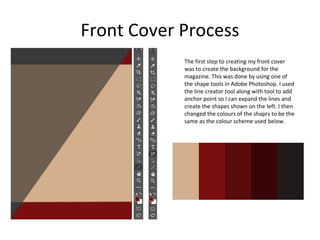
The first step to creating my front cover
was to create the background for the
magazine. This was done by using one of
the shape tools in Adobe Photoshop. I used
the line creator tool along with tool to add
anchor point so I can expand the lines and
create the shapes shown on the left. I then
changed the colours of the shaprs to be the
same as the colour scheme used below.
Front Cover Process
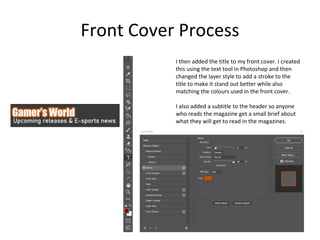
I then added the title to my front cover. I created
this using the text tool in Photoshop and then
changed the layer style to add a stroke to the
title to make it stand out better while also
matching the colours used in the front cover.
I also added a subtitle to the header so anyone
who reads the magazine get a small brief about
what they will get to read in the magazines.
Front Cover Process
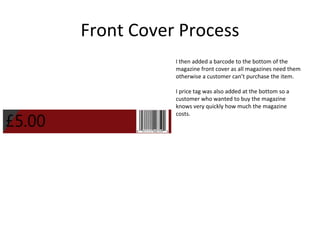
I then added a barcode to the bottom of the
magazine front cover as all magazines need them
otherwise a customer can’t purchase the item.
I price tag was also added at the bottom so a
customer who wanted to buy the magazine
knows very quickly how much the magazine
costs.
Front Cover Process
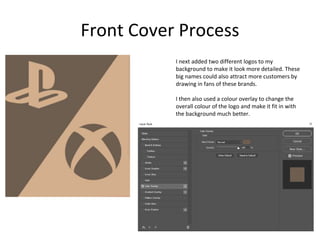
I next added two different logos to my
background to make it look more detailed. These
big names could also attract more customers by
drawing in fans of these brands.
I then also used a colour overlay to change the
overall colour of the logo and make it fit in with
the background much better.
Front Cover Process
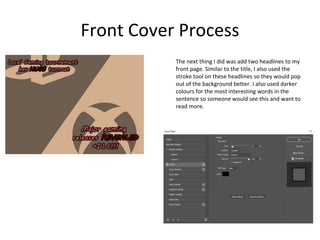
The next thing I did was add two headlines to my
front page. Similar to the title, I also used the
stroke tool on these headlines so they would pop
out of the background better. I also used darker
colours for the most interesting words in the
sentence so someone would see this and want to
read more.
Front Cover Process
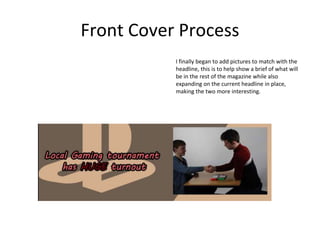
I finally began to add pictures to match with the
headline, this is to help show a brief of what will
be in the rest of the magazine while also
expanding on the current headline in place,
making the two more interesting.
Front Cover Process
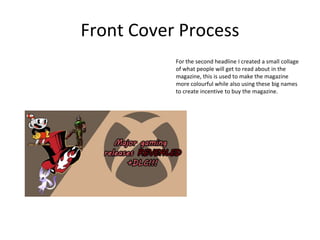
For the second headline I created a small collage
of what people will get to read about in the
magazine, this is used to make the magazine
more colourful while also using these big names
to create incentive to buy the magazine.
Double Page Process
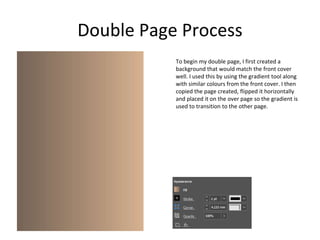
To begin my double page, I first created a
background that would match the front cover
well. I used this by using the gradient tool along
with similar colours from the front cover. I then
copied the page created, flipped it horizontally
and placed it on the over page so the gradient is
used to transition to the other page.
Double Page Process
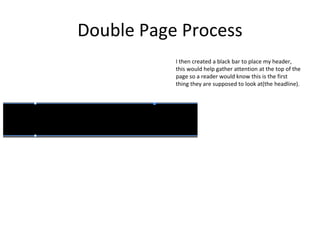
I then created a black bar to place my header,
this would help gather attention at the top of the
page so a reader would know this is the first
thing they are supposed to look at(the headline).
Double Page Process
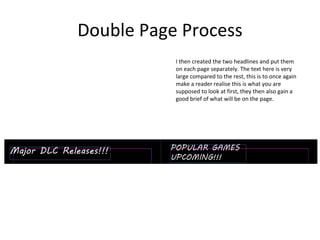
I then created the two headlines and put them
on each page separately. The text here is very
large compared to the rest, this is to once again
make a reader realise this is what you are
supposed to look at first, they then also gain a
good brief of what will be on the page.
Double Page Process
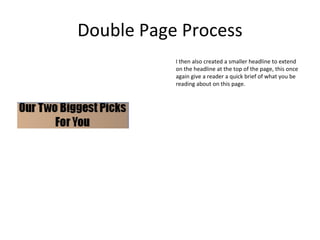
I then also created a smaller headline to extend
on the headline at the top of the page, this once
again give a reader a quick brief of what you be
reading about on this page.
Double Page Process
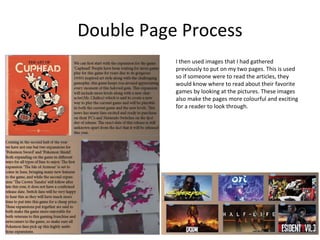
I then used images that I had gathered
previously to put on my two pages. This is used
so if someone were to read the articles, they
would know where to read about their favorite
games by looking at the pictures. These images
also make the pages more colourful and exciting
for a reader to look through.
Double Page Process
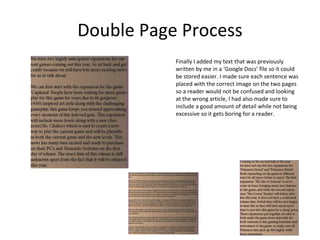
Finally I added my text that was previously
written by me in a ‘Google Docs’ file so it could
be stored easier. I made sure each sentence was
placed with the correct image on the two pages
so a reader would not be confused and looking
at the wrong article, I had also made sure to
include a good amount of detail while not being
excessive so it gets boring for a reader.

6. production reflection(1) (1)

  • 1.
  • 2.
    Front Cover Process Thefirst step to creating my front cover was to create the background for the magazine. This was done by using one of the shape tools in Adobe Photoshop. I used the line creator tool along with tool to add anchor point so I can expand the lines and create the shapes shown on the left. I then changed the colours of the shaprs to be the same as the colour scheme used below.
  • 3.
    Front Cover Process Ithen added the title to my front cover. I created this using the text tool in Photoshop and then changed the layer style to add a stroke to the title to make it stand out better while also matching the colours used in the front cover. I also added a subtitle to the header so anyone who reads the magazine get a small brief about what they will get to read in the magazines.
  • 4.
    Front Cover Process Ithen added a barcode to the bottom of the magazine front cover as all magazines need them otherwise a customer can’t purchase the item. I price tag was also added at the bottom so a customer who wanted to buy the magazine knows very quickly how much the magazine costs.
  • 5.
    Front Cover Process Inext added two different logos to my background to make it look more detailed. These big names could also attract more customers by drawing in fans of these brands. I then also used a colour overlay to change the overall colour of the logo and make it fit in with the background much better.
  • 6.
    Front Cover Process Thenext thing I did was add two headlines to my front page. Similar to the title, I also used the stroke tool on these headlines so they would pop out of the background better. I also used darker colours for the most interesting words in the sentence so someone would see this and want to read more.
  • 7.
    Front Cover Process Ifinally began to add pictures to match with the headline, this is to help show a brief of what will be in the rest of the magazine while also expanding on the current headline in place, making the two more interesting.
  • 8.
    Front Cover Process Forthe second headline I created a small collage of what people will get to read about in the magazine, this is used to make the magazine more colourful while also using these big names to create incentive to buy the magazine.
  • 9.
    Double Page Process Tobegin my double page, I first created a background that would match the front cover well. I used this by using the gradient tool along with similar colours from the front cover. I then copied the page created, flipped it horizontally and placed it on the over page so the gradient is used to transition to the other page.
  • 10.
    Double Page Process Ithen created a black bar to place my header, this would help gather attention at the top of the page so a reader would know this is the first thing they are supposed to look at(the headline).
  • 11.
    Double Page Process Ithen created the two headlines and put them on each page separately. The text here is very large compared to the rest, this is to once again make a reader realise this is what you are supposed to look at first, they then also gain a good brief of what will be on the page.
  • 12.
    Double Page Process Ithen also created a smaller headline to extend on the headline at the top of the page, this once again give a reader a quick brief of what you be reading about on this page.
  • 13.
    Double Page Process Ithen used images that I had gathered previously to put on my two pages. This is used so if someone were to read the articles, they would know where to read about their favorite games by looking at the pictures. These images also make the pages more colourful and exciting for a reader to look through.
  • 14.
    Double Page Process FinallyI added my text that was previously written by me in a ‘Google Docs’ file so it could be stored easier. I made sure each sentence was placed with the correct image on the two pages so a reader would not be confused and looking at the wrong article, I had also made sure to include a good amount of detail while not being excessive so it gets boring for a reader.