Managing the system
and network
connection in any
LINUX version:
Monitoringresources,MasteringTime,
Shriharshshendre
Monitoring Network Resources
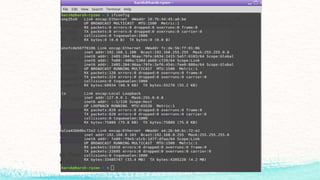
To View available network interfaces use
ifconfig
It’ll bring up the least of all available NIC
Two Content Layout with Table
• If you have multiple network interfaces, you may want to just bring one
interface up or down. To do that, use the ifup and ifdown commands:
• $ sudo ifdown eth0 Take the eth0 network interface offline
• $ sudo ifup eth0 Bring the eth0 network interface online.
Viewing Ethernet Connection Information
Setting up wireless connections in Linux has been tricky in the past, primarily due to
the fact that open source drivers have not been available for the vast majority of
wire-less LAN cards on the market. More recent releases of Ubuntu have shown a
marked improvement.
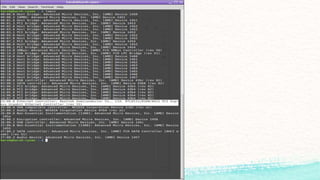
If you need help determining exactly what wireless card you have, type the
following:
$ lspci | grep -i wireless
Assuming that your wireless card is up and running, there are some useful
commands in the wireless-tools package you can use to view and change settings
for your wireless cards.
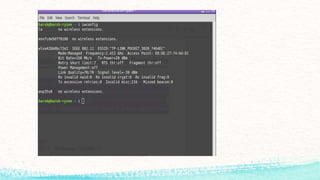
In particular, the iwconfig command can help you work a with your wireless
LAN interfaces. The following scans your network interfaces for supported
wireless cards and lists their current settings:
iwconfig
$ sudo iwconfig wlan0 essid “MyWireless” Set essid to MyWireless
$ sudo iwconfig wlan0 channel 3 Set the channel to 3
$ sudo iwconfig wlan0 mode Ad-Hoc Change from Managed to
Ad-Hoc mode
$ sudo iwconfig wlan0 ap any Use any access point available
$ sudo iwconfig wlan0 sens -50 Set sensitivity to –50
$ sudo iwconfig wlan0 retry 20 Set MAC retransmissions to 20
$ sudo iwconfig wlan0 key 1234-5555-66 Set encryption key to 1234-5555-66
Checking Name Resolution
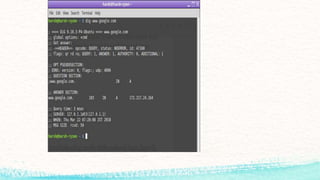
Because IP addresses are numbers, and people prefer to address things by
name,
TCP/IP networks (such as the Internet) rely on DNS to resolve host names into
IP
addresses. Ubuntu provides several tools for looking up information related to
DNS
name resolution.
$ dig www.turbosphere.com
Downloading Files with wget
Sometimes you need to download a file from a remote server using the command line. For
example, you find a link to an RPM software package, but the link goes through several
HTTP redirects that prevent rpm from installing straight from HTTP
$ wget https://help.ubuntu.com/7.04/common/img/headerlogo.png
Monitoring Resources
1. Top – Linux Process
Monitoring
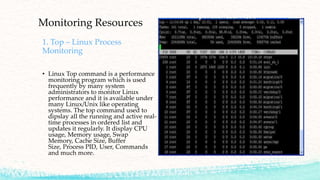
• Linux Top command is a performance
monitoring program which is used
frequently by many system
administrators to monitor Linux
performance and it is available under
many Linux/Unix like operating
systems. The top command used to
dipslay all the running and active real-
time processes in ordered list and
updates it regularly. It display CPU
usage, Memory usage, Swap
Memory, Cache Size, Buffer
Size, Process PID, User, Commands
and much more.
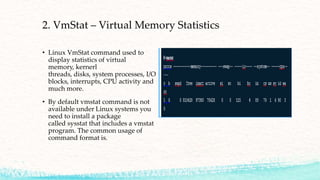
2. VmStat – Virtual Memory Statistics
• Linux VmStat command used to
display statistics of virtual
memory, kernerl
threads, disks, system processes, I/O
blocks, interrupts, CPU activity and
much more.
• By default vmstat command is not
available under Linux systems you
need to install a package
called sysstat that includes a vmstat
program. The common usage of
command format is.
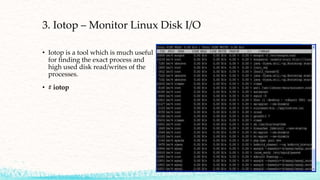
3. Iotop – Monitor Linux Disk I/O
• Iotop is a tool which is much useful
for finding the exact process and
high used disk read/writes of the
processes.
• # iotop
If you master all those above
commands you will end up Mastering Time,

Managing the system and network connection Linux

  • 1.
    Managing the system andnetwork connection in any LINUX version: Monitoringresources,MasteringTime, Shriharshshendre
  • 2.
    Monitoring Network Resources ToView available network interfaces use ifconfig It’ll bring up the least of all available NIC
  • 4.
    Two Content Layoutwith Table • If you have multiple network interfaces, you may want to just bring one interface up or down. To do that, use the ifup and ifdown commands: • $ sudo ifdown eth0 Take the eth0 network interface offline • $ sudo ifup eth0 Bring the eth0 network interface online.
  • 5.
    Viewing Ethernet ConnectionInformation Setting up wireless connections in Linux has been tricky in the past, primarily due to the fact that open source drivers have not been available for the vast majority of wire-less LAN cards on the market. More recent releases of Ubuntu have shown a marked improvement. If you need help determining exactly what wireless card you have, type the following: $ lspci | grep -i wireless
  • 7.
    Assuming that yourwireless card is up and running, there are some useful commands in the wireless-tools package you can use to view and change settings for your wireless cards. In particular, the iwconfig command can help you work a with your wireless LAN interfaces. The following scans your network interfaces for supported wireless cards and lists their current settings: iwconfig
  • 9.
    $ sudo iwconfigwlan0 essid “MyWireless” Set essid to MyWireless $ sudo iwconfig wlan0 channel 3 Set the channel to 3 $ sudo iwconfig wlan0 mode Ad-Hoc Change from Managed to Ad-Hoc mode $ sudo iwconfig wlan0 ap any Use any access point available $ sudo iwconfig wlan0 sens -50 Set sensitivity to –50 $ sudo iwconfig wlan0 retry 20 Set MAC retransmissions to 20 $ sudo iwconfig wlan0 key 1234-5555-66 Set encryption key to 1234-5555-66
  • 10.
    Checking Name Resolution BecauseIP addresses are numbers, and people prefer to address things by name, TCP/IP networks (such as the Internet) rely on DNS to resolve host names into IP addresses. Ubuntu provides several tools for looking up information related to DNS name resolution. $ dig www.turbosphere.com
  • 12.
    Downloading Files withwget Sometimes you need to download a file from a remote server using the command line. For example, you find a link to an RPM software package, but the link goes through several HTTP redirects that prevent rpm from installing straight from HTTP $ wget https://help.ubuntu.com/7.04/common/img/headerlogo.png
  • 13.
    Monitoring Resources 1. Top– Linux Process Monitoring • Linux Top command is a performance monitoring program which is used frequently by many system administrators to monitor Linux performance and it is available under many Linux/Unix like operating systems. The top command used to dipslay all the running and active real- time processes in ordered list and updates it regularly. It display CPU usage, Memory usage, Swap Memory, Cache Size, Buffer Size, Process PID, User, Commands and much more.
  • 14.
    2. VmStat –Virtual Memory Statistics • Linux VmStat command used to display statistics of virtual memory, kernerl threads, disks, system processes, I/O blocks, interrupts, CPU activity and much more. • By default vmstat command is not available under Linux systems you need to install a package called sysstat that includes a vmstat program. The common usage of command format is.
  • 15.
    3. Iotop –Monitor Linux Disk I/O • Iotop is a tool which is much useful for finding the exact process and high used disk read/writes of the processes. • # iotop
  • 16.
    If you masterall those above commands you will end up Mastering Time,