KODU Visual game programmingLynn Langit – Developer EvangelistMicrosoft
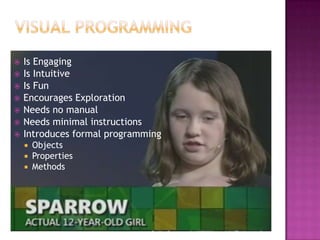
Visual ProgrammingIs EngagingIs IntuitiveIs FunEncourages ExplorationNeeds no manual Needs minimal instructionsIntroduces formal programmingObjectsPropertiesMethods
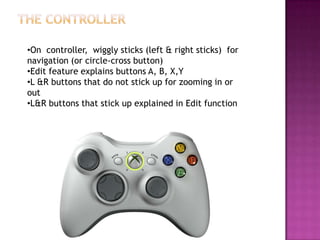
The ControllerOn  controller,  wiggly sticks (left & right sticks)  for navigation (or circle-cross button)
Edit feature explains buttons A, B, X,Y
L &R buttons that do not stick up for zooming in or out
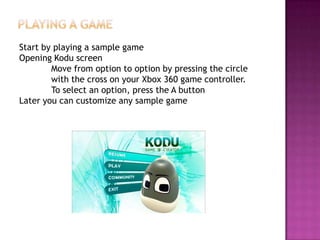
L&R buttons that stick up explained in Edit functionPlaying a gameStart by playing a sample gameOpening Kodu screen 	Move from option to option by pressing the circle 	with the cross on your Xbox 360 game controller. 	To select an option, press the A buttonLater you can customize any sample game
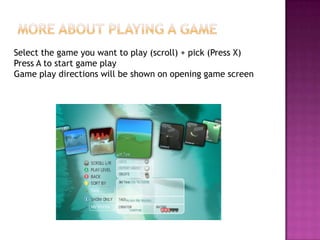
More ABOUT Playing a game Select the game you want to play (scroll) + pick (Press X)Press A to start game playGame play directions will be shown on opening game screen
DemoPlay a game
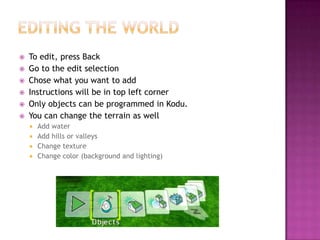
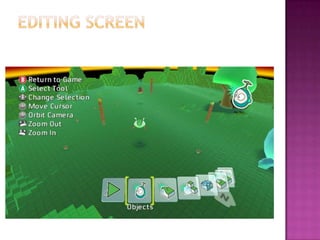
Editing the worldTo edit, press Back Go to the edit selectionChose what you want to addInstructions will be in top left cornerOnly objects can be programmed in Kodu.You can change the terrain as wellAdd waterAdd hills or valleysChange textureChange color (background and lighting)
Editing screen
demoEdit the world
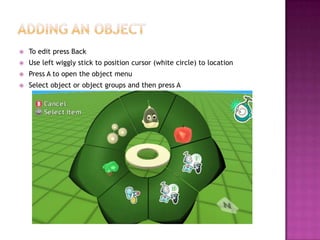
ADDING an objectTo edit press BackUse left wiggly stick to position cursor (white circle) to locationPress A to open the object menuSelect object or object groups and then press A
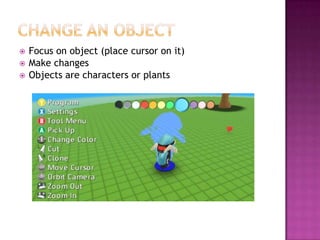
change AN OBJECTFocus on object (place cursor on it)Make changesObjects are characters or plants
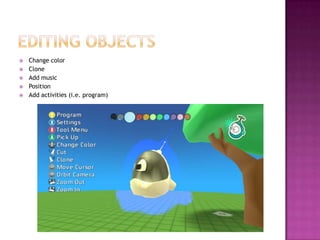
Editing objectsChange colorCloneAdd musicPositionAdd activities (i.e. program)
demoAdd and edit objects
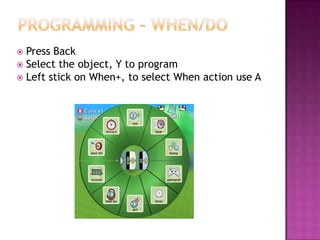
Programming – when/doPress BackSelect the object, Y to programLeft stick on When+, to select When action use A
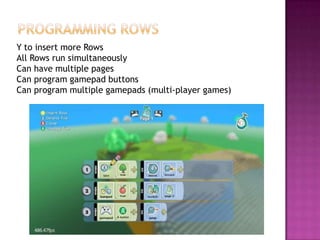
programming rowsY to insert more RowsAll Rows run simultaneouslyCan have multiple pages Can program gamepad buttonsCan program multiple gamepads (multi-player games)
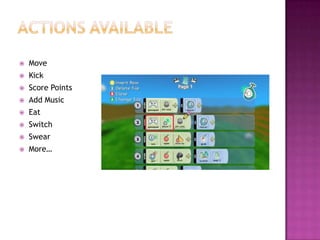
Actions availableMoveKickScore PointsAdd MusicEatSwitchSwearMore…
demoProgramming When / Do Actions for Objects
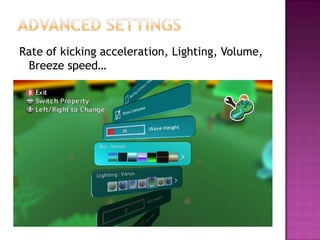
Advanced settings	Rate of kicking acceleration, Lighting, Volume, Breeze speed…
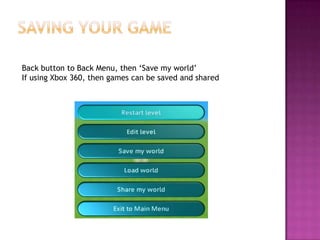
Saving your gameBack button to Back Menu, then ‘Save my world’If using Xbox 360, then games can be saved and shared

3 Kodu

  • 1.
    KODU Visual gameprogrammingLynn Langit – Developer EvangelistMicrosoft
  • 2.
    Visual ProgrammingIs EngagingIsIntuitiveIs FunEncourages ExplorationNeeds no manual Needs minimal instructionsIntroduces formal programmingObjectsPropertiesMethods
  • 3.
    The ControllerOn controller, wiggly sticks (left & right sticks) for navigation (or circle-cross button)
  • 4.
    Edit feature explainsbuttons A, B, X,Y
  • 5.
    L &R buttonsthat do not stick up for zooming in or out
  • 6.
    L&R buttons thatstick up explained in Edit functionPlaying a gameStart by playing a sample gameOpening Kodu screen Move from option to option by pressing the circle with the cross on your Xbox 360 game controller. To select an option, press the A buttonLater you can customize any sample game
  • 7.
    More ABOUT Playinga game Select the game you want to play (scroll) + pick (Press X)Press A to start game playGame play directions will be shown on opening game screen
  • 8.
  • 9.
    Editing the worldToedit, press Back Go to the edit selectionChose what you want to addInstructions will be in top left cornerOnly objects can be programmed in Kodu.You can change the terrain as wellAdd waterAdd hills or valleysChange textureChange color (background and lighting)
  • 10.
  • 11.
  • 12.
    ADDING an objectToedit press BackUse left wiggly stick to position cursor (white circle) to locationPress A to open the object menuSelect object or object groups and then press A
  • 13.
    change AN OBJECTFocuson object (place cursor on it)Make changesObjects are characters or plants
  • 14.
    Editing objectsChange colorCloneAddmusicPositionAdd activities (i.e. program)
  • 15.
  • 16.
    Programming – when/doPressBackSelect the object, Y to programLeft stick on When+, to select When action use A
  • 17.
    programming rowsY toinsert more RowsAll Rows run simultaneouslyCan have multiple pages Can program gamepad buttonsCan program multiple gamepads (multi-player games)
  • 18.
  • 19.
    demoProgramming When /Do Actions for Objects
  • 20.
    Advanced settings Rate ofkicking acceleration, Lighting, Volume, Breeze speed…
  • 21.
    Saving your gameBackbutton to Back Menu, then ‘Save my world’If using Xbox 360, then games can be saved and shared