COSC 426: Augmented Reality
Mark Billinghurst
mark.billinghurst@hitlabnz.org
August 2nd 2013
Lecture 4: Designing AR Interfaces
Key Points from Lecture 3
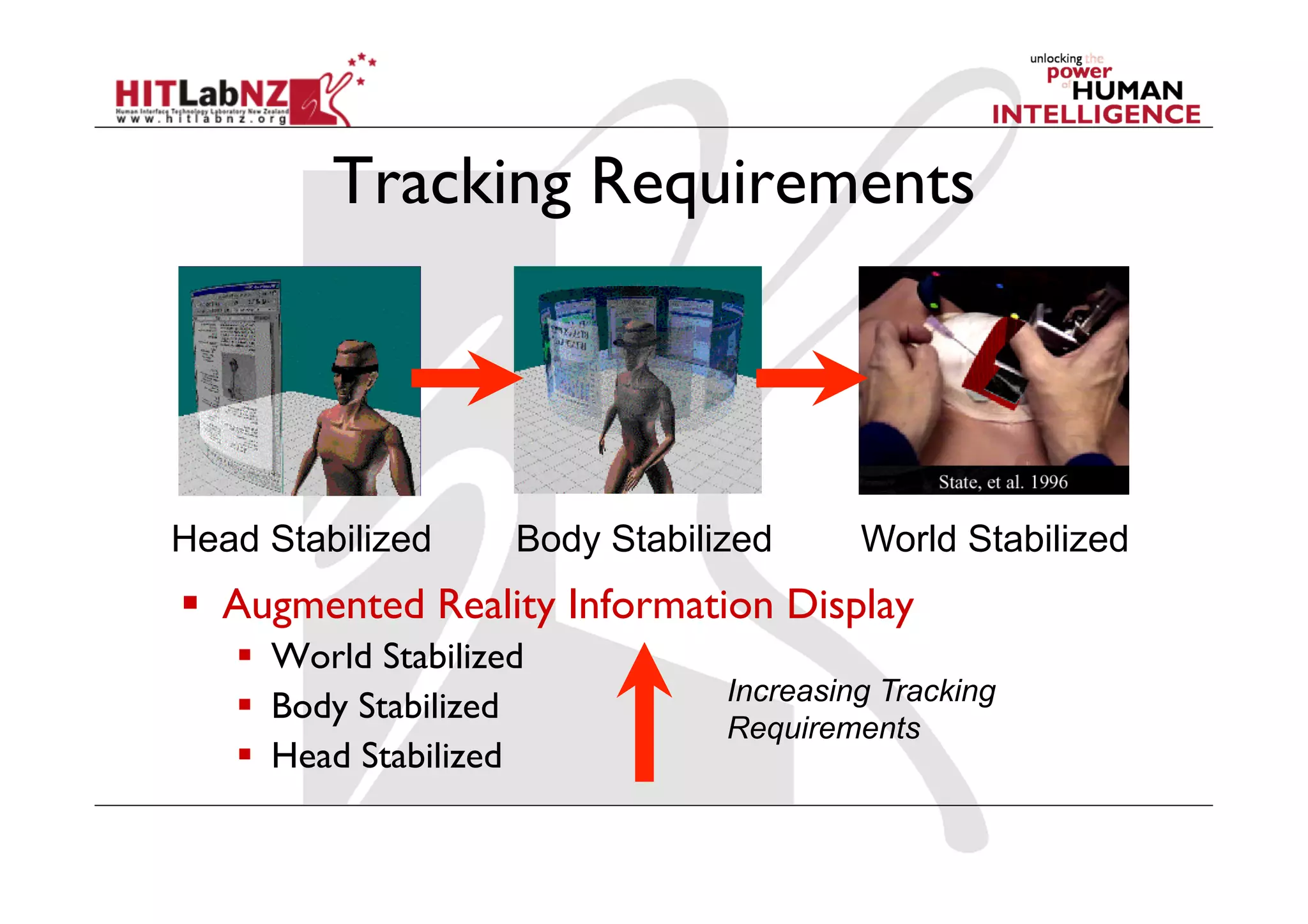
Tracking Requirements
  Augmented Reality Information Display
  World Stabilized
  Body Stabilized
  Head Stabilized
Increasing Tracking
Requirements
Head Stabilized Body Stabilized World Stabilized
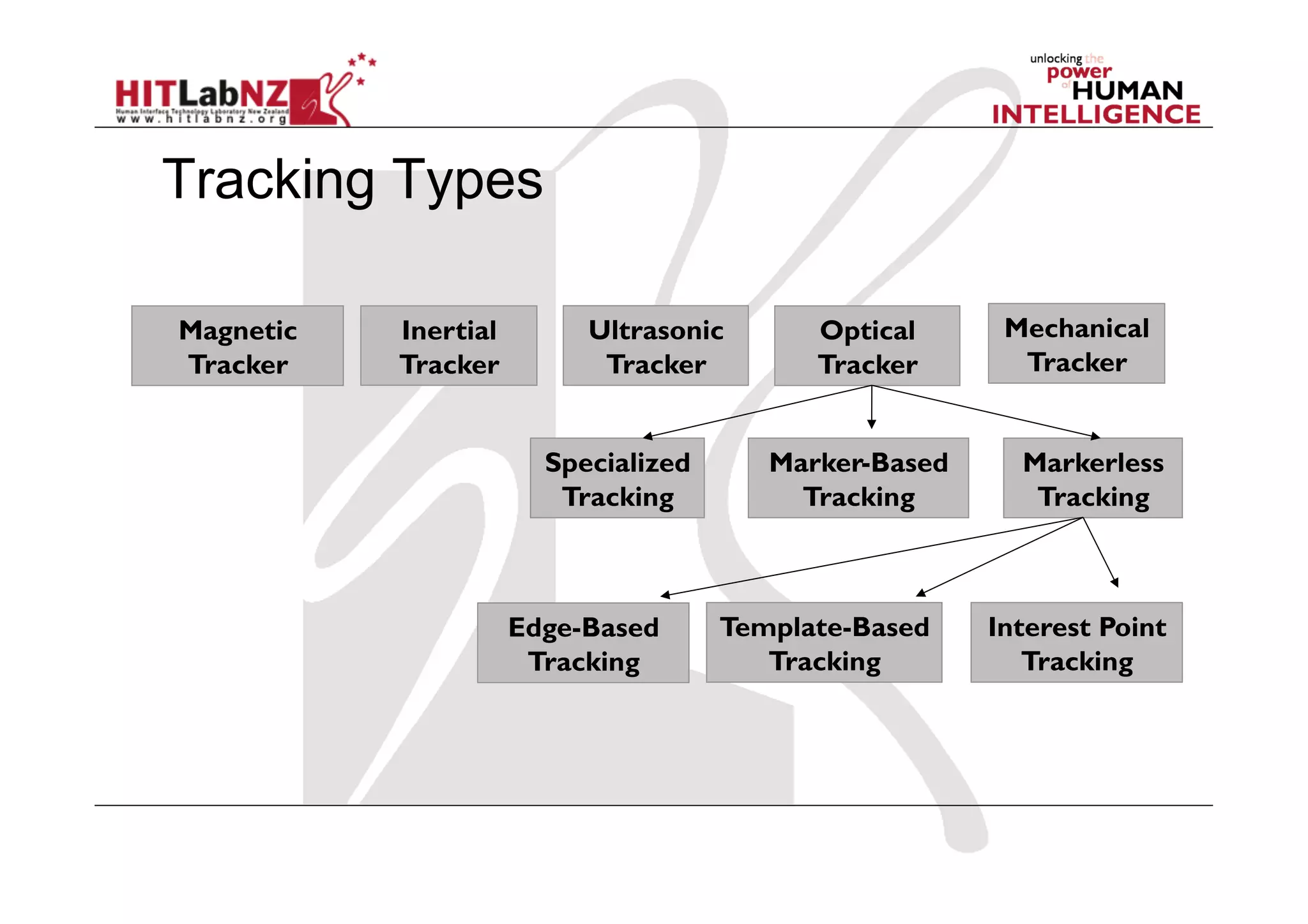
Tracking Types
Magnetic
Tracker
Inertial
Tracker
Ultrasonic
Tracker
Optical
Tracker
Marker-Based
Tracking
Markerless
Tracking
Specialized
Tracking
Edge-Based
Tracking
Template-Based
Tracking
Interest Point
Tracking
Mechanical
Tracker
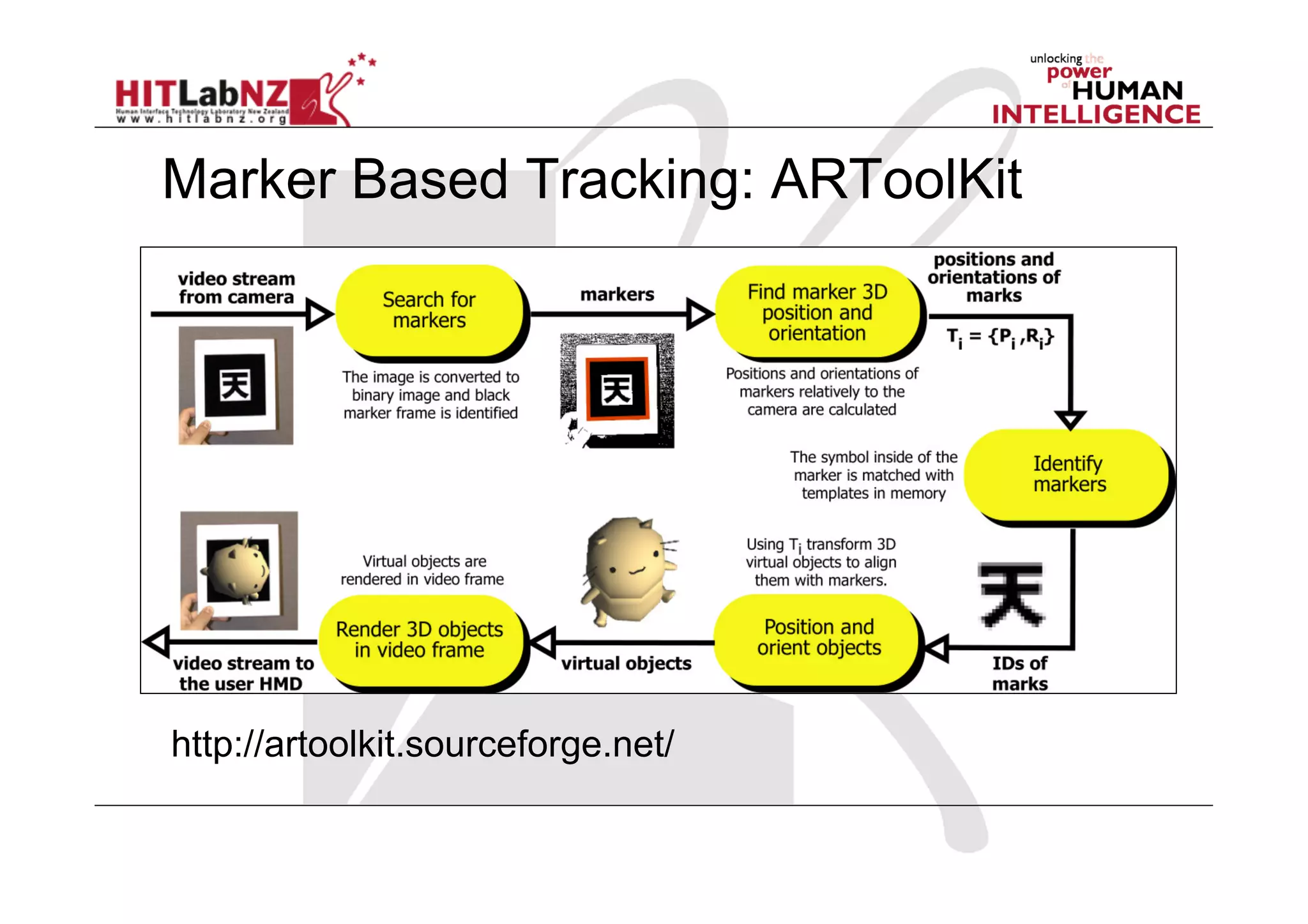
Marker Based Tracking: ARToolKit
http://artoolkit.sourceforge.net/
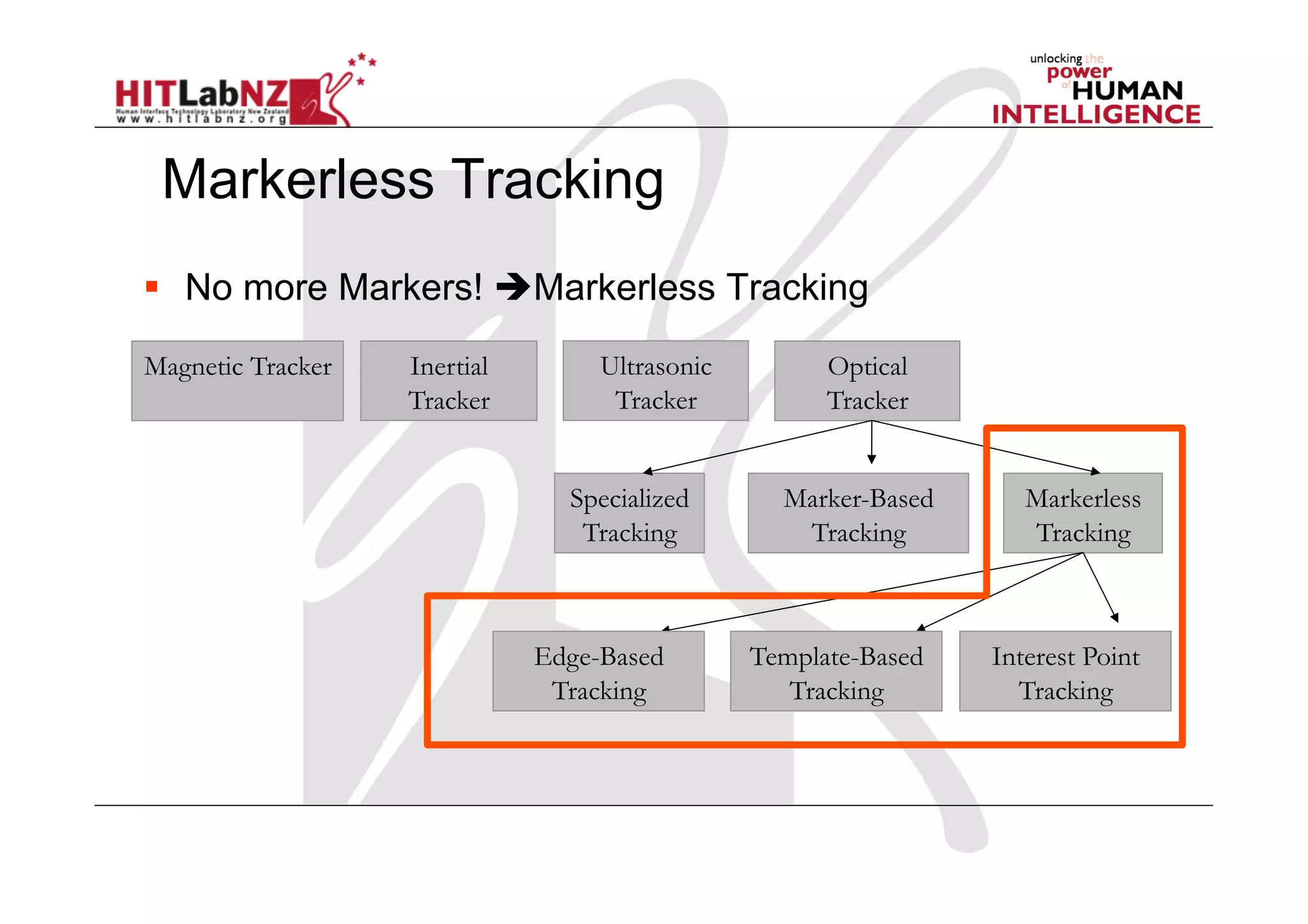
Markerless Tracking
Magnetic Tracker Inertial
Tracker
Ultrasonic
Tracker
Optical
Tracker
Marker-Based
Tracking
Markerless
Tracking
Specialized
Tracking
Edge-Based
Tracking
Template-Based
Tracking
Interest Point
Tracking
  No more Markers! Markerless Tracking
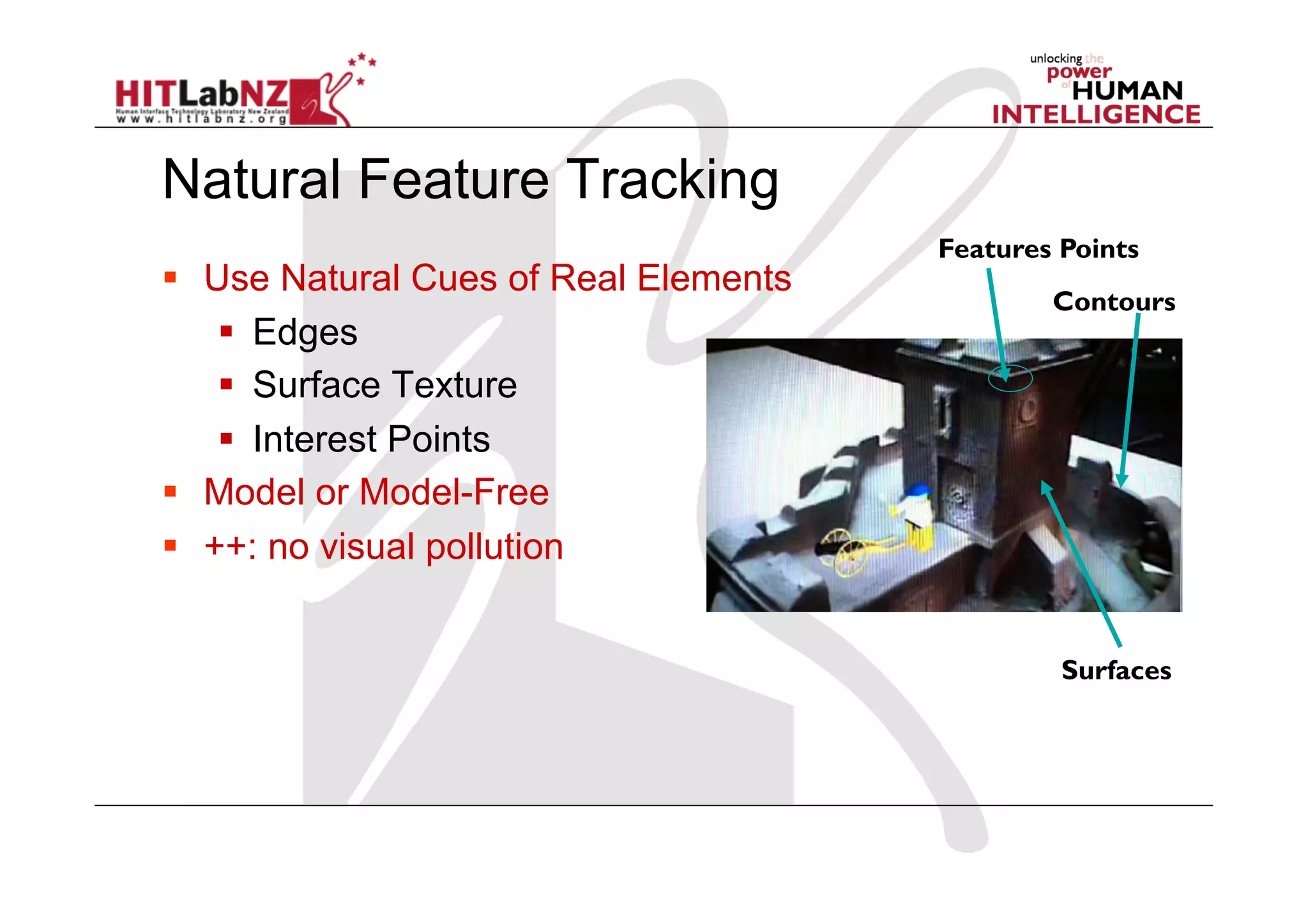
Natural Feature Tracking
  Use Natural Cues of Real Elements
  Edges
  Surface Texture
  Interest Points
  Model or Model-Free
  ++: no visual pollution
Contours
Features Points
Surfaces
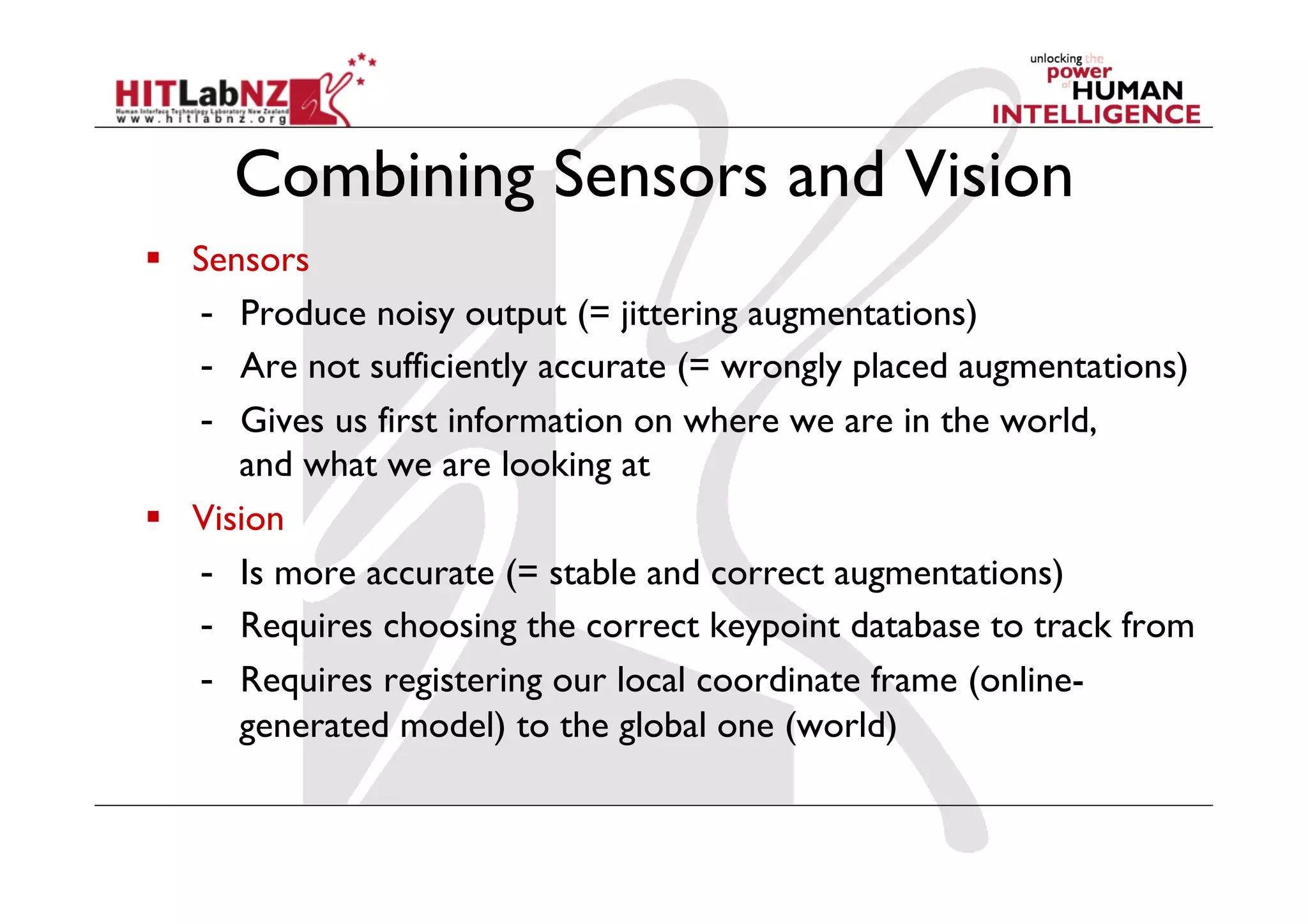
Combining Sensors and Vision
  Sensors
-  Produce noisy output (= jittering augmentations)
-  Are not sufficiently accurate (= wrongly placed augmentations)
-  Gives us first information on where we are in the world,
and what we are looking at
  Vision
-  Is more accurate (= stable and correct augmentations)
-  Requires choosing the correct keypoint database to track from
-  Requires registering our local coordinate frame (online-
generated model) to the global one (world)
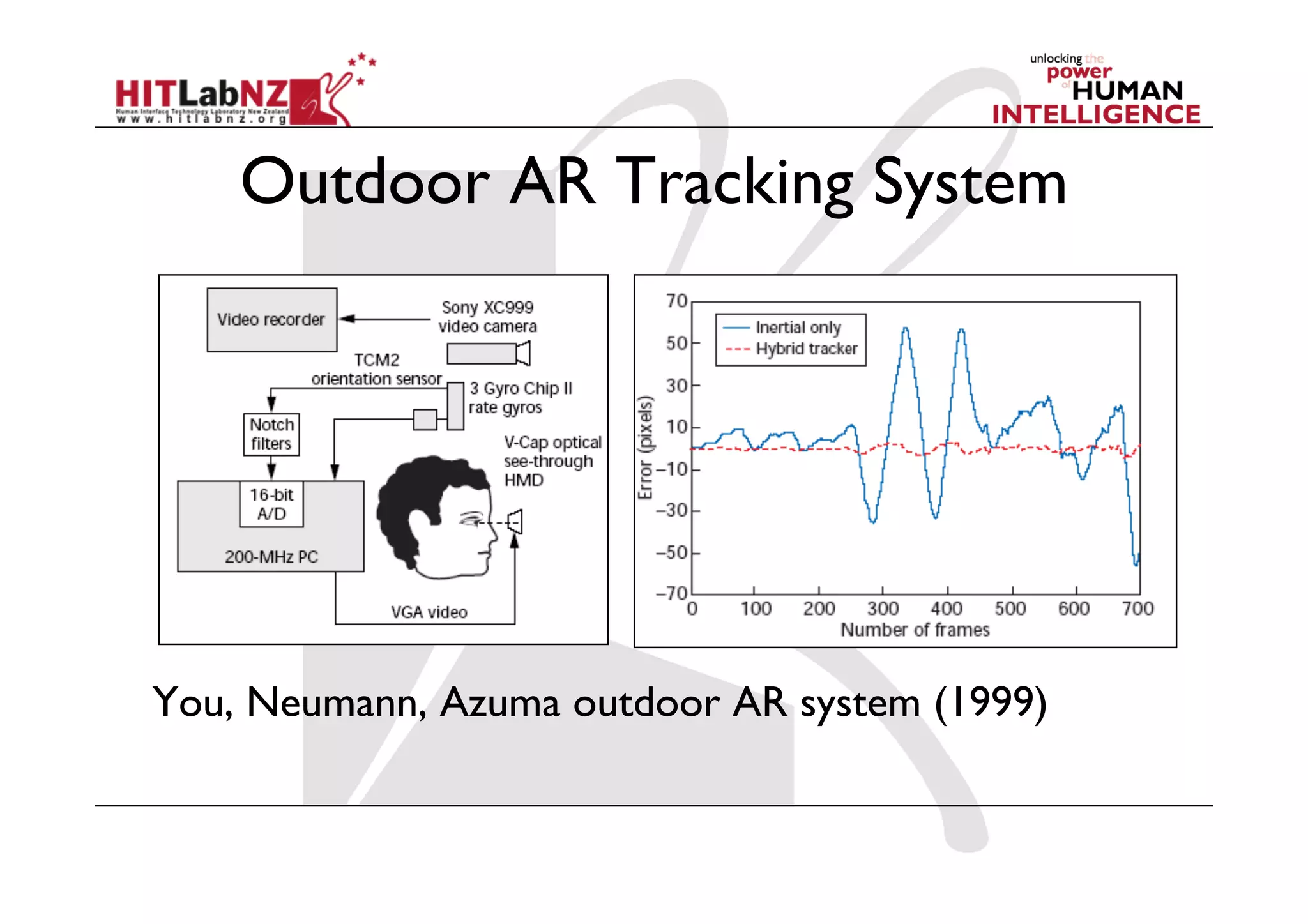
Outdoor AR Tracking System
You, Neumann, Azuma outdoor AR system (1999)
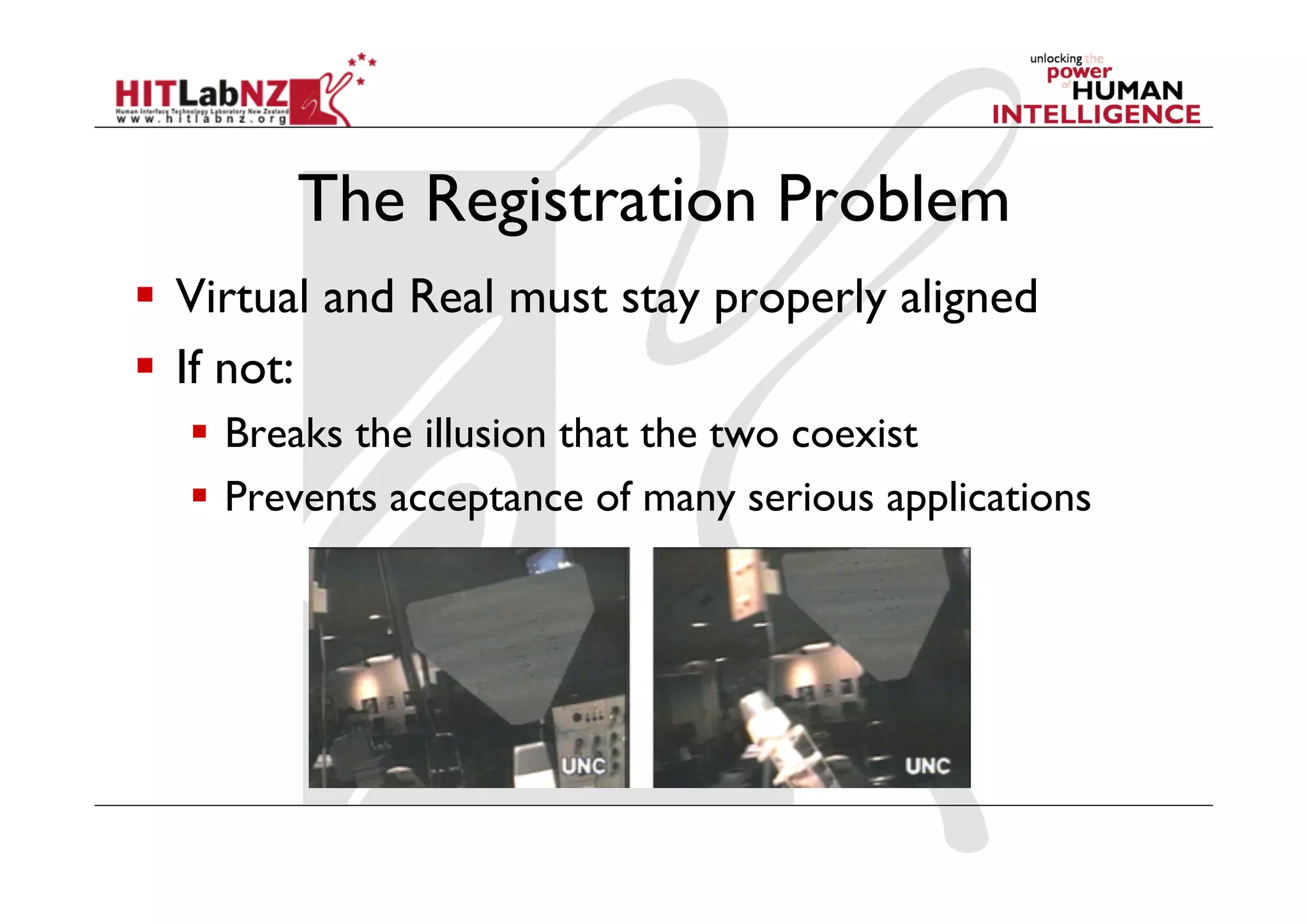
The Registration Problem
  Virtual and Real must stay properly aligned
  If not:
  Breaks the illusion that the two coexist
  Prevents acceptance of many serious applications
Sources of registration errors
  Static errors
  Optical distortions
  Mechanical misalignments
  Tracker errors
  Incorrect viewing parameters
  Dynamic errors
  System delays (largest source of error)
-  1 ms delay = 1/3 mm registration error
Reducing static errors
  Distortion compensation
  Manual adjustments
  View-based or direct measurements
  Camera calibration (video)
Reducing dynamic errors (1)
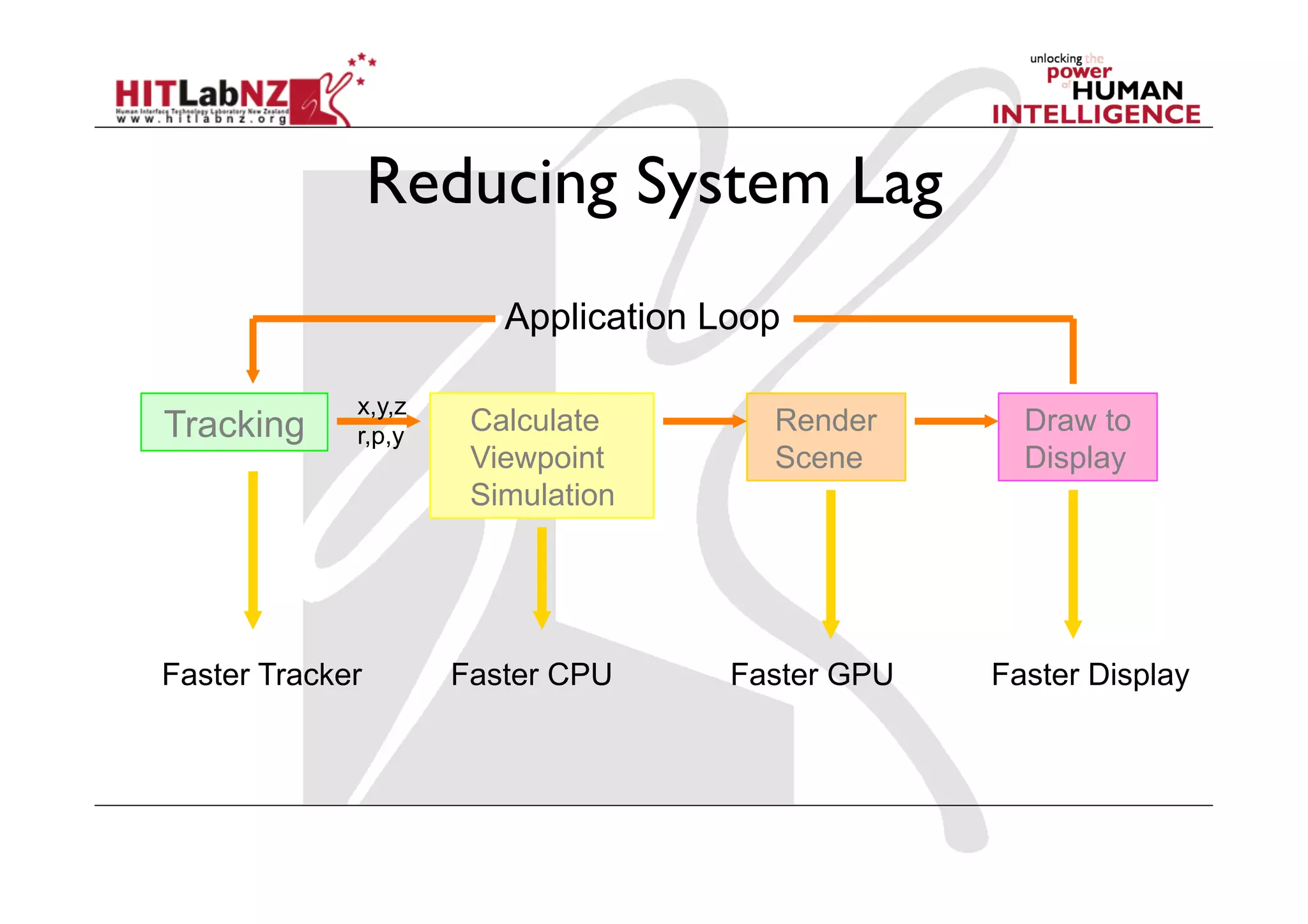
  Reduce system lag
  Faster components/system modules
  Reduce apparent lag
  Image deflection
  Image warping
Reducing System Lag
Tracking Calculate
Viewpoint
Simulation
Render
Scene
Draw to
Display
x,y,z
r,p,y
Application Loop
Faster Tracker Faster CPU Faster GPU Faster Display
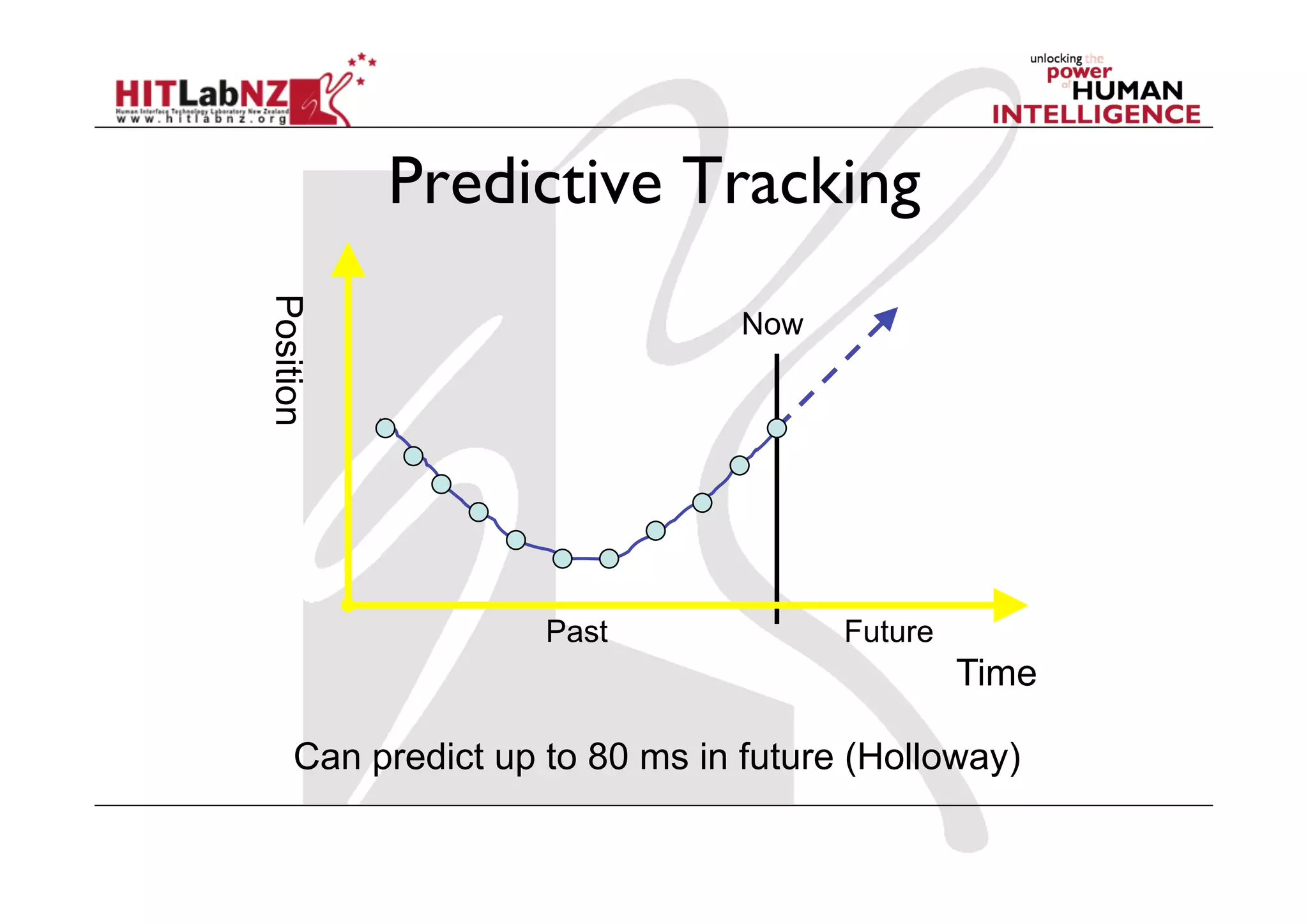
Predictive Tracking
Time
Position
Past Future
Can predict up to 80 ms in future (Holloway)
Now
AR Design
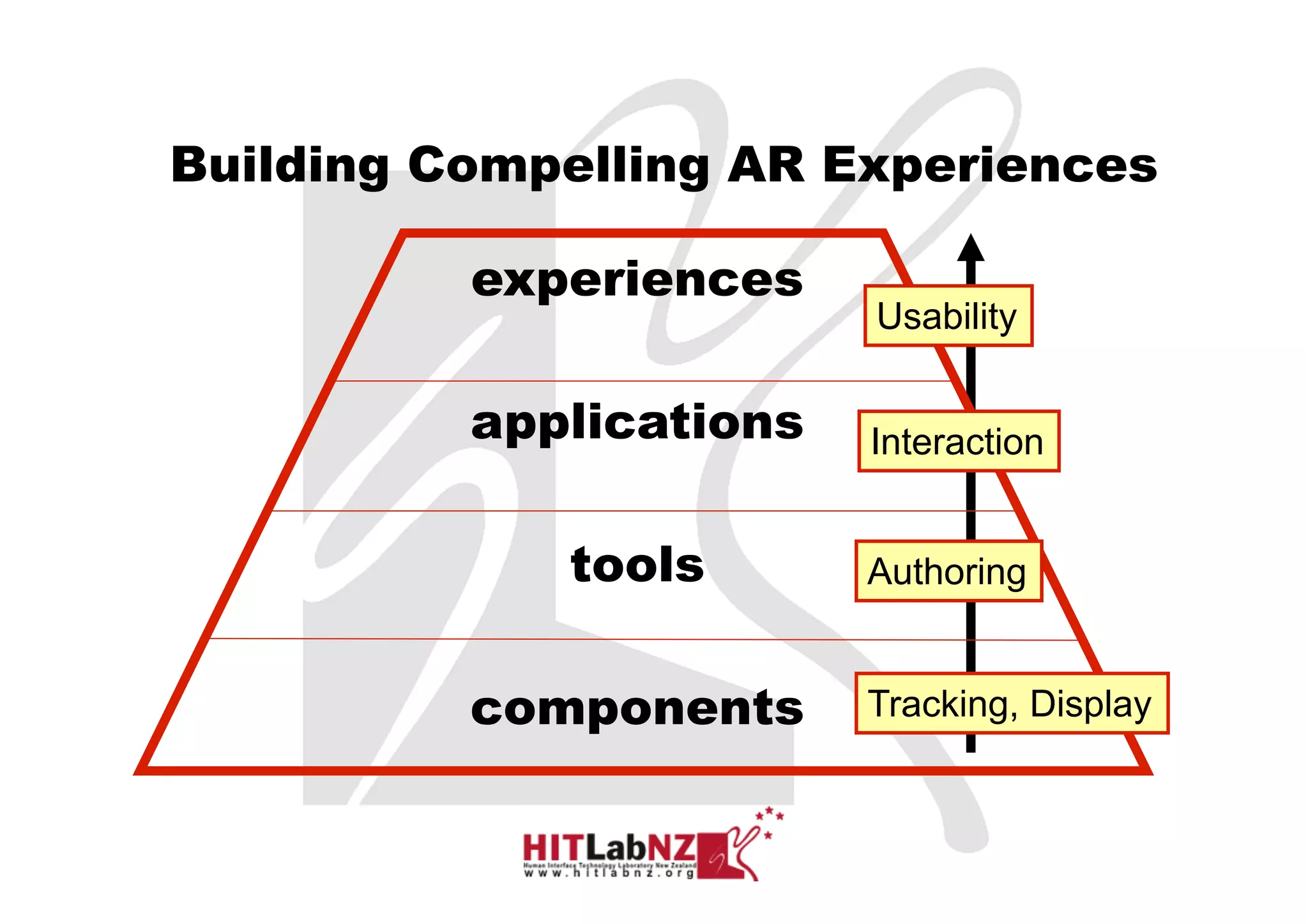
experiences
applications
tools
components
Building Compelling AR Experiences
Tracking, Display
Authoring
Interaction
Usability
3. Discovering User Needs
Mark Billinghurst
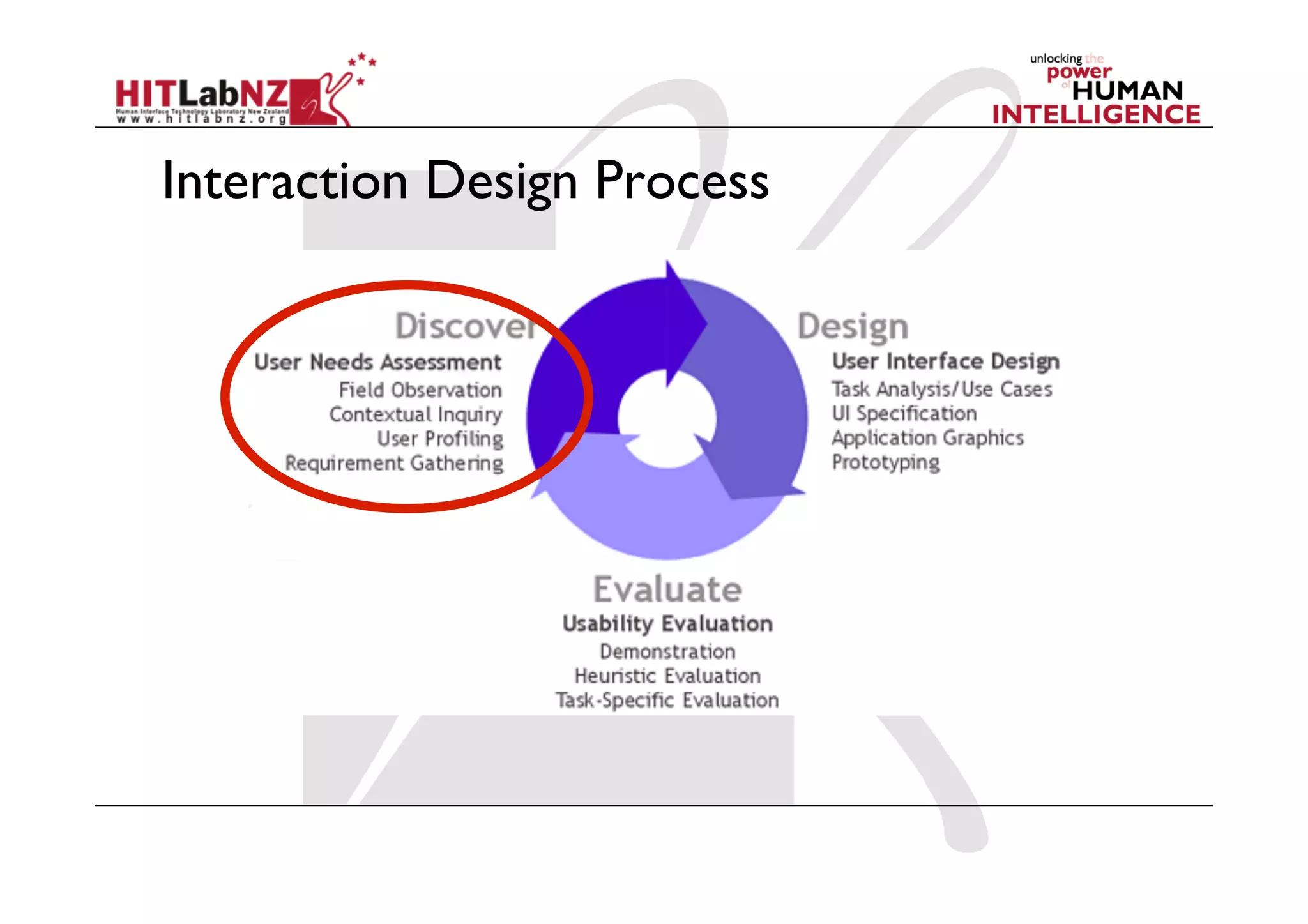
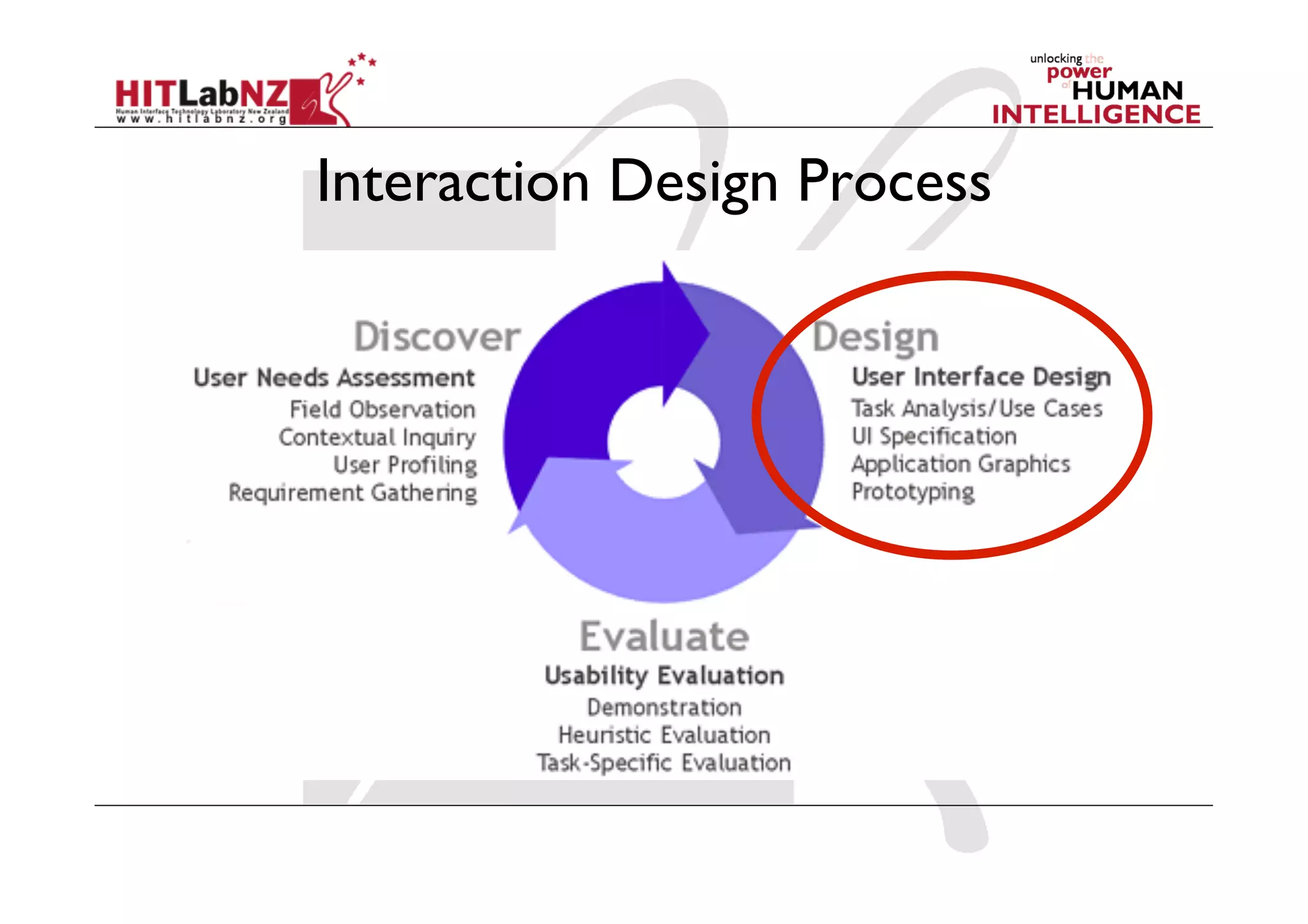
Interaction Design Process
Interaction Design is User Centered
	
A methodology for ensuring good user
experiences with products by getting feedback
from users to inform the design.
50
Discovering Needs
• Why:
Requirements definition: the stage where
failure occurs most commonly
Getting requirements right is crucial
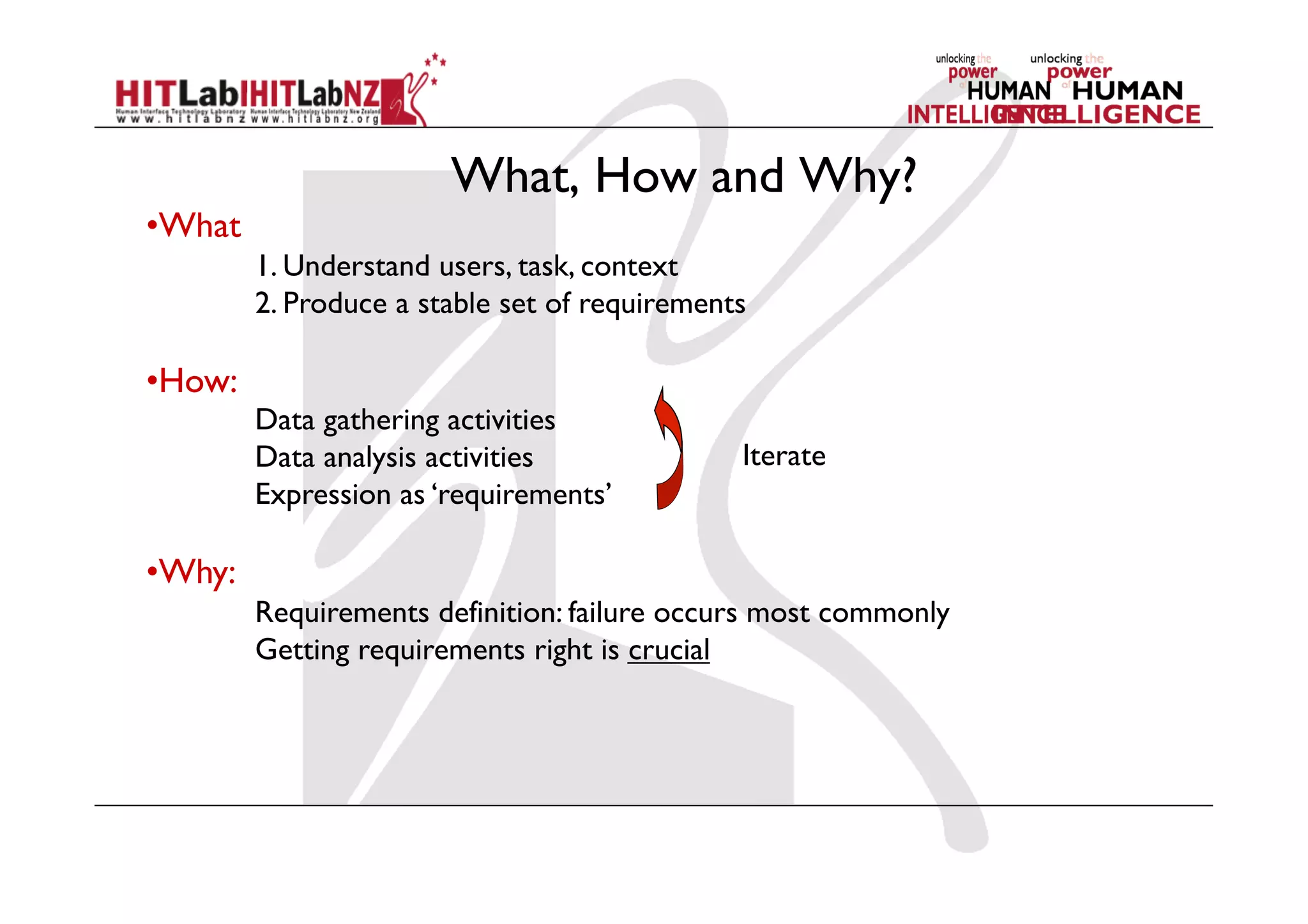
What, How and Why?
• What
1. Understand users, task, context
2. Produce a stable set of requirements
• How:
Data gathering activities
Data analysis activities
Expression as ‘requirements’
• Why:
Requirements definition: failure occurs most commonly
Getting requirements right is crucial
Iterate
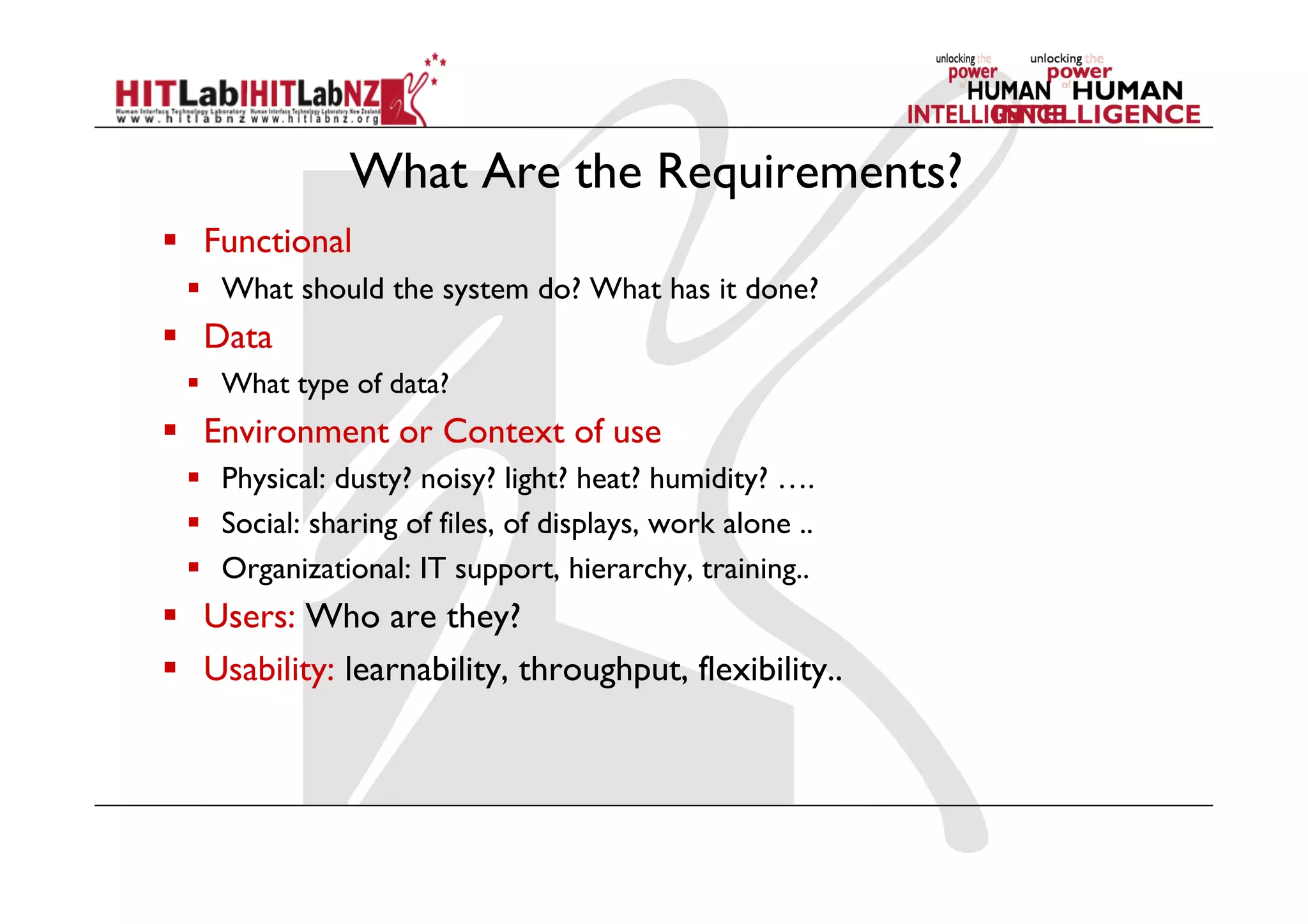
What Are the Requirements?
  Functional
  What should the system do? What has it done?
  Data
  What type of data?
  Environment or Context of use
  Physical: dusty? noisy? light? heat? humidity? ….
  Social: sharing of files, of displays, work alone ..
  Organizational: IT support, hierarchy, training..
  Users: Who are they?
  Usability: learnability, throughput, flexibility..
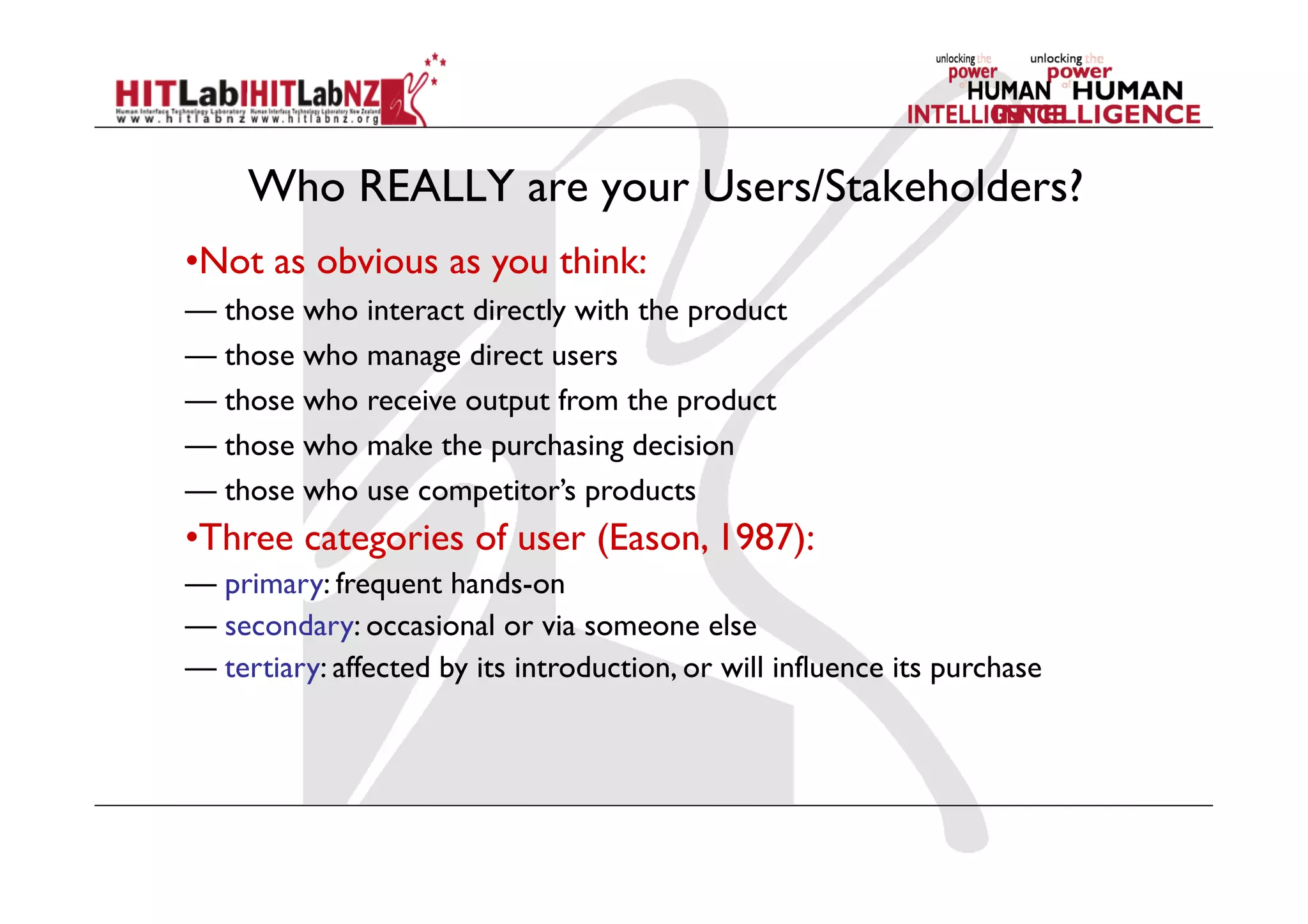
Who REALLY are your Users/Stakeholders?
• Not as obvious as you think:
— those who interact directly with the product
— those who manage direct users
— those who receive output from the product
— those who make the purchasing decision
— those who use competitor’s products
• Three categories of user (Eason, 1987):
— primary: frequent hands-on
— secondary: occasional or via someone else
— tertiary: affected by its introduction, or will influence its purchase
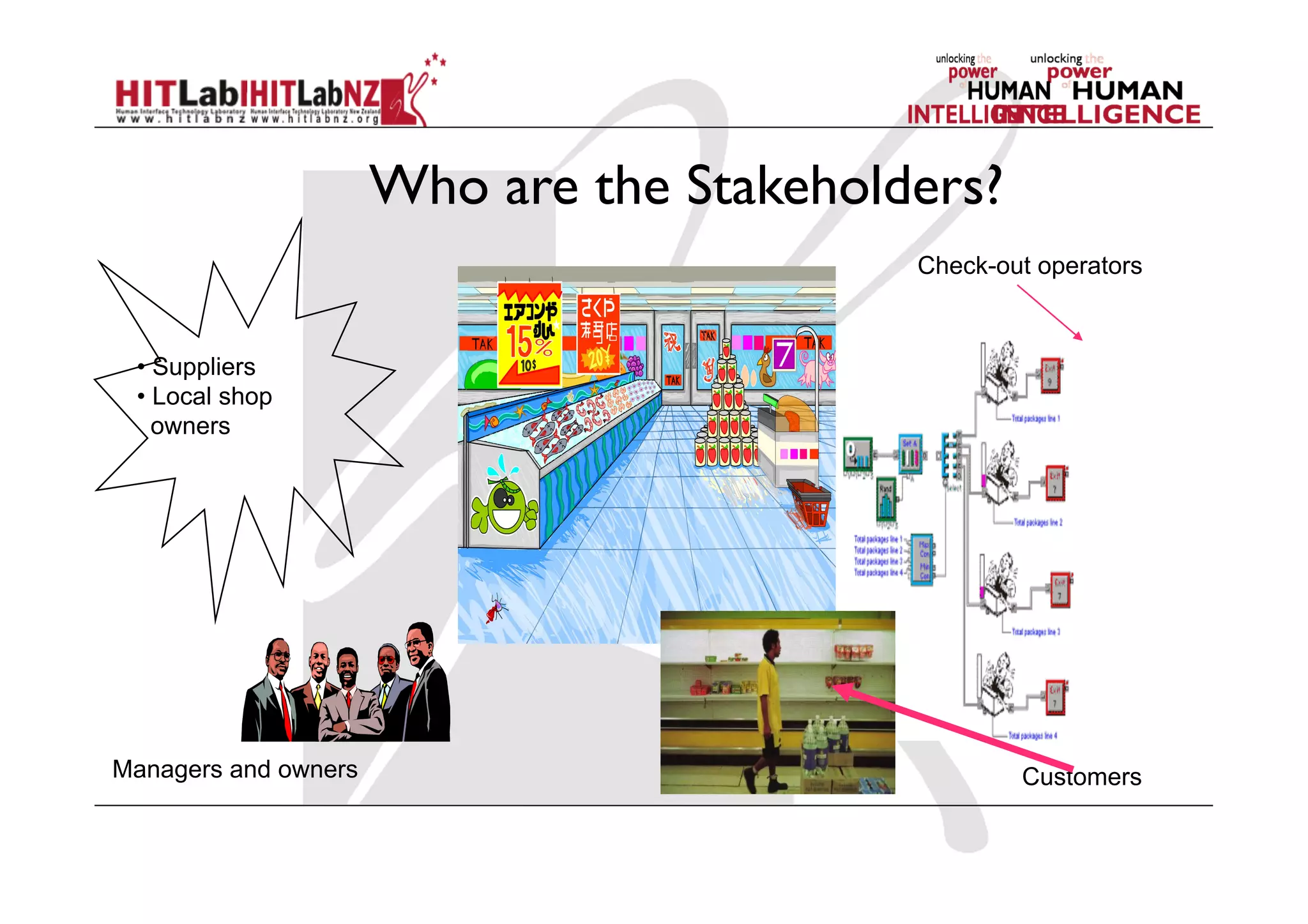
Who are the Stakeholders?
Check-out operators
CustomersManagers and owners
• Suppliers
• Local shop 

owners
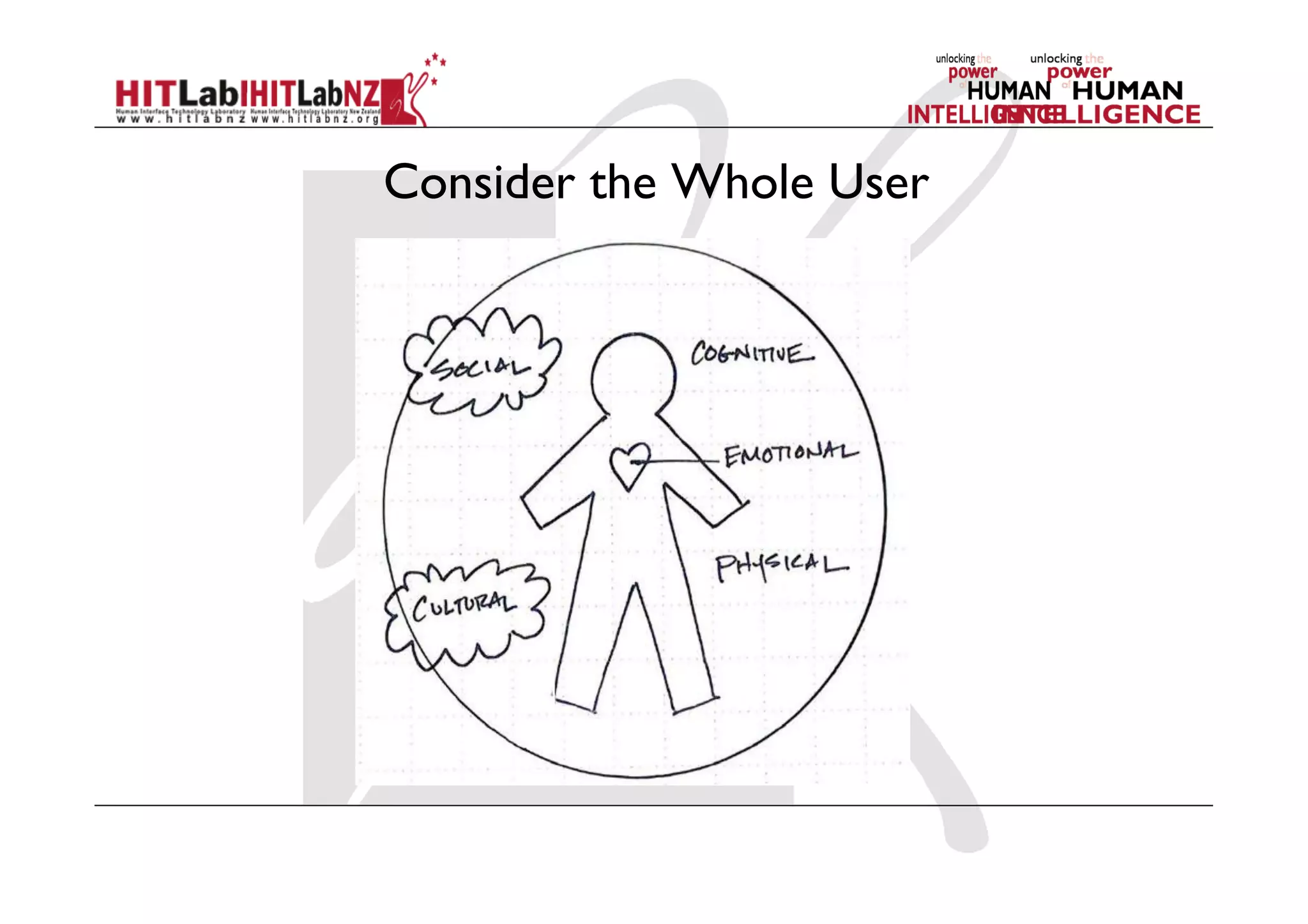
Consider the Whole User
Data Gathering
Mark Billinghurst
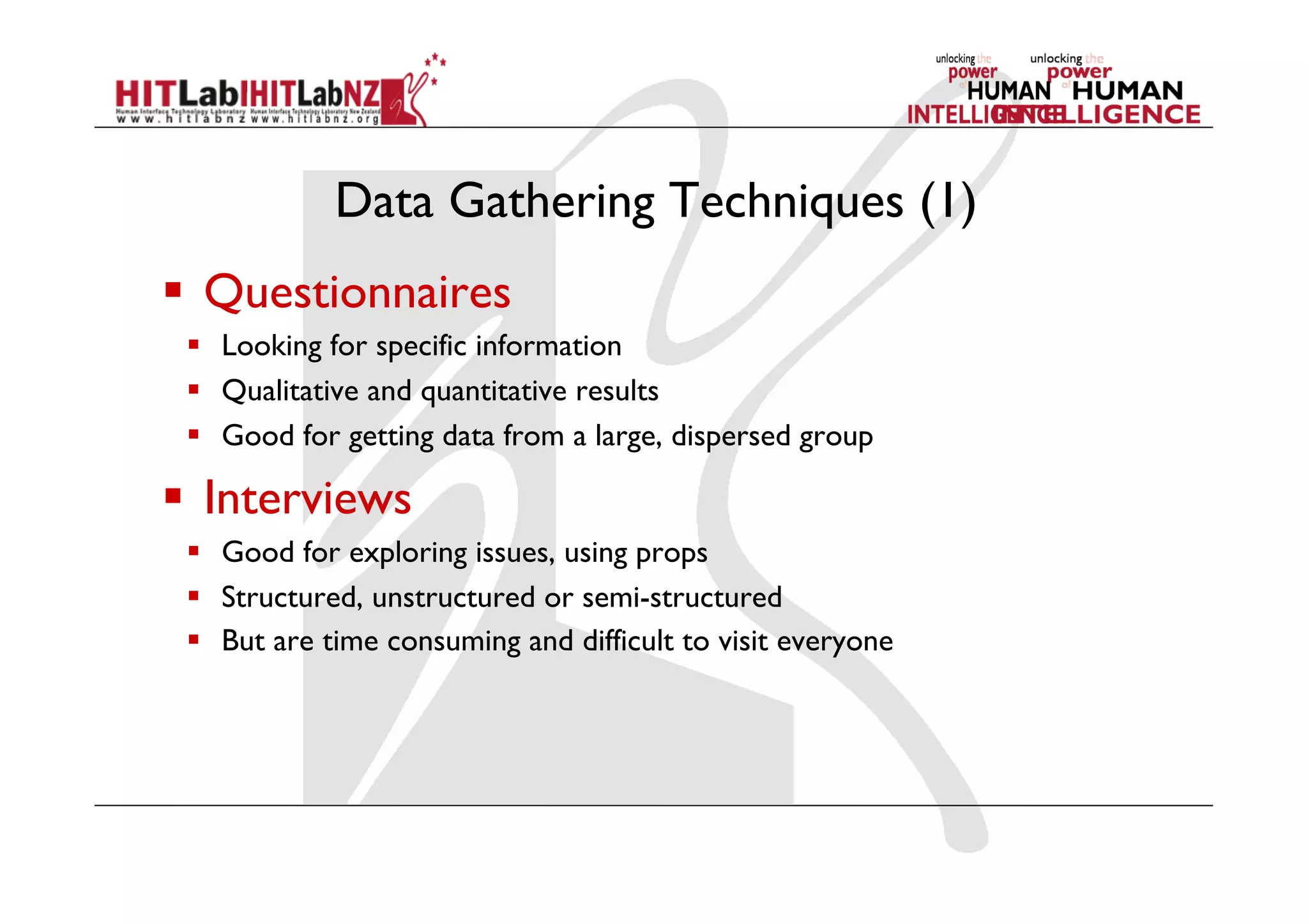
Data Gathering Techniques (1)
  Questionnaires
  Looking for specific information
  Qualitative and quantitative results
  Good for getting data from a large, dispersed group
  Interviews
  Good for exploring issues, using props
  Structured, unstructured or semi-structured
  But are time consuming and difficult to visit everyone
Data Gathering Techniques (2)
  Workshops or focus groups
  Group interviews/activities
  Good at gaining a consensus view and/or highlighting areas
of conflict
  Observations
  Spending time with users in day to day tasks
  Good for understanding task context
  requires time and can result in a huge amount of data
  Documentation
  Procedures and rules written down in manuals
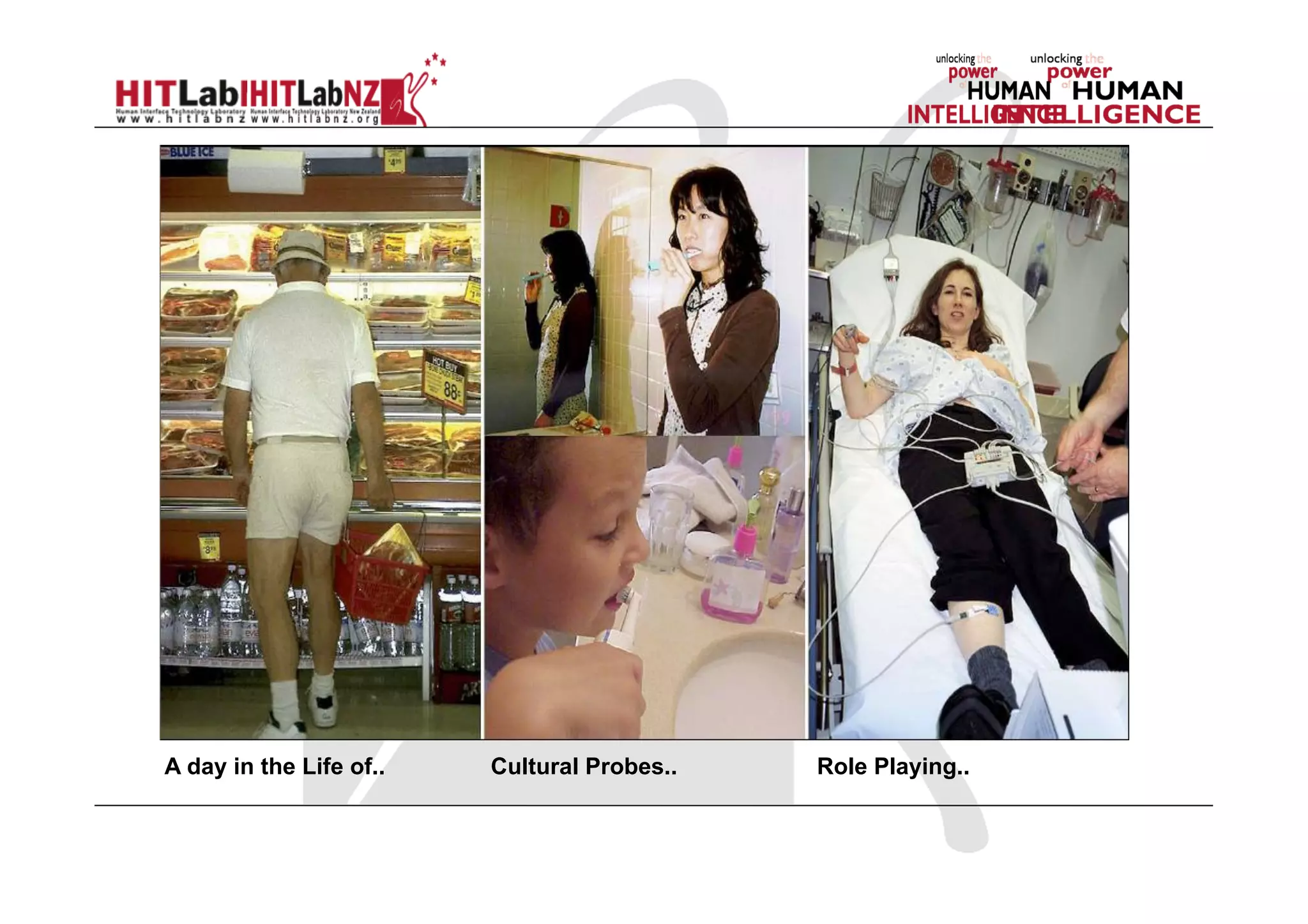
A day in the Life of.. Cultural Probes.. Role Playing..
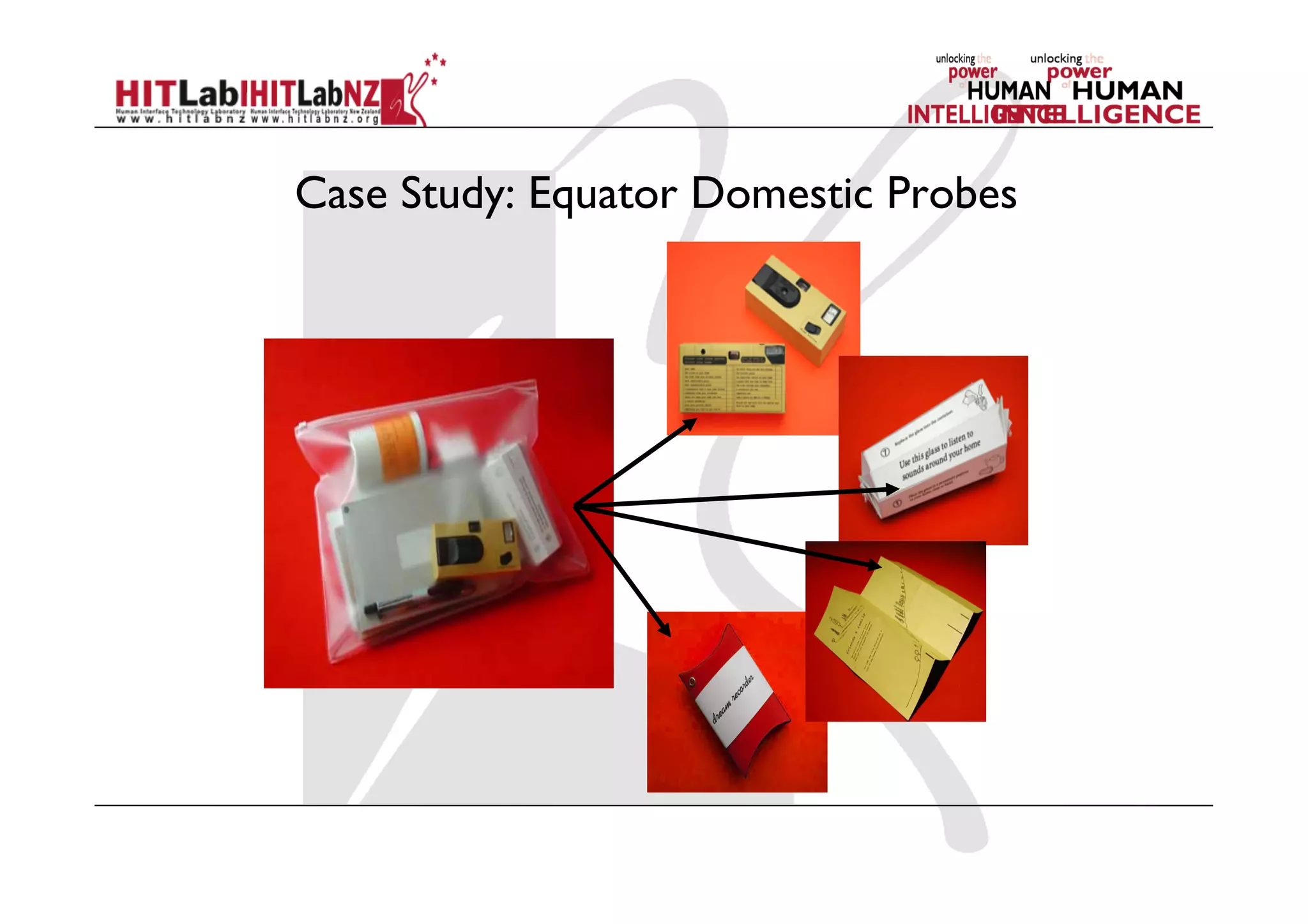
Case Study: Equator Domestic Probes
4. Design and Prototyping
Mark Billinghurst
Interaction Design Process
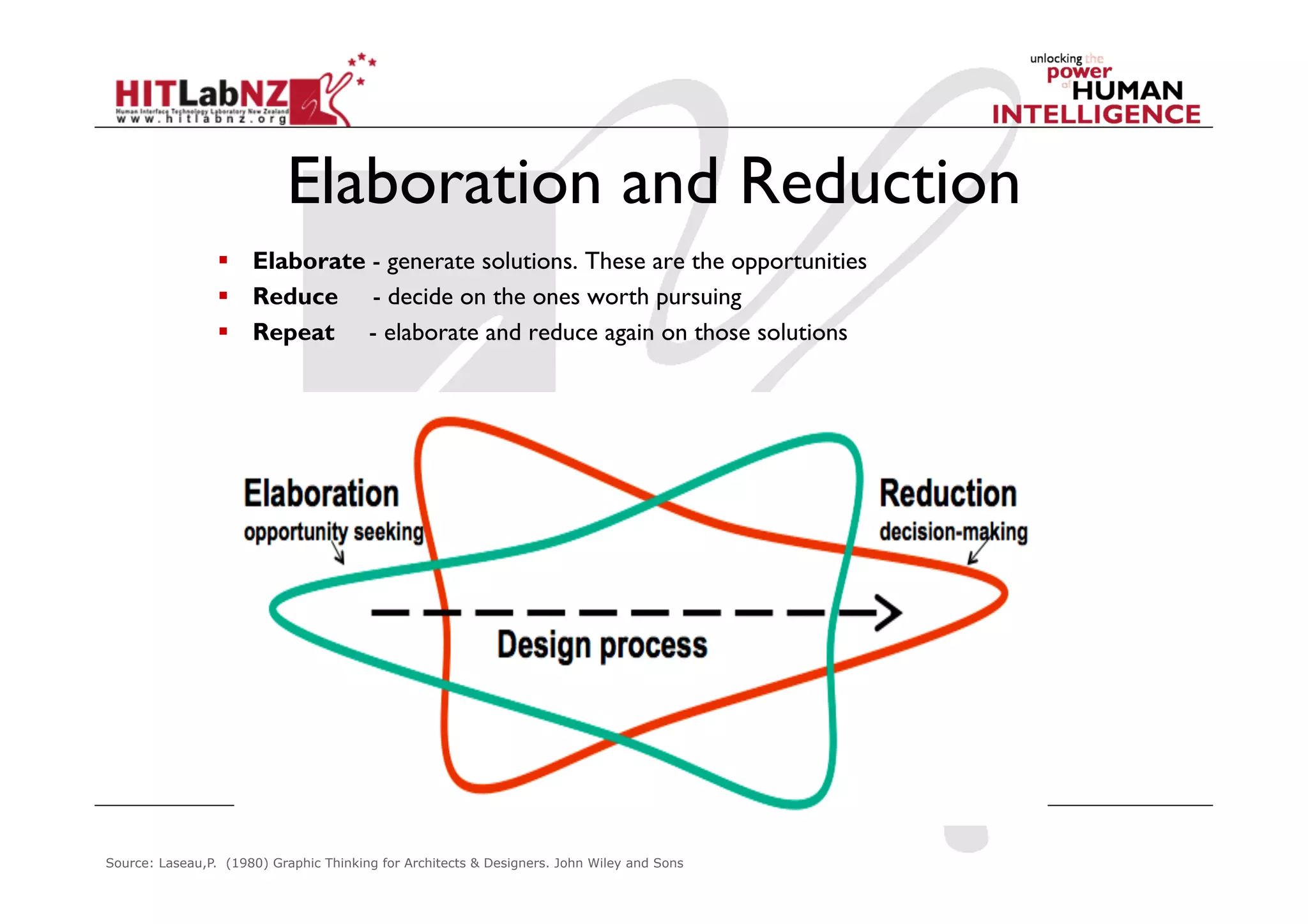
Elaboration and Reduction
  Elaborate - generate solutions. These are the opportunities
  Reduce - decide on the ones worth pursuing
  Repeat - elaborate and reduce again on those solutions
Source: Laseau,P. (1980) Graphic Thinking for Architects & Designers. John Wiley and Sons
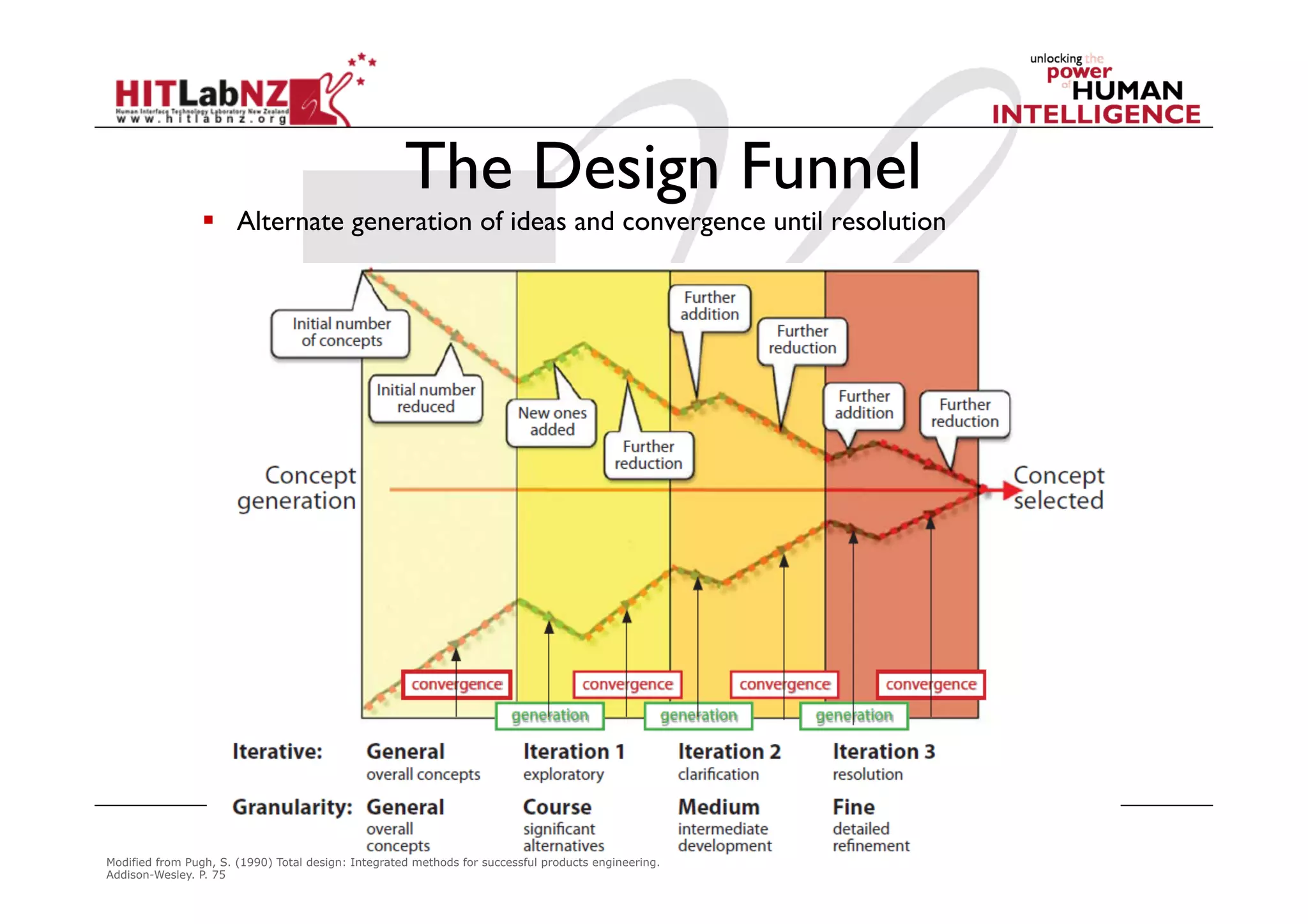
The Design Funnel
  Alternate generation of ideas and convergence until resolution
Modified from Pugh, S. (1990) Total design: Integrated methods for successful products engineering.
Addison-Wesley. P. 75
Design Inspiration
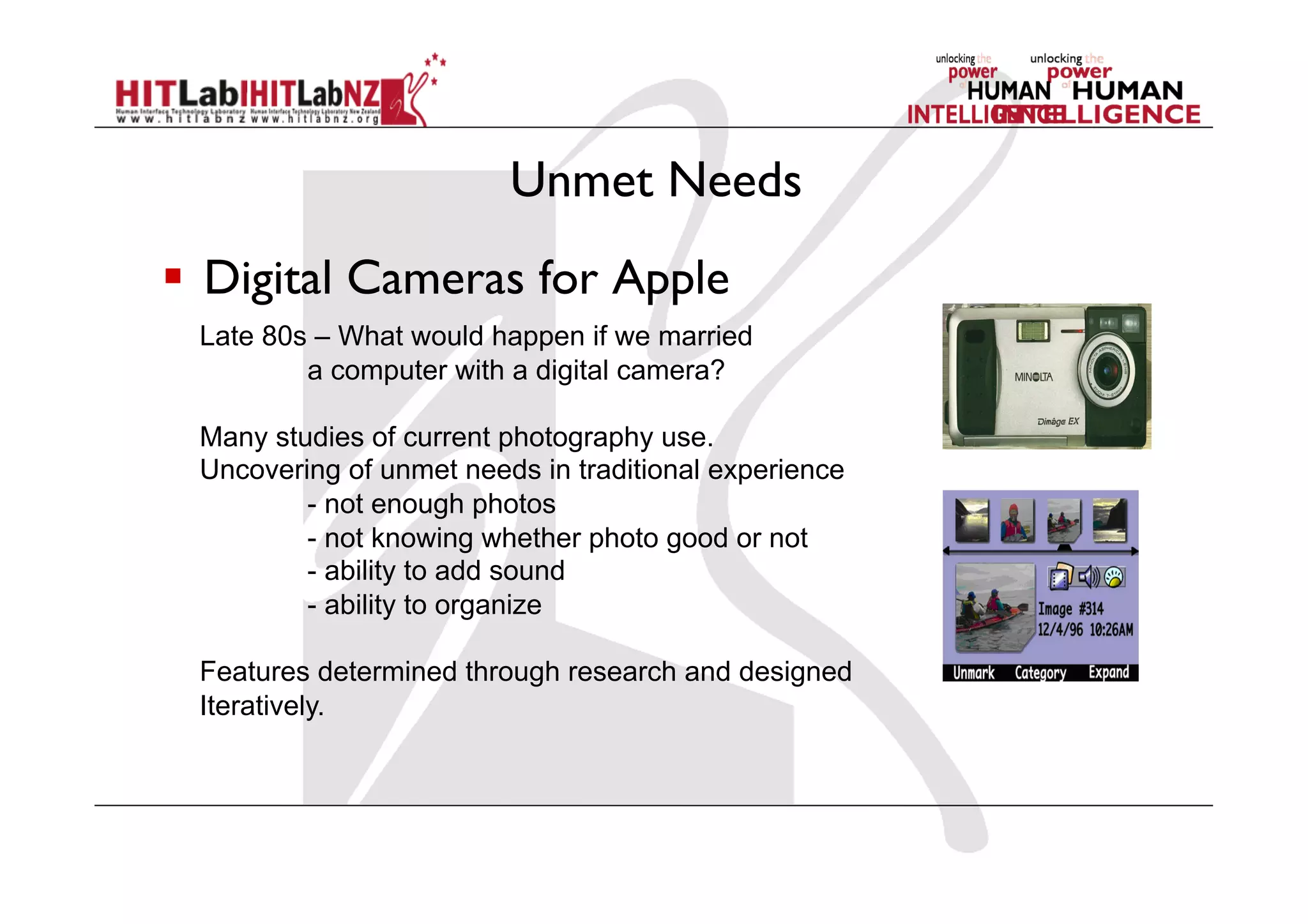
Unmet Needs
  Digital Cameras for Apple
Late 80s – What would happen if we married
a computer with a digital camera?
Many studies of current photography use.
Uncovering of unmet needs in traditional experience
- not enough photos
- not knowing whether photo good or not
- ability to add sound
- ability to organize
Features determined through research and designed
Iteratively.
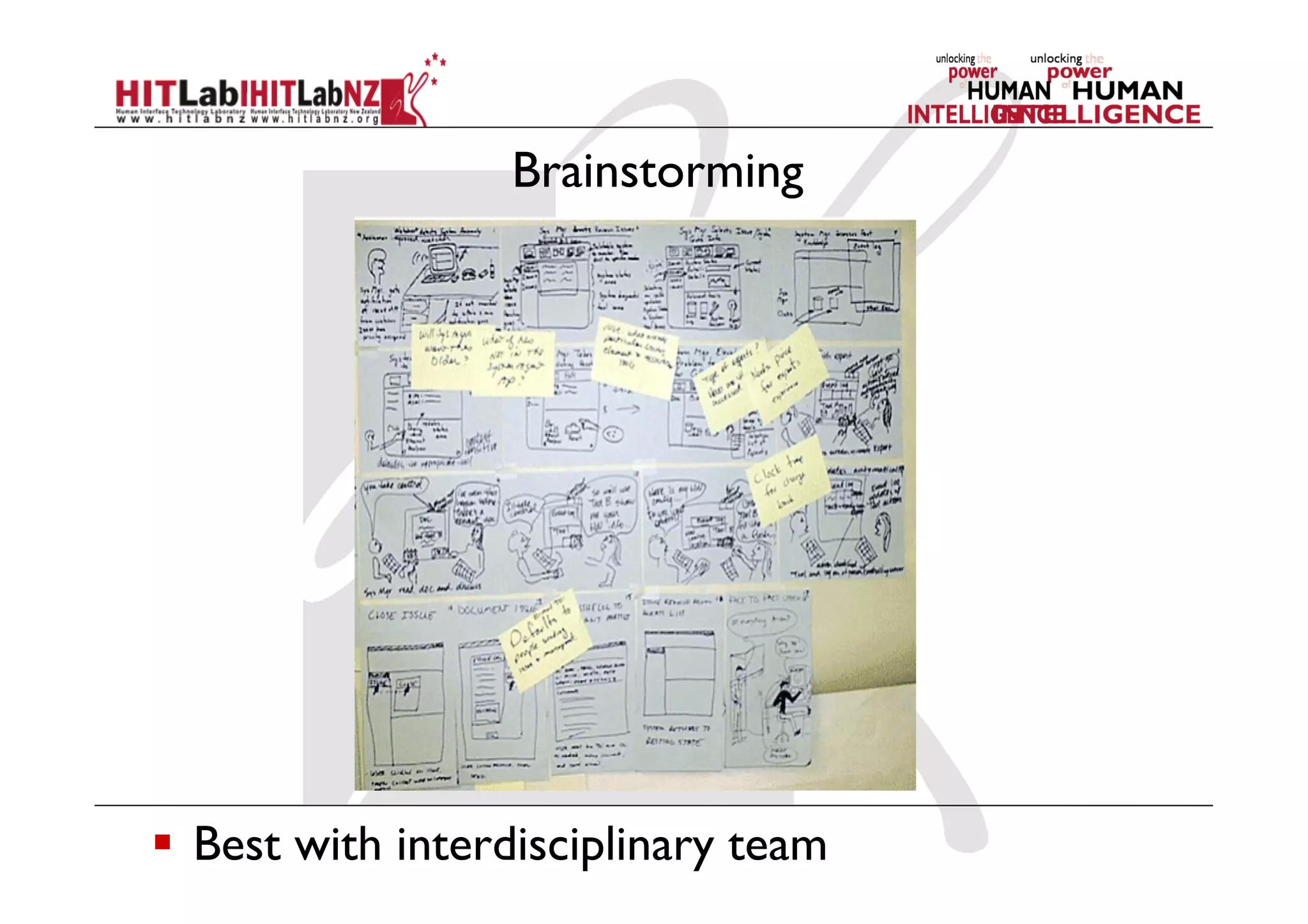
Brainstorming
  Best with interdisciplinary team
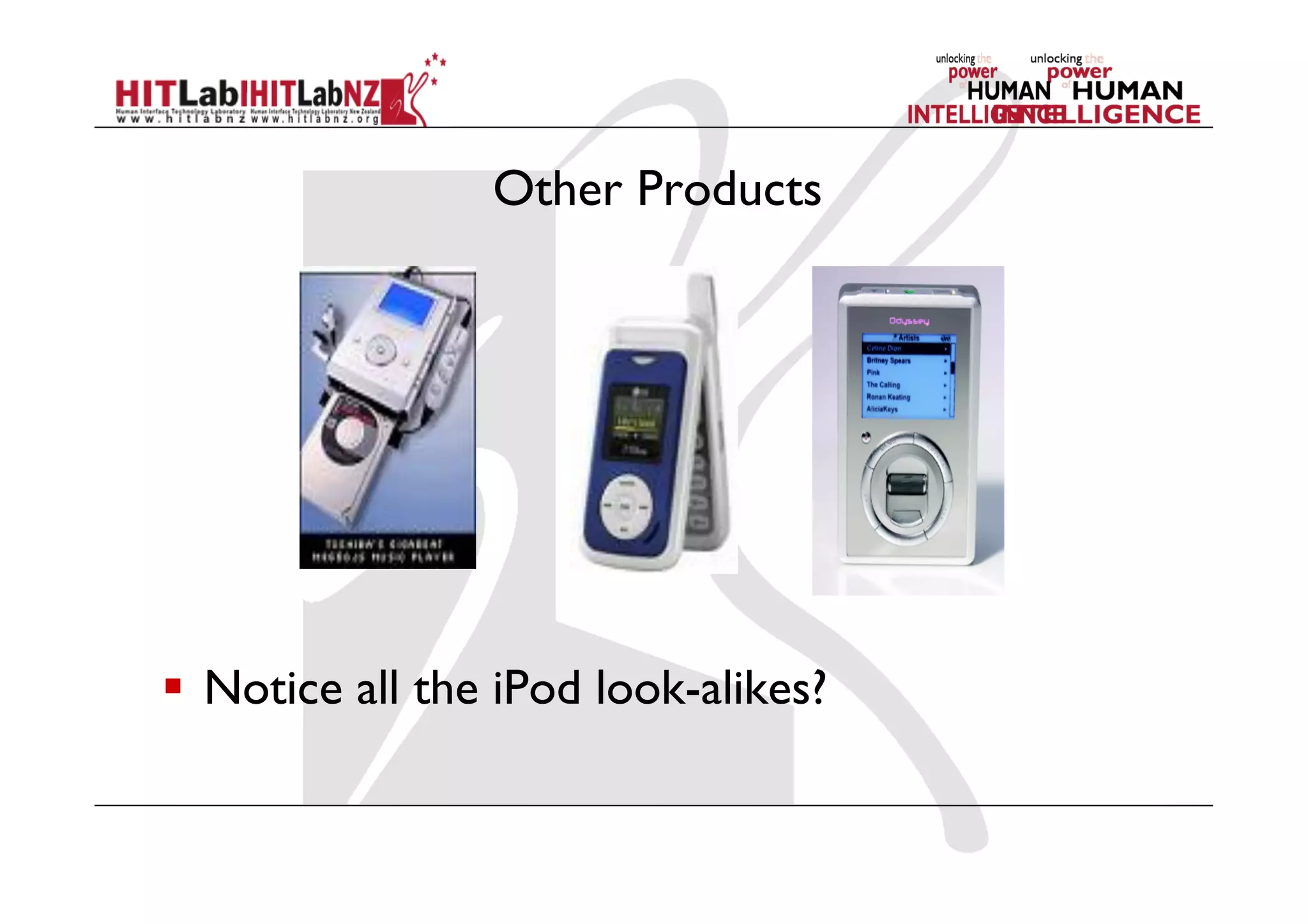
Other Products
  Notice all the iPod look-alikes?
Tools for Effective Design
 Personas
 Scenarios
 Storyboards
 Wireframes and Mock-ups
 Prototypes
Persona Technique
•  Personas are a design tool to help visualize who you are
designing for and imagine how person will use the product
•  A persona is an archetype that represents the behavior and
goals of a group of users
•  Based on insights and observations from customer research
•  Not real people, but synthesised from real user characteristics
•  Bring them to life with a name, characteristics, goals, background
•  Develop multiple personas
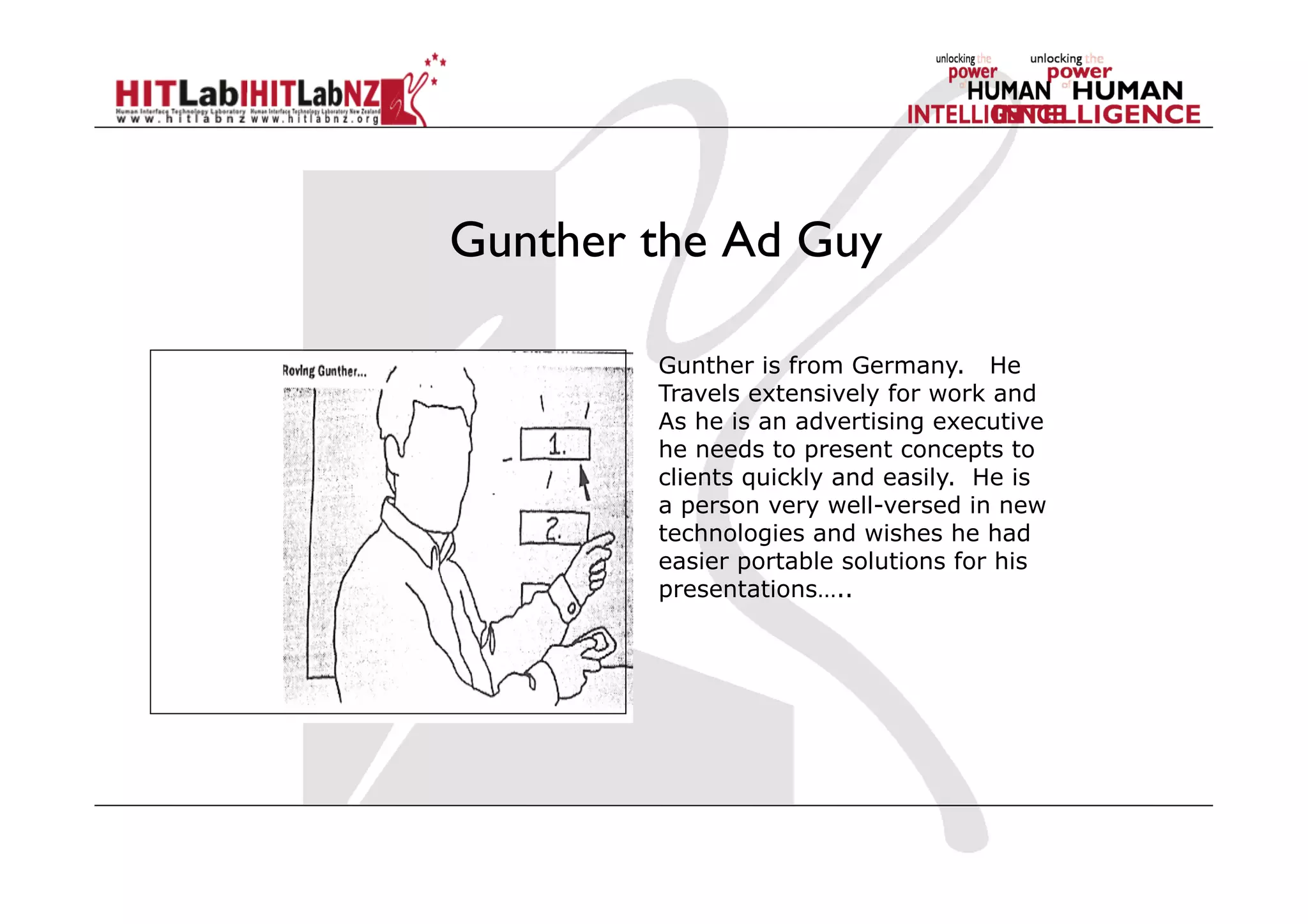
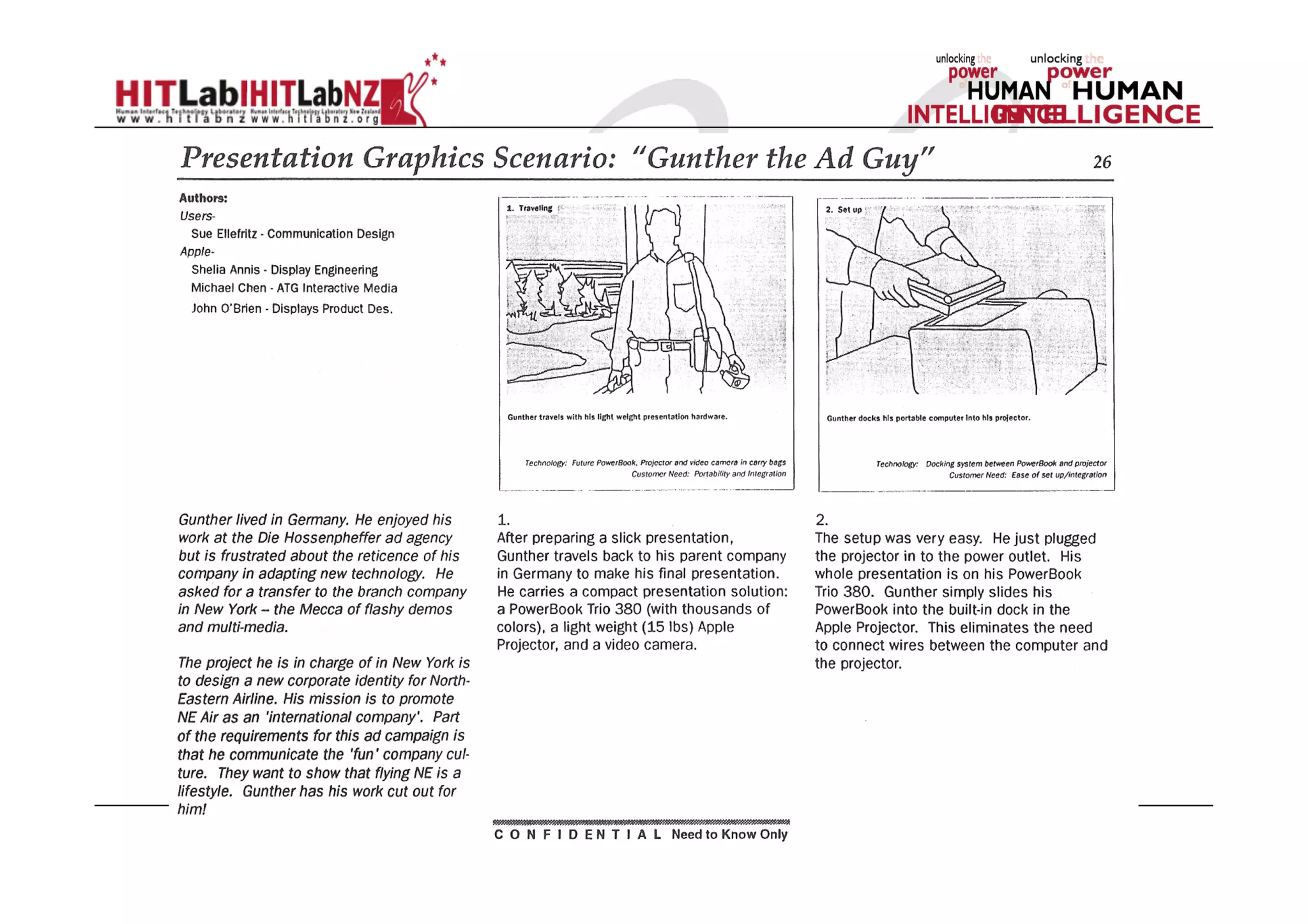
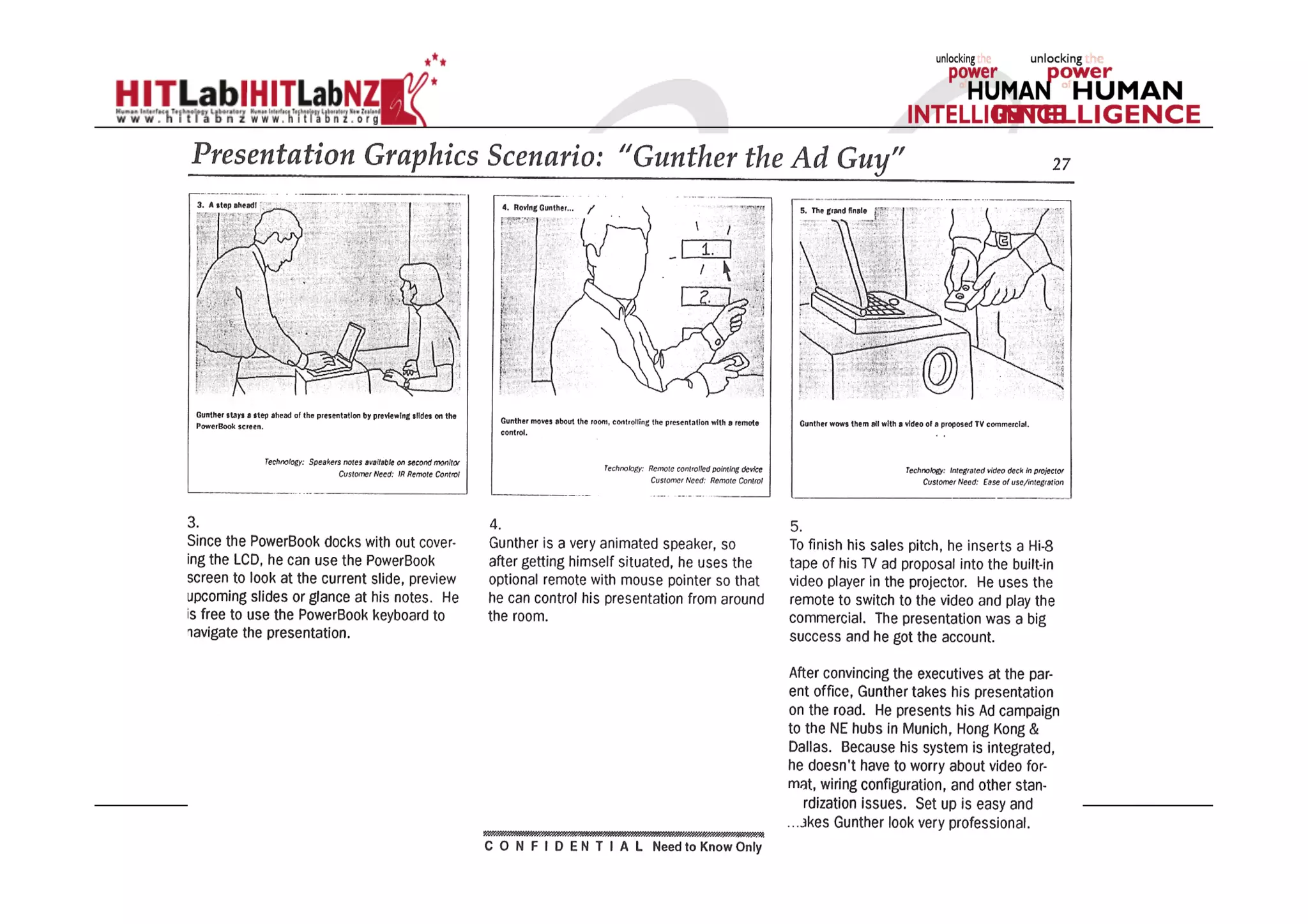
Gunther the Ad Guy
Gunther is from Germany. He
Travels extensively for work and
As he is an advertising executive
he needs to present concepts to
clients quickly and easily. He is
a person very well-versed in new
technologies and wishes he had
easier portable solutions for his
presentations…..
Scenarios
Usage Scenarios are narrative descriptions of how the product
meets the needs of a persona
Short (2 pages max)
Focus on unmet needs of persona
Concrete story
Set of stories around essential tasks, problems...
Use to test ideas
A business woman travels from SF to Paris on a business trip. On
her way to the airport she narrowly misses a traffic delay. She
avoids the jam because her Smartphone beeps and send her a
warning text message on her route from the office to the airport.
Upon arrival the location-sensitive Smartphone notifies the airline
that she‘ll check in shortly and an airline employee finds her
immediately and takes her baggage. Her display shows that her
flight is on time and provides a map to her gate. On the way she
downloads tourist information (maps, events) for Paris.
Once found her seat, she begins to review the downloaded
information. She books a ticket for an opera she wants to see.
Her Smartphone makes the booking using her credit card number
stored in memory.The security software of the Smartphone
protects her against fraud.
The Smartphone stores the opera booking along with emails
written on the plane.As soon as she steps off the plane, it makes
the calls and sends the emails.As she leaves the airport, a map
appears on the display and guides her to her hotel
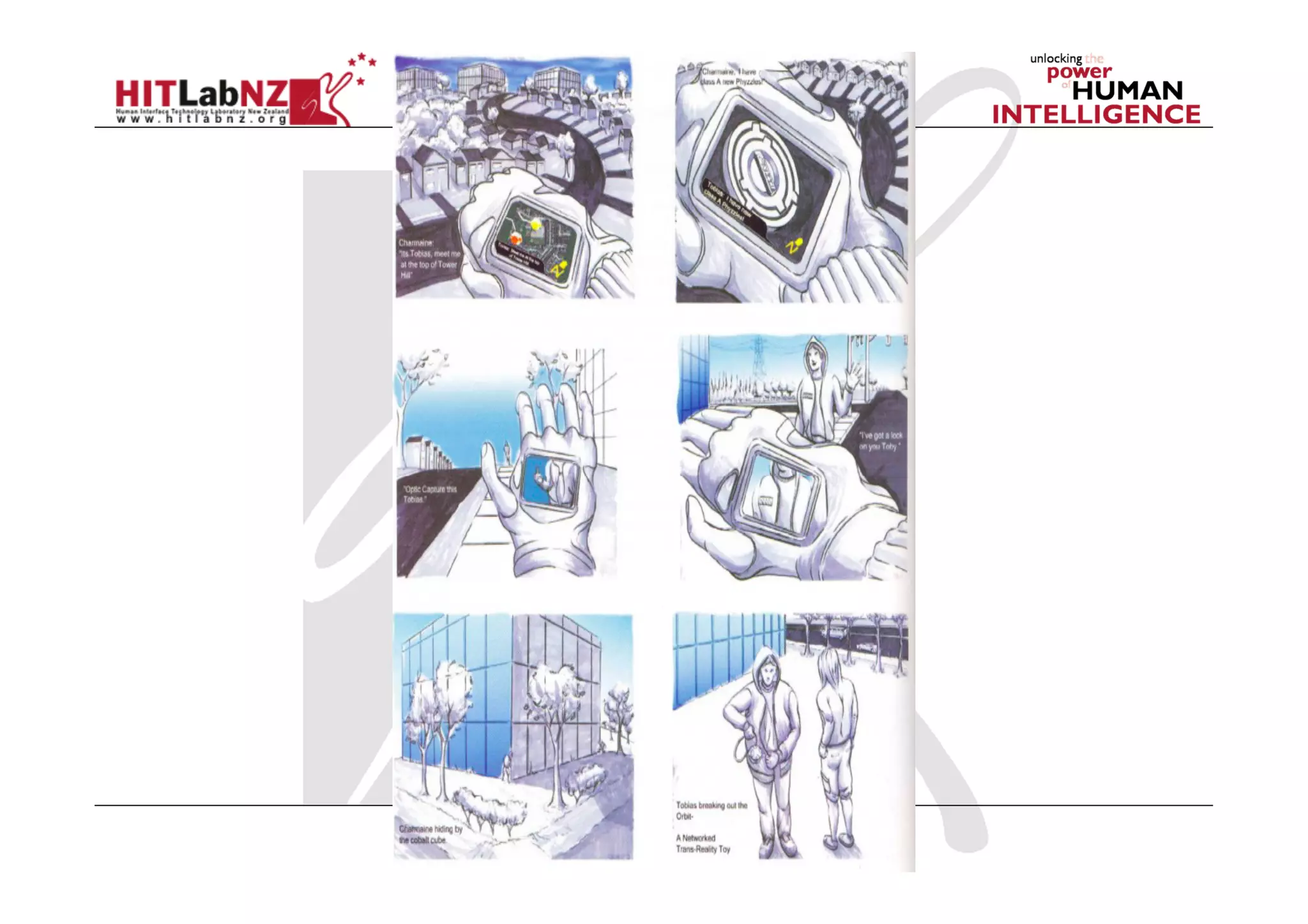
Storyboarding
Sequence of sketches showing use of system in
everyday use context
Concrete example
Easier (faster) to grasp than text based stories
Means of communication with users and system
developers
Sketches, not drawings...
Use to test interaction and make sure design works
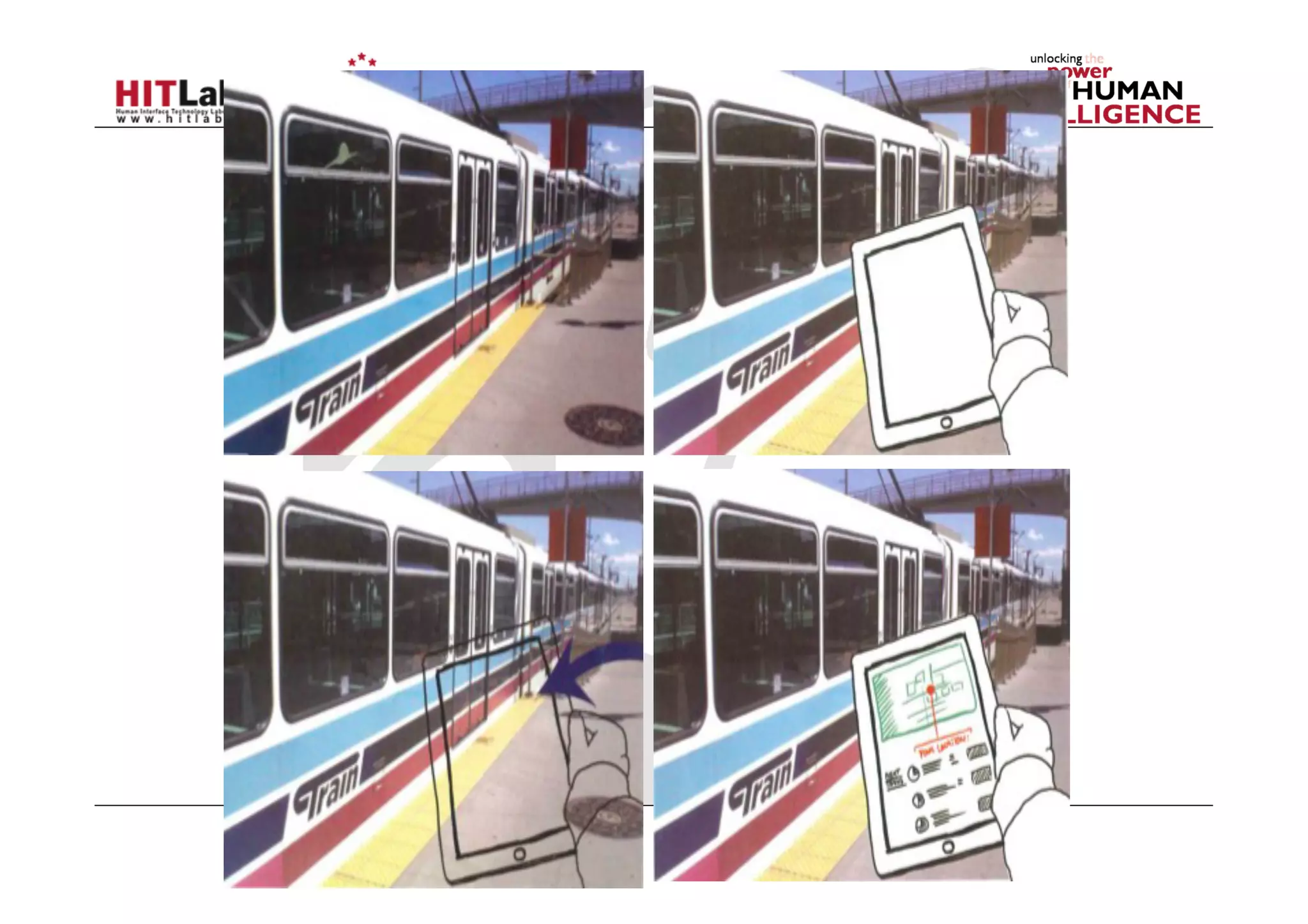
Example Storyboard
Example Storyboard p.2
Sketching
Mark Billinghurst
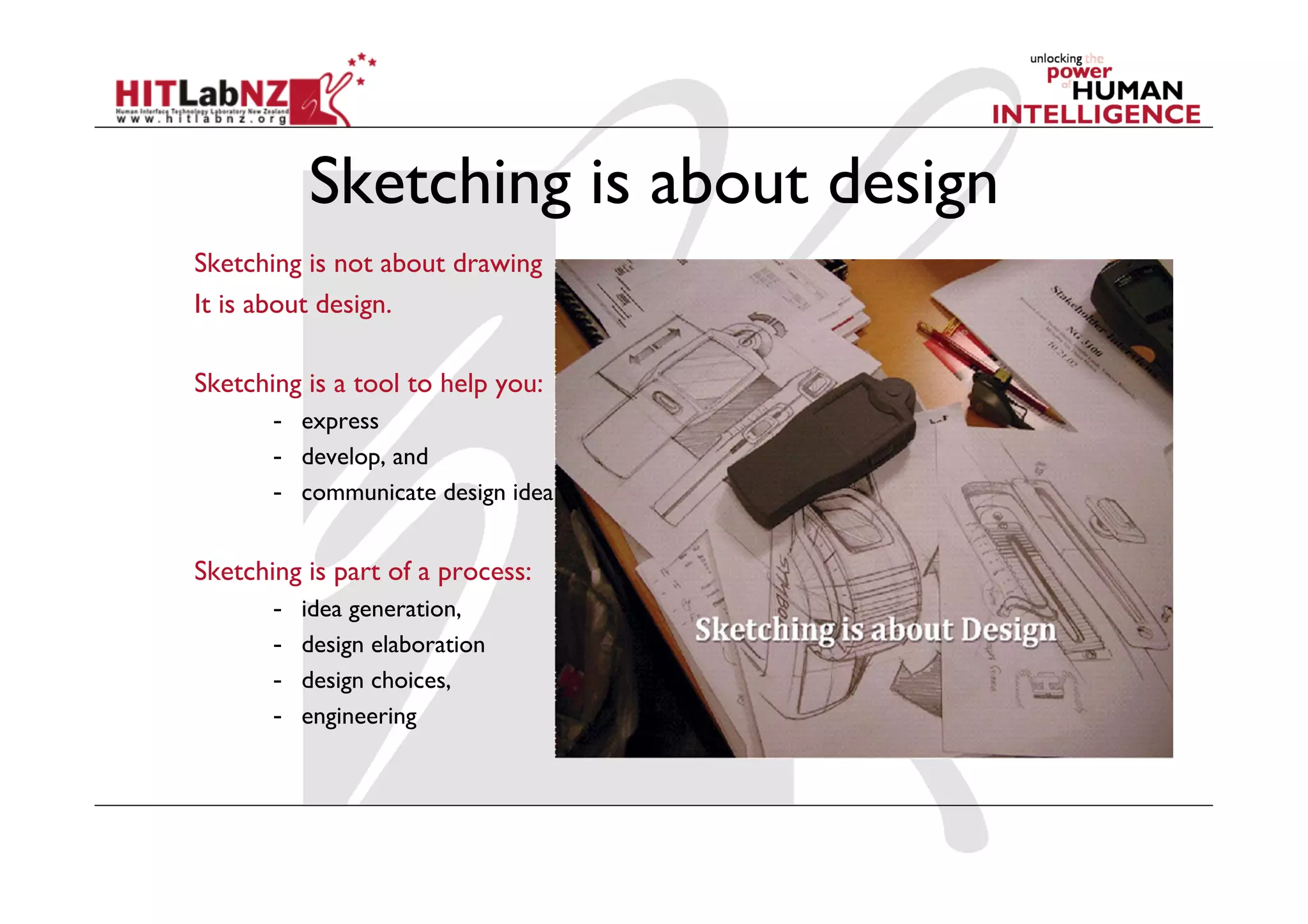
Sketching is about design
Sketching is not about drawing
It is about design.
Sketching is a tool to help you:
-  express
-  develop, and
-  communicate design ideas
Sketching is part of a process:
-  idea generation,
-  design elaboration
-  design choices,
-  engineering
Why is sketching useful?
  Early ideation
  Think through ideas
  Force you to visualize how things come together
  Communicate ideas to others to inspire new
designs
  Active brainstorming
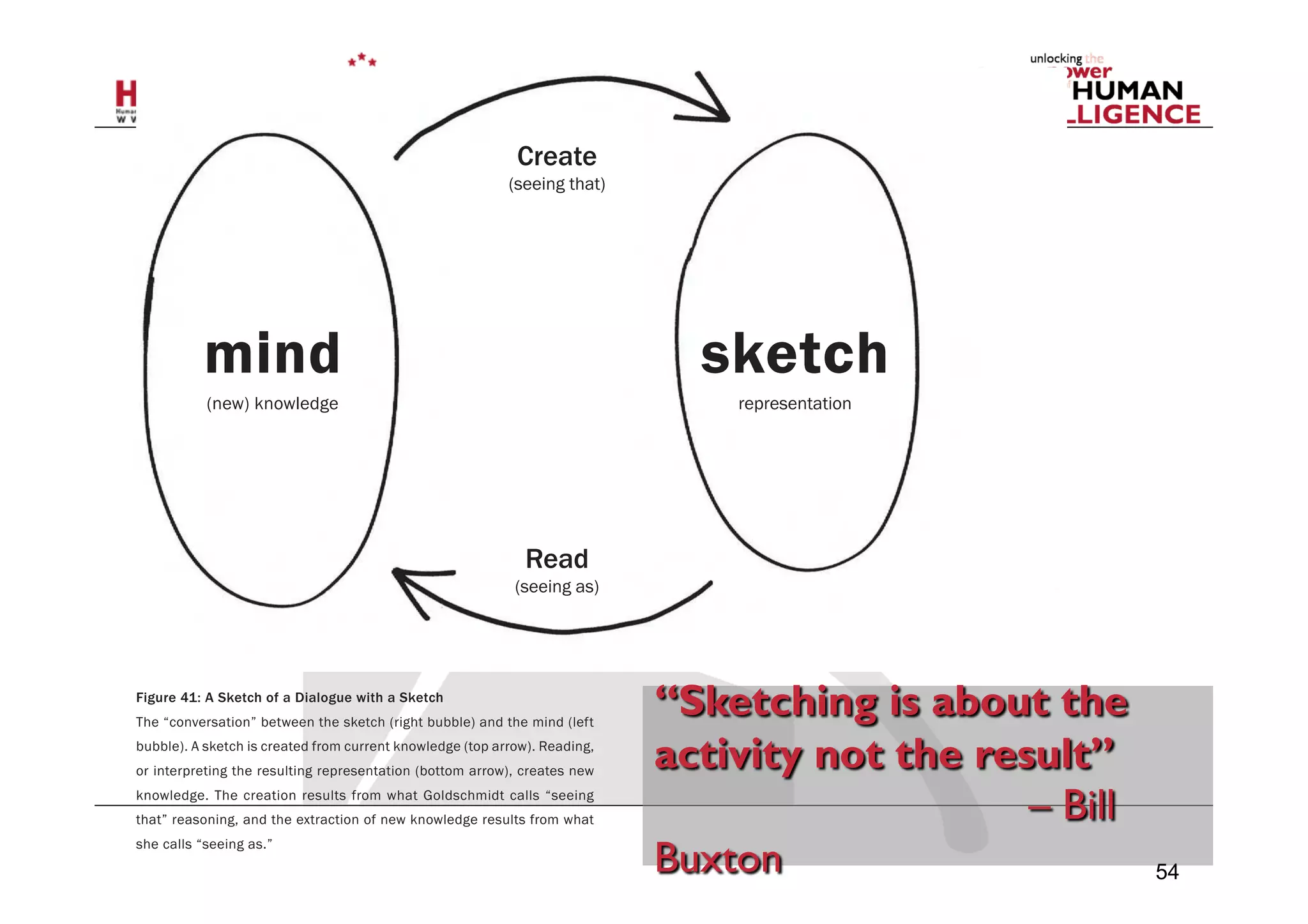
Figure 41: A Sketch of a Dialogue with a Sketch
The “conversation” between the sketch (right bubble) and the mind (left
bubble). A sketch is created from current knowledge (top arrow). Reading,
or interpreting the resulting representation (bottom arrow), creates new
knowledge. The creation results from what Goldschmidt calls “seeing
that” reasoning, and the extraction of new knowledge results from what
she calls “seeing as.”
sketch
representation
mind
(new) knowledge
Create
(seeing that)
Read
(seeing as)
54
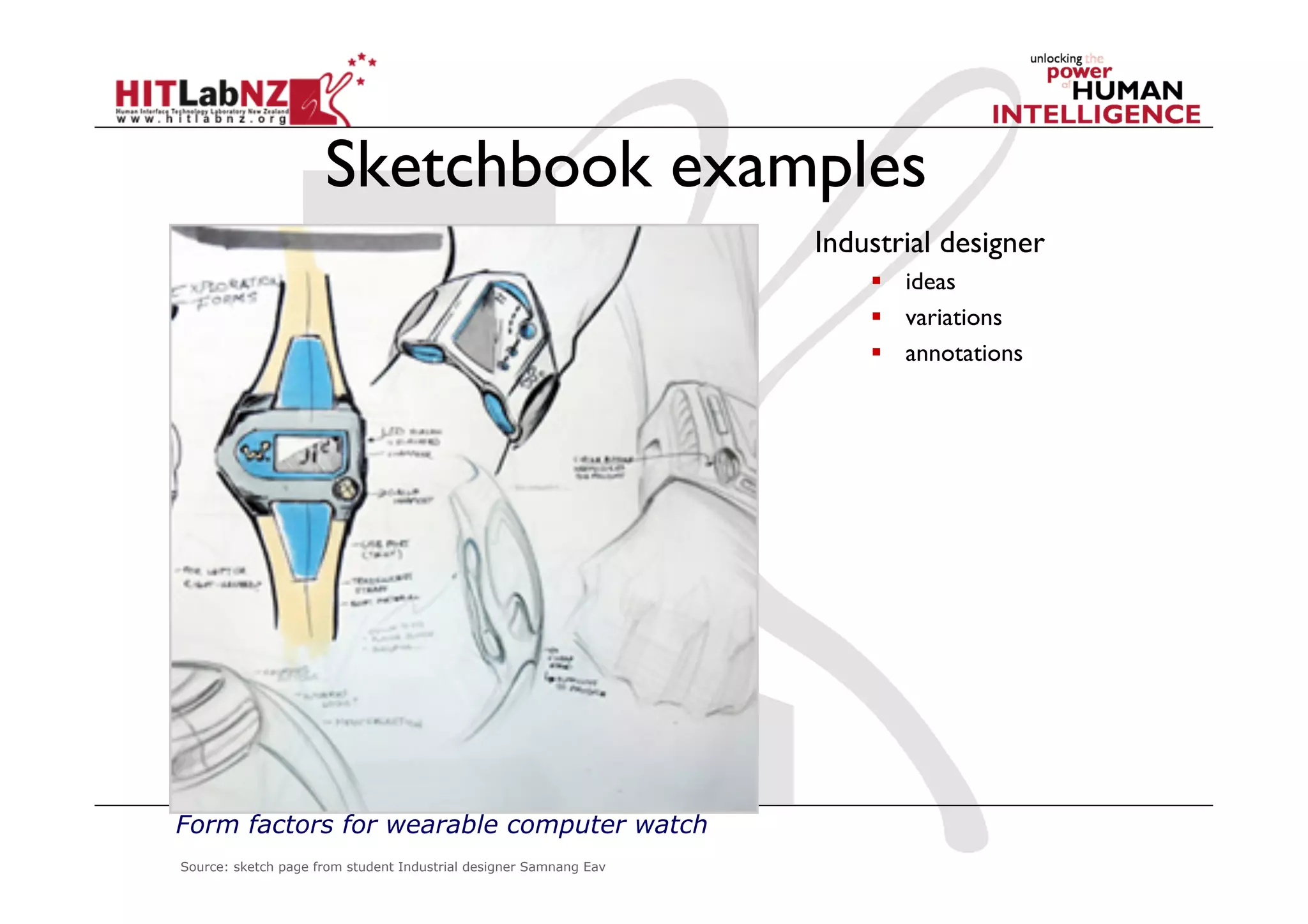
Sketchbook examples
Industrial designer
  ideas
  variations
  annotations
Source: sketch page from student Industrial designer Samnang Eav
Form factors for wearable computer watch
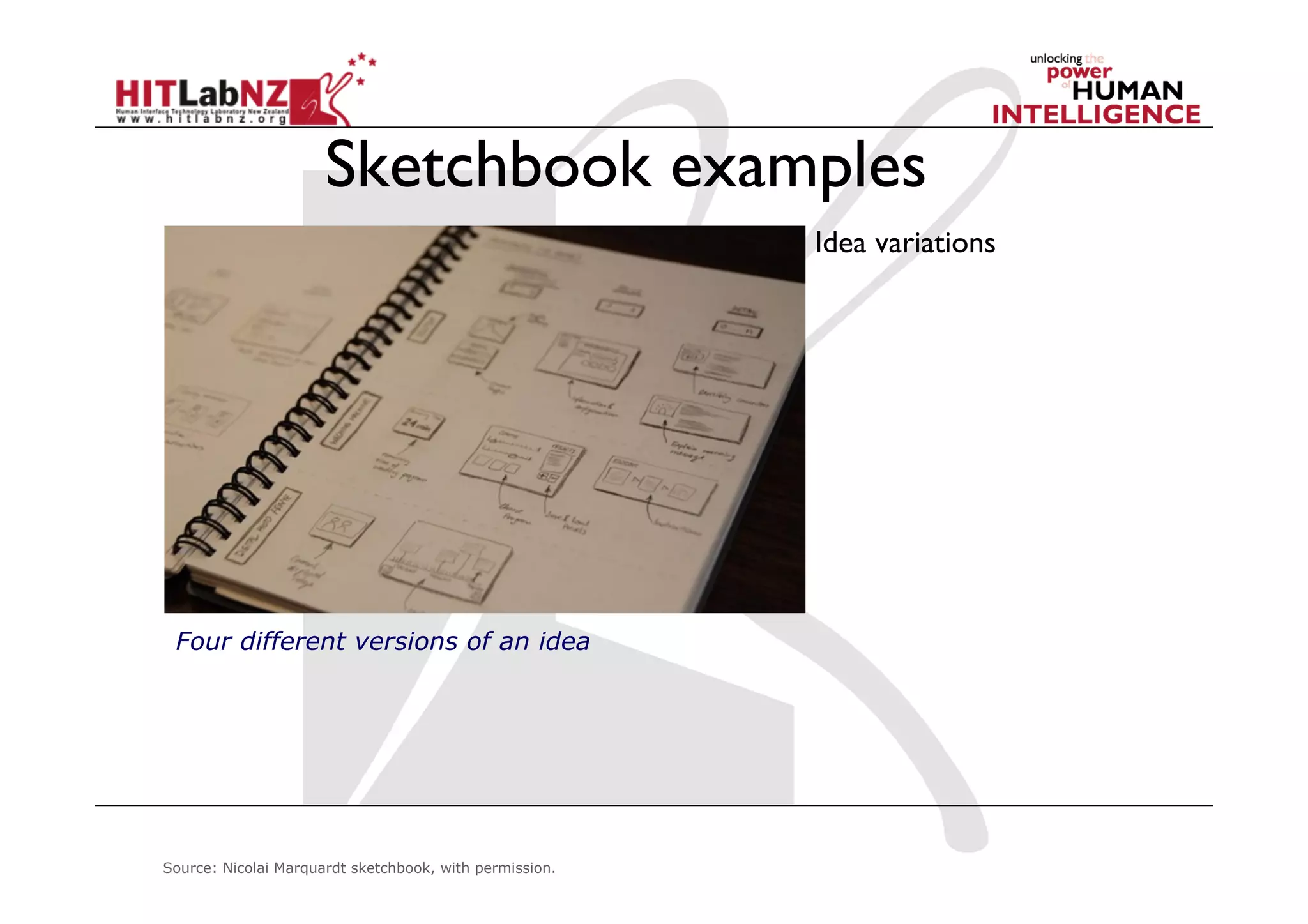
Sketchbook examples
Idea variations
Source: Nicolai Marquardt sketchbook, with permission.
Four different versions of an idea
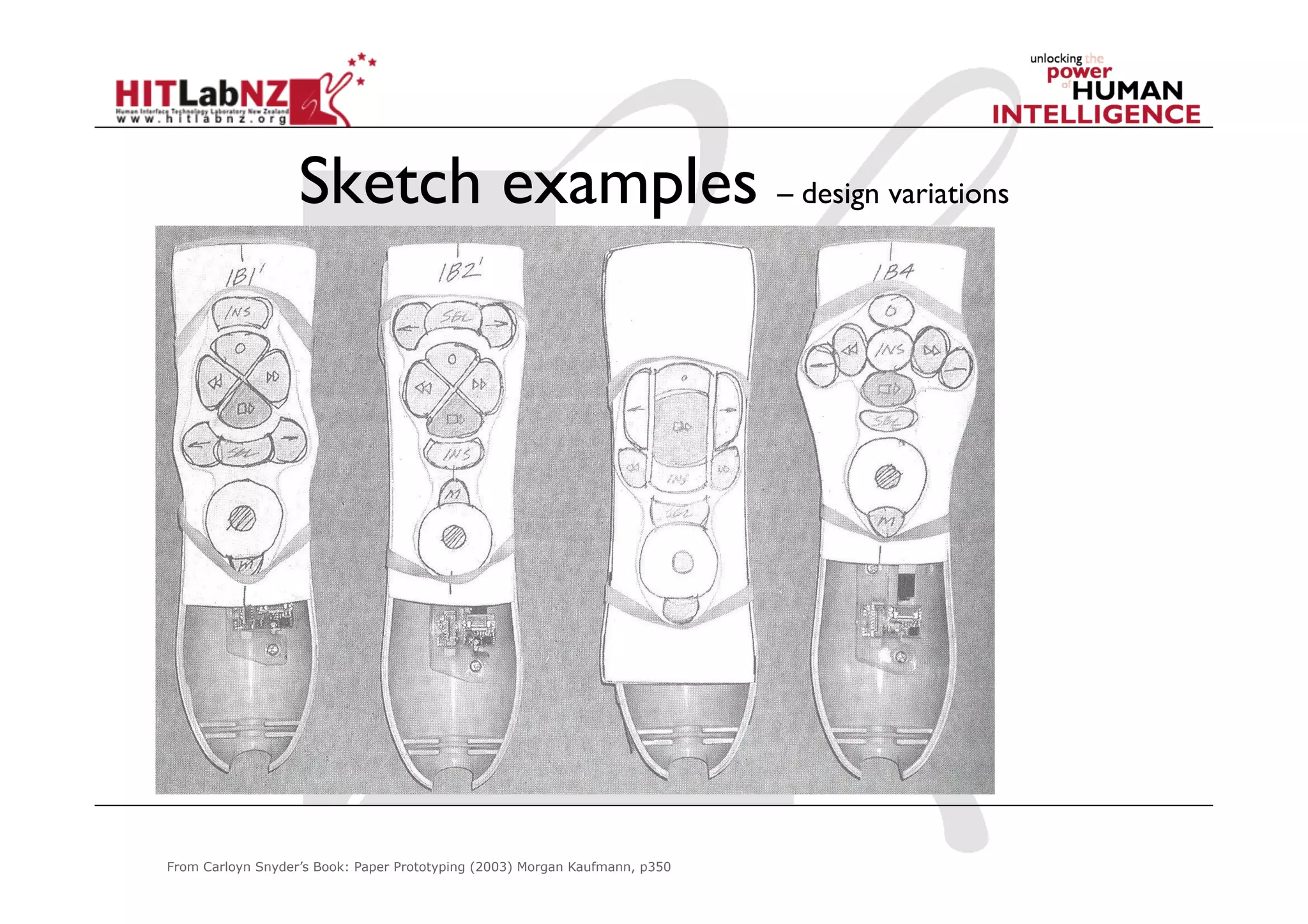
Sketch examples – design variations
From Carloyn Snyder’s Book: Paper Prototyping (2003) Morgan Kaufmann, p350
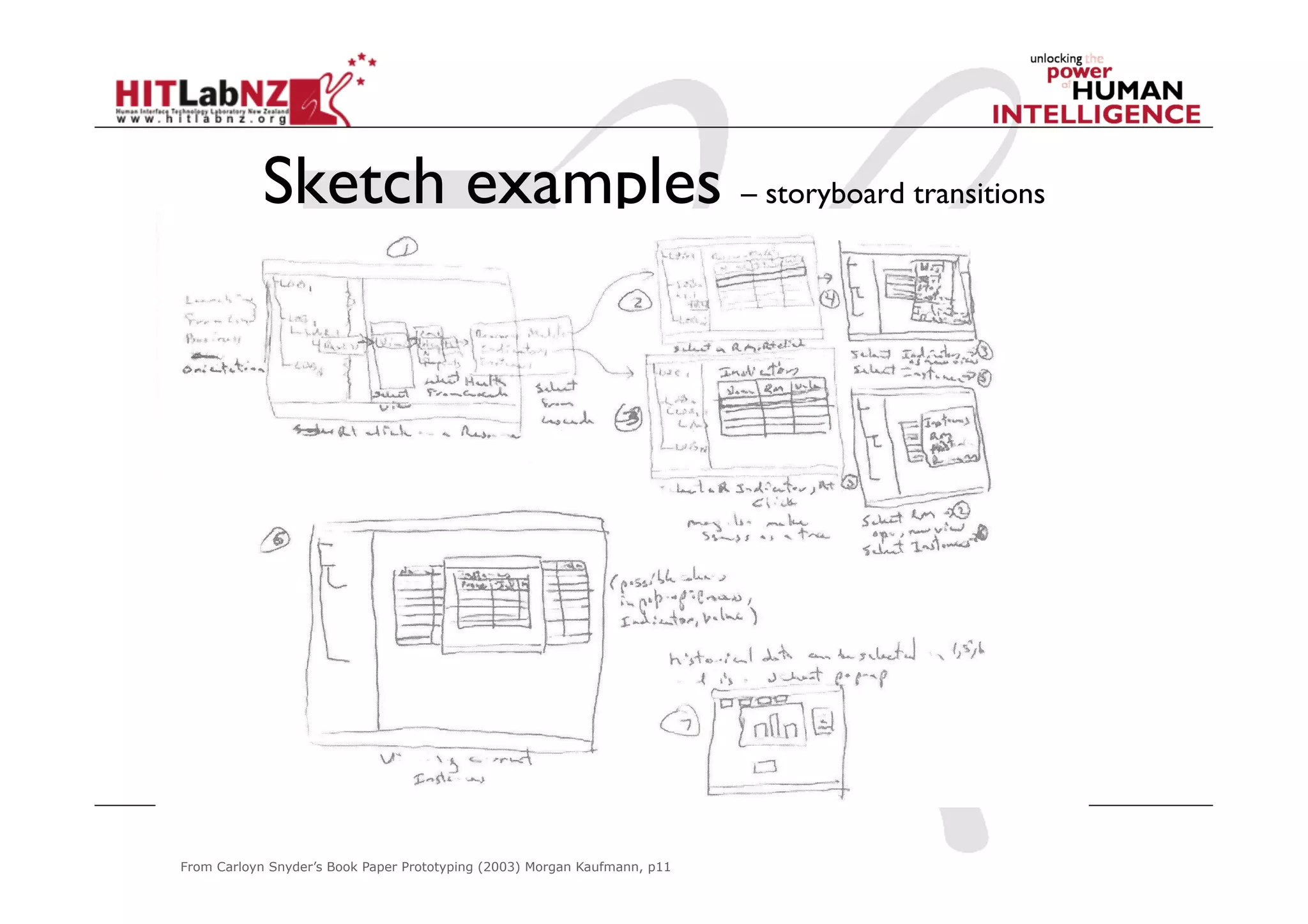
Sketch examples – storyboard transitions
From Carloyn Snyder’s Book Paper Prototyping (2003) Morgan Kaufmann, p11
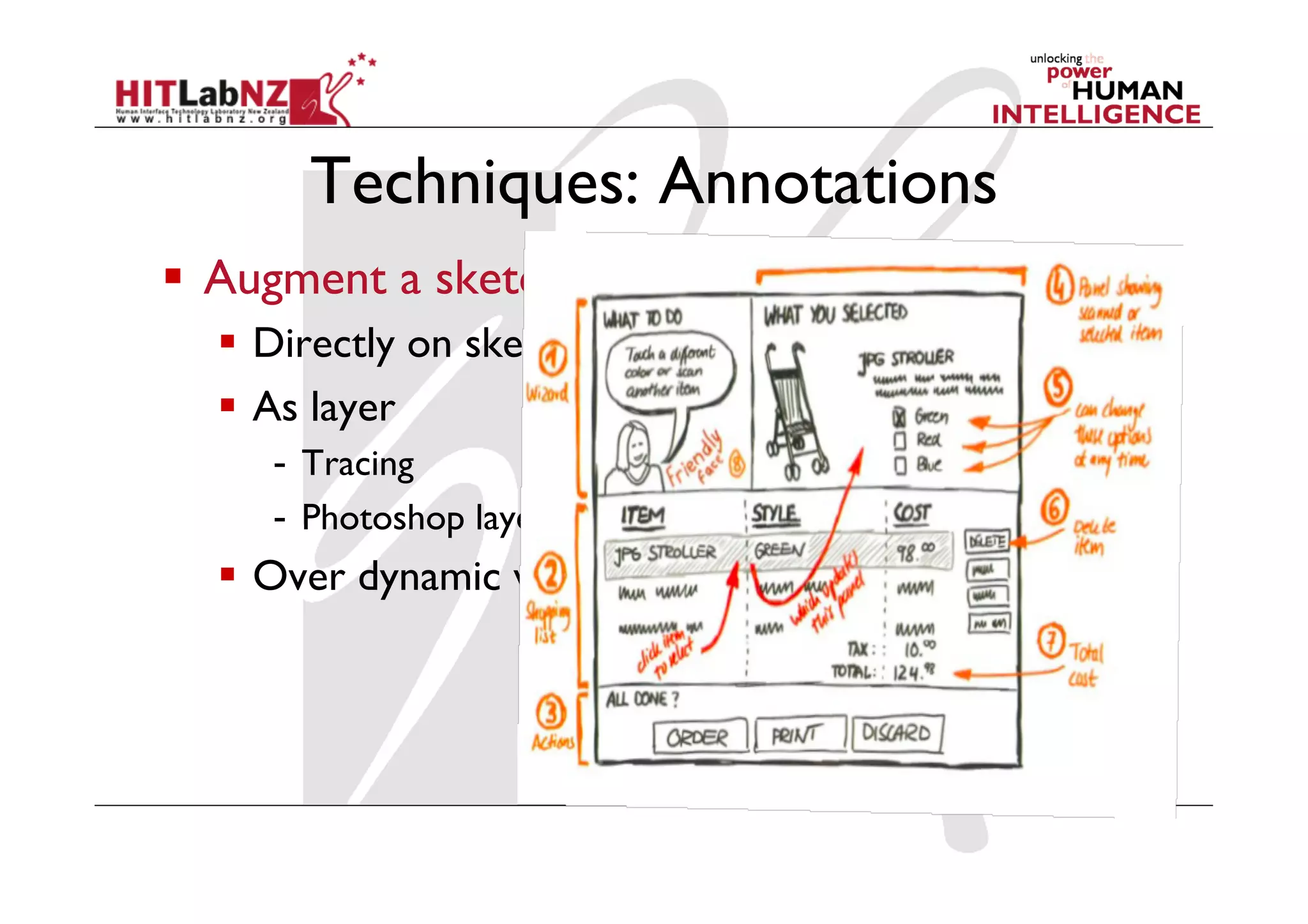
Techniques: Annotations
  Augment a sketch
  Directly on sketch
  As layer
-  Tracing
-  Photoshop layer
  Over dynamic video
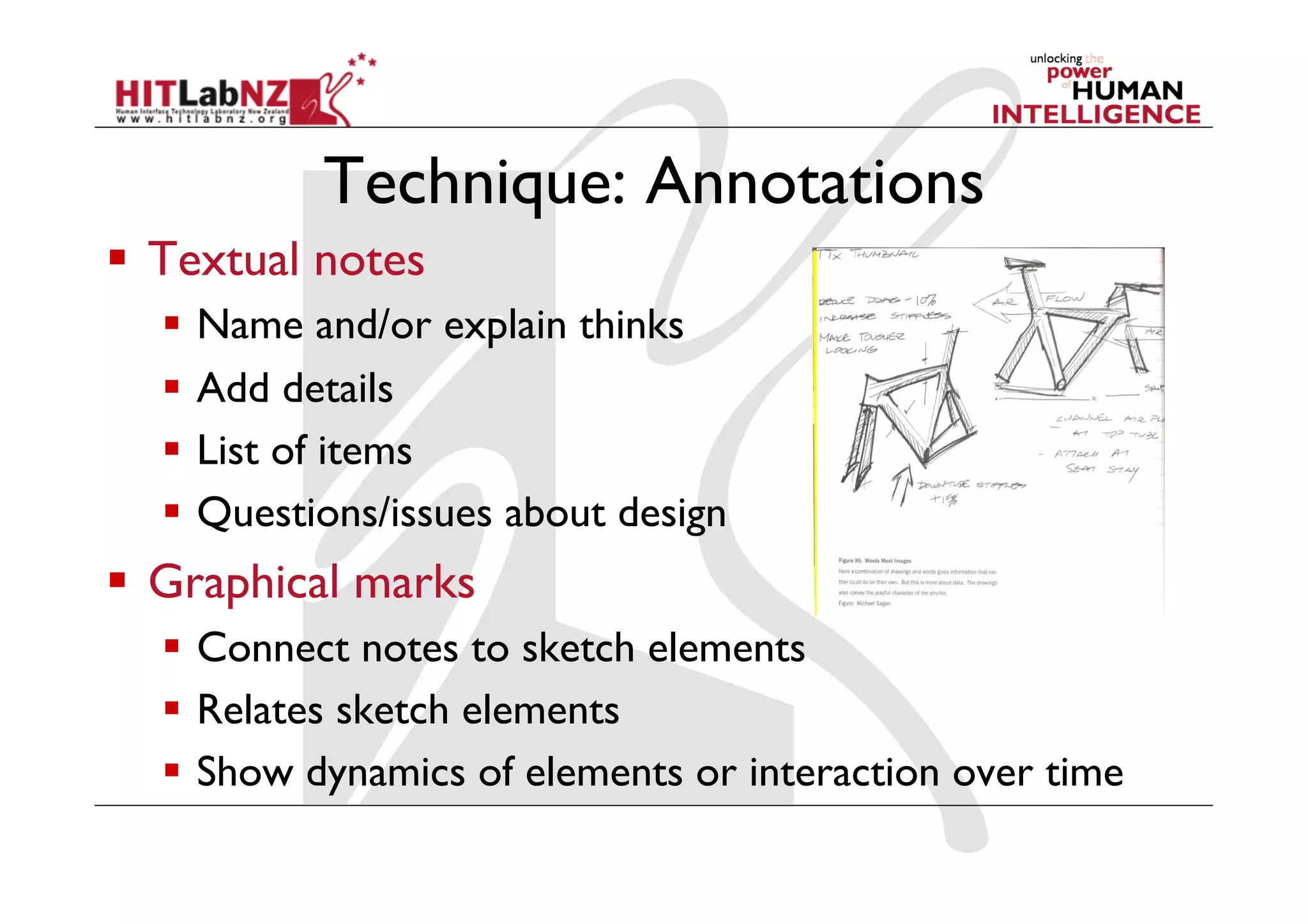
Technique: Annotations
  Textual notes
  Name and/or explain thinks
  Add details
  List of items
  Questions/issues about design
  Graphical marks
  Connect notes to sketch elements
  Relates sketch elements
  Show dynamics of elements or interaction over time
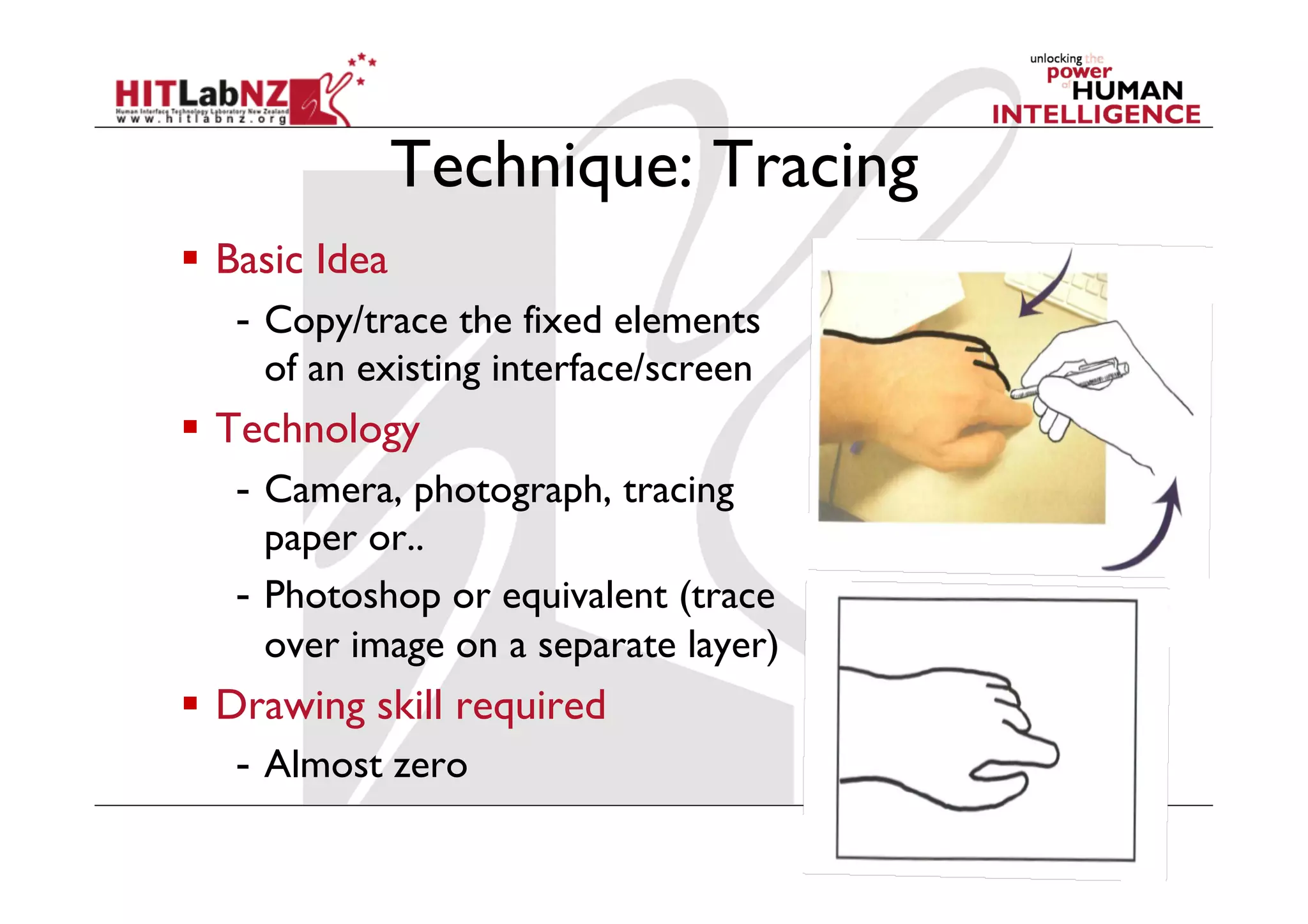
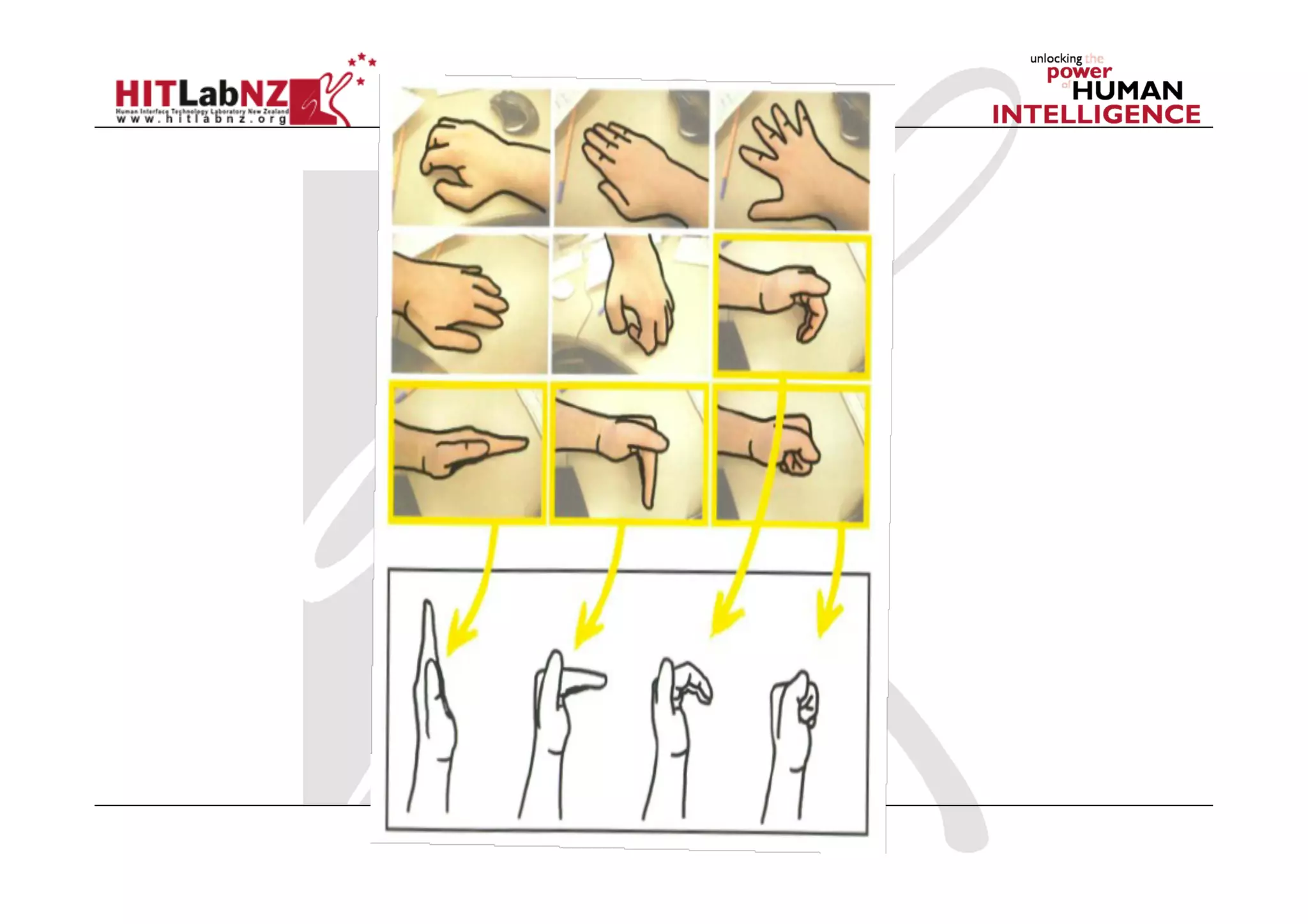
Technique: Tracing
  Basic Idea
-  Copy/trace the fixed elements
of an existing interface/screen
  Technology
-  Camera, photograph, tracing
paper or..
-  Photoshop or equivalent (trace
over image on a separate layer)
  Drawing skill required
-  Almost zero
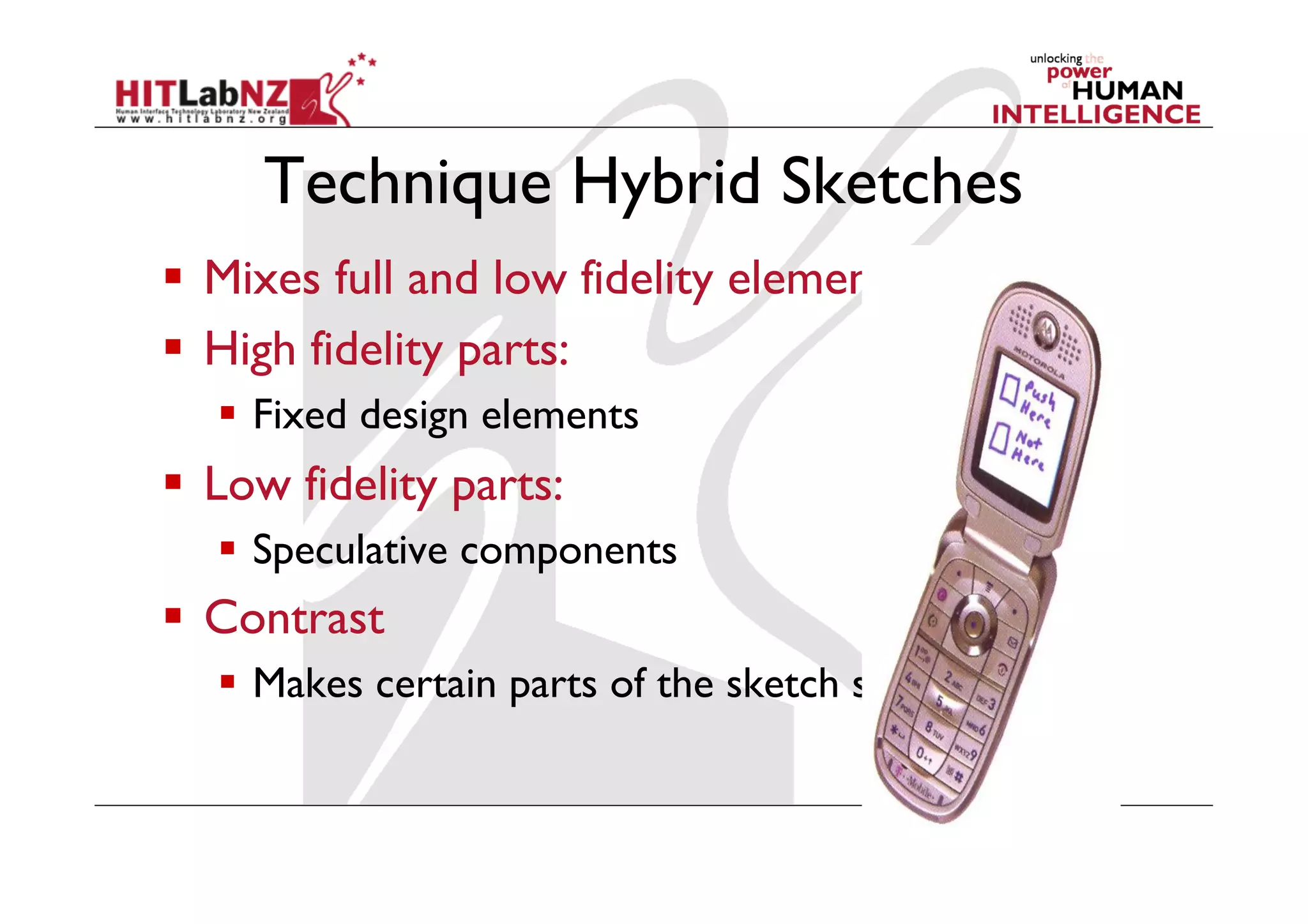
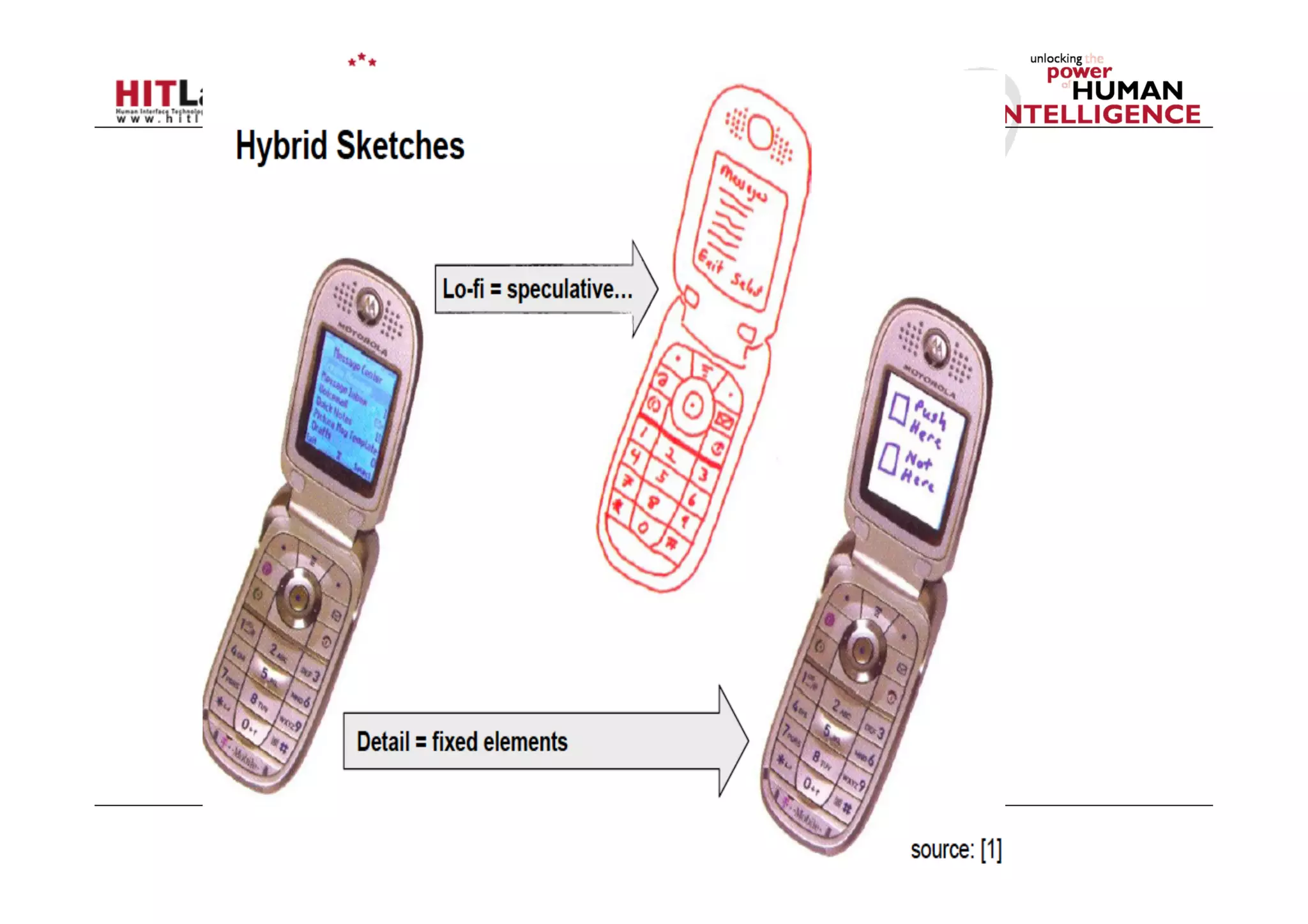
Technique Hybrid Sketches
  Mixes full and low fidelity elements
  High fidelity parts:
  Fixed design elements
  Low fidelity parts:
  Speculative components
  Contrast
  Makes certain parts of the sketch stand out
Your Turn
  Design a mobile AR user interface
  Viewing virtual buildings in Christchurch
  Views (Should be able to swap between)
  Map View
  AR View
  List View
Prototyping
Mark Billinghurst
68www.id-book.com
What is a prototype?
In interaction design it can be (among other things):
•  a series of screen sketches
•  a storyboard, i.e. a cartoon-like series of scenes
•  a Powerpoint slide show
•  a video simulating the use of a system
•  a lump of wood (e.g. PalmPilot)
•  a cardboard mock-up
•  a piece of software with limited functionality
69
www.id-book.com
Why Prototype?
•  Evaluation and feedback are central to interaction design
•  Stakeholders can see, hold, interact with a prototype
more easily than a document or a drawing
•  Team members can communicate effectively
•  You can test out ideas for yourself
•  It encourages reflection: very important aspect of design
•  Prototypes answer questions, and support designers in
choosing between alternatives
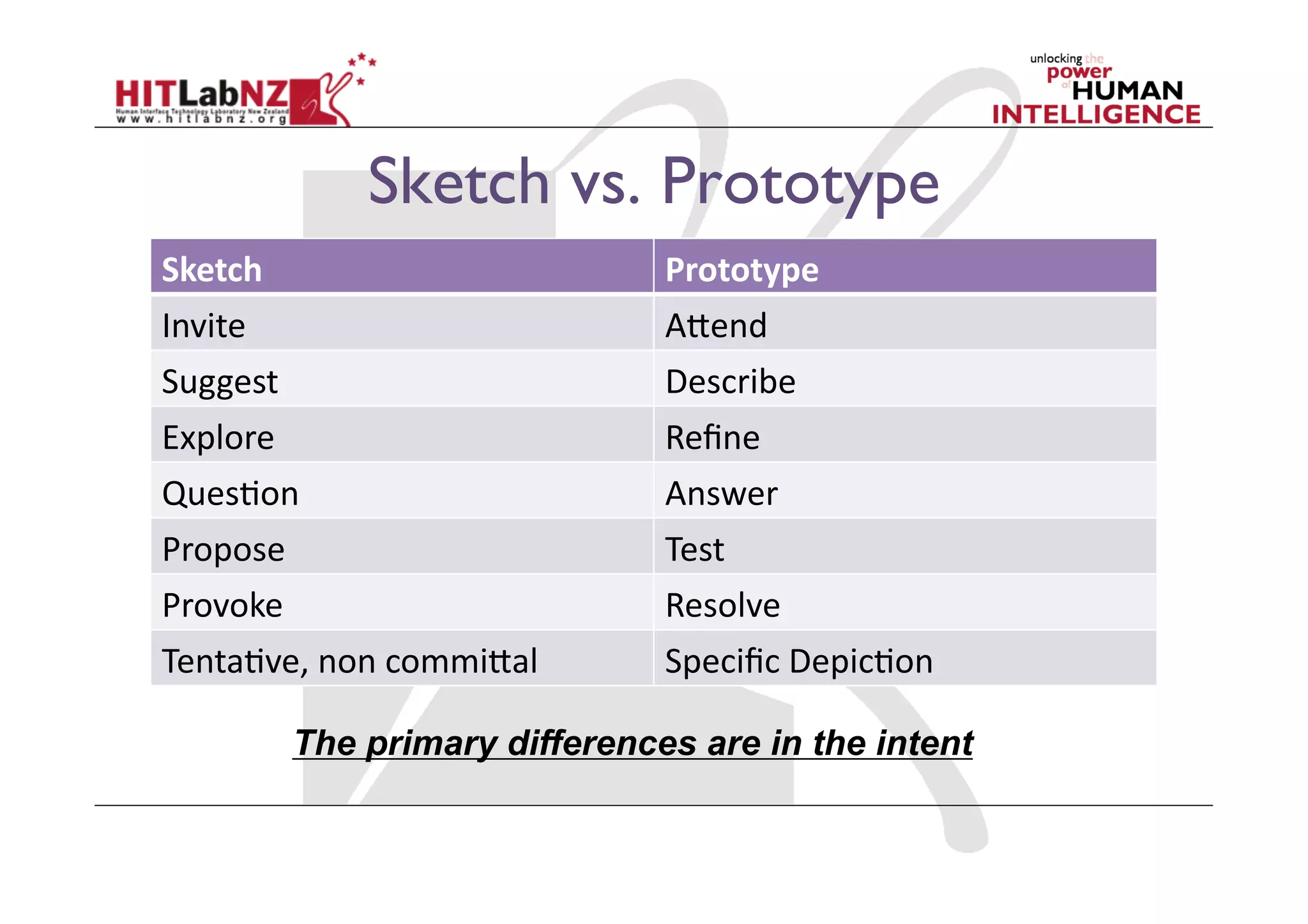
Sketch vs. Prototype
Sketch	
   Prototype	
  
Invite	
   A)end	
  
Suggest	
   Describe	
  
Explore	
   Refine	
  
Ques;on	
   Answer	
  
Propose	
   Test	
  
Provoke	
   Resolve	
  
Tenta;ve,	
  non	
  commi)al	
   Specific	
  Depic;on	
  
The primary differences are in the intent
Types of Prototypes
Low Fidelity – quick and dirty, easy access
materials like cardboard and paper.
High Fidelity – more involved electronic
versions similar in materials to final product.
RAPID Prototyping
  Fast and inexpensive
  Identifies problems before they’re coded
  Elicits more and better feedback from users
  Helps developers think creatively
  Gets users and other stakeholders involved early
  Fosters teamwork and communication
  Avoids opinion wars
  Helps decide design directions
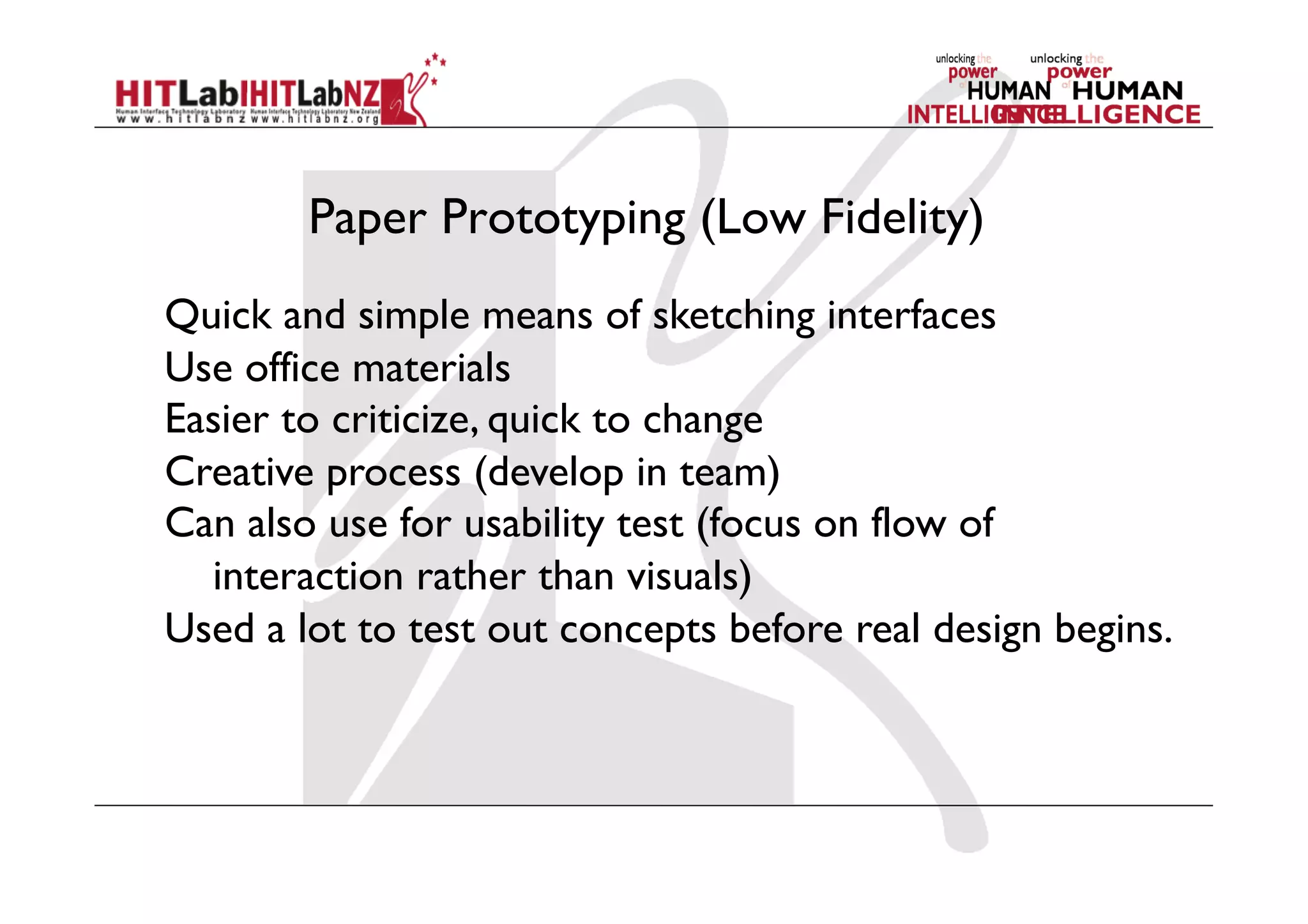
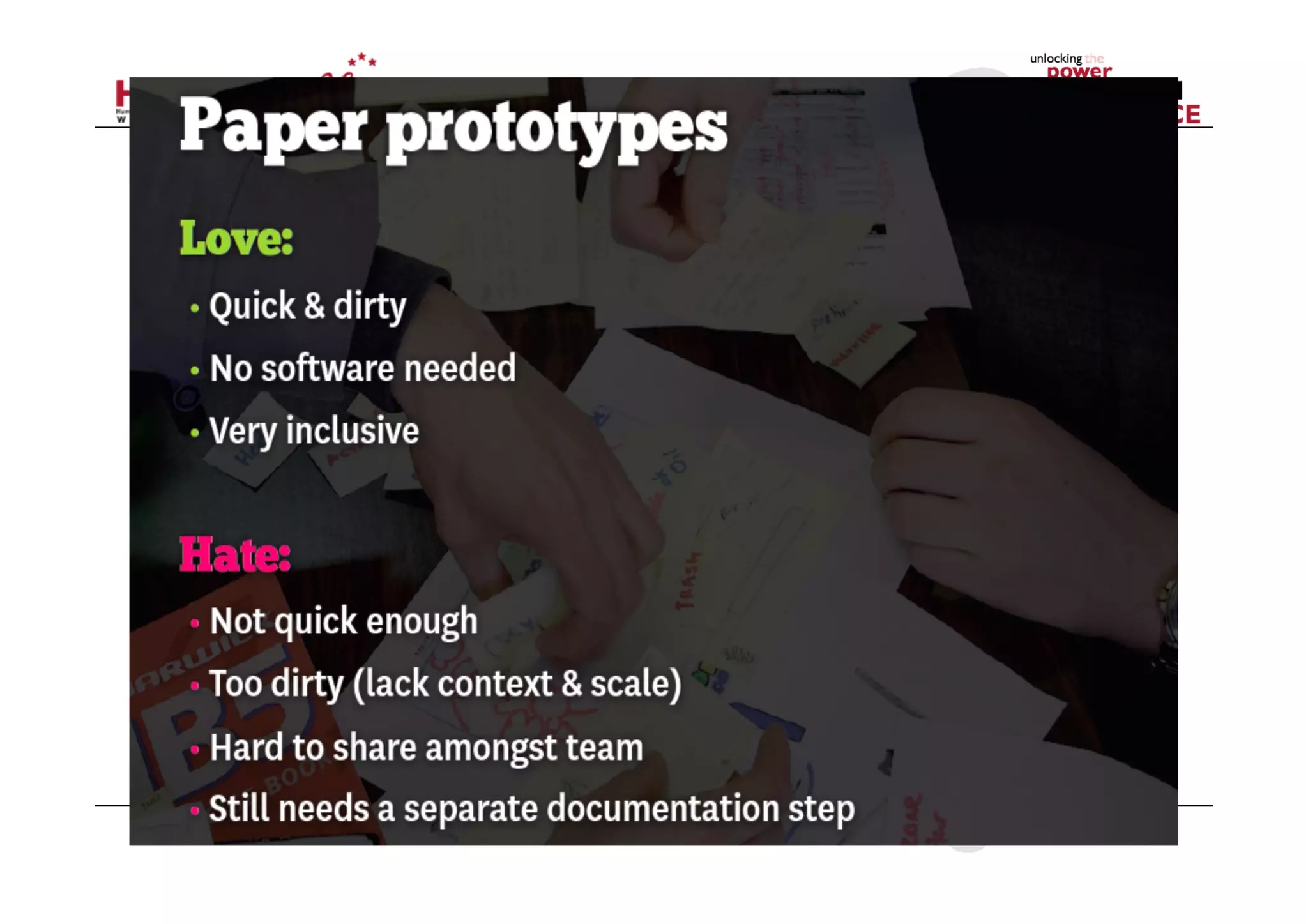
Paper Prototyping (Low Fidelity)
Quick and simple means of sketching interfaces
Use office materials
Easier to criticize, quick to change
Creative process (develop in team)
Can also use for usability test (focus on flow of
interaction rather than visuals)
Used a lot to test out concepts before real design begins.
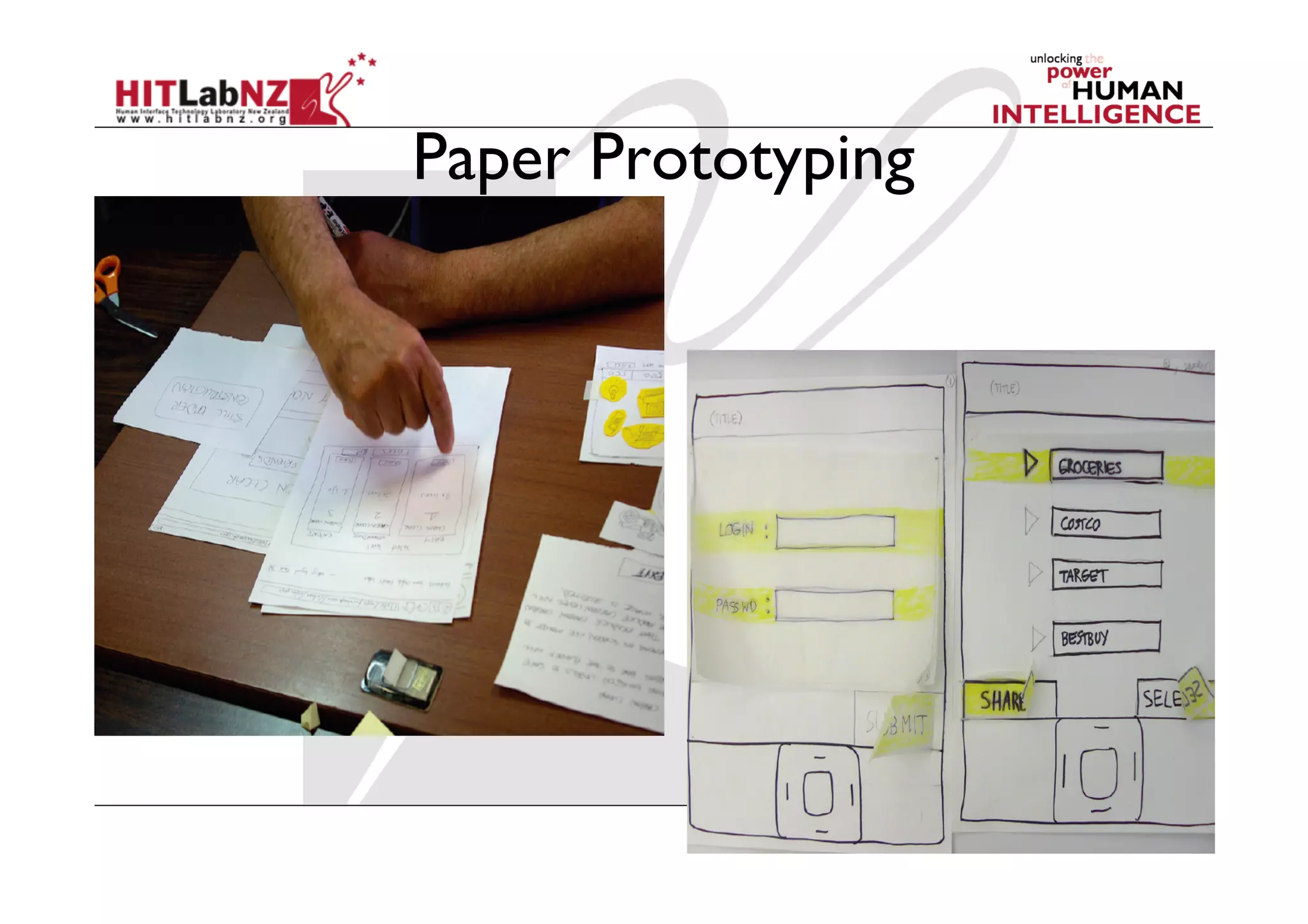
Paper Prototyping
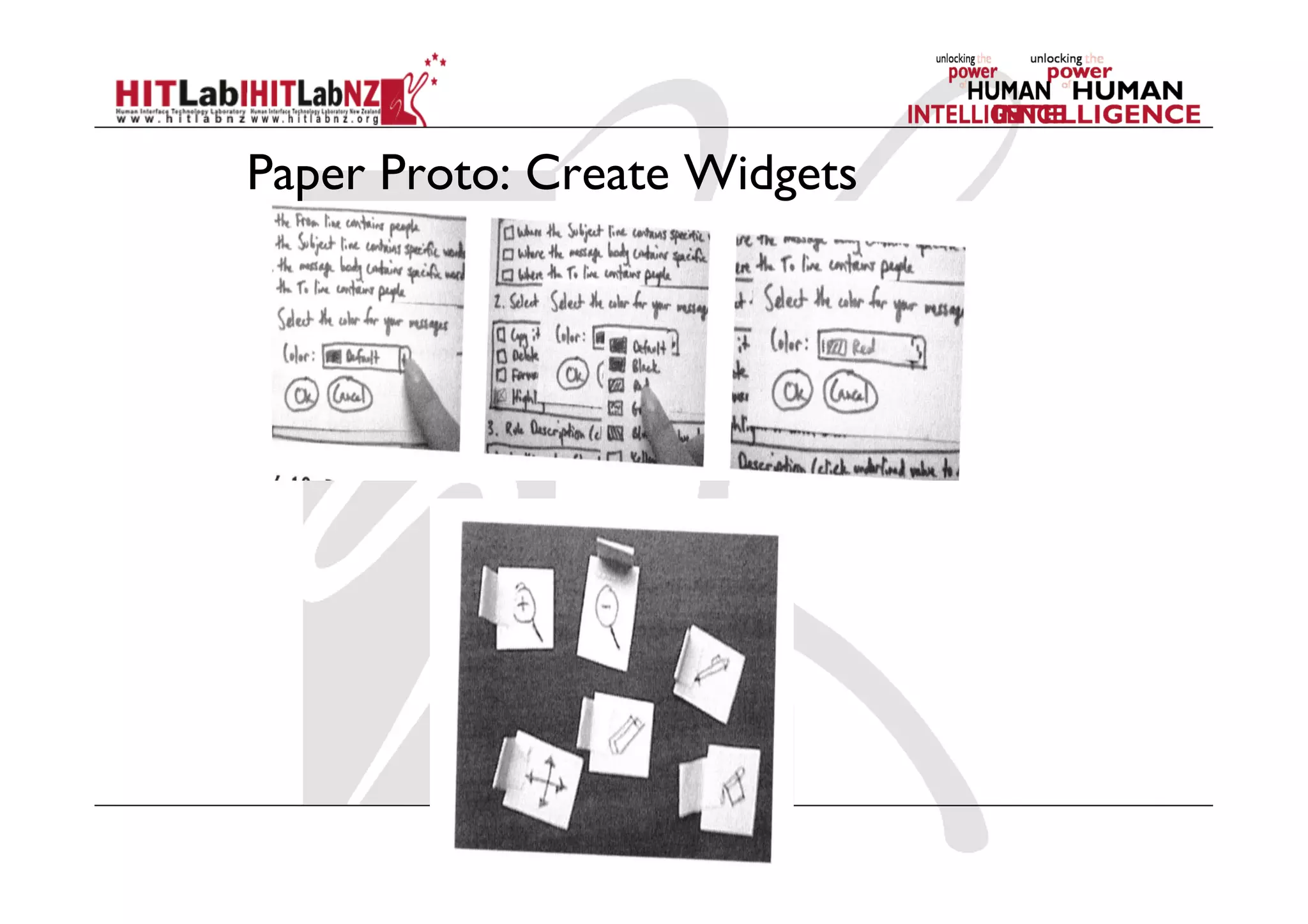
Paper Proto: Create Widgets
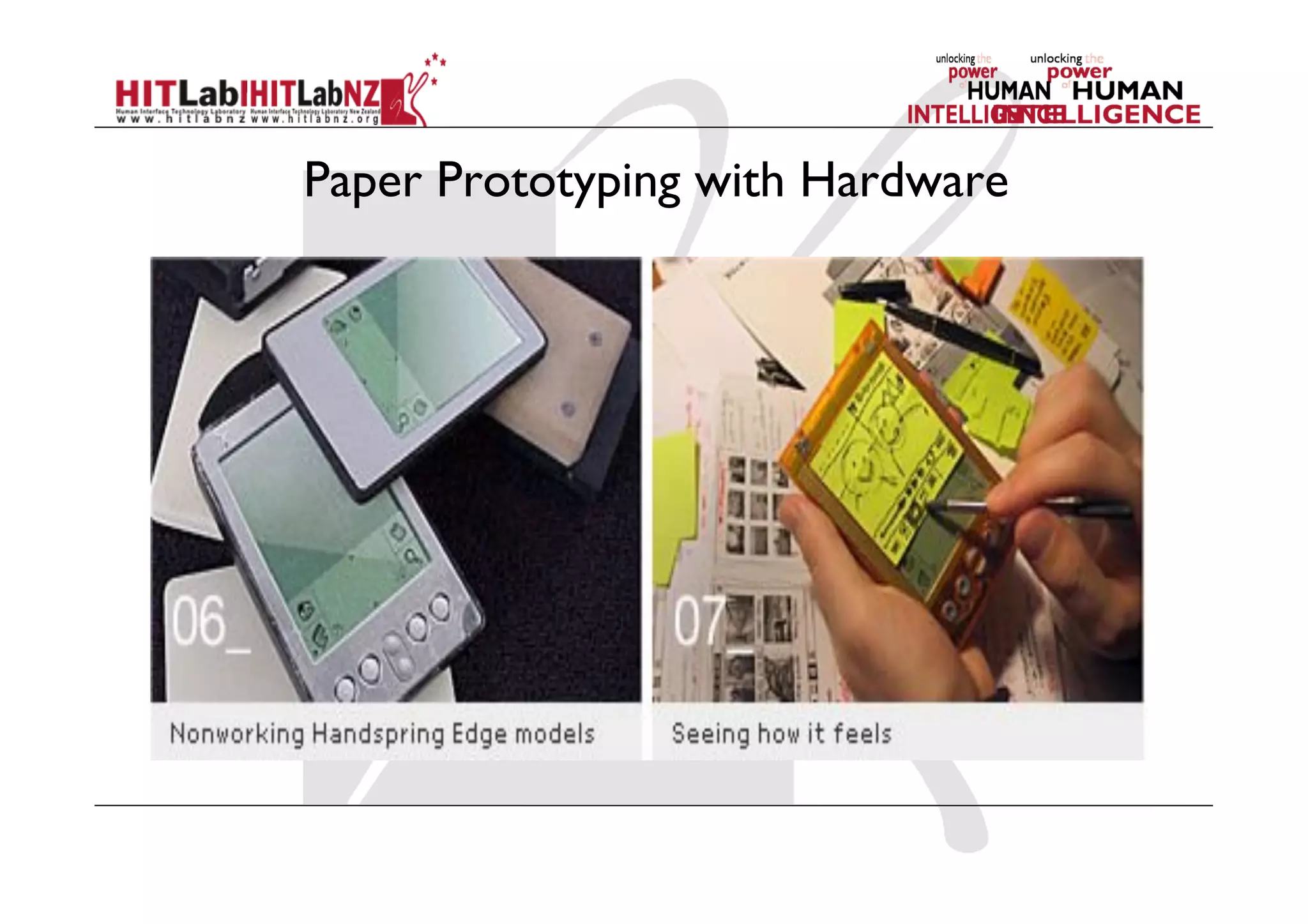
Paper Prototyping with Hardware
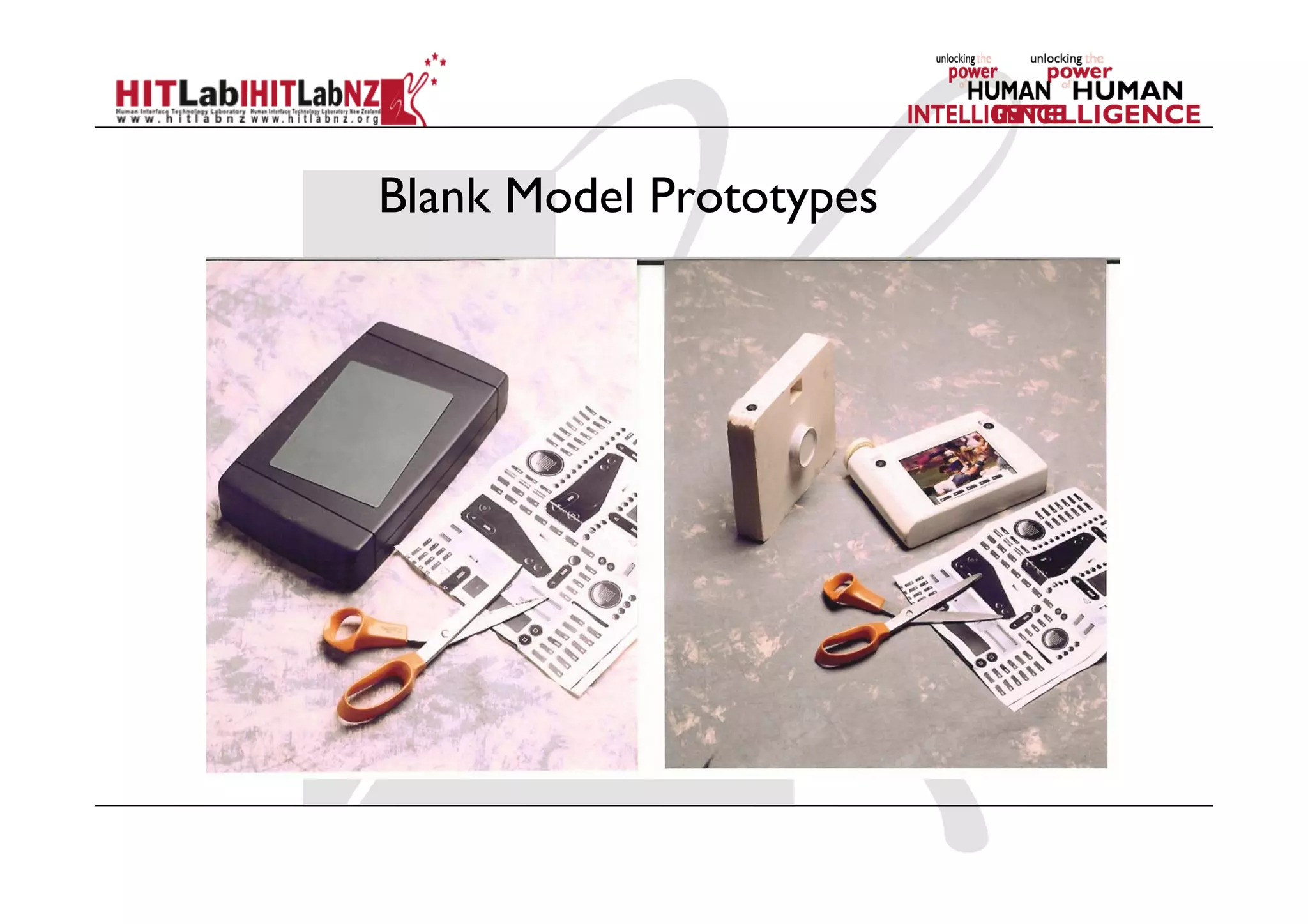
Blank Model Prototypes
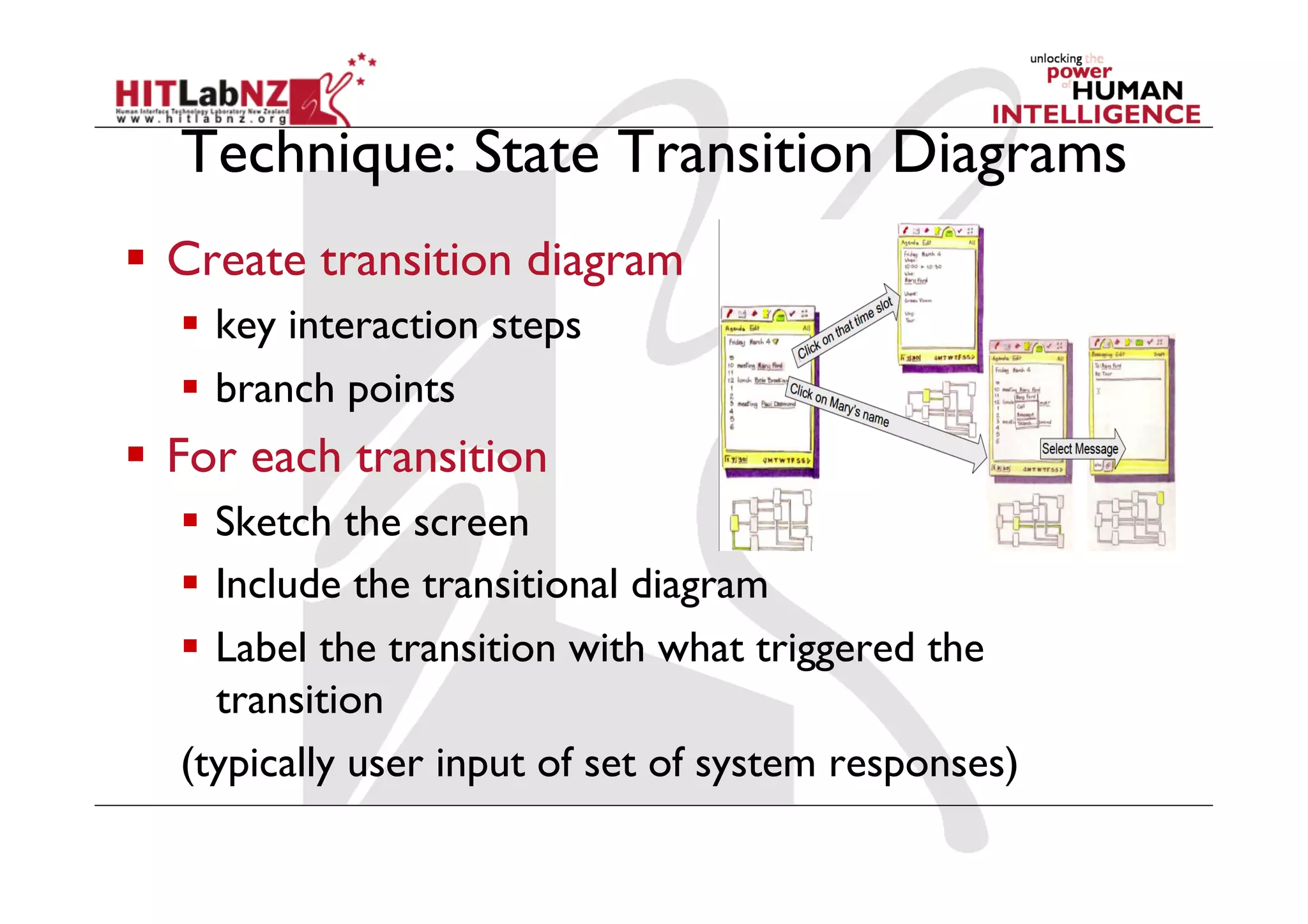
Technique: State Transition Diagrams
  Create transition diagram
  key interaction steps
  branch points
  For each transition
  Sketch the screen
  Include the transitional diagram
  Label the transition with what triggered the
transition
(typically user input of set of system responses)
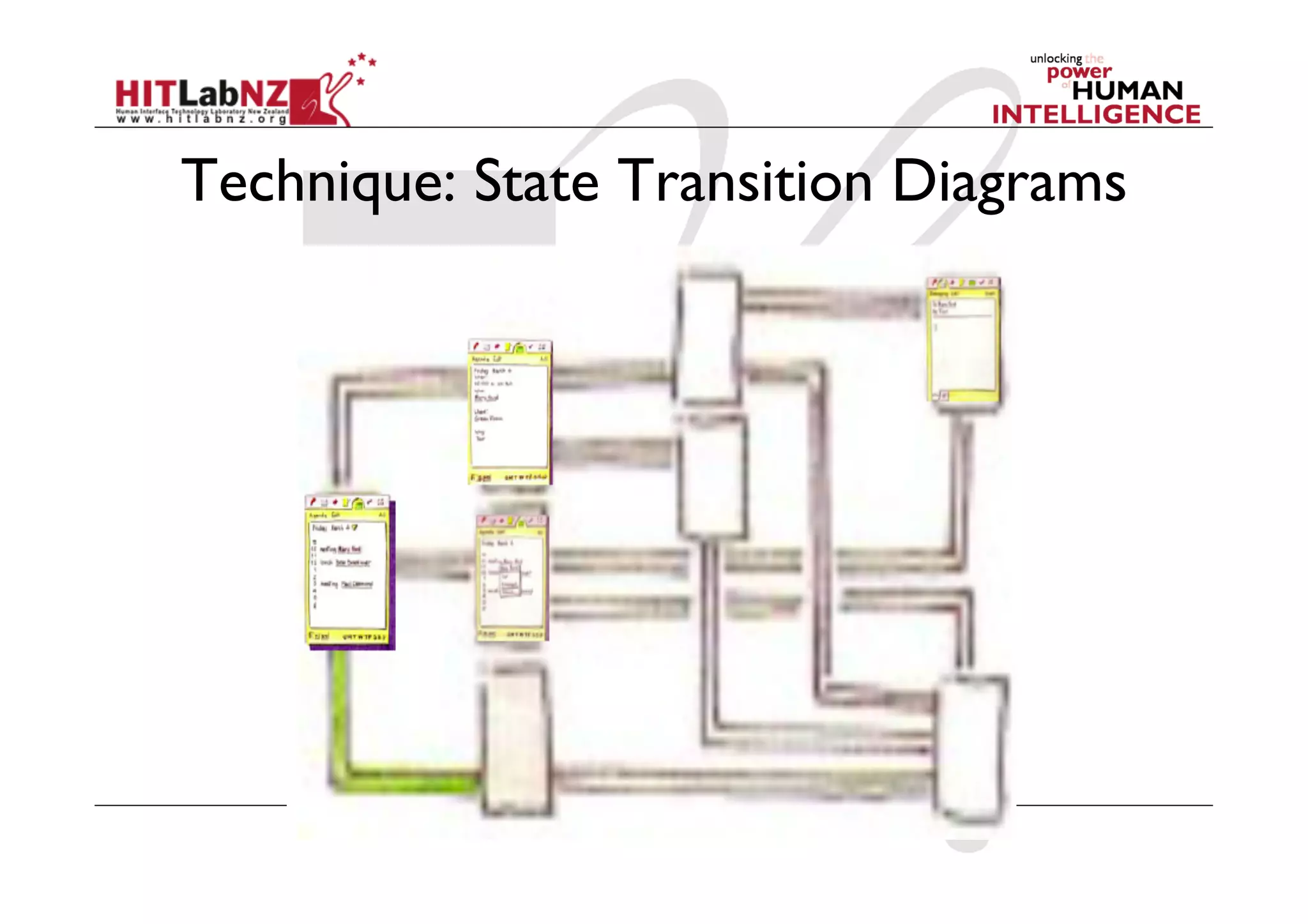
Technique: State Transition Diagrams
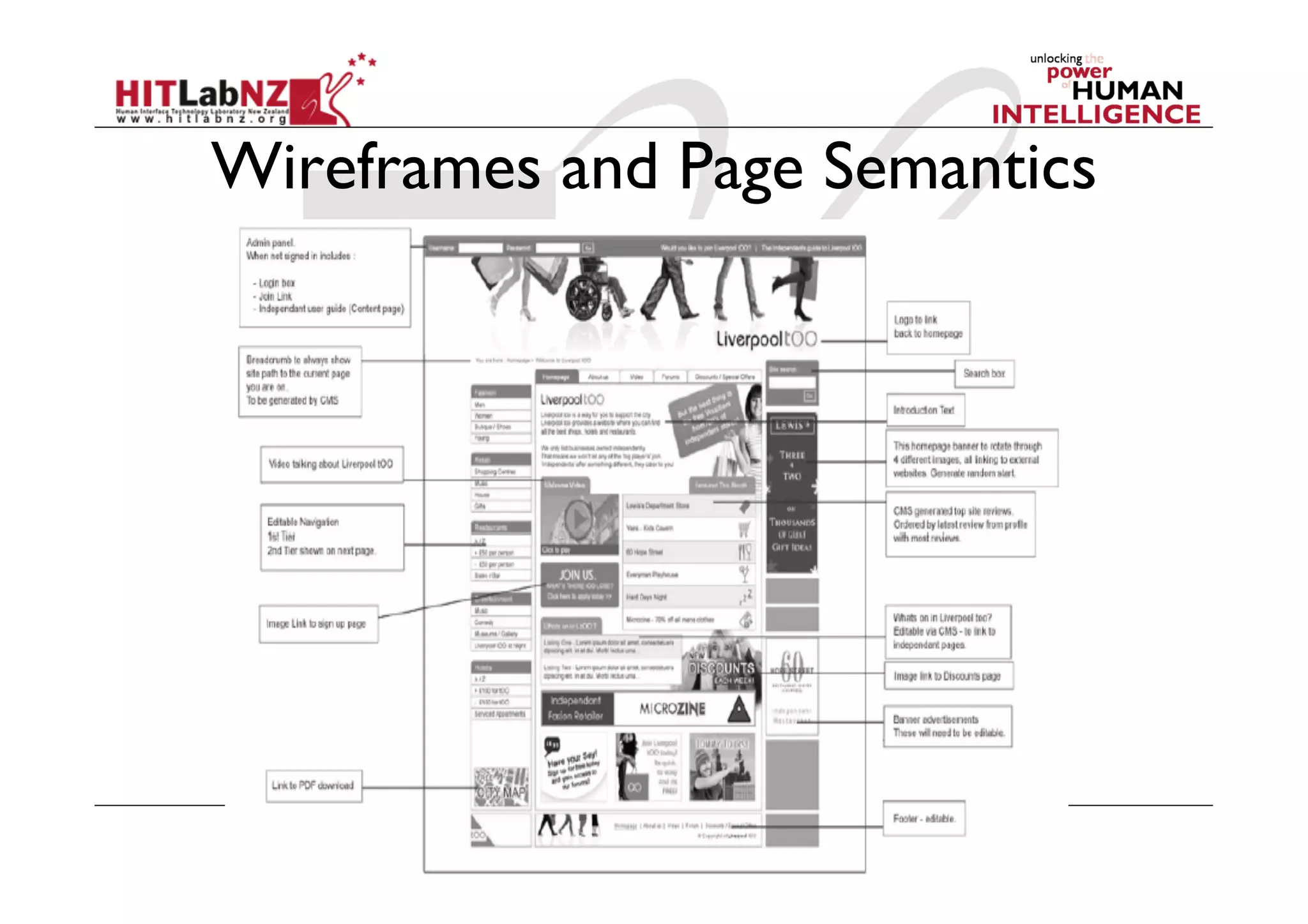
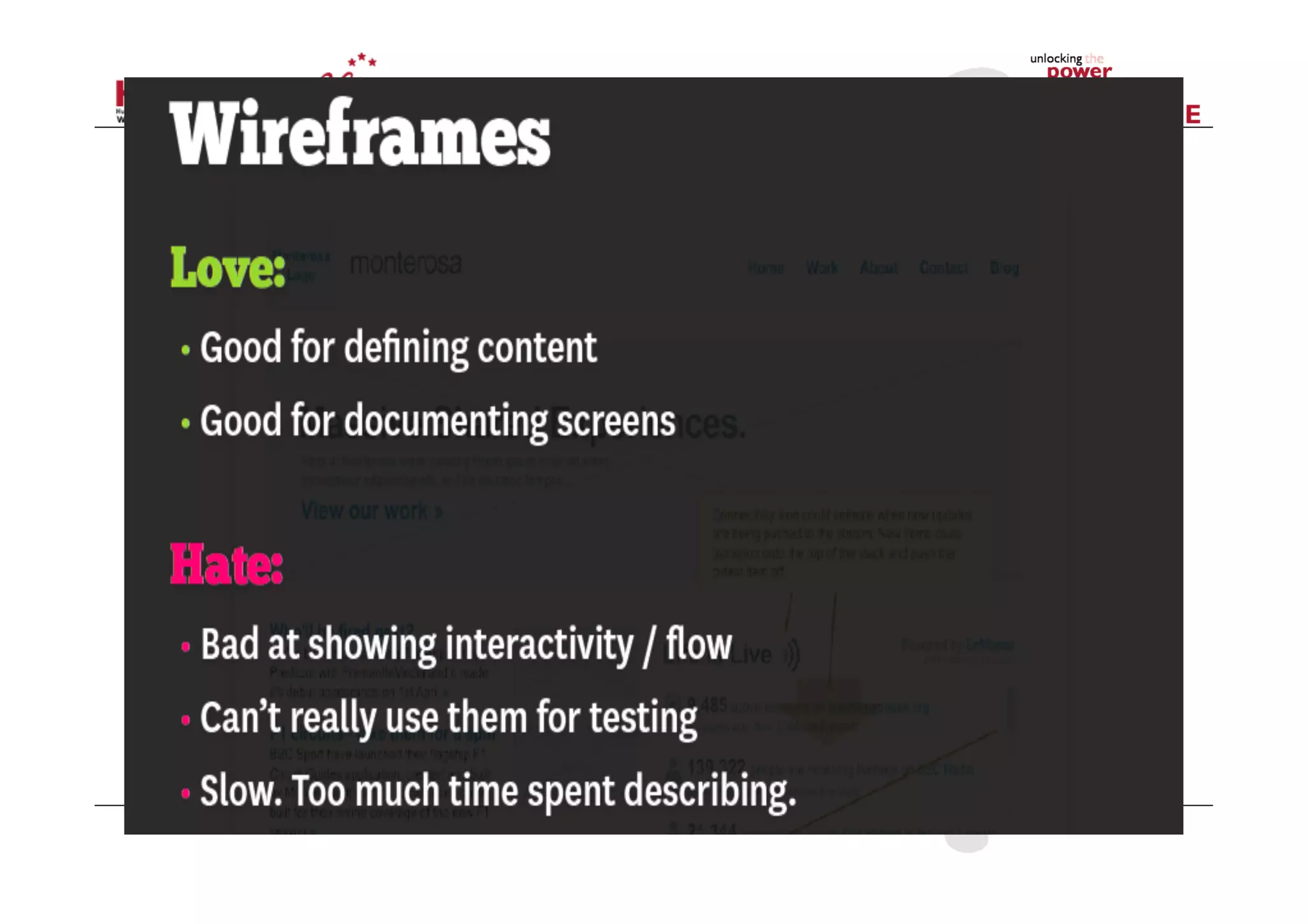
Wireframes and Page Semantics
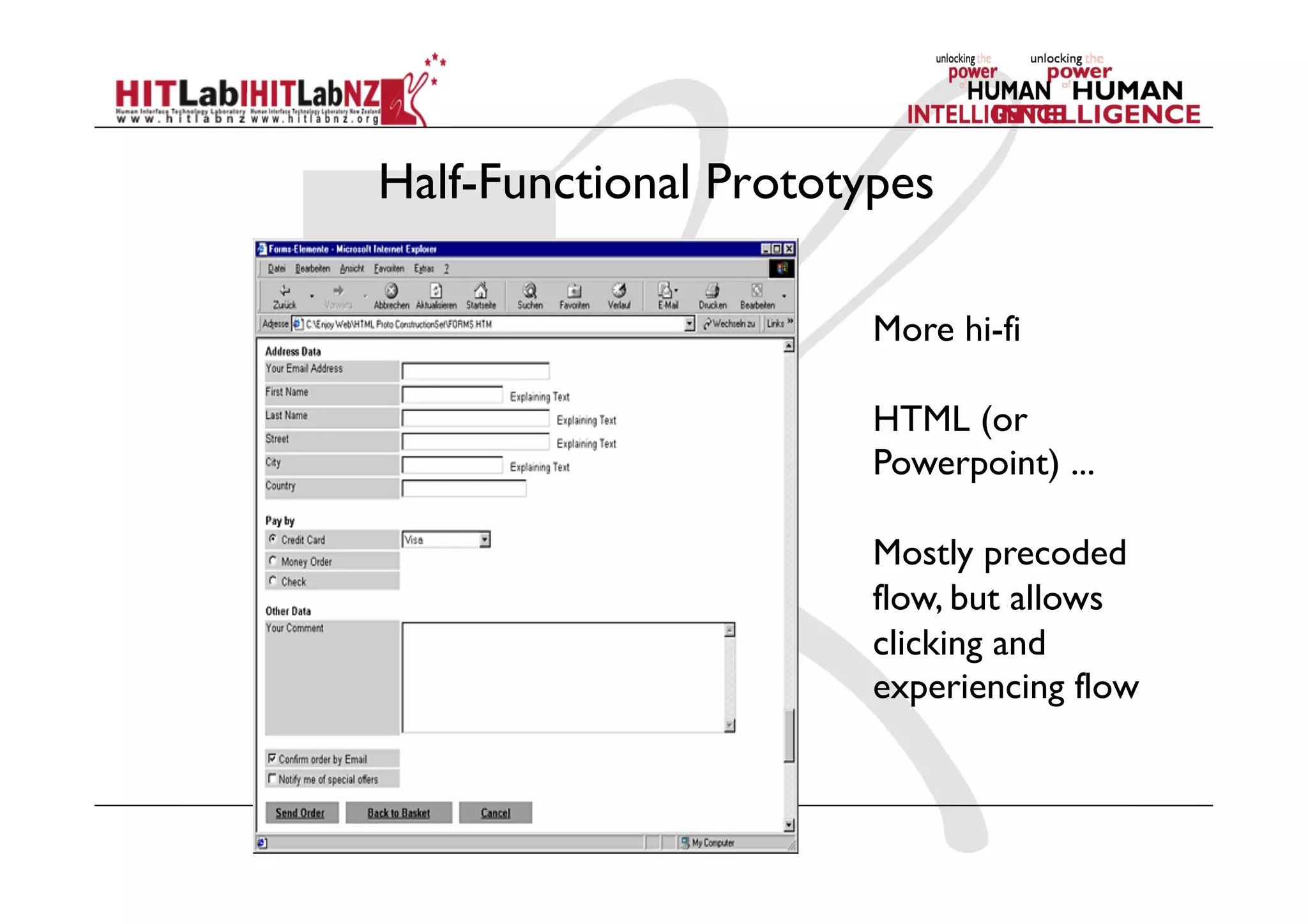
Half-Functional Prototypes
More hi-fi
HTML (or
Powerpoint) ...
Mostly precoded
flow, but allows
clicking and
experiencing flow
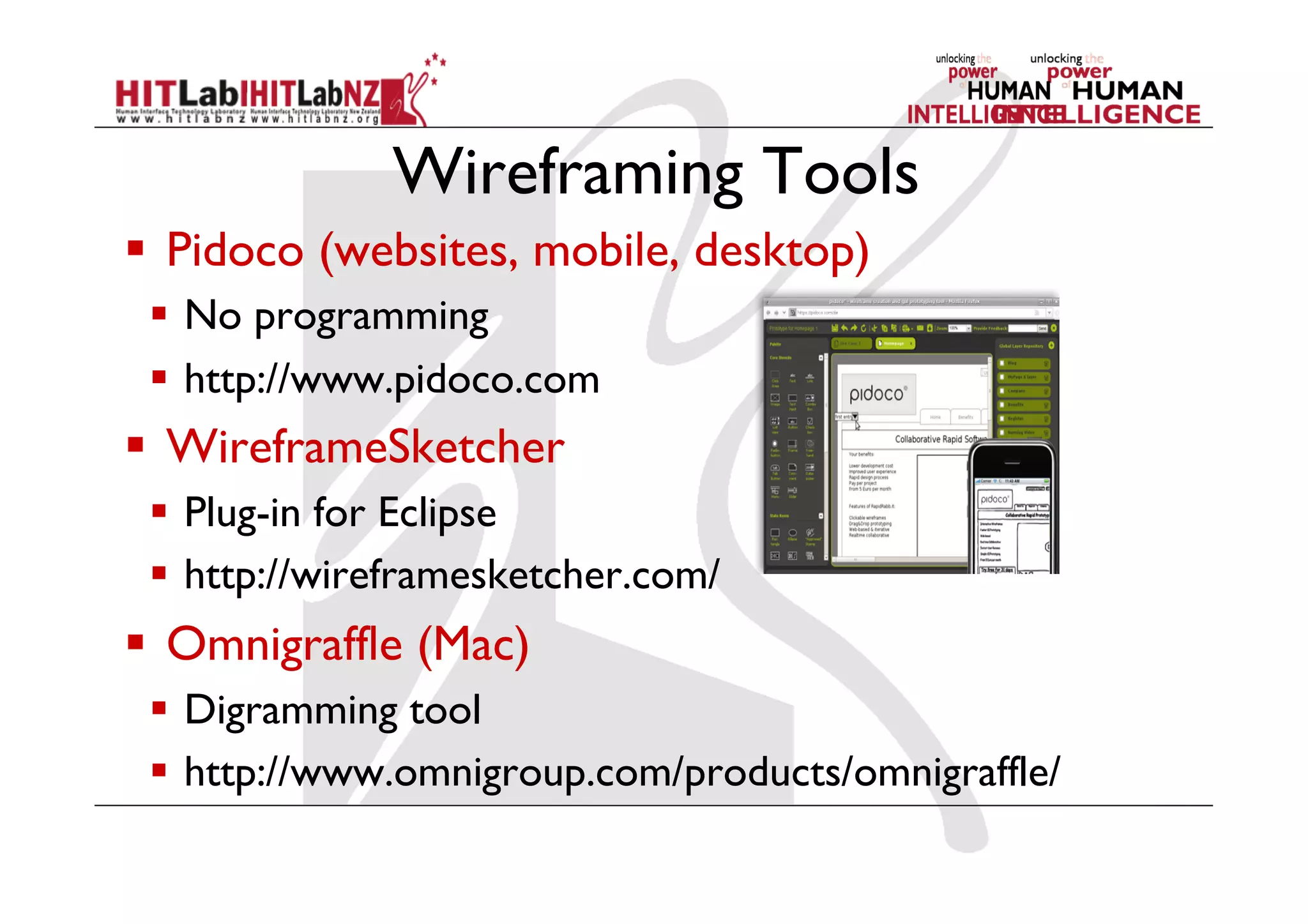
Wireframing Tools
  Pidoco (websites, mobile, desktop)
  No programming
  http://www.pidoco.com
  WireframeSketcher
  Plug-in for Eclipse
  http://wireframesketcher.com/
  Omnigraffle (Mac)
  Digramming tool
  http://www.omnigroup.com/products/omnigraffle/
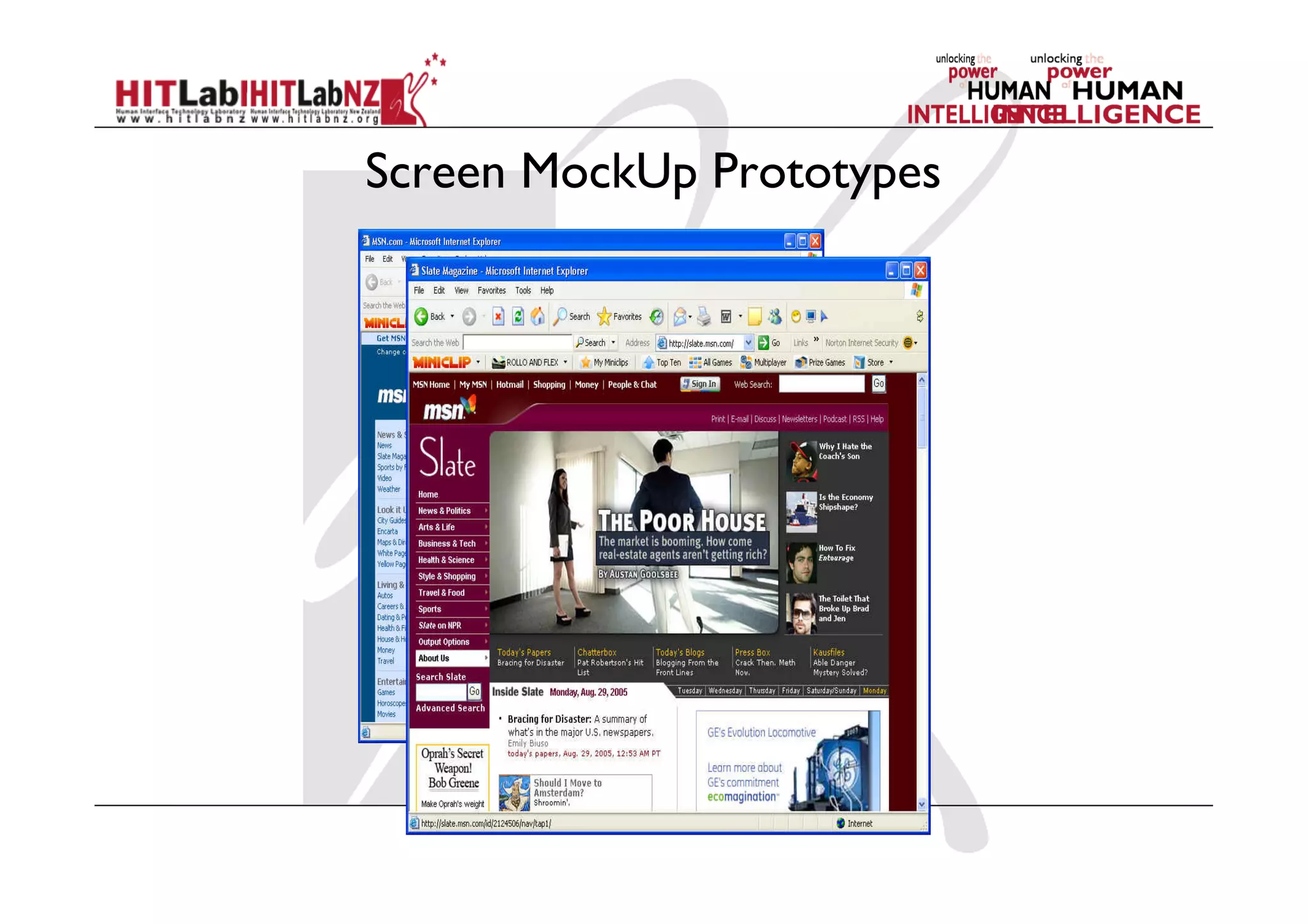
Screen MockUp Prototypes
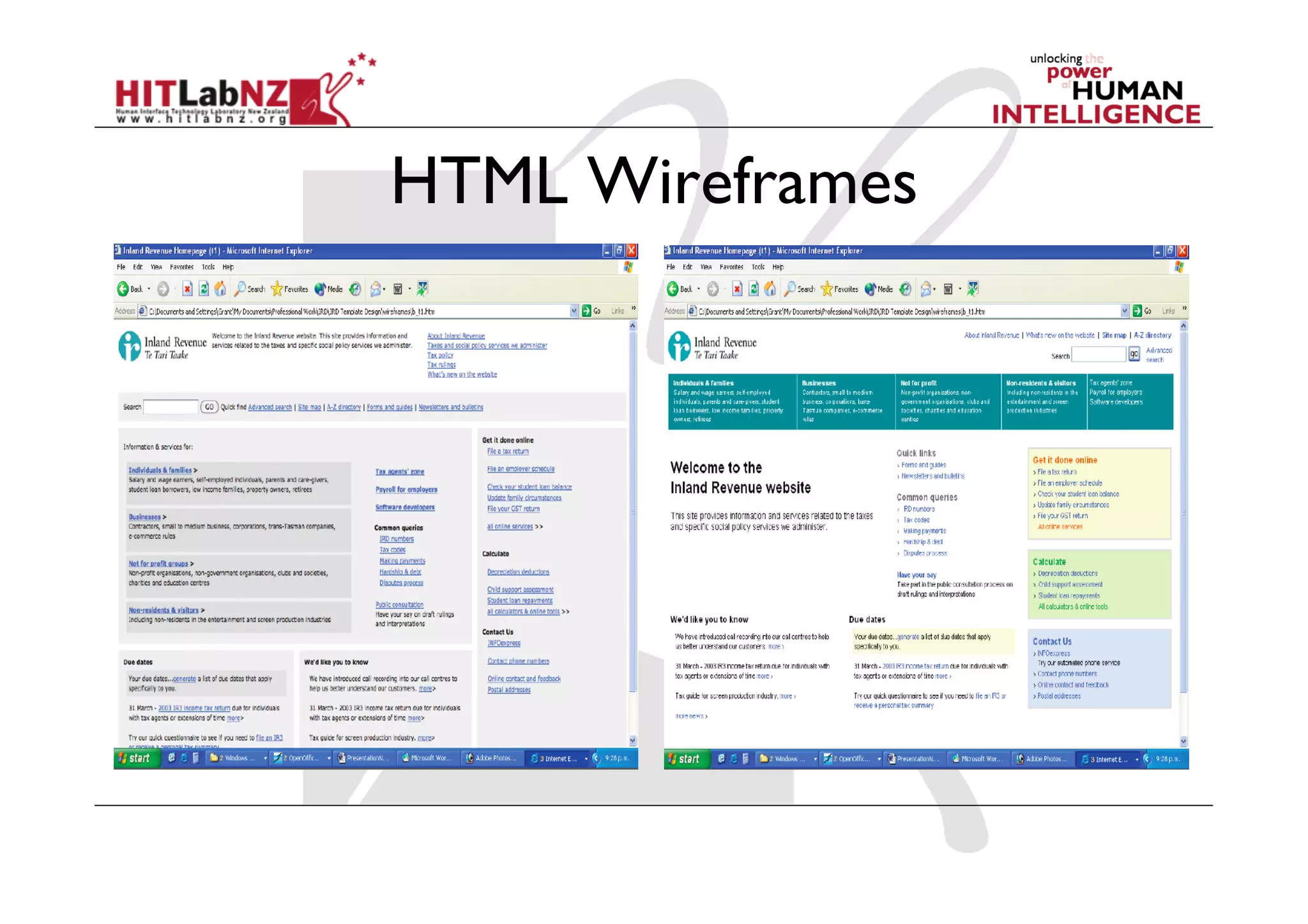
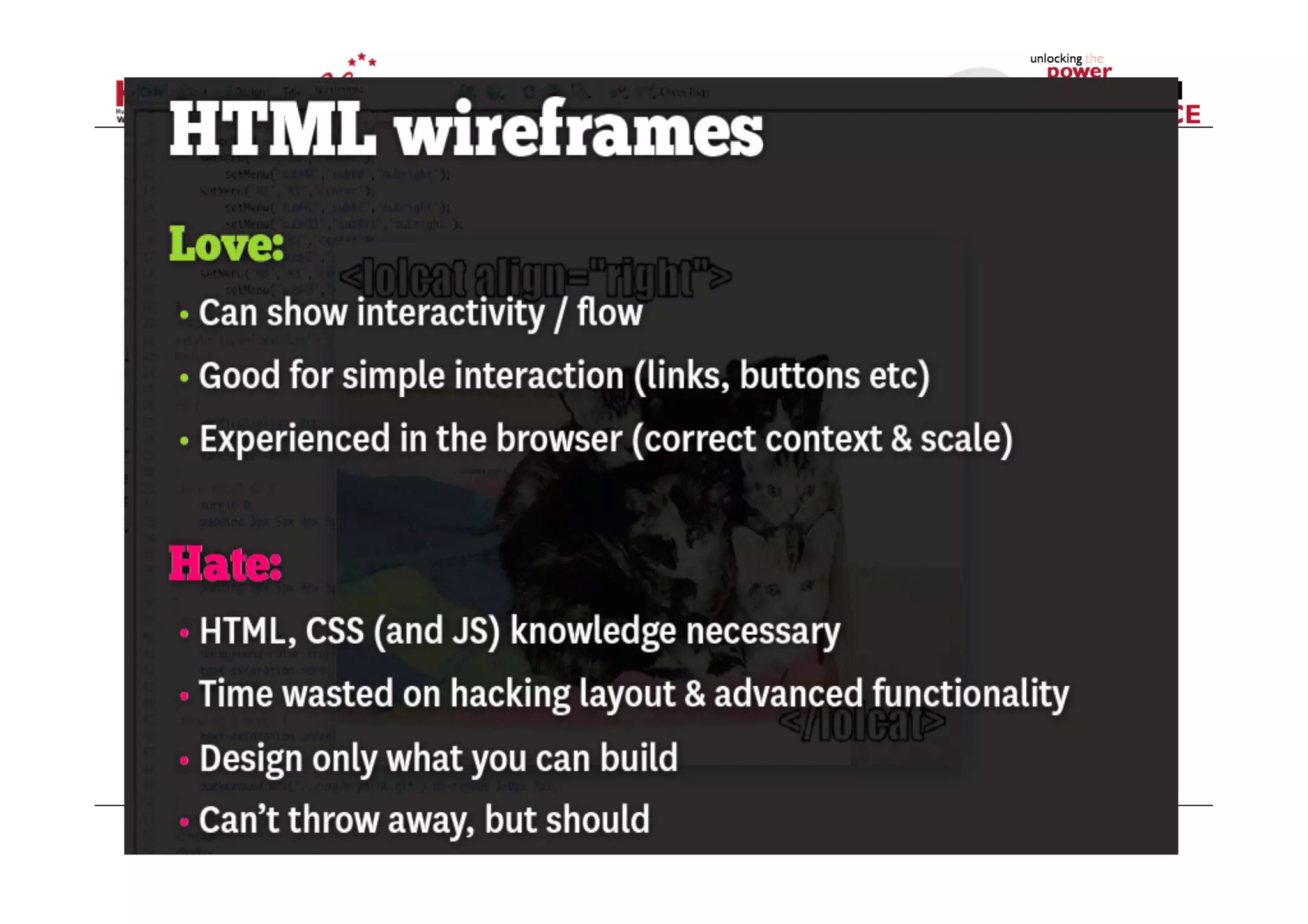
HTML Wireframes
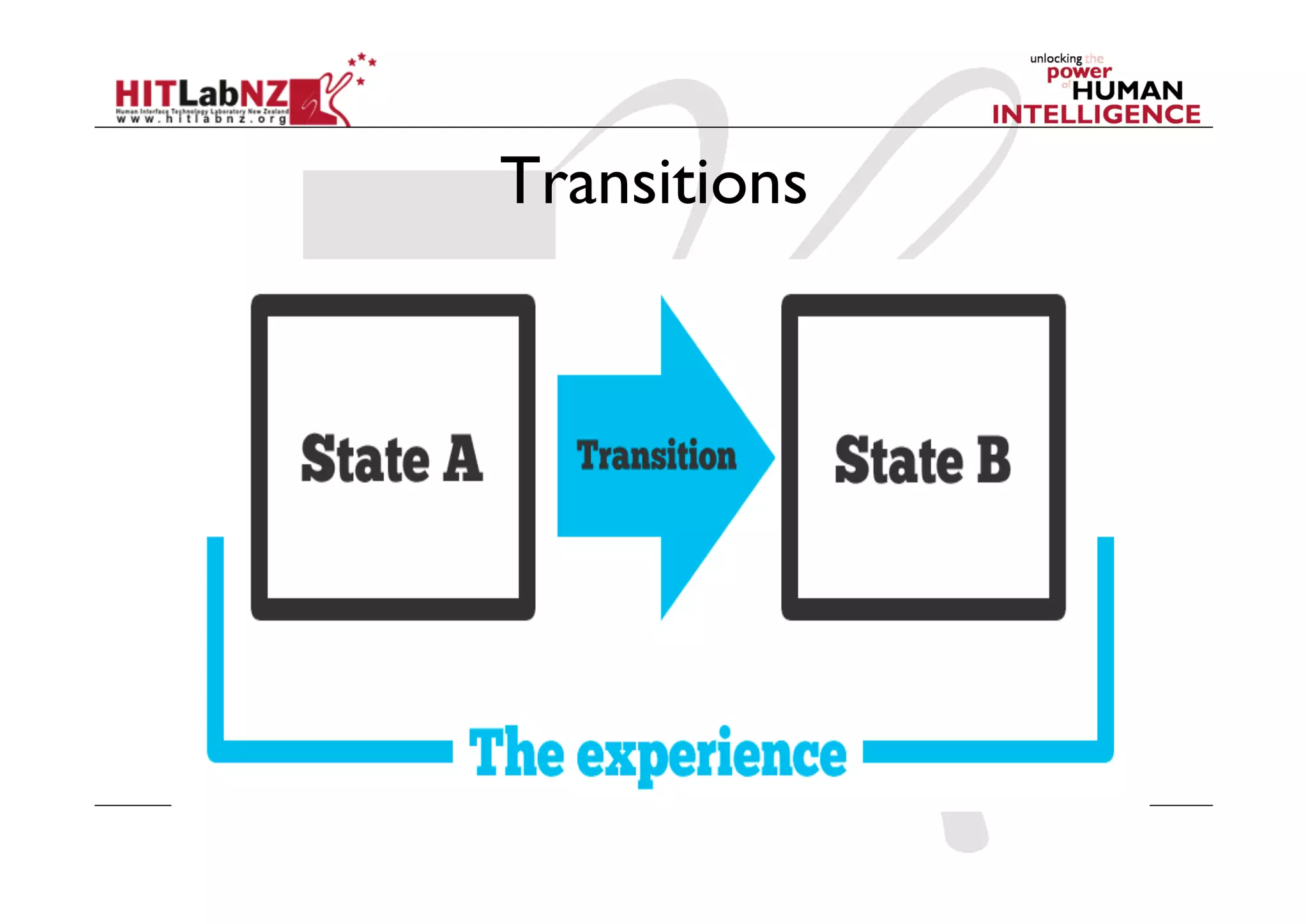
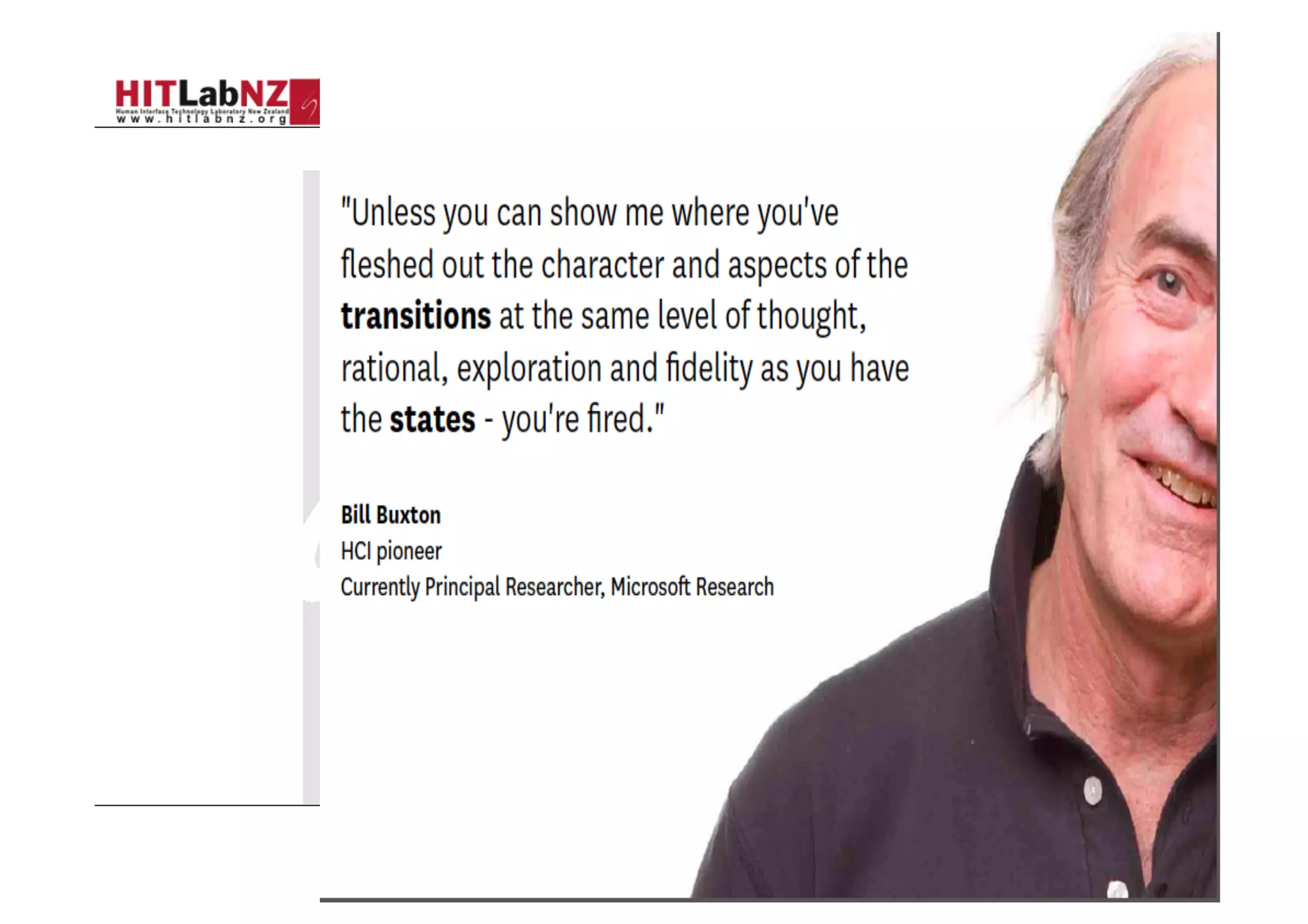
Transitions
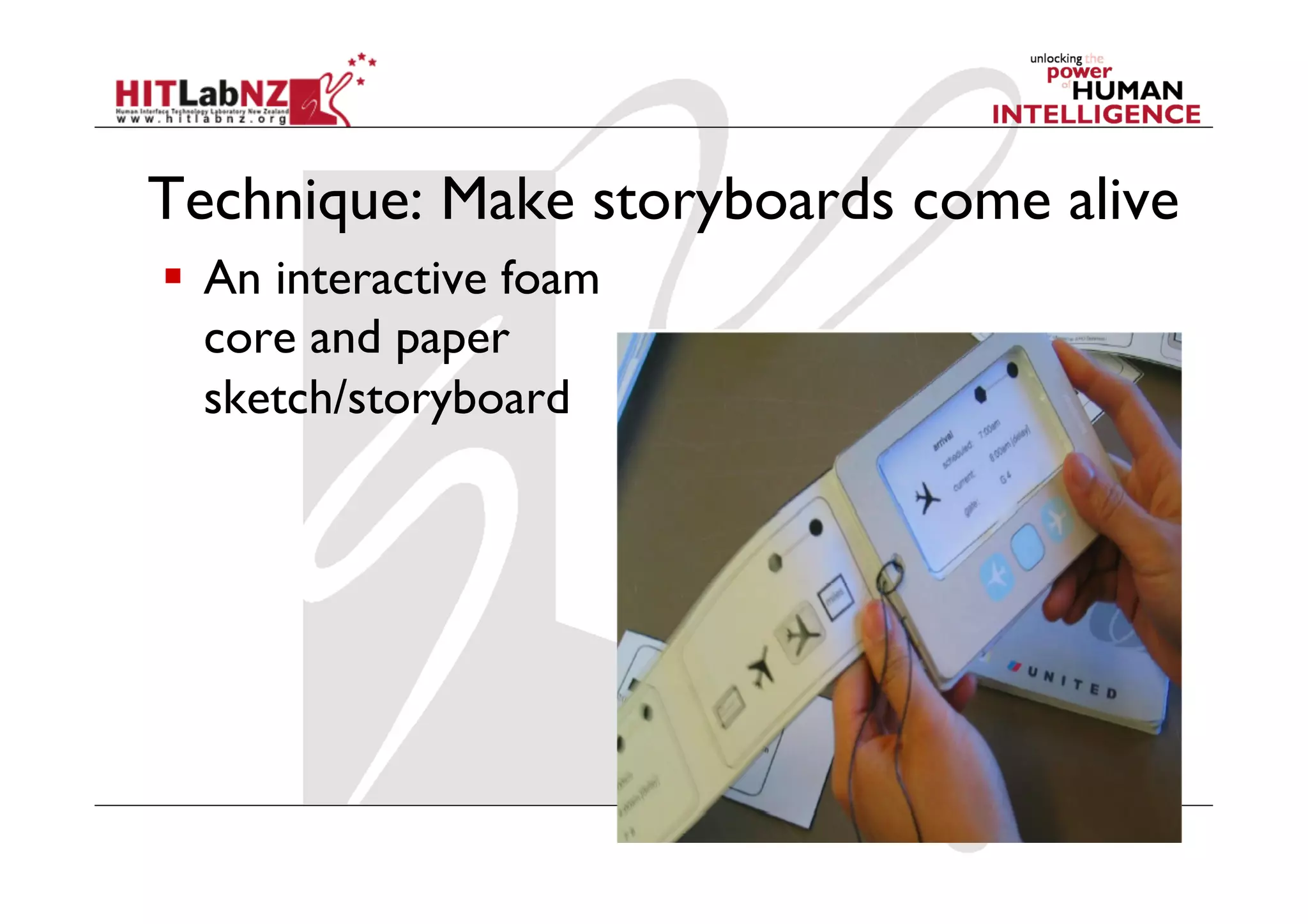
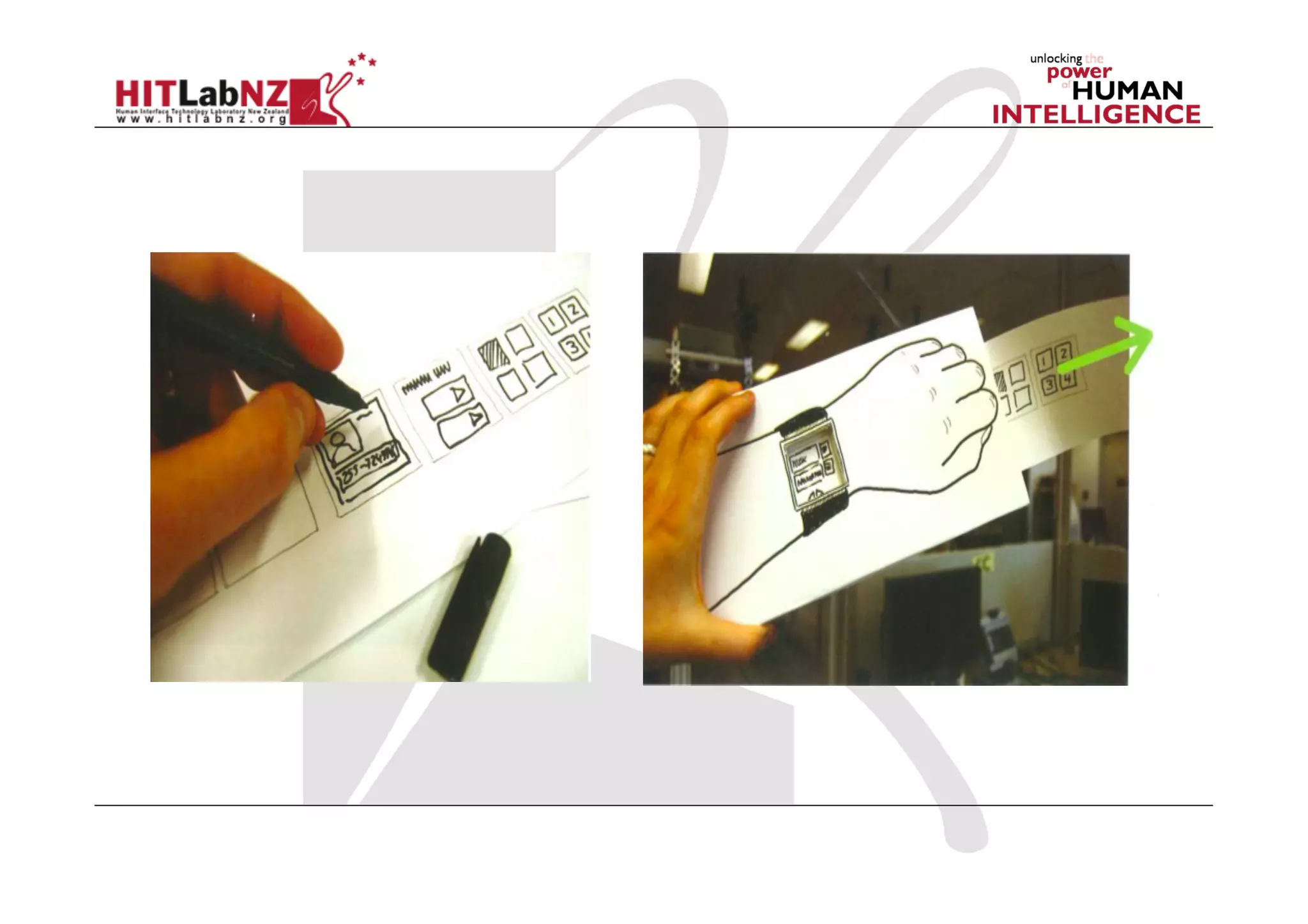
Technique: Make storyboards come alive
  An interactive foam
core and paper
sketch/storyboard
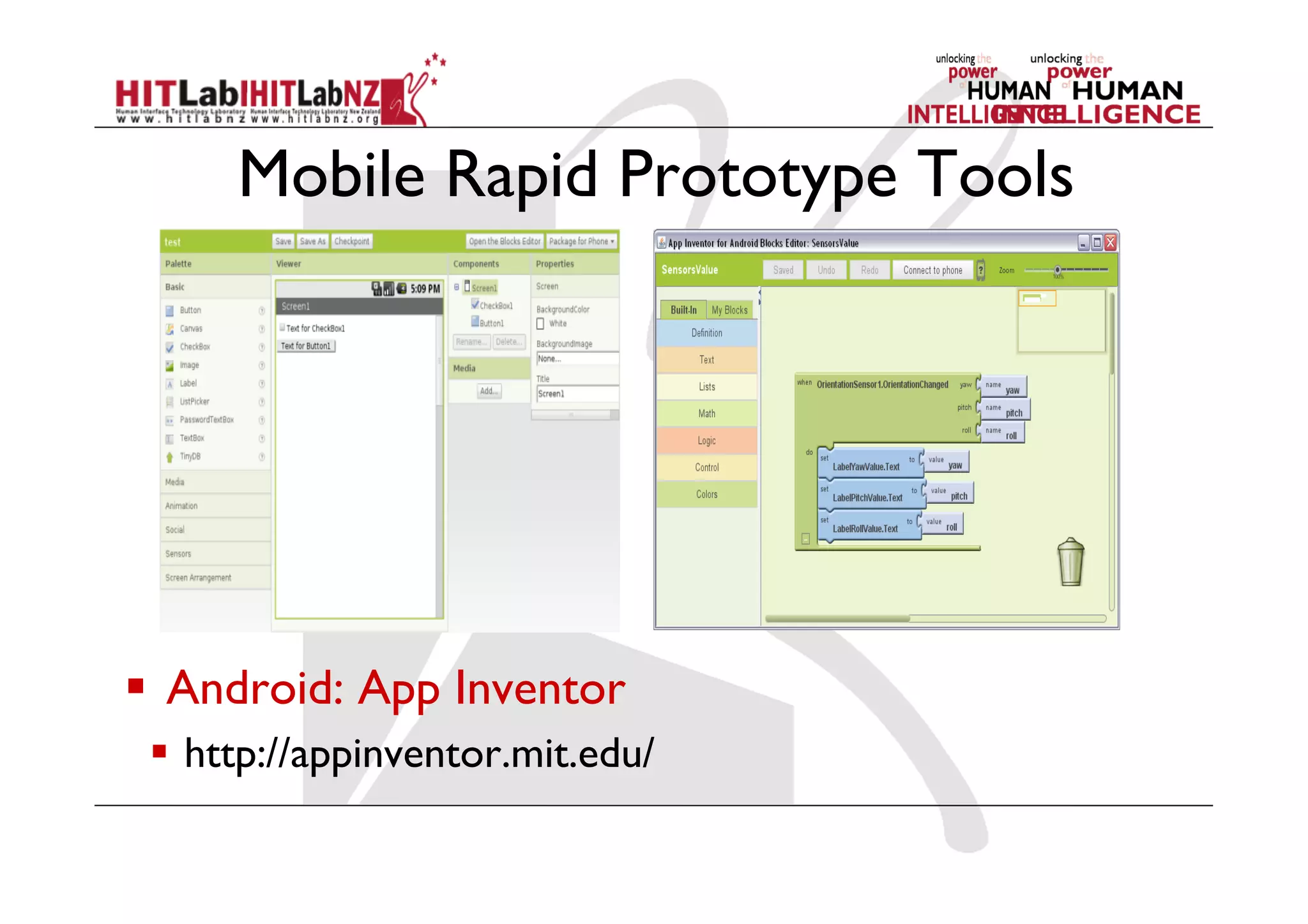
Mobile Rapid Prototype Tools
  Android: App Inventor
  http://appinventor.mit.edu/
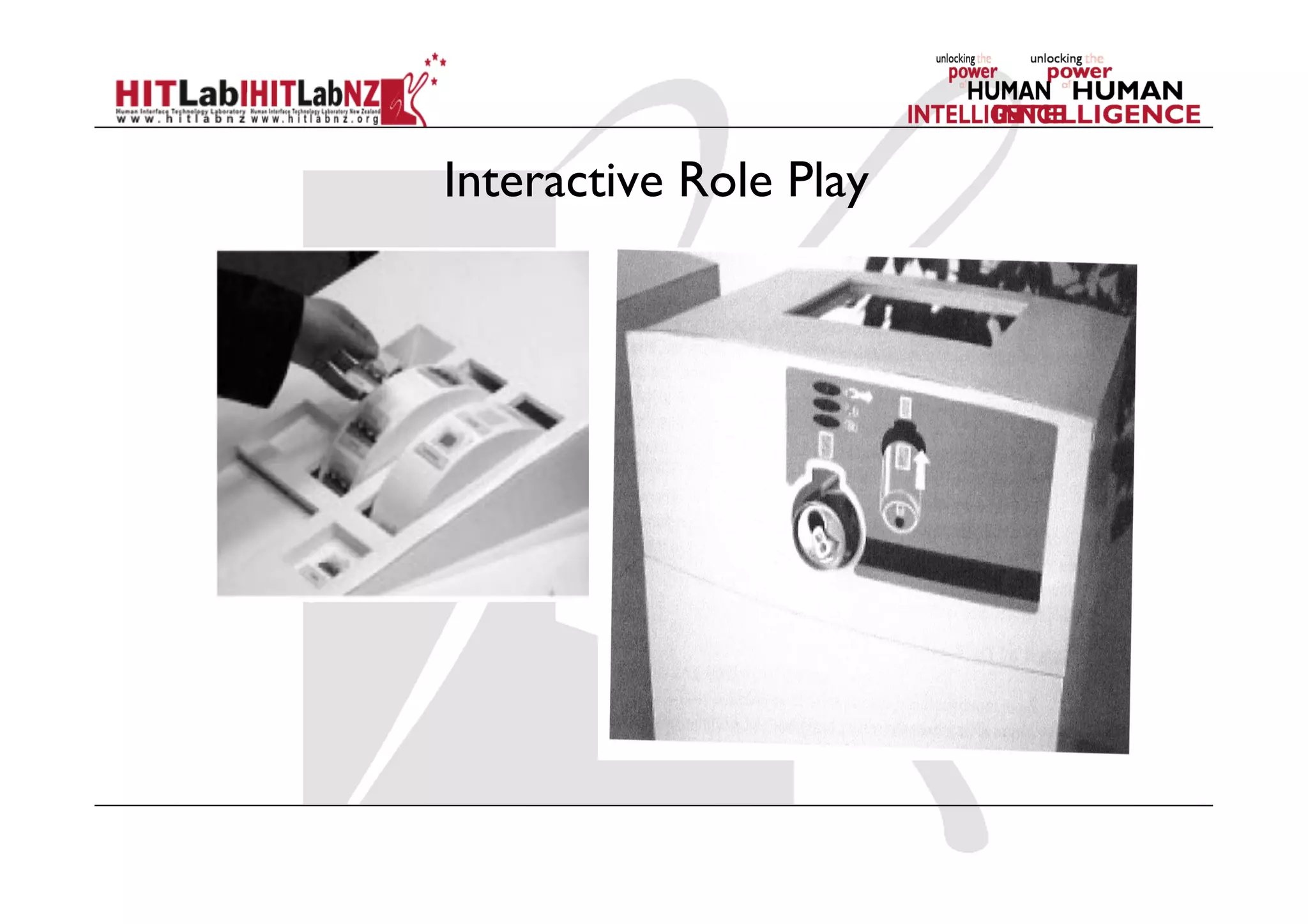
Interactive Role Play
High-fidelity prototyping
•  Uses materials that you would expect to be in the
final product.
•  Prototype looks more like the final system than a
low-fidelity version.
•  For a high-fidelity software prototype common
environments include Macromedia Director,Visual
Basic, and Smalltalk.
•  Danger that users think they have a full
system…….see compromises
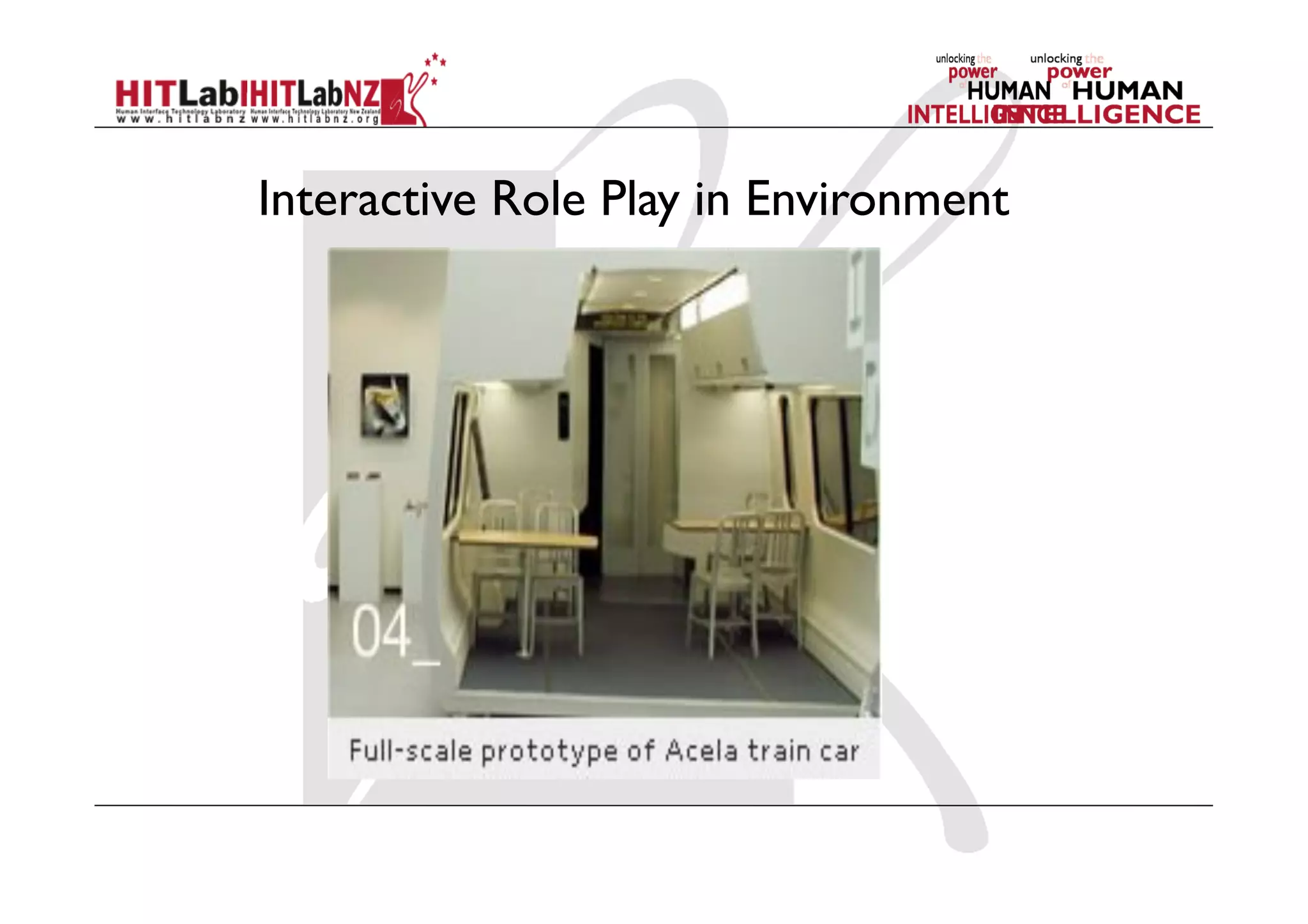
Interactive Role Play in Environment
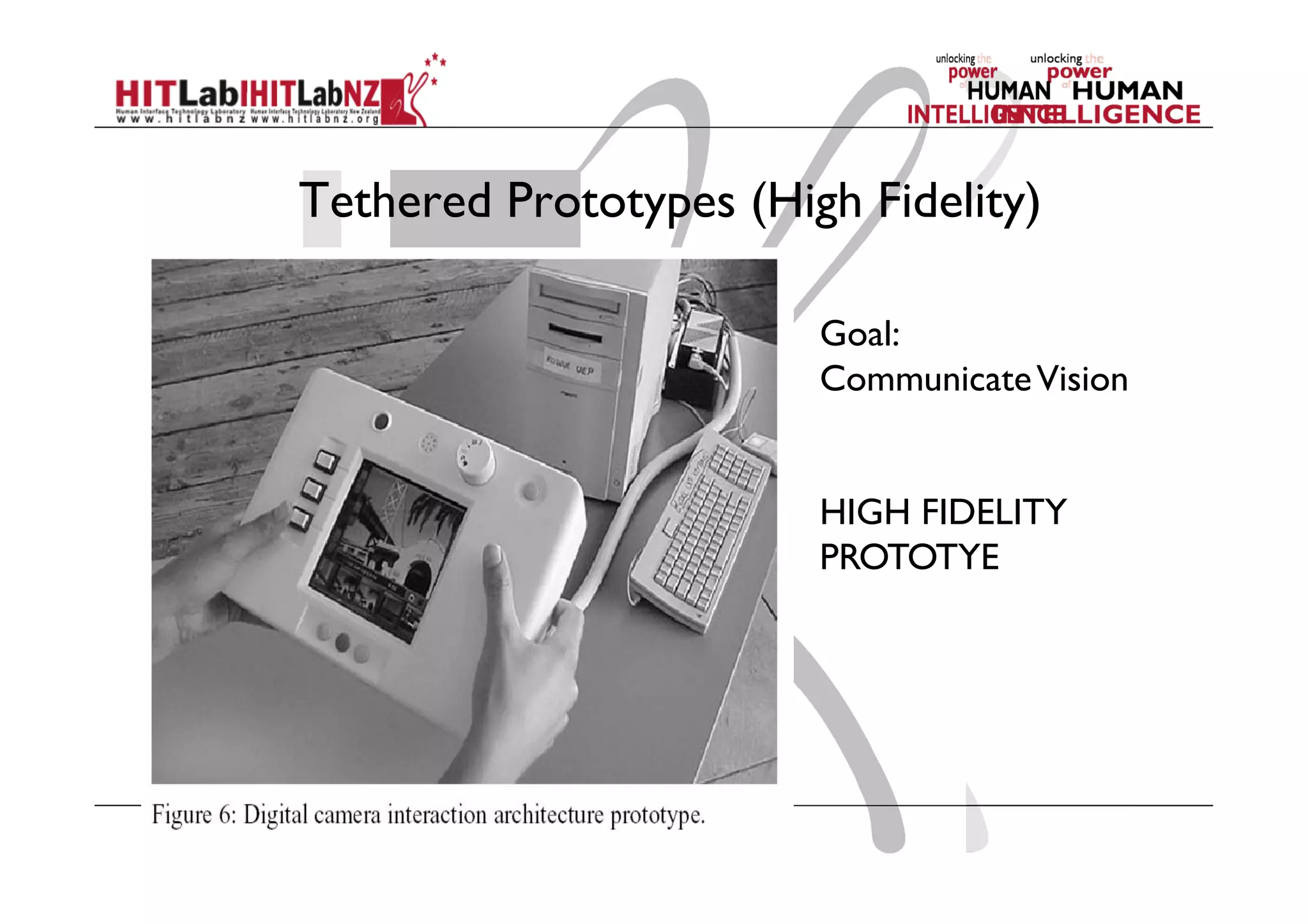
Tethered Prototypes (High Fidelity)
Goal:
CommunicateVision
HIGH FIDELITY
PROTOTYE
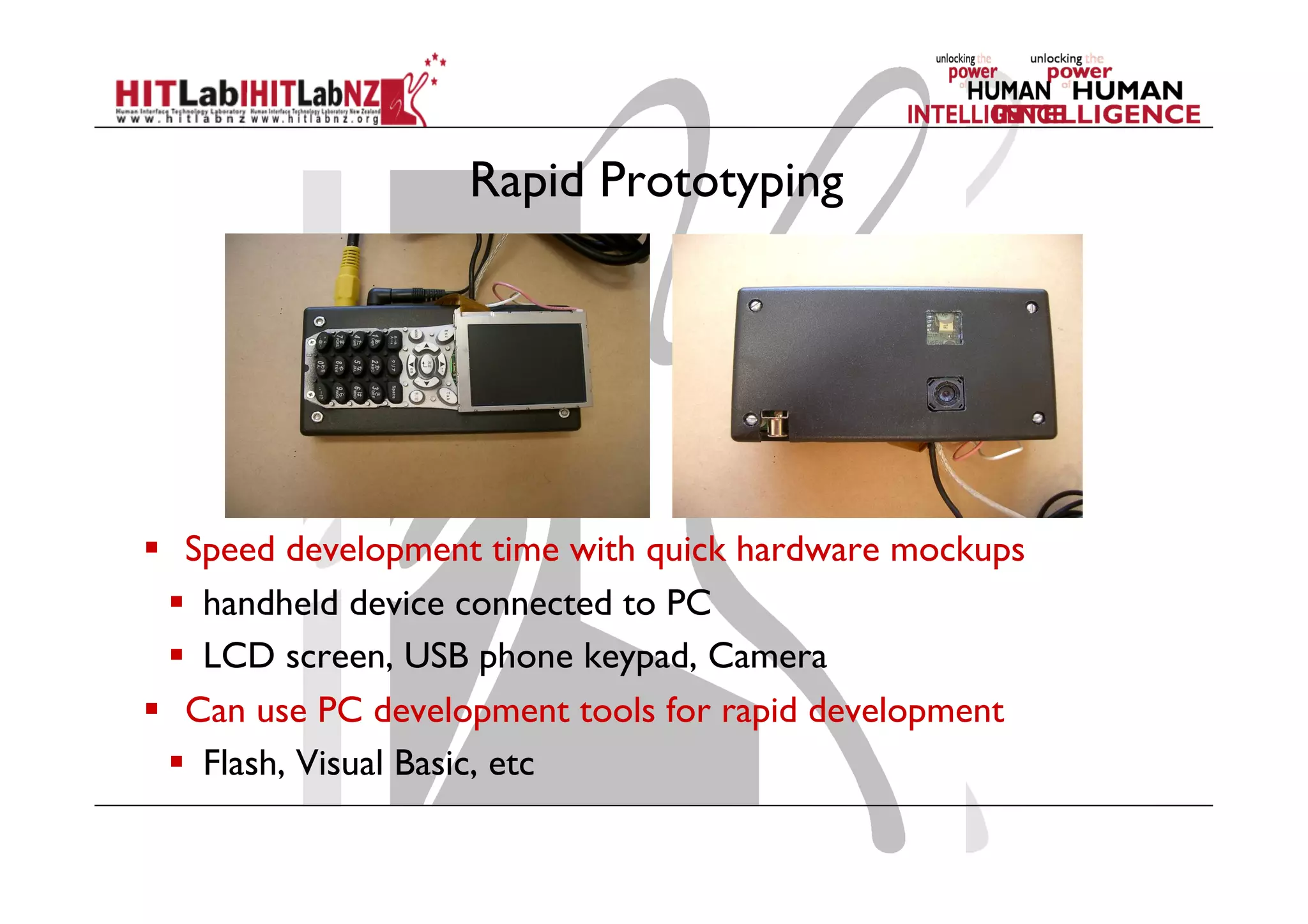
Rapid Prototyping
  Speed development time with quick hardware mockups
  handheld device connected to PC
  LCD screen, USB phone keypad, Camera
  Can use PC development tools for rapid development
  Flash, Visual Basic, etc
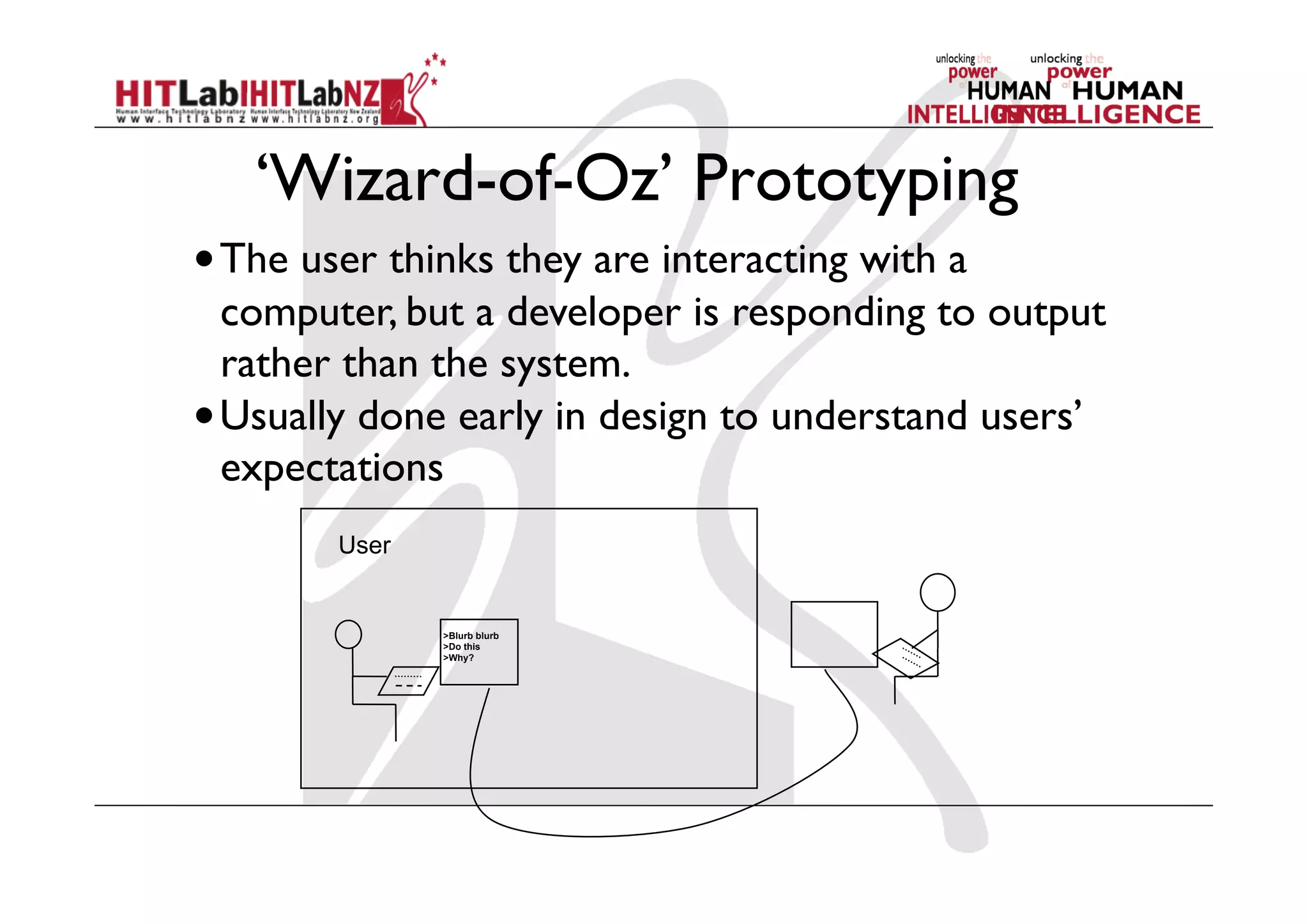
‘Wizard-of-Oz’ Prototyping
• The user thinks they are interacting with a
computer, but a developer is responding to output
rather than the system.
• Usually done early in design to understand users’
expectations
>Blurb blurb
>Do this
>Why?
User
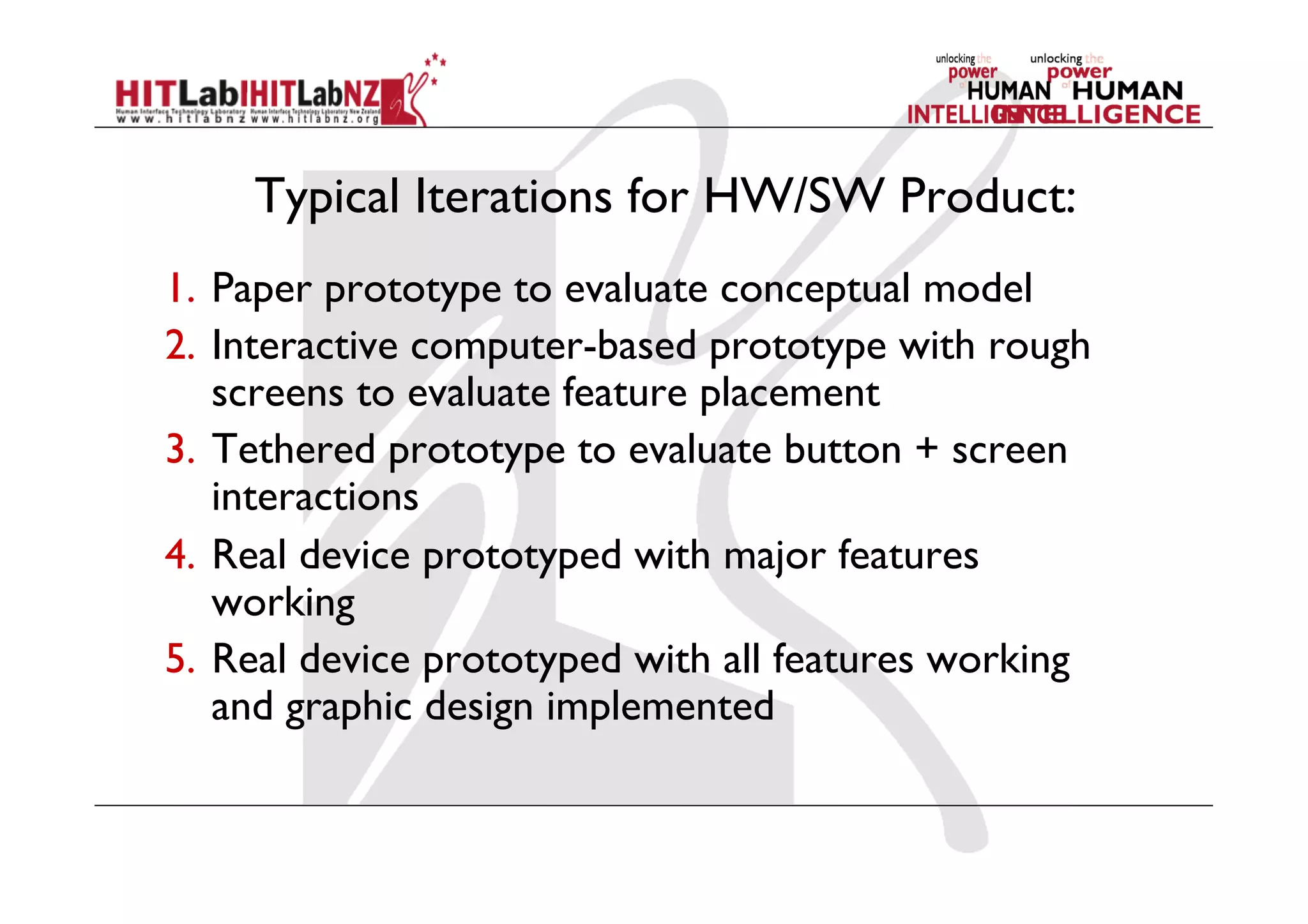
Typical Iterations for HW/SW Product:
1.  Paper prototype to evaluate conceptual model
2.  Interactive computer-based prototype with rough
screens to evaluate feature placement
3.  Tethered prototype to evaluate button + screen
interactions
4.  Real device prototyped with major features
working
5.  Real device prototyped with all features working
and graphic design implemented
AR Design Case Study
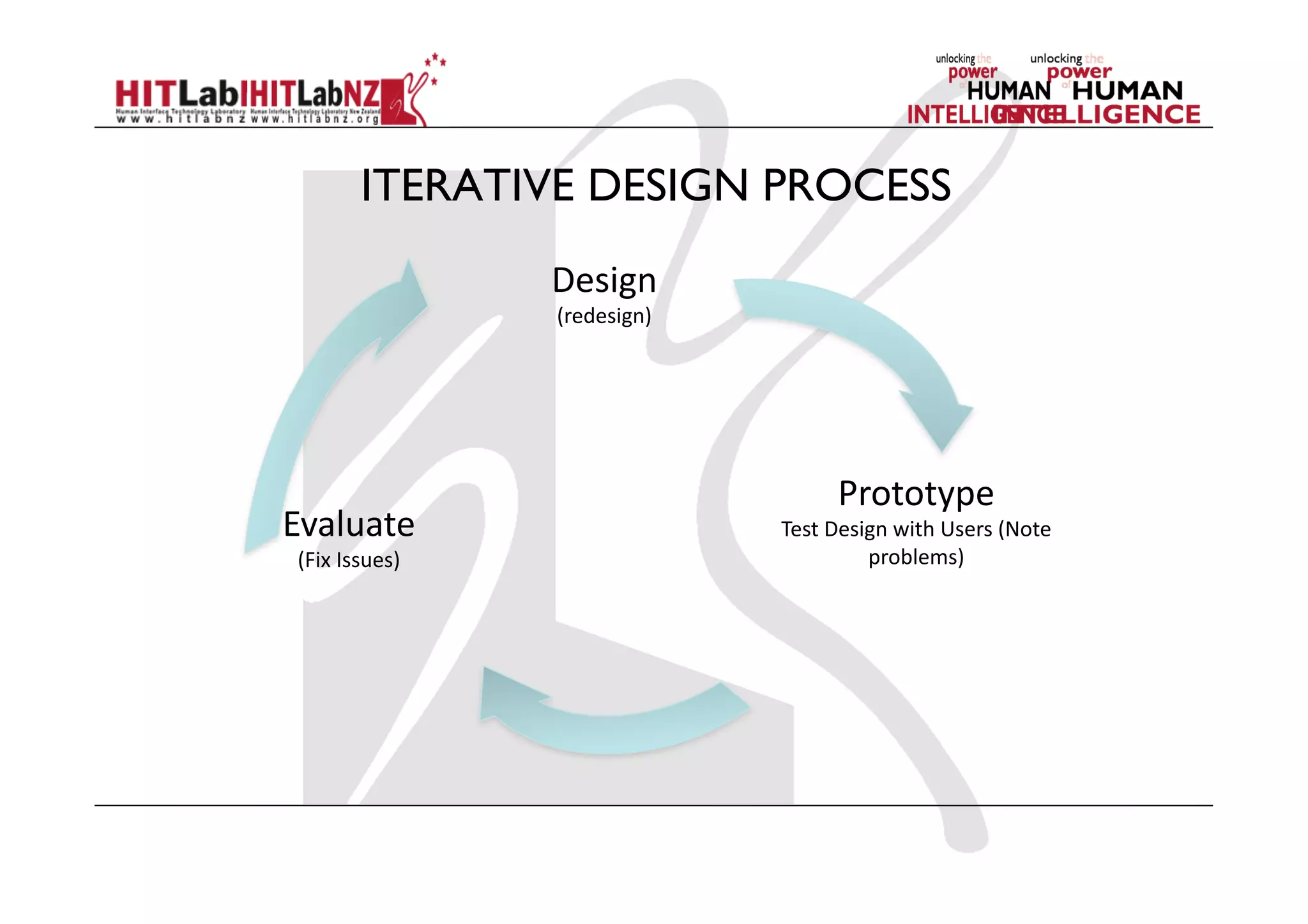
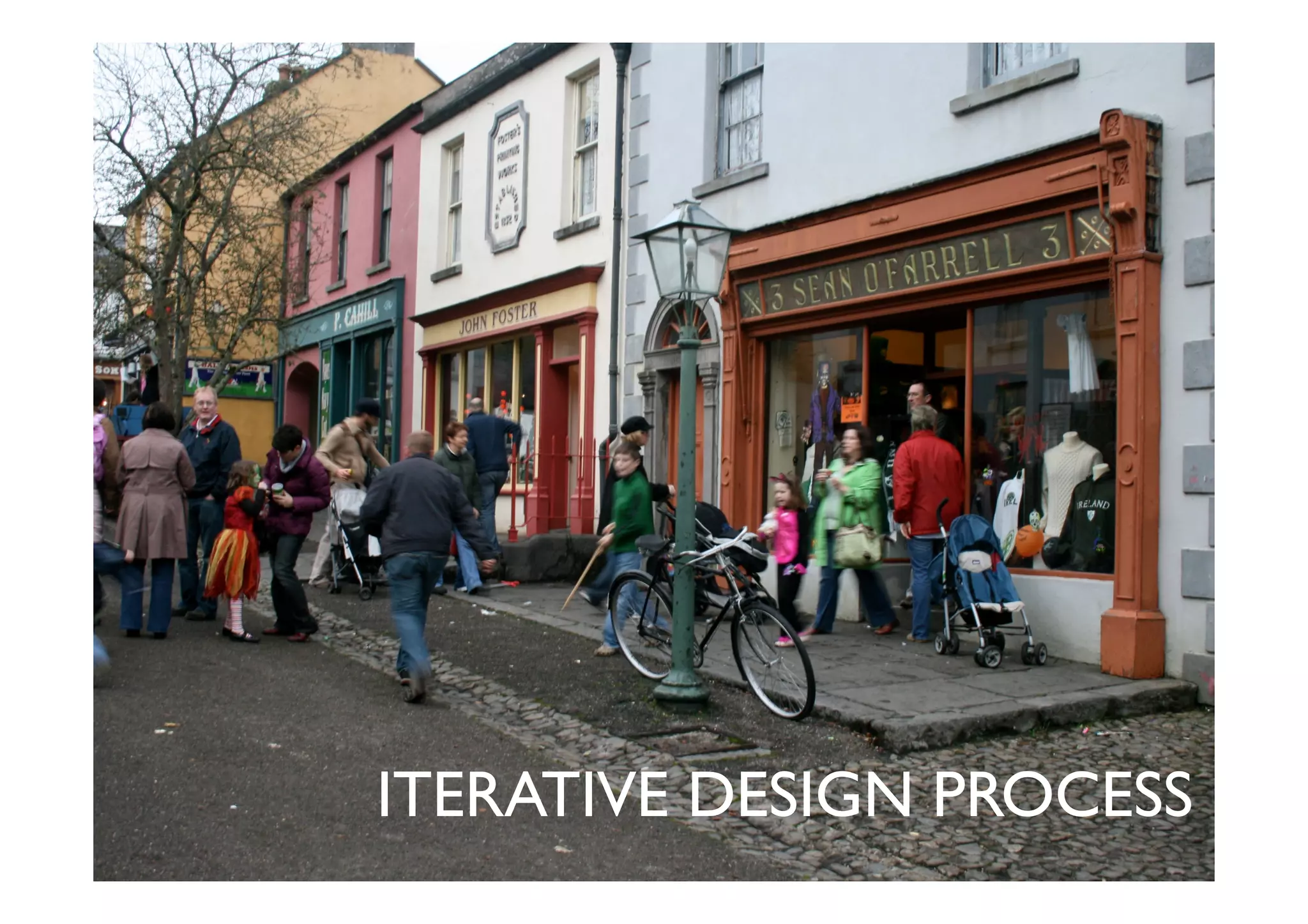
ITERATIVE DESIGN PROCESS
Design	
  
(redesign)	
  
Prototype	
  
Test	
  Design	
  with	
  Users	
  (Note	
  
problems)	
  
Evaluate	
  
(Fix	
  Issues)	
  
BUNRATTY FOLK PARK
BUNRATTY FOLK PARK
 Irish visitor attraction run by Shannon Heritage
 19th century life is recreated
 Buildings from the mid-west have been relocated
to the 26-land surrounding Bunratty Castle
 30 buildings are set in a rural or village setting
there.
AUGMENTED REALITY
In Bunratty Folk Park:
 Allows the visitor to point a camera at an
exhibit, the device recognises it by it’s location
and layers digital information on to the display
 3-dimensional virtual objects can be positioned
with real ones on display
 Leads to dynamic combination of a live camera
view and information
NAVIGATIONAL AID
Smartphone Platform
Most people carry mobile phones and are
comfortable with them
Ideal Augmented Reality Technology
 Global tracking tools
 Wireless communication capabilities
 Location based computing
 Large display for interaction
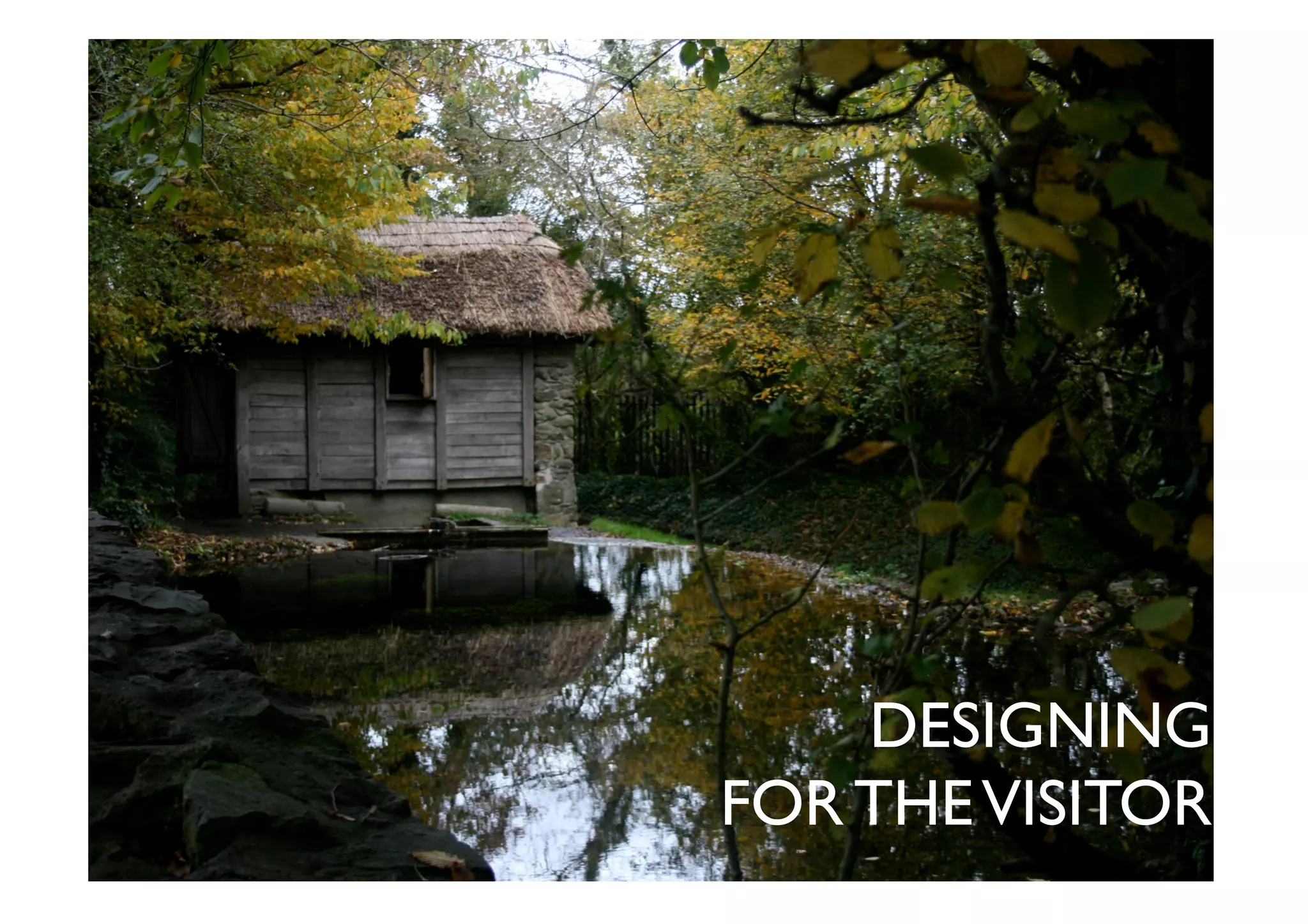
DESIGNING
FOR THEVISITOR
HUMAN CENTRED DESIGN
Goal of the Navigational Aid
 Easy to use, clear and understandable
 Useful to visitors
 Creating interaction between the visitor and the aid
through the user interface
Engage the visitor
 It is necessary to understand the visitor to Bunratty
 Identify visitor motives and goals while going through
the Folk Park.
HUMAN CENTRED DESIGN
Understanding the technology and Related Works
 Literature
 Similar Technologies
 Electronic Tours in Museum Settings
 Interactions design in Outdoor Museums
Understanding the User over time
 Observations
 Interviews
HUMAN CENTRED DESIGN
Findings
 Most visitors do not use the map
 Most visitors have mobile phones
 Visitors want more information
 View the Folk Park at their own pace
 Information should be straight to the point
 Large social interaction within groups
NEXT STEPS FROM RESEARCH
 Define Visitors Goals
 Define Functionalities of the Aid
 Develop Personas – visitors who use the Aid
 Develop Scenarios – how the persona uses the
navigational aid in the Folk Park
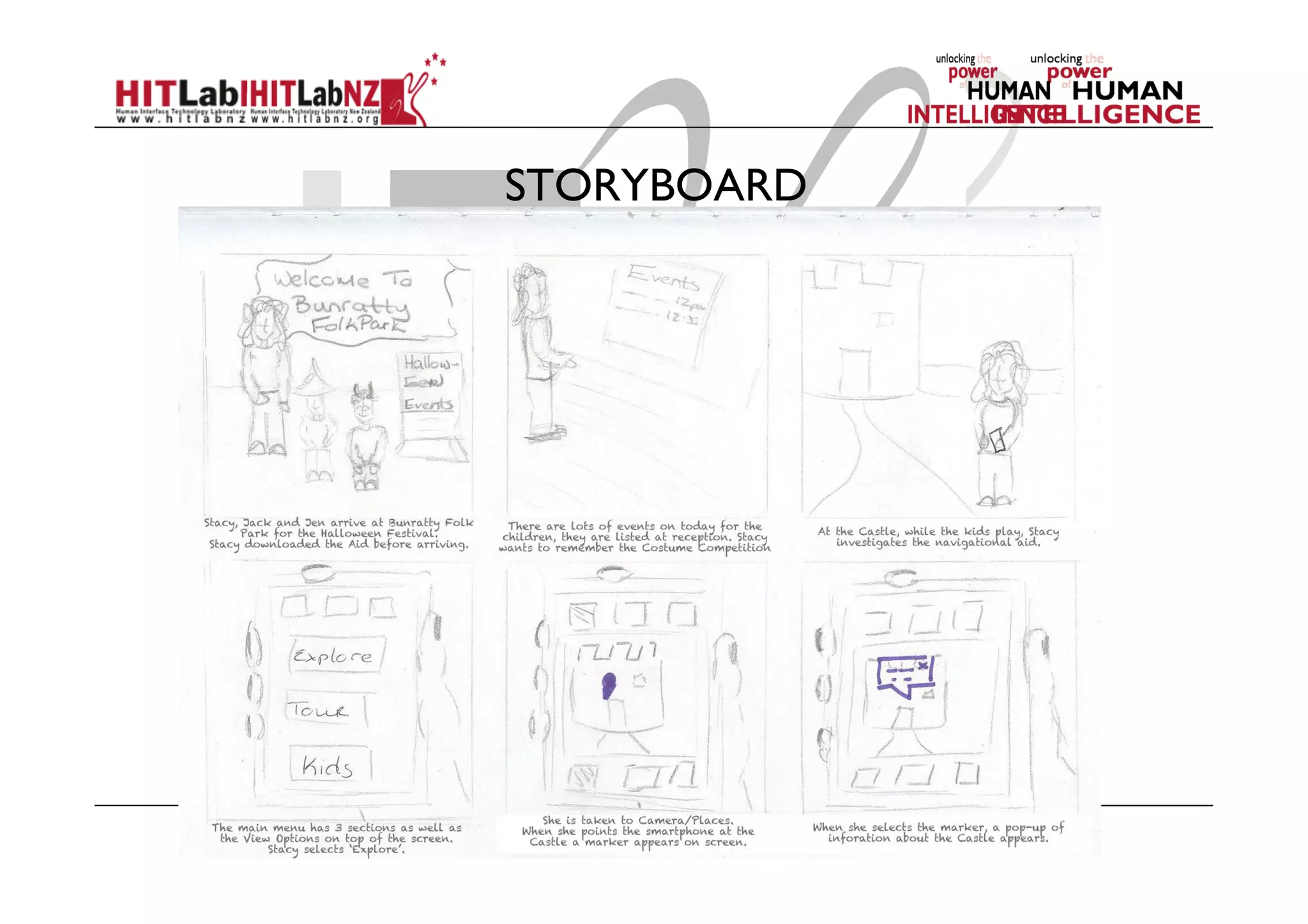
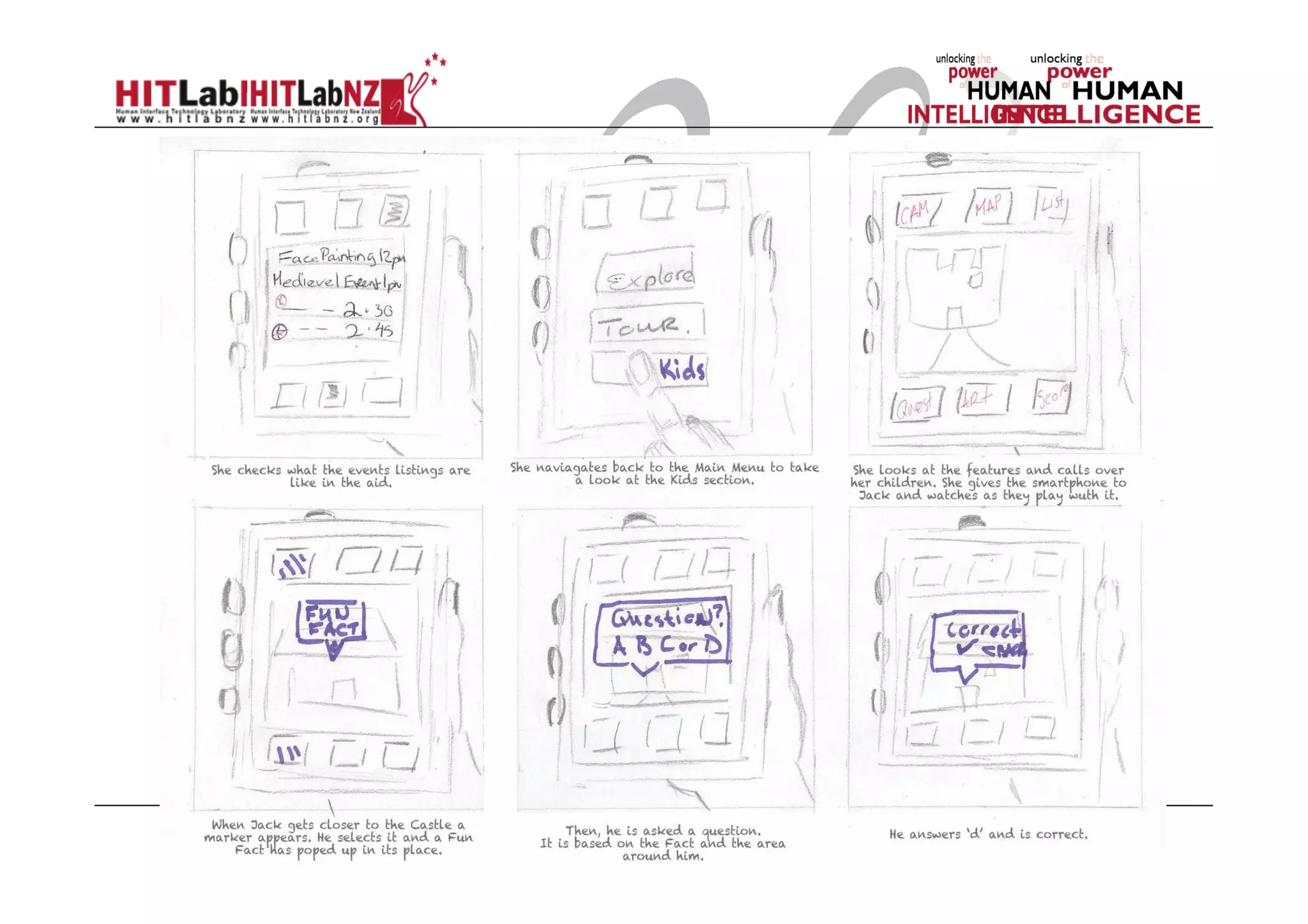
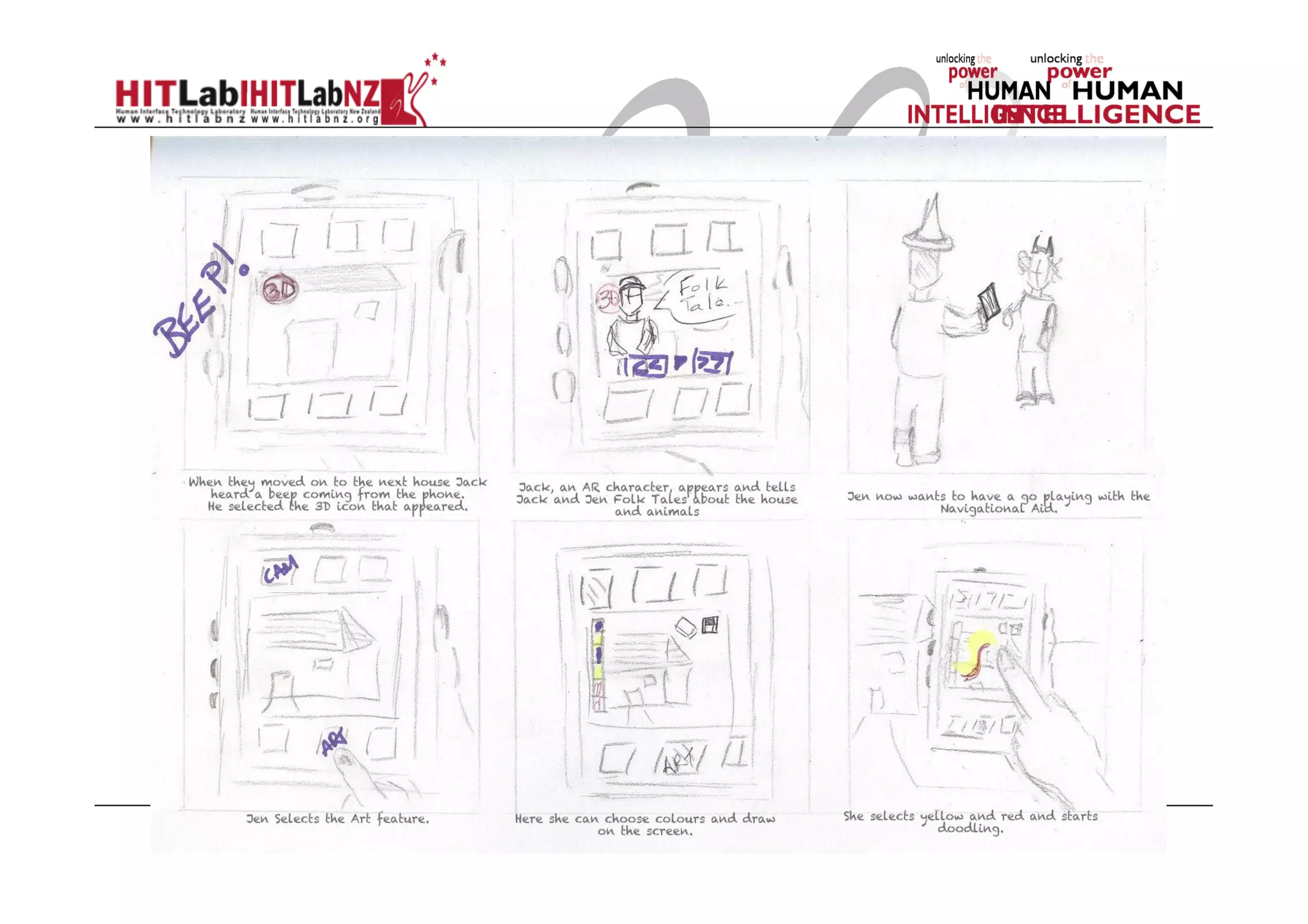
 Draw up Storyboards on scenarios
FUNCTIONALITY
 View Options
 Camera View
 Map View
 List View
 Sub-Options
 Places
 Events
 Restaurants
 AR Features
 Text Information
 3D Objects
 3D Tour Guide
 3D Placement of Buildings
STORYBOARD
ITERATIVE DESIGN PROCESS
Prototyping and User Testing
 Low Fidelity Prototyping
 Sketches
 Paper Prototyping
 Post-It Prototyping
 PowerPoint Prototyping
 High Fidelity Prototyping
 Wikitude
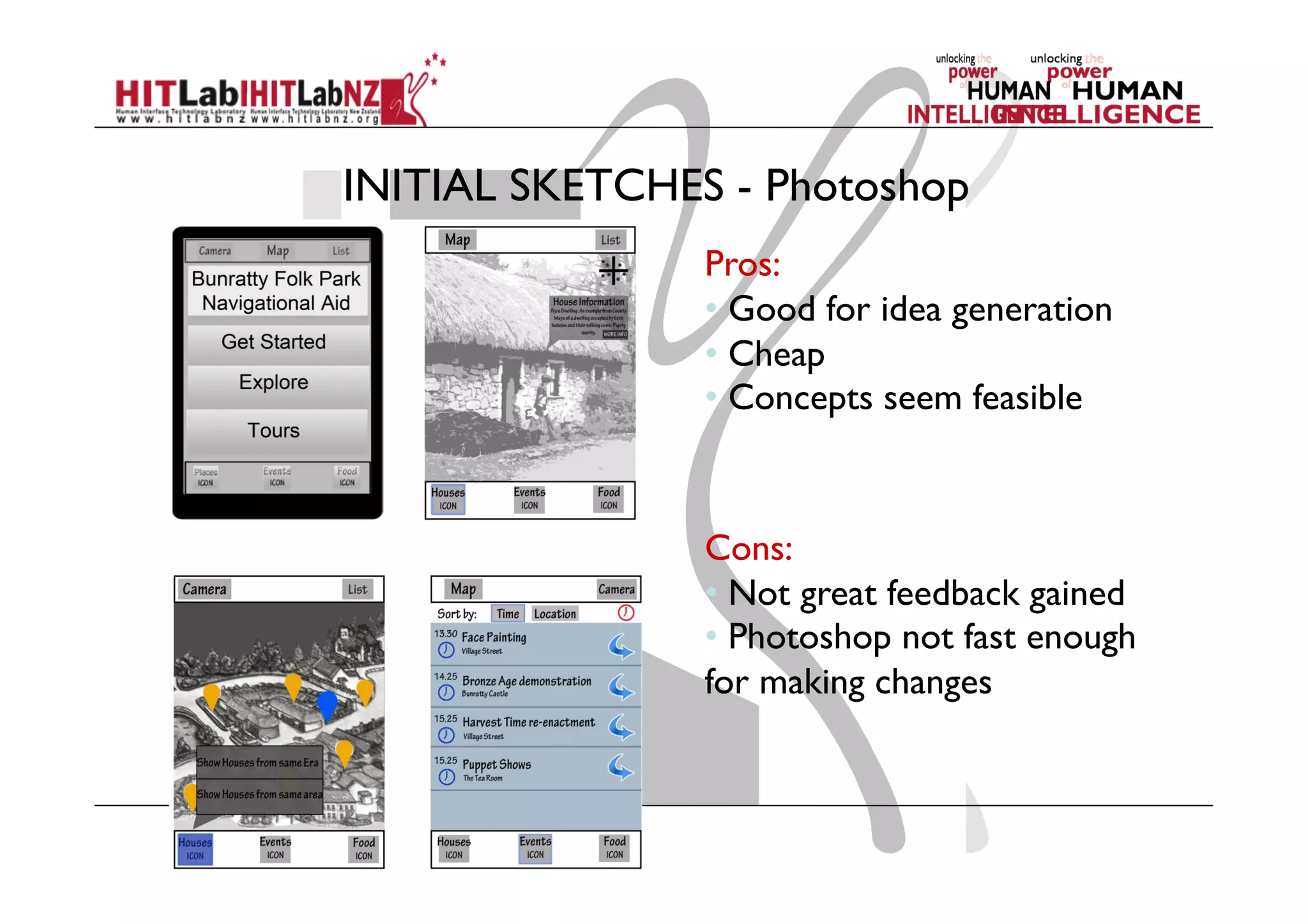
INITIAL SKETCHES - Photoshop
Pros:
• Good for idea generation
• Cheap
• Concepts seem feasible
Cons:
• Not great feedback gained
• Photoshop not fast enough
for making changes
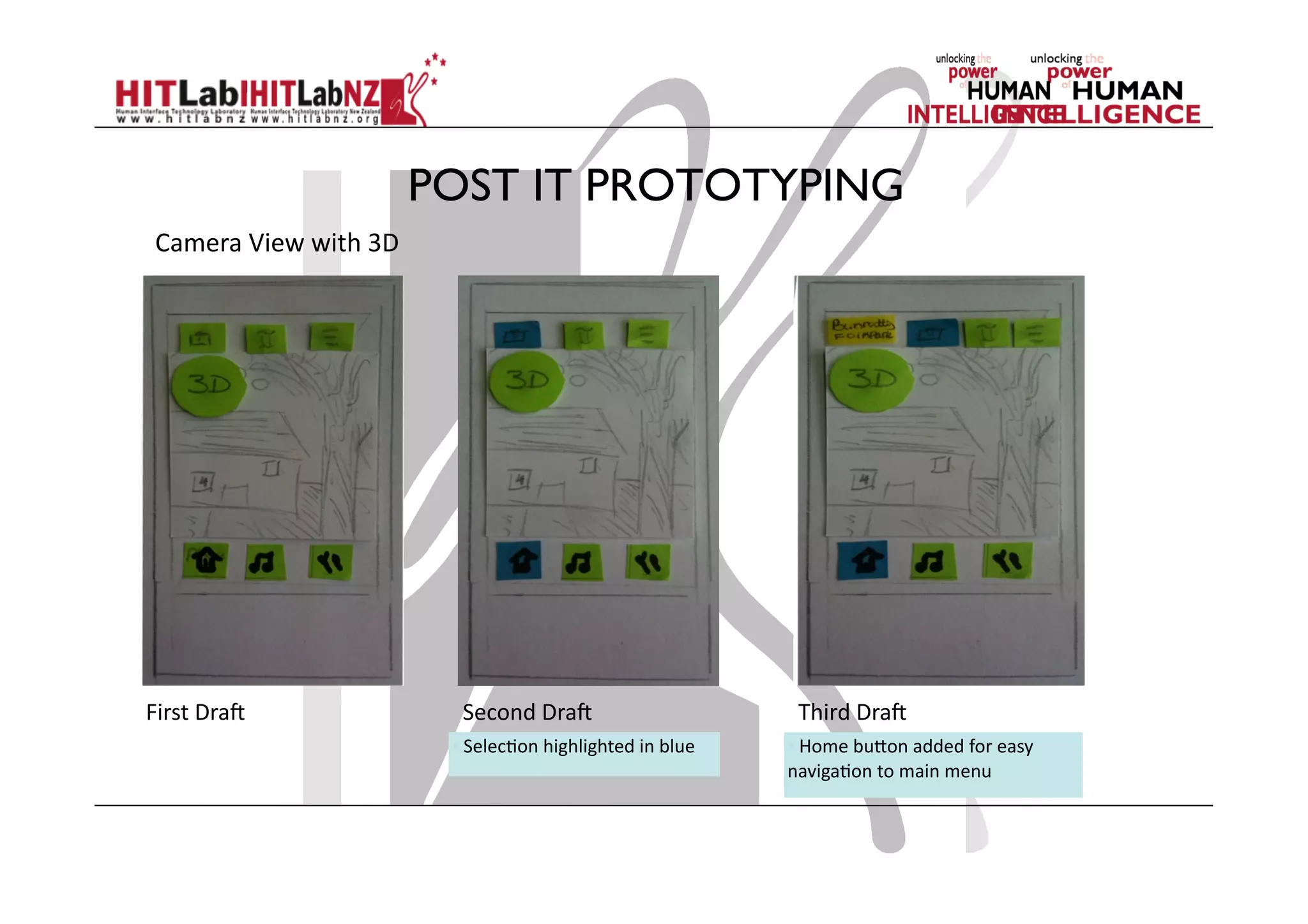
POST IT PROTOTYPING
First	
  DraJ	
  
Camera	
  View	
  with	
  3D	
  
Second	
  DraJ	
   Third	
  DraJ	
  
• 	
  Selec;on	
  highlighted	
  in	
  blue	
   • 	
  Home	
  bu)on	
  added	
  for	
  easy	
  
naviga;on	
  to	
  main	
  menu	
  
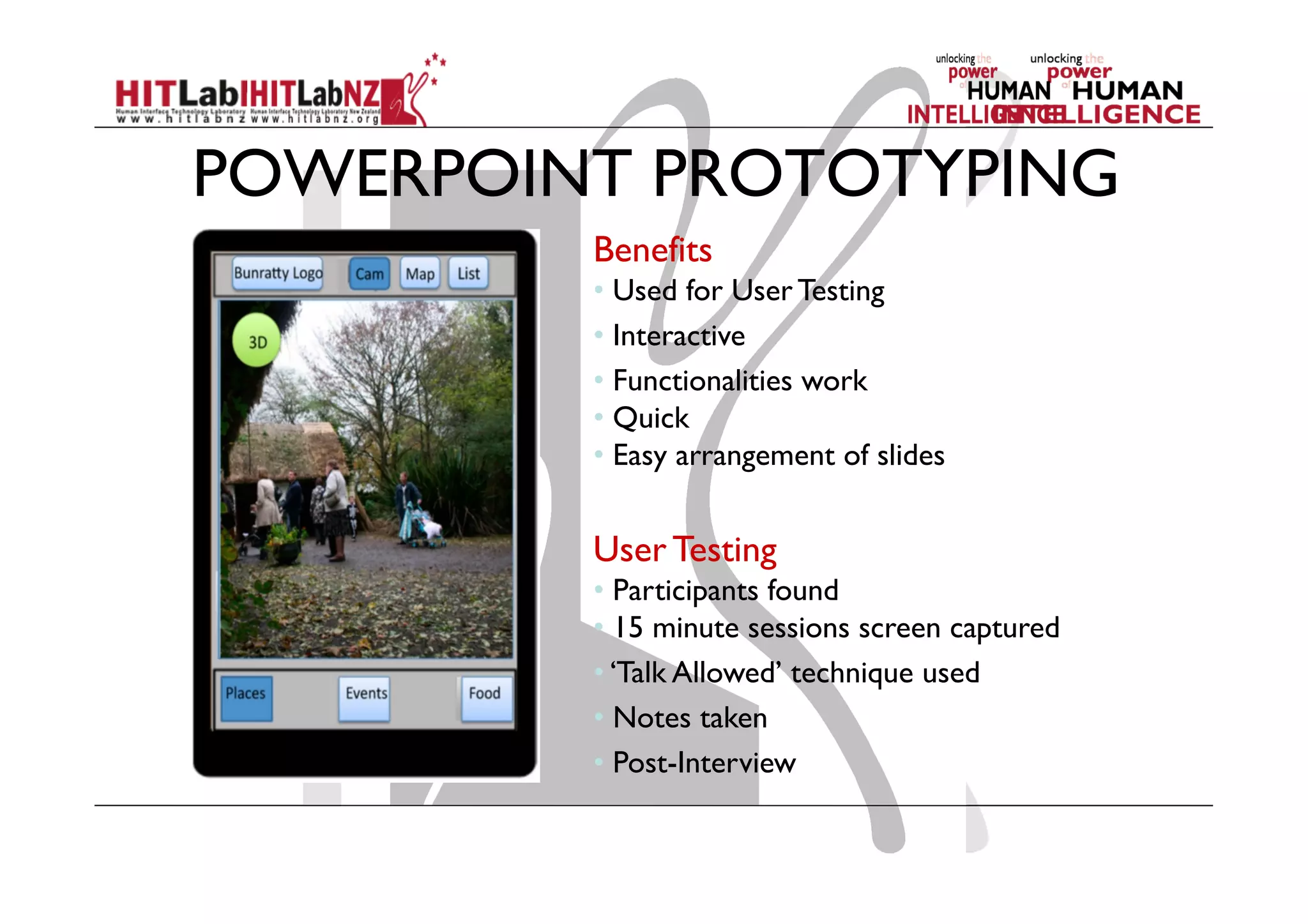
POWERPOINT PROTOTYPING
Benefits
• Used for User Testing
• Interactive
• Functionalities work
• Quick
• Easy arrangement of slides
User Testing
• Participants found
• 15 minute sessions screen captured
• ‘Talk Allowed’ technique used
• Notes taken
• Post-Interview
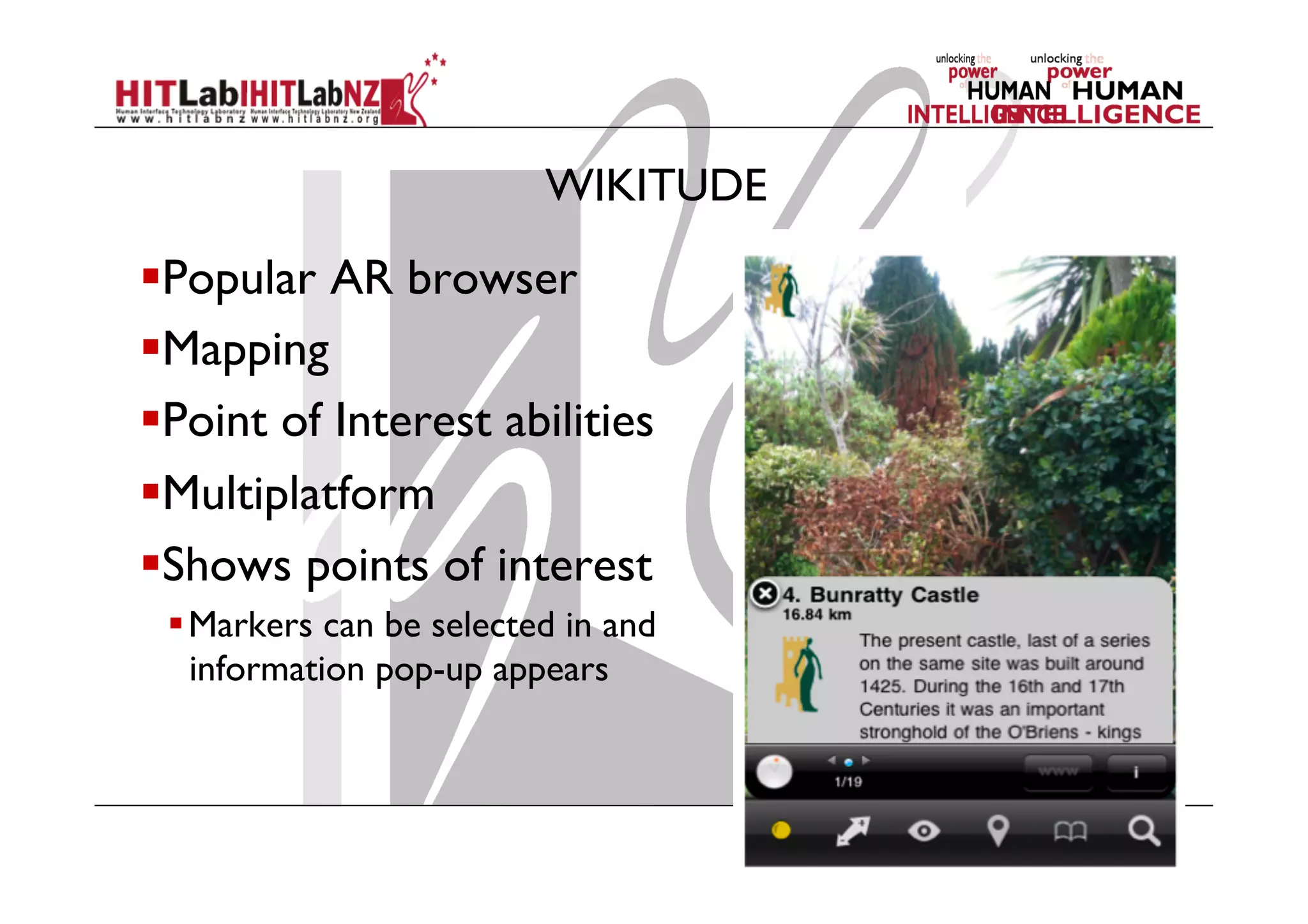
WIKITUDE
 Popular AR browser
 Mapping
 Point of Interest abilities
 Multiplatform
 Shows points of interest
 Markers can be selected in and
information pop-up appears
WIKITUDE
User Testing
 Application well received
 Understandable
 Participants playful with the technology
FINAL CONCEPT
DESIGN
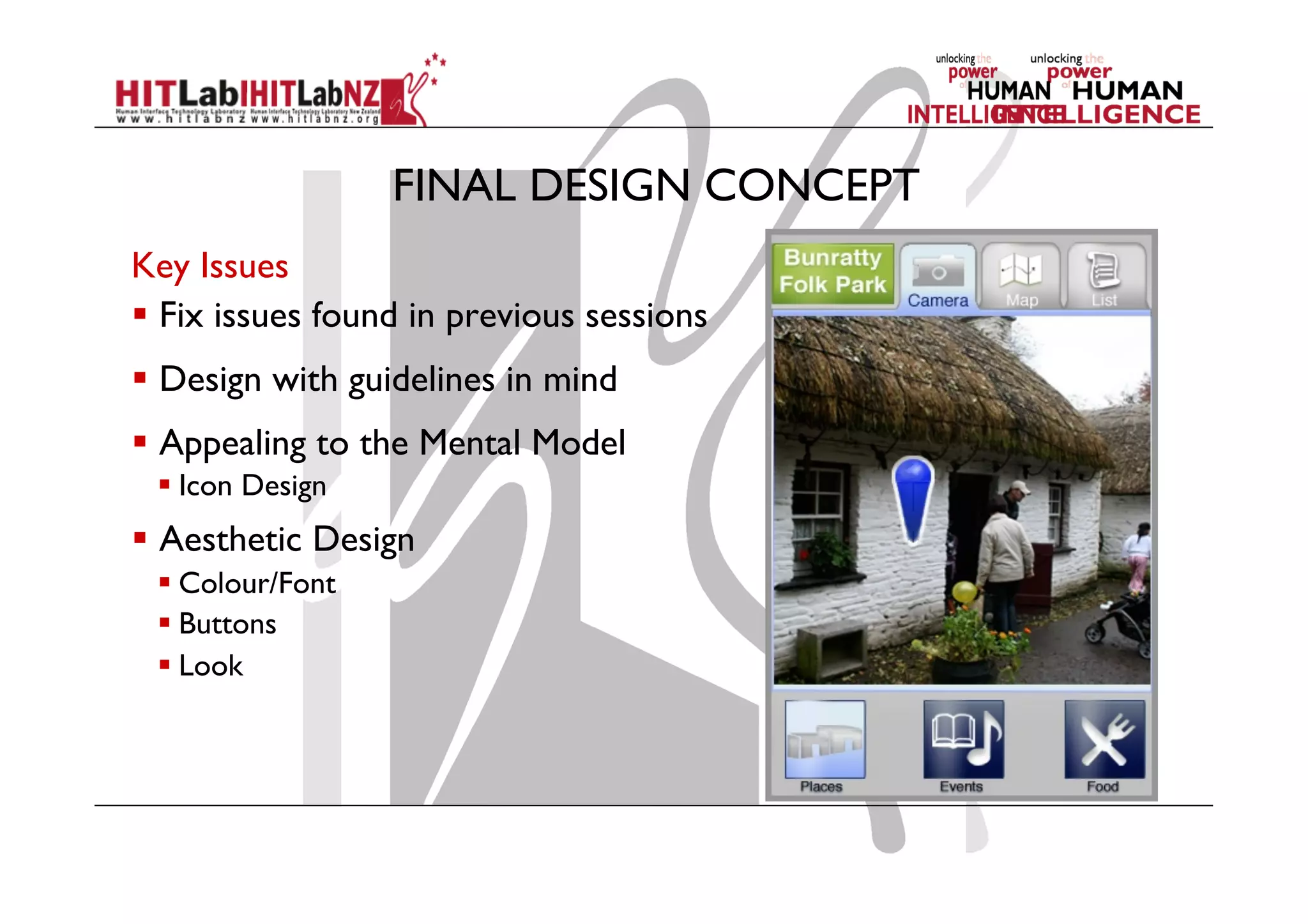
FINAL DESIGN CONCEPT 	
	
Key Issues
  Fix issues found in previous sessions
  Design with guidelines in mind
  Appealing to the Mental Model
 Icon Design
  Aesthetic Design
 Colour/Font
 Buttons
 Look
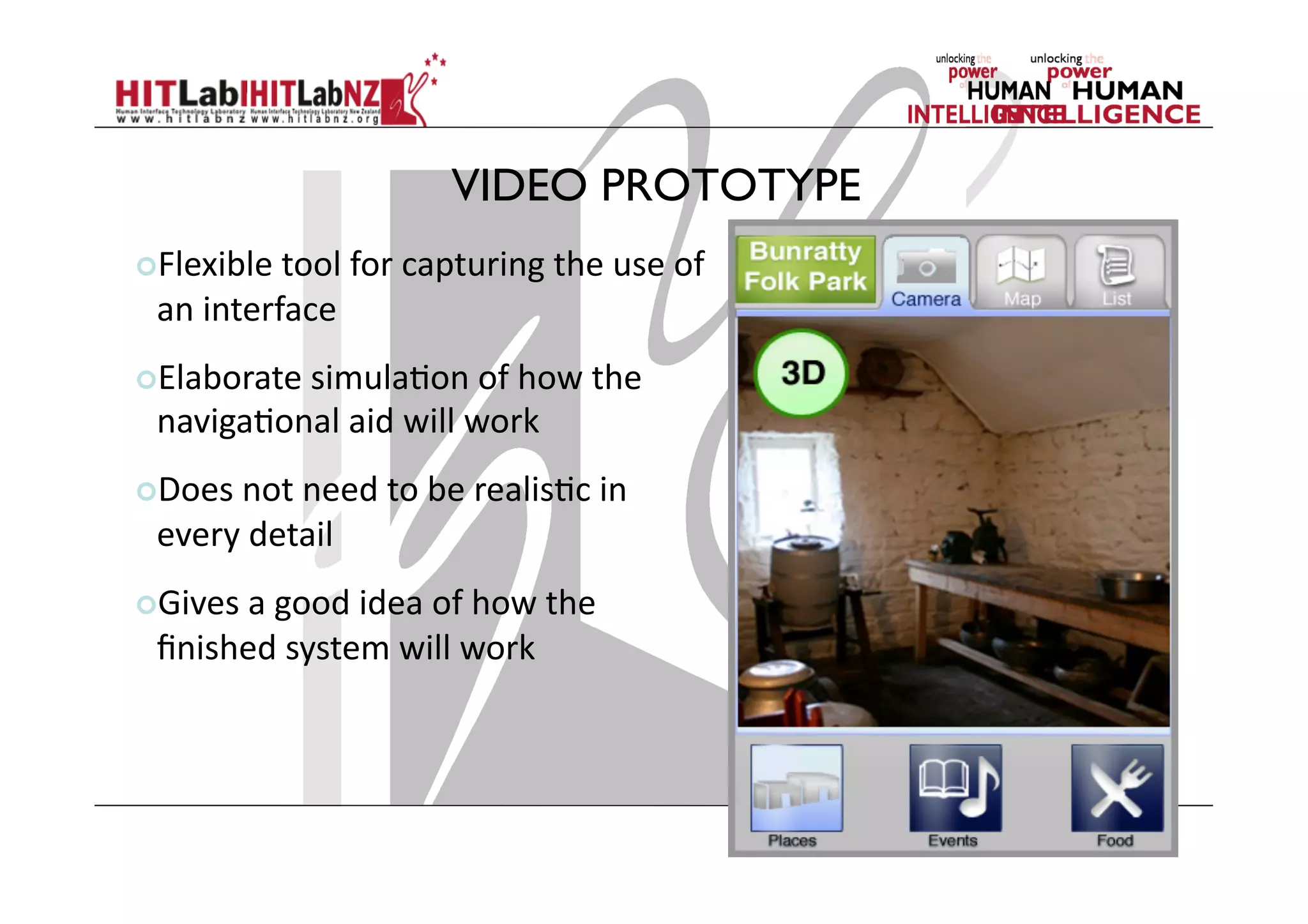
VIDEO PROTOTYPE
 Flexible	
  tool	
  for	
  capturing	
  the	
  use	
  of	
  
an	
  interface	
  
 Elaborate	
  simula;on	
  of	
  how	
  the	
  
naviga;onal	
  aid	
  will	
  work	
  
 Does	
  not	
  need	
  to	
  be	
  realis;c	
  in	
  
every	
  detail	
  
 Gives	
  a	
  good	
  idea	
  of	
  how	
  the	
  
finished	
  system	
  will	
  work	
  
Project List
  Mobile
  Hybrid Tracking for Outdoor AR
  City Scale AR Visualization
  Outdoor AR Authoring Tool
  Outdoor AR collaborative game
  AR interaction for Google Glass
  Non-Mobile
  AR Face Painting
  AR Authoring Tool
  Tangible AR puppeteer studio
  Gesture based interaction with AR content
BuildAR Assignment
  Download and install Build AR (or HIT Lab NZ)
  http://www.buildar.org/
  Build two AR scenes
  Marker based
-  at least 3 markers, 3D models, same theme
  Image based
-  at least 2 images, 3D model, text, image/video
  Due August 16th
Project Assignment
  Design/Related work exercise
  Individual
  Each person find 2 relevant papers/videos/websites
  Write two page literature review
  As a team - prototype design
  Sketch out the user interface of application
  Design the interaction flow/Screen mockups
  3 minute Presentation in class August 16th

2013 Lecture4: Designing AR Interfaces

  • 1.
    COSC 426: AugmentedReality Mark Billinghurst mark.billinghurst@hitlabnz.org August 2nd 2013 Lecture 4: Designing AR Interfaces
  • 2.
    Key Points fromLecture 3
  • 3.
    Tracking Requirements   AugmentedReality Information Display   World Stabilized   Body Stabilized   Head Stabilized Increasing Tracking Requirements Head Stabilized Body Stabilized World Stabilized
  • 4.
  • 5.
    Marker Based Tracking:ARToolKit http://artoolkit.sourceforge.net/
  • 6.
    Markerless Tracking Magnetic TrackerInertial Tracker Ultrasonic Tracker Optical Tracker Marker-Based Tracking Markerless Tracking Specialized Tracking Edge-Based Tracking Template-Based Tracking Interest Point Tracking   No more Markers! Markerless Tracking
  • 7.
    Natural Feature Tracking  Use Natural Cues of Real Elements   Edges   Surface Texture   Interest Points   Model or Model-Free   ++: no visual pollution Contours Features Points Surfaces
  • 8.
    Combining Sensors andVision   Sensors -  Produce noisy output (= jittering augmentations) -  Are not sufficiently accurate (= wrongly placed augmentations) -  Gives us first information on where we are in the world, and what we are looking at   Vision -  Is more accurate (= stable and correct augmentations) -  Requires choosing the correct keypoint database to track from -  Requires registering our local coordinate frame (online- generated model) to the global one (world)
  • 9.
    Outdoor AR TrackingSystem You, Neumann, Azuma outdoor AR system (1999)
  • 10.
    The Registration Problem  Virtual and Real must stay properly aligned   If not:   Breaks the illusion that the two coexist   Prevents acceptance of many serious applications
  • 11.
    Sources of registrationerrors   Static errors   Optical distortions   Mechanical misalignments   Tracker errors   Incorrect viewing parameters   Dynamic errors   System delays (largest source of error) -  1 ms delay = 1/3 mm registration error
  • 12.
    Reducing static errors  Distortion compensation   Manual adjustments   View-based or direct measurements   Camera calibration (video)
  • 13.
    Reducing dynamic errors(1)   Reduce system lag   Faster components/system modules   Reduce apparent lag   Image deflection   Image warping
  • 14.
    Reducing System Lag TrackingCalculate Viewpoint Simulation Render Scene Draw to Display x,y,z r,p,y Application Loop Faster Tracker Faster CPU Faster GPU Faster Display
  • 15.
    Predictive Tracking Time Position Past Future Canpredict up to 80 ms in future (Holloway) Now
  • 16.
  • 17.
    experiences applications tools components Building Compelling ARExperiences Tracking, Display Authoring Interaction Usability
  • 18.
    3. Discovering UserNeeds Mark Billinghurst
  • 19.
  • 20.
    Interaction Design isUser Centered A methodology for ensuring good user experiences with products by getting feedback from users to inform the design.
  • 21.
    50 Discovering Needs • Why: Requirements definition:the stage where failure occurs most commonly Getting requirements right is crucial
  • 23.
    What, How andWhy? • What 1. Understand users, task, context 2. Produce a stable set of requirements • How: Data gathering activities Data analysis activities Expression as ‘requirements’ • Why: Requirements definition: failure occurs most commonly Getting requirements right is crucial Iterate
  • 24.
    What Are theRequirements?   Functional   What should the system do? What has it done?   Data   What type of data?   Environment or Context of use   Physical: dusty? noisy? light? heat? humidity? ….   Social: sharing of files, of displays, work alone ..   Organizational: IT support, hierarchy, training..   Users: Who are they?   Usability: learnability, throughput, flexibility..
  • 25.
    Who REALLY areyour Users/Stakeholders? • Not as obvious as you think: — those who interact directly with the product — those who manage direct users — those who receive output from the product — those who make the purchasing decision — those who use competitor’s products • Three categories of user (Eason, 1987): — primary: frequent hands-on — secondary: occasional or via someone else — tertiary: affected by its introduction, or will influence its purchase
  • 26.
    Who are theStakeholders? Check-out operators CustomersManagers and owners • Suppliers • Local shop 
 owners
  • 27.
  • 28.
  • 29.
    Data Gathering Techniques(1)   Questionnaires   Looking for specific information   Qualitative and quantitative results   Good for getting data from a large, dispersed group   Interviews   Good for exploring issues, using props   Structured, unstructured or semi-structured   But are time consuming and difficult to visit everyone
  • 30.
    Data Gathering Techniques(2)   Workshops or focus groups   Group interviews/activities   Good at gaining a consensus view and/or highlighting areas of conflict   Observations   Spending time with users in day to day tasks   Good for understanding task context   requires time and can result in a huge amount of data   Documentation   Procedures and rules written down in manuals
  • 31.
    A day inthe Life of.. Cultural Probes.. Role Playing..
  • 32.
    Case Study: EquatorDomestic Probes
  • 33.
    4. Design andPrototyping Mark Billinghurst
  • 34.
  • 35.
    Elaboration and Reduction  Elaborate - generate solutions. These are the opportunities   Reduce - decide on the ones worth pursuing   Repeat - elaborate and reduce again on those solutions Source: Laseau,P. (1980) Graphic Thinking for Architects & Designers. John Wiley and Sons
  • 36.
    The Design Funnel  Alternate generation of ideas and convergence until resolution Modified from Pugh, S. (1990) Total design: Integrated methods for successful products engineering. Addison-Wesley. P. 75
  • 37.
  • 38.
    Unmet Needs   DigitalCameras for Apple Late 80s – What would happen if we married a computer with a digital camera? Many studies of current photography use. Uncovering of unmet needs in traditional experience - not enough photos - not knowing whether photo good or not - ability to add sound - ability to organize Features determined through research and designed Iteratively.
  • 39.
    Brainstorming   Best withinterdisciplinary team
  • 40.
    Other Products   Noticeall the iPod look-alikes?
  • 41.
    Tools for EffectiveDesign  Personas  Scenarios  Storyboards  Wireframes and Mock-ups  Prototypes
  • 42.
    Persona Technique •  Personasare a design tool to help visualize who you are designing for and imagine how person will use the product •  A persona is an archetype that represents the behavior and goals of a group of users •  Based on insights and observations from customer research •  Not real people, but synthesised from real user characteristics •  Bring them to life with a name, characteristics, goals, background •  Develop multiple personas
  • 43.
    Gunther the AdGuy Gunther is from Germany. He Travels extensively for work and As he is an advertising executive he needs to present concepts to clients quickly and easily. He is a person very well-versed in new technologies and wishes he had easier portable solutions for his presentations…..
  • 44.
    Scenarios Usage Scenarios arenarrative descriptions of how the product meets the needs of a persona Short (2 pages max) Focus on unmet needs of persona Concrete story Set of stories around essential tasks, problems... Use to test ideas
  • 45.
    A business womantravels from SF to Paris on a business trip. On her way to the airport she narrowly misses a traffic delay. She avoids the jam because her Smartphone beeps and send her a warning text message on her route from the office to the airport. Upon arrival the location-sensitive Smartphone notifies the airline that she‘ll check in shortly and an airline employee finds her immediately and takes her baggage. Her display shows that her flight is on time and provides a map to her gate. On the way she downloads tourist information (maps, events) for Paris.
  • 46.
    Once found herseat, she begins to review the downloaded information. She books a ticket for an opera she wants to see. Her Smartphone makes the booking using her credit card number stored in memory.The security software of the Smartphone protects her against fraud. The Smartphone stores the opera booking along with emails written on the plane.As soon as she steps off the plane, it makes the calls and sends the emails.As she leaves the airport, a map appears on the display and guides her to her hotel
  • 47.
    Storyboarding Sequence of sketchesshowing use of system in everyday use context Concrete example Easier (faster) to grasp than text based stories Means of communication with users and system developers Sketches, not drawings... Use to test interaction and make sure design works
  • 48.
  • 49.
  • 51.
  • 52.
    Sketching is aboutdesign Sketching is not about drawing It is about design. Sketching is a tool to help you: -  express -  develop, and -  communicate design ideas Sketching is part of a process: -  idea generation, -  design elaboration -  design choices, -  engineering
  • 53.
    Why is sketchinguseful?   Early ideation   Think through ideas   Force you to visualize how things come together   Communicate ideas to others to inspire new designs   Active brainstorming
  • 54.
    Figure 41: ASketch of a Dialogue with a Sketch The “conversation” between the sketch (right bubble) and the mind (left bubble). A sketch is created from current knowledge (top arrow). Reading, or interpreting the resulting representation (bottom arrow), creates new knowledge. The creation results from what Goldschmidt calls “seeing that” reasoning, and the extraction of new knowledge results from what she calls “seeing as.” sketch representation mind (new) knowledge Create (seeing that) Read (seeing as) 54
  • 55.
    Sketchbook examples Industrial designer  ideas   variations   annotations Source: sketch page from student Industrial designer Samnang Eav Form factors for wearable computer watch
  • 56.
    Sketchbook examples Idea variations Source:Nicolai Marquardt sketchbook, with permission. Four different versions of an idea
  • 57.
    Sketch examples –design variations From Carloyn Snyder’s Book: Paper Prototyping (2003) Morgan Kaufmann, p350
  • 58.
    Sketch examples –storyboard transitions From Carloyn Snyder’s Book Paper Prototyping (2003) Morgan Kaufmann, p11
  • 59.
    Techniques: Annotations   Augmenta sketch   Directly on sketch   As layer -  Tracing -  Photoshop layer   Over dynamic video
  • 60.
    Technique: Annotations   Textualnotes   Name and/or explain thinks   Add details   List of items   Questions/issues about design   Graphical marks   Connect notes to sketch elements   Relates sketch elements   Show dynamics of elements or interaction over time
  • 61.
    Technique: Tracing   BasicIdea -  Copy/trace the fixed elements of an existing interface/screen   Technology -  Camera, photograph, tracing paper or.. -  Photoshop or equivalent (trace over image on a separate layer)   Drawing skill required -  Almost zero
  • 63.
    Technique Hybrid Sketches  Mixes full and low fidelity elements   High fidelity parts:   Fixed design elements   Low fidelity parts:   Speculative components   Contrast   Makes certain parts of the sketch stand out
  • 66.
    Your Turn   Designa mobile AR user interface   Viewing virtual buildings in Christchurch   Views (Should be able to swap between)   Map View   AR View   List View
  • 67.
  • 68.
    68www.id-book.com What is aprototype? In interaction design it can be (among other things): •  a series of screen sketches •  a storyboard, i.e. a cartoon-like series of scenes •  a Powerpoint slide show •  a video simulating the use of a system •  a lump of wood (e.g. PalmPilot) •  a cardboard mock-up •  a piece of software with limited functionality
  • 69.
    69 www.id-book.com Why Prototype? •  Evaluationand feedback are central to interaction design •  Stakeholders can see, hold, interact with a prototype more easily than a document or a drawing •  Team members can communicate effectively •  You can test out ideas for yourself •  It encourages reflection: very important aspect of design •  Prototypes answer questions, and support designers in choosing between alternatives
  • 70.
    Sketch vs. Prototype Sketch   Prototype   Invite   A)end   Suggest   Describe   Explore   Refine   Ques;on   Answer   Propose   Test   Provoke   Resolve   Tenta;ve,  non  commi)al   Specific  Depic;on   The primary differences are in the intent
  • 71.
    Types of Prototypes LowFidelity – quick and dirty, easy access materials like cardboard and paper. High Fidelity – more involved electronic versions similar in materials to final product.
  • 72.
    RAPID Prototyping   Fastand inexpensive   Identifies problems before they’re coded   Elicits more and better feedback from users   Helps developers think creatively   Gets users and other stakeholders involved early   Fosters teamwork and communication   Avoids opinion wars   Helps decide design directions
  • 73.
    Paper Prototyping (LowFidelity) Quick and simple means of sketching interfaces Use office materials Easier to criticize, quick to change Creative process (develop in team) Can also use for usability test (focus on flow of interaction rather than visuals) Used a lot to test out concepts before real design begins.
  • 74.
  • 75.
  • 82.
  • 83.
  • 85.
    Technique: State TransitionDiagrams   Create transition diagram   key interaction steps   branch points   For each transition   Sketch the screen   Include the transitional diagram   Label the transition with what triggered the transition (typically user input of set of system responses)
  • 86.
  • 87.
  • 89.
    Half-Functional Prototypes More hi-fi HTML(or Powerpoint) ... Mostly precoded flow, but allows clicking and experiencing flow
  • 90.
    Wireframing Tools   Pidoco(websites, mobile, desktop)   No programming   http://www.pidoco.com   WireframeSketcher   Plug-in for Eclipse   http://wireframesketcher.com/   Omnigraffle (Mac)   Digramming tool   http://www.omnigroup.com/products/omnigraffle/
  • 92.
  • 93.
  • 95.
  • 97.
    Technique: Make storyboardscome alive   An interactive foam core and paper sketch/storyboard
  • 99.
    Mobile Rapid PrototypeTools   Android: App Inventor   http://appinventor.mit.edu/
  • 100.
  • 101.
    High-fidelity prototyping •  Usesmaterials that you would expect to be in the final product. •  Prototype looks more like the final system than a low-fidelity version. •  For a high-fidelity software prototype common environments include Macromedia Director,Visual Basic, and Smalltalk. •  Danger that users think they have a full system…….see compromises
  • 102.
    Interactive Role Playin Environment
  • 103.
    Tethered Prototypes (HighFidelity) Goal: CommunicateVision HIGH FIDELITY PROTOTYE
  • 104.
    Rapid Prototyping   Speeddevelopment time with quick hardware mockups   handheld device connected to PC   LCD screen, USB phone keypad, Camera   Can use PC development tools for rapid development   Flash, Visual Basic, etc
  • 105.
    ‘Wizard-of-Oz’ Prototyping • The userthinks they are interacting with a computer, but a developer is responding to output rather than the system. • Usually done early in design to understand users’ expectations >Blurb blurb >Do this >Why? User
  • 106.
    Typical Iterations forHW/SW Product: 1.  Paper prototype to evaluate conceptual model 2.  Interactive computer-based prototype with rough screens to evaluate feature placement 3.  Tethered prototype to evaluate button + screen interactions 4.  Real device prototyped with major features working 5.  Real device prototyped with all features working and graphic design implemented
  • 107.
  • 108.
    ITERATIVE DESIGN PROCESS Design   (redesign)   Prototype   Test  Design  with  Users  (Note   problems)   Evaluate   (Fix  Issues)  
  • 110.
  • 111.
    BUNRATTY FOLK PARK  Irishvisitor attraction run by Shannon Heritage  19th century life is recreated  Buildings from the mid-west have been relocated to the 26-land surrounding Bunratty Castle  30 buildings are set in a rural or village setting there.
  • 112.
    AUGMENTED REALITY In BunrattyFolk Park:  Allows the visitor to point a camera at an exhibit, the device recognises it by it’s location and layers digital information on to the display  3-dimensional virtual objects can be positioned with real ones on display  Leads to dynamic combination of a live camera view and information
  • 113.
    NAVIGATIONAL AID Smartphone Platform Mostpeople carry mobile phones and are comfortable with them Ideal Augmented Reality Technology  Global tracking tools  Wireless communication capabilities  Location based computing  Large display for interaction
  • 114.
  • 115.
    HUMAN CENTRED DESIGN Goalof the Navigational Aid  Easy to use, clear and understandable  Useful to visitors  Creating interaction between the visitor and the aid through the user interface Engage the visitor  It is necessary to understand the visitor to Bunratty  Identify visitor motives and goals while going through the Folk Park.
  • 116.
    HUMAN CENTRED DESIGN Understandingthe technology and Related Works  Literature  Similar Technologies  Electronic Tours in Museum Settings  Interactions design in Outdoor Museums Understanding the User over time  Observations  Interviews
  • 117.
    HUMAN CENTRED DESIGN Findings  Mostvisitors do not use the map  Most visitors have mobile phones  Visitors want more information  View the Folk Park at their own pace  Information should be straight to the point  Large social interaction within groups
  • 118.
    NEXT STEPS FROMRESEARCH  Define Visitors Goals  Define Functionalities of the Aid  Develop Personas – visitors who use the Aid  Develop Scenarios – how the persona uses the navigational aid in the Folk Park  Draw up Storyboards on scenarios
  • 119.
    FUNCTIONALITY  View Options  Camera View  MapView  List View  Sub-Options  Places  Events  Restaurants  AR Features  Text Information  3D Objects  3D Tour Guide  3D Placement of Buildings
  • 120.
  • 123.
  • 124.
    ITERATIVE DESIGN PROCESS Prototypingand User Testing  Low Fidelity Prototyping  Sketches  Paper Prototyping  Post-It Prototyping  PowerPoint Prototyping  High Fidelity Prototyping  Wikitude
  • 125.
    INITIAL SKETCHES -Photoshop Pros: • Good for idea generation • Cheap • Concepts seem feasible Cons: • Not great feedback gained • Photoshop not fast enough for making changes
  • 126.
    POST IT PROTOTYPING First  DraJ   Camera  View  with  3D   Second  DraJ   Third  DraJ   •   Selec;on  highlighted  in  blue   •   Home  bu)on  added  for  easy   naviga;on  to  main  menu  
  • 127.
    POWERPOINT PROTOTYPING Benefits • Used forUser Testing • Interactive • Functionalities work • Quick • Easy arrangement of slides User Testing • Participants found • 15 minute sessions screen captured • ‘Talk Allowed’ technique used • Notes taken • Post-Interview
  • 128.
    WIKITUDE  Popular AR browser  Mapping  Pointof Interest abilities  Multiplatform  Shows points of interest  Markers can be selected in and information pop-up appears
  • 129.
    WIKITUDE User Testing  Application wellreceived  Understandable  Participants playful with the technology
  • 130.
  • 131.
    FINAL DESIGN CONCEPT Key Issues   Fix issues found in previous sessions   Design with guidelines in mind   Appealing to the Mental Model  Icon Design   Aesthetic Design  Colour/Font  Buttons  Look
  • 132.
    VIDEO PROTOTYPE  Flexible  tool  for  capturing  the  use  of   an  interface    Elaborate  simula;on  of  how  the   naviga;onal  aid  will  work    Does  not  need  to  be  realis;c  in   every  detail    Gives  a  good  idea  of  how  the   finished  system  will  work  
  • 133.
    Project List   Mobile  Hybrid Tracking for Outdoor AR   City Scale AR Visualization   Outdoor AR Authoring Tool   Outdoor AR collaborative game   AR interaction for Google Glass   Non-Mobile   AR Face Painting   AR Authoring Tool   Tangible AR puppeteer studio   Gesture based interaction with AR content
  • 134.
    BuildAR Assignment   Downloadand install Build AR (or HIT Lab NZ)   http://www.buildar.org/   Build two AR scenes   Marker based -  at least 3 markers, 3D models, same theme   Image based -  at least 2 images, 3D model, text, image/video   Due August 16th
  • 135.
    Project Assignment   Design/Relatedwork exercise   Individual   Each person find 2 relevant papers/videos/websites   Write two page literature review   As a team - prototype design   Sketch out the user interface of application   Design the interaction flow/Screen mockups   3 minute Presentation in class August 16th