Weebly Blog Tutorial
C. Guertin
EDUC5199G | UOIT
29 Sept 15
1. Go to
Weebly.com
and create a
free account
2. Choose a theme. Scroll until you find one you like.
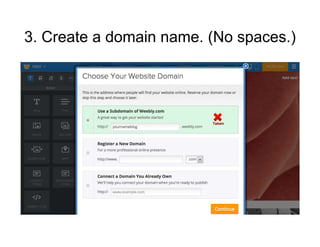
3. Create a domain name. (No spaces.)
4. Add a header with your blog title. Click on
the images to upload your own or search the
Weebly selections.
5. Click on the sidebar (at left) to alter
aspects of the theme, fonts, or background.
7. Click on choose a layout (on the second half of
the page) to design your splash page. Select
‘Keep’ or ‘Cancel’ to pick a new design.
7. Click on ‘Pages’ in the menu bar to add or rename existing
pages. Make sure that you include a blog page, and that
each page has a clear name. You can also choose from
several different kinds of headers, depending on how much
space or how much image you want to show.
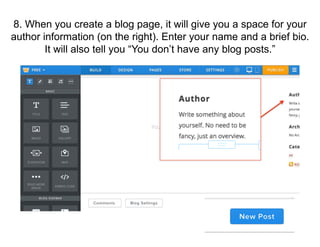
8. When you create a blog page, it will give you a space for your
author information (on the right). Enter your name and a brief bio.
It will also tell you “You don’t have any blog posts.”
9. When you click on ‘New Post’ for
your blog, it will open a ‘Post Title’
window and a blank space for content.
You have the chose of several different
kinds of content that you can drag into
the window. (Scroll down to see all the
options). Drag and drop, then fill with
content.
10. Delete any pre-existing elements in the Weebly template that
you don’t want, and save your work often. Saving preserves the
content, but it does not make it public. When you are ready to go
live, make sure you click ‘Publish’.

3 5199-weebly-blog-tutorial

  • 1.
    Weebly Blog Tutorial C.Guertin EDUC5199G | UOIT 29 Sept 15
  • 2.
    1. Go to Weebly.com andcreate a free account
  • 3.
    2. Choose atheme. Scroll until you find one you like.
  • 4.
    3. Create adomain name. (No spaces.)
  • 5.
    4. Add aheader with your blog title. Click on the images to upload your own or search the Weebly selections.
  • 6.
    5. Click onthe sidebar (at left) to alter aspects of the theme, fonts, or background.
  • 7.
    7. Click onchoose a layout (on the second half of the page) to design your splash page. Select ‘Keep’ or ‘Cancel’ to pick a new design.
  • 8.
    7. Click on‘Pages’ in the menu bar to add or rename existing pages. Make sure that you include a blog page, and that each page has a clear name. You can also choose from several different kinds of headers, depending on how much space or how much image you want to show.
  • 9.
    8. When youcreate a blog page, it will give you a space for your author information (on the right). Enter your name and a brief bio. It will also tell you “You don’t have any blog posts.”
  • 10.
    9. When youclick on ‘New Post’ for your blog, it will open a ‘Post Title’ window and a blank space for content. You have the chose of several different kinds of content that you can drag into the window. (Scroll down to see all the options). Drag and drop, then fill with content.
  • 11.
    10. Delete anypre-existing elements in the Weebly template that you don’t want, and save your work often. Saving preserves the content, but it does not make it public. When you are ready to go live, make sure you click ‘Publish’.