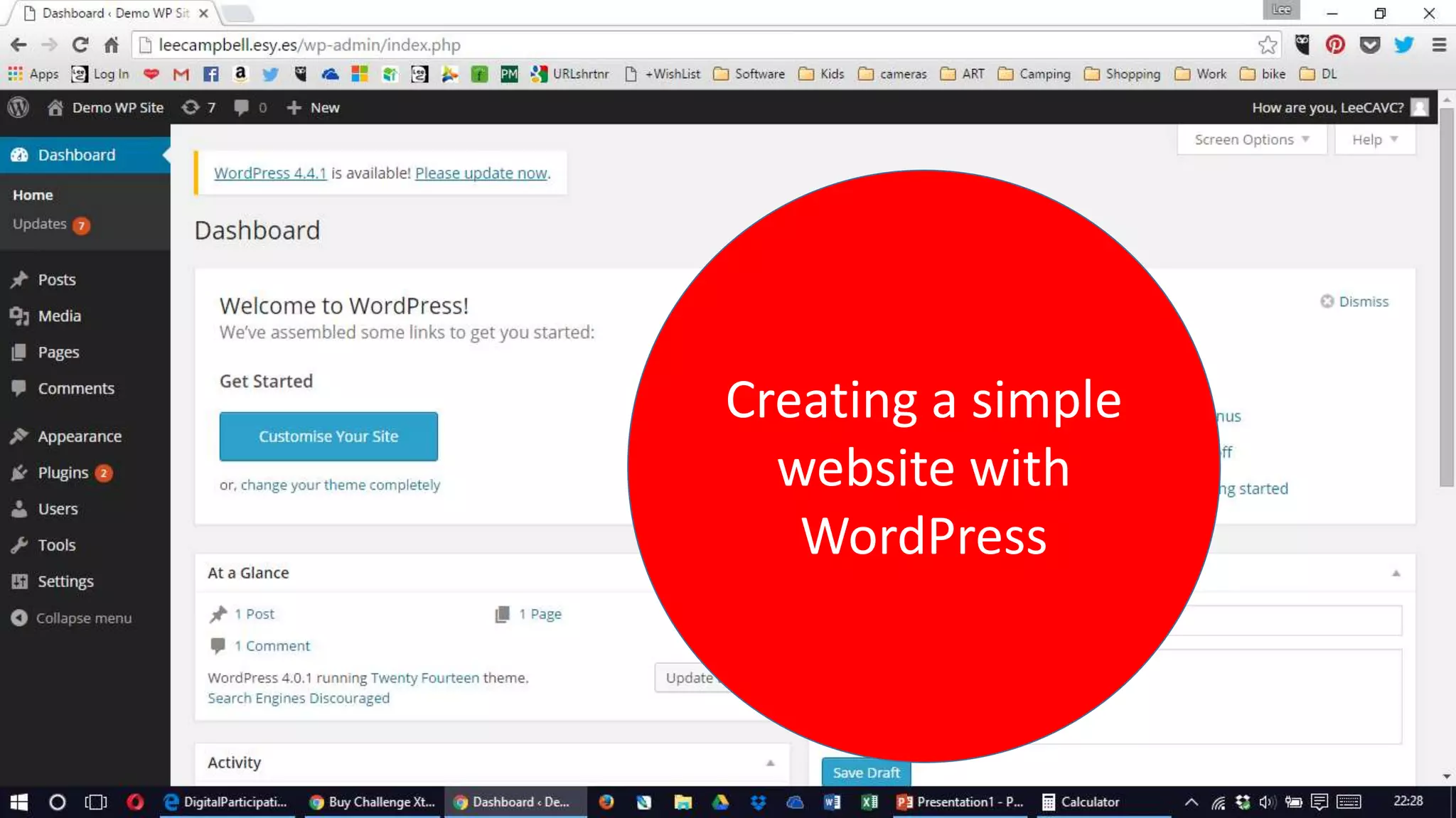
Creating a simple
website with
WordPress
Section 1: Prep
Section 2:
Make some
pages (not posts)
•What’s the difference?
• Posts are more suited to blogs
• Pages are more suited to websites
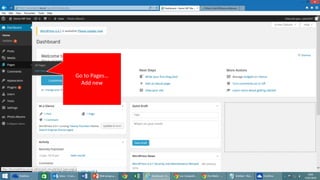
Go to Pages…
Add new
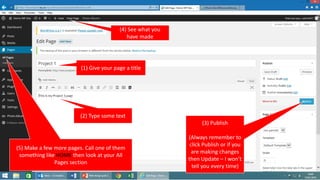
(1) Give your page a title
(2) Type some text
(3) Publish
(Always remember to
click Publish or if you
are making changes
then Update – I won’t
tell you every time)
(4) See what you
have made
(5) Make a few more pages. Call one of them
something like HOME then look at your All
Pages section
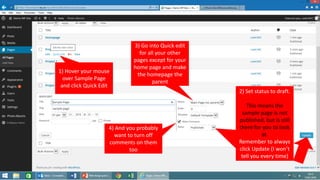
1) Hover your mouse
over Sample Page
and click Quick Edit
2) Set status to draft.
This means the
sample page is not
published, but is still
there for you to look
at.
Remember to always
click Update (I won’t
tell you every time)
3) Go into Quick edit
for all your other
pages except for your
home page and make
the homepage the
parent
4) And you probably
want to turn off
comments on them
too
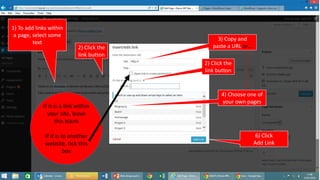
1) To add links within
a page, select some
text
2) Click the
link button
2) Click the
link button
3) Copy and
paste a URL or…
4) Choose one of
your own pages
6) Click
Add Link
If it is a link within
your site, leave
this blank
If it is to another
website, tick this
box
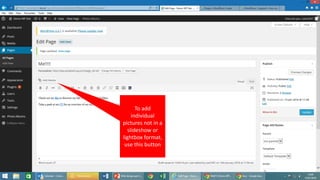
To add
individual
pictures not in a
slideshow or
lightbox format,
use this button
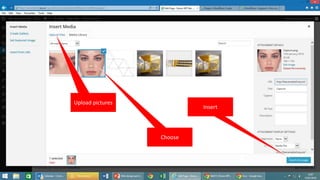
Upload pictures
Choose
Insert
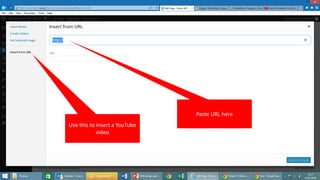
https://www.youtube.com/watch?v=O4THpbKZ0Zg
Use this to insert a YouTube
video
Paste URL here
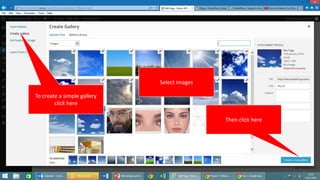
To create a simple gallery
click here
Select images
Then click here
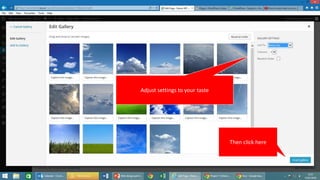
Adjust settings to your taste
Then click here
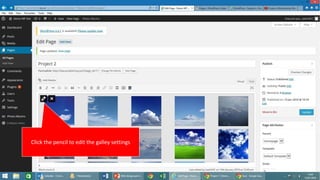
Click the pencil to edit the galley settings
Section 3:
Now we need to
make your
homepage
become the first
thing that people
see…
… and sort out a few things:
Sidebar Widgets
Themes
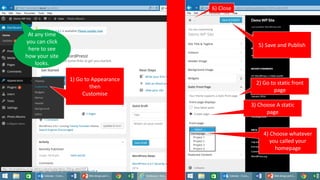
2) Go to static front
page
3) Choose A static
page
4) Choose whatever
you called your
homepage
1) Go to Appearance
then
Customise
5) Save and Publish
6) Close
At any time
you can click
here to see
how your site
looks.
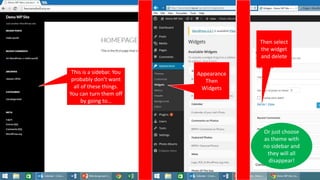
This is a sidebar. You
probably don’t want
all of these things.
You can turn them off
by going to…
Appearance
Then
Widgets
Then select
the widget
and delete
Or just choose
as theme with
no sidebar and
they will all
disappear!
Section 3:
Adjusting the
theme
… and sort out a few things:
Sidebar Widgets
Themes
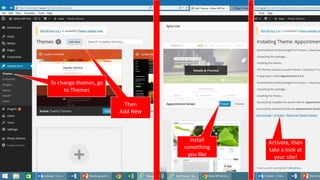
Then
Add New
To change themes, go
to Themes
Install
something
you like
Activate, then
take a look at
your site!
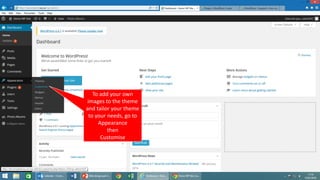
To add your own
images to the theme
and tailor your theme
to your needs, go to
Appearance
then
Customise
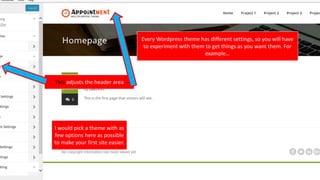
Every Wordpress theme has different settings, so you will have
to experiment with them to get things as you want them. For
example…
This adjusts the header area
I would pick a theme with as
few options here as possible
to make your first site easier.

Wordpress quickstart

  • 1.
  • 2.
  • 9.
    Section 2: Make some pages(not posts) •What’s the difference? • Posts are more suited to blogs • Pages are more suited to websites
  • 10.
  • 11.
    (1) Give yourpage a title (2) Type some text (3) Publish (Always remember to click Publish or if you are making changes then Update – I won’t tell you every time) (4) See what you have made (5) Make a few more pages. Call one of them something like HOME then look at your All Pages section
  • 12.
    1) Hover yourmouse over Sample Page and click Quick Edit 2) Set status to draft. This means the sample page is not published, but is still there for you to look at. Remember to always click Update (I won’t tell you every time) 3) Go into Quick edit for all your other pages except for your home page and make the homepage the parent 4) And you probably want to turn off comments on them too
  • 13.
    1) To addlinks within a page, select some text 2) Click the link button 2) Click the link button 3) Copy and paste a URL or… 4) Choose one of your own pages 6) Click Add Link If it is a link within your site, leave this blank If it is to another website, tick this box
  • 14.
    To add individual pictures notin a slideshow or lightbox format, use this button
  • 15.
  • 16.
    https://www.youtube.com/watch?v=O4THpbKZ0Zg Use this toinsert a YouTube video Paste URL here
  • 17.
    To create asimple gallery click here Select images Then click here
  • 18.
    Adjust settings toyour taste Then click here
  • 19.
    Click the pencilto edit the galley settings
  • 20.
    Section 3: Now weneed to make your homepage become the first thing that people see… … and sort out a few things: Sidebar Widgets Themes
  • 21.
    2) Go tostatic front page 3) Choose A static page 4) Choose whatever you called your homepage 1) Go to Appearance then Customise 5) Save and Publish 6) Close At any time you can click here to see how your site looks.
  • 22.
    This is asidebar. You probably don’t want all of these things. You can turn them off by going to… Appearance Then Widgets Then select the widget and delete Or just choose as theme with no sidebar and they will all disappear!
  • 23.
    Section 3: Adjusting the theme …and sort out a few things: Sidebar Widgets Themes
  • 24.
    Then Add New To changethemes, go to Themes Install something you like Activate, then take a look at your site!
  • 25.
    To add yourown images to the theme and tailor your theme to your needs, go to Appearance then Customise
  • 26.
    Every Wordpress themehas different settings, so you will have to experiment with them to get things as you want them. For example… This adjusts the header area I would pick a theme with as few options here as possible to make your first site easier.