■ Account properties: - the Account tab These properties include
those that are configured when you create a user object, including
logon names, password and account flags.

■ Personal information:- the General, Address, Telephones, and
Organization tabs The General tab exposes the name properties that
are configured when you create a user object.

■ User configuration management:- the Profile tab Here you can
configure the user’s profile path, logon script, and home folder
locations.
■ Group membership:- the Member Of tab You can add and remove
user groups.

■ Terminal services: - the Terminal Services Profile, Environment,
Remote Control, and Sessions tabs These four tabs allow you to
configure and manage the user’s experience when they are connected
to a Terminal Services session.

■ Remote access:- the Dial-in tab Allows you to enable and configure
remote access permission for a user.
User profile

In domain environment when user log in from client computer. A local profile
or default profile is created by operating system, in which all the desktop
setting, my document and start menu items are saved. There are three types
of user profile.

1.Local profile or Default profile
2.Roaming profile
3.Mandatory profile
(1)Local Profile

This profile automatically created when user logon on client computer. This
profile does not follow the user. When user logon second time from another
computer. A new profile has been created on second computer related to that
user.

(2) Roaming Profile

In this profile, user receives same desktop setting when he logged on second
time from any client computer because all the desktop setting will be saved on
Domain Controller after the user logged off. This profile follows the user each
time when he log on. To make this profile we have to perform some task with
the help of Active Directory users and computer.
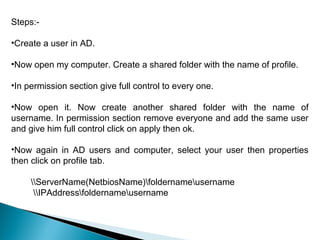
Steps:-

•Create a user in AD.

•Now open my computer. Create a shared folder with the name of profile.

•In permission section give full control to every one.

•Now open it. Now create another shared folder with the name of
username. In permission section remove everyone and add the same user
and give him full control click on apply then ok.

•Now again in AD users and computer, select your user then properties
then click on profile tab.

     ServerName(NetbiosName)foldernameusername
      IPAddressfoldernameusername
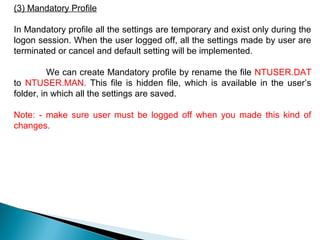
(3) Mandatory Profile

In Mandatory profile all the settings are temporary and exist only during the
logon session. When the user logged off, all the settings made by user are
terminated or cancel and default setting will be implemented.

          We can create Mandatory profile by rename the file NTUSER.DAT
to NTUSER.MAN. This file is hidden file, which is available in the user’s
folder, in which all the settings are saved.

Note: - make sure user must be logged off when you made this kind of
changes.
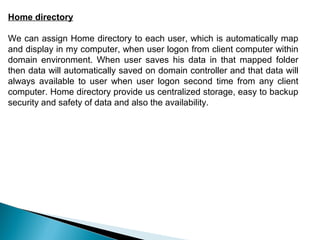
Home directory

We can assign Home directory to each user, which is automatically map
and display in my computer, when user logon from client computer within
domain environment. When user saves his data in that mapped folder
then data will automatically saved on domain controller and that data will
always available to user when user logon second time from any client
computer. Home directory provide us centralized storage, easy to backup
security and safety of data and also the availability.
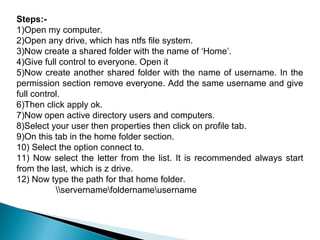
Steps:-
1)Open my computer.
2)Open any drive, which has ntfs file system.
3)Now create a shared folder with the name of ‘Home’.
4)Give full control to everyone. Open it
5)Now create another shared folder with the name of username. In the
permission section remove everyone. Add the same username and give
full control.
6)Then click apply ok.
7)Now open active directory users and computers.
8)Select your user then properties then click on profile tab.
9)On this tab in the home folder section.
10) Select the option connect to.
11) Now select the letter from the list. It is recommended always start
from the last, which is z drive.
12) Now type the path for that home folder.
           servernamefoldernameusername

2.1 user practical

  • 1.
    ■ Account properties:- the Account tab These properties include those that are configured when you create a user object, including logon names, password and account flags. ■ Personal information:- the General, Address, Telephones, and Organization tabs The General tab exposes the name properties that are configured when you create a user object. ■ User configuration management:- the Profile tab Here you can configure the user’s profile path, logon script, and home folder locations.
  • 2.
    ■ Group membership:-the Member Of tab You can add and remove user groups. ■ Terminal services: - the Terminal Services Profile, Environment, Remote Control, and Sessions tabs These four tabs allow you to configure and manage the user’s experience when they are connected to a Terminal Services session. ■ Remote access:- the Dial-in tab Allows you to enable and configure remote access permission for a user.
  • 3.
    User profile In domainenvironment when user log in from client computer. A local profile or default profile is created by operating system, in which all the desktop setting, my document and start menu items are saved. There are three types of user profile. 1.Local profile or Default profile 2.Roaming profile 3.Mandatory profile
  • 4.
    (1)Local Profile This profileautomatically created when user logon on client computer. This profile does not follow the user. When user logon second time from another computer. A new profile has been created on second computer related to that user. (2) Roaming Profile In this profile, user receives same desktop setting when he logged on second time from any client computer because all the desktop setting will be saved on Domain Controller after the user logged off. This profile follows the user each time when he log on. To make this profile we have to perform some task with the help of Active Directory users and computer.
  • 5.
    Steps:- •Create a userin AD. •Now open my computer. Create a shared folder with the name of profile. •In permission section give full control to every one. •Now open it. Now create another shared folder with the name of username. In permission section remove everyone and add the same user and give him full control click on apply then ok. •Now again in AD users and computer, select your user then properties then click on profile tab. ServerName(NetbiosName)foldernameusername IPAddressfoldernameusername
  • 6.
    (3) Mandatory Profile InMandatory profile all the settings are temporary and exist only during the logon session. When the user logged off, all the settings made by user are terminated or cancel and default setting will be implemented. We can create Mandatory profile by rename the file NTUSER.DAT to NTUSER.MAN. This file is hidden file, which is available in the user’s folder, in which all the settings are saved. Note: - make sure user must be logged off when you made this kind of changes.
  • 7.
    Home directory We canassign Home directory to each user, which is automatically map and display in my computer, when user logon from client computer within domain environment. When user saves his data in that mapped folder then data will automatically saved on domain controller and that data will always available to user when user logon second time from any client computer. Home directory provide us centralized storage, easy to backup security and safety of data and also the availability.
  • 8.
    Steps:- 1)Open my computer. 2)Openany drive, which has ntfs file system. 3)Now create a shared folder with the name of ‘Home’. 4)Give full control to everyone. Open it 5)Now create another shared folder with the name of username. In the permission section remove everyone. Add the same username and give full control. 6)Then click apply ok. 7)Now open active directory users and computers. 8)Select your user then properties then click on profile tab. 9)On this tab in the home folder section. 10) Select the option connect to. 11) Now select the letter from the list. It is recommended always start from the last, which is z drive. 12) Now type the path for that home folder. servernamefoldernameusername