ADMINISTRATING SERVER
TYPES OF USER ACCOUNT
• Local user account
– A user logs on to a specific computer to gain access to resources on that
computer.
– When you create a local user account, Windows 20XX creates the account only
in that computer’s security database, which is called the local security
database.
– Tips: Do not create local user accounts on computers that require access to
domain resources, because the domain does not recognize local user account.
– Impacts:
• The user is unable to gain access to resources in the domain.
• Domain administrator is unable to administer the local user account properties or assign
access permissions for domain resources.
DOMAIN USER ACCOUNT
• Domain user accounts allow users to log on to the domain and gain
access to resources anywhere on the network
• Create a domain user account in a container or an organizational unit
(OU) in the copy of the Active Directory database (called the directory)
on a domain controller
• The domain controller replicates the new user account information to all
domain controllers in the domain.
BUILT-IN USER ACCOUNT
• Administrator
– Windows 20XX automatically creates accounts called as Built-in
accounts.
– To manage the overall computer and domain configuration for such
as:
• Create/ modify user accounts and groups
• Manage security policies
• Create printers
• Assign permissions and rights in a way of accessing network resources
• Guest
– To give occasional users the ability to log on and gain access to
resources
– Disabled by default (Enable with low-security network and always
GROUP ACCOUNT
• A group account is a collection of users, computers or other groups.
• Purpose/ benefit: to efficiently manage access to domain resources
• Simplify administration by allowing you to assign permissions and rights to a group
of users rather than having to assign permissions and rights to each individuals user
account
STRATEGY FOR PLANNING GLOBAL
AND DOMAIN LOCAL GROUPS
• It recommended to use Role based group strategy:
• AGDLP
1. Assign users with common job responsibilities to global groups
2. Create a domain local group for resources to be shared
3. Add global groups to the domain local group
4. Assign resource permissions to the domain local group
GROUP POLICY OBJECT (GPO)
• It is a collection of GP settings that used to define a specific desktop
configuration for a particular groups of users.
• There are 2 version :
– Local GPO (gpedit.msc)
– Non-local GPO (AD-based)
OVERVIEW OF SHARED FOLDER
• Microsoft Windows 20xx allows you to designate folders to share with others.
• Allows any authorized users to make connections to the folder and access its files from
their own computers. Each type of data requires different shared folder permissions.
• Shared folder provide network users centralizes access to network files.
• The shared folder permissions need to be assigned to user and group accounts in
order to control what users can do with the content of a shared folder.
CHARACTERISTICS OF SHARED
FOLDER PERMISSIONS
1. Less detailed security compared to NTFS permission
 Shared folder permissions apply to folder, not individual files. Because the shared folder
permissions to the entire shared folder, and not to individual files or subfolders in the shared
folder.
2. Do not restrict access
 Shared folder permissions do not restrict access to users who gain access to the folder at the
computer where the folder is stored. They only apply to users who connect to the folder over
the network.
3. Mainly design for securing network resources on a FAT volume
 Shared folder permissions are the only way to secure network resources on a FAT volume.
NTFS permissions are not available FAT volumes.
4. ‘Full Control’ and ‘Everyone’ group are its default setting
SHARED FOLDERS PERMISSIONS
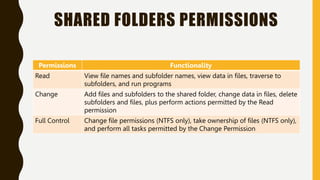
Permissions Functionality
Read View file names and subfolder names, view data in files, traverse to
subfolders, and run programs
Change Add files and subfolders to the shared folder, change data in files, delete
subfolders and files, plus perform actions permitted by the Read
permission
Full Control Change file permissions (NTFS only), take ownership of files (NTFS only),
and perform all tasks permitted by the Change Permission
SHARED FOLDER PERMISSIONS AND
NTFS PERMISSION
SHARED FOLDER PERMISSIONS AND
NTFS PERMISSION
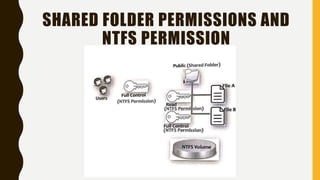
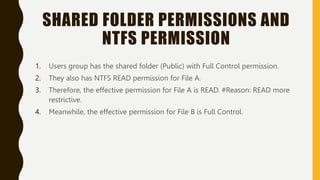
1. Users group has the shared folder (Public) with Full Control permission.
2. They also has NTFS READ permission for File A.
3. Therefore, the effective permission for File A is READ. #Reason: READ more
restrictive.
4. Meanwhile, the effective permission for File B is Full Control.
HOW SHARED FOLDER PERMISSIONS
ARE APPLIED
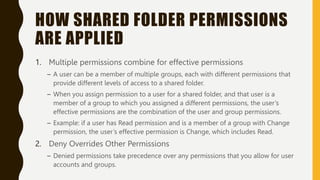
1. Multiple permissions combine for effective permissions
– A user can be a member of multiple groups, each with different permissions that
provide different levels of access to a shared folder.
– When you assign permission to a user for a shared folder, and that user is a
member of a group to which you assigned a different permissions, the user’s
effective permissions are the combination of the user and group permissions.
– Example: if a user has Read permission and is a member of a group with Change
permission, the user’s effective permission is Change, which includes Read.
2. Deny Overrides Other Permissions
– Denied permissions take precedence over any permissions that you allow for user
accounts and groups.
3. Copied, Moved, or Renamed Shared Folders Are Not Longer Shared
• When you copy a shared folder, the original shared folder is still shared,
but the copy is not shared. When you move or rename a shared folder,
it is no longer shared.
4. NTFS Permissions are required on NTFS Volumes
– Shared folder permissions are sufficient to gain access to files and folders on a FAT
volume, but not on an NTFS volume.
– On a FAT volume, users can gain access to a shared folder for which they have
permissions, as well as all of the folder’s contents.
– When users gain access to a shared folder on an NTFS volume, they need the shared
folder permissions and also the appropriate NTFS permissions for each file and folder
to which they gain access.
PLANNING SHARED FOLDERS
• Common consideration when to plan shared folders such as:
– Determine which resources want to be shared, then organize resources according
to function, use and its administration needs.
– It can contain applications and data
– Use shared application folders to centralize administration
• Requirements for Shared folder such as:
– Created by members of the built-in Administrators, Server Operators and Power
Users groups.
– The groups that can share folders and the machine on which they can share
folders depend on the following requirements :
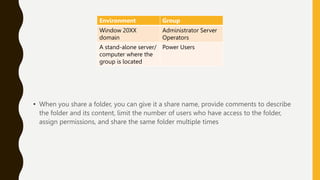
Environment Group
Window 20XX
domain
Administrator Server
Operators
A stand-alone server/
computer where the
group is located
Power Users
• When you share a folder, you can give it a share name, provide comments to describe
the folder and its content, limit the number of users who have access to the folder,
assign permissions, and share the same folder multiple times
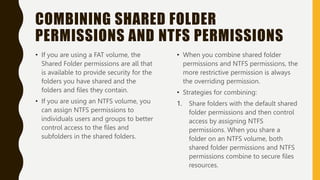
COMBINING SHARED FOLDER
PERMISSIONS AND NTFS PERMISSIONS
• If you are using a FAT volume, the
Shared Folder permissions are all that
is available to provide security for the
folders you have shared and the
folders and files they contain.
• If you are using an NTFS volume, you
can assign NTFS permissions to
individuals users and groups to better
control access to the files and
subfolders in the shared folders.
• When you combine shared folder
permissions and NTFS permissions, the
more restrictive permission is always
the overriding permission.
• Strategies for combining:
1. Share folders with the default shared
folder permissions and then control
access by assigning NTFS
permissions. When you share a
folder on an NTFS volume, both
shared folder permissions and NTFS
permissions combine to secure files
resources.
WHEN YOU USE SHARED FOLDER
PERMISSIONS ON AN NTFS VOLUME, THE
FOLLOWING RULES APPLY:
1. You can apply NTFS permissions to files and subfolders in the shared folder. You can
apply different NTFS permissions to each file and subfolder that a shared folder
contains.
2. In addition to shared folder permissions, users must have NTFS permissions for the
files and subfolder that shared folders contain to gain access to those files and
subfolders. This is in contrast to FAT volumes, where permissions for a shared folder
are the only permissions protecting files and subfolders in the shared folder.

2dvm kp 2.pptx

  • 1.
  • 2.
    TYPES OF USERACCOUNT • Local user account – A user logs on to a specific computer to gain access to resources on that computer. – When you create a local user account, Windows 20XX creates the account only in that computer’s security database, which is called the local security database. – Tips: Do not create local user accounts on computers that require access to domain resources, because the domain does not recognize local user account. – Impacts: • The user is unable to gain access to resources in the domain. • Domain administrator is unable to administer the local user account properties or assign access permissions for domain resources.
  • 3.
    DOMAIN USER ACCOUNT •Domain user accounts allow users to log on to the domain and gain access to resources anywhere on the network • Create a domain user account in a container or an organizational unit (OU) in the copy of the Active Directory database (called the directory) on a domain controller • The domain controller replicates the new user account information to all domain controllers in the domain.
  • 4.
    BUILT-IN USER ACCOUNT •Administrator – Windows 20XX automatically creates accounts called as Built-in accounts. – To manage the overall computer and domain configuration for such as: • Create/ modify user accounts and groups • Manage security policies • Create printers • Assign permissions and rights in a way of accessing network resources • Guest – To give occasional users the ability to log on and gain access to resources – Disabled by default (Enable with low-security network and always
  • 5.
    GROUP ACCOUNT • Agroup account is a collection of users, computers or other groups. • Purpose/ benefit: to efficiently manage access to domain resources • Simplify administration by allowing you to assign permissions and rights to a group of users rather than having to assign permissions and rights to each individuals user account
  • 6.
    STRATEGY FOR PLANNINGGLOBAL AND DOMAIN LOCAL GROUPS • It recommended to use Role based group strategy: • AGDLP 1. Assign users with common job responsibilities to global groups 2. Create a domain local group for resources to be shared 3. Add global groups to the domain local group 4. Assign resource permissions to the domain local group
  • 7.
    GROUP POLICY OBJECT(GPO) • It is a collection of GP settings that used to define a specific desktop configuration for a particular groups of users. • There are 2 version : – Local GPO (gpedit.msc) – Non-local GPO (AD-based)
  • 8.
    OVERVIEW OF SHAREDFOLDER • Microsoft Windows 20xx allows you to designate folders to share with others. • Allows any authorized users to make connections to the folder and access its files from their own computers. Each type of data requires different shared folder permissions. • Shared folder provide network users centralizes access to network files. • The shared folder permissions need to be assigned to user and group accounts in order to control what users can do with the content of a shared folder.
  • 9.
    CHARACTERISTICS OF SHARED FOLDERPERMISSIONS 1. Less detailed security compared to NTFS permission  Shared folder permissions apply to folder, not individual files. Because the shared folder permissions to the entire shared folder, and not to individual files or subfolders in the shared folder. 2. Do not restrict access  Shared folder permissions do not restrict access to users who gain access to the folder at the computer where the folder is stored. They only apply to users who connect to the folder over the network. 3. Mainly design for securing network resources on a FAT volume  Shared folder permissions are the only way to secure network resources on a FAT volume. NTFS permissions are not available FAT volumes. 4. ‘Full Control’ and ‘Everyone’ group are its default setting
  • 10.
    SHARED FOLDERS PERMISSIONS PermissionsFunctionality Read View file names and subfolder names, view data in files, traverse to subfolders, and run programs Change Add files and subfolders to the shared folder, change data in files, delete subfolders and files, plus perform actions permitted by the Read permission Full Control Change file permissions (NTFS only), take ownership of files (NTFS only), and perform all tasks permitted by the Change Permission
  • 11.
    SHARED FOLDER PERMISSIONSAND NTFS PERMISSION
  • 12.
    SHARED FOLDER PERMISSIONSAND NTFS PERMISSION 1. Users group has the shared folder (Public) with Full Control permission. 2. They also has NTFS READ permission for File A. 3. Therefore, the effective permission for File A is READ. #Reason: READ more restrictive. 4. Meanwhile, the effective permission for File B is Full Control.
  • 13.
    HOW SHARED FOLDERPERMISSIONS ARE APPLIED 1. Multiple permissions combine for effective permissions – A user can be a member of multiple groups, each with different permissions that provide different levels of access to a shared folder. – When you assign permission to a user for a shared folder, and that user is a member of a group to which you assigned a different permissions, the user’s effective permissions are the combination of the user and group permissions. – Example: if a user has Read permission and is a member of a group with Change permission, the user’s effective permission is Change, which includes Read. 2. Deny Overrides Other Permissions – Denied permissions take precedence over any permissions that you allow for user accounts and groups.
  • 14.
    3. Copied, Moved,or Renamed Shared Folders Are Not Longer Shared • When you copy a shared folder, the original shared folder is still shared, but the copy is not shared. When you move or rename a shared folder, it is no longer shared. 4. NTFS Permissions are required on NTFS Volumes – Shared folder permissions are sufficient to gain access to files and folders on a FAT volume, but not on an NTFS volume. – On a FAT volume, users can gain access to a shared folder for which they have permissions, as well as all of the folder’s contents. – When users gain access to a shared folder on an NTFS volume, they need the shared folder permissions and also the appropriate NTFS permissions for each file and folder to which they gain access.
  • 15.
    PLANNING SHARED FOLDERS •Common consideration when to plan shared folders such as: – Determine which resources want to be shared, then organize resources according to function, use and its administration needs. – It can contain applications and data – Use shared application folders to centralize administration • Requirements for Shared folder such as: – Created by members of the built-in Administrators, Server Operators and Power Users groups. – The groups that can share folders and the machine on which they can share folders depend on the following requirements :
  • 16.
    Environment Group Window 20XX domain AdministratorServer Operators A stand-alone server/ computer where the group is located Power Users • When you share a folder, you can give it a share name, provide comments to describe the folder and its content, limit the number of users who have access to the folder, assign permissions, and share the same folder multiple times
  • 17.
    COMBINING SHARED FOLDER PERMISSIONSAND NTFS PERMISSIONS • If you are using a FAT volume, the Shared Folder permissions are all that is available to provide security for the folders you have shared and the folders and files they contain. • If you are using an NTFS volume, you can assign NTFS permissions to individuals users and groups to better control access to the files and subfolders in the shared folders. • When you combine shared folder permissions and NTFS permissions, the more restrictive permission is always the overriding permission. • Strategies for combining: 1. Share folders with the default shared folder permissions and then control access by assigning NTFS permissions. When you share a folder on an NTFS volume, both shared folder permissions and NTFS permissions combine to secure files resources.
  • 18.
    WHEN YOU USESHARED FOLDER PERMISSIONS ON AN NTFS VOLUME, THE FOLLOWING RULES APPLY: 1. You can apply NTFS permissions to files and subfolders in the shared folder. You can apply different NTFS permissions to each file and subfolder that a shared folder contains. 2. In addition to shared folder permissions, users must have NTFS permissions for the files and subfolder that shared folders contain to gain access to those files and subfolders. This is in contrast to FAT volumes, where permissions for a shared folder are the only permissions protecting files and subfolders in the shared folder.