Configuring Windows Server 2003
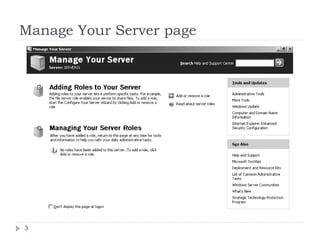
 you can configure the server using a well-thought-
out Manage Your Server page, as shown below, that
launches automatically at logon.
 The page facilitates the installation of specific
services, tools, and configurations based on server
roles. Click Add Or Remove A Role and the
Configure Your Server Wizard appears.
2
Manage Your Server page
3
Manage Your Server page
 If you select Typical Configuration For A First Server,
the Configure Your Server Wizard promotes the
server to a domain controller in a new domain,
installs Active Directory services, and, if needed,
Domain Name Service (DNS), Dynamic Host
Configuration Protocol (DHCP), and Routing And
Remote Access (RRAS) service.
 If you select Custom Configuration, the Configure
Your Server Wizard can configure the following roles:
4
Manage Your Server page
 File Server Provides convenient, centralized access to
files and directories for individual users, departments,
and entire organizations.
 Print Server Provides centralized and managed access
to printing devices by serving shared printers and printer
drivers to client computers.
 Application Server (IIS, ASP.NET) Provides
infrastructure components required to support the hosting
of Web applications. This role installs and configures IIS
6.0 as well as ASP.NET and COM+.
 Domain Controller (Active Directory) Provides
directory services to clients in the network. This option
configures a domain controller for a new or existing
domain and installs DNS. Choosing this option runs the
Active Directory Installation Wizard.
5
Manage Your Server page
 DNS Server Provides host name resolution by
translating host names to IP addresses (forward
lookups) and IP addresses to host names (reverse
lookups).
 DHCP Server Provides automatic IP addressing
services to clients configured to use dynamic IP
addressing.
6
DIRECTORY SERVICE MODELS
 Microsoft Windows networks support two directory
service models:
 the workgroup and
 the domain.
 A domain controller is a server that has been
promoted by running the Active Directory Installation
Wizard by running DCPROMO from the command
line or, by running the Configure Your Server Wizard.
 Once a server has become a domain controller, it
hosts a copy, or replica, of Active Directory and
changes to the database on any domain controller
are replicated to all domain controllers within the
domain.
7
Domains, Trees and Forests
 Active Directory cannot exist without at least one
domain, and vice versa.
 A domain is the core administrative unit of the
Windows Server 2003 directory service.
 However, an enterprise may have more than one
domain in its Active Directory.
 Multiple domain models create logical structures
called trees when they share contiguous DNS
names.
 If domains in an Active Directory do not share a
common root domain, they create multiple trees.
That leads you to the largest structure in an Active
Directory: the forest.
8
Objects and Organizational Units (OUs)
 Enterprise resources are represented in Active
Directory as objects, or records in the database.
 Each object has numerous attributes, or properties,
that define it. For example, a user object includes the
user name and password; a group object includes
the group name and a list of its members.
 To create an object in Active Directory, open the
Active Directory Users And Computers console from
the Administrative Tools program group.
 Expand the domain to reveal its containers and OUs.
Right-click a container or OU and select New
object_type.
9
Organizational Units (OUs)
 Structure is the function of a specific object type
called an organizational unit, or OU.
 OUs are containers within a domain that allow you to
group objects that share common administration or
configuration.
 But they do more than just organize Active Directory
objects. They provide important administrative
capabilities, as they provide a point at which
administrative functions can be delegated and to
which group policies can be linked.
10
Creating and Managing User Objects
 Active Directory requires the verification of an
individual’s identity—a process called
authentication—before that individual can access
resources.
 The cornerstone of authentication is the user
account, with its user logon name, password, and
unique security identifier (SID).
 During logon, Active Directory authenticates the user
name and password entered by the user.
 The user account is integrated into the Active
Directory user object. The user object includes not
just the user’s name, password, and SID, but also
contact information, such as telephone numbers and
addresses
11
Creating and Managing User Objects
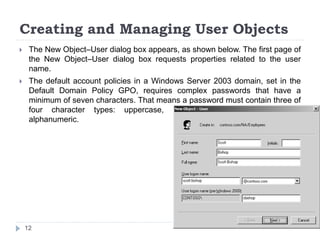
 The New Object–User dialog box appears, as shown below. The first page of
the New Object–User dialog box requests properties related to the user
name.
 The default account policies in a Windows Server 2003 domain, set in the
Default Domain Policy GPO, requires complex passwords that have a
minimum of seven characters. That means a password must contain three of
four character types: uppercase, lower-case, numeric, and non-
alphanumeric.
12
Managing User Objects with Active
Directory Users And Computers
 When creating a user, you are prompted to configure the most
common user proper-ties, including logon names and password.
However, user objects support numerous additional properties that
you can configure at any time using Active Directory Users And
Computers. These properties facilitate the administration of, and the
searching for, an object.
 To configure the properties of a user object, select the object, click
the Action menu, and then choose Properties. An alternative way to
view an object’s properties would be to right-click the object and
select Properties from the shortcut menu.
13
Managing User Objects with Active
Directory Users And Computers
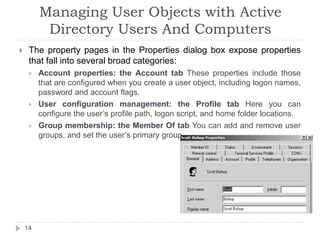
 The property pages in the Properties dialog box expose properties
that fall into several broad categories:
 Account properties: the Account tab These properties include those
that are configured when you create a user object, including logon names,
password and account flags.
 User configuration management: the Profile tab Here you can
configure the user’s profile path, logon script, and home folder locations.
 Group membership: the Member Of tab You can add and remove user
groups, and set the user’s primary group.
14
User Profiles
 A user profile is a collection of folders and data files that
contain the elements of your desktop environment that
make it uniquely yours. Settings include:
 Shortcuts in your Start menu, on your desktop, and in your Quick Launch bar
 Documents on your desktop and, unless redirection is configured, in your My
Documents folder
 Internet Explorer favourites and cookies
 Certificates (if implemented)
 Application specific files, such as the Microsoft Office custom user dictionary, user
templates, and autocomplete list
 My Network Places
 Desktop display settings, such as appearance, wallpaper, and screensaver
 These important elements are specific to each user. It is desirable
that they are consistent between logons, available should the user
need to log on to another system, and resilient in the event that the
user’s system fails and must be reinstalled.
15
Local User Profiles
 By default, user profiles are stored locally on the system in the
%Systemdrive% Documents and Settings%Username% folder.
They operate in the following manner:
 When a user logs on to a system for the first time, the system creates a
profile for the user by copying the Default User profile. The new profile
folder is named based on the logon name specified in the user’s initial
logon.
 All changes made to the user’s desktop and software environment are
stored in the local user profile. Each user has their individual profiles, so
settings are user-specific.
 The user environment is extended by the All Users profile, which can
include shortcuts in the desktop or start menu, network places, and even
application data. Elements of the All Users profile are combined with the
user’s profile to create the user environment. By default, only users of the
Administrators group can modify the All Users profile.
 The profile is truly local. If a user logs on to another system, the
documents and settings that are part of their profile do not follow the user.
Instead, the new system behaves as outlined here, generating a new local
profile for the user if it is the user’s first time logging on to that system.
16
Roaming User Profiles
 If users work at more than one computer, you can configure roaming
user profiles (RUPs) to ensure that their documents and settings are
consistent no matter where they log on.
 RUPs store the profile on a server, which also means that the profiles
can be backed up, scanned for viruses, and controlled centrally.
Even in environments where users do not roam, RUPs provide
resiliency for the important information stored in the profile. If a user’s
system fails and must be reinstalled, an RUP will ensure that the
user’s environment is identical on the new system to the one on the
previous system.
 To configure an RUP, create a shared folder on a server. Ideally, the
server should be a file server that is frequently backed up.
 Note Be sure to configure share permissions allowing Everyone Full
Control. The Windows Server 2003 default share permissions allow
Read, which is not sufficient for a roaming profile share.
17
Roaming User Profiles
 On the Profile tab of the user’s Properties dialog box, type the Profile
Path in the format: <server ><share>%Username%. The
%Username% variable will automatically be replaced with the user’s
logon name.
 It’s that simple. The next time the user logs on, the system will
identify the roaming profile location.
 When the user logs off, the system will upload the profile to the
profile server. The user can now log on to that system or any other
system in the domain, and the documents and settings that are part
of the RUP will be applied.
 When a user with an RUP logs on to a new system for the first time,
the system does not copy its Default User profile.
 Instead, it downloads the RUP from the network location. When a
user logs off, or when a user logs on to a system on which they’ve
worked before, the system copies only files that have changed. i.e
Roaming Profile Synchronization
18
Creating a Preconfigured User Profile
 You can create a customized user profile to provide a planned,
preconfigured desktop and software environment. This is helpful to
achieve the following:
 Provide a productive work environment with easy access to needed
network resources and applications
 Remove access to unnecessary resources and applications
 Simplify help desk troubleshooting by enforcing a more straightforward
and consistent desktop
 No special tools are required to create a preconfigured
user profile. Simply log on to a system and modify the
desktop and software settings appropriately. It’s a good
idea to do this as an account other than your actual user
account so that you don’t modify your own profile
unnecessarily.
19
Creating a Preconfigured User Profile
 Once you’ve created the profile, log on to the system with
administrative credentials.
 Open System from Control Panel, click the Advanced tab, and then
click Settings in the User Profiles frame.
 Select the profile you created, and then click Copy To. Type the
Universal Naming Convention (UNC) path to the profile in the format:
<server><share><username>.
 In the Permitted To Use section, click Change to select the user for
whom you’ve configured the profile. This sets the ACL on the profile
folder to allow access to that user. Click OK and the pro-file is copied
to the network location.
 You must be a member of the Administrators group to
copy a profile.
20
Copying a preconfigured user profile to the network
 Finally, open the properties of the user object and, on the Profile tab,
enter the same UNC Profile Path field. Voilà! The next time that user
logs on to a domain computer, that profile will be downloaded and
will determine his or her user environment.
21

2 Configuring Windows Server 2003.pptx

  • 1.
  • 2.
     you canconfigure the server using a well-thought- out Manage Your Server page, as shown below, that launches automatically at logon.  The page facilitates the installation of specific services, tools, and configurations based on server roles. Click Add Or Remove A Role and the Configure Your Server Wizard appears. 2
  • 3.
  • 4.
    Manage Your Serverpage  If you select Typical Configuration For A First Server, the Configure Your Server Wizard promotes the server to a domain controller in a new domain, installs Active Directory services, and, if needed, Domain Name Service (DNS), Dynamic Host Configuration Protocol (DHCP), and Routing And Remote Access (RRAS) service.  If you select Custom Configuration, the Configure Your Server Wizard can configure the following roles: 4
  • 5.
    Manage Your Serverpage  File Server Provides convenient, centralized access to files and directories for individual users, departments, and entire organizations.  Print Server Provides centralized and managed access to printing devices by serving shared printers and printer drivers to client computers.  Application Server (IIS, ASP.NET) Provides infrastructure components required to support the hosting of Web applications. This role installs and configures IIS 6.0 as well as ASP.NET and COM+.  Domain Controller (Active Directory) Provides directory services to clients in the network. This option configures a domain controller for a new or existing domain and installs DNS. Choosing this option runs the Active Directory Installation Wizard. 5
  • 6.
    Manage Your Serverpage  DNS Server Provides host name resolution by translating host names to IP addresses (forward lookups) and IP addresses to host names (reverse lookups).  DHCP Server Provides automatic IP addressing services to clients configured to use dynamic IP addressing. 6
  • 7.
    DIRECTORY SERVICE MODELS Microsoft Windows networks support two directory service models:  the workgroup and  the domain.  A domain controller is a server that has been promoted by running the Active Directory Installation Wizard by running DCPROMO from the command line or, by running the Configure Your Server Wizard.  Once a server has become a domain controller, it hosts a copy, or replica, of Active Directory and changes to the database on any domain controller are replicated to all domain controllers within the domain. 7
  • 8.
    Domains, Trees andForests  Active Directory cannot exist without at least one domain, and vice versa.  A domain is the core administrative unit of the Windows Server 2003 directory service.  However, an enterprise may have more than one domain in its Active Directory.  Multiple domain models create logical structures called trees when they share contiguous DNS names.  If domains in an Active Directory do not share a common root domain, they create multiple trees. That leads you to the largest structure in an Active Directory: the forest. 8
  • 9.
    Objects and OrganizationalUnits (OUs)  Enterprise resources are represented in Active Directory as objects, or records in the database.  Each object has numerous attributes, or properties, that define it. For example, a user object includes the user name and password; a group object includes the group name and a list of its members.  To create an object in Active Directory, open the Active Directory Users And Computers console from the Administrative Tools program group.  Expand the domain to reveal its containers and OUs. Right-click a container or OU and select New object_type. 9
  • 10.
    Organizational Units (OUs) Structure is the function of a specific object type called an organizational unit, or OU.  OUs are containers within a domain that allow you to group objects that share common administration or configuration.  But they do more than just organize Active Directory objects. They provide important administrative capabilities, as they provide a point at which administrative functions can be delegated and to which group policies can be linked. 10
  • 11.
    Creating and ManagingUser Objects  Active Directory requires the verification of an individual’s identity—a process called authentication—before that individual can access resources.  The cornerstone of authentication is the user account, with its user logon name, password, and unique security identifier (SID).  During logon, Active Directory authenticates the user name and password entered by the user.  The user account is integrated into the Active Directory user object. The user object includes not just the user’s name, password, and SID, but also contact information, such as telephone numbers and addresses 11
  • 12.
    Creating and ManagingUser Objects  The New Object–User dialog box appears, as shown below. The first page of the New Object–User dialog box requests properties related to the user name.  The default account policies in a Windows Server 2003 domain, set in the Default Domain Policy GPO, requires complex passwords that have a minimum of seven characters. That means a password must contain three of four character types: uppercase, lower-case, numeric, and non- alphanumeric. 12
  • 13.
    Managing User Objectswith Active Directory Users And Computers  When creating a user, you are prompted to configure the most common user proper-ties, including logon names and password. However, user objects support numerous additional properties that you can configure at any time using Active Directory Users And Computers. These properties facilitate the administration of, and the searching for, an object.  To configure the properties of a user object, select the object, click the Action menu, and then choose Properties. An alternative way to view an object’s properties would be to right-click the object and select Properties from the shortcut menu. 13
  • 14.
    Managing User Objectswith Active Directory Users And Computers  The property pages in the Properties dialog box expose properties that fall into several broad categories:  Account properties: the Account tab These properties include those that are configured when you create a user object, including logon names, password and account flags.  User configuration management: the Profile tab Here you can configure the user’s profile path, logon script, and home folder locations.  Group membership: the Member Of tab You can add and remove user groups, and set the user’s primary group. 14
  • 15.
    User Profiles  Auser profile is a collection of folders and data files that contain the elements of your desktop environment that make it uniquely yours. Settings include:  Shortcuts in your Start menu, on your desktop, and in your Quick Launch bar  Documents on your desktop and, unless redirection is configured, in your My Documents folder  Internet Explorer favourites and cookies  Certificates (if implemented)  Application specific files, such as the Microsoft Office custom user dictionary, user templates, and autocomplete list  My Network Places  Desktop display settings, such as appearance, wallpaper, and screensaver  These important elements are specific to each user. It is desirable that they are consistent between logons, available should the user need to log on to another system, and resilient in the event that the user’s system fails and must be reinstalled. 15
  • 16.
    Local User Profiles By default, user profiles are stored locally on the system in the %Systemdrive% Documents and Settings%Username% folder. They operate in the following manner:  When a user logs on to a system for the first time, the system creates a profile for the user by copying the Default User profile. The new profile folder is named based on the logon name specified in the user’s initial logon.  All changes made to the user’s desktop and software environment are stored in the local user profile. Each user has their individual profiles, so settings are user-specific.  The user environment is extended by the All Users profile, which can include shortcuts in the desktop or start menu, network places, and even application data. Elements of the All Users profile are combined with the user’s profile to create the user environment. By default, only users of the Administrators group can modify the All Users profile.  The profile is truly local. If a user logs on to another system, the documents and settings that are part of their profile do not follow the user. Instead, the new system behaves as outlined here, generating a new local profile for the user if it is the user’s first time logging on to that system. 16
  • 17.
    Roaming User Profiles If users work at more than one computer, you can configure roaming user profiles (RUPs) to ensure that their documents and settings are consistent no matter where they log on.  RUPs store the profile on a server, which also means that the profiles can be backed up, scanned for viruses, and controlled centrally. Even in environments where users do not roam, RUPs provide resiliency for the important information stored in the profile. If a user’s system fails and must be reinstalled, an RUP will ensure that the user’s environment is identical on the new system to the one on the previous system.  To configure an RUP, create a shared folder on a server. Ideally, the server should be a file server that is frequently backed up.  Note Be sure to configure share permissions allowing Everyone Full Control. The Windows Server 2003 default share permissions allow Read, which is not sufficient for a roaming profile share. 17
  • 18.
    Roaming User Profiles On the Profile tab of the user’s Properties dialog box, type the Profile Path in the format: <server ><share>%Username%. The %Username% variable will automatically be replaced with the user’s logon name.  It’s that simple. The next time the user logs on, the system will identify the roaming profile location.  When the user logs off, the system will upload the profile to the profile server. The user can now log on to that system or any other system in the domain, and the documents and settings that are part of the RUP will be applied.  When a user with an RUP logs on to a new system for the first time, the system does not copy its Default User profile.  Instead, it downloads the RUP from the network location. When a user logs off, or when a user logs on to a system on which they’ve worked before, the system copies only files that have changed. i.e Roaming Profile Synchronization 18
  • 19.
    Creating a PreconfiguredUser Profile  You can create a customized user profile to provide a planned, preconfigured desktop and software environment. This is helpful to achieve the following:  Provide a productive work environment with easy access to needed network resources and applications  Remove access to unnecessary resources and applications  Simplify help desk troubleshooting by enforcing a more straightforward and consistent desktop  No special tools are required to create a preconfigured user profile. Simply log on to a system and modify the desktop and software settings appropriately. It’s a good idea to do this as an account other than your actual user account so that you don’t modify your own profile unnecessarily. 19
  • 20.
    Creating a PreconfiguredUser Profile  Once you’ve created the profile, log on to the system with administrative credentials.  Open System from Control Panel, click the Advanced tab, and then click Settings in the User Profiles frame.  Select the profile you created, and then click Copy To. Type the Universal Naming Convention (UNC) path to the profile in the format: <server><share><username>.  In the Permitted To Use section, click Change to select the user for whom you’ve configured the profile. This sets the ACL on the profile folder to allow access to that user. Click OK and the pro-file is copied to the network location.  You must be a member of the Administrators group to copy a profile. 20
  • 21.
    Copying a preconfigureduser profile to the network  Finally, open the properties of the user object and, on the Profile tab, enter the same UNC Profile Path field. Voilà! The next time that user logs on to a domain computer, that profile will be downloaded and will determine his or her user environment. 21