Windows Operating System
Bali Thorat
Operating System
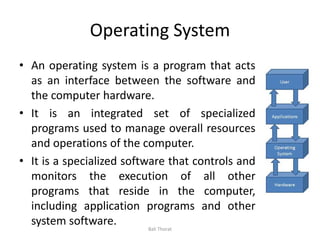
• An operating system is a program that acts
as an interface between the software and
the computer hardware.
• It is an integrated set of specialized
programs used to manage overall resources
and operations of the computer.
• It is a specialized software that controls and
monitors the execution of all other
programs that reside in the computer,
including application programs and other
system software. Bali Thorat
Windows Operating System
• Microsoft created the Windows operating system in
the mid-1980s. There have been many different
versions of Windows, but the most recent ones
are Windows 10 (released in 2015), Windows
8 (2012), Windows 7 (2009), and Windows
Vista (2007).
• Windows is a graphical operating system developed by
Microsoft. It allows users to view and store files, run
the software, play games, watch videos, and provides a
way to connect to the internet. It was released for both
home computing and professional works.
Bali Thorat
Editions of Windows
• Microsoft has produced several editions of
Windows, starting with Windows XP. These
versions have the same core operating system,
but some versions included advance features
with an additional cost. There are two most
common editions of Windows:
• Windows Home
• Windows Professional
Bali Thorat
Windows Home
• Windows Home is basic edition of Windows. It
offers all the fundamental functions of
Windows, such as browsing the web,
connecting to the Internet, playing video
games, using office software, watching videos.
Furthermore, it is less expensive and comes
pre-installed with many new computers.
Bali Thorat
Windows Professional
• Windows Professional is also known as
Window Pro or win Pro. It is an enhanced
edition of Windows, which is beneficial for
power users and small to medium-size
businesses. It contains all features of Windows
Home as well as some advanced features.
Bali Thorat
Personalize your desktop
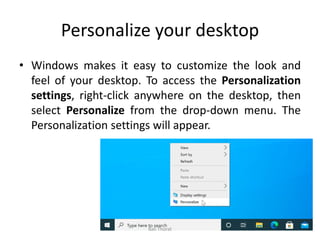
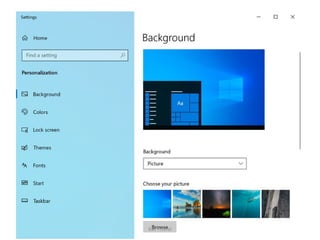
• Windows makes it easy to customize the look and
feel of your desktop. To access the Personalization
settings, right-click anywhere on the desktop, then
select Personalize from the drop-down menu. The
Personalization settings will appear.
Bali Thorat
Bali Thorat
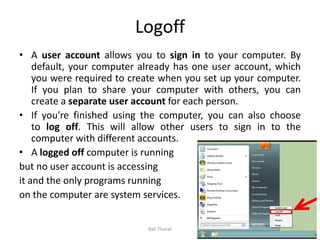
Logoff
• A user account allows you to sign in to your computer. By
default, your computer already has one user account, which
you were required to create when you set up your computer.
If you plan to share your computer with others, you can
create a separate user account for each person.
• If you're finished using the computer, you can also choose
to log off. This will allow other users to sign in to the
computer with different accounts.
• A logged off computer is running
but no user account is accessing
it and the only programs running
on the computer are system services.
Bali Thorat
Hibernate
• Hibernate uses less power than sleep and when you start up
the PC again, you're back to where you left off (though not as
fast as sleep). Use hibernation when you know that you won't
use your laptop or tablet for an extended period and won't
have an opportunity to charge the battery during that time.
Bali Thorat
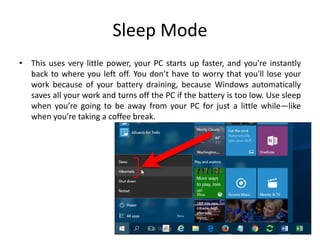
Sleep Mode
• This uses very little power, your PC starts up faster, and you’re instantly
back to where you left off. You don’t have to worry that you'll lose your
work because of your battery draining, because Windows automatically
saves all your work and turns off the PC if the battery is too low. Use sleep
when you’re going to be away from your PC for just a little while—like
when you’re taking a coffee break.
Bali Thorat
Sleep Mode vs Hibernate
• Sleep mode stores the documents and files you are
operating into the RAM, using a small amount of
power in the process.
• Hibernate mode essentially does the same thing, but
saves the information to your hard disk, which allows
your computer to be turned off completely and use
no energy.
Bali Thorat
Connect Various Devices to Computer
• Various devices can be used for inputting data
and showing output.
• For example mouse, keyboard, camera are
examples of input devices. Whereas monitor,
speaker, projector are examples of output
devices.
• Connecting input and output devices to CPU
requires cables. Some devices can be
connected wirelessly.
Bali Thorat
VGA
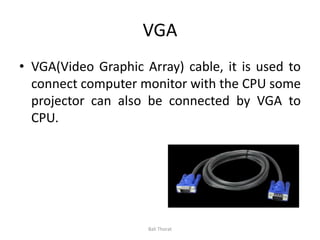
• VGA(Video Graphic Array) cable, it is used to
connect computer monitor with the CPU some
projector can also be connected by VGA to
CPU.
Bali Thorat
USB
• USB(Universal Serial Bus) a cord devices like
Scanner, Printer, Mouse, Web-Camera are
connected with computer using USB cord or
cable.
Bali Thorat
HDMI
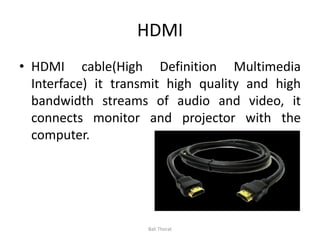
• HDMI cable(High Definition Multimedia
Interface) it transmit high quality and high
bandwidth streams of audio and video, it
connects monitor and projector with the
computer.
Bali Thorat
Data Cable
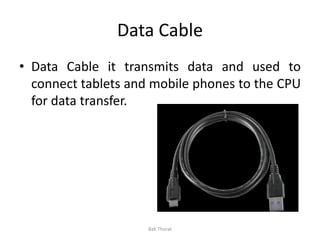
• Data Cable it transmits data and used to
connect tablets and mobile phones to the CPU
for data transfer.
Bali Thorat
Audio Jack
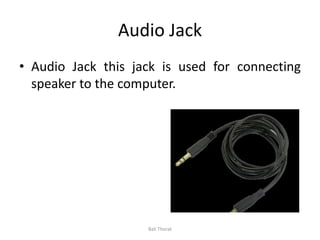
• Audio Jack this jack is used for connecting
speaker to the computer.
Bali Thorat
Power Cord
• Power Cord it used to connect appliances to
the main electricity supply.
Bali Thorat
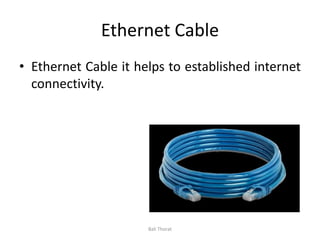
Ethernet Cable
• Ethernet Cable it helps to established internet
connectivity.
Bali Thorat
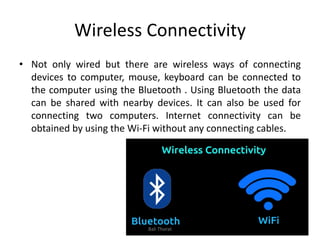
Wireless Connectivity
• Not only wired but there are wireless ways of connecting
devices to computer, mouse, keyboard can be connected to
the computer using the Bluetooth . Using Bluetooth the data
can be shared with nearby devices. It can also be used for
connecting two computers. Internet connectivity can be
obtained by using the Wi-Fi without any connecting cables.
Bali Thorat
Personalize your Computer
• Personalization is the process of adjusting the
look, feel and organization of a Windows end-
user experience.
• In general, any adjustment to the user
interface that deviates from the default
installation settings may be considered to be a
personalization, but users typically personalize a
desktop to improve the personal comfort of the
user interface, enhance its visual behaviors or
reflect personal interests.
Bali Thorat
Desktop personalization
• Desktop personalization also involves selecting from a variety
of available themes, which combine desktop backgrounds,
window color schemes, sounds and screen savers.
Bali Thorat
Screen Saver
• Open the Personalization menu. This can be found
in the Control Panel, under Appearances and
Personalization. Navigate to the Screen Saver option.
This will open your Screen Saver Settings.
Bali Thorat
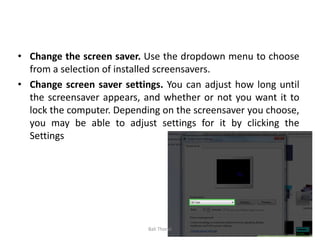
• Change the screen saver. Use the dropdown menu to choose
from a selection of installed screensavers.
• Change screen saver settings. You can adjust how long until
the screensaver appears, and whether or not you want it to
lock the computer. Depending on the screensaver you choose,
you may be able to adjust settings for it by clicking the
Settings button.
Bali Thorat
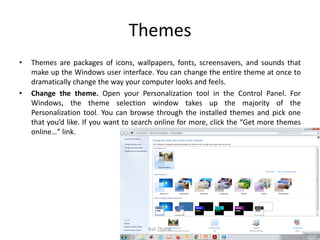
Themes
• Themes are packages of icons, wallpapers, fonts, screensavers, and sounds that
make up the Windows user interface. You can change the entire theme at once to
dramatically change the way your computer looks and feels.
• Change the theme. Open your Personalization tool in the Control Panel. For
Windows, the theme selection window takes up the majority of the
Personalization tool. You can browse through the installed themes and pick one
that you’d like. If you want to search online for more, click the “Get more themes
online…” link.
Bali Thorat
File Name and Extension
• A file is a collection of data stored in one unit, identified by a filename. It can be a
document, picture, audio or video stream other collection of data.
• Windows file names have two parts; the file's name, then a period followed by the
extension (suffix). The extension is a three- or four-letter abbreviation that
signifies the file type.
• For example, in letter.docx the filename is letter and the extension
is docx. Extensions are important because they tell your computer what icon to
use for the file, and what application can open the file. For example,
the doc extension tells your computer that the file is a Microsoft Word file.
.DOC or .DOCX Microsoft Word for Windows/Word97
.JPG or JPEG JPEG graphic
.PDF Acrobat -Portable document format
.PPT or .PPTX PowerPoint
.XLS or .XLSX Excel spreadsheet
Bali Thorat
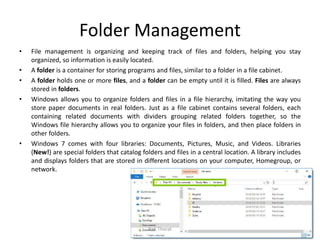
Folder Management
• File management is organizing and keeping track of files and folders, helping you stay
organized, so information is easily located.
• A folder is a container for storing programs and files, similar to a folder in a file cabinet.
• A folder holds one or more files, and a folder can be empty until it is filled. Files are always
stored in folders.
• Windows allows you to organize folders and files in a file hierarchy, imitating the way you
store paper documents in real folders. Just as a file cabinet contains several folders, each
containing related documents with dividers grouping related folders together, so the
Windows file hierarchy allows you to organize your files in folders, and then place folders in
other folders.
• Windows 7 comes with four libraries: Documents, Pictures, Music, and Videos. Libraries
(New!) are special folders that catalog folders and files in a central location. A library includes
and displays folders that are stored in different locations on your computer, Homegroup, or
network.
Bali Thorat
Use of Various Applications of
Windows
• Windows comes with several useful
applications already installed. These
applications can help you with many common
tasks, including browsing the Internet,
managing your calendar, Paint, Calculator, etc
• Most of these apps can be opened by clicking
the Start button, then clicking the icon of the
app you want to open.
Bali Thorat
Paint
• Microsoft Paint or 'MS Paint' is a basic
graphics/painting utility that is included in all
the Microsoft Windows versions. MS Paint can be
used to draw, colour and edit pictures, including
imported pictures from a digital camera for example.
• MS Paint is found in the Windows Start menu within
the Accessories Folder.
• In MS paint you can use text tool, bucket tool,
eyedropper tool, airbrush tool, brush tool, zoom tool,
shapes tool, eraser tool, etc. tool are used.
Bali Thorat
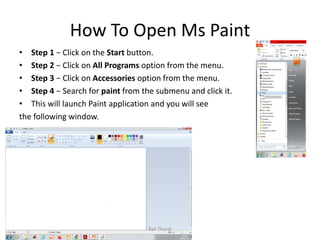
How To Open Ms Paint
• Step 1 − Click on the Start button.
• Step 2 − Click on All Programs option from the menu.
• Step 3 − Click on Accessories option from the menu.
• Step 4 − Search for paint from the submenu and click it.
• This will launch Paint application and you will see
the following window.
Bali Thorat
Paint to resize and edit photo
• To resize the image:
– Right click on the image file in the File Explorer, select Open With, Paint.
– Select main menu item Image, Stretch/Skew ... Change the Horizontal and
Vertical percentages to a percentage less than 100. Keep the percentages
equal to preserve the aspect ratio.
– Select the main menu item File >> Save As to save the resized image.
Bali Thorat
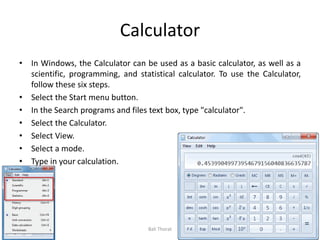
Calculator
• In Windows, the Calculator can be used as a basic calculator, as well as a
scientific, programming, and statistical calculator. To use the Calculator,
follow these six steps.
• Select the Start menu button.
• In the Search programs and files text box, type "calculator".
• Select the Calculator.
• Select View.
• Select a mode.
• Type in your calculation.
Bali Thorat
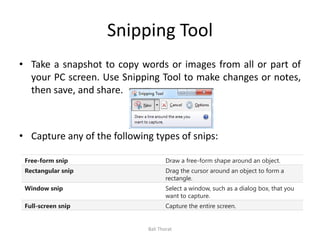
Snipping Tool
• Take a snapshot to copy words or images from all or part of
your PC screen. Use Snipping Tool to make changes or notes,
then save, and share.
• Capture any of the following types of snips:
Free-form snip Draw a free-form shape around an object.
Rectangular snip Drag the cursor around an object to form a
rectangle.
Window snip Select a window, such as a dialog box, that you
want to capture.
Full-screen snip Capture the entire screen.
Bali Thorat
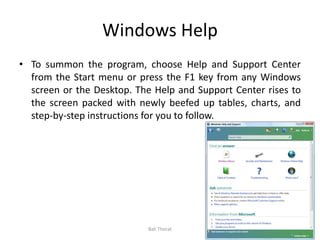
Windows Help
• To summon the program, choose Help and Support Center
from the Start menu or press the F1 key from any Windows
screen or the Desktop. The Help and Support Center rises to
the screen packed with newly beefed up tables, charts, and
step-by-step instructions for you to follow.
Bali Thorat

2 windows operating system

  • 1.
  • 2.
    Operating System • Anoperating system is a program that acts as an interface between the software and the computer hardware. • It is an integrated set of specialized programs used to manage overall resources and operations of the computer. • It is a specialized software that controls and monitors the execution of all other programs that reside in the computer, including application programs and other system software. Bali Thorat
  • 3.
    Windows Operating System •Microsoft created the Windows operating system in the mid-1980s. There have been many different versions of Windows, but the most recent ones are Windows 10 (released in 2015), Windows 8 (2012), Windows 7 (2009), and Windows Vista (2007). • Windows is a graphical operating system developed by Microsoft. It allows users to view and store files, run the software, play games, watch videos, and provides a way to connect to the internet. It was released for both home computing and professional works. Bali Thorat
  • 4.
    Editions of Windows •Microsoft has produced several editions of Windows, starting with Windows XP. These versions have the same core operating system, but some versions included advance features with an additional cost. There are two most common editions of Windows: • Windows Home • Windows Professional Bali Thorat
  • 5.
    Windows Home • WindowsHome is basic edition of Windows. It offers all the fundamental functions of Windows, such as browsing the web, connecting to the Internet, playing video games, using office software, watching videos. Furthermore, it is less expensive and comes pre-installed with many new computers. Bali Thorat
  • 6.
    Windows Professional • WindowsProfessional is also known as Window Pro or win Pro. It is an enhanced edition of Windows, which is beneficial for power users and small to medium-size businesses. It contains all features of Windows Home as well as some advanced features. Bali Thorat
  • 7.
    Personalize your desktop •Windows makes it easy to customize the look and feel of your desktop. To access the Personalization settings, right-click anywhere on the desktop, then select Personalize from the drop-down menu. The Personalization settings will appear. Bali Thorat
  • 8.
  • 9.
    Logoff • A useraccount allows you to sign in to your computer. By default, your computer already has one user account, which you were required to create when you set up your computer. If you plan to share your computer with others, you can create a separate user account for each person. • If you're finished using the computer, you can also choose to log off. This will allow other users to sign in to the computer with different accounts. • A logged off computer is running but no user account is accessing it and the only programs running on the computer are system services. Bali Thorat
  • 10.
    Hibernate • Hibernate usesless power than sleep and when you start up the PC again, you're back to where you left off (though not as fast as sleep). Use hibernation when you know that you won't use your laptop or tablet for an extended period and won't have an opportunity to charge the battery during that time. Bali Thorat
  • 11.
    Sleep Mode • Thisuses very little power, your PC starts up faster, and you’re instantly back to where you left off. You don’t have to worry that you'll lose your work because of your battery draining, because Windows automatically saves all your work and turns off the PC if the battery is too low. Use sleep when you’re going to be away from your PC for just a little while—like when you’re taking a coffee break. Bali Thorat
  • 12.
    Sleep Mode vsHibernate • Sleep mode stores the documents and files you are operating into the RAM, using a small amount of power in the process. • Hibernate mode essentially does the same thing, but saves the information to your hard disk, which allows your computer to be turned off completely and use no energy. Bali Thorat
  • 13.
    Connect Various Devicesto Computer • Various devices can be used for inputting data and showing output. • For example mouse, keyboard, camera are examples of input devices. Whereas monitor, speaker, projector are examples of output devices. • Connecting input and output devices to CPU requires cables. Some devices can be connected wirelessly. Bali Thorat
  • 14.
    VGA • VGA(Video GraphicArray) cable, it is used to connect computer monitor with the CPU some projector can also be connected by VGA to CPU. Bali Thorat
  • 15.
    USB • USB(Universal SerialBus) a cord devices like Scanner, Printer, Mouse, Web-Camera are connected with computer using USB cord or cable. Bali Thorat
  • 16.
    HDMI • HDMI cable(HighDefinition Multimedia Interface) it transmit high quality and high bandwidth streams of audio and video, it connects monitor and projector with the computer. Bali Thorat
  • 17.
    Data Cable • DataCable it transmits data and used to connect tablets and mobile phones to the CPU for data transfer. Bali Thorat
  • 18.
    Audio Jack • AudioJack this jack is used for connecting speaker to the computer. Bali Thorat
  • 19.
    Power Cord • PowerCord it used to connect appliances to the main electricity supply. Bali Thorat
  • 20.
    Ethernet Cable • EthernetCable it helps to established internet connectivity. Bali Thorat
  • 21.
    Wireless Connectivity • Notonly wired but there are wireless ways of connecting devices to computer, mouse, keyboard can be connected to the computer using the Bluetooth . Using Bluetooth the data can be shared with nearby devices. It can also be used for connecting two computers. Internet connectivity can be obtained by using the Wi-Fi without any connecting cables. Bali Thorat
  • 22.
    Personalize your Computer •Personalization is the process of adjusting the look, feel and organization of a Windows end- user experience. • In general, any adjustment to the user interface that deviates from the default installation settings may be considered to be a personalization, but users typically personalize a desktop to improve the personal comfort of the user interface, enhance its visual behaviors or reflect personal interests. Bali Thorat
  • 23.
    Desktop personalization • Desktoppersonalization also involves selecting from a variety of available themes, which combine desktop backgrounds, window color schemes, sounds and screen savers. Bali Thorat
  • 24.
    Screen Saver • Openthe Personalization menu. This can be found in the Control Panel, under Appearances and Personalization. Navigate to the Screen Saver option. This will open your Screen Saver Settings. Bali Thorat
  • 25.
    • Change thescreen saver. Use the dropdown menu to choose from a selection of installed screensavers. • Change screen saver settings. You can adjust how long until the screensaver appears, and whether or not you want it to lock the computer. Depending on the screensaver you choose, you may be able to adjust settings for it by clicking the Settings button. Bali Thorat
  • 26.
    Themes • Themes arepackages of icons, wallpapers, fonts, screensavers, and sounds that make up the Windows user interface. You can change the entire theme at once to dramatically change the way your computer looks and feels. • Change the theme. Open your Personalization tool in the Control Panel. For Windows, the theme selection window takes up the majority of the Personalization tool. You can browse through the installed themes and pick one that you’d like. If you want to search online for more, click the “Get more themes online…” link. Bali Thorat
  • 27.
    File Name andExtension • A file is a collection of data stored in one unit, identified by a filename. It can be a document, picture, audio or video stream other collection of data. • Windows file names have two parts; the file's name, then a period followed by the extension (suffix). The extension is a three- or four-letter abbreviation that signifies the file type. • For example, in letter.docx the filename is letter and the extension is docx. Extensions are important because they tell your computer what icon to use for the file, and what application can open the file. For example, the doc extension tells your computer that the file is a Microsoft Word file. .DOC or .DOCX Microsoft Word for Windows/Word97 .JPG or JPEG JPEG graphic .PDF Acrobat -Portable document format .PPT or .PPTX PowerPoint .XLS or .XLSX Excel spreadsheet Bali Thorat
  • 28.
    Folder Management • Filemanagement is organizing and keeping track of files and folders, helping you stay organized, so information is easily located. • A folder is a container for storing programs and files, similar to a folder in a file cabinet. • A folder holds one or more files, and a folder can be empty until it is filled. Files are always stored in folders. • Windows allows you to organize folders and files in a file hierarchy, imitating the way you store paper documents in real folders. Just as a file cabinet contains several folders, each containing related documents with dividers grouping related folders together, so the Windows file hierarchy allows you to organize your files in folders, and then place folders in other folders. • Windows 7 comes with four libraries: Documents, Pictures, Music, and Videos. Libraries (New!) are special folders that catalog folders and files in a central location. A library includes and displays folders that are stored in different locations on your computer, Homegroup, or network. Bali Thorat
  • 29.
    Use of VariousApplications of Windows • Windows comes with several useful applications already installed. These applications can help you with many common tasks, including browsing the Internet, managing your calendar, Paint, Calculator, etc • Most of these apps can be opened by clicking the Start button, then clicking the icon of the app you want to open. Bali Thorat
  • 30.
    Paint • Microsoft Paintor 'MS Paint' is a basic graphics/painting utility that is included in all the Microsoft Windows versions. MS Paint can be used to draw, colour and edit pictures, including imported pictures from a digital camera for example. • MS Paint is found in the Windows Start menu within the Accessories Folder. • In MS paint you can use text tool, bucket tool, eyedropper tool, airbrush tool, brush tool, zoom tool, shapes tool, eraser tool, etc. tool are used. Bali Thorat
  • 31.
    How To OpenMs Paint • Step 1 − Click on the Start button. • Step 2 − Click on All Programs option from the menu. • Step 3 − Click on Accessories option from the menu. • Step 4 − Search for paint from the submenu and click it. • This will launch Paint application and you will see the following window. Bali Thorat
  • 32.
    Paint to resizeand edit photo • To resize the image: – Right click on the image file in the File Explorer, select Open With, Paint. – Select main menu item Image, Stretch/Skew ... Change the Horizontal and Vertical percentages to a percentage less than 100. Keep the percentages equal to preserve the aspect ratio. – Select the main menu item File >> Save As to save the resized image. Bali Thorat
  • 33.
    Calculator • In Windows,the Calculator can be used as a basic calculator, as well as a scientific, programming, and statistical calculator. To use the Calculator, follow these six steps. • Select the Start menu button. • In the Search programs and files text box, type "calculator". • Select the Calculator. • Select View. • Select a mode. • Type in your calculation. Bali Thorat
  • 34.
    Snipping Tool • Takea snapshot to copy words or images from all or part of your PC screen. Use Snipping Tool to make changes or notes, then save, and share. • Capture any of the following types of snips: Free-form snip Draw a free-form shape around an object. Rectangular snip Drag the cursor around an object to form a rectangle. Window snip Select a window, such as a dialog box, that you want to capture. Full-screen snip Capture the entire screen. Bali Thorat
  • 35.
    Windows Help • Tosummon the program, choose Help and Support Center from the Start menu or press the F1 key from any Windows screen or the Desktop. The Help and Support Center rises to the screen packed with newly beefed up tables, charts, and step-by-step instructions for you to follow. Bali Thorat