Finding Files
Finding Files
• The Linux File System hierarchy includes a large amount of
directories and a deep tree of subdirectories
• When interacting with the system, one of the most common
need is finding a file’s location or find which files are included
in a custom search criteria.
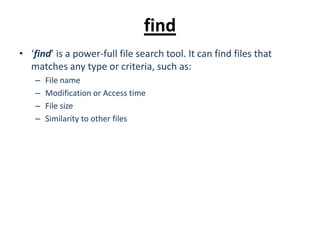
find
• ‘find’ is a power-full file search tool. It can find files that
matches any type or criteria, such as:
– File name
– Modification or Access time
– File size
– Similarity to other files
find
• Syntax:
 find [options] [filename(s)]
• Options:
 -name ‘pattern’ find files with name matching name
 -iname ‘pattern’ same as above. Case insensitive
 -mtime +/-N find files with modification time of more (+) or less (+)
then N days
 -mmin +/-N same as above. N stands for minutes
 -[i]regex find files with name matching regex
 -user user find files owned by user
 -size +/-N[kMG] find files with size bigger or smaller than N
find
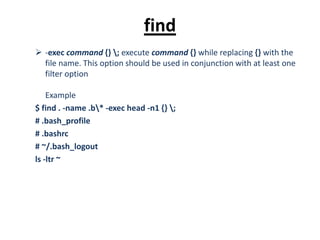
 -exec command {} ; execute command {} while replacing {} with the
file name. This option should be used in conjunction with at least one
filter option
Example
$ find . -name .b* -exec head -n1 {} ;
# .bash_profile
# .bashrc
# ~/.bash_logout
ls -ltr ~
locate
• ‘locate’ is another tool that finds files. It uses a database
which holds a list of all the files in the system and needs to be
updated periodically using the command ‘updatedb’
• Syntax:
 locate [options] PATTERN
• Options:
 -r ‘regex’ find file with names matching regex
 -c only report amount of times each file was found

10 finding files

  • 1.
  • 2.
    Finding Files • TheLinux File System hierarchy includes a large amount of directories and a deep tree of subdirectories • When interacting with the system, one of the most common need is finding a file’s location or find which files are included in a custom search criteria.
  • 3.
    find • ‘find’ isa power-full file search tool. It can find files that matches any type or criteria, such as: – File name – Modification or Access time – File size – Similarity to other files
  • 4.
    find • Syntax:  find[options] [filename(s)] • Options:  -name ‘pattern’ find files with name matching name  -iname ‘pattern’ same as above. Case insensitive  -mtime +/-N find files with modification time of more (+) or less (+) then N days  -mmin +/-N same as above. N stands for minutes  -[i]regex find files with name matching regex  -user user find files owned by user  -size +/-N[kMG] find files with size bigger or smaller than N
  • 5.
    find  -exec command{} ; execute command {} while replacing {} with the file name. This option should be used in conjunction with at least one filter option Example $ find . -name .b* -exec head -n1 {} ; # .bash_profile # .bashrc # ~/.bash_logout ls -ltr ~
  • 6.
    locate • ‘locate’ isanother tool that finds files. It uses a database which holds a list of all the files in the system and needs to be updated periodically using the command ‘updatedb’ • Syntax:  locate [options] PATTERN • Options:  -r ‘regex’ find file with names matching regex  -c only report amount of times each file was found

Editor's Notes

  • #5 Exercise: find all files on your home directory that has been changed in the last 3 days.
  • #6 Exercise: - find all files on your home directory that has been changed in the last 3 days. same with files last accessed in the past minutes