Open Source GIS

Geographic scripting in uDig - halfway
    between user and developer
  Geoinformation Research Group, Department of Geography
                   University of Potsdam
                        March 2013


                 JGrasstools & Geoscript
                        Tutor: Andrea Antonello


    ydroloGIS             nvironmental                 ngineering
 HydroloGIS S.r.l. - Via Siemens, 19 - 39100 Bolzano   www.hydrologis.com
Raster in Geoscript - the JGrasstools project
At the time of writing of this tutorial Geoscript didn't support much of raster

data handling.


uDig can do a lot of raster processing through the Spatial Toolbox and the

JGrasstools libraries.


That means that we can access from Geoscript the exact same processing

modules and exploit their raster processing power.


The JGrasstools project is a more then a decade old project that specializes

on geomorphology and hydrology.


Since in those fields most of the processing is done on raster data, a lot of

utilities the handle rasters are available in the library.
The main class that we will use is the Raster class, which wraps the data

and allows us to access the data and main properties.


The latest libraries can be downloaded from the projects download area.


The modules needed to work with geoscripts are:

 • jgt-jgrassgears-XXX.jar

 • jgt-hortonmachine-XXX.jar

 • jgt-modules-XXX.jar

Once donwnloaded, they need to be copied inside a folder named

spatialtoolbox in the installation folder of uDig.
An example dataset

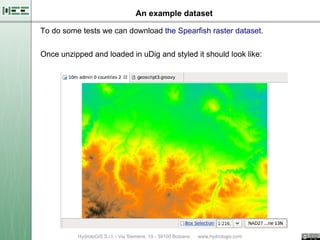
To do some tests we can download the Spearfish raster dataset.


Once unzipped and loaded in uDig and styled it should look like:
Reading the properties of a raster


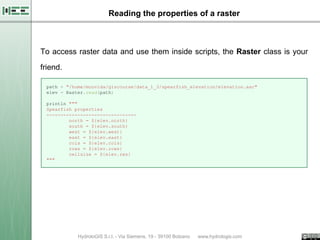
To access raster data and use them inside scripts, the Raster class is your

friend.

 path = "/home/moovida/giscourse/data_1_3/spearfish_elevation/elevation.asc"
 elev = Raster.read(path)

 println """
 Spearfish properties
 --------------------------------
         north = ${elev.north}
         south = ${elev.south}
         west = ${elev.west}
         east = ${elev.east}
         cols = ${elev.cols}
         rows = ${elev.rows}
         cellsize = ${elev.res}
 """
Reading more properties of a raster

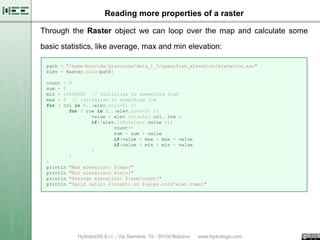
Through the Raster object we can loop over the map and calculate some

basic statistics, like average, max and min elevation:

 path = "/home/moovida/giscourse/data_1_3/spearfish_elevation/elevation.asc"
 elev = Raster.read(path)

 count   = 0
 sum =   0
 min =   10000000 // initialize to something high
 max =   0 // initialize to something low
 for (   col in 0..(elev.cols-1) ){
           for ( row in 0..(elev.rows-1) ){
                   value = elev.valueAt( col, row )
                   if(!elev.isNoValue( value )){
                           count++
                           sum = sum + value
                           if(value > max ) max = value
                           if(value < min ) min = value
                   }
           }
 }
 println   "Max elevation: ${max}"
 println   "Min elevation: ${min}"
 println   "Average elevation: ${sum/count}"
 println   "Valid cells: ${count} of ${elev.cols*elev.rows}"
Putting the raster max and min elevation in a shapefile

path = "/home/moovida/giscourse/data_1_3/spearfish_elevation/elevation.asc"
dir = new Directory("/home/moovida/giscourse/data_1_3/spearfish_elevation/")
// create the vector layer for the max and min
layer = dir.create('spearfish_max_min',[['geom','Point','epsg:26713'],
                         ['type','string'],['value','double']])
// get max and min from raster
elev = Raster.read(path)
count = 0
min = 10000000; minCol = 0; minRow = 0 // can be put on one line using semicolon
max = 0; maxCol = 0; maxRow = 0
for ( col in 0..(elev.cols-1) ){
        for ( row in 0..(elev.rows-1) ){
                value = elev.valueAt( col, row )
                if(!elev.isNoValue( value )){
                         if(value > max ) {
                                 max = value
                                 maxCol = col // important, keep also the
                                 maxRow = row // positions of the max and min
                         }
                         if(value < min ) {
                                 min = value
                                 minCol = col
                                 minRow = row
                         }
                }
        }
}
// get the world position from the raster grid position
minXY = elev.positionAt(minCol, minRow)
maxXY = elev.positionAt(maxCol, maxRow)
// add the features
layer.add([new Point(minXY[0], minXY[1]),'min', min])
layer.add([new Point(maxXY[0], maxXY[1]),'max', max])
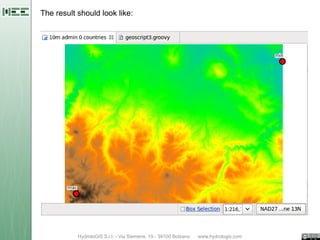
The result should look like:
Create a new raster

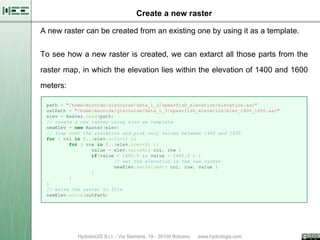
A new raster can be created from an existing one by using it as a template.

To see how a new raster is created, we can extarct all those parts from the

raster map, in which the elevation lies within the elevation of 1400 and 1600

meters:

 path = "/home/moovida/giscourse/data_1_3/spearfish_elevation/elevation.asc"
 outPath = "/home/moovida/giscourse/data_1_3/spearfish_elevation/elev_1400_1600.asc"
 elev = Raster.read(path)
 // create a new raster using elev as template
 newElev = new Raster(elev)
 // loop over the elevation and pick only values between 1440 and 1600
 for ( col in 0..(elev.cols-1) ){
         for ( row in 0..(elev.rows-1) ){
                 value = elev.valueAt( col, row )
                 if(value < 1600.0 && value > 1400.0 ) {
                          // set the elevation in the new raster
                          newElev.setValueAt( col, row, value )
                 }
         }
 }
 // write the raster to file
 newElev.write(outPath)
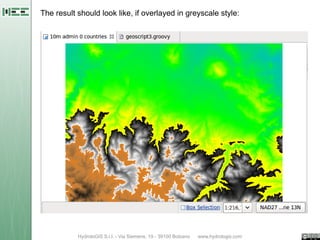
The result should look like, if overlayed in greyscale style:
Neighbour operations

With the raster object it is possible to access the neighbour cell values. In

this example we will extract pits:

 path = "/home/moovida/giscourse/data_1_3/spearfish_elevation/elevation.asc"
 dir = new Directory("/home/moovida/giscourse/data_1_3/spearfish_elevation/")
 // create the vector layer for the pits
 layer = dir.create('spearfish_pits',[['geom','Point','epsg:26713'],
                                       ['value','double']])
 elev = Raster.read(path)
 for ( col in 0..(elev.cols-1) ){
         for ( row in 0..(elev.rows-1) ){
                 value = elev.valueAt( col, row )
                 if(!elev.isNoValue( value )){
                          // get all neighbour values
                          surr = elev.surrounding(col, row)
                          isPit = true
                          surr.each(){ neighValue -> // check if one is smaller
                                  if(neighValue <= value ) isPit = false
                          }
                          if(isPit){
                                  // add pits to the vector layer
                                  xy = elev.positionAt(col, row)
                                  layer.add([new Point(xy[0], xy[1]), value])
                          }
                 }
         }
 }
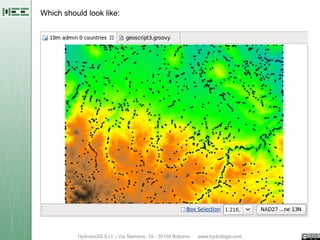
Which should look like:
Geomorphologic analyses
The JGrasstools project supplies a whole pile of modules. Two methods help

to get started.


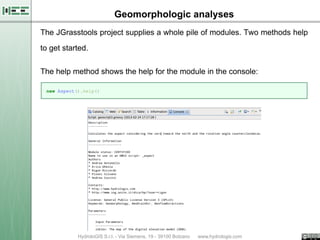
The help method shows the help for the module in the console:

 new Aspect().help()
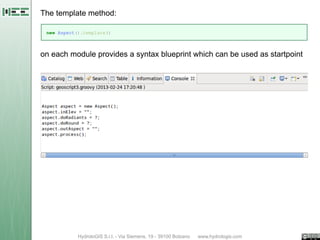
The template method:

 new Aspect().template()


on each module provides a syntax blueprint which can be used as startpoint
Aspect


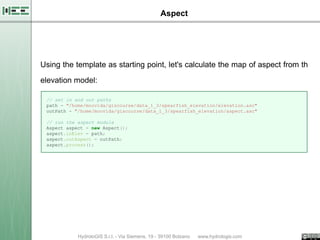
Using the template as starting point, let's calculate the map of aspect from th

elevation model:

 // set in and out paths
 path = "/home/moovida/giscourse/data_1_3/spearfish_elevation/elevation.asc"
 outPath = "/home/moovida/giscourse/data_1_3/spearfish_elevation/aspect.asc"

 // run the aspect module
 Aspect aspect = new Aspect();
 aspect.inElev = path;
 aspect.outAspect = outPath;
 aspect.process();
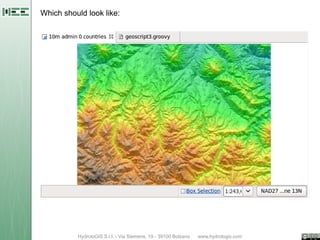
Which should look like:
Contours extraction


The ContourExtractor module can be used to extract contour lines:

 // set in and out paths
 path = "/home/moovida/giscourse/data_1_3/spearfish_elevation/elevation.asc"
 outPath = "/home/moovida/giscourse/data_1_3/spearfish_elevation/contours.shp"

 // run the module defining start, end and contours interval
 ContourExtractor contourextractor = new ContourExtractor();
 contourextractor.inCoverage = path;
 contourextractor.pMin = 1000;
 contourextractor.pMax = 2000;
 contourextractor.pInterval = 20;
 contourextractor.outGeodata = outPath;
 contourextractor.process();
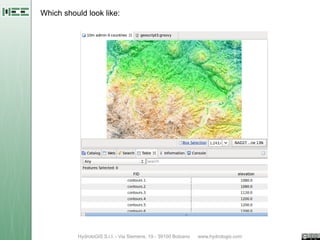
Which should look like:
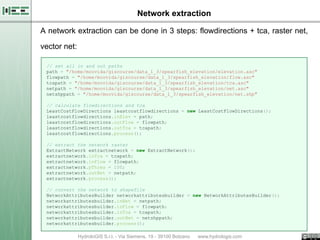
Network extraction

A network extraction can be done in 3 steps: flowdirections + tca, raster net,

vector net:

 // set all in and out paths
 path = "/home/moovida/giscourse/data_1_3/spearfish_elevation/elevation.asc"
 flowpath = "/home/moovida/giscourse/data_1_3/spearfish_elevation/flow.asc"
 tcapath = "/home/moovida/giscourse/data_1_3/spearfish_elevation/tca.asc"
 netpath = "/home/moovida/giscourse/data_1_3/spearfish_elevation/net.asc"
 netshppath = "/home/moovida/giscourse/data_1_3/spearfish_elevation/net.shp"

 // calculate flowdirections and tca
 LeastCostFlowDirections leastcostflowdirections = new LeastCostFlowDirections();
 leastcostflowdirections.inElev = path;
 leastcostflowdirections.outFlow = flowpath;
 leastcostflowdirections.outTca = tcapath;
 leastcostflowdirections.process();

 // extract the network raster
 ExtractNetwork extractnetwork = new ExtractNetwork();
 extractnetwork.inTca = tcapath;
 extractnetwork.inFlow = flowpath;
 extractnetwork.pThres = 100;
 extractnetwork.outNet = netpath;
 extractnetwork.process();

 // convert the network to shapefile
 NetworkAttributesBuilder networkattributesbuilder = new NetworkAttributesBuilder();
 networkattributesbuilder.inNet = netpath;
 networkattributesbuilder.inFlow = flowpath;
 networkattributesbuilder.inTca = tcapath;
 networkattributesbuilder.outNet = netshppath;
 networkattributesbuilder.process();
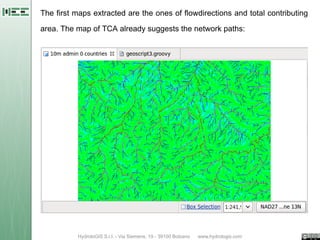
The first maps extracted are the ones of flowdirections and total contributing

area. The map of TCA already suggests the network paths:
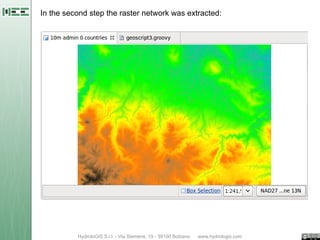
In the second step the raster network was extracted:
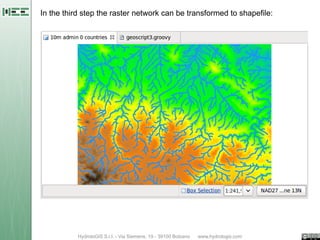
In the third step the raster network can be transformed to shapefile:

05 Geographic scripting in uDig - halfway between user and developer

  • 1.
    Open Source GIS Geographicscripting in uDig - halfway between user and developer Geoinformation Research Group, Department of Geography University of Potsdam March 2013 JGrasstools & Geoscript Tutor: Andrea Antonello ydroloGIS nvironmental ngineering HydroloGIS S.r.l. - Via Siemens, 19 - 39100 Bolzano www.hydrologis.com
  • 2.
    Raster in Geoscript- the JGrasstools project At the time of writing of this tutorial Geoscript didn't support much of raster data handling. uDig can do a lot of raster processing through the Spatial Toolbox and the JGrasstools libraries. That means that we can access from Geoscript the exact same processing modules and exploit their raster processing power. The JGrasstools project is a more then a decade old project that specializes on geomorphology and hydrology. Since in those fields most of the processing is done on raster data, a lot of utilities the handle rasters are available in the library.
  • 3.
    The main classthat we will use is the Raster class, which wraps the data and allows us to access the data and main properties. The latest libraries can be downloaded from the projects download area. The modules needed to work with geoscripts are: • jgt-jgrassgears-XXX.jar • jgt-hortonmachine-XXX.jar • jgt-modules-XXX.jar Once donwnloaded, they need to be copied inside a folder named spatialtoolbox in the installation folder of uDig.
  • 4.
    An example dataset Todo some tests we can download the Spearfish raster dataset. Once unzipped and loaded in uDig and styled it should look like:
  • 5.
    Reading the propertiesof a raster To access raster data and use them inside scripts, the Raster class is your friend. path = "/home/moovida/giscourse/data_1_3/spearfish_elevation/elevation.asc" elev = Raster.read(path) println """ Spearfish properties -------------------------------- north = ${elev.north} south = ${elev.south} west = ${elev.west} east = ${elev.east} cols = ${elev.cols} rows = ${elev.rows} cellsize = ${elev.res} """
  • 6.
    Reading more propertiesof a raster Through the Raster object we can loop over the map and calculate some basic statistics, like average, max and min elevation: path = "/home/moovida/giscourse/data_1_3/spearfish_elevation/elevation.asc" elev = Raster.read(path) count = 0 sum = 0 min = 10000000 // initialize to something high max = 0 // initialize to something low for ( col in 0..(elev.cols-1) ){ for ( row in 0..(elev.rows-1) ){ value = elev.valueAt( col, row ) if(!elev.isNoValue( value )){ count++ sum = sum + value if(value > max ) max = value if(value < min ) min = value } } } println "Max elevation: ${max}" println "Min elevation: ${min}" println "Average elevation: ${sum/count}" println "Valid cells: ${count} of ${elev.cols*elev.rows}"
  • 7.
    Putting the rastermax and min elevation in a shapefile path = "/home/moovida/giscourse/data_1_3/spearfish_elevation/elevation.asc" dir = new Directory("/home/moovida/giscourse/data_1_3/spearfish_elevation/") // create the vector layer for the max and min layer = dir.create('spearfish_max_min',[['geom','Point','epsg:26713'], ['type','string'],['value','double']]) // get max and min from raster elev = Raster.read(path) count = 0 min = 10000000; minCol = 0; minRow = 0 // can be put on one line using semicolon max = 0; maxCol = 0; maxRow = 0 for ( col in 0..(elev.cols-1) ){ for ( row in 0..(elev.rows-1) ){ value = elev.valueAt( col, row ) if(!elev.isNoValue( value )){ if(value > max ) { max = value maxCol = col // important, keep also the maxRow = row // positions of the max and min } if(value < min ) { min = value minCol = col minRow = row } } } } // get the world position from the raster grid position minXY = elev.positionAt(minCol, minRow) maxXY = elev.positionAt(maxCol, maxRow) // add the features layer.add([new Point(minXY[0], minXY[1]),'min', min]) layer.add([new Point(maxXY[0], maxXY[1]),'max', max])
  • 8.
  • 9.
    Create a newraster A new raster can be created from an existing one by using it as a template. To see how a new raster is created, we can extarct all those parts from the raster map, in which the elevation lies within the elevation of 1400 and 1600 meters: path = "/home/moovida/giscourse/data_1_3/spearfish_elevation/elevation.asc" outPath = "/home/moovida/giscourse/data_1_3/spearfish_elevation/elev_1400_1600.asc" elev = Raster.read(path) // create a new raster using elev as template newElev = new Raster(elev) // loop over the elevation and pick only values between 1440 and 1600 for ( col in 0..(elev.cols-1) ){ for ( row in 0..(elev.rows-1) ){ value = elev.valueAt( col, row ) if(value < 1600.0 && value > 1400.0 ) { // set the elevation in the new raster newElev.setValueAt( col, row, value ) } } } // write the raster to file newElev.write(outPath)
  • 10.
    The result shouldlook like, if overlayed in greyscale style:
  • 11.
    Neighbour operations With theraster object it is possible to access the neighbour cell values. In this example we will extract pits: path = "/home/moovida/giscourse/data_1_3/spearfish_elevation/elevation.asc" dir = new Directory("/home/moovida/giscourse/data_1_3/spearfish_elevation/") // create the vector layer for the pits layer = dir.create('spearfish_pits',[['geom','Point','epsg:26713'], ['value','double']]) elev = Raster.read(path) for ( col in 0..(elev.cols-1) ){ for ( row in 0..(elev.rows-1) ){ value = elev.valueAt( col, row ) if(!elev.isNoValue( value )){ // get all neighbour values surr = elev.surrounding(col, row) isPit = true surr.each(){ neighValue -> // check if one is smaller if(neighValue <= value ) isPit = false } if(isPit){ // add pits to the vector layer xy = elev.positionAt(col, row) layer.add([new Point(xy[0], xy[1]), value]) } } } }
  • 12.
  • 13.
    Geomorphologic analyses The JGrasstoolsproject supplies a whole pile of modules. Two methods help to get started. The help method shows the help for the module in the console: new Aspect().help()
  • 14.
    The template method: new Aspect().template() on each module provides a syntax blueprint which can be used as startpoint
  • 15.
    Aspect Using the templateas starting point, let's calculate the map of aspect from th elevation model: // set in and out paths path = "/home/moovida/giscourse/data_1_3/spearfish_elevation/elevation.asc" outPath = "/home/moovida/giscourse/data_1_3/spearfish_elevation/aspect.asc" // run the aspect module Aspect aspect = new Aspect(); aspect.inElev = path; aspect.outAspect = outPath; aspect.process();
  • 16.
  • 17.
    Contours extraction The ContourExtractormodule can be used to extract contour lines: // set in and out paths path = "/home/moovida/giscourse/data_1_3/spearfish_elevation/elevation.asc" outPath = "/home/moovida/giscourse/data_1_3/spearfish_elevation/contours.shp" // run the module defining start, end and contours interval ContourExtractor contourextractor = new ContourExtractor(); contourextractor.inCoverage = path; contourextractor.pMin = 1000; contourextractor.pMax = 2000; contourextractor.pInterval = 20; contourextractor.outGeodata = outPath; contourextractor.process();
  • 18.
  • 19.
    Network extraction A networkextraction can be done in 3 steps: flowdirections + tca, raster net, vector net: // set all in and out paths path = "/home/moovida/giscourse/data_1_3/spearfish_elevation/elevation.asc" flowpath = "/home/moovida/giscourse/data_1_3/spearfish_elevation/flow.asc" tcapath = "/home/moovida/giscourse/data_1_3/spearfish_elevation/tca.asc" netpath = "/home/moovida/giscourse/data_1_3/spearfish_elevation/net.asc" netshppath = "/home/moovida/giscourse/data_1_3/spearfish_elevation/net.shp" // calculate flowdirections and tca LeastCostFlowDirections leastcostflowdirections = new LeastCostFlowDirections(); leastcostflowdirections.inElev = path; leastcostflowdirections.outFlow = flowpath; leastcostflowdirections.outTca = tcapath; leastcostflowdirections.process(); // extract the network raster ExtractNetwork extractnetwork = new ExtractNetwork(); extractnetwork.inTca = tcapath; extractnetwork.inFlow = flowpath; extractnetwork.pThres = 100; extractnetwork.outNet = netpath; extractnetwork.process(); // convert the network to shapefile NetworkAttributesBuilder networkattributesbuilder = new NetworkAttributesBuilder(); networkattributesbuilder.inNet = netpath; networkattributesbuilder.inFlow = flowpath; networkattributesbuilder.inTca = tcapath; networkattributesbuilder.outNet = netshppath; networkattributesbuilder.process();
  • 20.
    The first mapsextracted are the ones of flowdirections and total contributing area. The map of TCA already suggests the network paths:
  • 21.
    In the secondstep the raster network was extracted:
  • 22.
    In the thirdstep the raster network can be transformed to shapefile: