Open Source GIS

Geographic scripting in uDig - halfway
    between user and developer
  Geoinformation Research Group, Department of Geography
                   University of Potsdam
                        March 2013


                              Geoscript
                        Tutor: Andrea Antonello


    ydroloGIS             nvironmental                 ngineering
 HydroloGIS S.r.l. - Via Siemens, 19 - 39100 Bolzano   www.hydrologis.com
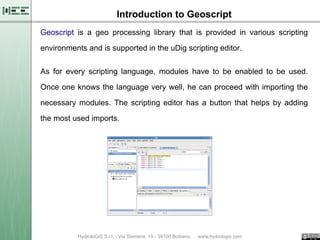
Introduction to Geoscript
Geoscript is a geo processing library that is provided in various scripting

environments and is supported in the uDig scripting editor.


As for every scripting language, modules have to be enabled to be used.

Once one knows the language very well, he can proceed with importing the

necessary modules. The scripting editor has a button that helps by adding

the most used imports.
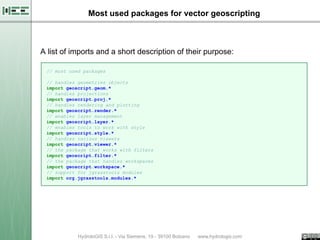
Most used packages for vector geoscripting


A list of imports and a short description of their purpose:

 // most used packages

 // handles geometries objects
 import geoscript.geom.*
 // handles projections
 import geoscript.proj.*
 // handles rendering and plotting
 import geoscript.render.*
 // enables layer management
 import geoscript.layer.*
 // enables tools to work with style
 import geoscript.style.*
 // handles various viewers
 import geoscript.viewer.*
 // the package that works with filters
 import geoscript.filter.*
 // the package that handles workspaces
 import geoscript.workspace.*
 // support for jgrasstools modules
 import org.jgrasstools.modules.*
Building Geometries


Geometries can be built through the use of their constructors:

 // build geometries by constructors

 // simple geometries
 def geom = new Point(30,10)
 println geom
 geom = new LineString([30,10], [10,30], [20,40], [40,40])
 println geom
 geom = new Polygon([30,10], [10,20], [20,40], [40,40], [30,10])
 println geom
 geom = new Polygon([[[35,10],[10,20],[15,40],[45,45],[35,10]],
                      [[20,30],[35,35],[30,20],[20,30]]])
 println geom

 // multi-geometries
 geom = new MultiPoint([10,40],[40,30],[20,20],[30,10])
 println geom
 geom = new MultiLineString([[10,10],[20,20],[10,40]],
                            [[40,40],[30,30],[40,20],[30,10]])
 println geom
 geom = new MultiPolygon([[[30,20], [10,40], [45,40], [30,20]]],
                       [[[15,5], [40,10], [10,20], [5,10], [15,5]]])
 println geom
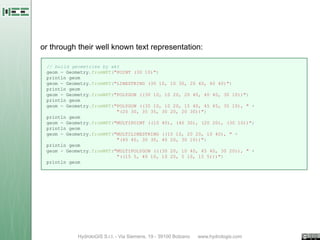
or through their well known text representation:

 // build geometries by wkt
 geom = Geometry.fromWKT("POINT (30 10)")
 println geom
 geom = Geometry.fromWKT("LINESTRING (30 10, 10 30, 20 40, 40 40)")
 println geom
 geom = Geometry.fromWKT("POLYGON ((30 10, 10 20, 20 40, 40 40, 30 10))")
 println geom
 geom = Geometry.fromWKT("POLYGON ((35 10, 10 20, 15 40, 45 45, 35 10), " +
                          "(20 30, 35 35, 30 20, 20 30))")
 println geom
 geom = Geometry.fromWKT("MULTIPOINT ((10 40), (40 30), (20 20), (30 10))")
 println geom
 geom = Geometry.fromWKT("MULTILINESTRING ((10 10, 20 20, 10 40), " +
                          "(40 40, 30 30, 40 20, 30 10))")
 println geom
 geom = Geometry.fromWKT("MULTIPOLYGON (((30 20, 10 40, 45 40, 30 20)), " +
                          "((15 5, 40 10, 10 20, 5 10, 15 5)))")
 println geom
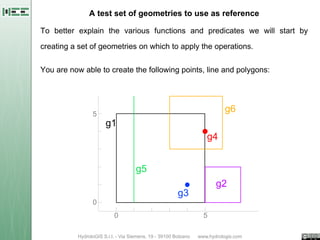
A test set of geometries to use as reference

To better explain the various functions and predicates we will start by

creating a set of geometries on which to apply the operations.

You are now able to create the following points, line and polygons:


               5
                                                     g6
                   g1
                                                g4


                           g5
                                                   g2
                                        g3
               0
                     0                         5
Build the test set

Let's create the geometries that make up the test set:

 // build   the example dataset
 def g1 =   Geometry.fromWKT("POLYGON ((0 0, 0   5, 5 5, 5 0, 0 0))")
 def g2 =   Geometry.fromWKT("POLYGON ((5 0, 5   2, 7 2, 7 0, 5 0))")
 def g3 =   Geometry.fromWKT("POINT (4 1)")
 def g4 =   Geometry.fromWKT("POINT (5 4)")
 def g5 =   Geometry.fromWKT("LINESTRING (1 0,   1 6)")
 def g6 =   Geometry.fromWKT("POLYGON ((3 3, 3   6, 6 6, 6 3, 3 3))")


Geoscript has a plotting utility that makes it possible to quickly check:

 // plot geometries
 Plot.plot([g1, g2, g3, g4, g5, g6])
Predicates

                                              Intersects

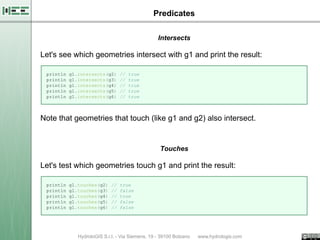
Let's see which geometries intersect with g1 and print the result:

 println   g1.intersects(g2)     //   true
 println   g1.intersects(g3)     //   true
 println   g1.intersects(g4)     //   true
 println   g1.intersects(g5)     //   true
 println   g1.intersects(g6)     //   true


Note that geometries that touch (like g1 and g2) also intersect.


                                              Touches

Let's test which geometries touch g1 and print the result:

 println   g1.touches(g2)   //   true
 println   g1.touches(g3)   //   false
 println   g1.touches(g4)   //   true
 println   g1.touches(g5)   //   false
 println   g1.touches(g6)   //   false
Contains

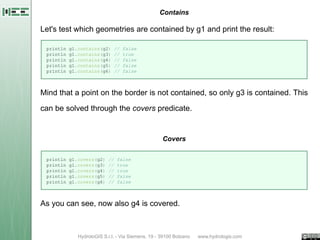
Let's test which geometries are contained by g1 and print the result:

 println   g1.contains(g2)   //   false
 println   g1.contains(g3)   //   true
 println   g1.contains(g4)   //   false
 println   g1.contains(g5)   //   false
 println   g1.contains(g6)   //   false


Mind that a point on the border is not contained, so only g3 is contained. This

can be solved through the covers predicate.


                                          Covers

 println   g1.covers(g2)   //   false
 println   g1.covers(g3)   //   true
 println   g1.covers(g4)   //   true
 println   g1.covers(g5)   //   false
 println   g1.covers(g6)   //   false


As you can see, now also g4 is covered.
Functions

                                       Intersection

 // the intersection of polygons returns a polygon
 def g1_inter_g6 = g1.intersection(g6)
 println g1_inter_g6
 Plot.plot([g1_inter_g6, g1, g6])
 // but the intersection of touching polygons returns a line
 println g1.intersection(g2)
 // the intersection of a polygon with a point is a point
 println g1.intersection(g3)
 // the intersection of a polygon with a line is a point
 println g1.intersection(g5)


The intersection of polygons g1 and g6:


                             5
                                                          g6
                                 g1
                                                     g4


                                      g5
                                                        g2
                                               g3
                             0
                                  0                 5
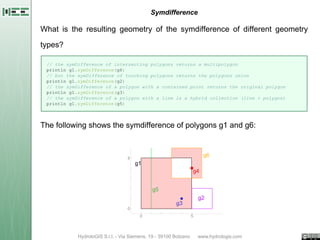
Symdifference

What is the resulting geometry of the symdifference of different geometry

types?

 // the symDifference of intersecting polygons returns a multipolygon
 println g1.symDifference(g6)
 // but the symDifference of touching polygons returns the polygons union
 println g1.symDifference(g2)
 // the symDifference of a polygon with a contained point returns the original polygon
 println g1.symDifference(g3)
 // the symDifference of a polygon with a line is a hybrid collection (line + polygon)
 println g1.symDifference(g5)


The following shows the symdifference of polygons g1 and g6:


                             5
                                                          g6
                                 g1
                                                     g4


                                      g5
                                                        g2
                                               g3
                             0
                                  0                 5
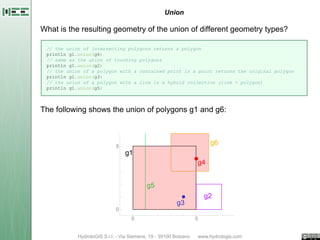
Union

What is the resulting geometry of the union of different geometry types?

 // the union of intersecting polygons returns a polygon
 println g1.union(g6)
 // same as the union of touching polygons
 println g1.union(g2)
 // the union of a polygon with a contained point is a point returns the original polygon
 println g1.union(g3)
 // the union of a polygon with a line is a hybrid collection (line + polygon)
 println g1.union(g5)


The following shows the union of polygons g1 and g6:


                         5
                                                           g6
                             g1
                                                      g4


                                    g5
                                                         g2
                                               g3
                         0
                               0                     5
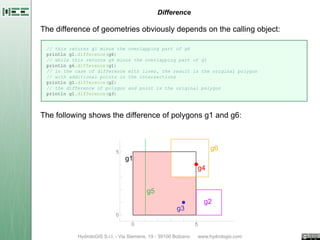
Difference

The difference of geometries obviously depends on the calling object:

 // this returns g1 minus the overlapping part of g6
 println g1.difference(g6)
 // while this returns g6 minus the overlapping part of g1
 println g6.difference(g1)
 // in the case of difference with lines, the result is the original polygon
 // with additional points in the intersections
 println g1.difference(g2)
 // the difference of polygon and point is the original polygon
 println g1.difference(g3)


The following shows the difference of polygons g1 and g6:


                         5
                                                           g6
                             g1
                                                      g4


                                    g5
                                                          g2
                                               g3
                         0
                               0                      5
Buffer


Creating a buffer around a

geometry always generates a

polygon geometry. The behaviour

can be tweaked, depending on the

geometry type:
 // the buffer of a point
 def b1 = g3.buffer(1.0)

 // the buffer of a point with few quandrant segments
 def b2 = g3.buffer(1.0, 1)

 // round end cap style, few points
 def b3 = g5.buffer(1.0, 2, Geometry.CAP_ROUND)

 // round end cap style, more points
 def b4 = g5.buffer(1.0, 10, Geometry.CAP_ROUND)

 // square end cap style
 def b5 = g5.buffer(1.0, -1, Geometry.CAP_SQUARE)

 // single sided buffer
 def b6 = g5.singleSidedBuffer(-0.5)

 // plot the geometries
 Plot.plot([b6, b5, b4, b3, b2, b1])
Convex Hull

To test the convext hull operation, let's create a geometry collection

containing the line and all the polygons. Then simply apply the convex hull

function:

 // let's create a geometry collection with the polygons and line in it
 def collection = new GeometryCollection(g1, g2, g5, g6)
 // and apply the convex hull
 def convexhull = collection.convexHull
 Plot.plot([convexhull, g1, g2, g5, g6])
Transformations

def square = new Polygon([[[0,0],[1,0],[1,1],[0,1],[0,0]]])
// scale the sqaure by 4 times
def squareLarge = square.scale(4,4)
// move it by x, y units
def squareTranslate = square.translate(2,2)
// move it and then rotate it by 45 degrees
def squareTranslateRotate = square.translate(2,2).rotate(Math.toRadians(45))
// realize that the order of things are there for a reason
def squareRotateTranslate = square.rotate(Math.toRadians(45)).translate(2,2)
// rotate around a defined center
def squareTranslateRotateCenter = square.translate(2,2).rotate(Math.toRadians(45), 2.5, 2.5)
// shear the square
def squareShear = square.shear(0.75,0)
// check the results
Plot.plot([square, squareLarge, squareTranslate, squareTranslateRotate,
                        squareRotateTranslate, squareTranslateRotateCenter, squareShear])
Projections


// create a projection object
def latLonPrj = new Projection("epsg:4326")
println latLonPrj.wkt

def latLonPoint = new Point(11, 46)

// transform the point to the new prj
def utm32nPoint = latLonPrj.transform(latLonPoint, "epsg:32632")
println "Transformed ${latLonPoint} to ${utm32nPoint}"

// a simple way to do so is
def utm32nPoint1 = Projection.transform(latLonPoint, 'epsg:4326', 'epsg:32632')
println "Transformed ${latLonPoint} to ${utm32nPoint1}"

// one can also create projections from the wkt representation
def wkt = """GEOGCS["WGS 84",
  DATUM["World Geodetic System 1984",
    SPHEROID["WGS 84", 6378137.0, 298.257223563, AUTHORITY["EPSG","7030"]],
    AUTHORITY["EPSG","6326"]],
  PRIMEM["Greenwich", 0.0, AUTHORITY["EPSG","8901"]],
  UNIT["degree", 0.017453292519943295],
  AXIS["Geodetic longitude", EAST],
  AXIS["Geodetic latitude", NORTH],
  AUTHORITY["EPSG","4326"]]
"""

def projFromWkt = new Projection(wkt)
def utm32nPoint2 = projFromWkt.transform(latLonPoint, "epsg:32632")
println "Transformed ${latLonPoint} to ${utm32nPoint2}"
Reading and writing GIS stuff
Geoscript supplies some facilities to read and write the most common GIS

data.


For example it is quite simple to get the KML representation of a given

geometry:


 point =   new Point(30,10)
 println   "GML2 = " + point.gml2
 println   "GML3 = " + point.gml3
 println   "KML = " + point.kml
 println   "JSON = " + point.geoJSON


But usually we will have to deal with Shapefiles. Let's see how that works.
Creating the first shapefile

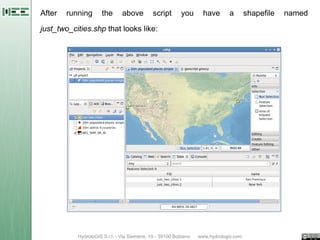
To create a shapefile, one first has to create a new layer defining the

geometry to use and the attributes to add to each feature.

 // define a working folder
 Directory dir = new Directory("/home/moovida/giscourse/mydata/")

 // create a new layer of points with just one string attribute
 def simpleLayer = dir.create('just_two_cities',[['geom','Point','epsg:4326'],['name','string']])
 println "features in layer = " + simpleLayer.count()

 // add the features
 simpleLayer.add([new Point(-122.42, 37.78),'San Francisco'])
 simpleLayer.add([new Point(-73.98, 40.47),'New York'])
 println "features in layer = " + simpleLayer.count()

 // create a layer with different attributes types
 def complexLayer = dir.create('more_than_just_two_cities',
                 [
                         ['geom','Point','epsg:4326'],
                         ['name','string'],
                         ['population','int'],
                         ['lat','float'],
                         ['lon','float']
                 ])
 complexLayer.add([new Point(-73.98, 40.47),'New York',19040000,40.749979064,-73.9800169288])
After   running   the    above    script   you   have   a   shapefile   named

just_two_cities.shp that looks like:
Reading an existing shapefile

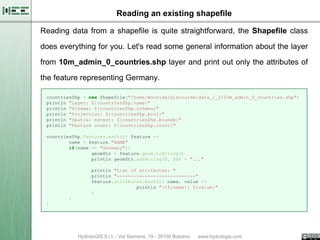
Reading data from a shapefile is quite straightforward, the Shapefile class

does everything for you. Let's read some general information about the layer

from 10m_admin_0_countries.shp layer and print out only the attributes of

the feature representing Germany.

 countriesShp = new Shapefile("/home/moovida/giscourse/data_1_3/10m_admin_0_countries.shp")
 println "Layer: ${countriesShp.name}"
 println "Schema: ${countriesShp.schema}"
 println "Projection: ${countriesShp.proj}"
 println "Spatial extent: ${countriesShp.bounds}"
 println "Feature count: ${countriesShp.count}"

 countriesShp.features.each(){ feature ->
         name = feature."NAME"
         if(name == "Germany"){
                 geomStr = feature.geom.toString()
                 println geomStr.substring(0, 50) + "..."

                 println "List of attributes: "
                 println "----------------------------"
                 feature.attributes.each(){ name, value ->
                                 println "t${name}: ${value}"
                 }
         }
 }
Reading from Postgis

Reading from Postgis is a bit more complex, but still really simple. Once one

knows the connection parameters, connecting is a smooth procedure. In the

following example the test postgis database kindly provided by Refractions

Research will be used:

 // define the connection parameters

 // the server to connect to
 server = "www.refractions.net"
 // the port to connect to
 port = "5432"
 // the database name
 databaseName = "demo-bc"
 // the database schema
 databaseSchema = "public"
 // user and password
 user = "demo"
 pwd = "demo"

 // connect and retrieve layers
 postgis = new PostGIS(databaseName, server, port, databaseSchema, user, pwd)
 println postgis.layers
Converting from Postgis to Shapefile

Since reading and writing always passes through the concept of layer, it is

quite simple to convert the data to a shapefile:

 // read from postgis
 server = "www.refractions.net"
 port = "5432"
 databaseName = "demo-bc"
 databaseSchema = "public"
 user = "demo"
 pwd = "demo"
 postgis = new PostGIS(databaseName, server, port, databaseSchema, user, pwd)
 println "Layers read: ${postgis.layers}"
 println """Layer to copy: ${postgis."bc_pubs"}"""

 // write to shapefile
 dir = new Directory("/home/moovida/giscourse/mydata/")
 dir.add(postgis."bc_pubs")
Create a countries centroids layer

It is no rocket science to apply all we have seen until this point to create a

shapefile containing the centroids of the countries.

All you need to know is that the geometry has a method that extracts the

centroid for you: centroid

 countriesShp = new Shapefile("/home/moovida/giscourse/data_1_3/10m_admin_0_countries.shp")

 // create the new layer
 dir = new Directory("/home/moovida/giscourse/mydata/")
 centroidsLayer = dir.create('countries_centroids',
                         [['geom','Point','epsg:4326'],['country','string']])

 // populate the layer on the fly
 countriesShp.features.each(){ feature ->
         centr = feature.geom.centroid
         centroidsLayer.add([centr,feature."NAME"])
 }
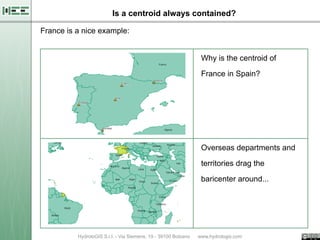
Is a centroid always contained?

France is a nice example:


                                          Why is the centroid of

                                          France in Spain?


                                          Overseas departments and

                                          territories drag the

                                          baricenter around...
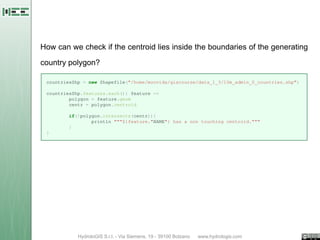
How can we check if the centroid lies inside the boundaries of the generating

country polygon?

 countriesShp = new Shapefile("/home/moovida/giscourse/data_1_3/10m_admin_0_countries.shp")

 countriesShp.features.each(){ feature ->
         polygon = feature.geom
         centr = polygon.centroid

         if(!polygon.intersects(centr)){
                 println """${feature."NAME"} has a non touching centroid."""
         }
 }
Reproject a layer

Let's assume we want to retrieve the cities of Germany in UTM32N

projection. One way would be this (there are many different, but this shows

some new methods):

 dir = new Directory("/home/moovida/giscourse/data_1_3")
 countries = dir."10m_admin_0_countries"
 cities = dir."10m_populated_places_simple"

 // define the projections
 utm32Prj = new Projection("epsg:32632")

 // get Germany filtering on the layer
 germanyFeatures = countries.getFeatures("NAME = 'Germany'")
 // check if something was found
 if(germanyFeatures.size() > 0) {
         // get geometry wkt
         germanyPolygonWKT = germanyFeatures[0].geom.wkt

            // filter out only cities inside Germany
            germanyCities = cities.filter("INTERSECTS (the_geom, ${germanyPolygonWKT})")

            // reproject to UTM32
            germanyCities.reproject(utm32Prj, "germancities_utm")
 } else {
            println "No layer Germany found!"
 }
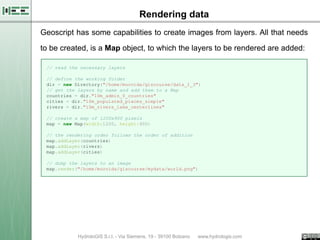
Rendering data
Geoscript has some capabilities to create images from layers. All that needs

to be created, is a Map object, to which the layers to be rendered are added:

 // read the necessary layers

 // define the working folder
 dir = new Directory("/home/moovida/giscourse/data_1_3")
 // get the layers by name and add them to a Map
 countries = dir."10m_admin_0_countries"
 cities = dir."10m_populated_places_simple"
 rivers = dir."10m_rivers_lake_centerlines"

 // create a map of 1200x900 pixels
 map = new Map(width:1200, height:900)

 // the rendering order follows the order of addition
 map.addLayer(countries)
 map.addLayer(rivers)
 map.addLayer(cities)

 // dump the layers to an image
 map.render("/home/moovida/giscourse/mydata/world.png")
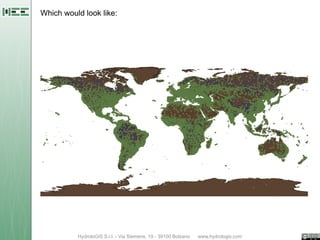
Which would look like:
Style a point layer

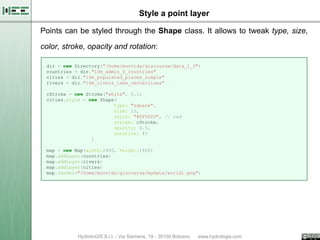
Points can be styled through the Shape class. It allows to tweak type, size,

color, stroke, opacity and rotation:

 dir = new Directory("/home/moovida/giscourse/data_1_3")
 countries = dir."10m_admin_0_countries"
 cities = dir."10m_populated_places_simple"
 rivers = dir."10m_rivers_lake_centerlines"

 cStroke = new Stroke("white", 0.1)
 cities.style = new Shape(
                         type: "square",
                         size: 10,
                         color: "#FF0000", // red
                         stroke: cStroke,
                         opacity: 0.5,
                         rotation: 45
                 )

 map = new Map(width:2400, height:1800)
 map.addLayer(countries)
 map.addLayer(rivers)
 map.addLayer(cities)
 map.render("/home/moovida/giscourse/mydata/world1.png")
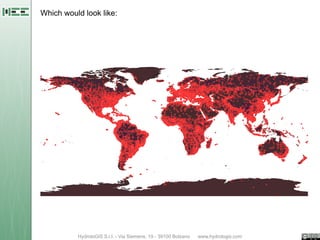
Which would look like:
Style a line layer

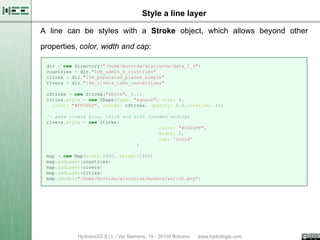
A line can be styles with a Stroke object, which allows beyond other

properties, color, width and cap:

 dir = new Directory("/home/moovida/giscourse/data_1_3")
 countries = dir."10m_admin_0_countries"
 cities = dir."10m_populated_places_simple"
 rivers = dir."10m_rivers_lake_centerlines"

 cStroke = new Stroke("white", 0.1)
 cities.style = new Shape(type: "square", size: 4,
   color: "#FF0000", stroke: cStroke, opacity: 0.5,rotation: 45)

 // make rivers blue, thick and with rounded endings
 rivers.style = new Stroke(
                                         color: "#0000FF",
                                         width: 2,
                                         cap: 'round'
                                 )

 map = new Map(width:2400, height:1800)
 map.addLayer(countries)
 map.addLayer(rivers)
 map.addLayer(cities)
 map.render("/home/moovida/giscourse/mydata/world2.png")
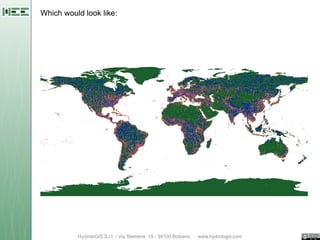
Which would look like:
Style a polygon layer

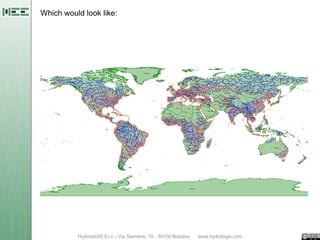
Polygons can be styled with transparent fill and as for all other types, they

can be labeled:

 dir = new Directory("/home/moovida/giscourse/data_1_3")
 countries = dir."10m_admin_0_countries"
 cities = dir."10m_populated_places_simple"
 rivers = dir."10m_rivers_lake_centerlines"

 cStroke = new Stroke("white", 0.1)
 cities.style = new Shape(type: "square", size: 4,
   color: "#FF0000", stroke: cStroke, opacity: 0.5,rotation: 45)
 rivers.style = new Stroke(color: "#0000FF",
   width: 2, cap: 'round')

 // make countries green with 80% transparend fill
 // and labeled with the name attribute
 countries.style =         new Fill("green", 0.2) +
                                         new Stroke("green", 1) +
                                         new Label("NAME").font(size:10)

 map = new Map(width:2400, height:1800)
 map.addLayer(countries)
 map.addLayer(rivers)
 map.addLayer(cities)
 map.render("/home/moovida/giscourse/mydata/world3.png")
Which would look like:
Advanced thematic styling

dir = new Directory("/home/moovida/giscourse/data_1_3")
countries = dir."10m_admin_0_countries"
cities = dir."10m_populated_places_simple"
rivers = dir."10m_rivers_lake_centerlines"

cStroke = new Stroke("white", 0.1)
cities.style = (
        new Shape(type: "square", size: 10, color: "#FF0000",
                            stroke: cStroke, opacity: 0.5,rotation: 45) +
        new Label("NAME").font(size:10)
  ).where("POP_MIN > 3000000")
rivers.style =
        new Stroke(color: "blue", width: 3,
                 cap: 'round').where("ScaleRank < 4") +
        new Stroke(color: "blue", width: 1,
                 cap: 'round').where("ScaleRank >= 4")
countries.style =
 (new Fill("red", 0.2) + new Stroke("red", 1))
         .where("POP_EST > 80000000") +
 (new Fill("cyan", 0.2) + new Stroke("cyan", 1))
         .where("POP_EST > 1000000 AND POP_EST <= 80000000") +
 (new Fill("green", 0.2) + new Stroke("green", 1))
         .where("POP_EST < 1000000")

map = new Map(width:2400, height:1800)
map.addLayer(countries)
map.addLayer(rivers)
map.addLayer(cities)
map.render("/home/moovida/giscourse/mydata/world4.png")
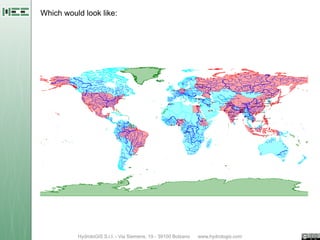
Which would look like:
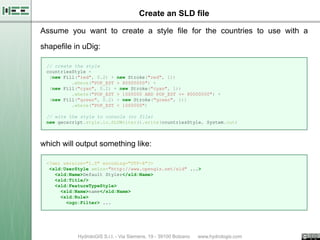
Create an SLD file

Assume you want to create a style file for the countries to use with a

shapefile in uDig:

 // create the style
 countriesStyle =
  (new Fill("red", 0.2) + new Stroke("red", 1))
          .where("POP_EST > 80000000") +
  (new Fill("cyan", 0.2) + new Stroke("cyan", 1))
          .where("POP_EST > 1000000 AND POP_EST <= 80000000") +
  (new Fill("green", 0.2) + new Stroke("green", 1))
          .where("POP_EST < 1000000")

 // wite the style to console (or file)
 new geoscript.style.io.SLDWriter().write(countriesStyle, System.out)


which will output something like:

 <?xml version="1.0" encoding="UTF-8"?>
  <sld:UserStyle xmlns="http://www.opengis.net/sld" ...>
    <sld:Name>Default Styler</sld:Name>
    <sld:Title/>
    <sld:FeatureTypeStyle>
      <sld:Name>name</sld:Name>
      <sld:Rule>
        <ogc:Filter> ...

04 Geographic scripting in uDig - halfway between user and developer

  • 1.
    Open Source GIS Geographicscripting in uDig - halfway between user and developer Geoinformation Research Group, Department of Geography University of Potsdam March 2013 Geoscript Tutor: Andrea Antonello ydroloGIS nvironmental ngineering HydroloGIS S.r.l. - Via Siemens, 19 - 39100 Bolzano www.hydrologis.com
  • 2.
    Introduction to Geoscript Geoscriptis a geo processing library that is provided in various scripting environments and is supported in the uDig scripting editor. As for every scripting language, modules have to be enabled to be used. Once one knows the language very well, he can proceed with importing the necessary modules. The scripting editor has a button that helps by adding the most used imports.
  • 3.
    Most used packagesfor vector geoscripting A list of imports and a short description of their purpose: // most used packages // handles geometries objects import geoscript.geom.* // handles projections import geoscript.proj.* // handles rendering and plotting import geoscript.render.* // enables layer management import geoscript.layer.* // enables tools to work with style import geoscript.style.* // handles various viewers import geoscript.viewer.* // the package that works with filters import geoscript.filter.* // the package that handles workspaces import geoscript.workspace.* // support for jgrasstools modules import org.jgrasstools.modules.*
  • 4.
    Building Geometries Geometries canbe built through the use of their constructors: // build geometries by constructors // simple geometries def geom = new Point(30,10) println geom geom = new LineString([30,10], [10,30], [20,40], [40,40]) println geom geom = new Polygon([30,10], [10,20], [20,40], [40,40], [30,10]) println geom geom = new Polygon([[[35,10],[10,20],[15,40],[45,45],[35,10]], [[20,30],[35,35],[30,20],[20,30]]]) println geom // multi-geometries geom = new MultiPoint([10,40],[40,30],[20,20],[30,10]) println geom geom = new MultiLineString([[10,10],[20,20],[10,40]], [[40,40],[30,30],[40,20],[30,10]]) println geom geom = new MultiPolygon([[[30,20], [10,40], [45,40], [30,20]]], [[[15,5], [40,10], [10,20], [5,10], [15,5]]]) println geom
  • 5.
    or through theirwell known text representation: // build geometries by wkt geom = Geometry.fromWKT("POINT (30 10)") println geom geom = Geometry.fromWKT("LINESTRING (30 10, 10 30, 20 40, 40 40)") println geom geom = Geometry.fromWKT("POLYGON ((30 10, 10 20, 20 40, 40 40, 30 10))") println geom geom = Geometry.fromWKT("POLYGON ((35 10, 10 20, 15 40, 45 45, 35 10), " + "(20 30, 35 35, 30 20, 20 30))") println geom geom = Geometry.fromWKT("MULTIPOINT ((10 40), (40 30), (20 20), (30 10))") println geom geom = Geometry.fromWKT("MULTILINESTRING ((10 10, 20 20, 10 40), " + "(40 40, 30 30, 40 20, 30 10))") println geom geom = Geometry.fromWKT("MULTIPOLYGON (((30 20, 10 40, 45 40, 30 20)), " + "((15 5, 40 10, 10 20, 5 10, 15 5)))") println geom
  • 6.
    A test setof geometries to use as reference To better explain the various functions and predicates we will start by creating a set of geometries on which to apply the operations. You are now able to create the following points, line and polygons: 5 g6 g1 g4 g5 g2 g3 0 0 5
  • 7.
    Build the testset Let's create the geometries that make up the test set: // build the example dataset def g1 = Geometry.fromWKT("POLYGON ((0 0, 0 5, 5 5, 5 0, 0 0))") def g2 = Geometry.fromWKT("POLYGON ((5 0, 5 2, 7 2, 7 0, 5 0))") def g3 = Geometry.fromWKT("POINT (4 1)") def g4 = Geometry.fromWKT("POINT (5 4)") def g5 = Geometry.fromWKT("LINESTRING (1 0, 1 6)") def g6 = Geometry.fromWKT("POLYGON ((3 3, 3 6, 6 6, 6 3, 3 3))") Geoscript has a plotting utility that makes it possible to quickly check: // plot geometries Plot.plot([g1, g2, g3, g4, g5, g6])
  • 8.
    Predicates Intersects Let's see which geometries intersect with g1 and print the result: println g1.intersects(g2) // true println g1.intersects(g3) // true println g1.intersects(g4) // true println g1.intersects(g5) // true println g1.intersects(g6) // true Note that geometries that touch (like g1 and g2) also intersect. Touches Let's test which geometries touch g1 and print the result: println g1.touches(g2) // true println g1.touches(g3) // false println g1.touches(g4) // true println g1.touches(g5) // false println g1.touches(g6) // false
  • 9.
    Contains Let's test whichgeometries are contained by g1 and print the result: println g1.contains(g2) // false println g1.contains(g3) // true println g1.contains(g4) // false println g1.contains(g5) // false println g1.contains(g6) // false Mind that a point on the border is not contained, so only g3 is contained. This can be solved through the covers predicate. Covers println g1.covers(g2) // false println g1.covers(g3) // true println g1.covers(g4) // true println g1.covers(g5) // false println g1.covers(g6) // false As you can see, now also g4 is covered.
  • 10.
    Functions Intersection // the intersection of polygons returns a polygon def g1_inter_g6 = g1.intersection(g6) println g1_inter_g6 Plot.plot([g1_inter_g6, g1, g6]) // but the intersection of touching polygons returns a line println g1.intersection(g2) // the intersection of a polygon with a point is a point println g1.intersection(g3) // the intersection of a polygon with a line is a point println g1.intersection(g5) The intersection of polygons g1 and g6: 5 g6 g1 g4 g5 g2 g3 0 0 5
  • 11.
    Symdifference What is theresulting geometry of the symdifference of different geometry types? // the symDifference of intersecting polygons returns a multipolygon println g1.symDifference(g6) // but the symDifference of touching polygons returns the polygons union println g1.symDifference(g2) // the symDifference of a polygon with a contained point returns the original polygon println g1.symDifference(g3) // the symDifference of a polygon with a line is a hybrid collection (line + polygon) println g1.symDifference(g5) The following shows the symdifference of polygons g1 and g6: 5 g6 g1 g4 g5 g2 g3 0 0 5
  • 12.
    Union What is theresulting geometry of the union of different geometry types? // the union of intersecting polygons returns a polygon println g1.union(g6) // same as the union of touching polygons println g1.union(g2) // the union of a polygon with a contained point is a point returns the original polygon println g1.union(g3) // the union of a polygon with a line is a hybrid collection (line + polygon) println g1.union(g5) The following shows the union of polygons g1 and g6: 5 g6 g1 g4 g5 g2 g3 0 0 5
  • 13.
    Difference The difference ofgeometries obviously depends on the calling object: // this returns g1 minus the overlapping part of g6 println g1.difference(g6) // while this returns g6 minus the overlapping part of g1 println g6.difference(g1) // in the case of difference with lines, the result is the original polygon // with additional points in the intersections println g1.difference(g2) // the difference of polygon and point is the original polygon println g1.difference(g3) The following shows the difference of polygons g1 and g6: 5 g6 g1 g4 g5 g2 g3 0 0 5
  • 14.
    Buffer Creating a bufferaround a geometry always generates a polygon geometry. The behaviour can be tweaked, depending on the geometry type: // the buffer of a point def b1 = g3.buffer(1.0) // the buffer of a point with few quandrant segments def b2 = g3.buffer(1.0, 1) // round end cap style, few points def b3 = g5.buffer(1.0, 2, Geometry.CAP_ROUND) // round end cap style, more points def b4 = g5.buffer(1.0, 10, Geometry.CAP_ROUND) // square end cap style def b5 = g5.buffer(1.0, -1, Geometry.CAP_SQUARE) // single sided buffer def b6 = g5.singleSidedBuffer(-0.5) // plot the geometries Plot.plot([b6, b5, b4, b3, b2, b1])
  • 15.
    Convex Hull To testthe convext hull operation, let's create a geometry collection containing the line and all the polygons. Then simply apply the convex hull function: // let's create a geometry collection with the polygons and line in it def collection = new GeometryCollection(g1, g2, g5, g6) // and apply the convex hull def convexhull = collection.convexHull Plot.plot([convexhull, g1, g2, g5, g6])
  • 16.
    Transformations def square =new Polygon([[[0,0],[1,0],[1,1],[0,1],[0,0]]]) // scale the sqaure by 4 times def squareLarge = square.scale(4,4) // move it by x, y units def squareTranslate = square.translate(2,2) // move it and then rotate it by 45 degrees def squareTranslateRotate = square.translate(2,2).rotate(Math.toRadians(45)) // realize that the order of things are there for a reason def squareRotateTranslate = square.rotate(Math.toRadians(45)).translate(2,2) // rotate around a defined center def squareTranslateRotateCenter = square.translate(2,2).rotate(Math.toRadians(45), 2.5, 2.5) // shear the square def squareShear = square.shear(0.75,0) // check the results Plot.plot([square, squareLarge, squareTranslate, squareTranslateRotate, squareRotateTranslate, squareTranslateRotateCenter, squareShear])
  • 17.
    Projections // create aprojection object def latLonPrj = new Projection("epsg:4326") println latLonPrj.wkt def latLonPoint = new Point(11, 46) // transform the point to the new prj def utm32nPoint = latLonPrj.transform(latLonPoint, "epsg:32632") println "Transformed ${latLonPoint} to ${utm32nPoint}" // a simple way to do so is def utm32nPoint1 = Projection.transform(latLonPoint, 'epsg:4326', 'epsg:32632') println "Transformed ${latLonPoint} to ${utm32nPoint1}" // one can also create projections from the wkt representation def wkt = """GEOGCS["WGS 84", DATUM["World Geodetic System 1984", SPHEROID["WGS 84", 6378137.0, 298.257223563, AUTHORITY["EPSG","7030"]], AUTHORITY["EPSG","6326"]], PRIMEM["Greenwich", 0.0, AUTHORITY["EPSG","8901"]], UNIT["degree", 0.017453292519943295], AXIS["Geodetic longitude", EAST], AXIS["Geodetic latitude", NORTH], AUTHORITY["EPSG","4326"]] """ def projFromWkt = new Projection(wkt) def utm32nPoint2 = projFromWkt.transform(latLonPoint, "epsg:32632") println "Transformed ${latLonPoint} to ${utm32nPoint2}"
  • 18.
    Reading and writingGIS stuff Geoscript supplies some facilities to read and write the most common GIS data. For example it is quite simple to get the KML representation of a given geometry: point = new Point(30,10) println "GML2 = " + point.gml2 println "GML3 = " + point.gml3 println "KML = " + point.kml println "JSON = " + point.geoJSON But usually we will have to deal with Shapefiles. Let's see how that works.
  • 19.
    Creating the firstshapefile To create a shapefile, one first has to create a new layer defining the geometry to use and the attributes to add to each feature. // define a working folder Directory dir = new Directory("/home/moovida/giscourse/mydata/") // create a new layer of points with just one string attribute def simpleLayer = dir.create('just_two_cities',[['geom','Point','epsg:4326'],['name','string']]) println "features in layer = " + simpleLayer.count() // add the features simpleLayer.add([new Point(-122.42, 37.78),'San Francisco']) simpleLayer.add([new Point(-73.98, 40.47),'New York']) println "features in layer = " + simpleLayer.count() // create a layer with different attributes types def complexLayer = dir.create('more_than_just_two_cities', [ ['geom','Point','epsg:4326'], ['name','string'], ['population','int'], ['lat','float'], ['lon','float'] ]) complexLayer.add([new Point(-73.98, 40.47),'New York',19040000,40.749979064,-73.9800169288])
  • 20.
    After running the above script you have a shapefile named just_two_cities.shp that looks like:
  • 21.
    Reading an existingshapefile Reading data from a shapefile is quite straightforward, the Shapefile class does everything for you. Let's read some general information about the layer from 10m_admin_0_countries.shp layer and print out only the attributes of the feature representing Germany. countriesShp = new Shapefile("/home/moovida/giscourse/data_1_3/10m_admin_0_countries.shp") println "Layer: ${countriesShp.name}" println "Schema: ${countriesShp.schema}" println "Projection: ${countriesShp.proj}" println "Spatial extent: ${countriesShp.bounds}" println "Feature count: ${countriesShp.count}" countriesShp.features.each(){ feature -> name = feature."NAME" if(name == "Germany"){ geomStr = feature.geom.toString() println geomStr.substring(0, 50) + "..." println "List of attributes: " println "----------------------------" feature.attributes.each(){ name, value -> println "t${name}: ${value}" } } }
  • 22.
    Reading from Postgis Readingfrom Postgis is a bit more complex, but still really simple. Once one knows the connection parameters, connecting is a smooth procedure. In the following example the test postgis database kindly provided by Refractions Research will be used: // define the connection parameters // the server to connect to server = "www.refractions.net" // the port to connect to port = "5432" // the database name databaseName = "demo-bc" // the database schema databaseSchema = "public" // user and password user = "demo" pwd = "demo" // connect and retrieve layers postgis = new PostGIS(databaseName, server, port, databaseSchema, user, pwd) println postgis.layers
  • 23.
    Converting from Postgisto Shapefile Since reading and writing always passes through the concept of layer, it is quite simple to convert the data to a shapefile: // read from postgis server = "www.refractions.net" port = "5432" databaseName = "demo-bc" databaseSchema = "public" user = "demo" pwd = "demo" postgis = new PostGIS(databaseName, server, port, databaseSchema, user, pwd) println "Layers read: ${postgis.layers}" println """Layer to copy: ${postgis."bc_pubs"}""" // write to shapefile dir = new Directory("/home/moovida/giscourse/mydata/") dir.add(postgis."bc_pubs")
  • 24.
    Create a countriescentroids layer It is no rocket science to apply all we have seen until this point to create a shapefile containing the centroids of the countries. All you need to know is that the geometry has a method that extracts the centroid for you: centroid countriesShp = new Shapefile("/home/moovida/giscourse/data_1_3/10m_admin_0_countries.shp") // create the new layer dir = new Directory("/home/moovida/giscourse/mydata/") centroidsLayer = dir.create('countries_centroids', [['geom','Point','epsg:4326'],['country','string']]) // populate the layer on the fly countriesShp.features.each(){ feature -> centr = feature.geom.centroid centroidsLayer.add([centr,feature."NAME"]) }
  • 25.
    Is a centroidalways contained? France is a nice example: Why is the centroid of France in Spain? Overseas departments and territories drag the baricenter around...
  • 26.
    How can wecheck if the centroid lies inside the boundaries of the generating country polygon? countriesShp = new Shapefile("/home/moovida/giscourse/data_1_3/10m_admin_0_countries.shp") countriesShp.features.each(){ feature -> polygon = feature.geom centr = polygon.centroid if(!polygon.intersects(centr)){ println """${feature."NAME"} has a non touching centroid.""" } }
  • 27.
    Reproject a layer Let'sassume we want to retrieve the cities of Germany in UTM32N projection. One way would be this (there are many different, but this shows some new methods): dir = new Directory("/home/moovida/giscourse/data_1_3") countries = dir."10m_admin_0_countries" cities = dir."10m_populated_places_simple" // define the projections utm32Prj = new Projection("epsg:32632") // get Germany filtering on the layer germanyFeatures = countries.getFeatures("NAME = 'Germany'") // check if something was found if(germanyFeatures.size() > 0) { // get geometry wkt germanyPolygonWKT = germanyFeatures[0].geom.wkt // filter out only cities inside Germany germanyCities = cities.filter("INTERSECTS (the_geom, ${germanyPolygonWKT})") // reproject to UTM32 germanyCities.reproject(utm32Prj, "germancities_utm") } else { println "No layer Germany found!" }
  • 28.
    Rendering data Geoscript hassome capabilities to create images from layers. All that needs to be created, is a Map object, to which the layers to be rendered are added: // read the necessary layers // define the working folder dir = new Directory("/home/moovida/giscourse/data_1_3") // get the layers by name and add them to a Map countries = dir."10m_admin_0_countries" cities = dir."10m_populated_places_simple" rivers = dir."10m_rivers_lake_centerlines" // create a map of 1200x900 pixels map = new Map(width:1200, height:900) // the rendering order follows the order of addition map.addLayer(countries) map.addLayer(rivers) map.addLayer(cities) // dump the layers to an image map.render("/home/moovida/giscourse/mydata/world.png")
  • 29.
  • 30.
    Style a pointlayer Points can be styled through the Shape class. It allows to tweak type, size, color, stroke, opacity and rotation: dir = new Directory("/home/moovida/giscourse/data_1_3") countries = dir."10m_admin_0_countries" cities = dir."10m_populated_places_simple" rivers = dir."10m_rivers_lake_centerlines" cStroke = new Stroke("white", 0.1) cities.style = new Shape( type: "square", size: 10, color: "#FF0000", // red stroke: cStroke, opacity: 0.5, rotation: 45 ) map = new Map(width:2400, height:1800) map.addLayer(countries) map.addLayer(rivers) map.addLayer(cities) map.render("/home/moovida/giscourse/mydata/world1.png")
  • 31.
  • 32.
    Style a linelayer A line can be styles with a Stroke object, which allows beyond other properties, color, width and cap: dir = new Directory("/home/moovida/giscourse/data_1_3") countries = dir."10m_admin_0_countries" cities = dir."10m_populated_places_simple" rivers = dir."10m_rivers_lake_centerlines" cStroke = new Stroke("white", 0.1) cities.style = new Shape(type: "square", size: 4, color: "#FF0000", stroke: cStroke, opacity: 0.5,rotation: 45) // make rivers blue, thick and with rounded endings rivers.style = new Stroke( color: "#0000FF", width: 2, cap: 'round' ) map = new Map(width:2400, height:1800) map.addLayer(countries) map.addLayer(rivers) map.addLayer(cities) map.render("/home/moovida/giscourse/mydata/world2.png")
  • 33.
  • 34.
    Style a polygonlayer Polygons can be styled with transparent fill and as for all other types, they can be labeled: dir = new Directory("/home/moovida/giscourse/data_1_3") countries = dir."10m_admin_0_countries" cities = dir."10m_populated_places_simple" rivers = dir."10m_rivers_lake_centerlines" cStroke = new Stroke("white", 0.1) cities.style = new Shape(type: "square", size: 4, color: "#FF0000", stroke: cStroke, opacity: 0.5,rotation: 45) rivers.style = new Stroke(color: "#0000FF", width: 2, cap: 'round') // make countries green with 80% transparend fill // and labeled with the name attribute countries.style = new Fill("green", 0.2) + new Stroke("green", 1) + new Label("NAME").font(size:10) map = new Map(width:2400, height:1800) map.addLayer(countries) map.addLayer(rivers) map.addLayer(cities) map.render("/home/moovida/giscourse/mydata/world3.png")
  • 35.
  • 36.
    Advanced thematic styling dir= new Directory("/home/moovida/giscourse/data_1_3") countries = dir."10m_admin_0_countries" cities = dir."10m_populated_places_simple" rivers = dir."10m_rivers_lake_centerlines" cStroke = new Stroke("white", 0.1) cities.style = ( new Shape(type: "square", size: 10, color: "#FF0000", stroke: cStroke, opacity: 0.5,rotation: 45) + new Label("NAME").font(size:10) ).where("POP_MIN > 3000000") rivers.style = new Stroke(color: "blue", width: 3, cap: 'round').where("ScaleRank < 4") + new Stroke(color: "blue", width: 1, cap: 'round').where("ScaleRank >= 4") countries.style = (new Fill("red", 0.2) + new Stroke("red", 1)) .where("POP_EST > 80000000") + (new Fill("cyan", 0.2) + new Stroke("cyan", 1)) .where("POP_EST > 1000000 AND POP_EST <= 80000000") + (new Fill("green", 0.2) + new Stroke("green", 1)) .where("POP_EST < 1000000") map = new Map(width:2400, height:1800) map.addLayer(countries) map.addLayer(rivers) map.addLayer(cities) map.render("/home/moovida/giscourse/mydata/world4.png")
  • 37.
  • 38.
    Create an SLDfile Assume you want to create a style file for the countries to use with a shapefile in uDig: // create the style countriesStyle = (new Fill("red", 0.2) + new Stroke("red", 1)) .where("POP_EST > 80000000") + (new Fill("cyan", 0.2) + new Stroke("cyan", 1)) .where("POP_EST > 1000000 AND POP_EST <= 80000000") + (new Fill("green", 0.2) + new Stroke("green", 1)) .where("POP_EST < 1000000") // wite the style to console (or file) new geoscript.style.io.SLDWriter().write(countriesStyle, System.out) which will output something like: <?xml version="1.0" encoding="UTF-8"?> <sld:UserStyle xmlns="http://www.opengis.net/sld" ...> <sld:Name>Default Styler</sld:Name> <sld:Title/> <sld:FeatureTypeStyle> <sld:Name>name</sld:Name> <sld:Rule> <ogc:Filter> ...