GEOPAPARAZZI
THE	GSS	AND	GSS-SYNC
Andrea	Antonello,	Silvia	Franceschi
HydroloGIS	s.r.l.
Foss4G-IT	2019
February	20th	2019
THE	GEOPAPARAZZI	SURVEY	SERVER
THE	SERVER
The	Geopaparazzi	Survey	Server	(GSS)	is	a	web	application
that	allows	geopaparazzi	users	to	synchronize	their	projects
data	with	a	central	server.
Its	 companion	 is	 an	 Android	 app	 named	 Geopaparazzi
Survey	Server	Sync	(GSSS)	 .
The	 app	 can	 connect	 to	 geopaparazzi	 projects	 and
synchronize	the	data	contained	using	the	unique	device	ID
to	upload	the	data	to	the	server.
available	on	google	play
FIRST	STEPS	WITH	THE	GSS	SERVER
To	start	the	server	open	your	browser	and	run:
http://localhost:8080
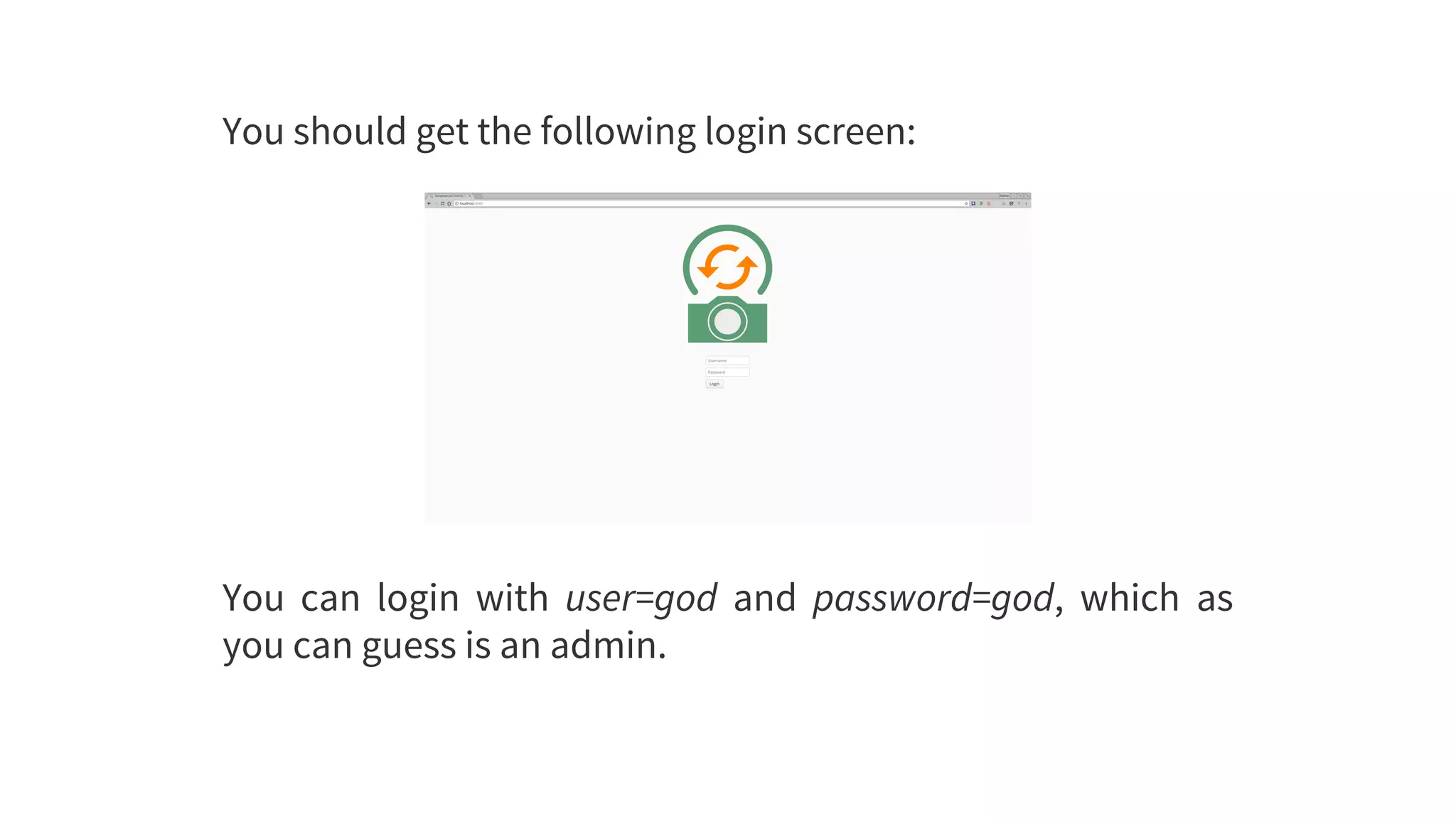
You	should	get	the	following	login	screen:
You	 can	 login	 with	 user=god	 and	 password=god,	 which	 as
you	can	guess	is	an	admin.
THE	DASHBOARD
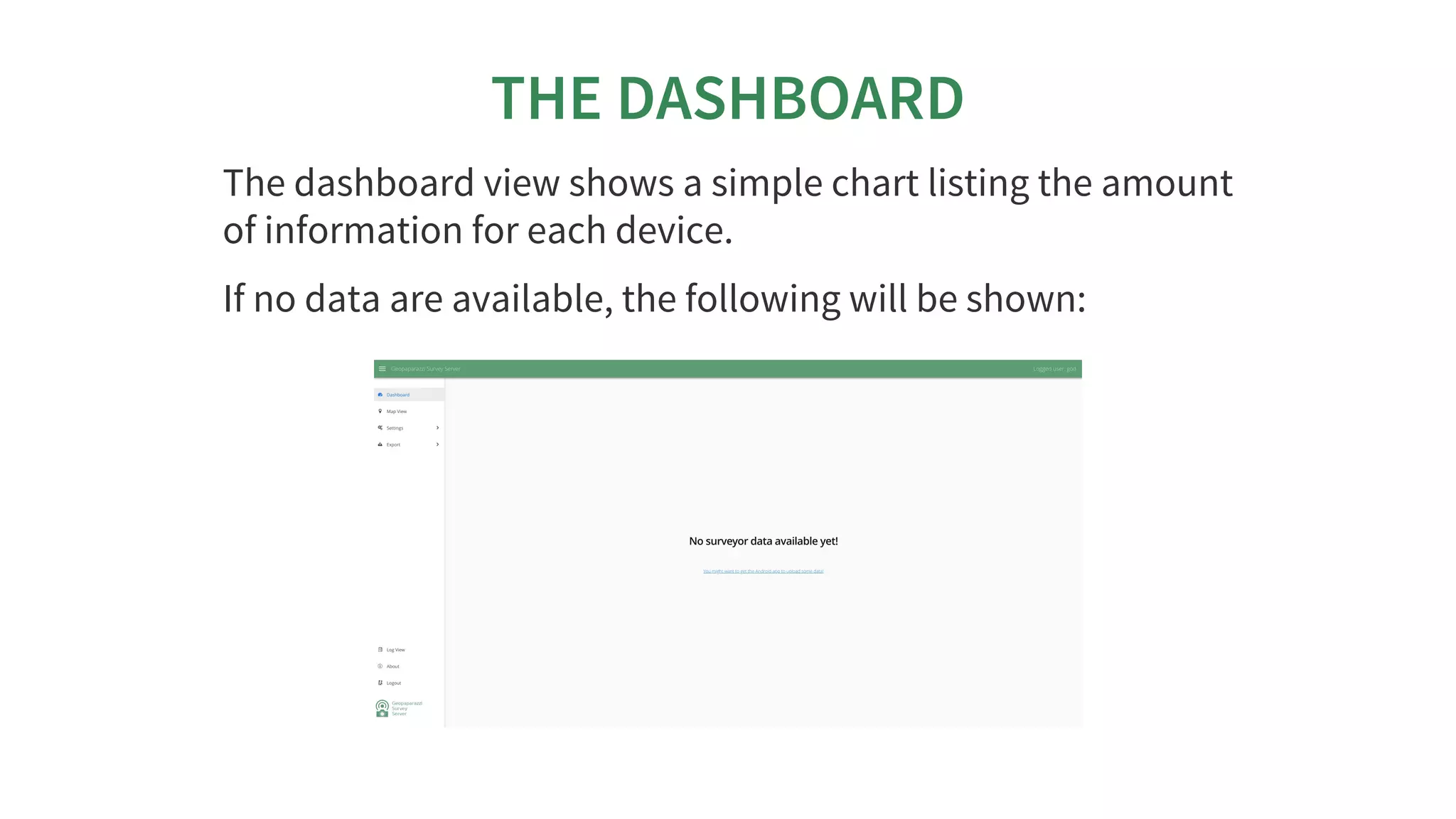
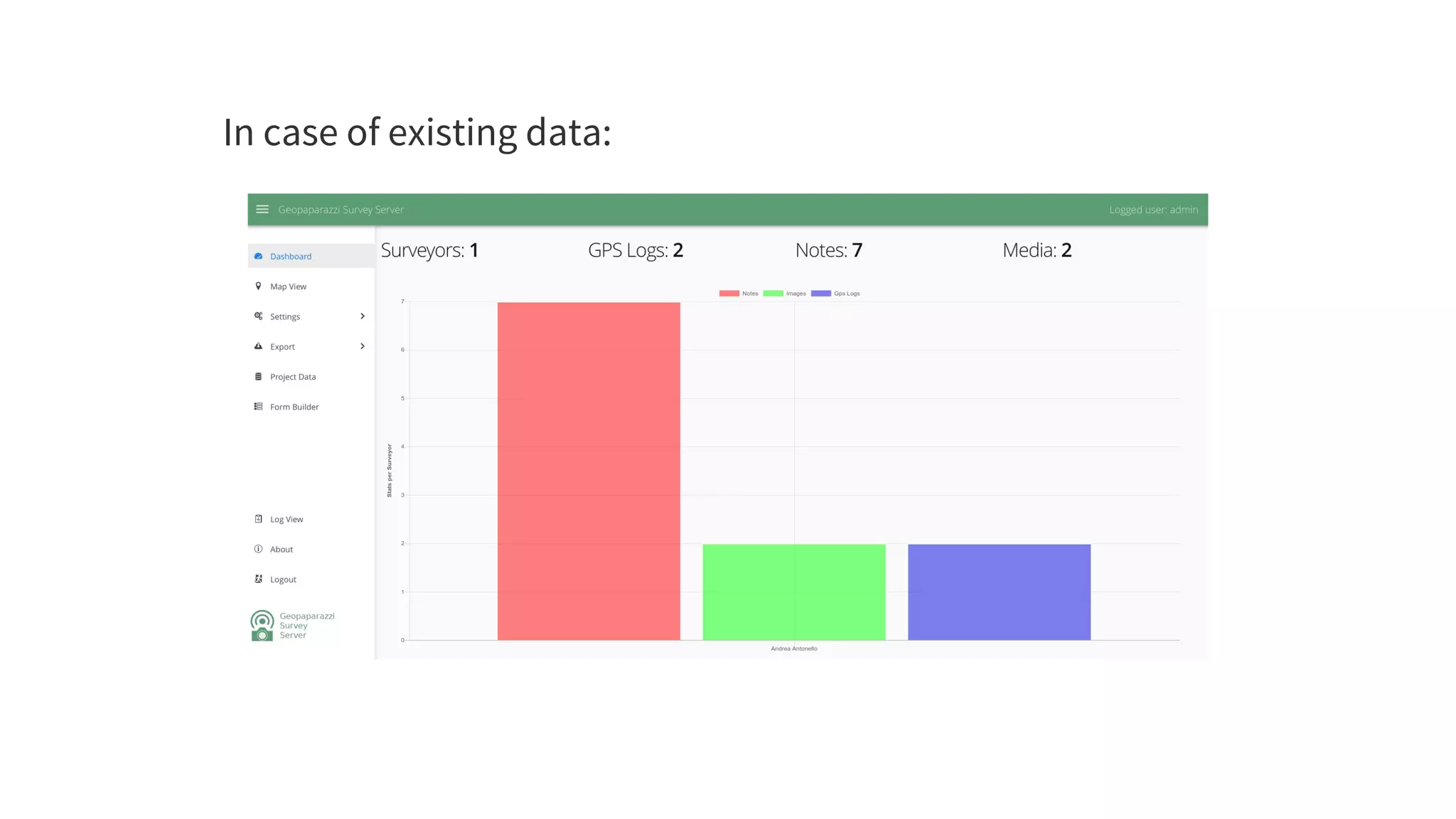
The	dashboard	view	shows	a	simple	chart	listing	the	amount
of	information	for	each	device.
If	no	data	are	available,	the	following	will	be	shown:
In	case	of	existing	data:
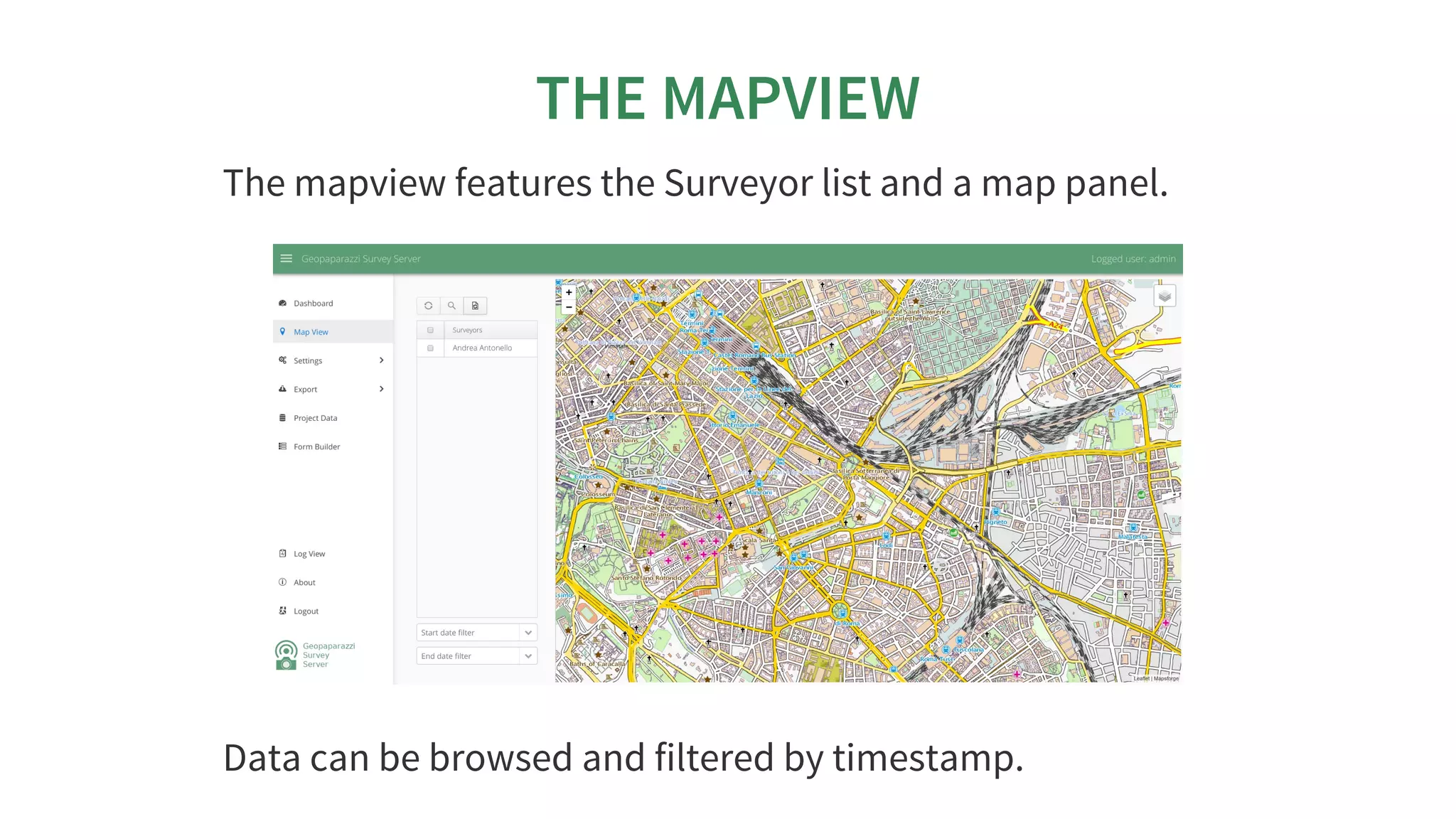
THE	MAPVIEW
The	mapview	features	the	Surveyor	list	and	a	map	panel.
Data	can	be	browsed	and	filtered	by	timestamp.
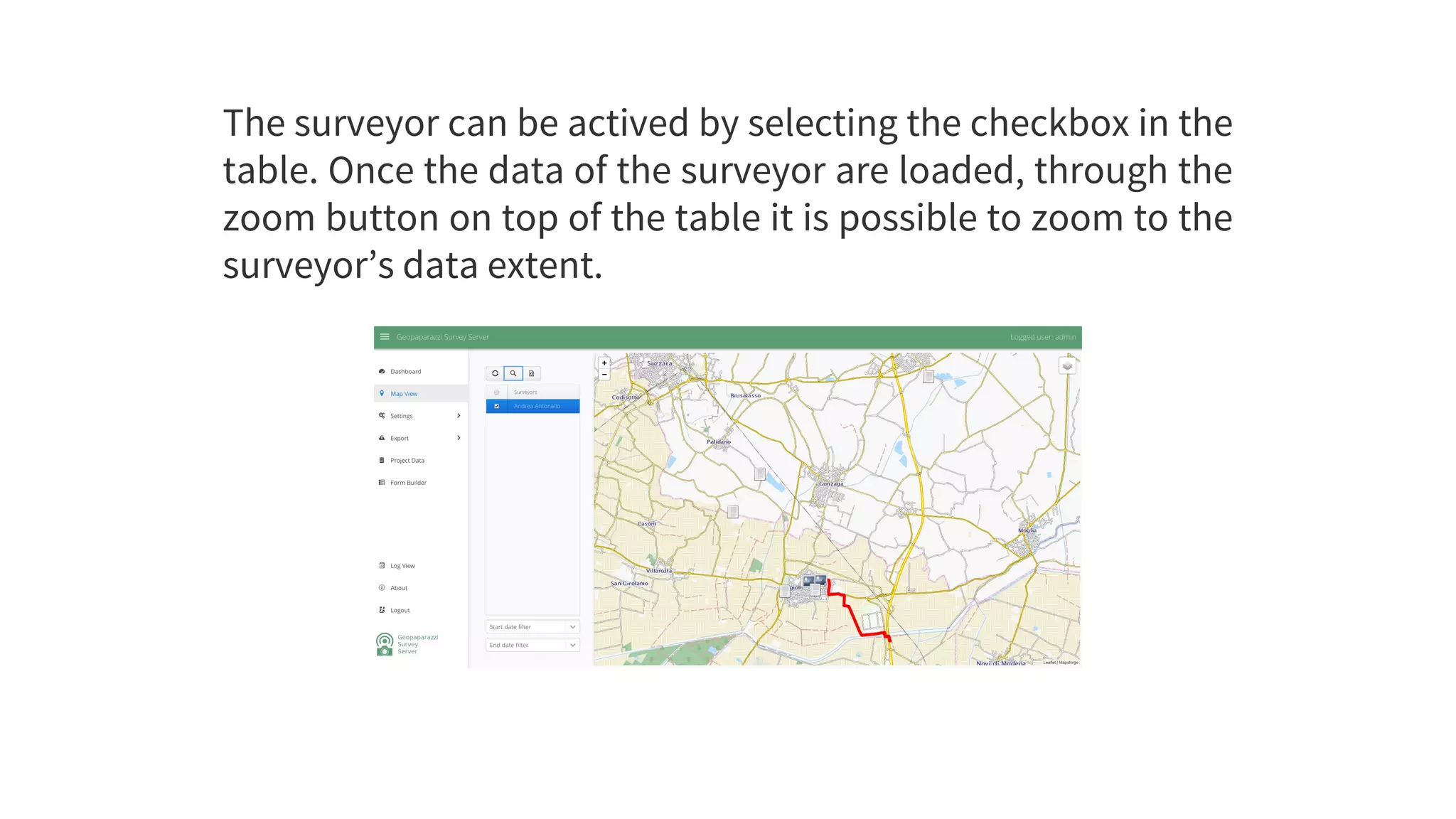
The	surveyor	can	be	actived	by	selecting	the	checkbox	in	the
table.	Once	the	data	of	the	surveyor	are	loaded,	through	the
zoom	button	on	top	of	the	table	it	is	possible	to	zoom	to	the
surveyor’s	data	extent.
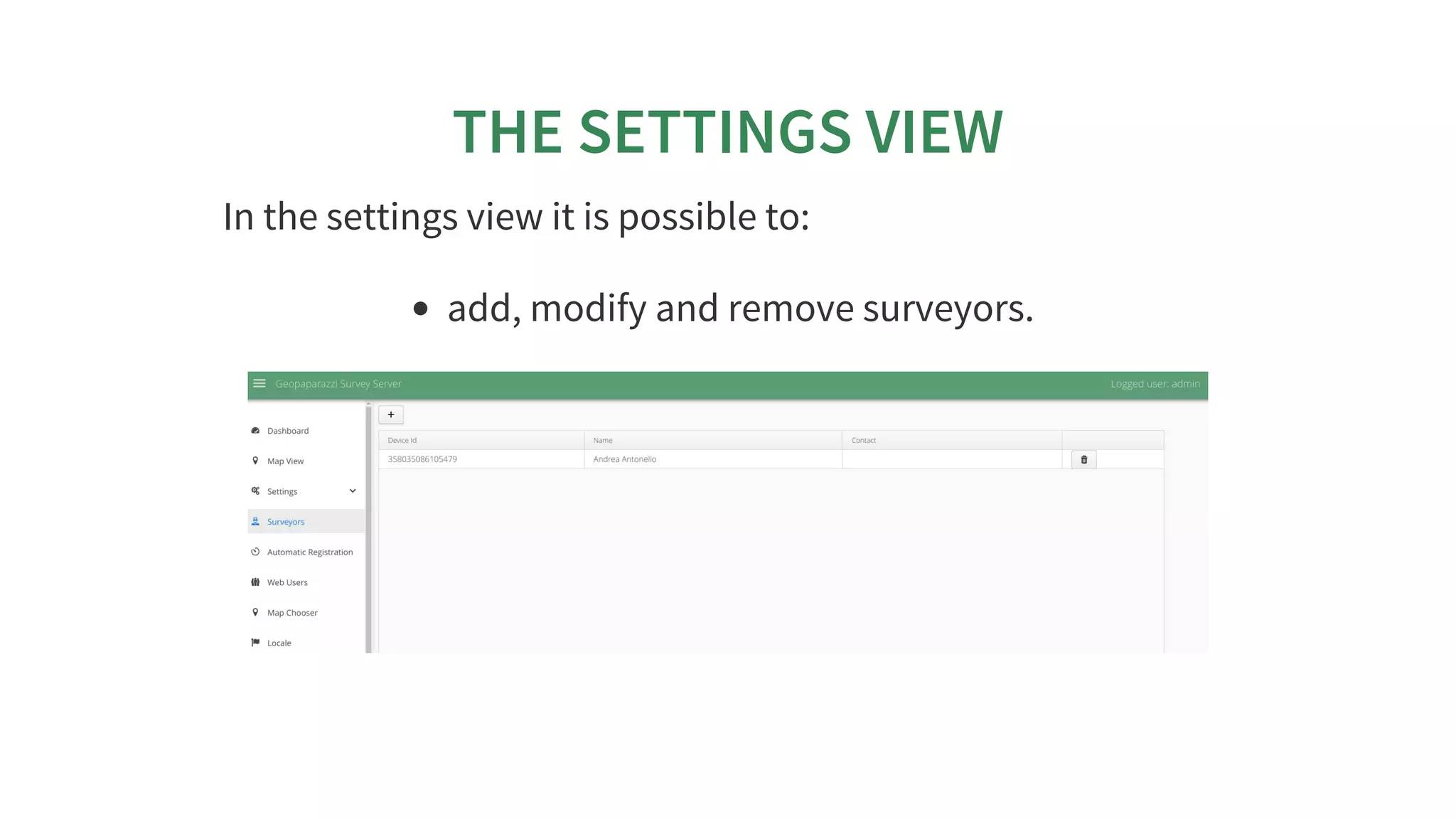
THE	SETTINGS	VIEW
In	the	settings	view	it	is	possible	to:
add,	modify	and	remove	surveyors.
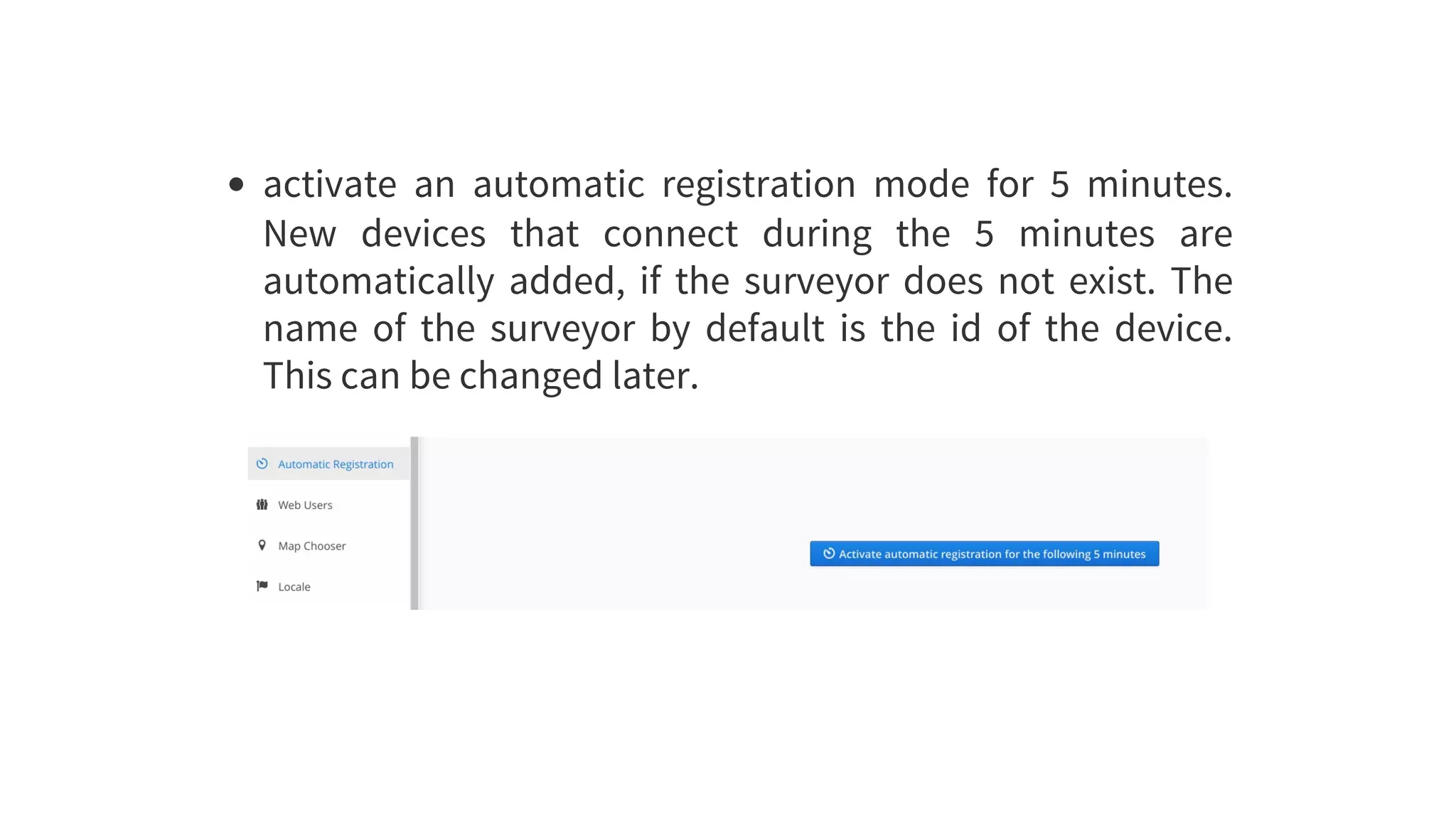
activate	 an	 automatic	 registration	 mode	 for	 5	 minutes.
New	 devices	 that	 connect	 during	 the	 5	 minutes	 are
automatically	added,	if	the	surveyor	does	not	exist.	The
name	 of	 the	 surveyor	 by	 default	 is	 the	 id	 of	 the	 device.
This	can	be	changed	later.
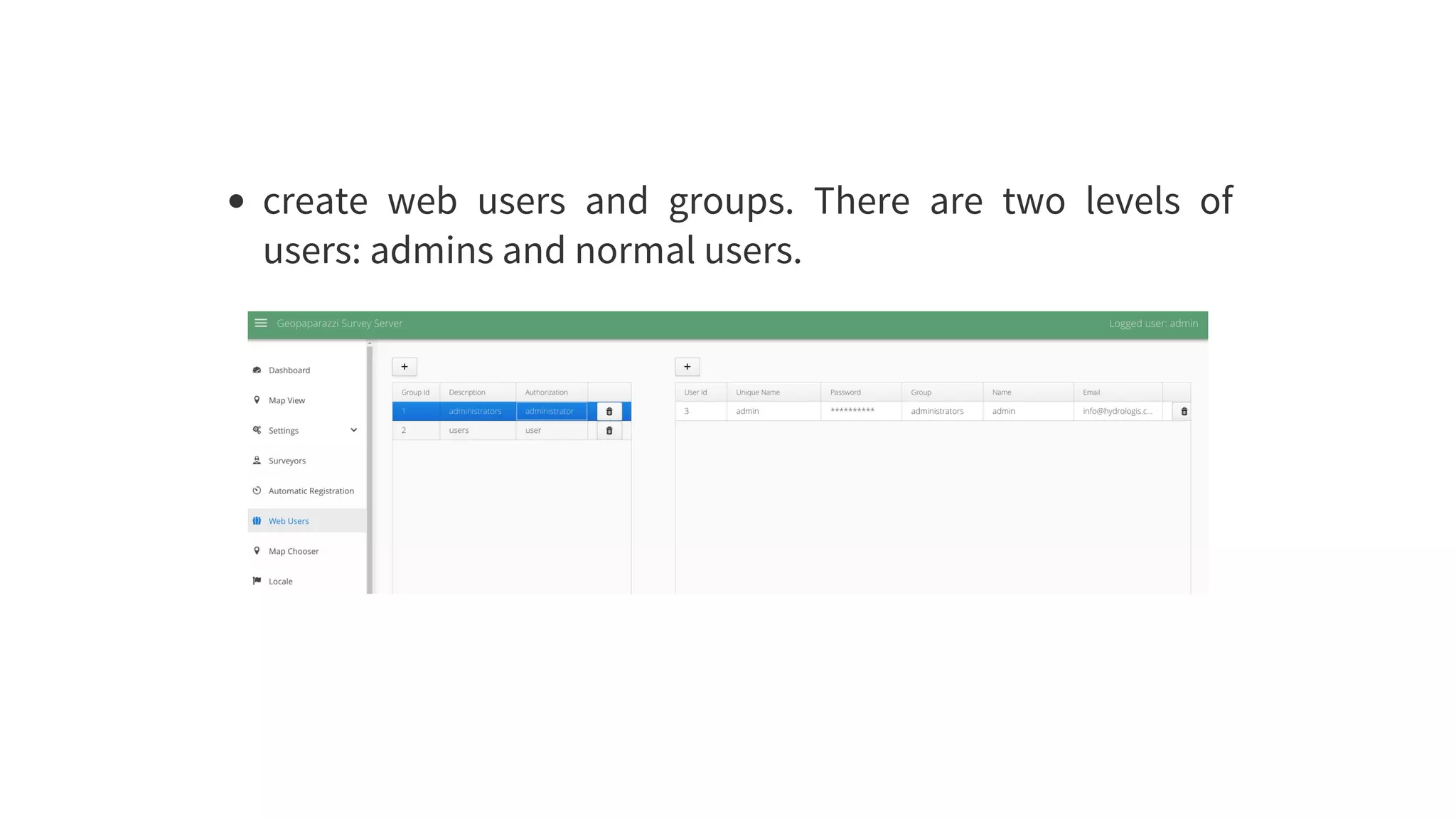
create	 web	 users	 and	 groups.	 There	 are	 two	 levels	 of
users:	admins	and	normal	users.
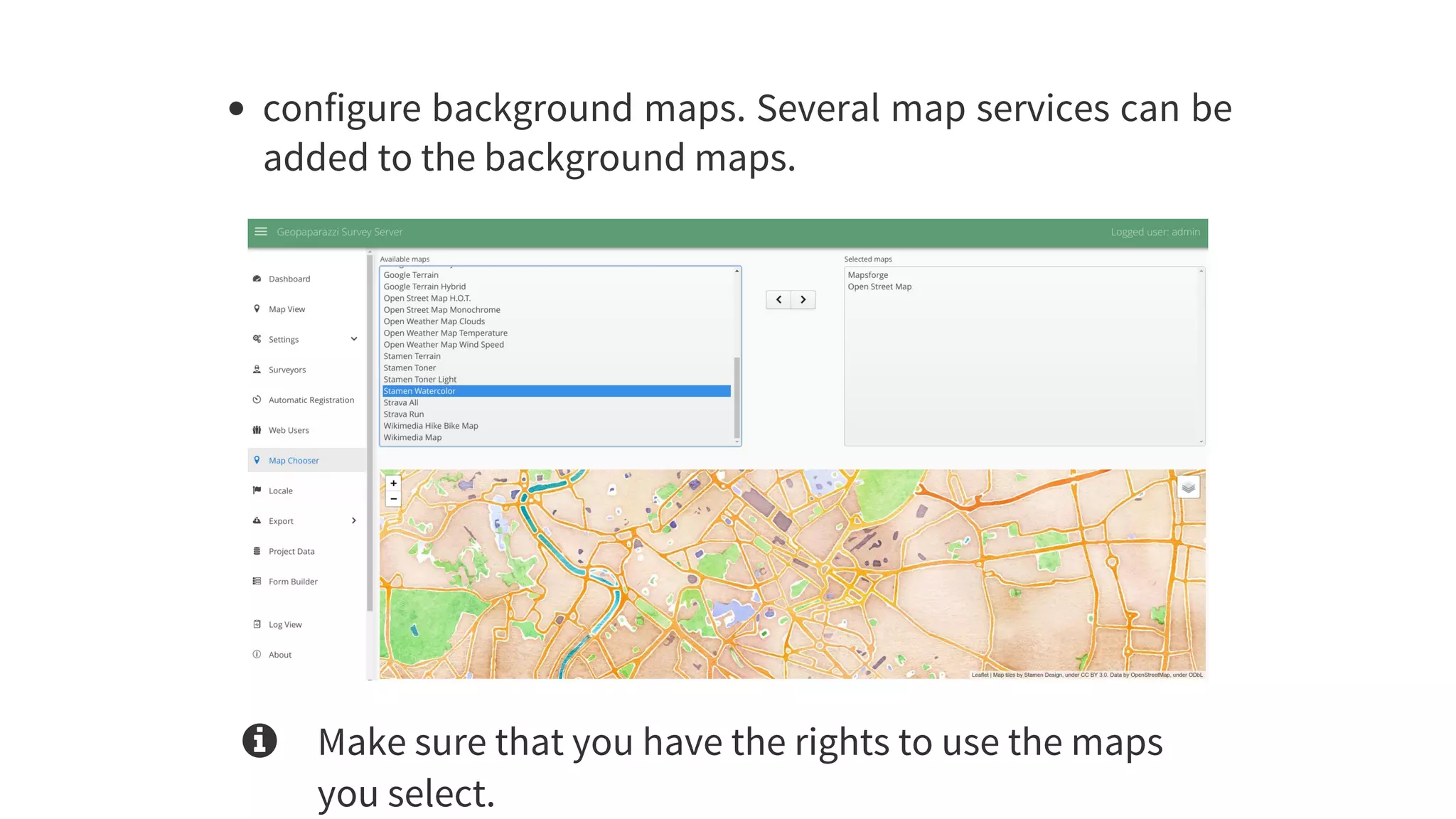
configure	background	maps.	Several	map	services	can	be
added	to	the	background	maps.
 Make	sure	that	you	have	the	rights	to	use	the	maps
you	select.
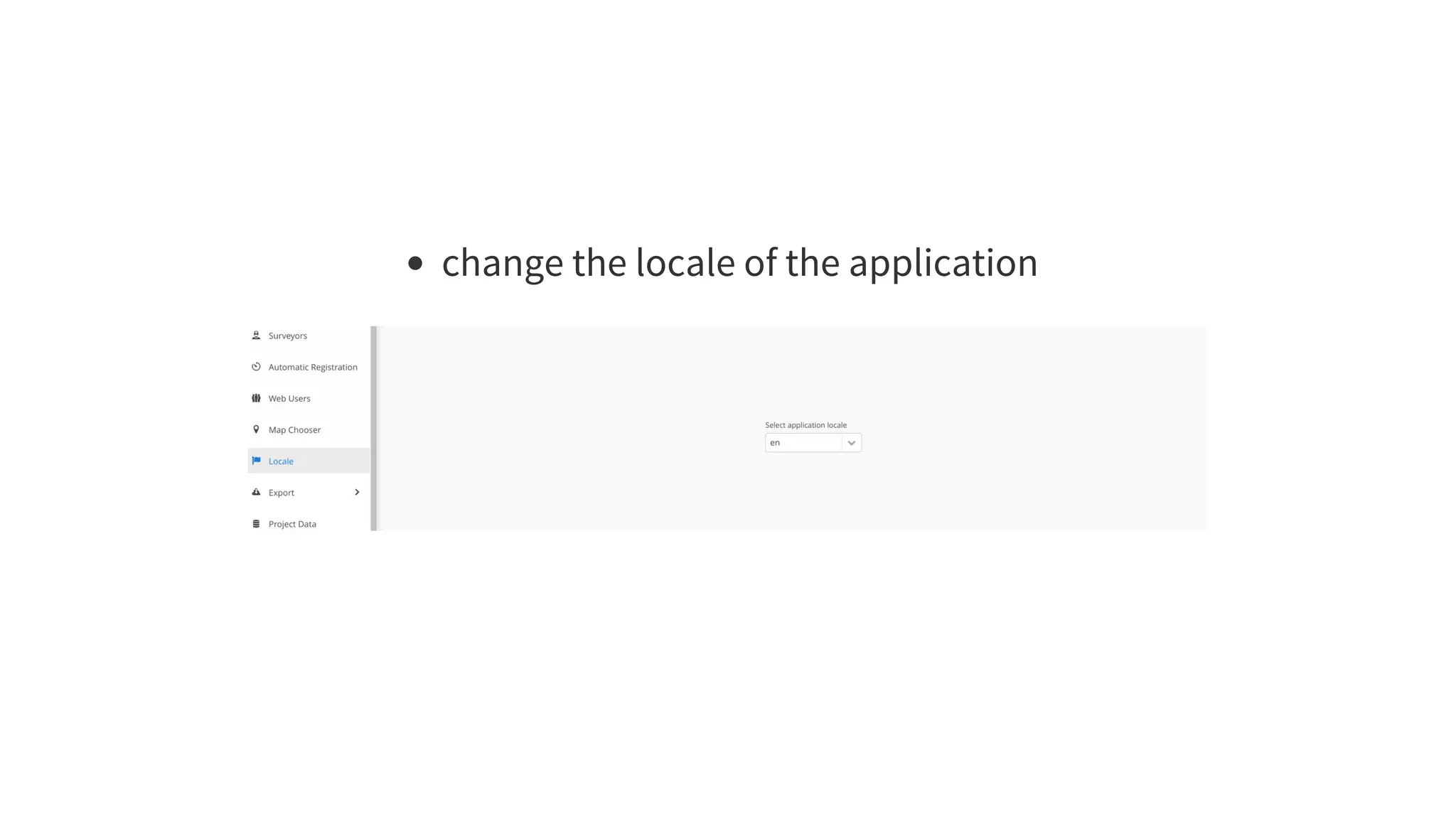
change	the	locale	of	the	application
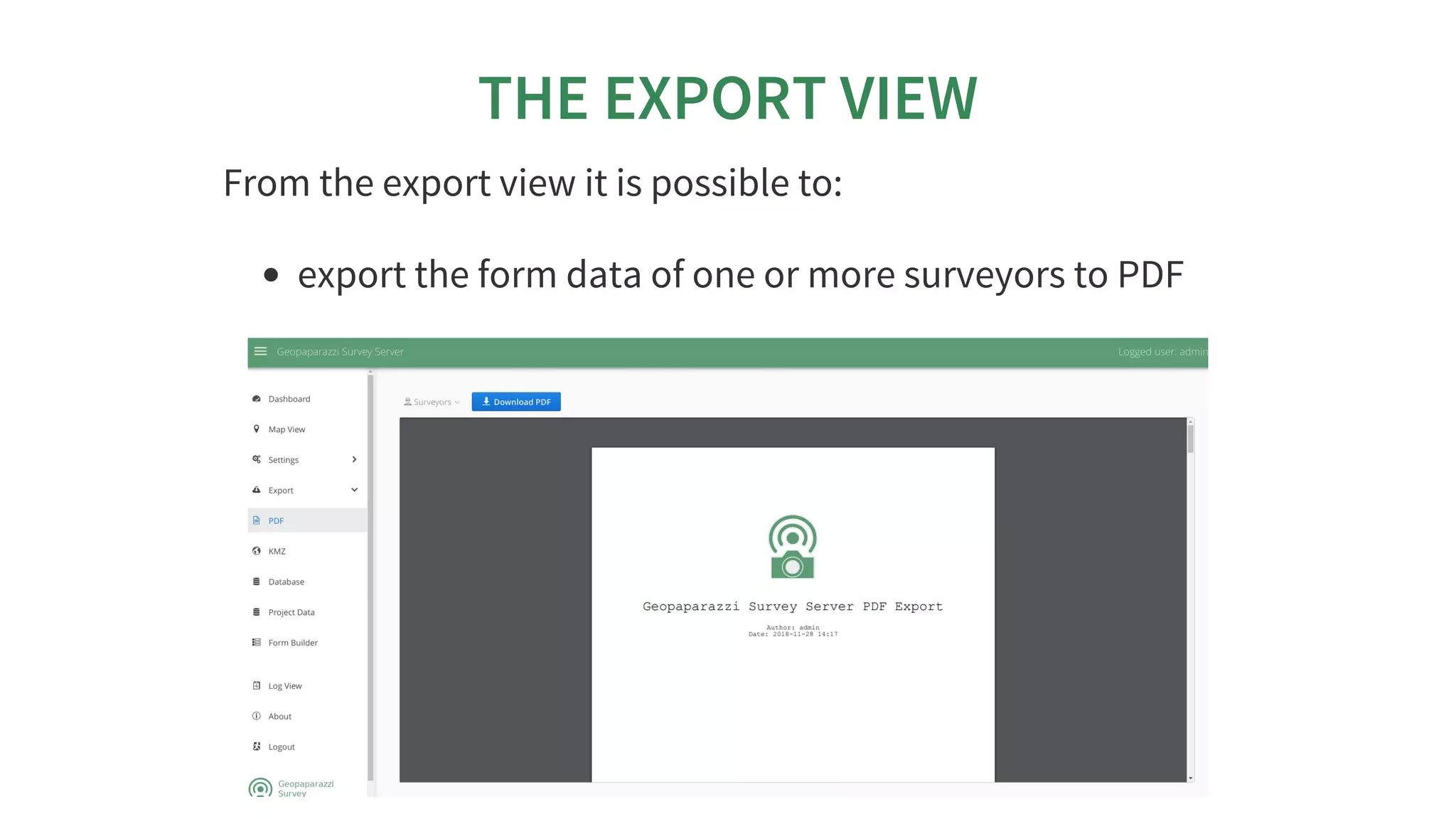
THE	EXPORT	VIEW
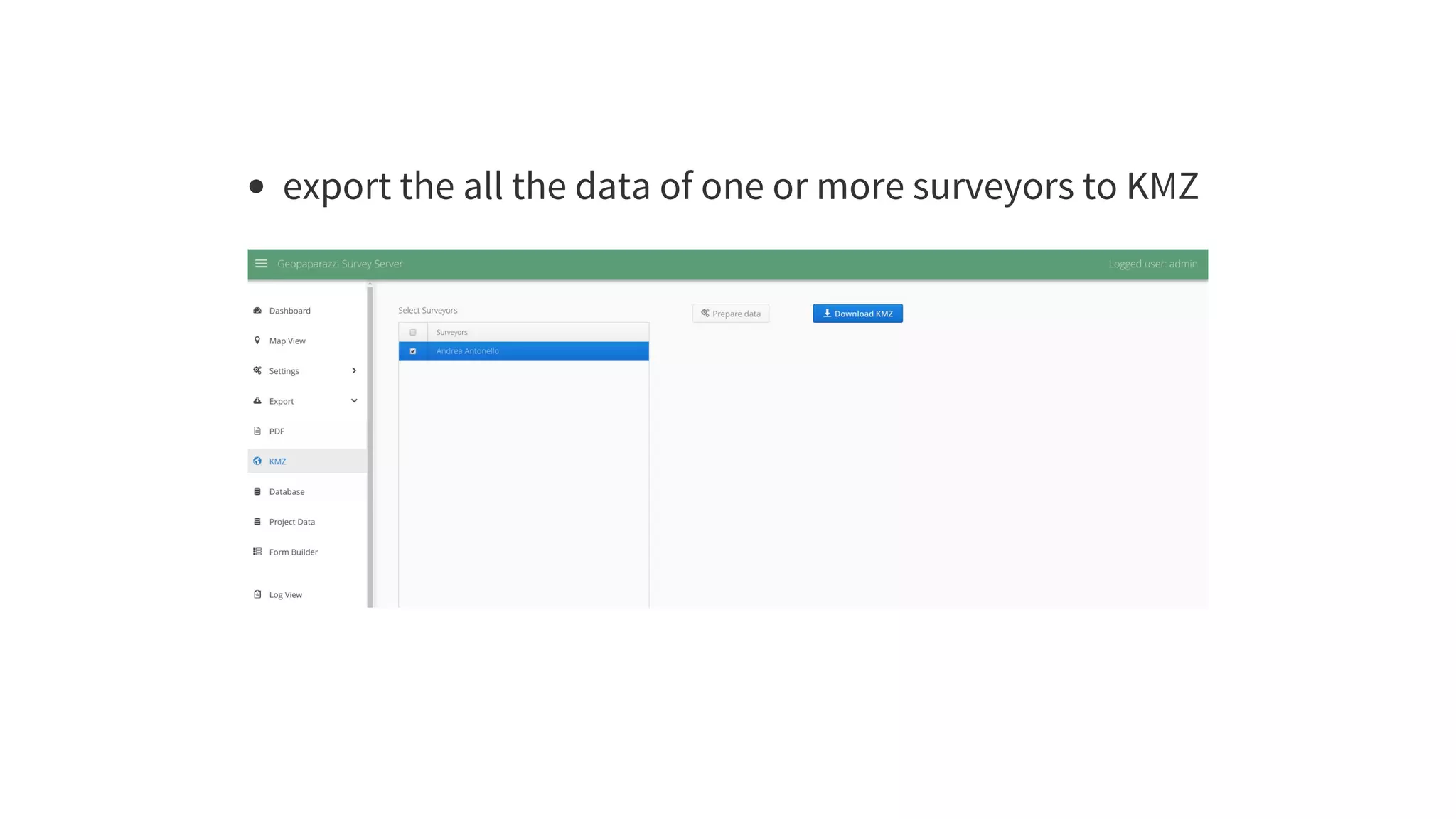
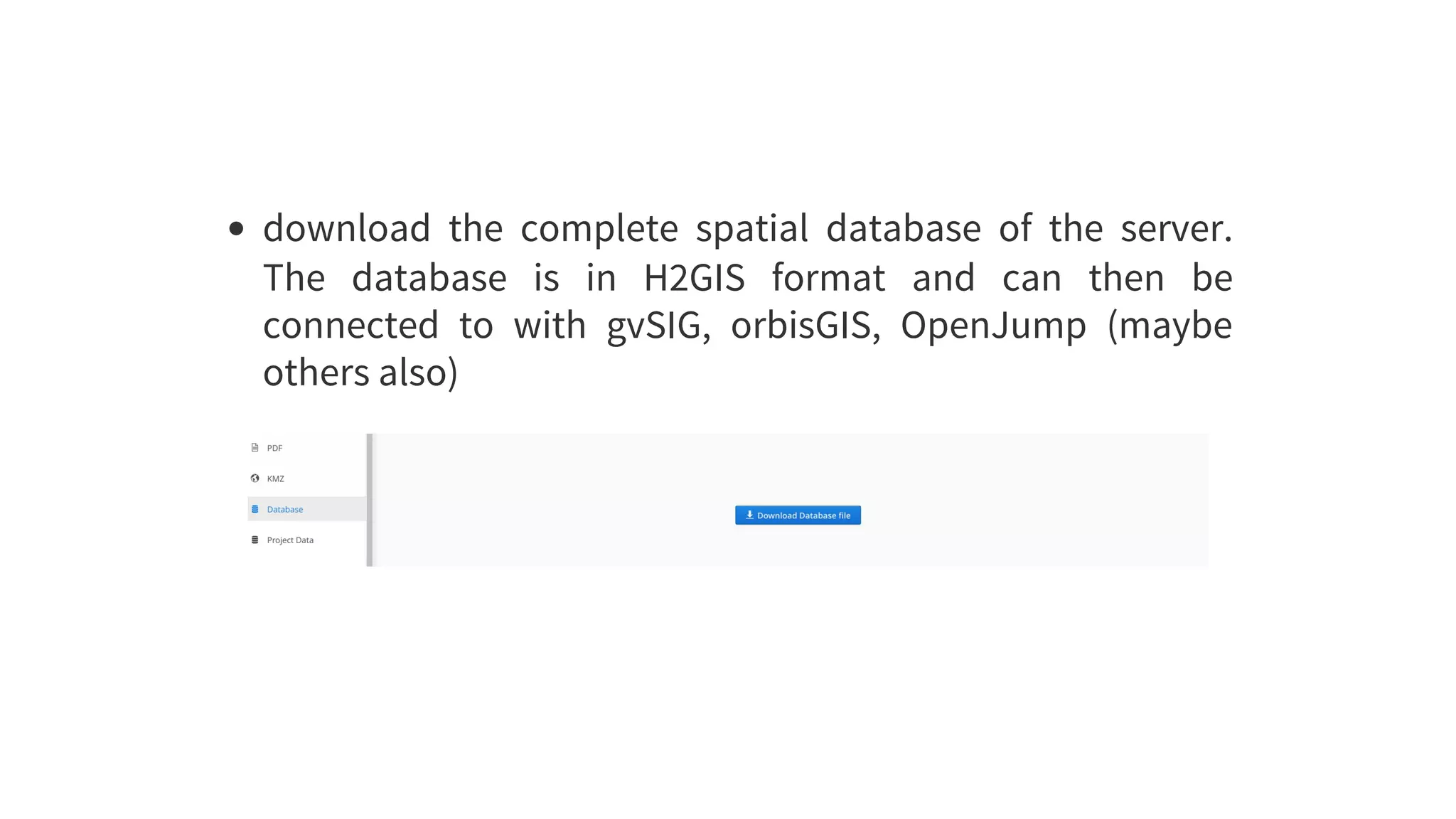
From	the	export	view	it	is	possible	to:
export	the	form	data	of	one	or	more	surveyors	to	PDF

export	the	all	the	data	of	one	or	more	surveyors	to	KMZ
download	 the	 complete	 spatial	 database	 of	 the	 server.
The	 database	 is	 in	 H2GIS	 format	 and	 can	 then	 be
connected	 to	 with	 gvSIG,	 orbisGIS,	 OpenJump	 (maybe
others	also)
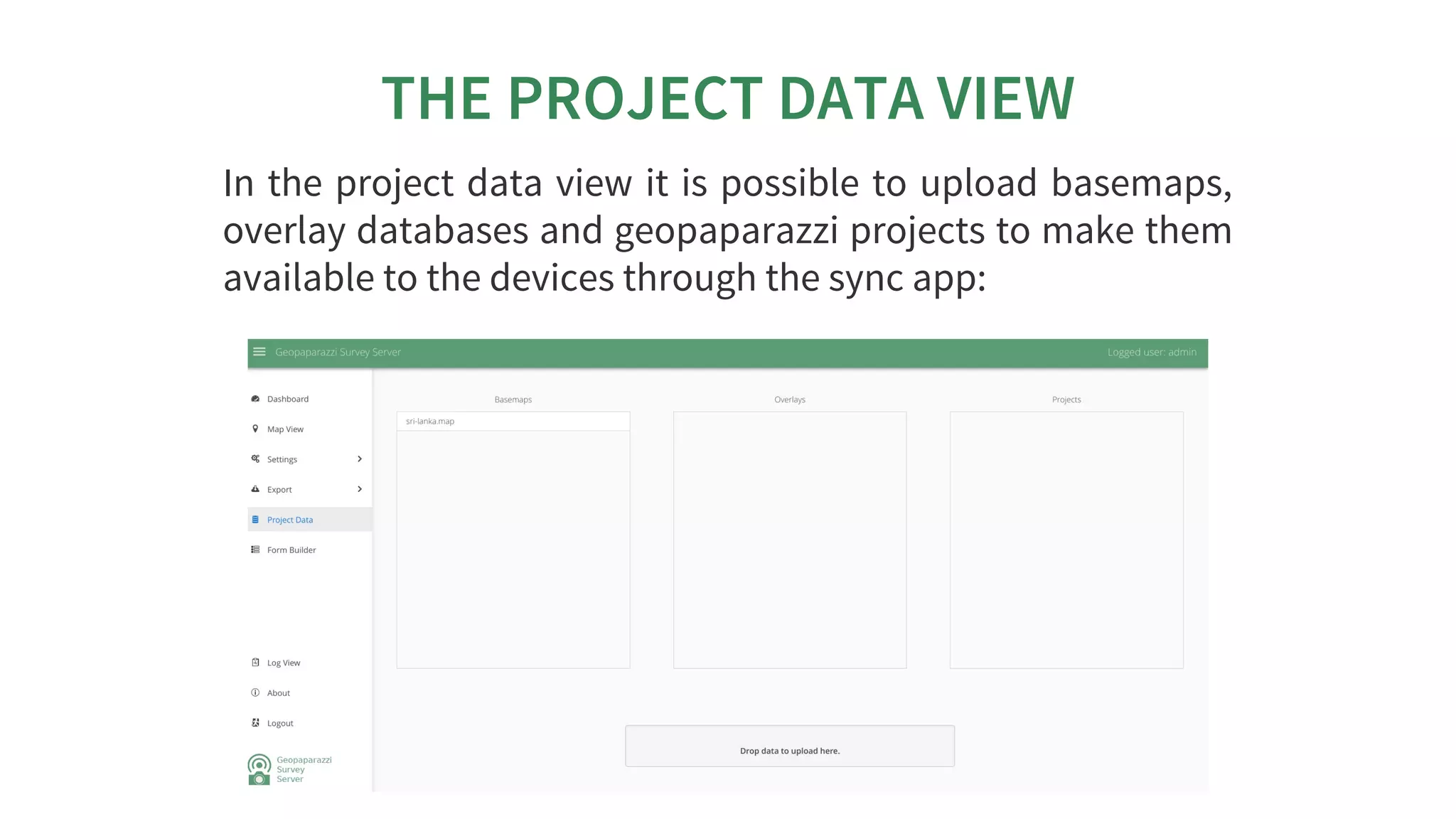
THE	PROJECT	DATA	VIEW
In	the	project	data	view	it	is	possible	to	upload	basemaps,
overlay	databases	and	geopaparazzi	projects	to	make	them
available	to	the	devices	through	the	sync	app:
THE	FORM	BUILDER	VIEW
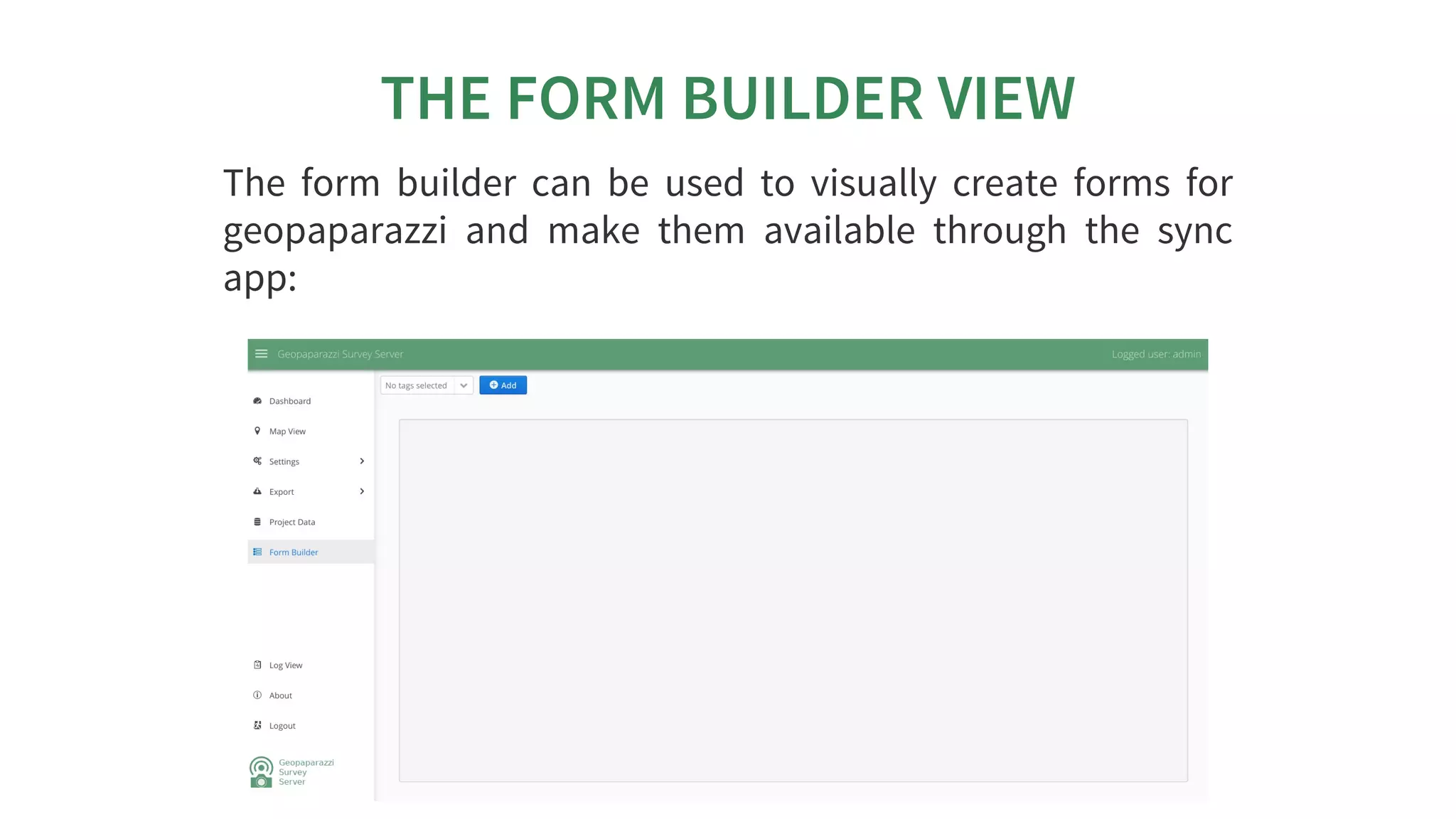
The	 form	 builder	 can	 be	 used	 to	 visually	 create	 forms	 for
geopaparazzi	 and	 make	 them	 available	 through	 the	 sync
app:
THE	LOG	VIEW
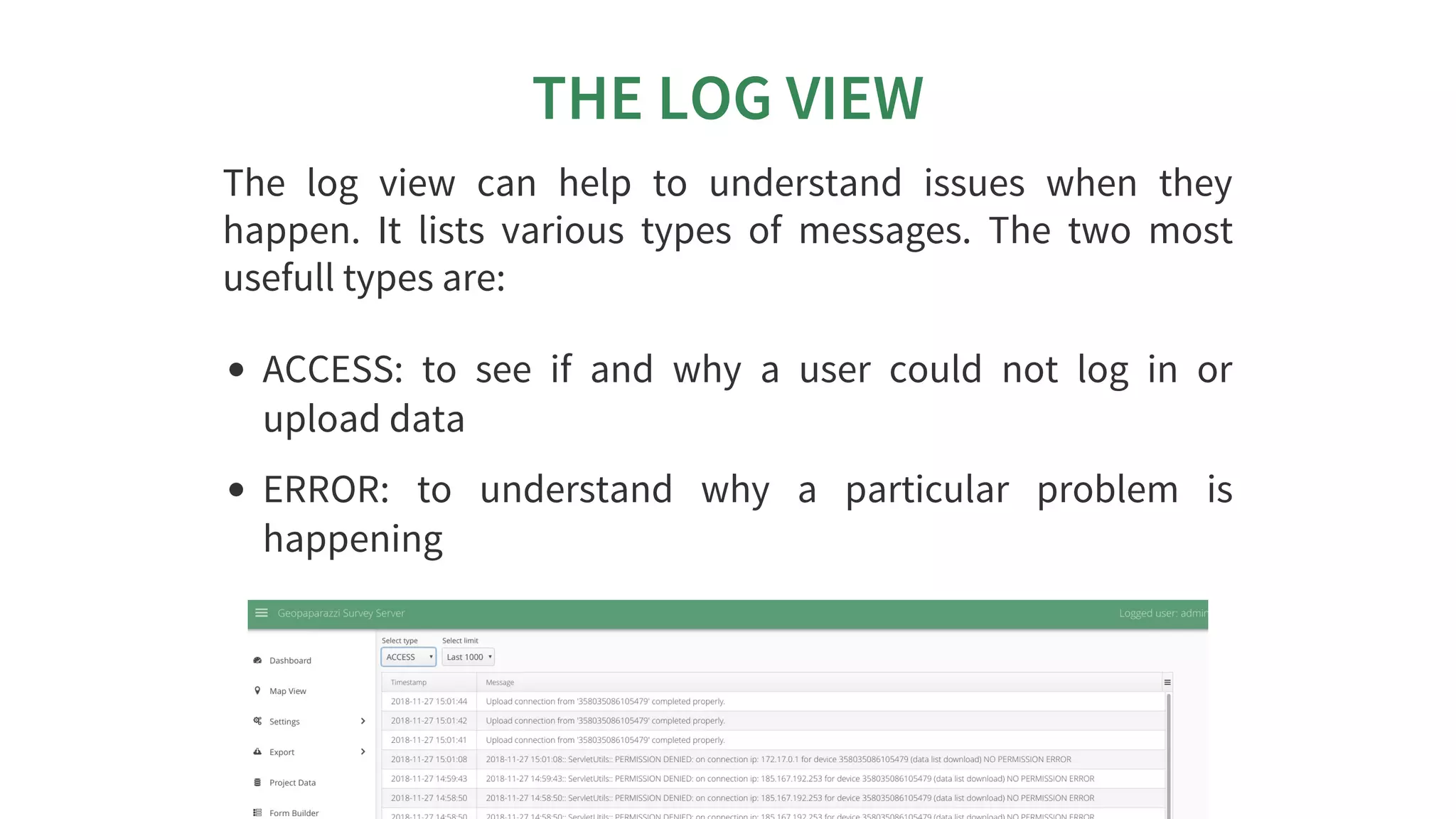
The	 log	 view	 can	 help	 to	 understand	 issues	 when	 they
happen.	 It	 lists	 various	 types	 of	 messages.	 The	 two	 most
usefull	types	are:
ACCESS:	 to	 see	 if	 and	 why	 a	 user	 could	 not	 log	 in	 or
upload	data
ERROR:	 to	 understand	 why	 a	 particular	 problem	 is
happening
THE	GEOPAPARAZZI	SURVEY	SERVER
SYNC	APP	(GSSS)
INSTALLATION
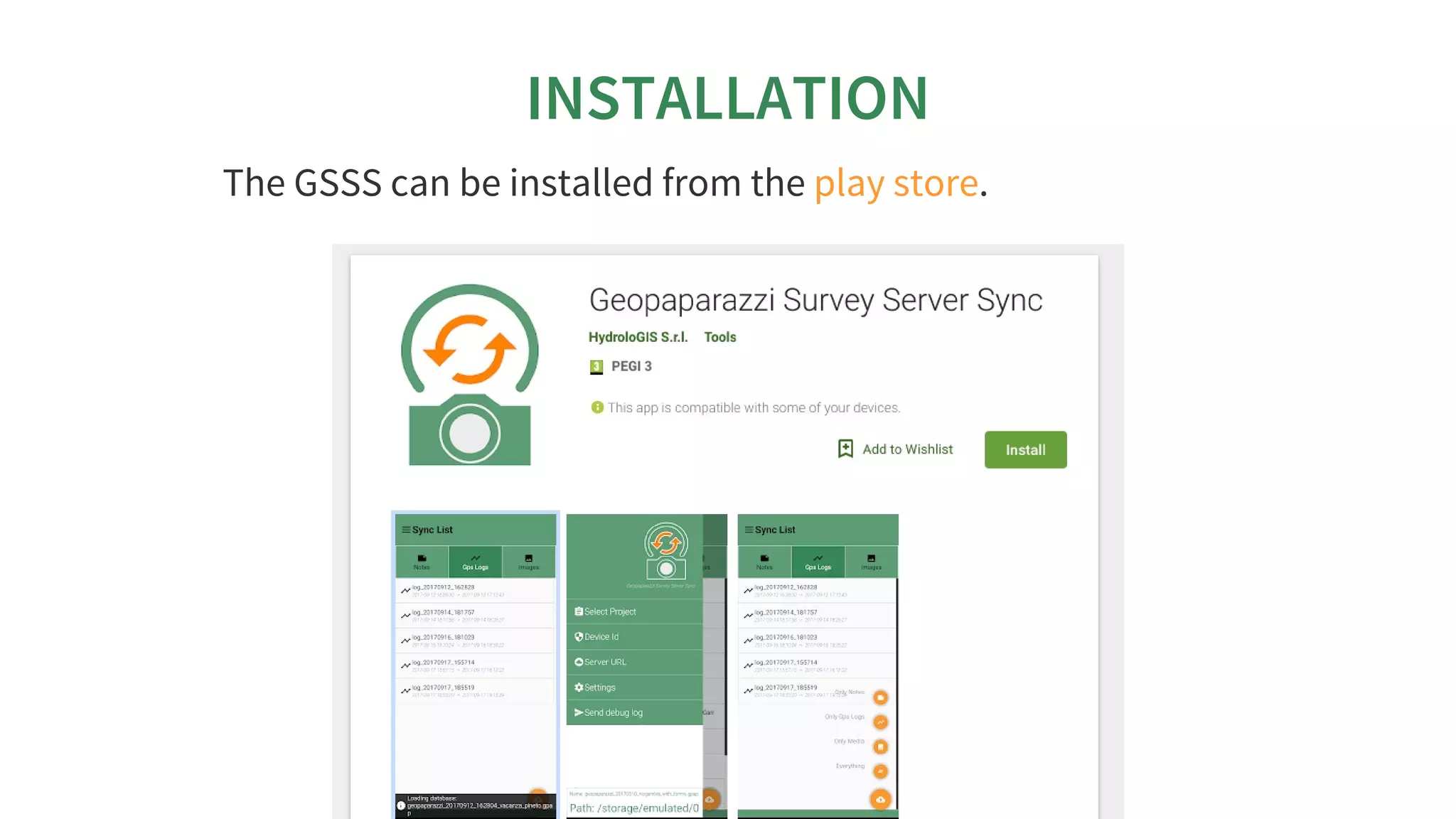
The	GSSS	can	be	installed	from	the	 .play	store
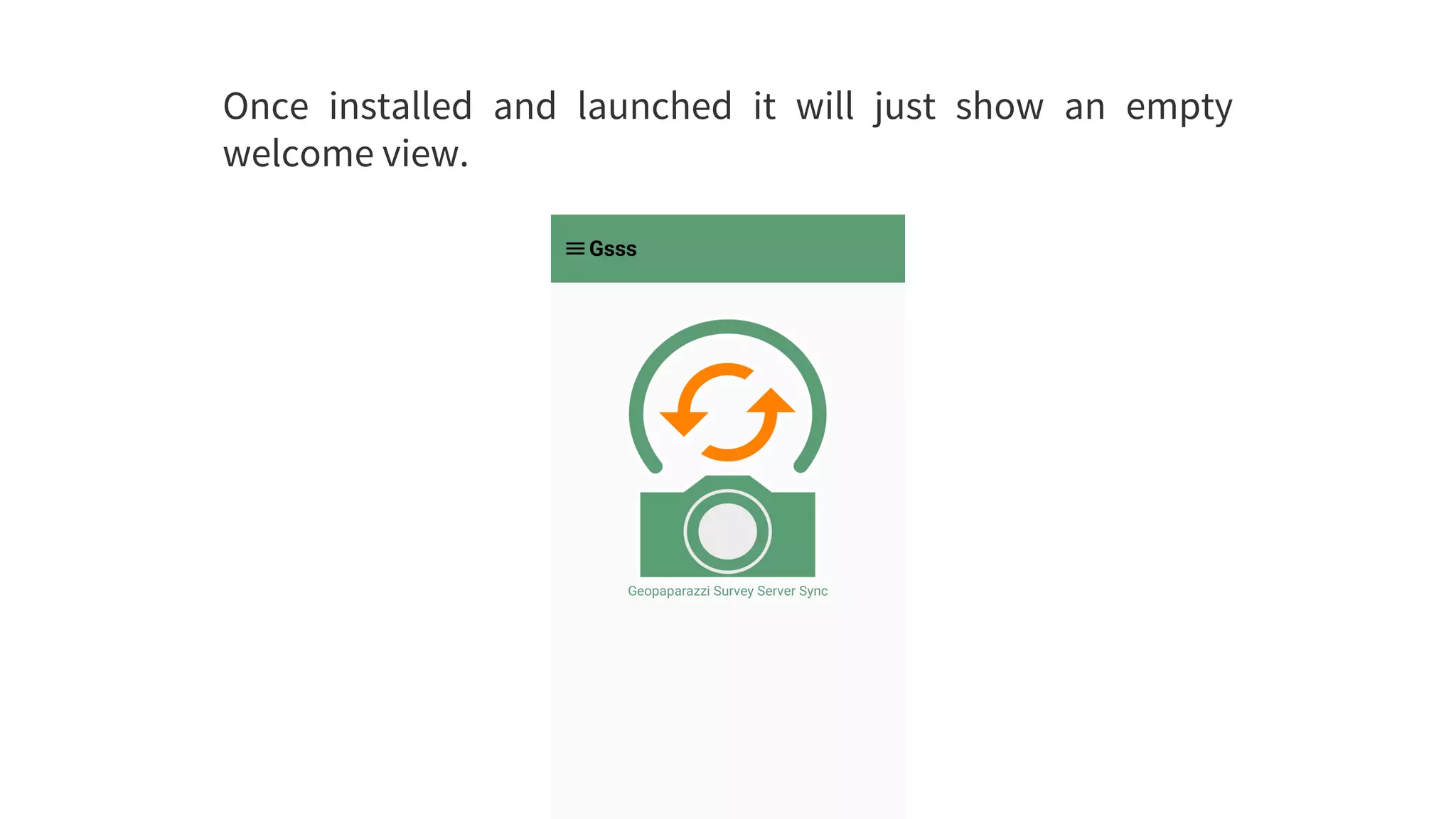
Once	 installed	 and	 launched	 it	 will	 just	 show	 an	 empty
welcome	view.
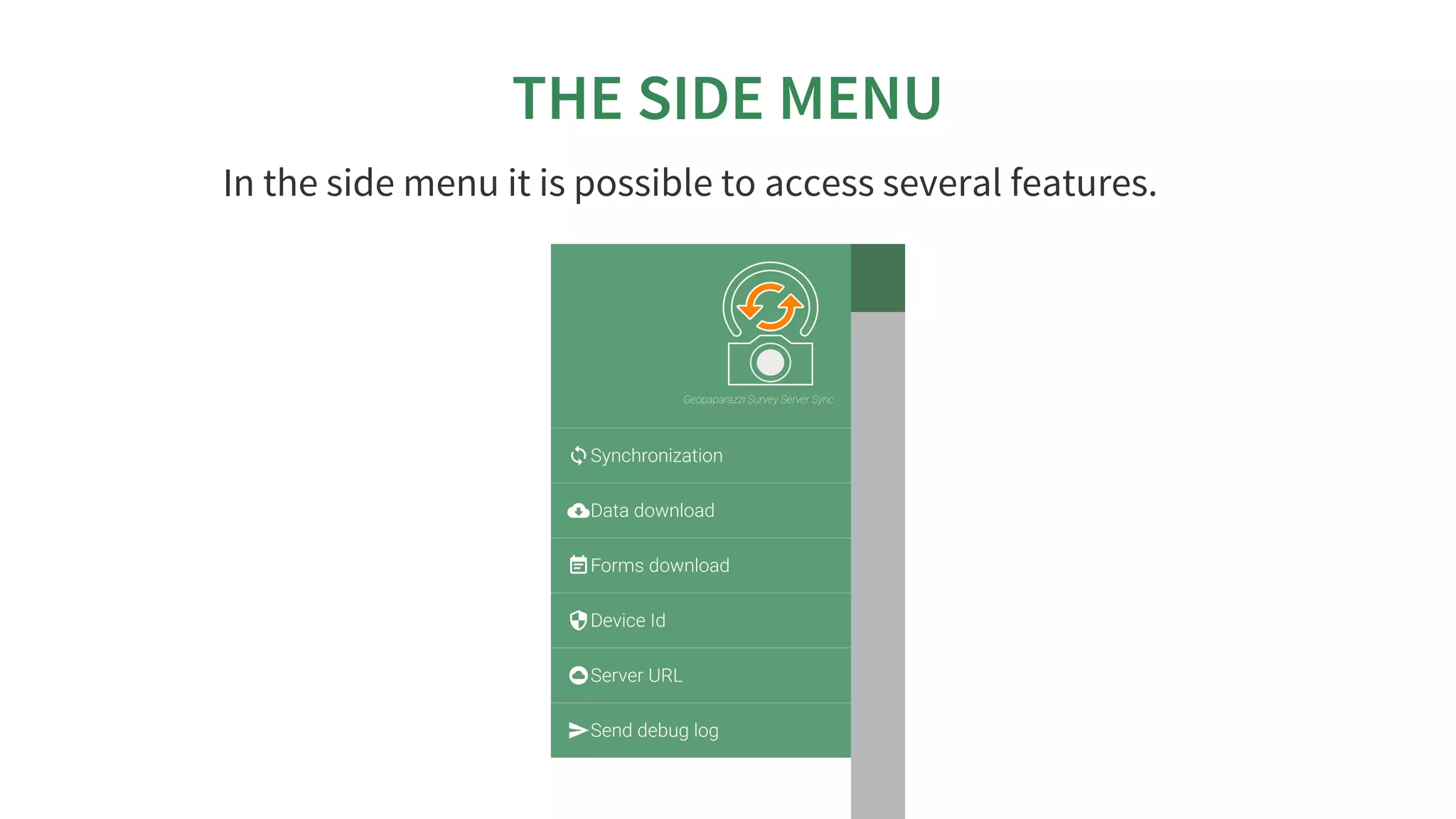
THE	SIDE	MENU
In	the	side	menu	it	is	possible	to	access	several	features.
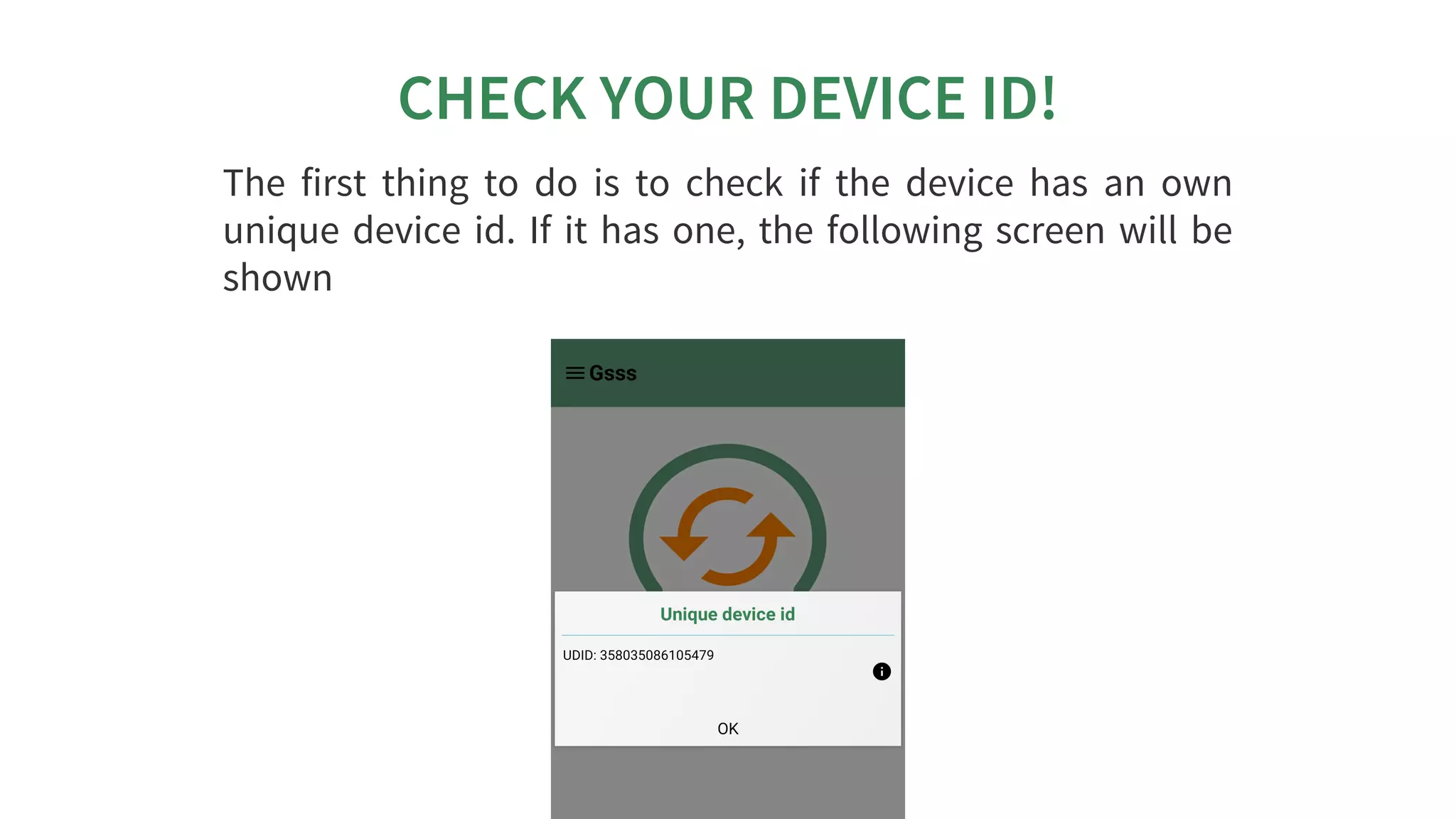
CHECK	YOUR	DEVICE	ID!
The	 first	 thing	 to	 do	 is	 to	 check	 if	 the	 device	 has	 an	 own
unique	device	id.	If	it	has	one,	the	following	screen	will	be
shown
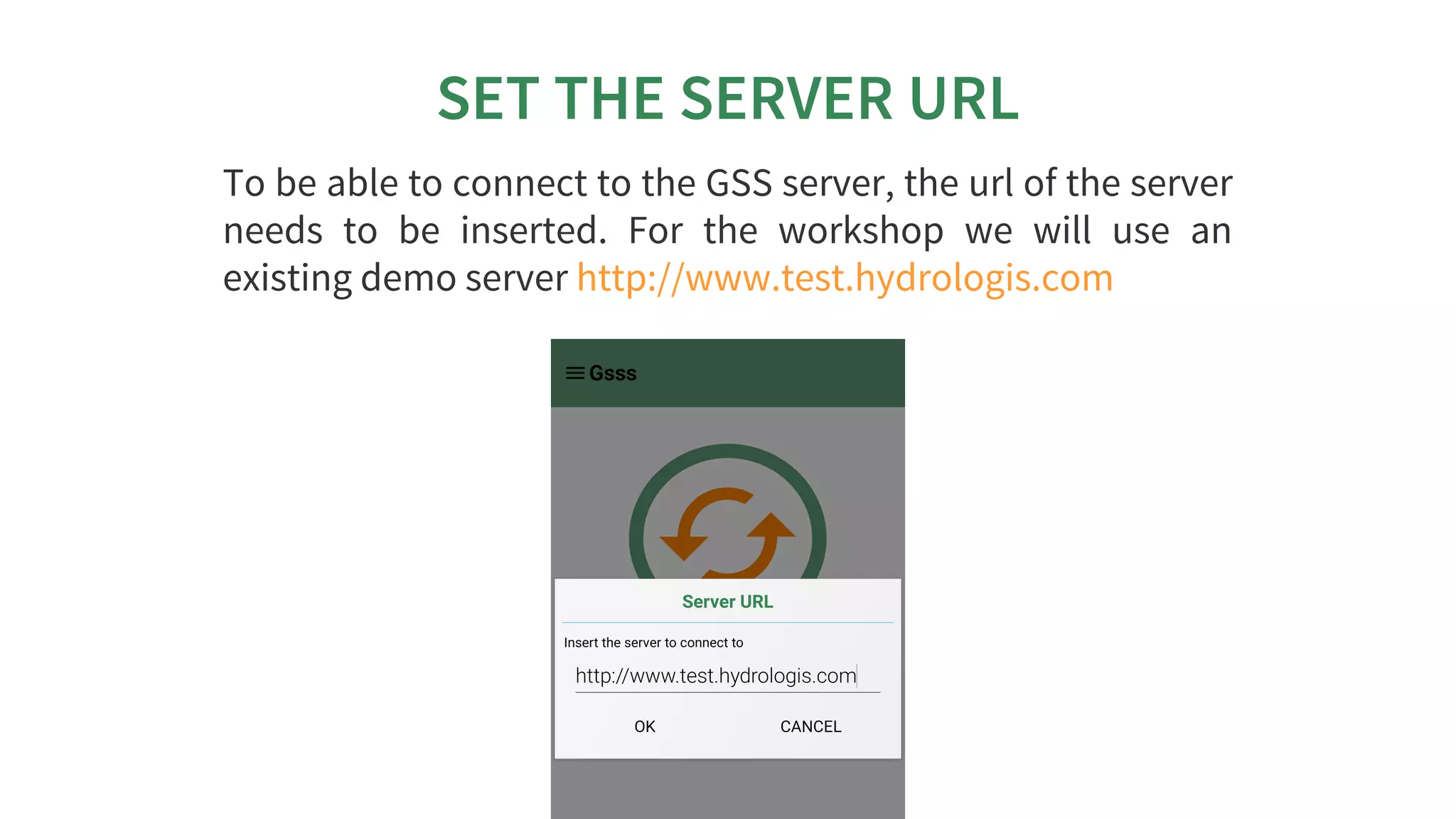
SET	THE	SERVER	URL
To	be	able	to	connect	to	the	GSS	server,	the	url	of	the	server
needs	 to	 be	 inserted.	 For	 the	 workshop	 we	 will	 use	 an
existing	demo	server	http://www.test.hydrologis.com
PREPARE	THE	SERVER	FOR	THE
SURVEY
CREATE	WEB	USERS	(LET’S	CALL
THEM	COORDINATORS)
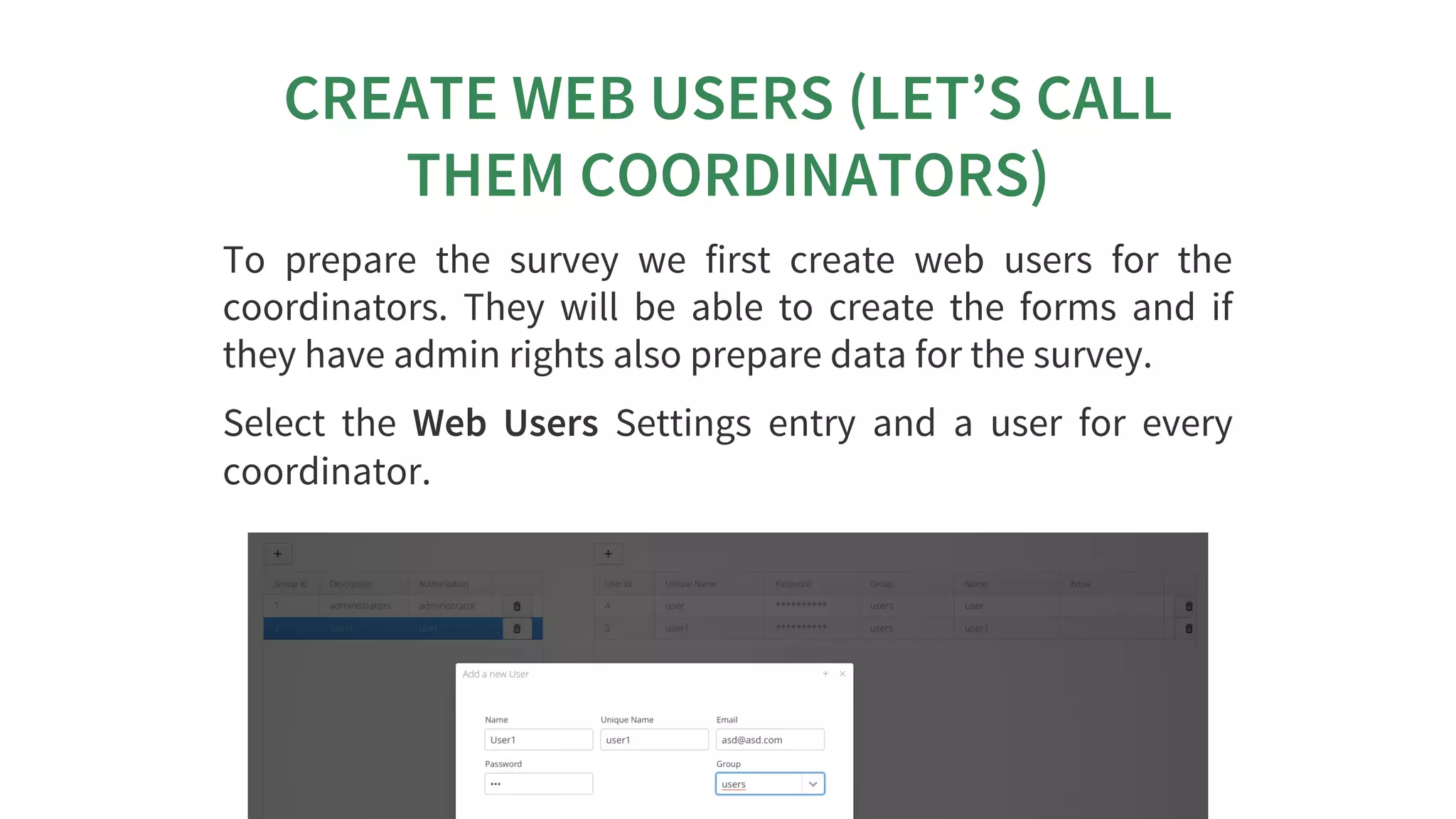
To	 prepare	 the	 survey	 we	 first	 create	 web	 users	 for	 the
coordinators.	 They	 will	 be	 able	 to	 create	 the	 forms	 and	 if
they	have	admin	rights	also	prepare	data	for	the	survey.
Select	 the	 Web	 Users	 Settings	 entry	 and	 a	 user	 for	 every
coordinator.
CREATE	SURVEYORS
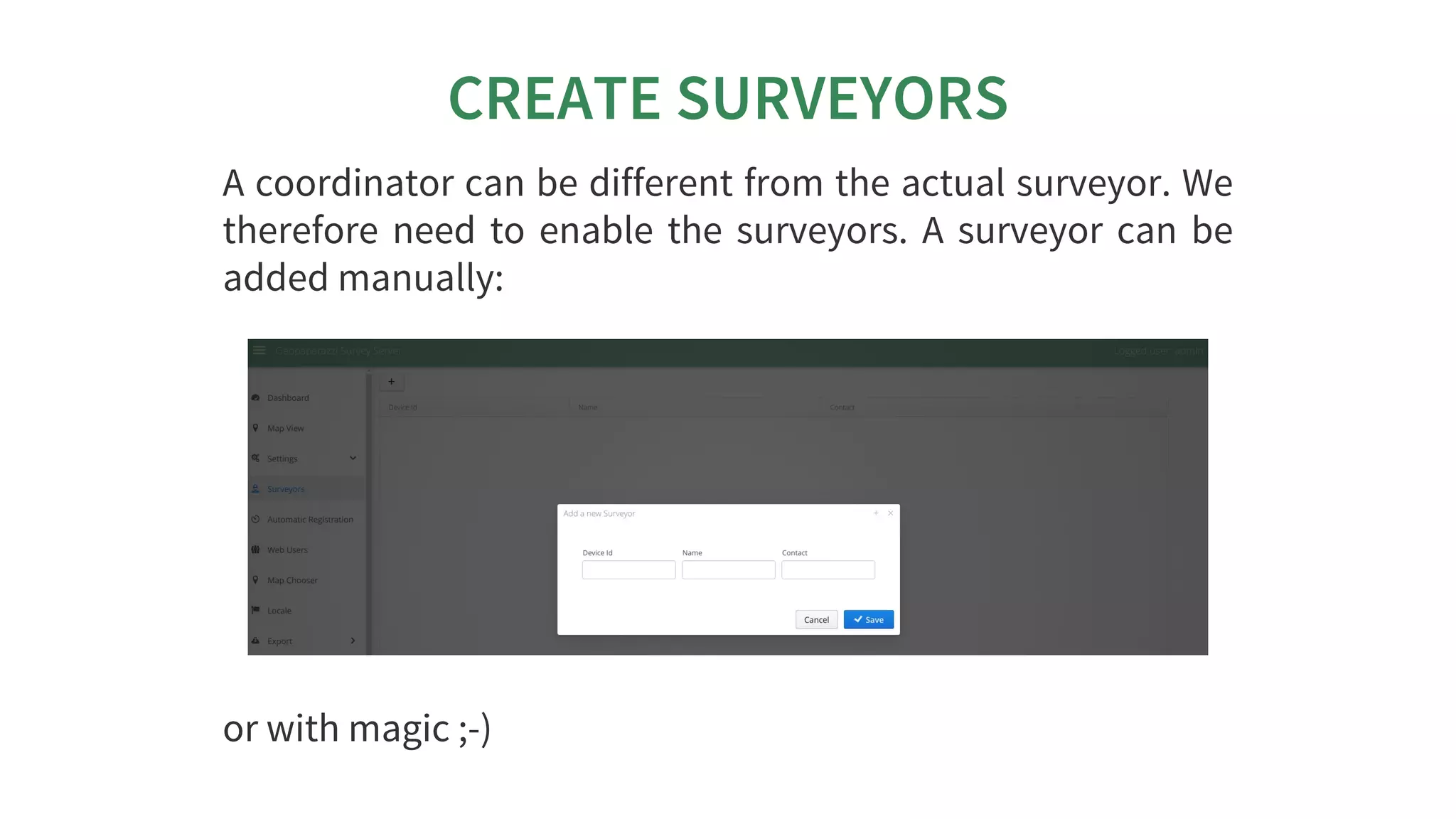
A	coordinator	can	be	different	from	the	actual	surveyor.	We
therefore	need	to	enable	the	surveyors.	A	surveyor	can	be
added	manually:
or	with	magic	;-)
CREATE	SURVEYORS	WITH	MAGIC
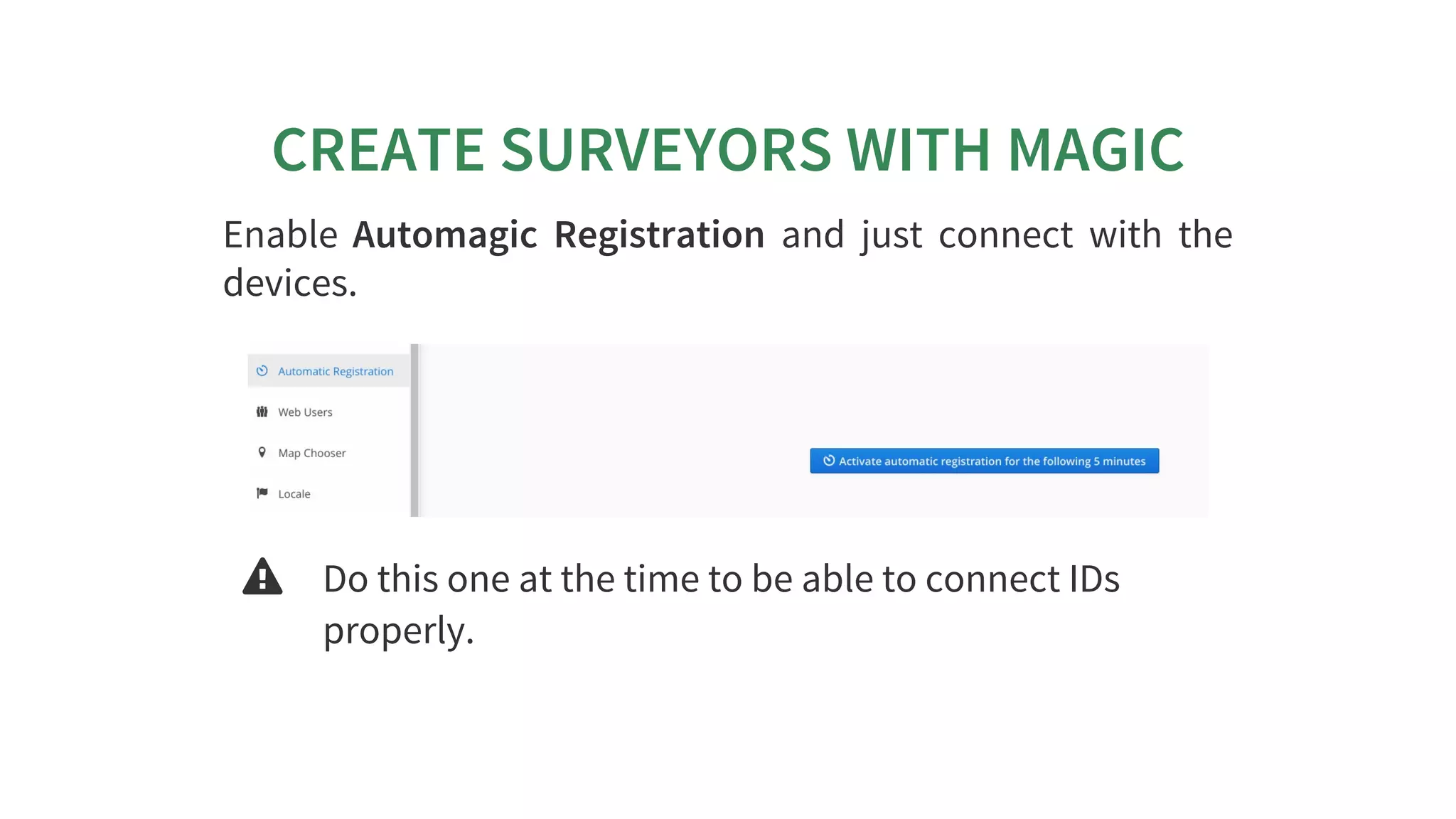
Enable	 Automagic	 Registration	 and	 just	 connect	 with	 the
devices.
 Do	this	one	at	the	time	to	be	able	to	connect	IDs
properly.
FROM	GSSS	DO	ANY	CONNECTING
OPERATION
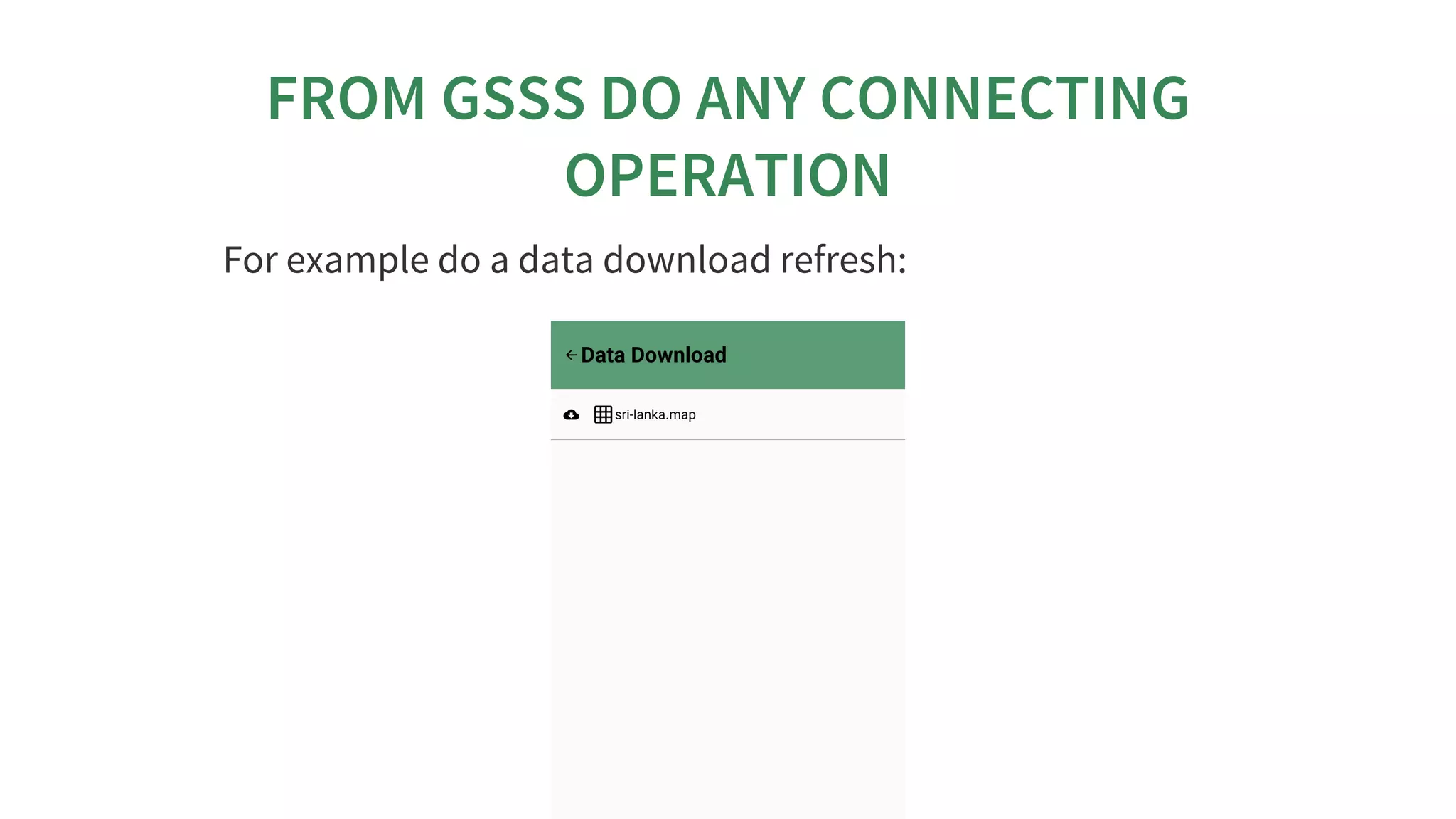
For	example	do	a	data	download	refresh:
CHECK	AND	MODIFY	ON	THE	SERVER
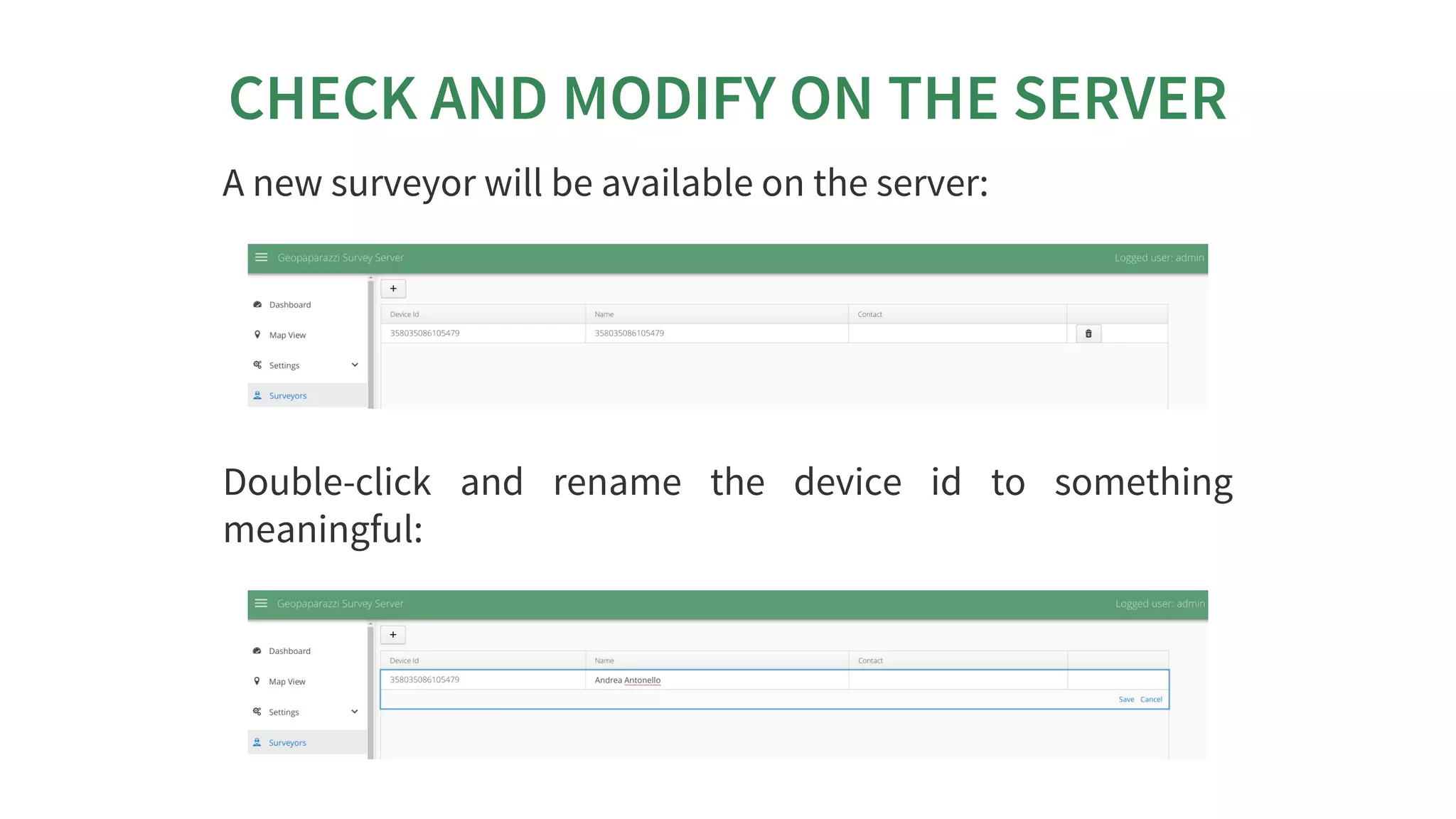
A	new	surveyor	will	be	available	on	the	server:
Double-click	 and	 rename	 the	 device	 id	 to	 something
meaningful:
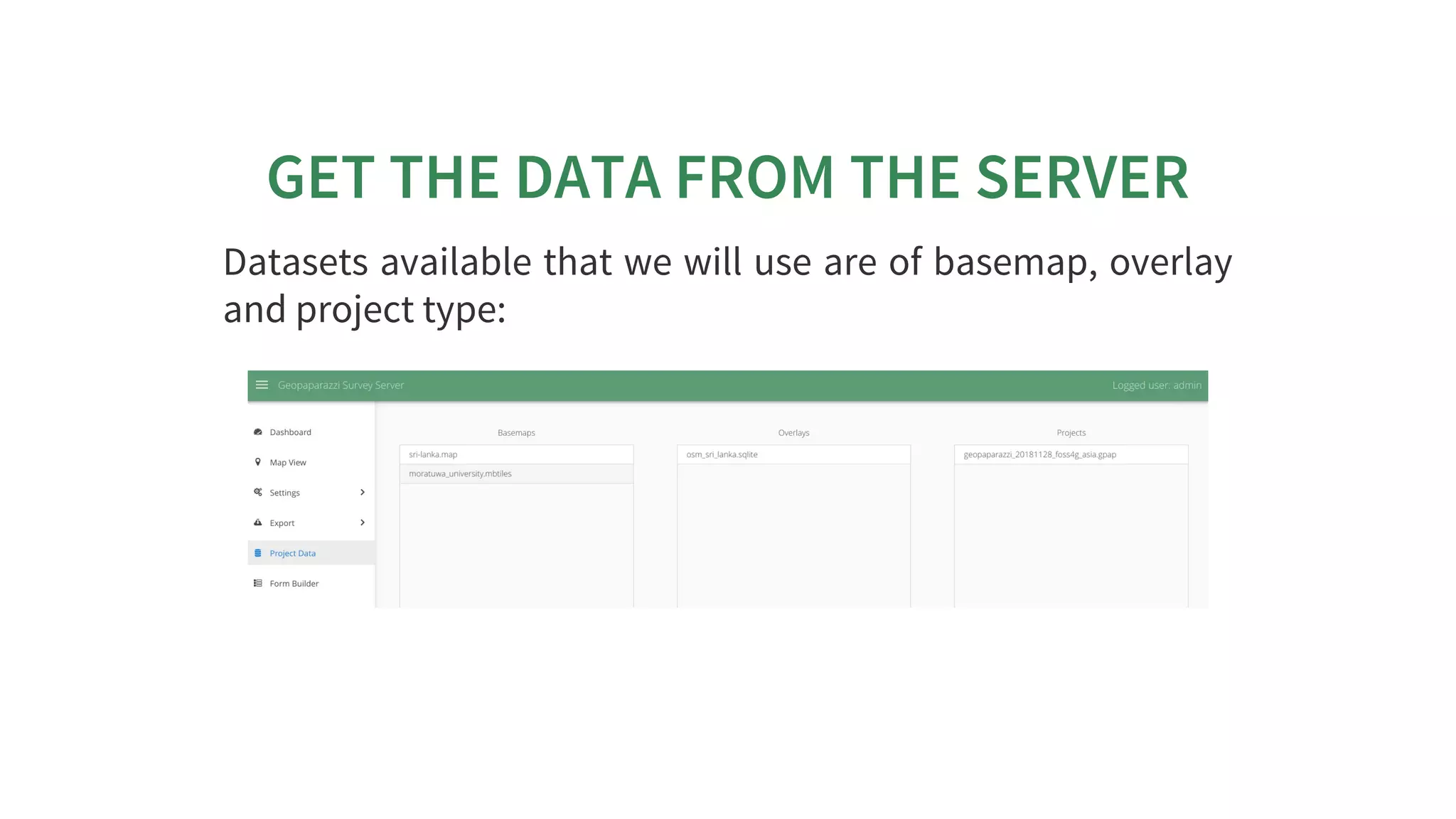
GET	THE	DATA	FROM	THE	SERVER
Datasets	available	that	we	will	use	are	of	basemap,	overlay
and	project	type:
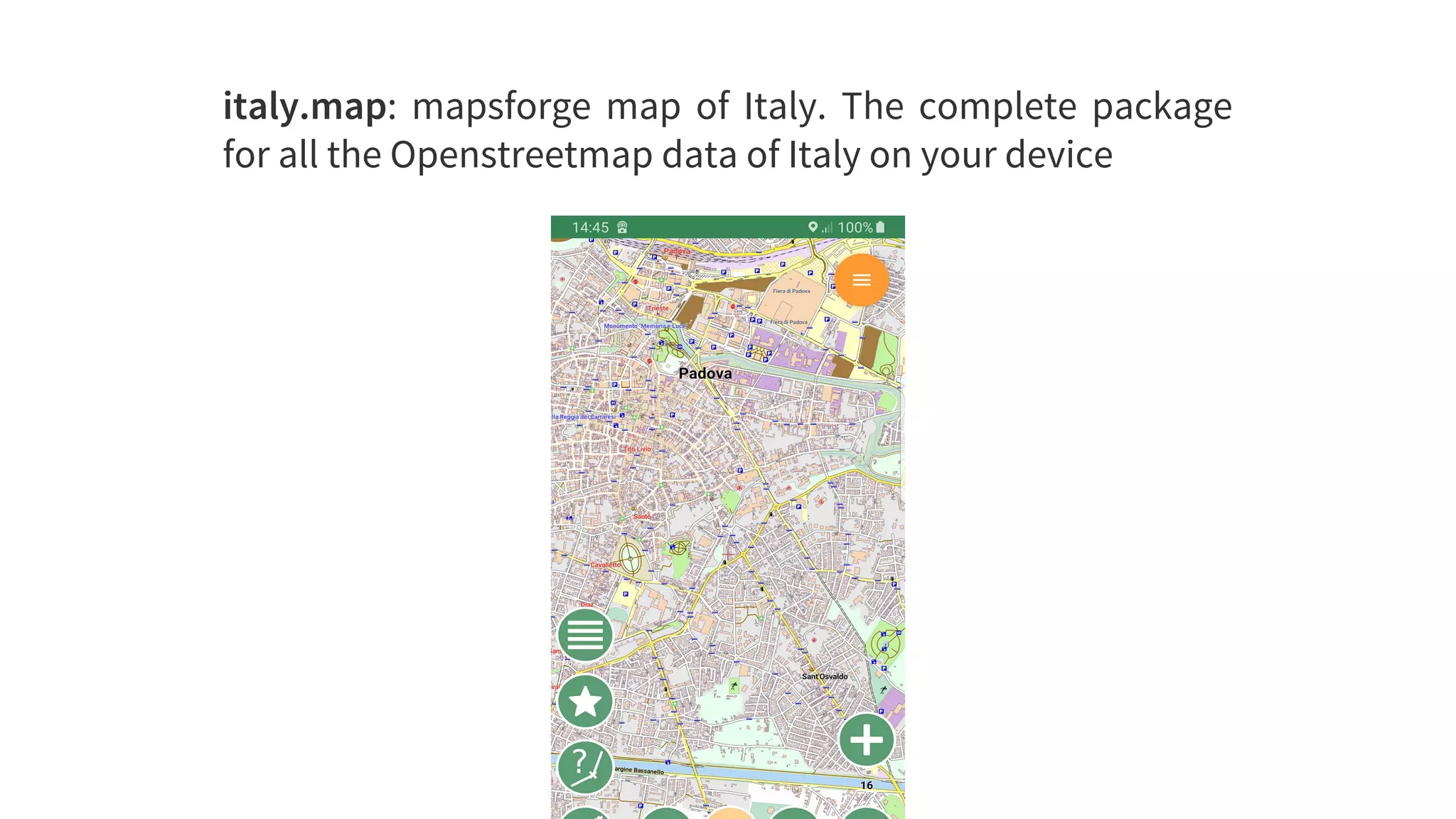
italy.map:	 mapsforge	 map	 of	 Italy.	 The	 complete	 package
for	all	the	Openstreetmap	data	of	Italy	on	your	device
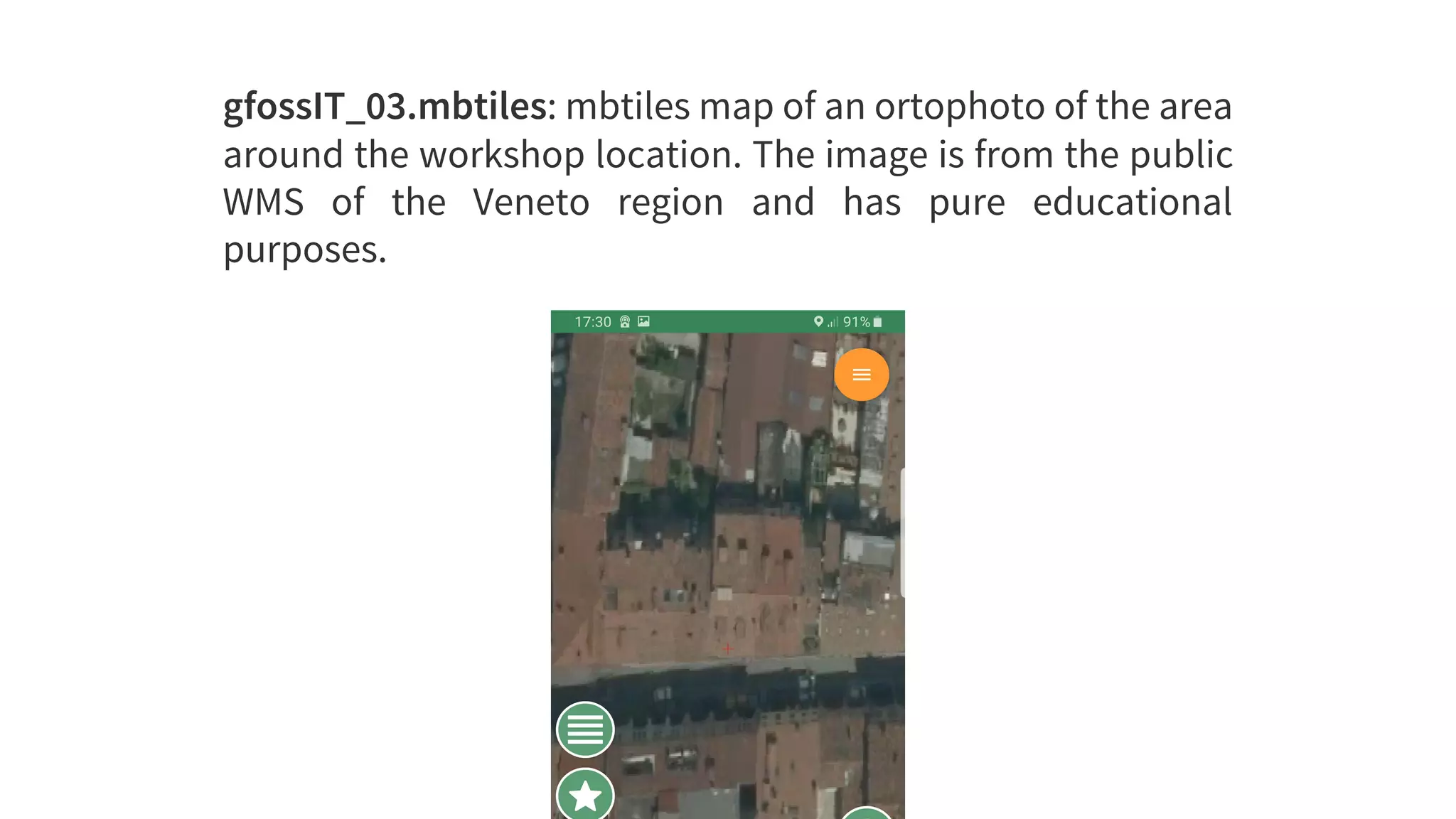
gfossIT_03.mbtiles:	mbtiles	map	of	an	ortophoto	of	the	area
around	the	workshop	location.	The	image	is	from	the	public
WMS	 of	 the	 Veneto	 region	 and	 has	 pure	 educational
purposes.
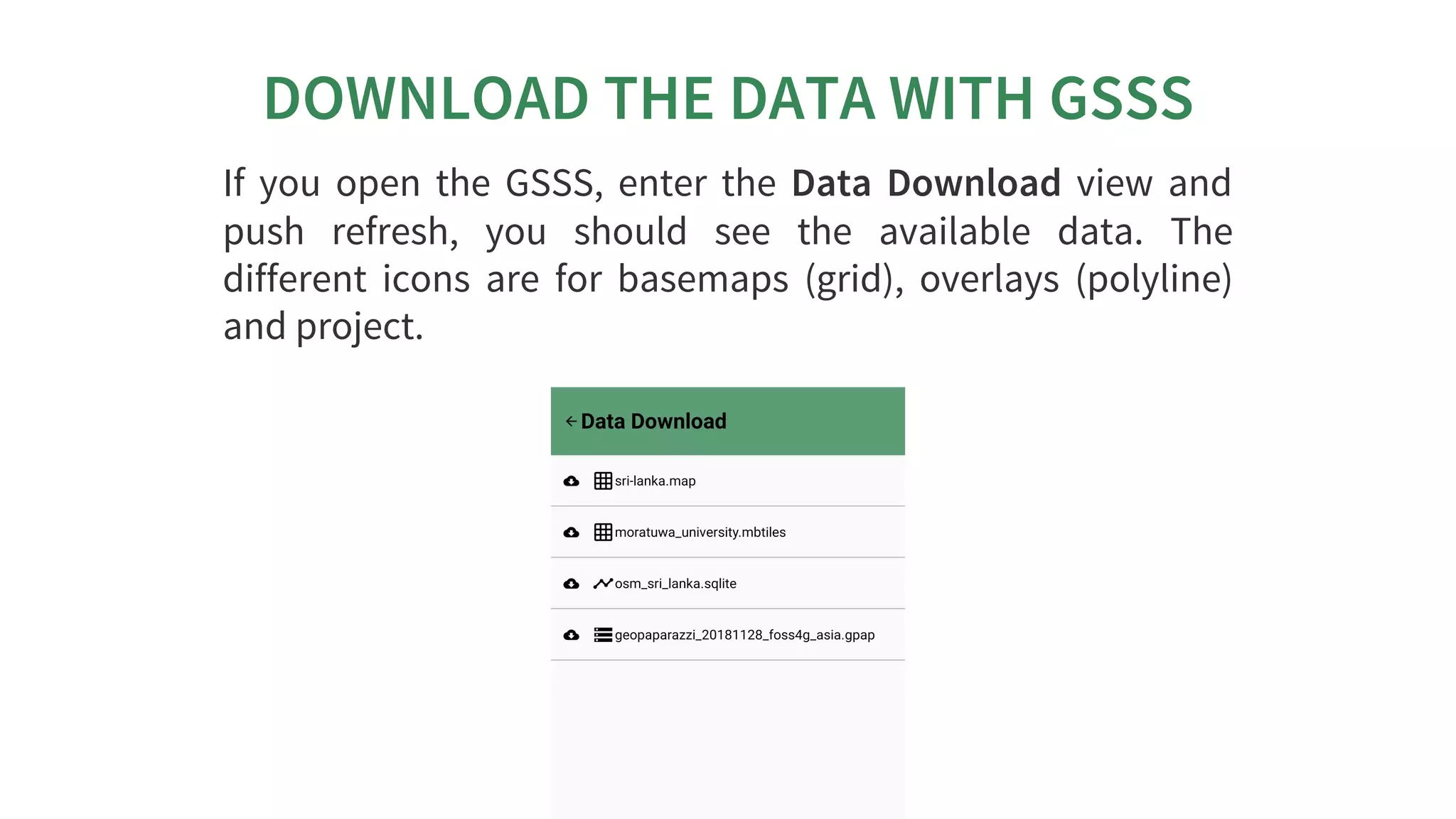
DOWNLOAD	THE	DATA	WITH	GSSS
If	 you	 open	 the	 GSSS,	 enter	 the	 Data	 Download	 view	 and
push	 refresh,	 you	 should	 see	 the	 available	 data.	 The
different	 icons	 are	 for	 basemaps	 (grid),	 overlays	 (polyline)
and	project.
LOAD	THE	DATA	INTO
GEOPAPARAZZI
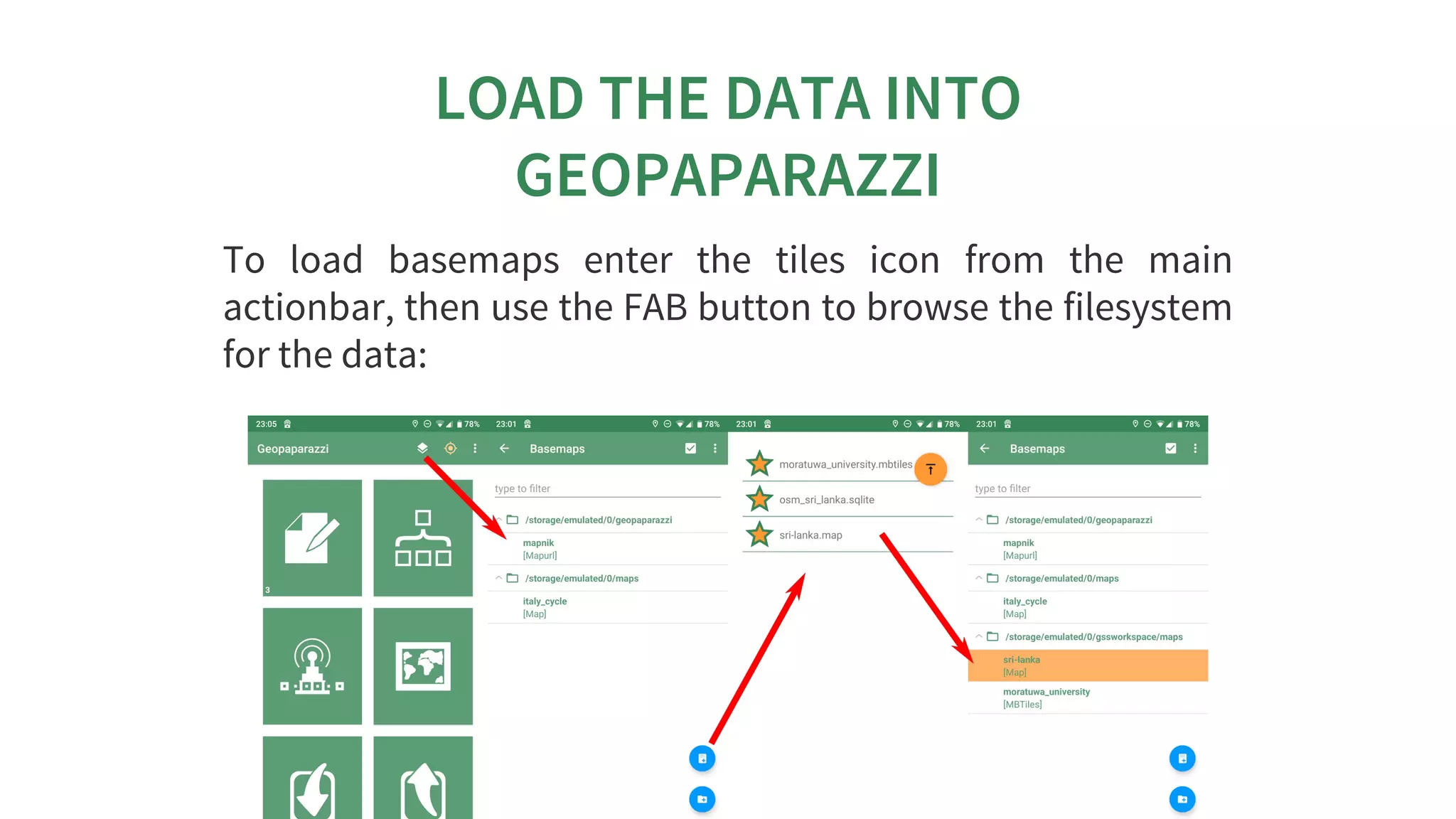
To	 load	 basemaps	 enter	 the	 tiles	 icon	 from	 the	 main
actionbar,	then	use	the	FAB	button	to	browse	the	filesystem
for	the	data:
To	load	overlays	enter	the	map	context	menu,	then	use	the
FAB	button	to	browse	the	filesystem	for	the	data.
To	 load	 an	 existing	 geopaparazzi	 project	 choose	 Load
existing	 project	 from	 the	 main	 menu	 to	 browse	 the
filesystem	for	the	project	file.
THE	FORM	BUILDER
WHAT	WE	WANT	TO	CREATE
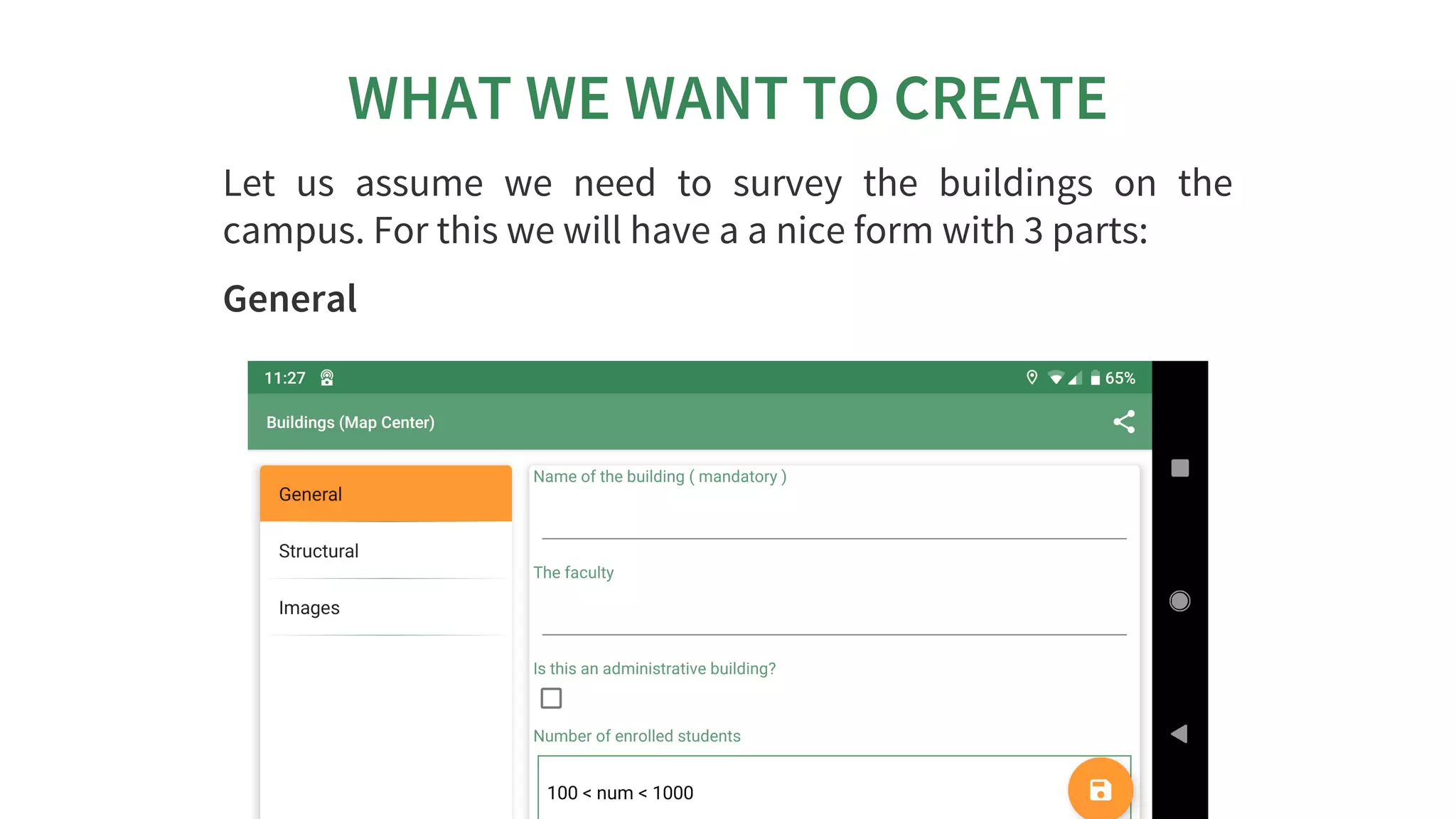
Let	 us	 assume	 we	 need	 to	 survey	 the	 buildings	 on	 the
campus.	For	this	we	will	have	a	a	nice	form	with	3	parts:
General
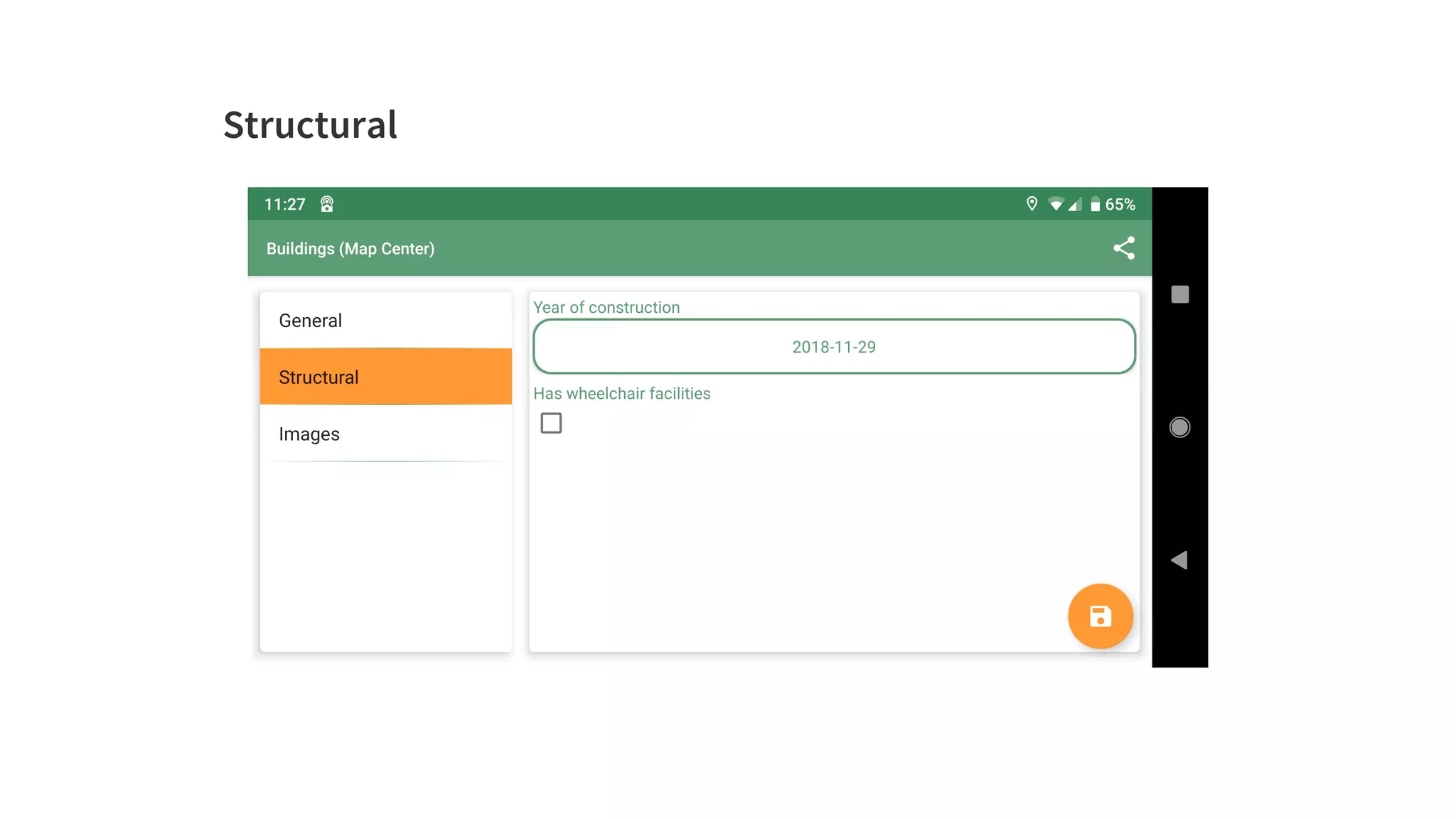
Structural
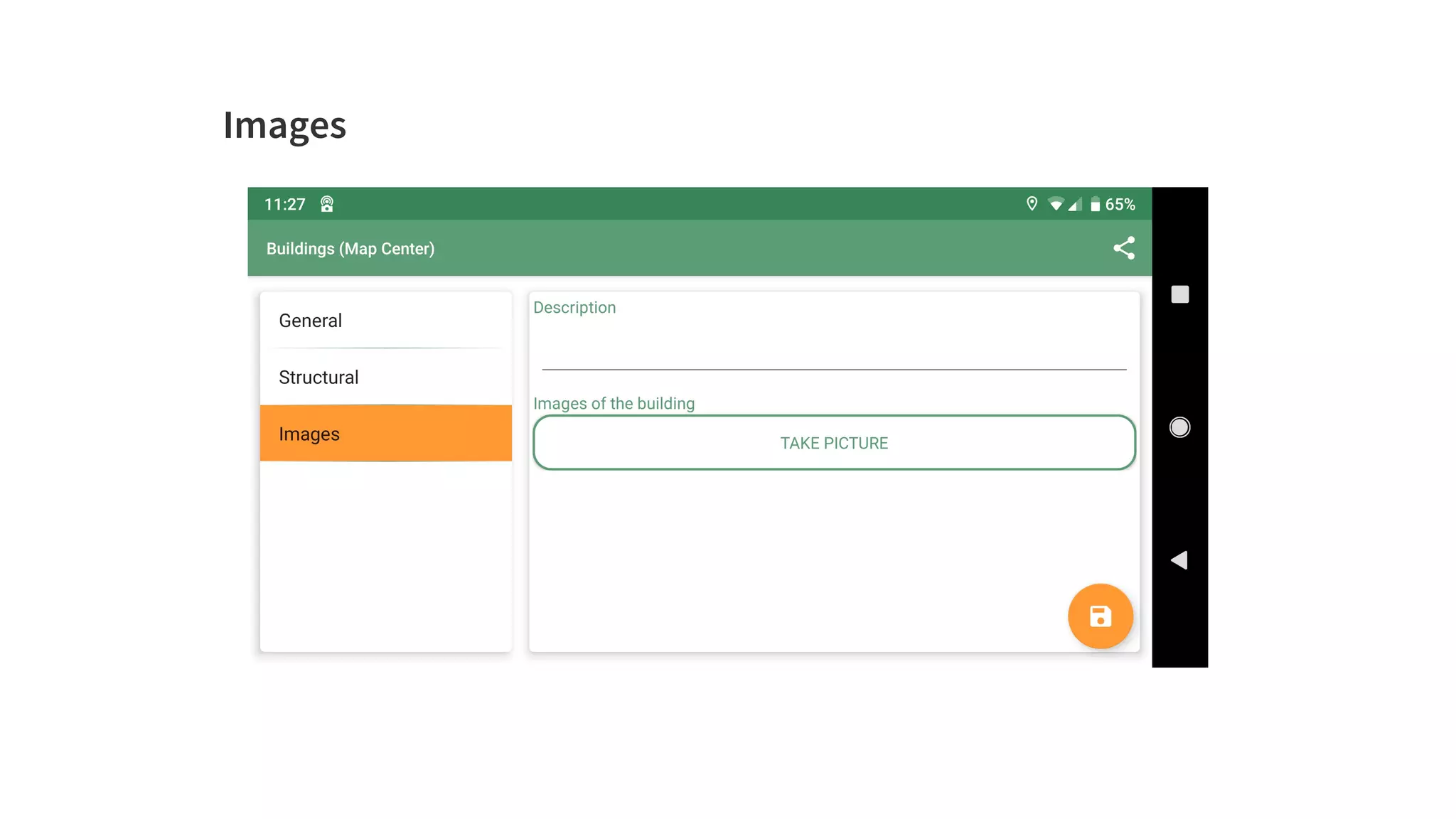
Images
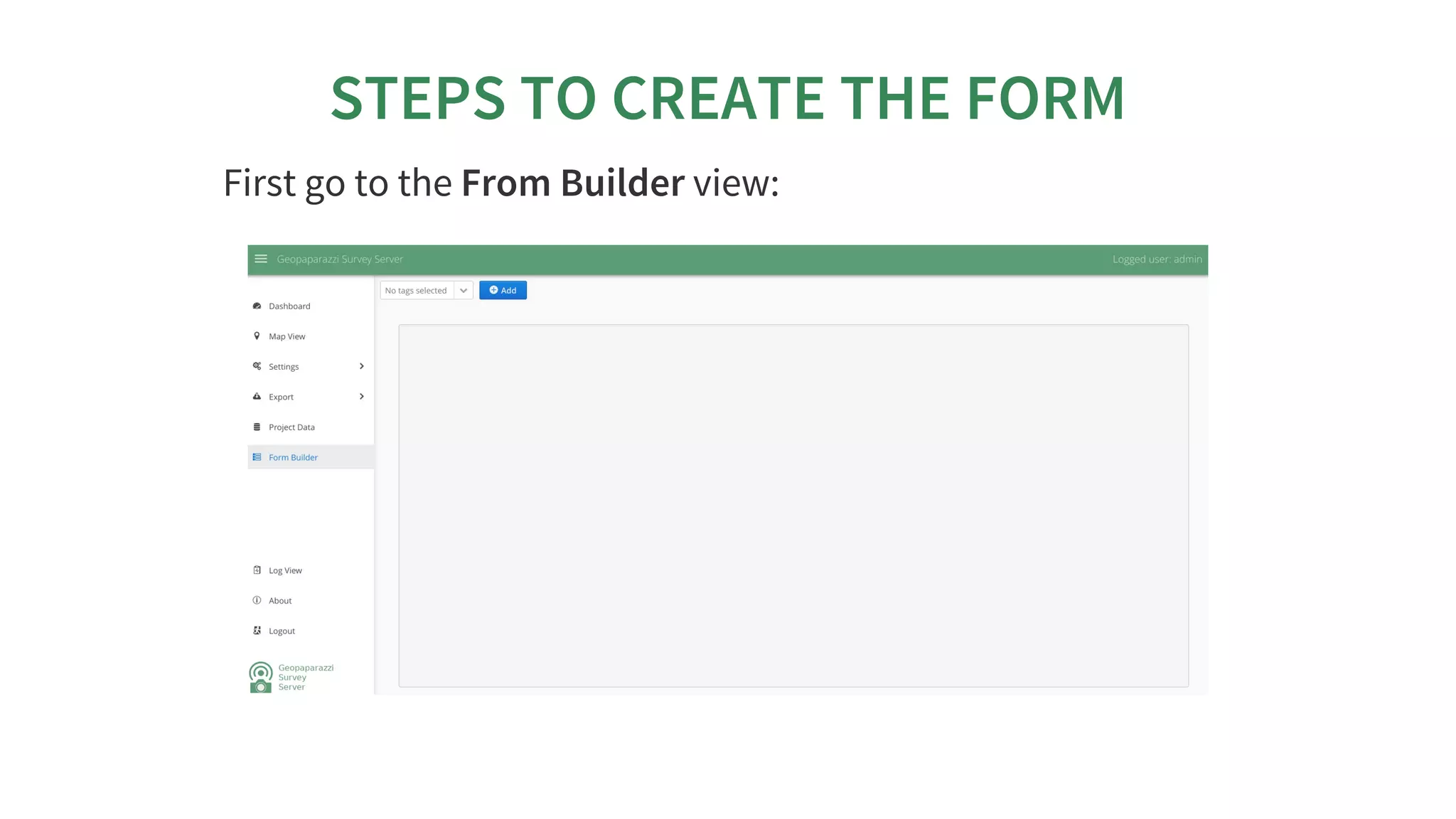
STEPS	TO	CREATE	THE	FORM
First	go	to	the	From	Builder	view:
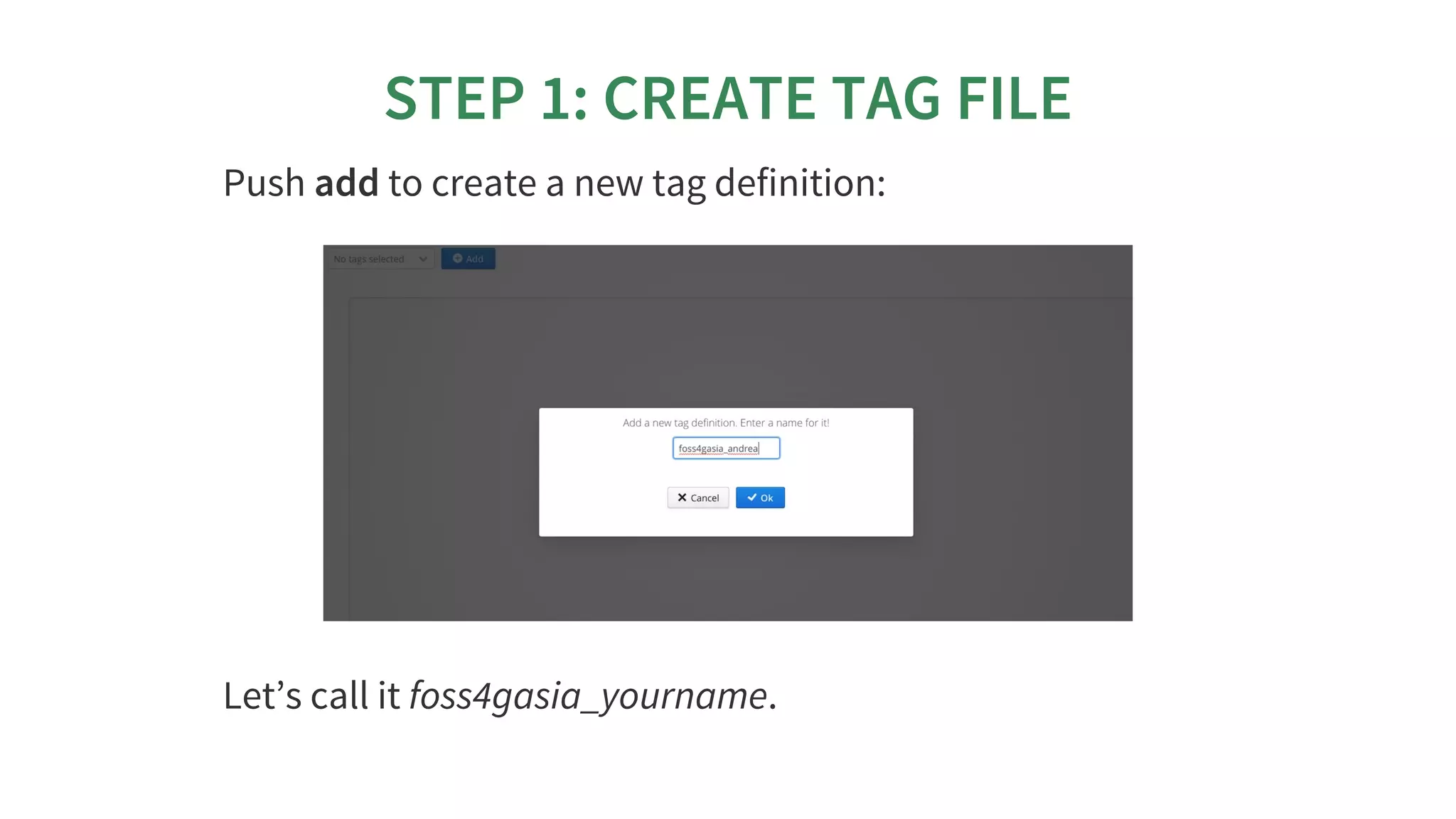
STEP	1:	CREATE	TAG	FILE
Push	add	to	create	a	new	tag	definition:
Let’s	call	it	foss4gasia_yourname.
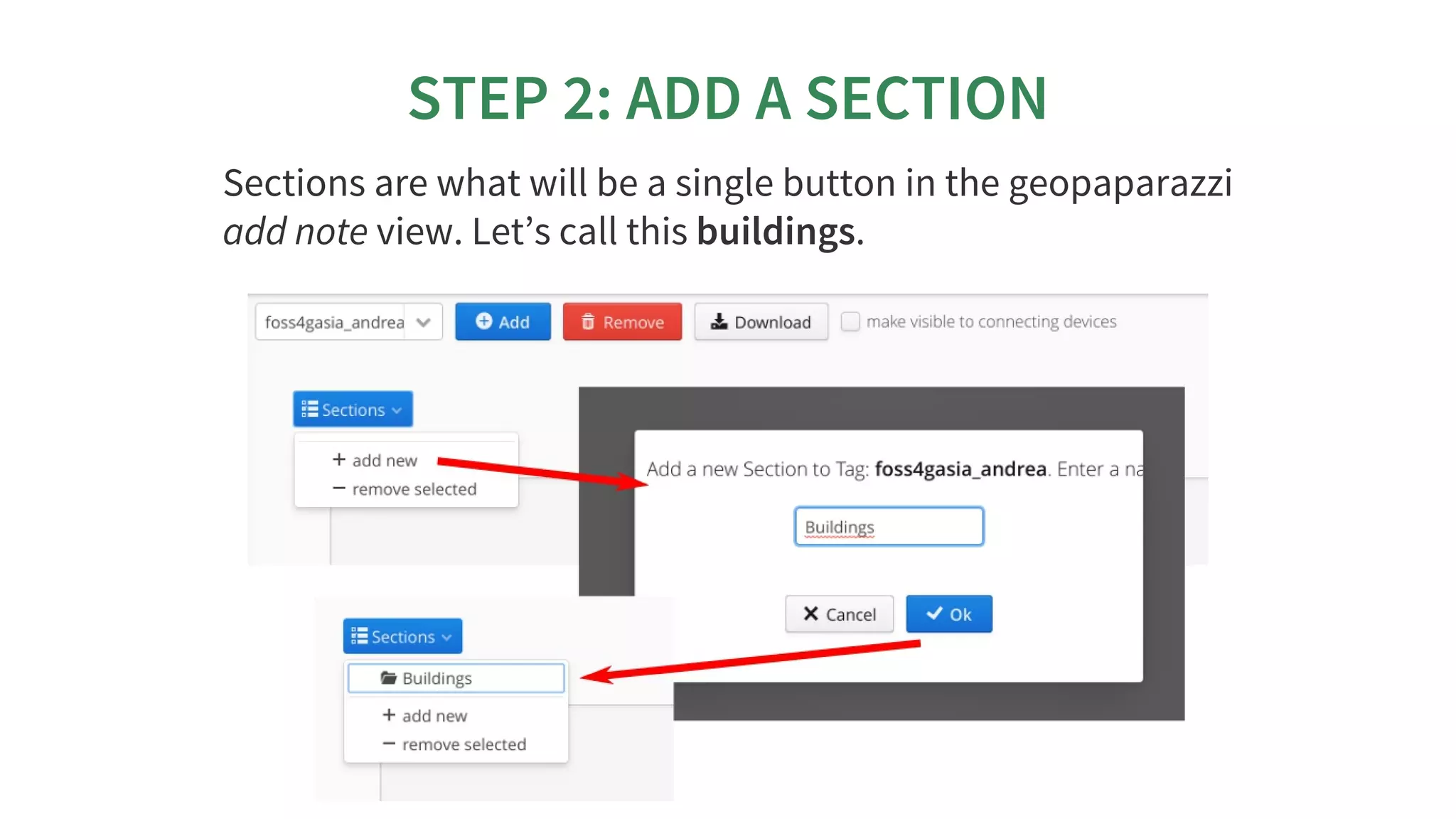
STEP	2:	ADD	A	SECTION
Sections	are	what	will	be	a	single	button	in	the	geopaparazzi
add	note	view.	Let’s	call	this	buildings.
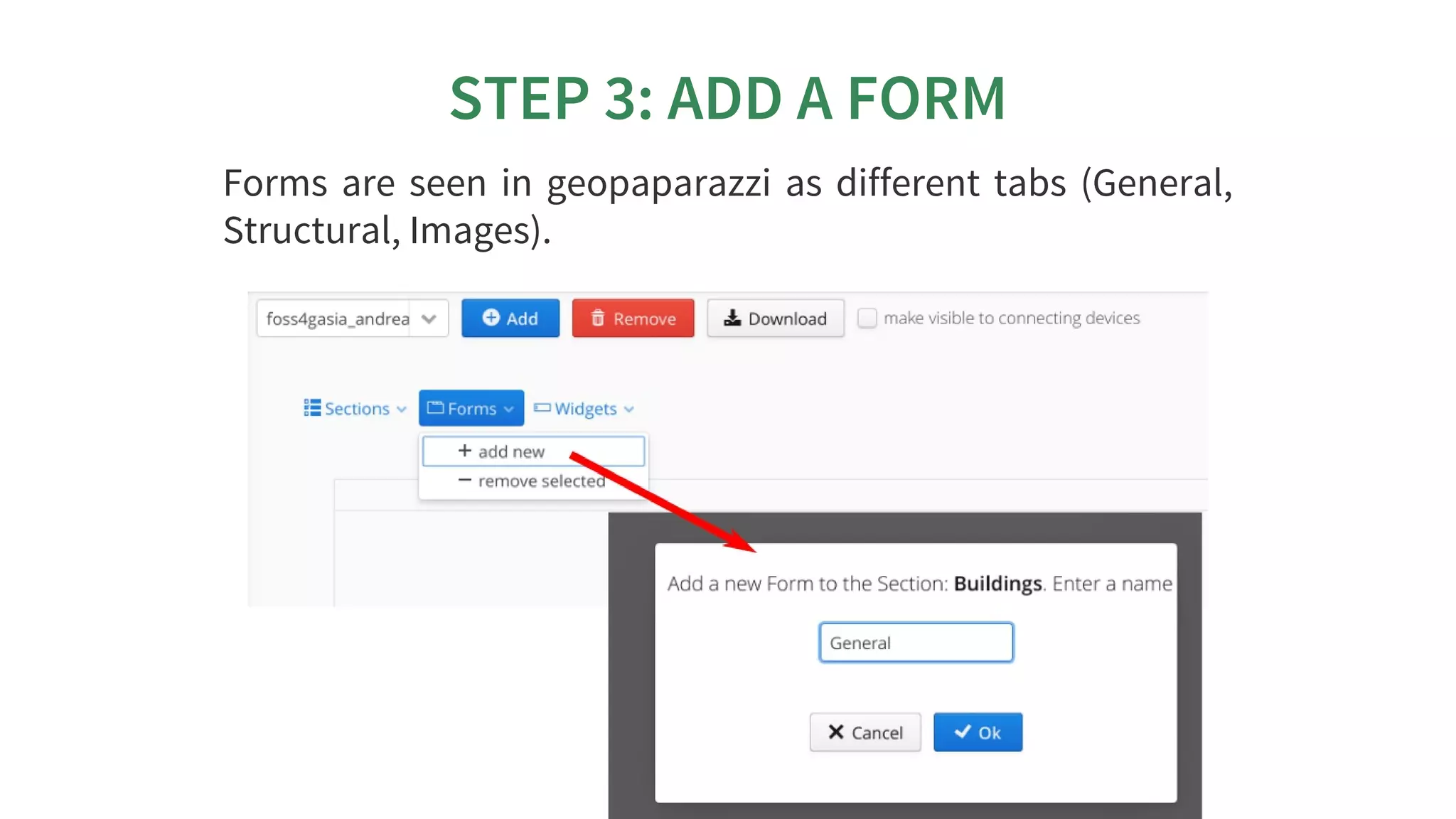
STEP	3:	ADD	A	FORM
Forms	are	seen	in	geopaparazzi	as	different	tabs	(General,
Structural,	Images).
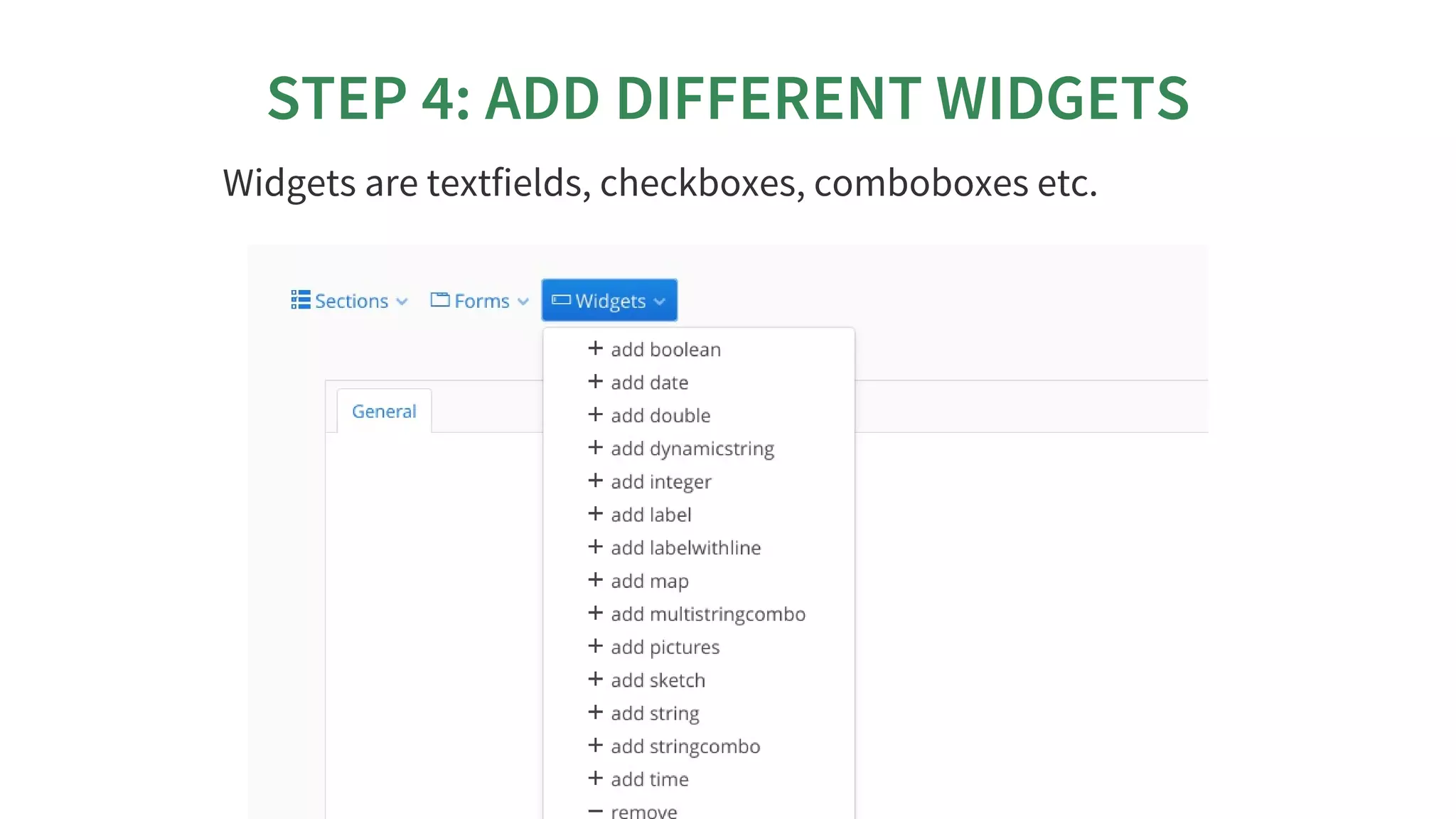
STEP	4:	ADD	DIFFERENT	WIDGETS
Widgets	are	textfields,	checkboxes,	comboboxes	etc.
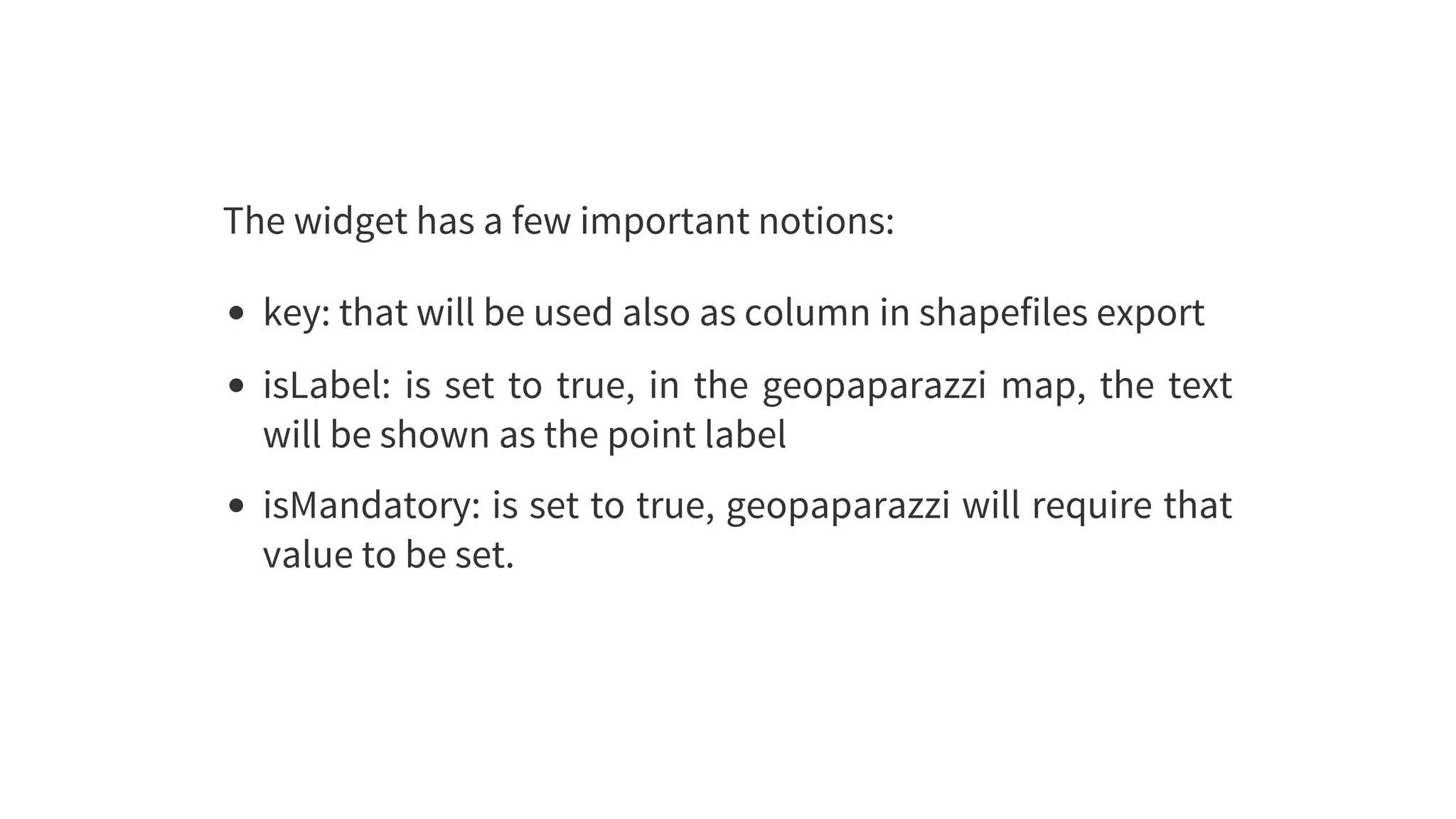
The	widget	has	a	few	important	notions:
key:	that	will	be	used	also	as	column	in	shapefiles	export
isLabel:	is	set	to	true,	in	the	geopaparazzi	map,	the	text
will	be	shown	as	the	point	label
isMandatory:	is	set	to	true,	geopaparazzi	will	require	that
value	to	be	set.
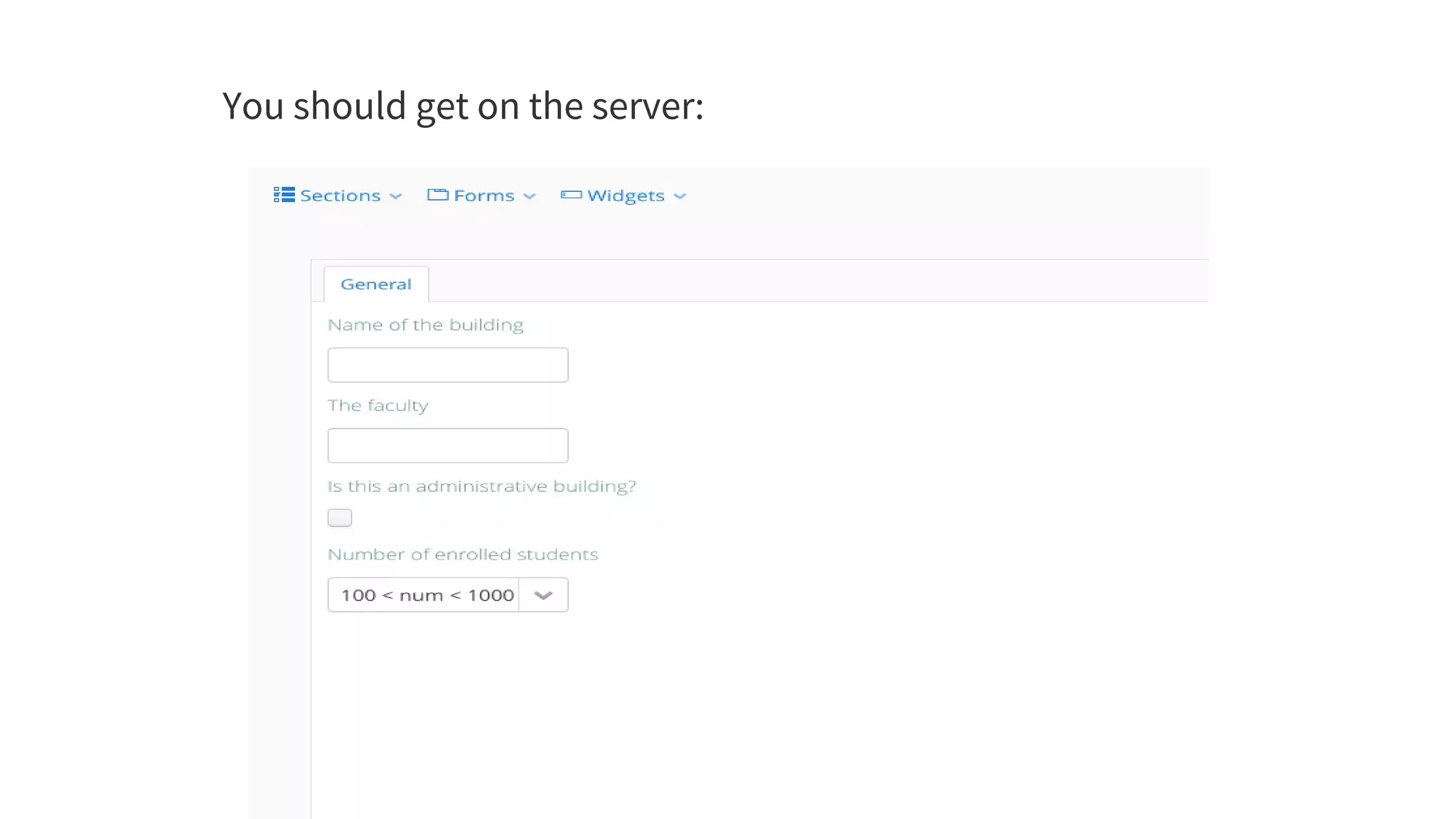
So	if	you	add	the	following	4	widgets:
You	should	get	on	the	server:
NOW	PLEASE	CREATE	THE	OTHER
TWO	TABS	(STRUCTURAL	&	IMAGES)
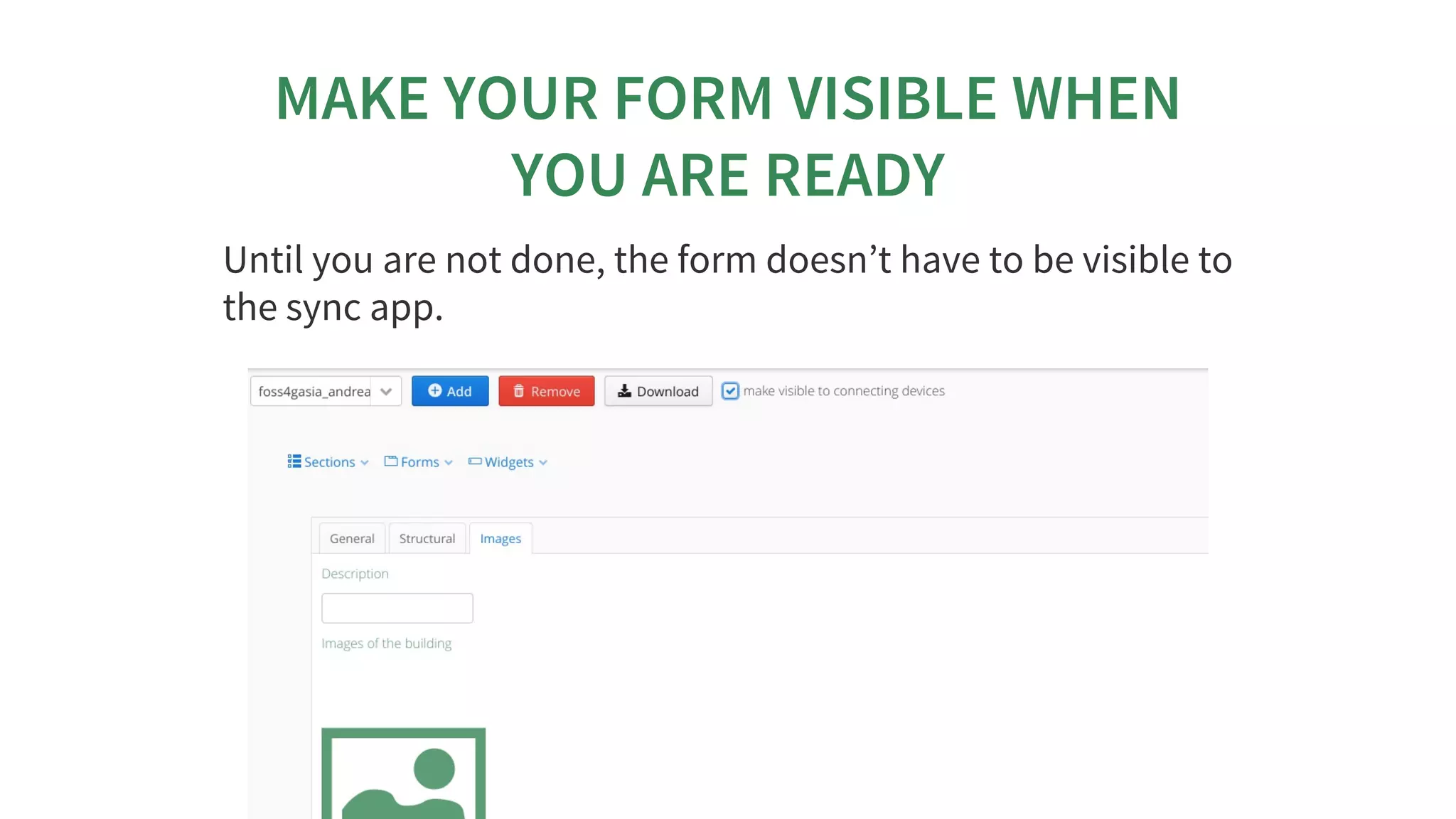
MAKE	YOUR	FORM	VISIBLE	WHEN
YOU	ARE	READY
Until	you	are	not	done,	the	form	doesn’t	have	to	be	visible	to
the	sync	app.
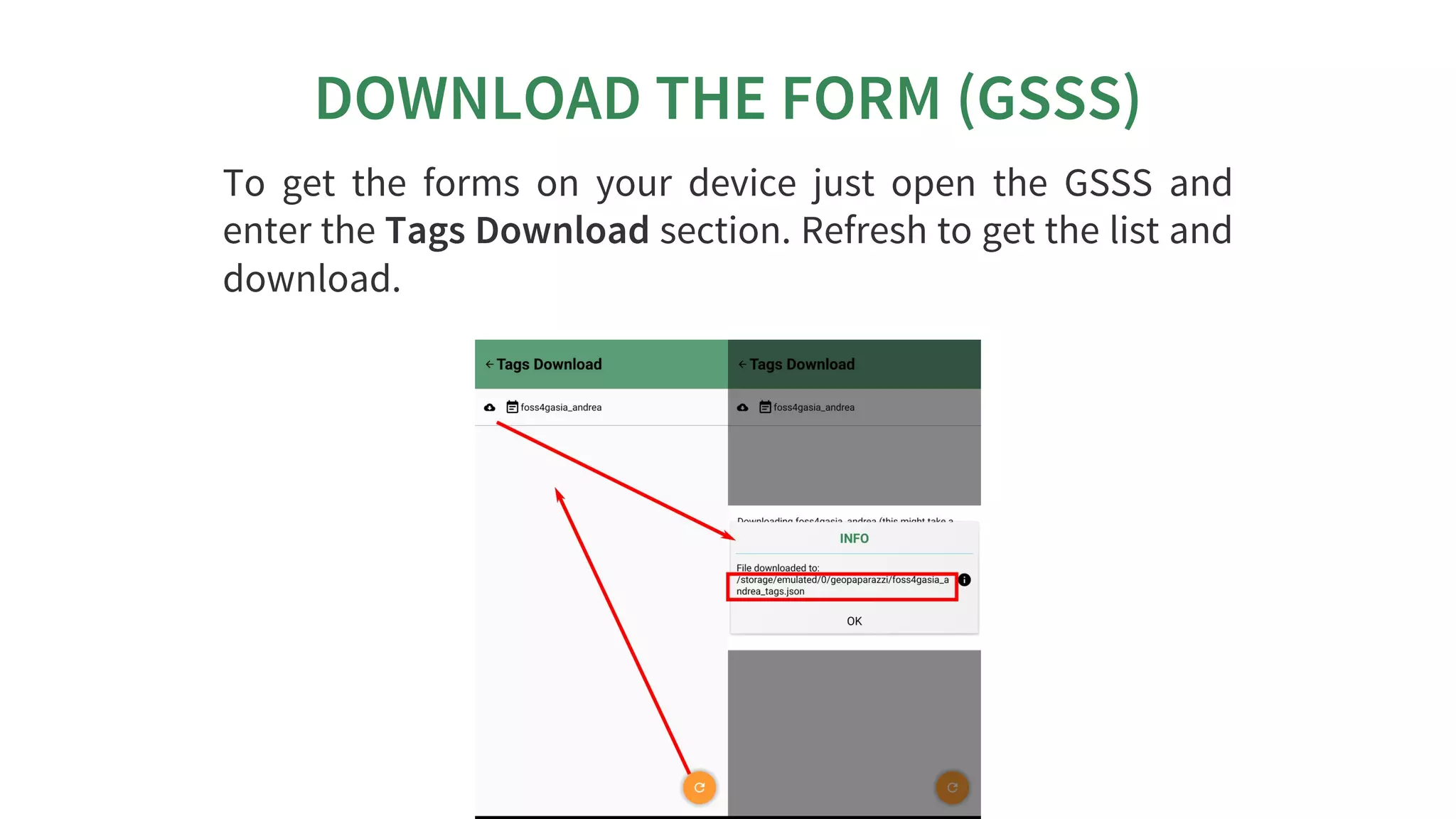
DOWNLOAD	THE	FORM	(GSSS)
To	 get	 the	 forms	 on	 your	 device	 just	 open	 the	 GSSS	 and
enter	the	Tags	Download	section.	Refresh	to	get	the	list	and
download.
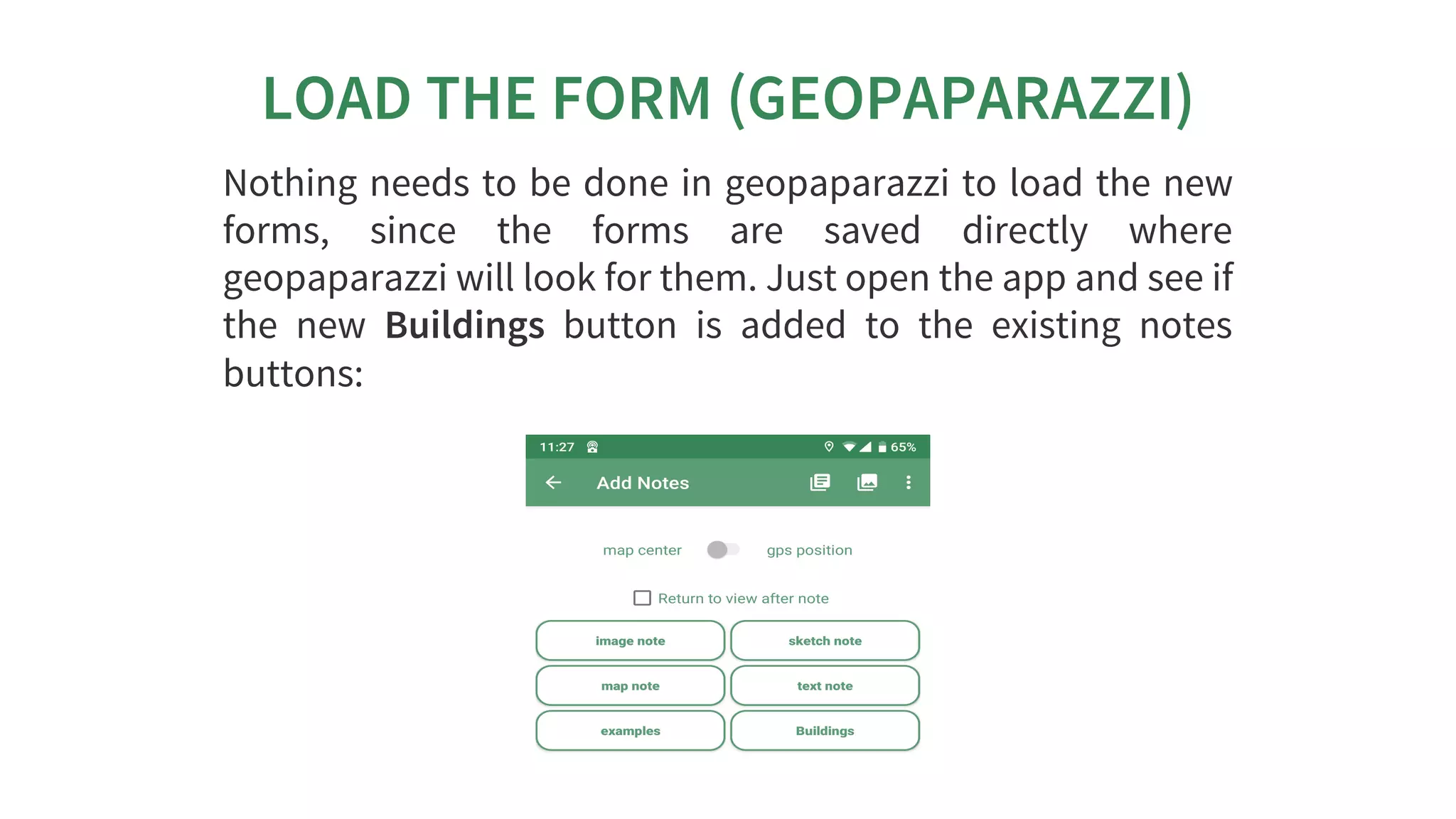
LOAD	THE	FORM	(GEOPAPARAZZI)
Nothing	needs	to	be	done	in	geopaparazzi	to	load	the	new
forms,	 since	 the	 forms	 are	 saved	 directly	 where
geopaparazzi	will	look	for	them.	Just	open	the	app	and	see	if
the	 new	 Buildings	 button	 is	 added	 to	 the	 existing	 notes
buttons:
NOW	YOU	ARE	READY!	GO	FOR	YOUR
NOW	YOU	ARE	READY!	GO	FOR	YOURNOW	YOU	ARE	READY!	GO	FOR	YOUR
SURVEY!
SURVEY!
SURVEY!
SURVEY!
SURVEY!
SURVEY!
SURVEY!SURVEY!
GET	THE	SURVEY	DATA	IN	THE
SYSTEM
Once	back	from	the	survey,	GSSS	can	be	used	to	load	the
incremental	 (only	 new	 notes	 and	 logs	 are	 synchronized)
survey	to	the	server.
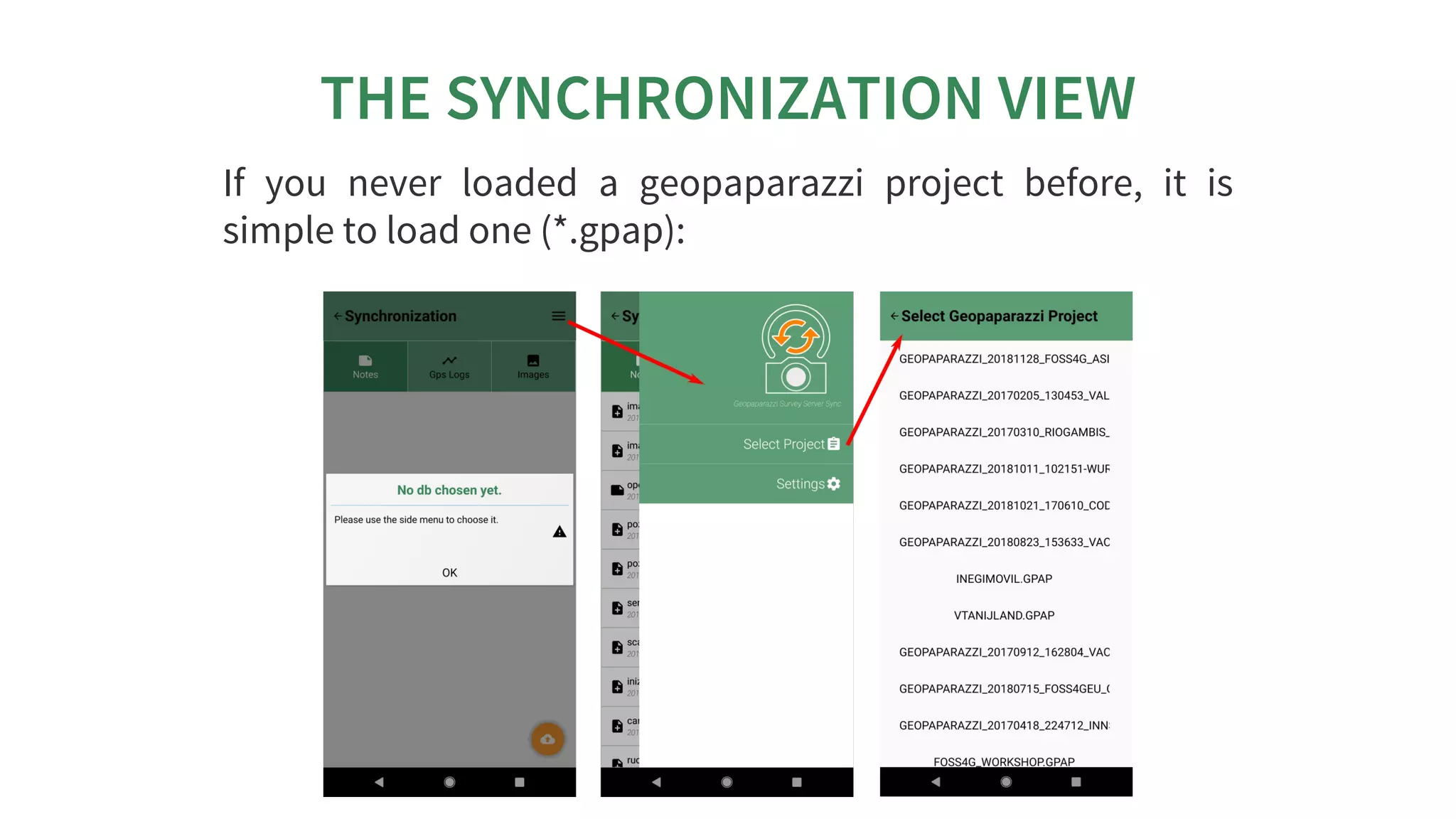
THE	SYNCHRONIZATION	VIEW
If	 you	 never	 loaded	 a	 geopaparazzi	 project	 before,	 it	 is
simple	to	load	one	(*.gpap):
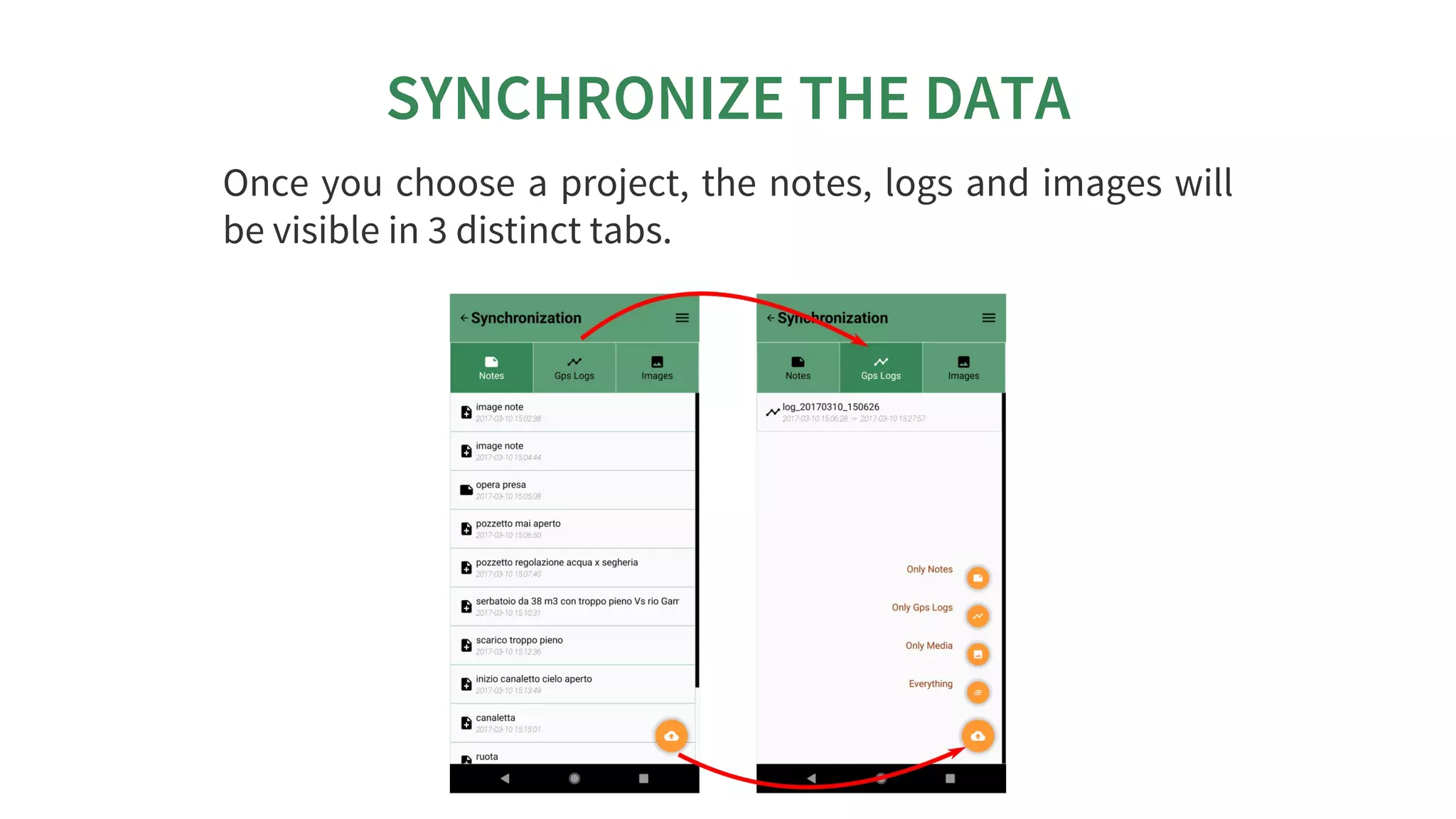
SYNCHRONIZE	THE	DATA
Once	you	choose	a	project,	the	notes,	logs	and	images	will
be	visible	in	3	distinct	tabs.
CLEAN	UP	AND	MAKE	DIRTY
From	the	side	menu	it	is	also	possible	to	access	some	tricky
settings:
the	possibility	to	reset	the	connected	database	to	be	in	a
complete	dirty	state.	After	that	the	database	will	upload
everything	as	if	it	never	had	done	before.
the	possibility	to	reset	the	database	to	a	clean	state.	After
that	no	data	are	synchronized.	Only	new	data	surveyed	in
geopaparazzi	will	be	uploaded	again.
 these	settings	are	dangerous	tools,	be	careful.
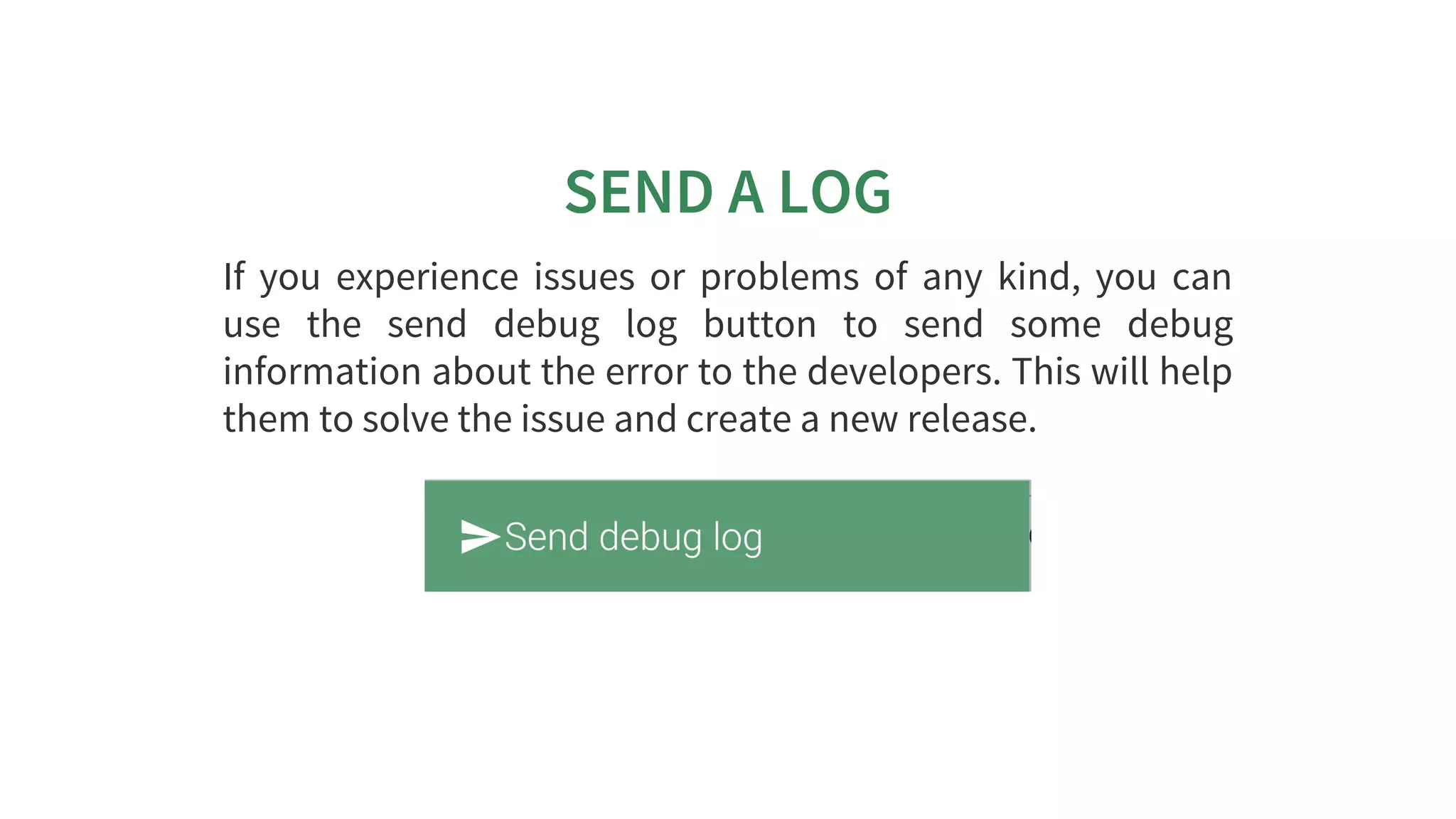
SEND	A	LOG
If	 you	 experience	 issues	 or	 problems	 of	 any	 kind,	 you	 can
use	 the	 send	 debug	 log	 button	 to	 send	 some	 debug
information	about	the	error	to	the	developers.	This	will	help
them	to	solve	the	issue	and	create	a	new	release.
GEOPAPARAZZI:	USEFUL	LINKS
Find	 out	 the	 latest	 Geopaparazzi	 news:
Join	 the	 Geopaparazzi	 user’s	 discussion:
And	 there’s	 a	 group	 for	 Geopaparazzi	 developers	 too:
If	 you	 prefer	 Facebook:	 Geopaparazzi	 Users	 Around	 The
World!
http://jgrasstechtips.blogspot.com/search/label/geopaparazzi
https://groups.google.com/forum/#!forum/geopaparazzi-
users
https://groups.google.com/forum/#!forum/geopaparazzi-
devel
https://www.facebook.com/groups/350587351732480/

Geopaparazzi Survey Server workshop