Let’s GIT to it!
Introduction to git & branching models
Yoram Michaeli
<yorammi@tikalk.com>
FullStack Developers Israel
14.5.2014
Tikal, Tel-Aviv
Hosted by:
Before you GIT it...
What is GIT?
What is GIT?
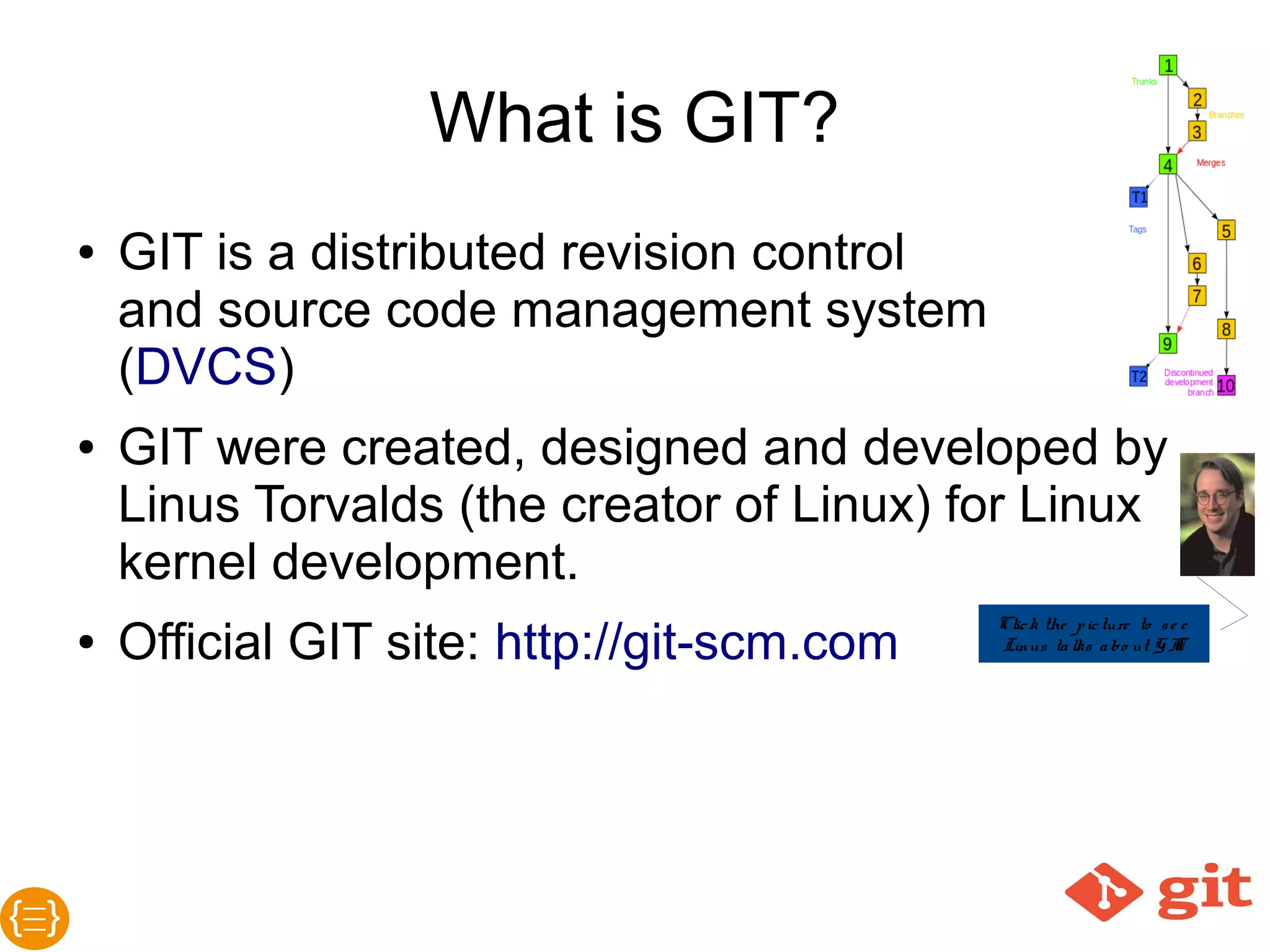
● GIT is a distributed revision controlled
source code management system (DVCS)
● GIT were created, designed and developed
by Linus Torvalds (the creator of Linux) for
Linux kernel development
(See Linus Torvalds in YouTube)
● Official GIT site: http://git-scm.com
Why use GIT?
Why use GIT?There are many other SCM/SVCS systems out there...
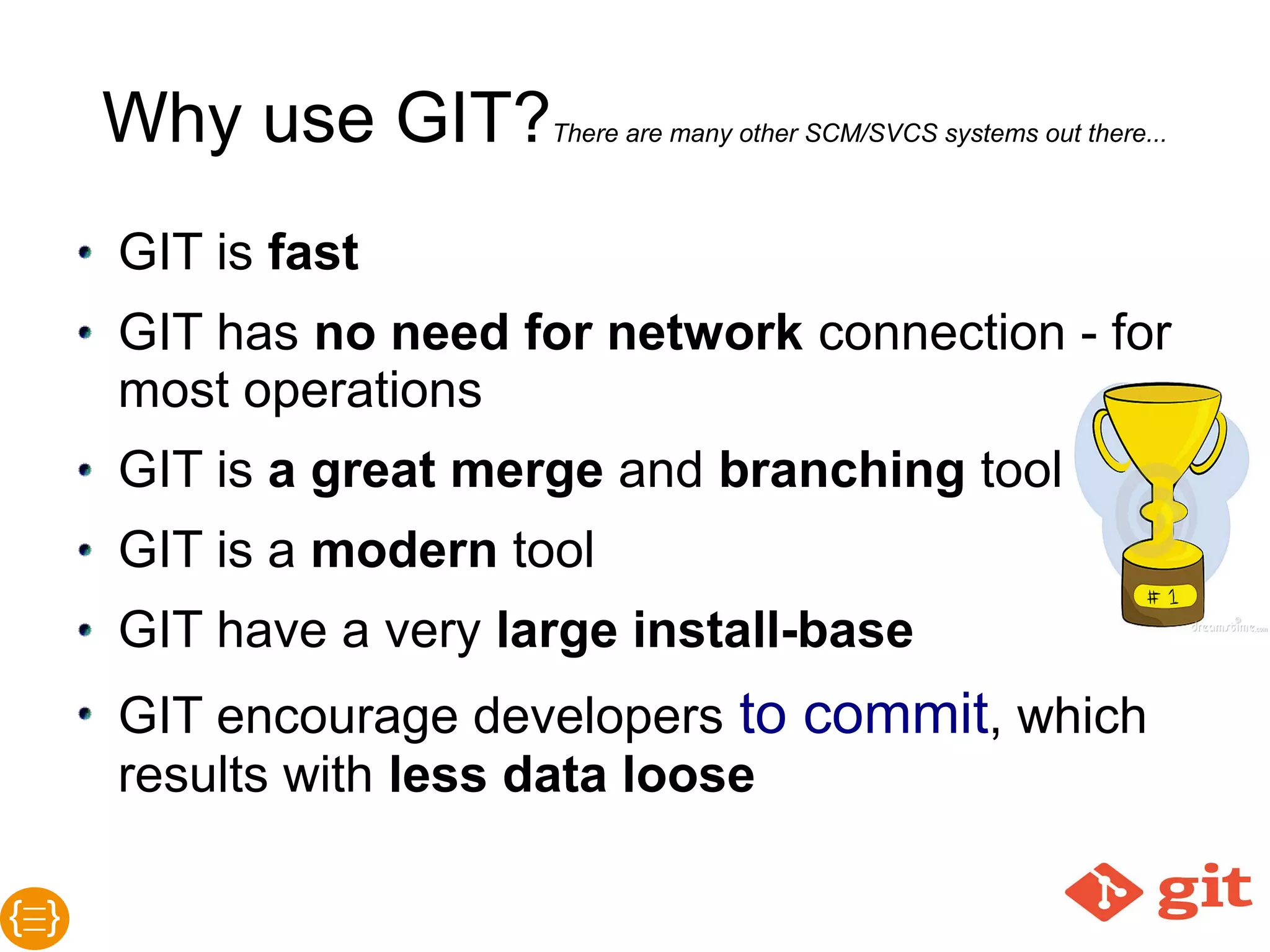
● GIT is fast
● GIT has no need for network connection -
for most operations
● GIT is a great merge and branching tool
● GIT is a modern tool
● GIT have a very large install-base
● GIT encourage developers to commit, which
results with less data lose
GIT is distributed
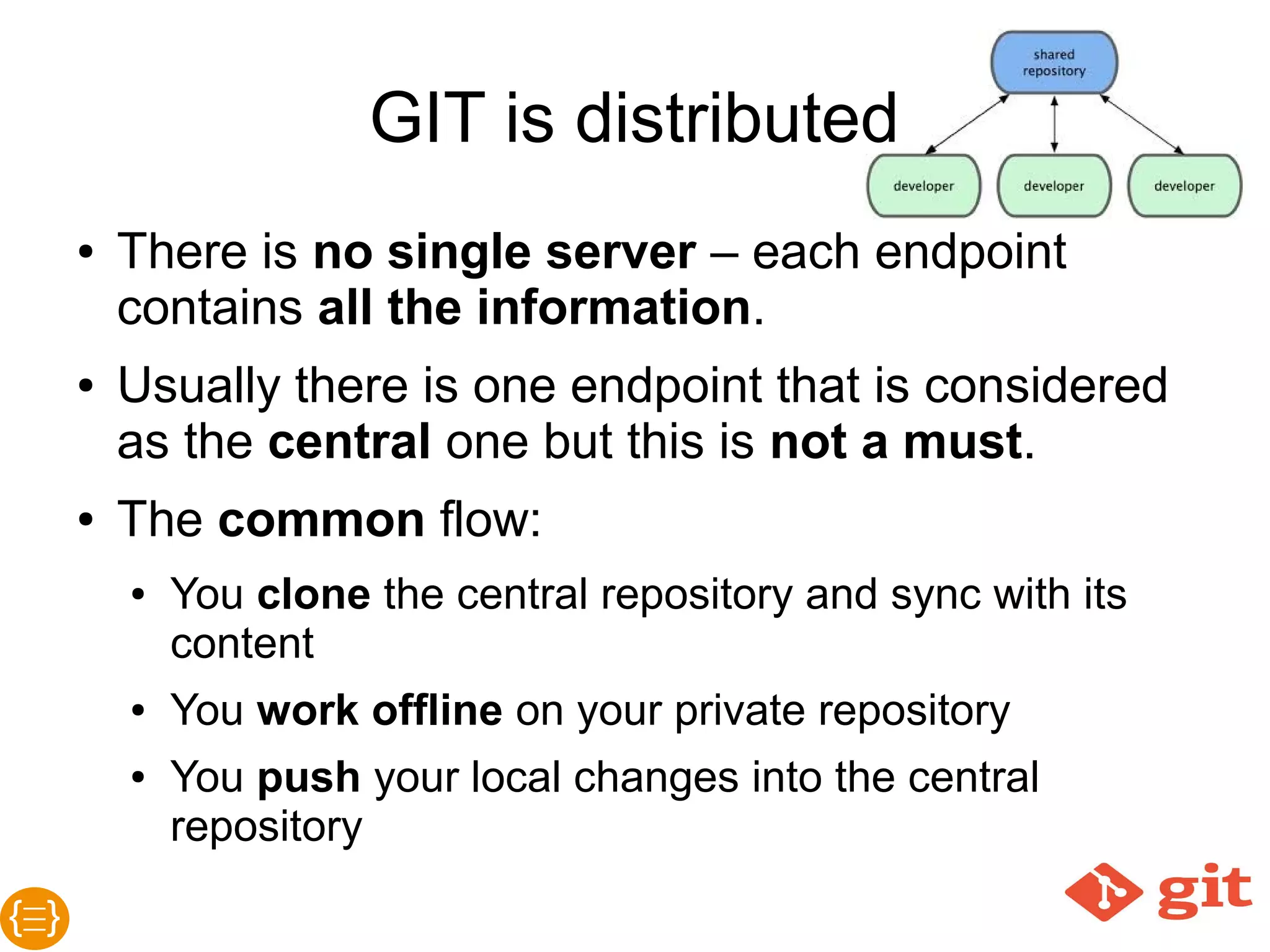
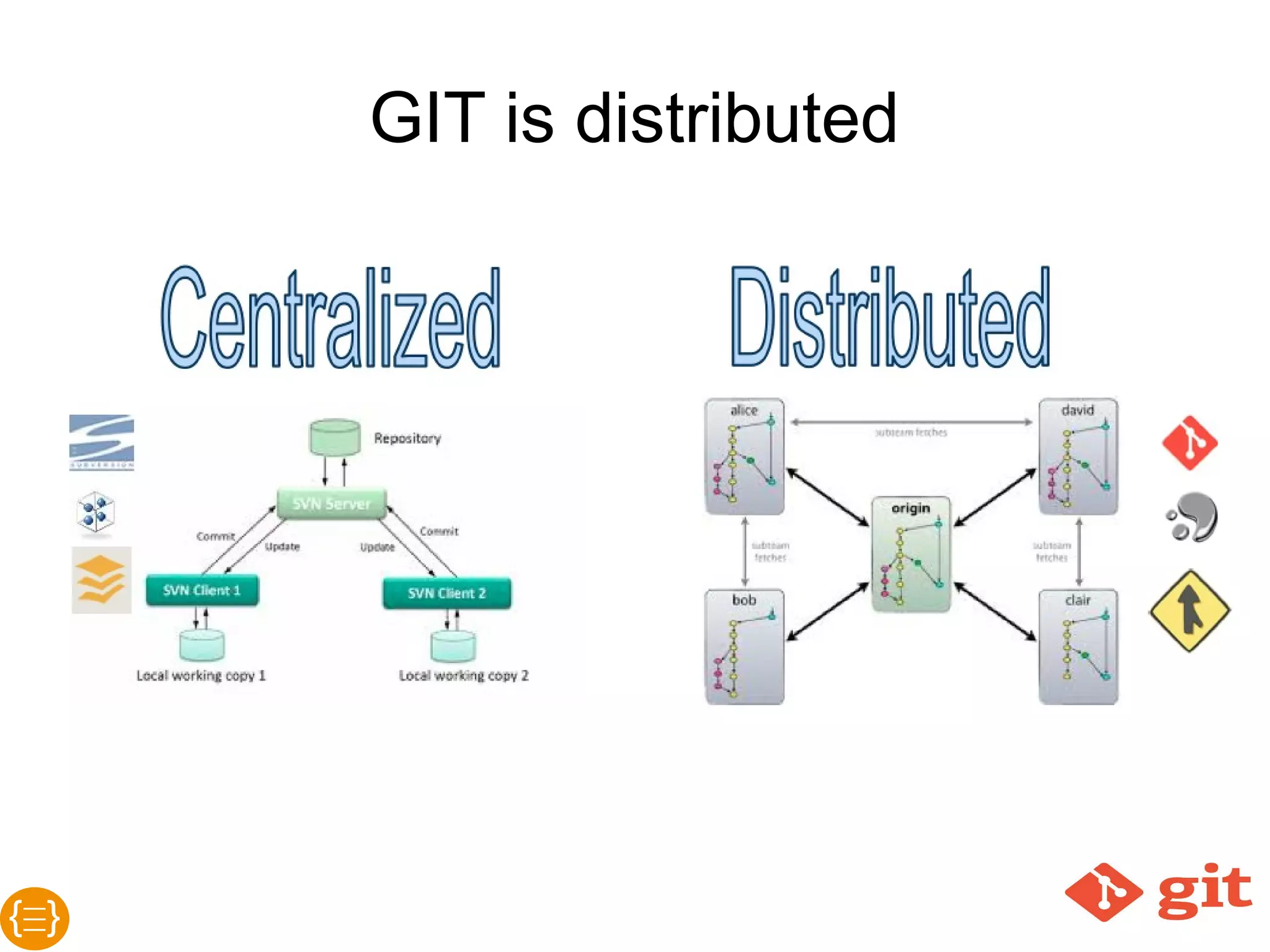
● There is no single server – each endpoint
contains all the information.
● Usually there is one endpoint that is considered as
the central one but this is not a must.
● The common flow:
o You clone the central repository and/or sync
with its content
o You work offline on your private repository
o You push your local changes into the central
repository
GIT is distributed
GIT is fast
● For most operations you need no network
connection
● Network operations are done very fast using
modern and validated transfer actions
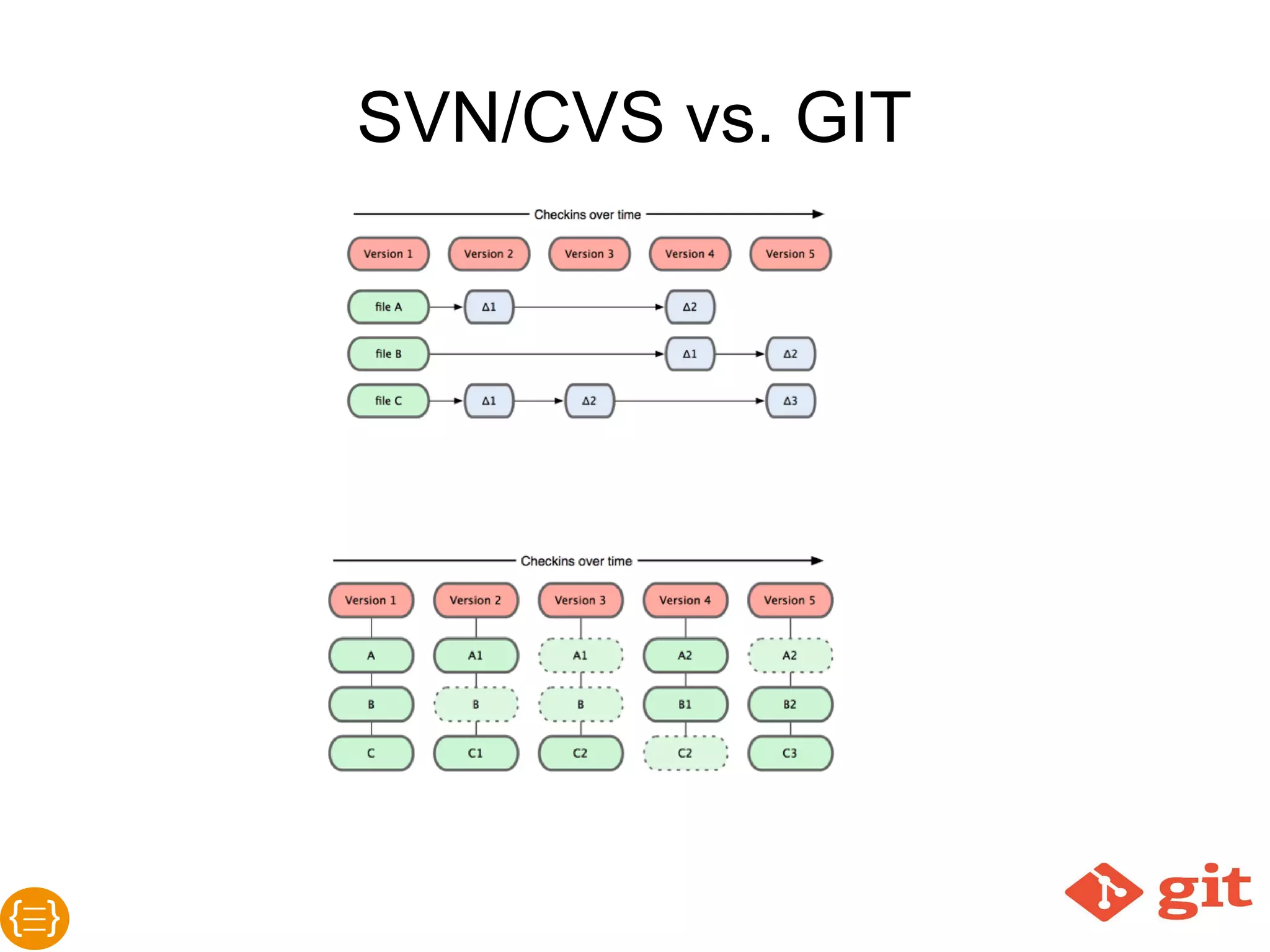
● GIT uses snapshots of the whole repository
instead of the files-and-delta technology
● GIT uses pointers
● GIT is optimized for merge...
GIT is optimized for merge
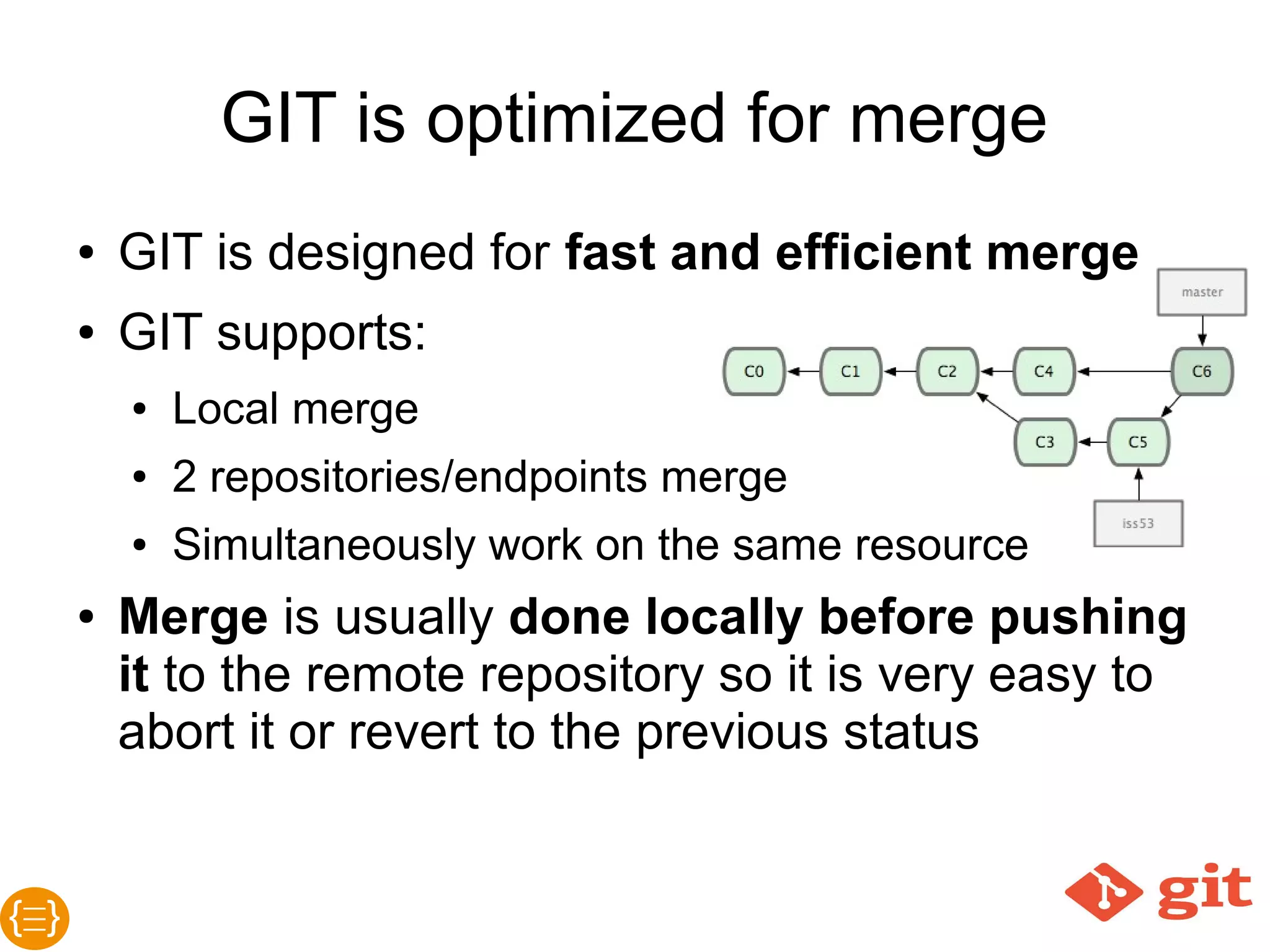
● GIT is designed for fast and efficient merge
● GIT supports:
o Local merge
o 2 repositories/endpoints merge
o Simultaneously work on the same resource
o Merge is usually done locally before
pushing it to the remote repository so it is
very easy to abort it or revert to the previous
status
Things you must
consider about GIT?
Things you must consider
about GIT
● GIT is not CVS or SVN or any of
those tools
● GIT requires much to learn about it
● GIT command line interface (CLI) is
the most recommended client for it
GIT concepts overview
SVN vs. GIT
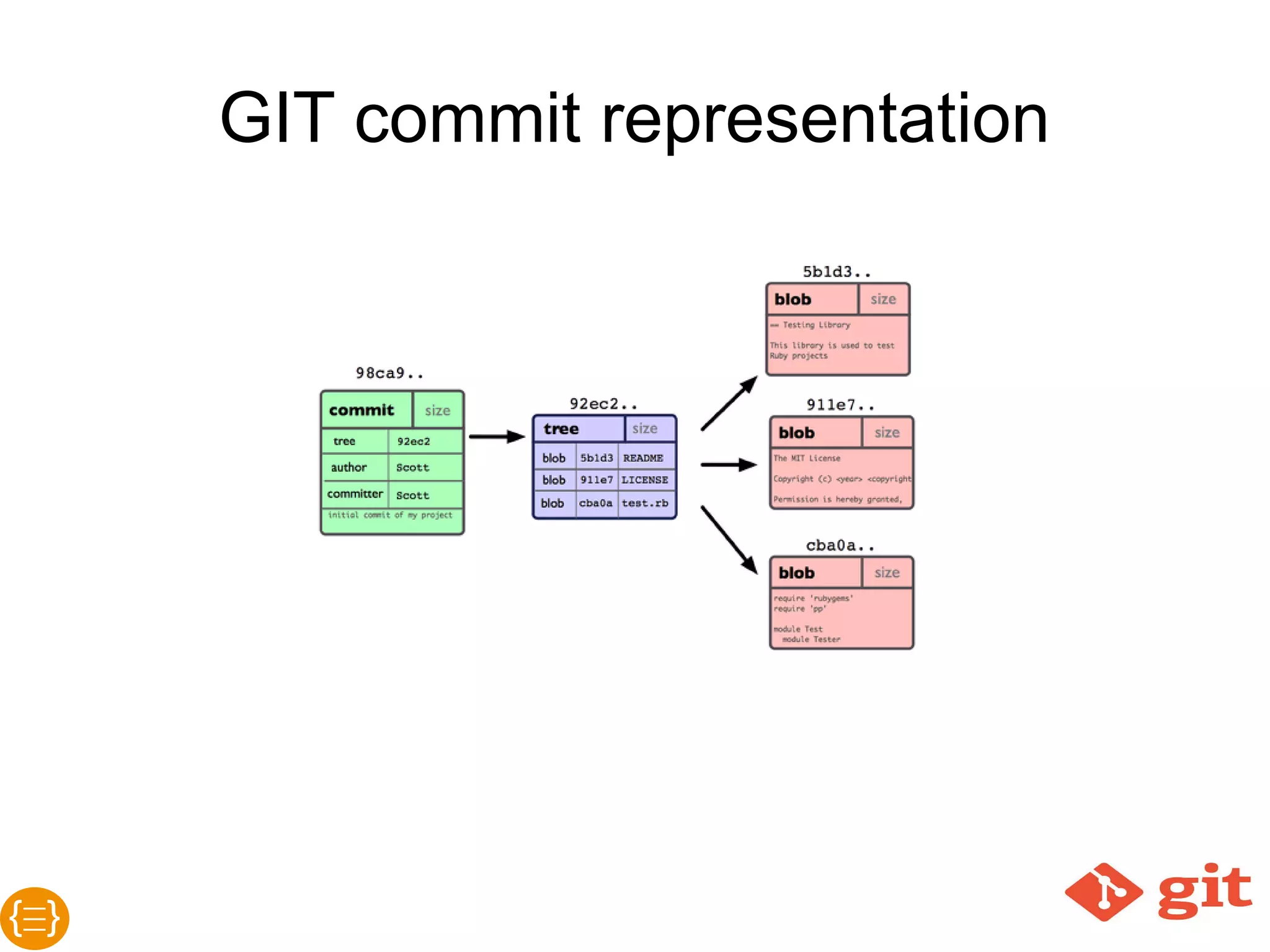
GIT commit representation
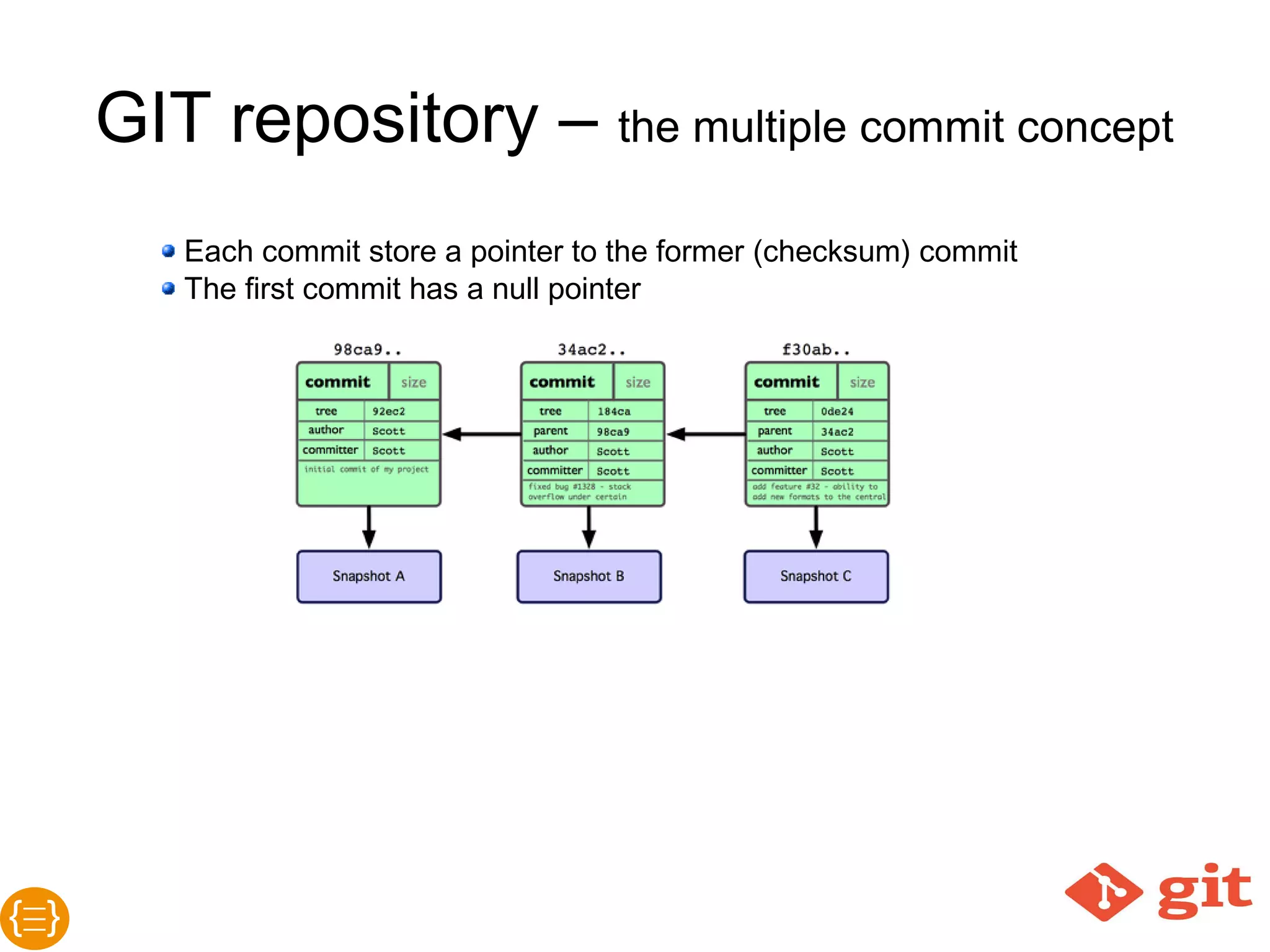
GIT repositoryThe multiple commit concept
● Each commit store a pointer to the former
(checksum) commit
● The first commit has a null pointer
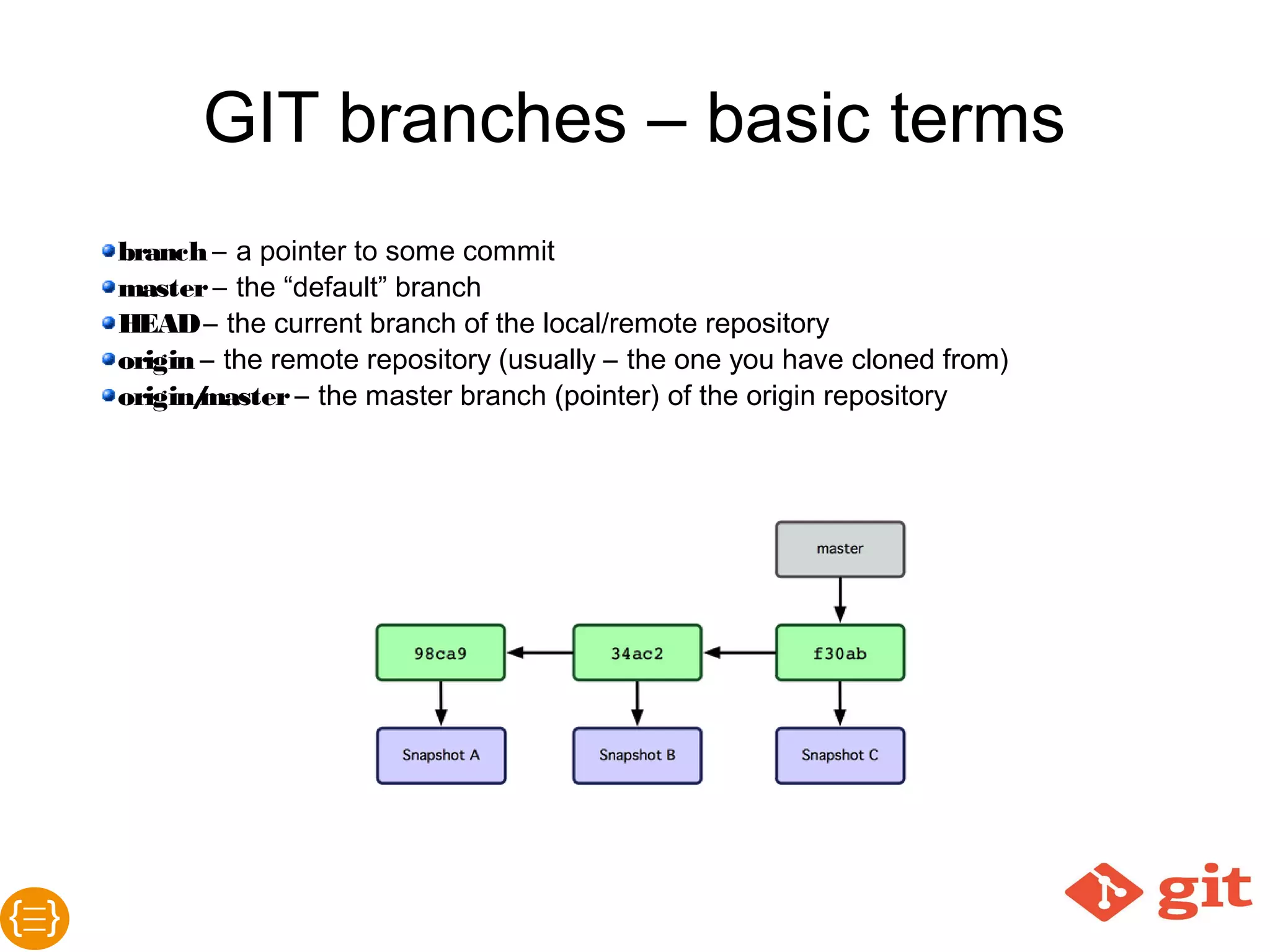
GIT branchesBasic terms
● branch – a pointer to some commit
● master – the “default” branch
● HEAD – the current branch of the local/remote repository
● origin – the remote repository (usually – the one you have
cloned from)
● origin/master – the master branch (pointer) of the origin
repository
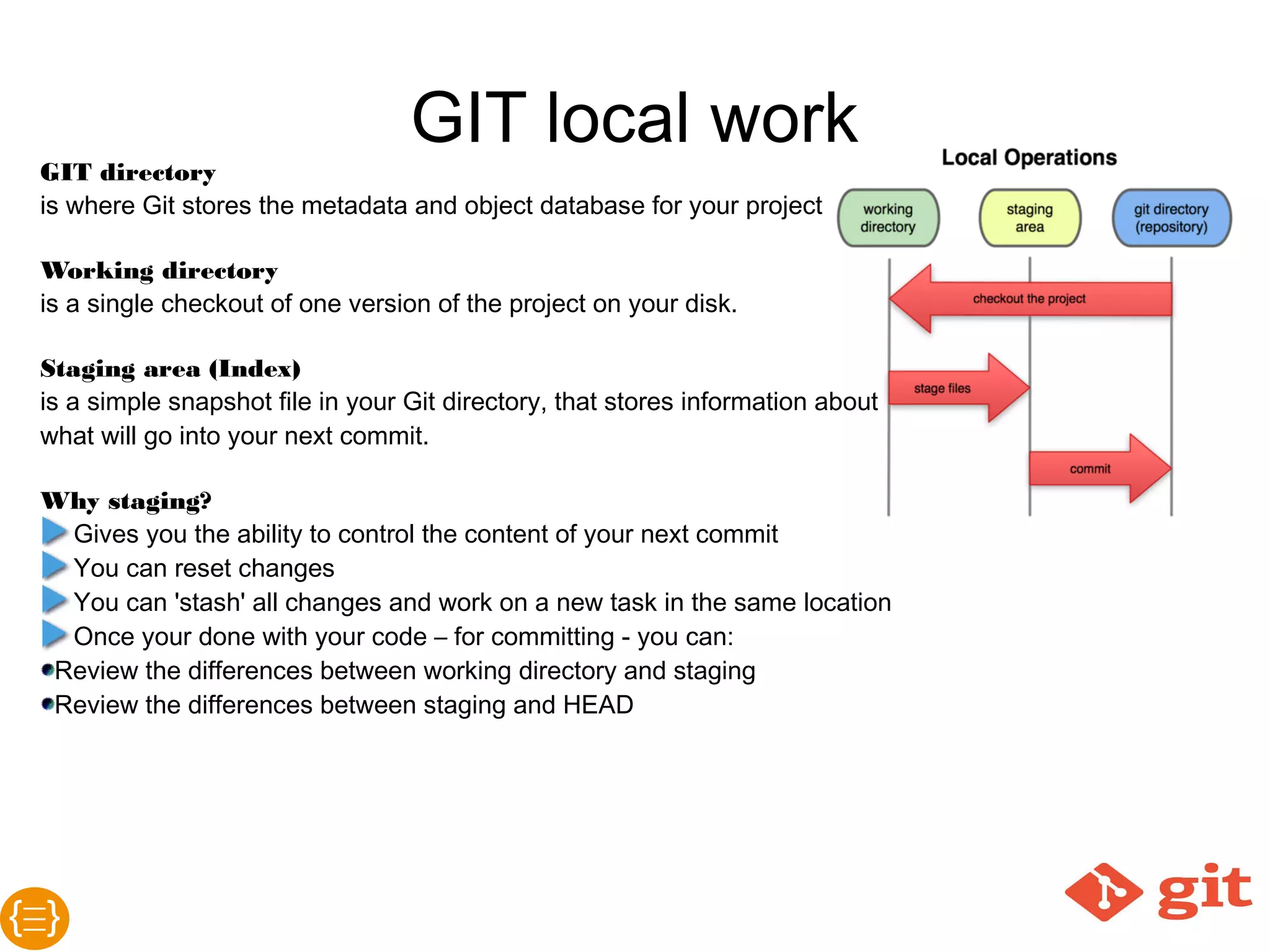
GIT local work
GIT directory
...is where Git stores the metadata and object database for your project
Working directory
...is a single checkout of one version of the project on your disk.
Staging area (Index)
...is a simple snapshot file in your Git directory, that stores information about what will go
into your next commit.
Why staging?
● Gives you the ability to control the content of your next commit
● You can reset changes
● You can 'stash' all changes and work on a new task in the same location
● Once you’re done with your code – for committing - you can:
o Review the differences between working directory and staging
o Review the differences between staging and HEAD
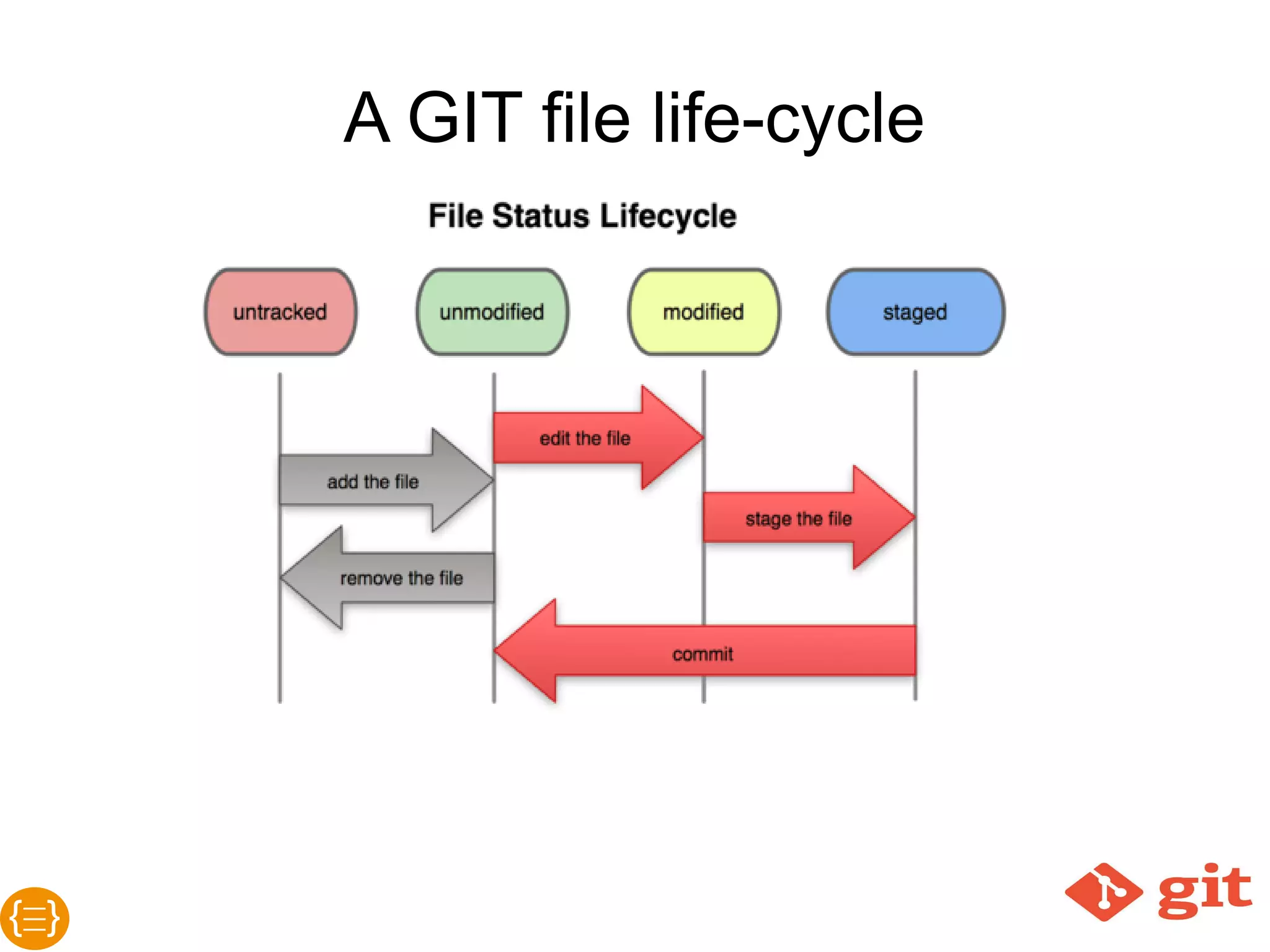
A GIT file life-cycle
GIT basic flow and
operations
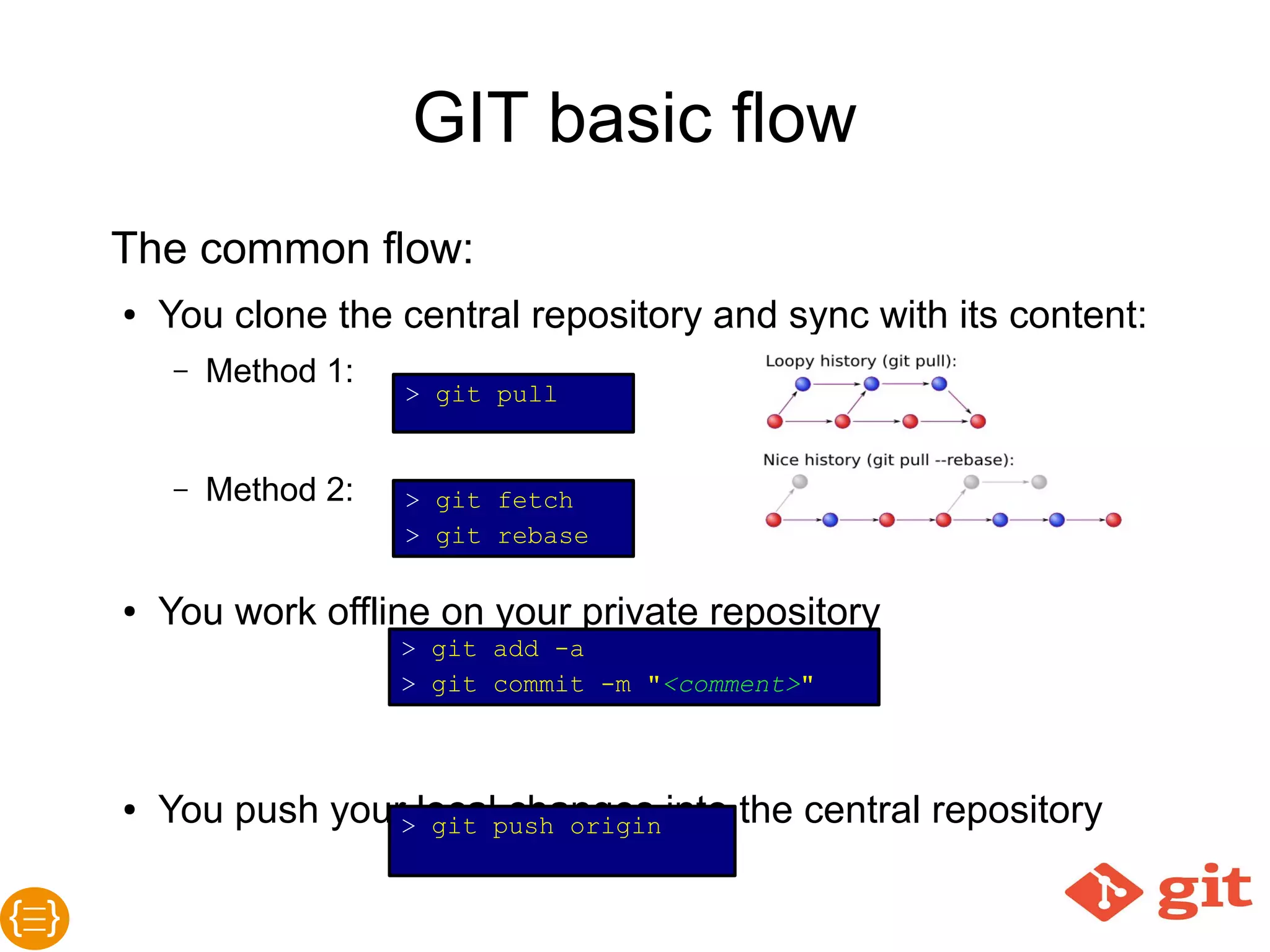
GIT basic flow
The common flow
● You clone the central repository and sync with its content:
o git clone <remote repository URL> - cloning the
repository
o git pull origin master - sync with remote repository
● You work offline on your private repository
o git add --all - staging all new and/or removed files
o git commit -m “<comment>” - commit changes
● You push your local changes into the central repository
o git push origin master
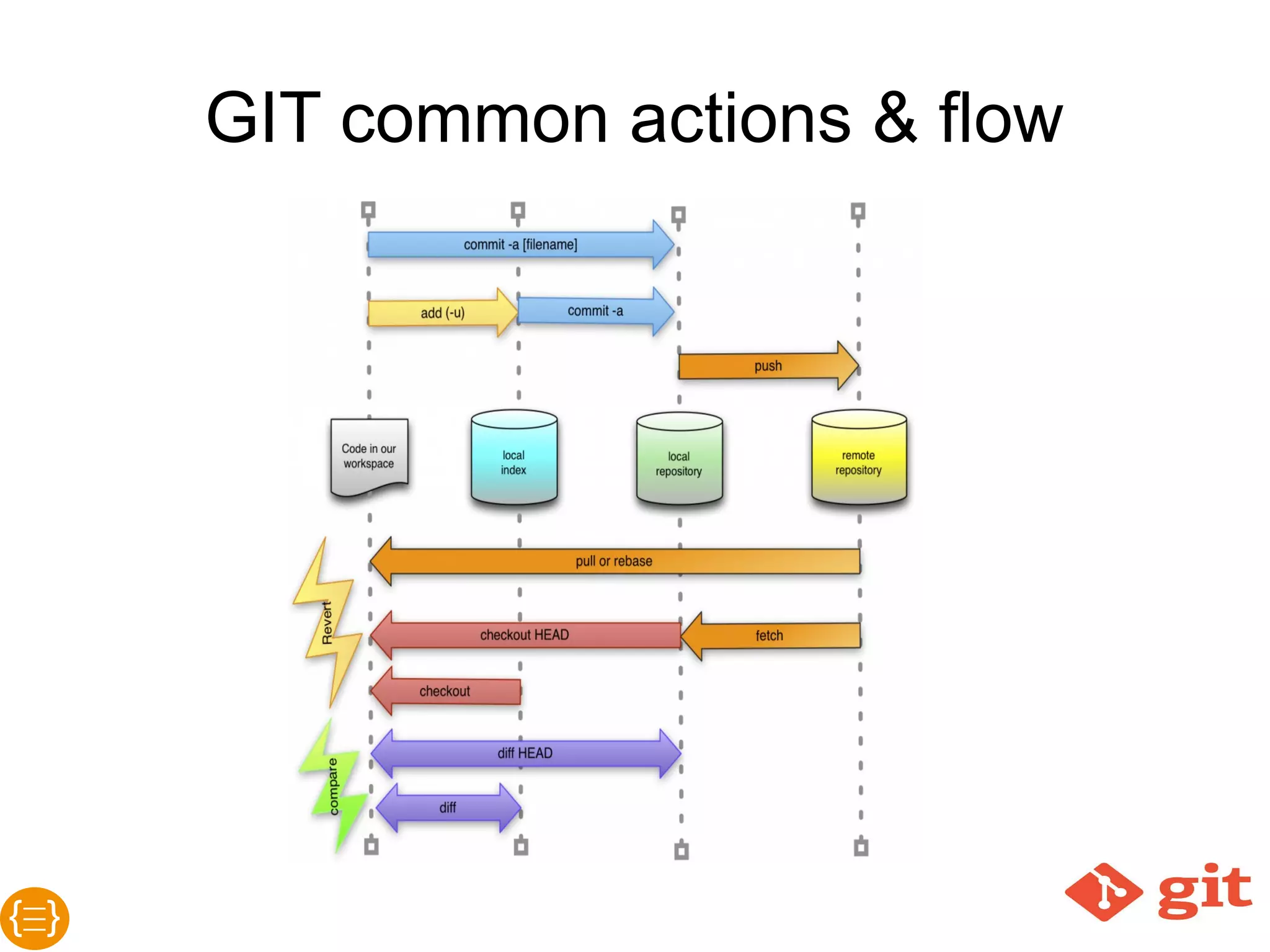
GIT common actions & flow
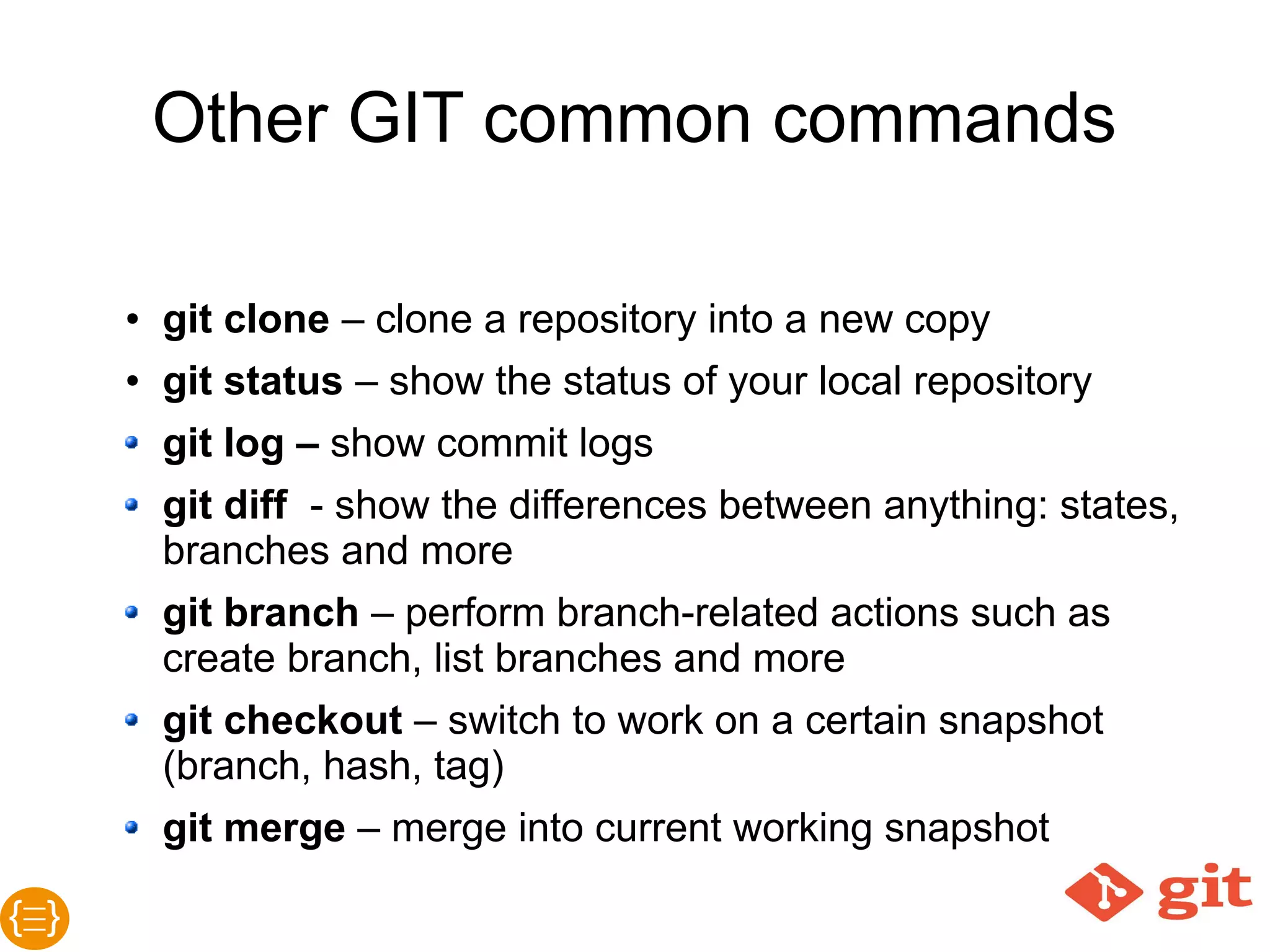
Other GIT common commands
● git clone – clone a repository into a new copy
● git status – show the status of your local repository
● git log – show commit logs
● git diff - show the differences between anything: states, branches
and more
● git branch – perform branch-related actions such as create
branch, list branches and more
● git checkout – switch to work on a certain snapshot (branch, hash,
tag)
● git merge – merge into current working snapshot
● git cherrypick – merge picked commits from branch to branch
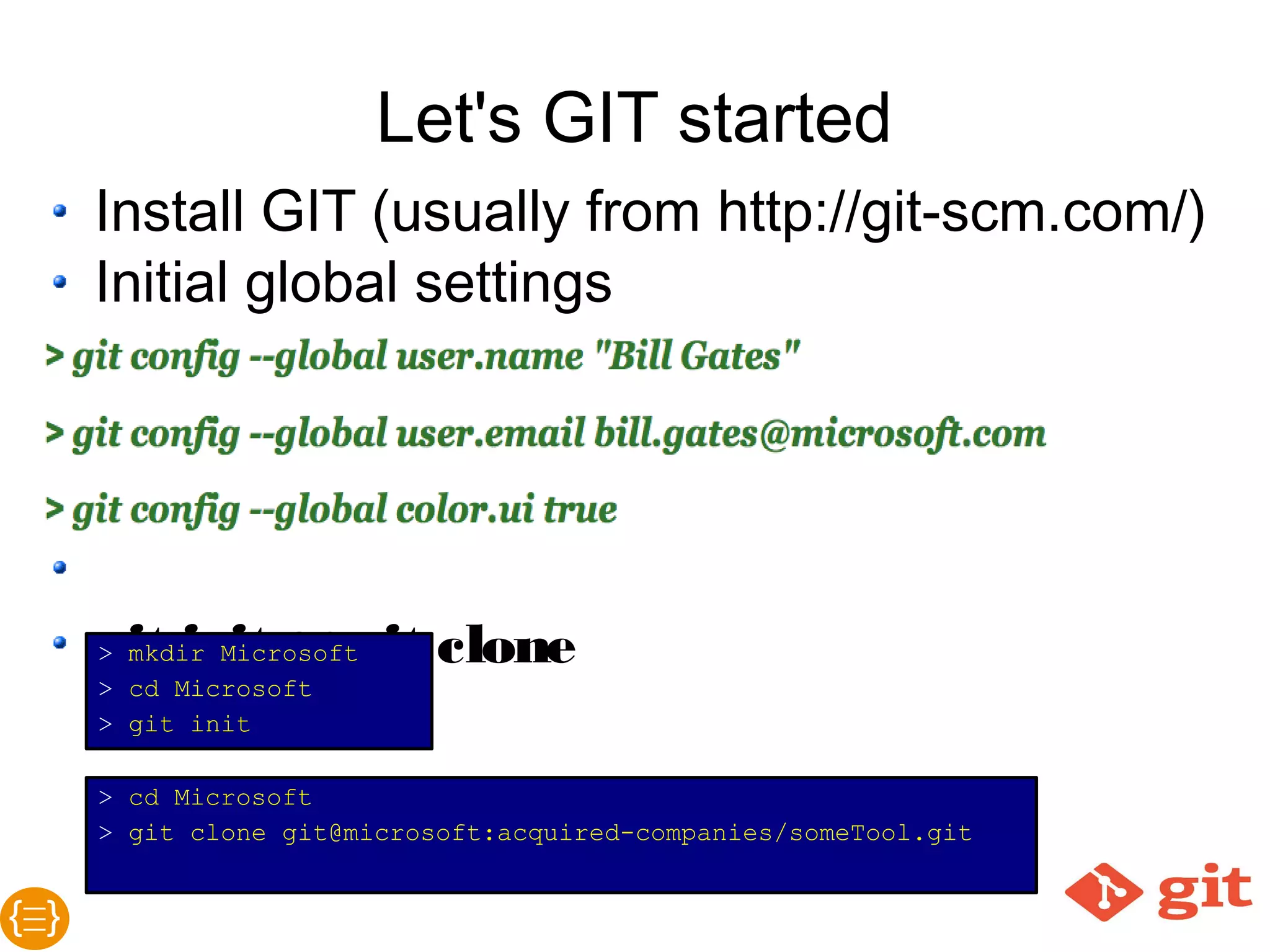
Let’s GIT started
● Install GIT (usually from http://git-scm.com)
● Initial GIT global settings
● git config --global user.name “Bill Gates”
● git config --global user.email bill.gates@microsoft.com
● GIT repository initiate:
● mkdir microsoft
● cd microsoft
● git init
or
● GIT clone:
● git clone git@microsoft:acquired-companies/someTool.git
GIT environments
GIT hosting tools and
services
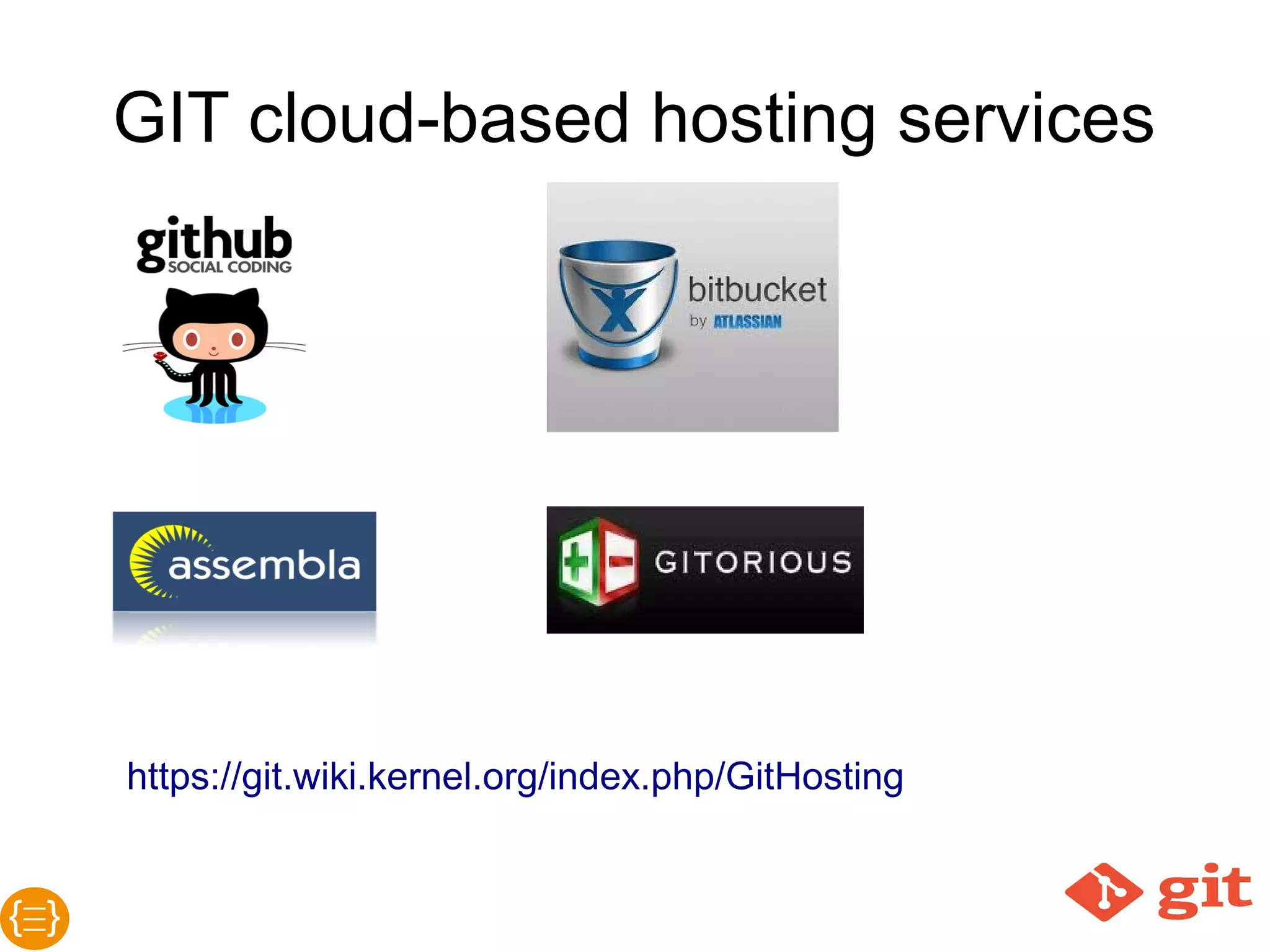
GIT cloud-based hosting services
https://git.wiki.kernel.org/index.php/GitHosting
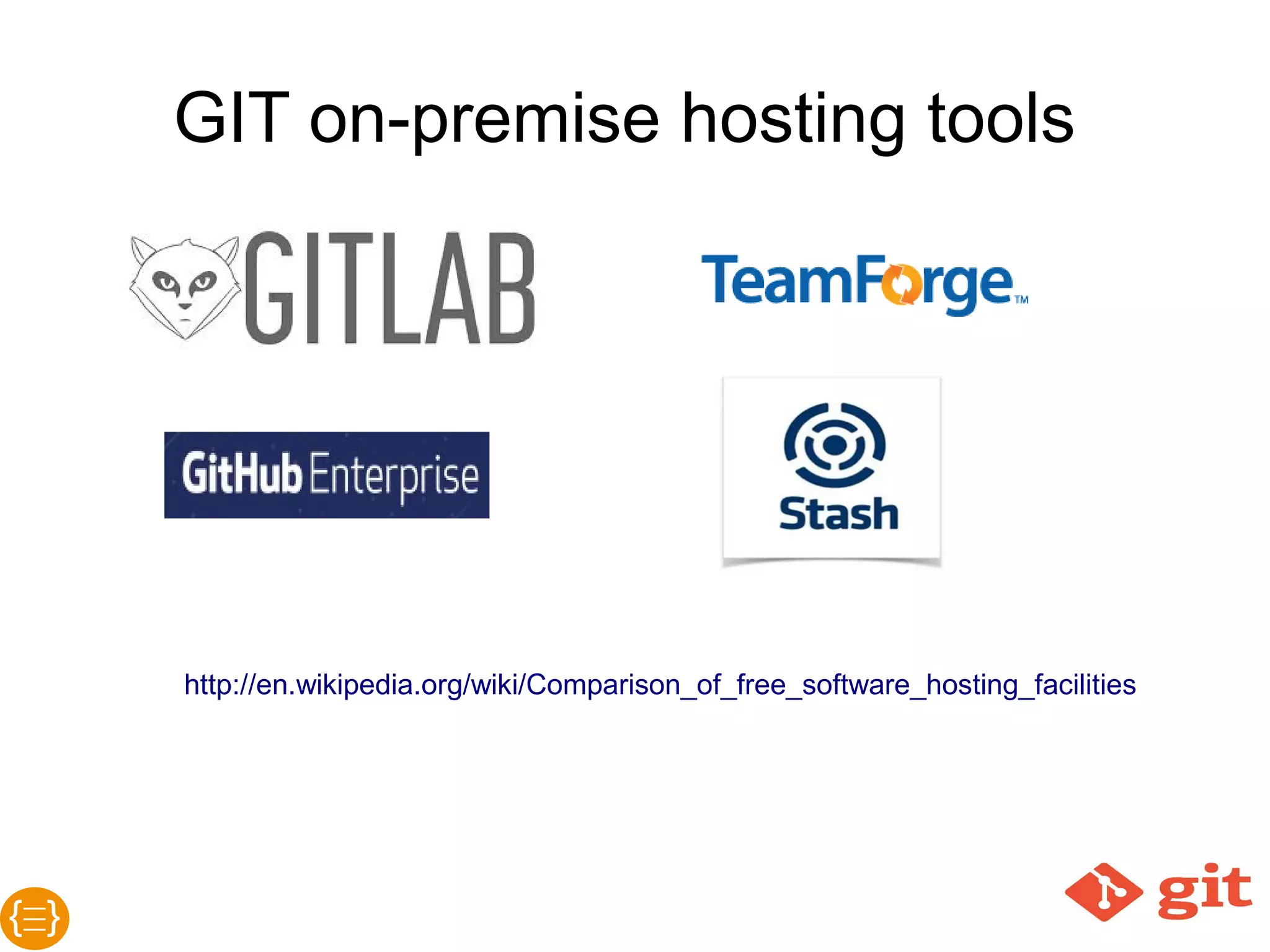
GIT on-premise hosting tools
http://en.wikipedia.org/wiki/Comparison_of_free_software_hosting_facilities
Detailed guideline for choosing GIT
host service
http://www.slideshare.net/YoramMichaeli/git-hostingservice
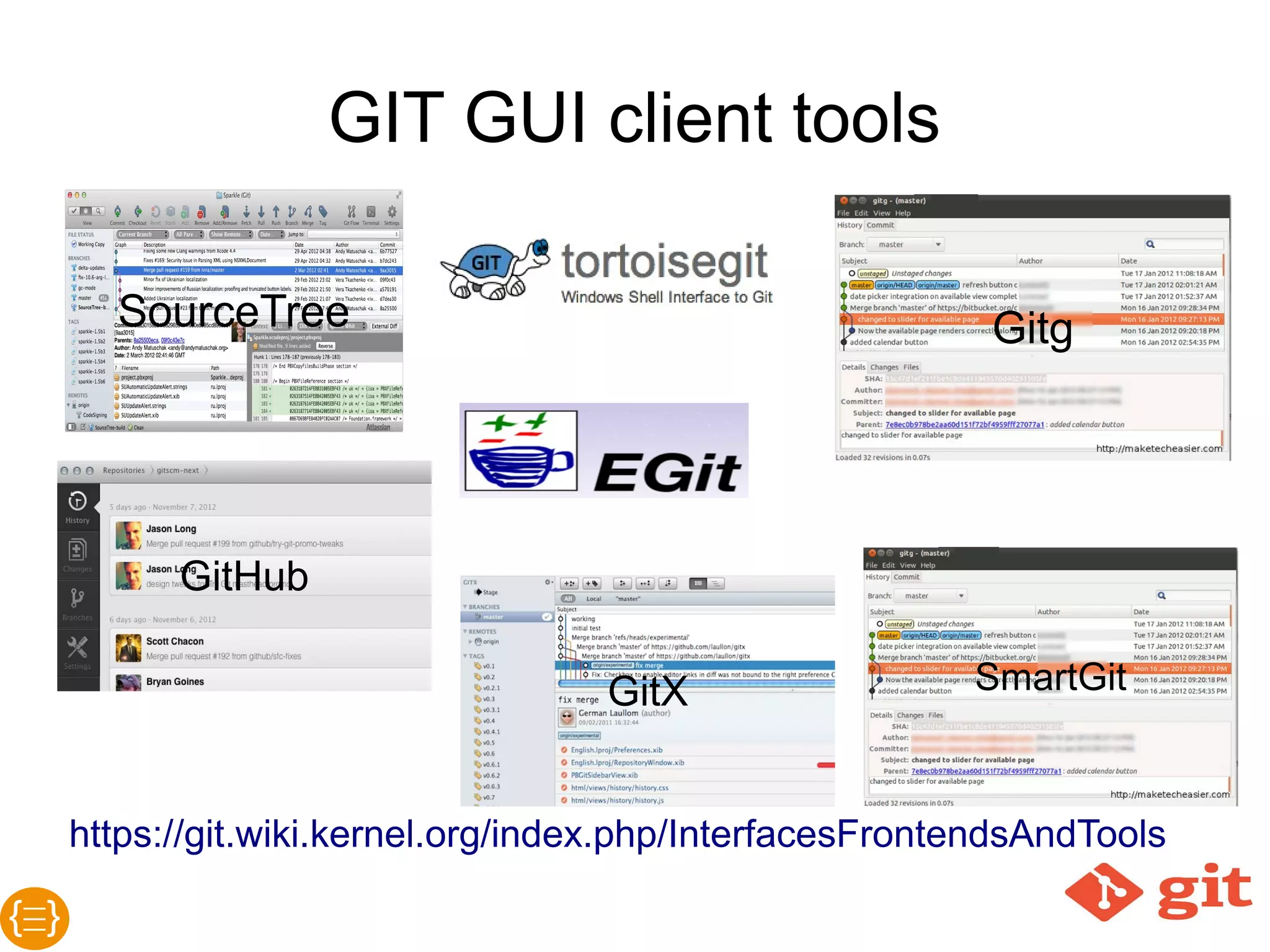
GIT client tools
GIT GUI client tools
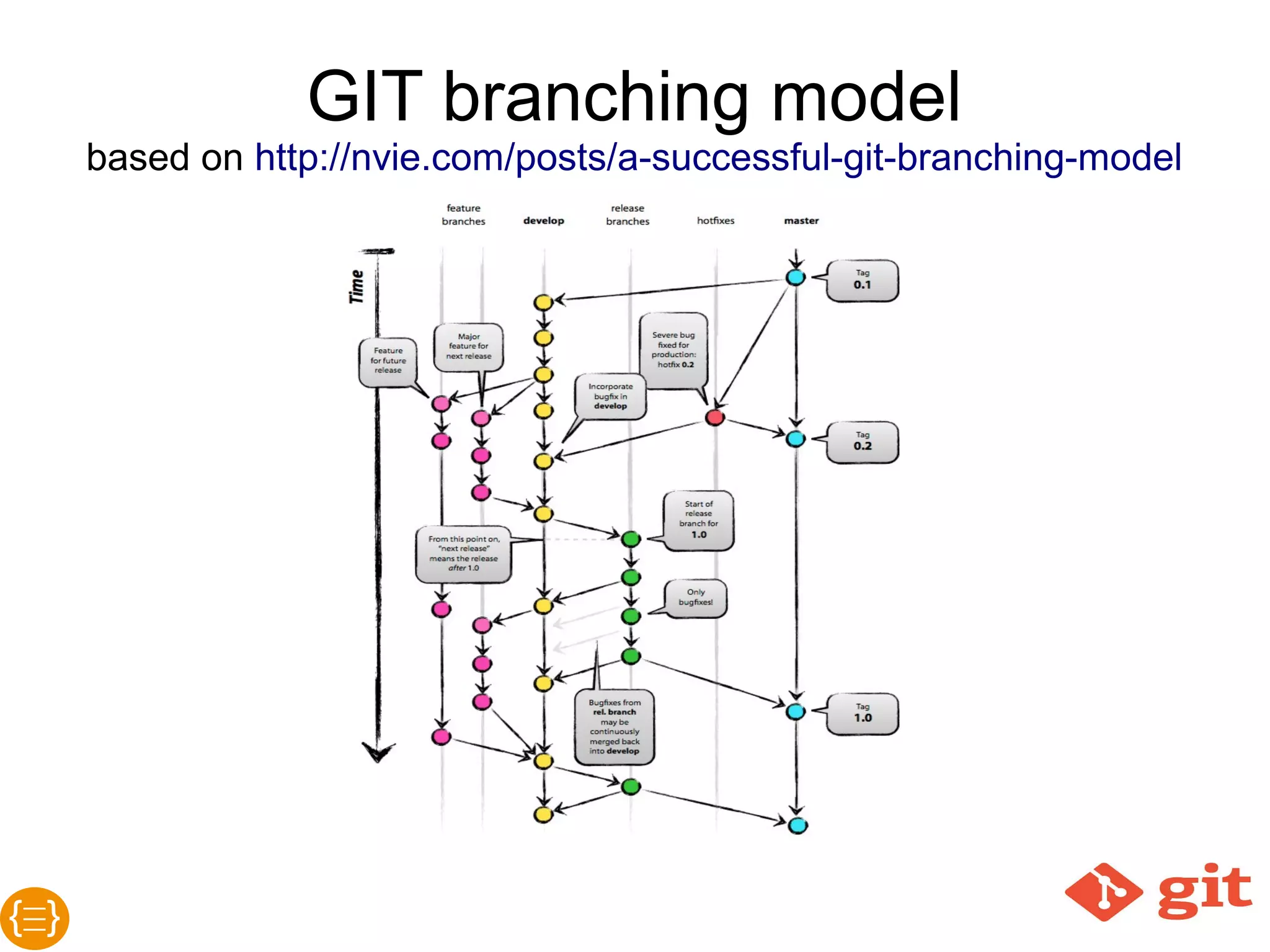
GIT workflows
(branching models)
Based on Atlassian's 'GIT workflows' excellent introduction!
Centralized Workflow
If your developers are already
comfortable with Subversion, the
Centralized Workflow lets you
experience the benefits of Git
without having to adapt to an
entirely new process. It also
serves as a friendly transition
into more Git-oriented
workflows.
See more...
Feature Branch Workflow
The Feature Branch Workflow
builds on the Centralized
Workflow by encapsulating new
features into dedicated
branches. This enables the use
of pull requests as a means to
discuss changes before they’re
integrated into the official
project.
See more...
Gitflow Workflow
The Gitflow Workflow
streamlines the release cycle
by using isolated branches
for feature development,
release preparation, and
maintenance. Its strict
branching model also lends
some much needed structure
to larger projects.
See more...
GitHub Flow
what is GitHub Flow?
● Anything in the master branch is deployable
● To work on something new, create a descriptively named
branch off of master (ie:new-oauth2-scopes)
● Commit to that branch locally and regularly push your
work to the same named branch on the server
● When you need feedback or help, or you think the branch
is ready for merging, open a pull request
● After someone else has reviewed and signed off on the
feature, you can merge it into master
● Once it is merged and pushed to ‘master’, you can and
should deploy immediately
See more...
Forking Workflow
The Forking Workflow is a
distributed workflow that takes
full advantage of Git’s branching
and cloning capabilities. It
provides a safe, reliable way to
manage large teams of
developers and to accept
commits from untrusted
contributors.
See more...
Pull requests
Pull request (sometimes called

merge request) is a feature that
makes it easier for developers to
collaborate using the hosting
service. It provides a user-
friendly web interface for
discussing proposed changes
before integrating them into the
official project.
See more...
GIT more
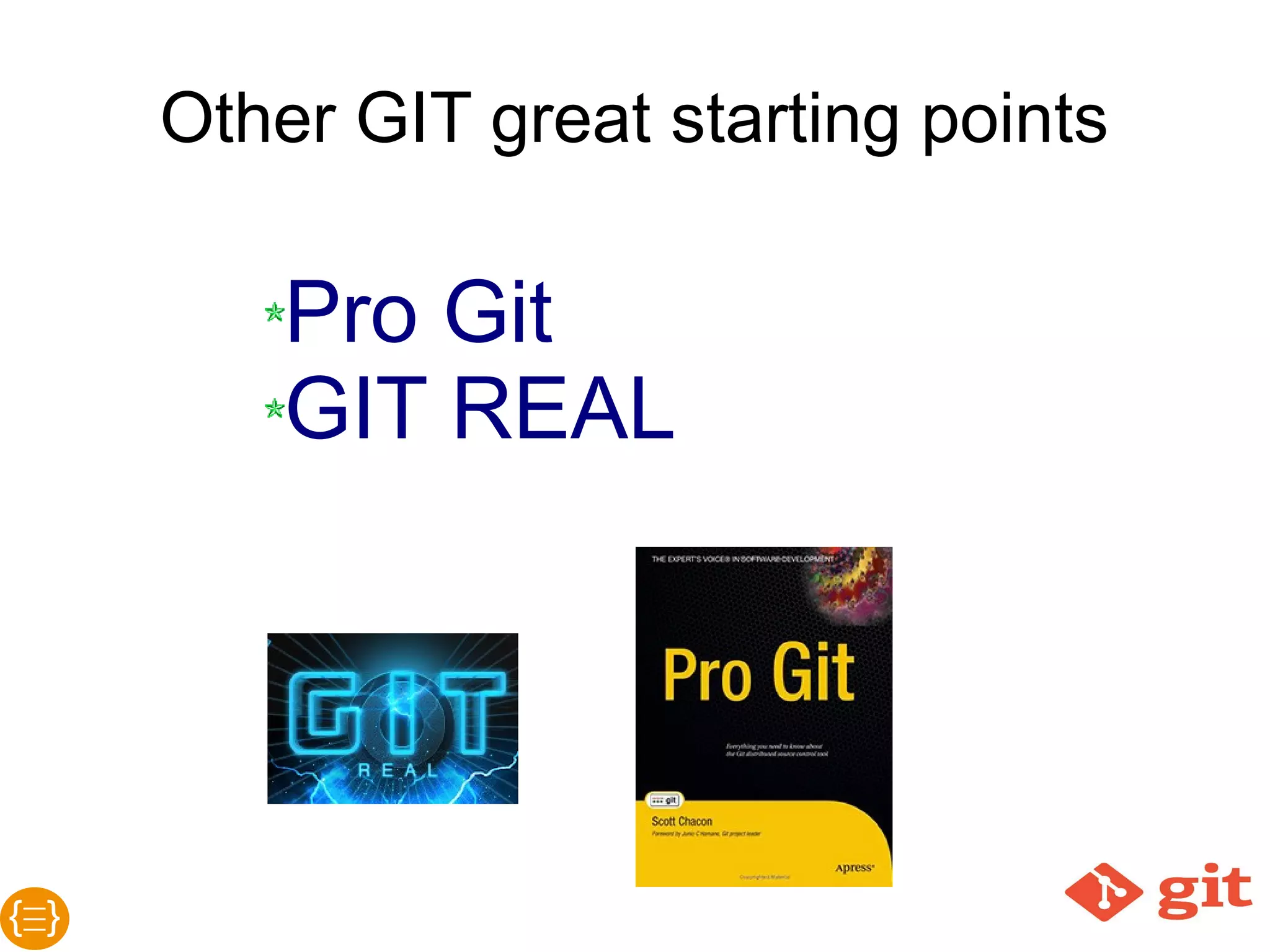
Other GIT great starting points
Yoram Michaeli
Email: yorammi@tikalk.com
Tel: +972-52-5766838
Thank You

Lets git to it

  • 1.
    Let’s GIT toit! Introduction to git & branching models Yoram Michaeli <yorammi@tikalk.com> FullStack Developers Israel 14.5.2014 Tikal, Tel-Aviv Hosted by:
  • 2.
  • 3.
  • 4.
    What is GIT? ●GIT is a distributed revision controlled source code management system (DVCS) ● GIT were created, designed and developed by Linus Torvalds (the creator of Linux) for Linux kernel development (See Linus Torvalds in YouTube) ● Official GIT site: http://git-scm.com
  • 5.
  • 6.
    Why use GIT?Thereare many other SCM/SVCS systems out there... ● GIT is fast ● GIT has no need for network connection - for most operations ● GIT is a great merge and branching tool ● GIT is a modern tool ● GIT have a very large install-base ● GIT encourage developers to commit, which results with less data lose
  • 7.
    GIT is distributed ●There is no single server – each endpoint contains all the information. ● Usually there is one endpoint that is considered as the central one but this is not a must. ● The common flow: o You clone the central repository and/or sync with its content o You work offline on your private repository o You push your local changes into the central repository
  • 8.
  • 9.
    GIT is fast ●For most operations you need no network connection ● Network operations are done very fast using modern and validated transfer actions ● GIT uses snapshots of the whole repository instead of the files-and-delta technology ● GIT uses pointers ● GIT is optimized for merge...
  • 10.
    GIT is optimizedfor merge ● GIT is designed for fast and efficient merge ● GIT supports: o Local merge o 2 repositories/endpoints merge o Simultaneously work on the same resource o Merge is usually done locally before pushing it to the remote repository so it is very easy to abort it or revert to the previous status
  • 11.
  • 12.
    Things you mustconsider about GIT ● GIT is not CVS or SVN or any of those tools ● GIT requires much to learn about it ● GIT command line interface (CLI) is the most recommended client for it
  • 13.
  • 14.
  • 15.
  • 16.
    GIT repositoryThe multiplecommit concept ● Each commit store a pointer to the former (checksum) commit ● The first commit has a null pointer
  • 17.
    GIT branchesBasic terms ●branch – a pointer to some commit ● master – the “default” branch ● HEAD – the current branch of the local/remote repository ● origin – the remote repository (usually – the one you have cloned from) ● origin/master – the master branch (pointer) of the origin repository
  • 18.
    GIT local work GITdirectory ...is where Git stores the metadata and object database for your project Working directory ...is a single checkout of one version of the project on your disk. Staging area (Index) ...is a simple snapshot file in your Git directory, that stores information about what will go into your next commit. Why staging? ● Gives you the ability to control the content of your next commit ● You can reset changes ● You can 'stash' all changes and work on a new task in the same location ● Once you’re done with your code – for committing - you can: o Review the differences between working directory and staging o Review the differences between staging and HEAD
  • 19.
    A GIT filelife-cycle
  • 20.
    GIT basic flowand operations
  • 21.
    GIT basic flow Thecommon flow ● You clone the central repository and sync with its content: o git clone <remote repository URL> - cloning the repository o git pull origin master - sync with remote repository ● You work offline on your private repository o git add --all - staging all new and/or removed files o git commit -m “<comment>” - commit changes ● You push your local changes into the central repository o git push origin master
  • 22.
  • 23.
    Other GIT commoncommands ● git clone – clone a repository into a new copy ● git status – show the status of your local repository ● git log – show commit logs ● git diff - show the differences between anything: states, branches and more ● git branch – perform branch-related actions such as create branch, list branches and more ● git checkout – switch to work on a certain snapshot (branch, hash, tag) ● git merge – merge into current working snapshot ● git cherrypick – merge picked commits from branch to branch
  • 24.
    Let’s GIT started ●Install GIT (usually from http://git-scm.com) ● Initial GIT global settings ● git config --global user.name “Bill Gates” ● git config --global user.email bill.gates@microsoft.com ● GIT repository initiate: ● mkdir microsoft ● cd microsoft ● git init or ● GIT clone: ● git clone git@microsoft:acquired-companies/someTool.git
  • 25.
  • 26.
    GIT hosting toolsand services
  • 27.
    GIT cloud-based hostingservices https://git.wiki.kernel.org/index.php/GitHosting
  • 28.
    GIT on-premise hostingtools http://en.wikipedia.org/wiki/Comparison_of_free_software_hosting_facilities
  • 29.
    Detailed guideline forchoosing GIT host service http://www.slideshare.net/YoramMichaeli/git-hostingservice
  • 30.
  • 31.
  • 32.
    GIT workflows (branching models) Basedon Atlassian's 'GIT workflows' excellent introduction!
  • 33.
    Centralized Workflow If yourdevelopers are already comfortable with Subversion, the Centralized Workflow lets you experience the benefits of Git without having to adapt to an entirely new process. It also serves as a friendly transition into more Git-oriented workflows. See more...
  • 34.
    Feature Branch Workflow TheFeature Branch Workflow builds on the Centralized Workflow by encapsulating new features into dedicated branches. This enables the use of pull requests as a means to discuss changes before they’re integrated into the official project. See more...
  • 35.
    Gitflow Workflow The GitflowWorkflow streamlines the release cycle by using isolated branches for feature development, release preparation, and maintenance. Its strict branching model also lends some much needed structure to larger projects. See more...
  • 36.
    GitHub Flow what isGitHub Flow? ● Anything in the master branch is deployable ● To work on something new, create a descriptively named branch off of master (ie:new-oauth2-scopes) ● Commit to that branch locally and regularly push your work to the same named branch on the server ● When you need feedback or help, or you think the branch is ready for merging, open a pull request ● After someone else has reviewed and signed off on the feature, you can merge it into master ● Once it is merged and pushed to ‘master’, you can and should deploy immediately See more...
  • 37.
    Forking Workflow The ForkingWorkflow is a distributed workflow that takes full advantage of Git’s branching and cloning capabilities. It provides a safe, reliable way to manage large teams of developers and to accept commits from untrusted contributors. See more...
  • 38.
    Pull requests Pull request(sometimes called merge request) is a feature that makes it easier for developers to collaborate using the hosting service. It provides a user- friendly web interface for discussing proposed changes before integrating them into the official project. See more...
  • 39.
  • 40.
    Other GIT greatstarting points
  • 41.