Copyright © SELA Software & Education Labs, Ltd. | 14-18 Baruch Hirsch St., Bnei Brak 51202, Israel | www.selagroup.com
Mobile CI & Appium
Oren Ashkenazy
Mail: orena@sela.co.il
Blog: http://blogs.microsoft.co.il/oren604/
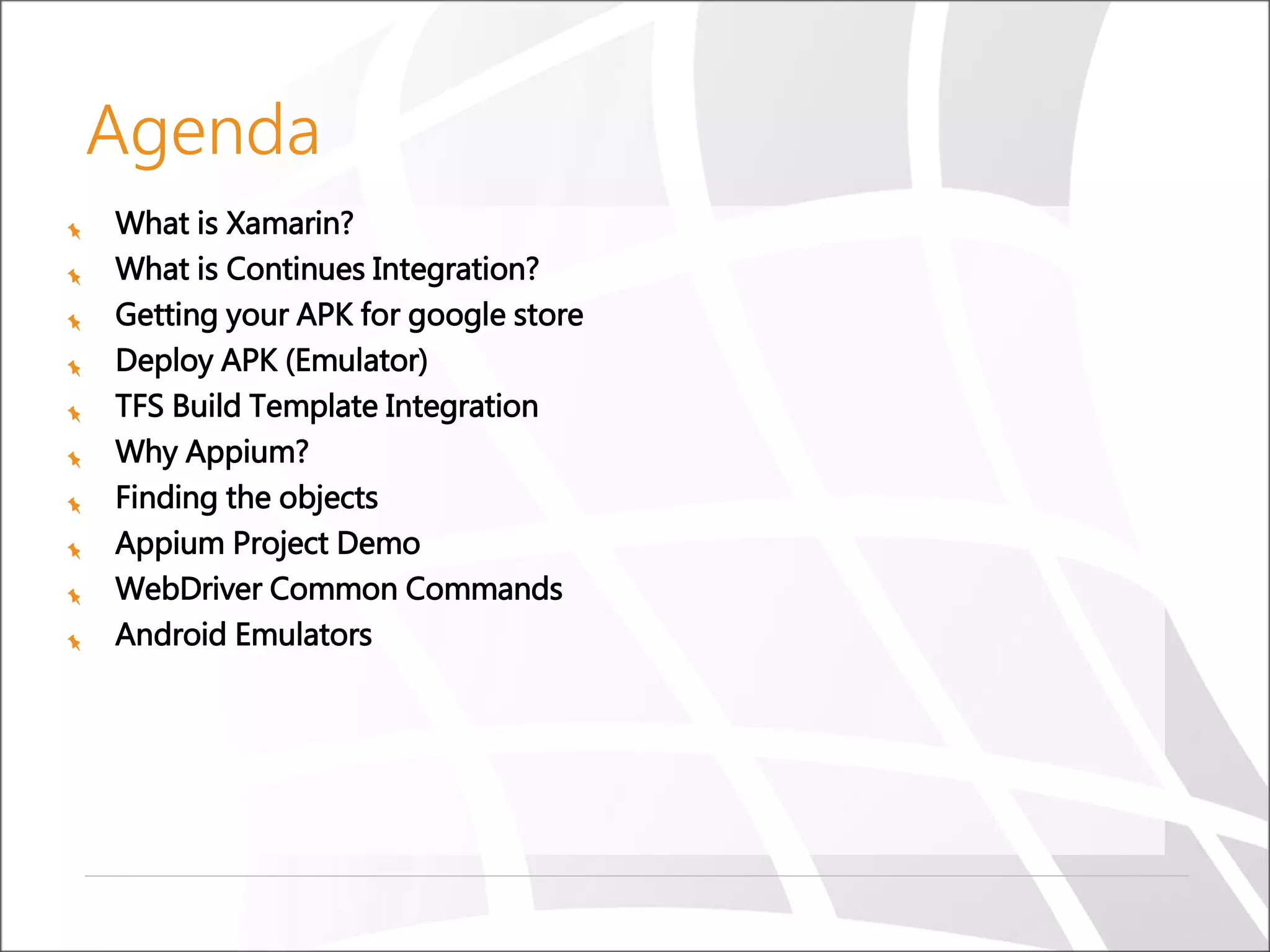
What is Xamarin?
What is Continues Integration?
Getting your APK for google store
Deploy APK (Emulator)
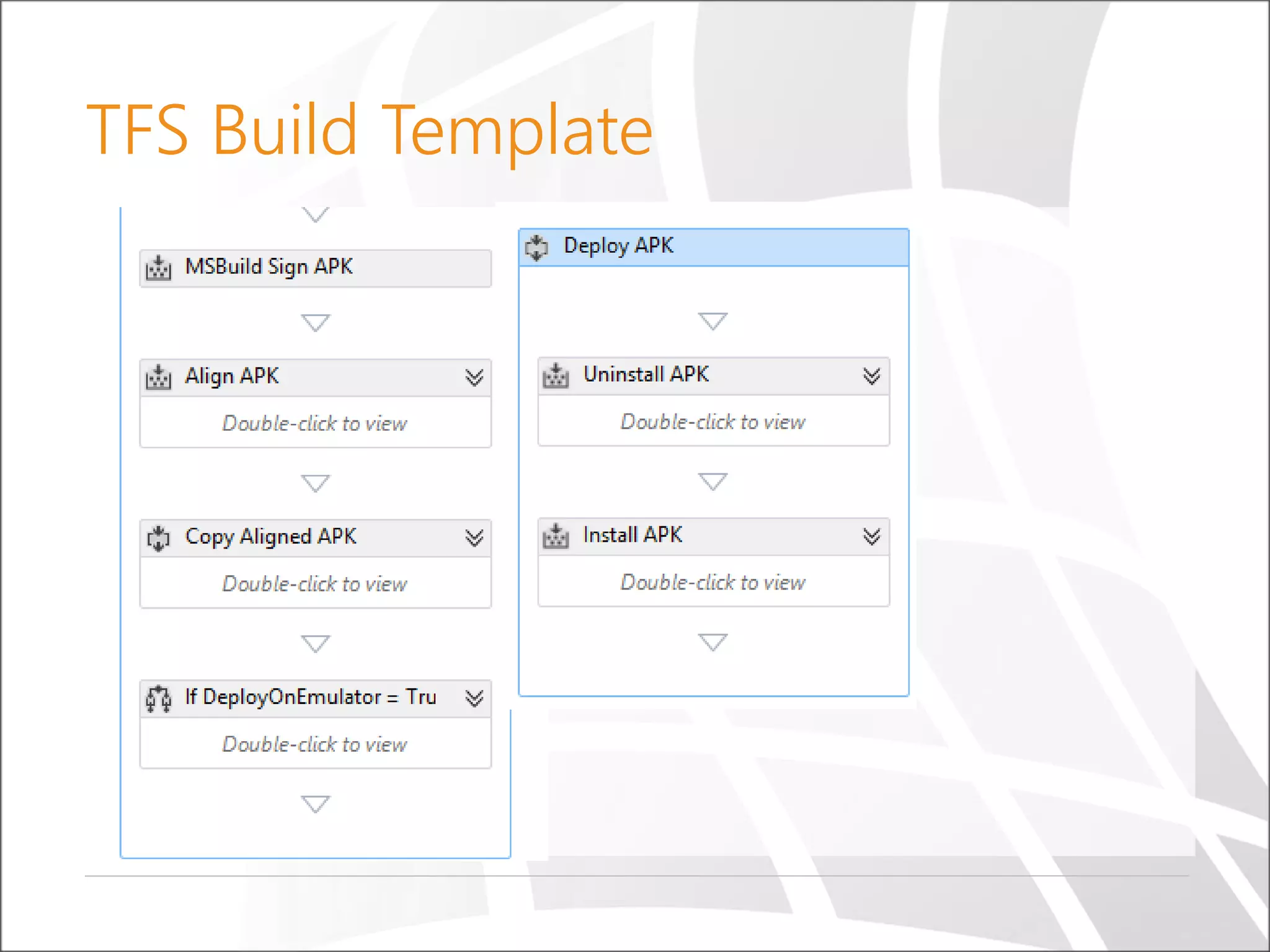
TFS Build Template Integration
Why Appium?
Finding the objects
Appium Project Demo
WebDriver Common Commands
Android Emulators
Agenda
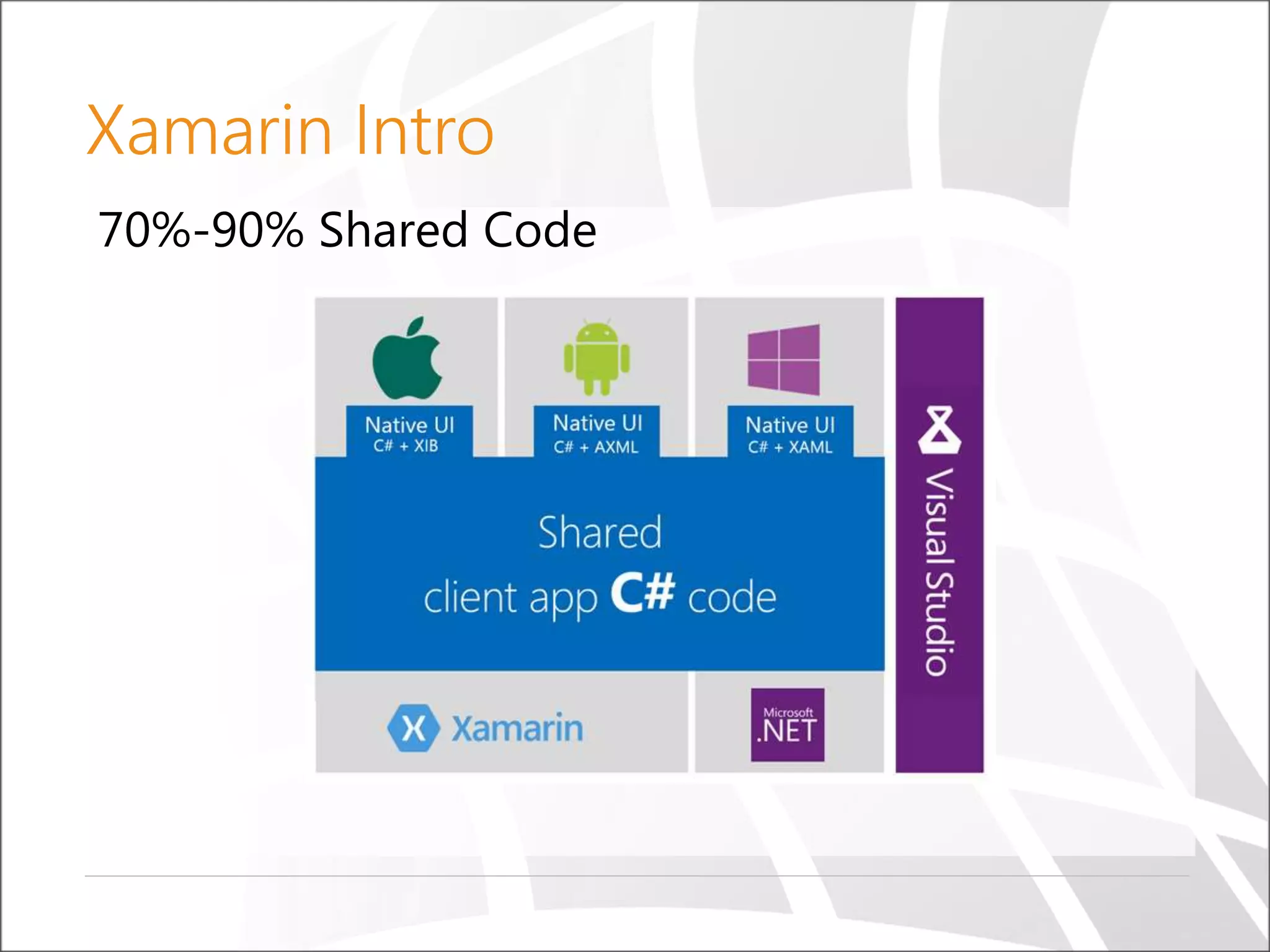
70%-90% Shared Code
Xamarin Intro
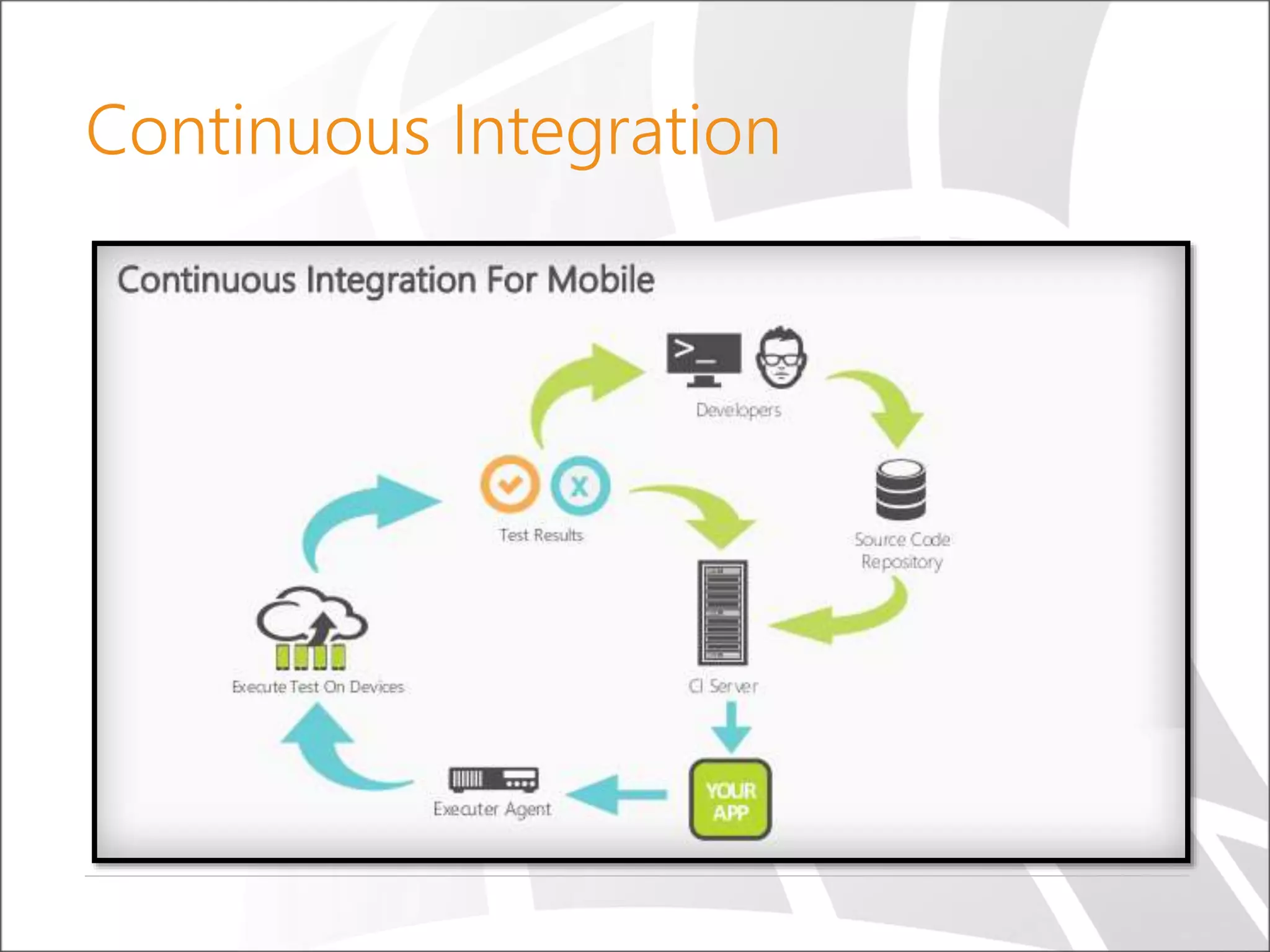
Continuous Integration
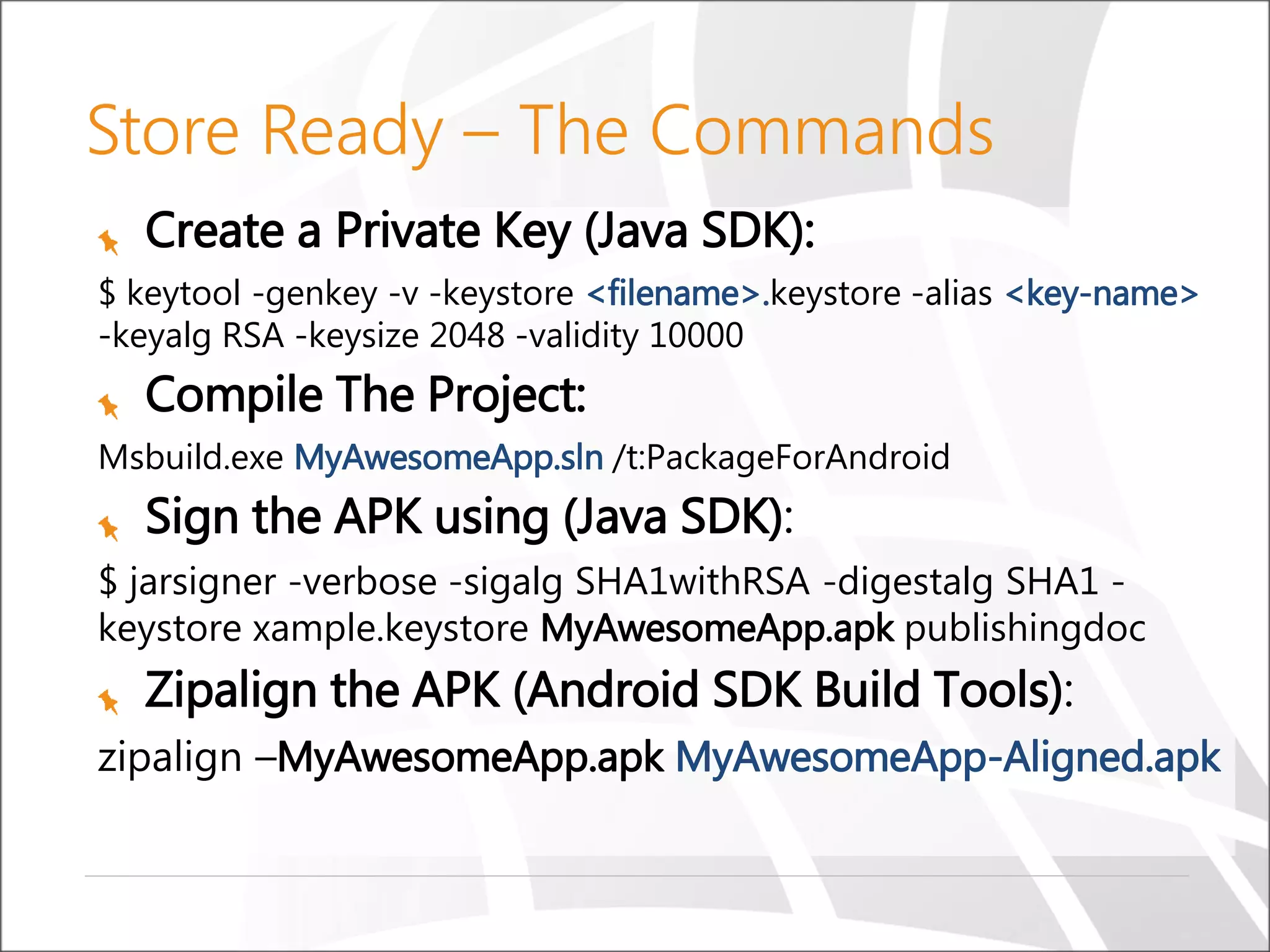
Create a Private Key (Java SDK):
$ keytool -genkey -v -keystore <filename>.keystore -alias <key-name>
-keyalg RSA -keysize 2048 -validity 10000
Compile The Project:
Msbuild.exe MyAwesomeApp.sln /t:PackageForAndroid
Sign the APK using (Java SDK):
$ jarsigner -verbose -sigalg SHA1withRSA -digestalg SHA1 -
keystore xample.keystore MyAwesomeApp.apk publishingdoc
Zipalign the APK (Android SDK Build Tools):
zipalign –MyAwesomeApp.apk MyAwesomeApp-Aligned.apk
Store Ready – The Commands
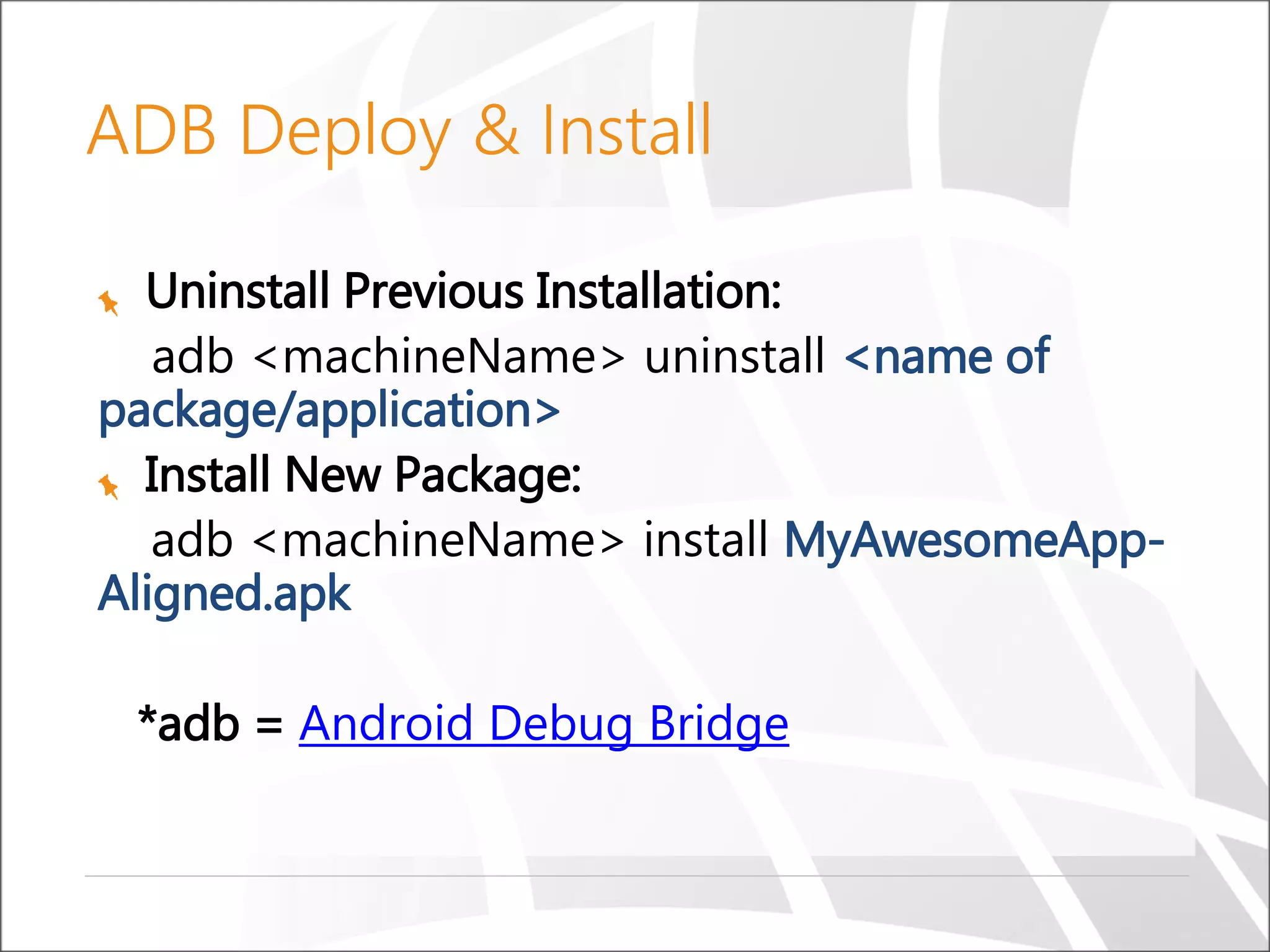
Uninstall Previous Installation:
adb <machineName> uninstall <name of
package/application>
Install New Package:
adb <machineName> install MyAwesomeApp-
Aligned.apk
*adb = Android Debug Bridge
ADB Deploy & Install
TFS Build Template
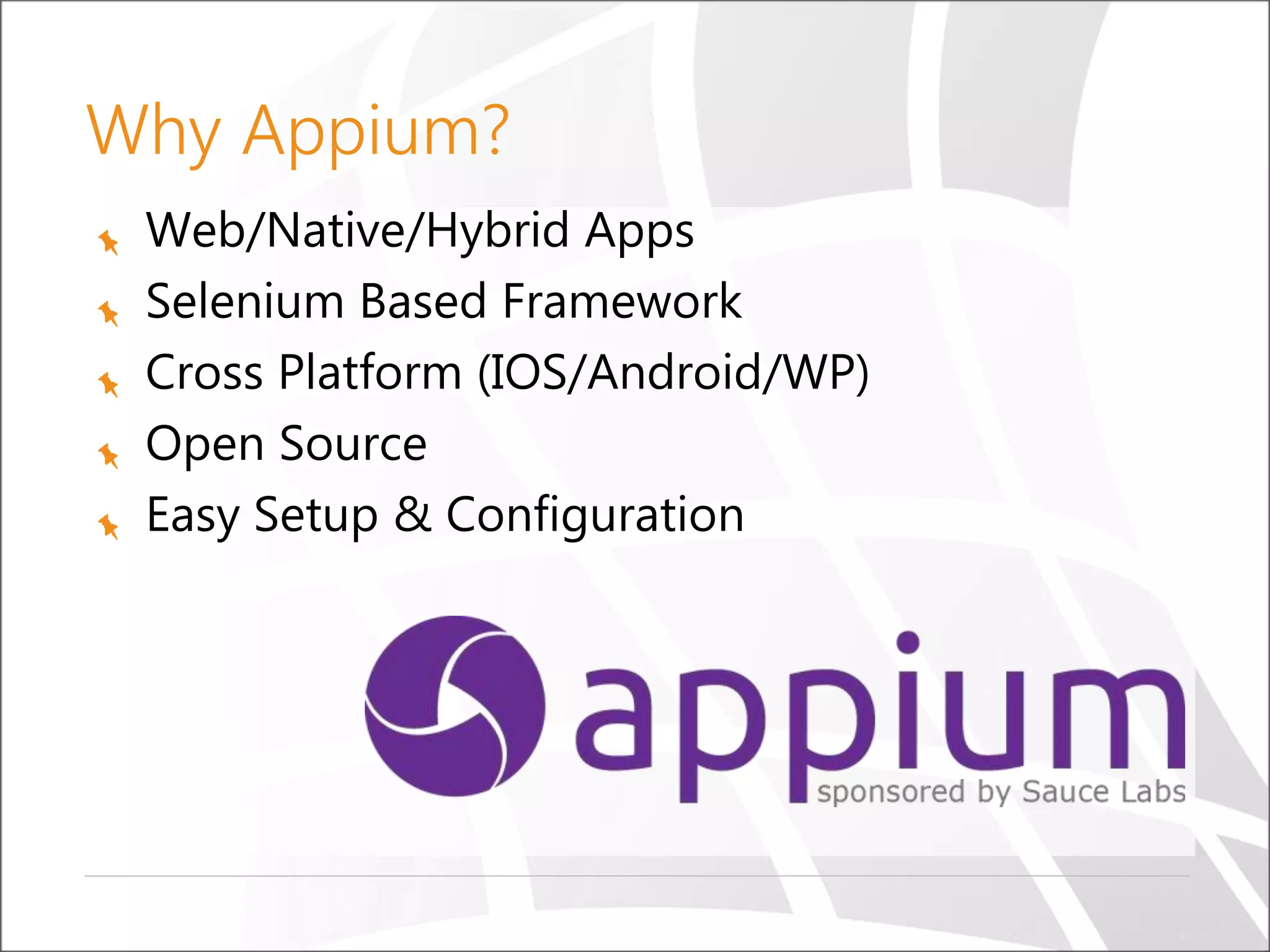
Web/Native/Hybrid Apps
Selenium Based Framework
Cross Platform (IOS/Android/WP)
Open Source
Easy Setup & Configuration
Why Appium?
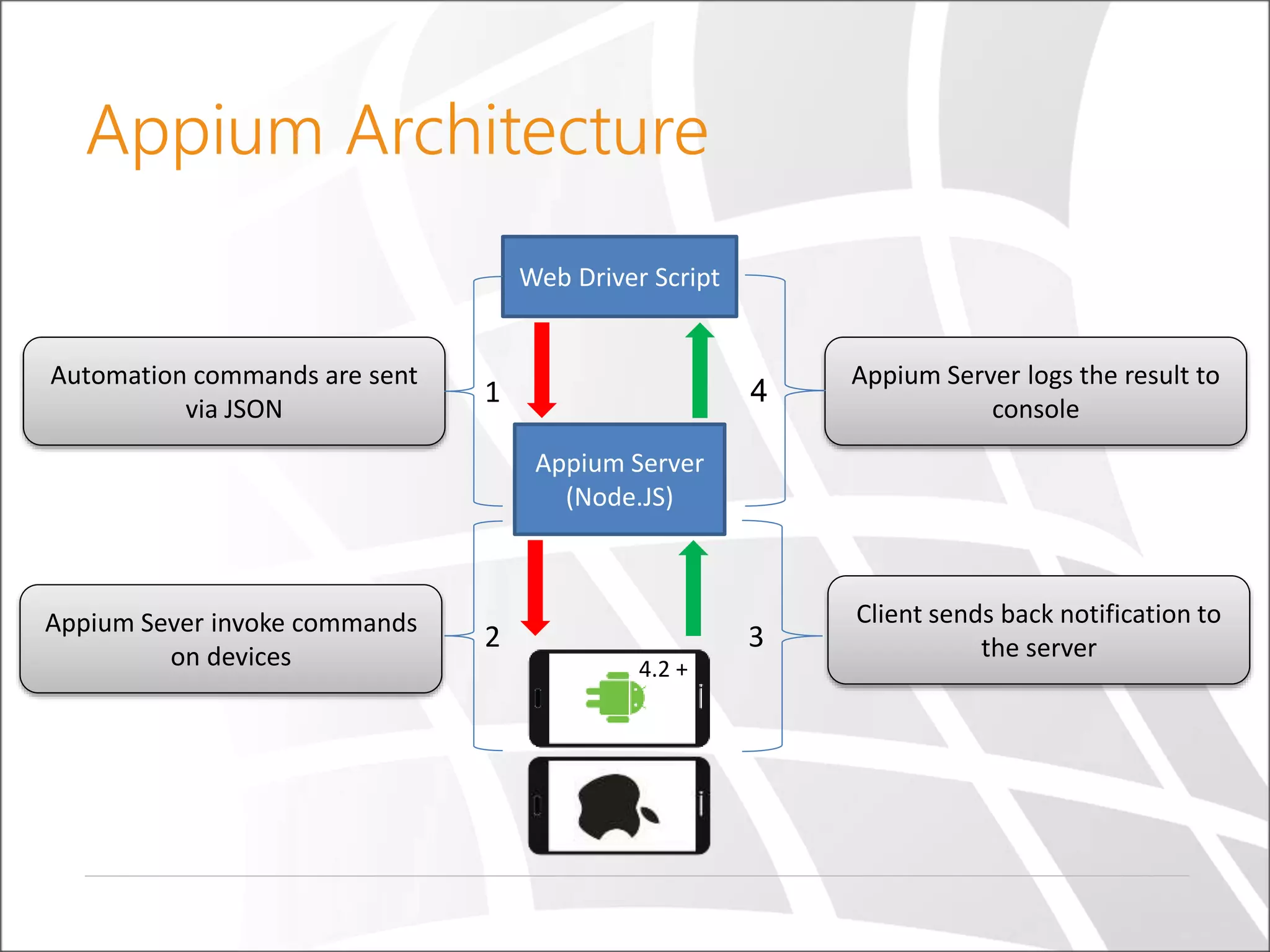
Appium Architecture
Web Driver Script
Appium Server
(Node.JS)
Automation commands are sent
via JSON
1
2Appium Sever invoke commands
on devices
3
Appium Server logs the result to
console
4
Client sends back notification to
the server
4.2 +
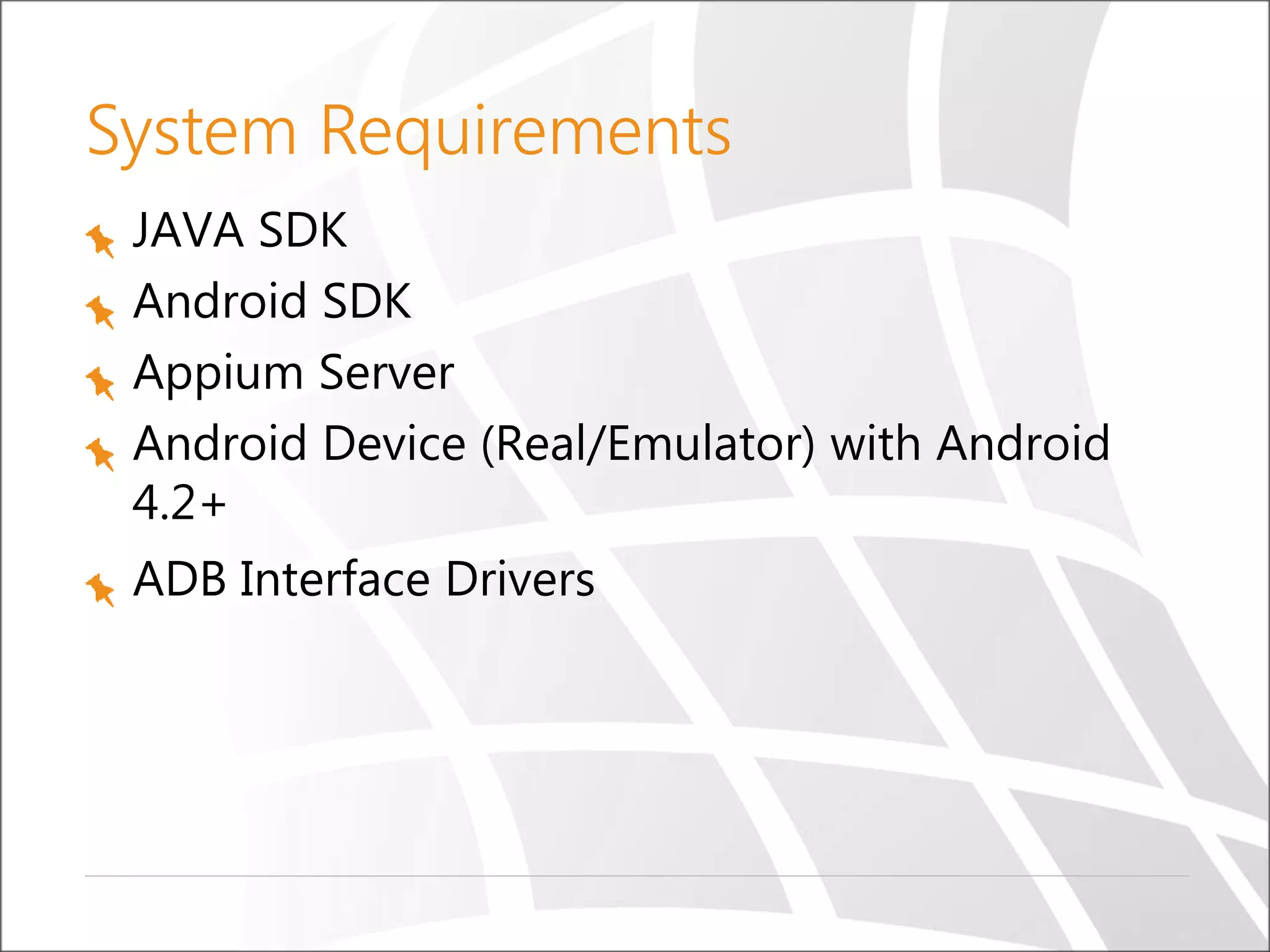
System Requirements
JAVA SDK
Android SDK
Appium Server
Android Device (Real/Emulator) with Android
4.2+
ADB Interface Drivers
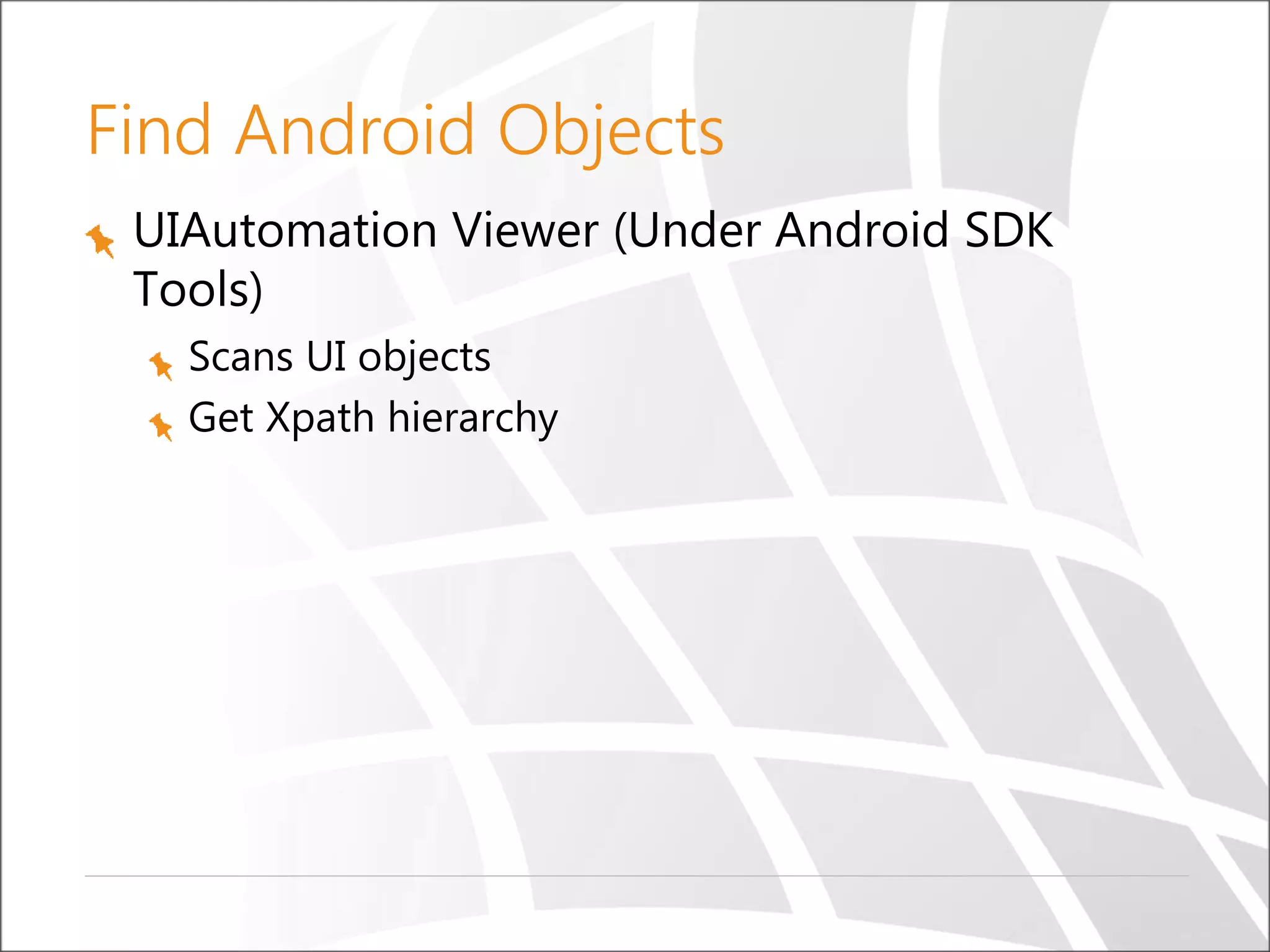
Find Android Objects
UIAutomation Viewer (Under Android SDK
Tools)
Scans UI objects
Get Xpath hierarchy
Demo
UIAutomationViewer
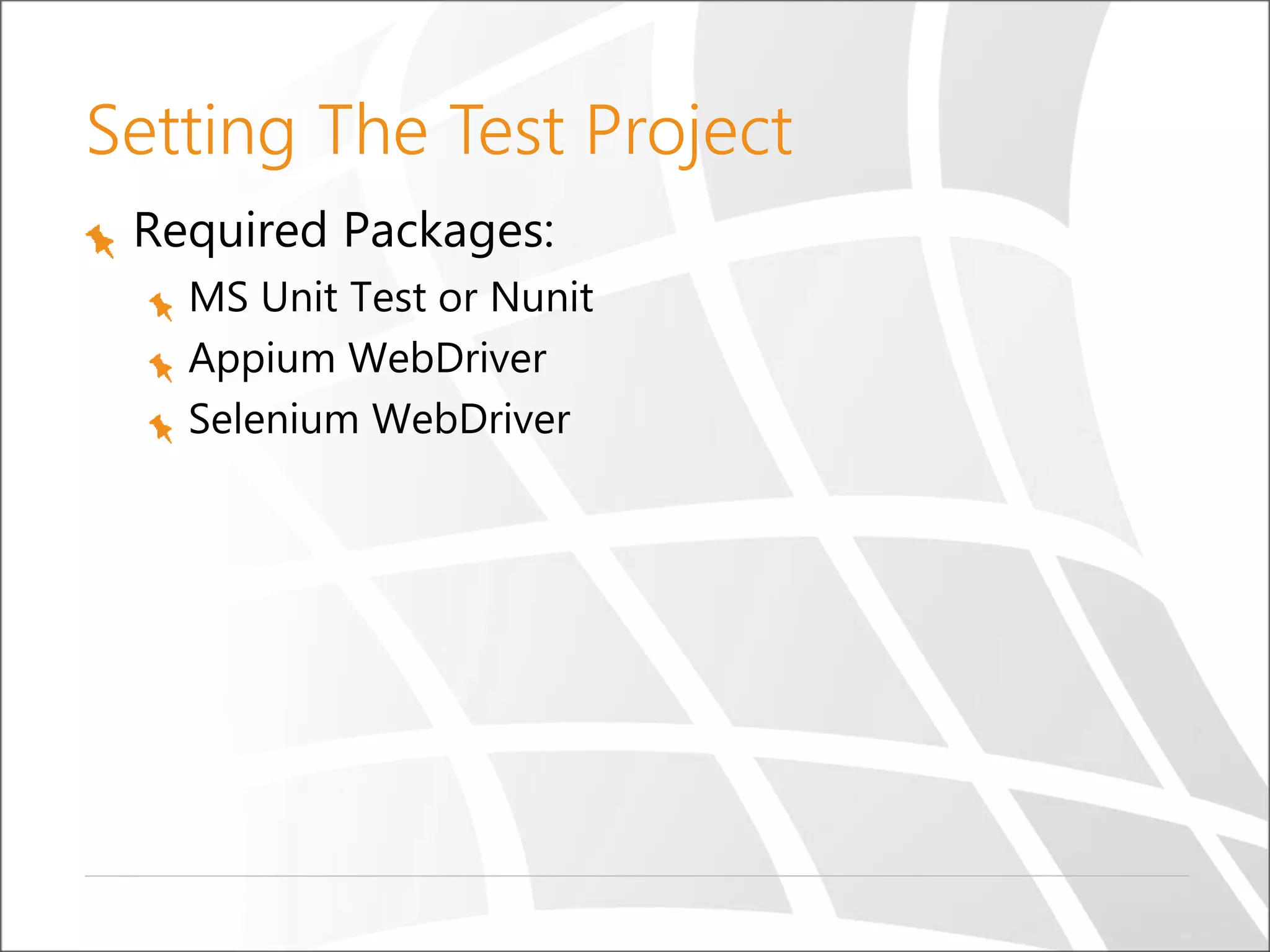
Setting The Test Project
Required Packages:
MS Unit Test or Nunit
Appium WebDriver
Selenium WebDriver
Demo
Hello Appium
Test Setup – here we’ll setup the application
and driver variables
[TestInitialize]
public void TestInit()
{
DesiredCapabilities capabilities = new DesiredCapabilities();
capabilities.SetCapability("device", "Android");
capabilities.SetCapability(CapabilityType.Platform, "Windows");
capabilities.SetCapability("deviceName", "H30-U10");
capabilities.SetCapability("platformName", "Android");
capabilities.SetCapability("platformVersion", "5.02");
capabilities.SetCapability("appPackage", "com.appName");
capabilities.SetCapability("appActivity", "com.appName.Main");
driver = new AndroidDriver(new Uri("http://127.0.0.1:4723/wd/hub"),
capabilities, TimeSpan.FromSeconds(180));
}
TestInitialize
Test Setup – here we’ll setup the application
and driver variables
[TestInitialize]
public void TestInit()
{
DesiredCapabilities capabilities = new DesiredCapabilities();
capabilities.SetCapability("device", "Android");
capabilities.SetCapability(CapabilityType.Platform, "Windows");
capabilities.SetCapability("deviceName", "H30-U10");
capabilities.SetCapability("platformName", "Android");
capabilities.SetCapability("platformVersion", "5.02");
capabilities.SetCapability("appPackage", "com.appName");
// capabilities.SetCapability("appActivity", "com.appName.Main");
capabilities.SetCapability("app", @“C:Appscom.mobile.AppName-Signed.apk");
driver = new AndroidDriver(new Uri("http://127.0.0.1:4723/wd/hub"),
capabilities, TimeSpan.FromSeconds(180));
}
TestInitialize – app install
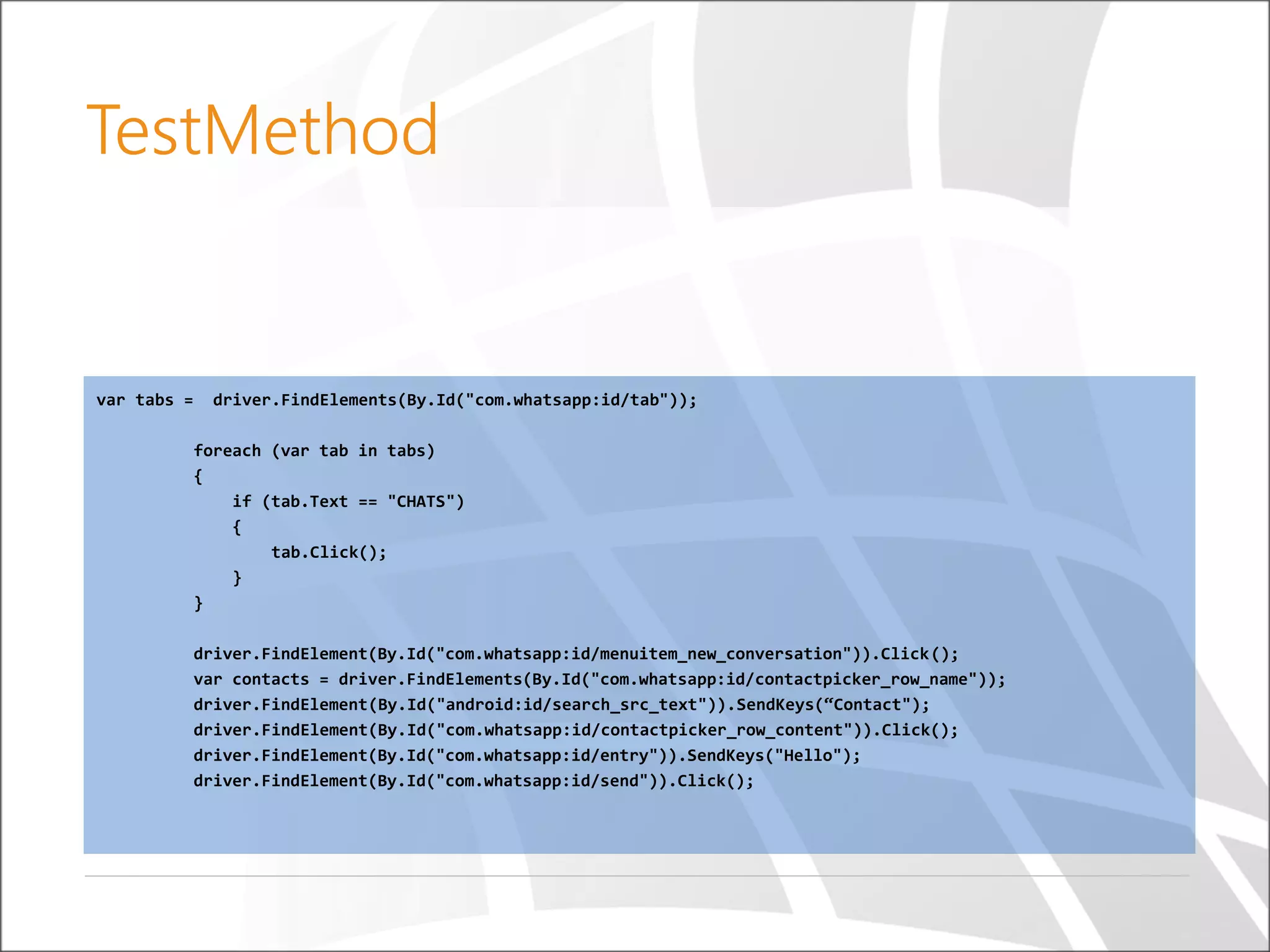
var tabs = driver.FindElements(By.Id("com.whatsapp:id/tab"));
foreach (var tab in tabs)
{
if (tab.Text == "CHATS")
{
tab.Click();
}
}
driver.FindElement(By.Id("com.whatsapp:id/menuitem_new_conversation")).Click();
var contacts = driver.FindElements(By.Id("com.whatsapp:id/contactpicker_row_name"));
driver.FindElement(By.Id("android:id/search_src_text")).SendKeys(“Contact");
driver.FindElement(By.Id("com.whatsapp:id/contactpicker_row_content")).Click();
driver.FindElement(By.Id("com.whatsapp:id/entry")).SendKeys("Hello");
driver.FindElement(By.Id("com.whatsapp:id/send")).Click();
TestMethod
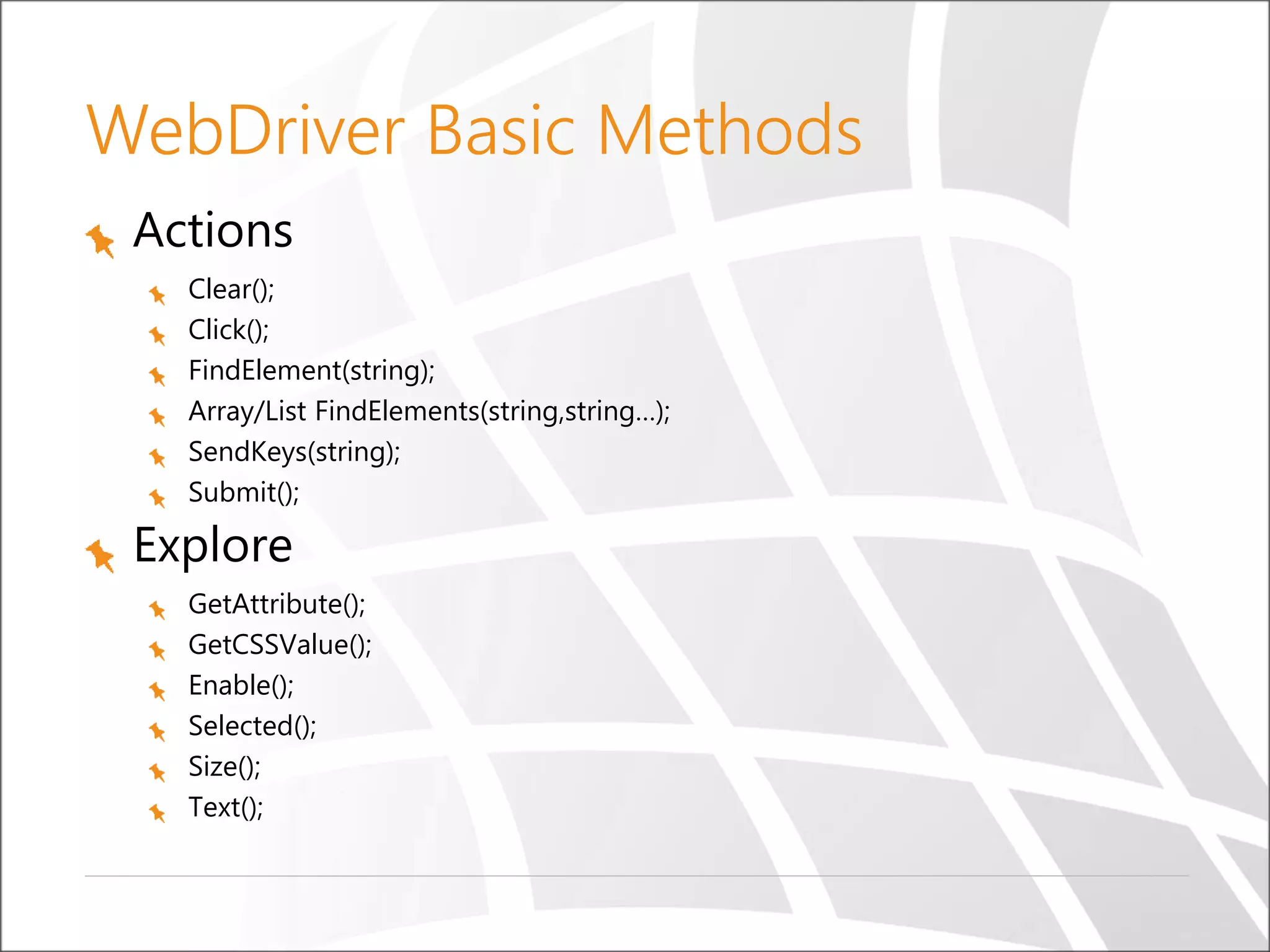
WebDriver Basic Methods
Actions
Clear();
Click();
FindElement(string);
Array/List FindElements(string,string…);
SendKeys(string);
Submit();
Explore
GetAttribute();
GetCSSValue();
Enable();
Selected();
Size();
Text();
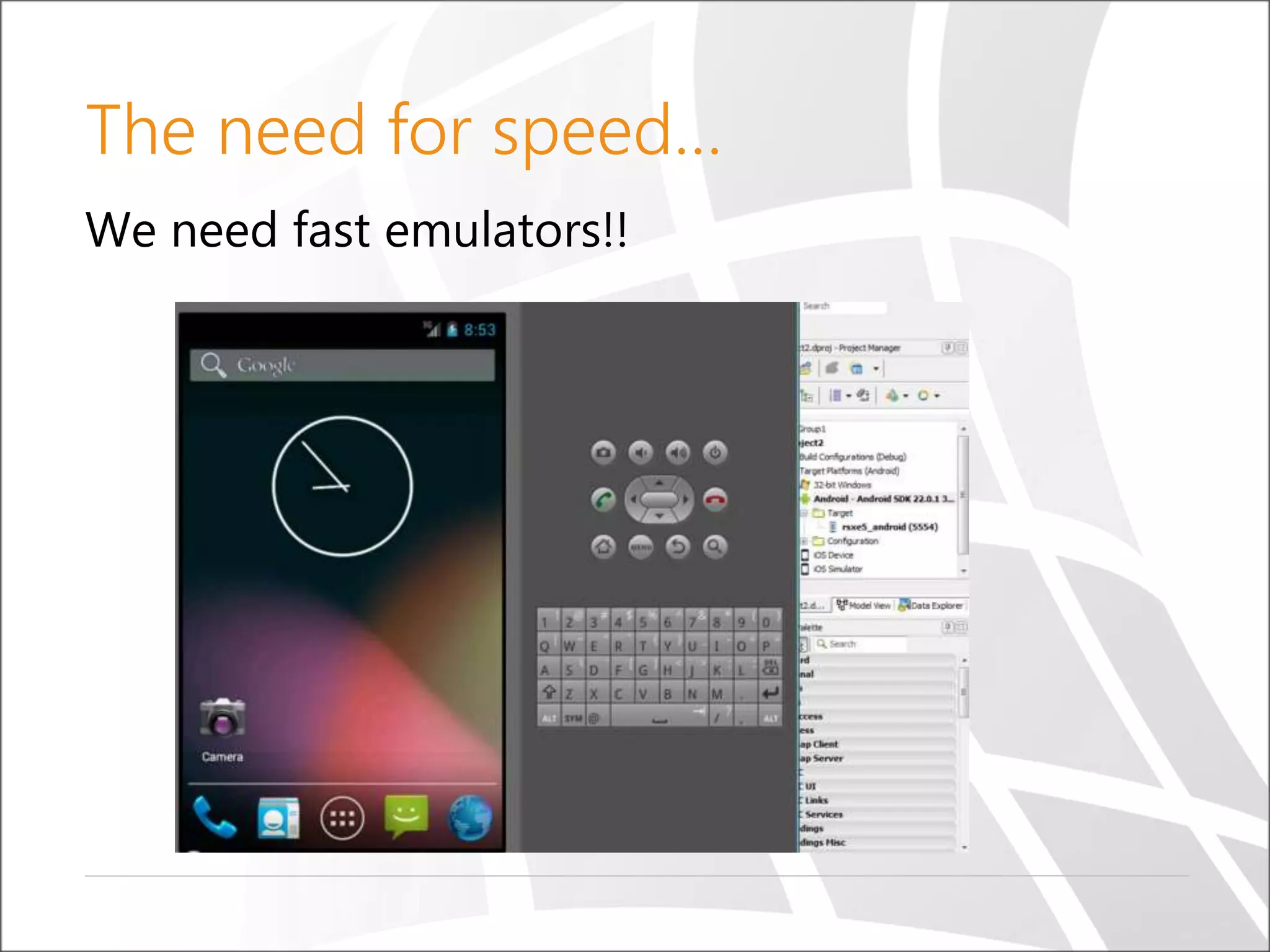
The need for speed…
We need fast emulators!!
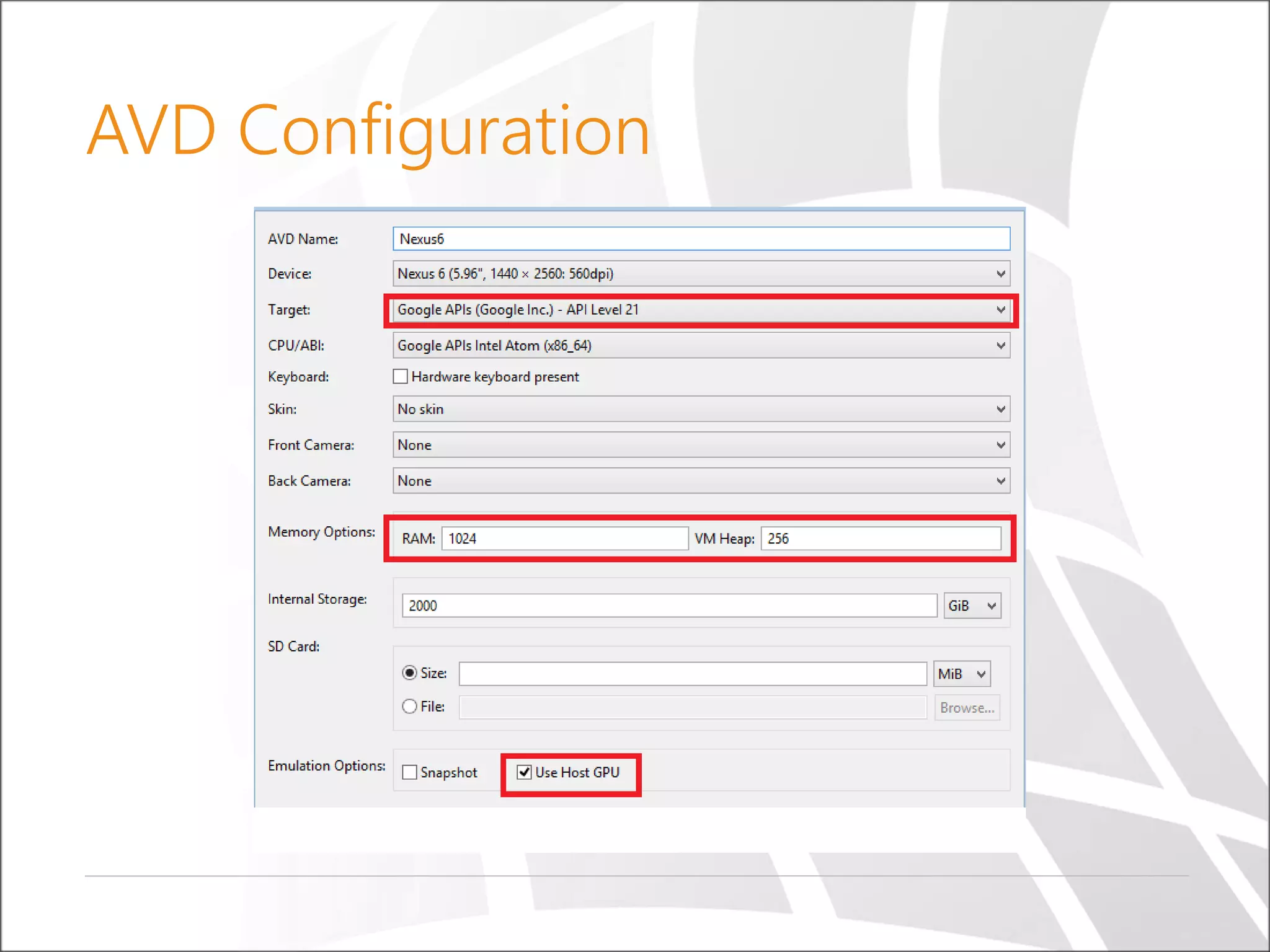
AVD Configuration
Android Emulators
Questions

Android CI and Appium

  • 1.
    Copyright © SELASoftware & Education Labs, Ltd. | 14-18 Baruch Hirsch St., Bnei Brak 51202, Israel | www.selagroup.com Mobile CI & Appium Oren Ashkenazy Mail: orena@sela.co.il Blog: http://blogs.microsoft.co.il/oren604/
  • 2.
    What is Xamarin? Whatis Continues Integration? Getting your APK for google store Deploy APK (Emulator) TFS Build Template Integration Why Appium? Finding the objects Appium Project Demo WebDriver Common Commands Android Emulators Agenda
  • 3.
  • 4.
  • 5.
    Create a PrivateKey (Java SDK): $ keytool -genkey -v -keystore <filename>.keystore -alias <key-name> -keyalg RSA -keysize 2048 -validity 10000 Compile The Project: Msbuild.exe MyAwesomeApp.sln /t:PackageForAndroid Sign the APK using (Java SDK): $ jarsigner -verbose -sigalg SHA1withRSA -digestalg SHA1 - keystore xample.keystore MyAwesomeApp.apk publishingdoc Zipalign the APK (Android SDK Build Tools): zipalign –MyAwesomeApp.apk MyAwesomeApp-Aligned.apk Store Ready – The Commands
  • 6.
    Uninstall Previous Installation: adb<machineName> uninstall <name of package/application> Install New Package: adb <machineName> install MyAwesomeApp- Aligned.apk *adb = Android Debug Bridge ADB Deploy & Install
  • 7.
  • 8.
    Web/Native/Hybrid Apps Selenium BasedFramework Cross Platform (IOS/Android/WP) Open Source Easy Setup & Configuration Why Appium?
  • 9.
    Appium Architecture Web DriverScript Appium Server (Node.JS) Automation commands are sent via JSON 1 2Appium Sever invoke commands on devices 3 Appium Server logs the result to console 4 Client sends back notification to the server 4.2 +
  • 10.
    System Requirements JAVA SDK AndroidSDK Appium Server Android Device (Real/Emulator) with Android 4.2+ ADB Interface Drivers
  • 11.
    Find Android Objects UIAutomationViewer (Under Android SDK Tools) Scans UI objects Get Xpath hierarchy
  • 12.
  • 13.
    Setting The TestProject Required Packages: MS Unit Test or Nunit Appium WebDriver Selenium WebDriver
  • 14.
  • 15.
    Test Setup –here we’ll setup the application and driver variables [TestInitialize] public void TestInit() { DesiredCapabilities capabilities = new DesiredCapabilities(); capabilities.SetCapability("device", "Android"); capabilities.SetCapability(CapabilityType.Platform, "Windows"); capabilities.SetCapability("deviceName", "H30-U10"); capabilities.SetCapability("platformName", "Android"); capabilities.SetCapability("platformVersion", "5.02"); capabilities.SetCapability("appPackage", "com.appName"); capabilities.SetCapability("appActivity", "com.appName.Main"); driver = new AndroidDriver(new Uri("http://127.0.0.1:4723/wd/hub"), capabilities, TimeSpan.FromSeconds(180)); } TestInitialize
  • 16.
    Test Setup –here we’ll setup the application and driver variables [TestInitialize] public void TestInit() { DesiredCapabilities capabilities = new DesiredCapabilities(); capabilities.SetCapability("device", "Android"); capabilities.SetCapability(CapabilityType.Platform, "Windows"); capabilities.SetCapability("deviceName", "H30-U10"); capabilities.SetCapability("platformName", "Android"); capabilities.SetCapability("platformVersion", "5.02"); capabilities.SetCapability("appPackage", "com.appName"); // capabilities.SetCapability("appActivity", "com.appName.Main"); capabilities.SetCapability("app", @“C:Appscom.mobile.AppName-Signed.apk"); driver = new AndroidDriver(new Uri("http://127.0.0.1:4723/wd/hub"), capabilities, TimeSpan.FromSeconds(180)); } TestInitialize – app install
  • 17.
    var tabs =driver.FindElements(By.Id("com.whatsapp:id/tab")); foreach (var tab in tabs) { if (tab.Text == "CHATS") { tab.Click(); } } driver.FindElement(By.Id("com.whatsapp:id/menuitem_new_conversation")).Click(); var contacts = driver.FindElements(By.Id("com.whatsapp:id/contactpicker_row_name")); driver.FindElement(By.Id("android:id/search_src_text")).SendKeys(“Contact"); driver.FindElement(By.Id("com.whatsapp:id/contactpicker_row_content")).Click(); driver.FindElement(By.Id("com.whatsapp:id/entry")).SendKeys("Hello"); driver.FindElement(By.Id("com.whatsapp:id/send")).Click(); TestMethod
  • 18.
    WebDriver Basic Methods Actions Clear(); Click(); FindElement(string); Array/ListFindElements(string,string…); SendKeys(string); Submit(); Explore GetAttribute(); GetCSSValue(); Enable(); Selected(); Size(); Text();
  • 19.
    The need forspeed… We need fast emulators!!
  • 20.
  • 21.
  • 22.

Editor's Notes

  • #4 Xamarin is a cross platform development tool that allows a .NET developer to develop apps that can target multiple mobile platforms. 70-90% Shared Code
  • #5 Continuous Integration is a software engineering practice in which an automated build compiles and optionally tests an app when code is added or changed by developers in the project's version control repository.  התהליך שאני הולך להראות לכם היום, לא מחייב אותכם לקפוץ למים להתחיל לשנות מטודולגיות. תתחילו להפעיל בילד שעובד בלילה, תוסיפו טסטים. תעבו את התהליך ואז תראו אם יש צורך ואתם בשלים.
  • #6 Create a Private Key – This step needs to be performed only once. A private key is necessary to digitally sign the APK. After the private key has been prepared, this step can be skipped for future release builds. Sign the APK – This step involves signing the APK with the private key that was created in the previous step. Zipalign the APK – Zipalign is an optimization process that is performed on an application. It enables Android to interact more efficiently with the APK at runtime. Xamarin.Android conducts a check at runtime, and will not allow the application to run if the APK has not been zipaligned.
  • #7 The Android Debug Bridge (adb) provides a Unix shell that you can use to run a variety of commands on an emulator or connected device. The command binaries are stored in the file system of the emulator or device
  • #10 Appium is an open source test automation tool for mobile applications. It allows you to test all the three types of mobile applications: native, hybrid and mobile web. It also allows you to run the automated tests on actual devices, emulators and simulators. Client/Server Architecture Appium is at its heart a webserver that exposes a REST API. It receives connections from a client, listens for commands, executes those commands on a mobile device, and responds with an HTTP response representing the result of the command execution. The fact that we have a client/server architecture opens up a lot of possibilities: we can write our test code in any language that has a http client API, but it is easier to use one of the Appium client libraries. We can put the server on a different machine than our tests are running on. We can write test code and rely on a cloud service like Sauce Labs to receive and interpret the commands.
  • #16 For every application you want to test, you must know its package name and app activity name. So to know about these attributes, you need to download a little android app on your phone. It is called apkInfo. It will show you the package name and activityname of any android app installed on your phone. Just pass these parameters here and that app will launch on your phone by automation code.
  • #17 For every application you want to test, you must know its package name and app activity name. So to know about these attributes, you need to download a little android app on your phone. It is called apkInfo. It will show you the package name and activityname of any android app installed on your phone. Just pass these parameters here and that app will launch on your phone by automation code.