APPIUM UNDERSTANDING DOCUMENT
What is Appium?
Appium is an open source test automation tool for mobile applications. It allows you to test all the three
types of mobile applications: native, hybrid and mobile web. It also allows you to run the automated
tests on actual devices, emulators and simulators. Today when every mobile app is made in at least two
platform iOS and Android, you for sure need a tool, which allows testing cross platform. Having two
different frameworks for the same app increases the cost of the product and time to maintain it as well.
The basic philosophy of Appium is that you should be able to reuse code between iOS and Android, and
that’s why when you see the API they are same across iOS and android. Another important thing to
highlight here is that Appium doesn’t modify your app or need you to even recompile the app. Appium
lets you choose the language you want to write your test in. It doesn’t dictate the language or
framework to be used.
Appium Architecture:-
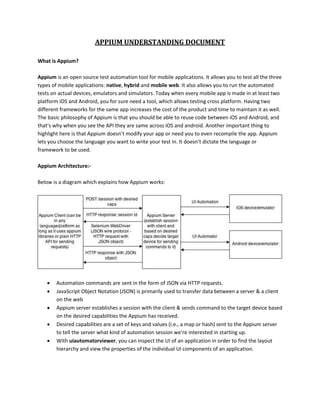
Below is a diagram which explains how Appium works:
 Automation commands are sent in the form of JSON via HTTP requests.
 JavaScript Object Notation (JSON) is primarily used to transfer data between a server & a client
on the web
 Appium server establishes a session with the client & sends command to the target device based
on the desired capabilities the Appium has received.
 Desired capabilities are a set of keys and values (i.e., a map or hash) sent to the Appium server
to tell the server what kind of automation session we’re interested in starting up.
 With uiautomatorviewer, you can inspect the UI of an application in order to find the layout
hierarchy and view the properties of the individual UI components of an application.
Appium System Installation Guide:-
 Pre-requisites for Appium Installation :-
 Installation of JDK 1.7 or higher
 Installation of Android SDK
 Eclipse IDE of your choice
 Android Requirements :
 Install Android SDK API >=17
Step by Step Installation Guide:
 Download & Install .NET Framework 4.5 (if not installed earlier on your machine)
 Download & install JDK 7 & higher
 Set Java Home & path in the Environment Variables
 Download Eclipse
 Install TestNG from Eclipse marketplace
 Enable developer mode on your Android mobile
 Download Android SDK
 Set Android Home & path in the Environment Variables
 Open SDK Manager & update all the Android API levels which are greater than level 17
 Download & install latest Appium executable from
https://bitbucket.org/appium/appium.app/downloads/ (the current latest version is 1.3.7.2)
 Download Appium client libraries from
https://search.maven.org/#search%7Cga%7C1%7Cg%3Aio.appium%20a%3Ajava-client (Appium
java-client 2.2.0 .jar)
 Download Selenium jars from http://docs.seleniumhq.org/download/ for java (latest version is
2.45.0)
 Download gson.jar for appium from
http://mvnrepository.com/artifact/com.google.code.gson/gson/2.2.4
 Download Node.js & install from https://nodejs.org/
Steps to create and run android test script:
1. Go to Appium downloaded package unzip and click on “Appium.exe”. Appium server console will be
open like below:
2. You can change IP address to the IP of your local machine. Keep the port as default i.e. 4723.
3. Click on Launch button to run Appium server you should see Appium server running window like
below
4. Launch emulator or connect device to the machine. Run adb command from command prompt to
check device is connected to your machine.
5. Below is sample code of webdriver in java for Appium in TestNg framework.
Sample Code:-
import java.io.File;
import java.net.MalformedURLException;
import java.net.URL;
import java.util.concurrent.TimeUnit;
import org.openqa.selenium.By;
import org.openqa.selenium.WebElement;
import org.openqa.selenium.remote.DesiredCapabilities;
import org.openqa.selenium.remote.RemoteWebDriver;
import org.openqa.selenium.remote.server.handler.interactions.touch.Flick;
import org.testng.annotations.Test;
import io.appium.java_client.InteractsWithApps;
import io.appium.java_client.SwipeElementDirection;
import io.appium.java_client.android.AndroidDriver;
public class WhatsApp {
AndroidDriver driver;
@Test
public void testWhatsApp() throws MalformedURLException {
DesiredCapabilities capabilities = new DesiredCapabilities();
capabilities.setCapability("deviceName", "D6502");
capabilities.setCapability("platformVersion", "5.0.2");
capabilities.setCapability("platformName", "Android");
File file = new File("E:AKSHAYassignmentsSelenium_WorkspaceAppium
TestapkWhatsApp.apk");
capabilities.setCapability("app", file.getAbsolutePath());
capabilities.setCapability("app-package", "com.whatsapp");
capabilities.setCapability("app-activity", ".HomeActivity");
driver = new AndroidDriver(new URL("http://10.0.1.20:4723/wd/hub"),
capabilities);
driver.manage().timeouts().implicitlyWait(3, TimeUnit.SECONDS);
driver.findElementById("com.whatsapp:id/menuitem_search").click();
WebElement text = driver.findElementByClassName("android.widget.EditText");
driver.manage().timeouts().implicitlyWait(3, TimeUnit.SECONDS);
text.sendKeys("cd kitne");
driver.manage().timeouts().implicitlyWait(3, TimeUnit.SECONDS);
driver.findElementById("com.whatsapp:id/conversations_row_contact_name").click();
driver.manage().timeouts().implicitlyWait(3, TimeUnit.SECONDS);
for(int i=0;i<4;i++){
driver.manage().timeouts().implicitlyWait(3, TimeUnit.SECONDS);
driver.findElementById("com.whatsapp:id/entry").sendKeys("Hi Guys..");
driver.findElementById("com.whatsapp:id/send").click();
}
driver.closeApp();
}
}
The above Sample code is used to automate WhatsApp in which message is sent to a WhatsApp group
on execution of code.
Automating Gestures:-
Gestures play an important role in how your app is being used. With lot of unique gesture supported on
mobile devices, automation has its own challenge. Some of the common gestures are:
 single tap
 double tap
 flick (left or right)
 pull down to refresh
 long press
Appium handles these gestures using TouchActions api they have created. It’s more like Actions class in
Selenium. Apart from that they have also enabled JSON wire protocol server extensions. We can pass in
coordinates as parameters and specify the action we want. Sample code would look like as:
JavascriptExecutor js = (JavascriptExecutor) driver;
HashMap<String, Double> swipeObject = new HashMap<String, Double>();
swipeObject.put(“startX”, 0.01);
swipeObject.put(“startY”, 0.5);
swipeObject.put(“endX”, 0.9);
swipeObject.put(“endY”, 0.6);
swipeObject.put(“duration”, 3.0);
js.executeScript(“mobile: swipe”, swipeObject);
When we enter the coordinates in decimal, it actually specifies the percentage. So in above example it
means, 1% from x and 50% from y coordinates. Duration basically specifies how long it will tap and is in
seconds.
Some of the mobile methods to be used are:
 mobile: tap
 mobile: flick
 mobile: swipe
 mobile: scroll
 mobile: shake
Prefix “mobile:” allows us to route these requests to the appropriate endpoint.
TouchActions class provided by Selenium. It implements actions for touch devices and basically built
upon the Actions class.

Appium understanding document

  • 1.
    APPIUM UNDERSTANDING DOCUMENT Whatis Appium? Appium is an open source test automation tool for mobile applications. It allows you to test all the three types of mobile applications: native, hybrid and mobile web. It also allows you to run the automated tests on actual devices, emulators and simulators. Today when every mobile app is made in at least two platform iOS and Android, you for sure need a tool, which allows testing cross platform. Having two different frameworks for the same app increases the cost of the product and time to maintain it as well. The basic philosophy of Appium is that you should be able to reuse code between iOS and Android, and that’s why when you see the API they are same across iOS and android. Another important thing to highlight here is that Appium doesn’t modify your app or need you to even recompile the app. Appium lets you choose the language you want to write your test in. It doesn’t dictate the language or framework to be used. Appium Architecture:- Below is a diagram which explains how Appium works:  Automation commands are sent in the form of JSON via HTTP requests.  JavaScript Object Notation (JSON) is primarily used to transfer data between a server & a client on the web  Appium server establishes a session with the client & sends command to the target device based on the desired capabilities the Appium has received.  Desired capabilities are a set of keys and values (i.e., a map or hash) sent to the Appium server to tell the server what kind of automation session we’re interested in starting up.  With uiautomatorviewer, you can inspect the UI of an application in order to find the layout hierarchy and view the properties of the individual UI components of an application.
  • 2.
    Appium System InstallationGuide:-  Pre-requisites for Appium Installation :-  Installation of JDK 1.7 or higher  Installation of Android SDK  Eclipse IDE of your choice  Android Requirements :  Install Android SDK API >=17 Step by Step Installation Guide:  Download & Install .NET Framework 4.5 (if not installed earlier on your machine)  Download & install JDK 7 & higher  Set Java Home & path in the Environment Variables  Download Eclipse  Install TestNG from Eclipse marketplace  Enable developer mode on your Android mobile  Download Android SDK  Set Android Home & path in the Environment Variables  Open SDK Manager & update all the Android API levels which are greater than level 17  Download & install latest Appium executable from https://bitbucket.org/appium/appium.app/downloads/ (the current latest version is 1.3.7.2)  Download Appium client libraries from https://search.maven.org/#search%7Cga%7C1%7Cg%3Aio.appium%20a%3Ajava-client (Appium java-client 2.2.0 .jar)  Download Selenium jars from http://docs.seleniumhq.org/download/ for java (latest version is 2.45.0)  Download gson.jar for appium from http://mvnrepository.com/artifact/com.google.code.gson/gson/2.2.4  Download Node.js & install from https://nodejs.org/
  • 3.
    Steps to createand run android test script: 1. Go to Appium downloaded package unzip and click on “Appium.exe”. Appium server console will be open like below: 2. You can change IP address to the IP of your local machine. Keep the port as default i.e. 4723. 3. Click on Launch button to run Appium server you should see Appium server running window like below 4. Launch emulator or connect device to the machine. Run adb command from command prompt to check device is connected to your machine. 5. Below is sample code of webdriver in java for Appium in TestNg framework. Sample Code:- import java.io.File; import java.net.MalformedURLException; import java.net.URL; import java.util.concurrent.TimeUnit;
  • 4.
    import org.openqa.selenium.By; import org.openqa.selenium.WebElement; importorg.openqa.selenium.remote.DesiredCapabilities; import org.openqa.selenium.remote.RemoteWebDriver; import org.openqa.selenium.remote.server.handler.interactions.touch.Flick; import org.testng.annotations.Test; import io.appium.java_client.InteractsWithApps; import io.appium.java_client.SwipeElementDirection; import io.appium.java_client.android.AndroidDriver; public class WhatsApp { AndroidDriver driver; @Test public void testWhatsApp() throws MalformedURLException { DesiredCapabilities capabilities = new DesiredCapabilities(); capabilities.setCapability("deviceName", "D6502"); capabilities.setCapability("platformVersion", "5.0.2"); capabilities.setCapability("platformName", "Android"); File file = new File("E:AKSHAYassignmentsSelenium_WorkspaceAppium TestapkWhatsApp.apk"); capabilities.setCapability("app", file.getAbsolutePath()); capabilities.setCapability("app-package", "com.whatsapp"); capabilities.setCapability("app-activity", ".HomeActivity"); driver = new AndroidDriver(new URL("http://10.0.1.20:4723/wd/hub"), capabilities); driver.manage().timeouts().implicitlyWait(3, TimeUnit.SECONDS); driver.findElementById("com.whatsapp:id/menuitem_search").click(); WebElement text = driver.findElementByClassName("android.widget.EditText"); driver.manage().timeouts().implicitlyWait(3, TimeUnit.SECONDS); text.sendKeys("cd kitne"); driver.manage().timeouts().implicitlyWait(3, TimeUnit.SECONDS); driver.findElementById("com.whatsapp:id/conversations_row_contact_name").click(); driver.manage().timeouts().implicitlyWait(3, TimeUnit.SECONDS); for(int i=0;i<4;i++){ driver.manage().timeouts().implicitlyWait(3, TimeUnit.SECONDS); driver.findElementById("com.whatsapp:id/entry").sendKeys("Hi Guys.."); driver.findElementById("com.whatsapp:id/send").click(); } driver.closeApp(); } }
  • 5.
    The above Samplecode is used to automate WhatsApp in which message is sent to a WhatsApp group on execution of code. Automating Gestures:- Gestures play an important role in how your app is being used. With lot of unique gesture supported on mobile devices, automation has its own challenge. Some of the common gestures are:  single tap  double tap  flick (left or right)  pull down to refresh  long press Appium handles these gestures using TouchActions api they have created. It’s more like Actions class in Selenium. Apart from that they have also enabled JSON wire protocol server extensions. We can pass in coordinates as parameters and specify the action we want. Sample code would look like as: JavascriptExecutor js = (JavascriptExecutor) driver; HashMap<String, Double> swipeObject = new HashMap<String, Double>(); swipeObject.put(“startX”, 0.01); swipeObject.put(“startY”, 0.5); swipeObject.put(“endX”, 0.9); swipeObject.put(“endY”, 0.6); swipeObject.put(“duration”, 3.0); js.executeScript(“mobile: swipe”, swipeObject); When we enter the coordinates in decimal, it actually specifies the percentage. So in above example it means, 1% from x and 50% from y coordinates. Duration basically specifies how long it will tap and is in seconds. Some of the mobile methods to be used are:  mobile: tap  mobile: flick  mobile: swipe  mobile: scroll  mobile: shake Prefix “mobile:” allows us to route these requests to the appropriate endpoint. TouchActions class provided by Selenium. It implements actions for touch devices and basically built upon the Actions class.