Mobile testing Automation
using Appium for Android
Aliaa Monier
Eclipse IDE for Java
SeleniumWebDriver
Agenda
• What is Appium?
• Appium Architecture
• How Appium works in Android?
• Installation Summary.
• Turn On USB Debugging on Android Device.
• Find appPackage and appActivity name of Android app.
• UIAutomatorViewer 101.
• First AppiumTest Script ~ Demo.
• AppiumTest Script usingTestNG ~ Demo
• References.
What is Appium?
• Appium is an open source test automation tool developed
and supported by Sauce Labs to automate native and
hybrid mobile apps.
• It is basically known as a Cross-Platform Mobile Automation
Tool.
• It uses JSONWire Protocol internally to interact with iOS
and Android native apps using the SeleniumWebDriver.
Appium Architecture
• Appium is a HTTP server written in node.js which creates
and handles multiple WebDriver sessions for different
platforms like iOS and Android.
• Appium starts a “test case” on the device that hosts a
server and listens for proxies commands from the
main Appium server.
• Appium perceives HTTP requests from selenium client
libraries and it handles those requests in different ways
depending upon the platforms.
How Appium works in Android?
Bootstrap.jar
UIAutomator
Command
Server
TCP Server
Webdriver Script
driver.findElement(By.id("sear
ch_box_idle_text")).setValue("
Google");
WebDrivercontroller
UIAutomator
Controller
(Android)
UIAutomator
Command
Client
TCP Client
Installation Summary
JAVA
• Download and Install Java JDK.
• Setup Java Environment Variables.
Android
• Download and Install Android Studio.
• Install additional Android SDK tools (adb , UIAutomatorViewer…)
• Setup Android Environment Variables.
NodeJs
• Download and Install NodeJs.
Appium
• Download and Install Appium Desktop Client.
• Download Appium Jars for Eclipse ( SeleniumWebDriver Jars & Appium Java Client Jar )
Eclipse
• Download and Install Eclipse IDE for Java.
• Create Eclipse project and add Appium JAR files to your Project.
TestNG
• Install TestNG Eclipse plugin.
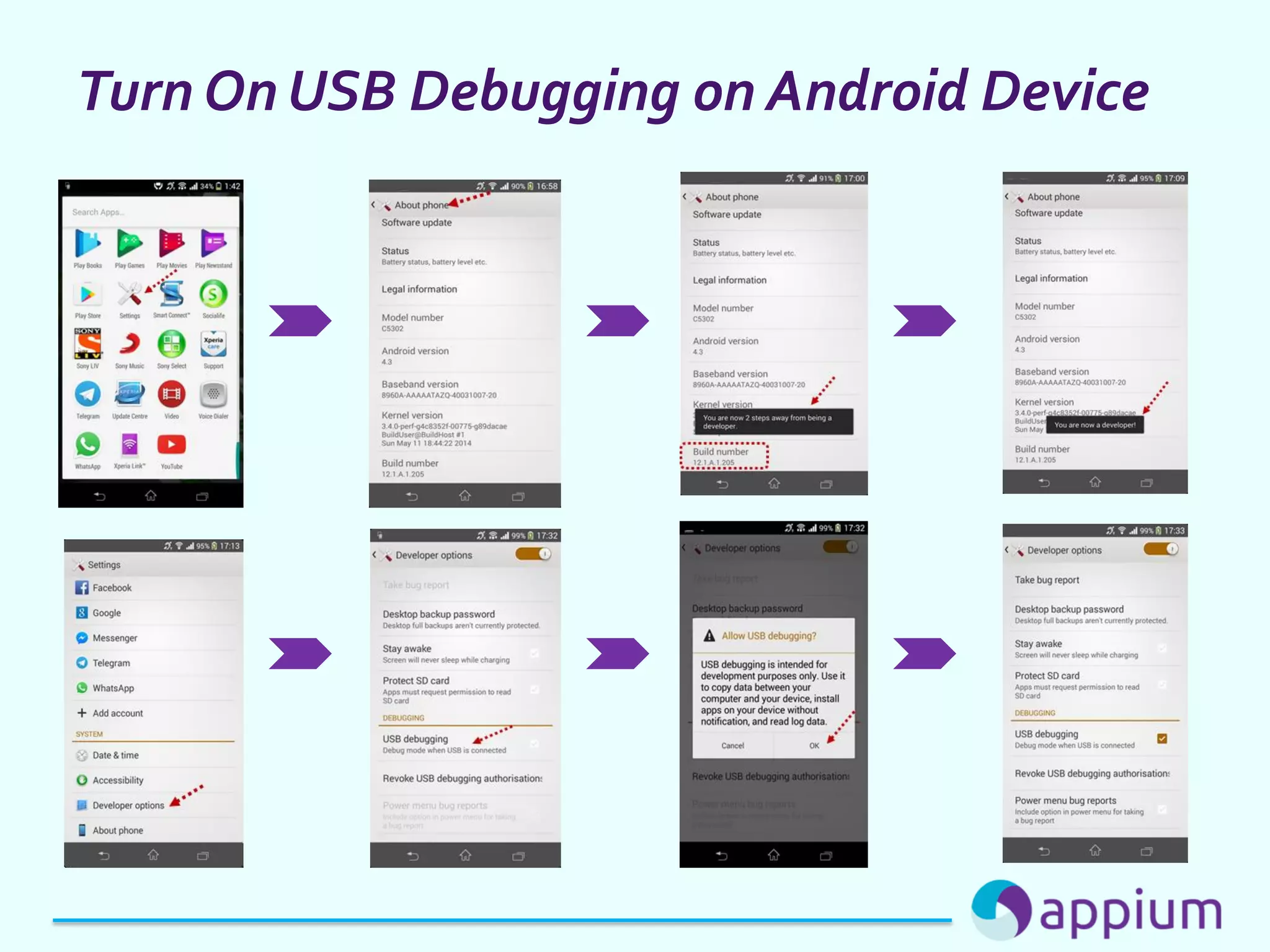
Turn On USB Debugging on Android Device
Enabling USB Debugging on your android device is a two step
process:
• First, get the Developer options on your phone
• Then, use Developer options to enable USB Debugging
Turn On USB Debugging on Android Device
Find appPackage and appActivity name of Android app
1 - Unlock your mobile device and connect it to your computer using USB cable.
2 - Open Command Prompt and run the command : adb devices We are running this command to
just make sure that your mobile is properly connected.
3 - Run ‘adb shell’ command.
4 - Now in your mobile phone, open the app for which you want to find the appPackage and
appActivity.
5 - Now run this command: dumpsys window windows | grep -E ‘mCurrentFocus’
UIAutomatorViewer 101
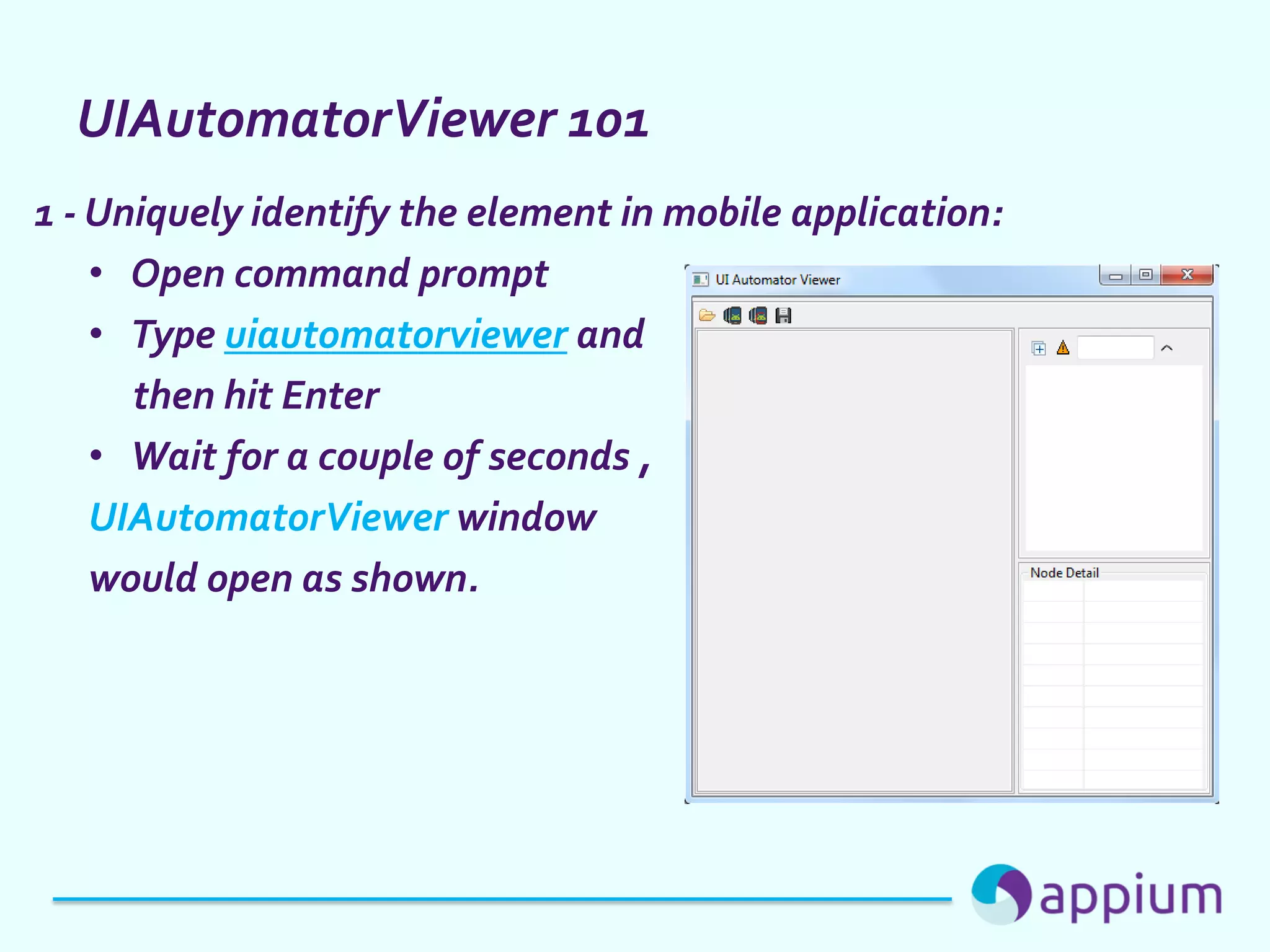
1 - Uniquely identify the element in mobile application:
• Open command prompt
• Type uiautomatorviewer and
then hit Enter
• Wait for a couple of seconds ,
UIAutomatorViewer window
would open as shown.
UIAutomatorViewer 101
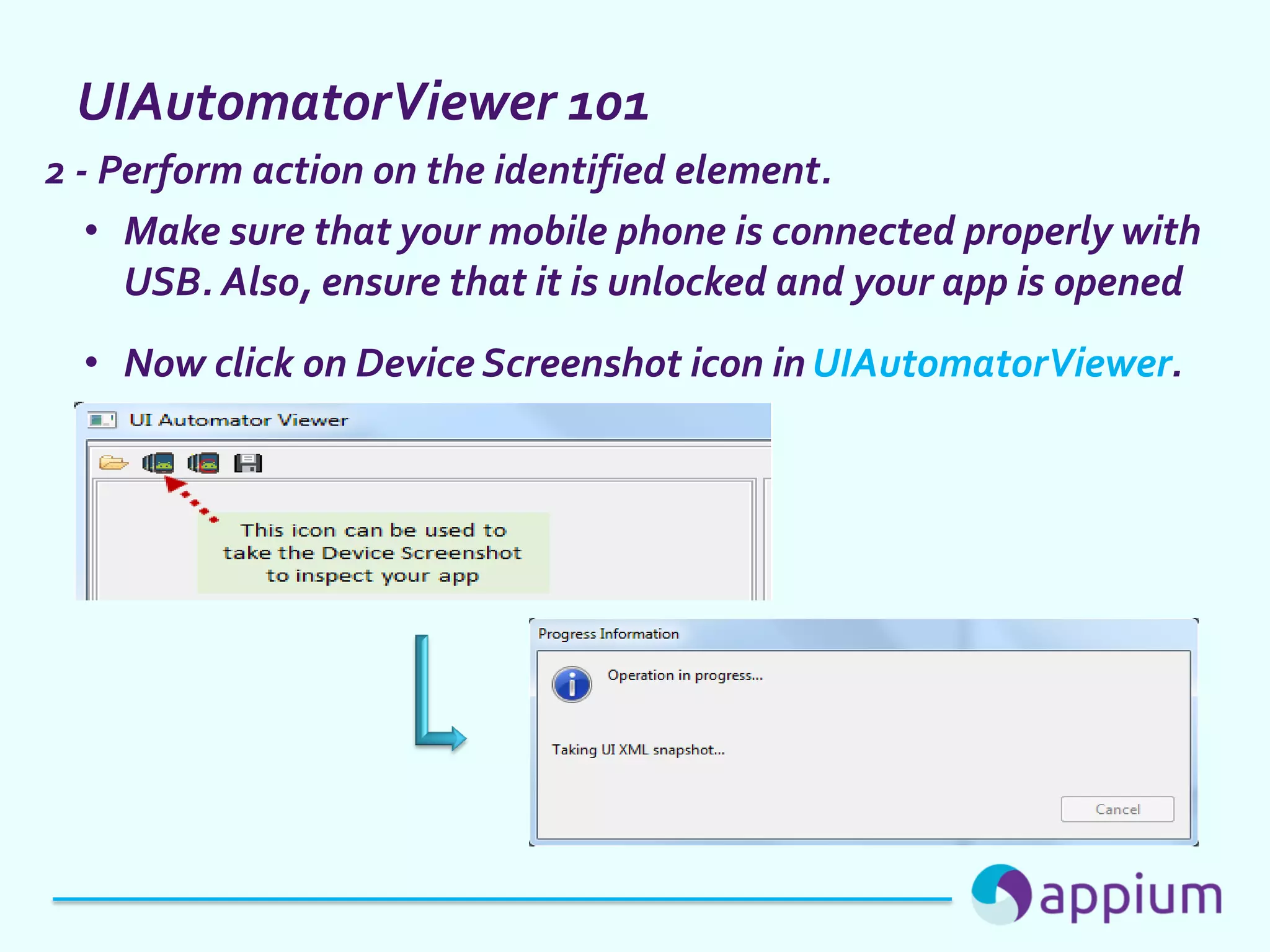
2 - Perform action on the identified element.
• Make sure that your mobile phone is connected properly with
USB. Also, ensure that it is unlocked and your app is opened
• Now click on Device Screenshot icon in UIAutomatorViewer.
UIAutomatorViewer 101
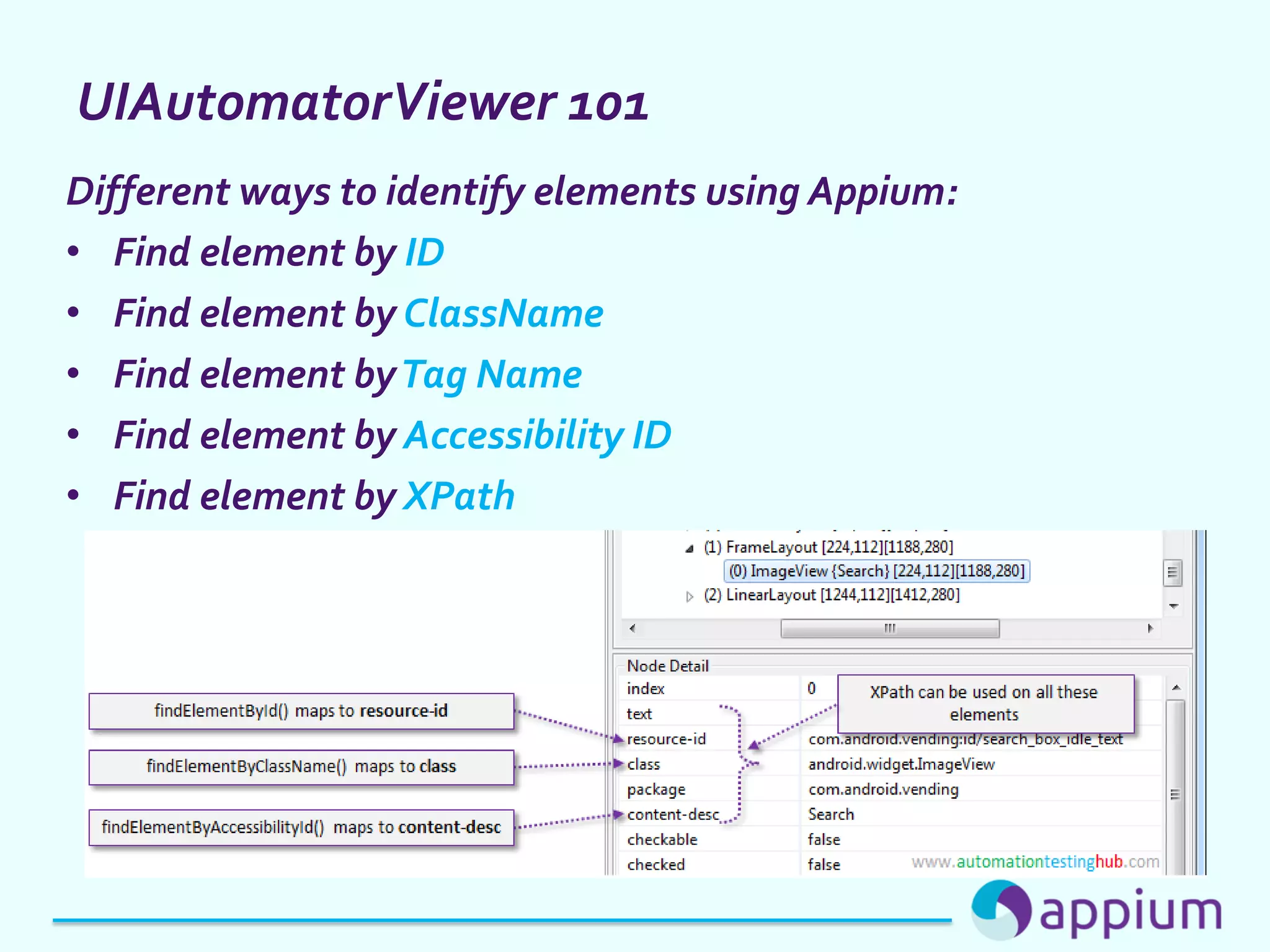
Different ways to identify elements using Appium:
• Find element by ID
• Find element by ClassName
• Find element byTag Name
• Find element by Accessibility ID
• Find element by XPath
Demo
First AppiumTest Script
• Start Appium Server
• Get your Mobile Phone’s Device ID
• Get your Mobile Phone’s Android version
• Find out appPackage and appActivity names of the mobile app
• Write AppiumTest Script
• Run AppiumTest Script
AppiumTest Script usingTestNG
References
http://toolsqa.com/mobile-automation/appium/appium-a-cross-platform-mobile-automation-tool/
http://www.automationtestinghub.com/appium-tutorial/
http://toolsqa.com/mobile-automation/appium/appium-test-using-testng/

Appuim 101

  • 1.
    Mobile testing Automation usingAppium for Android Aliaa Monier Eclipse IDE for Java SeleniumWebDriver
  • 2.
    Agenda • What isAppium? • Appium Architecture • How Appium works in Android? • Installation Summary. • Turn On USB Debugging on Android Device. • Find appPackage and appActivity name of Android app. • UIAutomatorViewer 101. • First AppiumTest Script ~ Demo. • AppiumTest Script usingTestNG ~ Demo • References.
  • 3.
    What is Appium? •Appium is an open source test automation tool developed and supported by Sauce Labs to automate native and hybrid mobile apps. • It is basically known as a Cross-Platform Mobile Automation Tool. • It uses JSONWire Protocol internally to interact with iOS and Android native apps using the SeleniumWebDriver.
  • 4.
    Appium Architecture • Appiumis a HTTP server written in node.js which creates and handles multiple WebDriver sessions for different platforms like iOS and Android. • Appium starts a “test case” on the device that hosts a server and listens for proxies commands from the main Appium server. • Appium perceives HTTP requests from selenium client libraries and it handles those requests in different ways depending upon the platforms.
  • 5.
    How Appium worksin Android? Bootstrap.jar UIAutomator Command Server TCP Server Webdriver Script driver.findElement(By.id("sear ch_box_idle_text")).setValue(" Google"); WebDrivercontroller UIAutomator Controller (Android) UIAutomator Command Client TCP Client
  • 6.
    Installation Summary JAVA • Downloadand Install Java JDK. • Setup Java Environment Variables. Android • Download and Install Android Studio. • Install additional Android SDK tools (adb , UIAutomatorViewer…) • Setup Android Environment Variables. NodeJs • Download and Install NodeJs. Appium • Download and Install Appium Desktop Client. • Download Appium Jars for Eclipse ( SeleniumWebDriver Jars & Appium Java Client Jar ) Eclipse • Download and Install Eclipse IDE for Java. • Create Eclipse project and add Appium JAR files to your Project. TestNG • Install TestNG Eclipse plugin.
  • 7.
    Turn On USBDebugging on Android Device Enabling USB Debugging on your android device is a two step process: • First, get the Developer options on your phone • Then, use Developer options to enable USB Debugging
  • 8.
    Turn On USBDebugging on Android Device
  • 9.
    Find appPackage andappActivity name of Android app 1 - Unlock your mobile device and connect it to your computer using USB cable. 2 - Open Command Prompt and run the command : adb devices We are running this command to just make sure that your mobile is properly connected. 3 - Run ‘adb shell’ command. 4 - Now in your mobile phone, open the app for which you want to find the appPackage and appActivity. 5 - Now run this command: dumpsys window windows | grep -E ‘mCurrentFocus’
  • 10.
    UIAutomatorViewer 101 1 -Uniquely identify the element in mobile application: • Open command prompt • Type uiautomatorviewer and then hit Enter • Wait for a couple of seconds , UIAutomatorViewer window would open as shown.
  • 11.
    UIAutomatorViewer 101 2 -Perform action on the identified element. • Make sure that your mobile phone is connected properly with USB. Also, ensure that it is unlocked and your app is opened • Now click on Device Screenshot icon in UIAutomatorViewer.
  • 12.
  • 13.
    UIAutomatorViewer 101 Different waysto identify elements using Appium: • Find element by ID • Find element by ClassName • Find element byTag Name • Find element by Accessibility ID • Find element by XPath
  • 14.
  • 15.
    First AppiumTest Script •Start Appium Server • Get your Mobile Phone’s Device ID • Get your Mobile Phone’s Android version • Find out appPackage and appActivity names of the mobile app • Write AppiumTest Script • Run AppiumTest Script
  • 16.
  • 17.