Mobile Automation Testing Using APPIUM
Created By: Keshav Kashyap
Agenda:-
 What is Mobile Automation?
 How to Setup Android SDK?
 Install and Un-install Application using CMD
 How to get App Properties?
 How to Use Appium?
 How to program in Eclipse using Appium?
 What are Desired Capabilities?
 How to find elements in Mobile App using UI Automator?
 Sample Program and Demo
 Limitations of Appium
What is Mobile Automation?

Mobile Automated testing provides a mechanism to
consistently repeat a test procedure and verify application
results. It can be effective both for regression testing as
well during development.

Testing mobile applications is different and more
complex than testing traditional desktop and web
applications.

Mobile applications need to be tested on a variety of
software platforms and versions, on diverse hardware and
form factors, and under different network connectivity
conditions.

Moreover, the rapid pace of mobile OS updates, the
frequent introduction of new devices and the customer
expectation of quick upgrades require additional test
cycles
Challenges in Mobile Automation Testing :-
Two Key Challenges in Mobile Application Test Automation
Mobile Platforms and Technology Coverage
The primary factor that determines an automation tool’s success is its ability to
work across platforms and technology stacks. The following challenges influence
automation success:
Device Diversity:
Multiple platforms and browsers.
Rendering differences.
Mobile devices with varied application run times.
Network Challenges:
•Multiple network types (e.g., GSM/GPRS/Wi-Fi/Wi-Max).
•Different speeds of connectivity across geographies.
•Multiple network operators with customized network features.
Hardware Challenges:
•Limitations in processing speed.
•Limitations of mobile memory size.
Pre-Requisites for Mobile Automation :-
• Eclipse should be installed
• Android SDK and APIs for recent versions of
Android
• Selenium Webdriver knowledge.
• Java knowledge.
• Basic Knowledge of Mobile.
Setup :-

Download Selenium Java zip archive and extract all the
files in a folder called Selenium.

Download Appium for Windows zip archive and extract
all files in a folder called Appium.

Download Appium Java client jar

Create a new java project in Eclipse and add Selenium and
Appium Java client Jar files
How to Setup Android SDK?
 Install and Setup JAVA
 Setup Java Path in Environment Variables.
 Setup Path in User Variable
 Setup JAVA_HOME in User Variable
C:Program FilesJavajdk1.7.0bin;
 Check that whether Java is installed on your system or not.
 Open cmd  type Java -version  Output will provide the installed version of
Java
 Install Android SDK OR Just Copy SDK folder shared by anyone.
If you don’t have SDK folder then you have to just click on the above installer_r16-
windows.exe. By default it will be installed in C:Program FilesAndroid. You have to
just copy the folder and paste it to some other drive. E.g.:- D:SDK
 Now setup ANDROID_HOME
 Setup Tools and Platform Tools Path in User Variable
 Restart the system (Strongly Recommended)
Install and Un-install Application using CMD
Install an App :-
adb install full_path_of_apk
adb install C:UsersTTNDDownloadsteamchat.apk
Un-Install an App :-
adb uninstall package_name_of_apk
adb uninstall com.famelive
How to get App Properties:-
• For app properties we have to use
command:-
D:SDKbuild-tools22.0.1aapt.exe dump
badging app_name.apk
What is Appium?:-
Appium is an Open source , Cross Platform test
automation tool for mobile apps
Hosted with GitHub
 Maintained by Dan Cuellar, Jonathan Lipps and
a number of other contributors
Supports automation of Native , Hybrid and
Mobile Web apps
Based on WebDriver JSON wire protocol
Based on Client-Server Architecture
Appium Server written in Node.js
Appium Architecture:-
How to Use or Run Appium?:-
Go to the Appium folder you downloaded earlier and run Appium.exe.
Click on General Settings button (second button) and verify URL you defined
in Eclipse matches the server address and port from the Appium app.
Click on Launch Button.
How to program in Eclipse using
Appium:-
What are Desired Capabilities?
Desired Capabilities are a set of keys and values sent to the Appium server to tell
the server what kind of automation session we’re interested in starting up.
DesiredCapabilities capabilities = new DesiredCapabilities();
capabilities.setCapability(CapabilityType.BROWSER_NAME, “”);
capabilities.setCapability(“platformName”, “Android”);
capabilities.setCapability(CapabilityType.VERSION, “4.4”);
capabilities.setCapability(“deviceName”, “111bd508”);
capabilities.setCapability(“app”, app.getAbsolutePath());
capabilities.setCapability(“appPackage”, “com.example.android.contactmanager”);
capabilities.setCapability(“appActivity”, “.ContactManager”);
driver = new AndroidDriver(new URL(“http://127.0.0.1:4723/wd/hub”), capabilities);
Setup Mobile Device For Automation:-
• For setting up mobile devices, we have to verify
that whether developer options is enable or not.
• USB Debugging is allowed or not.
• For Real device, Android version must be 4.2 or
above.
Object Identification Using UI Automator:-
 Go to SDK folder and open the tools folder.
 Open uiautomatorviewer.
 On the actual device, open the app to the page you want to
automate.
 In UI Automator Viewer, click on Device screenshot
(second button).
 Click any element on the page and look in the Node detail
window (there you will find details about the selected
element: id, class, name, etc.)
 Use the info found (id, class) in Eclipse to click buttons, fill
input fields
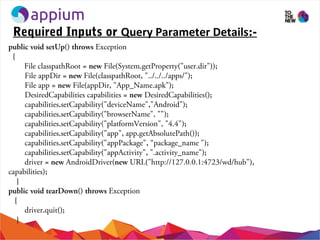
Required Inputs or Query Parameter Details:-
public void setUp() throws Exception
{
File classpathRoot = new File(System.getProperty("user.dir"));
File appDir = new File(classpathRoot, "../../../apps/");
File app = new File(appDir, "App_Name.apk");
DesiredCapabilities capabilities = new DesiredCapabilities();
capabilities.setCapability("deviceName","Android");
capabilities.setCapability("browserName", "");
capabilities.setCapability("platformVersion", "4.4");
capabilities.setCapability("app", app.getAbsolutePath());
capabilities.setCapability("appPackage", “package_name ");
capabilities.setCapability("appActivity", ".activity_name");
driver = new AndroidDriver(new URL("http://127.0.0.1:4723/wd/hub"),
capabilities);
}
public void tearDown() throws Exception
{
driver.quit();
}
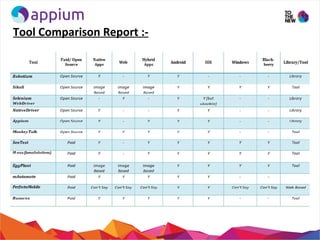
Tool Comparison Report :-
Advantages of Appium:-
• Open Source Tool
• Support for both platforms iOS and android.
• Handles simulators/emulators and real devices
• Supports automation of hybrid, native and webapps
• Supports most of the programming languages like Java, Ruby,
Python, C# etc.
Limitations of Appium:-
• Appium doesn’t perform testing on mobile devices support
Android Version lower than 4.2.
• Under Developing stage can't use for big project initially
• Doesn't support image comparison.
• Facing difficulty in testing the switching action of application
(from the web app to native and vice-versa).
Appium

Appium

  • 1.
    Mobile Automation TestingUsing APPIUM Created By: Keshav Kashyap
  • 2.
    Agenda:-  What isMobile Automation?  How to Setup Android SDK?  Install and Un-install Application using CMD  How to get App Properties?  How to Use Appium?  How to program in Eclipse using Appium?  What are Desired Capabilities?  How to find elements in Mobile App using UI Automator?  Sample Program and Demo  Limitations of Appium
  • 3.
    What is MobileAutomation?  Mobile Automated testing provides a mechanism to consistently repeat a test procedure and verify application results. It can be effective both for regression testing as well during development.  Testing mobile applications is different and more complex than testing traditional desktop and web applications.  Mobile applications need to be tested on a variety of software platforms and versions, on diverse hardware and form factors, and under different network connectivity conditions.  Moreover, the rapid pace of mobile OS updates, the frequent introduction of new devices and the customer expectation of quick upgrades require additional test cycles
  • 4.
    Challenges in MobileAutomation Testing :- Two Key Challenges in Mobile Application Test Automation Mobile Platforms and Technology Coverage The primary factor that determines an automation tool’s success is its ability to work across platforms and technology stacks. The following challenges influence automation success: Device Diversity: Multiple platforms and browsers. Rendering differences. Mobile devices with varied application run times. Network Challenges: •Multiple network types (e.g., GSM/GPRS/Wi-Fi/Wi-Max). •Different speeds of connectivity across geographies. •Multiple network operators with customized network features. Hardware Challenges: •Limitations in processing speed. •Limitations of mobile memory size.
  • 5.
    Pre-Requisites for MobileAutomation :- • Eclipse should be installed • Android SDK and APIs for recent versions of Android • Selenium Webdriver knowledge. • Java knowledge. • Basic Knowledge of Mobile.
  • 6.
    Setup :-  Download SeleniumJava zip archive and extract all the files in a folder called Selenium.  Download Appium for Windows zip archive and extract all files in a folder called Appium.  Download Appium Java client jar  Create a new java project in Eclipse and add Selenium and Appium Java client Jar files
  • 7.
    How to SetupAndroid SDK?  Install and Setup JAVA  Setup Java Path in Environment Variables.  Setup Path in User Variable  Setup JAVA_HOME in User Variable C:Program FilesJavajdk1.7.0bin;  Check that whether Java is installed on your system or not.  Open cmd  type Java -version  Output will provide the installed version of Java  Install Android SDK OR Just Copy SDK folder shared by anyone. If you don’t have SDK folder then you have to just click on the above installer_r16- windows.exe. By default it will be installed in C:Program FilesAndroid. You have to just copy the folder and paste it to some other drive. E.g.:- D:SDK  Now setup ANDROID_HOME  Setup Tools and Platform Tools Path in User Variable  Restart the system (Strongly Recommended)
  • 8.
    Install and Un-installApplication using CMD Install an App :- adb install full_path_of_apk adb install C:UsersTTNDDownloadsteamchat.apk Un-Install an App :- adb uninstall package_name_of_apk adb uninstall com.famelive
  • 9.
    How to getApp Properties:- • For app properties we have to use command:- D:SDKbuild-tools22.0.1aapt.exe dump badging app_name.apk
  • 10.
    What is Appium?:- Appiumis an Open source , Cross Platform test automation tool for mobile apps Hosted with GitHub  Maintained by Dan Cuellar, Jonathan Lipps and a number of other contributors Supports automation of Native , Hybrid and Mobile Web apps Based on WebDriver JSON wire protocol Based on Client-Server Architecture Appium Server written in Node.js
  • 11.
  • 12.
    How to Useor Run Appium?:- Go to the Appium folder you downloaded earlier and run Appium.exe. Click on General Settings button (second button) and verify URL you defined in Eclipse matches the server address and port from the Appium app. Click on Launch Button.
  • 13.
    How to programin Eclipse using Appium:-
  • 14.
    What are DesiredCapabilities? Desired Capabilities are a set of keys and values sent to the Appium server to tell the server what kind of automation session we’re interested in starting up. DesiredCapabilities capabilities = new DesiredCapabilities(); capabilities.setCapability(CapabilityType.BROWSER_NAME, “”); capabilities.setCapability(“platformName”, “Android”); capabilities.setCapability(CapabilityType.VERSION, “4.4”); capabilities.setCapability(“deviceName”, “111bd508”); capabilities.setCapability(“app”, app.getAbsolutePath()); capabilities.setCapability(“appPackage”, “com.example.android.contactmanager”); capabilities.setCapability(“appActivity”, “.ContactManager”); driver = new AndroidDriver(new URL(“http://127.0.0.1:4723/wd/hub”), capabilities);
  • 15.
    Setup Mobile DeviceFor Automation:- • For setting up mobile devices, we have to verify that whether developer options is enable or not. • USB Debugging is allowed or not. • For Real device, Android version must be 4.2 or above.
  • 16.
    Object Identification UsingUI Automator:-  Go to SDK folder and open the tools folder.  Open uiautomatorviewer.  On the actual device, open the app to the page you want to automate.  In UI Automator Viewer, click on Device screenshot (second button).  Click any element on the page and look in the Node detail window (there you will find details about the selected element: id, class, name, etc.)  Use the info found (id, class) in Eclipse to click buttons, fill input fields
  • 17.
    Required Inputs orQuery Parameter Details:- public void setUp() throws Exception { File classpathRoot = new File(System.getProperty("user.dir")); File appDir = new File(classpathRoot, "../../../apps/"); File app = new File(appDir, "App_Name.apk"); DesiredCapabilities capabilities = new DesiredCapabilities(); capabilities.setCapability("deviceName","Android"); capabilities.setCapability("browserName", ""); capabilities.setCapability("platformVersion", "4.4"); capabilities.setCapability("app", app.getAbsolutePath()); capabilities.setCapability("appPackage", “package_name "); capabilities.setCapability("appActivity", ".activity_name"); driver = new AndroidDriver(new URL("http://127.0.0.1:4723/wd/hub"), capabilities); } public void tearDown() throws Exception { driver.quit(); }
  • 18.
  • 19.
    Advantages of Appium:- •Open Source Tool • Support for both platforms iOS and android. • Handles simulators/emulators and real devices • Supports automation of hybrid, native and webapps • Supports most of the programming languages like Java, Ruby, Python, C# etc.
  • 20.
    Limitations of Appium:- •Appium doesn’t perform testing on mobile devices support Android Version lower than 4.2. • Under Developing stage can't use for big project initially • Doesn't support image comparison. • Facing difficulty in testing the switching action of application (from the web app to native and vice-versa).