How to Test Android and iOS Mobile
Apps with Appium
Delivering seamless and robust applications across Android and iOS
platforms is no longer a luxury but a necessity. Users expect flawless
performance, intuitive interfaces, and consistent experiences regardless of
their device choice. Developers and QA teams must employ effective testing
strategies to meet these high expectations. This comprehensive guide
explores how Appium is a powerful tool for automating mobile app testing on
Android and iOS, ensuring your application stands out in a crowded market.
The Importance of Mobile App Testing
Mobile apps are indispensable tools in our daily lives, from managing finances
to staying connected with loved ones. However, the diversity of devices,
operating systems, and user behaviors presents significant challenges in
delivering a high-quality app experience.
Challenges in Mobile App Development:
● Device Fragmentation: Hundreds of devices with varying screen
sizes, hardware capabilities, and OS versions.
● Platform Diversity: Differences between Android and iOS ecosystems
require tailored testing approaches.
● User Expectations: Demand for quick load times, intuitive navigation,
and bug-free interactions.
Effective testing bridges the gap between development and user satisfaction,
ensuring that applications perform optimally under various conditions.
Introducing Appium: The Cross-Platform
Solution
Appium enables native, hybrid, and mobile web app testing on Android and
iOS platforms. Its design philosophy revolves around simplicity and flexibility,
allowing testers to write tests using preferred tools and programming
languages.
Key Features of Appium:
● Cross-Platform Compatibility: Write one test script for both Android
and iOS.
● Language Support: Utilize languages like Java, Python, Ruby, and
more.
● No App Modification Required: Test apps without altering code or
adding extra components.
● Standard Automation APIs: Leverage the WebDriver protocol for
consistency and reliability.
Appium reduces complexity and accelerates the QA process by providing a
unified testing environment.
Leveraging Advanced Appium Features
Appium offers advanced functionalities to enhance your testing capabilities.
Multi-Platform Testing
● Single Codebase: Write tests running on Android and iOS by
abstracting platform-specific elements.
● Conditional Logic: Use runtime checks to handle platform
differences.
Gesture Automation
● Touch Actions: Simulate complex gestures like swipe, pinch, and
zoom.
● Multi-Touch Support: Test apps that rely on multi-finger interactions.
Performance Testing
● Monitor Resource Usage: Track CPU, memory, and network utilization
during tests.
● Benchmarking: Compare performance metrics across different
devices and OS versions.
Integration with CI/CD Pipelines
● Continuous Testing: Incorporate Appium tests into Jenkins, Travis CI,
or other tools.
● Automated Reports: Generate test reports and logs for analysis.
Setting Up Appium for Android App
Testing
You'll need to set up your environment accordingly to harness the power of
Appium for Android app testing.
Prerequisites
● Java Development Kit (JDK): Fundamental for running Appium and
developing test scripts.
● Android SDK: Provides essential tools and libraries for Android app
development and testing.
● Node.js and NPM: Required for installing Appium server.
● Appium Server: These bridges test scripts and the mobile device.
● Testing Framework: Use TestNG or JUnit to structure your tests.
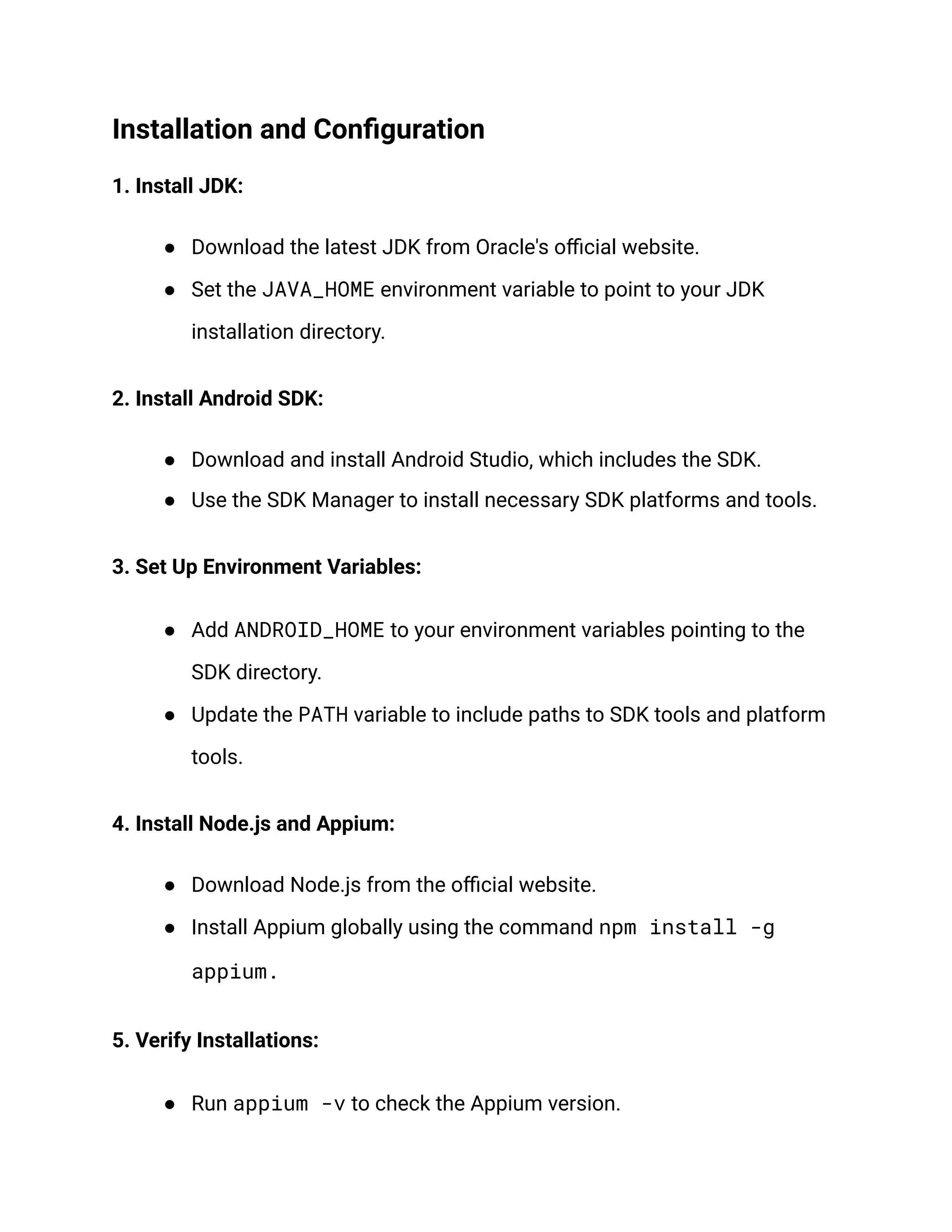
Installation and Configuration
1. Install JDK:
● Download the latest JDK from Oracle's official website.
● Set the JAVA_HOME environment variable to point to your JDK
installation directory.
2. Install Android SDK:
● Download and install Android Studio, which includes the SDK.
● Use the SDK Manager to install necessary SDK platforms and tools.
3. Set Up Environment Variables:
● Add ANDROID_HOME to your environment variables pointing to the
SDK directory.
● Update the PATH variable to include paths to SDK tools and platform
tools.
4. Install Node.js and Appium:
● Download Node.js from the official website.
● Install Appium globally using the command npm install -g
appium.
5. Verify Installations:
● Run appium -v to check the Appium version.
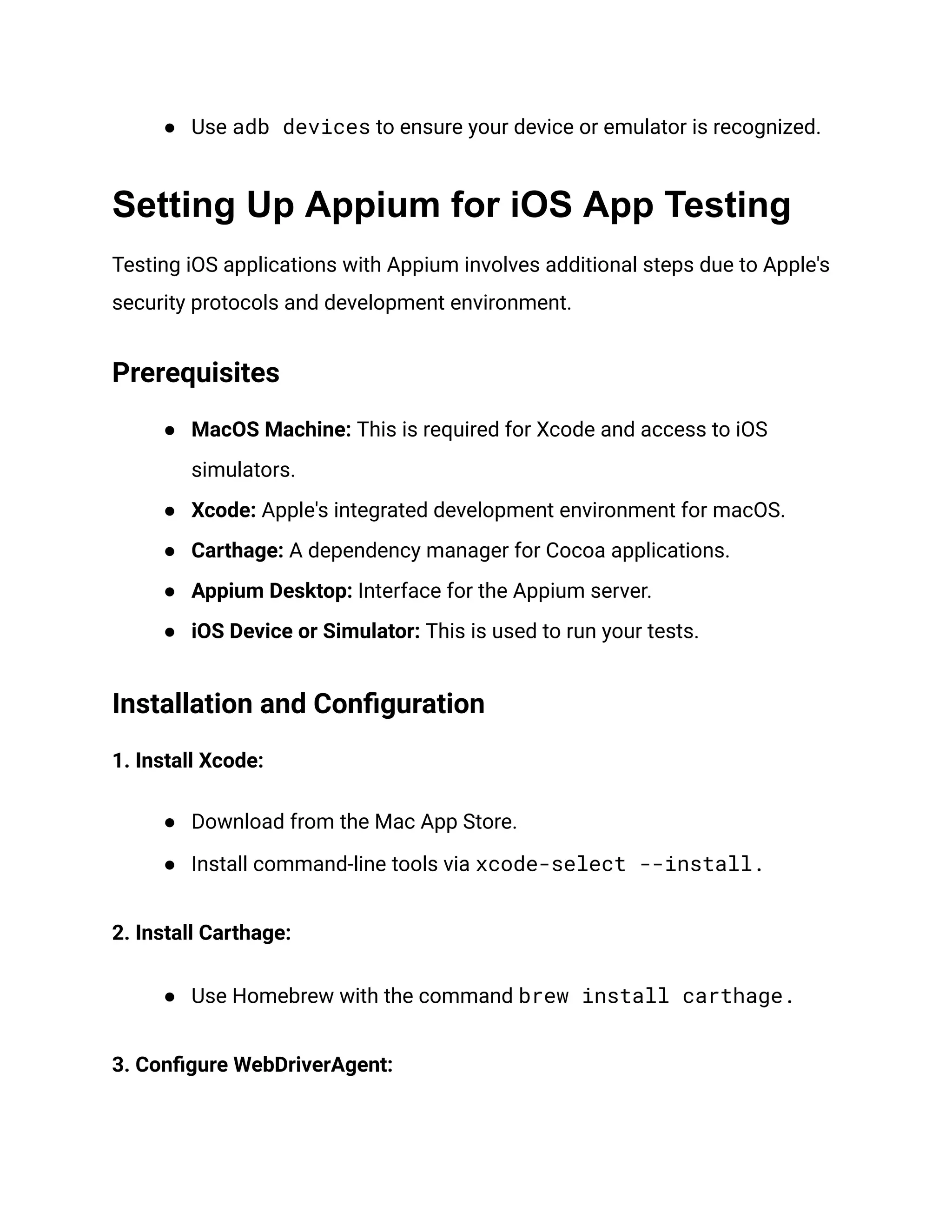
● Use adb devices to ensure your device or emulator is recognized.
Setting Up Appium for iOS App Testing
Testing iOS applications with Appium involves additional steps due to Apple's
security protocols and development environment.
Prerequisites
● MacOS Machine: This is required for Xcode and access to iOS
simulators.
● Xcode: Apple's integrated development environment for macOS.
● Carthage: A dependency manager for Cocoa applications.
● Appium Desktop: Interface for the Appium server.
● iOS Device or Simulator: This is used to run your tests.
Installation and Configuration
1. Install Xcode:
● Download from the Mac App Store.
● Install command-line tools via xcode-select --install.
2. Install Carthage:
● Use Homebrew with the command brew install carthage.
3. Configure WebDriverAgent:
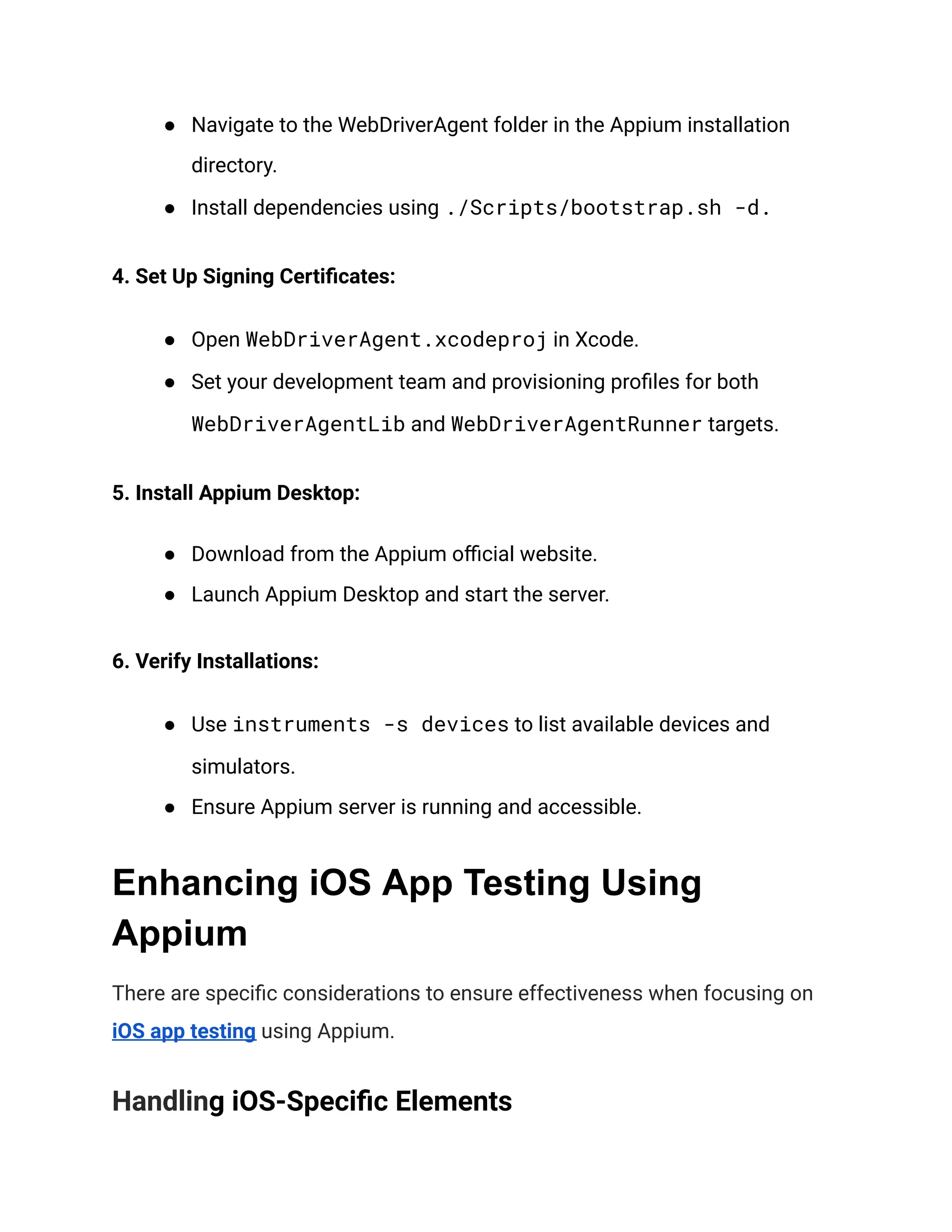
● Navigate to the WebDriverAgent folder in the Appium installation
directory.
● Install dependencies using ./Scripts/bootstrap.sh -d.
4. Set Up Signing Certificates:
● Open WebDriverAgent.xcodeproj in Xcode.
● Set your development team and provisioning profiles for both
WebDriverAgentLib and WebDriverAgentRunner targets.
5. Install Appium Desktop:
● Download from the Appium official website.
● Launch Appium Desktop and start the server.
6. Verify Installations:
● Use instruments -s devices to list available devices and
simulators.
● Ensure Appium server is running and accessible.
Enhancing iOS App Testing Using
Appium
There are specific considerations to ensure effectiveness when focusing on
iOS app testing using Appium.
Handling iOS-Specific Elements
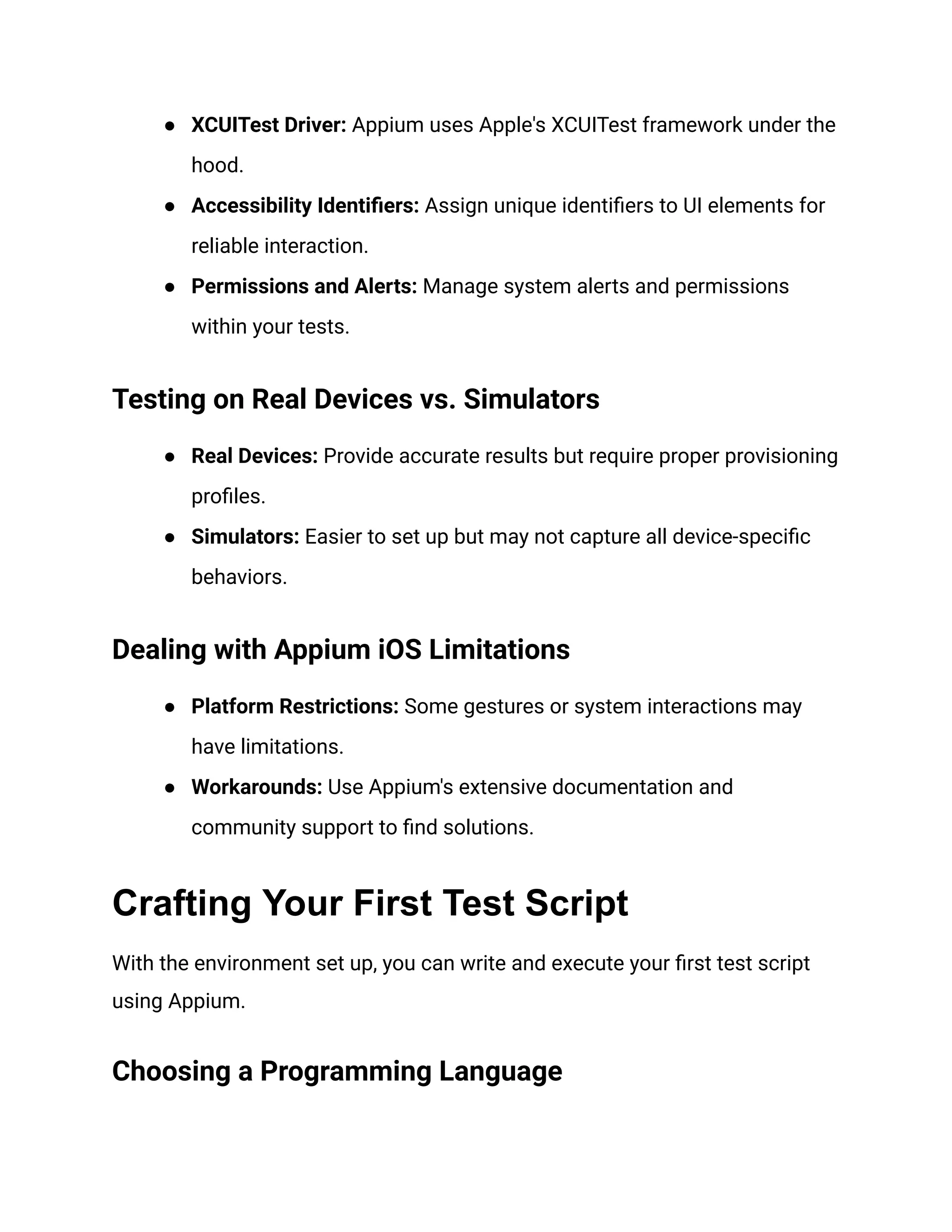
● XCUITest Driver: Appium uses Apple's XCUITest framework under the
hood.
● Accessibility Identifiers: Assign unique identifiers to UI elements for
reliable interaction.
● Permissions and Alerts: Manage system alerts and permissions
within your tests.
Testing on Real Devices vs. Simulators
● Real Devices: Provide accurate results but require proper provisioning
profiles.
● Simulators: Easier to set up but may not capture all device-specific
behaviors.
Dealing with Appium iOS Limitations
● Platform Restrictions: Some gestures or system interactions may
have limitations.
● Workarounds: Use Appium's extensive documentation and
community support to find solutions.
Crafting Your First Test Script
With the environment set up, you can write and execute your first test script
using Appium.
Choosing a Programming Language
Unset
Appium's flexibility allows you to select a language that best fits your team's
expertise. Popular choices include:
● Java
● Python
● JavaScript
● Ruby
Writing the Test Script
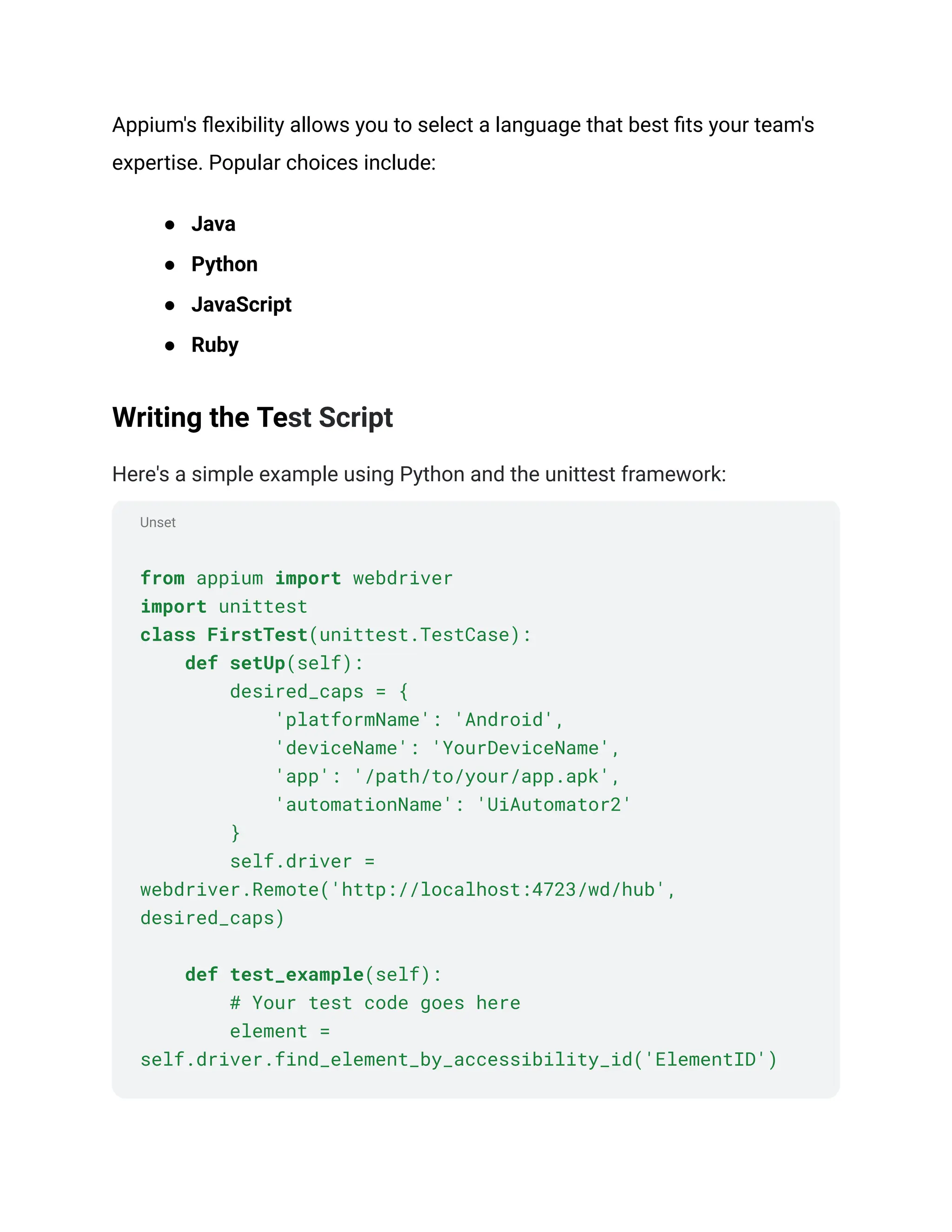
Here's a simple example using Python and the unittest framework:
from appium import webdriver
import unittest
class FirstTest(unittest.TestCase):
def setUp(self):
desired_caps = {
'platformName': 'Android',
'deviceName': 'YourDeviceName',
'app': '/path/to/your/app.apk',
'automationName': 'UiAutomator2'
}
self.driver =
webdriver.Remote('http://localhost:4723/wd/hub',
desired_caps)
def test_example(self):
# Your test code goes here
element =
self.driver.find_element_by_accessibility_id('ElementID')
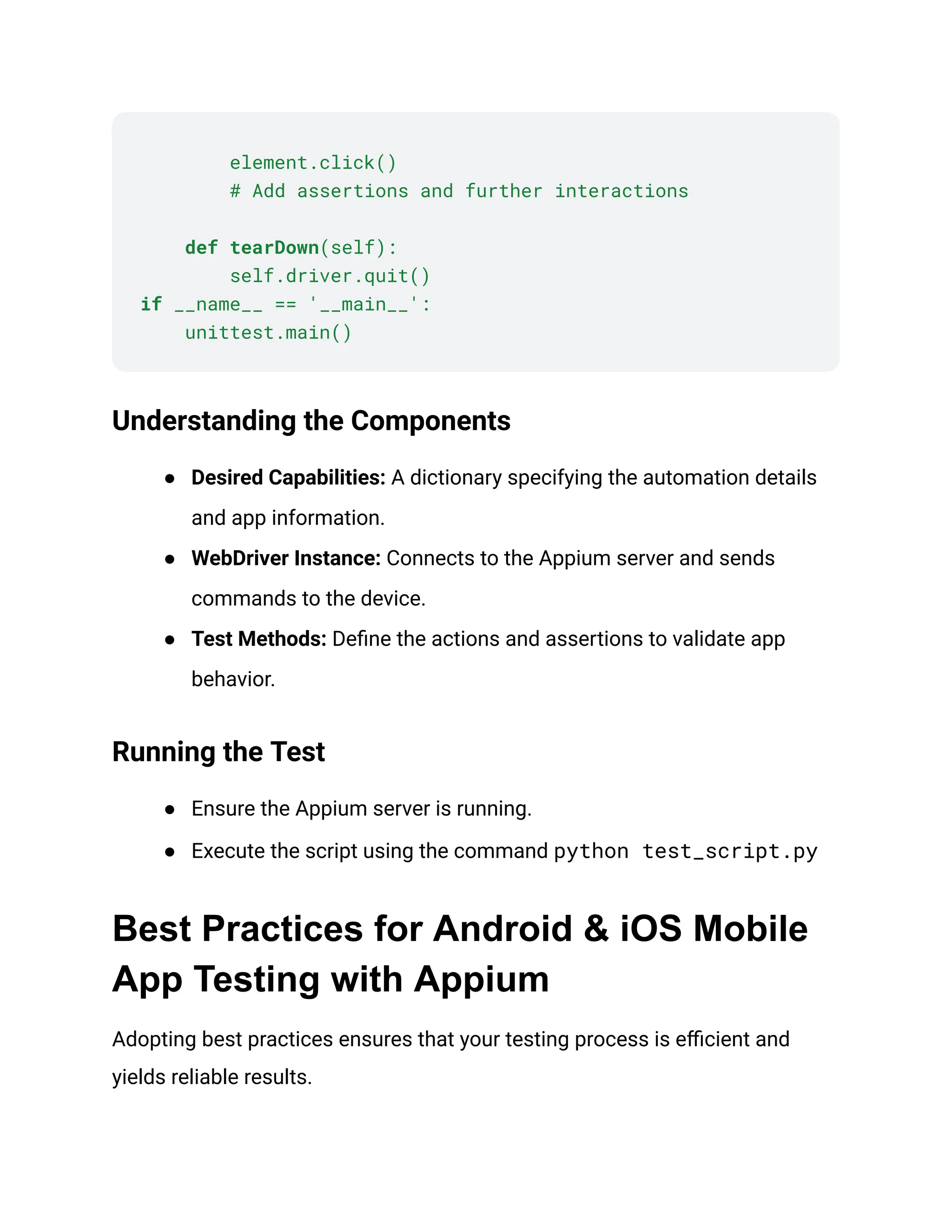
element.click()
# Add assertions and further interactions
def tearDown(self):
self.driver.quit()
if __name__ == '__main__':
unittest.main()
Understanding the Components
● Desired Capabilities: A dictionary specifying the automation details
and app information.
● WebDriver Instance: Connects to the Appium server and sends
commands to the device.
● Test Methods: Define the actions and assertions to validate app
behavior.
Running the Test
● Ensure the Appium server is running.
● Execute the script using the command python test_script.py‍
Best Practices for Android & iOS Mobile
App Testing with Appium
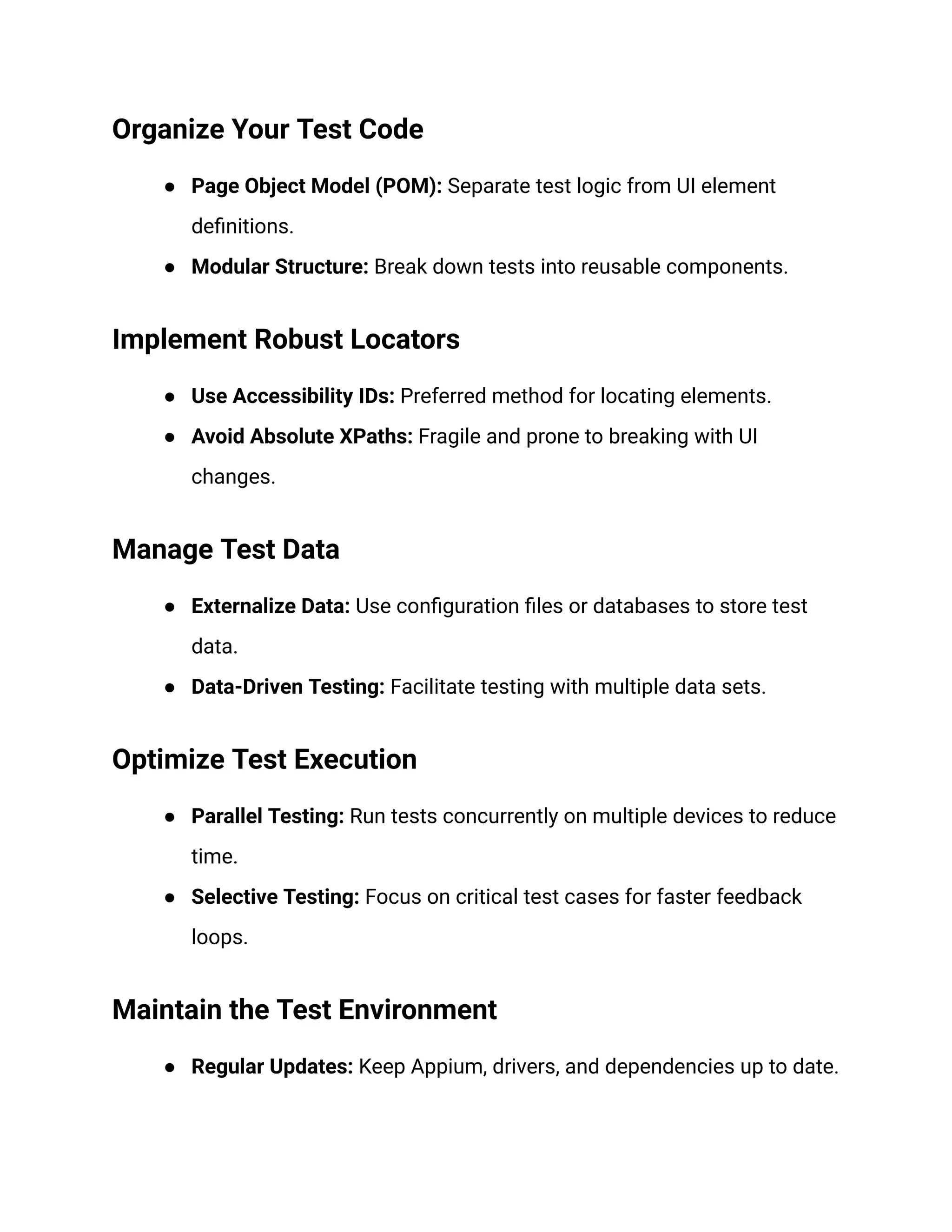
Adopting best practices ensures that your testing process is efficient and
yields reliable results.
Organize Your Test Code
● Page Object Model (POM): Separate test logic from UI element
definitions.
● Modular Structure: Break down tests into reusable components.
Implement Robust Locators
● Use Accessibility IDs: Preferred method for locating elements.
● Avoid Absolute XPaths: Fragile and prone to breaking with UI
changes.
Manage Test Data
● Externalize Data: Use configuration files or databases to store test
data.
● Data-Driven Testing: Facilitate testing with multiple data sets.
Optimize Test Execution
● Parallel Testing: Run tests concurrently on multiple devices to reduce
time.
● Selective Testing: Focus on critical test cases for faster feedback
loops.
Maintain the Test Environment
● Regular Updates: Keep Appium, drivers, and dependencies up to date.
● Environment Consistency: Use tools like Docker for consistent
setups.
Conclusion
Testing is a pivotal component in delivering high-quality mobile applications.
Appium provides a comprehensive solution for automating tests across
Android and iOS platforms, streamlining the QA process, and enhancing app
reliability. By leveraging Appium's features and adhering to best practices,
development teams can ensure their applications meet user expectations and
stand out in a competitive market.
To further enhance your testing efforts, consider integrating advanced tools
like HeadSpin. Leveraging HeadSpin's features can elevate your testing
strategy by providing real device testing, performance insights, and seamless
integration with Appium, ultimately helping you deliver exceptional mobile app
experiences.
This article was originally published on:
https://www.headspin.io/blog/android-and-ios-app-testing-with-appium

How to Test Android and iOS Mobile Apps with Appium.pdf

  • 1.
    How to TestAndroid and iOS Mobile Apps with Appium Delivering seamless and robust applications across Android and iOS platforms is no longer a luxury but a necessity. Users expect flawless performance, intuitive interfaces, and consistent experiences regardless of their device choice. Developers and QA teams must employ effective testing strategies to meet these high expectations. This comprehensive guide explores how Appium is a powerful tool for automating mobile app testing on Android and iOS, ensuring your application stands out in a crowded market. The Importance of Mobile App Testing Mobile apps are indispensable tools in our daily lives, from managing finances to staying connected with loved ones. However, the diversity of devices,
  • 2.
    operating systems, anduser behaviors presents significant challenges in delivering a high-quality app experience. Challenges in Mobile App Development: ● Device Fragmentation: Hundreds of devices with varying screen sizes, hardware capabilities, and OS versions. ● Platform Diversity: Differences between Android and iOS ecosystems require tailored testing approaches. ● User Expectations: Demand for quick load times, intuitive navigation, and bug-free interactions. Effective testing bridges the gap between development and user satisfaction, ensuring that applications perform optimally under various conditions. Introducing Appium: The Cross-Platform Solution Appium enables native, hybrid, and mobile web app testing on Android and iOS platforms. Its design philosophy revolves around simplicity and flexibility, allowing testers to write tests using preferred tools and programming languages. Key Features of Appium: ● Cross-Platform Compatibility: Write one test script for both Android and iOS.
  • 3.
    ● Language Support:Utilize languages like Java, Python, Ruby, and more. ● No App Modification Required: Test apps without altering code or adding extra components. ● Standard Automation APIs: Leverage the WebDriver protocol for consistency and reliability. Appium reduces complexity and accelerates the QA process by providing a unified testing environment. Leveraging Advanced Appium Features Appium offers advanced functionalities to enhance your testing capabilities. Multi-Platform Testing ● Single Codebase: Write tests running on Android and iOS by abstracting platform-specific elements. ● Conditional Logic: Use runtime checks to handle platform differences. Gesture Automation ● Touch Actions: Simulate complex gestures like swipe, pinch, and zoom. ● Multi-Touch Support: Test apps that rely on multi-finger interactions. Performance Testing
  • 4.
    ● Monitor ResourceUsage: Track CPU, memory, and network utilization during tests. ● Benchmarking: Compare performance metrics across different devices and OS versions. Integration with CI/CD Pipelines ● Continuous Testing: Incorporate Appium tests into Jenkins, Travis CI, or other tools. ● Automated Reports: Generate test reports and logs for analysis. Setting Up Appium for Android App Testing You'll need to set up your environment accordingly to harness the power of Appium for Android app testing. Prerequisites ● Java Development Kit (JDK): Fundamental for running Appium and developing test scripts. ● Android SDK: Provides essential tools and libraries for Android app development and testing. ● Node.js and NPM: Required for installing Appium server. ● Appium Server: These bridges test scripts and the mobile device. ● Testing Framework: Use TestNG or JUnit to structure your tests.
  • 5.
    Installation and Configuration 1.Install JDK: ● Download the latest JDK from Oracle's official website. ● Set the JAVA_HOME environment variable to point to your JDK installation directory. 2. Install Android SDK: ● Download and install Android Studio, which includes the SDK. ● Use the SDK Manager to install necessary SDK platforms and tools. 3. Set Up Environment Variables: ● Add ANDROID_HOME to your environment variables pointing to the SDK directory. ● Update the PATH variable to include paths to SDK tools and platform tools. 4. Install Node.js and Appium: ● Download Node.js from the official website. ● Install Appium globally using the command npm install -g appium. 5. Verify Installations: ● Run appium -v to check the Appium version.
  • 6.
    ● Use adbdevices to ensure your device or emulator is recognized. Setting Up Appium for iOS App Testing Testing iOS applications with Appium involves additional steps due to Apple's security protocols and development environment. Prerequisites ● MacOS Machine: This is required for Xcode and access to iOS simulators. ● Xcode: Apple's integrated development environment for macOS. ● Carthage: A dependency manager for Cocoa applications. ● Appium Desktop: Interface for the Appium server. ● iOS Device or Simulator: This is used to run your tests. Installation and Configuration 1. Install Xcode: ● Download from the Mac App Store. ● Install command-line tools via xcode-select --install. 2. Install Carthage: ● Use Homebrew with the command brew install carthage. 3. Configure WebDriverAgent:
  • 7.
    ● Navigate tothe WebDriverAgent folder in the Appium installation directory. ● Install dependencies using ./Scripts/bootstrap.sh -d. 4. Set Up Signing Certificates: ● Open WebDriverAgent.xcodeproj in Xcode. ● Set your development team and provisioning profiles for both WebDriverAgentLib and WebDriverAgentRunner targets. 5. Install Appium Desktop: ● Download from the Appium official website. ● Launch Appium Desktop and start the server. 6. Verify Installations: ● Use instruments -s devices to list available devices and simulators. ● Ensure Appium server is running and accessible. Enhancing iOS App Testing Using Appium There are specific considerations to ensure effectiveness when focusing on iOS app testing using Appium. Handling iOS-Specific Elements
  • 8.
    ● XCUITest Driver:Appium uses Apple's XCUITest framework under the hood. ● Accessibility Identifiers: Assign unique identifiers to UI elements for reliable interaction. ● Permissions and Alerts: Manage system alerts and permissions within your tests. Testing on Real Devices vs. Simulators ● Real Devices: Provide accurate results but require proper provisioning profiles. ● Simulators: Easier to set up but may not capture all device-specific behaviors. Dealing with Appium iOS Limitations ● Platform Restrictions: Some gestures or system interactions may have limitations. ● Workarounds: Use Appium's extensive documentation and community support to find solutions. Crafting Your First Test Script With the environment set up, you can write and execute your first test script using Appium. Choosing a Programming Language
  • 9.
    Unset Appium's flexibility allowsyou to select a language that best fits your team's expertise. Popular choices include: ● Java ● Python ● JavaScript ● Ruby Writing the Test Script Here's a simple example using Python and the unittest framework: from appium import webdriver import unittest class FirstTest(unittest.TestCase): def setUp(self): desired_caps = { 'platformName': 'Android', 'deviceName': 'YourDeviceName', 'app': '/path/to/your/app.apk', 'automationName': 'UiAutomator2' } self.driver = webdriver.Remote('http://localhost:4723/wd/hub', desired_caps) def test_example(self): # Your test code goes here element = self.driver.find_element_by_accessibility_id('ElementID')
  • 10.
    element.click() # Add assertionsand further interactions def tearDown(self): self.driver.quit() if __name__ == '__main__': unittest.main() Understanding the Components ● Desired Capabilities: A dictionary specifying the automation details and app information. ● WebDriver Instance: Connects to the Appium server and sends commands to the device. ● Test Methods: Define the actions and assertions to validate app behavior. Running the Test ● Ensure the Appium server is running. ● Execute the script using the command python test_script.py‍ Best Practices for Android & iOS Mobile App Testing with Appium Adopting best practices ensures that your testing process is efficient and yields reliable results.
  • 11.
    Organize Your TestCode ● Page Object Model (POM): Separate test logic from UI element definitions. ● Modular Structure: Break down tests into reusable components. Implement Robust Locators ● Use Accessibility IDs: Preferred method for locating elements. ● Avoid Absolute XPaths: Fragile and prone to breaking with UI changes. Manage Test Data ● Externalize Data: Use configuration files or databases to store test data. ● Data-Driven Testing: Facilitate testing with multiple data sets. Optimize Test Execution ● Parallel Testing: Run tests concurrently on multiple devices to reduce time. ● Selective Testing: Focus on critical test cases for faster feedback loops. Maintain the Test Environment ● Regular Updates: Keep Appium, drivers, and dependencies up to date.
  • 12.
    ● Environment Consistency:Use tools like Docker for consistent setups. Conclusion Testing is a pivotal component in delivering high-quality mobile applications. Appium provides a comprehensive solution for automating tests across Android and iOS platforms, streamlining the QA process, and enhancing app reliability. By leveraging Appium's features and adhering to best practices, development teams can ensure their applications meet user expectations and stand out in a competitive market. To further enhance your testing efforts, consider integrating advanced tools like HeadSpin. Leveraging HeadSpin's features can elevate your testing strategy by providing real device testing, performance insights, and seamless integration with Appium, ultimately helping you deliver exceptional mobile app experiences. This article was originally published on: https://www.headspin.io/blog/android-and-ios-app-testing-with-appium