Android UI Testing
Luke Maung, 2015
Introduction : Luke Maung
Background in mobile / automation
● wrote mobile browser automation system for feature-
phones (Palmsource, 2004+)
● wrote distributed browser UI automation system with
Selenium/WebDriver (Yahoo! 2008+)
● Continuous Integration software engineer (LinkedIn,
2010+)
● Advise automation strategy to start-ups (2011+)
Introduction : Android Automation
● Concepts
● Setup that you can replicate easily
● Common automation use cases
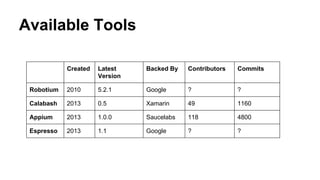
UI Automation Tools - Maturity
Created Latest
Version
Sponsor Committers Commits Automation
Language
Robotium 2010 5.3.1 Google 33 1121 Java
Calabash 2013 0.5.8 Xamarin 56 1361 Ruby
Appium 2013 1.3.1 Saucelabs 139 5423 Multiple
Espresso 2013 2.0 Google 40+ ? Java
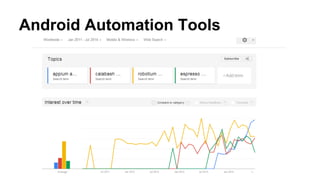
UI Automation Tools - Popularity
Appium : Benefits
1. Tests unmodified App
2. Works well on device and emulator
3. Uses well-defined WebDriver protocol
○ WebDriver is de facto standard for UI automation
○ extensive documentation
4. Good balance of low-level features and abstraction
○ can use any test framework (junit, testng, etc)
○ does not force specific test framework (eg calabash implies cucumber
framework)
5. Saucelabs very actively supports Appium
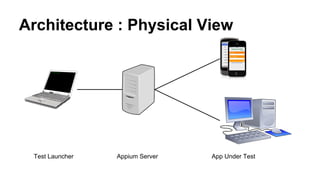
Architecture : Physical View
Test Driver Appium Server App Under Test
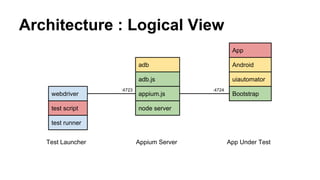
Architecture : Logical View
test runner
test script
webdriver
node server
appium.js
uiautomator
Bootstrap
Android
App
:4723 :4724
Test Driver Appium Server App Under Test
adb.js
adb
Setup: Install Tools
Gradle @ http://www.eng.lsu.edu/mirrors/apache/maven/maven-3/3.0.5/binaries/apache-maven-3.0.5-bin.zip
● GRADLE_HOME=E:gradle
● Add %GRADLE_HOME%bin to PATH
ADT @ https://developer.android.com/sdk/installing/index.html
● ANDROID_HOME = E:UserslukemaungAppDataLocalAndroidsdk
● Add %ANDROID_HOME%bin to PATH
● Create and save an emulator image, eg “android”
Appium Server
● node.js : http://nodejs.org/download/
● appium : npm install -g appium
● appium --device-name <device id> --avd <avd name> --address <ip> --port <port>
Sample Test Development
Environment
TEST DEVELOPMENT
APPIUM SERVER
EMULATOR
(RUNS APP UNDER TEST)
Setup Test Development Environment
1. create dir app/src/test/java
2. create test.gradle build config
3. add SwipeableWebDriver
4. add sample test script
Create Test Script Build Configuration
test.gradle:
apply plugin: 'java'
repositories {
mavenCentral()
}
ext.seleniumVersion = '2.45.0'
sourceSets {
main {
java {
srcDir 'src/java/'
exclude '**/**'
}
}
}
dependencies {
compile group: 'org.seleniumhq.selenium', name: 'selenium-java', version:seleniumVersion
testCompile group: 'junit', name: 'junit', version: '4.+'
}
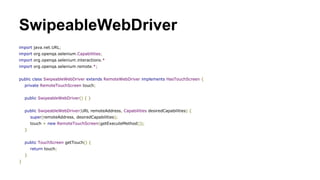
Create Android Driver
import java.net.URL;
import org.openqa.selenium.Capabilities;
import org.openqa.selenium.interactions.*;
import org.openqa.selenium.remote.*;
public class SwipeableWebDriver extends RemoteWebDriver implements HasTouchScreen {
private RemoteTouchScreen touch;
public SwipeableWebDriver() { }
public SwipeableWebDriver(URL remoteAddress, Capabilities desiredCapabilities) {
super(remoteAddress, desiredCapabilities);
touch = new RemoteTouchScreen(getExecuteMethod());
}
public TouchScreen getTouch() {
return touch;
}
}
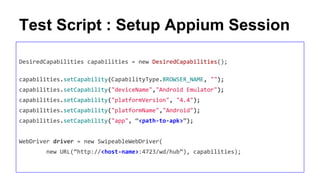
Test Script Part 1: Setup Appium Session
DesiredCapabilities capabilities = new DesiredCapabilities();
capabilities.setCapability("deviceName","Android Emulator");
capabilities.setCapability("platformName","Android");
capabilities.setCapability("app", "<path-to-apk>");
WebDriver driver = new SwipeableWebDriver(
new URL("http://<host-name>:4723/wd/hub"), capabilities);
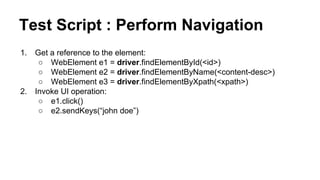
Test Script Part 2: Perform Navigation
1. Get a reference to the element:
○ WebElement e1 = driver.findElementBy.id, <id>)
○ WebElement e2 = driver.findElement(By.name, <content-desc>)
○ WebElement e3 = driver.findElement(By.xpath, <xpath>)
2. Invoke UI operation:
○ e1.click()
○ e2.sendKeys(“john doe”)
Test Script: Complete
public class AndroidTest extends TestCase {
public void testSomething() throws Exception {
DesiredCapabilities capabilities = new DesiredCapabilities();
capabilities.setCapability("deviceName","Android Emulator");
capabilities.setCapability("platformName","Android");
capabilities.setCapability("app", "E:/Dev/workspace/ApiDemos.apk");
WebDriver driver = new SwipeableWebDriver(
new URL("http://localhost:4723/wd/hub"), capabilities);
Thread.sleep(5000);
driver.findElement(By.xpath("//*[@text='Animation']")).click();
driver.findElement(By.xpath("//*[@text='Cloning']")).click();
WebElement runButton = driver.findElement(By.xpath("//*[@text='Run']"));
assertTrue(runButton.isDisplayed());
runButton.click();
}
}
Run Tests
1. Launch Appium:
○ appium --avd android --session-override --log-level info
2. Run Tests:
○ gradle -b test.gradle cleanTest test
App
Android
uiautomator
Bootstrap
adb
adb.js
appium.jswebdriver
test script
test runner
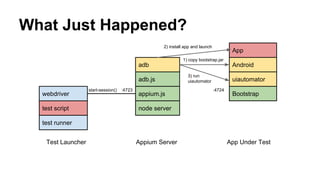
What Just Happened?
node server
:4724
Test Launcher Appium Server App Under Test
1) copy bootstrap.jar
3) run
uiautomator
2) install app and launch
:4723start-session()
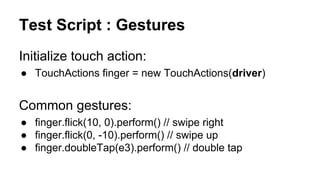
Advanced Navigation: Gestures
Initialize touch action:
● TouchActions touchScreen = new TouchActions(driver)
Common gestures:
● touchScreen.flick(10, 0).perform() // swipe right
● touchScreen.flick(0, -10).perform() // swipe up
● touchScreen.doubleTap(elem).perform() // double tap
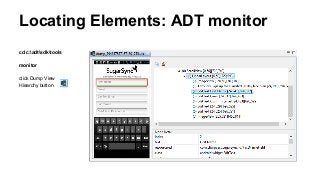
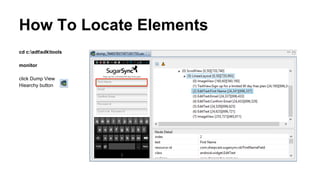
Locating Elements: ADT monitor
cd c:adtsdktools
monitor
click Dump View
Hiearchy button
Locating Elements: Techniques
1. Resource-id: By.id()
○ eg: By.id(“com.company.appName:id/ButtonSignIn”)
2. content-desc: By.name()
○ eg: By.name(“Downloads”)
3. Fallback: By.xpath()
○ eg: By.xpath("//*[@text='Animation']")
Test Script : Asserting Outcome
Common queries:
● e1.isDisplayed()
● e1.getText()
take screenshots
● File image = ((TakesScreenshot)driver).getScreenshotAs(OutputType.FILE);
junit/testng asserts
● Assert.assertEquals(e1.getText(), “welcome”);
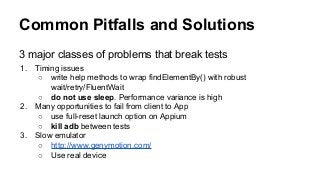
Common Pitfalls and Solutions
3 major classes of problems that break tests
1. Timing issues
○ write help methods to wrap findElementBy() with robust
wait/retry/FluentWait
○ do not use sleep. Performance variance is high
2. Many opportunities to fail from client to App
○ use full-reset launch option on Appium
○ kill adb between tests
3. Slow emulator
○ http://www.genymotion.com/
○ Use real device
Summary
You now know:
● A popular automation tool
● How it works
● How to set it up
● Typical test code
Next Step: Try it out! Ask questions!
Q&A

Android UI Testing with Appium

  • 1.
  • 2.
    Introduction : LukeMaung Background in mobile / automation ● wrote mobile browser automation system for feature- phones (Palmsource, 2004+) ● wrote distributed browser UI automation system with Selenium/WebDriver (Yahoo! 2008+) ● Continuous Integration software engineer (LinkedIn, 2010+) ● Advise automation strategy to start-ups (2011+)
  • 3.
    Introduction : AndroidAutomation ● Concepts ● Setup that you can replicate easily ● Common automation use cases
  • 4.
    UI Automation Tools- Maturity Created Latest Version Sponsor Committers Commits Automation Language Robotium 2010 5.3.1 Google 33 1121 Java Calabash 2013 0.5.8 Xamarin 56 1361 Ruby Appium 2013 1.3.1 Saucelabs 139 5423 Multiple Espresso 2013 2.0 Google 40+ ? Java
  • 5.
    UI Automation Tools- Popularity
  • 6.
    Appium : Benefits 1.Tests unmodified App 2. Works well on device and emulator 3. Uses well-defined WebDriver protocol ○ WebDriver is de facto standard for UI automation ○ extensive documentation 4. Good balance of low-level features and abstraction ○ can use any test framework (junit, testng, etc) ○ does not force specific test framework (eg calabash implies cucumber framework) 5. Saucelabs very actively supports Appium
  • 7.
    Architecture : PhysicalView Test Driver Appium Server App Under Test
  • 8.
    Architecture : LogicalView test runner test script webdriver node server appium.js uiautomator Bootstrap Android App :4723 :4724 Test Driver Appium Server App Under Test adb.js adb
  • 9.
    Setup: Install Tools Gradle@ http://www.eng.lsu.edu/mirrors/apache/maven/maven-3/3.0.5/binaries/apache-maven-3.0.5-bin.zip ● GRADLE_HOME=E:gradle ● Add %GRADLE_HOME%bin to PATH ADT @ https://developer.android.com/sdk/installing/index.html ● ANDROID_HOME = E:UserslukemaungAppDataLocalAndroidsdk ● Add %ANDROID_HOME%bin to PATH ● Create and save an emulator image, eg “android” Appium Server ● node.js : http://nodejs.org/download/ ● appium : npm install -g appium ● appium --device-name <device id> --avd <avd name> --address <ip> --port <port>
  • 10.
    Sample Test Development Environment TESTDEVELOPMENT APPIUM SERVER EMULATOR (RUNS APP UNDER TEST)
  • 11.
    Setup Test DevelopmentEnvironment 1. create dir app/src/test/java 2. create test.gradle build config 3. add SwipeableWebDriver 4. add sample test script
  • 12.
    Create Test ScriptBuild Configuration test.gradle: apply plugin: 'java' repositories { mavenCentral() } ext.seleniumVersion = '2.45.0' sourceSets { main { java { srcDir 'src/java/' exclude '**/**' } } } dependencies { compile group: 'org.seleniumhq.selenium', name: 'selenium-java', version:seleniumVersion testCompile group: 'junit', name: 'junit', version: '4.+' }
  • 13.
    Create Android Driver importjava.net.URL; import org.openqa.selenium.Capabilities; import org.openqa.selenium.interactions.*; import org.openqa.selenium.remote.*; public class SwipeableWebDriver extends RemoteWebDriver implements HasTouchScreen { private RemoteTouchScreen touch; public SwipeableWebDriver() { } public SwipeableWebDriver(URL remoteAddress, Capabilities desiredCapabilities) { super(remoteAddress, desiredCapabilities); touch = new RemoteTouchScreen(getExecuteMethod()); } public TouchScreen getTouch() { return touch; } }
  • 14.
    Test Script Part1: Setup Appium Session DesiredCapabilities capabilities = new DesiredCapabilities(); capabilities.setCapability("deviceName","Android Emulator"); capabilities.setCapability("platformName","Android"); capabilities.setCapability("app", "<path-to-apk>"); WebDriver driver = new SwipeableWebDriver( new URL("http://<host-name>:4723/wd/hub"), capabilities);
  • 15.
    Test Script Part2: Perform Navigation 1. Get a reference to the element: ○ WebElement e1 = driver.findElementBy.id, <id>) ○ WebElement e2 = driver.findElement(By.name, <content-desc>) ○ WebElement e3 = driver.findElement(By.xpath, <xpath>) 2. Invoke UI operation: ○ e1.click() ○ e2.sendKeys(“john doe”)
  • 16.
    Test Script: Complete publicclass AndroidTest extends TestCase { public void testSomething() throws Exception { DesiredCapabilities capabilities = new DesiredCapabilities(); capabilities.setCapability("deviceName","Android Emulator"); capabilities.setCapability("platformName","Android"); capabilities.setCapability("app", "E:/Dev/workspace/ApiDemos.apk"); WebDriver driver = new SwipeableWebDriver( new URL("http://localhost:4723/wd/hub"), capabilities); Thread.sleep(5000); driver.findElement(By.xpath("//*[@text='Animation']")).click(); driver.findElement(By.xpath("//*[@text='Cloning']")).click(); WebElement runButton = driver.findElement(By.xpath("//*[@text='Run']")); assertTrue(runButton.isDisplayed()); runButton.click(); } }
  • 17.
    Run Tests 1. LaunchAppium: ○ appium --avd android --session-override --log-level info 2. Run Tests: ○ gradle -b test.gradle cleanTest test
  • 18.
    App Android uiautomator Bootstrap adb adb.js appium.jswebdriver test script test runner WhatJust Happened? node server :4724 Test Launcher Appium Server App Under Test 1) copy bootstrap.jar 3) run uiautomator 2) install app and launch :4723start-session()
  • 19.
    Advanced Navigation: Gestures Initializetouch action: ● TouchActions touchScreen = new TouchActions(driver) Common gestures: ● touchScreen.flick(10, 0).perform() // swipe right ● touchScreen.flick(0, -10).perform() // swipe up ● touchScreen.doubleTap(elem).perform() // double tap
  • 20.
    Locating Elements: ADTmonitor cd c:adtsdktools monitor click Dump View Hiearchy button
  • 21.
    Locating Elements: Techniques 1.Resource-id: By.id() ○ eg: By.id(“com.company.appName:id/ButtonSignIn”) 2. content-desc: By.name() ○ eg: By.name(“Downloads”) 3. Fallback: By.xpath() ○ eg: By.xpath("//*[@text='Animation']")
  • 22.
    Test Script :Asserting Outcome Common queries: ● e1.isDisplayed() ● e1.getText() take screenshots ● File image = ((TakesScreenshot)driver).getScreenshotAs(OutputType.FILE); junit/testng asserts ● Assert.assertEquals(e1.getText(), “welcome”);
  • 23.
    Common Pitfalls andSolutions 3 major classes of problems that break tests 1. Timing issues ○ write help methods to wrap findElementBy() with robust wait/retry/FluentWait ○ do not use sleep. Performance variance is high 2. Many opportunities to fail from client to App ○ use full-reset launch option on Appium ○ kill adb between tests 3. Slow emulator ○ http://www.genymotion.com/ ○ Use real device
  • 24.
    Summary You now know: ●A popular automation tool ● How it works ● How to set it up ● Typical test code Next Step: Try it out! Ask questions!
  • 25.