Create Flipped 
Class Videos… 
Like a Boss! 
Presented by: Ed Hitchcock 
(@SciTeacherEd)
Intro – about me 
• High School Science teacher (Physics, Biology, General 
Science) 
• Background in Paleontology 
Hobbies include 
•Wasting time on Facebook 
• Long walks in a dark forest 
• Staying out late on cold dark nights 
• Operating the largest telescope in the country
Sequence 
•Why? 
•What? 
• How? 
•Q&A
Why do you want to make flipped-class 
videos? 
Good reasons 
• Free up class time for 
interaction 
• Generate lessons for missing 
students 
• Focus the lesson 
• Let students review lessons 
at home 
• Go full-flipped 
Bad Reasons 
• Because everyone else is 
doing it 
• So you can slack off
Why make your own? 
• Lots and LOTS of great videos on YouTube 
• Making your own generates a connection with your 
students 
• Present the information how you want 
• focus your lessons
What is a flipped-class video anyway? 
• Short Video Lesson 
• Addresses one or two specific topics 
• Can be used as a lesson, or to supplement a lesson 
• Can be made by the teacher, or someone else entirely
Types of lesson video
Chalk & Talk 
Eg Khan Academy 
https://www.youtube.co 
m/watch?v=lQ-dvt3V4yQ
Narrated Slide Show 
https://www.youtube.com/watch 
?v=H_TcL0rB1nk
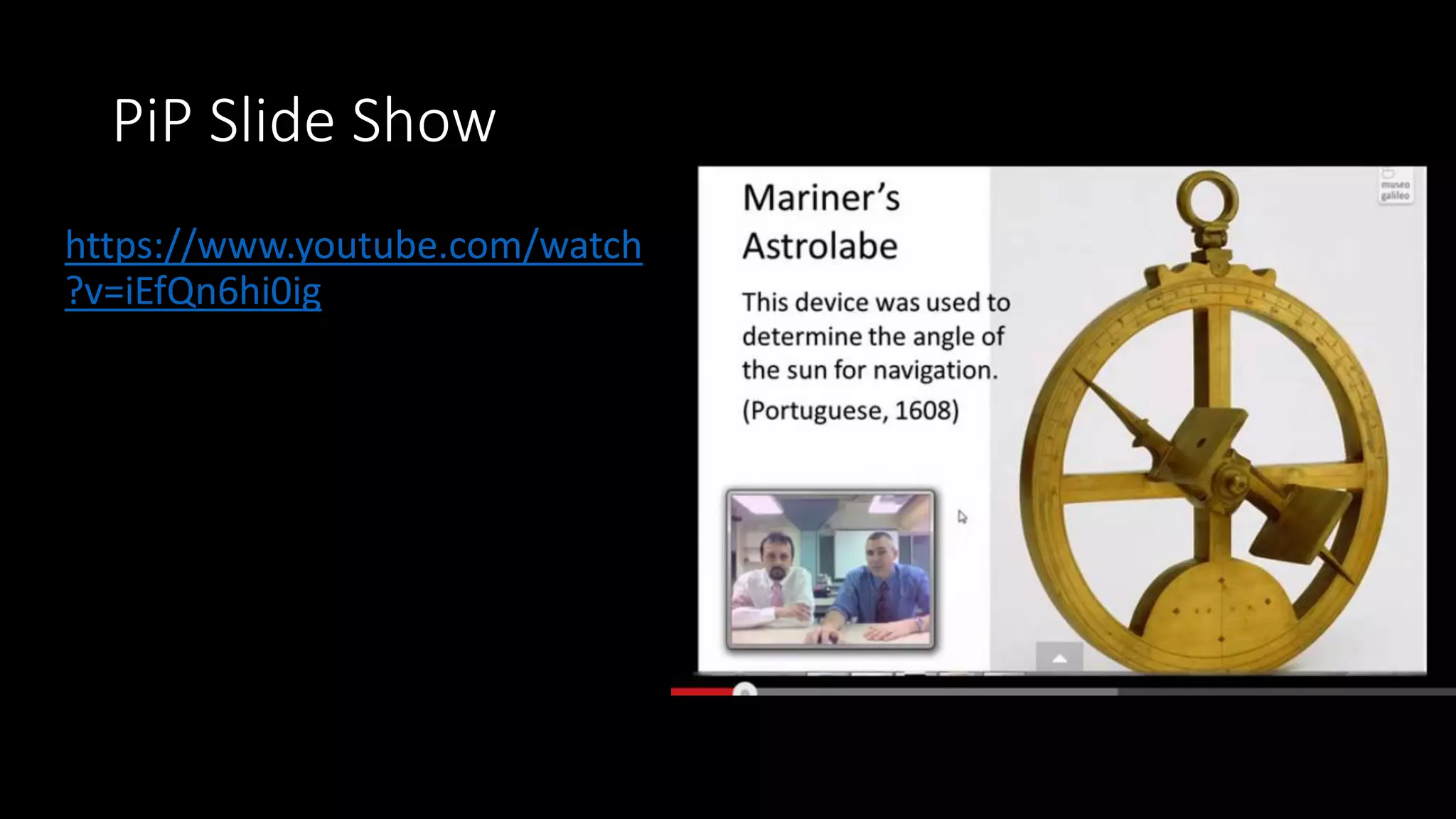
PiP Slide Show 
https://www.youtube.com/watch 
?v=iEfQn6hi0ig
Documentary/Demo 
https://www.youtube.com/watch 
?v=Gg6Mw60pwBI
Lecture 
Eg Crash Course 
https://www.youtube 
.com/watch?v=jZKIHe 
2LDP8&index=6
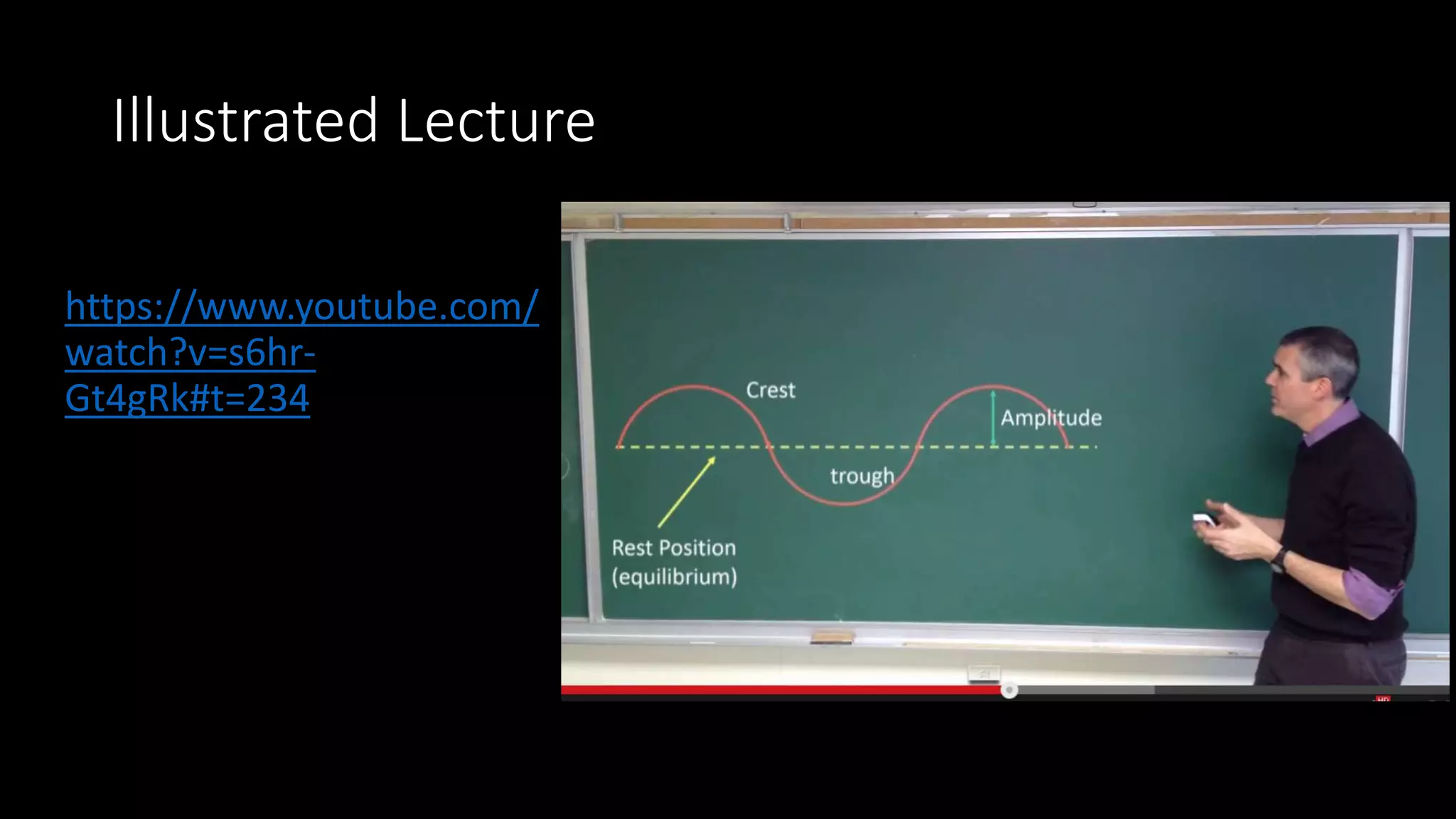
Illustrated Lecture 
https://www.youtube.com/ 
watch?v=s6hr- 
Gt4gRk#t=234
This the part you probably came 
for…
How to make a lesson video 
Things you will need: 
• Ideas 
• Camera and/or screen capture software 
• Editing software 
• Enthusiasm 
Bonus: 
• Pen enabled tablet (for Chalk & Talk style) 
• Remote mouse/clicker
Ideas 
• know what you are going to say. This is important - it 
is easy to ramble, but you want to keep it short & 
sweet! 
• know what you are going to show 
• Plan to keep it to 10 minutes or less 
• Use existing lesson presentations as a starting point!
Camera 
• Any camera will do. 
• Digicam 
•webcam 
• cell phone 
• camcorder 
• DSLR 
• Tripod is useful too.
Screen capture software 
• Camtasia – powerful, but not cheap 
• CamStudio (http://camstudio.org/) – free but limited 
• Open Broacdaster (https://obsproject.com/) – free, full featured 
• Jing (http://www.techsmith.com/jing.html ) - Web based, also from 
Techsmith, limited to 5 minutes 
• Screencast-o-matic (http://www.screencast-o-matic.com/) free 
version has watermark 
• Screencastify – Chrome plugin 
• Educreations (https://www.educreations.com/ ) - for chalk & talk 
style
Video Editing Software 
• Adobe Premiere / Premiere Elements 
• Magix Movie Edit Pro 
• iMovie (Mac or amore limited version on iOS) 
• Windows Movie Maker (free, but loathsome) 
•WeVideo (works with Google Drive) 
•Camtasia Studio buit-in editor
The Process 
• Decide on a format 
• Spend some time up front planning your video lesson. Know 
what you are going to say, know what you want to show. 
• Edit your PowerPoints (if doing that style of video) to 
minimize text, maximize imagery - include animations! 
• Record your video – you may need to do a few takes, but 
don’t worry if it’s not perfect 
• Edit 
• Publish
Chalk & Talk style 
• Can be done on an iPad using Educreations or ShowMe 
• On Windows touch-screen computer using OneNote ow 
Word and a stylus 
• On non-touch PC or Mac with a pen tablet 
• Run the “white board” medium, run the screen capture, and 
record.
Narrated Slide Show / PiP slide show 
• Record the slide show with voice-over narration. 
•Camtasia integrates with PPT to facilitate this 
• For picture-in-picture style, run a webcam video 
preview in a small window while recording - Some let 
you keep the window always on top (eg AmCap)
Illustrated Lecture 
• Let me explain in video form: 
https://www.youtube.com/watch?v=NJ7GANsAtx8
Editing considerations 
• If it’s not necessary, cut it. Be harsh. 
• Cut out “ums” and dead space 
• Doesn’t have to be beautiful 
• Images can be overlaid as PiP or floating 
(“greenscreened”) with multitrack editors 
• Use the “zoom” tool frequently to allow precision 
edits efficiently
Publishing your video 
• YouTube – public or link only 
• GAFE – now unlimited storage for schools 
• Sharing directly with students
Overall Considerations 
• Find a style you’re comfortable with and works for you 
• dont worry - quick & dirty is better than nothing, or many 
hours making it “perfect”. 
• jump cuts are perfectly fine 
• Keep it tight, under 10 minutes if possible. If longer, consider 
splitting into parts 
• have fun with it!
Ninja Level: Special Effects 
• Animations in ppt overlaid on live view 
• Animated titles 
• Slow or fast motion 
• Cutting effects (see Georges Méliès) – transporter 
effect, dropping from the sky 
• Split screen effects – talking to yourself
Community support 
• Flipped Learning Network 
http://flippedclassroom.org/ 
• YouTube 
• Forums and discussion groups 
• G+
I would love to see what you are doing! 
If you make a video lesson, tweet me, tag me, let me know! 
Twitter: @SciTeacherEd 
Blog: http://www.teachscience.net/ 
Email / Google+: e.c.hitchcock@gmail.com 
YouTube: https://www.youtube.com/BudgetAstronomer
Making a 
lesson video? 
Nailed it!

Create flipped class videos

  • 1.
    Create Flipped ClassVideos… Like a Boss! Presented by: Ed Hitchcock (@SciTeacherEd)
  • 2.
    Intro – aboutme • High School Science teacher (Physics, Biology, General Science) • Background in Paleontology Hobbies include •Wasting time on Facebook • Long walks in a dark forest • Staying out late on cold dark nights • Operating the largest telescope in the country
  • 4.
    Sequence •Why? •What? • How? •Q&A
  • 6.
    Why do youwant to make flipped-class videos? Good reasons • Free up class time for interaction • Generate lessons for missing students • Focus the lesson • Let students review lessons at home • Go full-flipped Bad Reasons • Because everyone else is doing it • So you can slack off
  • 7.
    Why make yourown? • Lots and LOTS of great videos on YouTube • Making your own generates a connection with your students • Present the information how you want • focus your lessons
  • 9.
    What is aflipped-class video anyway? • Short Video Lesson • Addresses one or two specific topics • Can be used as a lesson, or to supplement a lesson • Can be made by the teacher, or someone else entirely
  • 10.
  • 11.
    Chalk & Talk Eg Khan Academy https://www.youtube.co m/watch?v=lQ-dvt3V4yQ
  • 12.
    Narrated Slide Show https://www.youtube.com/watch ?v=H_TcL0rB1nk
  • 13.
    PiP Slide Show https://www.youtube.com/watch ?v=iEfQn6hi0ig
  • 14.
  • 15.
    Lecture Eg CrashCourse https://www.youtube .com/watch?v=jZKIHe 2LDP8&index=6
  • 16.
  • 18.
    This the partyou probably came for…
  • 19.
    How to makea lesson video Things you will need: • Ideas • Camera and/or screen capture software • Editing software • Enthusiasm Bonus: • Pen enabled tablet (for Chalk & Talk style) • Remote mouse/clicker
  • 20.
    Ideas • knowwhat you are going to say. This is important - it is easy to ramble, but you want to keep it short & sweet! • know what you are going to show • Plan to keep it to 10 minutes or less • Use existing lesson presentations as a starting point!
  • 21.
    Camera • Anycamera will do. • Digicam •webcam • cell phone • camcorder • DSLR • Tripod is useful too.
  • 22.
    Screen capture software • Camtasia – powerful, but not cheap • CamStudio (http://camstudio.org/) – free but limited • Open Broacdaster (https://obsproject.com/) – free, full featured • Jing (http://www.techsmith.com/jing.html ) - Web based, also from Techsmith, limited to 5 minutes • Screencast-o-matic (http://www.screencast-o-matic.com/) free version has watermark • Screencastify – Chrome plugin • Educreations (https://www.educreations.com/ ) - for chalk & talk style
  • 23.
    Video Editing Software • Adobe Premiere / Premiere Elements • Magix Movie Edit Pro • iMovie (Mac or amore limited version on iOS) • Windows Movie Maker (free, but loathsome) •WeVideo (works with Google Drive) •Camtasia Studio buit-in editor
  • 24.
    The Process •Decide on a format • Spend some time up front planning your video lesson. Know what you are going to say, know what you want to show. • Edit your PowerPoints (if doing that style of video) to minimize text, maximize imagery - include animations! • Record your video – you may need to do a few takes, but don’t worry if it’s not perfect • Edit • Publish
  • 25.
    Chalk & Talkstyle • Can be done on an iPad using Educreations or ShowMe • On Windows touch-screen computer using OneNote ow Word and a stylus • On non-touch PC or Mac with a pen tablet • Run the “white board” medium, run the screen capture, and record.
  • 26.
    Narrated Slide Show/ PiP slide show • Record the slide show with voice-over narration. •Camtasia integrates with PPT to facilitate this • For picture-in-picture style, run a webcam video preview in a small window while recording - Some let you keep the window always on top (eg AmCap)
  • 27.
    Illustrated Lecture •Let me explain in video form: https://www.youtube.com/watch?v=NJ7GANsAtx8
  • 28.
    Editing considerations •If it’s not necessary, cut it. Be harsh. • Cut out “ums” and dead space • Doesn’t have to be beautiful • Images can be overlaid as PiP or floating (“greenscreened”) with multitrack editors • Use the “zoom” tool frequently to allow precision edits efficiently
  • 29.
    Publishing your video • YouTube – public or link only • GAFE – now unlimited storage for schools • Sharing directly with students
  • 30.
    Overall Considerations •Find a style you’re comfortable with and works for you • dont worry - quick & dirty is better than nothing, or many hours making it “perfect”. • jump cuts are perfectly fine • Keep it tight, under 10 minutes if possible. If longer, consider splitting into parts • have fun with it!
  • 31.
    Ninja Level: SpecialEffects • Animations in ppt overlaid on live view • Animated titles • Slow or fast motion • Cutting effects (see Georges Méliès) – transporter effect, dropping from the sky • Split screen effects – talking to yourself
  • 32.
    Community support •Flipped Learning Network http://flippedclassroom.org/ • YouTube • Forums and discussion groups • G+
  • 33.
    I would loveto see what you are doing! If you make a video lesson, tweet me, tag me, let me know! Twitter: @SciTeacherEd Blog: http://www.teachscience.net/ Email / Google+: e.c.hitchcock@gmail.com YouTube: https://www.youtube.com/BudgetAstronomer
  • 34.
    Making a lessonvideo? Nailed it!