Content
1. Introduction of Virtual Meeting Platform
2. Install Zoom
3. Sign up and Sign in Zoom account
4. Schedule Meeting
5. Share screen option in Zoom
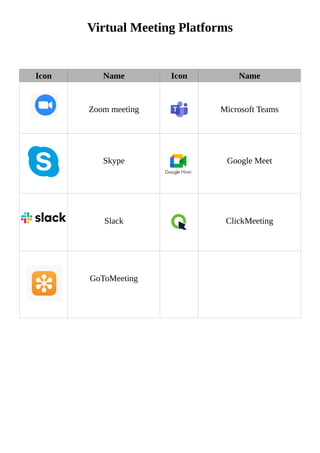
Virtual Meeting Platforms
Icon Name Icon Name
Zoom meeting Microsoft Teams
Skype Google Meet
Slack ClickMeeting
GoToMeeting
ZOOM
Zoom Cloud Meetings is a proprietary video teleconferencing software program developed by Zoom
Video Communications.
How to Download Zoom
Mobile
Requirements
1. Good Internet Connection
2. Play Store (Android Phone) / App Store (iPhone)
Desktop
Requirements
1. Good Internet Connection
2. Web Browser
Tasks
1. Download Zoom
2. Sing up (Create Zoom account)
3. Login 0r Sign-in
4. Schedule meeting
1. Download Zoom
Step 1: Connect to the Internet (Wifi or mobile Hotspot)
Step 2: Open Web Browser
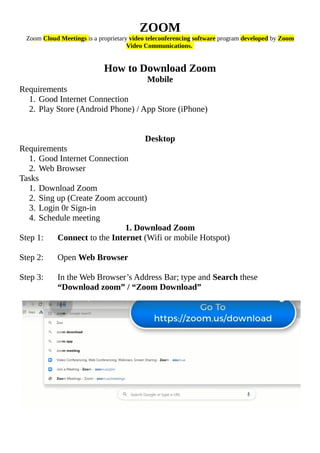
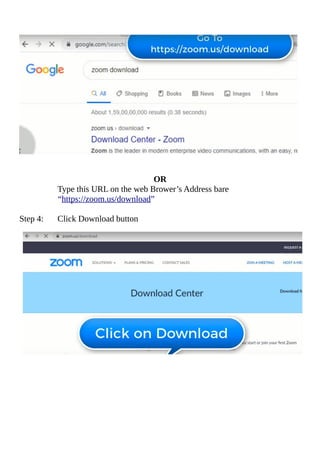
Step 3: In the Web Browser’s Address Bar; type and Search these
“Download zoom” / “Zoom Download”
OR
Type this URL on the web Brower’s Address bare
“https://zoom.us/download”
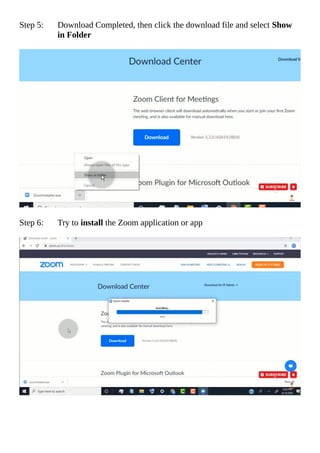
Step 4: Click Download button
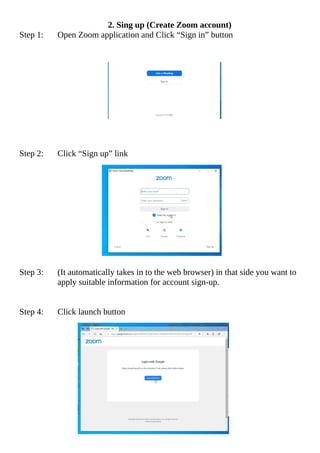
Step 5: Download Completed, then click the download file and select Show
in Folder
Step 6: Try to install the Zoom application or app
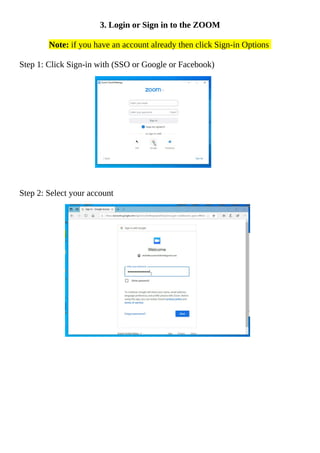
2. Sing up (Create Zoom account)
Step 1: Open Zoom application and Click “Sign in” button
Step 2: Click “Sign up” link
Step 3: (It automatically takes in to the web browser) in that side you want to
apply suitable information for account sign-up.
Step 4: Click launch button
3. Login or Sign in to the ZOOM
Note: if you have an account already then click Sign-in Options
Step 1: Click Sign-in with (SSO or Google or Facebook)
Step 2: Select your account
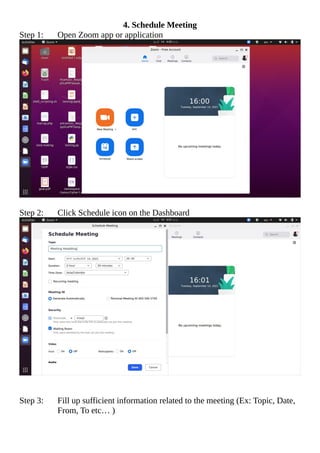
4. Schedule Meeting
Step 1: Open Zoom app or application
Step 2: Click Schedule icon on the Dashboard
Step 3: Fill up sufficient information related to the meeting (Ex: Topic, Date,
From, To etc… )
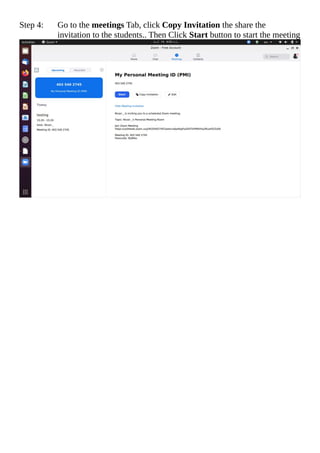
Step 4: Go to the meetings Tab, click Copy Invitation the share the
invitation to the students.. Then Click Start button to start the meeting
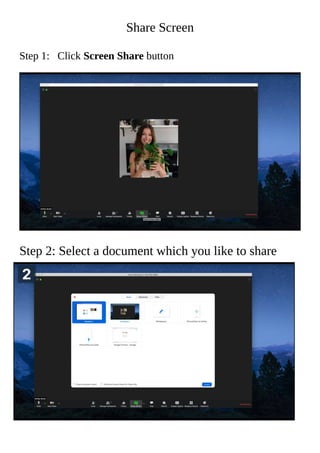
Share Screen
Step 1: Click Screen Share button
Step 2: Select a document which you like to share
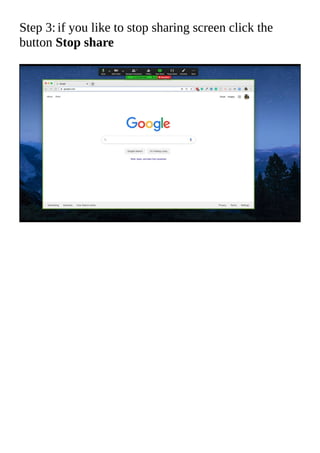
Step 3: if you like to stop sharing screen click the
button Stop share

Zoom basic Setup | Module

  • 1.
    Content 1. Introduction ofVirtual Meeting Platform 2. Install Zoom 3. Sign up and Sign in Zoom account 4. Schedule Meeting 5. Share screen option in Zoom
  • 2.
    Virtual Meeting Platforms IconName Icon Name Zoom meeting Microsoft Teams Skype Google Meet Slack ClickMeeting GoToMeeting
  • 3.
    ZOOM Zoom Cloud Meetingsis a proprietary video teleconferencing software program developed by Zoom Video Communications. How to Download Zoom Mobile Requirements 1. Good Internet Connection 2. Play Store (Android Phone) / App Store (iPhone) Desktop Requirements 1. Good Internet Connection 2. Web Browser Tasks 1. Download Zoom 2. Sing up (Create Zoom account) 3. Login 0r Sign-in 4. Schedule meeting 1. Download Zoom Step 1: Connect to the Internet (Wifi or mobile Hotspot) Step 2: Open Web Browser Step 3: In the Web Browser’s Address Bar; type and Search these “Download zoom” / “Zoom Download”
  • 4.
    OR Type this URLon the web Brower’s Address bare “https://zoom.us/download” Step 4: Click Download button
  • 5.
    Step 5: DownloadCompleted, then click the download file and select Show in Folder Step 6: Try to install the Zoom application or app
  • 6.
    2. Sing up(Create Zoom account) Step 1: Open Zoom application and Click “Sign in” button Step 2: Click “Sign up” link Step 3: (It automatically takes in to the web browser) in that side you want to apply suitable information for account sign-up. Step 4: Click launch button
  • 7.
    3. Login orSign in to the ZOOM Note: if you have an account already then click Sign-in Options Step 1: Click Sign-in with (SSO or Google or Facebook) Step 2: Select your account
  • 8.
    4. Schedule Meeting Step1: Open Zoom app or application Step 2: Click Schedule icon on the Dashboard Step 3: Fill up sufficient information related to the meeting (Ex: Topic, Date, From, To etc… )
  • 9.
    Step 4: Goto the meetings Tab, click Copy Invitation the share the invitation to the students.. Then Click Start button to start the meeting
  • 10.
    Share Screen Step 1:Click Screen Share button Step 2: Select a document which you like to share
  • 11.
    Step 3: ifyou like to stop sharing screen click the button Stop share