WRITING EFFECTIVE BUSINESS EMAILS
1
2
WHY EMAIL ETIQUETTE IS IMPORTANT
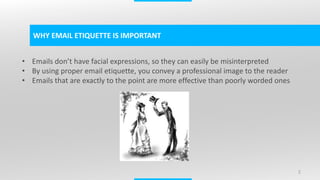
• Emails don’t have facial expressions, so they can easily be misinterpreted
• By using proper email etiquette, you convey a professional image to the reader
• Emails that are exactly to the point are more effective than poorly worded ones
3
DIFFERENT COMPONENTS OF AN EMAIL
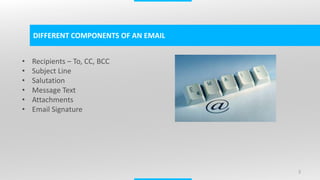
• Recipients – To, CC, BCC
• Subject Line
• Salutation
• Message Text
• Attachments
• Email Signature
4
RECIPIENTS
• Limit the email to only who those who need to know
• To field should contain those recipients you directly intend the message to be,
usually you expect a reply or acknowledgement from them
• CC field is used for two purposes:
• To inform the management about the work you are doing
• When emailing someone for the first time, putting the reference in cc is a good
practice
• BCC is when you do not want the recipient(s) to know whom else this email has
been sent to. Eg: Asking employees to fill in personal information sheet
5
RECIPIENTS – POINTS TO BE NOTED
• Check all addresses with CTRL+K
• Do not use Reply All option unless necessary
• Use BCC to protect Email addresses unless everyone knows each other. This is a
common reason why internal email addresses get leaked to spammers.
6
SUBJECT LINE
• It is the headline of the email – Relate to a newspaper
• Grab Attention
• Should be a one-liner summarizing the entire message
• Refrain from using long subject lines
• Use RE: and FW: appropriately
• Using Reg. and Ref: when needed
• Use Action Reqd: FYA: when you require action from recipient(s)
• Use FYI: when no action is intended from the recipient(s)
• Use Outlook’s Important feature when required, but don’t overuse
• Use Confidential: when sending sensitive information
• Capitalization very important, Do not send “status update for xyz project”, send
“Status update for XYZ Project”
7
SALUTATION
• Salutations are must, replying without salutations is considered rude, unless
within the team
• Avoid using Mr./Dr. unless they are old school people who demand it
• Best way of addressing is Hi <Name>, or Dear <Name>,
• Do not misspell names, very important!
8
ATTACHMENTS
• Understand mailbox limits – Do not attach files more than 10MB, use a Cloud Link
– Eg: Google Drive, Dropbox
• Zip files when attachments are more, say 10
• Always attach files first and then compose, this helps you avoid “Oops, I missed to
attach the file in my earlier email”
• Mention in the message text that you have attached the file(s) with the email,
otherwise recipients might tend to overlook the attachments
9
MESSAGE TEXT – GENERAL TIPS
• Clearly keep in mind to whom the email is being sent before you start writing.
Eg: Technical tone when writing a mail to tech support
• Try to keep the email short and crisp – Not more than one screen length
• Return emails within the same time you would normally return phone calls
• Check for punctuation, spelling and grammar
• Never use CAPS – it is considered to be flaming
• Use a uniform font that has a professional look – Calibri size 11
• Use a positive tone, “When you complete the report” sounds better than “If you
complete the report”
• Avoid negative words – useless, worthless, etc.,
10
MESSAGE TEXT – GENERAL TIPS
• Avoid ambiguous text, which can be misunderstood
• No flaming – no capitals, no red font
• Identify yourself clearly when sending email first time to new recipient
• Quote selectively when replying to long messages
• Proofread
• Break mail into paragraphs and use active voice
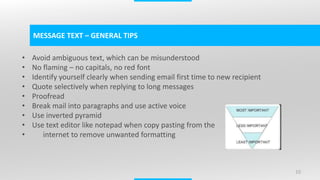
• Use inverted pyramid
• Use text editor like notepad when copy pasting from the
internet to remove unwanted formatting
11
MESSAGE TEXT – GENERAL TIPS
• If you want a response from the reader, please write this in the first paragraph
itself, as most of them might not read beyond that
• Use bullet numbers when you give instructions, or identify points Eg: Client
Checklist, Steps to fix the problem, etc.,
• Capitalize abbreviations and be gender neutral(Do not write “Is user clicks, he will
be taken to the next page”, write “If user clicks, he/she will be taken to the next
page)
• Use formal and informal when necessary
Informal – Thanks for emailing me on 15th February
Formal – Thank you for your email dated 15th February
Informal – Sorry, I can’t make it.
Formal – I am afraid I will not be able to attend
Informal – Can you…?
Formal – I was wondering if you could….?
12
EMAIL SIGNATURE
• Use a short signature for replies and forwards and a long signature for new mails
• Maintain same text size and font style
• Make sure images if present are displayed properly
• Name, Title, Organization, Email ID, Website, Official Phone, Company Social IDs
need to be mentioned in long signature
• Name, Organization, Contact Number, Website in short signature
• Use copyright text and anti-virus disclaimer in long signature
13
EMAIL MANAGEMENT
• Keep Emails Confidential – Frequently Change Passwords
• Organize Emails into Folders
• Keep copies of sent mail
• Delete unwanted emails then and there
• Set Out-Of-Office when on leave
• Acknowledge emails when you need more time for replying
• Write anticipatory emails – Supply full information to the recipient and reduce
extended email threads
14
MEETINGS
• Mark attendees as Required and Optional
• Write meeting agenda clearly
• Write meeting instructions clearly, Eg: No mobile phones/Mobiles in silent mode
• Send minutes without fail, assign minutes person before starting
• Provide meeting location and time clearly, extra care when using global time
zones, voice conference and video conference links should be shared
• Send meeting cancellations and updates at the earliest
• Accept Meeting Invites for Courtesy
THANK YOU!

Writing Effective Business EMails!

  • 1.
  • 2.
    2 WHY EMAIL ETIQUETTEIS IMPORTANT • Emails don’t have facial expressions, so they can easily be misinterpreted • By using proper email etiquette, you convey a professional image to the reader • Emails that are exactly to the point are more effective than poorly worded ones
  • 3.
    3 DIFFERENT COMPONENTS OFAN EMAIL • Recipients – To, CC, BCC • Subject Line • Salutation • Message Text • Attachments • Email Signature
  • 4.
    4 RECIPIENTS • Limit theemail to only who those who need to know • To field should contain those recipients you directly intend the message to be, usually you expect a reply or acknowledgement from them • CC field is used for two purposes: • To inform the management about the work you are doing • When emailing someone for the first time, putting the reference in cc is a good practice • BCC is when you do not want the recipient(s) to know whom else this email has been sent to. Eg: Asking employees to fill in personal information sheet
  • 5.
    5 RECIPIENTS – POINTSTO BE NOTED • Check all addresses with CTRL+K • Do not use Reply All option unless necessary • Use BCC to protect Email addresses unless everyone knows each other. This is a common reason why internal email addresses get leaked to spammers.
  • 6.
    6 SUBJECT LINE • Itis the headline of the email – Relate to a newspaper • Grab Attention • Should be a one-liner summarizing the entire message • Refrain from using long subject lines • Use RE: and FW: appropriately • Using Reg. and Ref: when needed • Use Action Reqd: FYA: when you require action from recipient(s) • Use FYI: when no action is intended from the recipient(s) • Use Outlook’s Important feature when required, but don’t overuse • Use Confidential: when sending sensitive information • Capitalization very important, Do not send “status update for xyz project”, send “Status update for XYZ Project”
  • 7.
    7 SALUTATION • Salutations aremust, replying without salutations is considered rude, unless within the team • Avoid using Mr./Dr. unless they are old school people who demand it • Best way of addressing is Hi <Name>, or Dear <Name>, • Do not misspell names, very important!
  • 8.
    8 ATTACHMENTS • Understand mailboxlimits – Do not attach files more than 10MB, use a Cloud Link – Eg: Google Drive, Dropbox • Zip files when attachments are more, say 10 • Always attach files first and then compose, this helps you avoid “Oops, I missed to attach the file in my earlier email” • Mention in the message text that you have attached the file(s) with the email, otherwise recipients might tend to overlook the attachments
  • 9.
    9 MESSAGE TEXT –GENERAL TIPS • Clearly keep in mind to whom the email is being sent before you start writing. Eg: Technical tone when writing a mail to tech support • Try to keep the email short and crisp – Not more than one screen length • Return emails within the same time you would normally return phone calls • Check for punctuation, spelling and grammar • Never use CAPS – it is considered to be flaming • Use a uniform font that has a professional look – Calibri size 11 • Use a positive tone, “When you complete the report” sounds better than “If you complete the report” • Avoid negative words – useless, worthless, etc.,
  • 10.
    10 MESSAGE TEXT –GENERAL TIPS • Avoid ambiguous text, which can be misunderstood • No flaming – no capitals, no red font • Identify yourself clearly when sending email first time to new recipient • Quote selectively when replying to long messages • Proofread • Break mail into paragraphs and use active voice • Use inverted pyramid • Use text editor like notepad when copy pasting from the internet to remove unwanted formatting
  • 11.
    11 MESSAGE TEXT –GENERAL TIPS • If you want a response from the reader, please write this in the first paragraph itself, as most of them might not read beyond that • Use bullet numbers when you give instructions, or identify points Eg: Client Checklist, Steps to fix the problem, etc., • Capitalize abbreviations and be gender neutral(Do not write “Is user clicks, he will be taken to the next page”, write “If user clicks, he/she will be taken to the next page) • Use formal and informal when necessary Informal – Thanks for emailing me on 15th February Formal – Thank you for your email dated 15th February Informal – Sorry, I can’t make it. Formal – I am afraid I will not be able to attend Informal – Can you…? Formal – I was wondering if you could….?
  • 12.
    12 EMAIL SIGNATURE • Usea short signature for replies and forwards and a long signature for new mails • Maintain same text size and font style • Make sure images if present are displayed properly • Name, Title, Organization, Email ID, Website, Official Phone, Company Social IDs need to be mentioned in long signature • Name, Organization, Contact Number, Website in short signature • Use copyright text and anti-virus disclaimer in long signature
  • 13.
    13 EMAIL MANAGEMENT • KeepEmails Confidential – Frequently Change Passwords • Organize Emails into Folders • Keep copies of sent mail • Delete unwanted emails then and there • Set Out-Of-Office when on leave • Acknowledge emails when you need more time for replying • Write anticipatory emails – Supply full information to the recipient and reduce extended email threads
  • 14.
    14 MEETINGS • Mark attendeesas Required and Optional • Write meeting agenda clearly • Write meeting instructions clearly, Eg: No mobile phones/Mobiles in silent mode • Send minutes without fail, assign minutes person before starting • Provide meeting location and time clearly, extra care when using global time zones, voice conference and video conference links should be shared • Send meeting cancellations and updates at the earliest • Accept Meeting Invites for Courtesy
  • 15.