iPad in Education
Dee Thomas
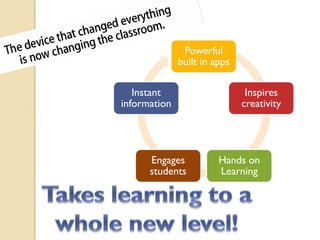
Powerful
              built in apps

   Instant                     Inspires
information                   creativity


      Engages           Hands on
      students          Learning
 Care/Accessories
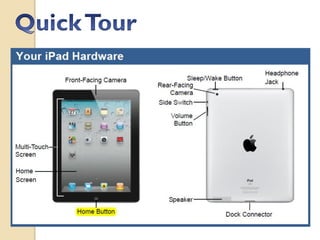
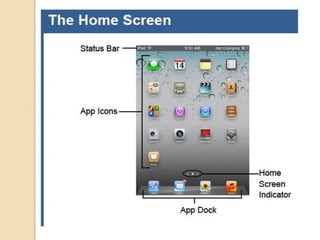
 Quick Tour/Navigations
 Tips
 Apps   & Activity


Handouts- www.ipadswow.com
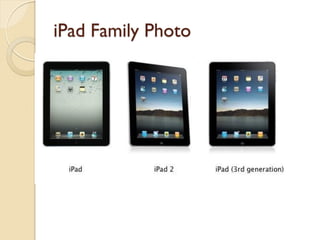
iPad Family Photo
There is an App for That!
 200,000+ Apps just for iPad

Medical App- Epocrates
 • #1 Mobile Drug Reference App among US Physicians


University Dorms- Laundry Room Apps


Leaf Snap- Snap a photo of leaf to identify (free)

StarWalk- ($4.99) Winner of Apple Design Award 2010- Identifies
constellations, stars, and satellites in real time!

MealSnap- Counts calories from a picture of your food


The Amazing and Wonderful World of Ants- $1.99
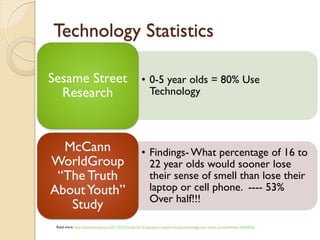
Technology Statistics

Sesame Street                                          • 0-5 year olds = 80% Use
  Research                                               Technology


  McCann                                               • Findings- What percentage of 16 to
WorldGroup                                               22 year olds would sooner lose
 “The Truth                                              their sense of smell than lose their
About Youth”                                             laptop or cell phone. ---- 53%
                                                         Over half!!!
   Study
 Read more: http://techland.time.com/2011/05/27/study-53-of-youngsters-would-choose-technology-over-sense-of-smell/#ixzz1iXpNZKSs
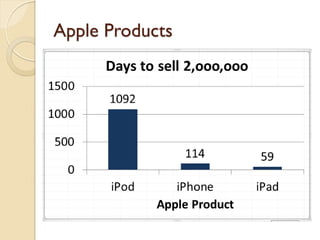
Apple Products
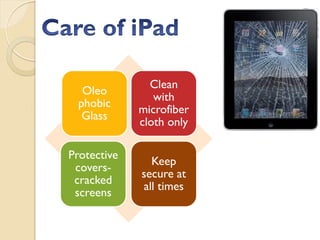
Clean
  Oleo
                with
 phobic
             microfiber
  Glass
             cloth only

Protective
               Keep
 covers-
             secure at
 cracked
             all times
 screens
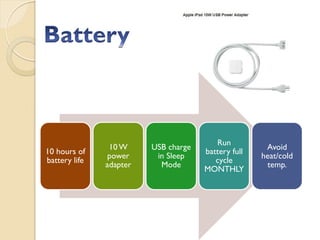
Run
                10 W     USB charge                   Avoid
10 hours of                           battery full
                power     in Sleep                   heat/cold
battery life                             cycle
               adapter     Mode                       temp.
                                      MONTHLY
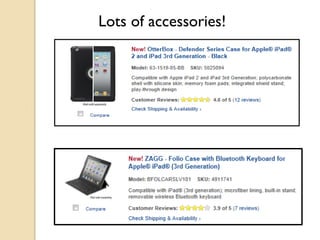
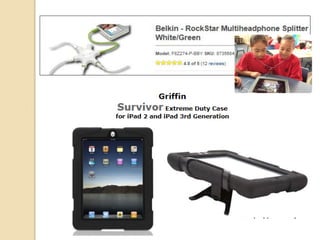
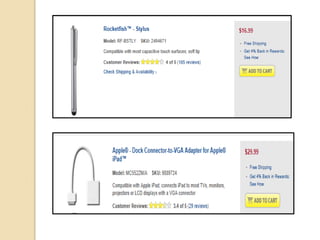
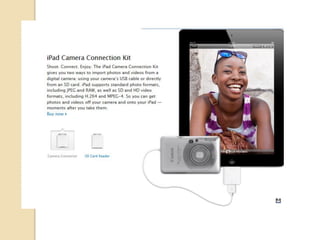
Lots of accessories!
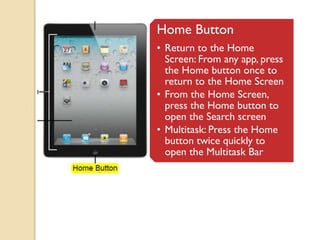
Home Button
• Return to the Home
  Screen: From any app, press
  the Home button once to
  return to the Home Screen
• From the Home Screen,
  press the Home button to
  open the Search screen
• Multitask: Press the Home
  button twice quickly to
  open the Multitask Bar
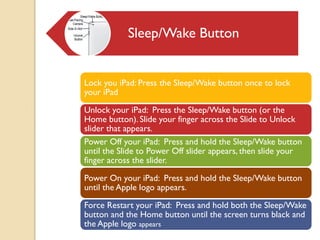
Sleep/Wake Button


Lock you iPad: Press the Sleep/Wake button once to lock
your iPad

Unlock your iPad: Press the Sleep/Wake button (or the
Home button). Slide your finger across the Slide to Unlock
slider that appears.
Power Off your iPad: Press and hold the Sleep/Wake button
until the Slide to Power Off slider appears, then slide your
finger across the slider.

Power On your iPad: Press and hold the Sleep/Wake button
until the Apple logo appears.

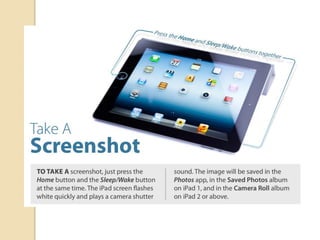
Force Restart your iPad: Press and hold both the Sleep/Wake
button and the Home button until the screen turns black and
the Apple logo appears
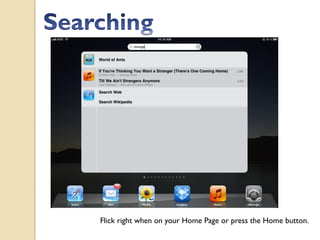
Flick right when on your Home Page or press the Home button.
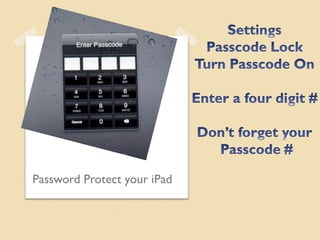
Password Protect your iPad
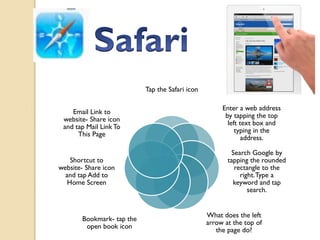
Tap the Safari icon

                                                       Enter a web address
    Email Link to
                                                        by tapping the top
 website- Share icon
                                                         left text box and
 and tap Mail Link To
                                                            typing in the
      This Page
                                                               address.

                                                          Search Google by
    Shortcut to                                          tapping the rounded
website- Share icon                                        rectangle to the
  and tap Add to                                             right. Type a
   Home Screen                                             keyword and tap
                                                                search.


                                                  What does the left
        Bookmark- tap the
                                                  arrow at the top of
         open book icon
                                                     the page do?
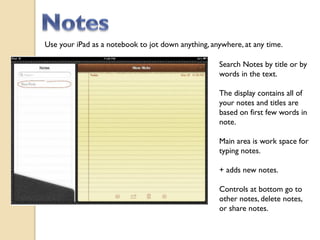
Use your iPad as a notebook to jot down anything, anywhere, at any time.

                                                    Search Notes by title or by
                                                    words in the text.

                                                    The display contains all of
                                                    your notes and titles are
                                                    based on first few words in
                                                    note.

                                                    Main area is work space for
                                                    typing notes.
                                                    + adds new notes.
                                                    Controls at bottom go to
                                                    other notes, delete notes,
                                                    or share notes.
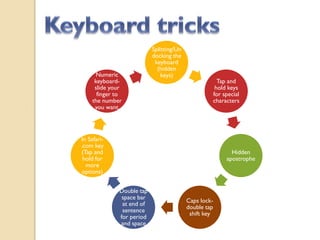
Splitting/Un
                           docking the
                            keyboard
                             (hidden
      Numeric                  keys)
     keyboard-                                       Tap and
     slide your                                     hold keys
      finger to                                    for special
    the number                                     characters
     you want.


In Safari-
.com key
(Tap and                                                  Hidden
 hold for                                               apostrophe
  more
 options)


              Double tap
               space bar
                                          Caps lock-
               at end of
                                          double tap
               sentence
                                           shift key
              for period
              and space
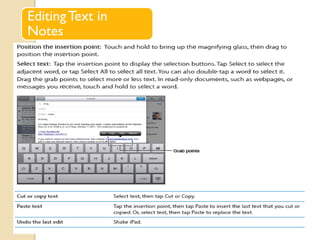
Editing Text in
Notes
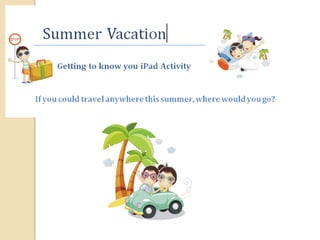
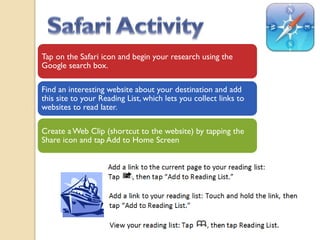
Tap on the Safari icon and begin your research using the
Google search box.

Find an interesting website about your destination and add
this site to your Reading List, which lets you collect links to
websites to read later.

Create a Web Clip (shortcut to the website) by tapping the
Share icon and tap Add to Home Screen
Getting to know
your iPad activity
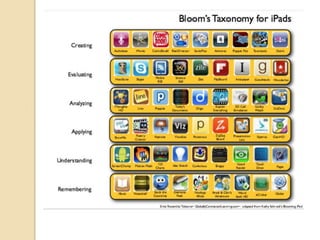
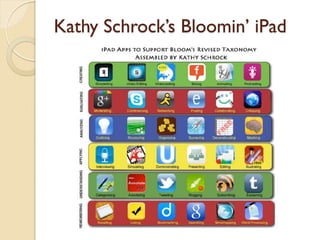
Kathy Schrock’s Bloomin’ iPad
Questions?


Dee Thomas
Bentonville Public Schools
Instructional Technology/Staff Development
Email: dthomas@bentonvillek12.org
http://portal.bentonvillek12.org/dthomas

iPads in education part 1

  • 1.
  • 2.
    Powerful built in apps Instant Inspires information creativity Engages Hands on students Learning
  • 3.
     Care/Accessories  QuickTour/Navigations  Tips  Apps & Activity Handouts- www.ipadswow.com
  • 4.
  • 5.
    There is anApp for That! 200,000+ Apps just for iPad Medical App- Epocrates • #1 Mobile Drug Reference App among US Physicians University Dorms- Laundry Room Apps Leaf Snap- Snap a photo of leaf to identify (free) StarWalk- ($4.99) Winner of Apple Design Award 2010- Identifies constellations, stars, and satellites in real time! MealSnap- Counts calories from a picture of your food The Amazing and Wonderful World of Ants- $1.99
  • 6.
    Technology Statistics Sesame Street • 0-5 year olds = 80% Use Research Technology McCann • Findings- What percentage of 16 to WorldGroup 22 year olds would sooner lose “The Truth their sense of smell than lose their About Youth” laptop or cell phone. ---- 53% Over half!!! Study Read more: http://techland.time.com/2011/05/27/study-53-of-youngsters-would-choose-technology-over-sense-of-smell/#ixzz1iXpNZKSs
  • 7.
  • 8.
    Clean Oleo with phobic microfiber Glass cloth only Protective Keep covers- secure at cracked all times screens
  • 9.
    Run 10 W USB charge Avoid 10 hours of battery full power in Sleep heat/cold battery life cycle adapter Mode temp. MONTHLY
  • 10.
  • 17.
    Home Button • Returnto the Home Screen: From any app, press the Home button once to return to the Home Screen • From the Home Screen, press the Home button to open the Search screen • Multitask: Press the Home button twice quickly to open the Multitask Bar
  • 18.
    Sleep/Wake Button Lock youiPad: Press the Sleep/Wake button once to lock your iPad Unlock your iPad: Press the Sleep/Wake button (or the Home button). Slide your finger across the Slide to Unlock slider that appears. Power Off your iPad: Press and hold the Sleep/Wake button until the Slide to Power Off slider appears, then slide your finger across the slider. Power On your iPad: Press and hold the Sleep/Wake button until the Apple logo appears. Force Restart your iPad: Press and hold both the Sleep/Wake button and the Home button until the screen turns black and the Apple logo appears
  • 21.
    Flick right whenon your Home Page or press the Home button.
  • 23.
  • 32.
    Tap the Safariicon Enter a web address Email Link to by tapping the top website- Share icon left text box and and tap Mail Link To typing in the This Page address. Search Google by Shortcut to tapping the rounded website- Share icon rectangle to the and tap Add to right. Type a Home Screen keyword and tap search. What does the left Bookmark- tap the arrow at the top of open book icon the page do?
  • 34.
    Use your iPadas a notebook to jot down anything, anywhere, at any time. Search Notes by title or by words in the text. The display contains all of your notes and titles are based on first few words in note. Main area is work space for typing notes. + adds new notes. Controls at bottom go to other notes, delete notes, or share notes.
  • 35.
    Splitting/Un docking the keyboard (hidden Numeric keys) keyboard- Tap and slide your hold keys finger to for special the number characters you want. In Safari- .com key (Tap and Hidden hold for apostrophe more options) Double tap space bar Caps lock- at end of double tap sentence shift key for period and space
  • 36.
  • 37.
    Tap on theSafari icon and begin your research using the Google search box. Find an interesting website about your destination and add this site to your Reading List, which lets you collect links to websites to read later. Create a Web Clip (shortcut to the website) by tapping the Share icon and tap Add to Home Screen
  • 41.
    Getting to know youriPad activity
  • 43.
  • 44.
    Questions? Dee Thomas Bentonville PublicSchools Instructional Technology/Staff Development Email: dthomas@bentonvillek12.org http://portal.bentonvillek12.org/dthomas