iPad 101
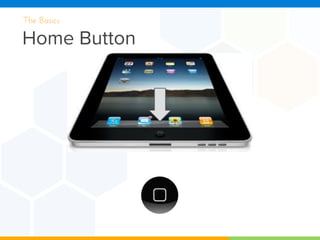
Home Button
The Basics
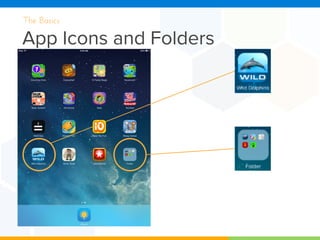
App Icons and Folders
The Basics
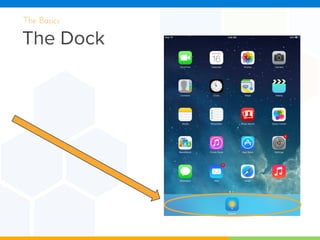
The Dock
The Basics
Fast App
Switching
The Basics
1. Quickly double
click the home
button to show
your recently
used apps
2. Swipe from left
to right to
choose which
you want
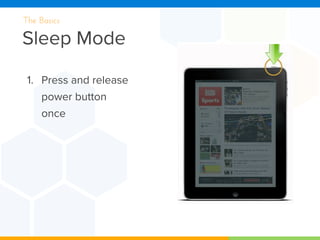
Sleep Mode
The Basics
1. Press and release
power button
once
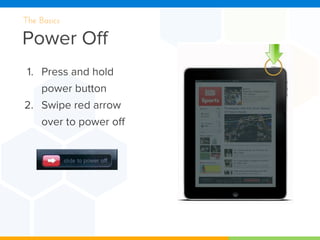
Power Off
The Basics
1. Press and hold
power button
2. Swipe red arrow
over to power off
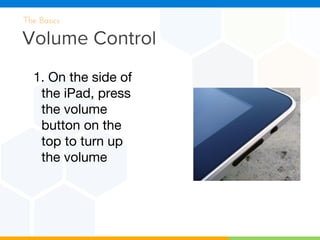
Volume Control
The Basics
1. On the side of
the iPad, press
the volume
button on the
top to turn up
the volume
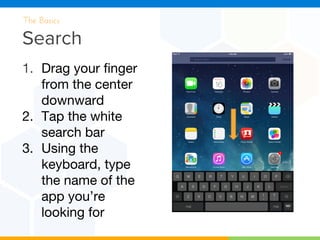
Search
The Basics
1. Drag your finger
from the center
downward
2. Tap the white
search bar
3. Using the
keyboard, type
the name of the
app you’re
looking for
Zoom
The Basics
1. Open Safari
2. Go to www.esparklearning.
com
3. Put two fingers on the
screen; drag them apart and
pinch them together to
zoom in and zoom out
Exit An App
The Basics
1. Open espark
2. To leave the app, you can either:
a. Tap the ‘Home’ button once
b. Use 5 fingers to pinch the screen
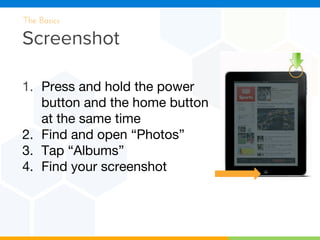
Screenshot
The Basics
1. Press and hold the power
button and the home button
at the same time
2. Find and open “Photos”
3. Tap “Albums”
4. Find your screenshot
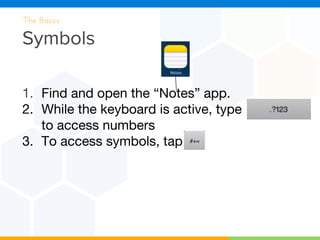
Symbols
The Basics
1. Find and open the “Notes” app.
2. While the keyboard is active, type
to access numbers
3. To access symbols, tap
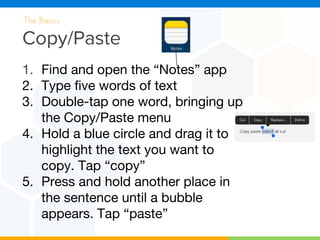
Copy/Paste
The Basics
1. Find and open the “Notes” app
2. Type five words of text
3. Double-tap one word, bringing up
the Copy/Paste menu
4. Hold a blue circle and drag it to
highlight the text you want to
copy. Tap “copy”
5. Press and hold another place in
the sentence until a bubble
appears. Tap “paste”
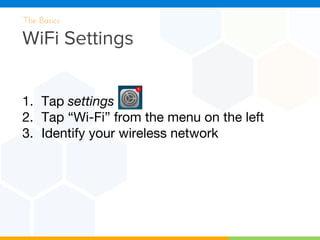
WiFi Settings
The Basics
1. Tap settings
2. Tap “Wi-Fi” from the menu on the left
3. Identify your wireless network
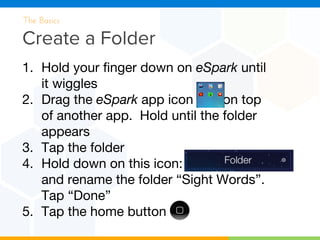
Create a Folder
The Basics
1. Hold your finger down on eSpark until
it wiggles
2. Drag the eSpark app icon on top
of another app. Hold until the folder
appears
3. Tap the folder
4. Hold down on this icon:
and rename the folder “Sight Words”.
Tap “Done”
5. Tap the home button
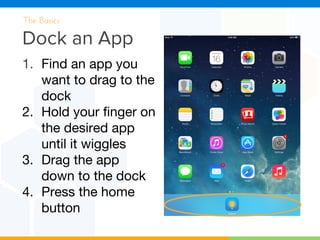
Dock an App
The Basics
1. Find an app you
want to drag to the
dock
2. Hold your finger on
the desired app
until it wiggles
3. Drag the app
down to the dock
4. Press the home
button
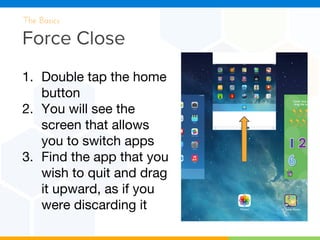
Force Close
The Basics
1. Double tap the home
button
2. You will see the
screen that allows
you to switch apps
3. Find the app that you
wish to quit and drag
it upward, as if you
were discarding it
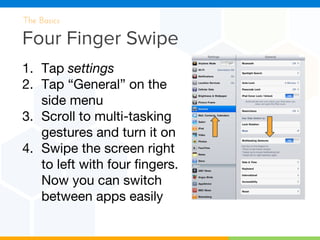
Four Finger Swipe
The Basics
1. Tap settings
2. Tap “General” on the
side menu
3. Scroll to multi-tasking
gestures and turn it on
4. Swipe the screen right
to left with four fingers.
Now you can switch
between apps easily
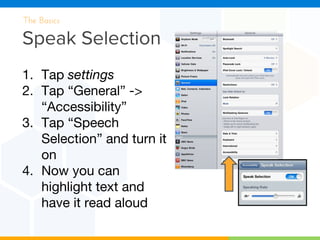
Speak Selection
The Basics
1. Tap settings
2. Tap “General” ->
“Accessibility”
3. Tap “Speech
Selection” and turn it
on
4. Now you can
highlight text and
have it read aloud
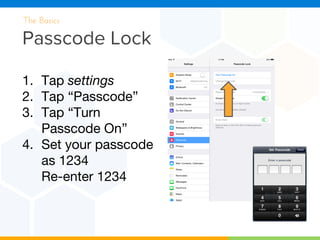
Passcode Lock
The Basics
1. Tap settings
2. Tap “Passcode”
3. Tap “Turn
Passcode On”
4. Set your passcode
as 1234
Re-enter 1234
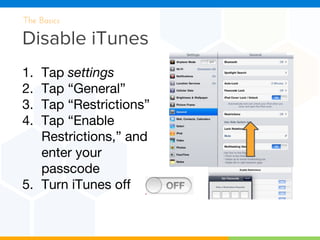
Disable iTunes
The Basics
1. Tap settings
2. Tap “General”
3. Tap “Restrictions”
4. Tap “Enable
Restrictions,” and
enter your
passcode
5. Turn iTunes off

I pad 101 official

  • 1.
  • 2.
  • 3.
    App Icons andFolders The Basics
  • 4.
  • 5.
    Fast App Switching The Basics 1.Quickly double click the home button to show your recently used apps 2. Swipe from left to right to choose which you want
  • 6.
    Sleep Mode The Basics 1.Press and release power button once
  • 7.
    Power Off The Basics 1.Press and hold power button 2. Swipe red arrow over to power off
  • 8.
    Volume Control The Basics 1.On the side of the iPad, press the volume button on the top to turn up the volume
  • 9.
    Search The Basics 1. Dragyour finger from the center downward 2. Tap the white search bar 3. Using the keyboard, type the name of the app you’re looking for
  • 10.
    Zoom The Basics 1. OpenSafari 2. Go to www.esparklearning. com 3. Put two fingers on the screen; drag them apart and pinch them together to zoom in and zoom out
  • 11.
    Exit An App TheBasics 1. Open espark 2. To leave the app, you can either: a. Tap the ‘Home’ button once b. Use 5 fingers to pinch the screen
  • 12.
    Screenshot The Basics 1. Pressand hold the power button and the home button at the same time 2. Find and open “Photos” 3. Tap “Albums” 4. Find your screenshot
  • 13.
    Symbols The Basics 1. Findand open the “Notes” app. 2. While the keyboard is active, type to access numbers 3. To access symbols, tap
  • 14.
    Copy/Paste The Basics 1. Findand open the “Notes” app 2. Type five words of text 3. Double-tap one word, bringing up the Copy/Paste menu 4. Hold a blue circle and drag it to highlight the text you want to copy. Tap “copy” 5. Press and hold another place in the sentence until a bubble appears. Tap “paste”
  • 15.
    WiFi Settings The Basics 1.Tap settings 2. Tap “Wi-Fi” from the menu on the left 3. Identify your wireless network
  • 16.
    Create a Folder TheBasics 1. Hold your finger down on eSpark until it wiggles 2. Drag the eSpark app icon on top of another app. Hold until the folder appears 3. Tap the folder 4. Hold down on this icon: and rename the folder “Sight Words”. Tap “Done” 5. Tap the home button
  • 17.
    Dock an App TheBasics 1. Find an app you want to drag to the dock 2. Hold your finger on the desired app until it wiggles 3. Drag the app down to the dock 4. Press the home button
  • 18.
    Force Close The Basics 1.Double tap the home button 2. You will see the screen that allows you to switch apps 3. Find the app that you wish to quit and drag it upward, as if you were discarding it
  • 19.
    Four Finger Swipe TheBasics 1. Tap settings 2. Tap “General” on the side menu 3. Scroll to multi-tasking gestures and turn it on 4. Swipe the screen right to left with four fingers. Now you can switch between apps easily
  • 20.
    Speak Selection The Basics 1.Tap settings 2. Tap “General” -> “Accessibility” 3. Tap “Speech Selection” and turn it on 4. Now you can highlight text and have it read aloud
  • 21.
    Passcode Lock The Basics 1.Tap settings 2. Tap “Passcode” 3. Tap “Turn Passcode On” 4. Set your passcode as 1234 Re-enter 1234
  • 22.
    Disable iTunes The Basics 1.Tap settings 2. Tap “General” 3. Tap “Restrictions” 4. Tap “Enable Restrictions,” and enter your passcode 5. Turn iTunes off