

Apple Store


Taipei American School

     Parent iPad Training
Nancy Gorneau and Lisa Adams
   gorneaun@tas.edu.tw
     adamsl@tas.edu.tw
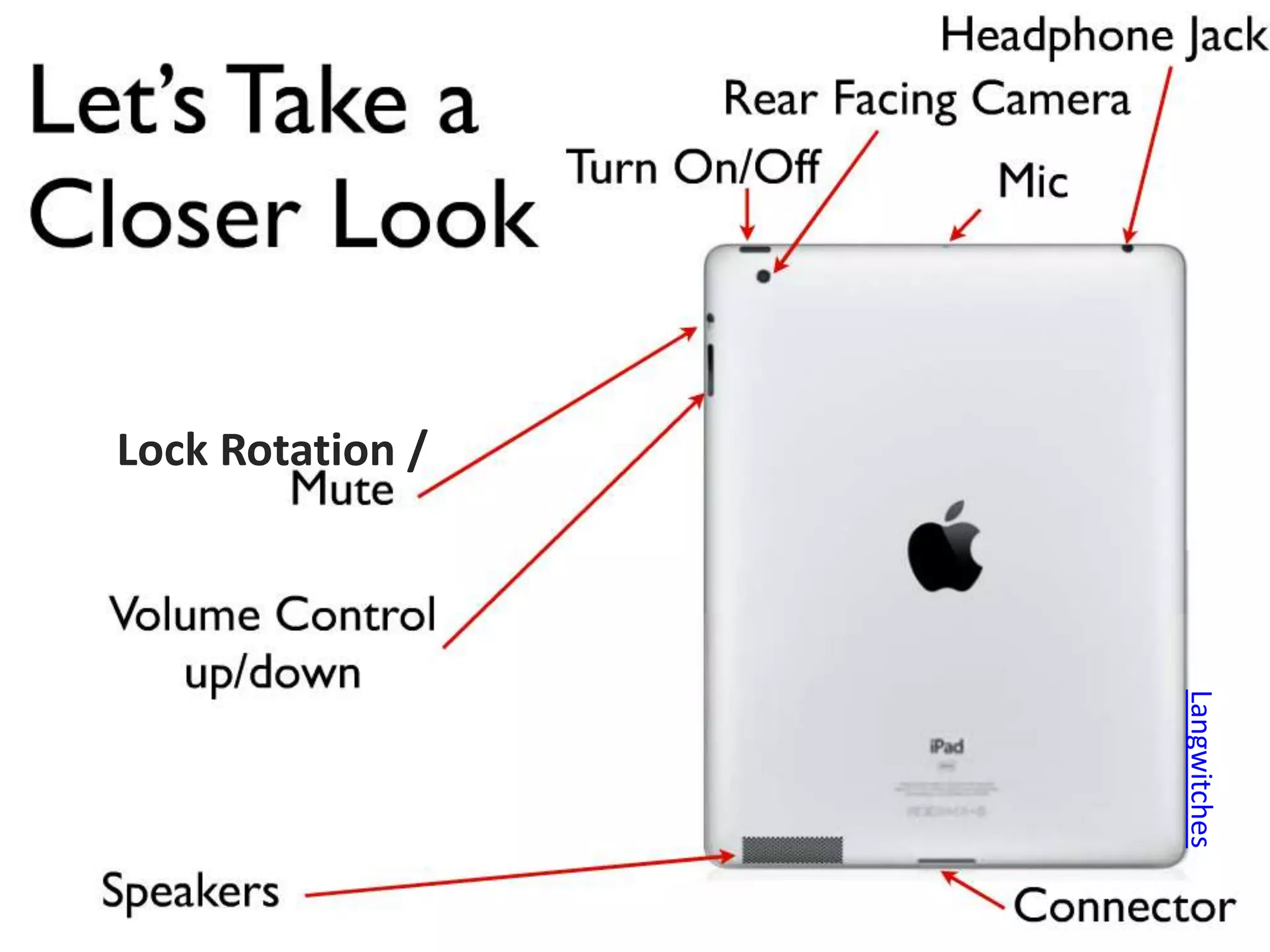
Lock Rotation /


                  Langwitches
Top Down
    Drag
   Shows            Pinch
Notifications    Zoom in/Out
                  In an App


    Tap
Select/Open                           Double Tap
   an App                             Zoom in/out
                                    in certain Apps


     Hold
  Moves/Delete                               Swipe
     icons                                 Move from
                      Apple Store          one screen
                                           to another
Notifications
• Settings  Notifications
   – Select an App
   – Make your choices
Top Down
    Drag
   Shows                            Multi-Gesturing
Notifications       Pinch           4 Finger Swipe
                 Zoom in/Out


    Tap
Select/Open
                                     Double Tap
   an App
                                     Zoom in/out


     Hold
  Moves/Delete                           Swipe
     icons                             Move from
                      Apple Store      one screen
                                       to another
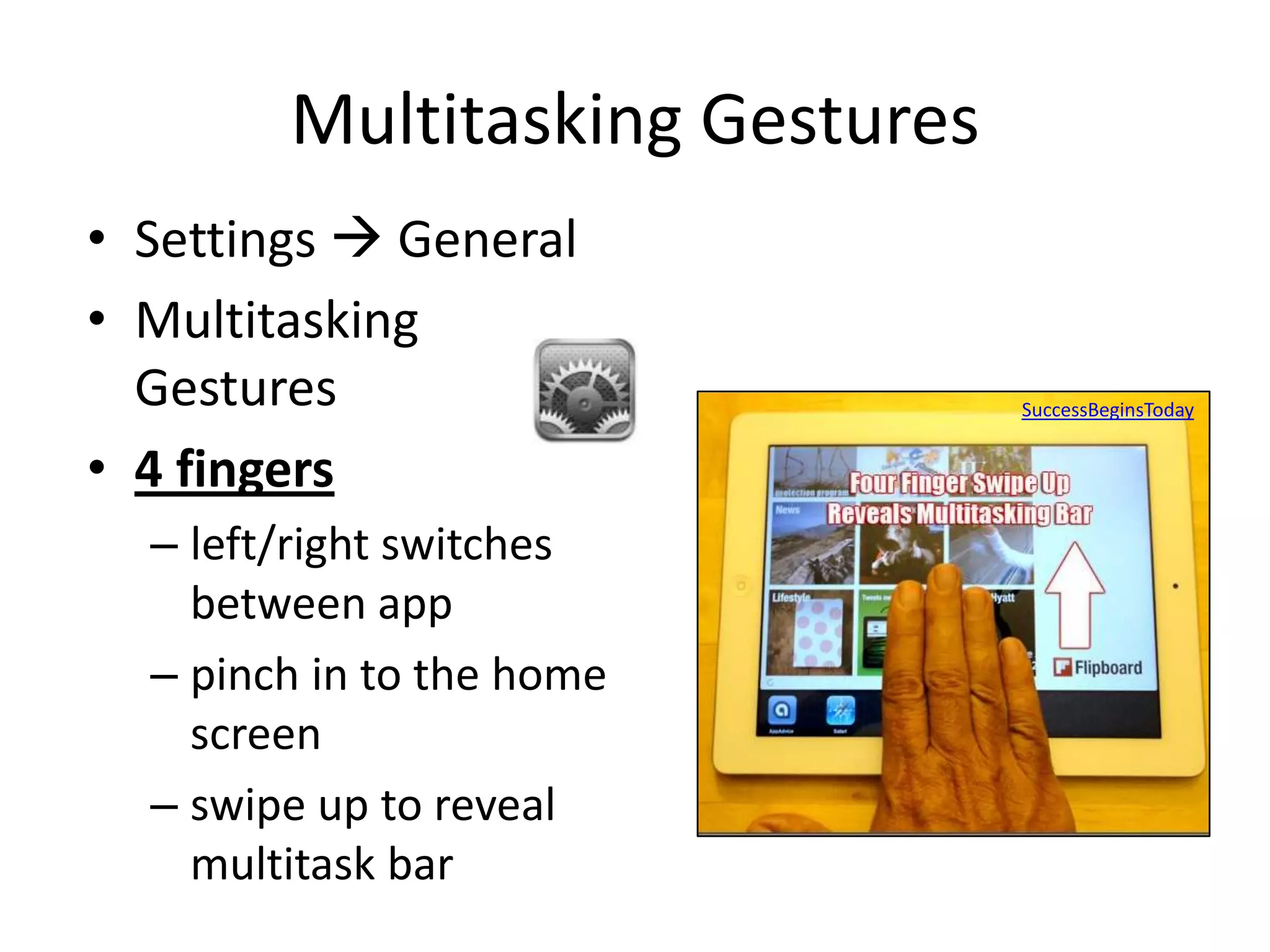
Multitasking Gestures
• Settings  General
• Multitasking
  Gestures                      SuccessBeginsToday


• 4 fingers
  – left/right switches
    between app
  – pinch in to the home
    screen
  – swipe up to reveal
    multitask bar
The Home Button


   Apple Store


Takes you where you want to go
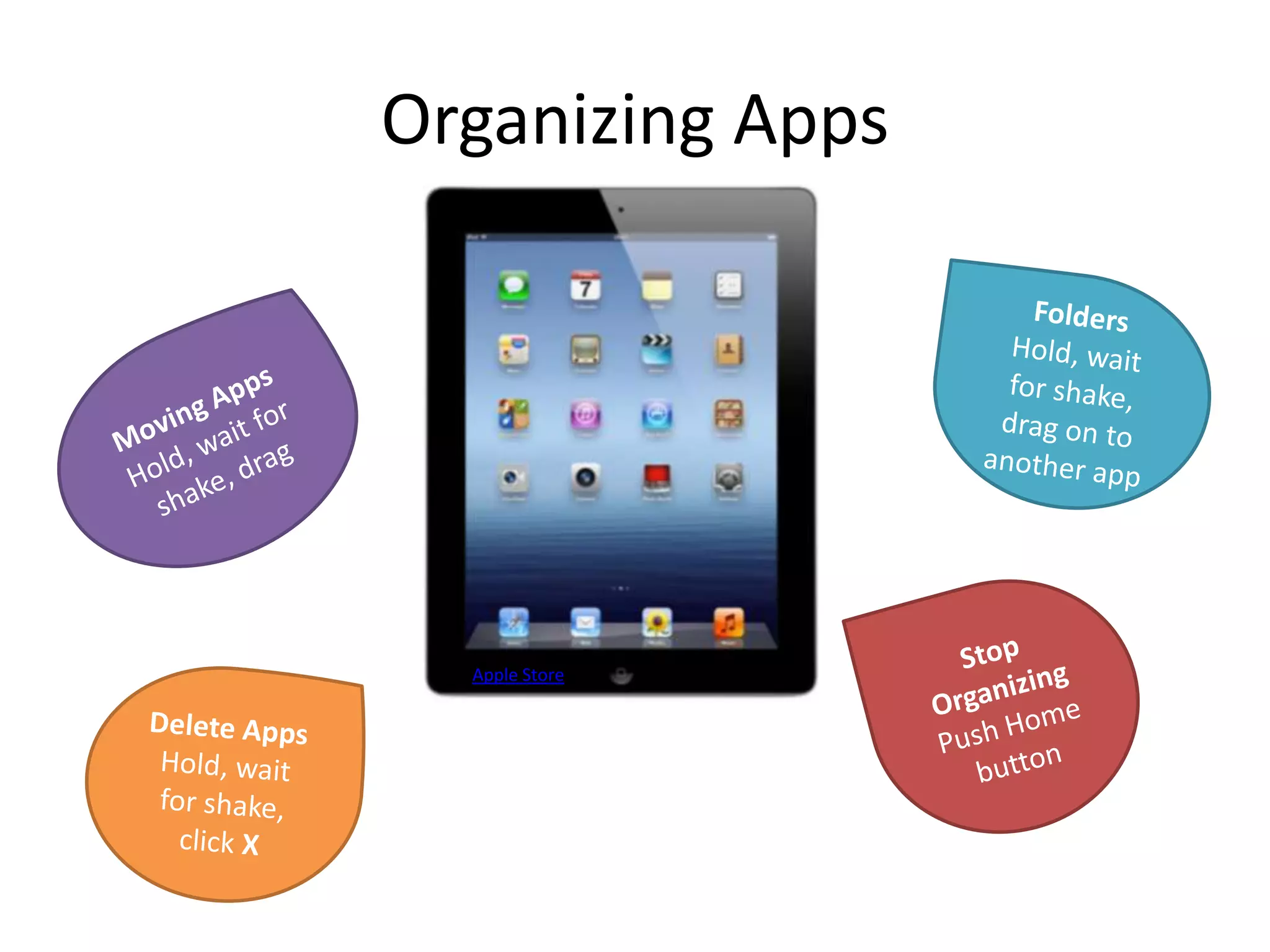
Organizing Apps


  Apple Store
One click Home Button
•   Wakes up the sleeping iPad
•   Brings you back to the main page
•   Opens search
•   Minimizes an App


                                   SensiPhone
Double click the Home Button
• Displays “open” Apps
   – Move between Apps
   – Allows you to Close Apps
      • Press and hold the App
      • Click the stop sign
• If iPad is asleep and
  music or media is
  playing it will open the
  controls


                         SensiPhone
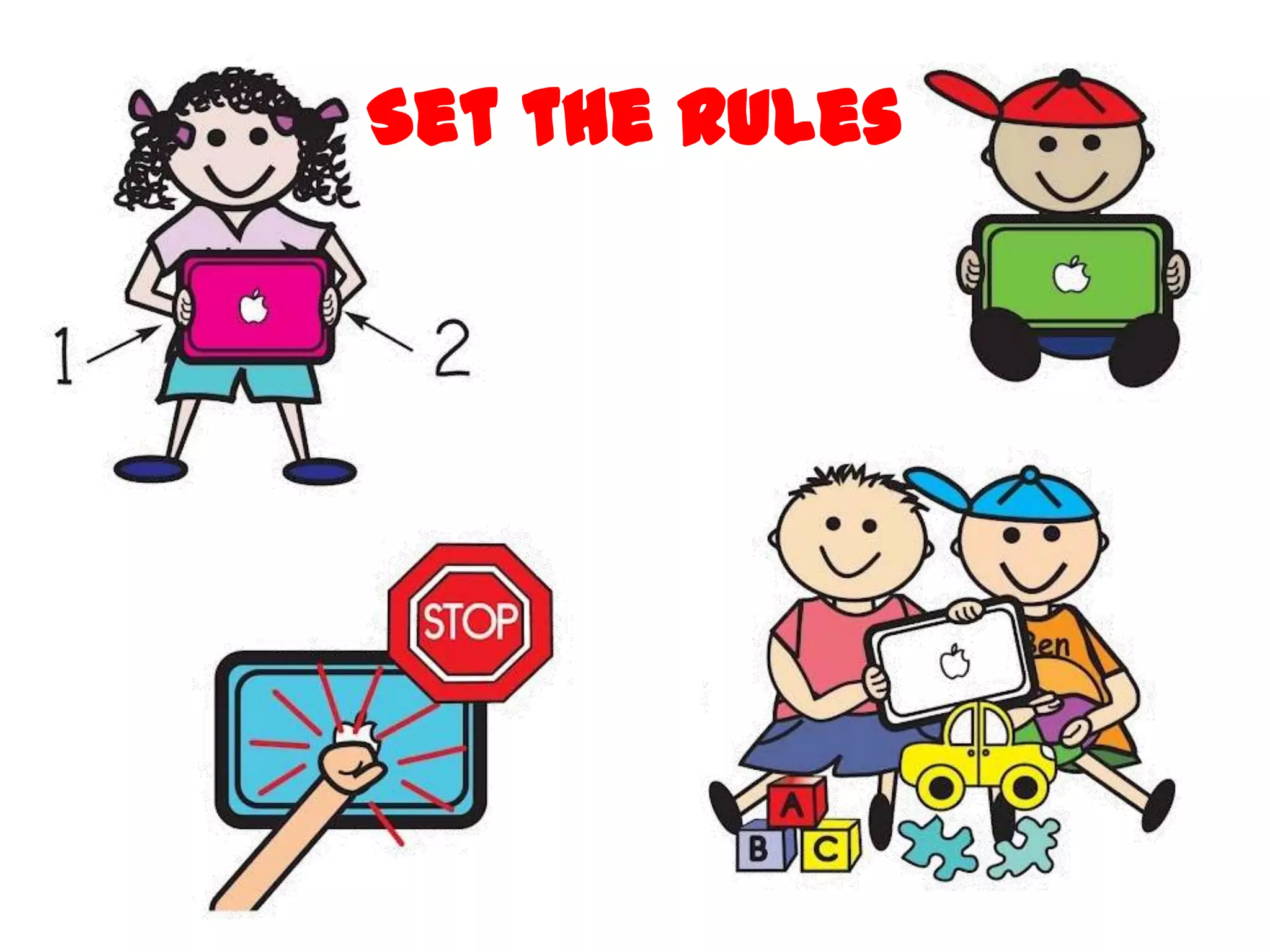
Set the Rules
Rules for Home
• Use device in a public      • Limit social media usage
  space                          – Facebook 13 or older
• 30 minutes of screen time      – YouTube 13 or older
  a day                          – Twitter 13 or older
   –   TV                     • Think before you post
   –   iPad                   • Tell an adult if you
   –   Computer                  – feel uncomfortable about
   –   Electronic games            what you saw on line
• Limited use during play        – inappropriate site
  dates                       • Cyberbullying
• Ask permission before use
How Can I Kid Proof my iPad?
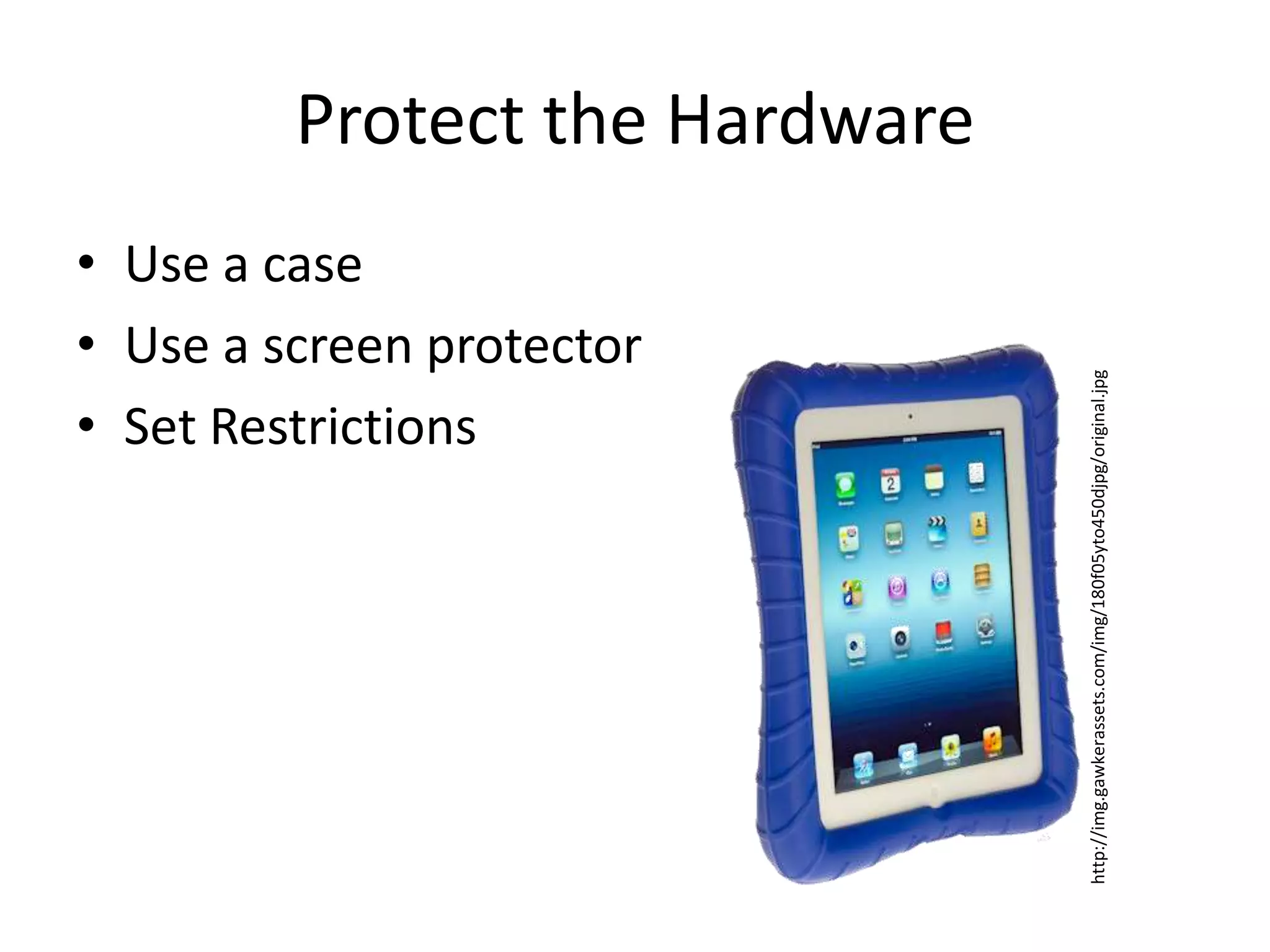
Protect the Hardware
• Use a case
• Use a screen protector


                                http://img.gawkerassets.com/img/180f05yto450djpg/original.jpg
• Set Restrictions
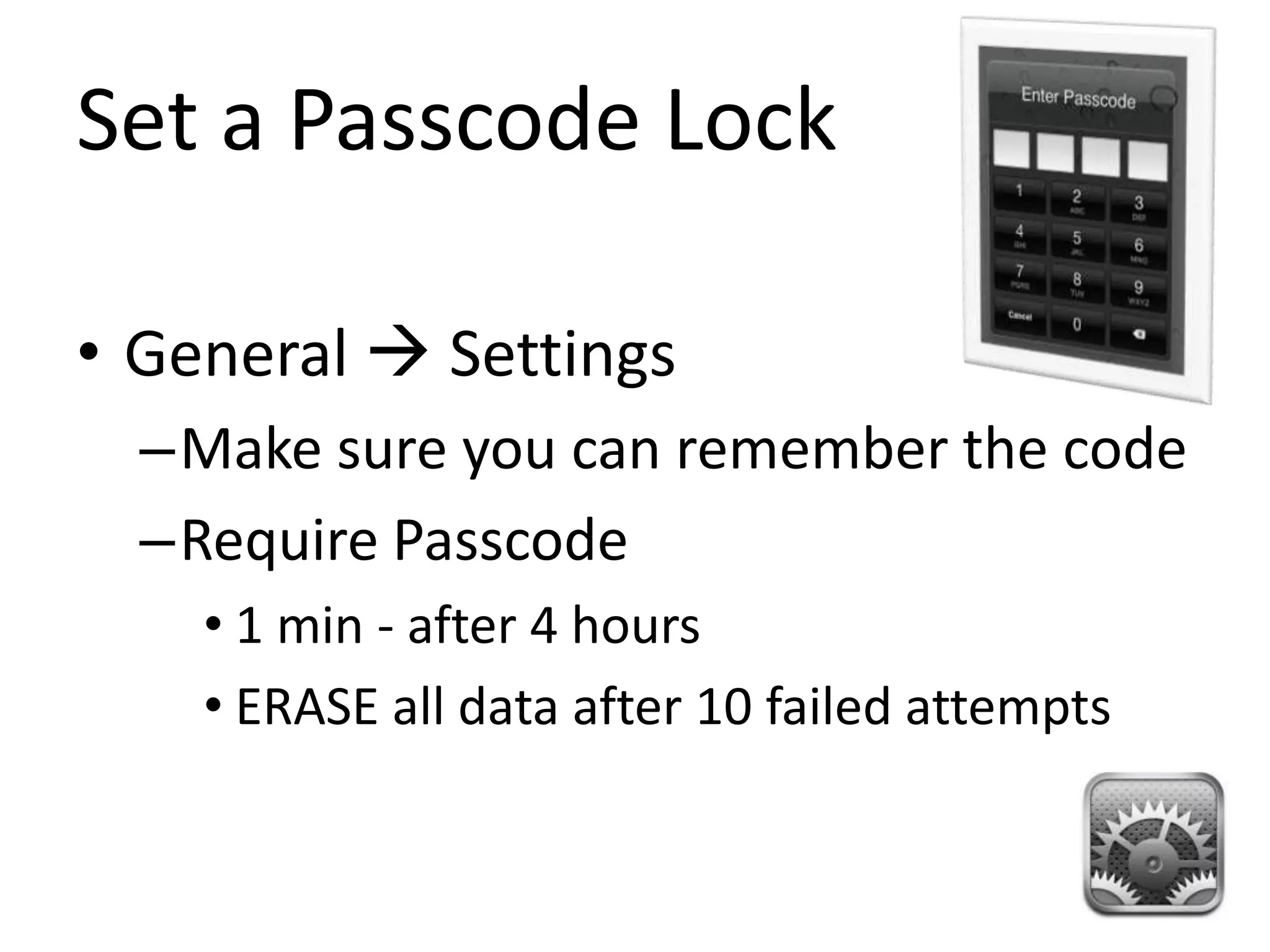
Set a Passcode Lock

• General  Settings
  –Make sure you can remember the code
  –Require Passcode
    • 1 min - after 4 hours
    • ERASE all data after 10 failed attempts
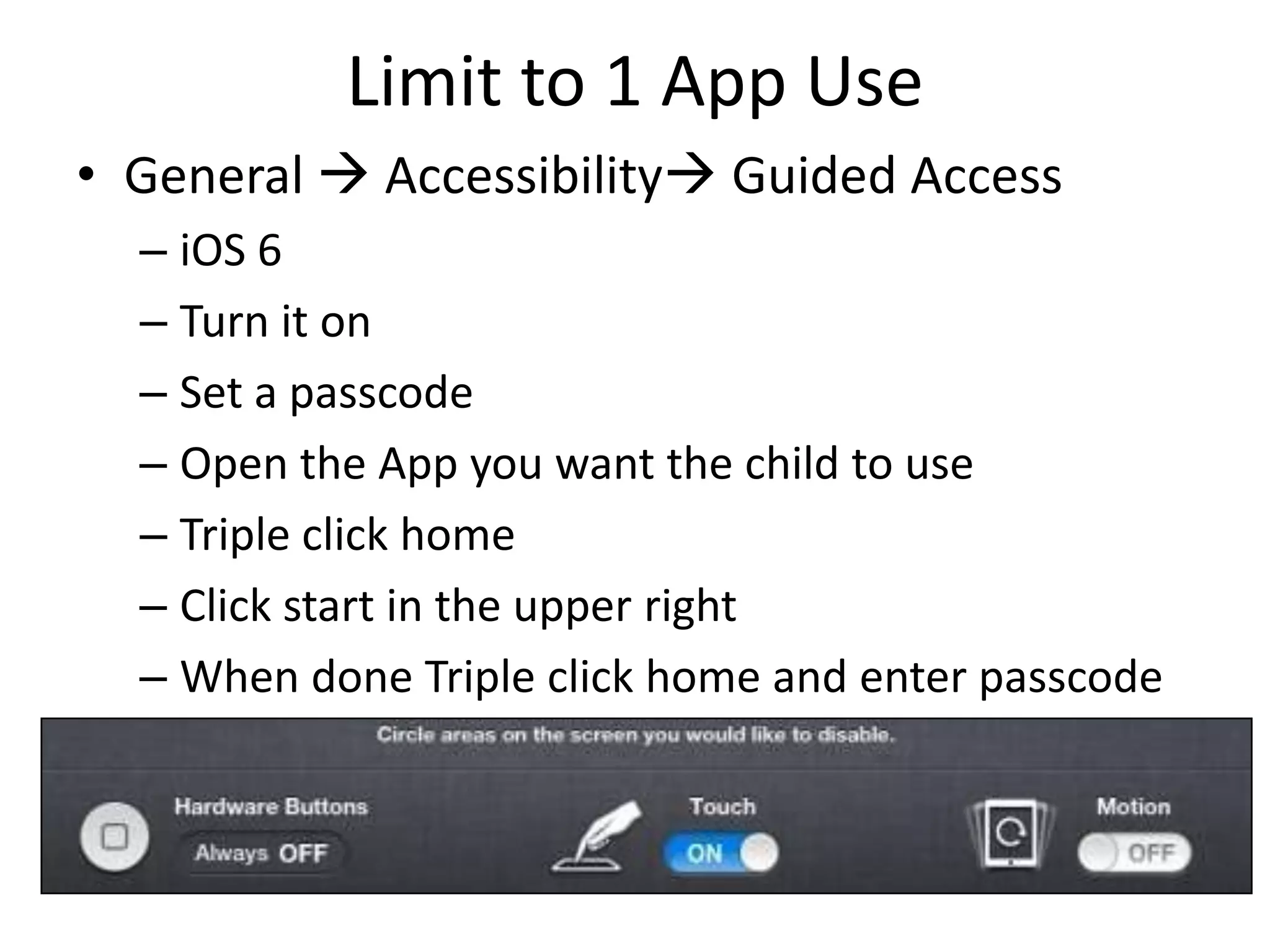
Limit to 1 App Use
• General  Accessibility Guided Access
  – iOS 6
  – Turn it on
  – Set a passcode
  – Open the App you want the child to use
  – Triple click home
  – Click start in the upper right
  – When done Triple click home and enter passcode
Enable Restrictions
•   Settings  General
•   Restrictions  ON
•   Enable Restrictions
•   Set Passcode (enter twice)
    – Not a birthdate, anniversary
    – Something they cannot guess
• http://support.apple.com/kb/ht4213
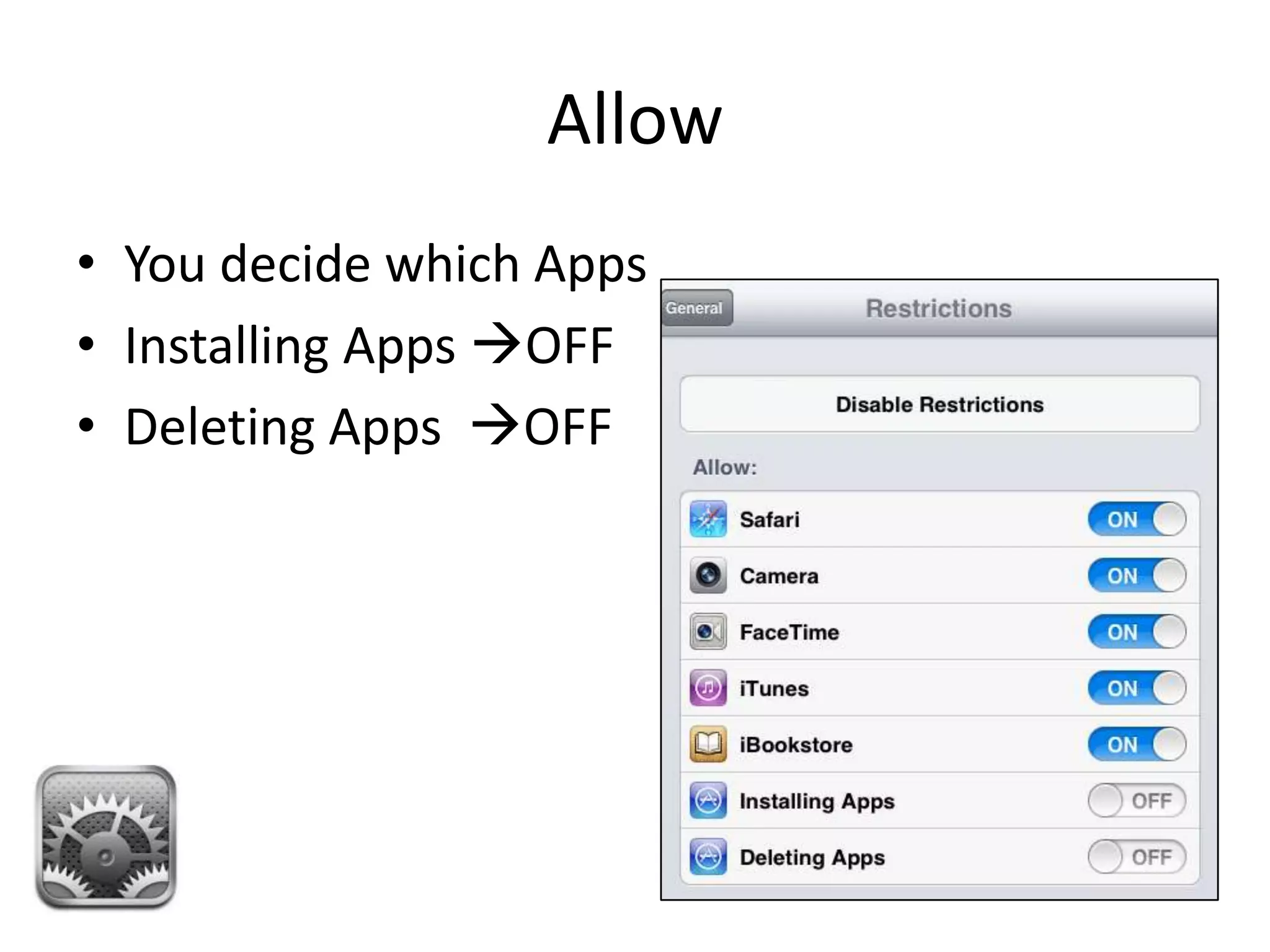
Allow
• You decide which Apps
• Installing Apps OFF
• Deleting Apps OFF
Allowed Content
Allowed Content
• Ratings For  United States
• Music & Podcasts  Explicit  OFF
• Movies  G
   – http://www.filmratings.com/downloads/130207_mpaa_rating-
     poster.pdf
• TV Shows  TV-Y
   – http://www.tvguidelines.org/ratings.htm
• Books  Explicit Sexual Content  OFF
• Apps  4+
   – http://www.commonsensemedia.org/app-reviews
• In-App Purchases  OFF
• Require Password  Immediately
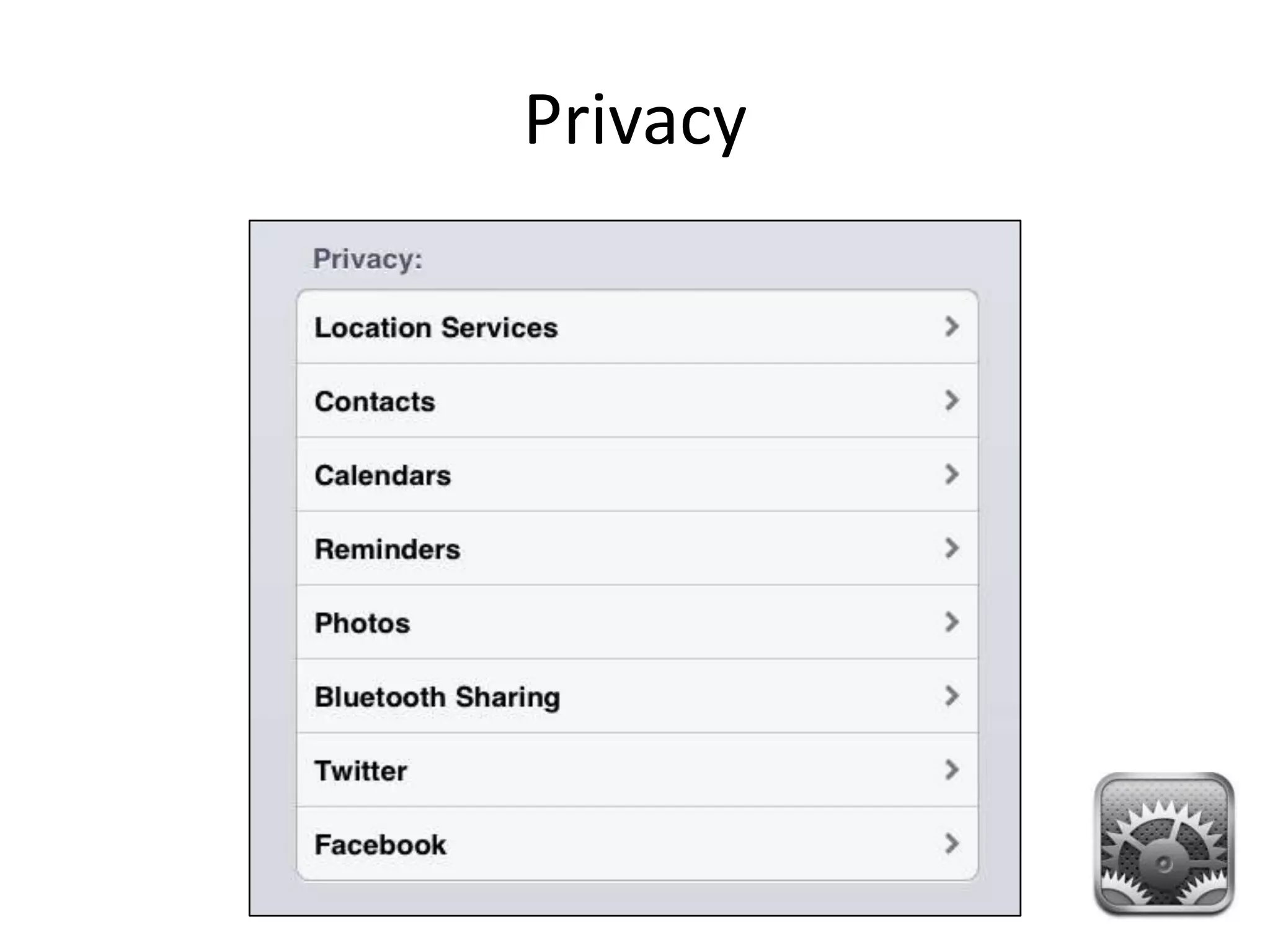
Privacy
Allow Changes:
Game Center:
Enable Restrictions
• All Changes:
  • Accounts  Don’t Allow Changes
     – Disables Messages
     – Blocks Changes to
        » FaceTime
        » Twitter
        » iCloud
        » adding new Mail accounts
        » Changing iTunes accounts
  • Volume Limit: Allow Changes/Don’t Allow Changes
Spotlight Search


• Settings  General
• Spotlight Search
• Uncheck what you do
  not want to show
iCloud
https://www.icloud.com/
Find My iPad
• General Settings
• iCloud
• Find My iPad
Safari
• Settings  Safari       • Settings  Private Browsing
• Always Show Bookmarks     ON
  ON
Safari
Clear history, cookies, cache
•   Settings  Safari
•   Accept Cookies
•   Clear History
•   Clear Cookies and Data
    (Cache)
Safari
New Tab
• Click and hold the link
• Open in New Tab
Safari
Find on Page
• Type in search box
• Find is the bottom option
tips
trick
Screenshot
• Click the home button
  and the on/off button
  at the same time
• You will hear a camera
  click
• The screenshot is saved
  to your Photos
Dock Apps
6 apps to the tray, can be folders
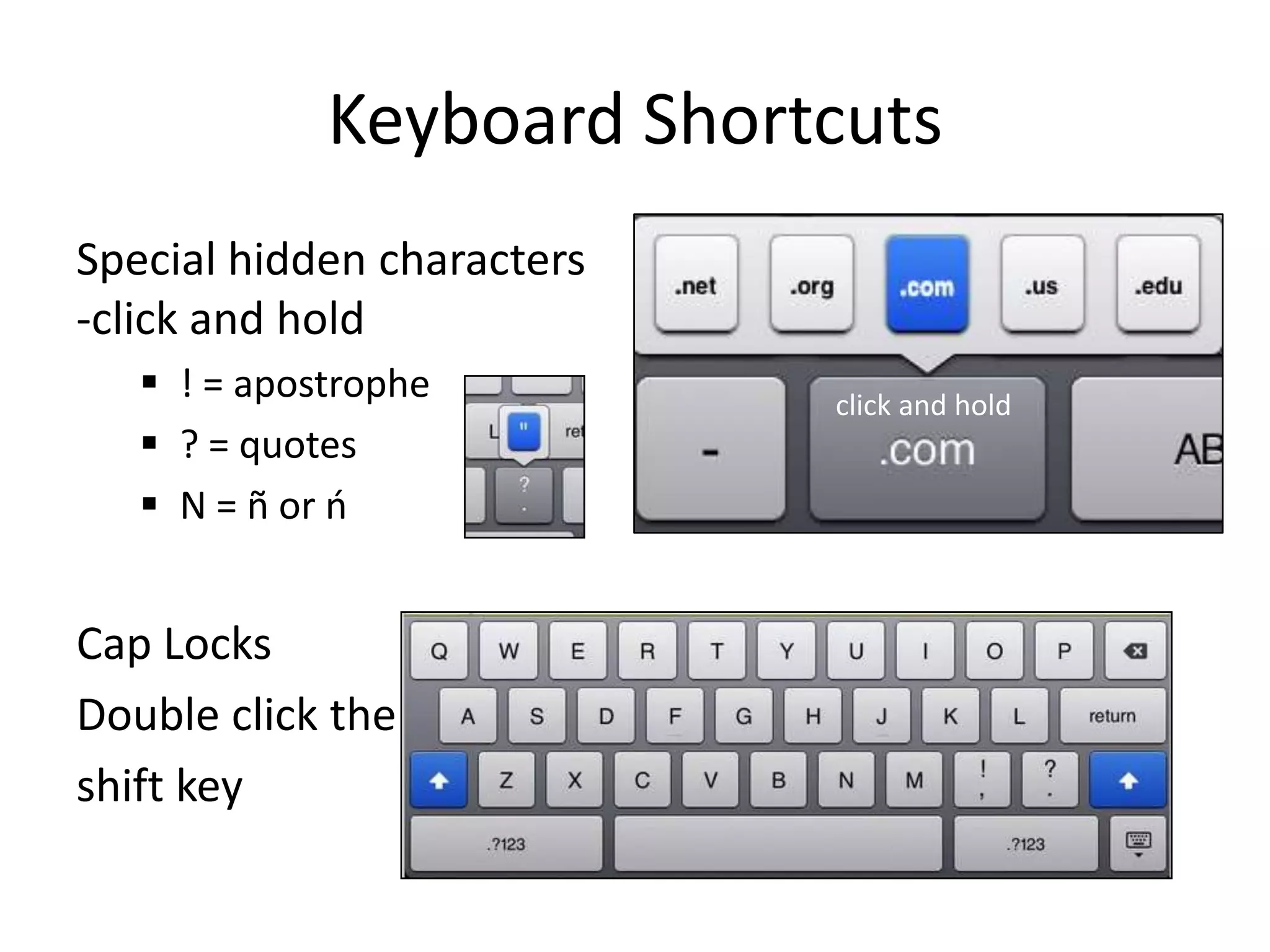
Keyboard Shortcuts
Special hidden characters
-click and hold
    ! = apostrophe         click and hold
    ? = quotes
    N = ñ or ń


Cap Locks
Double click the
shift key
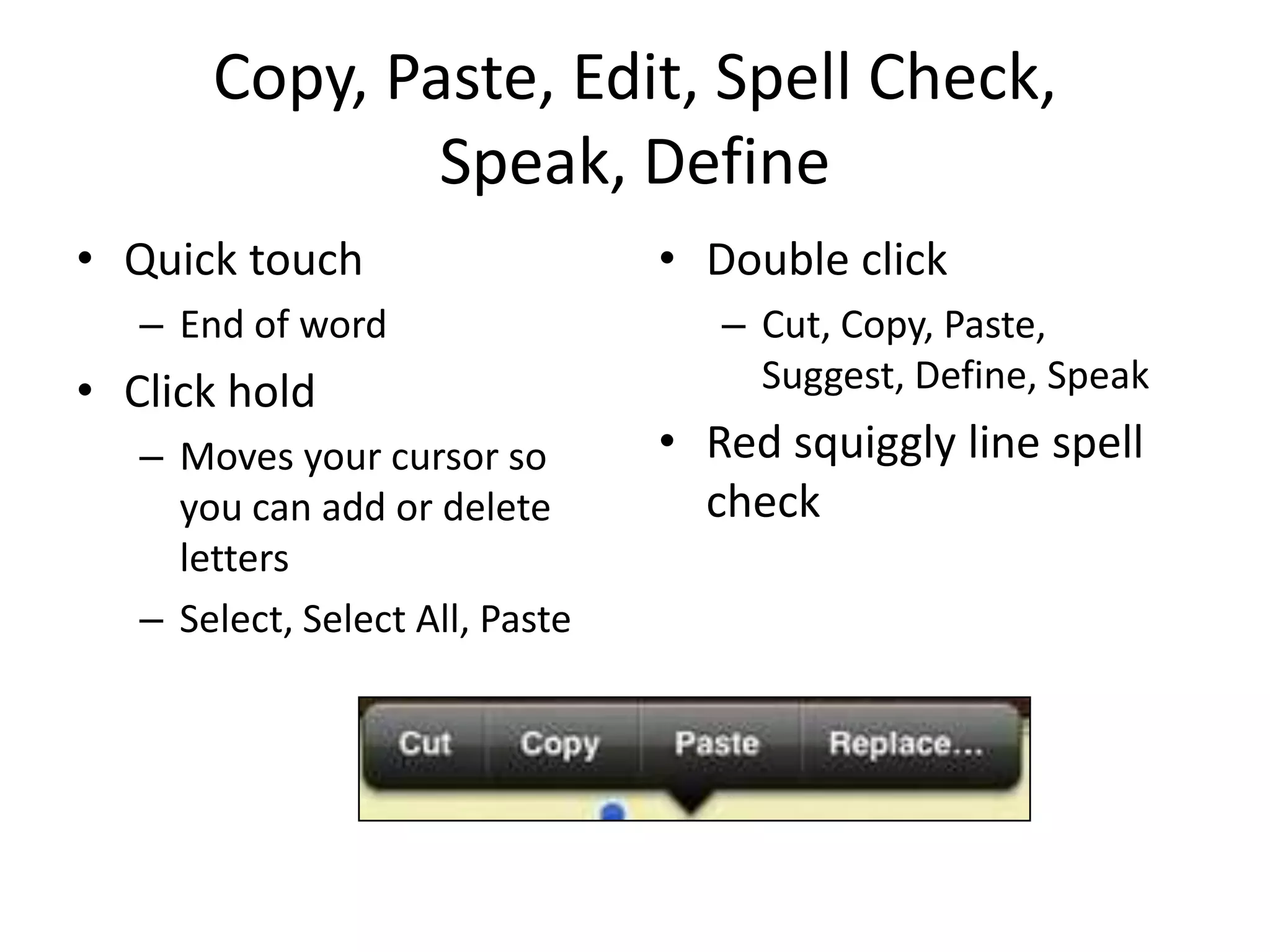
Copy, Paste, Edit, Spell Check,
               Speak, Define
• Quick touch                    • Double click
   – End of word                    – Cut, Copy, Paste,
• Click hold                          Suggest, Define, Speak
   – Moves your cursor so        • Red squiggly line spell
     you can add or delete         check
     letters
   – Select, Select All, Paste
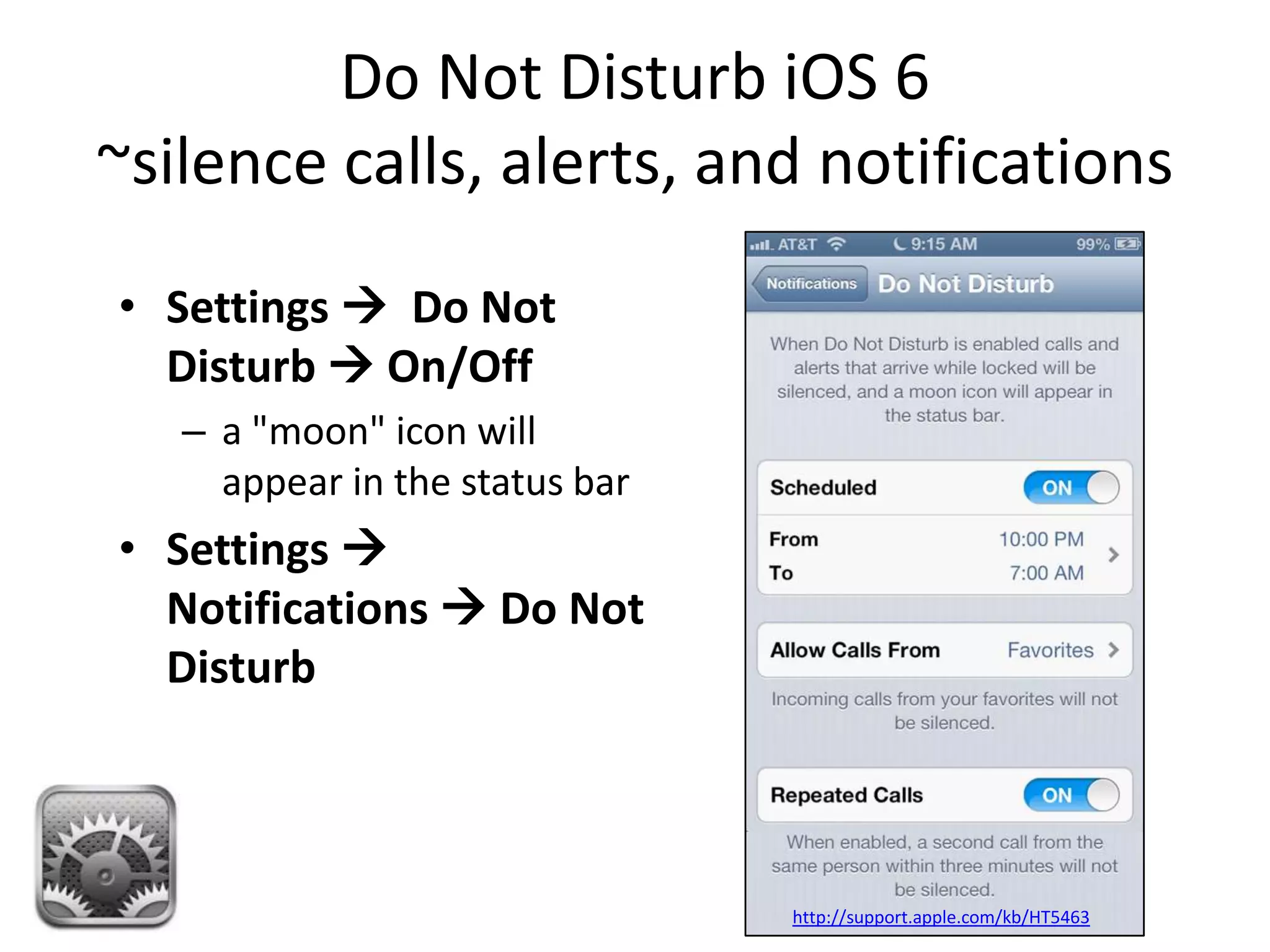
Do Not Disturb iOS 6
~silence calls, alerts, and notifications
• Settings  Do Not
  Disturb  On/Off
   – a "moon" icon will
     appear in the status bar
• Settings 
  Notifications  Do Not
  Disturb


                                http://support.apple.com/kb/HT5463
Battery Percentage Display
•   Settings
•   General
•   Usage
•   Battery Percentage
Apps
more
apps
Creation

Sock Puppets                            Videolicious


  iMovie       Skitch   davinci note    Pic Collage


iMotion HD              Toontastic     Doodle Buddy
STEM

 Toy Physics HD Lite                                              Rush Hour


Finger Physics HD Free                          Dot-to-Dot         Bee-Bot


     Zentomino           Cut the Rope Free   Daisy the Dinosaur
Science / Math


GoSkyWatch
Planetarium

                         Motion Math:   Candy Count
                          Hungry Fish


              Leafsnap


                          Montessori    ArithmeTick
OverDrive         Kids Media        Google Earth       Monster Hunt –
Library eBooks   Common Sense Media                      The Memory Game
& Audiobooks


                       iBooks         Dragon Dictation      StarFall


                    Adobe Reader                           BrainPop!
Internet Safety Websites
• NetSmartz Kids:
  http://www.netsmartzkids.org/
• Common Sense Media:
  www.commonsensemedia.org
• Microsoft Family Safety:
  http://www.microsoft.com/security/family-
  safety/default.aspx#Overview
• Stay Safe Online:
  http://www.staysafeonline.org/
Credits
• Screenshot of iPads:
http://store.apple.com/us/browse/home/shop_ipad
• Screenshot of iPad/Directions:
http://langwitches.wikispaces.com/iPads+in+Education
• Home button:
http://senseiphone.com/calibrate-home-button-idevice-responsive-
01281856/
• iPad Rules:
http://heidisongs.blogspot.co.nz/2012/09/tips-for-one-ipad-
classroom-and-free.html
• 4 finger swipe:
http://successbeginstoday.org/wordpress/multi-touch-gestures-on-
the-ipad-with-ios5/
Credits
• Protective Case
http://img.gawkerassets.com/img/180f05yto450djpg/original.jpg
• Do Not Disturb
http://support.apple.com/kb/HT5463
• App icons: iTunes


        Thank you for your time!
                            Online at:
                 http://gorneaun.wordpress.com/
Thank you

           Online at:
http://gorneaun.wordpress.com/

iPad Parent Training

  • 1.
    Apple Store Taipei AmericanSchool Parent iPad Training Nancy Gorneau and Lisa Adams gorneaun@tas.edu.tw adamsl@tas.edu.tw
  • 2.
    Lock Rotation / Langwitches
  • 3.
    Top Down Drag Shows Pinch Notifications Zoom in/Out In an App Tap Select/Open Double Tap an App Zoom in/out in certain Apps Hold Moves/Delete Swipe icons Move from Apple Store one screen to another
  • 4.
    Notifications • Settings Notifications – Select an App – Make your choices
  • 5.
    Top Down Drag Shows Multi-Gesturing Notifications Pinch 4 Finger Swipe Zoom in/Out Tap Select/Open Double Tap an App Zoom in/out Hold Moves/Delete Swipe icons Move from Apple Store one screen to another
  • 6.
    Multitasking Gestures • Settings General • Multitasking Gestures SuccessBeginsToday • 4 fingers – left/right switches between app – pinch in to the home screen – swipe up to reveal multitask bar
  • 7.
    The Home Button Apple Store Takes you where you want to go
  • 8.
    Organizing Apps Apple Store
  • 9.
    One click HomeButton • Wakes up the sleeping iPad • Brings you back to the main page • Opens search • Minimizes an App SensiPhone
  • 10.
    Double click theHome Button • Displays “open” Apps – Move between Apps – Allows you to Close Apps • Press and hold the App • Click the stop sign • If iPad is asleep and music or media is playing it will open the controls SensiPhone
  • 11.
  • 16.
    Rules for Home •Use device in a public • Limit social media usage space – Facebook 13 or older • 30 minutes of screen time – YouTube 13 or older a day – Twitter 13 or older – TV • Think before you post – iPad • Tell an adult if you – Computer – feel uncomfortable about – Electronic games what you saw on line • Limited use during play – inappropriate site dates • Cyberbullying • Ask permission before use
  • 17.
    How Can IKid Proof my iPad?
  • 18.
    Protect the Hardware •Use a case • Use a screen protector http://img.gawkerassets.com/img/180f05yto450djpg/original.jpg • Set Restrictions
  • 19.
    Set a PasscodeLock • General  Settings –Make sure you can remember the code –Require Passcode • 1 min - after 4 hours • ERASE all data after 10 failed attempts
  • 20.
    Limit to 1App Use • General  Accessibility Guided Access – iOS 6 – Turn it on – Set a passcode – Open the App you want the child to use – Triple click home – Click start in the upper right – When done Triple click home and enter passcode
  • 21.
    Enable Restrictions • Settings  General • Restrictions  ON • Enable Restrictions • Set Passcode (enter twice) – Not a birthdate, anniversary – Something they cannot guess • http://support.apple.com/kb/ht4213
  • 22.
    Allow • You decidewhich Apps • Installing Apps OFF • Deleting Apps OFF
  • 23.
  • 24.
    Allowed Content • RatingsFor  United States • Music & Podcasts  Explicit  OFF • Movies  G – http://www.filmratings.com/downloads/130207_mpaa_rating- poster.pdf • TV Shows  TV-Y – http://www.tvguidelines.org/ratings.htm • Books  Explicit Sexual Content  OFF • Apps  4+ – http://www.commonsensemedia.org/app-reviews • In-App Purchases  OFF • Require Password  Immediately
  • 25.
  • 26.
  • 27.
    Enable Restrictions • AllChanges: • Accounts  Don’t Allow Changes – Disables Messages – Blocks Changes to » FaceTime » Twitter » iCloud » adding new Mail accounts » Changing iTunes accounts • Volume Limit: Allow Changes/Don’t Allow Changes
  • 28.
    Spotlight Search • Settings General • Spotlight Search • Uncheck what you do not want to show
  • 29.
  • 30.
    Find My iPad •General Settings • iCloud • Find My iPad
  • 31.
    Safari • Settings Safari • Settings  Private Browsing • Always Show Bookmarks ON ON
  • 32.
    Safari Clear history, cookies,cache • Settings  Safari • Accept Cookies • Clear History • Clear Cookies and Data (Cache)
  • 33.
    Safari New Tab • Clickand hold the link • Open in New Tab
  • 34.
    Safari Find on Page •Type in search box • Find is the bottom option
  • 35.
  • 36.
    Screenshot • Click thehome button and the on/off button at the same time • You will hear a camera click • The screenshot is saved to your Photos
  • 37.
    Dock Apps 6 appsto the tray, can be folders
  • 38.
    Keyboard Shortcuts Special hiddencharacters -click and hold  ! = apostrophe click and hold  ? = quotes  N = ñ or ń Cap Locks Double click the shift key
  • 39.
    Copy, Paste, Edit,Spell Check, Speak, Define • Quick touch • Double click – End of word – Cut, Copy, Paste, • Click hold Suggest, Define, Speak – Moves your cursor so • Red squiggly line spell you can add or delete check letters – Select, Select All, Paste
  • 40.
    Do Not DisturbiOS 6 ~silence calls, alerts, and notifications • Settings  Do Not Disturb  On/Off – a "moon" icon will appear in the status bar • Settings  Notifications  Do Not Disturb http://support.apple.com/kb/HT5463
  • 41.
    Battery Percentage Display • Settings • General • Usage • Battery Percentage
  • 42.
  • 43.
    Creation Sock Puppets Videolicious iMovie Skitch davinci note Pic Collage iMotion HD Toontastic Doodle Buddy
  • 44.
    STEM Toy PhysicsHD Lite Rush Hour Finger Physics HD Free Dot-to-Dot Bee-Bot Zentomino Cut the Rope Free Daisy the Dinosaur
  • 45.
    Science / Math GoSkyWatch Planetarium Motion Math: Candy Count Hungry Fish Leafsnap Montessori ArithmeTick
  • 46.
    OverDrive Kids Media Google Earth Monster Hunt – Library eBooks Common Sense Media The Memory Game & Audiobooks iBooks Dragon Dictation StarFall Adobe Reader BrainPop!
  • 47.
    Internet Safety Websites •NetSmartz Kids: http://www.netsmartzkids.org/ • Common Sense Media: www.commonsensemedia.org • Microsoft Family Safety: http://www.microsoft.com/security/family- safety/default.aspx#Overview • Stay Safe Online: http://www.staysafeonline.org/
  • 48.
    Credits • Screenshot ofiPads: http://store.apple.com/us/browse/home/shop_ipad • Screenshot of iPad/Directions: http://langwitches.wikispaces.com/iPads+in+Education • Home button: http://senseiphone.com/calibrate-home-button-idevice-responsive- 01281856/ • iPad Rules: http://heidisongs.blogspot.co.nz/2012/09/tips-for-one-ipad- classroom-and-free.html • 4 finger swipe: http://successbeginstoday.org/wordpress/multi-touch-gestures-on- the-ipad-with-ios5/
  • 49.
    Credits • Protective Case http://img.gawkerassets.com/img/180f05yto450djpg/original.jpg •Do Not Disturb http://support.apple.com/kb/HT5463 • App icons: iTunes Thank you for your time! Online at: http://gorneaun.wordpress.com/
  • 50.
    Thank you Online at: http://gorneaun.wordpress.com/

Editor's Notes

  • #2 Our vision is to be a premier school, which includes being on the cutting edge of new technology. They give us access online to selected websites that our students can use for research in their classes.
  • #8 Single clickTurns on iPadCloses an appReturns to home screenOpens search windowDouble clickMultitaskClose apps
  • #31 iCloud can help you figure out where you left it. Just sign in at iCloud.com or use the Find My iPhone app to see your missing Mac, iPhone, iPad, or iPod touch on a map. And iOS 6 and iCloud offer Lost Mode — making it even easier to find and protect a missing iOS device. With Lost Mode, you can immediately lock your device and send it a message with a contact number. Then whoever finds it can call you from the Lock screen without accessing the rest of the information on your device.
  • #32 Private Browsing in iOS 5 protects private information and blocks some websites from tracking your behavior. Safari doesn't remember the pages you visit, your search history, or your AutoFill information
  • #33 A cookie is a piece of data that a website puts on the device so the website can remember you when you visit again. That way, webpages can be customized for you based on information you may have provided.Important: Some pages may not work unless you accept cookies.