GADGET REPORT
Secret skills of using iPad
HISTORY AND IPAD FAMILY
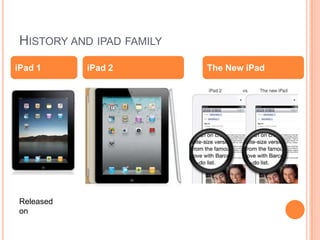
iPad 1     iPad 2         The New iPad


Released
on
HISTORY OF IPAD FAMILY
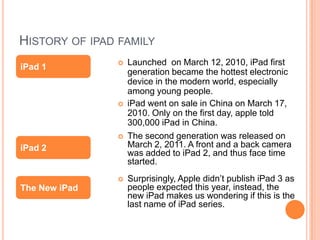
                  Launched on March 12, 2010, iPad first
iPad 1
                   generation became the hottest electronic
                   device in the modern world, especially
                   among young people.
                  iPad went on sale in China on March 17,
                   2010. Only on the first day, apple told
                   300,000 iPad in China.
                  The second generation was released on
iPad 2             March 2, 2011. A front and a back camera
                   was added to iPad 2, and thus face time
                   started.
                  Surprisingly, Apple didn’t publish iPad 3 as
The New iPad       people expected this year, instead, the
                   new iPad makes us wondering if this is the
                   last name of iPad series.
HOW TO USE AN IPAD
 When you buy an iPad, it does not come with any
  instruction
 Learn from people who already have an iPad

 Generate the skills from using another apple touch
  screen products, if you pre-owned an iPhone or an
  iPod touch,
 Read the official guide book online at :
  manuals.info.apple.com/en/ipad_user_guide.pdf
 Install the guide book in your iPad through iBooks
  app
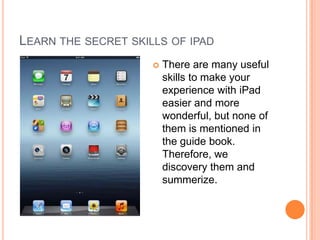
LEARN THE SECRET SKILLS OF IPAD
                        There are many useful
                         skills to make your
                         experience with iPad
                         easier and more
                         wonderful, but none of
                         them is mentioned in
                         the guide book.
                         Therefore, we
                         discovery them and
                         summerize.
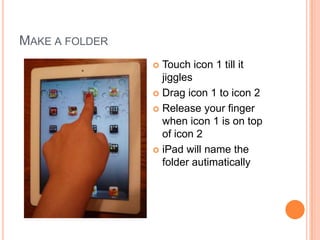
MAKE A FOLDER
                 Touch icon 1 till it
                  jiggles
                 Drag icon 1 to icon 2

                 Release your finger
                  when icon 1 is on top
                  of icon 2
                 iPad will name the
                  folder autimatically
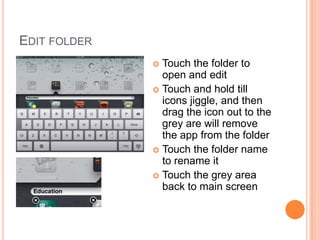
EDIT FOLDER
               Touch the folder to
                open and edit
               Touch and hold till
                icons jiggle, and then
                drag the icon out to the
                grey are will remove
                the app from the folder
               Touch the folder name
                to rename it
               Touch the grey area
                back to main screen
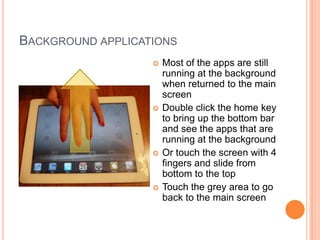
BACKGROUND APPLICATIONS
                      Most of the apps are still
                       running at the background
                       when returned to the main
                       screen
                      Double click the home key
                       to bring up the bottom bar
                       and see the apps that are
                       running at the background
                      Or touch the screen with 4
                       fingers and slide from
                       bottom to the top
                      Touch the grey area to go
                       back to the main screen
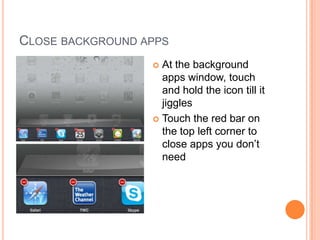
CLOSE BACKGROUND APPS
                   At the background
                    apps window, touch
                    and hold the icon till it
                    jiggles
                   Touch the red bar on
                    the top left corner to
                    close apps you don’t
                    need
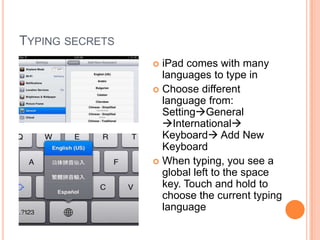
TYPING SECRETS
                  iPad comes with many
                   languages to type in
                  Choose different
                   language from:
                   SettingGeneral
                   International
                   Keyboard Add New
                   Keyboard
                  When typing, you see a
                   global left to the space
                   key. Touch and hold to
                   choose the current typing
                   language
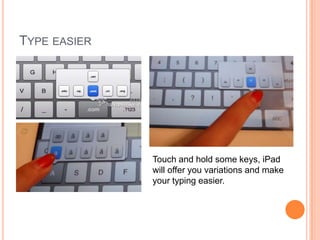
TYPE EASIER


              Touch and hold some keys, iPad
              will offer you variations and make
              your typing easier.
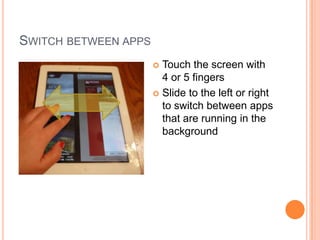
SWITCH BETWEEN APPS
                       Touch the screen with
                        4 or 5 fingers
                       Slide to the left or right
                        to switch between apps
                        that are running in the
                        background
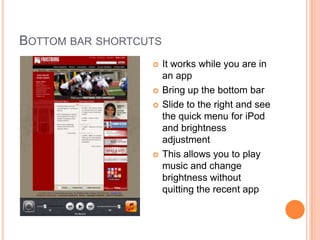
BOTTOM BAR SHORTCUTS
                      It works while you are in
                       an app
                      Bring up the bottom bar
                      Slide to the right and see
                       the quick menu for iPod
                       and brightness
                       adjustment
                      This allows you to play
                       music and change
                       brightness without
                       quitting the recent app
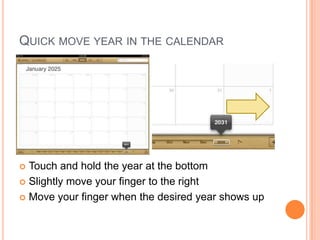
QUICK MOVE YEAR IN THE CALENDAR


 Touch and hold the year at the bottom
 Slightly move your finger to the right

 Move your finger when the desired year shows up
WHAT DOES DIFFERENT NUMBERS OF
FINGERS MEAN FOR IPAD

1  finger touch is to select
 1 finger touch and hold is to edit

 2 fingers touch is to zoom in and out, and rotate

 4 finger touch and move side ways is to switch
  between running apps
 4 finger touch and move from bottom to top is
  to bring up the background bar
 5 finger touch and move to the center is to
  close an app and return to the main screen
CHINESE LESSON WITH IPAD
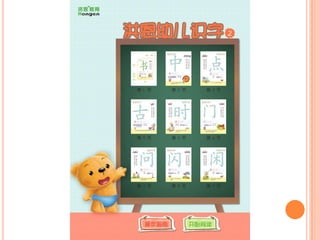
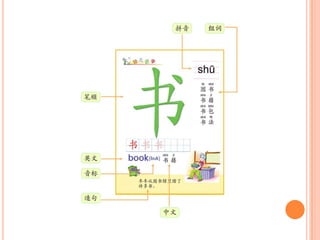
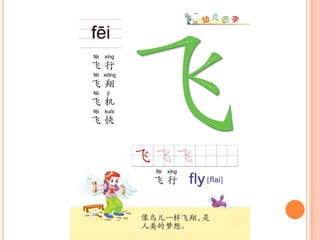
Using iPads to assist teaching Chinese
ENJOY YOUR IPAD!!!

Gadget report--iPad

  • 1.
  • 2.
    HISTORY AND IPADFAMILY iPad 1 iPad 2 The New iPad Released on
  • 3.
    HISTORY OF IPADFAMILY  Launched on March 12, 2010, iPad first iPad 1 generation became the hottest electronic device in the modern world, especially among young people.  iPad went on sale in China on March 17, 2010. Only on the first day, apple told 300,000 iPad in China.  The second generation was released on iPad 2 March 2, 2011. A front and a back camera was added to iPad 2, and thus face time started.  Surprisingly, Apple didn’t publish iPad 3 as The New iPad people expected this year, instead, the new iPad makes us wondering if this is the last name of iPad series.
  • 4.
    HOW TO USEAN IPAD  When you buy an iPad, it does not come with any instruction  Learn from people who already have an iPad  Generate the skills from using another apple touch screen products, if you pre-owned an iPhone or an iPod touch,  Read the official guide book online at : manuals.info.apple.com/en/ipad_user_guide.pdf  Install the guide book in your iPad through iBooks app
  • 5.
    LEARN THE SECRETSKILLS OF IPAD  There are many useful skills to make your experience with iPad easier and more wonderful, but none of them is mentioned in the guide book. Therefore, we discovery them and summerize.
  • 6.
    MAKE A FOLDER  Touch icon 1 till it jiggles  Drag icon 1 to icon 2  Release your finger when icon 1 is on top of icon 2  iPad will name the folder autimatically
  • 7.
    EDIT FOLDER  Touch the folder to open and edit  Touch and hold till icons jiggle, and then drag the icon out to the grey are will remove the app from the folder  Touch the folder name to rename it  Touch the grey area back to main screen
  • 8.
    BACKGROUND APPLICATIONS  Most of the apps are still running at the background when returned to the main screen  Double click the home key to bring up the bottom bar and see the apps that are running at the background  Or touch the screen with 4 fingers and slide from bottom to the top  Touch the grey area to go back to the main screen
  • 9.
    CLOSE BACKGROUND APPS  At the background apps window, touch and hold the icon till it jiggles  Touch the red bar on the top left corner to close apps you don’t need
  • 10.
    TYPING SECRETS  iPad comes with many languages to type in  Choose different language from: SettingGeneral International Keyboard Add New Keyboard  When typing, you see a global left to the space key. Touch and hold to choose the current typing language
  • 11.
    TYPE EASIER Touch and hold some keys, iPad will offer you variations and make your typing easier.
  • 12.
    SWITCH BETWEEN APPS  Touch the screen with 4 or 5 fingers  Slide to the left or right to switch between apps that are running in the background
  • 13.
    BOTTOM BAR SHORTCUTS  It works while you are in an app  Bring up the bottom bar  Slide to the right and see the quick menu for iPod and brightness adjustment  This allows you to play music and change brightness without quitting the recent app
  • 14.
    QUICK MOVE YEARIN THE CALENDAR  Touch and hold the year at the bottom  Slightly move your finger to the right  Move your finger when the desired year shows up
  • 15.
    WHAT DOES DIFFERENTNUMBERS OF FINGERS MEAN FOR IPAD 1 finger touch is to select  1 finger touch and hold is to edit  2 fingers touch is to zoom in and out, and rotate  4 finger touch and move side ways is to switch between running apps  4 finger touch and move from bottom to top is to bring up the background bar  5 finger touch and move to the center is to close an app and return to the main screen
  • 16.
    CHINESE LESSON WITHIPAD Using iPads to assist teaching Chinese
  • 20.