Packet Capturing
         with Wireshark


         Packet Capturing with Wireshark


        Michael Luo
        htluo@cisco.com


© 2006 Cisco Systems, Inc. All rights reserved.   1
© 2006 Cisco Systems, Inc. All rights reserved.   2
Wireshark

                       www.wireshark.org
                       Used to be called “Ethereal”
                       Freeware / Open Source
                       Multi-platform: x86, x64, Mac OS, Linux
                       Has a “portable” version (for USB drive)
                       Depends on WinPcap (www.winPcap.org)
                               – A Windows packet capture library
                               – Wireshark won’t work if WinPcap was not installed
                                 (properly)
                               – WinPcap is included in Wireshark installation package
                                 and will be installed by default
                       The most popular open source sniffer

© 2006 Cisco Systems, Inc. All rights reserved.                                          3
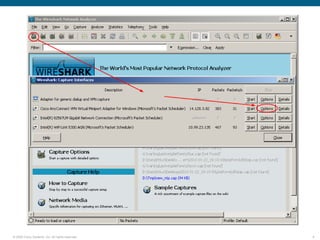
Interface to Capture

                       If you have multiple interfaces (network adapters), make
                        sure you captured on the right interface
                               – Wired LAN vs. Wireless LAN
                               – Soft VPN adapter vs. physical interface
                       You may list all interfaces from
                               – Menu “Capture > Interfaces”
                               – Toolbar “List the available interfaces” (1st icon)
                       “Option” button to set capture options, such as capture
                        filter
                       “Detail” button to view interface details, such as MAC
                        address
                       “Start” button is rarely used.  Because we can start
                        the capture from within the “Option” window.
© 2006 Cisco Systems, Inc. All rights reserved.                                       4
© 2006 Cisco Systems, Inc. All rights reserved.   5
© 2006 Cisco Systems, Inc. All rights reserved.   6
Filters

                       Capture Filter
                               – Capture only interested packets
                               – Use carefully because you could accidentally block
                                 important packets. If not sure, don’t use any capture
                                 filter
                       Display Filter
                               – Display only interested packets
                               – It’s safe to use because the original data was intact.
                                 You may clear the filter later to view all data.
                       The syntax is different between capture and display filter


© 2006 Cisco Systems, Inc. All rights reserved.                                           7
Capture Filter

                       Traffic from/to a specific IP address
                               – host 192.168.1.100
                       Traffic from/to multiple IP addresses
                               – host 192.168.1.100 or 192.168.1.101
                       HTTP traffic
                               – port 80
                       non-HTTP traffic
                               – not port 80
                       non-HTTP and non-SMTP traffic from/to www.cisco.com
                               – not port 80 and not port 25 and host
                                 www.cisco.com
                       More details: http://wiki.wireshark.org/CaptureFilters

© 2006 Cisco Systems, Inc. All rights reserved.                                  8
Capture Filter cont.

                       Capture filter is usually used to block unwanted packets
                       For example, if you are doing packet capture in a remote
                        desktop (RDP) session, you probably don’t want the
                        RDP packets.
                               – not tcp port 3389
                       If you are doing packet capture in a Webex session,
                        there’s no easy way to block the Webex packets
                               – You cannot simply block HTTP packets. If the
                                 application you’re troubleshooting uses HTTP protocol
                                 (such as AXL, SOAP), you’ll miss important
                                 information
                               – You may do a “sample capture” and find out the IP
                                 address of the Webex host. Then filter out that IP.

© 2006 Cisco Systems, Inc. All rights reserved.                                          9
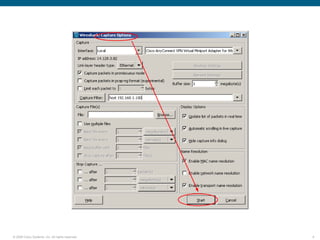
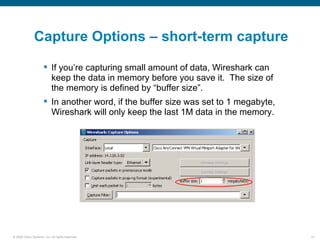
Capture Options – short-term capture

                       If you’re capturing small amount of data, Wireshark can
                        keep the data in memory before you save it. The size of
                        the memory is defined by “buffer size”.
                       In another word, if the buffer size was set to 1 megabyte,
                        Wireshark will only keep the last 1M data in the memory.


© 2006 Cisco Systems, Inc. All rights reserved.                                      10
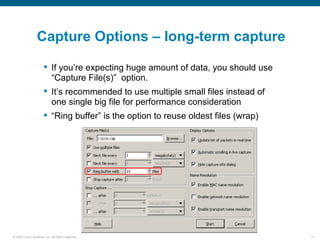
Capture Options – long-term capture

                       If you’re expecting huge amount of data, you should use
                        “Capture File(s)” option.
                       It’s recommended to use multiple small files instead of
                        one single big file for performance consideration
                       “Ring buffer” is the option to reuse oldest files (wrap)


© 2006 Cisco Systems, Inc. All rights reserved.                                    11
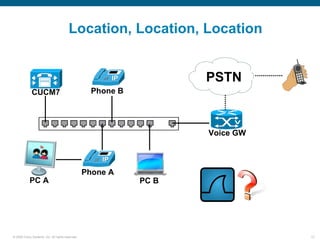
Location, Location, Location


                                                                     PSTN
             CUCM7                                  Phone B


                                                                          V

                                                                     Voice GW


                                                  Phone A
            PC A                                              PC B


© 2006 Cisco Systems, Inc. All rights reserved.                                 12
Location, Location, Location

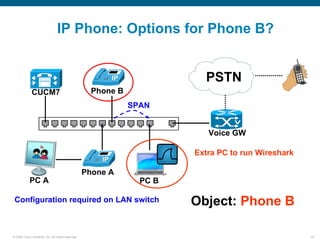
                       Usually, a sniffer can only capture the traffic from/to the
                        workstation it’s running on, with the exception of
                               – Hub (vs. switch)
                               – SPAN / RSPAN (port mirroring)
                               – Remote capture agent/daemon
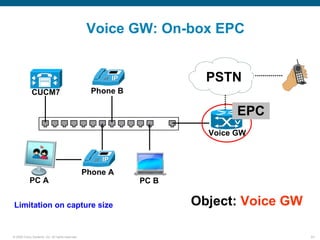
                       Other capture locations
                               – VOS (Cisco Voice Appliance)
                               – IOS EPC (IOS Router / Voice Gateway)


© 2006 Cisco Systems, Inc. All rights reserved.                                       13
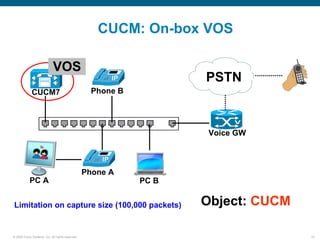
On-box vs. Off-box
                         On-box capture
                                – Sniffer is running on the monitored box
                                – Pro: No extra equipment
                                – Pro: No configuration change on LAN switch
                                – Con: Operation needs to be performed on the box
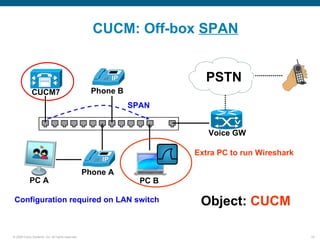
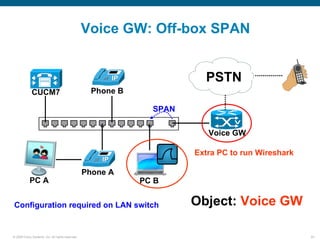
                         Off-box capture
                                – Sniffer is running outside the monitored box
                                – Pro: Less impact on the box user (e.g. PC user)
                                – Cons: Extra equipments
                                – Cons: Configuration change on LAN switch


© 2006 Cisco Systems, Inc. All rights reserved.                                     14
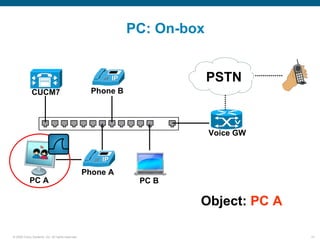
PC: On-box


                                                                           PSTN
             CUCM7                                  Phone B


                                                                                V

                                                                           Voice GW


                                                  Phone A
            PC A                                               PC B

                                                                       Object: PC A

© 2006 Cisco Systems, Inc. All rights reserved.                                       15
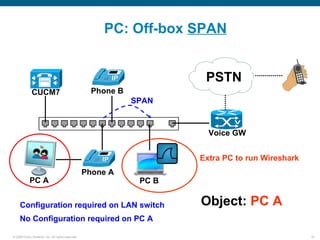
PC: Off-box SPAN


                                                                       PSTN
             CUCM7                                  Phone B
                                                              SPAN

                                                                              V

                                                                        Voice GW


                                                                      Extra PC to run Wireshark
                                                  Phone A
            PC A                                               PC B


     Configuration required on LAN switch                             Object: PC A
     No Configuration required on PC A

© 2006 Cisco Systems, Inc. All rights reserved.                                                   16
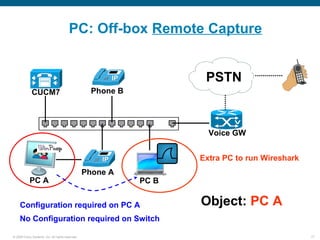
PC: Off-box Remote Capture


                                                                      PSTN
             CUCM7                                  Phone B


                                                                             V

                                                                       Voice GW


                                                                     Extra PC to run Wireshark
                                                  Phone A
            PC A                                              PC B


     Configuration required on PC A                                  Object: PC A
     No Configuration required on Switch

© 2006 Cisco Systems, Inc. All rights reserved.                                                  17
CUCM: On-box VOS

                             VOS
                                                                     PSTN
             CUCM7                                  Phone B


                                                                           V

                                                                      Voice GW


                                                  Phone A
            PC A                                              PC B


Limitation on capture size (100,000 packets)                         Object: CUCM

© 2006 Cisco Systems, Inc. All rights reserved.                                     18
CUCM: Off-box SPAN


                                                                         PSTN
             CUCM7                                  Phone B
                                                              SPAN

                                                                                 V

                                                                          Voice GW

                                                                       Extra PC to run Wireshark

                                                  Phone A
            PC A                                                PC B

 Configuration required on LAN switch                                   Object: CUCM

© 2006 Cisco Systems, Inc. All rights reserved.                                                    19
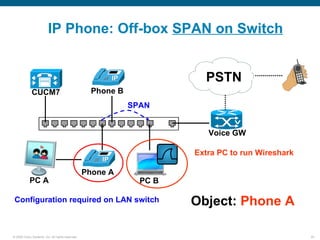
IP Phone: Off-box SPAN on Switch


                                                                         PSTN
             CUCM7                                  Phone B
                                                              SPAN

                                                                                 V

                                                                          Voice GW

                                                                       Extra PC to run Wireshark

                                                  Phone A
            PC A                                                PC B

 Configuration required on LAN switch                                  Object: Phone A

© 2006 Cisco Systems, Inc. All rights reserved.                                                    20
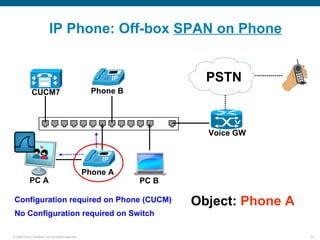
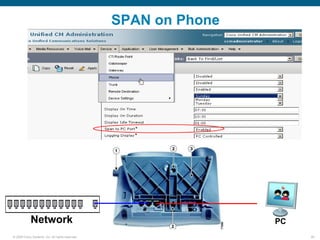
IP Phone: Off-box SPAN on Phone


                                                                       PSTN
             CUCM7                                  Phone B


                                                                            V

                                                                       Voice GW


                                                  Phone A
            PC A                                              PC B

 Configuration required on Phone (CUCM)                              Object: Phone A
 No Configuration required on Switch

© 2006 Cisco Systems, Inc. All rights reserved.                                        21
IP Phone: Options for Phone B?


                                                                         PSTN
             CUCM7                                  Phone B
                                                              SPAN

                                                                                 V

                                                                          Voice GW

                                                                       Extra PC to run Wireshark

                                                  Phone A
            PC A                                                PC B

 Configuration required on LAN switch                                  Object: Phone B

© 2006 Cisco Systems, Inc. All rights reserved.                                                    22
Voice GW: On-box EPC


                                                                       PSTN
             CUCM7                                  Phone B

                                                                             EPC
                                                                            V

                                                                       Voice GW


                                                  Phone A
            PC A                                              PC B


Limitation on capture size                                           Object: Voice GW

© 2006 Cisco Systems, Inc. All rights reserved.                                         23
Voice GW: Off-box SPAN


                                                                         PSTN
             CUCM7                                  Phone B

                                                                SPAN
                                                                                 V

                                                                          Voice GW

                                                                       Extra PC to run Wireshark

                                                  Phone A
            PC A                                              PC B


Configuration required on LAN switch                                   Object: Voice GW

© 2006 Cisco Systems, Inc. All rights reserved.                                                    24
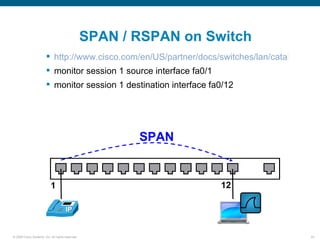
SPAN / RSPAN on Switch
                         http://www.cisco.com/en/US/partner/docs/switches/lan/catalyst3750
                         monitor session 1 source interface fa0/1
                         monitor session 1 destination interface fa0/12


                                                         SPAN


                           1                                         12


© 2006 Cisco Systems, Inc. All rights reserved.                                         25
SPAN on Phone


            Network                                               PC
© 2006 Cisco Systems, Inc. All rights reserved.                        26
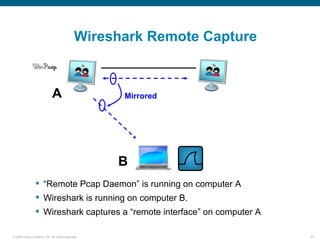
Wireshark Remote Capture


                            A                     Mirrored


                                                  B
                 “Remote Pcap Daemon” is running on computer A
                 Wireshark is running on computer B.
                 Wireshark captures a “remote interface” on computer A

© 2006 Cisco Systems, Inc. All rights reserved.                           27
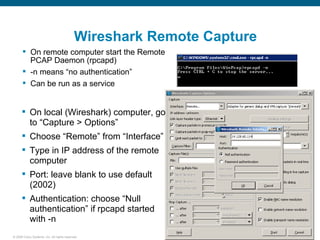
Wireshark Remote Capture
       On remote computer start the Remote
        PCAP Daemon (rpcapd)
       -n means “no authentication”
       Can be run as a service


       On local (Wireshark) computer, go
        to “Capture > Options”
       Choose “Remote” from “Interface”
       Type in IP address of the remote
        computer
       Port: leave blank to use default
        (2002)
       Authentication: choose “Null
        authentication” if rpcapd started
        with -n
© 2006 Cisco Systems, Inc. All rights reserved.                        28
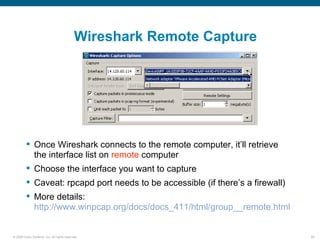
Wireshark Remote Capture


          Once Wireshark connects to the remote computer, it’ll retrieve
           the interface list on remote computer
          Choose the interface you want to capture
          Caveat: rpcapd port needs to be accessible (if there’s a firewall)
          More details:
           http://www.winpcap.org/docs/docs_411/html/group__remote.html


© 2006 Cisco Systems, Inc. All rights reserved.                                 29
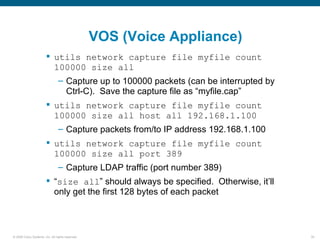
VOS (Voice Appliance)
                         utils network capture file myfile count
                          100000 size all
                                – Capture up to 100000 packets (can be interrupted by
                                  Ctrl-C). Save the capture file as “myfile.cap”
                         utils network capture file myfile count
                          100000 size all host all 192.168.1.100
                                – Capture packets from/to IP address 192.168.1.100
                         utils network capture file myfile count
                          100000 size all port 389
                                – Capture LDAP traffic (port number 389)
                         “size all” should always be specified. Otherwise, it’ll
                          only get the first 128 bytes of each packet


© 2006 Cisco Systems, Inc. All rights reserved.                                         30
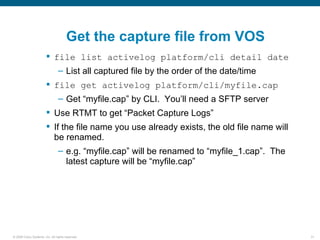
Get the capture file from VOS
                         file list activelog platform/cli detail date
                                – List all captured file by the order of the date/time
                         file get activelog platform/cli/myfile.cap
                                – Get “myfile.cap” by CLI. You’ll need a SFTP server
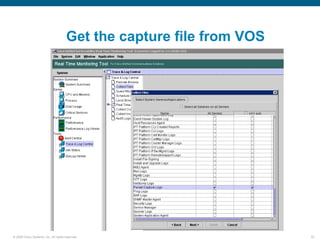
                         Use RTMT to get “Packet Capture Logs”
                         If the file name you use already exists, the old file name will
                          be renamed.
                                – e.g. “myfile.cap” will be renamed to “myfile_1.cap”. The
                                  latest capture will be “myfile.cap”


© 2006 Cisco Systems, Inc. All rights reserved.                                              31
Get the capture file from VOS


© 2006 Cisco Systems, Inc. All rights reserved.                       32
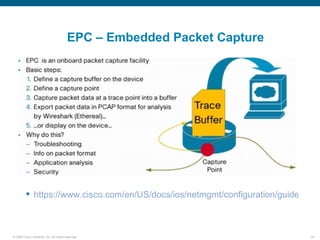
EPC – Embedded Packet Capture


          https://www.cisco.com/en/US/docs/ios/netmgmt/configuration/guide/nm_p


© 2006 Cisco Systems, Inc. All rights reserved.                             33
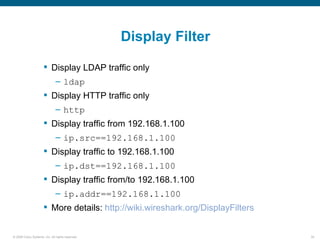
Display Filter

                       Display LDAP traffic only
                               – ldap
                       Display HTTP traffic only
                               – http
                       Display traffic from 192.168.1.100
                               – ip.src==192.168.1.100
                       Display traffic to 192.168.1.100
                               – ip.dst==192.168.1.100
                       Display traffic from/to 192.168.1.100
                               – ip.addr==192.168.1.100
                       More details: http://wiki.wireshark.org/DisplayFilters


© 2006 Cisco Systems, Inc. All rights reserved.                                  34
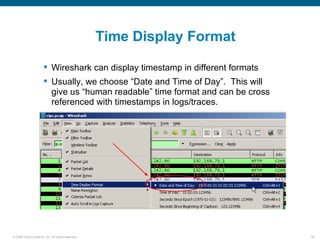
Time Display Format

                       Wireshark can display timestamp in different formats
                       Usually, we choose “Date and Time of Day”. This will
                        give us “human readable” time format and can be cross
                        referenced with timestamps in logs/traces.


© 2006 Cisco Systems, Inc. All rights reserved.                                 35
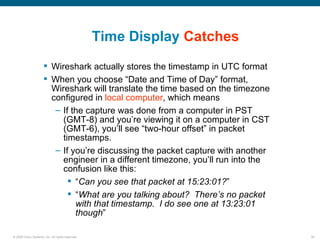
Time Display Catches
                       Wireshark actually stores the timestamp in UTC format
                       When you choose “Date and Time of Day” format,
                        Wireshark will translate the time based on the timezone
                        configured in local computer, which means
                         – If the capture was done from a computer in PST
                           (GMT-8) and you’re viewing it on a computer in CST
                           (GMT-6), you’ll see “two-hour offset” in packet
                           timestamps.
                         – If you’re discussing the packet capture with another
                           engineer in a different timezone, you’ll run into the
                           confusion like this:
                              “Can you see that packet at 15:23:01?”
                              “What are you talking about? There’s no packet
                               with that timestamp. I do see one at 13:23:01
                               though”

© 2006 Cisco Systems, Inc. All rights reserved.                                    36
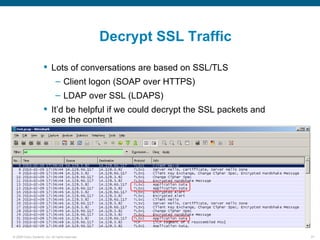
Decrypt SSL Traffic

                       Lots of conversations are based on SSL/TLS
                               – Client logon (SOAP over HTTPS)
                               – LDAP over SSL (LDAPS)
                       It’d be helpful if we could decrypt the SSL packets and
                        see the content


© 2006 Cisco Systems, Inc. All rights reserved.                                   37
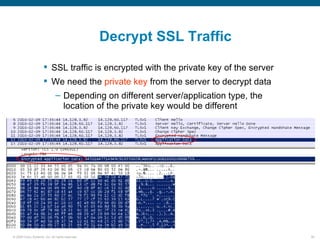
Decrypt SSL Traffic

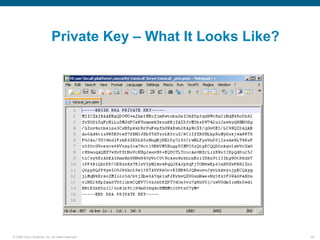
                       SSL traffic is encrypted with the private key of the server
                       We need the private key from the server to decrypt data
                               – Depending on different server/application type, the
                                 location of the private key would be different


© 2006 Cisco Systems, Inc. All rights reserved.                                        38
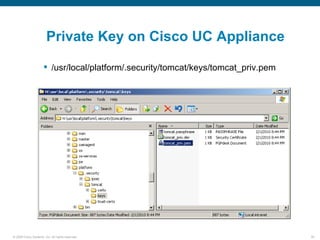
Private Key on Cisco UC Appliance

                       /usr/local/platform/.security/tomcat/keys/tomcat_priv.pem


© 2006 Cisco Systems, Inc. All rights reserved.                                     39
Private Key – What It Looks Like?


© 2006 Cisco Systems, Inc. All rights reserved.                 40
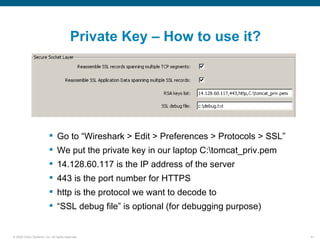
Private Key – How to use it?


                           Go to “Wireshark > Edit > Preferences > Protocols > SSL”
                           We put the private key in our laptop C:tomcat_priv.pem
                           14.128.60.117 is the IP address of the server
                           443 is the port number for HTTPS
                           http is the protocol we want to decode to
                           “SSL debug file” is optional (for debugging purpose)


© 2006 Cisco Systems, Inc. All rights reserved.                                        41
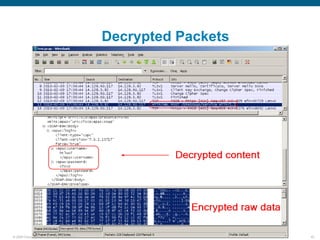
Decrypted Packets


© 2006 Cisco Systems, Inc. All rights reserved.                       42
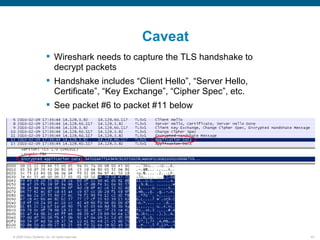
Caveat
                         Wireshark needs to capture the TLS handshake to
                          decrypt packets
                         Handshake includes “Client Hello”, “Server Hello,
                          Certificate”, “Key Exchange”, “Cipher Spec”, etc.
                         See packet #6 to packet #11 below


© 2006 Cisco Systems, Inc. All rights reserved.                               43
Caveat cont.
                         If you have other TLS application running (e.g. RTMT), it
                          might confuse Wireshark (because RTMT also do TLS
                          handshake with the server)
                         Exit RTMT (and other TLS application) while doing
                          packet capture


© 2006 Cisco Systems, Inc. All rights reserved.                                       44
Example: Audio
                         Audio issues
                                – One-way / no-way audio
                                – Audio quality


© 2006 Cisco Systems, Inc. All rights reserved.                    45
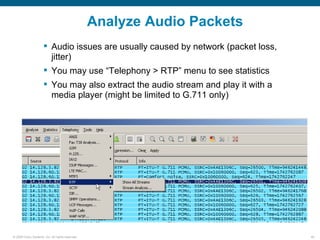
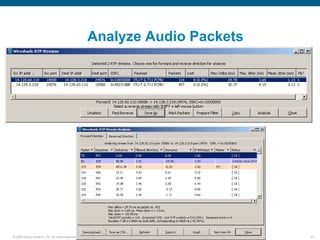
Analyze Audio Packets
                       Audio issues are usually caused by network (packet loss,
                        jitter)
                       You may use “Telephony > RTP” menu to see statistics
                       You may also extract the audio stream and play it with a
                        media player (might be limited to G.711 only)


© 2006 Cisco Systems, Inc. All rights reserved.                                    46
Analyze Audio Packets


© 2006 Cisco Systems, Inc. All rights reserved.                           47
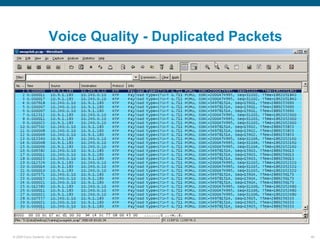
Voice Quality - Duplicated Packets


© 2006 Cisco Systems, Inc. All rights reserved.                48
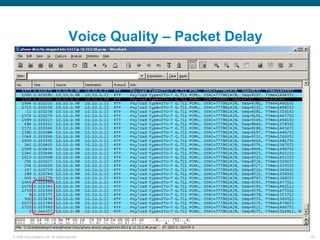
Voice Quality – Packet Delay


© 2006 Cisco Systems, Inc. All rights reserved.                        49
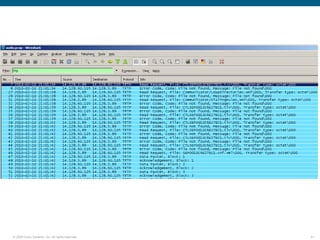
Example: TFTP
                         Phone Registration
                         Customized background and ring tone for phone


© 2006 Cisco Systems, Inc. All rights reserved.                           50
© 2006 Cisco Systems, Inc. All rights reserved.   51
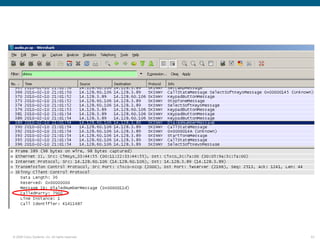
Example: Skinny Protocol
                         Skinny Messages (SCCP)


© 2006 Cisco Systems, Inc. All rights reserved.                              52
© 2006 Cisco Systems, Inc. All rights reserved.   53
Internal Build to Decode SCCP v.17

         http://wwwin-eng.cisco.com/Eng/VTG/IPCBU/CUCM/CallMana


         Credit: Wes Sisk


© 2006 Cisco Systems, Inc. All rights reserved.              54
Enhancements
          Adds decoding of the following messages according to SCCP V17
           specification
            – ButtonTemplateReq
            – UpdateCapabilitiesV3
            – StopTone
            – DisplayPriNotifyV2
            – DisplayPromptStatusV2
            – FeatureStatV2
            – LineStatV2
            – ServiceURLStatV2
            – SpeedDialStatV2
            – CallInfoV2
            – StartMediaTransmissionAck
            – StartMultiMediaTransmissionAck
            – CallHistoryInfo
            – StationAccessoryInfo


© 2006 Cisco Systems, Inc. All rights reserved.                            55
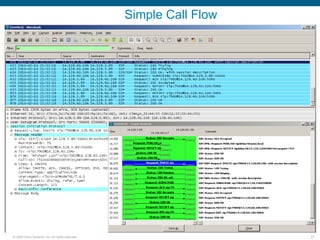
Example: SIP Call
                         VoIP SIP call
                         SIMPLE
                                – Session Initiation Protocol for Instant Messaging and
                                  Presence Leveraging Extensions
                         Wireshark Integrated SIP analyzer
                         SIP Workbench Analyzer
                                – www.sipworkbench.com


© 2006 Cisco Systems, Inc. All rights reserved.                                           56
Simple Call Flow


© 2006 Cisco Systems, Inc. All rights reserved.                      57
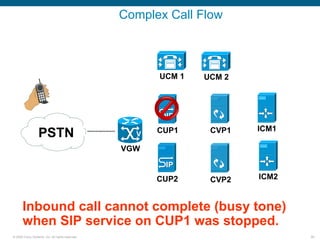
Complex Call Flow


                                                        UCM 1   UCM 2


                                                                        ICM1
                  PSTN                              V   CUP1     CVP1

                                                  VGW


                                                        CUP2     CVP2   ICM2


      Inbound call cannot complete (busy tone)
      when SIP service on CUP1 was stopped.
© 2006 Cisco Systems, Inc. All rights reserved.                                58
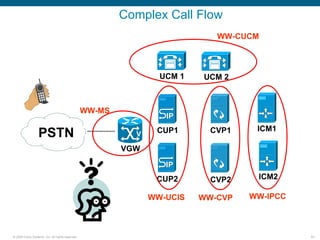
Complex Call Flow
                                                                             WW-CUCM


                                                                  UCM 1   UCM 2


                                                  WW-MS

                                                                                    ICM1
                  PSTN                                      V    CUP1       CVP1

                                                          VGW


                                                                 CUP2       CVP2    ICM2

                                                                WW-UCIS   WW-CVP   WW-IPCC


© 2006 Cisco Systems, Inc. All rights reserved.                                              59
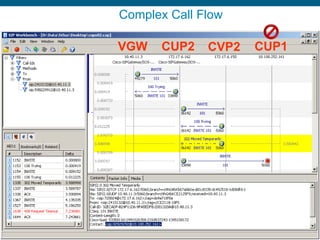
Complex Call Flow

                                                  VGW   CUP2    CVP2   CUP1


© 2006 Cisco Systems, Inc. All rights reserved.                               60
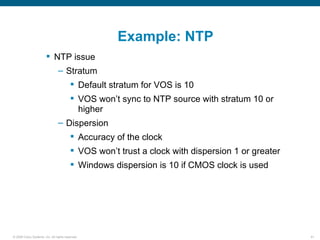
Example: NTP
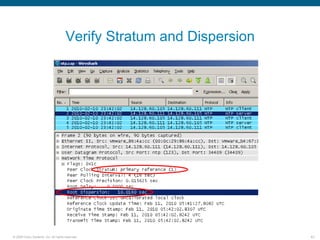
                         NTP issue
                                – Stratum
                                          Default stratum for VOS is 10
                                          VOS won’t sync to NTP source with stratum 10 or
                                           higher
                                – Dispersion
                                          Accuracy of the clock
                                          VOS won’t trust a clock with dispersion 1 or greater
                                          Windows dispersion is 10 if CMOS clock is used


© 2006 Cisco Systems, Inc. All rights reserved.                                                   61
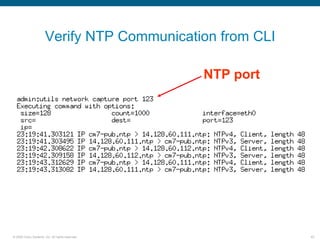
Verify NTP Communication from CLI

                                                  NTP port


© 2006 Cisco Systems, Inc. All rights reserved.              62
Verify Stratum and Dispersion


© 2006 Cisco Systems, Inc. All rights reserved.                       63
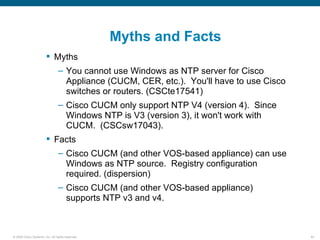
Myths and Facts
                         Myths
                                – You cannot use Windows as NTP server for Cisco
                                  Appliance (CUCM, CER, etc.). You'll have to use Cisco
                                  switches or routers. (CSCte17541)
                                – Cisco CUCM only support NTP V4 (version 4). Since
                                  Windows NTP is V3 (version 3), it won't work with
                                  CUCM. (CSCsw17043).
                         Facts
                                – Cisco CUCM (and other VOS-based appliance) can use
                                  Windows as NTP source. Registry configuration
                                  required. (dispersion)
                                – Cisco CUCM (and other VOS-based appliance)
                                  supports NTP v3 and v4.


© 2006 Cisco Systems, Inc. All rights reserved.                                           64
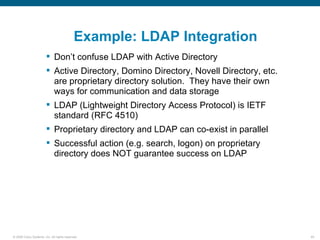
Example: LDAP Integration
                         Don’t confuse LDAP with Active Directory
                         Active Directory, Domino Directory, Novell Directory, etc.
                          are proprietary directory solution. They have their own
                          ways for communication and data storage
                         LDAP (Lightweight Directory Access Protocol) is IETF
                          standard (RFC 4510)
                         Proprietary directory and LDAP can co-exist in parallel
                         Successful action (e.g. search, logon) on proprietary
                          directory does NOT guarantee success on LDAP


© 2006 Cisco Systems, Inc. All rights reserved.                                        65
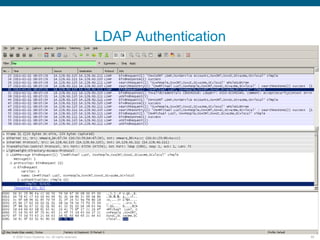
LDAP Authentication


© 2006 Cisco Systems, Inc. All rights reserved.                         66
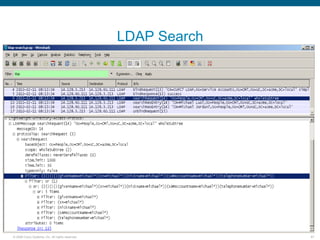
LDAP Search


© 2006 Cisco Systems, Inc. All rights reserved.                 67
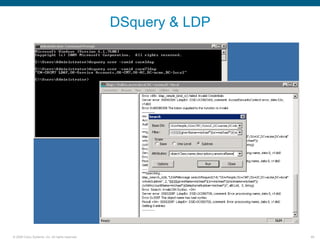
DSquery & LDP


© 2006 Cisco Systems, Inc. All rights reserved.                   68
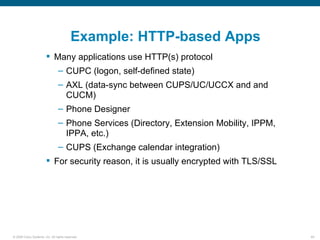
Example: HTTP-based Apps
                         Many applications use HTTP(s) protocol
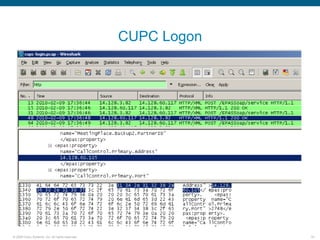
                                – CUPC (logon, self-defined state)
                                – AXL (data-sync between CUPS/UC/UCCX and and
                                  CUCM)
                                – Phone Designer
                                – Phone Services (Directory, Extension Mobility, IPPM,
                                  IPPA, etc.)
                                – CUPS (Exchange calendar integration)
                         For security reason, it is usually encrypted with TLS/SSL


© 2006 Cisco Systems, Inc. All rights reserved.                                          69
CUPC Logon


© 2006 Cisco Systems, Inc. All rights reserved.                70
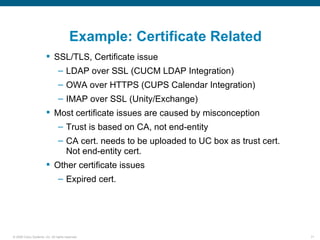
Example: Certificate Related
                         SSL/TLS, Certificate issue
                                – LDAP over SSL (CUCM LDAP Integration)
                                – OWA over HTTPS (CUPS Calendar Integration)
                                – IMAP over SSL (Unity/Exchange)
                         Most certificate issues are caused by misconception
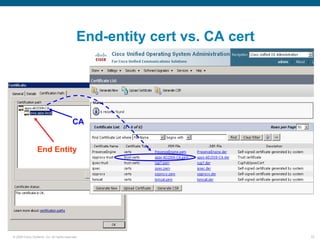
                                – Trust is based on CA, not end-entity
                                – CA cert. needs to be uploaded to UC box as trust cert.
                                  Not end-entity cert.
                         Other certificate issues
                                – Expired cert.


© 2006 Cisco Systems, Inc. All rights reserved.                                            71
End-entity cert vs. CA cert


                                           CA


                 End Entity


© 2006 Cisco Systems, Inc. All rights reserved.                             72
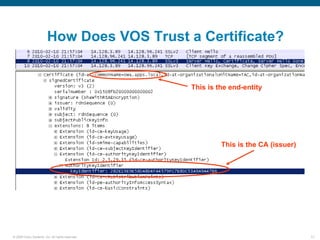
How Does VOS Trust a Certificate?


                                                  This is the end-entity


                                                           This is the CA (issuer)


© 2006 Cisco Systems, Inc. All rights reserved.                                      73
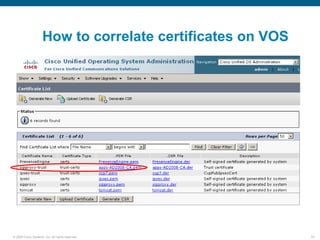
How to correlate certificates on VOS


© 2006 Cisco Systems, Inc. All rights reserved.             74
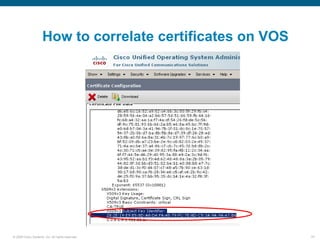
How to correlate certificates on VOS


© 2006 Cisco Systems, Inc. All rights reserved.             75
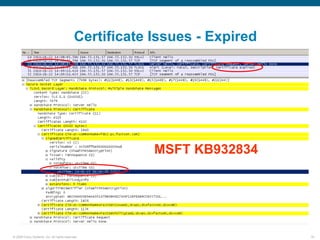
Certificate Issues - Expired


                                                        MSFT KB932834


© 2006 Cisco Systems, Inc. All rights reserved.                            76
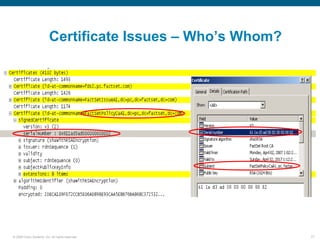
Certificate Issues – Who’s Whom?


© 2006 Cisco Systems, Inc. All rights reserved.              77
© 2006 Cisco Systems, Inc. All rights reserved.   78
© 2006 Cisco Systems, Inc. All rights reserved.   79

Wireshark

  • 1.
    Packet Capturing with Wireshark Packet Capturing with Wireshark Michael Luo htluo@cisco.com © 2006 Cisco Systems, Inc. All rights reserved. 1
  • 2.
    © 2006 CiscoSystems, Inc. All rights reserved. 2
  • 3.
    Wireshark  www.wireshark.org  Used to be called “Ethereal”  Freeware / Open Source  Multi-platform: x86, x64, Mac OS, Linux  Has a “portable” version (for USB drive)  Depends on WinPcap (www.winPcap.org) – A Windows packet capture library – Wireshark won’t work if WinPcap was not installed (properly) – WinPcap is included in Wireshark installation package and will be installed by default  The most popular open source sniffer © 2006 Cisco Systems, Inc. All rights reserved. 3
  • 4.
    Interface to Capture  If you have multiple interfaces (network adapters), make sure you captured on the right interface – Wired LAN vs. Wireless LAN – Soft VPN adapter vs. physical interface  You may list all interfaces from – Menu “Capture > Interfaces” – Toolbar “List the available interfaces” (1st icon)  “Option” button to set capture options, such as capture filter  “Detail” button to view interface details, such as MAC address  “Start” button is rarely used.  Because we can start the capture from within the “Option” window. © 2006 Cisco Systems, Inc. All rights reserved. 4
  • 5.
    © 2006 CiscoSystems, Inc. All rights reserved. 5
  • 6.
    © 2006 CiscoSystems, Inc. All rights reserved. 6
  • 7.
    Filters  Capture Filter – Capture only interested packets – Use carefully because you could accidentally block important packets. If not sure, don’t use any capture filter  Display Filter – Display only interested packets – It’s safe to use because the original data was intact. You may clear the filter later to view all data.  The syntax is different between capture and display filter © 2006 Cisco Systems, Inc. All rights reserved. 7
  • 8.
    Capture Filter  Traffic from/to a specific IP address – host 192.168.1.100  Traffic from/to multiple IP addresses – host 192.168.1.100 or 192.168.1.101  HTTP traffic – port 80  non-HTTP traffic – not port 80  non-HTTP and non-SMTP traffic from/to www.cisco.com – not port 80 and not port 25 and host www.cisco.com  More details: http://wiki.wireshark.org/CaptureFilters © 2006 Cisco Systems, Inc. All rights reserved. 8
  • 9.
    Capture Filter cont.  Capture filter is usually used to block unwanted packets  For example, if you are doing packet capture in a remote desktop (RDP) session, you probably don’t want the RDP packets. – not tcp port 3389  If you are doing packet capture in a Webex session, there’s no easy way to block the Webex packets – You cannot simply block HTTP packets. If the application you’re troubleshooting uses HTTP protocol (such as AXL, SOAP), you’ll miss important information – You may do a “sample capture” and find out the IP address of the Webex host. Then filter out that IP. © 2006 Cisco Systems, Inc. All rights reserved. 9
  • 10.
    Capture Options –short-term capture  If you’re capturing small amount of data, Wireshark can keep the data in memory before you save it. The size of the memory is defined by “buffer size”.  In another word, if the buffer size was set to 1 megabyte, Wireshark will only keep the last 1M data in the memory. © 2006 Cisco Systems, Inc. All rights reserved. 10
  • 11.
    Capture Options –long-term capture  If you’re expecting huge amount of data, you should use “Capture File(s)” option.  It’s recommended to use multiple small files instead of one single big file for performance consideration  “Ring buffer” is the option to reuse oldest files (wrap) © 2006 Cisco Systems, Inc. All rights reserved. 11
  • 12.
    Location, Location, Location PSTN CUCM7 Phone B V Voice GW Phone A PC A PC B © 2006 Cisco Systems, Inc. All rights reserved. 12
  • 13.
    Location, Location, Location  Usually, a sniffer can only capture the traffic from/to the workstation it’s running on, with the exception of – Hub (vs. switch) – SPAN / RSPAN (port mirroring) – Remote capture agent/daemon  Other capture locations – VOS (Cisco Voice Appliance) – IOS EPC (IOS Router / Voice Gateway) © 2006 Cisco Systems, Inc. All rights reserved. 13
  • 14.
    On-box vs. Off-box  On-box capture – Sniffer is running on the monitored box – Pro: No extra equipment – Pro: No configuration change on LAN switch – Con: Operation needs to be performed on the box  Off-box capture – Sniffer is running outside the monitored box – Pro: Less impact on the box user (e.g. PC user) – Cons: Extra equipments – Cons: Configuration change on LAN switch © 2006 Cisco Systems, Inc. All rights reserved. 14
  • 15.
    PC: On-box PSTN CUCM7 Phone B V Voice GW Phone A PC A PC B Object: PC A © 2006 Cisco Systems, Inc. All rights reserved. 15
  • 16.
    PC: Off-box SPAN PSTN CUCM7 Phone B SPAN V Voice GW Extra PC to run Wireshark Phone A PC A PC B Configuration required on LAN switch Object: PC A No Configuration required on PC A © 2006 Cisco Systems, Inc. All rights reserved. 16
  • 17.
    PC: Off-box RemoteCapture PSTN CUCM7 Phone B V Voice GW Extra PC to run Wireshark Phone A PC A PC B Configuration required on PC A Object: PC A No Configuration required on Switch © 2006 Cisco Systems, Inc. All rights reserved. 17
  • 18.
    CUCM: On-box VOS VOS PSTN CUCM7 Phone B V Voice GW Phone A PC A PC B Limitation on capture size (100,000 packets) Object: CUCM © 2006 Cisco Systems, Inc. All rights reserved. 18
  • 19.
    CUCM: Off-box SPAN PSTN CUCM7 Phone B SPAN V Voice GW Extra PC to run Wireshark Phone A PC A PC B Configuration required on LAN switch Object: CUCM © 2006 Cisco Systems, Inc. All rights reserved. 19
  • 20.
    IP Phone: Off-boxSPAN on Switch PSTN CUCM7 Phone B SPAN V Voice GW Extra PC to run Wireshark Phone A PC A PC B Configuration required on LAN switch Object: Phone A © 2006 Cisco Systems, Inc. All rights reserved. 20
  • 21.
    IP Phone: Off-boxSPAN on Phone PSTN CUCM7 Phone B V Voice GW Phone A PC A PC B Configuration required on Phone (CUCM) Object: Phone A No Configuration required on Switch © 2006 Cisco Systems, Inc. All rights reserved. 21
  • 22.
    IP Phone: Optionsfor Phone B? PSTN CUCM7 Phone B SPAN V Voice GW Extra PC to run Wireshark Phone A PC A PC B Configuration required on LAN switch Object: Phone B © 2006 Cisco Systems, Inc. All rights reserved. 22
  • 23.
    Voice GW: On-boxEPC PSTN CUCM7 Phone B EPC V Voice GW Phone A PC A PC B Limitation on capture size Object: Voice GW © 2006 Cisco Systems, Inc. All rights reserved. 23
  • 24.
    Voice GW: Off-boxSPAN PSTN CUCM7 Phone B SPAN V Voice GW Extra PC to run Wireshark Phone A PC A PC B Configuration required on LAN switch Object: Voice GW © 2006 Cisco Systems, Inc. All rights reserved. 24
  • 25.
    SPAN / RSPANon Switch  http://www.cisco.com/en/US/partner/docs/switches/lan/catalyst3750  monitor session 1 source interface fa0/1  monitor session 1 destination interface fa0/12 SPAN 1 12 © 2006 Cisco Systems, Inc. All rights reserved. 25
  • 26.
    SPAN on Phone Network PC © 2006 Cisco Systems, Inc. All rights reserved. 26
  • 27.
    Wireshark Remote Capture A Mirrored B  “Remote Pcap Daemon” is running on computer A  Wireshark is running on computer B.  Wireshark captures a “remote interface” on computer A © 2006 Cisco Systems, Inc. All rights reserved. 27
  • 28.
    Wireshark Remote Capture  On remote computer start the Remote PCAP Daemon (rpcapd)  -n means “no authentication”  Can be run as a service  On local (Wireshark) computer, go to “Capture > Options”  Choose “Remote” from “Interface”  Type in IP address of the remote computer  Port: leave blank to use default (2002)  Authentication: choose “Null authentication” if rpcapd started with -n © 2006 Cisco Systems, Inc. All rights reserved. 28
  • 29.
    Wireshark Remote Capture  Once Wireshark connects to the remote computer, it’ll retrieve the interface list on remote computer  Choose the interface you want to capture  Caveat: rpcapd port needs to be accessible (if there’s a firewall)  More details: http://www.winpcap.org/docs/docs_411/html/group__remote.html © 2006 Cisco Systems, Inc. All rights reserved. 29
  • 30.
    VOS (Voice Appliance)  utils network capture file myfile count 100000 size all – Capture up to 100000 packets (can be interrupted by Ctrl-C). Save the capture file as “myfile.cap”  utils network capture file myfile count 100000 size all host all 192.168.1.100 – Capture packets from/to IP address 192.168.1.100  utils network capture file myfile count 100000 size all port 389 – Capture LDAP traffic (port number 389)  “size all” should always be specified. Otherwise, it’ll only get the first 128 bytes of each packet © 2006 Cisco Systems, Inc. All rights reserved. 30
  • 31.
    Get the capturefile from VOS  file list activelog platform/cli detail date – List all captured file by the order of the date/time  file get activelog platform/cli/myfile.cap – Get “myfile.cap” by CLI. You’ll need a SFTP server  Use RTMT to get “Packet Capture Logs”  If the file name you use already exists, the old file name will be renamed. – e.g. “myfile.cap” will be renamed to “myfile_1.cap”. The latest capture will be “myfile.cap” © 2006 Cisco Systems, Inc. All rights reserved. 31
  • 32.
    Get the capturefile from VOS © 2006 Cisco Systems, Inc. All rights reserved. 32
  • 33.
    EPC – EmbeddedPacket Capture  https://www.cisco.com/en/US/docs/ios/netmgmt/configuration/guide/nm_p © 2006 Cisco Systems, Inc. All rights reserved. 33
  • 34.
    Display Filter  Display LDAP traffic only – ldap  Display HTTP traffic only – http  Display traffic from 192.168.1.100 – ip.src==192.168.1.100  Display traffic to 192.168.1.100 – ip.dst==192.168.1.100  Display traffic from/to 192.168.1.100 – ip.addr==192.168.1.100  More details: http://wiki.wireshark.org/DisplayFilters © 2006 Cisco Systems, Inc. All rights reserved. 34
  • 35.
    Time Display Format  Wireshark can display timestamp in different formats  Usually, we choose “Date and Time of Day”. This will give us “human readable” time format and can be cross referenced with timestamps in logs/traces. © 2006 Cisco Systems, Inc. All rights reserved. 35
  • 36.
    Time Display Catches  Wireshark actually stores the timestamp in UTC format  When you choose “Date and Time of Day” format, Wireshark will translate the time based on the timezone configured in local computer, which means – If the capture was done from a computer in PST (GMT-8) and you’re viewing it on a computer in CST (GMT-6), you’ll see “two-hour offset” in packet timestamps. – If you’re discussing the packet capture with another engineer in a different timezone, you’ll run into the confusion like this:  “Can you see that packet at 15:23:01?”  “What are you talking about? There’s no packet with that timestamp. I do see one at 13:23:01 though” © 2006 Cisco Systems, Inc. All rights reserved. 36
  • 37.
    Decrypt SSL Traffic  Lots of conversations are based on SSL/TLS – Client logon (SOAP over HTTPS) – LDAP over SSL (LDAPS)  It’d be helpful if we could decrypt the SSL packets and see the content © 2006 Cisco Systems, Inc. All rights reserved. 37
  • 38.
    Decrypt SSL Traffic  SSL traffic is encrypted with the private key of the server  We need the private key from the server to decrypt data – Depending on different server/application type, the location of the private key would be different © 2006 Cisco Systems, Inc. All rights reserved. 38
  • 39.
    Private Key onCisco UC Appliance  /usr/local/platform/.security/tomcat/keys/tomcat_priv.pem © 2006 Cisco Systems, Inc. All rights reserved. 39
  • 40.
    Private Key –What It Looks Like? © 2006 Cisco Systems, Inc. All rights reserved. 40
  • 41.
    Private Key –How to use it?  Go to “Wireshark > Edit > Preferences > Protocols > SSL”  We put the private key in our laptop C:tomcat_priv.pem  14.128.60.117 is the IP address of the server  443 is the port number for HTTPS  http is the protocol we want to decode to  “SSL debug file” is optional (for debugging purpose) © 2006 Cisco Systems, Inc. All rights reserved. 41
  • 42.
    Decrypted Packets © 2006Cisco Systems, Inc. All rights reserved. 42
  • 43.
    Caveat  Wireshark needs to capture the TLS handshake to decrypt packets  Handshake includes “Client Hello”, “Server Hello, Certificate”, “Key Exchange”, “Cipher Spec”, etc.  See packet #6 to packet #11 below © 2006 Cisco Systems, Inc. All rights reserved. 43
  • 44.
    Caveat cont.  If you have other TLS application running (e.g. RTMT), it might confuse Wireshark (because RTMT also do TLS handshake with the server)  Exit RTMT (and other TLS application) while doing packet capture © 2006 Cisco Systems, Inc. All rights reserved. 44
  • 45.
    Example: Audio  Audio issues – One-way / no-way audio – Audio quality © 2006 Cisco Systems, Inc. All rights reserved. 45
  • 46.
    Analyze Audio Packets  Audio issues are usually caused by network (packet loss, jitter)  You may use “Telephony > RTP” menu to see statistics  You may also extract the audio stream and play it with a media player (might be limited to G.711 only) © 2006 Cisco Systems, Inc. All rights reserved. 46
  • 47.
    Analyze Audio Packets ©2006 Cisco Systems, Inc. All rights reserved. 47
  • 48.
    Voice Quality -Duplicated Packets © 2006 Cisco Systems, Inc. All rights reserved. 48
  • 49.
    Voice Quality –Packet Delay © 2006 Cisco Systems, Inc. All rights reserved. 49
  • 50.
    Example: TFTP  Phone Registration  Customized background and ring tone for phone © 2006 Cisco Systems, Inc. All rights reserved. 50
  • 51.
    © 2006 CiscoSystems, Inc. All rights reserved. 51
  • 52.
    Example: Skinny Protocol  Skinny Messages (SCCP) © 2006 Cisco Systems, Inc. All rights reserved. 52
  • 53.
    © 2006 CiscoSystems, Inc. All rights reserved. 53
  • 54.
    Internal Build toDecode SCCP v.17 http://wwwin-eng.cisco.com/Eng/VTG/IPCBU/CUCM/CallMana Credit: Wes Sisk © 2006 Cisco Systems, Inc. All rights reserved. 54
  • 55.
    Enhancements  Adds decoding of the following messages according to SCCP V17 specification – ButtonTemplateReq – UpdateCapabilitiesV3 – StopTone – DisplayPriNotifyV2 – DisplayPromptStatusV2 – FeatureStatV2 – LineStatV2 – ServiceURLStatV2 – SpeedDialStatV2 – CallInfoV2 – StartMediaTransmissionAck – StartMultiMediaTransmissionAck – CallHistoryInfo – StationAccessoryInfo © 2006 Cisco Systems, Inc. All rights reserved. 55
  • 56.
    Example: SIP Call  VoIP SIP call  SIMPLE – Session Initiation Protocol for Instant Messaging and Presence Leveraging Extensions  Wireshark Integrated SIP analyzer  SIP Workbench Analyzer – www.sipworkbench.com © 2006 Cisco Systems, Inc. All rights reserved. 56
  • 57.
    Simple Call Flow ©2006 Cisco Systems, Inc. All rights reserved. 57
  • 58.
    Complex Call Flow UCM 1 UCM 2 ICM1 PSTN V CUP1 CVP1 VGW CUP2 CVP2 ICM2 Inbound call cannot complete (busy tone) when SIP service on CUP1 was stopped. © 2006 Cisco Systems, Inc. All rights reserved. 58
  • 59.
    Complex Call Flow WW-CUCM UCM 1 UCM 2 WW-MS ICM1 PSTN V CUP1 CVP1 VGW CUP2 CVP2 ICM2 WW-UCIS WW-CVP WW-IPCC © 2006 Cisco Systems, Inc. All rights reserved. 59
  • 60.
    Complex Call Flow VGW CUP2 CVP2 CUP1 © 2006 Cisco Systems, Inc. All rights reserved. 60
  • 61.
    Example: NTP  NTP issue – Stratum  Default stratum for VOS is 10  VOS won’t sync to NTP source with stratum 10 or higher – Dispersion  Accuracy of the clock  VOS won’t trust a clock with dispersion 1 or greater  Windows dispersion is 10 if CMOS clock is used © 2006 Cisco Systems, Inc. All rights reserved. 61
  • 62.
    Verify NTP Communicationfrom CLI NTP port © 2006 Cisco Systems, Inc. All rights reserved. 62
  • 63.
    Verify Stratum andDispersion © 2006 Cisco Systems, Inc. All rights reserved. 63
  • 64.
    Myths and Facts  Myths – You cannot use Windows as NTP server for Cisco Appliance (CUCM, CER, etc.). You'll have to use Cisco switches or routers. (CSCte17541) – Cisco CUCM only support NTP V4 (version 4). Since Windows NTP is V3 (version 3), it won't work with CUCM. (CSCsw17043).  Facts – Cisco CUCM (and other VOS-based appliance) can use Windows as NTP source. Registry configuration required. (dispersion) – Cisco CUCM (and other VOS-based appliance) supports NTP v3 and v4. © 2006 Cisco Systems, Inc. All rights reserved. 64
  • 65.
    Example: LDAP Integration  Don’t confuse LDAP with Active Directory  Active Directory, Domino Directory, Novell Directory, etc. are proprietary directory solution. They have their own ways for communication and data storage  LDAP (Lightweight Directory Access Protocol) is IETF standard (RFC 4510)  Proprietary directory and LDAP can co-exist in parallel  Successful action (e.g. search, logon) on proprietary directory does NOT guarantee success on LDAP © 2006 Cisco Systems, Inc. All rights reserved. 65
  • 66.
    LDAP Authentication © 2006Cisco Systems, Inc. All rights reserved. 66
  • 67.
    LDAP Search © 2006Cisco Systems, Inc. All rights reserved. 67
  • 68.
    DSquery & LDP ©2006 Cisco Systems, Inc. All rights reserved. 68
  • 69.
    Example: HTTP-based Apps  Many applications use HTTP(s) protocol – CUPC (logon, self-defined state) – AXL (data-sync between CUPS/UC/UCCX and and CUCM) – Phone Designer – Phone Services (Directory, Extension Mobility, IPPM, IPPA, etc.) – CUPS (Exchange calendar integration)  For security reason, it is usually encrypted with TLS/SSL © 2006 Cisco Systems, Inc. All rights reserved. 69
  • 70.
    CUPC Logon © 2006Cisco Systems, Inc. All rights reserved. 70
  • 71.
    Example: Certificate Related  SSL/TLS, Certificate issue – LDAP over SSL (CUCM LDAP Integration) – OWA over HTTPS (CUPS Calendar Integration) – IMAP over SSL (Unity/Exchange)  Most certificate issues are caused by misconception – Trust is based on CA, not end-entity – CA cert. needs to be uploaded to UC box as trust cert. Not end-entity cert.  Other certificate issues – Expired cert. © 2006 Cisco Systems, Inc. All rights reserved. 71
  • 72.
    End-entity cert vs.CA cert CA End Entity © 2006 Cisco Systems, Inc. All rights reserved. 72
  • 73.
    How Does VOSTrust a Certificate? This is the end-entity This is the CA (issuer) © 2006 Cisco Systems, Inc. All rights reserved. 73
  • 74.
    How to correlatecertificates on VOS © 2006 Cisco Systems, Inc. All rights reserved. 74
  • 75.
    How to correlatecertificates on VOS © 2006 Cisco Systems, Inc. All rights reserved. 75
  • 76.
    Certificate Issues -Expired MSFT KB932834 © 2006 Cisco Systems, Inc. All rights reserved. 76
  • 77.
    Certificate Issues –Who’s Whom? © 2006 Cisco Systems, Inc. All rights reserved. 77
  • 78.
    © 2006 CiscoSystems, Inc. All rights reserved. 78
  • 79.
    © 2006 CiscoSystems, Inc. All rights reserved. 79