Presentation on Introduction to
window 7
By:Muhammad usman yar
Roll no:53
B.com(hons) IV Regular
What is window 7
• Window 7 is an operating system for personal computer
made by Microsoft that will be launched in October
2009 window 7 replaced windows vista as microsoft
newest operating system it was previously codenamed
“Blackcomb” and “ Vienna”.
• Window 7 is better than windows vista in terms of user
friendliness, stability and functionality.
Window desktop
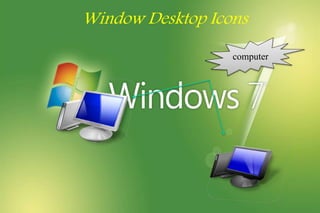
Window Desktop Icons
computer
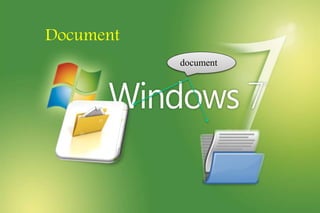
Document
document
Recycle Bin
Recycle Bin
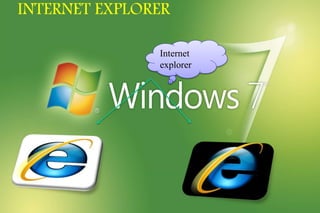
INTERNET EXPLORER
Internet
explorer
How create, delete, rename icon.
• Create icone: To create an icone, right click anywhere on the desktop and
choose new shortcut browse for the file on program you want to create the icone, for
click next, name you icone, then click finish.
• Delete icone: To delete an icone, right-click on the icon and select delete, or
click once on the icon and press the delete key on your keyboard.
• Renaming icone: To rename an icon, right-click on the icon and choose
rename. You can then type in the new name. Also, try clicking once on the icon, wait
half a second, then click it a second time, the text area will be visible and you can
type a new name.
Arranging icons
• To arrange the icons on your desktop, right-click in an open area of the
desktop, click short By, and choose the appropriate option from the list
below.
• Name: short the icons alphabetically from top to bottom, left to right.
• Size: sort the icone by file size.
• Type: sorts the icons by the type of file that it is, such as word document program
etc.
Date modified: Arrange the icons with the most recent items in the top left
hand corner.
• Moving and Dragging: To move drag an icone, click on it once, holding
down the click, and drag it to another location.
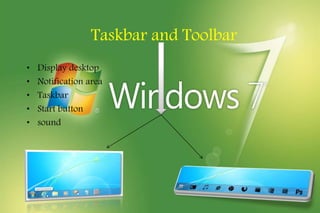
Taskbar and Toolbar
• Display desktop
• Notification area
• Taskbar
• Start button
• sound
Quick View
Quick View (peek)
Start Menu Basics
• Account Name
• Computer
• Documents
• Pictures
• Music
• All programs menu
• Search programs and files
• Recently used programs
• Help and Supports
• Control Panel
• Shut down
• Run command
Computer Screen
• Hard Disk Driver
• Devices with removable storage
• Network Location
Control Panel
Free Software
Calculator Command Prompt
Note Pad
Paint Word Pad
Internet
Explorer
Windows Live Essentials
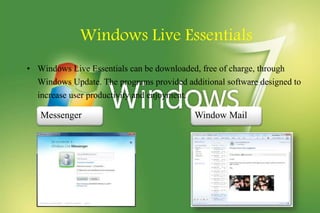
• Windows Live Essentials can be downloaded, free of charge, through
Windows Update. The programs provided additional software designed to
increase user productivity and enjoyment.
Messenger Window Mail
Windows movie maker Photo Gallery
Writer
Gadgets
• Gadgets are easy to use mini-programs that give you information at a
glance and provide easy access to frequently used tools. To access
Gadgets, right-click anywhere on an open space of your desktop, and
click Gadgets.
BY: MUHAMMAD USMAN YAR
UNIVERSITY OF SARGODHA
Thank You

USMAN YAR

  • 1.
    Presentation on Introductionto window 7 By:Muhammad usman yar Roll no:53 B.com(hons) IV Regular
  • 3.
    What is window7 • Window 7 is an operating system for personal computer made by Microsoft that will be launched in October 2009 window 7 replaced windows vista as microsoft newest operating system it was previously codenamed “Blackcomb” and “ Vienna”. • Window 7 is better than windows vista in terms of user friendliness, stability and functionality.
  • 5.
  • 7.
  • 9.
  • 11.
  • 13.
  • 15.
    How create, delete,rename icon. • Create icone: To create an icone, right click anywhere on the desktop and choose new shortcut browse for the file on program you want to create the icone, for click next, name you icone, then click finish. • Delete icone: To delete an icone, right-click on the icon and select delete, or click once on the icon and press the delete key on your keyboard. • Renaming icone: To rename an icon, right-click on the icon and choose rename. You can then type in the new name. Also, try clicking once on the icon, wait half a second, then click it a second time, the text area will be visible and you can type a new name.
  • 17.
    Arranging icons • Toarrange the icons on your desktop, right-click in an open area of the desktop, click short By, and choose the appropriate option from the list below. • Name: short the icons alphabetically from top to bottom, left to right. • Size: sort the icone by file size. • Type: sorts the icons by the type of file that it is, such as word document program etc. Date modified: Arrange the icons with the most recent items in the top left hand corner. • Moving and Dragging: To move drag an icone, click on it once, holding down the click, and drag it to another location.
  • 19.
    Taskbar and Toolbar •Display desktop • Notification area • Taskbar • Start button • sound
  • 21.
  • 22.
    Start Menu Basics •Account Name • Computer • Documents • Pictures • Music • All programs menu • Search programs and files • Recently used programs • Help and Supports • Control Panel • Shut down • Run command
  • 23.
    Computer Screen • HardDisk Driver • Devices with removable storage • Network Location
  • 24.
  • 25.
  • 26.
  • 27.
    Windows Live Essentials •Windows Live Essentials can be downloaded, free of charge, through Windows Update. The programs provided additional software designed to increase user productivity and enjoyment. Messenger Window Mail
  • 28.
    Windows movie makerPhoto Gallery Writer
  • 29.
    Gadgets • Gadgets areeasy to use mini-programs that give you information at a glance and provide easy access to frequently used tools. To access Gadgets, right-click anywhere on an open space of your desktop, and click Gadgets.
  • 30.
    BY: MUHAMMAD USMANYAR UNIVERSITY OF SARGODHA Thank You