1
Microsoft Windows 7 Basics
Microsoft Office 2010
Introductory
2
2
2
Objectives
 Start Windows.
 Use a pointing device.
 Understand the desktop.
 Navigate in Windows.
 Use Windows.
3
3
3
Objectives (continued)
 Manage files and folders.
 Delete files using the Recycle Bin.
 Use Windows Help.
 Manage your computer.
4
4
4
Vocabulary
 Action Center
 Address bar
 Close button
 Computer folder
 Control Panel
 desktop
 Explorer window
 Favorites
 jump list
 Libraries
 Notification area
 operating system
 pin
 pointer
5
5
5
Vocabulary (continued)
 pointing device
 Recycle Bin
 Start button
 taskbar
 window
 Windows Aero
6
6
6
Starting Windows
 Windows 7 is an operating system that
controls basic computer operations.
 If Windows is already installed, it should start
automatically when you turn on the computer.
 Most Windows 7 editions support Windows
Aero, a graphic interface feature that gives a
translucent quality to windows.
7
7
7
Using a Pointing Device
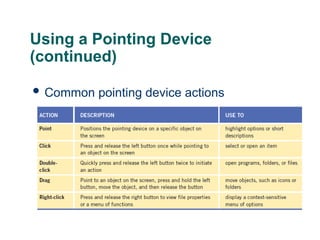
 A pointing device allows you to interact and
communicate with your computer.
 A pointing device can be a mouse, trackball,
touch pad or screen, pointing stick, digital
pen, or even a joystick.
 The pointer, which appears as an arrow on
the screen, indicates the position of the
pointing device.
Using a Pointing Device
(continued)
 Common pointing device actions
8
9
9
9
Understanding the Desktop
 Files and folders, directories that contain files
or other folders, are displayed in a small
framed work area known as a window.
 The desktop is the main work area in
Windows. It contains Windows program
elements, other programs, and files.
 The taskbar appears at the bottom of the
screen and displays program icons.
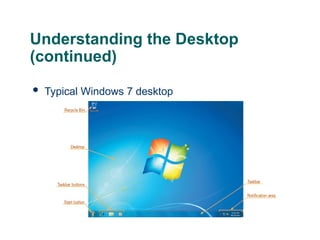
Understanding the Desktop
(continued)
 Typical Windows 7 desktop
10
11
11
11
Navigating in Windows
 Explorer windows are used to navigate to
items on your computer.
 Most windows share common navigation
tools such as a Navigation pane, Address
bar, toolbar, or Close button.
 Each window has a toolbar, controls, or links
that contains functions specific to the
window.
12
12
12
Navigating in Windows (continued)
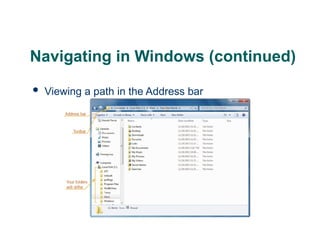
 The Address bar identifies the path for the
currently open folder.
 Use the Navigation pane to navigate to
popular or common locations and recently
used files and folders.
– Favorites link to folders containing the items you
use the most
– Libraries provide a view of related files and
folders in a single location.
Navigating in Windows (continued)
 Viewing a path in the Address bar
13
14
14
Using Windows
 Windows are essential to using the Windows
7 operating system.
 To move a window, click the title bar, and
drag the window to another location.
 You can change the size of a window by
– Using the sizing handles
– Using the Maximize, Minimize, or Restore Down
buttons
14
15
15
Using Windows (continued)
 A scroll bar appears on the edge of a window
any time there is more content than can fit.
 Commands and buttons are usually contained
on a menu, a toolbar, or in a dialog box.
– Toolbar: Contains buttons that execute a function or
open a command menu.
– Menu: Contains commands for initiating
actions/tasks.
– Dialog box: Interactive message window appears
when more information is required.
15
16
16
Using Windows (continued)
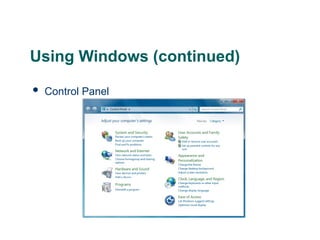
 The Control Panel, shown in Figure 1–15, is
the command center for configuring Windows
settings.
 To find the settings you are interested in, type
a word or search term in the Search text box.
16
Using Windows (continued)
 Control Panel
17
18
18
Managing Files and Folders
 Each registered user has the same default
Library folders, such as Documents,
Pictures, and Music, which you can easily
access on the right pane of the Start menu.
 The Computer folder is where you access
hard disk drives, removable drives and
media, CD and DVD drives, network
locations, and other removable media.
18
19
19
Deleting Files Using the Recycle
Bin
 When you delete a file from a window, the file
is physically moved to the Recycle Bin.
 Fortunately, just like a regular wastebasket,
you can retrieve items before they’re gone
for good.
 Once you choose to permanently delete an
item, by emptying the Recycle Bin, you
cannot restore it.
19
20
20
Using Windows Help
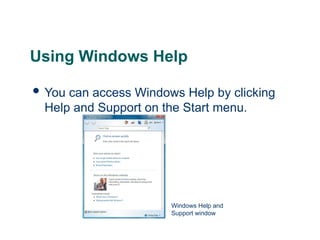
 You can access Windows Help by clicking
Help and Support on the Start menu.
20
Windows Help and
Support window
21
21
Managing Your Computer
21
 Windows provides Disk Cleanup, a utility that
deletes temporary files created when you
surf the Web, watch videos, edit files, or
perform other actions.
 The Action Center provides important
messages about critical security and
maintenance components on your computer,
such as the firewall, antivirus protection, and
spyware protection.
22
22
Summary
In this lesson, you learned:
 Starting Windows brings up the desktop, and possibly
a prompt to enter a password depending on your
settings. Several different versions of Windows 7 are
available.
 A pointing device, such as a mouse, trackball, touch
pad, or pointing stick, is a device you use to interact
with and navigate your computer. You can use a touch
screen to interact with the computer.
22
23
23
Summary (continued)
 The desktop is the main work area, and contains
access to Windows elements such as files, folders,
and programs, all of which are represented by icons.
The main features of the desktop are the Start
button, Recycle Bin, desktop theme, taskbar,
notification area, and gadgets.
23
24
24
Summary (continued)
 Windows contains toolbars, controls, or links for a
specific function. You can switch between open
windows, open different folders by clicking folders in
a path on the Address bar, and using the Navigation
pane to open and organize folders.
24
Summary (continued)
 Windows can be moved, resized, opened, and closed.
If you are unable to display all the contents of a
window as it is currently sized, scroll bars appear to
allow you to move to the part of the window that you
want to view. Windows can be maximized to fill the
screen or minimized to appear as a button on the
taskbar. You can use toolbars and menus in windows
to perform tasks or actions, and input information in
dialog boxes. The Control Panel contains searchable
links for configuring Windows settings.
25
Summary (continued)
 Windows provides several default library folders for
storing and organizing files on your computer and for
viewing similar files, sharing files, or accessing
frequently used files.
 The Recycle Bin stores files you have deleted from
your computer. You can restore deleted files that are
placed in the Recycle Bin or delete them
permanently from your computer.
26
Summary (continued)
 The Windows Help and Support window provides
additional information about the many features of
Windows. You can access the Help program from
Start menu or from any Windows program.
 Windows provides several utilities you can use to
clean up unnecessary files on your computer and
check your computer’s security settings.
27

1606822305440758.pptx microdoft 7 basics

  • 1.
    1 Microsoft Windows 7Basics Microsoft Office 2010 Introductory
  • 2.
    2 2 2 Objectives  Start Windows. Use a pointing device.  Understand the desktop.  Navigate in Windows.  Use Windows.
  • 3.
    3 3 3 Objectives (continued)  Managefiles and folders.  Delete files using the Recycle Bin.  Use Windows Help.  Manage your computer.
  • 4.
    4 4 4 Vocabulary  Action Center Address bar  Close button  Computer folder  Control Panel  desktop  Explorer window  Favorites  jump list  Libraries  Notification area  operating system  pin  pointer
  • 5.
    5 5 5 Vocabulary (continued)  pointingdevice  Recycle Bin  Start button  taskbar  window  Windows Aero
  • 6.
    6 6 6 Starting Windows  Windows7 is an operating system that controls basic computer operations.  If Windows is already installed, it should start automatically when you turn on the computer.  Most Windows 7 editions support Windows Aero, a graphic interface feature that gives a translucent quality to windows.
  • 7.
    7 7 7 Using a PointingDevice  A pointing device allows you to interact and communicate with your computer.  A pointing device can be a mouse, trackball, touch pad or screen, pointing stick, digital pen, or even a joystick.  The pointer, which appears as an arrow on the screen, indicates the position of the pointing device.
  • 8.
    Using a PointingDevice (continued)  Common pointing device actions 8
  • 9.
    9 9 9 Understanding the Desktop Files and folders, directories that contain files or other folders, are displayed in a small framed work area known as a window.  The desktop is the main work area in Windows. It contains Windows program elements, other programs, and files.  The taskbar appears at the bottom of the screen and displays program icons.
  • 10.
    Understanding the Desktop (continued) Typical Windows 7 desktop 10
  • 11.
    11 11 11 Navigating in Windows Explorer windows are used to navigate to items on your computer.  Most windows share common navigation tools such as a Navigation pane, Address bar, toolbar, or Close button.  Each window has a toolbar, controls, or links that contains functions specific to the window.
  • 12.
    12 12 12 Navigating in Windows(continued)  The Address bar identifies the path for the currently open folder.  Use the Navigation pane to navigate to popular or common locations and recently used files and folders. – Favorites link to folders containing the items you use the most – Libraries provide a view of related files and folders in a single location.
  • 13.
    Navigating in Windows(continued)  Viewing a path in the Address bar 13
  • 14.
    14 14 Using Windows  Windowsare essential to using the Windows 7 operating system.  To move a window, click the title bar, and drag the window to another location.  You can change the size of a window by – Using the sizing handles – Using the Maximize, Minimize, or Restore Down buttons 14
  • 15.
    15 15 Using Windows (continued) A scroll bar appears on the edge of a window any time there is more content than can fit.  Commands and buttons are usually contained on a menu, a toolbar, or in a dialog box. – Toolbar: Contains buttons that execute a function or open a command menu. – Menu: Contains commands for initiating actions/tasks. – Dialog box: Interactive message window appears when more information is required. 15
  • 16.
    16 16 Using Windows (continued) The Control Panel, shown in Figure 1–15, is the command center for configuring Windows settings.  To find the settings you are interested in, type a word or search term in the Search text box. 16
  • 17.
  • 18.
    18 18 Managing Files andFolders  Each registered user has the same default Library folders, such as Documents, Pictures, and Music, which you can easily access on the right pane of the Start menu.  The Computer folder is where you access hard disk drives, removable drives and media, CD and DVD drives, network locations, and other removable media. 18
  • 19.
    19 19 Deleting Files Usingthe Recycle Bin  When you delete a file from a window, the file is physically moved to the Recycle Bin.  Fortunately, just like a regular wastebasket, you can retrieve items before they’re gone for good.  Once you choose to permanently delete an item, by emptying the Recycle Bin, you cannot restore it. 19
  • 20.
    20 20 Using Windows Help You can access Windows Help by clicking Help and Support on the Start menu. 20 Windows Help and Support window
  • 21.
    21 21 Managing Your Computer 21 Windows provides Disk Cleanup, a utility that deletes temporary files created when you surf the Web, watch videos, edit files, or perform other actions.  The Action Center provides important messages about critical security and maintenance components on your computer, such as the firewall, antivirus protection, and spyware protection.
  • 22.
    22 22 Summary In this lesson,you learned:  Starting Windows brings up the desktop, and possibly a prompt to enter a password depending on your settings. Several different versions of Windows 7 are available.  A pointing device, such as a mouse, trackball, touch pad, or pointing stick, is a device you use to interact with and navigate your computer. You can use a touch screen to interact with the computer. 22
  • 23.
    23 23 Summary (continued)  Thedesktop is the main work area, and contains access to Windows elements such as files, folders, and programs, all of which are represented by icons. The main features of the desktop are the Start button, Recycle Bin, desktop theme, taskbar, notification area, and gadgets. 23
  • 24.
    24 24 Summary (continued)  Windowscontains toolbars, controls, or links for a specific function. You can switch between open windows, open different folders by clicking folders in a path on the Address bar, and using the Navigation pane to open and organize folders. 24
  • 25.
    Summary (continued)  Windowscan be moved, resized, opened, and closed. If you are unable to display all the contents of a window as it is currently sized, scroll bars appear to allow you to move to the part of the window that you want to view. Windows can be maximized to fill the screen or minimized to appear as a button on the taskbar. You can use toolbars and menus in windows to perform tasks or actions, and input information in dialog boxes. The Control Panel contains searchable links for configuring Windows settings. 25
  • 26.
    Summary (continued)  Windowsprovides several default library folders for storing and organizing files on your computer and for viewing similar files, sharing files, or accessing frequently used files.  The Recycle Bin stores files you have deleted from your computer. You can restore deleted files that are placed in the Recycle Bin or delete them permanently from your computer. 26
  • 27.
    Summary (continued)  TheWindows Help and Support window provides additional information about the many features of Windows. You can access the Help program from Start menu or from any Windows program.  Windows provides several utilities you can use to clean up unnecessary files on your computer and check your computer’s security settings. 27