R.D.SIVAKUMAR, M.Sc.,M.Phil.,M.Tech.,
Assistant Professor of Computer Science &
Assistant Professor and Head, Department of M.Com.(CA),
Ayya Nadar Janaki Ammal College,
Sivakasi – 626 124.
Mobile: 099440-42243
e-mail : sivamsccsit@gmail.com
website: www.rdsivakumar.blogspot.in
Windows Dialog Boxes
Windows XP is an inter-active operating system. Its GUI attempts to display as much
information on the screen as possible. It uses dialog boxes to display the information and
allows you to either type in your response or select from a list of choices. Listed below are
some of the controls used in dialog boxes.
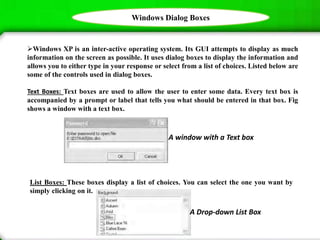
Text Boxes: Text boxes are used to allow the user to enter some data. Every text box is
accompanied by a prompt or label that tells you what should be entered in that box. Fig
shows a window with a text box.
A window with a Text box
List Boxes: These boxes display a list of choices. You can select the one you want by
simply clicking on it.
A Drop-down List Box
Windows Dialog Boxes
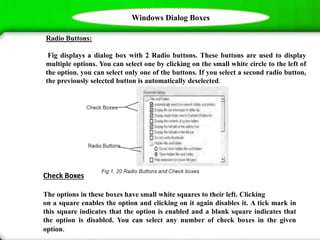
Radio Buttons:
Fig displays a dialog box with 2 Radio buttons. These buttons are used to display
multiple options. You can select one by clicking on the small white circle to the left of
the option. you can select only one of the buttons. If you select a second radio button,
the previously selected button is automatically deselected.
Check Boxes
The options in these boxes have small white squares to their left. Clicking
on a square enables the option and clicking on it again disables it. A tick mark in
this square indicates that the option is enabled and a blank square indicates that
the option is disabled. You can select any number of check boxes in the given
option.
1.11 Windows Dialog Boxes
Buttons: The OK and Cancel buttons are the most frequently used buttons in Windows
XP. When you click on a button, the related command is carried out. For example, if
you click on the OK button in a dialog box, Windows will accept your choices and close
the dialog box. Clicking on Cancel will make Windows ignore the changes and close the
dialog box. Some buttons are also used to display another dialog box.
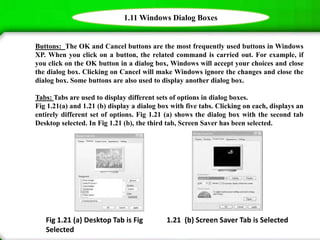
Tabs: Tabs are used to display different sets of options in dialog boxes.
Fig 1.21(a) and 1.21 (b) display a dialog box with five tabs. Clicking on each, displays an
entirely different set of options. Fig 1.21 (a) shows the dialog box with the second tab
Desktop selected. In Fig 1.21 (b), the third tab, Screen Saver has been selected.
Fig 1.21 (a) Desktop Tab is Fig 1.21 (b) Screen Saver Tab is Selected
Selected
Windows Dialog Boxes
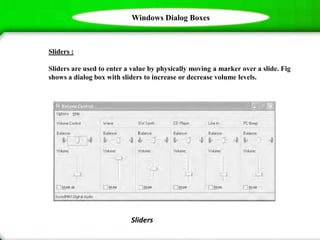
Sliders :
Sliders are used to enter a value by physically moving a marker over a slide. Fig
shows a dialog box with sliders to increase or decrease volume levels.
Sliders
Thank you..!!

Windows Dialog Boxes - R.D.Sivakumar

  • 1.
    R.D.SIVAKUMAR, M.Sc.,M.Phil.,M.Tech., Assistant Professorof Computer Science & Assistant Professor and Head, Department of M.Com.(CA), Ayya Nadar Janaki Ammal College, Sivakasi – 626 124. Mobile: 099440-42243 e-mail : sivamsccsit@gmail.com website: www.rdsivakumar.blogspot.in Windows Dialog Boxes
  • 2.
    Windows Dialog Boxes WindowsXP is an inter-active operating system. Its GUI attempts to display as much information on the screen as possible. It uses dialog boxes to display the information and allows you to either type in your response or select from a list of choices. Listed below are some of the controls used in dialog boxes. Text Boxes: Text boxes are used to allow the user to enter some data. Every text box is accompanied by a prompt or label that tells you what should be entered in that box. Fig shows a window with a text box. A window with a Text box List Boxes: These boxes display a list of choices. You can select the one you want by simply clicking on it. A Drop-down List Box
  • 3.
    Windows Dialog Boxes RadioButtons: Fig displays a dialog box with 2 Radio buttons. These buttons are used to display multiple options. You can select one by clicking on the small white circle to the left of the option. you can select only one of the buttons. If you select a second radio button, the previously selected button is automatically deselected. Check Boxes The options in these boxes have small white squares to their left. Clicking on a square enables the option and clicking on it again disables it. A tick mark in this square indicates that the option is enabled and a blank square indicates that the option is disabled. You can select any number of check boxes in the given option.
  • 4.
    1.11 Windows DialogBoxes Buttons: The OK and Cancel buttons are the most frequently used buttons in Windows XP. When you click on a button, the related command is carried out. For example, if you click on the OK button in a dialog box, Windows will accept your choices and close the dialog box. Clicking on Cancel will make Windows ignore the changes and close the dialog box. Some buttons are also used to display another dialog box. Tabs: Tabs are used to display different sets of options in dialog boxes. Fig 1.21(a) and 1.21 (b) display a dialog box with five tabs. Clicking on each, displays an entirely different set of options. Fig 1.21 (a) shows the dialog box with the second tab Desktop selected. In Fig 1.21 (b), the third tab, Screen Saver has been selected. Fig 1.21 (a) Desktop Tab is Fig 1.21 (b) Screen Saver Tab is Selected Selected
  • 5.
    Windows Dialog Boxes Sliders: Sliders are used to enter a value by physically moving a marker over a slide. Fig shows a dialog box with sliders to increase or decrease volume levels. Sliders
  • 6.