Task 2. Organize the Order of
Columns in “Grade Center”
MODULE 8: GradeCenter
Organize the Order of Columns in “Grade Center”
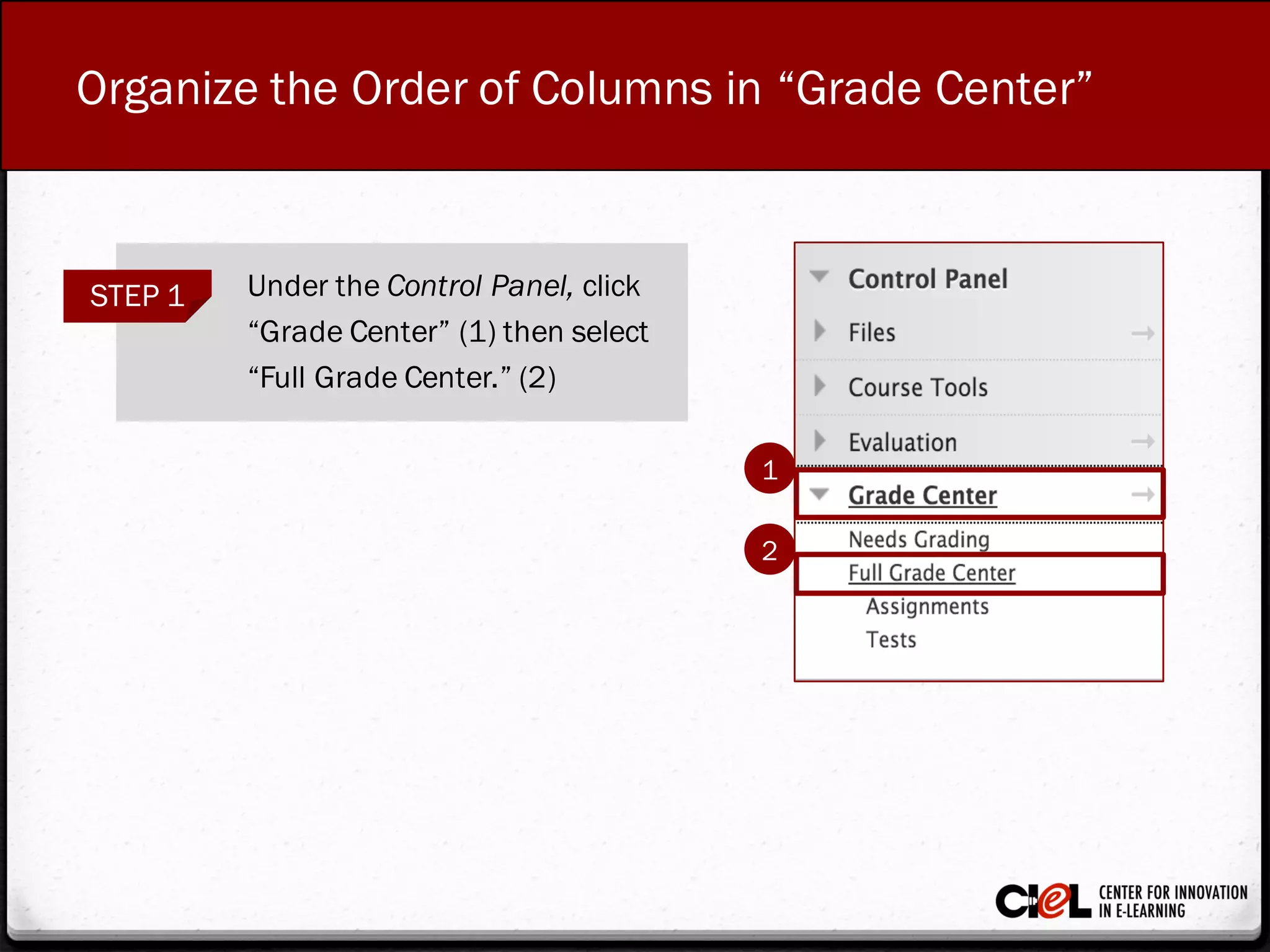
STEP 1 Under the Control Panel, click
“GradeCenter” (1) then select
“Full GradeCenter.” (2)
1
2
Organize the Order of Columns in “Grade Center”
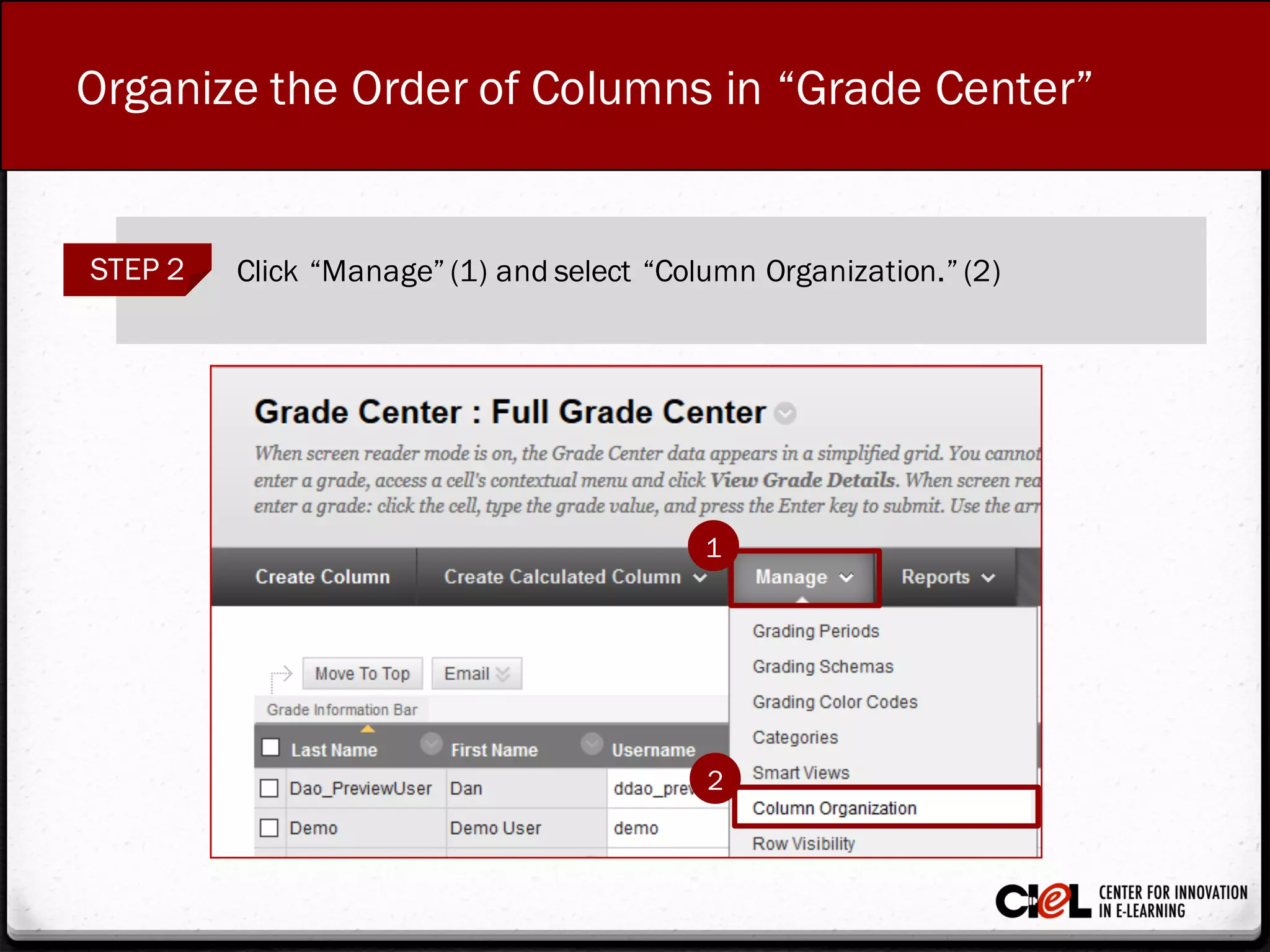
STEP 2 Click “Manage” (1) and select “Column Organization.” (2)
2
1
Organize the Order of Columns in “Grade Center”
STEP 3
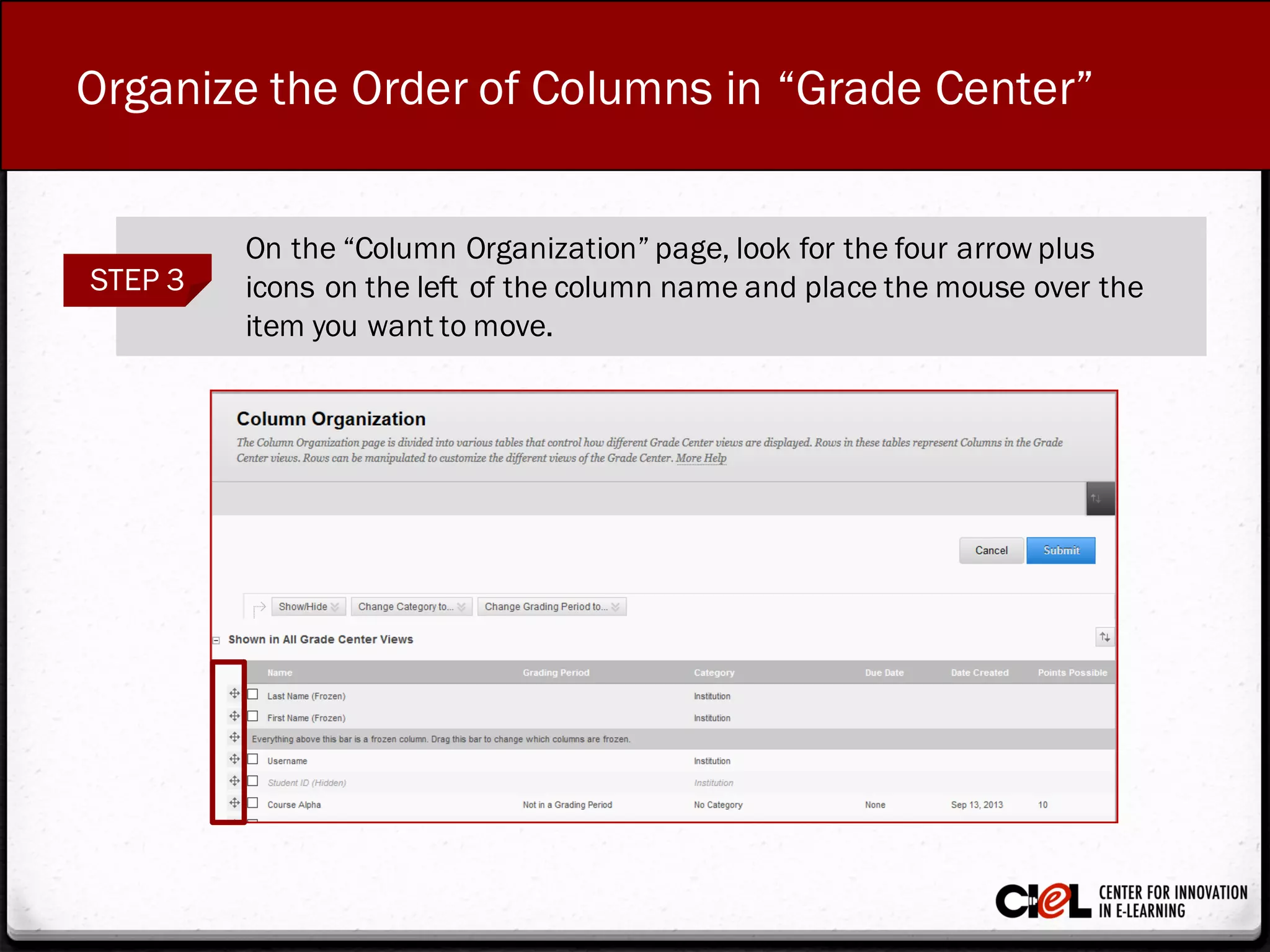
On the “Column Organization” page, look for the four arrow plus
icons on the left of the column nameand place the mouse over the
item you want tomove.
Organize the Order of Columns in “Grade Center”
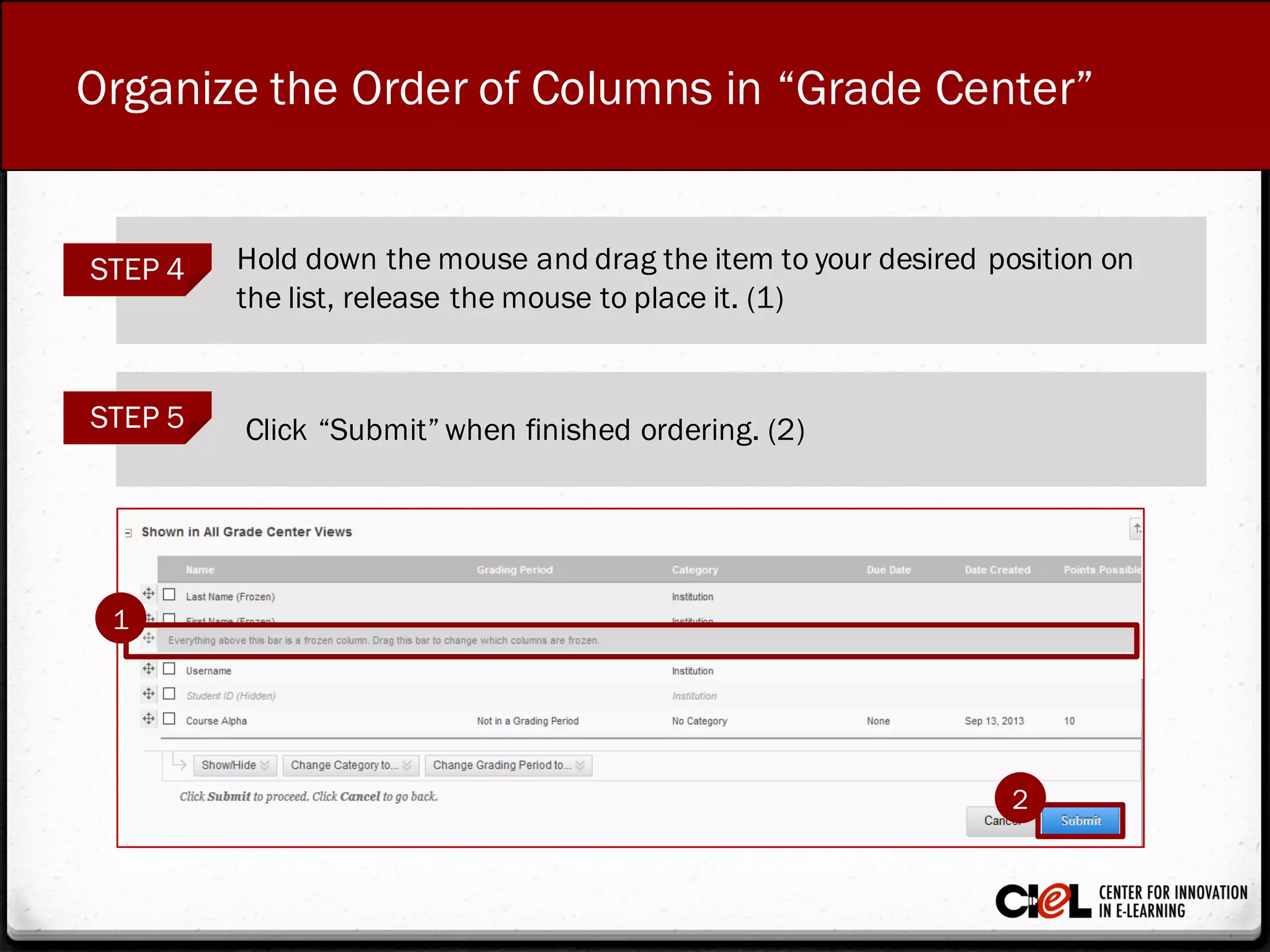
STEP 4 Hold down the mouse and drag the item to your desired position on
the list, release the mouse to place it. (1)
STEP 5 Click “Submit” when finished ordering. (2)
2
1
From this task, you have learned how to organize the
order of columns in “GradeCenter.”
Review
Room 151, College of Education Building
(806) 742-0222
ciel.educ@ttu.edu

Module 8: Grade Center Task 2

  • 1.
    Task 2. Organizethe Order of Columns in “Grade Center” MODULE 8: GradeCenter
  • 2.
    Organize the Orderof Columns in “Grade Center” STEP 1 Under the Control Panel, click “GradeCenter” (1) then select “Full GradeCenter.” (2) 1 2
  • 3.
    Organize the Orderof Columns in “Grade Center” STEP 2 Click “Manage” (1) and select “Column Organization.” (2) 2 1
  • 4.
    Organize the Orderof Columns in “Grade Center” STEP 3 On the “Column Organization” page, look for the four arrow plus icons on the left of the column nameand place the mouse over the item you want tomove.
  • 5.
    Organize the Orderof Columns in “Grade Center” STEP 4 Hold down the mouse and drag the item to your desired position on the list, release the mouse to place it. (1) STEP 5 Click “Submit” when finished ordering. (2) 2 1
  • 6.
    From this task,you have learned how to organize the order of columns in “GradeCenter.” Review
  • 7.
    Room 151, Collegeof Education Building (806) 742-0222 ciel.educ@ttu.edu