HCI - WEB INTERFACE DESIGN
UNIT - 5
ARULKUMAR V - HCI - CSE -SECE 2016-2017
Designing Web Interfaces
• Principle One: Make It Direct
• Principle Two: Keep It Lightweight
• Principle Three: Stay on the Page
• Principle Four: Provide an Invitation
• Principle Five: Use Transitions
• Principle Six: React Immediately
ARULKUMAR V - HCI - CSE -SECE 2016-2017
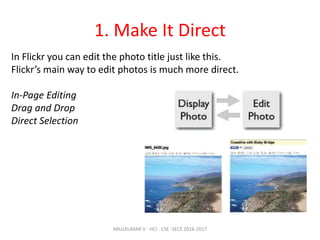
1. Make It Direct
In Flickr you can edit the photo title just like this.
Flickr’s main way to edit photos is much more direct.
In-Page Editing
Drag and Drop
Direct Selection
ARULKUMAR V - HCI - CSE -SECE 2016-2017
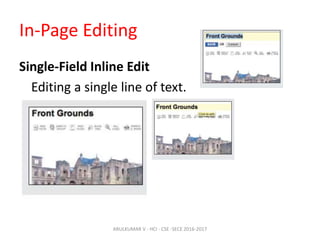
In-Page Editing
Single-Field Inline Edit
Editing a single line of text.
ARULKUMAR V - HCI - CSE -SECE 2016-2017
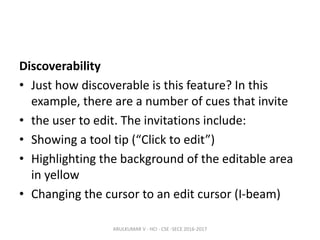
Discoverability
• Just how discoverable is this feature? In this
example, there are a number of cues that invite
• the user to edit. The invitations include:
• Showing a tool tip (“Click to edit”)
• Highlighting the background of the editable area
in yellow
• Changing the cursor to an edit cursor (I-beam)
ARULKUMAR V - HCI - CSE -SECE 2016-2017
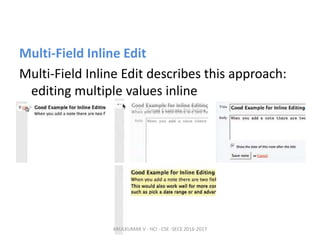
Multi-Field Inline Edit
Multi-Field Inline Edit describes this approach:
editing multiple values inline
ARULKUMAR V - HCI - CSE -SECE 2016-2017
Readability versus editability
• Readability is a primary concern during display. But the best
way to present editing is with
• the common input form. The user will need some or all of
the following:
• • Edit controls
• • Field prompts
• • Help text for user input
• • Error handling
• • Assistive input (e.g., calendar pop up or drop-down
selection field)
• • Editing styles (e.g., edit fields with 3D sunken style)
ARULKUMAR V - HCI - CSE -SECE 2016-2017
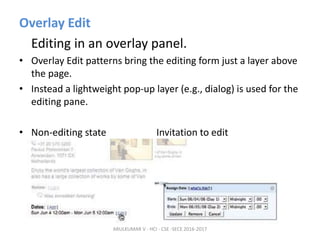
Overlay Edit
Editing in an overlay panel.
• Overlay Edit patterns bring the editing form just a layer above
the page.
• Instead a lightweight pop-up layer (e.g., dialog) is used for the
editing pane.
• Non-editing state Invitation to edit
ARULKUMAR V - HCI - CSE -SECE 2016-2017
Why an overlay?
• An overlay should be considered when:
• The editing module is considerably larger than the display
values.
• Opening an area on the page for the editing module would be
distracting or push
• important information down the page.
• There is concern that the opened information might go
partially below the fold. An
• overlay can be positioned to always be visible in the page.
• You want to create a clear editing area for the user. Etc.,
ARULKUMAR V - HCI - CSE -SECE 2016-2017
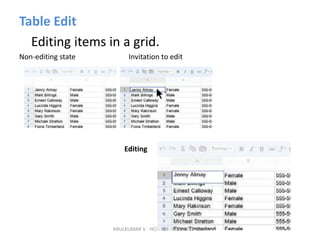
Table Edit
Editing items in a grid.
Non-editing state Invitation to edit
Editing
ARULKUMAR V - HCI - CSE -SECE 2016-2017
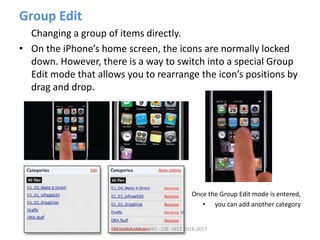
Group Edit
Changing a group of items directly.
• On the iPhone’s home screen, the icons are normally locked
down. However, there is a way to switch into a special Group
Edit mode that allows you to rearrange the icon’s positions by
drag and drop.
• Once the Group Edit mode is entered,
• you can add another category
ARULKUMAR V - HCI - CSE -SECE 2016-2017
Module Configuration
Configuring settings on a page directly
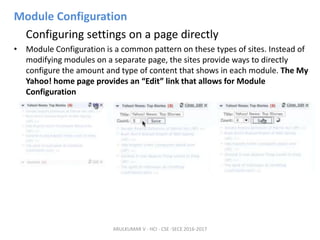
• Module Configuration is a common pattern on these types of sites. Instead of
modifying modules on a separate page, the sites provide ways to directly
configure the amount and type of content that shows in each module. The My
Yahoo! home page provides an “Edit” link that allows for Module
Configuration
ARULKUMAR V - HCI - CSE -SECE 2016-2017
Drag and Drop
Interesting Moments
• How will users know what is draggable?
• What does it mean to drag and drop an object?
• Where can you drop an object, and where is it not valid to
drop an object?
• What visual affordance will be used to indicate draggability?
• During drag, how will valid and invalid drop targets be
signified?
• Do you drag the actual object?
• Or do you drag just a ghost of the object?
• Or is it a thumbnail representation that gets dragged?
• What visual feedback should be used during the drag
and drop interaction?
ARULKUMAR V - HCI - CSE -SECE 2016-2017
The Events
Page Load
Mouse Hover
Mouse Down
Drag Initiated
Drag Leaves Original Location
Drag Re-Enters Original Location
Drag Enters Valid Target
Drag Exits Valid Target
Drag Enters Specific Invalid Target
Drag Is Over No Specific Target
Drag Hovers Over Valid Target etc.,
ARULKUMAR V - HCI - CSE -SECE 2016-2017
The Actors
• During each event you can visually manipulate
a number of actors. The page elements
Available include:
– Page (e.g., static messaging on the page)
– Cursor
– Tool Tip
– Drag Object (or some portion of the drag object,
e.g., title area of a module)
– Drag Object’s Parent Container
– Drop Target
ARULKUMAR V - HCI - CSE -SECE 2016-2017
Purpose of Drag and Drop
• Drag and drop can be a powerful idiom if used correctly.
Specifically it is useful for:
– Drag and Drop Module
• Rearranging modules on a page.
– Drag and Drop List
• Rearranging lists.
– Drag and Drop Object
• Changing relationships between objects.
– Drag and Drop Action
• Invoking actions on a dropped object.
– Drag and Drop Collection
• Maintaining collections through drag and drop.
ARULKUMAR V - HCI - CSE -SECE 2016-2017
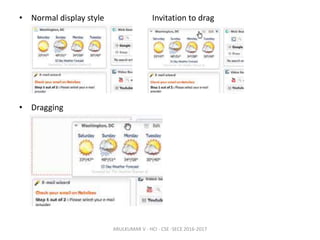
• Normal display style Invitation to drag
• Dragging
ARULKUMAR V - HCI - CSE -SECE 2016-2017
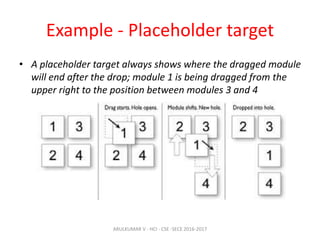
Example - Placeholder target
• A placeholder target always shows where the dragged module
will end after the drop; module 1 is being dragged from the
upper right to the position between modules 3 and 4
ARULKUMAR V - HCI - CSE -SECE 2016-2017
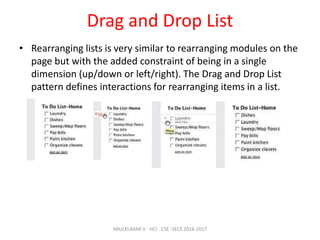
Drag and Drop List
• Rearranging lists is very similar to rearranging modules on the
page but with the added constraint of being in a single
dimension (up/down or left/right). The Drag and Drop List
pattern defines interactions for rearranging items in a list.
ARULKUMAR V - HCI - CSE -SECE 2016-2017
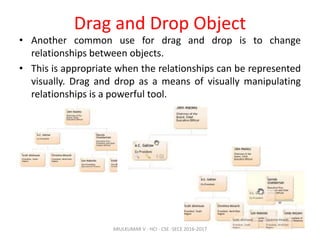
Drag and Drop Object
• Another common use for drag and drop is to change
relationships between objects.
• This is appropriate when the relationships can be represented
visually. Drag and drop as a means of visually manipulating
relationships is a powerful tool.
ARULKUMAR V - HCI - CSE -SECE 2016-2017
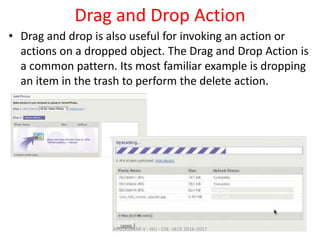
Drag and Drop Action
• Drag and drop is also useful for invoking an action or
actions on a dropped object. The Drag and Drop Action is
a common pattern. Its most familiar example is dropping
an item in the trash to perform the delete action.
ARULKUMAR V - HCI - CSE -SECE 2016-2017
Direct Selection
• Toggle Selection
– Checkbox or control-based selection.
• Collected Selection
– Selection that spans multiple pages.
• Object Selection
– Direct object selection.
• Hybrid Selection
– Combination of Toggle Selection and Object
Selection.
ARULKUMAR V - HCI - CSE -SECE 2016-2017
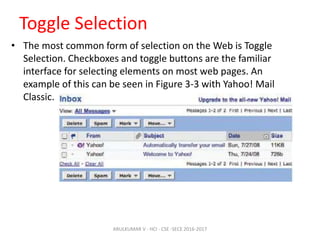
Toggle Selection
• The most common form of selection on the Web is Toggle
Selection. Checkboxes and toggle buttons are the familiar
interface for selecting elements on most web pages. An
example of this can be seen in Figure 3-3 with Yahoo! Mail
Classic.
ARULKUMAR V - HCI - CSE -SECE 2016-2017
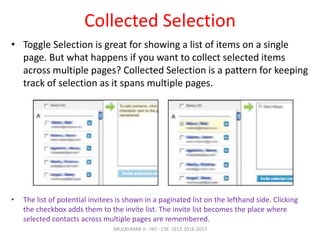
Collected Selection
• Toggle Selection is great for showing a list of items on a single
page. But what happens if you want to collect selected items
across multiple pages? Collected Selection is a pattern for keeping
track of selection as it spans multiple pages.
• The list of potential invitees is shown in a paginated list on the lefthand side. Clicking
the checkbox adds them to the invite list. The invite list becomes the place where
selected contacts across multiple pages are remembered.
ARULKUMAR V - HCI - CSE -SECE 2016-2017
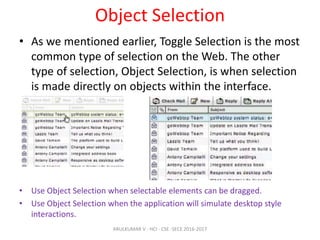
Object Selection
• As we mentioned earlier, Toggle Selection is the most
common type of selection on the Web. The other
type of selection, Object Selection, is when selection
is made directly on objects within the interface.
• Use Object Selection when selectable elements can be dragged.
• Use Object Selection when the application will simulate desktop style
interactions.
ARULKUMAR V - HCI - CSE -SECE 2016-2017
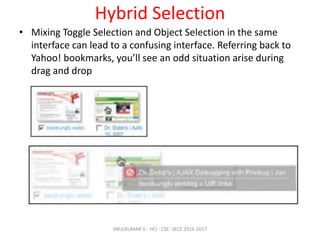
Hybrid Selection
• Mixing Toggle Selection and Object Selection in the same
interface can lead to a confusing interface. Referring back to
Yahoo! bookmarks, you’ll see an odd situation arise during
drag and drop
ARULKUMAR V - HCI - CSE -SECE 2016-2017
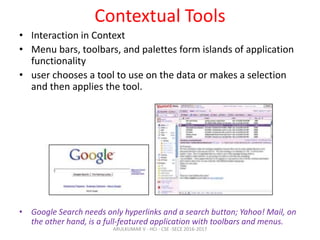
Contextual Tools
• Interaction in Context
• Menu bars, toolbars, and palettes form islands of application
functionality
• user chooses a tool to use on the data or makes a selection
and then applies the tool.
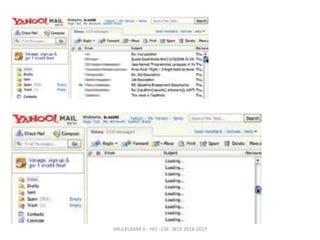
• Google Search needs only hyperlinks and a search button; Yahoo! Mail, on
the other hand, is a full-featured application with toolbars and menus.
ARULKUMAR V - HCI - CSE -SECE 2016-2017
Think for a moment where user interfaces are
headed.
Touch-based interfaces were the stuff of research labs and, more
recently introduced
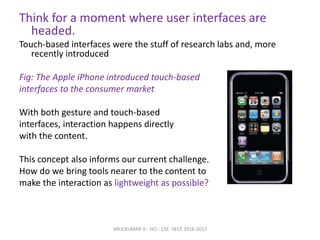
Fig: The Apple iPhone introduced touch-based
interfaces to the consumer market
With both gesture and touch-based
interfaces, interaction happens directly
with the content.
This concept also informs our current challenge.
How do we bring tools nearer to the content to
make the interaction as lightweight as possible?
ARULKUMAR V - HCI - CSE -SECE 2016-2017
Fitts’s Law
• Fitts’s Law is an ergonomic principle that ties the size
of a target and its contextual proximity to ease of
use. Bruce Tognazzini restates it simply as:
The time to acquire a target is a function of the distance to and
size of the target.
• In other words, if a tool is close at hand and large enough to
target, then we can improve the user’s interaction. Putting
tools in context makes for lightweight interaction.
ARULKUMAR V - HCI - CSE -SECE 2016-2017
Contextual Tools
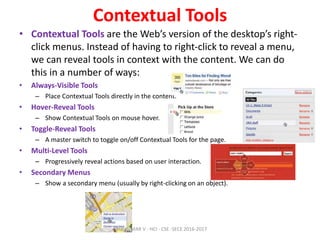
• Contextual Tools are the Web’s version of the desktop’s right-
click menus. Instead of having to right-click to reveal a menu,
we can reveal tools in context with the content. We can do
this in a number of ways:
• Always-Visible Tools
– Place Contextual Tools directly in the content.
• Hover-Reveal Tools
– Show Contextual Tools on mouse hover.
• Toggle-Reveal Tools
– A master switch to toggle on/off Contextual Tools for the page.
• Multi-Level Tools
– Progressively reveal actions based on user interaction.
• Secondary Menus
– Show a secondary menu (usually by right-clicking on an object).
ARULKUMAR V - HCI - CSE -SECE 2016-2017
Overlays
• Overlays are really just lightweight pop ups.
• We use the term lightweight to make a clear distinction
between it and the normal idea of a browser pop up
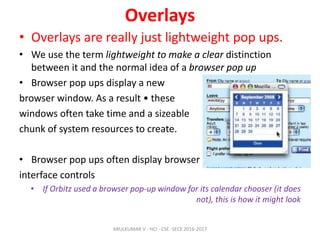
• Browser pop ups display a new
browser window. As a result • these
windows often take time and a sizeable
chunk of system resources to create.
• Browser pop ups often display browser
interface controls
• If Orbitz used a browser pop-up window for its calendar chooser (it does
not), this is how it might look
ARULKUMAR V - HCI - CSE -SECE 2016-2017
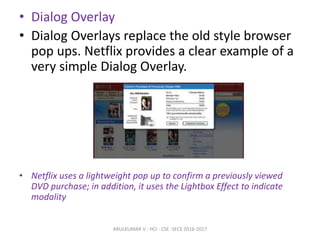
• Dialog Overlay
• Dialog Overlays replace the old style browser
pop ups. Netflix provides a clear example of a
very simple Dialog Overlay.
• Netflix uses a lightweight pop up to confirm a previously viewed
DVD purchase; in addition, it uses the Lightbox Effect to indicate
modality
ARULKUMAR V - HCI - CSE -SECE 2016-2017
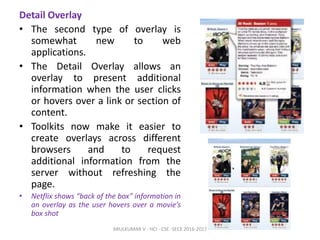
Detail Overlay
• The second type of overlay is
somewhat new to web
applications.
• The Detail Overlay allows an
overlay to present additional
information when the user clicks
or hovers over a link or section of
content.
• Toolkits now make it easier to
create overlays across different
browsers and to request
additional information from the
server without refreshing the
page.
• Netflix shows “back of the box” information in
an overlay as the user hovers over a movie’s
box shot
ARULKUMAR V - HCI - CSE -SECE 2016-2017
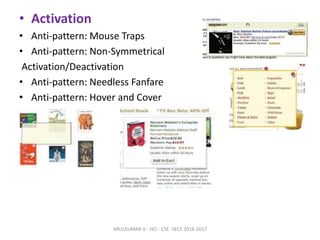
• Activation
• Anti-pattern: Mouse Traps
• Anti-pattern: Non-Symmetrical
Activation/Deactivation
• Anti-pattern: Needless Fanfare
• Anti-pattern: Hover and Cover
ARULKUMAR V - HCI - CSE -SECE 2016-2017
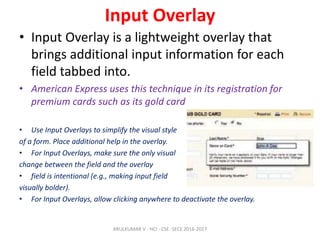
Input Overlay
• Input Overlay is a lightweight overlay that
brings additional input information for each
field tabbed into.
• American Express uses this technique in its registration for
premium cards such as its gold card
• Use Input Overlays to simplify the visual style
of a form. Place additional help in the overlay.
• For Input Overlays, make sure the only visual
change between the field and the overlay
• field is intentional (e.g., making input field
visually bolder).
• For Input Overlays, allow clicking anywhere to deactivate the overlay.
ARULKUMAR V - HCI - CSE -SECE 2016-2017
Inlays
Dialog Inlay
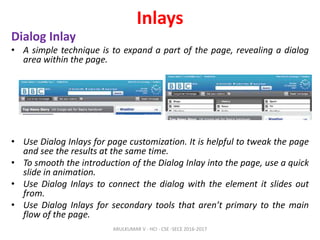
• A simple technique is to expand a part of the page, revealing a dialog
area within the page.
• Use Dialog Inlays for page customization. It is helpful to tweak the page
and see the results at the same time.
• To smooth the introduction of the Dialog Inlay into the page, use a quick
slide in animation.
• Use Dialog Inlays to connect the dialog with the element it slides out
from.
• Use Dialog Inlays for secondary tools that aren’t primary to the main
flow of the page.
ARULKUMAR V - HCI - CSE -SECE 2016-2017
List Inlay
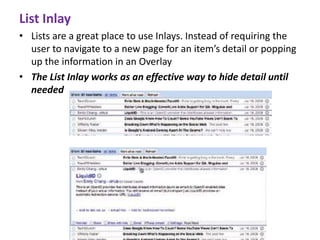
• Lists are a great place to use Inlays. Instead of requiring the
user to navigate to a new page for an item’s detail or popping
up the information in an Overlay
• The List Inlay works as an effective way to hide detail until
needed
ARULKUMAR V - HCI - CSE -SECE 2016-2017
Detail Inlay
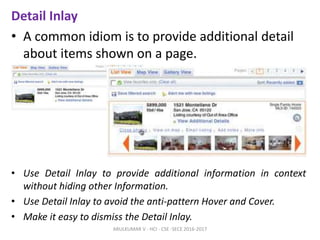
• A common idiom is to provide additional detail
about items shown on a page.
• Use Detail Inlay to provide additional information in context
without hiding other Information.
• Use Detail Inlay to avoid the anti-pattern Hover and Cover.
• Make it easy to dismiss the Detail Inlay.
ARULKUMAR V - HCI - CSE -SECE 2016-2017
Inlay Versus Overlay?
• Use an overlay when there may be more than
one place a dialog can be activated from (the
exception may be showing details for items in a
list).
• Use an overlay to interrupt the process.
• Use an overlay if there is a multi-step process.
• Use an inlay when you are trying to avoid
covering information on the page needed
• in the dialog.
• Use an inlay for contextual information or details
about one of many items (as in a list): a typical
example is expanding list items to show detail.
ARULKUMAR V - HCI - CSE -SECE 2016-2017
Virtual Pages
• Overlays allow you to bring additional interactions or content
in a layer above the current page.
• Inlays allow you to do this within the page itself. However,
another powerful approach to keeping users engaged on the
current page is to create a virtual page.
• That is to say, we create the illusion of a larger virtual page.
• Patterns that support virtual pages include:
– Virtual Scrolling
– Inline Paging
– Scrolled Paging
– Panning
– Zoomable User Interface
ARULKUMAR V - HCI - CSE -SECE 2016-2017
Virtual Scrolling
• The traditional Web is defined by the “page.” In
practically every implementation of websites (for
about the first 10 years of the Web’s existence)
pagination was the key way to get to additional
content.
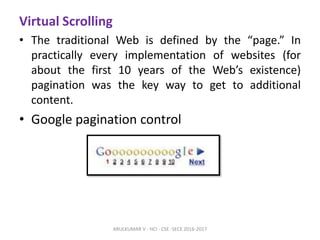
• Google pagination control
ARULKUMAR V - HCI - CSE -SECE 2016-2017
Inline Paging
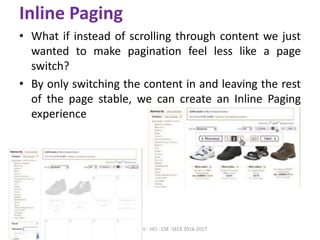
• What if instead of scrolling through content we just
wanted to make pagination feel less like a page
switch?
• By only switching the content in and leaving the rest
of the page stable, we can create an Inline Paging
experience
ARULKUMAR V - HCI - CSE -SECE 2016-2017
Scrolled Paging: Carousel
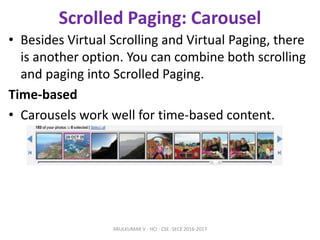
• Besides Virtual Scrolling and Virtual Paging, there
is another option. You can combine both scrolling
and paging into Scrolled Paging.
Time-based
• Carousels work well for time-based content.
ARULKUMAR V - HCI - CSE -SECE 2016-2017
Virtual Panning
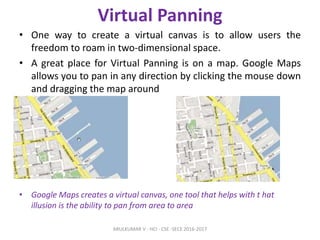
• One way to create a virtual canvas is to allow users the
freedom to roam in two-dimensional space.
• A great place for Virtual Panning is on a map. Google Maps
allows you to pan in any direction by clicking the mouse down
and dragging the map around
• Google Maps creates a virtual canvas, one tool that helps with t hat
illusion is the ability to pan from area to area
ARULKUMAR V - HCI - CSE -SECE 2016-2017
Zoomable User Interface
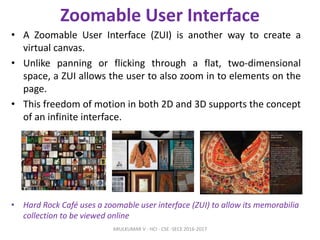
• A Zoomable User Interface (ZUI) is another way to create a
virtual canvas.
• Unlike panning or flicking through a flat, two-dimensional
space, a ZUI allows the user to also zoom in to elements on the
page.
• This freedom of motion in both 2D and 3D supports the concept
of an infinite interface.
• Hard Rock Café uses a zoomable user interface (ZUI) to allow its memorabilia
collection to be viewed online
ARULKUMAR V - HCI - CSE -SECE 2016-2017
Process Flow
• In the last three chapters we’ve been discussing the
principle Stay on the Page. Sometimes tasks are
unfamiliar or complicated and require leading the user
step-by-step through a Process Flow.
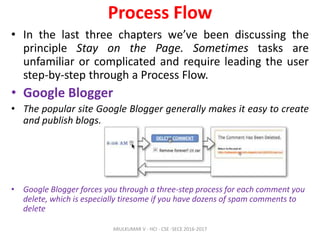
• Google Blogger
• The popular site Google Blogger generally makes it easy to create
and publish blogs.
• Google Blogger forces you through a three-step process for each comment you
delete, which is especially tiresome if you have dozens of spam comments to
delete
ARULKUMAR V - HCI - CSE -SECE 2016-2017
The Magic Principle
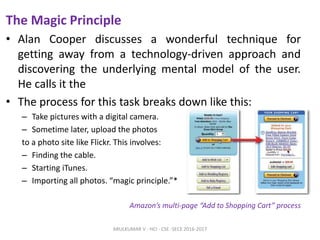
• Alan Cooper discusses a wonderful technique for
getting away from a technology-driven approach and
discovering the underlying mental model of the user.
He calls it the
• The process for this task breaks down like this:
– Take pictures with a digital camera.
– Sometime later, upload the photos
to a photo site like Flickr. This involves:
– Finding the cable.
– Starting iTunes.
– Importing all photos. “magic principle.”*
Amazon’s multi-page “Add to Shopping Cart” process
ARULKUMAR V - HCI - CSE -SECE 2016-2017
Process Flow patterns:
– Interactive Single-Page Process
– Inline Assistant Process
– Configurator Process
– Overlay Process
– Static Single-Page Process
ARULKUMAR V - HCI - CSE -SECE 2016-2017
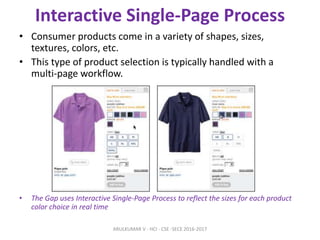
Interactive Single-Page Process
• Consumer products come in a variety of shapes, sizes,
textures, colors, etc.
• This type of product selection is typically handled with a
multi-page workflow.
• The Gap uses Interactive Single-Page Process to reflect the sizes for each product
color choice in real time
ARULKUMAR V - HCI - CSE -SECE 2016-2017
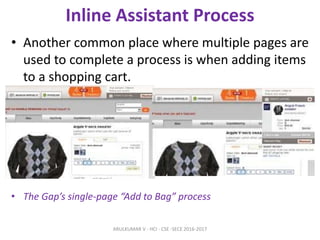
Inline Assistant Process
• Another common place where multiple pages are
used to complete a process is when adding items
to a shopping cart.
• The Gap’s single-page “Add to Bag” process
ARULKUMAR V - HCI - CSE -SECE 2016-2017
Interactive Single-Page Process and
Inline Assistant Process
• Use these patterns to simplify user flow.
• Use these patterns to improve conversion rates.
• Show previews in context.
• Show invalid choices in real time. This informs users of the
impact of their decisions.
• Show shopping carts inline where possible.
• Treat shopping carts as first-class interface elements and not
just as an extra process.
• Show an additional step if recommendations are relevant and
important.
ARULKUMAR V - HCI - CSE -SECE 2016-2017
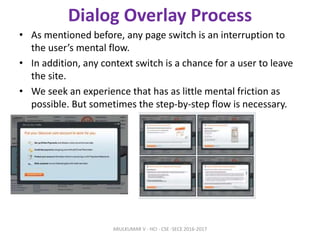
Dialog Overlay Process
• As mentioned before, any page switch is an interruption to
the user’s mental flow.
• In addition, any context switch is a chance for a user to leave
the site.
• We seek an experience that has as little mental friction as
possible. But sometimes the step-by-step flow is necessary.
ARULKUMAR V - HCI - CSE -SECE 2016-2017
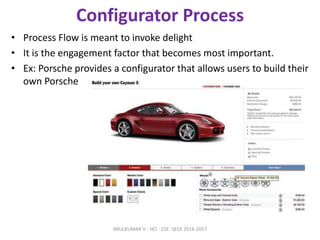
Configurator Process
• Process Flow is meant to invoke delight
• It is the engagement factor that becomes most important.
• Ex: Porsche provides a configurator that allows users to build their
own Porsche
ARULKUMAR V - HCI - CSE -SECE 2016-2017

WEB INTERFACE DESIGN

  • 1.
    HCI - WEBINTERFACE DESIGN UNIT - 5 ARULKUMAR V - HCI - CSE -SECE 2016-2017
  • 2.
    Designing Web Interfaces •Principle One: Make It Direct • Principle Two: Keep It Lightweight • Principle Three: Stay on the Page • Principle Four: Provide an Invitation • Principle Five: Use Transitions • Principle Six: React Immediately ARULKUMAR V - HCI - CSE -SECE 2016-2017
  • 3.
    1. Make ItDirect In Flickr you can edit the photo title just like this. Flickr’s main way to edit photos is much more direct. In-Page Editing Drag and Drop Direct Selection ARULKUMAR V - HCI - CSE -SECE 2016-2017
  • 4.
    In-Page Editing Single-Field InlineEdit Editing a single line of text. ARULKUMAR V - HCI - CSE -SECE 2016-2017
  • 5.
    Discoverability • Just howdiscoverable is this feature? In this example, there are a number of cues that invite • the user to edit. The invitations include: • Showing a tool tip (“Click to edit”) • Highlighting the background of the editable area in yellow • Changing the cursor to an edit cursor (I-beam) ARULKUMAR V - HCI - CSE -SECE 2016-2017
  • 6.
    Multi-Field Inline Edit Multi-FieldInline Edit describes this approach: editing multiple values inline ARULKUMAR V - HCI - CSE -SECE 2016-2017
  • 7.
    Readability versus editability •Readability is a primary concern during display. But the best way to present editing is with • the common input form. The user will need some or all of the following: • • Edit controls • • Field prompts • • Help text for user input • • Error handling • • Assistive input (e.g., calendar pop up or drop-down selection field) • • Editing styles (e.g., edit fields with 3D sunken style) ARULKUMAR V - HCI - CSE -SECE 2016-2017
  • 8.
    Overlay Edit Editing inan overlay panel. • Overlay Edit patterns bring the editing form just a layer above the page. • Instead a lightweight pop-up layer (e.g., dialog) is used for the editing pane. • Non-editing state Invitation to edit ARULKUMAR V - HCI - CSE -SECE 2016-2017
  • 9.
    Why an overlay? •An overlay should be considered when: • The editing module is considerably larger than the display values. • Opening an area on the page for the editing module would be distracting or push • important information down the page. • There is concern that the opened information might go partially below the fold. An • overlay can be positioned to always be visible in the page. • You want to create a clear editing area for the user. Etc., ARULKUMAR V - HCI - CSE -SECE 2016-2017
  • 10.
    Table Edit Editing itemsin a grid. Non-editing state Invitation to edit Editing ARULKUMAR V - HCI - CSE -SECE 2016-2017
  • 11.
    Group Edit Changing agroup of items directly. • On the iPhone’s home screen, the icons are normally locked down. However, there is a way to switch into a special Group Edit mode that allows you to rearrange the icon’s positions by drag and drop. • Once the Group Edit mode is entered, • you can add another category ARULKUMAR V - HCI - CSE -SECE 2016-2017
  • 12.
    Module Configuration Configuring settingson a page directly • Module Configuration is a common pattern on these types of sites. Instead of modifying modules on a separate page, the sites provide ways to directly configure the amount and type of content that shows in each module. The My Yahoo! home page provides an “Edit” link that allows for Module Configuration ARULKUMAR V - HCI - CSE -SECE 2016-2017
  • 13.
    Drag and Drop InterestingMoments • How will users know what is draggable? • What does it mean to drag and drop an object? • Where can you drop an object, and where is it not valid to drop an object? • What visual affordance will be used to indicate draggability? • During drag, how will valid and invalid drop targets be signified? • Do you drag the actual object? • Or do you drag just a ghost of the object? • Or is it a thumbnail representation that gets dragged? • What visual feedback should be used during the drag and drop interaction? ARULKUMAR V - HCI - CSE -SECE 2016-2017
  • 14.
    The Events Page Load MouseHover Mouse Down Drag Initiated Drag Leaves Original Location Drag Re-Enters Original Location Drag Enters Valid Target Drag Exits Valid Target Drag Enters Specific Invalid Target Drag Is Over No Specific Target Drag Hovers Over Valid Target etc., ARULKUMAR V - HCI - CSE -SECE 2016-2017
  • 15.
    The Actors • Duringeach event you can visually manipulate a number of actors. The page elements Available include: – Page (e.g., static messaging on the page) – Cursor – Tool Tip – Drag Object (or some portion of the drag object, e.g., title area of a module) – Drag Object’s Parent Container – Drop Target ARULKUMAR V - HCI - CSE -SECE 2016-2017
  • 16.
    Purpose of Dragand Drop • Drag and drop can be a powerful idiom if used correctly. Specifically it is useful for: – Drag and Drop Module • Rearranging modules on a page. – Drag and Drop List • Rearranging lists. – Drag and Drop Object • Changing relationships between objects. – Drag and Drop Action • Invoking actions on a dropped object. – Drag and Drop Collection • Maintaining collections through drag and drop. ARULKUMAR V - HCI - CSE -SECE 2016-2017
  • 17.
    • Normal displaystyle Invitation to drag • Dragging ARULKUMAR V - HCI - CSE -SECE 2016-2017
  • 18.
    Example - Placeholdertarget • A placeholder target always shows where the dragged module will end after the drop; module 1 is being dragged from the upper right to the position between modules 3 and 4 ARULKUMAR V - HCI - CSE -SECE 2016-2017
  • 19.
    Drag and DropList • Rearranging lists is very similar to rearranging modules on the page but with the added constraint of being in a single dimension (up/down or left/right). The Drag and Drop List pattern defines interactions for rearranging items in a list. ARULKUMAR V - HCI - CSE -SECE 2016-2017
  • 20.
    Drag and DropObject • Another common use for drag and drop is to change relationships between objects. • This is appropriate when the relationships can be represented visually. Drag and drop as a means of visually manipulating relationships is a powerful tool. ARULKUMAR V - HCI - CSE -SECE 2016-2017
  • 21.
    Drag and DropAction • Drag and drop is also useful for invoking an action or actions on a dropped object. The Drag and Drop Action is a common pattern. Its most familiar example is dropping an item in the trash to perform the delete action. ARULKUMAR V - HCI - CSE -SECE 2016-2017
  • 22.
    Direct Selection • ToggleSelection – Checkbox or control-based selection. • Collected Selection – Selection that spans multiple pages. • Object Selection – Direct object selection. • Hybrid Selection – Combination of Toggle Selection and Object Selection. ARULKUMAR V - HCI - CSE -SECE 2016-2017
  • 23.
    Toggle Selection • Themost common form of selection on the Web is Toggle Selection. Checkboxes and toggle buttons are the familiar interface for selecting elements on most web pages. An example of this can be seen in Figure 3-3 with Yahoo! Mail Classic. ARULKUMAR V - HCI - CSE -SECE 2016-2017
  • 24.
    Collected Selection • ToggleSelection is great for showing a list of items on a single page. But what happens if you want to collect selected items across multiple pages? Collected Selection is a pattern for keeping track of selection as it spans multiple pages. • The list of potential invitees is shown in a paginated list on the lefthand side. Clicking the checkbox adds them to the invite list. The invite list becomes the place where selected contacts across multiple pages are remembered. ARULKUMAR V - HCI - CSE -SECE 2016-2017
  • 25.
    Object Selection • Aswe mentioned earlier, Toggle Selection is the most common type of selection on the Web. The other type of selection, Object Selection, is when selection is made directly on objects within the interface. • Use Object Selection when selectable elements can be dragged. • Use Object Selection when the application will simulate desktop style interactions. ARULKUMAR V - HCI - CSE -SECE 2016-2017
  • 26.
    Hybrid Selection • MixingToggle Selection and Object Selection in the same interface can lead to a confusing interface. Referring back to Yahoo! bookmarks, you’ll see an odd situation arise during drag and drop ARULKUMAR V - HCI - CSE -SECE 2016-2017
  • 27.
    Contextual Tools • Interactionin Context • Menu bars, toolbars, and palettes form islands of application functionality • user chooses a tool to use on the data or makes a selection and then applies the tool. • Google Search needs only hyperlinks and a search button; Yahoo! Mail, on the other hand, is a full-featured application with toolbars and menus. ARULKUMAR V - HCI - CSE -SECE 2016-2017
  • 28.
    Think for amoment where user interfaces are headed. Touch-based interfaces were the stuff of research labs and, more recently introduced Fig: The Apple iPhone introduced touch-based interfaces to the consumer market With both gesture and touch-based interfaces, interaction happens directly with the content. This concept also informs our current challenge. How do we bring tools nearer to the content to make the interaction as lightweight as possible? ARULKUMAR V - HCI - CSE -SECE 2016-2017
  • 29.
    Fitts’s Law • Fitts’sLaw is an ergonomic principle that ties the size of a target and its contextual proximity to ease of use. Bruce Tognazzini restates it simply as: The time to acquire a target is a function of the distance to and size of the target. • In other words, if a tool is close at hand and large enough to target, then we can improve the user’s interaction. Putting tools in context makes for lightweight interaction. ARULKUMAR V - HCI - CSE -SECE 2016-2017
  • 30.
    Contextual Tools • ContextualTools are the Web’s version of the desktop’s right- click menus. Instead of having to right-click to reveal a menu, we can reveal tools in context with the content. We can do this in a number of ways: • Always-Visible Tools – Place Contextual Tools directly in the content. • Hover-Reveal Tools – Show Contextual Tools on mouse hover. • Toggle-Reveal Tools – A master switch to toggle on/off Contextual Tools for the page. • Multi-Level Tools – Progressively reveal actions based on user interaction. • Secondary Menus – Show a secondary menu (usually by right-clicking on an object). ARULKUMAR V - HCI - CSE -SECE 2016-2017
  • 31.
    Overlays • Overlays arereally just lightweight pop ups. • We use the term lightweight to make a clear distinction between it and the normal idea of a browser pop up • Browser pop ups display a new browser window. As a result • these windows often take time and a sizeable chunk of system resources to create. • Browser pop ups often display browser interface controls • If Orbitz used a browser pop-up window for its calendar chooser (it does not), this is how it might look ARULKUMAR V - HCI - CSE -SECE 2016-2017
  • 32.
    • Dialog Overlay •Dialog Overlays replace the old style browser pop ups. Netflix provides a clear example of a very simple Dialog Overlay. • Netflix uses a lightweight pop up to confirm a previously viewed DVD purchase; in addition, it uses the Lightbox Effect to indicate modality ARULKUMAR V - HCI - CSE -SECE 2016-2017
  • 33.
    Detail Overlay • Thesecond type of overlay is somewhat new to web applications. • The Detail Overlay allows an overlay to present additional information when the user clicks or hovers over a link or section of content. • Toolkits now make it easier to create overlays across different browsers and to request additional information from the server without refreshing the page. • Netflix shows “back of the box” information in an overlay as the user hovers over a movie’s box shot ARULKUMAR V - HCI - CSE -SECE 2016-2017
  • 34.
    • Activation • Anti-pattern:Mouse Traps • Anti-pattern: Non-Symmetrical Activation/Deactivation • Anti-pattern: Needless Fanfare • Anti-pattern: Hover and Cover ARULKUMAR V - HCI - CSE -SECE 2016-2017
  • 35.
    Input Overlay • InputOverlay is a lightweight overlay that brings additional input information for each field tabbed into. • American Express uses this technique in its registration for premium cards such as its gold card • Use Input Overlays to simplify the visual style of a form. Place additional help in the overlay. • For Input Overlays, make sure the only visual change between the field and the overlay • field is intentional (e.g., making input field visually bolder). • For Input Overlays, allow clicking anywhere to deactivate the overlay. ARULKUMAR V - HCI - CSE -SECE 2016-2017
  • 36.
    Inlays Dialog Inlay • Asimple technique is to expand a part of the page, revealing a dialog area within the page. • Use Dialog Inlays for page customization. It is helpful to tweak the page and see the results at the same time. • To smooth the introduction of the Dialog Inlay into the page, use a quick slide in animation. • Use Dialog Inlays to connect the dialog with the element it slides out from. • Use Dialog Inlays for secondary tools that aren’t primary to the main flow of the page. ARULKUMAR V - HCI - CSE -SECE 2016-2017
  • 37.
    List Inlay • Listsare a great place to use Inlays. Instead of requiring the user to navigate to a new page for an item’s detail or popping up the information in an Overlay • The List Inlay works as an effective way to hide detail until needed ARULKUMAR V - HCI - CSE -SECE 2016-2017
  • 38.
    Detail Inlay • Acommon idiom is to provide additional detail about items shown on a page. • Use Detail Inlay to provide additional information in context without hiding other Information. • Use Detail Inlay to avoid the anti-pattern Hover and Cover. • Make it easy to dismiss the Detail Inlay. ARULKUMAR V - HCI - CSE -SECE 2016-2017
  • 39.
    Inlay Versus Overlay? •Use an overlay when there may be more than one place a dialog can be activated from (the exception may be showing details for items in a list). • Use an overlay to interrupt the process. • Use an overlay if there is a multi-step process. • Use an inlay when you are trying to avoid covering information on the page needed • in the dialog. • Use an inlay for contextual information or details about one of many items (as in a list): a typical example is expanding list items to show detail. ARULKUMAR V - HCI - CSE -SECE 2016-2017
  • 40.
    Virtual Pages • Overlaysallow you to bring additional interactions or content in a layer above the current page. • Inlays allow you to do this within the page itself. However, another powerful approach to keeping users engaged on the current page is to create a virtual page. • That is to say, we create the illusion of a larger virtual page. • Patterns that support virtual pages include: – Virtual Scrolling – Inline Paging – Scrolled Paging – Panning – Zoomable User Interface ARULKUMAR V - HCI - CSE -SECE 2016-2017
  • 41.
    Virtual Scrolling • Thetraditional Web is defined by the “page.” In practically every implementation of websites (for about the first 10 years of the Web’s existence) pagination was the key way to get to additional content. • Google pagination control ARULKUMAR V - HCI - CSE -SECE 2016-2017
  • 42.
    ARULKUMAR V -HCI - CSE -SECE 2016-2017
  • 43.
    Inline Paging • Whatif instead of scrolling through content we just wanted to make pagination feel less like a page switch? • By only switching the content in and leaving the rest of the page stable, we can create an Inline Paging experience ARULKUMAR V - HCI - CSE -SECE 2016-2017
  • 44.
    Scrolled Paging: Carousel •Besides Virtual Scrolling and Virtual Paging, there is another option. You can combine both scrolling and paging into Scrolled Paging. Time-based • Carousels work well for time-based content. ARULKUMAR V - HCI - CSE -SECE 2016-2017
  • 45.
    Virtual Panning • Oneway to create a virtual canvas is to allow users the freedom to roam in two-dimensional space. • A great place for Virtual Panning is on a map. Google Maps allows you to pan in any direction by clicking the mouse down and dragging the map around • Google Maps creates a virtual canvas, one tool that helps with t hat illusion is the ability to pan from area to area ARULKUMAR V - HCI - CSE -SECE 2016-2017
  • 46.
    Zoomable User Interface •A Zoomable User Interface (ZUI) is another way to create a virtual canvas. • Unlike panning or flicking through a flat, two-dimensional space, a ZUI allows the user to also zoom in to elements on the page. • This freedom of motion in both 2D and 3D supports the concept of an infinite interface. • Hard Rock Café uses a zoomable user interface (ZUI) to allow its memorabilia collection to be viewed online ARULKUMAR V - HCI - CSE -SECE 2016-2017
  • 47.
    Process Flow • Inthe last three chapters we’ve been discussing the principle Stay on the Page. Sometimes tasks are unfamiliar or complicated and require leading the user step-by-step through a Process Flow. • Google Blogger • The popular site Google Blogger generally makes it easy to create and publish blogs. • Google Blogger forces you through a three-step process for each comment you delete, which is especially tiresome if you have dozens of spam comments to delete ARULKUMAR V - HCI - CSE -SECE 2016-2017
  • 48.
    The Magic Principle •Alan Cooper discusses a wonderful technique for getting away from a technology-driven approach and discovering the underlying mental model of the user. He calls it the • The process for this task breaks down like this: – Take pictures with a digital camera. – Sometime later, upload the photos to a photo site like Flickr. This involves: – Finding the cable. – Starting iTunes. – Importing all photos. “magic principle.”* Amazon’s multi-page “Add to Shopping Cart” process ARULKUMAR V - HCI - CSE -SECE 2016-2017
  • 49.
    Process Flow patterns: –Interactive Single-Page Process – Inline Assistant Process – Configurator Process – Overlay Process – Static Single-Page Process ARULKUMAR V - HCI - CSE -SECE 2016-2017
  • 50.
    Interactive Single-Page Process •Consumer products come in a variety of shapes, sizes, textures, colors, etc. • This type of product selection is typically handled with a multi-page workflow. • The Gap uses Interactive Single-Page Process to reflect the sizes for each product color choice in real time ARULKUMAR V - HCI - CSE -SECE 2016-2017
  • 51.
    Inline Assistant Process •Another common place where multiple pages are used to complete a process is when adding items to a shopping cart. • The Gap’s single-page “Add to Bag” process ARULKUMAR V - HCI - CSE -SECE 2016-2017
  • 52.
    Interactive Single-Page Processand Inline Assistant Process • Use these patterns to simplify user flow. • Use these patterns to improve conversion rates. • Show previews in context. • Show invalid choices in real time. This informs users of the impact of their decisions. • Show shopping carts inline where possible. • Treat shopping carts as first-class interface elements and not just as an extra process. • Show an additional step if recommendations are relevant and important. ARULKUMAR V - HCI - CSE -SECE 2016-2017
  • 53.
    Dialog Overlay Process •As mentioned before, any page switch is an interruption to the user’s mental flow. • In addition, any context switch is a chance for a user to leave the site. • We seek an experience that has as little mental friction as possible. But sometimes the step-by-step flow is necessary. ARULKUMAR V - HCI - CSE -SECE 2016-2017
  • 54.
    Configurator Process • ProcessFlow is meant to invoke delight • It is the engagement factor that becomes most important. • Ex: Porsche provides a configurator that allows users to build their own Porsche ARULKUMAR V - HCI - CSE -SECE 2016-2017