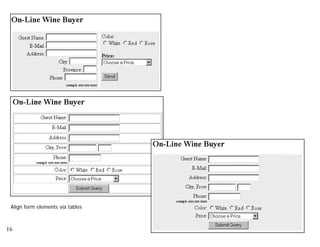
EASING
INTO WEB
DEVELOPMENT
4.
4 FORMS
1   INTRODUCTION
    2   HTML
    3   TABLES
    4   FORMS
    5   HTTP
    6   CSS
    7   CSS FRAMEWORKS
    8   DIGITAL MEDIA
2   9   USABILITY
What is a Form?
3


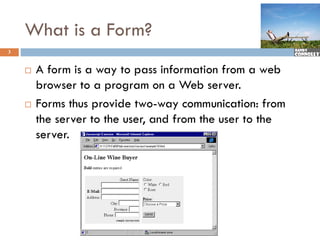
       A form is a way to pass information from a web
        browser to a program on a Web server.
       Forms thus provide two-way communication: from
        the server to the user, and from the user to the
                              ,
        server.
Form data – where does it go?
4


       The data that is input into a f
                                      form is sent back to the
        server as a series of name=value pairs separated
        by
        b ampersands.d
         E.g.   firstname=karl&lastname=marx&price=1.59

       This information is URL encoded, but it is certainly
               f                    d d
        not encypted.
         E.g.   name=karl%20marx

         HTTPS     encypts this information.
       This data is sent either via the url or within the HTTP
        header.
Three Parts of a Form
5


    1. The form that the user sees and enters data into.
         This is constructed with HTML tags
    2. A script for validating the user's entry (optional).
         This runs on the browser
             written in Javascript
    3. A program that processes the user data.
         p g          p
       This resides on the server.
       Typically uses CGI-Perl, ASP, PHP, ASP.NET or some other
         yp      y              ,   ,     ,
        server-side scripting/programming technology & language.
       Also should validate the user’s entry
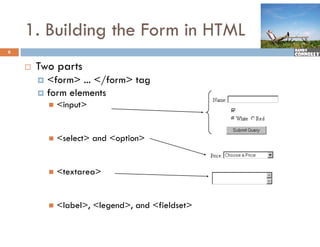
1. Building the Form in HTML
6


       Two
        T parts
         <form> ... </form> tag
         form elements
               <input>


               <select> and <option>


               <textarea>


               <label>, <legend>, and <fieldset>
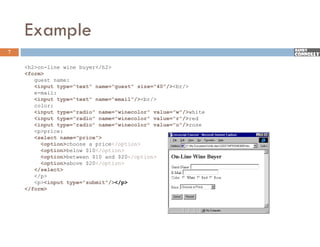
Example
7

    <h2>on-line wine buyer</h2>
    <form>
       guest name:
       <input type="text" name="guest" size="40"/><br/>
       e mail:
       e-mail:
       <input type="text" name="email"/><br/>
       color:
       <input type="radio" name="winecolor" value="w"/>white
       <input type="radio" name="winecolor" value="r"/>red
       <input t
       <i    t type="radio" name="winecolor" value="o"/>rose
                    " di "       " i    l "    l   " "/>
       <p>price:
       <select name="price">
          <option>choose a price</option>
          <option>below $10</option>
          <option>between $10 and $20</option>
          <option>above $20</option>
       </select>
       </p>
       <p><input type="submit"/></p>
                  type submit /></p>
    </form>
<form> Tag
8

       While
        Whil you can hhave several <form> ... </f
                                 l <f   > </form> in a page,
                                                  >i
        they cannot be nested
       attributes
           id=
               id of the form (only necessary if more than one form in page)
           action=
              ti
               specifies the URL of the server-side script that will process the form
           method=
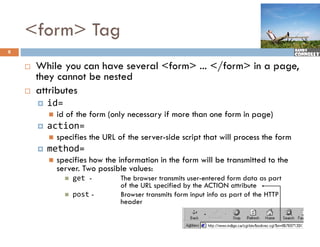
               specifies how the information in the form will be transmitted to the
                server. Two possible values:
                     get -        The browser transmits user-entered form data as part
                                   of the URL specified by the ACTION attribute
                                    f h           ifi d b h                 ib
                     post -       Browser transmits form input info as part of the HTTP
                                   header
<form> Tag
9

       Examples
        <form   method="get"    action="cgi-bin/mailform.pl">


        <form   id="personal"     action="validate.asp"   method="post">
Form Elements
10

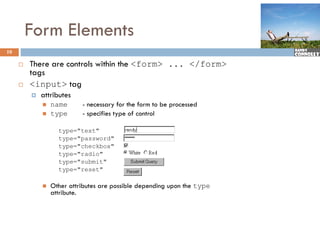
        There are controls within the <form> ... </form>
         tags
        <input> tag
            attributes
              tt ib t
                name      - necessary for the form to be processed
                type      - specifies type of control

                   type="text"
                   type="password"
                   type="checkbox"
                   type="radio"
                   type="submit"
                   type="reset"

                Other attributes are possible depending upon the type
                 O
                 attribute.
11
          Sample <i
          S   l <input> elements
                      > l
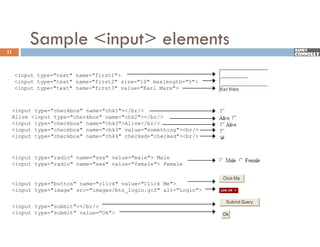
     <input type="text" name="first1">
     <input type="text" name="first2" size="10" maxlength="5">
     <input type="text" name="first3" value="Karl Marx">


     <input type="checkbox" name="chk1"></br/>
     Alive <input type="checkbox" name="chk2"></br/>
     <input type="checkbox" name="chk3">Alive</br/>
            type= checkbox name= chk3 >Alive</br/>
     <input type="checkbox" name="chk3" value="something"><br/>
     <input type="checkbox" name="chk4" checked="checked"><br/>


     <input type="radio" name="sex" value="male"> Male
     <input type="radio" name="sex" value="female"> Female


     <input type="button" name="click" value="Click Me">
     <input type="image" src="images/btn_login.gif" alt="Login">


     <input type="submit"></br/>
     <input type="submit" value="Ok">
            type submit value Ok >
Form Elements, continued
12


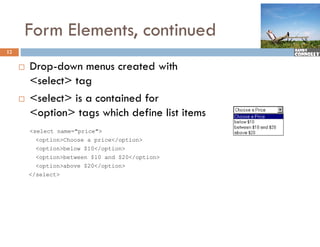
        Drop-down menus created with
         D    d                   d ih
         <select> tag
        <select> is a contained for
         <option> tags which define list items
         <select name="price">
           <option>Choose a price</option>
           <option>below $10</option>
           <option>between $10 and $20</option>
           <option>above $20</option>
         </select>
<select> element
13


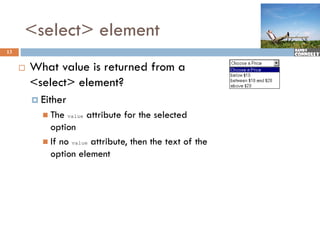
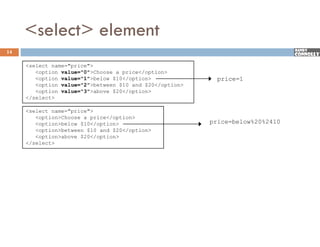
        What l i
         Wh value is returned from a
                            df
         <select> element?
          Either
            The    value   attribute for the selected
             option
            If no value attribute, then the text of the
             option element
<select> element
14

     <select name="price">
        <option value="0">Choose a price</option>
        <option value="1">below $10</option>               price=1
        <option value="2">between $10 and $20</option>
        <option value="3">above $20</option>
          p                           p
     </select>

     <select name="price">
        <option>Choose a price</option>
        <option>below $10</option>                       price below%20%2410
                                                         price=below%20%2410
        <option>between $10 and $20</option>
        <option>above $20</option>
     </select>
Aligning Form Elements
15


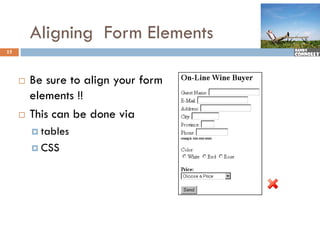
        Be sure to align your form
         elements !!
          l     t
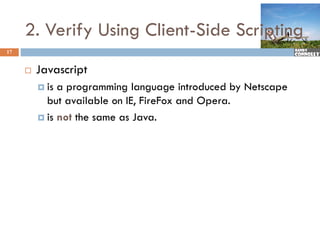
        This can be done via
          tables

          CSS
Align form elements via tables


16
2. Verify Using Client-Side Scripting
                     Client Side
17


        Javascript
          is a programming language introduced by Netscape
           but available on IE, FireFox and Opera.
          is not the same as Java.
Working with Javascript
18


        Typically consists of Javascript f
                             f            functions
         that respond to events connected to
         HTML t tags
         <script language=javascript>
             function check_form() {
               if (email.value == "") {
               if (   il   l      "") {
                  alert("please enter an email")
                  return false
               }
             }
         </script>
         <body>
         <form>
             <input type=submit  onclick="check_form()">
         ...
3. Process Using Server-Side
19
         Program
        Server-side
         Server side programming is necessary to access
         databases, save form data, create customized
         pages
        The most popular are
            PHP (PHP Hypertext Processor)
            ASP.NET
             ASPNET
            CGI (Common Gateway Interface)
            ASP (Active Server Pages)
            JSP (Java Server Pages)
            Cold Fusion
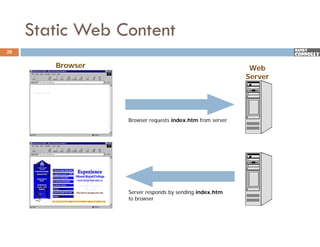
Static Web Content
20

        Browser
        B                                                   Web
                                                           Server


                  Browser requests index.htm from server


                  Server responds by sending index.htm
                  to browser
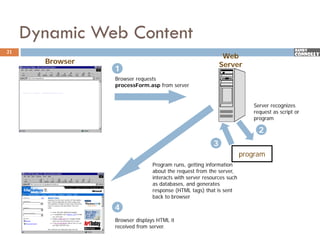
Dynamic Web Content
21
                                                              Web
       Browser                                               Server
                 1
                 Browser requests
                 processForm.asp from server


                                                                          Server recognizes
                                                                          request as script or
                                                                          program

                                                                            2
                                                         3
                                                                       program
                                Program runs, getting information
                                about the request from the server,
                                interacts with server resources such
                                as databases, and generates
                                   databases
                                response (HTML tags) that is sent
                                back to browser

                 4
                 Browser displays HTML it
                 received from server.
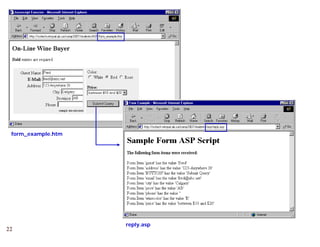
form_example.htm


                    reply.asp
22
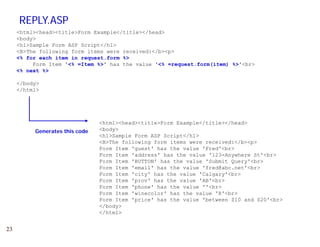
REPLY.ASP
     <html><head><title>Form Example</title></head>
     <body>
     <h1>Sample Form ASP Script</h1>
     <B>The following form items were received:</b><p>
     <% for each item in request.form %>
          Form
          Fo m Item '<% =Item %>' has the value '<% =request.form(item) %>'<b >
                         Item              al e      request form(item) %>'<br>
     <% next %>

     </body>
     </html>


                                <html><head><title>Form Example</title></head>
          Generates this code   <body>
                                <h1>Sample Form ASP Script</h1>
                                <B>The following form items were received:</b><p>
                                Form Item 'guest' has the value 'Fred'<br>
                                Form It
                                F    Item ' dd
                                          'address' has the value '123-Anywhere St' b
                                                  ' h   th    l   '123 A    h   St'<br>
                                Form Item 'BUTTON' has the value 'Submit Query'<br>
                                Form Item 'email' has the value 'fred@abc.net'<br>
                                Form Item 'city' has the value 'Calgary'<br>
                                Form Item 'prov' has the value 'AB'<br>
                                Form Item 'phone' has the value ''<br>
                                Form Item 'winecolor' has the value 'R'<br>
                                Form Item 'price' has the value 'between $10 and $20'<br>
                                </body>
                                </html>


23
Form Accessibility
24


        You can improve the accessibility of your forms by
         using
          the         ,          and <legend> elements.
                 <label> <fieldset>,

          the accesskey and tabindex attributes
<label> element
25


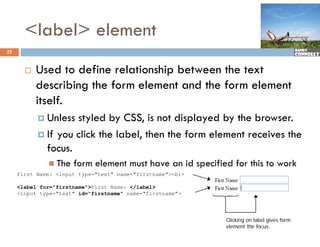
          Used to define relationship between the text
           describing the form element and the form element
           itself.
            Unless styled by CSS, is not displayed by the browser.
            If you click the label, then the form element receives the
             focus.
               The   form element must have an id specified for this to work
     First Name: <input type="text" name="firstname"><br>

     <label for="firstname">First Name: </label>
     <input type="text" id="firstname" name="firstname">


                                                            Clicking on label gives form
                                                            element the focus.
<fieldset> and <legend>
26


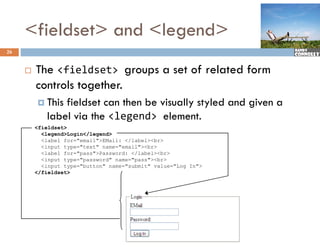
        The <fieldset> groups a set of related form
         controls together.
          This fieldset can then be visually styled and given a
            label via the <legend> element.
         <fieldset>
           <legend>Login</legend>
           <label for="email">EMail: </label><br>
           <input type="text" name="email"><br>
           <label for= pass >Password: </label><br>
                  for="pass">Password:
           <input type="password" name="pass"><br>
           <input type="button" name="submit" value="Log In">
         </fieldset>
accesskey          and tabindex attributes
27


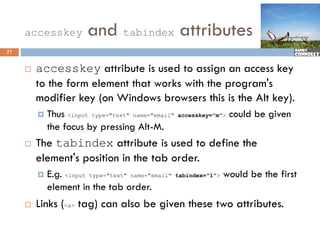
        accesskey attribute is used to assign an access key
         to the form element that works with the program's
         modifier key (on Windows browsers this is the Alt key).
              f
            Thus <input type="text" name="email"   accesskey="m">   could be given
             the focus b pressing Alt-M.
              h f       by        i Al M
        The tabindex attribute is used to define the
         element's position in the tab order.
                '
            E.g. <input type="text" name="email"   tabindex="1">   would be the first
             element in the tab order.
              l            h     b d
        Links (<a> tag) can also be given these two attributes.
28
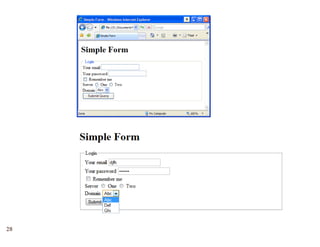
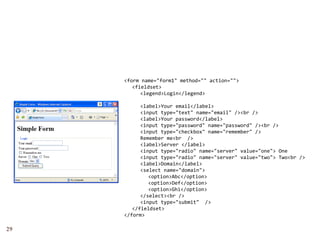
<form name="form1" method="" action="">
        <fieldset>
           <legend>Login</legend>

           <label>Your email</label>
           <input type="text" name="email" /><br />
           <label>Your password</label>
           <input type="password" name="password" /><br />
            i          "       d"      "       d" / b /
           <input type="checkbox" name="remember" />
           Remember me<br  />
           <label>Server </label>
           <input type="radio" name="server" value="one"> One
              p    yp
           <input type="radio" name="server" value="two"> Two<br />
           <label>Domain</label>
           <select name="domain">
              <option>Abc</option>
              <option>Def</option>
              <option>Ghi</option>
           </select><br />
           <input type="submit"  />
        </fieldset>
     </form>
      /f

29
30
31

Web I - 04 - Forms

  • 1.
  • 2.
    1 INTRODUCTION 2 HTML 3 TABLES 4 FORMS 5 HTTP 6 CSS 7 CSS FRAMEWORKS 8 DIGITAL MEDIA 2 9 USABILITY
  • 3.
    What is aForm? 3  A form is a way to pass information from a web browser to a program on a Web server.  Forms thus provide two-way communication: from the server to the user, and from the user to the , server.
  • 4.
    Form data –where does it go? 4  The data that is input into a f form is sent back to the server as a series of name=value pairs separated by b ampersands.d  E.g. firstname=karl&lastname=marx&price=1.59  This information is URL encoded, but it is certainly f d d not encypted.  E.g. name=karl%20marx  HTTPS encypts this information.  This data is sent either via the url or within the HTTP header.
  • 5.
    Three Parts ofa Form 5 1. The form that the user sees and enters data into.  This is constructed with HTML tags 2. A script for validating the user's entry (optional).  This runs on the browser  written in Javascript 3. A program that processes the user data. p g p  This resides on the server.  Typically uses CGI-Perl, ASP, PHP, ASP.NET or some other yp y , , , server-side scripting/programming technology & language.  Also should validate the user’s entry
  • 6.
    1. Building theForm in HTML 6  Two T parts  <form> ... </form> tag  form elements  <input>  <select> and <option>  <textarea>  <label>, <legend>, and <fieldset>
  • 7.
    Example 7 <h2>on-line wine buyer</h2> <form> guest name: <input type="text" name="guest" size="40"/><br/> e mail: e-mail: <input type="text" name="email"/><br/> color: <input type="radio" name="winecolor" value="w"/>white <input type="radio" name="winecolor" value="r"/>red <input t <i t type="radio" name="winecolor" value="o"/>rose " di " " i l " l " "/> <p>price: <select name="price"> <option>choose a price</option> <option>below $10</option> <option>between $10 and $20</option> <option>above $20</option> </select> </p> <p><input type="submit"/></p> type submit /></p> </form>
  • 8.
    <form> Tag 8  While Whil you can hhave several <form> ... </f l <f > </form> in a page, >i they cannot be nested  attributes  id=  id of the form (only necessary if more than one form in page)  action= ti  specifies the URL of the server-side script that will process the form  method=  specifies how the information in the form will be transmitted to the server. Two possible values:  get - The browser transmits user-entered form data as part of the URL specified by the ACTION attribute f h ifi d b h ib  post - Browser transmits form input info as part of the HTTP header
  • 9.
    <form> Tag 9  Examples <form method="get" action="cgi-bin/mailform.pl"> <form id="personal" action="validate.asp" method="post">
  • 10.
    Form Elements 10  There are controls within the <form> ... </form> tags  <input> tag  attributes tt ib t  name - necessary for the form to be processed  type - specifies type of control type="text" type="password" type="checkbox" type="radio" type="submit" type="reset"  Other attributes are possible depending upon the type O attribute.
  • 11.
    11 Sample <i S l <input> elements > l <input type="text" name="first1"> <input type="text" name="first2" size="10" maxlength="5"> <input type="text" name="first3" value="Karl Marx"> <input type="checkbox" name="chk1"></br/> Alive <input type="checkbox" name="chk2"></br/> <input type="checkbox" name="chk3">Alive</br/> type= checkbox name= chk3 >Alive</br/> <input type="checkbox" name="chk3" value="something"><br/> <input type="checkbox" name="chk4" checked="checked"><br/> <input type="radio" name="sex" value="male"> Male <input type="radio" name="sex" value="female"> Female <input type="button" name="click" value="Click Me"> <input type="image" src="images/btn_login.gif" alt="Login"> <input type="submit"></br/> <input type="submit" value="Ok"> type submit value Ok >
  • 12.
    Form Elements, continued 12  Drop-down menus created with D d d ih <select> tag  <select> is a contained for <option> tags which define list items <select name="price"> <option>Choose a price</option> <option>below $10</option> <option>between $10 and $20</option> <option>above $20</option> </select>
  • 13.
    <select> element 13  What l i Wh value is returned from a df <select> element?  Either  The value attribute for the selected option  If no value attribute, then the text of the option element
  • 14.
    <select> element 14 <select name="price"> <option value="0">Choose a price</option> <option value="1">below $10</option> price=1 <option value="2">between $10 and $20</option> <option value="3">above $20</option> p p </select> <select name="price"> <option>Choose a price</option> <option>below $10</option> price below%20%2410 price=below%20%2410 <option>between $10 and $20</option> <option>above $20</option> </select>
  • 15.
    Aligning Form Elements 15  Be sure to align your form elements !! l t  This can be done via  tables  CSS
  • 16.
    Align form elementsvia tables 16
  • 17.
    2. Verify UsingClient-Side Scripting Client Side 17  Javascript  is a programming language introduced by Netscape but available on IE, FireFox and Opera.  is not the same as Java.
  • 18.
    Working with Javascript 18  Typically consists of Javascript f f functions that respond to events connected to HTML t tags <script language=javascript> function check_form() { if (email.value == "") { if ( il l "") { alert("please enter an email") return false } } </script> <body> <form> <input type=submit  onclick="check_form()"> ...
  • 19.
    3. Process UsingServer-Side 19 Program  Server-side Server side programming is necessary to access databases, save form data, create customized pages  The most popular are  PHP (PHP Hypertext Processor)  ASP.NET ASPNET  CGI (Common Gateway Interface)  ASP (Active Server Pages)  JSP (Java Server Pages)  Cold Fusion
  • 20.
    Static Web Content 20 Browser B Web Server Browser requests index.htm from server Server responds by sending index.htm to browser
  • 21.
    Dynamic Web Content 21 Web Browser Server 1 Browser requests processForm.asp from server Server recognizes request as script or program 2 3 program Program runs, getting information about the request from the server, interacts with server resources such as databases, and generates databases response (HTML tags) that is sent back to browser 4 Browser displays HTML it received from server.
  • 22.
    form_example.htm reply.asp 22
  • 23.
    REPLY.ASP <html><head><title>Form Example</title></head> <body> <h1>Sample Form ASP Script</h1> <B>The following form items were received:</b><p> <% for each item in request.form %> Form Fo m Item '<% =Item %>' has the value '<% =request.form(item) %>'<b > Item al e request form(item) %>'<br> <% next %> </body> </html> <html><head><title>Form Example</title></head> Generates this code <body> <h1>Sample Form ASP Script</h1> <B>The following form items were received:</b><p> Form Item 'guest' has the value 'Fred'<br> Form It F Item ' dd 'address' has the value '123-Anywhere St' b ' h th l '123 A h St'<br> Form Item 'BUTTON' has the value 'Submit Query'<br> Form Item 'email' has the value 'fred@abc.net'<br> Form Item 'city' has the value 'Calgary'<br> Form Item 'prov' has the value 'AB'<br> Form Item 'phone' has the value ''<br> Form Item 'winecolor' has the value 'R'<br> Form Item 'price' has the value 'between $10 and $20'<br> </body> </html> 23
  • 24.
    Form Accessibility 24  You can improve the accessibility of your forms by using  the , and <legend> elements. <label> <fieldset>,  the accesskey and tabindex attributes
  • 25.
    <label> element 25  Used to define relationship between the text describing the form element and the form element itself.  Unless styled by CSS, is not displayed by the browser.  If you click the label, then the form element receives the focus.  The form element must have an id specified for this to work First Name: <input type="text" name="firstname"><br> <label for="firstname">First Name: </label> <input type="text" id="firstname" name="firstname"> Clicking on label gives form element the focus.
  • 26.
    <fieldset> and <legend> 26  The <fieldset> groups a set of related form controls together.  This fieldset can then be visually styled and given a label via the <legend> element. <fieldset> <legend>Login</legend> <label for="email">EMail: </label><br> <input type="text" name="email"><br> <label for= pass >Password: </label><br> for="pass">Password: <input type="password" name="pass"><br> <input type="button" name="submit" value="Log In"> </fieldset>
  • 27.
    accesskey and tabindex attributes 27  accesskey attribute is used to assign an access key to the form element that works with the program's modifier key (on Windows browsers this is the Alt key). f  Thus <input type="text" name="email" accesskey="m"> could be given the focus b pressing Alt-M. h f by i Al M  The tabindex attribute is used to define the element's position in the tab order. '  E.g. <input type="text" name="email" tabindex="1"> would be the first element in the tab order. l h b d  Links (<a> tag) can also be given these two attributes.
  • 28.
  • 29.
    <form name="form1" method="" action=""> <fieldset> <legend>Login</legend> <label>Your email</label> <input type="text" name="email" /><br /> <label>Your password</label> <input type="password" name="password" /><br /> i " d" " d" / b / <input type="checkbox" name="remember" /> Remember me<br  /> <label>Server </label> <input type="radio" name="server" value="one"> One p yp <input type="radio" name="server" value="two"> Two<br /> <label>Domain</label> <select name="domain"> <option>Abc</option> <option>Def</option> <option>Ghi</option> </select><br /> <input type="submit"  /> </fieldset> </form> /f 29
  • 30.
  • 31.