CHAPTER TWO
BASICS OF WINDOWS
AND
OFFICE APPLICATIONS
BASICS OF PC AND WINDOWS
Contents
 Starting and closing computer
 Using mouse and keyboard
 Windows concepts
 Windows Environment
 The Desktop Elements
 Parts of a window
 Changing Desktop Background and Screen saver
 Managing files and folders
 Adjusting Date And Time
 Managing programs on start menu
 Getting help
Starting Computer
1. Plug the power cables to the socket.
2. Press the power button on your computer.
3. Press the power button on your monitor.
4. Wait for a while. press enter.
Closing computer
 First click the Start button and then, in the lower-right corner of the Start
menu, click Shut down.
 When you click Shut down, your computer closes all open programs, along
with Windows itself, and then completely turns off your computer and
display. Shutting down doesn't save your work, so you must save your files
first.
Using mouse and keyboard
Using Mouse
 you can use your mouse to interact with items on your
computer screen.
 You can move objects, open them, change them, throw
them away, and perform other actions, all by pointing
and clicking with your mouse.
Using keyboard
 keyboard is the main way to enter information into
computer.
keyboard can be divided into several groups
 Control keys. These keys are used alone or in combination with
other keys to perform certain actions. The most frequently used
control keys are Ctrl, Shift and Esc.
 Function keys. The function keys are used to perform specific
tasks. They are labeled as F1, F2, F3, and so on, up to F12.
 Navigation keys. These keys are used for moving around in
documents or WebPages and editing text. They include the arrow
keys, Home, End, Page Up, Page Down, Delete, and Insert.
 Numeric keypad. The numeric keypad is handy for entering
numbers quickly.
Windows concepts
Microsoft windows
 Is an operating system displays icons and other images typical
of the GUI that makes computers easy to use .
Windows Environment includes:
 Desktop – An on screen work area where Icons , folders and
Taskbar displayed
 Task bar-Rectangular bar at the bottom of the desktop.
It contains
 Start Button
 Clock
 Name of opened window
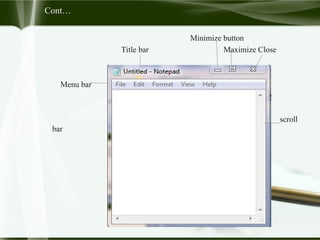
Parts of a window
 Icon - graphical representations of files, programs, or shortcuts
 Menu bar -Contains items that you can click to make choices in
a program
 Title bar - Displays the name of the document or program
 Minimize , Maximize , Close Button
 Scroll bars – used to scroll the window
Cont…
Minimize button
Title bar Maximize Close
Menu bar
Scr scroll
bar
Changing Desktop Background and Screen saver
1. Right click on Desktop
2. Click on Personalize
3. From the displayed dialog box, click on Desktop
4. Choose your favorite background image
5. Click on apply
6. Click on ok
Changing screen saver
1. Right click on Desktop
2. Click on Personalize
3. From the displayed dialog box, click on Screen Saver
4. Choose your favorite screen saver
5. Click on apply
6. Click on ok
Changing date and time of the computer
1. Click on a time icon on the right side of taskbar
2. Click on change date and time setting
3. Click on a hour letter and scroll up and down to
increase and decrease time.
4. Click on minute and second to add or sub like the
above
5. Click on apply then ok.
Creating folder
1.Right click on the place you want to create new folder.
2. Point on NEW, then click on folder
3. New folder with blue color filled space will be
displayed to be Renamed.
4. Click on the text and write your folder name
5. Click on other place to assure creation
Copying ,cutting and pasting folders
Copying and pasting folders
1. Right click on a folder that you want to copy
2. Click on copy
3. Go to the directory to which you want to paste your folder
4. Right click on the folder and click on paste
Renaming Folders and Files
 Right click on the folder
 Click on rename
 Write the new name in the box
 Click on other place to assure
Getting help
 Help and support used to get assistance about some
topics in the computer .
 Click on start menu then at the right side click on
Help and Support
OFFICE APPLICATIONS
MS WORD
 Introduction To MS-Word
 Ribbons And Chunks
 Basic Word Concepts And Text proofing
 Document Formatting
 Document Editing
 Table Basics
 Document Page Setup And Printing
Introduction To MS-Word
 Microsoft Word is a window oriented powerful word processor
that lets you prepare documents with a lot of built-in features
which helps you in your work.
 Ms word is a program designed to run under Windows
environment.
 The windows version can be, Windows 2007 or Windows 2008.
 In a word processor program you get a lot of features that
enables you to enter, edit, format and print documents.
 A document is any collection of text taken as a meaningful
whole.
Opening word 2007
 Click on start menu
 Then go to all programs
 Point on ms office
 Select Microsoft office word 2007
 Then the page will be displayed
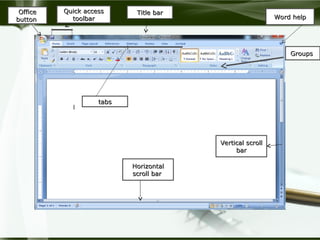
Screen elements of word 2007
1. Title bar
2. Microsoft Office button
3. Quick Access Toolbar
4. Tabs
5. Groups
6. Word Help
7. Vertical Scrollbar
8. Horizontal Scrollbar
Title bar
Title bar
Office
Office
button
button
Quick access
Quick access
toolbar
toolbar
tabs
tabs
Groups
Groups
Word help
Word help
Horizontal
Horizontal
scroll bar
scroll bar
Vertical scroll
Vertical scroll
bar
bar
Creating Documents
 To create document
 Type the text or document in the blank page
Saving Documents
After we create a document to save it
 First click office button then click on save
 Choose the location and write the name of the file
 Finally click on save
Text Proofing
 Word 2007 automatically proofreads our document for grammar,
and spelling errors as you type. you can correct the errors
immediately as they occur or at the end of our word session.
 The spelling error underlines wavy like red line to the word or
words that are misspelled and that may not stored in the dictionary
database of Microsoft office.
 E.g. NAMES and grammar error underlines the word phrase or
sentences with the wavy like green color.
Cont…
To avoid these text problems
 Right click on the word phrase or sentences which is underlined
and see the Microsoft suggestion
 Read the suggestion and select the one that you want to say( if
there is) but if your word , Phrase and sentences are not present
in windows database dictionary, just you need to click on ignore
once to ignore for that time only or click on ignore all for the
whole document. You can also say add to dictionary . After this
your word will be stored in the database and not considered as
an error.
Document Formatting
 Formatting is changing the structure of the document.
 There are three types of formatting
1.Character Formatting
It is changing the structure of a character, a word, or range of text.
 Font size, Font type, Font style, Font color,…
Change Case
To change the case of text
• Select the text that you want to change its case
• Click Change Case button , and select any option you want
Drop Cap
To Drop Cap the first letter of paragraph
 Click on the paragraph
 Select Insert tab, click Drop Cap and select Dropped or In
margin.
2.Paragraph Formatting
It is changing the structure of the paragraph.
 Alignment , Indentation, Line Spacing, Drop Cap, ….
To change the alignment of text/ paragraph
 Click paragraph Dialog Box Launcher under Home tab
 Click in Alignment box and select (Left, Centered, Right, or
Justified) and click OK
3.Page Formatting
It is changing the structure of the page
 Page margin, Header and Footer, Page Border, …
To change the default page margins
 Select Page Layout tab and click Page Setup dialog box launcher
 Change the default page margins/ change the numbers in Top,
Bottom, Left, or Right boxes and the orientation of the page.
 Click OK button.
 Inserting page number , Page border
 Header and Footer
 Using word arts
 Working with auto shapes
Clip Art
To insert picture to the document
 Click Insert Clip Art
 Click organize clips at the bottom of the Clip Art.
 Select the desired category of pictures.
 Right click on the pictures and select copy
 Paste the picture to your document
Creating table
Formatting tables
Merge Cells
o Select range of cells you want to merge
o Click Layout tab from the list
o Click Merge Cells button.
Split Cells
o Select range of cells you want to split
o Click Layout tab from the list. Click split Cells button.
o Set number of columns and rows. Click ok button
To change orientation of text in a table
 Click in a cell containing text
 Click Layout tab from the list
 Click Text Direction button
Document Page setup
To setup your document page
 Click on the page layout tab and you can select the action you like
 To setup the page number: click on insert tab and at the header
and footer group select page number
 Select where you want to place the page number that means at
the top and at the bottom etc then select the style of the page
number
 You can also change or edit the format of the page number by
clicking on format page numbers
Printing a document
 On the File menu, click Print
 Set the number of copies
 Click ok
MS EXCEL
 Introduction To MS-Excel
 Understanding Excel’s Files
 Saving A Workbook
 Closing Workbooks
 Working With Worksheets
 Entering Data
 Creating And Editing Formulae and Functions
 Formatting And Proofing
 Charts Basics
 Printing And Page Setup
Introduction To MS-Excel
 Microsoft excel is a spreadsheet program used to keep data
list , analyze, summarize data and calculations and chart
data.
 Workbook: - is a Microsoft Excel window where you work
on. By default it is composed of three worksheets.
 Worksheet: - is a large planned rectangular area of
intersection between rows and columns.
 It use to keep database and perform calculation.
 Database: - is a collection of similar data.
 Excel workbook and worksheet
 A worksheet is the grid of cells where you can type the data the grid
divides your worksheets into rows and columns.
 Columns are identified with letters (A, B, C…) while rows are identified
with number (1, 2, 3…)
 A worksheet in Excel 2007 consists of 16,384 columns and over 1 million
rows. The worksheets in turn are grouped together into a workbook.
 By default each workbook in excel 2007 contains 3 blank worksheets,
which are identified by tabs displaying along the bottom of your screen.
By default the first worksheet is called sheet1; the next is sheet2 and so on
There are three major excel features:
1. Worksheet feature- excel workspace with gridlines that
helps you to enter, and calculate data;
2. chart feature – this feature provides tools to present the
numeric data that you have in a worksheet graphically.
3. list feature- enables you to perform tasks that require
managing manipulating, and maintaining a collection
of large amount of tack of records.
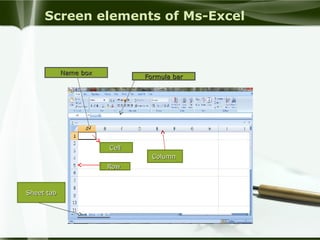
Screen elements of Ms-Excel
Formula bar
Formula bar
Name box
Name box
Sheet tab
Sheet tab
Row
Row
Column
Column
Cell
Cell
Spreadsheets
 A spreadsheet is an electronic document that stores
various types of data.
 There are vertical columns and horizontal rows.
 A cell is where the column and row intersect.
 A cell can contain data and can be used in
calculations of data within the spreadsheet.
 An Excel spreadsheet can contain workbooks and
worksheets.
Working with workbooks
Create a Workbook
To create a new Workbook:
 Click the Microsoft Office Toolbar
 Click New
 Choose Blank Document
Save a Workbook
To save a document:
  Click the Microsoft Office Button
  Click Save
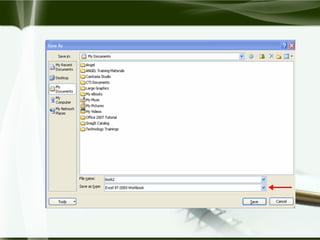
To use the Save As feature:
 Click the Microsoft Office Button
 Click Save As
 Type in the name for the Workbook
 In the Save as Type box, choose Excel 97-2003 Workbook
Open a Workbook
To open an existing workbook:
 Click the Microsoft Office Button
 Click Open
 Browse to the workbook
 Click the title of the workbook
 Click Open
Entering Data
 There are different ways to enter data in Excel: in an active cell or in the formula
bar.
To enter data in an active cell( selected cell)
 Select a cell in which you want to enter data
 Type the data
Cont ….
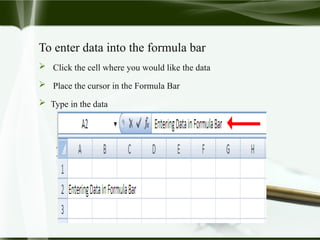
To enter data into the formula bar
 Click the cell where you would like the data
 Place the cursor in the Formula Bar
 Type in the data
Manipulating Data
Select Data
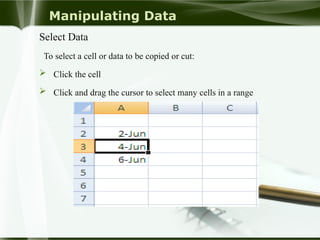
To select a cell or data to be copied or cut:
 Click the cell
 Click and drag the cursor to select many cells in a range
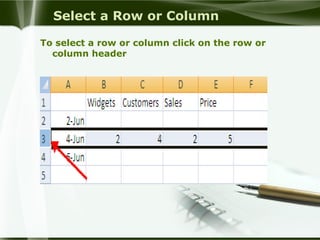
Select a Row or Column
To select a row or column click on the row or
column header
Copy and Paste
To copy and paste data:
 Select the cell(s) that you want to copy
 On the Clipboard group of the Home tab, click Copy
 On the Clipboard group of the Home tab, click Paste
Cut and Paste
To cut and paste data:
 Select the cell(s) that you want to copy
 On the Clipboard group of the Home tab, click Cut
 Select the cell(s) where you would like to copy the data
 On the Clipboard group of the Home tab, click Paste
Undo and Redo
To undo or redo your most recent actions:
 On the Quick Access Toolbar
 Click Undo or Redo
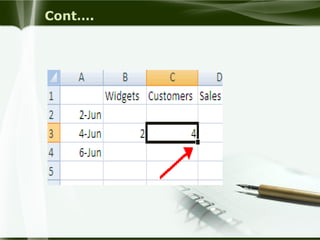
Auto Fill
 The Auto Fill feature fills cell data or series of data in a
worksheet into a selected range of cells. If you want the
same data copied into the other cells, you only need to
complete one cell. If you want to have a series of data (for
example, days of the week) fill in the first two cells in the
series and then use the auto fill feature.
 To use the Auto Fill feature:
 Click the Fill Handle
 Drag the Fill Handle to complete the cells
Cont….
Modifying a Worksheet
Insert Cells, Rows, and Columns
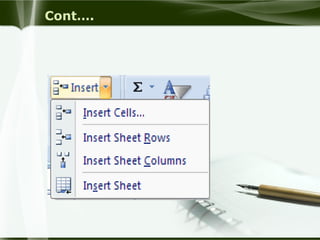
To insert cells, rows, and columns in Excel:
 Place the cursor in the row below where you want the new row,
or in the column to the left of where you want the new column
 Click the Insert button on the Cells group of the Home tab
 Click the appropriate choice: Cell, Row, or Column
Cont….
Delete Cells, Rows and Columns
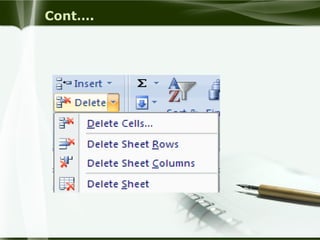
To delete cells, rows, and columns:
 Place the cursor in the cell, row, or column that you want to
delete
 Click the Delete button on the Cells group of the Home tab
 Click the appropriate choice: Cell, Row, or Column
Cont….
Find and Replace
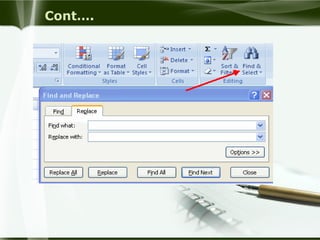
To find data or find and replace data:
 Click the Find & Select button on the Editing group of the
Home tab
 Choose Find or Replace
 Complete the Find What text box
 Click on Options for more search options
Cont….
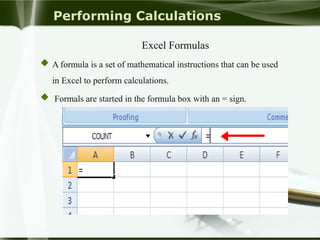
Performing Calculations
Excel Formulas
 A formula is a set of mathematical instructions that can be used
in Excel to perform calculations.
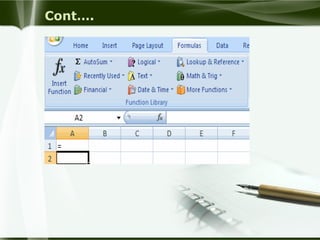
 Formals are started in the formula box with an = sign.
Cont….
There are many elements in excel formula.
 References: The cell or range of cells that you
want to use in your calculation
 Operators: Symbols (+, -, *, /) that specify
the calculation to be performed
 Constants: Numbers or text values that do
not change
 Functions: Predefined formulas in Excel
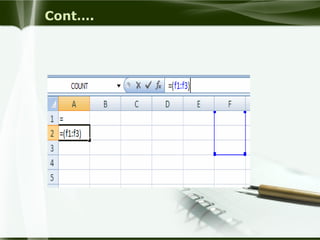
To create a basic formula in Excel:
 Select the cell for the formula
 Type = (the equal sign) and the formula
 Click Enter
Cont….
Calculate with Functions
 A function is a built in formula in Excel. A function has a name
and arguments (the mathematical function) in parentheses.
Common functions in Excel:
 Sum: Adds all cells in the argument
 Average: Calculates the average of the cells in the argument
 Min: Finds the minimum value
 Max: Finds the maximum value
 Count: Finds the number of cells that contain a numerical value
within a range of the argument
Cont….
Cont….
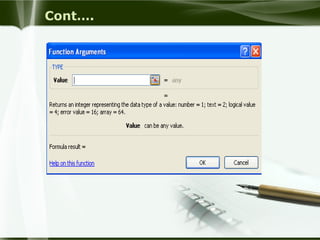
 Complete the Number 1 box with the first cell in the range that
you want calculated
 Complete the Number 2 box with the last cell in the range that
you want calculated
Cont….
Relative, Absolute and Mixed References
 Calling cells by just their column and row labels (such as "A1") is
called Relative Referencing.
 When a formula contains relative referencing and it is copied
from one cell to another, Excel does not create an exact copy of
the formula.
 It will change cell addresses relative to the row and column they
are moved to.
 For example, if a simple addition formula in cell C1 "=(A1+B1)"
is copied to cell C2, the formula would change to "=(A2+B2)" to
reflect the new row.
Cont ….
 To prevent this change, cells must be called by Absolute referencing
and this is accomplished by placing dollar signs "$" within the cell
addresses in the formula.
 Continuing the previous example, the formula in cell C1 would read
"=($A$1+$B$1)" if the value of cell C2 should be the sum of cells A1
and B1.
 Both the column and row of both cells are absolute and will not change
when copied.
 Mixed referencing can also be used where only the row OR column
fixed. For example, in the formula "= (A$1+$B2)", the row of cell A1
is fixed and the column of cell B2 is fixed
Finding rank
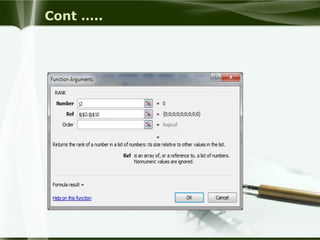
To find the rank follow the following procedure. Initially
you have to click on the cell that you want to display
the rank then:-
 Click on insert function tab
 Then from the list select RANK
 Enter the first number where your rank is start from
Or column , row combination e.g. J2
 in the second blank or ref. option enter the reference
or the range of numbers that you are finding for.
e.g. $j$2:$j$10 means starting from j2 up to j10. you
can leave blank the order option.
Cont …..
Grade calculation
 To calculate the grade of the list of students, just you need to follow the
following formula.
e.g. the grade for the following range is
90 and more than 90 grade=A+
80 >> >> >> 80 >> =A
70 >> >> >> 70 >> =B
60 >> >> >> 60 >> =C+
50 >> >> >> 50 >> =C
40 >> >> >> 40 >> =D
Other wise F.
Cont ….
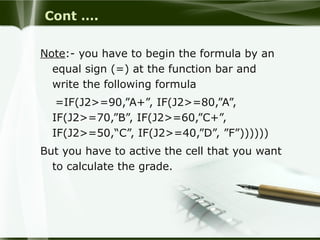
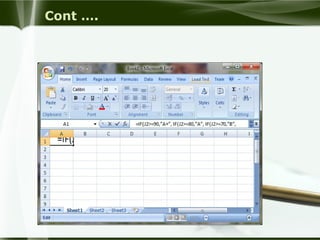
Note:- you have to begin the formula by an
equal sign (=) at the function bar and
write the following formula
=IF(J2>=90,”A+”, IF(J2>=80,”A”,
IF(J2>=70,”B”, IF(J2>=60,”C+”,
IF(J2>=50,“C”, IF(J2>=40,”D”, ”F”))))))
But you have to active the cell that you want
to calculate the grade.
Cont ….
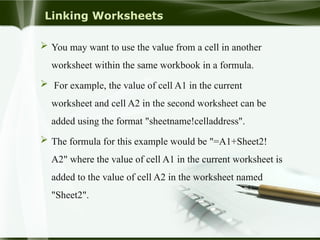
Linking Worksheets
 You may want to use the value from a cell in another
worksheet within the same workbook in a formula.
 For example, the value of cell A1 in the current
worksheet and cell A2 in the second worksheet can be
added using the format "sheetname!celladdress".
 The formula for this example would be "=A1+Sheet2!
A2" where the value of cell A1 in the current worksheet is
added to the value of cell A2 in the worksheet named
"Sheet2".
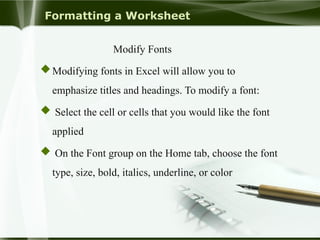
Formatting a Worksheet
Modify Fonts
Modifying fonts in Excel will allow you to
emphasize titles and headings. To modify a font:
 Select the cell or cells that you would like the font
applied
 On the Font group on the Home tab, choose the font
type, size, bold, italics, underline, or color
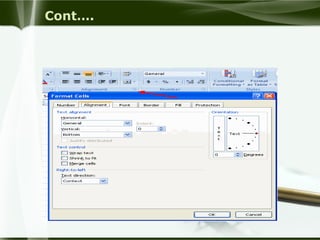
Format Cells Dialog Box
 In Excel, you can also apply specific formatting to a cell.
To apply formatting to a cell or group of cells:
 Select the cell or cells that will have the formatting
 Click the Dialog Box arrow on the Alignment group of
the Home tab
 There are several tabs on this dialog box that allow you
to modify properties of the cell or cells.
Cont….
 Number: Allows for the display of different number types and
decimal places
 Alignment: Allows for the horizontal and vertical alignment
of text, wrap text, shrink text, merge cells and the direction of
the text.
 Font: Allows for control of font, font style, size, color, and
additional features
 Border: Border styles and colors
 Fill: Cell fill colors and styles
Cont….
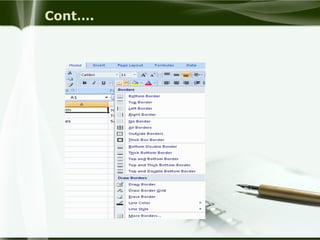
Add Borders and Colors to Cells
 Borders and colors can be added to cells manually or
through the use of styles.
To add borders manually:
 Click the Borders drop down menu on the Font group of
the Home tab
 Choose the appropriate border
Cont….
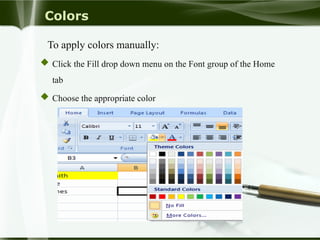
Colors
To apply colors manually:
 Click the Fill drop down menu on the Font group of the Home
tab
 Choose the appropriate color
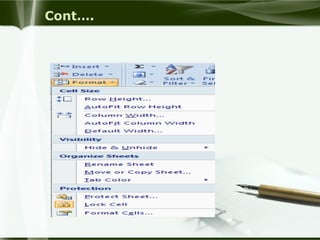
Change Column Width and Row Height
To change the width of a column or the height of a row:
 Click the Format button on the Cells group of the
Home tab
 Manually adjust the height and width by clicking
Row Height or Column Width
 To use AutoFit click AutoFit Row Height or AutoFit
Column Width
Cont….
Hide or Unhide Rows or Columns
To hide or unhide rows or columns:
 Select the row or column you wish to hide or unhide
 Click the Format button on the Cells group of the Home tab
 Click Hide & Unhide
Merge Cells
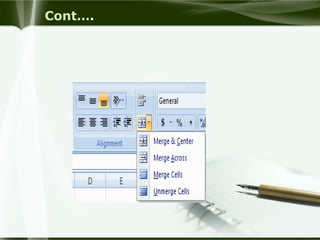
 To merge cells select the cells you want to merge and click the
Merge & Center button on the Alignment group of the Home
tab. The four choices for merging cells are:
 Merge & Center: Combines the cells and centers the contents in
the new , larger cell
 Merge Across: Combines the cells across columns without
centering data
 Merge Cells: Combines the cells in a range without centering
 Unmerge Cells: Splits the cell that has been merged
Cont….
Chart
 Chart is a graphical representation of the database.
 It makes easy for users to see and understand about the
database.
Types of Chart
There are different types of charts : Column, Bar, Line , pie…
Creating Chart
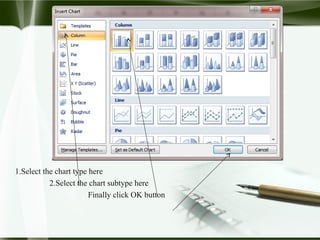
To create chart with chart wizard
 Click the Insert tab and select any chart type you like from the
list
1.Select the chart type here
2.Select the chart subtype here
Finally click OK button
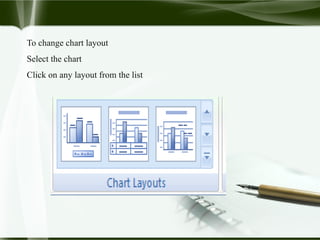
To change chart layout
Select the chart
Click on any layout from the list
MS POWER POINT
 Introduction To MS-Power Point
 Creating Presentation
 Slide
 Design Template
 Slide Transition
 Custom Animation
 Navigation
 Slide Show
 Printing
Introduction To MS-Power Point
 Microsoft PowerPoint is a program for making business
presentation.
 PowerPoint has new animation effects
Starting Microsoft PowerPoint
 Click on start  all programs  Microsoft office 
Microsoft office PowerPoint 2007
 PowerPoint has new animation effects, including entry and
exit animations, more timing control and motion paths.
MS Publisher
 Introduction To MS-ACCESS
 Creating Table
 Creating Select Query
 Creating Form by Using Wizard
 Creating Reports by Using Wizard
MS ACCESS
Thank You
90

Chapter Two BASICS OF WINDOWS AND OFFICE APPLICATIONS

  • 1.
    CHAPTER TWO BASICS OFWINDOWS AND OFFICE APPLICATIONS
  • 2.
    BASICS OF PCAND WINDOWS
  • 3.
    Contents  Starting andclosing computer  Using mouse and keyboard  Windows concepts  Windows Environment  The Desktop Elements  Parts of a window  Changing Desktop Background and Screen saver  Managing files and folders  Adjusting Date And Time  Managing programs on start menu  Getting help
  • 4.
    Starting Computer 1. Plugthe power cables to the socket. 2. Press the power button on your computer. 3. Press the power button on your monitor. 4. Wait for a while. press enter. Closing computer  First click the Start button and then, in the lower-right corner of the Start menu, click Shut down.  When you click Shut down, your computer closes all open programs, along with Windows itself, and then completely turns off your computer and display. Shutting down doesn't save your work, so you must save your files first.
  • 5.
    Using mouse andkeyboard Using Mouse  you can use your mouse to interact with items on your computer screen.  You can move objects, open them, change them, throw them away, and perform other actions, all by pointing and clicking with your mouse. Using keyboard  keyboard is the main way to enter information into computer.
  • 6.
    keyboard can bedivided into several groups  Control keys. These keys are used alone or in combination with other keys to perform certain actions. The most frequently used control keys are Ctrl, Shift and Esc.  Function keys. The function keys are used to perform specific tasks. They are labeled as F1, F2, F3, and so on, up to F12.  Navigation keys. These keys are used for moving around in documents or WebPages and editing text. They include the arrow keys, Home, End, Page Up, Page Down, Delete, and Insert.  Numeric keypad. The numeric keypad is handy for entering numbers quickly.
  • 7.
    Windows concepts Microsoft windows Is an operating system displays icons and other images typical of the GUI that makes computers easy to use . Windows Environment includes:  Desktop – An on screen work area where Icons , folders and Taskbar displayed  Task bar-Rectangular bar at the bottom of the desktop. It contains  Start Button  Clock  Name of opened window
  • 8.
    Parts of awindow  Icon - graphical representations of files, programs, or shortcuts  Menu bar -Contains items that you can click to make choices in a program  Title bar - Displays the name of the document or program  Minimize , Maximize , Close Button  Scroll bars – used to scroll the window
  • 9.
    Cont… Minimize button Title barMaximize Close Menu bar Scr scroll bar
  • 10.
    Changing Desktop Backgroundand Screen saver 1. Right click on Desktop 2. Click on Personalize 3. From the displayed dialog box, click on Desktop 4. Choose your favorite background image 5. Click on apply 6. Click on ok
  • 11.
    Changing screen saver 1.Right click on Desktop 2. Click on Personalize 3. From the displayed dialog box, click on Screen Saver 4. Choose your favorite screen saver 5. Click on apply 6. Click on ok
  • 12.
    Changing date andtime of the computer 1. Click on a time icon on the right side of taskbar 2. Click on change date and time setting 3. Click on a hour letter and scroll up and down to increase and decrease time. 4. Click on minute and second to add or sub like the above 5. Click on apply then ok.
  • 13.
    Creating folder 1.Right clickon the place you want to create new folder. 2. Point on NEW, then click on folder 3. New folder with blue color filled space will be displayed to be Renamed. 4. Click on the text and write your folder name 5. Click on other place to assure creation
  • 14.
    Copying ,cutting andpasting folders Copying and pasting folders 1. Right click on a folder that you want to copy 2. Click on copy 3. Go to the directory to which you want to paste your folder 4. Right click on the folder and click on paste Renaming Folders and Files  Right click on the folder  Click on rename  Write the new name in the box  Click on other place to assure
  • 15.
    Getting help  Helpand support used to get assistance about some topics in the computer .  Click on start menu then at the right side click on Help and Support
  • 16.
  • 17.
    MS WORD  IntroductionTo MS-Word  Ribbons And Chunks  Basic Word Concepts And Text proofing  Document Formatting  Document Editing  Table Basics  Document Page Setup And Printing
  • 18.
    Introduction To MS-Word Microsoft Word is a window oriented powerful word processor that lets you prepare documents with a lot of built-in features which helps you in your work.  Ms word is a program designed to run under Windows environment.  The windows version can be, Windows 2007 or Windows 2008.  In a word processor program you get a lot of features that enables you to enter, edit, format and print documents.  A document is any collection of text taken as a meaningful whole.
  • 19.
    Opening word 2007 Click on start menu  Then go to all programs  Point on ms office  Select Microsoft office word 2007  Then the page will be displayed
  • 20.
    Screen elements ofword 2007 1. Title bar 2. Microsoft Office button 3. Quick Access Toolbar 4. Tabs 5. Groups 6. Word Help 7. Vertical Scrollbar 8. Horizontal Scrollbar
  • 21.
    Title bar Title bar Office Office button button Quickaccess Quick access toolbar toolbar tabs tabs Groups Groups Word help Word help Horizontal Horizontal scroll bar scroll bar Vertical scroll Vertical scroll bar bar
  • 22.
    Creating Documents  Tocreate document  Type the text or document in the blank page Saving Documents After we create a document to save it  First click office button then click on save  Choose the location and write the name of the file  Finally click on save
  • 23.
    Text Proofing  Word2007 automatically proofreads our document for grammar, and spelling errors as you type. you can correct the errors immediately as they occur or at the end of our word session.  The spelling error underlines wavy like red line to the word or words that are misspelled and that may not stored in the dictionary database of Microsoft office.  E.g. NAMES and grammar error underlines the word phrase or sentences with the wavy like green color.
  • 24.
    Cont… To avoid thesetext problems  Right click on the word phrase or sentences which is underlined and see the Microsoft suggestion  Read the suggestion and select the one that you want to say( if there is) but if your word , Phrase and sentences are not present in windows database dictionary, just you need to click on ignore once to ignore for that time only or click on ignore all for the whole document. You can also say add to dictionary . After this your word will be stored in the database and not considered as an error.
  • 25.
    Document Formatting  Formattingis changing the structure of the document.  There are three types of formatting 1.Character Formatting It is changing the structure of a character, a word, or range of text.  Font size, Font type, Font style, Font color,… Change Case To change the case of text • Select the text that you want to change its case • Click Change Case button , and select any option you want
  • 26.
    Drop Cap To DropCap the first letter of paragraph  Click on the paragraph  Select Insert tab, click Drop Cap and select Dropped or In margin.
  • 27.
    2.Paragraph Formatting It ischanging the structure of the paragraph.  Alignment , Indentation, Line Spacing, Drop Cap, …. To change the alignment of text/ paragraph  Click paragraph Dialog Box Launcher under Home tab  Click in Alignment box and select (Left, Centered, Right, or Justified) and click OK 3.Page Formatting It is changing the structure of the page  Page margin, Header and Footer, Page Border, …
  • 28.
    To change thedefault page margins  Select Page Layout tab and click Page Setup dialog box launcher  Change the default page margins/ change the numbers in Top, Bottom, Left, or Right boxes and the orientation of the page.  Click OK button.  Inserting page number , Page border  Header and Footer  Using word arts  Working with auto shapes
  • 29.
    Clip Art To insertpicture to the document  Click Insert Clip Art  Click organize clips at the bottom of the Clip Art.  Select the desired category of pictures.  Right click on the pictures and select copy  Paste the picture to your document
  • 30.
    Creating table Formatting tables MergeCells o Select range of cells you want to merge o Click Layout tab from the list o Click Merge Cells button. Split Cells o Select range of cells you want to split o Click Layout tab from the list. Click split Cells button. o Set number of columns and rows. Click ok button
  • 31.
    To change orientationof text in a table  Click in a cell containing text  Click Layout tab from the list  Click Text Direction button Document Page setup To setup your document page  Click on the page layout tab and you can select the action you like  To setup the page number: click on insert tab and at the header and footer group select page number  Select where you want to place the page number that means at the top and at the bottom etc then select the style of the page number  You can also change or edit the format of the page number by clicking on format page numbers
  • 32.
    Printing a document On the File menu, click Print  Set the number of copies  Click ok
  • 33.
    MS EXCEL  IntroductionTo MS-Excel  Understanding Excel’s Files  Saving A Workbook  Closing Workbooks  Working With Worksheets  Entering Data  Creating And Editing Formulae and Functions  Formatting And Proofing  Charts Basics  Printing And Page Setup
  • 34.
    Introduction To MS-Excel Microsoft excel is a spreadsheet program used to keep data list , analyze, summarize data and calculations and chart data.  Workbook: - is a Microsoft Excel window where you work on. By default it is composed of three worksheets.  Worksheet: - is a large planned rectangular area of intersection between rows and columns.  It use to keep database and perform calculation.  Database: - is a collection of similar data.
  • 35.
     Excel workbookand worksheet  A worksheet is the grid of cells where you can type the data the grid divides your worksheets into rows and columns.  Columns are identified with letters (A, B, C…) while rows are identified with number (1, 2, 3…)  A worksheet in Excel 2007 consists of 16,384 columns and over 1 million rows. The worksheets in turn are grouped together into a workbook.  By default each workbook in excel 2007 contains 3 blank worksheets, which are identified by tabs displaying along the bottom of your screen. By default the first worksheet is called sheet1; the next is sheet2 and so on
  • 36.
    There are threemajor excel features: 1. Worksheet feature- excel workspace with gridlines that helps you to enter, and calculate data; 2. chart feature – this feature provides tools to present the numeric data that you have in a worksheet graphically. 3. list feature- enables you to perform tasks that require managing manipulating, and maintaining a collection of large amount of tack of records.
  • 37.
    Screen elements ofMs-Excel Formula bar Formula bar Name box Name box Sheet tab Sheet tab Row Row Column Column Cell Cell
  • 38.
    Spreadsheets  A spreadsheetis an electronic document that stores various types of data.  There are vertical columns and horizontal rows.  A cell is where the column and row intersect.  A cell can contain data and can be used in calculations of data within the spreadsheet.  An Excel spreadsheet can contain workbooks and worksheets.
  • 39.
    Working with workbooks Createa Workbook To create a new Workbook:  Click the Microsoft Office Toolbar  Click New  Choose Blank Document Save a Workbook To save a document:   Click the Microsoft Office Button   Click Save
  • 40.
    To use theSave As feature:  Click the Microsoft Office Button  Click Save As  Type in the name for the Workbook  In the Save as Type box, choose Excel 97-2003 Workbook
  • 42.
    Open a Workbook Toopen an existing workbook:  Click the Microsoft Office Button  Click Open  Browse to the workbook  Click the title of the workbook  Click Open Entering Data  There are different ways to enter data in Excel: in an active cell or in the formula bar. To enter data in an active cell( selected cell)  Select a cell in which you want to enter data  Type the data
  • 43.
  • 44.
    To enter datainto the formula bar  Click the cell where you would like the data  Place the cursor in the Formula Bar  Type in the data
  • 45.
    Manipulating Data Select Data Toselect a cell or data to be copied or cut:  Click the cell  Click and drag the cursor to select many cells in a range
  • 46.
    Select a Rowor Column To select a row or column click on the row or column header
  • 47.
    Copy and Paste Tocopy and paste data:  Select the cell(s) that you want to copy  On the Clipboard group of the Home tab, click Copy  On the Clipboard group of the Home tab, click Paste
  • 48.
    Cut and Paste Tocut and paste data:  Select the cell(s) that you want to copy  On the Clipboard group of the Home tab, click Cut  Select the cell(s) where you would like to copy the data  On the Clipboard group of the Home tab, click Paste Undo and Redo To undo or redo your most recent actions:  On the Quick Access Toolbar  Click Undo or Redo
  • 49.
    Auto Fill  TheAuto Fill feature fills cell data or series of data in a worksheet into a selected range of cells. If you want the same data copied into the other cells, you only need to complete one cell. If you want to have a series of data (for example, days of the week) fill in the first two cells in the series and then use the auto fill feature.  To use the Auto Fill feature:  Click the Fill Handle  Drag the Fill Handle to complete the cells
  • 50.
  • 51.
    Modifying a Worksheet InsertCells, Rows, and Columns To insert cells, rows, and columns in Excel:  Place the cursor in the row below where you want the new row, or in the column to the left of where you want the new column  Click the Insert button on the Cells group of the Home tab  Click the appropriate choice: Cell, Row, or Column
  • 52.
  • 53.
    Delete Cells, Rowsand Columns To delete cells, rows, and columns:  Place the cursor in the cell, row, or column that you want to delete  Click the Delete button on the Cells group of the Home tab  Click the appropriate choice: Cell, Row, or Column
  • 54.
  • 55.
    Find and Replace Tofind data or find and replace data:  Click the Find & Select button on the Editing group of the Home tab  Choose Find or Replace  Complete the Find What text box  Click on Options for more search options
  • 56.
  • 57.
    Performing Calculations Excel Formulas A formula is a set of mathematical instructions that can be used in Excel to perform calculations.  Formals are started in the formula box with an = sign.
  • 58.
    Cont…. There are manyelements in excel formula.  References: The cell or range of cells that you want to use in your calculation  Operators: Symbols (+, -, *, /) that specify the calculation to be performed  Constants: Numbers or text values that do not change  Functions: Predefined formulas in Excel To create a basic formula in Excel:  Select the cell for the formula  Type = (the equal sign) and the formula  Click Enter
  • 59.
  • 60.
    Calculate with Functions A function is a built in formula in Excel. A function has a name and arguments (the mathematical function) in parentheses. Common functions in Excel:  Sum: Adds all cells in the argument  Average: Calculates the average of the cells in the argument  Min: Finds the minimum value  Max: Finds the maximum value  Count: Finds the number of cells that contain a numerical value within a range of the argument
  • 61.
  • 62.
    Cont….  Complete theNumber 1 box with the first cell in the range that you want calculated  Complete the Number 2 box with the last cell in the range that you want calculated
  • 63.
  • 64.
    Relative, Absolute andMixed References  Calling cells by just their column and row labels (such as "A1") is called Relative Referencing.  When a formula contains relative referencing and it is copied from one cell to another, Excel does not create an exact copy of the formula.  It will change cell addresses relative to the row and column they are moved to.  For example, if a simple addition formula in cell C1 "=(A1+B1)" is copied to cell C2, the formula would change to "=(A2+B2)" to reflect the new row.
  • 65.
    Cont ….  Toprevent this change, cells must be called by Absolute referencing and this is accomplished by placing dollar signs "$" within the cell addresses in the formula.  Continuing the previous example, the formula in cell C1 would read "=($A$1+$B$1)" if the value of cell C2 should be the sum of cells A1 and B1.  Both the column and row of both cells are absolute and will not change when copied.  Mixed referencing can also be used where only the row OR column fixed. For example, in the formula "= (A$1+$B2)", the row of cell A1 is fixed and the column of cell B2 is fixed
  • 66.
    Finding rank To findthe rank follow the following procedure. Initially you have to click on the cell that you want to display the rank then:-  Click on insert function tab  Then from the list select RANK  Enter the first number where your rank is start from Or column , row combination e.g. J2  in the second blank or ref. option enter the reference or the range of numbers that you are finding for. e.g. $j$2:$j$10 means starting from j2 up to j10. you can leave blank the order option.
  • 67.
  • 68.
    Grade calculation  Tocalculate the grade of the list of students, just you need to follow the following formula. e.g. the grade for the following range is 90 and more than 90 grade=A+ 80 >> >> >> 80 >> =A 70 >> >> >> 70 >> =B 60 >> >> >> 60 >> =C+ 50 >> >> >> 50 >> =C 40 >> >> >> 40 >> =D Other wise F.
  • 69.
    Cont …. Note:- youhave to begin the formula by an equal sign (=) at the function bar and write the following formula =IF(J2>=90,”A+”, IF(J2>=80,”A”, IF(J2>=70,”B”, IF(J2>=60,”C+”, IF(J2>=50,“C”, IF(J2>=40,”D”, ”F”)))))) But you have to active the cell that you want to calculate the grade.
  • 70.
  • 71.
    Linking Worksheets  Youmay want to use the value from a cell in another worksheet within the same workbook in a formula.  For example, the value of cell A1 in the current worksheet and cell A2 in the second worksheet can be added using the format "sheetname!celladdress".  The formula for this example would be "=A1+Sheet2! A2" where the value of cell A1 in the current worksheet is added to the value of cell A2 in the worksheet named "Sheet2".
  • 72.
    Formatting a Worksheet ModifyFonts Modifying fonts in Excel will allow you to emphasize titles and headings. To modify a font:  Select the cell or cells that you would like the font applied  On the Font group on the Home tab, choose the font type, size, bold, italics, underline, or color
  • 73.
    Format Cells DialogBox  In Excel, you can also apply specific formatting to a cell. To apply formatting to a cell or group of cells:  Select the cell or cells that will have the formatting  Click the Dialog Box arrow on the Alignment group of the Home tab  There are several tabs on this dialog box that allow you to modify properties of the cell or cells.
  • 74.
    Cont….  Number: Allowsfor the display of different number types and decimal places  Alignment: Allows for the horizontal and vertical alignment of text, wrap text, shrink text, merge cells and the direction of the text.  Font: Allows for control of font, font style, size, color, and additional features  Border: Border styles and colors  Fill: Cell fill colors and styles
  • 75.
  • 76.
    Add Borders andColors to Cells  Borders and colors can be added to cells manually or through the use of styles. To add borders manually:  Click the Borders drop down menu on the Font group of the Home tab  Choose the appropriate border
  • 77.
  • 78.
    Colors To apply colorsmanually:  Click the Fill drop down menu on the Font group of the Home tab  Choose the appropriate color
  • 79.
    Change Column Widthand Row Height To change the width of a column or the height of a row:  Click the Format button on the Cells group of the Home tab  Manually adjust the height and width by clicking Row Height or Column Width  To use AutoFit click AutoFit Row Height or AutoFit Column Width
  • 80.
  • 81.
    Hide or UnhideRows or Columns To hide or unhide rows or columns:  Select the row or column you wish to hide or unhide  Click the Format button on the Cells group of the Home tab  Click Hide & Unhide
  • 82.
    Merge Cells  Tomerge cells select the cells you want to merge and click the Merge & Center button on the Alignment group of the Home tab. The four choices for merging cells are:  Merge & Center: Combines the cells and centers the contents in the new , larger cell  Merge Across: Combines the cells across columns without centering data  Merge Cells: Combines the cells in a range without centering  Unmerge Cells: Splits the cell that has been merged
  • 83.
  • 84.
    Chart  Chart isa graphical representation of the database.  It makes easy for users to see and understand about the database. Types of Chart There are different types of charts : Column, Bar, Line , pie… Creating Chart To create chart with chart wizard  Click the Insert tab and select any chart type you like from the list
  • 85.
    1.Select the charttype here 2.Select the chart subtype here Finally click OK button
  • 86.
    To change chartlayout Select the chart Click on any layout from the list
  • 87.
    MS POWER POINT Introduction To MS-Power Point  Creating Presentation  Slide  Design Template  Slide Transition  Custom Animation  Navigation  Slide Show  Printing
  • 88.
    Introduction To MS-PowerPoint  Microsoft PowerPoint is a program for making business presentation.  PowerPoint has new animation effects Starting Microsoft PowerPoint  Click on start  all programs  Microsoft office  Microsoft office PowerPoint 2007  PowerPoint has new animation effects, including entry and exit animations, more timing control and motion paths.
  • 89.
    MS Publisher  IntroductionTo MS-ACCESS  Creating Table  Creating Select Query  Creating Form by Using Wizard  Creating Reports by Using Wizard MS ACCESS
  • 90.