Visual Bookmarking with Pinterest
Nell Eckersley
Agenda
What is Pinterest?
 How to use Pinterest
 Why use Pinterest in education?
 How to use Pinterest in education


2
Pinterest

3
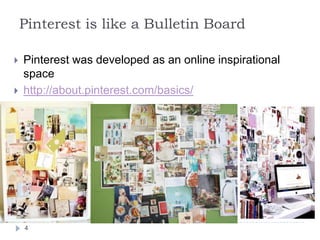
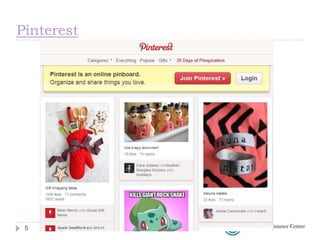
Pinterest is like a Bulletin Board



Pinterest was developed as an online inspirational
space
http://about.pinterest.com/basics/

4
Pinterest

5
Terminology
Pins--visual bookmarks
Boards--collections of pins
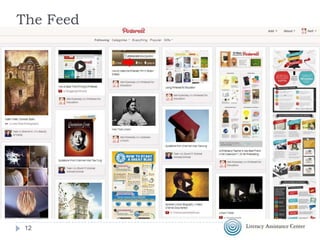
Pin Feed--displays the chronological activity from the
Pinterest boards that a user follows
Repin--adding a visual bookmark from another board
to your board
Like--showing appreciation for a visual book mark on
a board
Follow--adding to your feed the content of a board or
the entire collection of boards of a Pinterest user









6
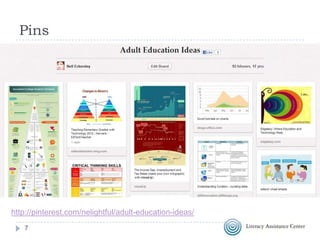
Pins

http://pinterest.com/nelightful/adult-education-ideas/
7
Pins
A pin starts with an image or video you add
to Pinterest.
 You can add a pin from a
website or upload an image right from your
computer
 Any pin on Pinterest can be repinned, and
all pins link back to their source


http://about.pinterest.com/basics/
8
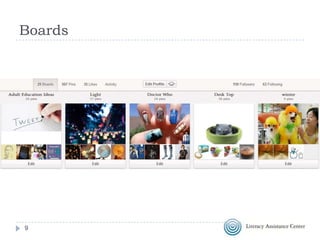
Boards

9
Boards
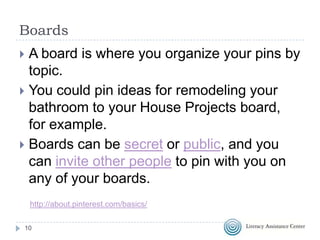
A board is where you organize your pins by
topic.
 You could pin ideas for remodeling your
bathroom to your House Projects board,
for example.
 Boards can be secret or public, and you
can invite other people to pin with you on
any of your boards.


http://about.pinterest.com/basics/
10
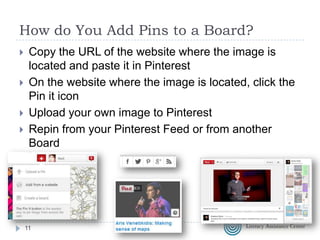
How do You Add Pins to a Board?





Copy the URL of the website where the image is
located and paste it in Pinterest
On the website where the image is located, click the
Pin it icon
Upload your own image to Pinterest
Repin from your Pinterest Feed or from another
Board

11
The Feed

12
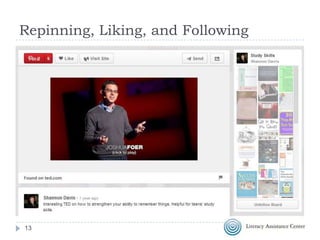
Repinning, Liking, and Following

13
Why Use Pinterest in Adult Education

14
Sharing information
Common lesson may include
 Teacher sharing online resources with students
 Students saving online resources for their own use
outside of the lab
 Students sharing resources with each other

How do you do this now?
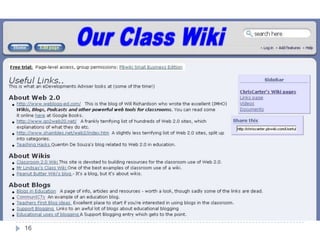
 Wikis
 Email
 Website
 Blog
15
16
17
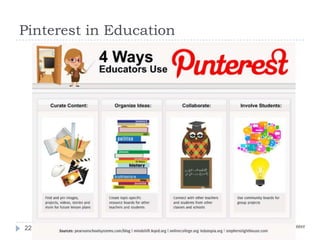
How to Use Pinterest in Education
Share resources with learners
 Develop a collaborative space online
 Develop a personal learning network for
teacher professional development


18
How to Use Pinterest in Education
Is Pinterest a Teacher’s New Best Friend in
the Classroom?
 25 Great Educators To Follow On Pinterest
 TechChef4U Pinterest
 In The Pinterest Of Education
 LiveBinder of Pinterest in Education


19
Examples
25 Libraries We Most Love on Pinterest
http://bit.ly/14ddITR
 Educational Technology Pinterest Board
http://bit.ly/Y5hOdl
 Pinterest for Teaching http://bit.ly/OmNg42
 Five-Minute Film Festival: Pinterest for
Teaching and Learning
http://bit.ly/QAQvRn


20
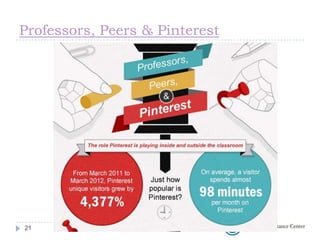
Professors, Peers & Pinterest

21
Pinterest in Education

22
Evaluation Form


http://bit.ly/NEvaluation

23
Contact Information
Nell Eckersley
Subject Matter Expert, LINCS Community Technology
and Learning Group: https://community.lincs.ed.gov
Email: nelle@lacnyc.org
Twitter: http://twitter.com/LACNYCnell
Facebook: http://www.facebook.com/nell.eckersley
Blog: http://nelightful.wordpress.com/
Delicious: http://www.delicious.com/nelleckersley

24
Literacy Information and Communication
System (LINCS)
LINCS provides you with the information, resources,
professional development activities, and online
network you need to enhance your practice and
ensure your adult students receive high-quality
learning opportunities.
http://lincs.ed.gov/

LINCS is funded by the U.S. Department of Education, Office of Vocational and Adult
Education. It is comprised of the Resource Collection, managed by Kratos Learning, the
Regional Professional Development Centers, and the Technical Contractor, Quotient, Inc.
25
LINCS Makes a Difference
How can LINCS help you with your work? It offers:


A Resource Collection containing high-quality, evidencebased materials in 16 topic areas;



An online Community of Practice where you can share and
collaborate with your peers;



A Learning Portal where you can engage in self-paced and
facilitated professional development courses; and



Four Regional Professional Development Centers
(RPDCs) that deploy evidenced-based PD trainings to states.

For a video overview of LINCS, visit:
http://www.youtube.com/watch?v=w3bq6Mdn2Qg
26
LINCS Technology Online Course


Title: Integrating Technology in the Adult
Education Classroom



Free, self-paced online course



Completion time: ~ 4 hours



Certificate received upon completion



Course accessible through the LINCS Learning
Portal: http://lincs.ed.gov/courses

27
Don’t Miss a Beat; Connect with LINCS


Join the Community:



https://community.lincs.ed.gov
Access the Learning Portal:
http://lincs.ed.gov/courses



Search the Resource Collection:
http://lincs.ed.gov/collections



Follow the latest updates: @LINCS_ED



Join our professional group: LINCS_ED



Watch webinar archives and more: LincsEd
28

Visual Bookmarking with Pinterest

  • 1.
    Visual Bookmarking withPinterest Nell Eckersley
  • 2.
    Agenda What is Pinterest? How to use Pinterest  Why use Pinterest in education?  How to use Pinterest in education  2
  • 3.
  • 4.
    Pinterest is likea Bulletin Board   Pinterest was developed as an online inspirational space http://about.pinterest.com/basics/ 4
  • 5.
  • 6.
    Terminology Pins--visual bookmarks Boards--collections ofpins Pin Feed--displays the chronological activity from the Pinterest boards that a user follows Repin--adding a visual bookmark from another board to your board Like--showing appreciation for a visual book mark on a board Follow--adding to your feed the content of a board or the entire collection of boards of a Pinterest user       6
  • 7.
  • 8.
    Pins A pin startswith an image or video you add to Pinterest.  You can add a pin from a website or upload an image right from your computer  Any pin on Pinterest can be repinned, and all pins link back to their source  http://about.pinterest.com/basics/ 8
  • 9.
  • 10.
    Boards A board iswhere you organize your pins by topic.  You could pin ideas for remodeling your bathroom to your House Projects board, for example.  Boards can be secret or public, and you can invite other people to pin with you on any of your boards.  http://about.pinterest.com/basics/ 10
  • 11.
    How do YouAdd Pins to a Board?     Copy the URL of the website where the image is located and paste it in Pinterest On the website where the image is located, click the Pin it icon Upload your own image to Pinterest Repin from your Pinterest Feed or from another Board 11
  • 12.
  • 13.
  • 14.
    Why Use Pinterestin Adult Education 14
  • 15.
    Sharing information Common lessonmay include  Teacher sharing online resources with students  Students saving online resources for their own use outside of the lab  Students sharing resources with each other How do you do this now?  Wikis  Email  Website  Blog 15
  • 16.
  • 17.
  • 18.
    How to UsePinterest in Education Share resources with learners  Develop a collaborative space online  Develop a personal learning network for teacher professional development  18
  • 19.
    How to UsePinterest in Education Is Pinterest a Teacher’s New Best Friend in the Classroom?  25 Great Educators To Follow On Pinterest  TechChef4U Pinterest  In The Pinterest Of Education  LiveBinder of Pinterest in Education  19
  • 20.
    Examples 25 Libraries WeMost Love on Pinterest http://bit.ly/14ddITR  Educational Technology Pinterest Board http://bit.ly/Y5hOdl  Pinterest for Teaching http://bit.ly/OmNg42  Five-Minute Film Festival: Pinterest for Teaching and Learning http://bit.ly/QAQvRn  20
  • 21.
    Professors, Peers &Pinterest 21
  • 22.
  • 23.
  • 24.
    Contact Information Nell Eckersley SubjectMatter Expert, LINCS Community Technology and Learning Group: https://community.lincs.ed.gov Email: nelle@lacnyc.org Twitter: http://twitter.com/LACNYCnell Facebook: http://www.facebook.com/nell.eckersley Blog: http://nelightful.wordpress.com/ Delicious: http://www.delicious.com/nelleckersley 24
  • 25.
    Literacy Information andCommunication System (LINCS) LINCS provides you with the information, resources, professional development activities, and online network you need to enhance your practice and ensure your adult students receive high-quality learning opportunities. http://lincs.ed.gov/ LINCS is funded by the U.S. Department of Education, Office of Vocational and Adult Education. It is comprised of the Resource Collection, managed by Kratos Learning, the Regional Professional Development Centers, and the Technical Contractor, Quotient, Inc. 25
  • 26.
    LINCS Makes aDifference How can LINCS help you with your work? It offers:  A Resource Collection containing high-quality, evidencebased materials in 16 topic areas;  An online Community of Practice where you can share and collaborate with your peers;  A Learning Portal where you can engage in self-paced and facilitated professional development courses; and  Four Regional Professional Development Centers (RPDCs) that deploy evidenced-based PD trainings to states. For a video overview of LINCS, visit: http://www.youtube.com/watch?v=w3bq6Mdn2Qg 26
  • 27.
    LINCS Technology OnlineCourse  Title: Integrating Technology in the Adult Education Classroom  Free, self-paced online course  Completion time: ~ 4 hours  Certificate received upon completion  Course accessible through the LINCS Learning Portal: http://lincs.ed.gov/courses 27
  • 28.
    Don’t Miss aBeat; Connect with LINCS  Join the Community:  https://community.lincs.ed.gov Access the Learning Portal: http://lincs.ed.gov/courses  Search the Resource Collection: http://lincs.ed.gov/collections  Follow the latest updates: @LINCS_ED  Join our professional group: LINCS_ED  Watch webinar archives and more: LincsEd 28

Editor's Notes

  • #26 Thank you, Nell and the Literacy Assistance Center for providing some time to share news from the Literacy Information and Communication System (or LINCS for short). For those of you who are unfamiliar with LINCS, LINCS is a professional development website funded by the U.S. Department of Education, Office of Vocational and Adult Education (OVAE).>Next slide.
  • #27 Accessible at lincs.ed.gov, LINCS is comprised of four parts. An online resource collection that contains over 560 online and free high-quality, evidence-based materials in 16 topic areas within adult education, vetted by experts in the field.An online community of practice with over 10,000 members that features 16 discussion groups moderated by subject matter experts.An online learning portal that houses free, self-paced interactive courses developed specifically for the adult education field from OVAE initiatives. Current course topics include: Adult Career Pathways, teaching English as a second language, Learning to Achieve (which focuses on teaching learners with disabilities), technology, and science.And four regional professional development centers who work with states to offer high-quality, evidence-based materials and professional development opportunities both in-person and online to adult educators at the regional and local levels in a wide variety of topic areas. Teachers can contact their region’s RPDC director to discuss the possibility of bringing professional development to their state.>Next slide.
  • #28 I want to take a few moments to dive deeper into the LINCS Learning Portal to take a look at a recently launched online course that aligns with the webinar series.The Integrating Technology in the Adult Education Classroom course is designed for instructors who are at the beginner/intermediate level of technology integration in the classroom. It is available on the LINCS Learning Portal, along with additional online courses from several other OVAE initiatives, in topics including English as a second language, adult career pathways, Learning to Achieve, science, and more.The free, self-paced online course discusses why technology is important for teaching and learning, how instructors approach integrating technology, and what tools instructors can use to integrate technology. Throughout the course, you will learn about examples of adult education instructors’ personal experiences in integrating technology. In a culminating activity, you will create a Technology Integration Action Plan for a unit or lesson that you select for use with your own adult learners. Now that you have gained knowledge on how to use [Twitter, Pinterest, QR Codes], this online course can help you think through how to apply the technology tool in the classroom. You also will have the opportunity to interact with the LINCS Community throughout this online course. The course takes an estimated four hours to complete and participants receive a certificate upon completion.[Demonstrate navigating through the course through the LINCS Learning Portal.]
  • #29 We hope that you will take advantage of all LINCS has to offer. Join the community; take an online course; search the resource collection, and follow us on social media via Twitter, LinkedIn, and YouTube.We hope to see you on LINCS!