Pinterest: A Tutorial
Created By: Cinda Newlon, Carmen Dial, Becca Mills, and
Emily Ferguson
Introduction




-Pinterest is a Web 2.0 application that allows users to
trade the following: recipes, fashion tips, craft idea,
lesson plans, etc. This website encourages users to
display their own work as well as the work of others. This
is called “pinning”. Users are able to create what is
known as a “board”; this is basically a way for them to
categorize and display the items that they have “pinned”.
-Pinterest is a true Web 2.0 application because it allows
users to interact and work together to create content on
the same website. Web 2.0 applications allow users to
create a community entirely on the web to share
information entirely on the web. Pinterest is a website
that allows the open sharing of information and an online
community that is entirely web-based.
Uses in Education
Pinterest can be used in education in numerous ways that can
enrich the learning environment. First of all, you could have the
students create a class Pinterest account in which only
educational boards and pins will be used. After this, they can
explore different educational topics and when they come across
something interesting they can pin it on a pre-existing class
board or start a new board about that topic so that other
students can add to it as well. Another great way that Pinterest
could be used is in doing research projects. The students can
compile information about their topic from different websites and
can then find pins about their topic so that other students can
see their findings. This can be a great way to communicate
information throughout the class without even having to spend
class time on it. It gives convenience and is a great educational
tool to have in the classroom.
Getting Connected
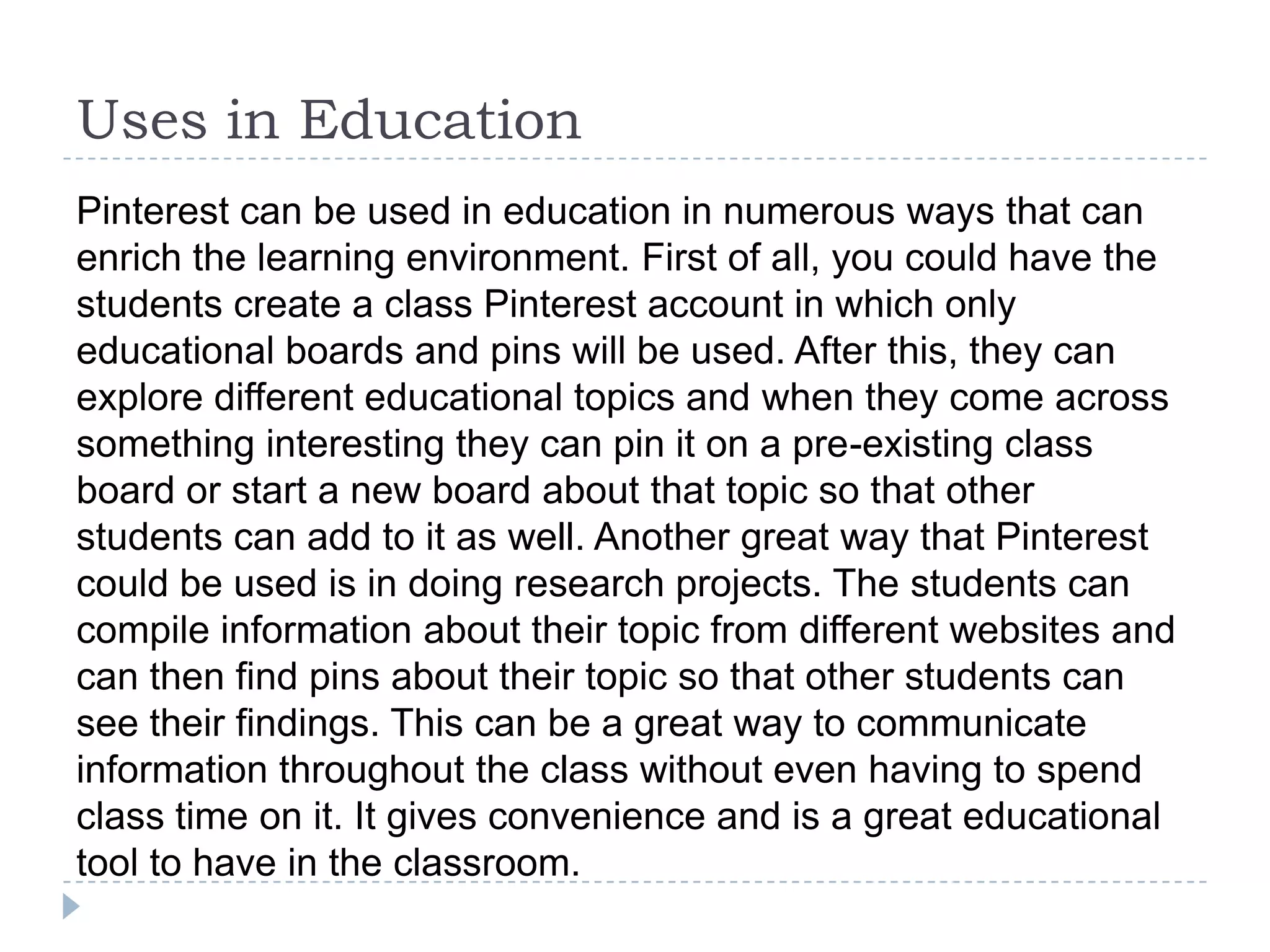
Go to Pinterest.com


Choose to sign in with
Facebook. This will give
you a great head start!

• Logging in with Facebook
gives you access to what
your friends or co workers
are pinning.
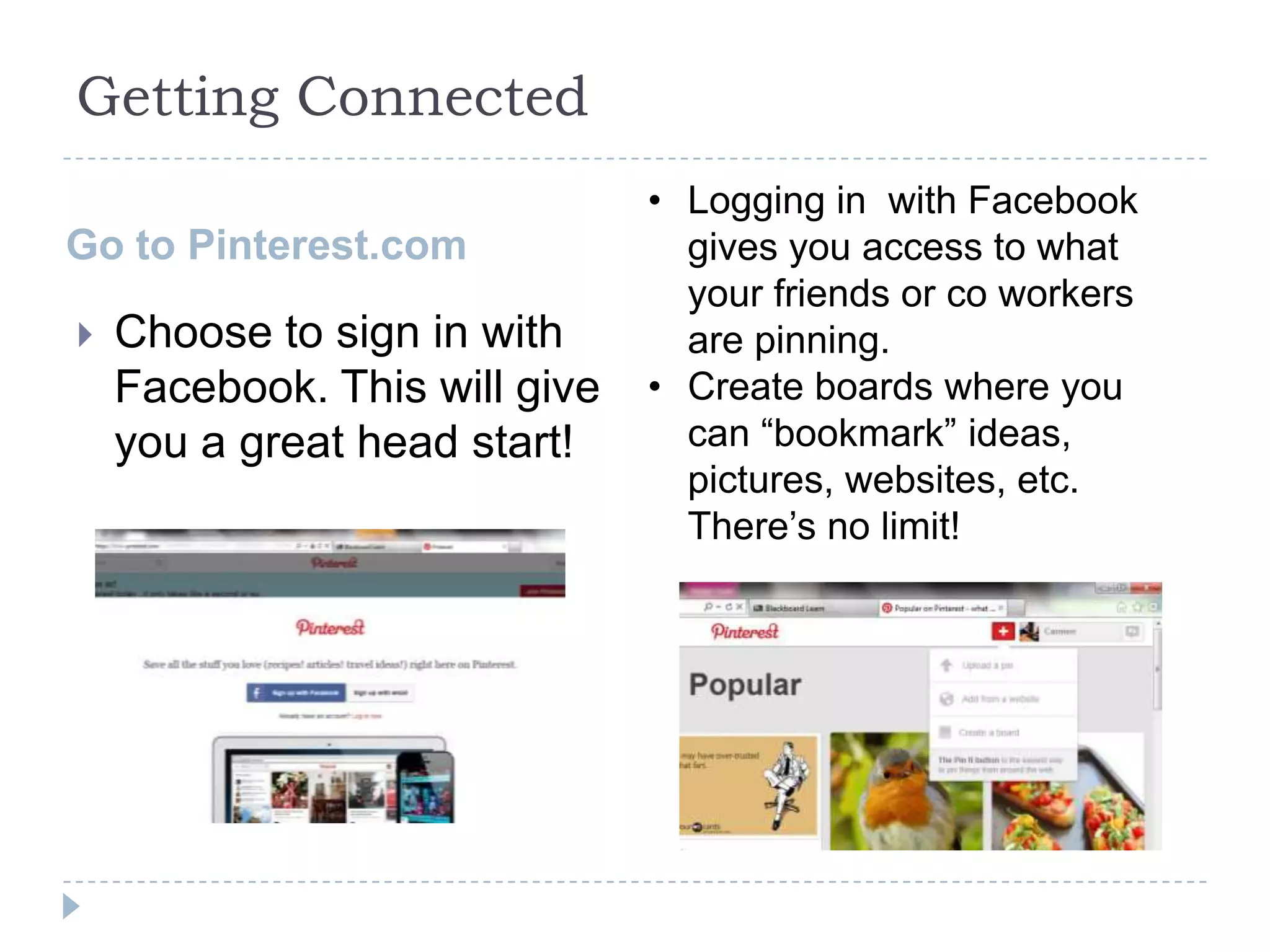
• Create boards where you
can “bookmark” ideas,
pictures, websites, etc.
There’s no limit!
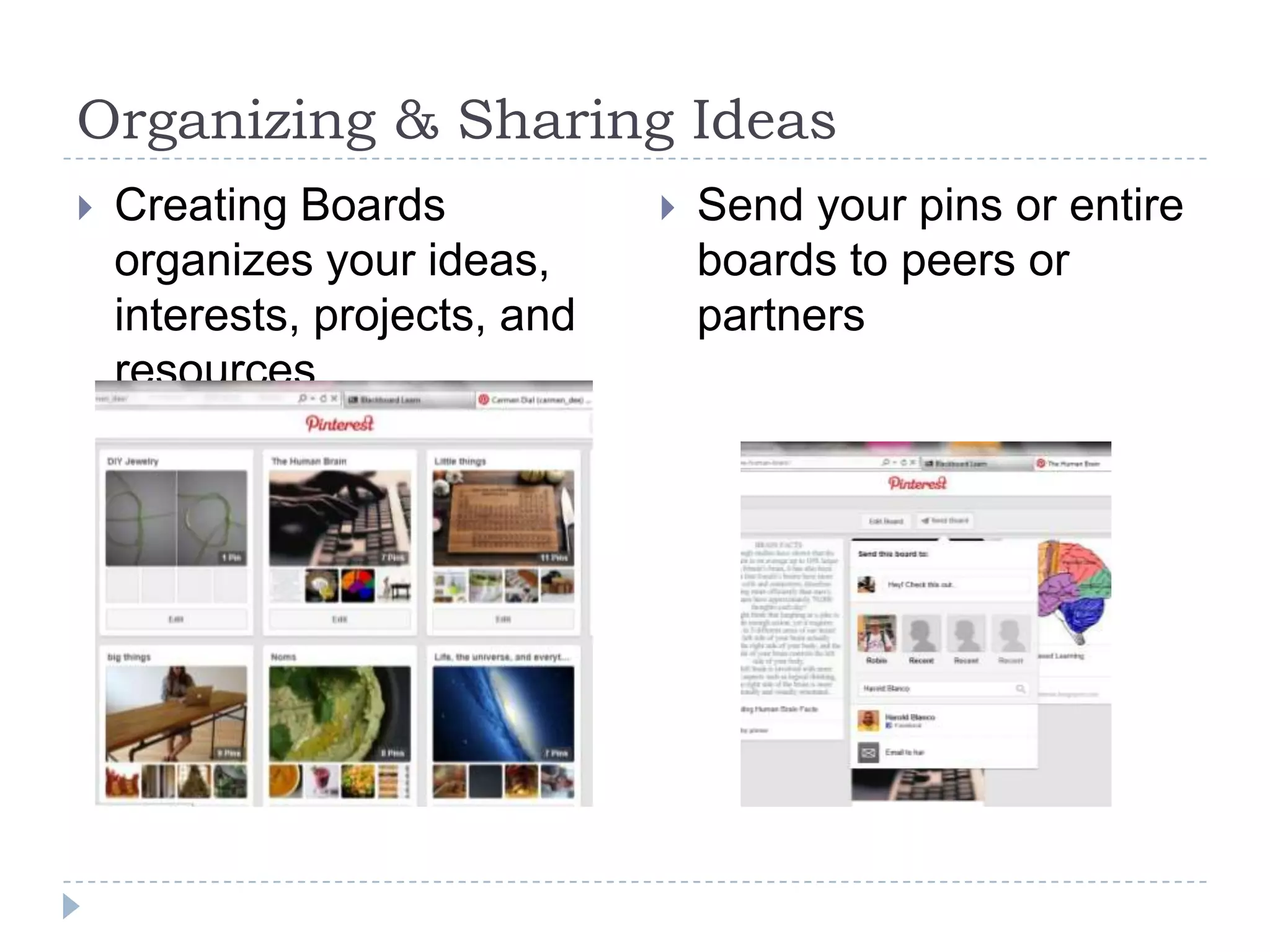
Organizing & Sharing Ideas


Creating Boards
organizes your ideas,
interests, projects, and
resources



Send your pins or entire
boards to peers or
partners

Pinterest tutorial

  • 1.
    Pinterest: A Tutorial CreatedBy: Cinda Newlon, Carmen Dial, Becca Mills, and Emily Ferguson
  • 2.
    Introduction   -Pinterest is aWeb 2.0 application that allows users to trade the following: recipes, fashion tips, craft idea, lesson plans, etc. This website encourages users to display their own work as well as the work of others. This is called “pinning”. Users are able to create what is known as a “board”; this is basically a way for them to categorize and display the items that they have “pinned”. -Pinterest is a true Web 2.0 application because it allows users to interact and work together to create content on the same website. Web 2.0 applications allow users to create a community entirely on the web to share information entirely on the web. Pinterest is a website that allows the open sharing of information and an online community that is entirely web-based.
  • 3.
    Uses in Education Pinterestcan be used in education in numerous ways that can enrich the learning environment. First of all, you could have the students create a class Pinterest account in which only educational boards and pins will be used. After this, they can explore different educational topics and when they come across something interesting they can pin it on a pre-existing class board or start a new board about that topic so that other students can add to it as well. Another great way that Pinterest could be used is in doing research projects. The students can compile information about their topic from different websites and can then find pins about their topic so that other students can see their findings. This can be a great way to communicate information throughout the class without even having to spend class time on it. It gives convenience and is a great educational tool to have in the classroom.
  • 4.
    Getting Connected Go toPinterest.com  Choose to sign in with Facebook. This will give you a great head start! • Logging in with Facebook gives you access to what your friends or co workers are pinning. • Create boards where you can “bookmark” ideas, pictures, websites, etc. There’s no limit!
  • 5.
    Organizing & SharingIdeas  Creating Boards organizes your ideas, interests, projects, and resources  Send your pins or entire boards to peers or partners