Version Control
                                   with Git

Luigi De Russis
Dipartimento di Automatica e Informatica
Politecnico di Torino
luigi.derussis@polito.it
How do you share and save data?
   “I’m working solo… and I only have one
    computer”
                     What I need:
                     - backup;
                     - different saved versions;
                     - early and frequently saving.


                     What I can use:
                     - external hard drives;
                     - dedicated folder;
                     - Dropbox folder;
                     - …


                                                      2
How do you share and save data?
   “I’m working solo… and I only have one
    computer”


                  What if…
                  - … I forget to save a specific version
                    and then I need it?
                  - … I delete/loose a previous version?


                                                            3
How do you share and save data?
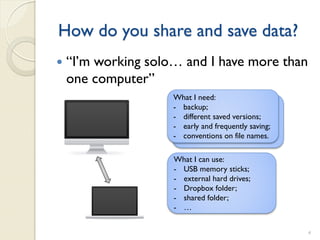
   “I’m working solo… and I have more than
    one computer”
                     What I need:
                     - backup;
                     - different saved versions;
                     - early and frequently saving;
                     - conventions on file names.

                     What I can use:
                     - USB memory sticks;
                     - external hard drives;
                     - Dropbox folder;
                     - shared folder;
                     - …


                                                      4
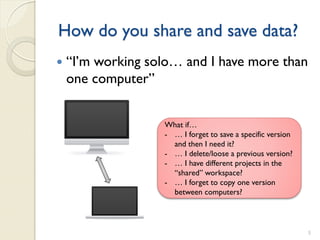
How do you share and save data?
   “I’m working solo… and I have more than
    one computer”


                   What if…
                   - … I forget to save a specific version
                     and then I need it?
                   - … I delete/loose a previous version?
                   - … I have different projects in the
                     “shared” workspace?
                   - … I forget to copy one version
                     between computers?


                                                             5
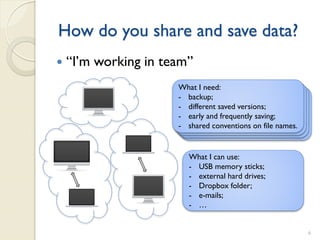
How do you share and save data?
   “I’m working in team”
                      What I need:
                      - backup;
                      - different saved versions;
                      - early and frequently saving;
                      - shared conventions on file names.


                         What I can use:
                         - USB memory sticks;
                         - external hard drives;
                         - Dropbox folder;
                         - e-mails;
                         - …


                                                            6
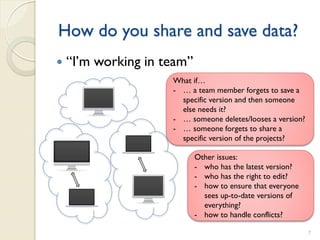
How do you share and save data?
   “I’m working in team”
                     What if…
                     - … a team member forgets to save a
                       specific version and then someone
                       else needs it?
                     - … someone deletes/looses a version?
                     - … someone forgets to share a
                       specific version of the projects?

                            Other issues:
                            - who has the latest version?
                            - who has the right to edit?
                            - how to ensure that everyone
                              sees up-to-date versions of
                              everything?
                            - how to handle conflicts?

                                                             7
Version Control Systems
  Record changes to a file or a set of files over time so that you can
  recall specific versions later


Three generations:
 1. Local (RCS, SCCS)
 2. Centralized (CVS, Subversion, Team
    Foundation Server)
                                      NOW
 3. Distributed (Git, Mercurial)

                                                                         8
Basic Concepts
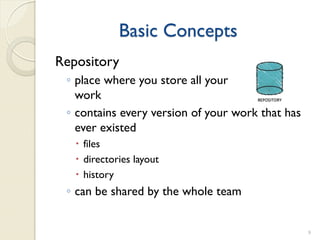
Repository
 ◦ place where you store all your
   work
 ◦ contains every version of your work that has
   ever existed
    files
    directories layout
    history
 ◦ can be shared by the whole team


                                                  9
Basic Concepts
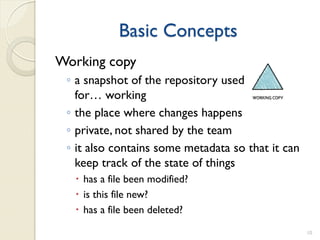
Working copy
 ◦ a snapshot of the repository used
   for… working
 ◦ the place where changes happens
 ◦ private, not shared by the team
 ◦ it also contains some metadata so that it can
   keep track of the state of things
   has a file been modified?
   is this file new?
   has a file been deleted?

                                                   10
Basic Concepts
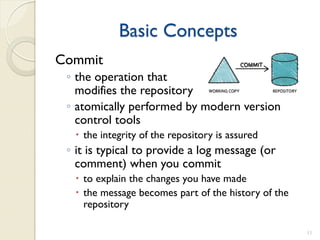
Commit
 ◦ the operation that
   modifies the repository
 ◦ atomically performed by modern version
   control tools
   the integrity of the repository is assured
 ◦ it is typical to provide a log message (or
   comment) when you commit
   to explain the changes you have made
   the message becomes part of the history of the
    repository

                                                     11
Basic Concepts
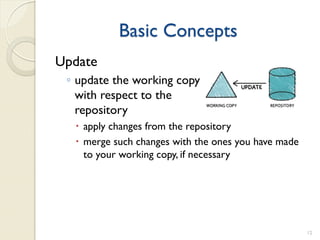
Update
 ◦ update the working copy
   with respect to the
   repository
   apply changes from the repository
   merge such changes with the ones you have made
    to your working copy, if necessary


                                                     12
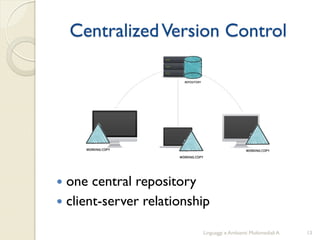
Centralized Version Control


 one central repository
 client-server relationship

                          Linguaggi e Ambienti Multimediali A   13
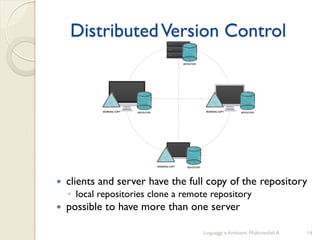
Distributed Version Control


   clients and server have the full copy of the repository
    ◦ local repositories clone a remote repository
   possible to have more than one server

                                     Linguaggi e Ambienti Multimediali A   14
More Basic Concepts
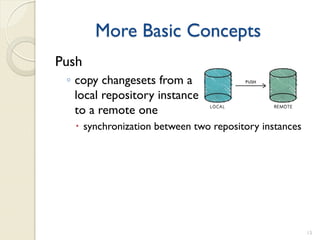
Push
 ◦ copy changesets from a
   local repository instance
   to a remote one
   synchronization between two repository instances


                                                       15
More Basic Concepts
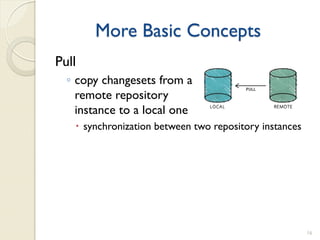
Pull
  ◦ copy changesets from a
    remote repository
    instance to a local one
    synchronization between two repository instances


                                                        16
Git
   Distributed Version Control System
   Born
    ◦ on 2005 for the Linux kernel project
    ◦ to be used via command line
   Website: http://git-scm.com
   Highlights:
    ◦   free and open source
    ◦   strong support for non-linear development
    ◦   fully distributed
    ◦   efficient handling of large projects
    ◦   cryptographic authentication of history

                                                    17
Projects using Git


Perl


                            18
Getting started with Git
   Standard installations
    ◦ http://git-scm.com/download
   On Windows, you can also use Git
    Extensions
    ◦ http://code.google.com/p/gitextensions/
   For this course, Git is
    ◦ included in RailsInstaller
    ◦ integrated in Aptana Studio 3


                                                19
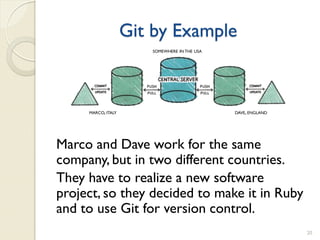
Git by Example
                       SOMEWHERE IN THE USA


     MARCO, ITALY                             DAVE, ENGLAND


Marco and Dave work for the same
company, but in two different countries.
They have to realize a new software
project, so they decided to make it in Ruby
and to use Git for version control.
                                                              20
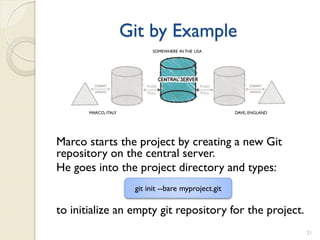
Git by Example
                            SOMEWHERE IN THE USA


       MARCO, ITALY                                    DAVE, ENGLAND


Marco starts the project by creating a new Git
repository on the central server.
He goes into the project directory and types:
                       git init --bare myproject.git

to initialize an empty git repository for the project.
                                                                       21
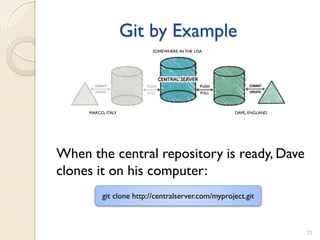
Git by Example
                         SOMEWHERE IN THE USA


     MARCO, ITALY                                  DAVE, ENGLAND


When the central repository is ready, Dave
clones it on his computer:
          git clone http://centralserver.com/myproject.git


                                                                   22
Git by Example
          git clone http://centralserver.com/myproject.git


  creates a directory named myproject
  initializes a .git directory inside it
  pulls down all the data for that repository
  checks out a working copy of the latest
   version
If you want to clone the repository into a
directory with another name, you can specify
that as:
    git clone http://centralserver.com/myproject.git projectOne


                                                                  23
Git by Example
                         SOMEWHERE IN THE USA


       MARCO, ITALY                             DAVE, ENGLAND


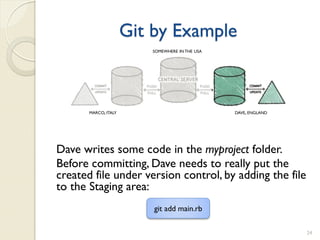
Dave writes some code in the myproject folder.
Before committing, Dave needs to really put the
created file under version control, by adding the file
to the Staging area:
                          git add main.rb

                                                                24
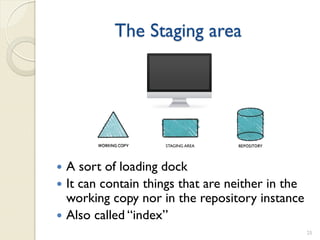
The Staging area


                    STAGING AREA


 A sort of loading dock
 It can contain things that are neither in the
  working copy nor in the repository instance
 Also called “index”
                                                  25
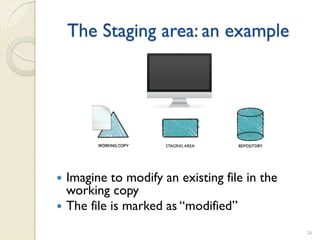
The Staging area: an example


                       STAGING AREA


   Imagine to modify an existing file in the
    working copy
   The file is marked as “modified”
                                                26
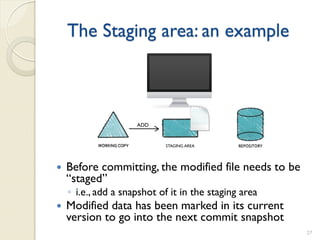
The Staging area: an example


                     ADD


                            STAGING AREA


   Before committing, the modified file needs to be
    “staged”
    ◦ i.e., add a snapshot of it in the staging area
   Modified data has been marked in its current
    version to go into the next commit snapshot
                                                       27
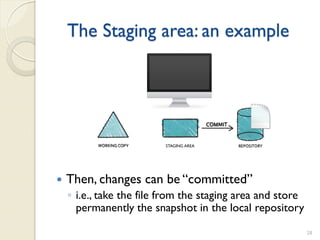
The Staging area: an example


                          STAGING AREA


   Then, changes can be “committed”
    ◦ i.e., take the file from the staging area and store
      permanently the snapshot in the local repository

                                                            28
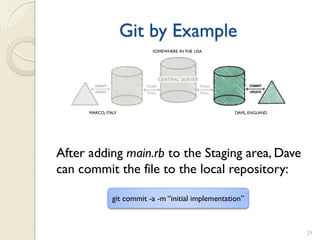
Git by Example
                            SOMEWHERE IN THE USA


      MARCO, ITALY                                    DAVE, ENGLAND


After adding main.rb to the Staging area, Dave
can commit the file to the local repository:

                git commit -a -m “initial implementation”


                                                                      29
Git by Example
              git commit -a -m “initial implementation”


   store the current snapshot in the local repository
   -a
    ◦ also perform an add for modified files
    ◦ useless at this point
   -m “put a message here”
    ◦ perform the commit with a log message
    ◦ useful to know what you have committed
If Dave wants permanently to exclude from version
control some files in the project folder, he can add
them in the .gitignore file
                                                          30
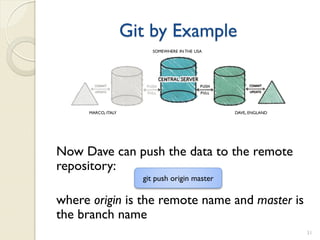
Git by Example
                         SOMEWHERE IN THE USA


     MARCO, ITALY                               DAVE, ENGLAND


Now Dave can push the data to the remote
repository:
                      git push origin master

where origin is the remote name and master is
the branch name
                                                                31
Git by Example
                       git push origin master


   Git pushes only to matching branches
    ◦ for every branch that exists on the local side, the
      remote side is updated if a branch of the same
      name already exists there
    ◦ you have to push the branch explicitly the first
      time
   Alternative command:
    ◦ git push --all
   After the first time, you can simply use:
    ◦ git push

                                                            32
Git by Example
                       SOMEWHERE IN THE USA


     MARCO, ITALY                             DAVE, ENGLAND


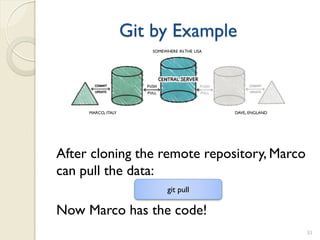
After cloning the remote repository, Marco
can pull the data:
                             git pull

Now Marco has the code!
                                                              33
Pull and Fetch in Git
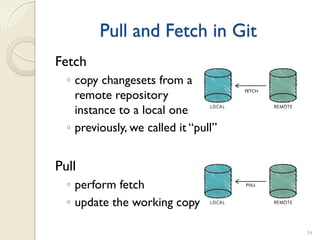
Fetch
  ◦ copy changesets from a
    remote repository
                                      FETCH


    instance to a local one
  ◦ previously, we called it “pull”


Pull
  ◦ perform fetch
  ◦ update the working copy

                                              34
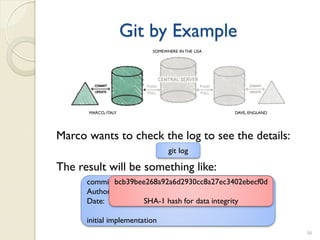
Git by Example
                          SOMEWHERE IN THE USA


      MARCO, ITALY                               DAVE, ENGLAND


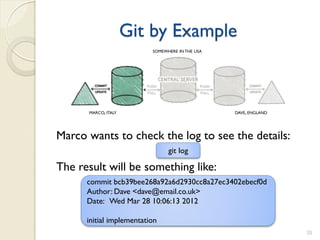
Marco wants to check the log to see the details:
                                git log

The result will be something like:
      commit bcb39bee268a92a6d2930cc8a27ec3402ebecf0d
      Author: Dave <dave@email.co.uk>
      Date: Wed Mar 28 10:06:13 2012

      initial implementation
                                                                 35
Git by Example
                          SOMEWHERE IN THE USA


      MARCO, ITALY                               DAVE, ENGLAND


Marco wants to check the log to see the details:
                                git log

The result will be something like:
      commit bcb39bee268a92a6d2930cc8a27ec3402ebecf0d
      Author: Dave <dave@email.co.uk>
                      SHA-1 hash for data integrity
      Date: Wed Mar 28 10:06:13 2012

      initial implementation
                                                                 36
Git by Example
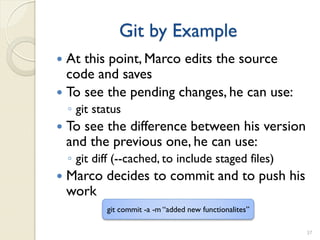
 At this point, Marco edits the source
  code and saves
 To see the pending changes, he can use:
    ◦ git status
   To see the difference between his version
    and the previous one, he can use:
    ◦ git diff (--cached, to include staged files)
   Marco decides to commit and to push his
    work
            git commit -a -m “added new functionalites”

                                                          37
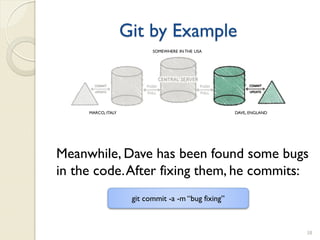
Git by Example
                           SOMEWHERE IN THE USA


     MARCO, ITALY                                    DAVE, ENGLAND


Meanwhile, Dave has been found some bugs
in the code. After fixing them, he commits:
                     git commit -a -m “bug fixing”


                                                                     38
Git by Example
                             SOMEWHERE IN THE USA


         MARCO, ITALY                                  DAVE, ENGLAND


Dave tries to push his changes
                                  git push

but something goes wrong:
 To http://centralserver.com/myproject
  ! [rejected]      master -> master (non-fast-forward)
 error: failed to push some refs to ‘http://centralserver.com/myproject’

                                                                           39
Git by Example
   What happens?
    ◦ Git is not allowing Dave to push his change
      because Marco has already pushed something
      to the master branch
   Solution:
    ◦ Dave has to do a pull, to bring in changes
      before pushing its modifications
   Two possible scenarios:
    ◦ merging of files goes smoothly;
    ◦ merging of files generates conflicts.

                                                    40
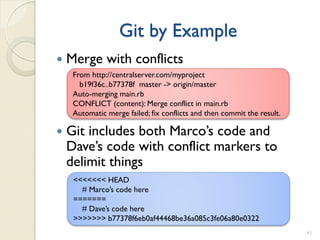
Git by Example
   Merge with conflicts
     From http://centralserver.com/myproject
       b19f36c..b77378f master -> origin/master
     Auto-merging main.rb
     CONFLICT (content): Merge conflict in main.rb
     Automatic merge failed; fix conflicts and then commit the result.

   Git includes both Marco’s code and
    Dave’s code with conflict markers to
    delimit things
     <<<<<<< HEAD
       # Marco’s code here
     =======
       # Dave’s code here
     >>>>>>> b77378f6eb0af44468be36a085c3fe06a80e0322
                                                                         41
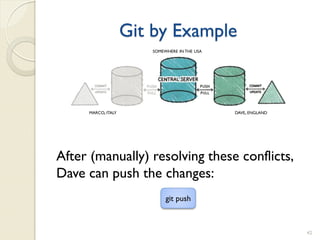
Git by Example
                       SOMEWHERE IN THE USA


     MARCO, ITALY                             DAVE, ENGLAND


After (manually) resolving these conflicts,
Dave can push the changes:
                            git push


                                                              42
Other useful commands
   Operations on files
    ◦   Remove: git rm [filename]
    ◦   Move/rename: git mv [file-from] [file-to]
    ◦   Unstage some staged files: git reset HEAD [filename-list]
    ◦   Unmodify a modified file: git checkout -- [filename]
   Operations on remotes
    ◦   List: git remote (-v, to show the URLs)
    ◦   Add: git remote add [shortname] [url]
    ◦   Inspect: git remote show [remote-name]
    ◦   Rename: git remote rename [old-name] [new-name]
    ◦   Remove: git remote rm [remote-name]
   Change the last commit
    ◦ git commit --amend
                                                                43
Tags and Branches in a nutshell


 Local and remote
 Do not push automatically
             [Image from http://nvie.com/posts/a-successful-git-branching-model/]

                                                                               44
Tags and Branches in a nutshell
   Tags
    ◦ useful to mark release points
    ◦ two types:
      lightweight
      annotated (more complete)
    ◦ commands:
      git tag, shows the available existing tags
      git tag [tag-name], creates a lightweight tag
      git tag -a [tag-name] -m [message]‚ creates an
       annotated tag
      tag show [tag-name], shows the tag data
                                                        45
Tags and Branches in a nutshell
   Branches
    ◦ used to develop features isolated from each other
    ◦ the master branch is the “default” branch when you
      create a repository
    ◦ you should use other branches for development and
      merge them back to the master branch upon
      completion
    ◦ really lightweight in Git
    ◦ commands:
        git branch [branch-name], create a new branch
        git branch, lists all existing branches
        git checkout [branch-name], switches to the selected branch
        git branch -d [branch-name], removes the selected branch

                                                                       46
Hosted Git
 To have (at least) one remote repository
 Alternative: to set up your Git server
 Most popular:
    ◦ Github https://github.com/
    ◦ Bitbucket https://bitbucket.org/
    ◦ Sourceforge http://sourceforge.net/
    ◦ (Microsoft) Codeplex
      http://www.codeplex.com/
    ◦ Google Code http://code.google.com/

                                             47
Github
   Slightly different than other code-hosting
    sites
    ◦ instead of being primarily based on the
      project, it is user-centric
    ◦ social coding
   A commercial company
    ◦ charges for accounts that maintain private
      repository
    ◦ free account to host as many open source
      project as you want

                                                   48
Bitbucket
 Similar to Github
 Less famous than Github, right now
 Mercurial support
 A commercial company
    ◦ free private and public repositories for small
      team (up to 5 private collaborators)
    ◦ charges for project involving bigger team
    ◦ free for academia (also for students)
      unlimited public and private repositories
      unlimited users for single projects

                                                       49
References
   Git Reference
    ◦ http://gitref.org/
   Git - the simple guide
    ◦ http://rogerdudler.github.com/git-guide/
   Git User’s Manual
    ◦ http://schacon.github.com/git/user-manual.html
   Pro Git (online book)
    ◦ http://progit.org/book/
   Git Magic (online book)
    ◦ http://www-cs-students.stanford.edu/~blynn/gitmagic
   Git Screencast
    ◦ http://gitcasts.com/
   Version Control by Example (online book)
    ◦ http://www.ericsink.com/vcbe/
                                                            50
References
   Learn Git one commit at time
    ◦ http://gitready.com/
   The Git Parable
    ◦ http://tom.preston-werner.com/2009/05/19/the-git-
      parable.html
   Interactive Git Cheatsheet
    ◦ http://ndpsoftware.com/git-cheatsheet.html
   A successful Git branching model
    ◦ http://nvie.com/posts/a-successful-git-branching-model/
   Some Git (graphical) clients
    ◦ http://guides.beanstalkapp.com/version-
      control/clients.html#git-clients
   EGit, Eclipse plugin for Git
    ◦ http://www.eclipse.org/egit/
                                                                51
License
 This work is licensed under the Creative Commons
  “Attribution-NonCommercial-ShareAlike Unported (CC BY-
  NC-SA 3,0)” License.
 You are free:
    ◦ to Share - to copy, distribute and transmit the work
    ◦ to Remix - to adapt the work
   Under the following conditions:
    ◦ Attribution - You must attribute the work in the manner
      specified by the author or licensor (but not in any way that
      suggests that they endorse you or your use of the work).
    ◦ Noncommercial - You may not use this work for commercial
      purposes.
    ◦ Share Alike - If you alter, transform, or build upon this work,
      you may distribute the resulting work only under the same or
      similar license to this one.
   To view a copy of this license, visit
    http://creativecommons.org/licenses/by-nc-sa/3.0/
                                                                        52

Version Control with Git

  • 1.
    Version Control with Git Luigi De Russis Dipartimento di Automatica e Informatica Politecnico di Torino luigi.derussis@polito.it
  • 2.
    How do youshare and save data?  “I’m working solo… and I only have one computer” What I need: - backup; - different saved versions; - early and frequently saving. What I can use: - external hard drives; - dedicated folder; - Dropbox folder; - … 2
  • 3.
    How do youshare and save data?  “I’m working solo… and I only have one computer” What if… - … I forget to save a specific version and then I need it? - … I delete/loose a previous version? 3
  • 4.
    How do youshare and save data?  “I’m working solo… and I have more than one computer” What I need: - backup; - different saved versions; - early and frequently saving; - conventions on file names. What I can use: - USB memory sticks; - external hard drives; - Dropbox folder; - shared folder; - … 4
  • 5.
    How do youshare and save data?  “I’m working solo… and I have more than one computer” What if… - … I forget to save a specific version and then I need it? - … I delete/loose a previous version? - … I have different projects in the “shared” workspace? - … I forget to copy one version between computers? 5
  • 6.
    How do youshare and save data?  “I’m working in team” What I need: - backup; - different saved versions; - early and frequently saving; - shared conventions on file names. What I can use: - USB memory sticks; - external hard drives; - Dropbox folder; - e-mails; - … 6
  • 7.
    How do youshare and save data?  “I’m working in team” What if… - … a team member forgets to save a specific version and then someone else needs it? - … someone deletes/looses a version? - … someone forgets to share a specific version of the projects? Other issues: - who has the latest version? - who has the right to edit? - how to ensure that everyone sees up-to-date versions of everything? - how to handle conflicts? 7
  • 8.
    Version Control Systems Record changes to a file or a set of files over time so that you can recall specific versions later Three generations: 1. Local (RCS, SCCS) 2. Centralized (CVS, Subversion, Team Foundation Server) NOW 3. Distributed (Git, Mercurial) 8
  • 9.
    Basic Concepts Repository ◦place where you store all your work ◦ contains every version of your work that has ever existed  files  directories layout  history ◦ can be shared by the whole team 9
  • 10.
    Basic Concepts Working copy ◦ a snapshot of the repository used for… working ◦ the place where changes happens ◦ private, not shared by the team ◦ it also contains some metadata so that it can keep track of the state of things  has a file been modified?  is this file new?  has a file been deleted? 10
  • 11.
    Basic Concepts Commit ◦the operation that modifies the repository ◦ atomically performed by modern version control tools  the integrity of the repository is assured ◦ it is typical to provide a log message (or comment) when you commit  to explain the changes you have made  the message becomes part of the history of the repository 11
  • 12.
    Basic Concepts Update ◦update the working copy with respect to the repository  apply changes from the repository  merge such changes with the ones you have made to your working copy, if necessary 12
  • 13.
    Centralized Version Control one central repository  client-server relationship Linguaggi e Ambienti Multimediali A 13
  • 14.
    Distributed Version Control  clients and server have the full copy of the repository ◦ local repositories clone a remote repository  possible to have more than one server Linguaggi e Ambienti Multimediali A 14
  • 15.
    More Basic Concepts Push ◦ copy changesets from a local repository instance to a remote one  synchronization between two repository instances 15
  • 16.
    More Basic Concepts Pull ◦ copy changesets from a remote repository instance to a local one  synchronization between two repository instances 16
  • 17.
    Git  Distributed Version Control System  Born ◦ on 2005 for the Linux kernel project ◦ to be used via command line  Website: http://git-scm.com  Highlights: ◦ free and open source ◦ strong support for non-linear development ◦ fully distributed ◦ efficient handling of large projects ◦ cryptographic authentication of history 17
  • 18.
  • 19.
    Getting started withGit  Standard installations ◦ http://git-scm.com/download  On Windows, you can also use Git Extensions ◦ http://code.google.com/p/gitextensions/  For this course, Git is ◦ included in RailsInstaller ◦ integrated in Aptana Studio 3 19
  • 20.
    Git by Example SOMEWHERE IN THE USA MARCO, ITALY DAVE, ENGLAND Marco and Dave work for the same company, but in two different countries. They have to realize a new software project, so they decided to make it in Ruby and to use Git for version control. 20
  • 21.
    Git by Example SOMEWHERE IN THE USA MARCO, ITALY DAVE, ENGLAND Marco starts the project by creating a new Git repository on the central server. He goes into the project directory and types: git init --bare myproject.git to initialize an empty git repository for the project. 21
  • 22.
    Git by Example SOMEWHERE IN THE USA MARCO, ITALY DAVE, ENGLAND When the central repository is ready, Dave clones it on his computer: git clone http://centralserver.com/myproject.git 22
  • 23.
    Git by Example git clone http://centralserver.com/myproject.git  creates a directory named myproject  initializes a .git directory inside it  pulls down all the data for that repository  checks out a working copy of the latest version If you want to clone the repository into a directory with another name, you can specify that as: git clone http://centralserver.com/myproject.git projectOne 23
  • 24.
    Git by Example SOMEWHERE IN THE USA MARCO, ITALY DAVE, ENGLAND Dave writes some code in the myproject folder. Before committing, Dave needs to really put the created file under version control, by adding the file to the Staging area: git add main.rb 24
  • 25.
    The Staging area STAGING AREA  A sort of loading dock  It can contain things that are neither in the working copy nor in the repository instance  Also called “index” 25
  • 26.
    The Staging area:an example STAGING AREA  Imagine to modify an existing file in the working copy  The file is marked as “modified” 26
  • 27.
    The Staging area:an example ADD STAGING AREA  Before committing, the modified file needs to be “staged” ◦ i.e., add a snapshot of it in the staging area  Modified data has been marked in its current version to go into the next commit snapshot 27
  • 28.
    The Staging area:an example STAGING AREA  Then, changes can be “committed” ◦ i.e., take the file from the staging area and store permanently the snapshot in the local repository 28
  • 29.
    Git by Example SOMEWHERE IN THE USA MARCO, ITALY DAVE, ENGLAND After adding main.rb to the Staging area, Dave can commit the file to the local repository: git commit -a -m “initial implementation” 29
  • 30.
    Git by Example git commit -a -m “initial implementation”  store the current snapshot in the local repository  -a ◦ also perform an add for modified files ◦ useless at this point  -m “put a message here” ◦ perform the commit with a log message ◦ useful to know what you have committed If Dave wants permanently to exclude from version control some files in the project folder, he can add them in the .gitignore file 30
  • 31.
    Git by Example SOMEWHERE IN THE USA MARCO, ITALY DAVE, ENGLAND Now Dave can push the data to the remote repository: git push origin master where origin is the remote name and master is the branch name 31
  • 32.
    Git by Example git push origin master  Git pushes only to matching branches ◦ for every branch that exists on the local side, the remote side is updated if a branch of the same name already exists there ◦ you have to push the branch explicitly the first time  Alternative command: ◦ git push --all  After the first time, you can simply use: ◦ git push 32
  • 33.
    Git by Example SOMEWHERE IN THE USA MARCO, ITALY DAVE, ENGLAND After cloning the remote repository, Marco can pull the data: git pull Now Marco has the code! 33
  • 34.
    Pull and Fetchin Git Fetch ◦ copy changesets from a remote repository FETCH instance to a local one ◦ previously, we called it “pull” Pull ◦ perform fetch ◦ update the working copy 34
  • 35.
    Git by Example SOMEWHERE IN THE USA MARCO, ITALY DAVE, ENGLAND Marco wants to check the log to see the details: git log The result will be something like: commit bcb39bee268a92a6d2930cc8a27ec3402ebecf0d Author: Dave <dave@email.co.uk> Date: Wed Mar 28 10:06:13 2012 initial implementation 35
  • 36.
    Git by Example SOMEWHERE IN THE USA MARCO, ITALY DAVE, ENGLAND Marco wants to check the log to see the details: git log The result will be something like: commit bcb39bee268a92a6d2930cc8a27ec3402ebecf0d Author: Dave <dave@email.co.uk> SHA-1 hash for data integrity Date: Wed Mar 28 10:06:13 2012 initial implementation 36
  • 37.
    Git by Example At this point, Marco edits the source code and saves  To see the pending changes, he can use: ◦ git status  To see the difference between his version and the previous one, he can use: ◦ git diff (--cached, to include staged files)  Marco decides to commit and to push his work git commit -a -m “added new functionalites” 37
  • 38.
    Git by Example SOMEWHERE IN THE USA MARCO, ITALY DAVE, ENGLAND Meanwhile, Dave has been found some bugs in the code. After fixing them, he commits: git commit -a -m “bug fixing” 38
  • 39.
    Git by Example SOMEWHERE IN THE USA MARCO, ITALY DAVE, ENGLAND Dave tries to push his changes git push but something goes wrong: To http://centralserver.com/myproject ! [rejected] master -> master (non-fast-forward) error: failed to push some refs to ‘http://centralserver.com/myproject’ 39
  • 40.
    Git by Example  What happens? ◦ Git is not allowing Dave to push his change because Marco has already pushed something to the master branch  Solution: ◦ Dave has to do a pull, to bring in changes before pushing its modifications  Two possible scenarios: ◦ merging of files goes smoothly; ◦ merging of files generates conflicts. 40
  • 41.
    Git by Example  Merge with conflicts From http://centralserver.com/myproject b19f36c..b77378f master -> origin/master Auto-merging main.rb CONFLICT (content): Merge conflict in main.rb Automatic merge failed; fix conflicts and then commit the result.  Git includes both Marco’s code and Dave’s code with conflict markers to delimit things <<<<<<< HEAD # Marco’s code here ======= # Dave’s code here >>>>>>> b77378f6eb0af44468be36a085c3fe06a80e0322 41
  • 42.
    Git by Example SOMEWHERE IN THE USA MARCO, ITALY DAVE, ENGLAND After (manually) resolving these conflicts, Dave can push the changes: git push 42
  • 43.
    Other useful commands  Operations on files ◦ Remove: git rm [filename] ◦ Move/rename: git mv [file-from] [file-to] ◦ Unstage some staged files: git reset HEAD [filename-list] ◦ Unmodify a modified file: git checkout -- [filename]  Operations on remotes ◦ List: git remote (-v, to show the URLs) ◦ Add: git remote add [shortname] [url] ◦ Inspect: git remote show [remote-name] ◦ Rename: git remote rename [old-name] [new-name] ◦ Remove: git remote rm [remote-name]  Change the last commit ◦ git commit --amend 43
  • 44.
    Tags and Branchesin a nutshell  Local and remote  Do not push automatically [Image from http://nvie.com/posts/a-successful-git-branching-model/] 44
  • 45.
    Tags and Branchesin a nutshell  Tags ◦ useful to mark release points ◦ two types:  lightweight  annotated (more complete) ◦ commands:  git tag, shows the available existing tags  git tag [tag-name], creates a lightweight tag  git tag -a [tag-name] -m [message]‚ creates an annotated tag  tag show [tag-name], shows the tag data 45
  • 46.
    Tags and Branchesin a nutshell  Branches ◦ used to develop features isolated from each other ◦ the master branch is the “default” branch when you create a repository ◦ you should use other branches for development and merge them back to the master branch upon completion ◦ really lightweight in Git ◦ commands:  git branch [branch-name], create a new branch  git branch, lists all existing branches  git checkout [branch-name], switches to the selected branch  git branch -d [branch-name], removes the selected branch 46
  • 47.
    Hosted Git  Tohave (at least) one remote repository  Alternative: to set up your Git server  Most popular: ◦ Github https://github.com/ ◦ Bitbucket https://bitbucket.org/ ◦ Sourceforge http://sourceforge.net/ ◦ (Microsoft) Codeplex http://www.codeplex.com/ ◦ Google Code http://code.google.com/ 47
  • 48.
    Github  Slightly different than other code-hosting sites ◦ instead of being primarily based on the project, it is user-centric ◦ social coding  A commercial company ◦ charges for accounts that maintain private repository ◦ free account to host as many open source project as you want 48
  • 49.
    Bitbucket  Similar toGithub  Less famous than Github, right now  Mercurial support  A commercial company ◦ free private and public repositories for small team (up to 5 private collaborators) ◦ charges for project involving bigger team ◦ free for academia (also for students)  unlimited public and private repositories  unlimited users for single projects 49
  • 50.
    References  Git Reference ◦ http://gitref.org/  Git - the simple guide ◦ http://rogerdudler.github.com/git-guide/  Git User’s Manual ◦ http://schacon.github.com/git/user-manual.html  Pro Git (online book) ◦ http://progit.org/book/  Git Magic (online book) ◦ http://www-cs-students.stanford.edu/~blynn/gitmagic  Git Screencast ◦ http://gitcasts.com/  Version Control by Example (online book) ◦ http://www.ericsink.com/vcbe/ 50
  • 51.
    References  Learn Git one commit at time ◦ http://gitready.com/  The Git Parable ◦ http://tom.preston-werner.com/2009/05/19/the-git- parable.html  Interactive Git Cheatsheet ◦ http://ndpsoftware.com/git-cheatsheet.html  A successful Git branching model ◦ http://nvie.com/posts/a-successful-git-branching-model/  Some Git (graphical) clients ◦ http://guides.beanstalkapp.com/version- control/clients.html#git-clients  EGit, Eclipse plugin for Git ◦ http://www.eclipse.org/egit/ 51
  • 52.
    License  This workis licensed under the Creative Commons “Attribution-NonCommercial-ShareAlike Unported (CC BY- NC-SA 3,0)” License.  You are free: ◦ to Share - to copy, distribute and transmit the work ◦ to Remix - to adapt the work  Under the following conditions: ◦ Attribution - You must attribute the work in the manner specified by the author or licensor (but not in any way that suggests that they endorse you or your use of the work). ◦ Noncommercial - You may not use this work for commercial purposes. ◦ Share Alike - If you alter, transform, or build upon this work, you may distribute the resulting work only under the same or similar license to this one.  To view a copy of this license, visit http://creativecommons.org/licenses/by-nc-sa/3.0/ 52