Git 101 Presentation

     Prepared by:
   Leonardo Parro Jr.
Git 101
• Topics:
  – Introduction
      - Types of Version Control System
      - Git Basics
  – Git vs SVN
  – Git Set-up
  – Basic Git commands
  – References
Introduction

• About Version Control
What is version control, and why should you care? Version
control is a system that records changes to a file or set of files
over time so that you can recall specific versions later.
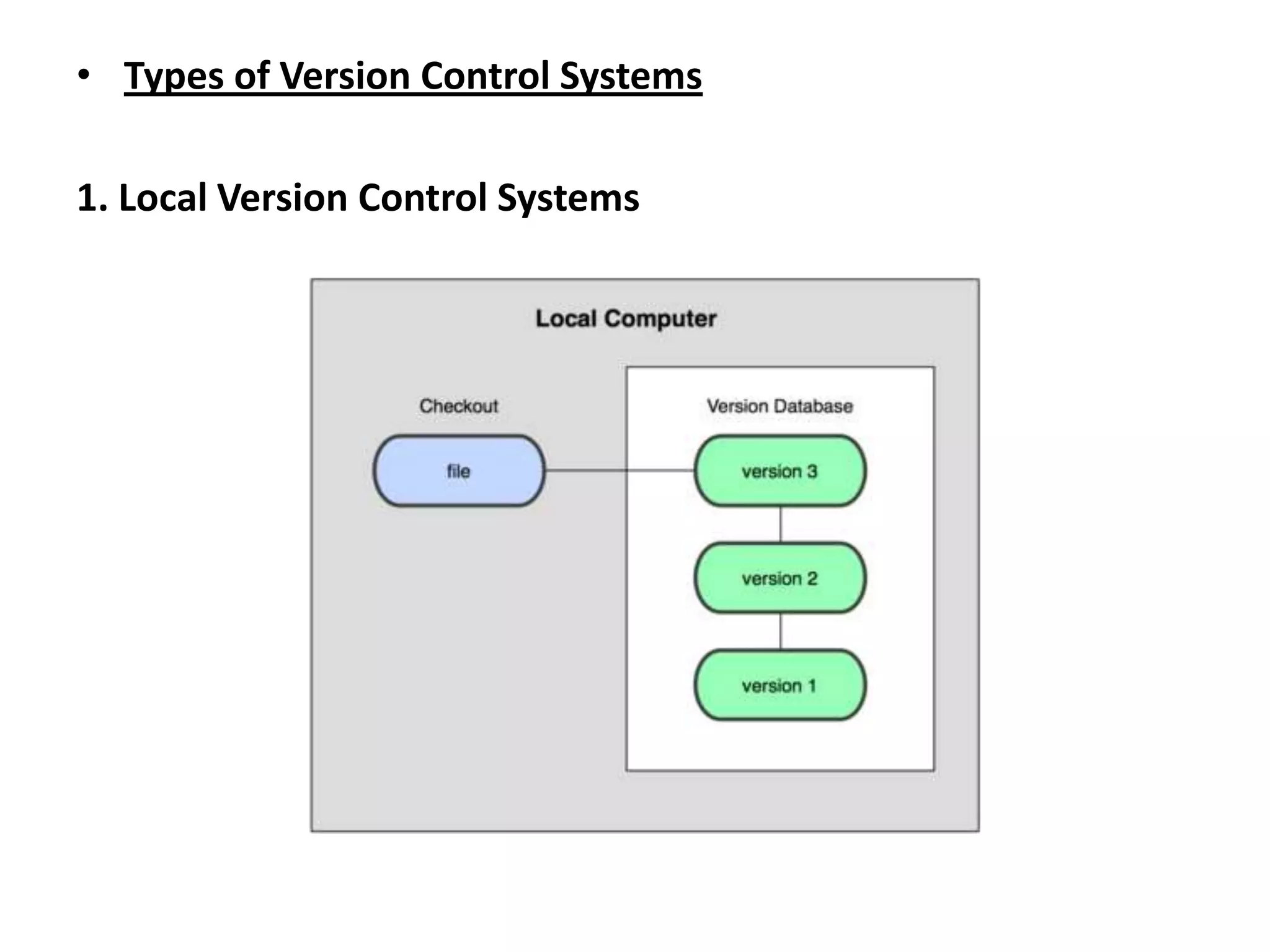
• Types of Version Control Systems

1. Local Version Control Systems
• Types of Version Control Systems

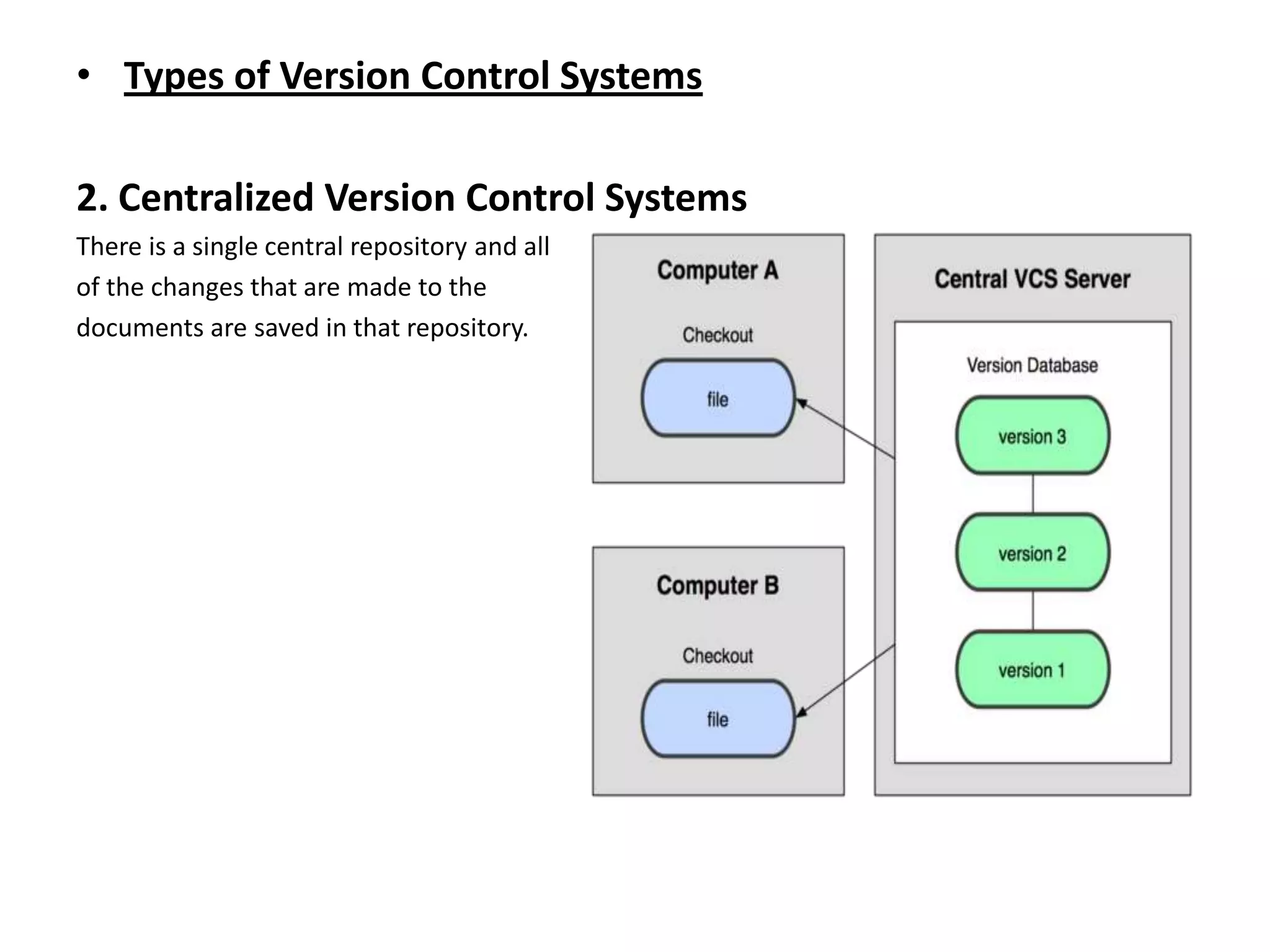
2. Centralized Version Control Systems
There is a single central repository and all
of the changes that are made to the
documents are saved in that repository.
• Types of Version Control Systems

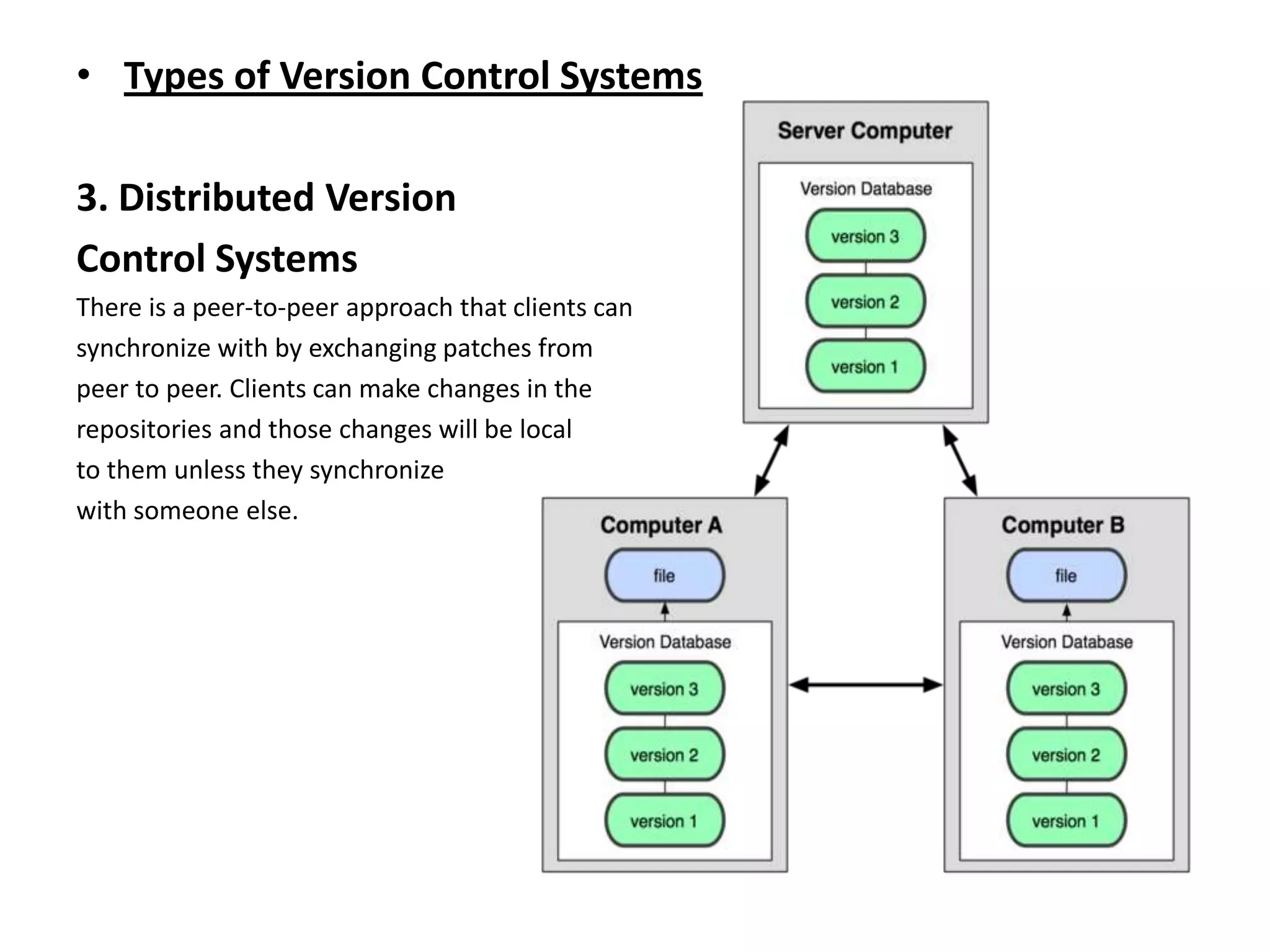
3. Distributed Version
Control Systems
There is a peer-to-peer approach that clients can
synchronize with by exchanging patches from
peer to peer. Clients can make changes in the
repositories and those changes will be local
to them unless they synchronize
with someone else.
• Git Basics
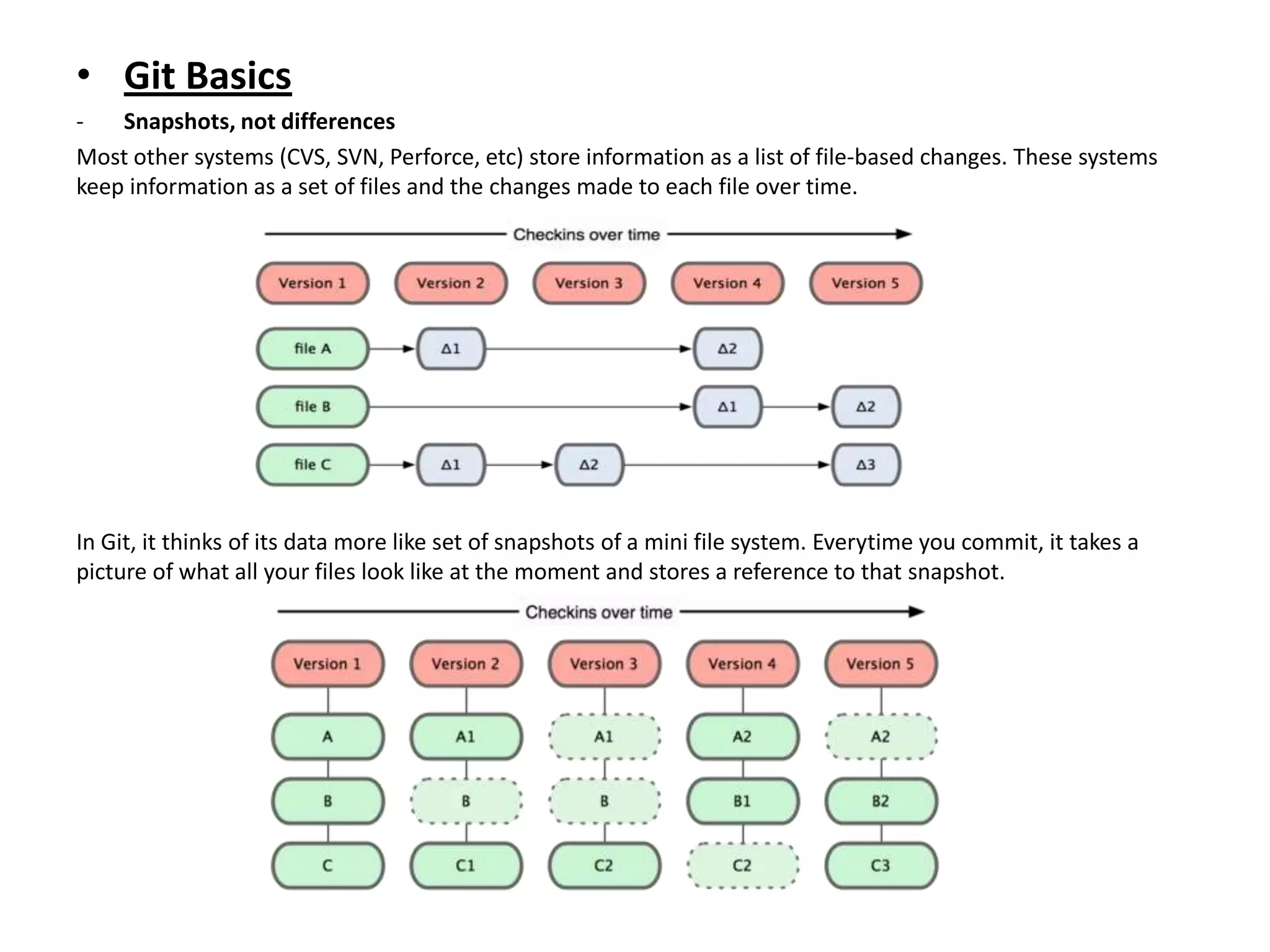
-   Snapshots, not differences
Most other systems (CVS, SVN, Perforce, etc) store information as a list of file-based changes. These systems
keep information as a set of files and the changes made to each file over time.


In Git, it thinks of its data more like set of snapshots of a mini file system. Everytime you commit, it takes a
picture of what all your files look like at the moment and stores a reference to that snapshot.
• Git Basics
- Every operation is local
Most operations in Git only need local files & resources to operate

- Git has integrity
Everything in Git is check-summed (SHA-1 hash) before it is stored & is referred to by that
checksum. This is 40-character string composed of hexadecimal characters (0-9 and a-f) and
calculated based on the contents of a file or directory structure.
SHA-1 hash ex.: 24b9da6552252987aa493b52f8696cd6d3b00373

- The 3 Git States
Git has three main states that your files can reside in: committed, modified, and staged.
Committed means that the data is safely stored in your local database. Modified means that you
have changed the file but have not committed it to your database yet. Staged means that you
have marked a modified file in its current version to go into your next commit snapshot.
• Git Basics
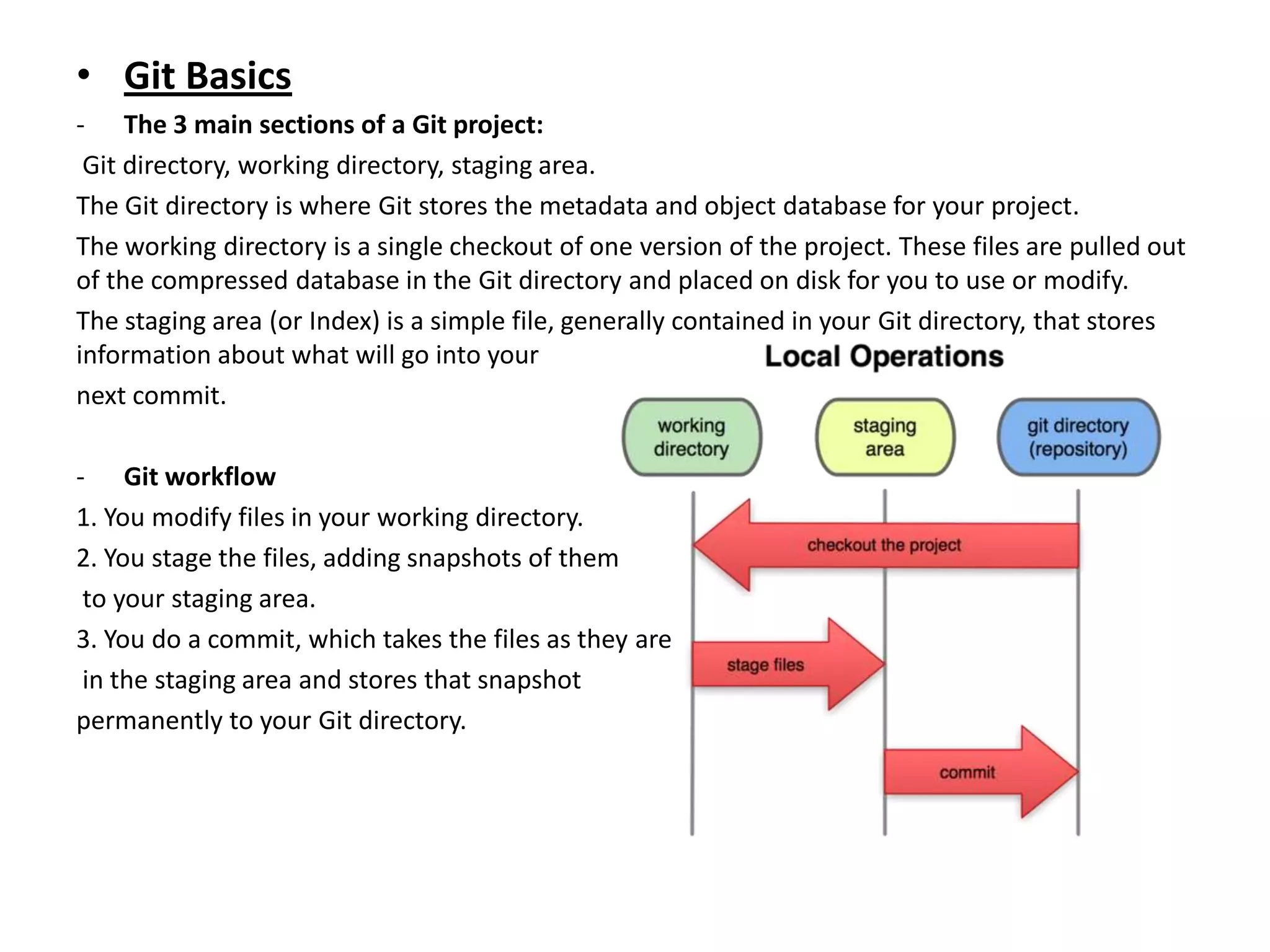
- The 3 main sections of a Git project:
 Git directory, working directory, staging area.
The Git directory is where Git stores the metadata and object database for your project.
The working directory is a single checkout of one version of the project. These files are pulled out
of the compressed database in the Git directory and placed on disk for you to use or modify.
The staging area (or Index) is a simple file, generally contained in your Git directory, that stores
information about what will go into your
next commit.

- Git workflow
1. You modify files in your working directory.
2. You stage the files, adding snapshots of them
 to your staging area.
3. You do a commit, which takes the files as they are
 in the staging area and stores that snapshot
permanently to your Git directory.
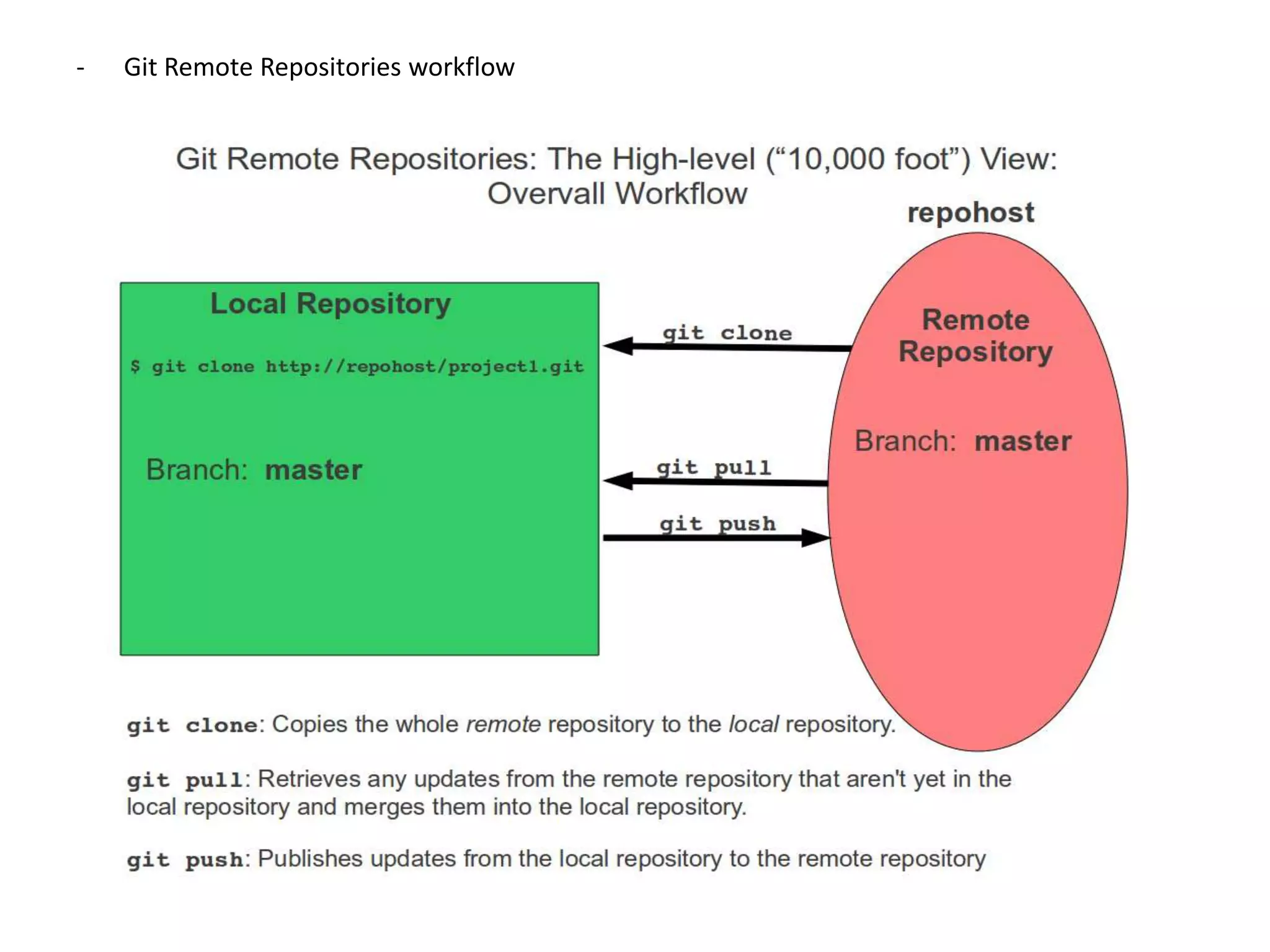
-   Git Remote Repositories workflow
•    Git vs. SVN

- With Git, clients can commit changes to their localized repositories as new revisions while being offline. However, SVN does not
provide this facility as user must be online in order to push to the repository from the working copy.

- Git’s complete copy of the data is stored locally in the client’s system so it is extremely fast when compared to SVN.

- In Git, data copies are stored locally in clients systems. The number of backups available is the same as the number of users on
any repository. With SVN, if there is a data loss in the central repository, it will be gone forever.

- Lightweight Branches: Frictionless Context Switching
Git DVCS is based on the concept of branching. The working directory of a developer is itself a branch. In Git, we can easily view
the working directories of developers while they are modifying two or more unrelated files at the same time as different branches
stemming from the same common base revision of the project. With SVN, there is almost no concept of branching

Each feature, each idea, each bugfix – you can easily create a new branch quickly, do a few commits on that branch and then
either merge it into your mainline work or throw it away. You don’t have to mess up the mainline just to save your experimental
ideas, you don’t have to be online to do it and most importantly, you can context switch almost instantly.

- In Git, commits are not sequential.
A large number of users can commit or push data to the same repository. If someone wants to push work in a Git repository, then
there is no need to worry about data lost or immediate merging of others changes.

- Git allows its users to have control over the merging of data in synchronized repositories. Merges are always pulled by someone
and nobody can push to commit merges in someone else’s repository.

- Git keeps track of contents while SVN keeps record of files. Because Git keeps track of contents, whenever there is even a small
change in content it tracks it as a separate change. Because of this, the history of a single file in Git is split.

- Git will not allow you to checkout a subdirectory. Instead, the user will have to checkout the whole repository. In SVN, checkouts
at subdirectory level are possible.
• Git Set-up (assume remote host is Github)
1. Download & install latest version of git: http://git-scm.com/
2. For GitHub use, set-up ssh keys
Reference: http://help.github.com/mac-set-up-git/
Check SSH set-up to GitHub: $ ssh -T git@github.com

3. Configure personal identity (~/.gitconfig)
Every Git commit uses this information, and it’s immutably baked into the commits you pass
around:
$ git config --global user.name "John Doe"
$ git config --global user.email johndoe@example.com

Additional note: Using GitHub w/ multiple accounts- http://net.tutsplus.com/tutorials/tools-and-
tips/how-to-work-with-github-and-multiple-accounts/

4. Set-up global .gitignore file (~/.gitignore)
A global .gitignore file can also be used by adding one to your global git config. For example, you
might create the file ~/.gitignore_global and add some rules to it. To add this to your config, run
git config --global core.excludesfile ~/.gitignore_global
• Git Set-up (assume remote host is Github)
4. Set-up global .gitignore file (~/.gitignore)
Create the file ~/.gitignore_global and add some rules to it. To add this to your config,
run git config --global core.excludesfile ~/.gitignore_global

5. Creating & Getting a Git Repository
Reference: http://help.github.com/create-a-repo/

- Initializing a Repository in an Existing Directory
If you’re starting to track an existing project in Git, you need to go to the project’s directory and
type: $ git init
This creates a new subdirectory named .git that contains all of your necessary repository files — a
Git repository skeleton. If you want to start version-controlling existing files (as opposed to an
empty directory), you should probably begin tracking those files and do an initial commit.
$ git add .
$ git add README
$ git commit -m 'initial project version'
5. Creating & Getting a Git Repository
• Cloning an existing repository
If you want to get a copy of an existing Git repository - the command you need is git clone
You clone a repository with git clone [url]. For example, if you want to clone facebook-ios-sdk,
you can do so like this:
$ git clone https://github.com/facebook/facebook-ios-sdk.git
•     Git Basic commands
- get the manual page (mangpage) help for any Git commands:
$ git help <verb>
$ git <verb> --help
$ man git-<verb>

- create new git repository
$ git init

checkout a repository
$ git clone /path/to/repository

Add & commit
- add files to the Index (staging area)
$ git add <filename>
$ git add *

to actually commit the changes use,
$ git commit -m 'Commit message'

note: the file is committed to the HEAD, but not in your remote repository yet.

Pushing changes
- send changes to your remote repository,
$ git push origin <branch>
• Git Basic commands
• Branching
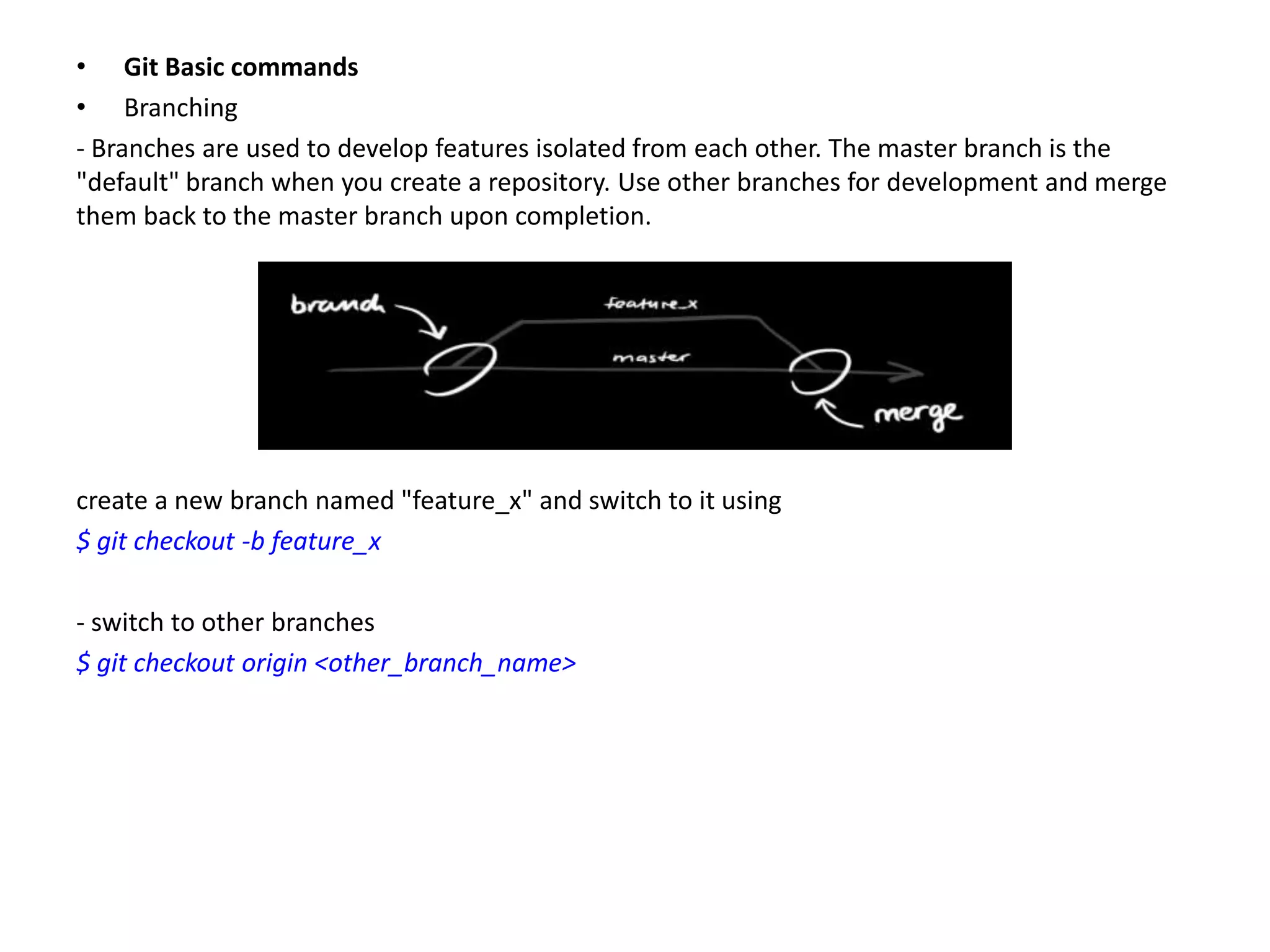
- Branches are used to develop features isolated from each other. The master branch is the
"default" branch when you create a repository. Use other branches for development and merge
them back to the master branch upon completion.


create a new branch named "feature_x" and switch to it using
$ git checkout -b feature_x

- switch to other branches
$ git checkout origin <other_branch_name>
• Git Basic commands
• Update & merge
- update your local repository to the newest commit
$ git pull origin <branch_name>

note: git pull will fetch & merge remote changes

- Merge another branch into your active branch (ex. development)
$ git merge <branch_to_merge>

-When merging, git would auto-merge changes. Unfortunately, there's some cases you'll
encounter merge conflicts. You're responsible to merge those conflicts manually by editing the
files shown by git.

- Preview differences
$ git diff <source_branch> <target_branch>
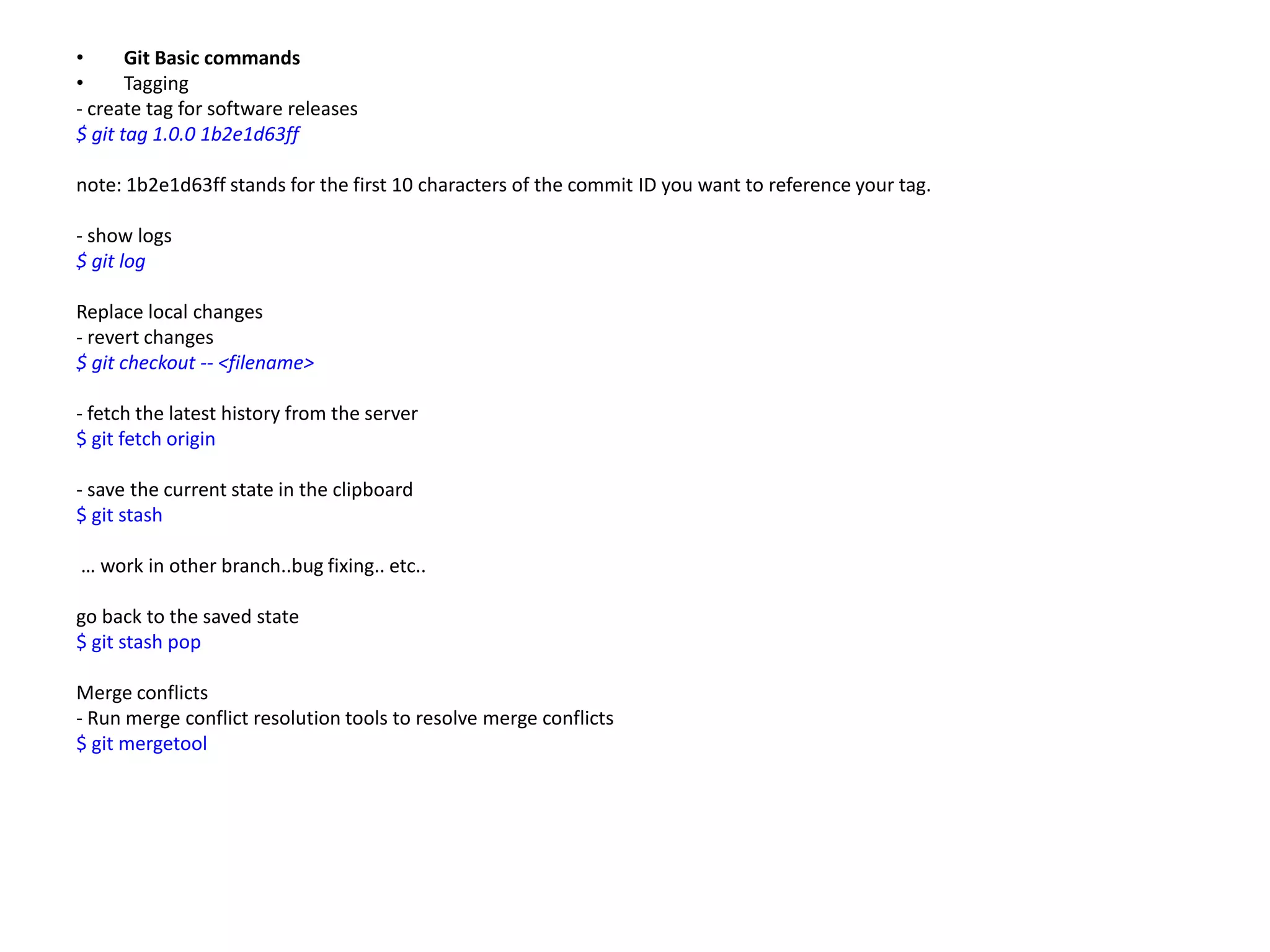
•      Git Basic commands
•      Tagging
- create tag for software releases
$ git tag 1.0.0 1b2e1d63ff

note: 1b2e1d63ff stands for the first 10 characters of the commit ID you want to reference your tag.

- show logs
$ git log

Replace local changes
- revert changes
$ git checkout -- <filename>

- fetch the latest history from the server
$ git fetch origin

- save the current state in the clipboard
$ git stash

… work in other branch..bug fixing.. etc..

go back to the saved state
$ git stash pop

Merge conflicts
- Run merge conflict resolution tools to resolve merge conflicts
$ git mergetool
•   References

•   http://book.git-scm.com/index.html
•   http://help.github.com/
•   http://progit.org/book/
•   http://rogerdudler.github.com/git-guide/
•   http://git.or.cz/course/svn.html
Thank You! 

Git 101

  • 1.
    Git 101 Presentation Prepared by: Leonardo Parro Jr.
  • 2.
    Git 101 • Topics: – Introduction - Types of Version Control System - Git Basics – Git vs SVN – Git Set-up – Basic Git commands – References
  • 3.
    Introduction • About VersionControl What is version control, and why should you care? Version control is a system that records changes to a file or set of files over time so that you can recall specific versions later.
  • 4.
    • Types ofVersion Control Systems 1. Local Version Control Systems
  • 5.
    • Types ofVersion Control Systems 2. Centralized Version Control Systems There is a single central repository and all of the changes that are made to the documents are saved in that repository.
  • 6.
    • Types ofVersion Control Systems 3. Distributed Version Control Systems There is a peer-to-peer approach that clients can synchronize with by exchanging patches from peer to peer. Clients can make changes in the repositories and those changes will be local to them unless they synchronize with someone else.
  • 7.
    • Git Basics - Snapshots, not differences Most other systems (CVS, SVN, Perforce, etc) store information as a list of file-based changes. These systems keep information as a set of files and the changes made to each file over time. In Git, it thinks of its data more like set of snapshots of a mini file system. Everytime you commit, it takes a picture of what all your files look like at the moment and stores a reference to that snapshot.
  • 8.
    • Git Basics -Every operation is local Most operations in Git only need local files & resources to operate - Git has integrity Everything in Git is check-summed (SHA-1 hash) before it is stored & is referred to by that checksum. This is 40-character string composed of hexadecimal characters (0-9 and a-f) and calculated based on the contents of a file or directory structure. SHA-1 hash ex.: 24b9da6552252987aa493b52f8696cd6d3b00373 - The 3 Git States Git has three main states that your files can reside in: committed, modified, and staged. Committed means that the data is safely stored in your local database. Modified means that you have changed the file but have not committed it to your database yet. Staged means that you have marked a modified file in its current version to go into your next commit snapshot.
  • 9.
    • Git Basics -The 3 main sections of a Git project: Git directory, working directory, staging area. The Git directory is where Git stores the metadata and object database for your project. The working directory is a single checkout of one version of the project. These files are pulled out of the compressed database in the Git directory and placed on disk for you to use or modify. The staging area (or Index) is a simple file, generally contained in your Git directory, that stores information about what will go into your next commit. - Git workflow 1. You modify files in your working directory. 2. You stage the files, adding snapshots of them to your staging area. 3. You do a commit, which takes the files as they are in the staging area and stores that snapshot permanently to your Git directory.
  • 10.
    - Git Remote Repositories workflow
  • 11.
    Git vs. SVN - With Git, clients can commit changes to their localized repositories as new revisions while being offline. However, SVN does not provide this facility as user must be online in order to push to the repository from the working copy. - Git’s complete copy of the data is stored locally in the client’s system so it is extremely fast when compared to SVN. - In Git, data copies are stored locally in clients systems. The number of backups available is the same as the number of users on any repository. With SVN, if there is a data loss in the central repository, it will be gone forever. - Lightweight Branches: Frictionless Context Switching Git DVCS is based on the concept of branching. The working directory of a developer is itself a branch. In Git, we can easily view the working directories of developers while they are modifying two or more unrelated files at the same time as different branches stemming from the same common base revision of the project. With SVN, there is almost no concept of branching Each feature, each idea, each bugfix – you can easily create a new branch quickly, do a few commits on that branch and then either merge it into your mainline work or throw it away. You don’t have to mess up the mainline just to save your experimental ideas, you don’t have to be online to do it and most importantly, you can context switch almost instantly. - In Git, commits are not sequential. A large number of users can commit or push data to the same repository. If someone wants to push work in a Git repository, then there is no need to worry about data lost or immediate merging of others changes. - Git allows its users to have control over the merging of data in synchronized repositories. Merges are always pulled by someone and nobody can push to commit merges in someone else’s repository. - Git keeps track of contents while SVN keeps record of files. Because Git keeps track of contents, whenever there is even a small change in content it tracks it as a separate change. Because of this, the history of a single file in Git is split. - Git will not allow you to checkout a subdirectory. Instead, the user will have to checkout the whole repository. In SVN, checkouts at subdirectory level are possible.
  • 12.
    • Git Set-up(assume remote host is Github) 1. Download & install latest version of git: http://git-scm.com/ 2. For GitHub use, set-up ssh keys Reference: http://help.github.com/mac-set-up-git/ Check SSH set-up to GitHub: $ ssh -T git@github.com 3. Configure personal identity (~/.gitconfig) Every Git commit uses this information, and it’s immutably baked into the commits you pass around: $ git config --global user.name "John Doe" $ git config --global user.email johndoe@example.com Additional note: Using GitHub w/ multiple accounts- http://net.tutsplus.com/tutorials/tools-and- tips/how-to-work-with-github-and-multiple-accounts/ 4. Set-up global .gitignore file (~/.gitignore) A global .gitignore file can also be used by adding one to your global git config. For example, you might create the file ~/.gitignore_global and add some rules to it. To add this to your config, run git config --global core.excludesfile ~/.gitignore_global
  • 13.
    • Git Set-up(assume remote host is Github) 4. Set-up global .gitignore file (~/.gitignore) Create the file ~/.gitignore_global and add some rules to it. To add this to your config, run git config --global core.excludesfile ~/.gitignore_global 5. Creating & Getting a Git Repository Reference: http://help.github.com/create-a-repo/ - Initializing a Repository in an Existing Directory If you’re starting to track an existing project in Git, you need to go to the project’s directory and type: $ git init This creates a new subdirectory named .git that contains all of your necessary repository files — a Git repository skeleton. If you want to start version-controlling existing files (as opposed to an empty directory), you should probably begin tracking those files and do an initial commit. $ git add . $ git add README $ git commit -m 'initial project version'
  • 14.
    5. Creating &Getting a Git Repository • Cloning an existing repository If you want to get a copy of an existing Git repository - the command you need is git clone You clone a repository with git clone [url]. For example, if you want to clone facebook-ios-sdk, you can do so like this: $ git clone https://github.com/facebook/facebook-ios-sdk.git
  • 15.
    Git Basic commands - get the manual page (mangpage) help for any Git commands: $ git help <verb> $ git <verb> --help $ man git-<verb> - create new git repository $ git init checkout a repository $ git clone /path/to/repository Add & commit - add files to the Index (staging area) $ git add <filename> $ git add * to actually commit the changes use, $ git commit -m 'Commit message' note: the file is committed to the HEAD, but not in your remote repository yet. Pushing changes - send changes to your remote repository, $ git push origin <branch>
  • 16.
    • Git Basiccommands • Branching - Branches are used to develop features isolated from each other. The master branch is the "default" branch when you create a repository. Use other branches for development and merge them back to the master branch upon completion. create a new branch named "feature_x" and switch to it using $ git checkout -b feature_x - switch to other branches $ git checkout origin <other_branch_name>
  • 17.
    • Git Basiccommands • Update & merge - update your local repository to the newest commit $ git pull origin <branch_name> note: git pull will fetch & merge remote changes - Merge another branch into your active branch (ex. development) $ git merge <branch_to_merge> -When merging, git would auto-merge changes. Unfortunately, there's some cases you'll encounter merge conflicts. You're responsible to merge those conflicts manually by editing the files shown by git. - Preview differences $ git diff <source_branch> <target_branch>
  • 18.
    Git Basic commands • Tagging - create tag for software releases $ git tag 1.0.0 1b2e1d63ff note: 1b2e1d63ff stands for the first 10 characters of the commit ID you want to reference your tag. - show logs $ git log Replace local changes - revert changes $ git checkout -- <filename> - fetch the latest history from the server $ git fetch origin - save the current state in the clipboard $ git stash … work in other branch..bug fixing.. etc.. go back to the saved state $ git stash pop Merge conflicts - Run merge conflict resolution tools to resolve merge conflicts $ git mergetool
  • 19.
    References • http://book.git-scm.com/index.html • http://help.github.com/ • http://progit.org/book/ • http://rogerdudler.github.com/git-guide/ • http://git.or.cz/course/svn.html
  • 20.